
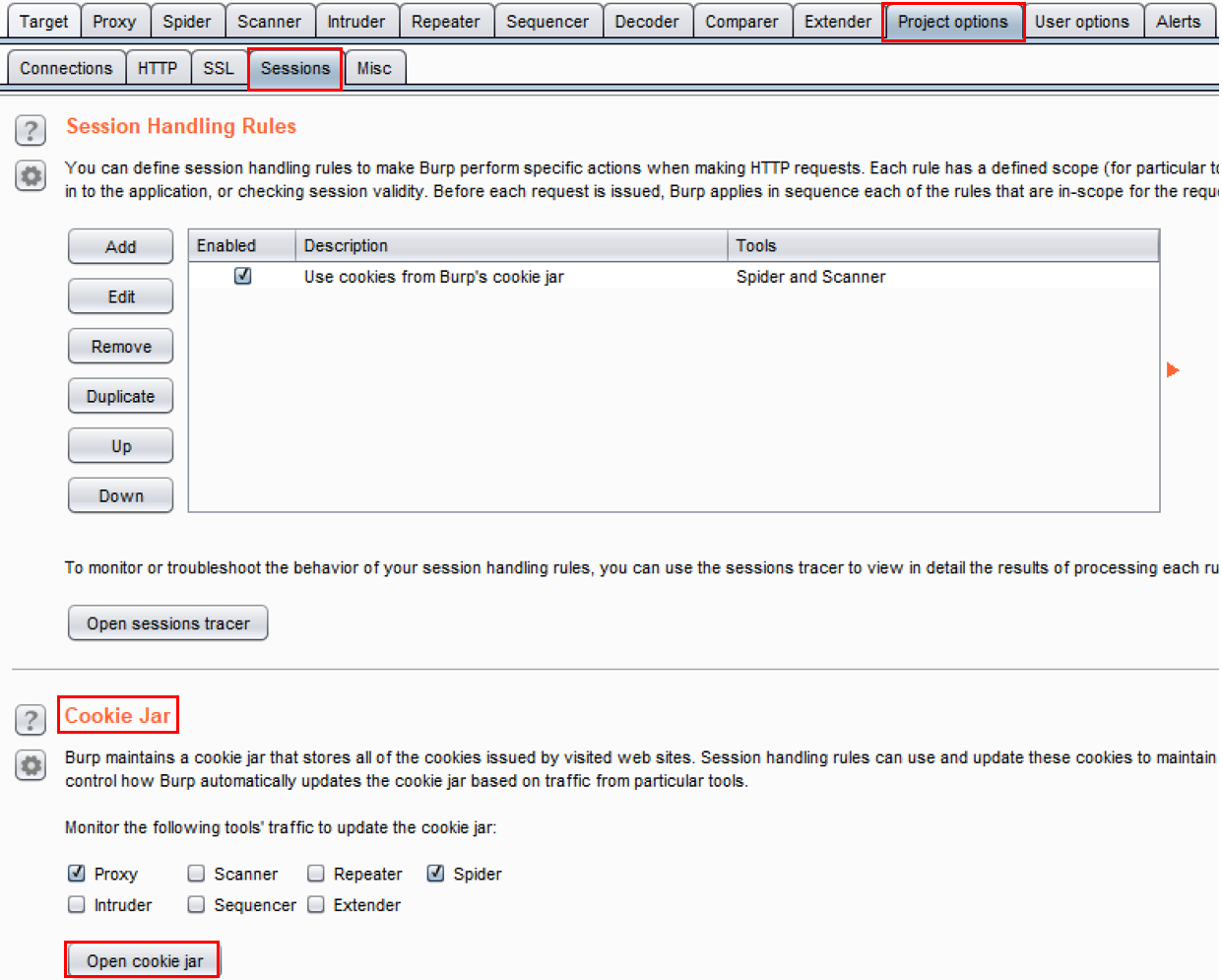
- Shut down and restart Burp so it is clean of any history. Switch to the Burp Project options tab, then the Sessions tab. In the Cookie Jar section, click the Open cookie jar button, as follows:
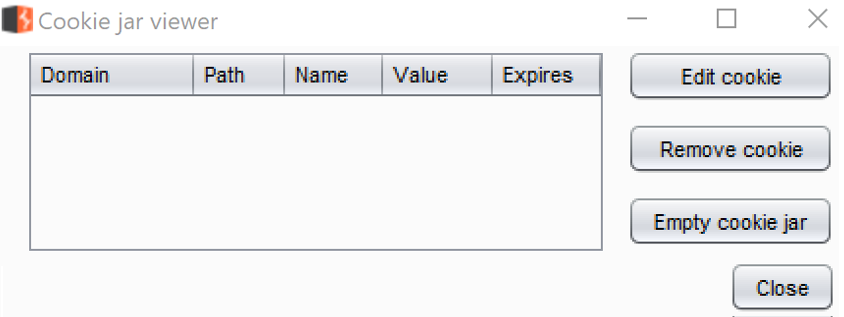
- A new pop-up box appears. Since we have no proxied traffic yet, the cookie jar is empty. Let's target an application and get some cookies captured, as follows:
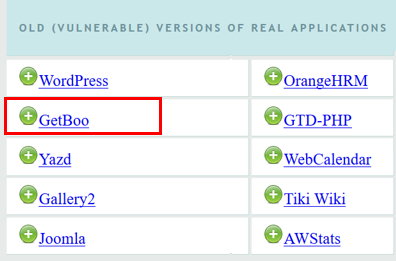
- From the OWASP Landing page, click the link to access the GetBoo application, as follows:
- Click the Login button. At the login screen, type both the username and password as demo, and then click the Log In button.
- Return to the Burp Cookie Jar. You now have three cookies available. Each cookie has a Domain, Path, Name, and Value identified, as follows:
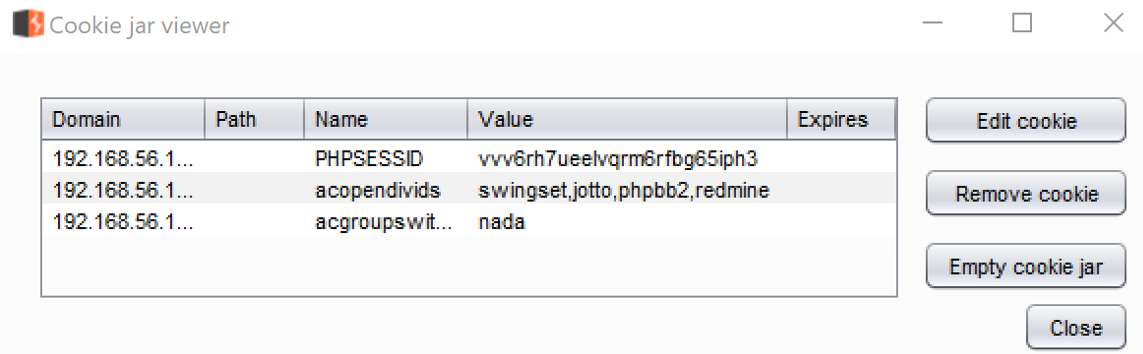
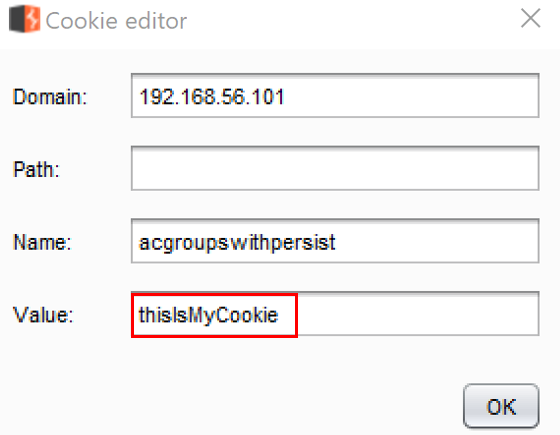
- Select the last cookie in the list and click the Edit cookie button. Modify the value from nada to thisIsMyCookie and then click OK, as follows:
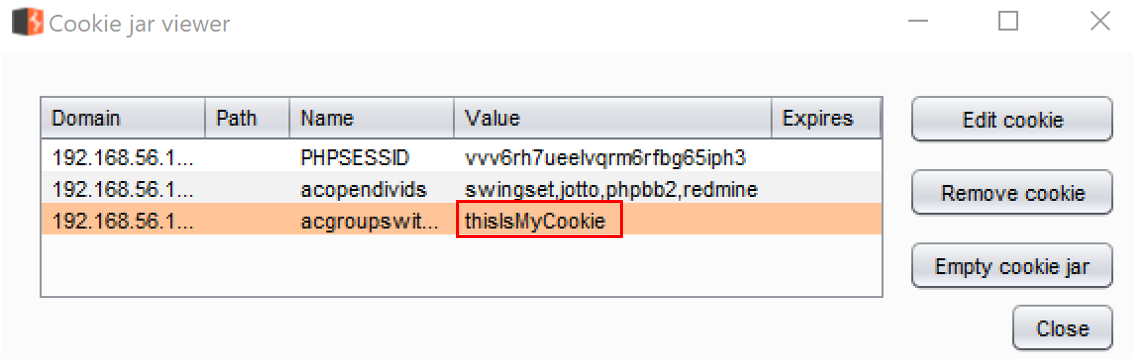
- The value is now changed, as follows:
- The default scope for the Burp Cookie Jar is Proxy and Spider. However, you may expand the scope to include other tools. Click the checkbox for Repeater, as follows:
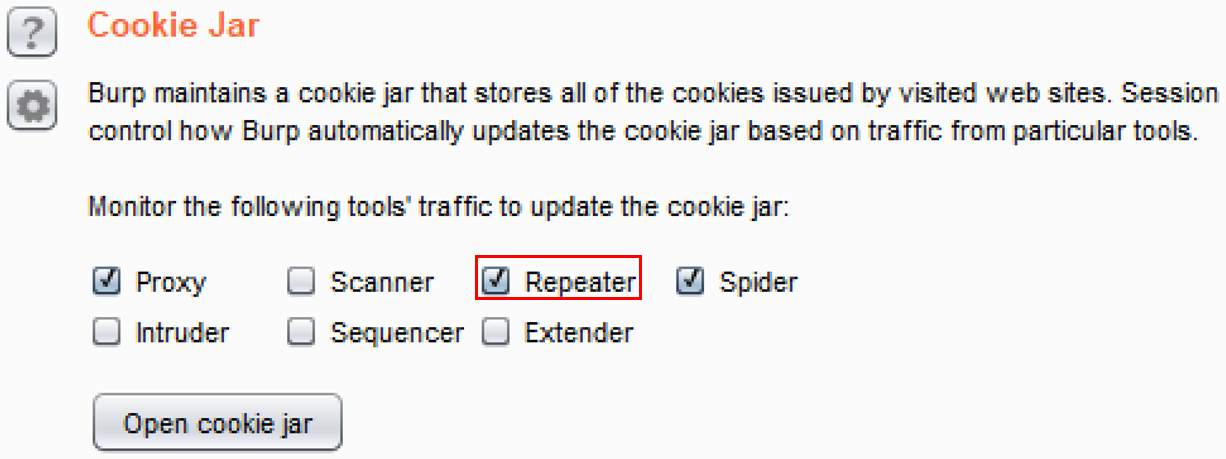
Now, if you create a new session-handling rule and use the default Burp Cookie Jar, you will see the new value for that cookie used in the requests.