- Ensure the owaspbwa VM is running. Select DVWA from the initial landing page of the VM. The landing page will be configured to an IP address specific to your machine.
- At the login page, use these credentials: Username: user; Password: user.
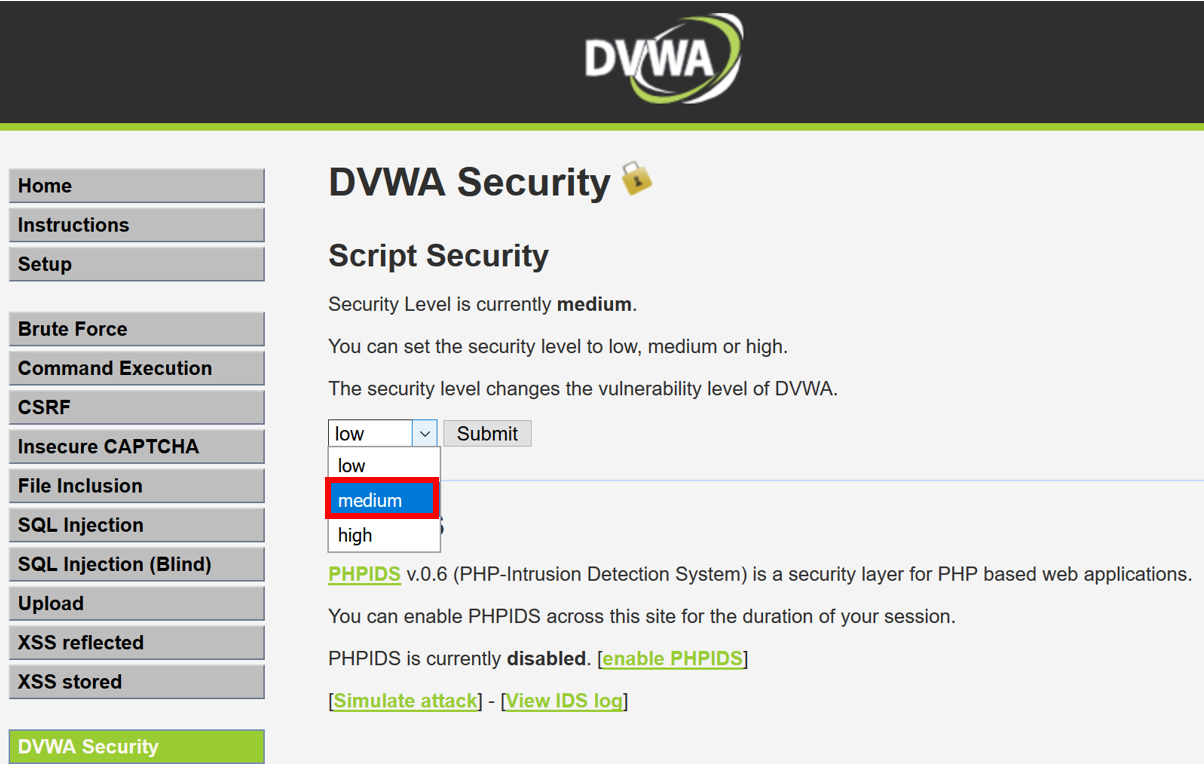
- Select the DVWA Security option from the menu on the left. Change the default setting of low to medium and then click Submit:
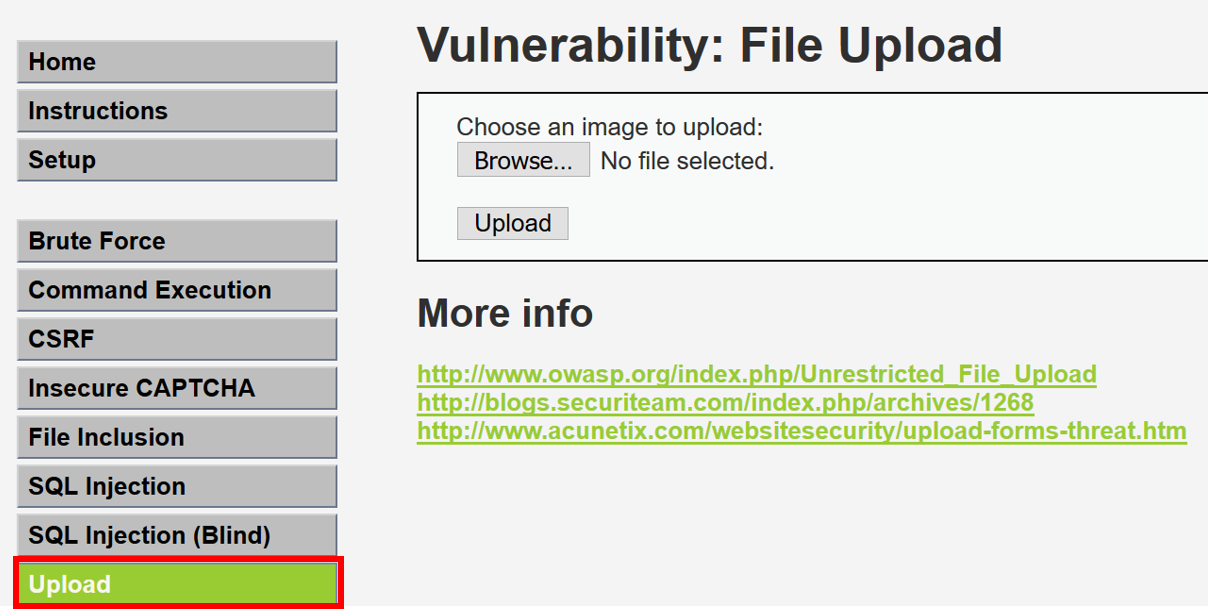
- Select the Upload page from the menu on the left:
- Note the page instructs users to only upload images. If we try another type of file other than a JPG image, we receive an error message in the upper left-hand corner:

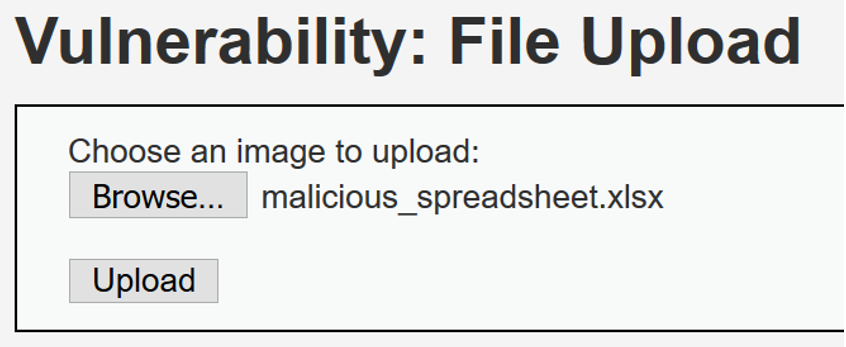
- On your local machine, create a file of any type, other than JPG. For example, create a Microsoft Excel file called malicious_spreadsheet.xlsx. It does not need to have any content for the purpose of this recipe.
- Switch to Burp's Proxy | Intercept tab. Turn Interceptor on with the button Intercept is on.
- Return to Firefox, and use the Browse button to find the malicious_spreadsheet.xlsx file on your system and click the Upload button:
- With the request paused in Burp's Proxy | Interceptor, change the Content-type from application/vnd.openxmlformats-officedocument.spreadsheet.sheet to image/jpeg instead.

-
- Here is the modified version:

- Click the Forward button. Now turn Interceptor off by clicking the toggle button to Intercept is off.
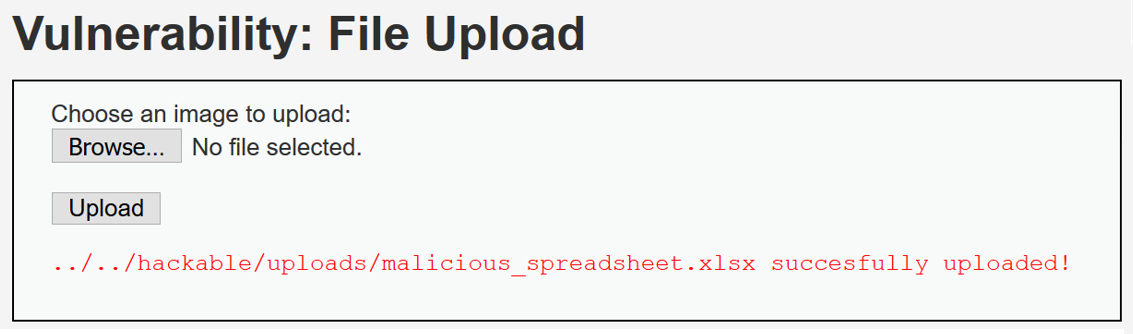
- Note the file uploaded successfully! We were able to bypass the weak data validation checks and upload a file other than an image: