The two previous sections returned information about the raster and geometries representing the raster data. This section will show you how to query your raster dataset for values.
To get the value of a specific cell, you use ST_Value, which is shown as follows:
cursor.execute("select ST_Value(rast,4,3) from bigi;")
cursor.fetchall()
The previous code passes the raster, the column, and row to ST_Value. Optionally, you can pass false if you want don't want to return any data values. The result of the previous query is shown as follows:
[(51.0,)]
The output is the value at the given cell.
If you want to search for all pixels with a given value, you can use ST_PixelOfValue, as follows:
cursor.execute("select ST_PixelOfValue(rast,1,50) from bigi;")
cursor.fetchall()
The previous code passes the band and the value to search for. The result of this query is an array of all (x,y) coordinates, where the value is 50. The output is shown as follows:
[('(4,2)',), ('(5,4)',), ('(7,2)',), ('(7,3)',), ('(7,4)',)]
For each of the coordinates shown earlier, the value is 50.
To summarize the occurrences of every value in the raster, you can query using ST_ValueCount, as follows:
cursor.execute("select ST_ValueCount(rast) from bigi;")
cursor.fetchall()
The previous code passes the raster column to ST_ValueCount. You can specify a raster band by passing the band as an integer as the second parameter—ST_ValueCount(raster,2) would be band 2. Otherwise, the default is band 1. The output is as follows:
[('(10,12)',), ('(1,10)',), ('(50,5)',), ('(51,1)',)]
The previous output contains the value and the count in the format of (value, count).
You can also query for the number of times a single value occurs in the data. The following code shows you how:
cursor.execute("select ST_ValueCount(rast,1,True,50) from bigi;")
cursor.fetchall()
Using ST_ValueCount and passing a search value (50), you will receive the number of times 50 occurs as a value in the raster, as follows:
[(5,)]
The previous output shows that 50 occurs 5 times in the raster dataset.
To return all the values in the raster data, you can use ST_DumpValues, as follows:
cursor.execute("select ST_DumpValues(rast,1) from bigi;")
cursor.fetchall()
The previous code passes the raster column and the band. The results are all the values in the raster as an array. The output is shown as follows:
[([[10.0, 10.0, 1.0, 10.0, 10.0, 10.0, 10.0],
 [1.0, 1.0, 1.0, 50.0, 10.0, 10.0, 50.0],
 [10.0, 1.0, 1.0, 51.0, 10.0, 10.0, 50.0],
 [1.0, 1.0, 1.0, 1.0, 50.0, 10.0, 50.0]],)]
Using the previous output, you can query individual cells using standard Python indexing notation.
The previous queries returned values from a specified cell or by using a specified value. The two queries that are to be followed will return values based on a point geometry.
Using ST_NearestValue, you can pass a point and get the closest pixel value to that point. If the raster data contained elevation values, you would be querying for the known elevation which is closest to the point. The following code shows you how:
cursor.execute("select ST_NearestValue(rast,( select ST_SetSRID( ST_MakePoint(-71.629773,60.105389),4326))) from bigi;".format(p.wkt))

cursor.fetchall()
The previous code passes the raster column and a point to ST_NearestValue. Starting from the inside out, the point parameter used ST_MakePoint to make a point from coordinates. The function is wrapped in ST_SetSRID. ST_SetSRID takes two parameters—a point and a spatial reference. In this case, the point is ST_MakePoint, and the spatial reference is ESPG 4326. The result of the previous query is shown as follows:
[(51.0,)]
The value of 51 is the closest value to the point. The coordinates in the query are the centroid of the cell (4,3) from the earlier ST_PixelAsCentroids example. In that example, the value of that point was 51.
To retrieve more than one value near a given point, you can use ST_Neighborhood, as shown in the following code:
cursor.execute("select ST_Neighborhood(rast,(select ST_SetSRID( ST_MakePoint(410314,3469015),26913)),1,1) from newmexicoraster;")

cursor.fetchall()
The ST_Neighborhood function takes the raster column, a point, and an x, y distance value. In the previous code, you used ST_MakePoint and ST_SetSRID to create the point. You then passed the point and the distances of 1 and 1 for the x and y distance parameter. This will return a 3x3 neighborhood, as shown in the following output:
[([[255.0, 255.0, 255.0], [255.0, 255.0, 255.0], [255.0, 255.0, 255.0]],)]
The previous output shows that the values of the surrounding neighborhood are all 255.
Finally, you can select vector geometry as a raster. When querying a vector table which contains Albuquerque Police Area Commands as polygons, the following code will extract a single area command as a raster:
cursor.execute("SELECT ST_AsPNG(ST_asRaster(geom,150,250,'8BUI')) from areacommand where name like 'FOOTHILLS';")

c=cursor.fetchall()

with open('Foothills.png','wb') as f:
    f.write(c[0][0])
f.close()
The previous code is a select statement that selects a geometry from the areacommand table, where the name is FOOTHILLS. The geometry portion of the query is where you perform the raster conversion.
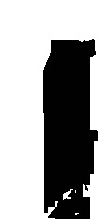
ST_AsRaster takes a geometry, the scale of x, the scale of y, and the type of pixels. The ST_AsRaster function is wrapped in the ST_AsPNG function. The result is a PNG file in memory view. Using standard Python file operations, the code opens a file, Foothills.png, in write binary mode, and then writes the memory view c[0][0] to disk. It then closes the file.
The output is shown in the following image: