The QGIS Python console is a Python console. You can perform all of your normal Python tasks with the added benefit of having the QGIS libraries added. From the console, you can manipulate GIS data and display it on the screen, or not.
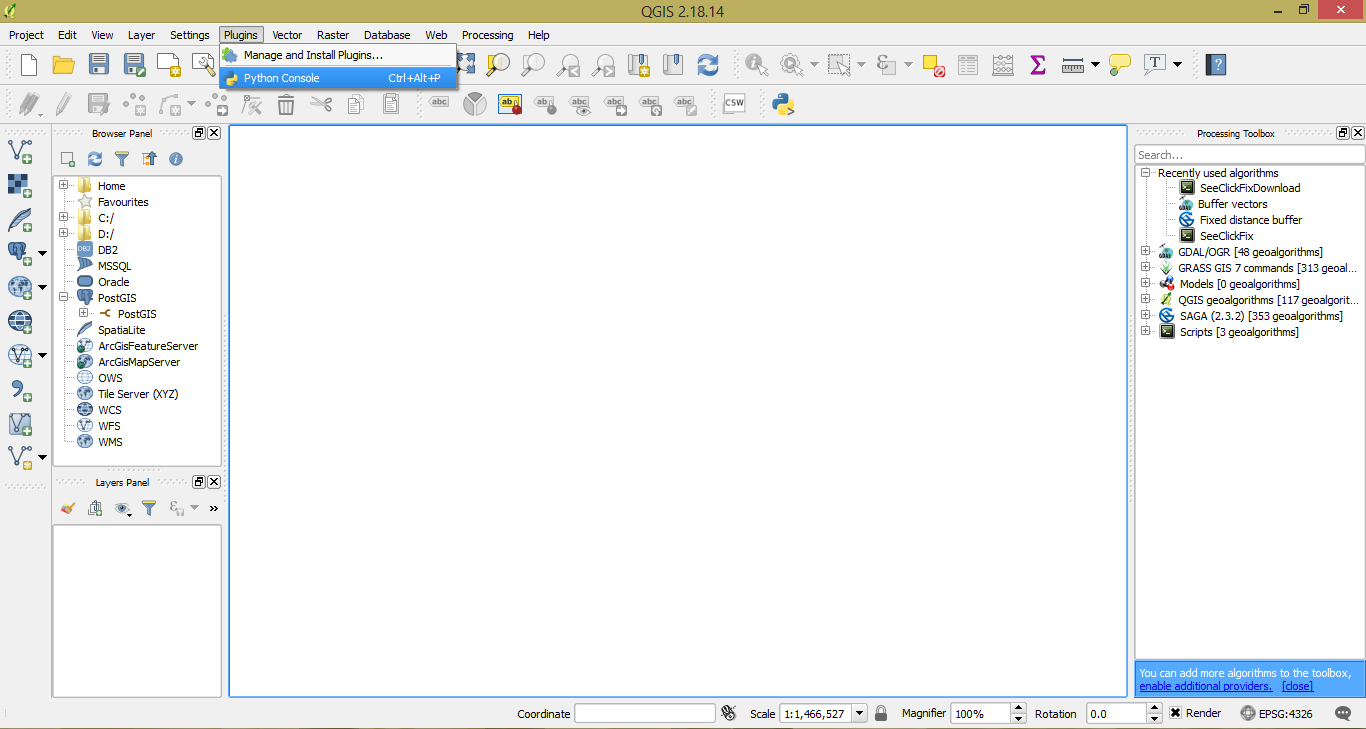
The Python console is located under the Plugins menu on the QGIS toolbar. You can also access it by pressing Ctrl + Alt + P on the keyboard. The console will usually open in the bottom of the main window. You can undock it by clicking on the title bar (where it says Python Console), holding down the mouse button, and dragging the window to another location on the screen or by clicking the window button at the top-right of the console:
The console has buttons for clearing the window, importing GIS and QGIS specific libraries, running the current command (you can press Enter instead of clicking this button), showing the editor, modifying options, and viewing the Help files. The editor launches a simplified text editor you can use for writing your Python code. It has a few benefits over the command line. You can use the editor to open existing Python files and run or edit them. When you write code in the console, you can save it to a file. In the console, you would need to select all, then copy and paste it into another file, removing all of the output. The editor also allows you to search for text, cut text, add or remove comments, and inspect objects.
Now that you understand the basics of the console and the editor, we can start writing some Python code.