In the first code box, we will import the CARTOframes module, and pass the API key string along with the base URL, which is generated from your CARTO username as https://{username}.carto.com. In this case, the URL is https://lokiintelligent.carto.com:
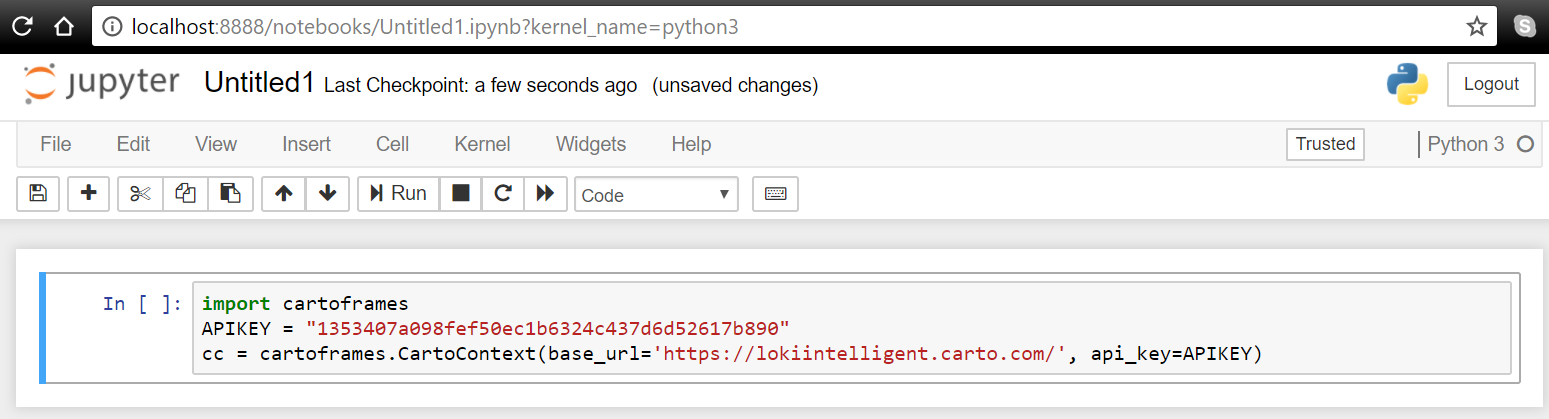
In this code block, the API key and the URL are passed to the CartoContext class, and a CartoContext connect object is returned and assigned to the variable cc. With this object, we can now interact with the datasets associated with our account, load datasets into the account, and even generate maps directly in the Jupyter Notebook.
Once the code has been entered into the section, push the Run button to execute the code in the current section. Any output will appear in an Out section, underneath the code run. This section can include maps, tables, and even graphs—Jupyter Notebooks are often used in scientific computing because of this ability to instantly produce graphs and to save them within the Notebook.