Editing the system path and other environment variables within Windows requires administrative permissions. Here are the steps to edit them for our purposes:
- Log into an account with administrative permissions.
- Open Windows Explorer and right-click on the PC icon in the left pane.
- Select Properties from the context menu.
- Click on Advanced system settings.
- In the next menu, click on Environment Variables.
- Select Path from the system variables and click Edit (or double-click on the path value).
- Add the file path of the bin folder in the OSGeo4W folder (for example, C:\OSGeo4W\bin) to the path:
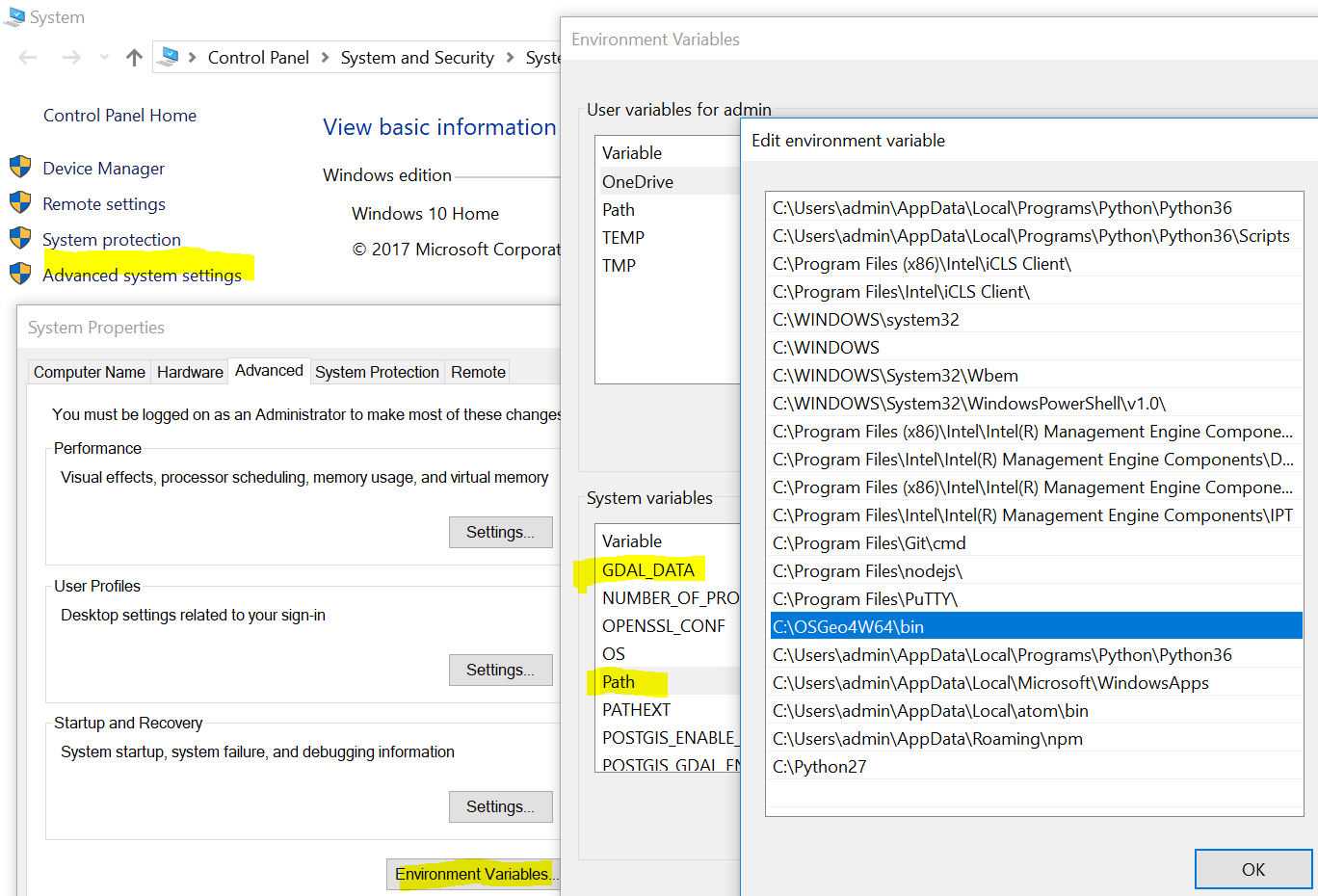
The Python 3.6 folder has also been added to the path in this example, as well as Python 2.7, which is ordered behind Python 3.6 because of its position in the path environment variable value. This means that when Python is passed to a command line, the Python 3.6 executable will be run.
Two other variables that may be required are the GDAL_DATA variable and the PROJ_LIB variable. If PostGIS has been installed, it will have created a GDAL_DATA variable already, but if it is not present, click the New button underneath the system variables box. Add the name of the variable (GDAL_DATA) and the variable value (for example, C:\OSGeo4W64\share\gdal).
Add the PROJ_LIB variable the same way:
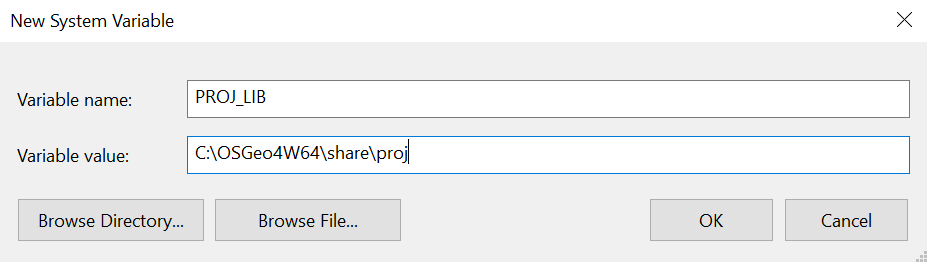
Click OK to save the new variables, and OK again to get out of the first settings dialog. Close the System Properties menu.