Table of Contents for
Ubuntu: Up and Running
 Ubuntu: Up and Running
Published by
O'Reilly Media, Inc., 2010
Ubuntu: Up and Running
Published by
O'Reilly Media, Inc., 2010
- Cover
- Ubuntu: Up and Running
- Ubuntu: Up and Running
- Dedication
- Foreword
- Preface
- 1. About Ubuntu
- 2. Installing and Upgrading Ubuntu
- 3. Configuring
- 4. The Desktop: Accessing Applications and Features
- 5. The Filesystem, File Attributes, and Permissions
- 6. The Nautilus File Browser
- 7. The Command Line
- 8. Installing and Removing Software
- 9. System Maintenance and Security
- 10. Networking Ubuntu
- 11. The Internet
- 12. Using OpenOffice.org
- 13. Playing Games
- 14. Pictures, Sound, and Video
- 15. Other Ubuntu Distributions
- 16. Using Wine
- Index
- About the Author
- Colophon
- Copyright
Chapter 13. Playing Games
Although Windows and OS X computers make up about 99% of desktop operating systems, there is still a vast amount of software available for Linux, and games are no exception. The reason for this may be that historically Linux users have tended to be programmers, so they would naturally want to port the games they write to Linux.
But Linux is also a very powerful OS with the ability to emulate other operating systems at virtually full speed. This means that a large number of Windows-only games can now be played on Linux.
In other words, just because you use Ubuntu, it doesn’t mean that you’ll be missing out on great software, as I’ll demonstrate in this chapter.
Built-in Games
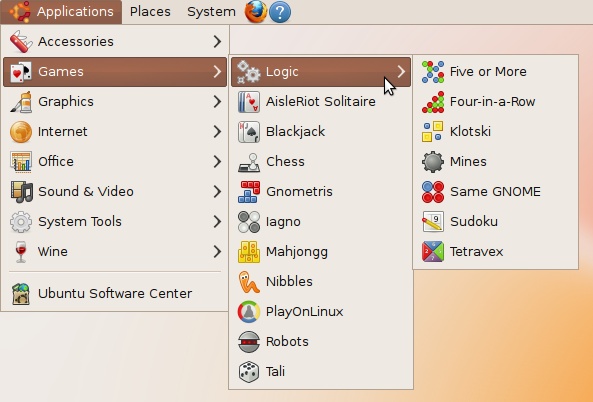
A default Ubuntu installation comes with over a dozen fun games that you can run straight away from the Applications → Games menu, as shown in Figure 13-1. The main games are in the Games folder, whereas more logic-oriented games can be found in the Logic subfolder.
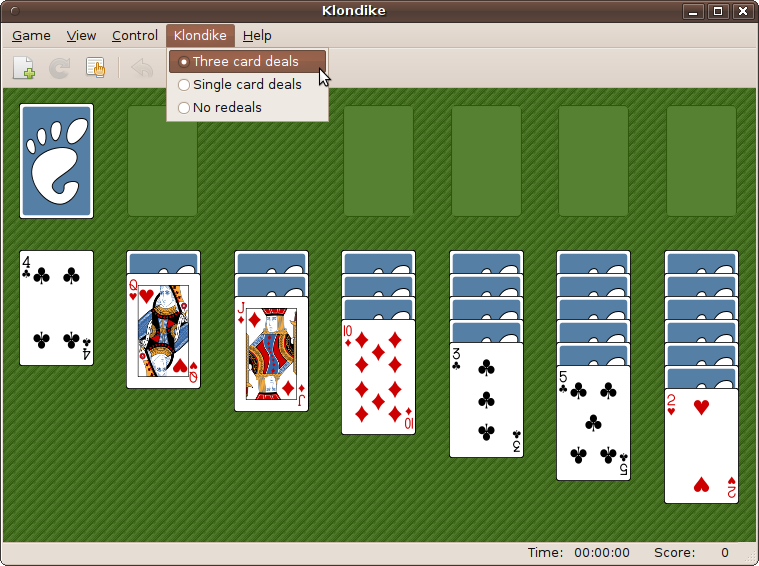
If you’re a migrant from Windows, you’ll be pleased to see the AisleRiot Solitaire game, which is similar to Windows Solitaire, although you’ll need to use the game’s Klondike menu and check the “Three card deals” box to make the game play the same as the Windows default version (see Figure 13-2).
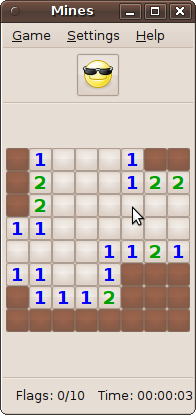
There’s also a Mines game, which is the equivalent of Windows Minesweeper, shown in Figure 13-3.
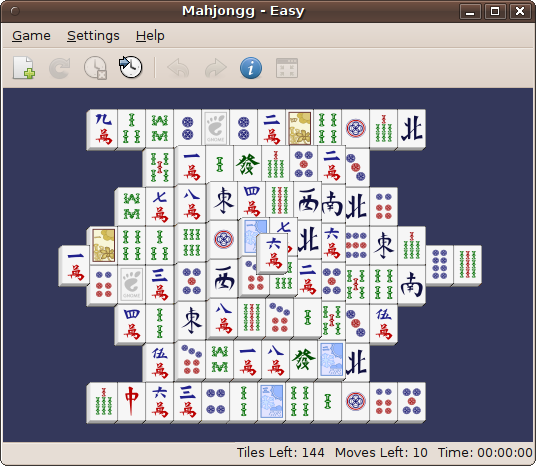
Windows Vista and Windows 7 users will also be pleased to see the Mahjongg game already installed in Ubuntu (see Figure 13-4).
In addition to these, there are versions of Chess, Four-in-a-row, Sudoku, and many more games that will keep you occupied for hours. But when you have worked your way through them all and are thirsty for more gaming action, I recommend you next take a look at PlayDeb.
PlayDeb
PlayDeb provides a repository of some of the best open source and freeware games available for Ubuntu. Unlike Ubuntu’s twice-yearly schedule, PlayDeb’s repositories are updated whenever new programs or updates are available, so it’s worth bookmarking and checking the site regularly.
To make use of the site’s simple download and installation process, you’ll need to add its repository to your computer by entering the following URL into your web browser:
| http://archive.getdeb.net/install_deb/playdeb_0.3-1~getdeb1_all.deb |
Note
The wavy character after the 0.3-1 part is a tilde, which is often on the top-left backtick key of a U.S. keyboard, or on the # key of a UK keyboard next to the big Return key, although it can vary.
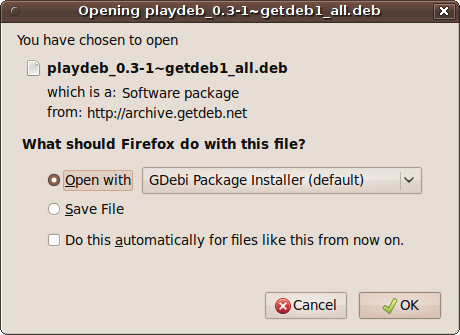
After entering that URL, you should see the window in Figure 13-5 pop up, prompting you to open the URL in the GDebi Package Installer. If that option isn’t shown, select it from the drop-down list. Then click OK to install PlayDeb.
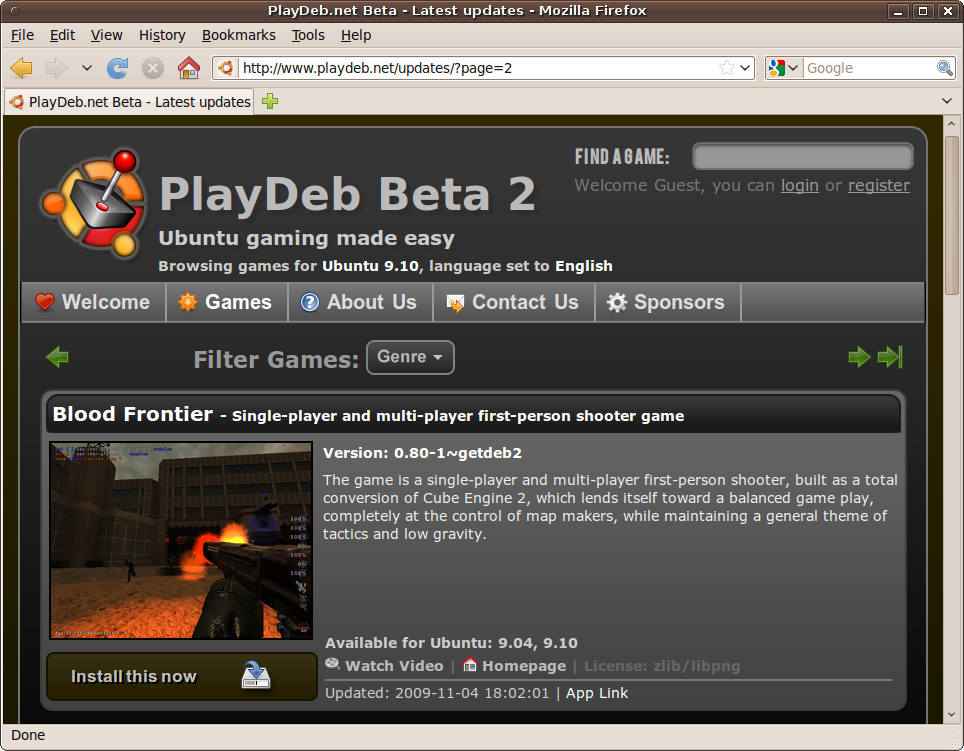
You are now ready to visit any of the pages on the http://playdeb.net website. Wherever you see a button or link that says “Install this now,” you can click it to directly install the chosen program, as shown in Figure 13-6.
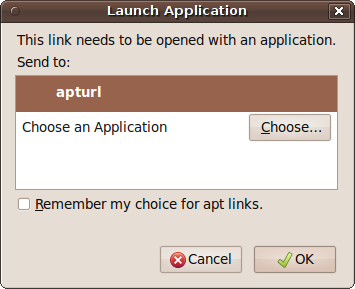
When you do so, a new window will pop up suggesting that the application apturl should be used to handle the link (see Figure 13-7). If you wish, you can check the “Remember my choice for apt links” checkbox, to make that the default in future. But regardless of whether you check it, click OK to perform the installation.
After entering your password, the program will be downloaded, and any dependencies the program relies on or recommends will be suggested as additional installations. I recommend you also click Install for any of these dependencies.
Installation may take some time with larger programs, such as the brilliant first-person shooter game Blood Frontier. After installation, the new game will be added to the Applications → Games menu.
Other Linux Games
Of course, there are thousands more Linux games that will run under Ubuntu, and the following URLs detail some of the most popular of them:
| http://help.ubuntu.com/community/Games |
| http://linux.about.com/od/ubuntu_doc/a/ubuntu_games.htm |
| http://linuxgames07.blogspot.com/2007/11/top-ubuntu-linux-games.html |
| http://gwos.org/doku.php |
Make sure you read the instructions supplied with a game for details on how to install and play it.
PlayOnLinux
The PlayOnLinux program is an implementation of the Wine Windows interface (see Chapter 16 for more on Wine). With it you can play a wide range of free, shareware, open source, and commercial Windows games.
To get the program installed, you will need to add information to
the Ubuntu repository, so open the Terminal program and enter the
following command. Although it takes up two lines here, it must be entered
as a single command, with a space on either side of the -O. Enter your password when prompted.
sudo wget http://deb.playonlinux.com/playonlinux_karmic.list -O
 /etc/apt/sources.list.d/playonlinux.list
Note
If you are running a version of Ubuntu newer than Karmic Koala,
such as Lucid Lynx, replace the word karmic with lucid, or whatever the release name is.
Once the command has completed, you should then enter the two following lines to perform the installation:
sudo apt-get update
sudo apt-get install playonlinux
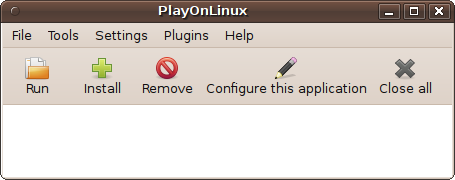
Upon completion, there will be a new entry in the Applications → Games menu called PlayOnLinux that you can select to call up the program, which will look like Figure 13-8.
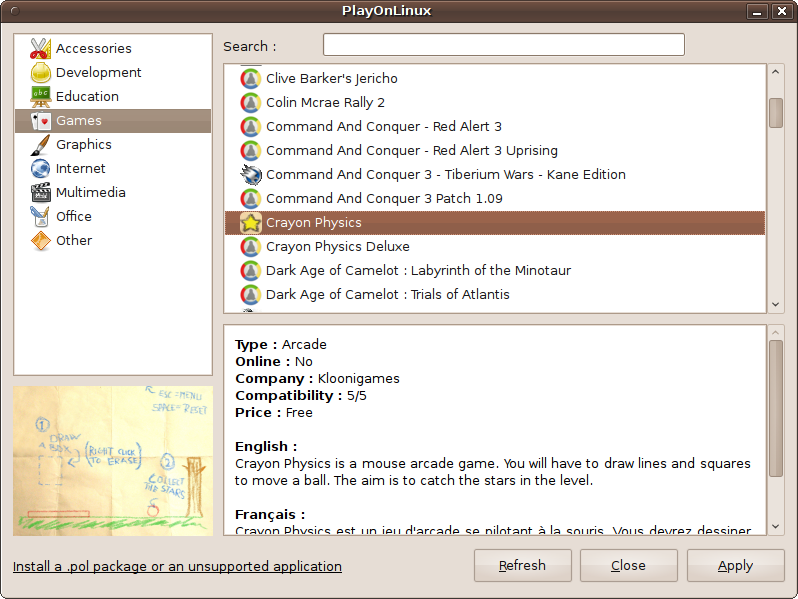
To get started adding games (and other programs) to Ubuntu, click the Install button to bring up the new window shown in Figure 13-9, in which the Games category has been selected and the program Crayon Physics highlighted.
Where a game is commercial or there are licensing requirements, the program will properly configure itself to optimally run that game, but you will then have to supply your original discs that you purchased in order to install it.
However, many of the programs are free and can be installed from PlayOnLinux directly, without having to get hold of them separately. Crayon Physics, selected in Figure 13-9, is such a game, and it can be installed by clicking Apply. You will then be taken to an installation wizard that will help you install the program.
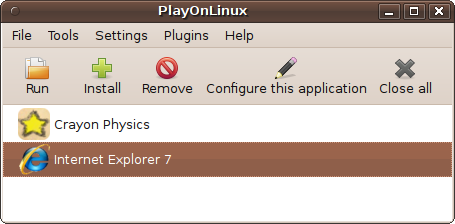
Once complete, the game will be available as an icon within the PlayOnLinux main window, as shown in Figure 13-10. Here, I have also opted to install Internet Explorer 7 to test the compatibility of PlayOnLinux, which actually runs it perfectly well.
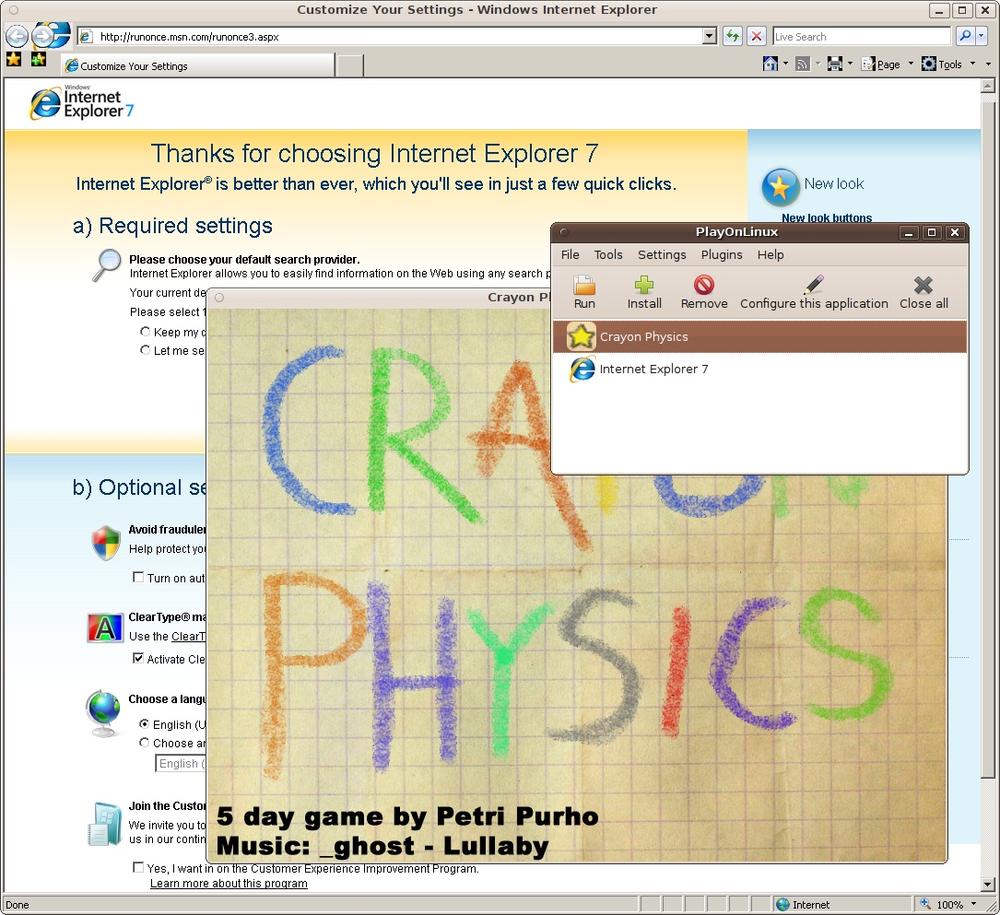
PlayOnLinux is powerful enough to run more than one program at a time, each in its own Ubuntu window, so they can be treated just as if they were native Linux applications. Figure 13-11 shows the program running alongside both IE7 and Crayon Physics, which is a great game of skill and strategy I highly recommend you try.
If you have chosen the appropriate option during installation, you will now also have icons on your desktop with which you can start a program. The first time you use one you’ll be asked to confirm whether it’s safe. If you say that it is, the default PlayOnLinux icon image will be replaced with the program’s proper icon.
KDE Games
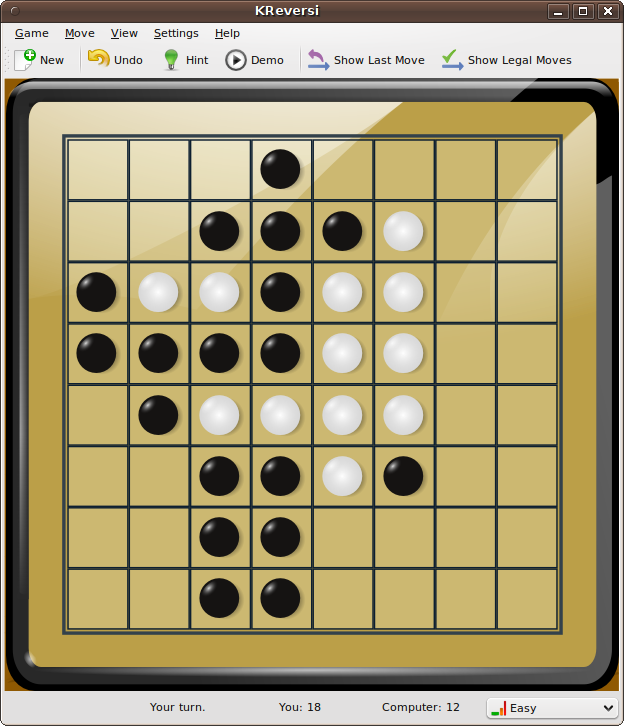
If you choose to install the KDE desktop environment, as covered in Chapter 15, and also add the free KDE Games pack (see Figure 13-12), you will gain easy access to many more games that you can use in KDE, and in Gnome as well. These will then be added to submenus, such as Arcade, Board and Strategy within the Applications → Games menu, bringing the total number of games on your computer to more than 50.
Browser-Based Games
In-browser games, such as those written in Flash, JavaScript, or Java, should work with any Ubuntu web browser. Just use your favorite search engine and submit a query such as “flash games” to find them.
Ubuntu Easter Eggs
Although not strictly in the games category, it’s fun to see what the Ubuntu developers have been up to in their spare time—for example, hiding commands in the operating system, which are commonly known as Easter eggs.
The Ubuntu Fish
If you press Alt-F2 and enter the following in response to the prompt that’s displayed, you’ll release a fish (see Figure 13-13) onto your desktop that will swim around, leaving and entering the screen at random intervals:
free the fish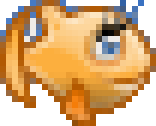
When you click Wanda, she will change direction and rapidly swim away. When you’ve had enough of the little creature, you can banish her by pressing Alt-F2 and entering the following command to restart Gnome’s panels:
killall gnome-panelThis Easter egg will run only in Gnome, not KDE or Xfce.
OpenOffice.org StarWars
Next time you’re frustrated because you’re having trouble organizing your spreadsheet data in OpenOffice.org Calc, enter the following into any cell to enjoy a Space Invaders-style game called StarWars (see Figure 13-14):
=Game("StarWars")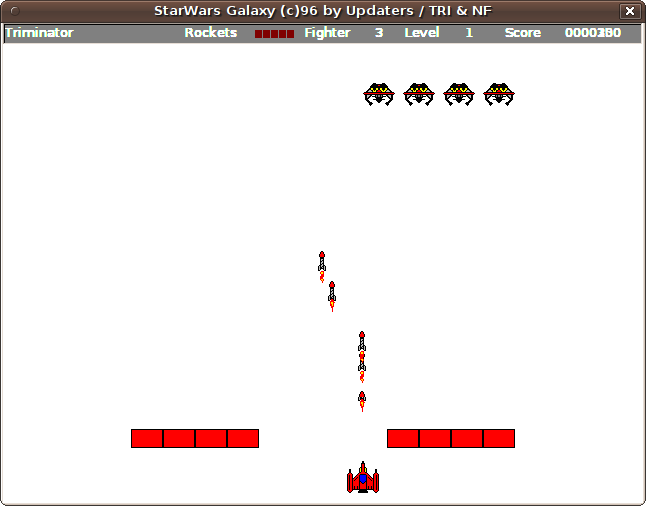
Aptitude Silliness
There’s also a bit of fun to be had with the apt-get and aptitude commands. Open a Terminal window and
enter all the following commands, one at a time, viewing the response you
get to each:
apt-get moo
aptitude help
aptitude moo
aptitude -v moo
aptitude -vv moo
aptitude -vvv moo
aptitude -vvvv moo
aptitude -vvvvv moo
aptitude -vvvvvv moo
I won’t reveal what happens here—you can find out for yourself!
What’s New in 10.04
As it grows, the developers of Ubuntu continually need to remove items from the main distribution to enable everything to fit on a single CD, and until the decision is taken to move onto DVD installation media as the default, this will continue to be the case. Unfortunately, this means a few games didn’t make it, with only AisleRiot Solitaire, Gnometris, Mahjongg, Mines, and Sudoku remaining in the Applications → Games menu. But now that you’ve read this chapter you know how easy it is to get all the games you could want, including those that used to be installed by default.
Summary
As you’ve seen in this and the previous chapters, Ubuntu isn’t just a powerful workhorse for providing web server and database functionality; it’s also an incredibly flexible and user-friendly desktop operating system that can run the latest office suites, multimedia applications, games programs, and much, much more.
In the next chapter, we’ll look at something else Ubuntu is good at: interfacing with other devices such as cameras, scanners, USB hard drives, and the like.