Table of Contents for
SSH, The Secure Shell: The Definitive Guide, 2nd Edition
 SSH, The Secure Shell: The Definitive Guide, 2nd Edition
Published by
O'Reilly Media, Inc., 2005
SSH, The Secure Shell: The Definitive Guide, 2nd Edition
Published by
O'Reilly Media, Inc., 2005
- Cover
- SSH, the Secure Shell, 2nd Edition
- Preface
- Protect Your Network with SSH
- Intended Audience
- Reading This Book
- Our Approach
- Which Chapters Are for You?
- Supported Platforms
- Disclaimers
- Conventions Used in This Book
- Comments and Questions
- Safari Enabled
- Acknowledgments
- 1. Introduction to SSH
- What Is SSH?
- What SSH Is Not
- The SSH Protocol
- Overview of SSH Features
- History of SSH
- Related Technologies
- Summary
- 2. Basic Client Use
- A Running Example
- Remote Terminal Sessions with ssh
- Adding Complexity to the Example
- Authentication by Cryptographic Key
- The SSH Agent
- Connecting Without a Password or Passphrase
- Miscellaneous Clients
- Summary
- 3. Inside SSH
- Overview of Features
- A Cryptography Primer
- The Architecture of an SSH System
- Inside SSH-2
- Inside SSH-1
- Implementation Issues
- SSH and File Transfers (scp and sftp)
- Algorithms Used by SSH
- Threats SSH Can Counter
- Threats SSH Doesn’t Prevent
- Threats Caused by SSH
- Summary
- 4. Installation and Compile-Time Configuration
- Overview
- Installing OpenSSH
- Installing Tectia
- Software Inventory
- Replacing r-Commands with SSH
- Summary
- 5. Serverwide Configuration
- Running the Server
- Server Configuration: An Overview
- Getting Ready: Initial Setup
- Authentication: Verifying Identities
- Access Control: Letting People In
- User Logins and Accounts
- Forwarding
- Subsystems
- Logging and Debugging
- Compatibility Between SSH-1 and SSH-2 Servers
- Summary
- 6. Key Management and Agents
- What Is an Identity?
- Creating an Identity
- SSH Agents
- Multiple Identities
- PGP Authentication in Tectia
- Tectia External Keys
- Summary
- 7. Advanced Client Use
- How to Configure Clients
- Precedence
- Introduction to Verbose Mode
- Client Configuration in Depth
- Secure Copy with scp
- Secure, Interactive Copy with sftp
- Summary
- 8. Per-Account Server Configuration
- Limits of This Technique
- Public-Key-Based Configuration
- Hostbased Access Control
- The User rc File
- Summary
- 9. Port Forwarding and X Forwarding
- What Is Forwarding?
- Port Forwarding
- Dynamic Port Forwarding
- X Forwarding
- Forwarding Security: TCP-Wrappers and libwrap
- Summary
- 10. A Recommended Setup
- The Basics
- Compile-Time Configuration
- Serverwide Configuration
- Per-Account Configuration
- Key Management
- Client Configuration
- Remote Home Directories (NFS, AFS)
- Summary
- 11. Case Studies
- Unattended SSH: Batch or cron Jobs
- FTP and SSH
- Pine, IMAP, and SSH
- Connecting Through a Gateway Host
- Scalable Authentication for SSH
- Tectia Extensions to Server Configuration Files
- Tectia Plugins
- 12. Troubleshooting and FAQ
- Debug Messages: Your First Line of Defense
- Problems and Solutions
- Other SSH Resources
- 13. Overview of Other Implementations
- Common Features
- Covered Products
- Other SSH Products
- 14. OpenSSH for Windows
- Installation
- Using the SSH Clients
- Setting Up the SSH Server
- Public-Key Authentication
- Troubleshooting
- Summary
- 15. OpenSSH for Macintosh
- Using the SSH Clients
- Using the OpenSSH Server
- 16. Tectia for Windows
- Obtaining and Installing
- Basic Client Use
- Key Management
- Accession Lite
- Advanced Client Use
- Port Forwarding
- Connector
- File Transfers
- Command-Line Programs
- Troubleshooting
- Server
- 17. SecureCRT and SecureFX for Windows
- Obtaining and Installing
- Basic Client Use
- Key Management
- Advanced Client Use
- Forwarding
- Command-Line Client Programs
- File Transfer
- Troubleshooting
- VShell
- Summary
- 18. PuTTY for Windows
- Obtaining and Installing
- Basic Client Use
- File Transfer
- Key Management
- Advanced Client Use
- Forwarding
- Summary
- A. OpenSSH 4.0 New Features
- Server Features: sshd
- Client Features: ssh, scp, and sftp
- ssh-keygen
- B. Tectia Manpage for sshregex
- Regex Syntax: Egrep Patterns
- Regex Syntax: ZSH_FILEGLOB (or Traditional) Patterns
- Character Sets for Egrep and ZSH_FILEGLOB
- Regex Syntax: SSH Patterns
- Authors
- See Also
- C. Tectia Module Names for Debugging
- D. SSH-1 Features of OpenSSH and Tectia
- OpenSSH Features
- Tectia Features
- E. SSH Quick Reference
- Legend
- sshd Options
- sshd Keywords
- ssh Options
- scp Options
- ssh and scp Keywords
- ssh-keygen Options
- ssh-agent Options
- ssh-add Options
- Identity and Authorization Files, OpenSSH
- Identity and Authorization Files, Tectia
- Environment Variables
- Index
- Index
- Index
- Index
- Index
- Index
- Index
- Index
- Index
- Index
- Index
- Index
- Index
- Index
- Index
- Index
- Index
- Index
- Index
- Index
- Index
- Index
- Index
- Index
- Index
- Index
- About the Authors
- Colophon
- Copyright
If you’d like to use public-key authentication to connect to remote hosts [2.4], PuTTY includes a key generator program, called PuTTYgen. It has a simple graphical user interface for creating and editing RSA and DSA keys, as shown in Figure 18-2.
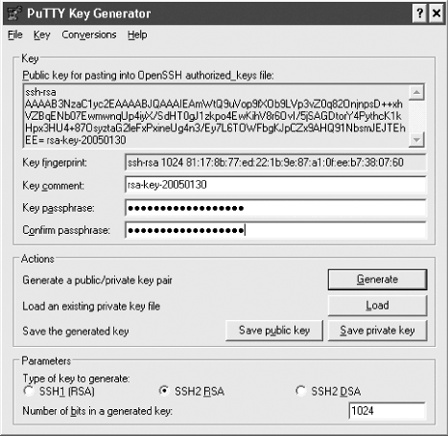
To create a new key, simply click the Generate button. You’ll be asked to waggle your mouse around to supply random numbers to the generator, then to supply a passphrase. To edit an existing key, just click the Load button.
You might remember that OpenSSH and Tectia use different file formats for their keys. PuTTYgen uses the SECSH format for public keys [6.1.2], but its own unique format for private keys. The private key is stored in a file with the suffix .ppk and looks like this:
    PuTTY-User-Key-File-2: ssh-rsa
    Encryption: aes256-cbc
    Comment: Your comment here
    Public-Lines: 4
    AAAAB3NzaC1yc2EAAAABJQAAAIBltDpO1wC9qJ98peVr5y9C7N9vdOh+OrCNwbIh
    lba1oSf94rrDl1TQXKXxgIHSd1ICgh7wkdxFWbyDRXSuWdur6kreTGRaw9XgCzQt
    LyANMtKAPpDYVE1g8jb6jA1bOMtK8b+pGPmetbvdyBDmFcQ/oPwYyrZIjfbd8IdK
    FxxJvw==
    Private-Lines: 8
    3ryAyuTLEnYuLGsetfNvazRYOhxQmzBWSyMLyT2i+zt7QqArlPglY1Um3NBJlYgS
    caHDiLyH95tV2onEeBThJzYFAvgrr7UlXVjQTDLr29fe2FTS/bNm4OahTaKzTNV4
    0EojvG1yafCucaZMVwsndB4djpm4otJja+xDVLN7Wj3ibzUT+SfodSJyazMAjB0y
    Q3ndbcqcIPPg4OM3sL8c09KTVdcuLkkyKMSV5yEgTAP0RG0M+T8/ChHLFLHswwV+
    /tlb0GLZRa1w3KsnzHHFKxMsM2zOdHXnSG8TX0kecdpT2p8PT3UGw2+SMESD8umc
    GLai7g/o03lMJVSOezrooDC06p8J8OXk8h84gYeJbBIyXdELh10E3fnDSkTy5jS4
    w2SCNzXX67ggWjIFtsefsx6VJ4WwJUYtNbKY35M59xMug/GRBL07QPLu+xSh8/RB
    yM/rWtUvGwXG3ygW/TVm7A==
    Private-MAC: a0f9fa2204172fc6df9e0f6d5b918c8790d88611
But never fear: PuTTYgen can read and write public and private keys for both OpenSSH and Tectia:
To read an OpenSSH or Tectia key, simply click the Load button and select the key file. (In the file dialog, be sure to set the file type to “All Files (*.*)” so that your non-PuTTY keys show up.)
To write an OpenSSH or Tectia private key, use the Conversion menu and select “Export OpenSSH key” or “Export ssh.com key.”
To write an OpenSSH public key, copy and paste the key shown at the top of the window, under “Public key for pasting into OpenSSH authorized_keys file.” To write a Tectia public key, do nothing: PuTTY’s public keys are already in SECSH format.
To select the private key for PuTTY to use, open the PuTTY Configuration dialog and visit Connection/SSH/Auth. Under “Private key file for authentication,” browse to and select your key of choice. (Make sure the corresponding public key is properly installed on the server. [6.2])
If you’re using Plink, you can choose the key on the command line with the -i option:
C:\> plink -i c:\keys\me.ppk smith@server.example.com
An SSH agent goes hand in hand with public-key authentication. [6.3] PuTTY has an agent, called Pageant, that caches private keys (stores them in memory) and responds to authentication-related queries from PuTTY, PSCP, and other clients in the suite. In short, Pageant is a timesaver, so you don’t have to keep retyping your passphrase.
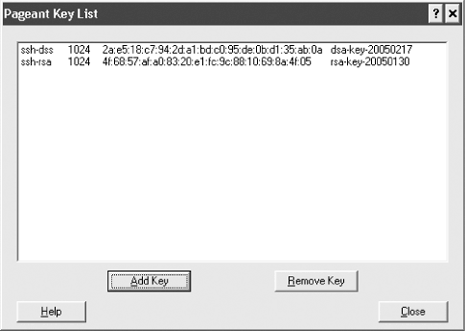
To run Pageant, just double-click it or invoke it from the command line. (Even better, add pageant.exe to your system startup so that it’s always available when you boot or log in.) An icon will appear in the Windows System Tray on the taskbar. Right-click the icon and you can load keys into the agent, view your keys, or perform other operations, as shown in Figure 18-3. (To add a key, you’ll need to know its passphrase.) Once a key is loaded into Pageant, the various PuTTY clients will use the key transparently, and you won’t have to retype its passphrase.
You can also run Pageant on the command line. Just follow it with one or more keys you’d like to load, e.g.:
C:\> pageant key1 key2 key3
and it will dutifully load them.
Speaking of agents, PuTTY also supports agent forwarding [6.3.5], but only for OpenSSH servers, not Tectia servers. Just make sure the option “Allow agent forwarding” is checked in PuTTY’s configuration window; or if you’re using Plink, add the -A option to enable agent forwarding or -a to disable it.