Table of Contents for
SSH, The Secure Shell: The Definitive Guide, 2nd Edition
 SSH, The Secure Shell: The Definitive Guide, 2nd Edition
Published by
O'Reilly Media, Inc., 2005
SSH, The Secure Shell: The Definitive Guide, 2nd Edition
Published by
O'Reilly Media, Inc., 2005
- Cover
- SSH, the Secure Shell, 2nd Edition
- Preface
- Protect Your Network with SSH
- Intended Audience
- Reading This Book
- Our Approach
- Which Chapters Are for You?
- Supported Platforms
- Disclaimers
- Conventions Used in This Book
- Comments and Questions
- Safari Enabled
- Acknowledgments
- 1. Introduction to SSH
- What Is SSH?
- What SSH Is Not
- The SSH Protocol
- Overview of SSH Features
- History of SSH
- Related Technologies
- Summary
- 2. Basic Client Use
- A Running Example
- Remote Terminal Sessions with ssh
- Adding Complexity to the Example
- Authentication by Cryptographic Key
- The SSH Agent
- Connecting Without a Password or Passphrase
- Miscellaneous Clients
- Summary
- 3. Inside SSH
- Overview of Features
- A Cryptography Primer
- The Architecture of an SSH System
- Inside SSH-2
- Inside SSH-1
- Implementation Issues
- SSH and File Transfers (scp and sftp)
- Algorithms Used by SSH
- Threats SSH Can Counter
- Threats SSH Doesn’t Prevent
- Threats Caused by SSH
- Summary
- 4. Installation and Compile-Time Configuration
- Overview
- Installing OpenSSH
- Installing Tectia
- Software Inventory
- Replacing r-Commands with SSH
- Summary
- 5. Serverwide Configuration
- Running the Server
- Server Configuration: An Overview
- Getting Ready: Initial Setup
- Authentication: Verifying Identities
- Access Control: Letting People In
- User Logins and Accounts
- Forwarding
- Subsystems
- Logging and Debugging
- Compatibility Between SSH-1 and SSH-2 Servers
- Summary
- 6. Key Management and Agents
- What Is an Identity?
- Creating an Identity
- SSH Agents
- Multiple Identities
- PGP Authentication in Tectia
- Tectia External Keys
- Summary
- 7. Advanced Client Use
- How to Configure Clients
- Precedence
- Introduction to Verbose Mode
- Client Configuration in Depth
- Secure Copy with scp
- Secure, Interactive Copy with sftp
- Summary
- 8. Per-Account Server Configuration
- Limits of This Technique
- Public-Key-Based Configuration
- Hostbased Access Control
- The User rc File
- Summary
- 9. Port Forwarding and X Forwarding
- What Is Forwarding?
- Port Forwarding
- Dynamic Port Forwarding
- X Forwarding
- Forwarding Security: TCP-Wrappers and libwrap
- Summary
- 10. A Recommended Setup
- The Basics
- Compile-Time Configuration
- Serverwide Configuration
- Per-Account Configuration
- Key Management
- Client Configuration
- Remote Home Directories (NFS, AFS)
- Summary
- 11. Case Studies
- Unattended SSH: Batch or cron Jobs
- FTP and SSH
- Pine, IMAP, and SSH
- Connecting Through a Gateway Host
- Scalable Authentication for SSH
- Tectia Extensions to Server Configuration Files
- Tectia Plugins
- 12. Troubleshooting and FAQ
- Debug Messages: Your First Line of Defense
- Problems and Solutions
- Other SSH Resources
- 13. Overview of Other Implementations
- Common Features
- Covered Products
- Other SSH Products
- 14. OpenSSH for Windows
- Installation
- Using the SSH Clients
- Setting Up the SSH Server
- Public-Key Authentication
- Troubleshooting
- Summary
- 15. OpenSSH for Macintosh
- Using the SSH Clients
- Using the OpenSSH Server
- 16. Tectia for Windows
- Obtaining and Installing
- Basic Client Use
- Key Management
- Accession Lite
- Advanced Client Use
- Port Forwarding
- Connector
- File Transfers
- Command-Line Programs
- Troubleshooting
- Server
- 17. SecureCRT and SecureFX for Windows
- Obtaining and Installing
- Basic Client Use
- Key Management
- Advanced Client Use
- Forwarding
- Command-Line Client Programs
- File Transfer
- Troubleshooting
- VShell
- Summary
- 18. PuTTY for Windows
- Obtaining and Installing
- Basic Client Use
- File Transfer
- Key Management
- Advanced Client Use
- Forwarding
- Summary
- A. OpenSSH 4.0 New Features
- Server Features: sshd
- Client Features: ssh, scp, and sftp
- ssh-keygen
- B. Tectia Manpage for sshregex
- Regex Syntax: Egrep Patterns
- Regex Syntax: ZSH_FILEGLOB (or Traditional) Patterns
- Character Sets for Egrep and ZSH_FILEGLOB
- Regex Syntax: SSH Patterns
- Authors
- See Also
- C. Tectia Module Names for Debugging
- D. SSH-1 Features of OpenSSH and Tectia
- OpenSSH Features
- Tectia Features
- E. SSH Quick Reference
- Legend
- sshd Options
- sshd Keywords
- ssh Options
- scp Options
- ssh and scp Keywords
- ssh-keygen Options
- ssh-agent Options
- ssh-add Options
- Identity and Authorization Files, OpenSSH
- Identity and Authorization Files, Tectia
- Environment Variables
- Index
- Index
- Index
- Index
- Index
- Index
- Index
- Index
- Index
- Index
- Index
- Index
- Index
- Index
- Index
- Index
- Index
- Index
- Index
- Index
- Index
- Index
- Index
- Index
- Index
- Index
- About the Authors
- Colophon
- Copyright
We have previously seen how static port forwarding can be extended for SOCKS-aware applications to provide dynamic port forwarding. [9.3] SOCKS is fully supported by the Tectia client, but you have to reconfigure each application to use the SOCKS proxy, which can be annoying.
Tectia Connector extends this concept further to achieve complete transparency: applications can use dynamic port forwarding without any reconfiguration whatsoever, because the applications are entirely unaware that the forwarding is happening.
To accomplish this feat, Connector worms its way into the Windows TCP/IP protocol stack (which includes hostname lookup functionality). This allows it to intercept networking operations by applications and reroute them to its own Connector engine, which then initiates SSH connections to servers on behalf of the applications. The capture and forward mechanism also allows the Connector engine to exercise precise control over network connections, and to enforce security policies that require certain kinds of connections to use secure protocols, like SSH.
Tip
As of Version 4.2, Connector requires functionality provided only by “Tectia Server (T).” [16.11] “Tectia Server (A)” can’t be used with Connector, and other non-Tectia servers are unsupported.
Connector only affects outgoing TCP connections. Applications can still accept incoming connections directly, and other protocols (like UDP, ICMP, etc.) are completely ignored by Connector. Note, however, that all applications can be affected by Connector’s interception of hostname lookups.
Connector uses only the SSH-2 protocol, never SSH-1. It is fully self-contained, and does not rely on the Tectia client. Instead, Connector implements the SSH-2 protocol and initiates its own connections.
The Connector engine starts automatically when each user logs in. If it has been stopped for some reason, it can be restarted manually using the SSH Tectia Connector item from the Start/Programs/SSH Tectia Connector menu, or by running the SSHConnector program in the Connector installation folder.
In normal operation, Connector is unobtrusive, presenting only a small icon in the tool tray on the taskbar to announce its presence. Right-click the icon to produce a menu that displays a list of applications currently using Connector, a checkbox that allows the Connector engine to be enabled or disabled, and an Exit item that shuts down the Connector engine.
The Connector Status dialog can be displayed by double-clicking the tool tray icon or selecting the Status item from the tool tray icon menu. The Tunnels view shows each forwarded port, with the program using the connection, the destination server, and usage statistics (data sent and received). The Logs view displays messages (with timestamps) about authentication, creation of forwarded ports, connections by applications, etc. The Connector engine maintains its own log; it doesn’t send messages to the Windows event log.
Privileged users can use the Administration dialog or edit the configuration file directly to configure the Connector engine. The administrative GUI interface is accessed by selecting the SSH Tectia Connector Admin item from the Start/Programs/SSH Tectia Connector menu, or a similar item in the Connector tool tray icon menu, or by running the SSHConnectorAdmin program in the Connector installation folder.
The Connector engine itself is configured by the General Settings view of the Administration dialog (Figure 16-9), which applies to all outgoing connections.
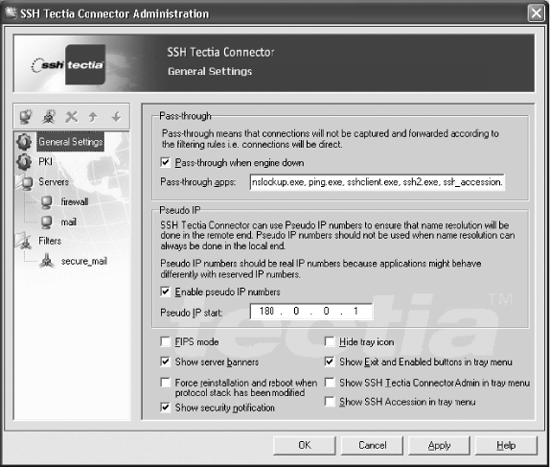
Sometimes it is necessary or convenient to bypass Connector and allow applications to initiate their own connections directly: this is known as pass-through mode. An option is provided to allow pass-through if the engine is disabled or shut down. If this pass-through option is disabled, then connections will be blocked, which might be appropriate if security policies mandate that only secure connections are allowed. A comma-separated list of applications can also be exempted from interference by Connector. Typically these applications are for network diagnostics (e.g., nslookup or ping) or related to direct use of SSH (e.g., the Tectia client, Accession Lite, etc.).
Applications frequently need to connect to secure servers within internal networks from outside of firewalls. External hostname lookups are commonly prevented, to avoid leaking information about the internal network, and because direct access to the secure servers is blocked by the firewall anyway. In such cases, Connector can be configured to return dynamically assigned pseudo (or fake) IP addresses to applications in response to hostname lookups. When the connection is forwarded across the firewall via SSH, the hostname lookup is done internally. This is similar to the naming support provided by SOCKS5.
A base address must be identified for the pseudo IP addresses. This should be chosen carefully to avoid conflicts with real addresses of machines that applications might need to contact. It is natural to use reserved addresses (e.g., the 10.0.0.0/8 network) for this purpose, but if applications detect the use of such reserved addresses and misbehave, then it may be necessary to use a suitable range of otherwise unused real addresses.
As we have seen, Connector works by modifying the Windows TCP/IP protocol stack. Other, unrelated packages that also modify the protocol stack (such as firewalls and VPN software) can interfere with the operation of Connector, and require that Connector’s protocol stack modifications be reinstalled, which in turn requires a reboot. An option is provided to automate this; no user confirmation is needed.
Connector’s SSH implementation supports FIPS mode, which can be selected by an option. [5.3.5]
In most cases, Connector operates silently, and behind the scenes. However, SSH servers can be configured to send banner messages to clients, and Connector has an option for displaying them. [5.6.1] In addition, Connector can display a splash screen as a brief security notification when new forwarded connections are created for applications.
The tray icon menu can be configured to control access to functions that affect the engine, to prevent unprivileged users from circumventing security policies. Of course, the Connector configuration file should only be writable by privileged users.
Settings for each server used for an outgoing SSH connection must be defined by the Servers view of the Administration dialog in Figure 16-10.
A display name is assigned to the collection of settings for the server. Connections to a server can be routed via a previously defined server, to set up chains of port forwardings, if required for nested firewalls.
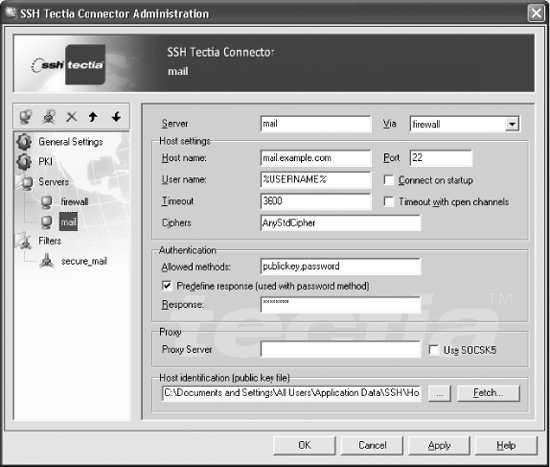
The most important characteristics of the SSH connection can be
specified for the server. The special token %USERNAME% means that the local Windows
username is used for the remote username as well.
By default, Connector initiates SSH connections only when required to forward connections from applications, but an option is provided to initiate the connection when the Connector engine starts. Idle SSH connections are terminated by Connector after a specified timeout interval elapses.[176] Normally, SSH connections are retained (even when idle) if any forwarding channels are still active, but Connector can be configured to ignore active channels when it closes idle connections.
The allowed authentication methods are specified as a
comma-separated list, chosen from the set: gssapi-with-mic, publickey, keyboard-interactive, and password. Public-key authentication is
especially convenient with Accession Lite acting as an authentication
agent. [16.4] Accession
Lite is included with the Tectia Connector package, and the agent can
be started using the Connector tray icon menu. A predefined response
can be stored in the Connector configuration for password
authentication. This is insecure, since the password saved in the
configuration file is not encrypted in any way, and the predefined
response is intended only for situations when the application handles
its own authentication using some other secure mechanism.
A proxy server URL can be specified using the same syntax as for
the Tectia client’s SocksServer
keyword or the SSH_SOCKS_SERVER
environment variable. [7.4.7.2] HTTP forwarding is
also supported, using a similar syntax. SOCKS4 is used by default, but
an option is provided to use SOCKS5 instead.
A filename should be chosen to store the host key for the server. The key can be fetched automatically by the Connector administration program, but the fingerprint should be verified using ssh-keygen -F. [6.2.2] Host keys are commonly stored in the All Users profile folder.
The Connector engine consults a list of filter rules to decide how to forward outgoing connections by applications. These are configured by the Filters view of the Administration dialog in Figure 16-11.
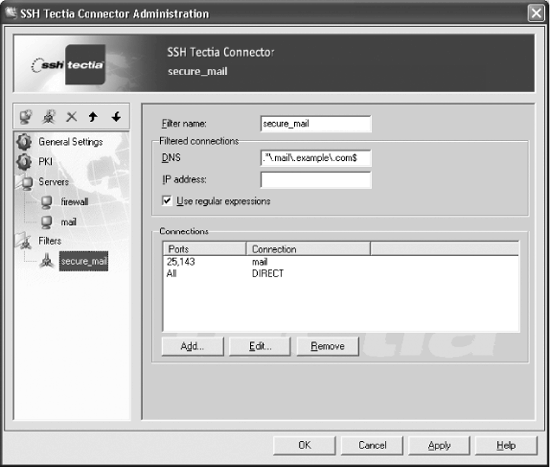
A display name is assigned to each filter rule. The filter rules are matched according to the DNS hostname or IP address requested by an application, and the first matching filter rule is used for the connection. DNS hostnames and IP addresses can be specified either literally or as patterns using the egrep regular expression syntax. DNS hostnames are case-insensitive.
In the usual case when an application connects using a DNS hostname, Connector scans the filter rule list. If a hostname match is found, then the first matching filter rule is used. The IP address returned to the application is taken from the filter rule if one is specified, or is otherwise dynamically assigned from the pool of pseudo IP addresses.[177] If no matching filter rule is found, then the connection is initiated directly, with no port forwarding.
When an application connects using an IP address, Connector similarly scans the filter rule list, looking for a filter rule with a matching address, and uses the first filter rule that is found. Otherwise, if there is no matching filter rule, then Connector does a reverse hostname lookup using the IP address. If this lookup succeeds, then Connector performs a DNS hostname match, as described previously. Otherwise, if the reverse hostname lookup failed, then Connector blocks the connection. Any hostname specified for the filter rule is passed to the other side of the forwarded connection so that the server can perform the hostname lookup for the real IP address on an internal network.
Connections are forwarded based on the target port requested by
the application, according to a list of connection rules for each
filter rule. Each connection rule consists of a comma-separated list
of ports, or the special value All,
plus one of the following actions:
DIRECTInitiate a connection directly, without port forwarding.
BLOCKBlock the connection, so the application will see the error “connection refused.”
serverInitiate an SSH connection, according to the settings for the named server.
The first matching connection rule for the requested port is used. If no connection rule matches, then a direct connection is initiated.
Connections are also forwarded according to the full pathname for the application. The Connector administrative interface allows the specification of only a single application. This restriction was imposed as of Version 4.2, and is actually a reduction in functionality. Earlier versions of SSHConnectorAdmin allowed the specification of an application for each filter rule.[178]
The Connector engine uses the configuration file sshcorpoeng.cfg in the installation folder. The Connector administration program saves its settings in the configuration file automatically, and is the usual way to change the configuration.
However, the configuration file uses a straightforward format
and is easy to edit directly. Settings are grouped in hierarchical
sections that are delimited by curly braces. Each setting is a keyword
and value, separated by an equals sign, with one pair per line. Values
are Boolean (FALSE or TRUE), decimal numbers, or quoted strings,
which use C-language conventions for backslash escape sequences. This
convention is unfortunate, because all backslashes for Windows
filename separators must be doubled.
Some features can only be used by editing the configuration file, and are not available via the GUI-based administrative interface. For example, the filter rules shown in Figure 16-11 correspond to the configure file section:
    Filters = {
      secure_mail = {
        DNSNameRegexp = ".*\\.mail\\.example\\.com$"
        Application = "C:\\\\Program Files\\\\WhizBangMail\\\\MailClient\\.exe"
        RealIP = FALSE
        Connections = {
          connection1 = {
            Via = "mail"
            Port = "25,143"
          }
          connection2 = {
            Via = "DIRECT"
            Port = "0-65536"
          }
        }
      }
    }
Regular expressions or literal values can be selected independently for DNS hostnames and IP addresses by using any combination of the following keywords:
DNSNameRegexpDNSNameIPAddressRegexpIPAddress
The RealIP keyword controls
assignment of pseudo IP addresses for each rule.
A separate application can be specified for each filter rule. The application pathname is actually a pattern, using the egrep regular expression syntax. The combination of C-language conventions for strings and regular expressions leads to an abundance of backslashes. For the setting:
Application = "C:\\\\Program Files\\\\WhizBangMail\\\\MailClient\\.exe"
the C-language string corresponds (collapsing the doubled backslashes) to the regular expression:
C:\\Program Files\\WhizBangMail\\MailClient\.exe
which matches the pathname:
C:\Program Files\WhizBangMail\MailClient.exe
[176] The timeout interval is expressed as a number of seconds.
[177] If pseudo IP addresses are disabled in the General Settings, then the actual IP address of the server is used.
[178] You can specify multiple applications if you use Tectia Manager to configure Connector. The restriction also does not apply if you edit the configuration file directly.