Table of Contents for
SSH, The Secure Shell: The Definitive Guide, 2nd Edition
 SSH, The Secure Shell: The Definitive Guide, 2nd Edition
Published by
O'Reilly Media, Inc., 2005
SSH, The Secure Shell: The Definitive Guide, 2nd Edition
Published by
O'Reilly Media, Inc., 2005
- Cover
- SSH, the Secure Shell, 2nd Edition
- Preface
- Protect Your Network with SSH
- Intended Audience
- Reading This Book
- Our Approach
- Which Chapters Are for You?
- Supported Platforms
- Disclaimers
- Conventions Used in This Book
- Comments and Questions
- Safari Enabled
- Acknowledgments
- 1. Introduction to SSH
- What Is SSH?
- What SSH Is Not
- The SSH Protocol
- Overview of SSH Features
- History of SSH
- Related Technologies
- Summary
- 2. Basic Client Use
- A Running Example
- Remote Terminal Sessions with ssh
- Adding Complexity to the Example
- Authentication by Cryptographic Key
- The SSH Agent
- Connecting Without a Password or Passphrase
- Miscellaneous Clients
- Summary
- 3. Inside SSH
- Overview of Features
- A Cryptography Primer
- The Architecture of an SSH System
- Inside SSH-2
- Inside SSH-1
- Implementation Issues
- SSH and File Transfers (scp and sftp)
- Algorithms Used by SSH
- Threats SSH Can Counter
- Threats SSH Doesn’t Prevent
- Threats Caused by SSH
- Summary
- 4. Installation and Compile-Time Configuration
- Overview
- Installing OpenSSH
- Installing Tectia
- Software Inventory
- Replacing r-Commands with SSH
- Summary
- 5. Serverwide Configuration
- Running the Server
- Server Configuration: An Overview
- Getting Ready: Initial Setup
- Authentication: Verifying Identities
- Access Control: Letting People In
- User Logins and Accounts
- Forwarding
- Subsystems
- Logging and Debugging
- Compatibility Between SSH-1 and SSH-2 Servers
- Summary
- 6. Key Management and Agents
- What Is an Identity?
- Creating an Identity
- SSH Agents
- Multiple Identities
- PGP Authentication in Tectia
- Tectia External Keys
- Summary
- 7. Advanced Client Use
- How to Configure Clients
- Precedence
- Introduction to Verbose Mode
- Client Configuration in Depth
- Secure Copy with scp
- Secure, Interactive Copy with sftp
- Summary
- 8. Per-Account Server Configuration
- Limits of This Technique
- Public-Key-Based Configuration
- Hostbased Access Control
- The User rc File
- Summary
- 9. Port Forwarding and X Forwarding
- What Is Forwarding?
- Port Forwarding
- Dynamic Port Forwarding
- X Forwarding
- Forwarding Security: TCP-Wrappers and libwrap
- Summary
- 10. A Recommended Setup
- The Basics
- Compile-Time Configuration
- Serverwide Configuration
- Per-Account Configuration
- Key Management
- Client Configuration
- Remote Home Directories (NFS, AFS)
- Summary
- 11. Case Studies
- Unattended SSH: Batch or cron Jobs
- FTP and SSH
- Pine, IMAP, and SSH
- Connecting Through a Gateway Host
- Scalable Authentication for SSH
- Tectia Extensions to Server Configuration Files
- Tectia Plugins
- 12. Troubleshooting and FAQ
- Debug Messages: Your First Line of Defense
- Problems and Solutions
- Other SSH Resources
- 13. Overview of Other Implementations
- Common Features
- Covered Products
- Other SSH Products
- 14. OpenSSH for Windows
- Installation
- Using the SSH Clients
- Setting Up the SSH Server
- Public-Key Authentication
- Troubleshooting
- Summary
- 15. OpenSSH for Macintosh
- Using the SSH Clients
- Using the OpenSSH Server
- 16. Tectia for Windows
- Obtaining and Installing
- Basic Client Use
- Key Management
- Accession Lite
- Advanced Client Use
- Port Forwarding
- Connector
- File Transfers
- Command-Line Programs
- Troubleshooting
- Server
- 17. SecureCRT and SecureFX for Windows
- Obtaining and Installing
- Basic Client Use
- Key Management
- Advanced Client Use
- Forwarding
- Command-Line Client Programs
- File Transfer
- Troubleshooting
- VShell
- Summary
- 18. PuTTY for Windows
- Obtaining and Installing
- Basic Client Use
- File Transfer
- Key Management
- Advanced Client Use
- Forwarding
- Summary
- A. OpenSSH 4.0 New Features
- Server Features: sshd
- Client Features: ssh, scp, and sftp
- ssh-keygen
- B. Tectia Manpage for sshregex
- Regex Syntax: Egrep Patterns
- Regex Syntax: ZSH_FILEGLOB (or Traditional) Patterns
- Character Sets for Egrep and ZSH_FILEGLOB
- Regex Syntax: SSH Patterns
- Authors
- See Also
- C. Tectia Module Names for Debugging
- D. SSH-1 Features of OpenSSH and Tectia
- OpenSSH Features
- Tectia Features
- E. SSH Quick Reference
- Legend
- sshd Options
- sshd Keywords
- ssh Options
- scp Options
- ssh and scp Keywords
- ssh-keygen Options
- ssh-agent Options
- ssh-add Options
- Identity and Authorization Files, OpenSSH
- Identity and Authorization Files, Tectia
- Environment Variables
- Index
- Index
- Index
- Index
- Index
- Index
- Index
- Index
- Index
- Index
- Index
- Index
- Index
- Index
- Index
- Index
- Index
- Index
- Index
- Index
- Index
- Index
- Index
- Index
- Index
- Index
- About the Authors
- Colophon
- Copyright
An SSH identity is a sequence of bits that says, “I am really me.” It is a mathematical construct that permits an SSH client to prove itself to an SSH server, so the SSH server says, “Ah, I see, it’s really you. You are hereby authenticated. Come in.”
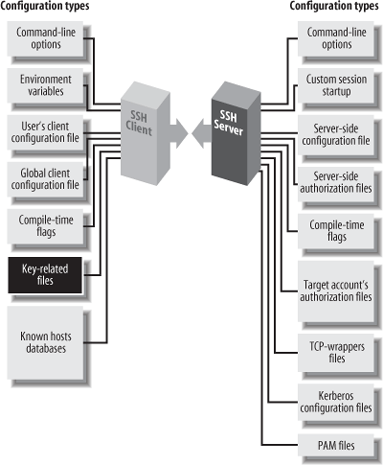
An identity consists of two parts, called the private key and the public key. Together, they are known as a key pair.
The private key represents your identity for outgoing SSH connections. When you run an SSH client in your account, such as ssh or scp, and it requests a connection with an SSH server, the client uses this private key to prove your identity to the server.
Warning
Private keys must be kept secret. An intruder with your private key can access your account as easily as you can.
The public key represents your identity for incoming connections to your account. When an SSH client requests access to your account, using a private key as proof of identity, the SSH server examines the corresponding public key. If the keys “match” (according to a cryptographic test), authentication succeeds and the connection proceeds. Public keys don’t need to be secret; they can’t be used to break into an account.
A key pair is typically stored in a pair of files with related names. In SSH, the public-key filename is the same as the private one, but with the suffix .pub added. For example, if the file mykey holds a private key, its corresponding public key is found in mykey.pub.
You may have as many SSH identities as you like. Most SSH implementations let you specify a default identity clients use unless told otherwise. To use an alternative identity, you must change a setting by command-line argument, configuration file, or some other configuration tool.
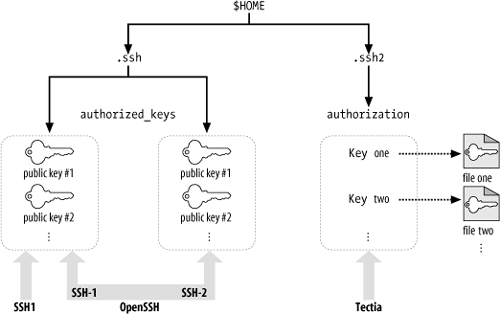
The structure of identity files differs for OpenSSH and Tectia, so we explain them separately. Their locations in the filesystem are shown in Figures 6-2 (private keys) and 6-3 (public keys).
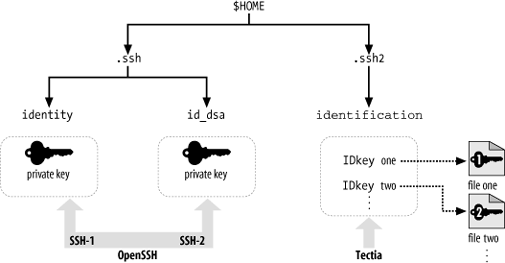
An OpenSSH identity is stored in two files. By default, the private key is stored in the file id_dsa, and the public key in id_dsa.pub.[91] This key pair, which is kept in your ~/.ssh directory, is your default identity that clients use unless told otherwise. The private key looks something like this:
    -----BEGIN DSA PRIVATE KEY-----         Or "BEGIN RSA" for RSA keys
    Proc-Type: 4,ENCRYPTED
    DEK-Info: DES-EDE3-CBC,89C3AE51BC5876FD

    MXZJgnkYE+1+eff3yt9j/aCCABz75egbGJfAbWrseiu0k3Dim9Teu2Ob1Xjdv4U9
    II1hVYOkgQYuhdJbzrLMpJ0W1+N5ujI8akJ6j0ESeGTwJbhGyst71Y3A2+w4m1iv
    ... lines omitted ...
    gMtQSdL26V1+EmGiPfio8Q==
    -----END DSA PRIVATE KEY-----
and the public key file contains a long, single line:
ssh-dss AAAAB3NzaC1kc3MAAACBAM4a2KKBE6zhPBgR ...more... smith@example.comThe file format for these keys is known as “OpenSSH format.”
The .pub file containing your public key has no function by itself. Before it can be used for authentication, this public key must be copied into an authorization file on an SSH server machine, ~/.ssh/authorized_keys. Thereafter, when an SSH client requests a connection to your server account using a private key as proof of identity, the OpenSSH server consults your authorized_keys file to find the matching public key.
A Tectia key pair is also stored in two files with related names (i.e., the private-key filename plus .pub yields the public-key filename). Tectia key files are often named based on the key’s cryptographic properties. For example, a 2048-bit, DSA-encrypted key is generated by default in the Tectia files id_dsa_2048_a and id_dsa_2048_a.pub. These files are in a format known as “SECSH public-key file format” and sometimes “SSH2 format.” The encrypted private key looks like this:
    ---- BEGIN SSH2 ENCRYPTED PRIVATE KEY ----
    Subject: smith
Comment: "2048-bit dsa, smith@example.com, Sat Feb 12 2005 15:17:53 -0200" P2/56wAAA4oAAAAmZGwtbW9kcHtzaWdue2RzYS1uaXN5LXNoYTF9LGRoe3BsYWlufX0AAA
AIM2Rlcy1jYmMAAANIEYkNTUySnPZlYsNh15lkVfzRk6dPx4XYcXe+4f45XHIxwqcUo2Cd
... lines omitted ...
RFI0RQxDhgWS/SXlFF
---- END SSH2 ENCRYPTED PRIVATE KEY ----and the public key like this:
    ---- BEGIN SSH2 PUBLIC KEY ----
    Subject: smith
    AAAAB3NzaC1kc3MAAAEBAP3QfkjOBm1+aPgEUG39j5va13CRrPSedFYtv/52VqIgrBzRV8
    Es1KHPIwmB1FOn5ej02FATNGtaR/fg6K4DVoWscIHGZk95OjLgAz+JeBq7lxYwQ0EzpsTQ
    ... lines omitted ...
    mQ1et1r4Wr0fj0F/2tXf+o71P2HfNw1M6I0B/54eI=
    ---- END SSH2 PUBLIC KEY ----
Unlike OpenSSH, however, a Tectia identity is not a single key but a collection of keys. When a Tectia client tries to authenticate, it may use all keys in the collection. If the first key fails to authenticate, the Tectia client automatically tries the second, and so forth, until it succeeds or fails completely.
To create an identity in Tectia, private keys must be listed in
a file called an identification file. Your
default identity file is ~/.ssh2/identification. [92] Inside the file, private keys are listed one per line.
For public-key authentication, a line begins with the keyword IdKey, followed by the name of the
private-key file:
    # Tectia identification file
    # The following names are relative to ~/.ssh2
    IdKey id_dsa_2048_a
    IdKey my-other-tectia-key
    # This key uses an absolute path
    IdKey /usr/local/etc/third-key
The identification file may also contain PGP-related keywords: [6.5]
    # Tectia identification file
    PgpSecretKeyFile my-file.pgp
    IdPgpKeyName my-key-name
Like OpenSSH, Tectia has an authorization file for incoming connections, but with a difference.
Instead of containing copies of the public keys, the Tectia
authorization file merely lists the public-key filenames using the
Key keyword:
    # Tectia authorization file
    Key id_dsa_2048_a.pub
    Key something-else.pub
Notice you have only one copy of each public key. This is slightly easier to maintain than OpenSSH’s system, which has separate copies in the .pub file and authorized_keys file. [8.2.1]
Tip
Tectia’s identification file can group multiple keys as a
single identity. You can approximate this behavior in OpenSSH with
the IdentityFile keyword. [7.4.2] To set up a default
“identity” with multiple keys, add the following section to the end
of your ~/.ssh/config
file:
    Host *
     IdentityFile key1
     IdentityFile key2
     IdentityFile key3
Now this multiple-key “identity” is available for all SSH
connections. Similarly, you can place multiple IdentityFile values in any other section
of the configuration file to associate a multikey identity with a
particular host or set of hosts.