Table of Contents for
SSH, The Secure Shell: The Definitive Guide, 2nd Edition
 SSH, The Secure Shell: The Definitive Guide, 2nd Edition
Published by
O'Reilly Media, Inc., 2005
SSH, The Secure Shell: The Definitive Guide, 2nd Edition
Published by
O'Reilly Media, Inc., 2005
- Cover
- SSH, the Secure Shell, 2nd Edition
- Preface
- Protect Your Network with SSH
- Intended Audience
- Reading This Book
- Our Approach
- Which Chapters Are for You?
- Supported Platforms
- Disclaimers
- Conventions Used in This Book
- Comments and Questions
- Safari Enabled
- Acknowledgments
- 1. Introduction to SSH
- What Is SSH?
- What SSH Is Not
- The SSH Protocol
- Overview of SSH Features
- History of SSH
- Related Technologies
- Summary
- 2. Basic Client Use
- A Running Example
- Remote Terminal Sessions with ssh
- Adding Complexity to the Example
- Authentication by Cryptographic Key
- The SSH Agent
- Connecting Without a Password or Passphrase
- Miscellaneous Clients
- Summary
- 3. Inside SSH
- Overview of Features
- A Cryptography Primer
- The Architecture of an SSH System
- Inside SSH-2
- Inside SSH-1
- Implementation Issues
- SSH and File Transfers (scp and sftp)
- Algorithms Used by SSH
- Threats SSH Can Counter
- Threats SSH Doesn’t Prevent
- Threats Caused by SSH
- Summary
- 4. Installation and Compile-Time Configuration
- Overview
- Installing OpenSSH
- Installing Tectia
- Software Inventory
- Replacing r-Commands with SSH
- Summary
- 5. Serverwide Configuration
- Running the Server
- Server Configuration: An Overview
- Getting Ready: Initial Setup
- Authentication: Verifying Identities
- Access Control: Letting People In
- User Logins and Accounts
- Forwarding
- Subsystems
- Logging and Debugging
- Compatibility Between SSH-1 and SSH-2 Servers
- Summary
- 6. Key Management and Agents
- What Is an Identity?
- Creating an Identity
- SSH Agents
- Multiple Identities
- PGP Authentication in Tectia
- Tectia External Keys
- Summary
- 7. Advanced Client Use
- How to Configure Clients
- Precedence
- Introduction to Verbose Mode
- Client Configuration in Depth
- Secure Copy with scp
- Secure, Interactive Copy with sftp
- Summary
- 8. Per-Account Server Configuration
- Limits of This Technique
- Public-Key-Based Configuration
- Hostbased Access Control
- The User rc File
- Summary
- 9. Port Forwarding and X Forwarding
- What Is Forwarding?
- Port Forwarding
- Dynamic Port Forwarding
- X Forwarding
- Forwarding Security: TCP-Wrappers and libwrap
- Summary
- 10. A Recommended Setup
- The Basics
- Compile-Time Configuration
- Serverwide Configuration
- Per-Account Configuration
- Key Management
- Client Configuration
- Remote Home Directories (NFS, AFS)
- Summary
- 11. Case Studies
- Unattended SSH: Batch or cron Jobs
- FTP and SSH
- Pine, IMAP, and SSH
- Connecting Through a Gateway Host
- Scalable Authentication for SSH
- Tectia Extensions to Server Configuration Files
- Tectia Plugins
- 12. Troubleshooting and FAQ
- Debug Messages: Your First Line of Defense
- Problems and Solutions
- Other SSH Resources
- 13. Overview of Other Implementations
- Common Features
- Covered Products
- Other SSH Products
- 14. OpenSSH for Windows
- Installation
- Using the SSH Clients
- Setting Up the SSH Server
- Public-Key Authentication
- Troubleshooting
- Summary
- 15. OpenSSH for Macintosh
- Using the SSH Clients
- Using the OpenSSH Server
- 16. Tectia for Windows
- Obtaining and Installing
- Basic Client Use
- Key Management
- Accession Lite
- Advanced Client Use
- Port Forwarding
- Connector
- File Transfers
- Command-Line Programs
- Troubleshooting
- Server
- 17. SecureCRT and SecureFX for Windows
- Obtaining and Installing
- Basic Client Use
- Key Management
- Advanced Client Use
- Forwarding
- Command-Line Client Programs
- File Transfer
- Troubleshooting
- VShell
- Summary
- 18. PuTTY for Windows
- Obtaining and Installing
- Basic Client Use
- File Transfer
- Key Management
- Advanced Client Use
- Forwarding
- Summary
- A. OpenSSH 4.0 New Features
- Server Features: sshd
- Client Features: ssh, scp, and sftp
- ssh-keygen
- B. Tectia Manpage for sshregex
- Regex Syntax: Egrep Patterns
- Regex Syntax: ZSH_FILEGLOB (or Traditional) Patterns
- Character Sets for Egrep and ZSH_FILEGLOB
- Regex Syntax: SSH Patterns
- Authors
- See Also
- C. Tectia Module Names for Debugging
- D. SSH-1 Features of OpenSSH and Tectia
- OpenSSH Features
- Tectia Features
- E. SSH Quick Reference
- Legend
- sshd Options
- sshd Keywords
- ssh Options
- scp Options
- ssh and scp Keywords
- ssh-keygen Options
- ssh-agent Options
- ssh-add Options
- Identity and Authorization Files, OpenSSH
- Identity and Authorization Files, Tectia
- Environment Variables
- Index
- Index
- Index
- Index
- Index
- Index
- Index
- Index
- Index
- Index
- Index
- Index
- Index
- Index
- Index
- Index
- Index
- Index
- Index
- Index
- Index
- Index
- Index
- Index
- Index
- Index
- About the Authors
- Colophon
- Copyright
Two distinct flavors of the Tectia server are available (as of Version 4.2). The full-featured Tectia Server (T) is intended for application tunneling, and supports extra functionality needed by Tectia Connector, while the slightly encumbered Tectia Server (A) is intended only for remote system administration. All the programs that make up these products are identical; the only difference is the license file that enables or disables the additional features.
The Tectia server is implemented by a program, ssh2master, that runs as a daemon and listens for incoming connections. A separate program, ssh2server, is run to handle each connection when it is accepted. The sftp server is implemented by the program sftp_server2.
Tip
If you run a Tectia server on a Windows system configured with a firewall, be sure to allow access to the port(s) used to accept SSH connections, typically port 22.
Stopping the ssh2master program doesn’t affect existing connections, since ssh2server continues to run. The Tectia server can even be restarted by a session that uses an SSH connection!
Normally, the Tectia server is run as a Windows service that is automatically started whenever the system boots. Several mechanisms can be used to start or stop the service manually:
Use the Tectia server administration program (discussed shortly).
Select either the Start Server or Stop Server item within the menu Start/Programs/SSH Tectia Server/Tools.
Access the Control Panel, and use the dialogs for Administrative Tools/Services to select the display name SSH Tectia Server, and then click Start, Stop, or Restart the service.
Run the start-ssh.bat or stop-ssh.bat scripts in the installation folder.
Start or stop the service using the command net start SSHSecureShell2Server or net stop SSHSecureShell2Server, respectively.
Run ssh2master -start or ssh2master -stop.
ssh2master also understands the options -install and -remove to add or delete the Tectia server from the list of Windows services.
In addition, ssh2master accepts a few options that we have discussed previously for sshd2 on Unix platforms:
The server’s configuration files are stored in the installation folder (nothing is stored in the Windows registry):
- hostkey
Private host key (must be protected!)
- hostkey.pub
Public host key
- server_random_seed
Pool of random data
- sshd2_config
Server configuration
sshd2_config has the same format as for Unix systems, and almost all of the keywords have exactly the same meaning for Windows, so we’ll just discuss the differences.
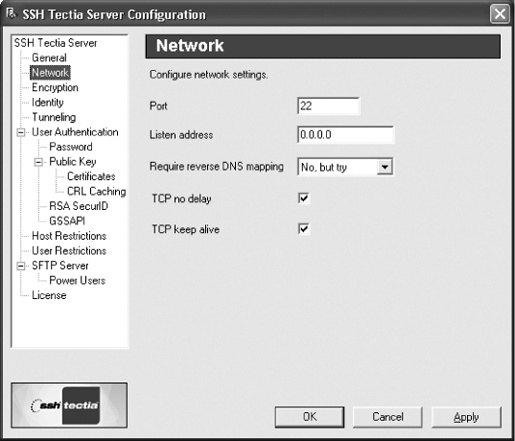
The server administration program, ssh2admin, also known as the Server Configuration tool (Figure 16-15), can display and change some keywords, but many features can be customized only by editing the file.
ssh2admin can be either run directly, or accessed by selecting the SSH Tectia Server Administration item within the menu Start/Programs/SSH Tectia Server. The Tools/View Configuration item displays the sshd2_config file in the Notepad editor.
Configuration changes take effect for each new session, as they are read by ssh2server. Only a few configuration keywords are used by ssh2master. If any of these are changed, the service should be restarted:
PortListenAddressMaxConnections
FIPS mode is controlled by the FIPSmode keyword, with a value of yes or no
(the default): [5.3.5]
FIPSMode yes
When a command has been specified by an SSH client, it is run directly by the Tectia server. For commands that are built into the Windows command interpreter cmd.exe, specify cmd explicitly for the ssh command:
$ ssh winserver.example.com cmd /c type readme.txt
Otherwise, if no command is given, then the server runs
cmd.exe by default for the interactive session.
An alternate program can be specified by the TerminalProvider keyword:
    # Tectia
    TerminalProvider    "some-other-cmd.exe"
This provides the same functionality as the login shell for Unix systems, except that it applies to all users. User-specific subconfiguration files can specify different programs for individual users. [11.6.2]
Users can run graphical applications from SSH sessions, but the applications have no access to the display, so this has limited usefulness. Full-screen text applications don’t work correctly, because they expect to run in a real console window, and the SSH connection doesn’t provide information about the window dimensions, etc.
By default, the Tectia server creates terminals for interactive
sessions in a fully private window station. This is controlled by the
PrivateWindowStation
keyword:
    # Tectia
    PrivateWindowStation    yes
The DoubleBackSpace keyword
copes with Japanese Windows systems, which require double backspaces
to be sent by the server in response to single backspaces from the
client, for each two-byte Japanese character. The value is either
yes (to enable this behavior) or
no (the default):
    # Tectia
    DoubleBackSpace     yes
Child processes that are launched from SSH sessions are not automatically terminated when the session ends. This could be construed as a bug or a feature, depending on the circumstances: beware.
The user profile folder is used as the home folder for commands and interactive sessions.
Windows passwords are used for password authentication. The password authentication method is always required for domain user accounts. Public-key authentication works only for local user accounts, not domain user accounts.
The %D pattern for the
UserConfigDirectory keyword refers
to the user profile folder. [5.3.1.5] The user
configuration folder contains the authorization file and public
keys.
Accounts that use the SSH server for logins must possess the
right to “log on locally.” This is disabled by default on some
servers, such as domain controllers. Keywords like PermitRootLogin that refer to the Unix
superuser affect any Windows accounts with administrative
privileges.
In the server configuration, domain user accounts should be specified as domain/user (with a forward slash). The usual Windows backslash separator cannot be used.
Windows groups are not supported by the server, so keywords and values that refer to groups must not appear in the configuration files.
The Tectia server supports only TCP port forwarding on Windows, and enforces the restriction that only privileged users can use privileged port numbers (less than 1024).[182] X forwarding and agent forwarding are not supported.
To support SFTP, the Tectia server configuration must include the sftp subsystem definition:
Subsystem-sftp "sftp_server2.exe"
No internal implementation is built into the SSH server, as it is for the Tectia servers on Unix systems.
The SFTP server restricts access to a set of folders. This is
controlled by the Sftp-DirList
keyword:
    # Tectia
    Sftp-DirList    "HOME=%D, SCRATCH=S:\scratch\%U"
The value is a comma-separated list (with optional whitespace),
where each element has the format
virtual=real. Virtual folder
names are arbitrary, and are presented to the SFTP clients. These are
mapped to the specified real folders on the server. The folder names
can contain the patterns %D and
%U, representing the user profile
folder and the username, respectively. The default value is HOME=%D.
A set of administrative (or power) users can be defined to use an alternate list of folders:
    # Tectia
    Sftp-AdminUsers     "administrator, backup.*, rebecca"
    Sftp-AdminDirList   "HOME=%D, BACKUP=Z:\backup, C:=C:, D:=D:"
The value for Sftp-AdminUsers
is a comma-separated list (with optional whitespace) of username
patterns. By default, only the administrator account is
included.
The Sftp-AdminDirList value
has the same format as for Sftp-DirList. The default is HOME=%D, C:=C:, D:=D:.
SFTP sessions start in a home folder, which is specified by the
Sftp-Home keyword:
    # Tectia
    Sftp-Home           "S:\sftp\%U"
The SFTP home folder must be accessible, according to Sftp-DirList or Sftp-AdminDirList. The folder can use the
same patterns, %D and %U. The default is %D (the user profile folder).
The server records log messages in the Windows event log, instead of using the standards syslog service found on Unix systems. The event log can be viewed using the Tectia server administration program, or using the Control Panel, by selecting Administrative Tools/Event Viewer.
The verbosity of the messages is controlled by the EventLogFilter keyword:
    # Tectia
    EventLogFilter      error, warning
Values are a comma-separated list (with optional whitespace) consisting of one or more of the following levels:
- error
Serious problems that prevent operations from completing
- warning
Problems that allow operations to continue
- information
Normal, successful events
Note that the higher levels do not include the lower levels, as they do for syslog on Unix systems. Each Windows event log level must be specified explicitly.
The SFTP server’s log messages are controlled by a separate
keyword, SftpLogCategory, that
specifies the kinds of messages that are sent to the event log:
    # Tectia
    SftpLogCategory     31
The numeric value is the sum of any of the following:
16 = user login/logout (the default)
8 = folder listings
4 = modifications
2 = uploads
1 = downloads
The ssh2admin program provides more
convenient checkboxes to specify the value for SftpLogCategory.
The ssh2master -d option works the same way as it does for sshd2 on Unix systems to enable debug mode and specify the debug log level: [5.9.2]
    # Tectia
    ssh2master -d4
Debug output is written to the console window by default, but this can be redirected to a file:
    # Tectia
    ssh2master -d4 2> debug.txt
The scripts debug-ssh.bat and debug-ssh-file.bat run ssh2master with debug level 4, as shown earlier. In addition, the debug-ssh-file.bat script redirects output to the file sshd2_debug_output.txt in the installation folder, and then displays the file in the Notepad editor after the server exits. These scripts can also be run by selecting the items Troubleshoot Server or Troubleshoot Server and Save Debug Output from the menu Start/Programs/SSH Tectia Server/Tools.