Table of Contents for
SSH, The Secure Shell: The Definitive Guide, 2nd Edition
 SSH, The Secure Shell: The Definitive Guide, 2nd Edition
Published by
O'Reilly Media, Inc., 2005
SSH, The Secure Shell: The Definitive Guide, 2nd Edition
Published by
O'Reilly Media, Inc., 2005
- Cover
- SSH, the Secure Shell, 2nd Edition
- Preface
- Protect Your Network with SSH
- Intended Audience
- Reading This Book
- Our Approach
- Which Chapters Are for You?
- Supported Platforms
- Disclaimers
- Conventions Used in This Book
- Comments and Questions
- Safari Enabled
- Acknowledgments
- 1. Introduction to SSH
- What Is SSH?
- What SSH Is Not
- The SSH Protocol
- Overview of SSH Features
- History of SSH
- Related Technologies
- Summary
- 2. Basic Client Use
- A Running Example
- Remote Terminal Sessions with ssh
- Adding Complexity to the Example
- Authentication by Cryptographic Key
- The SSH Agent
- Connecting Without a Password or Passphrase
- Miscellaneous Clients
- Summary
- 3. Inside SSH
- Overview of Features
- A Cryptography Primer
- The Architecture of an SSH System
- Inside SSH-2
- Inside SSH-1
- Implementation Issues
- SSH and File Transfers (scp and sftp)
- Algorithms Used by SSH
- Threats SSH Can Counter
- Threats SSH Doesn’t Prevent
- Threats Caused by SSH
- Summary
- 4. Installation and Compile-Time Configuration
- Overview
- Installing OpenSSH
- Installing Tectia
- Software Inventory
- Replacing r-Commands with SSH
- Summary
- 5. Serverwide Configuration
- Running the Server
- Server Configuration: An Overview
- Getting Ready: Initial Setup
- Authentication: Verifying Identities
- Access Control: Letting People In
- User Logins and Accounts
- Forwarding
- Subsystems
- Logging and Debugging
- Compatibility Between SSH-1 and SSH-2 Servers
- Summary
- 6. Key Management and Agents
- What Is an Identity?
- Creating an Identity
- SSH Agents
- Multiple Identities
- PGP Authentication in Tectia
- Tectia External Keys
- Summary
- 7. Advanced Client Use
- How to Configure Clients
- Precedence
- Introduction to Verbose Mode
- Client Configuration in Depth
- Secure Copy with scp
- Secure, Interactive Copy with sftp
- Summary
- 8. Per-Account Server Configuration
- Limits of This Technique
- Public-Key-Based Configuration
- Hostbased Access Control
- The User rc File
- Summary
- 9. Port Forwarding and X Forwarding
- What Is Forwarding?
- Port Forwarding
- Dynamic Port Forwarding
- X Forwarding
- Forwarding Security: TCP-Wrappers and libwrap
- Summary
- 10. A Recommended Setup
- The Basics
- Compile-Time Configuration
- Serverwide Configuration
- Per-Account Configuration
- Key Management
- Client Configuration
- Remote Home Directories (NFS, AFS)
- Summary
- 11. Case Studies
- Unattended SSH: Batch or cron Jobs
- FTP and SSH
- Pine, IMAP, and SSH
- Connecting Through a Gateway Host
- Scalable Authentication for SSH
- Tectia Extensions to Server Configuration Files
- Tectia Plugins
- 12. Troubleshooting and FAQ
- Debug Messages: Your First Line of Defense
- Problems and Solutions
- Other SSH Resources
- 13. Overview of Other Implementations
- Common Features
- Covered Products
- Other SSH Products
- 14. OpenSSH for Windows
- Installation
- Using the SSH Clients
- Setting Up the SSH Server
- Public-Key Authentication
- Troubleshooting
- Summary
- 15. OpenSSH for Macintosh
- Using the SSH Clients
- Using the OpenSSH Server
- 16. Tectia for Windows
- Obtaining and Installing
- Basic Client Use
- Key Management
- Accession Lite
- Advanced Client Use
- Port Forwarding
- Connector
- File Transfers
- Command-Line Programs
- Troubleshooting
- Server
- 17. SecureCRT and SecureFX for Windows
- Obtaining and Installing
- Basic Client Use
- Key Management
- Advanced Client Use
- Forwarding
- Command-Line Client Programs
- File Transfer
- Troubleshooting
- VShell
- Summary
- 18. PuTTY for Windows
- Obtaining and Installing
- Basic Client Use
- File Transfer
- Key Management
- Advanced Client Use
- Forwarding
- Summary
- A. OpenSSH 4.0 New Features
- Server Features: sshd
- Client Features: ssh, scp, and sftp
- ssh-keygen
- B. Tectia Manpage for sshregex
- Regex Syntax: Egrep Patterns
- Regex Syntax: ZSH_FILEGLOB (or Traditional) Patterns
- Character Sets for Egrep and ZSH_FILEGLOB
- Regex Syntax: SSH Patterns
- Authors
- See Also
- C. Tectia Module Names for Debugging
- D. SSH-1 Features of OpenSSH and Tectia
- OpenSSH Features
- Tectia Features
- E. SSH Quick Reference
- Legend
- sshd Options
- sshd Keywords
- ssh Options
- scp Options
- ssh and scp Keywords
- ssh-keygen Options
- ssh-agent Options
- ssh-add Options
- Identity and Authorization Files, OpenSSH
- Identity and Authorization Files, Tectia
- Environment Variables
- Index
- Index
- Index
- Index
- Index
- Index
- Index
- Index
- Index
- Index
- Index
- Index
- Index
- Index
- Index
- Index
- Index
- Index
- Index
- Index
- Index
- Index
- Index
- Index
- Index
- Index
- About the Authors
- Colophon
- Copyright
Serverwide access control permits or denies connections from particular hosts or Internet domains, or to specific user accounts on the server machine. It’s applied separately from authentication: for example, even if a user’s identity is legitimate, you might still want to reject connections from her computer. Similarly, if a particular computer or Internet domain has poor security policies, you might want to reject all SSH connection attempts from that domain.
SSH access control is scantily documented and has many subtleties and “gotchas.” The configuration keywords look obvious in meaning, but they aren’t. Our primary goal in this section is to illuminate the murky corners so that you can develop a correct and effective access-control configuration.
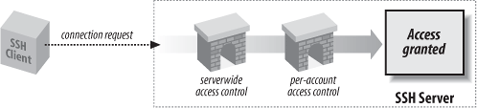
Keep in mind that SSH access to an account is permitted only if both the server and the account are configured to allow it. If a server accepts SSH connections to all accounts it serves, individual users may still deny connections to their accounts. [8.2] Likewise, if an account is configured to permit SSH access, the SSH server on its host can nonetheless forbid access. This two-level system applies to all SSH access control, so we won’t state it repeatedly. Figure 5-2 summarizes the two-level access control system.[68]
Ordinarily, any account may receive SSH connections as
long as it is set up correctly. This access may be overridden by the
server keywords AllowUsers and
DenyUsers. AllowUsers specifies that only a limited set
of local accounts may receive SSH connections. For example, the
line:
AllowUsers smith
permits the local smith account, and only
the smith account, to receive SSH connections. The configuration file
may have multiple AllowUsers
lines:
    AllowUsers smith
    AllowUsers jones
    AllowUsers oreilly
in which case the results are cumulative: the local accounts
smith, jones, and oreilly, and only those accounts, may receive SSH
connections. The SSH server maintains a list of all AllowUsers values, and when a connection
request arrives, it does a string comparison (really a pattern match,
as we’ll see in a moment) against the list. If a match occurs, the
connection is permitted; otherwise, it’s rejected.
Warning
A single AllowUsers keyword
in the configuration file cuts off SSH access for all other accounts
not mentioned. If the configuration file has no AllowUsers keywords, the server’s AllowUsers list is empty, and connections
are permissible to all accounts.
DenyUsers is the opposite of
AllowUsers: it shuts off SSH access
to particular accounts. For example:
DenyUsers smith
states that the smith account may not receive SSH connections.
DenyUsers keywords may appear
multiple times, just like AllowUsers, and the effects are again
cumulative. As for AllowUsers, the
server maintains a list of all DenyUsers values and compares incoming
connection requests against them.
Tectia recognizes numerical user IDs in place of account names (but OpenSSH does not):
    # Tectia
    AllowUsers 123
    DenyUsers 456
Both AllowUsers and DenyUsers accept more complicated values
than simple account names. An interesting but potentially confusing
syntax is to specify both an account name and a hostname (or numeric
IP address), separated by an @ symbol:
AllowUsers jones@example.com
Despite its appearance, this string isn’t an email address, and it doesn’t mean “the user jones on the machine example.com.” Rather, it describes a relationship between a local account, jones, and a remote client machine, example.com. The meaning is: “clients on example.com may connect to the server’s jones account.” Although this meaning is surprising, it would be even stranger if jones were a remote account, since the SSH server has no way to verify account names on remote client machines (except when using hostbased authentication).
For OpenSSH, wildcard characters are acceptable in AllowUsers and DenyUsers arguments. The ? symbol represents
any single character except @, and the * represents any sequence of
characters, again not including @. For Tectia, the patterns use the
regular-expression syntax that is specified by the REGEX-SYNTAX metaconfiguration parameter;
see Appendix B.[69]
Warning
The default egrep regex syntax used by Tectia treats “.” as a wildcard that matches any character, so a hostname pattern like example.com will also match unqualified hostnames like examplexcom. If you are using the egrep regex syntax, be sure to escape literal “.” characters in hostnames, IP addresses, etc., with a backslash character:
    # Tectia (egrep regex syntax)
    AllowUsers jones@example\.com
Alternatively, use the zsh_fileglob or traditional regex syntax,
which treats “.” characters literally. See Appendix B for more detailed
information about the different regex syntaxes supported by
Tectia.
Here are some examples. SSH connections are permitted only to accounts with five-character names ending in “mith”:
    # OpenSSH, and Tectia with zsh_fileglob or traditional regex syntax
    AllowUsers ?mith

    # Tectia with egrep regex syntax
    AllowUsers .mith
SSH connections are permitted only to accounts with names beginning with the letter “s”, coming from hosts whose names end in “.edu”:
    # OpenSSH, and Tectia with zsh_fileglob or traditional regex syntax
    AllowUsers s*@*.edu

    # Tectia with egrep regex syntax
    AllowUsers s.*@.*\.edu
Tectia connections are permitted only to account names of the
form “testn" where n
is a number, e.g., “test123”.
    # Tectia with zsh_fileglob or traditional regex syntax
    AllowUsers test[[:digit:]]##

    # Tectia with egrep regex syntax
    AllowUsers test[[:digit:]]+
Tectia connections are permitted only to accounts with numerical user IDs in the range 3000-6999:
    # Tectia with zsh_fileglob or traditional regex syntax
    AllowUsers [3-6][[:digit:]][[:digit:]][[:digit:]]

    # Tectia with egrep regex syntax
    AllowUsers [3-6][[:digit:]]{3}
IP addresses can be used instead of hostnames. For example, to allow access to any user from the network 10.1.1.0/24:[70]
    # OpenSSH, and Tectia with zsh_fileglob or traditional regex syntax
    AllowUsers *@10.1.1.*
    # Tectia  with egrep regex syntax
    AllowUsers .*@10\.1\.1\..*
Tectia also recognizes netmasks preceded by the \m prefix:
    # Tectia with zsh_fileglob or traditional regex syntax
    AllowUsers *@\m10.1.1.0/28

    # Tectia with egrep regex syntax
    AllowUsers .*@\m10.1.1.0/28
Warning
Wildcards and regular-expression metacharacters are not used
in netmasks, so netmasks are independent of the regex syntax, and
“.” characters are not escaped with backslashes as usual for the
egrep regex syntax. Netmasks are always
interpreted IP address ranges, without hostname lookups, so \mexample.com/28 does not work.
Netmasks are often more concise than other patterns for expressing IP address ranges, especially those that don’t coincide with an octet boundary. For example, 10.1.1.0/28 is equivalent to the range of addresses 10.1.1.0 through 10.1.1.15, which is expressed as:
    # Tectia with zsh_fileglob or traditional regex syntax
    AllowUsers *@10.1.1.([[:digit:]]|1[0-5])

    # Tectia with egrep regex syntax
    AllowUsers .*@10\.1\.1\.([[:digit:]]|1[0-5])
The specification of address ranges is even more of a struggle using OpenSSH’s limited wildcards, and it is frequently necessary to enumerate individual addresses:
    # OpenSSH
    AllowUsers *@10.1.1.?
    AllowUsers *@10.1.1.10 *@10.1.1.11 *@10.1.1.12 *@10.1.1.13 *@10.1.1.14 *@10.1.1.15
By default, a reverse lookup is first attempted to convert the client’s IP address to a canonical hostname, and if the lookup succeeds, then the hostname is used for pattern matches. Next, the IP address is checked using the same patterns.
Access control using IP addresses can avoid some attacks on hostname lookup mechanisms, such as compromised nameservers, but we need to be careful. For example, our previous example that intended to limit access to the network 10.1.1.0/24 would actually also allow connections from a machine on some remote network named 10.1.1.evil.org!
Tectia provides several ways to fix this. We can use a more precise pattern that matches only digits, to reject arbitrary domains like evil.org.
    # Tectia with zsh_fileglob or traditional regex syntax
    AllowUsers *@10.1.1.[[:digit:]]##

    # Tectia with egrep regex syntax
    AllowUsers .*@10\.1\.1\.[[:digit:]]+
An even better approach is to add the \i prefix to force the pattern to be
interpreted only as an IP address. This avoids the hostname lookup
entirely, and allows us to use simpler patterns safely:
    # Tectia with zsh_fileglob or traditional regex syntax
    AllowUsers *@\i10.1.1.*

    # Tectia with egrep regex syntax
    AllowUsers .*@\i10\.1\.1\..*
Even this isn’t foolproof: source IP addresses can be easily spoofed. Address-based access controls are most appropriate for trusted internal networks protected by an external firewall.
Tectia allows some control of the hostname lookups performed for
all of the access control patterns. To disable hostname lookups
completely, use the ResolveClientHostName keyword:
    # Tectia
    ResolveClientHostName no
This is appropriate if only IP address matching is desired. It can also be useful if hostname lookups would cause unnecessary delays, e.g., if some nameservers aren’t available.
Conversely, to insist that hostname lookups must succeed,
rejecting connections instead of resorting to IP address matching
whenever the hostname lookups fail, use the RequireReverseMapping keyword:
    # Tectia
    RequireReverseMapping yes
This is appropriate if only hostname address matching is desired. It also provides some limited protection against connections from unrecognized machines.
Of course, hostname lookups should not be disabled by ResolveClientHostName if they are forced by
RequireReverseMapping.
Keep in mind that hostname-based access controls are even more inherently weak restrictions than address-based controls, and both should be used only as an adjunct to other strong authentication methods.
Multiple strings may appear on a single AllowUsers line, but the syntax differs for
OpenSSH and Tectia. OpenSSH separates strings with whitespace:
    # OpenSSH
    AllowUsers smith jones
and Tectia separates them with commas:
    # Tectia
    AllowUsers smith,jones
    AllowUsers rebecca, katie, sarah         Whitespace after commas is undocumented but works
Tip
Commas must be escaped with backslashes within regular expressions, to prevent misinterpretation as list separators. For example, to allow access by usernames that begin with “elf” and are followed by one to three digits, plus elvis:
    # Tectia with egrep regex syntax
    AllowUsers elf[[:digit:]]{1\,3},elvis
AllowUsers and DenyUsers may be combined effectively.
Suppose you’re teaching a course and want your students to be the only
users with SSH access to your server. It happens that only student
usernames begin with “stu”, so you specify:
    # OpenSSH, and Tectia with zsh_fileglob or traditional regex syntax
    AllowUsers stu*

    # Tectia with egrep regex syntax
    AllowUsers stu.*
Later, one of your students, stu563, drops the course, so you want to disable her SSH access. Simply add the following to the configuration:
DenyUsers stu563
Hmm...this seems strange. The AllowUsers and DenyUsers lines appear to conflict because
the first permits stu563 but the second rejects it. The server handles
this in the following way: if any line prevents access to an account,
the account can’t be accessed. So, in the preceding example, stu563 is
denied access by the second line.
Consider another example with this AllowUsers line:
    # OpenSSH, Tectia
    AllowUsers smith
followed by a DenyUsers line
(appropriate to your SSH implementation):
    # OpenSSH, Tectia with zsh_fileglob or traditional regex syntax
    DenyUsers s*

    # Tectia with egrep regex syntax
    DenyUsers s.*
The pair of lines permits SSH connections to the smith account
but denies connections to any account beginning with “s”. What does
the server do with this clear contradiction? It rejects connections to
the smith account, following the same rule: if any restriction
prevents access, such as the DenyUsers line shown, access is denied.
Access is granted only if there are no restrictions against it.
Finally, here is a useful configuration example:
    # OpenSSH
    AllowUsers walrus@* carpenter@* *@*.beach.net

    # Tectia with zsh_fileglob or traditional regex syntax
    AllowUsers walrus@*,carpenter@*,*@*.beach.net

    # Tectia with egrep regex syntax
    AllowUsers walrus@.*,carpenter@.*,.*@.*\.beach\.net
This restricts access for most accounts to connections originating inside the domain beach.net--except for the accounts walrus and carpenter, which may be accessed from anywhere. The hostname qualifiers following walrus and carpenter aren’t strictly necessary but help make clear the intent of the line.
AllowUsers and DenyUsers operate on individual accounts,
but you can also deny access to all users in a pinch. If the file
/etc/nologin exists,
sshd allows only root to log in; no other
accounts are allowed access. Thus, touch
/etc/nologin is a quick way to restrict access to the
system administrator only, without having to reconfigure or shut
down SSH.
Tectia also checks /etc/nologin_
<hostname>, where
<hostname> should match the output
from the hostname command. This is useful if
the /etc directory is shared
among several machines in a cluster.
sshd may permit or deny SSH access
to all accounts in a Unix group on the server machine. The keywords
AllowGroups and DenyGroups serve this purpose:
    AllowGroups faculty
    DenyGroups students
These keywords operate much like AllowUsers and DenyUsers. OpenSSH accepts the wildcards
* and ? within group names, and separates multiple
groups with whitespace. Tectia accepts patterns according to the
regular-expression syntax determined by the metaconfiguration
information [11.6.1],
and separates groups with commas:
    # OpenSSH
    AllowGroups good* better
    DenyGroups bad* worse

    # Tectia with zsh_fileglob or traditional regex syntax
    AllowGroups good*,better
    DenyGroups bad*, worse

    # Tectia with egrep regex syntax
    AllowGroups good.*,better
    DenyGroups bad.*, worse
Tectia recognizes numerical group IDs as well (but OpenSSH does not):
    # Tectia
    AllowGroups 513
    DenyGroups 781
By default, access is allowed to all groups. If any AllowGroups keyword appears, access is
permitted only to the groups specified (and may be further restricted
with DenyGroups).
These directives apply to both the primary group (typically
listed in /etc/passwd or the
corresponding NIS map) and all supplementary groups (in /etc/group or an NIS map). If a user is a
member of any group that matches a pattern listed by AllowGroups or DenyGroups, then access is restricted
accordingly.
Group access control is often more convenient than restricting specific users, since group memberships can be changed without updating the configuration of the SSH server.
AllowGroups and DenyGroups do not accept hostname
qualifiers, however, in contrast to AllowUsers and DenyUsers. This is a surprising and
unfortunate inconsistency: if hostname (or IP address) restrictions
are useful for controlling access by specific users, then those same
restrictions could be even more useful for controling access for
entire groups.
As was the case for AllowUsers and DenyUsers, conflicts are resolved in the
most restrictive way. If any AllowGroups or DenyGroups line prevents access to a given
group, access is denied to that group even if another line appears to
permit it.
We’ve described previously how to use hostname
qualifiers with AllowUsers and
DenyUsers. [5.5.1] For the common case
when you don’t need to restrict username, Tectia provides the keywords
AllowHosts and DenyHosts to restrict access by hostname (or
IP address) more concisely, without wildcards to match
usernames:[71]
    # Tectia with zsh_fileglob or traditional regex syntax
    AllowHosts good.example.com,\i10.1.2.3
    DenyHosts bad.example.com, \m10.1.1.0/24

    # Tectia with egrep regex syntax
    AllowHosts good\.example\.com,\i10\.1\.2\.3
    DenyHosts bad\.example\.com, \m10.1.1.0/24
As with AllowUsers and
DenyUsers:
Patterns are interpreted according to the regular-expression syntax determined by the metaconfiguration information (Appendix B).
Values may contain multiple strings separated by commas, plus optional whitespace.
Keywords may appear multiple times in the configuration file, and the results are cumulative.
Hostnames or IP addresses may be used, with optional
\ior\mprefixes.By default, access is allowed to all hosts, and if any
AllowHostskeyword appears, access is permitted only to the hosts specified (and may be further restricted withDenyHosts).
You can also make AllowHosts
and DenyHosts do reverse DNS
lookups (or not) with the RequireReverseMapping keyword, providing a
value of yes or no:
    # Tectia
RequireReverseMapping yes AllowHosts and
DenyHosts offer total
hostname-based access control, regardless of the type of
authentication requested. A similar but less restrictive access
control is specific to hostbased authentication. The Tectia server can
deny access to hosts that are named in .rhosts, .shosts, /etc/hosts.equiv, and /etc/shosts.equiv files. This is
accomplished with the keywords AllowSHosts and DenySHosts:[72]
For example, the line:
    # Tectia with zsh_fileglob or traditional regex syntax
    DenySHosts *.badguy.com

    # Tectia with egrep regex syntax
    DenySHosts .*\.badguy\.com
forbids access by connections from hosts in the
badguy.com domain, but only when hostbased
authentication is being attempted. Likewise, AllowSHosts permits access only to given
hosts when hostbased authentication is used. Values follow the same
syntax as for AllowHosts and
DenyHosts. As a result, system
administrators can override values in users’ .rhosts and .shosts files (which is good, because this
can’t be done via the /etc/hosts.equiv or /etc/shosts.equiv files).
AllowSHosts and DenySHosts have caveats similar to those of
AllowHosts and DenyHosts:
Patterns are interpreted according to the regular-expression syntax determined by the metaconfiguration information (Appendix B).
Values may contain multiple patterns separated by commas, plus optional whitespace.
Keywords may appear multiple times in the configuration file, and the results are cumulative.
Hostnames or IP addresses may be used, with optional
\ior\mprefixes.By default, access is allowed to all hosts, and if any
AllowSHostskeyword appears, access is permitted only to the hosts specified (and may be further restricted withDenySHosts).
sshd has a separate access-control
mechanism for the superuser. The keyword PermitRootLogin allows or denies access to
the root account by SSH:
PermitRootLogin no
Permissible values for this keyword are yes (the default) to allow access to the
root account by SSH; no to deny all
such access; and without-password
(OpenSSH) or nopwd (Tectia) to
allow access except by password authentication.
In addition, OpenSSH recognizes the value forced-commands-only to allow access only
for forced commands specified in authorized_keys [8.2.3]; Tectia always allows
such access for all values of PermitRootLogin. OpenSSH’s level of control
is useful, for example, if root’s authorized_keys file contains a line
beginning with:
command="/bin/dump" ....
Then the root account may be accessed by SSH to run the dump command. This capability lets remote clients run superuser processes, such as backups or filesystem checks, but not unrestricted login sessions.
The server checks PermitRootLogin after authentication is
complete. In other words, if PermitRootLogin is no, a client is offered the opportunity to
authenticate (e.g., is prompted for a password or passphrase) but is
shut down afterward regardless.
We’ve previously seen a similar keyword, IgnoreRootRhosts, that controls access to
the root account by hostbased authentication. [5.4.4] It prevents entries in
~root/.rhosts and ~root/.shosts from being used to
authenticate root. Because sshd checks PermitRootLogin after authentication is
complete, it overrides any value of IgnoreRootRhosts. Table 5-4 illustrates the
interaction of these two keywords.
Tectia allows access control (authorization) decisions
to be made by an external program, which is identified by the ExternalAuthorizationProgram
keyword:[73]
    # Tectia
    ExternalAuthorizationProgram /usr/local/sbin/ssh-external-authorization-program
The program can be used to implement arbitrary access control logic, extending the mechanisms that are supported directly by the Tectia server.[74] The server communicates with the program using the Tectia plugin protocol, and we’ll go into more detail in a later case study. [11.7.3]
The Unix system call chroot causes a process (and any
subprocesses) to treat a given directory as the root directory. After
chroot, absolute filenames
beginning with “/” actually refer to subdirectories of the given
directory. Access is effectively restricted to the given directory,
because it is impossible to name files outside. This is useful for
restricting a user or process to a subset of a filesystem for security
reasons.
Tectia provides two keywords for imposing this restriction on
incoming SSH clients. ChRootUsers
specifies that SSH clients, when accessing a given account, are
restricted to the account’s home directory and its
subdirectories:
    # Tectia
    ChRootUsers guest
Values for ChRootUsers use
the same syntax as for AllowUsers:
[5.5.1]
    # Tectia with zsh_fileglob or traditional regex syntax
    ChRootUsers guest*,backup,300[[:digit:]],visitor@*.friendly.org

    # Tectia with egrep regex syntax
    ChRootUsers guest.*,backup,300[[:digit:]],visitor@.*\.friendly\.org
The other keyword, ChRootGroups, works similarly but applies to
all accounts that belong to a group that matches any of the specified
patterns:
    # Tectia
    ChRootGroups guest[a-z],ops,999[[:digit:]]
Values for ChRootGroups use
the same syntax as for AllowGroups.
[5.5.2]
ChRootUsers and ChRootGroups can be specified multiple times
in configuration files; the values are accumulated into a single list
for each keyword. Each account that matches a pattern from either
ChRootUsers or ChRootGroups is individually restricted when
accessed via Tectia.
To make chroot functionality
work, all system files used by any programs run via the Tectia server
must be copied into the home directory for each restricted account.
Such files can include special device files like /dev/null or /dev/zero, shared libraries from /lib or /usr/lib, configuration files like
/etc/termcap, etc.
The permissions for the copied system files (and the directories in which they live) need to be carefully controlled. Typically they should not be writable by the owner of the restricted account.
Discovering all of the system files needed for all of the programs used by an account can be challenging, and may require considerable experimentation and debugging: tools that monitor filesystem usage (like lsof, strace, and ldd) can help.[75] Dependencies on shared libraries can be eliminated by statically linking the programs.
Maintenance costs for restricted accounts are minimized if the accounts are further restricted to run only a very limited set of carefully controlled commands. The login shell is typically set to a special-purpose program, or access is allowed only to a collection of forced commands. [8.2.3]
SSH provides several ways to permit or restrict connections to particular accounts or from particular hosts. Tables 5-5 and 5-6 summarize the available options.
Table 5-5. OpenSSH summary of authentication and access control
If you are... | And you want to allow or restrict... | Then use... |
|---|---|---|
User | Connections to your account by public-key authentication | authorized_keys [8.2.1] |
Administrator | Connections to an account | |
User | Connections by a host | |
Administrator | Connections by a host | |
User | Connections to your account by hostbased authentication | .shosts |
Administrator | Hostbased authentication | |
Administrator | Root logins | |
Table 5-6. Tectia summary of authentication and access control
If you are... | And you want to allow or restrict... | Then use... |
|---|---|---|
User | Connections to your account by public-key authentication | authorization file [8.2.2] |
Administrator | Connections to an account | |
User | Connections by a host | |
Administrator | Connections by a host | |
User | Connections to your account by hostbased authentication | .shosts |
Administrator | Hostbased authentication | |
Administrator | Root logins | |
[68] This concept is true for the configuration keywords discussed in this section but not for hostbased control files, e.g., ~/.rhosts and /etc/hosts.equiv. Each of these may in fact override the other. [3.4.3.6]
[70] In this notation, the mask specifies the number of 1 bits in the most-significant portion of the netmask. You might be more familiar with the older, equivalent notation giving the entire netmask, e.g., 10.1.1.0/255.255.255.0.
[71] Finer-grained control is provided by the from option in authorized_keys. [8.2.4] Each public key
may be tagged with a list of acceptable hosts that may connect via
that key.
[72] Even though the keywords have “SHosts” in their names, they apply also to .rhosts and /etc/hosts.equiv files.
[73] If the specified program cannot be run, then access is denied.
[74] The external authorization program is similar in function to a keyboard-interactive plugin that is used for authentication, except that access control does not need interaction with the remote user, because the user has already authenticated successfully before the program is run.
[75] We discuss this in more detail in our other O’Reilly book, Linux Security Cookbook.