Table of Contents for
SSH, The Secure Shell: The Definitive Guide, 2nd Edition
 SSH, The Secure Shell: The Definitive Guide, 2nd Edition
Published by
O'Reilly Media, Inc., 2005
SSH, The Secure Shell: The Definitive Guide, 2nd Edition
Published by
O'Reilly Media, Inc., 2005
- Cover
- SSH, the Secure Shell, 2nd Edition
- Preface
- Protect Your Network with SSH
- Intended Audience
- Reading This Book
- Our Approach
- Which Chapters Are for You?
- Supported Platforms
- Disclaimers
- Conventions Used in This Book
- Comments and Questions
- Safari Enabled
- Acknowledgments
- 1. Introduction to SSH
- What Is SSH?
- What SSH Is Not
- The SSH Protocol
- Overview of SSH Features
- History of SSH
- Related Technologies
- Summary
- 2. Basic Client Use
- A Running Example
- Remote Terminal Sessions with ssh
- Adding Complexity to the Example
- Authentication by Cryptographic Key
- The SSH Agent
- Connecting Without a Password or Passphrase
- Miscellaneous Clients
- Summary
- 3. Inside SSH
- Overview of Features
- A Cryptography Primer
- The Architecture of an SSH System
- Inside SSH-2
- Inside SSH-1
- Implementation Issues
- SSH and File Transfers (scp and sftp)
- Algorithms Used by SSH
- Threats SSH Can Counter
- Threats SSH Doesn’t Prevent
- Threats Caused by SSH
- Summary
- 4. Installation and Compile-Time Configuration
- Overview
- Installing OpenSSH
- Installing Tectia
- Software Inventory
- Replacing r-Commands with SSH
- Summary
- 5. Serverwide Configuration
- Running the Server
- Server Configuration: An Overview
- Getting Ready: Initial Setup
- Authentication: Verifying Identities
- Access Control: Letting People In
- User Logins and Accounts
- Forwarding
- Subsystems
- Logging and Debugging
- Compatibility Between SSH-1 and SSH-2 Servers
- Summary
- 6. Key Management and Agents
- What Is an Identity?
- Creating an Identity
- SSH Agents
- Multiple Identities
- PGP Authentication in Tectia
- Tectia External Keys
- Summary
- 7. Advanced Client Use
- How to Configure Clients
- Precedence
- Introduction to Verbose Mode
- Client Configuration in Depth
- Secure Copy with scp
- Secure, Interactive Copy with sftp
- Summary
- 8. Per-Account Server Configuration
- Limits of This Technique
- Public-Key-Based Configuration
- Hostbased Access Control
- The User rc File
- Summary
- 9. Port Forwarding and X Forwarding
- What Is Forwarding?
- Port Forwarding
- Dynamic Port Forwarding
- X Forwarding
- Forwarding Security: TCP-Wrappers and libwrap
- Summary
- 10. A Recommended Setup
- The Basics
- Compile-Time Configuration
- Serverwide Configuration
- Per-Account Configuration
- Key Management
- Client Configuration
- Remote Home Directories (NFS, AFS)
- Summary
- 11. Case Studies
- Unattended SSH: Batch or cron Jobs
- FTP and SSH
- Pine, IMAP, and SSH
- Connecting Through a Gateway Host
- Scalable Authentication for SSH
- Tectia Extensions to Server Configuration Files
- Tectia Plugins
- 12. Troubleshooting and FAQ
- Debug Messages: Your First Line of Defense
- Problems and Solutions
- Other SSH Resources
- 13. Overview of Other Implementations
- Common Features
- Covered Products
- Other SSH Products
- 14. OpenSSH for Windows
- Installation
- Using the SSH Clients
- Setting Up the SSH Server
- Public-Key Authentication
- Troubleshooting
- Summary
- 15. OpenSSH for Macintosh
- Using the SSH Clients
- Using the OpenSSH Server
- 16. Tectia for Windows
- Obtaining and Installing
- Basic Client Use
- Key Management
- Accession Lite
- Advanced Client Use
- Port Forwarding
- Connector
- File Transfers
- Command-Line Programs
- Troubleshooting
- Server
- 17. SecureCRT and SecureFX for Windows
- Obtaining and Installing
- Basic Client Use
- Key Management
- Advanced Client Use
- Forwarding
- Command-Line Client Programs
- File Transfer
- Troubleshooting
- VShell
- Summary
- 18. PuTTY for Windows
- Obtaining and Installing
- Basic Client Use
- File Transfer
- Key Management
- Advanced Client Use
- Forwarding
- Summary
- A. OpenSSH 4.0 New Features
- Server Features: sshd
- Client Features: ssh, scp, and sftp
- ssh-keygen
- B. Tectia Manpage for sshregex
- Regex Syntax: Egrep Patterns
- Regex Syntax: ZSH_FILEGLOB (or Traditional) Patterns
- Character Sets for Egrep and ZSH_FILEGLOB
- Regex Syntax: SSH Patterns
- Authors
- See Also
- C. Tectia Module Names for Debugging
- D. SSH-1 Features of OpenSSH and Tectia
- OpenSSH Features
- Tectia Features
- E. SSH Quick Reference
- Legend
- sshd Options
- sshd Keywords
- ssh Options
- scp Options
- ssh and scp Keywords
- ssh-keygen Options
- ssh-agent Options
- ssh-add Options
- Identity and Authorization Files, OpenSSH
- Identity and Authorization Files, Tectia
- Environment Variables
- Index
- Index
- Index
- Index
- Index
- Index
- Index
- Index
- Index
- Index
- Index
- Index
- Index
- Index
- Index
- Index
- Index
- Index
- Index
- Index
- Index
- Index
- Index
- Index
- Index
- Index
- About the Authors
- Colophon
- Copyright
Pine is a popular, Unix-based email program from the University of Washington (http://www.washington.edu/pine/). In addition to handling mail stored and delivered in local files, Pine also supports IMAP[146] for accessing remote mailboxes and SMTP[147] for posting mail.
In this case study, we integrate Pine and SSH to solve two common problems:
- IMAP authentication
In many cases, IMAP permits a password to be sent in the clear over the network. We discuss how to protect your password using SSH, but (surprisingly) not by port forwarding.
- Restricted mail relaying
Many ISPs permit their mail and news servers to be accessed only by their customers. In some circumstances, this restriction may prevent you from legitimately relaying mail through your ISP. Once again, SSH comes to the rescue.
We also discuss techniques to avoid Pine connection delays and facilitate access to multiple servers and mailboxes, including the use of a Pine-specific SSH connection script. This discussion will delve into more detail than the previous one on Pine/SSH integration. [4.5.3]
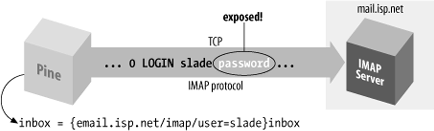
Like SSH, IMAP is a client/server protocol. Your email program (e.g., Pine) is the client, and an IMAP server process (e.g., imapd ) runs on a remote machine, the IMAP host, to control access to your remote mailbox. Also like SSH, IMAP generally requires you to authenticate before accessing your mailbox, typically by password. Unfortunately, in some cases this password is sent to the IMAP host in the clear over the network; this represents a security risk (see Figure 11-8).[148]
There’s no longer any good reason for this. Years ago, security options were rarely available in IMAP software; these days, however, they’re common and should be used! There are standard ways to secure IMAP traffic using SSL or Kerberos. With SSL, the entire IMAP session is protected, so even plain password authentication can be used relatively securely. Kerberos can provide secure authentication and single-signon with or without session encryption; for example, the Apple Mail client implements both. Pine uses Kerberos only for authentication, not encryption—but you can combine Kerberos with SSL to get both single-signon and privacy. Note the power of having multiple independent and standards-based options available!
Nonetheless, it is still all too common to encounter IMAP servers with no security features; here, we show you how to address this problem with SSH.
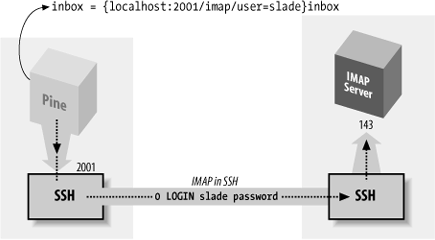
If your mail server is sealed--that is, your only access to it is via the IMAP protocol—then there’s nothing you can do to improve security using SSH. However, if you can also log into the IMAP server host via SSH, you have options. Because IMAP is a TCP/IP-based protocol, one approach is to use SSH port forwarding between the machine running Pine and the IMAP host (see Figure 11-9). [9.2.1]
However, this technique has two drawbacks:
- Security risk
On a multiuser machine, any other user can connect to your forwarded port. [9.2.4.3] If you use forwarding only to protect your password, this isn’t a big deal, since at worst, an interloper could access a separate connection to the IMAP server having nothing to do with your connection. On the other hand, if port forwarding is permitting you to access an IMAP server behind a firewall, an interloper can breach the firewall by hijacking your forwarded port, a more serious security risk.
- Inconvenience
In this setup, you must authenticate twice: first to the SSH server on the IMAP host (to connect and to create the tunnel) and then to the IMAP server by password (to access your mailbox). This is redundant and annoying.
Fortunately, we can address both of these drawbacks and run Pine over SSH securely and conveniently.
There are two broad types of Unix-based IMAP servers, exemplified by the University of Washington (UW) imapd and the Carnegie Mellon Cyrus software. Cyrus is a self-contained system: it uses an internal database to hold user mail, and the only access to it is via the IMAP protocol or particular programs for mail delivery or administration. In particular, there is no relationship between Unix accounts on the server host, and IMAP accounts; they are completely separate.
The UW imapd, on the other hand, is a lighter-weight affair: it simply provides an IMAP view of the traditional Unix mail store: files in /var/spool/mail or elsewhere, owned by the Unix accounts of the mail recipients. Thus, its notion of user account and access control is tied to that of the host. If your mail is stored in a spool file owned by you, and you can log into the host via SSH, then you’ve already proven you have access to that file—why should you have to prove it again to the IMAP server? In fact, with the UW server, you don’t have to. We now discuss how to do this with UW imapd, or another IMAP server with similar behavior.
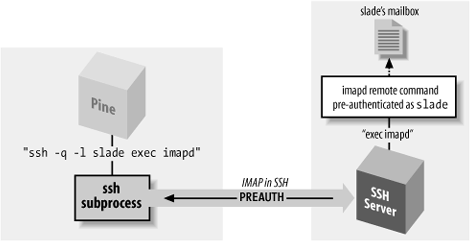
The IMAP protocol defines two modes in which an IMAP server can start: normal and preauthenticated (see Figure 11-10). Normally, imapd runs with special privileges to access any user’s mailbox (as when started as root by inetd), and hence it requires authentication from the client.
Here’s a sample session that invokes an IMAP server, imapd, through inetd so that it runs as root:
    server% telnet localhost imap
    * OK localhost IMAP4rev1 v12.261 server ready
    0 login res password'
    1 select inbox
    * 3 EXISTS
    * 0 RECENT
    * OK [UIDVALIDITY 964209649] UID validity status
    * OK [UIDNEXT 4] Predicted next UID
    * FLAGS (\Answered \Flagged \Deleted \Draft \Seen)
    * OK [PERMANENTFLAGS (\* \Answered \Flagged \Deleted \Draft \Seen)] Permanent flags
    1 OK [READ-WRITE] SELECT completed
    2 logout
    * BYE imap.example.com IMAP4rev1 server terminating connection
    2 OK LOGOUT completed
Alternatively, in preauthenticated mode, the IMAP server assumes that authentication has already been done by the program that started the server and that it already has the necessary rights to access the user’s mailbox. If you invoke imapd on the command line under a nonroot uid, imapd skips the authentication phase and simply opens the mailbox file of the current account (which must be accessible via the existing Unix permissions structure). You can then type IMAP commands and access your mailbox without authentication:
    server% /usr/local/sbin/imapd
    * PREAUTH imap.example.com IMAP4rev1 v12.261 server ready
    0 select inbox
    * 3 EXISTS
    * 0 RECENT
    * OK [UIDVALIDITY 964209649] UID validity status
    * OK [UIDNEXT 4] Predicted next UID
    * FLAGS (\Answered \Flagged \Deleted \Draft \Seen)
    * OK [PERMANENTFLAGS (\* \Answered \Flagged \Deleted \Draft \Seen)] Permanent flags
    0 OK [READ-WRITE] SELECT completed
    1 logout
    * BYE imap.example.com IMAP4rev1 server terminating connection
    1 OK LOGOUT completed
Notice the PREAUTH response
at the beginning of the session, indicating preauthenticated mode.
It is followed by the command select inbox,
which causes the IMAP server implicitly to open the inbox of the
current user without demanding authentication.
Now, how does all this relate to Pine? Pine has a built-in feature whereby, instead of using a direct IMAP connection, it logs into the IMAP host using ssh and runs a preauthenticated instance of imapd directly. If this succeeds, Pine then converses with the IMAP server over the SSH connection, and has automatic access to the remote inbox without further authentication.
Pine’s SSH feature is controlled by three
configuration variables in the ~/.pinerc file: ssh-path, ssh-command, and ssh-open-timeout. ssh-path stores the program name for
opening a Unix remote shell connection. The default should point to
a usable SSH program, but you may have to set it yourself:
ssh-path=/usr/bin/ssh
ssh-command represents the
Unix command line for opening the SSH connection. The value is a
printf-style format string with
four “%s” conversion specifications that are automatically filled in
at runtime. From first to last, these four specifications stand
for:
The value of
ssh-pathThe remote hostname
The remote username
The connection method; in this case, “imap”
The default value of ssh-command is:
"%s %s -l %s exec /etc/r%sd"
To access the mailbox on imap.example.com for user smith via SSH, Pine would then run the command:
/usr/bin/ssh imap.example.com -l smith exec /etc/rimapd
This follows a convention, somewhat antiquated nowadays, of
having links named /etc/r<
protocol >d that point to servers for various
protocols that operate in this preauthenticated fashion. In modern
systems such links are usually not available, so you may need to
alter the ssh-command to run
imapd. You can also use it to add other
options, like so:
ssh-command="%s %s -l %s -o BatchMode=yes -axq exec /usr/sbin/imapd"
With this setting, Pine would end up running this command:
/usr/bin/ssh imap.example.com -l -o BatchMode=yes -axq exec /usr/sbin/imapd
The -q (Quiet) option is advisable so that
ssh doesn’t emit warning messages that may
confuse Pine, which would try to interpret them as part of the IMAP
protocol. The options -ax turns off agent and X
Windows forwarding, which might be on by default but are not
necessary for this connection. BatchMode lets ssh
know that it can’t prompt the user for a password on the terminal,
since Pine is using it.
The third variable, ssh-open-timeout, sets the number of
seconds Pine will wait for the SSH connection to succeed; its
default value is 15. A value of 0 disables SSH entirely, which may
be useful if the feature is on by default and you do not want to use
it.
So, finally, the Pine configuration is:
    ssh-path=/usr/bin/ssh
    ssh-command="%s %s -l %s -o BatchMode=yes -axq exec /usr/sbin/imapd"
    ssh-open-timeout=15
Generally, you want to use an SSH authentication method that doesn’t require typing a password or passphrase, such as hostbased or public-key with an agent. SSH is run behind the scenes by Pine and doesn’t have access to the terminal to prompt you. If you’re running the X Window System, ssh can instead pop up an X widget --
ssh-askpass--to get input, but you probably don’t want that either. Pine may make several separate IMAP connections in the course of reading your mail, even if it’s all on the same server, and this will cause repeated queries for your password.
With the given settings in your ~/.pinerc file and the right kind of SSH authentication in place, you’re ready to try Pine over SSH. Just start Pine and open your remote mailbox; if all goes well, it will open without prompting for a password.
Pine uses IMAP to read mail but not to send it. For that, it can either call a local program (such as sendmail) or use an SMTP server. Pine can also be a newsreader and use NNTP (the Network News Transfer Protocol, RFC-977) to contact a news server.
An ISP commonly provides NNTP and SMTP servers for its customers, but obviously does not want to allow arbitrary people to use them. Modern extensions to the NNTP and SMTP protocols include authentication, and ISPs are starting to use and require them. Before such mechanisms were available, however, the usual method of restricting access to these services was via network address: the ISP would allow access from addresses within its own network (and hence hopefully only from its customers). Many ISPs have not yet switched to direct authentication for these services, and are still using address-based authorization; so, if you’re connected to the Internet from elsewhere and try to use your ISP’s mail server, the attempt might fail. Access to your usual servers might be blocked by a firewall, or the mail server might reject your mail with a message about “no relaying,” and the news server rejects you with a message about “unauthorized use.”
You are authorized to use the services, of course, so what do you do? Use SSH port forwarding! By forwarding your SMTP and NNTP connections over an SSH session to a machine inside the ISP’s network, your connections appear to come from that machine, thus bypassing the address-based restrictions. You can use separate SSH commands to forward each port:
    $ ssh -L2025:localhost:25 smtp-server ...
    $ ssh -L2119:localhost:119 nntp-server ...
Alternatively, if you have a shell account on one of the ISP’s machines running SSH but can’t log into the mail or news servers directly, do this:
$ ssh -L2025:smtp-server:25 -L2119:nntp-server:119 shell-server ...
or neatly automate it this way:
    [~/.ssh/config]
    Host mail-news-forwarding
      Hostname shell-server
      LocalForward 2025 smtp-server:25
      LocalForward 2119 nntp-server:119

    $ ssh mail-news-forwarding
This is an off-host forwarding, and thus the last leg of the forwarded path isn’t protected by SSH. [9.2.4] But since the reason for this forwarding isn’t so much protection as it is bypassing the source-address restriction, that’s OK. Your mail messages and news postings are going to be transferred insecurely once you drop them off, anyway. (If you want security for them, you need to sign or encrypt them separately, e.g., with PGP or S/MIME.)
In any case, now configure Pine to use the forwarded ports by
setting the smtp-server and
nntp-server configuration options
in your ~/.pinerc file:
    smtp-server=localhost:2025
    nntp-server=localhost:2119
Even if your ISP uses direct authentication, you might choose to use SSH anyway if it does so poorly. For instance, some badly deployed services require password authentication but do not provide encryption for the connection! In this case, you would forward over SSH in order to protect your password.
One possible complication: the SSH feature has a global on/off
switch, applying to every remote mailbox. That is, if ssh-open-timeout is nonzero, Pine tries to
use this style of access for every remote mailbox. If you have
multiple mailboxes but only some of them are accessible via
SSH/imapd, this leads to annoyance. Pine falls
back to a direct TCP connection if SSH fails to get an IMAP
connection, but you have to wait for it to fail. If the server in
question is behind a firewall silently blocking the SSH port, this can
be a lengthy delay. If you’re in this situation, you can disable SSH
access for specific mailboxes using the /norsh switch, like this:
{imap.example.com/user=smith/norsh}inboxThat’s not a typo: the switch is /norsh rather than /nossh. This is just an historical artifact
of the software: originally, Pine supported this style of mailbox
access via rsh. In fact, there are still
configuration variables--rsh-path,
rsh-command, and rsh-open-timeout--that function entirely
analogously; so much so, that in the first edition of this book, we
described how to use SSH with older versions of Pine by simply setting
rsh-command to “ssh”. Anyway,
/norsh turns off the use of both
the ssh or rsh features of
Pine for the mailbox in question.
The Pine configuration option
ssh-path can point not only to
ssh, but also to any other program: most
usefully, a script you’ve written providing any needed customizations.
If your needs are complex, you might have to do this. For example, the
ssh-path setting is global to all
mailboxes, but perhaps the imapd executable is in
different locations on different servers you want to access. You can
solve this problem with a script which takes the four ssh-command arguments from Pine, and does
the right thing depending on which server is specified:
    ssh-path=/home/smith/bin/my-pine-ssh-script
    ssh-command="%s %s %s %s"
where the script my-pine-ssh-script is:
    #!/bin/sh

    ssh=$1
    server=$2
    user=$3
    method=$4

    prefix="exec $ssh -qax $user@$server exec"

    case $server in
        mail.work.com) $prefix /usr/sbin/imapd ;;
         imap.isp.net) $prefix /usr/local/sbin/imapd ;;
                    *) exit 0
    esac
The default action of exit
will cause Pine to skip SSH access quickly for servers other than the
two mentioned.