Table of Contents for
SSH, The Secure Shell: The Definitive Guide, 2nd Edition
 SSH, The Secure Shell: The Definitive Guide, 2nd Edition
Published by
O'Reilly Media, Inc., 2005
SSH, The Secure Shell: The Definitive Guide, 2nd Edition
Published by
O'Reilly Media, Inc., 2005
- Cover
- SSH, the Secure Shell, 2nd Edition
- Preface
- Protect Your Network with SSH
- Intended Audience
- Reading This Book
- Our Approach
- Which Chapters Are for You?
- Supported Platforms
- Disclaimers
- Conventions Used in This Book
- Comments and Questions
- Safari Enabled
- Acknowledgments
- 1. Introduction to SSH
- What Is SSH?
- What SSH Is Not
- The SSH Protocol
- Overview of SSH Features
- History of SSH
- Related Technologies
- Summary
- 2. Basic Client Use
- A Running Example
- Remote Terminal Sessions with ssh
- Adding Complexity to the Example
- Authentication by Cryptographic Key
- The SSH Agent
- Connecting Without a Password or Passphrase
- Miscellaneous Clients
- Summary
- 3. Inside SSH
- Overview of Features
- A Cryptography Primer
- The Architecture of an SSH System
- Inside SSH-2
- Inside SSH-1
- Implementation Issues
- SSH and File Transfers (scp and sftp)
- Algorithms Used by SSH
- Threats SSH Can Counter
- Threats SSH Doesn’t Prevent
- Threats Caused by SSH
- Summary
- 4. Installation and Compile-Time Configuration
- Overview
- Installing OpenSSH
- Installing Tectia
- Software Inventory
- Replacing r-Commands with SSH
- Summary
- 5. Serverwide Configuration
- Running the Server
- Server Configuration: An Overview
- Getting Ready: Initial Setup
- Authentication: Verifying Identities
- Access Control: Letting People In
- User Logins and Accounts
- Forwarding
- Subsystems
- Logging and Debugging
- Compatibility Between SSH-1 and SSH-2 Servers
- Summary
- 6. Key Management and Agents
- What Is an Identity?
- Creating an Identity
- SSH Agents
- Multiple Identities
- PGP Authentication in Tectia
- Tectia External Keys
- Summary
- 7. Advanced Client Use
- How to Configure Clients
- Precedence
- Introduction to Verbose Mode
- Client Configuration in Depth
- Secure Copy with scp
- Secure, Interactive Copy with sftp
- Summary
- 8. Per-Account Server Configuration
- Limits of This Technique
- Public-Key-Based Configuration
- Hostbased Access Control
- The User rc File
- Summary
- 9. Port Forwarding and X Forwarding
- What Is Forwarding?
- Port Forwarding
- Dynamic Port Forwarding
- X Forwarding
- Forwarding Security: TCP-Wrappers and libwrap
- Summary
- 10. A Recommended Setup
- The Basics
- Compile-Time Configuration
- Serverwide Configuration
- Per-Account Configuration
- Key Management
- Client Configuration
- Remote Home Directories (NFS, AFS)
- Summary
- 11. Case Studies
- Unattended SSH: Batch or cron Jobs
- FTP and SSH
- Pine, IMAP, and SSH
- Connecting Through a Gateway Host
- Scalable Authentication for SSH
- Tectia Extensions to Server Configuration Files
- Tectia Plugins
- 12. Troubleshooting and FAQ
- Debug Messages: Your First Line of Defense
- Problems and Solutions
- Other SSH Resources
- 13. Overview of Other Implementations
- Common Features
- Covered Products
- Other SSH Products
- 14. OpenSSH for Windows
- Installation
- Using the SSH Clients
- Setting Up the SSH Server
- Public-Key Authentication
- Troubleshooting
- Summary
- 15. OpenSSH for Macintosh
- Using the SSH Clients
- Using the OpenSSH Server
- 16. Tectia for Windows
- Obtaining and Installing
- Basic Client Use
- Key Management
- Accession Lite
- Advanced Client Use
- Port Forwarding
- Connector
- File Transfers
- Command-Line Programs
- Troubleshooting
- Server
- 17. SecureCRT and SecureFX for Windows
- Obtaining and Installing
- Basic Client Use
- Key Management
- Advanced Client Use
- Forwarding
- Command-Line Client Programs
- File Transfer
- Troubleshooting
- VShell
- Summary
- 18. PuTTY for Windows
- Obtaining and Installing
- Basic Client Use
- File Transfer
- Key Management
- Advanced Client Use
- Forwarding
- Summary
- A. OpenSSH 4.0 New Features
- Server Features: sshd
- Client Features: ssh, scp, and sftp
- ssh-keygen
- B. Tectia Manpage for sshregex
- Regex Syntax: Egrep Patterns
- Regex Syntax: ZSH_FILEGLOB (or Traditional) Patterns
- Character Sets for Egrep and ZSH_FILEGLOB
- Regex Syntax: SSH Patterns
- Authors
- See Also
- C. Tectia Module Names for Debugging
- D. SSH-1 Features of OpenSSH and Tectia
- OpenSSH Features
- Tectia Features
- E. SSH Quick Reference
- Legend
- sshd Options
- sshd Keywords
- ssh Options
- scp Options
- ssh and scp Keywords
- ssh-keygen Options
- ssh-agent Options
- ssh-add Options
- Identity and Authorization Files, OpenSSH
- Identity and Authorization Files, Tectia
- Environment Variables
- Index
- Index
- Index
- Index
- Index
- Index
- Index
- Index
- Index
- Index
- Index
- Index
- Index
- Index
- Index
- Index
- Index
- Index
- Index
- Index
- Index
- Index
- Index
- Index
- Index
- Index
- About the Authors
- Colophon
- Copyright
SecureCRT supports public-key authentication using DSA or RSA keys. It can generate keys with a built-in wizard (in SECSH format, compatible with Tectia [6.1.2]), or you can import existing keys. It also distinguishes between two different types of SSH identities: global and session-specific. Finally, SecureCRT includes an SSH agent and supports OpenSSH-style agent forwarding.
SecureCRT’s Key Generation Wizard creates key pairs for public-key authentication. The utility is run in the Tools menu by selecting Create Public Key. Equivalently, from the Global Options window, under SSH2 or SSH1,[183] click Create Identity File.
Operation is straightforward. All you need to supply are the passphrase, the number of bits in the key, and some random data by moving your mouse around the screen. The RSA Key Generation Wizard then creates a key pair and stores it in two files. As with the Unix SSH implementations, the private key filename is anything you choose (say, mykey), and its corresponding public-key filename is the same with .pub added (e.g., mykey.pub).
Once your key pair is generated, you need to copy the public key to the SSH server machine, storing it in your account’s authorization file. [6.1] SecureCRT can do this automatically, or you can do it manually.
SecureCRT can upload your public keys to an SSH server with the click of a button, but there’s a catch: your remote SSH server must support the publickey subsystem, described in technical detail at:
| http://www.vandyke.com/technology/draft-ietf-secsh-publickey-subsystem.txt |
VanDyke’s own VShell server supports it, and VanDyke makes available a patched OpenSSH server with similar support at:
| http://www.vandyke.com/download/os/pks_ossh.html |
Assuming you’re running one of these servers:
Open the Session Options window, either for an existing session or to create a new session.
Under Connection/SSH2, fill in your desired hostname and remote username. Then, for your primary authentication method, choose PublicKey.
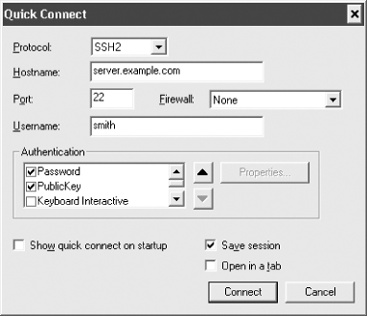
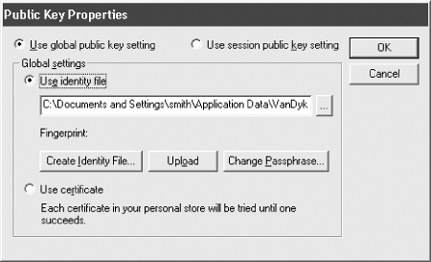
Click the Properties button to display the Public Key Properties dialog (see Figure 17-2).
Select your desired public key, or generate a new one.
Click the Upload button.
SecureCRT will upload your public key to the remote SSH server machine. You will have to authenticate.
If the server does not support the publickey subsystem, you’ll see an error message like “Unable to open the subsystem for publickey assistant.” Try installing the key manually.
To install your SecureCRT public key on a remote SSH server:
Log into the SSH server machine using SecureCRT and password authentication.
View the public-key file and copy the full text of the key to the Windows clipboard.
Install the public key (by pasting from the clipboard as necessary) on the SSH server machine in your remote account. [2.4.3]
Log out.
In the Session Options window, select Connection/SSH2, and change Authentication from Password to PublicKey.
Log in again. SecureCRT prompts you for your private-key passphrase, and you’ll be logged in.
SecureCRT supports two types of SSH identities. Your global identity is the default for all SecureCRT sessions, and is found on the Global Options window, under SSH2 or SSH1 (“Use identity file”).
You may override the default by using a session-specific identity that may differ (as the name implies) for each session you define:
Open the Session Options window.
Select Connection/SSH2.
For your primary authentication type, select PublicKey, then click the Properties button to its right, to view the Public Key Properties dialog (see Figure 17-2).
Select “Use session public key setting,” then select or generate your key of choice.
SecureCRT comes with an SSH agent for holding your SSH keys in memory, so you don’t have to type your passphrase. (We cover agents in Chapter 6.)
SecureCRT’s agent is the simplest to use of any SSH implementation we’ve seen. Simply open the Global Options window, select SSH2, and place a checkmark next to “Add keys to agent.” From that point onward, each time you enter a passphrase for a key, the decrypted key will be stored in the agent, so you won’t have to reenter the passphrase.
To enable SecureCRT’s agent forwarding, which works with OpenSSH and VanDyke’s own VShell servers only, open the Global Options window and select SSH2. Then place a checkmark next to “Enable OpenSSH agent forwarding.” [6.3.5]
You might also notice that SecureCRT offers to remember login passwords when you use password authentication. This is not the same as using an agent: your login password on the remote machine has nothing to do with keys and passphrases on the local machine.