Table of Contents for
SSH, The Secure Shell: The Definitive Guide, 2nd Edition
 SSH, The Secure Shell: The Definitive Guide, 2nd Edition
Published by
O'Reilly Media, Inc., 2005
SSH, The Secure Shell: The Definitive Guide, 2nd Edition
Published by
O'Reilly Media, Inc., 2005
- Cover
- SSH, the Secure Shell, 2nd Edition
- Preface
- Protect Your Network with SSH
- Intended Audience
- Reading This Book
- Our Approach
- Which Chapters Are for You?
- Supported Platforms
- Disclaimers
- Conventions Used in This Book
- Comments and Questions
- Safari Enabled
- Acknowledgments
- 1. Introduction to SSH
- What Is SSH?
- What SSH Is Not
- The SSH Protocol
- Overview of SSH Features
- History of SSH
- Related Technologies
- Summary
- 2. Basic Client Use
- A Running Example
- Remote Terminal Sessions with ssh
- Adding Complexity to the Example
- Authentication by Cryptographic Key
- The SSH Agent
- Connecting Without a Password or Passphrase
- Miscellaneous Clients
- Summary
- 3. Inside SSH
- Overview of Features
- A Cryptography Primer
- The Architecture of an SSH System
- Inside SSH-2
- Inside SSH-1
- Implementation Issues
- SSH and File Transfers (scp and sftp)
- Algorithms Used by SSH
- Threats SSH Can Counter
- Threats SSH Doesn’t Prevent
- Threats Caused by SSH
- Summary
- 4. Installation and Compile-Time Configuration
- Overview
- Installing OpenSSH
- Installing Tectia
- Software Inventory
- Replacing r-Commands with SSH
- Summary
- 5. Serverwide Configuration
- Running the Server
- Server Configuration: An Overview
- Getting Ready: Initial Setup
- Authentication: Verifying Identities
- Access Control: Letting People In
- User Logins and Accounts
- Forwarding
- Subsystems
- Logging and Debugging
- Compatibility Between SSH-1 and SSH-2 Servers
- Summary
- 6. Key Management and Agents
- What Is an Identity?
- Creating an Identity
- SSH Agents
- Multiple Identities
- PGP Authentication in Tectia
- Tectia External Keys
- Summary
- 7. Advanced Client Use
- How to Configure Clients
- Precedence
- Introduction to Verbose Mode
- Client Configuration in Depth
- Secure Copy with scp
- Secure, Interactive Copy with sftp
- Summary
- 8. Per-Account Server Configuration
- Limits of This Technique
- Public-Key-Based Configuration
- Hostbased Access Control
- The User rc File
- Summary
- 9. Port Forwarding and X Forwarding
- What Is Forwarding?
- Port Forwarding
- Dynamic Port Forwarding
- X Forwarding
- Forwarding Security: TCP-Wrappers and libwrap
- Summary
- 10. A Recommended Setup
- The Basics
- Compile-Time Configuration
- Serverwide Configuration
- Per-Account Configuration
- Key Management
- Client Configuration
- Remote Home Directories (NFS, AFS)
- Summary
- 11. Case Studies
- Unattended SSH: Batch or cron Jobs
- FTP and SSH
- Pine, IMAP, and SSH
- Connecting Through a Gateway Host
- Scalable Authentication for SSH
- Tectia Extensions to Server Configuration Files
- Tectia Plugins
- 12. Troubleshooting and FAQ
- Debug Messages: Your First Line of Defense
- Problems and Solutions
- Other SSH Resources
- 13. Overview of Other Implementations
- Common Features
- Covered Products
- Other SSH Products
- 14. OpenSSH for Windows
- Installation
- Using the SSH Clients
- Setting Up the SSH Server
- Public-Key Authentication
- Troubleshooting
- Summary
- 15. OpenSSH for Macintosh
- Using the SSH Clients
- Using the OpenSSH Server
- 16. Tectia for Windows
- Obtaining and Installing
- Basic Client Use
- Key Management
- Accession Lite
- Advanced Client Use
- Port Forwarding
- Connector
- File Transfers
- Command-Line Programs
- Troubleshooting
- Server
- 17. SecureCRT and SecureFX for Windows
- Obtaining and Installing
- Basic Client Use
- Key Management
- Advanced Client Use
- Forwarding
- Command-Line Client Programs
- File Transfer
- Troubleshooting
- VShell
- Summary
- 18. PuTTY for Windows
- Obtaining and Installing
- Basic Client Use
- File Transfer
- Key Management
- Advanced Client Use
- Forwarding
- Summary
- A. OpenSSH 4.0 New Features
- Server Features: sshd
- Client Features: ssh, scp, and sftp
- ssh-keygen
- B. Tectia Manpage for sshregex
- Regex Syntax: Egrep Patterns
- Regex Syntax: ZSH_FILEGLOB (or Traditional) Patterns
- Character Sets for Egrep and ZSH_FILEGLOB
- Regex Syntax: SSH Patterns
- Authors
- See Also
- C. Tectia Module Names for Debugging
- D. SSH-1 Features of OpenSSH and Tectia
- OpenSSH Features
- Tectia Features
- E. SSH Quick Reference
- Legend
- sshd Options
- sshd Keywords
- ssh Options
- scp Options
- ssh and scp Keywords
- ssh-keygen Options
- ssh-agent Options
- ssh-add Options
- Identity and Authorization Files, OpenSSH
- Identity and Authorization Files, Tectia
- Environment Variables
- Index
- Index
- Index
- Index
- Index
- Index
- Index
- Index
- Index
- Index
- Index
- Index
- Index
- Index
- Index
- Index
- Index
- Index
- Index
- Index
- Index
- Index
- Index
- Index
- Index
- Index
- About the Authors
- Colophon
- Copyright
The first thing to understand about SSH and file transfers is this: SSH doesn’t really do file transfers. That is, the core SSH protocol as implemented by a program such as ssh (SSH-TRANS, SSH-AUTH, and SSH-CONN) has no file-transfer capability at all. Following good modular design, file transfer is simply one of many services that might be run over an SSH connection channel. In fact, the file-transfer programs bundled with most Unix-based SSH products, scp and sftp, typically don’t even implement SSH in themselves; they simply run ssh in a subprocess to connect to the remote host, start the remote file-transfer agent, and talk to it.
Historically, the first file-transfer mechanism implemented with SSH was the program scp, included with the original SSH1 product. scp is simply an “ssh-ification” of the venerable Unix rcp program; just as rcp runs the rsh program to contact the remote host, scp runs ssh instead. If existing rsh software had supported a switch to select a different program than the default rsh (like scp -S), scp might never have been written; there would have been no need.
The rcp protocol used by scp is very limited. In a single session it can only transfer a set of whole files in one direction; there’s no directory browsing, partial transfer, resumption of interrupted transfers, multiple transfer directions—in other words, it’s nothing like FTP. When SSH Communications Security (SCS) defined the first version of the SSH-2 protocol and delivered its implementation, it wanted to include a much better file-transfer utility. To that end, it defined a completely new remote-filing protocol, designed to work easily over a single, reliable, secure, duplex byte-stream connection—that is, over SSH. The utility was called sftp. As with SSH-2, this initially undocumented and proprietary protocol was eventually moved onto the standards track of the IETF SECSH working group, as the “SSH File Transfer Protocol” (SSH-SFTP). Once that happened it began to appear in other implementations as well—for example, the sftp program in OpenSSH—first as a client only for compatibility with SCS servers, with sftp-server following later.
The name “SFTP” is unfortunate in two respects. First, it suggests that SFTP has something to do with the FTP protocol as defined in RFC-959 et al. It doesn’t: they are completely different. Indeed, that’s largely the point; as with rcp: were FTP amenable to use over SSH, SFTP might never have been written. But SSH and FTP are not a good match [11.2], so SFTP was born. It is a common mistake to think you can somehow use an sftp program to connect securely to an FTP server—a reasonable enough supposition, given the name—but you can’t; they’re entirely incompatible.
The name “SFTP” is also misleading in that it suggests security; many assume it stands for “Secure FTP.” This isn’t so. The SFTP protocol has no security features at all; implementations derive their security by speaking the protocol over an SSH connection.
So far, this isn’t too bad. There are two file-transfer protocols commonly used over SSH—RCP and SFTP, usually implemented on the client side by the programs scp and sftp. The situation is a bit more complicated, though, because of the way the Tectia software operates. Although Tectia includes a program named scp2 , it does not use the RCP protocol; instead, it uses SFTP. The Tectia programs scp2 and sftp2 are simply two different frontends for the SFTP protocol. They merely provide different user interfaces: scp2 acts like rcp/scp, and sftp2 is deliberately similar to an FTP client.
None of this confusing terminology is made any easier by the fact that when installed, Tectia makes symbolic links allowing you to use the plain names scp, ssh, etc., instead of scp2 or ssh2. Even more bizarrely, scp2 has a -1 option that causes it to run a program named scp1 for backward compatibility (of a sort). The upshot is that typing “scp” may get you either of two entirely different protocols, depending on what software is installed, and how it was installed. In our discussion, we ignore this complication; when we refer to scp, we mean an OpenSSH-style scp which uses the RCP protocol.
When you run scp to copy a file from client to server, it invokes ssh with various options, like so:
/usr/bin/ssh -x -o ForwardAgent=no -o ClearAllForwardings=yes server-host scp ...
Tip
Earlier versions of scp actually searched
your PATH for the
ssh program rather than specifying it
completely. This was a problem if multiple SSH software packages
were installed, since it could run mismatched pieces of software
together.
This runs another copy of scp on the remote host. That copy is invoked with the undocumented switches -t and -f (for “to” and “from”), putting it into SCP server mode. This next table shows some examples; Figure 3-3 shows the details.
This client scp command: | Runs this remote command: |
|---|---|
scp foo server:bar | scp -t bar |
scp server:bar foo | scp -f bar |
scp *.txt server:dir | scp -d -t dir |
If you run scp to copy a file between two remote hosts, it simply executes another scp client on the source host to copy the file to the target. For example, this command:
scp source:music.au target:playme
runs this in the background:
ssh -x -o ClearAllForwardings=yes -n source scp music.au target:playme
Note that the options are changed appropriately: agent forwarding is not turned off, as that may be needed by the remote scp client in order to contact the target host.
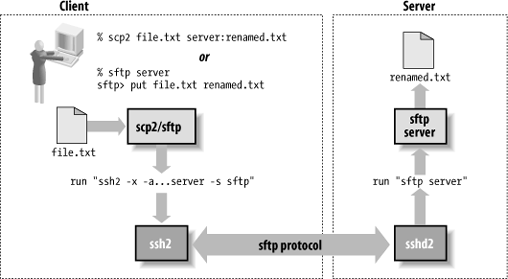
When you run scp2 or sftp under Unix, it also runs an ssh program behind the scenes, as with scp.[26] The exact details vary depend on which software is in use; remember that sftp comes with both OpenSSH and Tectia. However, they both look like:
ssh [options] server-host -s sftpInstead of a remote command, this uses an SSH-2 subsystem
request to start the sftp server on the remote
host. This insulates the client from the details of how SFTP is
implemented on the server, rather than embed the
sftp-server pathname in the command (which might
change), or relaying on the remote PATH setting to find it (which might not
work). Unlike scp, here the command line doesn’t
specify the files to be transferred; that information is carried
inside the SFTP protocol.
Using a subsystem means that the SSH server must be specifically configured to handle SFTP. For OpenSSH:
    # sshd_config
    subsystem sftp /usr/libexec/sftp-server
Tectia can either execute an external SFTP server in the same way:
    # sshd2_config
    subsystem-sftp /usr/libexec/sftp-server2
or run the SFTP protocol within the SSH server process itself:
    # sshd2_config
    subsystem-sftp internal://sftp-server
Figure 3-4 shows more details of how sftp operates.