Table of Contents for
Raspberry Pi Cookbook, 2nd Edition
 Raspberry Pi Cookbook, 2nd Edition
Published by
O'Reilly Media, Inc., 2016
Raspberry Pi Cookbook, 2nd Edition
Published by
O'Reilly Media, Inc., 2016
- nav
- Cover
- Raspberry Pi Cookbook
- Raspberry Pi Cookbook
- Preface to the Second Edition
- Setup and Management
- Networking
- Operating System
- Software
- Python Basics
- Python Lists and Dictionaries
- Advanced Python
- Computer Vision
- Hardware Basics
- Controlling Hardware
- Motors
- Digital Inputs
- Sensors
- Displays
- The Internet of Things
- Arduino and Raspberry Pi
- Parts and Suppliers
- Raspberry Pi Pinouts
- Index
- About the Author
- Colophon
Chapter 8. Computer Vision
8.0 Introduction
Computer vision (CV) allows your Raspberry Pi to see things. In practical terms, this means that your Raspberry Pi can analyze an image, looking for items of interest and even recognizing faces and text.
If you link this with a camera to supply the images, all sorts of possibilities open up.
8.1 Installing SimpleCV
Solution
To install SimpleCV, first install the prerequisite packages using these commands:
$ sudo apt-get update
$ sudo apt-get install ipython python-opencv python-scipy
$ sudo apt-get install python-numpy python-setuptools python-pip
$ sudo pip install svgwrite
Then install SimpleCV itself using the command:
$ sudo pip install https://github.com/sightmachine/SimpleCV/zipball/master
Once installation is complete, you can check that everything worked by running this command:
$ simplecv
+-----------------------------------------------------------+
 SimpleCV 1.3.0 [interactive shell] - http://simplecv.org
+-----------------------------------------------------------+
Commands:
    "exit()" or press "Ctrl+ D" to exit the shell
    "clear()" to clear the shell screen
    "tutorial()" to begin the SimpleCV interactive tutorial
    "example()" gives a list of examples you can run
    "forums()" will launch a web browser for the help forums
    "walkthrough()" will launch a web browser with a walkthrough
This will open the SimpleCV console. This is a Python console, with extra features for SimpleCV.
Discussion
SimpleCV is a Python wrapper around the OpenCV computer vision software. SimpleCV, as the name suggests, simplifies the use of OpenCV. If you want to unleash the full power of OpenCV, take a look at http://opencv.org/.
Computer vision is both processor- and memory-intensive, so although SimpleCV and OpenCV will work on an older Raspberry Pi, it can be frustratingly slow on anything earlier than a Raspberry Pi 3 or 2.
See Also
For information on OpenCV, see http://opencv.org/.
The home page for the SimpleCV project is http://simplecv.org.
The first recipe in this chapter to use SimpleCV is Recipe 8.4 and you will find useful details for getting started with SimpleCV there.
8.2 Setting Up a USB Camera for Computer Vision
Solution
Use a USB webcam that is compatible with the Raspberry Pi (see http://elinux.org/RPi_USB_Webcams). Choose a good quality camera, and if you are working on a project where you need the camera close to the subject, select one that has a manual focus option. For getting really close to the subject, a low-cost USB endoscope can be useful.
Depending on your CV project, you may wish to set up a well-lighted area for your CV project. Figure 8-1 shows a simple light box made from a translucent plastic storage box illuminated from the sides and top to give even lighting. The webcam is attached to a hole in the top of the box. This arrangement is used in Recipe 8.4.
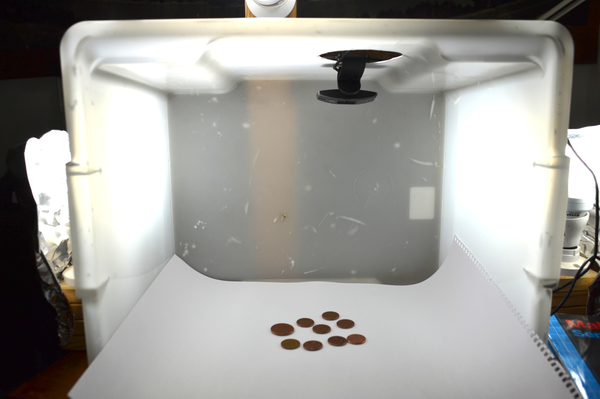
Figure 8-1. Using a homemade “light tent” for even illumination
You can also buy commercial light tents designed for photography that work well.
You may need a little trial and error to get your system brightly and evenly illuminated. Shadows can be particularly problematic.
Discussion
You can test out your USB camera from the SimpleCV console. Start SimpleCV and then enter the commands shown below in bold:
SimpleCV:1> c = Camera()
VIDIOC_QUERYMENU: Invalid argument
VIDIOC_QUERYMENU: Invalid argument
VIDIOC_QUERYMENU: Invalid argument
VIDIOC_QUERYMENU: Invalid argument
VIDIOC_QUERYMENU: Invalid argument
VIDIOC_QUERYMENU: Invalid argument
VIDIOC_QUERYMENU: Invalid argument

SimpleCV:2> i = c.getImage()
SimpleCV:3> i
SimpleCV:3: <SimpleCV.Image Object size:(640, 480), filename: (None),
at memory location: (0x2381af8)>
SimpleCV:4> i.show()
Don’t worry about the Invalid argument messages.
When you issue the command i.show(), a second window opens showing the image just captured from the camera.
Although you can use the Raspberry Pi Camera module (Recipe 8.3) with SimpleCV, it has a very short lead to the Raspberry Pi and you will probably find that you prefer working with a high-quality webcam.
See Also
To use a Raspberry Pi Camera Module with SimpleCV, see Recipe 8.3.
8.3 Using a Raspberry Pi Camera Module for Computer Vision
Solution
The Raspberry Pi Camera Module does not automatically show up as a camera device. The easiest way to make the module work with SimpleCV is to use the picamera Python module to capture an image with the camera.
The following code fragment will use picamera to capture an image, save it to a temporary file, and then load it as an Image suitable for use with SimpleCV.
import picamera
from SimpleCV import *

def get_camera_image():
    with picamera.PiCamera() as camera:
        camera.capture('tmp.jpg')
    return Image('tmp.jpg')
In Recipe 8.4, the program assumes a USB webcam. A second version of the program using the function above for the Raspberry Pi camera module is also provided in the file coin_count_pi_cam.py.
Discussion
It may seem inefficient to write a file each time an image is captured, and indeed it is, but any processing that you apply to the image with SimpleCV on a Raspberry Pi is likely to take a lot longer than the time taken to load and save the image.
The picamera module allows you to set various features of the camera. Most usefully, you can control the resolution, automatic exposure, and white-balance adjustments, which can make it easier to get consistent results with CV.
The native resolution of the camera is 2592×1944, which will make for pretty slow image processing, so you may want to set the resolution to something closer to 1024×768 and turn off auto-white balance. The get_camera_image function can be modified to include these settings, as shown here:
import picamera
from SimpleCV import *

def get_camera_image():
    with picamera.PiCamera() as camera:
        camera.resolution = (1024, 768)
        camera.awb_mode = 'off'
        camera.capture('tmp.jpg')
    return Image('tmp.jpg')
See Also
See Recipe 1.14 for information on installing the Raspberry Pi camera module.
For information on the picamera Python module, see http://picamera.readthedocs.org/.
To use a USB camera with SimpleCV, see Recipe 8.2.
8.4 Counting Coins
Solution
Use SimpleCV and its findCircle function to provide a real-time count of the number of coins placed under the webcam.
This is one use of CV where you really need good lighting and a camera fixed in position. I used the setup shown in Figure 8-1.
Before writing a Python program that will simply tell you the number of coins your Raspberry Pi can see, you need to experiment with the SimpleCV console to get the parameters for circle recognition right.
Start SimpleCV by using the command simplecv and then enter the commands below to start the camera, capture an image, and then display it in a separate window.
SimpleCV:1> c = Camera()
SimpleCV:2> i = c.getImage()
SimpleCV:3> i.show()
This should open up an image of your coins that looks something like Figure 8-2.
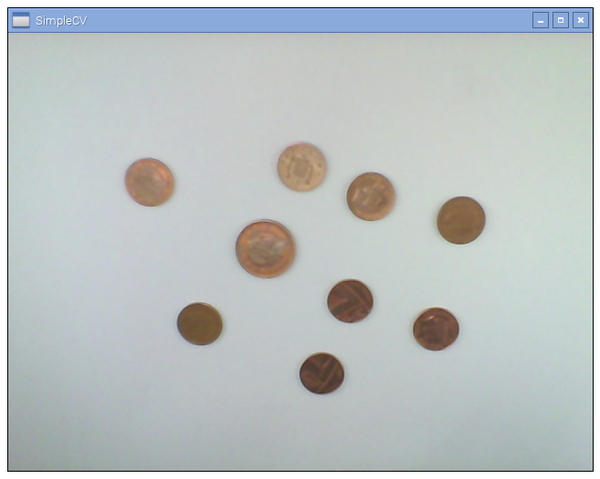
Figure 8-2. A basic image of some coins
Circle detection needs the image to be inverted, or you can use a black background. To invert the image and then display it, run the commands below:
SimpleCV:4> i2 = i.invert()
SimpleCV:5> i2.show()
This command makes an inverted copy of i that looks like Figure 8-3.
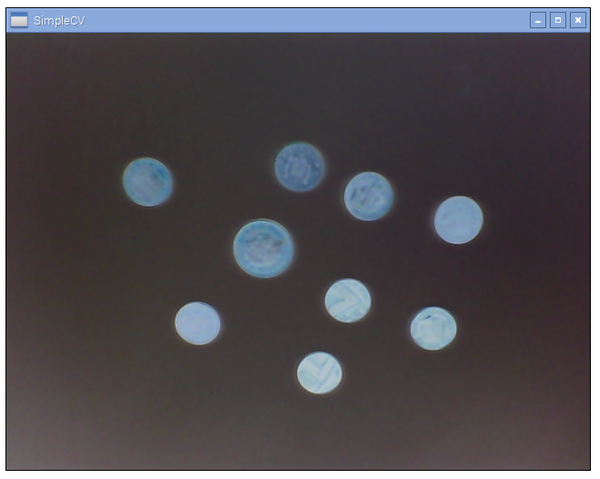
Figure 8-3. An inverted image of some coins
Your image is now prepared, so the next step is to have SimpleCV search for circles using the findCircle command. This command takes three parameters that you will need to tune to prevent misidentification. The parameters are:
cannyThis is the threshold for edge detection. In CV terms, an edge is the line between significant changes in the image pixel colors. The default for this parameter is 100, and if you decrease this value, you will find more edges. This might not result in more circles being found because those extra edges might corrupt the good circle shapes. In the case of a coin, the edges could be writing or graphics on the coin.
threshHaving found edges, the circle detection then needs to decide which are strong enough to represent the circles. Decreasing this value will result in more circles being found.
distanceThis parameter sets the required gap (in pixels) between adjacent circles.
Run the following command to find some circles:
SimpleCV:6> coins = i2.findCircle(canny=100, thresh=70, distance=15)
SimpleCV:7> coins
 SimpleCV.Features.Detection.Circle at (237,297),
 SimpleCV.Features.Detection.Circle at (307,323),
 SimpleCV.Features.Detection.Circle at (373,305),
 SimpleCV.Features.Detection.Circle at (305,261),
 SimpleCV.Features.Detection.Circle at (385,253),
 SimpleCV.Features.Detection.Circle at (243,231),
 SimpleCV.Features.Detection.Circle at (307,383),
 SimpleCV.Features.Detection.Circle at (407,371),
 SimpleCV.Features.Detection.Circle at (235,373)]
If you don’t get any coins back, try decreasing the canny and thresh parameters. If you get too many, then increase thresh. We can check that SimpleCV is actually finding coins by superimposing the coin circles onto the original image using the following command.
SimpleCV:8> coins.draw(width=4)
SimpleCV:9> coins.show()
This will show the circles superimposed on the actual coins (Figure 8-4).
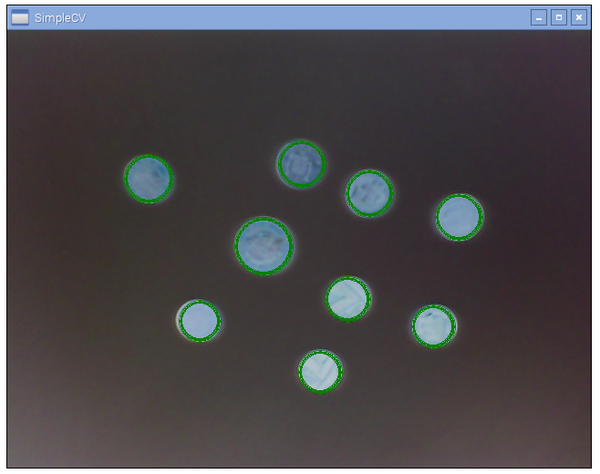
Figure 8-4. Coins found!
Try moving the coins around and adding and removing coins before capturing another photo and repeating the steps above to make sure things are reliable. You can tweak the parameters until you get the results you want.
We can bundle the commands that we used in the SimpleCV console into a Python program that will (as fast as the Raspberry Pi can) print out the number of coins detected. The program can be found with the other downloads for the book in the file coin_count.py.
fromSimpleCVimport*c=Camera()whileTrue:i=c.getImage().invert()coins=i.findCircle(canny=100,thresh=70,distance=1)(len(coins))
After importing the SimpleCV library, the commands are the same as the ones you typed into the console. The only difference is that rather than displaying the coins, the len function is used to display the count.
$ sudo python count_coins.py
9
9
9
10
10
Try adding a coin and moving the coins around to see how well the project works.
Discussion
After the initial delay while the library loads and the camera is set up, I found I could get about two “countings” per second using a Raspberry Pi B+. Using a Raspberry Pi 2, this increased to about five readings per second.
Although not something that you would want to put into a vending machine, it would be an interesting project to use the diameter of the coins to identify their monetary value and add up the value of the coins on the table.
You can access the diameter by using the diameter method on one of the coins like this:
SimpleCV:10> coins[0].diameter()
SimpleCV:11> 60
See Also
For information on installing SimpleCV, see Recipe 8.1.
For information on setting up a camera, see Recipe 8.2.
8.5 Face Detection
Solution
Use the Haar-like feature detection in SimpleCV to analyze an image and pick out the faces.
If you have not already done so, install SimpleCV (see Recipe 8.1). Open the SimpleCV console and load an image containing faces. You will find a suitable file with the downloads for the book called faces.jpg. Then run the following commands:
SimpleCV:1> i=Image("faces.jpg")
SimpleCV:2> faces = i.findHaarFeatures('face.xml', min_neighbors=5)
SimpleCV:3> faces.draw(width=4)
SimpleCV:4> i.show()
This opens the image viewing window with the faces marked with rectangles, as shown in Figure 8-5.
Discussion
As well as interfacing with a camera, you can also load existing files into SimpleCV. In the previous example, the image i is loaded from the file faces.jpg. The method findHaarFeatures has one mandatory file, which is the type of feature that is being searched for. These features are called haar features and are described by an XML file. SimpleCV comes preloaded with some of these files, but you can also find more specific haar files on the Internet.
The second parameter used in this example (min_neighbors) will tune the haar function. Decreasing min_neighbors increases the number of false positives. When you see the false positives, they often have a face-ish element to them (mouth, nose, and eyes).
There are many built-in haar features. You can list them all by using the command:
SimpleCV:5> i.listHaarFeature()
SimpleCV:4> fullbody.xml', 'face4.xml', 'face.xml',
'upper_body.xml', 'right_ear.xml', 'eye.xml', 'lower_body.xml',
'two_eyes_small.xml', 'nose.xml', 'face2.xml', 'lefteye.xml',
'right_eye.xml', 'two_eyes_big.xml', 'face3.xml', 'mouth.xml',
'glasses.xml', 'profile.xml', 'left_ear.xml', 'left_eye2.xml',
'upper_body2.xml', 'right_eye2.xml', 'face_cv2.xml'
As you can see, they are all associated with parts of the body.
Finding haar features takes a few seconds, even on a Raspberry Pi 3.
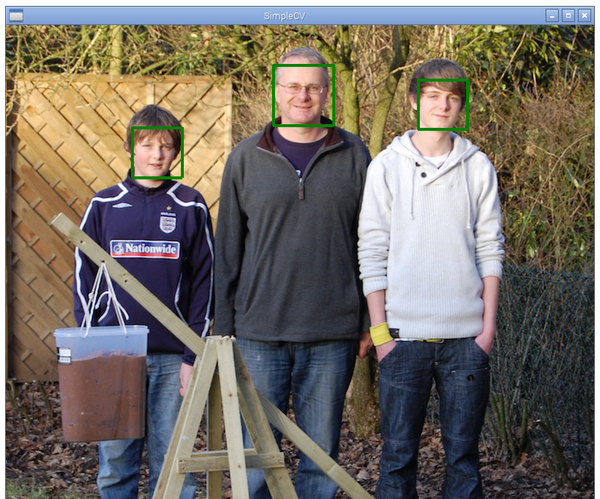
Figure 8-5. Detecting faces
See Also
For information on installing SimpleCV, see Recipe 8.1.
For information on setting up a camera, see Recipe 8.2.
For a whole load of interesting Haar files, take a look at https://github.com/Itseez/opencv/tree/master/data/haarcascades.
8.6 Motion Detection
Solution
Use SimpleCV to detect changes between successive frames from the camera.
The program below compares each captured image with the previous image. It then detects any blobs (areas of similar color) in the difference image and if there are any larger than MIN_BLOB_SIZE, it prints out a message saying that movement was detected.
fromSimpleCVimport*MIN_BLOB_SIZE=1000c=Camera()old_image=c.getImage()whileTrue:new_image=c.getImage()diff=new_image-old_imageblobs=diff.findBlobs(minsize=MIN_BLOB_SIZE)ifblobs:("Movement detected")old_image=new_image
Discussion
Successive frames of the image might look like Figures 8-6 and 8-7. When the first image is subtracted from the first, the resulting image will look like Figure 8-8. Running blob detection on it will result in the outlined blobs shown in Figure 8-9.
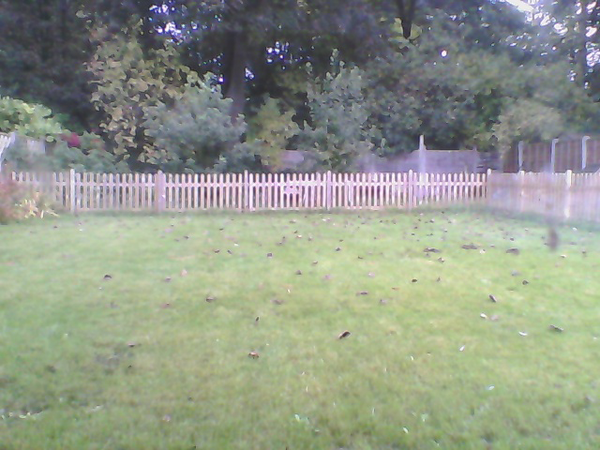
Figure 8-6. Movement detection frame 1
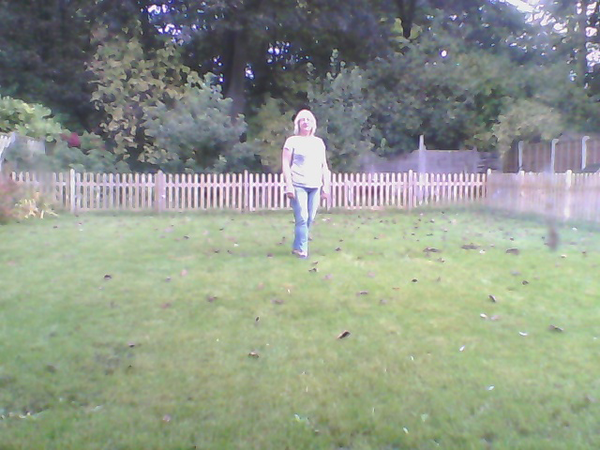
Figure 8-7. Movement detection frame 2
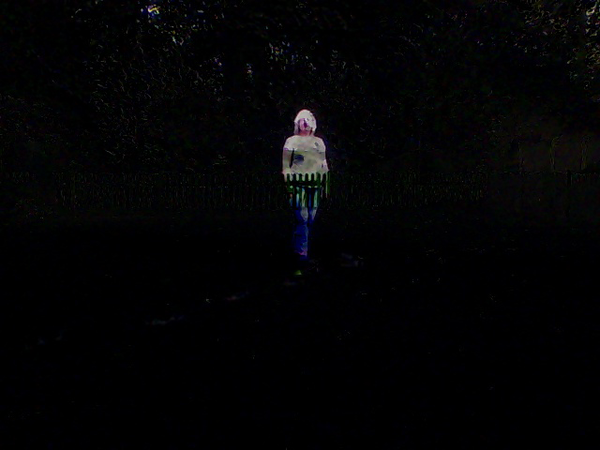
Figure 8-8. Movement detection, the difference image
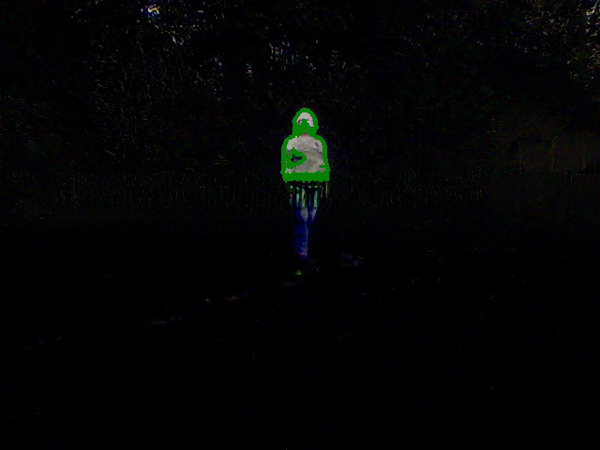
Figure 8-9. Movement detection blobs
Using a Raspberry Pi 2, the motion detection program above will process about five frames per second.
See Also
For information on installing SimpleCV, see Recipe 8.1 . For information on setting up a camera, see Recipe 8.2.
An alternative way to detect movement is to use a Passive Infrared (PIR) sensor; see Recipe 12.9.
8.7 Optical Character Recognition
Solution
Use the tesseract Optical Character Recognition (OCR) software to extract text from the image.
To install tesseract, run the following commands:
$ sudo apt-get install python-distutils-extra tesseract-ocr tesseract-ocr-eng
libopencv-dev libtesseract-dev libleptonica-dev python-all-dev swig
libcv-dev python-opencv python-numpy python-setuptools
build-essential subversion
$ sudo apt-get install tesseract-ocr-eng tesseract-ocr-dev libleptonica-dev
python-all-dev swig libcv-dev
$ sudo svn checkout
http://python-tesseract.googlecode.com/svn/python-tesseract-0.7.4/
$ cd python-tesseract-0.7.4
$ sudo python setup.py build
$ sudo python setup.py install
To try out tesseract, you will need an image file that contains some text. You will find one called ocr_example.png with the downloads for the book.
To convert the image to text, run the command:
$ tesseract ocr_example.png found
Tesseract Open Source OCR Engine v3.02 with Leptonica
$ more found.txt
The quick brown fox jumped over
the lazy dogs back.
$
Discussion
The tesseract library will work with most image types, including PDF, PNG, and JPG files.
See Also
For more information on the tesseract library, see https://github.com/tesseract-ocr/tesseract/wiki/TrainingTesseract.