Table of Contents for
Raspberry Pi Cookbook, 2nd Edition
 Raspberry Pi Cookbook, 2nd Edition
Published by
O'Reilly Media, Inc., 2016
Raspberry Pi Cookbook, 2nd Edition
Published by
O'Reilly Media, Inc., 2016
- nav
- Cover
- Raspberry Pi Cookbook
- Raspberry Pi Cookbook
- Preface to the Second Edition
- Setup and Management
- Networking
- Operating System
- Software
- Python Basics
- Python Lists and Dictionaries
- Advanced Python
- Computer Vision
- Hardware Basics
- Controlling Hardware
- Motors
- Digital Inputs
- Sensors
- Displays
- The Internet of Things
- Arduino and Raspberry Pi
- Parts and Suppliers
- Raspberry Pi Pinouts
- Index
- About the Author
- Colophon
Chapter 2. Networking
2.0 Introduction
The Raspberry Pi is designed to be connected to the Internet. Its ability to communicate on the Internet is one of its key features and opens up all sorts of possible uses, including home automation, web serving, network monitoring, and so on.
The connection can be wired through an Ethernet cable (at least in the case of the model B), or the Pi can use a USB WiFi module to provide a network connection.
Having a connected Raspberry Pi also means that you can connect to it remotely from another computer. This is very useful in situations where the Raspberry Pi itself is inaccessible and does not have a keyboard, mouse, and monitor attached to it.
This chapter gives you recipes for connecting your Raspberry Pi to the Internet and controlling it remotely over a network.
2.1 Connecting to a Wired Network
Solution
First, if you have a Raspberry Pi model A, A+, or Zero, there is no RJ45 connector for Ethernet. In this case, your best option for Internet access is to use a wireless USB adaptor (see Recipe 2.5).
If you have a Raspberry Pi model B, plug an Ethernet patch cable into its RJ45 socket and then connect the other end to a spare socket on the back of your home router. Figure 2-1 shows an original Raspberry Pi 1 where the Network LEDs are next to the audio socket. On a Raspberry Pi 2, the LEDs are built into the Ethernet socket itself.
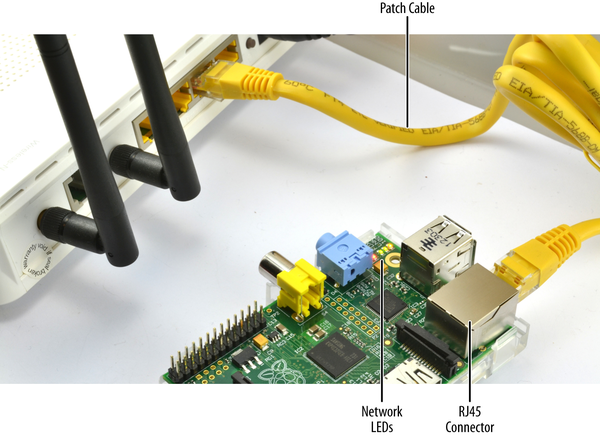
Figure 2-1. Connecting Raspberry Pi to a home hub
The network LEDs on your Raspberry Pi should immediately start to flicker as the Raspberry Pi connects to your network.
Discussion
Raspbian is preconfigured to connect to any network using Dynamic Host Configuration Protocol (DHCP). It will automatically be assigned an IP address as long as DHCP is enabled on your network.
If the network LEDs on your Raspberry Pi do not light up when you plug it into the home router, check that you have not used the Uplink RJ45 socket on the hub or try a different cable.
If the LEDs blink but you cannot connect to the Internet on your Raspberry Pi using a browser, check that DHCP is enabled on your network management console. Look for an option like that shown in Figure 2-2.
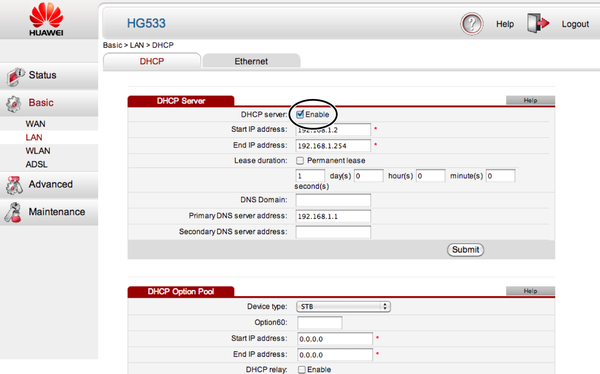
Figure 2-2. Enabling DHCP on your home hub
See Also
To connect to a wireless network, see Recipe 2.5.
2.2 Finding Your IP Address
Problem
You want to know the IP address of your Raspberry Pi so that you can communicate with it, whether connecting to it as a web server, exchanging files, or controlling it remotely with SSH (Recipe 2.7) or VNC (Recipe 2.8).
An IP address is a four-part number uniquely identifying a computer’s network interface within a network. Each part is separated by a dot.
Solution
To find the IP address of your Raspberry Pi, you need to issue this command in a Terminal window:
$ hostname -I
192.168.1.16
This is the local IP address of your Raspberry Pi on your home network.
Discussion
A Raspberry Pi can have more than one IP address (i.e., one for each network connection). So if you have both a wired connection and a wireless connection to your Pi, it would have two IP addresses. Normally, however, you would only connect it by one method or the other, not both. To see all the network connections, use the ifconfig command:
$ sudo ifconfig

eth0      Link encap:Ethernet  HWaddr b8:27:eb:d5:f4:8f
          inet addr:192.168.1.16  Bcast:192.168.255.255  Mask:255.255.0.0
          UP BROADCAST RUNNING MULTICAST  MTU:1500  Metric:1
          RX packets:1114 errors:0 dropped:1 overruns:0 frame:0
          TX packets:1173 errors:0 dropped:0 overruns:0 carrier:0
          collisions:0 txqueuelen:1000
          RX bytes:76957 (75.1 KiB)  TX bytes:479753 (468.5 KiB)

lo        Link encap:Local Loopback
          inet addr:127.0.0.1  Mask:255.0.0.0
          UP LOOPBACK RUNNING  MTU:16436  Metric:1
          RX packets:0 errors:0 dropped:0 overruns:0 frame:0
          TX packets:0 errors:0 dropped:0 overruns:0 carrier:0
          collisions:0 txqueuelen:0
          RX bytes:0 (0.0 B)  TX bytes:0 (0.0 B)

wlan0     Link encap:Ethernet  HWaddr 00:0f:53:a0:04:57
          inet addr:192.168.1.13  Bcast:192.168.255.255  Mask:255.255.0.0
          UP BROADCAST RUNNING MULTICAST  MTU:1500  Metric:1
          RX packets:38 errors:0 dropped:0 overruns:0 frame:0
          TX packets:28 errors:0 dropped:0 overruns:0 carrier:0
          collisions:0 txqueuelen:1000
          RX bytes:6661 (6.5 KiB)  TX bytes:6377 (6.2 KiB)
Looking at the results of running this ifconfig, you can see that the Pi in question is connected by both a wired connection (eth0) with an IP address of 192.168.1.16, and a wireless one (wlan0) with an IP address of 192.168.1.13. The lo network interface is a virtual interface that allows the computer to communicate with itself.
Another way to find your IP address is to connect to the management console of your home hub and find the LAN page and then the IP table. There should be a device listed called raspberrypi with its IP address next to it.
See Also
Wikipedia has everything you want to know about IP addresses.
2.3 Setting a Static IP Address
Solution
To set the IP address of your Raspberry Pi, whether using a wired or wireless network, you need to edit the configuration file /etc/network/interfaces.
If you view your /etc/network/interfaces file using the following command:
$ more /etc/network/interfaces
it should look something like this:
auto lo

iface lo inet loopback
iface eth0 inet dhcp

allow-hotplug wlan0
iface wlan0 inet manual
wpa-roam /etc/wpa_supplicant/wpa_supplicant.conf
iface default inet dhcp
This is telling you that Raspbian is aware of three network interfaces on your Raspberry Pi, each starting with the word iface.
loLoopback. You can ignore this.
eth0A network connection using the Ethernet socket.
wlan0A network interface using a USB WiFi adapter or the built-in WiFi hardware of the Raspberry Pi 3.
Your Raspberry Pi will have a different IP address for each network connection. In this example, you will just make the IP address for the Ethernet interface static. If you want to do the same for the WiFi interface, just edit that entry in the interfaces file instead.
To edit this file, type the following command:
$ sudo nano /etc/network/interfaces
First, decide on an IP address to use. You need to pick one that is both unused by any other machine on the network and within the allowed range of IP addresses for your home hub. In this case, I will use 192.168.1.116.
Modify the contents of the file, changing the word dhcp to static and adding the following lines:
    address 192.168.1.116
    netmask 255.255.255.0
    gateway 192.168.1.1
With the file changed as shown here, the static IP address of 192.168.1.116 has been assigned to the eth0 interface.
auto lo

iface lo inet loopback
iface eth0 inet static
    address 192.168.1.116
    netmask 255.255.255.0
    gateway 192.168.1.1

allow-hotplug wlan0
iface wlan0 inet manual
wpa-roam /etc/wpa_supplicant/wpa_supplicant.conf
iface default inet dhcp
For most networks, the netmask setting should be set to 255.255.255.0 and the gateway should be the IP address of your home router itself. This will be the same as the IP address you use to connect to the admin console of your router.
After you edit and save the file, run the following commands to clear out all the existing DHCP leases, and restart your Pi so that the changes will take effect.
$ sudo rm /var/lib/dhcp/*
$ sudo reboot
Discussion
Internal IP addresses are typically something like 192.168.1.116, where just the last number is changed for each of the different computers. Another common format for internal IP addresses is 10.0.0.16.
See Also
Wikipedia has everything you want to know about IP addresses.
2.4 Setting the Network Name of a Raspberry Pi
Solution
Changing the name of your Pi is pretty straightforward. There are just two files that need to be changed.
First, edit the file /etc/hostname. You can do this by opening a Terminal window and typing the command:
$ sudo nano /etc/hostname
Replace “raspberrypi” with a name of your choice. This should remain one word, without any punctuation or unusual characters (including the _ character.)
Second, open the file /etc/hosts in an editor using the command:
$ sudo nano /etc/hosts
The file will look something like this:
127.0.0.1       localhost
::1             localhost ip6-localhost ip6-loopback
fe00::0         ip6-localnet
ff00::0         ip6-mcastprefix
ff02::1         ip6-allnodes
ff02::2         ip6-allrouters

127.0.1.1       raspberrypi
Change the text at the end that uses the old name (“raspberrypi”) to the new name.
Restart the Pi, and you should find that the name has changed when you view it on the network from another computer.
Discussion
Changing the name of your Pi can be very useful, especially if you have more than one Pi connected to your network.
See Also
See also Recipe 2.3 to change the IP address of your Raspberry Pi.
2.5 Setting Up a Wireless Connection
Solution
If you have the latest version of Raspbian, then setting up WiFi is really easy. Just plug in a USB WiFi adapter and then click on the Network icon at the top right of your screen (Figure 2-3). You will then be presented with a list of WiFi networks. Select your network and you will be prompted to enter your Pre Shared Key (password). Enter your password, and after a while, the Network Icon will switch to show the standard WiFi symbol and you will be connected.
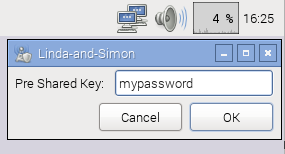
Figure 2-3. Connecting to a WiFi network
If you have an older distribution of Raspbian, you will have to use the WiFi Config utility with a shortcut on the desktop. If you are not using a recent distribution, then you should update to one anyway (see Recipe 1.4).
If you have a Raspberry Pi 3, then the the board already has WiFi hardware built-in. If you have an older Raspberry Pi, plug a compatible USB wireless adapter (most are compatable) into one of the USB sockets on your Raspberry Pi, and launch the WiFi Config utility (Figure 2-4). You will find the WiFi Configuration tool under the Preferences section of the Raspberry start menu. Then click the Scan button to search for access points. Double-click on the access point (for your home hub) that you want to join and then enter the password in the PSK field.
Finally, click Connect to join the network.
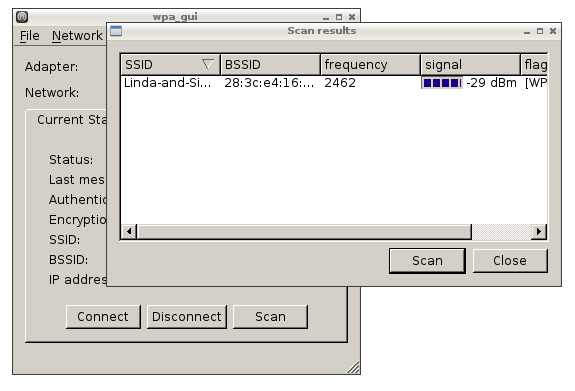
Figure 2-4. WiFi Config—scanning for networks
Discussion
USB WiFi adapters can use quite a lot of power, so if you find your Pi rebooting unexpectedly or not booting properly, then you may need to use a larger power supply for it. Look for a supply that is 1.5A or more.
If you’re using a keyboard and mouse as well, you may find you’ve run out of USB sockets. In that case, a USB hub is the answer. Choosing a hub with its own power supply will also help with the power problem.
If you are using your Raspberry Pi as a media center (see Recipe 4.1), then there will be a settings page to allow you to connect the media center to your network using WiFi.
You can also set up a wireless connection by using just the command line. To do so, first edit the file /etc/network/interfaces by using the command:
$ sudo nano /etc/network/interfaces
Then find the section of the file relating to the wlan0 interface and change it to be:
allow-hotplug wlan0
iface wlan0 inet dhcp
wpa-roam /etc/wpa_supplicant/wpa_supplicant.conf
The first line specifies that the WiFi connection should automatically start when a USB WiFi dongle is inserted. The second specifies that the Raspberry Pi should allocate the IP address using DHCP. If you want to use a static IP address, replace the word dhcp with static and add in the extra lines described in Recipe 2.3 to allocate a static IP address.
The final line specifies the location of a supplicant file. This is the file that actually contains the SSID (network name) and PSK (password) for your wireless network. So, next you will edit this file using the command:
$ sudo nano /etc/wpa_supplicant/wpa_supplicant.conf
Modify the file, setting the values of ssid and pskfoobar for your wireless network.
ctrl_interface=DIR=/var/run/wpa_supplicant GROUP=netdev
update_config=1
network={
        ssid="My-Network-Name"
        psk="My-password"
        proto=RSN
        key_mgmt=WPA-PSK
        pairwise=TKIP
        auth_alg=OPEN
}
For the changes to the file to take effect, reboot your Raspberry Pi.
See Also
For wired connections, see also Recipe 2.1. For a list of WiFi adapters that are compatible with the Raspberry Pi, go to http://elinux.org/RPi_VerifiedPeripherals.
For more information on setting up a wired network, see Recipe 2.1.
2.6 Connecting with a Console Lead
Solution
Use a console cable to connect to a Raspberry Pi.
Console cables are great for a Pi that is going to be used headless—that is, without keyboard, mouse, or monitor. The console cable shown in Figure 2-5 is available from Adafruit.
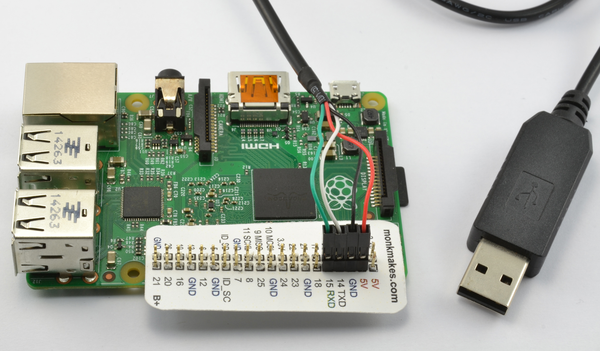
Figure 2-5. A console cable
Connect the lead as follows:
-
Connect the red (5V) lead to the 5V pin one pin to the left of the edge of the GPIO header.
-
Connect the black (GND) lead to GND on the next pin to the left on the Raspberry Pi.
-
Connect the white lead (RX) to Raspberry Pi GPIO 14 (TXD) to the left of the black lead.
-
Connect the green lead (RX) to 15 (RXD) to the left of the white lead on the Raspberry Pi.
If you use a different lead, the wire colors may well be different, so always check the documentation for the lead else or you may damage your Raspberry Pi.
Note that the USB lead also provides 5V on the red wire, with enough power for the Pi on its own but not with a lot of devices attached.
If you are a Windows or Mac OS X user, you will need to install drivers for the USB lead, which are available for Windows and for Mac OS X. Linux users usually don’t need to install any drivers for these leads.
To connect to the Pi from Mac OS X, you will need to run the Terminal and enter the command:
$ sudo cu -l /dev/cu.NoZAP-PL2303-00001004 -s 115200
The exact device name will be different, but if you press Tab after cu.P, it will autocomplete. After connecting, press Enter, and the Raspberry Pi login prompt should appear (Figure 2-6). The default username and password are pi and raspberry, respectively.
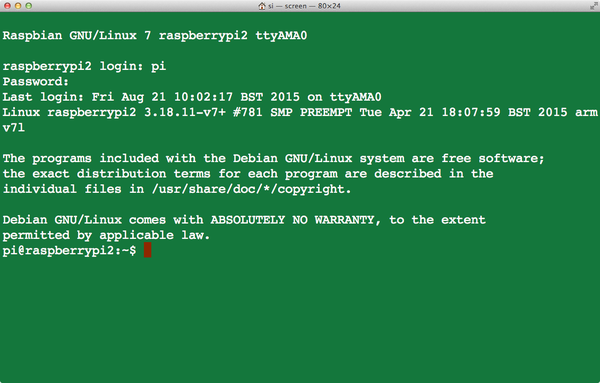
Figure 2-6. Logging in with the console cable
If you are trying to connect to your Raspberry Pi from a Windows computer, you need to download the terminal software called Putty.
When you run Putty, change the “Connection type” to Serial and set the speed to 115200. You also need to set the “Serial line” to be the COM port in use by the cable. This may be COM7, but if that does not work, check into using the Windows Device manager.
When you click Open and press Enter, the Terminal session should start with a login prompt.
Discussion
The console cable can be a very convenient way of using your Pi if you are traveling light, as it provides both power and a way to control the Pi remotely.
The console lead has a chip in the USB end that provides a USB-to-serial interface. This sometimes (depending on your operating system) requires the installation of drivers on your PC. The lead used here is one supplied by Adafruit (product code 954). You should be able to use any USB-to-serial converter as long as it has the necessary drivers for your PC.
Plugging the sockets of the lead into the right places is made easier if you carefully glue the four sockets together in the right order so that they fit over the GPIO header in a block.
Finding the right position on the GPIO header is made easier if you use a GPIO template like the Raspberry Leaf (see Recipe 9.1).
See Also
You can find out more about using the serial console at this Adafruit tutorial. Adafruit also sells console cables.
2.7 Controlling the Pi Remotely with SSH
Solution
Before you can connect to your Raspberry Pi using SSH, you must enable SSH. On newer versions of Raspbian, you can use the Raspberry Pi Configuration tool (Figure 2-7) that you will find on the main menu under Preferences. Just check the box for SSH and click OK. You will be prompted to restart.
If you have an older version of Raspbian, use the raspi_config application. Start this at any time by entering the following command in Terminal:
$ sudo raspi-config
Scroll down to the SSH option and enable it.
Tip
On newer versions of Raspbian, SSH is automatically enabled and there is no setting to change.
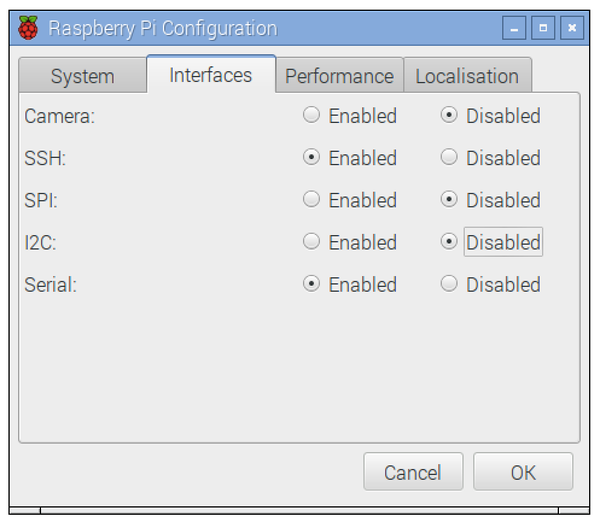
Figure 2-7. Enabling SSH using the Pi Configuration tool
If you are using Mac OS X or have Linux installed on the computer from which you want to connect your Pi, then all you need to do to connect is open a Terminal window and enter the command:
$ ssh 192.168.1.16 -l pi
where the IP address (192.168.1.16) is the IP address of your Pi (see Recipe 2.2). You will be prompted for your password and then logged in to the Pi (Figure 2-8).
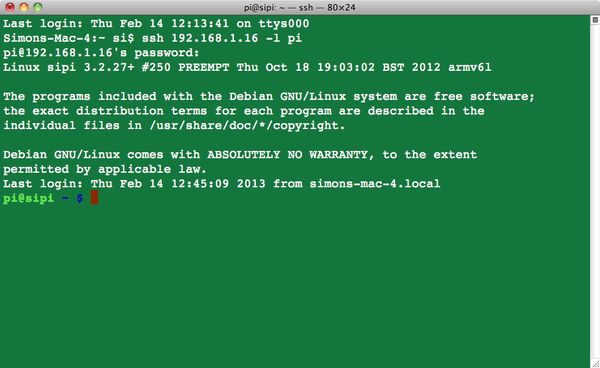
Figure 2-8. Logging in with SSH
To connect from a Windows computer, you will need to use Putty (Recipe 2.6) to start an SSH session.
Discussion
SSH is a very common way of connecting to remote computers; any commands that you could issue on the Pi itself, you can use from the secure shell. It is also, as the name suggests, secure because the communication is encrypted.
Perhaps the only drawback is that it is a command-line rather than graphical environment. If you need access to the full Raspberry Pi desktop environment remotely, then you need to use VNC (Recipe 2.8) or RDP (Recipe 2.9).
See Also
See also this Adafruit tutorial.
2.8 Controlling the Pi Remotely with VNC
Solution
Install a Virtual Network Connection (VNC) server.
Open a Terminal session (or SSH session) on the Pi and run the following commands:
$ sudo apt-get update
$ sudo apt-get install tightvncserver
Having installed the VNC server, run it using the command:
$ vncserver :1
The first time you run this, you will be prompted to create a new password so that anyone connecting remotely has to enter the password before being granted access to the Pi.
To connect to the Pi from a remote computer, you need to install a VNC client. RealVNC is a popular choice and connects well with tightvnc and is available for Windows, Linux, and Mac OS X.
When you run the client program on Mac OS X or a PC, you will be asked to enter the IP address of the VNC server you want to connect to (the IP address of your Pi). Enter “:1” after the IP address to indicate that you wish to connect to display number 1.
You will then be prompted for the password. Remember, this is the password you set previously after installing tightvncserver and is not necessarily the same as your normal Raspberry Pi password.
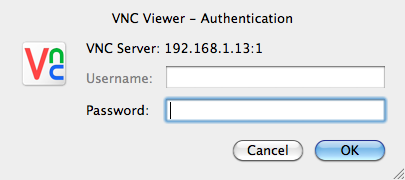
Figure 2-9. Logging in with VNC
Discussion
Although you can do most things with SSH, sometimes it is useful to have access to the graphical environment of the Pi.
If you want the VNC server to automatically start whenever you restart your Raspberry Pi, follow these steps:
$ cd /home/pi
$ cd .config
$ mkdir autostart
$ cd autostart
$ nano tightvnc.desktop
Paste the following into the editor window:
[Desktop Entry]
Type=Application
Name=TightVNC
Exec=vncserver :1
StartupNotify=false
As long as your Raspberry Pi is set to automatically log in and boot into the windowing environment, the VNC server will automatically start when you reboot.
2.9 Controlling the Pi Remotely with RDP
Solution
Install the XRDP software on your Raspberry Pi by entering the following commands:
$ sudo apt-get update
$ sudo apt-get install xrdp
Once the software is installed, it will automatically start the xrdp service, which means the service will automatically start when the Raspberry Pi is rebooted.
If you have Windows 7 or later, then it already includes an RPD client for connecting to your Raspberry Pi. You will find it on your Start menu under All Programs/Accessories/Remote Desktop Connection. For older versions of Windows, you can download the client from: ModMyPi.
Mac OS X users can download the Microsoft RDP client for OS X from Microsoft’s website.
A client for Linux machines is available from http://www.rdesktop.org/.
When you start your RDP client, you will be prompted for the computer you want to connect to. Enter the IP address of your Raspberry Pi. You will then be prompted for the username and password (Figure 2-10), which are the same as your usual Raspberry Pi login—that is, a username of pi and a password of raspberry unless you have changed it.
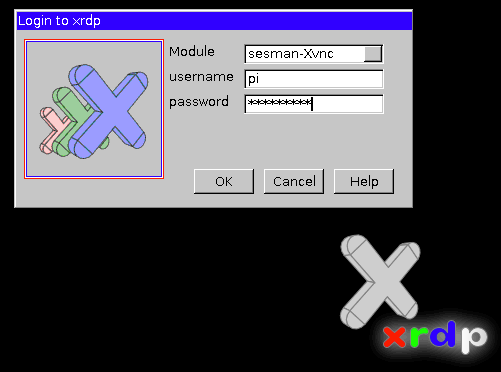
Figure 2-10. Logging in with RDP
Discussion
RDP does the same job as VNC but works more efficiently and therefore refreshes the contents of the screen more smoothly. The only downside is that for Mac OS X users, it does not integrate with the Share Screen feature of OS X.
See Also
See also Recipe 2.8.
2.10 File Sharing on a Mac Network
Solution
The Mac OS X operating system includes built-in support for file viewing in Finder over the network (Figure 2-11). However, you must make some configuration changes on your Raspberry Pi for OS X to pick these up.
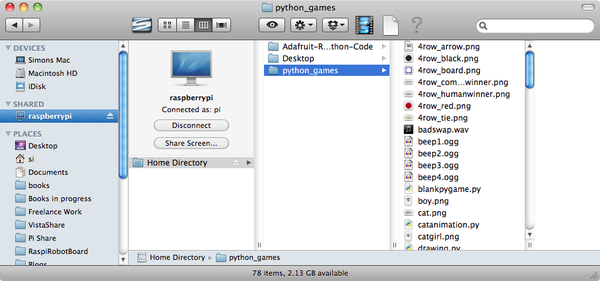
Figure 2-11. Raspberry Pi in the Mac OS X Finder
You will need to know the IP address of your Raspberry Pi (Recipe 2.2).
Now, on the Raspberry Pi, install netatalk by using the command:
$ sudo apt-get install netatalk
Then, back on your Mac, in the Finder menu, select Go→Connect to Server and enter afp://192.168.1.16 as the server address (but use the IP address for your Raspberry Pi instead of the one shown here). Then click Connect. You will be prompted to log in. I had to reboot my Raspberry Pi before I got the login prompt.
Log in using the name pi and your password, which will be raspberry by default. The Finder should then show you the contents of your home directory on the Raspberry Pi.
There are a few more configuration changes to make on the Raspberry Pi.
$ sudo apt-get install avahi-daemon
$ sudo update-rc.d avahi-daemon defaults
Next, type the command:
$ sudo nano /etc/avahi/services/afpd.service
Paste the following code into the file:
<?xml version="1.0" standalone='no'?><!--*-nxml-*-->
<!DOCTYPE service-group SYSTEM "avahi-service.dtd">
<service-group>
   <name replace-wildcards="yes">%h</name>
   <service>
      <type>_afpovertcp._tcp</type>
      <port>548</port>
   </service>
</service-group>
To set the daemon running, type the command:
$ sudo /etc/init.d/avahi-daemon restart
Switch back to your Mac, and you should now see your Raspberry Pi in the Finder.
Discussion
Being able to move files easily between your Mac and your Raspberry Pi is very useful. It means that you can use files on your Pi without having to hook up a separate keyboard, mouse, and monitor.
You can also open files on the Raspberry Pi as if they were on your Mac. This has the advantage that you can edit them with TextMate or your favorite OS X text editor.
If you’re using Windows or Linux, you can also share files by configuring your Raspberry Pi to work as Network Attached Storage (NAS); see Recipe 2.12.
See Also
The instructions here were adapted from this tutorial, which credits Matt Richardson and Shawn Wallace’s book Getting Started with Raspberry Pi (O’Reilly) as the original source.
2.11 Sharing the Pi Screen on a Mac
Solution
First, follow Recipe 2.8 to install VNC. You will also need to complete Recipe 2.10.
Then enter the command:
$ sudo nano /etc/avahi/services/rfb.service
and paste the following into the editor:
<?xml version="1.0" standalone='no'?>
<!DOCTYPE service-group SYSTEM "avahi-service.dtd">
<service-group>
  <name replace-wildcards="yes">%h</name>
  <service>
    <type>_rfb._tcp</type>
    <port>5901</port>
  </service>
</service-group>
Now enter the command:
$ sudo /etc/init.d/avahi-daemon restart
You should now be able to see the Share Screen option shown in Figure 2-12. When prompted for a password, use the password you set up for VNC, not your general Raspberry Pi password.
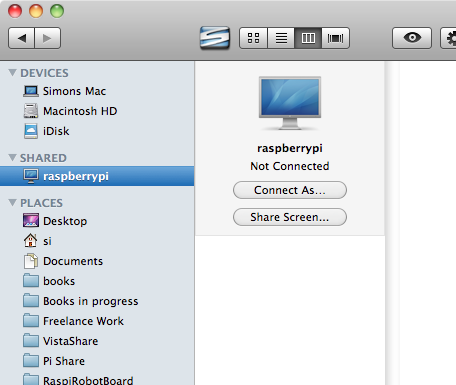
Figure 2-12. Raspberry Pi screen sharing with the Mac OS X Finder
Discussion
This recipe just adds a little convenience to the process of sharing the screen of your Raspberry Pi.
If you have more than one Raspberry Pi on your network, you need to give them different names so that you can identify them on the network (Recipe 2.4).
If you are a Windows or Linux user, you can still connect to a Raspberry Pi using VNC (Recipe 2.8).
See Also
The instructions here were adapted from this tutorial, which credits Matt Richardson and Shawn Wallace’s book Getting Started with Raspberry Pi (O’Reilly) as the original source.
2.12 Using a Raspberry Pi for Network Attached Storage
Solution
The solution to this problem is to install and configure Samba. To do this, issue the commands:
$ sudo apt-get install samba
$ sudo apt-get install samba-common-bin
Now, attach the USB hard drive to the Raspberry Pi. It will automatically mount in your /media folder. To check that it’s there, use the command:
$ cd /media
$ ls
The drive should be listed with whatever name you gave it when you formatted it. It will automatically mount itself whenever the Raspberry Pi reboots.
You now need to configure Samba so the drive can be shared on the network. To do this, you first need to add a Samba user (pi). Enter the following command and type in a password:
$ sudo smbpasswd -a pi
New SMB password:
Retype new SMB password:
Added user pi.
You now need to make some changes to the file /etc/samba/smb.conf, so enter the command:
$ sudo nano /etc/samba/smb.conf
The first line you’re looking for is near the top of the file:
workgroup = WORKGROUP
You only need to change this if you plan to connect from a Windows machine. This should be the name of your Windows workgroup. For Windows XP, the default is MSHOME; for newer versions of Windows, it is HOME. (But check on your Windows network.)
The next change to be made is further down the file in the Authentication section. Find the line:
# security = user
Remove the # from the front to turn security on.
Finally, scroll right to the end of the file and add the following lines:
[USB]
path = /media/NAS
comment = NAS Drive
valid users = pi
writeable = yes
browseable = yes
create mask = 0777
public = yes
Save the file and then restart Samba by entering the command:
$ sudo /etc/init.d/samba restart
If all is well, your USB drive should now be shared on your network.
Discussion
To connect to the drive on a Mac OS X, just select Go→Connect to Server from the Finder menu. Then enter smb://raspberrypi/USB in the Server Address field. You will see a login dialog box, where you need to change the username to pi (Figure 2-13).
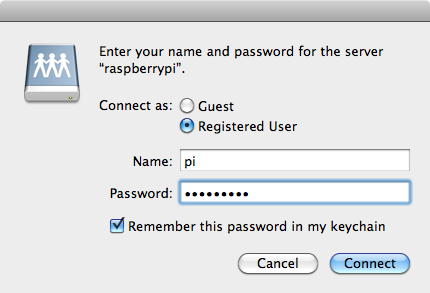
Figure 2-13. Connecting to NAS with the Mac OS X Finder
If you are connecting to the NAS from a Windows machine, the exact procedure will vary depending on your version of Windows. However, the basic principle is that at some point you will need to enter the network address, which should be \\raspberrypi\USB (Figure 2-14).
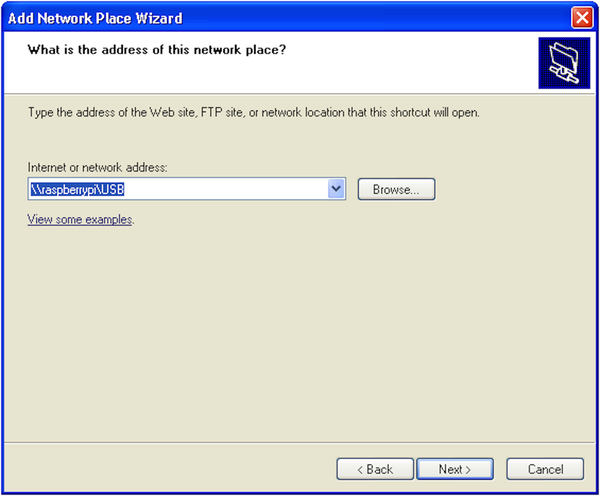
Figure 2-14. Connecting to NAS from Windows
You will then be prompted for the username and password before you can use the NAS disk (Figure 2-15).
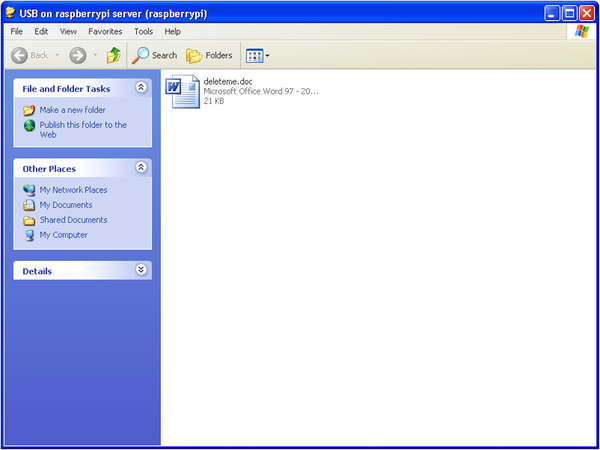
Figure 2-15. Browsing NAS on Windows
If you are a Linux user, this command should mount the NAS drive for you:
$ sudo mkdir /pishare
$ sudo smbmount -o username=pi,password=raspberry //192.168.1.16/USB /pishare
See Also
You may wish to change your Raspberry Pi’s network name to something inappropriate like piNAS (see Recipe 2.4).
2.13 Network Printing
Solution
Use Common Unix Printing System (CUPS).
Start by entering the following command into a Terminal to install CUPS. This may take some time.
$ sudo apt-get install cups
Give yourself admin privileges for CUPS by entering the following command:
$ sudo usermod -a -G lpadmin pi
CUPS is configured via a web interface. Neither the Midori or Dillo web browsers work very well with the CUPS administration pages, but Iceweasel works just fine. You can install the Iceweasel browser by entering the following command:
$ sudo apt-get install iceweasel
Start Iceweasel from the Internet group of your Start menu and navigate to the address http://localhost:631.
Go to the Administration tab and choose the Add Printer option. This will display a list of printers that are on the network or connected directly to the Raspberry Pi’s USB port (Figure 2-16).
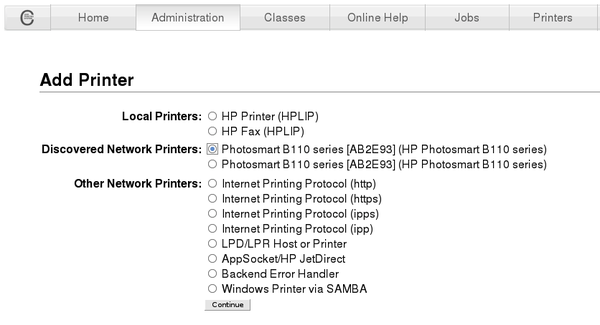
Figure 2-16. Discovering printers with CUPS
Follow the series of dialog boxes to set up the printer.
Discussion
When you’re finished, you can test out the printer by firing up AbiWord (see Recipe 4.2). Type some text, and when you’re ready to print it, you should see your newly added printer available for printing (Figure 2-17).
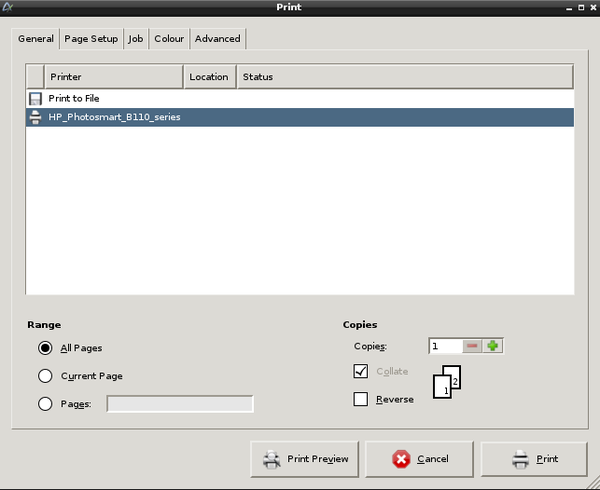
Figure 2-17. Printing from AbiWord
See Also
See also the official CUPS website.