Table of Contents for
Raspberry Pi Cookbook, 2nd Edition
 Raspberry Pi Cookbook, 2nd Edition
Published by
O'Reilly Media, Inc., 2016
Raspberry Pi Cookbook, 2nd Edition
Published by
O'Reilly Media, Inc., 2016
- nav
- Cover
- Raspberry Pi Cookbook
- Raspberry Pi Cookbook
- Preface to the Second Edition
- Setup and Management
- Networking
- Operating System
- Software
- Python Basics
- Python Lists and Dictionaries
- Advanced Python
- Computer Vision
- Hardware Basics
- Controlling Hardware
- Motors
- Digital Inputs
- Sensors
- Displays
- The Internet of Things
- Arduino and Raspberry Pi
- Parts and Suppliers
- Raspberry Pi Pinouts
- Index
- About the Author
- Colophon
Chapter 6. Python Lists and Dictionaries
6.0 Introduction
In Chapter 5, you looked at the basics of the Python language. In this chapter, you look at two key Python data structures: lists and dictionaries.
6.1 Creating a List
Solution
Use a list. In Python, a list is a collection of values stored in order so that you can access them by position.
You create a list using [ and ] to contain its initial contents:
>>>a=[34,'Fred',12,False,72.3]>>>
Unlike the more rigid arrays in languages like C, you don’t need to specify the size of a list in Python when you declare it. You can also change the number of elements in the list any time you like.
Discussion
As this example illustrates, the items in a list do not have to be all of the same type, although they often are.
If you want to create an empty list that you can add items to later, you can write:
>>>a=[]>>>
6.2 Accessing Elements of a List
Solution
Use the [] notation to access elements of a list by their position in the list. For example:
>>>a=[34,'Fred',12,False,72.3]>>>a[1]'Fred'
Discussion
The list positions (indices) start at 0 for the first element.
As well as using the [] notation to read values out of a list, you can also use it to change values at a certain position. For example:
>>>a=[34,'Fred',12,False,72.3]>>>a[1]=777>>>a[34,777,12,False,72.3]
If you try to change (or, for that matter, read) an element of a list using an index that is too large, you will get an “Index out of range” error:
>>>a[50]=777Traceback(mostrecentcalllast):File"<stdin>",line1,in<module>IndexError:listassignmentindexoutofrange>>>
6.3 Finding the Length of a List
Solution
Use the len Python function. For example:
>>>a=[34,'Fred',12,False,72.3]>>>len(a)5
Discussion
The len command also works on strings (Recipe 5.13).
6.4 Adding Elements to a List
Solution
Use the append, insert, or extend Python functions.
To add a single item to the end of a list, use append:
>>>a=[34,'Fred',12,False,72.3]>>>a.append("new")>>>a[34,'Fred',12,False,72.3,'new']
Discussion
Sometimes you don’t want to add the new elements to the end of a list, but rather you want to insert them at a certain position in the list. For this, use the insert command. The first argument is the index where the item should be inserted, and the second argument is the item to be inserted:
>>>a.insert(2,"new2")>>>a[34,'Fred','new2',12,False,72.3]
Note how all the elements after the newly inserted element are shuffled up one position.
Both append and insert add only one element to a list. The extend function adds all the elements of one list to the end of another:
>>>a=[34,'Fred',12,False,72.3]>>>b=[74,75]>>>a.extend(b)>>>a[34,'Fred',12,False,72.3,74,75]
6.5 Removing Elements from a List
Solution
Use the pop Python function.
The command pop with no parameters removes the last element of a list:
>>>a=[34,'Fred',12,False,72.3]>>>a.pop()72.3>>>a[34,'Fred',12,False]
Discussion
Notice that pop returns the value removed from the list.
To remove an item in a position rather than the last element, use pop with a parameter of the position from which the item will be removed:
>>>a=[34,'Fred',12,False,72.3]>>>a.pop(0)34
If you use an index position that is beyond the end of the list, you will get an “Index out of range” exception.
6.6 Creating a List by Parsing a String
Solution
Use the split Python string function.
The command split with no parameters separates the words out of a string into individual elements of an array:
>>>"abc def ghi".split()['abc','def','ghi']
If you supply split with a parameter, then it will split the string, using the parameter as a separator. For example:
>>>"abc--de--ghi".split('--')['abc','de','ghi']
Discussion
This command can be very useful when you are, say, importing data from a file. The split command can optionally take an argument that is the string to use as a delimiter when you are splitting the string. So, if you were to use commas as a separator, you could split the string as follows:
>>>"abc,def,ghi".split(',')['abc','def','ghi']
6.7 Iterating Over a List
Solution
Use the for Python language command:
>>>a=[34,'Fred',12,False,72.3]>>>forxina:...(x)...34Fred12False72.3>>>
Discussion
The for keyword is immediately followed by a variable name (in this case, x). This is called the loop variable and will be set to each of the elements of the list specified after in.
The indented lines that follow will be executed one time for each element in the list. Each time around the loop, x will be given the value of the element in the list at that position. You can then use x to print out the value, as shown in the previous example.
6.8 Enumerating a List
Solution
Use the for Python language command along with the enumerate command.
>>>a=[34,'Fred',12,False,72.3]>>>for(i,x)inenumerate(a):...(i,x)...(0,34)(1,'Fred')(2,12)(3,False)(4,72.3)>>>
Discussion
It’s quite common to need to know the position of something in the list while enumerating each of the values. An alternative method is to simply count with an index variable and then access the value by using the [] syntax:
>>>a=[34,'Fred',12,False,72.3]>>>foriinrange(len(a)):...(i,a[i])...(0,34)(1,'Fred')(2,12)(3,False)(4,72.3)>>>
See Also
All the recipes between Recipes 6.1 and 6.11 involve the use of lists.
See Recipe 6.7 to iterate over a list without needing to know each item’s index position.
6.9 Sorting a List
Solution
Use the sort Python language command:
>>>a=["it","was","the","best","of","times"]>>>a.sort()>>>a['best','it','of','the','times','was']
Discussion
When you sort a list, you’ll actually be modifying it rather than returning a sorted copy of the original list. This means that if you also need the original list, you need to use the copy command in the standard library to make a copy of the original list before sorting it:
>>>importcopy>>>a=["it","was","the","best","of","times"]>>>b=copy.copy(a)>>>b.sort()>>>a['it','was','the','best','of','times']>>>b['best','it','of','the','times','was']>>>
6.10 Cutting Up a List
Solution
Use the [:] Python language construction. The following example returns a list containing the elements of the original list from index position 1 to index position 2 (the number after the : is exclusive):
>>>l=["a","b","c","d"]>>>l[1:3]['b','c']
Note that the character positions start at 0, so a position of 1 means the second character in the string, and 5 means the sixth, but the character range is exclusive at the high end, so the letter d is not included in this example.
Discussion
The [:] notation is actually quite powerful. You can omit either argument, in which case the start or end of the list is assumed as appropriate. For example:
>>>l=["a","b","c","d"]>>>l[:3]['a','b','c']>>>l[3:]['d']>>>
You can also use negative indices to count back from the end of the list. The following example returns the last two elements in the list:
>>>l[-2:]['c','d']
Incidentally, l[:-2] returns ['a', 'b'] in the preceding example.
See Also
All the recipes between Recipes 6.1 and 6.11 involve the use of lists.
See Recipe 5.15 where the same syntax is used for strings.
6.11 Applying a Function to a List
Solution
Use the Python language feature called comprehensions.
The following example converts each string element of the list to uppercase and returns a new list that is the same length as the old one, but with all the strings in uppercase:
>>>l=["abc","def","ghi","ijk"]>>>[x.upper()forxinl]['ABC','DEF','GHI','IJK']
Although it can get confusing, there is no reason why you can’t combine these kinds of statements, nesting one comprehension inside another.
Discussion
This is a very concise way of doing comprehensions. The whole expression has to be enclosed in brackets ([]). The first element of the comprehension is the code to be evaluated for each element of the list. The rest of the comprehension looks rather like a normal list iteration command (Recipe 6.7). The loop variable follows the for keyword, and the list to be used follows the in keyword.
6.12 Creating a Dictionary
Solution
Use a Python dictionary.
Arrays are great when you need to access a list of items in order or you always know the index of the element that you want to use. Dictionaries are an alternative to lists for storing collections of data, but they are organized very differently.
Figure 6-1 shows how a dictionary is organized.
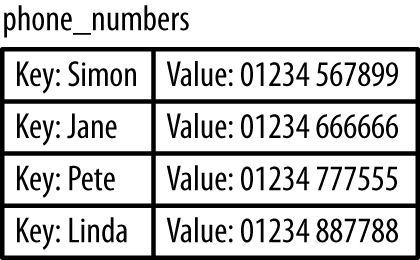
Figure 6-1. A Python dictionary
A dictionary stores key/value pairs in such a way that you can use the key to retrieve that value very efficiently and without having to search the whole dictionary.
To create a dictionary, you use the {} notation:
>>>phone_numbers={'Simon':'01234 567899','Jane':'01234 666666'}
Discussion
In this example, the keys of the dictionary are strings, but they do not have to be; they could be numbers or in fact any data type, although strings are most commonly used.
The values can also be of any data type, including other dictionaries or lists. The following example creates one dictionary (a) and then uses it as a value in a second dictionary (b):
>>>a={'key1':'value1','key2':2}>>>a{'key2':2,'key1':'value1'}>>>b={'b_key1':a}>>>b{'b_key1':{'key2':2,'key1':'value1'}}
When you display the contents of a dictionary, you will notice that the order of the items in the dictionary may not match the order in which they were specified when the dictionary was created and initialized with some contents:
>>>phone_numbers={'Simon':'01234 567899','Jane':'01234 666666'}>>>phone_numbers{'Jane':'01234 666666','Simon':'01234 567899'}
Unlike lists, dictionaries have no concept of keeping items in order. Because of the way they are represented internally, the order of a dictionary’s contents will be—for all intents and purposes—random.
The reason the order appears to be random is that the underlying data structure is a hash table. Hash tables use a hashing function to decide where to store the value; the hashing function calculates a numeric equivalent to any object.
You can find out more about hash tables at Wikipedia.
6.13 Accessing a Dictionary
Solution
Use the Python [] notation. Use the key of the entry to which you need access inside the brackets:
>>>phone_numbers={'Simon':'01234 567899','Jane':'01234 666666'}>>>phone_numbers['Simon']'01234 567899'>>>phone_numbers['Jane']'01234 666666'
Discussion
The lookup process is in one direction only, from key to value.
If you use a key that is not present in the dictionary, you will get a key error. For example:
{'b_key1':{'key2':2,'key1':'value1'}}>>>phone_numbers={'Simon':'01234 567899','Jane':'01234 666666'}>>>phone_numbers['Phil']Traceback(mostrecentcalllast):File"<stdin>",line1,in<module>KeyError:'Phil'>>>
As well as using the [] notation to read values from a dictionary, you can also use it to add new values or overwrite existing ones.
The following example adds a new entry to the dictionary with a key of Pete and a value of 01234 777555:
>>>phone_numbers['Pete']='01234 777555'>>>phone_numbers['Pete']'01234 777555'
If the key is not in use in the dictionary, a new entry is automatically added. If the key is already present, then whatever value was there before will be overwritten by the new value.
This is in contrast to trying to read a value from the dictionary, where an unknown key will cause an error.
See Also
All the recipes between Recipes 6.12 and 6.15 involve the use of dictionaries.
For information on handling errors, see Recipe 7.10.
6.14 Removing Things from a Dictionary
Solution
Use the pop command, specifying the key for the item that you want to remove:
>>>phone_numbers={'Simon':'01234 567899','Jane':'01234 666666'}>>>phone_numbers.pop('Jane')'01234 666666'>>>phone_numbers{'Simon':'01234 567899'}
Discussion
The pop command returns the value of the item removed from the dictionary.
6.15 Iterating Over Dictionaries
Solution
Use the for command to iterate over the keys of the dictionary:
>>>phone_numbers={'Simon':'01234 567899','Jane':'01234 666666'}>>>fornameinphone_numbers:...(name)...JaneSimon
Discussion
There are a couple of other techniques that you can use to iterate over a dictionary. The following form can be useful if you need access to the values as well as the keys:
>>>phone_numbers={'Simon':'01234 567899','Jane':'01234 666666'}>>>forname,numinphone_numbers.items():...(name+" "+num)...Jane01234666666Simon01234567899