Table of Contents for
Learning Linux Shell Scripting
 Learning Linux Shell Scripting
Published by
Packt Publishing, 2015
Learning Linux Shell Scripting
Published by
Packt Publishing, 2015
- Cover
- Table of Contents
- Learning Linux Shell Scripting
- Learning Linux Shell Scripting
- Credits
- About the Author
- Acknowledgments
- About the Reviewers
- www.PacktPub.com
- Preface
- What you need for this book
- Who this book is for
- Conventions
- Reader feedback
- Customer support
- 1. Getting Started and Working with Shell Scripting
- Tasks done by shell
- Working in shell
- Learning basic Linux commands
- Our first script – Hello World
- Compiler and interpreter – difference in process
- When not to use scripts
- Various directories
- Working more effectively with shell – basic commands
- Working with permissions
- Summary
- 2. Drilling Deep into Process Management, Job Control, and Automation
- Monitoring processes using ps
- Process management
- Process monitoring tools – top, iostat, and vmstat
- Understanding "at"
- Understanding "crontab"
- Summary
- 3. Using Text Processing and Filters in Your Scripts
- IO redirection
- Pattern matching with the vi editor
- Pattern searching using grep
- Summary
- 4. Working with Commands
- Command substitution
- Command separators
- Logical operators
- Pipes
- Summary
- 5. Exploring Expressions and Variables
- Working with environment variables
- Working with read-only variables
- Working with command line arguments (special variables, set and shift, getopt)
- Understanding getopts
- Understanding default parameters
- Working with arrays
- Summary
- 6. Neat Tricks with Shell Scripting
- The here document and the << operator
- The here string and the <<< operator
- File handling
- Debugging
- Summary
- 7. Performing Arithmetic Operations in Shell Scripts
- Using the let command for arithmetic
- Using the expr command for arithmetic
- Binary, octal, and hex arithmetic operations
- A floating-point arithmetic
- Summary
- 8. Automating Decision Making in Scripts
- Understanding the test command
- Conditional constructs – if else
- Switching case
- Implementing simple menus with select
- Looping with the for command
- Exiting from the current loop iteration with the continue command
- Exiting from a loop with a break
- Working with the do while loop
- Using until
- Piping the output of a loop to a Linux command
- Running loops in the background
- The IFS and loops
- Summary
- 9. Working with Functions
- Passing arguments or parameters to functions
- Sharing the data by many functions
- Declaring local variables in functions
- Returning information from functions
- Running functions in the background
- Creating a library of functions
- Summary
- 10. Using Advanced Functionality in Scripts
- Using the trap command
- Ignoring signals
- Using traps in function
- Running scripts or processes even if the user logs out
- Creating dialog boxes with the dialog utility
- Summary
- 11. System Startup and Customizing a Linux System
- User initialization scripts
- Summary
- 12. Pattern Matching and Regular Expressions with sed and awk
- sed – noninteractive stream editor
- Using awk
- Summary
- Index
awk is a program, which has its own programming language for performing data processing and to generate reports.
The GNU version of awk is gawk.
awk processes data, which can be received from a standard input, input file, or as the output of any other command or process.
awk processes data similar to sed, such as lines by line. It processes every line for the specified pattern and performs specified actions. If pattern is specified, then all the lines containing specified patterns will be displayed. If pattern is not specified, then the specified actions will be performed on all the lines.
The name of the program awk is made from the initials of three authors of the language, namely Alfred Aho, Peter Weinberger and Brian Kernighan. It is not very clear why they selected the name awk instead of kaw or wak!
The following are different ways to use awk:
- Syntax while using only
pattern:$ awk 'pattern' filenameIn this case, all the lines containing
patternwill be printed. - Syntax using only
action:$ awk '{action}' filenameIn this case,
actionwill be applied on all lines - Syntax using
patternandaction:$ awk 'pattern {action}' filenameIn this case,
actionwill be applied on all the lines containingpattern.
As seen previously, the awk instruction consists of patterns, actions, or a combination of both.
Actions will be enclosed in curly brackets. Actions can contain many statements separated by a semicolon or a newline.
awk commands can be on the command line or in the awk script file. The input lines could be received from keyboard, pipe, or a file.
Let's see a few examples by using the preceding syntax using input from files:
$ cat people.txt
The output is as follows:
Bill Thomas  8000  08/9/1968
Fred Martin  6500  22/7/1982
Julie Moore  4500  25/2/1978
Marie Jones  6000  05/8/1972
Tom Walker   7000  14/1/1977
Enter the next command as follows:
$ awk '/Martin/' people.txt
The output is as follows:
Fred Martin 6500 22/7/1982
This prints a line containing the Martin pattern.
For example:
$ cat people.txt
The output is as follows:
Bill Thomas  8000  08/9/1968
Fred Martin  6500  22/7/1982
Julie Moore  4500  25/2/1978
Marie Jones  6000  05/8/1972
Tom Walker   7000  14/1/1977
Enter the next command as follows:
$ awk '{print $1}' people.txt
The output is as follows:
Bill
Fred
Julie
Marie
Tom
This awk command prints the first field of all the lines from the people.txt file:
$ cat people.txt
The output is as follows:
Bill Thomas  8000  08/9/1968
Fred Martin  6500  22/7/1982
Julie Moore  4500  25/2/1978
Marie Jones  6000  05/8/1972
Tom Walker   7000  14/1/1977
For example:
$ awk '/Martin/{print $1, $2}' people.txt
Fred Martin
This prints the first and second field of the line that contains the Martin pattern.
We can use the output of any other Linux command as an input to the awk program. We need to use the pipe to send an output of other command as the input to the awk program.
The syntax is as follows:
$ command | awk 'pattern'
$ command | awk '{action}'
$ command | awk 'patter	n {action}'
For example:
$ cat people.txt | awk '$3 > 6500'
The output is as follows:
Bill Thomas  8000  08/9/1968
Tom Walker   7000  14/1/1977
This prints all lines, in which field 3 is greater than 6500.
For example:
$ cat people.txt | awk '/1972$/{print $1, $2}'
The output is as follows:
Marie Jones
This prints fields 1 and 2 of the lines, which ends with the 1972 pattern:
$ cat people.txt | awk '$3 > 6500 {print $1, $2}'
This prints fields 1 and 2 of the line, in which the third field is greater than 6500.
Let's understand how the awk program processes every line. We will consider a simple file, sample.txt:
$ cat sample.txt
Happy Birth Day
We should live every day.
Let's consider the following awk command:
$ awk '{print $1, $3}'
sample.txt
The following diagram shows, how the awk will process every line in memory:
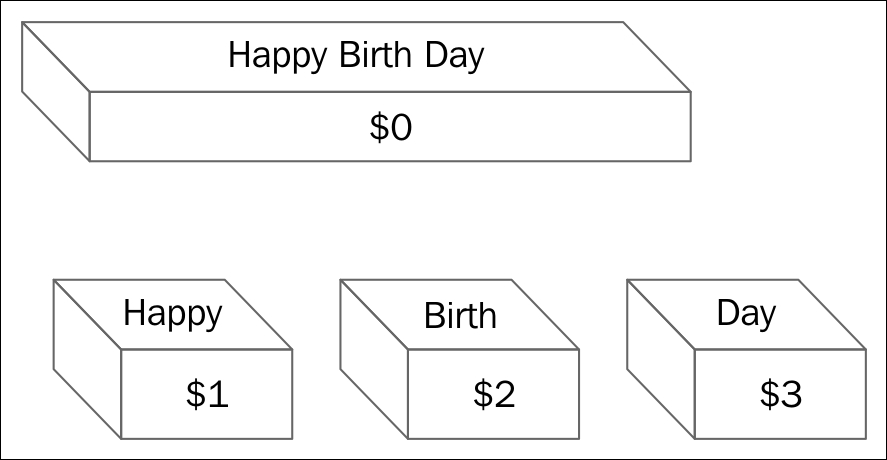
The explanation about the preceding diagram is as follows:
- awk reads a line from the file and puts it into an internal variable called
$0. Each line is called record. By default, every line is terminated by a newline. - Then, every record or line is divided into separate words or fields. Every word is stored in numbered variables
$1,$2, and so on. There can be as many as 100 fields per record. - awk has an internal variable called IFS (Internal Field Separator). IFS is normally whitespace. Whitespace includes tabs and spaces. The fields will be separated by IFS. If we want to specify any other IFS, such as colon
:in the/etc/passwdfile, then we will need to specify it in the awk command line.
When awk checks an action as '{print $1, $3}', it tells awk to print the first and third fields. Fields will be separated by space. The command will be as follows:
$ awk '{print $1, $3}' sample.txt
The output will be as follows:
Happy Day
We live
the explanation of the output is as follows:
We can put awk commands in a file. We will need to use the -f option before using the awk script file name to inform about using the awk script file for all processing instructions. awk will copy the first line from the data file to be processed in $0, and then, it will apply all processing instructions on that record. Then, it will discard that record and load the next line from the data file. This way, it will proceed till the last line of the data file. If the action is not specified, the pattern matching lines will be printed on screen. If the pattern is not specified, then the specified action will be performed on all lines of the data file.
For example:
$ cat people.txt
Bill Thomas  8000  08/9/1968
Fred Martin  6500  22/7/1982
Julie Moore  4500  25/2/1978
Marie Jones  6000  05/8/1972
Tom Walker   7000  14/1/1977
$ cat awk_script
/Martin/{print $1, $2}
Enter the next command as follows:
$ awk -f awk_script people.txt
The output is as follows:
Fred Martin
The awk command file contains the Martin pattern and it specifies the action of printing fields 1 and 2 of the line, matching the pattern. Therefore, it has printed the first and second fields of the line, containing the Martin pattern.
Every line terminated by the newline is called record and every word separated by white space is called field. We will learn more about them in this section.
awk does not see the file as one continuous stream of data; but it processes the file line by line. Each line is terminated by a new line character. It copies each line in the internal buffer called record.
By default, a newline or carriage return is an input record separator and output record separator. The input record separator is stored in the built-in variable RS, and the output record separator is stored in ORS. We can modify the ORS and RS, if required.
The entire line that is copied in buffer, such as record, is called $0.
Take the following command for example:
$ cat people.txt
The output is as follows:
Bill Thomas  8000  08/9/1968
Fred Martin  6500  22/7/1982
Julie Moore  4500  25/2/1978
Marie Jones  6000  05/8/1972
Tom Walker   7000  14/1/1977
$ awk '{print $0}' people.txt
The output is as follows:
Bill Thomas  8000  08/9/1968
Fred Martin  6500  22/7/1982
Julie Moore  4500  25/2/1978
Marie Jones  6000  05/8/1972
Tom Walker   7000  14/1/1977
This has printed all the lines of the text file. Similar results can be seen by the following command:
$ awk
'{print}' people.txt
awk has a built-in variable called NR. It stores the record number. Initially, the value stored in NR is 1. Then, it will be incremented by one for each new record.
Take, for example, the following command:
$ cat people.txt
The output will be:
Bill Thomas  8000  08/9/1968
Fred Martin  6500  22/7/1982
Julie Moore  4500  25/2/1978
Marie Jones  6000  05/8/1972
Tom Walker   7000  14/1/1977
$ awk '{print NR, $0}'  people.txt
The output will be:
1 Bill Thomas  8000  08/9/1968
2 Fred Martin  6500  22/7/1982
3 Julie Moore  4500  25/2/1978
4 Marie Jones  6000  05/8/1972
5 Tom Walker   7000  14/1/1977
This has printed every record, such as $0 with record number, which is stored in NR. That is why we see 1, 2, 3, and so on before every line of output.
Every line is called record and every word in record is called field. By default, words or fields are separated by whitespace, that is, space or tab. awk has an internal built-in variable called NF, which will keep track of field numbers. Typically, the maximum field number will be 100, which will depend on implementation. The following example has five records and four fields.
For example:
$1    $2        $3       $4
Bill Thomas  8000  08/9/1968
Fred Martin  6500  22/7/1982
Julie Moore  4500  25/2/1978
Marie Jones  6000  05/8/1972
Tom Walker   7000  14/1/1977
$ awk '{print NR, $1, $2, $4}' people.txt
The output will be:
1 Bill Thomas 08/9/1968
2 Fred Martin 22/7/1982
3 Julie Moore 25/2/1978
4 Marie Jones 05/8/1972
5 Tom Walker  14/1/1977
This has printed record number and field numbers 1, 2, and so on, on the screen.
Every word is separated by white space. We will learn more about them in this section.
We have already discussed that input field separator is whitespace, by default. We can change this IFS to other values on the command line or by using the BEGIN statement. We need to use the -F option to change IFS.
For example:
$ cat people.txt
The output will be:
Bill Thomas:8000:08/9/1968
Fred Martin:6500:22/7/1982
Julie Moore:4500:25/2/1978
Marie Jones:6000:05/8/1972
Tom Walker:7000:14/1/1977
$ awk -F: '/Marie/{print $1, $2}' people.txt
The output will be:
Marie Jones 6000
We have used the -F option to specify colon (:) as IFS instead of the default, IFS. Therefore, it has printed field 1 and 2 of the records in which the Marie pattern was matched. We can even specify more than one IFS on the command line as follows:
$ awk –F'[ :\t]' '{print $1, $2, $3}' people.txt
This will use space, colon, and tab characters as the inter field separator or IFS.
While executing commands using awk, we need to define patterns and actions. Let's learn more about them in this section.
awk uses the patterns to control the processing of actions. When pattern or regular expression is found in the record, then action is performed, or if no action is defined then awk simply prints the line on screen.
For example:
$ cat people.txt
The output will be:
Bill Thomas  8000  08/9/1968
Fred Martin  6500  22/7/1982
Julie Moore  4500  25/2/1978
Marie Jones  6000  05/8/1972
Tom Walker   7000  14/1/1977
$ awk '/Bill/' people.txt
The output will be:
Bill Thomas 8000 08/9/1968
In this example, when the Bill pattern is found in the record, that record is printed on screen:
$ awk '$3 > 5000' people.txt
The output will be:
Bill Thomas  8000  08/9/1968
Fred Martin  6500  22/7/1982
Marie Jones  6000  05/8/1972
Tom Walker   7000  14/1/1977
In this example, when field 3 is greater than 5000, that record is printed on screen.
Actions are performed when the required pattern is found in record. Actions are enclosed in curly brackets such as '{' and '}'. We can specify different commands in the same curly brackets; but those should be separated by a semicolon.
The syntax is as follows:
pattern{ action statement; action statement; .. }
     or
pattern
{    action statement
       action statement
}
The following example gives a better idea:
$ awk '/Bill/{print $1, $2 ", Happy Birth Day !"}' people.txt
Output:
Bill Thomas, Happy Birth Day !
Whenever a record contains the Bill pattern, awk performs the action of printing field 1, field 2 and prints the message Happy Birth Day.
The regular expressions is a pattern enclosed in forward slashes. Regular expression can contain metacharacters. If the pattern matches any string in the record, then the condition is true and any associated action, if mentioned, will be executed. If no action is specified, then simply the record is printed on screen.
Metacharacters used in awk regular expressions are as follows:
|
Metacharacter |
What it does |
|---|---|
|
. | |
|
* |
Zero or more characters are matched |
|
^ |
The beginning of the string is matched |
|
$ |
The end of the string is matched |
|
+ |
One or more of the characters are matched |
|
? |
Zero or one of the characters are matched |
|
[ABC] |
Any one character in the set of characters A, B, or C is matched |
|
[^ABC] |
Any one character not in the set of characters A, B, or C is matched |
|
[A–Z] |
Any one character in the range from A to Z is matched |
|
a|b |
Either a or b is matched |
|
(AB)+ |
One or more sets of AB; such as AB, ABAB, and so on is matched |
|
\* | |
|
& |
This is used to represent the replacement string when it is found in the search string |
In the following example, all lines containing regular expression "Moore" will be searched and matching record's field 1 and 2 will be displayed on screen:
$ awk '/Moore/{print $1, $2}' people.txt
The output is as follows:
Julie Moore
Whenever we need to write multiple patterns and actions in a statement, then it is more convenient to write a script file. The script file will contain patterns and actions. If multiple commands are on the same line, then those should be separated by a semicolon; otherwise, we need to write them on separate lines. The comment line will start by using the pound (#) sign.
For example:
$ cat people.txt
The output is as folllows:
Bill Thomas  8000  08/9/1968
Fred Martin  6500  22/7/1982
Julie Moore  4500  25/2/1978
Marie Jones  6000  05/8/1972
Tom Walker   7000  14/1/1977
(The awk script)
$ cat report
The output is as follows:
/Bill/{print "Birth date of " $1, $2 " is " $4}
/^Julie/{print $1, $2 " has a salary of  $" $3 "."}
/Marie/{print NR, $0}
Enter the next command as follows:
$ awk -f report people.txt
The output will be:
Birth date of Bill Thomas is 08/9/1968
Julie Moore has a salary of $4500.
4 Marie Jones  6000  05/8/1972
In this example, the awk command is followed by the -f option, which specifies the script file as record and then processes all the commands on the text file people.txt.
In this script, regular expression Bill is matched, then print text, field 1, field 2, and then print the birth date information. If the regular expression Julie is matched at the start of the line, then print her salary information. If regular expression Marie is matched, then print the record number NR and print the complete record.
We can simply declare a variable in the awk script, without even any initialization. Variables can be of type string, number, or floating type and so on. There is no type declaration required like in C programming. awk will find out the type of variable by its right-hand side data type during initialization or its usage in the script.
Uninitialized variables will have the value 0 or strings will have a value null such as "", depending on how it is used inside scripts:
name = "Ganesh"
The variable name is of the string type:
j++
The variable j is a number. Variable j is initialized to zero and it is incremented by one:
value = 50
The variable value is a number with initial value 50.
The technique to modify the string type variable to the number type is as follows:
name + 0
The technique to modify the number type variable to the string type is as follows:
value " "
User-defined variables can be made up of letters, digits, and underscores. The variable cannot start with a digit.
In awk programming, the if statement is used for decision making. The syntax is as follows:
if (conditional-expression)
  action1
else
  action2
If the condition is true, then action1 will be performed, else action2 will be performed. This is very similar to C programming if constructs.
An example of using the if statement in the awk command is as follows:
$ cat person.txt
The output is as follows:
Bill Thomas  8000  08/9/1968
Fred Martin  6500  22/7/1982
Julie Moore  4500  25/2/1978
Marie Jones  6000  05/8/1972
Tom Walker   7000  14/1/1977
$ awk '{
if ($3 > 7000) { print "person with salary more than 7000 is \n", $1, " " , $2;}
}' people.txt
The output is as follows:
person with salary more than 7000 is
Bill Thomas
In this example, field 3 is checked for greater than 7000 in every record. If field 3 is greater than 7000 for any record, then the action of printing the name of the person and value of third record will be done.
The for loop is used for doing certain actions repetitively. The syntax is as follows:
for(initialization; condition; increment/decrement)
actions
Initially, a variable is initialized. Then, the condition is checked, if it is true, then action or actions enclosed in curly brackets are performed. Then, the variable is incremented or decremented. Again, the condition is checked. If the condition is true, then actions are performed, otherwise, the loop is terminated.
An example of the awk command with the for loop is as follows:
$ awk '{ for( i = 1; i <= NF; i++) print NF, $i }' people.txt
Initially, the i variable is initialized to 1. Then, the condition is checked to see whether i is less than NF. If true, then the action of printing NF and the field is performed. Then i is incremented by one. Again, the condition is checked if it is true or false. If true, then it will perform actions again; otherwise, it will terminate the looping activity.
Similar to C programming, awk has a while loop for doing the tasks repeatedly. while will check for the condition. If the condition is true, then actions will be performed. If condition is false, then it will terminate the loop.
The syntax is as follows:
  while(condition)
    actions
An example of using the while construct in awk is as follows:
$ cat people.txt
$ awk '{ i  = 1; while ( i <= NF ) { print NF, $i ; i++ } }' people.txt
NF is the number of fields in the record. The variable i is initialized to 1. Then, while i is smaller or equal to NF, the print action will be performed. The print command will print fields from the record from the file people.txt. In the action block, i is incremented by one. The while construct will perform the action repeatedly until i is less than or equal to NF.
The do while loop is similar to while loop; but the difference is, even if the condition is true, at least once the action will be performed unlike the while loop.
The syntax is as follows:
do
action
while (condition)
After the action or actions are performed, the condition is checked again. If the condition is true, then the action will be performed again, otherwise, the loop will be terminated.
The following is an example of using the do while loop:
$ cat awk_script
BEGIN {
  do {
    ++x
    print x
  } while ( x <= 4 )
}
$ awk -f awk_script
1
2
3
4
5
In this example, x is incremented to 1 and value of x is printed. Then the condition is checked to see whether x is less than or equal to 4. If the condition is true, then the action is performed again.