Table of Contents for
Learning Linux Shell Scripting
 Learning Linux Shell Scripting
Published by
Packt Publishing, 2015
Learning Linux Shell Scripting
Published by
Packt Publishing, 2015
- Cover
- Table of Contents
- Learning Linux Shell Scripting
- Learning Linux Shell Scripting
- Credits
- About the Author
- Acknowledgments
- About the Reviewers
- www.PacktPub.com
- Preface
- What you need for this book
- Who this book is for
- Conventions
- Reader feedback
- Customer support
- 1. Getting Started and Working with Shell Scripting
- Tasks done by shell
- Working in shell
- Learning basic Linux commands
- Our first script – Hello World
- Compiler and interpreter – difference in process
- When not to use scripts
- Various directories
- Working more effectively with shell – basic commands
- Working with permissions
- Summary
- 2. Drilling Deep into Process Management, Job Control, and Automation
- Monitoring processes using ps
- Process management
- Process monitoring tools – top, iostat, and vmstat
- Understanding "at"
- Understanding "crontab"
- Summary
- 3. Using Text Processing and Filters in Your Scripts
- IO redirection
- Pattern matching with the vi editor
- Pattern searching using grep
- Summary
- 4. Working with Commands
- Command substitution
- Command separators
- Logical operators
- Pipes
- Summary
- 5. Exploring Expressions and Variables
- Working with environment variables
- Working with read-only variables
- Working with command line arguments (special variables, set and shift, getopt)
- Understanding getopts
- Understanding default parameters
- Working with arrays
- Summary
- 6. Neat Tricks with Shell Scripting
- The here document and the << operator
- The here string and the <<< operator
- File handling
- Debugging
- Summary
- 7. Performing Arithmetic Operations in Shell Scripts
- Using the let command for arithmetic
- Using the expr command for arithmetic
- Binary, octal, and hex arithmetic operations
- A floating-point arithmetic
- Summary
- 8. Automating Decision Making in Scripts
- Understanding the test command
- Conditional constructs – if else
- Switching case
- Implementing simple menus with select
- Looping with the for command
- Exiting from the current loop iteration with the continue command
- Exiting from a loop with a break
- Working with the do while loop
- Using until
- Piping the output of a loop to a Linux command
- Running loops in the background
- The IFS and loops
- Summary
- 9. Working with Functions
- Passing arguments or parameters to functions
- Sharing the data by many functions
- Declaring local variables in functions
- Returning information from functions
- Running functions in the background
- Creating a library of functions
- Summary
- 10. Using Advanced Functionality in Scripts
- Using the trap command
- Ignoring signals
- Using traps in function
- Running scripts or processes even if the user logs out
- Creating dialog boxes with the dialog utility
- Summary
- 11. System Startup and Customizing a Linux System
- User initialization scripts
- Summary
- 12. Pattern Matching and Regular Expressions with sed and awk
- sed – noninteractive stream editor
- Using awk
- Summary
- Index
Environmental variables are inherited by any subshells or child processes. For example, HOME, PATH. Every shell terminal has the memory area called environment. Shell keeps all details and settings in the environment. When we start a new terminal or shell, this environment is created every time.
We can view environment variables by the following command:
$ env
Or:
$ printenv
Output:
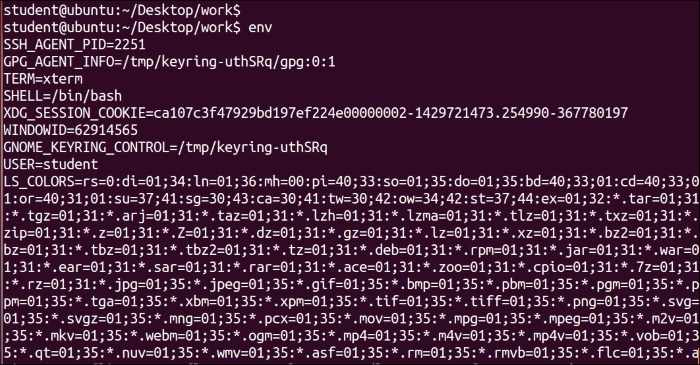
This is the output of the $ env command. The list of environment variables will be quite extensive. I advise you to browse through the complete list. We can change the content of any of these environment variables.
Environmental variables are defined in a terminal or shell. They will be available in subshells or child shells created from the current shell terminal. You will learn about these activities in the next few sections. You have already learned that every command in shell creates a new subshell from the current shell.
The following is a brief summary of the few environmental variables:
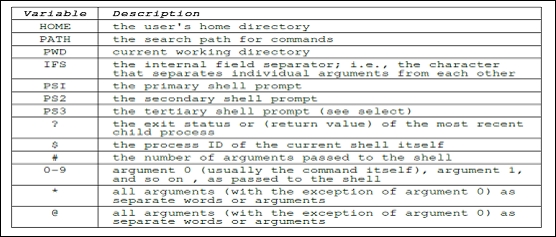
Whenever any user logs in, the /etc/profile Shell script is executed.
For every user, the .bash_profile Shell script is stored in the home folder. The complete path or location is /home/user_name/.profile.
Whenever a new terminal is created, every new terminal will execute the script .bashrc, which is located in the home folder of every user.
In the current shell, we can create and store user defined variables. These may contain characters, digits, and "_". A variable should not start with a digit. Normally for environment variables, upper case characters are used.
If we create a new variable, it will not be available in subshells. The newly created variable will be available only in the current shell. If we run Shell script, then local variables will not be available in the commands called by Shell script. Shell has one special variable $$. This variable contains the process ID of the current shell.
Let's try a few commands:
$ echo $$
1234
This is the process ID of the current shell.
$ name="Ganesh Naik"
$ echo $name
Ganesh Naik
We declared the variable name and initialized it.
$ bash
This command will create a new subshell.
$ echo $$
1678
This is the process ID of the newly created subshell.
$ echo $name
Nothing will be displayed, as the local variables from the parent shell are not inherited in the newly created child shell or subshell:
$ exit
We will exit the subshell and return to the original shell terminal.
$ echo $$
1234
This is the process ID of the current shell or parent shell.
$ echo $name
Ganesh Naik
This is displaying the variable's presence in the original shell or parent shell.
Variables created in the current shell will not be available in a subshell or child shell. If we need to use a variable in a child shell, then we need to export them using the export command.
Using the export command, we are making variables available in the child process or subshell. But if we declare new variables in the child process and export it in the child process, the variable will not be available in parent process. The parent process can export variables to child, but the child process cannot export variables to the parent process.
Whenever we create a Shell script and execute it, a new shell process is created and the Shell script runs in that process. Any exported variable values are available to the new shell or to any subprocess.
We can export any variable as follows:
$ export NAME
Or:
$ declare -x NAME
Let's understand the concept of exporting the variable by the following example:
$ PERSON="Ganesh Naik"
$ export PERSON
$ echo $PERSON
Ganesh Naik
$ echo $$
515
The process ID of the current shell or parent shell is 515.
$ bash
This will start a subshell.
$ echo $$
555
This is the process ID of new or subshell.
$ echo $PERSON
Ganesh Naik
$ PERSON="Author"
$ echo $PERSON
Author
$ exit
This will terminate the subshell, and will be placed in the parent shell.
$ echo $$
515
This is the process ID of the parent shell.
$ echo $PERSON
Author
Let's write Shell script to use the concept we learned:
# Ubuntu Timezone files location : /usr/share/zoneinfo/
# redhat "/etc/localtime"  instead of "/etc/timezone"
# In Redhat
# ln -sf /usr/share/zoneinfo/America/Los_Angeles /etc/localtime

export TZ=America/Los_Angeles
echo "Your Timezone is = $TZ"
date
export TZ=Asia/Tokyo
echo "Your Timezone is = $TZ"
date

unset TZ

echo "Your Timezone is = $(cat /etc/timezone)"
# For Redhat or Fedora /etc/localtime
date
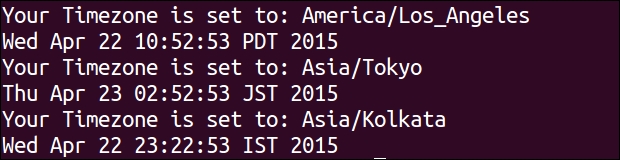
The date command checks the TZ environmental variable. We initialized the TZ for Los_Angeles, then to Tokyo, and then finally we removed it. We can see the difference in the date command output.
Let's write another Shell script to study the parent and child process and exportation of variables.
Create the export1.sh Shell script:
#!/bin/bash
foo="The first variable foo"
export bar="The second variable bar"
./export2.sh

Create another shell script export2.sh
#!/bin/bash
echo "$foo"
echo "$bar"
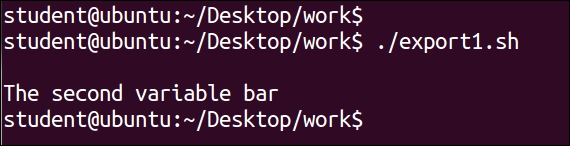
The Shell script export1.sh runs as a parent process and export2.sh is started as a child process of export1.sh. We can clearly observe that the variable bar, which was exported, is available in the child process; but variable foo, which was not exported, is not available in the child process.