Table of Contents for
Learning Linux Shell Scripting
 Learning Linux Shell Scripting
Published by
Packt Publishing, 2015
Learning Linux Shell Scripting
Published by
Packt Publishing, 2015
- Cover
- Table of Contents
- Learning Linux Shell Scripting
- Learning Linux Shell Scripting
- Credits
- About the Author
- Acknowledgments
- About the Reviewers
- www.PacktPub.com
- Preface
- What you need for this book
- Who this book is for
- Conventions
- Reader feedback
- Customer support
- 1. Getting Started and Working with Shell Scripting
- Tasks done by shell
- Working in shell
- Learning basic Linux commands
- Our first script – Hello World
- Compiler and interpreter – difference in process
- When not to use scripts
- Various directories
- Working more effectively with shell – basic commands
- Working with permissions
- Summary
- 2. Drilling Deep into Process Management, Job Control, and Automation
- Monitoring processes using ps
- Process management
- Process monitoring tools – top, iostat, and vmstat
- Understanding "at"
- Understanding "crontab"
- Summary
- 3. Using Text Processing and Filters in Your Scripts
- IO redirection
- Pattern matching with the vi editor
- Pattern searching using grep
- Summary
- 4. Working with Commands
- Command substitution
- Command separators
- Logical operators
- Pipes
- Summary
- 5. Exploring Expressions and Variables
- Working with environment variables
- Working with read-only variables
- Working with command line arguments (special variables, set and shift, getopt)
- Understanding getopts
- Understanding default parameters
- Working with arrays
- Summary
- 6. Neat Tricks with Shell Scripting
- The here document and the << operator
- The here string and the <<< operator
- File handling
- Debugging
- Summary
- 7. Performing Arithmetic Operations in Shell Scripts
- Using the let command for arithmetic
- Using the expr command for arithmetic
- Binary, octal, and hex arithmetic operations
- A floating-point arithmetic
- Summary
- 8. Automating Decision Making in Scripts
- Understanding the test command
- Conditional constructs – if else
- Switching case
- Implementing simple menus with select
- Looping with the for command
- Exiting from the current loop iteration with the continue command
- Exiting from a loop with a break
- Working with the do while loop
- Using until
- Piping the output of a loop to a Linux command
- Running loops in the background
- The IFS and loops
- Summary
- 9. Working with Functions
- Passing arguments or parameters to functions
- Sharing the data by many functions
- Declaring local variables in functions
- Returning information from functions
- Running functions in the background
- Creating a library of functions
- Summary
- 10. Using Advanced Functionality in Scripts
- Using the trap command
- Ignoring signals
- Using traps in function
- Running scripts or processes even if the user logs out
- Creating dialog boxes with the dialog utility
- Summary
- 11. System Startup and Customizing a Linux System
- User initialization scripts
- Summary
- 12. Pattern Matching and Regular Expressions with sed and awk
- sed – noninteractive stream editor
- Using awk
- Summary
- Index
The dialog utility is used to create a basic level graphical user interface. We can use this in Shell script to create very useful programs.
To install the dialog utility in Debian or Ubuntu Linux, enter following command:
$ sudo apt-get update
$ sudo apt-get install l dialog
Similarly, enter the following command to install the utility dialog in CentOS or Red Hat Linux:
$ sudo yum install dialog
The typical syntax of the dialog command is as follows:
$ dialog --common-options --boxType "Text" Height Width \
                                  --box-specific-option
The common-options utility is used to set the background color, title, and so on in dialog boxes.
The option details are as follows:
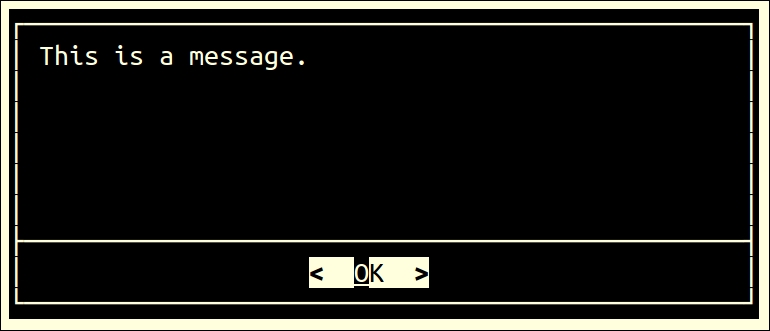
To create a simple message box, we can use the following command:
$ dialog --msgbox "This is a message." 10 50
Enter the following command to create a message box with the following title:
$ dialog --title "Hello" --msgbox 'Hello world!' 6 20
The option details are as follows:
--title "Hello": This will set the title of the message box as"Hello"--msgbox 'Hello world!': This will set the content of the message box as"Hello world!"6: This will set the height of the message box20: This will set the width of message box: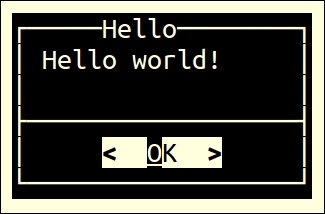
The message box has a Hello title with content Hello World! It has a single OK button. We can use this message box to inform the user about any events or information. The user will have to press Enter to close this message box. If the content is large for a message box, then the dialog utility will provide the scrolling of the message.
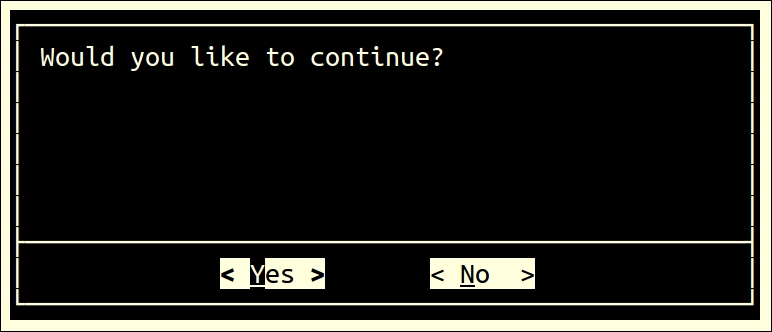
If we need to obtain a yes or no answer from the user, we can use the following options along with the dialog command:
$ dialog --yesno "Would you like to continue?" 10 50
We can have the same yes/no dialog box with a title as follows:
$ dialog --title "yesno box" --yesno "Would you like to continue?" 10 50
Let's write the Shell script dialog_01.sh as follows:
#!/bin/bash
dialog --title "Delete file" \
--backtitle "Learning Dialog Yes-No box" \
--yesno "Do you want to delete file \"~/work/sample.txt\"?" 7 60

# Selecting "Yes" button will return 0.
# Selecting "No" button will return 1.
# Selecting [Esc] will return 255.
result=$?
case $result in
   0)     rm ~/work/sample.txt
    echo "File deleted.";;
   1)     echo "File could not be deleted.";;
   255)   echo "Action Cancelled – Presssed [ESC] key.";;
esac
Let's test the following program:
$ chmod +x dialog_01.sh
$ ./dialog_01.sh
Output:
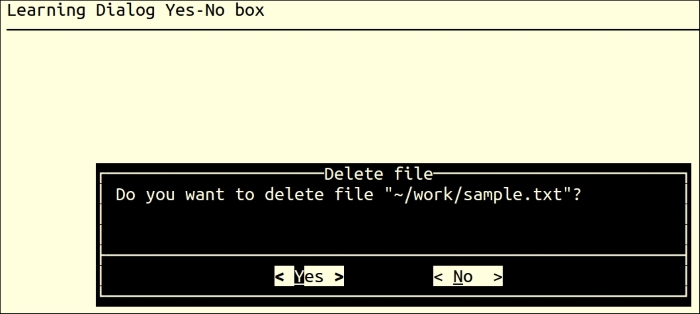
Whenever we want to ask a user for an input text via the keyboard, in such situations, the inputbox option is useful. While entering text via keyboard, we can use keys such as delete, backspace, and the arrow cursor keys for editing. If the input text is larger than the input box, the input field will be scrolled. Once the OK button is pressed, the input text can be redirected to a text file:
# dialog  --inputbox  "Please enter something."   10  50 \
2> /tmp/tempfile
VAR=`cat ~/work/output.txt
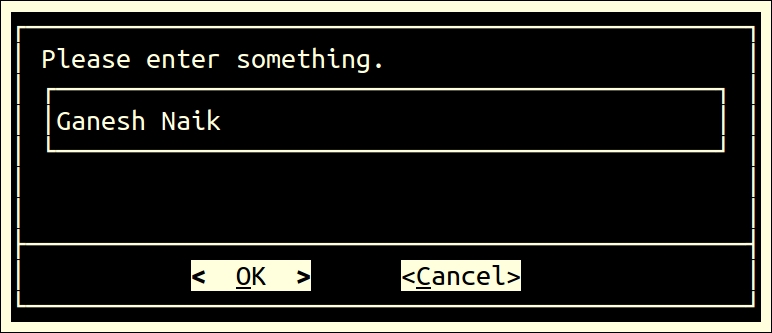
Let's write the Shell script dialog_02.sh to create an input box as follows:
#!/bin/bash
result="output.txt"
>$ $result    #  Create empty file

dialog --title "Inputbox Demo" \
--backtitle "Learn Shell Scripting" \
--inputbox "Please enter your name " 8 60 2>$result

response=$?
name=$(<$result)
case $response in
0)   echo "Hello $name"
      ;;
1)   echo "Cancelled."
      ;;
255)     echo "Escape key pressed."
esac
rm $result
Let's test the following program:
$ chmod +x dialog_02.sh
$ ./dialog_02.sh
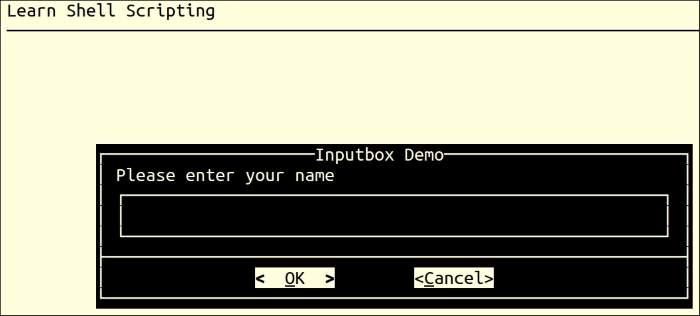
Output:
"Hello Ganesh Naik"
If we want to display the contents of the file in a textbox inside the menu created by dialog, then enter the following command:
$ dialog --textbox /etc/passwd 10 50
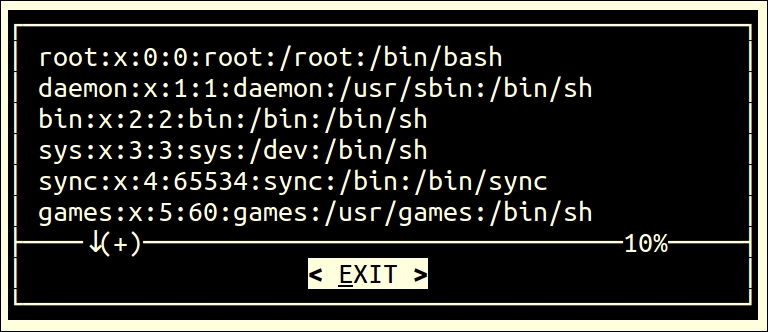
We are displaying the /etc/passwd file in the textbox with the previous command.
Many a time, we need to get the password from the user. In this case, the password should not be visible on the screen. The password box option is perfectly useful for this purpose.
If we want to display an entered password as a string of ****, then we will need to add the--insecure option.
We will need to redirect the inserted password in a file.
Let's write Shell script dialog_03.sh to receive the password as follows:
#!/bin/bash
# creating the file to store password
result="output.txt 2>/dev/null"

# delete the password stored file, if program is exited pre-maturely.
trap "rm -f output.txt" 2 15

dialog --title "Password" \
--insecure \
--clear \
--passwordbox "Please enter password" 10 30 2> $result

reply=$?

case $reply in
  0)    echo "You have entered Password :  $(cat $result)";;
  1)    echo "You have pressed Cancel";;
  255)    cat $data && [ -s $data ] || echo "Escape key is pressed.";;
esac
Let's test the following program:
$ chmod +x dialog_03.sh
$ ./dialog_03.sh
Output:
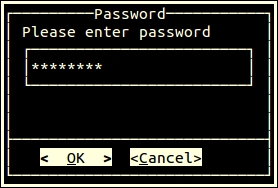
Output:
You have entered Password : adcd1234
Usually, any program or Shell script may be required to perform multiple types of tasks. In such cases, the menu box option is very useful. This option will display the list of choices for the user. Then, the user may select any of his or her desired choice. Our script should execute the desired option.
Each menu has two fields, a tag and an item string. In the next example menu demo, we have tags such as date, calendar, and editor. The description of tags is called as an item string.
Let's write the Shell script dialog_04.sh to create a menu as follows:
#!/bin/bash
# Declare file to store selected menu option
RESPONSE=menu.txt
# Declare file to store content to display date and cal output
TEMP_DATA=output.txt
vi_editor=vi
# trap and delete temp files
trap "rm $TEMP_DATA; rm $RESPONSE; exit" SIGHUP SIGINT SIGTERM

function display_output(){
    dialog --backtitle "Learning Shell Scripting" --title "Output" --clear --msgbox "$(<$TEMP_DATA)" 10 41
}

function display_date(){
    echo "Today is `date` @ $(hostname -f)." >$TEMP_DATA
    display_output 6 60 "Date and Time"
}

function display_calendar(){
    cal >$TEMP_DATA
    display_output 13 25 "Calendar"
}

# We are calling infinite loop here
while true
do

# Show main menu
dialog --help-button --clear --backtitle "Learn Shell Scripting" \
--title "[ Demo Menubox ]" \
--menu "Please use up/down arrow keys, number keys\n\
1,2,3.., or the first character of choice\n\
as hot key to select an option" 15 50 4 \
Calendar "Show the Calendar" \
Date/time "Show date and time" \
Editor "Start vi editor" \
Exit "Terminate the Script" 2>"${RESPONSE}"

menuitem=$(<"${RESPONSE}")

# Start activity as per selected choice
case $menuitem in
    Calendar) display_calendar;;
    Date/time) display_date;;
    Editor) $vi_editor;;
    Exit) echo "Thank you !"; break;;
esac
done
# Delete temporary files
[ -f $TEMP_DATA ] && rm $TEMP_DATA
[ -f $RESPONSE ] && rm $RESPONSE
Let's test the following program:
$ chmod +x dialog_04.sh
$ ./dialog_04.sh
Output:
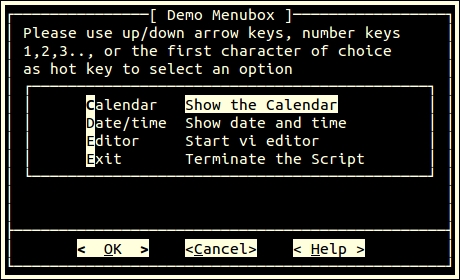
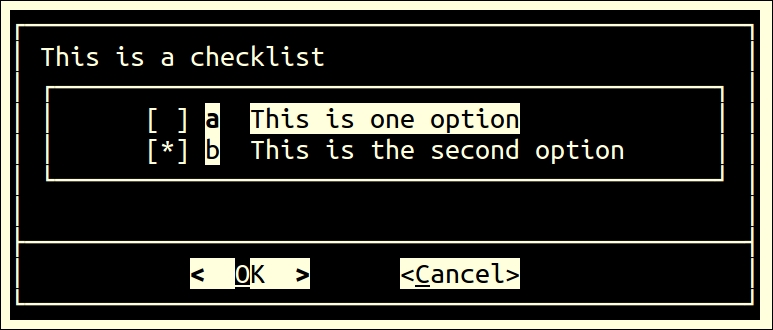
In this case, we can present the user with a choice to select one or multiple options from a list:'
# dialog --checklist "This is a checklist" 10 50 2 \
"a"  "This is one option" "off" \
"b" "This is the second option" "on"
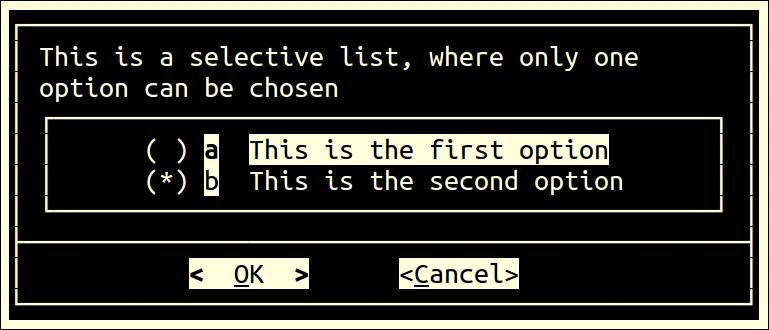
If you want the user to select only one option out of many choices, then radiolist is a suitable option:
# dialog --radiolist  "This is a selective list, where only one \
option can be chosen" 10 50 2 \
"a" "This is the first option" "off" \
"b" "This is the second option" "on"
Radio buttons are not square but round, as can be seen in the following screenshot:
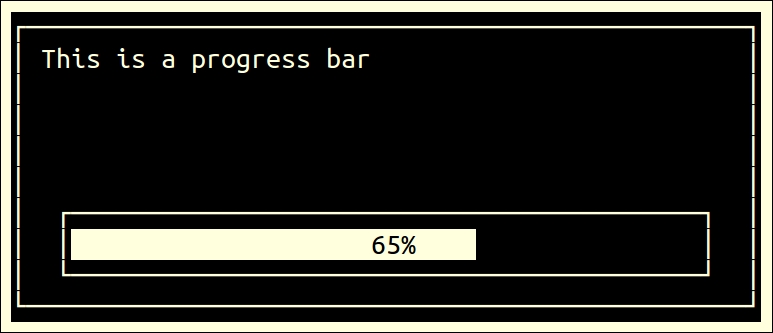
The progress meter displays a meter at the bottom of the box. This meter indicates the percentage of the process completed. New percentages are read from standard input, one integer per line. This meter is updated to reflect each new percentage.
Let's write the Shell script dialog_05.sh to create a progress meter as follows:
#!/bin/bash
declare -i COUNTER=1
{
    while test $COUNTER -le 100
        do
            echo $COUNTER
            COUNTER=COUNTER+1
            sleep 1
    done
    } |  dialog --gauge  "This is a progress bar"  10 50 0
Let's test the following program:
$ chmod +x dialog_05.sh
$ ./dialog_05.sh
Output:
Customization of dialog with the configuration file
We can customize dialog using the ~/.dialogrc configuration file. The default file location is $HOME/.dialogrc.
To create the .dialogrc configuration file, enter the following command:
$ dialog --create-rc ~/.dialogrc
We can customize the output of the dialog utility by changing any of the configuration parameters defined in the .dialogrc file.