Table of Contents for
Learning Linux Shell Scripting
 Learning Linux Shell Scripting
Published by
Packt Publishing, 2015
Learning Linux Shell Scripting
Published by
Packt Publishing, 2015
- Cover
- Table of Contents
- Learning Linux Shell Scripting
- Learning Linux Shell Scripting
- Credits
- About the Author
- Acknowledgments
- About the Reviewers
- www.PacktPub.com
- Preface
- What you need for this book
- Who this book is for
- Conventions
- Reader feedback
- Customer support
- 1. Getting Started and Working with Shell Scripting
- Tasks done by shell
- Working in shell
- Learning basic Linux commands
- Our first script – Hello World
- Compiler and interpreter – difference in process
- When not to use scripts
- Various directories
- Working more effectively with shell – basic commands
- Working with permissions
- Summary
- 2. Drilling Deep into Process Management, Job Control, and Automation
- Monitoring processes using ps
- Process management
- Process monitoring tools – top, iostat, and vmstat
- Understanding "at"
- Understanding "crontab"
- Summary
- 3. Using Text Processing and Filters in Your Scripts
- IO redirection
- Pattern matching with the vi editor
- Pattern searching using grep
- Summary
- 4. Working with Commands
- Command substitution
- Command separators
- Logical operators
- Pipes
- Summary
- 5. Exploring Expressions and Variables
- Working with environment variables
- Working with read-only variables
- Working with command line arguments (special variables, set and shift, getopt)
- Understanding getopts
- Understanding default parameters
- Working with arrays
- Summary
- 6. Neat Tricks with Shell Scripting
- The here document and the << operator
- The here string and the <<< operator
- File handling
- Debugging
- Summary
- 7. Performing Arithmetic Operations in Shell Scripts
- Using the let command for arithmetic
- Using the expr command for arithmetic
- Binary, octal, and hex arithmetic operations
- A floating-point arithmetic
- Summary
- 8. Automating Decision Making in Scripts
- Understanding the test command
- Conditional constructs – if else
- Switching case
- Implementing simple menus with select
- Looping with the for command
- Exiting from the current loop iteration with the continue command
- Exiting from a loop with a break
- Working with the do while loop
- Using until
- Piping the output of a loop to a Linux command
- Running loops in the background
- The IFS and loops
- Summary
- 9. Working with Functions
- Passing arguments or parameters to functions
- Sharing the data by many functions
- Declaring local variables in functions
- Returning information from functions
- Running functions in the background
- Creating a library of functions
- Summary
- 10. Using Advanced Functionality in Scripts
- Using the trap command
- Ignoring signals
- Using traps in function
- Running scripts or processes even if the user logs out
- Creating dialog boxes with the dialog utility
- Summary
- 11. System Startup and Customizing a Linux System
- User initialization scripts
- Summary
- 12. Pattern Matching and Regular Expressions with sed and awk
- sed – noninteractive stream editor
- Using awk
- Summary
- Index
Let's now understand the test command.
Let's learn the following example to check the content or value of expressions:
$ test $name = Ganesh
$ echo $?
0 if success and 1 if failure.
In the preceding example, we want to check if the content of the variable name is the same as Ganesh and ? To check this, we have used the test command. The test will store the result of the comparison in the ? variable.
We can use the following syntax for the preceding test command. In this case, we used [ ] instead of the test command. We've enclosed the expression to be evaluated in square brackets:
$ [[ $name = Ganesh ]]      # Brackets replace the test command
$ echo $?
0
During the evaluation of expressions by test, we can even use wildcard expressions:
$ [[ $name = [Gg]????? ]]
$ echo $?
0
Therefore, we can either use the test command or square brackets for checking or evaluating expressions. Since word splitting will be performed on variables, if we are using text with white spaces, then we will need to enclose the text inside double quotes such as " ".
Let's consider the case where we want to check whether there is the name Ganesh and if his friend is John. In this case, we will have multiple expressions to be checked using the AND operator &&. In such a case, we can use following syntax:
$ [[ $name == Ganesh && $friend == "John" ]]
Another way to do this is as follows:
[ $name == Ganesh ] && [ $friend == "John" ]
We used double brackets in the preceding expressions.
Here, we want to evaluate multiple expressions on the same command line. We can use the preceding syntax with AND (&&) or OR (||) logical operators.
The following is a summary of various options for string comparison using test which is taken from the Bash reference manual available at http://www.gnu.org/software/bash/:
|
Test operator |
Tests true if |
|---|---|
|
-n string |
True if the length of string is nonzero. |
|
-z string |
True if the length of string is zero. |
|
string1 != string2 |
True if the strings are not equal. |
|
string1 == string2 string1 = string2 |
True if the strings are equal. |
|
string1 > string2 |
True if string1 sorts after string2 lexicographically. |
|
string1 < string2 |
True if string1 sorts before string2 lexicographically. |
Suppose we want to check if the length of a string is nonzero, then we can check it as follows:
test –n $string      or     [ –n $string ]
echo $?
If the result is 0, then we can conclude that the string length is nonzero. If the content of ? is nonzero, then the string is 0 in length.
Let's write Shell script test01.sh for learning various string operations:
#!/bin/bash

str1="Ganesh";
str2="Mumbai";
str3=

[ $str1 = $str2 ] # Will Check Two Strings Are Equal Or Not
echo $?

[ $str1 != $str2 ] # Will Check Two Strings Are Not Equal
echo $?

[ -n $str1 ] # Will confirm string length is greater than zero
echo $?

[ -z $str3 ] # Will Confirm length of String is Zero
echo $?
Let's test the following program:
$ chmod +x test01.sh
$ ./test01.sh
The following will be the output after executing the preceding commands:
1
0
0
0
Let's write an interactive Shell script test02.sh to get names from the user and then compare if both are the same:
#!/bin/bash
echo "Enter First name"
read name1
echo "Enter Second name"
read name2
[ $name1 = $name2 ] # Check equality of two names
echo $?
[ -n  $name2 ] # Check String Length is greater than Zero
echo $?
Let's test the following program:
$ chmod +x test02.sh
$ ./test02.sh
The following will be the output after executing the preceding commands:
Enter First name
LEVANA
Enter Second name
TECHNOLOGIES
1
0
The following is the summary of various options for numerical comparison using test:
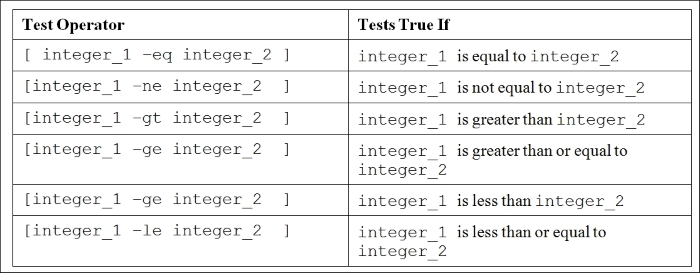
Let's write the Shell script test03.sh for learning various the numerical test operators' usage:
#!/bin/bash

num1=10
num2=30

echo $(($num1 < $num2))  # compare for less than
[ $num1 -lt $num2 ]      # compare for less than
echo $?
[ $num1 -ne $num2 ]      # compare for not equal
echo $?
[ $num1 -eq $num2 ]      # compare for equal to
echo $?
Let's test the following program:
$ chmod +x test03.sh
$ ./test03.sh
The following will be the output after executing the preceding commands:
1
0
0
1
Let's write the script test04.sh for interactively asking the user for three numbers and then testing those numbers for various comparisons:
#!/bin/bash
echo "Please enter 1st First Number"
read num1
echo "Please enter 2nd Number"
read num2
echo "Please enter 3rd Number"
read num3
[[ $num1 > $num2 ]]  # compare for greater than
echo $?
[[ $num1 != $num2 ]] # compare for not equal to
echo $?
[[ $num2 == $num3 ]] # compare for equal to
echo $?
[[ $num1 && $num2 ]] # Logical And Operation
echo $?
[[ $num2 || $num3 ]] # Logical OR Operation
echo $?
Let's test the following program:
$ chmod +x test04.sh
$ ./test04.sh
The following will be the output after executing the preceding commands:
Please enter 1st First Number
10
Please enter 2nd Number
20
Please enter 3rd Number
30
1
0
1
0
0
Let's write the script test05.sh for using string and numerical test operations:
#!/bin/bash
Var1=20
Var2=30
Str1="Accenture"
FileName="TestStringOperator"

test $Var1 -lt $Var2  # Test for Less Than
echo $?
test $Var1 -gt $Var2  # Test For Greater Than
echo $?
test -n $Str1         # Test for String Having Length Greater Than 0
echo $?
test -f $FileName     # Test for File Attributes
echo $?
Let's test the following program:
$ chmod +x test05.sh
$ ./test05.sh
The following will be the output after executing the preceding commands:
0
1
0
1
We used the test operation for the file in this script. It will check if the file is present. You will learn more about it in next section.
Now, we will write the script test06.sh using the test command interactively asking the user for data and then performing numerical as well as string comparison operations:
#!/bin/bash
echo "Please enter 1st Number"
read num1
echo "Please enter 2nd Number"
read num2
echo
test $num1 -eq $num2    # Test for Equal
echo $?
test $num1 -ne $num2    # Test for Not Equal
echo $?
test $num1 -ge $num2    # Test for Greater Than Equal
echo $?

echo "Please enter 1st String"
read Str1
echo "Please enter 2nd String"
read Str2

test $Str1 = $Str2    # Test for Two Strings Are Equal
echo $?
test -z $Str1        # Test for The Length Of The String Is > 0
echo $?
test $Str2        # Test for The String Is Not NULL
echo $?
Let's test the following program:
$ chmod +x test06.sh
$ ./test06.sh
The following will be the output after executing the preceding commands:
Please enter 1st Number
10
Please enter 2nd Number
20
1
0
1
Please enter 1st String
LEVANA
Please enter 2nd String
TECHNOLOGIES
1
1
0
Depending on the value of $? in the preceding output, we can decide whether the operation returned true or false. We will use this in if, case, and similar decision making, as well as in looping, activities.
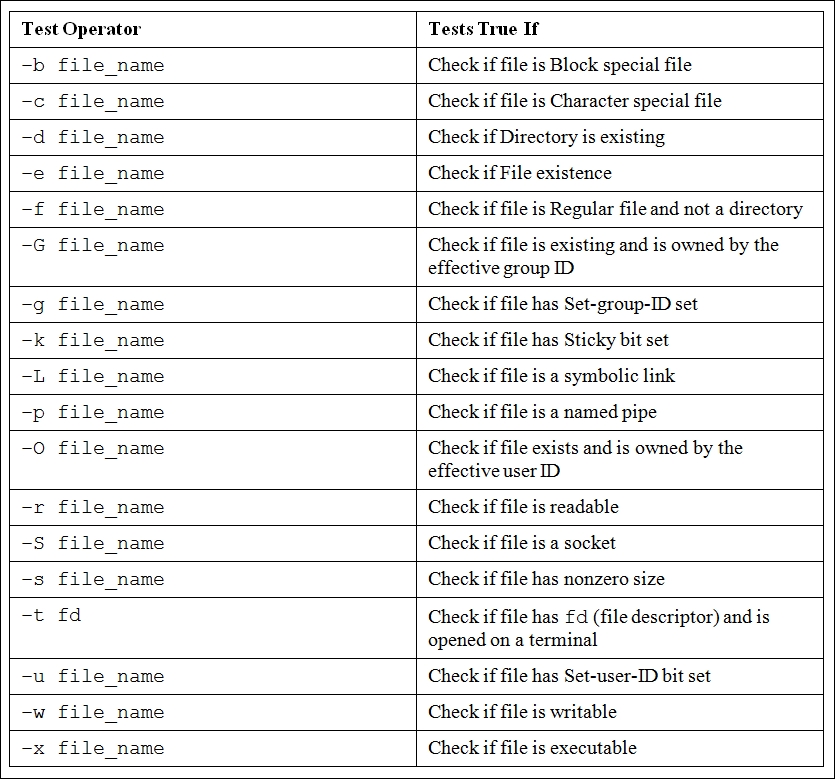
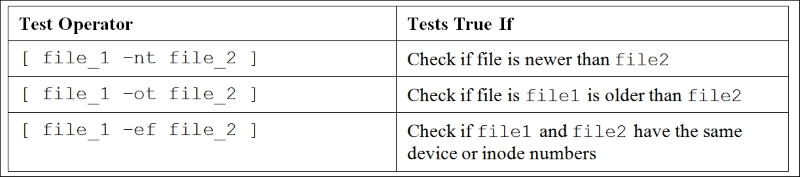
The following are various options for binary file operations using test which is taken from the Bash reference manual available at http://www.gnu.org/software/bash/:
Let's write the script test07.sh to test the basic file attributes such as whether it is a file or folder and whether it has a file size bigger than 0. The output will be different if the case file is present or not:
#!/bin/bash
# Check if file is Directory
[ -d work ]
echo $?
# Check that is it a File
[ -f test.txt ]
echo $?
# Check if File has size greater than 0
[ -s test.txt ]
echo $?
Let us test the program:
$ chmod +x test07.sh
$ ./test07.sh
The following will be the output after executing the preceding commands:
1
1
1
$ mkdir work
$ touch test.txt
$ ./test07.sh
0
0
1
We executed the script with and without the directory and text.txt file.
The following script test08.sh is checking the file permissions such as read, write, and execute permissions:
#!/bin/bash
# Check if File has Read Permission
[ -r File2 ]
echo $?
# Check if File Has Write Permission
[ -w File2 ]
echo $?
# Check if File Has Execute Permission
[ -x File2 ]
echo $?
$ touch File2
$ ls -l File2
-rw-rw-r-- 1 student student    0 Jun 23 22:37 File2
$ chmod +x test08.sh
$ ./test08.sh
The following will be the output after executing the preceding commands:
0
0
1
The following are the various options for logical operations using test which is taken from the Bash reference manual available at http://www.gnu.org/software/bash/:
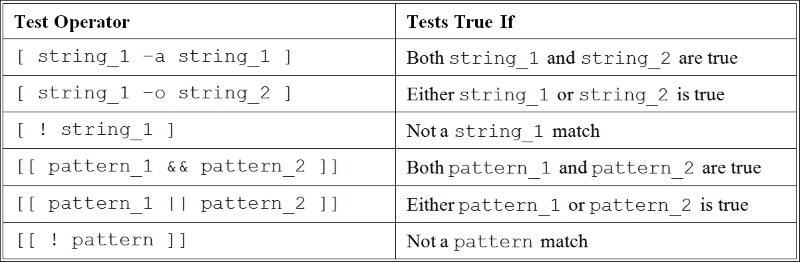
We can use the test operator for strings along with pattern matching as follows:
$ name=Ganesh
$ [[ $name == [Gg]anesh ]]      # Wildcards allowed
$ echo $?
0
The following is the example for multiple strings with the && logical operator:
$ name=Ganesh; friend=Anil
$ [[ $name == [Gg]anesh && $friend == "Lydia" ]]
$ echo $?
1
The following is the script with the test command along with the extended pattern matching enabled:
$ shopt -s extglob     # we are enabling extended pattern matching
$ city=Kannur
$ [[ $city == [Kk]a+(n)ur ]]
$ echo $?
0
In the given expressions, we are checking equality for strings. It tests if the city name starts with K or k, followed by a, one or more n characters, a u, and r.