Table of Contents for
Learning Linux Shell Scripting
 Learning Linux Shell Scripting
Published by
Packt Publishing, 2015
Learning Linux Shell Scripting
Published by
Packt Publishing, 2015
- Cover
- Table of Contents
- Learning Linux Shell Scripting
- Learning Linux Shell Scripting
- Credits
- About the Author
- Acknowledgments
- About the Reviewers
- www.PacktPub.com
- Preface
- What you need for this book
- Who this book is for
- Conventions
- Reader feedback
- Customer support
- 1. Getting Started and Working with Shell Scripting
- Tasks done by shell
- Working in shell
- Learning basic Linux commands
- Our first script – Hello World
- Compiler and interpreter – difference in process
- When not to use scripts
- Various directories
- Working more effectively with shell – basic commands
- Working with permissions
- Summary
- 2. Drilling Deep into Process Management, Job Control, and Automation
- Monitoring processes using ps
- Process management
- Process monitoring tools – top, iostat, and vmstat
- Understanding "at"
- Understanding "crontab"
- Summary
- 3. Using Text Processing and Filters in Your Scripts
- IO redirection
- Pattern matching with the vi editor
- Pattern searching using grep
- Summary
- 4. Working with Commands
- Command substitution
- Command separators
- Logical operators
- Pipes
- Summary
- 5. Exploring Expressions and Variables
- Working with environment variables
- Working with read-only variables
- Working with command line arguments (special variables, set and shift, getopt)
- Understanding getopts
- Understanding default parameters
- Working with arrays
- Summary
- 6. Neat Tricks with Shell Scripting
- The here document and the << operator
- The here string and the <<< operator
- File handling
- Debugging
- Summary
- 7. Performing Arithmetic Operations in Shell Scripts
- Using the let command for arithmetic
- Using the expr command for arithmetic
- Binary, octal, and hex arithmetic operations
- A floating-point arithmetic
- Summary
- 8. Automating Decision Making in Scripts
- Understanding the test command
- Conditional constructs – if else
- Switching case
- Implementing simple menus with select
- Looping with the for command
- Exiting from the current loop iteration with the continue command
- Exiting from a loop with a break
- Working with the do while loop
- Using until
- Piping the output of a loop to a Linux command
- Running loops in the background
- The IFS and loops
- Summary
- 9. Working with Functions
- Passing arguments or parameters to functions
- Sharing the data by many functions
- Declaring local variables in functions
- Returning information from functions
- Running functions in the background
- Creating a library of functions
- Summary
- 10. Using Advanced Functionality in Scripts
- Using the trap command
- Ignoring signals
- Using traps in function
- Running scripts or processes even if the user logs out
- Creating dialog boxes with the dialog utility
- Summary
- 11. System Startup and Customizing a Linux System
- User initialization scripts
- Summary
- 12. Pattern Matching and Regular Expressions with sed and awk
- sed – noninteractive stream editor
- Using awk
- Summary
- Index
You will learn the very useful concept of I/O redirection in this section.
All I/O, including files, pipes, and sockets, are handled by the kernel via a mechanism called the file descriptor. A file descriptor is a small unsigned integer, an index into a file-descriptor table maintained by the kernel and used by the kernel to reference open files and I/O streams. Each process inherits its own file-descriptor table from its parent. The first three file descriptors are 0, 1, and 2. File descriptor 0 is standard input (stdin), 1 is standard output (stdout), and 2 is standard error (stderr). When you open a file, the next available descriptor is 3, and it will be assigned to the new file.
When a file descriptor is assigned to something other than a terminal, it is called I/O redirection. The shell performs redirection of output to a file by closing the standard output file descriptor 1 (the terminal) and then assigning that descriptor to the file. When redirecting standard input, the shell closes file descriptor 0 (the terminal) and assigns that descriptor to a file. The Bash shells handle errors by assigning a file to the file descriptor 2.
The following command will take input from the sample.txt file:
$ wc < sample.txt
The preceding command will take content from the sample.text file. The wc command will print the number of lines, words, and characters in the sample.txt file.
$ echo "Hello world" > log.txt
This command will redirect output to be saved in the log.txt file.
$ echo "Welcome to Shell Scripting" >> log.txt
This command will append the Hello World text in the log.txt file.
The single > will overwrite or replace the existing text in log file. And double >> will append the text in the log file.
Let's see a few more examples:
$ tr '[A-Z]' '[a-z]' < sample.txt
The preceding tr command will read text from the sample.txt file. The tr command will convert all uppercase letters to lower case letters and will print converted text on screen:
$ ls > log.txt
$ cat log.txt
The output of command will be as follows:
dir_1
sample.txt
extra.file
In this example command, ls is sending directory content to file log.txt. Whenever we want to store the result of the command in the file, we can use the preceding example.
$ date >> log.txt
$ cat log.txt
Output:
dir_1
dir_2
file_1
file_2
file_3
Sun Sept 17 12:57:22 PDT 2004
In the preceding example, we are redirecting and appending the result of the date command to the log.txt file.
$ gcc hello.c 2> error_file
The gcc is a C language compiler program. If an error is encountered during compilation, then it will be redirected to error_file. The > character is used for a success result and 2> is used for error results redirection. We can use error_file for debugging purposes:
$ find . –name "*.sh" > success_file 2> /dev/null
In the preceding example, we are redirecting output or success results to success_file and errors to /dev/null. /dev/null is used to destroy the data, which we do not want to be shown on screen.
$ find . –name "*.sh" &> log.txt
The preceding command will redirect both output and error to log.txt.
$ find . –name "*.sh" > log.tx 2>&1
The preceding command will redirect result to log.txt and send errors to where the output is going, such as log.txt.
$ echo "File needs an argument" 1>&2
The preceding command will send a standard output to the standard error. This will merge the output with the standard error.
The summary of all I/O redirection commands will be as follows:
|
< sample.txt |
The command will take input from |
|
> sample.txt |
The success result will be stored in |
|
>> sample.txt |
The successive outputs will be appended to |
|
2> sample.txt |
The error results will be stored in |
|
2>> sample.txt |
The successive error output will be appended to |
|
&> sample.txt |
This will store success and errors, such as in |
|
>& sample.txt |
This will store success and errors, such as in |
|
2>&1 |
This will redirect an error to where output is going |
|
1>&2 |
This will redirects output to where error is going |
|
>| |
This overrides no clobber when redirecting the output |
|
<> filename |
This uses the file as both standard input and output if a device file (from |
|
cat xyz > success_file 2> error_file |
This stores success and failure in different files |
The following is the summary of various metacharacters:
$ touch filea fileb filec fileab filebc filead filebd filead
$ touch file{1,2,3}
Try the following command out:
$ ls  s*
$ ls  file
$ ls  file[abc]
$ ls  file[abc][cd]
$ ls  file[^bc]
$ touch file file1 file2 file3 … file20
$ ls ?????
file1
file2
file3
$ ls file*
file file1 file10 file2 file3
$ ls file[0-9]
file1 file2 file3
$ ls file[0-9]*
file1 file10 file2 file3
$ ls file[!1-2]
file3
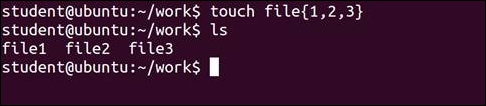
Curly braces allow you to specify a set of characters from which the shell automatically forms all possible combinations. To make this work, the characters to be combined with the given string must be specified as a comma separated list with no spaces:
$ touch file{1,2,3}
$ ls
$ mkdir directory{1,2,3}{a,b,c}
$ ls

$ touch file{a..z}
$ ls

The following is the summary of various io-redirection and logical operators:
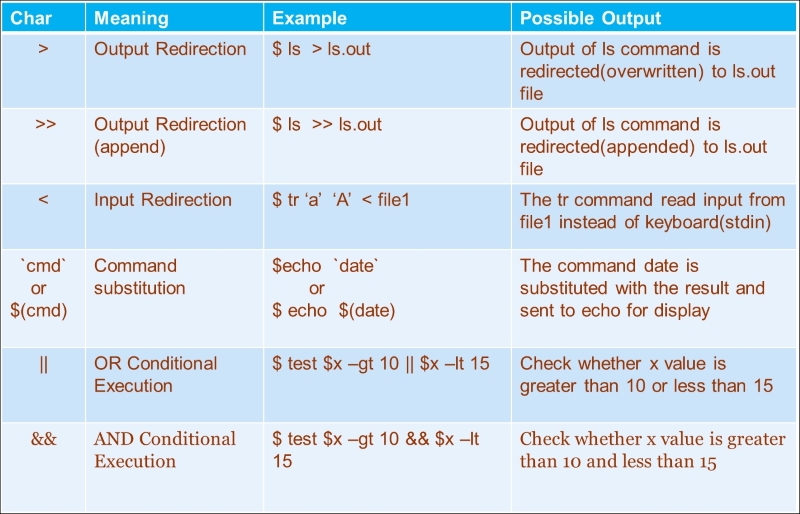
For example:
$ ls || echo "Command un-successful"
$ ls a abcd || echo "Command un-successful"
These commands will print Command un-successful if the ls command is unsuccessful.