Chapter 12
Identifying Fraud Using Abnormal Duplications within Subsets
The tests in this chapter are based on the assumption that excessive duplications within subsets are indicators of fraud and errors. Because there is always going to be some amount of normal duplication, and some level of abnormal duplication we have to review our results carefully to find the duplications that are there because of errors or fraud. Another way to focus on important results is to only look at duplications above a dollar threshold. The goal is to run tests where abnormal duplications are reasonably reliable indicators of fraud or errors.
The first test described in the chapter is a straightforward test to find duplicate records. Although duplicate payments with all fields being the same are rare in accounts payable, it is possible for duplicates to arise in other situations. For example, an employee might duplicate a purchase using a purchasing card. The second test is a little more complex in that we are looking for partial duplicates. The most valuable results from the partial duplicates test has been from identifying cases of the (a) same dollar amounts, (b) same date, (c) same invoice number, and (d) different vendors. These errors occur when the wrong vendor is paid first and the correct vendor is paid later. The third test quantifies the level of duplication within a subset. Subsets are then ranked according to their duplication measures. A formula is used to calculate the duplication measure.
The tests in this chapter are all are aimed at finding duplicates or near-duplicates within subsets. The subset duplication tests are demonstrated using the InvoicesPaid data table. The Access and the Excel steps needed to run the tests are demonstrated with explanations and screen shots. The tests are easier to run in Excel even though Access has some helpful duplication-related wizards.
The same-same-same test is the most basic of the within-subset duplication tests. The goal of this test is to identify exact duplicates. The test is called the same-same-same test regardless of how many fields are used to determine whether the records are duplicates. In the InvoicesPaid data table, the test was used to identify:
The same Amount
The same Date
The same Invoice Number
The same Vendor
Some creativity by the forensic investigator is needed to identify what would be an odd match. In one project an odd match could be an inventory file with the same product number and the same quantity on hand. In another project it could be the same frequent-flyer number getting the same mileage amount deposited twice in the same day (and not equal to the 500-mile minimum). In another project it could be a member of a hotel's preferred guest club staying at different hotels on the same date. In a warranty claims table it could be the same car showing the same odometer reading on two different dates. In an airline baggage claims table it could be multiple claims from the same address (although this was found to be normal in Puerto Rico where entire streets of people all have their mail delivered to one address, being the equivalent of a very big mailbox for the whole street). In another project it could be two candidates in an election getting the same number of votes in a precinct. In purchasing card data it could be cases where the same card has the same dollar amount charged more than once on the same date (which usually turns out to be a split purchase to keep under the control threshold). The person running the forensic analytics tests needs some creativity to create a test to identify duplicates that are anomalies. The same-same-same test, together with a little creativity, has been used to find abnormal duplicates in data tables relating to:
- Accounts payable
- Health insurance payments
- Property and casualty insurance payments
- Employee reimbursements
- Customer refunds
- Inventory
- Fixed assets
- Payroll files
Financial managers often claim that their systems have built-in checks for duplicate payments. Even if this is so, it is still important to actually test the controls. Duplicate payments could be frauds and are more likely to occur when the company has just started a new fiscal year, has changed accounts payable (AP) systems, or has acquired an entity and assumes responsibility for the AP function after the date of acquisition. One international conglomerate had several unconnected SAP systems for accounts payable. It was possible that one system processed the payment correctly and that payment was duplicated on another one of their systems.
The same-same-different test is a powerful test for errors and fraud. This test should be considered for every forensic analytics project. A few years ago an airline auditor reported at an IATA conference that his airline had found errors of about $1 million as a result of running this test on their accounts payable data. This was the same auditor mentioned in Chapter 10. His results were therefore $1 million from the RSF tests and another $1 million from the same-same-different test. In a recent forensic investigation of purchasing cards at a utility company this test showed several instances where two employees split the same purchase using different cards. This was a clever twist to the usual splitting the purchase and putting the charge on the same card. In the InvoicesPaid data table the test was used to identify:
The same Amount
The same Date
The same Invoice Number
Different Vendors
The test is called the same-same-different (abbreviated SSD) test regardless of how many fields are used to determine whether the records are near-duplicates. The usual test is run such that the different field is a subset field. We are therefore looking for transactions that are linked to two different subsets. The assumption is that one of the transactions is an error and should not have been linked to the second (different subset). The usual SSD report is to have each matching case on two rows in the results table. Some notes on the results and findings are outlined below.
- This test always detects errors in accounts payable data. The largest single error detected to date was for $104,000.
- The errors detected by the SSD test occur because the wrong vendor is paid first and then the correct vendor is paid afterwards (presumably after calling and asking for payment). Most system controls check to see whether that exact invoice was paid to the correct vendor but they seldom check the details against payments to other vendors.
- Organizations are at a higher risk for this type of error when vendors have multiple vendor numbers. Multiple vendor numbers are a control weakness and open the door for duplicate payments to that vendor.
- The likelihood of having detected duplicate payments is higher when the two vendor numbers are similar. For example, vendor #78461 and vendor #78416 suggests a keypunch error.
- Increasing the number of sames, to perhaps SSSSD is useful for very large data files where SSD or SSSD yields thousands of matches and forensic investigators want a smaller initial sample of highly likely errors. In a forensic investigation at a large conglomerate, an additional field (purchase order #) was added to the test to keep the number of matches to a manageable size.
- If an investigation shows many such duplicate payments, the forensic report should suggest system improvements to reduce the chances of this happening again.
- This test also works well to detect the same invoice being paid by different payment processing locations. Here the different field would be a processing location indicator.
The longer the time period, the higher the chances of SSD detecting errors. For any short period (say July 2011) it is possible that one payment was made in the month of July and the second payment was made in either June or August.
The logic to running these tests is not overly complex in Access. It is a little bit challenging to keep the relevant records together in the report. The match could be that we have two invoices for $1,964 on 11/03 for Vendor #83 and one invoice for $1,964 on 11/03 for vendor #34. The report should show that there are two invoices for Vendor #83 and one invoice for Vendor #34. This is a little complex in Access.
The Subset Number Duplication Test
The Subset Number Duplication (SND) test identifies excessive number duplication within subsets. This test works well in situations where excessive number duplication might signal that the numbers have been invented which might be a red flag for fraud. For example, assume that we have 30 state lotteries that require players to choose 6 numbers out of 49. In a data table of the winning numbers for each state we would expect an equal amount of number duplication in each of the 30 subsets. Each possible number should occur with a frequency of 1/49 for each subset. Abnormal duplications of any single number would indicate that the winning numbers were not random. The SND test could also be used with inventory data sets or election results where an excess of specific numbers might signal double-counting. This test uses the Nigrini Number Frequency Factor (NFF), which measures the extent of number duplication for each subset. This test was developed in my Ph.D. dissertation and was used to identify excessive duplications on tax returns. The formula is shown in Equation (12.1):

where ci is the count for a number where the count is greater than 1 (a count of 1 shows no duplication, only numbers that occur more than once are duplicated), and n is the number of records for the subset. Assume that a subset had the following numeric values, 505, 505, 505, 505, 505, 1103, 1103, 64, 37. The NFF would then be calculated as

The calculation in Equation (12.2) shows 52 and 22 in the numerator. This is because 505 occurred five times and 1103 occurred twice in the data, hence the 52 + 22. There were nine records in the subset, which is why the denominator is 92. The more the tendency toward all the numbers being the same (by increasing the 505s) the more the NFF will tend toward 1.00. If all the numbers are the same, the NFF will equal 1.00. If all the numbers were different, then the NFF would equal zero because the numerator will equal zero.
This test has detected a situation where an oil refinery's purchasing department purchased boots for employees (for around $40) repeatedly from the same supplier. Not only was boot use excessive but this was a case where the items could have been purchased in bulk and withdrawn from supplies as and when needed. In the same forensic investigation, the test detected excessive duplication in a vendor providing $600 helicopter rides to an oil rig. The view of the investigators was that employees that enjoy helicopter rides should pay for the rides with their own funds.
The SND test always finds repeated payments to the same supplier. In many cases these repeated payments are not always frauds or errors. For example, the test identified vendors where child support or alimony was paid to collection agencies (after being deducted from employee paychecks). The investigators then checked that the deductions were in fact being made from the employee paychecks. It would be a clever fraud if an employee in accounts payable got the company to pay their alimony payments without any deductions from their paychecks.
This test is open to some innovative twists. In one case it was used with purchasing card data where the card number and the date were concatenated (merged into one field). In Access the calculated field would, for example, be [CardNumber] & [Date]. The test identified cases where an employee made repeated purchases for the same dollar amount on a specific date. The most extreme case was an employee that made four payments of $2,500 to the same vendor (a hotel) on the same date. The amount of $2,500 was the dollar limit for card purchases and the four $2,500 purchases was really one $10,000 purchase.
A national office supplies and office services retailer ran this test against their sales data. The subset variable was employee number and the numeric amount was the total sales amount for each individual sale. The goal was to find employees who were repeatedly ringing up sales for (say) $0.10 and pocketing the difference between the real sales amount (say $16.00) and $0.10. The test identified several fraudulent cashiers.
Running the SND test is complicated in Access and requires a Join and the use of the Min and Max functions. Running this test in both Access and Excel is good practice for other complicated tests and queries. The test requires the forensic investigator to (a) Group By subset and also to identify the Minimum, Maximum, Count, and Sum for each subset, (b) to Count the number of times that each Amount occurs in each subset, (c) to square the count only when the count is greater than 1, (d) to Sum the squared counts for each subset, and (e) to link (a) and (d) using a Join. The final step is to sort the results in the report.
Running the Same-Same-Same Test in Access
Access has a Find Duplicates Query Wizard, which works well for this reasonably straightforward test. A problem with this wizard is that the duplicates are shown on two lines, and the triplicates on three lines and so forth. This causes a large results table for large data sets. The preferred method is to use Group By routines that will be good practice for other similar tests. The tests will be run on the InvoicesPaid data table. The test is designed to identify:
The same Amount
The same Date
The same invoice number (InvNum)
The same vendor (VendorNum)
Figure 12.1 shows the Access query that highlights the cases of the same vendor, date, invoice number, and amount. This query is preferred over the Find Duplicates Query Wizard and it also allows us to enter criteria such as ≥100 to keep the results table to a manageable size. We also have greater control on how the results are displayed (the order of the fields and the sort). The results are shown in Figure 12.2.
Figure 12.1 The Query to Identify the Same Vendor, Date, Invoice Number, and Amount
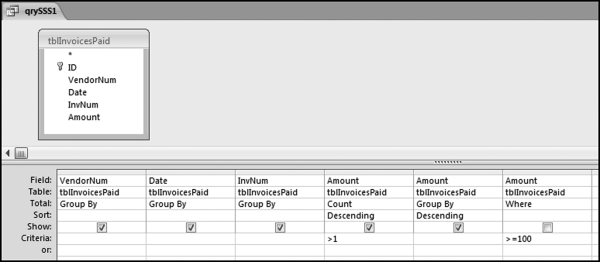
Figure 12.2 The Results of the Same-Same-Same Test
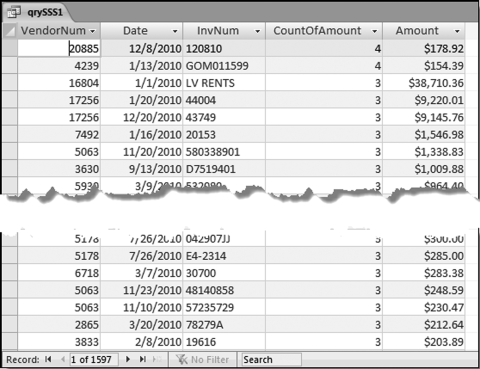
The results in Figure 12.2 show a large number of duplications. The results are sorted by the Count descending and then by the Amount descending. Amounts less than $100 are not included in the results to keep the results table to a manageable size.
Running the Same-Same-Different Test in Access
Access has a Find Unmatched Query Wizard that works reasonably well for the same-same-different test. A problem with this wizard is that we get some strange results when we have a group of three invoices with two of them being for the same vendor and the third invoice being for a different vendor. For example, we might have a pattern of x-y-z, x-y-z, and x-y-k in that we have three transactions of which two are Same-Same-Same and the third one differs in a Same-Same-Different (SSD) way from the first two invoices. The Access wizards do not report the whole story. The preferred method is to use Group By and Join routines that will be good practice for other similar tests. The test shown below is designed to identify
The same Amount
The same Date
The same invoice number (InvoiceNum)
Different vendors (VendorNum)
The first query identifies all the cases where we have the same Amount, the same Date, and the same InvNum. The VendorNum field will be used in the next query. The first query is shown in Figure 12.3.
Figure 12.3 The First Query in the SSD Test
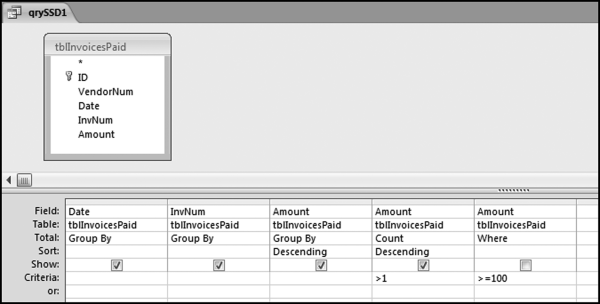
The query qrySSD1 in Figure 12.3 identifies all the groups of interest as the first step in the SSD test. The results show that we have 2,111 cases where we have the same Date, the same InvNum, and the same Amount. In some of these groups the vendors will be the same and in some cases the vendors are different (in which case they are exactly what we are looking for in this SSD test). The next query lists all of the transactions of these groups. The query to do this uses a somewhat complex Join. The second query is shown in Figure 12.4.
Figure 12.4 The Transactions that Match on Date, Amount, and Invoice Numbers
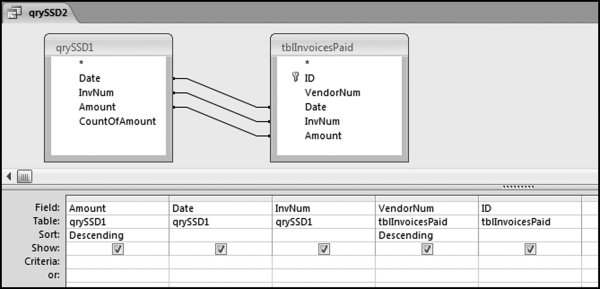
Figure 12.4 shows the transactions of the groups with the same amounts, dates, and invoice numbers.
Figure 12.5 The Results of the Matching Transactions
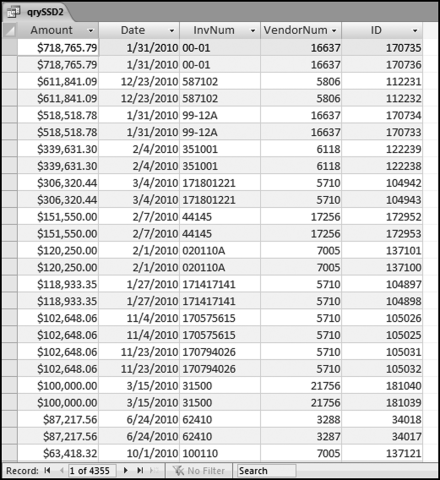
The second query qrySSD2 has extracted all the transactions of interest and the results are shown in Figure 12.5. In some cases the vendor numbers are the same and in some cases, they are different. In Figure 12.5 it can be seen that the first case of the vendor numbers being different is for the amount of $87,217.56, which is shown near the bottom of the table in Figure 12.5.
The next step is to get Access to identify those cases where the vendor numbers are different. This would be reasonably straightforward if we always had groups of two transactions and the vendor numbers were either always the same or always different. The issue, though, is to also identify cases where we have groups of three (or more) and two (or more) of the vendor numbers are the same and one is different. The programming logic will use the fact that for groups of three or more the first vendor number will differ from the last vendor number. The next step is to look at the groups and to identify the first vendor, the last vendor, and to indicate if they are equal. This is shown in Figure 12.6.
Figure 12.6 The Query to Identify the First Vendor and the Last Vendor
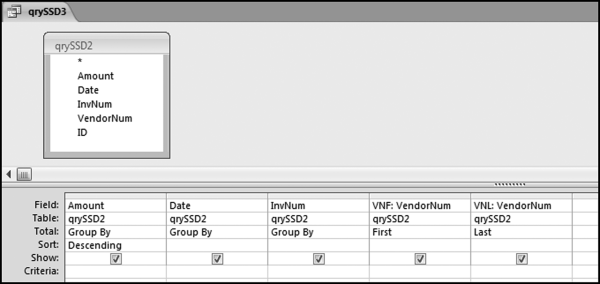
The query uses the First and Last functions in Access. The field names VNF and VNL are abbreviations for “Vendor Number First” and “Vendor Number Last.” The next step is to check whether the first and last vendor numbers are equal. This is done using an indicator variable in qrySSD4 as is shown in Figure 12.7.
Figure 12.7 The Query to Calculate Whether the First and Last Vendor Numbers Are Equal
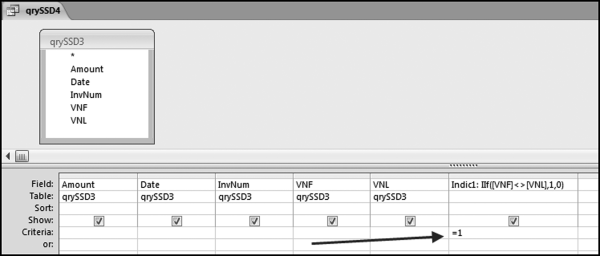
The query qrySSSD4 in Figure 12.7 uses an indicator variable to indicate whether the transaction groups have different starting and ending vendor numbers. The groups with different starting and ending numbers are our subsets of interest. The result of qrySSD4 is a table with 537 records. Each of these records represents a transaction group. The final query gets back to the original transactions so that we can see the details for the groups on successive lines (some groups have three records and others might even have four records).
Figure 12.8 The Final Query to Find the Same-Same-Different Transactions
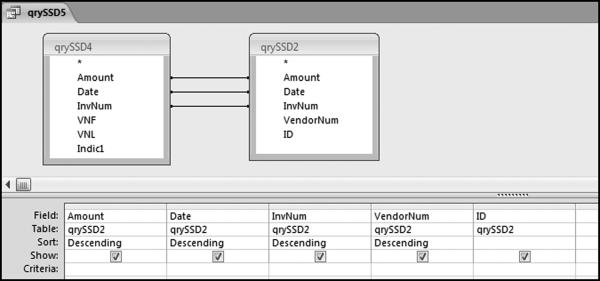
The final step is the qrySSD5 query shown in Figure 12.8. This query goes back to the second query and “fetches” the transaction details. The results are shown in Figure 12.9.
Figure 12.9 The Results of the Same-Same-Different Test
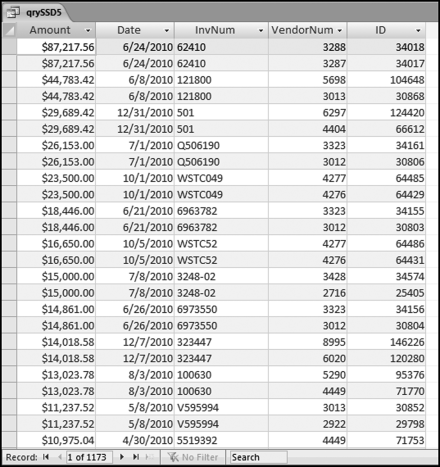
The results of the SSD test in Figure 12.9 show many possible recoverable errors. The sum of the Amount field for all 1,173 records is $1.65 million and on the basis that one payment is probably correct and the other payment in each group is possibly an error, we have identified about $800,000 in possible overpayments. There is a duplication of $23,500 with invoice WSTC49 and a duplication of $16,650 with invoice number WSTC52. These errors seem to be related and it seems that accounts payable personnel might be making several errors between two similar looking vendors. These errors are easy to make when a vendor is perhaps an international conglomerate with different divisions operating out of the same building (hence the same street address), using the same stationery, and selling similar products. If the invoice image can be retrieved then identifying the errors is made much easier. Some of the duplications could be the result of a fraud where an accounts payable employee purposefully pays the wrong vendor (who they know) and then pays the correct vendor. To look for abnormal duplications of vendors would require another query. The results of this query (not shown) are that one vendor does indeed appear in the results 17 times and two other vendors appear in the results 16 times. The transactions for these vendors require some additional scrutiny.
Running the Subset Number Duplication Test in Access
The SND test requires a series of queries. Our results table will show some subset details together with the calculated NFF for each subset. Those subsets with the most duplication (where all the numbers are the same) are shown at the top of the results table. The first query shown in Figure 12.10 collects some of the statistics shown in the results table.
Figure 12.10 The Query that Calculates the Statistics for the Final Results Table
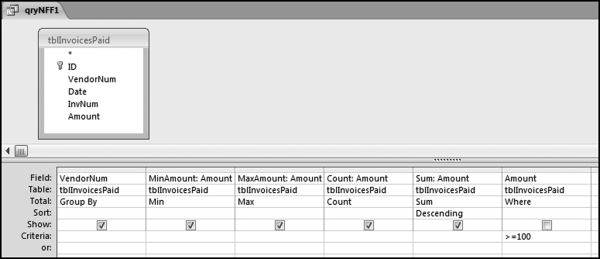
The results of query qryNFF1 in Figure 12.10 show that there are 9,424 vendors with amounts ≥$100. The >=100 criteria limits the results to duplications that might be worth investigating. Other forensic investigations using this test on small dollar amounts in purchasing card data found that the duplications were related to cafeteria meals for $6.25 and parking charges when employees at another location came to the head office building for meetings. Small dollar duplications are discarded in large data tables to keep the results to a manageable size. The next query starts the work needed to calculate the NFF values using the formula in Equation (12.1). The first step is to count how many times each different amount is used in a subset and this query is shown in Figure 12.11.
Figure 12.11 The Query to Calculate the Extent of the Duplication in Each Subset
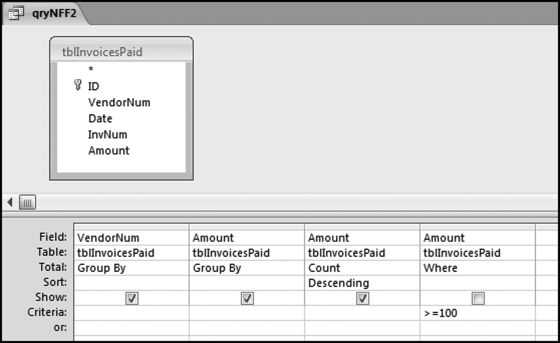
The query qryNFF2 in Figure 12.11 calculates the count for each Amount in a subset. The results are sorted by the Count descending, which gives us an early view of the duplications.
Figure 12.12 The Largest Counts for the Subsets
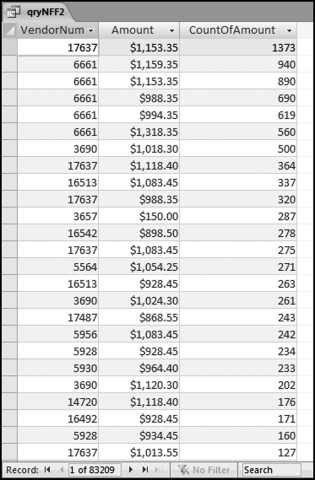
Figure 12.12 shows the duplications in the subsets. These results tie in with some previous findings. The first-order test in Chapter 5 indicated that we had an excess of number with first-two digits 50, 11, 10, 98, 90, and 92 with a slightly smaller spike at the psychological threshold of 99. The results in Figure 12.12 show many amounts with these first-two digits. The results in Figure 12.12 show the exact numbers and also show that many of these duplications occurred in the same subset. The last-two digits test indicated that we had an excess of numbers ending in 00, 50, 35, 40, 45, and 25. The results in Figure 12.12 show many numbers with last-two digits of 35, 40, and 45. These early results also show that we have lots of duplications for vendor 6661 with five of the first six rows having duplications for this vendor.
To calculate the NFF we need to square the CountOfAmount when the count is larger than 1 for the c2 term in the numerator of Equation (12.1). This condition requires the use of the Immediate If function and the query is shown in Figure 12.13.
Figure 12.13 The Query to Square the Counts
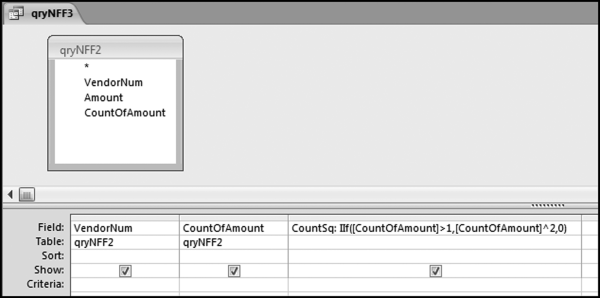
The Counts are squared using the qryNFF3 query in Figure 12.13. The formula is as follows:
CountSq: IIf([CountOfAmount]>1,[CountOfAmount]^∧2,0)
The result of the CountSq formula will be a CountSq of zero for a count of 1 and a CountSq of the count squared for counts larger than 1. The next step is to Sum the CountSq values. This is done using the query shown in Figure 12.14.
Figure 12.14 The Query to Sum the CountSq Values
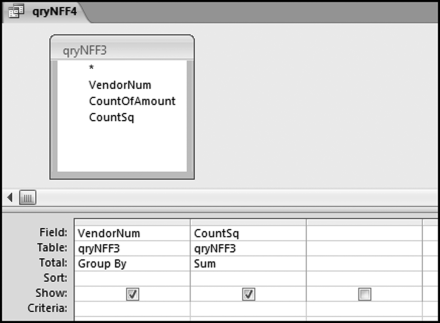
The sums of the CountSq values are calculated using the query qryNFF4 shown in Figure 12.14. The query works well because there is a record for each vendor, even if the sum is zero. The results show 9,424 vendors, which agrees with the results of qryNFF1. It is important to check that no subsets or records get lost along the way in a series of queries. The final NFF calculation is to combine the results of the first and fourth queries and this is done in Figure 12.15.
Figure 12.15 The Query to Calculate the Final NFF Scores
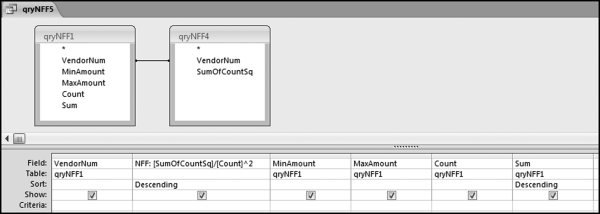
The query to calculate the final NFF scores is shown in Figure 12.15. The NFF calculation is as follows:
NFF:[SumOfCountSq]/[Count]^∧2)
The results are shown in Figure 12.16. There is one record for each subset (each vendor). The results are limited to vendors with one or more amounts greater than or equal to $100.
Figure 12.16 The Results of the Number Duplication Test
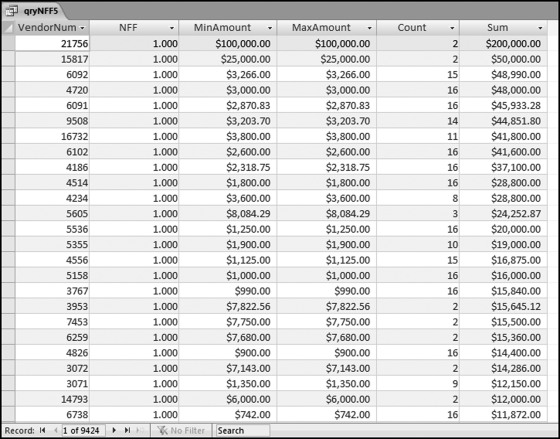
The results of the SND test are shown in Figure 12.16. The subsets with a NFF of 1.00 are shown at the top of the list. There are 311 subsets with NFFs equal to 1.00. This is a large list to scan and audit. The second sort is by Sum descending. The results where the Count equals 2 are not terribly interesting and qryNFF5 could be updated to omit these subsets in the final results. Also, subsets with NFFs equal to zero (meaning that all the numbers were different) could also be omitted from the results. Counts of 12 are common for annual data. Perhaps the most anomalous results above are those cases with counts of 16 and this might be the starting point in a forensic investigation. The remaining duplications can be selectively audited because overpayments are quite likely with repetitive purchases. The review would be made easier if the vendor name and address was included in the results.
Running the Same-Same-Same Test in Excel
It would seem that Excel's pivot table capabilities would be well-suited to running the Same-Same-Same test. This is not true because of the long processing time when Excel has to group by more than one field and also the fact that pivot table output is produced in a rather inflexible pivot table format. It is easier to use some cleverly thought out calculated fields. Using the InvoicesPaid data the test is designed to identify:
The same Amount
The same Date
The same invoice number (InvNum)
The same vendor (VendorNum)
The initial step is to sort the data by VendorNum, Date, InvNum, and Amount ascending (smallest to largest). Once this is done, the first series of formulas to run the test are shown in Figure 12.17.
Figure 12.17 The Calculations to Identify the Duplicates in the Data
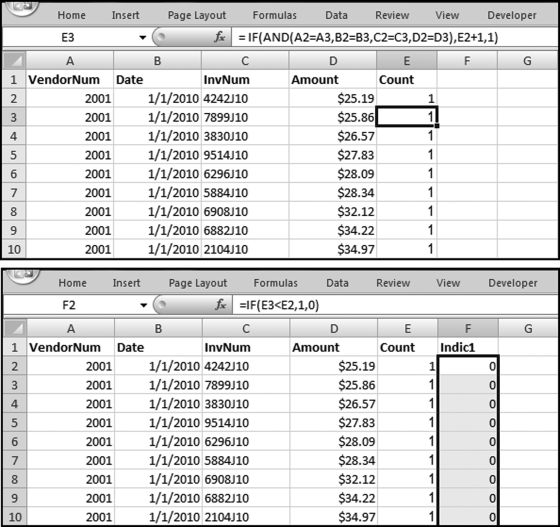
The formulas in Figure 12.17 identify the duplicates in the Invoices data. The formula in column E is basically a counter that counts how many times a row has been duplicated. The formula in column F indicates when the highest number in the series has been reached. The formulas are as follows:
E2: = 1
E3: = IF(AND(A2 = A3,B2 = B3,C2 = C3,D2 = D3),E2+1,1)[copied to the last row]
F2: = IF(E3<E2,1,0)[copied to the last row]
The formula in the Count column starts counting upward (1, 2, 3, . . .) when it sees that the current row is the same as the prior row. The formula in the Indic1 column indicates when the highest count has been reached for a particular group. Our duplicates will be those cases where the current row is equal to a prior row and we have reached the highest count for the group. These cases will have Indic1 equal to 1.
The formulas in columns E and F need to be converted to values. This is done by highlighting the columns and then using the familiar Copy and Home→ Clipboard→Paste→Paste Values. Even though the zeroes in column F are now just in the way, we do not have to delete the column F zeroes. We can use a filter to show only the nonzero records. This is done by highlighting cell A1. Then click Insert→Tables→Table. Excel automatically senses the location of the data. Click OK. The filter is activated by clicking on the drop-down arrow in Indic 1 and we can now use a filter as is shown in Figure 12.18.
Figure 12.18 The Filter to Display Only the Records Equal to 1.00
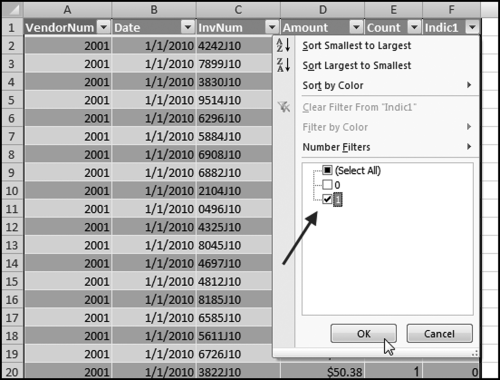
Select the check box for the records equal to 1.00. Click OK. The next step is to sort by Count descending and then by Amount descending using Home→Editing→Sort & Filter→Custom Sort. The final step is to filter on Amount, keeping only the records where the Amount is ≥100.00. This is shown in Figure 12.19.
Figure 12.19 The Filter to Display Only Amounts ≥$100.00
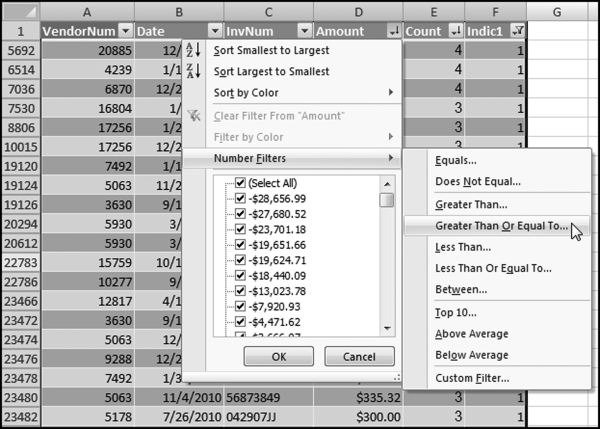
The final filter to display only Amounts ≥$100.00 is shown in Figure 12.19. The final result is shown in Figure 12.20. The results match the Access results in Figure 12.2.
Figure 12.20 The Final SSS Results in an Excel Table
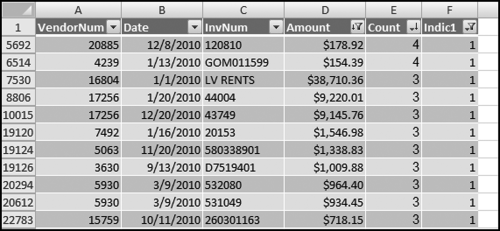
The Excel procedure seems like more work than would be the case in Access using the duplicates wizard. It is true that the Excel procedure must be started with a sort, whereas the Access wizard does not need to work on sorted data. The formulas in Figure 12.17 do require some work to see that they are correct and are copied down to the last row. The remaining Excel steps consist mainly of formatting the output and keeping only the higher value records in the final result. These are formatting steps that would still need to be run after using the Access wizard. The fact that the Excel results can be easily manipulated (e.g., by changing the high-value dollar amount) make Excel the preferred way to run this test.
Running the Same-Same-Different Test in Excel
It would seem that this would be a difficult test to run in Excel. The test uses five queries in Access and Access has some powerful Group By and Join capabilities that Excel does not have. The answer is that Excel can run this test quite easily because of its ability to do calculations that involve the preceding and succeeding rows. The test makes use of that fact and the IF, AND, and OR functions. Using the InvoicesPaid data the test is designed to identify
The same Amount
The same Date
The same invoice number (InvNum)
Different vendors (VendorNum)
The first set of formulas are similar to those for the Same-Same-Same test, except that we are looking for matches on three columns. The first step is to move the VendorNum field to the last column and to do a sort by,
Date Ascending
InvNum Ascending
Amount Ascending.
VendorNum Ascending
Once the data has been sorted the first series of formulas to run the test are entered. These formulas are shown in Figure 12.21.
Figure 12.21 The Excel Formulas for the Same-Same-Different Test
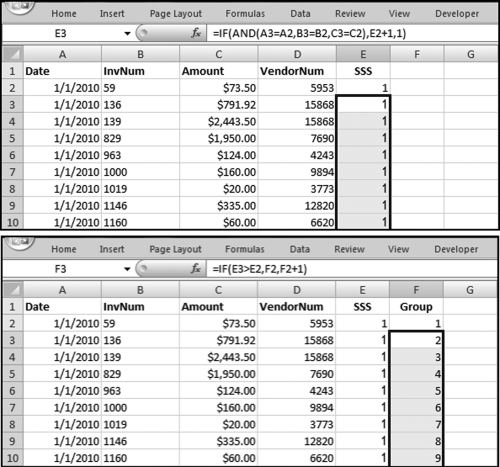
The first set of formulas for the same-same-different test is shown in Figure 12.21. The SSS (for same-same-same) indicator in column E starts a count for the number of same-same-same cases ignoring the Vendor field. A count of 2 or more in the SSS field means that we have one or more duplicates. The Group field in column F starts numbering the groups with a 1, 2, 3, and so on. If group #78 has 4 records the formula would show 1, 2, 3, and 4 on four successive rows. The formulas are as follows:
E2: = 1
E3: = IF(AND(A3 = A2,B3 = B2,C3 = C2),E2+1,1)[Copy down to the end]
F2: = 1
F3: = IF(E3>E2,F2,F2+1)[Copy down to the end]
The next formula indicates whether there are different vendors in any Group. If the vendors do change then this is exactly what we are interested in because we are identifying groups with different vendors. The formulas for column G are shown in Figure 12.22.
Figure 12.22 The Formula to Identify a Change in the Vendor Field
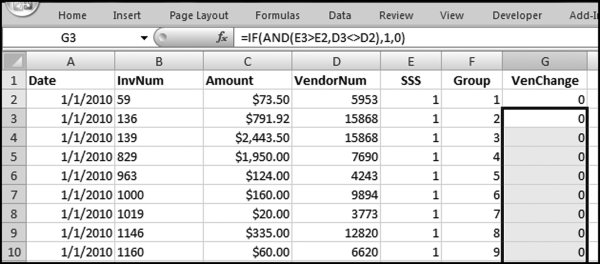
The formula in Figure 12.22 indicates whether there has been a change in the vendor for a specific group. The formulas are
G2: = 0
G3: = IF(AND(E3>E2,D3<>D2),1,0)[Copy down to the end]
At this stage a “1” in the VenChange field means that we have a group with one or more duplicates and that the vendor number has changed. We have a group that has the same dates, invoice numbers, amounts, and a change in vendors. The vendor change can occur with the second record for any group or it can happen with the last record. The fact that the vendor change can happen at any record after the first record makes it difficult to extract all the groups of interest. The next formula causes the last record for each group to have the “1” if there is a vendor change. The formula is shown in Figure 12.23.
Figure 12.23 The Formula to Indicate the Last Record for Each SSD Group
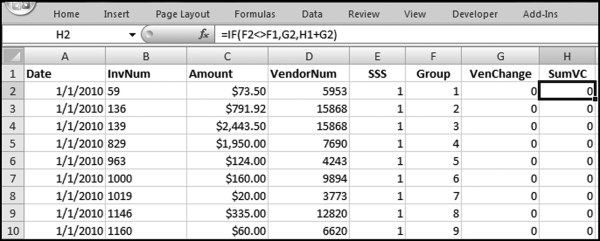
Figure 12.23 makes sure that there is an indicator on the same row as the last record for a group if that group has a vendor change. The formula for the SumVC field in column H is
H2: = IF(F2<>F1,G2,H1+G2)[Copy down to the end]
Figure 12.24 shows the formula in the SSSD field in column I for showing an indicator only in the last row of any group that has a vendor switch. The prior formula could have had indicators in the last row and in some of the other rows of any group (where there was a vendor change).
Figure 12.24 The Formula to Make an Indicator Only in the Last Row of Each Group
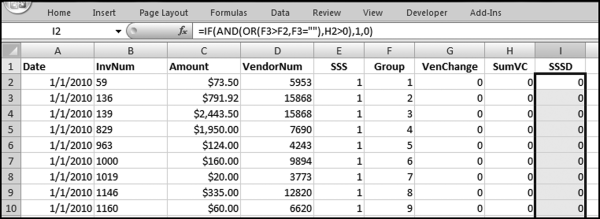
The formula in Figure 12.24 is used to make sure that we only have an indicator in the last row of any group of interest. The formula is
I2: = IF(AND(OR(F3>F2,F3 = ″″),H2>0),1,0)[copy down to the last row]
The final calculating step is to place indicators in all the rows of any group of interest.
Figure 12.25 The Formula to Insert Indicators on All the Rows
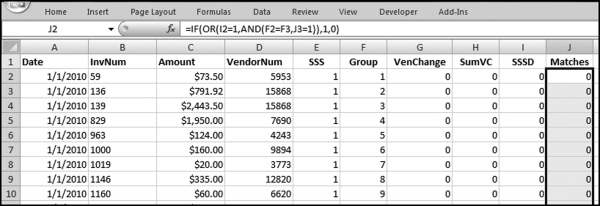
Figure 12.25 shows the formula used to enter a “1” in the Matches field in column J on each row of each group of interest. The formula is
J2: = IF(OR(I2 = 1,AND(F2 = F3,J3 = 1)),1,0)
The calculations are now done and the next steps are to report the results neatly without unneeded columns or rows. The next step is to copy the entire data table to a new worksheet. The creation of a copy is done by right clicking on the worksheet tab and then clicking Move or Copy and then checking Create a Copy. Once the copy has been created then all the formulas should be converted to values using the familiar Copy and Home→Clipboard→Paste→Paste Values.
The next step is to delete the unneeded columns E, F, G, H, and I. The worksheet should then be sorted by
Matches Descending
Amount Descending
Date Ascending
InvNum Ascending
VendorNum Ascending
To tidy up the result we should format the worksheet as a table using Home→ Styles→Format As Table→Table Style Medium 2.
The final step is to filter on Matches =1, and Amount ≥100.00 to give the result in Figure 12.26.
Figure 12.26 The Excel Results of the Same-Same-Different Test
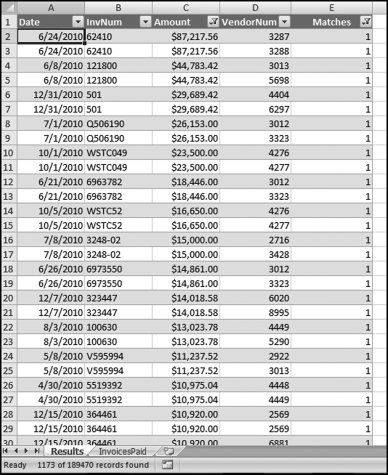
The same-same-different results of Excel are shown in Figure 12.26. The information bar at the bottom of the page shows that the record count agrees with the Access results in Figure 12.9. The Excel procedure again seems like much more work than would be the case in Access using the duplicates wizard. There are six calculated fields that need to be carefully entered and copied down to the last row. The remaining Excel steps consist mainly of sorting and formatting the output and keeping only the higher value records in the final result. Once again, the fact that the Excel results can be easily manipulated (e.g., by changing the high-value dollar amount) makes Excel the preferred way to run this test. Also, the Excel results can be sent to internal audit or corporate risk management and they can be viewed without the user needing Access or needing to know how to run an Access report.
Running the Subset Number Duplication Test in Excel
This test generally only uses Amounts ≥100 to keep the results to a manageable size. Any dollar filter for this test should be applied at the start. An efficient way to do this is to sort the data table by Amount descending and then to delete all the records less than $100.00.
Figure 12.27 The Step to Delete All Records Less than $100.00
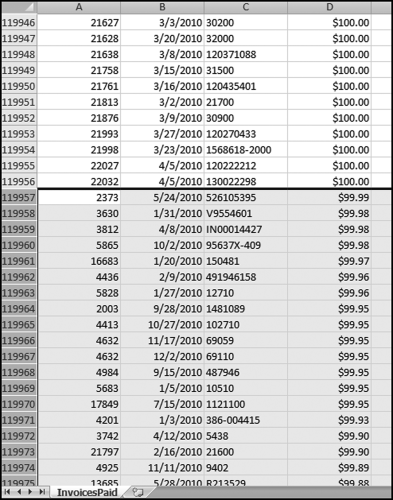
Figure 12.27 shows the method used to delete all the records less than $100.00. The records from row 119957 to the end of the page are highlighted using Control+ Shift and the Down Arrow. Press Delete to delete the records.
The next step is to delete the Date and InvNum fields. These are not used for the calculations and our worksheet will have a neater format and smaller file size.
The next step to begin the calculations is to re-sort the data by
VendorNum Ascending
Amount Ascending
The first calculation is to enter “1” in C2 and then to enter a formula in C3 that counts the number of records in each subset. The second calculation is to enter “1” in cell D2 and then to start a count in D3 when duplicate numbers are found. The formulas are shown in Figure 12.28.
Figure 12.28 The Formulas to Count the Records and the Duplications
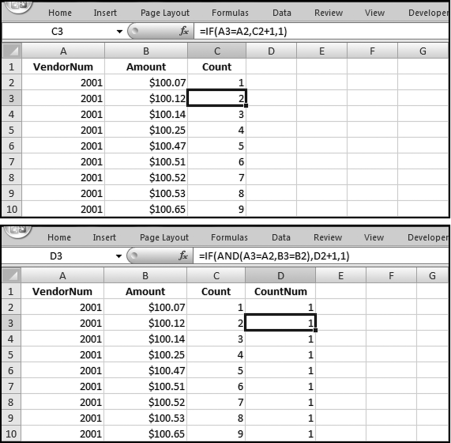
The two counters are shown in Figure 12.28. The formulas are
C1: =1
C2: =IF(A3=A2,C2+1,1)
D1: =1
D2: =IF(AND(A3=A2,B3=B2),D2+1,1)
The next steps are to square the counts and to sum the squared counts. The numerator in Equation (12.1) shows that the counts must be squared and the squared counts must be summed.
Figure 12.29 The Formulas Used to Square the Counts and to Sum the Squared Counts
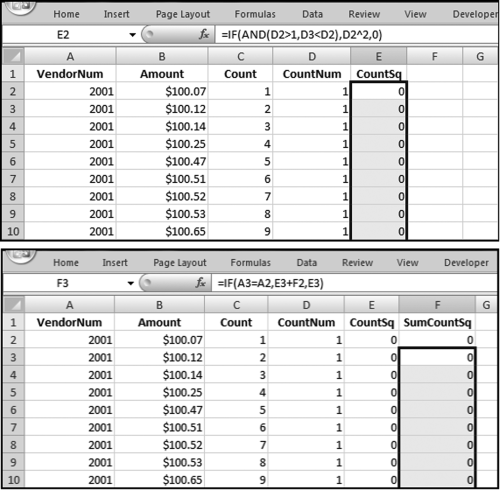
The formulas used to square the counts and to sum the square counts are shown in Figure 12.29. Care needs to be taken to square only the largest count for each duplicated number. The formulas are
E2: =IF(AND(D2>1,D3<D2),D2^2,0)
F2: =E2
F3: =IF(A3=A2,E3+F2,E3)
The formulas above square the counts and sum the squared counts. The E2 and F3 formulas need to be copied down to the last record. The remaining part of the formula is the denominator in Equation (12.1). This formula needs to square the count for each subset.
Figure 12.30 The Formula to Square the Count
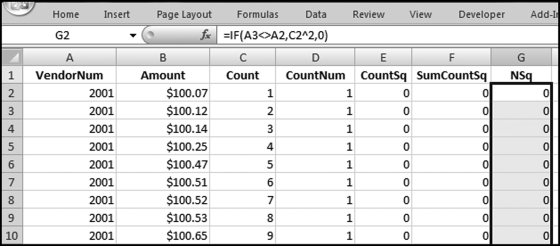
The formula used to square the count for each subset is shown in Figure 12.30. The formula is
G2: = IF(A3<>A2,C2^∧2,0)
The formula needs to be copied down to the last row. The next series of formulas calculates descriptive statistics that will be included in the output. The formulas calculate the minimums, maximums, and sums for each subset. The formulas are more complex than normal because a vendor can have one record or it could have more than one record.
Figure 12.31 The Formulas for the Descriptive Statistics
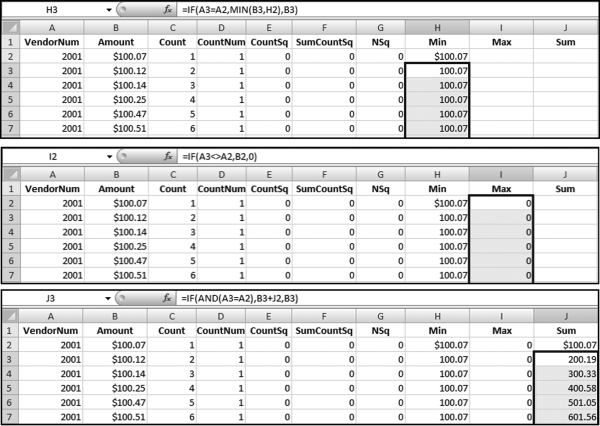
The formulas used for the descriptive statistics are shown in Figure 12.31. The formulas are as follows:
H2: =B2
H3: =IF(A3=A2,MIN(B3,H2),B3)
I2: =IF(A3<>A2,B2,0)
J2: =B2
J3: =IF(AND(A3=A2),B3+J2,B3)
The formulas in H3, I2, and J3 should be copied down to the last row, which in this case is row 119956. The final two steps are to calculate the NFF as shown in Equation (12.1) and also to place an indicator in the last row for each subset. The formulas are shown in Figure 12.32.
Figure 12.32 The Formula for the NFF Calculation
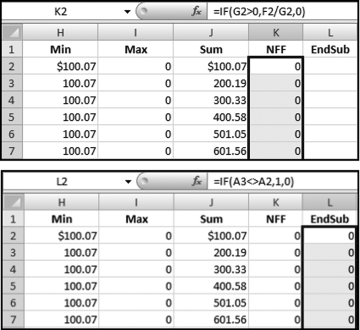
The formula used for the NFF calculation and the formula to indicate the last record for each subset is shown in Figure 12.32. The formulas are
K2: = IF(G2>0,F2/G2,0)
L2: = IF(A3<>A2,1,0)
The formulas should be copied down to the last row, which in this case is row 119956. The worksheet now has everything needed to report the NFFs. The next steps all involve preparing the NFF report. The starting step could be to format K2:K119956 as numeric showing 3 decimal places. The next step is to convert all the formulas in C2:L119956 to values by using the familiar Copy followed by Home→ Clipboard→Paste→Paste Values.
The next step in the report's preparation is to delete the unneeded columns. These unneeded columns are C, D, E, F, and G.
It is possible to filter the results so that only those rows are displayed where EndSub equals 1. The preferred step is to actually delete the rows that are not needed. This will give a smaller file size if the results are being sent by e-mail or are included in a set of working papers. To delete the unneeded rows, the results should be sorted by EndSub descending and the rows where EndSub = 0 should be deleted. This will give a final table with 9,425 rows.
The next step is to delete the EndSub field, which is column G. The field is no longer needed because all the rows have EndSub = 1.00.
The final step moves the most important results to the top of the table. This is done by first sorting on NFF descending, followed by Sum descending. As a final touch, the results can be formatted as a table using Home→Styles→Format as Table→Table style Medium 2. This will give the result in Figure 12.33, which matches Figure 12.16.
Figure 12.33 The NFF Table in Excel
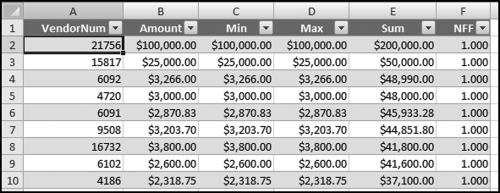
The NFF results are shown in Figure 12.33. The results can be saved to a file for the forensic working papers or the results could be e-mailed to accounts payable or corporate risk personnel for follow-up work. It is more complex to run this test in Excel.
This chapter described three tests related to finding excess duplications within subsets. The assumption underlying these tests is that excessive duplications could be due to fraud or error or some other type of anomaly. The tests can be designed so that the discovery of a duplicate does signal an issue of some sort. It is not abnormal for the same person to charge two equal amounts to a credit card for courier charges on the same day (especially if it is a minimum flat-rate amount), but it would be unusual to charge exactly $113.64 twice for gasoline in the same day or to pay two hotel bills from different hotels on the same day.
The first test looked for exact duplicates and in an accounts payable context this might indicate a duplicate payment. In a purchasing card context this might indicate a split purchase (which is a contravention of an internal control), and in an “election results” context it might mean that that one person's votes were erroneously entered again as the votes of some other person.
The second test was called the same-same-different test and this test looked for near duplicates. In an accounts payable context this would occur if an invoice was erroneously paid to one vendor and then correctly paid to another vendor. In a purchasing card context a near-duplicate might indicate a split purchase where the purchase was split between two cards. This test, in carefully thought out circumstances, usually delivers valuable results.
The third test described in the chapter quantifies the level of duplication within a subset. The subsets are then ranked according to their duplication measures. A formula is used to calculate the Number Frequency Factor duplication measure.
The tests in this chapter are all aimed at finding duplicates or near-duplicates within subsets. The Access and the Excel steps needed to run the tests are demonstrated using explanations and screen shots. The tests are slightly easier to run in Excel even though Access has some helpful duplication-related wizards. One advantage of Excel is that the results can be viewed by another user without that user having access to Access.