
Chapter 2
Using Excel in Forensic Investigations
This chapter reviews the features of Excel 2007 (Excel) that make it an especially useful tool for forensic analytics. Excel is a software program that allows us to populate a rectangular grid called a worksheet with numbers, text, and images. Excel 2007 uses the new ribbon interface. Excel can perform many tasks and most users probably use less than 20 percent of the program's functionality. Even a forensic analytics project only requires some small part of all the capabilities of the program. Some of the main tasks that will be done with Excel in a forensic analytics environment are:
- Importing and accessing data from sources such as Access databases and government and corporate websites.
- Storing data in an easily retrievable format.
- Performing calculations related to the forensic analytic tests described in the later chapters.
- Grouping data and calculating statistics (such as sums or counts) on a per-group basis.
- Creating graphs that give insights into forensic matters.
- Interfacing seamlessly with Word and PowerPoint.
This chapter reviews some features that are useful in a forensic analytics context. These features include data import, worksheet formatting, protecting the worksheet's contents, and using Excel results in a Word document or a PowerPoint presentation. The formulas and techniques used to run the tests are described (with screenshots) in Chapters 4 through 17. The next section describes some pitfalls in using Excel.
The fact that Excel has several hundred million users supports the belief that Excel is an excellent product. In many cases Excel has been made to do a task that it was clearly not designed to do. One federal government agency used Excel to prepare a template for a purchasing order. Even though Excel is widely used, there are issues that we need to be aware of from a forensic analytics perspective. The start of the discussion is a review of the four major phases in a data-driven forensic investigation. The four main steps are:
1. Data collection. In this phase the relevant data are obtained (sometimes with difficulty from overprotective human resources or marketing departments), imported into Access or Excel, and stored. Obtaining data is often challenging and from time to time internal auditors and forensic auditors are faced with departmental managers using every stalling trick at their disposal.
2. Data preparation. This is where the data cleansing or data scrubbing takes place. This involves the detection and correction (or removal) of corrupt or inaccurate records from the data tables. The step identifies incomplete, incorrect, inaccurate, or irrelevant parts of the data and the replacement, modification, or deletion of some or all of the data. This step is usually done before data is sent to a data warehouse. An example of data cleansing is shown in the pollution statistics example in Chapter 13 where (a) subtotals were removed, as is commonly needed with government data, (b) countries with zero or very low emissions were removed because they were not really relevant to the research question (this step actually deleted about two-thirds of the countries in the table), (c) some geographic changes were made to keep the data consistent despite changes in national borders (e.g., by adding East and West Germany for 1988 and 1989 and naming the country “Germany”), (d) the data was put in a relational database table format as is shown in Chapter 1.
3. Data analysis. In this step the tests outlined in Chapters 4 through 18 are applied. The tests are designed to identify outlier records that stand out from the crowd in some way. These tests also involve various types of summaries, calculations, groupings, and comparisons.
4. Reporting. In the final phase the results of the analysis are reported to a select audience. The results could include tables, graphs, charts, and selected records. In a forensic setting, care needs to be taken to allow only the level of visibility that is appropriate for the audience and to prevent the audience from changing the contents of the reports.
Figure 2.1 shows a complex marketing spreadsheet prepared at a pharmaceutical company. The 42 MB Excel spreadsheet has four worksheets with thousands of rows and columns of data. The final results are shown on the worksheet that is currently visible.
Figure 2.1 The Final Report of a Marketing Analysis Performed at a Pharmaceutical Company
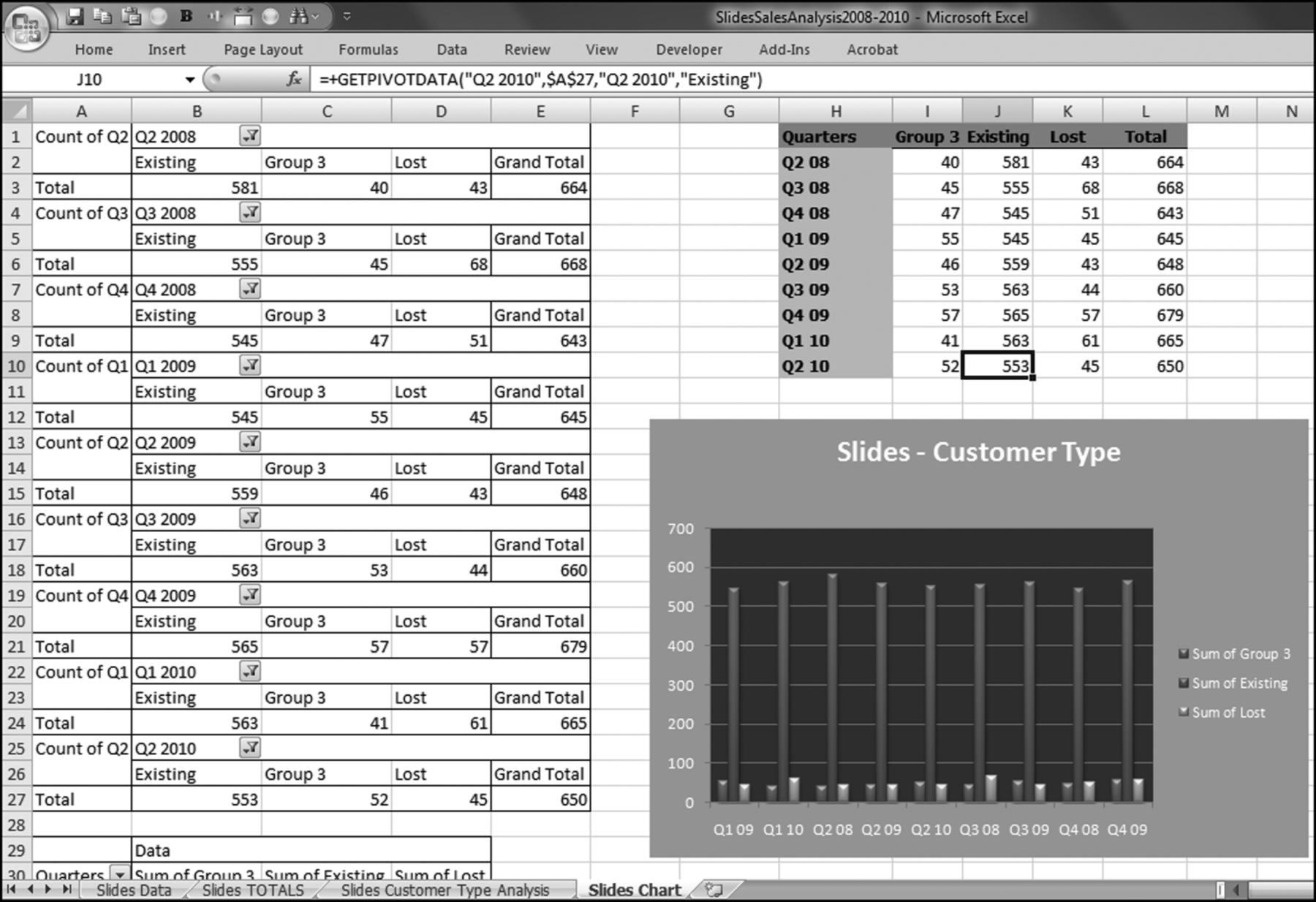
A complex 42 MB Excel spreadsheet is shown in Figure 2.1. The spreadsheet used complex formulas including multiple IF statements combined with the AND function, Excel's graphing capabilities, totals and subtotals, grouping, pivot tables, and conditional formatting were among the functions used. This was an excellent piece of work but some issues need to be raised with respect to using Excel as the main tool in any complex application.
Excel is now limited to 1,048,576 rows and 16,384 columns. The rows and column limits are 220 and 214 for anyone who might be interested in the basis of the numbers. Although this might at first seem like all the rows and columns that anyone would ever need, it does present a scalability problem in some cases. Large data tables related to earth science data easily exceed 1 million records. Also, for data tables where the transactional amounts are small (e.g., coupon redemptions for a large consumer goods company) the number of records could easily exceed 10 million. Excel has size limitations and for applications that are likely to exceed this limit, it is best to start the forensic analytics project in Access or IDEA (see www.caseware.com). Even though all the rows and columns exist, it does not mean that they can all actually be used in the same project. The “Not Enough Memory” message will be displayed long before the data fills all of the 1 million rows and 16,000 columns. The memory limit for Excel is 2 GB. This memory limit is for all of Excel and so with two large Excel files open, a third (smaller) file might not function because of the combined resources exceeding the 2 GB limit.
Excel users generally love the flexibility of the program. The cells in Figure 2.1 contain labels, data, calculated fields, and a graph. An Excel worksheet can also include text and images and almost anything else that can make it into the clipboard. The other worksheets in Figure 2.1 include named ranges, complex IF formulas, pivot tables, filters, and Excel's grouping capabilities. The final result is a complicated system of dependent calculations, linked cells, hidden ranges, and conditional formatting that link together to form the final product. This complicated system has the drawback that there is no transparency of analytical processes. It is extremely difficult for someone else (or even the spreadsheet creator) to know what is actually happening in the spreadsheet. Auditing such a spreadsheet is extremely difficult and recent years have seen the introduction of the term spreadsheet risk to describe the risk of faulty decisions being made on the basis of errors that have crept into spreadsheets. Programs such as Access, SQL Server, and IDEA improve transparency by having tables, queries, and reports clearly separated. Those programs also have comprehensive documentation capabilities for the database objects.
Linked to the transparency issue is the fact that Excel mixes up the data and the results of the analysis. If the cursor was not in cell J10 and the formula was not visible in the formula bar, we would have no way of knowing whether the “553” was a data field value or the result of a calculation. As it stands, cell J10 is a formula that displays the “553” result. Access keeps tables, queries, and reports separate and we always know whether we are looking at data or the results of calculations.
Finally, as processes become more complex and more users want more information from the same Excel tool, it is inevitable that users will try to upgrade the spreadsheets to do just one more task. This will involve more creativity and even more complexity and more results will become interrelated adding to spreadsheet risk. Access allows users to add more tables, queries, and reports in a systematic way without disturbing the current calculations and relationships. Access databases can more easily accommodate additions and changes precisely because of the separation of tables, queries, and reports, and the required format of the database of tables.
One final situation where Access comes out ahead of Excel is that Access can support multiple users. It is quite unremarkable to see two librarians in a library each checking out and checking in books and logged on to exactly the same system. Excel was not designed with collaborative updating in mind. Admittedly though, collaborative updating is not really an issue in forensic analytics.
The normal situation in a forensic analytics environment is that transactional data is imported into Excel. This is generally an easy matter using the Data→Get External Data series of steps. Some caveats should be mentioned and the first of these is that the data set should be complete. It is a serious flaw in any analysis to be working with incomplete data. Forensic investigators should be especially wary of Excel data tables with exactly 16,284 or 65,536 rows. An example of this is shown in Figure 2.2.
Figure 2.2 An Example of a Data Table with Exactly 16,384 Records
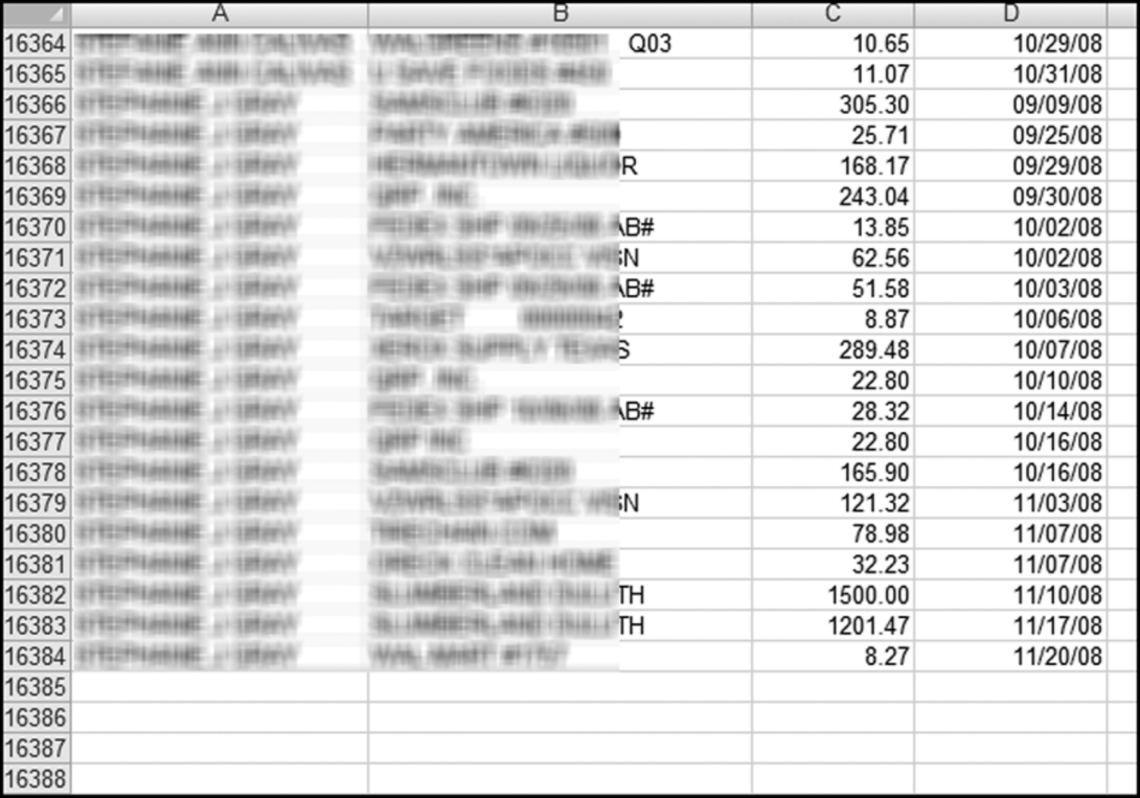
A purchasing card data table with exactly 16,384 records is shown in Figure 2.2. Chapter 18 includes a case study of an analysis of purchasing card data. A data set with exactly 16,384 or 65,536 records occurs when the source system exports the data in an Excel format and that system is programmed to keep to either 16,384 or 65,536 records because that is what it thinks is the row limitation for Excel files. This limitation also occurs when the Copy and Paste sequence is used to copy from Access to Excel.
There are two solutions to the row-limitation problem. The first solution to the 16,384/65,536 problem is to have the source system download the data as a text file. The fields can be comma delimited (a .csv file) as long as none of the field values actually include commas (e.g., Boggs International, Inc.). If the field values do include commas, then tab delimited or fixed width should work fine. The second solution to the 16,384/65,536 problem is to import the data into Excel from Access as opposed to using a Copy and Paste to copy the data from Access and to paste it into Excel. This is done by using Data→Get External Data→From Access.
Figure 2.3 Importing Data into Excel from Access
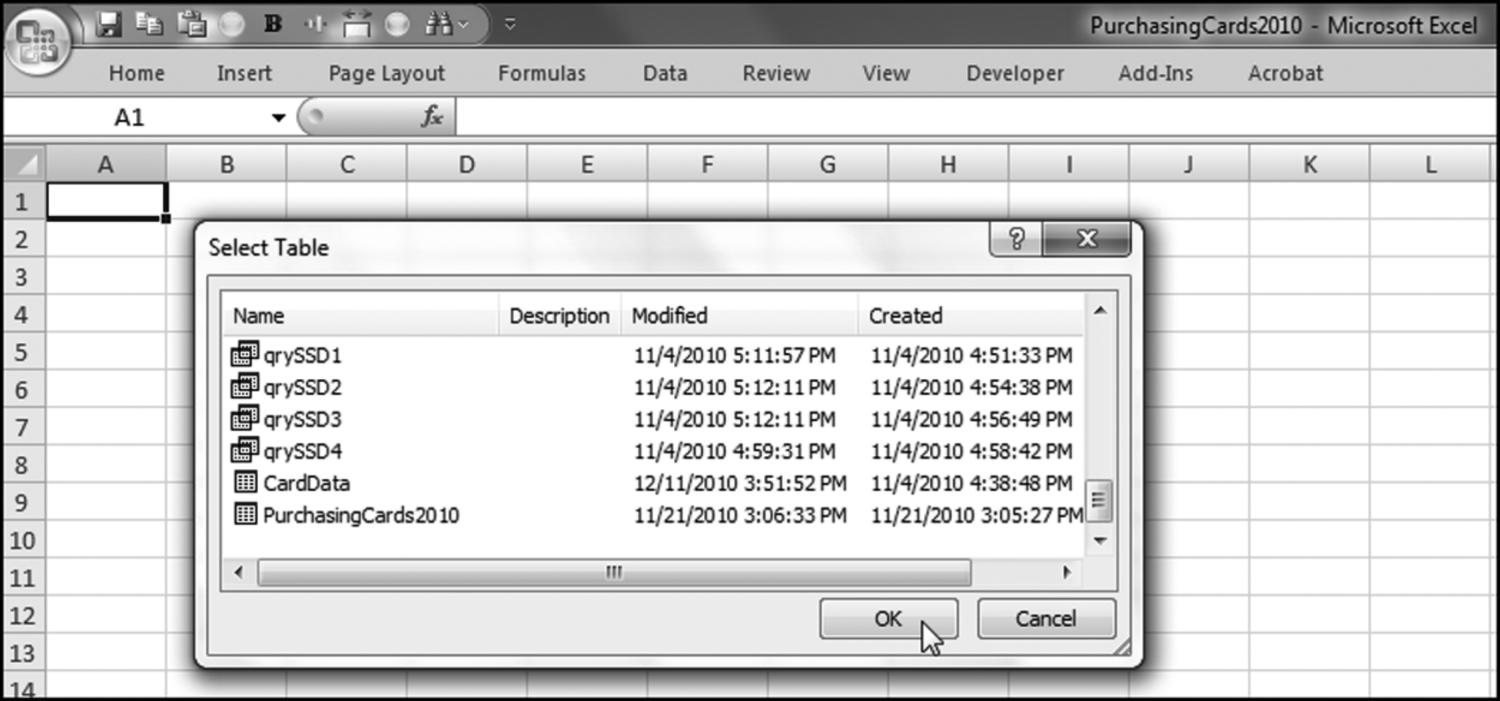
Figure 2.3 shows the step where a specific table is selected in the Access database. This process imports the Access data from Access into Excel. This process will import all the records that can fit into an Excel file (maximum of 1,048,576 rows). The data import step also formats the data as an Excel table. Two further steps are needed in a forensic analytics environment. First, the data needs to be “disconnected” from the Access source so that the Excel file is independent of the Access source.
Figure 2.4 Removing the Connection to the Original Access Database
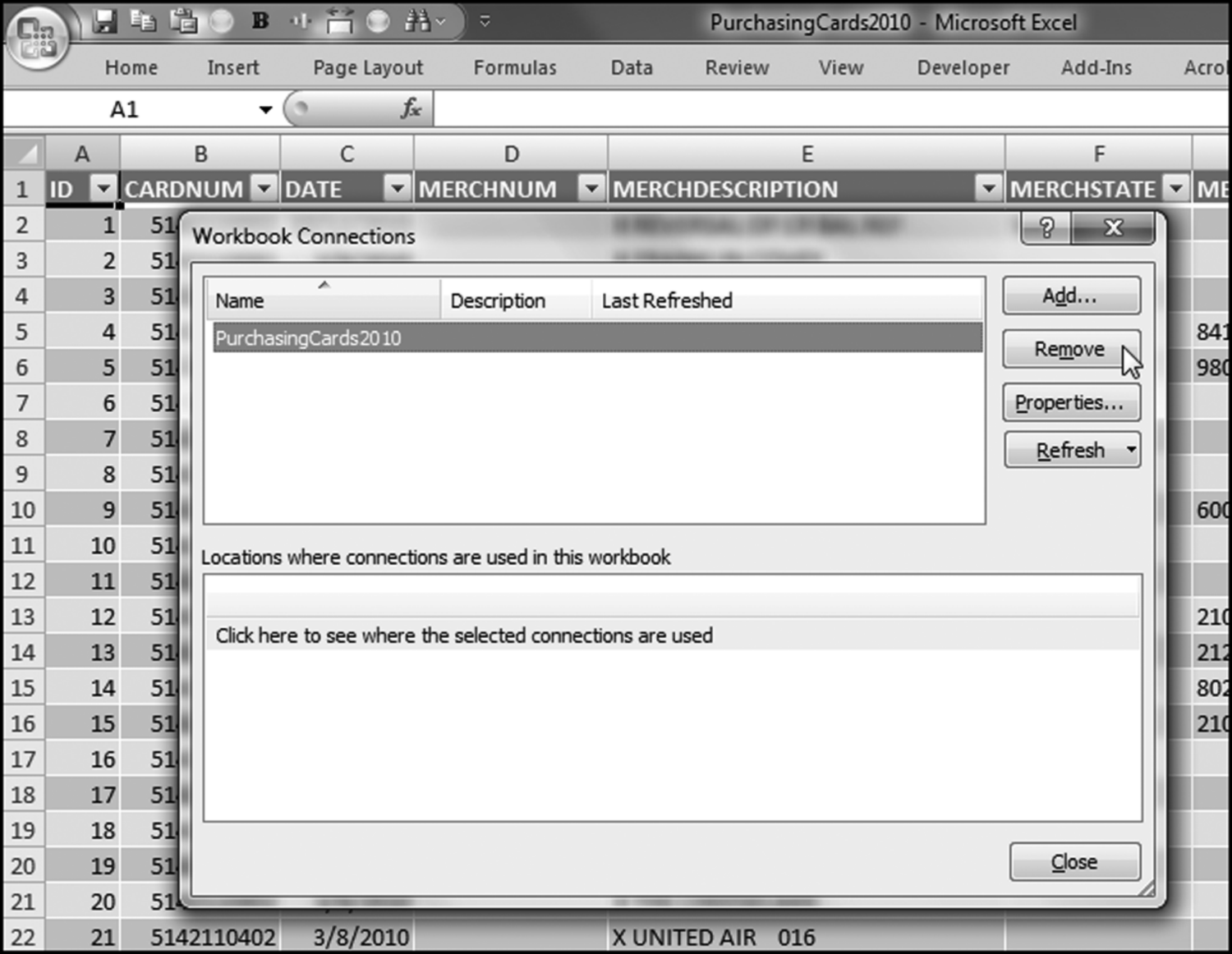
The step to remove the connection with the original database is shown in Figure 2.4. The sequence is Data→Connections→Connections followed by clicking the Remove button. Excel will give a warning and the step is finished with OK (to acknowledge the warning) and Close. While the table format is pleasing to the eye, it does create some issues for calculated fields. The last field in this table is column I and any simple formula in column J (e.g., J2: =I2∗2) becomes
= Table_PurchasingCards2010.accdb[[#This Row],[AMOUNT]]*2
even though the formula “I2∗2” was entered in J2. It is easier to work with the data when it is not in this table format. The steps to undo the table format starts by selecting any cell in the table (e.g., A2) and then using a right click and the steps shown in Figure 2.5.
Figure 2.5 Procedure Used to Convert a Table Back to a Normal Range
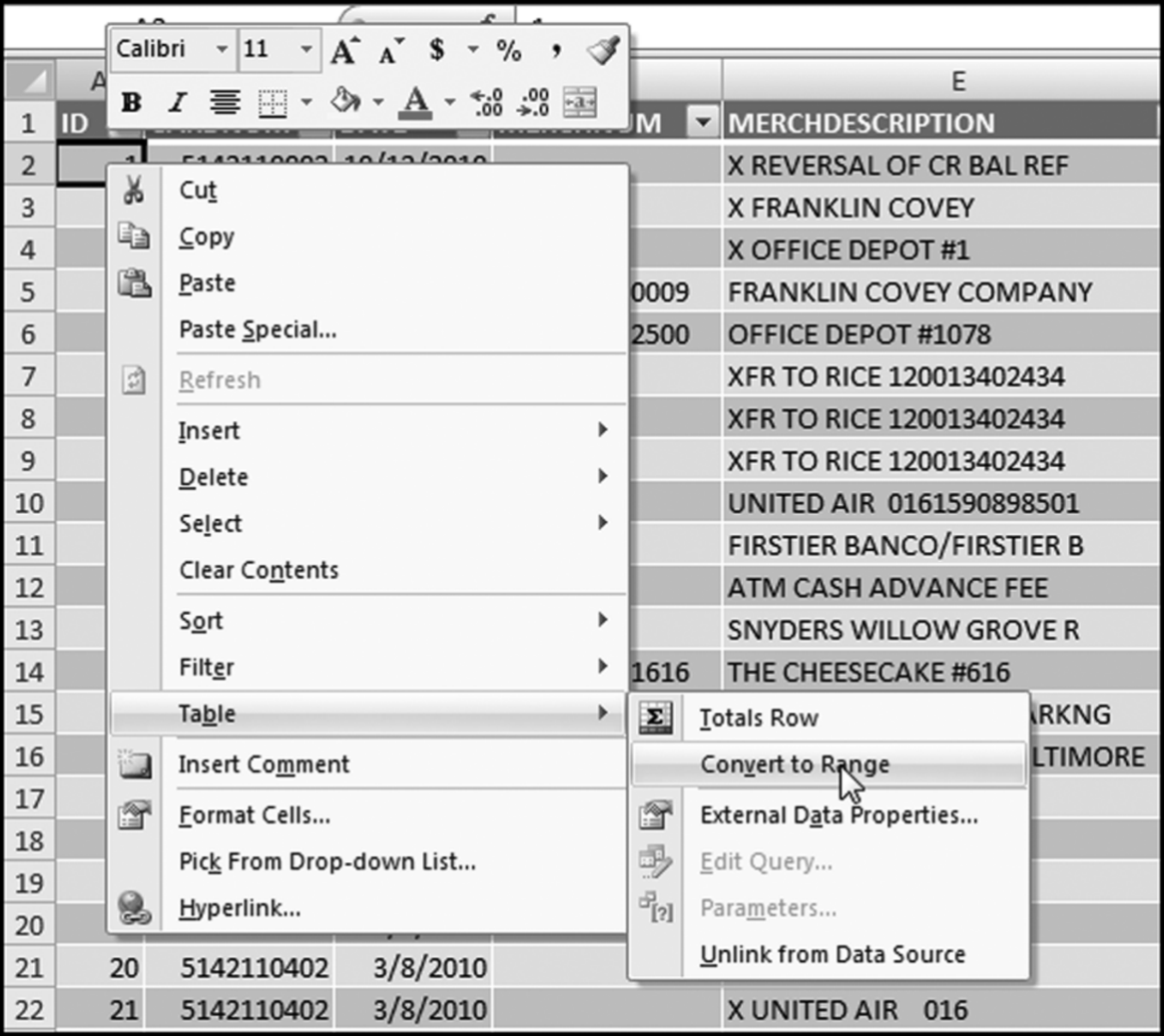
The procedure used to convert an Excel table to a normal range is shown in Figure 2.5. The commands are Table→Convert to Range. If a formula such as “I2∗2” is now entered into cell J2, the formula will not be changed in any way.
Reporting Forensic Analytics Results
Excel has several ways in which a worksheet can be formatted so as to help an analysis in a forensic environment. The EIA Fuel Oil data in Figure 1.12 will be used despite the format of the data. A calculated field will be added in column N that gives the average for the year. A quick way to copy a formula to the last row is to position the cursor at the bottom right corner of a cell so that the cursor changes to a cross. With a quick double-click on the left mouse button the formula will be copied to the last row. A screen shot of this is shown in Figure 2.6.
Figure 2.6 A Formula Is Copied Down to the Last Row Using a Left Double-Click on the Cross at the Corner of Cell N2
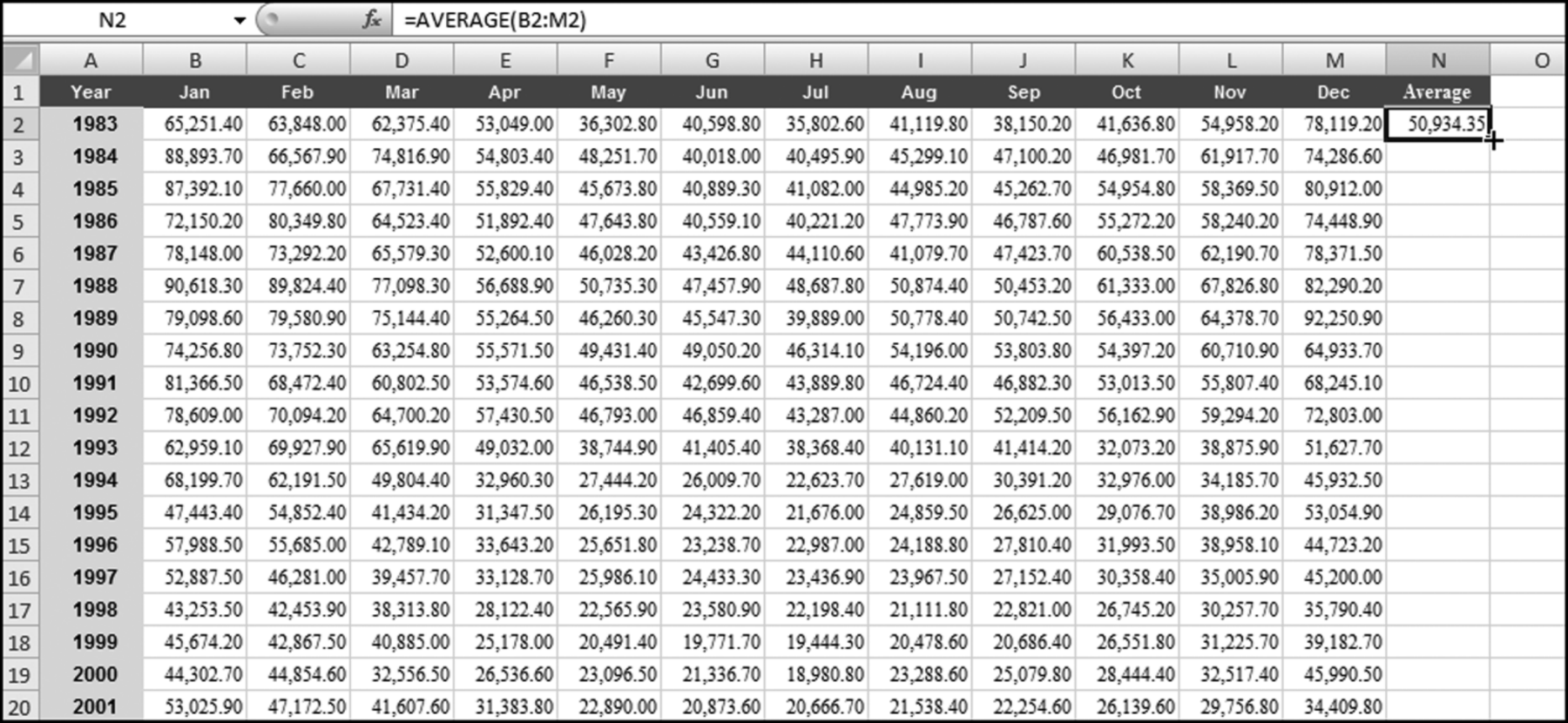
A series of two quick left double-clicks on the cross in Figure 2.6 will copy the formula to the last row. In this special case though we need to manually scroll to row 29 and copy the formula down for one more row. This is because cell M29 is blank because we do not yet have the data for December 2010. Excel has a host of conditional formatting options that can highlight interesting cells, emphasize unusual values, and visualize data using Data Bars, Color Scales, and Icon Sets using various criteria. Forensic analytics is about looking for interesting records and so highlighting unusual values with the formatting options is a useful tool in our toolbox. Excel's Data Bars can help us visualize the relative size of the averages.
Figure 2.7 The Use of Data Bars to Visualize the Relative Sizes of the Averages
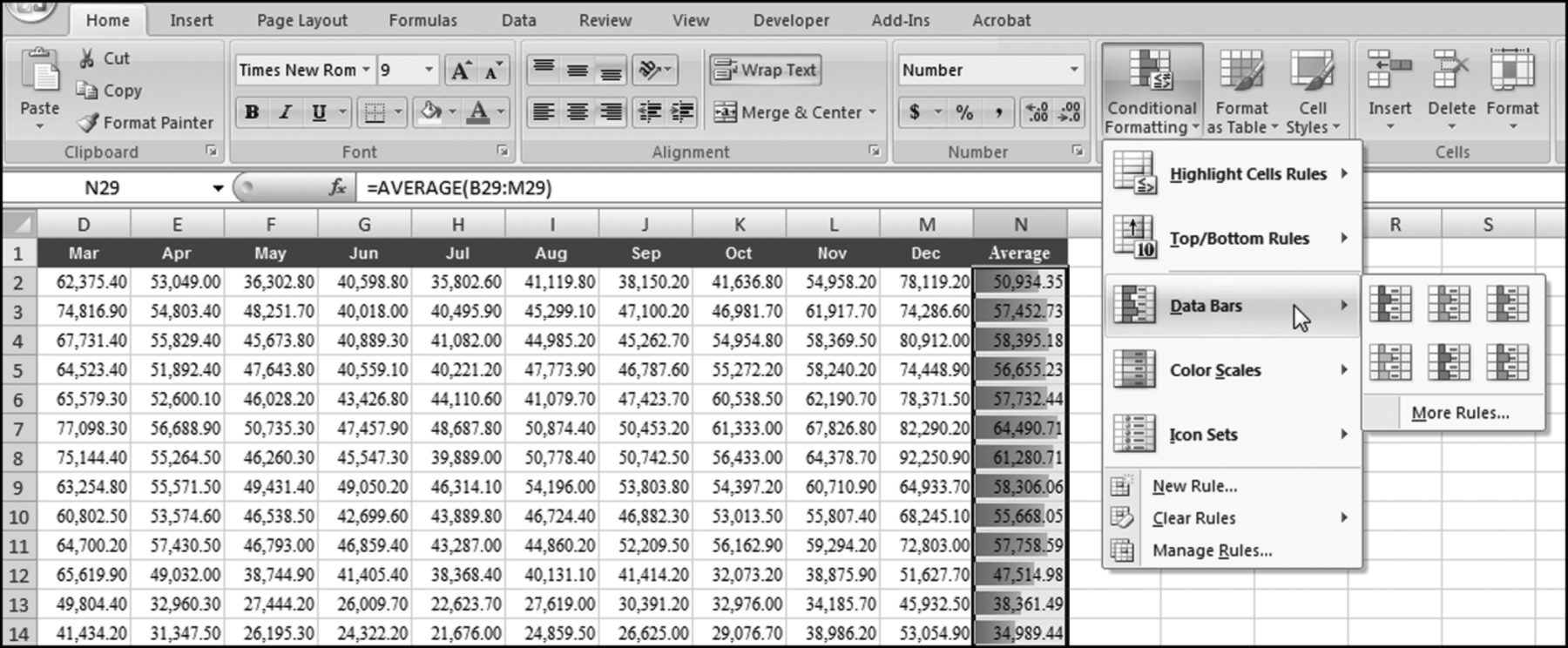
Figure 2.7 shows the steps used to add Data Bars to a worksheet. The steps are Home→Styles→Conditional Formatting→Data Bars followed by selecting the Purple Data Bar. In the More Rules dialog box, Excel allows users to change the rules and the color schemes to suit almost any situation. Users should experiment with the conditional formatting rules and the color schemes. Users should also take into account whether the results will be included in a report that will be printed as black and white or as color. The Icon Sets have many different interesting cell formatting options.
Another useful Excel formatting option is the cell styles option where cells can be color coded according to their contents.
Figure 2.8 The Cell Styles Options Available in Excel
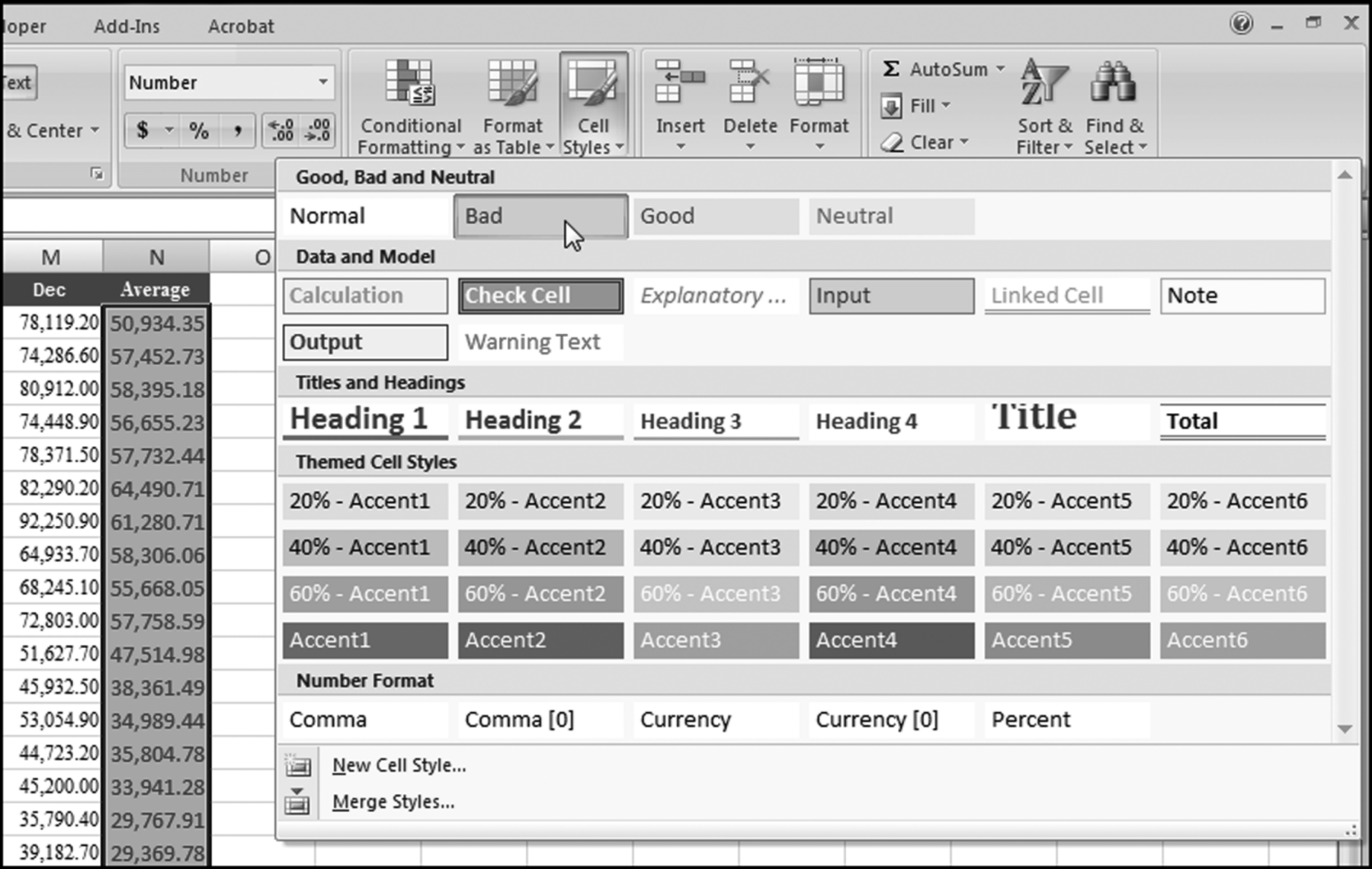
The selection of Good-Bad-Neutral cell styles is shown in Figure 2.8. Users would normally not color code an entire field as being Bad (or Good or Neutral) but the example is just an illustration. The Data and Model and the Titles and Headings styles allow users to prepare a worksheet with a professional and polished look to it with built-in visual guidance for users. The Excel formatting options are more than those available in Access. It might therefore be a good idea to sometimes import the Access results into Excel to use the special formatting.
Maintaining confidentiality is especially important in a forensic analytics environment. Excel offers several protection options but none of these protections rivals Fort Knox and physical controls over the Excel file is just as important as the Excel-based protections.
The first protection option is to protect the Excel file itself. This is done with a password by clicking the Office button and then selecting Save As. The next step is to select Tools→General Options at the bottom right section of the dialog box. Excel will then prompt for a password to open the file and a password to edit the file. In the example shown the password was made the same as the file name, but without the underscore.
Figure 2.9 The Step to the Dialog Box Used to Create a Password
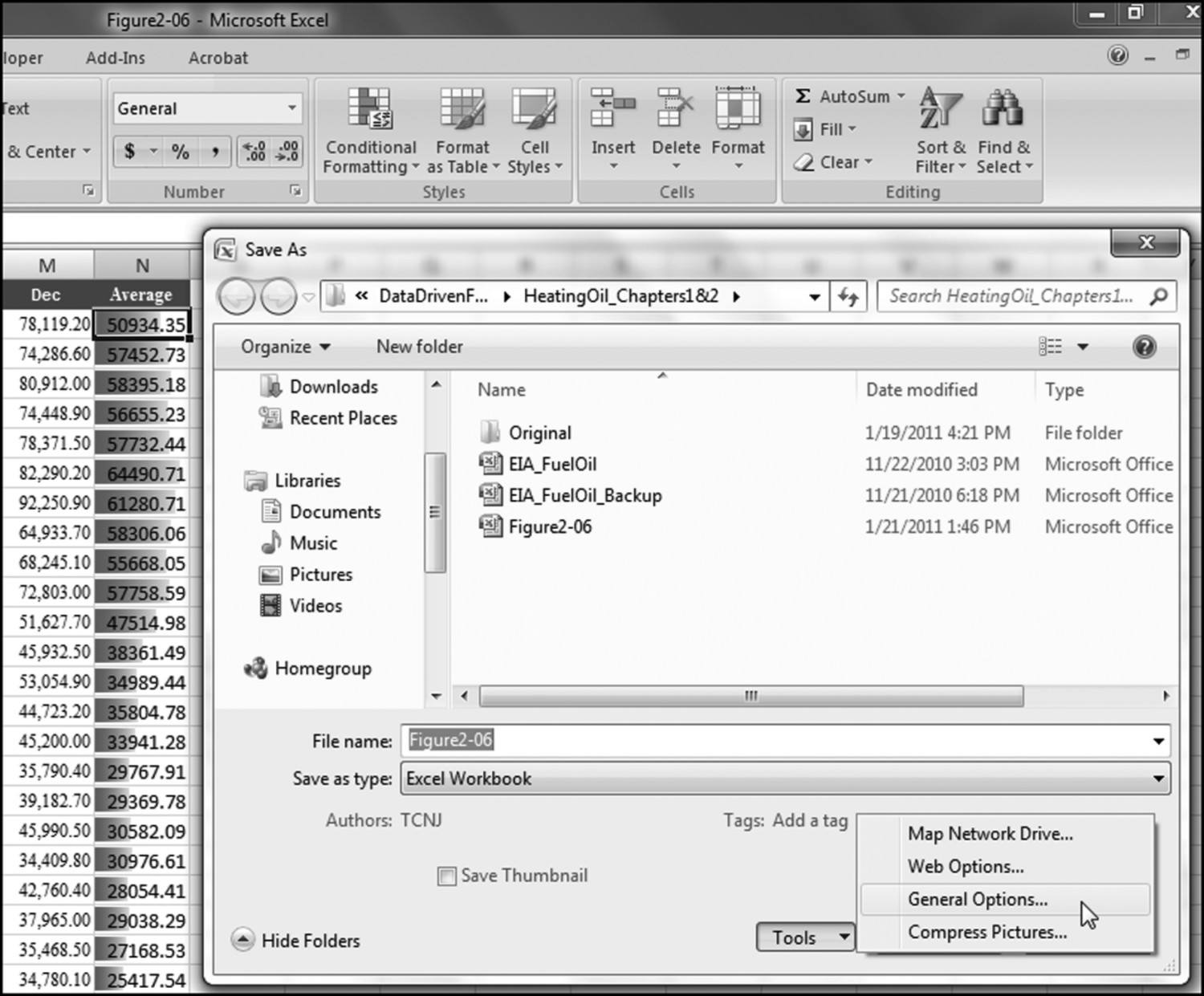
Figure 2.9 shows the step used to access the dialog box used to create a password to open and to edit the file. If the file is saved and later reopened Excel calls for the password as is shown in Figure 2.10.
Figure 2.10 The Opening Dialog Box for a Password Protected Excel File
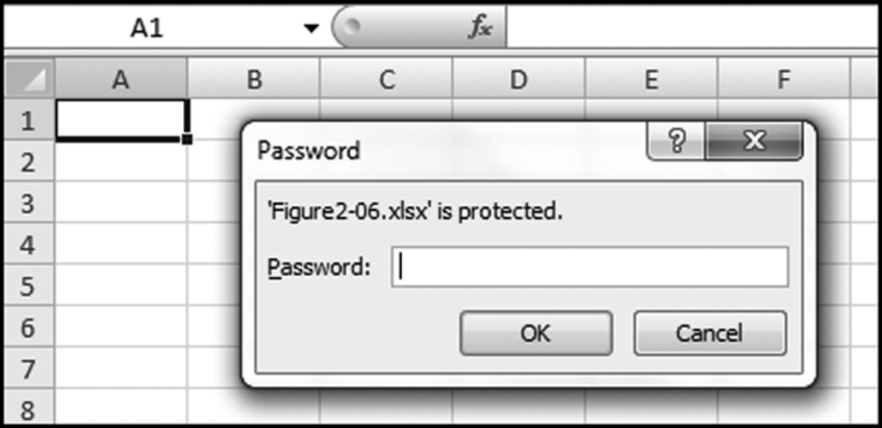
The opening dialog box for a password-protected Excel file is shown in Figure 2.10. Password-protected files can still be accessed by a determined and tech-savvy person and the password is only a good protection against most (but not all) people. Excel also has other levels of protection. These are activated through the Review group and examples include protecting the sheet (shown in Figure 2.11), protecting the workbook, and protecting and sharing the workbook.
Figure 2.11 Dialog Box Used to Protect the Worksheet
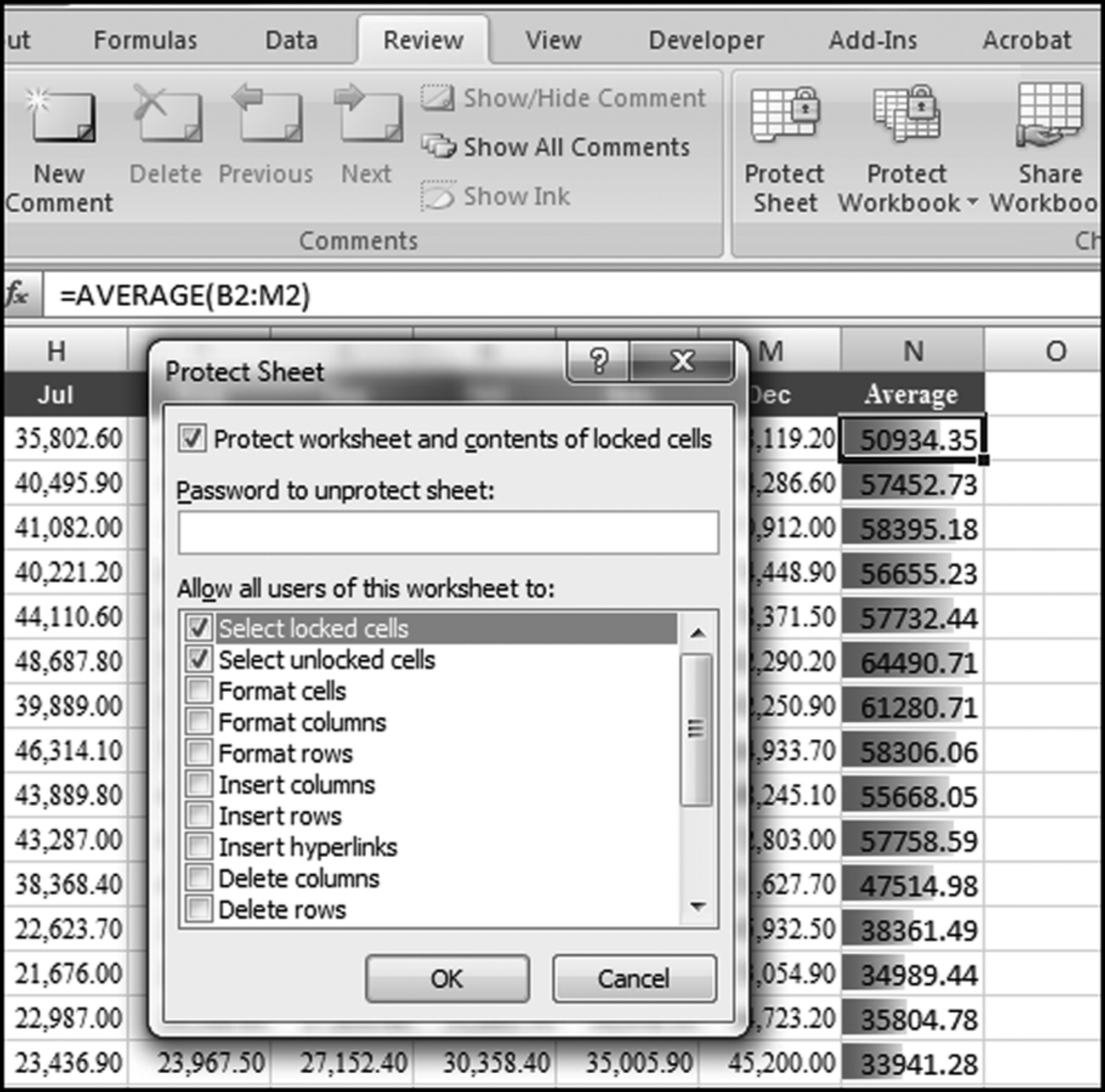
The dialog box for protecting the worksheet is shown in Figure 2.11. These protections can be circumvented by a determined and tech-savvy user. One other simple method of hiding sensitive data is to simply Hide either the worksheet or selected rows or columns. This is done through the Home→Cells→Format→Hide & Unhide. The command to hide a sheet is shown in Figure 2.12.
Figure 2.12 The Command to Hide Rows, Columns, or the Entire Worksheet
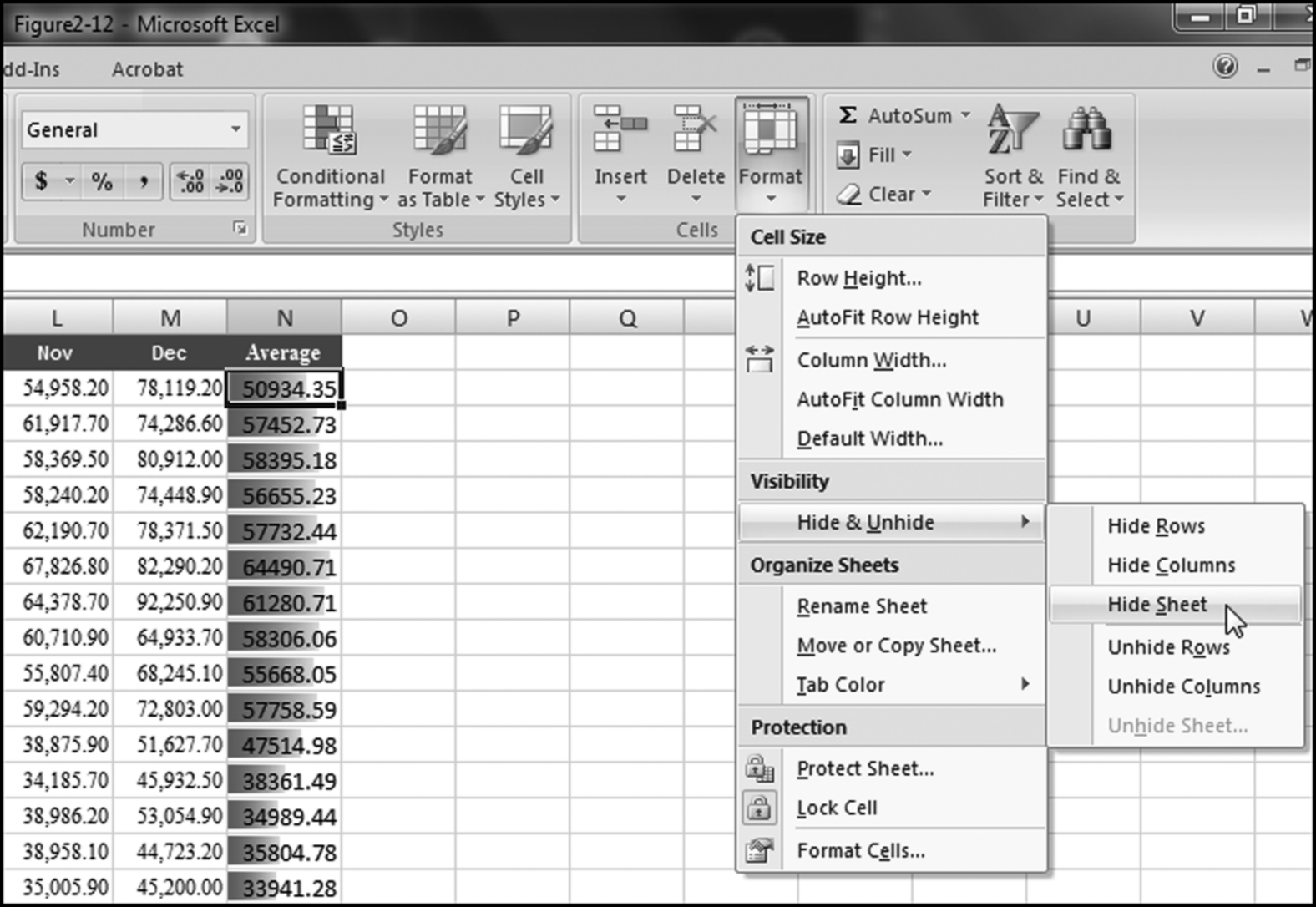
The command to hide rows, columns, or the entire worksheet is shown in Figure 2.12. These hidden sheets can easily be viewed again by using Home→Cells→Format and then selecting the Unhide options. Although Excel does offer some security measures it is more important to control access to your confidential files.
Using Excel Results in Word Files
Forensic work done in Excel will probably be included in a forensic report. Examples of this work could include a net-worth analysis, listings of fraudulent transactions, and graphs showing average prices paid or comparisons with other employees. The forensic report should include all findings, conclusions, recommendations, and corrective actions taken. As an example, the headings after the title page could include:
- Background
- Executive Summary
- Scope
- Approach
- Findings
- Summary
- Financial Impact of the Fraud
- Recommendations
- End of Report
- Exhibits
Work done in Excel could be included in the Findings section and/or the Exhibits. Excel results can be sent to Word documents reasonably easily. The first step is to select the range that you would like to copy. As an example, the range could be A1:M29 in the fuel oil worksheet. The procedure would be to click Home→Clipboard→Copy. The next step would be to return to the Word document and to place the cursor where the table should be pasted. The paste command in Word is Home→Clipboard→Paste and Paste Special for the dialog box shown in Figure 2.13.
Figure 2.13 The Options Available When Pasting an Excel Table into a Word Document
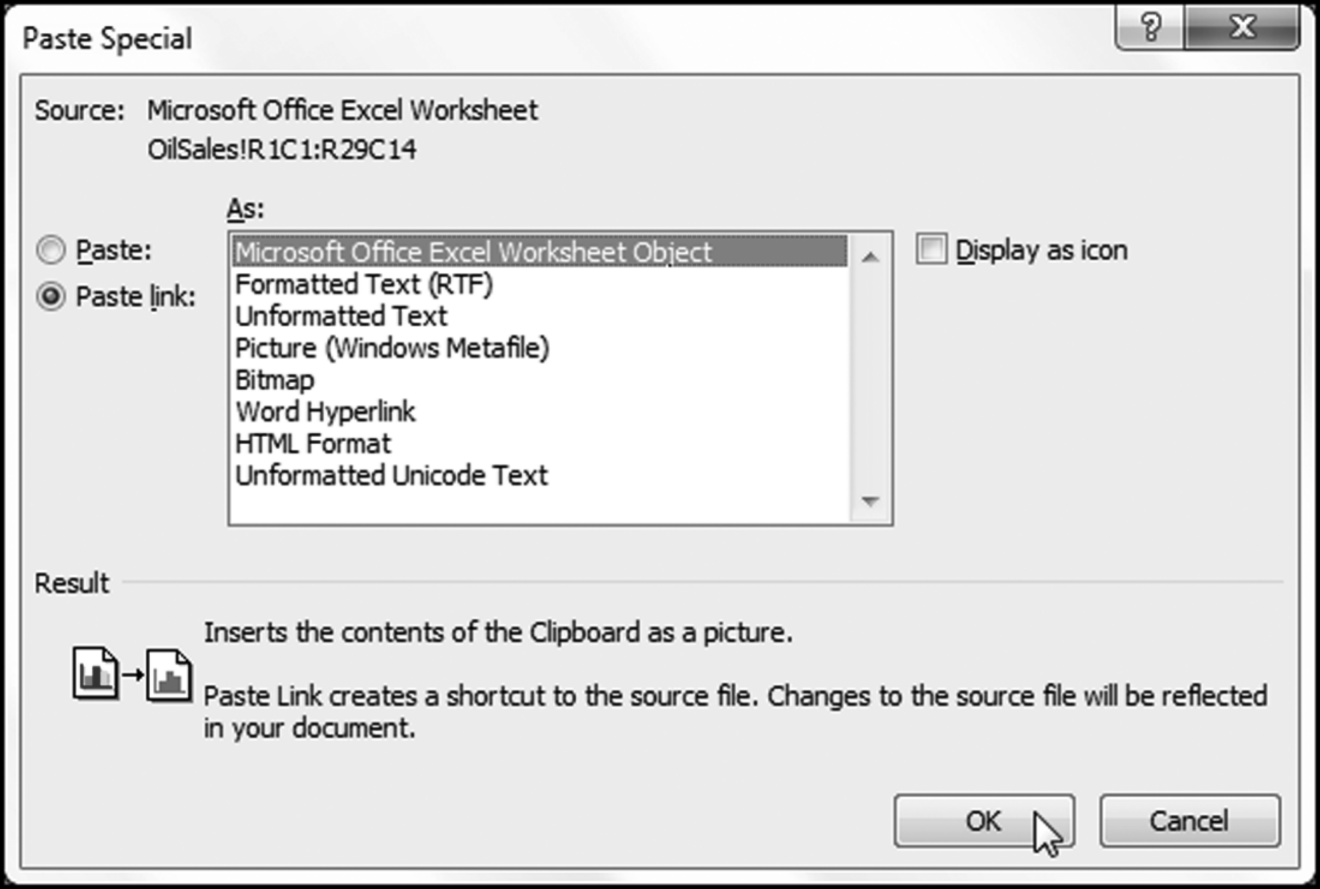
The dialog box used to paste an Excel table into a Word document is shown in Figure 2.13. The Paste link and Microsoft Office Excel Worksheet Object options are chosen. With this configuration all changes in the original Excel file are copied to the Excel table in the Word document. This could be useful when the data for September, October, November, and December become available. An update to the Excel file will be immediately reflected in the Word file. To paste the table without having the updating option the selection would be:
- Paste (the radio button above Paste link)
- Microsoft Office Excel Worksheet Object
In addition to adding Excel tables to a Word document, the forensic report might require that an Excel graph (or chart) be embedded in the Word document. In this example an Excel chart of monthly purchasing card activity for a federal government agency (from Chapter 18) will be embedded into a Word document. The chart should be selected in Excel. The Copy command in Excel is activated using Home→Clipboard→ Copy. After switching to Word, the Home→Clipboard→Paste→Paste Special sequence is used to show the dialog box shown in Figure 2.14.
Figure 2.14 Dialog Box for Embedding an Excel Chart into a Word Document
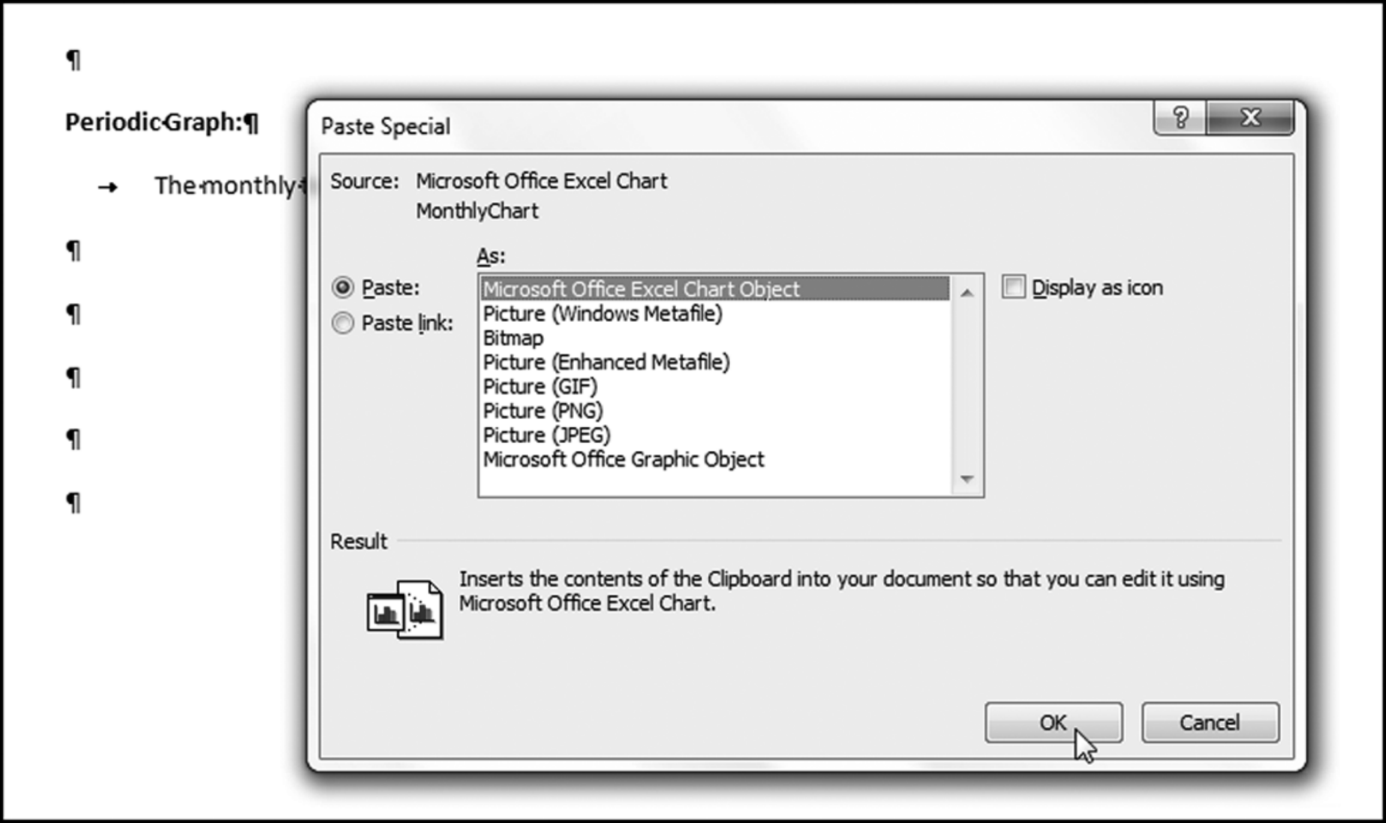
The dialog box used for embedding an Excel chart is shown in Figure 2.14. The options that should be chosen are:
- Paste
- Microsoft Office Excel Chart Object
After selecting the above options the next step is to click OK. The result is shown in Figure 2.15.
Figure 2.15 Excel Chart Embedded in a Word Document
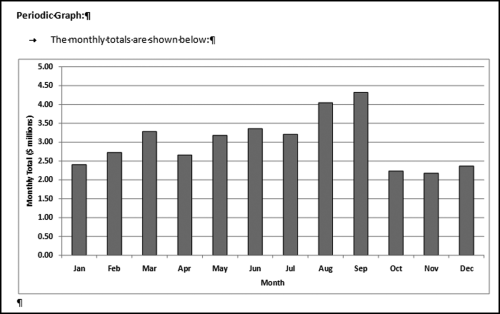
An Excel chart embedded in a Word document is shown in Figure 2.15. This chart can be updated from within Word by double-clicking the embedded chart in the Word document, and then clicking anywhere within the chart. A hatch-marked border will appear around the chart, and the embedded object will appear in an Excel workbook window. The object can now be edited by using the Excel chart-editing tools in Word. The editing process is ended by clicking outside the chart, anywhere in the Word document.
If a Word document contains a table from an Excel file that is password protected then the password needs to be entered when the Word document is opened. If the password is not entered, then Word will not update the Excel table.
During the course of a forensic analytics project users are almost sure to create a little green triangle in the top left corner of a cell. In the example shown (the source data for the chart in Figure 2.15), the “error” is an inconsistent formula. In each case column E equals column B, except for cell E9 where the formula is B9 minus 3102000. The adjustment was made because there was a large purchase in June in Mexican Pesos and this outlier amount was removed in the graph. In many cases the “error” will be something such as an inconsistent formula or the fact that “adjacent cells are ignored.” The step to remove this minor eyesore is to select the down arrow to the right of the yellow exclamation point and click Ignore Error as is shown in Figure 2.16.
Figure 2.16 How to Remove the Green Triangle in the Top Left Corner of a Cell
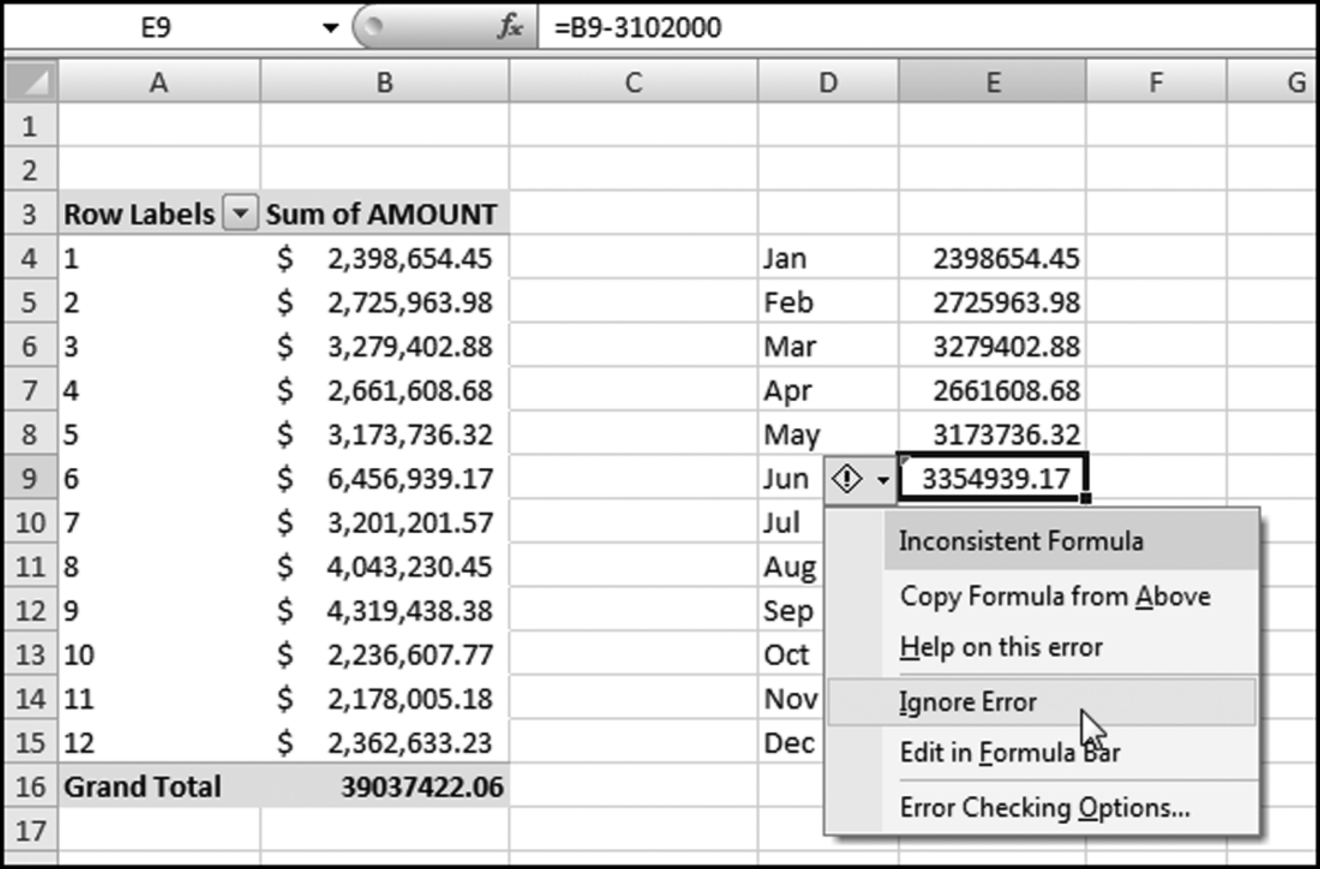
The procedure to remove the little green triangle in the top left corner of a cell is shown in Figure 2.16. The Ignore Error selection should not be made before considering whether there might be a real problem with a formula requiring perhaps an analysis of the precedents and dependents. Excel has an excellent formula auditing routine and an example of precedents and dependents for cell J3 is shown in Figure 2.17.
Figure 2.17 Results from Excel's Formula Auditing Routines
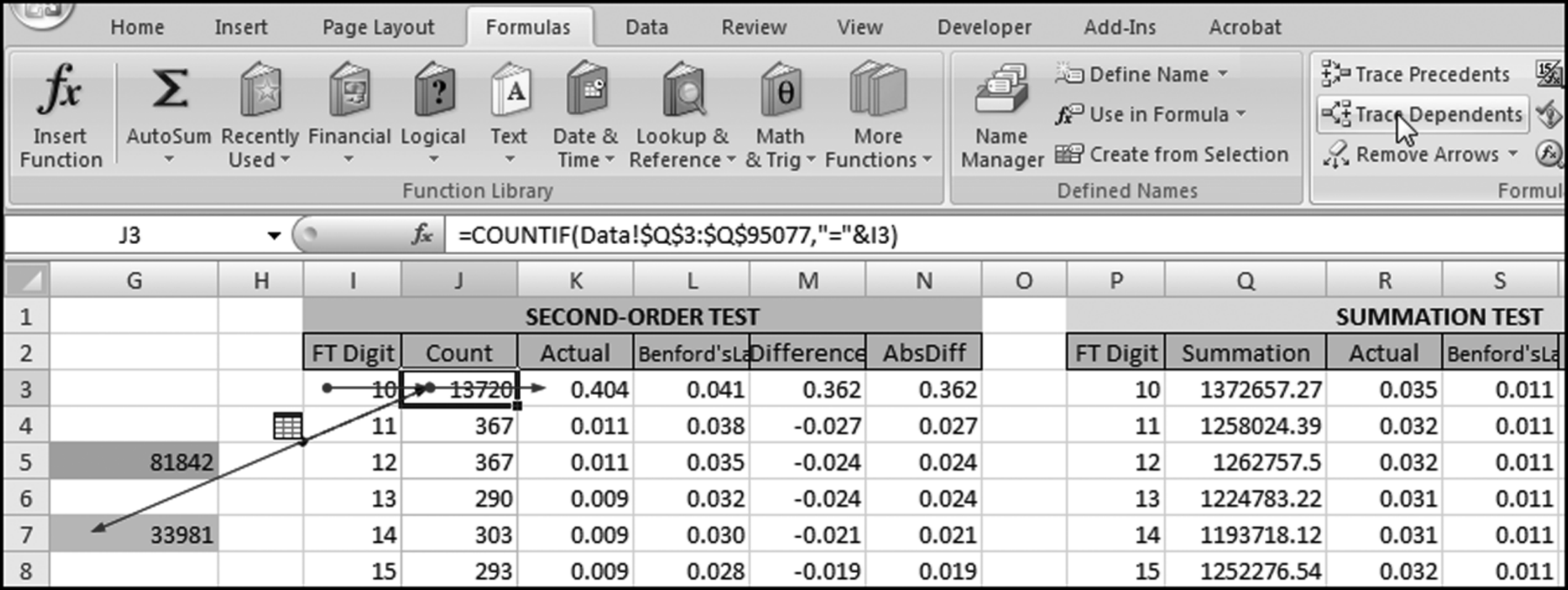
Some results from Excel's formula auditing routines are shown in Figure 2.17. The formula auditing routines have many options and users should experiment a little with the available options. It is important in any forensic analytics project to correctly resolve all Excel's error messages. Any flaws in the analytics work could be exploited by defense counsel at a later stage.
Forensic analytics is the procurement and analysis of electronic data to reconstruct or detect fraud, errors, or biases. The main steps in forensic analytics are (a) data collection, (b) data preparation, (c) data analysis, and (d) reporting. Excel works well for the collection, preparation, and analysis steps. There are some caveats and these relate to (a) limitations on the number of records, (b) the lack of transparency between data, formulas, and the results of formulas, (c) the difficulty in adding more functions and reports to an existing application, and (d) the ability to use Excel in multi-user environments. Despite these caveats, Excel is still a favorite among accounting and auditing professionals. This chapter reviews some of the features of Excel that are relevant in a forensic investigations environment.
Importing data into Excel is usually not a problem. An issue can arise when the source system limits the output to either 16,384 or 65,536 records. Excel can import data seamlessly from Access and a host of other database programs. For data imported from Access it is best to remove the connection to Access (so that the Excel file does not update when the Access tables are changed) and also to convert the Excel table to a normal range.
Excel has many data-formatting options that help in interpreting and visualizing the data. Data bars resembling a very small graph can shade the cells allowing users to interpret the relative sizes without actually reading the numbers. Excel offers other cell styles such as good, bad, and neutral and other formatting options that might be useful in a forensic context.
Excel has some data-protection options. The first protection option is to password-protect the Excel file. A second level of protection is another password to write or change any cell contents in the workbook. Other levels of protection include the ability to hide rows or columns, or even the entire worksheet. Cells can also be protected with read-only privileges. Although the password protections are useful against an average Excel user they can be circumvented by a determined and tech-savvy person.
The results of tests and techniques performed in Excel are often included in forensic reports prepared in Word. These results could be extracts from Excel files and graphs and charts. Excel content can be easily copied over to Word documents and several copying options are available. The Excel data can be linked to the Word document, in which case the Word document is updated (changed) when the source data is changed. The Excel data can also be copied and pasted, in which case the Word document stays unchanged even when the source file is changed. Graphs and charts can also be copied from Excel to Word.
Excel has some built-in warnings related to formulas. Excel also gives users several ways to examine the precedents and dependents of formulas to uncover errors and other issues.
Despite the reservations related to having data, formulas, the results of formulas, and text and images all potentially on the same worksheet, Excel is a valuable tool for forensic analytics. Accountants and auditors are familiar with the tool and files can be sent to and received from other people with few, if any, issues in opening and reading the files.