Table of Contents for
Implementing SSL/TLS Using Cryptography and PKI
 Implementing SSL/TLS Using Cryptography and PKI
Published by
John Wiley & Sons, 2011
Implementing SSL/TLS Using Cryptography and PKI
Published by
John Wiley & Sons, 2011
- Cover Page
- Title Page
- Copyright
- Dedication
- About the Author
- About the Technical Editor
- Credits
- Acknowledgments
- Contents at a Glance
- Contents
- Introduction
- CHAPTER 1: Understanding Internet Security
- CHAPTER 2: Protecting Against Eavesdroppers with Symmetric Cryptography
- CHAPTER 3: Secure Key Exchange over an Insecure Medium with Public Key Cryptography
- CHAPTER 4: Authenticating Communications Using Digital Signatures
- CHAPTER 5: Creating a Network of Trust Using X.509 Certificates
- CHAPTER 6: A Usable, Secure Communications Protocol: Client-Side TLS
- CHAPTER 7: Adding Server-Side TLS 1.0 Support
- CHAPTER 8: Advanced SSL Topics
- CHAPTER 9: Adding TLS 1.2 Support to Your TLS Library
- CHAPTER 10: Other Applications of SSL
- APPENDIX A: Binary Representation of Integers: A Primer
- APPENDIX B: Installing TCPDump and OpenSSL
- APPENDIX C: Understanding the Pitfalls of SSLv2
- Index
APPENDIX B
Installing TCPDump and OpenSSL
The code developed in this book has been tested to work on both Windows and Linux systems. If you want to follow the examples, you also need both OpenSSL and TCPdump installed locally. If you're on a Linux system, OpenSSL may already be available. TCPDump you usually need to install yourself. This appendix goes through the installation process for both systems for both software packages.
Installing TCPDump
TCPDump is a handy, versatile utility that can capture and display every byte that's exchanged on any given socket in a system. Obviously, if you're working with network protocols, this can be incredibly useful, although it's less useful when you're working with SSL/TLS-secured traffic. After all, the whole point of SSL/TLS is to protect users from these sorts of packet sniffers; TCPDump can come in handy, however, when debugging certificate verification problems or handshake problems.
TCPDump has its roots in Unix/Linux systems and as such is a command-line tool. You might find a more modern incarnation called Ethereal (also sometimes called Wireshark) preferable, especially if you're running a Windows system. However, the examples in this book use TCPDump strictly because its textual output lends itself much better to print.
Installing TCPDump on a Windows System
WinDump — TCPDump for Windows — depends on a library named pcap, a packet capture library. You can download both WinDump and pcap at the same website: http://www.winpcap.org/windump/install/default.htm.
To install, follow these steps:
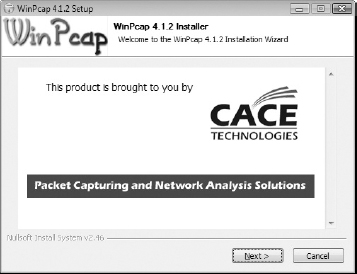
- Download the WinPcap self-installer and run it. The first screen of the installer appears as shown in Figure B-1. Click Next.
Figure B-1: WinPcap installation
- Accept the defaults, including the Automatically Start Driver at Boot Time option.
- After WinPcap has been successfully installed, download WinDump itself. This isn't distributed in an installable package, but is instead distributed simply as an executable. Download it and put it somewhere in your path; c:\windows\system32 will work.
Unfortunately, Windows doesn't provide an equivalent of Linux's loopback adapter. This means that if you want to sniff traffic, you have to sniff traffic remotely; either network two computers together and install the sample servers on a remote one, or connect to an external computer over the public Internet and sniff that traffic.
Installing TCPDump on a Linux System
Your best bet on a Linux system is to just go ahead and install from source. The source distributions for libpcap and tcpdump are both available, at the time of this writing, from http://www.tcpdump.org. You need to install libpcap first, and tcpdump second; perform the standard
./config
make
sudo make install
on each.
The only potential challenge is that the kernel itself must have either the CONFIG_PACKET option built in, or the af_packet module available. Virtually all Linux distributions include a kernel with this option set. This is likely to only be a problem if you build your own custom kernel, in which case you may need to rebuild it.
Additionally, tcpdump must be run as root on a Linux system. An ordinary user can't communicate directly with the hardware in the way the tcpdump is required to in order to capture incoming packets.
Installing OpenSSL
OpenSSL is a complete implementation of the client and server side of SSLv2, SSLv3, and TLS 1.0. It was developed from the SSLEay library originally written by Eric A. Young and Tim J. Hudson. At the time of this writing, the current version is 1.0.0. A complete OpenSSL installation also includes several useful utility programs that generate and display X.509 certificates, sign certificate requests, run test servers and clients, and so on. OpenSSL is the library that powers Apache's mod_ssl, which is still the most popular web server on the Internet. Many of this book's examples rely on OpenSSL utility programs, so you should have a version installed.
Installing OpenSSL on a Windows System
OpenSSL is somewhat Unix/Linux-oriented, but you can install it on Windows. This just means that it runs on Windows; it's still entirely a command-line application, with no fancy graphical front-end. You need to roll up your sleeves and open a command prompt to do anything useful with OpenSSL.
As you probably know, Windows software is usually distributed in binary form, not in source code form as it traditionally is for Unix/Linux systems. Shining Light Productions maintains a binary distribution of OpenSSL that you can download from http://www.slproweb.com/products/Win32OpenSSL.html. This is a port of the main OpenSSL code to the Windows environment; every effort is made to ensure that both implementations are the same.
To install OpenSSL on a Windows system, use the following steps:
- Download the Win32 OpenSSL vx.x.x installer; you should probably grab the latest one, but you need at least version 1.0.0 to follow all of the examples in this book.
- Download the Visual C++ 2008 Redistributables package. There's a link to this on the Shining Light Productions site, but it takes you directly to the Microsoft download site; you must download this from Microsoft. Don't grab the latest version, either — grab the version that Win32 OpenSSL depends on.
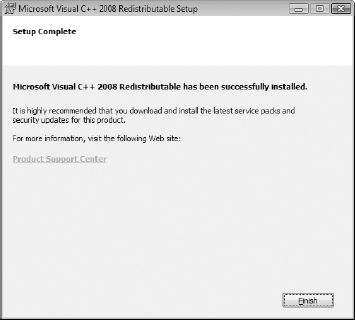
- Both the downloads are executable files; the Visual C++ 2008 redistributables download is called vcredist_x86.exe, and you should run it and follow the direction indicated by the graphical installer as shown in Figure B-2.
Figure B-2: Visual C++ 2008 redistributables installation
- After this is complete, run the Win32OpenSSL-1_0_0a.exe installer. Accept the defaults and let it install into C:\OpenSSL-Win32.
Installing OpenSSL on a Linux system
Your distribution may very well have OpenSSL installed already; check to see if you have it as well as what version you're running. However, you may want to download and build the latest copy from http://www.openssl.org anyway, just so that you have the most up-to-date code available. Just as with tcpdump, a source install is probably the easiest way to go; download the distributable and run
./config
make
sudo make install
You may want to skip the last step if you already have OpenSSL installed; you may have other products that rely on the version bundled with your distribution. If you don't install the custom binaries, you can find them under the apps directory of the distribution.