Table of Contents for
Professional WordPress® Plugin Development
 Professional WordPress® Plugin Development
Published by
Wrox, 2011
Professional WordPress® Plugin Development
Published by
Wrox, 2011
- Copyright
- CREDITS
- ABOUT THE AUTHORS
- ACKNOWLEDGMENTS
- FOREWORD
- INTRODUCTION
- 1. An Introduction to Plugins
- 2. Plugin Foundation
- 3. Hooks
- 4. Integrating in WordPress
- 5. Internationalization
- 6. Plugin Security
- 7. Plugin Settings
- 8. Users
- 9. HTTP API
- 10. The Shortcode API
- 11. Extending Posts: Metadata, Custom Post Types, and Taxonomies
- 12. JavaScript and Ajax in WordPress
- 13. Cron
- 14. The Rewrite API
- 15. Multisite
- 16. Debugging and Optimizing
- 17. Marketing Your Plugin
- 18. The Developer Toolbox
WHAT'S IN THIS CHAPTER?
When developing plugins for WordPress, you must have a good list of resources to help guide you in the right direction. This list of resources is the developer's toolbox. In this chapter you cover the most popular and helpful resources available for plugin development. You also review tools that every developer should use to help optimize the process of plugin development.
The best reference when developing plugins for WordPress is the core WordPress code. What better way to learn functions, and discover new functions, than to explore the code that powers every plugin you develop. Understanding how to navigate through the core WordPress code is a valuable resource when developing professional plugins. Also, contrary to online resources and the Codex, the core is always up to date.
Many of the core WordPress files feature inline documentation. This documentation, in the form of a code comment, gives specific details on how functions and code work. All inline documentation is formatted using the PHPDoc standard for PHP commenting. The following comment sample is the standard PHPDoc template for documenting a WordPress function:
/**
 * Short Description
 *
 * Long Description
 *
 * @package WordPress
 * @since version
 *
 * @param    type    $varname    Description
 * @return   type                Description
 */
Inline documentation is an invaluable resource when exploring functions in WordPress. The comment includes a short and long description, detailing the purpose of a specific function. It also features the WordPress version in which it was added. This helps determine what new functions are added in each release of WordPress.
Parameters are also listed, along with the data type of the parameter and a description of what the parameter should be. The return type and description are also listed. This helps you understand what value a specific function will return. For example, when creating a new post in WordPress, the newly created post ID would be returned if successful.
Now look at real inline documentation for the delete_option() function.
/**
 * Removes option by name. Prevents removal of protected WordPress options.
 *
 * @package WordPress
 * @subpackage Option
 * @since 1.2.0
 *
 * @uses do_action() Calls 'delete_option' hook before option is deleted.
 * @uses do_action() Calls 'deleted_option' and 'delete_option_$option' hooks on success.
 *
 * @param string $option Name of option to remove. Expected to not be SQL-escaped.
 * @return bool True, if option is successfully deleted. False on failure.
 */
function delete_option( $option ) {
The inline documentation features a clear description of the purpose of this function. You can see the function is part of the WordPress package and was added in version 1.2.0. The comment also lists any action hooks executed when calling this function, in this case the delete_option, deleted_option, and delete_option_$option action hooks.
The only parameter required for this function is $option, which is described as the option name. Finally, the return value is boolean; True if successful and False on failure. Inline documentation is an ongoing process. All new functions added to WordPress are documented using this process. Helping to document existing functions is a great way to dive into core contributing to WordPress.
Now that you understand how to use inline documentation to learn functions in WordPress, you need to know how to find those functions. To start make sure you have downloaded the latest version of WordPress to your local computer. You will be searching through these code files for functions.
Every core file, excluding images, can be viewed in a text editor program. When choosing a text editor to use, make sure it supports searching within files. You can find an extensive list of text editors on the Codex at http://codex.wordpress.org/Glossary#Text_editor.
When searching through the core WordPress files for a specific function, you need to make sure calls to that function are filtered out, or you may get hundreds of results. The easiest way to do this is include the word "function" at the start of your search. For example, to find wp_insert_post() simply search for "function wp_insert_post."
Note
Remember not everything in WordPress is a function. If you don't get any results, remove the word "function" from your search. Also remember to search all files (*.*) and not just .txt files, which many text editors default to.
Many of the functions you use in your plugins are located in specific core files. Exploring these files is a great way to find new and exciting functions to use in your plugins.
The wp-includes folder features many of the files used for public side functions — that is, functions used on the public side of your Web site.
The formatting.php file contains all WordPress API formatting functions, such as the following:
esc_*()— Includes all escaping functions in this fileis_email()— Verifies an email address is validwp_strip_all_tags()— Strips all HTML tags, including script and style, from a string
The functions.php file contains the main WordPress API functions. Plugins, themes, and the WordPress core use these functions, for example:
*_option()— Adds, updates, deletes, and retrieves optionscurrent_time()— Retrieves the current time based on the time zone set in WordPresswp_nonce_*()— Creates nonce values for forms and URLswp_upload_dir()— Retrieves array containing the current upload directory's path and URL
The pluggable.php file contains core functions that you can redefine in a plugin. This file is full of useful functions for your plugins, for example:
get_userdata()— Retrieves all user data from the specified user IDget_currentuserinfo()— Retrieves user data for the currently logged in userget_avatar()— Retrieves a user's avatarwp_mail: — Is the main function for sending email in WordPresswp_redirect()— Redirects to another pagewp_rand()— Generates a random number
The plugin.php file contains the WordPress Plugin API functions, such as the following:
add_action()— Executes this hook at a defined point in the execution of WordPressadd_filter()— Uses this hook to filter prior to saving in the database or displaying on the screenplugin_dir_*()— Functions to determine a plugin's path and URLregister_activation_hook()— Is called when a plugin is activatedregister_deactivation_hook()— Is called when a plugin is deactivatedregister_uninstall_hook()— Is called when a plugin is uninstalled anduninstall.phpdoes not exist in the plugin directory
The post.php file contains the functions used for posts in WordPress, as follows:
wp_*_post()— Functions for creating, updating, and deleting postsget_posts()— Returns a list of posts based on parameters specifiedget_pages()— Returns a list of pages based on parameters specified*_post_meta()— Functions to create, update, delete, and retrieve post meta dataregister_post_type()— Registers custom post types in WordPressget_post_types()— Retrieves a list of all registered post types
This is just a list of the more popular functions and their locations. Many more functions are available to use when developing your plugins. When a new version of WordPress is released, it's always fun to explore these files to see what functions have been added and are available for use in your plugins.
One of the most important online resources for plugin development is the WordPress Codex. The Codex is an online wiki for WordPress documentation and is located at http://codex.wordpress.org.
The Codex is packed full of information about the use of, and developing with, WordPress. It includes an extensive function reference with some helpful tutorials and examples demonstrating the more common functions in WordPress.
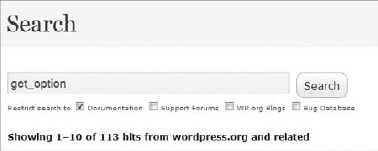
You can search the Codex in a few different ways. The most common way is to use the Codex search located at http://wordpress.org/search/ or by entering your search terms in the search box located in the header of WordPress.org. The default search for the Codex is documentation, but you can also search the Support Forums, WP.org Blogs, and the Bug Database, as shown in Figure 18-1.
The Codex also features an extensive glossary. This can help you become familiar with terms used in the Codex, as well as in WordPress. You can access the glossary at http://codex.wordpress.org/Glossary
The Codex home page also features an index of articles organized by topic. The articles are ordered by level of difficulty, with an article specific to the latest version of WordPress near the top. This article details new features, functions, changes, and so on in the latest version of WordPress. It's always helpful to read this article to become familiarized with any changes to functions and methods for developing plugins in WordPress.
As a plugin developer, the biggest benefit of the Codex is the function reference section located at http://codex.wordpress.org/Function_Reference. This section lists all functions in the Codex for the more popular WordPress API functions. This page is a must-bookmark for any WordPress plugin developer.
Each individual function reference page contains a description of the function, basic usage example, parameters required for the function, and also the return values. Think of these function reference pages as quick-and-easily-readable inline documentation on a function. Most function pages also feature an example, or more, demonstrating practical uses of that particular function.
Note
The Codex is a great resource, but by no means is guaranteed to be accurate or up to date. Remember the WordPress core is the only resource that is always 100% up to date.
Many different Web sites are available to help in researching and understanding specific functionality in WordPress. These sites can help as new versions of WordPress are released with new functionality that can be used in your plugins.
PHPXref is a cross-referencing documentation generator. Quite simply it is a developer tool that can scan a project directory and translate the files processed into readable cross-referenced HTML files. It automatically processes PHPDoc commenting to produce documentation for the functions included.
An online hosted version of PHPXref is also available, which is more specifically for WordPress. The online version is located at http://phpxref.ftwr.co.uk/wordpress/.
Visiting the WordPress PHPXref site, you'll be confronted with what looks like a Windows Explorer layout, as shown in Figure 18-2.
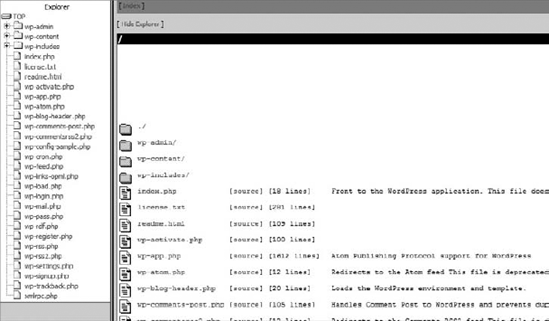
As you can see, the standard WordPress folder displays on the left with the core subdirectories and root files listed. As an example, click into the wp-includes directory and click the plugin.php file. Clicking this link brings up a summary view of the current file selected, in this case plugin.php. This summary view has useful information including a list of every function in the file, as shown in Figure 18-3.
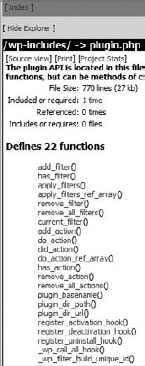
Seeing a top-level glance of all functions in a WordPress core file is a great way to find new functions, and even locate existing functions for reference. Clicking any listed function takes you to the section of the page detailing the usage of the function. This information is extracted from the inline documentation saved in the WordPress core file. If the function is not documented in WordPress, this section will be empty. You can also easily view the source of any file by clicking the Source View link near the header of the page.
It's easy to see how useful the WordPress PHPXref site is for a developer. This is another required tool to add to your resource arsenal.
The WordPress hooks database, which was created and is supported by Adam Brown, is the essential resource for discovering hooks in WordPress. Adam built a system that digs through all WordPress core files and extracts every action and filter hook that exists in WordPress. He has been indexing these values since WordPress 1.2.1 and updates the hooks database with each new major version of WordPress.
One of the best features of the hooks database is you can view all new hooks added in each version of WordPress. As a plugin developer, hooks are one of the most powerful features that you can use when creating plugins in WordPress. Clicking any hook name produces a hook detail screen showing where the hook is defined in the WordPress core code.
To visit the hooks database visit http://adambrown.info/p/wp_hooks.
There are also many different community resources available to help with WordPress development. These resources can help you expand your knowledge on plugin development, troubleshoot plugin issues, and work with new features in WordPress.
WordPress.org features a large support forum for topics ranging from using WordPress to plugin development. You can visit the support forums at http://wordpress.org/support/.
As a plugin developer, multiple forum sections can help expand your knowledge on plugin development, and support any public plugins you have released. Following are the forum sections specific to plugins:
http://wordpress.org/support/forum/hacks— Discussing plugin development, coding, and hacks.http://wordpress.org/support/forum/wp-advanced— Discussions are more advanced and complex than usual.http://wordpress.org/support/forum/multisite— Anything and everything regarding the Multisite feature.http://wordpress.org/support/forum/plugins-and-hacks— Plugin support questions. If you released a plugin to the Plugin Directory, users can submit support issues specific to your plugin.
The WordPress project has multiple mailing lists set up for discussions on various topics. These mailing lists can be a quick-and-easy way to get some feedback and advice from other developers in the community. The mailing list works as a two-way conversation. You would send a problem or question to the list, and a member of the list responds with the answer. All emails sent to the list are also archived for later reading.
The mailing list geared toward plugin developers is the Hackers mailing list. This list is a place for advanced discussions about extending WordPress.
Join:
http://lists.automattic.com/mailman/listinfo/wp-hackersArchive:
http://lists.automattic.com/pipermail/wp-hackers/
Another potentially useful mailing list is the Trac list. Trac is the open source bug tracking software used to track development of the WordPress core. This can be useful to see what new features are implemented in the latest version of WordPress. This is a high-traffic email list.
Email: wp-trac@lists.automattic.com
Join:
http://lists.automattic.com/mailman/listinfo/wp-tracArchive:
http://lists.automattic.com/pipermail/wp-trac/
Often it's nice to have a live conversation when seeking help for plugins or about WordPress development. WordPress uses IRC for live chat and has a few active chat rooms. To join the WordPress chat, you need an IRC client (http://codex.wordpress.org/IRC#IRC_Client_Applications) installed on your computer. All WordPress chat channels are located on the Freenode server at irc.freenode.net.
#wordpress — The main room for WordPress. Room conversations can vary from basic WordPress usage to advanced plugin development. Many of the core WordPress developers and contributors are in this room and willing to help you.
#wordpress-dev — This chat room is dedicated to the discussion of WordPress core development. This room is not for general WordPress discussions, but rather specific to core development or bugs and issues found within the core.
These chat rooms are an awesome resource for real-time help when developing plugins in WordPress. Many WordPress experts hang out in these rooms and enjoy helping others learn WordPress.
For more information on WordPress chat, including how to download an IRC client and connect to Freenode, visit http://codex.wordpress.org/IRC.
When developing plugins, and releasing to the public, you need to stay current on new features and functionality coming in the new version of WordPress. This can help you verify not only if your plugin is compatible with the latest version, but also what new features your plugins can take advantage of. One of the best ways to track WordPress development is through the WordPress Development Updates site located at http://wpdevel.wordpress.com/.
The development updates site uses the popular P2 theme, which is a Twitter-like theme for WordPress. You can also find out about the weekly developer chats that take place in the IRC channel #wordpress-dev. These chats discuss the current status of the upcoming WordPress version, feature debates and discussions, and much more.
WordPress.org features an ideas section for creating and rating ideas for future versions of WordPress. This is actually a great resource for gathering ideas for plugins. Many of the ideas submitted could be created using a plugin. The more popular an idea is, the more popular the plugin would most likely be.
The WordPress Ideas area is located at http://wordpress.org/extend/ideas/.
There are some great Web sites that focus on WordPress developer related news and articles. Many of these sites feature development-focused tutorials and tips that can be used when creating your plugins. The following sections explore useful community news sites that are available.
WordPress Planet is a blog post aggregator located on WordPress.org. This includes posts from WordPress core contributors and active community members. This news feed is also featured on the dashboard of every WordPress-powered site by default.
WordPress Planet is located at http://planet.wordpress.org/.
Not to be confused with WordPress Planet, Planet WordPress is a news aggregator site run by our own Ozh Richard. This Web site aggregates blog posts from plugin and core developers and provides them in a single feed. This makes it easy to track WordPress news and topics in a single source.
Planet WordPress is located at http://planetwordpress.planetozh.com/.
WPEngineer is a great resource for plugin developers. The site features in-depth tutorials, tips and tricks, news, and more. Many of the articles dive into code examples demonstrating how to achieve a specific result in WordPress. Plugin developers will enjoy the more technical nature of this Web site.
You can visit the Web site at http://wpengineer.com/.
WebLog Tools Collection (WLTC) is a news site focusing on blogging topics, although it generally leans toward WordPress-specific articles. WLTC features a weekly new Plugin and Theme release post, which is a great way to gain instant exposure for your new plugin. WLTC has also hosted the annual WordPress Plugin Competition, giving away cash and prizes to the winning plugins as decided by a panel of expert judges (including Ozh!).
You can visit WLTC at http://weblogtoolscollection.com/.
Twitter is also a great resource for following WordPress developers, contributors, and the entire community. More specifically the Twitter account @wpdevel tracks every SVN commit made to the WordPress core files. This is a quick and easy way to follow new developments with the latest version of WordPress.
Another great resource are local WordPress events. When learning to create plugins in WordPress, it can help to find other enthusiastic developers near you to learn from and work with.
WordCamps are locally organized conferences covering anything and everything WordPress. Many WordCamps feature plugin-development-specific presentations given by some of the top plugin developers in the community. These presentations are a great way to learn new and advanced techniques to use in your plugins. To find a WordCamp near you, visit http://central.wordcamp.org/.
WordPress Meetups are also a great way to meet local developers in your area. Meetups generally happen more often, typically on a monthly basis, and are a local gathering of WordPress enthusiasts. Meetups are also generally smaller, more focused groups allowing for more in-depth and personal conversations to take place. To find a local WordPress Meetup, visit http://wordpress.meetup.com/
When developing plugins for WordPress, you want to use specific tools to make your life much easier.
WordPress is web software; therefore, you will spend much of your time debugging plugins in your browser. Some browsers stand above the rest when it comes to developer features. The two more popular development browsers are Firefox and Google Chrome. Both of these browsers feature development tools, and can be expanded with additional tools, to make debugging and troubleshooting much easier.
Firefox features probably the most popular development add-on: FireBug, which adds advanced development tools to Firefox enabling you to easily edit, debug, and monitor HTML, CSS, and even JavaScript. FireBug also supports add-ons enabling you to extend the features in FireBug. One popular FireBug add-on is YSlow, which analyses your Web site to determine why you might have slow load times. You can download FireBug for Firefox at http://getfirebug.com/.
Google Chrome is also a great development browser. Chrome features a built-in set of Developer Tools. These tools can enable you to edit and debug HTML, CSS, and JavaScript in real-time. You can also install extensions in Chrome that add additional functionality to the browser. You can download Google Chrome at http://www.google.com/chrome.
Creating plugins for WordPress is as simple as creating a PHP file. PHP files are actually text files with a .php extension. Because of this you can develop PHP files using any basic text editor. Although text editors can certainly get the job done, they won't offer the more advanced features such as syntax highlighting, function lookup, spell check, and so on.
NetBeans IDE is a popular editor that is an open-source development environment that runs on Java. Because of this, it can run on any platform that supports the Java Virtual Machine including Windows, Mac OS, Linux, and Solaris. NetBeans supports PHP with syntax highlighting, PHP debugging using Xdebug, remote and local project development, and many more features. For more information and to download NetBeans, visit http://netbeans.org/.
Notepad++ is a popular open-source text editor that runs on Windows, Mac OS, and Linux. The editor is a lightweight text editor, similar to standard Notepad, but offers many features including syntax highlighting, macros and plugins, auto-completion, regular expression find and replace, and more. To download Notepad++, visit http://notepad-plus-plus.org/.
TextMate is a GUI text editor for Mac OS X. It's a popular editor among developers because it features some programming-centric features. Some of these features include nested scopes, bundles (snippet, macro, and command groupings), project management and more. You can download TextMate at http://macromates.com/.
When developing plugins you need to decide whether you plan to run a local instance of WordPress on your computer or use an external web server. If using an external server, you need to use some method to push your files to your server. The most popular method is using FTP.
FTP, or File Transfer Protocol, is a standard network protocol used to copy files from your computer to another computer, or a web server in this case. For FTP, FileZilla is a free, open-source FTP client that works on Windows, Mac, and Linux. You can learn more about FileZilla and can download the client at http://filezilla-project.org/.
SFTP, or Secure File Transfer Protocol, is also a popular method for deploying files to a server. The major different between FTP and SFTP is that SFTP is encrypted. This means any account info, usernames, passwords, and files you transfer are sent over an encrypted transport. Many popular FTP clients, including FileZilla, also support SFTP.
SSH, or Secure Shell, is a third option for transferring files to a web server. SSH is more than just a way to transfer files. For example, you can interact with MySQL using SSH. A popular SSH client is PuTTY, which runs on Windows and UNIX platforms and can be found at http://www.putty.org/. Mac users can use the built-in shell called Terminal when working with SSH.
On occasion you may need to directly work with the WordPress database. The most common method to do this is by using phpMyAdmin, which is a free tool, written in PHP, which provides a simple web interface to view and manage a MySQL database. Most web hosts have this tool installed by default.
Using phpMyAdmin you can easily view what data your plugin adds to WordPress tables. This can significantly help speed up the debug process. You can also run phpMyAdmin on your computer by downloading the software package at http://www.phpmyadmin.net/home_page/downloads.php.
Note
MySQL can also be administered through SSH; however, SSH is a command-line interface and a bit more advanced than using the web interface of phpMyAdmin.
As a plugin developer you need a solid set of tools in your developer toolbox. Every developer's toolbox is unique and customized to your tastes and server setup. Becoming comfortable with your developer tools can help you be comfortable when creating professional plugins in WordPress. If you don't have a set of preferred tools, you should ask around and see what other developers use. It's always fun to talk with other programmers to see what tools they use and recommend.
When developing, news and community Web sites are just as important as your tools. These sites can help you expand your knowledge on plugin development, learn about new features and proper usage of those features, and become a part of the greatest community on the web: The WordPress Community. Code on!