Table of Contents for
The Adobe Photoshop Layers Book: Harnessing Photoshop's Most Powerful Tool, covers Photoshop CS3
 The Adobe Photoshop Layers Book: Harnessing Photoshop's Most Powerful Tool, covers Photoshop CS3
Published by
Focal Press, 2007
The Adobe Photoshop Layers Book: Harnessing Photoshop's Most Powerful Tool, covers Photoshop CS3
Published by
Focal Press, 2007
- Cover
- Halftitle
- Title
- Copyright
- Dedication
- Contents
- Acknowledgements
- Introduction
- Chapter 1: The Basics of Layers: Layer Functions and Creation
- Chapter 2: Layer Management: Concepts of a Layer-Based Workflow
- Chapter 3: Object and Image Area Isolation in Layers
- Chapter 4: Masking: Enhanced Area Isolation
- Chapter 5: Applying Layer Effects
- Chapter 6: Exploring Layer Modes
- Chapter 7: Advanced Blending with Blend If
- Chapter 8: Breaking Out Components
- Chapter 9: Taking an Image through the Process
- Chapter 10: Making a Layered Collage or Composite Image
- Index
Understanding how to work with layers starts with understanding some basics about what layers are, what their capabilities are, what functions are in the layers palette, and how to locate all that you need to apply basic layer power. In this chapter we explore the layers palette, see how all the basic layer functionality fits into the layers palette and menus, learn how to create layers, access and apply basic layer functions, and look at how to adjust the layer viewing preferences. We’ll run through a hand’s-on no-knowledge-necessary example of using layers and see some simple effects that can be achieved in the world of layers. Even if you feel comfortable with layers, this chapter will help make sure we are all starting off with the same basic familiarity with layers and how they are accessed as tools. With that under our belt, we can look forward to applying layers to images.
 Please note that while this book will look at many tools and features, it will focus on the explanation and exploration of using layers. Photoshop Help can provide more depth or information about tools and their application not provided by the text. To find Photoshop Help, click Photoshop’s Help menu and choose Photoshop Help, or press Command+/ or Ctrl+/ [Mac or PC].
What is a Layer?
Images are usually considered to be two dimensional. That is, when images get printed on a piece of paper or displayed on a screen, they have a height and width only. Although there may be an appearance of depth, there is no actual depth. The images are flat, and lack a third dimension.
Whenever you view images fresh from a digital camera, the image is flat and two dimensional on your screen. This is true, even though the image may actually be stored as separate Red, Green and Blue (RGB) grayscale components in the file (see Figure 1.1).
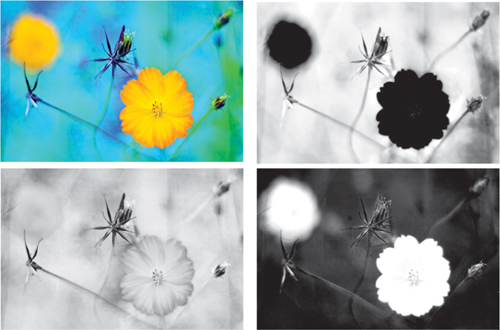
FIG 1.1 Though your color RGB images have separate RGB components, they appear merged as a two-dimensional color image on screen and in print.
The components of your RGB image that are combined by the computer when the image is displayed, and the result is a two-dimensional color image rendered on your computer screen.
Layers are similar to RGB color components, in that multiple layers can be added to an image and the result is still an image in two dimensions. Layers act as additions to your image that overlay one another as you add them to the layer stack (see Figure 1.2). These additions can be full color as opposed to grayscale RGB components. When an image with layers is displayed in Photoshop (or Elements and other programs that can recognize images stored with layers) the result is still a two-dimensional image made from a composite of the layers (see Figure 1.3). Individual layers can store complete RGB color that will combine in two-dimensional display of the image, as if you were looking down through the layers from the top of the layer stack.
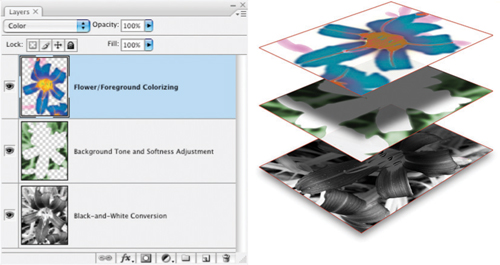
FIG 1.2 The ‘layer stack’ is the stacking of layers in the layer palette.
Adobe called the virtual stacking of images ‘layers’ because they resemble a layered stack of transparent images. New image content is added to the original image and creates alterations to the image by layering, or building on changes over the original image content. It does this without changing the content below the new layer. This ability to make additions to the image in layers keeps changes and alterations more fluid and movable, allowing you to finesse and sculpt the image result.
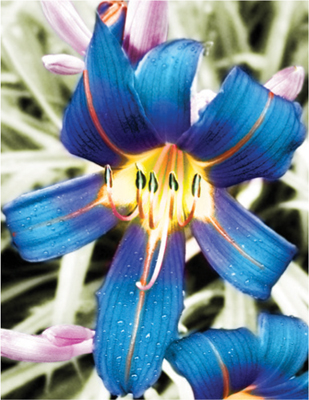
FIG 1.3 Separate layers appear merged as a two-dimensional image on screen and in print.
Layering allows you to work on distinct image areas while retaining original image information in the layers and background below. This ability to retain original image information is known as non-destructive editing; you retain the original image information undisturbed as you make changes by adding image layers. Each change is incorporated as if they were made on transparent sheets over your image that can be removed or re-ordered. The layers are stored separately in the working image file and when saved to layer-friendly formats (TIFF, PSD, PDF). During editing, layer content can be viewed and managed using the Layers palette (see Figure 1.4).
Layers can be created as needed and used for infinite adjustments to your images, and they can be stored with the image, copied both in the current image and to other images. They can be adjusted and revisited for further changes at any time. Each layer is a distinct visual object that can fill the entire image plane, though the visibility of individual layers and layer content is affected by many other layer properties such as layer mode, layer opacity, layer masking, layer clipping and layer visibility.
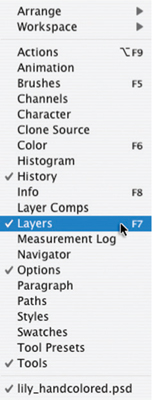
FIG 1.4 To open the Layers palette, choose Layers from the Window menu or press F7 to toggle the Layer palette view.
While the basic functionality of layers is simply allowing you to keep image content and changes separate, the separation allows you the advantage of customizing how image areas combine. Control gives you advantages that allow you to achieve results that would otherwise be impossible or extremely difficult in an image without layer capabilities. Each of these capabilities will be explored through the examples and exercises in this book.
Layer Palettes and Menus
One of the keys to making use of layers is knowing how to access layer functions. Layer functionality can be found in several places in Photoshop, with the bulk of layer functions found between the layer palette, the layer palette menu, the Layers menu and Layer Styles.
NOTE: Menus are listings of functions and features by name that can be selected with a click. These menus may be on the main program menu bar, but they may also be attached to palettes or other menus as submenus. Palettes (and dialogs) differ from menus in that they are floating windows that may have buttons or other graphical interface options that go beyond just a listing of features by name.
The layers palette (see Figure 1.5) is really a command center for controlling layer views and how layers combine. Open the layers palette by choosing Layers from the Windows palette.
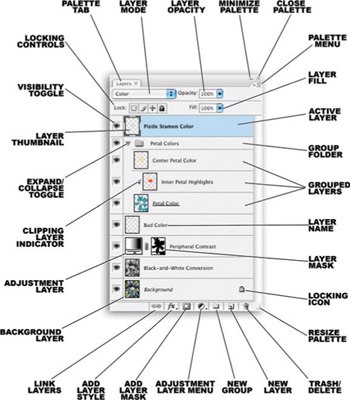
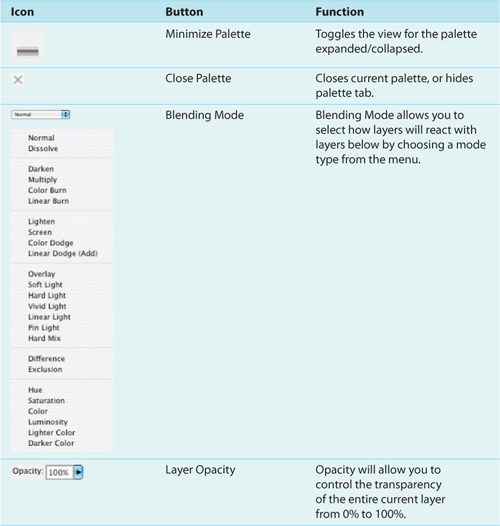
Simple buttons on the palette allow you to access many powerful features at a click. For example, you can toggle the visibility for individual layers on or off, you can add effects, create new layers, duplicate layers and delete them. Other button features allow you to lock layer transparency, color and transparency, position, or the entire content of the layer (transparency, color and position) (see Table 1.1).
TABLE 1.1 Features of buttons.
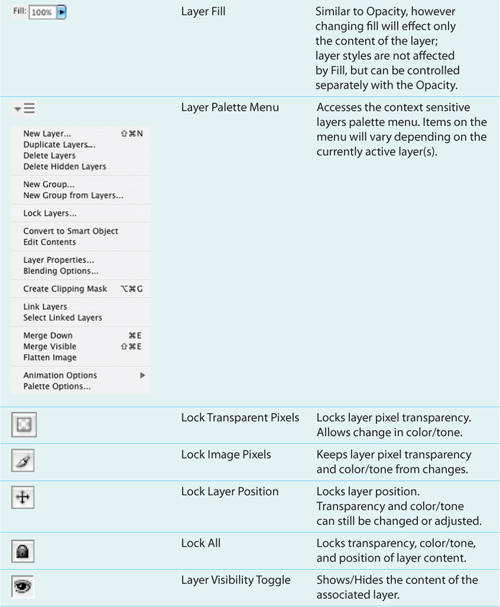
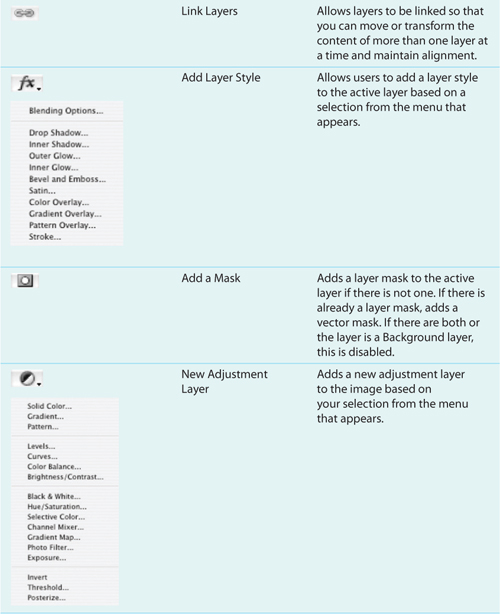
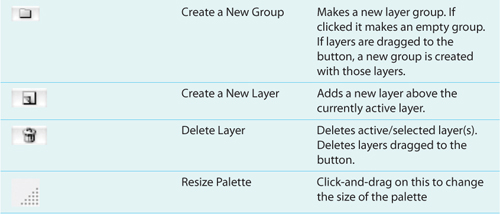
Photoshop’s Layer Palette Menu and Layer menu share much of the same functionality with a few exceptions depending on the current editing task. Both menus are context sensitive, adjusting functions and function availability depending on what features can logically be applied. Options are grayed out when not available. While functions on the menus represent the same things, access to those functions may affect how layers are created and handled in the image.
It is not necessary to memorize the functions and menus, there will be layer functions you rarely use and those you will perhaps never use. The graphic reference to the functions (Figure 1.5) will prove to be a handy guide if you are not very familiar with layers. What is more important than memorization is to know what type of functions are available and generally where they can be found and what type of access the program provides to those functions. That way even if you don’t know the exact tool or function, you at least know where it can be located. Rolling over tools and icons in Photoshop will reveal tool tips that name the item/function, and using these actively in the program as you edit will help you get familiar with all the functions in context.
There will be occasional mention of version-specific features in exercises (including features in newer Photoshop versions), however, in most cases if you are using an older version, it will not impact working with your images or completing the exercises from this book or using the book’s technique.
Types of Layers
There are several distinct types of layers that can be created in your images. All are visible in the layers palette, though some (Adjustment Layers, for example) have no visible content though they affect change in the image. The types of layers are listed in Table 1.2.
Layer Type |
Description |
Comments |
Background layer |
Specialized content layer that is the dedicated background for the image. The bottommost layer of an image; the result of a flattened image. These layers are always locked, have no mode, and are always 100% opaque. Can be converted to a regular layer by double-clicking. |
Background layers have little to do with the photographic notion of ‘background’ in that the content is not necessarily just image background information and shouldn’t be assumed to isolate this image area. Most images start with just a Background layer. |
Type layer |
Specialized content layer that contains editable type. Type layers are automatically added by application of the Type tool by clicking on the image or clicking and dragging (to form a type box). Type layers can be masked, used with applied blending modes and varied in opacity/fill. |
The editable type in a type layer is what sets it apart. Once a type layer is rasterized (turned into a bit map) it becomes like any other content layer – it just happens to be in the shape of type, type that isn’t editable, but has other advantages. |
Fill layer |
Layers that apply color fills, gradients or patterns. These are created using the Layer>New Fill Layer submenu. Fill layers can be masked, used with applied blending modes and varied in opacity/fill. Because they contain content, they can be converted to a Background layer. |
Fill layers are closely related to Adjustment layers and type layers. They have content (color, gradient, pattern) which makes them distinct from Adjustment layers, yet the content can only be edited through a dialog which makes them much like Adjustment layers. |
A layer that applies a specific function to underlying layers in the layer stack. These are specific functions created using the Layer>New Adjustment Layer submenu. Adjustment layers can be masked, used with applied modes and varied in opacity/fill. They cannot be converted to a Background. |
Adjustment layers have no content of their own beside mask content. They are very useful for applying non-destructive adjustments in the form of Levels corrections, Color Balance, Hue/Saturation, etc., all of which can be adjusted or undone at any time during editing. |
|
Layer Group (Set) |
Layers that are grouped together in a folder in the layers structure (palette). Almost strictly an organizational tool. Grouping allows all layers to be treated like a unit so that they can easily be moved, viewed/hidden or masked as one. |
Originally introduced as layer Sets with Photoshop 7, the name was changed to Groups with Photoshop CS. A Group is nothing more than the content of the layers that it contains. |
Clipping Layer, |
The bottommost layer in a clipping group. The solidity of the clipping layer controls what is revealed in the layers that are clipped (added to the clipping group). These work like cookie cutters where the bottom layer is the mold. |
One of the most useful quick-targeting features in Photoshop. Allows users to instantly mask any layer with the solidity of another. Once you start thinking in layers, this is an oft-used tool. |
Smart object |
Smart layers group together and save selected layer(s) as another image (PSB (Photoshop Object) file type) that is referenced by the image. This can reduce image file size, but may be more useful for updating groups of files at one time. |
An interesting use of Smart Objects is an example where you are doing portraits for a little league team and you want to make them all look like they have their own team cards. You can create the graphic card component, then save and import to multiple images. |
Video Layer |
Allows incorporation of video clips into images. Works much like a Smart Object referencing an external video file. |
New with Photoshop CS3. Not terribly useful for image editing. |
The distinction between Background and normal layers is an important one. Background layers serve a distinct purpose as the image background and lose a lot of the functionality of free-floating layers. Certain tools will behave differently when applied to backgrounds and others cannot be applied at all. For example, the Eraser tool will erase to the background swatch color rather than transparency as it would in other layers. Similar masking issues apply: you cannot apply a layer mask to the background layer.
The above reference is just a quick look at the vast capability of layers. Hands-on experience with layers in realistic situations will familiarize you better with how to look at and control layer content and the advantages they provide for editing images. Before getting into creating your first layers, let’s take a quick look at controlling what you see on the layers palette using the Layer Viewing Preferences, and then we’ll practice making a few layers.
Layer Viewing Preferences
Layer viewing preferences determine how you see thumbnails in the layers palette. These preferences are set on the layer palette menu. To get to the layer palette menu, you will need the layers palette open; it may help to have an image open as well so you can see the difference in the setting results.
Try It Now
1. Open any image in Photoshop.
2. If your Layers palette is not already in view, choose Layers from the Window menu.
3. Click on the menu button at the upper right of the palette.
4. Choose Palette Options from the menu that appears. The Layers Palette Options dialog will appear (see Figure 1.6).
5. Choose your preference for the size of the thumbnail that you prefer to view.
Either the second or third option from the top is recommended for thumbnail viewing. This will allow you to get an idea of layer content without taking up too much of your screen. No view will prove to be completely adequate when trying to distinguish layers. While the largest thumbnail gives the best view of the layer content, it may prove to be too large for many of the exercises in this book as the layers will cascade off the screen. The ‘None’ option will take up the least amount of screen landscape, but will make you rely entirely on layer naming which negates the value of visual cues.
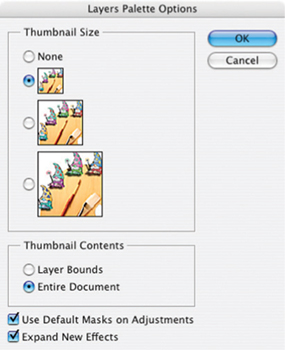
FIG 1.6 The Layers Palette Options.
You can change this option at any time; it applies to the palette, and not to actual layer content.
Getting Started Creating Layers
There are many ways to create new layers in Photoshop, and the methods serve different purposes. Table 1.3 describes various methods, and the most common ones.
TABLE 1.3 Methods to create new layers in Photoshop.
Try It Now
If you take a moment and sit down in front of the computer and run down the bullet list, you can test out creating all these new layers. Of course there are reasons to create layers, but right now gain some familiarity with the basic creation methods. This will help you locate them later when you need them, and play is a great way to become familiar and comfortable with creating layers. It won’t be long till we are immersed in serious layer work!
If you do go through the exercise of creating the layers, you’ll notice that different layer types can be identified by different layer icons in the layers palette. Table 1.4 shows icons and what they mean.
TABLE 1.4 Identification of different layer icons.


At this point we have dissected enough of the layers palette and the things that you will see there to have a reasonable orientation as to what to expect.
Exercise
Running through the bullet list and creating random layers in a stack may be interesting, but not nearly as interesting as working through a practical example. In this exercise, we will take an image, add a copyright, burn in the frame, and add a drop shadow using some simple layer creation and techniques. The exercise is a fairly easy, more or less practical run-through of some layer creation techniques that will take about 15 minutes and requires little or no understanding of layers. This is meant to be a glimpse into layer functionality; while there is some explanation of what is going on during the exercise, better understanding of the features we are looking at will come as we explore the possibilities of layers throughout the rest of the book.
There is almost always more than one way to execute a set of steps to accomplish a result in Photoshop. Though you may usually use different methods, even for simple steps, it is suggested that you follow the steps as written the first time you run through any exercise in this book – especially when a specific means of accessing a function is suggested. Experimenting with other methods may yield somewhat different or confusing results. If an option or function step is not specifically mentioned, it is left up to you to choose.
Try it Now
1. Open any image and flatten if necessary (Layer>Flatten Image). The image should have only a Background layer when viewed in the Layers palette.
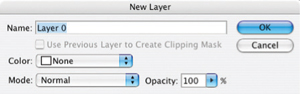
2. Double-click the Background layer. This will open the New Layer dialog (see Figure 1.7).
3. Change the layer name of the Background Copy layer to ‘1 Original Background’ by typing in the Name field. Click OK to accept the changes (Figure 1.8).
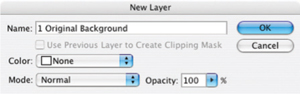
FIG 1.8 Change the layer Name.
4. Set the background swatch color to white. To do this press D on the keyboard (sets default colors). This color selection will affect the results of the next steps.
5. Create a new layer (click the Create a New Layer button on the Layers palette). This creates a new layer above the 1 Original Background layer.
6. Make the new layer into the background layer by choosing Background From Layer (Layer>New>Background From Layer). This will change the layer to a background and fill with white.
7. Choose Canvas Size from the Image menu. When the dialog appears, choose the following options: New Size: Width: 120% (Choose from the menu in the dialog box), New Size: Height: 120%, do not check the Relative box, leave the anchor (White box in center) at the default, Canvas Extension Color: Background. Click OK to accept the changes. This will create a white border around your image.
Canvas Extension Color is new to Photoshop CS3. ‘Background’ is the default for earlier versions, so there is nothing to change in CS2 and previous versions.
8. Choose the Type tool by pressing T on your keyboard.
9. With the type tool selected, choose a font and font color for a copyright from the Options bar. If you don’t know what to choose, pick Arial, Regular, 12pt and black. These options can be found on the Options bar, just below the program menu.
10. Click on the 1 Original Background layer in the layers palette to activate it and then click on the image with the type tool. This will create a new type layer in the layers palette just above the 1 Original Background layer, and a blinking cursor will show on the image.
11. Type in ‘Copyright © 2007 [your name]’, click the Commit Any Current Edits button on the Type Options bar, and move the copyright to a place in the image that seems suitable using the Move tool. To choose the Move tool, click the Move tool on the toolbar, or press V on your keyboard.
|
Commit Any Current Edits Button |
|
Cancel Any Current Edits Button |


To get the copyright symbol, press Option+G on a Mac; on Windows, hold down the Alt key and press the following keys on the number pad in order: 0, 1, 6, 9, then release the Alt key. If this does not work immediately or if you have a keyboard with no number pad, turn on the Numlock feature from the keyboard (press the Numlock or similar button). For more information about Numlock on PCs, consult your computer’s user manual.
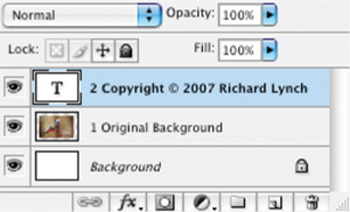
12. Change the name of the type layer you just created by adding a ‘2’ to the beginning of the name. To do this, choose Layer Properties from the Layers menu or the Layers palette menu. Once you have completed the name change click OK to accept the changes. At this point your layers should look similar to Figure 1.9.
13. Create a new layer at the top of the layer stack, and name the layer ‘3 Frame Burn’.
14. Hold down the Command / Ctrl key [Mac/PC] and click directly on the thumbnail for the 1 Original Background layer. This will load the solid part of that layer as a selection.
Keystrokes will always be noted in the steps in the same way, and a reminder of the order will appear once in each exercise when the first keystroke appears. Mac keystrokes will always be followed by PC keystrokes, separated by a slash.
15. Invert the selection (press Command+Shift+I / Ctrl+Shift+I).
16. Fill the selection with black on the 3 Frame Burn layer. To do this, be sure the 3 Frame Burn layer is active, choose Fill from the Edit menu, and when the Fill dialog appears choose these options: Use: Black, Mode: Normal, Opacity: 100%, do not check the Preserve Transparency checkbox. See the dialog in Figure 1.10. Click OK to accept the changes. This will fill the frame area with black.
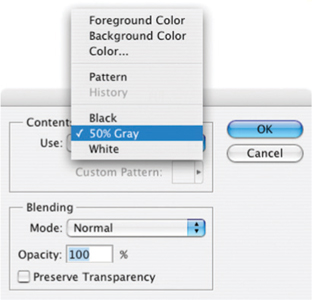
FIG 1.10 Layers after step 16.
17. Deselect by pressing Command+D / Ctrl+D. Deselecting assures you will apply the next changes to the whole image.
18. Move the layer down in the stack by pressing Command+[ / Ctrl+[ . This will switch the order of the 2 and 3 layers.
19. Apply a Gaussian Blur to the layer. Choose Gaussian Blur from the Blur submenu on the Filter menu (Filter>Blur>Gaussian Blur). Set the Radius to 50, and click OK to accept the changes.
20. Change the Opacity of the 3 Frame Burn layer to 40%, and change the Mode to Multiply using the Mode drop list and Opacity slider on the layers palette. Lowering the Opacity will lessen the effect of the change.
21. Click on the Background layer to activate it.
22. Create a new layer, and name it ‘4 Drop Shadow’. Because you activated the background before creating the layer, it will appear in the layer stack just above the Background.
23. Hold down the Command / Ctrl key and click on the 1 Original Background layer thumbnail to load it as a selection.
24. Fill the 4 Drop Shadow layer with 50% gray. Use the Fill function from the Edit menu, and change the Use drop list under Contents to 50% gray. This will fill in color under the 1 Original Background layer and no change should be apparent in the image.
25. Deselect. Command+D / Ctrl+D. This will release the selection.
26. Choose Gaussian Blur from the Filter menu (Filter>Blur>Gaussian Blur). When the Gaussian Blur dialog appears, use a radius of 20 pixels, and click OK to accept the changes. This will soften the edges of the 4 Drop Shadow layer.
27. Choose the Move tool (press V), and move the 4 Drop Shadow by holding down the Shift key and pressing the right arrow on the keyboard twice and then the left arrow twice. Release the Shift key. This action will have moved the content of the current layer 20 pixels down and 20 pixels right. At this point, the layers should look like Figure 1.11.
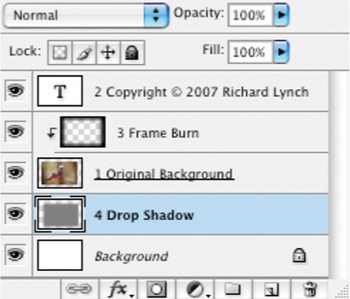
FIG 1.11 Layers after step 27.
28. Make a Hue/Saturation adjustment layer by choosing Hue/Saturation from the New Adjustment Layer submenu on the Layers menu (Layer>New Adjustment Layer>Hue/Saturation). When the New Layer dialog appears, click the Use Previous Layer to Create Clipping Mask checkbox and change the name of the layer to 5 Shadow Color before clicking OK. The Hue/Saturation dialog will appear. Click the Colorize box and adjust the Hue, Saturation and Lightness sliders to adjust the color of the drop shadow to something pleasing. Moving the Hue slider (right or left) will change hues as if they are on a color wheel. Moving the Saturation slider to the right will increase saturation; moving it to the left will decrease saturation. Moving the Lightness slider to the right will lighten the shadow; moving the slider left will darken the shadow. Click OK to accept the changes.
The use of Previous Layer to Create Clipping Mask checkbox has been named different things in almost every other versions of Photoshop. It is the only checkbox on the New Layer dialog, and it always does the same thing: it creates a clipping group from the layer you are creating. See the Types of Layers Table 1.2 for more information.
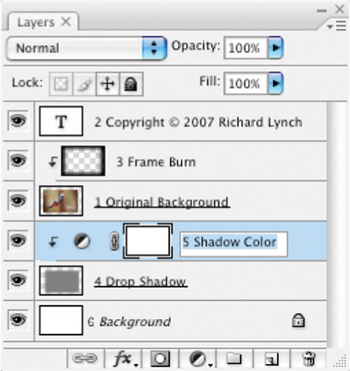
FIG 1.12 Layers after step 28.
You should now have 6 layers: 1 Original Background, 2 Copyright Text, 3 Frame Burn, 4 Drop Shadow, 5 Shadow Color and 6 Background (see Figure 1.12).
If you really want to test out your understanding of layers thus far see if you can accomplish the following. Don’t worry if you can’t complete all the items in this list, some of this will be discussed in the coming chapter.
• Change the color position and face of the type in the copyright layer. Hints: double click the type layer in the layers palette to select all the type, use Hue/Saturation like you did in Step 28, or use the Options on the Options bar.
• Make a Group (or Set) from the six layers you created.
• Activate the 5 Shadow Color Adjustment layer, and merge down.
Summary
We looked at a lot of things in this chapter, from the basics of what a layer is, to how they are applied. You should have had the opportunity to explore the palettes and menus where layers are created and manipulated, and gained a more comprehensive visual conception of what layer functions look like as part of the palette. We’ve looked at the possibilities of adjusting how the layers palette displays, and have explored the initial possibilities of creating layers.
The core purpose of this chapter is introductory. Now that you have seen some of what layers can do, let’s move on into learning how they help you manage your workflow and form the basis of your image editing process.