Table of Contents for
The Adobe Photoshop Layers Book: Harnessing Photoshop's Most Powerful Tool, covers Photoshop CS3
 The Adobe Photoshop Layers Book: Harnessing Photoshop's Most Powerful Tool, covers Photoshop CS3
Published by
Focal Press, 2007
The Adobe Photoshop Layers Book: Harnessing Photoshop's Most Powerful Tool, covers Photoshop CS3
Published by
Focal Press, 2007
- Cover
- Halftitle
- Title
- Copyright
- Dedication
- Contents
- Acknowledgements
- Introduction
- Chapter 1: The Basics of Layers: Layer Functions and Creation
- Chapter 2: Layer Management: Concepts of a Layer-Based Workflow
- Chapter 3: Object and Image Area Isolation in Layers
- Chapter 4: Masking: Enhanced Area Isolation
- Chapter 5: Applying Layer Effects
- Chapter 6: Exploring Layer Modes
- Chapter 7: Advanced Blending with Blend If
- Chapter 8: Breaking Out Components
- Chapter 9: Taking an Image through the Process
- Chapter 10: Making a Layered Collage or Composite Image
- Index
INTRODUCTION
Sometime in early 1993, I was working for a how-to photography book publisher as an editor/designer. We had Photoshop 2.5 and I used it to make adjustments to scan the images and illustrations to make them ready for print. Photoshop was fairly new at the time; it didn’t yet have all of the features that would, not much later, make it the industry standard in image editing.
One particular project I remember working on was scanning topographic maps for a book on various New York waterfalls. The book had been self-published by an author who added the maps to the book to give the reader an idea of the landscape around each of the falls. We were planning on redoing it and bringing it to a larger audience.
For the original book, the author had public domain maps scanned and placed in the book at the original size. They accounted for a significant number of pages in the original book. We made the decision to size the maps for each of the falls into a single page or set of facing pages to make the whole landscape visible at a glance. When the author had the maps scanned for the original book, he didn’t ask for the image files. We had to rescan the maps for the new book.
It sounded like it should have been an easy thing. We had a decent flatbed scanner, and scanning the maps was easy enough. I fit as much of a map as I could onto the scanner glass and scanned each map in even columns and rows, leaving a little overlap, and saved the scans to separate files. I’d planned to assemble them all later in Photoshop. Like making a puzzle using numbered pieces, it would be easy (see Figure 1).
After I made all the scans, I opened the scanned map files, made a new file large enough to hold all the scans and then started placing them in the image one at a time via copy and paste. Placing the first image was easy, and everything at that point was working as planned. The next image wasn’t nearly as easy. The lines for the topographic maps didn’t line up very well. I tried doing some rotation, but I couldn’t get all the lines to match up at one time, no matter what I did and how I fussed. When I got the lines near the bottom to align, the ones at the top would be off, if I nudged right or left, it would fix one thing and goof up something else.
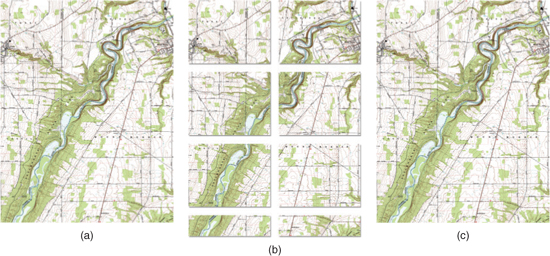
FIG 1 (a) The topographical map was far to big to fit on the flatbed scanner. (b) The plan was to scan the map in pieces and fit them all together. (c) When reassembled the new map would look like the original whole – at least that was the plan.
As it turned out, lining up the pieces of the map was a nightmare. I did the best I could in aligning that second piece, and finally decided it would never align perfectly – it seemed I was a victim of scanner distortion besides lacking perfect alignment between scans. When I deselected the pasted piece, it merged with the original, misaligned gradation lines and all (see Figure 2). All I could do was Undo and try it again, or move on. I went on to the next puzzle piece, the first in the next row, hoping I wouldn’t have the same problem. It was just as hard to get it to align correctly. The fourth piece was even harder as I had to try and align to two edges (top and left) of the piece. None of the subsequent pieces aligned perfectly, and I was left with many disconnected gradation lines.
I continued putting the pieces together and after I was all done I went back and painstakingly corrected every line by patching. It took many hours of additional time to make, finesse and blending all of the repairs.
Several months after the map project, Adobe came out with Photoshop 3. I read about the new version, which featured layers as the key new addition. Layers were a way to let you store parts of your image independently in the same image, letting you stack your changes without committing them. In a way, I surmised that layers could act like selections, but with more permanence. Instead of the situation you had before where selected parts of the image would automatically merge into a single image plain when deselected, you had the option of keeping the area separate. Layers offered the opportunity to reposition the objects you had on separate layers at any time.
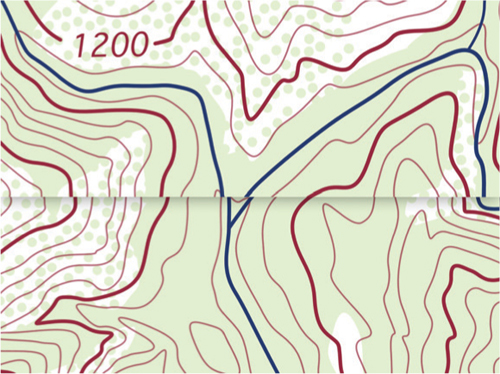
FIG 2 The gradation lines mismatched every time a piece was put in place.
I thought back to the maps and how even that simplistic view of layers would have saved me hours of time. I could have pasted the separate scans to their own layers so I could move each independently even after I had all of the scans in one image (see Figure 3).
There were many other advantages to layers that I would discover in the coming months that went far beyond the simple way I first thought of them. I would have power over opacity and could lower it for any given layer (say to 50%) to see through to the content of the layers underneath and see better how the layers might align. I would be able to erase areas of the map that I was adding to blend the overlap optimally, and lessen the need for patching. I could have made patches for the gradation lines in new layers and greatly simplified blending in those adjustments. In all, the advantages of layers would have cut the work I had to do on the map by days, not just hours.
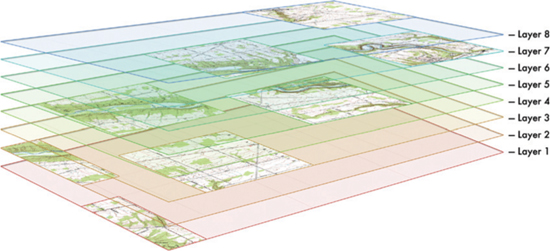
FIG 3 Layers would allow image areas to remain separated as if each were placed on its own pane of glass in the image
Over the years and through the next seven-plus versions of Photoshop, I would discover many other uses for layers, including:
• using layers as an organizational tool for image corrections and the center of workflow;
• using layers for storing multiple versions of an image in one file;
• using layers to set up complex adjustment scenarios that allow more flexibility and power than standard Photoshop tools like Channel Mixer or Calculations;
• using layers to imitate other color modes (Lab and CMYK) without converting from RGB;
• using layers to create custom CMYK and duotone separations for print;
• using layers to develop powerful techniques for color and tone enhancement, sharpening and effects;
• using layers to enhance control of the application of any tool in Photoshop;
• leveraging layer power to allow completely non-destructive image editing throughout the process of image editing.
Layers have seen some enhancement, though they were remarkably well matured in that initial release. Layer functionality includes some extraordinary powers that I have still barely seen mentioned in tutorials and books, and even when these features are mentioned, they are never explored to their potential.
Layers – what I consider the most powerful tool in all of Photoshop – a feature in Photoshop used so extensively that it will affect the correction of every image – has never been the subject of a book.
This is very surprising considering more esoteric features such as Channels and Actions have books written about them. Every Photoshop book mentions layers, and some have dedicated chapters to them, but no book has focused on and explored the advantages of using layers as the core of obtaining the best images with the least amount of work until now.
The Goal of This Book
The goal of The Adobe Photoshop Layers Book is to give the reader a complete approach to editing images using Layers as a springboard. Layers will be used as a catalyst to organize corrections and solidify workflow (the holistic process of editing images), and act as the central component to corrections in every change. The reader will learn professional correction techniques that can be applied to any image, and they will become familiar with the power of layers as an organizational, correction and revision tool. The ultimate goal is to portray layers as the heart and soul of image correction, and build a foundation of good practices to help approach correction and enhancement of any image.
Achieving the Goals
The process of discovering layers starts with the essence of learning what layers are and exploring the layers interface and commands in detail. Exploration continues by applying layers in real-life image editing situations using images found on the CD. The approach looks at the fundamentals of images and image editing, and shows how layers enable users to make any adjustment to an image in a non-destructive fashion using essential tools and concepts.
The techniques provided in this book help you take your corrections to a professional level without hocus-pocus or steps that are impossible to comprehend. You’ll see what happens behind the scenes in step-by-step procedures, and you’ll be given the tools – customized actions created just for this book – to move through those steps quickly to set up image editing scenarios.
This book will divulge
• A process of approaching image corrections (a workflow) centered on layered development with proven methods and a proven, core tool set.
• High-powered editing techniques and scenarios that leverage the power of layers to enhance your ability to make any image adjustment.
• Realistic image editing situations with real images by using realistic expectations to get real results.
• Timeless techniques that span many versions of Photoshop based on good core fundamentals and essential understanding that can be used with any image.
This book will not
• Show you fleeting techniques that emphasize the newest tools just because they are new.
• Examine a plethora of rarely used tools in excruciating detail just because they are there.
• Show you how to create crazy effects that you may use once in a lifetime, if ever.
Who Should Read This Book
This book is for anyone who is serious about enhancing their Photoshop skills and getting better results from all of their digital images. It applies to those using either a digital camera or scanner with Mac or PC computers.
Readers of this book should not be absolute beginners with Photoshop. This book is for intermediate and advanced Photoshop users who have at least dabbled in using layers, perhaps knowing they could make more of them.
It is assumed that the reader is familiar with the basic Photoshop tools (or that they are competent to research these in Photoshop Help). This book is written for:
• Intermediate and advanced users who want to understand how to use layers optimally for non-destructive adjustment and organizing image corrections.
• Serious hobbyists who want to get more from their investment in Photoshop by leveraging the power of its most potent tool.
• Those with some rudimentary experience with Photoshop who are looking for an organized approach to editing any image and getting consistently better image results.
How This Book Is Organized
As you go through this book, you will discover a mixture of practical theories, examples of the types of changes you’ll make in images daily, and projects to work on to help you understand the process as well as why it works. Projects are devised so that you don’t just complete an exercise or press a button and ogle the result, but so that you see what goes on behind the scenes to help understand what you have done. When you understand, you can apply that understanding to other images predictably, either by using tools provided to drive the processes or by manually applying learned techniques.
A routine is established so that you set clear goals, and establish a method of approaching your images consistently. The examples provided ensure that you can see the changes when they have achieved the desired result. This understanding will enable you to apply the techniques you learn to other images so that your images can be improved consistently.
 In Photoshop, many tools and functions can be accessed by more than one method. When following along with this book’s step-by-step instructions, use the suggested steps for accessing the tools. Using other methods may cause sequences to behave unpredictably. For example, opening Levels with the keyboard shortcut (Command+L / Ctrl+L) will open the Levels dialog box but will not produce an adjustment layer, and this can affect the outcome of a procedure that depends on the adjustment layers being created.
You will learn multiple color-separation methods to take apart image color and tone, as well as different ways to isolate color components, image objects and areas. When you can isolate colors and image areas, you can correct those areas separately from the rest of the image and exchange, move, and replace elements to make better images. Actions included on the CD are introduced in the exercises and will reveal functional scenarios that can be used with any image and simplify the process of applying what you learn.
The chapters build from one to the next, each using some ideas from the previous chapter(s), building to chapters which follow image process from beginning to end by using a single image. Chapters will incorporate mini exercises that invite the reader to Try It Now, using a hands-on approach to learning. All images used in these exercises can be found on the CD, so the user can work along. No book of any length can completely explore every facet of every concept that they present, but they should give you a pretty good idea. Each chapter ends with a segment that considers possibilities for using the techniques and concepts you’ve learned in each chapter. The purpose and content of each chapter is listed below:
Chapter 1 – The Basics of Layers: Layer Functions and Creation
Understanding how to work with layers starts with understanding some basics about what layers are, what their capabilities are, what functions are in the layers palette, and how to locate all that you need to apply basic layer power. Readers will explore the layers palette, see how all the basic functionality fits into the layers palette and menus, learn how to create layers, access and apply basic layer functions, and how to adjust the layer viewing preferences. We’ll run through a hands-on no-knowledge-necessary example of using layers and see some simple effects that can be achieved in the world of layers.
Chapter 2 – Layer Management: Concepts of a Layer-Based Workflow
Exploring practical application of layers shows the flexibility that layers offer and organization they provide, and leads to using layers most effectively. There are reasons to create layers based on the scope of layer capabilities and the changes you want to make; in a similar vein, there are reasons not to create layers, reasons to delete or combine layers, and means of managing layer content such as merging, linking and grouping. Effectively managing layers and layer content will help keep image corrections on track, will allow users the flexibility to step back in corrections, and will also keep images from bulking up to ridiculous sizes unnecessarily. This discussion will include a brief discussion of layer types, such as type and adjustment layers, linking, alignment and activating (multiple deletes and duplication). Readers will test out all the layer creation and combining features, and will be introduced to the steps of a digital workflow.
Chapter 3 – Object and Image Area Isolation in Layers
For users who have ever wanted to change just one small part of an image, this chapter begins to look at how to do that effectively with layers. Sure you can isolate areas with selection, but selection has disadvantages in that changes are all or nothing and selected areas are only temporarily isolated. Layers enhance your freedom to correct image areas by isolating areas completely from the rest of the image. Once areas are isolated, users can make adjustments, and then fine-tune adjustments in ways that are impossible with simple selective change. We’ll look at using layers to isolate image areas and objects using copy and paste, and applying a simple layered effect using layer styles and manual effects. We’ll also look at blending layers using Opacity, and the idea of adding external components to an image to look at how layers offer flexibility to control composition.
Chapter 4 – Masking: Enhanced Area Isolation
Even more advanced means of isolating image areas exist in the form of masking. Masking allows users to hide areas of a layer without actually removing those areas from the image; masked areas are hidden in the image rather than permanently erased. We’ll look at masking as it applies to layer transparency, layer clipping, Adjustment layers, and proper layer masks. We’ll use layer masking to paint in effects, affect image sharpness selectively, and change image color selectively.
Chapter 5 – Applying Layer Effects
With the ability to isolate image areas comes the advantage of applying layer-based effects. We will look at the effect possibilities, practical uses and application. We’ll consider the difference between Fill and Opacity. We’ll peek around the corner to Chapter 6 by using layer modes and revisit examples from Chapter 1. Then we’ll look at how you can create layer effects manually, using concepts from Chapters 3 and 4 to isolate and mask image areas. Global settings will be explored for applying effect direction.
Chapter 6 – Exploring Layer Modes
People that get involved in using layer modes often just apply them willy-nilly like filters, and experiment till they see something that they like. There is a better approach to layer modes: actually knowing what they do and when they can be helpful. Not all layer modes are really useful for everyday correction but some are, and they are very powerful tools. We’ll look at ways that users can use layer modes everyday for image enhancements and improvements. Calculations will be explored in making some simple separation of image components into color and luminosity to see how components of an image can be separated to allow useful change. Manual effects like dodge and burn, image comparison, contrast enhancement and more will be explored.
Chapter 7 – Advanced Blending with Blend If
Photoshop has several advanced blending modes that allow users to blend layers based on components/channels, qualities in the current layer and qualities in layers below the current layer. This capacity is mostly encompassed by Blend If and component targeting. These powerful tools are often great to use as adjuncts to more familiar layer tools, but we will explore examples of more than one type, in practical examples that use Blend If for image change.
Chapter 8 – Breaking Out Components
This chapter looks at ways to leverage the power of layers to separate out image areas by tone or color. These powerful methods of separating images into components can lead to a plethora of advantages in creating layer-based masks based on specific image qualities, and can open the door to a world of creativity in manipulating tone, color, shape and composition. Custom tools will be provided for users to create involved image scenarios that allow layer-based channel mixing of different sorts and targeting tone and color change in a more powerful way than other channel mixing options or controls offered as standard Photoshop tools.
Chapter 9 – Taking an Image through the Process
Now that we have explored the parts of layers and what they can do, we will look at applying layers as a complete process to an image from beginning to end. This chapter offers the opportunity to review every preceding chapter as part of an actual application in image correction. It offers the opportunity to focus on the workflow, it reinforces the idea of outlining what to do with an image before approaching corrections, and it shows how to keep everything organized during the process.
Chapter 10 – Making a Layered Collage or Composite Image
As an exercise in creativity and an opportunity to break out all the tools that readers encountered in the course of this book, the final chapter is devoted to exploration of compositing and collage work. The emphasis will be on considering the idea of collage, and then how changes and additions are implemented using the power of layers. Source images will be provided from the examples in this book for looking at panorama stitching, composites and collage. Readers will be encouraged to exercise their layer muscles by using techniques from previous chapters to make a creative collage from a variety of source images.
The CD
One of the most important parts of this book is the CD. First, the CD contains all the images from this book so that readers can work through the corrections exactly as they are portrayed. Second, the CD contains a set of custom actions that will help readers set up scenarios in their images and to repeat long sets of steps that are in this book but would otherwise be tedious to apply. To use the actions and simplify procedures you’ll have to do nothing more than load and run an action. These actions/tools are meant for readers of this book only and should not be shared freely with other Photoshop users. The actions must be installed into Photoshop via the actions palette to be accessible. The CD, images and actions will operate on Windows and Macintosh computers.
To install the actions, first locate the actions folder on the CD. Actions in this folder can be dragged directly to the actions palette in Photoshop, or they can be loaded through the Load Actions function on the Actions palette menu (see Figure 4).
After you’ve installed the actions, you’ll be able to access them in the Actions palette. Open the Actions palette by choosing Actions from the Window menu. The usage of the actions is discussed in this book, and all are described in the readme file for the actions on the CD. Please make use of the website for this book and use the online forum to discuss any problems you may be having with the CD. Find links for the forums on the website http://www.photoshopcs.com
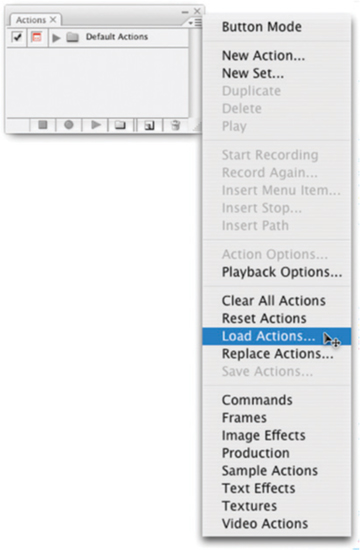
FIG 4 Open the Actions palette from the Photoshop Windows menu, then choose Load Actions from the palette menu.
The images used as practice files in this book are provided on the accompanying CD so that readers can work along with the exercises. They are mostly provided as .psd files (Photoshop documents) but may be in other formats as appropriate to a particular exercise. These images are copyrighted and for educational purposes only; please use them only in the context of the exercises. Work with the images by opening them with Photoshop directly off the CD, and save them as you need them to your hard drive. The images are all compatible with Macintosh and Windows computers.
Mac and PC Compatibility
The actions and images on the CD are completely compatible with Mac and PC platforms, and they work in the same way within Photoshop across platforms. The greatest difference a user will note in this book is that shortcuts differ between Mac and PC. For example, to open the Levels palette on PC, the user would press the Ctrl+L keys; on Mac the user would press the Command+L keys (Command is sometimes known as the apple key). Keyboard equivalents on Mac and PC are:
Macintosh |
Windows |
Example |
Shift |
Shift |
Shift+X |
Option |
Alt |
Option+X / Alt+X |
Command |
Ctrl |
Command+X / Ctrl+X |
Control+click |
Right-click |
Control+click / Right-click |
All keystrokes are included in their entirety in this book, first Mac, then PC, separated by a slash ‘/’. |
||
The Leveraging Photoshop Layers Newsletter and Blog
The Leveraging Photoshop Layers Newsletter and Blog (web log) keeps you up to date on frequently asked questions, tips and troubleshooting. I send the newsletter and Blog to all subscribers, and they will also be available online. The frequency of the newsletter should be once every 2 months; the Blog will be updated about once a week.
All you have to do to get the newsletter is subscribe by submitting your email address on the subscription page. Subscription is free, and the newsletter is available to anyone who wants to join. You can sign up on the website http://www.photoshopcs.com.
The Blog is available online, and you can subscribe with a feed subscription service (e.g., http://www.feedblitz.com), RSS or Atom reader.
Contacting the Author
I have been in the practice for years of supporting my books through the internet via my websites, forums and through email, and I visit various forums online regularly. I am glad to answer reader questions, and consider it an opportunity to add to explanations in this book and note areas that could use enhancement in future editions.
On the website, I maintain a newsletter and Blog to keep readers abreast of questions that I get asked and have the opportunity to answer, and I post errata (or a list of any errors and typos found after publication). All this is meant to help you through any troubles you might have with this book and techniques. I provide these resources so that you can get legitimate answers direct from the source, rather than having to fish around in other forums or on other websites where there is likely no one who knows the materials better than I do. However, you’ll need to seek me out, as it is much more difficult for me to find you. If you have questions, it is likely that other people will have those same ones, too. Please feel free to ask as the need arises.
To catch up on any information having to do with this book, please visit the official website http://www.photoshopcs.com. You will find links there to all the resources (forum, newsletter, Blog, troubleshooting, errata, etc.). While you should visit the website first as a primary resource, readers can also contact me via email using the following address: rl@ps6.com or thebookdoc@aol.com. Depending on volume, I respond personally to email as often as possible, and I look forward to your input.