
The listing is a basic component responsible for rendering grids, lists, and tiles, providing filtering, pagination, sorting, and other features. The listingElements group referenced in the vendor/magento/module-ui/etc/ui_configuration.xsd file provides a nice list of both primary and secondary listing components:
| actions | component | file | massaction | select |
| actionsColumn | container | filters | modal | selectionsColumn |
| bookmark | dataSource | form | multiline | tab |
| boolean | dataProvider | hidden | multiselect | text |
| button | date | htmlContent | nav | textarea |
| checkbox | dynamicRows | input | number | wysiwyg |
| checkboxset | insertForm | paging | ||
| column | exportButton | insertListing | price | |
| columns | field | listing | range | |
| columnsControls | fieldset | listingToolbar | radioset |
The key to using all of these components is to understand:
- What parameters individual components accept—further revealed by definitions found in the vendor/magento/moduleui/view/base/ui_component/etc/ definition directory
- What child components individual components accept—for example, the email component cannot be nested within the dataProvider component
Moving forward, we will use the listing component, and a few of its secondary components to create the Micro Inventory screen as shown:
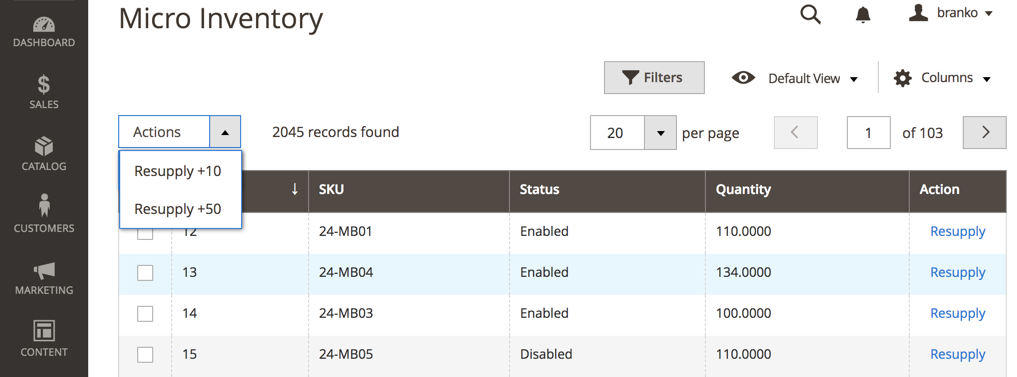
The grid itself is to consist of ID, SKU, Status, Quantity, and Action columns. The Resupply action will trigger redirection to a custom Stock Resupply screen, which we will address in the next section. The Actions selector in the upper left corner is to consist of two custom actions, allowing for fixed product stock increases.
Assuming we have defined our basic registration.php, composer.json, and etc/module.xml files, we can start dealing with the specifics of our module.
Let's start by defining the <MODULE_DIR>/etc/acl.xml as follows:
<config>
  <acl>
    <resources>
      <resource id="Magento_Backend::admin">
        <resource id="Magento_Catalog::catalog">
          <resource id="Magento_Catalog::catalog_inventory">
            <resource id="Magelicious_Minventory::minventory" title="Micro Inventory"/>
          </resource>
        </resource>
      </resource>
    </resources>
  </acl>
</config>
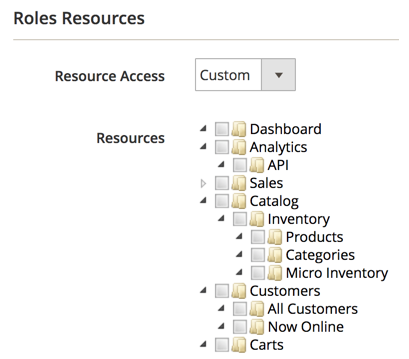
The requirement of our module was to provide a custom listing interface for a limited set of users. The access list entry, later referenced by our admin controller, ensures just that. The choice to nest our Magelicious_Minventory::minventory as a child of Magento_Catalog::catalog_inventory is based merely on logical grouping, as our module deals with inventory stock. We should now be able to see Micro Inventory under Roles Resources as shown:
We then define the <MODULE_DIR>/etc/adminhtml/routes.xml as follows:
<config>
  <router id="admin">
    <route id="minventory" frontName="minventory">
      <module name="Magelicious_Minventory"/>
    </route>
  </router>
</config>
This will allow us to access our controller actions later on via http://magelicious.loc/index.php/<admin>/minventory/<controller>/<action> links.
We then define the <MODULE_DIR>/etc/adminhtml/menu.xml as follows:
<config>
  <menu>
    <add id="Magelicious_Minventory::minventory"
      title="Micro Inventory" translate="title"
      module="Magelicious_Minventory" sortOrder="100"
      parent="Magento_Catalog::inventory"
      action="minventory/product/index"
      resource="Magelicious_Minventory::minventory"/>
  </menu>
</config>
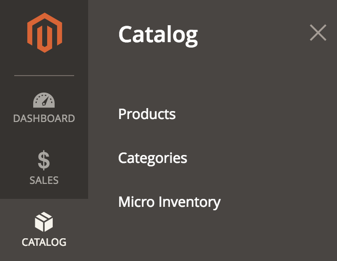
This positions our Micro Inventory menu right under the main Catalog | CATALOGUE menu, as shown:
When clicked, the menu's minventory/product/index action will throw us at <MODULE_DIR>/Controller/Adminhtml/Product/Index.php, which will be addressed later on.
We then define the <MODULE_DIR>/Model/Resupply.php as follows:
namespace Magelicious\Minventory\Model;

class Resupply
{
  protected $productRepository;
  protected $collectionFactory;
  protected $stockRegistry;

  public function __construct(
    \Magento\Catalog\Api\ProductRepositoryInterface $productRepository,
    \Magento\Catalog\Model\ResourceModel\Product\CollectionFactory $collectionFactory,
    \Magento\CatalogInventory\Api\StockRegistryInterface $stockRegistry
  )
  {
    $this->productRepository = $productRepository;
    $this->collectionFactory = $collectionFactory;
    $this->stockRegistry = $stockRegistry;
  }

  public function resupply($productId, $qty)
  {
    $product = $this->productRepository->getById($productId);
    $stockItem = $this->stockRegistry->getStockItemBySku($product->getSku());
    $stockItem->setQty($stockItem->getQty() + $qty);
    $stockItem->setIsInStock((bool)$stockItem->getQty());
    $this->stockRegistry->updateStockItemBySku($product->getSku(), $stockItem);
  }}
This class will serve as a centralized stock updater for our module, which will be updating stock from the Actions selector found on the Micro Inventory screen, as well as from the Save button action triggered on the Stock Resupply screen.
We then define the <MODULE_DIR>/Controller/Adminhtml/Product.php as follows:
namespace Magelicious\Minventory\Controller\Adminhtml;

abstract class Product extends \Magento\Backend\App\Action
{
  const ADMIN_RESOURCE = 'Magelicious_Minventory::minventory';
}
This is our controller file, the parent of the controller actions that we will soon define. We set the value of its ADMIN_RESOURCE constant to that defined in our acl.xml file. This will empower our controller to only allow access to users with proper resource roles.
We then define the <MODULE_DIR>/Controller/Adminhtml/Product/Index.php as follows:
namespace Magelicious\Minventory\Controller\Adminhtml\Product;

use \Magento\Framework\Controller\ResultFactory;

class Index extends \Magelicious\Minventory\Controller\Adminhtml\Product
{
  public function execute()
  {
    $resultPage = $this->resultFactory->create(ResultFactory::TYPE_PAGE);
    $resultPage->getConfig()->getTitle()->prepend((__('Micro Inventory')));
    return $resultPage;
  }
}
This controller action does not really do anything special. Aside from setting up the screen title, it merely provides a mechanism for loading the minventory_product_index.xml that we will address later on.
We then define the <MODULE_DIR>/Controller/Adminhtml/Product/MassResupply.php as follows:
namespace Magelicious\Minventory\Controller\Adminhtml\Product;

use \Magento\Framework\Controller\ResultFactory;

class MassResupply extends \Magelicious\Minventory\Controller\Adminhtml\Product
{
  protected $filter;
  protected $collectionFactory;
  protected $resupply;

  public function __construct(
    \Magento\Backend\App\Action\Context $context,
    \Magento\Ui\Component\MassAction\Filter $filter,
    \Magento\Catalog\Model\ResourceModel\Product\CollectionFactory $collectionFactory,
    \Magelicious\Minventory\Model\Resupply $resupply
  )
  {
    parent::__construct($context);
    $this->filter = $filter;
    $this->collectionFactory = $collectionFactory;
    $this->resupply = $resupply;
  }

  public function execute()
  {
    $redirectResult = $this->resultFactory->create(ResultFactory::TYPE_REDIRECT);
    $qty = $this->getRequest()->getParam('qty');
    $collection = $this->filter->getCollection($this->collectionFactory->create());

    $productResupplied = 0;
    foreach ($collection->getItems() as $product) {
      $this->resupply->resupply($product->getId(), $qty);
      $productResupplied++;
    }

    $this->messageManager->addSuccessMessage(__('A total of %1 record(s) have been resupplied.', $productResupplied));

    return $redirectResult->setPath('minventory/product/index');
  }
}
This controller action will be triggered by the Resupply +10 and Resupply +50 actions from the Micro Inventory screen. We can see it using the Magento\Ui\Component\MassAction\Filter to process the mass select options, binding them internally to product collection in order to filter products we have selected properly.
We then define the <MODULE_DIR>/view/adminhtml/layout/minventory_product_index.xml as follows:
<page>
  <update handle="styles"/>
  <body>
    <referenceContainer name="content">
      <uiComponent name="minventory_listing"/>
    </referenceContainer>
  </body>
</page>
This is the layout file that gets triggered when we land on <MODULE_DIR>/Controller/Adminhtml/Product/Index.php. The name of the file matches the <routeName>/<controllerName>/<controllerActionName> path. The actual layout here merely references the content container, to which it adds the minventory_listing component using the uiComponent element.
We then define the <MODULE_DIR>/view/adminhtml/ui_component/minventory_listing.xml as follows:
<listing>
    <argument name="data" xsi:type="array">
        <item name="js_config" xsi:type="array">
            <item name="provider" xsi:type="string">minventory_listing.minventory_listing_data_source</item>
        </item>
    </argument>
    <settings>
        <spinner>minventory_columns</spinner>
        <deps>
            <dep>minventory_listing.minventory_listing_data_source</dep>
        </deps>
    </settings>
    <!-- dataSource -->
    <!-- listingToolbar -->
    <!-- columns -->
</listing>
This is our listing component. The minventory_listing.minventory_listing_data_source is our data source defined under the dataSource element.
We then modify the minventory_listing.xml by replacing the <!-- dataSource --> with the following:
<dataSource name="minventory_listing_data_source" component="Magento_Ui/js/grid/provider">
    <settings>
        <storageConfig>
            <param name="indexField" xsi:type="string">entity_id</param>
        </storageConfig>
        <updateUrl path="mui/index/render"/>
    </settings>
    <dataProvider class="Magelicious\Minventory\Ui\DataProvider\Product\ProductDataProvider" name="minventory_listing_data_source">
        <settings>
            <requestFieldName>id</requestFieldName>
            <primaryFieldName>entity_id</primaryFieldName>
        </settings>
    </dataProvider>
</dataSource>
The most important part of the dataSource component is its dataProvider. We set its value to Magelicious\Minventory\Ui\DataProvider\Product\ProductDataProvider. The requestFieldName and primaryFieldName are not really that important in our case, as we are not really operating with full CRUD on the product entity, since we are merely focusing on updating the quantity through a few lines of custom code. Still, the component itself requires a certain minimal configuration, so we use what we would normally use for a product entity, but these can really be any values found on an entity.
We then define the <MODULE_DIR>/Ui/DataProvider/Product/ProductDataProvider.php as follows:
class ProductDataProvider extends \Magento\Ui\DataProvider\AbstractDataProvider {
    protected $collection;

    public function __construct(
        string $name,
        string $primaryFieldName,
        string $requestFieldName,
        \Magento\Catalog\Model\ResourceModel\Product\CollectionFactory $collectionFactory,
        array $meta = [],
        array $data = []
    ) {
        parent::__construct(
            $name,
            $primaryFieldName,
            $requestFieldName,
            $meta,
            $data
        );
        $this->collection = $collectionFactory->create();
    }

    public function getData() {
        if (!$this->getCollection()->isLoaded()) {
            $this->getCollection()->load();
        }
        $items = $this->getCollection()->toArray();
        return [
            'totalRecords' => $this->getCollection()->getSize(),
            'items' => array_values($items),
        ];
    }
}
The collection property is set mandatorily by the parent Magento\Ui\DataProvider\AbstractDataProvider, so we have to set its value to some kind of collection. Since we are working with products, it only makes sense to set it to an existing Magento\Catalog\Model\ResourceModel\Product\Collection, thus avoiding creating our own collection. The key method for our listing component is getData. This method feeds the listing component with the number of records in the data collection, as well as the data collection itself.
We then extend the ProductDataProvider.php with the following:
protected function joinQty() {
  if ($this->getCollection()) {
    $this->getCollection()->joinField(
      'qty',
      'cataloginventory_stock_item',
      'qty',
      'product_id=entity_id'
    );
  }
}
The qty field is not part of the default products collection, so we have to join the qty information from the cataloginventory_stock_item table to it. We must make sure to call this method before our collection is loaded.
We then modify the minventory_listing.xml by replacing the <!-- listingToolbar --> with the following:
<listingToolbar name="listing_top">
  <bookmark name="bookmarks"/>
  <columnsControls name="columns_controls"/>
  <filters name="listing_filters" />
  <paging name="listing_paging"/>
  <-- massaction -->
</listingToolbar>
The listingToolbar component is essentially a container for the listing-related elements like paging, mass actions, filters, and bookmarks. The bookmark component stores the active and changed states of data grids. The paging component provides navigation through the pages of the collection, otherwise, we would be forced to view the entire collection at once, which would not really be a performance-efficient approach. The filters component is responsible for rendering filters' interfaces and applying the actual filtering. This includes the states of filters, columns' positions, applied sorting, pagination, and so on.
The columnsControls component allows us to modify the visibility of the listing columns, shown as follows:
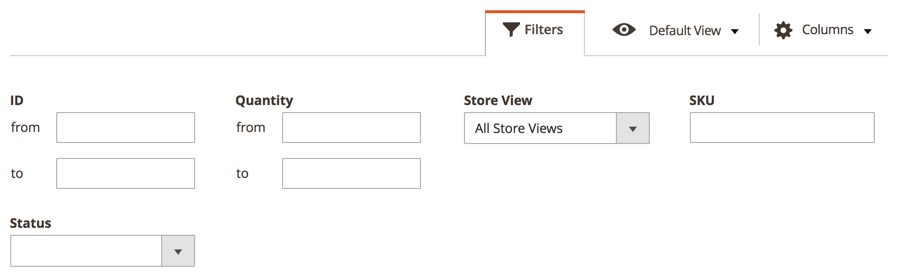
The possibility of filtering by Store View, as shown in the preceding screenshot, is easily added by modifying the minventory_listing.xml as follows:
<filters name="listing_filters">
  <filterSelect name="store_id" provider="${ $.parentName }">
    <settings>
      <options class="Magento\Store\Ui\Component\Listing\Column\Store\Options"/>
      <caption translate="true">All Store Views</caption>
      <label translate="true">Store View</label>
      <dataScope>store_id</dataScope>
    </settings>
  </filterSelect>
</filters>
Here we used the filterSelect component, with the Magento\Store\Ui\Component\Listing\Column\Store\Options class passed as an options parameter. This shows how easy it is to combine various components and to pull data from PHP classes.
Let's modify the minventory_listing.xml further by replacing the <-- massaction --> with the following:
<massaction name="listing_massaction" component="Magento_Ui/js/grid/tree-massactions">
  <action name="resupply">
    <settings>
      <type>resupply</type>
      <label translate="true">Resupply</label>
      <actions>
        <action name="0">
          <type>resupply_10</type>
          <label translate="true">Resupply +10</label>
          <url path="minventory/product/massResupply">
            <param name="qty">10</param>
          </url>
        </action>
        <action name="1">
          <type>resupply_50</type>
          <label translate="true">Resupply +50</label>
          <url path="minventory/product/massResupply">
            <param name="qty">50</param>
          </url>
        </action>
      </actions>
    </settings>
  </action>
</massaction>
Using the action component, we define the Resupply +10 and Resupply +50 actions used in the scope of the massaction component.
We then modify the minventory_listing.xml by replacing the <!-- columns --> with the following:
<columns name="minventory_columns" class="Magento\Catalog\Ui\Component\Listing\Columns">
  <settings>
    <childDefaults>
      <param name="fieldAction" xsi:type="array">
        <item name="provider" xsi:type="string">minventory_listing.minventory_listing.minventory_columns.actions</item>
        <item name="target" xsi:type="string">applyAction</item>
        <item name="params" xsi:type="array">
          <item name="0" xsi:type="string">resupply</item>
          <item name="1" xsi:type="string">${ $.$data.rowIndex }</item>
        </item>
      </param>
    </childDefaults>
  </settings>
  <!-- columns#2 -->
</columns>
The columns component definition, along with its child components, is likely to take the biggest chunk of our listing configuration. This is where we add our selection columns, regular columns, and action columns.
To demonstrate that further, we replace the <!-- columns#2 --> with the following:
<selectionsColumn name="ids" sortOrder="0">
  <settings>
    <indexField>entity_id</indexField>
  </settings>
</selectionsColumn>
<column name="entity_id" sortOrder="10">
  <settings>
    <filter>textRange</filter>
    <label translate="true">ID</label>
    <sorting>asc</sorting>
  </settings>
</column>
<column name="sku" sortOrder="20">
  <settings>
    <filter>text</filter>
    <label translate="true">SKU</label>
  </settings>
</column>
<column name="qty" sortOrder="30">
  <settings>
    <addField>true</addField>
    <filter>textRange</filter>
    <label translate="true">Quantity</label>
  </settings>
</column>
<actionsColumn name="resupply" class="Magelicious\Minventory\Ui\Component\Listing\Columns\Resupply" sortOrder="40">
  <settings>
    <indexField>entity_id</indexField>
  </settings>
</actionsColumn>
The actionsColumn points to a custom Magelicious\Minventory\Ui\Component\Listing\Columns\Resupply class, which we define under <MODULE_DIR>/Ui/Component/Listing/Columns/Resupply.php as follows:
class Resupply extends \Magento\Ui\Component\Listing\Columns\Column {
  protected $urlBuilder;

  public function __construct(
    \Magento\Framework\View\Element\UiComponent\ContextInterface $context,
    \Magento\Framework\View\Element\UiComponentFactory $uiComponentFactory,
    \Magento\Framework\UrlInterface $urlBuilder,
    array $components = [],
    array $data = []
  ) {
    $this->urlBuilder = $urlBuilder;
    parent::__construct($context, $uiComponentFactory, $components, $data);
  }

  public function prepareDataSource(array $dataSource) {
    if (isset($dataSource['data']['items'])) {
      $storeId = $this->context->getFilterParam('store_id');

      foreach ($dataSource['data']['items'] as &$item) {
        $item[$this->getData('name')]['resupply'] = [
          'href' => $this->urlBuilder->getUrl(
            'minventory/product/resupply',
            ['id' => $item['entity_id'], 'store' => $storeId]
          ),
          'label' => __('Resupply'),
          'hidden' => false,
        ];
      }
    }
    return $dataSource;
  }
}
The prepareDataSource method is where we inject our modifications. We traverse the $dataSource['data']['items'] structure until we come across our column, and then modify it accordingly with a proper href value. This, in turn, renders our resupply actions column as per the Micro Inventory screen.
With the Micro Inventory screen now sorted via the listing component, let's shift our focus onto the Stock Resupply screen built via the form component.