Table of Contents for
Web Scraping with Python, 2nd Edition
 Web Scraping with Python, 2nd Edition
Published by
O'Reilly Media, Inc., 2018
Web Scraping with Python, 2nd Edition
Published by
O'Reilly Media, Inc., 2018
- nav
- Cover
- Web Scraping with Python
- Web Scraping with Python
- Preface
- I. Building Scrapers
- 1. Your First Web Scraper
- 2. Advanced HTML Parsing
- 3. Writing Web Crawlers
- 4. Web Crawling Models
- 5. Scrapy
- 6. Storing Data
- II. Advanced Scraping
- 7. Reading Documents
- 8. Cleaning Your Dirty Data
- 9. Reading and Writing Natural Languages
- 10. Crawling Through Forms and Logins
- 11. Scraping JavaScript
- 12. Crawling Through APIs
- 13. Image Processing and Text Recognition
- 14. Avoiding Scraping Traps
- 15. Testing Your Website with Scrapers
- 16. Web Crawling in Parallel
- 17. Scraping Remotely
- 18. The Legalities and Ethics of Web Scraping
- Index
- About the Author
- Colophon
Chapter 2. Advanced HTML Parsing
When Michelangelo was asked how he could sculpt a work of art as masterful as his David, he is famously reported to have said, “It is easy. You just chip away the stone that doesn’t look like David.”
Although web scraping is unlike marble sculpting in most other respects, you must take a similar attitude when it comes to extracting the information you’re seeking from complicated web pages. You can use many techniques to chip away the content that doesn’t look like the content that you’re searching for, until you arrive at the information you’re seeking. In this chapter, you’ll take look at parsing complicated HTML pages in order to extract only the information you’re looking for.
You Don’t Always Need a Hammer
It can be tempting, when faced with a Gordian knot of tags, to dive right in and use multiline statements to try to extract your information. However, keep in mind that layering the techniques used in this section with reckless abandon can lead to code that is difficult to debug, fragile, or both. Before getting started, let’s take a look at some of the ways you can avoid altogether the need for advanced HTML parsing!
Let’s say you have some target content. Maybe it’s a name, statistic, or block of text. Maybe it’s buried 20 tags deep in an HTML mush with no helpful tags or HTML attributes to be found. Let’s say you decide to throw caution to the wind and write something like the following line to attempt extraction:
bs.find_all('table')[4].find_all('tr')[2].find('td').find_all('div')[1].find('a')
That doesn’t look so great. In addition to the aesthetics of the line, even the slightest change to the website by a site administrator might break your web scraper altogether. What if the site’s web developer decides to add another table or another column of data? What if the developer adds another component (with a few div tags) to the top of the page? The preceding line is precarious and depends on the structure of the site never changing.
So what are your options?
-
Look for a “Print This Page” link, or perhaps a mobile version of the site that has better-formatted HTML (more on presenting yourself as a mobile device—and receiving mobile site versions—in Chapter 14).
-
Look for the information hidden in a JavaScript file. Remember, you might need to examine the imported JavaScript files in order to do this. For example, I once collected street addresses (along with latitude and longitude) off a website in a neatly formatted array by looking at the JavaScript for the embedded Google Map that displayed a pinpoint over each address.
-
This is more common for page titles, but the information might be available in the URL of the page itself.
-
If the information you are looking for is unique to this website for some reason, you’re out of luck. If not, try to think of other sources you could get this information from. Is there another website with the same data? Is this website displaying data that it scraped or aggregated from another website?
Especially when faced with buried or poorly formatted data, it’s important not to just start digging and write yourself into a hole that you might not be able to get out of. Take a deep breath and think of alternatives.
If you’re certain no alternatives exist, the rest of this chapter explains standard and creative ways of selecting tags based on their position, context, attributes, and contents. The techniques presented here, when used correctly, will go a long way toward writing more stable and reliable web crawlers.
Another Serving of BeautifulSoup
In Chapter 1, you took a quick look at installing and running BeautifulSoup, as well as selecting objects one at a time. In this section, we’ll discuss searching for tags by attributes, working with lists of tags, and navigating parse trees.
Nearly every website you encounter contains stylesheets. Although you might think that a layer of styling on websites that is designed specifically for browser and human interpretation might be a bad thing, the advent of CSS is a boon for web scrapers. CSS relies on the differentiation of HTML elements that might otherwise have the exact same markup in order to style them differently. Some tags might look like this:
<spanclass="green"></span>
Others look like this:
<spanclass="red"></span>
Web scrapers can easily separate these two tags based on their class; for example, they might use BeautifulSoup to grab all the red text but none of the green text. Because CSS relies on these identifying attributes to style sites appropriately, you are almost guaranteed that these class and ID attributes will be plentiful on most modern websites.
Let’s create an example web scraper that scrapes the page located at http://www.pythonscraping.com/pages/warandpeace.html.
On this page, the lines spoken by characters in the story are in red, whereas the names of characters are in green. You can see the span tags, which reference the appropriate CSS classes, in the following sample of the page’s source code:
<spanclass="red">Heavens! what a virulent attack!</span>replied<spanclass="green">the prince</span>, not in the least disconcerted by this reception.
You can grab the entire page and create a BeautifulSoup object with it by using a program similar to the one used in Chapter 1:
fromurllib.requestimporturlopenfrombs4importBeautifulSouphtml=urlopen('http://www.pythonscraping.com/pages/page1.html')bs=BeautifulSoup(html.read(),'html.parser')
Using this BeautifulSoup object, you can use the find_all function to extract a Python list of proper nouns found by selecting only the text within <span class="green"></span> tags (find_all is an extremely flexible function you’ll be using a lot later in this book):
nameList=bs.find_all('span',{'class':'green'})fornameinnameList:(name.get_text())
When run, it should list all the proper nouns in the text, in the order they appear in War and Peace. So what’s going on here? Previously, you’ve called bs.tagName to get the first occurrence of that tag on the page. Now, you’re calling bs.find_all(tagName, tagAttributes) to get a list of all of the tags on the page, rather than just the first.
After getting a list of names, the program iterates through all names in the list, and prints name.get_text() in order to separate the content from the tags.
When to get_text() and When to Preserve Tags
.get_text() strips all tags from the document you are working with and returns a Unicode string containing the text only. For example, if you are working with a large block of text that contains many hyperlinks, paragraphs, and other tags, all those will be stripped away, and you’ll be left with a tagless block of text.
Keep in mind that it’s much easier to find what you’re looking for in a BeautifulSoup object than in a block of text. Calling .get_text() should always be the last thing you do, immediately before you print, store, or manipulate your final data. In general, you should try to preserve the tag structure of a document as long as possible.
find() and find_all() with BeautifulSoup
BeautifulSoup’s find() and find_all() are the two functions you will likely use the most. With them, you can easily filter HTML pages to find lists of desired tags, or a single tag, based on their various attributes.
The two functions are extremely similar, as evidenced by their definitions in the BeautifulSoup documentation:
find_all(tag,attributes,recursive,text,limit,keywords)find(tag,attributes,recursive,text,keywords)
In all likelihood, 95% of the time you will need to use only the first two arguments: tag and attributes. However, let’s take a look at all the arguments in greater detail.
The tag argument is one that you’ve seen before; you can pass a string name of a tag or even a Python list of string tag names. For example, the following returns a list of all the header tags in a document:1
.find_all(['h1','h2','h3','h4','h5','h6'])
The attributes argument takes a Python dictionary of attributes and matches tags that contain any one of those attributes. For example, the following function would return both the green and red span tags in the HTML document:
.find_all('span',{'class':{'green','red'}})
The recursive argument is a boolean. How deeply into the document do you want to go? If recursive is set to True, the find_all function looks into children, and children’s children, for tags that match your parameters. If it is False, it will look only at the top-level tags in your document. By default, find_all works recursively (recursive is set to True); it’s generally a good idea to leave this as is, unless you really know what you need to do and performance is an issue.
The text argument is unusual in that it matches based on the text content of the tags, rather than properties of the tags themselves. For instance, if you want to find the number of times “the prince” is surrounded by tags on the example page, you could replace your .find_all() function in the previous example with the following lines:
nameList=bs.find_all(text='the prince')(len(nameList))
The output of this is 7.
The limit argument, of course, is used only in the find_all method; find is equivalent to the same find_all call, with a limit of 1. You might set this if you’re interested only in retrieving the first x items from the page. Be aware, however, that this gives you the first items on the page in the order that they occur, not necessarily the first ones that you want.
The keyword argument allows you to select tags that contain a particular attribute or set of attributes. For example:
title=bs.find_all(id='title',class_='text')
This returns the first tag with the word “text” in the class_ attribute and “title” in the id attribute. Note that, by convention, each value for an id should be used only once on the page. Therefore, in practice, a line like this may not be particularly useful, and should be equivalent to the following:
title=bs.find(id='title')
At this point, you might be asking yourself, “But wait, don’t I already know how to get a tag with a list of attributes by passing attributes to the function in a dictionary list?”
Recall that passing a list of tags to .find_all() via the attributes list acts as an “or” filter (it selects a list of all tags that have tag1, tag2, or tag3...). If you have a lengthy list of tags, you can end up with a lot of stuff you don’t want. The keyword argument allows you to add an additional “and” filter to this.
Other BeautifulSoup Objects
So far in the book, you’ve seen two types of objects in the BeautifulSoup library:
BeautifulSoupobjects- Instances seen in previous code examples as the variable
bs Tagobjects- Retrieved in lists, or retrieved individually by calling
findandfind_allon aBeautifulSoupobject, or drilling down, as follows: -
bs.div.h1
However, there are two more objects in the library that, although less commonly used, are still important to know about:
NavigableStringobjects- Used to represent text within tags, rather than the tags themselves (some functions operate on and produce
NavigableStrings, rather than tag objects). Commentobject- Used to find HTML comments in comment tags,
<!--like this one-->.
These four objects are the only objects you will ever encounter in the BeautifulSoup library (at the time of this writing).
Navigating Trees
The find_all function is responsible for finding tags based on their name and attributes. But what if you need to find a tag based on its location in a document? That’s where tree navigation comes in handy. In Chapter 1, you looked at navigating a BeautifulSoup tree in a single direction:
bs.tag.subTag.anotherSubTag
Now let’s look at navigating up, across, and diagonally through HTML trees. You’ll use our highly questionable online shopping site at http://www.pythonscraping.com/pages/page3.html, as an example page for scraping, as shown in Figure 2-1.
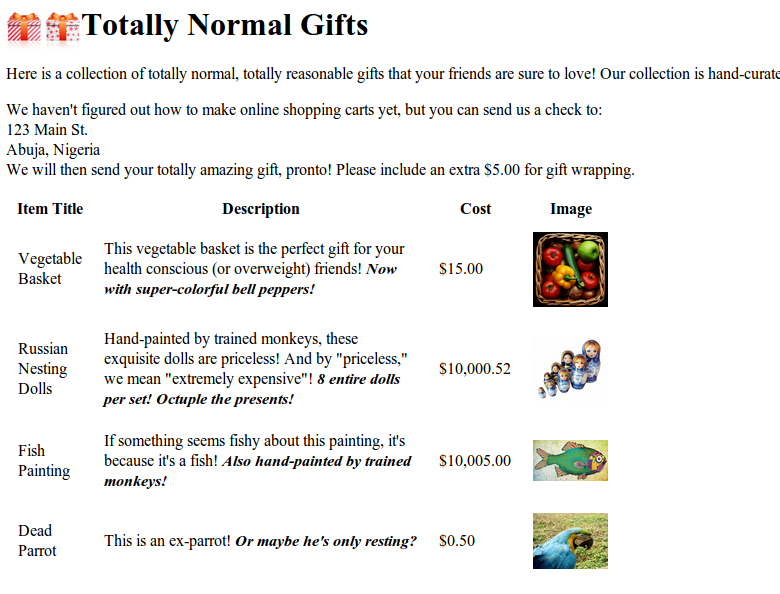
Figure 2-1. Screenshot from http://www.pythonscraping.com/pages/page3.html
The HTML for this page, mapped out as a tree (with some tags omitted for brevity), looks like this:
-
HTML
-
body-
div.wrapperh1div.content-
table#giftList-
trthththth
-
tr.gift#gift1td-
tdspan.excitingNote
td-
tdimg
- ...table rows continue...
-
div.footer
-
-
You will use this same HTML structure as an example in the next few sections.
Dealing with children and other descendants
In computer science and some branches of mathematics, you often hear about horrible things done to children: moving them, storing them, removing them, and even killing them. Fortunately, this section focuses only on selecting them!
In the BeautifulSoup library, as well as many other libraries, there is a distinction drawn between children and descendants: much like in a human family tree, children are always exactly one tag below a parent, whereas descendants can be at any level in the tree below a parent. For example, the tr tags are children of the table tag, whereas tr, th, td, img, and span are all descendants of the table tag (at least in our example page). All children are descendants, but not all descendants are children.
In general, BeautifulSoup functions always deal with the descendants of the current tag selected. For instance, bs.body.h1 selects the first h1 tag that is a descendant of the body tag. It will not find tags located outside the body.
Similarly, bs.div.find_all('img') will find the first div tag in the document, and then retrieve a list of all img tags that are descendants of that div tag.
If you want to find only descendants that are children, you can use the .children tag:
fromurllib.requestimporturlopenfrombs4importBeautifulSouphtml=urlopen('http://www.pythonscraping.com/pages/page3.html')bs=BeautifulSoup(html,'html.parser')forchildinbs.find('table',{'id':'giftList'}).children:(child)
This code prints the list of product rows in the giftList table, including the initial row of column labels. If you were to write it using the descendants() function instead of the children() function, about two dozen tags would be found within the table and printed, including img tags, span tags, and individual td tags. It’s definitely important to differentiate between children and descendants!
Dealing with siblings
The BeautifulSoup next_siblings() function makes it trivial to collect data from tables, especially ones with title rows:
fromurllib.requestimporturlopenfrombs4importBeautifulSouphtml=urlopen('http://www.pythonscraping.com/pages/page3.html')bs=BeautifulSoup(html,'html.parser')forsiblinginbs.find('table',{'id':'giftList'}).tr.next_siblings:(sibling)
The output of this code is to print all rows of products from the product table, except for the first title row. Why does the title row get skipped? Objects cannot be siblings with themselves. Anytime you get siblings of an object, the object itself will not be included in the list. As the name of the function implies, it calls next siblings only. If you were to select a row in the middle of the list, for example, and call next_siblings on it, only the subsequent siblings would be returned. So, by selecting the title row and calling next_siblings, you can select all the rows in the table, without selecting the title row itself.
Make Selections Specific
The preceding code will work just as well, if you select bs.table.tr or even just bs.tr in order to select the first row of the table. However, in the code, I go through all of the trouble of writing everything out in a longer form:
bs.find('table',{'id':'giftList'}).tr
Even if it looks like there’s just one table (or other target tag) on the page, it’s easy to miss things. In addition, page layouts change all the time. What was once the first of its kind on the page might someday be the second or third tag of that type found on the page. To make your scrapers more robust, it’s best to be as specific as possible when making tag selections. Take advantage of tag attributes when they are available.
As a complement to next_siblings, the previous_siblings function can often be helpful if there is an easily selectable tag at the end of a list of sibling tags that you would like to get.
And, of course, there are the next_sibling and previous_sibling functions, which perform nearly the same function as next_siblings and previous_siblings, except they return a single tag rather than a list of them.
Dealing with parents
When scraping pages, you will likely discover that you need to find parents of tags less frequently than you need to find their children or siblings. Typically, when you look at HTML pages with the goal of crawling them, you start by looking at the top layer of tags, and then figure out how to drill your way down into the exact piece of data that you want. Occasionally, however, you can find yourself in odd situations that require BeautifulSoup’s parent-finding functions, .parent and .parents. For example:
fromurllib.requestimporturlopenfrombs4importBeautifulSouphtml=urlopen('http://www.pythonscraping.com/pages/page3.html')bs=BeautifulSoup(html,'html.parser')(bs.find('img',{'src':'../img/gifts/img1.jpg'}).parent.previous_sibling.get_text())
This code will print the price of the object represented by the image at the location ../img/gifts/img1.jpg (in this case, the price is $15.00).
How does this work? The following diagram represents the tree structure of the portion of the HTML page you are working with, with numbered steps:
-
<tr>
tdtdtd
"$15.00"
td
<img src="../img/gifts/img1.jpg">
Regular Expressions
As the old computer science joke goes: “Let’s say you have a problem, and you decide to solve it with regular expressions. Well, now you have two problems.”
Unfortunately, regular expressions (often shortened to regex) are often taught using large tables of random symbols, strung together to look like a lot of nonsense. This tends to drive people away, and later they get out into the workforce and write needlessly complicated searching and filtering functions, when all they needed was a one-line regular expression in the first place!
Fortunately for you, regular expressions are not all that difficult to get up and running with quickly, and can easily be learned by looking at and experimenting with a few simple examples.
Regular expressions are so called because they are used to identify regular strings; they can definitively say, “Yes, this string you’ve given me follows the rules, and I’ll return it,” or “This string does not follow the rules, and I’ll discard it.” This can be exceptionally handy for quickly scanning large documents to look for strings that look like phone numbers or email addresses.
Notice that I used the phrase regular string. What is a regular string? It’s any string that can be generated by a series of linear rules,3 such as these:
-
Write the letter a at least once.
-
Append to this the letter b exactly five times.
-
Append to this the letter c any even number of times.
-
Write either the letter d or e at the end.
Strings that follow these rules are aaaabbbbbccccd, aabbbbbcce, and so on (there are an infinite number of variations).
Regular expressions are merely a shorthand way of expressing these sets of rules. For instance, here’s the regular expression for the series of steps just described:
aa*bbbbb(cc)*(d|e)
This string might seem a little daunting at first, but it becomes clearer when you break it into its components:
aa*- The letter a is written, followed by a* (read as a star), which means “any number of as, including 0 of them.” In this way, you can guarantee that the letter a is written at least once.
bbbbb- No special effects here—just five bs in a row.
(cc)*- Any even number of things can be grouped into pairs, so in order to enforce this rule about even things, you can write two cs, surround them in parentheses, and write an asterisk after it, meaning that you can have any number of pairs of cs (note that this can mean 0 pairs, as well).
(d|e)- Adding a bar in the middle of two expressions means that it can be “this thing or that thing.” In this case, you are saying “add a d or an e.” In this way, you can guarantee that there is exactly one of either of these two characters.
Experimenting with RegEx
When learning how to write regular expressions, it’s critical to play around with them and get a feel for how they work. If you don’t feel like firing up a code editor, writing a few lines, and running your program in order to see whether a regular expression works as expected, you can go to a website such as Regex Pal and test your regular expressions on the fly.
Table 2-1 lists commonly used regular expression symbols, with brief explanations and examples. This list is by no means complete, and as mentioned before, you might encounter slight variations from language to language. However, these 12 symbols are the most commonly used regular expressions in Python, and can be used to find and collect almost any string type.
| Symbol(s) | Meaning | Example | Example matches |
|---|---|---|---|
| * | Matches the preceding character, subexpression, or bracketed character, 0 or more times. | a*b* |
aaaaaaaa, aaabbbbb, bbbbbb |
| + | Matches the preceding character, subexpression, or bracketed character, 1 or more times. | a+b+ |
aaaaaaaab, aaabbbbb, abbbbbb |
| [] | Matches any character within the brackets (i.e., “Pick any one of these things”). | [A-Z]* | APPLE, CAPITALS, QWERTY |
| () |
A grouped subexpression (these are evaluated first, in the “order of operations” of regular expressions). |
(a*b)* | aaabaab, abaaab, ababaaaaab |
| {m, n} | Matches the preceding character, subexpression, or bracketed character between m and n times (inclusive). | a{2,3}b{2,3} | aabbb, aaabbb, aabb |
| [^] | Matches any single character that is not in the brackets. | [^A-Z]* | apple, lowercase, qwerty |
| | | Matches any character, string of characters, or subexpression, separated by the I (note that this is a vertical bar, or pipe, not a capital i). |
b(a|i|e)d | bad, bid, bed |
| . | Matches any single character (including symbols, numbers, a space, etc.). | b.d | bad, bzd, b$d, b d |
| ^ | Indicates that a character or subexpression occurs at the beginning of a string. | ^a |
apple, asdf, a |
| \ | An escape character (this allows you to use special characters as their literal meanings). | \^ \| \\ | ^ | \ |
| $ | Often used at the end of a regular expression, it means “match this up to the end of the string.” Without it, every regular expression has a de facto “.*” at the end of it, accepting strings where only the first part of the string matches. This can be thought of as analogous to the ^ symbol. | [A-Z]*[a-z]*$ | ABCabc, zzzyx, Bob |
| ?! | “Does not contain.” This odd pairing of symbols, immediately preceding a character (or regular expression), indicates that that character should not be found in that specific place in the larger string. This can be tricky to use; after all, the character might be found in a different part of the string. If trying to eliminate a character entirely, use in conjunction with a ^ and $ at either end. | ^((?![A-Z]).)*$ | no-caps-here, $ymb0ls a4e f!ne |
One classic example of regular expressions can be found in the practice of identifying email addresses. Although the exact rules governing email addresses vary slightly from mail server to mail server, we can create a few general rules. The corresponding regular expression for each of these rules is shown in the second column:
|
|
|
|
|
|
|
|
|
|
By concatenating all of the rules, you arrive at this regular expression:
[A-Za-z0-9._+]+@[A-Za-z]+.(com|org|edu|net)
When attempting to write any regular expression from scratch, it’s best to first make a list of steps that concretely outlines what your target string looks like. Pay attention to edge cases. For instance, if you’re identifying phone numbers, are you considering country codes and extensions?
Regular Expressions: Not Always Regular!
The standard version of regular expressions (the one covered in this book and used by Python and BeautifulSoup) is based on syntax used by Perl. Most modern programming languages use this or one similar to it. Be aware, however, that if you are using regular expressions in another language, you might encounter problems. Even some modern languages, such as Java, have slight differences in the way they handle regular expressions. When in doubt, read the docs!
Regular Expressions and BeautifulSoup
If the previous section on regular expressions seemed a little disjointed from the mission of this book, here’s where it all ties together. BeautifulSoup and regular expressions go hand in hand when it comes to scraping the web. In fact, most functions that take in a string argument (e.g., find(id="aTagIdHere")) will also take in a regular expression just as well.
Let’s take a look at some examples, scraping the page found at http://www.pythonscraping.com/pages/page3.html.
Notice that the site has many product images, which take the following form:
<img src="../img/gifts/img3.jpg">
If you wanted to grab URLs to all of the product images, it might seem fairly straightforward at first: just grab all the image tags by using .find_all("img"), right? But there’s a problem. In addition to the obvious “extra” images (e.g., logos), modern websites often have hidden images, blank images used for spacing and aligning elements, and other random image tags you might not be aware of. Certainly, you can’t count on the only images on the page being product images.
Let’s also assume that the layout of the page might change, or that, for whatever reason, you don’t want to depend on the position of the image in the page in order to find the correct tag. This might be the case when you are trying to grab specific elements or pieces of data that are scattered randomly throughout a website. For instance, a featured product image might appear in a special layout at the top of some pages, but not others.
The solution is to look for something identifying about the tag itself. In this case, you can look at the file path of the product images:
fromurllib.requestimporturlopenfrombs4importBeautifulSoupimportrehtml=urlopen('http://www.pythonscraping.com/pages/page3.html')bs=BeautifulSoup(html,'html.parser')images=bs.find_all('img',{'src':re.compile('..\/img\/gifts/img.*.jpg')})forimageinimages:(image['src'])
This prints only the relative image paths that start with ../img/gifts/img and end in .jpg, the output of which is the following:
../img/gifts/img1.jpg
../img/gifts/img2.jpg
../img/gifts/img3.jpg
../img/gifts/img4.jpg
../img/gifts/img6.jpg
A regular expression can be inserted as any argument in a BeautifulSoup expression, allowing you a great deal of flexibility in finding target elements.
Accessing Attributes
So far, you’ve looked at how to access and filter tags and access content within them. However, often in web scraping you’re not looking for the content of a tag; you’re looking for its attributes. This becomes especially useful for tags such as a, where the URL it is pointing to is contained within the href attribute; or the img tag, where the target image is contained within the src attribute.
With tag objects, a Python list of attributes can be automatically accessed by calling this:
myTag.attrs
Keep in mind that this literally returns a Python dictionary object, which makes retrieval and manipulation of these attributes trivial. The source location for an image, for example, can be found using the following line:
myImgTag.attrs['src']
Lambda Expressions
If you have a formal education in computer science, you probably learned about lambda expressions once in school and then never used them again. If you don’t, they might be unfamiliar to you (or familiar only as “that thing I’ve been meaning to learn at some point”). This section doesn’t go deeply into these types of functions, but does show how they can be useful in web scraping.
Essentially, a lambda expression is a function that is passed into another function as a variable; instead of defining a function as f(x, y), you may define a function as f(g(x), y) or even f(g(x), h(x)).
BeautifulSoup allows you to pass certain types of functions as parameters into the find_all function.
The only restriction is that these functions must take a tag object as an argument and return a boolean. Every tag object that BeautifulSoup encounters is evaluated in this function, and tags that evaluate to True are returned, while the rest are discarded.
For example, the following retrieves all tags that have exactly two attributes:
bs.find_all(lambda tag: len(tag.attrs) == 2)
Here, the function that you are passing as the argument is len(tag.attrs) == 2. Where this is True, the find_all function will return the tag. That is, it will find tags with two attributes, such as the following:
<divclass="body"id="content"></div><spanstyle="color:red"class="title"></span>
Lambda functions are so useful you can even use them to replace existing BeautifulSoup functions:
bs.find_all(lambda tag: tag.get_text() ==
    'Or maybe he\'s only resting?')
This can also be accomplished without a lambda function:
bs.find_all('', text='Or maybe he\'s only resting?')
However, if you remember the syntax for the lambda function, and how to access tag properties, you may never need to remember any other BeautifulSoup syntax again!
Because the provided lambda function can be any function that returns a True or False value, you can even combine them with regular expressions to find tags with an attribute matching a certain string pattern.
1 If you’re looking to get a list of all h<some_level> tags in the document, there are more succinct ways of writing this code to accomplish the same thing. We’ll take a look at other ways of approaching these types of problems in the section reg_expressions.
2 The Python Language Reference provides a complete list of protected keywords.
3 You might be asking yourself, “Are there ‘irregular’ expressions?” Nonregular expressions are beyond the scope of this book, but they encompass strings such as “write a prime number of as, followed by exactly twice that number of bs” or “write a palindrome.” It’s impossible to identify strings of this type with a regular expression. Fortunately, I’ve never been in a situation where my web scraper needed to identify these kinds of strings.