In the previous chapter, The WooCommerce Setup Wizard was illustrated along with how to configure its settings within the WordPress Dashboard according to a store’s specifications. It also explored how to add products and services to a WooCommerce store as well as assign them to the appropriate categories along with other inventory management settings. Throughout the chapter, many e-commerce best practices were discussed to help give visitors and customers a pleasant and memorable shopping experience.
Once products and services and other information have been added to an online store, many store owners are ready to launch. However, before launching it to the world, there are certain precautions that must be done to make sure it is secure. Security must be a top priority.
With all the data breaches occurring in the news with brick and mortar and click and mortar stores as well as online stores lately, consumers are apprehensive whenever shopping in-store or online with their credit or debit cards. It is the uncertainty of not knowing what will happen to their personal and financial information once their transactions are completed. Not only does this affect consumers, but it also affects store owners because they are also consumers and experience similar concerns and feelings.
Consumers want to feel assured that a business has implemented the necessary security measures to protect and secure their personal and financial information from hackers and are constantly reviewing and updating them. Although some store owners might think that a security breach could not happen to their store, it could not be further from the truth. No one or any business is exempt. As the adage says, “Hope for the best but prepare for the worst.” Murphy’s Law states it this way: Whatever can go wrong, will go wrong. This chapter will present some best practices for not only securing an online store and reducing chances of a lawsuit but also securing customers’ information.
Security Strategies
Security strategies are crucial for an online store’s success. Many of these strategies should be considered early in the planning phase so that they can be properly planned and implemented. During the busyness of setting up an online store, it can be easy for certain security strategies to be overlooked. By having these security strategies readily available, online store owners can be more proactive rather than reactive when a security breach occurs.
SSL Certificates
Lock icon to the left of URL name
“https” in browser address bar instead of “http”
Certificating Authority Trust seal
Green address bar (for an EV SSL Certificate)
. . . a global standard security technology that enables encrypted communication between a web browser and a web server. It is utilized by millions1 of online businesses and individuals to decrease the risk of sensitive information (e.g., credit card numbers, usernames, passwords, emails, etc.) from being stolen or tampered with by hackers and identity thieves. In essence, SSL allows for a private “conversation” just between the two intended parties.
Medical records
Logins and passwords
Legal documents and contracts
Proprietary information
Personal data
Client lists
Single – secures one fully qualified domain name or subdomain name.
Wildcard – secures one domain name and an unlimited number of its subdomains.
Multi-domain – secures multiple domain names.
Domain Validation – This level is the least expensive and covers basic encryption and verification of the ownership of the domain name registration. This type of certificate usually takes a few minutes to several hours to receive.
Organization Validation – In addition to basic encryption and verification of ownership of the domain name registration, certain details of the owner (e.g., name and address) are authenticated. This type of certificate usually takes a few hours to several days to receive.
Extended Validation (EV) – This provides the highest degree of security because of the thorough examination that is conducted before this certificate is issued (and as strictly specified in guidelines set by the SSL certification industry’s governing consortium). In addition to ownership of the domain name registration and entity authentication, the legal, physical, and operational existence of the entity is verified. This type of certificate usually takes a few days to several weeks to receive.
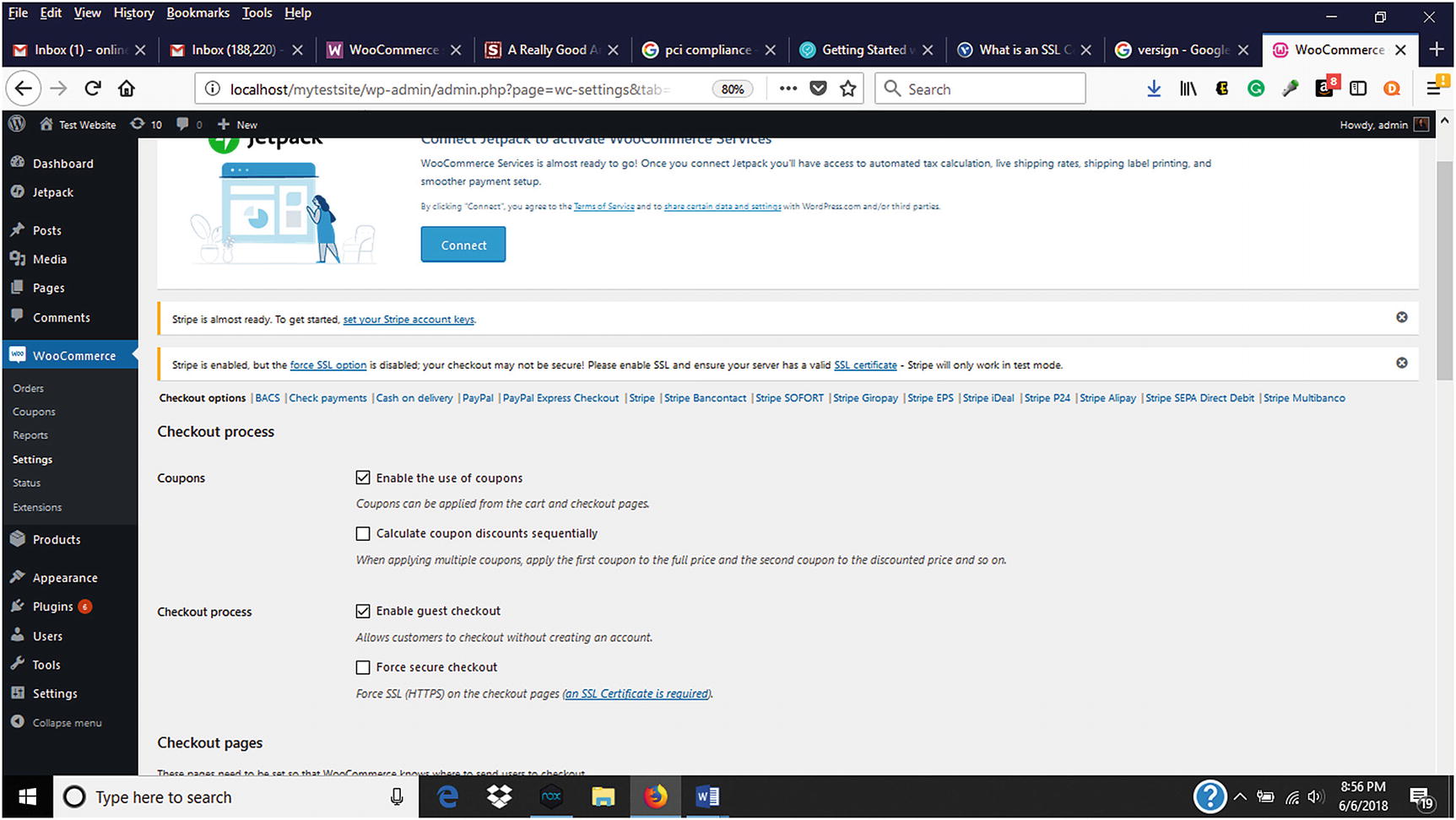
Forcing SSL and adding SSL Certificate in WooCommerce
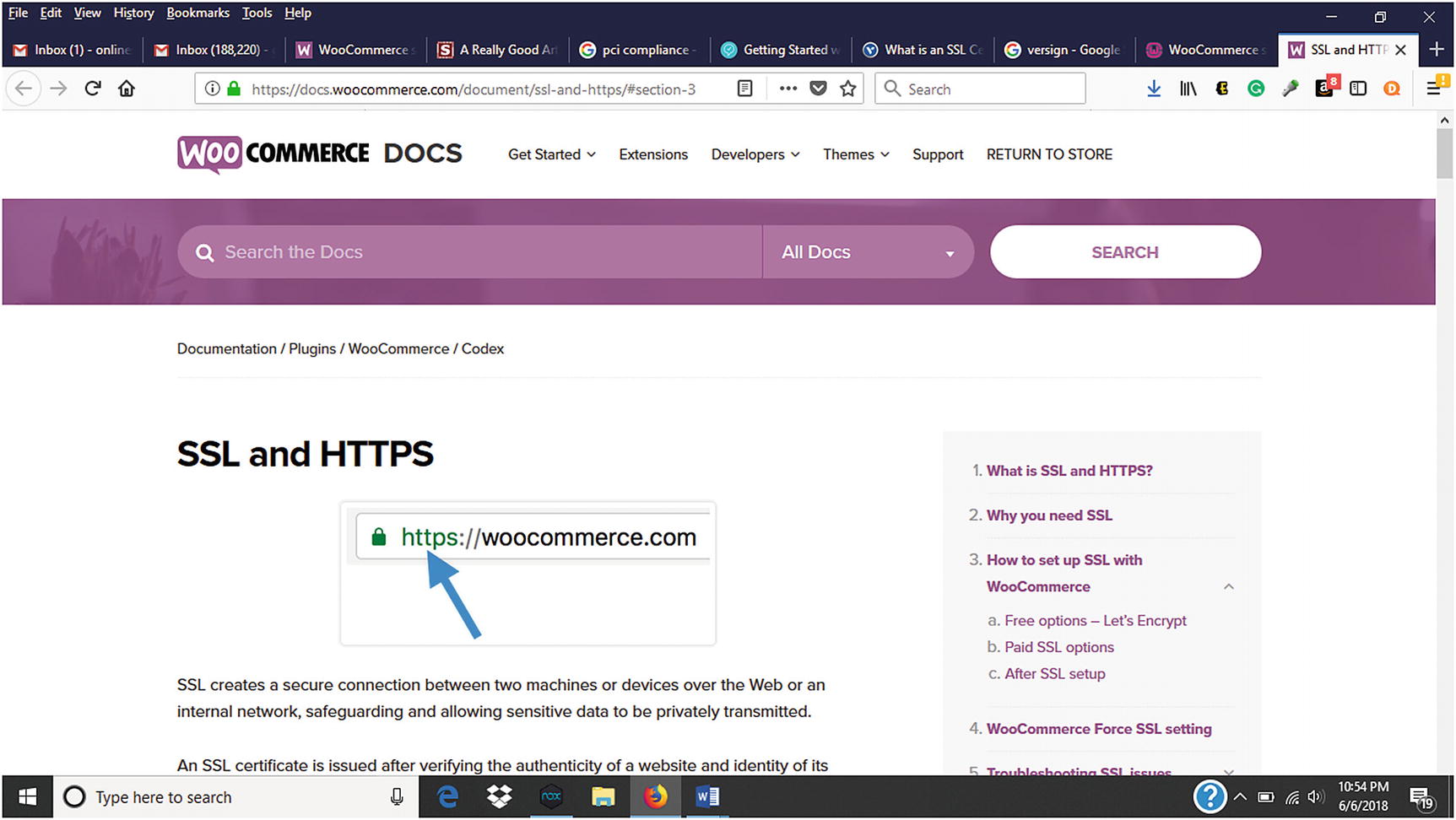
WooCommerce instructions on how to set up a free and paid SSL and HTTPS
Free SSL Certificates can be obtained from Let’s Encrypt ( https://letsencrypt.org/ ). “Let’s Encrypt” is a certificate authority (CA) that issues SSL certificates. WooCommerce hosting partners such as Bluehost, Pressable, and SiteGround provide free SSL certificates for WordPress users to install with a few clicks. These certificates are domain based. If using other web hosting, it is a good idea to ask whether they offer free SSL certificates.
- 1.
Purchase a domain name from a registrar. Remember that the Let’s Encrypt free SSL certificates are domain based.
- 2.
Purchase web hosting from a web hosting provider.
- 3.
Go to www.ZeroSSL.com (Figure 7-3).
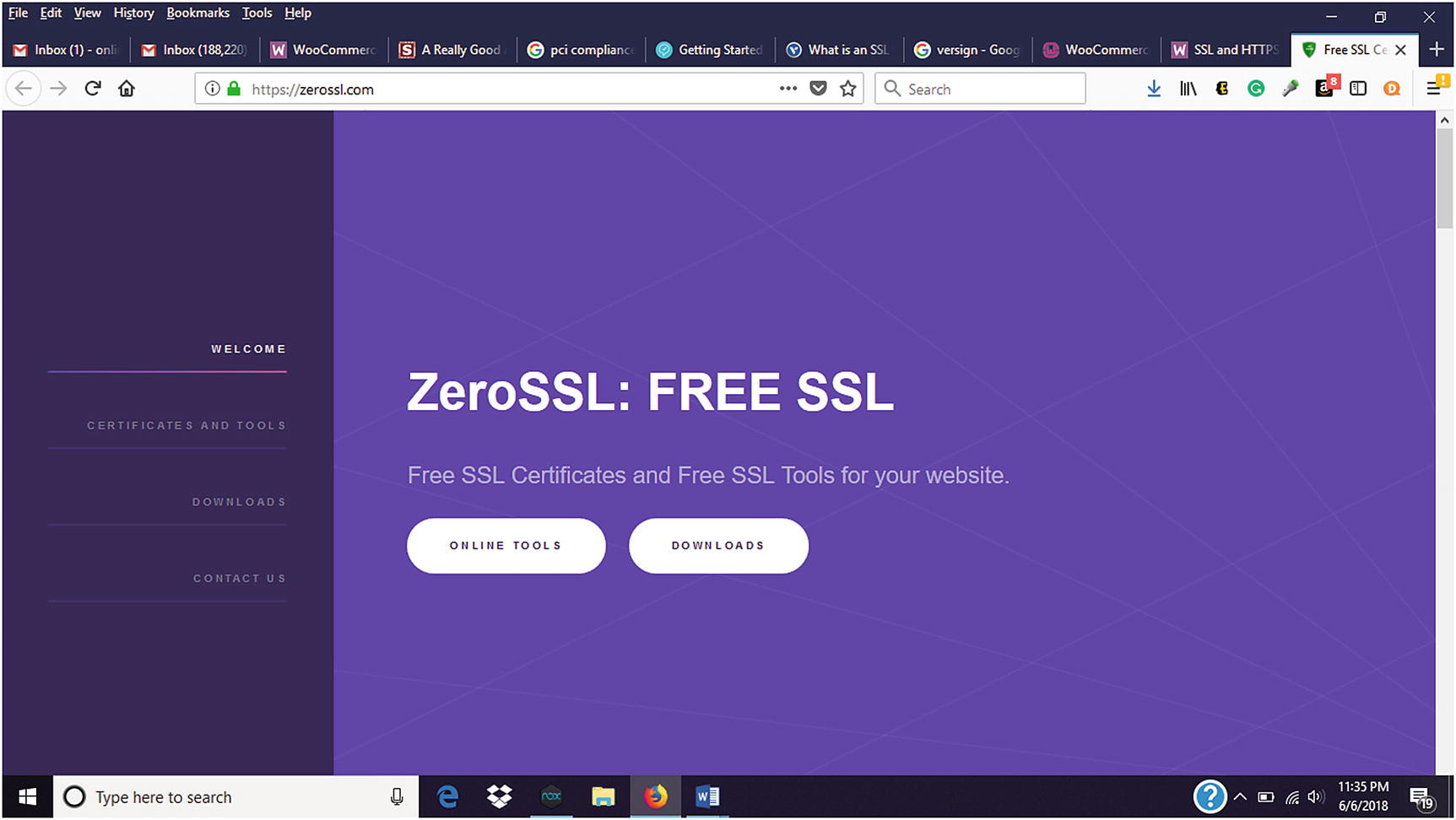
Signing up for a free SSL at ZeroSSL
- 4.
Click on Certificates and Tools and click Start (Figure 7-4).
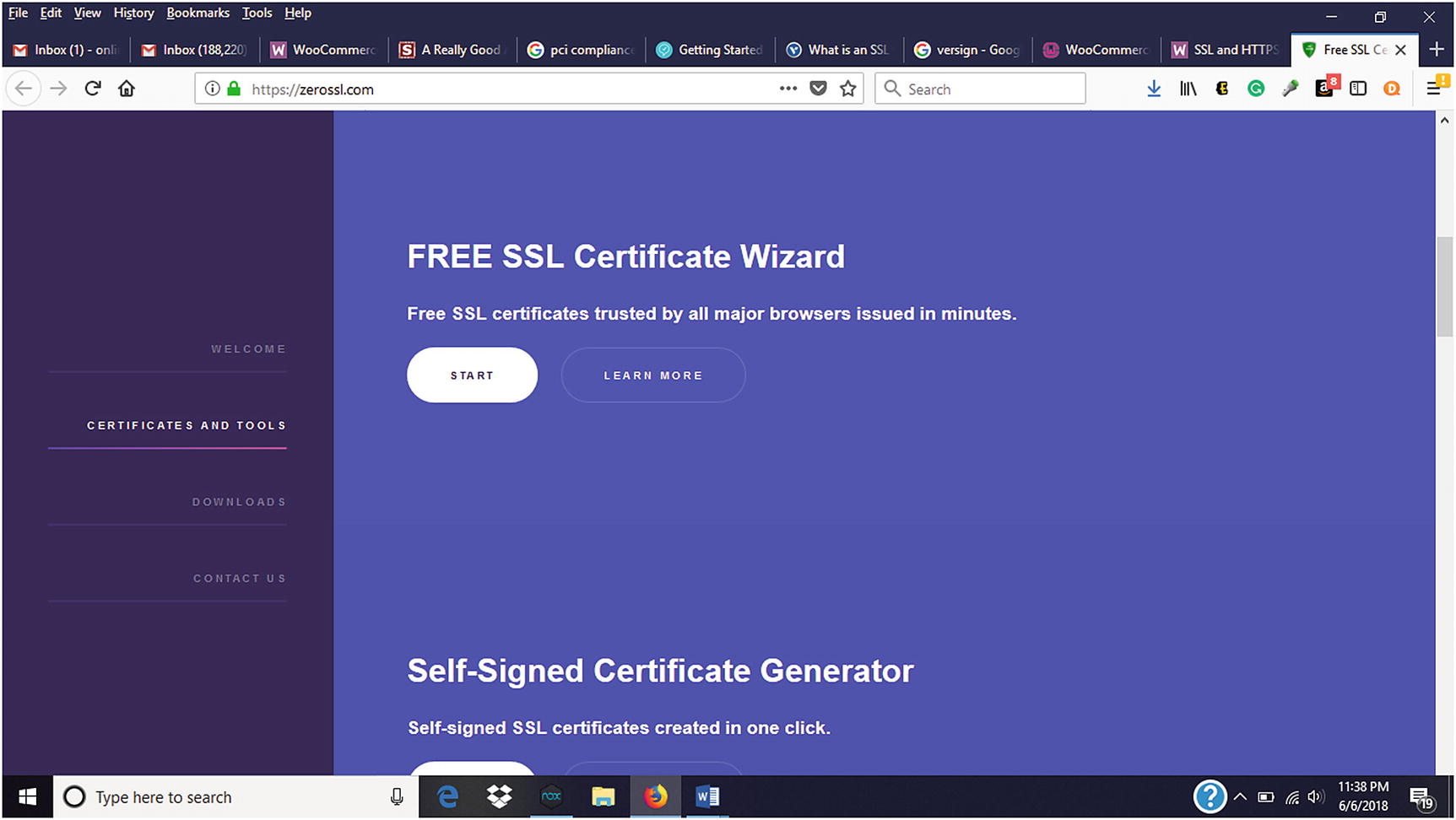
Starting the process for Free SSL Certificate
- 5.
Enter the domain name of your website and accept the Terms of Service (TOS), then select Next (Figure 7-5). This generates a Certificate Signing Request (CSR). If presented with “Include www-prefixed version too?,” select Yes.
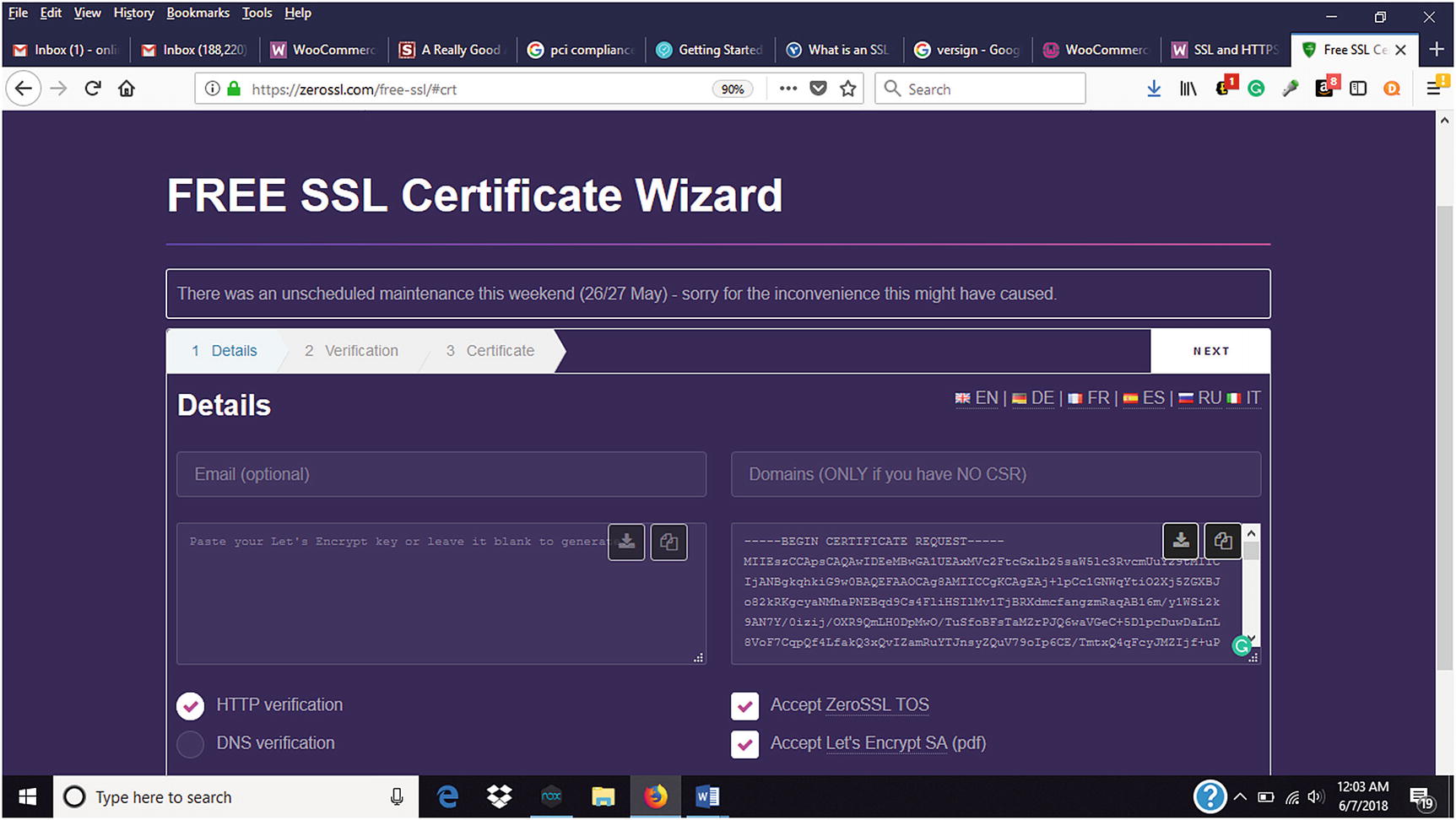
Detail information for Free SSL Certificate Wizard
- 6.
Download or copy the CSR.
- 7.
Select Next to generate your RSA Private Key.
- 8.
Download your RSA Private Key. Make sure that you download both the CSR and the RSA Private Keys before closing the window. Otherwise, the process would have to be restarted (Figure 7-6).
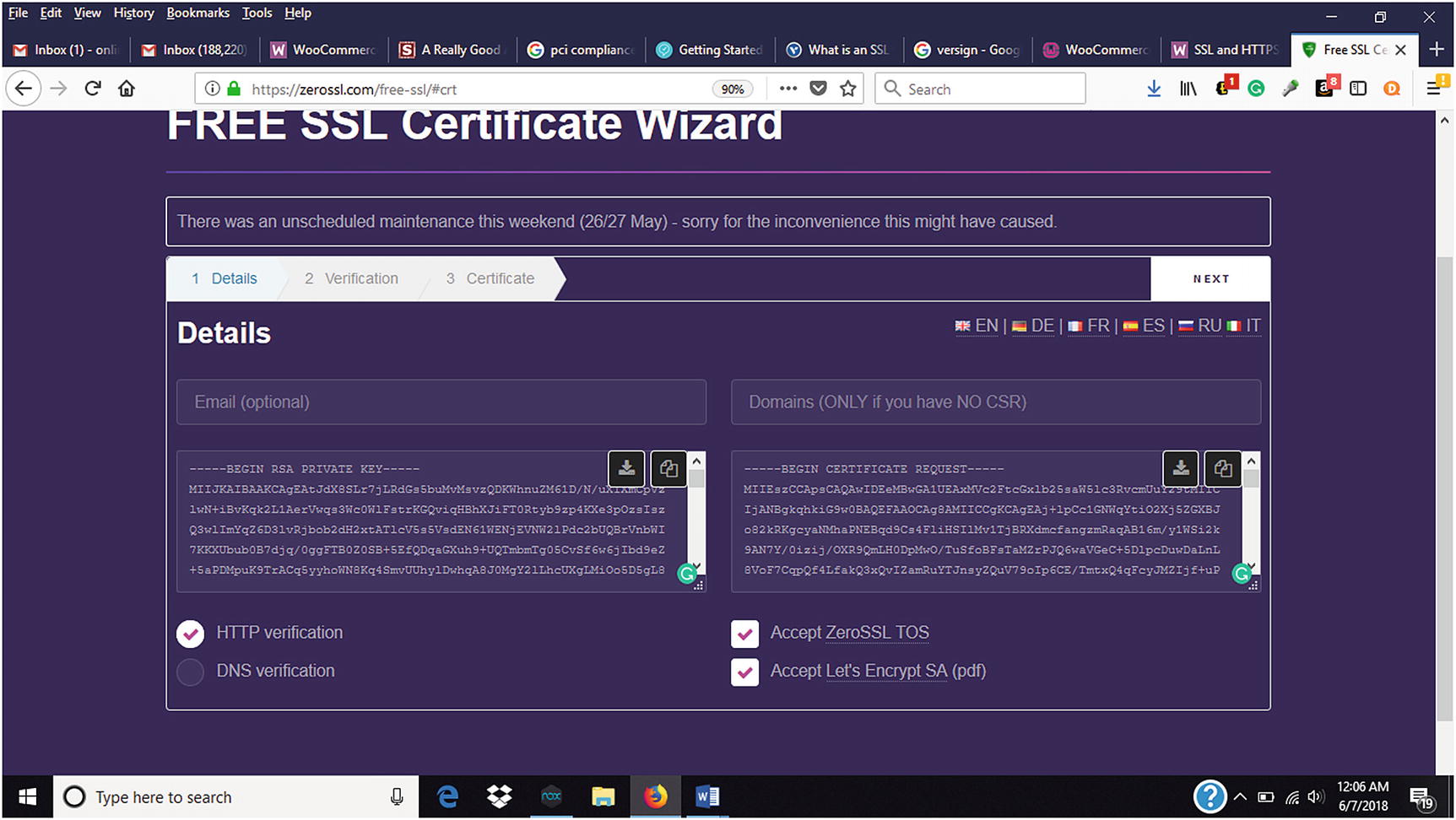
Downloading RSA Private Key
- 9.
Contact the web hosting company for further instructions for uploading the generated free SSL.
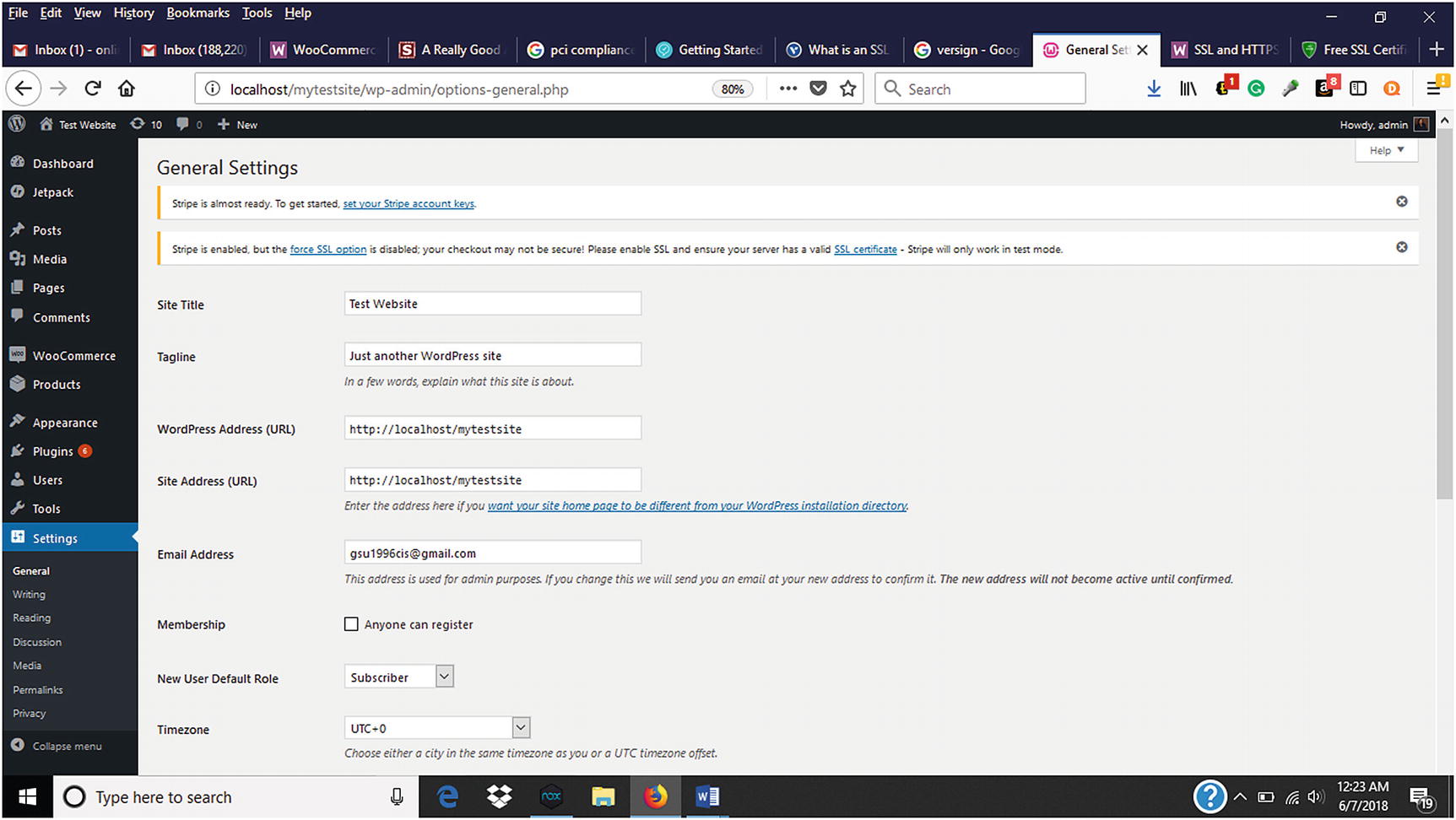
Updating WordPress Address and Site Address after successful SSL installation
PCI Compliance
Regardless of the payment processors selected, make sure that they are PCI compliant. What is PCI Compliance? The PCI Compliance Guide website states: “The Payment Card Industry Data Security Standard (PCI DSS) is a set of security standards designed to ensure that ALL companies that accept, process, store or transmit credit card information maintain a secure environment.”3 These standards apply to any business that accepts credit cards to help improve security while providing safety to consumers. A listing of PCI-compliant providers can be found on the PCI Compliance website ( www.pcisecuritystandards.org ).
WordPress Strategies
Keep WordPress Updated
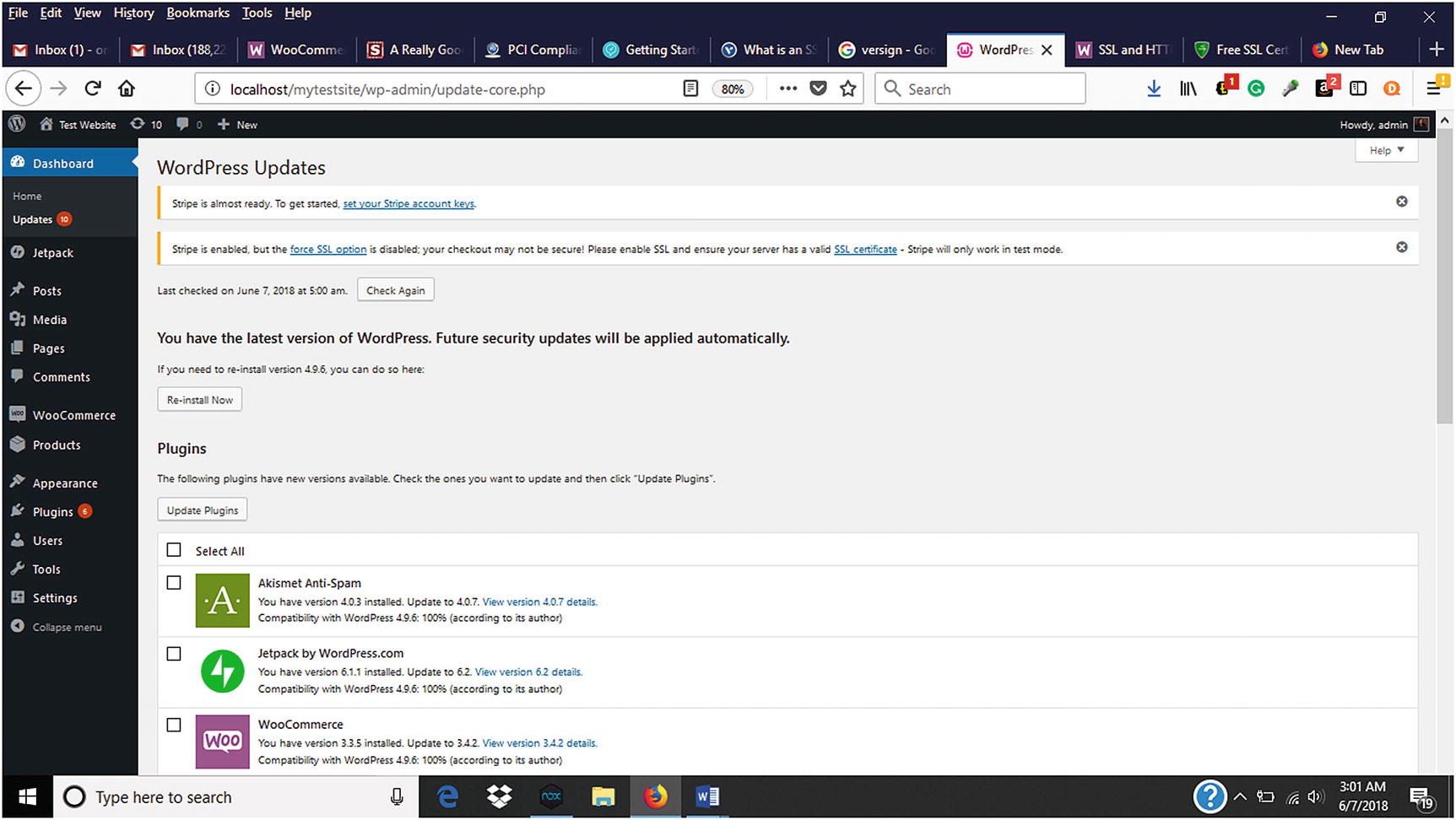
Keeping WordPress updated via the WordPress dashboard
Use Strong Passwords
A weak password is like leaving a key in a lock. They allow easy entry to a website when they shouldn’t. It is good practice to use a strong password to help secure WordPress and WooCommerce. Passwords should be 8–14 characters long and consist of upper and lowercase letters, numbers, and special characters. It is also a good practice to not choose a password that is based on something personal or common knowledge that can be easily guessed.
Choose Reputable Web Hosts
For some, choosing a web host can be a daunting task because there are so many things to consider for a website’s needs. When choosing a web host, it is a good practice to choose a reputable host who has been in business for a while and has good reviews. Getting referrals from others can help select a good web host. Besides referrals, what else can be done to find web hosts? On the WordPress and WooCommerce websites, they provide listings of reputable web hosts who support WordPress and WooCommerce.
Keep WordPress Plugins Updated
The same way that it is good to keep WordPress updated, it is also a good idea to keep WordPress and WooCommerce plugins updated. Plugins that have not been updated to newer versions can allow hackers to exploit vulnerabilities with the plugin that the newer version addresses. Newer versions of plugins can be released that add additional features and security. Plugins that are no longer used should be deleted to eliminate potential security breach opportunities.
JetPack Protect
JetPack Protect provides many features that can help secure websites and online stores. For security, it can help protect against unwanted brute force attacks, malware scanning, and spam filtering. It can also back up a website or online store in real time and alert owners via email and push notifications about downtime.
Change the Default “Admin” Username
When WordPress is initially installed, it creates an admin username . Hackers look for this username to try to obtain unauthorized access to conduct brute force attacks to a website. Store owners can either re-create another user account with a different username and delete the existing one or use a plugin such as Username Changer to change the admin username. Another option is to update the username in the MySQL database using myPHPadmin.
Change WordPress Database Prefix
By default, WordPress tables names are prefixed with wp_ in the underlying MySQL database. Hackers can use this to their advantage to guess a store’s tables names. It is recommended that these table names be changed. Some web host such as Bluehost will take care of this during the WordPress installation. However, changing the table names could leave a store nonoperational until it is resolved, so it is best to back up your WordPress database with the BackupBuddy plugin or a similar one.
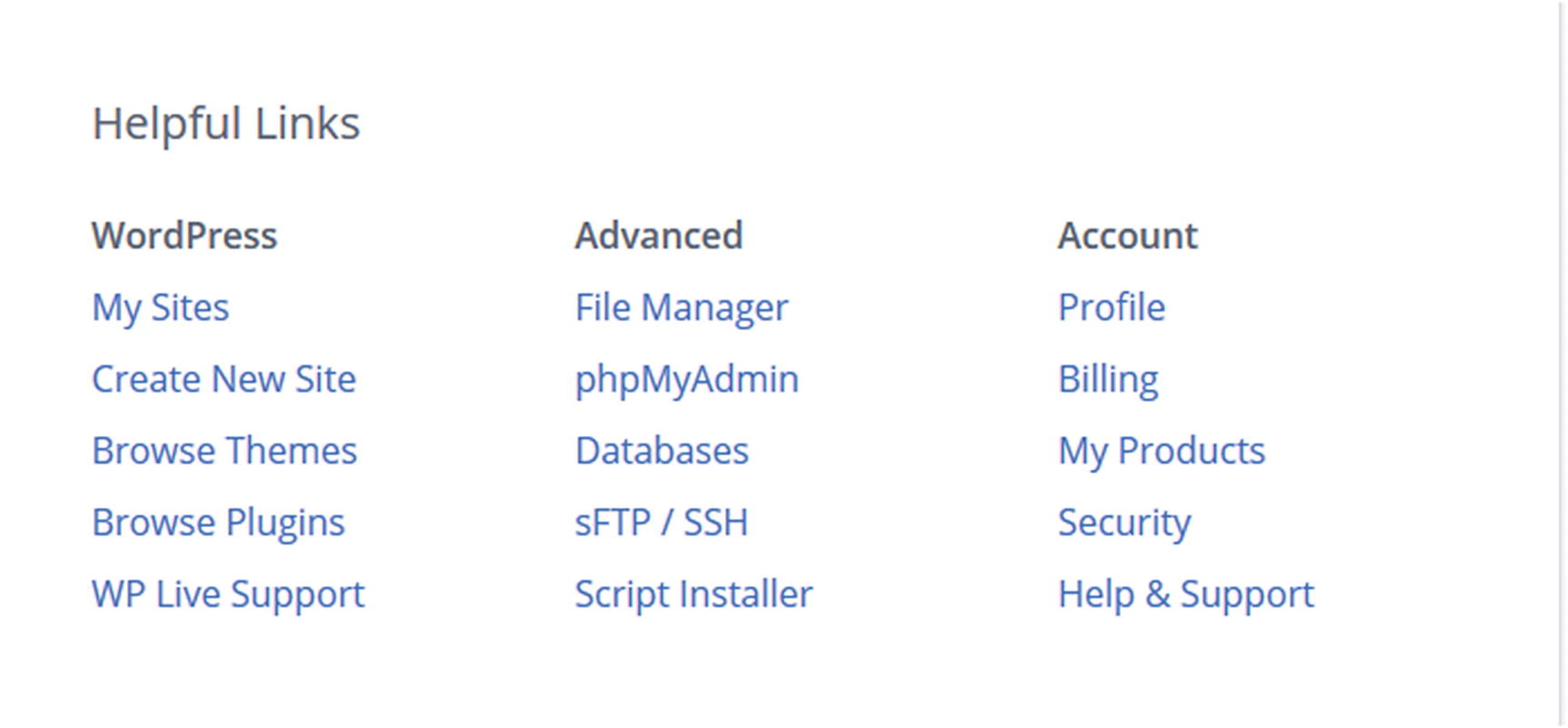
Accessing the phpMyAdmin through the cPanel
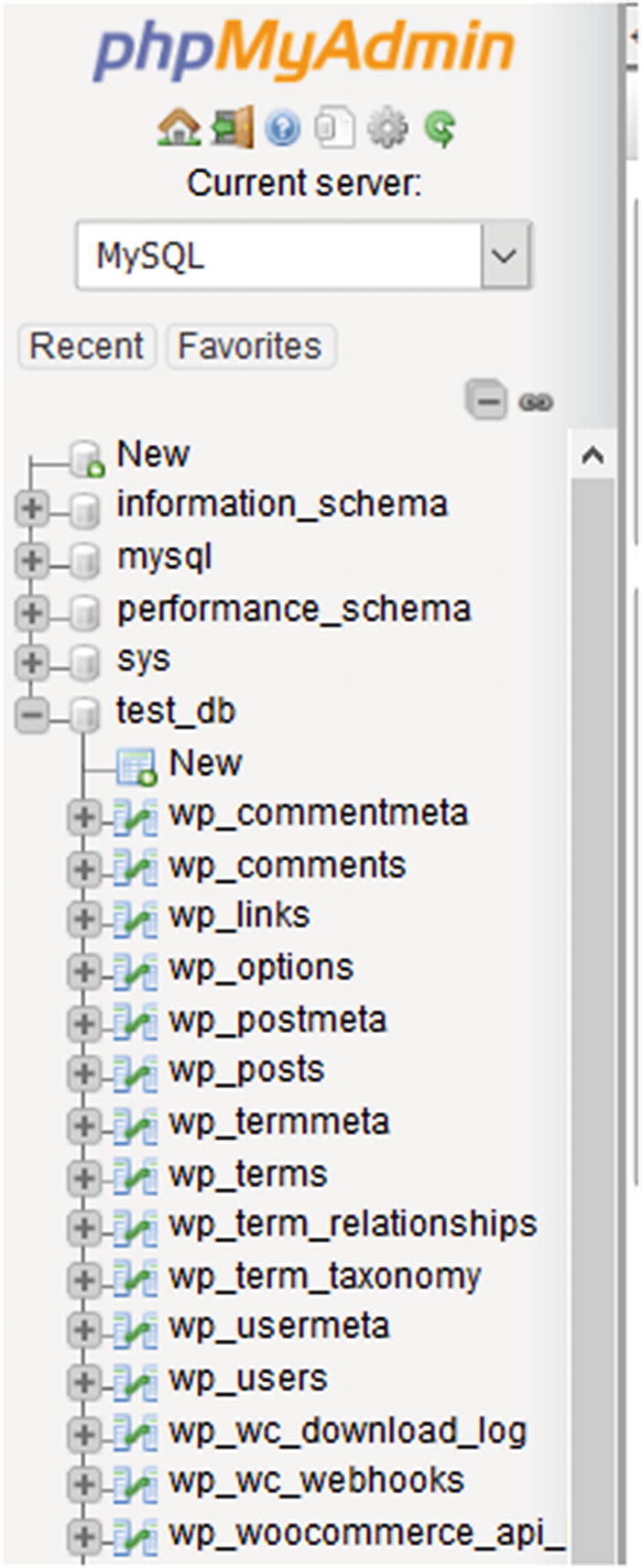
WordPress tables in phpMyAdmin
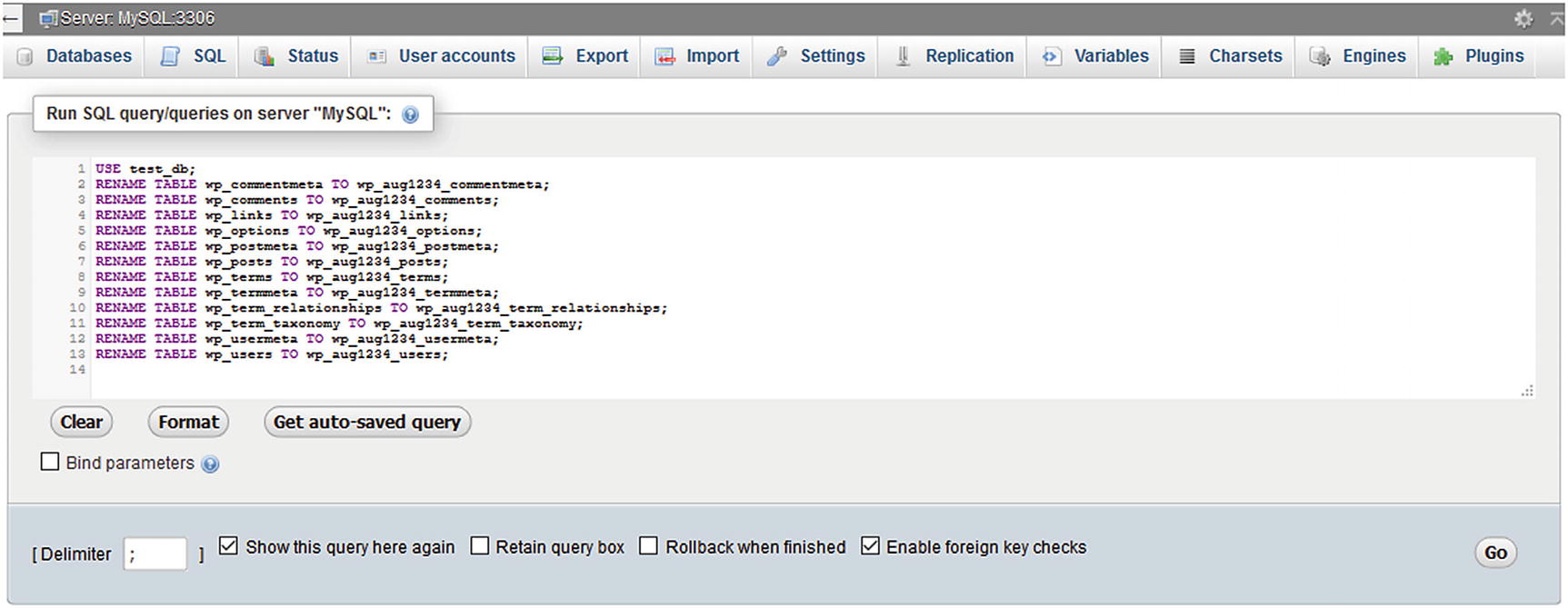
SQL script to rename WordPress tables in phpMyAdmin
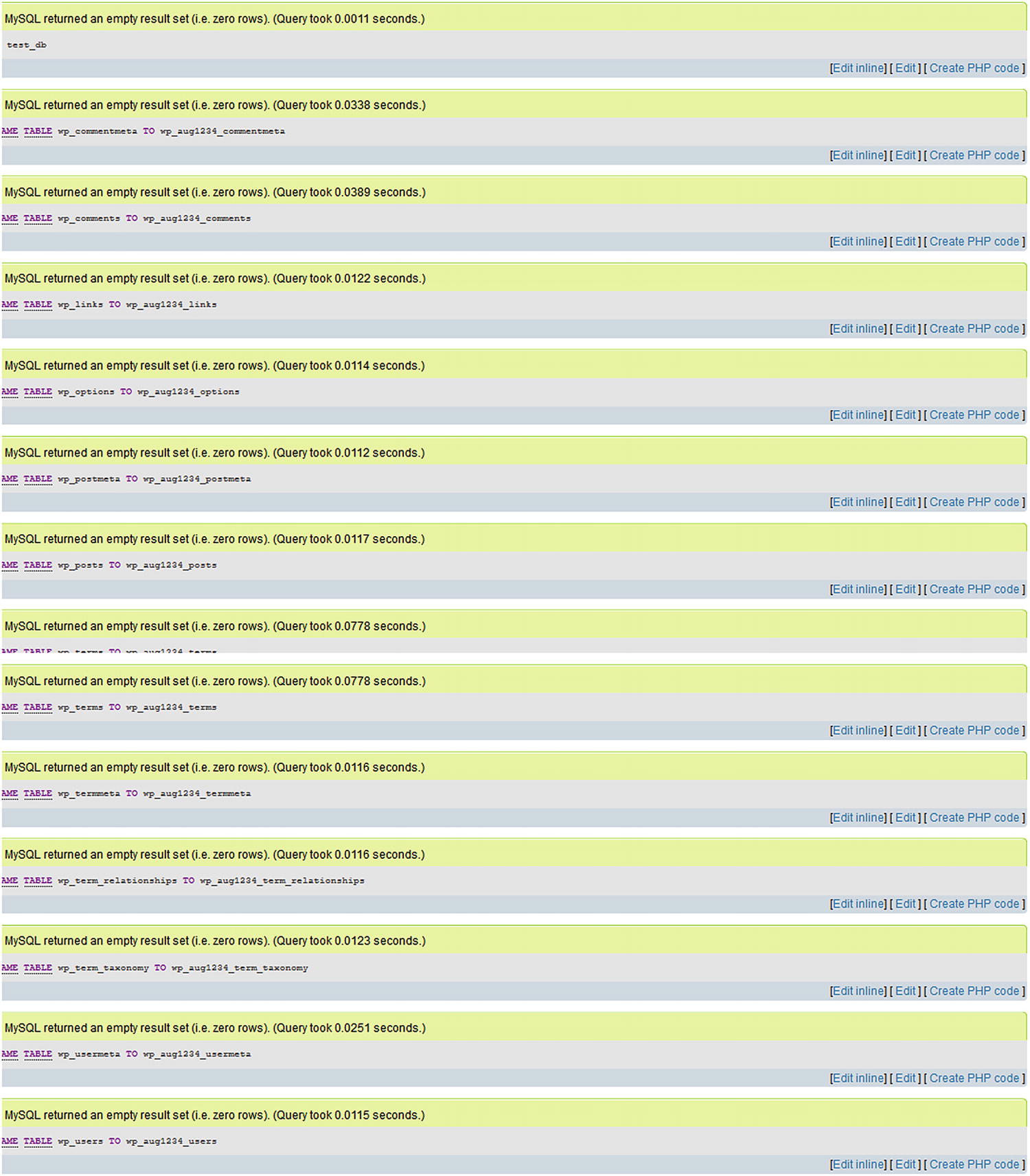
MySQL notification of query results
By changing the default WordPress prefix for tables, hackers will have to work a little harder to bring down the website.
Firewalls, Antivirus, and Antispam
What is a firewall? According to Cisco, a firewall is “is a network security device that monitors incoming and outgoing network traffic and decides whether to allow or block specific traffic based on a defined set of security rules.”4 It can be hardware, software, or both. Typically, a firewall serves a first line of defense against intruders.
Firewalls
WordPress provides many different firewall options to help protect a website. One of those options is the Wordfence plugin. Available in both free and premium versions, the Wordfence Premium plugin is a web application firewall that reduces the chances of being hacked. In addition to being a firewall, it acts as a malware scanner, live website traffic monitor (premium), country and IP blocker (premium), and uses other features to give website owners peace of mind that their website is being protected.
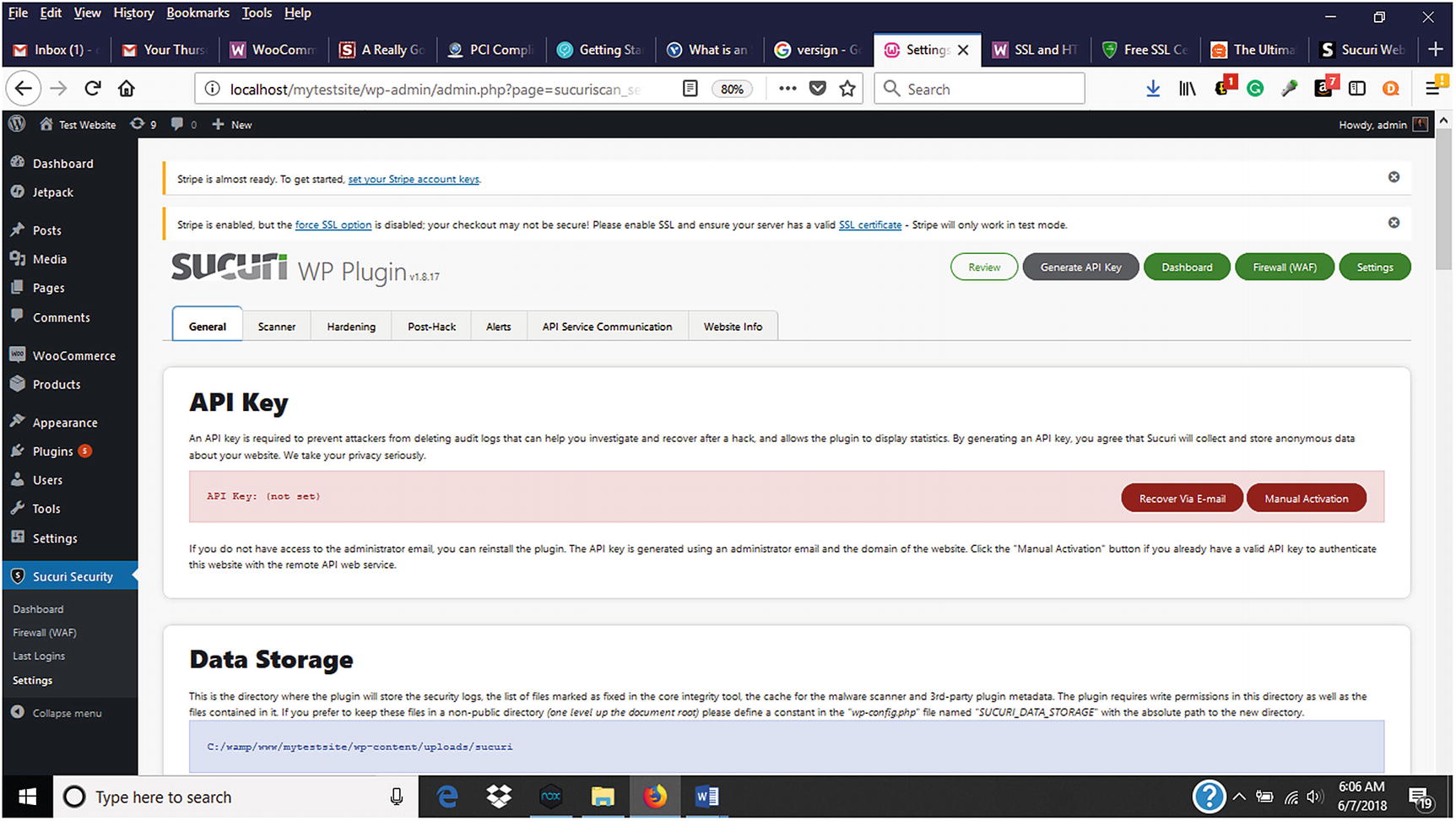
Sucuri API key and other settings
Antivirus Plugins
Antivirus software protects against viruses, malware, and SQL injections that target the WordPress database. It is recommended to use an antivirus plugin to scan a WordPress website for these intrusions. The Security, Antivirus, and Firewall (SAF) plugin by Smart Security Labs Technologies is free and provides antivirus file and security scanning and more to keep a website secure. With all plugins, it is important to make sure that they are compatible with a website’s version of WordPress and review the number of times it has been downloaded. It is also a good idea to pay attention to when it was last updated. If it has not been updated in a while, it probably is not a good idea to use it.
Antispam Plugins
Another area of concern for an online store is spam comments. Spammers love to flood comment sections and forms with malicious content. To monitor for spam, WordPress offers plugins such as the Antispam plugin. The Antispam plugin by WebVitaly blocks automatic spam in comment sections. It is free, but there is also an Antispam Pro Premium Plugin available that extends the free version’s features.
Disable Directory Browsing on the Web Server
Allowing directory browsing on your web server is not a good security idea. This is another way that hackers look for vulnerabilities in websites and execute brute force attacks. It is also a way for others to gain unauthorized access to files, images, and other information that can be used in malicious ways. To prevent directory browsing, connect to your web host via FTP or log in through the cPanel to change the permission.
Limiting User Permissions
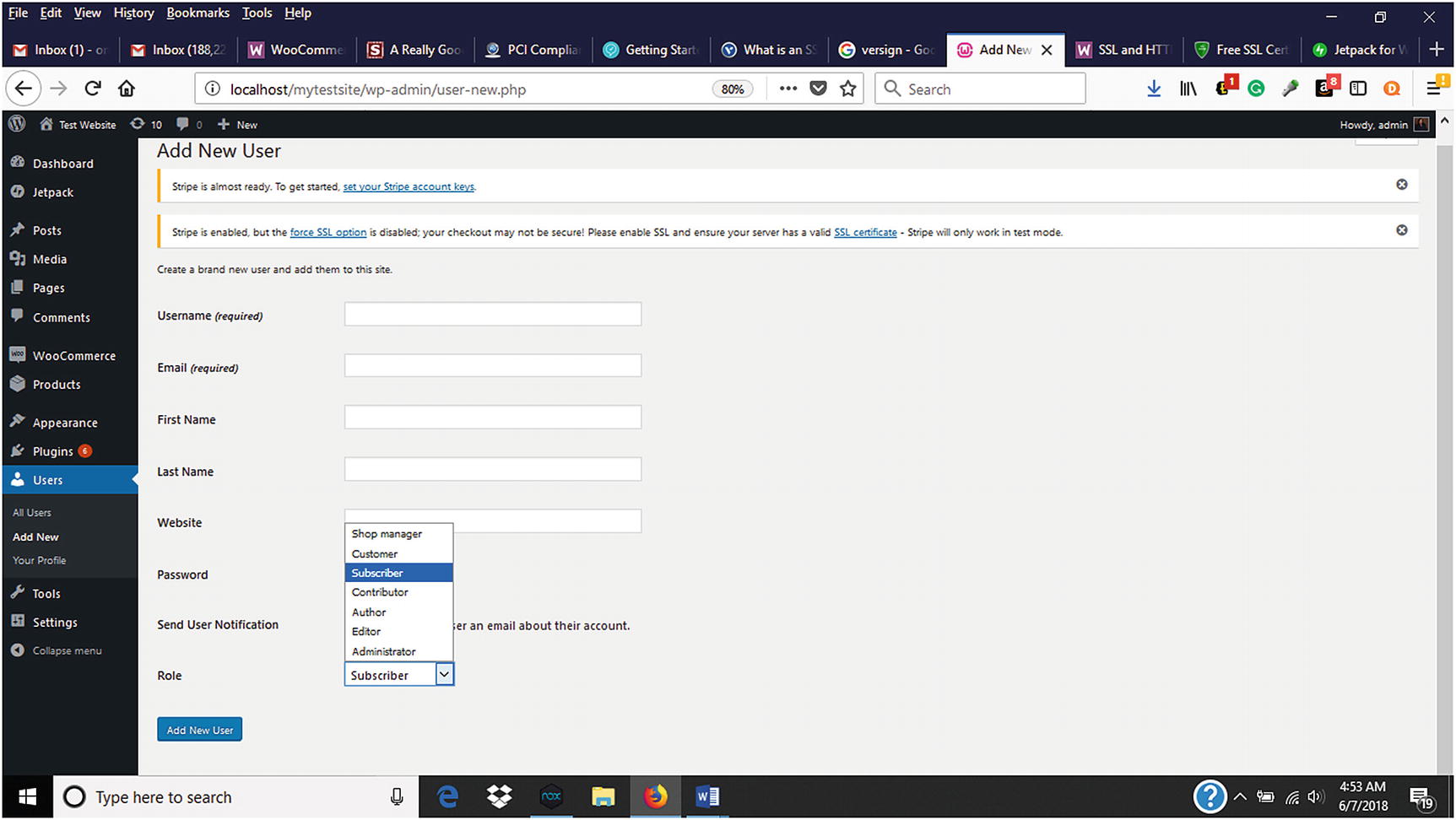
Choosing a user role when adding a new user
Privacy Policy
Visitors to a website have come to expect a privacy policy to be available at the bottom of a website. A privacy policy informs visitors of how their information will be used by the website as well as protected. WordPress allows the ability to create a privacy page or link to an existing page from Settings ➤ Privacy.
Summary
Before launching an online store, security should be addressed to not only protect the store but also customers’ information. WordPress and WooCommerce provide many options to make this as easy as possible. Once security measures are implemented, they should be frequently monitored and reviewed so that any changes can be immediately implemented. The next chapter will explore some of the many options for testing an online store before it is launched.