Chapter 9 discussed various strategies for marketing an online store. Without a well-planned marketing strategy, it can be difficult for potential buyers to know an online store exists as well as for store owners to achieve some of their short-term and long-term goals. No matter how great a product selection an online store might have, marketing is still one of the key components to any successful business’s success.
Now that your online store has launched, it has to be maintained. Although there are certain aspects of the online store that can operate on autopilot, it still needs to be maintained to make sure that it is operating correctly and efficiently and producing the anticipated goals and revenue. Sometimes it is easier and less expensive to correct an issue by being proactive rather than being reactive. In this chapter, we will take a look at some tips and strategies to help maintain your online store to produce a win-win for both store owners and customers.
Updating WooCommerce
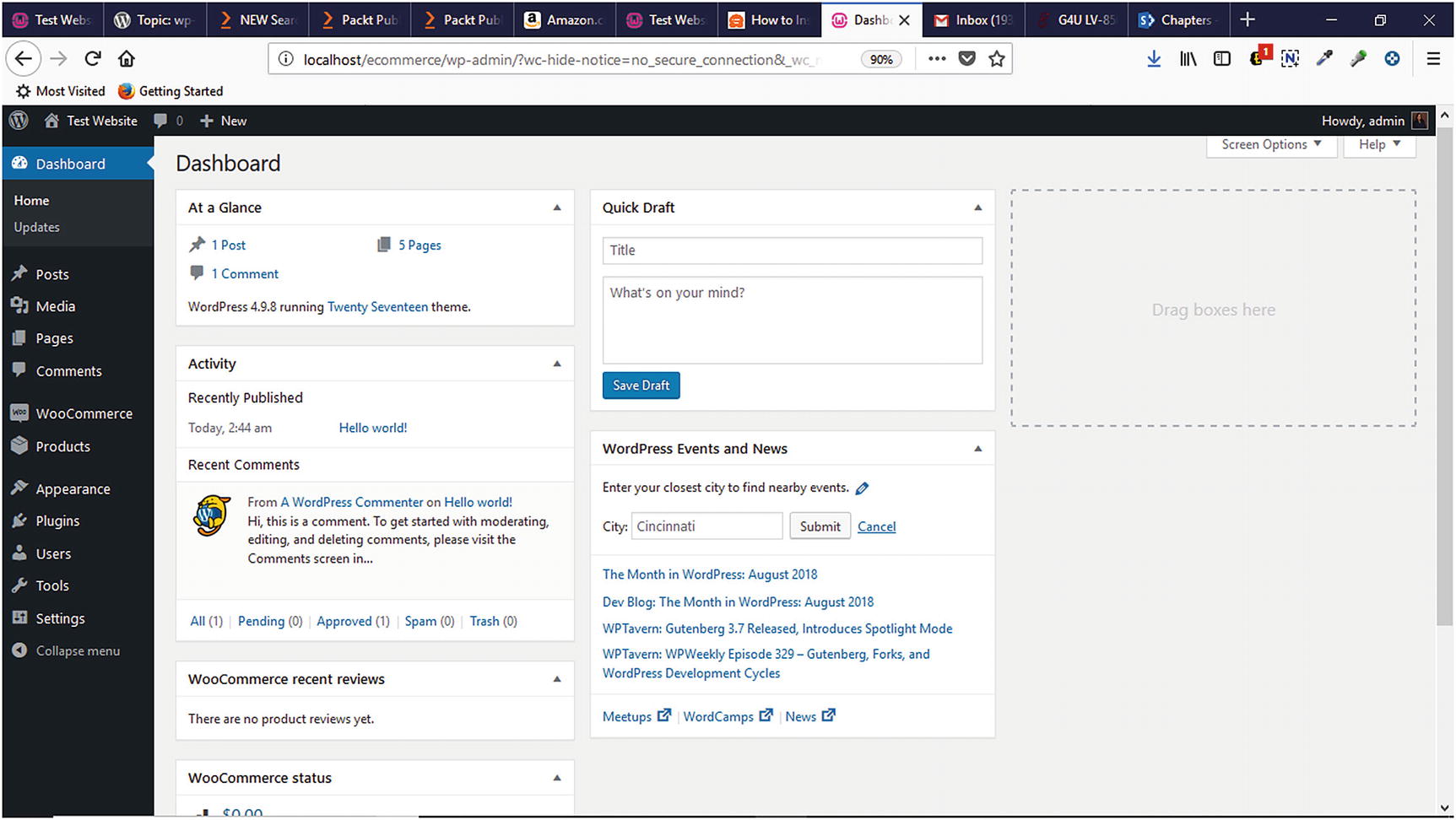
Updating WooCommerce through the WordPress Dashboard
Before applying any updates to WooCommerce, it is a good practice to perform a backup to prevent any data loss or corruption of the WooCommerce database that organizes and stores your store’s information and key WordPress content such as themes, plugins, and other content located in the wp-content folder on your web server.
Updating WordPress
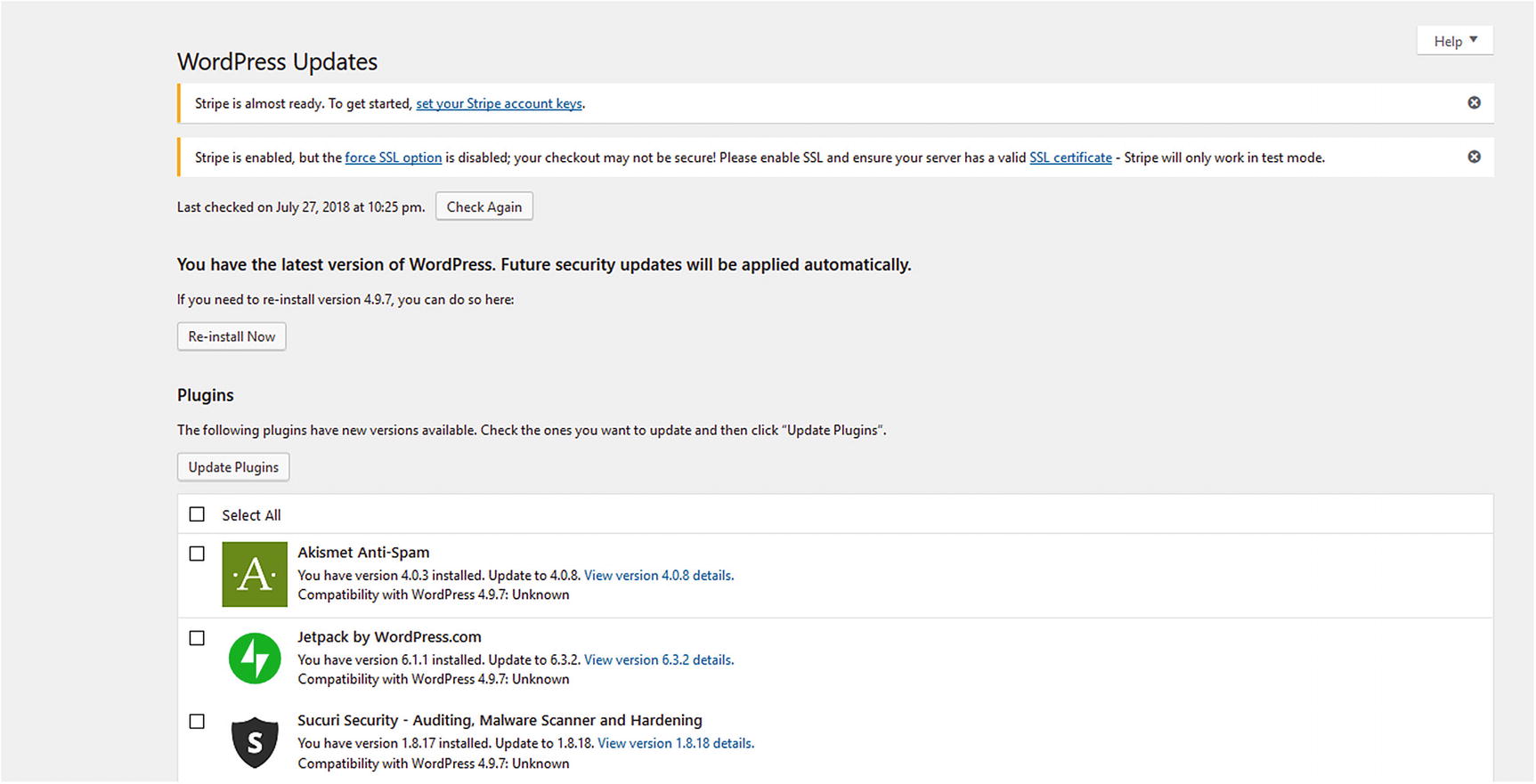
Updating WordPress via the WordPress Dashboard
JetPack
Backup Buddy
Updraft Plus
BackWpUP
Updating Plugins
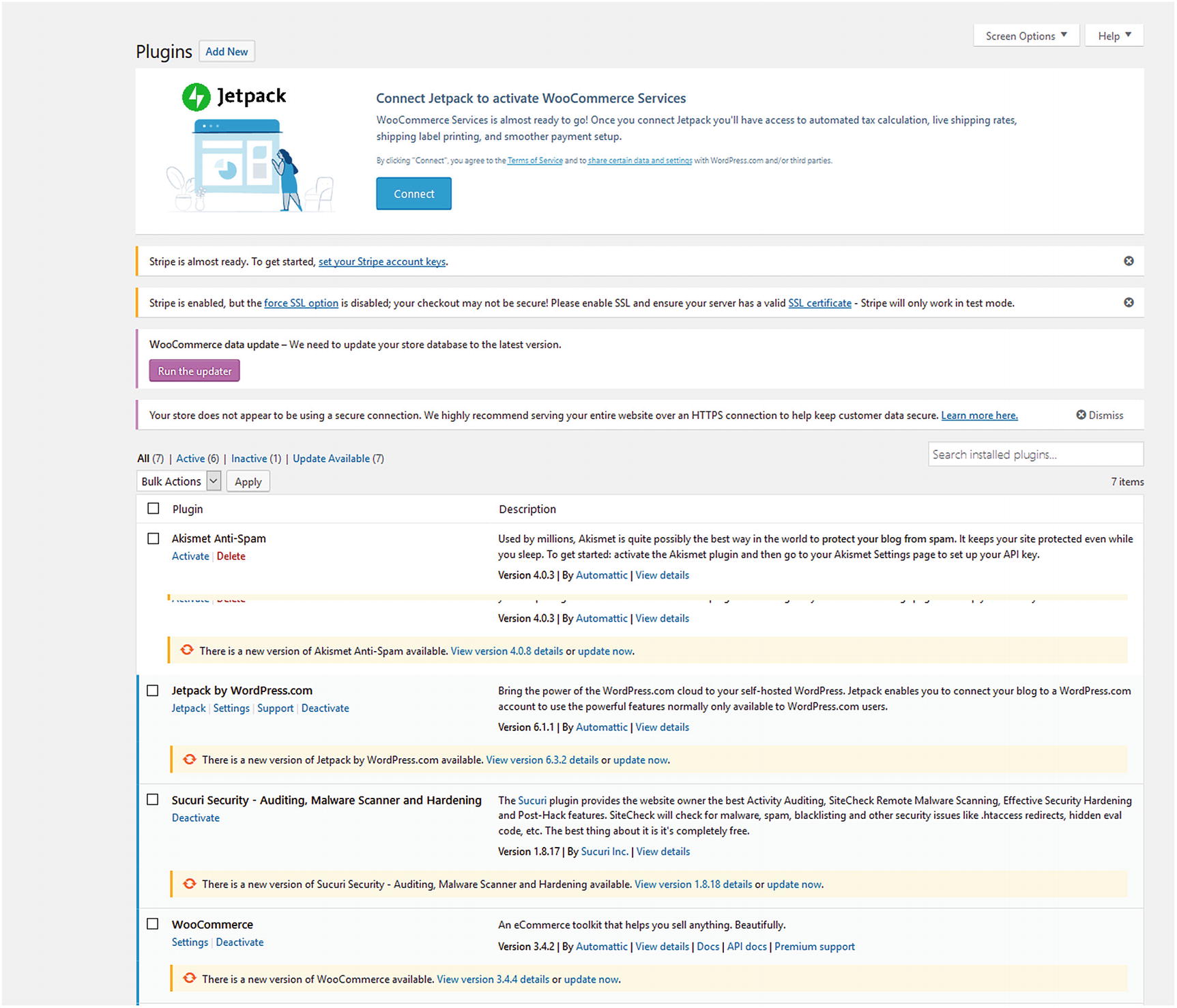
Listing of installed plugins that need to be updated
Updating WooCommerce Extensions
Memberships
Subscriptions
Bookings
Product Add-Ons
Checkout Add-On
Cart Reports
Smart Coupons
Follow-Up Emails
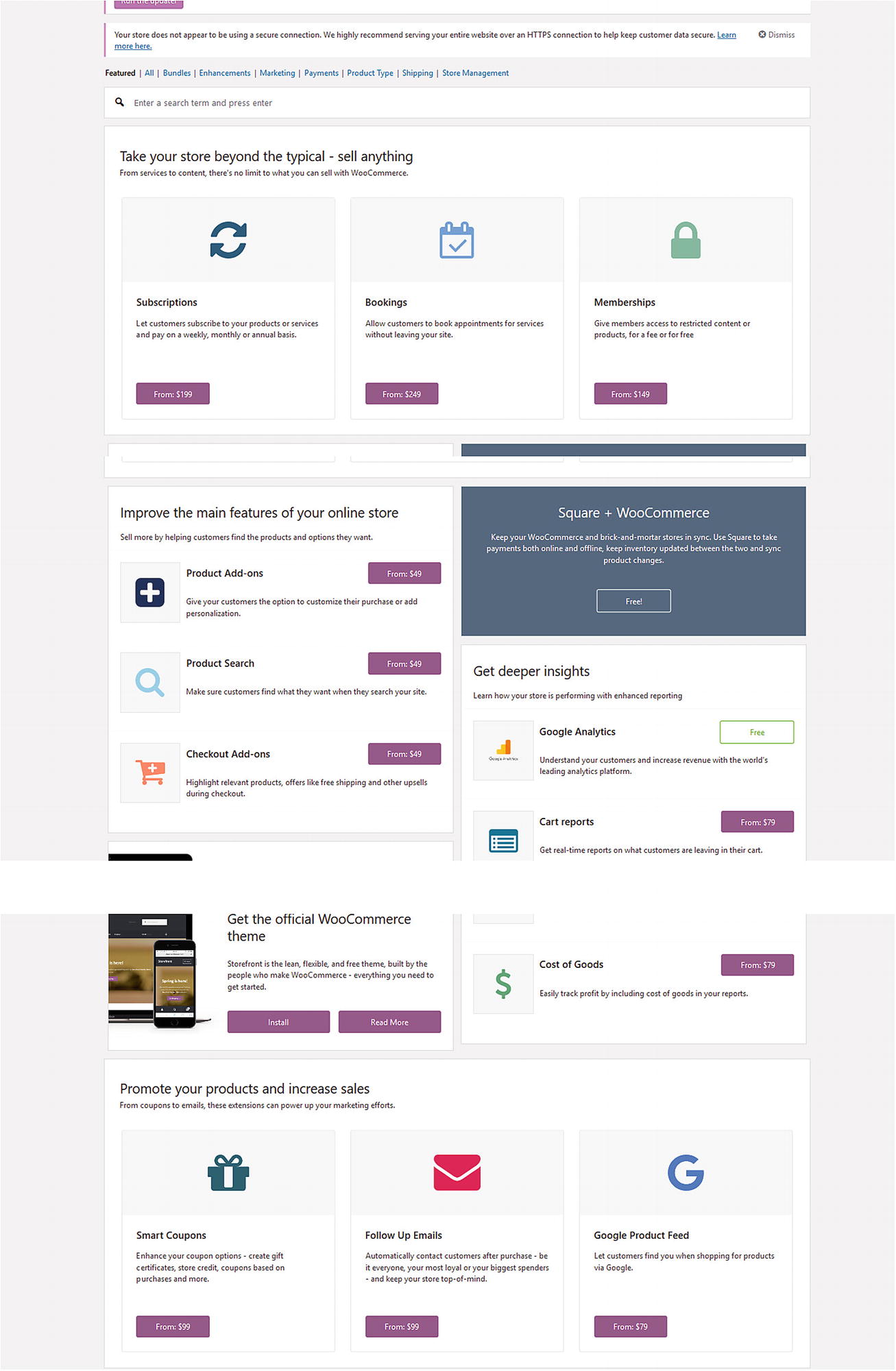
WooCommerce extensions in the WordPress Dashboard
Backing Up WordPress and WooCommerce
Regular backups are crucial to your store’s success and bottom line. If your store malfunctions for any reason or you forget to renew your store’s web hosting, your store could experience downtime in which prospects and repeat customers cannot make purchases. Depending on the popularity of your store, the longer it is unavailable, the more potential sales revenue could be lost. When a recent backup is not readily available to restore the store to an operational state, you might have to reinstall WordPress and WooCommerce, which can involve a considerable amount of time depending on the number of products or services and how they were entered into WooCommerce.
Consistent backups should be performed on your store to ensure key WordPress and WooCommerce components are backed up. While WordPress and WooCommerce are reinstalling, your store is offline, and you are losing potential sales until your store is up and running again. Backups can either be performed manually or automatically, but it is a good practice to perform automatic backups. JetPack is a good plugin to use for automated backups and one-click backup restores with VaultPress but requires a paid plan. UpdraftPlus offers a free restoration and backup plugin version that has over a million active installs. Once a backup has been scheduled, it can be stored in cloud services such as Google Drive, Dropbox, Amazon S3, or UpdraftPlus’s UpdraftVault. It also offers a premium with more advanced features such as site duplicator and migrator, automatic backups, and more. Another option is BackWPup with over 600,000 active users and over 5 million downloads.1 BackWPup allows backups to be scheduled or performed immediately and saved to cloud services similar to UpdraftPlus.
Reviewing Reports
Orders
Gross sales
Net sales
Items purchased
Refunded orders
Shipping charges
Coupons used
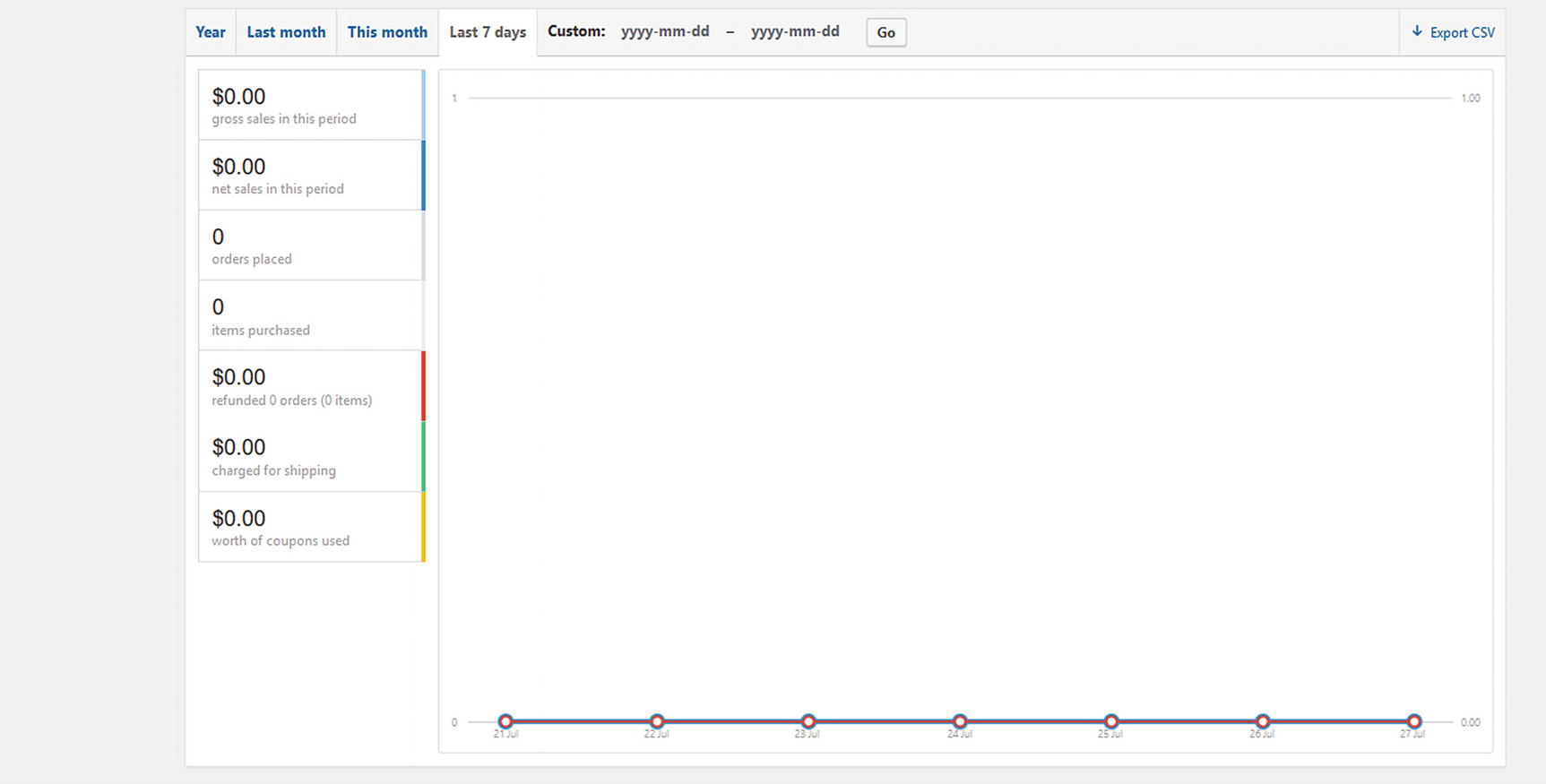
WooCommerce Reports within WordPress Dashboard
Coupons/Discounts
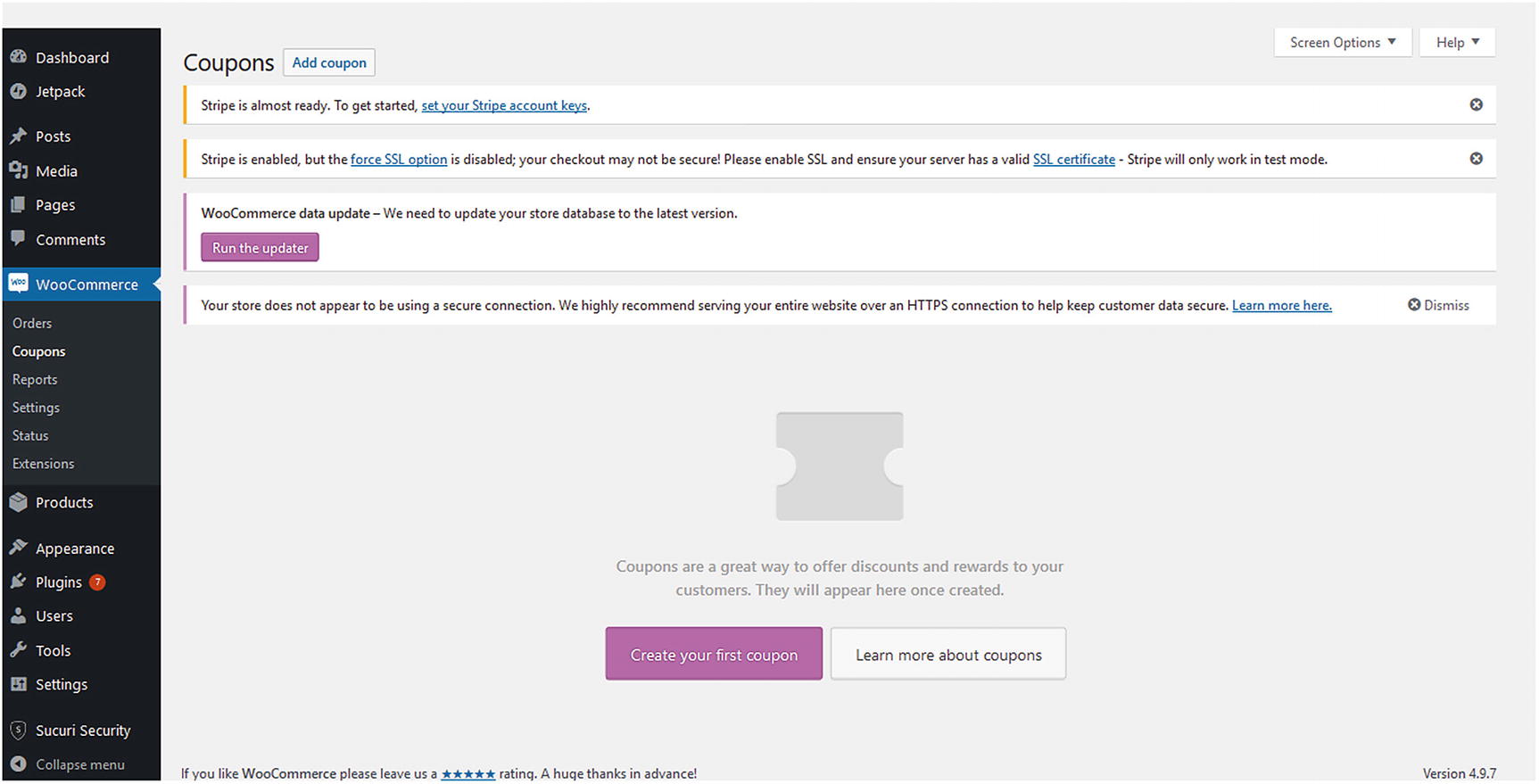
Creating coupons within WooCommerce
Percentage discount
Fixed cart discount
Fixed product discount
With this flexibility, store owners can customize their coupon strategy to maximize their effectiveness as well as generate sales.
Renewing Domain Name
Domain names are an important part of an online store’s existence. It helps to build its brand. It is also one of the things people will remember about the store. Domain names have to be renewed for one to five years. Longer renewals help with search engine optimization because it shows that it will be around for a while. If not renewed, someone else can purchase the domain name, which will disrupt the operation of the store until another domain is purchased or repurchased from the domain buyer often at a much higher price. Automatic renewals with the chosen domain registrar are a good strategy to implement to prevent someone else from acquiring a store’s domain name as well as an interruption in service.
Renewing Web Hosting
Besides not renewing a domain name, not renewing web hosting can cause an immediate disruption in the store’s operation. Not only will this result in downtime and lost sales but also the possibility of re-creating the store if a recent backup is not available. It is a good idea to periodically check the expiration of the credit card that is on file with the web host (as well as the domain registrar) to make sure that it has not expired. An expired credit card can also result in a store’s downtime. Also, it is good idea to renew web hosting automatically to prevent an interruption in service along with possible file loss and deletion. Believe it or not, it does happen and can happen to you.
Providing New Products
Once an online store has been in business for a while, store owners can review the sales reports and determine which products are the top sellers and update their product inventory. Based on this information, either more of these products can be introduced or new products in this category can be introduced to shoppers. These new products can also be introduced in the email newsletter sent to prospects and customers.
Orders
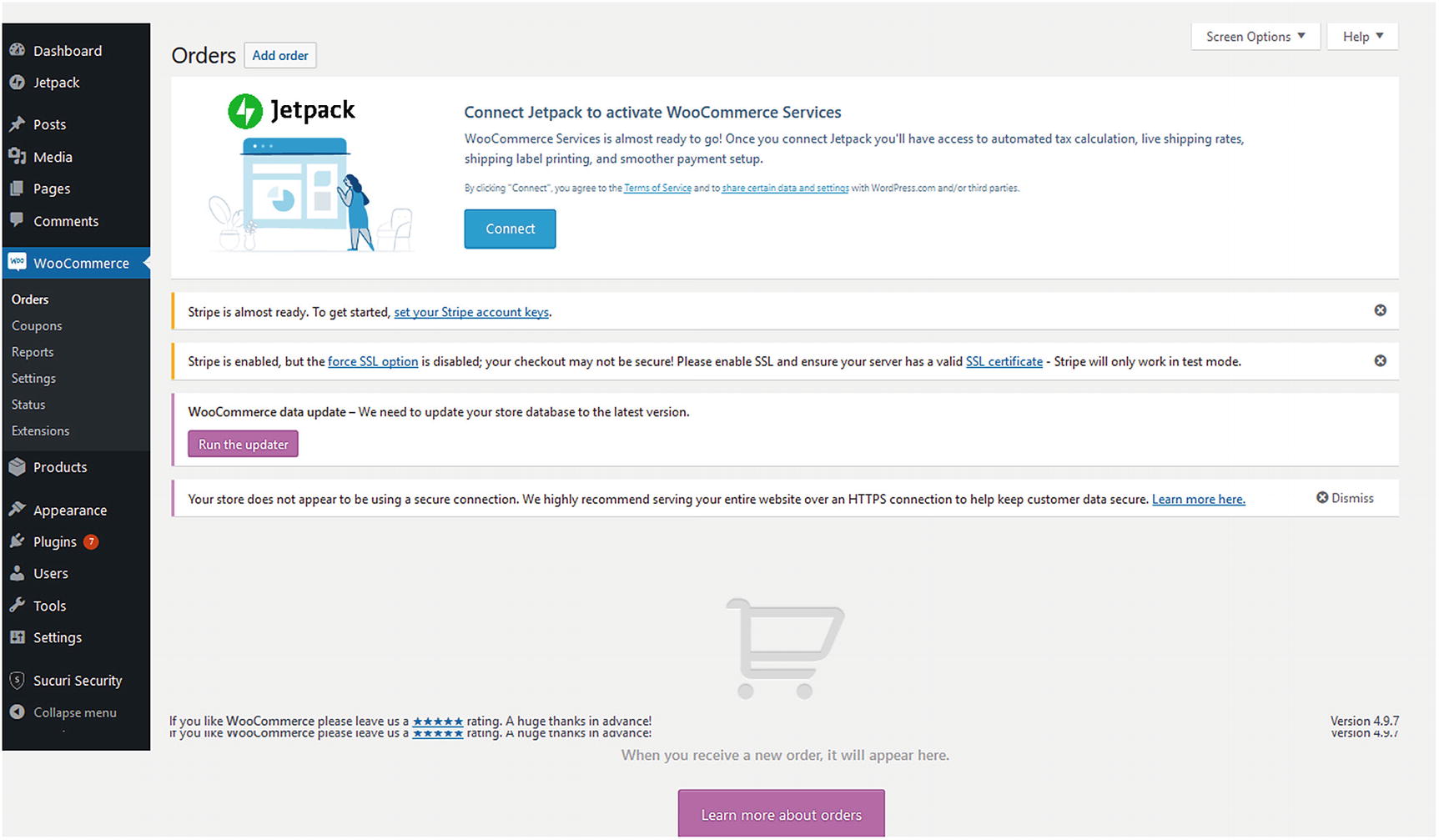
Orders within WooCommerce
Pending payment – Order received (unpaid).
Failed – Payment failed or was declined (unpaid). Note that this status may not show immediately and instead show as Pending until verified (i.e., PayPal).
Processing – Payment received, and stock has been reduced – the order is awaiting fulfillment. All product orders require processing, except those that only contain products that are both Virtual and Downloadable.
Completed – Order fulfilled and complete – requires no further action.
On-Hold – Awaiting payment – stock is reduced, but you need to confirm payment.
Cancelled – Cancelled by an admin or the customer – no further action required. (Cancelling an order does not affect stock quantity by default.)
Refunded – Refunded by an admin – no further action required.
By becoming familiar with these statuses, store owners can immediately identify when there is a problem with an order that might require attention. Downloading the WooCommerce app to a mobile device can also help store owners and store personnel stay abreast of sales and orders as they are received and know when it is time to fulfill them.
Google Analytics
How are people finding your online store? It is important to discover how prospects are finding your online store. If you cannot immediately answer this question, you might need some help. Google Analytics might be your answer. What is Google Analytics? Google Analytics provides detailed information about your website, its visitor demographics, and their actions while visiting your website and more. Compared to the standard web logs provided by web hosting companies, the amount and presentation of the information can provide valuable insight to help make improvements that can improve your store’s bottom line. If you are using Google Ads, it provides information on the ad’s performance. It is also free to use and is available as an app on Android and iOS devices.
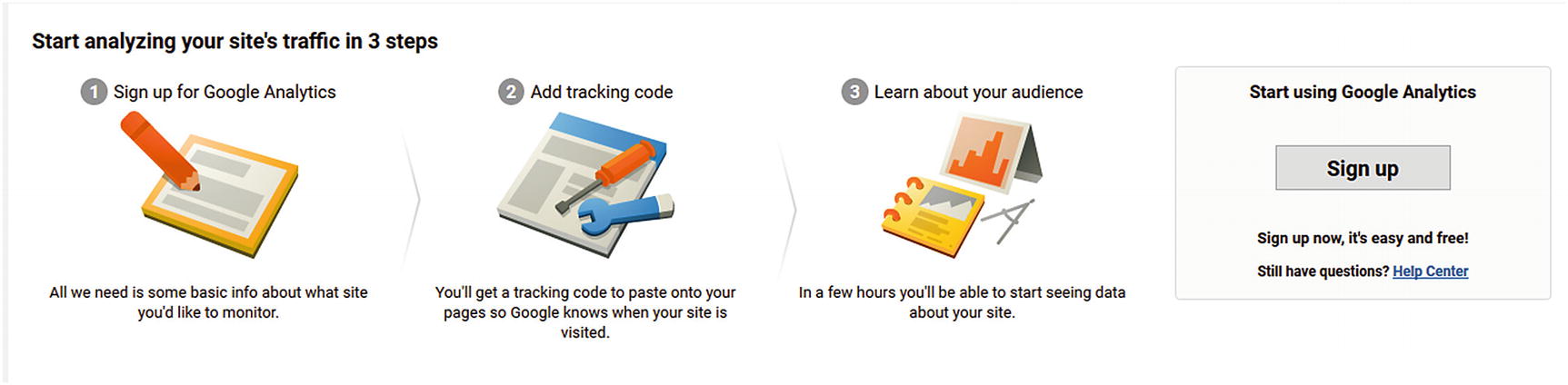
Signing up for Google Analytics
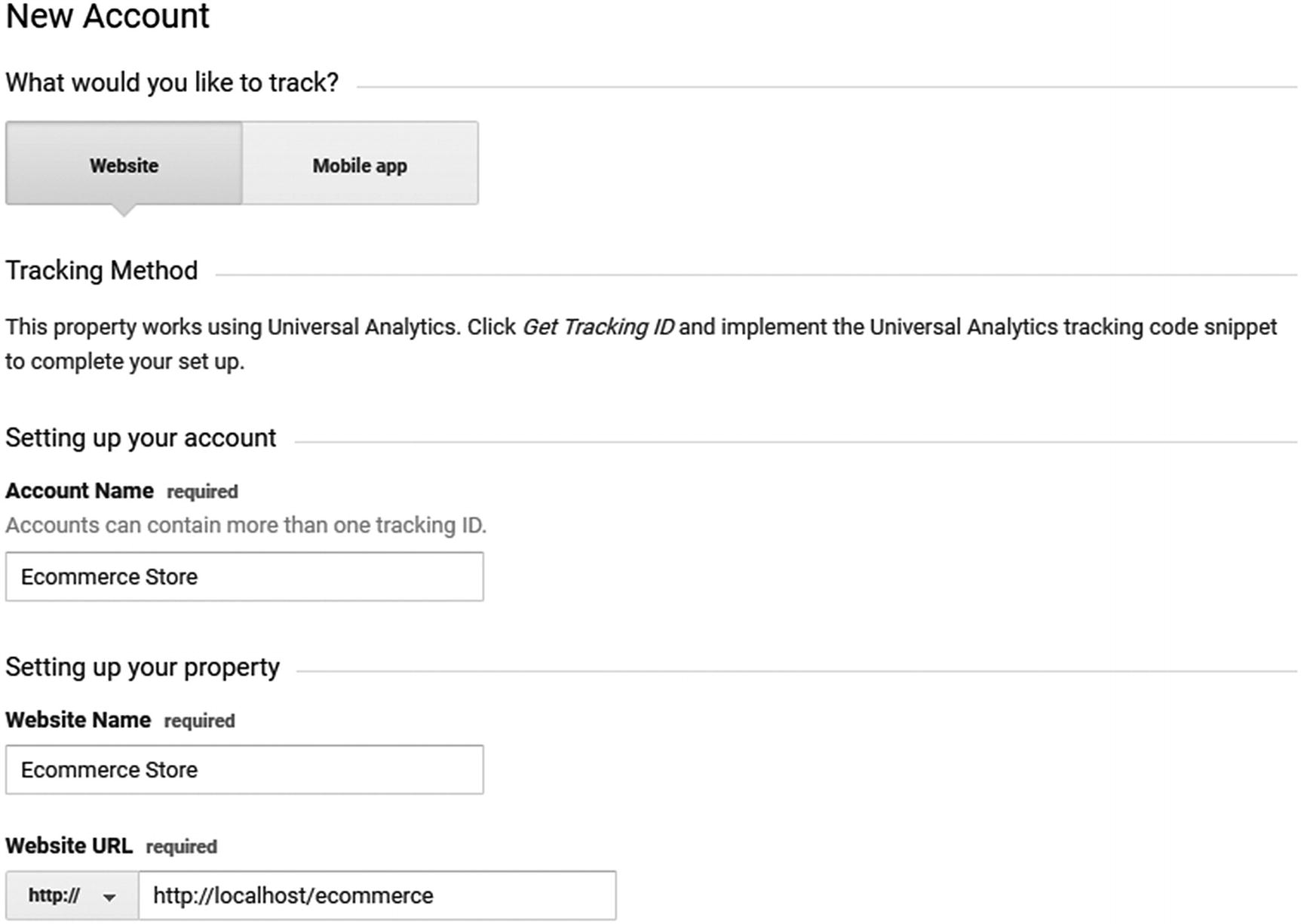
Creating new Google Analytics account
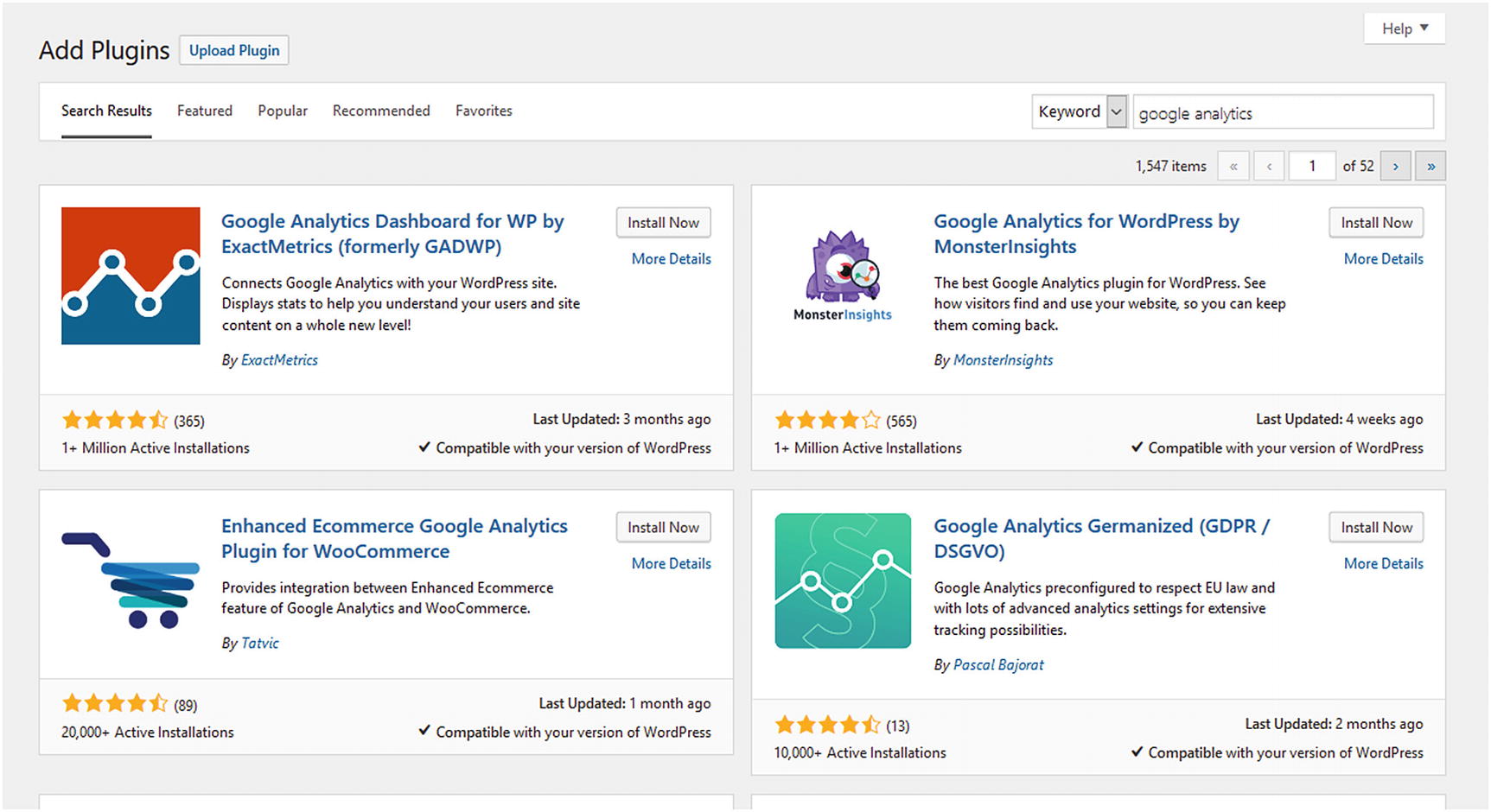
Google Analytics plugins to help monitor website traffic
Summary
Once an online store launches, the work does not end. It actually begins because the store must be maintained. Its success (and failure) depends on the amount of maintenance applied to help the store meet its short-term and long-term goals. By following these strategies, an online store can operate efficiently and provide a good customer shopping experience.