Table of Contents for
R Cookbook, 2nd Edition
 R Cookbook, 2nd Edition
Published by
O'Reilly Media, Inc., 2019
R Cookbook, 2nd Edition
Published by
O'Reilly Media, Inc., 2019
Chapter 3. Navigating the Software
Getting and Setting the Working Directory
Problem
You want to change your working directory. Or you just want to know what it is.
Solution
- R Studio
-
Navigate to a directory in the file pane. Then from the File Pane, select More → Set as Working Directory as shown in Figure 3-1.
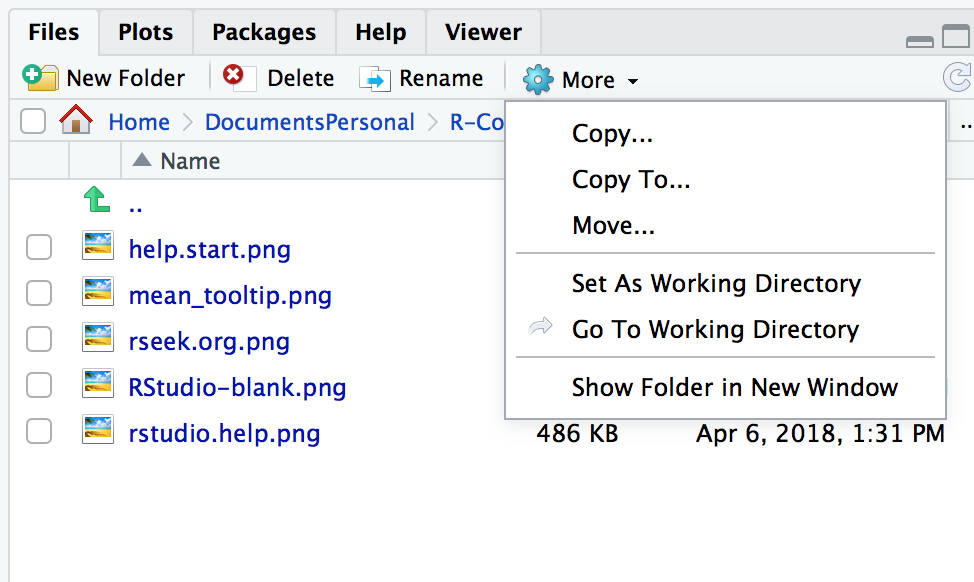
Figure 3-1. R Studio: Set Working Directory
- Console
-
Use
getwdto report the working directory, and usesetwdto change it:
getwd()#> [1] "/Users/jal/DocumentsPersonal/R-Cookbook"
setwd("~/Documents/MyDirectory")
Discussion
Your working directory is important because it is the default location for all file input and output—including reading and writing data files, opening and saving script files, and saving your workspace image. When you open a file and do not specify an absolute path, R will assume that the file is in your working directory.
If you’re using R Studio projects, your default working directory will be the home directory of the project. See “Creating a new R Studio Project” for more about creating R Studio Projects.
See Also
See “Dealing with “Cannot Open File” in Windows” for dealing with filenames in Windows.
Creating a new R Studio Project
Problem
You want to create a new R Studio Project to keep all your files related to a specific project.
Discussion
Projects are a powerful concept that’s specific to R Studio. Projects set your working directory to the project directory but they add considerable additional help to maintaining your project.
Projects help you by doing the following:
-
Sets your working directory to the project directory
-
Preserves window state in R Studio so when you return to a project your windows are all as you left them. This includes opening any files you had open when you last saved your project.
-
Preserves R Studio Project settings
To hold your project settings, R Studio will create a project file with an .Rproj extension in the project directory. The project file contains your project settings and if you open the project file in R Studio it works like a shortcut for opening the project. In addition, R Studio creates a hidden directory named .Rporj.user to house temporary files related to your project.
We recommend that any time you work in R that is non trivial you should create an R Studio Project. Projects help you keep organized and make workflow on your projects easier.
Saving Your Workspace
Problem
You want to save your workspace from the console or within a program.
Solution
Call the save.image function:
save.image()
Discussion
Your workspace holds your R variables and functions, and it is created
when R starts. The workspace is held in your computer’s main memory and
lasts until you exit from R, at which time you can save it. The contents
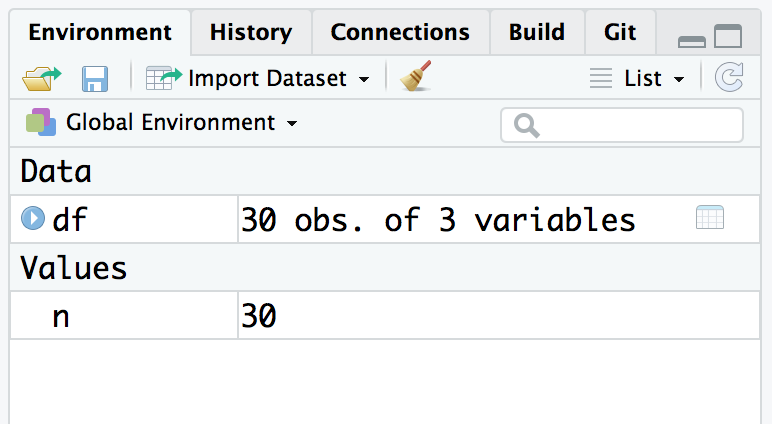
of your workspace can be easily seen in R Studio in the Environment
tab shown in Figure 2-1
However, you may want to save your workspace without exiting R. Becuase
you know bad things mysteriously happen when you close your laptop to
carry it home. Use the save.image function.
The workspace is written to a file called .RData in the working
directory. When R starts, it looks for that file and, if found,
initializes the workspace from it.
A sad fact is that the workspace does not include your open graphs: that cool graph on your screen disappears when you exit R. The workspace also does not include saving the position of your windows or your R Studio settings. This is why we recommend using R Studio projects as a project includes your workspace and a whole lot more.
See Also
See “Installing R Studio” for how to save your workspace when exiting R and “Getting and Setting the Working Directory” for setting the working directory.
Viewing Your Command History
Problem
You want to see your recent sequence of commands.
Solution
Depending on what you are trying to accomplish, you can use a few different methods to access prior command history. If you are in the Console you can press the up arrow to interactively scroll through past commands.
If you want to see a listing of past commands, you can either execute
the history function, or the History window in R Studio to view your
most recent input:
history()
In R Studio typing history() into the Console simply activates the
History pane in R Studio (Figure 3-2). You could also make
that pane visable by clicking on it with your cursor.
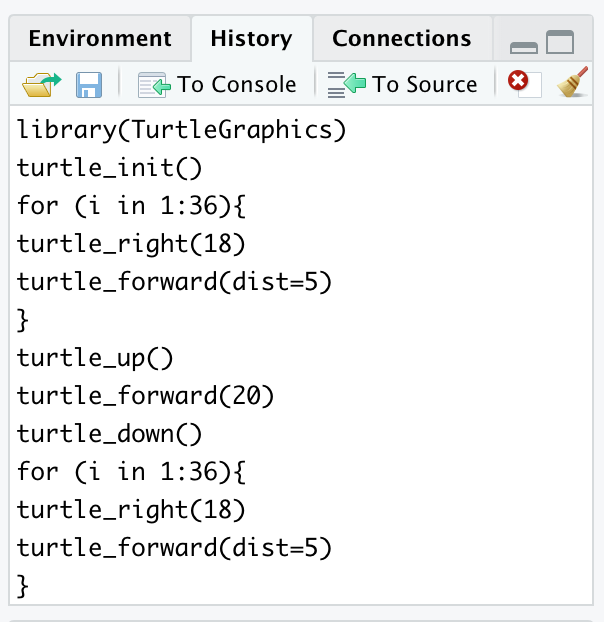
Figure 3-2. R Studio History Pane
Discussion
The history function will display your most recent commands. In R
Studio the history command will activate the History window. If you
were running R outside of R Studio, history shows the most recent 25
lines, but you can request more:
history(100)# Show 100 most recent lines of historyhistory(Inf)# Show entire saved history
From within R Studio, the History tab shows an exhaustive list of past commands in chronological order with the most recent at the bottom of the list. In R Studio you can highlight past commands with your cursor then click on the “To Console” or “To Source” to copy past commands into the console or source editor, respectively. This can be terribly handy when you’ve done interactive data analysis and then decide you want to save some past steps to a source file for later use.
From the console you can see your history by simply scrolling backward through your input by pressing the up arrow causing your previous typing to reappear, one line at a time.
If you’ve exited from R or R Studio then you can still see your command
history. It saves the history in a file called .Rhistory in the
working directory. Open the file with a text editor and then scroll to
the bottom; you will see your most recent typing.
Saving the Result of the Previous Command
Problem
You typed an expression into R that calculated the value, but you forgot to save the result in a variable.
Solution
A special variable called .Last.value saves the value of the most
recently evaluated expression. Save it to a variable before you type
anything else.
Discussion
It is frustrating to type a long expression or call a long-running
function but then forget to save the result. Fortunately, you needn’t
retype the expression nor invoke the function again—the result was saved
in the .Last.value variable:
aVeryLongRunningFunction()# Oops! Forgot to save the result!x<-.Last.value# Capture the result now
A word of caution: the contents of .Last.value are overwritten every
time you type another expression, so capture the value immediately. If
you don’t remember until another expression has been evaluated, it’s too
late!
See Also
See “Viewing Your Command History” to recall your command history.
Displaying Loaded Packages via the Search Path
Problem
You want to see the list of packages currently loaded into R.
Solution
Use the search function with no arguments:
search()
Discussion
The search path is a list of packages that are currently loaded into memory and available for use. Although many packages may be installed on your computer, only a few of them are actually loaded into the R interpreter at any given moment. You might be wondering which packages are loaded right now.
With no arguments, the search function returns the list of loaded
packages. It produces an output like this:
search()#> [1] ".GlobalEnv" "package:knitr" "package:forcats"#> [4] "package:stringr" "package:dplyr" "package:purrr"#> [7] "package:readr" "package:tidyr" "package:tibble"#> [10] "package:ggplot2" "package:tidyverse" "package:stats"#> [13] "package:graphics" "package:grDevices" "package:utils"#> [16] "package:datasets" "package:methods" "Autoloads"#> [19] "package:base"
Your machine may return a different result, depending on what’s
installed there. The return value of search is a vector of strings.
The first string is ".GlobalEnv", which refers to your workspace. Most
strings have the form "package:packagename", which indicates that the
package called packagename is currently loaded into R. In the above
example, you can see many Tidyverse packages installed, including
purrr, ggplot2, tibble, etc.
R uses the search path to find functions. When you type a function name, R searches the path—in the order shown—until it finds the function in a loaded package. If the function is found, R executes it. Otherwise, it prints an error message and stops. (There is actually a bit more to it: the search path can contain environments, not just packages, and the search algorithm is different when initiated by an object within a package; see the R Language Definition for details.)
Since your workspace (.GlobalEnv) is first in the list, R looks for
functions in your workspace before searching any packages. If your
workspace and a package both contain a function with the same name, your
workspace will “mask” the function; this means that R stops searching
after it finds your function and so never sees the package function.
This is a blessing if you want to override the package function…and a
curse if you still want access to the package function. If you find
yourself feeling cursed because you (or some package you loaded)
overrode a function (or other object) from an existing loaded package,
you can use the full environment::name form to call an object from a
loaded package environment. For example, if you wanted to call the
dplyr function count you could do so using dplyr::count. Using the
full explicit name to call a function will work even if you have not
loaded the package. So if you have dplyr installed but not loaded, you
can still call dplyr::count. It is becoming increasingly common with
online examples to show the full packagename::function in examples.
While this removes ambiguity about where a function comes from, it makes
example code very wordy.
Note that R will only include loaded packages in the search path. So
if you have installed a package, but not loaded it by using
library(packagename) then R will not add that package to the search
path.
R also uses the search path to find R datasets (not files) or any other object via a similar procedure.
Unix & Mac users: don’t confuse the R search path with the Unix search
path (the PATH environment variable). They are conceptually similar
but two distinct things. The R search path is internal to R and is used
by R only to locate functions and datasets, whereas the Unix search path
is used by the OS to locate executable programs.
See Also
See “Accessing the Functions in a Package” for loading packages into R, “Viewing the List of Installed Packages” for the list of installed packages (not just loaded packages), and “Accessing Data Frame Contents More Easily” for inserting data frames into the search path.
Accessing the Functions in a Package
Problem
A package installed on your computer is either a standard package or a package downloaded by you. When you try using functions in the package, however, R cannot find them.
Solution
Use either the library function or the require function to load the
package into R:
library(packagename)
Discussion
R comes with several standard packages, but not all of them are
automatically loaded when you start R. Likewise, you can download and
install many useful packages from CRAN, or Github, but they are not
automatically loaded when you run R. The MASS package comes standard
with R, for example, but you could get this message when using the lda
function in that package:
lda(x)#> Error in lda(x): could not find function "lda"
R is complaining that it cannot find the lda function among the
packages currently loaded into memory.
When you use the library function or the require function, R loads
the package into memory and its contents become immediately available to
you:
my_model<-lda(cty~displ+year,data=mpg)#> Error in lda(cty ~ displ + year, data = mpg): could not find function "lda"library(MASS)# Load the MASS library into memory#>#> Attaching package: 'MASS'#> The following object is masked from 'package:dplyr':#>#> selectmy_model<-lda(cty~displ+year,data=mpg)# Now R can find the function
Before calling library, R does not recognize the function name.
Afterward, the package contents are available and calling the lda
function works.
Notice that you needn’t enclose the package name in quotes.
The require function is nearly identical to library. It has two
features that are useful for writing scripts. It returns TRUE if the
package was successfully loaded and FALSE otherwise. It also generates
a mere warning if the load fails—unlike library, which generates an
error.
Both functions have a key feature: they do not reload packages that are already loaded, so calling twice for the same package is harmless. This is especially nice for writing scripts. The script can load needed packages while knowing that loaded packages will not be reloaded.
The detach function will unload a package that is currently loaded:
detach(package:MASS)
Observe that the package name must be qualified, as in package:MASS.
One reason to unload a package is that it contains a function whose name conflicts with a same-named function lower on the search list. When such a conflict occurs, we say the higher function masks the lower function. You no longer “see” the lower function because R stops searching when it finds the higher function. Hence unloading the higher package unmasks the lower name.
See Also
Accessing Built-in Datasets
Problem
You want to use one of R’s built-in datasets. Or you want to access one of the datasets that comes with another package.
Solution
The standard datasets distributed with R are already available to you,
since the datasets package is in your search path. If you’ve loaded
any other packages, datasets that come with those loaded packages will
also be availiable in your search path.
To access datasets in other packages, use the data function while
giving the dataset name and package name:
data(dsname,package="pkgname")
Discussion
R comes with many built-in datasets. Other packages, such as dplyr and
ggplot2 also come with example data that’s used in the examples found
in their help files. These datasets are useful when you are learning
about R, since they provide data with which to experiment.
Many datasets are kept in a package called (naturally enough)
datasets, which is distributed with R. That package is in your search
path, so you have instant access to its contents. For example, you can
use the built-in dataset called pressure:
head(pressure)#> temperature pressure#> 1 0 0.0002#> 2 20 0.0012#> 3 40 0.0060#> 4 60 0.0300#> 5 80 0.0900#> 6 100 0.2700
If you want to know more about pressure, use the help function to
learn about it and other datasets:
help(pressure)# Bring up help page for pressure dataset
You can see a table of contents for datasets by calling the data
function with no arguments:
data()# Bring up a list of datasets
Any R package can elect to include datasets that supplement those
supplied in datasets. The MASS package, for example, includes many
interesting datasets. Use the data function to load a dataset from a
specific package by using the package argument. MASS includes a
dataset called Cars93, which you can load into memeory in this way:
data(Cars93,package="MASS")
After this call to data, the Cars93 dataset is available to you;
then you can execute summary(Cars93), head(Cars93), and so forth.
When attaching a package to your search list (e.g., via
library(MASS)), you don’t need to call data. Its datasets become
available automatically when you attach it.
You can see a list of available datasets in MASS, or any other
package, by using the data function with a package argument and no
dataset name:
data(package="pkgname")
See Also
See “Displaying Loaded Packages via the Search Path” for more about the search path and “Accessing the Functions in a Package” for more
about packages and the library function.
Viewing the List of Installed Packages
Problem
You want to know what packages are installed on your machine.
Solution
Use the library function with no arguments for a basic list. Use
installed.packages to see more detailed information about the
packages.
Discussion
The library function with no arguments prints a list of installed
packages. The list can be quite long.
library()
In R Studio, the list is displayed in a new tab in the editor window.
You can get more details via the installed.packages function, which
returns a matrix of information regarding the packages on your machine.
Each row corresponds to one installed package. The columns contain the
information such as package name, library path, and version. The
information is taken from R’s internal database of installed packages.
To extract useful information from this matrix, use normal indexing
methods. The following snippet calls installed.packages and extracts
both the Package and Version columns for the first 5 packages,
letting you see what version of each package is installed:
installed.packages()[1:5,c("Package","Version")]#> Package Version#> abind "abind" "1.4-5"#> ade4 "ade4" "1.7-13"#> adegenet "adegenet" "2.1.1"#> ape "ape" "5.2"#> assertthat "assertthat" "0.2.0"
See Also
See “Accessing the Functions in a Package” for loading a package into memory.
Installing Packages from CRAN
Problem
You found a package on CRAN, and now you want to install it on your computer.
Solution
- R Console
-
Use the
install.packagesfunction, putting the name of the package in quotes:
install.packages("packagename")
- R Studio
-
The Packages window in R Studio helps make installing new R packages straghforward. All packages that are installed on your machine are listed in the packages window, along with description and version information. To load a new package from CRAN, click on the install button near the top of the Packages window shown in Figure 3-3
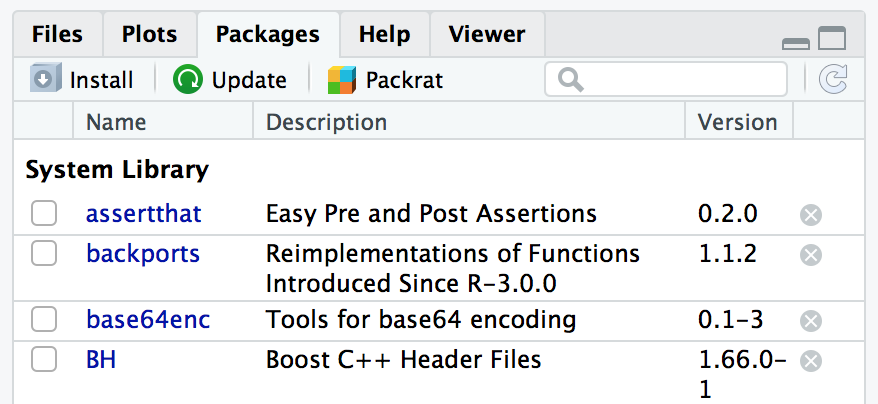
Figure 3-3. R Studio Packages Window
Discussion
Installing a package locally is the first step toward using it. If you are installing packages outside of R Studio, the installer may prompt you for a mirror site from which it can download the package files. It will then display a list of CRAN mirror sites. Select one close to you.
The official CRAN server is a relatively modest machine generously hosted by the Department of Statistics and Mathematics at WU Wien, Vienna, Austria. If every R user downloaded from the official server, it would buckle under the load, so there are numerous mirror sites around the globe. In R Studio the default CRAN server is set to be the R Studio CRAN mirror. This is an excellent choice if you are in the USA. The R Studio CRAN mirror is accessable to all R users, not just those running the R Studio IDE.
If the new package depends upon other packages that are not already installed locally, then the R installer will automatically download and install those required packages. This is a huge benefit that frees you from the tedious task of identifying and resolving those dependencies.
There is a special consideration when installing on Linux or Unix. You can install the package either in the system-wide library or in your personal library. Packages in the system-wide library are available to everyone; packages in your personal library are (normally) used only by you. So a popular, well-tested package would likely go in the system-wide library whereas an obscure or untested package would go into your personal library.
By default, install.packages assumes you are performing a system-wide
install. If you do not have sufficient user permissions to install in
the system wide library location, R will ask if you would like to
install the package in a user library. The default that R suggests is
typically a good choice. However, if you would like to control the path
for your library location, you can use the lib= argument of the
install.packages function:
install.packages("packagename",lib="~/lib/R")
See Also
See “Finding Relevant Functions and Packages” for ways to find relevant packages and “Accessing the Functions in a Package” for using a package after installing it.
Installing a Package from Github
Problem
You’ve found an interesting package which you’d like to try. However, the author has not yet published the package on CRAN, but has published it on Github. You’d like to install the package directly from Github.
Solution
Ensure you have the devtools package installed and loaded:
Then use install_github and the name of the Github repository to
install directly from Github. For example, to install Thomas Lin
Pederson’s tidygraph package, you could execute the following:
install_github("thomasp85/tidygraph")
Discussion
The devtools package is a package that contains helper functions for
installing R packages from remote (non-ss) repositories, like Github. If
a package has been built as an R package and then hosted on Github you
can install the package using the install_github function by passing
the Github username and repository name as a string parameter. You can
determine the Github username and repo name from the github URL, or from
the top of the Github page like in the example shown in ???.
. image::images_v2/github.shot.png[]
Setting or Changing a Default CRAN Mirror
Problem
You are downloading packages. You want to set or change your default CRAN mirror.
Solution
In R Studio, you can change your default CRAN mirror from the R Studio Preferences menu shown in ???:
. image::images_v2/rstudio.package.pref.png[]
If you are running R without R Studio you can change your CRAN mirror
using the following solution. This solution assumes you have an
.Rprofile, as described in “Customizing R Startup”:
-
Call the
choosessmirrorfunction:
choosessmirror()
R will present a list of CRAN mirrors.
-
Select a CRAN mirror from the list and press OK.
-
To get the URL of the mirror, look at the first element of the
reposoption:
options("repos")[[1]][1]
-
Add this line to your
.Rprofilefile. If you want the R Studio CRAN mirror, you would do the following:
options(repos=c(CRAN="http://cran.rstudio.com"))
where URL is the URL of the mirror.
Discussion
When you install packages, you probably use the same CRAN mirror each time (namely, the mirror closest to you or the R Studio mirror). You may want to change that mirror to use a different mirror that’s closer to you or controlled by your employer. Use this solution to change your repo so that every time you start R or R Studio you will be using your desired repo.
The repos option is the name of your default mirror. The
choosessmirror function has the important side effect of setting the
repos option according to your selection. The problem is that R
forgets the setting when it exits, leaving no permanent default. By
setting repos in your .Rprofile, you restore the setting every time
R starts.
See Also
See “Customizing R Startup” for
more about the .Rprofile file and the options function.
Running a Script
Problem
You captured a series of R commands in a text file. Now you want to execute them.
Solution
The source function instructs R to read the text file and execute its
contents:
source("myScript.R")
Discussion
When you have a long or frequently used piece of R code, capture it
inside a text file. That lets you easily rerun the code without having
to retype it. Use the source function to read and execute the code,
just as if you had typed it into the R console.
Suppose the file hello.R contains this one, familiar greeting:
("Hello, World!")
Then sourcing the file will execute the file contents:
source("hello.R")#> [1] "Hello, World!"
Setting echo=TRUE will echo the script lines before they are executed,
with the R prompt shown before each line:
source("hello.R",echo=TRUE)#>#> > print("Hello, World!")#> [1] "Hello, World!"
See Also
See “Typing Less and Accomplishing More” for running blocks of R code inside the GUI.
Running a Batch Script
Problem
You are writing a command script, such as a shell script in Unix or OS X or a BAT script in Windows. Inside your script, you want to execute an R script.
Solution
Run the R program with the CMD BATCH subcommand, giving the script
name and the output file name:
R CMD BATCH scriptfile outputfile
If you want the output sent to stdout or if you need to pass
command-line arguments to the script, consider the Rscript command
instead:
Rscript scriptfile arg1 arg2 arg3
Discussion
R is normally an interactive program, one that prompts the user for input and then displays the results. Sometimes you want to run R in batch mode, reading commands from a script. This is especially useful inside shell scripts, such as scripts that include a statistical analysis.
The CMD BATCH subcommand puts R into batch mode, reading from
scriptfile and writing to outputfile. It does not interact with a user.
You will likely use command-line options to adjust R’s batch behavior to
your circumstances. For example, using --quiet silences the startup
messages that would otherwise clutter the output:
R CMD BATCH --quiet myScript.R results.out
Other useful options in batch mode include the following:
--slave-
Like
--quiet, but it makes R even more silent by inhibiting echo of the input. --no-restore-
At startup, do not restore the R workspace. This is important if your script expects R to begin with an empty workspace.
--no-save-
At exit, do not save the R workspace. Otherwise, R will save its workspace and overwrite the
.RDatafile in the working directory. --no-init-file-
Do not read either the
.Rprofileor~/.Rprofilefiles.
The CMD BATCH subcommand normally calls proc.time when your script
completes, showing the execution time. If this annoys you then end your
script by calling the q function with runLast=FALSE, which will
prevent the call to proc.time.
The CMD BATCH subcommand has two limitations: the output always goes
to a file, and you cannot easily pass command-line arguments to your
script. If either limitation is a problem, consider using the Rscript
program that comes with R. The first command-line argument is the script
name, and the remaining arguments are given to the script:
Rscript myScript.R arg1 arg2 arg3
Inside the script, the command-line arguments can be accessed by calling
commandArgs, which returns the arguments as a vector of strings:
argv<-commandArgs(TRUE)
The Rscript program takes the same command-line options as
CMD BATCH, which were just described.
Output is written to stdout, which R inherits from the calling shell script, of course. You can redirect the output to a file by using the normal redirection:
Rscript --slave myScript.R arg1 arg2 arg3 >results.out
Here is a small R script, arith.R, that takes two command-line
arguments and performs four arithmetic operations on them:
argv<-commandArgs(TRUE)x<-as.numeric(argv[1])y<-as.numeric(argv[2])cat("x =",x,"\n")cat("y =",y,"\n")cat("x + y = ",x+y,"\n")cat("x - y = ",x-y,"\n")cat("x * y = ",x*y,"\n")cat("x / y = ",x/y,"\n")
The script is invoked like this:
Rscript arith.R 2 3.1415
which produces the following output:
x=2y=3.1415x+y=5.1415x-y=-1.1415x*y=6.283x/y=0.6366385
On Linux, Unix, or Mac, you can make the script fully self-contained by
placing a #! line at the head with the path to the Rscript program.
Suppose that Rscript is installed in /usr/bin/Rscript on your
system. Then adding this line to arith.R makes it a self-contained
script:
#!/usr/bin/Rscript --slaveargv <- commandArgs(TRUE)x <- as.numeric(argv[1]). .(etc.).
At the shell prompt, we mark the script as executable:
chmod +x arith.R
Now we can invoke the script directly without the Rscript prefix:
arith.R 2 3.1415
See Also
See “Running a Script” for running a script from within R.
Locating the R Home Directory
Problem
You need to know the R home directory, which is where the configuration and installation files are kept.
Solution
R creates an environment variable called R_HOME that you can access by
using the Sys.getenv function:
Sys.getenv("R_HOME")#> [1] "/Library/Frameworks/R.framework/Resources"
Discussion
Most users will never need to know the R home directory. But system administrators or sophisticated users must know in order to check or change the R installation files.
When R starts, it defines an environment variable (not an R variable)
called R_HOME, which is the path to the R home directory. The
Sys.getenv function can retrieve its value. Here are examples by
platform. The exact value reported will almost certainly be different on
your own computer:
On Windows
> Sys.getenv("R_HOME") [1] "C:/PROGRA~1/R/R-34~1.4"
On OS X
> Sys.getenv("R_HOME")
[1] "/Library/Frameworks/R.framework/Resources"
On Linux or Unix
> Sys.getenv("R_HOME")
[1] "/usr/lib/R"
The Windows result looks funky because R reports the old, DOS-style
compressed path name. The full, user-friendly path would be
C:\Program Files\R\R-3.4.4 in this case.
On Unix and OS X, you can also run the R program from the shell and use
the RHOME subcommand to display the home directory:
R RHOME
# /usr/lib/R
Note that the R home directory on Unix and OS X contains the
installation files but not necessarily the R executable file. The
executable could be in /usr/bin while the R home directory is, for
example, /usr/lib/R.
Customizing R Startup
Problem
You want to customize your R sessions by, for instance, changing configuration options or preloading packages.
Solution
Create a script called .Rprofile that customizes your R session. R
will execute the .Rprofile script when it starts. The placement of
.Rprofile depends upon your platform:
- OS X, Linux, or Unix
-
Save the file in your home directory (
~/.Rprofile). - Windows
-
Save the file in your
Documentsdirectory.
Discussion
R executes profile scripts when it starts, freeing you from repeatedly loading often-used packages or tweaking the R configuration options.
You can create a profile script called .Rprofile and place it in your
home directory (OS X, Linux, Unix) or your Documents directory
(Windows). The script can call functions to customize your sessions,
such as this simple script that sets two environment variables and sets
the console prompt to R>:
Sys.setenv(DB_USERID="my_id")Sys.setenv(DB_PASSWORD="My_Password!")options(prompt="R> ")
The profile script executes in a bare-bones environment, so there are limits on what it can do. Trying to open a graphics window will fail, for example, because the graphics package is not yet loaded. Also, you should not attempt long-running computations.
You can customize a particular project by putting an .Rprofile file in
the directory that contains the project files. When R starts in that
directory, it reads the local .Rprofile file; this allows you to do
project-specific customizations (e.g., setting your console prompt to a
specific project name). However, if R finds a local profile then it does
not read the global profile. That can be annoying, but it’s easily
fixed: simply source the global profile from the local profile. On
Unix, for instance, this local profile would execute the global profile
first and then execute its local material:
source("~/.Rprofile")## ... remainder of local .Rprofile...#
Setting Options
Some customizations are handled via calls to the options function,
which sets the R configuration options. There are many such options, and
the R help page for options lists them all:
help(options)
Here are some examples:
browser="path"-
Path of default HTML browser
digits=n-
Suggested number of digits to print when printing numeric values
editor="path"-
Default text editor
prompt="string"-
Input prompt
repos="url"-
URL for default repository for packages
warn=n-
Controls display of warning messages
Reproducibility
Many of us use certain packages over and over in all of our script. For
example, we use the tidyverse packages in almost all our scripts. It
is tempting to load these packages in your .Rprofile so that they are
always available without typing anything. As a matter of fact, this
advice was given in the first edition of this book. However, the
downside of loading packages in your .Rprofile is reproducibility. If
someone else (or you, on another machine) tries to run your script, they
may not realize that you had loaded packages in your .Rprofile. Your
script might not work for them, depending on which packages they load.
So while it might be convenient to load packages in .Rprofile you will
play better with collaborators (and your future self) if you explicitly
call library(packagename) in your R scripts.
Another issue with reproducability and the .Rprofile is when users
change calculation default behaviors of R inside their .Rprofile. An
example of this would be setting options(stringsAsFactors = FALSE).
This is appealing as many users would prefer this default. However, if
someone runs the script without this option being set, they will get
different results or not be able to run the script at all. This can lead
to considerable frustration.
As a guideline, you should primarly put things in the .Rprofile that:
-
Change the look and feel of R (e.g.
digits) -
Are specific to your local environment (e.g.
browser) -
Specifically need to be outside of your scripts (i.e. database passwords)
-
Do not change the results of your analysis.
Startup Sequence
Here is a simplified overview of what happens when R starts (type
help(Startup) to see the full details):
-
R executes the
Rprofile.sitescript. This is the site-level script that enables system administrators to override default options with localizations. The script’s full path isR_HOME\\/etc/Rprofile.site. (R_HOMEis the R home directory; see “Locating the R Home Directory”.)The R distribution does not include an
Rprofile.sitefile. Rather, the system administrator creates one if it is needed. -
R executes the
.Rprofilescript in the working directory; or, if that file does not exist, executes the.Rprofilescript in your home directory. This is the user’s opportunity to customize R for his or her purposes. The.Rprofilescript in the home directory is used for global customizations. The.Rprofilescript in a lower-level directory can perform specific customizations when R is started there; for instance, customizing R when started in a project-specific directory. -
R loads the workspace saved in
.RData, if that file exists in the working directory. R saves your workspace in the file called.RDatawhen it exits. It reloads your workspace from that file, restoring access to your local variables and functions. This can be disabled in R Studio throughTools→Global Options. We recommend you disable this and always explicitly save and load your work. -
R executes the`.First`function, if you defined one. The
.Firstfunction is a useful place for users or projects to define startup initialization code. You can define it in your.Rprofileor in your workspace. -
R executes the`.First.sys`function. This step loads the default packages. The function is internal to R and not normally changed by either users or administrators.
Observe that R does not load the default packages until the final step,
when it executes the .First.sys function. Before that, only the base
package has been loaded. This is a key fact because it means the
previous steps cannot assume that packages other than the base are
available. It also explains why trying to open a graphical window in
your .Rprofile script fails: the graphics packages aren’t loaded yet.
See Also
See “Accessing the Functions in a Package” for more about loading packages. See the R help
page for Startup (help(Startup)) and the R help page for options
(help(options)).
Installing R and R Studio in the Cloud
Problem
You want to run R and R Studio in a cloud environment.
Solution
The most straightforward way to use R in the cloud is to use the RStudio.cloud web service. To use the service, point your web browser to http://rstudio.cloud and set up an account, or log in with your Google or Github credentials.
Discussion
After you log in, click New Project to begin a new R Studio session in
a new workspace. You’ll be greeted by the familiar R Studio interface
shown in Figure 3-4.
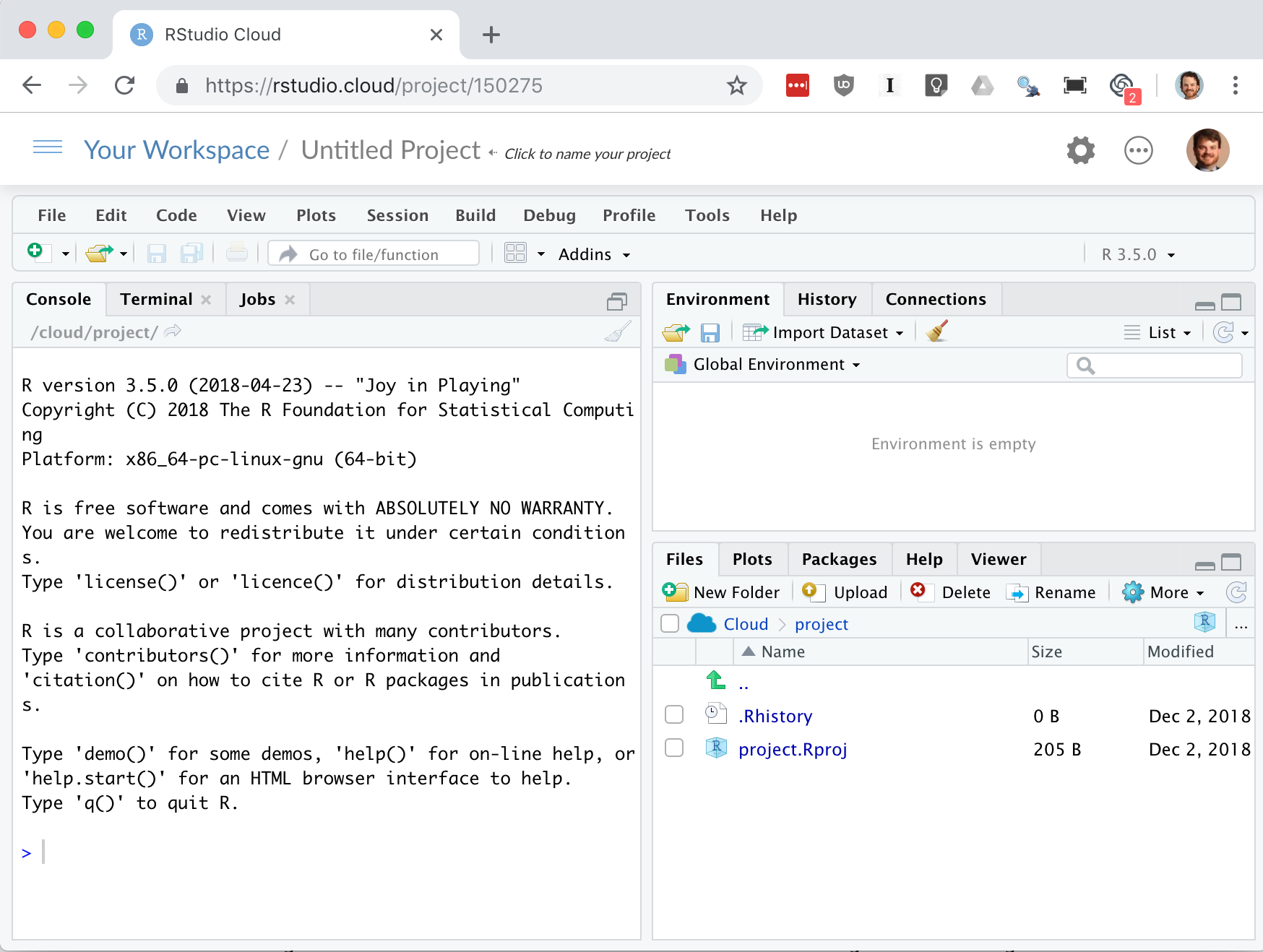
Figure 3-4. rstudio.cloud
It’s worth keeping in mind that as of the writing of this book the RStudio.cloud service is in alpha testing and may not be 100% stable. Your work will persist after you log off. However, as with any system, it is a good idea to ensure you have backups of all the work you do. A common work pattern is to connect your project in RStudio.cloud to a GitHub.com repository and push your changes frequently from Rstudio.cloud to GitHub. This workflow has been used significantly in the writing of this book.
Use of git and GitHub are beyond the scope of this book, but if you
are interested in learning more, we highly recommend Jenny Bryan’s web
book Happy Git and GitHub for the useR http://happygitwithr.com/
In its current Alpha state, each RStudio.cloud session is limited to 1 GB of RAM and 3 GB of drive space. So it’s a great platform for learning and teaching but might not (yet) be the platform on which you want to build a commercial data science laboratory. R Studio has expressed intent to offer greater processing power and storage as part of a paid tier of service as the platform matures.
If you are needing more computing power than offered by RStudio.cloud and you are willing to pay for the services, both Amazon AWS and Google Cloud Platform offer cloud based R Studio offerings. Other cloud platforms that support Docker, such as Digital Ocean, are also reasonable options for cloud hosted R Studio.
See Also
Running R Studio Pro on Google Cloud Platform: https://console.cloud.google.com/marketplace/details/rstudio-launcher-public/rstudio-server-pro-for-gcp
Running R Studio Pro on Amazon Web Services: https://aws.amazon.com/marketplace/pp/B06W2G9PRY
How To Set Up RStudio On Digital Ocean: https://www.digitalocean.com/community/tutorials/how-to-set-up-rstudio-on-an-ubuntu-cloud-server