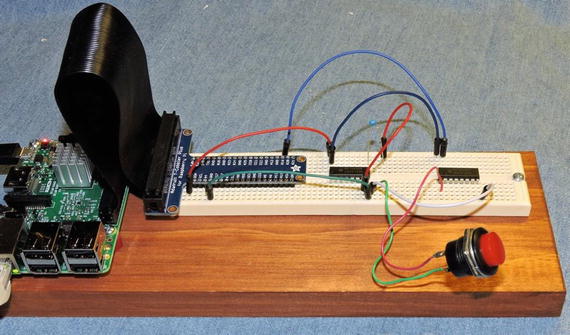
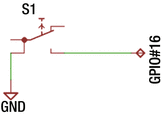
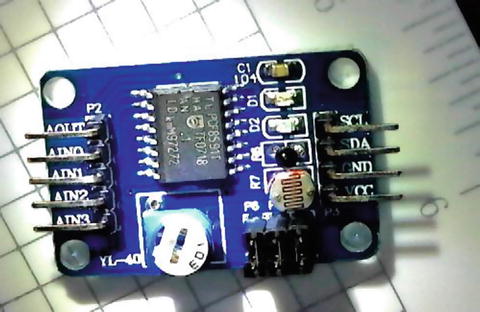
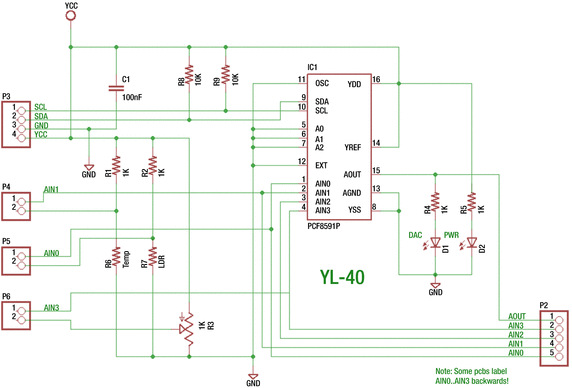
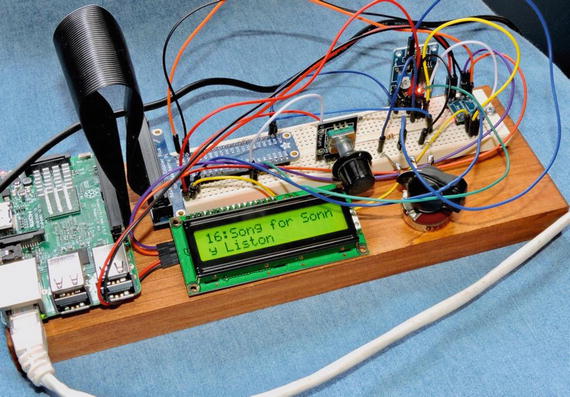
A978-1-4842-2406-9_CoverFigure.jpg

Warren Gay

Custom Raspberry Pi Interfaces

Design and build hardware interfaces for the Raspberry Pi

Warren Gay

St Catharines, Ontario, Canada

Any source code or other supplementary material referenced by the author in this book is available to readers on GitHub via the book’s product page, located at www.apress.com/978-1-4842-2405-2 . For more detailed information, please visit http://www.apress.com/source-code .

ISBN 978-1-4842-2405-2

e-ISBN 978-1-4842-2406-9

DOI 10.1007/978-1-4842-2406-9

Library of Congress Control Number: 2017931068

© Warren Gay 2017

This work is subject to copyright. All rights are reserved by the Publisher, whether the whole or part of the material is concerned, specifically the rights of translation, reprinting, reuse of illustrations, recitation, broadcasting, reproduction on microfilms or in any other physical way, and transmission or information storage and retrieval, electronic adaptation, computer software, or by similar or dissimilar methodology now known or hereafter developed.

Trademarked names, logos, and images may appear in this book. Rather than use a trademark symbol with every occurrence of a trademarked name, logo, or image we use the names, logos, and images only in an editorial fashion and to the benefit of the trademark owner, with no intention of infringement of the trademark. The use in this publication of trade names, trademarks, service marks, and similar terms, even if they are not identified as such, is not to be taken as an expression of opinion as to whether or not they are subject to proprietary rights.

While the advice and information in this book are believed to be true and accurate at the date of publication, neither the authors nor the editors nor the publisher can accept any legal responsibility for any errors or omissions that may be made. The publisher makes no warranty, express or implied, with respect to the material contained herein.

Printed on acid-free paper

Distributed to the book trade worldwide by Springer Science+Business Media New York, 233 Spring Street, 6th Floor, New York, NY 10013. Phone 1-800-SPRINGER, fax (201) 348-4505, e-mail orders-ny@springer-sbm.com, or visit www.springeronline.com. Apress Media, LLC is a California LLC and the sole member (owner) is Springer Science + Business Media Finance Inc (SSBM Finance Inc). SSBM Finance Inc is a Delaware corporation.

Contents

  1. Chapter 1:​ Introduction
    1. Raspberry Pi 3 and Zero
    2. Why GPIO Is Important
    3. What to Purchase
    4. Software to Download
    5. Let’s Begin
  2. Chapter 2:​ 3V/​5V Signal Interfacing
    1. 7400 Series (TTL)
    2. 3.​3V Logic
    3. Voltage Dividers
    4. 7400 Series Derivative Families
    5. Unused CMOS Inputs
      1. Converting 5V to 3V Input:​ 74LVC245
      2. Converting 5V to 3V Input:​ 74LVC244
      3. CD4049/​CD4050
      4. Input Protection Diodes
    6. Converting 3 Volts to 5 Volts with the HCT Family
      1. 74HCT245
      2. 74HCT244
    7. Switching Speed
    8. Summary
    9. Bibliography
  3. Chapter 3:​ VGA LCD Monitors
    1. VGA Converters
    2. Resolution and Refresh Rates
    3. /​boot/​config.​txt
    4. Confirming Resolution
    5. Summary
    6. Bibliography
  4. Chapter 4:​ I2C LCD Displays
    1. LCD Module 1602A
    2. I2C Serial Interface
    3. I2C Module Configuration
    4. I2C Module Output
    5. I2C Module Input
    6. PCF8574P Chip
    7. 3 Volts to 5 Volts
    8. Attaching the I2C Serial Module
    9. Displaying Data
    10. Reading from the LCD1602
    11. Class LCD1602
    12. I2C Baud Rate
    13. Profit and Loss
    14. Summary
  5. Chapter 5:​ MC14490 and Software Debouncing
    1. Hardware:​ MC14490
    2. Chip Operation
    3. Capacitor C 1
    4. Experiment
    5. More Inputs
    6. Software Debouncing
    7. Experiment
    8. Summary
  6. Chapter 6:​ PCF8591 ADC
    1. The YL-40 PCB
    2. Voltage Range
    3. I2C Bus
    4. I2C Addresses
    5. DAC (AOUT)
    6. Removing YL-40 LED D1
    7. Hacking YL-40 I2C Address
    8. I2C Bus Setup
    9. Reading from PCF8591
      1. Experiment
    10. Writing to the DAC
      1. Experiment
      2. Experiment
    11. Limitations
    12. Extending Voltage Range
    13. Repairing the Temp Sensor
    14. Conversion to Celsius
    15. Reading Temperature
      1. Experiment
    16. The YL-40 LDR
      1. Experiment
    17. 1N914 Experiment
    18. Software
    19. Potential Experiments
    20. Summary
    21. Bibliography
  7. Chapter 7:​ Potentiometer Input Controls
    1. Potentiometers
    2. Voltage Dividers
    3. ADC Circuit
    4. Pot Resistance
    5. Taper
    6. Effect of ADC Bits
    7. Experiment
    8. Applying Potentiometer Controls
    9. Selection Resolution
    10. Summary
    11. Bibliography
  8. Chapter 8:​ Rotary Encoders
    1. Keyes KY-040 Rotary Encoder
    2. The Switch
    3. Operation
    4. Voltage
    5. Evaluation Circuit
    6. Interfacing to the Pi
    7. Experiment
    8. Experiment
    9. Sequence Errors
    10. Experiment
    11. FM Dial 1
    12. FM Dial 2
    13. Class Switch
    14. Main Routine
    15. Summary
    16. Bibliography
  9. Chapter 9:​ More Pi Inputs with 74HC165
    1. 74HC165 Pinout
    2. Function Table
    3. Breadboard Experiment
    4. Program
    5. Logic Analyzer View
    6. Profit and Loss
    7. Even More Inputs
    8. Other Bit Counts
    9. Combining GPIOs
    10. Chip Enable
    11. CD4012B
    12. Summary
  10. Chapter 10:​ More Pi Outputs with 74HC595
    1. 74HC165 Pinout
    2. Function Table
    3. Breadboard Experiment
    4. Experiment Run
    5. Input and Output
    6. Additional Outputs
    7. Profit and Loss
    8. Summary
  11. Chapter 11:​ MCP23017 I/​O Port Extender
    1. MCP23017
    2. Wiring
    3. Output GPIO Experiment
    4. Input Experiment
    5. Software Operations
      1. I2C Header Files
      2. Opening the I2C Driver
      3. I2C Write
      4. I2C Read
      5. Configuration
    6. Interrupt Capability
    7. Interrupt Profit and Loss
    8. Summary
  12. Chapter 12:​ MPD/​MPC Hardware Controls
    1. Audio Preparation
      1. MPD/​MPD
    2. Hardware Setup
      1. Test Volume Control
      2. Test Rotary Control
      3. Test LCD
    3. The mpcctl Program
      1. Main Program
      2. Rotary Encoder Thread
      3. LCD Thread
      4. MPC Status Thread
      5. Volume Control Thread
      6. Program Summary
    4. Summary
    5. Bibliography
  13. Chapter 13:​ Custom Keypads
    1. Breadboard Setup
    2. Output Tests
    3. Input Tests
    4. High-Side Driver
    5. Low-Side Driver
    6. Driving an LED
    7. The Keypad
    8. Keypad Program
      1. The main Program
      2. The key_​lookup Function
      3. The i2c_​write Function
      4. The i2c_​read Function
    9. Combination Lock
    10. Combination Lock
      1. The main Program
      2. The get_​key_​code Function
    11. Interrupts
    12. Summary
    13. Bibliography
  14. Index

About the Author and About the Technical Reviewer

About the Author

Warren Gay started out in electronics at an early age, dragging discarded TVs and radios home from public school. In high school he developed a fascination for programming the IBM 1130 computer, which resulted in a career plan change to software development. After attending Ryerson Polytechnical Institute, he has enjoyed a software developer career for more than 30 years, programming mainly in C/C++. Warren has been programming Linux since 1994 as an open source contributor and professionally on various Unix platforms since 1987.

A432417_1_En_BookFrontmatter_Figb_HTML.jpg

Before attending Ryerson, Warren built an Intel 8008 system from scratch before there were CP/M systems and before computers got personal. In later years, Warren earned an advanced amateur radio license (call sign VE3WWG) and worked the amateur radio satellites. A high point of his ham radio hobby was making digital contact with the Mir space station (U2MIR) in 1991.

Warren works at Datablocks.net, an enterprise-class ad-serving software services company. There he programs C++ server solutions on Linux back-end systems.

About the Technical Reviewer

Massimo Nardone has more than 22 years of experience in security, web/mobile development, the cloud, and IT architecture. His true IT passions are security and Android.

A432417_1_En_BookFrontmatter_Figc_HTML.jpg

He has been programming and teaching how to program with Android, Perl, PHP, Java, VB, Python, C/C++, and MySQL for more than 20 years.

He has a master’s of science degree in computing science from the University of Salerno, Italy.

He has worked as a project manager, software engineer, research engineer, chief security architect, information security manager, PCI/SCADA auditor, and senior lead IT security/cloud/SCADA architect for many years.

His technical skills include the following: security, Android, cloud, Java, MySQL, Drupal, Cobol, Perl, web and mobile development, MongoDB, D3, Joomla, Couchbase, C/C++, WebGL, Python, Pro Rails, Django CMS, Jekyll, Scratch, and more.

He currently works as chief information security officer (CISO) for Cargotec Oyj.

He has worked as a visiting lecturer and supervisor for exercises at the Networking Laboratory of the Helsinki University of Technology (Aalto University). He holds four international patents (PKI, SIP, SAML, and proxy areas).

Massimo has reviewed more than 40 IT books for different publishing company and is the coauthor of Pro Android Games (Apress, 2015).

© Warren Gay 2017

Warren Gay, Custom Raspberry Pi Interfaces, 10.1007/978-1-4842-2406-9_1

1. Introduction

Warren Gay

(1)St Catharines, Ontario, Canada

These are exciting times for hobby computing! In the 1980s you had to round up chips for the central processing unit (CPU), erasable programmable read-only memory (EPROM), and random access memory (RAM); find some peripherals; and then wire up the numerous address and data bus lines. After all that, you still had a pretty limited 8-bit system with no operating system. Today, you can acquire a 64-bit ARM quad-core system on a chip (SoC) with 1GB of memory and several built-in peripherals already assembled! Not only that, but the system will run a Unix operating system, whether it be Linux or some flavor of BSD, complete with a compiler and a plethora of other software tools. All of this fits in the space of a credit card footprint.

You can purchase a number of Raspberry Pi “hats” to add hardware interfaces, but these come at a steeper cost than doing it yourself. Adding your own hardware interfaces is not only fairly easy to do but is incredibly fun! There are some small challenges, however, especially when interfacing the 3-volt (3V) Raspberry Pi to a 5V world. But this book will prepare you for that.

Chapter 2 focuses on interfacing between the 3V and 5V logic systems. While there are an increasing number of 3V parts today, there is still a wealth of transistor-transistor logic (TTL) parts, which are 5V, available that you might want to use. Sometimes you are simply faced with the need to communicate with a 5V interface, like that of a liquid-crystal display (LCD) display. Chapter 2 will step you through what you need to know.

Since the monitor is often a critical display component, Chapter 3 will examine how you can use discarded Video Graphics Array (VGA) monitors, available almost for free. These are perfect for embedded applications involving the Raspberry Pi Zero, for example. Chapter 4 will examine how to use the small 16×2-character LCD screens over the Pi’s inter-integrated circuit (I2C) bus.

Button and switch interfaces with metal contacts often require “debouncing.” Chapter 5 explores a hardware and software solution for debouncing. Chapter 6 covers the world of analog-to-digital (ADC) conversion and digital-to-analog (DAC) conversion. Chapter 7 covers how to read potentiometers, further exploiting the ADC concepts.

Chapter 8 covers rotary encoders so that the interface can be used in Chapter 12 as part of an embedded music-playing daemon (MPD) selection control. Chapters 9 and 10 demonstrate how the 74HC165 and 74HC595 can be used to add extra general-purpose input/output (GPIO) ports. Chapter 11 explores the more powerful MCP23017 input/output (I/O) extender chip for GPIO expansion.

Chapter 12 brings many of the presented topics together in an embedded application. In this project, a hardware rotary control is used in conjunction with an MPD to select music or Internet radio stations. A potentiometer feeds volume control information for instant digital volume adjustment. An embedded application normally runs headless, so an economical 16×2 LCD is used to round out this demonstration.

Chapter 13 wraps up the book with one more interface—the keypad. In this chapter, a PCF8574 in dual inline package (DIP) form is used to create a remote keypad using the I2C bus. The software application demonstrates a combination lock. The I2C bus permits the keypad to exist some distance away from the Raspberry Pi but using only a four-wire ribbon cable. The ribbon cable carries two lines for power and two more for I2C communication. This is also an ideal arrangement for robotics.

Raspberry Pi 3 and Zero

The two recent developments are the Raspberry Pi Zero and the Raspberry Pi 3. You could say these models are at opposite ends of the spectrum. The Zero is in high demand, mainly because of its killer price of $5. The Pi 3, on the other hand, has killer performance for the price.

This book is generally neutral about what Pi you choose to apply. The book was developed using a Raspberry Pi 3, but except for performance differences, all examples should work for all models.

Why GPIO Is Important

One of the keys to the success of the Raspberry Pi is a design that offers GPIO interfaces. In the PC era, people had to attach their home-brewed hardware through the PC’s printer parallel interface or work with the more cumbersome RS-232 interface. With the Pi, you have access to serial data, a clock, I2C, serial peripheral interface (SPI), pulse width modulation (PWM), and general I/O signaling. This arrangement is far more capable and opens a world of options to the Pi user.

What to Purchase

In addition to the basics necessary to run your Raspberry Pi, you’ll need to acquire the following items for the chapter experiments. Also listed are the specific chapters they apply to.

  • Breadboard

  • Plenty of Dupont wires (for breadboarding)

  • Pi Cobbler (GPIO to breadboard)

  • 74LS04 (Chapter 2)

  • 74LVC244 (Chapter 2)

  • 74LVC245 (Chapter 2)

  • 74LVC244 (Chapter 2)

  • CD4049 or CD4050 (Chapter 2)

  • 74HCT244 (Chapter 2)

  • 74HCT245 (Chapter 2)

  • CD4001 (Chapter 2)

  • High-Definition Multimedia Interface (HDMI) to VGA adapter (Chapter 3 only)

  • LCD module 1602A (Chapters 4 and 12)

  • I2C Serial Interface Module with PCF8574 chip, for LCD (Chapters 4 and 12)

  • I2C level converter (Chapters 4 and 12)

  • MC14490 chip (Chapter 5)

  • 0.01 microfarad capacitor (Chapter 5)

  • Push buttons (Chapter 5)

  • YL-40 printed circuit board (PCB) using PCF8591 chip (Chapter 6)

  • 3.1 kiloohm and 15 kiloohm 1/8 watt, resistors (Chapter 6)

  • 1N914 diode (Chapter 6)

  • 3.3 kiloohm 1/8 watt resistor (Chapter 6)

  • 1 Kiloohm linear potentiometer (Chapters 7 and 12)

  • Optional knob for potentiometer (Chapters 7 and 12)

  • Keyes KY-040 rotary encoder (Chapters 8 and 12)

  • Optional knob for rotary encoder (Chapters 8 and 12)

  • 2 × 170 ohm resistor (Chapter 8)

  • 2 × LEDs

  • 74HC165 (Chapter 9)

  • 74HC595 (Chapter 10)

  • MCP23017 (Chapter 11)

  • 2 × PCF8574P (Chapter 13)

  • Hex keypad (Chapter 13)

Software to Download

For this book, you’ll need to perform two software downloads.

Once the Exploring the Raspberry Pi 2 with C++ software is downloaded, go into its directory and install it, as shown here:

$ cd raspberry_pi2
$ make all install

This will give you access to the C++ library code that this book builds upon, as well as the gp utility for controlling GPIO from the command line.

To build this volume’s source code, go into its subdirectory and type the following:

$ cd custom_interfaces_pi
$ make

This will compile all the programs discussed in this book, saving you from having to do that later. The compiled executables are left in their subdirectories and are not installed anywhere else on your Raspberry Pi.

Let’s Begin

With those formalities out of the way, you can begin your exploration of hardware interfaces on the Pi!

Most of the chapters can be read out of sequence. This is helpful when you are waiting for ordered components to arrive. Before attempting any interface involving 5 volts, however, I strongly recommend that you digest Chapter 2 first.

© Warren Gay 2017

Warren Gay, Custom Raspberry Pi Interfaces, 10.1007/978-1-4842-2406-9_2

2. 3V/5V Signal Interfacing

Warren Gay

(1)St Catharines, Ontario, Canada

Looking through online forums, I often see posts from people struggling with how to interface between 3V and 5V logic systems. Advice varies widely, ranging from “connecting it directly seems to work for me” to other dubious methods.

The purpose of this chapter is to eliminate the guesswork. The solutions presented here are not the only solutions available, but they are practical for those seeking answers. I’ll focus specifically on 3.3V and 5V systems in this chapter because the Pi is a 3V system and a great many parts still use 5 volts.

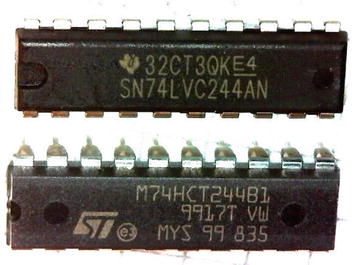
To be clear, this chapter is about signal interfacing, not driving high-powered loads. Power introduces other factors that go beyond signal interfacing. I2C also does not apply here because of its bidirectional nature and the use of the open collectors. Signal interfacing does, however, apply to GPIO-, TTL-, and SPI-related circuits. Figure 2-1 illustrates some of the featured components used in this chapter.

A432417_1_En_2_Fig1_HTML.jpg
Figure 2-1. Two useful level interfacing chips

7400 Series (TTL)

The 7400 series of integrated circuit (IC) was developed in the 1960s and 1970s to be used as building blocks for digital mainframe computers (the 5400 series is the military-grade equivalent). This is known as transistor-to-transistor logic (TTL), which largely replaced the earlier diode transistor logic (DTL).

TTL circuits use a 5V power supply (usually referred to as VCC) and use defined voltage ranges for what is considered true (1) or false (0). Any signal that is between these ranges is considered undefined or ambiguous.

Since these digital signal levels are measured by voltage and because the signals of interest are input or output signals, they use the symbolic notation shown in Table 2-1.

Table 2-1. Signal Symbols

Symbol

Description

VI

Voltage of an input

VO

Voltage of an output

Input and output ranges are further qualified using the symbols in Table 2-2.

Table 2-2. Input and Output Signal Symbols

Symbol

Description

VIL

Voltage of an input, at low level

VIH

Voltage of an input, at high level

VOL

Voltage of an output, at low level

VOH

Voltage of an output, at high level

When we begin with logic levels, we must start with input logic levels. These levels decide what is considered a 0 or 1 when received from the sending circuit. Thus, the signals of primary interest are VIL and VIH . Look for these when examining a datasheet (you usually can find a datasheet for a given chip by Googling <part-number> datasheet PDF).

Table 2-3 describes the TTL (5V) levels. Notice that VIH is defined in terms of VCC for its highest voltage range. Remember also that VCC can itself vary by up to 10 percent in value because the power supply varies. When VCC varies like this, VIH can be as low as 4.5 volts or as high as 5.5 volts.

Table 2-3. TTL (5V) Input Logic Levels

Symbol

Minimum

Maximum

Description

VIL

0.0 volts

0.8 volts

Logic value false (0)

VIH

2.0 volts

VCC

Logic value true (1)

It is clear from Table 2-3 that any digital signal from 0.0 volts to 0.8 volts is to be considered a false (0) input. Signals at 2.0 volts or higher are considered true (1). Any voltage between these levels is ambiguous and must be avoided. Ambiguous levels are interpreted unpredictably as 0 or 1.

Generating an exact voltage level consistently and reliably is difficult, if not impossible. For this reason, ranges of acceptable values are used. For example, if your digital input signal is 0.125 volts, it clearly falls within the TTL logic 0 range. In another example, a voltage input of 2.8 volts is clearly interpreted as a logic 1.

When you examine output signals, the output needs to meet the requirements of the input ranges if the signal is to reliably transmit digital data. For example, if a hypothetical part generates logic 1 output voltages between 3.0 volts and VCC, then it meets the TTL interface requirements for logic high. This is because 3.0 volts meets and exceeds the 2V minimum. If the same part is guaranteed to generate logic low levels between 0.1 and 0.6 volts, then this clearly falls into the TTL low range also. With these voltage ranges, this part will successfully communicate with other TTL component inputs.

3.3V Logic

With the introduction of complementary metal-oxide semiconductor (CMOS) logic soon after TTL, a definition for CMOS logic levels had to be agreed upon. The difficulty with CMOS, however, was that it could operate over a range of different power supply voltages (note that the power supply is often referred to as VDD for CMOS). For this reason, CMOS logic levels are usually defined in terms of the operating VDD instead. Fractional values are provided in [1], while the percentage references can be found in [2].

Table 2-4 lists the CMOS logic level guidelines.

Table 2-4. CMOS Logic Levels

Symbol

Minimum

Maximum

Description

VIL

0.0 volts

1/3 VDD

Logic value false (0)

30% VDD

VIH

2/3 VDD

VDD

Logic value true (1)

70% VDD

The CMOS ranges provided in Table 2-4 are approximate. The final range is defined by the device’s datasheet.

Even though the Raspberry Pi CPU is CMOS-based, the input specifications provided by Broadcom are slightly different and documented in Table 2-5.

Table 2-5. Raspberry Pi Logic Levels

Symbol

Low

High

Description

VIL

0.0 volts

0.8 volts

Logic value false (0)

VIH

1.3 volts

VDD

Logic value true (1)

In this chapter, you will have to pay attention to all three sets of input logic levels.

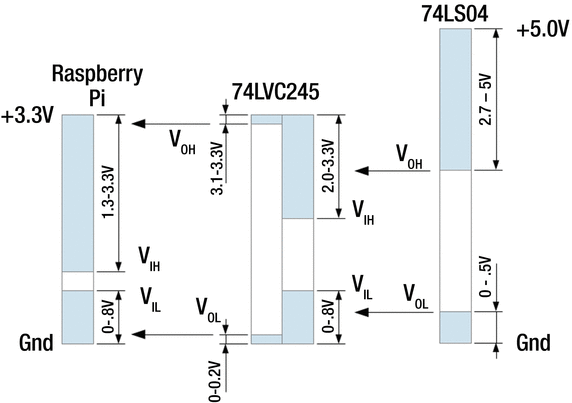
I’ve introduced several symbols and voltage levels. Figure 2-2 will help you visualize what I am about to discuss. For now, ignore the fact that the 5V signal exceeds the supply voltage for the 74LVC245. This will be explained later.

A432417_1_En_2_Fig2_HTML.gif
Figure 2-2. Example of logic level conversion

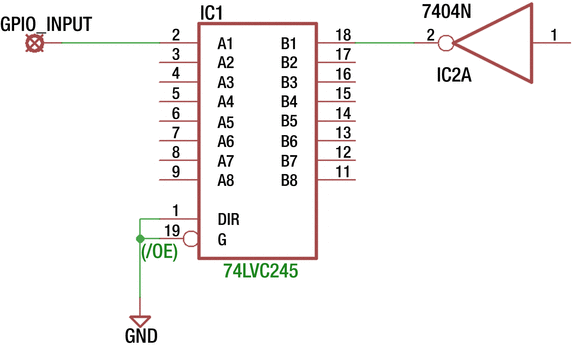
On the right side of Figure 2-2 is an example 5V TTL device (74LS04). In the middle is the level shifting device. Finally, on the left is the Raspberry Pi GPIO input that I want to feed a signal into.

The signal starts at the output of the 74LS04. According to its datasheet, the output is never lower than 2.7 volts when it represents logic 1 and never higher than 0.5 volts when it represents logic 0. These are the 74LS04 device’s VOH and VOL output levels, respectively. The arrows from the 74LS04 pointing left show how these voltage levels are passed into the left device’s inputs. Whether the left device sees a logic 1 or 0 depends upon its own input level definitions VIH and VIL. In the Figure 2-2 example, you can see that the 74LS04 clearly exceeds the 74LVC245 input requirements.

The middle device is illustrated with these two sets of parameters:

  • Input levels VIL and VIH

  • Output levels VOL and VOH

When examining interfaces, you must remind yourself that the input and output voltage levels differ. The output levels must exceed the input levels of the receiving device (if they only just met the requirement, there would be no “noise margin” of safety).

Examining the 74LVC245 device going left to the Pi, you must meet the Pi’s slightly different input parameters. Following the arrows going left, you can see that the 74LVC245 output levels definitely exceed the Pi’s input requirements. This is the general principle of level shifting from an output to an input.

Voltage Dividers

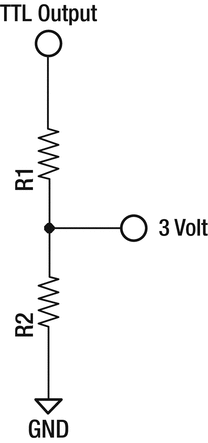
Converting from a higher to a lower voltage logic can sometimes be done using a pair of resistors in a voltage divider configuration (Figure 2-3). This can be attractive when there are only one or two signals involved. But this quickly becomes burdensome when the number of signals increases because of the parts count.

A432417_1_En_2_Fig3_HTML.gif
Figure 2-3. Voltage divider circuit

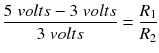
A pair of resistors wired in series can take a worst-case 5V signal and produce a 3V level by dividing the voltage. The values of the resistors are chosen from a ratio, as shown here: $$ \frac{5\; volts-3\; volts}{3\; volts}=\frac{R_1}{R_2} $$

The basic idea is that you make 3 volts appear across R2 but drop the remaining 2 volts across R1.

The first problem is that you must choose a value for R1 or R2 before the resistance can be solved. But if you choose too high a value, then any current flowing into or out of the midpoint junction will cause its voltage to vary (the divider is not “stiff” enough). The rule of thumb is that the series current through R1 and R2 should be at least ten times any incoming or outgoing current from the junction. The added current flow will stiffen the divider.

The Pi’s CMOS input requires nearly zero current. The only current that does flow is when there is a change of state, requiring a small charge or discharge to occur. This charge transfers to/from the stray capacitance at the chip’s pin and the CMOS gate. Engineering students can compute this tiny charge as an exercise, but here I’ll suggest that 1mA is plenty of “stiffness.”

Resistors come in different tolerances. You can assume the following 10 percent resistor values for this example: $$ {R}_1=1.5 k\varOmega $$
$$ {R}_2=2.2 k\varOmega $$

If you were to do all the Ohm’s law math, you’d discover that the midpoint voltage (VR2) would be 2.97 volts when the TTL input is 5 volts.

Let’s test this arrangement using a Texas Instrument 74LS04 output feeding into the voltage divider. The divider’s output will be used as an input for the Raspberry Pi. You want to test whether this will actually work under all possible conditions.

Assume a worst-case 74LS04 output low voltage of VOH=0.5 volts, and assume VOH=2-7 volts for output high. These represent the datasheet’s guaranteed worst-case figures. Table 2-6 summarizes how the voltage divider measures up. The column “Pi Margin” measures the difference between the Pi’s requirement and the value appearing at that input.

Table 2-6. Voltage Divider from 74LS04 to Pi

Symbol

TTL

Divider

Pi Margin

Description

VOL

0.4 volts

0.24 volts

0.56 volts

Logic value 0: 0.56 volts under the limit

VOH

2.5 volts

1.49 volts

0.19 volts

Logic value 1: 0.19 volts over the minimum

From Table 2-6 you can see that VOL is below the Raspberry Pi requirement of 0.8 volts by a margin of 0.56 volts. The worst case for the 74LS04 output high (VOH) has a lower margin of 0.19 volts over the Pi’s minimum of 1.3 volts. It appears that you’ve met the requirements, even though a bigger safety margin on the high side is desirable.

Is the circuit acceptable if you consider the worst-case values for the 10 percent resistors R1 and R2? Recall that I used a parts tolerance of 10 percent. The worst case here would be R1 + 10 percent and R2 – 10 percent because this would lower the midpoint voltage further. Table 2-7 summarizes this result.

Table 2-7. Results of Worst Case 10 Percent Resistor Error

Symbol

TTL

Divider

Pi Margin

Description

VOL

0.4 volts

0.22 volts

0.58 volts

Logic value 0: 0.58 volts under the limit

VOH

2.5 volts

1.36 volts

0.06 volts

Logic value 1: 0.06 over the minimum

It is clear from Table 2-7 that the VOH result of 1.36 volts is dangerously close to the absolute limit of the Raspberry Pi specification (1.3 volts). The margin of error is only 0.06 volts. This is looking shaky.

From this, you might conclude that the voltage divider is not as attractive as it might first appear. From a hobby perspective, you can make this work by cherry-picking your resistors carefully or by using lower-tolerance resistors. What you didn’t consider was that the power supply can vary by another 10 percent in its supply voltage. If you were to turn this into a product (or a kit), you’d want to improve that error margin to avoid shipping faulty units.

Finally, consider also that this analysis is sensitive to the TTL part that is being used. If you substituted the 74LS04 for a part with poorer worst-case conditions, you may end up generating signals that are “out of spec.”

7400 Series Derivative Families

The 74L low-power series was introduced in 1971, which was soon superseded by the faster 74LS series. Several new series derivative families began to appear including 74H (high speed), 74S (high speed Schottky), and so on. Finally, CMOS-compatible families were added including HC and HCT. Currently several derivative families are available [3].

Table 2-8 lists some of the derivative families that may be of interest. We’ll focus on the HCT series and LVC series derivative families. While other families may sometimes work, you must also consider the speed of the device, particularly when you want to do high-speed SPI, for example.

Table 2-8. Some 7400 Series Derivative Families [1]

74XX Series

Description

HC

High-speed CMOS, similar performance to LS, 12ns, 2.0–6.0 volts

HCT

High-speed, compatible logic levels to bipolar parts

AHCT

Advanced high-speed CMOS, three times as fast as HC, tolerant of 5.5V on input

LVC

Low voltage: 1.65–3.3V and 5V-tolerant inputs, TPD < 5.5ns at 3.3 volts, TPD < 9ns at 2.5 volts

LVT

Low-voltage: 3.3V supply, 5V-tolerant inputs, high output current < 64mA, TPD < 3.5ns at 3.3 volts, IOFF, low noise

Unused CMOS Inputs

Before I present breadboard experiments using CMOS devices, you should be aware of the unused input quirk of CMOS devices. TTL devices can have unconnected inputs, even though it is usually best to ground them to avoid noise. CMOS inputs, however, must be connected.

CMOS inputs can be tied to ground or VDD. They simply must not be left “floating.” Failure to observe this practice can result in unusual behavior or potential device failure.

Converting 5V to 3V Input: 74LVC245

The LVC series derivative family can help when you want to convert a 5V signal to 3.3 volts. The first of this family that you’ll examine is the 74LVC245.

The 74LVC245 chip provides eight bidirectional buffers, with tristate capability. For a level translator, you’re not interested in the tristate or bidirectional capabilities. These can be hardwired to function in one direction only, and tristate can be disabled (some users might find the tristate useful, but the direction should be hardwired). What is of critical importance is how the configured input is transformed from the TTL level to the Pi level.

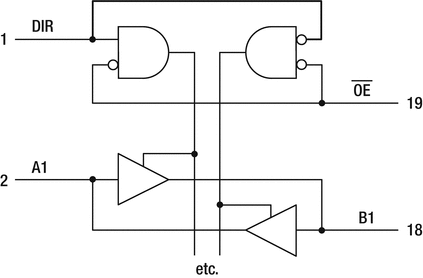
Figure 2-4 provides an abbreviated logic diagram for the buffers A1 and B1. The remaining seven buffers are controlled by the same DIR and OE gate inputs and are available on the remaining device pins.

A432417_1_En_2_Fig4_HTML.gif
Figure 2-4. 74LVC245 octal bus transceiver

Wiring the DIR and OE gate inputs to ground causes the data to flow from input B1 to output A1. This configuration enables the buffer going from right to left, while disabling the buffer going left to right.

The 74LVC245 was chosen here because it can be supplied with +3.3 volts but can accept input voltages (at B1) at voltages as high as +5 volts. This feature is critical, since most ICs will accept only a maximum of their supply voltage (+3.3 volts) plus one diode drop (about 0.6 volts). This is because of the way electrostatic discharge (ESD) protection works in the device.

The 74LVC245 must operate at +3.3 V so that its output (A1) will provide a maximum of +3.3 volts to the Raspberry Pi. It also happens to be the recommended operating voltage for this device.

Figure 2-5 illustrates the circuit for interfacing 5V inputs (B ports) to the Raspberry Pi (A ports). The single 7404N chip (IC2A) is shown to represent some arbitrary TTL level signal wired to B1. Additional TTL signals can be wired to B2 through B8 in the same way.

A432417_1_En_2_Fig5_HTML.gif
Figure 2-5. 74LVC245 as a TTL to 3V level converter

The figure doesn’t show this, but the 74LVC245 (IC1) chip must be powered from a +3.3V supply (Raspberry Pi supply). The TTL chip (IC2A), on the other hand, will be powered by the 5V supply.

Substituting a 7400 chip quad NAND gate for IC2A in Figure 2-5, its output was fed into the 74LVC245 (IC1) input B1 for an experiment. Table 2-9 summarizes the measured DC voltages.

Table 2-9. Measured 74LVC245 DC Voltages

7400 VCC

7400 Inputs

7400 Output

'245 VDD

'245 B1

'245 A1

+4.99 volts

Gnd

+4.45 volts

+3.29 volts

+4.45 V

+3.29 V

+4.99 volts

+0.038 volts

+0.38 V

+0.009 V

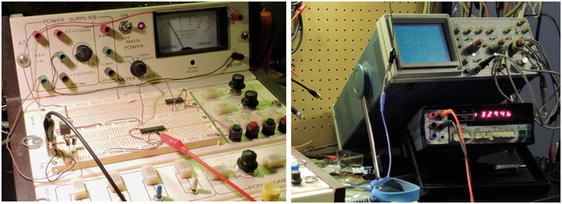
Figure 2-6 shows my breadboard setup used for the measurements in Table 2-9. The lab unit shown on the left was a hamfest (ham radio flea market) deal that I scored one summer day. Hamfests are great for acquiring parts and used equipment (like the used Fluke bench DMM under the scope).

A432417_1_En_2_Fig6_HTML.jpg
Figure 2-6. Breadboard test setup

From this test, it was observed that the 74LVC245 tolerated the +4.45V input and produced a nice +3.29V output on A1. The 3V supply was not raised, which can happen if an incorrect part is used for IC1 (because of internal protection diodes). When the TTL input of +0.38V was provided to B1, the 74LVC245 improved the VIL signal as A1=+0.009V. The 74LVC245 performed marvelously as a 5V to 3V conversion device.

Converting 5V to 3V Input: 74LVC244

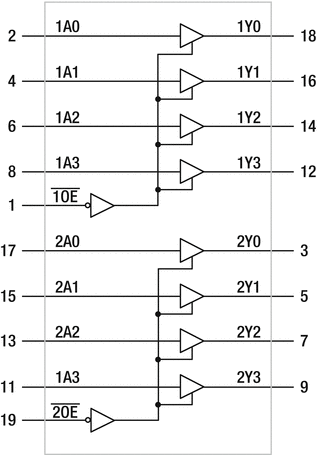
The 74LVC244 device is another member of the LVC derivative family (Figure 2-7). This device has the advantage that it is unidirectional, making it simpler and potentially cheaper than the 74LVC245 device. To use this device, the two OE inputs are wired to ground to permanently enable the 3V outputs (unless, of course, you need tristate). The inputs are 5V tolerant, making this another terrific logic level converter.

A432417_1_En_2_Fig7_HTML.gif
Figure 2-7. 74LVC244 pinout

Table 2-10 summarizes the measurements taken when the 74LVC244 was used.

Table 2-10. Measured 74LVC244 DC Voltages

7400 VCC

7400 Inputs

7400 Output

'244 VDD

'244 B1

'244 A1

+5.02 volts

Gnd

+4.69 volts

+3.31 volts

+4.69 V

+3.31V

+5.00 volts

+0.035 volts

+0.35 V

+0.012 V

The experiment once again confirms that the input of the 74LVC244 was permitted to be higher than the VDD supply of +3.3 volts. Had this device not possessed this special feature, the '244 input reading might be +0.6 volts or higher. This will be clarified when I discuss protection diodes.

CD4049/CD4050

You might use the CD4049 or CD4050 CMOS devices if you don’t need high switching speed (these have a worst-case rise/fall time as high as 120ns). The CD4049 is a hex inverter, while the CD4050 has six noninverting buffers. These CMOS devices can be supplied with VDD=+3.3V to match the Raspberry Pi yet accept an input signal as high as +18 volts. When operating at +3.3 V, the VIL maximum is approximately 1.0 volts (30 percent VDD), and the VIH minimum is +2.3 volts (70 percent VDD). Given that the 7400 datasheet lists a VOH minimum of +2.7 volts, this meets the CMOS input requirements (the VOL/VIL parameters are also met).

Repeating the experiment using the 7400 quad NAND gate to drive a CD4050, you get the DC readings shown in Table 2-11. The schematic is the same as Figure 2-5, except that IC1 is the CD4050 and IC2A is one of the 7400 NAND gate outputs (with inputs wired together, to behave as an inverter).

Table 2-11. Measured CD4050 DC Voltages

7400 VCC

7400 Inputs

7400 Output

CD4050 VDD

CD4050 In

CD4050 Out

+5.01 volts

Gnd

+4.65 volts

+3.30 volts

+4.65 volts

+3.30 volts

+5.00 volts

+0.036 volts

+0.036 volts

+0.012 volts

Once again, you can see that the CD4050 happily accepts a high input voltage of +4.65 volts. Had a protection (clamping) diode been involved, this voltage would be lowered to about +3.9 volts or a little more. Because the CD4050, however, does not do this kind of limiting, it works well as a level converter. Its main disadvantages are lower speed and the fact that you get only six buffers instead of eight.

Input Protection Diodes

The 74LVC245 and 74LVC244 devices were special devices because they allowed a 5V signal into an input, even when that device was operating at VDD=+3.3 volts. Let’s take a moment to understand why this is special.

The CMOS gate is a metal oxide that is deposited on a thin layer above the silicon channel where current flows. Any small voltage change exerted on that insulated gate causes a larger change in electron flow in the channel beneath. But if the electric charge is high enough, the metal oxide can be punctured and shorted out. This damage is permanent and destroys Field Effect Transistor (FET) operation.

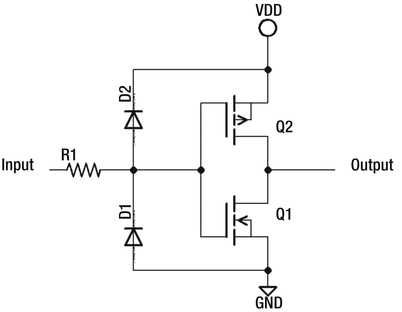
To protect the gate from static electricity, protective diodes are built into the device. There are different ways this is accomplished, but it is frequently done as shown in Figure 2-8. Diodes D1 and D2 are reversed biased in a way that causes them not to interfere with normal input signals.

A432417_1_En_2_Fig8_HTML.gif
Figure 2-8. Inverter equivalent circuit

The inverter circuit shown has the FET transistors Q1 and Q2 arranged in the typical CMOS configuration. When one transistor is on, the complementary transistor is off. The input is usually guarded by a low-valued resistance R1 to limit the current flow when a static discharge occurs. Since the metal-oxide gates do not conduct electricity, the diodes D1 or D2 are designed to bleed the static charge away. By bleeding the charge away, the voltage levels are kept low enough to prevent gate puncture damage.

For the student, schematic diagrams are drawn so that diodes form an arrow of conventional current flow. That is, the current is shown flowing from plus to minus even though physicists have long ago proven that electrons flow from minus to plus. If you pretend conventional flow is correct while we look at the diagram, you can visualize the fact that no current flows from plus to minus through the diodes because they are reversed in polarity.

If you pet a cat and then come in contact with (or close to) this gate’s input, static electric current will flow from the input through D2 or D1, depending upon whether the electric charge is positive or negative. I have not been able to determine which charge it is though I have regularly snapped sparks to our cat’s ears. If you shuffle your feet on a carpet, the generated charge may be positive or negative depending upon the materials involved.

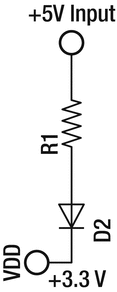
The protection diodes work rather well for static charges under normal handling conditions. The problem occurs when you want to do something like feed a 5V signal into a CMOS input when the device is operating at a supply voltage of +3.3 volts. Examine Figure 2-9, which is rearranged slightly to illustrate the high voltage flowing into a lower-voltage device’s input.

A432417_1_En_2_Fig9_HTML.gif
Figure 2-9. Current through protection diode D2

If the input pin of the inverter is raised to +5 volts, then the input voltage is above the chip’s own supply VDD=+3.3 volts. This difference is as follows:
$$ 5\; volts-3.3\; volts=1.7\; volts $$

The voltage that develops across a silicon diode is usually about 0.6 volts, so you need to subtract that to arrive at the voltage across R1.
$$ {V}_{R1}=1.7\; volts-0.6\; volts=1.1\; volts $$

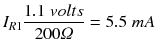
The resistance value isn’t normally provided in the datasheets but may be near 200 ohms [4]. This means that when the input signal is provided at +5 volts, the current flow through R1 is as follows:
$$ {I}_{R1}\frac{1.1\; volts}{200\varOmega}=5.5\; m A $$

The difficulty is that you have no guarantee that the protection diode can sustain 5.5mA of current. The protection diodes are designed to discharge weak currents for brief periods of time. For this reason, you shouldn’t design a circuit to rely on its use. A similar problem exists when the input is made less than -0.6 volts (negative), causing current to conduct through D1 instead.

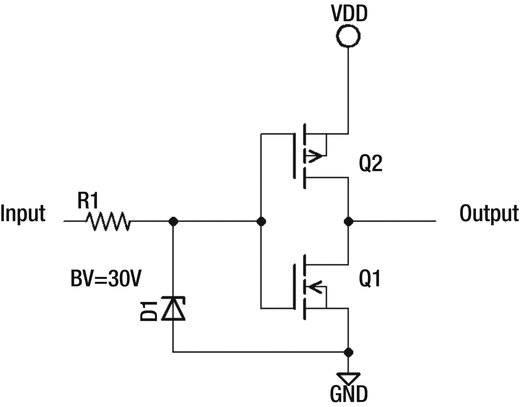
The special feature that permits you to provide a higher-than VDD input voltage is a protection circuit that depends upon a Zener diode for D1, as shown in Figure 2-10.

A432417_1_En_2_Fig10_HTML.gif
Figure 2-10. Inverter with Zener input protection

Diode D2 is no longer required because D1 is a Zener diode, which has a designed breakdown voltage in the reverse direction. The exact voltage where the Zener action occurs is not usually specified but guaranteed to occur above some absolute high value. The Fairchild Semiconductor datasheet for the CD4049UBC or CD4050BC lists the absolute maximum voltage for the inputs at +18 volts [5]. So, the Zener action must occur somewhere above that.

D1 is a Zener diode when reversed biased. It otherwise conducts current like a normal diode when forward biased. This means that if the input signal goes negative, the Zener diode starts conducting at about -0.6 volts like the normal protection diode. Thus, the single Zener diode protects against both positive and negative static charges.

From this, I hope that you can see that there is a need for this special feature. Without this adaptation to allow an input signal to exceed the +3.3V VDD level, you risk burning out a protection diode in the chip. In the datasheet, look for special mention of the ability to operate input signals above their supply voltage. The CMOS chips CD4049UBC (inverter) and CD4050BC (buffer) both possess this talent, along with the previously discussed 74LVC244 and 74LVC245 devices.

Converting 3 Volts to 5 Volts with the HCT Family

Now you can turn your attention to converting a 3V signal into the higher-level 5V signal. Here you turn to a different series family member. Previously the LVC family was used, but here you must use an HCT family.

The main reason for this is that you must power the device from 5 volts in order for it to have an output swing from 0 to 5 volts. Its outputs must match the receiving TTL input levels (VIL of 0.8 volts maximum and VIH of 2.0 volts minimum). Let’s first review the 74HCT245 device.

74HCT245

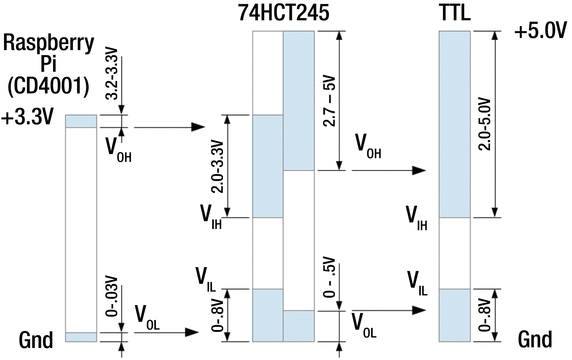
The main trick, however, is that the 74HCT245 device itself must accommodate a low enough input VIH for the driving Raspberry Pi. Normally the CMOS high level (70 percent of 5 volts) would mean a VIH of 3.5 volts. This is higher than the Pi can produce! But because the HCT family is designed to accept TTL input levels, you can count on its VIH to be 2.0 volts instead. This is the special talent of the HCT family.

To make this easier to visualize, examine Figure 2-11. Notice that the 74HCT245 is being supplied by 5 volts this time, allowing its output to range from 0 to 5 volts. Even though the input to the 74HCT245 can go as high as 5 volts, the Pi will never deliver more than +3.3 volts. This is why it is important that the VIH of the 74HCT245 is as low as 2 volts. Notice from the CMOS device on the left, sending to the '245 in the center and driving the TTL device at the right, the signal parameters are exceeded at every turn. By having this “noise margin,” a small noise blip on the signal won’t push it out of spec and cause erroneous readings.

A432417_1_En_2_Fig11_HTML.gif
Figure 2-11. 3V CMOS to 5V TTL conversion

A couple of notes about Figure 2-11 are in order.

  • The VOL and VIL were estimated values for the CD4001 operating at +3.3 volts (Fairchild lists only the values for 5V operation).

  • The Raspberry Pi’s output parameters are expected to be similar to the CD4001, though they are not actually provided by Broadcom.

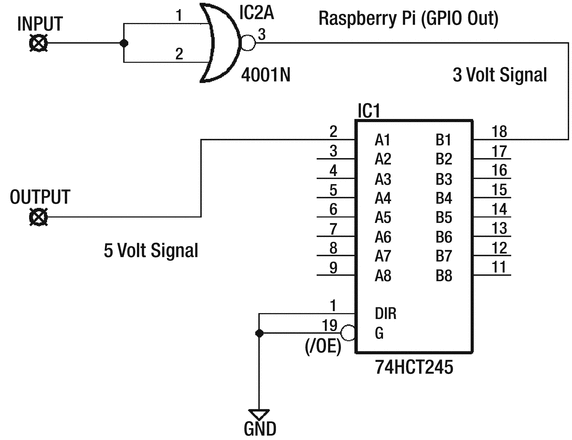
To test this in a simple manner, the circuit in Figure 2-12 was breadboarded to illustrate the signal conversion from the Pi GPIO to the TTL signal. The output of the two-input NOR gate (IC2A) is used to simulate the output of the Raspberry Pi in this experiment. IC2A is supplied by a +3.3V power supply like the Pi would supply.

A432417_1_En_2_Fig12_HTML.gif
Figure 2-12. 3V to 5V conversion circuit

IC1 is the 74HCT245 device, which is powered from +5.0 volts in this circuit. This allows the output of the device to swing between 0 volts and 5 volts to drive the TTL device. The TTL input would be connected to the terminal “OUTPUT” in Figure 2-12.

Table 2-12 summarizes the experimental measurements. When the CD4001 supplied a 3V system high (+3.30 volts), the output of the 74HCT245 was +5.03 volts. When the CD4001 supplied a logic 0, the 74HCT245 supplied a low of +0.004 volts. These represent excellent results.

Table 2-12. Measured 74HCT245 Voltages

CD4001 VDD

CD4001 Inputs

CD4001 Output

74HCT245 VDD

74HCT245 In

74HCT245 Out

+3.30 volts

Gnd

+3.30 volts

+5.03 volts

+3.30 volts

+5.03 volts

+5.03 volts

+0.0010 volts

+0.0010 volts

+0.004 volts

74HCT244

The 74HCT244 is a simpler part because it is unidirectional and may be lower in cost. Again, this part must operate from +5 volts like the 74HCT245 discussed earlier. If you’re squeezing the last few microamps out in power savings, the '244 device is feeding fewer transistors internally.

The pinout is the same as the LVC part shown earlier in Figure 2-7. Simply supply your Pi inputs to the 75HCT244 inputs, and the 5V logic outputs will appear at the device outputs. Make sure that the OE pin is grounded to enable the outputs.

Switching Speed

One parameter that I have avoided discussing is the switching speed of various devices. For driving LEDs and motors, speed may not be critical. You might desire higher data rates for SPI interfaces, on the other hand. The question naturally arises, how fast can my device go?

The datasheets won’t answer this directly. They do, however, provide the following parameters:

  • tPHL: Propagation delay time, high to low

  • tPLH: Propagation delay time, low to high

The Fairchild CD4001 datasheet lists these values, as shown in Table 2-13.

Table 2-13. Fairchild CD4001 Datasheet

Parameter

Description

Value

tPHL

Propagation delay time, high to low

250ns

tPLH

Propagation delay time, low to high

250ns

For this device, both parameters have the same times, but they need not be identical (these are the values listed for 5V operation). So, the absolute maximum speed these devices can signal from low to high and low again can be calculated as follows: $$ F=\frac{1}{t_{PHL}+{t}_{PLH}}=\frac{1}{250\; ns+250\; ns}=2\; MHz $$

But this is not all there is to it because the signal must usually hold for a time in one state or the other. The actual rate could easily be half or less. If, for example, the high state hold time is 50ns, the rate reduces to the following: $$ F=\frac{1}{250\; ns+50\; ns+250\; ns}=1.82\; MHz $$

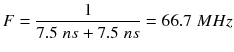
The NXP 74LVC244 datasheet specifies in a small print note that “tpd is the same as tPHL and tPLH.” They list tpd with a maximum of 7.5ns for this device at 3.3 volts. So, what is the absolute maximum frequency for this device?
$$ F=\frac{1}{7.5\; ns+7.5\; ns}=66.7\; MHz $$

Notice the difference in signal rate. Again, this does not take hold times into account, but knowing the absolute limit is helpful in planning. As Clint Eastwood said (as Harry Callahan), “A man’s got to know his limitations.”

Summary

This chapter has been a little intense about signals, levels, voltages, and parameters. This was designed to help you understand the critical issues involved. If you don’t yet have a mastery of digital electronics, then you’d still be well served with the following simple advice:

  • When converting from 5 volts down to 3 volts, use the 74LVC244 device (or 74LVC245), powered by +3.3 volts.

  • When converting from a 3V signal up to 5 volts, use the 74HCT244 device (or 74HCT245), powered by the 5V supply.

  • When considering alternative devices, don’t forget to evaluate their switching speeds. Many older devices are much slower than today’s devices.

  • Never connect a 5V device directly to a 3V device.

The knowledgeable electronics practitioner will know some other alternatives. But the LVC and HCT family solutions presented are simple, economical, and reliable for the Raspberry Pi enthusiast. For each '244 you get eight level shifters in one chip.

Bibliography

  1. “Logic Voltage Levels.” Wikipedia. Wikimedia Foundation, n.d. Web. 17 Apr. 2016. < https://en.wikipedia.org/wiki/Logic_level >.

  2. Lancaster, Don, and Howard M. Berlin. CMOS Cookbook. 2nd ed. Indianapolis, IN: Sams, 1988. Print. p19.

  3. “7400 Series.” Wikipedia. Wikimedia Foundation, n.d. Web. 02 Apr. 2016. < https://en.wikipedia.org/wiki/7400_series >.

  4. Lancaster, Don, and Howard M. Berlin. CMOS Cookbook. 2nd ed. Indianapolis, IN: Sams, 1988. Print. p21.

  5. “CD4049UBC – CD4050BC Hex Inverting Buffer – Hex Non-Inverting Buffer.” Fairchild Semiconductor, n.d. Web. 18 Apr. 2016. < https://www.fairchildsemi.com/datasheets/CD/CD4049UBC.pdf >.

© Warren Gay 2017

Warren Gay, Custom Raspberry Pi Interfaces, 10.1007/978-1-4842-2406-9_3

3. VGA LCD Monitors

Warren Gay

(1)St Catharines, Ontario, Canada

Most Raspberry Pi projects need a display of some kind, unless it is being used as an embedded system. These days there are nice HDMI monitors and nice touch screens available. But these displays still command a fair investment. This chapter will explore inexpensive, used VGA monitors. With the correct type of adapter and Pi configuration, you can repurpose some used VGA LCD screens. VGA monitors will eventually become scarce, but while they last, they are a boon to the maker.

VGA Converters

One of the great things about the Raspberry Pi Zero is that you get a video interface for free (or split the Zero’s price of $5 in two: $2.50 for the Broadcom video core and $2.50 for the CPU). This is a spectacular feature that cannot be matched in the Arduino world.

Using the Pi’s video interface naturally requires a monitor. This chapter explores how to use a VGA monitor on a Raspberry Pi using a VGA converter. VGA monitors can be a bit finicky, however, so I’ll also discuss video settings to allow you tune your Pi to match the monitor.

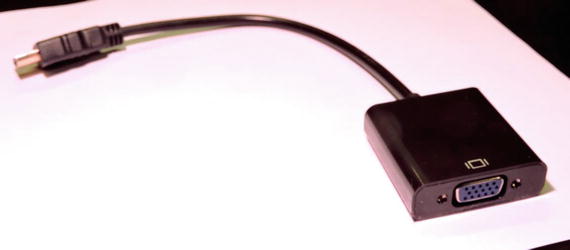
I purchased an HDMI to VGA converter on eBay for the unbelievable price of $2.80. My own experience with it so far has been very good. There doesn’t seem to be any manufacturer information on the outside. It is possible that it has not been tested against the North American and European radio emissions standards, so buyer beware.

Warning

When shopping on eBay, be careful not to buy a simple cable adapter. You need more than a cable/adapter to make this work, so check the description carefully. Usually the cable/adapter auction information will include a warning that “converter is needed when connected to the PC and TV.”

The unit I purchased includes an electronic converter circuit, which obtains its power from the HDMI cable. The only suitable unit that I am aware of looks like the one in Figure 3-1.

A432417_1_En_3_Fig1_HTML.jpg
Figure 3-1. HDMI to VGA adapter

I already owned several VGA monitors, but I wondered about general VGA monitor availability. They are bound to be more plentiful presently given that everyone is switching to HDMI monitors. A search on Kijiji quickly confirmed that they can be had for as little as $20 (and probably less by the time you read this). For example, one $20 monitor I found being sold was a Samsung SyncMaster 193V 19-inch LCD monitor. The native resolution was 1280×1024. Such a deal!

With a VGA converter and a cheap VGA monitor, you can strap the Pi on the back of the monitor and have a cheap self-contained display terminal. With the Pi 3, you could have a self-contained Linux terminal with WiFi and Bluetooth.

Resolution and Refresh Rates

Despite that the converter does the heavy lifting, you may need to make some adjustments to the Pi’s display mode to be compatible with your VGA prize. Consider the following monitor spec-related items:

  • Native and supported resolutions (for example, 1280×1024)

  • Vertical refresh rate (for example, 75Hz)

  • Horizontal refresh rate (for example, 81kHz)

If your monitor supports 1024×768 or greater resolution, you may find that you can use the default Pi settings. Install the adapter and boot up the Pi to see whether it works.

If not, don’t give up yet—you may be able to reconfigure the Pi for a lower resolution. The flexibility of Broadcom VideoCore is amazing when you consider the price of the $5 Raspberry Pi Zero or other Pi model.

/boot/config.txt

The all-important config.txt file is located in your /boot partition. Edit that file carefully to instruct the Pi to use different video configurations.

Some have suggested that you need to set the parameter hdmi_force_hotplug=1. I left it commented out in my own testing and didn’t need it. However, if you get a black screen, you may want to set it by uncommenting the parameter line to read as follows:

hdmi_force_hotplug=1              

These are the parameters of main concern for your monitor:

  • hdmi_group

  • hdmi_mode

The hdmi_group parameter can take one of three values from Table 3-1.

Table 3-1. hdmi_group Values

Value

Description

0

Default; use the preferred group reported by the EDID

1

Consumer Electronics Association (CEA)

2

Display Monitoring Timing (DMT) standard

The hdmi_mode parameter is much more comprehensive in the range of values possible. Table 3-2 lists hdmi_mode values that are possible when hdmi_group=1 (CEA).

Table 3-2. CEA hdmi_mode Values [1]

hdmi_mode

Resolution

Refresh

Modifiers and Notes

1

VGA


2

480p

60Hz


3

480p

60Hz

H

4

720p

60Hz


5

1080i

60Hz


6

480i

60Hz


7

480i

60Hz

H

8

240p

60Hz


9

240p

60Hz

H

10

480i

60Hz

4x

11

480i

60Hz

4x H

12

240p

60Hz

4x

13

240p

60Hz

4x H

14

480p

60Hz

2x

15

480p

60Hz

2x H

16

1080p

60Hz


17

576p

50Hz


18

576p

50Hz

H

19

720p

50Hz


20

1080i

50Hz


21

576i

50Hz


22

576i

50Hz

H

23

288p

50Hz


24

288p

50Hz

H

25

576i

50Hz

4x

26

576i

50Hz

4x H

27

288p

50Hz

4x

28

288p

50Hz

4x H

29

576p

50Hz

2x

30

576p

50Hz

2x H

31

1080p

50Hz


32

1080p

24Hz


33

1080p

25Hz


34

1080p

30Hz


35

480p

60Hz

4x

36

480p

60Hz

4xH

37

576p

50Hz

4x

38

576p

50Hz

4x H

39

1080i

50Hz

Reduced blanking

40

1080i

100Hz


41

720p

100Hz


42

576p

100Hz


43

576p

100Hz

H

44

576i

100Hz


45

576i

100Hz

H

46

1080i

120Hz


47

720p

120Hz


48

480p

120Hz


49

480p

120Hz

H

50

480i

120Hz


51

480i

120Hz

H

52

576p

200Hz


53

576p

200Hz

H

54

576i

200Hz


55

576i

200Hz

H

56

480p

240Hz


57

480p

240Hz

H

58

480i

240Hz


59

480i

240Hz

H

Table 3-3 lists the modifiers used in Table 3-2.

Table 3-3. Modifiers Used in Table 3-2

Flag

Meaning

H

Means 16:9 variant of normal 4:3 mode

2x

Pixels are doubled

4x

Pixels are quadrupled

R

Reduced blanking, resulting in lower clock rates

The hdmi_mode values listed in Table 3-4 apply when htmi_group=2 (DMT) [1].

Table 3-4. DMT hdmi_mode Values [1]

hdmi_mode

Resolution

Refresh

Notes

1

640×350

85Hz


2

640×400

85Hz


3

720×400

85Hz


4

640×480

60Hz


5

640×480

72Hz


6

640×480

75Hz


7

640×480

85Hz


8

800×600

56Hz


9

800×600

60Hz


10

800×600

72Hz


11

800×600

75Hz


12

800×600

85Hz


13

800×600

120Hz


14

848×480

60Hz


15

1024×768

43Hz

DO NOT USE

16

1024×768

60Hz


17

1024×768

70Hz


18

1024×768

75Hz


19

1024×768

85Hz


20

1024×768

120Hz


21

1152×864

75Hz


22

1280×768


Reduced blanking

23

1280×768

60Hz


24

1280×768

75Hz


25

1280×768

85Hz


26

1280×768

120Hz

Reduced blanking

27

1280×800


Reduced blanking

28

1280×800

60Hz


29

1280×800

75Hz


30

1280×800

85Hz


31

1280×800

120Hz

Reduced blanking

32

1280×960

60Hz


33

1280×960

85Hz


34

1280×960

120Hz

Reduced blanking

35

1280×1024

60Hz


36

1280×1024

75Hz


37

1280×1024

85Hz


38

1280×1024

120Hz

Reduced blanking

39

1360×768

60Hz


40

1360×768

120Hz

Reduced blanking

41

1400×1050


Reduced blanking

42

1400×1050

60Hz


43

1400×1050

75Hz


44

1400×1050

85Hz


45

1400×1050

120Hz

Reduced blanking

46

1440×900


Reduced blanking

47

1440×900

60Hz


48

1440×900

75Hz


49

1440×900

85Hz


50

1440×900

120Hz

Reduced blanking

51

1600×1200

60Hz


52

1600×1200

65Hz


53

1600×1200

70Hz


54

1600×1200

75Hz


55

1600×1200

85Hz


56

1600×1200

120Hz

Reduced blanking

57

1680×1050


Reduced blanking

58

1680×1050

60Hz


59

1680×1050

75Hz


60

1680×1050

85Hz


61

1680×1050

120Hz

Reduced blanking

62

1792×1344

60Hz


63

1792×1344

75Hz


64

1792×1344

120Hz

Reduced blanking

65

1856×1392

60Hz


66

1856×1392

75Hz


67

1856×1392

120Hz

Reduced blanking

68

1920×1200


Reduced blanking

69

1920×1200

60Hz


70

1920×1200

75Hz


71

1920×1200

85Hz


72

1920×1200

120Hz

Reduced blanking

73

1920×1440

60Hz


74

1920×1440

75Hz


75

1920×1440

120Hz

Reduced blanking

76

2560×1600


Reduced blanking

77

2560×1600

60Hz


78

2560×1600

75Hz


79

2560×1600

85Hz


80

2560×1600

120Hz

Reduced blanking

81

1366×768

60Hz


82

1080p

60Hz


83

1600×900


Reduced blanking

84

2048×1152


Reduced blanking

85

720p

60Hz


86

1366×768


Reduced blanking

There is a pixel clock limit that limits the highest resolution to 1920×1200 at 60Hz with reduced blanking [2].

After making changes to your /boot/config.txt file, be sure to sync the file system to flush out unwritten disk file changes (even though the system shutdown should normally take care of this). After a reboot, you should be able to test your VGA monitor hookup.

Confirming Resolution

Sometimes after a bootup it is obvious what the new resolution is. At other times, the change can be subtle, leaving you to wonder whether anything actually changed. So, how do you confirm?

The frame buffer set command (fbset), when used with the -s option, can show you information about the current display mode. The following was displayed when I attached my Dell 1707FPT monitor and allowed the Raspberry Pi to default for the display:

$ fbset -s
mode "1280x1024"
    geometry 1280 1024 1280 1024 16
    timings 0 0 0 0 0 0 0
    rgba 5/11,6/5,5/0,0/16
endmode

When configured for low-resolution VGA, I was able to boot with this display mode using a lesser monitor:

$ fbset -s
mode "640x480"
    geometry 640 480 640 480 16
    timings 0 0 0 0 0 0 0
    rgba 5/11,6/5,5/0,0/16
endmode

When choosing video modes for your monitor, be sure to stay within the refresh rate limits of your monitor. They need not be exact, but vertical refresh rates should be close to, but not exceed, the rating.

Summary

The Raspberry Pi Zero is great for its size and price. Attach a low-cost VGA monitor, and you can create a killer project for cheap. The Zero or Pi 3 is small enough that it might even mount the unit inside of the monitor casing. Be sure to check out your local used market for VGA deals. You may even find friends or family willing to give you VGA monitors, knowing that you have a use for them.

Bibliography

  1. “RPiconfig.” RPiconfig. N.p., n.d. Web. 30 Jan. 2016. < http://elinux.org/RPiconfig >.

  2. “Raspberry Pi: Does RPi Support Resolution of 2560x1440?” Raspberry Pi: Does RPi Support Resolution of 2560x1440? N.p., n.d. Web. 30 Jan. 2016. < www.raspberrypi.org/phpBB3/viewtopic.php?f=26&t=20155&p=195417&hilit=2560x1600#p195443 >.

© Warren Gay 2017

Warren Gay, Custom Raspberry Pi Interfaces, 10.1007/978-1-4842-2406-9_4

4. I2C LCD Displays

Warren Gay

(1)St Catharines, Ontario, Canada

Economical text LCD displays are ideal for embedded Raspberry Pi applications where a full monitor is not required. The economical 16×2 LCD is popular with the Arduino crowd but can be used on the Raspberry Pi with a little extra work. Other similar LCD units can also be used if you need more lines or characters.

Many of these LCD modules use a parallel interface, which would require several GPIO lines. This chapter shows how to use a I2C interface module to overcome that disadvantage. These modules also use a 5V supply and require a 5V signal interface. This chapter presents a solution to this challenge.

LCD Module 1602A

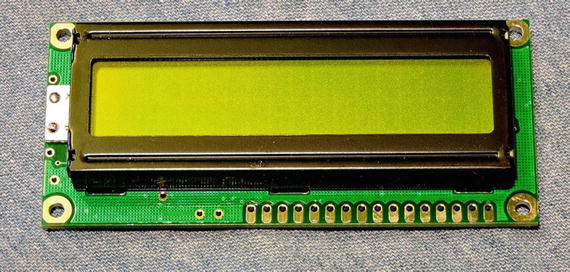
A search on eBay shows that the 1602A LCD module can be purchased for as little as $1.71 (the “Buy It Now” price). Figure 4-1 illustrates the topside of the unit, with its connections along the bottom.

A432417_1_En_4_Fig1_HTML.jpg
Figure 4-1. The top of the 1602A LCD module

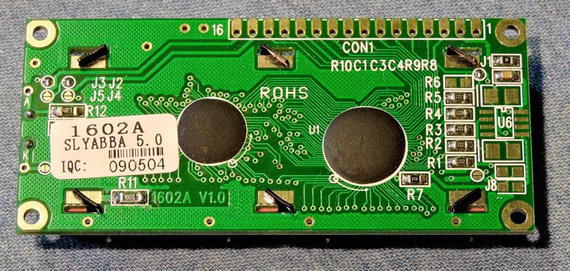
Figure 4-2 shows the bottom side of the module. The bottom side shows that connector CON1 has 16 connections. The number of connections is a nuisance from a wiring and interfacing standpoint, but there is a solution for that.

A432417_1_En_4_Fig2_HTML.jpg
Figure 4-2. The bottom side of the 1602A LCD module

The logic and the LCD portions of this PCB require 5 volts, which makes this a little bit of a challenge for the Pi. But there is a solution for that too. The unit includes backlighting, so you must add the current for the logic plus the backlighting when planning your power requirements. The figures seem to vary depending upon the manufacturer, but one datasheet lists the current as 150mA for the logic plus another 100mA for the backlighting. So, this unit is likely to draw about 250mA total from your Pi’s 5V supply.

The 1602A module uses eight data lines and three control lines for data transfers. That would require 11 GPIO lines to be allocated from the Pi. However, it is possible to operate the module in 4-bit mode instead. This still requires seven GPIO lines, which is inconvenient.

To work around this problem, there is a nice I2C adapter module that can be economically purchased and used.

I2C Serial Interface

The module I purchased on eBay was titled “Black Arduino 1602LCD Compatible Serial Interface (IIC/I2C/TWI/SPI) Board Module.” The SPI in the title is bogus, since this is an I2C module. The module is based upon the PCF8574 chip, for which you can also obtain a datasheet.

To find the module on eBay, search for 1602 serial module. I usually check the “Buy It Now” option so that there is no need to mess around with auctions and wait times. These modules can be purchased for as little as $1.10. Figure 4-3 illustrates the module that I purchased.

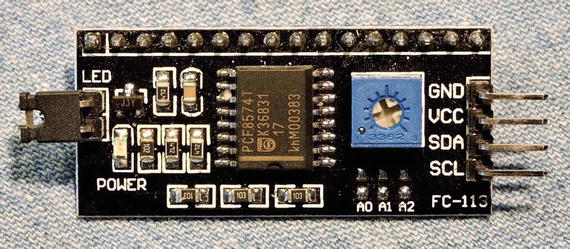
A432417_1_En_4_Fig3_HTML.jpg
Figure 4-3. The I2C Serial Interface module with the PCF8574 chip at the center. Pin 1 is at the right side, despite the silk screen.

The module has three solderable jumpers marked A0, A1, and A2 (on the bottom right of Figure 4-3). Since CMOS inputs must not be left floating, there are pull-up resistors on the board. Based upon resistance readings taken, it appears that the three surface mount resistors marked “103” are the 10kΩ pull-up resistors to each of the address inputs. Soldering in a shorting jumper will change the address input to a logic 0.

Without any jumpers installed, this I2C PCB will respond to I2C address 27 hexadecimal (hex). With all jumpers installed, the I2C address changes to hex 20. If you should get a unit with the PCF8574A instead, the I2C address changes to 3F hex, with no jumpers or 38 with jumpers installed.

I have been unable to find a schematic for this exact PCB, but measuring between the VCC connection and the SDA or SCL connections confirms a resistance of 4–7kΩ (you can see resistors labeled “472” on the PCB). This evidence of a pull-up resistor is bad news for 3.3V operation because VCC on the PCB will be connected to 5 volts when used with the LCD module. The serial interface PCF8574 chip is able to operate from 3.3 volts, however, so before you connect it to the LCD module, let’s check the I2C module to see whether the unit is functional and usable by the Pi.

I2C Module Configuration

The PCF8574 peripheral is rather unique in that it does not require any formal configuration. The datasheet specifies that its ports are quasi-bidirectional. So, how does this work?

To set an output, you simply write a bit pattern to the outputs over the I2C bus. Pins written with a 1 bit turn off their pull-down transistor and cause the pull-up current source to bring the output pin high. This pull-up current source is weak, supporting only 100μA. The NXP documentation indicates, however, that there is an accelerated strong pull-up that is active during the high time of the I2C acknowledge clock cycle. This briefly helps the output turn sharply high at the right time but requires only 100μA to maintain that state after. This works fine for interfacing to CMOS input signals. But because of the weak high-side drive, the ports cannot source current into LEDs.

Output ports that are written with a 0 bit cause their pull-down transistor to activate to conduct port current to ground level. This driven output can sink up to 25mA of current, though the chip total must not exceed 80mA. This makes the port capable of driving LEDs when the ports are used to sink LED current.

To be able to read an input, there is a cheat step required: the port must first be written with a 1 bit so that its weak pull-up current source can allow the port to rise high. Then the component driving the input can pull the voltage down to ground level when transmitting a 0 bit to the input. When a 1 bit is transmitted to the port, the signal is simply brought high again with some assistance from the weak pull-up current source.

If the input port was left in the output 0 bit state, the port’s output driver transistor would keep that port grounded. To indicate a 1 bit, the component driving this input would have to overcome this with a struggle. This could result in high currents and potential damage.

I2C Module Output

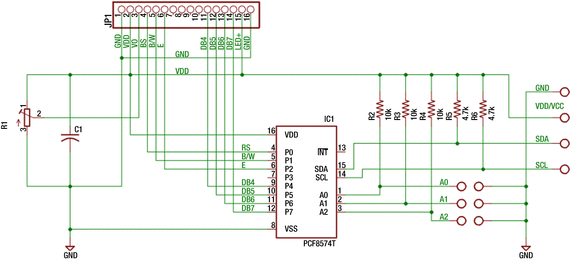
Figure 4-4 is a generic schematic of the different I2C modules available. For this experiment, don’t attach the LCD display yet, since the display module will not function on 3.3 volts. But the wiring of the unit is important to note because you need to know where the port pins appear on the edge of the PCB.

A432417_1_En_4_Fig4_HTML.gif
Figure 4-4. Generic schematic of the 1602 I2C adapter PCB

From Figure 4-4 you can see that four of the outputs go to pins 11 to 14 of the 16-pin header strip. These will be used to send four bits at a time to the LCD module. These are port bits 4 through 7, respectively. Three of the four remaining bits go to the LCD interface pins 4, 5, and 6 to control the information handshaking. These are pins 0 through 2, respectively, with port pin 3 left unconnected (on some LCD modules, pin 3 switches backlighting on or off).

Table 4-1 summarizes the port pins and the corresponding LCD pins for your convenience.

Table 4-1. Port Locations on the 16×1 LCD Header Strip

Port

16×1 Pin

Description

P0

4

LCD RS

P1

5

LCD R/W

P2

6

LCD E

P3

Internal

Backlighting switch, when supported by I2C module

P4

11

LCD DB4

P5

12

LCD DB5

P6

13

LCD DB6

P7

14

LCD DB7

Let’s first verify that the I2C bus is available, as shown here:

$ i2cdetect -l
i2c-1 i2c        3f804000.i2c                     I2C adapter

If i2cdetect is not installed, then install it now, as shown here:

$ sudo apt-get install i2c-tools

Now that you have confirmed that the I2c-1 bus is available, attach the serial module (without the LCD connected). Connect the V CC to the Pi’s 3.3V supply and GND to the Pi’s ground. Finally, connect SDA and SCL to the Pi’s SDA and SCL connections, respectively (the T-Cobbler silk screen should identify these plainly).

With this wired up, start your Pi and perform the following scan of I2C bus 1, as shown here:

$ i2cdetect -y 1
     0  1  2  3  4  5  6  7  8  9  a  b  c  d  e  f
00:          -- -- -- -- -- -- -- -- -- -- -- -- --
10: -- -- -- -- -- -- -- -- -- -- -- -- -- -- -- --
20: -- -- -- -- -- -- -- 27 -- -- -- -- -- -- -- --
30: -- -- -- -- -- -- -- -- -- -- -- -- -- -- -- --
40: -- -- -- -- -- -- -- -- -- -- -- -- -- -- -- --
50: -- -- -- -- -- -- -- -- -- -- -- -- -- -- -- --
60: -- -- -- -- -- -- -- -- -- -- -- -- -- -- -- --
70: -- -- -- -- -- -- -- --

The session output confirms that the I2C device is seen as address 27 (hex). This is a good sign that the device is working. If you have a different model of the PCB, you may find the unit at a different address, perhaps 3F. Substitute your address in the tests that follow.

Change to the subdirectory pcf8574 in the supplied source code. Perform a make command (if not already performed), which should leave you with an executable named i2cio. The command takes optional arguments, which are explained with the use of the help (-h) option.

$ ./i2cio -h
./i2cio [-a address] [-i pins] [-h] [out_value1...]
where:
       -a address  Specify I2C address
       -i 0xHex    Specify input port pins (0=none=default)
       -h          Help

If your unit was found at a different address than the default hexadecimal address of 27, then you will need to supply that in the commands afterward with the option -a.

I recommend doing this experiment with Dupont wires only since it is easy to cause a short circuit and ruin something. Either place the PCB module on the breadboard and connect to it through the breadboard or locate some male/female Dupont wires to safely attach your connections.

Connect the negative lead of your voltmeter/DMM to the ground of the Pi. Using the plus lead of the DMM, measure the voltage present at pin 14 of the 16×1 header strip. You should measure either 3.3 volts or 0 volts. Now run the following command (substituting for the I2C address if necessary). Do not omit 0x where it appears, as this specifies that the number is in hexadecimal notation.

$ ./i2cio -a0x27 0x80
I2C Wrote: 0x80

This command writes the hex value 80 to the I2C port at address 27. After this runs, you should measure approximately 3.3 volts at pin 14. If you don’t get that, then check that you have the correct pin. My PCB unit marks pin 16 with a square, suggesting it is pin 1, but this is actually pin 16.

To confirm the port’s operation, let’s now write a 0 out.

$ ./i2cio -a0x27 0
I2C Wrote: 0x00

After the message I2C Wrote: 0x00, you should immediately see the voltage go to 0 on pin 14. This confirms the following:

  • That the unit is operating and responding to the I2C address you specified

  • That port bit 7 corresponds to connection 14 on the header strip

  • That you know which end of the header strip is pin 1

This last item is important since it is easy to get this wrong. Cheap clones of the original board are being made all the time, and important matters like this are often incorrect or mislabeled.

Now check bit 4, using the value 0x10, followed by setting it to 0. Did pin 11 on the PCB module obey? Finally, using the value 0x01, does the RS signal (header pin 4) measure the correct changes?

Note

If you are having trouble locating pin 1 on the I2C module, one way to confirm this is to measure the resistance of V0 pin 3, which is attached to the potentiometer.

Measure the resistance between pin 3 and the GND pin (the first pin on the end nearest the pin being tested). Slowly rotate the potentiometer slightly and watch for a resistance change. A change of reading will confirm pin 3.

I2C Module Input

Having succeeded in performing I2C output to the module, it is now time to try input. Connect a Dupont wire to header pin 14 (DB7) and the other end to your breadboard. Just leave it unconnected for the moment and perform this test:

$ ./i2cio -a0x27 -i0x80
I2C Read: 0x80 (Inputs: 80)

By adding the option -i0x80, you have made bit 7 an input. This was done by first setting the output bit to a 1 so that inputs could be performed on it. The command then performs a read and reports what it read. In this case, only the high bit is significant, and since 0x80 indicates a high value, you know the input bit was a 1.

If you don’t want to see the other bits, you can force the others to 0 by doing an output first and then repeating the following:

$ ./i2cio -a0x27 0
I2C Wrote: 0x00
$ ./i2cio -a0x27 -i0x80
I2C Read: 0x80 (Inputs: 80)

After setting all output bits to 0, only the input should ever show up as a 1 bit.

Before running the command again, connect your input Dupont wire to ground. When you perform the read test this time, the reading should change, as shown here:

$ ./i2cio -a0x27 -i0x80
I2C Read: 0x00 (Inputs: 80)

Again, only the high bit (7) is significant since that is the only input you’re polling. You can see from the value reported that the grounding of that pin caused the command to read 0. Unground the Dupont wire and repeat. Did the read value change back to 0x80?

PCF8574P Chip

From the preceding experiments you can see that this module can be used as a cheap and nearly configuration-free I2C GPIO extender. The main issue is that the PCB is designed to work with the 1602A LCD. This might mean that only seven of the eight GPIOs are brought out to the header strip (the blanking bit may be supported, however, to make eight).

The PCF8574P chip is available in the plastic DIP form from various sources including eBay, for as little as $0.66. Since this chip will operate at 3.3 volts, it is a good trick to keep in your back pocket when adding GPIOs to the Raspberry Pi. With no complicated software configuration required, it is quite easy to use. Just keep in mind that when driving a current load (like an LED), always arrange the port to sink the current.

3 Volts to 5 Volts

The LCD module must operate at 5 volts. So, now you must cross that digital divide from the 3.3V realm to the 5V TTL world. Note that Chapter 2’s techniques do not apply to the I2C bus, so you must find another way to do this. Figure 4-5 shows a tiny little level converter with the header strips installed. On eBay, you can purchase these for a “Buy It Now” price of $0.99.

A432417_1_En_4_Fig5_HTML.jpg
Figure 4-5. Topside of I2C level converter with header strips installed

Figure 4-6 shows the bottom-side silk screen. There is a 3V output derived from the 5V input, shown on the top right of the figure. But I recommend you use that as a last resort. Use the Pi’s 3.3V power instead because I have found that this connection can be higher than it should be. If you do use it, the silk screen indicates that it is limited to 150mA.

A432417_1_En_4_Fig6_HTML.jpg
Figure 4-6. Bottom side of I2C level converter

There are four remaining pins on the left and right sides. The idea is that on one side you have your 5V signals and on the right are the 3.3V signals. This device is bidirectional, using MOSFET transistors to do the level conversions. For these purposes, you need the I2C SDA and SCL lines converted.

To keep the various systems in perspective, Figure 4-7 illustrates the signal realms involved, including the Raspberry Pi on the left, the level converter at the center, and the 5V I2C serial module for the LCD on the right.

A432417_1_En_4_Fig7_HTML.gif
Figure 4-7. Block diagram of Raspberry Pi, I2C level converter, and I2C serial module

The dashed lines of Figure 4-7 illustrate the I2C signals as they progress from the Pi to the I2C serial module at the right. Except for the fact that this level conversion adds another module to the mix, the circuit remains otherwise simple. The two I2C signals SDA and SCL are all that are required to communicate with the LCD module.

Attaching the I2C Serial Module

Take a good look at Figures 4-2 and 4-3. Note particularly where pin 1 of CON1 is shown in Figure 4-2. This pin is near the mounting hole in the upper right of the photo. This is where pin 1 of the I2C serial adapter needs to go.

On my serial adapter, the silk-screen square is shown at the top left. This is incorrect! Using a DMM, I was able to confirm that V0, which is pin 3, is actually the third pin from the top right of Figure 4-3. I seem to have a clone of the original design where they botched the silk screening. The PCB square should have been at the top right instead. I mention this to save you a lot of agony. Once the PCB is soldered to the LCD module, it is difficult to separate them. Take your time getting the orientation correct before you plug in that soldering iron.

Figure 4-8 shows the I2C module installed on the LCD module. The power and the two I2C connectors should be located at the upper right. I put a piece of electrical tape underneath the I2C module before soldering it in place. This will keep bare connections from bumping into connections on the LCD module.

A432417_1_En_4_Fig8_HTML.jpg
Figure 4-8. I2C module attached to LCD module

I like to test things as I go since this saves a lot of troubleshooting effort when things go wrong and provides a confidence boost when things are going right. The best way to do this is to yank the microSD card out of the Pi so that it doesn’t boot. That way, if something goes wrong, you can yank the power without having to worry about corrupting the microSD card. It also saves you from having to do a formal shutdown when you’re done testing.

As part of this test, adjust the potentiometer so that you start to see the character cells in the display. You’ll likely readjust again, once text is shown on the display later. My LCD module initialized such that one line of cells was showing. Yours may show a different pattern. Even if you get no pattern at all, don’t panic about it until you try sending data to it under software control.

If you want to take a current reading, this is a good time to do it. While my LCD was operating under test in Figure 4-9, I measured about 87mA of current. On the I2C module, there is a jumper at one end. Removing it turns off the backlighting for the module by disconnecting the power for it. Once I did this, the current dropped to about 6mA. If you have a battery-operated system, you could save power this way.

A432417_1_En_4_Fig9_HTML.jpg
Figure 4-9. The LCD powered from the Pi’s 5V supply, supplied through the I2C module on the back

The next step is to hook up the I2C level converter. Wire the Pi’s +5 volt to the level converter’s 5V input and its ground to ground. Also connect the serial module SDA and SCL lines to the 5V side of the level converter, but save the 3.3V SDA and SCL for later. Leave those unconnected. Using your voltmeter/DMM, measure the 3.3V SDA and SCL pins on the level converter when powered. You should get a reading near 3.3 volts. If you read something else, you need to investigate. If the voltage reads higher than +3.6 volts, then don’t go any further since hookup could damage your Pi’s GPIO ports. Once you have good readings, you are clear to connect the Pi’s SDA and SCL ports to the level converter’s 3.3V side.

Displaying Data

Once everything is wired, you are ready to display some data on the LCD. Figure 4-10 illustrates the LCD connected to the Pi with some text displayed. In the subdirectory pcf8574, there is a program named lcd.cpp that should have been built as executable lcd. If the executable does not yet exist, type the make command now to build it.

A432417_1_En_4_Fig10_HTML.jpg
Figure 4-10. Final hookup with I2C level converter

Invoke the command simply as follows:

$ ./lcd

If all went well, you should see the same text as displayed in Figure 4-10. The trickiest part is getting the LCD module to initialize, partly because you must operate in the LCD controller’s 4-bit mode.

The initialization procedure for 4-bit operation is a little strange. The HD44780 controller chip used by the display always powers on in the 8-bit communication mode. Because you are going through the PCF8574 and using four of those bits for controlling the signal handshaking, only the upper four data bits are being seen by the controller when you write to it.

Inside the class method LCD1602::initialize(), the following is done to coax the LCD controller into using 4-bit mode. The reusable source files are lcd1602.cpp and lcd1602.hpp, should you want to use it in your own code.

165     usleep(20000);          // 20 ms
166     lcd_write4(0x30);       // 8-bit mode initialize
167     usleep(10000);          // 10 ms
168     lcd_write4(0x30);
169     usleep(1000);           // 1 ms
170     lcd_write4(0x30);
171     usleep(1000);           // 1 ms
172     lcd_write4(0x20);       // 4-bit mode initialize
173     usleep(1000);           // 1 ms

Line 165 just begins with a delay in case there was recent activity with the display. Line 166 calls upon internal class method lcd_write4() to write out the 8-bit command 3X, where X represents garbage (likely seen as 3F by the controller). You do this three times and then finally set the mode you really want in line 172. This sets the controller into 4-bit mode.

After this point, all 8 bits of a command or data byte are sent as two back-to-back 4-bit writes (using the method lcd_cmd() or lcd_data()). Each write is preceded by a busy check, by reading from the controller. When it reads that bit 7 is no longer a 1, it then knows that it is safe to write into the controller again. This is performed in method lcd_ready() for the curious.

Reading from the LCD1602

Except for the initialization sequence, the code driving the LCD does not use delays. This has the benefit of increasing the data rate to almost as fast as the device will accept it. The initialization sequence, however, requires the use of delays since the controller does not provide any busy status during that time. Once initialized, there is a busy status flag that can be read.

Reading the status from the LCD controller is tricky when conversing through the PCF8574 in 4-bit nibbles. Recall that to read an input from the PCF8574, you must first write a 1 bit to the pin first. Since the status is available immediately after an LCD command write, you have to be careful in how you perform this.

Steps 1 through 4 are all that are required to send an 8-bit command to the LCD controller through the PCF8574 chip (Table 4-2). Some LCD commands, however, such as “clear screen,” require extra time to complete. If you sent another command byte during this busy period, the command would be ignored. You could use a programmed delay, but different LCD commands take different amounts of time. It is best to have the LCD controller tell you when it is no longer busy.

Table 4-2. Steps Used to Write One 8-Bit Command and Read the BF Status Flag

Step

Bit 7

Bit 6

Bit 5

Bit 4

Bit 3

Bit 2

Bit 1

Bit 0

Read/Write

Description


D7/3

D6/2

D5/1

D4/0

BL

E

RW

RS


1

bit 7

bit 6

bit 5

bit 4

bl

1

0

0

Write

Enable write of high command nibble.

2

bit 7

bit 6

bit 5

bit 4

bl

0

0

0

Write

Clock in the high command nibble.

3

bit 3

bit 2

bit 1

bit 0

bl

1

0

0

Write

Enable write of low command nibble.

4

bit 3

bit 2

bit 1

bit 0

bl

0

0

0

Write

Clock in the low command nibble.

5

1

1

1

1

bl

0

1

0

Write

Prepare to read (RW=1) and set bits 7, 6, 5, and 4 to 1 so that you can read from those ports.

6

1

1

1

1

bl

1

1

0

Write

Prepare LCD to present status.

7

BF

AC6

AC5

AC4

X

X

X

X

Read

Read upper status nibble.

8

1

1

1

1

bl

0

1

0

Write

Complete the upper nibble read.

9

1

1

1

1

bl

1

1

0

Write

Prepare LCD to present lower nibble.

10

AC3

AC2

AC1

AC0

X

X

X

X

Read

Read lower status nibble.

11

1

1

1

1

bl

0

1

0

Write

End read cycle.

12

Repeat, starting at step 6 when BF=1, until BF=0 (ready)


Before you look at the read cycle, I’ll explain what happened during the write steps. Step 1 sets the BL bit to 1 if you want to keep the backlighting enabled. This bit is ignored if the I2C adapter doesn’t support this feature. The RS=0 bit indicates that a command byte is being sent. Bit RW=0 indicates to the LCD controller that a write operation is being performed. Finally, E=1 prepares the LCD controller to receive 4 bits of data on bits 7, 6, 5, and 4. In 4-bit handshaking, the remaining bits of the data bus are ignored. Keep in mind that these bits are being written over the I2C bus into the PCF8574 chip and appearing at the chip’s own GPIO pins, which are interfaced to the LCD module (review Figure 4-7).

No data is captured in the LCD controller yet, until step 2. In this step, the signal E=0 is established (by another I2C write operation). The transition from E=1 to E=0 clocks the data into the controller (the high nibble). Steps 3 and 4 repeat steps 1 and 2, except that the low-order nibble is transmitted. Once step 4 has completed, the LCD controller has received eight bits of command data and begins to carry it out.

To know when it is safe to send another command (or data), you must ask the LCD controller for the BF (busy flag) status bit. To prepare for a read from the PCF8574, you must first write 1 bits to bits 7, 6, 5, and 4, where you expect data. Additionally, RW=1 is established to warn the LCD controller that you will be performing a read operation. This is what step 5 is all about.

Nothing happens on the LCD controller until it sees the E signal change from 0 to 1 in step 6. At this transition, the controller puts the status byte out to its data lines. At this point, the controller is driving bits 7, 6, 5, and 4 of the PCF8574 pins. Step 7 tells the PCF8574 chip to take a reading and send it back to the Pi on the I2C bus. Table 4-2 has an X marked in the remaining positions as “don’t care.” You are only receiving data transferred in the upper nibble of this byte read.

Steps 8 through 10 repeat steps 5 through 7, except this time the lower nibble of data is transferred. Step 11 ends the read cycle and informs the LCD controller you are done.

Now the BF flag is examined. When BF=1, the LCD controller is still busy carrying out the last command. The Pi program then repeats again starting from step 6. This repeats until the controller finally returns BF=0, indicating “ready.”

How long does all of this take? With I2C operating at 100kHz, each byte takes approximately the following amount of time: $$ \begin{array}{l}{t}_{byte}=\frac{1}{100000} x\left(1+8+1\right)\\ {}=100\;\mu sec\end{array} $$
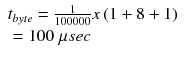
There is a start bit, eight data bits, and one stop bit for each I2C byte written to the PCF8574. So, assuming you don’t receive BF=1, the write followed by a status read should take approximately this long: $$ {t}_{command}=100\mu sec\; x\;11\; steps=1100\;\mu sec\;\left(1.1\; ms\right) $$

This means you can issue approximately 909 LCD commands per second, ignoring busy wait times. From my own testing, I found that most commands do not incur any busy time because of the time involved in the I2C traffic. The only instance I encountered where BF=1 was in clearing the screen. Given that it takes seven I2C cycles to read the LCD status, this results in a delay of 100 × 7 = 700μsec of time. Most LCD commands complete in much shorter times (consult the HD44780 controller datasheet for actual times).

Given these facts, it is tempting to program delays instead. But it is best to consult the BF status flag because if the LCD controller should miss a command or data byte, you would have no knowledge of it in your program. The display would continue in a messed-up state until it was reset by your code.

Class LCD1602

I2C programming is covered in Chapter 11, so I won’t repeat that here. However, the source code includes the following two files in the pcf8574 subdirectory:

  • lcd1602.hpp

  • lcd1602.cpp

Include the class definition in your program with the following:

#include "lcd1602.hpp"

Then you can make use of the LCD1602 class to interact with your display. To instantiate the class, you code it with the optional I2C address and bus number, as shown here:

LCD1602 lcd(0x27,1); // I2C address and bus number

After this, you need to initialize it only once, as shown here:

if ( !lcd.initialize() ) {
    fprintf(stderr,
        "%s: Initializing LCD1602 at I2C bus %s, address 0x%02X\n",
        strerror(errno),
        lcd.get_busdev(),
        lcd.get_address());
    exit(1);
}

From that point on, in your own code you can invoke the public functions such as lcd.clear() and lcd.putstr(). The following is a summary of the public members of the LCD1602 class:

class LCD1602 {
        ...
public: LCD1602(unsigned i2c_addr=0x27,unsigned bus=1);
        ∼LCD1602();


        const char *get_busdev() const  { return busdev.c_str(); };
        unsigned get_bus() const        { return i2c_bus; }
        unsigned get_address() const    { return i2c_addr; }


        bool initialize();              // Initialize the LCD
        bool lcd_ready();


        bool lcd_cmd(uint8_t byte)      { return lcd_write(byte,true); }
        bool lcd_data(uint8_t byte)     { return lcd_write(byte,false); }


        bool clear();
        bool home();
        bool moveto(unsigned y,unsigned x);


        bool putstr(const char *str);

        bool set_display(bool on=true);
        bool set_blink(bool on=true);
        bool set_backlight(bool on=true);
        bool set_cursor(bool on=true);


        bool get_display() const        { return display; };
        bool get_blink() const          { return blink; };
        bool get_backlight() const      { return backlight; };
        bool get_cursor() const         { return cursor; };
};

If you want to learn more about the features of the LCD module, locate the HD44780 controller’s datasheet in PDF form. That document will describe all the commands and features supported by the controller.

I2C Baud Rate

Throughout this book, the default system I2C baud rate is used. You can discover what that rate is with the following command:

$ dmesg | grep -i i2c
[5.102698] bcm2708_i2c 3f804000.i2c: \
           BSC1 Controller at 0x3f804000 (irq 83) (baudrate 100000)

From this you can see that the I2C driver initialized with the baud rate of 100kHz (100,000). This is not particularly fast but is considered reliable. The I2C level shifter used in this chapter also limits the reliability of the connection and probably shouldn’t be pushed much higher. Despite the I2C bus operating at 100kHz and using 4-bit I/O transfers, you’ll still find that the display is responsive. A simple LCD command structure and the fact that the display holds only 32 characters means that the I/O system is not unduly taxed.

Profit and Loss

In this chapter’s project, you used a level translator and a PCF8574 I2C extender on a PCB to communicate with the 1602 LCD module. Let’s review some of the pros and cons of doing this.

Here are the pros:

  • Only two lines are needed for communicating to the LCD from the Pi.

  • I2C allows a few meters of distance between the Pi and LCD.

  • Only two GPIOs are required from the Pi side.

  • The PCF8574 I2C module might provide backlighting control.

  • The 1602 LCD, PCF8574 PCB, and level translator are all inexpensive.

Here are the cons:

  • The method requires commanding the LCD module in 4-bit mode.

  • The PCF8574 I2C module is slower driving the LCD.

  • The LCD module is 5 volts, requiring a level translator.

  • Configuration of the LCD is limited.

Certainly there is some complexity involved with the added components, but the overall cost is low. Because communication occurs over the I2C bus, the LCD can be a few meters away from the Pi itself.

The one negative I saw was that there seems to be no way to configure the LCD module for other modes of operation in 4-bit data transfer mode. The command 0x20 is used to put the LCD controller into 4-bit mode (note that this is sent in 8-bit mode). This works because the 2 in 20 is in the upper nibble that the controller can see. But the lower nibble of that “function set” command consists of the N and F bits that allow two-line (N=1) or one-line (N=0) displays and a 5 × 10 dots (F=1) or 5 × 10 dots (F=0) font.

In my own experiments, the configuration always went to N=1, leaving F to be ignored (the LCD won’t do two-line displays with the larger font). I suspect that this is the result of the low nibble signals being pulled high by the LCD module (these are unconnected). This results in the controller seeing N=1. This is not too much of a hardship given that most people will want the two-line display more than the larger font in one line.

Summary

This chapter covered a lot of ground, partly because of the challenges faced by using a 5V I2C part. Additionally, the PCF8574 GPIO extender was applied to reduce the number of lines required to drive the display. By using the I2C communication bus, it becomes possible for your LCD display to be a few meters away from the Pi. The best part is that the LCD display is cheap, is readily available, and requires only power and two lines of communication.

© Warren Gay 2017

Warren Gay, Custom Raspberry Pi Interfaces, 10.1007/978-1-4842-2406-9_5

5. MC14490 and Software Debouncing

Warren Gay

(1)St Catharines, Ontario, Canada

This chapter examines input devices with mechanical contacts. Switches, buttons, relays, and rotary controls all have contacts that cause trouble for electronic circuits; electronic circuits are so fast that they see contacts make and break thousands of times per second. If you ignore this aspect of input controls in your design, you could wind up with dysfunctional custom controls for your Pi.

This chapter looks at two major approaches to this problem. The first approach applies hardware, while the second is related to software. Figure 5-1 illustrates the hardware solution. Either of these methods can be successfully applied to your own Raspberry Pi custom controls.

A432417_1_En_5_Fig1_HTML.jpg
Figure 5-1. The MC14490 dual inline package (DIP) chip

Hardware: MC14490

Several potential hardware solutions are possible, but one of the best approaches uses a low-cost IC designed for the purpose. While the part is now considered obsolete, it is still available from various suppliers including eBay ($1.12 with free shipping). Keep in mind that this 16-pin DIP provides debouncing for six inputs. At 17 cents per input, the price is right!

The MC14490 is a CMOS device and can operate from 3 volts up to 18 volts. This makes it an easy sell for Pi projects using the +3.3V power supply. Finally, only one external component is required, making this an easy chip to wire up or breadboard. Be sure to take this chip for a test run.

Figure 5-2 shows the basic circuit with the debounced outputs AOUT through FOUT available for reading directly into Pi GPIO input ports. Also shown in the diagram is the +3.3V regulated Pi power to pin 16 (V DD ) and the power grounded at pin 8 (V SS ). In normal operation, the chip requires much less than 1mA and will not stress your Pi’s supply in the least.

A432417_1_En_5_Fig2_HTML.gif
Figure 5-2. MC14490 circuit with up to six inputs and debounced outputs

Two switches (or buttons) are shown in the figure, with S1 connected to signal AIN and S2 connected to FIN. These are the inputs to AOUT and FOUT, respectively. An additional four inputs could be added to the unused pins. Normally CMOS requires that every input be connected so that it is not left floating in voltage. The MC14490 chip is designed, however, with a built-in pull-up resistor for every input. This makes the addition of resistors to the circuit unnecessary. This also allows the unused inputs to be left unconnected. Input pin 7 will have a capacitor attached to it.

Chip Operation

The MC14490 chip is marvelously simple in operation yet very effective. The datasheet for the device illustrates a block diagram consisting mainly of a 4-bit shift register, a $$ \frac{1}{2} $$-bit delay, and a clock circuit. Each of the six input lanes consists of the same logic.

The operation of the device can be understood more easily in simpler human terms. At each device clock pulse, the current input is compared against the last shifted in input value. If the values differ, the shift register is cleared, and the process starts over. In this way, any bouncing of the contacts will keep clearing the shift register, and no change at the output will occur.

However, if after multiple clock pulses there is no change seen in the input value, the input level bits eventually make it out of the $$ 4\frac{1}{2} $$-bit shift register. Once this happens, the debounced output appears on the output pin. That is the procedure in a nutshell.

In reality, the operation is a little more complicated because the shift register clear is actually implemented as a “load” operation. It must set bits all to 0s or all to 1s, depending upon the current state of the output. By doing this, the debounce process works for a signal going high and for one going low.

Capacitor C1

The frequency of the clock is determined by the value chosen for C 1. The ON Semiconductor datasheet lists formulas to use for various voltages. The lowest voltage formula given is for 5V operation, as shown here, where the value of C 1 is given in microfarads (μF):
$$ {f}_{OSC}=\frac{1.5}{C_1} Hz $$

I tried to estimate it for 3.3 volts, but the relationship is not linear across voltages. So, I tried some sample capacitors and hooked up the chip’s pin 9 (OSC out ) to a frequency counter (Figure 5-3). Using the results in Table 5-1, you won’t need to do the same.

A432417_1_En_5_Fig3_HTML.jpg
Figure 5-3. An old Fluke 1953A frequency counter used to determine the 3.3V formula for C1, by measuring frequency
Table 5-1. Experimental Frequency Readings for C1 at 3.3 Volts

C1

Frequency

Computed K

Debounce Period

0.02μF

20Hz

0.40

225ms

0.01μF

44Hz

0.44

102ms

0.00056μF

797Hz

0.44

5.65ms

0.00022μF

1916Hz

0.42

2.35ms

0.00015μF

2798Hz

0.42

1.61ms

The factor is computed by rearranging the equation given by the datasheet, as shown here: $$ K={C}_1\times {f}_{OSC} $$

So, the factor is determined by simple multiplication. When the factor K is computed for each Table 5-1 row, it seems a value between 0.42 and 0.44 works. The fact that they tend to be all about the same value suggests that there is a solution. Now you can compute the approximate frequency for a 3.3V operation with K=0.42, as shown here:
$$ {f}_{OSC}=\frac{0.42}{C_1} $$

The datasheet tells you that a stable debounced output occurs in $$ 4\frac{1}{2} $$-bit shifts. If you used a C 1 value of 0.00022μF, then your clock frequency is rather high at about 1916Hz. For a frequency of 1916Hz, each cycle takes the following:
$$ \frac{1}{1916}\cong 522\;\mu \sec $$

Multiplying that figure by 4.5 times gives you about 2.35ms. That is a rather short debouncing period. Scratchy contacts can require up to 50ms of settling time. Using a value of 0.01μF reduces the clock frequency to 44Hz, which provides a debounce period of 102ms. That should more than suffice for the scratchiest of metal contacts.

Experiment

Wire up your Raspberry Pi using a breadboard and the MC14490 chip according to Figure 5-4, except leave the connection between AO on the chip disconnected from the Pi GPIO#16. Attach a Dupont wire to the Pi’s GPIO#16, while leaving the other end unconnected. You’re going to play with that wire.

A432417_1_En_5_Fig4_HTML.gif
Figure 5-4. One debounced input hooked up to the Raspberry Pi on GPIO#16

Choose a suitable capacitor C 1. I recommend you use 0.01μF or slightly less. This value should be fairly responsive and yet immune to bouncing contacts.

Using the gp command, which was installed as part of the software in Chapter 1, monitor the GPIO input pin 16. Select GPIO#16 (-g16), configure it for input (-i), enable the pull-up resistor (-pu), and monitor that pin forever (-m0), until you hit Control-C.

  gp -g16 -i -pu -m0
Monitoring..
000000 GPIO 16 = 1
000001 GPIO 16 = 0
000002 GPIO 16 = 1
000003 GPIO 16 = 0
000004 GPIO 16 = 1

Once the gp command is monitoring, the session output shows the result of scratching your GPIO#16 wire to ground. You might see several hundred changes in the output. This is what your software would see if you placed a scratchy metal contact button on that input. Now let’s let the MC14490 work its magic.

Note

While it is safest to make circuit changes when your Raspberry Pi is shut down and off, this is time-consuming and inconvenient. With care, some circuit changes can be performed while the power is applied and the Pi is running. However, applying or removing power to breadboarded chips is asking for trouble. It is recommended therefore to wire power connections when the Pi is shut down and off.

Connect the GPIO#16 to the AO output of the MC14490 (pin 15). Next attach another Dupont wire to the MC14490 AIN input. Now try scratching that wire to ground, off and on. Do you get nice clean 1 and 0 outputs?

If you don’t see it working, then check that the capacitor is properly wired in. Don’t use extremely high-valued capacitors like 1 or more μF (in fact, high-valued capacitors may ruin the chip at power off/on). If your oscillator is operating at a very low frequency, you may have to hold the change for a long time to see the output change. On the other hand, if your changes are occurring immediately, then perhaps the oscillating frequency is too high, providing very short debouncing periods. If still no joy and you lack an oscilloscope or logic analyzer, try the PiSpy program from the book Exploring the Raspberry Pi 2 with C++ (Apress, 2016).

With the circuit performing correctly, you can hook up a push button like the one illustrated in Figure 5-5. This is a simple button that I found to be bad for bouncing contacts. Attached directly to the GPIO input without debouncing, this button is simply unusable.

A432417_1_En_5_Fig5_HTML.jpg
Figure 5-5. A cheap scratchy push button, with two wires soldered to it

Attach one wire of the push button to ground and the remaining one to the debouncing input AIN (pin 1). Keep the gp command monitoring (or restart it), and now when you press and release the button, you should get clean, distinct 1 and 0 events. Make sure you push the button with enough force if you don’t see any events. Sometimes these cheaply made buttons don’t function well.

More Inputs

You can’t have too many inputs, and clearly six are not always enough. For the price of another MC14490 chip, you can easily add six more debounced inputs. You don’t even need the extra capacitor.

The schematic in Figure 5-6 illustrates how IC1’s oscillator output can be shared with IC2. Both debouncing chips will run at the same frequency and reduce the number of capacitors needed.

A432417_1_En_5_Fig6_HTML.gif
Figure 5-6. Two MC14490 chips sharing one oscillator

The schematic can be wired up on your breadboard and tested. Here you move the push button to IC2’s AIN and connect the Pi’s GPIO#16 to IC2’s debounced output on pin 15. Wire it up and test it as before to satisfy yourself that this works.

Figure 5-7 shows the two ICs connected to share one oscillator. The scratchy push button was moved to IC2 to prove that it too operates correctly.

A432417_1_En_5_Fig7_HTML.jpg
Figure 5-7. Two MC14490 chips sharing one oscillator, interfacing with GPIO#16

If you download and read the ON Semiconductor datasheet, you’ll find that it is possible to do some other tricks with the MC14490. For example, if you use two debouncers and a NOR gate, you can have one input produce a pulse when the button is pressed. This is useful when you need a pulse, even when the end user holds the button down without releasing it.

Software Debouncing

I’ve discussed one hardware solution in this chapter, but if you don’t mind expending some CPU cycles, you can do the same work in software. Here is one fairly simple approach for software:

  1. Clear your program state by reading the GPIO input (as v) and then doing one of the following:

    1. Set shiftr to 0 if the input v is a 0 bit.

    2. Set shiftr to all 1 bits when the input v is a 1 bit.

  2. At the top of the loop, read the GPIO pin (again) into variable b.

  3. Shift shiftr left one bit, and set shiftr.bit_0=b.

  4. Examine the lower four bits of shiftr.

    1. Are they all 0 bits? Set s=0.

    2. Are they all 1 bits? Set s=1.

    3. If they’re neither all 0 bits or all 1 bits, repeat the exercise starting with step 2.

  5. If s = v, then there is no change. Repeat the exercise starting with step 2.

  6. If sv, then you have a debounced change in signal. Continue with step 7.

  7. Now set the debounced signal as v = s.

  8. Repeat the loop with step 2.

The idea is that you keep shifting bits into a shift register (shiftr) at regular intervals. When the input stays high or stays low, the bits shifted into the register will all be the same.

Let’s use a concrete example, using eight bits to hold shiftr to illustrate the procedure.

  1. 00000000: This is the initial value of shiftr. You also assume that the debounced state is 0.

  2. 00000001: The bit shifted in from the right indicates that the input line went high.

  3. 00000010: Because of bouncing contacts, you shifted in the next read value, which is low.

  4. 00000101: Because of bouncing, the next read value was a high value.

  5. 00001011: Read another high value.

    Steps 2 through 4 have sampled the input line four times now. But the low-order bit pattern is currently 1011, which is neither all 1 bits nor all 0s. So, you don’t register any debounced change in value.

  6. 00010111: Read another 1 bit (line still high). The low-order bits are 0111, which still does not represent a debounced change.

  7. 00101111: Read another 1 bit (line still high). Now when you look at the low-order bits, you see 1111. Because the saved state is 0, this represents a change to the 1 state. You now can set the debounced state to 1.

    From the concrete example, you see that nothing changes until the requisite four lower bits are all 1s. Now as long as you keep reading 1 bits on the line or even mostly 1 bits, the state will never leave the debounced state of 1.

    After a while, the user is going to flip the switch to the opposite state (in this case, grounding the input).

  8. 01011110: Read a 0 bit (the line has gone low).

  9. 10111101: Read a 1 bit because of bouncing contacts.

  10. 01111010: Read a 0 bit (the line has gone low again).

  11. 11110100: Read another 0 bit. The lower four bits are 0100, which is nothing special.

  12. 11101000: Read another 0 bit. There’s still nothing special about the lower four bits.

  13. 11010000 Read another 0-bit. Now the low-order four bits are 0000. This indicates a debounced zero level.

Now you have reached the debounced state for zero.

Whenever the signal waffles between 0 and 1, it pollutes the bit pattern in the shift register so that no action is taken. However, when the signal stabilizes, the bit pattern will be either 0000 or 1111. If the state differs from the pattern, you know that you have a debounced transition.

In this example, I am assuming that you needed four bits. This was arbitrary and inspired by the MC14490 design. I have used three, four, or even five bits depending upon the sampling period and the response time required for various projects.

Experiment

To perform the software signal debouncing experiment, wire up a scratchy push button to your Raspberry Pi, as shown in Figure 5-8.

A432417_1_En_5_Fig8_HTML.gif
Figure 5-8. Software push button debouncing experiment

Change to the debounce subdirectory and type make if the software has not yet been compiled yet. This will create the executable program debounce. Run it as follows, once you have the push button wired up:

$ ./debounce
Now debouncing gpio_pin = 16. ^C to exit.
State changed: 1
State changed: 0
State changed: 1
State changed: 0
State changed: 1
State changed: 0
State changed: 1
^C

This session shows several push button presses and releases. Did your scratching push button work like a good one?

Listing 5-1 shows the software listing for debounce.cpp. Lines 016 to 027 of the main program configures GPIO#16 as an input, with the pull-up resistor applied. The pull-up resistor is necessary so that when the push button is not pressed, the open circuit allows the resistor to pull the GPIO line high. Otherwise, the GPIO line would float and sometimes read high and sometimes low. Not a happy situation!

Line 031 initializes the state variables. The value of state just tracks whether the debounced output is high or low. Variable shiftr is the shift register, loading the most recently read bit into the variable from the right (bit 0). Value b is the most recently read bit from GPIO#16.

Line 036 shifts the most recently read bit from the GPIO into the shift register. Old bits are simply shifted out of the register. Line 037 is where the value of m is assigned the lowest four bits from the shift register.

Things get interesting in line 039 where m is tested to see whether the bit pattern is 0000 or 1111. If one of those patterns applies, line 040 tests to see whether the low-order bit matches the current state. A state change occurs only if the line value differs from what you already have established. If there is indeed a change of state, execution proceeds to line 041 where the new state is saved and a message is printed, for demonstration purposes.

Listing 5-1. The debounce.cpp Software Debouncing Program
001 // debounce.cpp
002
003 #include <stdio.h>
004 #include <unistd.h>
005 #include <stdlib.h>
006 #include <string.h>
007 #include <errno.h>
008
009 #include "gpio.hpp"
010
011 static int gpio_pin    = 16;    // Input
012
013 static GPIO gpio;
014
015 int
016 main(int argc,char **argv) {
017   int rc;
018
019   if ( (rc = gpio.get_error()) != 0 ) {
020          fprintf(stderr,"%s: starting gpio (sudo?)\n",strerror(rc));
021          exit(1);
022    }
023
024   gpio.configure(gpio_pin,GPIO::Input);
025   assert(!gpio.get_error());
026   gpio.configure(gpio_pin,GPIO::Up);
027   assert(!gpio.get_error());
028
029   printf("Now debouncing gpio_pin = %d. ^C to exit.\n",gpio_pin);
030
031   int state = 0, shiftr = 0, m, b;
032
033   for (;;) {
034          b = gpio.read(gpio_pin);   // Read bit
035
036           shiftr = (shiftr << 1) | (b & 1);
037           m = shiftr & 0b00001111;  // Mask out low order bits
038
039           if ( m == 0b00001111 || m == 0b00000000 ) {
040                if ( (shiftr & 1) != state ) {
041                      state = shiftr & 1;
042                      printf("State changed: %d\n",state);
043                 }
044          }
045          usleep(10000);
046    }
047
048   return 0;
049 }

Before the loop repeats, you pause the program’s execution in line 045, with a delay of 10,000μsec (10ms). This step is necessary for two reasons.

  • Without the delay, the CPU would be consumed in a tight execution loop. This is not only wasteful but will cause your Pi to consume more power and get warmer (did you purchase a heatsink for your Pi 3?).

  • You look only at the four lower bits in the shift register (shiftr). If you want to debounce about 40ms of contact bounce and perform this in four samples, then you need to sample about 10ms apart.

So if you want more samples, or quicker response, play with the number of bits and the delay time.

Summary

The MC14490 is a great little chip when you need a hardware solution to debouncing input contacts. These contacts could come from switches, buttons, relays, or reed relay contacts. With the information provided, you will be able to apply this chip at 3.3 volts to the Raspberry Pi and pick the correct capacitor for the type of response you need.

If, however, you decide upon a software solution for debouncing, then the code in this chapter provides a working solution for you.

© Warren Gay 2017

Warren Gay, Custom Raspberry Pi Interfaces, 10.1007/978-1-4842-2406-9_6

6. PCF8591 ADC

Warren Gay

(1)St Catharines, Ontario, Canada

One of the peripherals missing in the Raspberry Pi is an analog-to-digital converter (ADC). One low-cost solution is an 8-bit ADC peripheral based upon the PCF8591 chip. You can purchase the bare chip on eBay for about $1.50, but for about 10 cents more, you can get the assembled YL-40 PCB.

This chapter will explore the PCF8591 ADC and the Linux I2C device driver for it. While the driver source code exists in the kernel source tree, it is not likely compiled into your Raspbian release. Even when installed, there are a few simple things you need to do to get the driver operating. Using the Linux driver support, it will be a snap to take ADC readings using a shell script or a Python program.

The YL-40 PCB

This chapter explores the YL-40 PCB, which is about 1 inch by 1.5 inches in size. You might use a different PCB, using the same PCF8591 chip. The YL-40 comes preassembled with header strips and extras that make it easy to use. In addition to the PCF8591 chip’s ability to convert an analog signal into a digital value, it has one digital-to-analog converter (DAC) output channel, which you’ll explore later. Figure 6-1 illustrates the topside of the YL-40 PCB.

A432417_1_En_6_Fig1_HTML.jpg
Figure 6-1. The YL-40 PCF8591 PCB

Header strip P2 (left) consists of these analog inputs and outputs:

  • AOUT (DAC), output

  • AIN0 (ADC), input 0

  • AIN1 (ADC), input 1

  • AIN2 (ADC), input 2

  • AIN3 (ADC), input 3

The power is applied on the right through P3 connector pins VCC and GND (shown on the right of Figure 6-1). Additionally, the I2C signals for SDA and SCL are found at P3. One of the advantages of the PCF8591 chip is that it will operate from 3.3 volts, interfacing nicely with the Raspberry Pi. Figure 6-2 is a schematic of the YL-40 PCB.

A432417_1_En_6_Fig2_HTML.gif
Figure 6-2. Schematic of the YL-40 PCB

Three jumpers come installed on the YL-40 that enable or disable extra features.

  • Jumper P4, when installed, enables a temperature-sensitive resistance sensor (R6). On my PCB, this didn’t seem to work (on two PCBs that I purchased). Later in this chapter, I’ll show you how to fix that.

  • Jumper P5 enables the light-dependent resistor (LDR) and connects it to AIN0. This jumper can be removed when you want to provide your own analog input to AIN0.

  • Jumper P6 connects the wiper arm of potentiometer R3 to AIN3. Using a small screwdriver, you can turn R3 clockwise or counterclockwise to cause an analog reading to change. This is extremely useful during initial testing. You can, of course, remove the jumper on P6 and use AIN3 for any other purpose. Turning R3 fully clockwise grounds AIN3, while counterclockwise brings AIN3 to VCC potential.

AIN2 has no jumper and is available at header strip P2. No other component on the PCB is attached to it.

Voltage Range

Because the PCF8591 (YL-40 PCB) is powered from the Raspberry Pi’s 3.3V supply, the analog input voltages must be kept between 0 volts and 3.3 volts. The VREF is taken from the power supply on the YL-40 PCB. If you’re wiring this up yourself, you have the option of using a lower VREF voltage, but the maximum voltage should not exceed VDD (on the YL-40 PCB, this is also known as VCC). The datasheet lists any input voltage V I as VDD +0.5V (3.3 + 0.5 volts) as the absolute maximum. The lowest voltage for any input is listed as -0.5 volts.

You can find further technical details by Googling PCF8591 datasheet PDF.

I2C Bus

The PCF8591 uses the I2C bus to communicate. As an I2C slave peripheral, the YL-40 PCB provides two weak pull-up resistors, R8 and R9, which are 10kΩ each. The Raspberry Pi will already have its own pull-up resistors on these lines (1.8K each). If you are rolling your own circuit, you may want to install these 10kΩ pullup resistors also, though they are not strictly necessary.

I2C Addresses

The PCF8591 chip possesses three address pins, A0 to A2, allowing you to choose one of eight possible peripheral addresses from 0x48 to 0x4F. The YL-40 PCB, however, connects all three of these pins to ground, restricting the address to 0x48 (jumpers would have been nice). Unmodified, only one YL-40 PCB can be attached to a given I2C bus. Later in the chapter, you’ll see how the PCB can be modified to overcome this limitation.

DAC (AOUT)

With the Linux device driver operating, you can write a value from 0 to 255 to have the DAC output (AOUT) establish an output voltage. The driver input value, however, must be multiplied by ten. Assuming that you have exactly 3.3 volts powering the PCF8591 (and thus VREF = 3.3 volts), a value of 255 should establish a voltage very near that. A value of zero establishes a ground value instead. A midpoint value of 128 should generate a value near half of 3.3 volts (1.65). When multiplied by 10 for the driver, the values used are 2550, 0, and 1280, respectively.

The YL-40 PCB, however, has a yellow LED D1 through a R4=1 kΩ resistor is connected in series to AOUT (shown up close in Figure 6-3). With the DAC set to produce maximum output, the yellow D1 should light up. But this turns out to be less brilliant than the red power LED D2 beside it. When I measured the voltage, AOUT was only 2.89 volts, which is well short of the expected 3.3 volts. After I removed the LED (D1), the voltage came up to a respectable 3.29 volts and begs the question: just how much current can the DAC drive?

A432417_1_En_6_Fig3_HTML.jpg
Figure 6-3. DAC LED D1 between D2 and C1

A careful look at the NXP datasheet under the heading “14.2 D/A characteristics” lists these parameters:

Symbol

Parameter

Conditions

Min

Typical

Max

Unit

Voa

Analog output voltage

No resistive load

Vss


VDD

V

RL = 10kΩ

Vss


0.9 × VDD

V

The upper line where the conditions state “no resistive load” confirms that the maximum output reading should be VDD (a supply voltage of 3.3 volts). What is interesting is that when a 10 kΩ load is attached, the voltage drops to 0.9 × VDD, or 2.97 volts (0.9 × 3.3 volts).

If you treat the DAC output like a battery, you can determine what the source resistance RS is. A practical battery can be modeled as an ideal battery with a source resistor in series with it. Knowing the source resistance allows you to predict its output voltage for any given current flow (or load resistance). Figure 6-4 illustrates the idea in schematic form.

A432417_1_En_6_Fig4_HTML.gif
Figure 6-4. Equivalent circuit for DAC output AOUT

In Figure 6-4, the ideal battery (VDD) represents the 3.3 volts provided to the PCF8591 chip. The unknown source resistance (RS) is connected to AOUT feeding the load (RL). You know the following from the datasheet:

  • When RL = 10kΩ, the voltage V(RL) is 0.9 × VDD, which in this case is 2.97 volts.

Armed with this information, you can apply Ohm’s law to determine the resistance of RS. Because of this information:

  • Vtotal = V(RS) + V(RL)

  • V(RS) = Vtotal – V(RL)

  • V(RS) = 3.3 volts – 2.97 volts, which is 0.33 volts

you also know the following:

  • V(RL) = 2.97 volts

  • $$ I\left({R}_L\right)=\frac{V\left({R}_L\right)}{R_L}=\frac{2.97 volts}{10 k\varOmega}=0.297 m A $$

This now allows you to calculate RS. Because I(RS) = I(RL) in the series circuit, you get this:

  • $$ {R}_S=\frac{V\left({R}_S\right)}{I\left({R}_S\right)}=\frac{0.33\kern0.5em volts}{0.287\kern0.5em mA}=1.1\kern0.5em k\varOmega $$

From this you can conclude that the series resistance is about 1.1 kΩ. Let’s now apply this information.

If you consider the LED (D1) and its resistor together as RL (the load), using Ohm’s law you can now compute the current flow through the LED (and thus coming out of AOUT).

  • V(RS) = VDD – V(RL), = 3.3 volts – 2.89 volts = 0.41 volts

  • $$ I\left({R}_L\right)= I\left({R}_S\right)=\frac{V\left({R}_S\right)}{R_S}=\frac{0.41\kern0.5em volts}{1.1\kern0.5em k\varOmega}=0.372\kern0.5em m A $$

With an LED current flow of 0.372mA, it is no wonder that the LED is weakly lit! LEDs often require 3mA or more for proper illumination.

All of this highlights the fact that the DAC output at AOUT is not suitable for driving loads requiring current. It does provide a controllable output voltage, however, but it is not capable of any substantial current drive. Use a voltage-to-current driver, when required. This further supports my suggestion for removing or disabling the output LED on the YL-40 PCB.

Removing YL-40 LED D1

Because the YL-40 PCB connects a resistor (R4=1kΩ) and yellow LED to the AOUT circuit, the output accuracy of the DAC is compromised. For this reason, remove D1 if you care about output accuracy. Figure 6-3 illustrates the location of D1 on the YL-40 PCB between the power LED (D2) and capacitor C1. Carefully apply a soldering iron to both ends of D1 to remove it. Make certain that no solder blobs remain to short things out.

Figure 6-5 illustrates the PCB area with D1 removed. On mine, there was a little white triangle underneath showing the direction for LED current flow. The bottom pad (D1 cathode) connects to ground, while the upper pad (D1 anode) connects to R4, which is then connected to AOUT. Measuring resistance from the upper pad (anode) to ground should show a near-infinite resistance after LED removal. Measuring from the same upper pad to AOUT should read about 1 kΩ (the value of R4). If you read something else, check for a solder short.

A432417_1_En_6_Fig5_HTML.jpg
Figure 6-5. LED D1 removed

Hacking YL-40 I2C Address

If you want to use more than one YL-40 module, you’ll need to hack the I2C address for each of the additional modules. Figure 6-6 illustrates the lifting of pin 6 to solder a small wire to it. The other end of the wire is soldered to VDD (pin 16) where the +3.3V supply is connected. In this way, address bit A1 becomes a 1 bit instead of a 0 bit. This change results in the I2C address of 0x4A. The wire I used was solid 30-gauge wire-wrap wire.

A432417_1_En_6_Fig6_HTML.jpg
Figure 6-6. Changing I2C address by lifting pin 6

These pins are small and difficult to work with. With patience and a small prying tool like an eyeglass screwdriver, you may be able to pry up a leg without using a soldering iron. Don’t overdo it or the leg may break off. Once separated from the PCB pad, use a small, tipped soldering iron to apply just enough solder to attach the wire to the pried-up leg.

The PCF8591 address pins are as follows:

Pin No.

Label

Description

5

A0

Least significant address bit

6

A1

Middle address bit

7

A2

Most significant address bit

The YL-40 PCB has all three pins soldered to ground, resulting in an I2C address of 0x48. By lifting address pins and connecting them to +3.3 volts, additional addresses are possible. Table 6-1 summarizes the extra I2C addresses.

Table 6-1. Addresses: Lifted Pins Are 1 Bits, While Soldered Pins Are 0 Bits

A2

A1

A0

I2C Address

0

0

1

0x49

0

1

0

0x4A

0

1

1

0x4B

1

0

0

0x4C

1

0

1

0x4D

1

1

0

0x4E

1

1

1

0x4F

It is important that the lifted pins be connected to +3.3 volts. Otherwise, static electricity will collect on the pins causing the address to change sporadically.

I2C Bus Setup

If you haven’t already done so, install i2c-tools, as shown here:

$ sudo apt-get install i2c-tools

Once installed, then list your I2C buses, as shown here:

$ i2cdetect -l

If nothing is displayed, then you need to change the configuration so that the I2C drivers get loaded at boot time. The new kernels use the /boot/config.txt file to enable I2C support. Edit the file so that the i2c_arm=on line is uncommented, as shown here:

# Uncomment some or all of these to enable the optional hardware interfaces
dtparam=i2c_arm=on
#dtparam=i2s=on
#dtparam=spi=on

Save your changes and reboot.

sudo /sbin/shutdown -r now

After the reboot, try listing the I2C buses again, as shown here:

$ i2cdetect -l
i2c-1 i2c        3f804000.i2c                    I2C adapter

From this session output, you now see i2c-1 is available as expected.

Reading from PCF8591

If you are using the YL-40 PCB, you can read the built-in potentiometer using the in3_input (to change the potentiometer, turn the white control with a small screwdriver). If you built your own PCF8591 circuit, then attach a potentiometer (R3), as shown in the schematic (Figure 6-2). Turning R3 full-clockwise should cause a reading of AIN3 of near 0. Turning R3 full counterclockwise should cause it to read 255.

In subdirectory pcf8591 are a few programs, including readadc (run make if that has not already been done). Invoke the program with option -h to display some usage information, as shown here:

$ ./readadc -h
./readadc [-a address] [-i input] [-h]
where:
      -a address   Specify I2C address
      -i input     Specify AINx (AIN3 is default)
      -d           Enable and leave DAC enabled
      -h           Help

By default, the readadc program assumes I2C address 0x48. To specify a different address, use the -a option and the new address. If the address is prefixed with 0x, the address will be interpreted as hexadecimal. For example, the following will use the I2C address of 4A in hex:

$ ./readadc -a 0x4A

The -i option for readadc defaults to 3 for accessing the chip input channel AIN3. Specifying a different number allows you to read other channels. For example, the following reads from AIN1 with the I2C address of 4A in hex:

$ ./readadc -a 0x4A -i1

Finally, the -d option just enables the DAC output (I’ll discuss this more later).

Experiment

Using the YL-40 PCB, adjust the potentiometer fully clockwise. After doing so, let’s take an ADC reading, as shown here:

$ ./readadc
0

Now turn that potentiometer fully counterclockwise and repeat, as shown here:

$ ./readadc
255

Don’t worry if the value doesn’t read exactly 255. In some cases, you might read 254. This is a good sign that the ADC is working. Now turn the potentiometer to exactly midway between the two extremes.

$ ./readadc
137

If you did better than I did, you might get 127 or 128. With an 8-bit ADC, your range of values are from 0 to 255.

Writing to the DAC

In the same pcf8591 subdirectory is a program named writedac. It accepts nearly the same command-line options, while the trailing arguments are expected to be values to be written to the DAC.

$ ./writedac -h
./writedac [-a address] [-h] values to write...
where:
      -a address   Specify I2C address
      -h           Help

To write the value 128 to the DAC, use the following command:

$ ./writedac 128

or the following:

$ ./writedac 0x80

If multiple values are listed, they are all written to the DAC in sequence before the command exits.

Experiment

You need a voltmeter or DMM for this experiment. Attach the negative lead of the DMM to the ground of the Pi (or PCF8591 module). Set the meter on volts and attach the red lead to the DAC output. This is labeled AOUT on the YL-40 PCB.

With the meter leads attached, you should read about half of 3.3 volts after performing this command:

$ ./writedac 128

This assumes that you have removed the yellow LED, as shown earlier. If you left the LED in, you may see a lower voltage, but it should be well above 0. Now let’s set the DAC to 0:

$ ./writedac 0

Immediately, your meter should read near 0 volts. Finally, set the DAC to its maximum value.

$ ./writedac 255

Your meter should now report nearly 3.3 volts (mine read 3.25 volts).

Try the DAC at 25 percent and 75 percent of its maximum value and verify the voltages.

Experiment

If you lack a means of measuring your DAC voltage, you can use the ADC input to measure the DAC. You want to use the AIN2 channel since it is not connected to any extra components. So, attach a Dupont wire from AIN2 to the AOUT terminal.

There are two things tricky about this experiment:

  • You must specify the -i2 option on the readadc command to read AIN2.

  • You must specify the -d option to keep the DAC enabled.

The following session first establishes the output voltage of the DAC at 255 and then reads AIN2 twice:

$ ./writedac 255
$ ./readadc -i2 -d
255
$ ./readadc -i2 -d
254

From this you have confirmed the DAC output setting. Successive reads can sometimes wander somewhat, so expect that. The -d option of the readadc command is required to keep the DAC enabled because by default the command turns it off. If you can’t repeat the readings of this experiment, this is the first thing to check.

Now change the DAC to 128 and read it back.

$ ./writedac 128
$ ./readadc -i2 -d
177
$ ./readadc -i2 -d
127
$ ./readadc -i2 -d
127

On my unit, the change in DAC output seemed to take a little extra time. Notice that the first read returned 177 and then afterward 127.

Limitations

The PCF8591 chip has some limitations.

  • Its maximum sampling rate is fs=11.1kHz, making it unsuitable for most audio.

  • ADC returns the prior result and the current value (further reducing the effective sample rate).

  • The ADC value is 8-bit resolution.

Despite the limitations, the PCF8591 has some advantages.

  • 3.3V-compatible with the Raspberry Pi

  • I2C enabled

  • Economically priced

  • Built-in Linux driver support

Extending Voltage Range

You’ve already seen the device do direct voltage measurements. But how do you measure voltages greater than 3.3 volts? Use a voltage divider, as shown in Figure 6-7.

A432417_1_En_6_Fig7_HTML.gif
Figure 6-7. Using a voltage divider

The object of the voltage divider is to put the input voltage into a reduced range for the ADC input. Since the ADC is powered from the Raspberry Pi 3.3V supply, the ADC input range is limited to a maximum of 3.3 volts. To extend the range to, say, 16 volts for automotive measurement, you can compute the values of R1 and R2 in Figure 6-7.

The simplified design procedure is as follows:

  1. Arriving at a current flow through R2 of about 1mA, producing 3.3 volts requires that R2 be about 3300Ω: $$ \frac{3.3\kern0.5em volts}{0.0001\kern0.5em Amps}\kern0.5em =\kern0.5em 3300\kern0.5em \varOmega $$

  2. 16 volts minus 3.3 volts means you want a minimum voltage drop across R1 of about 12.7 volts.

  3. To compute R2, use this: $$ {R}_2=\frac{12.7\kern0.5em volts}{0.001\kern0.5em Amps}=12.7\kern0.5em k\varOmega $$

  4. The next 10 percent tolerance resistor value greater than or equal to 12.7kΩ is 15kΩ.

With R1 = 3.1kΩ and R2=15kΩ, let’s check the actual input voltage range achieved.

To get a full reading of 3.3 volts across R2, you require 1mA of current. R1 will have the same current flow as R2 since it is in series. So if 1mA is flowing through R1, you know that it would have a voltage drop of I × R = 1mA × 15000 Ω = 15 volts. Therefore, the total voltage that the divider pair can handle is as follows:

3.3 volts + 15 volts = 18.3 volts

What is the resolution of this range using the 8-bit ADC? An 8-bit resolution means you have a total of 256 steps (28 = 256). Consequently, the resolution is as follows:
$$ \frac{18.3\; volts}{256\; steps}=\frac{0.071\; volts}{256\; steps}=\frac{0.071\; volts}{step} $$

The conclusion is that the 8-bit ADC can measure 0 to 18.3 volts in 0.071V increments.

Repairing the Temp Sensor

With the jumper installed in P4, you can read the current temperature sensed by thermistor R6, which changes in resistance with temperature. The thermistor is in series with the R1=1kΩ resistor, and thus it divides the 3.3V supply. The AIN1 input measures the midpoint voltage of the divide, between the top of R6 and ground.

But there is a problem—the YL-40 module’s PCB didn’t ground the lower leg of R6- It is in fact unconnected. This results in reading the highest value, 255, because the AIN1 input is effectively attached only to the +3.3V supply. With a bit of Googling, you’ll find that others have also experienced this problem.

Fortunately, the solution is not difficult to correct if you have a soldering iron. Figure 6-8 shows how to locate the supposed-to-be-grounded end of R6. Use your DMM to check to see whether that leg and ground shows 0Ω. If it does not, a fix is needed (if your ADC reading is 255, this is already a strong indication that the repair is needed).

A432417_1_En_6_Fig8_HTML.jpg
Figure 6-8. Location of ground end of thermistor R6

Figure 6-9 illustrates the underneath side of R6. Since there are no inner PCB layers, this connection is quite visibly unconnected.

A432417_1_En_6_Fig9_HTML.jpg
Figure 6-9. Bottom view of R6 ungrounded leg

Based on Figure 6-9, you could run a small wire from R6 to the ground post just above and to the right. I believed that to be too risky for short circuits and chose to solder a wire to a ground point shown in the bottom left of Figure 6-10 instead.

A432417_1_En_6_Fig10_HTML.jpg
Figure 6-10. R6 grounded to point, bottom left

Check with the DMM to see that the R6 leg is indeed grounded after soldering. After the repair, you should get a reading from AIN1 near 231 when at room temperature. The reading should definitely be less than the value 255 that was obtained before the repair.

Conversion to Celsius

Reading the temperature of R6 requires some calculation after taking a reading from AIN1. You’ll be using the simplified calculation [1] because you don’t know all of the parameters for the thermistor part. The calculation requires these four steps:

  1. Read AIN1 to get an ADC reading of the voltage at R6 (you’ll assume 234 for this example).

  2. Compute the resistance of R6 based upon the ADC reading.

  3. Compute the temperature in degrees K.

  4. Convert degrees K to degrees Celsius.

To calculate the current resistance of R6, the ADC reading “a” is plugged into the following formula:
$$ {R}_6=\frac{R_1\times a}{256- a} $$

The 256 in the previous formula comes from the fact that the ADC has a resolution of 8 bits (256 steps). Assuming that the reading from the ADC is 234, you plug in the following for variable “a”: $$ {R}_6=\frac{1000\times 234}{256-234}=10,636.36 $$

Now that you know the resistance of R6, you can compute the temperature in degrees Kelvin.
$$ \frac{1}{T}=\frac{1}{T_0}+\frac{1}{B}\times ln\left(\frac{R_6}{R_0}\right) $$

In that formula, the values are as follows:

  • T is the computed temperature in degrees Kelvin.

  • T0 is the room temperature in degrees Kelvin (25°C is 298.15°K).

  • B is the coefficient of the thermistor (adafruit.com claimed 3950).

  • R0 is the resistance at room temperature (adafruit.com claimed 10kΩ).

Plugging everything in, you get the following: $$ \frac{1}{T}=\frac{1}{298.15}+\frac{1}{3950}\times ln\left(\frac{10636.36}{10000}\right)=0.003369 $$
$$ \frac{1}{0.003369}=296.8{}^0\mathrm{K} $$

To convert to degrees Celsius, you use this: $$ 296.8-273.15=23.65{}^0\mathrm{C} $$

Compare your reading with another thermometer in the room. You may want to add or subtract a small calibration offset for your project.

Reading Temperature

To read the temperature-sensitive device (R6) attached to input channel AIN1, you can apply the program readtemp in the pcf8591 subdirectory to read it. This program is almost the same as readadc, except that it defaults to -i1 and performs the somewhat nasty Celsius calculation for you.

$ ./readtemp -h
./readtemp [-a address] [-h]

where:

        -a address     Specify I2C address
        -i input       Specify AINx (AIN1 is default)
        -h             Help

The default options for readtemp are -a0x48 -i1.

Experiment

To read the temperature, simply invoke the following command:

$ ./readtemp
ADC=228, R6 = 8142.9 ohms, T=302.846 deg K, 29.696 deg C

The health monitor in my room reported 28°C, confirming that this is close. The value ADC=228 shows what the ADC peripheral read. R6=8142.9 is the computed resistance of R6. The value T=302.846 is the computed temperature in degrees Kelvin. Finally, the calculated Celsius temperature is reported.

The YL-40 LDR

The YL-40 PCB includes a light-dependent resistor (LDR), which is R7 on the schematic (shown earlier in Figure 6-2). The nature of the LDR is that it has high resistance in the dark and low resistance in light. The change in resistance is relatively slow, making it unsuitable for audio reception, yet it is fast enough for control applications. The YL-40 connects this device to AIN0 when the jumper P5 is installed.

The LDR can be made of various materials and consequently has varying responses to light and wavelengths. Without knowing the exact part and parameters for the one included on the YL-40, you can make only general assumptions about the device used. The tolerances for the part also vary as much as 30 percent [2].

The resistance of the LDR (R7) can be calculated in the same way that you did for the thermistor R6.
$$ {R}_7=\frac{R_2\times a}{256- a} $$

Experiment

In low ambient light conditions, try reading the LDR (R7) on your YL-40 PCB from input channel AIN0. Here I have turned my desk lamp off in the evening:

$ ./readadc -i0
238

The reading of 238 is fairly high. Turning the desk lamp on, the reading drops, as shown here:

$ ./readadc -i0
160

Now if I shine a small LED flashlight directly on the LDR, I get an even lower reading.

$ ./readadc -i0
50

How low does it get in direct sunlight?

1N914 Experiment

The 1N914 is a small glass-encased signal diode, shown up close in Figure 6-11. The cathode (negative) end of the diode is marked with a black band around it. The other end (anode) is positive for forward conduction, according to the conventional flow of electricity. This experiment will measure the voltage-to-current relationship of this diode, using forward current flow.

A432417_1_En_6_Fig11_HTML.jpg
Figure 6-11. 1N914 diode to be tested

You’ll take advantage of the fact that you can establish a small current source from the DAC output AOUT. If the diode being tested were to act as a short circuit, you would want to limit the current to about 1mA for this experiment. You know that full voltage will be near 3.3 volts, so using Ohm’s law, you can calculate the series resistance needed. $$ R=\frac{V}{0.001\kern0.5em A}=\frac{3.3}{0.001}=3300\kern0.5em \varOmega $$

The breadboard circuit is wired according to Figure 6-12, with R1=3.3kΩ in series with the 1N914 diode D1. The voltage will be applied out of the DAC to the series resistor R1, while you take voltage readings at the top of diode D1, into AIN0. The DAC will perform a slow sweep from 0 volts to the maximum. By measuring the voltage at the junction of R1 and D1, you’ll be able to calculate the current in D1 using Ohm’s law.

A432417_1_En_6_Fig12_HTML.gif
Figure 6-12. 1N914 diode circuit

You also measure the voltage provided by the DAC itself using ADC input AIN1. This is done because the drive capability of the DAC is limited in current, causing its output voltage to droop. When the DAC output sags in voltage, you can use the AIN1 reading to more accurately assess the current actually flowing.

The program diode.cpp sets a test DAC voltage and then reads AIN0 and AIN1 to plot the readings. This experiment will use gnuplot-x11 to plot the results, so if you don’t have it installed yet, do the following:

# sudo apt-get install gnuplot-x11

If you ssh’ed into your Pi, make sure you enable X11 Window tunneling with the -X option.

$ ssh -X pi@pi

Further, if you expect gnuplot to open on your remote machine (like your Mac OS X laptop), you need to set up permissions or simply do the following on the display server:

$ xhost +

If you’re using a keyboard and monitor attached to the Pi itself, you can ignore this.

Running the diode program requires no command-line options, unless you need to specify the I2C address.

$ ./diode -h
./diode [-a address] [-h]
where:
      -a address   Specify I2C address
      -h           Help

Once your breadboard circuit is ready, run the diode program.

$ ./diode
DAC 0, AIN0 1, AIN1 1, VD1=0.0, VR=0.0, I=0.0000
DAC 1, AIN0 1, AIN1 1, VD1=0.0, VR=0.0, I=0.0000
DAC 2, AIN0 2, AIN1 2, VD1=0.0, VR=0.0, I=0.0000
DAC 3, AIN0 3, AIN1 3, VD1=0.0, VR=0.0, I=0.0000
DAC 4, AIN0 4, AIN1 4, VD1=0.1, VR=0.0, I=0.0000
DAC 5, AIN0 5, AIN1 5, VD1=0.1, VR=0.0, I=0.0000
DAC 6, AIN0 6, AIN1 6, VD1=0.1, VR=0.0, I=0.0000
DAC 7, AIN0 6, AIN1 7, VD1=0.1, VR=0.0, I=0.0000
DAC 8, AIN0 7, AIN1 7, VD1=0.1, VR=0.0, I=0.0000
DAC 9, AIN0 8, AIN1 8, VD1=0.1, VR=0.0, I=0.0000
DAC 10, AIN0 9, AIN1 9, VD1=0.1, VR=0.0, I=0.0000
DAC 11, AIN0 10, AIN1 10, VD1=0.1, VR=0.0, I=0.0000
...

The program reports several lines to the terminal, which can be helpful in debugging your experiment. The DAC, AIN0, and AIN1 values are reported on each line. Additionally, the calculated VD1, VR, and I are displayed. VD1 and I are written to the file diode.dat. The diode program also writes out the file gnuplot.cmd that you can use to plot the results.

# gnuplot -p gnuplot.cmd

If all went well with gnuplot, you should have a plot displaying the results, as shown in Figure 6-13. If you chose not to remove the LED (D1) from the DAC circuit, you might not reach as high a current as shown, but you should get similar results. If gnuplot is not cooperating, check that your environment variable DISPLAY is set and exported.

A432417_1_En_6_Fig13_HTML.jpg
Figure 6-13. gnuplot of diode test

The plotted results show you that your diode reached a maximum of about 0.0007A in current (0.7mA) when the voltage reached or exceeded 0.6 volts. The curve demonstrates that the diode’s response is exponential in nature, becoming almost linear after the 0.6V level was reached. This is the general characteristic for silicon diodes.

What happens if you try an LED instead? Does color make a difference? Also, try a germanium diode (1N34A).

Software

In this chapter you used the I2C bus driver in Linux to communicate to the PCF8591 device using the provided C++ programs. These are found in the pcf8591 subdirectory and can be cloned and modified for your own purposes. The basics of I2C programming will be discussed in Chapter 11.

Potential Experiments

The following are potential experiment ideas that you can perform using the PCF8591 with any Raspberry Pi:

  1. Measure the voltage of a 1.5V dry cell (of your choice) wired to a flashlight bulb. Measure the voltage over time, measuring the lifetime of the cell. Repeat with different brands, noting the cost of each cell. Construct a chart of the most economical batteries based upon brand, cost, and lifetime.

  2. Repeat experiment 1 for rechargeable cells. How do they compare?

  3. Using the YL-40 LDR, record the moonlight level for a week or more and use gnuplot to plot it.

  4. Place your Pi in the refrigerator and track the light-on time to measure door open times.

  5. Use the DAC to produce a low-frequency sine wave. Produce a triangle, saw, and square waves.

Summary

This chapter showed the versatility of the economical PCF8591 ADC/DAC chip. You also saw the variety of experiments that the YL-40 PCB offers after certain adjustments are made. Despite the limitations of 8-bit resolution, the response of a signal diode was measured and plotted. At the low price of a PCF8591, how can you argue with the geek fun that it provides?

Bibliography

  1. “Thermistor.” Using a Thermistor. Adafruit.com, n.d. Web. 30 Jan. 2016. < https://learn.adafruit.com/thermistor/using-a-thermistor >.

  2. “Measuring Nocturnal Light.” Measuring Nocturnal Light. N.p., n.d. Web. 30 Jan. 2016. < http://home.earthlink.net/∼nevadabat/Moonlight/MoonLight.html >.

© Warren Gay 2017

Warren Gay, Custom Raspberry Pi Interfaces, 10.1007/978-1-4842-2406-9_7

7. Potentiometer Input Controls

Warren Gay

(1)St Catharines, Ontario, Canada

Everyone who has operated a stereo or radio is familiar with the volume control. Besides the tuning knob, this is probably the most used control. The technical name for it is the potentiometer. Because of its lengthy name, it is often referred to simply as the pot.

Because of the hardware access that the Raspberry Pi provides through its GPIO, I2C, and SPI ports, the potentiometer is potentially very useful. This chapter will explore its application.

Potentiometers

Figure 7-1 illustrates a small collection of single-turn potentiometer types. Two old knobs for the shafted pot types are shown at the top of the photo. The bottom of the photo presents some small “trimmer” pots. These are known as trimmers because they are used in circuit boards to trim the resistance needed. These are not normally used for user controls.

A432417_1_En_7_Fig1_HTML.jpg
Figure 7-1. A small collection of different potentiometers

The row above the trimmers shows examples of three PCB mount pots on the left and one panel mount pot (with solder lugs) on the right. These will be the primary focus of this chapter because they are the kind that get fitted with knobs for users to twiddle with.

To see how they work, the back protective cover can be removed, as done in Figure 7-2. The protective cover comes off easily with four tabs bent back for removal. On the end of the shaft is a round piece of plastic holding wiper contacts. You can see the fingers of the main wiper contact at 11 o’clock. The other sliding contact is under the middle near the shaft, connecting the wiper arm to the center connection.

A432417_1_En_7_Fig2_HTML.jpg
Figure 7-2. The revealed innards of a PCB potentiometer

The three fingers are designed to reduce the scratching that might otherwise be noticeable when the shaft is rotated. While the wiper is moving, the metal contacts bounce a little, but with three contacts, usually one or more remain in contact with the resistive material.

The range of motion is usually 270°, or approximately three-fourths of full rotation [1]. The wiper moves across the resistive material from about 8 o’clock to about 4 o’clock. The resistive material is made out of some carbon composite material. The resistance between the two outer connections of the pot is fixed in value. But as the wiper moves from one end to the other, the resistance is divided between the two ends. Apply a voltage across the outer connections, and the center connection becomes a voltage divider.

Voltage Dividers

This section is for students who have not studied electronics. Here I’ll explain in layman’s terms how a potentiometer operates as a voltage divider. This concept is important for applying potentiometers with ADC conversion.

Figure 7-3 illustrates the schematic view of a potentiometer. The upper end of the potentiometer is connected to the power supply (in this example), while the bottom end is connected to ground. In between the two ends is the carbon composite resistance that the wiper glides across. This material is shown as a squiggly line using the US schematic convention. The center connection (at right) has an arrow pointing to the resistive material (to the left). This arrow represents the wiper arm for that connection.

A432417_1_En_7_Fig3_HTML.gif
Figure 7-3. Schematic representation of a potentiometer

Some schematics may also show an extra arrow. This schematic has this arrow pointing upward. This means that the wiper arm goes up when rotated fully clockwise [2].

Looking at Figure 7-3, imagine that the wiper arm is 50 percent of the way between the two extremes. This divides the voltage +3.3V (from the top) by half. So, you would expect to measure the following at the center connection:
$$ \frac{3.3\; volts}{2}=1.65\; volts $$

If you rotated the potentiometer fully clockwise, the center connection would measure 3.3 volts (or very close to it), assuming the negative lead of the DMM was connected to ground. This occurs because the wiper arm is virtually in contact with the +3.3V connection of the pot. This is the meaning of that second arrow—it tells you which end of the pot is connected when cranked fully clockwise.

Rotating the pot fully counterclockwise moves the wiper arm toward the grounded end. In this case, you would measure 0 volts (or very nearly). Sometimes there is a small residual amount of resistance involved at either end of the pot, affecting the readings at the rotational extremes.

You should now begin to see the pattern here. If you move the pot to 10 percent above its fully counterclockwise position, you should read 10 percent of the 3.3 volts. That 10 percent of 3.3 volts is 0.33 volts.

The voltage is divided across both halves of the potentiometer. When the pot is positioned at 10 percent (from counterclockwise), you expect 10 percent of the voltage from the wiper to ground. There is also 90 percent of the supply voltage appearing between the supply side and the wiper in the middle. Both will add up to 100 percent, which is why it’s called divided.

This also means that if you measure 0.33 volts between the wiper and ground, there is the following between the supply side and the wiper arm: $$ 3.3\; volts-0.33\; volts=2.97\; volts $$

ADC Circuit

Figure 7-4 shows the basic potentiometer-based control circuit. The idea is that the pot will divide the voltage between the supply voltage and ground. The ADC device will take a voltage reading from the divider and thus determine the position of the potentiometer. When the potentiometer is fully clockwise, the ADC will read maximum voltage; when fully counterclockwise, it will read minimum voltage; and so on.

A432417_1_En_7_Fig4_HTML.gif
Figure 7-4. The basic potentiometer-based ADC circuit

Pot Resistance

As mentioned, the resistance between the two ends of the carbon composite material is fixed. You get variability by moving the wiper across it in a sweeping arc, but the total resistance is fixed. But when you go to select a potentiometer, how do you choose what resistance to order?

It depends upon the input impedance of the ADC device you are interfacing it to. Unfortunately, the PCF8591, for example, doesn’t publish this information. The general principle is that you want to have the potentiometer present much less impedance than the input impedance of the ADC device. This is critical at higher sampling rates. But the rate of change for a human-operated control is rather low, so you can sidestep that issue.

A potentiometer of 1kΩ consumes the following amount of current: $$ \frac{V}{R}=\frac{3.3\; volts}{1000\varOmega}=3.3\; m A $$

If the rather small 3.3mA of current doesn’t put you over your current budget, I recommend that you use a 1kΩ pot. Even a 2kΩ to 5kΩ potentiometer would likely be fine for the PCF8591 if you wanted to save current for battery operation.

If you know the input impedance of your ADC device, then you can confidently use a higher pot resistance when it is well under. For example, let’s say the ADC input impedance is known to be 100kΩ. The “ten times less” rule would suggest that your input pot resistance should be 10kΩ or less.

Avoid using lower than 1kΩ potentiometers because this results in wasted current. For example, if you used a 100Ω pot, you would be consuming a steady current of 3.3 / 100 = 33mA, which is too much.

Taper

You should be aware that potentiometers come in different tapers. In this chapter, you’re interested in linear taper potentiometers, where the change in resistance follows knob rotation in a linear fashion. With linear changes in voltage, you can easily predict the rotation of the knob in the software from an ADC read.

In audio applications, the logarithmic taper is often used because of the way the ear responds to loudness. At low volumes, the ear is sensitive and responds to small changes more than in louder sounds. To make the volume control more natural to use, the low volume part of the pot responds differently than the louder part.

Other types of tapers are possible, such as the “anti-log” taper. These are much less common.

Potentiometers are normally marked with a prefix or suffix letter that indicate their taper. There are different markings in use, but the most common convention is the Asia method. Table 7-1 lists the various marking codes.

Table 7-1. Marking Codes for Potentiometer Taper [3]

Taper

String

Asia (common)

Europe

America

Vishay

Linear

LIN

B

A

B

A

Log/Audio

LOG

A

C

A

L

Anti-log


F

C

F

When ordering your potentiometer, make sure you are buying a linear unit. This usually means that the unit is prefixed with a B. An example of a linear 10kΩ pot would be marked “B10K.”

Effect of ADC Bits

The PCF8591 ADC chip performs a conversion from analog to 8-bit digital. But what does this mean as far as the user control knob? What’s the resolution of this?

Since 8-bit samples range in value from 0 to 28–1, you know that a maximum of 256 (28) steps can be measured. In terms of degrees then, your resolution is computed as follows:
$$ r=\frac{d}{2^b}\;\frac{d egrees}{step} $$ where:

  • d is the range of motion, in degrees.

  • b is the digital sample size, in bits.

If you assume a typical potentiometer with 270 degrees of motion and assume an 8-bit ADC will be used, then you can compute the following: $$ r=\frac{270}{256}=1.05\;\frac{degrees}{step} $$

The 8-bit ADC will report a maximum of 256 steps as the control is rotated from counterclockwise to fully clockwise. As a result of that calculation, you now know that each of those steps requires 1.05 degrees of knob rotation. If you had a 10-bit ADC available, the steps become much finer and resolve to about 0.264 degrees per step.

Experiment

This experiment requires that you use the following:

  • YL-40 PCB (PCF8591) ADC (8-bits) or equivalent

  • A linear 1kΩ potentiometer (or higher)

Higher-valued pots should function OK, but try to stay under the 10kΩ limit. Above that, your results may be poor.

Plug your YL-40 (PCF8591) ADC into your breadboard, wire it up to the I2C bus, and start your Pi (with the YL-40 jumpers installed). Review Chapter 6 if necessary. Change to the subdirectory pcf8591 and run the following command (change the I2C address for the -a option if necessary for your unit):

$ ./readadc -a 0x48 -i3

Now turn the YL-40’s white trim pot (marked “103”) counterclockwise. Repeat the read command, and you should read something like this:

$ ./readadc -a 0x48 -i3
247

I purposely didn’t crank mine fully, but it appears that the way the pot is wired on the YL-40 PCB, that counterclockwise will read maximum voltage. Crank the trim pot clockwise and take another reading.

$ ./readadc -a 0x48 -i3
0

You should see a low reading, depending upon how cranked your trim pot was. If you see these results, you can be confident that your ADC framework is working. Now let’s “get off the pot” and use a real control.

Shut down your Pi and turn off the power. Using Figure 7-4, wire one of the ends of the pot to the +3.3V Pi supply. The opposite end should be wired to ground. The middle leg of the pot is the wiper. Attach that to your YL-40 AIN3 input, and remove the PCB jumpers (or just P6). This now connects your pot to the ADC peripheral. Adjust your pot to about midway in its travel.

Figure 7-5 shows my breadboard experiment. I found an old pot and soldered three “bus wires” on each lug so that I could plug it into the breadboard. This was about a 2.5kΩ linear pot. The left leg is Dupont wired (white) to ground, while the right wire (orange) goes to the Pi’s +3.3V supply. The center dark blue wire goes over to the YL-40’s AIN3 connector, seen just above the PCB trim pot. A nice old chicken knob was attached to the pot for good measure.

A432417_1_En_7_Fig5_HTML.jpg
Figure 7-5. My pot experiment using the YL-40 module

When you conduct this experiment with the YL-40, make certain you remove the onboard jumpers (or at least jumper P6). Otherwise, the onboard trim pot will interfere.

After applying power and starting up your Pi again, enter the pcf8591 subdirectory where your readadc executable is. Run the program with the knob twisted to known positions like counterclockwise, 50 percent, and clockwise. If you wired it as I did, you should get a near 0, 128, and 255, respectively.

If your readings are the opposite of these, then try reversing the wiring of the outer legs of the pot (but leave the middle wiper connection where it is). After repeating the experiment, the readings will agree.

At this point you should celebrate because you now have a position encoder. A program can read the ADC input and determine how much the knob is rotated. This has practical uses in the Pi.

Applying Potentiometer Controls

You obviously want to capitalize on what you just performed in the experiment. For example, a pot can be used as a selector, to choose from a menu. A simple selection would simply be to choose one number from 1 to 10. To do this, you need to perform some mapping of your ADC input values. You know that with an 8-bit ADC, your readings will vary between 0 and 255 and will need to be divided into 10 distinct ranges. Each selection will cover the following:
$$ \frac{256}{10}=25.6\; steps $$

Given that the ranges are not evenly divisible, you’ll need to settle for an approximation, as illustrated in Table 7-2.

Table 7-2. Reading Approximations

ADC Range

Number

0–25

1

26–51

2

229–255

10

In software, you can compute the “number” from the ADC reading using the following approximation: $$ n=\frac{ADC}{25.6}+1=\frac{ADC\times 10}{256}+1 $$

If you don’t mind your program doing floating-point calculations, the divide by 25.6 rounded to an integer is fine. If you want to stay within integer calculations, you can multiply the ADC reading by 10 and then divide by 256. Note that you add one in the calculation to arrive at a number starting from 1 rather than 0.

To test this idea, run the program selten as shown here (the options -a and -i are optional and otherwise the same as used by readadc):

$ ./selten -a 0x48 -i3
The selection is 7 (byte = 204)
The selection is 6 (byte = 179)
The selection is 5 (byte = 153)
The selection is 6 (byte = 154)
The selection is 5 (byte = 153)
The selection is 4 (byte = 127)
The selection is 5 (byte = 128)
The selection is 4 (byte = 127)
The selection is 3 (byte = 102)
The selection is 2 (byte = 76)
The selection is 3 (byte = 77)
The selection is 2 (byte = 76)
The selection is 1 (byte = 51)
The selection is 0 (byte = 25)
The selection is 1 (byte = 26)
The selection is 2 (byte = 52)
The selection is 1 (byte = 51)
The selection is 2 (byte = 52)
The selection is 3 (byte = 77)
The selection is 2 (byte = 76)
The selection is 3 (byte = 77)
The selection is 2 (byte = 76)
The selection is 3 (byte = 77)
The selection is 4 (byte = 103)
The selection is 5 (byte = 128)
The selection is 4 (byte = 127)
The selection is 5 (byte = 128)
The selection is 4 (byte = 127)
The selection is 5 (byte = 128)
The selection is 6 (byte = 154)
^C

This program will run until you interrupt it with Control-C. As you rotate the knob and a new number is “selected,” it will be displayed on the console. The program also reports the ADC value (as byte) for demonstration purposes.

Listing 7-1 shows the loop that performs the selection calculation.

Listing 7-1. The Potentiometer Read Loop and Selection Calculation
085     int last = -1, s;
086
087     for (;;) {
088             rc = i2c_read(i2c_addr,i2c_ainx|enable_dac,rbyte);
089             if ( rc == -1 ) {
090                    fprintf(stderr,"%s: reading %s device at 0x%02X\n",
091                            strerror(errno),
092                            i2c_device,
093                            i2c_addr);
094                    exit(1);
095 }
096
097             s = int(rbyte) * 10 / 256;
098             if ( s != last ) {
099                    printf("The selection is %d (byte = %d)\n",
100                            s,rbyte);
101                    last = s;
102             } else {
103                    usleep(1000);
104             }
105    }

The variable last is used to keep track of the last ADC value read, which can never be negative. This forces the first value to be printed in line 099 no matter what the current reading is. The ADC value is read in line 088, which will be a value from 0 to 255 (variable rbyte). Note that rbyte is passed by reference in the call, so it is updated by the function i2c_read. To compute a selection from 1 to 10, the calculation in line 097 is used. This is done entirely in integer arithmetic. The value 256 used in this calculation is 25.6 × 10, not the ADC width 28.

If the computed value s is the same as last, then the program just goes to sleep for 1ms (line 103). This keeps the CPU from being wasted and keeps the I2C bus available for other I/O operations. But if the value has changed, no sleep is performed in case the value might still be changing.

Selection Resolution

It might be tempting to think that a selection of 1 of 256 possibilities with an 8-bit DAC is feasible. But this is not practical because the ADC is not as precise as you need it to be. Factor in the fuzziness of your potentiometer and you’ll soon discover that some of those selections are not that selectable. Finally, a given selection may drift into a neighboring selection as temperature changes affect the ADC readings. These are all practical reasons to downgrade your ADC resolution when turning your pot into a selection mechanism.

The other aspect of control resolution is the amount of movement necessary to achieve a selection. With a 270-degree range of motion and using an 8-bit ADC, each step requires a little more than one degree of movement. Thus, having a user make a selection on that fine a motion is impractical.

Pots make good selection mechanisms, however, if you downgrade their precision. In the selten experiment, it was easy to achieve specific settings because each selection required about 10.5 degrees of motion. The setting can be ±5.25 degrees from the center point and be valid for the selection.

Summary

This chapter explored the application of using potentiometers as an analog input control in combination with ADC. As an analog value, many applications are possible including the typical volume control variety.

As you have seen, potentiometers can also be used as selectors, when the design is right. When the number of selections is within reasonable limits, the pot makes an effective selection control. Because many ADCs have multiple analog inputs, it can be cost effective to sense multiple potentiometers.

Bibliography

  1. “Potentiometer > Resistor Guide.” Potentiometer > Resistor Guide. N.p., n.d. Web. 17 Sept. 2016. < www.resistorguide.com/potentiometer/ >.

  2. “Linear Power-supply Potentiometer Feedback (17/05/16).” Linear Power-supply Potentiometer Feedback. N.p., n.d. Web. 17 Sept. 2016. < http://imajeenyus.com/electronics/20160517_potentiometer_feedback/index.shtml >.

  3. “Potentiometer Taper - Audio Taper > Resistor Guide.” Potentiometer Taper - Audio Taper > Resistor Guide. Accessed September 20, 2016. < www.resistorguide.com/potentiometer-taper/#What_is_potentiometer_taper >.

© Warren Gay 2017

Warren Gay, Custom Raspberry Pi Interfaces, 10.1007/978-1-4842-2406-9_8

8. Rotary Encoders

Warren Gay

(1)St Catharines, Ontario, Canada

Rotary encoders are useful for conveying position input and adjustments. For example, as a tuning knob for software-defined radio (SDR), the rotary control can indicate two things related to frequency tuning.

Determining these two things, the rotary encoder can adjust the tuning in the frequency band in discrete steps higher or lower. This chapter will examine the rotary encoder with the help of the economical Keyes KY-040 device and the software behind it.

Keyes KY-040 Rotary Encoder

While the device is labeled an “Arduino Rotary Encoder,” it is also quite usable in non-Arduino contexts. A search on eBay for KY-040 shows that a PCB and switch can be purchased (assembled) from eBay for about $1.28. Figure 8-1 shows both sides of the PCB unit I purchased.

A432417_1_En_8_Fig1a_HTML.jpgA432417_1_En_8_Fig1b_HTML.jpg
Figure 8-1. The Keyes YL-040 rotary encoder

It is also possible to buy the encoder switch by itself on eBay, but I don’t recommend it. The PCB adds considerable convenience for pennies more than the cost of the switch. But the main reason to buy the assembled PCB unit is to get a working switch. I have given up on buying good rotary switches by themselves from eBay. I suspect that many eBay rotary switch offerings, if not all, are factory rejects and floor sweepings.

The Switch

To help convince you of the need for buying quality, let’s take an inside look at how switches are constructed. Figure 8-2 illustrates the contact side of a switch assembly that I did an autopsy on.

A432417_1_En_8_Fig2_HTML.jpg
Figure 8-2. Contact side of the rotary encoder

Figure 8-2 shows that there is a contact pad (lower left) for the wiper arm. The top portion (right side of the figure) shows the other contact points. The smear seen there is some conductive grease. Figure 8-3 illustrates the wiper half of the assembly.

A432417_1_En_8_Fig3_HTML.jpg
Figure 8-3. The wiper assembly of the rotary encoder

The photos illustrate the cheap nature of the rotary encoders’ construction. They must go through some sort of quality control at the factory, but it wouldn’t take much more than a bent wiper arm to render one faulty.

Figure 8-4 shows the KY-040 schematic without the optional push button switch. The units with the optional push switch have another connection labeled “SW” on the PCB. The return side of that switch connects to ground (GND).

A432417_1_En_8_Fig4_HTML.gif
Figure 8-4. The KY-040 schematic (excluding optional push switch)

The schematic shown focuses on the rotary switches that connect switches A and B to the common point C. The KY-040 PCB includes two 10kΩ pull-up resistors so that when either switch is open, the host will read a high (1 bit). When the A or B switch is closed, this brings the signal level low (0 bit). Finally, note that the KY-040 PCB labels the connections as CLK and DT. According to reference [1], switch A is the CLK connection, while B is the DT connection. These specifics are unimportant to its operation.

Operation

The rotary encoder opens and closes switches A and B as you rotate the knob. As the shaft is turns, both switches alternate between on and off at the detents. The magic occurs in between the detents, however, allowing you to determine the direction of travel. Figure 8-5 illustrates this effect.

A432417_1_En_8_Fig5_HTML.gif
Figure 8-5. Rotary encoder signals

Starting from the first detent shown in Figure 8-5, switches A and B are open, reading 11 in bits (both read high). As the shaft is rotated toward the next detent, switches A and B become both closed (reading as 00). In between the detents however, you can see that switch A closes first (reading as 01), followed by switch B later (now reading 00). The timing of these changes allows you to determine the direction of travel. Had the shaft rotated in the reverse direction, switch B would close first (reading as 10), followed by A.

Voltage

As soon as you see the word Arduino, you should question whether the device is a 5V device because many Arduinos are 5V-based. For the KY-040 PCB, it doesn’t matter. Even though the reference [1] indicates that the supply voltage is 5 volts, it can be supplied the Raspberry Pi level of 3.3 volts instead. The rotary encoder is simply a pair of mechanical switches and has no voltage requirement.

Evaluation Circuit

The evaluation circuit can serve as an educational experiment and double as a test of the component. It is simple to wire up on a breadboard, and if the unit is working correctly, you will get a visual confirmation from the LEDs. Figure 8-6 illustrates the full circuit. The added components are shown at the left, consisting of resistors R 3, R 4 and the pair of LEDs.

A432417_1_En_8_Fig6_HTML.gif
Figure 8-6. KY-040 evaluation circuit

The dropping resistors R 3 and R 4 are designed to limit the current flowing through the LEDs. Depending upon the LEDs you use, these should work fine at 3.3 or 5 volts. Assuming a forward voltage of about 1.8 volts for red LEDs and the circuit powered from 3.3 volts, this should result in approximately:
$$ \frac{3.3-1.8\; volts}{170\varOmega}=\frac{1.5}{170}=8.8\; m A $$

If you want to use less current for smaller LEDs, adjust the resistor higher than 170Ω.

Figure 8-7 illustrates my own simple breadboard test setup. You can see the dropping resistors R 3 and R 4 hiding behind the yellow LEDs that I had on hand at the moment. This test was performed using a power supply of 3.3 volts. The photo was taken with the shaft resting at a detent, which had both switches A and B closed, illuminating both LEDs.

A432417_1_En_8_Fig7_HTML.jpg
Figure 8-7. Evaluation test of the rotary encoder

When rotating the shaft, be sure to hold the shaft (a knob is recommended) securely so that you can see the individual LEDs turn on and off before the shaft snaps to the next detent. You should be able to see individual LED switching as you rotate.

If you see “skips” of LED on/off behavior for LED 1 and/or 2, this may indicate that you have a faulty switch. The only thing you can do for it is to replace it. But do check your wiring and connections carefully before you conclude that.

Interfacing to the Pi

Now it is time to interface this to the Raspberry Pi. Since the KY-040 PCB already provides the pull-up resistors, you only need to connect the + terminal to the Pi’s 3.3V supply and wire the A/CLK and B/DT connections to GPIO inputs. Don’t forget to connect GND to the Pi’s ground.

But before doing so, consider this: what kind of port are the GPIO pins you have selected at boot time? That is, what is their default configuration? If a particular GPIO is an output at boot time and if one or both of the rotary switches are closed, then you are short-circuiting the output until the port is reconfigured as an input. Given the amount of boot time, this could result in a damaged GPIO port.

Before hooking up GPIO ports to switches, you should do one of two things:

  • Use GPIOs that are known to be inputs at boot time (and stay that way).

  • Use isolation resistors to avoid damage when the GPIOs are outputs (best).

Using isolation resistors is highly recommended. By doing this, it won’t matter if the port is initially (or subsequently) configured as an output port. If your isolation resistor is chosen as 1kΩ (for example), the maximum output current will be limited to 3.3mA, which is too low to cause damage. Figure 8-8 illustrates the Pi hookup, using isolation resistors.

A432417_1_En_8_Fig8_HTML.gif
Figure 8-8. Safe hookup of the rotary switch to the Raspberry Pi

The schematic uses 10kΩ isolation resistors to hook up the rotary encoder to the Pi. If the selected GPIOs should ever be configured as outputs, the current will be limited to 0.33mA. Once the GPIOs are reconfigured by your application to be inputs, the readings will occur as if the resistors were not there. This happens because the CMOS inputs are driven mainly by voltage. The miniscule amount of current involved results in almost no voltage drop across the resistors.

Figure 8-9 shows a photo of the breadboard setup. An old knob was put onto the rotary controller to make it easier to rotate. In this experiment, the following GPIOs were used:

A432417_1_En_8_Fig9_HTML.jpg
Figure 8-9. YL-040 rotary encoder hooked up to Raspberry Pi 3
  • GPIO#20 was wired to CLK (via 10kΩ resistor)

  • GPIO#21 was wired to DT (via 10kΩ resistor)

To verify that things are connected correctly, you can use the gp command to verify operation. Here you are testing GPIO #20 to see that it switches on and off:

$ gp -g20 -i -pu -m0
Monitoring..
000000 GPIO 20 = 1
000001 GPIO 20 = 0
000002 GPIO 20 = 1
000003 GPIO 20 = 0
000004 GPIO 20 = 1
000005 GPIO 20 = 0
...

Repeat the same test for GPIO #21.

$ gp -g21 -i -pu -m0
Monitoring..
000000 GPIO 21 = 0
000001 GPIO 21 = 1
000002 GPIO 21 = 0
000003 GPIO 21 = 1
000004 GPIO 21 = 0
000005 GPIO 21 = 1
000006 GPIO 21 = 0

Observe that the switch seems to change cleanly between 1 and 0 without any contact bounce. That may not always happen, however.

Experiment

As a simple programmed experiment, change to the software subdirectory YL-040. If you don’t see the executable yl040a, then type the make command to compile it now. With the circuit wired as in Figure 8-8, run the program yl040a and watch the session output as you turn the knob clockwise. Use Control-C to exit the program.

$ ./yl040a
00
10
11
01
00
^C

You should observe the general pattern shown in Table 8-1, perhaps starting at a different point. You should observe this sequence repeating as you rotate the control clockwise. If not, try counterclockwise. If the pattern shown here occurs in the reverse direction, simply exchange the connections for GPIO #20 and GPIO #21.

Table 8-1. Pattern Observed from Program ./yl040a Run

GPIO #20

GPIO #21

Remarks

0

0

Both switches closed (detent)

1

0

CLK switch opened, DT switch still closed

1

1

Both switches open (detent)

0

1

CLK switch still closed, DT switch opened

0

0

Both switches closed (detent), pattern repeating

Note that the 00 and 11 patterns occur at the detents. The 10 and 01 patterns occur as you rotate from one detent position to the next. Rotating the knob in the reverse direction should yield a pattern like this:

$ ./yl040a
00
01
11
10
00
01
^C

Don’t worry if you see some upset in the sequence runs. There is likely to be some contact bounce that your next program will have to mitigate. The pattern however, should generally show what Table 8-2 illustrates.

Table 8-2. Counterclockwise Rotation Run of the ./yl040a Program

GPIO # 20

GPIO # 21

Remarks

0

0

Both switches closed (detent)

0

1

CLK switch still closed, DT switch opened

1

1

Both switches open (detent)

1

0

CLK switch still open, DT switch closed

0

0

Both switches closed (detent), pattern repeating

From this, you see that rotation in one direction closes or opens a switch ahead of the other, offering information about rotational direction. There is still the problem of contact bounce, which you might have observed from your experiments. The next program will apply debouncing.

Experiment

Chapter 5 showed how software debouncing could be done. You’re going to apply that same technique in program yl040b for this experiment. Run the program and rotate the knob clockwise.

$ ./yl040b
00
10
11
01
00
10
11
01
00
10
11
01
00
10
11
01
00
10
11
^C

In this output, you can see the debounced sequence is faithful until the end. Despite this, it is possible that if you rotated the knob fast enough, there may have been discontinuities in the expected sequence. You’ll need to address this in the software.

Sequence Errors

Error handling in device driver software can be tricky. Let’s begin by looking at what can go wrong. Then let’s decide on an error recovery strategy. Here are events that could go astray:

  • Debouncing was not effective enough, returning erratic events.

  • The control was rotated faster than can be read and debounced.

  • The control became defective or a connection was lost.

You’ll look at code at the end of the chapter, but program yl040b uses 4 bits of shift register to debounce the rotary input. Switch events from a rotary control can occur more rapidly than a push button, so a short debounce period is used, lasting about 68 μsec × 4 = 272 μsec. If you take too long, the control can advance to the next point before you stabilize a reading.

When the control is rotated rapidly, you can lose switch events because the Pi was too busy or because the events occurred too quickly. When this happens, you can have readings appear out of sequence. If you read 00 immediately followed by 11, you do not know the direction of the travel. Lost or mangled events also occur when the control becomes faulty.

So, what do you do when an event occurs out of sequence? Do you:

  • Ignore the error and wait for the control to reach one of the expected two states?

  • Reset your state to the currently read one?

The class RotarySwitch defined in files rotary.hpp and rotary.cpp has taken the first approach. If it encounters an invalid state, it simply returns a “no change” event. Eventually when the control is rotated far enough, it will match one of the two expected next states. The second approach would avoid further lost events but may register events in the wrong direction occasionally.

Experiment

Program yl040c was written to allow you to test-drive the rotary control with a counter. Run the program with the control ready.

$ ./yl040c
Monitoring rotary control:
Step +1, Count 1
Step +1, Count 2
Step +1, Count 3
Step +1, Count 4
Step +1, Count 5
Step -1, Count 4
Step -1, Count 3
Step -1, Count 2
Step -1, Count 1
Step -1, Count 0
Step -1, Count -1
Step -1, Count -2
Step -1, Count -3
Step +1, Count -2
Step +1, Count -1
Step +1, Count 0
^C

The program clearly states the direction of the step as clockwise (+1) or counterclockwise (-1) and reports the affected counter. The counter is taken up to 5 by a clockwise motion and taken back to -3 in a counterclockwise motion and then clockwise again to return to 0. When your control is working properly, this will be an effortless exercise.

FM Dial 1

While your rotary control seems to work nicely, it may not be convenient enough in its current form. To illustrate this, let’s simulate the FM stereo tuner knob with the rotary control. Run the program fm1 with the control ready. Try tuning from end to end of the FM dial (the program starts you in the middle).

$ ./fm1
FM Dial with NO Flywheel Effect.
100.0 MHz
100.1 MHz
100.2 MHz
100.3 MHz
100.4 MHz
100.5 MHz
100.6 MHz
100.7 MHz
100.8 MHz
100.9 MHz
101.0 MHz
101.1 MHz
101.2 MHz
101.3 MHz
101.2 MHz
101.1 MHz
101.0 MHz
100.9 MHz
100.8 MHz
100.7 MHz
100.6 MHz
100.5 MHz
100.4 MHz
100.3 MHz
100.2 MHz
100.1 MHz
100.0 MHz
 99.9 MHz
 99.8 MHz
 99.7 MHz
 99.6 MHz
 99.5 MHz
 99.4 MHz
 99.3 MHz
 99.2 MHz
 99.1 MHz
 99.0 MHz
 99.1 MHz
^C

How convenient was it to go from 100.0MHz down to 99.1MHz? Did you have to twist the knob a lot? To save rotational effort, many electronic controls simulate a “flywheel effect.”

The program fm1 uses the RotarySwitch class, which responds in a simple linear fashion to the rotary encoder. If the control clicks once to the right, it responds by incrementing the count by 1. If it clicks counterclockwise, the counter is decremented by 1 instead. You’ll look at code for this at the end of this chapter.

Spin a bicycle wheel, and it continues to rotate after you stop and watch. Friction causes the rotation to slow and eventually stop. This is flywheel action, and it is convenient to duplicate this in a control. Some high-end stereo and ham radio gear have heavy knobs in place so that they continue to rotate if you spin them fast enough.

FM Dial 2

Let’s repeat the last experiment with the program fm2. In the following example, the dial was turned clockwise slowly at first. Then a more rapid twist was given, and the dial shot up to about 102.0MHz. One more rapid counterclockwise twist took the frequency down to 98.8MHz.

$ ./fm2
FM Dial with Flywheel Effect.
100.0 MHz
100.1 MHz
100.2 MHz
100.3 MHz
100.4 MHz
100.5 MHz
100.6 MHz
100.8 MHz
101.0 MHz
101.2 MHz
101.4 MHz
101.6 MHz
101.7 MHz
101.8 MHz
101.9 MHz
102.0 MHz
101.9 MHz
101.8 MHz
101.7 MHz
101.6 MHz
101.5 MHz
101.3 MHz
101.0 MHz
100.8 MHz
100.6 MHz
100.2 MHz
 99.8 MHz
 99.5 MHz
 99.3 MHz
 99.1 MHz
 98.9 MHz
 98.8 MHz
 98.7 MHz
 98.6 MHz
 98.7 MHz
 98.8 MHz
 98.9 MHz
 99.0 MHz

With a more vigorous twist of the knob, you can quickly go from one end of the dial to the other. Yet, when rotation speeds are reduced, you have full control with fine adjustments. It is important to retain this later quality.

The following session output demonstrates some vigorous tuning changes:

$ ./fm2
FM Dial with Flywheel Effect.
100.0 MHz
100.1 MHz
100.2 MHz
100.3 MHz
100.4 MHz
100.5 MHz
100.8 MHz
101.4 MHz
102.3 MHz
103.4 MHz
104.6 MHz
105.8 MHz
107.2 MHz
107.9 MHz
107.9 MHz
107.9 MHz
107.9 MHz
107.9 MHz
107.9 MHz
107.8 MHz
107.7 MHz
107.6 MHz
107.5 MHz
107.4 MHz
107.2 MHz
106.7 MHz
105.8 MHz
104.3 MHz
102.2 MHz
 99.8 MHz
 97.2 MHz
 94.6 MHz
 91.9 MHz
 89.2 MHz
 88.1 MHz
 88.1 MHz
 88.1 MHz
 88.1 MHz

Class Switch

To keep the programs simple, I’ve built up the programs using C++ classes. The GPIO class is from the librpi2 library, which you should have installed already (see Chapter 1). This gives you convenient direct access to the GPIO ports.

Listing 8-1 illustrates the Switch class definition. This functions well as the contract between the end user and the implementation of the class. Aside from instantiating the Switch class in the user program, the only method call that is of interest is the read() method, which reads from the GPIO port and debounces the signal.

Listing 8-1. The Switch Class for Handling Rotary Encoder Contacts and Debouncing in switch.hpp
009 /*
010  * Class for a single switch
011  */
012 class Switch {
013     GPIO&          gpio;   // GPIO Access
014     int            gport;  // GPIO Port #
015     unsigned       mask;   // Debounce mask
016     unsigned       shiftr; // Debouncing shift register
017     unsigned       state;  // Current debounced state
018
019 public: Switch(GPIO& gpio,int port,unsigned mask=0xF);
020     unsigned read();       // Read debounced
021 };

Listing 8-2 shows the constructor for this class. The reference (argument agpio) to the caller’s instance of the GPIO class is saved in the Switch class for later use in line 010 (as gpio). The GPIO port chosen for this switch is indicated in aport and saved in gport. The value of amask defaults to the value of 0x0F, which specifies that 4 bits are to be used for debouncing. You can reduce the number of bits to 3 bits by specifying the value of 0x07.

Listing 8-2. The Switch Class Constructor Code in switch.cpp
006 /*
007  * Single switch class, with debounce:
008  */
009 Switch::Switch(GPIO& agpio,int aport,unsigned amask)
010 : gpio(agpio), gport(aport), mask(amask) {
011
012     shiftr = 0;
013     state = 0;
014
015     // Configure GPIO port as input
016     gpio.configure(gport,GPIO::Input);
017     assert(!gpio.get_error());
018
019     // Configure GPIO port with pull-up
020     gpio.configure(gport,GPIO::Up);
021     assert(!gpio.get_error());
022 }

The shift register for debouncing (shiftr) is initialized to 0 in line 012, and the variable state is initialized to 0 also. Line 016 configures the specified GPIO port as an input and activates its pull-up resistor in line 020.

The assert() macros used will cause an abort if the expressions provided ever evaluate as false. These give the programmer the assurance that nothing unexpected has happened. They can be disabled by defining the macro NDEBUG at compile time, if you like. The cost of these is low, so I usually leave them compiled in.

Listing 8-3 illustrates the code for reading the switch and debouncing the contacts. The algorithm used is the same procedure as described in Chapter 5.

Listing 8-3. The Switch::read() Method for Debouncing Contacts in switch.cpp
024 /*
025  * Read debounced switch state:
026  */
027 unsigned
028 Switch::read() {
029     unsigned b = gpio.read(gport);
030     unsigned s;
031
032     shiftr = (shiftr << 1) | (b & 1);
033     s = shiftr & mask;
034
035     if ( s != mask && s != 0x00 )
036            return state;   // Bouncing: return state
037     if ( s == state )
038             return state;  // No change
039     state = shiftr & 1;    // Set new state
040     return state;
041 }

The Switch class provides input and debouncing for only one contact. To make a rotary control, you need to debounce two switches. For that, you define the RotarySwitch class shown in Listing 8-4.

Listing 8-4. The RotarySwitch Class for Debouncing and Reading in rotary.hpp
008 /*
009  * Class for a (pair) rotary switch:
010  */
011 class RotarySwitch {
012     Switch         clk;    // CLK pin
013     Switch         dt;     // DT pin
014     unsigned       index;  // Index into states[]
015 protected:
016     unsigned read_pair();  // Read (CLK << 1) | DT
017
018 public: RotarySwitch(GPIO& gpio,int clk,int dt,unsigned mask=0xF);
019     int read();            // Returns +1, 0 or -1
020 };

In the RotarySwitch class, notice how the two switch contacts are handled by two Switch class instances named clk and dt (lines 012 and 013). Line 014 declares a variable index, which will be described shortly. The class method read_pair() is declared in the protected region so that when using class inheritance, you will have access to it (line 016). The constructor in line 018 is almost the same as Switch, except that you have two GPIO numbers provided for clk and dt.

Listing 8-5 shows the read_pair() method code. It reads a bit from switches clk and dt and returns them as a pair of bits for convenience. Lumping them together in this way provides some programming convenience.

Listing 8-5. RotarySwitch::read_pair() Method in rotary.cpp
029 /*
030  * Protected: Read switch pair
031  */
032 unsigned
033 RotarySwitch::read_pair() {
034   return (clk.read() << 1) | dt.read();
035 }

Listing 8-6 shows the more interesting code. To read the encoder, a small table is used, declared in lines 008 and 009. These identify the next bit pairs expected when rotation is progressing clockwise.

Listing 8-6. The RotarySwitch::read() Method for Interpreting the Rotary Encoder in rotary.cpp
05 /*
006  * State array for CLK & DT switch settings:
007  */
008 static unsigned states[4] =
009     { 0b00, 0b10, 0b11, 0b01 };
010
...
038 /*
039  * Read rotary switch:
040  *
041  * RETURNS:
042  * +1      Rotated clockwise
043  *  0      No change
044  * -1      Rotated counter-clockwise
045  */
046 int
047 RotarySwitch::read() {
048     unsigned pair = read_pair();
049     unsigned cw = (index + 1) % 4;
050     unsigned ccw = (index + 3) % 4;
051
052     if ( pair != states[index] ) {
053             // State has changed
054             if ( pair == states[cw] ) {
055                    index = cw;
056                    return (pair == 0b11 || pair == 0b00) ? +1 : 0;
057             } else if ( pair == states[ccw] ) {
058                    index = ccw;
059                    return (pair == 0b11 || pair == 0b00) ? -1 : 0;
060             }
061    }
062
063    return 0;        // No change
064 }

As the comments document (lines 041 to 044), the RotarySwitch::read() method returns a signed value.

  • +1 when the control has rotated clockwise

  • -1 if in the reverse

  • 0 if there was no event to report

The first operation is to read from the pair of switches (line 048). This bit pair is debounced thanks to the work of the Switch class that was used to manage them. The values cw and ccw are the computed next index values into array states for clockwise and counterclockwise (lines 049 and 050).

Line 052 checks to see whether the value read (variable pair) has changed from the last time. If so, an event has happened, and line 054 tests to see whether you went clockwise. If so, the value of index is updated in line 055 and a +1 or 0 is returned. The +1 is returned, however, only if the control is now at one of the detent positions where pair reads as 0b00 or 0b11. Otherwise, you pretend that nothing happened by returning 0. Lines 057 to 059 perform the same function for counterclockwise. Failing all else, line 063 returns 0 to indicate that nothing interesting happened.

Listing 8-7 shows how the class Flywheel inherits from class RotarySwitch. This allows you to leverage what you’ve already built, while adding the flywheel effect on top. The constructor in line 019 for Flywheel is the same as for RotarySwitch. Like before, the Flywheel::read() method returns the same values.

Listing 8-7. Class Flywheel for Rotary Control with Flywheel Effect, in flywheel.hpp
011 /*
012  * Class for a (pair) Rotary switch:
013  */
014 class Flywheel : public RotarySwitch {
015     timespec       t0;     // Time of last motion
016     double         ival;   // Last interval time
017     int            lastr;  // Last returned value r
018
019 public: Flywheel(GPIO& gpio,int clk,int dt,unsigned mask=0xF);
020     int read();            // Returns +1, 0 or -1
021 };

To implement the Flywheel class, you need a fine set of timing functions. Listing 8-8 shows some local functions that are used by the class. The function get_time() is used to get time with nanosecond precision. It should be understood, however, that the time returned in the structure timespec may not be that accurate but is provided in seconds (member tv_sec) and nanoseconds (member tv_nsec).

Listing 8-8. The Local Static Functions Used by the Flywheel Implementation, in flywheel.cpp
009 static inline void
010 get_time(timespec& tv) {
011   int rc = clock_gettime(CLOCK_MONOTONIC,&tv);
012   assert(!rc);
013 }
014
015 static inline double
016 as_double(const timespec& tv) {
017   return double(tv.tv_sec) + double(tv.tv_nsec) / 1000000000.0;
018 }
019
020 static inline double
021 timediff(const timespec& t0,const timespec& t1) {
022   double d0 = as_double(t0), d1 = as_double(t1);
023
024   return d1 - d0;
025 }
026
027 Flywheel::Flywheel(GPIO& agpio,int aclk,int adt,unsigned amask)
028 : RotarySwitch(agpio,aclk,adt,amask) {
029
030   get_time(t0);
031   lastr = 0;
032 };

The function as_double() in lines 015 to 018 convert the timespec value into a double value, which is more convenient to compute with. The routine timediff() in lines 020 to 025 compute the time difference in seconds.

The constructor in lines 027 to 032 initializes the inherited RotarySwitch class (line 028) and initializes t0 with a start time.

Listing 8-9 is the main star of this chapter, illustrating the extra code used to implement the flywheel effect. Line 035 replaces the RotarySwitch::read() method for this class with new code and tricks.

Listing 8-9. The Meat of the Flywheel Class in flywheel.cpp
034 int
035 Flywheel::read() {
036     static const double speed = 15.0; // Lower values change faster
037     timespec t1;                   // Time now
038     double diff, rate;             // Difference, rate
039     int r, m = 1;                  // Return r, m multiple
040
041     r = RotarySwitch::read();       // Get reading (debounced)
042     get_time(t1);                   // Now
043     diff = timediff(t0,t1);         // Diff in seconds
044
045     if ( r != 0 ) {                // Got a click event
046             lastr = r;             // Save the event type
047             ival = ( ival * 0.75 + diff * 1.25 ) / 2.0 * 1.10;
048             if ( ival < 1.0 && ival > 0.00001 ) {
049                    rate = 1.0 / ival;
050             } else rate = 0.0;
051             t0 = t1;
052             if ( speed > 0.0 )
053                    m = rate / speed;
054    } else if ( diff > ival && ival >= 0.000001 ) {
055            rate = 1.0 / ival;      // Compute a rate
056            if ( rate > 15.0 ) {
057                    if ( speed > 0.0 )
058                            m = rate / speed;
059                    ival *= 1.2;    // Increase interval
060                    t0 = t1;
061                    r = lastr;      // Return last r
062            }
063     }
064
065     return m > 0 ? r * m : r;
066 }

Line 041 uses the original RotarySwitch::read() call to read the value of +1, 0, or -1 depending upon the rotary control. But the Flywheel version of read() will perform some additional processing.

Line 042 assigns the current time in nanoseconds to t1. Using the start time t0, the elapsed time from the last event is computed in line 043 (variable diff). This difference in time is a floating-point value in seconds but includes the fractional difference in nanoseconds. If the control has been sitting idle for a long time, this difference may be very long for the first time (perhaps minutes or hours). However, successive events will have time differences of perhaps of 10 milliseconds.

Line 045 tests to see whether you got an event in variable r. If there was rotation, r will be nonzero. The rotation event is recorded for later use in line 046 (variable lastr). Then a weighted average is computed from the prior interval and current difference in line 047 (stored in variable ival). An additional 10 percent is added to the value by multiplying by 1.10. The rationale for this adjustment will be revealed shortly, including why lines 048 to 053 compute a rate value and a multiple m.

Lines 045 to 053 just described operate when there is a rotational event—either the control has clicked over, clockwise or clockwise. But what happens after quickly rotating the knob and releasing it? Or slowing down?

When there is no rotational event in line 045, control passes to line 054 to test whether the current time difference (diff) is greater than the last computed interval ival. Recall that the weighted value of ival had 10 percent added to it (at the end of line 047). As the rotational rate increases, the time difference between events gets smaller (diff). So, as long as this time interval decreases or remains about the same, the generated flywheel events are suppressed. In fact, the rate of rotation would have to drop below 10 percent of the current weighted average before the flywheeling applies. By doing this, expected events that occur on time are handled normally. Only when expected next events are late do you consider synthesizing events in the flywheeling code.

Line 054 also insists that the last weighted interval time (ival) is greater than 0.000001. This is a rate-limiting action on the flywheeling effect. Line 055 computes a rate, which is the inverse of time interval (ival). Only when the rate rises above 15.0 do you synthesize more flywheel events (line 056). The variable speed is hard-coded with the value 15.0 (line 036). It is used to compute the multiple m from the rate using division (lines 053 and 058). If you change the value of speed to zero, there will be no multiplying effect.

The effect of the multiple of m is to increase the value returned from a simple +1 to, say, a +8, when the rotational rate is high. This applies to line 065. When the rotational rate slows, the multiple has less effect, and the control responds in smaller increments.

In the flywheeling section in line 059, you compute a next interval time (ival). Here the interval time has 20 percent added to it so that it slows and becomes less likely to synthesize another event. This reduces the next rate calculation in line 056. As ival is increased, eventually the rate value drops below 15.0 and then ceases to synthesize any more events. Lines 060 and 061 reset the timer t0 and set the returned r to the lastr value saved. Line 065 brings it all together by applying multiple m and r.

Main Routine

To knit this all together, let’s review the main program for fm2.cpp, which uses the Flywheel class. Because the tricky stuff is located inside the class implementation code, the main programs used in this chapter are essentially the same. Listing 8-10 presents fm2.cpp.

Listing 8-10. The Main Program for fm2.cpp
012 #include "flywheel.hpp"
013
014 /*
015  * Main test program:
016  */
017 int
018 main(int argc,char **argv) {
019     GPIO gpio;             // GPIO access object
020     int rc, counter = 1000;
021
022     // Check initialization of GPIO class:
023     if ( (rc = gpio.get_error()) != 0 ) {
024             fprintf(stderr,"%s: starting gpio (sudo?)\n",strerror(rc));
025            exit(1);
026     }
027
028     puts("FM Dial with Flywheel Effect.");
029     printf("%5.1lf MHz\n",double(counter)/10.0);
030
031     // Instantiate our rotary switch:
032     Flywheel rsw(gpio,20,21);
033
034     // Loop reading rotary switch for changes:
035     for (;;) {
036            rc = rsw.read();
037             if ( rc != 0 ) {
038                    // Position changed:
039                    counter += rc;
040                    if ( counter < 881 )
041                            counter = 881;
042                    else if ( counter > 1079 )
043                            counter = 1079;
044                    printf("%5.1lf MHz\n",double(counter)/10.0);
045              } else {
046                    // No position change
047                    usleep(1);
048              }
049     }
050
051     return 0;
052 }

The GPIO class is instantiated as gpio in line 019, and errors are checked in lines 023 to 026. The Flywheel class is instantiated in line 032, with the gpio class passed in as part of the constructor.

The main loop consists of lines 035 to 049. If you read a rotational event, then lines 038 to 044 are executed. Otherwise, a delay of usleep(1) is performed in line 047. On the Raspberry Pi 3 this takes about 68μsec and serves only to pass control to some other process needing the CPU. According to htop(1), this uses about 27 percent of one core. You can increase the sleep time to something above 68μsec to reduce this overhead. But if you overdo the delay, the control will become less responsive.

Summary

In this chapter you discovered rotary encoders and applied the principles of contact debouncing to a reliable read position. From this foundation, you saw code to sense rotary motion and apply flywheeling to make the control more effective. This refashions the humble rotary control as a powerful user input for the Raspberry Pi.

Bibliography

  1. “Keyes KY-040 Arduino Rotary Encoder User Manual.” Henrys Bench. 2015. Accessed August 13, 2016. < http://henrysbench.capnfatz.com/henrys-bench/arduino-sensors-and-input/keyes-ky-040-arduino-rotary-encoder-user-manual/ >.

© Warren Gay 2017

Warren Gay, Custom Raspberry Pi Interfaces, 10.1007/978-1-4842-2406-9_9

9. More Pi Inputs with 74HC165

Warren Gay

(1)St Catharines, Ontario, Canada

When you consider how many GPIO pins have special functions, you might find that there aren’t always enough inputs to choose from. This can be an issue when many of the alternate functions are being used (SPI, I2C, UART, PWM, and so on). One way to cost effectively expand the number of Pi inputs is to attach one or more 74HC165 CMOS chips. These are available from digikey.com for as little as a dollar. Figure 9-1 illustrates an example of the 16-pin dual inline package (DIP) chip.

A432417_1_En_9_Fig1_HTML.jpg
Figure 9-1. The 74HC165 16-pin DIP

74HC165 Pinout

The 74HC165 is a CMOS device that will operate nicely with the Pi’s 3.3V system. When ordering, make sure that the part number includes the logic family “HC” designation in it. The plain 74165 part, for example, is a 5V part, which will not work at 3.3 volts. Still other logic families will be unsuitable for other reasons. You should also be aware that you want to order the DIP form of the chip (shown in Figure 9-1). Otherwise, your chip will not fit your breadboard and be too small for soldering.

Figure 9-2 illustrates the schematic pinout of the device. Different manufacturers label the pins differently even though the pins serve the same purpose. The labels used by NXP have been added around the outside of the chip in the figure, which correspond with the ones I chose to use in this chapter.

A432417_1_En_9_Fig2_HTML.gif
Figure 9-2. 74HC165 pinout

Table 9-1 summarizes the functions of the pins for this device (additional input pins D1 through D6 have been omitted).

Table 9-1. Summary of Pin Functions

Pin

NXP Label

Other Designations

Description

15

/CE

INH

Chip enable (inhibit)

1

/PL

SH/LD

Parallel load (shift/load)

2

CP

CLK

Clock pulse

9

Q7

QH

High bit (noninverted)

7

/Q7

QH

High bit (inverted)

10

DS

SER

Serial input data

11

D0

A

Least significant parallel input bit

6

D7

H

Most significant parallel input bit

For your benefit, realize that /CE indicates the same thing as CE—. The leading slash or the overhead bar indicates that the signal is “active low.” The CE— (chip enable) input is active when it is low. The same pin is labeled by other manufacturers (like Fairchild Semiconductor, for example) as the INH (inhibit). Since the INH is active high (no bar overhead), the end result is the same; that is, the chip is not enabled when the INH signal is in the high state. These are just two different sides of the same logic function.

Some chips are sufficiently complex that they need a function table to clarify the interaction of the various inputs and outputs. The following section includes a function table adapted from the Fairchild datasheet.

Function Table

Table 9-2 helps you view the behavior of functions at a glance. When looking at this for the first time, you should study it long enough to understand it. These charts are invaluable and will save you time in the future.

Table 9-2. 74HC165 Function Table

Inputs

Internal Outputs

Output

/PL

/CE

CP

DS

Parallel


QH


A…H

QA

QB


L

X

X

X

a…h

a

b

h

H

L

L

X

X

QA0

QB0

QH0

H

L

ʿ

H

X

H

QAN

QGN

H

L

ʿ

L

X

L

QAN

QGN

H

H

X

X

X

QA0

QB0

QH0

The first obvious characteristic of this table is that symbols like L, H, and X are used. Table 9-3 summarizes the meaning of these symbols. These are fairly self-explanatory, but I’ll describe them in detail.

Table 9-3. Legend for Table 9-2

Symbol

Meaning

H

High level, steady state

L

Low level, steady state

X

Irrelevant (don’t care)

ʿ

Signal transition from low to high level

QA0, QB0, QH0

The level of QA, QB or QH, respectively, before the indicated steady-state input conditions were established

QAN, QGN

The level of QA or QG before the most recent ʿ transition of the clock, indicating a 1-bit shift

The first row of Table 9-2 shows the state of input pin /PL as being “L” (low). The remaining inputs /CE, CP, and DS are shown as an X. This means that while /PL is active (low), these other inputs have no effect (are irrelevant). Under the “Parallel” column, you see that inputs “a” through “h” modify the internal state of internal latches Q A and Q B (and implied Q C to Q H ). Here I adopted the Fairchild convention for the input labels for association with the outputs (these are D0 through D7 inputs using NXP labels). Finally, note that Q H is actually an output pin. This is the highest-order bit in the shift register that is made available externally to the chip. So, whenever /PL is applied, the data presented at H (D0) will appear at pin Q H . None of the other inputs participates in this operation (including the chip enable).

For the remaining rows of the function table, the state of /PL is high. Except for the last row, you see rows 2, 3, and 4 have /CE as enabled (L). When the clock (CP) is low (L), you see that the state of the DS shift input pin is marked as an X and thus has no relevance in this state. The output pin Q H shows QH0 in the table, which simply means that it retains the last latched value.

The third and fourth rows of the function table show an up arrow for the clock (CP). This means that when the clock signal goes from a low state (L) to high (H), the transition causes the shift register to shift. The state of the input pin DS is copied to the first shift register latch Q A , while the other values from Q A to Q G get copied to the next bit position. The prior value of Q H is lost in this operation (shifted out).

The last row of the function table is also important. When the /PL signal and the /CE are inactive (not L), you see that the remaining inputs are marked with X. In this state, the CP, DS, and inputs D0 (A) through D7 (H) have no effect on the state of the chip.

Breadboard Experiment

Figure 9-3 illustrates the circuit for wiring up to your Raspberry Pi. You can safely use the Pi’s 3.3V power since the CMOS chip uses very little current (much less than 1mA). Don’t forget to connect the Pi’s ground to pin 8 of the chip to complete the power circuit.

A432417_1_En_9_Fig3_HTML.gif
Figure 9-3. Breadboard schematic

Note that the unused input SER is connected to ground. You could alternatively connect this to the supply, but it must be connected. CMOS inputs should always be established, whether low or high, and never left “floating.”

To use the supplied software (in the hc165 subdirectory) without modification, use the GPIO connections shown. If you’re willing to modify the C++ code, then you can use different GPIO pins. The connections to inputs D0 through D7 in the schematic are completely arbitrary. The schematic is wired to cause the value of 0x82 to be received by the test program. Bits D1 (B) and D7 (H) are connected to the +3.3V supply so that those bits will be read as 1 bits, while all the remaining pins will read as 0. Attach buttons or switches or change the wiring if you like after you have proven that it works.

Figure 9-4 illustrates my wired breadboard using Dupont wires. The wiring looks like a rat’s nest only because all data inputs of a CMOS device need to be wired to either ground or the supply. Most of the wires are connecting the parallel inputs to ground. One can never have too many Dupont wires!

A432417_1_En_9_Fig4_HTML.jpg
Figure 9-4. Breadboard wiring

Program

The program found in the hc165 subdirectory is a little illustration program that can be used to test your breadboard setup, partially illustrated in Listing 9-1. Lines 010 through 013 can be changed to match the GPIO pins that you have chosen to use. Line 015 sets the usleep(3) sleep time to 1μsec. In practice, it will take considerably longer, requiring about 65μsec on the Pi 3 (70μsec on Pi 2). This is because of the overhead of entering the kernel and returning.

You can take advantage of the librpi2 library to save time and effort. The main program for hc165.cpp configures the GPIOs as inputs and outputs, as required (not shown here).

Listing 9-1. Partial Rendering of hc165.cpp
010 static int hc165_pl = 16;   // Outputs
011 static int hc165_ce = 6;
012 static int hc165_cp = 5;
013 static int hc165_q7 = 23;   // Input
014
015 static unsigned usecs = 1;
016 static GPIO gpio;
017
018 static void
019 nap() {
020     usleep(usecs);
021 }
022
023 static void
024 strobe(int pin) {
025     nap();
026     gpio.write(hc165_pl,0);         // Load parallel
027     nap();
028     gpio.write(hc165_pl,1);         // Loaded
029     nap();
030 }
031
032 static unsigned
033 hc165_read() {
034     unsigned byte = 0;
035
036     strobe(hc165_pl);               // Load parallel
037     gpio.write(hc165_cp,0);         // CP = low
038     gpio.write(hc165_ce,0);         // /CE = low
039     nap();
040
041     for ( int x=0; x<8; ++x ) {
042             byte <<= 1;
043             byte |= !!gpio.read(hc165_q7);  // Read Q7
044             gpio.write(hc165_cp,1);         // Shift
045             nap();
046             gpio.write(hc165_cp,0);         // Complete clock pulse
047             nap();
048     }
049     gpio.write(hc165_ce,1);
050     return byte;
051 }

Lines 023 to 030 show the strobe() function. All it does is set the /PL line low and then high again with some nap times in between. If the signals change too quickly, the CMOS chip will be unable to keep up.

The hc165_read() function returns an unsigned value representing the shifted-out inputs from the 74HC165. The first operation is to strobe the input data into the chip using the strobe() function. Then the clock signal is set to low in preparation of the shift to come. The /CE is also set low to enable the chip’s operation.

The loop in lines 041 through 048 successively reads the bit from Q7 and shifts it into the value byte. Once this has been done eight times, the /CE is set high again, and the value is returned.

Use the make command to compile the code.

pi@rpi3:∼/src/hc165 $ make
g++ hc165.o -o ./hc165 -L/home/pi/rpi2016/hc165/..//lib -lrpi2 -lrt -lm
sudo chown root ./hc165
sudo chmod u+s ./hc165

Since direct use of the GPIO ports requires root access, the make procedure gives the executable hc165 root setuid access. This saves you from having to use sudo in order to run the program.

After your breadboard is ready, run the program, as follows:

pi@rpi3:∼/src/hc165 $ ./hc165
byte = 82
pi@rpi3:∼/src/hc165 $

If you wired your breadboard as shown in Figure 9-3, you should see the program report “byte = 82” (hex). Otherwise, other values will reflect the state of your shift register inputs.

Logic Analyzer View

Figure 9-5 shows a logic analyzer capture of an input operation. From this you can visualize the /PL going low to clock the data into the shift register. You see /CE go low to activate the chip, and on the rising edge of the clock (CP), you can see data changes in Q7. The highest bit b7 is shifted out first, ending with least significant bit b0. When all is complete, the /CE goes high again.

A432417_1_En_9_Fig5_HTML.jpg
Figure 9-5. Logic analyzer capture

The actual bit read operation in line 043 of the program occurs just before the clock (CP) goes high. This leaves plenty of time for the shift register data output to stabilize.

You have used the call usleep(3) with an argument of 1 to cause the program to give up the CPU and come back as early as the kernel can (the call indicates to sleep for 1μsec). However, there is overhead just going into the kernel so that by the time it has done so, it is time to return. The time of each usleep(3) call amounted to about 65μsec.

Profit and Loss

Let’s take a moment to take stock of what you gained and lost using the 74HC165 chip. To gain eight more input pins, you had to allocate three output and one input GPIOs. This is an improvement of 50 percent. But what did you lose? More time is involved.

Referring to Figure 9-5, you can see that there is about 10 time periods involved in reading in the 8 inputs. The program used a usleep(3) call for 1μsec, but that turned into about 65μsec because of kernel overhead. If you assume those numbers, you then require the following:
$$ 10\times 65=650\; usec $$

This means each read of eight bits requires about 0.7ms. By computing the inverse of this, you can determine the maximum number of reads per second, as follows: $$ \frac{1000 ms}{0.65 ms}=\frac{1,538 reads}{second} $$

For many applications like reading a switch or a push button, this is quite acceptable. But other applications may need a higher sampling rate.

Even More Inputs

What if you need more than eight additional inputs? This is easily accomplished by adding another 74HC165, without requiring additional GPIOs. The schematic in Figure 9-6 shows how this can be wired to accomplish this.

A432417_1_En_9_Fig6_HTML.gif
Figure 9-6. Expanding the use of 74HC165 to 16 inputs

You can see that the /CP, /CE, and /PL connections are simply parallel-connected to the same pins of IC2. The only thing new is that the Q7 (QH) output from IC2 now connects to IC1’s SER input (pin 10). This allows the data shifted out of IC2 to shift into IC1, as the bits are being read by the Pi. Performing 16 shifts instead of 8, the Pi will be able to read all 16. How does this impact your read times?

The bit periods involved will be approximately 10+8, or 18 periods. $$ 18\times 65\; usec=1.170\; ms $$

For about 80 percent more time, you get eight more bits of data. This arrangement will allow you to do about 855 reads per second.

The code change required is minor; you simply change the loop in line 041 to loop for 16 times instead of 8. See Listing 9-2 for the change.

Listing 9-2. Change Required to Read 16 Bits
041     for ( int x=0; x<16; ++x ) {
042             byte <<= 1;
043             byte |= !!gpio.read(hc165_q7);  // Read Q7
044             gpio.write(hc165_cp,1);         // Shift
045             nap();
046             gpio.write(hc165_cp,0);         // Complete clock pulse
047             nap();
048     }

Other Bit Counts

There is no law that says that you must read a multiple of eight bits of input data. For example, using one 74HC165 chip, your application might require only six inputs. In this case, line 041 of Listing 9-2 could be changed to loop only six times instead of eight. Let’s calculate the impact of that change.
$$ 2+6=8\; time\; periods $$

Assuming 65μsec for each time period, this results in a read time as follows: $$ 8\times 65=0.520\; ms $$

This translates to the following: $$ \frac{1000\; ms}{0.52\; ms}=\frac{1,923\; reads}{second} $$

By customizing your I/O to match your data needs, you can improve the I/O bandwidth of your interface.

Combining GPIOs

Sometimes you can economize your GPIO usage when combining with other peripherals. Chapter 10 looks at adding outputs with the use of the 74HC595 chip. It too will require a /CE (chip enable), a clock pulse (CP), and a data latching signal (/PL). If you share the /CE, CP, and /PL GPIO signals with both your input and output devices, you would need only one more GPIO to send data out. The input and output bits can be handled at the same time (on separate GPIOs) so that your I/O transfer rate is not affected. This topic will be explored further in Chapter 10.

Chip Enable

If the GPIOs are dedicated only to your 74HC165 chip, you can make a further optimization: simply ground the /CE input. Referring to Table 9-2, notice that the parallel load (/PL) signal operates regardless of the state of the /CE input. If you ground the /CE signal going into the 74HC165, the chip is always enabled. This allows you to reduce the required GPIO signals to just /PL, CP, and the Q7 lines. If, on the other hand, you share these GPIOs with multiple devices, then the /CE signal remains necessary to select the chip to activate.

As an experiment, disconnect GPIO #6 from pin 15 (/CE). Then connect pin 15 (/CE) to ground. When you run the ./hc165 program (unmodified), it should still function as before. This will prove that the /PL input is independent of the /CE input.

As a further experiment, comment out all of the /CE (GPIO #6) references in the program and try again. If the modifications are correct, you should be able to repeat the read of the device successfully with only three GPIO signals.

CD4012B

The 74HC165 is not the only chip available. There is also the CMOS CD4012B device, which can run from 3.3V and requires very little current. The pinout differs, but the operation is similar.

Summary

This chapter has demonstrated that for as little as a dollar you can exchange four GPIOs for eight inputs. If you need even more inputs, you can obtain eight more for a dollar more. You learned about datasheet “function tables” and became familiar with the signals that drive the 74HC165 shift register. The next chapter will introduce the 74HC595 chip for adding GPIO outputs to your Pi.

© Warren Gay 2017

Warren Gay, Custom Raspberry Pi Interfaces, 10.1007/978-1-4842-2406-9_10

10. More Pi Outputs with 74HC595

Warren Gay

(1)St Catharines, Ontario, Canada

Like input GPIOs in Chapter 9, the application designer may require more GPIO outputs. Because this 74HC595 part is a member of the “HC” logic family, it is able to operate with a VCC ranging from 2.0 to 6.0 volts. This is perfect for operating under the 3.3V Raspberry Pi and costs less than a dollar at digikey.com. Figure 10-1 illustrates a chip that I’ve used.

A432417_1_En_10_Fig1_HTML.jpg
Figure 10-1. 74HC595 serial in, parallel out shift register

Note that the HCT family is designed for TTL input levels. I focus on the HC devices in this chapter because the device must interface to the CMOS-based Raspberry Pi.

74HC165 Pinout

Figure 10-2 provides a schematic pinout for the 74HC595 chip. Once again, different manufacturers use different labels for the various pins.

A432417_1_En_10_Fig2_HTML.gif
Figure 10-2. 74HC595 pinout

Table 10-1 documents the pins, the schematic labels, the NXP labels (not shown in Figure 10-2), and the pin functions for this chip.

Table 10-1. 74HC595 Pins and Functions

Pin

Schematic Label

NXP Label

Function

11

SCLK

SHCP

Shift clock

14

SDA

DS

Shift (in) data

12

LATCH

STCP

Latch (clock pulse)

10

RST

MR

(Master) reset

13

OE

OE

Output enable

15

Q0

Q0

Output Q0 (least significant bit)

7

Q7

Q7

Output Q7 (most significant bit)

9

Q7S

Q7S

Serial data output (for chaining)

Function Table

Table 10-2 is an adaptation of the NXP-provided table, except that it uses the labels provided by the EAGLE software in Figure 10-2. In addition to the legend provided in Chapter 9’s Figure 9-3, there are two new symbols: NC, which means “No Change,” and Z, which means “high impedance” (essentially disconnected from the circuit).

Table 10-2. Function Table for 74HC595

Controls

Input

Output

SCLK

STCP

OE

MR

DS

Q7S

Qn

X

X

L

L

L

L

NC

X

ʿ

L

L

L

L

L

X

X

H

L

L

L

Z

ʿ

X

L

H

D

Q6S

NC

X

ʿ

L

X

X

NC

QnS

ʿ

ʿ

L

X

X

Q6S

Qns

When the MR (reset) signal goes low (in the first line of the table), you can see that there are no changes on the outputs (Qn = NC), but it does clear the internal shift register. This is true whether the OE (output enable) signal is active or not (lines 2 and 3).

Line 3 shows you, however, that when the OE signal is inactive (high), the shift register outputs Q0 through Q7 (Qn) go into a high impedance (Z) state. In other words, these outputs become disconnected from the circuit that they are wired to.

Line 4 applies when MR is inactive (H), OE is active (L), and the signal SCLK (ʿ) goes from low to high. Here I used “D” to indicate a data bit is copied into the shift register bit Q0 (as ON Semiconductor does). The remaining shift registers’ cells are shifted to the next position. This results in the Q7 bit being replaced with the prior state of Q6. Note that the parallel latched outputs Q0 through Q7 remain unchanged (NC).

While OE remains active (L) in line 5, the rising signal STCP (ʿ) causes the shift register bits to appear externally at Q0 through Q7. This latching operation has no effect on the internal shift register contents, which is why output Q7S shows no change (NC).

The last line of the function table indicates that you can shift a data bit into the internal shift register and simultaneously latch that result so that it is externally visible. This can save a little bit of time in the output cycle.

Breadboard Experiment

Figure 10-3 illustrates the breadboard circuit for the 74HC595 chip. In this arrangement, you hardwire the OE pin to ground. This means that the outputs Q0 through Q7 will always be enabled. The clock pulses are wired to GPIO#5 as in the previous chapter. The LATCH signal is active when there is a low to high transition.

A432417_1_En_10_Fig3_HTML.gif
Figure 10-3. Breadboard circuit for 74HC595 output

You can take advantage of the /PL line as used in Chapter 9. Sharing that GPIO is possible because the input 74HC165 loads data while this line is low. The output 74HC595 will latch its outputs when the signal goes from low to high. You can, of course, use a different GPIO for this purpose if your application demands it. I’ll discuss GPIO sharing in more detail later.

Finally, you need GPIO #24 for passing data into the 74HC595 shift register from the Pi. You can use different GPIO assignments, but this is what the supplied source code will use for this experiment.

Lastly, this experiment ties the RST input to the +3.3V supply. This reset input is active low, so you tie it high so that it doesn’t become active for this experiment.

Unlike the 74HC165 input chip, you have no remaining inputs to wire to ground or the supply. CMOS outputs can be left without connections.

In the subdirectory hc595, you will find the Makefile and program hc595.cpp. Change to that directory and type make.

$ cd ./hc595
$ make
g++ -c -std=c++11 -Wall -Wno-deprecated -Wno-narrowing -I. -I/usr/local/include/librpi2 -g -O0 hc595.cpp -o hc595.o
g++ hc595.o -o ./hc595 -L/home/pi/rpi2016/hc595/..//lib -lrpi2 -lrt -lm
sudo chown root ./hc595
sudo chmod u+s ./hc595

Once again, note that the program hc595 has been given setuid permission so that you won’t need to run it with sudo. Root permission is required to access the GPIO registers directly. Listing 10-1 shows the program area of interest.

Listing 10-1. Program hc595.cpp
008 #include "gpio.hpp"
009
010 static int hc595_latch      = 16;  // Outputs
011 static int hc595_sclk = 5;
012 static int hc595_sda = 24;
013
014 static unsigned usecs = 1;
015 static GPIO gpio;
016
017 static void
018 nap() {
019   usleep(usecs);
020 }
021
022 static void
023 hc595_write(unsigned data) {
024   unsigned b, temp = data;
025
026   gpio.write(hc595_sclk,0);             // SCLK = low
027   gpio.write(hc595_latch,0);            // LATCH = low
028   nap();
029
030   for ( int x=0; x<8; ++x ) {
031         b = !!(temp & 0x80);            // b = d7 (msb first)
032          temp <<= 1;
033          gpio.write(hc595_sda,b);       // SDA = data bit
034          nap();                         // Wait
035          gpio.write(hc595_sclk,1);      // SCLK low -> high
036          nap();
037          gpio.write(hc595_sclk,0);      // Complete clock pulse
038          nap();
039    }
040    gpio.write(hc595_latch,1);           // Latch data to outputs
041    nap();
042    printf("Wrote %02X to 74HC595\n",data);
043 }

The main program (not shown) configures the GPIOs as outputs. If no command-line arguments are given, a call is made to hc595_write(0xD5) to transmit that bit pattern to the output chip. If other command-line parameters are provided, those values are written instead.

The hc595_write() routine starts by making sure that the SCK and LATCH signals are set to the low level (lines 026 and 027), followed by a delay. Line 024 has copied the data value into variable temp for use in the loop.

In the for loop of lines 030 to 039, this temp value is sampled at bit 7 and stored in variable b. The double !! operator just converts a nonzero result (in b) into the value 1 and otherwise to the value 0. Then line 032 shifts the variable temp one position to the left for the next loop iteration.

Line 033 writes the data bit value in b out to GPIO hc595_sda (GPIO #24). This establishes the high or low value to be shifted into the output register. Line 034 delays so that the signal transitions don’t happen too fast for the chip. Line 035 raises the clock signal (SCLK) from low to high. This will clock the data bit into the output chip. Line 037 returns the clock signal low again after a delay.

After all eight bits of data are shifted into the output chip, the LATCH signal is activated in line 040. Recall that it is the transition from low to high that makes the shift register chip’s output available on the chip output pins (Q0 through Q7). There is one more delay following this operation so that if the output routine gets called back to back, sufficient time will exist between signal changes.

Experiment Run

The schematic in Figure 10-3 did not have anything shown connected to the outputs Q0 through Q7. The experiment can be run without any connections if you have a DMM to measure the output levels with. Simply take a meter reading, and if the value is a high level, note a 1 bit.

If you want a visual indication, you can attach LEDs with a dropping resistor in series. Depending upon the manufacturer, the absolute maximum output of each pin is 25mA (Fairchild). The chip is further limited by its maximum power dissipation, when every output is driving full current. The Fairchild datasheet indicates 600mW as the absolute maximum power dissipation. If you limit each output to a maximum of 22mA, you just fit within that parameter. $$ 22\; m A\; x\;8\; pins\; x\;3.3\; volts=580\; m W $$

Most LEDs will light with considerably less than this. Google LED voltage drop and you will find that many red LEDs will require about 1.8 volts. Taking this into account, you can compute the dropping resistor required.
$$ {R}_{LED}=\frac{V_{CC}-{V}_{LED}}{I_{LED}} $$

Assuming a modest current of 10mA for the LED and substituting allows you to compute the series dropping resistor. $$ {R}_{LED}=\frac{3.3\; V-1.8\; V}{10\; mA}=150\;\varOmega $$

Figure 10-4 illustrates, in schematic form, the circuit necessary to attach to the output pins for Q0 through Q7. If you don’t mind moving the Dupont wires around, you can get by with just one LED.

A432417_1_En_10_Fig4_HTML.gif
Figure 10-4. LED hookup with series dropping resistor

Running the program with no command-line arguments will output the hexadecimal value of D5.

$ ./hc595
Wrote D5 to 74HC595

The hc595 program reports the value written to the 74HC595 chip. With this hex value (11010101 in binary), you should observe the following parallel data output:

  • Q7 is high.

  • Q6 is high.

  • Q5 is low.

  • Q4 is high.

  • Q3 is low.

  • Q2 is high.

  • Q1 is low.

  • Q0 is high.

Obviously, if you measure something else, then something is incorrect.

Input and Output

Let’s now look at combining the output 74HC595 with the input 74HC165 chips, using shared GPIO lines. Figure 10-5 illustrates the schematic circuit. IC1 is the 74HC595 that I’ve been discussing in this chapter, while IC2 is the added 74HC165 chip that was examined in Chapter 9.

A432417_1_En_10_Fig5_HTML.gif
Figure 10-5. Combined output with input breadboard circuit

In this experiment, you’ve connected the outputs Q0 through Q7 to the inputs A through H of the 74HC165 chip. By doing this, your software should be able to output a value and then read it back as verification. The chip enable (INH) of IC2 has been wired to ground, since there is no need to select a chip. As before, the unused input SER of IC2 has also been tied to ground to eliminate any floating inputs.

The circuit shares GPIO #5 and GPIO #16 with both chips. GPIO #5 supplies the clock pulse, while GPIO #16 supplies the LD signal for IC2 and the LATCH symbol for IC1. The unshared GPIOs include #23 used for reading data, while GPIO #24 is used to supply data to IC1.

Listing 10-2 shows the interesting aspects of the code. Lines 010 to 013 allocate the GPIOs being used. Pin gpio_qh is the serial data in from the 74HC165, while gpio_sda is the serial data going out to the 74HC595. The gpio_latch and gpio_sclk lines are shared between the two chips.

Listing 10-2. Program hc165_595.cpp
010 static int gpio_qh          = 23;  // Input
011 static int gpio_latch       = 16;  // Outputs
012 static int gpio_sclk        = 5;
013 static int gpio_sda         = 24;
014
015 static unsigned usecs = 1;
016 static GPIO gpio;
017
018 static void
019 nap() {
020   usleep(usecs);
021 }
022
023 static unsigned
024 io(unsigned data) {
025   unsigned b, ib, temp = data;
026   unsigned idata = 0u;
027
028   gpio.write(gpio_sclk,0);             // SCLK = low
029   nap();
030
031   for ( int x=0; x<8; ++x ) {
032         ib = gpio.read(gpio_qh);       // Read 74HC165 QH output
033         idata = (idata << 1) | ib;     // Collect input bits
034
035         b = !!(temp & 0x80);           // Set b to output data bit
036         temp <<= 1;
037
038         gpio.write(gpio_sda,b);        // write data bit
039         nap();                         // Wait
040          gpio.write(gpio_sclk,1);      // SCLK low -> high (shift data)
041         nap();
042         gpio.write(gpio_sclk,0);       // Complete clock pulse
043         nap();
044   }
045   gpio.write(gpio_latch,0);            // Set new inputs
046   nap();
047   gpio.write(gpio_latch,1);            // Latch data to outputs
048   nap();
049   printf("Read %02X, Wrote %02X\n",idata,data);
050
051   return idata;
052 }

The function io() has been written to send and receive data. The data sent out is manipulated in temporary variable temp in lines 035 and 036. The data being read is accumulated in temporary variable idata in lines 032 and 033. At the conclusion, the values read and written are reported in line 049.

The main program invokes io() with values ranging from 0x00 through 0xFF and then the two additional values 0x00 and 0x01.

$ ./hc165_595
Read 01, Wrote 00
Read 02, Wrote 01
Read 00, Wrote 02
Read 01, Wrote 03
Read 02, Wrote 04
Read 03, Wrote 05
Read 04, Wrote 06
...snip...
Read FB, Wrote FD
Read FC, Wrote FE
Read FD, Wrote FF
Read FE, Wrote 00
Read FF, Wrote 01

The first value read (and reported) should be disregarded. It is reporting the current value in the shift register, which may be garbage the first time around. The second value also should be disregarded since this will represent the uninitialized value of the output register, as you will see.

Looking at the general pattern, you can see that the input values are two cycles behind what was last written. Here’s an example:

Read FC, Wrote FE

Here you can observe that the read value was hexadecimal FC, while the currently written value is FE. The reason for this is subtle. Let’s break down the operations involved.

  1. The LD signal of the 74HC165 goes low to capture its inputs, which is wired to the 74HC595 outputs Q0 through Q7.

  2. When the LD signal returns high, the 74HC165 shift register holds 0xFC to send back to the Pi (this was the current 74HC595 output value).

  3. However, in step 2, a low to high transition clocks in the new outputs for the 74HC595 outputs (which the 74HC165 chip has not yet seen).

  4. The clock line shifts in eight more bits to the output IC1 chip, while the Pi reads the captured data in IC2.

Consequently, the Pi will read 0xFC, while just having written out 0xFE. The output value 0xFE will not be seen on the IC1 outputs until the next cycle’s step 2. These details can get confusing. Figure 10-6 illustrates my own breadboard experiment.

A432417_1_En_10_Fig6_HTML.gif
Figure 10-6. 74HC595 and 74HC165 breadboard experiment

Additional Outputs

Additional outputs can be had by adding another 74HC595 chip. Figure 10-7 shows the schematic for doing so. The SDA and LATCH signals are attached in parallel, and IC2’s data input comes from IC1’s output Q7S (pin 9).

A432417_1_En_10_Fig7_HTML.jpg
Figure 10-7. Two 74HC595 chips used for 16-bit output

Profit and Loss

The breadboard experiment in Figure 10-5 was a demonstration of eight outputs and eight inputs. These required four GPIO pins to manage it. This is a 400 percent improvement in GPIO ports. The cost, however, is the extra time required to shift in/out the data. The Figure 10-5 experiment illustrated that the total time was reduced by performing input and output simultaneously.

Summary

This chapter demonstrated how you can easily add GPIO outputs to your Pi for the cost of about $1. Even more outputs can be had with additional chips. Finally, you exercised both input and output chips simultaneously to gain 16 I/O pins using only four allocated GPIO ports.

Beyond the Pi’s GPIO ports used, the 74HC165 and 74HC595 chips required no software configuration, making them simple to use. The next chapter will introduce another way to add I/O pins to your Pi. But this will require software configuration.

© Warren Gay 2017

Warren Gay, Custom Raspberry Pi Interfaces, 10.1007/978-1-4842-2406-9_11

11. MCP23017 I/O Port Extender

Warren Gay

(1)St Catharines, Ontario, Canada

While it is possible to add input and output ports with various CMOS chips, sometimes more flexibility is required. The pin functions of chips like the 74HC165 and 74HC595 are fixed as input or output. Sometimes it is desirable to be able to configure them as required like the Raspberry Pi’s own GPIO ports. This chapter will examine the Microchip MCP23017 peripheral chip, which can offer any combination of 16 GPIO ports (in DIP form), each of which can be individually configured as input or output. Figure 11-1 illustrates the chip sitting on a breadboard.

A432417_1_En_11_Fig1_HTML.jpg
Figure 11-1. An MCP23017 chip on the breadboard

MCP23017

Microchip’s MCP23017 can be purchased for as little as $1.99; it communicates with the Pi over the I2C bus. Because the I2C bus requires only two power lines and two data lines, it needs only a four-conductor ribbon cable and thus can cover some distance. Figure 11-2 shows the schematic pinout.

A432417_1_En_11_Fig2_HTML.gif
Figure 11-2. MCP23017 pinout

The active low RESET pin can be tied to the supply if not required, since a software reset is still possible. The signal forces a chip reset like the name implies.

The SCL and SDA are the two I2C communication connections. Chip inputs A0 through A2 allow you to configure the I2C address for the chip. Grounding them gives the chip address 0x20. Table 11-1 summarizes the addresses.

Table 11-1. MCP23017 I2C Addresses

A2

A1

A0

Address (Hex)

0

0

0

0x20

0

0

1

0x21

0

1

0

0x22

0

1

1

0x23

1

0

0

0x24

1

0

1

0x25

1

1

0

0x26

1

1

1

0x27

The INTA and INTB output pins are optional signals that can provide interrupt notification to the Raspberry Pi over one or two GPIO ports. The remaining pins GPA0 through GPA7 and GPB0 through GPB7 provide 16 more GPIO ports, which are under software configuration control.

Wiring

Figure 11-3 shows the wiring necessary to attach the MCP23017 to the Raspberry Pi. On the breadboard, simply wire the T-Cobbler connections marked SCL and SDA to pins 12 and 13, respectively.

A432417_1_En_11_Fig3_HTML.gif
Figure 11-3. MCP2301 wired to the Raspberry Pi

Make certain that the RESET pin is also wired to the supply so that it doesn’t become active. For simplicity and agreement with the provided software, connect inputs A0 through A2 to ground. This configures the chip to respond to I2C address 0x20. Signals INTA and INTB are outputs and can be ignored for the moment.

After reset, the MCP23017 chip automatically configures all the GPAx and GPBx pins as inputs, without a pull-up resistor. This is not ideal because this leaves the CMOS inputs floating. But for this initial experiment, the chip should tolerate it.

If you haven’t already done so, install i2c-tools.

$ sudo apt-get install i2c-tools

Once installed, then list your I2C buses.

$ i2cdetect -l

If nothing is displayed, then you need to make sure that the I2C drivers get loaded. The new kernels now use the /boot/config.txt file to enable I2C support. Edit the file so that the i2c line is uncommented as follows:

# Uncomment some or all of these to enable the optional hardware interfaces
dtparam=i2c_arm=on
#dtparam=i2s=on
#dtparam=spi=on

Save your changes and reboot to try again.

sudo /sbin/shutdown -r now

After the reboot, list the I2C buses again.

$ i2cdetect -l
i2c-1 i2c 3f804000.i2c I2C adapter

From this, you now see i2c-1 is available as expected. Now probe for your MCP23017 device. The command-line argument 1 shown next indicates to scan bus i2c-1.

$ i2cdetect -y 1
     0  1  2  3  4  5  6  7  8  9  a  b  c  d  e  f
00:          -- -- -- -- -- -- -- -- -- -- -- -- --
10: -- -- -- -- -- -- -- -- -- -- -- -- -- -- -- --
20: 20 -- -- -- -- -- -- -- -- -- -- -- -- -- -- --
30: -- -- -- -- -- -- -- -- -- -- -- -- -- -- -- --
40: -- -- -- -- -- -- -- -- -- -- -- -- -- -- -- --
50: -- -- -- -- -- -- -- -- -- -- -- -- -- -- -- --
60: -- -- -- -- -- -- -- -- -- -- -- -- -- -- -- --
70: -- -- -- -- -- -- -- --

If all was successful, you should see a “20” listed among the hyphens. This tells you that the device is reachable on the i2c-1 bus.

Output GPIO Experiment

With your breadboard wired according to Figure 11-3, you can perform a GPIO output test. Enter the subdirectory mcp23017 in the source code and type make to build the programs there. Once that is done, you can run the output test.

$ ./mcp_out
GPIOA = 0x0B
GPIOB = 0xC1

This program will write the hexadecimal value 0x0B to GPIO port A and 0xC1 to GPIO port B. You’ll examine the source code later.

With your DMM or an LED and dropping resistor (refer to Figure 10-4 in Chapter 10), probe the MCP23017 GPIO output pins. With this program run, you should observe the values listed in Table 11-2. Pay special attention to the chip pin numbers when wiring or taking readings. The pins for GPIOA and GPIOB are physically laid out in reverse order from each other.

Table 11-2. Output Readings of the MCP23017 After Running mcp_out

GPIO A Pin

Port

Result

GPIO B Pin

Port

Result

28

GPA7

Low

8

GPB7

High

27

GPA6

Low

7

GPB6

High

26

GPA5

Low

6

GPB5

Low

25

GPA4

Low

5

GPB4

Low

24

GPA3

High

4

GPB3

Low

23

GPA2

High

3

GPB2

Low

22

GPA1

Low

2

GPB1

Low

21

GPA0

High

1

GPB0

High

Figure 11-4 illustrates my breadboard setup. One nice aspect of I2C is the wiring simplicity. The plastic DIP (PDIP) form of the chip consists of 28 pins. The pin arrangement is somewhat unusual in that the VDD (+3.3V) goes to pin 9, while pin 10 (VSS) is the ground connection. Be sure that the RESET pin is wired high or it will sporadically reset or stay in reset mode. The remaining white wires shown in Figure 11-4 ground A0 through A2 so that the I2C address is established as hex 0x20.

A432417_1_En_11_Fig4_HTML.jpg
Figure 11-4. MCP23017 breadboard setup

Input Experiment

With no change to the breadboard circuit, you can now run an input experiment. This is one area that the I2C peripheral excels: it can software reconfigure the 16 GPIO pins as outputs or inputs. With the program compiled earlier (in the mcp23017 subdirectory), you can just invoke mcp_in.

$ ./mcp_in
GPIOA = 0xFF, GPIOB = 0xFF
GPIOA = 0xBF, GPIOB = 0xFF
GPIOA = 0xFF, GPIOB = 0xFF
GPIOA = 0xDF, GPIOB = 0xFF
GPIOA = 0xFF, GPIOB = 0xFF
GPIOA = 0xDF, GPIOB = 0xFF
GPIOA = 0xFF, GPIOB = 0xFF
GPIOA = 0xFF, GPIOB = 0xFD
GPIOA = 0xFF, GPIOB = 0xFF
GPIOA = 0xFF, GPIOB = 0xFD
GPIOA = 0xFF, GPIOB = 0xFF
GPIOA = 0xFF, GPIOB = 0xFD
GPIOA = 0xFF, GPIOB = 0xFF
GPIOA = 0xFF, GPIOB = 0xFD

Initially, you will see only the following line:

GPIOA = 0xFF, GPIOB = 0xFF

After you see this initial report, ground one end of a Dupont wire (to the Pi). With the other end of the wire, touch or insert the wire in various places for GPIO A or GPIO B. Be careful not to touch any other pins, however. As you do this, changes in the input port (or ports) will be reported on your console session. Sometimes there will be “stutter” output. This is because of the speed of the Pi and the contact bouncing or scratching that occurs.

When the joy of the experiment diminishes, press ^C (Control-C) to end the program.

Software Operations

The flexibility of the MCP23017 GPIO peripheral requires extra responsibility on the software side. To complicate things further, Microchip provides two methods for addressing registers within its chip. This is configured by the IOCON.BANK bit. This chapter assumes IOCON.BANK=0, including the software provided. This results in the registers being laid out as in Table 11-3.

Table 11-3. MCP23017 Register Addresses

Register Name

Hexadecimal Address

Register Description

IODIRA

00

I/O Direction for GPIO A

IODIRB

01

I/O Direction for GPIO B

IPOLA

02

Input Polarity for GPIO A

IPOLB

03

Input Polarity for GPIO B

GPINTENA

04

Interrupt on Change for GPIO A

GPINTENB

05

Interrupt on Change for GPIO B

DEFVALA

06

Default Compare for Interrupt GPIO A

DEFVALB

07

Default Compare for Interrupt GPIO B

INTCONA

08

Interrupt on Change Control GPIO A

INTCONB

09

Interrupt on Change Control GPIO B

IOCON

0A

Configuration Control

IOCON

0B

GPPUA

0C

Pull-up Resistor for GPIO A

GPPUB

0D

Pull-up Resistor for GPIO B

INTFA

0E

Interrupt Flags for GPIO A

INTFB

0F

Interrupt Flags for GPIO B

INTCAPA

10

Interrupt Capture for GPIO A

INTCAPB

11

Interrupt Capture for GPIO B

GPIOA

12

GPIO A

GPIOB

13

GPIO B

OLATA

14

Output Latch for GPIO A

OLATB

15

Output Latch for GPIO B

In this discussion, please keep in mind that the I2C and register addresses are two different entities. The register address allows you to access registers within the peripheral, while the I2C address allows you to select the peripheral device.

Essentially, Table 11-3 shows that the least significant bit in this mode selects GPIO A or B, with the register selection shifted left one bit. Hence, within the program, you make use of the following macros:

#define IODIR                   0
#define IPOL                    1
#define GPINTEN                 2
#define DEFVAL                  3
#define INTCON                  4
#define IOCON                   5
#define GPPU                    6
#define INTF                    7
#define INTCAP                  8
#define GPIO                    9
#define OLAT                    10


#define GPIOA                   0
#define GPIOB                   1


#define MCP_REGISTER(r,g) (((r)<<1)|(g))

Using these macros, you can select register IODIR for GPIOB using MCP_REGISTER(IODIR,GPIOB) in the code.

I2C Header Files

Under Raspbian Linux, you need certain header files for performing I2C I/O.

#include <sys/ioctl.h>
#include <linux/i2c.h>
#include <linux/i2c-dev.h>

These provide structure definitions and macros necessary to issue your I2C I/O operations.

Opening the I2C Driver

When the i2cdetect -l command was run, you saw that the i2c-1 bus was available. You access this bus driver with the path /dev/i2c-1. Consequently, you use the open(2) system call to gain access to the driver. Listing 11-1 is a code snippet from mcp_out.cpp showing the open call.

Listing 11-1. Opening the I2C Bus
036 static const char *i2c_device = "/dev/i2c-1";
037 static int i2c_fd = -1;


093 int
094 main(int argc,char **argv) {
095   int rc;
096
097   i2c_fd = open(i2c_device,O_RDWR);
098   if ( i2c_fd == -1 ) {
099          fprintf(stderr,"%s: opening %s\n",
100                strerror(errno),
101                i2c_device);
102          exit(1);
103  }

Line 036 defines the character string i2c_device path to be opened. The opened file descriptor is returned in variable i2c_fd if successful, or the value –1 is returned if there is a failure. The file descriptor acts as a handle to the Linux driver. Lines 098 through 103 report the error, if the open is unsuccessful.

I2C Write

Writing to an I2C device under Linux is fairly straightforward, once you’ve seen how it is done. Listing 11-2 shows the function i2c_write, which is used to write 1 to 2 bytes to the MCP23017 peripheral chip.

Listing 11-2. The I2C Write Routine
062 static int
063 i2c_write(int addr,int reg,int ab,uint8_t byte) {
064   struct i2c_rdwr_ioctl_data msgset;
065   struct i2c_msg iomsgs[1];
066   uint8_t reg_addr = MCP_REGISTER(reg,ab);
067   uint8_t buf[2];
068   int rc;
069
070   buf[0] = reg_addr;
071   buf[1] = byte;
072
073   iomsgs[0].addr = unsigned(addr);
074   iomsgs[0].flags = 0;
075   iomsgs[0].buf = buf;
076   iomsgs[0].len = 2;
077
078   msgset.msgs = iomsgs;
079   msgset.nmsgs = 1;
080
081   rc = ioctl(i2c_fd,I2C_RDWR,&msgset);
082   return rc < 0 ? -1 : 0;
083 }

The argument addr is the I2C address of the MCP23017 (in this case 0x20). The argument reg selects the MCP23017 register that you want to target, while ab selects GPIO A or GPIO B. The value to be written is provided in argument byte.

The Linux structure i2c_rdwr_ioctl_data is used to pass your request to the driver. The array of i2c_msg structures allows you to define the I2C operations required. In this case, you want to perform only one write, so the array consists of a single structure.

Line 066 computes the peripheral register address using the MCP_REGISTER macro. The data for the I2C message is created in lines 070 and 071. The message is the MCP23017 register you want to change (buf[0]) and then the value to assign to it (buf[1]).

Lines 073 to 076 describe the I2C operation. Line 073 tells the I2C driver the peripheral’s I2C address (0x20). Line 074 indicates that this is a write operation because it is missing the flag I2C_M_RD, which is defined as a Linux macro. The data buffer address is provided in line 075, while the length of the data in bytes is described in line 076. These lines describe everything necessary for one I2C write message.

Because there can be several I2C messages performed at once, lines 078 and 079 are necessary. Line 078 describes how to locate the first I2C operation (described by struct i2c_msg). Line 079 in this case will inform the driver that only one I2C message is to be processed.

Line 081 is where you pass this assembled request to the kernel driver. If the operation fails for any reason, the return code rc will have the value –1 assigned to it. The first argument is the open file descriptor acting as a handle to the driver. The second argument, I2C_RDWR, indicates that you want to perform an I2C I/O operation. The last argument is a pointer to the “message set” to be performed.

I2C Read

Reading from an I2C device is almost the same as writing, but many devices need to know which peripheral register to read from. For this reason, you use a write and then read with the MCP23017 chip. Listing 11-3 shows the read routine used in the program mcp_in.cpp.

Listing 11-3. I2C Read Routine
062 int
063 i2c_read_data(int addr,int ab,uint8_t& byte) {
064   struct i2c_rdwr_ioctl_data msgset;
065   struct i2c_msg iomsgs[2];
066   uint8_t txbuf[1];
067   int rc;
068
069   txbuf[0] = MCP_REGISTER(GPIO,ab);
070
071   iomsgs[0].addr = iomsgs[1].addr = unsigned(addr);
072   iomsgs[0].flags = 0;            // Write
073   iomsgs[0].buf = txbuf;
074   iomsgs[0].len = 1;
075
076   iomsgs[1].flags = I2C_M_RD;     // Read
077   iomsgs[1].buf = &byte;          // Pass back data byte
078   iomsgs[1].len = 1;
079
080   msgset.msgs = iomsgs;
081   msgset.nmsgs = 2;
082
083   rc = ioctl(i2c_fd,I2C_RDWR,&msgset);
084   return rc < 0 ? -1 : 0;
085 }

In this routine you see that the setup of the message structures is almost the same. Line 062, however, declares an array of two i2c_msg structures, because you need to perform two operations.

Lines 070 through 074 set up a write of 1 byte, which simply contains the peripheral register that you want to read (define in line 069). This write operation will simply write the register to be selected to the MCP23017 device prior to the read operation.

Lines 076 through 078 set up a read of 1 byte into the variable byte. Here the value byte is passed using a C++ reference type. This allows the changed value to be passed back to the caller as a read byte.

Line 081 informs the driver that there are two I/O operations and ties everything together in the variable msgset. If the call to ioctl(2) in line 083 is successful, the peripheral register will be written to the device followed by a read. The sequence causes the indicated peripheral register to be read and returned.

Configuration

The programs mcp_out.cpp and mcp_in.cpp configure the MCP23017 peripheral through a series of I2C writes in the main program. Listing 11-4 shows a code snippet from the main program mcp_in.cpp.

Listing 11-4. Main Program Configuration in mcp_in.cpp
129  rc = i2c_write_both(i2c_addr,IOCON,0b01000100);  // MIRROR=1,ODR=1
130  assert(!rc);
131
132  rc = i2c_write_both(i2c_addr,GPINTEN,0x00);  // No interrupts enabled
133  assert(!rc);
134
135  rc = i2c_write_both(i2c_addr,DEFVAL,0x00);  // Clear default value
136  assert(!rc);
137
138  rc = i2c_write_both(i2c_addr,OLAT,0x00);     // OLATx=0
139  assert(!rc);
140
141  rc = i2c_write_both(i2c_addr,IPOL,0b00000000);  // No inverted polarity
142  assert(!rc);
143
144  rc = i2c_write_both(i2c_addr,GPPU,0b11111111);  // Enable all pull-ups
145  assert(!rc);
146
147  rc = i2c_write_both(i2c_addr,IODIR,0b11111111);  // All are inputs
148  assert(!rc);

Each of these writes uses a routine called i2c_write_both. This convenience routine simply performs a call to i2c_write of the same values, for GPIO A and GPIO B, reducing the amount of code. Line 147, for example, configures the MCP23017 register IODIR. When the bits in this register are written as 1, they configure the corresponding GPIO pin as an input. You can find more information about configuration in the Microchip datasheet (you can Google MCP23017 datasheet to find it).

Interrupt Capability

Earlier you saw a demonstration of reading MCP23017 GPIO inputs. But if the inputs are attached to push buttons, for example, how does your program stay informed without constantly polling the peripheral? You could continuously perform I2C read operations as the mcp_in.cpp program does, but this keeps the I2C bus very busy.

Microchip provides a feature in the MCP23017 peripheral to provide one or two interrupt signals for input signal changes. You may configure it for separate GPIO A and B interrupts, or you may configure it to use one pin for both. Pins 19 and 20 of the chip provide the interrupt signals.

The next demonstration will use one pin (INTA pin 20) to signal a change of GPIO input, whether for GPIO A or B. To do this, you must the set the peripheral’s configuration.

  • IOCON.MIRROR = 1 (INTA represents both GPIO A and B).

  • IOCON.ODR = 0 (when true, the INTA is in “open drain” configuration)

  • IOCON.INTPOL = 0 (you’re going to make the INTA pin active low; this applies only when ODR=0).

  • GPINTEN.BPINTx bits 0 through 7 enable interrupts for each pin (1=enabled)

  • INTCON.IOCx bits 0 through 7 are either:

    • Compared to the DEFVAL register (when set to 1)

    • Compared to self (when set to 0)

  • DEFVAL.DEFx bits 0 through 7 set the compare value for interrupts (optionally)

The DEFVAL settings apply only if you enable DEFVAL in IOCON.IOCx. For example, if IOCON.IOC2 for GPIOB is set to 1, then DEFVAL.DEF2 is used to compare against the GPIO B input 2. If the values differ, an interrupt is generated.

You’re going to use INTCON.IOCx=0 so that the interrupt occurs on any change in the input signal. In this configuration, the DEFVAL bit setting has no influence. You can think of this configuration as comparing the input against its last known value.

The program being used for this experiment is named mcp_int.cpp. By default, this program assumes you have connected GPIO#5 to the MCP23017 INTA pin 20. If you need to change this to something else, then this is the line you need to edit:

041 static int gpio_inta = 5;  // GPIO for INTA signal

The main routine configures the peripheral for interrupts as described earlier. This is illustrated in Listing 11-5.

Listing 11-5. MCP23017 Interrupt Configuration
144   rc = i2c_write_both(i2c_addr,IOCON,0b01000000);  // MIRROR=1,ODR=0,INTPOL=0
145   assert(!rc);
146
147   rc = i2c_write_both(i2c_addr,IODIR,0xFF);  // All are inputs
148   assert(!rc);
149
150   rc = i2c_write_both(i2c_addr,INTCON,0x00);  // Interrupts compare to self
151   assert(!rc);
152
153   rc = i2c_write_both(i2c_addr,GPINTEN,0xFF);  // All interrupts enabled
154   assert(!rc);
155
156   rc = i2c_write_both(i2c_addr,IPOL,0x00);  // No inverted input polarity
157   assert(!rc);
158
159   rc = i2c_write_both(i2c_addr,GPPU,0xFF);  // Enable all pull-ups
160   assert(!rc);

The comments indicate the configuration values being set. For simplicity, mcp_int.cpp sets all GPIO pins as inputs. Once all the configuration is performed, the main program enters its main loop, shown in Listing 11-6.

Listing 11-6. Main Loop for Interrupt Processing
162   {
163         uint8_t gpioa, gpiob, inta, intf_a = 0, intf_b = 0;
164
165          rc = i2c_read_data(i2c_addr,GPIOA,GPIO_,gpioa);
166          assert(!rc);
167
168          rc = i2c_read_data(i2c_addr,GPIOB,GPIO_,gpiob);
169          assert(!rc);
170
171          printf("GPIOA 0x%02X INTFA 0x%02X, GPIOB 0x%02X INTFB 0x%02X\n",
172                gpioa, intf_a,
173                gpiob, intf_b);
174
175          for (;;) {
176                inta = gpio.read(gpio_inta);
177                if ( inta != 0 ) {
178                      // No interrupt
179                      usleep(1);
180                      continue;
181                }
182
183                // Process interrupt
184
185                rc = i2c_read_data(i2c_addr,GPIOA,INTF,intf_a);
186                assert(!rc);
187
188                rc = i2c_read_data(i2c_addr,GPIOB,INTF,intf_b);
189                assert(!rc);
190
191                rc = i2c_read_data(i2c_addr,GPIOA,INTCAP,gpioa);
192                assert(!rc);
193
194                rc = i2c_read_data(i2c_addr,GPIOB,INTCAP,gpiob);
195                assert(!rc);
196
197                printf("GPIOA 0x%02X INTFA 0x%02X, GPIOB 0x%02X INTFB 0x%02X\n",
198                      gpioa, intf_a,
199                      gpiob, intf_b);
200          }
201    }

Lines 165 to 173 simply report the current state of the MCP23017 inputs prior to entering the loop. The loop, starting in line 175, polls Raspberry Pi GPIO (#5) to see whether the chip is reporting an interrupt. If the INTA line is high, there is no interrupt being reported, so a short sleep is performed and the loop is restarted (lines 177 to 181).

If the Raspberry Pi GPIO (#5) is low, this indicates that one or both of the MPC23017 ports has registered a change on an input pin. Lines 185 to 189 read the INTF register for GPIO A and GPIO B. This register sets a 1 bit where an input value has changed. Lines 191 to 195 read the interrupt capture register for GPIO A and B. These registers reflect the input line states at the time of the interrupt. Lines 197 to 199 simply report the changes.

Figure 11-5 shows how to wire the circuit for the interrupt test. The only new connection is the connection going from the Raspberry Pi’s GPIO #5 to the INTA pin 20 of the peripheral.

A432417_1_En_11_Fig5_HTML.gif
Figure 11-5. MCP23017 wired for interrupt signaling

After wiring according to Figure 11-5, run the program mcp_int. All chip pins are configured as input with a pull-up resistor so that they will read high with no connections to them. While the program was running in the following session, I touched a ground wire to GPA5 (bit 5 of GPIOA on pin 28) in the example session shown here:

$ ./mcp_int
GPIOA 0xFF INTFA 0x00, GPIOB 0xFF INTFB 0x00
GPIOA 0xDF INTFA 0x20, GPIOB 0xFF INTFB 0x00
GPIOA 0xFF INTFA 0x20, GPIOB 0xFF INTFB 0x00

The first line is simply the initial reported setting. The program will wait there until you do something (like grounding an input). The second line reports that GPIOA captured the hex value DF as part of the change (in the first line reported as FF). The INTFA register reports 20, indicating the bit that changed (bit 5). This confirms that the GPA5 went from a 1 bit to a 0 bit.

Because of the rate of changes, sometimes you will register changes but not see them in the capture register. In the example session, INTFA continues to register the fact that bit 5 changed but showed no change in the captured value (FF). Because of contact bouncing (of my Dupont wire), the chip registered a change, but the state of the input changed back to a 1 bit by the time the capture was made.

Interrupt Profit and Loss

What did you gain from the use of the INTA pin? This pin is intended by Microchip for use as a real interrupt signal for a microcomputer. Here you attached it to the Pi’s GPIO #5 and polled that signal for changes. So, what did you gain?

While you still utilized polling, you polled a single Pi GPIO, which is far cheaper than continuously sending I2C read commands to the bus. By polling a Pi GPIO, you freed up available bandwidth on the I2C bus, which might be used for other devices. The I2C bus was used only when needed.

Summary

While the 74HC165 and 74HC595 parts were easy to use, they were not reconfigurable. The MCP23017, however, offers 16 fully software configurable GPIO pins. The price of this is the additional software complexity. The chip also provides additional interrupt input processing that is absent in the simpler 74HC165 and 74HC595 parts. Finally, the ability to connect several devices to the I2C bus makes the MCP23017 a flexible peripheral, whether the device is local or remote to the Raspberry Pi.

© Warren Gay 2017

Warren Gay, Custom Raspberry Pi Interfaces, 10.1007/978-1-4842-2406-9_12

12. MPD/MPC Hardware Controls

Warren Gay

(1)St Catharines, Ontario, Canada

Raspberry Pi computers are attractive for embedded styled solutions due to their small size and low cost. This chapter will draw on earlier chapters to allow you to build a stand-alone embedded music player box.

To expedite the software effort, the MPD/MPC software will be used, which is easily installed on your Pi. The Music Player Daemon (MPD) component is the process that runs in the background to stream the music. The companion command-line control program mpc gives you control of it. Using this combined with a small LCD display, rotary control, and a digital volume control, you can build a small embedded music playing box. The rotary control will choose music selections (or Internet radio stations), the LCD will display the selections chosen, and the volume control sets the volume at the twist of a knob.

Audio Preparation

If you’re already a user of MPD/MPC on your Raspberry Pi, you can skip this section. Otherwise, let’s take a moment to prepare for and install some software.

Raspbian Linux is always being improved upon and updated. If you haven’t done this in a while, it is probably useful to do some updating and upgrade now.

$ sudo apt-get update

This will update a number of packages that are currently installed. You may also want to upgrade Raspbian with this:

$ sudo apt-get upgrade

If you choose to skip the upgrade step but run into problems with the MPD/MPC software later, then you might want to try again after upgrading.

The next step is to install the MPD software.

$ sudo apt-get install mpd mpc

The MPD package is the daemon that runs in the background and actually performs the streaming of music files or Internet radio stations. The MPD package contains the command-line program mpc, which allows you to control MPD through various command-line options. There will be a number of package dependencies, which will automatically install as part of this. This process is fairly painless.

Next you need to make some decisions about where your sound will be coming out of. I am using the audio output jack of the Pi 3, but others may prefer to play audio to their HDMI device instead (which is the default). Depending upon what you decide, you may have to configure your audio system to get it operational.

There are a couple of helpful commands available to aid you in testing your audio output. One is the aplay command. If you use the find command as follows, you can find several WAV files to try:

$ find /usr/share -name '*.wav'

Or you could just try to play the file shown next using the aplay command (see the following text about alsa-utils if aplay is not installed):

$ aplay /usr/share/scratch/Media/Sounds/Electronic/ComputerBeeps1.wav

If everything is working, you should be able to hear audio. If you don’t hear anything yet, don’t panic. It might be working but is muted or at a low volume setting. The easiest way to check this is by using the alsamixer command.

$ alsamixer

If it isn’t already installed, you may need to install it with this:

$ sudo apt-get install alsa-utils

This will bring up a screen that will allow you to view the available sound controls and change the volume. Figure 12-1 shows my Pi’s simple setup.

A432417_1_En_12_Fig1_HTML.jpg
Figure 12-1. The alsamixer command screen

In Figure 12-1, I have only one sound device, labeled “PCM.” The volume shown is 57 percent, and it can be increased by pressing the up arrow key. To exit the program, press the Escape key.

Some Raspberry Pi owners have more discriminating tastes in their audio fidelity and may use devices like the HiFiBerry DAC+ or similar. Because of the broad scope of configuration for audio devices for the Pi, you may have to reach out to forums or seek help through Google.

MPD/MPD

Once you have your audio functional, it is time to try out MPD/MPC. After installing MPD, you should have the file /etc/mpd.conf, which can be tailored to your needs. If you’re running a simple setup like mine, you may want to edit it so that you have an audio device like this:

audio_output {
      type         "alsa"
      name         "My ALSA Device"
      device       "hw:0,0"    # optional
}

After making MPD configuration changes, you should restart the daemon.

$ sudo service mpd restart

This should get your earphone jack working as a sound source. There is some additional Pi-specific help at [2]. The configuration for MPD can be quite involved, but fortunately the help available on the Internet is plentiful.

Make sure that the daemon is running, either automatically started or manually started. To check that it is running, you can do this:

$ ps aux | grep mpd
mpd 530  0.0  2.6 138076 25020 ? Ssl  18:24   0:00 /usr/bin/mpd --no-daemon

If you don’t see it running, you can manually start it with this:

$ sudo service mpd start

The next step is to make sure you have media that can be played. For demonstration purposes, I uploaded a few Mark Knopfler MP3 files to my Pi (a good place for them is in your ∼pi/Music directory). Once you have some music media, you need a playlist. To check your current playlist, use the mpc command.

$ mpc playlist

When you’re setting this up for the first time, the playlist will be empty. I will be using MP3 music files for this chapter, but you can use streaming Internet services as well. But for simplicity, I advise that you use MP3 files initially.

Note

mpc help will list helpful information for all of the mpc subcommand options.

If you have a playlist already and you want to start over, you can issue the mpc command.

$ mpc clear

This will clear your playlist, which can be verified with the following:

$ mpc playlist

The general way that you add a resource to your playlist is with the following command:

$ mpc add URI

There seems to be no wildcard way to add several MP3 files, so you must use the shell to help.

$ for f in ∼/Music/*.mp3 ; do mpc add "file://$f" ; done

This causes the bash shell to loop over all MP3 files in the ∼/Music directory, issuing the mpc add command for each file (note the added "file://" in front of the $f variable). The text "file://$f" should always be in double quotes so that spaces in the file name do not cause problems.

Once you have done this, you should be able to display your playlist.

$ mpc playlist
Mark Knopfler - 5.15 A.M.
Mark Knopfler - All That Matters
...
Mark Knopfler - Postcards from Paraguay
Dire Straits & Mark Knopfler - Sailing To Philadelphia
Mark Knopfler - Song for Sonny Liston
Mark Knopfler - Stand Up Guy
Mark Knopfler - Sucker Row
Dire Straits & Mark Knopfler - The Long Road (Theme From ''Cal'')
Mark Knopfler - The Trawlerman's Song
Dire Straits & Mark Knopfler - What It Is
Mark Knopfler - Whoop De Doo
Dire Straits & Mark Knopfler - Why Aye Man

Make sure your volume is established at some reasonable level. This can be controlled through the mpc command, which you will leverage in the demonstration program.

$ mpc volume
volume: 81%
$ mpc volume 85
volume: 85%   repeat: on    random: off   single: off   consume: off

The first command just queries the current volume setting, while the second sets the volume to 85 percent.

To start a particular selection playing, you can indicate the track using a 1-based selection number. The following command starts the fifth playlist item:

$ mpc play 5
Mark Knopfler - Boom, Like That
[playing] #5/23   0:00/5:49 (0%)
volume: 85%   repeat: on    random: off   single: off   consume: off

The status of the MPD daemon can be displayed with the status subcommand (which you’ll also use in the demonstration program).

$ mpc status
Mark Knopfler - Boom, Like That
[playing] #5/23   1:23/5:49 (23%)
volume: 80%   repeat: on    random: off   single: off   consume: off

Finally, the MPD daemon can be told to stop.

$ mpc stop

Many more subcommands and options are available, which can be viewed with the mpc help command. I’ve listed only the bare essentials as they apply to the demonstration program.

Hardware Setup

Before the demonstration C++ code is presented, let’s look at the hardware setup and test each of the components involved. For this project, you have the following hardware elements connected to the Pi 3:

  • 16×2 LCD from Chapter 4

  • Rotary control from Chapter 8

  • Potentiometer from Chapters 6 and 7

These controls are allocated to the following mpd functions:

  • The LCD shows the current selection playing, as well as the selection being chosen when the rotary control is moved.

  • The rotary control allows you to select any selection from your playlist. Choosing selection 0 causes the mpd daemon to stop playing.

  • The potentiometer is used to set the MPD volume control, from 0 to 100 percent volume.

Figure 12-2 shows my own breadboard setup. The rotary control in the center has the round knob, while the volume control is to the right and can be seen with a chicken-head knob. The ADC PCB for the volume control is at the upper near right of the breadboard in the figure. The PCB to the right of that is the 3V to 5V level converter for the I2C connection to the LCD.

A432417_1_En_12_Fig2_HTML.jpg
Figure 12-2. MPC hardware setup: LCD, rotary control, and volume control (with chicken-head knob)

While there is much more you could add to this arrangement like a pause push button, and so on, this example was kept basic to make the code simpler to explain. This also leaves an opportunity for you to expand this, adding fast-forward and reverse controls, for example.

The rotary control was wired as used in Chapter 8. Likewise, the LCD wiring was the same as in Chapter 4. Finally, the ADC is wired as presented in Chapter 6. The potentiometer is wired so that the wiper arm goes to the ADC input AIN3 (don’t forget to remove the jumper P6). The other ends of the potentiometer are wired to +3.3 volts and ground (review Chapter 7’s Figure 7-4).

Test Volume Control

The volume control is perhaps the simplest to test first, so wire that up and test it with the readadc program presented in Chapter 6.

$ cd ./pcf8591
$ ./readadc
230

Adjust the knob and check for a change in successive readings. If the control seems backward, reverse the outer +3.3V and ground connections to the potentiometer.

Test Rotary Control

To make sure you have the rotary control wired up correctly, check it with the yl040c program presented in Chapter 8.

$ cd ./YL-040
$ ./yl040c
Monitoring rotary control:
Step +1, Count 1
Step +1, Count 2
Step +1, Count 3
Step +1, Count 4
Step -1, Count 3
Step -1, Count 2
Step -1, Count 1
Step -1, Count 0
Step -1, Count -1
^C

If you see event messages like these as you rotate the control, then it is operational.

Test LCD

Finally, make sure the 16×2 device is operational. Use the lcd program presented in Chapter 4.

$ cd ./pcf8574
$ ./lcd

If the display is operational, you should see the display shown in Figure 4-10.

Caution

Don’t rush the hookup of the LCD device because 5V levels are involved. Make sure the level converter is properly connected before wiring up the Pi’s I2C signals SDA and SCL.

The mpcctl Program

Now that you know the hardware controls are working, you can now compile and run the mpcctl demonstration program. If the program is not yet compiled, do so now.

$ cd ./mpd
$ make

If you had to choose different GPIO ports and/or I2C addresses for your hardware, you must customize these in the source code mpcctl.cpp. If, for example, your volume control requires changes, edit the following lines:

023 static const char *i2c_device = "/dev/i2c-1";
...
025 static uint8_t adc_i2c_addr = 0x48;     // I2C Addr for pcf8591 ADC
026 static uint8_t adc_i2c_ainx = 3;        // Default to AIN3

If your rotary control used different GPIO numbers than the ones I’ve used, edit the following line, changing the values 20 and 21:

305     Flywheel rsw(*gpio,20,21);          // Flywheeling control

Finally, if your LCD I2C address is different, then edit the value 0x27 in the following line:

408     LCD1602 lcd(0x27);                  // LCD class

Main Program

This application is written in C++ to take advantage of its library resources (STL) but using only the most basic C++ features to keep the program smaller. The mpcctl program is organized using the following threads of control:

  • The main program

  • Thread 1, the rotary control

  • Thread 2, mpd status update

  • Thread 3, LCD display

  • Thread 4, volume control

It is possible to poll all of these controls in one thread, but the code becomes more difficult from a design and readability standpoint. There are also some operations such as loading a playlist that can be time-consuming and can make the controls unresponsive. Having each control managed by its own thread makes the software design simpler. However, the inter-thread interaction requires some special care. As so often is the case, there are many trade-offs.

The STL makes the creation of a thread simple, as you’ll see in Listing 12-1. It requires only that you include the STL thread header file and use the std::thread type.

Listing 12-1. The mpcctl Main Program
016 #include <thread>
...
243 static void
244 update_status() {
...
269 }
...
276 static void
277 lcd_thread(LCD1602 *plcd) {
...
297 }
...


303 static void
304 rotary_control(GPIO *gpio) {
...
372 }
...
378 static void
379 vol_control() {
...
399 }
...
405 int
406 main(int argc,char **argv) {
407     GPIO gpio;              // GPIO access object
408     LCD1602 lcd(0x27);      // LCD class
409     int rc;
410
411     // Check initialization of GPIO class:
412     if ( (rc = gpio.get_error()) != 0 ) {
413         fprintf(stderr,"%s: starting gpio (sudo?)\n",strerror(rc));
414         exit(1);
415     }
416
417     // Initialize LCD
418     if ( !lcd.initialize() ) {
419         fprintf(stderr,
                "%s: Initializing LCD1602 at I2C bus %s, address 0x%02X\n",
420             strerror(errno),
421             lcd.get_busdev(),
422             lcd.get_address());
423         exit(1);
424     }
425
426     i2c_fd = open(i2c_device,O_RDWR);
427     if ( i2c_fd == -1 ) {
428         fprintf(stderr,"Warning, %s: opening %s\n",
429             strerror(errno),
430             i2c_device);
431     }
432
433     lcd.clear();
434     puts("MPC with Custom Controls");
435     lcd.set_cursor(false);
436
437     std::thread thread1(rotary_control,&gpio);
438     std::thread thread2(update_status);
439     std::thread thread3(lcd_thread,&lcd);
440     std::thread thread4(vol_control);
441
442     thread1.join();
443     thread2.join();
444     thread3.join();
445     thread4.join();
446
447     return 0;
448 }

The first thing the main program does is to instantiate the GPIO class (gpio). In the constructor, some code runs that requires root access (hence the need to run the program as setuid).

406 main(int argc,char **argv) {
407     GPIO gpio;              // GPIO access object

To check on the success of the constructor, you must check for it later with a call to the GPIO::get_error method.

411     // Check initialization of GPIO class:
412     if ( (rc = gpio.get_error()) != 0 ) {

Line 412 checks to make sure that the GPIO access was granted. Otherwise, the rotary control will not function.

Immediately after instantiating the GPIO class in line 407, the LCD1602 class is instantiated as lcd with I2C address 0x27. Line 418 checks that the lcd object initialized successfully.

408     LCD1602 lcd(0x27);      // LCD class
...
418     if ( !lcd.initialize() ) {

For the benefit of the volume control, the I2C bus defined at line 023 is opened and saved as i2c_fd in line 024.

023 static const char *i2c_device = "/dev/i2c-1";
024 static int i2c_fd = -1;
...
426     i2c_fd = open(i2c_device,O_RDWR);
427     if ( i2c_fd == -1 ) {

The volume control has been coded as an optional device. A warning is issued if the PCF8591 ADC is not found.

433     lcd.clear();
434     puts("MPC with Custom Controls");
435     lcd.set_cursor(false);

These lines simply clear the LCD and turn off the LCD cursor.

The main program then creates four threads of control.

437     std::thread thread1(rotary_control,&gpio);
438     std::thread thread2(update_status);
439     std::thread thread3(lcd_thread,&lcd);
440     std::thread thread4(vol_control);

The function rotary_control is passed the address of the instantiated GPIO object, since it will need it to read two inputs. Likewise, function lcd_thread also receives a pointer to the instantiated LCD1602 object. The other two threads, update_status and vol_control, receive no arguments.

At this point, these four thread functions run in parallel within the same process memory space. Since the Pi 2 and 3 have four cores, it is possible that these functions truly execute simultaneously at times. An htop display in Figure 12-3 illustrates the executing threads and their CPU utilization.

A432417_1_En_12_Fig3_HTML.jpg
Figure 12-3. Sample htop display of the mpcctl program executing

Modifying the usleep(3) calls in the code will increase or decrease the CPU utilization. With increased sleep times, the CPU overhead decreases but normally at the cost of responsiveness of the controls.

The remainder of the main program is a series of joins.

442     thread1.join();
443     thread2.join();
444     thread3.join();
445     thread4.join();

These block the main thread from continuing until those threads terminate. With the mpcctl.cpp code as written, this never happens. This program could be enhanced to set a shutdown flag for all the threads and have them terminate. Then the main program would successfully join and exit. That is left as an exercise for you.

When you want the program to exit, just press Control-C. This will kill all threads and the main program simultaneously.

Rotary Encoder Thread

Listing 12-2 shows the rotary encoder thread. The pointer to the main program’s GPIO object is passed into the thread by a pointer gpio.

Listing 12-2. The Rotary Encoder Thread
303 static void
304 rotary_control(GPIO *gpio) {
305     Flywheel rsw(*gpio,20,21);      // Flywheeling control
306     std::string title;              // Current playing title
307     time_t last_update, last_sel;
308     std::vector<std::string> playlist;
309     int pos = 0, of = -1, last_play = -1;
310     int rc;
311
312     // Initialize:
313     load(playlist);
314     get_mpc_status(title,pos,of);
315     if ( pos >= 0 )
316             last_play = pos;
317     last_update = last_sel = time(0);
318
319     for (;;) {
320         rc = rsw.read();        // Read rotary switch
321         if ( rc != 0 ) {        // Movement?
322             // Position changed:
323
324             if ( current_pos > -1 ) {
325                 pos = current_pos;      // Now playing a different tune
326                 current_pos = -1;
327             }
328
329             if ( playlist.size() < 1 ) {
330                 put_msg("(empty playlist)");
331             } else  {
332                 pos = (pos + rc);
333                 if ( pos < 0 )
334                     pos = -1;
335
336                 if ( pos >= int(playlist.size()) )
337                     pos = playlist.size() - 1;
338
339                 if ( pos >= 0 ) {
340                     std::stringstream ss;
341                     ss << (pos+1) << '>'
                            << song_title(playlist[pos].c_str());
342                     std::string text = ss.str();
343
344                     put_msg(text.c_str());
345                 } else  {
346                     put_msg("(Stop)");
347                 }
348                 last_sel = time(0);
349             }
350         } else  {
351             // No position change
352
353             time_t now = time(0);
354             if ( now - last_update > 60 ) {
355                 // Everything 60 seconds, update the
356                 // playlist in case it has been changed
357                 // externally
358                 load(playlist);
359                 last_update = now;
360             } else if ( now - last_sel > 1 ) {
361                 // Start playing new selection
362                 if ( last_play != pos ) {
363                     mpc_play(title,pos,of);
364                     last_play = pos;
365                 }
366                 last_sel = time(0);
367             }
368
369             usleep(200); // Don't eat the CPU
370         }
371     }
372 }

The Flywheel class is instantiated in line 305, using GPIO pins #20 and #21.

305     Flywheel rsw(*gpio,20,21);      // Flywheeling control

As part of the thread initialization, it performs the function load() to load the playlist into the std::vector<std::string> container named playlist. Then the current title (if any), position (pos), and number of playlist entries (of) are returned through pass-by-reference arguments to the call to get_mpc_status(). All of this information comes from executing the mpc command using a pipe (more about this later).

313     load(playlist);
314     get_mpc_status(title,pos,of);

The main loop of this thread begins here:

319     for (;;) {
320         rc = rsw.read();        // Read rotary switch
321         if ( rc != 0 ) {        // Movement?
322             // Position changed:

Here you read the rotary switch in line 320 and check to see whether there were any rotation events (variable rc). If so, you enter the block of code starting with line 322.

There is a somewhat difficult interaction between what is playing now and the rotary control. If the control has not been touched for one or more tracks, you could be at a selection point beyond what you last recorded in the local variable pos. So, you share the variable current_pos between the thread update_status() and the rotary_control() threads.

029 static volatile int current_pos = -1;   // Last song playing status

Note the volatile attribute for current_pos. Without this attribute, compiler optimization in one thread may not see a change made by another thread because of holding the value in a register. In this program, you don’t use a mutex for this value, since the read or write of an int value is atomic on this platform. Otherwise, this is considered bad practice and would not be permitted in mission-critical software. In this program, you want to avoid threads interlocking more than is necessary because that affects the responsiveness of the controls.

With that background, you arrive at the following code:

324             if ( current_pos > -1 ) {
325                 pos = current_pos;      // Now playing a different tune
326                 current_pos = -1;
327             }

The thread examines current_pos, and if it’s found to be greater than or equal to zero, it knows that a new selection has been established by the other thread. When this happens, you reset the local variable pos to that value and perform the rotary adjustment based upon that. Otherwise, line 332 just adjusts the selection as per usual.

332                 pos = (pos + rc);

With the rotary adjustment made, you update the LCD display.

341                     ss << (pos+1) << '>'
                            << song_title(playlist[pos].c_str());
342                     std::string text = ss.str();
343
344                     put_msg(text.c_str());

The 16×2 LCD is rather limited for space, and the rotary control thread shares the display with the update_status() thread. That thread shows the current title playing. In the display, the > is used for rotary control updates.

18>Sucker Row

The now-playing display uses a colon (:).

18:Sucker Row

When there is no rotary control movement, the else block starting at line 350 is performed. The code updates its playlist every minute with the code in lines 354 to 359. The main drawback to this is that this can cause a pregnant pause in reaction to rotary control movement, should that begin during this load. If you have no plans to update the playlist external to mpcctl, then this code block can be commented out.

The next block checks to see whether the position has changed. If so, it tells the MPD to start playing a new selection (line 363). This is tricky because you don’t want to issue play commands while the control is still rotating. So, the code checks to see whether at least one second has passed in line 360, without further rotary events.

360             } else if ( now - last_sel > 1 ) {
361                 // Start playing new selection
362                 if ( last_play != pos ) {
363                     mpc_play(title,pos,of);
364                     last_play = pos;
365                 }
366                 last_sel = time(0);
367             }

Finally, at the end of the rotary control thread, you give up the CPU for a short period of time (200μsec) to allow other processes to run.

369             usleep(200); // Don't eat the CPU

Lowering this value increases the rotary control responsiveness but eats more CPU cycles. Lowering this time reduces CPU overhead, but the flywheeling effect is usually the first casualty.

LCD Thread

The purpose of this thread is to update the LCD display. It must arbitrate the requests of different threads wanting to display. The LCD thread operates in a lazy loop, as shown in Listing 12-3.

Listing 12-3. The Lazy LCD Thread
276 static void
277 lcd_thread(LCD1602 *plcd) {
278     LCD1602& lcd = *plcd;           // Ref to LCD class
279     std::string local_title;
280     bool chgf;
281
282     for (;;) {
283             mutex.lock();
284             if ( disp_changed ) {
285                     disp_changed = false;
286                     chgf = local_title != disp_title;
287                     local_title = disp_title;
288             } else  {
289                     chgf = false;
290             }
291             mutex.unlock();
292
293             if ( chgf ) // Did info change?
294                     display(lcd,local_title.c_str());
295             else    usleep(50000);
296     }
297 }

This thread is passed a pointer to the LCD1602 class through argument plcd. This is then assigned to the reference variable in line 278 so that access is as if the class was declared locally as lcd. This isn’t required but is more convenient than working with a pointer.

The lazy loop starts in line 282. For safe access to the title to be displayed, a mutex named aptly as mutex is locked in line 283.

031 static std::mutex mutex;                    // Thread lock
032 static volatile bool disp_changed = false;  // True if display changed
033 static std::string disp_title;              // Displayed title
...
282     for (;;) {
283         mutex.lock();
284         if ( disp_changed ) {
285             disp_changed = false;
286             chgf = local_title != disp_title;
287             local_title = disp_title;
288         } else  {
289             chgf = false;
290         }
291         mutex.unlock();

Since disp_title is an object of type std::string, you must use a mutex for multithreaded access to it. The std::string object will be calling upon malloc(3) and realloc(3) for buffer management, so this is not something that should be interrupted.

So, line 283 blocks until exclusive access is granted to the calling thread. Then the Boolean value disp_changed is checked, and when true, the new disp_title value is copied to local variable local_title. The local variable chgf is also set to true in this case (line 286). Otherwise, chgf is set to false (line 289). At the end of the block, the mutex is unlocked so that other threads can acquire the lock (line 291).

When the flag chgf is true, you then update the LCD display using a helper function named display() in line 294. Otherwise, the thread sleeps for 50ms.

293             if ( chgf ) // Did info change?
294                     display(lcd,local_title.c_str());
295             else    usleep(50000);

Listing 12-4 shows the helper display routine.

Listing 12-4. The Helper Function display()
221 static void
222 display(LCD1602& lcd,const char *msg) {
223     char line1[17], line2[17];
224
225     puts(msg);
226
227     strncpy(line1,msg,16)[16] = 0;
228     lcd.clear();
229     lcd.set_cursor(false);
230     lcd.putstr(line1);
231
232     if ( strlen(msg) > 16 ) {
233         strncpy(line2,msg+16,16)[16] = 0;
234         lcd.moveto(2,0);
235         lcd.putstr(line2);
236     }
237 }

The purpose of this routine is to split the text supplied in msg into two 16-character segments in buffers line1 and line2. Line 225 just copies msg to standard output as is. But lines 227 to 230 extract line1 for the LCD display.

If there is a line 2, lines 232 to 236 are performed to display it.

MPC Status Thread

Another of the executing threads is the one that checks the currently playing track. It is presented in Listing 12-5.

Listing 12-5. The Update Now Playing Status Thread
243 static void
244 update_status() {
245     time_t now;
246     std::string title;
247     int cpos = 0, epos = -1;
248
249     for (;;) {
250         now = time(nullptr);
251
252         // While status info is stale
253         while ( now - changed > 1 ) {
254             changed = now;
255
256             if ( get_mpc_status(title,cpos,epos) ) {
257                 if ( cpos >= 0 ) {
258                     std::stringstream ss;
259
260                     ss << (cpos+1) << ':' << song_title(title.c_str());
261                     put_msg(ss.str().c_str());
262                 } else {
263                     put_msg(title.c_str());
264                 }
265             }
266         }
267         usleep(10000);
268     }
269 }

This thread executes a loop starting in line 249. It checks the current time in line 250 and then determines how many seconds have elapsed since the last change (variable changed in line 253). If there has been at least one second elapsed since the last change, the helper routine get_mpc_status() is called in line 256. Arguments title, cpos, and epos are passed by reference and are updated by the function call. If a non-negative cpos value is returned, you send a “now playing” message to the LCD by calling put_msg(). If the value of cpos is negative, it is a message like “Stopped” and is displayed in line 263.

The helper routine put_msg() is used to provide the message to the display thread safely.

090 static void
091 put_msg(const char *msg) {
092
093     mutex.lock();                           // Lock mutex
094     if ( strcmp(msg,disp_title.c_str()) != 0 ) {
095             disp_title = msg;               // Save new message
096             disp_changed = true;            // Mark it as changed
097     }
098     changed = time(0);                      // Hold off status update
099     mutex.unlock();
100 }

The mutex is locked in line 093, and a check is made in line 094 to see whether the message is any different than the one you have already. If it differs, then disp_title is set to the new message and the value disp_changed is set to true. The time held in variable changed is updated to the current time.

Volume Control Thread

The last main component is the volume control thread. This is another lazy thread, which quietly determines whether the potentiometer has changed in value. The thread is presented in Listing 12-6.

Listing 12-6. Volume Control Thread Within mpcctl.cpp
378 static void
379 vol_control() {
380     int pct, last_pct = -1;
381
382     for (;;) {
383         pct = read_volume();
384         if ( pct != last_pct ) {
385             std::stringstream ss;
386
387             ss << "mpc volume " << pct << " 2>/dev/null 0</dev/null";
388             FILE *pfile = popen(ss.str().c_str(),"r");
389             char buf[2048];
390
391             while ( fgets(buf,sizeof buf,pfile) )
392                 ;       // Read and discard output, if any
393             pclose(pfile);
394             last_pct = pct;
395         } else {
396             usleep(50000);  // usec
397         }
398     }
399 }

The main loop starts in line 382, checking the potentiometer reading. The value returned is in percent (variable pct). If this value has changed, then the code in lines 385 to 394 are performed to change the mpd volume. The string stream ss (line 385) is used to construct a command of the following format:

mpc volume <pct> 2>/dev/null 0</dev/null

where the percentage value is supplied in place of <pct> in the previous line. A read pipe is opened in line 388.

388             FILE *pfile = popen(ss.str().c_str(),"r");

For non-C++ folks, the ss.str() converts the string stream to a std::string. The appended method .c_str() converts that to a C string that popen(3) can use. The second argument indicates that you will read ("r") from the command pipe. While there is no data of interest in this case, you read and discard any lines of data in lines 391 and 392. If you were to prematurely close the pipe, this might kill the mpc command that you started with a SIGPIPE signal.

Finally, line 393 closes the pipe using pclose(3). Don’t make the mistake of using fclose(3) for an open pipe. Since popen(3) performs a fork(2) to create a new process (the mpc command), one of the wait system calls must be called to clean up the process status held by the kernel. The pclose(3) performs this necessary housekeeping. Failure to do this will result in zombie processes.

Program Summary

Much effort was put into keeping this demonstration program small, but you can see how complexity collects like a magnet. Yet, by breaking the process into four threads, some of the complexity is reduced, with the individual functions becoming four relatively simple threads. The alternative would be a complicated state machine.

Let’s summarize how mpcctl.cpp controls the Music Player Daemon using the mpc command and the popen(3) library function (for lines not shown earlier, view the source file mpcctl.cpp):

  • mpc volume <pct> (line 388), set volume

  • mpc status (line 159), query status and “now playing”

  • mpc playlist (line 173), load the playlist into mpcctl

  • mpc play <selection> (line 205), start the playing of a selection

  • mpc stop (line 206), stop playing

The alternative to using the mpc command, which communicates with the mpd daemon process, is to use the libmpd library. But the investment in code development for that approach is much higher.

Summary

This chapter presented an embedded Raspbian application involving a hardware rotary selection control, a small dedicated LCD, and a volume control. This is just the beginning of what is possible. For example, you could add a pause push button and fast-forward/backward controls. The latter could be accomplished with another rotary control that includes a push button. Push to pause or rotate to go forward/backward in a given track.

For an application like this, it is easy to see how custom hardware controls are far superior to using a standard computer keyboard and mouse. Your largest challenge may lie in knowing when to stop adding to the custom controls design.

Bibliography

  1. “Music Player Daemon.” Atom News. N.p., n.d. Web. 29 Oct. 2016. < https://www.musicpd.org/ >.

  2. “Rpi Music Player Daemon.” ELinux.org. N.p., n.d. Web. 31 Oct. 2016. < http://elinux.org/Rpi_Music_Player_Daemon >.

© Warren Gay 2017

Warren Gay, Custom Raspberry Pi Interfaces, 10.1007/978-1-4842-2406-9_13

13. Custom Keypads

Warren Gay

(1)St Catharines, Ontario, Canada

One embedded system hardware device that has not been covered yet is the keypad. Applications for it range from specialized calculators, combination locks, or simple data input keypads. Normally these have their buttons arranged in rows and columns so that they can be scanned by the host computer, reducing the number of I/O ports necessary. You’ll do the same in this chapter but using the DIP form of the PCF8574 I/O chip to avoid using up precious GPIO ports.

You have seen this chip before as part of the PCB adapter to the LCD in Chapter 4. The project presented here will make use of the dual inline package (DIP) form of the I2C I/O extender and operate it from the Pi’s 3.3V supply instead. As a 16-pin chip, it is easy to wire up on a breadboard. Using the I2C bus permits the possibility of a keypad at some distance from the Pi using only power and two I2C lines.

Breadboard Setup

The best place to start is the wiring of the pair of PCF8574P chips on the breadboard, as shown in Figure 13-1 (the second chip is optional). Do this with the Pi powered off and leave out the keypad for now.

A432417_1_En_13_Fig1_HTML.gif
Figure 13-1. The PCF8574P wiring to the Raspberry Pi’s I2C bus (VCC=+3.3 volts)
Caution

Use the +3.3V Raspberry Pi power for this project. Nothing in this experiment uses the +5V supply.

Figure 13-1 shows two PCF8574P chips wired up to the I2C bus. The second chip is optional but recommended. This second chip will be used to drive an LED indicator. Note that IC2’s A0 is connected to the +3.3V supply so that its I2C address will be 0x21. IC1 will have address 0x20 because its inputs are all tied to ground.

With the wiring done and the Pi booted up, you should now be able to perform some simple tests on it. Let’s check to see whether the two chips are detected on the bus.

$ i2cdetect -y 1
     0  1  2  3  4  5  6  7  8  9  a  b  c  d  e  f
00:          -- -- -- -- -- -- -- -- -- -- -- -- --
10: -- -- -- -- -- -- -- -- -- -- -- -- -- -- -- --
20: 20 21 -- -- -- -- -- -- -- -- -- -- -- -- -- --
30: -- -- -- -- -- -- -- -- -- -- -- -- -- -- -- --
40: -- -- -- -- -- -- -- -- -- -- -- -- -- -- -- --
50: -- -- -- -- -- -- -- -- -- -- -- -- -- -- -- --
60: -- -- -- -- -- -- -- -- -- -- -- -- -- -- -- --
70: -- -- -- -- -- -- -- --

If all went well, the i2cdetect command should find addresses 20 and 21 (hexadecimal) as shown. The 1 on the i2cdetect command line specifies I2C bus 1.

If you see zero or one addresses, check that you’ve wired the A0, A1, and A2 pins of IC1 and IC2 correctly. If you wired them both in the same way, both chips will try to respond to the same address. Alternatively, this could result in neither being seen. These addresses must be unique on the bus. You can use different addresses than the ones I chose, but the software presented later will expect addresses 0x20 and 0x21.

Output Tests

The supplied I2C utilities allow you to try these chips without writing any code. Let’s write the value 0xFF to IC1 to set all outputs high.

$ i2cset -y -r 1 0x20 0xFF
Value 0xff written, readback matched

This command example skips interactive mode (-y) and reads back from the chip (-r) as verification. The fact that the command responded with “readback matched” gives you confidence that this write was successful. Otherwise, you can drop the -r option.

$ i2cset -y 1 0x20 0xFF

Some of you might be grabbing some LEDs now to hook one up. Hold off on that since there are some specifics about this chip that must be taken into account (hint: you must sink the LED current rather than source it). This will be discussed later in this chapter. But do go and get your DMM so that you can take some voltage readings.

With your DMM, you can check the outputs of IC1. Outputs P0 through P7 should all measure high (+3.3 volts). Now let’s set P0 to 0, while leaving all other outputs high.

$ i2cset -y 1 0x20 0xFE

Now measure P0 on IC1 (pin 4). Does it read low? All other pins P1 through P7 should remain high. If so, congratulations! Now repeat the experiment with address 0x21 for IC2. You should be able to repeat the results.

Note

All PCF8574 outputs are initialized high at power on reset.

Input Tests

The datasheet for the PCF8574 describes this chip as a quasi-bidirectional I/O port. What on Earth does that mean?

One of the great things about this chip is that there is virtually no configuration involved. If you want to output a bit pattern, you simply write to that I/O port like you did with the i2cset command (or using a system call in C/C++). Reading an input value, however, requires one little setup step. You must first write 1 bits to each position that you want to read from and then perform the read. The write operation needs to be performed only once—you can consider that the configuration step. That’s why I said “virtually” no configuration.

Once a bit position has a 1 bit written to it, you can read from it. Let’s set all IC1 outputs to 1s again so that all eight bits are inputs.

$ i2cset -y 1 0x20 0xFF

If you now took the time to measure P0 through P7 with your DMM on IC1, they would all show as high again. However, in this state, the designers of the chip have effectively just enabled a resistor internally to the supply side. This causes the ports to measure high by your DMM. However, since these are all basically linked to the supply by internal resistance, you can pull these down to force a 0 (low) on those pins without causing damage.

To test this, pick a pin, say P3, which is pin 7 of IC1. Attach a Dupont wire from pin 8 (IC1’s ground) to pin 7. Then let’s read the port.

$ i2cget -y 1 0x20
0xf7

The hex value of F7 indicates that bit 3 has been read low while all other bits have remained high. If you now remove that Dupont wire, you should read a high in bit 3 again.

$ i2cget -y 1 0x20
0xff

Confirmed. In this case, without the grounding of P3, the output driver internal to the chip is pulling it high once again. Hence, when you read it back, it has returned to a 1 bit. Grounding P3, on the other hand, forced it to read low even though there was a slight tug to the positive side internally. There is a small tug of war going on in there, but this one is designed to be safe.

High-Side Driver

Let’s expand on this high-side driver concept a bit more. The TI datasheet shows that when the output port is driven high, a 100μA constant current source is activated. If you short that output to ground, as you did when supplying a 0 bit to the input port, you are actually causing 100μA to flow from the supply to ground. This is not a large amount of current, so it remains safe to do. Applying Ohm’s law, you can calculate the effective resistance, which amounts to the following:
$$ R=\frac{V}{I}=\frac{3.3\; volts}{100\;\mu A}=33 k\varOmega $$

So, while the internal resistance is not actually a resistor, it behaves as if there was a 33kΩ resistor tied to the supply side.

People working with the Raspberry Pi or Arduino devices will often wire up an LED, which is turned on when the output port is set high. This is known as sourcing the current through the LED since the current comes from the port (indirectly the supply rail). This is perfectly acceptable when the output port supports this. But the PCF8574 will not source more than 100μA of current. Most LEDs require about 2mA or more before it will emit any light.

While 100μA is not a lot of drive current, it is perfectly adequate for driving high inputs of other CMOS inputs. But driving an LED with the PCF8574, however, requires that you to sink the current instead.

Low-Side Driver

The low-side output driver of the PCF8574 can handle up to 25mA maximum (TI). When you write a 0 bit to the output, that output transistor will conduct up to 25mA of current from that pin (Px) to ground. Because the current is going to ground, this is known as sinking the current.

It is at this point where you interrupt this program to warn about a tug of war that can be fatal. Say you have an external circuit sending its output to your PCF8574 input. If your port has been set to a 0 bit, perhaps because of a software bug, then a high amount of current will flow from that external circuit into the PCF8574’s sinking transistor, when the external circuit’s level is high. This is effectively a short circuit, which left unremedied can mean failure. This is why the PCF8574 powers on in the high state, which is always safe.

If this tug of war possibility exists in your design, you can protect the external circuit and the PCF8574 by wiring them through a 1kΩ resistor. This limits the short-circuit current to a safe level of 1mA and does not interfere with the transmission of the signal.

Driving an LED

Figure 13-2 shows the two different ways that an LED can be driven from an output port. The left side shows an LED being sourced with current from Px, using R1 as a current-limiting resistor. When the output port is set to a 1 bit (active high), the LED is expected to light. This will not work for the PCF8574, since the high-side driver will not supply more than 100μA.

A432417_1_En_13_Fig2_HTML.gif
Figure 13-2. PCF8574 sourcing (incorrect) and sinking (correct) of current

The right side of Figure 13-2 shows the correct way to drive an LED from the PCF8574. Using this circuit, the current is sourced by the power supply, and the current is sinked by the output port Px. In this case, the LED is lit when the output is written as a 0 bit (active low). Up to a maximum of 25mA can be driven this way by the PCF8574.

The Keypad

Figure 13-3 illustrates the top side of the keypad I am going to use for this experiment. I chose this format because it is arranged as a 4×4 matrix of buttons and is cheap on eBay ($1.25). If you look carefully at the copper traces of Figure 13-3 and the bottom side of Figure 13-4, you can see how the buttons are wired in four rows and four columns. This will allow you to sense the keypad with four outputs and four inputs.

A432417_1_En_13_Fig3_HTML.jpg
Figure 13-3. Keypad with 16 buttons. Note the copper traces on the top side going to the edge connector.
A432417_1_En_13_Fig4_HTML.jpg
Figure 13-4. Bottom view of the keypad. Note the copper traces going to the edge connector and where pin 1 is, with the square pad.

In rummaging through my junk parts, I came across some old calculator keypads that I have saved since the early 1980s (Figure 13-5). These were purchased by mail order catalog and are still like new. These keypads occasionally show up on eBay, though usually at a higher price ($7). But before you purchase these for a project, realize that these are not always organized in a matrix. My Figure 13-5 keypads have 12 connections and a ground. In other words, all 12 keys are arranged in one electrical row.

A432417_1_En_13_Fig5_HTML.jpg
Figure 13-5. Some oldies but goodies from the 1980s

Looking at the bottom side of the hex keypad in Figure 13-4, make note of where pin 1 is. It is the square pad shown at the bottom right of the figure. This pin appears on the top side of the board nearest S13 on the silk screening (Figure 13-3). If you are using the same keypad and have the pin 1 located, you should be able to reproduce the same results developed in this chapter. You can of course use a different keypad, but you’ll have to make the appropriate adjustments.

From a breadboard perspective, the header strip on the keypad is inconvenient. To bring the keypad interface onto the breadboard, you may want to use some female-to-male Dupont wires. Ideally a pair of four-conductor cables would work best. I had to use four two-conductor wires instead. Arrange these cables to bring the eight connections from the keypad to the breadboard for ease of wiring.

Figure 13-6 illustrates the connections inside the keypad, as well as their terminal connections T1 through T8. These are wired on the breadboard to IC1’s Px, as shown in brackets. With no keys pressed, you can see that there are no connections between any of the T1 through T4 rows to any of the columns T5 through T8. But when button SW7 is pressed, a connection is made between row T3 to column T7.

A432417_1_En_13_Fig6_HTML.gif
Figure 13-6. Keypad connections diagram

After making the connections between the keypad and IC1, as shown in Figure 13-6, you can manually run some experiments using the I2C tool commands. First, let’s configure the left four bits as 0 bits and the right four bits as 1 bits so you can read from them.

$ i2cset -y 1 0x20 0x0F

Now using the bash shell, let’s enter a loop that will slowly read IC1 for any changes.

$ while true; do i2cget -y 1 0x20; sleep 1; done

This loop will do an i2cget read in a loop, with a one-second delay between each read. Use Control-C to stop it later. With the command running, you will initially see this:

0x0f

This is to be expected since you wrote that pattern out to the port. While that continues to run, successively press S1 through S4. Do you see this?

$ while true; do i2cget -y 1 0x20; sleep 1; done
0x0f
0x0e
0x0f
0x0d
0x0f
0x0b
0x0f
0x07
0x0f
^C

Once again, the first 0x0f is the port-configured value. However, when I pressed button S1 (and waited), 0x0e was returned. After releasing S1, the next reading was 0x0f again. Pressing S2 returned 0x0d, S3 returned 0x0b, and S4 returned 0x07. This demonstrates that you were able to read rows T1 through T4 as bits 3 through 0 of IC1’s port.

Now repeat the experiment with buttons S5 through S8, S9 through S12, and S13 through S16. You should get the same results. These all return button presses because you have all rows T1 through T4 set low. Let’s now make the reading more specific. Set row T3 to low, while T1, T2, and T4 are high with the hex value 0xDF (the bits used are 11011111, specifying only bit 5 as zero).

$ i2cset -y 1 0x20 0xDF

With only bit 5 set low, only button presses in column T7 will ever read a low (buttons S5 through S8). By scanning T1 through T4, you can detect columns that have button presses.

Before presenting C++ code to scan the keypad, let’s do one more manual experiment. With the output still set to 0xDF, what happens if you simultaneously press S5, S6, S7, and S8?

$ while true; do i2cget -y 1 0x20; sleep 1; done
0xdf
0xd5
0xdd
0xdf
0xd8
0xd0
0xdf
^C

It was a bit of a struggle for me to get all the buttons simultaneously pushed down in that row, but eventually I succeeded (the value reported was 0xd0). This illustrates the fact that the program scanning the keyboard must be prepared to filter these events out or return them as a keycode of some sort. This is similar to the kind of thing that your PC keyboard must do when it sees the Microsoft-made-famous Control-Alt-Delete.

Keypad Program

In your source directory, change to the keypad subdirectory and type make, if you haven’t already compiled the code.

$ cd keypad
$ make

With the executable keypad built, run it and press some buttons. In the session shown, I pressed S1, S6, S11, and S16 in a diagonal.

$ ./keypad
keypress: EE (S1)
release:  EE (S1)


keypress: DD (S6)
release:  DD (S6)


keypress: BB (S11)
release:  BB (S11)


keypress: 77 (S16)
release:  77 (S16)

The two-digit hexadecimal number shown is effectively the “scan code” that you saw previously using the i2cget utility. Recall that the left four bits select a row, and the right four represent the column selected. The program then looks up the scan code to translate that into a “key name,” like S1.

The main Program

Listing 13-1 shows the source code for the main program. Lines 113 to 119 open the I2C bus driver, saving the file descriptor i2c_fd. This file descriptor provides you with a handle to the driver.

Listing 13-1. The main Program of keypad.cpp
108 int
109 main(int argc,char **argv) {
110     uint8_t keypad, row, col;
111
112     // Open the I2C bus
113     i2c_fd = open(i2c_device,O_RDWR);
114     if ( i2c_fd == -1 ) {
115         fprintf(stderr,"%s: opening %s\n",
116             strerror(errno),
117             i2c_device);
118         exit(1);
119     }
120
121     for (;;) {
122         // Scan each keypad row:
123         for ( row=0x10; row != 0; row <<= 1 ) {
124             // Drive the row select
125             i2c_write(i2c_keypad_addr,∼row);
126
127             // Read the column inputs
128             keypad = i2c_read(i2c_keypad_addr);
129             col = keypad & 0x0F;
130
131             if ( col != 0x0F ) {
132                 // Keypress event
133                 printf("keypress: %02X (%s)\n",
134                     keypad,
135                     key_lookup(keypad));
136
137                 while ( (i2c_read(i2c_keypad_addr) & 0x0F) == col )
138                     usleep(50000);
139
140                 printf("release:  %02X (%s)\n\n",
141                     keypad,
142                     key_lookup(keypad));
143             }
144             usleep(50000);
145         }
146     }
147
148     return 0;
149 }

The remainder of the main program starting with the for loop in line 121 is the keypad-reading loop. This loop will execute until your Control-C to interrupt the program.

Inside the outer loop, there is an inner for loop starting in line 123. According to the loop construction, the value row starts with 0x10, continues as long as the value row is nonzero, and is shifted left one bit at the end of each loop. For the nonveteran C/C++ programmers, let’s summarize the values involved in Table 13-1.

Table 13-1. The for Loop Iteration Values for the Variable row

Iteration

Row (Hex)

Row (Bits)

∼Row (Hex)

∼Row (Bits)

Description

0

0x10

0b00010000

0xEF

0b11101111

Row 0 selected

1

0x20

0b00100000

0xDF

0b11011111

Row 1 selected

2

0x40

0b01000000

0xBF

0b10111111

Row 2 selected

3

0x80

0b10000000

0x7F

0b01111111

Row 3 selected

4

0x00

0b00000000

0xFF

0b11111111

No rows selected

Recall that the column bits are input ports, requiring 1 bits to be written to the lower four bits. Further, to select a row of buttons, you need to set the bit low for the row so that a button can be sensed. So, the loop starts the first iteration with row set to 0x10. When inverted, this sets bit 4 low and the remaining bits high (hex value 0xEF). This is the value you write to the PCF8574 port in line 125 (note that ∼row is the value of row with the bits inverted).

At the end of the loop, you need to scan the next row. Using the noninverted row value permits you to test after the shift left operation when the last bit was shifted out, which will result in zero. This provides a convenient for loop variable, even though it is the inverted value that you need for the I2C device.

After priming the I2C port with a write in line 125, you then read back from the same port in line 128. If no key has been pressed, you will simply read back the same value that was just written. But when a key is pressed, one of the buttons connected to the row will cause a zero bit to appear in the lower four bits of the value read. You test for this condition in lines 129 and 131.

When a keypress has occurred, you report this using printf in line 133 (you’ll examine the function key_lookup later). Lines 137 and 138 wait for the key press to be released. Any change in the pressed key state causes the while loop to exit. The usleep releases the CPU briefly to allow other processes to run. Finally, after the key has been released, printf in line 140 announces this to stdout.

The bottom of the scan loop also calls usleep so that the CPU utilization isn’t squandered (line 144).

The key_lookup Function

Depending upon your application, using the scan codes may be sufficient. In many cases, however, some kind of translation between the scan code and the key symbol is required. Listing 13-2 shows the key_lookup function that was used in the keypad.cpp program.

Listing 13-2. The key_lookup Function
024 static std::unordered_map<uint8_t,std::string> keymap({
025     { 0xEE, "S1" }, { 0xED, "S2" }, { 0xEB, "S3" },
026     { 0xE7, "S4" }, { 0xDE, "S5" }, { 0xDD, "S6" },
027     { 0xDB, "S7" }, { 0xD7, "S8" }, { 0xBE, "S9" },
028     { 0xBD, "S10" }, { 0xBB, "S11" }, { 0xB7, "S12" },
029     { 0x7E, "S13" }, { 0x7D, "S14" }, { 0x7B, "S15" },
030     { 0x77, "S16" }
031 });
...
095 const char *
096 key_lookup(uint8_t scancode) {
097
098     auto it = keymap.find(scancode);
099     if ( it != keymap.end() )
100             return it->second.c_str();
101     return "???";   // Multiple keys pressed
102 }

Lines 024 to 031 at the top of the source module declare and initialize an unordered map named keymap. This map is designed to accept a scan code of type uint8_t and return an associated string name for it. So, if 0xED is queried, the value "S2" is returned. Note that keymap is created and initialized before main begins to execute.

The function key_lookup accepts the scan code as its input argument (line 096). Line 098 performs the keymap lookup based on it. If the value is known, the iterator value it will have a value that differs from keymap.end() in line 099. In this case, you returned the key’s string value. Note here that it->second is C++ type std::string. To return a C-styled string, you convert that by invoking the method c_str(). This pointer value remains valid as long as the values in keymap are left unmodified.

Line 101 is in place for scan codes that you don’t have defined in keymap. You might think that you have them all covered, but if you press more than one key simultaneously, other scan codes are possible. For example, the scan code 0xE6 is returned if you simultaneously press S1 and S4.

The i2c_write Function

Listing 13-3 shows the i2c_write function. This function is used to write one byte of information to the PCF8574 peripheral chip.

Listing 13-3. The i2c_write Function
037 void
038 i2c_write(int addr,uint8_t byte) {
039     struct i2c_rdwr_ioctl_data msgset;
040     struct i2c_msg iomsgs[1];
041     int rc;
042
043     iomsgs[0].addr = unsigned(addr);// Address
044     iomsgs[0].flags = 0;            // Write
045     iomsgs[0].buf = &byte;          // Buffer
046     iomsgs[0].len = 1;              // 1 byte
047
048     msgset.msgs = iomsgs;           // The message
049     msgset.nmsgs = 1;               // 1 message
050
051     rc = ioctl(i2c_fd,I2C_RDWR,&msgset);
052     if ( rc == -1 ) {
053         fprintf(stderr,
054             "%s: writing to I2C address 0x%02X\n",
055             strerror(errno),
056             i2c_keypad_addr);
057         exit(1);
058     }
059 }

The Linux I2C driver requires you to use two structures.

  • struct i2c_rdwr_ioctl_data

  • struct i2c_msg

The first structure is a header record that describes aspects of the transfer that apply to the entire transaction. You see this in lines 048 and 049, where you save the pointer to the first transaction (line 048) and then the number of consecutive transactions to be performed (line 049).

The i2c_msg structure defines the aspects of each I/O transfer to be performed. In the listing, line 043 first defines the I2C address involved. Line 044 defines this operation as a write operation (this is because of the lack of the I2C_M_RD flag, which will be seen in the i2c_read function later). Line 045 defines where the buffer is located (the variable byte). Finally, the transfer will involve one byte (line 046).

With the structures fully populated, the communication with the driver occurs through the ioctl(2) system call in line 051. The following are the arguments involved in the call:

  • The driver’s file descriptor (i2c_fd)

  • The ioctl(2) command value (I2C_RDWR macro)

  • Pointer to the associated data for this operation (address of msgset)

The system call returns -1 if the operation failed for any reason, leaving the error code in the thread-safe value of errno. Line 052 checks the status returned and reports the error in lines 053 to 056 if it fails and then exits the program in line 057. If the operation succeeds, you simply return from the function as “mission accomplished.”

The i2c_read Function

A companion to the i2c_write function is the i2c_read function. In this application program, its mission is to simply read one byte of data (from the PCF8574 peripheral). Listing 13-4 shows the code for this function.

Listing 13-4. The i2c_read Function
065 uint8_t
066 i2c_read(int addr) {
067     struct i2c_rdwr_ioctl_data msgset;
068     struct i2c_msg iomsgs[1];
069     uint8_t byte;
070     int rc;
071
072     iomsgs[0].addr = unsigned(addr);// I2C Address
073     iomsgs[0].flags = I2C_M_RD;     // Read
074     iomsgs[0].buf = &byte;          // buffer
075     iomsgs[0].len = 1;              // 1 byte
076
077     msgset.msgs = iomsgs;           // The message
078     msgset.nmsgs = 1;               // 1 message
079
080     rc = ioctl(i2c_fd,I2C_RDWR,&msgset);
081     if ( rc == -1 ) {
082             fprintf(stderr,
083                     "%s: reading I2C address 0x%02X\n",
084                     strerror(errno),
085                     i2c_keypad_addr);
086             exit(1);
087     }
088     return byte;                    // Return read byte
089 }

The operation of the i2c_read function is nearly identical to the i2c_write function. The one difference is that the flag I2C_M_RD is provided in line 073 to indicate that this will be a read operation. The only other difference is that the data byte is transferred from the peripheral to the local variable byte. The operation is initiated in line 080, checked in lines 081 to 086. When the operation is successful, the value byte is returned in line 088.

Combination Lock

To finish off this chapter, let’s create a practical keypad application—the combination lock. For this project, let’s add two more components to the breadboard.

  • A green LED to indicate unlock success

  • A red LED to indicate that the attempted combination has failed

For the LEDs, refer to Figure 13-2, using the circuit shown on the right (the LED being sinked). Connect the green LED to the second PCF8574 (IC2) port P0 and the red LED to IC2’s P1. The only thing left is to determine the resistors needed.

The voltage drop V F of an LED varies with the color of the device [1]. A green LED is listed between 1.9 and 4 volts, while a red LED is 1.6 to 2 volts. Since you’re using a +3.3V supply, this means you only have a difference of V CC V F = 3.3 – 1.9 = 1.4 Volts for green LEDs and 3.3 – 1.6 = 1.7 Volts for red. The dropping resistor you need can be determined with the following:
$$ R=\frac{V_{CC}-{V}_F}{I_{LED}} $$

Many LEDs will use about 10mA, which is well within the PCF8574 sinking capability. So, calculate the following: $$ R=\frac{3.3-1.4}{0.010}=190\varOmega $$

The closest E12 resistance value to this is 180Ω. If you have trouble finding of that value, you can safely go up to 200Ω or even go lower.

With R2 of Figure 13-2 set to a value of 180Ω, the resistor wired to the +3.3V side, and the other end wired to the LED, connect the green LED cathode to IC2’s P0. Do the same for the red LED, except that the LED cathode goes to P1. Before you present the software, let’s prove that the hardware is good. Turn on the green LED (note that the I2C address is 0x21 this time for IC2).

$ i2cset -y 1 0x21 0xFE

If everything is wired correctly, the green LED should light, and the red one should remain dark. Now enable the red LED.

$ i2cset -y 1 0x21 0xFD

The red LED should light, and the green one should be dark. Finally, let’s light both.

$ i2cset -y 1 0x21 0xFC

To turn them both off again, write the value 0xFF to the port. Note that only the last two bits actually matter here as far as the LEDs are concerned.

Combination Lock

With the LEDs installed and tested, you can turn your attention to the combination lock software. The program must implement a state machine based upon key press events. The state machine you’re going to use is as follows:

  1. The initial state is that no keys have pressed yet. Clear the buffer of key codes.

  2. Wait for a key press. Proceed to the next step when it arrives.

  3. Add a key code to the buffer.

  4. Have four keys been pressed? If not, go to back to step 2.

  5. If four keys have been pressed, is the combination correct? If not, light the red LED and go to step 1.

  6. The combination is correct: light the green LED to announce the unlocking of the device.

  7. Has a key been pressed? If so, turn off the green LED and return to step 1. Otherwise, continue to wait.

The program combo.cpp located in the ./keypad subdirectory implements this overall procedure, except that it checks the combination code as the keys are entered. You’ll examine that later.

Figure 13-7 illustrates my breadboard arrangement. Don’t be intimidated by the number of wires. Most of the wires (most of them white) are wires to ground for the PCF8574 address pins. The remaining white wires take connections from the keypad to IC1.

A432417_1_En_13_Fig7_HTML.jpg
Figure 13-7. A breadboarded circuit for the keypad.cpp and combo.cpp programs

With the hardware ready, run the program combo, as shown here:

$ ./combo
*** LOCKED ***
code[0] = 7D (S14)
code[1] = BB (S11)
code[2] = DD (S6)
code[3] = ED (S2)
*** FAILED ***
*** LOCKED ***
code[0] = BE (S9)
code[1] = D7 (S8)
code[2] = DD (S6)
code[3] = DB (S7)
*** UNLOCKED ***
*** LOCKED ***
^C

The session output helps display state information as the code runs. A full implementation would provide some kind of feedback for each key as it is entered. You could, for example, use the remaining ports of IC2 to light an LED for each of the four codes. This is left as an exercise for you.

Initially, the session reports that the lock is “locked.” As each key is pressed, the scan code and the key name are displayed (for demonstration purposes). At the end of four codes, the lock either fails to unlock (red LED) or becomes unlocked (green LED).

The first attempt shown in the session output has an entry of S14, S11, S6, and S2 before the red LED comes on and the session reports “failed.” At this point, the state machine restarts, allowing entry of a new code.

The red LED is permitted to stay on until the entry of the first key code. You’ll see that in the code later in this chapter. In the second attempt, keys S9, S8, S6, and S7 are pressed to successfully unlock the device. The green LED will remain lit until another (any) key is pressed. At that point, the green LED is turned off, and the device enters a locked state once again.

The main Program

The main program has changed to implement a key press state machine. This is presented in Listing 13-5.

Listing 13-5. The combo.cpp Main Program
140 int
141 main(int argc,char **argv) {
142     static uint8_t code[4] = {
143         // 9, 8,    6     7:
144         0xBE, 0xD7, 0xDD, 0xDB
145     };
146     uint8_t keypad, kx;
147     bool matched;
148
149     // Open the I2C bus
150     i2c_fd = open(i2c_device,O_RDWR);
151     if ( i2c_fd == -1 ) {
152         fprintf(stderr,"%s: opening %s\n",
153             strerror(errno),
154             i2c_device);
155         exit(1);
156     }
157
158     i2c_write(i2c_led_addr,0xFF);   // Both LEDs off
159
160     for (;;) {
161         puts("*** LOCKED ***");
162
163         // Wait for entry of all four codes:
164         matched = true;
165         for ( kx=0; kx<4; ++kx ) {
166             keypad = get_key_code();
167             printf("code[%u] = %02X (%s)\n",
168                 kx,keypad,
169                 key_lookup(keypad));
170             if ( keypad != code[kx] )
171                 matched = false;
172             if ( kx == 0 ) {
173                 // All LEDs off
174                 i2c_write(i2c_led_addr,0xFF);
175             }
176         }
177         if ( !matched ) {
178             // Failed: Red LED + start over
179             i2c_write(i2c_led_addr,∼red_led);
180             puts("*** FAILED ***");
181             continue;
182         }
183         // Code matched: unlock
184         i2c_write(i2c_led_addr,∼green_led);
185
186         // Wait for any key code to lock
187         // and restart
188         puts("*** UNLOCKED ***");
189         get_key_code();
190         i2c_write(i2c_led_addr,0xFF);
191     }
192
193     return 0;
194 }

Lines 142 to 145 define the secret passcode to unlock this device. These are scan codes representing S9, S8, S6, and S7. Line 158 initializes the LEDs to the off state.

The main loop begins in line 160, repeating forever until the program is cancelled with Control-C. Line 161 announces the locked state to the session output and initializes the bool variable matched to true. As each key code is entered, if there is any mismatch, then this variable will be set to false.

Lines 165 to 176 accept input key codes. The code is accepted in line 166 and checked against the passcode in line 170. The variable kx tracks the key number from 0 to 3. If there is a mismatch between any of the codes, the matched variable is set to false in line 171. By the time the end of the loop is reached (line 177), this will tell you whether the code was correct.

If the code didn’t match, you activate the red LED in line 179. Note the inverted value of ∼red_led. The LED is lit when the red LED bit is set to 0. The continue statement returns control to the top of the main loop for another attempt. The red LED is allowed to remain lit while this loop restarts. However, lines 172 to 175 force all LEDs off, once the first key press is received.

When the correct code is entered, control passes to line 184 to light the green LED. The lock is announced unlocked at line 188, and the code waits for a key press (of any key) at line 189. Once a key is pressed, the lock is relocked again, and the green LED is extinguished in line 190.

The get_key_code Function

The remainder of the combo.cpp source code remains the same as the keypad.cpp program. The exception to this is that what was the main loop in keypad.cpp has been moved into a function in combo.cpp. Listing 13-6 illustrates the function named get_key_code.

Listing 13-6. Function get_key_code
111 uint8_t
112 get_key_code() {
113     uint8_t keypad, row;
114
115     // Wait for key release:
116     while ( (i2c_read(i2c_keypad_addr) & 0x0F) != 0x0F )
117             usleep(20000);
118
119     // Wait for key press:
120     for (;;) {
121             // Scan each keypad row:
122             for ( row=0x10; row != 0; row <<= 1 ) {
123                     // Drive the row select
124                     i2c_write(i2c_keypad_addr,∼row);
125
126                     // Read the column inputs
127                     keypad = i2c_read(i2c_keypad_addr);
128
129                     if ( (keypad & 0x0F) != 0x0F )
130                             return keypad;
131                     usleep(20000);
132             }
133     }
134 }

This code is almost unchanged from what was presented earlier. However, there is one major change to be explained.

In the keypad.cpp program, once you had a keypress, you remained in a loop waiting for the key to be released. In combo.cpp, you want the lock to unlock the very moment the last correct key code is pressed. So, you return the keycode immediately at line 130. However, this necessitates that you wait for a key release when the function is called later (lines 116 to 117).

While this change isn’t absolutely essential, most people expect an action to occur at the moment of the key being pressed. For a lock, you could choose to do this when the key is released instead.

Interrupts

One concept that I didn’t have the space to explore was the concept of the interrupt (/INT) pin on the PCF8574. With the current programs, it must continually poll the PCF8574 chips to see whether there is a key press. The interrupt pin of the PCF8574 chip can signal a data change to a Pi GPIO input. A poll of the GPIO pin is quick and cheap and leaves the I2C bus available for other traffic.

Additionally, each /INT output is driven by an open collector transistor. This permits two or more /INT signals to be wired together so that only one interrupt signal line is required. This requires only one pull-up resistor on the line. I encourage you to read the datasheets and explore this important functionality.

Summary

You’ve reached the end of this book; all good things must come to an end. I hope that this book has inspired you to try some hardware attached to the Raspberry Pi and come up with ideas of your own. A hobbyist can have fun just reproducing “how to” articles, attaching Pi hats, and so on. But the real fun is in taking an idea and designing the interfaces yourself!

Bibliography

  1. Poole, By Ian. “LED Characteristics & Colours.” LED Characteristics and Colours. Accessed November 05, 2016. < www.radio-electronics.com/info/data/semicond/leds-light-emitting-diodes/characteristics.php >.

Index

A

  1. Acknowledge clock cycle

  2. alsamixer

  3. alsa-utils

  4. Analog to digital (ADC)

    1. extended voltage range

    2. sampling rate

    3. V OA

  5. aplay

B

  1. Backlighting

  2. Battery

  3. Blanking

    1. reduced

  4. Breadboard

  5. Buttons

C

  1. Capacitor

  2. CD4001

  3. CD4049

  4. CD4050

  5. CD4012B

  6. CD4050BC

  7. CD4049UBC

  8. Chip enable

  9. Complementary metal oxide semiconductor (CMOS)

    1. BroadCom

    2. floating

    3. gate

    4. high level

    5. logic levels

    6. low level

    7. unused inputs

  10. config.txt file

  11. Consumer Electronics Association (CEA)

  12. Conventional current flow

D

  1. Debouncing

    1. buttons

    2. hardware

    3. MC14490

    4. relays

    5. software

    6. switches

  2. Digital multi-meter (DMM)

  3. Digital to analog converter (DAC)

    1. AOUT

  4. Diodes

    1. 1N914

    2. protection

    3. zener

  5. Diode transistor logic (DTL)

  6. Display Monitoring Timing (DMT) standard

  7. Dual inline package (DIP)

  8. Dupont wires

E

  1. Embedded system

    1. Raspberry Pi

  2. Extended display identification data (EDID)

F

  1. fbset

  2. Field effect transistor (FET)

    1. gate

    2. oxide

  3. Flea market

    1. hamfest

G

  1. General purpose input/output (GPIO)

    1. expansion

  2. gnuplot

H

  1. Hamfest

    1. flea market

  2. 74HC165

  3. 74HC595

  4. 74HCT244

  5. 74HCT245

  6. hdmi_force_hotplug

  7. hdmi_group

  8. hdmi_mode

  9. High-definition multimedia interface (HDMI)

  10. High powered loads

  11. htop

I

  1. I2C

    1. adapter

    2. address

    3. baud rate

    4. bus

    5. IIC

    6. interface module

    7. level converter

    8. Pi

    9. SCL

    10. SDA

    11. TWI

  2. i2cdetect

  3. i2cget

  4. i2cset

  5. i2c-tools

  6. Interface

    1. I2C serial

    2. parallel

    3. RS232

    4. video

  7. Interfacing

    1. signal

  8. Inverter

J

  1. Jumpers

K

  1. Keypad

    1. hex

  2. KY-040

    1. detents

    2. flywheel effect

    3. isolation resistors

    4. push switch

    5. rotary encoder

    6. sequence errors

L

  1. LCD 1602A module

  2. Light emitting diode (LED)

  3. Liquid crystal display (LCD)

    1. 1602A-1

    2. BF flag

    3. 4-bit mode

    4. controller

    5. HD44780

    6. LCD1602 class

    7. 16x2 LCD

  4. Logic level conversion

  5. 74LS04

  6. 74LVC244

  7. 74LVC245

M

  1. MC14490

    1. 4-bit shift register

    2. clock frequency

    3. oscillator

  2. MCP23017

    1. configuration

    2. INTA interrupt pin

    3. INTB interrupt pin

    4. interrupt capability

  3. Music playing command (MPC)

    1. add

    2. clear

    3. play

    4. playlist

    5. status

    6. stop

    7. volume

  4. Music playing daemon (MPD)

N

  1. NAND gate

  2. 1N914 diode

  3. Noise margin

O

  1. Octal bus transceiver

  2. Ohm's law

  3. Open collector

P

  1. Parallel interface

  2. PCF8574

  3. PCF8591

  4. PCF8574P

  5. Pinout

  6. Pi T-Cobbler breakout

  7. Pixel clock

  8. Potentiometer

    1. ADC bits

    2. input controls

    3. PCB mount

    4. range of motion

    5. resistance

    6. steps

    7. taper

    8. trimmers

    9. voltage divider

    10. wiper arm

  9. Propagation delay

    1. t PHL (high to low)

    2. t PLH (low to high)

  10. Pull-up resistors

  11. Pulse width modulation (PWM)

Q

  1. 7400 quad NAND gate

  2. Quasi-bidirectional

R

  1. Range of motion

    1. potentiometer

  2. Raspberry

    1. Pi 2

    2. Pi 3

    3. Zero

  3. Refresh rates

  4. Resistor

    1. tolerances

  5. Resolution

  6. Rotary encoder

    1. detents

    2. flywheel effect

    3. isolation resistors

    4. sequence errors

  7. RS232 interface

S

  1. Serial peripheral interface (SPI)

  2. Shift register

  3. Sink

  4. Sinking current

  5. Source

  6. Source resistance

    1. ideal battery

  7. Sourcing current

  8. Static electricity

  9. Switching speed

T

  1. Thread

  2. Transistor transistor logic (TTL)

    1. input levels

    2. 5400 series

    3. 7400 series

      1. series derivative families

U

  1. usleep

V

  1. V CC

  2. V DD

  3. VGA monitors

  4. Video graphics array (VGA)

  5. V IH

  6. V OH

  7. 3 Volt

    1. Raspberry Pi

  8. 5 Volt

  9. Voltage

    1. dividers

    2. high level

    3. input

    4. logic levels

    5. low level

    6. output

    7. ranges

    8. 3.3 volt logic

W, X

  1. 4-wire ribbon cable

Y, Z

  1. YL-40

    1. conversion to Celsius

    2. I2C address

    3. jumpers

    4. LDR (light dependent resistor)

    5. 1N914 experiment

    6. PCF8591

    7. R 6

    8. temperator sensor

A978-1-4842-2406-9_CoverFigure.jpg

Warren Gay

Custom Raspberry Pi Interfaces

Design and build hardware interfaces for the Raspberry Pi

Warren Gay

St Catharines, Ontario, Canada

Any source code or other supplementary material referenced by the author in this book is available to readers on GitHub via the book’s product page, located at www.apress.com/978-1-4842-2405-2 . For more detailed information, please visit http://www.apress.com/source-code .

ISBN 978-1-4842-2405-2

e-ISBN 978-1-4842-2406-9

DOI 10.1007/978-1-4842-2406-9

Library of Congress Control Number: 2017931068

© Warren Gay 2017

This work is subject to copyright. All rights are reserved by the Publisher, whether the whole or part of the material is concerned, specifically the rights of translation, reprinting, reuse of illustrations, recitation, broadcasting, reproduction on microfilms or in any other physical way, and transmission or information storage and retrieval, electronic adaptation, computer software, or by similar or dissimilar methodology now known or hereafter developed.

Trademarked names, logos, and images may appear in this book. Rather than use a trademark symbol with every occurrence of a trademarked name, logo, or image we use the names, logos, and images only in an editorial fashion and to the benefit of the trademark owner, with no intention of infringement of the trademark. The use in this publication of trade names, trademarks, service marks, and similar terms, even if they are not identified as such, is not to be taken as an expression of opinion as to whether or not they are subject to proprietary rights.

While the advice and information in this book are believed to be true and accurate at the date of publication, neither the authors nor the editors nor the publisher can accept any legal responsibility for any errors or omissions that may be made. The publisher makes no warranty, express or implied, with respect to the material contained herein.

Printed on acid-free paper

Distributed to the book trade worldwide by Springer Science+Business Media New York, 233 Spring Street, 6th Floor, New York, NY 10013. Phone 1-800-SPRINGER, fax (201) 348-4505, e-mail orders-ny@springer-sbm.com, or visit www.springeronline.com. Apress Media, LLC is a California LLC and the sole member (owner) is Springer Science + Business Media Finance Inc (SSBM Finance Inc). SSBM Finance Inc is a Delaware corporation.

Contents

  1. Chapter 1:​ Introduction
    1. Raspberry Pi 3 and Zero
    2. Why GPIO Is Important
    3. What to Purchase
    4. Software to Download
    5. Let’s Begin
  2. Chapter 2:​ 3V/​5V Signal Interfacing
    1. 7400 Series (TTL)
    2. 3.​3V Logic
    3. Voltage Dividers
    4. 7400 Series Derivative Families
    5. Unused CMOS Inputs
      1. Converting 5V to 3V Input:​ 74LVC245
      2. Converting 5V to 3V Input:​ 74LVC244
      3. CD4049/​CD4050
      4. Input Protection Diodes
    6. Converting 3 Volts to 5 Volts with the HCT Family
      1. 74HCT245
      2. 74HCT244
    7. Switching Speed
    8. Summary
    9. Bibliography
  3. Chapter 3:​ VGA LCD Monitors
    1. VGA Converters
    2. Resolution and Refresh Rates
    3. /​boot/​config.​txt
    4. Confirming Resolution
    5. Summary
    6. Bibliography
  4. Chapter 4:​ I2C LCD Displays
    1. LCD Module 1602A
    2. I2C Serial Interface
    3. I2C Module Configuration
    4. I2C Module Output
    5. I2C Module Input
    6. PCF8574P Chip
    7. 3 Volts to 5 Volts
    8. Attaching the I2C Serial Module
    9. Displaying Data
    10. Reading from the LCD1602
    11. Class LCD1602
    12. I2C Baud Rate
    13. Profit and Loss
    14. Summary
  5. Chapter 5:​ MC14490 and Software Debouncing
    1. Hardware:​ MC14490
    2. Chip Operation
    3. Capacitor C 1
    4. Experiment
    5. More Inputs
    6. Software Debouncing
    7. Experiment
    8. Summary
  6. Chapter 6:​ PCF8591 ADC
    1. The YL-40 PCB
    2. Voltage Range
    3. I2C Bus
    4. I2C Addresses
    5. DAC (AOUT)
    6. Removing YL-40 LED D1
    7. Hacking YL-40 I2C Address
    8. I2C Bus Setup
    9. Reading from PCF8591
      1. Experiment
    10. Writing to the DAC
      1. Experiment
      2. Experiment
    11. Limitations
    12. Extending Voltage Range
    13. Repairing the Temp Sensor
    14. Conversion to Celsius
    15. Reading Temperature
      1. Experiment
    16. The YL-40 LDR
      1. Experiment
    17. 1N914 Experiment
    18. Software
    19. Potential Experiments
    20. Summary
    21. Bibliography
  7. Chapter 7:​ Potentiometer Input Controls
    1. Potentiometers
    2. Voltage Dividers
    3. ADC Circuit
    4. Pot Resistance
    5. Taper
    6. Effect of ADC Bits
    7. Experiment
    8. Applying Potentiometer Controls
    9. Selection Resolution
    10. Summary
    11. Bibliography
  8. Chapter 8:​ Rotary Encoders
    1. Keyes KY-040 Rotary Encoder
    2. The Switch
    3. Operation
    4. Voltage
    5. Evaluation Circuit
    6. Interfacing to the Pi
    7. Experiment
    8. Experiment
    9. Sequence Errors
    10. Experiment
    11. FM Dial 1
    12. FM Dial 2
    13. Class Switch
    14. Main Routine
    15. Summary
    16. Bibliography
  9. Chapter 9:​ More Pi Inputs with 74HC165
    1. 74HC165 Pinout
    2. Function Table
    3. Breadboard Experiment
    4. Program
    5. Logic Analyzer View
    6. Profit and Loss
    7. Even More Inputs
    8. Other Bit Counts
    9. Combining GPIOs
    10. Chip Enable
    11. CD4012B
    12. Summary
  10. Chapter 10:​ More Pi Outputs with 74HC595
    1. 74HC165 Pinout
    2. Function Table
    3. Breadboard Experiment
    4. Experiment Run
    5. Input and Output
    6. Additional Outputs
    7. Profit and Loss
    8. Summary
  11. Chapter 11:​ MCP23017 I/​O Port Extender
    1. MCP23017
    2. Wiring
    3. Output GPIO Experiment
    4. Input Experiment
    5. Software Operations
      1. I2C Header Files
      2. Opening the I2C Driver
      3. I2C Write
      4. I2C Read
      5. Configuration
    6. Interrupt Capability
    7. Interrupt Profit and Loss
    8. Summary
  12. Chapter 12:​ MPD/​MPC Hardware Controls
    1. Audio Preparation
      1. MPD/​MPD
    2. Hardware Setup
      1. Test Volume Control
      2. Test Rotary Control
      3. Test LCD
    3. The mpcctl Program
      1. Main Program
      2. Rotary Encoder Thread
      3. LCD Thread
      4. MPC Status Thread
      5. Volume Control Thread
      6. Program Summary
    4. Summary
    5. Bibliography
  13. Chapter 13:​ Custom Keypads
    1. Breadboard Setup
    2. Output Tests
    3. Input Tests
    4. High-Side Driver
    5. Low-Side Driver
    6. Driving an LED
    7. The Keypad
    8. Keypad Program
      1. The main Program
      2. The key_​lookup Function
      3. The i2c_​write Function
      4. The i2c_​read Function
    9. Combination Lock
    10. Combination Lock
      1. The main Program
      2. The get_​key_​code Function
    11. Interrupts
    12. Summary
    13. Bibliography
  14. Index

About the Author and About the Technical Reviewer

About the Author

Warren Gay started out in electronics at an early age, dragging discarded TVs and radios home from public school. In high school he developed a fascination for programming the IBM 1130 computer, which resulted in a career plan change to software development. After attending Ryerson Polytechnical Institute, he has enjoyed a software developer career for more than 30 years, programming mainly in C/C++. Warren has been programming Linux since 1994 as an open source contributor and professionally on various Unix platforms since 1987.

A432417_1_En_BookFrontmatter_Figb_HTML.jpg

Before attending Ryerson, Warren built an Intel 8008 system from scratch before there were CP/M systems and before computers got personal. In later years, Warren earned an advanced amateur radio license (call sign VE3WWG) and worked the amateur radio satellites. A high point of his ham radio hobby was making digital contact with the Mir space station (U2MIR) in 1991.

Warren works at Datablocks.net, an enterprise-class ad-serving software services company. There he programs C++ server solutions on Linux back-end systems.

About the Technical Reviewer

Massimo Nardone has more than 22 years of experience in security, web/mobile development, the cloud, and IT architecture. His true IT passions are security and Android.

A432417_1_En_BookFrontmatter_Figc_HTML.jpg

He has been programming and teaching how to program with Android, Perl, PHP, Java, VB, Python, C/C++, and MySQL for more than 20 years.

He has a master’s of science degree in computing science from the University of Salerno, Italy.

He has worked as a project manager, software engineer, research engineer, chief security architect, information security manager, PCI/SCADA auditor, and senior lead IT security/cloud/SCADA architect for many years.

His technical skills include the following: security, Android, cloud, Java, MySQL, Drupal, Cobol, Perl, web and mobile development, MongoDB, D3, Joomla, Couchbase, C/C++, WebGL, Python, Pro Rails, Django CMS, Jekyll, Scratch, and more.

He currently works as chief information security officer (CISO) for Cargotec Oyj.

He has worked as a visiting lecturer and supervisor for exercises at the Networking Laboratory of the Helsinki University of Technology (Aalto University). He holds four international patents (PKI, SIP, SAML, and proxy areas).

Massimo has reviewed more than 40 IT books for different publishing company and is the coauthor of Pro Android Games (Apress, 2015).

© Warren Gay 2017

Warren Gay, Custom Raspberry Pi Interfaces, 10.1007/978-1-4842-2406-9_1

1. Introduction

Warren Gay

(1)St Catharines, Ontario, Canada

These are exciting times for hobby computing! In the 1980s you had to round up chips for the central processing unit (CPU), erasable programmable read-only memory (EPROM), and random access memory (RAM); find some peripherals; and then wire up the numerous address and data bus lines. After all that, you still had a pretty limited 8-bit system with no operating system. Today, you can acquire a 64-bit ARM quad-core system on a chip (SoC) with 1GB of memory and several built-in peripherals already assembled! Not only that, but the system will run a Unix operating system, whether it be Linux or some flavor of BSD, complete with a compiler and a plethora of other software tools. All of this fits in the space of a credit card footprint.

You can purchase a number of Raspberry Pi “hats” to add hardware interfaces, but these come at a steeper cost than doing it yourself. Adding your own hardware interfaces is not only fairly easy to do but is incredibly fun! There are some small challenges, however, especially when interfacing the 3-volt (3V) Raspberry Pi to a 5V world. But this book will prepare you for that.

Chapter 2 focuses on interfacing between the 3V and 5V logic systems. While there are an increasing number of 3V parts today, there is still a wealth of transistor-transistor logic (TTL) parts, which are 5V, available that you might want to use. Sometimes you are simply faced with the need to communicate with a 5V interface, like that of a liquid-crystal display (LCD) display. Chapter 2 will step you through what you need to know.

Since the monitor is often a critical display component, Chapter 3 will examine how you can use discarded Video Graphics Array (VGA) monitors, available almost for free. These are perfect for embedded applications involving the Raspberry Pi Zero, for example. Chapter 4 will examine how to use the small 16×2-character LCD screens over the Pi’s inter-integrated circuit (I2C) bus.

Button and switch interfaces with metal contacts often require “debouncing.” Chapter 5 explores a hardware and software solution for debouncing. Chapter 6 covers the world of analog-to-digital (ADC) conversion and digital-to-analog (DAC) conversion. Chapter 7 covers how to read potentiometers, further exploiting the ADC concepts.

Chapter 8 covers rotary encoders so that the interface can be used in Chapter 12 as part of an embedded music-playing daemon (MPD) selection control. Chapters 9 and 10 demonstrate how the 74HC165 and 74HC595 can be used to add extra general-purpose input/output (GPIO) ports. Chapter 11 explores the more powerful MCP23017 input/output (I/O) extender chip for GPIO expansion.

Chapter 12 brings many of the presented topics together in an embedded application. In this project, a hardware rotary control is used in conjunction with an MPD to select music or Internet radio stations. A potentiometer feeds volume control information for instant digital volume adjustment. An embedded application normally runs headless, so an economical 16×2 LCD is used to round out this demonstration.

Chapter 13 wraps up the book with one more interface—the keypad. In this chapter, a PCF8574 in dual inline package (DIP) form is used to create a remote keypad using the I2C bus. The software application demonstrates a combination lock. The I2C bus permits the keypad to exist some distance away from the Raspberry Pi but using only a four-wire ribbon cable. The ribbon cable carries two lines for power and two more for I2C communication. This is also an ideal arrangement for robotics.

Raspberry Pi 3 and Zero

The two recent developments are the Raspberry Pi Zero and the Raspberry Pi 3. You could say these models are at opposite ends of the spectrum. The Zero is in high demand, mainly because of its killer price of $5. The Pi 3, on the other hand, has killer performance for the price.

This book is generally neutral about what Pi you choose to apply. The book was developed using a Raspberry Pi 3, but except for performance differences, all examples should work for all models.

Why GPIO Is Important

One of the keys to the success of the Raspberry Pi is a design that offers GPIO interfaces. In the PC era, people had to attach their home-brewed hardware through the PC’s printer parallel interface or work with the more cumbersome RS-232 interface. With the Pi, you have access to serial data, a clock, I2C, serial peripheral interface (SPI), pulse width modulation (PWM), and general I/O signaling. This arrangement is far more capable and opens a world of options to the Pi user.

What to Purchase

In addition to the basics necessary to run your Raspberry Pi, you’ll need to acquire the following items for the chapter experiments. Also listed are the specific chapters they apply to.

  • Breadboard

  • Plenty of Dupont wires (for breadboarding)

  • Pi Cobbler (GPIO to breadboard)

  • 74LS04 (Chapter 2)

  • 74LVC244 (Chapter 2)

  • 74LVC245 (Chapter 2)

  • 74LVC244 (Chapter 2)

  • CD4049 or CD4050 (Chapter 2)

  • 74HCT244 (Chapter 2)

  • 74HCT245 (Chapter 2)

  • CD4001 (Chapter 2)

  • High-Definition Multimedia Interface (HDMI) to VGA adapter (Chapter 3 only)

  • LCD module 1602A (Chapters 4 and 12)

  • I2C Serial Interface Module with PCF8574 chip, for LCD (Chapters 4 and 12)

  • I2C level converter (Chapters 4 and 12)

  • MC14490 chip (Chapter 5)

  • 0.01 microfarad capacitor (Chapter 5)

  • Push buttons (Chapter 5)

  • YL-40 printed circuit board (PCB) using PCF8591 chip (Chapter 6)

  • 3.1 kiloohm and 15 kiloohm 1/8 watt, resistors (Chapter 6)

  • 1N914 diode (Chapter 6)

  • 3.3 kiloohm 1/8 watt resistor (Chapter 6)

  • 1 Kiloohm linear potentiometer (Chapters 7 and 12)

  • Optional knob for potentiometer (Chapters 7 and 12)

  • Keyes KY-040 rotary encoder (Chapters 8 and 12)

  • Optional knob for rotary encoder (Chapters 8 and 12)

  • 2 × 170 ohm resistor (Chapter 8)

  • 2 × LEDs

  • 74HC165 (Chapter 9)

  • 74HC595 (Chapter 10)

  • MCP23017 (Chapter 11)

  • 2 × PCF8574P (Chapter 13)

  • Hex keypad (Chapter 13)

Software to Download

For this book, you’ll need to perform two software downloads.

Once the Exploring the Raspberry Pi 2 with C++ software is downloaded, go into its directory and install it, as shown here:

$ cd raspberry_pi2
$ make all install

This will give you access to the C++ library code that this book builds upon, as well as the gp utility for controlling GPIO from the command line.

To build this volume’s source code, go into its subdirectory and type the following:

$ cd custom_interfaces_pi
$ make

This will compile all the programs discussed in this book, saving you from having to do that later. The compiled executables are left in their subdirectories and are not installed anywhere else on your Raspberry Pi.

Let’s Begin

With those formalities out of the way, you can begin your exploration of hardware interfaces on the Pi!

Most of the chapters can be read out of sequence. This is helpful when you are waiting for ordered components to arrive. Before attempting any interface involving 5 volts, however, I strongly recommend that you digest Chapter 2 first.

© Warren Gay 2017

Warren Gay, Custom Raspberry Pi Interfaces, 10.1007/978-1-4842-2406-9_2

2. 3V/5V Signal Interfacing

Warren Gay

(1)St Catharines, Ontario, Canada

Looking through online forums, I often see posts from people struggling with how to interface between 3V and 5V logic systems. Advice varies widely, ranging from “connecting it directly seems to work for me” to other dubious methods.

The purpose of this chapter is to eliminate the guesswork. The solutions presented here are not the only solutions available, but they are practical for those seeking answers. I’ll focus specifically on 3.3V and 5V systems in this chapter because the Pi is a 3V system and a great many parts still use 5 volts.

To be clear, this chapter is about signal interfacing, not driving high-powered loads. Power introduces other factors that go beyond signal interfacing. I2C also does not apply here because of its bidirectional nature and the use of the open collectors. Signal interfacing does, however, apply to GPIO-, TTL-, and SPI-related circuits. Figure 2-1 illustrates some of the featured components used in this chapter.

A432417_1_En_2_Fig1_HTML.jpg
Figure 2-1. Two useful level interfacing chips

7400 Series (TTL)

The 7400 series of integrated circuit (IC) was developed in the 1960s and 1970s to be used as building blocks for digital mainframe computers (the 5400 series is the military-grade equivalent). This is known as transistor-to-transistor logic (TTL), which largely replaced the earlier diode transistor logic (DTL).

TTL circuits use a 5V power supply (usually referred to as VCC) and use defined voltage ranges for what is considered true (1) or false (0). Any signal that is between these ranges is considered undefined or ambiguous.

Since these digital signal levels are measured by voltage and because the signals of interest are input or output signals, they use the symbolic notation shown in Table 2-1.

Table 2-1. Signal Symbols

Symbol

Description

VI

Voltage of an input

VO

Voltage of an output

Input and output ranges are further qualified using the symbols in Table 2-2.

Table 2-2. Input and Output Signal Symbols

Symbol

Description

VIL

Voltage of an input, at low level

VIH

Voltage of an input, at high level

VOL

Voltage of an output, at low level

VOH

Voltage of an output, at high level

When we begin with logic levels, we must start with input logic levels. These levels decide what is considered a 0 or 1 when received from the sending circuit. Thus, the signals of primary interest are VIL and VIH . Look for these when examining a datasheet (you usually can find a datasheet for a given chip by Googling <part-number> datasheet PDF).

Table 2-3 describes the TTL (5V) levels. Notice that VIH is defined in terms of VCC for its highest voltage range. Remember also that VCC can itself vary by up to 10 percent in value because the power supply varies. When VCC varies like this, VIH can be as low as 4.5 volts or as high as 5.5 volts.

Table 2-3. TTL (5V) Input Logic Levels

Symbol

Minimum

Maximum

Description

VIL

0.0 volts

0.8 volts

Logic value false (0)

VIH

2.0 volts

VCC

Logic value true (1)

It is clear from Table 2-3 that any digital signal from 0.0 volts to 0.8 volts is to be considered a false (0) input. Signals at 2.0 volts or higher are considered true (1). Any voltage between these levels is ambiguous and must be avoided. Ambiguous levels are interpreted unpredictably as 0 or 1.

Generating an exact voltage level consistently and reliably is difficult, if not impossible. For this reason, ranges of acceptable values are used. For example, if your digital input signal is 0.125 volts, it clearly falls within the TTL logic 0 range. In another example, a voltage input of 2.8 volts is clearly interpreted as a logic 1.

When you examine output signals, the output needs to meet the requirements of the input ranges if the signal is to reliably transmit digital data. For example, if a hypothetical part generates logic 1 output voltages between 3.0 volts and VCC, then it meets the TTL interface requirements for logic high. This is because 3.0 volts meets and exceeds the 2V minimum. If the same part is guaranteed to generate logic low levels between 0.1 and 0.6 volts, then this clearly falls into the TTL low range also. With these voltage ranges, this part will successfully communicate with other TTL component inputs.

3.3V Logic

With the introduction of complementary metal-oxide semiconductor (CMOS) logic soon after TTL, a definition for CMOS logic levels had to be agreed upon. The difficulty with CMOS, however, was that it could operate over a range of different power supply voltages (note that the power supply is often referred to as VDD for CMOS). For this reason, CMOS logic levels are usually defined in terms of the operating VDD instead. Fractional values are provided in [1], while the percentage references can be found in [2].

Table 2-4 lists the CMOS logic level guidelines.

Table 2-4. CMOS Logic Levels

Symbol

Minimum

Maximum

Description

VIL

0.0 volts

1/3 VDD

Logic value false (0)

30% VDD

VIH

2/3 VDD

VDD

Logic value true (1)

70% VDD

The CMOS ranges provided in Table 2-4 are approximate. The final range is defined by the device’s datasheet.

Even though the Raspberry Pi CPU is CMOS-based, the input specifications provided by Broadcom are slightly different and documented in Table 2-5.

Table 2-5. Raspberry Pi Logic Levels

Symbol

Low

High

Description

VIL

0.0 volts

0.8 volts

Logic value false (0)

VIH

1.3 volts

VDD

Logic value true (1)

In this chapter, you will have to pay attention to all three sets of input logic levels.

I’ve introduced several symbols and voltage levels. Figure 2-2 will help you visualize what I am about to discuss. For now, ignore the fact that the 5V signal exceeds the supply voltage for the 74LVC245. This will be explained later.

A432417_1_En_2_Fig2_HTML.gif
Figure 2-2. Example of logic level conversion

On the right side of Figure 2-2 is an example 5V TTL device (74LS04). In the middle is the level shifting device. Finally, on the left is the Raspberry Pi GPIO input that I want to feed a signal into.

The signal starts at the output of the 74LS04. According to its datasheet, the output is never lower than 2.7 volts when it represents logic 1 and never higher than 0.5 volts when it represents logic 0. These are the 74LS04 device’s VOH and VOL output levels, respectively. The arrows from the 74LS04 pointing left show how these voltage levels are passed into the left device’s inputs. Whether the left device sees a logic 1 or 0 depends upon its own input level definitions VIH and VIL. In the Figure 2-2 example, you can see that the 74LS04 clearly exceeds the 74LVC245 input requirements.

The middle device is illustrated with these two sets of parameters:

  • Input levels VIL and VIH

  • Output levels VOL and VOH

When examining interfaces, you must remind yourself that the input and output voltage levels differ. The output levels must exceed the input levels of the receiving device (if they only just met the requirement, there would be no “noise margin” of safety).

Examining the 74LVC245 device going left to the Pi, you must meet the Pi’s slightly different input parameters. Following the arrows going left, you can see that the 74LVC245 output levels definitely exceed the Pi’s input requirements. This is the general principle of level shifting from an output to an input.

Voltage Dividers

Converting from a higher to a lower voltage logic can sometimes be done using a pair of resistors in a voltage divider configuration (Figure 2-3). This can be attractive when there are only one or two signals involved. But this quickly becomes burdensome when the number of signals increases because of the parts count.

A432417_1_En_2_Fig3_HTML.gif
Figure 2-3. Voltage divider circuit

A pair of resistors wired in series can take a worst-case 5V signal and produce a 3V level by dividing the voltage. The values of the resistors are chosen from a ratio, as shown here: $$ \frac{5\; volts-3\; volts}{3\; volts}=\frac{R_1}{R_2} $$

The basic idea is that you make 3 volts appear across R2 but drop the remaining 2 volts across R1.

The first problem is that you must choose a value for R1 or R2 before the resistance can be solved. But if you choose too high a value, then any current flowing into or out of the midpoint junction will cause its voltage to vary (the divider is not “stiff” enough). The rule of thumb is that the series current through R1 and R2 should be at least ten times any incoming or outgoing current from the junction. The added current flow will stiffen the divider.

The Pi’s CMOS input requires nearly zero current. The only current that does flow is when there is a change of state, requiring a small charge or discharge to occur. This charge transfers to/from the stray capacitance at the chip’s pin and the CMOS gate. Engineering students can compute this tiny charge as an exercise, but here I’ll suggest that 1mA is plenty of “stiffness.”

Resistors come in different tolerances. You can assume the following 10 percent resistor values for this example: $$ {R}_1=1.5 k\varOmega $$
$$ {R}_2=2.2 k\varOmega $$

If you were to do all the Ohm’s law math, you’d discover that the midpoint voltage (VR2) would be 2.97 volts when the TTL input is 5 volts.

Let’s test this arrangement using a Texas Instrument 74LS04 output feeding into the voltage divider. The divider’s output will be used as an input for the Raspberry Pi. You want to test whether this will actually work under all possible conditions.

Assume a worst-case 74LS04 output low voltage of VOH=0.5 volts, and assume VOH=2-7 volts for output high. These represent the datasheet’s guaranteed worst-case figures. Table 2-6 summarizes how the voltage divider measures up. The column “Pi Margin” measures the difference between the Pi’s requirement and the value appearing at that input.

Table 2-6. Voltage Divider from 74LS04 to Pi

Symbol

TTL

Divider

Pi Margin

Description

VOL

0.4 volts

0.24 volts

0.56 volts

Logic value 0: 0.56 volts under the limit

VOH

2.5 volts

1.49 volts

0.19 volts

Logic value 1: 0.19 volts over the minimum

From Table 2-6 you can see that VOL is below the Raspberry Pi requirement of 0.8 volts by a margin of 0.56 volts. The worst case for the 74LS04 output high (VOH) has a lower margin of 0.19 volts over the Pi’s minimum of 1.3 volts. It appears that you’ve met the requirements, even though a bigger safety margin on the high side is desirable.

Is the circuit acceptable if you consider the worst-case values for the 10 percent resistors R1 and R2? Recall that I used a parts tolerance of 10 percent. The worst case here would be R1 + 10 percent and R2 – 10 percent because this would lower the midpoint voltage further. Table 2-7 summarizes this result.

Table 2-7. Results of Worst Case 10 Percent Resistor Error

Symbol

TTL

Divider

Pi Margin

Description

VOL

0.4 volts

0.22 volts

0.58 volts

Logic value 0: 0.58 volts under the limit

VOH

2.5 volts

1.36 volts

0.06 volts

Logic value 1: 0.06 over the minimum

It is clear from Table 2-7 that the VOH result of 1.36 volts is dangerously close to the absolute limit of the Raspberry Pi specification (1.3 volts). The margin of error is only 0.06 volts. This is looking shaky.

From this, you might conclude that the voltage divider is not as attractive as it might first appear. From a hobby perspective, you can make this work by cherry-picking your resistors carefully or by using lower-tolerance resistors. What you didn’t consider was that the power supply can vary by another 10 percent in its supply voltage. If you were to turn this into a product (or a kit), you’d want to improve that error margin to avoid shipping faulty units.

Finally, consider also that this analysis is sensitive to the TTL part that is being used. If you substituted the 74LS04 for a part with poorer worst-case conditions, you may end up generating signals that are “out of spec.”

7400 Series Derivative Families

The 74L low-power series was introduced in 1971, which was soon superseded by the faster 74LS series. Several new series derivative families began to appear including 74H (high speed), 74S (high speed Schottky), and so on. Finally, CMOS-compatible families were added including HC and HCT. Currently several derivative families are available [3].

Table 2-8 lists some of the derivative families that may be of interest. We’ll focus on the HCT series and LVC series derivative families. While other families may sometimes work, you must also consider the speed of the device, particularly when you want to do high-speed SPI, for example.

Table 2-8. Some 7400 Series Derivative Families [1]

74XX Series

Description

HC

High-speed CMOS, similar performance to LS, 12ns, 2.0–6.0 volts

HCT

High-speed, compatible logic levels to bipolar parts

AHCT

Advanced high-speed CMOS, three times as fast as HC, tolerant of 5.5V on input

LVC

Low voltage: 1.65–3.3V and 5V-tolerant inputs, TPD < 5.5ns at 3.3 volts, TPD < 9ns at 2.5 volts

LVT

Low-voltage: 3.3V supply, 5V-tolerant inputs, high output current < 64mA, TPD < 3.5ns at 3.3 volts, IOFF, low noise

Unused CMOS Inputs

Before I present breadboard experiments using CMOS devices, you should be aware of the unused input quirk of CMOS devices. TTL devices can have unconnected inputs, even though it is usually best to ground them to avoid noise. CMOS inputs, however, must be connected.

CMOS inputs can be tied to ground or VDD. They simply must not be left “floating.” Failure to observe this practice can result in unusual behavior or potential device failure.

Converting 5V to 3V Input: 74LVC245

The LVC series derivative family can help when you want to convert a 5V signal to 3.3 volts. The first of this family that you’ll examine is the 74LVC245.

The 74LVC245 chip provides eight bidirectional buffers, with tristate capability. For a level translator, you’re not interested in the tristate or bidirectional capabilities. These can be hardwired to function in one direction only, and tristate can be disabled (some users might find the tristate useful, but the direction should be hardwired). What is of critical importance is how the configured input is transformed from the TTL level to the Pi level.

Figure 2-4 provides an abbreviated logic diagram for the buffers A1 and B1. The remaining seven buffers are controlled by the same DIR and OE gate inputs and are available on the remaining device pins.

A432417_1_En_2_Fig4_HTML.gif
Figure 2-4. 74LVC245 octal bus transceiver

Wiring the DIR and OE gate inputs to ground causes the data to flow from input B1 to output A1. This configuration enables the buffer going from right to left, while disabling the buffer going left to right.

The 74LVC245 was chosen here because it can be supplied with +3.3 volts but can accept input voltages (at B1) at voltages as high as +5 volts. This feature is critical, since most ICs will accept only a maximum of their supply voltage (+3.3 volts) plus one diode drop (about 0.6 volts). This is because of the way electrostatic discharge (ESD) protection works in the device.

The 74LVC245 must operate at +3.3 V so that its output (A1) will provide a maximum of +3.3 volts to the Raspberry Pi. It also happens to be the recommended operating voltage for this device.

Figure 2-5 illustrates the circuit for interfacing 5V inputs (B ports) to the Raspberry Pi (A ports). The single 7404N chip (IC2A) is shown to represent some arbitrary TTL level signal wired to B1. Additional TTL signals can be wired to B2 through B8 in the same way.

A432417_1_En_2_Fig5_HTML.gif
Figure 2-5. 74LVC245 as a TTL to 3V level converter

The figure doesn’t show this, but the 74LVC245 (IC1) chip must be powered from a +3.3V supply (Raspberry Pi supply). The TTL chip (IC2A), on the other hand, will be powered by the 5V supply.

Substituting a 7400 chip quad NAND gate for IC2A in Figure 2-5, its output was fed into the 74LVC245 (IC1) input B1 for an experiment. Table 2-9 summarizes the measured DC voltages.

Table 2-9. Measured 74LVC245 DC Voltages

7400 VCC

7400 Inputs

7400 Output

'245 VDD

'245 B1

'245 A1

+4.99 volts

Gnd

+4.45 volts

+3.29 volts

+4.45 V

+3.29 V

+4.99 volts

+0.038 volts

+0.38 V

+0.009 V

Figure 2-6 shows my breadboard setup used for the measurements in Table 2-9. The lab unit shown on the left was a hamfest (ham radio flea market) deal that I scored one summer day. Hamfests are great for acquiring parts and used equipment (like the used Fluke bench DMM under the scope).

A432417_1_En_2_Fig6_HTML.jpg
Figure 2-6. Breadboard test setup

From this test, it was observed that the 74LVC245 tolerated the +4.45V input and produced a nice +3.29V output on A1. The 3V supply was not raised, which can happen if an incorrect part is used for IC1 (because of internal protection diodes). When the TTL input of +0.38V was provided to B1, the 74LVC245 improved the VIL signal as A1=+0.009V. The 74LVC245 performed marvelously as a 5V to 3V conversion device.

Converting 5V to 3V Input: 74LVC244

The 74LVC244 device is another member of the LVC derivative family (Figure 2-7). This device has the advantage that it is unidirectional, making it simpler and potentially cheaper than the 74LVC245 device. To use this device, the two OE inputs are wired to ground to permanently enable the 3V outputs (unless, of course, you need tristate). The inputs are 5V tolerant, making this another terrific logic level converter.

A432417_1_En_2_Fig7_HTML.gif
Figure 2-7. 74LVC244 pinout

Table 2-10 summarizes the measurements taken when the 74LVC244 was used.

Table 2-10. Measured 74LVC244 DC Voltages

7400 VCC

7400 Inputs

7400 Output

'244 VDD

'244 B1

'244 A1

+5.02 volts

Gnd

+4.69 volts

+3.31 volts

+4.69 V

+3.31V

+5.00 volts

+0.035 volts

+0.35 V

+0.012 V

The experiment once again confirms that the input of the 74LVC244 was permitted to be higher than the VDD supply of +3.3 volts. Had this device not possessed this special feature, the '244 input reading might be +0.6 volts or higher. This will be clarified when I discuss protection diodes.

CD4049/CD4050

You might use the CD4049 or CD4050 CMOS devices if you don’t need high switching speed (these have a worst-case rise/fall time as high as 120ns). The CD4049 is a hex inverter, while the CD4050 has six noninverting buffers. These CMOS devices can be supplied with VDD=+3.3V to match the Raspberry Pi yet accept an input signal as high as +18 volts. When operating at +3.3 V, the VIL maximum is approximately 1.0 volts (30 percent VDD), and the VIH minimum is +2.3 volts (70 percent VDD). Given that the 7400 datasheet lists a VOH minimum of +2.7 volts, this meets the CMOS input requirements (the VOL/VIL parameters are also met).

Repeating the experiment using the 7400 quad NAND gate to drive a CD4050, you get the DC readings shown in Table 2-11. The schematic is the same as Figure 2-5, except that IC1 is the CD4050 and IC2A is one of the 7400 NAND gate outputs (with inputs wired together, to behave as an inverter).

Table 2-11. Measured CD4050 DC Voltages

7400 VCC

7400 Inputs

7400 Output

CD4050 VDD

CD4050 In

CD4050 Out

+5.01 volts

Gnd

+4.65 volts

+3.30 volts

+4.65 volts

+3.30 volts

+5.00 volts

+0.036 volts

+0.036 volts

+0.012 volts

Once again, you can see that the CD4050 happily accepts a high input voltage of +4.65 volts. Had a protection (clamping) diode been involved, this voltage would be lowered to about +3.9 volts or a little more. Because the CD4050, however, does not do this kind of limiting, it works well as a level converter. Its main disadvantages are lower speed and the fact that you get only six buffers instead of eight.

Input Protection Diodes

The 74LVC245 and 74LVC244 devices were special devices because they allowed a 5V signal into an input, even when that device was operating at VDD=+3.3 volts. Let’s take a moment to understand why this is special.

The CMOS gate is a metal oxide that is deposited on a thin layer above the silicon channel where current flows. Any small voltage change exerted on that insulated gate causes a larger change in electron flow in the channel beneath. But if the electric charge is high enough, the metal oxide can be punctured and shorted out. This damage is permanent and destroys Field Effect Transistor (FET) operation.

To protect the gate from static electricity, protective diodes are built into the device. There are different ways this is accomplished, but it is frequently done as shown in Figure 2-8. Diodes D1 and D2 are reversed biased in a way that causes them not to interfere with normal input signals.

A432417_1_En_2_Fig8_HTML.gif
Figure 2-8. Inverter equivalent circuit

The inverter circuit shown has the FET transistors Q1 and Q2 arranged in the typical CMOS configuration. When one transistor is on, the complementary transistor is off. The input is usually guarded by a low-valued resistance R1 to limit the current flow when a static discharge occurs. Since the metal-oxide gates do not conduct electricity, the diodes D1 or D2 are designed to bleed the static charge away. By bleeding the charge away, the voltage levels are kept low enough to prevent gate puncture damage.

For the student, schematic diagrams are drawn so that diodes form an arrow of conventional current flow. That is, the current is shown flowing from plus to minus even though physicists have long ago proven that electrons flow from minus to plus. If you pretend conventional flow is correct while we look at the diagram, you can visualize the fact that no current flows from plus to minus through the diodes because they are reversed in polarity.

If you pet a cat and then come in contact with (or close to) this gate’s input, static electric current will flow from the input through D2 or D1, depending upon whether the electric charge is positive or negative. I have not been able to determine which charge it is though I have regularly snapped sparks to our cat’s ears. If you shuffle your feet on a carpet, the generated charge may be positive or negative depending upon the materials involved.

The protection diodes work rather well for static charges under normal handling conditions. The problem occurs when you want to do something like feed a 5V signal into a CMOS input when the device is operating at a supply voltage of +3.3 volts. Examine Figure 2-9, which is rearranged slightly to illustrate the high voltage flowing into a lower-voltage device’s input.

A432417_1_En_2_Fig9_HTML.gif
Figure 2-9. Current through protection diode D2

If the input pin of the inverter is raised to +5 volts, then the input voltage is above the chip’s own supply VDD=+3.3 volts. This difference is as follows:
$$ 5\; volts-3.3\; volts=1.7\; volts $$

The voltage that develops across a silicon diode is usually about 0.6 volts, so you need to subtract that to arrive at the voltage across R1.
$$ {V}_{R1}=1.7\; volts-0.6\; volts=1.1\; volts $$

The resistance value isn’t normally provided in the datasheets but may be near 200 ohms [4]. This means that when the input signal is provided at +5 volts, the current flow through R1 is as follows:
$$ {I}_{R1}\frac{1.1\; volts}{200\varOmega}=5.5\; m A $$

The difficulty is that you have no guarantee that the protection diode can sustain 5.5mA of current. The protection diodes are designed to discharge weak currents for brief periods of time. For this reason, you shouldn’t design a circuit to rely on its use. A similar problem exists when the input is made less than -0.6 volts (negative), causing current to conduct through D1 instead.

The special feature that permits you to provide a higher-than VDD input voltage is a protection circuit that depends upon a Zener diode for D1, as shown in Figure 2-10.

A432417_1_En_2_Fig10_HTML.gif
Figure 2-10. Inverter with Zener input protection

Diode D2 is no longer required because D1 is a Zener diode, which has a designed breakdown voltage in the reverse direction. The exact voltage where the Zener action occurs is not usually specified but guaranteed to occur above some absolute high value. The Fairchild Semiconductor datasheet for the CD4049UBC or CD4050BC lists the absolute maximum voltage for the inputs at +18 volts [5]. So, the Zener action must occur somewhere above that.

D1 is a Zener diode when reversed biased. It otherwise conducts current like a normal diode when forward biased. This means that if the input signal goes negative, the Zener diode starts conducting at about -0.6 volts like the normal protection diode. Thus, the single Zener diode protects against both positive and negative static charges.

From this, I hope that you can see that there is a need for this special feature. Without this adaptation to allow an input signal to exceed the +3.3V VDD level, you risk burning out a protection diode in the chip. In the datasheet, look for special mention of the ability to operate input signals above their supply voltage. The CMOS chips CD4049UBC (inverter) and CD4050BC (buffer) both possess this talent, along with the previously discussed 74LVC244 and 74LVC245 devices.

Converting 3 Volts to 5 Volts with the HCT Family

Now you can turn your attention to converting a 3V signal into the higher-level 5V signal. Here you turn to a different series family member. Previously the LVC family was used, but here you must use an HCT family.

The main reason for this is that you must power the device from 5 volts in order for it to have an output swing from 0 to 5 volts. Its outputs must match the receiving TTL input levels (VIL of 0.8 volts maximum and VIH of 2.0 volts minimum). Let’s first review the 74HCT245 device.

74HCT245

The main trick, however, is that the 74HCT245 device itself must accommodate a low enough input VIH for the driving Raspberry Pi. Normally the CMOS high level (70 percent of 5 volts) would mean a VIH of 3.5 volts. This is higher than the Pi can produce! But because the HCT family is designed to accept TTL input levels, you can count on its VIH to be 2.0 volts instead. This is the special talent of the HCT family.

To make this easier to visualize, examine Figure 2-11. Notice that the 74HCT245 is being supplied by 5 volts this time, allowing its output to range from 0 to 5 volts. Even though the input to the 74HCT245 can go as high as 5 volts, the Pi will never deliver more than +3.3 volts. This is why it is important that the VIH of the 74HCT245 is as low as 2 volts. Notice from the CMOS device on the left, sending to the '245 in the center and driving the TTL device at the right, the signal parameters are exceeded at every turn. By having this “noise margin,” a small noise blip on the signal won’t push it out of spec and cause erroneous readings.

A432417_1_En_2_Fig11_HTML.gif
Figure 2-11. 3V CMOS to 5V TTL conversion

A couple of notes about Figure 2-11 are in order.

  • The VOL and VIL were estimated values for the CD4001 operating at +3.3 volts (Fairchild lists only the values for 5V operation).

  • The Raspberry Pi’s output parameters are expected to be similar to the CD4001, though they are not actually provided by Broadcom.

To test this in a simple manner, the circuit in Figure 2-12 was breadboarded to illustrate the signal conversion from the Pi GPIO to the TTL signal. The output of the two-input NOR gate (IC2A) is used to simulate the output of the Raspberry Pi in this experiment. IC2A is supplied by a +3.3V power supply like the Pi would supply.

A432417_1_En_2_Fig12_HTML.gif
Figure 2-12. 3V to 5V conversion circuit

IC1 is the 74HCT245 device, which is powered from +5.0 volts in this circuit. This allows the output of the device to swing between 0 volts and 5 volts to drive the TTL device. The TTL input would be connected to the terminal “OUTPUT” in Figure 2-12.

Table 2-12 summarizes the experimental measurements. When the CD4001 supplied a 3V system high (+3.30 volts), the output of the 74HCT245 was +5.03 volts. When the CD4001 supplied a logic 0, the 74HCT245 supplied a low of +0.004 volts. These represent excellent results.

Table 2-12. Measured 74HCT245 Voltages

CD4001 VDD

CD4001 Inputs

CD4001 Output

74HCT245 VDD

74HCT245 In

74HCT245 Out

+3.30 volts

Gnd

+3.30 volts

+5.03 volts

+3.30 volts

+5.03 volts

+5.03 volts

+0.0010 volts

+0.0010 volts

+0.004 volts

74HCT244

The 74HCT244 is a simpler part because it is unidirectional and may be lower in cost. Again, this part must operate from +5 volts like the 74HCT245 discussed earlier. If you’re squeezing the last few microamps out in power savings, the '244 device is feeding fewer transistors internally.

The pinout is the same as the LVC part shown earlier in Figure 2-7. Simply supply your Pi inputs to the 75HCT244 inputs, and the 5V logic outputs will appear at the device outputs. Make sure that the OE pin is grounded to enable the outputs.

Switching Speed

One parameter that I have avoided discussing is the switching speed of various devices. For driving LEDs and motors, speed may not be critical. You might desire higher data rates for SPI interfaces, on the other hand. The question naturally arises, how fast can my device go?

The datasheets won’t answer this directly. They do, however, provide the following parameters:

  • tPHL: Propagation delay time, high to low

  • tPLH: Propagation delay time, low to high

The Fairchild CD4001 datasheet lists these values, as shown in Table 2-13.

Table 2-13. Fairchild CD4001 Datasheet

Parameter

Description

Value

tPHL

Propagation delay time, high to low

250ns

tPLH

Propagation delay time, low to high

250ns

For this device, both parameters have the same times, but they need not be identical (these are the values listed for 5V operation). So, the absolute maximum speed these devices can signal from low to high and low again can be calculated as follows: $$ F=\frac{1}{t_{PHL}+{t}_{PLH}}=\frac{1}{250\; ns+250\; ns}=2\; MHz $$

But this is not all there is to it because the signal must usually hold for a time in one state or the other. The actual rate could easily be half or less. If, for example, the high state hold time is 50ns, the rate reduces to the following: $$ F=\frac{1}{250\; ns+50\; ns+250\; ns}=1.82\; MHz $$

The NXP 74LVC244 datasheet specifies in a small print note that “tpd is the same as tPHL and tPLH.” They list tpd with a maximum of 7.5ns for this device at 3.3 volts. So, what is the absolute maximum frequency for this device?
$$ F=\frac{1}{7.5\; ns+7.5\; ns}=66.7\; MHz $$

Notice the difference in signal rate. Again, this does not take hold times into account, but knowing the absolute limit is helpful in planning. As Clint Eastwood said (as Harry Callahan), “A man’s got to know his limitations.”

Summary

This chapter has been a little intense about signals, levels, voltages, and parameters. This was designed to help you understand the critical issues involved. If you don’t yet have a mastery of digital electronics, then you’d still be well served with the following simple advice:

  • When converting from 5 volts down to 3 volts, use the 74LVC244 device (or 74LVC245), powered by +3.3 volts.

  • When converting from a 3V signal up to 5 volts, use the 74HCT244 device (or 74HCT245), powered by the 5V supply.

  • When considering alternative devices, don’t forget to evaluate their switching speeds. Many older devices are much slower than today’s devices.

  • Never connect a 5V device directly to a 3V device.

The knowledgeable electronics practitioner will know some other alternatives. But the LVC and HCT family solutions presented are simple, economical, and reliable for the Raspberry Pi enthusiast. For each '244 you get eight level shifters in one chip.

Bibliography

  1. “Logic Voltage Levels.” Wikipedia. Wikimedia Foundation, n.d. Web. 17 Apr. 2016. < https://en.wikipedia.org/wiki/Logic_level >.

  2. Lancaster, Don, and Howard M. Berlin. CMOS Cookbook. 2nd ed. Indianapolis, IN: Sams, 1988. Print. p19.

  3. “7400 Series.” Wikipedia. Wikimedia Foundation, n.d. Web. 02 Apr. 2016. < https://en.wikipedia.org/wiki/7400_series >.

  4. Lancaster, Don, and Howard M. Berlin. CMOS Cookbook. 2nd ed. Indianapolis, IN: Sams, 1988. Print. p21.

  5. “CD4049UBC – CD4050BC Hex Inverting Buffer – Hex Non-Inverting Buffer.” Fairchild Semiconductor, n.d. Web. 18 Apr. 2016. < https://www.fairchildsemi.com/datasheets/CD/CD4049UBC.pdf >.

© Warren Gay 2017

Warren Gay, Custom Raspberry Pi Interfaces, 10.1007/978-1-4842-2406-9_3

3. VGA LCD Monitors

Warren Gay

(1)St Catharines, Ontario, Canada

Most Raspberry Pi projects need a display of some kind, unless it is being used as an embedded system. These days there are nice HDMI monitors and nice touch screens available. But these displays still command a fair investment. This chapter will explore inexpensive, used VGA monitors. With the correct type of adapter and Pi configuration, you can repurpose some used VGA LCD screens. VGA monitors will eventually become scarce, but while they last, they are a boon to the maker.

VGA Converters

One of the great things about the Raspberry Pi Zero is that you get a video interface for free (or split the Zero’s price of $5 in two: $2.50 for the Broadcom video core and $2.50 for the CPU). This is a spectacular feature that cannot be matched in the Arduino world.

Using the Pi’s video interface naturally requires a monitor. This chapter explores how to use a VGA monitor on a Raspberry Pi using a VGA converter. VGA monitors can be a bit finicky, however, so I’ll also discuss video settings to allow you tune your Pi to match the monitor.

I purchased an HDMI to VGA converter on eBay for the unbelievable price of $2.80. My own experience with it so far has been very good. There doesn’t seem to be any manufacturer information on the outside. It is possible that it has not been tested against the North American and European radio emissions standards, so buyer beware.

Warning

When shopping on eBay, be careful not to buy a simple cable adapter. You need more than a cable/adapter to make this work, so check the description carefully. Usually the cable/adapter auction information will include a warning that “converter is needed when connected to the PC and TV.”

The unit I purchased includes an electronic converter circuit, which obtains its power from the HDMI cable. The only suitable unit that I am aware of looks like the one in Figure 3-1.

A432417_1_En_3_Fig1_HTML.jpg
Figure 3-1. HDMI to VGA adapter

I already owned several VGA monitors, but I wondered about general VGA monitor availability. They are bound to be more plentiful presently given that everyone is switching to HDMI monitors. A search on Kijiji quickly confirmed that they can be had for as little as $20 (and probably less by the time you read this). For example, one $20 monitor I found being sold was a Samsung SyncMaster 193V 19-inch LCD monitor. The native resolution was 1280×1024. Such a deal!

With a VGA converter and a cheap VGA monitor, you can strap the Pi on the back of the monitor and have a cheap self-contained display terminal. With the Pi 3, you could have a self-contained Linux terminal with WiFi and Bluetooth.

Resolution and Refresh Rates

Despite that the converter does the heavy lifting, you may need to make some adjustments to the Pi’s display mode to be compatible with your VGA prize. Consider the following monitor spec-related items:

  • Native and supported resolutions (for example, 1280×1024)

  • Vertical refresh rate (for example, 75Hz)

  • Horizontal refresh rate (for example, 81kHz)

If your monitor supports 1024×768 or greater resolution, you may find that you can use the default Pi settings. Install the adapter and boot up the Pi to see whether it works.

If not, don’t give up yet—you may be able to reconfigure the Pi for a lower resolution. The flexibility of Broadcom VideoCore is amazing when you consider the price of the $5 Raspberry Pi Zero or other Pi model.

/boot/config.txt

The all-important config.txt file is located in your /boot partition. Edit that file carefully to instruct the Pi to use different video configurations.

Some have suggested that you need to set the parameter hdmi_force_hotplug=1. I left it commented out in my own testing and didn’t need it. However, if you get a black screen, you may want to set it by uncommenting the parameter line to read as follows:

hdmi_force_hotplug=1              

These are the parameters of main concern for your monitor:

  • hdmi_group

  • hdmi_mode

The hdmi_group parameter can take one of three values from Table 3-1.

Table 3-1. hdmi_group Values

Value

Description

0

Default; use the preferred group reported by the EDID

1

Consumer Electronics Association (CEA)

2

Display Monitoring Timing (DMT) standard

The hdmi_mode parameter is much more comprehensive in the range of values possible. Table 3-2 lists hdmi_mode values that are possible when hdmi_group=1 (CEA).

Table 3-2. CEA hdmi_mode Values [1]

hdmi_mode

Resolution

Refresh

Modifiers and Notes

1

VGA


2

480p

60Hz


3

480p

60Hz

H

4

720p

60Hz


5

1080i

60Hz


6

480i

60Hz


7

480i

60Hz

H

8

240p

60Hz


9

240p

60Hz

H

10

480i

60Hz

4x

11

480i

60Hz

4x H

12

240p

60Hz

4x

13

240p

60Hz

4x H

14

480p

60Hz

2x

15

480p

60Hz

2x H

16

1080p

60Hz


17

576p

50Hz


18

576p

50Hz

H

19

720p

50Hz


20

1080i

50Hz


21

576i

50Hz


22

576i

50Hz

H

23

288p

50Hz


24

288p

50Hz

H

25

576i

50Hz

4x

26

576i

50Hz

4x H

27

288p

50Hz

4x

28

288p

50Hz

4x H

29

576p

50Hz

2x

30

576p

50Hz

2x H

31

1080p

50Hz


32

1080p

24Hz


33

1080p

25Hz


34

1080p

30Hz


35

480p

60Hz

4x

36

480p

60Hz

4xH

37

576p

50Hz

4x

38

576p

50Hz

4x H

39

1080i

50Hz

Reduced blanking

40

1080i

100Hz


41

720p

100Hz


42

576p

100Hz


43

576p

100Hz

H

44

576i

100Hz


45

576i

100Hz

H

46

1080i

120Hz


47

720p

120Hz


48

480p

120Hz


49

480p

120Hz

H

50

480i

120Hz


51

480i

120Hz

H

52

576p

200Hz


53

576p

200Hz

H

54

576i

200Hz


55

576i

200Hz

H

56

480p

240Hz


57

480p

240Hz

H

58

480i

240Hz


59

480i

240Hz

H

Table 3-3 lists the modifiers used in Table 3-2.

Table 3-3. Modifiers Used in Table 3-2

Flag

Meaning

H

Means 16:9 variant of normal 4:3 mode

2x

Pixels are doubled

4x

Pixels are quadrupled

R

Reduced blanking, resulting in lower clock rates

The hdmi_mode values listed in Table 3-4 apply when htmi_group=2 (DMT) [1].

Table 3-4. DMT hdmi_mode Values [1]

hdmi_mode

Resolution

Refresh

Notes

1

640×350

85Hz


2

640×400

85Hz


3

720×400

85Hz


4

640×480

60Hz


5

640×480

72Hz


6

640×480

75Hz


7

640×480

85Hz


8

800×600

56Hz


9

800×600

60Hz


10

800×600

72Hz


11

800×600

75Hz


12

800×600

85Hz


13

800×600

120Hz


14

848×480

60Hz


15

1024×768

43Hz

DO NOT USE

16

1024×768

60Hz


17

1024×768

70Hz


18

1024×768

75Hz


19

1024×768

85Hz


20

1024×768

120Hz


21

1152×864

75Hz


22

1280×768


Reduced blanking

23

1280×768

60Hz


24

1280×768

75Hz


25

1280×768

85Hz


26

1280×768

120Hz

Reduced blanking

27

1280×800


Reduced blanking

28

1280×800

60Hz


29

1280×800

75Hz


30

1280×800

85Hz


31

1280×800

120Hz

Reduced blanking

32

1280×960

60Hz


33

1280×960

85Hz


34

1280×960

120Hz

Reduced blanking

35

1280×1024

60Hz


36

1280×1024

75Hz


37

1280×1024

85Hz


38

1280×1024

120Hz

Reduced blanking

39

1360×768

60Hz


40

1360×768

120Hz

Reduced blanking

41

1400×1050


Reduced blanking

42

1400×1050

60Hz


43

1400×1050

75Hz


44

1400×1050

85Hz


45

1400×1050

120Hz

Reduced blanking

46

1440×900


Reduced blanking

47

1440×900

60Hz


48

1440×900

75Hz


49

1440×900

85Hz


50

1440×900

120Hz

Reduced blanking

51

1600×1200

60Hz


52

1600×1200

65Hz


53

1600×1200

70Hz


54

1600×1200

75Hz


55

1600×1200

85Hz


56

1600×1200

120Hz

Reduced blanking

57

1680×1050


Reduced blanking

58

1680×1050

60Hz


59

1680×1050

75Hz


60

1680×1050

85Hz


61

1680×1050

120Hz

Reduced blanking

62

1792×1344

60Hz


63

1792×1344

75Hz


64

1792×1344

120Hz

Reduced blanking

65

1856×1392

60Hz


66

1856×1392

75Hz


67

1856×1392

120Hz

Reduced blanking

68

1920×1200


Reduced blanking

69

1920×1200

60Hz


70

1920×1200

75Hz


71

1920×1200

85Hz


72

1920×1200

120Hz

Reduced blanking

73

1920×1440

60Hz


74

1920×1440

75Hz


75

1920×1440

120Hz

Reduced blanking

76

2560×1600


Reduced blanking

77

2560×1600

60Hz


78

2560×1600

75Hz


79

2560×1600

85Hz


80

2560×1600

120Hz

Reduced blanking

81

1366×768

60Hz


82

1080p

60Hz


83

1600×900


Reduced blanking

84

2048×1152


Reduced blanking

85

720p

60Hz


86

1366×768


Reduced blanking

There is a pixel clock limit that limits the highest resolution to 1920×1200 at 60Hz with reduced blanking [2].

After making changes to your /boot/config.txt file, be sure to sync the file system to flush out unwritten disk file changes (even though the system shutdown should normally take care of this). After a reboot, you should be able to test your VGA monitor hookup.

Confirming Resolution

Sometimes after a bootup it is obvious what the new resolution is. At other times, the change can be subtle, leaving you to wonder whether anything actually changed. So, how do you confirm?

The frame buffer set command (fbset), when used with the -s option, can show you information about the current display mode. The following was displayed when I attached my Dell 1707FPT monitor and allowed the Raspberry Pi to default for the display:

$ fbset -s
mode "1280x1024"
    geometry 1280 1024 1280 1024 16
    timings 0 0 0 0 0 0 0
    rgba 5/11,6/5,5/0,0/16
endmode

When configured for low-resolution VGA, I was able to boot with this display mode using a lesser monitor:

$ fbset -s
mode "640x480"
    geometry 640 480 640 480 16
    timings 0 0 0 0 0 0 0
    rgba 5/11,6/5,5/0,0/16
endmode

When choosing video modes for your monitor, be sure to stay within the refresh rate limits of your monitor. They need not be exact, but vertical refresh rates should be close to, but not exceed, the rating.

Summary

The Raspberry Pi Zero is great for its size and price. Attach a low-cost VGA monitor, and you can create a killer project for cheap. The Zero or Pi 3 is small enough that it might even mount the unit inside of the monitor casing. Be sure to check out your local used market for VGA deals. You may even find friends or family willing to give you VGA monitors, knowing that you have a use for them.

Bibliography

  1. “RPiconfig.” RPiconfig. N.p., n.d. Web. 30 Jan. 2016. < http://elinux.org/RPiconfig >.

  2. “Raspberry Pi: Does RPi Support Resolution of 2560x1440?” Raspberry Pi: Does RPi Support Resolution of 2560x1440? N.p., n.d. Web. 30 Jan. 2016. < www.raspberrypi.org/phpBB3/viewtopic.php?f=26&t=20155&p=195417&hilit=2560x1600#p195443 >.

© Warren Gay 2017

Warren Gay, Custom Raspberry Pi Interfaces, 10.1007/978-1-4842-2406-9_4

4. I2C LCD Displays

Warren Gay

(1)St Catharines, Ontario, Canada

Economical text LCD displays are ideal for embedded Raspberry Pi applications where a full monitor is not required. The economical 16×2 LCD is popular with the Arduino crowd but can be used on the Raspberry Pi with a little extra work. Other similar LCD units can also be used if you need more lines or characters.

Many of these LCD modules use a parallel interface, which would require several GPIO lines. This chapter shows how to use a I2C interface module to overcome that disadvantage. These modules also use a 5V supply and require a 5V signal interface. This chapter presents a solution to this challenge.

LCD Module 1602A

A search on eBay shows that the 1602A LCD module can be purchased for as little as $1.71 (the “Buy It Now” price). Figure 4-1 illustrates the topside of the unit, with its connections along the bottom.

A432417_1_En_4_Fig1_HTML.jpg
Figure 4-1. The top of the 1602A LCD module

Figure 4-2 shows the bottom side of the module. The bottom side shows that connector CON1 has 16 connections. The number of connections is a nuisance from a wiring and interfacing standpoint, but there is a solution for that.

A432417_1_En_4_Fig2_HTML.jpg
Figure 4-2. The bottom side of the 1602A LCD module

The logic and the LCD portions of this PCB require 5 volts, which makes this a little bit of a challenge for the Pi. But there is a solution for that too. The unit includes backlighting, so you must add the current for the logic plus the backlighting when planning your power requirements. The figures seem to vary depending upon the manufacturer, but one datasheet lists the current as 150mA for the logic plus another 100mA for the backlighting. So, this unit is likely to draw about 250mA total from your Pi’s 5V supply.

The 1602A module uses eight data lines and three control lines for data transfers. That would require 11 GPIO lines to be allocated from the Pi. However, it is possible to operate the module in 4-bit mode instead. This still requires seven GPIO lines, which is inconvenient.

To work around this problem, there is a nice I2C adapter module that can be economically purchased and used.

I2C Serial Interface

The module I purchased on eBay was titled “Black Arduino 1602LCD Compatible Serial Interface (IIC/I2C/TWI/SPI) Board Module.” The SPI in the title is bogus, since this is an I2C module. The module is based upon the PCF8574 chip, for which you can also obtain a datasheet.

To find the module on eBay, search for 1602 serial module. I usually check the “Buy It Now” option so that there is no need to mess around with auctions and wait times. These modules can be purchased for as little as $1.10. Figure 4-3 illustrates the module that I purchased.

A432417_1_En_4_Fig3_HTML.jpg
Figure 4-3. The I2C Serial Interface module with the PCF8574 chip at the center. Pin 1 is at the right side, despite the silk screen.

The module has three solderable jumpers marked A0, A1, and A2 (on the bottom right of Figure 4-3). Since CMOS inputs must not be left floating, there are pull-up resistors on the board. Based upon resistance readings taken, it appears that the three surface mount resistors marked “103” are the 10kΩ pull-up resistors to each of the address inputs. Soldering in a shorting jumper will change the address input to a logic 0.

Without any jumpers installed, this I2C PCB will respond to I2C address 27 hexadecimal (hex). With all jumpers installed, the I2C address changes to hex 20. If you should get a unit with the PCF8574A instead, the I2C address changes to 3F hex, with no jumpers or 38 with jumpers installed.

I have been unable to find a schematic for this exact PCB, but measuring between the VCC connection and the SDA or SCL connections confirms a resistance of 4–7kΩ (you can see resistors labeled “472” on the PCB). This evidence of a pull-up resistor is bad news for 3.3V operation because VCC on the PCB will be connected to 5 volts when used with the LCD module. The serial interface PCF8574 chip is able to operate from 3.3 volts, however, so before you connect it to the LCD module, let’s check the I2C module to see whether the unit is functional and usable by the Pi.

I2C Module Configuration

The PCF8574 peripheral is rather unique in that it does not require any formal configuration. The datasheet specifies that its ports are quasi-bidirectional. So, how does this work?

To set an output, you simply write a bit pattern to the outputs over the I2C bus. Pins written with a 1 bit turn off their pull-down transistor and cause the pull-up current source to bring the output pin high. This pull-up current source is weak, supporting only 100μA. The NXP documentation indicates, however, that there is an accelerated strong pull-up that is active during the high time of the I2C acknowledge clock cycle. This briefly helps the output turn sharply high at the right time but requires only 100μA to maintain that state after. This works fine for interfacing to CMOS input signals. But because of the weak high-side drive, the ports cannot source current into LEDs.

Output ports that are written with a 0 bit cause their pull-down transistor to activate to conduct port current to ground level. This driven output can sink up to 25mA of current, though the chip total must not exceed 80mA. This makes the port capable of driving LEDs when the ports are used to sink LED current.

To be able to read an input, there is a cheat step required: the port must first be written with a 1 bit so that its weak pull-up current source can allow the port to rise high. Then the component driving the input can pull the voltage down to ground level when transmitting a 0 bit to the input. When a 1 bit is transmitted to the port, the signal is simply brought high again with some assistance from the weak pull-up current source.

If the input port was left in the output 0 bit state, the port’s output driver transistor would keep that port grounded. To indicate a 1 bit, the component driving this input would have to overcome this with a struggle. This could result in high currents and potential damage.

I2C Module Output

Figure 4-4 is a generic schematic of the different I2C modules available. For this experiment, don’t attach the LCD display yet, since the display module will not function on 3.3 volts. But the wiring of the unit is important to note because you need to know where the port pins appear on the edge of the PCB.

A432417_1_En_4_Fig4_HTML.gif
Figure 4-4. Generic schematic of the 1602 I2C adapter PCB

From Figure 4-4 you can see that four of the outputs go to pins 11 to 14 of the 16-pin header strip. These will be used to send four bits at a time to the LCD module. These are port bits 4 through 7, respectively. Three of the four remaining bits go to the LCD interface pins 4, 5, and 6 to control the information handshaking. These are pins 0 through 2, respectively, with port pin 3 left unconnected (on some LCD modules, pin 3 switches backlighting on or off).

Table 4-1 summarizes the port pins and the corresponding LCD pins for your convenience.

Table 4-1. Port Locations on the 16×1 LCD Header Strip

Port

16×1 Pin

Description

P0

4

LCD RS

P1

5

LCD R/W

P2

6

LCD E

P3

Internal

Backlighting switch, when supported by I2C module

P4

11

LCD DB4

P5

12

LCD DB5

P6

13

LCD DB6

P7

14

LCD DB7

Let’s first verify that the I2C bus is available, as shown here:

$ i2cdetect -l
i2c-1 i2c        3f804000.i2c                     I2C adapter

If i2cdetect is not installed, then install it now, as shown here:

$ sudo apt-get install i2c-tools

Now that you have confirmed that the I2c-1 bus is available, attach the serial module (without the LCD connected). Connect the V CC to the Pi’s 3.3V supply and GND to the Pi’s ground. Finally, connect SDA and SCL to the Pi’s SDA and SCL connections, respectively (the T-Cobbler silk screen should identify these plainly).

With this wired up, start your Pi and perform the following scan of I2C bus 1, as shown here:

$ i2cdetect -y 1
     0  1  2  3  4  5  6  7  8  9  a  b  c  d  e  f
00:          -- -- -- -- -- -- -- -- -- -- -- -- --
10: -- -- -- -- -- -- -- -- -- -- -- -- -- -- -- --
20: -- -- -- -- -- -- -- 27 -- -- -- -- -- -- -- --
30: -- -- -- -- -- -- -- -- -- -- -- -- -- -- -- --
40: -- -- -- -- -- -- -- -- -- -- -- -- -- -- -- --
50: -- -- -- -- -- -- -- -- -- -- -- -- -- -- -- --
60: -- -- -- -- -- -- -- -- -- -- -- -- -- -- -- --
70: -- -- -- -- -- -- -- --

The session output confirms that the I2C device is seen as address 27 (hex). This is a good sign that the device is working. If you have a different model of the PCB, you may find the unit at a different address, perhaps 3F. Substitute your address in the tests that follow.

Change to the subdirectory pcf8574 in the supplied source code. Perform a make command (if not already performed), which should leave you with an executable named i2cio. The command takes optional arguments, which are explained with the use of the help (-h) option.

$ ./i2cio -h
./i2cio [-a address] [-i pins] [-h] [out_value1...]
where:
       -a address  Specify I2C address
       -i 0xHex    Specify input port pins (0=none=default)
       -h          Help

If your unit was found at a different address than the default hexadecimal address of 27, then you will need to supply that in the commands afterward with the option -a.

I recommend doing this experiment with Dupont wires only since it is easy to cause a short circuit and ruin something. Either place the PCB module on the breadboard and connect to it through the breadboard or locate some male/female Dupont wires to safely attach your connections.

Connect the negative lead of your voltmeter/DMM to the ground of the Pi. Using the plus lead of the DMM, measure the voltage present at pin 14 of the 16×1 header strip. You should measure either 3.3 volts or 0 volts. Now run the following command (substituting for the I2C address if necessary). Do not omit 0x where it appears, as this specifies that the number is in hexadecimal notation.

$ ./i2cio -a0x27 0x80
I2C Wrote: 0x80

This command writes the hex value 80 to the I2C port at address 27. After this runs, you should measure approximately 3.3 volts at pin 14. If you don’t get that, then check that you have the correct pin. My PCB unit marks pin 16 with a square, suggesting it is pin 1, but this is actually pin 16.

To confirm the port’s operation, let’s now write a 0 out.

$ ./i2cio -a0x27 0
I2C Wrote: 0x00

After the message I2C Wrote: 0x00, you should immediately see the voltage go to 0 on pin 14. This confirms the following:

  • That the unit is operating and responding to the I2C address you specified

  • That port bit 7 corresponds to connection 14 on the header strip

  • That you know which end of the header strip is pin 1

This last item is important since it is easy to get this wrong. Cheap clones of the original board are being made all the time, and important matters like this are often incorrect or mislabeled.

Now check bit 4, using the value 0x10, followed by setting it to 0. Did pin 11 on the PCB module obey? Finally, using the value 0x01, does the RS signal (header pin 4) measure the correct changes?

Note

If you are having trouble locating pin 1 on the I2C module, one way to confirm this is to measure the resistance of V0 pin 3, which is attached to the potentiometer.

Measure the resistance between pin 3 and the GND pin (the first pin on the end nearest the pin being tested). Slowly rotate the potentiometer slightly and watch for a resistance change. A change of reading will confirm pin 3.

I2C Module Input

Having succeeded in performing I2C output to the module, it is now time to try input. Connect a Dupont wire to header pin 14 (DB7) and the other end to your breadboard. Just leave it unconnected for the moment and perform this test:

$ ./i2cio -a0x27 -i0x80
I2C Read: 0x80 (Inputs: 80)

By adding the option -i0x80, you have made bit 7 an input. This was done by first setting the output bit to a 1 so that inputs could be performed on it. The command then performs a read and reports what it read. In this case, only the high bit is significant, and since 0x80 indicates a high value, you know the input bit was a 1.

If you don’t want to see the other bits, you can force the others to 0 by doing an output first and then repeating the following:

$ ./i2cio -a0x27 0
I2C Wrote: 0x00
$ ./i2cio -a0x27 -i0x80
I2C Read: 0x80 (Inputs: 80)

After setting all output bits to 0, only the input should ever show up as a 1 bit.

Before running the command again, connect your input Dupont wire to ground. When you perform the read test this time, the reading should change, as shown here:

$ ./i2cio -a0x27 -i0x80
I2C Read: 0x00 (Inputs: 80)

Again, only the high bit (7) is significant since that is the only input you’re polling. You can see from the value reported that the grounding of that pin caused the command to read 0. Unground the Dupont wire and repeat. Did the read value change back to 0x80?

PCF8574P Chip

From the preceding experiments you can see that this module can be used as a cheap and nearly configuration-free I2C GPIO extender. The main issue is that the PCB is designed to work with the 1602A LCD. This might mean that only seven of the eight GPIOs are brought out to the header strip (the blanking bit may be supported, however, to make eight).

The PCF8574P chip is available in the plastic DIP form from various sources including eBay, for as little as $0.66. Since this chip will operate at 3.3 volts, it is a good trick to keep in your back pocket when adding GPIOs to the Raspberry Pi. With no complicated software configuration required, it is quite easy to use. Just keep in mind that when driving a current load (like an LED), always arrange the port to sink the current.

3 Volts to 5 Volts

The LCD module must operate at 5 volts. So, now you must cross that digital divide from the 3.3V realm to the 5V TTL world. Note that Chapter 2’s techniques do not apply to the I2C bus, so you must find another way to do this. Figure 4-5 shows a tiny little level converter with the header strips installed. On eBay, you can purchase these for a “Buy It Now” price of $0.99.

A432417_1_En_4_Fig5_HTML.jpg
Figure 4-5. Topside of I2C level converter with header strips installed

Figure 4-6 shows the bottom-side silk screen. There is a 3V output derived from the 5V input, shown on the top right of the figure. But I recommend you use that as a last resort. Use the Pi’s 3.3V power instead because I have found that this connection can be higher than it should be. If you do use it, the silk screen indicates that it is limited to 150mA.

A432417_1_En_4_Fig6_HTML.jpg
Figure 4-6. Bottom side of I2C level converter

There are four remaining pins on the left and right sides. The idea is that on one side you have your 5V signals and on the right are the 3.3V signals. This device is bidirectional, using MOSFET transistors to do the level conversions. For these purposes, you need the I2C SDA and SCL lines converted.

To keep the various systems in perspective, Figure 4-7 illustrates the signal realms involved, including the Raspberry Pi on the left, the level converter at the center, and the 5V I2C serial module for the LCD on the right.

A432417_1_En_4_Fig7_HTML.gif
Figure 4-7. Block diagram of Raspberry Pi, I2C level converter, and I2C serial module

The dashed lines of Figure 4-7 illustrate the I2C signals as they progress from the Pi to the I2C serial module at the right. Except for the fact that this level conversion adds another module to the mix, the circuit remains otherwise simple. The two I2C signals SDA and SCL are all that are required to communicate with the LCD module.

Attaching the I2C Serial Module

Take a good look at Figures 4-2 and 4-3. Note particularly where pin 1 of CON1 is shown in Figure 4-2. This pin is near the mounting hole in the upper right of the photo. This is where pin 1 of the I2C serial adapter needs to go.

On my serial adapter, the silk-screen square is shown at the top left. This is incorrect! Using a DMM, I was able to confirm that V0, which is pin 3, is actually the third pin from the top right of Figure 4-3. I seem to have a clone of the original design where they botched the silk screening. The PCB square should have been at the top right instead. I mention this to save you a lot of agony. Once the PCB is soldered to the LCD module, it is difficult to separate them. Take your time getting the orientation correct before you plug in that soldering iron.

Figure 4-8 shows the I2C module installed on the LCD module. The power and the two I2C connectors should be located at the upper right. I put a piece of electrical tape underneath the I2C module before soldering it in place. This will keep bare connections from bumping into connections on the LCD module.

A432417_1_En_4_Fig8_HTML.jpg
Figure 4-8. I2C module attached to LCD module

I like to test things as I go since this saves a lot of troubleshooting effort when things go wrong and provides a confidence boost when things are going right. The best way to do this is to yank the microSD card out of the Pi so that it doesn’t boot. That way, if something goes wrong, you can yank the power without having to worry about corrupting the microSD card. It also saves you from having to do a formal shutdown when you’re done testing.

As part of this test, adjust the potentiometer so that you start to see the character cells in the display. You’ll likely readjust again, once text is shown on the display later. My LCD module initialized such that one line of cells was showing. Yours may show a different pattern. Even if you get no pattern at all, don’t panic about it until you try sending data to it under software control.

If you want to take a current reading, this is a good time to do it. While my LCD was operating under test in Figure 4-9, I measured about 87mA of current. On the I2C module, there is a jumper at one end. Removing it turns off the backlighting for the module by disconnecting the power for it. Once I did this, the current dropped to about 6mA. If you have a battery-operated system, you could save power this way.

A432417_1_En_4_Fig9_HTML.jpg
Figure 4-9. The LCD powered from the Pi’s 5V supply, supplied through the I2C module on the back

The next step is to hook up the I2C level converter. Wire the Pi’s +5 volt to the level converter’s 5V input and its ground to ground. Also connect the serial module SDA and SCL lines to the 5V side of the level converter, but save the 3.3V SDA and SCL for later. Leave those unconnected. Using your voltmeter/DMM, measure the 3.3V SDA and SCL pins on the level converter when powered. You should get a reading near 3.3 volts. If you read something else, you need to investigate. If the voltage reads higher than +3.6 volts, then don’t go any further since hookup could damage your Pi’s GPIO ports. Once you have good readings, you are clear to connect the Pi’s SDA and SCL ports to the level converter’s 3.3V side.

Displaying Data

Once everything is wired, you are ready to display some data on the LCD. Figure 4-10 illustrates the LCD connected to the Pi with some text displayed. In the subdirectory pcf8574, there is a program named lcd.cpp that should have been built as executable lcd. If the executable does not yet exist, type the make command now to build it.

A432417_1_En_4_Fig10_HTML.jpg
Figure 4-10. Final hookup with I2C level converter

Invoke the command simply as follows:

$ ./lcd

If all went well, you should see the same text as displayed in Figure 4-10. The trickiest part is getting the LCD module to initialize, partly because you must operate in the LCD controller’s 4-bit mode.

The initialization procedure for 4-bit operation is a little strange. The HD44780 controller chip used by the display always powers on in the 8-bit communication mode. Because you are going through the PCF8574 and using four of those bits for controlling the signal handshaking, only the upper four data bits are being seen by the controller when you write to it.

Inside the class method LCD1602::initialize(), the following is done to coax the LCD controller into using 4-bit mode. The reusable source files are lcd1602.cpp and lcd1602.hpp, should you want to use it in your own code.

165     usleep(20000);          // 20 ms
166     lcd_write4(0x30);       // 8-bit mode initialize
167     usleep(10000);          // 10 ms
168     lcd_write4(0x30);
169     usleep(1000);           // 1 ms
170     lcd_write4(0x30);
171     usleep(1000);           // 1 ms
172     lcd_write4(0x20);       // 4-bit mode initialize
173     usleep(1000);           // 1 ms

Line 165 just begins with a delay in case there was recent activity with the display. Line 166 calls upon internal class method lcd_write4() to write out the 8-bit command 3X, where X represents garbage (likely seen as 3F by the controller). You do this three times and then finally set the mode you really want in line 172. This sets the controller into 4-bit mode.

After this point, all 8 bits of a command or data byte are sent as two back-to-back 4-bit writes (using the method lcd_cmd() or lcd_data()). Each write is preceded by a busy check, by reading from the controller. When it reads that bit 7 is no longer a 1, it then knows that it is safe to write into the controller again. This is performed in method lcd_ready() for the curious.

Reading from the LCD1602

Except for the initialization sequence, the code driving the LCD does not use delays. This has the benefit of increasing the data rate to almost as fast as the device will accept it. The initialization sequence, however, requires the use of delays since the controller does not provide any busy status during that time. Once initialized, there is a busy status flag that can be read.

Reading the status from the LCD controller is tricky when conversing through the PCF8574 in 4-bit nibbles. Recall that to read an input from the PCF8574, you must first write a 1 bit to the pin first. Since the status is available immediately after an LCD command write, you have to be careful in how you perform this.

Steps 1 through 4 are all that are required to send an 8-bit command to the LCD controller through the PCF8574 chip (Table 4-2). Some LCD commands, however, such as “clear screen,” require extra time to complete. If you sent another command byte during this busy period, the command would be ignored. You could use a programmed delay, but different LCD commands take different amounts of time. It is best to have the LCD controller tell you when it is no longer busy.

Table 4-2. Steps Used to Write One 8-Bit Command and Read the BF Status Flag

Step

Bit 7

Bit 6

Bit 5

Bit 4

Bit 3

Bit 2

Bit 1

Bit 0

Read/Write

Description


D7/3

D6/2

D5/1

D4/0

BL

E

RW

RS


1

bit 7

bit 6

bit 5

bit 4

bl

1

0

0

Write

Enable write of high command nibble.

2

bit 7

bit 6

bit 5

bit 4

bl

0

0

0

Write

Clock in the high command nibble.

3

bit 3

bit 2

bit 1

bit 0

bl

1

0

0

Write

Enable write of low command nibble.

4

bit 3

bit 2

bit 1

bit 0

bl

0

0

0

Write

Clock in the low command nibble.

5

1

1

1

1

bl

0

1

0

Write

Prepare to read (RW=1) and set bits 7, 6, 5, and 4 to 1 so that you can read from those ports.

6

1

1

1

1

bl

1

1

0

Write

Prepare LCD to present status.

7

BF

AC6

AC5

AC4

X

X

X

X

Read

Read upper status nibble.

8

1

1

1

1

bl

0

1

0

Write

Complete the upper nibble read.

9

1

1

1

1

bl

1

1

0

Write

Prepare LCD to present lower nibble.

10

AC3

AC2

AC1

AC0

X

X

X

X

Read

Read lower status nibble.

11

1

1

1

1

bl

0

1

0

Write

End read cycle.

12

Repeat, starting at step 6 when BF=1, until BF=0 (ready)


Before you look at the read cycle, I’ll explain what happened during the write steps. Step 1 sets the BL bit to 1 if you want to keep the backlighting enabled. This bit is ignored if the I2C adapter doesn’t support this feature. The RS=0 bit indicates that a command byte is being sent. Bit RW=0 indicates to the LCD controller that a write operation is being performed. Finally, E=1 prepares the LCD controller to receive 4 bits of data on bits 7, 6, 5, and 4. In 4-bit handshaking, the remaining bits of the data bus are ignored. Keep in mind that these bits are being written over the I2C bus into the PCF8574 chip and appearing at the chip’s own GPIO pins, which are interfaced to the LCD module (review Figure 4-7).

No data is captured in the LCD controller yet, until step 2. In this step, the signal E=0 is established (by another I2C write operation). The transition from E=1 to E=0 clocks the data into the controller (the high nibble). Steps 3 and 4 repeat steps 1 and 2, except that the low-order nibble is transmitted. Once step 4 has completed, the LCD controller has received eight bits of command data and begins to carry it out.

To know when it is safe to send another command (or data), you must ask the LCD controller for the BF (busy flag) status bit. To prepare for a read from the PCF8574, you must first write 1 bits to bits 7, 6, 5, and 4, where you expect data. Additionally, RW=1 is established to warn the LCD controller that you will be performing a read operation. This is what step 5 is all about.

Nothing happens on the LCD controller until it sees the E signal change from 0 to 1 in step 6. At this transition, the controller puts the status byte out to its data lines. At this point, the controller is driving bits 7, 6, 5, and 4 of the PCF8574 pins. Step 7 tells the PCF8574 chip to take a reading and send it back to the Pi on the I2C bus. Table 4-2 has an X marked in the remaining positions as “don’t care.” You are only receiving data transferred in the upper nibble of this byte read.

Steps 8 through 10 repeat steps 5 through 7, except this time the lower nibble of data is transferred. Step 11 ends the read cycle and informs the LCD controller you are done.

Now the BF flag is examined. When BF=1, the LCD controller is still busy carrying out the last command. The Pi program then repeats again starting from step 6. This repeats until the controller finally returns BF=0, indicating “ready.”

How long does all of this take? With I2C operating at 100kHz, each byte takes approximately the following amount of time: $$ \begin{array}{l}{t}_{byte}=\frac{1}{100000} x\left(1+8+1\right)\\ {}=100\;\mu sec\end{array} $$

There is a start bit, eight data bits, and one stop bit for each I2C byte written to the PCF8574. So, assuming you don’t receive BF=1, the write followed by a status read should take approximately this long: $$ {t}_{command}=100\mu sec\; x\;11\; steps=1100\;\mu sec\;\left(1.1\; ms\right) $$

This means you can issue approximately 909 LCD commands per second, ignoring busy wait times. From my own testing, I found that most commands do not incur any busy time because of the time involved in the I2C traffic. The only instance I encountered where BF=1 was in clearing the screen. Given that it takes seven I2C cycles to read the LCD status, this results in a delay of 100 × 7 = 700μsec of time. Most LCD commands complete in much shorter times (consult the HD44780 controller datasheet for actual times).

Given these facts, it is tempting to program delays instead. But it is best to consult the BF status flag because if the LCD controller should miss a command or data byte, you would have no knowledge of it in your program. The display would continue in a messed-up state until it was reset by your code.

Class LCD1602

I2C programming is covered in Chapter 11, so I won’t repeat that here. However, the source code includes the following two files in the pcf8574 subdirectory:

  • lcd1602.hpp

  • lcd1602.cpp

Include the class definition in your program with the following:

#include "lcd1602.hpp"

Then you can make use of the LCD1602 class to interact with your display. To instantiate the class, you code it with the optional I2C address and bus number, as shown here:

LCD1602 lcd(0x27,1); // I2C address and bus number

After this, you need to initialize it only once, as shown here:

if ( !lcd.initialize() ) {
    fprintf(stderr,
        "%s: Initializing LCD1602 at I2C bus %s, address 0x%02X\n",
        strerror(errno),
        lcd.get_busdev(),
        lcd.get_address());
    exit(1);
}

From that point on, in your own code you can invoke the public functions such as lcd.clear() and lcd.putstr(). The following is a summary of the public members of the LCD1602 class:

class LCD1602 {
        ...
public: LCD1602(unsigned i2c_addr=0x27,unsigned bus=1);
        ∼LCD1602();


        const char *get_busdev() const  { return busdev.c_str(); };
        unsigned get_bus() const        { return i2c_bus; }
        unsigned get_address() const    { return i2c_addr; }


        bool initialize();              // Initialize the LCD
        bool lcd_ready();


        bool lcd_cmd(uint8_t byte)      { return lcd_write(byte,true); }
        bool lcd_data(uint8_t byte)     { return lcd_write(byte,false); }


        bool clear();
        bool home();
        bool moveto(unsigned y,unsigned x);


        bool putstr(const char *str);

        bool set_display(bool on=true);
        bool set_blink(bool on=true);
        bool set_backlight(bool on=true);
        bool set_cursor(bool on=true);


        bool get_display() const        { return display; };
        bool get_blink() const          { return blink; };
        bool get_backlight() const      { return backlight; };
        bool get_cursor() const         { return cursor; };
};

If you want to learn more about the features of the LCD module, locate the HD44780 controller’s datasheet in PDF form. That document will describe all the commands and features supported by the controller.

I2C Baud Rate

Throughout this book, the default system I2C baud rate is used. You can discover what that rate is with the following command:

$ dmesg | grep -i i2c
[5.102698] bcm2708_i2c 3f804000.i2c: \
           BSC1 Controller at 0x3f804000 (irq 83) (baudrate 100000)

From this you can see that the I2C driver initialized with the baud rate of 100kHz (100,000). This is not particularly fast but is considered reliable. The I2C level shifter used in this chapter also limits the reliability of the connection and probably shouldn’t be pushed much higher. Despite the I2C bus operating at 100kHz and using 4-bit I/O transfers, you’ll still find that the display is responsive. A simple LCD command structure and the fact that the display holds only 32 characters means that the I/O system is not unduly taxed.

Profit and Loss

In this chapter’s project, you used a level translator and a PCF8574 I2C extender on a PCB to communicate with the 1602 LCD module. Let’s review some of the pros and cons of doing this.

Here are the pros:

  • Only two lines are needed for communicating to the LCD from the Pi.

  • I2C allows a few meters of distance between the Pi and LCD.

  • Only two GPIOs are required from the Pi side.

  • The PCF8574 I2C module might provide backlighting control.

  • The 1602 LCD, PCF8574 PCB, and level translator are all inexpensive.

Here are the cons:

  • The method requires commanding the LCD module in 4-bit mode.

  • The PCF8574 I2C module is slower driving the LCD.

  • The LCD module is 5 volts, requiring a level translator.

  • Configuration of the LCD is limited.

Certainly there is some complexity involved with the added components, but the overall cost is low. Because communication occurs over the I2C bus, the LCD can be a few meters away from the Pi itself.

The one negative I saw was that there seems to be no way to configure the LCD module for other modes of operation in 4-bit data transfer mode. The command 0x20 is used to put the LCD controller into 4-bit mode (note that this is sent in 8-bit mode). This works because the 2 in 20 is in the upper nibble that the controller can see. But the lower nibble of that “function set” command consists of the N and F bits that allow two-line (N=1) or one-line (N=0) displays and a 5 × 10 dots (F=1) or 5 × 10 dots (F=0) font.

In my own experiments, the configuration always went to N=1, leaving F to be ignored (the LCD won’t do two-line displays with the larger font). I suspect that this is the result of the low nibble signals being pulled high by the LCD module (these are unconnected). This results in the controller seeing N=1. This is not too much of a hardship given that most people will want the two-line display more than the larger font in one line.

Summary

This chapter covered a lot of ground, partly because of the challenges faced by using a 5V I2C part. Additionally, the PCF8574 GPIO extender was applied to reduce the number of lines required to drive the display. By using the I2C communication bus, it becomes possible for your LCD display to be a few meters away from the Pi. The best part is that the LCD display is cheap, is readily available, and requires only power and two lines of communication.

© Warren Gay 2017

Warren Gay, Custom Raspberry Pi Interfaces, 10.1007/978-1-4842-2406-9_5

5. MC14490 and Software Debouncing

Warren Gay

(1)St Catharines, Ontario, Canada

This chapter examines input devices with mechanical contacts. Switches, buttons, relays, and rotary controls all have contacts that cause trouble for electronic circuits; electronic circuits are so fast that they see contacts make and break thousands of times per second. If you ignore this aspect of input controls in your design, you could wind up with dysfunctional custom controls for your Pi.

This chapter looks at two major approaches to this problem. The first approach applies hardware, while the second is related to software. Figure 5-1 illustrates the hardware solution. Either of these methods can be successfully applied to your own Raspberry Pi custom controls.

A432417_1_En_5_Fig1_HTML.jpg
Figure 5-1. The MC14490 dual inline package (DIP) chip

Hardware: MC14490

Several potential hardware solutions are possible, but one of the best approaches uses a low-cost IC designed for the purpose. While the part is now considered obsolete, it is still available from various suppliers including eBay ($1.12 with free shipping). Keep in mind that this 16-pin DIP provides debouncing for six inputs. At 17 cents per input, the price is right!

The MC14490 is a CMOS device and can operate from 3 volts up to 18 volts. This makes it an easy sell for Pi projects using the +3.3V power supply. Finally, only one external component is required, making this an easy chip to wire up or breadboard. Be sure to take this chip for a test run.

Figure 5-2 shows the basic circuit with the debounced outputs AOUT through FOUT available for reading directly into Pi GPIO input ports. Also shown in the diagram is the +3.3V regulated Pi power to pin 16 (V DD ) and the power grounded at pin 8 (V SS ). In normal operation, the chip requires much less than 1mA and will not stress your Pi’s supply in the least.

A432417_1_En_5_Fig2_HTML.gif
Figure 5-2. MC14490 circuit with up to six inputs and debounced outputs

Two switches (or buttons) are shown in the figure, with S1 connected to signal AIN and S2 connected to FIN. These are the inputs to AOUT and FOUT, respectively. An additional four inputs could be added to the unused pins. Normally CMOS requires that every input be connected so that it is not left floating in voltage. The MC14490 chip is designed, however, with a built-in pull-up resistor for every input. This makes the addition of resistors to the circuit unnecessary. This also allows the unused inputs to be left unconnected. Input pin 7 will have a capacitor attached to it.

Chip Operation

The MC14490 chip is marvelously simple in operation yet very effective. The datasheet for the device illustrates a block diagram consisting mainly of a 4-bit shift register, a $$ \frac{1}{2} $$-bit delay, and a clock circuit. Each of the six input lanes consists of the same logic.

The operation of the device can be understood more easily in simpler human terms. At each device clock pulse, the current input is compared against the last shifted in input value. If the values differ, the shift register is cleared, and the process starts over. In this way, any bouncing of the contacts will keep clearing the shift register, and no change at the output will occur.

However, if after multiple clock pulses there is no change seen in the input value, the input level bits eventually make it out of the $$ 4\frac{1}{2} $$-bit shift register. Once this happens, the debounced output appears on the output pin. That is the procedure in a nutshell.

In reality, the operation is a little more complicated because the shift register clear is actually implemented as a “load” operation. It must set bits all to 0s or all to 1s, depending upon the current state of the output. By doing this, the debounce process works for a signal going high and for one going low.

Capacitor C1

The frequency of the clock is determined by the value chosen for C 1. The ON Semiconductor datasheet lists formulas to use for various voltages. The lowest voltage formula given is for 5V operation, as shown here, where the value of C 1 is given in microfarads (μF):
$$ {f}_{OSC}=\frac{1.5}{C_1} Hz $$

I tried to estimate it for 3.3 volts, but the relationship is not linear across voltages. So, I tried some sample capacitors and hooked up the chip’s pin 9 (OSC out ) to a frequency counter (Figure 5-3). Using the results in Table 5-1, you won’t need to do the same.

A432417_1_En_5_Fig3_HTML.jpg
Figure 5-3. An old Fluke 1953A frequency counter used to determine the 3.3V formula for C1, by measuring frequency
Table 5-1. Experimental Frequency Readings for C1 at 3.3 Volts

C1

Frequency

Computed K

Debounce Period

0.02μF

20Hz

0.40

225ms

0.01μF

44Hz

0.44

102ms

0.00056μF

797Hz

0.44

5.65ms

0.00022μF

1916Hz

0.42

2.35ms

0.00015μF

2798Hz

0.42

1.61ms

The factor is computed by rearranging the equation given by the datasheet, as shown here: $$ K={C}_1\times {f}_{OSC} $$

So, the factor is determined by simple multiplication. When the factor K is computed for each Table 5-1 row, it seems a value between 0.42 and 0.44 works. The fact that they tend to be all about the same value suggests that there is a solution. Now you can compute the approximate frequency for a 3.3V operation with K=0.42, as shown here:
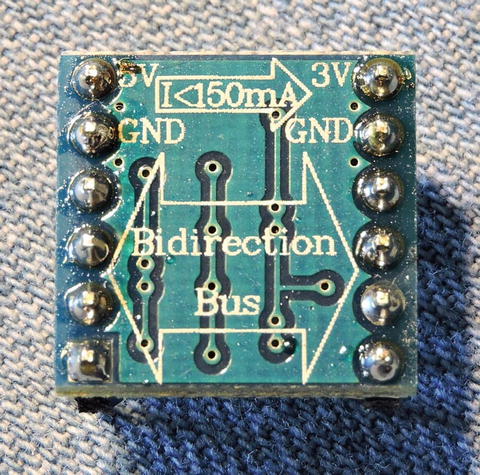
$$ {f}_{OSC}=\frac{0.42}{C_1} $$

The datasheet tells you that a stable debounced output occurs in $$ 4\frac{1}{2} $$-bit shifts. If you used a C 1 value of 0.00022μF, then your clock frequency is rather high at about 1916Hz. For a frequency of 1916Hz, each cycle takes the following:
$$ \frac{1}{1916}\cong 522\;\mu \sec $$

Multiplying that figure by 4.5 times gives you about 2.35ms. That is a rather short debouncing period. Scratchy contacts can require up to 50ms of settling time. Using a value of 0.01μF reduces the clock frequency to 44Hz, which provides a debounce period of 102ms. That should more than suffice for the scratchiest of metal contacts.

Experiment

Wire up your Raspberry Pi using a breadboard and the MC14490 chip according to Figure 5-4, except leave the connection between AO on the chip disconnected from the Pi GPIO#16. Attach a Dupont wire to the Pi’s GPIO#16, while leaving the other end unconnected. You’re going to play with that wire.

A432417_1_En_5_Fig4_HTML.gif
Figure 5-4. One debounced input hooked up to the Raspberry Pi on GPIO#16

Choose a suitable capacitor C 1. I recommend you use 0.01μF or slightly less. This value should be fairly responsive and yet immune to bouncing contacts.

Using the gp command, which was installed as part of the software in Chapter 1, monitor the GPIO input pin 16. Select GPIO#16 (-g16), configure it for input (-i), enable the pull-up resistor (-pu), and monitor that pin forever (-m0), until you hit Control-C.

  gp -g16 -i -pu -m0
Monitoring..
000000 GPIO 16 = 1
000001 GPIO 16 = 0
000002 GPIO 16 = 1
000003 GPIO 16 = 0
000004 GPIO 16 = 1

Once the gp command is monitoring, the session output shows the result of scratching your GPIO#16 wire to ground. You might see several hundred changes in the output. This is what your software would see if you placed a scratchy metal contact button on that input. Now let’s let the MC14490 work its magic.

Note

While it is safest to make circuit changes when your Raspberry Pi is shut down and off, this is time-consuming and inconvenient. With care, some circuit changes can be performed while the power is applied and the Pi is running. However, applying or removing power to breadboarded chips is asking for trouble. It is recommended therefore to wire power connections when the Pi is shut down and off.

Connect the GPIO#16 to the AO output of the MC14490 (pin 15). Next attach another Dupont wire to the MC14490 AIN input. Now try scratching that wire to ground, off and on. Do you get nice clean 1 and 0 outputs?

If you don’t see it working, then check that the capacitor is properly wired in. Don’t use extremely high-valued capacitors like 1 or more μF (in fact, high-valued capacitors may ruin the chip at power off/on). If your oscillator is operating at a very low frequency, you may have to hold the change for a long time to see the output change. On the other hand, if your changes are occurring immediately, then perhaps the oscillating frequency is too high, providing very short debouncing periods. If still no joy and you lack an oscilloscope or logic analyzer, try the PiSpy program from the book Exploring the Raspberry Pi 2 with C++ (Apress, 2016).

With the circuit performing correctly, you can hook up a push button like the one illustrated in Figure 5-5. This is a simple button that I found to be bad for bouncing contacts. Attached directly to the GPIO input without debouncing, this button is simply unusable.

A432417_1_En_5_Fig5_HTML.jpg
Figure 5-5. A cheap scratchy push button, with two wires soldered to it

Attach one wire of the push button to ground and the remaining one to the debouncing input AIN (pin 1). Keep the gp command monitoring (or restart it), and now when you press and release the button, you should get clean, distinct 1 and 0 events. Make sure you push the button with enough force if you don’t see any events. Sometimes these cheaply made buttons don’t function well.

More Inputs

You can’t have too many inputs, and clearly six are not always enough. For the price of another MC14490 chip, you can easily add six more debounced inputs. You don’t even need the extra capacitor.

The schematic in Figure 5-6 illustrates how IC1’s oscillator output can be shared with IC2. Both debouncing chips will run at the same frequency and reduce the number of capacitors needed.

A432417_1_En_5_Fig6_HTML.gif
Figure 5-6. Two MC14490 chips sharing one oscillator

The schematic can be wired up on your breadboard and tested. Here you move the push button to IC2’s AIN and connect the Pi’s GPIO#16 to IC2’s debounced output on pin 15. Wire it up and test it as before to satisfy yourself that this works.

Figure 5-7 shows the two ICs connected to share one oscillator. The scratchy push button was moved to IC2 to prove that it too operates correctly.

A432417_1_En_5_Fig7_HTML.jpg
Figure 5-7. Two MC14490 chips sharing one oscillator, interfacing with GPIO#16

If you download and read the ON Semiconductor datasheet, you’ll find that it is possible to do some other tricks with the MC14490. For example, if you use two debouncers and a NOR gate, you can have one input produce a pulse when the button is pressed. This is useful when you need a pulse, even when the end user holds the button down without releasing it.

Software Debouncing

I’ve discussed one hardware solution in this chapter, but if you don’t mind expending some CPU cycles, you can do the same work in software. Here is one fairly simple approach for software:

  1. Clear your program state by reading the GPIO input (as v) and then doing one of the following:

    1. Set shiftr to 0 if the input v is a 0 bit.

    2. Set shiftr to all 1 bits when the input v is a 1 bit.

  2. At the top of the loop, read the GPIO pin (again) into variable b.

  3. Shift shiftr left one bit, and set shiftr.bit_0=b.

  4. Examine the lower four bits of shiftr.

    1. Are they all 0 bits? Set s=0.

    2. Are they all 1 bits? Set s=1.

    3. If they’re neither all 0 bits or all 1 bits, repeat the exercise starting with step 2.

  5. If s = v, then there is no change. Repeat the exercise starting with step 2.

  6. If sv, then you have a debounced change in signal. Continue with step 7.

  7. Now set the debounced signal as v = s.

  8. Repeat the loop with step 2.

The idea is that you keep shifting bits into a shift register (shiftr) at regular intervals. When the input stays high or stays low, the bits shifted into the register will all be the same.

Let’s use a concrete example, using eight bits to hold shiftr to illustrate the procedure.

  1. 00000000: This is the initial value of shiftr. You also assume that the debounced state is 0.

  2. 00000001: The bit shifted in from the right indicates that the input line went high.

  3. 00000010: Because of bouncing contacts, you shifted in the next read value, which is low.

  4. 00000101: Because of bouncing, the next read value was a high value.

  5. 00001011: Read another high value.

    Steps 2 through 4 have sampled the input line four times now. But the low-order bit pattern is currently 1011, which is neither all 1 bits nor all 0s. So, you don’t register any debounced change in value.

  6. 00010111: Read another 1 bit (line still high). The low-order bits are 0111, which still does not represent a debounced change.

  7. 00101111: Read another 1 bit (line still high). Now when you look at the low-order bits, you see 1111. Because the saved state is 0, this represents a change to the 1 state. You now can set the debounced state to 1.

    From the concrete example, you see that nothing changes until the requisite four lower bits are all 1s. Now as long as you keep reading 1 bits on the line or even mostly 1 bits, the state will never leave the debounced state of 1.

    After a while, the user is going to flip the switch to the opposite state (in this case, grounding the input).

  8. 01011110: Read a 0 bit (the line has gone low).

  9. 10111101: Read a 1 bit because of bouncing contacts.

  10. 01111010: Read a 0 bit (the line has gone low again).

  11. 11110100: Read another 0 bit. The lower four bits are 0100, which is nothing special.

  12. 11101000: Read another 0 bit. There’s still nothing special about the lower four bits.

  13. 11010000 Read another 0-bit. Now the low-order four bits are 0000. This indicates a debounced zero level.

Now you have reached the debounced state for zero.

Whenever the signal waffles between 0 and 1, it pollutes the bit pattern in the shift register so that no action is taken. However, when the signal stabilizes, the bit pattern will be either 0000 or 1111. If the state differs from the pattern, you know that you have a debounced transition.

In this example, I am assuming that you needed four bits. This was arbitrary and inspired by the MC14490 design. I have used three, four, or even five bits depending upon the sampling period and the response time required for various projects.

Experiment

To perform the software signal debouncing experiment, wire up a scratchy push button to your Raspberry Pi, as shown in Figure 5-8.

A432417_1_En_5_Fig8_HTML.gif
Figure 5-8. Software push button debouncing experiment

Change to the debounce subdirectory and type make if the software has not yet been compiled yet. This will create the executable program debounce. Run it as follows, once you have the push button wired up:

$ ./debounce
Now debouncing gpio_pin = 16. ^C to exit.
State changed: 1
State changed: 0
State changed: 1
State changed: 0
State changed: 1
State changed: 0
State changed: 1
^C

This session shows several push button presses and releases. Did your scratching push button work like a good one?

Listing 5-1 shows the software listing for debounce.cpp. Lines 016 to 027 of the main program configures GPIO#16 as an input, with the pull-up resistor applied. The pull-up resistor is necessary so that when the push button is not pressed, the open circuit allows the resistor to pull the GPIO line high. Otherwise, the GPIO line would float and sometimes read high and sometimes low. Not a happy situation!

Line 031 initializes the state variables. The value of state just tracks whether the debounced output is high or low. Variable shiftr is the shift register, loading the most recently read bit into the variable from the right (bit 0). Value b is the most recently read bit from GPIO#16.

Line 036 shifts the most recently read bit from the GPIO into the shift register. Old bits are simply shifted out of the register. Line 037 is where the value of m is assigned the lowest four bits from the shift register.

Things get interesting in line 039 where m is tested to see whether the bit pattern is 0000 or 1111. If one of those patterns applies, line 040 tests to see whether the low-order bit matches the current state. A state change occurs only if the line value differs from what you already have established. If there is indeed a change of state, execution proceeds to line 041 where the new state is saved and a message is printed, for demonstration purposes.

Listing 5-1. The debounce.cpp Software Debouncing Program
001 // debounce.cpp
002
003 #include <stdio.h>
004 #include <unistd.h>
005 #include <stdlib.h>
006 #include <string.h>
007 #include <errno.h>
008
009 #include "gpio.hpp"
010
011 static int gpio_pin    = 16;    // Input
012
013 static GPIO gpio;
014
015 int
016 main(int argc,char **argv) {
017   int rc;
018
019   if ( (rc = gpio.get_error()) != 0 ) {
020          fprintf(stderr,"%s: starting gpio (sudo?)\n",strerror(rc));
021          exit(1);
022    }
023
024   gpio.configure(gpio_pin,GPIO::Input);
025   assert(!gpio.get_error());
026   gpio.configure(gpio_pin,GPIO::Up);
027   assert(!gpio.get_error());
028
029   printf("Now debouncing gpio_pin = %d. ^C to exit.\n",gpio_pin);
030
031   int state = 0, shiftr = 0, m, b;
032
033   for (;;) {
034          b = gpio.read(gpio_pin);   // Read bit
035
036           shiftr = (shiftr << 1) | (b & 1);
037           m = shiftr & 0b00001111;  // Mask out low order bits
038
039           if ( m == 0b00001111 || m == 0b00000000 ) {
040                if ( (shiftr & 1) != state ) {
041                      state = shiftr & 1;
042                      printf("State changed: %d\n",state);
043                 }
044          }
045          usleep(10000);
046    }
047
048   return 0;
049 }

Before the loop repeats, you pause the program’s execution in line 045, with a delay of 10,000μsec (10ms). This step is necessary for two reasons.

  • Without the delay, the CPU would be consumed in a tight execution loop. This is not only wasteful but will cause your Pi to consume more power and get warmer (did you purchase a heatsink for your Pi 3?).

  • You look only at the four lower bits in the shift register (shiftr). If you want to debounce about 40ms of contact bounce and perform this in four samples, then you need to sample about 10ms apart.

So if you want more samples, or quicker response, play with the number of bits and the delay time.

Summary

The MC14490 is a great little chip when you need a hardware solution to debouncing input contacts. These contacts could come from switches, buttons, relays, or reed relay contacts. With the information provided, you will be able to apply this chip at 3.3 volts to the Raspberry Pi and pick the correct capacitor for the type of response you need.

If, however, you decide upon a software solution for debouncing, then the code in this chapter provides a working solution for you.

© Warren Gay 2017

Warren Gay, Custom Raspberry Pi Interfaces, 10.1007/978-1-4842-2406-9_6

6. PCF8591 ADC

Warren Gay

(1)St Catharines, Ontario, Canada

One of the peripherals missing in the Raspberry Pi is an analog-to-digital converter (ADC). One low-cost solution is an 8-bit ADC peripheral based upon the PCF8591 chip. You can purchase the bare chip on eBay for about $1.50, but for about 10 cents more, you can get the assembled YL-40 PCB.

This chapter will explore the PCF8591 ADC and the Linux I2C device driver for it. While the driver source code exists in the kernel source tree, it is not likely compiled into your Raspbian release. Even when installed, there are a few simple things you need to do to get the driver operating. Using the Linux driver support, it will be a snap to take ADC readings using a shell script or a Python program.

The YL-40 PCB

This chapter explores the YL-40 PCB, which is about 1 inch by 1.5 inches in size. You might use a different PCB, using the same PCF8591 chip. The YL-40 comes preassembled with header strips and extras that make it easy to use. In addition to the PCF8591 chip’s ability to convert an analog signal into a digital value, it has one digital-to-analog converter (DAC) output channel, which you’ll explore later. Figure 6-1 illustrates the topside of the YL-40 PCB.

A432417_1_En_6_Fig1_HTML.jpg
Figure 6-1. The YL-40 PCF8591 PCB

Header strip P2 (left) consists of these analog inputs and outputs:

  • AOUT (DAC), output

  • AIN0 (ADC), input 0

  • AIN1 (ADC), input 1

  • AIN2 (ADC), input 2

  • AIN3 (ADC), input 3

The power is applied on the right through P3 connector pins VCC and GND (shown on the right of Figure 6-1). Additionally, the I2C signals for SDA and SCL are found at P3. One of the advantages of the PCF8591 chip is that it will operate from 3.3 volts, interfacing nicely with the Raspberry Pi. Figure 6-2 is a schematic of the YL-40 PCB.

A432417_1_En_6_Fig2_HTML.gif
Figure 6-2. Schematic of the YL-40 PCB

Three jumpers come installed on the YL-40 that enable or disable extra features.

  • Jumper P4, when installed, enables a temperature-sensitive resistance sensor (R6). On my PCB, this didn’t seem to work (on two PCBs that I purchased). Later in this chapter, I’ll show you how to fix that.

  • Jumper P5 enables the light-dependent resistor (LDR) and connects it to AIN0. This jumper can be removed when you want to provide your own analog input to AIN0.

  • Jumper P6 connects the wiper arm of potentiometer R3 to AIN3. Using a small screwdriver, you can turn R3 clockwise or counterclockwise to cause an analog reading to change. This is extremely useful during initial testing. You can, of course, remove the jumper on P6 and use AIN3 for any other purpose. Turning R3 fully clockwise grounds AIN3, while counterclockwise brings AIN3 to VCC potential.

AIN2 has no jumper and is available at header strip P2. No other component on the PCB is attached to it.

Voltage Range

Because the PCF8591 (YL-40 PCB) is powered from the Raspberry Pi’s 3.3V supply, the analog input voltages must be kept between 0 volts and 3.3 volts. The VREF is taken from the power supply on the YL-40 PCB. If you’re wiring this up yourself, you have the option of using a lower VREF voltage, but the maximum voltage should not exceed VDD (on the YL-40 PCB, this is also known as VCC). The datasheet lists any input voltage V I as VDD +0.5V (3.3 + 0.5 volts) as the absolute maximum. The lowest voltage for any input is listed as -0.5 volts.

You can find further technical details by Googling PCF8591 datasheet PDF.

I2C Bus

The PCF8591 uses the I2C bus to communicate. As an I2C slave peripheral, the YL-40 PCB provides two weak pull-up resistors, R8 and R9, which are 10kΩ each. The Raspberry Pi will already have its own pull-up resistors on these lines (1.8K each). If you are rolling your own circuit, you may want to install these 10kΩ pullup resistors also, though they are not strictly necessary.

I2C Addresses

The PCF8591 chip possesses three address pins, A0 to A2, allowing you to choose one of eight possible peripheral addresses from 0x48 to 0x4F. The YL-40 PCB, however, connects all three of these pins to ground, restricting the address to 0x48 (jumpers would have been nice). Unmodified, only one YL-40 PCB can be attached to a given I2C bus. Later in the chapter, you’ll see how the PCB can be modified to overcome this limitation.

DAC (AOUT)

With the Linux device driver operating, you can write a value from 0 to 255 to have the DAC output (AOUT) establish an output voltage. The driver input value, however, must be multiplied by ten. Assuming that you have exactly 3.3 volts powering the PCF8591 (and thus VREF = 3.3 volts), a value of 255 should establish a voltage very near that. A value of zero establishes a ground value instead. A midpoint value of 128 should generate a value near half of 3.3 volts (1.65). When multiplied by 10 for the driver, the values used are 2550, 0, and 1280, respectively.

The YL-40 PCB, however, has a yellow LED D1 through a R4=1 kΩ resistor is connected in series to AOUT (shown up close in Figure 6-3). With the DAC set to produce maximum output, the yellow D1 should light up. But this turns out to be less brilliant than the red power LED D2 beside it. When I measured the voltage, AOUT was only 2.89 volts, which is well short of the expected 3.3 volts. After I removed the LED (D1), the voltage came up to a respectable 3.29 volts and begs the question: just how much current can the DAC drive?

A432417_1_En_6_Fig3_HTML.jpg
Figure 6-3. DAC LED D1 between D2 and C1

A careful look at the NXP datasheet under the heading “14.2 D/A characteristics” lists these parameters:

Symbol

Parameter

Conditions

Min

Typical

Max

Unit

Voa

Analog output voltage

No resistive load

Vss


VDD

V

RL = 10kΩ

Vss


0.9 × VDD

V

The upper line where the conditions state “no resistive load” confirms that the maximum output reading should be VDD (a supply voltage of 3.3 volts). What is interesting is that when a 10 kΩ load is attached, the voltage drops to 0.9 × VDD, or 2.97 volts (0.9 × 3.3 volts).

If you treat the DAC output like a battery, you can determine what the source resistance RS is. A practical battery can be modeled as an ideal battery with a source resistor in series with it. Knowing the source resistance allows you to predict its output voltage for any given current flow (or load resistance). Figure 6-4 illustrates the idea in schematic form.

A432417_1_En_6_Fig4_HTML.gif
Figure 6-4. Equivalent circuit for DAC output AOUT

In Figure 6-4, the ideal battery (VDD) represents the 3.3 volts provided to the PCF8591 chip. The unknown source resistance (RS) is connected to AOUT feeding the load (RL). You know the following from the datasheet:

  • When RL = 10kΩ, the voltage V(RL) is 0.9 × VDD, which in this case is 2.97 volts.

Armed with this information, you can apply Ohm’s law to determine the resistance of RS. Because of this information:

  • Vtotal = V(RS) + V(RL)

  • V(RS) = Vtotal – V(RL)

  • V(RS) = 3.3 volts – 2.97 volts, which is 0.33 volts

you also know the following:

  • V(RL) = 2.97 volts

  • $$ I\left({R}_L\right)=\frac{V\left({R}_L\right)}{R_L}=\frac{2.97 volts}{10 k\varOmega}=0.297 m A $$

This now allows you to calculate RS. Because I(RS) = I(RL) in the series circuit, you get this:

  • $$ {R}_S=\frac{V\left({R}_S\right)}{I\left({R}_S\right)}=\frac{0.33\kern0.5em volts}{0.287\kern0.5em mA}=1.1\kern0.5em k\varOmega $$

From this you can conclude that the series resistance is about 1.1 kΩ. Let’s now apply this information.

If you consider the LED (D1) and its resistor together as RL (the load), using Ohm’s law you can now compute the current flow through the LED (and thus coming out of AOUT).

  • V(RS) = VDD – V(RL), = 3.3 volts – 2.89 volts = 0.41 volts

  • $$ I\left({R}_L\right)= I\left({R}_S\right)=\frac{V\left({R}_S\right)}{R_S}=\frac{0.41\kern0.5em volts}{1.1\kern0.5em k\varOmega}=0.372\kern0.5em m A $$

With an LED current flow of 0.372mA, it is no wonder that the LED is weakly lit! LEDs often require 3mA or more for proper illumination.

All of this highlights the fact that the DAC output at AOUT is not suitable for driving loads requiring current. It does provide a controllable output voltage, however, but it is not capable of any substantial current drive. Use a voltage-to-current driver, when required. This further supports my suggestion for removing or disabling the output LED on the YL-40 PCB.

Removing YL-40 LED D1

Because the YL-40 PCB connects a resistor (R4=1kΩ) and yellow LED to the AOUT circuit, the output accuracy of the DAC is compromised. For this reason, remove D1 if you care about output accuracy. Figure 6-3 illustrates the location of D1 on the YL-40 PCB between the power LED (D2) and capacitor C1. Carefully apply a soldering iron to both ends of D1 to remove it. Make certain that no solder blobs remain to short things out.

Figure 6-5 illustrates the PCB area with D1 removed. On mine, there was a little white triangle underneath showing the direction for LED current flow. The bottom pad (D1 cathode) connects to ground, while the upper pad (D1 anode) connects to R4, which is then connected to AOUT. Measuring resistance from the upper pad (anode) to ground should show a near-infinite resistance after LED removal. Measuring from the same upper pad to AOUT should read about 1 kΩ (the value of R4). If you read something else, check for a solder short.

A432417_1_En_6_Fig5_HTML.jpg
Figure 6-5. LED D1 removed

Hacking YL-40 I2C Address

If you want to use more than one YL-40 module, you’ll need to hack the I2C address for each of the additional modules. Figure 6-6 illustrates the lifting of pin 6 to solder a small wire to it. The other end of the wire is soldered to VDD (pin 16) where the +3.3V supply is connected. In this way, address bit A1 becomes a 1 bit instead of a 0 bit. This change results in the I2C address of 0x4A. The wire I used was solid 30-gauge wire-wrap wire.

A432417_1_En_6_Fig6_HTML.jpg
Figure 6-6. Changing I2C address by lifting pin 6

These pins are small and difficult to work with. With patience and a small prying tool like an eyeglass screwdriver, you may be able to pry up a leg without using a soldering iron. Don’t overdo it or the leg may break off. Once separated from the PCB pad, use a small, tipped soldering iron to apply just enough solder to attach the wire to the pried-up leg.

The PCF8591 address pins are as follows:

Pin No.

Label

Description

5

A0

Least significant address bit

6

A1

Middle address bit

7

A2

Most significant address bit

The YL-40 PCB has all three pins soldered to ground, resulting in an I2C address of 0x48. By lifting address pins and connecting them to +3.3 volts, additional addresses are possible. Table 6-1 summarizes the extra I2C addresses.

Table 6-1. Addresses: Lifted Pins Are 1 Bits, While Soldered Pins Are 0 Bits

A2

A1

A0

I2C Address

0

0

1

0x49

0

1

0

0x4A

0

1

1

0x4B

1

0

0

0x4C

1

0

1

0x4D

1

1

0

0x4E

1

1

1

0x4F

It is important that the lifted pins be connected to +3.3 volts. Otherwise, static electricity will collect on the pins causing the address to change sporadically.

I2C Bus Setup

If you haven’t already done so, install i2c-tools, as shown here:

$ sudo apt-get install i2c-tools

Once installed, then list your I2C buses, as shown here:

$ i2cdetect -l

If nothing is displayed, then you need to change the configuration so that the I2C drivers get loaded at boot time. The new kernels use the /boot/config.txt file to enable I2C support. Edit the file so that the i2c_arm=on line is uncommented, as shown here:

# Uncomment some or all of these to enable the optional hardware interfaces
dtparam=i2c_arm=on
#dtparam=i2s=on
#dtparam=spi=on

Save your changes and reboot.

sudo /sbin/shutdown -r now

After the reboot, try listing the I2C buses again, as shown here:

$ i2cdetect -l
i2c-1 i2c        3f804000.i2c                    I2C adapter

From this session output, you now see i2c-1 is available as expected.

Reading from PCF8591

If you are using the YL-40 PCB, you can read the built-in potentiometer using the in3_input (to change the potentiometer, turn the white control with a small screwdriver). If you built your own PCF8591 circuit, then attach a potentiometer (R3), as shown in the schematic (Figure 6-2). Turning R3 full-clockwise should cause a reading of AIN3 of near 0. Turning R3 full counterclockwise should cause it to read 255.

In subdirectory pcf8591 are a few programs, including readadc (run make if that has not already been done). Invoke the program with option -h to display some usage information, as shown here:

$ ./readadc -h
./readadc [-a address] [-i input] [-h]
where:
      -a address   Specify I2C address
      -i input     Specify AINx (AIN3 is default)
      -d           Enable and leave DAC enabled
      -h           Help

By default, the readadc program assumes I2C address 0x48. To specify a different address, use the -a option and the new address. If the address is prefixed with 0x, the address will be interpreted as hexadecimal. For example, the following will use the I2C address of 4A in hex:

$ ./readadc -a 0x4A

The -i option for readadc defaults to 3 for accessing the chip input channel AIN3. Specifying a different number allows you to read other channels. For example, the following reads from AIN1 with the I2C address of 4A in hex:

$ ./readadc -a 0x4A -i1

Finally, the -d option just enables the DAC output (I’ll discuss this more later).

Experiment

Using the YL-40 PCB, adjust the potentiometer fully clockwise. After doing so, let’s take an ADC reading, as shown here:

$ ./readadc
0

Now turn that potentiometer fully counterclockwise and repeat, as shown here:

$ ./readadc
255

Don’t worry if the value doesn’t read exactly 255. In some cases, you might read 254. This is a good sign that the ADC is working. Now turn the potentiometer to exactly midway between the two extremes.

$ ./readadc
137

If you did better than I did, you might get 127 or 128. With an 8-bit ADC, your range of values are from 0 to 255.

Writing to the DAC

In the same pcf8591 subdirectory is a program named writedac. It accepts nearly the same command-line options, while the trailing arguments are expected to be values to be written to the DAC.

$ ./writedac -h
./writedac [-a address] [-h] values to write...
where:
      -a address   Specify I2C address
      -h           Help

To write the value 128 to the DAC, use the following command:

$ ./writedac 128

or the following:

$ ./writedac 0x80

If multiple values are listed, they are all written to the DAC in sequence before the command exits.

Experiment

You need a voltmeter or DMM for this experiment. Attach the negative lead of the DMM to the ground of the Pi (or PCF8591 module). Set the meter on volts and attach the red lead to the DAC output. This is labeled AOUT on the YL-40 PCB.

With the meter leads attached, you should read about half of 3.3 volts after performing this command:

$ ./writedac 128

This assumes that you have removed the yellow LED, as shown earlier. If you left the LED in, you may see a lower voltage, but it should be well above 0. Now let’s set the DAC to 0:

$ ./writedac 0

Immediately, your meter should read near 0 volts. Finally, set the DAC to its maximum value.

$ ./writedac 255

Your meter should now report nearly 3.3 volts (mine read 3.25 volts).

Try the DAC at 25 percent and 75 percent of its maximum value and verify the voltages.

Experiment

If you lack a means of measuring your DAC voltage, you can use the ADC input to measure the DAC. You want to use the AIN2 channel since it is not connected to any extra components. So, attach a Dupont wire from AIN2 to the AOUT terminal.

There are two things tricky about this experiment:

  • You must specify the -i2 option on the readadc command to read AIN2.

  • You must specify the -d option to keep the DAC enabled.

The following session first establishes the output voltage of the DAC at 255 and then reads AIN2 twice:

$ ./writedac 255
$ ./readadc -i2 -d
255
$ ./readadc -i2 -d
254

From this you have confirmed the DAC output setting. Successive reads can sometimes wander somewhat, so expect that. The -d option of the readadc command is required to keep the DAC enabled because by default the command turns it off. If you can’t repeat the readings of this experiment, this is the first thing to check.

Now change the DAC to 128 and read it back.

$ ./writedac 128
$ ./readadc -i2 -d
177
$ ./readadc -i2 -d
127
$ ./readadc -i2 -d
127

On my unit, the change in DAC output seemed to take a little extra time. Notice that the first read returned 177 and then afterward 127.

Limitations

The PCF8591 chip has some limitations.

  • Its maximum sampling rate is fs=11.1kHz, making it unsuitable for most audio.

  • ADC returns the prior result and the current value (further reducing the effective sample rate).

  • The ADC value is 8-bit resolution.

Despite the limitations, the PCF8591 has some advantages.

  • 3.3V-compatible with the Raspberry Pi

  • I2C enabled

  • Economically priced

  • Built-in Linux driver support

Extending Voltage Range

You’ve already seen the device do direct voltage measurements. But how do you measure voltages greater than 3.3 volts? Use a voltage divider, as shown in Figure 6-7.

A432417_1_En_6_Fig7_HTML.gif
Figure 6-7. Using a voltage divider

The object of the voltage divider is to put the input voltage into a reduced range for the ADC input. Since the ADC is powered from the Raspberry Pi 3.3V supply, the ADC input range is limited to a maximum of 3.3 volts. To extend the range to, say, 16 volts for automotive measurement, you can compute the values of R1 and R2 in Figure 6-7.

The simplified design procedure is as follows:

  1. Arriving at a current flow through R2 of about 1mA, producing 3.3 volts requires that R2 be about 3300Ω: $$ \frac{3.3\kern0.5em volts}{0.0001\kern0.5em Amps}\kern0.5em =\kern0.5em 3300\kern0.5em \varOmega $$

  2. 16 volts minus 3.3 volts means you want a minimum voltage drop across R1 of about 12.7 volts.

  3. To compute R2, use this: $$ {R}_2=\frac{12.7\kern0.5em volts}{0.001\kern0.5em Amps}=12.7\kern0.5em k\varOmega $$

  4. The next 10 percent tolerance resistor value greater than or equal to 12.7kΩ is 15kΩ.

With R1 = 3.1kΩ and R2=15kΩ, let’s check the actual input voltage range achieved.

To get a full reading of 3.3 volts across R2, you require 1mA of current. R1 will have the same current flow as R2 since it is in series. So if 1mA is flowing through R1, you know that it would have a voltage drop of I × R = 1mA × 15000 Ω = 15 volts. Therefore, the total voltage that the divider pair can handle is as follows:

3.3 volts + 15 volts = 18.3 volts

What is the resolution of this range using the 8-bit ADC? An 8-bit resolution means you have a total of 256 steps (28 = 256). Consequently, the resolution is as follows:
$$ \frac{18.3\; volts}{256\; steps}=\frac{0.071\; volts}{256\; steps}=\frac{0.071\; volts}{step} $$

The conclusion is that the 8-bit ADC can measure 0 to 18.3 volts in 0.071V increments.

Repairing the Temp Sensor

With the jumper installed in P4, you can read the current temperature sensed by thermistor R6, which changes in resistance with temperature. The thermistor is in series with the R1=1kΩ resistor, and thus it divides the 3.3V supply. The AIN1 input measures the midpoint voltage of the divide, between the top of R6 and ground.

But there is a problem—the YL-40 module’s PCB didn’t ground the lower leg of R6- It is in fact unconnected. This results in reading the highest value, 255, because the AIN1 input is effectively attached only to the +3.3V supply. With a bit of Googling, you’ll find that others have also experienced this problem.

Fortunately, the solution is not difficult to correct if you have a soldering iron. Figure 6-8 shows how to locate the supposed-to-be-grounded end of R6. Use your DMM to check to see whether that leg and ground shows 0Ω. If it does not, a fix is needed (if your ADC reading is 255, this is already a strong indication that the repair is needed).

A432417_1_En_6_Fig8_HTML.jpg
Figure 6-8. Location of ground end of thermistor R6

Figure 6-9 illustrates the underneath side of R6. Since there are no inner PCB layers, this connection is quite visibly unconnected.

A432417_1_En_6_Fig9_HTML.jpg
Figure 6-9. Bottom view of R6 ungrounded leg

Based on Figure 6-9, you could run a small wire from R6 to the ground post just above and to the right. I believed that to be too risky for short circuits and chose to solder a wire to a ground point shown in the bottom left of Figure 6-10 instead.

A432417_1_En_6_Fig10_HTML.jpg
Figure 6-10. R6 grounded to point, bottom left

Check with the DMM to see that the R6 leg is indeed grounded after soldering. After the repair, you should get a reading from AIN1 near 231 when at room temperature. The reading should definitely be less than the value 255 that was obtained before the repair.

Conversion to Celsius

Reading the temperature of R6 requires some calculation after taking a reading from AIN1. You’ll be using the simplified calculation [1] because you don’t know all of the parameters for the thermistor part. The calculation requires these four steps:

  1. Read AIN1 to get an ADC reading of the voltage at R6 (you’ll assume 234 for this example).

  2. Compute the resistance of R6 based upon the ADC reading.

  3. Compute the temperature in degrees K.

  4. Convert degrees K to degrees Celsius.

To calculate the current resistance of R6, the ADC reading “a” is plugged into the following formula:
$$ {R}_6=\frac{R_1\times a}{256- a} $$

The 256 in the previous formula comes from the fact that the ADC has a resolution of 8 bits (256 steps). Assuming that the reading from the ADC is 234, you plug in the following for variable “a”: $$ {R}_6=\frac{1000\times 234}{256-234}=10,636.36 $$

Now that you know the resistance of R6, you can compute the temperature in degrees Kelvin.
$$ \frac{1}{T}=\frac{1}{T_0}+\frac{1}{B}\times ln\left(\frac{R_6}{R_0}\right) $$

In that formula, the values are as follows:

  • T is the computed temperature in degrees Kelvin.

  • T0 is the room temperature in degrees Kelvin (25°C is 298.15°K).

  • B is the coefficient of the thermistor (adafruit.com claimed 3950).

  • R0 is the resistance at room temperature (adafruit.com claimed 10kΩ).

Plugging everything in, you get the following: $$ \frac{1}{T}=\frac{1}{298.15}+\frac{1}{3950}\times ln\left(\frac{10636.36}{10000}\right)=0.003369 $$
$$ \frac{1}{0.003369}=296.8{}^0\mathrm{K} $$

To convert to degrees Celsius, you use this: $$ 296.8-273.15=23.65{}^0\mathrm{C} $$

Compare your reading with another thermometer in the room. You may want to add or subtract a small calibration offset for your project.

Reading Temperature

To read the temperature-sensitive device (R6) attached to input channel AIN1, you can apply the program readtemp in the pcf8591 subdirectory to read it. This program is almost the same as readadc, except that it defaults to -i1 and performs the somewhat nasty Celsius calculation for you.

$ ./readtemp -h
./readtemp [-a address] [-h]

where:

        -a address     Specify I2C address
        -i input       Specify AINx (AIN1 is default)
        -h             Help

The default options for readtemp are -a0x48 -i1.

Experiment

To read the temperature, simply invoke the following command:

$ ./readtemp
ADC=228, R6 = 8142.9 ohms, T=302.846 deg K, 29.696 deg C

The health monitor in my room reported 28°C, confirming that this is close. The value ADC=228 shows what the ADC peripheral read. R6=8142.9 is the computed resistance of R6. The value T=302.846 is the computed temperature in degrees Kelvin. Finally, the calculated Celsius temperature is reported.

The YL-40 LDR

The YL-40 PCB includes a light-dependent resistor (LDR), which is R7 on the schematic (shown earlier in Figure 6-2). The nature of the LDR is that it has high resistance in the dark and low resistance in light. The change in resistance is relatively slow, making it unsuitable for audio reception, yet it is fast enough for control applications. The YL-40 connects this device to AIN0 when the jumper P5 is installed.

The LDR can be made of various materials and consequently has varying responses to light and wavelengths. Without knowing the exact part and parameters for the one included on the YL-40, you can make only general assumptions about the device used. The tolerances for the part also vary as much as 30 percent [2].

The resistance of the LDR (R7) can be calculated in the same way that you did for the thermistor R6.
$$ {R}_7=\frac{R_2\times a}{256- a} $$

Experiment

In low ambient light conditions, try reading the LDR (R7) on your YL-40 PCB from input channel AIN0. Here I have turned my desk lamp off in the evening:

$ ./readadc -i0
238

The reading of 238 is fairly high. Turning the desk lamp on, the reading drops, as shown here:

$ ./readadc -i0
160

Now if I shine a small LED flashlight directly on the LDR, I get an even lower reading.

$ ./readadc -i0
50

How low does it get in direct sunlight?

1N914 Experiment

The 1N914 is a small glass-encased signal diode, shown up close in Figure 6-11. The cathode (negative) end of the diode is marked with a black band around it. The other end (anode) is positive for forward conduction, according to the conventional flow of electricity. This experiment will measure the voltage-to-current relationship of this diode, using forward current flow.

A432417_1_En_6_Fig11_HTML.jpg
Figure 6-11. 1N914 diode to be tested

You’ll take advantage of the fact that you can establish a small current source from the DAC output AOUT. If the diode being tested were to act as a short circuit, you would want to limit the current to about 1mA for this experiment. You know that full voltage will be near 3.3 volts, so using Ohm’s law, you can calculate the series resistance needed. $$ R=\frac{V}{0.001\kern0.5em A}=\frac{3.3}{0.001}=3300\kern0.5em \varOmega $$

The breadboard circuit is wired according to Figure 6-12, with R1=3.3kΩ in series with the 1N914 diode D1. The voltage will be applied out of the DAC to the series resistor R1, while you take voltage readings at the top of diode D1, into AIN0. The DAC will perform a slow sweep from 0 volts to the maximum. By measuring the voltage at the junction of R1 and D1, you’ll be able to calculate the current in D1 using Ohm’s law.

A432417_1_En_6_Fig12_HTML.gif
Figure 6-12. 1N914 diode circuit

You also measure the voltage provided by the DAC itself using ADC input AIN1. This is done because the drive capability of the DAC is limited in current, causing its output voltage to droop. When the DAC output sags in voltage, you can use the AIN1 reading to more accurately assess the current actually flowing.

The program diode.cpp sets a test DAC voltage and then reads AIN0 and AIN1 to plot the readings. This experiment will use gnuplot-x11 to plot the results, so if you don’t have it installed yet, do the following:

# sudo apt-get install gnuplot-x11

If you ssh’ed into your Pi, make sure you enable X11 Window tunneling with the -X option.

$ ssh -X pi@pi

Further, if you expect gnuplot to open on your remote machine (like your Mac OS X laptop), you need to set up permissions or simply do the following on the display server:

$ xhost +

If you’re using a keyboard and monitor attached to the Pi itself, you can ignore this.

Running the diode program requires no command-line options, unless you need to specify the I2C address.

$ ./diode -h
./diode [-a address] [-h]
where:
      -a address   Specify I2C address
      -h           Help

Once your breadboard circuit is ready, run the diode program.

$ ./diode
DAC 0, AIN0 1, AIN1 1, VD1=0.0, VR=0.0, I=0.0000
DAC 1, AIN0 1, AIN1 1, VD1=0.0, VR=0.0, I=0.0000
DAC 2, AIN0 2, AIN1 2, VD1=0.0, VR=0.0, I=0.0000
DAC 3, AIN0 3, AIN1 3, VD1=0.0, VR=0.0, I=0.0000
DAC 4, AIN0 4, AIN1 4, VD1=0.1, VR=0.0, I=0.0000
DAC 5, AIN0 5, AIN1 5, VD1=0.1, VR=0.0, I=0.0000
DAC 6, AIN0 6, AIN1 6, VD1=0.1, VR=0.0, I=0.0000
DAC 7, AIN0 6, AIN1 7, VD1=0.1, VR=0.0, I=0.0000
DAC 8, AIN0 7, AIN1 7, VD1=0.1, VR=0.0, I=0.0000
DAC 9, AIN0 8, AIN1 8, VD1=0.1, VR=0.0, I=0.0000
DAC 10, AIN0 9, AIN1 9, VD1=0.1, VR=0.0, I=0.0000
DAC 11, AIN0 10, AIN1 10, VD1=0.1, VR=0.0, I=0.0000
...

The program reports several lines to the terminal, which can be helpful in debugging your experiment. The DAC, AIN0, and AIN1 values are reported on each line. Additionally, the calculated VD1, VR, and I are displayed. VD1 and I are written to the file diode.dat. The diode program also writes out the file gnuplot.cmd that you can use to plot the results.

# gnuplot -p gnuplot.cmd

If all went well with gnuplot, you should have a plot displaying the results, as shown in Figure 6-13. If you chose not to remove the LED (D1) from the DAC circuit, you might not reach as high a current as shown, but you should get similar results. If gnuplot is not cooperating, check that your environment variable DISPLAY is set and exported.

A432417_1_En_6_Fig13_HTML.jpg
Figure 6-13. gnuplot of diode test

The plotted results show you that your diode reached a maximum of about 0.0007A in current (0.7mA) when the voltage reached or exceeded 0.6 volts. The curve demonstrates that the diode’s response is exponential in nature, becoming almost linear after the 0.6V level was reached. This is the general characteristic for silicon diodes.

What happens if you try an LED instead? Does color make a difference? Also, try a germanium diode (1N34A).

Software

In this chapter you used the I2C bus driver in Linux to communicate to the PCF8591 device using the provided C++ programs. These are found in the pcf8591 subdirectory and can be cloned and modified for your own purposes. The basics of I2C programming will be discussed in Chapter 11.

Potential Experiments

The following are potential experiment ideas that you can perform using the PCF8591 with any Raspberry Pi:

  1. Measure the voltage of a 1.5V dry cell (of your choice) wired to a flashlight bulb. Measure the voltage over time, measuring the lifetime of the cell. Repeat with different brands, noting the cost of each cell. Construct a chart of the most economical batteries based upon brand, cost, and lifetime.

  2. Repeat experiment 1 for rechargeable cells. How do they compare?

  3. Using the YL-40 LDR, record the moonlight level for a week or more and use gnuplot to plot it.

  4. Place your Pi in the refrigerator and track the light-on time to measure door open times.

  5. Use the DAC to produce a low-frequency sine wave. Produce a triangle, saw, and square waves.

Summary

This chapter showed the versatility of the economical PCF8591 ADC/DAC chip. You also saw the variety of experiments that the YL-40 PCB offers after certain adjustments are made. Despite the limitations of 8-bit resolution, the response of a signal diode was measured and plotted. At the low price of a PCF8591, how can you argue with the geek fun that it provides?

Bibliography

  1. “Thermistor.” Using a Thermistor. Adafruit.com, n.d. Web. 30 Jan. 2016. < https://learn.adafruit.com/thermistor/using-a-thermistor >.

  2. “Measuring Nocturnal Light.” Measuring Nocturnal Light. N.p., n.d. Web. 30 Jan. 2016. < http://home.earthlink.net/∼nevadabat/Moonlight/MoonLight.html >.

© Warren Gay 2017

Warren Gay, Custom Raspberry Pi Interfaces, 10.1007/978-1-4842-2406-9_7

7. Potentiometer Input Controls

Warren Gay

(1)St Catharines, Ontario, Canada

Everyone who has operated a stereo or radio is familiar with the volume control. Besides the tuning knob, this is probably the most used control. The technical name for it is the potentiometer. Because of its lengthy name, it is often referred to simply as the pot.

Because of the hardware access that the Raspberry Pi provides through its GPIO, I2C, and SPI ports, the potentiometer is potentially very useful. This chapter will explore its application.
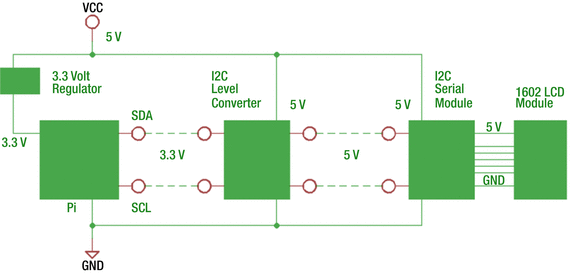
Potentiometers

Figure 7-1 illustrates a small collection of single-turn potentiometer types. Two old knobs for the shafted pot types are shown at the top of the photo. The bottom of the photo presents some small “trimmer” pots. These are known as trimmers because they are used in circuit boards to trim the resistance needed. These are not normally used for user controls.

A432417_1_En_7_Fig1_HTML.jpg
Figure 7-1. A small collection of different potentiometers

The row above the trimmers shows examples of three PCB mount pots on the left and one panel mount pot (with solder lugs) on the right. These will be the primary focus of this chapter because they are the kind that get fitted with knobs for users to twiddle with.

To see how they work, the back protective cover can be removed, as done in Figure 7-2. The protective cover comes off easily with four tabs bent back for removal. On the end of the shaft is a round piece of plastic holding wiper contacts. You can see the fingers of the main wiper contact at 11 o’clock. The other sliding contact is under the middle near the shaft, connecting the wiper arm to the center connection.

A432417_1_En_7_Fig2_HTML.jpg
Figure 7-2. The revealed innards of a PCB potentiometer

The three fingers are designed to reduce the scratching that might otherwise be noticeable when the shaft is rotated. While the wiper is moving, the metal contacts bounce a little, but with three contacts, usually one or more remain in contact with the resistive material.

The range of motion is usually 270°, or approximately three-fourths of full rotation [1]. The wiper moves across the resistive material from about 8 o’clock to about 4 o’clock. The resistive material is made out of some carbon composite material. The resistance between the two outer connections of the pot is fixed in value. But as the wiper moves from one end to the other, the resistance is divided between the two ends. Apply a voltage across the outer connections, and the center connection becomes a voltage divider.

Voltage Dividers

This section is for students who have not studied electronics. Here I’ll explain in layman’s terms how a potentiometer operates as a voltage divider. This concept is important for applying potentiometers with ADC conversion.

Figure 7-3 illustrates the schematic view of a potentiometer. The upper end of the potentiometer is connected to the power supply (in this example), while the bottom end is connected to ground. In between the two ends is the carbon composite resistance that the wiper glides across. This material is shown as a squiggly line using the US schematic convention. The center connection (at right) has an arrow pointing to the resistive material (to the left). This arrow represents the wiper arm for that connection.

A432417_1_En_7_Fig3_HTML.gif
Figure 7-3. Schematic representation of a potentiometer

Some schematics may also show an extra arrow. This schematic has this arrow pointing upward. This means that the wiper arm goes up when rotated fully clockwise [2].

Looking at Figure 7-3, imagine that the wiper arm is 50 percent of the way between the two extremes. This divides the voltage +3.3V (from the top) by half. So, you would expect to measure the following at the center connection:
$$ \frac{3.3\; volts}{2}=1.65\; volts $$

If you rotated the potentiometer fully clockwise, the center connection would measure 3.3 volts (or very close to it), assuming the negative lead of the DMM was connected to ground. This occurs because the wiper arm is virtually in contact with the +3.3V connection of the pot. This is the meaning of that second arrow—it tells you which end of the pot is connected when cranked fully clockwise.

Rotating the pot fully counterclockwise moves the wiper arm toward the grounded end. In this case, you would measure 0 volts (or very nearly). Sometimes there is a small residual amount of resistance involved at either end of the pot, affecting the readings at the rotational extremes.

You should now begin to see the pattern here. If you move the pot to 10 percent above its fully counterclockwise position, you should read 10 percent of the 3.3 volts. That 10 percent of 3.3 volts is 0.33 volts.

The voltage is divided across both halves of the potentiometer. When the pot is positioned at 10 percent (from counterclockwise), you expect 10 percent of the voltage from the wiper to ground. There is also 90 percent of the supply voltage appearing between the supply side and the wiper in the middle. Both will add up to 100 percent, which is why it’s called divided.

This also means that if you measure 0.33 volts between the wiper and ground, there is the following between the supply side and the wiper arm: $$ 3.3\; volts-0.33\; volts=2.97\; volts $$

ADC Circuit

Figure 7-4 shows the basic potentiometer-based control circuit. The idea is that the pot will divide the voltage between the supply voltage and ground. The ADC device will take a voltage reading from the divider and thus determine the position of the potentiometer. When the potentiometer is fully clockwise, the ADC will read maximum voltage; when fully counterclockwise, it will read minimum voltage; and so on.

A432417_1_En_7_Fig4_HTML.gif
Figure 7-4. The basic potentiometer-based ADC circuit

Pot Resistance

As mentioned, the resistance between the two ends of the carbon composite material is fixed. You get variability by moving the wiper across it in a sweeping arc, but the total resistance is fixed. But when you go to select a potentiometer, how do you choose what resistance to order?

It depends upon the input impedance of the ADC device you are interfacing it to. Unfortunately, the PCF8591, for example, doesn’t publish this information. The general principle is that you want to have the potentiometer present much less impedance than the input impedance of the ADC device. This is critical at higher sampling rates. But the rate of change for a human-operated control is rather low, so you can sidestep that issue.
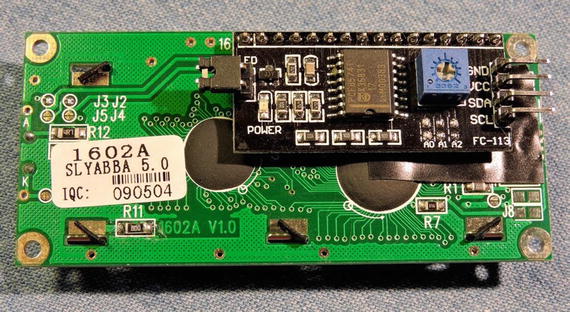
A potentiometer of 1kΩ consumes the following amount of current: $$ \frac{V}{R}=\frac{3.3\; volts}{1000\varOmega}=3.3\; m A $$

If the rather small 3.3mA of current doesn’t put you over your current budget, I recommend that you use a 1kΩ pot. Even a 2kΩ to 5kΩ potentiometer would likely be fine for the PCF8591 if you wanted to save current for battery operation.
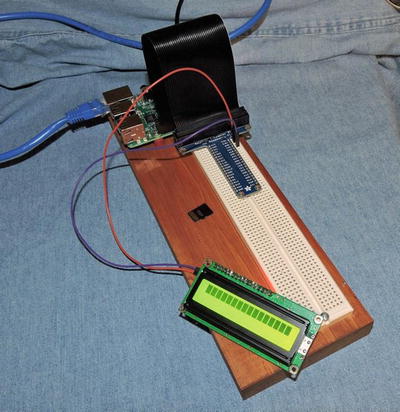
If you know the input impedance of your ADC device, then you can confidently use a higher pot resistance when it is well under. For example, let’s say the ADC input impedance is known to be 100kΩ. The “ten times less” rule would suggest that your input pot resistance should be 10kΩ or less.

Avoid using lower than 1kΩ potentiometers because this results in wasted current. For example, if you used a 100Ω pot, you would be consuming a steady current of 3.3 / 100 = 33mA, which is too much.

Taper

You should be aware that potentiometers come in different tapers. In this chapter, you’re interested in linear taper potentiometers, where the change in resistance follows knob rotation in a linear fashion. With linear changes in voltage, you can easily predict the rotation of the knob in the software from an ADC read.
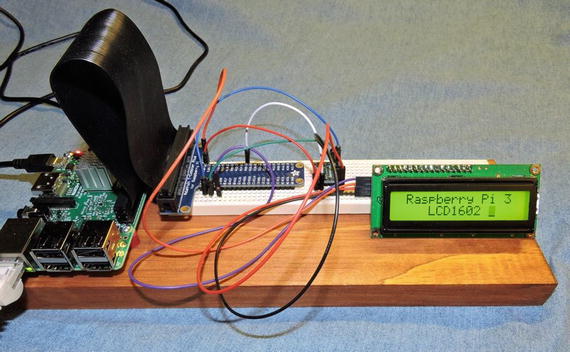
In audio applications, the logarithmic taper is often used because of the way the ear responds to loudness. At low volumes, the ear is sensitive and responds to small changes more than in louder sounds. To make the volume control more natural to use, the low volume part of the pot responds differently than the louder part.

Other types of tapers are possible, such as the “anti-log” taper. These are much less common.
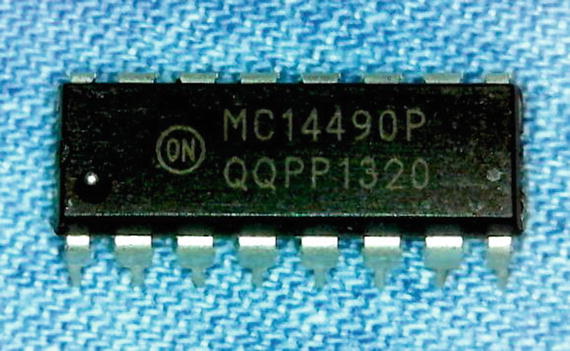
Potentiometers are normally marked with a prefix or suffix letter that indicate their taper. There are different markings in use, but the most common convention is the Asia method. Table 7-1 lists the various marking codes.

Table 7-1. Marking Codes for Potentiometer Taper [3]

Taper

String

Asia (common)

Europe

America

Vishay

Linear

LIN

B

A

B

A

Log/Audio

LOG

A

C

A

L

Anti-log


F

C

F

When ordering your potentiometer, make sure you are buying a linear unit. This usually means that the unit is prefixed with a B. An example of a linear 10kΩ pot would be marked “B10K.”

Effect of ADC Bits

The PCF8591 ADC chip performs a conversion from analog to 8-bit digital. But what does this mean as far as the user control knob? What’s the resolution of this?

Since 8-bit samples range in value from 0 to 28–1, you know that a maximum of 256 (28) steps can be measured. In terms of degrees then, your resolution is computed as follows:
$$ r=\frac{d}{2^b}\;\frac{d egrees}{step} $$ where:

  • d is the range of motion, in degrees.

  • b is the digital sample size, in bits.

If you assume a typical potentiometer with 270 degrees of motion and assume an 8-bit ADC will be used, then you can compute the following: $$ r=\frac{270}{256}=1.05\;\frac{degrees}{step} $$

The 8-bit ADC will report a maximum of 256 steps as the control is rotated from counterclockwise to fully clockwise. As a result of that calculation, you now know that each of those steps requires 1.05 degrees of knob rotation. If you had a 10-bit ADC available, the steps become much finer and resolve to about 0.264 degrees per step.
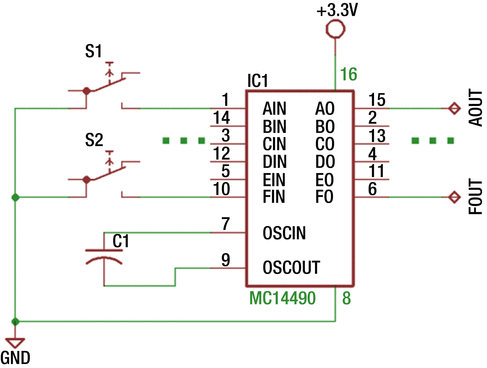
Experiment

This experiment requires that you use the following:

  • YL-40 PCB (PCF8591) ADC (8-bits) or equivalent

  • A linear 1kΩ potentiometer (or higher)

Higher-valued pots should function OK, but try to stay under the 10kΩ limit. Above that, your results may be poor.

Plug your YL-40 (PCF8591) ADC into your breadboard, wire it up to the I2C bus, and start your Pi (with the YL-40 jumpers installed). Review Chapter 6 if necessary. Change to the subdirectory pcf8591 and run the following command (change the I2C address for the -a option if necessary for your unit):

$ ./readadc -a 0x48 -i3

Now turn the YL-40’s white trim pot (marked “103”) counterclockwise. Repeat the read command, and you should read something like this:

$ ./readadc -a 0x48 -i3
247

I purposely didn’t crank mine fully, but it appears that the way the pot is wired on the YL-40 PCB, that counterclockwise will read maximum voltage. Crank the trim pot clockwise and take another reading.

$ ./readadc -a 0x48 -i3
0

You should see a low reading, depending upon how cranked your trim pot was. If you see these results, you can be confident that your ADC framework is working. Now let’s “get off the pot” and use a real control.

Shut down your Pi and turn off the power. Using Figure 7-4, wire one of the ends of the pot to the +3.3V Pi supply. The opposite end should be wired to ground. The middle leg of the pot is the wiper. Attach that to your YL-40 AIN3 input, and remove the PCB jumpers (or just P6). This now connects your pot to the ADC peripheral. Adjust your pot to about midway in its travel.

Figure 7-5 shows my breadboard experiment. I found an old pot and soldered three “bus wires” on each lug so that I could plug it into the breadboard. This was about a 2.5kΩ linear pot. The left leg is Dupont wired (white) to ground, while the right wire (orange) goes to the Pi’s +3.3V supply. The center dark blue wire goes over to the YL-40’s AIN3 connector, seen just above the PCB trim pot. A nice old chicken knob was attached to the pot for good measure.

A432417_1_En_7_Fig5_HTML.jpg
Figure 7-5. My pot experiment using the YL-40 module

When you conduct this experiment with the YL-40, make certain you remove the onboard jumpers (or at least jumper P6). Otherwise, the onboard trim pot will interfere.

After applying power and starting up your Pi again, enter the pcf8591 subdirectory where your readadc executable is. Run the program with the knob twisted to known positions like counterclockwise, 50 percent, and clockwise. If you wired it as I did, you should get a near 0, 128, and 255, respectively.

If your readings are the opposite of these, then try reversing the wiring of the outer legs of the pot (but leave the middle wiper connection where it is). After repeating the experiment, the readings will agree.

At this point you should celebrate because you now have a position encoder. A program can read the ADC input and determine how much the knob is rotated. This has practical uses in the Pi.

Applying Potentiometer Controls

You obviously want to capitalize on what you just performed in the experiment. For example, a pot can be used as a selector, to choose from a menu. A simple selection would simply be to choose one number from 1 to 10. To do this, you need to perform some mapping of your ADC input values. You know that with an 8-bit ADC, your readings will vary between 0 and 255 and will need to be divided into 10 distinct ranges. Each selection will cover the following:
$$ \frac{256}{10}=25.6\; steps $$

Given that the ranges are not evenly divisible, you’ll need to settle for an approximation, as illustrated in Table 7-2.

Table 7-2. Reading Approximations

ADC Range

Number

0–25

1

26–51

2

229–255

10

In software, you can compute the “number” from the ADC reading using the following approximation: $$ n=\frac{ADC}{25.6}+1=\frac{ADC\times 10}{256}+1 $$

If you don’t mind your program doing floating-point calculations, the divide by 25.6 rounded to an integer is fine. If you want to stay within integer calculations, you can multiply the ADC reading by 10 and then divide by 256. Note that you add one in the calculation to arrive at a number starting from 1 rather than 0.

To test this idea, run the program selten as shown here (the options -a and -i are optional and otherwise the same as used by readadc):

$ ./selten -a 0x48 -i3
The selection is 7 (byte = 204)
The selection is 6 (byte = 179)
The selection is 5 (byte = 153)
The selection is 6 (byte = 154)
The selection is 5 (byte = 153)
The selection is 4 (byte = 127)
The selection is 5 (byte = 128)
The selection is 4 (byte = 127)
The selection is 3 (byte = 102)
The selection is 2 (byte = 76)
The selection is 3 (byte = 77)
The selection is 2 (byte = 76)
The selection is 1 (byte = 51)
The selection is 0 (byte = 25)
The selection is 1 (byte = 26)
The selection is 2 (byte = 52)
The selection is 1 (byte = 51)
The selection is 2 (byte = 52)
The selection is 3 (byte = 77)
The selection is 2 (byte = 76)
The selection is 3 (byte = 77)
The selection is 2 (byte = 76)
The selection is 3 (byte = 77)
The selection is 4 (byte = 103)
The selection is 5 (byte = 128)
The selection is 4 (byte = 127)
The selection is 5 (byte = 128)
The selection is 4 (byte = 127)
The selection is 5 (byte = 128)
The selection is 6 (byte = 154)
^C

This program will run until you interrupt it with Control-C. As you rotate the knob and a new number is “selected,” it will be displayed on the console. The program also reports the ADC value (as byte) for demonstration purposes.

Listing 7-1 shows the loop that performs the selection calculation.

Listing 7-1. The Potentiometer Read Loop and Selection Calculation
085     int last = -1, s;
086
087     for (;;) {
088             rc = i2c_read(i2c_addr,i2c_ainx|enable_dac,rbyte);
089             if ( rc == -1 ) {
090                    fprintf(stderr,"%s: reading %s device at 0x%02X\n",
091                            strerror(errno),
092                            i2c_device,
093                            i2c_addr);
094                    exit(1);
095 }
096
097             s = int(rbyte) * 10 / 256;
098             if ( s != last ) {
099                    printf("The selection is %d (byte = %d)\n",
100                            s,rbyte);
101                    last = s;
102             } else {
103                    usleep(1000);
104             }
105    }

The variable last is used to keep track of the last ADC value read, which can never be negative. This forces the first value to be printed in line 099 no matter what the current reading is. The ADC value is read in line 088, which will be a value from 0 to 255 (variable rbyte). Note that rbyte is passed by reference in the call, so it is updated by the function i2c_read. To compute a selection from 1 to 10, the calculation in line 097 is used. This is done entirely in integer arithmetic. The value 256 used in this calculation is 25.6 × 10, not the ADC width 28.

If the computed value s is the same as last, then the program just goes to sleep for 1ms (line 103). This keeps the CPU from being wasted and keeps the I2C bus available for other I/O operations. But if the value has changed, no sleep is performed in case the value might still be changing.

Selection Resolution

It might be tempting to think that a selection of 1 of 256 possibilities with an 8-bit DAC is feasible. But this is not practical because the ADC is not as precise as you need it to be. Factor in the fuzziness of your potentiometer and you’ll soon discover that some of those selections are not that selectable. Finally, a given selection may drift into a neighboring selection as temperature changes affect the ADC readings. These are all practical reasons to downgrade your ADC resolution when turning your pot into a selection mechanism.

The other aspect of control resolution is the amount of movement necessary to achieve a selection. With a 270-degree range of motion and using an 8-bit ADC, each step requires a little more than one degree of movement. Thus, having a user make a selection on that fine a motion is impractical.

Pots make good selection mechanisms, however, if you downgrade their precision. In the selten experiment, it was easy to achieve specific settings because each selection required about 10.5 degrees of motion. The setting can be ±5.25 degrees from the center point and be valid for the selection.

Summary

This chapter explored the application of using potentiometers as an analog input control in combination with ADC. As an analog value, many applications are possible including the typical volume control variety.

As you have seen, potentiometers can also be used as selectors, when the design is right. When the number of selections is within reasonable limits, the pot makes an effective selection control. Because many ADCs have multiple analog inputs, it can be cost effective to sense multiple potentiometers.

Bibliography

  1. “Potentiometer > Resistor Guide.” Potentiometer > Resistor Guide. N.p., n.d. Web. 17 Sept. 2016. < www.resistorguide.com/potentiometer/ >.

  2. “Linear Power-supply Potentiometer Feedback (17/05/16).” Linear Power-supply Potentiometer Feedback. N.p., n.d. Web. 17 Sept. 2016. < http://imajeenyus.com/electronics/20160517_potentiometer_feedback/index.shtml >.

  3. “Potentiometer Taper - Audio Taper > Resistor Guide.” Potentiometer Taper - Audio Taper > Resistor Guide. Accessed September 20, 2016. < www.resistorguide.com/potentiometer-taper/#What_is_potentiometer_taper >.

© Warren Gay 2017

Warren Gay, Custom Raspberry Pi Interfaces, 10.1007/978-1-4842-2406-9_8

8. Rotary Encoders

Warren Gay

(1)St Catharines, Ontario, Canada

Rotary encoders are useful for conveying position input and adjustments. For example, as a tuning knob for software-defined radio (SDR), the rotary control can indicate two things related to frequency tuning.

Determining these two things, the rotary encoder can adjust the tuning in the frequency band in discrete steps higher or lower. This chapter will examine the rotary encoder with the help of the economical Keyes KY-040 device and the software behind it.

Keyes KY-040 Rotary Encoder

While the device is labeled an “Arduino Rotary Encoder,” it is also quite usable in non-Arduino contexts. A search on eBay for KY-040 shows that a PCB and switch can be purchased (assembled) from eBay for about $1.28. Figure 8-1 shows both sides of the PCB unit I purchased.

A432417_1_En_8_Fig1a_HTML.jpgA432417_1_En_8_Fig1b_HTML.jpg
Figure 8-1. The Keyes YL-040 rotary encoder

It is also possible to buy the encoder switch by itself on eBay, but I don’t recommend it. The PCB adds considerable convenience for pennies more than the cost of the switch. But the main reason to buy the assembled PCB unit is to get a working switch. I have given up on buying good rotary switches by themselves from eBay. I suspect that many eBay rotary switch offerings, if not all, are factory rejects and floor sweepings.

The Switch

To help convince you of the need for buying quality, let’s take an inside look at how switches are constructed. Figure 8-2 illustrates the contact side of a switch assembly that I did an autopsy on.

A432417_1_En_8_Fig2_HTML.jpg
Figure 8-2. Contact side of the rotary encoder

Figure 8-2 shows that there is a contact pad (lower left) for the wiper arm. The top portion (right side of the figure) shows the other contact points. The smear seen there is some conductive grease. Figure 8-3 illustrates the wiper half of the assembly.

A432417_1_En_8_Fig3_HTML.jpg
Figure 8-3. The wiper assembly of the rotary encoder

The photos illustrate the cheap nature of the rotary encoders’ construction. They must go through some sort of quality control at the factory, but it wouldn’t take much more than a bent wiper arm to render one faulty.

Figure 8-4 shows the KY-040 schematic without the optional push button switch. The units with the optional push switch have another connection labeled “SW” on the PCB. The return side of that switch connects to ground (GND).

A432417_1_En_8_Fig4_HTML.gif
Figure 8-4. The KY-040 schematic (excluding optional push switch)

The schematic shown focuses on the rotary switches that connect switches A and B to the common point C. The KY-040 PCB includes two 10kΩ pull-up resistors so that when either switch is open, the host will read a high (1 bit). When the A or B switch is closed, this brings the signal level low (0 bit). Finally, note that the KY-040 PCB labels the connections as CLK and DT. According to reference [1], switch A is the CLK connection, while B is the DT connection. These specifics are unimportant to its operation.

Operation

The rotary encoder opens and closes switches A and B as you rotate the knob. As the shaft is turns, both switches alternate between on and off at the detents. The magic occurs in between the detents, however, allowing you to determine the direction of travel. Figure 8-5 illustrates this effect.

A432417_1_En_8_Fig5_HTML.gif
Figure 8-5. Rotary encoder signals

Starting from the first detent shown in Figure 8-5, switches A and B are open, reading 11 in bits (both read high). As the shaft is rotated toward the next detent, switches A and B become both closed (reading as 00). In between the detents however, you can see that switch A closes first (reading as 01), followed by switch B later (now reading 00). The timing of these changes allows you to determine the direction of travel. Had the shaft rotated in the reverse direction, switch B would close first (reading as 10), followed by A.

Voltage

As soon as you see the word Arduino, you should question whether the device is a 5V device because many Arduinos are 5V-based. For the KY-040 PCB, it doesn’t matter. Even though the reference [1] indicates that the supply voltage is 5 volts, it can be supplied the Raspberry Pi level of 3.3 volts instead. The rotary encoder is simply a pair of mechanical switches and has no voltage requirement.

Evaluation Circuit

The evaluation circuit can serve as an educational experiment and double as a test of the component. It is simple to wire up on a breadboard, and if the unit is working correctly, you will get a visual confirmation from the LEDs. Figure 8-6 illustrates the full circuit. The added components are shown at the left, consisting of resistors R 3, R 4 and the pair of LEDs.

A432417_1_En_8_Fig6_HTML.gif
Figure 8-6. KY-040 evaluation circuit

The dropping resistors R 3 and R 4 are designed to limit the current flowing through the LEDs. Depending upon the LEDs you use, these should work fine at 3.3 or 5 volts. Assuming a forward voltage of about 1.8 volts for red LEDs and the circuit powered from 3.3 volts, this should result in approximately:
$$ \frac{3.3-1.8\; volts}{170\varOmega}=\frac{1.5}{170}=8.8\; m A $$

If you want to use less current for smaller LEDs, adjust the resistor higher than 170Ω.

Figure 8-7 illustrates my own simple breadboard test setup. You can see the dropping resistors R 3 and R 4 hiding behind the yellow LEDs that I had on hand at the moment. This test was performed using a power supply of 3.3 volts. The photo was taken with the shaft resting at a detent, which had both switches A and B closed, illuminating both LEDs.

A432417_1_En_8_Fig7_HTML.jpg
Figure 8-7. Evaluation test of the rotary encoder

When rotating the shaft, be sure to hold the shaft (a knob is recommended) securely so that you can see the individual LEDs turn on and off before the shaft snaps to the next detent. You should be able to see individual LED switching as you rotate.

If you see “skips” of LED on/off behavior for LED 1 and/or 2, this may indicate that you have a faulty switch. The only thing you can do for it is to replace it. But do check your wiring and connections carefully before you conclude that.

Interfacing to the Pi

Now it is time to interface this to the Raspberry Pi. Since the KY-040 PCB already provides the pull-up resistors, you only need to connect the + terminal to the Pi’s 3.3V supply and wire the A/CLK and B/DT connections to GPIO inputs. Don’t forget to connect GND to the Pi’s ground.

But before doing so, consider this: what kind of port are the GPIO pins you have selected at boot time? That is, what is their default configuration? If a particular GPIO is an output at boot time and if one or both of the rotary switches are closed, then you are short-circuiting the output until the port is reconfigured as an input. Given the amount of boot time, this could result in a damaged GPIO port.

Before hooking up GPIO ports to switches, you should do one of two things:

  • Use GPIOs that are known to be inputs at boot time (and stay that way).

  • Use isolation resistors to avoid damage when the GPIOs are outputs (best).

Using isolation resistors is highly recommended. By doing this, it won’t matter if the port is initially (or subsequently) configured as an output port. If your isolation resistor is chosen as 1kΩ (for example), the maximum output current will be limited to 3.3mA, which is too low to cause damage. Figure 8-8 illustrates the Pi hookup, using isolation resistors.

A432417_1_En_8_Fig8_HTML.gif
Figure 8-8. Safe hookup of the rotary switch to the Raspberry Pi

The schematic uses 10kΩ isolation resistors to hook up the rotary encoder to the Pi. If the selected GPIOs should ever be configured as outputs, the current will be limited to 0.33mA. Once the GPIOs are reconfigured by your application to be inputs, the readings will occur as if the resistors were not there. This happens because the CMOS inputs are driven mainly by voltage. The miniscule amount of current involved results in almost no voltage drop across the resistors.

Figure 8-9 shows a photo of the breadboard setup. An old knob was put onto the rotary controller to make it easier to rotate. In this experiment, the following GPIOs were used:

A432417_1_En_8_Fig9_HTML.jpg
Figure 8-9. YL-040 rotary encoder hooked up to Raspberry Pi 3
  • GPIO#20 was wired to CLK (via 10kΩ resistor)

  • GPIO#21 was wired to DT (via 10kΩ resistor)

To verify that things are connected correctly, you can use the gp command to verify operation. Here you are testing GPIO #20 to see that it switches on and off:

$ gp -g20 -i -pu -m0
Monitoring..
000000 GPIO 20 = 1
000001 GPIO 20 = 0
000002 GPIO 20 = 1
000003 GPIO 20 = 0
000004 GPIO 20 = 1
000005 GPIO 20 = 0
...

Repeat the same test for GPIO #21.

$ gp -g21 -i -pu -m0
Monitoring..
000000 GPIO 21 = 0
000001 GPIO 21 = 1
000002 GPIO 21 = 0
000003 GPIO 21 = 1
000004 GPIO 21 = 0
000005 GPIO 21 = 1
000006 GPIO 21 = 0

Observe that the switch seems to change cleanly between 1 and 0 without any contact bounce. That may not always happen, however.

Experiment

As a simple programmed experiment, change to the software subdirectory YL-040. If you don’t see the executable yl040a, then type the make command to compile it now. With the circuit wired as in Figure 8-8, run the program yl040a and watch the session output as you turn the knob clockwise. Use Control-C to exit the program.

$ ./yl040a
00
10
11
01
00
^C

You should observe the general pattern shown in Table 8-1, perhaps starting at a different point. You should observe this sequence repeating as you rotate the control clockwise. If not, try counterclockwise. If the pattern shown here occurs in the reverse direction, simply exchange the connections for GPIO #20 and GPIO #21.

Table 8-1. Pattern Observed from Program ./yl040a Run

GPIO #20

GPIO #21

Remarks

0

0

Both switches closed (detent)

1

0

CLK switch opened, DT switch still closed

1

1

Both switches open (detent)

0

1

CLK switch still closed, DT switch opened

0

0

Both switches closed (detent), pattern repeating

Note that the 00 and 11 patterns occur at the detents. The 10 and 01 patterns occur as you rotate from one detent position to the next. Rotating the knob in the reverse direction should yield a pattern like this:

$ ./yl040a
00
01
11
10
00
01
^C

Don’t worry if you see some upset in the sequence runs. There is likely to be some contact bounce that your next program will have to mitigate. The pattern however, should generally show what Table 8-2 illustrates.

Table 8-2. Counterclockwise Rotation Run of the ./yl040a Program

GPIO # 20

GPIO # 21

Remarks

0

0

Both switches closed (detent)

0

1

CLK switch still closed, DT switch opened

1

1

Both switches open (detent)

1

0

CLK switch still open, DT switch closed

0

0

Both switches closed (detent), pattern repeating

From this, you see that rotation in one direction closes or opens a switch ahead of the other, offering information about rotational direction. There is still the problem of contact bounce, which you might have observed from your experiments. The next program will apply debouncing.

Experiment

Chapter 5 showed how software debouncing could be done. You’re going to apply that same technique in program yl040b for this experiment. Run the program and rotate the knob clockwise.

$ ./yl040b
00
10
11
01
00
10
11
01
00
10
11
01
00
10
11
01
00
10
11
^C

In this output, you can see the debounced sequence is faithful until the end. Despite this, it is possible that if you rotated the knob fast enough, there may have been discontinuities in the expected sequence. You’ll need to address this in the software.

Sequence Errors

Error handling in device driver software can be tricky. Let’s begin by looking at what can go wrong. Then let’s decide on an error recovery strategy. Here are events that could go astray:

  • Debouncing was not effective enough, returning erratic events.

  • The control was rotated faster than can be read and debounced.

  • The control became defective or a connection was lost.

You’ll look at code at the end of the chapter, but program yl040b uses 4 bits of shift register to debounce the rotary input. Switch events from a rotary control can occur more rapidly than a push button, so a short debounce period is used, lasting about 68 μsec × 4 = 272 μsec. If you take too long, the control can advance to the next point before you stabilize a reading.

When the control is rotated rapidly, you can lose switch events because the Pi was too busy or because the events occurred too quickly. When this happens, you can have readings appear out of sequence. If you read 00 immediately followed by 11, you do not know the direction of the travel. Lost or mangled events also occur when the control becomes faulty.

So, what do you do when an event occurs out of sequence? Do you:

  • Ignore the error and wait for the control to reach one of the expected two states?

  • Reset your state to the currently read one?

The class RotarySwitch defined in files rotary.hpp and rotary.cpp has taken the first approach. If it encounters an invalid state, it simply returns a “no change” event. Eventually when the control is rotated far enough, it will match one of the two expected next states. The second approach would avoid further lost events but may register events in the wrong direction occasionally.

Experiment

Program yl040c was written to allow you to test-drive the rotary control with a counter. Run the program with the control ready.

$ ./yl040c
Monitoring rotary control:
Step +1, Count 1
Step +1, Count 2
Step +1, Count 3
Step +1, Count 4
Step +1, Count 5
Step -1, Count 4
Step -1, Count 3
Step -1, Count 2
Step -1, Count 1
Step -1, Count 0
Step -1, Count -1
Step -1, Count -2
Step -1, Count -3
Step +1, Count -2
Step +1, Count -1
Step +1, Count 0
^C

The program clearly states the direction of the step as clockwise (+1) or counterclockwise (-1) and reports the affected counter. The counter is taken up to 5 by a clockwise motion and taken back to -3 in a counterclockwise motion and then clockwise again to return to 0. When your control is working properly, this will be an effortless exercise.

FM Dial 1

While your rotary control seems to work nicely, it may not be convenient enough in its current form. To illustrate this, let’s simulate the FM stereo tuner knob with the rotary control. Run the program fm1 with the control ready. Try tuning from end to end of the FM dial (the program starts you in the middle).

$ ./fm1
FM Dial with NO Flywheel Effect.
100.0 MHz
100.1 MHz
100.2 MHz
100.3 MHz
100.4 MHz
100.5 MHz
100.6 MHz
100.7 MHz
100.8 MHz
100.9 MHz
101.0 MHz
101.1 MHz
101.2 MHz
101.3 MHz
101.2 MHz
101.1 MHz
101.0 MHz
100.9 MHz
100.8 MHz
100.7 MHz
100.6 MHz
100.5 MHz
100.4 MHz
100.3 MHz
100.2 MHz
100.1 MHz
100.0 MHz
 99.9 MHz
 99.8 MHz
 99.7 MHz
 99.6 MHz
 99.5 MHz
 99.4 MHz
 99.3 MHz
 99.2 MHz
 99.1 MHz
 99.0 MHz
 99.1 MHz
^C

How convenient was it to go from 100.0MHz down to 99.1MHz? Did you have to twist the knob a lot? To save rotational effort, many electronic controls simulate a “flywheel effect.”

The program fm1 uses the RotarySwitch class, which responds in a simple linear fashion to the rotary encoder. If the control clicks once to the right, it responds by incrementing the count by 1. If it clicks counterclockwise, the counter is decremented by 1 instead. You’ll look at code for this at the end of this chapter.

Spin a bicycle wheel, and it continues to rotate after you stop and watch. Friction causes the rotation to slow and eventually stop. This is flywheel action, and it is convenient to duplicate this in a control. Some high-end stereo and ham radio gear have heavy knobs in place so that they continue to rotate if you spin them fast enough.

FM Dial 2

Let’s repeat the last experiment with the program fm2. In the following example, the dial was turned clockwise slowly at first. Then a more rapid twist was given, and the dial shot up to about 102.0MHz. One more rapid counterclockwise twist took the frequency down to 98.8MHz.

$ ./fm2
FM Dial with Flywheel Effect.
100.0 MHz
100.1 MHz
100.2 MHz
100.3 MHz
100.4 MHz
100.5 MHz
100.6 MHz
100.8 MHz
101.0 MHz
101.2 MHz
101.4 MHz
101.6 MHz
101.7 MHz
101.8 MHz
101.9 MHz
102.0 MHz
101.9 MHz
101.8 MHz
101.7 MHz
101.6 MHz
101.5 MHz
101.3 MHz
101.0 MHz
100.8 MHz
100.6 MHz
100.2 MHz
 99.8 MHz
 99.5 MHz
 99.3 MHz
 99.1 MHz
 98.9 MHz
 98.8 MHz
 98.7 MHz
 98.6 MHz
 98.7 MHz
 98.8 MHz
 98.9 MHz
 99.0 MHz

With a more vigorous twist of the knob, you can quickly go from one end of the dial to the other. Yet, when rotation speeds are reduced, you have full control with fine adjustments. It is important to retain this later quality.

The following session output demonstrates some vigorous tuning changes:

$ ./fm2
FM Dial with Flywheel Effect.
100.0 MHz
100.1 MHz
100.2 MHz
100.3 MHz
100.4 MHz
100.5 MHz
100.8 MHz
101.4 MHz
102.3 MHz
103.4 MHz
104.6 MHz
105.8 MHz
107.2 MHz
107.9 MHz
107.9 MHz
107.9 MHz
107.9 MHz
107.9 MHz
107.9 MHz
107.8 MHz
107.7 MHz
107.6 MHz
107.5 MHz
107.4 MHz
107.2 MHz
106.7 MHz
105.8 MHz
104.3 MHz
102.2 MHz
 99.8 MHz
 97.2 MHz
 94.6 MHz
 91.9 MHz
 89.2 MHz
 88.1 MHz
 88.1 MHz
 88.1 MHz
 88.1 MHz

Class Switch

To keep the programs simple, I’ve built up the programs using C++ classes. The GPIO class is from the librpi2 library, which you should have installed already (see Chapter 1). This gives you convenient direct access to the GPIO ports.

Listing 8-1 illustrates the Switch class definition. This functions well as the contract between the end user and the implementation of the class. Aside from instantiating the Switch class in the user program, the only method call that is of interest is the read() method, which reads from the GPIO port and debounces the signal.

Listing 8-1. The Switch Class for Handling Rotary Encoder Contacts and Debouncing in switch.hpp
009 /*
010  * Class for a single switch
011  */
012 class Switch {
013     GPIO&          gpio;   // GPIO Access
014     int            gport;  // GPIO Port #
015     unsigned       mask;   // Debounce mask
016     unsigned       shiftr; // Debouncing shift register
017     unsigned       state;  // Current debounced state
018
019 public: Switch(GPIO& gpio,int port,unsigned mask=0xF);
020     unsigned read();       // Read debounced
021 };

Listing 8-2 shows the constructor for this class. The reference (argument agpio) to the caller’s instance of the GPIO class is saved in the Switch class for later use in line 010 (as gpio). The GPIO port chosen for this switch is indicated in aport and saved in gport. The value of amask defaults to the value of 0x0F, which specifies that 4 bits are to be used for debouncing. You can reduce the number of bits to 3 bits by specifying the value of 0x07.

Listing 8-2. The Switch Class Constructor Code in switch.cpp
006 /*
007  * Single switch class, with debounce:
008  */
009 Switch::Switch(GPIO& agpio,int aport,unsigned amask)
010 : gpio(agpio), gport(aport), mask(amask) {
011
012     shiftr = 0;
013     state = 0;
014
015     // Configure GPIO port as input
016     gpio.configure(gport,GPIO::Input);
017     assert(!gpio.get_error());
018
019     // Configure GPIO port with pull-up
020     gpio.configure(gport,GPIO::Up);
021     assert(!gpio.get_error());
022 }

The shift register for debouncing (shiftr) is initialized to 0 in line 012, and the variable state is initialized to 0 also. Line 016 configures the specified GPIO port as an input and activates its pull-up resistor in line 020.

The assert() macros used will cause an abort if the expressions provided ever evaluate as false. These give the programmer the assurance that nothing unexpected has happened. They can be disabled by defining the macro NDEBUG at compile time, if you like. The cost of these is low, so I usually leave them compiled in.

Listing 8-3 illustrates the code for reading the switch and debouncing the contacts. The algorithm used is the same procedure as described in Chapter 5.

Listing 8-3. The Switch::read() Method for Debouncing Contacts in switch.cpp
024 /*
025  * Read debounced switch state:
026  */
027 unsigned
028 Switch::read() {
029     unsigned b = gpio.read(gport);
030     unsigned s;
031
032     shiftr = (shiftr << 1) | (b & 1);
033     s = shiftr & mask;
034
035     if ( s != mask && s != 0x00 )
036            return state;   // Bouncing: return state
037     if ( s == state )
038             return state;  // No change
039     state = shiftr & 1;    // Set new state
040     return state;
041 }

The Switch class provides input and debouncing for only one contact. To make a rotary control, you need to debounce two switches. For that, you define the RotarySwitch class shown in Listing 8-4.

Listing 8-4. The RotarySwitch Class for Debouncing and Reading in rotary.hpp
008 /*
009  * Class for a (pair) rotary switch:
010  */
011 class RotarySwitch {
012     Switch         clk;    // CLK pin
013     Switch         dt;     // DT pin
014     unsigned       index;  // Index into states[]
015 protected:
016     unsigned read_pair();  // Read (CLK << 1) | DT
017
018 public: RotarySwitch(GPIO& gpio,int clk,int dt,unsigned mask=0xF);
019     int read();            // Returns +1, 0 or -1
020 };

In the RotarySwitch class, notice how the two switch contacts are handled by two Switch class instances named clk and dt (lines 012 and 013). Line 014 declares a variable index, which will be described shortly. The class method read_pair() is declared in the protected region so that when using class inheritance, you will have access to it (line 016). The constructor in line 018 is almost the same as Switch, except that you have two GPIO numbers provided for clk and dt.

Listing 8-5 shows the read_pair() method code. It reads a bit from switches clk and dt and returns them as a pair of bits for convenience. Lumping them together in this way provides some programming convenience.

Listing 8-5. RotarySwitch::read_pair() Method in rotary.cpp
029 /*
030  * Protected: Read switch pair
031  */
032 unsigned
033 RotarySwitch::read_pair() {
034   return (clk.read() << 1) | dt.read();
035 }

Listing 8-6 shows the more interesting code. To read the encoder, a small table is used, declared in lines 008 and 009. These identify the next bit pairs expected when rotation is progressing clockwise.

Listing 8-6. The RotarySwitch::read() Method for Interpreting the Rotary Encoder in rotary.cpp
05 /*
006  * State array for CLK & DT switch settings:
007  */
008 static unsigned states[4] =
009     { 0b00, 0b10, 0b11, 0b01 };
010
...
038 /*
039  * Read rotary switch:
040  *
041  * RETURNS:
042  * +1      Rotated clockwise
043  *  0      No change
044  * -1      Rotated counter-clockwise
045  */
046 int
047 RotarySwitch::read() {
048     unsigned pair = read_pair();
049     unsigned cw = (index + 1) % 4;
050     unsigned ccw = (index + 3) % 4;
051
052     if ( pair != states[index] ) {
053             // State has changed
054             if ( pair == states[cw] ) {
055                    index = cw;
056                    return (pair == 0b11 || pair == 0b00) ? +1 : 0;
057             } else if ( pair == states[ccw] ) {
058                    index = ccw;
059                    return (pair == 0b11 || pair == 0b00) ? -1 : 0;
060             }
061    }
062
063    return 0;        // No change
064 }

As the comments document (lines 041 to 044), the RotarySwitch::read() method returns a signed value.

  • +1 when the control has rotated clockwise

  • -1 if in the reverse

  • 0 if there was no event to report

The first operation is to read from the pair of switches (line 048). This bit pair is debounced thanks to the work of the Switch class that was used to manage them. The values cw and ccw are the computed next index values into array states for clockwise and counterclockwise (lines 049 and 050).

Line 052 checks to see whether the value read (variable pair) has changed from the last time. If so, an event has happened, and line 054 tests to see whether you went clockwise. If so, the value of index is updated in line 055 and a +1 or 0 is returned. The +1 is returned, however, only if the control is now at one of the detent positions where pair reads as 0b00 or 0b11. Otherwise, you pretend that nothing happened by returning 0. Lines 057 to 059 perform the same function for counterclockwise. Failing all else, line 063 returns 0 to indicate that nothing interesting happened.

Listing 8-7 shows how the class Flywheel inherits from class RotarySwitch. This allows you to leverage what you’ve already built, while adding the flywheel effect on top. The constructor in line 019 for Flywheel is the same as for RotarySwitch. Like before, the Flywheel::read() method returns the same values.

Listing 8-7. Class Flywheel for Rotary Control with Flywheel Effect, in flywheel.hpp
011 /*
012  * Class for a (pair) Rotary switch:
013  */
014 class Flywheel : public RotarySwitch {
015     timespec       t0;     // Time of last motion
016     double         ival;   // Last interval time
017     int            lastr;  // Last returned value r
018
019 public: Flywheel(GPIO& gpio,int clk,int dt,unsigned mask=0xF);
020     int read();            // Returns +1, 0 or -1
021 };

To implement the Flywheel class, you need a fine set of timing functions. Listing 8-8 shows some local functions that are used by the class. The function get_time() is used to get time with nanosecond precision. It should be understood, however, that the time returned in the structure timespec may not be that accurate but is provided in seconds (member tv_sec) and nanoseconds (member tv_nsec).

Listing 8-8. The Local Static Functions Used by the Flywheel Implementation, in flywheel.cpp
009 static inline void
010 get_time(timespec& tv) {
011   int rc = clock_gettime(CLOCK_MONOTONIC,&tv);
012   assert(!rc);
013 }
014
015 static inline double
016 as_double(const timespec& tv) {
017   return double(tv.tv_sec) + double(tv.tv_nsec) / 1000000000.0;
018 }
019
020 static inline double
021 timediff(const timespec& t0,const timespec& t1) {
022   double d0 = as_double(t0), d1 = as_double(t1);
023
024   return d1 - d0;
025 }
026
027 Flywheel::Flywheel(GPIO& agpio,int aclk,int adt,unsigned amask)
028 : RotarySwitch(agpio,aclk,adt,amask) {
029
030   get_time(t0);
031   lastr = 0;
032 };

The function as_double() in lines 015 to 018 convert the timespec value into a double value, which is more convenient to compute with. The routine timediff() in lines 020 to 025 compute the time difference in seconds.

The constructor in lines 027 to 032 initializes the inherited RotarySwitch class (line 028) and initializes t0 with a start time.

Listing 8-9 is the main star of this chapter, illustrating the extra code used to implement the flywheel effect. Line 035 replaces the RotarySwitch::read() method for this class with new code and tricks.

Listing 8-9. The Meat of the Flywheel Class in flywheel.cpp
034 int
035 Flywheel::read() {
036     static const double speed = 15.0; // Lower values change faster
037     timespec t1;                   // Time now
038     double diff, rate;             // Difference, rate
039     int r, m = 1;                  // Return r, m multiple
040
041     r = RotarySwitch::read();       // Get reading (debounced)
042     get_time(t1);                   // Now
043     diff = timediff(t0,t1);         // Diff in seconds
044
045     if ( r != 0 ) {                // Got a click event
046             lastr = r;             // Save the event type
047             ival = ( ival * 0.75 + diff * 1.25 ) / 2.0 * 1.10;
048             if ( ival < 1.0 && ival > 0.00001 ) {
049                    rate = 1.0 / ival;
050             } else rate = 0.0;
051             t0 = t1;
052             if ( speed > 0.0 )
053                    m = rate / speed;
054    } else if ( diff > ival && ival >= 0.000001 ) {
055            rate = 1.0 / ival;      // Compute a rate
056            if ( rate > 15.0 ) {
057                    if ( speed > 0.0 )
058                            m = rate / speed;
059                    ival *= 1.2;    // Increase interval
060                    t0 = t1;
061                    r = lastr;      // Return last r
062            }
063     }
064
065     return m > 0 ? r * m : r;
066 }

Line 041 uses the original RotarySwitch::read() call to read the value of +1, 0, or -1 depending upon the rotary control. But the Flywheel version of read() will perform some additional processing.

Line 042 assigns the current time in nanoseconds to t1. Using the start time t0, the elapsed time from the last event is computed in line 043 (variable diff). This difference in time is a floating-point value in seconds but includes the fractional difference in nanoseconds. If the control has been sitting idle for a long time, this difference may be very long for the first time (perhaps minutes or hours). However, successive events will have time differences of perhaps of 10 milliseconds.

Line 045 tests to see whether you got an event in variable r. If there was rotation, r will be nonzero. The rotation event is recorded for later use in line 046 (variable lastr). Then a weighted average is computed from the prior interval and current difference in line 047 (stored in variable ival). An additional 10 percent is added to the value by multiplying by 1.10. The rationale for this adjustment will be revealed shortly, including why lines 048 to 053 compute a rate value and a multiple m.

Lines 045 to 053 just described operate when there is a rotational event—either the control has clicked over, clockwise or clockwise. But what happens after quickly rotating the knob and releasing it? Or slowing down?

When there is no rotational event in line 045, control passes to line 054 to test whether the current time difference (diff) is greater than the last computed interval ival. Recall that the weighted value of ival had 10 percent added to it (at the end of line 047). As the rotational rate increases, the time difference between events gets smaller (diff). So, as long as this time interval decreases or remains about the same, the generated flywheel events are suppressed. In fact, the rate of rotation would have to drop below 10 percent of the current weighted average before the flywheeling applies. By doing this, expected events that occur on time are handled normally. Only when expected next events are late do you consider synthesizing events in the flywheeling code.

Line 054 also insists that the last weighted interval time (ival) is greater than 0.000001. This is a rate-limiting action on the flywheeling effect. Line 055 computes a rate, which is the inverse of time interval (ival). Only when the rate rises above 15.0 do you synthesize more flywheel events (line 056). The variable speed is hard-coded with the value 15.0 (line 036). It is used to compute the multiple m from the rate using division (lines 053 and 058). If you change the value of speed to zero, there will be no multiplying effect.

The effect of the multiple of m is to increase the value returned from a simple +1 to, say, a +8, when the rotational rate is high. This applies to line 065. When the rotational rate slows, the multiple has less effect, and the control responds in smaller increments.

In the flywheeling section in line 059, you compute a next interval time (ival). Here the interval time has 20 percent added to it so that it slows and becomes less likely to synthesize another event. This reduces the next rate calculation in line 056. As ival is increased, eventually the rate value drops below 15.0 and then ceases to synthesize any more events. Lines 060 and 061 reset the timer t0 and set the returned r to the lastr value saved. Line 065 brings it all together by applying multiple m and r.

Main Routine

To knit this all together, let’s review the main program for fm2.cpp, which uses the Flywheel class. Because the tricky stuff is located inside the class implementation code, the main programs used in this chapter are essentially the same. Listing 8-10 presents fm2.cpp.

Listing 8-10. The Main Program for fm2.cpp
012 #include "flywheel.hpp"
013
014 /*
015  * Main test program:
016  */
017 int
018 main(int argc,char **argv) {
019     GPIO gpio;             // GPIO access object
020     int rc, counter = 1000;
021
022     // Check initialization of GPIO class:
023     if ( (rc = gpio.get_error()) != 0 ) {
024             fprintf(stderr,"%s: starting gpio (sudo?)\n",strerror(rc));
025            exit(1);
026     }
027
028     puts("FM Dial with Flywheel Effect.");
029     printf("%5.1lf MHz\n",double(counter)/10.0);
030
031     // Instantiate our rotary switch:
032     Flywheel rsw(gpio,20,21);
033
034     // Loop reading rotary switch for changes:
035     for (;;) {
036            rc = rsw.read();
037             if ( rc != 0 ) {
038                    // Position changed:
039                    counter += rc;
040                    if ( counter < 881 )
041                            counter = 881;
042                    else if ( counter > 1079 )
043                            counter = 1079;
044                    printf("%5.1lf MHz\n",double(counter)/10.0);
045              } else {
046                    // No position change
047                    usleep(1);
048              }
049     }
050
051     return 0;
052 }

The GPIO class is instantiated as gpio in line 019, and errors are checked in lines 023 to 026. The Flywheel class is instantiated in line 032, with the gpio class passed in as part of the constructor.

The main loop consists of lines 035 to 049. If you read a rotational event, then lines 038 to 044 are executed. Otherwise, a delay of usleep(1) is performed in line 047. On the Raspberry Pi 3 this takes about 68μsec and serves only to pass control to some other process needing the CPU. According to htop(1), this uses about 27 percent of one core. You can increase the sleep time to something above 68μsec to reduce this overhead. But if you overdo the delay, the control will become less responsive.

Summary

In this chapter you discovered rotary encoders and applied the principles of contact debouncing to a reliable read position. From this foundation, you saw code to sense rotary motion and apply flywheeling to make the control more effective. This refashions the humble rotary control as a powerful user input for the Raspberry Pi.

Bibliography

  1. “Keyes KY-040 Arduino Rotary Encoder User Manual.” Henrys Bench. 2015. Accessed August 13, 2016. < http://henrysbench.capnfatz.com/henrys-bench/arduino-sensors-and-input/keyes-ky-040-arduino-rotary-encoder-user-manual/ >.

© Warren Gay 2017

Warren Gay, Custom Raspberry Pi Interfaces, 10.1007/978-1-4842-2406-9_9

9. More Pi Inputs with 74HC165

Warren Gay

(1)St Catharines, Ontario, Canada

When you consider how many GPIO pins have special functions, you might find that there aren’t always enough inputs to choose from. This can be an issue when many of the alternate functions are being used (SPI, I2C, UART, PWM, and so on). One way to cost effectively expand the number of Pi inputs is to attach one or more 74HC165 CMOS chips. These are available from digikey.com for as little as a dollar. Figure 9-1 illustrates an example of the 16-pin dual inline package (DIP) chip.

A432417_1_En_9_Fig1_HTML.jpg
Figure 9-1. The 74HC165 16-pin DIP

74HC165 Pinout

The 74HC165 is a CMOS device that will operate nicely with the Pi’s 3.3V system. When ordering, make sure that the part number includes the logic family “HC” designation in it. The plain 74165 part, for example, is a 5V part, which will not work at 3.3 volts. Still other logic families will be unsuitable for other reasons. You should also be aware that you want to order the DIP form of the chip (shown in Figure 9-1). Otherwise, your chip will not fit your breadboard and be too small for soldering.

Figure 9-2 illustrates the schematic pinout of the device. Different manufacturers label the pins differently even though the pins serve the same purpose. The labels used by NXP have been added around the outside of the chip in the figure, which correspond with the ones I chose to use in this chapter.

A432417_1_En_9_Fig2_HTML.gif
Figure 9-2. 74HC165 pinout

Table 9-1 summarizes the functions of the pins for this device (additional input pins D1 through D6 have been omitted).

Table 9-1. Summary of Pin Functions

Pin

NXP Label

Other Designations

Description

15

/CE

INH

Chip enable (inhibit)

1

/PL

SH/LD

Parallel load (shift/load)

2

CP

CLK

Clock pulse

9

Q7

QH

High bit (noninverted)

7

/Q7

QH

High bit (inverted)

10

DS

SER

Serial input data

11

D0

A

Least significant parallel input bit

6

D7

H

Most significant parallel input bit

For your benefit, realize that /CE indicates the same thing as CE—. The leading slash or the overhead bar indicates that the signal is “active low.” The CE— (chip enable) input is active when it is low. The same pin is labeled by other manufacturers (like Fairchild Semiconductor, for example) as the INH (inhibit). Since the INH is active high (no bar overhead), the end result is the same; that is, the chip is not enabled when the INH signal is in the high state. These are just two different sides of the same logic function.

Some chips are sufficiently complex that they need a function table to clarify the interaction of the various inputs and outputs. The following section includes a function table adapted from the Fairchild datasheet.

Function Table

Table 9-2 helps you view the behavior of functions at a glance. When looking at this for the first time, you should study it long enough to understand it. These charts are invaluable and will save you time in the future.

Table 9-2. 74HC165 Function Table

Inputs

Internal Outputs

Output

/PL

/CE

CP

DS

Parallel


QH


A…H

QA

QB


L

X

X

X

a…h

a

b

h

H

L

L

X

X

QA0

QB0

QH0

H

L

ʿ

H

X

H

QAN

QGN

H

L

ʿ

L

X

L

QAN

QGN

H

H

X

X

X

QA0

QB0

QH0

The first obvious characteristic of this table is that symbols like L, H, and X are used. Table 9-3 summarizes the meaning of these symbols. These are fairly self-explanatory, but I’ll describe them in detail.

Table 9-3. Legend for Table 9-2

Symbol

Meaning

H

High level, steady state

L

Low level, steady state

X

Irrelevant (don’t care)

ʿ

Signal transition from low to high level

QA0, QB0, QH0

The level of QA, QB or QH, respectively, before the indicated steady-state input conditions were established

QAN, QGN

The level of QA or QG before the most recent ʿ transition of the clock, indicating a 1-bit shift

The first row of Table 9-2 shows the state of input pin /PL as being “L” (low). The remaining inputs /CE, CP, and DS are shown as an X. This means that while /PL is active (low), these other inputs have no effect (are irrelevant). Under the “Parallel” column, you see that inputs “a” through “h” modify the internal state of internal latches Q A and Q B (and implied Q C to Q H ). Here I adopted the Fairchild convention for the input labels for association with the outputs (these are D0 through D7 inputs using NXP labels). Finally, note that Q H is actually an output pin. This is the highest-order bit in the shift register that is made available externally to the chip. So, whenever /PL is applied, the data presented at H (D0) will appear at pin Q H . None of the other inputs participates in this operation (including the chip enable).

For the remaining rows of the function table, the state of /PL is high. Except for the last row, you see rows 2, 3, and 4 have /CE as enabled (L). When the clock (CP) is low (L), you see that the state of the DS shift input pin is marked as an X and thus has no relevance in this state. The output pin Q H shows QH0 in the table, which simply means that it retains the last latched value.

The third and fourth rows of the function table show an up arrow for the clock (CP). This means that when the clock signal goes from a low state (L) to high (H), the transition causes the shift register to shift. The state of the input pin DS is copied to the first shift register latch Q A , while the other values from Q A to Q G get copied to the next bit position. The prior value of Q H is lost in this operation (shifted out).

The last row of the function table is also important. When the /PL signal and the /CE are inactive (not L), you see that the remaining inputs are marked with X. In this state, the CP, DS, and inputs D0 (A) through D7 (H) have no effect on the state of the chip.

Breadboard Experiment

Figure 9-3 illustrates the circuit for wiring up to your Raspberry Pi. You can safely use the Pi’s 3.3V power since the CMOS chip uses very little current (much less than 1mA). Don’t forget to connect the Pi’s ground to pin 8 of the chip to complete the power circuit.

A432417_1_En_9_Fig3_HTML.gif
Figure 9-3. Breadboard schematic

Note that the unused input SER is connected to ground. You could alternatively connect this to the supply, but it must be connected. CMOS inputs should always be established, whether low or high, and never left “floating.”

To use the supplied software (in the hc165 subdirectory) without modification, use the GPIO connections shown. If you’re willing to modify the C++ code, then you can use different GPIO pins. The connections to inputs D0 through D7 in the schematic are completely arbitrary. The schematic is wired to cause the value of 0x82 to be received by the test program. Bits D1 (B) and D7 (H) are connected to the +3.3V supply so that those bits will be read as 1 bits, while all the remaining pins will read as 0. Attach buttons or switches or change the wiring if you like after you have proven that it works.

Figure 9-4 illustrates my wired breadboard using Dupont wires. The wiring looks like a rat’s nest only because all data inputs of a CMOS device need to be wired to either ground or the supply. Most of the wires are connecting the parallel inputs to ground. One can never have too many Dupont wires!

A432417_1_En_9_Fig4_HTML.jpg
Figure 9-4. Breadboard wiring

Program

The program found in the hc165 subdirectory is a little illustration program that can be used to test your breadboard setup, partially illustrated in Listing 9-1. Lines 010 through 013 can be changed to match the GPIO pins that you have chosen to use. Line 015 sets the usleep(3) sleep time to 1μsec. In practice, it will take considerably longer, requiring about 65μsec on the Pi 3 (70μsec on Pi 2). This is because of the overhead of entering the kernel and returning.

You can take advantage of the librpi2 library to save time and effort. The main program for hc165.cpp configures the GPIOs as inputs and outputs, as required (not shown here).

Listing 9-1. Partial Rendering of hc165.cpp
010 static int hc165_pl = 16;   // Outputs
011 static int hc165_ce = 6;
012 static int hc165_cp = 5;
013 static int hc165_q7 = 23;   // Input
014
015 static unsigned usecs = 1;
016 static GPIO gpio;
017
018 static void
019 nap() {
020     usleep(usecs);
021 }
022
023 static void
024 strobe(int pin) {
025     nap();
026     gpio.write(hc165_pl,0);         // Load parallel
027     nap();
028     gpio.write(hc165_pl,1);         // Loaded
029     nap();
030 }
031
032 static unsigned
033 hc165_read() {
034     unsigned byte = 0;
035
036     strobe(hc165_pl);               // Load parallel
037     gpio.write(hc165_cp,0);         // CP = low
038     gpio.write(hc165_ce,0);         // /CE = low
039     nap();
040
041     for ( int x=0; x<8; ++x ) {
042             byte <<= 1;
043             byte |= !!gpio.read(hc165_q7);  // Read Q7
044             gpio.write(hc165_cp,1);         // Shift
045             nap();
046             gpio.write(hc165_cp,0);         // Complete clock pulse
047             nap();
048     }
049     gpio.write(hc165_ce,1);
050     return byte;
051 }

Lines 023 to 030 show the strobe() function. All it does is set the /PL line low and then high again with some nap times in between. If the signals change too quickly, the CMOS chip will be unable to keep up.

The hc165_read() function returns an unsigned value representing the shifted-out inputs from the 74HC165. The first operation is to strobe the input data into the chip using the strobe() function. Then the clock signal is set to low in preparation of the shift to come. The /CE is also set low to enable the chip’s operation.

The loop in lines 041 through 048 successively reads the bit from Q7 and shifts it into the value byte. Once this has been done eight times, the /CE is set high again, and the value is returned.

Use the make command to compile the code.

pi@rpi3:∼/src/hc165 $ make
g++ hc165.o -o ./hc165 -L/home/pi/rpi2016/hc165/..//lib -lrpi2 -lrt -lm
sudo chown root ./hc165
sudo chmod u+s ./hc165

Since direct use of the GPIO ports requires root access, the make procedure gives the executable hc165 root setuid access. This saves you from having to use sudo in order to run the program.

After your breadboard is ready, run the program, as follows:

pi@rpi3:∼/src/hc165 $ ./hc165
byte = 82
pi@rpi3:∼/src/hc165 $

If you wired your breadboard as shown in Figure 9-3, you should see the program report “byte = 82” (hex). Otherwise, other values will reflect the state of your shift register inputs.

Logic Analyzer View

Figure 9-5 shows a logic analyzer capture of an input operation. From this you can visualize the /PL going low to clock the data into the shift register. You see /CE go low to activate the chip, and on the rising edge of the clock (CP), you can see data changes in Q7. The highest bit b7 is shifted out first, ending with least significant bit b0. When all is complete, the /CE goes high again.

A432417_1_En_9_Fig5_HTML.jpg
Figure 9-5. Logic analyzer capture

The actual bit read operation in line 043 of the program occurs just before the clock (CP) goes high. This leaves plenty of time for the shift register data output to stabilize.

You have used the call usleep(3) with an argument of 1 to cause the program to give up the CPU and come back as early as the kernel can (the call indicates to sleep for 1μsec). However, there is overhead just going into the kernel so that by the time it has done so, it is time to return. The time of each usleep(3) call amounted to about 65μsec.

Profit and Loss

Let’s take a moment to take stock of what you gained and lost using the 74HC165 chip. To gain eight more input pins, you had to allocate three output and one input GPIOs. This is an improvement of 50 percent. But what did you lose? More time is involved.

Referring to Figure 9-5, you can see that there is about 10 time periods involved in reading in the 8 inputs. The program used a usleep(3) call for 1μsec, but that turned into about 65μsec because of kernel overhead. If you assume those numbers, you then require the following:
$$ 10\times 65=650\; usec $$

This means each read of eight bits requires about 0.7ms. By computing the inverse of this, you can determine the maximum number of reads per second, as follows: $$ \frac{1000 ms}{0.65 ms}=\frac{1,538 reads}{second} $$

For many applications like reading a switch or a push button, this is quite acceptable. But other applications may need a higher sampling rate.

Even More Inputs

What if you need more than eight additional inputs? This is easily accomplished by adding another 74HC165, without requiring additional GPIOs. The schematic in Figure 9-6 shows how this can be wired to accomplish this.

A432417_1_En_9_Fig6_HTML.gif
Figure 9-6. Expanding the use of 74HC165 to 16 inputs

You can see that the /CP, /CE, and /PL connections are simply parallel-connected to the same pins of IC2. The only thing new is that the Q7 (QH) output from IC2 now connects to IC1’s SER input (pin 10). This allows the data shifted out of IC2 to shift into IC1, as the bits are being read by the Pi. Performing 16 shifts instead of 8, the Pi will be able to read all 16. How does this impact your read times?

The bit periods involved will be approximately 10+8, or 18 periods. $$ 18\times 65\; usec=1.170\; ms $$

For about 80 percent more time, you get eight more bits of data. This arrangement will allow you to do about 855 reads per second.

The code change required is minor; you simply change the loop in line 041 to loop for 16 times instead of 8. See Listing 9-2 for the change.

Listing 9-2. Change Required to Read 16 Bits
041     for ( int x=0; x<16; ++x ) {
042             byte <<= 1;
043             byte |= !!gpio.read(hc165_q7);  // Read Q7
044             gpio.write(hc165_cp,1);         // Shift
045             nap();
046             gpio.write(hc165_cp,0);         // Complete clock pulse
047             nap();
048     }

Other Bit Counts

There is no law that says that you must read a multiple of eight bits of input data. For example, using one 74HC165 chip, your application might require only six inputs. In this case, line 041 of Listing 9-2 could be changed to loop only six times instead of eight. Let’s calculate the impact of that change.
$$ 2+6=8\; time\; periods $$

Assuming 65μsec for each time period, this results in a read time as follows: $$ 8\times 65=0.520\; ms $$

This translates to the following: $$ \frac{1000\; ms}{0.52\; ms}=\frac{1,923\; reads}{second} $$

By customizing your I/O to match your data needs, you can improve the I/O bandwidth of your interface.

Combining GPIOs

Sometimes you can economize your GPIO usage when combining with other peripherals. Chapter 10 looks at adding outputs with the use of the 74HC595 chip. It too will require a /CE (chip enable), a clock pulse (CP), and a data latching signal (/PL). If you share the /CE, CP, and /PL GPIO signals with both your input and output devices, you would need only one more GPIO to send data out. The input and output bits can be handled at the same time (on separate GPIOs) so that your I/O transfer rate is not affected. This topic will be explored further in Chapter 10.

Chip Enable

If the GPIOs are dedicated only to your 74HC165 chip, you can make a further optimization: simply ground the /CE input. Referring to Table 9-2, notice that the parallel load (/PL) signal operates regardless of the state of the /CE input. If you ground the /CE signal going into the 74HC165, the chip is always enabled. This allows you to reduce the required GPIO signals to just /PL, CP, and the Q7 lines. If, on the other hand, you share these GPIOs with multiple devices, then the /CE signal remains necessary to select the chip to activate.

As an experiment, disconnect GPIO #6 from pin 15 (/CE). Then connect pin 15 (/CE) to ground. When you run the ./hc165 program (unmodified), it should still function as before. This will prove that the /PL input is independent of the /CE input.

As a further experiment, comment out all of the /CE (GPIO #6) references in the program and try again. If the modifications are correct, you should be able to repeat the read of the device successfully with only three GPIO signals.

CD4012B

The 74HC165 is not the only chip available. There is also the CMOS CD4012B device, which can run from 3.3V and requires very little current. The pinout differs, but the operation is similar.

Summary

This chapter has demonstrated that for as little as a dollar you can exchange four GPIOs for eight inputs. If you need even more inputs, you can obtain eight more for a dollar more. You learned about datasheet “function tables” and became familiar with the signals that drive the 74HC165 shift register. The next chapter will introduce the 74HC595 chip for adding GPIO outputs to your Pi.

© Warren Gay 2017

Warren Gay, Custom Raspberry Pi Interfaces, 10.1007/978-1-4842-2406-9_10

10. More Pi Outputs with 74HC595

Warren Gay

(1)St Catharines, Ontario, Canada

Like input GPIOs in Chapter 9, the application designer may require more GPIO outputs. Because this 74HC595 part is a member of the “HC” logic family, it is able to operate with a VCC ranging from 2.0 to 6.0 volts. This is perfect for operating under the 3.3V Raspberry Pi and costs less than a dollar at digikey.com. Figure 10-1 illustrates a chip that I’ve used.

A432417_1_En_10_Fig1_HTML.jpg
Figure 10-1. 74HC595 serial in, parallel out shift register

Note that the HCT family is designed for TTL input levels. I focus on the HC devices in this chapter because the device must interface to the CMOS-based Raspberry Pi.

74HC165 Pinout

Figure 10-2 provides a schematic pinout for the 74HC595 chip. Once again, different manufacturers use different labels for the various pins.

A432417_1_En_10_Fig2_HTML.gif
Figure 10-2. 74HC595 pinout

Table 10-1 documents the pins, the schematic labels, the NXP labels (not shown in Figure 10-2), and the pin functions for this chip.

Table 10-1. 74HC595 Pins and Functions

Pin

Schematic Label

NXP Label

Function

11

SCLK

SHCP

Shift clock

14

SDA

DS

Shift (in) data

12

LATCH

STCP

Latch (clock pulse)

10

RST

MR

(Master) reset

13

OE

OE

Output enable

15

Q0

Q0

Output Q0 (least significant bit)

7

Q7

Q7

Output Q7 (most significant bit)

9

Q7S

Q7S

Serial data output (for chaining)

Function Table

Table 10-2 is an adaptation of the NXP-provided table, except that it uses the labels provided by the EAGLE software in Figure 10-2. In addition to the legend provided in Chapter 9’s Figure 9-3, there are two new symbols: NC, which means “No Change,” and Z, which means “high impedance” (essentially disconnected from the circuit).

Table 10-2. Function Table for 74HC595

Controls

Input

Output

SCLK

STCP

OE

MR

DS

Q7S

Qn

X

X

L

L

L

L

NC

X

ʿ

L

L

L

L

L

X

X

H

L

L

L

Z

ʿ

X

L

H

D

Q6S

NC

X

ʿ

L

X

X

NC

QnS

ʿ

ʿ

L

X

X

Q6S

Qns

When the MR (reset) signal goes low (in the first line of the table), you can see that there are no changes on the outputs (Qn = NC), but it does clear the internal shift register. This is true whether the OE (output enable) signal is active or not (lines 2 and 3).

Line 3 shows you, however, that when the OE signal is inactive (high), the shift register outputs Q0 through Q7 (Qn) go into a high impedance (Z) state. In other words, these outputs become disconnected from the circuit that they are wired to.

Line 4 applies when MR is inactive (H), OE is active (L), and the signal SCLK (ʿ) goes from low to high. Here I used “D” to indicate a data bit is copied into the shift register bit Q0 (as ON Semiconductor does). The remaining shift registers’ cells are shifted to the next position. This results in the Q7 bit being replaced with the prior state of Q6. Note that the parallel latched outputs Q0 through Q7 remain unchanged (NC).

While OE remains active (L) in line 5, the rising signal STCP (ʿ) causes the shift register bits to appear externally at Q0 through Q7. This latching operation has no effect on the internal shift register contents, which is why output Q7S shows no change (NC).

The last line of the function table indicates that you can shift a data bit into the internal shift register and simultaneously latch that result so that it is externally visible. This can save a little bit of time in the output cycle.

Breadboard Experiment

Figure 10-3 illustrates the breadboard circuit for the 74HC595 chip. In this arrangement, you hardwire the OE pin to ground. This means that the outputs Q0 through Q7 will always be enabled. The clock pulses are wired to GPIO#5 as in the previous chapter. The LATCH signal is active when there is a low to high transition.

A432417_1_En_10_Fig3_HTML.gif
Figure 10-3. Breadboard circuit for 74HC595 output

You can take advantage of the /PL line as used in Chapter 9. Sharing that GPIO is possible because the input 74HC165 loads data while this line is low. The output 74HC595 will latch its outputs when the signal goes from low to high. You can, of course, use a different GPIO for this purpose if your application demands it. I’ll discuss GPIO sharing in more detail later.

Finally, you need GPIO #24 for passing data into the 74HC595 shift register from the Pi. You can use different GPIO assignments, but this is what the supplied source code will use for this experiment.

Lastly, this experiment ties the RST input to the +3.3V supply. This reset input is active low, so you tie it high so that it doesn’t become active for this experiment.

Unlike the 74HC165 input chip, you have no remaining inputs to wire to ground or the supply. CMOS outputs can be left without connections.

In the subdirectory hc595, you will find the Makefile and program hc595.cpp. Change to that directory and type make.

$ cd ./hc595
$ make
g++ -c -std=c++11 -Wall -Wno-deprecated -Wno-narrowing -I. -I/usr/local/include/librpi2 -g -O0 hc595.cpp -o hc595.o
g++ hc595.o -o ./hc595 -L/home/pi/rpi2016/hc595/..//lib -lrpi2 -lrt -lm
sudo chown root ./hc595
sudo chmod u+s ./hc595

Once again, note that the program hc595 has been given setuid permission so that you won’t need to run it with sudo. Root permission is required to access the GPIO registers directly. Listing 10-1 shows the program area of interest.

Listing 10-1. Program hc595.cpp
008 #include "gpio.hpp"
009
010 static int hc595_latch      = 16;  // Outputs
011 static int hc595_sclk = 5;
012 static int hc595_sda = 24;
013
014 static unsigned usecs = 1;
015 static GPIO gpio;
016
017 static void
018 nap() {
019   usleep(usecs);
020 }
021
022 static void
023 hc595_write(unsigned data) {
024   unsigned b, temp = data;
025
026   gpio.write(hc595_sclk,0);             // SCLK = low
027   gpio.write(hc595_latch,0);            // LATCH = low
028   nap();
029
030   for ( int x=0; x<8; ++x ) {
031         b = !!(temp & 0x80);            // b = d7 (msb first)
032          temp <<= 1;
033          gpio.write(hc595_sda,b);       // SDA = data bit
034          nap();                         // Wait
035          gpio.write(hc595_sclk,1);      // SCLK low -> high
036          nap();
037          gpio.write(hc595_sclk,0);      // Complete clock pulse
038          nap();
039    }
040    gpio.write(hc595_latch,1);           // Latch data to outputs
041    nap();
042    printf("Wrote %02X to 74HC595\n",data);
043 }

The main program (not shown) configures the GPIOs as outputs. If no command-line arguments are given, a call is made to hc595_write(0xD5) to transmit that bit pattern to the output chip. If other command-line parameters are provided, those values are written instead.

The hc595_write() routine starts by making sure that the SCK and LATCH signals are set to the low level (lines 026 and 027), followed by a delay. Line 024 has copied the data value into variable temp for use in the loop.

In the for loop of lines 030 to 039, this temp value is sampled at bit 7 and stored in variable b. The double !! operator just converts a nonzero result (in b) into the value 1 and otherwise to the value 0. Then line 032 shifts the variable temp one position to the left for the next loop iteration.

Line 033 writes the data bit value in b out to GPIO hc595_sda (GPIO #24). This establishes the high or low value to be shifted into the output register. Line 034 delays so that the signal transitions don’t happen too fast for the chip. Line 035 raises the clock signal (SCLK) from low to high. This will clock the data bit into the output chip. Line 037 returns the clock signal low again after a delay.

After all eight bits of data are shifted into the output chip, the LATCH signal is activated in line 040. Recall that it is the transition from low to high that makes the shift register chip’s output available on the chip output pins (Q0 through Q7). There is one more delay following this operation so that if the output routine gets called back to back, sufficient time will exist between signal changes.

Experiment Run

The schematic in Figure 10-3 did not have anything shown connected to the outputs Q0 through Q7. The experiment can be run without any connections if you have a DMM to measure the output levels with. Simply take a meter reading, and if the value is a high level, note a 1 bit.

If you want a visual indication, you can attach LEDs with a dropping resistor in series. Depending upon the manufacturer, the absolute maximum output of each pin is 25mA (Fairchild). The chip is further limited by its maximum power dissipation, when every output is driving full current. The Fairchild datasheet indicates 600mW as the absolute maximum power dissipation. If you limit each output to a maximum of 22mA, you just fit within that parameter. $$ 22\; m A\; x\;8\; pins\; x\;3.3\; volts=580\; m W $$

Most LEDs will light with considerably less than this. Google LED voltage drop and you will find that many red LEDs will require about 1.8 volts. Taking this into account, you can compute the dropping resistor required.
$$ {R}_{LED}=\frac{V_{CC}-{V}_{LED}}{I_{LED}} $$

Assuming a modest current of 10mA for the LED and substituting allows you to compute the series dropping resistor. $$ {R}_{LED}=\frac{3.3\; V-1.8\; V}{10\; mA}=150\;\varOmega $$

Figure 10-4 illustrates, in schematic form, the circuit necessary to attach to the output pins for Q0 through Q7. If you don’t mind moving the Dupont wires around, you can get by with just one LED.

A432417_1_En_10_Fig4_HTML.gif
Figure 10-4. LED hookup with series dropping resistor

Running the program with no command-line arguments will output the hexadecimal value of D5.

$ ./hc595
Wrote D5 to 74HC595

The hc595 program reports the value written to the 74HC595 chip. With this hex value (11010101 in binary), you should observe the following parallel data output:

  • Q7 is high.

  • Q6 is high.

  • Q5 is low.

  • Q4 is high.

  • Q3 is low.

  • Q2 is high.

  • Q1 is low.

  • Q0 is high.

Obviously, if you measure something else, then something is incorrect.

Input and Output

Let’s now look at combining the output 74HC595 with the input 74HC165 chips, using shared GPIO lines. Figure 10-5 illustrates the schematic circuit. IC1 is the 74HC595 that I’ve been discussing in this chapter, while IC2 is the added 74HC165 chip that was examined in Chapter 9.

A432417_1_En_10_Fig5_HTML.gif
Figure 10-5. Combined output with input breadboard circuit

In this experiment, you’ve connected the outputs Q0 through Q7 to the inputs A through H of the 74HC165 chip. By doing this, your software should be able to output a value and then read it back as verification. The chip enable (INH) of IC2 has been wired to ground, since there is no need to select a chip. As before, the unused input SER of IC2 has also been tied to ground to eliminate any floating inputs.
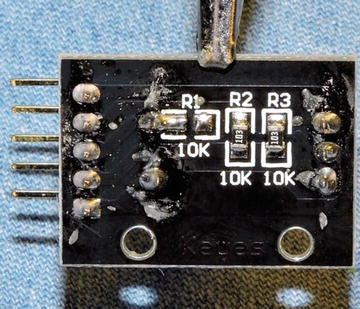
The circuit shares GPIO #5 and GPIO #16 with both chips. GPIO #5 supplies the clock pulse, while GPIO #16 supplies the LD signal for IC2 and the LATCH symbol for IC1. The unshared GPIOs include #23 used for reading data, while GPIO #24 is used to supply data to IC1.

Listing 10-2 shows the interesting aspects of the code. Lines 010 to 013 allocate the GPIOs being used. Pin gpio_qh is the serial data in from the 74HC165, while gpio_sda is the serial data going out to the 74HC595. The gpio_latch and gpio_sclk lines are shared between the two chips.

Listing 10-2. Program hc165_595.cpp
010 static int gpio_qh          = 23;  // Input
011 static int gpio_latch       = 16;  // Outputs
012 static int gpio_sclk        = 5;
013 static int gpio_sda         = 24;
014
015 static unsigned usecs = 1;
016 static GPIO gpio;
017
018 static void
019 nap() {
020   usleep(usecs);
021 }
022
023 static unsigned
024 io(unsigned data) {
025   unsigned b, ib, temp = data;
026   unsigned idata = 0u;
027
028   gpio.write(gpio_sclk,0);             // SCLK = low
029   nap();
030
031   for ( int x=0; x<8; ++x ) {
032         ib = gpio.read(gpio_qh);       // Read 74HC165 QH output
033         idata = (idata << 1) | ib;     // Collect input bits
034
035         b = !!(temp & 0x80);           // Set b to output data bit
036         temp <<= 1;
037
038         gpio.write(gpio_sda,b);        // write data bit
039         nap();                         // Wait
040          gpio.write(gpio_sclk,1);      // SCLK low -> high (shift data)
041         nap();
042         gpio.write(gpio_sclk,0);       // Complete clock pulse
043         nap();
044   }
045   gpio.write(gpio_latch,0);            // Set new inputs
046   nap();
047   gpio.write(gpio_latch,1);            // Latch data to outputs
048   nap();
049   printf("Read %02X, Wrote %02X\n",idata,data);
050
051   return idata;
052 }

The function io() has been written to send and receive data. The data sent out is manipulated in temporary variable temp in lines 035 and 036. The data being read is accumulated in temporary variable idata in lines 032 and 033. At the conclusion, the values read and written are reported in line 049.

The main program invokes io() with values ranging from 0x00 through 0xFF and then the two additional values 0x00 and 0x01.

$ ./hc165_595
Read 01, Wrote 00
Read 02, Wrote 01
Read 00, Wrote 02
Read 01, Wrote 03
Read 02, Wrote 04
Read 03, Wrote 05
Read 04, Wrote 06
...snip...
Read FB, Wrote FD
Read FC, Wrote FE
Read FD, Wrote FF
Read FE, Wrote 00
Read FF, Wrote 01

The first value read (and reported) should be disregarded. It is reporting the current value in the shift register, which may be garbage the first time around. The second value also should be disregarded since this will represent the uninitialized value of the output register, as you will see.

Looking at the general pattern, you can see that the input values are two cycles behind what was last written. Here’s an example:

Read FC, Wrote FE

Here you can observe that the read value was hexadecimal FC, while the currently written value is FE. The reason for this is subtle. Let’s break down the operations involved.

  1. The LD signal of the 74HC165 goes low to capture its inputs, which is wired to the 74HC595 outputs Q0 through Q7.

  2. When the LD signal returns high, the 74HC165 shift register holds 0xFC to send back to the Pi (this was the current 74HC595 output value).

  3. However, in step 2, a low to high transition clocks in the new outputs for the 74HC595 outputs (which the 74HC165 chip has not yet seen).

  4. The clock line shifts in eight more bits to the output IC1 chip, while the Pi reads the captured data in IC2.

Consequently, the Pi will read 0xFC, while just having written out 0xFE. The output value 0xFE will not be seen on the IC1 outputs until the next cycle’s step 2. These details can get confusing. Figure 10-6 illustrates my own breadboard experiment.

A432417_1_En_10_Fig6_HTML.gif
Figure 10-6. 74HC595 and 74HC165 breadboard experiment

Additional Outputs

Additional outputs can be had by adding another 74HC595 chip. Figure 10-7 shows the schematic for doing so. The SDA and LATCH signals are attached in parallel, and IC2’s data input comes from IC1’s output Q7S (pin 9).

A432417_1_En_10_Fig7_HTML.jpg
Figure 10-7. Two 74HC595 chips used for 16-bit output

Profit and Loss

The breadboard experiment in Figure 10-5 was a demonstration of eight outputs and eight inputs. These required four GPIO pins to manage it. This is a 400 percent improvement in GPIO ports. The cost, however, is the extra time required to shift in/out the data. The Figure 10-5 experiment illustrated that the total time was reduced by performing input and output simultaneously.

Summary

This chapter demonstrated how you can easily add GPIO outputs to your Pi for the cost of about $1. Even more outputs can be had with additional chips. Finally, you exercised both input and output chips simultaneously to gain 16 I/O pins using only four allocated GPIO ports.

Beyond the Pi’s GPIO ports used, the 74HC165 and 74HC595 chips required no software configuration, making them simple to use. The next chapter will introduce another way to add I/O pins to your Pi. But this will require software configuration.

© Warren Gay 2017

Warren Gay, Custom Raspberry Pi Interfaces, 10.1007/978-1-4842-2406-9_11

11. MCP23017 I/O Port Extender

Warren Gay

(1)St Catharines, Ontario, Canada

While it is possible to add input and output ports with various CMOS chips, sometimes more flexibility is required. The pin functions of chips like the 74HC165 and 74HC595 are fixed as input or output. Sometimes it is desirable to be able to configure them as required like the Raspberry Pi’s own GPIO ports. This chapter will examine the Microchip MCP23017 peripheral chip, which can offer any combination of 16 GPIO ports (in DIP form), each of which can be individually configured as input or output. Figure 11-1 illustrates the chip sitting on a breadboard.

A432417_1_En_11_Fig1_HTML.jpg
Figure 11-1. An MCP23017 chip on the breadboard

MCP23017

Microchip’s MCP23017 can be purchased for as little as $1.99; it communicates with the Pi over the I2C bus. Because the I2C bus requires only two power lines and two data lines, it needs only a four-conductor ribbon cable and thus can cover some distance. Figure 11-2 shows the schematic pinout.

A432417_1_En_11_Fig2_HTML.gif
Figure 11-2. MCP23017 pinout

The active low RESET pin can be tied to the supply if not required, since a software reset is still possible. The signal forces a chip reset like the name implies.

The SCL and SDA are the two I2C communication connections. Chip inputs A0 through A2 allow you to configure the I2C address for the chip. Grounding them gives the chip address 0x20. Table 11-1 summarizes the addresses.

Table 11-1. MCP23017 I2C Addresses

A2

A1

A0

Address (Hex)

0

0

0

0x20

0

0

1

0x21

0

1

0

0x22

0

1

1

0x23

1

0

0

0x24

1

0

1

0x25

1

1

0

0x26

1

1

1

0x27

The INTA and INTB output pins are optional signals that can provide interrupt notification to the Raspberry Pi over one or two GPIO ports. The remaining pins GPA0 through GPA7 and GPB0 through GPB7 provide 16 more GPIO ports, which are under software configuration control.

Wiring

Figure 11-3 shows the wiring necessary to attach the MCP23017 to the Raspberry Pi. On the breadboard, simply wire the T-Cobbler connections marked SCL and SDA to pins 12 and 13, respectively.

A432417_1_En_11_Fig3_HTML.gif
Figure 11-3. MCP2301 wired to the Raspberry Pi

Make certain that the RESET pin is also wired to the supply so that it doesn’t become active. For simplicity and agreement with the provided software, connect inputs A0 through A2 to ground. This configures the chip to respond to I2C address 0x20. Signals INTA and INTB are outputs and can be ignored for the moment.

After reset, the MCP23017 chip automatically configures all the GPAx and GPBx pins as inputs, without a pull-up resistor. This is not ideal because this leaves the CMOS inputs floating. But for this initial experiment, the chip should tolerate it.

If you haven’t already done so, install i2c-tools.

$ sudo apt-get install i2c-tools

Once installed, then list your I2C buses.

$ i2cdetect -l

If nothing is displayed, then you need to make sure that the I2C drivers get loaded. The new kernels now use the /boot/config.txt file to enable I2C support. Edit the file so that the i2c line is uncommented as follows:

# Uncomment some or all of these to enable the optional hardware interfaces
dtparam=i2c_arm=on
#dtparam=i2s=on
#dtparam=spi=on

Save your changes and reboot to try again.

sudo /sbin/shutdown -r now

After the reboot, list the I2C buses again.

$ i2cdetect -l
i2c-1 i2c 3f804000.i2c I2C adapter

From this, you now see i2c-1 is available as expected. Now probe for your MCP23017 device. The command-line argument 1 shown next indicates to scan bus i2c-1.

$ i2cdetect -y 1
     0  1  2  3  4  5  6  7  8  9  a  b  c  d  e  f
00:          -- -- -- -- -- -- -- -- -- -- -- -- --
10: -- -- -- -- -- -- -- -- -- -- -- -- -- -- -- --
20: 20 -- -- -- -- -- -- -- -- -- -- -- -- -- -- --
30: -- -- -- -- -- -- -- -- -- -- -- -- -- -- -- --
40: -- -- -- -- -- -- -- -- -- -- -- -- -- -- -- --
50: -- -- -- -- -- -- -- -- -- -- -- -- -- -- -- --
60: -- -- -- -- -- -- -- -- -- -- -- -- -- -- -- --
70: -- -- -- -- -- -- -- --

If all was successful, you should see a “20” listed among the hyphens. This tells you that the device is reachable on the i2c-1 bus.

Output GPIO Experiment

With your breadboard wired according to Figure 11-3, you can perform a GPIO output test. Enter the subdirectory mcp23017 in the source code and type make to build the programs there. Once that is done, you can run the output test.

$ ./mcp_out
GPIOA = 0x0B
GPIOB = 0xC1

This program will write the hexadecimal value 0x0B to GPIO port A and 0xC1 to GPIO port B. You’ll examine the source code later.

With your DMM or an LED and dropping resistor (refer to Figure 10-4 in Chapter 10), probe the MCP23017 GPIO output pins. With this program run, you should observe the values listed in Table 11-2. Pay special attention to the chip pin numbers when wiring or taking readings. The pins for GPIOA and GPIOB are physically laid out in reverse order from each other.

Table 11-2. Output Readings of the MCP23017 After Running mcp_out

GPIO A Pin

Port

Result

GPIO B Pin

Port

Result

28

GPA7

Low

8

GPB7

High

27

GPA6

Low

7

GPB6

High

26

GPA5

Low

6

GPB5

Low

25

GPA4

Low

5

GPB4

Low

24

GPA3

High

4

GPB3

Low

23

GPA2

High

3

GPB2

Low

22

GPA1

Low

2

GPB1

Low

21

GPA0

High

1

GPB0

High

Figure 11-4 illustrates my breadboard setup. One nice aspect of I2C is the wiring simplicity. The plastic DIP (PDIP) form of the chip consists of 28 pins. The pin arrangement is somewhat unusual in that the VDD (+3.3V) goes to pin 9, while pin 10 (VSS) is the ground connection. Be sure that the RESET pin is wired high or it will sporadically reset or stay in reset mode. The remaining white wires shown in Figure 11-4 ground A0 through A2 so that the I2C address is established as hex 0x20.

A432417_1_En_11_Fig4_HTML.jpg
Figure 11-4. MCP23017 breadboard setup

Input Experiment

With no change to the breadboard circuit, you can now run an input experiment. This is one area that the I2C peripheral excels: it can software reconfigure the 16 GPIO pins as outputs or inputs. With the program compiled earlier (in the mcp23017 subdirectory), you can just invoke mcp_in.

$ ./mcp_in
GPIOA = 0xFF, GPIOB = 0xFF
GPIOA = 0xBF, GPIOB = 0xFF
GPIOA = 0xFF, GPIOB = 0xFF
GPIOA = 0xDF, GPIOB = 0xFF
GPIOA = 0xFF, GPIOB = 0xFF
GPIOA = 0xDF, GPIOB = 0xFF
GPIOA = 0xFF, GPIOB = 0xFF
GPIOA = 0xFF, GPIOB = 0xFD
GPIOA = 0xFF, GPIOB = 0xFF
GPIOA = 0xFF, GPIOB = 0xFD
GPIOA = 0xFF, GPIOB = 0xFF
GPIOA = 0xFF, GPIOB = 0xFD
GPIOA = 0xFF, GPIOB = 0xFF
GPIOA = 0xFF, GPIOB = 0xFD

Initially, you will see only the following line:

GPIOA = 0xFF, GPIOB = 0xFF

After you see this initial report, ground one end of a Dupont wire (to the Pi). With the other end of the wire, touch or insert the wire in various places for GPIO A or GPIO B. Be careful not to touch any other pins, however. As you do this, changes in the input port (or ports) will be reported on your console session. Sometimes there will be “stutter” output. This is because of the speed of the Pi and the contact bouncing or scratching that occurs.

When the joy of the experiment diminishes, press ^C (Control-C) to end the program.

Software Operations

The flexibility of the MCP23017 GPIO peripheral requires extra responsibility on the software side. To complicate things further, Microchip provides two methods for addressing registers within its chip. This is configured by the IOCON.BANK bit. This chapter assumes IOCON.BANK=0, including the software provided. This results in the registers being laid out as in Table 11-3.

Table 11-3. MCP23017 Register Addresses

Register Name

Hexadecimal Address

Register Description

IODIRA

00

I/O Direction for GPIO A

IODIRB

01

I/O Direction for GPIO B

IPOLA

02

Input Polarity for GPIO A

IPOLB

03

Input Polarity for GPIO B

GPINTENA

04

Interrupt on Change for GPIO A

GPINTENB

05

Interrupt on Change for GPIO B

DEFVALA

06

Default Compare for Interrupt GPIO A

DEFVALB

07

Default Compare for Interrupt GPIO B

INTCONA

08

Interrupt on Change Control GPIO A

INTCONB

09

Interrupt on Change Control GPIO B

IOCON

0A

Configuration Control

IOCON

0B

GPPUA

0C

Pull-up Resistor for GPIO A

GPPUB

0D

Pull-up Resistor for GPIO B

INTFA

0E

Interrupt Flags for GPIO A

INTFB

0F

Interrupt Flags for GPIO B

INTCAPA

10

Interrupt Capture for GPIO A

INTCAPB

11

Interrupt Capture for GPIO B

GPIOA

12

GPIO A

GPIOB

13

GPIO B

OLATA

14

Output Latch for GPIO A

OLATB

15

Output Latch for GPIO B

In this discussion, please keep in mind that the I2C and register addresses are two different entities. The register address allows you to access registers within the peripheral, while the I2C address allows you to select the peripheral device.

Essentially, Table 11-3 shows that the least significant bit in this mode selects GPIO A or B, with the register selection shifted left one bit. Hence, within the program, you make use of the following macros:

#define IODIR                   0
#define IPOL                    1
#define GPINTEN                 2
#define DEFVAL                  3
#define INTCON                  4
#define IOCON                   5
#define GPPU                    6
#define INTF                    7
#define INTCAP                  8
#define GPIO                    9
#define OLAT                    10


#define GPIOA                   0
#define GPIOB                   1


#define MCP_REGISTER(r,g) (((r)<<1)|(g))

Using these macros, you can select register IODIR for GPIOB using MCP_REGISTER(IODIR,GPIOB) in the code.

I2C Header Files

Under Raspbian Linux, you need certain header files for performing I2C I/O.

#include <sys/ioctl.h>
#include <linux/i2c.h>
#include <linux/i2c-dev.h>

These provide structure definitions and macros necessary to issue your I2C I/O operations.

Opening the I2C Driver

When the i2cdetect -l command was run, you saw that the i2c-1 bus was available. You access this bus driver with the path /dev/i2c-1. Consequently, you use the open(2) system call to gain access to the driver. Listing 11-1 is a code snippet from mcp_out.cpp showing the open call.

Listing 11-1. Opening the I2C Bus
036 static const char *i2c_device = "/dev/i2c-1";
037 static int i2c_fd = -1;


093 int
094 main(int argc,char **argv) {
095   int rc;
096
097   i2c_fd = open(i2c_device,O_RDWR);
098   if ( i2c_fd == -1 ) {
099          fprintf(stderr,"%s: opening %s\n",
100                strerror(errno),
101                i2c_device);
102          exit(1);
103  }

Line 036 defines the character string i2c_device path to be opened. The opened file descriptor is returned in variable i2c_fd if successful, or the value –1 is returned if there is a failure. The file descriptor acts as a handle to the Linux driver. Lines 098 through 103 report the error, if the open is unsuccessful.

I2C Write

Writing to an I2C device under Linux is fairly straightforward, once you’ve seen how it is done. Listing 11-2 shows the function i2c_write, which is used to write 1 to 2 bytes to the MCP23017 peripheral chip.

Listing 11-2. The I2C Write Routine
062 static int
063 i2c_write(int addr,int reg,int ab,uint8_t byte) {
064   struct i2c_rdwr_ioctl_data msgset;
065   struct i2c_msg iomsgs[1];
066   uint8_t reg_addr = MCP_REGISTER(reg,ab);
067   uint8_t buf[2];
068   int rc;
069
070   buf[0] = reg_addr;
071   buf[1] = byte;
072
073   iomsgs[0].addr = unsigned(addr);
074   iomsgs[0].flags = 0;
075   iomsgs[0].buf = buf;
076   iomsgs[0].len = 2;
077
078   msgset.msgs = iomsgs;
079   msgset.nmsgs = 1;
080
081   rc = ioctl(i2c_fd,I2C_RDWR,&msgset);
082   return rc < 0 ? -1 : 0;
083 }

The argument addr is the I2C address of the MCP23017 (in this case 0x20). The argument reg selects the MCP23017 register that you want to target, while ab selects GPIO A or GPIO B. The value to be written is provided in argument byte.

The Linux structure i2c_rdwr_ioctl_data is used to pass your request to the driver. The array of i2c_msg structures allows you to define the I2C operations required. In this case, you want to perform only one write, so the array consists of a single structure.

Line 066 computes the peripheral register address using the MCP_REGISTER macro. The data for the I2C message is created in lines 070 and 071. The message is the MCP23017 register you want to change (buf[0]) and then the value to assign to it (buf[1]).

Lines 073 to 076 describe the I2C operation. Line 073 tells the I2C driver the peripheral’s I2C address (0x20). Line 074 indicates that this is a write operation because it is missing the flag I2C_M_RD, which is defined as a Linux macro. The data buffer address is provided in line 075, while the length of the data in bytes is described in line 076. These lines describe everything necessary for one I2C write message.

Because there can be several I2C messages performed at once, lines 078 and 079 are necessary. Line 078 describes how to locate the first I2C operation (described by struct i2c_msg). Line 079 in this case will inform the driver that only one I2C message is to be processed.

Line 081 is where you pass this assembled request to the kernel driver. If the operation fails for any reason, the return code rc will have the value –1 assigned to it. The first argument is the open file descriptor acting as a handle to the driver. The second argument, I2C_RDWR, indicates that you want to perform an I2C I/O operation. The last argument is a pointer to the “message set” to be performed.

I2C Read

Reading from an I2C device is almost the same as writing, but many devices need to know which peripheral register to read from. For this reason, you use a write and then read with the MCP23017 chip. Listing 11-3 shows the read routine used in the program mcp_in.cpp.

Listing 11-3. I2C Read Routine
062 int
063 i2c_read_data(int addr,int ab,uint8_t& byte) {
064   struct i2c_rdwr_ioctl_data msgset;
065   struct i2c_msg iomsgs[2];
066   uint8_t txbuf[1];
067   int rc;
068
069   txbuf[0] = MCP_REGISTER(GPIO,ab);
070
071   iomsgs[0].addr = iomsgs[1].addr = unsigned(addr);
072   iomsgs[0].flags = 0;            // Write
073   iomsgs[0].buf = txbuf;
074   iomsgs[0].len = 1;
075
076   iomsgs[1].flags = I2C_M_RD;     // Read
077   iomsgs[1].buf = &byte;          // Pass back data byte
078   iomsgs[1].len = 1;
079
080   msgset.msgs = iomsgs;
081   msgset.nmsgs = 2;
082
083   rc = ioctl(i2c_fd,I2C_RDWR,&msgset);
084   return rc < 0 ? -1 : 0;
085 }

In this routine you see that the setup of the message structures is almost the same. Line 062, however, declares an array of two i2c_msg structures, because you need to perform two operations.

Lines 070 through 074 set up a write of 1 byte, which simply contains the peripheral register that you want to read (define in line 069). This write operation will simply write the register to be selected to the MCP23017 device prior to the read operation.

Lines 076 through 078 set up a read of 1 byte into the variable byte. Here the value byte is passed using a C++ reference type. This allows the changed value to be passed back to the caller as a read byte.

Line 081 informs the driver that there are two I/O operations and ties everything together in the variable msgset. If the call to ioctl(2) in line 083 is successful, the peripheral register will be written to the device followed by a read. The sequence causes the indicated peripheral register to be read and returned.

Configuration

The programs mcp_out.cpp and mcp_in.cpp configure the MCP23017 peripheral through a series of I2C writes in the main program. Listing 11-4 shows a code snippet from the main program mcp_in.cpp.

Listing 11-4. Main Program Configuration in mcp_in.cpp
129  rc = i2c_write_both(i2c_addr,IOCON,0b01000100);  // MIRROR=1,ODR=1
130  assert(!rc);
131
132  rc = i2c_write_both(i2c_addr,GPINTEN,0x00);  // No interrupts enabled
133  assert(!rc);
134
135  rc = i2c_write_both(i2c_addr,DEFVAL,0x00);  // Clear default value
136  assert(!rc);
137
138  rc = i2c_write_both(i2c_addr,OLAT,0x00);     // OLATx=0
139  assert(!rc);
140
141  rc = i2c_write_both(i2c_addr,IPOL,0b00000000);  // No inverted polarity
142  assert(!rc);
143
144  rc = i2c_write_both(i2c_addr,GPPU,0b11111111);  // Enable all pull-ups
145  assert(!rc);
146
147  rc = i2c_write_both(i2c_addr,IODIR,0b11111111);  // All are inputs
148  assert(!rc);

Each of these writes uses a routine called i2c_write_both. This convenience routine simply performs a call to i2c_write of the same values, for GPIO A and GPIO B, reducing the amount of code. Line 147, for example, configures the MCP23017 register IODIR. When the bits in this register are written as 1, they configure the corresponding GPIO pin as an input. You can find more information about configuration in the Microchip datasheet (you can Google MCP23017 datasheet to find it).

Interrupt Capability

Earlier you saw a demonstration of reading MCP23017 GPIO inputs. But if the inputs are attached to push buttons, for example, how does your program stay informed without constantly polling the peripheral? You could continuously perform I2C read operations as the mcp_in.cpp program does, but this keeps the I2C bus very busy.

Microchip provides a feature in the MCP23017 peripheral to provide one or two interrupt signals for input signal changes. You may configure it for separate GPIO A and B interrupts, or you may configure it to use one pin for both. Pins 19 and 20 of the chip provide the interrupt signals.

The next demonstration will use one pin (INTA pin 20) to signal a change of GPIO input, whether for GPIO A or B. To do this, you must the set the peripheral’s configuration.

  • IOCON.MIRROR = 1 (INTA represents both GPIO A and B).

  • IOCON.ODR = 0 (when true, the INTA is in “open drain” configuration)

  • IOCON.INTPOL = 0 (you’re going to make the INTA pin active low; this applies only when ODR=0).

  • GPINTEN.BPINTx bits 0 through 7 enable interrupts for each pin (1=enabled)

  • INTCON.IOCx bits 0 through 7 are either:

    • Compared to the DEFVAL register (when set to 1)

    • Compared to self (when set to 0)

  • DEFVAL.DEFx bits 0 through 7 set the compare value for interrupts (optionally)

The DEFVAL settings apply only if you enable DEFVAL in IOCON.IOCx. For example, if IOCON.IOC2 for GPIOB is set to 1, then DEFVAL.DEF2 is used to compare against the GPIO B input 2. If the values differ, an interrupt is generated.

You’re going to use INTCON.IOCx=0 so that the interrupt occurs on any change in the input signal. In this configuration, the DEFVAL bit setting has no influence. You can think of this configuration as comparing the input against its last known value.

The program being used for this experiment is named mcp_int.cpp. By default, this program assumes you have connected GPIO#5 to the MCP23017 INTA pin 20. If you need to change this to something else, then this is the line you need to edit:

041 static int gpio_inta = 5;  // GPIO for INTA signal

The main routine configures the peripheral for interrupts as described earlier. This is illustrated in Listing 11-5.

Listing 11-5. MCP23017 Interrupt Configuration
144   rc = i2c_write_both(i2c_addr,IOCON,0b01000000);  // MIRROR=1,ODR=0,INTPOL=0
145   assert(!rc);
146
147   rc = i2c_write_both(i2c_addr,IODIR,0xFF);  // All are inputs
148   assert(!rc);
149
150   rc = i2c_write_both(i2c_addr,INTCON,0x00);  // Interrupts compare to self
151   assert(!rc);
152
153   rc = i2c_write_both(i2c_addr,GPINTEN,0xFF);  // All interrupts enabled
154   assert(!rc);
155
156   rc = i2c_write_both(i2c_addr,IPOL,0x00);  // No inverted input polarity
157   assert(!rc);
158
159   rc = i2c_write_both(i2c_addr,GPPU,0xFF);  // Enable all pull-ups
160   assert(!rc);

The comments indicate the configuration values being set. For simplicity, mcp_int.cpp sets all GPIO pins as inputs. Once all the configuration is performed, the main program enters its main loop, shown in Listing 11-6.

Listing 11-6. Main Loop for Interrupt Processing
162   {
163         uint8_t gpioa, gpiob, inta, intf_a = 0, intf_b = 0;
164
165          rc = i2c_read_data(i2c_addr,GPIOA,GPIO_,gpioa);
166          assert(!rc);
167
168          rc = i2c_read_data(i2c_addr,GPIOB,GPIO_,gpiob);
169          assert(!rc);
170
171          printf("GPIOA 0x%02X INTFA 0x%02X, GPIOB 0x%02X INTFB 0x%02X\n",
172                gpioa, intf_a,
173                gpiob, intf_b);
174
175          for (;;) {
176                inta = gpio.read(gpio_inta);
177                if ( inta != 0 ) {
178                      // No interrupt
179                      usleep(1);
180                      continue;
181                }
182
183                // Process interrupt
184
185                rc = i2c_read_data(i2c_addr,GPIOA,INTF,intf_a);
186                assert(!rc);
187
188                rc = i2c_read_data(i2c_addr,GPIOB,INTF,intf_b);
189                assert(!rc);
190
191                rc = i2c_read_data(i2c_addr,GPIOA,INTCAP,gpioa);
192                assert(!rc);
193
194                rc = i2c_read_data(i2c_addr,GPIOB,INTCAP,gpiob);
195                assert(!rc);
196
197                printf("GPIOA 0x%02X INTFA 0x%02X, GPIOB 0x%02X INTFB 0x%02X\n",
198                      gpioa, intf_a,
199                      gpiob, intf_b);
200          }
201    }

Lines 165 to 173 simply report the current state of the MCP23017 inputs prior to entering the loop. The loop, starting in line 175, polls Raspberry Pi GPIO (#5) to see whether the chip is reporting an interrupt. If the INTA line is high, there is no interrupt being reported, so a short sleep is performed and the loop is restarted (lines 177 to 181).

If the Raspberry Pi GPIO (#5) is low, this indicates that one or both of the MPC23017 ports has registered a change on an input pin. Lines 185 to 189 read the INTF register for GPIO A and GPIO B. This register sets a 1 bit where an input value has changed. Lines 191 to 195 read the interrupt capture register for GPIO A and B. These registers reflect the input line states at the time of the interrupt. Lines 197 to 199 simply report the changes.

Figure 11-5 shows how to wire the circuit for the interrupt test. The only new connection is the connection going from the Raspberry Pi’s GPIO #5 to the INTA pin 20 of the peripheral.

A432417_1_En_11_Fig5_HTML.gif
Figure 11-5. MCP23017 wired for interrupt signaling

After wiring according to Figure 11-5, run the program mcp_int. All chip pins are configured as input with a pull-up resistor so that they will read high with no connections to them. While the program was running in the following session, I touched a ground wire to GPA5 (bit 5 of GPIOA on pin 28) in the example session shown here:

$ ./mcp_int
GPIOA 0xFF INTFA 0x00, GPIOB 0xFF INTFB 0x00
GPIOA 0xDF INTFA 0x20, GPIOB 0xFF INTFB 0x00
GPIOA 0xFF INTFA 0x20, GPIOB 0xFF INTFB 0x00

The first line is simply the initial reported setting. The program will wait there until you do something (like grounding an input). The second line reports that GPIOA captured the hex value DF as part of the change (in the first line reported as FF). The INTFA register reports 20, indicating the bit that changed (bit 5). This confirms that the GPA5 went from a 1 bit to a 0 bit.

Because of the rate of changes, sometimes you will register changes but not see them in the capture register. In the example session, INTFA continues to register the fact that bit 5 changed but showed no change in the captured value (FF). Because of contact bouncing (of my Dupont wire), the chip registered a change, but the state of the input changed back to a 1 bit by the time the capture was made.

Interrupt Profit and Loss

What did you gain from the use of the INTA pin? This pin is intended by Microchip for use as a real interrupt signal for a microcomputer. Here you attached it to the Pi’s GPIO #5 and polled that signal for changes. So, what did you gain?

While you still utilized polling, you polled a single Pi GPIO, which is far cheaper than continuously sending I2C read commands to the bus. By polling a Pi GPIO, you freed up available bandwidth on the I2C bus, which might be used for other devices. The I2C bus was used only when needed.

Summary

While the 74HC165 and 74HC595 parts were easy to use, they were not reconfigurable. The MCP23017, however, offers 16 fully software configurable GPIO pins. The price of this is the additional software complexity. The chip also provides additional interrupt input processing that is absent in the simpler 74HC165 and 74HC595 parts. Finally, the ability to connect several devices to the I2C bus makes the MCP23017 a flexible peripheral, whether the device is local or remote to the Raspberry Pi.

© Warren Gay 2017

Warren Gay, Custom Raspberry Pi Interfaces, 10.1007/978-1-4842-2406-9_12

12. MPD/MPC Hardware Controls

Warren Gay

(1)St Catharines, Ontario, Canada

Raspberry Pi computers are attractive for embedded styled solutions due to their small size and low cost. This chapter will draw on earlier chapters to allow you to build a stand-alone embedded music player box.

To expedite the software effort, the MPD/MPC software will be used, which is easily installed on your Pi. The Music Player Daemon (MPD) component is the process that runs in the background to stream the music. The companion command-line control program mpc gives you control of it. Using this combined with a small LCD display, rotary control, and a digital volume control, you can build a small embedded music playing box. The rotary control will choose music selections (or Internet radio stations), the LCD will display the selections chosen, and the volume control sets the volume at the twist of a knob.

Audio Preparation

If you’re already a user of MPD/MPC on your Raspberry Pi, you can skip this section. Otherwise, let’s take a moment to prepare for and install some software.

Raspbian Linux is always being improved upon and updated. If you haven’t done this in a while, it is probably useful to do some updating and upgrade now.

$ sudo apt-get update

This will update a number of packages that are currently installed. You may also want to upgrade Raspbian with this:

$ sudo apt-get upgrade

If you choose to skip the upgrade step but run into problems with the MPD/MPC software later, then you might want to try again after upgrading.

The next step is to install the MPD software.

$ sudo apt-get install mpd mpc

The MPD package is the daemon that runs in the background and actually performs the streaming of music files or Internet radio stations. The MPD package contains the command-line program mpc, which allows you to control MPD through various command-line options. There will be a number of package dependencies, which will automatically install as part of this. This process is fairly painless.

Next you need to make some decisions about where your sound will be coming out of. I am using the audio output jack of the Pi 3, but others may prefer to play audio to their HDMI device instead (which is the default). Depending upon what you decide, you may have to configure your audio system to get it operational.

There are a couple of helpful commands available to aid you in testing your audio output. One is the aplay command. If you use the find command as follows, you can find several WAV files to try:

$ find /usr/share -name '*.wav'

Or you could just try to play the file shown next using the aplay command (see the following text about alsa-utils if aplay is not installed):

$ aplay /usr/share/scratch/Media/Sounds/Electronic/ComputerBeeps1.wav

If everything is working, you should be able to hear audio. If you don’t hear anything yet, don’t panic. It might be working but is muted or at a low volume setting. The easiest way to check this is by using the alsamixer command.

$ alsamixer

If it isn’t already installed, you may need to install it with this:

$ sudo apt-get install alsa-utils

This will bring up a screen that will allow you to view the available sound controls and change the volume. Figure 12-1 shows my Pi’s simple setup.

A432417_1_En_12_Fig1_HTML.jpg
Figure 12-1. The alsamixer command screen

In Figure 12-1, I have only one sound device, labeled “PCM.” The volume shown is 57 percent, and it can be increased by pressing the up arrow key. To exit the program, press the Escape key.

Some Raspberry Pi owners have more discriminating tastes in their audio fidelity and may use devices like the HiFiBerry DAC+ or similar. Because of the broad scope of configuration for audio devices for the Pi, you may have to reach out to forums or seek help through Google.

MPD/MPD

Once you have your audio functional, it is time to try out MPD/MPC. After installing MPD, you should have the file /etc/mpd.conf, which can be tailored to your needs. If you’re running a simple setup like mine, you may want to edit it so that you have an audio device like this:

audio_output {
      type         "alsa"
      name         "My ALSA Device"
      device       "hw:0,0"    # optional
}

After making MPD configuration changes, you should restart the daemon.

$ sudo service mpd restart

This should get your earphone jack working as a sound source. There is some additional Pi-specific help at [2]. The configuration for MPD can be quite involved, but fortunately the help available on the Internet is plentiful.

Make sure that the daemon is running, either automatically started or manually started. To check that it is running, you can do this:

$ ps aux | grep mpd
mpd 530  0.0  2.6 138076 25020 ? Ssl  18:24   0:00 /usr/bin/mpd --no-daemon

If you don’t see it running, you can manually start it with this:

$ sudo service mpd start

The next step is to make sure you have media that can be played. For demonstration purposes, I uploaded a few Mark Knopfler MP3 files to my Pi (a good place for them is in your ∼pi/Music directory). Once you have some music media, you need a playlist. To check your current playlist, use the mpc command.

$ mpc playlist

When you’re setting this up for the first time, the playlist will be empty. I will be using MP3 music files for this chapter, but you can use streaming Internet services as well. But for simplicity, I advise that you use MP3 files initially.

Note

mpc help will list helpful information for all of the mpc subcommand options.

If you have a playlist already and you want to start over, you can issue the mpc command.

$ mpc clear

This will clear your playlist, which can be verified with the following:

$ mpc playlist

The general way that you add a resource to your playlist is with the following command:

$ mpc add URI

There seems to be no wildcard way to add several MP3 files, so you must use the shell to help.

$ for f in ∼/Music/*.mp3 ; do mpc add "file://$f" ; done

This causes the bash shell to loop over all MP3 files in the ∼/Music directory, issuing the mpc add command for each file (note the added "file://" in front of the $f variable). The text "file://$f" should always be in double quotes so that spaces in the file name do not cause problems.

Once you have done this, you should be able to display your playlist.

$ mpc playlist
Mark Knopfler - 5.15 A.M.
Mark Knopfler - All That Matters
...
Mark Knopfler - Postcards from Paraguay
Dire Straits & Mark Knopfler - Sailing To Philadelphia
Mark Knopfler - Song for Sonny Liston
Mark Knopfler - Stand Up Guy
Mark Knopfler - Sucker Row
Dire Straits & Mark Knopfler - The Long Road (Theme From ''Cal'')
Mark Knopfler - The Trawlerman's Song
Dire Straits & Mark Knopfler - What It Is
Mark Knopfler - Whoop De Doo
Dire Straits & Mark Knopfler - Why Aye Man

Make sure your volume is established at some reasonable level. This can be controlled through the mpc command, which you will leverage in the demonstration program.

$ mpc volume
volume: 81%
$ mpc volume 85
volume: 85%   repeat: on    random: off   single: off   consume: off

The first command just queries the current volume setting, while the second sets the volume to 85 percent.

To start a particular selection playing, you can indicate the track using a 1-based selection number. The following command starts the fifth playlist item:

$ mpc play 5
Mark Knopfler - Boom, Like That
[playing] #5/23   0:00/5:49 (0%)
volume: 85%   repeat: on    random: off   single: off   consume: off

The status of the MPD daemon can be displayed with the status subcommand (which you’ll also use in the demonstration program).

$ mpc status
Mark Knopfler - Boom, Like That
[playing] #5/23   1:23/5:49 (23%)
volume: 80%   repeat: on    random: off   single: off   consume: off

Finally, the MPD daemon can be told to stop.

$ mpc stop

Many more subcommands and options are available, which can be viewed with the mpc help command. I’ve listed only the bare essentials as they apply to the demonstration program.

Hardware Setup

Before the demonstration C++ code is presented, let’s look at the hardware setup and test each of the components involved. For this project, you have the following hardware elements connected to the Pi 3:

  • 16×2 LCD from Chapter 4

  • Rotary control from Chapter 8

  • Potentiometer from Chapters 6 and 7

These controls are allocated to the following mpd functions:

  • The LCD shows the current selection playing, as well as the selection being chosen when the rotary control is moved.

  • The rotary control allows you to select any selection from your playlist. Choosing selection 0 causes the mpd daemon to stop playing.

  • The potentiometer is used to set the MPD volume control, from 0 to 100 percent volume.

Figure 12-2 shows my own breadboard setup. The rotary control in the center has the round knob, while the volume control is to the right and can be seen with a chicken-head knob. The ADC PCB for the volume control is at the upper near right of the breadboard in the figure. The PCB to the right of that is the 3V to 5V level converter for the I2C connection to the LCD.

A432417_1_En_12_Fig2_HTML.jpg
Figure 12-2. MPC hardware setup: LCD, rotary control, and volume control (with chicken-head knob)

While there is much more you could add to this arrangement like a pause push button, and so on, this example was kept basic to make the code simpler to explain. This also leaves an opportunity for you to expand this, adding fast-forward and reverse controls, for example.

The rotary control was wired as used in Chapter 8. Likewise, the LCD wiring was the same as in Chapter 4. Finally, the ADC is wired as presented in Chapter 6. The potentiometer is wired so that the wiper arm goes to the ADC input AIN3 (don’t forget to remove the jumper P6). The other ends of the potentiometer are wired to +3.3 volts and ground (review Chapter 7’s Figure 7-4).

Test Volume Control

The volume control is perhaps the simplest to test first, so wire that up and test it with the readadc program presented in Chapter 6.

$ cd ./pcf8591
$ ./readadc
230

Adjust the knob and check for a change in successive readings. If the control seems backward, reverse the outer +3.3V and ground connections to the potentiometer.

Test Rotary Control

To make sure you have the rotary control wired up correctly, check it with the yl040c program presented in Chapter 8.

$ cd ./YL-040
$ ./yl040c
Monitoring rotary control:
Step +1, Count 1
Step +1, Count 2
Step +1, Count 3
Step +1, Count 4
Step -1, Count 3
Step -1, Count 2
Step -1, Count 1
Step -1, Count 0
Step -1, Count -1
^C

If you see event messages like these as you rotate the control, then it is operational.

Test LCD

Finally, make sure the 16×2 device is operational. Use the lcd program presented in Chapter 4.

$ cd ./pcf8574
$ ./lcd

If the display is operational, you should see the display shown in Figure 4-10.

Caution

Don’t rush the hookup of the LCD device because 5V levels are involved. Make sure the level converter is properly connected before wiring up the Pi’s I2C signals SDA and SCL.

The mpcctl Program

Now that you know the hardware controls are working, you can now compile and run the mpcctl demonstration program. If the program is not yet compiled, do so now.

$ cd ./mpd
$ make

If you had to choose different GPIO ports and/or I2C addresses for your hardware, you must customize these in the source code mpcctl.cpp. If, for example, your volume control requires changes, edit the following lines:

023 static const char *i2c_device = "/dev/i2c-1";
...
025 static uint8_t adc_i2c_addr = 0x48;     // I2C Addr for pcf8591 ADC
026 static uint8_t adc_i2c_ainx = 3;        // Default to AIN3

If your rotary control used different GPIO numbers than the ones I’ve used, edit the following line, changing the values 20 and 21:

305     Flywheel rsw(*gpio,20,21);          // Flywheeling control

Finally, if your LCD I2C address is different, then edit the value 0x27 in the following line:

408     LCD1602 lcd(0x27);                  // LCD class

Main Program

This application is written in C++ to take advantage of its library resources (STL) but using only the most basic C++ features to keep the program smaller. The mpcctl program is organized using the following threads of control:

  • The main program

  • Thread 1, the rotary control

  • Thread 2, mpd status update

  • Thread 3, LCD display

  • Thread 4, volume control

It is possible to poll all of these controls in one thread, but the code becomes more difficult from a design and readability standpoint. There are also some operations such as loading a playlist that can be time-consuming and can make the controls unresponsive. Having each control managed by its own thread makes the software design simpler. However, the inter-thread interaction requires some special care. As so often is the case, there are many trade-offs.

The STL makes the creation of a thread simple, as you’ll see in Listing 12-1. It requires only that you include the STL thread header file and use the std::thread type.

Listing 12-1. The mpcctl Main Program
016 #include <thread>
...
243 static void
244 update_status() {
...
269 }
...
276 static void
277 lcd_thread(LCD1602 *plcd) {
...
297 }
...


303 static void
304 rotary_control(GPIO *gpio) {
...
372 }
...
378 static void
379 vol_control() {
...
399 }
...
405 int
406 main(int argc,char **argv) {
407     GPIO gpio;              // GPIO access object
408     LCD1602 lcd(0x27);      // LCD class
409     int rc;
410
411     // Check initialization of GPIO class:
412     if ( (rc = gpio.get_error()) != 0 ) {
413         fprintf(stderr,"%s: starting gpio (sudo?)\n",strerror(rc));
414         exit(1);
415     }
416
417     // Initialize LCD
418     if ( !lcd.initialize() ) {
419         fprintf(stderr,
                "%s: Initializing LCD1602 at I2C bus %s, address 0x%02X\n",
420             strerror(errno),
421             lcd.get_busdev(),
422             lcd.get_address());
423         exit(1);
424     }
425
426     i2c_fd = open(i2c_device,O_RDWR);
427     if ( i2c_fd == -1 ) {
428         fprintf(stderr,"Warning, %s: opening %s\n",
429             strerror(errno),
430             i2c_device);
431     }
432
433     lcd.clear();
434     puts("MPC with Custom Controls");
435     lcd.set_cursor(false);
436
437     std::thread thread1(rotary_control,&gpio);
438     std::thread thread2(update_status);
439     std::thread thread3(lcd_thread,&lcd);
440     std::thread thread4(vol_control);
441
442     thread1.join();
443     thread2.join();
444     thread3.join();
445     thread4.join();
446
447     return 0;
448 }

The first thing the main program does is to instantiate the GPIO class (gpio). In the constructor, some code runs that requires root access (hence the need to run the program as setuid).

406 main(int argc,char **argv) {
407     GPIO gpio;              // GPIO access object

To check on the success of the constructor, you must check for it later with a call to the GPIO::get_error method.

411     // Check initialization of GPIO class:
412     if ( (rc = gpio.get_error()) != 0 ) {

Line 412 checks to make sure that the GPIO access was granted. Otherwise, the rotary control will not function.

Immediately after instantiating the GPIO class in line 407, the LCD1602 class is instantiated as lcd with I2C address 0x27. Line 418 checks that the lcd object initialized successfully.

408     LCD1602 lcd(0x27);      // LCD class
...
418     if ( !lcd.initialize() ) {

For the benefit of the volume control, the I2C bus defined at line 023 is opened and saved as i2c_fd in line 024.

023 static const char *i2c_device = "/dev/i2c-1";
024 static int i2c_fd = -1;
...
426     i2c_fd = open(i2c_device,O_RDWR);
427     if ( i2c_fd == -1 ) {

The volume control has been coded as an optional device. A warning is issued if the PCF8591 ADC is not found.

433     lcd.clear();
434     puts("MPC with Custom Controls");
435     lcd.set_cursor(false);

These lines simply clear the LCD and turn off the LCD cursor.

The main program then creates four threads of control.

437     std::thread thread1(rotary_control,&gpio);
438     std::thread thread2(update_status);
439     std::thread thread3(lcd_thread,&lcd);
440     std::thread thread4(vol_control);

The function rotary_control is passed the address of the instantiated GPIO object, since it will need it to read two inputs. Likewise, function lcd_thread also receives a pointer to the instantiated LCD1602 object. The other two threads, update_status and vol_control, receive no arguments.

At this point, these four thread functions run in parallel within the same process memory space. Since the Pi 2 and 3 have four cores, it is possible that these functions truly execute simultaneously at times. An htop display in Figure 12-3 illustrates the executing threads and their CPU utilization.

A432417_1_En_12_Fig3_HTML.jpg
Figure 12-3. Sample htop display of the mpcctl program executing

Modifying the usleep(3) calls in the code will increase or decrease the CPU utilization. With increased sleep times, the CPU overhead decreases but normally at the cost of responsiveness of the controls.

The remainder of the main program is a series of joins.

442     thread1.join();
443     thread2.join();
444     thread3.join();
445     thread4.join();

These block the main thread from continuing until those threads terminate. With the mpcctl.cpp code as written, this never happens. This program could be enhanced to set a shutdown flag for all the threads and have them terminate. Then the main program would successfully join and exit. That is left as an exercise for you.

When you want the program to exit, just press Control-C. This will kill all threads and the main program simultaneously.

Rotary Encoder Thread

Listing 12-2 shows the rotary encoder thread. The pointer to the main program’s GPIO object is passed into the thread by a pointer gpio.

Listing 12-2. The Rotary Encoder Thread
303 static void
304 rotary_control(GPIO *gpio) {
305     Flywheel rsw(*gpio,20,21);      // Flywheeling control
306     std::string title;              // Current playing title
307     time_t last_update, last_sel;
308     std::vector<std::string> playlist;
309     int pos = 0, of = -1, last_play = -1;
310     int rc;
311
312     // Initialize:
313     load(playlist);
314     get_mpc_status(title,pos,of);
315     if ( pos >= 0 )
316             last_play = pos;
317     last_update = last_sel = time(0);
318
319     for (;;) {
320         rc = rsw.read();        // Read rotary switch
321         if ( rc != 0 ) {        // Movement?
322             // Position changed:
323
324             if ( current_pos > -1 ) {
325                 pos = current_pos;      // Now playing a different tune
326                 current_pos = -1;
327             }
328
329             if ( playlist.size() < 1 ) {
330                 put_msg("(empty playlist)");
331             } else  {
332                 pos = (pos + rc);
333                 if ( pos < 0 )
334                     pos = -1;
335
336                 if ( pos >= int(playlist.size()) )
337                     pos = playlist.size() - 1;
338
339                 if ( pos >= 0 ) {
340                     std::stringstream ss;
341                     ss << (pos+1) << '>'
                            << song_title(playlist[pos].c_str());
342                     std::string text = ss.str();
343
344                     put_msg(text.c_str());
345                 } else  {
346                     put_msg("(Stop)");
347                 }
348                 last_sel = time(0);
349             }
350         } else  {
351             // No position change
352
353             time_t now = time(0);
354             if ( now - last_update > 60 ) {
355                 // Everything 60 seconds, update the
356                 // playlist in case it has been changed
357                 // externally
358                 load(playlist);
359                 last_update = now;
360             } else if ( now - last_sel > 1 ) {
361                 // Start playing new selection
362                 if ( last_play != pos ) {
363                     mpc_play(title,pos,of);
364                     last_play = pos;
365                 }
366                 last_sel = time(0);
367             }
368
369             usleep(200); // Don't eat the CPU
370         }
371     }
372 }

The Flywheel class is instantiated in line 305, using GPIO pins #20 and #21.

305     Flywheel rsw(*gpio,20,21);      // Flywheeling control

As part of the thread initialization, it performs the function load() to load the playlist into the std::vector<std::string> container named playlist. Then the current title (if any), position (pos), and number of playlist entries (of) are returned through pass-by-reference arguments to the call to get_mpc_status(). All of this information comes from executing the mpc command using a pipe (more about this later).

313     load(playlist);
314     get_mpc_status(title,pos,of);

The main loop of this thread begins here:

319     for (;;) {
320         rc = rsw.read();        // Read rotary switch
321         if ( rc != 0 ) {        // Movement?
322             // Position changed:

Here you read the rotary switch in line 320 and check to see whether there were any rotation events (variable rc). If so, you enter the block of code starting with line 322.

There is a somewhat difficult interaction between what is playing now and the rotary control. If the control has not been touched for one or more tracks, you could be at a selection point beyond what you last recorded in the local variable pos. So, you share the variable current_pos between the thread update_status() and the rotary_control() threads.

029 static volatile int current_pos = -1;   // Last song playing status

Note the volatile attribute for current_pos. Without this attribute, compiler optimization in one thread may not see a change made by another thread because of holding the value in a register. In this program, you don’t use a mutex for this value, since the read or write of an int value is atomic on this platform. Otherwise, this is considered bad practice and would not be permitted in mission-critical software. In this program, you want to avoid threads interlocking more than is necessary because that affects the responsiveness of the controls.

With that background, you arrive at the following code:

324             if ( current_pos > -1 ) {
325                 pos = current_pos;      // Now playing a different tune
326                 current_pos = -1;
327             }

The thread examines current_pos, and if it’s found to be greater than or equal to zero, it knows that a new selection has been established by the other thread. When this happens, you reset the local variable pos to that value and perform the rotary adjustment based upon that. Otherwise, line 332 just adjusts the selection as per usual.

332                 pos = (pos + rc);

With the rotary adjustment made, you update the LCD display.

341                     ss << (pos+1) << '>'
                            << song_title(playlist[pos].c_str());
342                     std::string text = ss.str();
343
344                     put_msg(text.c_str());

The 16×2 LCD is rather limited for space, and the rotary control thread shares the display with the update_status() thread. That thread shows the current title playing. In the display, the > is used for rotary control updates.

18>Sucker Row

The now-playing display uses a colon (:).

18:Sucker Row

When there is no rotary control movement, the else block starting at line 350 is performed. The code updates its playlist every minute with the code in lines 354 to 359. The main drawback to this is that this can cause a pregnant pause in reaction to rotary control movement, should that begin during this load. If you have no plans to update the playlist external to mpcctl, then this code block can be commented out.

The next block checks to see whether the position has changed. If so, it tells the MPD to start playing a new selection (line 363). This is tricky because you don’t want to issue play commands while the control is still rotating. So, the code checks to see whether at least one second has passed in line 360, without further rotary events.

360             } else if ( now - last_sel > 1 ) {
361                 // Start playing new selection
362                 if ( last_play != pos ) {
363                     mpc_play(title,pos,of);
364                     last_play = pos;
365                 }
366                 last_sel = time(0);
367             }

Finally, at the end of the rotary control thread, you give up the CPU for a short period of time (200μsec) to allow other processes to run.

369             usleep(200); // Don't eat the CPU

Lowering this value increases the rotary control responsiveness but eats more CPU cycles. Lowering this time reduces CPU overhead, but the flywheeling effect is usually the first casualty.

LCD Thread

The purpose of this thread is to update the LCD display. It must arbitrate the requests of different threads wanting to display. The LCD thread operates in a lazy loop, as shown in Listing 12-3.

Listing 12-3. The Lazy LCD Thread
276 static void
277 lcd_thread(LCD1602 *plcd) {
278     LCD1602& lcd = *plcd;           // Ref to LCD class
279     std::string local_title;
280     bool chgf;
281
282     for (;;) {
283             mutex.lock();
284             if ( disp_changed ) {
285                     disp_changed = false;
286                     chgf = local_title != disp_title;
287                     local_title = disp_title;
288             } else  {
289                     chgf = false;
290             }
291             mutex.unlock();
292
293             if ( chgf ) // Did info change?
294                     display(lcd,local_title.c_str());
295             else    usleep(50000);
296     }
297 }

This thread is passed a pointer to the LCD1602 class through argument plcd. This is then assigned to the reference variable in line 278 so that access is as if the class was declared locally as lcd. This isn’t required but is more convenient than working with a pointer.

The lazy loop starts in line 282. For safe access to the title to be displayed, a mutex named aptly as mutex is locked in line 283.

031 static std::mutex mutex;                    // Thread lock
032 static volatile bool disp_changed = false;  // True if display changed
033 static std::string disp_title;              // Displayed title
...
282     for (;;) {
283         mutex.lock();
284         if ( disp_changed ) {
285             disp_changed = false;
286             chgf = local_title != disp_title;
287             local_title = disp_title;
288         } else  {
289             chgf = false;
290         }
291         mutex.unlock();

Since disp_title is an object of type std::string, you must use a mutex for multithreaded access to it. The std::string object will be calling upon malloc(3) and realloc(3) for buffer management, so this is not something that should be interrupted.

So, line 283 blocks until exclusive access is granted to the calling thread. Then the Boolean value disp_changed is checked, and when true, the new disp_title value is copied to local variable local_title. The local variable chgf is also set to true in this case (line 286). Otherwise, chgf is set to false (line 289). At the end of the block, the mutex is unlocked so that other threads can acquire the lock (line 291).

When the flag chgf is true, you then update the LCD display using a helper function named display() in line 294. Otherwise, the thread sleeps for 50ms.

293             if ( chgf ) // Did info change?
294                     display(lcd,local_title.c_str());
295             else    usleep(50000);

Listing 12-4 shows the helper display routine.

Listing 12-4. The Helper Function display()
221 static void
222 display(LCD1602& lcd,const char *msg) {
223     char line1[17], line2[17];
224
225     puts(msg);
226
227     strncpy(line1,msg,16)[16] = 0;
228     lcd.clear();
229     lcd.set_cursor(false);
230     lcd.putstr(line1);
231
232     if ( strlen(msg) > 16 ) {
233         strncpy(line2,msg+16,16)[16] = 0;
234         lcd.moveto(2,0);
235         lcd.putstr(line2);
236     }
237 }

The purpose of this routine is to split the text supplied in msg into two 16-character segments in buffers line1 and line2. Line 225 just copies msg to standard output as is. But lines 227 to 230 extract line1 for the LCD display.

If there is a line 2, lines 232 to 236 are performed to display it.

MPC Status Thread

Another of the executing threads is the one that checks the currently playing track. It is presented in Listing 12-5.

Listing 12-5. The Update Now Playing Status Thread
243 static void
244 update_status() {
245     time_t now;
246     std::string title;
247     int cpos = 0, epos = -1;
248
249     for (;;) {
250         now = time(nullptr);
251
252         // While status info is stale
253         while ( now - changed > 1 ) {
254             changed = now;
255
256             if ( get_mpc_status(title,cpos,epos) ) {
257                 if ( cpos >= 0 ) {
258                     std::stringstream ss;
259
260                     ss << (cpos+1) << ':' << song_title(title.c_str());
261                     put_msg(ss.str().c_str());
262                 } else {
263                     put_msg(title.c_str());
264                 }
265             }
266         }
267         usleep(10000);
268     }
269 }

This thread executes a loop starting in line 249. It checks the current time in line 250 and then determines how many seconds have elapsed since the last change (variable changed in line 253). If there has been at least one second elapsed since the last change, the helper routine get_mpc_status() is called in line 256. Arguments title, cpos, and epos are passed by reference and are updated by the function call. If a non-negative cpos value is returned, you send a “now playing” message to the LCD by calling put_msg(). If the value of cpos is negative, it is a message like “Stopped” and is displayed in line 263.

The helper routine put_msg() is used to provide the message to the display thread safely.

090 static void
091 put_msg(const char *msg) {
092
093     mutex.lock();                           // Lock mutex
094     if ( strcmp(msg,disp_title.c_str()) != 0 ) {
095             disp_title = msg;               // Save new message
096             disp_changed = true;            // Mark it as changed
097     }
098     changed = time(0);                      // Hold off status update
099     mutex.unlock();
100 }

The mutex is locked in line 093, and a check is made in line 094 to see whether the message is any different than the one you have already. If it differs, then disp_title is set to the new message and the value disp_changed is set to true. The time held in variable changed is updated to the current time.

Volume Control Thread

The last main component is the volume control thread. This is another lazy thread, which quietly determines whether the potentiometer has changed in value. The thread is presented in Listing 12-6.

Listing 12-6. Volume Control Thread Within mpcctl.cpp
378 static void
379 vol_control() {
380     int pct, last_pct = -1;
381
382     for (;;) {
383         pct = read_volume();
384         if ( pct != last_pct ) {
385             std::stringstream ss;
386
387             ss << "mpc volume " << pct << " 2>/dev/null 0</dev/null";
388             FILE *pfile = popen(ss.str().c_str(),"r");
389             char buf[2048];
390
391             while ( fgets(buf,sizeof buf,pfile) )
392                 ;       // Read and discard output, if any
393             pclose(pfile);
394             last_pct = pct;
395         } else {
396             usleep(50000);  // usec
397         }
398     }
399 }

The main loop starts in line 382, checking the potentiometer reading. The value returned is in percent (variable pct). If this value has changed, then the code in lines 385 to 394 are performed to change the mpd volume. The string stream ss (line 385) is used to construct a command of the following format:

mpc volume <pct> 2>/dev/null 0</dev/null

where the percentage value is supplied in place of <pct> in the previous line. A read pipe is opened in line 388.

388             FILE *pfile = popen(ss.str().c_str(),"r");

For non-C++ folks, the ss.str() converts the string stream to a std::string. The appended method .c_str() converts that to a C string that popen(3) can use. The second argument indicates that you will read ("r") from the command pipe. While there is no data of interest in this case, you read and discard any lines of data in lines 391 and 392. If you were to prematurely close the pipe, this might kill the mpc command that you started with a SIGPIPE signal.

Finally, line 393 closes the pipe using pclose(3). Don’t make the mistake of using fclose(3) for an open pipe. Since popen(3) performs a fork(2) to create a new process (the mpc command), one of the wait system calls must be called to clean up the process status held by the kernel. The pclose(3) performs this necessary housekeeping. Failure to do this will result in zombie processes.

Program Summary

Much effort was put into keeping this demonstration program small, but you can see how complexity collects like a magnet. Yet, by breaking the process into four threads, some of the complexity is reduced, with the individual functions becoming four relatively simple threads. The alternative would be a complicated state machine.

Let’s summarize how mpcctl.cpp controls the Music Player Daemon using the mpc command and the popen(3) library function (for lines not shown earlier, view the source file mpcctl.cpp):

  • mpc volume <pct> (line 388), set volume

  • mpc status (line 159), query status and “now playing”

  • mpc playlist (line 173), load the playlist into mpcctl

  • mpc play <selection> (line 205), start the playing of a selection

  • mpc stop (line 206), stop playing

The alternative to using the mpc command, which communicates with the mpd daemon process, is to use the libmpd library. But the investment in code development for that approach is much higher.

Summary

This chapter presented an embedded Raspbian application involving a hardware rotary selection control, a small dedicated LCD, and a volume control. This is just the beginning of what is possible. For example, you could add a pause push button and fast-forward/backward controls. The latter could be accomplished with another rotary control that includes a push button. Push to pause or rotate to go forward/backward in a given track.

For an application like this, it is easy to see how custom hardware controls are far superior to using a standard computer keyboard and mouse. Your largest challenge may lie in knowing when to stop adding to the custom controls design.

Bibliography

  1. “Music Player Daemon.” Atom News. N.p., n.d. Web. 29 Oct. 2016. < https://www.musicpd.org/ >.

  2. “Rpi Music Player Daemon.” ELinux.org. N.p., n.d. Web. 31 Oct. 2016. < http://elinux.org/Rpi_Music_Player_Daemon >.

© Warren Gay 2017

Warren Gay, Custom Raspberry Pi Interfaces, 10.1007/978-1-4842-2406-9_13

13. Custom Keypads

Warren Gay

(1)St Catharines, Ontario, Canada

One embedded system hardware device that has not been covered yet is the keypad. Applications for it range from specialized calculators, combination locks, or simple data input keypads. Normally these have their buttons arranged in rows and columns so that they can be scanned by the host computer, reducing the number of I/O ports necessary. You’ll do the same in this chapter but using the DIP form of the PCF8574 I/O chip to avoid using up precious GPIO ports.

You have seen this chip before as part of the PCB adapter to the LCD in Chapter 4. The project presented here will make use of the dual inline package (DIP) form of the I2C I/O extender and operate it from the Pi’s 3.3V supply instead. As a 16-pin chip, it is easy to wire up on a breadboard. Using the I2C bus permits the possibility of a keypad at some distance from the Pi using only power and two I2C lines.

Breadboard Setup

The best place to start is the wiring of the pair of PCF8574P chips on the breadboard, as shown in Figure 13-1 (the second chip is optional). Do this with the Pi powered off and leave out the keypad for now.

A432417_1_En_13_Fig1_HTML.gif
Figure 13-1. The PCF8574P wiring to the Raspberry Pi’s I2C bus (VCC=+3.3 volts)
Caution

Use the +3.3V Raspberry Pi power for this project. Nothing in this experiment uses the +5V supply.

Figure 13-1 shows two PCF8574P chips wired up to the I2C bus. The second chip is optional but recommended. This second chip will be used to drive an LED indicator. Note that IC2’s A0 is connected to the +3.3V supply so that its I2C address will be 0x21. IC1 will have address 0x20 because its inputs are all tied to ground.

With the wiring done and the Pi booted up, you should now be able to perform some simple tests on it. Let’s check to see whether the two chips are detected on the bus.

$ i2cdetect -y 1
     0  1  2  3  4  5  6  7  8  9  a  b  c  d  e  f
00:          -- -- -- -- -- -- -- -- -- -- -- -- --
10: -- -- -- -- -- -- -- -- -- -- -- -- -- -- -- --
20: 20 21 -- -- -- -- -- -- -- -- -- -- -- -- -- --
30: -- -- -- -- -- -- -- -- -- -- -- -- -- -- -- --
40: -- -- -- -- -- -- -- -- -- -- -- -- -- -- -- --
50: -- -- -- -- -- -- -- -- -- -- -- -- -- -- -- --
60: -- -- -- -- -- -- -- -- -- -- -- -- -- -- -- --
70: -- -- -- -- -- -- -- --

If all went well, the i2cdetect command should find addresses 20 and 21 (hexadecimal) as shown. The 1 on the i2cdetect command line specifies I2C bus 1.

If you see zero or one addresses, check that you’ve wired the A0, A1, and A2 pins of IC1 and IC2 correctly. If you wired them both in the same way, both chips will try to respond to the same address. Alternatively, this could result in neither being seen. These addresses must be unique on the bus. You can use different addresses than the ones I chose, but the software presented later will expect addresses 0x20 and 0x21.

Output Tests

The supplied I2C utilities allow you to try these chips without writing any code. Let’s write the value 0xFF to IC1 to set all outputs high.

$ i2cset -y -r 1 0x20 0xFF
Value 0xff written, readback matched

This command example skips interactive mode (-y) and reads back from the chip (-r) as verification. The fact that the command responded with “readback matched” gives you confidence that this write was successful. Otherwise, you can drop the -r option.
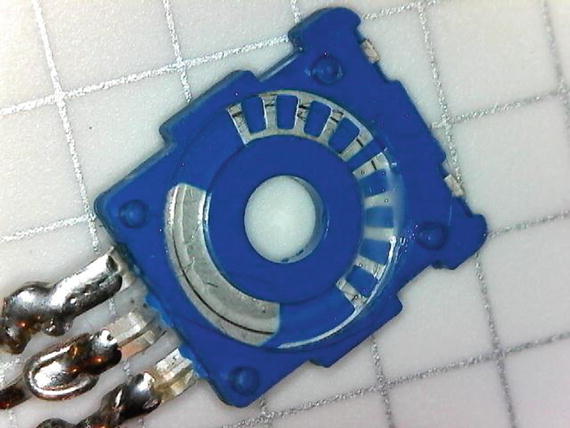
$ i2cset -y 1 0x20 0xFF

Some of you might be grabbing some LEDs now to hook one up. Hold off on that since there are some specifics about this chip that must be taken into account (hint: you must sink the LED current rather than source it). This will be discussed later in this chapter. But do go and get your DMM so that you can take some voltage readings.

With your DMM, you can check the outputs of IC1. Outputs P0 through P7 should all measure high (+3.3 volts). Now let’s set P0 to 0, while leaving all other outputs high.

$ i2cset -y 1 0x20 0xFE

Now measure P0 on IC1 (pin 4). Does it read low? All other pins P1 through P7 should remain high. If so, congratulations! Now repeat the experiment with address 0x21 for IC2. You should be able to repeat the results.

Note

All PCF8574 outputs are initialized high at power on reset.

Input Tests

The datasheet for the PCF8574 describes this chip as a quasi-bidirectional I/O port. What on Earth does that mean?

One of the great things about this chip is that there is virtually no configuration involved. If you want to output a bit pattern, you simply write to that I/O port like you did with the i2cset command (or using a system call in C/C++). Reading an input value, however, requires one little setup step. You must first write 1 bits to each position that you want to read from and then perform the read. The write operation needs to be performed only once—you can consider that the configuration step. That’s why I said “virtually” no configuration.
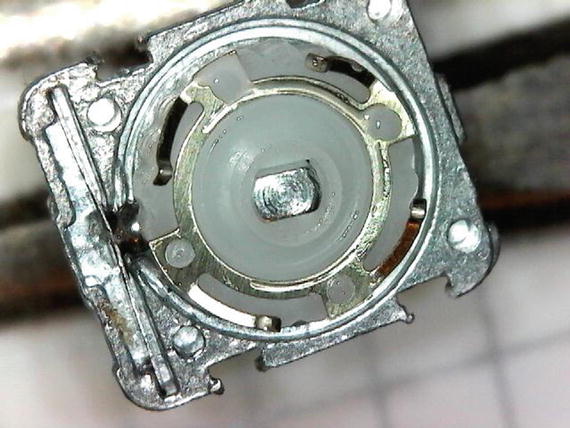
Once a bit position has a 1 bit written to it, you can read from it. Let’s set all IC1 outputs to 1s again so that all eight bits are inputs.

$ i2cset -y 1 0x20 0xFF

If you now took the time to measure P0 through P7 with your DMM on IC1, they would all show as high again. However, in this state, the designers of the chip have effectively just enabled a resistor internally to the supply side. This causes the ports to measure high by your DMM. However, since these are all basically linked to the supply by internal resistance, you can pull these down to force a 0 (low) on those pins without causing damage.

To test this, pick a pin, say P3, which is pin 7 of IC1. Attach a Dupont wire from pin 8 (IC1’s ground) to pin 7. Then let’s read the port.

$ i2cget -y 1 0x20
0xf7

The hex value of F7 indicates that bit 3 has been read low while all other bits have remained high. If you now remove that Dupont wire, you should read a high in bit 3 again.

$ i2cget -y 1 0x20
0xff

Confirmed. In this case, without the grounding of P3, the output driver internal to the chip is pulling it high once again. Hence, when you read it back, it has returned to a 1 bit. Grounding P3, on the other hand, forced it to read low even though there was a slight tug to the positive side internally. There is a small tug of war going on in there, but this one is designed to be safe.

High-Side Driver

Let’s expand on this high-side driver concept a bit more. The TI datasheet shows that when the output port is driven high, a 100μA constant current source is activated. If you short that output to ground, as you did when supplying a 0 bit to the input port, you are actually causing 100μA to flow from the supply to ground. This is not a large amount of current, so it remains safe to do. Applying Ohm’s law, you can calculate the effective resistance, which amounts to the following:
$$ R=\frac{V}{I}=\frac{3.3\; volts}{100\;\mu A}=33 k\varOmega $$

So, while the internal resistance is not actually a resistor, it behaves as if there was a 33kΩ resistor tied to the supply side.

People working with the Raspberry Pi or Arduino devices will often wire up an LED, which is turned on when the output port is set high. This is known as sourcing the current through the LED since the current comes from the port (indirectly the supply rail). This is perfectly acceptable when the output port supports this. But the PCF8574 will not source more than 100μA of current. Most LEDs require about 2mA or more before it will emit any light.

While 100μA is not a lot of drive current, it is perfectly adequate for driving high inputs of other CMOS inputs. But driving an LED with the PCF8574, however, requires that you to sink the current instead.

Low-Side Driver

The low-side output driver of the PCF8574 can handle up to 25mA maximum (TI). When you write a 0 bit to the output, that output transistor will conduct up to 25mA of current from that pin (Px) to ground. Because the current is going to ground, this is known as sinking the current.

It is at this point where you interrupt this program to warn about a tug of war that can be fatal. Say you have an external circuit sending its output to your PCF8574 input. If your port has been set to a 0 bit, perhaps because of a software bug, then a high amount of current will flow from that external circuit into the PCF8574’s sinking transistor, when the external circuit’s level is high. This is effectively a short circuit, which left unremedied can mean failure. This is why the PCF8574 powers on in the high state, which is always safe.

If this tug of war possibility exists in your design, you can protect the external circuit and the PCF8574 by wiring them through a 1kΩ resistor. This limits the short-circuit current to a safe level of 1mA and does not interfere with the transmission of the signal.

Driving an LED

Figure 13-2 shows the two different ways that an LED can be driven from an output port. The left side shows an LED being sourced with current from Px, using R1 as a current-limiting resistor. When the output port is set to a 1 bit (active high), the LED is expected to light. This will not work for the PCF8574, since the high-side driver will not supply more than 100μA.

A432417_1_En_13_Fig2_HTML.gif
Figure 13-2. PCF8574 sourcing (incorrect) and sinking (correct) of current

The right side of Figure 13-2 shows the correct way to drive an LED from the PCF8574. Using this circuit, the current is sourced by the power supply, and the current is sinked by the output port Px. In this case, the LED is lit when the output is written as a 0 bit (active low). Up to a maximum of 25mA can be driven this way by the PCF8574.

The Keypad

Figure 13-3 illustrates the top side of the keypad I am going to use for this experiment. I chose this format because it is arranged as a 4×4 matrix of buttons and is cheap on eBay ($1.25). If you look carefully at the copper traces of Figure 13-3 and the bottom side of Figure 13-4, you can see how the buttons are wired in four rows and four columns. This will allow you to sense the keypad with four outputs and four inputs.

A432417_1_En_13_Fig3_HTML.jpg
Figure 13-3. Keypad with 16 buttons. Note the copper traces on the top side going to the edge connector.
A432417_1_En_13_Fig4_HTML.jpg
Figure 13-4. Bottom view of the keypad. Note the copper traces going to the edge connector and where pin 1 is, with the square pad.

In rummaging through my junk parts, I came across some old calculator keypads that I have saved since the early 1980s (Figure 13-5). These were purchased by mail order catalog and are still like new. These keypads occasionally show up on eBay, though usually at a higher price ($7). But before you purchase these for a project, realize that these are not always organized in a matrix. My Figure 13-5 keypads have 12 connections and a ground. In other words, all 12 keys are arranged in one electrical row.

A432417_1_En_13_Fig5_HTML.jpg
Figure 13-5. Some oldies but goodies from the 1980s

Looking at the bottom side of the hex keypad in Figure 13-4, make note of where pin 1 is. It is the square pad shown at the bottom right of the figure. This pin appears on the top side of the board nearest S13 on the silk screening (Figure 13-3). If you are using the same keypad and have the pin 1 located, you should be able to reproduce the same results developed in this chapter. You can of course use a different keypad, but you’ll have to make the appropriate adjustments.

From a breadboard perspective, the header strip on the keypad is inconvenient. To bring the keypad interface onto the breadboard, you may want to use some female-to-male Dupont wires. Ideally a pair of four-conductor cables would work best. I had to use four two-conductor wires instead. Arrange these cables to bring the eight connections from the keypad to the breadboard for ease of wiring.

Figure 13-6 illustrates the connections inside the keypad, as well as their terminal connections T1 through T8. These are wired on the breadboard to IC1’s Px, as shown in brackets. With no keys pressed, you can see that there are no connections between any of the T1 through T4 rows to any of the columns T5 through T8. But when button SW7 is pressed, a connection is made between row T3 to column T7.

A432417_1_En_13_Fig6_HTML.gif
Figure 13-6. Keypad connections diagram

After making the connections between the keypad and IC1, as shown in Figure 13-6, you can manually run some experiments using the I2C tool commands. First, let’s configure the left four bits as 0 bits and the right four bits as 1 bits so you can read from them.

$ i2cset -y 1 0x20 0x0F

Now using the bash shell, let’s enter a loop that will slowly read IC1 for any changes.

$ while true; do i2cget -y 1 0x20; sleep 1; done

This loop will do an i2cget read in a loop, with a one-second delay between each read. Use Control-C to stop it later. With the command running, you will initially see this:

0x0f

This is to be expected since you wrote that pattern out to the port. While that continues to run, successively press S1 through S4. Do you see this?

$ while true; do i2cget -y 1 0x20; sleep 1; done
0x0f
0x0e
0x0f
0x0d
0x0f
0x0b
0x0f
0x07
0x0f
^C

Once again, the first 0x0f is the port-configured value. However, when I pressed button S1 (and waited), 0x0e was returned. After releasing S1, the next reading was 0x0f again. Pressing S2 returned 0x0d, S3 returned 0x0b, and S4 returned 0x07. This demonstrates that you were able to read rows T1 through T4 as bits 3 through 0 of IC1’s port.

Now repeat the experiment with buttons S5 through S8, S9 through S12, and S13 through S16. You should get the same results. These all return button presses because you have all rows T1 through T4 set low. Let’s now make the reading more specific. Set row T3 to low, while T1, T2, and T4 are high with the hex value 0xDF (the bits used are 11011111, specifying only bit 5 as zero).

$ i2cset -y 1 0x20 0xDF

With only bit 5 set low, only button presses in column T7 will ever read a low (buttons S5 through S8). By scanning T1 through T4, you can detect columns that have button presses.

Before presenting C++ code to scan the keypad, let’s do one more manual experiment. With the output still set to 0xDF, what happens if you simultaneously press S5, S6, S7, and S8?

$ while true; do i2cget -y 1 0x20; sleep 1; done
0xdf
0xd5
0xdd
0xdf
0xd8
0xd0
0xdf
^C

It was a bit of a struggle for me to get all the buttons simultaneously pushed down in that row, but eventually I succeeded (the value reported was 0xd0). This illustrates the fact that the program scanning the keyboard must be prepared to filter these events out or return them as a keycode of some sort. This is similar to the kind of thing that your PC keyboard must do when it sees the Microsoft-made-famous Control-Alt-Delete.

Keypad Program

In your source directory, change to the keypad subdirectory and type make, if you haven’t already compiled the code.

$ cd keypad
$ make

With the executable keypad built, run it and press some buttons. In the session shown, I pressed S1, S6, S11, and S16 in a diagonal.

$ ./keypad
keypress: EE (S1)
release:  EE (S1)


keypress: DD (S6)
release:  DD (S6)


keypress: BB (S11)
release:  BB (S11)


keypress: 77 (S16)
release:  77 (S16)

The two-digit hexadecimal number shown is effectively the “scan code” that you saw previously using the i2cget utility. Recall that the left four bits select a row, and the right four represent the column selected. The program then looks up the scan code to translate that into a “key name,” like S1.

The main Program

Listing 13-1 shows the source code for the main program. Lines 113 to 119 open the I2C bus driver, saving the file descriptor i2c_fd. This file descriptor provides you with a handle to the driver.

Listing 13-1. The main Program of keypad.cpp
108 int
109 main(int argc,char **argv) {
110     uint8_t keypad, row, col;
111
112     // Open the I2C bus
113     i2c_fd = open(i2c_device,O_RDWR);
114     if ( i2c_fd == -1 ) {
115         fprintf(stderr,"%s: opening %s\n",
116             strerror(errno),
117             i2c_device);
118         exit(1);
119     }
120
121     for (;;) {
122         // Scan each keypad row:
123         for ( row=0x10; row != 0; row <<= 1 ) {
124             // Drive the row select
125             i2c_write(i2c_keypad_addr,∼row);
126
127             // Read the column inputs
128             keypad = i2c_read(i2c_keypad_addr);
129             col = keypad & 0x0F;
130
131             if ( col != 0x0F ) {
132                 // Keypress event
133                 printf("keypress: %02X (%s)\n",
134                     keypad,
135                     key_lookup(keypad));
136
137                 while ( (i2c_read(i2c_keypad_addr) & 0x0F) == col )
138                     usleep(50000);
139
140                 printf("release:  %02X (%s)\n\n",
141                     keypad,
142                     key_lookup(keypad));
143             }
144             usleep(50000);
145         }
146     }
147
148     return 0;
149 }

The remainder of the main program starting with the for loop in line 121 is the keypad-reading loop. This loop will execute until your Control-C to interrupt the program.

Inside the outer loop, there is an inner for loop starting in line 123. According to the loop construction, the value row starts with 0x10, continues as long as the value row is nonzero, and is shifted left one bit at the end of each loop. For the nonveteran C/C++ programmers, let’s summarize the values involved in Table 13-1.

Table 13-1. The for Loop Iteration Values for the Variable row

Iteration

Row (Hex)

Row (Bits)

∼Row (Hex)

∼Row (Bits)

Description

0

0x10

0b00010000

0xEF

0b11101111

Row 0 selected

1

0x20

0b00100000

0xDF

0b11011111

Row 1 selected

2

0x40

0b01000000

0xBF

0b10111111

Row 2 selected

3

0x80

0b10000000

0x7F

0b01111111

Row 3 selected

4

0x00

0b00000000

0xFF

0b11111111

No rows selected

Recall that the column bits are input ports, requiring 1 bits to be written to the lower four bits. Further, to select a row of buttons, you need to set the bit low for the row so that a button can be sensed. So, the loop starts the first iteration with row set to 0x10. When inverted, this sets bit 4 low and the remaining bits high (hex value 0xEF). This is the value you write to the PCF8574 port in line 125 (note that ∼row is the value of row with the bits inverted).

At the end of the loop, you need to scan the next row. Using the noninverted row value permits you to test after the shift left operation when the last bit was shifted out, which will result in zero. This provides a convenient for loop variable, even though it is the inverted value that you need for the I2C device.

After priming the I2C port with a write in line 125, you then read back from the same port in line 128. If no key has been pressed, you will simply read back the same value that was just written. But when a key is pressed, one of the buttons connected to the row will cause a zero bit to appear in the lower four bits of the value read. You test for this condition in lines 129 and 131.

When a keypress has occurred, you report this using printf in line 133 (you’ll examine the function key_lookup later). Lines 137 and 138 wait for the key press to be released. Any change in the pressed key state causes the while loop to exit. The usleep releases the CPU briefly to allow other processes to run. Finally, after the key has been released, printf in line 140 announces this to stdout.

The bottom of the scan loop also calls usleep so that the CPU utilization isn’t squandered (line 144).

The key_lookup Function

Depending upon your application, using the scan codes may be sufficient. In many cases, however, some kind of translation between the scan code and the key symbol is required. Listing 13-2 shows the key_lookup function that was used in the keypad.cpp program.

Listing 13-2. The key_lookup Function
024 static std::unordered_map<uint8_t,std::string> keymap({
025     { 0xEE, "S1" }, { 0xED, "S2" }, { 0xEB, "S3" },
026     { 0xE7, "S4" }, { 0xDE, "S5" }, { 0xDD, "S6" },
027     { 0xDB, "S7" }, { 0xD7, "S8" }, { 0xBE, "S9" },
028     { 0xBD, "S10" }, { 0xBB, "S11" }, { 0xB7, "S12" },
029     { 0x7E, "S13" }, { 0x7D, "S14" }, { 0x7B, "S15" },
030     { 0x77, "S16" }
031 });
...
095 const char *
096 key_lookup(uint8_t scancode) {
097
098     auto it = keymap.find(scancode);
099     if ( it != keymap.end() )
100             return it->second.c_str();
101     return "???";   // Multiple keys pressed
102 }

Lines 024 to 031 at the top of the source module declare and initialize an unordered map named keymap. This map is designed to accept a scan code of type uint8_t and return an associated string name for it. So, if 0xED is queried, the value "S2" is returned. Note that keymap is created and initialized before main begins to execute.

The function key_lookup accepts the scan code as its input argument (line 096). Line 098 performs the keymap lookup based on it. If the value is known, the iterator value it will have a value that differs from keymap.end() in line 099. In this case, you returned the key’s string value. Note here that it->second is C++ type std::string. To return a C-styled string, you convert that by invoking the method c_str(). This pointer value remains valid as long as the values in keymap are left unmodified.

Line 101 is in place for scan codes that you don’t have defined in keymap. You might think that you have them all covered, but if you press more than one key simultaneously, other scan codes are possible. For example, the scan code 0xE6 is returned if you simultaneously press S1 and S4.

The i2c_write Function

Listing 13-3 shows the i2c_write function. This function is used to write one byte of information to the PCF8574 peripheral chip.
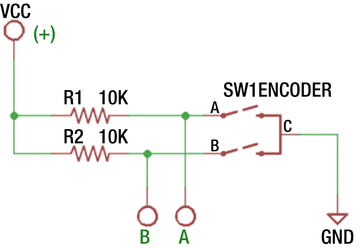
Listing 13-3. The i2c_write Function
037 void
038 i2c_write(int addr,uint8_t byte) {
039     struct i2c_rdwr_ioctl_data msgset;
040     struct i2c_msg iomsgs[1];
041     int rc;
042
043     iomsgs[0].addr = unsigned(addr);// Address
044     iomsgs[0].flags = 0;            // Write
045     iomsgs[0].buf = &byte;          // Buffer
046     iomsgs[0].len = 1;              // 1 byte
047
048     msgset.msgs = iomsgs;           // The message
049     msgset.nmsgs = 1;               // 1 message
050
051     rc = ioctl(i2c_fd,I2C_RDWR,&msgset);
052     if ( rc == -1 ) {
053         fprintf(stderr,
054             "%s: writing to I2C address 0x%02X\n",
055             strerror(errno),
056             i2c_keypad_addr);
057         exit(1);
058     }
059 }

The Linux I2C driver requires you to use two structures.

  • struct i2c_rdwr_ioctl_data

  • struct i2c_msg

The first structure is a header record that describes aspects of the transfer that apply to the entire transaction. You see this in lines 048 and 049, where you save the pointer to the first transaction (line 048) and then the number of consecutive transactions to be performed (line 049).
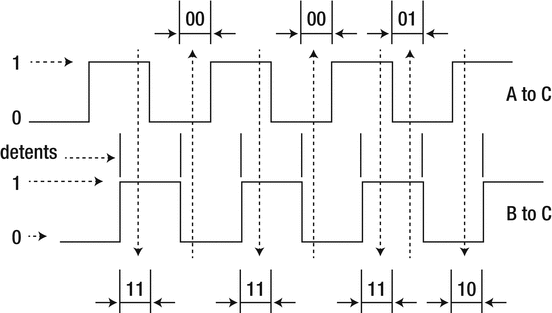
The i2c_msg structure defines the aspects of each I/O transfer to be performed. In the listing, line 043 first defines the I2C address involved. Line 044 defines this operation as a write operation (this is because of the lack of the I2C_M_RD flag, which will be seen in the i2c_read function later). Line 045 defines where the buffer is located (the variable byte). Finally, the transfer will involve one byte (line 046).

With the structures fully populated, the communication with the driver occurs through the ioctl(2) system call in line 051. The following are the arguments involved in the call:

  • The driver’s file descriptor (i2c_fd)

  • The ioctl(2) command value (I2C_RDWR macro)

  • Pointer to the associated data for this operation (address of msgset)

The system call returns -1 if the operation failed for any reason, leaving the error code in the thread-safe value of errno. Line 052 checks the status returned and reports the error in lines 053 to 056 if it fails and then exits the program in line 057. If the operation succeeds, you simply return from the function as “mission accomplished.”

The i2c_read Function

A companion to the i2c_write function is the i2c_read function. In this application program, its mission is to simply read one byte of data (from the PCF8574 peripheral). Listing 13-4 shows the code for this function.
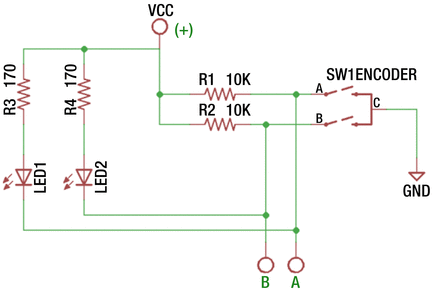
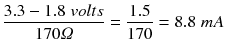
Listing 13-4. The i2c_read Function
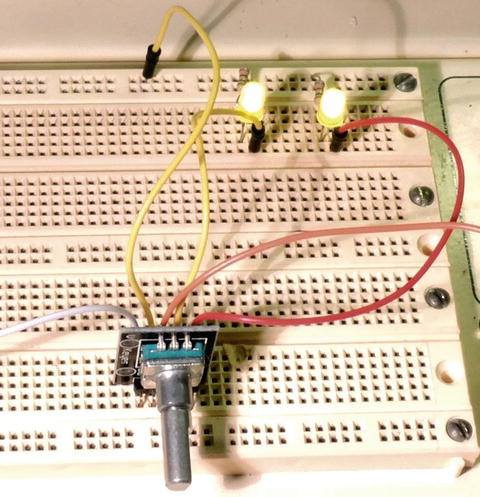
065 uint8_t
066 i2c_read(int addr) {
067     struct i2c_rdwr_ioctl_data msgset;
068     struct i2c_msg iomsgs[1];
069     uint8_t byte;
070     int rc;
071
072     iomsgs[0].addr = unsigned(addr);// I2C Address
073     iomsgs[0].flags = I2C_M_RD;     // Read
074     iomsgs[0].buf = &byte;          // buffer
075     iomsgs[0].len = 1;              // 1 byte
076
077     msgset.msgs = iomsgs;           // The message
078     msgset.nmsgs = 1;               // 1 message
079
080     rc = ioctl(i2c_fd,I2C_RDWR,&msgset);
081     if ( rc == -1 ) {
082             fprintf(stderr,
083                     "%s: reading I2C address 0x%02X\n",
084                     strerror(errno),
085                     i2c_keypad_addr);
086             exit(1);
087     }
088     return byte;                    // Return read byte
089 }

The operation of the i2c_read function is nearly identical to the i2c_write function. The one difference is that the flag I2C_M_RD is provided in line 073 to indicate that this will be a read operation. The only other difference is that the data byte is transferred from the peripheral to the local variable byte. The operation is initiated in line 080, checked in lines 081 to 086. When the operation is successful, the value byte is returned in line 088.

Combination Lock

To finish off this chapter, let’s create a practical keypad application—the combination lock. For this project, let’s add two more components to the breadboard.

  • A green LED to indicate unlock success

  • A red LED to indicate that the attempted combination has failed

For the LEDs, refer to Figure 13-2, using the circuit shown on the right (the LED being sinked). Connect the green LED to the second PCF8574 (IC2) port P0 and the red LED to IC2’s P1. The only thing left is to determine the resistors needed.

The voltage drop V F of an LED varies with the color of the device [1]. A green LED is listed between 1.9 and 4 volts, while a red LED is 1.6 to 2 volts. Since you’re using a +3.3V supply, this means you only have a difference of V CC V F = 3.3 – 1.9 = 1.4 Volts for green LEDs and 3.3 – 1.6 = 1.7 Volts for red. The dropping resistor you need can be determined with the following:
$$ R=\frac{V_{CC}-{V}_F}{I_{LED}} $$

Many LEDs will use about 10mA, which is well within the PCF8574 sinking capability. So, calculate the following: $$ R=\frac{3.3-1.4}{0.010}=190\varOmega $$

The closest E12 resistance value to this is 180Ω. If you have trouble finding of that value, you can safely go up to 200Ω or even go lower.

With R2 of Figure 13-2 set to a value of 180Ω, the resistor wired to the +3.3V side, and the other end wired to the LED, connect the green LED cathode to IC2’s P0. Do the same for the red LED, except that the LED cathode goes to P1. Before you present the software, let’s prove that the hardware is good. Turn on the green LED (note that the I2C address is 0x21 this time for IC2).

$ i2cset -y 1 0x21 0xFE

If everything is wired correctly, the green LED should light, and the red one should remain dark. Now enable the red LED.

$ i2cset -y 1 0x21 0xFD

The red LED should light, and the green one should be dark. Finally, let’s light both.

$ i2cset -y 1 0x21 0xFC

To turn them both off again, write the value 0xFF to the port. Note that only the last two bits actually matter here as far as the LEDs are concerned.

Combination Lock

With the LEDs installed and tested, you can turn your attention to the combination lock software. The program must implement a state machine based upon key press events. The state machine you’re going to use is as follows:

  1. The initial state is that no keys have pressed yet. Clear the buffer of key codes.

  2. Wait for a key press. Proceed to the next step when it arrives.

  3. Add a key code to the buffer.

  4. Have four keys been pressed? If not, go to back to step 2.

  5. If four keys have been pressed, is the combination correct? If not, light the red LED and go to step 1.

  6. The combination is correct: light the green LED to announce the unlocking of the device.

  7. Has a key been pressed? If so, turn off the green LED and return to step 1. Otherwise, continue to wait.

The program combo.cpp located in the ./keypad subdirectory implements this overall procedure, except that it checks the combination code as the keys are entered. You’ll examine that later.

Figure 13-7 illustrates my breadboard arrangement. Don’t be intimidated by the number of wires. Most of the wires (most of them white) are wires to ground for the PCF8574 address pins. The remaining white wires take connections from the keypad to IC1.

A432417_1_En_13_Fig7_HTML.jpg
Figure 13-7. A breadboarded circuit for the keypad.cpp and combo.cpp programs

With the hardware ready, run the program combo, as shown here:

$ ./combo
*** LOCKED ***
code[0] = 7D (S14)
code[1] = BB (S11)
code[2] = DD (S6)
code[3] = ED (S2)
*** FAILED ***
*** LOCKED ***
code[0] = BE (S9)
code[1] = D7 (S8)
code[2] = DD (S6)
code[3] = DB (S7)
*** UNLOCKED ***
*** LOCKED ***
^C

The session output helps display state information as the code runs. A full implementation would provide some kind of feedback for each key as it is entered. You could, for example, use the remaining ports of IC2 to light an LED for each of the four codes. This is left as an exercise for you.

Initially, the session reports that the lock is “locked.” As each key is pressed, the scan code and the key name are displayed (for demonstration purposes). At the end of four codes, the lock either fails to unlock (red LED) or becomes unlocked (green LED).

The first attempt shown in the session output has an entry of S14, S11, S6, and S2 before the red LED comes on and the session reports “failed.” At this point, the state machine restarts, allowing entry of a new code.

The red LED is permitted to stay on until the entry of the first key code. You’ll see that in the code later in this chapter. In the second attempt, keys S9, S8, S6, and S7 are pressed to successfully unlock the device. The green LED will remain lit until another (any) key is pressed. At that point, the green LED is turned off, and the device enters a locked state once again.

The main Program

The main program has changed to implement a key press state machine. This is presented in Listing 13-5.

Listing 13-5. The combo.cpp Main Program
140 int
141 main(int argc,char **argv) {
142     static uint8_t code[4] = {
143         // 9, 8,    6     7:
144         0xBE, 0xD7, 0xDD, 0xDB
145     };
146     uint8_t keypad, kx;
147     bool matched;
148
149     // Open the I2C bus
150     i2c_fd = open(i2c_device,O_RDWR);
151     if ( i2c_fd == -1 ) {
152         fprintf(stderr,"%s: opening %s\n",
153             strerror(errno),
154             i2c_device);
155         exit(1);
156     }
157
158     i2c_write(i2c_led_addr,0xFF);   // Both LEDs off
159
160     for (;;) {
161         puts("*** LOCKED ***");
162
163         // Wait for entry of all four codes:
164         matched = true;
165         for ( kx=0; kx<4; ++kx ) {
166             keypad = get_key_code();
167             printf("code[%u] = %02X (%s)\n",
168                 kx,keypad,
169                 key_lookup(keypad));
170             if ( keypad != code[kx] )
171                 matched = false;
172             if ( kx == 0 ) {
173                 // All LEDs off
174                 i2c_write(i2c_led_addr,0xFF);
175             }
176         }
177         if ( !matched ) {
178             // Failed: Red LED + start over
179             i2c_write(i2c_led_addr,∼red_led);
180             puts("*** FAILED ***");
181             continue;
182         }
183         // Code matched: unlock
184         i2c_write(i2c_led_addr,∼green_led);
185
186         // Wait for any key code to lock
187         // and restart
188         puts("*** UNLOCKED ***");
189         get_key_code();
190         i2c_write(i2c_led_addr,0xFF);
191     }
192
193     return 0;
194 }

Lines 142 to 145 define the secret passcode to unlock this device. These are scan codes representing S9, S8, S6, and S7. Line 158 initializes the LEDs to the off state.

The main loop begins in line 160, repeating forever until the program is cancelled with Control-C. Line 161 announces the locked state to the session output and initializes the bool variable matched to true. As each key code is entered, if there is any mismatch, then this variable will be set to false.

Lines 165 to 176 accept input key codes. The code is accepted in line 166 and checked against the passcode in line 170. The variable kx tracks the key number from 0 to 3. If there is a mismatch between any of the codes, the matched variable is set to false in line 171. By the time the end of the loop is reached (line 177), this will tell you whether the code was correct.

If the code didn’t match, you activate the red LED in line 179. Note the inverted value of ∼red_led. The LED is lit when the red LED bit is set to 0. The continue statement returns control to the top of the main loop for another attempt. The red LED is allowed to remain lit while this loop restarts. However, lines 172 to 175 force all LEDs off, once the first key press is received.

When the correct code is entered, control passes to line 184 to light the green LED. The lock is announced unlocked at line 188, and the code waits for a key press (of any key) at line 189. Once a key is pressed, the lock is relocked again, and the green LED is extinguished in line 190.

The get_key_code Function

The remainder of the combo.cpp source code remains the same as the keypad.cpp program. The exception to this is that what was the main loop in keypad.cpp has been moved into a function in combo.cpp. Listing 13-6 illustrates the function named get_key_code.

Listing 13-6. Function get_key_code
111 uint8_t
112 get_key_code() {
113     uint8_t keypad, row;
114
115     // Wait for key release:
116     while ( (i2c_read(i2c_keypad_addr) & 0x0F) != 0x0F )
117             usleep(20000);
118
119     // Wait for key press:
120     for (;;) {
121             // Scan each keypad row:
122             for ( row=0x10; row != 0; row <<= 1 ) {
123                     // Drive the row select
124                     i2c_write(i2c_keypad_addr,∼row);
125
126                     // Read the column inputs
127                     keypad = i2c_read(i2c_keypad_addr);
128
129                     if ( (keypad & 0x0F) != 0x0F )
130                             return keypad;
131                     usleep(20000);
132             }
133     }
134 }

This code is almost unchanged from what was presented earlier. However, there is one major change to be explained.

In the keypad.cpp program, once you had a keypress, you remained in a loop waiting for the key to be released. In combo.cpp, you want the lock to unlock the very moment the last correct key code is pressed. So, you return the keycode immediately at line 130. However, this necessitates that you wait for a key release when the function is called later (lines 116 to 117).

While this change isn’t absolutely essential, most people expect an action to occur at the moment of the key being pressed. For a lock, you could choose to do this when the key is released instead.

Interrupts

One concept that I didn’t have the space to explore was the concept of the interrupt (/INT) pin on the PCF8574. With the current programs, it must continually poll the PCF8574 chips to see whether there is a key press. The interrupt pin of the PCF8574 chip can signal a data change to a Pi GPIO input. A poll of the GPIO pin is quick and cheap and leaves the I2C bus available for other traffic.

Additionally, each /INT output is driven by an open collector transistor. This permits two or more /INT signals to be wired together so that only one interrupt signal line is required. This requires only one pull-up resistor on the line. I encourage you to read the datasheets and explore this important functionality.

Summary

You’ve reached the end of this book; all good things must come to an end. I hope that this book has inspired you to try some hardware attached to the Raspberry Pi and come up with ideas of your own. A hobbyist can have fun just reproducing “how to” articles, attaching Pi hats, and so on. But the real fun is in taking an idea and designing the interfaces yourself!

Bibliography

  1. Poole, By Ian. “LED Characteristics & Colours.” LED Characteristics and Colours. Accessed November 05, 2016. < www.radio-electronics.com/info/data/semicond/leds-light-emitting-diodes/characteristics.php >.

Index

A

  1. Acknowledge clock cycle

  2. alsamixer

  3. alsa-utils

  4. Analog to digital (ADC)

    1. extended voltage range

    2. sampling rate

    3. V OA

  5. aplay

B

  1. Backlighting

  2. Battery

  3. Blanking

    1. reduced

  4. Breadboard

  5. Buttons

C

  1. Capacitor

  2. CD4001

  3. CD4049

  4. CD4050

  5. CD4012B

  6. CD4050BC

  7. CD4049UBC

  8. Chip enable

  9. Complementary metal oxide semiconductor (CMOS)

    1. BroadCom

    2. floating

    3. gate

    4. high level

    5. logic levels

    6. low level

    7. unused inputs

  10. config.txt file

  11. Consumer Electronics Association (CEA)

  12. Conventional current flow

D

  1. Debouncing

    1. buttons

    2. hardware

    3. MC14490

    4. relays

    5. software

    6. switches

  2. Digital multi-meter (DMM)

  3. Digital to analog converter (DAC)

    1. AOUT

  4. Diodes

    1. 1N914

    2. protection

    3. zener

  5. Diode transistor logic (DTL)

  6. Display Monitoring Timing (DMT) standard

  7. Dual inline package (DIP)

  8. Dupont wires

E

  1. Embedded system

    1. Raspberry Pi

  2. Extended display identification data (EDID)

F

  1. fbset

  2. Field effect transistor (FET)

    1. gate

    2. oxide

  3. Flea market

    1. hamfest

G

  1. General purpose input/output (GPIO)

    1. expansion

  2. gnuplot

H

  1. Hamfest

    1. flea market

  2. 74HC165

  3. 74HC595

  4. 74HCT244

  5. 74HCT245

  6. hdmi_force_hotplug

  7. hdmi_group

  8. hdmi_mode

  9. High-definition multimedia interface (HDMI)

  10. High powered loads

  11. htop

I

  1. I2C

    1. adapter

    2. address

    3. baud rate

    4. bus

    5. IIC

    6. interface module

    7. level converter

    8. Pi

    9. SCL

    10. SDA

    11. TWI

  2. i2cdetect

  3. i2cget

  4. i2cset

  5. i2c-tools

  6. Interface

    1. I2C serial

    2. parallel

    3. RS232

    4. video

  7. Interfacing

    1. signal

  8. Inverter

J

  1. Jumpers

K

  1. Keypad

    1. hex

  2. KY-040

    1. detents

    2. flywheel effect

    3. isolation resistors

    4. push switch

    5. rotary encoder

    6. sequence errors

L

  1. LCD 1602A module

  2. Light emitting diode (LED)

  3. Liquid crystal display (LCD)

    1. 1602A-1

    2. BF flag

    3. 4-bit mode

    4. controller

    5. HD44780

    6. LCD1602 class

    7. 16x2 LCD

  4. Logic level conversion

  5. 74LS04

  6. 74LVC244

  7. 74LVC245

M

  1. MC14490

    1. 4-bit shift register

    2. clock frequency

    3. oscillator

  2. MCP23017

    1. configuration

    2. INTA interrupt pin

    3. INTB interrupt pin

    4. interrupt capability

  3. Music playing command (MPC)

    1. add

    2. clear

    3. play

    4. playlist

    5. status

    6. stop

    7. volume

  4. Music playing daemon (MPD)

N

  1. NAND gate

  2. 1N914 diode

  3. Noise margin

O

  1. Octal bus transceiver

  2. Ohm's law

  3. Open collector

P

  1. Parallel interface

  2. PCF8574

  3. PCF8591

  4. PCF8574P

  5. Pinout

  6. Pi T-Cobbler breakout

  7. Pixel clock

  8. Potentiometer

    1. ADC bits

    2. input controls

    3. PCB mount

    4. range of motion

    5. resistance

    6. steps

    7. taper

    8. trimmers

    9. voltage divider

    10. wiper arm

  9. Propagation delay

    1. t PHL (high to low)

    2. t PLH (low to high)

  10. Pull-up resistors

  11. Pulse width modulation (PWM)

Q

  1. 7400 quad NAND gate

  2. Quasi-bidirectional

R

  1. Range of motion

    1. potentiometer

  2. Raspberry

    1. Pi 2

    2. Pi 3

    3. Zero

  3. Refresh rates

  4. Resistor

    1. tolerances

  5. Resolution

  6. Rotary encoder

    1. detents

    2. flywheel effect

    3. isolation resistors

    4. sequence errors

  7. RS232 interface

S

  1. Serial peripheral interface (SPI)

  2. Shift register

  3. Sink

  4. Sinking current

  5. Source

  6. Source resistance

    1. ideal battery

  7. Sourcing current

  8. Static electricity

  9. Switching speed

T

  1. Thread

  2. Transistor transistor logic (TTL)

    1. input levels

    2. 5400 series

    3. 7400 series

      1. series derivative families

U

  1. usleep

V

  1. V CC

  2. V DD

  3. VGA monitors

  4. Video graphics array (VGA)

  5. V IH

  6. V OH

  7. 3 Volt

    1. Raspberry Pi

  8. 5 Volt

  9. Voltage

    1. dividers

    2. high level

    3. input

    4. logic levels

    5. low level

    6. output

    7. ranges

    8. 3.3 volt logic

W, X

  1. 4-wire ribbon cable

Y, Z

  1. YL-40

    1. conversion to Celsius

    2. I2C address

    3. jumpers

    4. LDR (light dependent resistor)

    5. 1N914 experiment

    6. PCF8591

    7. R 6

    8. temperator sensor