Table of Contents for
Linux Bible, 9th Edition
 Linux Bible, 9th Edition
Published by
John Wiley & Sons, 2015
Linux Bible, 9th Edition
Published by
John Wiley & Sons, 2015
- Cover Page
- Title Page
- Copyright
- Dedication
- About the Author
- About the Technical Editor
- Credits
- Acknowledgments
- Contents at a Glance
- Contents
- Introduction
- Part I: Getting Started
- Chapter 1: Starting with Linux
- Chapter 2: Creating the Perfect Linux Desktop
- Part II: Becoming a Linux Power User
- Chapter 3: Using the Shell
- Chapter 4: Moving around the Filesystem
- Chapter 5: Working with Text Files
- Chapter 6: Managing Running Processes
- Chapter 7: Writing Simple Shell Scripts
- Part III: Becoming a Linux System Administrator
- Chapter 8: Learning System Administration
- Chapter 9: Installing Linux
- Chapter 10: Getting and Managing Software
- Chapter 11: Managing User Accounts
- Chapter 12: Managing Disks and Filesystems
- Part IV: Becoming a Linux Server Administrator
- Chapter 13: Understanding Server Administration
- Chapter 14: Administering Networking
- Chapter 15: Starting and Stopping Services
- Chapter 16: Configuring a Print Server
- Chapter 17: Configuring a Web Server
- Chapter 18: Configuring an FTP Server
- Chapter 19: Configuring a Windows File Sharing (Samba) Server
- Chapter 20: Configuring an NFS File Server
- Chapter 21: Troubleshooting Linux
- Part V: Learning Linux Security Techniques
- Chapter 22: Understanding Basic Linux Security
- Chapter 23: Understanding Advanced Linux Security
- Chapter 24: Enhancing Linux Security with SELinux
- Chapter 25: Securing Linux on a Network
- Part VI: Extending Linux into the Cloud
- Chapter 26: Using Linux for Cloud Computing
- Chapter 27: Deploying Linux to the Cloud
- Part VII: Appendixes
- Appendix A: Media
- Appendix B: Exercise Answers
- Index
- Linux® Bible, Ninth Edition

Starting and Stopping Services
IN THIS CHAPTER
Understanding the various Linux init services
Auditing Linux daemon-controlled services
Stopping and starting services
Changing the Linux server's default runlevel
Removing services
The primary job of a Linux server system is to offer services to local or remote users. A server can provide access to Web pages, files, database information, streaming music, or other types of content. Name servers can provide access to lists of host computer or user names. Hundreds of these and other types of services can be configured on your Linux systems.
Ongoing services offered by a Linux system, such as access to a printer service or login service, are typically implemented by what is referred to as a daemon process. Most Linux systems have a method of managing each daemon process as a service using one of several popular initialization systems (also referred to as init systems). Advantages of using init systems include the ability to do the following:
- Identify runlevels—Put together sets of services in what are referred to as runlevels or targets
- Establish dependencies—Set service dependencies so, for example, a service that requires network interfaces won't start until all network startup services have started successfully
- Set the default runlevel—Select which runlevel or target starts up when the system boots
- Manage services—Run commands that tell individual services to start, stop, pause, restart, or even reload configuration files
Several different init systems are in use with Linux systems today. The one you use depends on the Linux distribution and release you are using. In this chapter, I cover the following init systems that have been used in Fedora, Red Hat Enterprise Linux, Ubuntu, and many other Linux distributions:
- SysVinit—This traditional init system was created for UNIX System V systems in the early 1980s. It offers an easy-to-understand method of starting and stopping services based on runlevel. Most UNIX and Linux systems up until a few years ago used SysVinit.
- Upstart—Popularized in Ubuntu and used briefly in Fedora and RHEL, this init system improved handling of dependencies between services and could substantially improve system startup time. It has only recently been supplanted by systemd in Fedora and RHEL, and will soon do so in Ubuntu.
- Systemd—The latest versions of Fedora and RHEL use the systemd init system. It is the most complex of the init systems, but also offers much more flexibility. Systemd not only offers features for starting and working with services, but also lets you manage sockets, devices, mount points, swap areas, and other unit types.
This chapter describes these three major init systems. In the process of using the init system that matches your Linux distribution, you learn how the boot process works to start services, how you can start and stop services individually, and how you enable and disable services.
Understanding the Initialization Daemon (init or systemd)
In order to understand service management, you need to understand the initialization daemon. The initialization daemon can be thought of as the “mother of all processes.” This daemon is the first process to be started by the kernel on the Linux server. For Linux distributions that use SysvInit or Upstart, the init daemon is literally named init. For systemd, the init daemon is named systemd.
The Linux kernel has a process ID (PID) of 0. Thus, the initialization process (init or systemd) daemon has a parent process ID (PPID) of 0, and a PID of 1. Once started, init is responsible for spawning (launching) processes configured to be started at the server's boot time, such as the login shell (getty or mingetty process). It is also responsible for managing services.
The Linux init daemon was based upon the UNIX System V init daemon. Thus, it is called the SysVinit daemon. However, it was not the only classic init daemon. The init daemon is not part of the Linux kernel. Therefore, it can come in different flavors, and Linux distributions can choose which flavor to use. Another classic init daemon was based on Berkeley UNIX, also called BSD. Therefore, the two original Linux init daemons were BSD init and SysVinit.
The classic init daemons worked without problems for many years. However, these daemons were created to work within a static environment. As new hardware, such as USB devices, came along, the classic init daemons had trouble dealing with these and other hot-plug devices. Computer hardware had changed from static to event-based. New init daemons were needed to deal with these fluid environments.
In addition, as new services came along, the classic init daemons had to deal with starting more and more services. Thus, the entire system initialization process was less efficient and ultimately slower.
The modern initialization daemons have tried to solve the problems of inefficient system boots and non-static environments. Two of these init daemons are the Upstart init and systemd daemons. Recently, Ubuntu, RHEL, and Fedora distributions have made the move to the newer systemd daemon while maintaining backward compatibility to the classic SysVinit, Upstart, or BSD init daemons.
Upstart, available at http://upstart.ubuntu.com, was originally developed by Canonical, the parent of the Ubuntu distribution. Earlier releases of other distributions adopted it for a short time before transitioning to systemd, including:
- RHEL version 6
- Fedora versions 9 through 14
- Ubuntu versions 6-14.10
- openSUSE versions 11.3-12.1
A new daemon, systemd, available at http://fedoraproject.org/wiki/Systemd, was written primarily by Lennart Poettering, a Red Hat developer. It is currently used by Fedora 15, Red Hat Enterprise Linux 7, OpenSUSE 12.2, and later versions and is being implemented for Ubuntu 15.04.
In order to properly manage your services, you need to know which initialization daemon your server has. Figuring that out can be a little tricky. The initialization process running on a SysVinit or Upstart is named init. For the first systemd systems, it was also called init, but is now named systemd. Running ps -e can immediately tell you if yours is a Systemd system:
# ps -e | head
  PID TTY        TIME CMD
    1 ?       00:04:36 systemd
    2 ?       00:00:03 kthreadd
    3 ?       00:00:15 ksoftirqd/0
If your initialization process is init, look through the following to help determine your Linux server's initialization system:
- Do your Linux distribution and version appear in the preceding list of Upstart adopters? If they do, your Linux init daemon is the Upstart init daemon.
- Try searching your Linux distribution's init daemon for clues, using the strings and the grep commands. The following code example shows the init daemon on a Linux Mint distribution being searched for systemd and Upstart init daemon references. The search for systemd yields nothing. However, the search for Upstart produces results. Thus, in the second example, the Linux Mint distribution uses the Upstart init daemon.
$ sudo strings /sbin/init | grep -i systemd
$ sudo strings /sbin/init | grep -i upstart
upstart-devel@lists.ubuntu.com
UPSTART_CONFDIR
UPSTART_NO_SESSIONS
...
On an older Fedora server, the search for Upstart yields nothing. However, you can see that the search for systemd yields the existence of the systemd daemon.
# strings /sbin/init | grep -i upstart
# strings /sbin/init | grep -i systemd
systemd.unit=
systemd.log_target=
systemd.log_level=
...
TIP
If you do not have the strings command on your Linux system, you can install it via the binutils package. On RHEL and Fedora, use the command yum install binutils. On Ubuntu, use the command sudo apt-get install binutils.
- If you still cannot tell what init daemon your server has, try looking on the init Wikipedia page (http://wikipedia.org/wiki/Init) under “Replacements for init?”
Keep in mind that some Linux distributions have not moved to the newer daemons. Most of those that have moved maintain backward compatibility with the SysVinit and BSD init daemons.
Understanding the classic init daemons
The classic init daemons, SysVinit and BSD init, are worth understanding, even if your Linux server has a different init daemon. Not only is backward compatibility to the classics often used in the newer init daemons, but many are based upon them. Understanding the classic init daemons will help you to understand the modern init daemons.
The classic SysVinit and BSD init daemons operate in a very similar fashion. Although in the beginning they may have been rather different, over time, very few significant differences remained. For example, the older BSD init daemon would obtain configuration information from the /etc/ttytab file. Now, like the SysVinit daemon, the BSD init daemon's configuration information is taken at boot time from the /etc/inittab file. The following is a classic SysVinit /etc/inittab file:
# cat /etc/inittab
# inittab This file describes how the INIT process should set up
# Default runlevel. The runlevels used by RHS are:
#   0 - halt (Do NOT set initdefault to this)
#   1 - Single user mode
#   2 - Multiuser, no NFS (Same as 3, if you do not have networking)
#   3 - Full multiuser mode
#   4 - unused
#   5 - X11
#   6 - reboot (Do NOT set initdefault to this)
#
id:5:initdefault:

# System initialization.
si::sysinit:/etc/rc.d/rc.sysinit

l0:0:wait:/etc/rc.d/rc 0
l1:1:wait:/etc/rc.d/rc 1
l2:2:wait:/etc/rc.d/rc 2
l3:3:wait:/etc/rc.d/rc 3
l4:4:wait:/etc/rc.d/rc 4
l5:5:wait:/etc/rc.d/rc 5
l6:6:wait:/etc/rc.d/rc 6

# Trap CTRL-ALT-DELETE
ca::ctrlaltdel:/sbin/shutdown -t3 -r now
pf::powerfail:/sbin/shutdown -f -h +2
     "Power Failure; System Shutting Down"

# If power was restored before the shutdown kicked in, cancel it.
pr:12345:powerokwait:/sbin/shutdown -c
     "Power Restored; Shutdown Cancelled"

# Run gettys in standard runlevels
1:2345:respawn:/sbin/mingetty tty1
2:2345:respawn:/sbin/mingetty tty2
3:2345:respawn:/sbin/mingetty tty3
4:2345:respawn:/sbin/mingetty tty4
5:2345:respawn:/sbin/mingetty tty5
6:2345:respawn:/sbin/mingetty tty6

# Run xdm in runlevel 5
x:5:respawn:/etc/X11/prefdm -nodaemon
The /etc/inittab file tells the init daemon which runlevel is the default runlevel. A runlevel is a categorization number that determines what services are started and what services are stopped. In the preceding example, a default runlevel of 5 is set with the line id:5:initdefault:. Table 15.1 shows the standard seven Linux runlevels.
TABLE 15.1 Standard Linux Runlevels
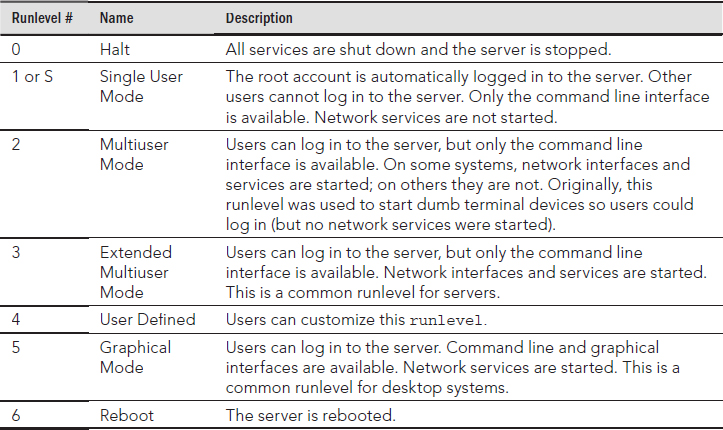
Linux distributions can differ slightly on the definition of each runlevel as well as which runlevels are offered. The Ubuntu distribution, for example, offers runlevels 0–6, but runlevels 2–5 start the same services as standard runlevel 5 listed in Table 15.1.
CAUTION
The only runlevels that should be used in the /etc/inittab file are 2 through? 5. The other runlevels could cause problems. For example, if you put runlevel 6 in the /etc/inittab file as the default, when the server reboots, it would go into a loop and continue to reboot over and over again.
The runlevels are not only used as a default runlevel in the /etc/inittab file. They can also be called directly using the init daemon itself. Thus, if you want to immediately halt your server, you type init 0 at the command line:
# init 0
...
System going down for system halt NOW!
The init command accepts any of the runlevel numbers in Table 15.1, allowing you to quickly switch your server from one runlevel category to another. For example, if you need to perform troubleshooting that requires the graphical interface to be down, you can type init 3 at the command line:
# init 3
INIT: Sending processes the TERM signal
starting irqbalance:                    [ OK ]
Starting setroubleshootd:
Starting fuse: Fuse filesystem already available.
...
Starting console mouse services:        [ OK ]
To see your Linux server's current runlevel, simply type in the command runlevel. The first item displayed is the server's previous runlevel, which in the following example is 5. The second item displayed shows the server's current runlevel, which in this example is 3.
$ runlevel
5 3
In addition to the init command, you can also use the telinit command, which is functionally the same. In the example that follows, the telinit command is used to reboot the server by taking it to runlevel 6:
# telinit 6
INIT: Sending processes the TERM signal
Shutting down smartd:                              [ OK ]
Shutting down Avahi daemon:                        [ OK ]
Stopping dhcdbd:                                   [ OK ]
Stopping HAL daemon:                               [ OK ]
...
Starting killall:
Sending all processes the TERM signal...             [ OK ]
Sending all processes the KILL signal...             [ OK ]
...
Unmounting filesystems                             [ OK ]
Please stand by while rebooting the system
...
On a freshly booted Linux server, the current runlevel number should be the same as the default runlevel number in the /etc/inittab file. However, notice that the previous runlevel in the example that follows is N. The N stands for “Nonexistent” and indicates the server was freshly booted to the current runlevel.
$ runlevel
N 5
How does the server know which services to stop and which ones to start when a particular runlevel is chosen? When a runlevel is chosen, the scripts located in the /etc/rc.d/rc#.d directory (where # is the chosen runlevel) are run. These scripts are run whether the run-level is chosen via a server boot and the /etc/inittab initdefault setting, or when the init or telinit command is used. For example, if runlevel 5 is chosen, then all the scripts in the /etc/rc.d/rc5.d directory are run; your list will be different, depending on what services you have installed and enabled.
# ls /etc/rc.d/rc5.d
K01smolt                    K88wpa_supplicant        S22messagebus
K02avahi-dnsconfd           K89dund                  S25bluetooth
K02NetworkManager           K89netplugd              S25fuse
K02NetworkManagerDispatcher K89pand                  S25netfs
K05saslauthd                K89rdisc                 S25pcscd
K10dc_server                K91capi                  S26hidd
K10psacct                   S00microcode_ctl         S26udev-post
K12dc_client                S04readahead_early       S28autofs
K15gpm                      S05kudzu                 S50hplip
K15httpd                    S06cpuspeed              S55cups
K20nfs                      S08ip6tables             S55sshd
K24irda                     S08iptables              S80sendmail
K25squid                    S09isdn                  S90ConsoleKit
K30spamassassin             S10network               S90crond
K35vncserver                S11auditd                S90xfs
K50netconsole               S12restorecond           S95anacron
K50tux                      S12syslog                S95atd
K6 9rpcsvcgssd              S13irqbalance            S96readahead_later
K73winbind                  S13mcstrans              S97dhcdbd
K73ypbind                   S13rpcbind               S97yum-updatesd
K74nscd                     S13setroubleshoot        S98avahi-daemon
K74ntpd                     S14nfslock               S98haldaemon
K84btseed                   S15mdmonitor             S99firstboot
K84bttrack                  S18rpcidmapd             S99local
K87multipathd               S19rpcgssd               S99smartd
Notice that some of the scripts within the /etc/rc.d/rc5.d directory start with a K and some start with an S. The K refers to a script that will kill (stop) a process. The S refers to a script that will start a process. Also, each K and S script has a number before the name of the service or daemon they control. This allows the services to be stopped or started in a particular controlled order. You would not want your Linux server's network services to be started before the network itself was started.
An /etc/rc.d/rc#.d directory exists for all the standard Linux runlevels. Each one contains scripts to start and stop services for its particular runlevel.
# ls -d /etc/rc.d/rc?.d
/etc/rc.d/rc0.d  /etc/rc.d/rc2.d  /etc/rc.d/rc4.d /etc/rc.d/rc6.d
/etc/rc.d/rc1.d  /etc/rc.d/rc3.d  /etc/rc.d/rc5.d
Actually, the files in the /etc/rc.d/rc#.d directories are not scripts, but instead symbolic links to scripts in the /etc/rc.d/init.d directory. Thus, there is no need to have multiple copies of particular scripts.
# ls -l /etc/rc.d/rc5.d/K15httpd
lrwxrwxrwx 1 root root 15 Oct 10 08:15
 /etc/rc.d/rc5.d/K15httpd -> ../init.d/httpd
# ls /etc/rc.d/init.d
anacron            functions         multipathd                rpcidmapd
atd                fuse              netconsole                rpcsvcgssd
auditd             gpm               netfs                     saslauthd
autofs             haldaemon         netplugd                  sendmail
avahi-daemon       halt              network                   setroubleshoot
avahi-dnsconfd     hidd              NetworkManager            single
bluetooth          hplip             NetworkManagerDispatcher  smartd
btseed             hsqldb            nfs                       smolt
bttrack            httpd             nfslock                   spamassassin
capi               ip6tables         nscd                      squid
ConsoleKit         iptables          ntpd                      sshd
cpuspeed           irda              pand                      syslog
crond              irqbalance        pcscd                     tux
cups               isdn              psacct                    udev-post
cups-config-daemon killall           rdisc                     vncserver
dc_client          kudzu             readahead_early           winbind
dc_server          mcstrans          readahead_later           wpa_supplicant
dhcdbd             mdmonitor         restorecond               xfs
dund               messagebus        rpcbind                   ypbind
firstboot          microcode         rpcgssd                   yum-updatesd
Notice that each service has a single script in /etc/rc.d/init.d. There aren't separate scripts for stopping and starting a service. These scripts will stop or start a service depending upon what parameter is passed to them by the init daemon.
Each script in /etc/rc.d/init.d takes care of all that is needed for starting or stopping a particular service on the server. The following is a partial example of the httpd script on a Linux system that uses the SysVinit daemon. It contains a case statement for handling the parameter ($1) that was passed to it, such as start, stop, status, and so on.
# cat /etc/rc.d/init.d/httpd
#!/bin/bash
#
#  httpd        Startup script for the Apache HTTP Server
#
#  chkconfig: - 85 15
#  description: Apache is a World Wide Web server.
#               It is used to serve \
#               HTML files and CGI.
#  processname: httpd
#  config: /etc/httpd/conf/httpd.conf
#  config: /etc/sysconfig/httpd
#  pidfile: /var/run/httpd.pid

#  Source function library.
. /etc/rc.d/init.d/functions
...
# See how we were called.
case "$1" in
  start)
        start
        ;;
  stop)
        stop
        ;;
  status)
        status $httpd
        RETVAL=$?
        ;;
...
esac

exit $RETVAL
After the runlevel scripts linked from the appropriate /etc/rc.d/rc#.d directory are executed, the SysVinit daemon's process spawning is complete. The final step the init process takes at this point is to do anything else indicated in the /etc/inittab file (such as spawn mingetty processes for virtual consoles and start the desktop interface, if you are in runlevel 5).
Understanding the Upstart init daemon
As mentioned earlier, many Linux distributions moved for a while from the classic init daemons to the Upstart init daemon. Included in that distribution list are the RHEL 6 and Ubuntu (prior to 15.04) distributions.
Learning Upstart init daemon basics
The primary difference between the classics and Upstart is the handling of stopping and starting services. The SysVinit daemon was created to operate in a static environment. The Upstart init daemon was created to operate in a flexible and ever-changing environment.
With SysVinit, services are stopped and started based upon runlevels. The Upstart init daemon is not concerned with runlevels but with system events. Events are what determine when services are stopped and/or started.
An event is a Linux server occurrence that triggers a needed system state change, which is communicated to the Upstart init daemon. The following are examples of system events:
- The server boots up.
- The init command is used.
- A USB device is plugged into the server.
The classic init daemons could handle the first two event examples, but they could not deal well with the third.
Upstart handles services through defined jobs. An Upstart job can be either a task or a service. A task performs a limited duty, completes its work, and then returns to a waiting state. A service, on the other hand, is a long-running program that never finishes its work or self-terminates, but instead stays in a running state. A daemon is an example of an Upstart service job.
The example that follows shows several Upstart jobs that include both task and service jobs. The task jobs are in a stop/waiting state, such as the task rc. The service jobs are in a start/running state, such as the cups daemon.
$ initctl list
avahi-daemon start/running, process 456
mountall-net stop/waiting
rc stop/waiting
rsyslog start/running, process 411
...
ssh start/running, process 405
udev-fallback-graphics stop/waiting
control-alt-delete stop/waiting
hwclock stop/waiting
mounted-proc stop/waiting
network-manager start/running, process 458
...
rc-sysinit stop/waiting
cups start/running, process 1066
...
tty6 start/running, process 833
ureadahead stop/waiting
These various jobs are defined via a jobs definition file. All the job definition files are located in the /etc/init directory as shown here:
$ ls /etc/init
acpid.conf               networking.conf
alsa-restore.conf        network-interface.conf
alsa-store.conf          network-interface-security.conf
anacron.conf             network-manager.conf
control-alt-delete.conf  procps.conf
cron.conf                rc.conf
cups.conf                rcS.conf
dbus.conf                rc-sysinit.conf
dmesg.conf               rsyslog.conf
failsafe.conf            setvtrgb.conf
friendly-recovery.conf   ssh.conf
hostname.conf            tty1.conf
hwclock.conf             tty2.conf
hwclock-save.conf        tty3.conf
irqbalance.conf          tty4.conf
lightdm.conf             tty5.conf
...
The Upstart init daemon depends upon events to trigger certain services to start, stop, restart, and so on. Events are either communicated to the Upstart init daemon or created by the Upstart daemon. This is called an emitted event. The actions taken when an event is emitted are dependent upon the settings in a job's configuration file. Consider the following Network Manager daemon's configuration file:
$ cat /etc/init/network-manager.conf
# network-manager - network connection manager
#
# The NetworkManager daemon manages the system's network connections
# automatically switching between the best available.

description  "network connection manager"

start on (local-filesystems and started dbus)
stop on stopping dbus

expect fork
respawn

exec NetworkManager
$
From the example, you can see that there are two events that must take place in order to trigger the Upstart init daemon to start the NetworkManager daemon:
- The local-filesystems event—The Upstart init daemon emits this event when all the local filesystems in the /etc/fstab configuration file have been mounted.
- The dbus daemon started event—The Upstart init daemon emits this started event when the dbus daemon has reached the start/running state.
Thus, when these two events occur, the Upstart init daemon is informed and starts the NetworkManager daemon.
Because the Upstart init daemon can handle these events and tracks the status (state) of processes, it is often referred to as a “state machine.” The Upstart init daemon is also referred to as an “event engine” because it emits events itself.
Learning Upstart's backward compatibility to SysVinit
Upstart provides backward compatibility to the SysVinit daemon. This has allowed the Linux distributions time to slowly migrate to Upstart.
The /etc/inittab file is still on some distributions. RHEL 6 and the Fedora distributions still using Upstart use /etc/inittab to boot to the default runlevel listed. The example of the /etc/inittab file that follows comes from a server running a version of Fedora, which uses the Upstart init daemon.
$ cat /etc/inittab
# inittab is only used by upstart for the default runlevel.
#
# ADDING OTHER CONFIGURATION HERE WILL HAVE NO EFFECT ON YOUR SYSTEM.
#
...
#
id:5:initdefault:
As you can see from the comment lines in the /etc/inittab file, the only thing this file is used for on Linux distributions that maintain it is to change the default runlevel at server boot time.
TIP
To change the default runlevel on an Ubuntu distribution that uses Upstart, edit /etc/init/rc-sysinit.conf and change the line env DEFAULT_RUNLEVEL=# where # is 2 to 5. However, remember that the runlevels 2-5 on Ubuntu are equivalent to SysVinit runlevel 5. Therefore, this activity is rather pointless.
System initialization compatibility to SysVinit is maintained on some distributions, such as Ubuntu, via the /etc/init/rc-sysinit.conf configuration file. This is one of the configuration files used at system boot. In the example that follows, Upstart checks for a /etc/inittab file and also runs any scripts that may still be in the /etc/init.d/rcS directory:
$ cat /etc/init/rc-sysinit.conf
# rc-sysinit - System V initialisation compatibility
#
# This task runs the old System V-style system init scripts,
# and enters the default runlevel when finished.
...
start on (filesystem and static-network-up) or failsafe-boot
stop on runlevel

# Default runlevel, this may be overriden on the kernel command-line
# or by faking an old /etc/inittab entry
env DEFAULT_RUNLEVEL=2

emits runlevel
...
task
script
    # Check for default runlevel in /etc/inittab
    if [ -r /etc/inittab ]
    then
      eval "$(sed -nre 's/^[^#][^:]*:([0-6sS]):initdefault:
.*/DEFAULT_RUNLEVEL="\1";/p' /etc/inittab || true)"
    fi

    # Check kernel command-line for typical arguments
    for ARG in $(cat /proc/cmdline)
    do
      case "${ARG}" in
      -b|emergency)
          # Emergency shell
          [ -n "${FROM_SINGLE_USER_MODE}" ] || sulogin
          ;;
      [0123456sS])
          # Override runlevel
          DEFAULT_RUNLEVEL="${ARG}"
          ;;
      -s|single)
          # Single user mode
          [ -n "${FROM_SINGLE_USER_MODE}" ] || DEFAULT_RUNLEVEL=S
         ;;
     esac
   done

   # Run the system initialisation scripts
   [ -n "${FROM_SINGLE_USER_MODE}" ] || /etc/init.d/rcS

   # Switch into the default runlevel
   telinit "${DEFAULT_RUNLEVEL}"
end script
As you can see from the preceding example, the runlevel concept is maintained in the Upstart init daemon. In fact, there is even a runlevel signal that Upstart can emit.
# man -k "event signal"
control-alt-delete   (7) - ... console press of Control-Alt-Delete
keyboard-request     (7) - ... console press of Alt-UpArrow
power-status-changed (7) - ... change of power status
runlevel             (7) - ... change of system runlevel
started              (7) - ... a job is running
starting             (7) - ... a job is starting
startup              (7) - ... system startup
stopped              (7) - ... a job has stopped
stopping             (7) - ... a job is stopping
Switching to a different runlevel is still allowed through the init or telinit commands. Any runlevel event is handled by the rc task.
The rc task job's configuration file is shown next. When a runlevel event is emitted, the rc configuration file calls the /etc/rc.d/rc script. When called, the /etc/rc.d/rc script runs the scripts located in the /etc/rc.d/rc#.d, where # is the chosen runlevel. This provides runlevel backward compatibility to SysVinit.
$ cat /etc/init/rc.conf
# rc - System V runlevel compatibility
#
# This task runs the old sysv-rc runlevel scripts. It
# is usually started by the telinit compatibility wrapper.

start on runlevel [0123456]

stop on runlevel [!$RUNLEVEL]

task

export RUNLEVEL
console output
exec /etc/rc.d/rc $RUNLEVEL
If you look back at the /etc/inittab in the classic SysVinit daemon section, you will notice that /etc/inittab also handled spawning the getty or mingetty processes. The Upstart init daemon handles this via the start-ttys task.
# initctl status start-ttys
start-ttys stop/waiting
The start-ttys task job's configuration file is shown next. When a runlevel event is emitted, the start-ttys configuration file spawns the getty or mingetty process.
$ cat /etc/init/start-ttys.conf
# This service starts the configured number of gettys.

start on stopped rc RUNLEVEL=[2345]

env ACTIVE_CONSOLES=/dev/tty[1-6]
env X_TTY=/dev/tty1
task
script
   . /etc/sysconfig/init
   for tty in $(echo $ACTIVE_CONSOLES) ; do
     [ "$RUNLEVEL" = "5" -a "$tty" = "$X_TTY" ] && continue
     initctl start tty TTY=$tty
   done
end script
Although the Upstart init daemon provides backward compatibility to the classic SysVinit daemon, is a state-machine, and can handle ever-changing events on a server, it is not the only modern init daemon available for the Linux server. Another even more modern init daemon is systemd.
Understanding systemd initialization
Thesystemd initialization daemon is the newer replacement for the SysVinit and the Upstart init daemons. This modern initialization daemon currently runs on Fedora 15 and above and RHEL 7 and above, and is backward compatible with both SysVinit and Upstart. System initialization time is reduced by systemd because it can start services in a parallel manner.
Learning systemd basics
With the SysVinit daemon, services are stopped and started based upon runlevels. The systemd is also concerned with runlevels, but they are called target units. Although the main job of systemd is to start services, it can manage other types of things called units. A unit is a group consisting of a name, type, and configuration file and is focused on a particular service or action. There are eight systemd unit types:
- automount
- device
- mount
- path
- service
- snapshot
- socket
- target
The two primary systemd units you need to be concerned with for dealing with services are service units and target units. A service unit is for managing daemons on your Linux server. A target unit is simply a group of other units.
The example that follows shows several systemd service units and target units. The service units have familiar daemon names, such as cups and sshd. Note that each service unit name ends with .service. The target units shown have names like sysinit. (sysinit is used for starting up services at system initialization.) The target unit names end with .target.
# systemctl list-units | grep .service
...
cups.service            loaded  active running CUPS Printing Service
dbus.service            loaded  active running D-Bus Message Bus
...
NetworkManager.service  loaded  active running Network Manager
prefdm.service          loaded  active running Display Manager
remount-rootfs.service  loaded  active exited Remount Root FS
rsyslog.service         loaded  active running System Logging
...
sshd.service            loaded active running OpenSSH server daemon
systemd-logind.service  loaded active running Login Service
...
# systemctl list-units | grep .target
basic.target            loaded  active active   Basic System
cryptsetup.target       loaded  active active   Encrypted Volumes
getty.target            loaded  active active   Login Prompts
graphical.target        loaded  active active   Graphical Interface
local-fs-pre.target     loaded  active active   Local File Systems (Pre)
local-fs.target         loaded  active active   Local File Systems
multi-user.target       loaded  active active   Multi-User
network.target          loaded  active active   Network
remote-fs.target        loaded  active active   Remote File Systems
sockets.target          loaded  active active   Sockets
sound.target            loaded  active active   Sound Card
swap.target             loaded  active active   Swap
sysinit.target           loaded  active active   System Initialization
syslog.target           loaded  active active   Syslog
The Linux system unit configuration files are located in the /lib/systemd/system and /etc/systemd/system directories. You could use the ls command to look through those directories, but the preferred method is to use an option on the systemctl command as follows:
# systemctl list-unit-files --type=service
UNIT FILE                                 STATE
...
cups.service                              enabled
...
dbus.service                              static
...
NetworkManager.service                    enabled
...
poweroff.service                          static
...
sshd.service                              enabled
sssd.service                              disabled
...
134 unit files listed.
The unit configuration files shown in the preceding code are all associated with a service unit. Configuration files for target units can be displayed via the following method.
# systemctl list-unit-files  --type=target
UNIT FILE                   STATE
anaconda.target             static
basic.target                static
bluetooth.target            static
cryptsetup.target           static
ctrl-alt-del.target         disabled
default.target              enabled
...
shutdown.target             static
sigpwr.target               static
smartcard.target            static
sockets.target              static
sound.target                static
swap.target                 static
sysinit.target              static
syslog.target               static
time-sync.target            static
umount.target               static
43 unit files listed.
Notice that both of the configuration units' file examples shown display units with a status of either static, enabled, or disabled. The enabled status means that the unit is currently enabled. The disabled status means that the unit is currently disabled. The next status, static, is slightly confusing. It stands for “statically enabled,” and it means that the unit is enabled by default and cannot be disabled, even by root.
The service unit configuration files contain lots of information, such as what other services must be started, when this service can be started, which environmental file to use, and so on. The following example shows the sshd's unit configuration file:
# cat /lib/systemd/system/sshd.service
[Unit]
Description=OpenSSH server daemon
After=syslog.target network.target auditd.service

[Service]
EnvironmentFile=/etc/sysconfig/sshd
ExecStartPre=/usr/sbin/sshd-keygen
ExecStart=/usr/sbin/sshd -D $OPTIONS
ExecReload=/bin/kill -HUP $MAINPID
KillMode=process
Restart=on-failure
RestartSec=42s

[Install]
WantedBy=multi-user.target
This basic service unit configuration file has the following options:
- Description—A free-form description (comment line) of the service.
- After—Configures ordering. In other words, it lists which units should be activated before this service is started.
- Environment File—The service's configuration file.
- ExecStart—The command used to start this service.
- ExecReload—The command used to reload this service.
- WantedBy—The target unit this service belongs to.
Notice that the target unit, multi-user.target, is used in the sshd service unit configuration file. The sshd service unit is wanted by the multi-user.target. In other words, when the multi-user.target unit is activated, the sshd service unit is started.
You can view the various units that a target unit will activate by using the following command:
# systemctl show --property "Wants" multi-user.target
Wants=multipathd.service avahi-daemon.service sshd-keygen.se
(END) q
Unfortunately, the systemctl command does not format the output for this well. It literally runs off the right edge of the screen so you cannot see the full results. And you must enter q to return to the command prompt. To fix this problem, pipe the output through some formatting commands to produce a nice alphabetically sorted display, as shown in the example that follows.
# systemctl show --property "Wants" multi-user.target \
     | fmt -10 | sed 's/Wants=//g' | sort
abrt-ccpp.service
abrtd.service
abrt-oops.service
abrt-vmcore.service
atd.service
auditd.service
avahi-daemon.service
crond.service
cups.path
dbus.service
fcoe.service
getty.target
irqbalance.service
iscsid.service
iscsi.service
livesys-late.service
livesys.service
lldpad.service
mcelog.service
mdmonitor.service
multipathd.service
netfs.service
NetworkManager.service
plymouth-quit.service
plymouth-quit-wait.service
remote-fs.target
rsyslog.service
sendmail.service
sm-client.service
sshd-keygen.service
sshd.service...
This display shows all the services and other units that will be activated (started), including sshd, when the multi-user.target unit is activated. Remember that a target unit is simply a grouping of other units, as shown in the preceding example. Also notice that the units in this group are not all service units. There are path units and other target units as well.
A target unit has both Wants and requirements, called Requires. A Wants means that all the units listed are triggered to activate (start). If they fail or cannot be started, no problem—the target unit continues on its merry way. The preceding example is a display of Wants only.
A Requires is much more stringent and potentially catastrophic than a Wants. A Requires means that all the units listed are triggered to activate (start). If they fail or cannot be started, the entire unit (group of units) is deactivated.
You can view the various units a target unit Requires (must activate or the unit will fail), using the command in the example that follows. Notice that the Requires output is much shorter than the Wants for the multi-user target. Thus, no special formatting of the output is needed.
# systemctl show --property "Requires" multi-user.target
Requires=basic.target
The target units also have configuration files, as do the service units. The following example shows the contents of the multi-user.target configuration file.
# cat /lib/systemd/system/multi-user.target
# This file is part of systemd.
#
...

[Unit]
Description=Multi-User
Requires=basic.target
Conflicts=rescue.service rescue.target
After=basic.target rescue.service rescue.target
AllowIsolate=yes

[Install]
Alias=default.target
This basic target unit configuration file has the following options:
- Description—This is just a free-form description of the target.
- Requires—If this multi-user.target gets activated, the listed target unit is also activated. If the listed target unit is deactivated or fails, then multi-user.target is deactivated. If there are no After and Before options, then both multi-user.target and listed target unit activate simultaneously.
- Conflicts—This setting avoids conflicts in services. Starting multi-user.target stops the listed targets and services, and vice-versa.
- After—This setting configures ordering. In other words, it determines which units should be activated before starting this service.
- AllowIsolate—This option is a Boolean setting of yes or no. If set to yes, then this target unit, multi-user.target, is activated along with its dependencies and all others are deactivated.
- ExecStart—This command starts the service.
- ExecReload—This command reloads the service.
- Alias—With this command, systemd creates a symbolic link from the target unit names listed to this unit, multi-user.target.
To get more information on these configuration files and their options, enter man systemd.service, man systemd.target, and man systemd.unit at the command line.
For the Linux server using systemd, the boot process is easier to follow now that you understand systemd target units. At boot, systemd activates the default.target unit. This unit is aliased to either multi-user.target or graphical.target. Thus, depending upon the alias set, the services targeted by the target unit are started.
If you need more help understanding the systemd daemon, you can enter man -k systemd at the command line to get a listing of the various systemd utilities' documentation in the man pages.
Learning systemd's backward compatibility to SysVinit
The systemd daemon has maintained backward compatibility to the SysVinit daemon. This allows Linux distributions time to slowly migrate to systemd.
While runlevels are not truly part of systemd, the systemd infrastructure has been created to provide compatibility with the concept of runlevels. There are seven target unit configuration files specifically created for backward compatibility to SysVinit:
- runlevelO.target
- runlevell.target
- runlevel2.target
- runlevel3.target
- runlevel4.target
- runlevel5.target
- runlevel6.target
As you probably have already figured out, there is a target unit configuration file for each of the seven classic SysVinit runlevels. These target unit configuration files are symbolically linked to target unit configuration files that most closely match the idea of the original runlevel. In the example that follows, the symbolic links are shown for runlevel target units. Notice that the runlevel target units for runlevel 2, 3, and 4 are all symbolically linked to multi-user.target. The multi-user.target unit is similar to the legacy Extended Multi-user Mode.
# ls -l /lib/systemd/system/runlevel*.target
lrwxrwxrwx. 1 root root 15 Mar 27 15:39
 /lib/systemd/system/runlevel0.target -> poweroff.target
lrwxrwxrwx. 1 root root 13 Mar 27 15:39
 /lib/systemd/system/runlevel1.target -> rescue.target
lrwxrwxrwx. 1 root root 17 Mar 27 15:39
 /lib/systemd/system/runlevel2.target -> multi-user.target
lrwxrwxrwx. 1 root root 17 Mar 27 15:39
 /lib/systemd/system/runlevel3.target -> multi-user.target
lrwxrwxrwx. 1 root root 17 Mar 27 15:39
 /lib/systemd/system/runlevel4.target -> multi-user.target
lrwxrwxrwx. 1 root root 16 Mar 27 15:39
 /lib/systemd/system/runlevel5.target -> graphical.target
lrwxrwxrwx. 1 root root 13 Mar 27 15:39
 /lib/systemd/system/runlevel6.target -> reboot.target
The /etc/inittab file still exists, but it contains only comments stating this configuration file is not used and gives some basic systemd information. The /etc/inittab file no longer has any true functional use. The following is an example of a /etc/inittab file on a Linux server that uses systemd.
# cat /etc/inittab
# inittab is no longer used when using systemd.
#
# ADDING CONFIGURATION HERE WILL HAVE NO EFFECT ON YOUR SYSTEM.
#
# Ctrl-Alt-Delete is handled by
# /etc/systemd/system/ctrl-alt-del.target
#
# systemd uses 'targets' instead of runlevels.
# By default, there are two main targets:
#
# multi-user.target: analogous to runlevel 3
# graphical.target: analogous to runlevel 5
#
# To set a default target, run:
#
# ln -s /lib/systemd/system/<target name>.target
# /etc/systemd/system/default.target
The /etc/inittab explains that if you want something similar to a classic 3 or 5 runlevel as your default runlevel, you need to create a symbolic link from the default.target unit to the runlevel target unit of your choice. To check what default.target is currently symbolically linked to (or in legacy terms, to check the default runlevel), use the command shown here. You can see that on this Linux server, the default is to start up at legacy runlevel 3.
# ls -l /etc/systemd/system/default.target
lrwxrwxrwx. 1 root root 36 Mar 13 17:27
 /etc/systemd/system/default.target ->
   /lib/systemd/system/runlevel3.target
The capability to switch runlevels using the init or telinit command is still available. When issued, either of the commands is translated into a systemd target unit activation request. Therefore, typing init 3 at the command line really issues the command systemctl isolate multi-user.target. Also, you can still use the runlevel command to determine the current legacy runlevel, but it is strongly discouraged.
The classic SysVinit /etc/inittab handled spawning the getty or mingetty processes. The systemd init handles this via the getty.target unit. The getty.target is activated by the multi-user.target unit. You can see how these two target units are linked by the following command:
# systemctl show --property "WantedBy" getty.target
WantedBy=multi-user.target
Now that you have a basic understanding of classic and modern init daemons, it's time to do some practical server administrator actions that involve the init daemon.
Checking the Status of Services
As a Linux administrator, you need to check the status of the services being offered on your server. For security reasons, you should disable and remove any unused system services discovered through the process. Most importantly for troubleshooting purposes, you need to be able to quickly know what should and should not be running on your Linux server.
Of course, knowing which initialization service is being used by your Linux server is the first piece of information to obtain. How to determine this was covered in the “Understanding the Initialization Daemon” section of this chapter. The rest of this section is organized into subsections on the various initialization daemons.
Checking services for SysVinit systems
To see all the services that are being offered by a Linux server using the classic SysVinit daemon, use the chkconfig command. The example that follows shows the services available on a classic SysVinit Linux server. Note that each runlevel (0–6) is shown for each service with a status of on or off. The status denotes whether a particular service is started (on) or not (off) for that runlevel.
# chkconfig --list
ConsoleKit      0:off  1:off  2:off  3:on  4:on  5:on  6:off
NetworkManager  0:off  1:off  2:off  3:off 4:off 5:off 6:off
...
crond           0:off  1:off  2:on   3:on  4:on  5:on  6:off
cups            0:off  1:off  2:on   3:on  4:on  5:on  6:off
...
sshd            0:off  1:off  2:on   3:on  4:on  5:on  6:off
syslog          0:off  1:off  2:on   3:on  4:on  5:on  6:off
tux             0:off  1:off  2:off  3:off 4:off 5:off 6:off
udev-post       0:off  1:off  2:off  3:on  4:on  5:on  6:off
vncserver       0:off  1:off  2:off  3:off 4:off 5:off 6:off
winbind         0:off  1:off  2:off  3:off 4:off 5:off 6:off
wpa_supplicant  0:off  1:off  2:off  3:off 4:off 5:off 6:off
xfs             0:off  1:off  2:on   3:on  4:on  5:on  6:off
ypbind          0:off  1:off  2:off  3:off 4:off 5:off 6:off
yum-updatesd    0:off  1:off  2:off  3:on  4:on  5:on  6:off
Some services in the example are never started, such as vncserver. Other services, such as the cups daemon, are started on runlevels 2 through 5.
Using the chkconfig command, you cannot tell if a service is currently running. To do that, you need to use the service command. To help isolate only those services that are currently running, the service command is piped into the grep command and then sorted, as follows.
# service --status-all | grep running... | sort
anacron (pid 2162) is running...
atd (pid 2172) is running...
auditd (pid 1653) is running...
automount (pid 1952) is running...
console-kit-daemon (pid 2046) is running...
crond (pid 2118) is running...
cupsd (pid 1988) is running...
...
sshd (pid 2002) is running...
syslogd (pid 1681) is running...
xfs (pid 2151) is running...
yum-updatesd (pid 22 05) is running...
You can also use both the chkconfig and the service commands to view an individual service's settings. Using both commands in the example that follows, you can view the cups daemon's settings.
# chkconfig --list cups
cups          0:off   1:off   2:on   3:on   4:on   5:on   6:off
# service cups status
cupsd (pid 1988) is running...
You can see that the cupsd daemon is set to start on every runlevel but 0, 1, and 6, and from the service command, you can see that it is currently running. Also, the process ID (PID) number is given for the daemon.
Checking services for Upstart systems
To see all the services running on a Linux server using the Upstart init daemon, use the following command:
# initctl list | grep start/running
tty (/dev/tty3) start/running, process 1163
...
system-setup-keyboard start/running, process 656
prefdm start/running, process 1154
Keep in mind that there may still be services that have not been ported to the Upstart init daemon. Therefore, you also need to use the classic SysVinit command, service, to check for any leftover SysVinit services. Note that on some distributions, you may see a few services in both the initctl and the service command output.
# service --status-all | grep running
abrtd (pid 1118) is running...
acpid (pid 996) is running...
atd (pid 1146) is running...
...
rsyslogd (pid 752) is running...
sendmail (pid 1099) is running...
...
TIP
Just because a service is not in a running state does not mean it is unavailable. The service could be in a stopped/wait state, awaiting an event on the system. To see all the services, no matter what their state, remove the grep portion of the preceding initctl list and service --status-all commands.
To show the status of a single service, use initctl if the service has been ported to Upstart and the service command if it has not been ported yet. The following example shows two service statuses—one that has been ported to Upstart and one that has not.
# initctl status vpnc-cleanup
vpnc-cleanup stop/waiting
# service ssh status
sshd (pid 970) is running...
In this example, the ssh daemon had not yet been ported to Upstart. Therefore, ssh needs the service command with the status option to be used to check its status. The vpnc-cleanup service is an Upstart service. Thus, it needed the initctl status command to be used. In some distributions, such as Ubuntu, you can also use the initctl status command for services that have not yet been migrated to Upstart.
Checking services for systemd systems
To see all the services that are being offered by a Linux server using systemd, use the following command:
# systemctl list-unit-files --type=service | grep -v disabled
UNIT FILE                                    STATE
abrt-ccpp.service                            enabled
abrt-oops.service                            enabled
abrt-vmcore.service                          enabled
abrtd.service                                enabled
alsa-restore.service                         static
alsa-store.service                           static
anaconda-shell@.service                      static
arp-ethers.service                           enabled
atd.service                                  enabled
auditd.service                               enabled
avahi-daemon.service                         enabled
bluetooth.service                            enabled
console-kit-log-system-restart.service       static
console-kit-log-system-start.service         static
console-kit-log-system-stop.service          static
crond.service                                enabled
cups.service                                 enabled
...
sshd-keygen.service                          enabled
sshd.service                                 enabled
system-setup-keyboard.service                enabled
...
134 unit files listed.
Remember that the three status possibilities for a systemd service are enabled, disabled, or static. There's no need to include disabled to see which services are set to be active,which is effectively accomplished by using the -v option on the grep command, as shown in the preceding example. The state of static is essentially enabled, and thus should be included.
To see if a particular service is running, use the following command:
 1315 /usr/sbin/cupsd -f
The systemctl command can be used to show the status of a single service. In the preceding example, the printing service was chosen. Notice that the name of the service is cups.service. A great deal of helpful information about the service is given here, such as the fact that it is enabled and active, its start time, and its process ID (PID) as well.
Now that you can check the status of services and determine some information about them, you need to know how to accomplish starting, stopping, and reloading the services on your Linux server.
Stopping and Starting Services
The tasks of starting, stopping, and restarting services typically refer to immediate needs—in other words, managing services without a server reboot. For example, if you want to temporarily stop a service, then you are in the right section. However, if you want to stop a service and not allow it to be restarted at server reboot, then you need to actually disable the service, which is covered in the “Enabling Persistent Services” section later in this chapter.
Stopping and starting SysVinit services
The primary command for stopping and starting SysVinit services is the service command. With the service command, the name of the service you want to control comes second in the command line. The last option is what you want to do to the service, stop, start, restart, and so on. The following example shows how to stop the cups service. Notice that an OK is given, which lets you know that cupsd has been successfully stopped.
# service cups status
cupsd (pid 5857) is running...
# service cups stop
Stopping cups:          [ OK ]
# service cups status
cupsd is stopped
To start a service, you simply use a start option instead of a stop option on the end of the service command as follows.
# service cups start
Starting cups:          [ OK ]
# service cups status
cupsd (pid 6860) is running...
To restart a SysVinit service, the restart option is used. This option stops the service and then immediately starts it again.
# service cups restart
Stopping cups:          [ OK ]
Starting cups:          [ OK ]
# service cups status
cupsd (pid 7955) is running...
When a service is already stopped, a restart generates a FAILED status on the attempt to stop it. However, as shown in the example that follows, the service is successfully started when a restart is attempted.
# service cups stop
Stopping cups:         [ OK ]
# service cups restart
Stopping cups:         [FAILED]
Starting cups:         [ OK ]
# service cups status
cupsd (pid 8236) is running...
Reloading a service is different from restarting a service. When you reload a service, the service itself is not stopped. Only the service's configuration files are loaded again. The following example shows how to reload the cups daemon.
# service cups status
cupsd (pid 8236) is running...
# service cups reload
Reloading cups:         [ OK ]
# service cups status
cupsd (pid 8236) is running...
If a SysVinit service is stopped when you attempt to reload it, you get a FAILED status. This is shown in the following example:
# service cups status
cupsd is stopped
# service cups reload
Reloading cups:        [FAILED]
Stopping and starting Upstart services
The primary command for stopping and starting Upstart init services is the initctl command. The options are very similar to SysVinit's service command:
- Stopping a service with Upstart—In the following example, the status of the cups daemon is checked and then stopped using the initctl stop cups command.
# initctl status cups
cups start/running, process 2390
# initctl stop cups
cups stop/waiting
# initctl status cups
cups stop/waiting
- Starting a service with Upstart—In the following example, the cups daemon is started using the initctl start cups command.
# initctl start cups
cups start/running, process 2408
# initctl status cups
cups start/running, process 2408
- Restarting a service with Upstart—Restarting a service with Upstart stops and then starts the service. However, the configuration file is not reloaded.
# initctl restart cups
cups start/running, process 2430
# initctl status cups
cups start/running, process 2490
- Reloading a service with Upstart—Reloading does not stop and start the service. It only loads the configuration file again. This is the option to use when you have made changes to the configuration file.
The following example illustrates how to reload the cups daemon with initctl. Notice that the process ID (PID) is still 2490, which is the same as it was in the example for restarting the cups daemon because the process was not stopped and started in the reload process.
# initctl reload cups
# initctl status cups
cups start/running, process 2490
NOTE
You need root privileges to stop and start services. However, you do not need root privileges to check a service's status.
Stopping and starting systemd services
For the systemd daemon, the systemctl command works for stopping, starting, reloading, and restarting services. The options to the systemctl command should look familiar.
Stopping a service with systemd
In the example that follows, the status of the cups daemon is checked and then stopped using the systemctl stop cups.service command:
# systemctl status cups.service
cups.service - CUPS Printing Service
     Loaded: loaded (/lib/systemd/system/cups.service; enabled)
     Active: active (running) since Mon, 30 Apr 2018 12:36:3...
   Main PID: 1315 (cupsd)
     CGroup: name=systemd:/system/cups.service
             1315 /usr/sbin/cupsd -f

# systemctl stop cups.service
# systemctl status cups.service
cups.service - CUPS Printing Service
     Loaded: loaded (/lib/systemd/system/cups.service; enabled)
     Active: inactive (dead) since Tue, 01 May 2018 04:43:4...
     Process: 1315 ExecStart=/usr/sbin/cupsd -f
  (code=exited, status=0/SUCCESS)
     CGroup: name=systemd:/system/cups.service
Notice that when the status is taken, after stopping the cups daemon, the service is inactive (dead) but still considered enabled. This means that the cups daemon is still started upon server boot.
Starting a service with systemd
Starting the cups daemon is just as easy as stopping it. The example that follows demonstrates this ease.
17003 /usr/sbin/cupsd -f
After the cups daemon is started, using systemctl with the status option shows that the service is active (running). Also, its process ID (PID) number, 17003, is shown.
Restarting a service with systemd
Restarting a service means that a service is stopped and then started again. If the service was not currently running, restarting it simply starts the service.
17015 /usr/sbin/cupsd -f
You can also perform a conditional restart of a service using systemctl. A conditional restart only restarts a service if it is currently running. Any service in an inactive state is not started.
# systemctl status cups.service
cups.service - CUPS Printing Service
  Loaded: loaded (/lib/systemd/system/cups.service; enabled)
  Active: inactive (dead) since Tue, 01 May 2015 06:03:32...
 Process: 17108 ExecStart=/usr/sbin/cupsd -f
 (code=exited, status=0/SUCCESS)
  CGroup: name=systemd:/system/cups.service
# systemctl condrestart cups.service
# systemctl status cups.service
cups.service - CUPS Printing Service
  Loaded: loaded (/lib/systemd/system/cups.service; enabled)
  Active: inactive (dead) since Tue, 01 May 2015 06:03:32...
 Process: 17108 ExecStart=/usr/sbin/cupsd -f
 (code=exited, status=0/SUCCESS)
  CGroup: name=systemd:/system/cups.service
Notice in the example that the cups daemon was in an inactive state. When the conditional restart was issued, no error messages were generated! The cups daemon was not started because conditional restarts affects active services. Thus, it is always a good practice to check the status of a service, after stopping, starting, conditionally restarting, and so on.
Reloading a service with systemd
Reloading a service is different from restarting a service. When you reload a service, the service itself is not stopped. Only the service's configuration files are loaded again.
 1675 /usr/sbin/sshd -D
# systemctl reload sshd.service
# systemctl status sshd.service
sshd.service - OpenSSH server daemon
Loaded: loaded (/lib/systemd/system/sshd.service; enabled)
Active: active (running) since Fri 2018-11-24 14:06:57 EST...
Process: 2149 ExecReload=/bin/kill -HUP $MAINPID
(code=exited, status=0/SUCCESSd)
Main PID: 1675 (sshd)
CGroup: /system.slice/sshd.service
1675 /usr/sbin/sshd -D
1675 /usr/sbin/sshd -D
# systemctl reload sshd.service
# systemctl status sshd.service
sshd.service - OpenSSH server daemon
Loaded: loaded (/lib/systemd/system/sshd.service; enabled)
Active: active (running) since Fri 2018-11-24 14:06:57 EST...
Process: 2149 ExecReload=/bin/kill -HUP $MAINPID
(code=exited, status=0/SUCCESSd)
Main PID: 1675 (sshd)
CGroup: /system.slice/sshd.service
1675 /usr/sbin/sshd -D
Doing a reload of a service, instead of a restart, prevents any pending service operations from being aborted. A reload is a better method for a busy Linux server.
Now that you know how to stop and start services for troubleshooting and emergency purposes, you can learn how to enable and disable services.
Enabling Persistent Services
You use stop and start for immediate needs, not for services that need to be persistent. A persistent service is one that is started at server boot time or at a particular runlevel. Services that need to be set as persistent are typically new services that the Linux server is offering.
Configuring persistent services for SysVinit
One of the nice features of the classic SysVinit daemon is that making a particular service persistent or removing its persistence is very easy to do. Consider the following example:
# chkconfig --list cups
cups          0:off  1:off  2:off  3:off  4:off  5:off  6:off
On this Linux server, the cups service is not started at any runlevel, as shown with the chkconfig command. You can also check and see if any start (S) symbol links are set up in each of the seven runlevel directories, /etc/rc.d/rc?.d. Remember that SysVinit keeps symbolic links here for starting and stopping various services at certain runlevels. Each directory represents a particular runlevel; for example, rc5.d is for runlevel 5. Notice that only files starting with a K are listed, so there are links for killing off the cups daemon. None are listed with S, which is consistent with chkconfig that the cups daemon does not start at any runlevel on this server.
# ls /etc/rc.d/rc?.d/*cups
/etc/rc.d/rc0.d/K10cups  /etc/rc.d/rc3.d/K10cups
/etc/rc.d/rc1.d/K10cups  /etc/rc.d/rc4.d/K10cups
/etc/rc.d/rc2.d/K10cups  /etc/rc.d/rc5.d/K10cups
/etc/rc.d/rc6.d/K10cups
To make a service persistent at a particular runlevel, the chkconfig command is used again. Instead of the --list option, the --level option is used, as shown in the following code:
# chkconfig --level 3 cups on
# chkconfig --list cups
cups          0:off  1:off  2:off  3:on  4:off  5:off  6:off
# ls /etc/rc.d/rc3.d/S*cups
/etc/rc.d/rc3.d/S56cups
The service's persistence at runlevel 3 is verified by both using the chkconfig --list command and looking at the rc3.d directory for any files starting with the letter S.
To make a service persistent on more than one runlevel, you can do the following:
# chkconfig --level 2345 cups on
# chkconfig --list cups
cups          0:off  1:off  2:on  3:on  4:on  5:on  6:off
# ls /etc/rc.d/rc?.d/S*cups
/etc/rc.d/rc2.d/S56cups /etc/rc.d/rc4.d/S56cups
/etc/rc.d/rc3.d/S56cups /etc/rc.d/rc5.d/S56cups
Disabling a service is just as easy as enabling one with SysVinit. You just need to change the on in the chkconfig command to off. The following example demonstrates using the chkconfig command to disable the cups service at runlevel 5.
# chkconfig --level 5 cups off
# chkconfig --list cups
cups          0:off  1:off  2:on  3:on  4:on  5:off  6:off
# ls /etc/rc.d/rc5.d/S*cups
ls: cannot access /etc/rc.d/rc5.d/S*cups: No such file or directory
As expected, there is now no symbolic link, starting with the letter S, for the cups service in the /etc/rc.d/rc5.d directory.
Configuring persistent services for Upstart
The Upstart init daemon emits the startup signal that triggers the service jobs to start. At server boot time, various jobs may themselves emit signals. These emitted signals then cause other jobs to start. Thus, the key to making a service persistent is to ensure the service's definition file is triggered by one of the signals emitted as the server boots.
Remember that the Upstart init daemon's job definition files are located in the /etc/init directory. Consider the following job definition file for the ssh daemon:
# cat /etc/init/ssh.conf
# ssh - OpenBSD Secure Shell server
# The OpenSSH server provides secure shell access to the system.
description   "OpenSSH server"
start on filesystem or runlevel [2345]
stop on runlevel [!2345]
respawn
To determine what emitted events trigger a service, look for start on in the configuration file. The ssh daemon is triggered by several possible emitted events, filesystem, runlevel 2, runlevel 3, runlevel 4, or runlevel 5. Basically, the ssh daemon starts upon server boot and is set as persistent. The syntax for the runlevel events, runlevel [2345], is used in many of the job files and denotes that the name “runlevel” can end in 2, 3, 4, or 5.
To make a job persistent (start at boot), you need to modify the start on line in its configuration file so it starts on certain events emitted at server boot. To disable a job at boot, just comment out the start on line with a pound sign (#). See the “Adding New or Customized Services” section for Upstart for a more thorough explanation of these configuration files.
Configuring persistent services for systemd
For the systemd daemon, again the systemctl command is used. With it, you can disable and enable services on the Linux server.
Enabling a service with systemd
Using the enable option on the systemctl command sets a service to always start at boot (be persistent). The following shows exactly how to accomplish this:
# systemctl status cups.service
cups.service - CUPS Printing Service
   Loaded: loaded (/lib/systemd/system/cups.service; disabled)
   Active: inactive (dead) since Tue, 01 May 2018 06:42:38 ...
Main PID: 17172 (code=exited, status=0/SUCCESS)
   CGroup: name=systemd:/system/cups.service
# systemctl enable cups.service
ln -s '/lib/systemd/system/cups.service'
   '/etc/systemd/system/printer.target.wants/cups.service
ln -s '/lib/systemd/system/cups.socket'
   '/etc/systemd/system/sockets.target.wants/cups.socket'
ln -s '/lib/systemd/system/cups.path' '
   /etc/systemd/system/multi-user.target.wants/cups.path'
# systemctl status cups.service
cups.service - CUPS Printing Service
   Loaded: loaded (/lib/systemd/system/cups.service; enabled)
   Active: inactive (dead) since Tue, 01 May 2018 06:42:38...
Main PID: 17172 (code=exited, status=0/SUCCESS)
   CGroup: name=systemd:/system/cups.service
Notice that the status of cups.service changes from disabled to enabled after using the enable option on systemctl. Also, notice that the enable option simply creates a few symbolic links. You may be tempted to create these links yourself. However, the preferred method is to use the systemctl command to accomplish this.
Disabling a service with systemd
You can use the disable option on the systemctl command to keep a service from starting at boot. However, it does not immediately stop the service. You need to use the stop option discussed in the “Stopping a service with systemd” section. The following example shows how to disable a currently enabled service.
# systemctl disable cups.service
rm '/etc/systemd/system/printer.target.wants/cups.service'
rm '/etc/systemd/system/sockets.target.wants/cups.socket'
rm '/etc/systemd/system/multi-user.target.wants/cups.path'
# systemctl status cups.service
cups.service - CUPS Printing Service
   Loaded: loaded (/lib/systemd/system/cups.service; disabled)
   Active: active (running) since Tue, 01 May 2018 06:06:41...
Main PID: 17172 (cupsd)
   CGroup: name=systemd:/system/cups.service
            17172 /usr/sbin/cupsd -f
The disable option simply removes a few files via the preferred method of the systemctl command. Notice also in the preceding example that although the cups service is now disabled, the cups daemon is still active (running). With systemd, some services cannot be disabled. These services are static services. Consider the following service, dbus.service:
# systemctl status dbus.service
dbus.service - D-Bus System Message Bus
  Loaded: loaded (/lib/systemd/system/dbus.service; static)
  Active: active (running) since Mon, 30 Apr 2018 12:35:...
Main PID: 707 (dbus-daemon)
...
# systemctl disable dbus.service
# systemctl status dbus.service
dbus.service - D-Bus System Message Bus
  Loaded: loaded (/lib/systemd/system/dbus.service; static)
  Active: active (running) since Mon, 30 Apr 2018 12:35:...
Main PID: 707 (dbus-daemon)
...
When the systemctl disable command is issued on dbus.service, it is simply ignored. Remember that static means that the service is enabled by default and cannot be disabled, even by root.
Sometimes, disabling a service is not enough to make sure that it does not run. For example, you might want network.service to replace NetworkManager.service for starting network interfaces on your system. Disabling NetworkManager would keep the service from starting on its own. However, if some other service listed NetworkManager as a dependency, that service would try to start NetworkManager when it started.
To disable a service in a way that prevents it from ever running on your system, you can use the mask option. For example, to set the NetworkManager service so it never runs, type the following:
# systemctl mask NetworkManager.service
ln -s '/dev/null' '/etc/systemd/system/NetworkManager.service'
As the output shows, the NetworkManager.service file in /etc is linked to /dev/null. So even if someone tried to run that service, nothing would happen. To be able to use the service again, you could type systemctl unmask NetworkManager.service.
Now that you understand how to enable individual services to be persistent (and how to disable or mask individual services), you need to look at service groups as a whole. The next section covers how to start groups of services at boot time.
Configuring a Default Runlevel or Target Unit
Whereas a persistent service is one that is started at server boot time, a persistent (default) runlevel or target unit is a group of services that are started at boot time. Both classic SysVinit and Upstart define these groups of services as runlevels, while systemd calls them target units.
Configuring the SysVinit default runlevel
You set the persistent runlevel for a Linux server using SysVinit in the /etc/inittab file. A portion of this file is shown here:
# cat /etc/inittab
#
# inittab       This file describes how the INIT process should
#               set up the system in a certain run-level.
...
id:5:initdefault:
...
The initdefault line in the example shows that the current default runlevel is runlevel 5. To change this, simply edit the /etc/inittab file using your favorite editor and change the 5 to one of the following runlevels: 2, 3, or 4. Do not use the runlevels 0 or 6 in this file! This would cause your server to either halt or reboot when it is started up.
Configuring the default runlevel in Upstart
Some distributions still use the /etc/inittab file to set the default runlevel, whereas others use the /etc/init/rc-sysinit.conf file.
Earlier Fedora and RHEL's Upstart init daemon still uses the /etc/inittab file. Therefore, just change the default runlevel as you would on a SysVinit system.
Ubuntu's Upstart init daemon uses the /etc/init/rc-sysinit.conf file to set the default runlevel, a portion of which is shown in the code that follows. The code line to change is env DEFAULT_RUNLEVEL=. Simply edit this file and change that number to the runlevel you desire. However, remember that Ubuntu's runlevel 2 is equivalent to runlevels 3, 4, and 5.
$ cat /etc/init/rc-sysinit.conf
# rc-sysinit - System V initialisation compatibility
...
# Default runlevel, this may be overriden on the kernel command-line
# or by faking an old /etc/inittab entry
env DEFAULT_RUNLEVEL=2
Configuring the default target unit for systemd
For systemd, the term target units refers to groups of services to be started. The following shows the various target units you can configure to be persistent and their equivalent backward-compatible, runlevel-specific target units.
- multi-user.target =
- runlevel2.target
- runlevel3.target
- runlevel4.target
- graphical.target = runlevel5.target
The persistent target unit is set via a symbolic link to the default.target unit file. Consider the following:
# ls -l /etc/systemd/system/default.target
lrwxrwxrwx. 1 root root 36 Mar 13 17:27
 /etc/systemd/system/default.target ->
 /lib/systemd/system/runlevel5.target
# ls -l /lib/systemd/system/runlevel5.target
lrwxrwxrwx. 1 root root 16 Mar 27 15:39
 /lib/systemd/system/runlevel5.target ->
 graphical.target
The example shows that the current persistent target unit on this server is runlevel5.target because default.target is a symbolic link to the runlevel5.target unit file. However, notice that runlevel5.target is also a symbolic link and it points to graphical.target. Thus, this server's current persistent target unit is graphical.target.
To set a different target unit to be persistent, you simply need to change the symbolic link for default.target. To be consistent, stick with the runlevel target units if they are used on your server.
The following example changes the server's persistent target unit from graphical.target to multi-user.target by changing the default.target symbolic link from runlevel5.target to runlevel3.target. The -f option is used on the ls -s command to force any current symbolic link to be broken and the new designated symbolic link to be enforced.
# ls -l /lib/systemd/system/runlevel3.target
lrwxrwxrwx. 1 root root 17 Mar 27 15:39
 /lib/systemd/system/runlevel3.target ->
multi-user.target
# ln -sf /lib/systemd/system/runlevel3.target \
 /etc/systemd/system/default.target
# ls -l /etc/systemd/system/default.target
lrwxrwxrwx. 1 root root 36 May 1 10:06
 /etc/systemd/system/default.target ->
 /lib/systemd/system/runlevel3.target
When the server is rebooted, the multi-user.target is the persistent target unit. Any services in the multi-user.target unit are started (activated) at that time.
Adding New or Customized Services
Occasionally, you need to add a new service to your Linux server. Also, you may have to customize a particular service. When these needs arise, you must follow specific steps for your Linux server's initialization daemon to either take over the management of the service or recognize the customization of it.
Adding new services to SysVinit
When adding a new or customized service to a Linux SysVinit server, you must complete three steps in order to have the service managed by SysVinit.
- Create a new or customized service script file.
- Move the new or customized service script to the proper location for SysVinit management.
- Add the service to a specific runlevel.
Step 1: Create a new or customized service script file
If you are customizing a service script, simply make a copy of the original unit file from /etc/rc.d/init.d and add any desired customizations.
If you are creating a new script, you need to make sure you handle all the various options you want the service command to accept for your service, such as start, stop, restart, and so on.
For a new script, especially if you have never created a service script before, it would be wise to make a copy of a current service script from /etc/rc.d/init.d and modify it to meet your new service's needs. Consider the following partial example of the cupsd service's script:
# cat /etc/rc.d/init.d/cups
#!/bin/sh
...
#   chkconfig: 2345 25 10
...
start () {
        echo -n $"Starting $prog: "
        # start daemon
        daemon $DAEMON
        RETVAL=$?
        echo
        [ $RETVAL = 0 ] && touch /var/lock/subsys/cups
        return $RETVAL
}

stop () {
        # stop daemon
        echo -n $"Stopping $prog: "
        killproc $DAEMON
        RETVAL=$?
        echo        [ $RETVAL = 0 ] && rm -f /var/lock/subsys/cups
}

restart() {
        stop
        start
}
case $1 in
...
The cups service script starts out by creating functions for each of the start, stop, and restart options. If you feel uncomfortable with shell script writing, review Chapter 7, “Writing Simple Shell Scripts,” to improve your skills.
One line you should be sure to check and possibly modify in your new script is the chkconfig line that is commented out. For example:
# chkconfig: 2345 25 10
When you add the service script in a later step, the chkconfig command reads that line to set runlevels at which the service starts (2, 3, 4, and 5), its run order when the script is set to start (25), and its kill order when it is set to stop (10).
Check the boot order in the default runlevel before adding your own script. For example:
# ls /etc/rc5.d
...
/etc/rc5.d/S22messagebus
/etc/rc5.d/S23NetworkManager
/etc/rc5.d/S24nfslock
/etc/rc5.d/S24openct
/etc/rc5.d/S24rpcgssd
/etc/rc5.d/S25blk-availability
/etc/rc5.d/S25cups
/etc/rc5.d/S25netfs
/etc/rc5.d/S26acpid
/etc/rc5.d/S26haldaemon
/etc/rc5.d/S26hypervkvpd
/etc/rc5.d/S26udev-post

...
In this case, the chkconfig line in the S25My_New_Service script will cause the script to be added after S25cups and before S25netfs in the boot order. You can change the chkconfig line in the service script if you want the service to start earlier (use a smaller number) or later (use a larger number) in the list of service scripts.
Step 2: Add the service script to /etc/rc.d/init.d
After you have modified or created and tested your service's script file, you can move it to the proper location: /etc/rc.d/init.d:
# cp My_New_Service /etc/rc.d/init.d
# ls /etc/rc.d/init.d/My_New_Service
/etc/rc.d/init.d/My_New_Service
Step 3: Add the service to runlevel directories
This final step sets up the service script to start and stop at different runlevels and checks that the service script works.
- To add the script based on the chkconfig line in the service script, type the following:
# chkconfig --add My_New_Service
# ls /etc/rc?.d/*My_New_Service
/etc/rc0.d/K10My_New_Service  /etc/rc4.d/S25My_New_Service
/etc/rc1.d/K10My_New_Service  /etc/rc5.d/S25My_New_Service
/etc/rc2.d/S25My_New_Service  /etc/rc6.d/K10My_New_Service
/etc/rc3.d/S25My_New_Service
Based on the previous example (chkconfig: 2345 25 10), symbolic links to the script set the service to start in the position 25 (S25) for runlevels 2, 3, 4, and 5. Also, links are set to stop (or not start) at runlevels 0, 1, and 6.
- After you have made the symbolic link(s), test that your new or modified service works as expected before performing a server reboot.
# service My_New_Service start
Starting My_New_Service:       [  OK  ]
# service My_New_Service stop
Stopping My_New_Service:       [  OK  ]
After everything is in place, your new or modified service starts at every runlevel you have selected on your system. Also, you can start or stop it manually using the sservice command.
Adding new services to Upstart
You need to complete only one step to add a new service or customize an existing service with Upstart. Just add a new job configuration file or modify an existing one. However, this one step can be rather complicated.
The Upstart service job configuration files are all located in the /etc/init directory. These files are plain text only. They use a special syntax for directing Upstart on how to deal with a particular service. The following example of a configuration file has some very simple syntax:
# cat ck-log-system-restart.conf
# Upstart event
# ck-log-system-restart - write system restart to log
start on runlevel 6
task
exec /usr/sbin/ck-log-system-restart
Any pound sign (#) denotes a comment line and is ignored by Upstart. The other lines are called stanzas and have special syntax for controlling Upstart jobs. The stanzas from the preceding file are as follows:
- start on—This stanza defines what emitted event starts the service or task. In this particular case, when the runlevel 6 event is emitted, the ck-log-system-restart starts.
- task—The stanza here defines that this particular job is a task job as opposed to a service.
- exec—This stanza defines what program runs to start the task. Instead of the exec stanza, you can embed an actual command line script to run here by using the script stanza before the actual code and end script after it.
A slightly more complicated job configuration file is shown next—for the cron daemon. There are some additional stanzas that were not in the previous example. Notice that the task stanza is missing in the file. This indicates that this particular job is a service job instead of a task job.
# cat cron.conf
# cron - regular background program processing daemon
# cron is a standard UNIX program that runs user-specified
# programs at periodic scheduled times
description   "regular background program processing daemon"
start on runlevel [2345]
stop on runlevel [!2345]
expect fork
respawn
exec cron
The additional stanzas in this example are as follows:
- description—This stanza is optional and simply describes the service.
- start on—Though the start on portion of this stanza was previously covered, the [2345] syntax was not. Using brackets means that the stanza is valid for any of those numbers. Thus, the service starts on runlevel 2, 3, 4, or 5.
- stop on—The stanza here defines what emitted events the service stops on. The [!2345] in this stanza means not runlevel 2 or 3 or 4 or 5. In other words, it stops only on runlevel 0, runlevel 1, or runlevel 6.
- expect—This particular stanza is rather important and a little tricky. The expect fork syntax allows Upstart to track this daemon and any of its child processes (forks).
- respawn—The stanza here tells Upstart to restart this service if it is ever terminated via a means outside its normal stop on.
To test your new or modified job configuration files, you can set the start on stanza to a non-standard event. In other words, you can make up your own event name. For example, use the event name MyTest. To test the new configuration file, you type initctl emit MyTest at the command line. If your configuration file works correctly, then modify the start on stanza to the correct Upstart event.
Every job configuration file must follow at least three rules. The job configuration file must:
- Not be empty
- Be syntactically correct
- Contain at least one legal stanza
Although there are only three rules, creating or modifying a service job configuration file correctly can be a rather difficult task. See http://upstart.ubuntu.com/cookbook for help on the syntax needed for these files. Also, you can find out more about events that emits by typing man upstart-events at the command line.
Adding new services to systemd
When adding a new or customized service to a Linux systemd server, you have to complete three steps in order to have the service managed by systemd:
- Create a new or customized service configuration unit file for the new or customized service.
- Move the new or customized service configuration unit file to the proper location for systemd management.
- Add the service to a specific target unit's Wants to have the new or customized service start automatically with other services.
Step 1: Create a new or customized service configuration unit file
If you are customizing a service configuration unit file, simply make a copy of the original unit file from /lib/systemd/system and add any desired customizations.
For new files, obviously, you are creating a service unit configuration file from scratch. Consider the following basic service unit file template. At bare minimum, you need Description and ExecStart options for a service unit configuration file.
# cat My_New_Service.service
[Unit]
Description=My New Service
[Service]
ExecStart=/usr/bin/My_New_Service
For additional help on customizing or creating a new configuration unit file and the various needed options, you can use the man pages. At the command line, type man systemd.service to find out more about the various service unit file options.
Step 2: Move the service configuration unit file
Before you move the new or customized service configuration unit file, you need to be aware that there are two potential locations to store service configuration unit files. The one you choose determines whether the customizations take effect and if they remain persistent through software upgrades.
You can place your system service configuration unit file in one of the following two locations:
- /etc/systemd/system
- This location is used to store customized local service configuration unit files.
- Files in this location are not overwritten by software installations or upgrades.
Files here are used by the system even if there is a file of the same name in the /lib/systemd/system directory.
- /lib/systemd/system
- This location is used to store system service configuration unit files.
- Files in this location are overwritten by software installations and upgrades.
Files here are used by the system only if there is not a file of the same name in the /etc/systemd/system directory.
Thus, the best place to store your new or customized service configuration unit file is in /etc/systemd/system.
TIP
When you create a new or customized service, in order for the change to take effect without a server reboot, you need to issue a special command. At the command line, type systemctl daemon-reload.
Step 3: Add the service to the Wants directory
This final step is optional. It needs to be done only if you want your new service to start with a particular systemd target unit. For a service to be activated (started) by a particular target unit, it must be in that target unit's Wants directory.
First, add the line WantedBy=desired.target to the bottom of your service configuration unit file. The following example shows that the desired target unit for this new service is multi-user.target.
# cat /etc/systemd/system/My_New_Service.service
[Unit]
Description=My New Fake Service
[Service]
ExecStart=/usr/bin/My_New_Service
[Install]
WantedBy=multi-user.target
To add a new service unit to a target unit, you need to create a symbolic link. The following example shows the files located in the multi-user.target unit's Wants directory. Previously, in the “Understanding systemd init” section, the systemctl command was used to list Wants, and it is still the preferred method. Notice that in this directory, the files are symbolic links pointing to service unit configuration files in the /lib/systemd/system directory.
# ls /etc/systemd/system/multi-user.target.wants
abrt-ccpp.service     cups.path           remote-fs.target
abrtd.service         fcoe.service        rsyslog.service
abrt-oops.service     irqbalance.service  sendmail.service
abrt-vmcore.service   lldpad.service      sm-client.service
atd.service           mcelog.service      sshd-keygen.service
auditd.service        mdmonitor.service   sshd.service
...
# ls -l /etc/systemd/system/multi-user.target.wants
total 0
lrwxrwxrwx. 1 root root 37 Nov 2 22:29 abrt-ccpp.service ->
    /lib/systemd/system/abrt-ccpp.service
lrwxrwxrwx. 1 root root 33 Nov 2 22:29 abrtd.service ->
    /lib/systemd/system/abrtd.service
...
lrwxrwxrwx. 1 root root 32 Apr 26 20:05 sshd.service ->
    /lib/systemd/system/sshd.service
The following illustrates the process of adding a symbolic link file for My_New_Service:
# ln -s /etc/systemd/system/My_New_Service.service
 /etc/systemd/system/multi-user.target.wants/My_New_Service.service
A symbolic link is created in the multi-user.target.wants directory. Now, the new service, My_New_Service, is activated (started) when the multi-user.target unit is activated.
TIP
If you want to change the systemd target unit for a service, you need to change the symbol link to point to a new target Wants directory location. Use the ls -sf command to force any current symbolic link to be broken and the new designated symbolic link to be enforced.
Together, the three steps get your new or customized service added to a Linux systemd server. Remember that at this point, a new service is not running until a server reboot. To start the new service before a reboot, review the commands in the “Stopping and Starting Services” section.
Summary
How you start and stop services is dependent upon what initialization daemon is used by your Linux server: SysVinit, Upstart, or Systemd. Before you do any service management, be sure to use the examples in this chapter to help you determine your Linux server's initialization daemon.
The concepts of starting and stopping services go along with other service management concepts, such as making a service persistent, starting certain services at server boot time, reloading a service, and restarting a service. These concepts are very helpful as you learn about configuring and managing a Linux print server in the next chapter.
Exercises
Refer to the material in this chapter to complete the tasks that follow. If you are stuck, solutions to the tasks are shown in Appendix B (although in Linux, there are often multiple ways to complete a task). Try each of the exercises before referring to the answers. These tasks assume you are running a Fedora or Red Hat Enterprise Linux system (although some tasks work on other Linux systems as well).
- Determine which initialization daemon your server is currently using.
- What command can you use to check the status of the sshd daemon, depending on the initialization daemon in use on your Linux server?
- Determine your server's previous and current runlevel.
- How can you change the default runlevel or target unit on your Linux server?
- For each initialization daemon, what commands list services running (or active) on your server?
- List the running (or active) services on your Linux server.
- For each initialization daemon, what commands show a particular service's current status?
- Show the status of the cups daemon on your Linux server.
- Attempt to restart the cups daemon on your Linux server.
- Attempt to reload the cups daemon on your Linux server.