After you have your basic Android application up and running, the next interesting thing you can add to it is the capability to communicate with the outside world. You might want your application to send an SMS message to another phone when an event happens (such as when a particular geographical location is reached), or you might want to access a web service that provides certain services (such as currency exchange, weather, and so on).
This chapter demonstrates how to send and receive SMS messages programmatically from within your Android application. You also find out how to invoke the Mail application from within your Android application to send email messages to other users.
SMS MESSAGING
SMS messaging is one of the main functions on a mobile phone today—for some users, it's as necessary as the device itself. Today, any mobile phone you buy will have SMS messaging capabilities, and nearly all users of any age know how to send and receive such messages. Android comes with a built-in SMS application that enables you to send and receive SMS messages. However, in some cases, you might want to integrate SMS capabilities into your Android application. For example, you might want to write an application that automatically sends an SMS message at regular time intervals. For example, this would be useful if you wanted to track the location of your kids—simply give them an Android device that sends out an SMS message containing its geographical location every 30 minutes. Now you know if they really went to the library after school! (Of course, such a capability also means you would have to pay the fees incurred from sending all those SMS messages.)
This section describes how you can programmatically send and receive SMS messages in your Android applications. The good news for Android developers is that you don't need a real device to test SMS messaging: The free Android emulator provides that capability. In fact, when looking at your emulator window, the four-digit number that appears above your emulator is its “phone number.” The first emulator session that you open is typically 5554, with each subsequent session being incremented by 1.
Sending SMS Messages Programmatically
The first example explains how to send SMS messages programmatically from within your application. Using this approach, your application can automatically send an SMS message to a recipient without user intervention. The following Try It Out shows you how.
Sending SMS Messages Using Intent
Using the SmsManager class, you can send SMS messages from within your application without the need to involve the built-in Messaging application. However, sometimes it would be easier if you could simply invoke the built-in Messaging application and let it handle sending the message.
To activate the built-in Messaging application from within your application, you can use an Intent object with the MIME type "vnd.android-dir/mms-sms", as shown in the following code snippet:
        Intent i = new
                Intent(android.content.Intent.ACTION_VIEW);
        i.putExtra("address", "5556; 5558; 5560");
        i.putExtra("sms_body", "Hello my friends!");
        i.setType("vnd.android-dir/mms-sms");
        startActivity(i);
This code invokes the Messaging application directly. Note that you can send your SMS to multiple recipients by separating each phone number with a semicolon (in the putExtra() method). The numbers are separated using commas in the Messaging application.
Receiving SMS Messages
Besides sending SMS messages from your Android applications, you can also receive incoming SMS messages from within your applications by using a BroadcastReceiver object. This is useful when you want your application to perform an action when a certain SMS message is received. For example, you might want to track the location of your phone in case it is lost or stolen. In this case, you can write an application that automatically listens for SMS messages containing some secret code. When that message is received, you can then send an SMS message containing the location's coordinates back to the sender.
The following Try It Out shows how to programmatically listen for incoming SMS messages.
Preventing the Messaging Application from Receiving a Message
In the previous section, you might have noticed that every time you send an SMS message to the emulator (or device), both your application and the built-in application receive it. This is because when an SMS message is received, all applications (including the Messaging application) on the Android device take turns handling the incoming message. Sometimes, however, this is not the behavior you want. For example, you might want your application to receive the message and prevent it from being sent to other applications. This is very useful, especially if you are building some kind of tracking application.
The solution is very simple. To prevent an incoming message from being handled by the built-in Messaging application, your application needs to handle the message before the Messaging app has the chance to do it. To do this, add the android:priority attribute to the <intent-filter> element, like this:
Set this attribute to a high number, such as 100. The higher the number, the earlier Android executes your application. When an incoming message is received, your application executes first, and you can decide what to do with the message. To prevent other applications from seeing the message, simply call the abortBroadcast() method in your BroadcastReceiver class:
    @Override
    public void onReceive(Context context, Intent intent)
    {
        //---get the SMS message passed in---
        Bundle bundle = intent.getExtras();
        SmsMessage[] msgs = null;
        String str = "SMS from ";
        if (bundle != null)
        {
            //---retrieve the SMS message received---
            Object[] pdus = (Object[]) bundle.get("pdus");
            msgs = new SmsMessage[pdus.length];
            for (int i=0; i<msgs.length; i++){
                msgs[i] = SmsMessage.createFromPdu((byte[])pdus[i]);
                if (i==0) {
                    //---get the sender address/phone number---
                    str += msgs[i].getOriginatingAddress();
                    str += ": ";
                }
                //---get the message body---
                str += msgs[i].getMessageBody().toString();
            }
            //---display the new SMS message---
            Toast.makeText(context, str, Toast.LENGTH_SHORT).show();
            Log.d("SMSReceiver", str);
            //---stop the SMS message from being broadcasted---
            this.abortBroadcast();
        }
    }
After you do this, no other applications are able to receive your SMS messages.
Updating an Activity from a BroadcastReceiver
The previous section demonstrates how you can use a BroadcastReceiver class to listen for incoming SMS messages and then use the Toast class to display the received SMS message. Often, you'll want to send the SMS message back to the main activity of your application. For example, you might want to display the message in a TextView. The following Try It Out demonstrates how you can do this.
Invoking an Activity from a BroadcastReceiver
The previous example shows how you can pass the SMS message received to be displayed in the activity. However, in many situations your activity might be in the background when the SMS message is received. In this case, it would be useful to be able to bring the activity to the foreground when a message is received. The following Try It Out shows you how.
Caveats and Warnings
Although the capability to send and receive SMS messages makes Android a very compelling platform for developing sophisticated applications, this flexibility comes with a price. A seemingly innocent application might send SMS messages behind the scene without the user knowing, as demonstrated by a recent case of an SMS-based Trojan Android application (see http://www.tripwire.com/state-of-security/security-data-protection/android-malware-sms/). The app claims to be a media player, but when it's installed it sends SMS messages to a premium-rate number, resulting in huge phone bills for the user.
The user needs to explicitly give permissions (such as accessing the Internet, sending and receiving SMS messages, and so on) to your application; however, the request for permissions is shown only at installation time. If the user clicks the Install button, he or she is considered to have granted the application permission to send and receive SMS messages. This is dangerous because after the application is installed it can send and receive SMS messages without ever prompting the user again.
In addition to this, the application also can “sniff” for incoming SMS messages. For example, based on the techniques you learned from the previous section, you can easily write an application that checks for certain keywords in the SMS message. When an SMS message contains the keyword you are looking for, you can then use the Location Manager (discussed in Chapter 8) to obtain your geographical location and then send the coordinates back to the sender of the SMS message. The sender could then easily track your location. All these tasks can be done easily without the user knowing it! That said, users should try to avoid installing Android applications that come from dubious sources, such as from unknown websites or strangers.
SENDING EMAIL
Like SMS messaging, Android also supports email. The Gmail/Email application on Android enables you to configure an email account using POP3 or IMAP. Besides sending and receiving emails using the Gmail/Email application, you can also send email messages programmatically from within your Android application. The following Try It Out shows you how.
For the following example to work properly, you must configure the Email app on your emulator. Simply click the Email app on the emulator and follow the on-screen prompts to set up the application. If you do not, you receive a message stating that no application is configured to handle the Email intent.
TRY IT OUT Sending Email Programmatically (Emails.zip)
Using Android Studio, create a new Android project and name it Emails.
Add the following bolded statements to the activity_main.xml file, replacing the TextView. Please be sure to replace all instances of com.jfdimarzio with the package used in your project:
Add the following bolded statements to the MainActivity.java file:
import android.content.Intent;import android.net.Uri;
import android.support.v7.app.AppCompatActivity;
import android.os.Bundle;
import android.view.View;
public class MainActivity extends AppCompatActivity {
@Override
protected void onCreate(Bundle savedInstanceState) {
super.onCreate(savedInstanceState);
setContentView(R.layout.activity_main);
}
public void onClick(View v) {//---replace the following email addresses with real ones---String[] to ={"someguy@example.com","anotherguy@example.com"};String[] cc = {"busybody@example.com"};sendEmail(to, cc, "Hello", "Hello my friends!");}private void sendEmail(String[] emailAddresses, String[] carbonCopies,String subject, String message){Intent emailIntent = new Intent(Intent.ACTION_SEND);emailIntent.setData(Uri.parse("mailto:"));String[] to = emailAddresses;String[] cc = carbonCopies;emailIntent.putExtra(Intent.EXTRA_EMAIL, to);emailIntent.putExtra(Intent.EXTRA_CC, cc);emailIntent.putExtra(Intent.EXTRA_SUBJECT, subject);emailIntent.putExtra(Intent.EXTRA_TEXT, message);emailIntent.setType("message/rfc822");startActivity(Intent.createChooser(emailIntent, "Email"));}
}
Press Shift+F9 to test the application on the Android emulator/device (ensure that you have configured your email before trying this example).
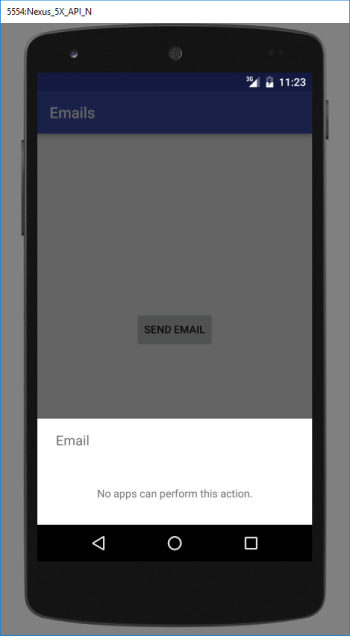
Click the Send Email button. If you configured the Email service on your emulator, you should see the Email application launched in your emulator/device. Otherwise you see the message shown in Figure 9.5.
This chapter described the two key ways for your application to communicate with the outside world. You first learned how to send and receive SMS messages. Using SMS, you can build a variety of applications that rely on the service provided by your mobile operator. Chapter 8 shows you a good example of how to use SMS messaging to build a location tracker application.
You also learned how to send email messages from within your Android application. You do that by invoking the built-in Email application through the use of an Intent object.
EXERCISES
Name the two ways in which you can send SMS messages in your Android application.
Name the permissions you need to declare in your AndroidManifest.xml file for sending and receiving SMS messages.
How do you notify an activity from a BroadcastReceiver?
You can find answers to the exercises in the appendix.
WHAT YOU LEARNED IN THIS CHAPTER
TOPIC
KEY CONCEPTS
Programmatically sending SMS messages
Use the SmsManager class.
Sending SMS messages using Intent
Set the intent type to vnd.android-dir/mms-sms.
Receiving SMS messages
Implement a BroadcastReceiver and set it in the AndroidManifest.xml file.
 Beginning Android Programming with Android Studio, Fourth Edition
Published by
Wrox, 2016
Beginning Android Programming with Android Studio, Fourth Edition
Published by
Wrox, 2016