Table of Contents for
Beginning Android Programming with Android Studio, Fourth Edition
 Beginning Android Programming with Android Studio, Fourth Edition
Published by
Wrox, 2016
Beginning Android Programming with Android Studio, Fourth Edition
Published by
Wrox, 2016
- Cover
- Contents
- Title Page
- Introduction
- Chapter 1: Getting Started with Android Programming
- Chapter 2: Using Android Studio for Android Development
- Chapter 3: Activities, Fragments, and Intents
- Chapter 4: Getting to Know the Android User Interface
- Chapter 5: Designing Your User Interface with Views
- Chapter 6: Displaying Pictures and Menus with Views
- Chapter 7: Data Persistence
- Chapter 8: Content Providers
- Chapter 9: Messaging
- Chapter 10: Location-Based Services
- Chapter 11: Networking
- Chapter 12: Developing Android Services
- Appendix: Answers to Exercises
- Copyright
- Dedication
- Credits
- About the Author
- About the Technical Editor
- Acknowledgments
- End User License Agreement
Chapter 3
Activities, Fragments, and Intents
An Android application can have zero or more activities. Typically, applications have one or more activities. The main purpose of an activity is to interact with the user. From the moment an activity appears on the screen to the moment it is hidden, it goes through a number of stages. These stages are known as an activity's life cycle. Understanding the life cycle of an activity is vital to ensuring that your application works correctly. In addition to activities, Android N also supports fragments, a feature that was introduced for tablets in Android 3.0 and for phones in Android 4.0. Think of fragments as “miniature” activities that can be grouped to form an activity. In this chapter, you find out how activities and fragments work together.
Apart from activities, another unique concept in Android is that of an intent. An intent is basically the “glue” that enables activities from different applications to work together seamlessly, ensuring that tasks can be performed as though they all belong to one single application. Later in this chapter, you learn more about this very important concept and how you can use it to call built-in applications such as the Browser, Phone, Maps, and more.
UNDERSTANDING ACTIVITIES
This chapter begins by showing you how to create an activity. To create an activity, you create a Java class that extends the Activity base class:
package com.jfdimarzio.chapter1helloworld;
        import android.support.v7.app.AppCompatActivity;
        import android.os.Bundle;
public class MainActivity extends AppCompatActivity {
    @Override
    protected void onCreate(Bundle savedInstanceState) {
        super.onCreate(savedInstanceState);
        setContentView(R.layout.activity_main);
    }
}
Your activity class loads its user interface (UI) component using the XML file defined in your res/layout folder. In this example, you would load the UI from the main.xml file:
setContentView(R.layout.activity_main);Every activity you have in your application must be declared in your AndroidManifest.xml file, like this:
<?xml version="1.0" encoding="utf-8"?>
<manifest xmlns:android="http://schemas.android.com/apk/res/android
    package="com.jfdimarzio.chapter1helloworld">
    <application
        android:allowBackup="true"
        android:icon="@mipmap/ic_launcher"
        android:label="@string/app_name"
        android:supportsRtl="true"
        android:theme="@style/AppTheme">
        <activity android:name=".MainActivity">
            <intent-filter>
                <action android:name="android.intent.action.MAIN" />
                <category android:name="android.intent.category.LAUNCHER" />
            </intent-filter>
        </activity>
    </application>
</manifest>
The Activity base class defines a series of events that govern the life cycle of an activity. Figure 3.1 shows the lifecycle of an Activity.
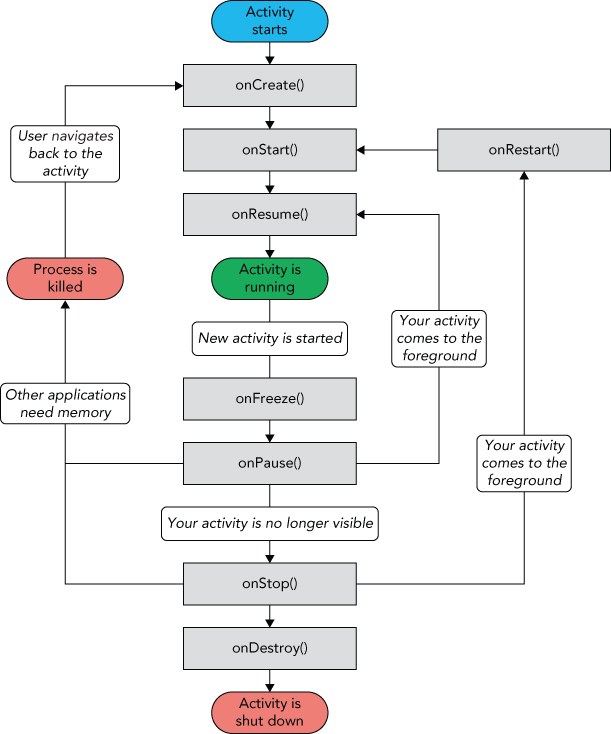
The Activity class defines the following events:
onCreate()—Called when the activity is first createdonStart()—Called when the activity becomes visible to the useronResume()—Called when the activity starts interacting with the useronPause()—Called when the current activity is being paused and the previous activity is being resumedonStop()—Called when the activity is no longer visible to the useronDestroy()—Called before the activity is destroyed by the system (either manually or by the system to conserve memory)onRestart()—Called when the activity has been stopped and is restarting again
By default, the activity created for you contains the onCreate() event. Within this event handler is the code that helps to display the UI elements of your screen.
Figure 3.2 shows the life cycle of an activity and the various stages it goes through—from when the activity is started until it ends.
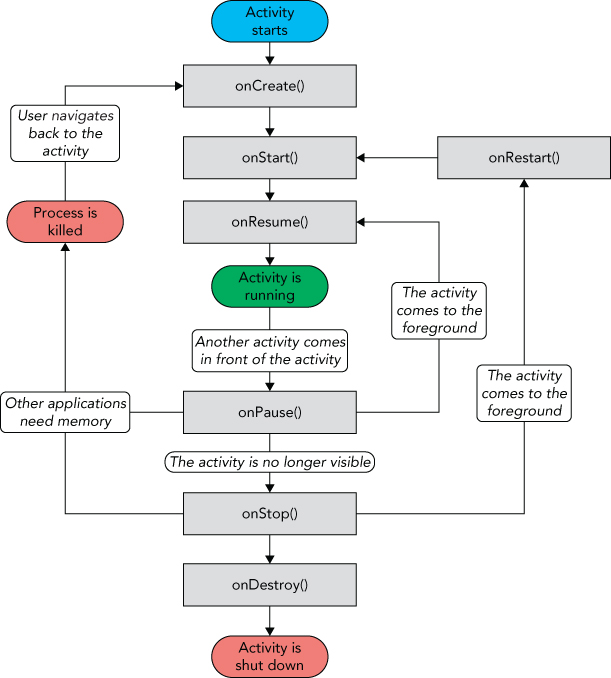
The best way to understand the various stages of an activity is to create a new project, implement the various events, and then subject the activity to various user interactions.
Applying Styles and Themes to an Activity
By default, an activity is themed to the default Android theme. However, there has been a push in recent years to adopt a new theme known as Material. The Material theme has a much more modern and clean look to it.
There are two versions of the Material theme available to Android developers: Material Light and Material Dark. Either of these themes can be applied from the AndroidManifest.xml.
To apply one of the Material themes to an activity, simply modify the <Application> element in the AndroidManifest.xml file by changing the default android:theme attribute. (Please be sure to change all instances of "com.jfdimarzio" to whatever package name your project is using.)
<?xml version="1.0" encoding="utf-8"?>
<manifest xmlns:android="http://schemas.android.com/apk/res/android"
    xmlns:tools="http://schemas.android.com/tools"
    package="com.jfdimarzio.activity101">
    <application
        android:allowBackup="true"
        android:icon="@mipmap/ic_launcher"
        android:label="@string/app_name"
        android:supportsRtl="true"
        android:theme="@android:style/Theme.Material">
        <activity android:name=".MainActivity">
            <intent-filter>
                <action android:name="android.intent.action.MAIN"/>
                <category android:name="android.intent.category.LAUNCHER"/>
            </intent-filter>
        </activity>
    </application>
</manifest>
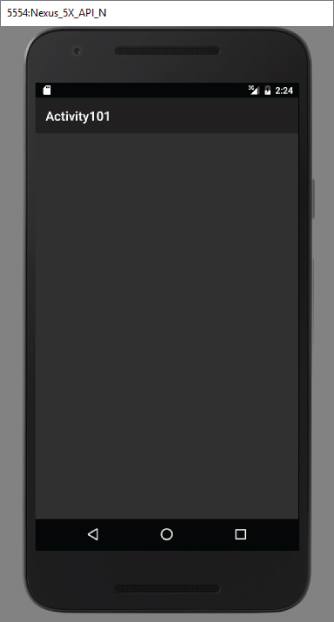
Changing the default theme to @android:style/Theme.Material, as in the highlighted code in the preceding snippet, applies the Material Dark theme and gives your application a darker look as shown in Figure 3.4.
Hiding the Activity Title
You can also hide the title of an activity if desired (such as when you just want to display a status update to the user). To do so, use the requestWindowFeature() method and pass it the Window.FEATURE_NO_TITLE constant, like this:
import android.support.v7.app.AppCompatActivity;
import android.os.Bundle;
import android.view.Window;
public class MainActivity extends AppCompatActivity {
    @Override
    protected void onCreate(Bundle savedInstanceState) {
        super.onCreate(savedInstanceState);
        setContentView(R.layout.activity_main);
        requestWindowFeature(Window.FEATURE_NO_TITLE);
    }
}
Now you need to change the theme in the AndroidManifest.xml to a theme that has no title bar. Be sure to change all instances of "com.jfdimarzio" to whatever package name your project is using.
package com.jfdimarzio.activity101;
<?xml version="1.0" encoding="utf-8"?>
<manifest xmlns:android="http://schemas.android.com/apk/res/android"
    xmlns:tools="http://schemas.android.com/tools"
    package="com.jfdimarzio.activity101">
    <application
        android:allowBackup="true"
        android:icon="@mipmap/ic_launcher"
        android:label="@string/app_name"
        android:supportsRtl="true"
        android:theme="@android:style/Theme.NoTitleBar">
        <activity android:name=".MainActivity">
            <intent-filter>
                <action android:name="android.intent.action.MAIN"/>
                <category android:name="android.intent.category.LAUNCHER"/>
            </intent-filter>
        </activity>
    </application>
</manifest>
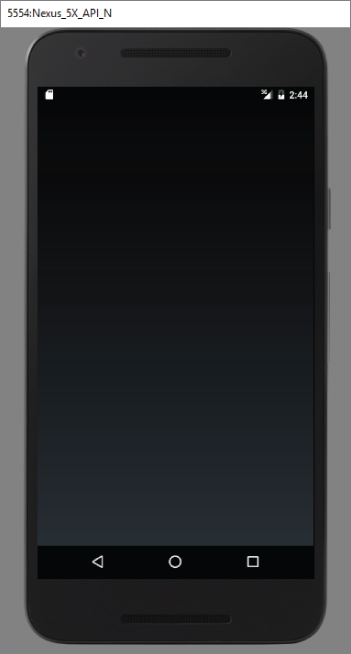
This hides the title bar, as shown in Figure 3.5.
Displaying a Dialog Window
There are times when you need to display a dialog window to get a confirmation from the user. In this case, you can override the onCreateDialog() protected method defined in the Activity base class to display a dialog window. The following Try It Out shows you how.
Displaying a Progress Dialog
One common UI feature in an Android device is the “Please wait” dialog that you typically see when an application is performing a long-running task. For example, the application might be logging in to a server before the user is allowed to use it, or it might be doing a calculation before displaying the result to the user. In such cases, it is helpful to display a dialog, known as a progress dialog, so that the user is kept in the loop.
Android provides a ProgressDialog class you can call when you want to display a running meter to the user. ProgressDialog is easy to call from an activity.
The following Try It Out demonstrates how to display such a dialog.
The next section explains using Intents, which help you navigate between multiple Activities.
LINKING ACTIVITIES USING INTENTS
An Android application can contain zero or more activities. When your application has more than one activity, you often need to navigate from one to another. In Android, you navigate between activities through what is known as an intent.
The best way to understand this very important but somewhat abstract concept is to experience it firsthand and see what it helps you achieve. The following Try It Out shows how to add another activity to an existing project and then navigate between the two activities.
Returning Results from an Intent
The startActivity() method invokes another activity but does not return a result to the current activity. For example, you might have an activity that prompts the user for username and password. The information entered by the user in that activity needs to be passed back to the calling activity for further processing. If you need to pass data back from an activity, you should instead use the startActivityForResult() method. The following Try It Out demonstrates this.
Passing Data Using an Intent Object
Besides returning data from an activity, it is also common to pass data to an activity. For example, in the previous example, you might want to set some default text in the EditText view before the activity is displayed. In this case, you can use the Intent object to pass the data to the target activity.
The following Try It Out shows you the various ways in which you can pass data between activities.
FRAGMENTS
In the previous section, you learned what an activity is and how to use it. In a small-screen device (such as a smartphone), an activity typically fills the entire screen, displaying the various views that make up the user interface of an application. The activity is essentially a container for views. However, when an activity is displayed in a large-screen device, such as on a tablet, it is somewhat out of place. Because the screen is much bigger, all the views in an activity must be arranged to make full use of the increased space, resulting in complex changes to the view hierarchy. A better approach is to have “mini-activities,” each containing its own set of views. During runtime, an activity can contain one or more of these mini-activities, depending on the screen orientation in which the device is held. In Android 3.0 and later, these mini-activities are known as fragments.
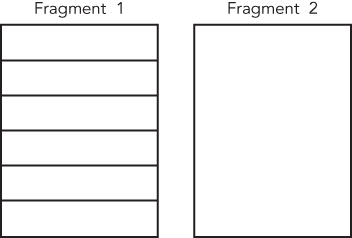
Think of a fragment as another form of activity. You create fragments to contain views, just like activities. Fragments are always embedded in an activity. For example, Figure 3.13 shows two fragments. Fragment 1 might contain a ListView showing a list of book titles. Fragment 2 might contain some TextViews and ImageViews showing some text and images.
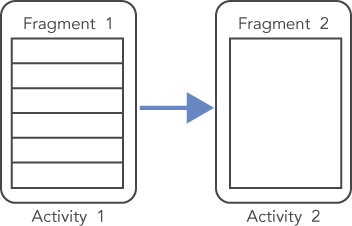
Now imagine the application is running on an Android tablet (or on an Android smartphone) in portrait mode. In this case, Fragment 1 might be embedded in one activity, whereas Fragment 2 might be embedded in another activity (see Figure 3.14). When users select an item in the list in Fragment 1, Activity 2 is started.
If the application is now displayed in a tablet in landscape mode, both fragments can be embedded within a single activity, as shown in Figure 3.15.
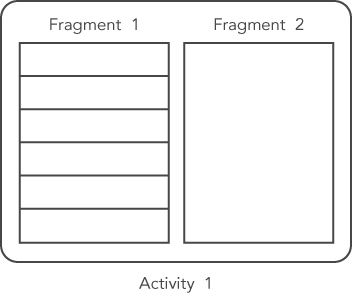
From this discussion, it becomes apparent that fragments present a versatile way in which you can create the user interface of an Android application. Fragments form the atomic unit of your user interface, and they can be dynamically added (or removed) to activities in order to create the best user experience possible for the target device.
The following Try It Out shows you the basics of working with fragments.
Adding Fragments Dynamically
Although fragments enable you to compartmentalize your UI into various configurable parts, the real power of fragments is realized when you add them dynamically to activities during runtime. In the previous section, you saw how you can add fragments to an activity by modifying the XML file during design time. In reality, it is much more useful if you create fragments and add them to activities during runtime. This enables you to create a customizable user interface for your application. For example, if the application is running on a smartphone, you might fill an activity with a single fragment; if the application is running on a tablet, you might then fill the activity with two or more fragments, as the tablet has much more screen real estate compared to a smartphone.
The following Try It Out shows how you can programmatically add fragments to an activity during runtime.
Life Cycle of a Fragment
Like activities, fragments have their own life cycle. Understanding the life cycle of a fragment enables you to properly save an instance of the fragment when it is destroyed, and restore it to its previous state when it is re-created.
The following Try It Out examines the various states experienced by a fragment.
Interactions Between Fragments
Very often, an activity might contain one or more fragments working together to present a coherent UI to the user. In this case, it is important for fragments to communicate with one another and exchange data. For example, one fragment might contain a list of items (such as postings from an RSS feed). Also, when the user taps on an item in that fragment, details about the selected item might be displayed in another fragment.
The following Try It Out shows how one fragment can access the views contained within another fragment.
Understanding the Intent Object
So far, you have seen the use of the Intent object to call other activities. This is a good time to recap and gain a more detailed understanding of how the Intent object performs its magic.
First, you learned that you can call another activity by passing its action to the constructor of an Intent object:
startActivity(new Intent("com.jfdimarzio.SecondActivity"));The action (in this example "com.jfdimarzio.SecondActivity") is also known as the component name. This is used to identify the target activity/application that you want to invoke. You can also rewrite the component name by specifying the class name of the activity if it resides in your project, like this:
startActivity(new Intent(this, SecondActivity.class));You can also create an Intent object by passing in an action constant and data, such as the following:
        Intent i = new
                Intent(android.content.Intent.ACTION_VIEW,
                        Uri.parse("http://www.amazon.com"));
        startActivity(i);
The action portion defines what you want to do, whereas the data portion contains the data for the target activity to act upon. You can also pass the data to the Intent object using the setData() method:
        Intent i = new
                Intent("android.intent.action.VIEW");
        i.setData(Uri.parse("http://www.amazon.com"));
In this example, you indicate that you want to view a web page with the specified URL. The Android OS will look for all activities that are able to satisfy your request. This process is known as intent resolution. The next section discusses in more detail how your activities can be the target of other activities.
For some intents, there is no need to specify the data. For example, to select a contact from the Contacts application, you specify the action and then indicate the MIME type using the setType() method:
                Intent i = new
                    Intent(android.content.Intent.ACTION_PICK);
i.setType(ContactsContract.Contacts.CONTENT_TYPE);The setType() method explicitly specifies the MIME data type to indicate the type of data to return. The MIME type for ContactsContract.Contacts.CONTENT_TYPE is "vnd.android.cursor.dir/contact".
Besides specifying the action, the data, and the type, an Intent object can also specify a category. A category groups activities into logical units so that Android can use those activities for further filtering. The next section discusses categories in more detail.
To summarize, an Intent object can contain the following information:
- Action
- Data
- Type
- Category
Using Intent Filters
Earlier, you saw how an activity can invoke another activity using the Intent object. In order for other activities to invoke your activity, you need to specify the action and category within the <intent-filter> element in the AndroidManifest.xml file, like this:
   <intent-filter >
          <action android:name="com.jfdimarzio.SecondActivity"/>
          <category android:name="android.intent.category.DEFAULT"/>
   </intent-filter>
This is a very simple example in which one activity calls another using the "com.jfdimarzio.SecondActivity" action.
DISPLAYING NOTIFICATIONS
So far, you have been using the Toast class to display messages to the user. While the Toast class is a handy way to show users alerts, it is not persistent. It flashes on the screen for a few seconds and then disappears. If it contains important information, users may easily miss it if they are not looking at the screen.
For messages that are important, you should use a more persistent method. In this case, you should use the NotificationManager to display a persistent message at the top of the device, commonly known as the status bar (sometimes also referred to as the notification bar). The following Try It Out demonstrates how.
SUMMARY
This chapter first provided a detailed look at how activities and fragments work and the various forms in which you can display them. You also learned how to display dialog windows using activities.
The second part of this chapter demonstrated a very important concept in Android—the intent. The intent is the “glue” that enables different activities to be connected, and it is a vital concept to understand when developing for the Android platform.
EXERCISES
- To create an activity, you create a Java class that extends what base class?
- What attribute of the Application element is used to specify the theme?
- What method do you override when displaying a dialog?
- What is used to navigate between activities?
- What method should you use if you plan on receiving information back from an activity?
You can find answers to the exercises in the appendix.
WHAT YOU LEARNED IN THIS CHAPTER
| TOPIC | KEY CONCEPTS |
| Creating an activity | All activities must be declared in the AndroidManifest.xml file. |
| Key life cycle of an activity | When an activity is started, the onStart() and onResume() events are always called. |
When an activity is killed or sent to the background, the onPause() event is always called. |
|
| Displaying an activity as a dialog | Use the showDialog() method and implement the onCreateDialog() method. |
| Fragments | Fragments are “mini-activities” that you can add or remove from activities. |
| Manipulating fragments programmatically | You need to use the FragmentManager and FragmentTransaction classes when adding, removing, or replacing fragments during runtime. |
| Life cycle of a fragment | Similar to that of an activity—you save the state of a fragment in the onPause() event, and restore its state in one of the following events: onCreate(), onCreateView(), or onActivityCreated(). |
| Intent | The “glue” that connects different activities. |
| Calling an activity | Use the startActivity() or startActivityForResult() method. |
| Passing data to an activity | Use the Bundle object. |
Components in an Intent object |
An Intent object can contain the following: action, data, type, and category. |
| Displaying notifications | Use the NotificationManager class. |