Table of Contents for
Beginning Android Programming with Android Studio, Fourth Edition
 Beginning Android Programming with Android Studio, Fourth Edition
Published by
Wrox, 2016
Beginning Android Programming with Android Studio, Fourth Edition
Published by
Wrox, 2016
- Cover
- Contents
- Title Page
- Introduction
- Chapter 1: Getting Started with Android Programming
- Chapter 2: Using Android Studio for Android Development
- Chapter 3: Activities, Fragments, and Intents
- Chapter 4: Getting to Know the Android User Interface
- Chapter 5: Designing Your User Interface with Views
- Chapter 6: Displaying Pictures and Menus with Views
- Chapter 7: Data Persistence
- Chapter 8: Content Providers
- Chapter 9: Messaging
- Chapter 10: Location-Based Services
- Chapter 11: Networking
- Chapter 12: Developing Android Services
- Appendix: Answers to Exercises
- Copyright
- Dedication
- Credits
- About the Author
- About the Technical Editor
- Acknowledgments
- End User License Agreement
Chapter 1
Getting Started with Android Programming
Welcome to the world of Android! This chapter explains what Android is and what makes it so compelling to both developers and device manufacturers. It also shows you how to obtain and set up all the necessary tools so that you can test your application on an Android emulator in Android Studio 2 and how to get started with developing your first Android application. By the end of this chapter, you will be equipped with the basic knowledge you need to explore more sophisticated techniques and tricks for developing your next killer Android application.
WHAT IS ANDROID?
Android is a mobile operating system that is based on a modified version of Linux. It was originally developed by a startup of the same name, Android, Inc. In 2005, as part of its strategy to enter the mobile space, Google purchased Android, Inc. and took over its development work (as well as its development team).
Google wanted the Android OS to be open and free, so most of the Android code was released under the open source Apache License. That means anyone who wants to use Android can do so by downloading the full Android source code. Moreover, vendors (typically hardware manufacturers) can add their own proprietary extensions to Android and customize Android to differentiate their products from others. This development model makes Android very attractive to vendors, especially those companies affected by the phenomenon of Apple's iPhone, which was a hugely successful product that revolutionized the smartphone industry. When the iPhone was launched, many smartphone manufacturers had to scramble to find new ways of revitalizing their products. These manufacturers saw Android as a solution, meaning they will continue to design their own hardware and use Android as the operating system that powers it. Some companies that have taken advantage of Android's open source policy include Motorola and Sony Ericsson, which have been developing their own mobile operating systems for many years.
The main advantage to adopting Android is that it offers a unified approach to application development. Developers need only develop for Android in general, and their applications should be able to run on numerous different devices, as long as the devices are powered using Android. In the world of smartphones, applications are the most important part of the success chain.
Android Versions
Android has gone through quite a number of updates since its first release. Table 1.1 shows the various versions of Android and their codenames.
Table 1.1 A Brief History of Android Versions
| ANDROID VERSION | RELEASE DATE | CODENAME |
| 1.1 | February 9, 2009 | |
| 1.5 | April 30, 2009 | Cupcake |
| 1.6 | September 15, 2009 | Donut |
| 2.0/2.1 | October 26, 2009 | Éclair |
| 2.2 | May 20, 2010 | Froyo |
| 2.3 | December 6, 2010 | Gingerbread |
| 3.0/3.1/3.2 | February 22, 2011 | Honeycomb |
| 4.0 | October 18, 2011 | Ice Cream Sandwich |
| 4.1 | July 9, 2012 | Jelly Bean |
| 4.4 | October 31, 2013 | KitKat |
| 5.0 | November 12, 2014 | Lollipop |
| 6.0 | October 5, 2015 | Marshmallow |
| 7.0 | TBD | Nougat |
In 2016, Google released Android 7.0; the following are the key changes in Android 7.0:
- Split-screen multi-window mode
- Redesigned notification shade
- Refined “Doze” feature
- Switch from JRE (Java Runtime Environment) to OpenJDK
One important thing to keep in mind as you are looking at Android versions is that each version has its own features and APIs (application programming interfaces). Therefore, if your application is written for the newest version of Android, and it uses an API that was not present in an older version of Android, then only devices running that newer version of Android will be able to use your application.
Features of Android
Because Android is open source and freely available to manufacturers for customization, there are no fixed hardware or software configurations. However, the base Android OS supports many features, including
- Storage—SQLite, a lightweight relational database, for data storage. Chapter 7 discusses data storage in more detail.
- Connectivity—GSM/EDGE, IDEN, CDMA, EV-DO, UMTS, Bluetooth (includes A2DP and AVRCP), Wi-Fi, LTE, and WiMAX. Chapter 11 discusses networking in more detail.
- Messaging—Both SMS and MMS. Chapter 9 discusses messaging in more detail.
- Media support H.263, H.264 (in 3GP or MP4 container), MPEG-4 SP, AMR, AMR-WB (in 3GP container), AAC, HE-AAC (in MP4 or 3GP container), MP3, MIDI, Ogg Vorbis, WAV, JPEG, PNG, GIF, and BMP.
- Hardware support—Accelerometer sensor, camera, digital compass, proximity sensor, and GPS.
- Multi-touch—Multi-touch screens.
- Multi-tasking—Multi-tasking applications.
- Tethering—Sharing of Internet connections as a wired/wireless hotspot.
Android's web browser is based on the open source WebKit and Chrome's V8 JavaScript engine.
Architecture of Android
To understand how Android works, take a look at Figure 1.1, which shows the various layers that make up the Android operating system (OS).
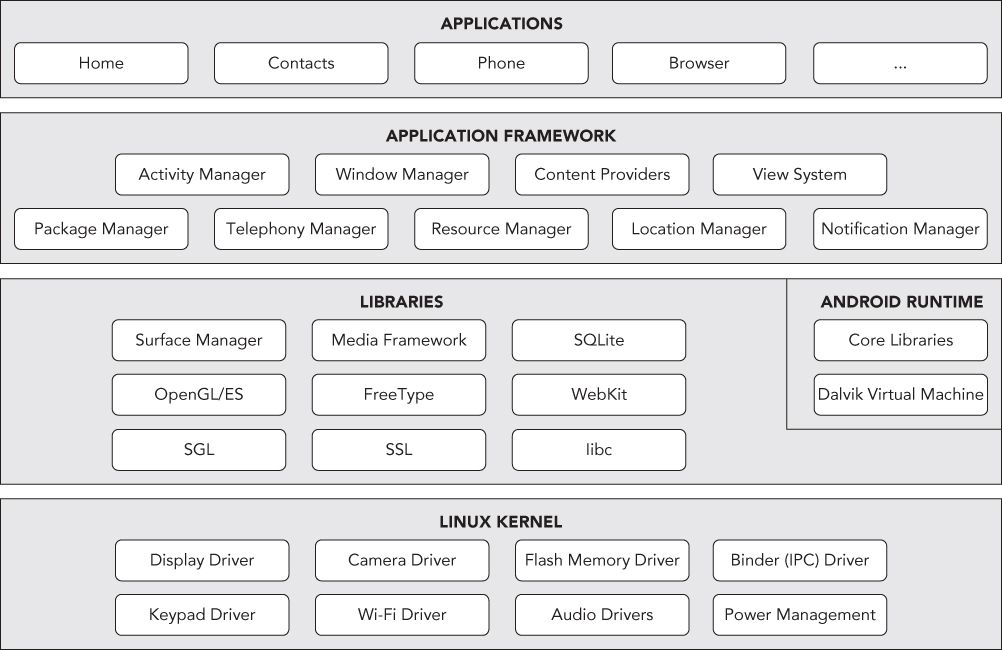
The Android OS is roughly divided into five sections in four main layers:
- Linux kernel—This is the kernel on which Android is based. This layer contains all the low-level device drivers for the various hardware components of an Android device.
- Libraries—These contain the code that provides the main features of an Android OS. For example, the SQLite library provides database support so that an application can use it for data storage. The WebKit library provides functionalities for web browsing.
- Android runtime—The Android runtime is located in the same layer with the libraries and provides a set of core libraries that enable developers to write Android apps using the Java programming language. The Android runtime also includes the Dalvik virtual machine, which enables every Android application to run in its own process, with its own instance of the Dalvik virtual machine. (Android applications are compiled into Dalvik executables). Dalvik is a specialized virtual machine designed specifically for Android and optimized for battery-powered mobile devices with limited memory and CPU power.
- Application framework—The application framework exposes the various capabilities of the Android OS to application developers so that they can make use of them in their applications.
- Applications—At this top layer are the applications that ship with the Android device (such as Phone, Contacts, Browser, and so on), as well as applications that you download and install from the Android Market. Any applications that you write are located at this layer.
Android Devices in the Market
Android devices come in all shapes and sizes including, but not limited to, the following types of devices:
- Smartphones
- Tablets
- E-reader devices
- Internet TVs
- Automobiles
- Smartwatches
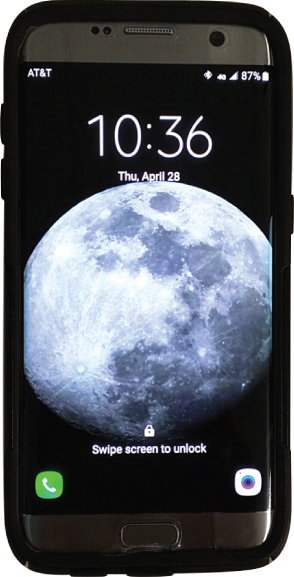
Chances are good that you own at least one of the preceding devices. Figure 1.2 shows the Samsung Galaxy Edge 7.
Another popular category of devices is the tablet. Tablets typically come in two sizes: 7″ and 10″, measured diagonally.
Besides smartphones and tablets, Android is used in dedicated devices, such as e-book readers. Figure 1.4 shows the Barnes and Noble's NOOK Color running the Android OS.
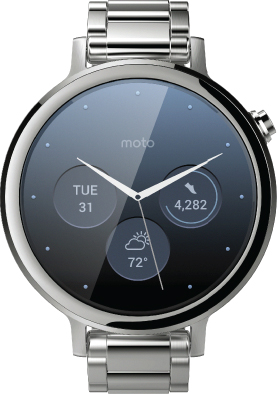
In addition to the popular mobile devices I've already mentioned, Android is finding its way onto your wrist. Smartwatches, and “wearables” in general, have become a major segment of the Android population. Figure 1.3 shows the Motorola Moto 360 Smartwatch, which runs Android Wear (a version of Android OS specifically designed for wearables).
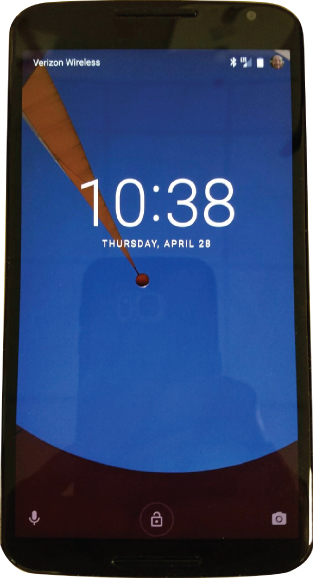
At the time of writing, the Samsung Galaxy Nexus (see Figure 1.4) is the only device running a pure version of Android. Many manufacturers add their own modifications to the Android OS for use on their specific devices. Motorola devices have Motoblur, HTC devices have HTC Sense, and so on. However, the Nexus devices always run a clean version of Android with no modifications.
The Android Market
As mentioned earlier, one of the main factors determining the success of a smartphone platform is the applications that support it. It is clear from the success of the iPhone that applications play a very vital role in determining whether a new platform swims or sinks. Also, making these applications accessible to the general user is extremely important.
Users can simply use the Google Play application that is preinstalled on their Android devices to directly download third-party applications to their devices. Both paid and free applications are available in the Google Play Store, although paid applications are available only to users in certain countries because of legal issues.
OBTAINING THE REQUIRED TOOLS
Now that you know what Android is and what its feature set contains, you are probably anxious to get your hands dirty and start writing some applications! Before you write your first app, however, you need to download the required tools.
For Android development, you can use a Mac, a Windows PC, or a Linux machine. You can freely download all the necessary tools. Most of the examples provided in this book are written to work on Android Studio. For this book, I am using a Windows 10 computer to demonstrate all the code samples. If you are using a Mac or Linux computer, the screenshots should look similar. Some minor differences might be present, but you should be able to follow along without problems.
Let the fun begin!
Android Studio
The first and most important piece of software you need to download is Android Studio 2. After you have downloaded and installed Android Studio 2, you can use the SDK Manager to download and install multiple versions of the Android SDK. Having multiple versions of the SDK available enables you to write programs that target different devices. For example, you can write one version of an application that specifically targets Android Nougat, but because that flavor of Android is on less than 1% of devices, with multiple versions of the SDK you can also write a version of your app that uses older features and targets Marshmallow or Lollipop users. You can use the Android Device Manager to set up device emulators.
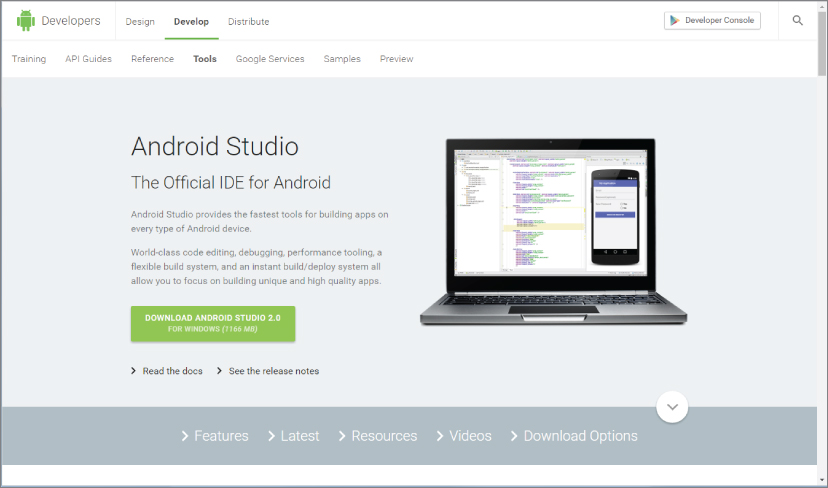
You can download Android Studio 2 from http://developer.android.com/sdk/index.html (see Figure 1.5).
Android Studio 2 is packaged in an executable. Run the install process to set up Android Studio 2. After you've downloaded and run the setup executable, use the following steps to go through the installation process:
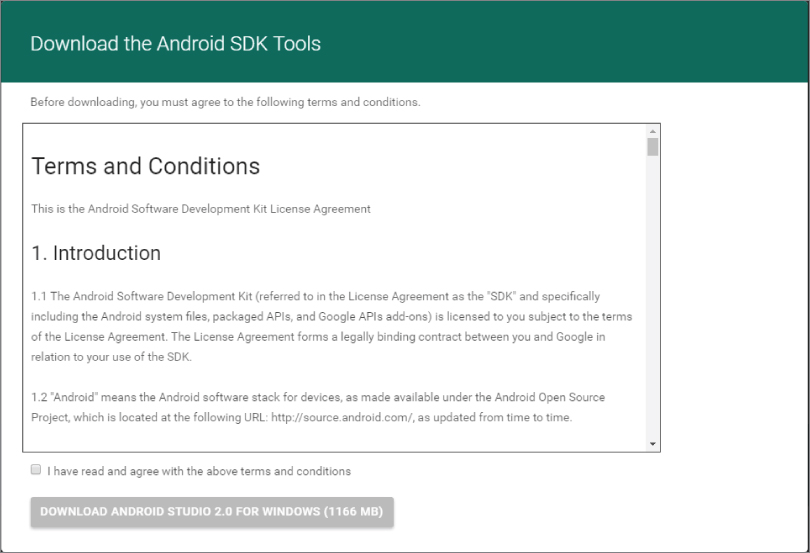
- Accept the terms and conditions shown in Figure 1.6.
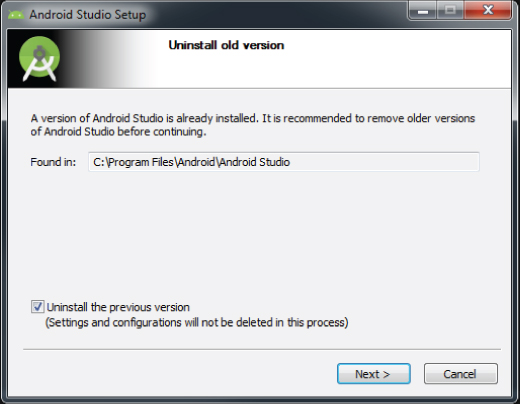
- If you have an older version of Android Studio already installed on your computer, the Android Studio Setup prompts you to automatically uninstall it. Even though the old version of Android Studio will be uninstalled, the settings and configurations are retained. You have an opportunity to reapply those settings and configurations to Android Studio 2 after the setup has completed. Figure 1.7 shows the screen where you are prompted to uninstall an old version of Android Studio.
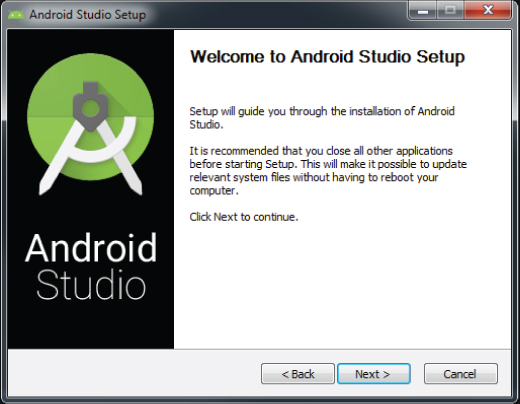
- Click Next on the Welcome to Android Studio Setup screen (see Figure 1.8).
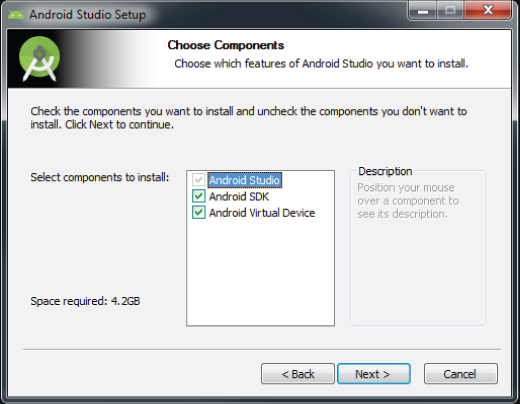
- Pick which components of Android Studio you want to install from the screen shown in Figure 1.9. Android Studio is selected by default (and cannot be deselected), which makes sense given that you are going through all of this trouble for the distinct purpose of installing Android Studio. Android SDK and Android Virtual Device are also selected by default. Click Next to accept the default choices and continue.
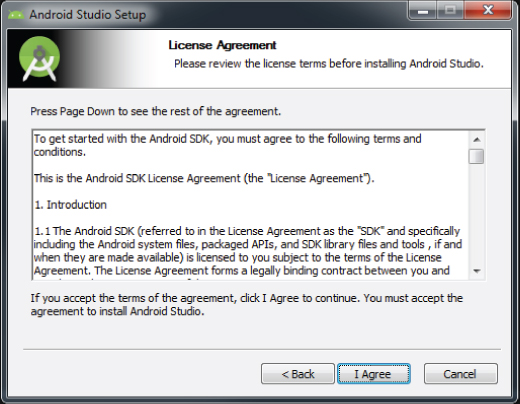
- You are presented with the License Agreement, as shown in Figure 1.10. Click I Agree to continue.
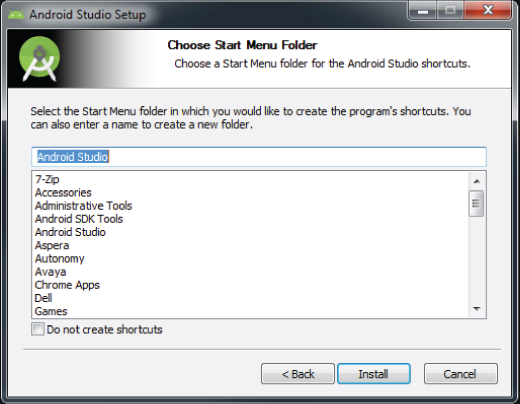
- On the configuration settings screen, it is best to accept the default locations specified by the setup process and click Next to continue. You see the Choose Start Menu Folder screen (shown in Figure 1.11). Click Install to kick off the Android Studio 2 installation.
- Installing Android Studio 2 could take a few minutes, depending on the speed of your computer. You are presented with a progress bar to help you track the state of the installation. Android Studio 2 is installed with a default SDK (Software Development Kit), in this case Marshmallow. Later in the process you have the opportunity to install other SDKs. The Android SDK allows you to develop and write applications geared for a specific version of Android. In other words, applications written with the Marshmallow SDK run on Android devices running Marshmallow, but they also possibly run on other versions depending on which features of the SDK you used in the application.
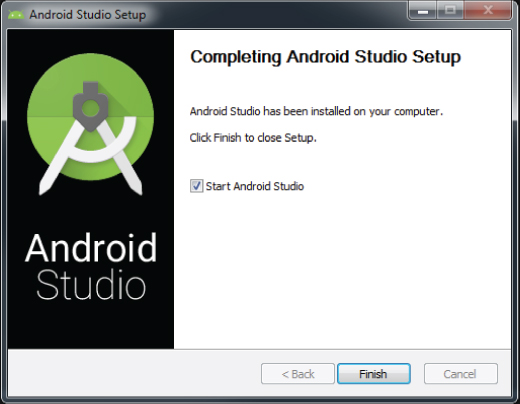
- When the install is complete, you will see a Completing Android Studio Setup screen (shown in Figure 1.12). Leave the Start Android Studio box checked and click Finish.
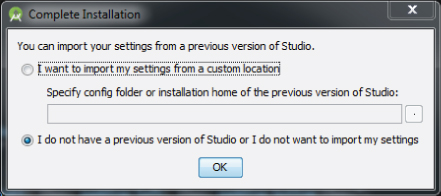
- Android Studio 2 prompts you to either import settings from a previous version of Android Studio or continue with new settings. If you uninstalled a previous version in the first step of the installation process, Android Studio offers you a chance to recover the settings used in that previous version and apply them to Android Studio 2 (see Figure 1.13).
Now that Android Studio 2 is installed, you need to adjust the settings and options using the following steps:
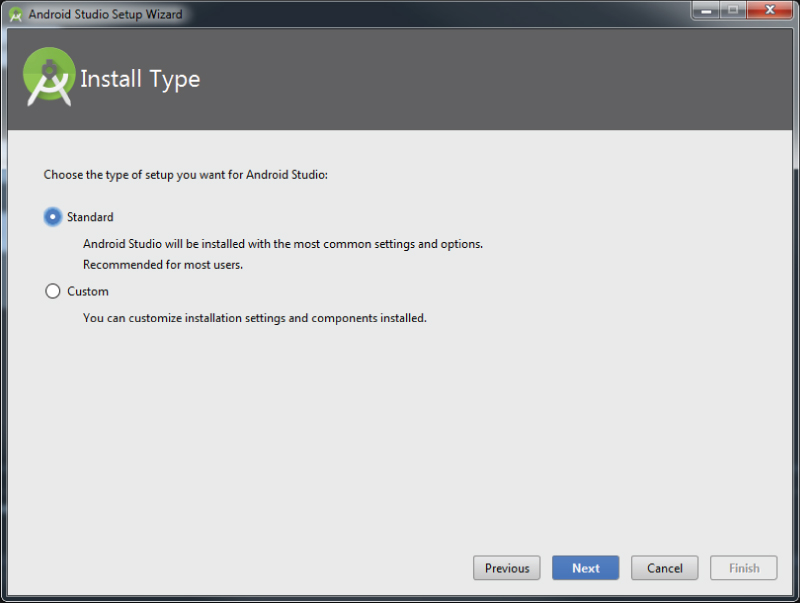
- Click Continue at the Welcome screen and choose Standard from the Install Type selection screen shown in Figure 1.14. Click Next to continue.
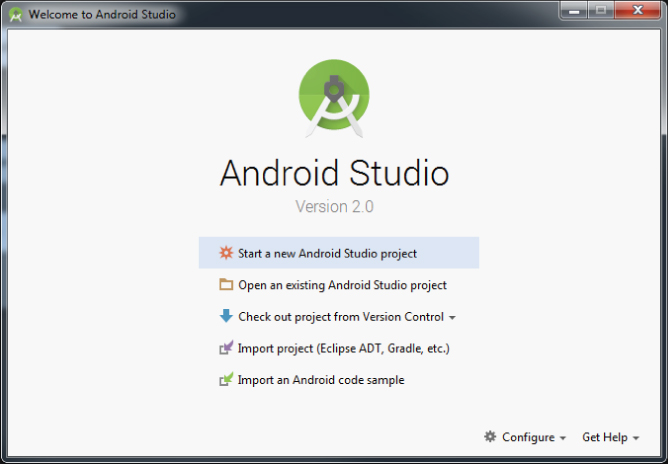
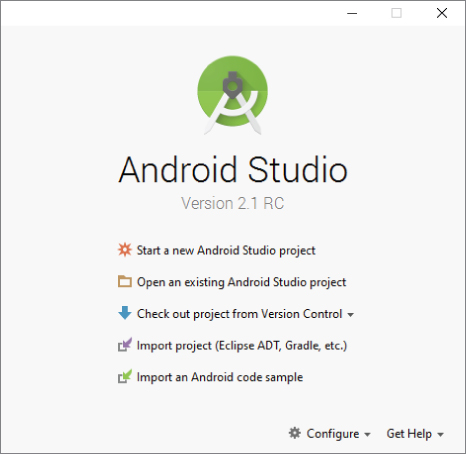
- Click Finish on the Verify Settings screen, and Android Studio 2 finalizes the setup process. You know the process is complete when you are greeted with the Welcome to Android Studio screen (see Figure 1.15).
Now that Android Studio is set up, it's time to install the latest and greatest Android SDK.
Android SDK
The most important piece of software you need to download is, of course, the Android SDK. The Android SDK contains all of the packages and tools required to develop a functional Android application. The SDKs are named after the version of Android OS to which they correspond. By default, the Marshmallow SDK was installed with Android Studio 2, which means you can develop applications that will run seamlessly on devices with Android Marshmallow.
However, if you want to install a different Android SDK, you can do so using the SDK Manager from the Android Studio welcome screen (shown in Figure 1.15). From this screen, click the Configure drop-down menu in the lower-right corner. The Configure selection menu opens. Choose SDK Manager from this menu.
The SDK configuration screen, shown in Figure 1.16, shows that the Marshmallow SDK is already installed. Android N is available to be installed (as of the writing of this book Android Nougat was in a finalized beta, so it might be named differently now).
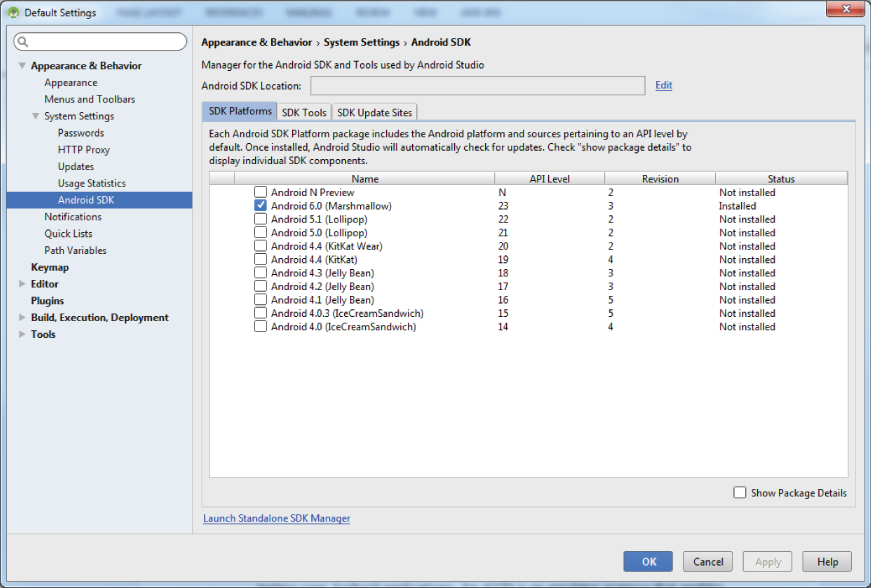
Select Android Nougat, click Apply, and then click OK. However, before the SDK is installed you must accept the licensing agreement as shown in Figure 1.17.
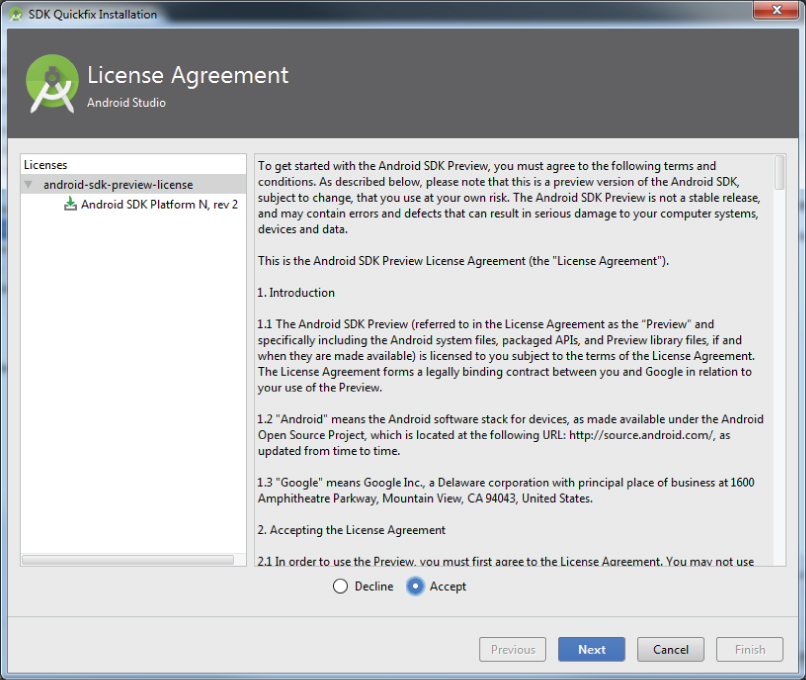
The setup process for Android Studio is now complete. The next section explains how to set up an Android Virtual Device that you can use to test your applications.
Creating Android Virtual Devices (AVDs)
The next step is to create an Android Virtual Device (AVD) you can use for testing your Android applications. An AVD is an emulator instance that enables you to model an actual device. Each AVD consists of a hardware profile; a mapping to a system image; and emulated storage, such as a secure digital (SD) card. One important thing to remember about emulators is that they are not perfect. There are some applications, such as games (which are GPU heavy) or applications that use sensors such as the GPS or accelerometer. These types of applications cannot be simulated with the same speed or consistency within an emulator as they can when running on an actual device. However, the emulator is good for doing some generalized testing of your applications.
You can create as many AVDs as you want to test your applications with different configurations. This testing is important to confirm the behavior of your application when it is run on different devices with varying capabilities.
Use the following steps to create an AVD. This example demonstrates creating an AVD (put simply, an Android emulator) that emulates an Android device running Android N on the Nexus 5x hardware specs.
- Start Android Studio so that the Welcome screen is visible (refer to Figure 1.15). Click Start a New Android Studio Project. You see the Create New Project Wizard shown in Figure 1.18.
- Set up a HelloWorld project (that you will use in the final section of this chapter). Type Chapter1Helloworld in the Application Name field.
- You can keep the default values for the other fields on the New Project screen (they will be explained in more detail in later chapters). Click Next.
- You should see the Targeted Android Devices screen. By default, the Create New Project Wizard selects for you the Android SDK level that has the greatest activity based on statistics gathered from Google Play. At the time this book was written 74.3 percent of the active devices on Google Play were written using Android Jelly Bean. For now, accept the default, as shown in Figure 1.19, and click Next.
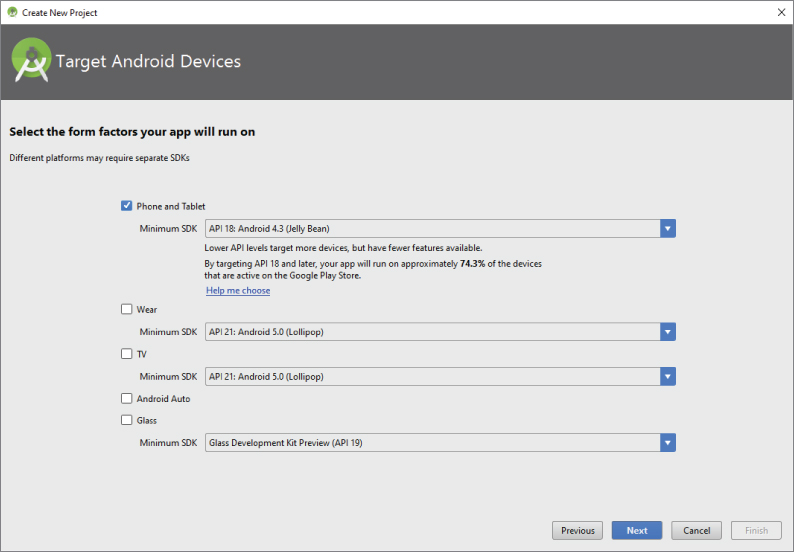
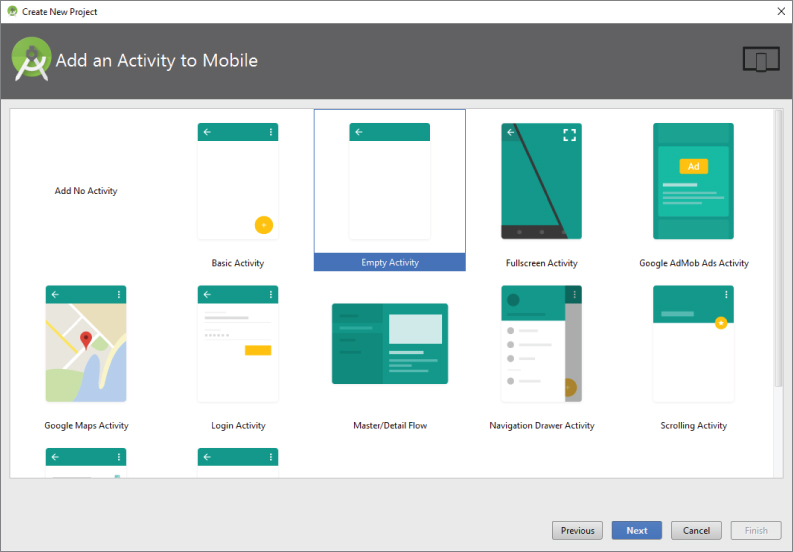
- On the Add an Activity to Mobile screen, accept the default choice—Empty Activity (see Figure 1.20)—and click Next.
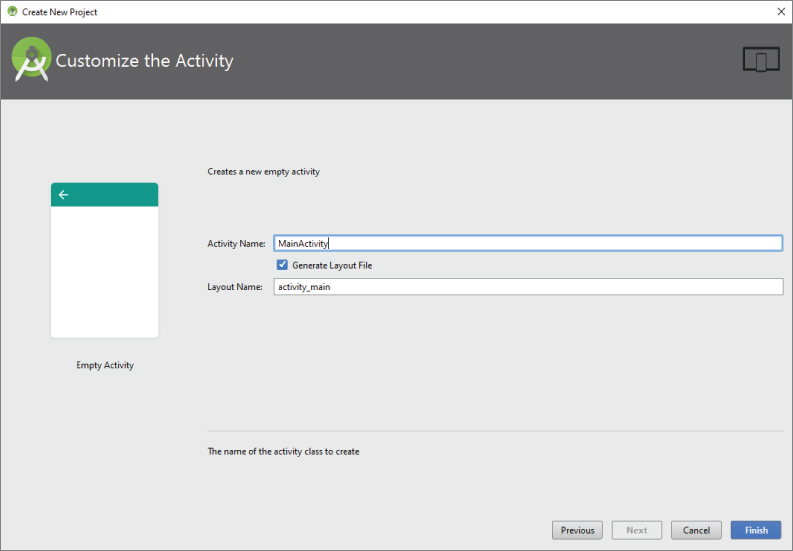
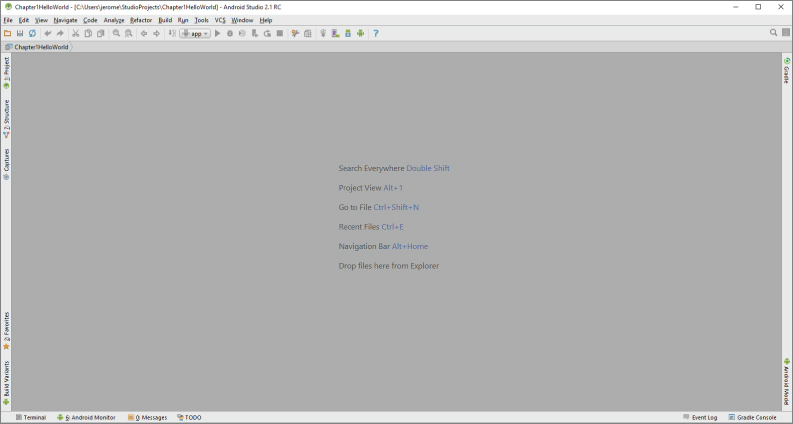
- Accept all of the defaults on the Customize the Activity screen, as shown in Figure 1.21, and click Finish. Figure 1.22 shows the open Android Studio IDE.
- Launch the AVD Manager by selecting Tools
 Android AVD Manager or using the AVD Manager button from the toolbar. Figure 1.23 shows the Android Virtual Device Manager Wizard, which is where you set up AVDs to be used when you emulate your application in Android on your desktop.
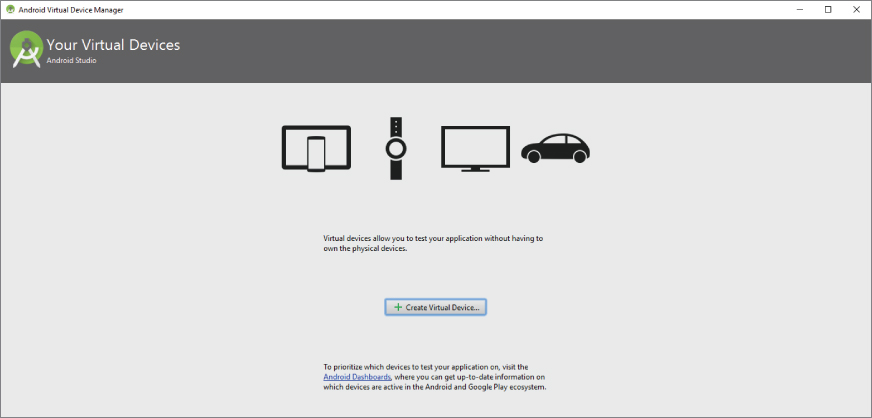
- Click the + Create Virtual Device button to create a new AVD. The Virtual Device Configuration screen opens as shown in Figure 1.24.
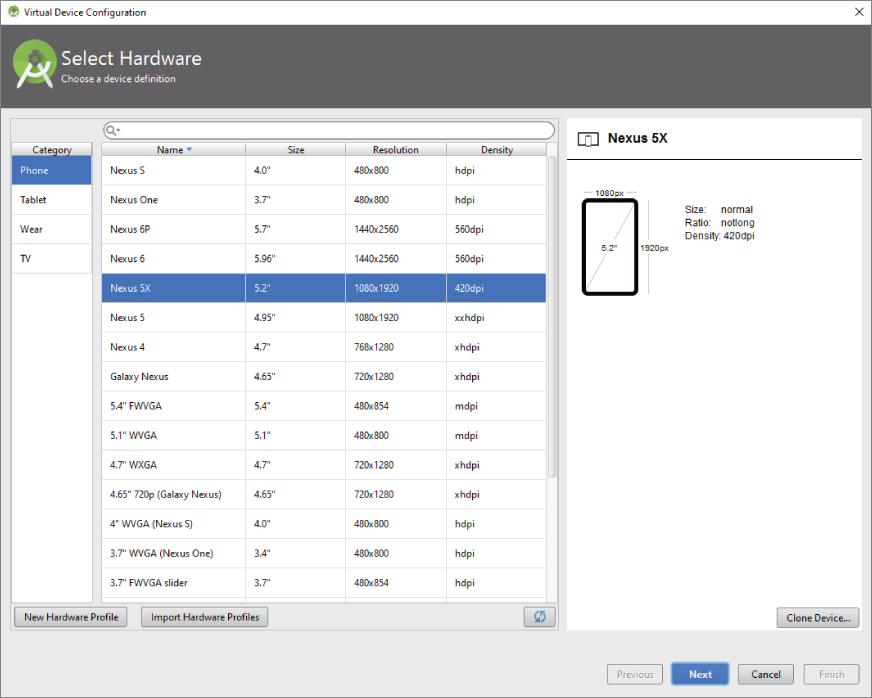
- Select the Nexus 5x hardware profile and click Next. Although none of the emulators offers the same performance as its actual hardware counterpart, the Nexus 5x should run well on most x86-based desktops, and it still offers some of the mid- to high-end Android device specs.
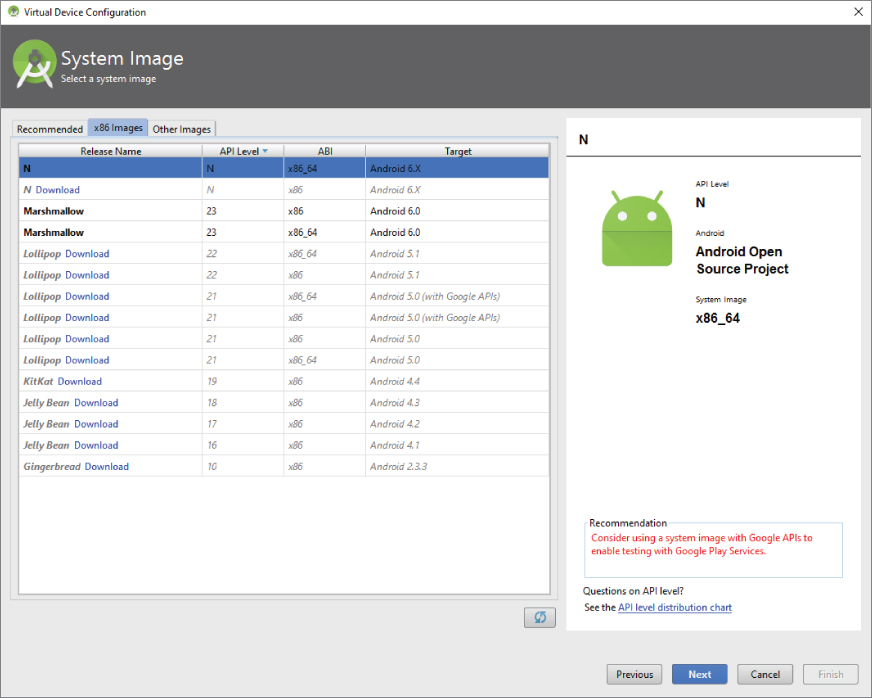
- For the system image, select and install the latest option, which at the time this book was written is Android Nougat. Click the x86 Images tab (see Figure 1.25), select N from the list of images, and then click Next.
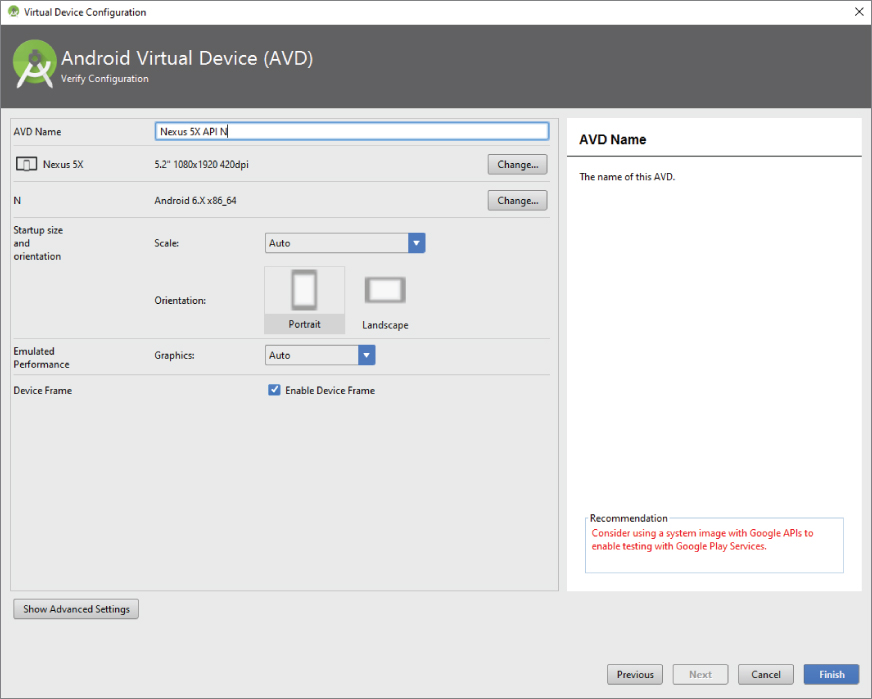
- In the Android Virtual Device (AVD) dialog, accept the defaults as shown in Figure 1.26. Click the Finish button to begin building the AVD.
- Launch the AVD Manager by selecting Tools Android AVD Manager or using the AVD Manager button from the toolbar.
- In the Android Virtual Device Manager Wizard, click the + Create Virtual Device button.
- Select the Nexus 5x hardware profile and click Next.
- Click the x86 Images tab, select Jelly Bean from the list of images, and then click Download.
- Accept the agreement and download the Jelly Bean SDK.
- After the SDK has downloaded, click Jelly Bean once again (on the x86 Images tab) and click Next.
- In the Android Virtual Device (AVD) dialog, accept the defaults and click the Finish button.
After you have created your ADV, it is time to test it. There is no better way to do this than to create and launch the ubiquitous Hello World application.
The Android Developer Community
Now that Android is in its seventh version, there is a large developer community all over the world. It is easy to find solutions to problems and to find like-minded developers with whom to share app ideas and experiences.
The following are some developer communities and websites that you can turn to for help if you run into problems while working with Android:
- Stack Overflow (www.stackoverflow.com)—Stack Overflow is a collaboratively edited question-and-answer site for developers. If you have a question about Android, chances are someone at Stack Overflow is probably already discussing the same question. It's also likely that someone else has already provided the answer. Best of all, other developers can vote for the best answer so that you can know which are the answers that are most trustworthy.
- Google Android Training (http://developer.android.com/training/index.html)—Google has launched the Android Training site, which contains a number of useful classes grouped by topics. At the time of writing, the classes mostly contain code snippets that are useful to Android developers who have started with the basics. After you have learned the basics in this book, I strongly suggest you take a look at the classes.
- Android Discuss (http://groups.google.com/group/android-discuss)—Android Discuss is a discussion group hosted by Google using the Google Groups service. Here, you will be able to discuss the various aspects of Android programming. This group is monitored closely by the Android team at Google, so this is good place to clarify your doubts and to learn new tips and tricks.
LAUNCHING YOUR FIRST ANDROID APPLICATION
With all the tools and the SDK downloaded and installed, it is now time to start your engine. As in most programming books, the first example uses the ubiquitous Hello World application. This will give you a detailed look at the various components that make up an Android project. This is also the easiest Android project you will ever make.
Believe it or not, the Hello World application is already finished. By default, when you create a new application in Android Studio, it creates a Hello World application. Let's launch this application and, in the process, also launch the Android emulator to see how everything works.
- Select Run Run app from the Android Studio menu bar. You should see the Select Deployment Target dialog as shown in Figure 1.27.
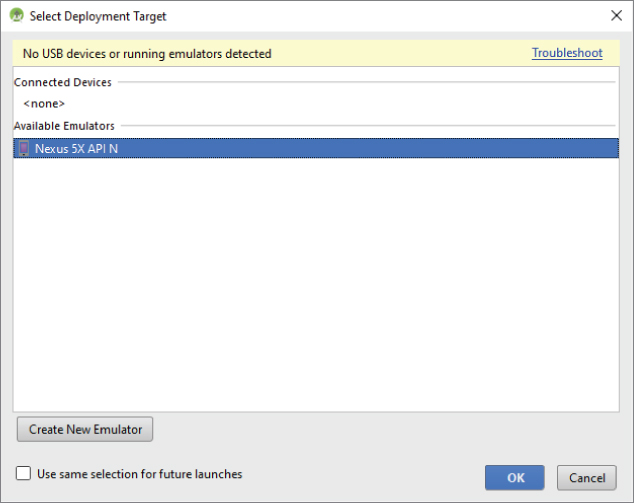
- Select the Nexus 5X API N (feel free to select the Nexus 5x API 18, which is the Jelly Bean emulator that you created in the Try It Out for the last section), and click Next.
- It can take up to five minutes, and sometimes longer (depending on the hardware specs of your desktop) for the emulator to start and fully load. During this time (the first time you launch the emulator) the application might time out. If a message pops up in Android Studio telling you that the application timed out waiting for the ADB (Android Debugging Bridge) to start, or another similar message, just wait for the emulator to fully load, and then once again select Run Run app from the Android Studio menu bar.
With the emulator fully loaded and started, Android Studio can install your Hello World application. The application will display as shown in Figure 1.28.
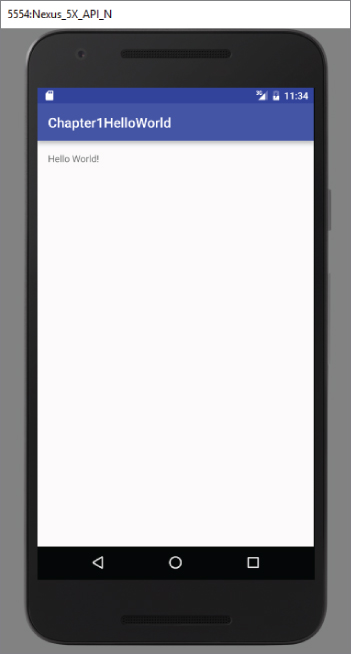
This was a very quick example of how to create and launch your first Android applications. However, what this example has really done for you is introduce you, on a general scale, to most of the major skills you will fine tune throughout this book.
SUMMARY
This chapter provided a brief overview of Android and highlighted some of its capabilities. If you have followed the sections on downloading the tools and the Android SDK, you should now have a working system—one that is capable of developing Android applications that are more interesting than the Hello World application. In the next chapter, you find out about the inner workings of Android Studio before moving on to more complex Android application development concepts.
EXERCISES
- 1 What is an AVD?
- 2 Why was Jelly Bean selected for you by default in the Targeted Android Devices dialog?
- 3 What does SDK stand for?
- 4 What tool is used to download new Android SDKs?
You can find answers to the exercises in the appendix.
WHAT YOU LEARNED IN THIS CHAPTER
| TOPIC | KEY CONCEPTS |
| Android OS | Android is an open source mobile operating system based on the Linux operating system. It is available to anyone who wants to adapt it to run on their own devices. |
| Languages used for Android application development | You use the Java programming language to develop Android applications. Written applications are compiled into Dalvik executables, which are then run on top of the Dalvik virtual machine. |
| Google Play | Google Play hosts all the various Android applications written by third-party developers. |
| Tools for Android application development | Android Studio, Android SDK, and virtual devices. |