I first started playing with the Android Software Development Kit (SDK) before it was officially released as version 0.8. Back then, the tools were unpolished, the application programming interfaces (APIs) in the SDK were unstable, and the documentation was sparse. Android is now one of the most popular mobile operating systems in the world.
Every day, more developers are trying Android development using Android Studio, either as a hobby or professionally. The current challenge for many beginning developers who want to move into the exciting world of android development is trying to determine where to start.
It was with this challenge in mind that I was motivated to write this book, one that could benefit beginning Android programmers and enable them to write progressively more sophisticated applications.
This book is written to help jump-start beginning Android developers, covering the necessary topics in a linear manner so that you can build on your knowledge without being overwhelmed by the details. I adopt the philosophy that the best way to learn is by doing. The numerous Try It Out sections in each chapter first show you how to build something. Then the follow-up How It Works sections explain how everything works. I have also taken this opportunity to further improve the previous edition of this book by addressing feedback from readers and adding additional topics that are important to beginning Android developers.
Although Android programming is a huge topic, my aim for this book is threefold: to get you started with the fundamentals, to help you understand the underlying architecture of the SDK, and to appreciate why things are done in certain ways. It is beyond the scope of any book to cover everything under the sun related to Android programming. However, I am confident that after reading this book (and doing the exercises), you will be well equipped to tackle your next Android programming challenge.
This book is targeted for the beginning Android developer who wants to start developing applications using Google's Android SDK. To truly benefit from this book, you should have some background in programming and at least be familiar with object-oriented programming (OOP) concepts. If you are totally new to Java—the language used for Android development—you might want to take a programming course in Java programming or grab one of many good books on Java programming. In my experience, if you already know C# or VB.NET, learning Java doesn't require too much effort. If you're already comfortable with C# or VB.NET, you should be comfortable just following along with the Try It Outs.
For those totally new to programming, I know the lure of developing mobile apps and making some money is tempting. However, before attempting to try out the examples in this book, I think a better starting point would be to first learn the basics of programming.
This book covers the fundamentals of Android programming using the Android SDK. It is divided into 12 chapters and one appendix.
This book breaks down the task of learning Android programming into several smaller chunks, enabling you to digest each topic before delving into a more advanced one.
If you are a total beginner to Android programming, start with Chapter 1. After you have familiarized yourself with the basics, head to Chapter 2 and get to know the Android Studio IDE. When you are ready, continue with Chapter 3 and gradually move into more advanced topics.
A feature of this book is that all the code samples in each chapter are independent of those discussed in previous chapters. This gives you the flexibility to dive into the topics that interest you and start working on the Try It Out projects.
All the examples in this book run on the Android emulator (which is included as part of the Android SDK and Android Studio). However, to get the most out of this book, it would be useful to have a real Android device (though it's not absolutely necessary).
To help you get the most from the text and keep track of what's happening, a number of conventions are used throughout the book.
As for other conventions in the text:
persistence.properties.We use a monofont type with no highlighting for most code examples.
We use bolding to emphasize code that is of particular importance in the
present context.
As you work through the examples in this book, you may choose either to type in all the code manually or to use the source code files that accompany the book. All the source code used in this book is available for download at www.wrox.com. When at the site, simply locate the book's title (use the Search box or one of the title lists) and click the Download Code link on the book's detail page to obtain all the source code for the book.
You'll find the filename of the project you need at the end of the title of the Try it Out features:
We make every effort to ensure that there are no errors in the text or in the code. However, no one is perfect, and mistakes do occur. If you find an error in one of our books, such as a spelling mistake or faulty piece of code, we would be very grateful for your feedback. By sending in errata, you might save another reader hours of frustration and at the same time help us provide even higher-quality information.
To find the errata page for this book, go to www.wrox.com and locate the title using the Search box or one of the title lists. Then, on the book details page, click the Book Errata link. On this page, you can view all errata that has been submitted for this book and posted by Wrox editors.
If you don't spot “your” error on the Book Errata page, go to www.wrox.com/contact/techsupport.shtml and complete the form there to send us the error you have found. We'll check the information and, if appropriate, post a message to the book's errata page and fix the problem in subsequent editions of the book.
For author and peer discussion, join the P2P forums at p2p.wrox.com. The forums are a web-based system for you to post messages relating to Wrox books and related technologies. There, you also can interact with other readers and technology users. The forums offer a subscription feature that enables you to receive emails about topics of interest (of your choosing) when new posts are made to the forums. Wrox authors, editors, other industry experts, and your fellow readers are present on these forums.
At p2p.wrox.com, you will find a number of different forums that will help you not only as you read this book but also as you develop your own applications. To join the forums, follow these steps:
After you join, you can post new messages and respond to messages posted by other users. You can read messages at any time on the web. If you want to have new messages from a particular forum emailed to you, click the Subscribe to This Forum icon next to the forum name in the forum listing.
For more information about how to use the Wrox P2P, be sure to read the P2P FAQs for answers to questions about how the forum software works, as well as many common questions specific to P2P and Wrox books. To read the FAQs, click the FAQ link on any P2P page.
Welcome to the world of Android! This chapter explains what Android is and what makes it so compelling to both developers and device manufacturers. It also shows you how to obtain and set up all the necessary tools so that you can test your application on an Android emulator in Android Studio 2 and how to get started with developing your first Android application. By the end of this chapter, you will be equipped with the basic knowledge you need to explore more sophisticated techniques and tricks for developing your next killer Android application.
Android is a mobile operating system that is based on a modified version of Linux. It was originally developed by a startup of the same name, Android, Inc. In 2005, as part of its strategy to enter the mobile space, Google purchased Android, Inc. and took over its development work (as well as its development team).
Google wanted the Android OS to be open and free, so most of the Android code was released under the open source Apache License. That means anyone who wants to use Android can do so by downloading the full Android source code. Moreover, vendors (typically hardware manufacturers) can add their own proprietary extensions to Android and customize Android to differentiate their products from others. This development model makes Android very attractive to vendors, especially those companies affected by the phenomenon of Apple's iPhone, which was a hugely successful product that revolutionized the smartphone industry. When the iPhone was launched, many smartphone manufacturers had to scramble to find new ways of revitalizing their products. These manufacturers saw Android as a solution, meaning they will continue to design their own hardware and use Android as the operating system that powers it. Some companies that have taken advantage of Android's open source policy include Motorola and Sony Ericsson, which have been developing their own mobile operating systems for many years.
The main advantage to adopting Android is that it offers a unified approach to application development. Developers need only develop for Android in general, and their applications should be able to run on numerous different devices, as long as the devices are powered using Android. In the world of smartphones, applications are the most important part of the success chain.
Android has gone through quite a number of updates since its first release. Table 1.1 shows the various versions of Android and their codenames.
Table 1.1 A Brief History of Android Versions
| ANDROID VERSION | RELEASE DATE | CODENAME |
| 1.1 | February 9, 2009 | |
| 1.5 | April 30, 2009 | Cupcake |
| 1.6 | September 15, 2009 | Donut |
| 2.0/2.1 | October 26, 2009 | Éclair |
| 2.2 | May 20, 2010 | Froyo |
| 2.3 | December 6, 2010 | Gingerbread |
| 3.0/3.1/3.2 | February 22, 2011 | Honeycomb |
| 4.0 | October 18, 2011 | Ice Cream Sandwich |
| 4.1 | July 9, 2012 | Jelly Bean |
| 4.4 | October 31, 2013 | KitKat |
| 5.0 | November 12, 2014 | Lollipop |
| 6.0 | October 5, 2015 | Marshmallow |
| 7.0 | TBD | Nougat |
In 2016, Google released Android 7.0; the following are the key changes in Android 7.0:
One important thing to keep in mind as you are looking at Android versions is that each version has its own features and APIs (application programming interfaces). Therefore, if your application is written for the newest version of Android, and it uses an API that was not present in an older version of Android, then only devices running that newer version of Android will be able to use your application.
Because Android is open source and freely available to manufacturers for customization, there are no fixed hardware or software configurations. However, the base Android OS supports many features, including
Android's web browser is based on the open source WebKit and Chrome's V8 JavaScript engine.
To understand how Android works, take a look at Figure 1.1, which shows the various layers that make up the Android operating system (OS).
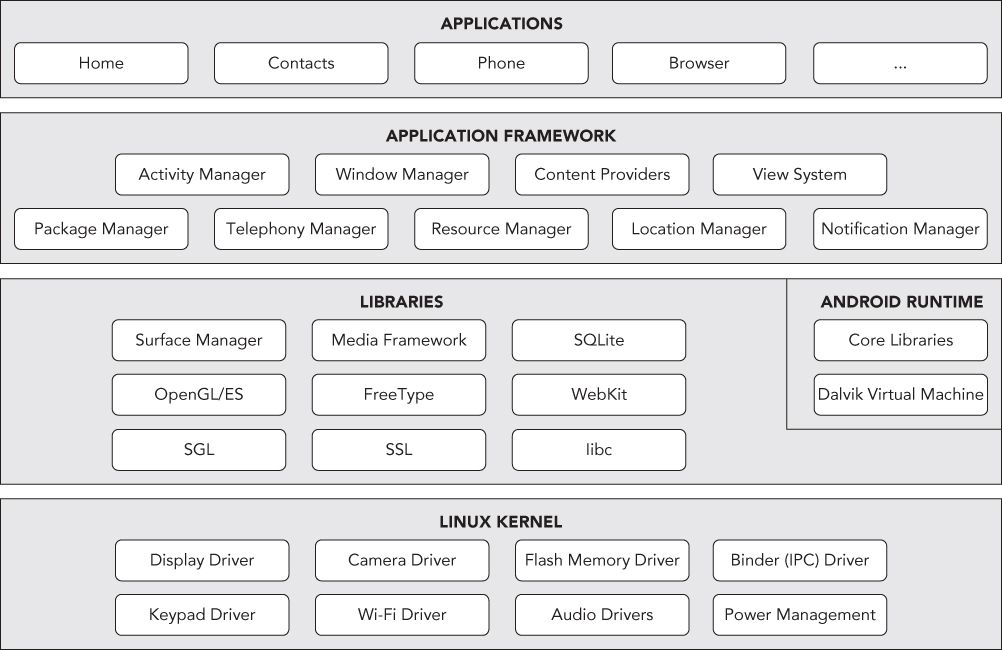
The Android OS is roughly divided into five sections in four main layers:
Android devices come in all shapes and sizes including, but not limited to, the following types of devices:
Chances are good that you own at least one of the preceding devices. Figure 1.2 shows the Samsung Galaxy Edge 7.
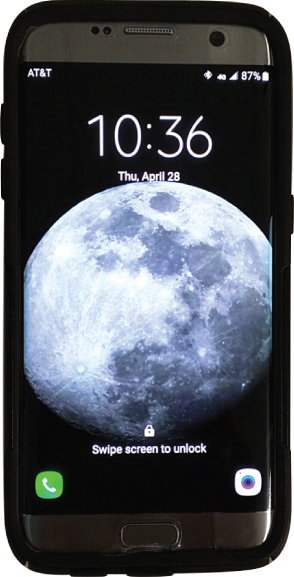
Another popular category of devices is the tablet. Tablets typically come in two sizes: 7″ and 10″, measured diagonally.
Besides smartphones and tablets, Android is used in dedicated devices, such as e-book readers. Figure 1.4 shows the Barnes and Noble's NOOK Color running the Android OS.
In addition to the popular mobile devices I've already mentioned, Android is finding its way onto your wrist. Smartwatches, and “wearables” in general, have become a major segment of the Android population. Figure 1.3 shows the Motorola Moto 360 Smartwatch, which runs Android Wear (a version of Android OS specifically designed for wearables).
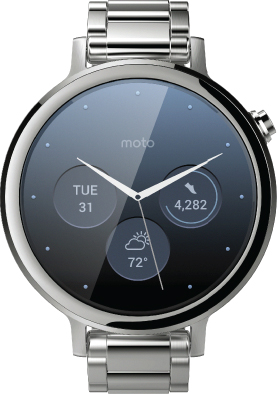
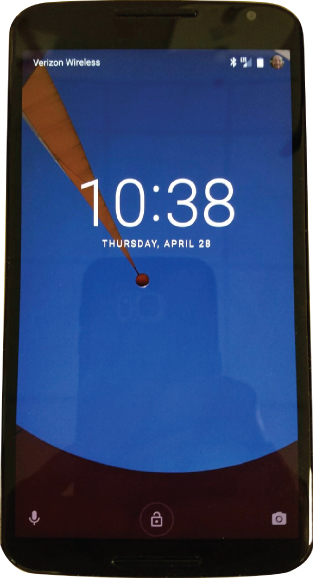
At the time of writing, the Samsung Galaxy Nexus (see Figure 1.4) is the only device running a pure version of Android. Many manufacturers add their own modifications to the Android OS for use on their specific devices. Motorola devices have Motoblur, HTC devices have HTC Sense, and so on. However, the Nexus devices always run a clean version of Android with no modifications.
As mentioned earlier, one of the main factors determining the success of a smartphone platform is the applications that support it. It is clear from the success of the iPhone that applications play a very vital role in determining whether a new platform swims or sinks. Also, making these applications accessible to the general user is extremely important.
Users can simply use the Google Play application that is preinstalled on their Android devices to directly download third-party applications to their devices. Both paid and free applications are available in the Google Play Store, although paid applications are available only to users in certain countries because of legal issues.
Now that you know what Android is and what its feature set contains, you are probably anxious to get your hands dirty and start writing some applications! Before you write your first app, however, you need to download the required tools.
For Android development, you can use a Mac, a Windows PC, or a Linux machine. You can freely download all the necessary tools. Most of the examples provided in this book are written to work on Android Studio. For this book, I am using a Windows 10 computer to demonstrate all the code samples. If you are using a Mac or Linux computer, the screenshots should look similar. Some minor differences might be present, but you should be able to follow along without problems.
Let the fun begin!
The first and most important piece of software you need to download is Android Studio 2. After you have downloaded and installed Android Studio 2, you can use the SDK Manager to download and install multiple versions of the Android SDK. Having multiple versions of the SDK available enables you to write programs that target different devices. For example, you can write one version of an application that specifically targets Android Nougat, but because that flavor of Android is on less than 1% of devices, with multiple versions of the SDK you can also write a version of your app that uses older features and targets Marshmallow or Lollipop users. You can use the Android Device Manager to set up device emulators.
You can download Android Studio 2 from http://developer.android.com/sdk/index.html (see Figure 1.5).
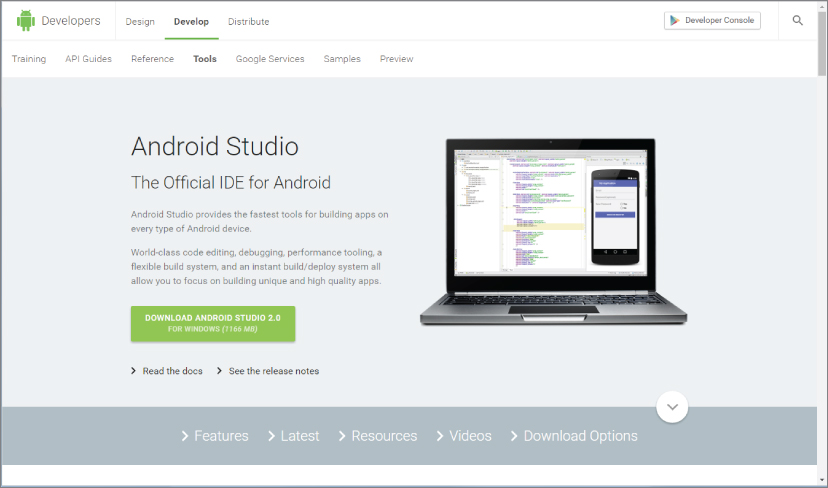
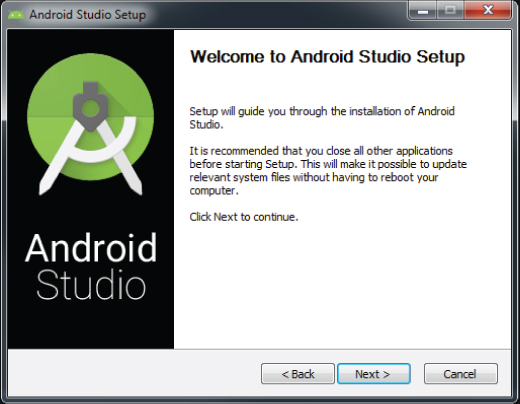
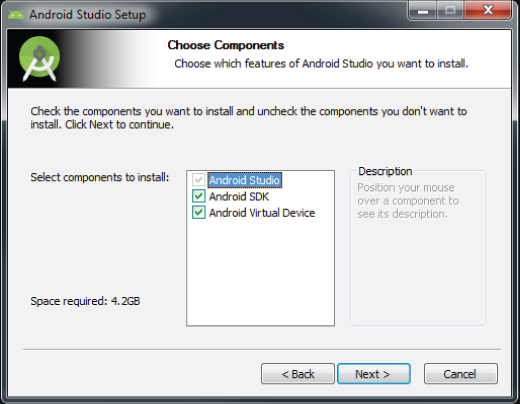
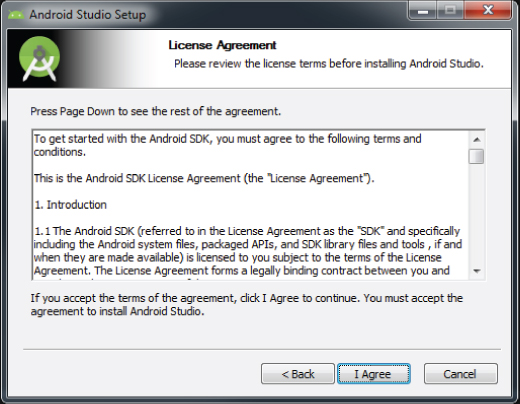
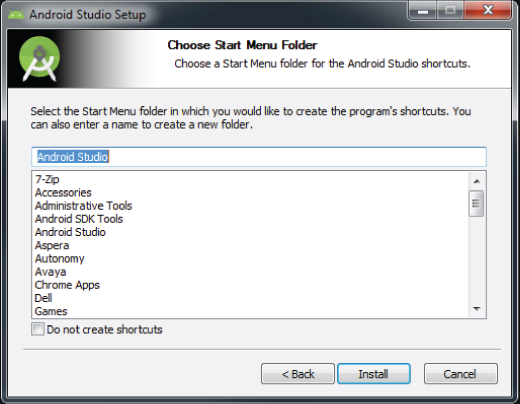
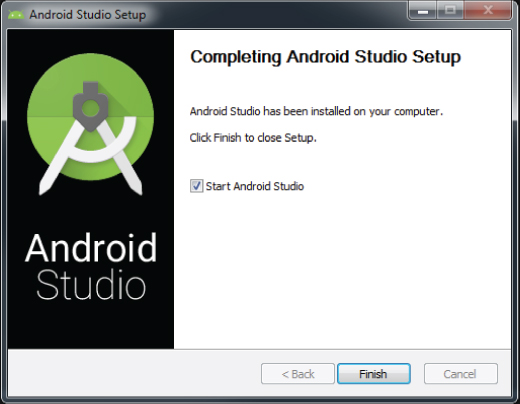
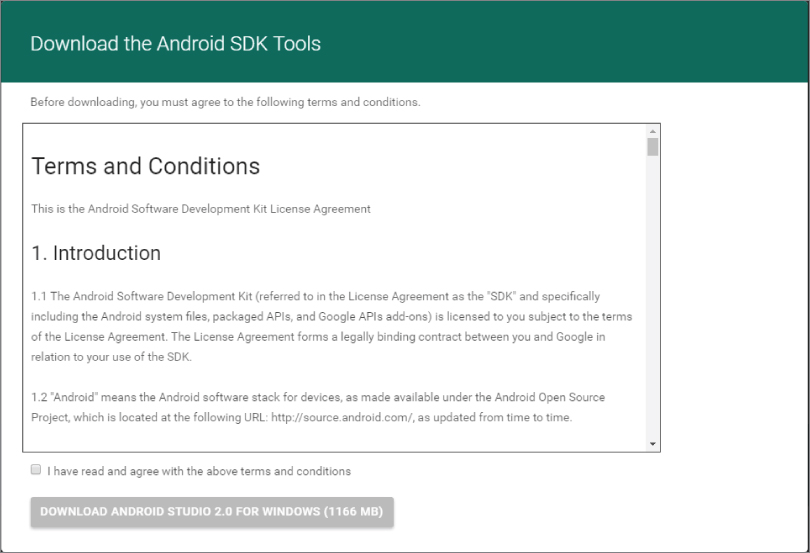
Android Studio 2 is packaged in an executable. Run the install process to set up Android Studio 2. After you've downloaded and run the setup executable, use the following steps to go through the installation process:
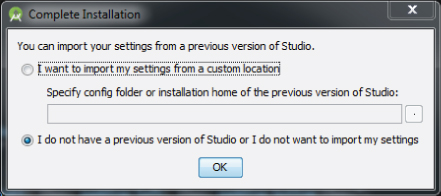
Now that Android Studio 2 is installed, you need to adjust the settings and options using the following steps:
Now that Android Studio is set up, it's time to install the latest and greatest Android SDK.
The most important piece of software you need to download is, of course, the Android SDK. The Android SDK contains all of the packages and tools required to develop a functional Android application. The SDKs are named after the version of Android OS to which they correspond. By default, the Marshmallow SDK was installed with Android Studio 2, which means you can develop applications that will run seamlessly on devices with Android Marshmallow.
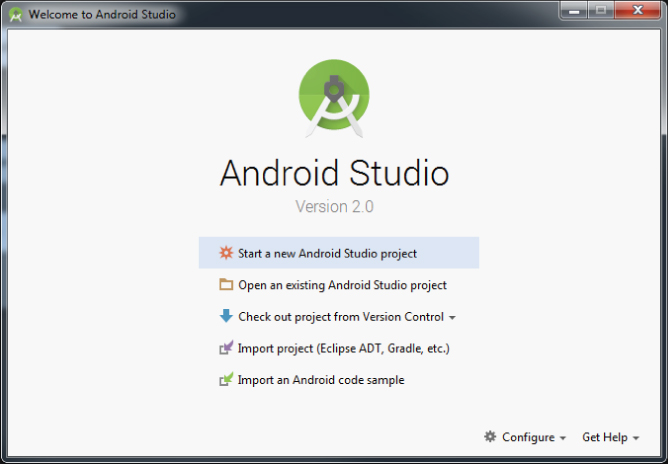
However, if you want to install a different Android SDK, you can do so using the SDK Manager from the Android Studio welcome screen (shown in Figure 1.15). From this screen, click the Configure drop-down menu in the lower-right corner. The Configure selection menu opens. Choose SDK Manager from this menu.
The SDK configuration screen, shown in Figure 1.16, shows that the Marshmallow SDK is already installed. Android N is available to be installed (as of the writing of this book Android Nougat was in a finalized beta, so it might be named differently now).
Select Android Nougat, click Apply, and then click OK. However, before the SDK is installed you must accept the licensing agreement as shown in Figure 1.17.
The setup process for Android Studio is now complete. The next section explains how to set up an Android Virtual Device that you can use to test your applications.
The next step is to create an Android Virtual Device (AVD) you can use for testing your Android applications. An AVD is an emulator instance that enables you to model an actual device. Each AVD consists of a hardware profile; a mapping to a system image; and emulated storage, such as a secure digital (SD) card. One important thing to remember about emulators is that they are not perfect. There are some applications, such as games (which are GPU heavy) or applications that use sensors such as the GPS or accelerometer. These types of applications cannot be simulated with the same speed or consistency within an emulator as they can when running on an actual device. However, the emulator is good for doing some generalized testing of your applications.
You can create as many AVDs as you want to test your applications with different configurations. This testing is important to confirm the behavior of your application when it is run on different devices with varying capabilities.
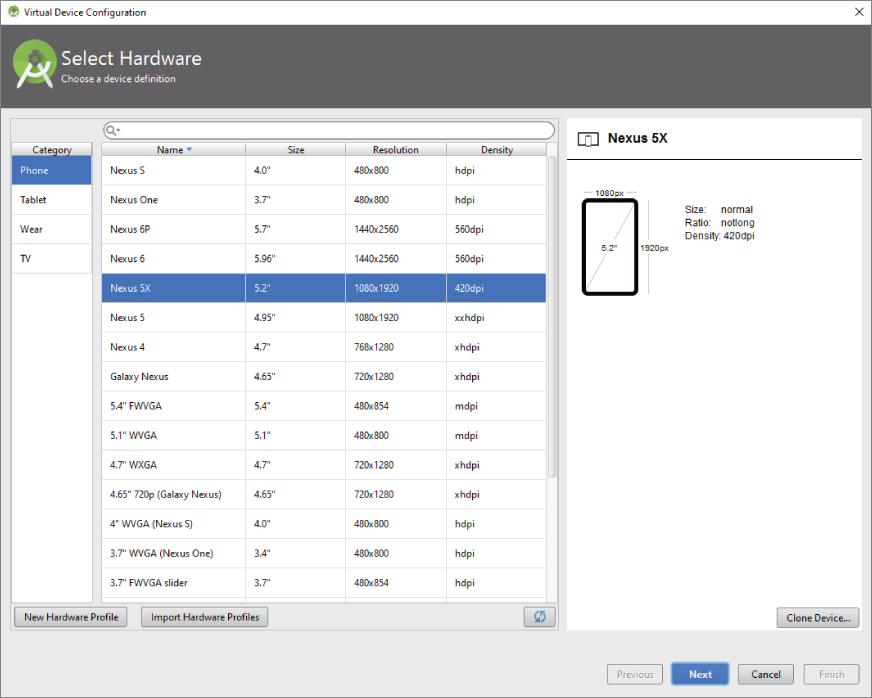
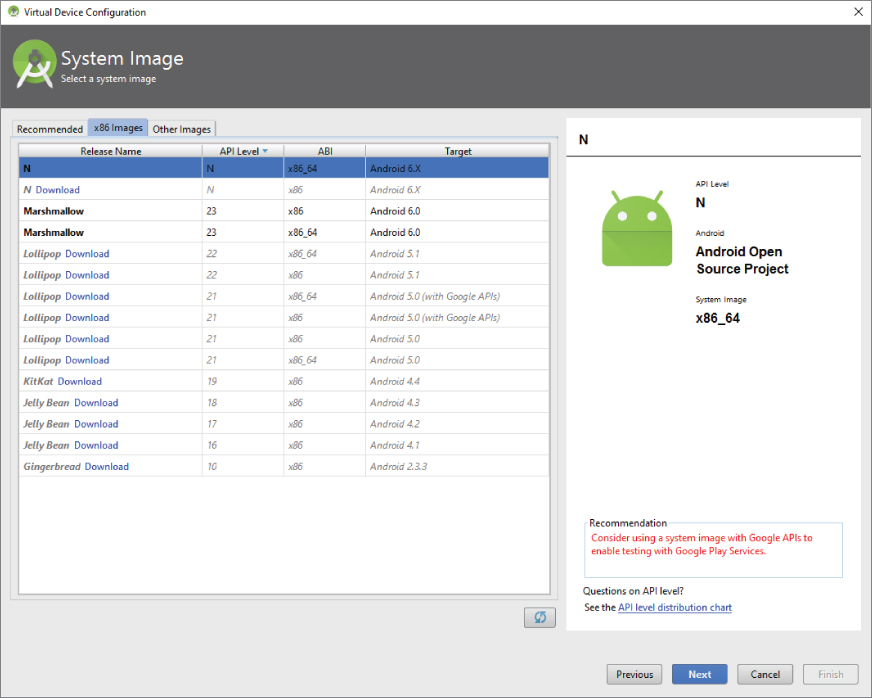
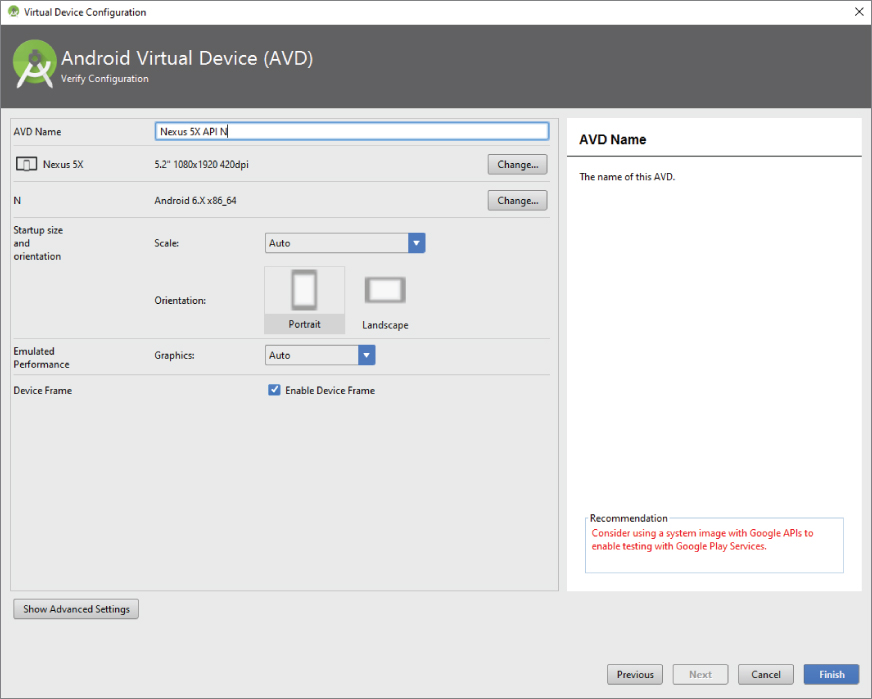
Use the following steps to create an AVD. This example demonstrates creating an AVD (put simply, an Android emulator) that emulates an Android device running Android N on the Nexus 5x hardware specs.
Android
AVD Manager or using the AVD Manager button from the toolbar. Figure 1.23 shows the Android Virtual Device Manager Wizard, which is where you set up AVDs to be used when you emulate your application in Android on your desktop.
Android
AVD Manager or using the AVD Manager button from the toolbar.After you have created your ADV, it is time to test it. There is no better way to do this than to create and launch the ubiquitous Hello World application.
Now that Android is in its seventh version, there is a large developer community all over the world. It is easy to find solutions to problems and to find like-minded developers with whom to share app ideas and experiences.
The following are some developer communities and websites that you can turn to for help if you run into problems while working with Android:
With all the tools and the SDK downloaded and installed, it is now time to start your engine. As in most programming books, the first example uses the ubiquitous Hello World application. This will give you a detailed look at the various components that make up an Android project. This is also the easiest Android project you will ever make.
Believe it or not, the Hello World application is already finished. By default, when you create a new application in Android Studio, it creates a Hello World application. Let's launch this application and, in the process, also launch the Android emulator to see how everything works.
Run app from the Android Studio menu bar. You should see the Select Deployment Target dialog as shown in Figure 1.27.
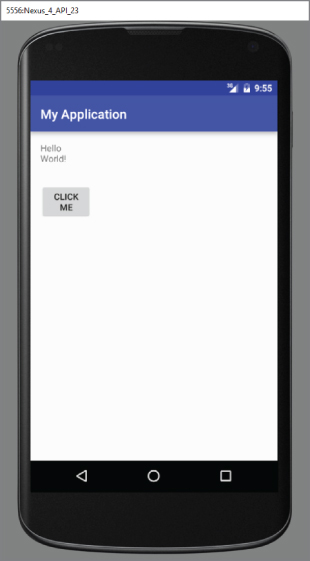
Run app from the Android Studio menu bar.With the emulator fully loaded and started, Android Studio can install your Hello World application. The application will display as shown in Figure 1.28.
This was a very quick example of how to create and launch your first Android applications. However, what this example has really done for you is introduce you, on a general scale, to most of the major skills you will fine tune throughout this book.
This chapter provided a brief overview of Android and highlighted some of its capabilities. If you have followed the sections on downloading the tools and the Android SDK, you should now have a working system—one that is capable of developing Android applications that are more interesting than the Hello World application. In the next chapter, you find out about the inner workings of Android Studio before moving on to more complex Android application development concepts.
You can find answers to the exercises in the appendix.
| TOPIC | KEY CONCEPTS |
| Android OS | Android is an open source mobile operating system based on the Linux operating system. It is available to anyone who wants to adapt it to run on their own devices. |
| Languages used for Android application development | You use the Java programming language to develop Android applications. Written applications are compiled into Dalvik executables, which are then run on top of the Dalvik virtual machine. |
| Google Play | Google Play hosts all the various Android applications written by third-party developers. |
| Tools for Android application development | Android Studio, Android SDK, and virtual devices. |
Chapter 1 covers how to install and initially configure Android Studio for the purposes of developing Android applications. This chapter explains how to navigate the intricacies of Android Studio in a way that helps you develop applications more easily and with great efficiency.
Android Studio contains myriad features to help everyone from the greenest novices to the most senior superstar developers. By the time you finish this chapter, you will be able to navigate through the features of Android Studio with confidence, produce code that is easy to read and easy to reuse with the help of refactoring, save and share your code to GitHub, and use breakpoints to quickly find problems in your applications.
Let's begin by examining the features of Android Studio.
In this section you explore the Android Studio Integrated Development Environment, which is also known as the IDE. Basically, the IDE is the interface between you and Android Studio. The more you know about the tools, windows, and options that are available to you in Android Studio, the faster you will be able to produce code and the more confident you will be at creating applications.
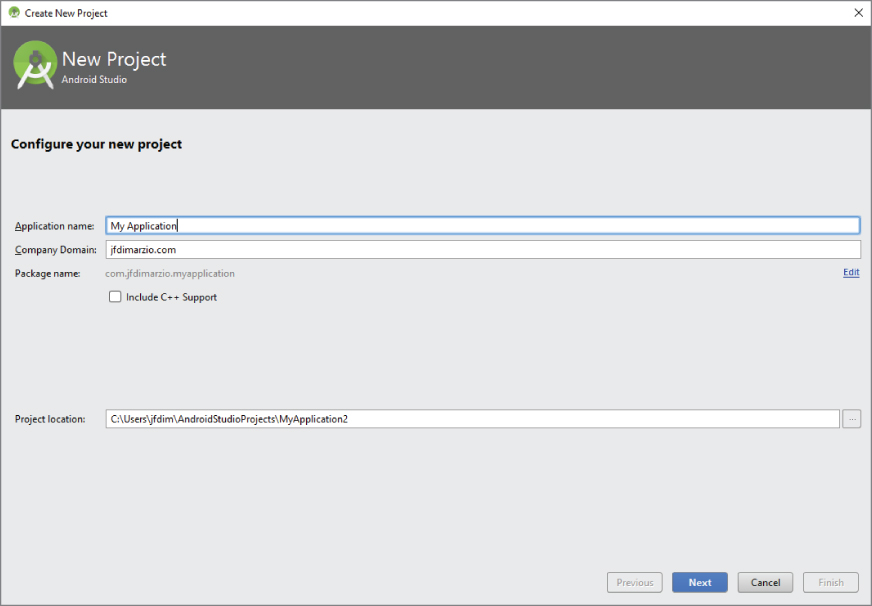
The first option you have is to name your project. Let's call this one IDEExplorer. The second option—the Company Domain—is very important because it is used to name the Java package to which your code will belong. You can type any name that you want into this field. There is no validation to check that you actually own the domain that you specify, but you should try to use a valid domain. I have used jfdimarzio.com. As you can see from the Package Name line, Android Studio automatically reverses your company domain to create the package name.
The final option on the Create New Project screen is the path to which Android Studio will save your new project. I typically accept the default here because it makes it easier for me to find projects in the future. However, feel free to specify any valid location that you want to use—it will not affect this tutorial. Click Next to continue.
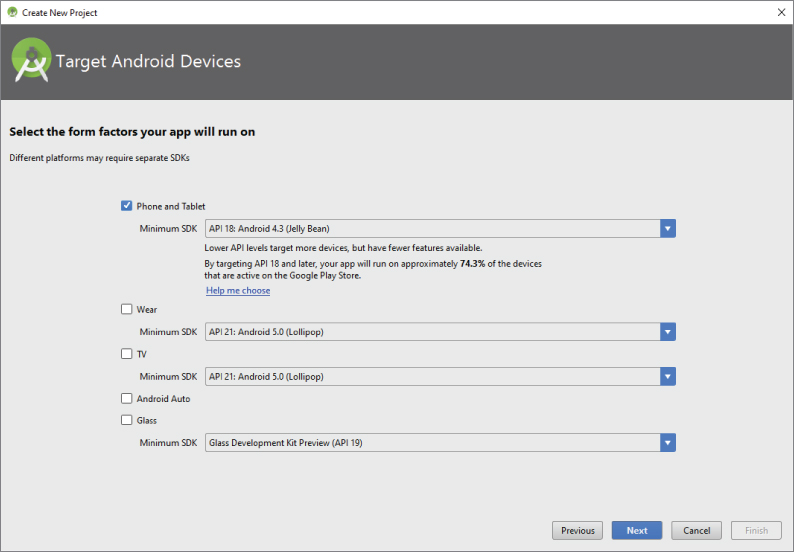
The next screen allows you to select the form factor on which your application will run (see Figure 2.3). For the purposes of this book, you exclusively use Phone and Tablet. The version of Android is Android N (or Nougat, depending on the version of the SDK you downloaded. As of the writing of this book, the name was officially announced as Nougat, but the SDK was still labeled N).
The other options on this screen allow you to create applications that run on Android Wear, Android Auto, and the elusive Google Glass. If you are feeling adventurous after reading this book, feel free to try some of these other application form factor options. For now, make sure to select Phone and Tablet and Android N and click Next to continue.
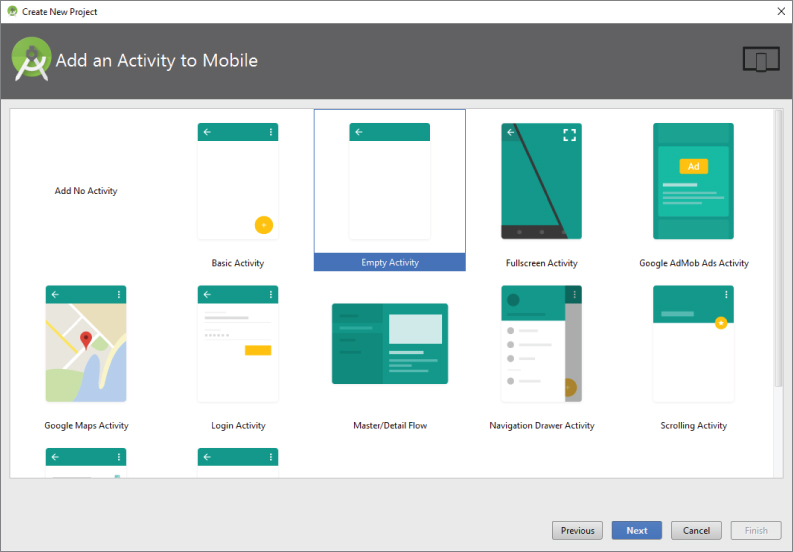
The next screen is the Add an Activity to Mobile screen, as shown in Figure 2.4. This screen is a helper that adds commonly used features to your project at the time the project is created. The options on this screen range from Add No Activity to Tabbed Activity. For example, if you were to select the Google Maps Activity option, Android Studio would create for you a project with a basic activity that contains a Google Map in it already. This can drastically cut down on the amount of time needed to create some types of applications.
The default option is Empty Activity. This is the most useful for our examples because it creates a basic activity for you, with no code in it—thus allowing you to easily follow the examples in this book.
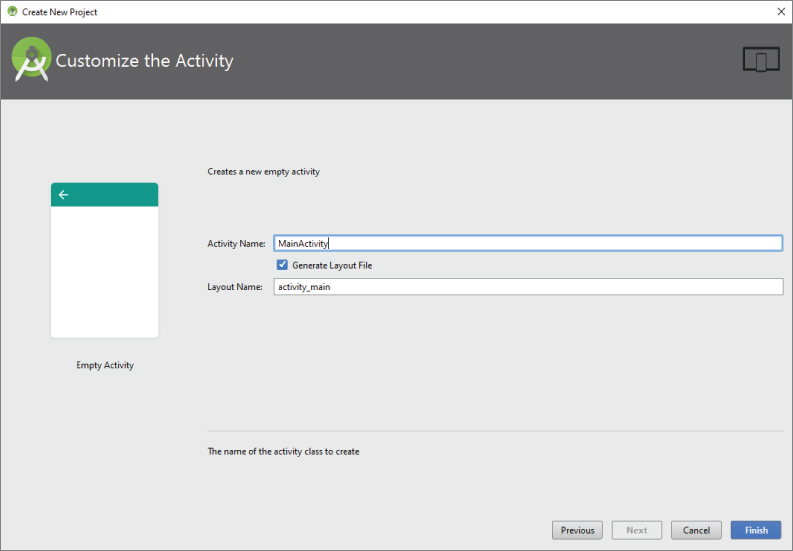
Click Next to go to the Customize the Activity screen, as shown in Figure 2.5.
The Customize the Activity screen contains two options, one for naming your activity, and one for naming the main layout (presumably to be used by the main activity). Let's explore these two options.
MainActivity. The reason for this is to make it easier to locate the startup code for your application. If anyone else needs to look at or work with your application, they should know that the MainActivity is the starting point. All other activities can be named by their function, for example InputFormActivity or DeleteRecordActivity.activity_main layout. All other layouts should be named according to the activity that they support (activity_input, activity_delete).Click the Finish button to finish creating the project and jump into exploring the IDE.
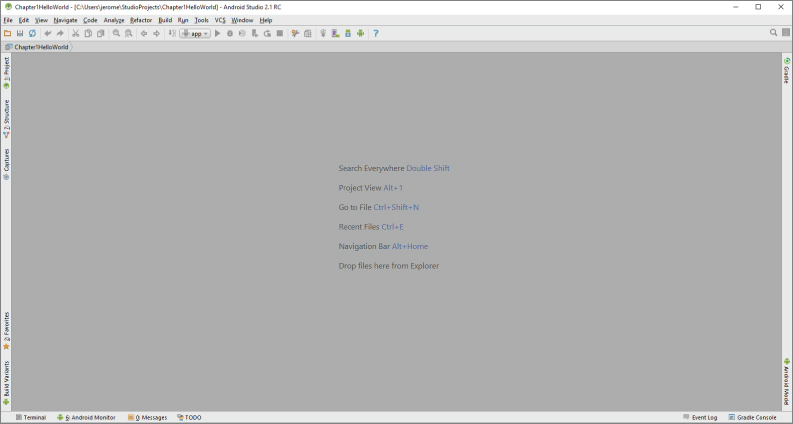
The Android Studio IDE should now be visible to you as shown in Figure 2.6.
The upper portion of the IDE represents the menu bars or ribbons. Here, as with most applications that you have used in the past, you have all of your options for interacting directly with the IDE. The most important ones to note are the green arrow, which represents the Run app option, and the green arrow with a bug behind it, which is the Debug App option. The Debug App option is arguably the one that you use the most in this book.
By default, the left side of the IDE shows the Project window, as shown in Figure 2.7. The Project window enables you to quickly navigate the files within your project. By default, the Project window is set to the Android view (seen just above the Project window display). To change the view, click the word Android and use the drop-down list of options to make the change. I like to keep mine on Project view when I am working.
On the right side of the IDE (and taking up the largest area) are the Editor tabs (see Figure 2.8). The Editor tabs are where you write and work with your code files.
To work on a new file, simply locate the file in the Project window and double-click it to open a new Editor tab that contains that file's code. If you need to create a new file from scratch, right-click the directory into which you want to place your file, and select New
<File Type> from the context menu.
Finally, at the bottom of the IDE, you should see a button labeled Android Monitor. Click this button to open the Android Monitor (see Figure 2.9).
The Android Monitor automatically displays when you debug an application. It contains a very useful tool called logcat. Logcat displays most of the helpful messages that are output by your application while you are trying to debug it. In future chapters, you will make use of logcat—including writing custom messages to it.
Code completion is an invaluable tool that shows you contextual options for completing the piece of code that you are trying to write. For example, in the editor tab for the MainActivity.js file, locate the line that reads
setContentView(R.layout.activity_main);
Place your cursor after this line and press the Enter key. On the new line, type the letter R, and then type a period, as shown here:
R.
Android Studio Code Completion should display a list of values that you could use to try to complete the code statement. Figure 2.10 shows what this list might look like. This is important if you are not entirely sure of the spelling of a method call or of how to identify the different method signatures.
You can also use code completion to insert code stubs into your classes. If you are inheriting from a class that has methods you must override, code completion notifies you that there are methods that need to be overridden. With a click, it inserts the stubs of those methods into your application.
Finally, the ability to import packages is one of the Android Studio features and its code completion implementation that you will use most often while navigating the examples in this book. For example, if you were to attempt to create a variable of a type that belongs to a package that you have not imported, Android Studio recognizes this and underlines the type with a red squiggle. Set the cursor to that line and press Alt+Enter to automatically import the package into a using statement at the top of your code file.
After you have built an application, you need to be able to debug it and see what is going on inside your code. One of the handiest ways to be able to see inside your code it through the use of breakpoints. Breakpoints allow you to pause the execution of your code at specific locations and see what is going on (or what is going wrong). Let's take a look at how to use breakpoints in Android Studio.
Breakpoints are a mechanism by which you can tell Android Studio to temporarily pause execution of your code, which allows you to examine the condition of your application. This means that you can check on the values of variables in your application while you are debugging it. Also, you can check whether certain lines of code are being executed as expected—or at all.
To tell Android Studio that you want to examine a specific line of code during debugging, you must set a breakpoint at that line. Click the margin of the editor tab next to line of code you want to break at, to set a breakpoint. A red circle is placed in the margin, and the corresponding line is highlighted in red, as shown in Figure 2.11.
You can also set a breakpoint by placing your cursor in the line of code where you want it to break and clicking Run
Toggle Line Breakpoint. Notice that the term used is toggle, which means that any breakpoints you set can be turned off the same way you turn them on. Simply click an existing breakpoint to remove it from your code.
Let's say that you do not know the exact line of code where you want the break to be. You might want to check on the condition of your code when a specific method is called. You can set a method breakpoint by selecting Run
Toggle Method Breakpoint. A method breakpoint is represented by a red circle containing four dots placed at the method signature, as shown in Figure 2.12.
Notice in the lower left-hand area of Figure 2.12 that Android Studio has issued a warning that method breakpoints can dramatically slow down debugging. This is because method breakpoints do more than simple breakpoints in their default state. By default, method breakpoints are set apart from simple breakpoints. Android Studio pauses execution when the method is hit, and it also automatically sets a corresponding breakpoint and pauses at the end of the method (as shown in Figure 2.13).
Thus far, I've discussed simple and method breakpoints. However, there are two other types of breakpoints that you examine in this section: temporary breakpoints and conditional breakpoints.
A temporary breakpoint is useful when you are trying to debug a large loop, or you just want to make sure a line of code is being hit during execution. To set a temporary breakpoint, place your cursor at the location in the code where you want it to break and select Run
Toggle Temporary Line Breakpoint. Notice that a red circle containing a 1 is now placed in the margin (once you set the conditions as shown in Figure 2.14).
The 1 in the red circle represents the fact that Android Studio only stops at this breakpoint the first time your code enters it. After that, the line is executed as though there is no breakpoint set. This can be very useful if you want to ensure a line within a loop is being hit, but you don't want to stop at the line every time it is executed.
However, let's say that you want to ensure that a line within a loop is only being called when a specific variable is set to true (or something similarly complex). In such a case, you can use a conditional breakpoint.
A condition breakpoint is a breakpoint at which Android Studio only pauses when specific conditions are met. To set a conditional breakpoint, first set a simple breakpoint at the line of code you want to examine, then right-click the simple breakpoint to bring up the condition context menu (refer to Figure 2.14).
From here you can set conditions that tell Android Studio when to pause at a breakpoint. For example, you can tell Android Studio to only pause at a line of code when your variable named foo equals true. You would then set the condition in the breakpoint to
foo == true
Conditional breakpoints are extremely useful in diagnosing intermittent issues in complex code blocks.
While in debug mode, Android Studio pauses at any breakpoint that you have set. That is, as long as a breakpoint has been set on a reachable line of code (a line of code that would be executed by system), Android Studio halts execution at that line until you tell it to continue.
When Android Studio hits, and pauses at, a breakpoint, the red circle in the margin next to the corresponding line of code changes to a circle with a check mark (see Figure 2.15).
Once a breakpoint has been hit, the debug window opens at the bottom of Android Studio, as shown in Figure 2.16. The debug window contains many of the tools you use to navigate around your code.
Notice the navigation buttons located in the menu bar of the debug window. The most commonly used are Step Over and Step Into. Step Over advances you to the line of code that immediately follows the one at which you are currently paused. This means that if you are paused at a method call, and you press Step Over, Android Studio executes the method call without pausing and then pauses again when execution reached the next line. However, what if an exception happens in that method call and execution never reaches the next line of code? For these situations use Step Into.
Step Into follows execution wherever it leads in the code. Therefore, if you are paused at a method call and click Step Into, Android Studio will shift the view to the method call and pause execution at the first line of code within that method. This allows you to then follow the execution of that method line-by-line before it returns to the calling block.
After you have created, and fully debugged, your application, you might want to deploy it to the Google Store for others to enjoy. The following sections outline the steps for publishing your applications.
To publish your finished application on the Google Play Store, you must generate a signed APK (the Android application package). The APK is the compiled, executable version of your application. Signing it is much like signing your name to a document. The signature identifies the app's developer to Google and the users who install your application. More importantly, unless your Android Studio is in developer mode, unsigned applications will not run. Use the following steps to generate a signed APK:
Generate Signed APK from the Menu bar to bring up the Generate Signed APK window as shown in Figure 2.17.
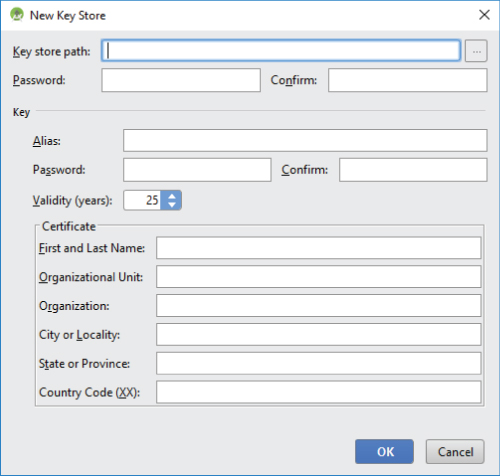
Notice that there are two places for a password. These are the passwords for your key store and your key, respectively. Because a key store can hold multiple keys, it requires a separate password than that of the key for a specific app.
Now that you have a signed APK, you can upload it to the Google Play Store using the developer console at https://play.google.com/apps/publish/.
Android Studio is a powerful IDE that contains many tools. In this chapter you learned how to navigate the different areas of the Android Studio IDE, such as the Project window and the Editor tabs. You also learned how to set breakpoints and navigate through paused code.
You can find answers to the exercises in the appendix.
| TOPIC | KEY POINTS |
| Android Studio IDE | Create a new project |
| Name the Java package | |
| Name the main entry point for your application | |
| Code Completion | Provides contextual information for completing your code |
| Breakpoints | Paused only while in debug mode |
| Simple | |
| Temporary | |
| Method | |
| Conditional |
An Android application can have zero or more activities. Typically, applications have one or more activities. The main purpose of an activity is to interact with the user. From the moment an activity appears on the screen to the moment it is hidden, it goes through a number of stages. These stages are known as an activity's life cycle. Understanding the life cycle of an activity is vital to ensuring that your application works correctly. In addition to activities, Android N also supports fragments, a feature that was introduced for tablets in Android 3.0 and for phones in Android 4.0. Think of fragments as “miniature” activities that can be grouped to form an activity. In this chapter, you find out how activities and fragments work together.
Apart from activities, another unique concept in Android is that of an intent. An intent is basically the “glue” that enables activities from different applications to work together seamlessly, ensuring that tasks can be performed as though they all belong to one single application. Later in this chapter, you learn more about this very important concept and how you can use it to call built-in applications such as the Browser, Phone, Maps, and more.
This chapter begins by showing you how to create an activity. To create an activity, you create a Java class that extends the Activity base class:
package com.jfdimarzio.chapter1helloworld;
import android.support.v7.app.AppCompatActivity;
import android.os.Bundle;
public class MainActivity extends AppCompatActivity {
@Override
protected void onCreate(Bundle savedInstanceState) {
super.onCreate(savedInstanceState);
setContentView(R.layout.activity_main);
}
}
Your activity class loads its user interface (UI) component using the XML file defined in your res/layout folder. In this example, you would load the UI from the main.xml file:
setContentView(R.layout.activity_main);
Every activity you have in your application must be declared in your AndroidManifest.xml file, like this:
<?xml version="1.0" encoding="utf-8"?>
<manifest xmlns:android="http://schemas.android.com/apk/res/android
package="com.jfdimarzio.chapter1helloworld">
<application
android:allowBackup="true"
android:icon="@mipmap/ic_launcher"
android:label="@string/app_name"
android:supportsRtl="true"
android:theme="@style/AppTheme">
<activity android:name=".MainActivity">
<intent-filter>
<action android:name="android.intent.action.MAIN" />
<category android:name="android.intent.category.LAUNCHER" />
</intent-filter>
</activity>
</application>
</manifest>
The Activity base class defines a series of events that govern the life cycle of an activity. Figure 3.1 shows the lifecycle of an Activity.
The Activity class defines the following events:
onCreate()—Called when the activity is first createdonStart()—Called when the activity becomes visible to the useronResume()—Called when the activity starts interacting with the useronPause()—Called when the current activity is being paused and the previous activity is being resumedonStop()—Called when the activity is no longer visible to the useronDestroy()—Called before the activity is destroyed by the system (either manually or by the system to conserve memory)onRestart()—Called when the activity has been stopped and is restarting againBy default, the activity created for you contains the onCreate() event. Within this event handler is the code that helps to display the UI elements of your screen.
Figure 3.2 shows the life cycle of an activity and the various stages it goes through—from when the activity is started until it ends.
The best way to understand the various stages of an activity is to create a new project, implement the various events, and then subject the activity to various user interactions.
By default, an activity is themed to the default Android theme. However, there has been a push in recent years to adopt a new theme known as Material. The Material theme has a much more modern and clean look to it.
There are two versions of the Material theme available to Android developers: Material Light and Material Dark. Either of these themes can be applied from the AndroidManifest.xml.
To apply one of the Material themes to an activity, simply modify the <Application> element in the AndroidManifest.xml file by changing the default android:theme attribute. (Please be sure to change all instances of "com.jfdimarzio" to whatever package name your project is using.)
<?xml version="1.0" encoding="utf-8"?>
<manifest xmlns:android="http://schemas.android.com/apk/res/android"
xmlns:tools="http://schemas.android.com/tools"
package="com.jfdimarzio.activity101">
<application
android:allowBackup="true"
android:icon="@mipmap/ic_launcher"
android:label="@string/app_name"
android:supportsRtl="true"
android:theme="@android:style/Theme.Material">
<activity android:name=".MainActivity">
<intent-filter>
<action android:name="android.intent.action.MAIN"/>
<category android:name="android.intent.category.LAUNCHER"/>
</intent-filter>
</activity>
</application>
</manifest>
Changing the default theme to @android:style/Theme.Material, as in the highlighted code in the preceding snippet, applies the Material Dark theme and gives your application a darker look as shown in Figure 3.4.
You can also hide the title of an activity if desired (such as when you just want to display a status update to the user). To do so, use the requestWindowFeature() method and pass it the Window.FEATURE_NO_TITLE constant, like this:
import android.support.v7.app.AppCompatActivity;
import android.os.Bundle;
import android.view.Window;
public class MainActivity extends AppCompatActivity {
@Override
protected void onCreate(Bundle savedInstanceState) {
super.onCreate(savedInstanceState);
setContentView(R.layout.activity_main);
requestWindowFeature(Window.FEATURE_NO_TITLE);
}
}
Now you need to change the theme in the AndroidManifest.xml to a theme that has no title bar. Be sure to change all instances of "com.jfdimarzio" to whatever package name your project is using.
package com.jfdimarzio.activity101;
<?xml version="1.0" encoding="utf-8"?>
<manifest xmlns:android="http://schemas.android.com/apk/res/android"
xmlns:tools="http://schemas.android.com/tools"
package="com.jfdimarzio.activity101">
<application
android:allowBackup="true"
android:icon="@mipmap/ic_launcher"
android:label="@string/app_name"
android:supportsRtl="true"
android:theme="@android:style/Theme.NoTitleBar">
<activity android:name=".MainActivity">
<intent-filter>
<action android:name="android.intent.action.MAIN"/>
<category android:name="android.intent.category.LAUNCHER"/>
</intent-filter>
</activity>
</application>
</manifest>
This hides the title bar, as shown in Figure 3.5.
There are times when you need to display a dialog window to get a confirmation from the user. In this case, you can override the onCreateDialog() protected method defined in the Activity base class to display a dialog window. The following Try It Out shows you how.
One common UI feature in an Android device is the “Please wait” dialog that you typically see when an application is performing a long-running task. For example, the application might be logging in to a server before the user is allowed to use it, or it might be doing a calculation before displaying the result to the user. In such cases, it is helpful to display a dialog, known as a progress dialog, so that the user is kept in the loop.
Android provides a ProgressDialog class you can call when you want to display a running meter to the user. ProgressDialog is easy to call from an activity.
The following Try It Out demonstrates how to display such a dialog.
The next section explains using Intents, which help you navigate between multiple Activities.
An Android application can contain zero or more activities. When your application has more than one activity, you often need to navigate from one to another. In Android, you navigate between activities through what is known as an intent.
The best way to understand this very important but somewhat abstract concept is to experience it firsthand and see what it helps you achieve. The following Try It Out shows how to add another activity to an existing project and then navigate between the two activities.
The startActivity() method invokes another activity but does not return a result to the current activity. For example, you might have an activity that prompts the user for username and password. The information entered by the user in that activity needs to be passed back to the calling activity for further processing. If you need to pass data back from an activity, you should instead use the startActivityForResult() method. The following Try It Out demonstrates this.
Besides returning data from an activity, it is also common to pass data to an activity. For example, in the previous example, you might want to set some default text in the EditText view before the activity is displayed. In this case, you can use the Intent object to pass the data to the target activity.
The following Try It Out shows you the various ways in which you can pass data between activities.
activity_main.xml file. Be sure to change all instances of "com.jfdimarzio" to whatever package name your project is using.
<?xml version="1.0" encoding="utf-8"?>
<LinearLayout android:orientation="vertical"
xmlns:android="http://schemas.android.com/apk/res/android"
xmlns:tools="http://schemas.android.com/tools"
android:layout_width="match_parent"
android:layout_height="match_parent"
android:paddingBottom="@dimen/activity_vertical_margin"
android:paddingLeft="@dimen/activity_horizontal_margin"
android:paddingRight="@dimen/activity_horizontal_margin"
android:paddingTop="@dimen/activity_vertical_margin"
tools:context="com.jfdimarzio.passingdata.MainActivity">
<Button
android:layout_width="wrap_content"
android:layout_height="wrap_content"
android:text="Click to go to Second Activity"
android:id="@+id/button"
android:onClick="onClick"/>
</LinearLayout>
res/layout folder and name it activity_second.xml. Populate it as follows:<?xml version="1.0" encoding="utf-8"?>
<LinearLayout android:orientation="vertical"
xmlns:android="http://schemas.android.com/apk/res/android"
xmlns:tools="http://schemas.android.com/tools"
android:layout_width="match_parent"
android:layout_height="match_parent"
android:paddingBottom="@dimen/activity_vertical_margin"
android:paddingLeft="@dimen/activity_horizontal_margin"
android:paddingRight="@dimen/activity_horizontal_margin"
android:paddingTop="@dimen/activity_vertical_margin"
tools:context="com.jfdimarzio.passingdata.MainActivity">
<TextView
android:layout_width="wrap_content"
android:layout_height="wrap_content"
android:text="Welcome to the Second Activity"
android:id="@+id/textView"/>
<Button
android:layout_width="wrap_content"
android:layout_height="wrap_content"
android:text="Click to go to Main Activity"
android:id="@+id/button"
android:onClick="onClick"/>
</LinearLayout>
Class file to the package and name it SecondActivity. Populate the SecondActivity.java file as follows:package com.jfdimarzio.passingdata;
import android.app.Activity;
import android.content.Intent;
import android.net.Uri;
import android.os.Bundle;
import android.view.View;
import android.widget.Toast;
public class SecondActvity extends Activity {
@Override
public void onCreate(Bundle savedInstanceState) {
super.onCreate(savedInstanceState);
setContentView(R.layout.activity_second);
//---get the data passed in using getStringExtra()---
Toast.makeText(this,getIntent().getStringExtra("str1"),
Toast.LENGTH_SHORT).show();
//---get the data passed in using getIntExtra()---
Toast.makeText(this,Integer.toString(
getIntent().getIntExtra("age1", 0)),
Toast.LENGTH_SHORT).show();
//---get the Bundle object passed in---
Bundle bundle = getIntent().getExtras();
//---get the data using the getString()---
Toast.makeText(this, bundle.getString("str2"),
Toast.LENGTH_SHORT).show();
//---get the data using the getInt() method---
Toast.makeText(this,Integer.toString(bundle.getInt("age2")),
Toast.LENGTH_SHORT).show();
}
public void onClick(View view) {
//---use an Intent object to return data---
Intent i = new Intent();
//---use the putExtra() method to return some
// value---
i.putExtra("age3", 45);
//---use the setData() method to return some value---
i.setData(Uri.parse("Something passed back to main activity"));
//---set the result with OK and the Intent object---
setResult(RESULT_OK, i);
//---destroy the current activity---
finish();
}
}
AndroidManifest.xml file:<?xml version="1.0" encoding="utf-8"?>
<manifest xmlns:android="http://schemas.android.com/apk/res/android"
package="com.jfdimarzio.passingdata">
<application
android:allowBackup="true"
android:icon="@mipmap/ic_launcher"
android:label="@string/app_name"
android:supportsRtl="true"
android:theme="@style/AppTheme">
<activity android:name=".MainActivity">
<intent-filter>
<action android:name="android.intent.action.MAIN"/>
<category android:name="android.intent.category.LAUNCHER"/>
</intent-filter>
</activity>
<activity android:name=".SecondActvity" >
<intent-filter >
<action android:name="com.jfdimarzio.passingdata.SecondActivity" />
<category android:name="android.intent.category.DEFAULT" />
</intent-filter>
</activity>
</application>
</manifest>
MainActivity.java file:package com.jfdimarzio.passingdata;
import android.content.Intent;
import android.Activity;
import android.os.Bundle;
import android.view.View;
import android.widget.Toast;
public class MainActivity extends Activity {
@Override
protected void onCreate(Bundle savedInstanceState) {
super.onCreate(savedInstanceState);
setContentView(R.layout.activity_main);
}
public void onClick(View view) {
Intent i = new
Intent("com.jfdimarzio.passingdata.SecondActivity");
//---use putExtra() to add new name/value pairs---
i.putExtra("str1", "This is a string");
i.putExtra("age1", 25);
//---use a Bundle object to add new name/values
// pairs---
Bundle extras = new Bundle();
extras.putString("str2", "This is another string");
extras.putInt("age2", 35);
//---attach the Bundle object to the Intent object---
i.putExtras(extras);
//---start the activity to get a result back---
startActivityForResult(i, 1);
}
public void onActivityResult(int requestCode,
int resultCode, Intent data)
{
//---check if the request code is 1---
if (requestCode == 1) {
//---if the result is OK---
if (resultCode == RESULT_OK) {
//---get the result using getIntExtra()---
Toast.makeText(this, Integer.toString(
data.getIntExtra("age3", 0)),
Toast.LENGTH_SHORT).show();
//---get the result using getData()---
Toast.makeText(this, data.getData().toString(),
Toast.LENGTH_SHORT).show();
}
}
}
}
While this application is not visually exciting, it does illustrate some important ways to pass data between activities.
First, you can use the putExtra() method of an Intent object to add a name/value pair:
//---use putExtra() to add new name/value pairs---
i.putExtra("str1", "This is a string");
i.putExtra("age1", 25);
The preceding statements add two name/value pairs to the Intent object: one of type string and one of type integer.
Besides using the putExtra() method, you can also create a Bundle object and then attach it using the putExtras() method. Think of a Bundle object as a dictionary object—it contains a set of name/value pairs. The following statements create a Bundle object and then add two name/value pairs to it. The Bundle object is then attached to the Intent object:
//---use a Bundle object to add new name/values pairs---
Bundle extras = new Bundle();
extras.putString("str2", "This is another string");
extras.putInt("age2", 35);
//---attach the Bundle object to the Intent object---
i.putExtras(extras);
To obtain the data sent using the Intent object, you first obtain the Intent object using the getIntent() method. Then, call its getStringExtra() method to get the string value set using the putExtra() method:
//---get the data passed in using getStringExtra()---
Toast.makeText(this,getIntent().getStringExtra("str1"),
Toast.LENGTH_SHORT).show();
In this case, you have to call the appropriate method to extract the name/value pair based on the type of data set. For the integer value, use the getIntExtra() method (the second argument is the default value in case no value is stored in the specified name):
//---get the data passed in using getIntExtra()---
Toast.makeText(this,Integer.toString(
getIntent().getIntExtra("age1", 0)),
Toast.LENGTH_SHORT).show();
To retrieve the Bundle object, use the getExtras() method:
//---get the Bundle object passed in---
Bundle bundle = getIntent().getExtras();
To get the individual name/value pairs, use the appropriate method. For the string value, use the getString() method:
//---get the data using the getString()---
Toast.makeText(this, bundle.getString("str2"),
Toast.LENGTH_SHORT).show();
Likewise, use the getInt() method to retrieve an integer value:
//---get the data using the getInt() method---
Toast.makeText(this,Integer.toString(bundle.getInt("age2")),
Toast.LENGTH_SHORT).show();
Another way to pass data to an activity is to use the setData() method (as used in the previous section), like this:
//---use the setData() method to return some value---
i.setData(Uri.parse(
"Something passed back to main activity"));
Usually, you use the setData() method to set the data on which an Intent object is going to operate, such as passing a URL to an Intent object so that it can invoke a web browser to view a web page. (For more examples, see the section “Calling Built-In Applications Using Intents,” later in this chapter.)
To retrieve the data set using the setData() method, use the getData() method (in this example data is an Intent object):
//---get the result using getData()---
Toast.makeText(this, data.getData().toString(),
Toast.LENGTH_SHORT).show();
In the previous section, you learned what an activity is and how to use it. In a small-screen device (such as a smartphone), an activity typically fills the entire screen, displaying the various views that make up the user interface of an application. The activity is essentially a container for views. However, when an activity is displayed in a large-screen device, such as on a tablet, it is somewhat out of place. Because the screen is much bigger, all the views in an activity must be arranged to make full use of the increased space, resulting in complex changes to the view hierarchy. A better approach is to have “mini-activities,” each containing its own set of views. During runtime, an activity can contain one or more of these mini-activities, depending on the screen orientation in which the device is held. In Android 3.0 and later, these mini-activities are known as fragments.
Think of a fragment as another form of activity. You create fragments to contain views, just like activities. Fragments are always embedded in an activity. For example, Figure 3.13 shows two fragments. Fragment 1 might contain a ListView showing a list of book titles. Fragment 2 might contain some TextViews and ImageViews showing some text and images.
Now imagine the application is running on an Android tablet (or on an Android smartphone) in portrait mode. In this case, Fragment 1 might be embedded in one activity, whereas Fragment 2 might be embedded in another activity (see Figure 3.14). When users select an item in the list in Fragment 1, Activity 2 is started.
If the application is now displayed in a tablet in landscape mode, both fragments can be embedded within a single activity, as shown in Figure 3.15.
From this discussion, it becomes apparent that fragments present a versatile way in which you can create the user interface of an Android application. Fragments form the atomic unit of your user interface, and they can be dynamically added (or removed) to activities in order to create the best user experience possible for the target device.
The following Try It Out shows you the basics of working with fragments.
res/layout folder, add a new layout resource file and name it fragment1.xml. Populate it with the following code. Be sure to change all instances of "com.jfdimarzio" to whatever package name your project is using.<?xml version="1.0" encoding="utf-8"?>
<LinearLayout
xmlns:android="http://schemas.android.com/apk/res/android"
android:orientation="vertical"
android:layout_width="fill_parent"
android:layout_height="fill_parent"
android:background="#00FF00"
>
<TextView
android:layout_width="fill_parent"
android:layout_height="wrap_content"
android:text="This is fragment #1"
android:textColor="#000000"
android:textSize="25sp"/>
</LinearLayout>
res/layout folder, add another new layout resource file and name it fragment2.xml. Populate it as follows:<?xml version="1.0" encoding="utf-8"?>
<LinearLayout
xmlns:android="http://schemas.android.com/apk/res/android"
android:orientation="vertical"
android:layout_width="fill_parent"
android:layout_height="fill_parent"
android:background="#FFFE00"
>
<TextView
android:layout_width="fill_parent"
android:layout_height="wrap_content"
android:text="This is fragment #2"
android:textColor="#000000"
android:textSize="25sp"/>
</LinearLayout>
activity_main.xml, add the bolded lines in the following code:<?xml version="1.0" encoding="utf-8"?>
<LinearLayout android:orientation="vertical"
xmlns:android="http://schemas.android.com/apk/res/android"
xmlns:tools="http://schemas.android.com/tools"
android:layout_width="match_parent"
android:layout_height="match_parent"
android:paddingBottom="@dimen/activity_vertical_margin"
android:paddingLeft="@dimen/activity_horizontal_margin"
android:paddingRight="@dimen/activity_horizontal_margin"
android:paddingTop="@dimen/activity_vertical_margin"
tools:context="com.jfdimarzio.fragments.MainActivity">
<fragment
android:name="com.jfdimarzio.fragments.Fragment1"
android:id="@+id/fragment1"
android:layout_weight="1"
android:layout_width="fill_parent"
android:layout_height="match_parent" />
<fragment
android:name="com.jfdimarzio.fragments.Fragment2"
android:id="@+id/fragment2"
android:layout_weight="1"
android:layout_width="fill_parent"
android:layout_height="match_parent" />
</LinearLayout>
<Your Package Name>/fragments package name, add two Java class files and name them Fragment1.java and Fragment2.java.Fragment1.java:package com.jfdimarzio.fragments;
import android.app.Fragment;
import android.os.Bundle;
import android.view.LayoutInflater;
import android.view.View;
import android.view.ViewGroup;
public class Fragment1 extends Fragment {
@Override
public View onCreateView(LayoutInflater inflater,
ViewGroup container, Bundle savedInstanceState) {
//---Inflate the layout for this fragment---
return inflater.inflate(
R.layout.fragment1, container, false);
}
}
Fragment2.java:package com.jfdimarzio.fragments;
import android.app.Fragment;
import android.os.Bundle;
import android.view.LayoutInflater;
import android.view.View;
import android.view.ViewGroup;
public class Fragment2 extends Fragment {
@Override
public View onCreateView(LayoutInflater inflater,
ViewGroup container, Bundle savedInstanceState) {
//---Inflate the layout for this fragment---
return inflater.inflate(
R.layout.fragment2, container, false);
}
}
A fragment behaves very much like an activity: It has a Java class and it loads its UI from an XML file. The XML file contains all the usual UI elements that you expect from an activity: TextView, EditText, Button, and so on. The Java class for a fragment needs to extend the Fragment base class:
public class Fragment1 extends Fragment {
}
Besides the Fragment base class, a fragment can also extend a few other subclasses of the Fragment class, such as DialogFragment, ListFragment, and PreferenceFragment. Chapter 6 discusses these types of fragments in more detail.
To draw the UI for a fragment, you override the onCreateView() method. This method needs to return a View object, like this:
public View onCreateView(LayoutInflater inflater,
ViewGroup container, Bundle savedInstanceState) {
//---Inflate the layout for this fragment---
return inflater.inflate(
R.layout.fragment1, container, false);
}
Here, you use a LayoutInflater object to inflate the UI from the
specified XML file (R.layout.fragment1 in this case). The
container argument refers to the parent ViewGroup, which
is the activity in which you are trying to embed the
fragment. The savedInstanceState argument enables you
to restore the fragment to its previously saved state.
To add a fragment to an activity, you use the <fragment> element:
<?xml version="1.0" encoding="utf-8"?>
<LinearLayout xmlns:android="http://schemas.android.com/apk/res
/android"
android:layout_width="fill_parent"
android:layout_height="fill_parent"
android:orientation="vertical" >
<fragment
android:name=" com.jfdimarzio.fragments.Fragment1"
android:id="@+id/fragment1"
android:layout_weight="1"
android:layout_width="fill_parent"
android:layout_height="match_parent"/>
<fragment
android:name=" com.jfdimarzio.fragments.Fragment2"
android:id="@+id/fragment2"
android:layout_weight="1"
android:layout_width="fill_parent"
android:layout_height="match_parent"/>
</LinearLayout>
Note that each fragment needs a unique identifier. You can assign one via the android:id or android:tag attribute.
Although fragments enable you to compartmentalize your UI into various configurable parts, the real power of fragments is realized when you add them dynamically to activities during runtime. In the previous section, you saw how you can add fragments to an activity by modifying the XML file during design time. In reality, it is much more useful if you create fragments and add them to activities during runtime. This enables you to create a customizable user interface for your application. For example, if the application is running on a smartphone, you might fill an activity with a single fragment; if the application is running on a tablet, you might then fill the activity with two or more fragments, as the tablet has much more screen real estate compared to a smartphone.
The following Try It Out shows how you can programmatically add fragments to an activity during runtime.
main.xml file by commenting out the two <fragment> elements. Be sure to change all instances of "com.jfdimarzio" to whatever package name your project is using.<?xml version="1.0" encoding="utf-8"?>
<LinearLayout android:orientation="vertical"
xmlns:android="http://schemas.android.com/apk/res/android"
xmlns:tools="http://schemas.android.com/tools"
android:layout_width="match_parent"
android:layout_height="match_parent"
android:paddingBottom="@dimen/activity_vertical_margin"
android:paddingLeft="@dimen/activity_horizontal_margin"
android:paddingRight="@dimen/activity_horizontal_margin"
android:paddingTop="@dimen/activity_vertical_margin"
tools:context="com.jfdimarzio.fragments.MainActivity">
<!--
<fragment
android:name="com.jfdimarzio.fragments.Fragment1"
android:id="@+id/fragment1"
android:layout_weight="1"
android:layout_width="fill_parent"
android:layout_height="match_parent"/>
<fragment
android:name="com.jfdimarzio.fragments.Fragment2"
android:id="@+id/fragment2"
android:layout_weight="1"
android:layout_width="fill_parent"
android:layout_height="match_parent"/>
-->
</LinearLayout>
MainActivity.java file:package com.jfdimarzio.fragments;
import android.app.Activity;
import android.app.FragmentManager;
import android.app.FragmentTransaction;
import android.os.Bundle;
import android.util.DisplayMetrics;
public class MainActivity extends Activity {
/** Called when the activity is first created. */
@Override
public void onCreate(Bundle savedInstanceState) {
super.onCreate(savedInstanceState);
FragmentManager fragmentManager = getFragmentManager();
FragmentTransaction fragmentTransaction =
fragmentManager.beginTransaction();
//---get the current display info---
DisplayMetrics display = this.getResources().getDisplayMetrics();
int width = display.widthPixels;
int height = display.heightPixels;
if (width> height)
{
//---landscape mode---
Fragment1 fragment1 = new Fragment1();
// android.R.id.content refers to the content
// view of the activity
fragmentTransaction.replace(
android.R.id.content, fragment1);
}
else
{
//---portrait mode---
Fragment2 fragment2 = new Fragment2();
fragmentTransaction.replace(
android.R.id.content, fragment2);
}
fragmentTransaction.commit();
}
}
To add fragments to an activity, you use the FragmentManager class by first obtaining an instance of it:
FragmentManager fragmentManager = getFragmentManager();
You also need to use the FragmentTransaction class to perform fragment transactions (such as add, remove, or replace) in your activity:
FragmentTransaction fragmentTransaction =
fragmentManager.beginTransaction();
In this example, the WindowManager is used to determine whether the device is currently in portrait mode or landscape mode. Once that is determined, you can add the appropriate fragment to the activity by creating the fragment. Next, you call the replace() method of the FragmentTransaction object to add the fragment to the specified view container. In this case, android.R.id.content refers to the content view of the activity.
//---landscape mode---
Fragment1 fragment1 = new Fragment1();
// android.R.id.content refers to the content
// view of the activity
fragmentTransaction.replace(
android.R.id.content, fragment1);
Using the replace() method is essentially the same as calling the remove() method followed by the add() method of the FragmentTransaction object. To ensure that the changes take effect, you need to call the commit() method:
fragmentTransaction.commit();
Like activities, fragments have their own life cycle. Understanding the life cycle of a fragment enables you to properly save an instance of the fragment when it is destroyed, and restore it to its previous state when it is re-created.
The following Try It Out examines the various states experienced by a fragment.
Fragment1.java file. Be sure to change all instances of "com.jfdimarzio" to whatever package name your project is using.package com.jfdimarzio.fragments;
import android.app.Activity;
import android.app.Fragment;
import android.os.Bundle;
import android.util.Log;
import android.view.LayoutInflater;
import android.view.View;
import android.view.ViewGroup;
public class Fragment1 extends Fragment {
@Override
public View onCreateView(LayoutInflater inflater,
ViewGroup container, Bundle savedInstanceState) {
Log.d("Fragment 1", "onCreateView");
//---Inflate the layout for this fragment---
return inflater.inflate(
R.layout.fragment1, container, false);
}
@Override
public void onAttach(Activity activity) {
super.onAttach(activity);
Log.d("Fragment 1", "onAttach");
}
@Override
public void onCreate(Bundle savedInstanceState) {
super.onCreate(savedInstanceState);
Log.d("Fragment 1", "onCreate");
}
@Override
public void onActivityCreated(Bundle savedInstanceState) {
super.onActivityCreated(savedInstanceState);
Log.d("Fragment 1", "onActivityCreated");
}
@Override
public void onStart() {
super.onStart();
Log.d("Fragment 1", "onStart");
}
@Override
public void onResume() {
super.onResume();
Log.d("Fragment 1", "onResume");
}
@Override
public void onPause() {
super.onPause();
Log.d("Fragment 1", "onPause");
}
@Override
public void onStop() {
super.onStop();
Log.d("Fragment 1", "onStop");
}
@Override
public void onDestroyView() {
super.onDestroyView();
Log.d("Fragment 1", "onDestroyView");
}
@Override
public void onDestroy() {
super.onDestroy();
Log.d("Fragment 1", "onDestroy");
}
@Override
public void onDetach() {
super.onDetach();
Log.d("Fragment 1", "onDetach");
}
}
12-09 04:17:43.436: D/Fragment 1(2995): onAttach
12-09 04:17:43.466: D/Fragment 1(2995): onCreate
12-09 04:17:43.476: D/Fragment 1(2995): onCreateView
12-09 04:17:43.506: D/Fragment 1(2995): onActivityCreated
12-09 04:17:43.506: D/Fragment 1(2995): onStart
12-09 04:17:43.537: D/Fragment 1(2995): onResume
12-09 04:18:47.696: D/Fragment 1(2995): onPause
12-09 04:18:50.346: D/Fragment 1(2995): onStop
12-09 04:20:08.726: D/Fragment 1(2995): onStart
12-09 04:20:08.766: D/Fragment 1(2995): onResume
12-09 04:21:01.426: D/Fragment 1(2995): onPause
12-09 04:21:02.346: D/Fragment 1(2995): onStop
12-09 04:21:02.346: D/Fragment 1(2995): onDestroyView
12-09 04:21:02.346: D/Fragment 1(2995): onDestroy
12-09 04:21:02.346: D/Fragment 1(2995): onDetach
Like activities, fragments in Android also have their own life cycle. As you have seen, when a fragment is being created, it goes through the following states:
onAttach()onCreate()onCreateView()onActivityCreated()When the fragment becomes visible, it goes through these states:
onStart()onResume()When the fragment goes into the background mode, it goes through these states:
onPause()onStop()When the fragment is destroyed (when the activity in which it is currently hosted is destroyed), it goes through the following states:
onPause()onStop()onDestroyView()onDestroy()onDetach()Like activities, you can restore an instance of a fragment using a Bundle object, in the following states:
onCreate()onCreateView()onActivityCreated()Most of the states experienced by a fragment are similar to those of activities. However, a few new states are specific to fragments:
onAttached()—Called when the fragment has been associated with the activityonCreateView() Called to create the view for the fragmentonActivityCreated()—Called when the activity's onCreate() method has been returnedonDestroyView()—Called when the fragment's view is being removedonDetach()—Called when the fragment is detached from the activityOne of the main differences between activities and fragments is when an activity goes into the background, the activity is placed in the back stack. This allows the activity to be resumed when the user presses the Back button. In the case of fragments, however, they are not automatically placed in the back stack when they go into the background. Rather, to place a fragment into the back stack, you need to explicitly call the addToBackStack() method during a fragment transaction, like this:
//---get the current display info---
DisplayMetrics display = this.getResources().getDisplayMetrics();
int width = display.widthPixels;
int height = display.heightPixels;
if (width> height)
{
//---landscape mode---
Fragment1 fragment1 = new Fragment1();
// android.R.id.content refers to the content
// view of the activity
fragmentTransaction.replace(
android.R.id.content, fragment1);
}
else
{
//---portrait mode---
Fragment2 fragment2 = new Fragment2();
fragmentTransaction.replace(
android.R.id.content, fragment2);
}
//---add to the back stack---
fragmentTransaction.addToBackStack(null);
fragmentTransaction.commit();
The preceding code ensures that after the fragment has been added to the activity, the user can click the Back button to remove it.
Very often, an activity might contain one or more fragments working together to present a coherent UI to the user. In this case, it is important for fragments to communicate with one another and exchange data. For example, one fragment might contain a list of items (such as postings from an RSS feed). Also, when the user taps on an item in that fragment, details about the selected item might be displayed in another fragment.
The following Try It Out shows how one fragment can access the views contained within another fragment.
Fragment1.xml file. Be sure to change all instances of "com.jfdimarzio" to whatever package name your project is using.<?xml version="1.0" encoding="utf-8"?>
<LinearLayout
xmlns:android="http://schemas.android.com/apk/res/android"
android:orientation="vertical"
android:layout_width="fill_parent"
android:layout_height="fill_parent"
android:background="#00FF00" >
<TextView
android:id="@+id/lblFragment1"
android:layout_width="fill_parent"
android:layout_height="wrap_content"
android:text="This is fragment #1"
android:textColor="#000000"
android:textSize="25sp"/>
</LinearLayout>
fragment2.xml:<?xml version="1.0" encoding="utf-8"?>
<LinearLayout
xmlns:android="http://schemas.android.com/apk/res/android"
android:orientation="vertical"
android:layout_width="fill_parent"
android:layout_height="fill_parent"
android:background="#FFFE00" >
<TextView
android:layout_width="fill_parent"
android:layout_height="wrap_content"
android:text="This is fragment #2"
android:textColor="#000000"
android:textSize="25sp"/>
<Button
android:id="@+id/btnGetText"
android:layout_width="wrap_content"
android:layout_height="wrap_content"
android:text="Get text in Fragment #1"
android:textColor="#000000"
android:onClick="onClick" />
</LinearLayout>
main.xml:<?xml version="1.0" encoding="utf-8"?>
<LinearLayout android:orientation="vertical"
xmlns:android="http://schemas.android.com/apk/res/android"
xmlns:tools="http://schemas.android.com/tools"
android:layout_width="match_parent"
android:layout_height="match_parent"
android:paddingBottom="@dimen/activity_vertical_margin"
android:paddingLeft="@dimen/activity_horizontal_margin"
android:paddingRight="@dimen/activity_horizontal_margin"
android:paddingTop="@dimen/activity_vertical_margin"
tools:context="com.jfdimarzio.fragments.MainActivity">
<fragment
android:name="com.jfdimarzio.fragments.Fragment1"
android:id="@+id/fragment1"
android:layout_weight="1"
android:layout_width="fill_parent"
android:layout_height="match_parent"/>
<fragment
android:name="com.jfdimarzio.fragments.Fragment2"
android:id="@+id/fragment2"
android:layout_weight="1"
android:layout_width="fill_parent"
android:layout_height="match_parent"/>
</LinearLayout>
MainActivity.java file by commenting out the code that you added in the earlier sections. It should look like this after modification:public class MainActivity extends Activity {
/** Called when the activity is first created. */
@Override
public void onCreate(Bundle savedInstanceState) {
super.onCreate(savedInstanceState);
/*
FragmentManager fragmentManager = getFragmentManager();
FragmentTransaction fragmentTransaction =
fragmentManager.beginTransaction();
//---get the current display info---
DisplayMetrics display = this.getResources().getDisplayMetrics();
int width = display.widthPixels;
int height = display.heightPixels;
if (width> height)
{
//---landscape mode---
Fragment1 fragment1 = new Fragment1();
// android.R.id.content refers to the content
// view of the activity
fragmentTransaction.replace(
android.R.id.content, fragment1);
}
else
{
//---portrait mode---
Fragment2 fragment2 = new Fragment2();
fragmentTransaction.replace(
android.R.id.content, fragment2);
}
fragmentTransaction.commit();
*/
}
}
Fragment2.java file:package com.jfdimarzio.fragments;
import android.app.Fragment;
import android.os.Bundle;
import android.view.LayoutInflater;
import android.view.View;
import android.view.ViewGroup;
import android.widget.Button;
import android.widget.TextView;
import android.widget.Toast;
public class Fragment2 extends Fragment {
@Override
public View onCreateView(LayoutInflater inflater,
ViewGroup container, Bundle savedInstanceState) {
//---Inflate the layout for this fragment---
return inflater.inflate(
R.layout.fragment2, container, false);
}
@Override
public void onStart() {
super.onStart();
//---Button view---
Button btnGetText = (Button)
getActivity().findViewById(R.id.btnGetText);
btnGetText.setOnClickListener(new View.OnClickListener() {
public void onClick(View v) {
TextView lbl = (TextView)
getActivity().findViewById(R.id.lblFragment1);
Toast.makeText(getActivity(), lbl.getText(),
Toast.LENGTH_SHORT).show();
}
});
}
}
Toast class displaying the text This is fragment #1.Because fragments are embedded within activities, you can obtain the activity in which a fragment is currently embedded by first using the getActivity() method and then using the findViewById() method to locate the view(s) contained within the fragment:
TextView lbl = (TextView)
getActivity().findViewById(R.id.lblFragment1);
Toast.makeText(getActivity(), lbl.getText(),
Toast.LENGTH_SHORT).show();
The getActivity() method returns the activity with which the current fragment is currently associated.
Alternatively, you can also add the following method to the MainActivity.java file:
public void onClick(View v) {
TextView lbl = (TextView)
findViewById(R.id.lblFragment1);
Toast.makeText(this, lbl.getText(),
Toast.LENGTH_SHORT).show();
}
So far, you have seen the use of the Intent object to call other activities. This is a good time to recap and gain a more detailed understanding of how the Intent object performs its magic.
First, you learned that you can call another activity by passing its action to the constructor of an Intent object:
startActivity(new Intent("com.jfdimarzio.SecondActivity"));
The action (in this example "com.jfdimarzio.SecondActivity") is also known as the component name. This is used to identify the target activity/application that you want to invoke. You can also rewrite the component name by specifying the class name of the activity if it resides in your project, like this:
startActivity(new Intent(this, SecondActivity.class));
You can also create an Intent object by passing in an action constant and data, such as the following:
Intent i = new
Intent(android.content.Intent.ACTION_VIEW,
Uri.parse("http://www.amazon.com"));
startActivity(i);
The action portion defines what you want to do, whereas the data portion contains the data for the target activity to act upon. You can also pass the data to the Intent object using the setData() method:
Intent i = new
Intent("android.intent.action.VIEW");
i.setData(Uri.parse("http://www.amazon.com"));
In this example, you indicate that you want to view a web page with the specified URL. The Android OS will look for all activities that are able to satisfy your request. This process is known as intent resolution. The next section discusses in more detail how your activities can be the target of other activities.
For some intents, there is no need to specify the data. For example, to select a contact from the Contacts application, you specify the action and then indicate the MIME type using the setType() method:
Intent i = new
Intent(android.content.Intent.ACTION_PICK);
i.setType(ContactsContract.Contacts.CONTENT_TYPE);
Chapter 9 discusses how to use the Contacts application from within your application.
The setType() method explicitly specifies the MIME data type to indicate the type of data to return. The MIME type for ContactsContract.Contacts.CONTENT_TYPE is "vnd.android.cursor.dir/contact".
Besides specifying the action, the data, and the type, an Intent object can also specify a category. A category groups activities into logical units so that Android can use those activities for further filtering. The next section discusses categories in more detail.
To summarize, an Intent object can contain the following information:
Earlier, you saw how an activity can invoke another activity using the Intent object. In order for other activities to invoke your activity, you need to specify the action and category within the <intent-filter> element in the AndroidManifest.xml file, like this:
<intent-filter >
<action android:name="com.jfdimarzio.SecondActivity"/>
<category android:name="android.intent.category.DEFAULT"/>
</intent-filter>
This is a very simple example in which one activity calls another using the "com.jfdimarzio.SecondActivity" action.
So far, you have been using the Toast class to display messages to the user. While the Toast class is a handy way to show users alerts, it is not persistent. It flashes on the screen for a few seconds and then disappears. If it contains important information, users may easily miss it if they are not looking at the screen.
For messages that are important, you should use a more persistent method. In this case, you should use the NotificationManager to display a persistent message at the top of the device, commonly known as the status bar (sometimes also referred to as the notification bar). The following Try It Out demonstrates how.
NotificationView to the package. In addition, add a new notification.xml layout resource file to the res/layout folder.notification.xml file as follows. Be sure to change all instances of "com.jfdimarzio" to whatever package name your project is using)<?xml version="1.0" encoding="utf-8"?>
<LinearLayout xmlns:android="http://schemas.android.com/apk/res/android"
android:orientation="vertical" android:layout_width="match_parent"
android:layout_height="match_parent">
<TextView
android:layout_width="fill_parent"
android:layout_height="wrap_content"
android:text="Here are the details for the notification…" />
</LinearLayout>
NotificationView.java file as follows:package com.jfdimarzio.notifications;
import android.app.Activity;
import android.app.NotificationManager;
import android.os.Bundle;
public class NotificationView extends Activity {
@Override
public void onCreate(Bundle savedInstanceState)
{
super.onCreate(savedInstanceState);
setContentView(R.layout.notification);
//---look up the notification manager service---
NotificationManager nm = (NotificationManager)
getSystemService(NOTIFICATION_SERVICE);
//---cancel the notification that we started---
nm.cancel(getIntent().getExtras().getInt("notificationID"));
}
}
AndroidManifest.xml file:<?xml version="1.0" encoding="utf-8"?>
<manifest xmlns:android="http://schemas.android.com/apk/res/android"
package="com.jfdimarzio.notifications">
<uses-permission android:name="android.permission.VIBRATE"/>
<application
android:allowBackup="true"
android:icon="@mipmap/ic_launcher"
android:label="@string/app_name"
android:supportsRtl="true"
android:theme="@style/AppTheme">
<activity android:name=".MainActivity">
<intent-filter>
<action android:name="android.intent.action.MAIN"/>
<category android:name="android.intent.category.LAUNCHER"/>
</intent-filter>
</activity>
<activity android:name=".NotificationView"
android:label="Details of notification">
<intent-filter>
<action android:name="android.intent.action.MAIN" />
<category android:name="android.intent.category.DEFAULT" />
</intent-filter>
</activity>
</application>
</manifest>
activity_main.xml file:<?xml version="1.0" encoding="utf-8"?>
<RelativeLayout xmlns:android="http://schemas.android.com/apk/res/android"
xmlns:tools="http://schemas.android.com/tools"
android:layout_width="match_parent"
android:layout_height="match_parent"
android:paddingBottom="@dimen/activity_vertical_margin"
android:paddingLeft="@dimen/activity_horizontal_margin"
android:paddingRight="@dimen/activity_horizontal_margin"
android:paddingTop="@dimen/activity_vertical_margin"
tools:context="com.jfdimarzio.notifications.MainActivity">
<Button
android:id="@+id/btn_displaynotif"
android:layout_width="fill_parent"
android:layout_height="wrap_content"
android:text="Display Notification"
android:onClick="onClick"/>
</RelativeLayout>
MainActivity.java file:package com.jfdimarzio.notifications;
import android.app.Activity;
import android.app.NotificationManager;
import android.app.PendingIntent;
import android.content.Intent;
import android.os.Bundle;
import android.support.v4.app.NotificationCompat;
import android.view.View;
public class MainActivity extends Activity {
int notificationID = 1;
@Override
protected void onCreate(Bundle savedInstanceState) {
super.onCreate(savedInstanceState);
setContentView(R.layout.activity_main);
}
public void onClick(View view) {
displayNotification();
}
protected void displayNotification()
{
//---PendingIntent to launch activity if the user selects
// this notification---
Intent i = new Intent(this, NotificationView.class);
i.putExtra("notificationID", notificationID);
PendingIntent pendingIntent = PendingIntent.getActivity(this, 0, i, 0);
NotificationManager nm = (NotificationManager)getSystemService
(NOTIFICATION_SERVICE);
NotificationCompat.Builder notifBuilder;
notifBuilder = new NotificationCompat.Builder(this)
.setSmallIcon(R.mipmap.ic_launcher)
.setContentTitle("Meeting Reminder")
.setContentText("Reminder: Meeting starts in 5 minutes");
nm.notify(notificationID, notifBuilder.build());
}
}
Notification object) displays on the status bar.setLatestEventInfo() method of the Notification object (see Figure 3.19).
To display a notification, you first created an Intent object to point to the NotificationView class:
Intent i = new Intent(this, NotificationView.class);
i.putExtra("notificationID", notificationID);
This intent is used to launch another activity when the user selects a notification from the list. In this example, you added a name/value pair to the Intent object so that you can tag the notification ID, identifying the notification to the target activity. Later, you will use this ID to dismiss the notification.
You also need to create a PendingIntent object. A PendingIntent object helps you to perform an action on your application's behalf, often at a later time, regardless of whether your application is running. In this case, you initialized it as follows:
PendingIntent pendingIntent =
PendingIntent.getActivity(this, 0, i, 0);
The getActivity() method retrieves a PendingIntent object and you set it using the following arguments:
You then obtain an instance of the NotificationManager class and create an instance of the NotificationCompat.Builder class:
NotificationManager nm = (NotificationManager)getSystemService(NOTIFICATION
_SERVICE);
NotificationCompat.Builder notifBuilder;
notifBuilder = new NotificationCompat.Builder(this)
.setSmallIcon(R.mipmap.ic_launcher)
.setContentTitle("Meeting Reminder")
.setContentText("Reminder: Meeting starts in 5 minutes");
The NotificationCompat.Builder class enables you to specify the notification's main information.
Finally, to display the notification you use the notify() method:
nm.notify(notificationID, notifBuilder.build());
This chapter first provided a detailed look at how activities and fragments work and the various forms in which you can display them. You also learned how to display dialog windows using activities.
The second part of this chapter demonstrated a very important concept in Android—the intent. The intent is the “glue” that enables different activities to be connected, and it is a vital concept to understand when developing for the Android platform.
You can find answers to the exercises in the appendix.
| TOPIC | KEY CONCEPTS |
| Creating an activity | All activities must be declared in the AndroidManifest.xml file. |
| Key life cycle of an activity | When an activity is started, the onStart() and onResume() events are always called. |
When an activity is killed or sent to the background, the onPause() event is always called. |
|
| Displaying an activity as a dialog | Use the showDialog() method and implement the onCreateDialog() method. |
| Fragments | Fragments are “mini-activities” that you can add or remove from activities. |
| Manipulating fragments programmatically | You need to use the FragmentManager and FragmentTransaction classes when adding, removing, or replacing fragments during runtime. |
| Life cycle of a fragment | Similar to that of an activity—you save the state of a fragment in the onPause() event, and restore its state in one of the following events: onCreate(), onCreateView(), or onActivityCreated(). |
| Intent | The “glue” that connects different activities. |
| Calling an activity | Use the startActivity() or startActivityForResult() method. |
| Passing data to an activity | Use the Bundle object. |
Components in an Intent object |
An Intent object can contain the following: action, data, type, and category. |
| Displaying notifications | Use the NotificationManager class. |
The wrox.com code downloads for this chapter are found at www.wrox.com/go/beginningandroidprog on the Download Code tab. The code is in the Chapter 04 download and individually named according to the names throughout the chapter.
Chapter 3 discusses activities and their life cycles. An activity is a means by which users interact with the application. However, an activity by itself does not have a presence on the screen. Instead, it has to draw the screen using views and ViewGroups. In this chapter, you find out how to create user interfaces (UIs) in Android and how users interact with the UIs. In addition, you discover how to handle changes in screen orientation on your Android devices.
As explained in Chapter 3, the basic unit of an Android application is an activity, which displays the UI of your application. The activity may contain widgets such as buttons, labels, textboxes, and so on. Typically, you define your UI using an XML file (for example, the activity_main.xml file located in the res/layout folder of your project), which looks similar to what is shown in here.
<?xml version="1.0" encoding="utf-8"?>
<android.support.design.widget.CoordinatorLayout
xmlns:android="http://schemas.android.com/apk/res/android"
xmlns:app="http://schemas.android.com/apk/res-auto"
xmlns:tools="http://schemas.android.com/tools"
android:layout_width="match_parent"
android:layout_height="match_parent"
android:fitsSystemWindows="true"
tools:context="com.jfdimarzio.helloworld.MainActivity">
<android.support.design.widget.AppBarLayout
android:layout_width="match_parent"
android:layout_height="wrap_content"
android:theme="@style/AppTheme.AppBarOverlay">
<android.support.v7.widget.Toolbar
android:id="@+id/toolbar"
android:layout_width="match_parent"
android:layout_height="?attr/actionBarSize"
android:background="?attr/colorPrimary"
app:popupTheme="@style/AppTheme.PopupOverlay"/>
</android.support.design.widget.AppBarLayout>
<include layout="@layout/content_main"/>
<android.support.design.widget.FloatingActionButton
android:id="@+id/fab"
android:layout_width="wrap_content"
android:layout_height="wrap_content"
android:layout_gravity="bottom|end"
android:layout_margin="@dimen/fab_margin"
android:src="@android:drawable/ic_dialog_email"/>
</android.support.design.widget.CoordinatorLayout>
During runtime, you load the XML UI in the onCreate() method handler in your Activity class, using the setContentView() method of the Activity class:
@Override
public void onCreate(Bundle savedInstanceState) {
super.onCreate(savedInstanceState);
setContentView(R.layout.main);
}
During compilation, each element in the XML file is compiled into its equivalent Android GUI (Graphical User Interface) class, with attributes represented by methods. The Android system then creates the activity's UI when the activity is loaded.
Although it is always easier to build your UI using an XML file, sometimes you need to build your UI dynamically during runtime (for example, when writing games). Hence, it is also possible to create your UI entirely using code. Later in this chapter is an example showing how to create a UI using code.
An activity contains views and ViewGroups. A view is a widget that has an appearance on screen. Examples of views are buttons, labels, and text boxes. A view derives from the base class android.view.View.
Chapters 5 and 6 discuss the various common views in Android.
One or more views can be grouped into a ViewGroup. A ViewGroup (which is itself a special type of view) provides the layout in which you can order the appearance and sequence of views. Examples of ViewGroups include RadioGroup and ScrollView. A ViewGroup derives from the base class android.view.ViewGroup.
Another type of ViewGroup is a Layout. A Layout is another container that derives from android.view.ViewGroup and is used as a container for other views. However, whereas the purpose of a ViewGroup is to group views logically—such as a group of buttons with a similar purpose—a Layout is used to group and arrange views visually on the screen. The Layouts available to you in Android are as follows:
FrameLayoutLinearLayout(Horizontal)LinearLayout(Vertical)TableLayoutTableRowGridLayoutRelativeLayoutThe following sections describe each of these Layouts in more detail.
One of the great things about Android development, is that you can mix and match multiple Layouts to create a truly unique control layout for your application.
The FrameLayout is the most basic of the Android layouts. FrameLayouts are built to hold one view. As with all things related to development, there is no hard rule that FrameLayouts can't be used to hold multiple views. However, there is a reason why FrameLayouts were built the way they were.
Given that there are myriad screen sizes and resolutions, you have little control over the specifications of the devices that install your application. Therefore, when your application is resized and reformatted to fit any number of different devices you want to make sure it still looks as close to your initial design as possible.
The FrameLayout is used to help you control the stacking of single views as the screen is resized. In the following Try It Out, you add a TextView to a FrameLayout in your HelloWorld application.
Using the HelloWorld project you created in Chapters 1 and 2, create a new layout resource file for your application, add a FrameLayout to the new layout resource, and finally place a TextView within the FrameLayout.
res/layout folder and add a new layout resource file. Name the file framelayout_example.xml.FrameLayout and place it anywhere on the device screen.Plain TextView and place it in the FrameLayout.Plain TextView.The FrameLayout displays the Plain TextView as a free-floating control. The original purpose of the FrameLayout was to hold a single element. However, it can be used to hold more.
The LinearLayout arranges views in a single column or a single row. Child views can be arranged either horizontally or vertically, which explains the need for two different layouts—one for horizontal rows of views and one for vertical columns of views.
LinearLayout(Horizontal) and LinearLayout(Vertical) are actually the same layout with one property changed. Later in this section, you find out how the android:orientation property of the LinearLayout controls if the application has a horizontal or vertical flow.
To see how LinearLayout works, consider the following elements typically contained in the activity_main.xml file:
<?xml version="1.0" encoding="utf-8"?>
<LinearLayout xmlns:android="http://schemas.android.com/apk/res/android"
android:layout_width="fill_parent"
android:layout_height="fill_parent"
android:orientation="vertical" >
<TextView
android:layout_width="fill_parent"
android:layout_height="wrap_content"
android:text="@string/hello"/>
</LinearLayout>
In the activity_main.xml file, observe that the root element is <LinearLayout> and it has a <TextView> element contained within it. The <LinearLayout> element controls the order in which the views contained within it appear.
Each view and ViewGroup has a set of common attributes, some of which are described in Table 4.1.
Table 4.1 Common Attributes Used in Views and ViewGroups
| Attribute | Description |
layout_width |
Specifies the width of the view or ViewGroup |
layout_height |
Specifies the height of the view or ViewGroup |
layout_marginTop |
Specifies extra space on the top side of the view or ViewGroup |
layout_marginBottom |
Specifies extra space on the bottom side of the view or ViewGroup |
layout_marginLeft |
Specifies extra space on the left side of the view or ViewGroup |
layout_marginRight |
Specifies extra space on the right side of the view or ViewGroup |
layout_gravity |
Specifies how child views are positioned |
layout_weight |
Specifies how much of the extra space in the layout should be allocated to the view |
layout_x |
Specifies the x-coordinate of the view or ViewGroup |
layout_y |
Specifies the y-coordinate of the view or ViewGroup |
Some of these attributes are applicable only when a view is in a specific ViewGroup. For example, the layout_weight and layout_gravity attributes are applicable only when a view is in either a LinearLayout or a TableLayout.
For example, the width of the <TextView> element fills the entire width of its parent (which is the screen in this case) using the fill_parent constant. Its height is indicated by the wrap_content constant, which means that its height is the height of its content (in this case, the text contained within it). If you don't want the <TextView> view to occupy the entire row, you can set its layout_width attribute to wrap_content, like this:
<TextView
android:layout_width="wrap_content"
android:layout_height="wrap_content"
android:text="@string/hello"/>
The preceding code sets the width of the view to be equal to the width of the text contained within it. Consider the layout in the next code snippet, which shows two views with their width explicitly stated as a measurement, and their heights set to the height of their contents.
<?xml version="1.0" encoding="utf-8"?>
<LinearLayout xmlns:android="http://schemas.android.com/apk/res/android"
android:layout_width="fill_parent"
android:layout_height="fill_parent"
android:orientation="vertical" >
<TextView
android:layout_width="100dp"
android:layout_height="wrap_content"
android:text="@string/hello"/>
<Button
android:layout_width="160dp"
android:layout_height="wrap_content"
android:text="Button"
android:onClick="onClick"/>
</LinearLayout>
When specifying the size of an element on an Android UI, you should be aware of the following units of measurement:
dp—Density-independent pixel. 1 dp is equivalent to one pixel on a 160 dpi screen. This is the recommended unit of measurement when you're specifying the dimension of views in your layout. The 160 dpi screen is the baseline density assumed by Android. You can specify either dp or dip when referring to a density-independent pixel.sp—Scale-independent pixel. This is similar to dp and is recommended for specifying font sizes.pt—Point. A point is defined to be 1/72 of an inch, based on the physical screen size.px—Pixel. Corresponds to actual pixels on the screen. Using this unit is not recommended, as your UI might not render correctly on devices with a different screen resolution.Here, you set the width of both the TextView and Button views to an absolute value. In this case, the width for the TextView is set to 100 density-independent pixels wide, and the Button to 160 density-independent pixels wide. Before you see how the views look on different screens with different pixel densities, it is important to understand how Android recognizes screens of varying sizes and densities.
Figure 4.1 shows the screen of the Nexus 5 (from the emulator). It has a 5-inch screen (diagonally), with a screen width of 2.72 inches. Its resolution is 1080 (width) × 1920 (height) pixels. The pixel density of a screen varies according to screen size and resolution.
To test how the views defined in the XML file look when displayed on screens of different densities, create two Android Virtual Devices (AVDs) with different screen resolutions and abstracted LCD densities. Figure 4.2 shows an AVD with 1080 × 1920 resolution and LCD density of 480.
Figure 4.3 shows another AVD with 768 × 1280 resolution and LCD density of 320.
Using the dp unit ensures that your views are always displayed in the right proportion regardless of the screen density. Android automatically scales the size of the view depending on the density of the screen.
The formula for converting dp to px (pixels) is as follows:
Actual pixels = dp * (dpi / 160), where dpi is either 120, 160, 240, or 320.
Therefore, in the case of the Button on a 235 dpi screen, its actual width is 160 * (240/160) = 240 px. When run on the 180 dpi emulator (regarded as a 160 dpi device), its actual pixel width is now 160 * (160/160) = 160 px. In this case, one dp is equivalent to one px.
To prove that this is indeed correct, you can use the getWidth() method of a View object to get its width in pixels:
public void onClick(View view) {
Toast.makeText(this,
String.valueOf(view.getWidth()),
Toast.LENGTH_LONG).show();
}
What if instead of using dp you now specify the size using pixels (px)?
<TextView
android:layout_width="100px"
android:layout_height="wrap_content"
android:text="@string/hello"/>
<Button
android:layout_width="160px"
android:layout_height="wrap_content"
android:text="Click Me"
android:onClick="onClick"/>
Figure 4.4 shows how the Label and Button appear on a 480 dpi screen. Figure 4.5 shows the same views on a 320 dpi screen. In this case, Android does not perform any conversion because all the sizes are specified in pixels. If you use pixels for view sizes, the views appear smaller on a device with a high dpi screen than a screen with a lower dpi (assuming screen sizes are the same).
The preceding example also specifies that the orientation of the layout is vertical:
<LinearLayout xmlns:android="http://schemas.android.com/apk/res/android"
android:layout_width="fill_parent"
android:layout_height="fill_parent"
android:orientation="vertical" >
The default orientation layout is horizontal, so if you omit the android:orientation attribute, the views appear as shown in Figure 4.6.
In LinearLayout, you can apply the layout_weight and layout_gravity attributes to views contained within it, as the modifications to activity_main.xml in the following code snippet show:
<?xml version="1.0" encoding="utf-8"?>
<LinearLayout xmlns:android="http://schemas.android.com/apk/res/android"
android:layout_width="fill_parent"
android:layout_height="fill_parent"
android:orientation="vertical" >
<Button
android:layout_width="160dp"
android:layout_height="0dp"
android:text="Button"
android:layout_gravity="left"
android:layout_weight="1"/>
<Button
android:layout_width="160dp"
android:layout_height="0dp"
android:text="Button"
android:layout_gravity="center"
android:layout_weight="2"/>
<Button
android:layout_width="160dp"
android:layout_height="0dp"
android:text="Button"
android:layout_gravity="right"
android:layout_weight="3"/>
</LinearLayout>
Figure 4.7 shows the positioning of the views as well as their heights. The layout_gravity attribute indicates the positions the views should gravitate toward, whereas the layout_weight attribute specifies the distribution of available space. In the preceding example, the three buttons occupy about 16.6 percent (1/(1+2+3) * 100), 33.3 percent (2/(1+2+3) * 100), and 50 percent (3/(1+2+3) * 100) of the available height, respectively.
The height of each button is set to 0 dp because the layout orientation is vertical.
If you change the orientation of the LinearLayout to horizontal (as shown in the following code snippet), you need to change the width of each view to 0 dp. The views display as shown in Figure 4.8:
<LinearLayout xmlns:android="http://schemas.android.com/apk/res/android"
android:layout_width="fill_parent"
android:layout_height="fill_parent"
android:orientation="horizontal" >
<Button
android:layout_width="0dp"
android:layout_height="wrap_content"
android:text="Button"
android:layout_gravity="left"
android:layout_weight="1"/>
<Button
android:layout_width="0dp"
android:layout_height="wrap_content"
android:text="Button"
android:layout_gravity="center_horizontal"
android:layout_weight="2"/>
<Button
android:layout_width="0dp"
android:layout_height="wrap_content"
android:text="Button"
android:layout_gravity="right"
android:layout_weight="3"/>
</LinearLayout>
In the following Try It Out, you combine multiple LinearLayouts to create an L-shaped configuration of views.
Use two LinearLayouts, one with a vertical orientation and one with a horizontal orientation to place three TextViews and three Buttons in the configuration shown in Figure 4.9.
linearlayouts_example.xml. By default, this new file will be created with a LinearLayout (Vertical).TextViews in a single column within the LinearLayout.LinearLayout (Horizontal) under the third TextView.LinearLayout (Horizontal).Layouts can be combined in many different configurations to produce almost any look imaginable. In this example, you use a vertical and a horizontal LinearLayout to create an L-shaped layout. Your finished .xml file should look like this:
<?xml version="1.0" encoding="utf-8"?>
<LinearLayout xmlns:android="http://schemas.android.com/apk/res/android"
android:layout_width="fill_parent"
android:layout_height="fill_parent"
android:orientation="vertical" >
<TextView
android:layout_width="wrap_content"
android:layout_height="wrap_content"
android:text="Text 1"
android:id="@+id/textView"/>
<TextView
android:layout_width="wrap_content"
android:layout_height="wrap_content"
android:text="Text 2"
android:id="@+id/textView2"/>
<TextView
android:layout_width="wrap_content"
android:layout_height="wrap_content"
android:text="Text 3"
android:id="@+id/textView3"/>
<LinearLayout
android:orientation="horizontal"
android:layout_width="match_parent"
android:layout_height="wrap_content">
<Button
android:layout_width="wrap_content"
android:layout_height="wrap_content"
android:text="Button 1"
android:id="@+id/button"/>
<Button
android:layout_width="wrap_content"
android:layout_height="wrap_content"
android:text="Button 2"
android:id="@+id/button2"/>
<Button
android:layout_width="wrap_content"
android:layout_height="wrap_content"
android:text="Button 3"
android:id="@+id/button3"/>
</LinearLayout>
</LinearLayout>
The TableLayout Layout groups views into rows and columns. You use the <TableRow> element to designate a row in the table. Each row can contain one or more views. Each view you place within a row forms a cell. The width of each column is determined by the largest width of each cell in that column.
Consider the content of activity_main.xml shown here:
<TableLayout
xmlns:android="http://schemas.android.com/apk/res/android"
android:layout_height="fill_parent"
android:layout_width="fill_parent" >
<TableRow>
<TextView
android:text="User Name:"
android:width ="120dp"
/>
<EditText
android:id="@+id/txtUserName"
android:width="200dp"/>
</TableRow>
<TableRow>
<TextView
android:text="Password:"
/>
<EditText
android:id="@+id/txtPassword"
android:inputType="textPassword"
/>
</TableRow>
<TableRow>
<TextView/>
<CheckBox android:id="@+id/chkRememberPassword"
android:layout_width="fill_parent"
android:layout_height="wrap_content"
android:text="Remember Password"
/>
</TableRow>
<TableRow>
<Button
android:id="@+id/buttonSignIn"
android:text="Log In"/>
</TableRow>
</TableLayout>
Figure 4.10 shows how the preceding code appears when rendered on the Android emulator.
In the preceding example, there are two columns and four rows in the TableLayout. The cell directly under the Password TextView is populated with a <TextView/> empty element. If you don't do this, the Remember Password check box will appear under the Password TextView, as shown in Figure 4.11.
The RelativeLayout layout enables you to specify how child views are positioned relative to each other. Consider the following activity_main.xml file:
<?xml version="1.0" encoding="utf-8"?>
<RelativeLayout
android:id="@+id/RLayout"
android:layout_width="fill_parent"
android:layout_height="fill_parent"
xmlns:android="http://schemas.android.com/apk/res/android" >
<TextView
android:id="@+id/lblComments"
android:layout_width="wrap_content"
android:layout_height="wrap_content"
android:text="Comments"
android:layout_alignParentTop="true"
android:layout_alignParentStart="true"/>
<EditText
android:id="@+id/txtComments"
android:layout_width="fill_parent"
android:layout_height="170dp"
android:textSize="18sp"
android:layout_alignStart="@+id/lblComments"
android:layout_below="@+id/lblComments"
android:layout_centerHorizontal="true"/>
<Button
android:id="@+id/btnSave"
android:layout_width="125dp"
android:layout_height="wrap_content"
android:text="Save"
android:layout_below="@+id/txtComments"
android:layout_alignEnd="@+id/txtComments"/>
<Button
android:id="@+id/btnCancel"
android:layout_width="124dp"
android:layout_height="wrap_content"
android:text="Cancel"
android:layout_below="@+id/txtComments"
android:layout_alignStart="@+id/txtComments"/>
</RelativeLayout>
Notice that each view embedded within the RelativeLayout has attributes that enable it to align with another view. These attributes are as follows:
layout_alignParentToplayout_alignParentStartlayout_alignStartlayout_alignEndlayout_belowlayout_centerHorizontalThe value for each of these attributes is the ID for the view that you are referencing. The preceding XML UI creates the screen shown in Figure 4.12.
The FrameLayout layout is a placeholder on screen that you can use to display a single view. Views that you add to a FrameLayout are always anchored to the top left of the layout. Consider the following content in main.xml:
<?xml version="1.0" encoding="utf-8"?>
<RelativeLayout
android:id="@+id/RLayout"
android:layout_width="fill_parent"
android:layout_height="fill_parent"
xmlns:android="http://schemas.android.com/apk/res/android" >
<TextView
android:id="@+id/lblComments"
android:layout_width="wrap_content"
android:layout_height="wrap_content"
android:text="Hello, Android!"
android:layout_alignParentTop="true"
android:layout_alignParentStart="true"/>
<FrameLayout
android:layout_width="wrap_content"
android:layout_height="wrap_content"
android:layout_alignStart="@+id/lblComments"
android:layout_below="@+id/lblComments"
android:layout_centerHorizontal="true" >
<ImageView
android:src="@mipmap/butterfly"
android:layout_width="wrap_content"
android:layout_height="wrap_content"/>
</FrameLayout>
</RelativeLayout>
Here, you have a FrameLayout within a RelativeLayout. Within the FrameLayout, you embed an ImageView. The UI is shown in Figure 4.13.
This example assumes that the res/mipmap-hdpi folder has an image named butterfly.png.
If you add another view (such as a Button view) within the FrameLayout, the view overlaps the previous view (see Figure 4.14):
<?xml version="1.0" encoding="utf-8"?>
<RelativeLayout
android:id="@+id/RLayout"
android:layout_width="fill_parent"
android:layout_height="fill_parent"
xmlns:android="http://schemas.android.com/apk/res/android" >
<TextView
android:id="@+id/lblComments"
android:layout_width="wrap_content"
android:layout_height="wrap_content"
android:text="Hello, Android!"
android:layout_alignParentTop="true"
android:layout_alignParentStart="true"/>
<FrameLayout
android:layout_width="wrap_content"
android:layout_height="wrap_content"
android:layout_alignStart="@+id/lblComments"
android:layout_below="@+id/lblComments"
android:layout_centerHorizontal="true" >
<ImageView
android:src="@mipmap/butterfly"
android:layout_width="wrap_content"
android:layout_height="wrap_content"/>
<Button
android:layout_width="124dp"
android:layout_height="wrap_content"
android:text="Print Picture"/>
</FrameLayout>
You can add multiple views to a FrameLayout, but each is stacked on top of the previous one. This is when you want to animate a series of images, with only one visible at a time.
A ScrollView is a special type of FrameLayout in that it enables users to scroll through a list of views that occupy more space than the physical display. The ScrollView can contain only one child view or ViewGroup, which normally is a LinearLayout.
Do not use a ListView (discussed in Chapter 5) with the ScrollView. The ListView is designed for showing a list of related information and is optimized for dealing with large lists.
The following main.xml content shows a ScrollView containing a LinearLayout, which in turn contains some Button and EditText views:
<ScrollView
android:layout_width="fill_parent"
android:layout_height="fill_parent"
xmlns:android="http://schemas.android.com/apk/res/android" >
<LinearLayout
android:layout_width="fill_parent"
android:layout_height="wrap_content"
android:orientation="vertical" >
<Button
android:id="@+id/button1"
android:layout_width="fill_parent"
android:layout_height="wrap_content"
android:text="Button 1"/>
<Button
android:id="@+id/button2"
android:layout_width="fill_parent"
android:layout_height="wrap_content"
android:text="Button 2"/>
<Button
android:id="@+id/button3"
android:layout_width="fill_parent"
android:layout_height="wrap_content"
android:text="Button 3"/>
<EditText
android:id="@+id/txt"
android:layout_width="fill_parent"
android:layout_height="600dp"/>
<Button
android:id="@+id/button4"
android:layout_width="fill_parent"
android:layout_height="wrap_content"
android:text="Button 4"/>
<Button
android:id="@+id/button5"
android:layout_width="fill_parent"
android:layout_height="wrap_content"
android:text="Button 5"/>
</LinearLayout>
</ScrollView>
If you load the preceding code on the Android emulator, you see something like what's shown in Figure 4.15.
Because the EditText automatically gets the focus, it fills up the entire activity (as the height was set to 600dp). To prevent it from getting the focus, add the following two bolded attributes to the <LinearLayout> element:
<LinearLayout
android:layout_width="fill_parent"
android:layout_height="wrap_content"
android:orientation="vertical"
android:focusable="true"
android:focusableInTouchMode="true" >
Now you are able to view the buttons and scroll through the list of views (see Figure 4.16).
Sometimes you might want EditText to automatically get the focus, but you do not want the soft input panel (keyboard) to appear automatically (which happens on a real device). To prevent the keyboard from appearing, add the following bolded attribute to the <activity> element in the AndroidManifest.xml file:
<activity
android:label="@string/app_name"
android:name=".LayoutsActivity"
android:windowSoftInputMode="stateHidden" >
<intent-filter >
<action android:name="android.intent.action.MAIN"/>
<category android:name="android.intent.category.LAUNCHER"/>
</intent-filter>
</activity>
One of the key features of modern smartphones is their ability to switch screen orientation, and Android is no exception. Android supports two screen orientations: portrait and landscape. By default, when you change the display orientation of your Android device, the current activity automatically redraws its content in the new orientation. This is because the onCreate() method of the activity is fired whenever there is a change in display orientation.
When you change the orientation of your Android device, your current activity is actually destroyed and then re-created.
However, when the views are redrawn, they may be drawn in their original locations (depending on the layout selected). Figure 4.17 shows the previous example displayed in landscape mode.
In general, you can employ two techniques to handle changes in screen orientation:
Anchoring can be easily achieved by using RelativeLayout. Consider the following main.xml file, which contains five Button views embedded within the <RelativeLayout> element:
<RelativeLayout
android:layout_width="fill_parent"
android:layout_height="fill_parent"
xmlns:android="http://schemas.android.com/apk/res/android">
<Button
android:id="@+id/button1"
android:layout_width="wrap_content"
android:layout_height="wrap_content"
android:text="Top Left"
android:layout_alignParentStart="true"
android:layout_alignParentTop="true"/>
<Button
android:id="@+id/button2"
android:layout_width="wrap_content"
android:layout_height="wrap_content"
android:text="Top Right"
android:layout_alignParentTop="true"
android:layout_alignParentEnd="true"/>
<Button
android:id="@+id/button3"
android:layout_width="wrap_content"
android:layout_height="wrap_content"
android:text="Bottom Left"
android:layout_alignParentStart="true"
android:layout_alignParentBottom="true"/>
<Button
android:id="@+id/button4"
android:layout_width="wrap_content"
android:layout_height="wrap_content"
android:text="Bottom Right"
android:layout_alignParentEnd="true"
android:layout_alignParentBottom="true"/>
<Button
android:id="@+id/button5"
android:layout_width="fill_parent"
android:layout_height="wrap_content"
android:text="Middle"
android:layout_centerVertical="true"
android:layout_centerHorizontal="true"/>
</RelativeLayout>
Note the following attributes found in the various Button views:
layout_alignParentStart—Aligns the view to the left of the parent viewlayout_alignParentEnd—Aligns the view to the right of the parent viewlayout_alignParentTop—Aligns the view to the top of the parent viewlayout_alignParentBottom—Aligns the view to the bottom of the parent viewlayout_centerVertical—Centers the view vertically within its parent viewlayout_centerHorizontal—Centers the view horizontally within its parent viewFigure 4.18 shows the activity when viewed in portrait mode.
When the screen orientation changes to landscape mode, the four buttons are aligned to the four edges of the screen, and the center button is centered in the middle of the screen with its width fully stretched (see Figure 4.19).
Now that you have looked at screen orientation changes, let's explore what happens to an activity's state when the device changes orientation.
The following Try It Out demonstrates the behavior of an activity when the device changes orientation.
activity_main.xml file:<?xml version="1.0" encoding="utf-8"?>
<LinearLayout xmlns:android="http://schemas.android.com/apk/res/android"
android:layout_width="fill_parent"
android:layout_height="fill_parent"
android:orientation="vertical" >
<EditText
android:id="@+id/txtField1"
android:layout_width="fill_parent"
android:layout_height="wrap_content" />
<EditText
android:layout_width="fill_parent"
android:layout_height="wrap_content" />
</LinearLayout>
MainActivity.java file:import android.app.Activity;
import android.os.Bundle;
import android.util.Log;
public class MainActivity extends Activity {
@Override
protected void onCreate(Bundle savedInstanceState) {
super.onCreate(savedInstanceState);
setContentView(R.layout.activity_main);
Log.d("StateInfo", "onCreate");
}
@Override
public void onStart() {
Log.d("StateInfo", "onStart");
super.onStart();
}
@Override
public void onResume() {
Log.d("StateInfo", "onResume");
super.onResume();
}
@Override
public void onPause() {
Log.d("StateInfo", "onPause");
super.onPause();
}
@Override
public void onStop() {
Log.d("StateInfo", "onStop");
super.onStop();
}
@Override
public void onDestroy() {
Log.d("StateInfo", "onDestroy");
super.onDestroy();
}
@Override
public void onRestart() {
Log.d("StateInfo", "onRestart");
super.onRestart();
}
}
EditText views (see Figure 4.20).
EditText view is still visible, while the second EditText view is now empty.
12-15 12:27:20.747: D/StateInfo(557): onCreate
12-15 12:27:20.747: D/StateInfo(557): onStart
12-15 12:27:20.747: D/StateInfo(557): onResume
…
12-15 12:39:37.846: D/StateInfo(557): onPause
12-15 12:39:37.846: D/StateInfo(557): onStop
12-15 12:39:37.866: D/StateInfo(557): onDestroy
12-15 12:39:38.206: D/StateInfo(557): onCreate
12-15 12:39:38.216: D/StateInfo(557): onStart
12-15 12:39:38.257: D/StateInfo(557): onResume
From the output shown in the logcat console, it is apparent that when the device changes orientation, the activity is destroyed:
12-15 12:39:37.846: D/StateInfo(557): onPause
12-15 12:39:37.846: D/StateInfo(557): onStop
12-15 12:39:37.866: D/StateInfo(557): onDestroy
It is then re-created:
12-15 12:39:38.206: D/StateInfo(557): onCreate
12-15 12:39:38.216: D/StateInfo(557): onStart
12-15 12:39:38.257: D/StateInfo(557): onResume
It is important to understand this behavior because you need to ensure that you take the necessary steps to preserve the state of your activity before it changes orientation. For example, your activity might have variables containing values needed for some calculations in the activity. For any activity, you should save whatever state you need to save in the onPause() method, which is fired every time the activity changes orientation. The following section demonstrates the different ways to save this state information.
Another important behavior to understand is that only views that are named (via the android:id attribute) in an activity have their state persisted when the activity they are contained in is destroyed. For example, the user might change orientation while entering some text into an EditText view. When this happens, any text inside the EditText view is persisted and restored automatically when the activity is re-created. Conversely, if you do not name the EditText view using the android:id attribute, the activity isn't able to persist the text currently contained within it.
So far, you have learned that changing screen orientation destroys an activity and re-creates it. Keep in mind that when an activity is re-created, its current state might be lost. When an activity is killed, it fires one or both of the following methods:
onPause()—This method is always fired whenever an activity is killed or pushed into the background.onSaveInstanceState()—This method is also fired whenever an activity is about to be killed or put into the background (just like the onPause() method). However, unlike the onPause() method, the onSaveInstanceState() method is not fired when an activity is being unloaded from the stack (such as when the user pressed the back button) because there is no need to restore its state later.In short, to preserve the state of an activity, you could always implement the onPause() method and then use your own ways to preserve the state of your activity, such as using a database, internal or external file storage, and so on.
If you simply want to preserve the state of an activity so that it can be restored later when the activity is re-created (such as when the device changes orientation), a much simpler way is to implement the onSaveInstanceState() method, as it provides a Bundle object as an argument so that you can use it to save your activity's state. The following code shows that you can save the string ID into the Bundle object during the onSaveInstanceState() method:
@Override
public void onSaveInstanceState(Bundle outState) {
//---save whatever you need to persist---
outState.putString("ID", "1234567890");
super.onSaveInstanceState(outState);
}
When an activity is re-created, the onCreate() method is first fired, followed by the onRestoreInstanceState() method, which enables you to retrieve the state that you saved previously in the onSaveInstanceState() method through the Bundle object in its argument:
@Override
public void onRestoreInstanceState(Bundle savedInstanceState) {
super.onRestoreInstanceState(savedInstanceState);
//---retrieve the information persisted earlier---
String ID = savedInstanceState.getString("ID");
}
}
When screen orientation changes, this change is part of what is known as a configuration change, which causes your current activity to be destroyed.
Sometimes you need to know the device's current orientation during runtime. To determine that, you can use the getResources() method. The following code snippet demonstrates how you can programmatically detect the current orientation of your activity:
@Override
protected void onCreate(Bundle savedInstanceState) {
super.onCreate(savedInstanceState);
setContentView(R.layout.activity_main);
if(getResources().getConfiguration().orientation == Configuration.ORIENTATION_LANDSCAPE){
Log.d("StateInfo", "Landscape");
}else if(getResources().getConfiguration().orientation == Configuration.ORIENTATION_PORTRAIT){
Log.d("StateInfo", "Portrait");
}
}
The getConfiguration() method contains an orientation object representing the screen of the device. You can then test this against the Configuration set of constants to determine the orientation.
Occasionally, you might want to ensure that your application is displayed in only a certain orientation. For example, you may be writing a game that should be viewed only in landscape mode. In this case, you can programmatically force a change in orientation using the setRequestOrientation() method of the Activity class:
import android.content.pm.ActivityInfo;
@Override
public void onCreate(Bundle savedInstanceState) {
super.onCreate(savedInstanceState);
setContentView(R.layout.main);
//---change to landscape mode---
setRequestedOrientation(ActivityInfo.SCREEN_ORIENTATION_LANDSCAPE);
}
To change to portrait mode, use the ActivityInfo.SCREEN_ORIENTATION_PORTRAIT constant.
Besides using the setRequestOrientation() method, you can also use the android:screenOrientation attribute on the <activity> element in AndroidManifest.xml as follows to constrain the activity to a certain orientation:
<?xml version="1.0" encoding="utf-8"?>
<manifest xmlns:android="http://schemas.android.com/apk/res/android"
package="com.jfdimarzio.orientations">
<application
android:allowBackup="true"
android:icon="@mipmap/ic_launcher"
android:label="@string/app_name"
android:supportsRtl="true"
android:theme="@style/AppTheme">
<activity android:name=".MainActivity"
android:screenOrientation="landscape" >
<intent-filter>
<action android:name="android.intent.action.MAIN"/>
<category android:name="android.intent.category.LAUNCHER"/>
</intent-filter>
</activity>
</application>
</manifest>
The preceding example constrains the activity to a certain orientation (landscape in this case) and prevents the activity from being destroyed; that is, the activity will not be destroyed and the onCreate() method will not be fired again when the orientation of the device changes.
Following are two other values that you can specify in the android:screenOrientation attribute:
portrait—Portrait modesensor—Based on the accelerometer (default)Besides fragments, another feature of Android is the Action Bar. In place of the traditional title bar located at the top of the device's screen, the Action Bar displays the application icon and the activity title. Optionally, on the right side of the Action Bar are action items. The next section discusses action items in more detail.
The following Try It Out shows how you can programmatically hide or display the Action Bar.
MainActivity.java file:import android.os.Bundle;
import android.support.design.widget.FloatingActionButton;
import android.support.design.widget.Snackbar;
import android.support.v7.app.AppCompatActivity;
import android.support.v7.widget.Toolbar;
import android.view.View;
import android.view.Menu;
import android.view.MenuItem;
public class MainActivity extends AppCompatActivity {
@Override
protected void onCreate(Bundle savedInstanceState) {
super.onCreate(savedInstanceState);
setContentView(R.layout.activity_main);
Toolbar toolbar = (Toolbar) findViewById(R.id.toolbar);
setSupportActionBar(toolbar);
FloatingActionButton fab = (FloatingActionButton) findViewById(R.id.fab);
fab.setOnClickListener(new View.OnClickListener() {
@Override
public void onClick(View view) {
Snackbar.make(view, "Replace with your own action"
, Snackbar.LENGTH_LONG)
.setAction("Action", null).show();
}
});
}
@Override
public boolean onCreateOptionsMenu(Menu menu) {
// Inflate the menu; this adds items to the action bar if it is present.
getMenuInflater().inflate(R.menu.menu_main, menu);
return true;
}
@Override
public boolean onOptionsItemSelected(MenuItem item) {
// Handle action bar item clicks here. The action bar will
// automatically handle clicks on the Home/Up button, so long
// as you specify a parent activity in AndroidManifest.xml.
int id = item.getItemId();
//noinspection SimplifiableIfStatement
if (id == R.id.action_settings) {
return true;
}
return super.onOptionsItemSelected(item);
}
}
The setSupportActionBar() method writes your Action Bar to the screen. The Action Bar can be an instance of a Tool Bar. In this case, Android has created an empty Tool Bar for you and then has set that Tool Bar to the Action Bar.
Besides displaying the application icon and the activity title on the left of the Action Bar, you can also display additional items on the Action Bar. These additional items are called action items. Action items are shortcuts to some of the commonly performed operations in your application. For example, you might be building an RSS reader application, in which case some of the action items might be Refresh Feed, Delete Feed, and Add New Feed.
The following Try It Out shows how you can add action items to the Action Bar.
MyActionBarActivity.java file to appear as follows:
import android.os.Bundle;
import android.support.design.widget.FloatingActionButton;
import android.support.design.widget.Snackbar;
import android.support.v7.app.AppCompatActivity;
import android.support.v7.widget.Toolbar;
import android.view.View;
import android.view.Menu;
import android.view.MenuItem;
import android.widget.Toast;
public class MainActivity extends AppCompatActivity {
@Override
protected void onCreate(Bundle savedInstanceState) {
super.onCreate(savedInstanceState);
setContentView(R.layout.activity_main);
Toolbar toolbar = (Toolbar) findViewById(R.id.toolbar);
setSupportActionBar(toolbar);
FloatingActionButton fab = (FloatingActionButton) findViewById(R.id.fab);
fab.setOnClickListener(new View.OnClickListener() {
@Override
public void onClick(View view) {
Snackbar.make(view,
"Replace with your own action", Snackbar.LENGTH_LONG)
.setAction("Action", null).show();
}
});
}
@Override
public boolean onCreateOptionsMenu(Menu menu) {
// Inflate the menu; this adds items to the action bar if it is present.
//getMenuInflater().inflate(R.menu.menu_main, menu);
CreateMenu(menu);
return true;
}
private void CreateMenu(Menu menu)
{
MenuItem mnu1 = menu.add(0, 0, 0, "Item 1");
{
mnu1.setIcon(R.mipmap.ic_launcher);
mnu1.setShowAsAction(MenuItem.SHOW_AS_ACTION_IF_ROOM);
}
MenuItem mnu2 = menu.add(0, 1, 1, "Item 2");
{
mnu2.setIcon(R.mipmap.ic_launcher);
mnu2.setShowAsAction(MenuItem.SHOW_AS_ACTION_IF_ROOM);
}
MenuItem mnu3 = menu.add(0, 2, 2, "Item 3");
{
mnu3.setIcon(R.mipmap.ic_launcher);
mnu3.setShowAsAction(MenuItem.SHOW_AS_ACTION_IF_ROOM);
}
MenuItem mnu4 = menu.add(0, 3, 3, "Item 4");
{
mnu4.setShowAsAction(MenuItem.SHOW_AS_ACTION_IF_ROOM);
}
MenuItem mnu5 = menu.add(0, 4, 4,"Item 5");
{
mnu5.setShowAsAction(MenuItem.SHOW_AS_ACTION_IF_ROOM);
}
}
private boolean MenuChoice(MenuItem item)
{
switch (item.getItemId()) {
case 0:
Toast.makeText(this, "You clicked on Item 1",
Toast.LENGTH_LONG).show();
return true;
case 1:
Toast.makeText(this, "You clicked on Item 2",
Toast.LENGTH_LONG).show();
return true;
case 2:
Toast.makeText(this, "You clicked on Item 3",
Toast.LENGTH_LONG).show();
return true;
case 3:
Toast.makeText(this, "You clicked on Item 4",
Toast.LENGTH_LONG).show();
return true;
case 4:
Toast.makeText(this, "You clicked on Item 5",
Toast.LENGTH_LONG).show();
return true;
}
return false;
}
@Override
public boolean onOptionsItemSelected(MenuItem item) {
// Handle action bar item clicks here. The action bar will
// automatically handle clicks on the Home/Up button, so long
// as you specify a parent activity in AndroidManifest.xml.
int id = item.getItemId();
//noinspection SimplifiableIfStatement
if (id == R.id.action_settings) {
return true;
}
return MenuChoice(item);
}
}
Toast class to display the name of the menu item selected (see Figure 4.26).
The Action Bar populates its action items by calling the onCreateOptionsMenu() method of an activity:
@Override
public boolean onCreateOptionsMenu(Menu menu) {
super.onCreateOptionsMenu(menu);
CreateMenu(menu);
return true;
}
In the preceding example, you called the CreateMenu() method to display a list of menu items:
private void CreateMenu(Menu menu)
{
MenuItem mnu1 = menu.add(0, 0, 0, "Item 1");
{
mnu1.setIcon(R.mipmap.ic_launcher);
mnu1.setShowAsAction(MenuItem.SHOW_AS_ACTION_IF_ROOM);
}
MenuItem mnu2 = menu.add(0, 1, 1, "Item 2");
{
mnu2.setIcon(R.mipmap.ic_launcher);
mnu2.setShowAsAction(MenuItem.SHOW_AS_ACTION_IF_ROOM);
}
MenuItem mnu3 = menu.add(0, 2, 2, "Item 3");
{
mnu3.setIcon(R.mipmap.ic_launcher);
mnu3.setShowAsAction(MenuItem.SHOW_AS_ACTION_IF_ROOM);
}
MenuItem mnu4 = menu.add(0, 3, 3, "Item 4");
{
mnu4.setShowAsAction(MenuItem.SHOW_AS_ACTION_IF_ROOM);
}
MenuItem mnu5 = menu.add(0, 4, 4,"Item 5");
{
mnu5.setShowAsAction(MenuItem.SHOW_AS_ACTION_IF_ROOM);
}
}
To make the menu item appear as an action item, you call its setShowAsAction() method using the SHOW_AS_ACTION_IF_ROOM constant. This tells the Android device to display the menu item as an action item if there is room for it.
When a menu item is selected by the user, the onOptionsItemSelected() method is called:
@Override
public boolean onOptionsItemSelected(MenuItem item)
{
return MenuChoice(item);
}
Here, you call the self-defined MenuChoice() method to check which menu item was clicked and then display a message:
private boolean MenuChoice(MenuItem item)
{
switch (item.getItemId()) {
case 0:
Toast.makeText(this, "You clicked on Item 1",
Toast.LENGTH_LONG).show();
return true;
case 1:
Toast.makeText(this, "You clicked on Item 2",
Toast.LENGTH_LONG).show();
return true;
case 2:
Toast.makeText(this, "You clicked on Item 3",
Toast.LENGTH_LONG).show();
return true;
case 3:
Toast.makeText(this, "You clicked on Item 4",
Toast.LENGTH_LONG).show();
return true;
case 4:
Toast.makeText(this, "You clicked on Item 5",
Toast.LENGTH_LONG).show();
return true;
}
return false;
}
So far, all the UIs you have seen in this chapter are created using XML. As mentioned earlier, besides using XML you can also create the UI using code. This approach is useful if your UI needs to be dynamically generated during runtime. For example, suppose you are building a cinema ticket reservation system and your application displays the seats of each cinema using buttons. In this case, you need to dynamically generate the UI based on the cinema selected by the user.
The following Try It Out demonstrates the code needed to dynamically build the UI in your activity.
MainActivity.java file, add the bold statements in the following code:import android.support.v7.app.AppCompatActivity;
import android.os.Bundle;
import android.support.v7.widget.LinearLayoutCompat;
import android.widget.Button;
import android.widget.LinearLayout;
import android.widget.TextView;
public class MainActivity extends AppCompatActivity {
@Override
protected void onCreate(Bundle savedInstanceState) {
super.onCreate(savedInstanceState);
LinearLayoutCompat.LayoutParams params =
new LinearLayoutCompat.LayoutParams(
LinearLayoutCompat.LayoutParams.WRAP_CONTENT,
LinearLayoutCompat.LayoutParams.WRAP_CONTENT);
//---create a layout---
LinearLayout layout = new LinearLayout(this);
layout.setOrientation(LinearLayout.VERTICAL);
//---create a textview---
TextView tv = new TextView(this);
tv.setText("This is a TextView");
tv.setLayoutParams(params);
//---create a button---
Button btn = new Button(this);
btn.setText("This is a Button");
btn.setLayoutParams(params);
//---adds the textview---
layout.addView(tv);
//---adds the button---
layout.addView(btn);
//---create a layout param for the layout---
LinearLayoutCompat.LayoutParams layoutParam =
new LinearLayoutCompat.LayoutParams(
LinearLayoutCompat.LayoutParams.WRAP_CONTENT,
LinearLayoutCompat.LayoutParams.WRAP_CONTENT );
this.addContentView(layout, layoutParam);
}
}
In this example, you first commented out the setContentView() statement so that it does not load the UI from the activity_main.xml file.
You then created a LayoutParams object to specify the layout parameter that can be used by other views (which you will create next):
//---create a layout param for the layout---
LinearLayoutCompat.LayoutParams layoutParam =
new LinearLayoutCompat.LayoutParams(
LinearLayoutCompat.LayoutParams.WRAP_CONTENT,
LinearLayoutCompat.LayoutParams.WRAP_CONTENT );
You also created a LinearLayout object to contain all the views in your activity:
//---create a layout---
LinearLayout layout = new LinearLayout(this);
layout.setOrientation(LinearLayout.VERTICAL);
Next, you created a TextView and a Button view:
//---create a textview---
TextView tv = new TextView(this);
tv.setText("This is a TextView");
tv.setLayoutParams(params);
//---create a button---
Button btn = new Button(this);
btn.setText("This is a Button");
btn.setLayoutParams(params);
You then added them to the LinearLayout object:
//---adds the textview---
layout.addView(tv);
//---adds the button---
layout.addView(btn);
You also created a LayoutParams object to be used by the LinearLayout object:
//---create a layout param for the layout---
LinearLayout.LayoutParams layoutParam =
new LinearLayout.LayoutParams(
LayoutParams.FILL_PARENT,
LayoutParams.WRAP_CONTENT );
Finally, you added the LinearLayout object to the activity:
this.addContentView(layout, layoutParam);
As you can see, using code to create the UI is quite a laborious affair. Hence, you should dynamically generate your UI using code only when necessary.
Users interact with your UI at two levels: the activity level and the view level. At the activity level, the Activity class exposes methods that you can override. Some common methods that you can override in your activities include the following:
onKeyDown—Called when a key was pressed and not handled by any of the views contained within the activityonKeyUp—Called when a key was released and not handled by any of the views contained within the activityonMenuItemSelected—Called when a panel's menu item has been selected by the user (covered in Chapter 6)onMenuOpened—Called when a panel's menu is opened by the user (covered in Chapter 6)In this chapter, you have learned how user interfaces are created in Android. You have also learned about the different layouts that you can use to position the views in your Android UI. Because Android devices support more than one screen orientation, you need to take special care to ensure that your UI can adapt to changes in screen orientation.
dp unit and the px unit? Which one should you use to specify the dimension of a view?AbsoluteLayout not recommended for use?onPause()method and the onSaveInstanceState() method?You can find answers to the exercises in the appendix.
| Topic | Key Concepts |
LinearLayout |
Arranges views in a single column or single row. |
AbsoluteLayout |
Enables you to specify the exact location of its children. |
TableLayout |
Groups views into rows and columns. |
RelativeLayout |
Enables you to specify how child views are positioned relative to each other. |
FrameLayout |
A placeholder on screen that you can use to display a single view. |
ScrollView |
A special type of FrameLayout in that it enables users to scroll through a list of views that occupy more space than the physical display allows. |
| Unit of Measure | Use dp for specifying the dimension of views and sp for font size. |
| Two ways to adapt to changes in orientation | Anchoring, and resizing and repositioning. |
| Using different XML files for different orientations | Use the layout folder for portrait UI, and layout-land for landscape UI. |
| Three ways to persist activity state | Use the onPause() method.Use the onSaveInstanceState() method.Use the onRetainNonConfigurationInstance() method. |
| Getting the dimension of the current device | Use the WindowManager class's getDefaultDisplay() method. |
| Constraining the activity's orientation | Use the setRequestOrientation() method or the android:screenOrientation attribute in the AndroidManifest.xml file. |
| Action Bar | Replaces the traditional title bar for older versions of Android. |
| Action items | Action items are displayed on the right of the Action Bar. They are created just like options menus. |
| Application icon | Usually used to return to the “home” activity of an application. It is advisable to use the Intent object with the Intent.FLAG_ACTIVITY_CLEAR_TOP flag. |
The wrox.com code downloads for this chapter are found at www.wrox.com/go/beginningandroidprog on the Download Code tab. The code is in the Chapter 05 download and individually named according to the names throughout the chapter.
In the previous chapter, you learned about the various layouts that you can use to position your views in an activity. You also learned about the techniques you can use to adapt to different screen resolutions and sizes. This chapter gives you a look at the various views that you can use to design the user interface (UI) for your applications.
In particular, the chapter covers the following ViewGroups:
TextView, EditText, and Button viewsTimePicker and DatePicker viewsListView and the SpinnerView viewsSubsequent chapters cover the other views not covered in this chapter, such as the analog and digital clock views and other views for displaying graphics, and so on.
To get started, this section explores some of the basic views that you can use to design the UI of your Android applications:
TextViewEditTextButtonImageButtonCheckBoxToggleButtonRadioButtonRadioGroupThese basic views enable you to display text information, as well as perform some basic selection. The following sections explore all these views in more detail.
When you create a new Android project, Android Studio always creates the activity_main.xml file (located in the res/layout folder), which contains a <TextView> element:
<?xml version="1.0" encoding="utf-8"?>
<LinearLayout xmlns:android="http://schemas.android.com/apk/res/android"
android:layout_width="fill_parent"
android:layout_height="fill_parent"
android:orientation="vertical" >
<TextView
android:layout_width="fill_parent"
android:layout_height="wrap_content"
android:text="@string/hello"/>
</LinearLayout>
You use the TextView view to display text to the user. This is the most basic view and one that you will frequently use when you develop Android applications. If you need to allow users to edit the text displayed, you should use the subclass of TextView—EditText—which is discussed in the next section.
In some other platforms, TextView is commonly known as the Label View. Its sole purpose is to display text on the screen, and it is read only—the user cannot enter any text into a label.
Besides the TextView view, which you will likely use the most often, there are some other basic views that you will find yourself frequently using:
Button—Represents a push-button widget.ImageButton—Similar to the Button view, except that it also displays an image.EditText—A subclass of the TextView view, which allows users to edit its text content.CheckBox—A special type of button that has two states: checked or unchecked.RadioGroup and RadioButton—The RadioButton has two states: either checked or unchecked. A RadioGroup is used to group one or more RadioButton views, thereby allowing only one RadioButton to be checked within the RadioGroup.ToggleButton—Displays checked/unchecked states using a light indicator.The following Try It Out provides details about how these views work.
activity_main.xml file located in the res/layout folder by adding the following elements shown in bold:
<?xml version="1.0" encoding="utf-8"?>
<LinearLayout xmlns:android="http://schemas.android.com/apk/res/android"
android:layout_width="fill_parent"
android:layout_height="fill_parent"
android:orientation="vertical" >
<Button android:id="@+id/btnSave"
android:layout_width="fill_parent"
android:layout_height="wrap_content"
android:text="save" />
<Button android:id="@+id/btnOpen"
android:layout_width="wrap_content"
android:layout_height="wrap_content"
android:text="Open" />
<ImageButton android:id="@+id/btnImg1"
android:layout_width="fill_parent"
android:layout_height="wrap_content"
android:src="@mipmap/ic_launcher" />
<EditText android:id="@+id/txtName"
android:layout_width="fill_parent"
android:layout_height="wrap_content" />
<CheckBox android:id="@+id/chkAutosave"
android:layout_width="fill_parent"
android:layout_height="wrap_content"
android:text="Autosave" />
<CheckBox android:id="@+id/star"
style="?android:attr/starStyle"
android:layout_width="wrap_content"
android:layout_height="wrap_content" />
<RadioGroup android:id="@+id/rdbGp1"
android:layout_width="fill_parent"
android:layout_height="wrap_content"
android:orientation="vertical" >
<RadioButton android:id="@+id/rdb1"
android:layout_width="fill_parent"
android:layout_height="wrap_content"
android:text="Option 1" />
<RadioButton android:id="@+id/rdb2"
android:layout_width="fill_parent"
android:layout_height="wrap_content"
android:text="Option 2" />
</RadioGroup>
<ToggleButton android:id="@+id/toggle1"
android:layout_width="wrap_content"
android:layout_height="wrap_content" />
</LinearLayout>
CheckBox view (Autosave) is checked.CheckBox View (star) is selected.RadioButton (Option 2) is selected.ToggleButton is turned on.So far, all the views are relatively straightforward. The views are listed using the <LinearLayout> element, so they are stacked on top of each other when they are displayed in the activity.
For the first Button, the layout_width attribute is set to fill_parent, which makes its width occupy the entire width of the screen:
<Button android:id="@+id/btnSave"
android:layout_width="fill_parent"
android:layout_height="wrap_content"
android:text="save"/>
For the second Button, the layout_width attribute is set to wrap_content so that its width will be the width of its content—specifically, the text that is displayed (for example, Open):
<Button android:id="@+id/btnOpen"
android:layout_width="wrap_content"
android:layout_height="wrap_content"
android:text="Open"/>
The ImageButton displays a button with an image. You set the image through the src attribute. In this code, note that an image has been used for the application icon:
<ImageButton android:id="@+id/btnImg1"
android:layout_width="fill_parent"
android:layout_height="wrap_content"
android:src="@drawable/ic_launcher"/>
The EditText view displays a rectangular region in which the user can enter text. In this example, layout_height has been set to wrap_content so that the text entry location automatically adjusts to fit the amount of text entered by the user (see Figure 5.3).
<EditText android:id="@+id/txtName"
android:layout_width="fill_parent"
android:layout_height="wrap_content"/>
The CheckBox displays a check box that users can tap to check or uncheck:
<CheckBox android:id="@+id/chkAutosave"
android:layout_width="fill_parent"
android:layout_height="wrap_content"
android:text="Autosave"/>
If you do not like the default look of the CheckBox, you can apply a style attribute so that the check mark is replaced by another image, such as a star:
<CheckBox android:id="@+id/star"
style="?android:attr/starStyle"
android:layout_width="wrap_content"
android:layout_height="wrap_content"/>
The format for the value of the style attribute is as follows:
?[package:][type:]name
The RadioGroup encloses two RadioButtons. This is important because radio buttons are usually used to present multiple options to the user for selection. When a RadioButton in a RadioGroup is selected, all other RadioButtons are automatically unselected:
<RadioGroup android:id="@+id/rdbGp1"
android:layout_width="fill_parent"
android:layout_height="wrap_content"
android:orientation="vertical" >
<RadioButton android:id="@+id/rdb1"
android:layout_width="fill_parent"
android:layout_height="wrap_content"
android:text="Option 1"/>
<RadioButton android:id="@+id/rdb2"
android:layout_width="fill_parent"
android:layout_height="wrap_content"
android:text="Option 2"/>
</RadioGroup>
Notice that the RadioButtons are listed vertically, one on top of another. If you want to list them horizontally, you need to change the orientation attribute to horizontal. You would also need to ensure that the layout_width attribute of the RadioButton views are set to wrap_content:
<RadioGroup android:id="@+id/rdbGp1"
android:layout_width="fill_parent"
android:layout_height="wrap_content"
android:orientation="horizontal" >
<RadioButton android:id="@+id/rdb1"
android:layout_width="wrap_content"
android:layout_height="wrap_content"
android:text="Option 1"/>
<RadioButton android:id="@+id/rdb2"
android:layout_width="wrap_content"
android:layout_height="wrap_content"
android:text="Option 2"/>
</RadioGroup>
Figure 5.4 shows the RadioButton views displayed horizontally.
The ToggleButton displays a rectangular button that users can toggle on and off by clicking:
<ToggleButton android:id="@+id/toggle1"
android:layout_width="wrap_content"
android:layout_height="wrap_content"/>
One thing that has been consistent throughout this example is that each view has the id attribute set to a particular value, such as in the case of the Button:
<Button android:id="@+id/btnSave"
android:layout_width="fill_parent"
android:layout_height="wrap_content"
android:text="@string/save"/>
The id attribute is an identifier for a view, which allows it to be retrieved using the View.findViewById() or Activity.findViewById() methods.
Now that you have seen what the various views for an activity look like, the following Try It Out demonstrates how you can programmatically control them.
MainActivity.java file by adding the following bolded statements:
import android.support.v7.app.AppCompatActivity;
import android.os.Bundle;
import android.view.View;
import android.widget.Button;
import android.widget.CheckBox;
import android.widget.RadioButton;
import android.widget.RadioGroup;
import android.widget.Toast;
import android.widget.ToggleButton;
public class MainActivity extends AppCompatActivity {
@Override
protected void onCreate(Bundle savedInstanceState) {
super.onCreate(savedInstanceState);
setContentView(R.layout.activity_main);
//---Button view---
Button btnOpen = (Button) findViewById(R.id.btnOpen);
btnOpen.setOnClickListener(new View.OnClickListener() {
public void onClick(View v) {
DisplayToast("You have clicked the Open button");
}
});
//---Button view---
Button btnSave = (Button) findViewById(R.id.btnSave);
btnSave.setOnClickListener(new View.OnClickListener()
{
public void onClick(View v) {
DisplayToast("You have clicked the Save button");
}
});
//---CheckBox---
CheckBox checkBox = (CheckBox) findViewById(R.id.chkAutosave);
checkBox.setOnClickListener(new View.OnClickListener()
{
public void onClick(View v) {
if (((CheckBox)v).isChecked())
DisplayToast("CheckBox is checked");
else
DisplayToast("CheckBox is unchecked");
}
});
//---RadioButton---
RadioGroup radioGroup = (RadioGroup) findViewById(R.id.rdbGp1);
radioGroup.setOnCheckedChangeListener(
new RadioGroup.OnCheckedChangeListener()
{
public void onCheckedChanged(RadioGroup group, int checkedId) {
RadioButton rb1 = (RadioButton) findViewById(R.id.rdb1);
if (rb1.isChecked()) {
DisplayToast("Option 1 checked!");
} else {
DisplayToast("Option 2 checked!");
}
}
});
//---ToggleButton---
ToggleButton toggleButton =
(ToggleButton) findViewById(R.id.toggle1);
toggleButton.setOnClickListener(new View.OnClickListener()
{
public void onClick(View v) {
if (((ToggleButton)v).isChecked())
DisplayToast("Toggle button is On");
else
DisplayToast("Toggle button is Off");
}
});
}
private void DisplayToast(String msg)
{
Toast.makeText(getBaseContext(), msg,
Toast.LENGTH_SHORT).show();
}
}
To handle the events fired by each view, you first must programmatically locate the view that you created during the onCreate() event. You do so using the findViewById() method (belonging to the Activity base class). You supply the findViewById()method with the ID of the view:
//---Button view---
Button btnOpen = (Button) findViewById(R.id.btnOpen);
The setOnClickListener() method registers a callback to be invoked later when the view is clicked:
btnOpen.setOnClickListener(new View.OnClickListener() {
public void onClick(View v) {
displayToast("You have clicked the Open button");
}
});
The onClick() method is called when the view is clicked.
To determine the state of the CheckBox, you must typecast the argument of the onClick() method to a CheckBox and then verify its isChecked() method to see if it is checked:
CheckBox checkBox = (CheckBox) findViewById(R.id.chkAutosave);
checkBox.setOnClickListener(new View.OnClickListener()
{
public void onClick(View v) {
if (((CheckBox)v).isChecked())
DisplayToast("CheckBox is checked");
else
DisplayToast("CheckBox is unchecked");
}
});
For the RadioButton, you need to use the setOnCheckedChangeListener() method on the RadioGroup to register a callback to be invoked when the checked RadioButton changes in this group. The following code will work for two radio buttons, as in a yes/no selection on a form:
//---RadioButton---
RadioGroup radioGroup = (RadioGroup) findViewById(R.id.rdbGp1);
radioGroup.setOnCheckedChangeListener(new OnCheckedChangeListener()
{
public void onCheckedChanged(RadioGroup group, int checkedId) {
RadioButton rb1 = (RadioButton) findViewById(R.id.rdb1);
if (rb1.isChecked()) {
DisplayToast("Option 1 checked!");
} else {
DisplayToast("Option 2 checked!");
}
}
});
When a RadioButton is selected, the onCheckedChanged() method is fired. Within it, locate individual RadioButton views and then call each isChecked() method to determine which RadioButton is selected. Alternatively, the onCheckedChanged() method contains a second argument that contains a unique identifier of the selected RadioButton.
The ToggleButton works just like the CheckBox.
So far, to handle the events on the views, you first had to get a reference to the view and then register a callback to handle the event. However, there is another way to handle view events. Using the Button as an example, you can add an attribute called onClick:
<Button android:id="@+id/btnSave"
android:layout_width="fill_parent"
android:layout_height="wrap_content"
android:text="@string/save"
android:onClick="btnSaved_clicked"/>
The onClick attribute specifies the click event of the button. The value of this attribute is the name of the event handler. Therefore, to handle the button's click event, you simply create a method called btnSaved_clicked, as shown in the following example (note that the method must have a single parameter of type View):
public class BasicViews1Activity extends Activity {
public void btnSaved_clicked (View view) {
DisplayToast("You have clicked the Save button1");
}
/** Called when the activity is first created. */
@Override
public void onCreate(Bundle savedInstanceState) {
super.onCreate(savedInstanceState);
setContentView(R.layout.main);
//…
}
private void DisplayToast(String msg)
{
Toast.makeText(getBaseContext(), msg,
Toast.LENGTH_SHORT).show();
}
}
If you compare the onClick approach to the callback method discussed previously, you'll see this is much simpler. Which method you use is really up to you, but this book mostly uses the onClick approach.
The ProgressBar view provides visual feedback about some ongoing tasks, such as when you are performing a task in the background. For example, you might be downloading some data from the web and need to update the user about the status of the download. In this case, the ProgressBar view is a good choice. The following activity demonstrates how to use the ProgressBar view.
activity_main.xml file located in the res/layout folder by adding the following code in bold:
<?xml version="1.0" encoding="utf-8"?>
<LinearLayout xmlns:android="http://schemas.android.com/apk/res/android"
android:layout_width="fill_parent"
android:layout_height="fill_parent"
android:orientation="vertical" >
<ProgressBar android:id="@+id/progressbar"
android:layout_width="wrap_content"
android:layout_height="wrap_content" />
</LinearLayout>
MainActivity.java file, add the following bolded statements:
import android.os.Handler;
import android.support.v7.app.AppCompatActivity;
import android.os.Bundle;
import android.view.View;
import android.widget.ProgressBar;
public class MainActivity extends AppCompatActivity {
static int progress;
ProgressBar progressBar;
int progressStatus = 0;
Handler handler = new Handler();
/** Called when the activity is first created. */
@Override
public void onCreate(Bundle savedInstanceState) {
super.onCreate(savedInstanceState);
setContentView(R.layout.activity_main);
progress = 0;
progressBar = (ProgressBar) findViewById(R.id.progressbar);
//---do some work in background thread---
new Thread(new Runnable()
{
public void run()
{
//---do some work here---
while (progressStatus < 10)
{
progressStatus = doSomeWork();
}
//---hides the progress bar---
handler.post(new Runnable()
{
public void run()
{
//---0 - VISIBLE; 4 - INVISIBLE; 8 - GONE---
progressBar.setVisibility(View.GONE);
}
});
}
//---do some long running work here---
private int doSomeWork()
{
try {
//---simulate doing some work---
Thread.sleep(500);
} catch (InterruptedException e)
{
e.printStackTrace();
}
return ++progress;
}
}).start();
}
}
ProgressBar animating. After about five seconds, it disappears.
The default mode of the ProgressBar view is indeterminate—that is, it shows a cyclic animation. This mode is useful for tasks that do not have specific completion times, such as when you are sending some data to a web service and waiting for the server to respond. If you simply put the <ProgressBar> element in your main.xml file, it continuously displays a spinning icon. It is your responsibility to stop it when your background task has completed.
The code added to the MainActivity.java file shows how you can spin off a background thread to simulate performing some long-running tasks. To do so, use the Thread class with a Runnable object. The run() method starts the execution of the thread, which in this case calls the doSomeWork() method to simulate doing some work. When the simulated work is done (after about five seconds), use a Handler object to send a message to the thread to dismiss the ProgressBar:
//---do some work in background thread---
new Thread(new Runnable()
{
public void run()
{
//---do some work here---
while (progressStatus < 10)
{
progressStatus = doSomeWork();
}
//---hides the progress bar---
handler.post(new Runnable()
{
public void run()
{
//---0 - VISIBLE; 4 - INVISIBLE; 8 - GONE---
progressBar.setVisibility(View.GONE);
}
});
}
//---do some long running work here---
private int doSomeWork()
{
try {
//---simulate doing some work---
Thread.sleep(500);
} catch (InterruptedException e)
{
e.printStackTrace();
}
return ++progress;
}
}).start();
When the task is completed, hide the ProgressBar by setting its Visibility property to View.GONE (value 8). There are two differences between the INVISIBLE constant and the GONE constant:
INVISIBLE constant simply hides the ProgressBar (the region occupied by the ProgressBar is still taking up space in the activity).GONE constant removes the ProgressBar view from the activity and does not take up any space.The next Try It Out shows how you can change the look of the ProgressBar.
activity_main.xml file as shown here:
<?xml version="1.0" encoding="utf-8"?>
<LinearLayout xmlns:android="http://schemas.android.com/apk/res/android"
android:layout_width="fill_parent"
android:layout_height="fill_parent"
android:orientation="vertical" >
<ProgressBar android:id="@+id/progressbar"
android:layout_width="wrap_content"
android:layout_height="wrap_content"
style="@android:style/Widget.ProgressBar.Horizontal"/>
</LinearLayout>
MainActivity.java file by adding the following bolded statements:
import android.os.Handler;
import android.support.v7.app.AppCompatActivity;
import android.os.Bundle;
import android.view.View;
import android.widget.ProgressBar;
public class MainActivity extends AppCompatActivity {
static int progress;
ProgressBar progressBar;
int progressStatus = 0;
Handler handler = new Handler();
/** Called when the activity is first created. */
@Override
public void onCreate(Bundle savedInstanceState) {
super.onCreate(savedInstanceState);
setContentView(R.layout.activity_main);
progress = 0;
progressBar = (ProgressBar) findViewById(R.id.progressbar);
progressBar.setMax(200);
//---do some work in background thread---
new Thread(new Runnable()
{
public void run()
{
//---do some work here---
while (progressStatus < 100)
{
progressStatus = doSomeWork();
//---Update the progress bar---
handler.post(new Runnable()
{
public void run() {
progressBar.setProgress(progressStatus);
}
});
}
//---hides the progress bar---
handler.post(new Runnable()
{
public void run()
{
//---0 - VISIBLE; 4 - INVISIBLE; 8 - GONE---
progressBar.setVisibility(View.GONE);
}
});
}
//---do some long running work here---
private int doSomeWork()
{
try {
//---simulate doing some work---
Thread.sleep(500);
} catch (InterruptedException e)
{
e.printStackTrace();
}
return ++progress;
}
}).start();
}
}
ProgressBar displaying the progress. The ProgressBar disappears when the progress reaches 50 percent.
To make the ProgressBar display horizontally, simply set its style attribute to @android:style/Widget.ProgressBar.Horizontal:
<ProgressBar android:id="@+id/progressbar"
android:layout_width="wrap_content"
android:layout_height="wrap_content"
style="@android:style/Widget.ProgressBar.Horizontal"/>
To display the progress, call its setProgress() method, passing in an integer indicating its progress:
//---Update the progress bar---
handler.post(new Runnable()
{
public void run() {
progressBar.setProgress(progressStatus);
}
});
In this example, set the range of the ProgressBar from 0 to 200 (via the setMax() method). This causes the ProgressBar to stop and then disappear when it is halfway through (because you only continue to call the doSomeWork() method as long as the progressStatus is less than 100). To ensure that the ProgressBar disappears only when the progress reaches 100%, either set the maximum value to 100 or modify the while loop to stop when the progressStatus reaches 200, like this:
//---do some work here---
while (progressStatus < 200)
Besides the horizontal style for the ProgressBar that you have used for this example, you can also use the following constants:
Widget.ProgressBar.HorizontalWidget.ProgressBar.SmallWidget.ProgressBar.LargeWidget.ProgressBar.InverseWidget.ProgressBar.Small.InverseWidget.ProgressBar.Large.InverseThe AutoCompleteTextView is a view that is similar to EditText (in fact it is a subclass of EditText), except that it automatically shows a list of completion suggestions while the user is typing. The following Try It Out shows how to use the AutoCompleteTextView to automatically help users complete the text entry.
activity_main.xml file located in the res/layout folder as shown here in bold:
<?xml version="1.0" encoding="utf-8"?>
<LinearLayout xmlns:android="http://schemas.android.com/apk/res/android"
android:layout_width="fill_parent"
android:layout_height="fill_parent"
android:orientation="vertical" >
<TextView
android:layout_width="fill_parent"
android:layout_height="wrap_content"
android:text="Name of President"/>
<AutoCompleteTextView android:id="@+id/txtCountries"
android:layout_width="fill_parent"
android:layout_height="wrap_content" />
</LinearLayout>
MainActivity.java file:
import android.support.v7.app.AppCompatActivity;
import android.os.Bundle;
public class MainActivity extends AppCompatActivity {
String[] presidents = {
"Dwight D. Eisenhower",
"John F. Kennedy",
"Lyndon B. Johnson",
"Richard Nixon",
"Gerald Ford",
"Jimmy Carter",
"Ronald Reagan",
"George H. W. Bush",
"Bill Clinton",
"George W. Bush",
"Barack Obama"
};
/** Called when the activity is first created. */
@Override
public void onCreate(Bundle savedInstanceState) {
super.onCreate(savedInstanceState);
setContentView(R.layout.activity_main);
ArrayAdapter<String> adapter = new ArrayAdapter<String>(this,
android.R.layout.simple_dropdown_item_1line, presidents);
AutoCompleteTextView textView = (AutoCompleteTextView)
findViewById(R.id.txtCountries);
textView.setThreshold(3);
textView.setAdapter(adapter);
}
}
AutoCompleteTextView field.
In the BasicViews3Activity class, you first create a String array containing a list of presidents' names:
String[] presidents = {
"Dwight D. Eisenhower",
"John F. Kennedy",
"Lyndon B. Johnson",
"Richard Nixon",
"Gerald Ford",
"Jimmy Carter",
"Ronald Reagan",
"George H. W. Bush",
"Bill Clinton",
"George W. Bush",
"Barack Obama"
};
The ArrayAdapter object manages the array of strings that are displayed by the AutoCompleteTextView. In the preceding example, you set the AutoCompleteTextView to display in the simple_dropdown_item_1line mode:
ArrayAdapter<String> adapter = new ArrayAdapter<String>(this,
android.R.layout.simple_dropdown_item_1line, presidents);
The setThreshold() method sets the minimum number of characters the user must type before the suggestions appear as a drop-down menu:
textView.setThreshold(3);
The list of suggestions to display for the AutoCompleteTextView is obtained from the ArrayAdapter object:
textView.setAdapter(adapter);
Selecting a date and time is one of the common tasks you need to perform in a mobile application. Android supports this functionality through the TimePicker and DatePicker views. The following sections demonstrate how to use these views in your activity.
The TimePicker view enables users to select a time of the day, in either 24-hour mode or AM/PM mode. The following Try It Out shows you how to use the TimePicker in the latest version of the Android SDK. When you are creating the project for this sample, be sure that you choose an SDK that is level 23 or greater.
activity_main.xml file located in the res/layout folder by adding the following bolded lines:
<?xml version="1.0" encoding="utf-8"?>
<LinearLayout xmlns:android="http://schemas.android.com/apk/res/android"
android:layout_width="fill_parent"
android:layout_height="fill_parent"
android:orientation="vertical" >
<TimePicker android:id="@+id/timePicker"
android:layout_width="wrap_content"
android:layout_height="wrap_content"/>
<Button android:id="@+id/btnSet"
android:layout_width="wrap_content"
android:layout_height="wrap_content"
android:text="I am all set!"
android:onClick="onClick" />
</LinearLayout>
TimePicker in action. You can use the numeric keypad or the time widget on the screen to change the hour and minute.
MainActivity.java file:
import android.support.v7.app.AppCompatActivity;
import android.os.Bundle;
import android.view.View;
import android.widget.TimePicker;
import android.widget.Toast;
public class MainActivity extends AppCompatActivity {
TimePicker timePicker;
/** Called when the activity is first created. */
@Override
public void onCreate(Bundle savedInstanceState) {
super.onCreate(savedInstanceState);
setContentView(R.layout.activity_main);
timePicker = (TimePicker) findViewById(R.id.timePicker);
timePicker.setIs24HourView(true);
}
public void onClick(View view) {
Toast.makeText(getBaseContext(),
"Time selected:" +
timePicker.getHour() +
":" + timePicker.getMinute(),
Toast.LENGTH_SHORT).show();
}
}
TimePicker is displayed in the 24-hour format. Clicking the Button displays the time that you have set in the TimePicker (see Figure 5.9).
The TimePicker displays a standard UI to enable users to set a time. By default, it displays the time in the AM/PM format. If you want to display the time in the 24-hour format, you can use the setIs24HourView() method.
To programmatically get the time set by the user, use the getHour() and getMinute() methods:
public void onClick(View view) {
Toast.makeText(getBaseContext(),
"Time selected:" +
timePicker.getHour() +
":" + timePicker.getMinute(),
Toast.LENGTH_SHORT).show();
}
The getHour() method always returns the hour in 24-hour format (that is, a value from 0 to 23).
Although you can display the TimePicker in an activity, it's better to display it in a dialog window because after the time is set, the window disappears and doesn't take up any space in an activity. The following Try It Out demonstrates how to do it.
MainActivity.java file as shown here:
import android.app.TimePickerDialog;
import android.support.v7.app.AppCompatActivity;
import android.os.Bundle;
import android.widget.TimePicker;
import java.util.Calendar;
public class MainActivity extends AppCompatActivity {
TimePickerDialog.OnTimeSetListener dialogListener = new TimePickerDialog.OnTimeSetListener() {
@Override
public void onTimeSet(TimePicker timePicker, int i, int i1) {
}
};
Calendar cal = Calendar.getInstance();
@Override
public void onCreate(Bundle savedInstanceState) {
super.onCreate(savedInstanceState);
setContentView(R.layout.activity_main);
showTimeDialog();
}
public void showTimeDialog(){
new TimePickerDialog(MainActivity.this,dialogListener, cal.get(Calendar.HOUR_ OF_DAY), cal.get(Calendar.MINUTE), false).show(); {};
}
}
activity_main.xml to look as follows:
<?xml version="1.0" encoding="utf-8"?>
<LinearLayout xmlns:android="http://schemas.android.com/apk/res/android"
android:layout_width="fill_parent"
android:layout_height="fill_parent"
android:orientation="vertical" >
</LinearLayout>
TimePicker displayed in a dialog window (see Figure 5.10).
To display a dialog window, you use the showTimeDialog() method:
showTimeDialog();
When the showTimeDialog() method is called, it creates a new instance of the TimePickerDialog class, passing it the current context, the callback, the initial hour and minute. It also determines whether the TimePicker should be displayed in 24-hour format.
public void showTimeDialog(){
new TimePickerDialog(MainActivity.this,dialogListener, cal.get(Calendar.HOUR_OF_DAY), cal.get(Calendar.MINUTE), false).show();
{
};
}
Another view that is similar to the TimePicker is the DatePicker. Using the DatePicker, you can enable users to select a particular date on the activity. The following Try It Out shows you how to use the DatePicker.
activity_main.xml file as shown here:
<?xml version="1.0" encoding="utf-8"?>
<LinearLayout xmlns:android="http://schemas.android.com/apk/res/android"
android:layout_width="fill_parent"
android:layout_height="fill_parent"
android:orientation="vertical" >
<Button android:id="@+id/btnSet"
android:layout_width="wrap_content"
android:layout_height="wrap_content"
android:text="I am all set!"
android:onClick="onClick"/>
<DatePicker android:id="@+id/datePicker"
android:layout_width="wrap_content"
android:layout_height="wrap_content" />
<TimePicker android:id="@+id/timePicker"
android:layout_width="wrap_content"
android:layout_height="wrap_content"/>
</LinearLayout>
MainActivity.java file:
import android.app.TimePickerDialog;
import android.icu.text.SimpleDateFormat;
import android.support.v7.app.AppCompatActivity;
import android.os.Bundle;
import android.view.View;
import android.widget.DatePicker;
import android.widget.TimePicker;
import android.widget.Toast;
import java.util.Date;
public class MainActivity extends AppCompatActivity {
TimePicker timePicker;
DatePicker datePicker;
int hour, minute;
/** Called when the activity is first created. */
@Override
public void onCreate(Bundle savedInstanceState) {
super.onCreate(savedInstanceState);
setContentView(R.layout.activity_main);
timePicker = (TimePicker) findViewById(R.id.timePicker);
timePicker.setIs24HourView(true);
datePicker = (DatePicker) findViewById(R.id.datePicker);
}
private TimePickerDialog.OnTimeSetListener mTimeSetListener =
new TimePickerDialog.OnTimeSetListener()
{
public void onTimeSet(
TimePicker view, int hourOfDay, int minuteOfHour)
{
hour = hourOfDay;
minute = minuteOfHour;
SimpleDateFormat timeFormat = new SimpleDateFormat("hh:mm aa");
Date date = new Date();
String strDate = timeFormat.format(date);
Toast.makeText(getBaseContext(),
"You have selected " + strDate,
Toast.LENGTH_SHORT).show();
}
};
public void onClick(View view) {
Toast.makeText(getBaseContext(),
"Date selected:" + (datePicker.getMonth() + 1) +
"/" + datePicker.getDayOfMonth() +
"/" + datePicker.getYear() + "\n" +
"Time selected:" + timePicker.getHour() +
":" + timePicker.getMinute(),
Toast.LENGTH_SHORT).show();
}
}
Button displays the date set (see Figure 5.11).
As with the TimePicker, you call the getMonth(), getDayOfMonth(), and getYear() methods to get the month, day, and year, respectively:
"Date selected:" + (datePicker.getMonth() + 1) +
"/" + datePicker.getDayOfMonth() +
"/" + datePicker.getYear() + "\n" +
Note that the getMonth()method returns 0 for January, 1 for February, and so on. This means you need to increment the result of this method by one to get the corresponding month number.
Like the TimePicker, you can also display the DatePicker in a dialog window.
List views are views that enable you to display a long list of items. In Android, there are two types of list views: ListView and SpinnerView. Both are useful for displaying long lists of items. The Try It Outs in this section show them in action.
The ListView displays a list of items in a vertically scrolling list. The following Try It Out demonstrates how to display a list of items using the ListView.
MainActivity.java file by inserting the bolded statements shown here:
import android.app.ListActivity;
import android.os.Bundle;
import android.view.View;
import android.widget.ArrayAdapter;
import android.widget.ListView;
import android.widget.Toast;
public class MainActivity extends ListActivity {
String[] presidents = {
"Dwight D. Eisenhower",
"John F. Kennedy",
"Lyndon B. Johnson",
"Richard Nixon",
"Gerald Ford",
"Jimmy Carter",
"Ronald Reagan",
"George H. W. Bush",
"Bill Clinton",
"George W. Bush",
"Barack Obama"
};
/** Called when the activity is first created. */
@Override
public void onCreate(Bundle savedInstanceState) {
super.onCreate(savedInstanceState);
setListAdapter(new ArrayAdapter<String>(this,
android.R.layout.simple_list_item_1, presidents));
}
public void onListItemClick(
ListView parent, View v, int position, long id)
{
Toast.makeText(this,
"You have selected " + presidents[position],
Toast.LENGTH_SHORT).show();
}
}
The first thing to notice in this example is that the MainActivity class extends the ListActivity class. The ListActivity class extends the Activity class and displays a list of items by binding to a data source. Also note there is no need to modify the activity_main.xml file to include the ListView because the ListActivity class itself contains a ListView. With the onCreate() method, you don't need to call the setContentView() method to load the UI from the main.xml file:
//---no need to call this---
//setContentView(R.layout.activity_main);
In the onCreate() method, you use the setListAdapter() method to programmatically fill the entire screen of the activity with a ListView. The ArrayAdapter object manages the array of strings that are displayed by the ListView. In the preceding example, you set the ListView to display in the simple_list_item_1 mode:
setListAdapter(new ArrayAdapter<String>(this,
android.R.layout.simple_list_item_1, presidents));
The onListItemClick() method is fired whenever an item in the ListView has been clicked:
public void onListItemClick(
ListView parent, View v, int position, long id)
{
Toast.makeText(this,
"You have selected " + presidents[position],
Toast.LENGTH_SHORT).show();
}
Here, you simply display the name of the president selected using the Toast class.
The ListView is a versatile view that you can further customize. The following Try It Out shows how to allow multiple items in the ListView to be selected and how to enable filtering support.
MainActivity.java file:
public void onCreate(Bundle savedInstanceState) {
super.onCreate(savedInstanceState);
ListView lstView = getListView();
lstView.setChoiceMode(ListView.CHOICE_MODE_MULTIPLE);
lstView.setTextFilterEnabled(true);
setListAdapter(new ArrayAdapter<String>(this,
android.R.layout.simple_list_item_checked, presidents));
}
To programmatically get a reference to the ListView object, use the getListView() method, which fetches the ListActivity's list view. This is necessary so that you can programmatically modify the behavior of the ListView. In this case, you used the setChoiceMode() method to specify how the ListView should handle a user's click. For this example, set the setChoiceMode() to ListView.CHOICE_MODE_MULTIPLE, which allows the user to select multiple items:
ListView lstView = getListView();
lstView.setChoiceMode(ListView.CHOICE_MODE_MULTIPLE);
A very cool feature of the ListView is its support for filtering. When you enable filtering through the setTextFilterEnabled() method, users can type on the keypad and the ListView automatically filters the items to match what was typed:
lstView.setTextFilterEnabled(true);
Figure 5.14 shows the list filtering in action. Here, all items in the list that contain the word “john” appear in the result list.
Although the previous example shows that the list of presidents' names is stored in an array, in a real-life application it is recommended that you either retrieve them from a database or at least store them in the strings.xml file. The following Try It Out shows you how.
strings.xml file located in the res/values folder:
<?xml version="1.0" encoding="utf-8"?>
<resources>
<string name="hello">Hello World, BasicViews5Activity!</string>
<string name="app_name">BasicViews5</string>
<string-array name="presidents_array">
<item>Dwight D. Eisenhower</item>
<item>John F. Kennedy</item>
<item>Lyndon B. Johnson</item>
<item>Richard Nixon</item>
<item>Gerald Ford</item>
<item>Jimmy Carter</item>
<item>Ronald Reagan</item>
<item>George H. W. Bush</item>
<item>Bill Clinton</item>
<item>George W. Bush</item>
<item>Barack Obama</item>
</string-array>
</resources>
MainActivity.java file as shown in bold:
import android.app.ListActivity;
import android.os.Bundle;
import android.view.View;
import android.widget.ArrayAdapter;
import android.widget.ListView;
import android.widget.Toast;
public class MainActivity extends ListActivity {
String[] presidents;
/** Called when the activity is first created. */
@Override
public void onCreate(Bundle savedInstanceState) {
super.onCreate(savedInstanceState);
ListView lstView = getListView();
lstView.setChoiceMode(ListView.CHOICE_MODE_MULTIPLE);
lstView.setTextFilterEnabled(true);
presidents =
getResources().getStringArray(R.array.presidents_array);
setListAdapter(new ArrayAdapter<String>(this,
android.R.layout.simple_list_item_checked, presidents));
}
public void onListItemClick(
ListView parent, View v, int position, long id)
{
Toast.makeText(this,
"You have selected " + presidents[position],
Toast.LENGTH_SHORT).show();
}
}
With the names now stored in the strings.xml file, you can retrieve it programmatically in the BasicViews5Activity.java file using the getResources() method:
presidents =
getResources().getStringArray(R.array.presidents_array);
In general, you can programmatically retrieve resources bundled with your application using the getResources() method.
This example demonstrated how to make items in a ListView selectable. At the end of the selection process, how do you know which item or items are selected? The following Try It Out shows you how.
activity_main.xml file:
<?xml version="1.0" encoding="utf-8"?>
<LinearLayout xmlns:android="http://schemas.android.com/apk/res/android"
android:layout_width="fill_parent"
android:layout_height="fill_parent"
android:orientation="vertical" >
<Button
android:id="@+id/btn"
android:layout_width="fill_parent"
android:layout_height="wrap_content"
android:text="Show selected items"
android:onClick="onClick"/>
<ListView
android:id="@+id/android:list"
android:layout_width="wrap_content"
android:layout_height="wrap_content"/>
</LinearLayout>
MainActivity.java file:
import android.app.ListActivity;
import android.os.Bundle;
import android.view.View;
import android.widget.ArrayAdapter;
import android.widget.ListView;
import android.widget.Toast;
public class MainActivity extends ListActivity {
String[] presidents;
/** Called when the activity is first created. */
@Override
public void onCreate(Bundle savedInstanceState) {
super.onCreate(savedInstanceState);
setContentView(R.layout.activity_main);
ListView lstView = getListView();
lstView.setChoiceMode(ListView.CHOICE_MODE_MULTIPLE);
lstView.setTextFilterEnabled(true);
presidents =
getResources().getStringArray(R.array.presidents_array);
setListAdapter(new ArrayAdapter<String>(this,
android.R.layout.simple_list_item_checked, presidents));
}
public void onListItemClick(
ListView parent, View v, int position, long id)
{
Toast.makeText(this,
"You have selected " + presidents[position],
Toast.LENGTH_SHORT).show();
}
public void onClick(View view) {
ListView lstView = getListView();
String itemsSelected = "Selected items: \n";
for (int i=0; i<lstView.getCount(); i++) {
if (lstView.isItemChecked(i)) {
itemsSelected += lstView.getItemAtPosition(i) + "\n";
}
}
Toast.makeText(this, itemsSelected, Toast.LENGTH_LONG).show();
}
}
In the previous section's exercise, you saw how to populate a ListView that occupies the entire activity. In that example, there is no need to add a ListView element to the activity_main.xml file. In this example, you saw how a ListView can partially fill an activity. To do that, you add a ListView element with the id attribute set to @+id/android:list:
<ListView
android:id="@+id/android:list"
android:layout_width="wrap_content"
android:layout_height="wrap_content"/>
You then load the content of the activity using the setContentView() method (previously commented out):
setContentView(R.layout.main);
To find out which items in the ListView have been checked, use the isItemChecked() method:
ListView lstView = getListView();
String itemsSelected = "Selected items: \n";
for (int i=0; i<lstView.getCount(); i++) {
if (lstView.isItemChecked(i)) {
itemsSelected += lstView.getItemAtPosition(i) + "\n";
}
}
Toast.makeText(this, itemsSelected, Toast.LENGTH_LONG).show();
The getItemAtPosition() method returns the name of the item at the specified position.
So far, all the examples show how to use the ListView inside a ListActivity. This is not absolutely necessary; you can also use the ListView inside an Activity. To programmatically refer to the ListView, you use the findViewByID() method instead of the getListView() method. Also, the id attribute of the <ListView> element can use the @+id/<view_name> format.
The ListView displays a long list of items in an activity, but you might want the user interface to display other views, meaning you do not have the additional space for a full-screen view, such as the ListView. In such cases, you should use the SpinnerView. The SpinnerView displays one item at a time from a list and enables users to choose from them.
The following Try It Out shows how you can use the SpinnerView in your activity.
activity_main.xml file located in the res/layout folder as shown here:
<?xml version="1.0" encoding="utf-8"?>
<LinearLayout xmlns:android="http://schemas.android.com/apk/res/android"
android:layout_width="fill_parent"
android:layout_height="fill_parent"
android:orientation="vertical" >
<Spinner
android:id="@+id/spinner1"
android:layout_width="wrap_content"
android:layout_height="wrap_content"
android:drawSelectorOnTop="true"/>
</LinearLayout>
strings.xml file located in the res/values folder:
<resources>
<string name="hello">Hello World, BasicViews6Activity!</string>
<string name="app_name">BasicViews6</string>
<string-array name="presidents_array">
<item>Dwight D. Eisenhower</item>
<item>John F. Kennedy</item>
<item>Lyndon B. Johnson</item>
<item>Richard Nixon</item>
<item>Gerald Ford</item>
<item>Jimmy Carter</item>
<item>Ronald Reagan</item>
<item>George H. W. Bush</item>
<item>Bill Clinton</item>
<item>George W. Bush</item>
<item>Barack Obama</item>
</string-array>
</resources>
MainActivity.java file:
import android.support.v7.app.AppCompatActivity;
import android.os.Bundle;
import android.view.View;
import android.widget.AdapterView;
import android.widget.ArrayAdapter;
import android.widget.Spinner;
import android.widget.Toast;
public class MainActivity extends AppCompatActivity {
String[] presidents;
/** Called when the activity is first created. */
@Override
public void onCreate(Bundle savedInstanceState) {
super.onCreate(savedInstanceState);
setContentView(R.layout.activity_main);
presidents =
getResources().getStringArray(R.array.presidents_array);
Spinner s1 = (Spinner) findViewById(R.id.spinner1);
ArrayAdapter<String> adapter = new ArrayAdapter<String>(this,
android.R.layout.simple_spinner_item, presidents);
s1.setAdapter(adapter);
s1.setOnItemSelectedListener(new AdapterView.OnItemSelectedListener()
{
@Override
public void onItemSelected(AdapterView<?> arg0,
View arg1, int arg2, long arg3)
{
int index = arg0.getSelectedItemPosition();
Toast.makeText(getBaseContext(),
"You have selected item : " + presidents[index],
Toast.LENGTH_SHORT).show();
}
@Override
public void onNothingSelected(AdapterView<?> arg0) { }
});
}
}
SpinnerView and you see a pop-up displaying the list of presidents' names (see Figure 5.16). Clicking an item displays a message showing the selected item.
The onNothingSelected() method is fired when the user presses the back button, which dismisses the list of items displayed. In this case, nothing is selected so you do not need to do anything.
Instead of displaying the items in the ArrayAdapter as a simple list, you can display them using radio buttons. To do so, modify the second parameter in the constructor of the ArrayAdapter class:
ArrayAdapter<String> adapter = new ArrayAdapter<String>(this,
android.R.layout.simple_list_item_single_choice, presidents);
This causes the items to be displayed as a list of radio buttons (see Figure 5.17).
Chapter 3 discusses the fragment feature that was added in Android 3. Fragments allow you to customize the user interface of your Android application by dynamically rearranging fragments to fit within an activity. This enables you to build applications that run on devices with different screen sizes.
As you have learned, fragments are really “mini-activities” that have their own life cycles. To create a fragment, you need a class that extends the Fragment base class. In addition to the Fragment base class, you can also extend from some other subclasses of the Fragment base class to create more specialized fragments. The following sections discuss the three subclasses of Fragment:
ListFragmentDialogFragmentPreferenceFragmentA list fragment is a fragment that contains a ListView, which displays a list of items from a data source, such as an array or a Cursor. A list fragment is useful because it's common to have one fragment that contains a list of items (such as a list of RSS postings), and another fragment that displays details about the selected posting. To create a list fragment, you need to extend the ListFragment base class.
The following Try It Out shows you how to get started with a list fragment.
activity_main.xml file as shown in bold. (Please replace instances of com.jfdimarzio with references your project's package:
<?xml version="1.0" encoding="utf-8"?>
<LinearLayout xmlns:android="http://schemas.android.com/apk/res/android"
android:layout_width="fill_parent"
android:layout_height="fill_parent"
android:orientation="horizontal" >
<fragment
android:name="com.jfdimarzio.listfragmentexample.Fragment1"
android:id="@+id/fragment1"
android:layout_weight="0.5"
android:layout_width="0dp"
android:layout_height="200dp" />
<fragment
android:name="com.jfdimarzio.listfragmentexample.Fragment1"
android:id="@+id/fragment2"
android:layout_weight="0.5"
android:layout_width="0dp"
android:layout_height="300dp" />
</LinearLayout>
res/layout folder and name it fragment1.xml.fragment1.xml as follows:
<?xml version="1.0" encoding="utf-8"?>
<LinearLayout xmlns:android="http://schemas.android.com/apk/res/android"
android:orientation="vertical"
android:layout_width="fill_parent"
android:layout_height="fill_parent">
<ListView
android:id="@id/android:list"
android:layout_width="match_parent"
android:layout_height="match_parent"
android:layout_weight="1"
android:drawSelectorOnTop="false"/>
</LinearLayout>
Fragment1.java file as follows:
import android.app.ListFragment;
import android.os.Bundle;
import android.view.LayoutInflater;
import android.view.View;
import android.view.ViewGroup;
import android.widget.ArrayAdapter;
import android.widget.ListView;
import android.widget.Toast;
public class Fragment1 extends ListFragment {
String[] presidents = {
"Dwight D. Eisenhower",
"John F. Kennedy",
"Lyndon B. Johnson",
"Richard Nixon",
"Gerald Ford",
"Jimmy Carter",
"Ronald Reagan",
"George H. W. Bush",
"Bill Clinton",
"George W. Bush",
"Barack Obama"
};
@Override
public View onCreateView(LayoutInflater inflater,
ViewGroup container, Bundle savedInstanceState) {
return inflater.inflate(R.layout.fragment1, container, false);
}
@Override
public void onCreate(Bundle savedInstanceState) {
super.onCreate(savedInstanceState);
setListAdapter(new ArrayAdapter<String>(getActivity(),
android.R.layout.simple_list_item_1, presidents));
}
public void onListItemClick(ListView parent, View v,
int position, long id)
{
Toast.makeText(getActivity(),
"You have selected " + presidents[position],
Toast.LENGTH_SHORT).show();
}
}
ListView views, and you see a message (see Figure 5.19).
First, create the XML file for the fragment by adding a ListView element:
<?xml version="1.0" encoding="utf-8"?>
<LinearLayout xmlns:android="http://schemas.android.com/apk/res/android"
android:orientation="vertical"
android:layout_width="fill_parent"
android:layout_height="fill_parent">
<ListView
android:id="@id/android:list"
android:layout_width="match_parent"
android:layout_height="match_parent"
android:layout_weight="1"
android:drawSelectorOnTop="false"/>
</LinearLayout>
To create a list fragment, the Java class for the fragment must extend the ListFragment base class:
public class Fragment1 extends ListFragment {
}
You then declare an array to contain the list of presidents' names in your activity:
String[] presidents = {
"Dwight D. Eisenhower",
"John F. Kennedy",
"Lyndon B. Johnson",
"Richard Nixon",
"Gerald Ford",
"Jimmy Carter",
"Ronald Reagan",
"George H. W. Bush",
"Bill Clinton",
"George W. Bush",
"Barack Obama"
};
In the onCreate() event, you use the setListAdapter() method to programmatically fill the ListView with the content of the array. The ArrayAdapter object manages the array of strings that are displayed by the ListView. In this example, you set the ListView to display in the simple_list_item_1 mode:
@Override
public void onCreate(Bundle savedInstanceState) {
super.onCreate(savedInstanceState);
setListAdapter(new ArrayAdapter<String>(getActivity(),
android.R.layout.simple_list_item_1, presidents));
}
The onListItemClick() method is fired whenever an item in the ListView is clicked:
public void onListItemClick(ListView parent, View v,
int position, long id)
{
Toast.makeText(getActivity(),
"You have selected " + presidents[position],
Toast.LENGTH_SHORT).show();
}
Finally, you add two fragments to the activity. Note the height of each fragment:
<?xml version="1.0" encoding="utf-8"?>
<LinearLayout xmlns:android="http://schemas.android.com/apk/res/android"
android:layout_width="fill_parent"
android:layout_height="fill_parent"
android:orientation="horizontal" >
<fragment
android:name="net.learn2develop.ListFragmentExample.Fragment1"
android:id="@+id/fragment1"
android:layout_weight="0.5"
android:layout_width="0dp"
android:layout_height="200dp"/>
<fragment
android:name="net.learn2develop.ListFragmentExample.Fragment1"
android:id="@+id/fragment2"
android:layout_weight="0.5"
android:layout_width="0dp"
android:layout_height="300dp"/>
</LinearLayout>
A dialog fragment floats on top of an activity and is displayed modally. Dialog fragments are useful when you need to obtain the user's response before continuing with execution. To create a dialog fragment, you must extend the DialogFragment base class.
The following Try It Out shows how to create a dialog fragment.
Fragment1.java file as follows:
import android.app.AlertDialog;
import android.app.Dialog;
import android.app.DialogFragment;
import android.content.DialogInterface;
import android.os.Bundle;
public class Fragment1 extends DialogFragment {
static Fragment1 newInstance(String title) {
Fragment1 fragment = new Fragment1();
Bundle args = new Bundle();
args.putString("title", title);
fragment.setArguments(args);
return fragment;
}
@Override
public Dialog onCreateDialog(Bundle savedInstanceState) {
String title = getArguments().getString("title");
return new AlertDialog.Builder(getActivity())
.setIcon(R.mipmap.ic_launcher)
.setTitle(title)
.setPositiveButton("OK",
new DialogInterface.OnClickListener() {
public void onClick(DialogInterface dialog,
int whichButton) {
((MainActivity)
getActivity()).doPositiveClick();
}
})
.setNegativeButton("Cancel",
new DialogInterface.OnClickListener() {
public void onClick(DialogInterface dialog,
int whichButton) {
((MainActivity)
getActivity()).doNegativeClick();
}
}).create();
}
}
MainActivity.java file as shown here in bold:
import android.support.v7.app.AppCompatActivity;
import android.os.Bundle;
import android.util.Log;
public class MainActivity extends AppCompatActivity {
@Override
protected void onCreate(Bundle savedInstanceState) {
super.onCreate(savedInstanceState);
setContentView(R.layout.activity_main);
Fragment1 dialogFragment = Fragment1.newInstance(
"Are you sure you want to do this?");
dialogFragment.show(getFragmentManager(), "dialog");
}
public void doPositiveClick() {
//---perform steps when user clicks on OK---
Log.d("DialogFragmentExample", "User clicks on OK");
}
public void doNegativeClick() {
//---perform steps when user clicks on Cancel---
Log.d("DialogFragmentExample", "User clicks on Cancel");
}
}
To create a dialog fragment, your Java class first must extend the DialogFragment base class:
public class Fragment1 extends DialogFragment {
}
In this example, you create an alert dialog, which is a dialog window that displays a message with optional buttons. Within the Fragment1 class, define the newInstance() method:
static Fragment1 newInstance(String title) {
Fragment1 fragment = new Fragment1();
Bundle args = new Bundle();
args.putString("title", title);
fragment.setArguments(args);
return fragment;
}
The newInstance() method allows a new instance of the fragment to be created. Also, this method accepts an argument specifying the string (title) to display in the alert dialog. The title is then stored in a Bundle object for use later.
Next, you define the onCreateDialog() method, which is called after onCreate() and before onCreateView():
public Dialog onCreateDialog(Bundle savedInstanceState) {
String title = getArguments().getString("title");
return new AlertDialog.Builder(getActivity())
.setIcon(R.mipmap.ic_launcher)
.setTitle(title)
.setPositiveButton("OK",
new DialogInterface.OnClickListener() {
public void onClick(DialogInterface dialog,
int whichButton) {
((MainActivity)
getActivity()).doPositiveClick();
}
})
.setNegativeButton("Cancel",
new DialogInterface.OnClickListener() {
public void onClick(DialogInterface dialog,
int whichButton) {
((MainActivity)
getActivity()).doNegativeClick();
}
}).create();
}
Here, you create an alert dialog with two buttons: OK and Cancel. The string to be displayed in the alert dialog is obtained from the title argument saved in the Bundle object.
To display the dialog fragment, you create an instance of it and then call its show() method:
Fragment1 dialogFragment = Fragment1.newInstance(
"Are you sure you want to do this?");
dialogFragment.show(getFragmentManager(), "dialog");
Also , you implement two methods, doPositiveClick() and doNegativeClick(), to handle the user clicking the OK or Cancel buttons, respectively:
public void doPositiveClick() {
//---perform steps when user clicks on OK---
Log.d("DialogFragmentExample", "User clicks on OK");
}
public void doNegativeClick() {
//---perform steps when user clicks on Cancel---
Log.d("DialogFragmentExample", "User clicks on Cancel");
}
Typically, in your Android applications you provide preferences for users to personalize the application. For example, you might allow users to save the login credentials that they use to access their web resources. Also, you could save information, such as how often the feeds must be refreshed (for example, in an RSS reader application), and so on. In Android, you can use the PreferenceActivity base class to display an activity for the user to edit the preferences. In Android 3.0 and later, you can use the PreferenceFragment class to do the same thing.
The following Try It Out shows you how to create and use a preference fragment in Android 3 and 4.
xml directory under the res folder and then add a new XML resource file to it. Name the XML file preferences.xml.preferences.xml file as follows:
<?xml version="1.0" encoding="utf-8"?>
<PreferenceScreen
xmlns:android="http://schemas.android.com/apk/res/android">
<PreferenceCategory android:title="Category 1">
<CheckBoxPreference
android:title="Checkbox"
android:defaultValue="false"
android:summary="True of False"
android:key="checkboxPref"/>
</PreferenceCategory>
<PreferenceCategory android:title="Category 2">
<EditTextPreference
android:name="EditText"
android:summary="Enter a string"
android:defaultValue="[Enter a string here]"
android:title="Edit Text"
android:key="editTextPref"/>
<RingtonePreference
android:name="Ringtone Preference"
android:summary="Select a ringtone"
android:title="Ringtones"
android:key="ringtonePref"/>
<PreferenceScreen
android:title="Second Preference Screen"
android:summary=
"Click here to go to the second Preference Screen"
android:key="secondPrefScreenPref">
<EditTextPreference
android:name="EditText"
android:summary="Enter a string"
android:title="Edit Text (second Screen)"
android:key="secondEditTextPref"/>
</PreferenceScreen>
</PreferenceCategory>
</PreferenceScreen>
Fragment1.java file as follows:
import android.os.Bundle;
import android.preference.PreferenceFragment;
public class Fragment1 extends PreferenceFragment {
@Override
public void onCreate(Bundle savedInstanceState) {
super.onCreate(savedInstanceState);
//---load the preferences from an XML file---
addPreferencesFromResource(R.xml.preferences);
}
}
MainActivity.java file as shown in bold:
import android.app.FragmentManager;
import android.app.FragmentTransaction;
import android.support.v7.app.AppCompatActivity;
import android.os.Bundle;
public class MainActivity extends AppCompatActivity {
@Override
protected void onCreate(Bundle savedInstanceState) {
super.onCreate(savedInstanceState);
setContentView(R.layout.activity_main);
FragmentManager fragmentManager = getFragmentManager();
FragmentTransaction fragmentTransaction =
fragmentManager.beginTransaction();
Fragment1 fragment1 = new Fragment1();
fragmentTransaction.replace(android.R.id.content, fragment1);
fragmentTransaction.addToBackStack(null);
fragmentTransaction.commit();
}
}
Chapter 7 describes how to retrieve the values saved in a preference file.
To create a list of preferences in your Android application, you first need to create the preferences.xml file and populate it with the various XML elements. This XML file defines the various items that you want to persist in your application.
To create the preference fragment, you must extend the PreferenceFragment base class:
public class Fragment1 extends PreferenceFragment {
}
To load the preferences file in the preference fragment, use the addPreferencesFromResource() method:
@Override
public void onCreate(Bundle savedInstanceState) {
super.onCreate(savedInstanceState);
//---load the preferences from an XML file---
addPreferencesFromResource(R.xml.preferences);
}
To display the preference fragment in your activity, you can make use of the FragmentManager and the FragmentTransaction classes:
FragmentManager fragmentManager = getFragmentManager();
FragmentTransaction fragmentTransaction =
fragmentManager.beginTransaction();
Fragment1 fragment1 = new Fragment1();
fragmentTransaction.replace(android.R.id.content, fragment1);
fragmentTransaction.addToBackStack(null);
fragmentTransaction.commit();
You need to add the preference fragment to the back stack using the addToBackStack() method so that the user can dismiss the fragment by clicking the Back button.
This chapter provided a look at some of the commonly used views in an Android application. Although it is not possible to exhaustively examine each view in detail, the views you learned about here should provide a good foundation for designing your Android application's user interface, regardless of its requirements.
RadioButton is checked?strings.xml file?You can find answers to the exercises in the appendix.
| Topic | Key Concepts |
TextView |
|
Button |
|
ImageButton |
|
EditText |
|
CheckBox |
|
RadioGroup and RadioButton |
|
ToggleButton |
|
ProgressBar |
|
AutoCompleteTextBox |
|
TimePicker |
|
DatePicker |
|
Spinner |
|
| Specialized fragment types |
|
The wrox.com code downloads for this chapter are found at www.wrox.com/go/beginningandroidprog on the Download Code tab. The code is in the Chapter 06 download and individually named according to the names throughout the chapter.
In the previous chapter, you learned about the various views that you can use to build the user interface of your Android application. This chapter continues your exploration of the other views that you can use to create robust and compelling applications.
In particular, you find out how to work with views that enable you to display images. Also, you see how to create option and context menus in your Android application. This chapter ends with a discussion of some helpful views that enable users to display the current time and web content.
So far, all the views you have seen are used to display text information. However, you can use the ImageView, ImageSwitcher, and GridView views for displaying images.
The following sections discuss each view in detail.
The ImageView is a view that shows images on the device screen. The following Try It Out shows you how to use the ImageView view to display an image.
res/mipmap folder as shown in Figure 6.1. (The image I used in this example is butterfly.png from http://jfdimarzio.com/butterfly.png.) Please note that you must be in project view to drag and drop images into the res/mipmap folder.
activity_main.xml file as shown in bold:
<?xml version="1.0" encoding="utf-8"?>
<LinearLayout xmlns:android="http://schemas.android.com/apk/res/android"
xmlns:app="http://schemas.android.com/apk/res-auto"
xmlns:tools="http://schemas.android.com/tools"
android:id="@+id/activity_main"
android:layout_width="wrap_content"
android:layout_height="match_parent"
tools:context="com.jfdimarzio.image.MainActivity">
<android.support.v7.widget.AppCompatImageView
android:layout_width="match_parent"
android:layout_height="match_parent"
android:src="@mipmap/butterfly" />
</LinearLayout>
Image view.
You first add the ImageView view to activity_main.xml. Then you associate that ImageView with an image from the res/mipmap folder. This allows you to view that image on the device screen.
The previous section demonstrated how to use the ImageView to display an image. However, sometimes you don't want an image to appear abruptly when the user opens the view. For example, you might want to apply some animation to an image when it transitions from one image to another. In this case, you need to use the ImageSwitcher. The following Try It Out shows you how.
activity_main.xml file by adding the following bolded statements. Please be sure to change all instances of com.jfdimarzio to reflect the package you use in your project:
<?xml version="1.0" encoding="utf-8"?>
<RelativeLayout xmlns:android="http://schemas.android.com/apk/res/android"
xmlns:tools="http://schemas.android.com/tools"
android:layout_width="match_parent"
android:layout_height="match_parent"
android:paddingBottom="@dimen/activity_vertical_margin"
android:paddingLeft="@dimen/activity_horizontal_margin"
android:paddingRight="@dimen/activity_horizontal_margin"
android:paddingTop="@dimen/activity_vertical_margin"
tools:context="com.jfdimarzio.imageswitcher.MainActivity">
<Button
android:text="View Windows"
android:layout_width="wrap_content"
android:layout_height="wrap_content"
android:id="@+id/button2"
/>
<ImageSwitcher
android:layout_width="match_parent"
android:layout_height="match_parent"
android:layout_alignParentStart="true"
android:layout_below="@+id/button2"
android:id="@+id/imageSwitcher">
</ImageSwitcher>
<Button
android:text="View Butterfly"
android:layout_width="wrap_content"
android:layout_height="wrap_content"
android:id="@+id/button"
android:layout_alignParentTop="true"
android:layout_alignParentEnd="true"
/>
</RelativeLayout>
res/mipmap folder (as you did in the previous Try It Out). For this example, I added an image named butterfly.png and an image named windows.jpg.MainActivity.java file:
import android.support.v7.app.ActionBar;
import android.support.v7.app.AppCompatActivity;
import android.os.Bundle;
import android.view.View;
import android.view.animation.AnimationUtils;
import android.widget.Button;
import android.widget.ImageSwitcher;
import android.widget.ImageView;
import android.widget.Toast;
import android.widget.ViewSwitcher;
public class MainActivity extends AppCompatActivity {
private ImageSwitcher imgSwitcher;
private Button btnViewWindows,btnViewButterfly;
@Override
protected void onCreate(Bundle savedInstanceState) {
super.onCreate(savedInstanceState);
setContentView(R.layout.activity_main);
imgSwitcher = (ImageSwitcher) findViewById(R.id.imageSwitcher);
imgSwitcher.setInAnimation(AnimationUtils.loadAnimation(this,
android.R.anim.fade_in));
imgSwitcher.setOutAnimation(AnimationUtils.loadAnimation(this,
android.R.anim.fade_out));
btnViewWindows = (Button) findViewById(R.id.button2);
btnViewButterfly = (Button) findViewById(R.id.button);
imgSwitcher.setFactory(new ViewSwitcher.ViewFactory() {
@Override
public View makeView() {
ImageView myView = new ImageView(getApplicationContext());
myView.setScaleType(ImageView.ScaleType.FIT_CENTER);
myView.setLayoutParams(new ImageSwitcher.LayoutParams(
ActionBar.LayoutParams.WRAP_CONTENT, ActionBar.LayoutParams.WRAP_CONTENT));
return myView;
}
});
btnViewWindows.setOnClickListener(new View.OnClickListener() {
@Override
public void onClick(View v) {
Toast.makeText(getApplicationContext()
, "View Windows",Toast.LENGTH_LONG).show();
imgSwitcher.setImageResource(R.mipmap.windows);
}
});
btnViewButterfly.setOnClickListener(new View.OnClickListener() {
@Override
public void onClick(View v) {
Toast.makeText(getApplicationContext(), "View Butterfly"
,Toast.LENGTH_LONG).show();
imgSwitcher.setImageResource(R.mipmap.butterfly);
}
});
}
}
ImageSwitcher and Button views, with no images loaded.
Toast indicating that the image is being viewed, as shown in Figure 6.4.
Toast indicating that the image is being viewed (as shown in Figure 6.5).
To use the ImageSwitcher view, you need to implement the ViewFactory interface, which creates the views for use with the ImageSwitcher view. For this, you need to implement the makeView() method:
imgSwitcher.setFactory(new ViewSwitcher.ViewFactory() {
@Override
public View makeView() {
ImageView myView = new ImageView(getApplicationContext());
myView.setScaleType(ImageView.ScaleType.FIT_CENTER);
myView.setLayoutParams(new ImageSwitcher.LayoutParams(
ActionBar.LayoutParams.WRAP_CONTENT, ActionBar.LayoutParams.WRAP_CONTENT));
return myView;
}
});
This method creates a new View to be added in the ImageSwitcher view, which in this case is an ImageView.
In the onCreate() method, you get a reference to the ImageSwitcher view and set the animation, specifying how images should “fade” in and out of the view.
Finally, when an image is selected from the Gallery view, the image is displayed in the ImageSwitcher view:
protected void onCreate(Bundle savedInstanceState) {
super.onCreate(savedInstanceState);
setContentView(R.layout.activity_main);
imgSwitcher = (ImageSwitcher) findViewById(R.id.imageSwitcher);
imgSwitcher.setInAnimation(AnimationUtils.loadAnimation(this,
android.R.anim.fade_in));
imgSwitcher.setOutAnimation(AnimationUtils.loadAnimation(this,
android.R.anim.fade_out));
btnViewWindows = (Button) findViewById(R.id.button2);
btnViewButterfly = (Button) findViewById(R.id.button);
…
}
In this example, when an image is selected in the Gallery view, it appears by “fading” in. When the next image is selected, the current image fades out. If you want the image to slide in from the left and slide out to the right when another image is selected, try the following animation:
imageSwitcher.setInAnimation(AnimationUtils.loadAnimation(this,
android.R.anim.slide_in_left));
imageSwitcher.setOutAnimation(AnimationUtils.loadAnimation(this,
android.R.anim.slide_out_right));
The GridView shows items in a two-dimensional scrolling grid. You can use the GridView together with an ImageView to display a series of images. The following Try It Out demonstrates how.
res/mipmap folder (see step 3 in the previous Try It Out for the images).activity_main.xml file with the following content:
<?xml version="1.0" encoding="utf-8"?>
<android.support.constraint.ConstraintLayout xmlns:android=
"http://schemas.android.com/apk/res/android"
xmlns:app="http://schemas.android.com/apk/res-auto"
xmlns:tools="http://schemas.android.com/tools"
android:id="@+id/activity_main"
android:layout_width="match_parent"
android:layout_height="match_parent"
tools:context="com.jfdimarzio.grid.MainActivity"
tools:layout_editor_absoluteX="0dp"
tools:layout_editor_absoluteY="81dp">
<GridView
android:layout_width="384dp"
android:layout_height="511dp"
tools:layout_editor_absoluteX="0dp"
tools:layout_editor_absoluteY="0dp"
app:layout_constraintLeft_toLeftOf="@+id/activity_main"
tools:layout_constraintLeft_creator="0"
app:layout_constraintTop_toTopOf="@+id/activity_main"
tools:layout_constraintTop_creator="0"
app:layout_constraintRight_toRightOf="@+id/activity_main"
tools:layout_constraintRight_creator="0"
app:layout_constraintBottom_toBottomOf="@+id/activity_main"
tools:layout_constraintBottom_creator="0"
android:id="@+id/gridview"/>
</android.support.constraint.ConstraintLayout>
MainActivity.java file:
import android.content.Context;
import android.support.v7.app.AppCompatActivity;
import android.os.Bundle;
import android.view.View;
import android.view.ViewGroup;
import android.widget.AdapterView;
import android.widget.BaseAdapter;
import android.widget.GridView;
import android.widget.ImageView;
import android.widget.Toast;
public class MainActivity extends AppCompatActivity {
//---the images to display---
Integer[] imageIDs = {
R.mipmap.butterfly,
R.mipmap.windows,
R.mipmap.ic_launcher
};
@Override
protected void onCreate(Bundle savedInstanceState) {
super.onCreate(savedInstanceState);
setContentView(R.layout.activity_main);
GridView gridView = (GridView) findViewById(R.id.gridview);
gridView.setAdapter(new ImageAdapter(this));
gridView.setOnItemClickListener(new AdapterView.OnItemClickListener()
{
public void onItemClick(AdapterView parent,
View v, int position, long id)
{
Toast.makeText(getBaseContext(),
"pic" + (position + 1) + " selected",
Toast.LENGTH_SHORT).show();
}
});
}
public class ImageAdapter extends BaseAdapter
{
private Context context;
public ImageAdapter(Context c)
{
context = c;
}
//---returns the number of images---
public int getCount() {
return imageIDs.length;
}
//---returns the item---
public Object getItem(int position) {
return position;
}
//---returns the ID of an item---
public long getItemId(int position) {
return position;
}
//---returns an ImageView view---
public View getView(int position, View convertView,
ViewGroup parent)
{
ImageView imageView;
if (convertView == null) {
imageView = new ImageView(context);
imageView.setLayoutParams(new
GridView.LayoutParams(150, 150));
imageView.setScaleType(
ImageView.ScaleType.CENTER_CROP);
imageView.setPadding(5, 5, 5, 5);
} else {
imageView = (ImageView) convertView;
}
imageView.setImageResource(imageIDs[position]);
return imageView;
}
}
}
GridView displaying all the images.
Like the ImageSwitcher example, you first implement the ImageAdapter class and then bind it to the GridView:
GridView gridView = (GridView) findViewById(R.id.gridview);
gridView.setAdapter(new ImageAdapter(this));
gridView.setOnItemClickListener(new OnItemClickListener()
{
public void onItemClick(AdapterView parent,
View v, int position, long id)
{
Toast.makeText(getBaseContext(),
"pic" + (position + 1) + " selected",
Toast.LENGTH_SHORT).show();
}
});
When an image is selected, you display a Toast message indicating the selected image.
Within the getView() method, you can specify the size of the images. You can also specify how images are spaced in the GridView by setting the padding for each image:
//---returns an ImageView view---
public View getView(int position, View convertView,
ViewGroup parent)
{
ImageView imageView;
if (convertView == null) {
imageView = new ImageView(context);
imageView.setLayoutParams(new
GridView.LayoutParams(85, 85));
imageView.setScaleType(
ImageView.ScaleType.CENTER_CROP);
imageView.setPadding(5, 5, 5, 5);
} else {
imageView = (ImageView) convertView;
}
imageView.setImageResource(imageIDs[position]);
return imageView;
}
}
Menus are useful for displaying additional options that are not directly visible on the main user interface (UI) of an application. There are two main types of menus in Android:
Before you go ahead and create your options and context menus, you need to create two helper methods. One creates a list of items to show inside a menu, whereas the other handles the event that is fired when the user selects an item inside the menu.
MainActivity.java file, add the following bolded statements:
import android.support.v7.app.AppCompatActivity;
import android.os.Bundle;
import android.view.Menu;
import android.view.MenuItem;
import android.widget.Toast;
public class MainActivity extends AppCompatActivity {
@Override
protected void onCreate(Bundle savedInstanceState) {
super.onCreate(savedInstanceState);
setContentView(R.layout.activity_main);
}
private void createMenu(Menu menu) {
MenuItem mnu1 = menu.add(0, 0, 0, "Item 1");
{
mnu1.setAlphabeticShortcut('a');
}
MenuItem mnu2 = menu.add(0, 1, 1, "Item 2");
{
mnu2.setAlphabeticShortcut('b');
}
MenuItem mnu3 = menu.add(0, 2, 2, "Item 3");
{
mnu3.setAlphabeticShortcut('c');
}
MenuItem mnu4 = menu.add(0, 3, 3, "Item 4");
{
mnu4.setAlphabeticShortcut('d');
}
menu.add(0, 4, 4, "Item 5");
menu.add(0, 5, 5, "Item 6");
menu.add(0, 6, 6, "Item 7");
}
private boolean MenuChoice(MenuItem item) {
switch (item.getItemId()) {
case 0:
Toast.makeText(this, "You clicked on Item 1",
Toast.LENGTH_LONG).show();
return true;
case 1:
Toast.makeText(this, "You clicked on Item 2",
Toast.LENGTH_LONG).show();
return true;
case 2:
Toast.makeText(this, "You clicked on Item 3",
Toast.LENGTH_LONG).show();
return true;
case 3:
Toast.makeText(this, "You clicked on Item 4",
Toast.LENGTH_LONG).show();
return true;
case 4:
Toast.makeText(this, "You clicked on Item 5",
Toast.LENGTH_LONG).show();
return true;
case 5:
Toast.makeText(this, "You clicked on Item 6",
Toast.LENGTH_LONG).show();
return true;
case 6:
Toast.makeText(this, "You clicked on Item 7",
Toast.LENGTH_LONG).show();
return true;
}
return false;
}
}
The preceding example creates two methods:
createMenu()menuChoice()The createMenu() method adds a series of menu items to a Menu argument.
To add a menu item to the menu, you create an instance of the MenuItem class and use the Menu object'sadd() method:
MenuItem mnu1 = menu.add(0, 0, 0, "Item 1");
{
mnu1.setAlphabeticShortcut('a');
mnu1.setIcon(R.mipmap.ic_launcher);
}
The four arguments of the add() method are
groupId—The group identifier of which the menu item should be a part. Use 0 if an item is not in a group.itemId—A unique item ID.order—The order in which the item should be displayed.title—The text to display for the menu item.You can use the setAlphabeticShortcut() method to assign a shortcut key to the menu item so that users can select an item by pressing a key on the keyboard. The setIcon() method sets an image to be displayed on the menu item.
The menuChoice() method takes a MenuItem argument and checks its ID to determine the menu item that is selected. It then displays a Toast message to let the user know which menu item was selected.
You are now ready to modify the application to display the options menu when the user presses the Menu key on the Android device.
MainActivity.java file:
import android.support.v7.app.AppCompatActivity;
import android.os.Bundle;
import android.view.Menu;
import android.view.MenuItem;
import android.widget.Toast;
public class MainActivity extends AppCompatActivity {
@Override
protected void onCreate(Bundle savedInstanceState) {
super.onCreate(savedInstanceState);
setContentView(R.layout.activity_main);
}
@Override
public boolean onCreateOptionsMenu(Menu menu) {
super.onCreateOptionsMenu(menu);
createMenu(menu);
return true;
}
@Override
public boolean onOptionsItemSelected(MenuItem item)
{
return menuChoice(item);
}
private void createMenu(Menu menu) {
MenuItem mnu1 = menu.add(0, 0, 0, "Item 1");
{
mnu1.setAlphabeticShortcut('a');
}
MenuItem mnu2 = menu.add(0, 1, 1, "Item 2");
{
mnu2.setAlphabeticShortcut('b');
}
MenuItem mnu3 = menu.add(0, 2, 2, "Item 3");
{
mnu3.setAlphabeticShortcut('c');
}
MenuItem mnu4 = menu.add(0, 3, 3, "Item 4");
{
mnu4.setAlphabeticShortcut('d');
}
menu.add(0, 4, 4, "Item 5");
menu.add(0, 5, 5, "Item 6");
menu.add(0, 6, 6, "Item 7");
}
private boolean menuChoice(MenuItem item) {
switch (item.getItemId()) {
case 0:
Toast.makeText(this, "You clicked on Item 1",
Toast.LENGTH_LONG).show();
return true;
case 1:
Toast.makeText(this, "You clicked on Item 2",
Toast.LENGTH_LONG).show();
return true;
case 2:
Toast.makeText(this, "You clicked on Item 3",
Toast.LENGTH_LONG).show();
return true;
case 3:
Toast.makeText(this, "You clicked on Item 4",
Toast.LENGTH_LONG).show();
return true;
case 4:
Toast.makeText(this, "You clicked on Item 5",
Toast.LENGTH_LONG).show();
return true;
case 5:
Toast.makeText(this, "You clicked on Item 6",
Toast.LENGTH_LONG).show();
return true;
case 6:
Toast.makeText(this, "You clicked on Item 7",
Toast.LENGTH_LONG).show();
return true;
}
return false;
}
}
To display the options menu for your activity, you need to implement two methods in your activity:
onCreateOptionsMenu()onOptionsItemSelected()The onCreateOptionsMenu() method is called when the Menu button is pressed. In this case, you call the createMenu() helper method to display the options menu.
When a menu item is selected, the onOptionsItemSelected() method is called. In this case, you call the menuChoice() method to display the menu item selected (and perform whatever action is appropriate).
Take note of the look and feel of the options menu in different versions of Android. Starting with Honeycomb, the options menu items do not have icons and display all menu items in a scrollable list. Prior to Honeycomb, no more than five menu items are displayed. Additional menu items are part of the More menu item that represents the rest of the menu items.
The previous section showed how the options menu is displayed when the user presses the Menu button. In addition to the options menu, you can also display a context menu. A context menu is usually associated with a view on an activity. A context menu is displayed when the user taps and holds an item. For example, if the user taps a Button view and holds it for a few seconds, a context menu can be displayed.
If you want to associate a context menu with a view on an activity, you need to call the setOnCreateContextMenuListener() method of that particular view. The following Try It Out shows how you can associate a context menu with a Button view.
activity_main.xml file:
<?xml version="1.0" encoding="utf-8"?>
<android.support.constraint.ConstraintLayout xmlns:android=
"http://schemas.android.com/apk/res/android"
xmlns:app="http://schemas.android.com/apk/res-auto"
xmlns:tools="http://schemas.android.com/tools"
android:id="@+id/activity_main"
android:layout_width="match_parent"
android:layout_height="match_parent"
tools:context="com.jfdimarzio.menus.MainActivity"
tools:layout_editor_absoluteX="0dp"
tools:layout_editor_absoluteY="81dp">
<TextView
android:layout_width="wrap_content"
android:layout_height="wrap_content"
android:text="Hello World!"
tools:layout_editor_absoluteX="154dp"
tools:layout_editor_absoluteY="247dp"
app:layout_constraintLeft_toLeftOf="@+id/activity_main"
tools:layout_constraintLeft_creator="0"
app:layout_constraintTop_toTopOf="@+id/activity_main"
tools:layout_constraintTop_creator="0"
app:layout_constraintRight_toRightOf="@+id/activity_main"
tools:layout_constraintRight_creator="0"
app:layout_constraintBottom_toBottomOf="@+id/activity_main"
tools:layout_constraintBottom_creator="0"/>
<Button
android:text="Button"
android:layout_width="wrap_content"
android:layout_height="wrap_content"
tools:layout_editor_absoluteX="148dp"
tools:layout_editor_absoluteY="102dp"
android:id="@+id/button"
app:layout_constraintLeft_toLeftOf="@+id/activity_main"
tools:layout_constraintLeft_creator="0"
app:layout_constraintRight_toRightOf="@+id/activity_main"
tools:layout_constraintRight_creator="0" />
</android.support.constraint.ConstraintLayout>
MenusActivity.java file:
import android.os.Bundle;
import android.view.ContextMenu;
import android.view.Menu;
import android.view.MenuItem;
import android.view.View;
import android.widget.Button;
import android.widget.Toast;
public class MainActivity extends AppCompatActivity {
@Override
protected void onCreate(Bundle savedInstanceState) {
super.onCreate(savedInstanceState);
setContentView(R.layout.activity_main);
Button btn = (Button) findViewById(R.id.button);
btn.setOnCreateContextMenuListener(this);
}
@Override
public void onCreateContextMenu(ContextMenu menu, View view,
ContextMenu.ContextMenuInfo menuInfo)
{
super.onCreateContextMenu(menu, view, menuInfo);
createMenu(menu);
}
@Override
public boolean onCreateOptionsMenu(Menu menu) {
super.onCreateOptionsMenu(menu);
createMenu(menu);
return true;
}
@Override
public boolean onOptionsItemSelected(MenuItem item)
{
return menuChoice(item);
}
private void createMenu(Menu menu) {
MenuItem mnu1 = menu.add(0, 0, 0, "Item 1");
{
mnu1.setAlphabeticShortcut('a');
}
MenuItem mnu2 = menu.add(0, 1, 1, "Item 2");
{
mnu2.setAlphabeticShortcut('b');
}
MenuItem mnu3 = menu.add(0, 2, 2, "Item 3");
{
mnu3.setAlphabeticShortcut('c');
}
MenuItem mnu4 = menu.add(0, 3, 3, "Item 4");
{
mnu4.setAlphabeticShortcut('d');
}
menu.add(0, 4, 4, "Item 5");
menu.add(0, 5, 5, "Item 6");
menu.add(0, 6, 6, "Item 7");
}
private boolean menuChoice(MenuItem item) {
switch (item.getItemId()) {
case 0:
Toast.makeText(this, "You clicked on Item 1",
Toast.LENGTH_LONG).show();
return true;
case 1:
Toast.makeText(this, "You clicked on Item 2",
Toast.LENGTH_LONG).show();
return true;
case 2:
Toast.makeText(this, "You clicked on Item 3",
Toast.LENGTH_LONG).show();
return true;
case 3:
Toast.makeText(this, "You clicked on Item 4",
Toast.LENGTH_LONG).show();
return true;
case 4:
Toast.makeText(this, "You clicked on Item 5",
Toast.LENGTH_LONG).show();
return true;
case 5:
Toast.makeText(this, "You clicked on Item 6",
Toast.LENGTH_LONG).show();
return true;
case 6:
Toast.makeText(this, "You clicked on Item 7",
Toast.LENGTH_LONG).show();
return true;
}
return false;
}
}
Button view.
In the preceding example, you call the setOnCreateContextMenuListener() method of the Button view to associate it with a context menu.
When the user taps and holds the Button view, the onCreateContextMenu() method is called. In this method, you call the createMenu() method to display the context menu.
Similarly, when an item inside the context menu is selected, the onContextItemSelected() method is called, where you call the menuChoice() method to display a message to the user.
Notice that the shortcut keys for the menu items do not work. To enable the shortcuts keys, you need to call the setQuertyMode() method of the Menu object, like this:
private void createMenu(Menu menu)
{
menu.setQwertyMode(true);
MenuItem mnu1 = menu.add(0, 0, 0, "Item 1");
{
mnu1.setAlphabeticShortcut('a');
}
//…
}
Aside from the standard views that you have seen up to this point, the Android SDK provides some additional views that make your applications much more interesting. This section explains more about the WebView.
The WebView enables you to embed a web browser in your activity. This is very useful if your application needs to embed some web content, such as maps from some other providers, and so on. The following Try It Out shows how you can programmatically load the content of a web page and display it in your activity.
activity_main.xml file:
<?xml version="1.0" encoding="utf-8"?>
<android.support.constraint.ConstraintLayout xmlns:android=
"http://schemas.android.com/apk/res/android"
xmlns:app="http://schemas.android.com/apk/res-auto"
xmlns:tools="http://schemas.android.com/tools"
android:id="@+id/activity_main"
android:layout_width="match_parent"
android:layout_height="match_parent"
tools:context="com.jfdimarzio.webview.MainActivity"
tools:layout_editor_absoluteX="0dp"
tools:layout_editor_absoluteY="81dp">
<WebView
android:layout_width="384dp"
android:layout_height="511dp"
tools:layout_editor_absoluteX="0dp"
tools:layout_editor_absoluteY="0dp"
app:layout_constraintLeft_toLeftOf="@+id/activity_main"
tools:layout_constraintLeft_creator="0"
app:layout_constraintTop_toTopOf="@+id/activity_main"
tools:layout_constraintTop_creator="0"
app:layout_constraintRight_toRightOf="@+id/activity_main"
tools:layout_constraintRight_creator="0"
app:layout_constraintBottom_toBottomOf="@+id/activity_main"
tools:layout_constraintBottom_creator="0"
android:id="@+id/webview" />
</android.support.constraint.ConstraintLayout>
MainActivity.java file, add the following bolded statements:
import android.support.v7.app.AppCompatActivity;
import android.os.Bundle;
import android.webkit.WebSettings;
import android.webkit.WebView;
public class MainActivity extends AppCompatActivity {
@Override
protected void onCreate(Bundle savedInstanceState) {
super.onCreate(savedInstanceState);
setContentView(R.layout.activity_main);
WebView wv = (WebView) findViewById(R.id.webview);
WebSettings webSettings = wv.getSettings();
webSettings.setBuiltInZoomControls(true);
wv.loadUrl(
"http://chart.apis.google.com/chart" +
"?chs=300x225" +
"&cht=v" +
"&chco=FF6342,ADDE63,63C6DE" +
"&chd=t:100,80,60,30,30,30,10" +
"&chdl=A|B|C");
}
}
app/manifests/AndroidManifest.xml file, add the following permission (shown in bold):
<?xml version="1.0" encoding="utf-8"?>
<manifest xmlns:android="http://schemas.android.com/apk/res/android"
package="com.jfdimarzio.webview">
<uses-permission android:name="android.permission.INTERNET"/>
<application
android:allowBackup="true"
android:icon="@mipmap/ic_launcher"
android:label="@string/app_name"
android:supportsRtl="true"
android:theme="@style/AppTheme">
<activity android:name=".MainActivity">
<intent-filter>
<action android:name="android.intent.action.MAIN"/>
<category android:name="android.intent.category.LAUNCHER"/>
</intent-filter>
</activity>
</application>
</manifest>
WebView.
To use the WebView to load a web page, you use the loadUrl() method and pass a URL to it, like this:
wv.loadUrl(
"http://chart.apis.google.com/chart" +
"?chs=300x225" +
"&cht=v" +
"&chco=FF6342,ADDE63,63C6DE" +
"&chd=t:100,80,60,30,30,30,10" +
"&chdl=A|B|C");
To display the built-in zoom controls, you need to first get the WebSettings property from the WebView and then call its setBuiltInZoomControls() method:
WebSettings webSettings = wv.getSettings();
webSettings.setBuiltInZoomControls(true);
Although most Android devices support multitouch screens, the built-in zoom controls are useful for zooming your web content when testing your application on the Android emulator.
In this chapter, you have taken a look at the various views that enable you to display images: Gallery, ImageView, ImageSwitcher, and GridView. Also, you learned about the difference between options menus and context menus, and how to display both in your application. Finally, you learned about the WebView, which displays the content of a web page.
ImageSwitcher?You can find answers to the exercises in the appendix.
| Topic | Key Concepts |
ImageView |
|
Using the ImageSwitcher view |
Performs animation when switching between images |
ImageSwitcher |
|
Using the GridView |
Shows items in a two-dimensional scrolling grid |
GridView |
|
WebView |
|
The wrox.com code downloads for this chapter are found at www.wrox.com/go/beginningandroidprog on the Download Code tab. The code is in the Chapter 07 download and individually named according to the names throughout the chapter.
This chapter describes how to persist data in your Android applications. Persisting data is an important topic in application development because users typically expect to reuse data in the future. For Android, there are primarily three basic ways of persisting data:
The techniques discussed in this chapter enable applications to create and access their own private data. Chapter 8 shows you how to share data across applications.
Android provides the SharedPreferences object to help you save simple application data. For example, your application may have an option that enables users to specify the font size used in your application. In this case, your application needs to remember the size set by the user so that the size is set appropriately each time the app is opened. You have several options for saving this type of preference:
SharedPreferences object—The SharedPreferences object, however, saves data through the use of name/value pairs. For example, specify a name for the data you want to save, and then both it and its value will be saved automatically to an XML file.In the following Try It Out, you see how to use the SharedPreferences object to store application data. You also find out how the stored application data can be modified directly by the user through a special type of activity provided by the Android OS.
myapppreferences.xml file as follows:<?xml version="1.0" encoding="utf-8"?>
<PreferenceScreen
xmlns:android="http://schemas.android.com/apk/res/android">
<PreferenceCategory android:title="Category 1">
<CheckBoxPreference
android:title="Checkbox"
android:defaultValue="false"
android:summary="True or False"
android:key="checkboxPref"/>
</PreferenceCategory>
<PreferenceCategory android:title="Category 2">
<EditTextPreference
android:summary="Enter a string"
android:defaultValue="[Enter a string here]"
android:title="Edit Text"
android:key="editTextPref"/>
<RingtonePreference
android:summary="Select a ringtone"
android:title="Ringtones"
android:key="ringtonePref"/>
<PreferenceScreen
android:title="Second Preference Screen"
android:summary=
"Click here to go to the second Preference Screen"
android:key="secondPrefScreenPref" >
<EditTextPreference
android:summary="Enter a string"
android:title="Edit Text (second Screen)"
android:key="secondEditTextPref"/>
</PreferenceScreen>
</PreferenceCategory>
</PreferenceScreen>
res/xml folder and name it prefheaders.xml.prefheaders.xml file as follows. Please be sure to replace instances of com.jfdimarzio with the package name used in your project:<?xml version="1.0" encoding="utf-8"?>
<preference-headers
xmlns:android="http://schemas.android.com/apk/res/android">
<header android:fragment=
"com.jfdimarzio.usingpreferences.AppPreferenceActivity$PrefFragment"
android:title="Preferences"
android:summary="Sample preferences"/>
</preference-headers>
app/java/< package name>, add a new Class file and name it AppPreferenceActivity.AppPreferenceActivity.java file as follows:import android.os.Bundle;
import android.preference.PreferenceActivity;
import android.preference.PreferenceFragment;
import android.preference.PreferenceManager;
import java.util.List;
public class AppPreferenceActivity extends PreferenceActivity {
@Override
public void onCreate(Bundle savedInstanceState) {
super.onCreate(savedInstanceState);
}
@Override
public void onBuildHeaders(List<Header> target) {
loadHeadersFromResource(R.xml.prefheaders, target);
}
@Override
protected boolean isValidFragment(String fragmentName) {
return true;
}
public static class PrefFragment extends PreferenceFragment {
@Override
public void onCreate(Bundle savedInstanceState) {
super.onCreate(savedInstanceState);
PreferenceManager.setDefaultValues(getActivity(),
R.xml.myapppreferences, false);
// Load the preferences from an XML resource
addPreferencesFromResource(R.xml.myapppreferences);
}
}
}
AndroidManifest.xml file, add the new entry for the AppPreferenceActivity class. Please be sure to replace instances of com.jfdimarzio with the package name used in your project:<?xml version="1.0" encoding="utf-8"?>
<manifest xmlns:android="http://schemas.android.com/apk/res/android"
package="com.jfdimarzio.usingpreferences">
<application
android:allowBackup="true"
android:icon="@mipmap/ic_launcher"
android:label="@string/app_name"
android:supportsRtl="true"
android:theme="@style/AppTheme">
<activity
android:name="com.jfdimarzio.usingpreferences.MainActivity"
android:label="@string/app_name" >
<intent-filter>
<action android:name="android.intent.action.MAIN" />
<category android:name="android.intent.category.LAUNCHER" />
</intent-filter>
</activity>
<activity
android:name="com.jfdimarzio.usingpreferences.AppPreferenceActivity"
android:label="@string/app_name" >
<intent-filter>
<action android:name="com.jfdimarzio.AppPreferenceActivity" />
<category android:name="android.intent.category.DEFAULT" />
</intent-filter>
</activity>
</application>
</manifest>
activity_main.xml file, add the following bolded code (replacing the existing TextView). Please be sure to replace instances of com.jfdimarzio with the package name used in your project:<?xml version="1.0" encoding="utf-8"?>
<android.support.constraint.ConstraintLayout xmlns:android=
"http://schemas.android.com/apk/res/android"
xmlns:app="http://schemas.android.com/apk/res-auto"
xmlns:tools="http://schemas.android.com/tools"
android:id="@+id/activity_main"
android:layout_width="match_parent"
android:layout_height="match_parent"
tools:context="com.jfdimarzio.usingpreferences.MainActivity">
<Button
android:text="Load Preferences Screen"
android:layout_width="310dp"
android:layout_height="wrap_content"
android:id="@+id/btnPreferences"
app:layout_constraintLeft_toLeftOf="@+id/activity_main"
android:layout_marginStart="40dp"
app:layout_constraintTop_toTopOf="@+id/activity_main"
android:layout_marginTop="16dp"
app:layout_constraintRight_toRightOf="@+id/activity_main"
android:layout_marginEnd="16dp"
app:layout_constraintBottom_toBottomOf="@+id/activity_main"
android:layout_marginBottom="16dp"
app:layout_constraintVertical_bias="0.0"
android:onClick="onClickLoad"/>
<Button
android:text="Display Preferences Values"
android:layout_width="310dp"
android:layout_height="wrap_content"
android:id="@+id/btnDisplayValues"
app:layout_constraintLeft_toLeftOf="@+id/btnPreferences"
app:layout_constraintTop_toBottomOf="@+id/btnPreferences"
android:layout_marginTop="16dp"
app:layout_constraintRight_toRightOf="@+id/btnPreferences"
android:onClick="onClickDisplay"/>
<EditText
android:layout_width="310dp"
android:layout_height="wrap_content"
android:inputType="textPersonName"
android:ems="10"
android:id="@+id/editText"
app:layout_constraintLeft_toLeftOf="@+id/btnPreferences"
app:layout_constraintTop_toBottomOf="@+id/btnDisplayValues"
android:layout_marginTop="16dp"
app:layout_constraintRight_toRightOf="@+id/btnPreferences" />
<Button
android:text="Modify Preferences Values"
android:layout_width="fill_parent"
android:layout_height="wrap_content"
android:id="@+id/btnModifyValues"
app:layout_constraintLeft_toLeftOf="@+id/btnDisplayValues"
app:layout_constraintTop_toBottomOf="@+id/editText"
android:layout_marginTop="16dp"
app:layout_constraintRight_toRightOf="@+id/btnDisplayValues"
android:onClick="onClickModify" />
</android.support.constraint.ConstraintLayout>
MainActivity.java file: Please be sure to replace instances of com.jfdimarzio with the package name used in your project:import android.support.v7.app.AppCompatActivity;
import android.content.Intent;
import android.os.Bundle;
import android.view.View;
public class MainActivity extends AppCompatActivity {
/** Called when the activity is first created. */
@Override
public void onCreate(Bundle savedInstanceState) {
super.onCreate(savedInstanceState);
setContentView(R.layout.activity_main);
}
public void onClickLoad(View view) {
Intent i = new Intent("com.jfdimarzio.AppPreferenceActivity");
startActivity(i);
}
}
You first create an XML file named myapppreferences.xml to store the types of preferences you want to save for your application:
<?xml version="1.0" encoding="utf-8"?>
<PreferenceScreen
xmlns:android="http://schemas.android.com/apk/res/android">
<PreferenceCategory android:title="Category 1">
<CheckBoxPreference
android:title="Checkbox"
android:defaultValue="false"
android:summary="True or False"
android:key="checkboxPref"/>
</PreferenceCategory>
<PreferenceCategory android:title="Category 2">
<EditTextPreference
android:summary="Enter a string"
android:defaultValue="[Enter a string here]"
android:title="Edit Text"
android:key="editTextPref"/>
<RingtonePreference
android:summary="Select a ringtone"
android:title="Ringtones"
android:key="ringtonePref"/>
<PreferenceScreen
android:title="Second Preference Screen"
android:summary=
"Click here to go to the second Preference Screen"
android:key="secondPrefScreenPref" >
<EditTextPreference
android:summary="Enter a string"
android:title="Edit Text (second Screen)"
android:key="secondEditTextPref"/>
</PreferenceScreen>
</PreferenceCategory>
</PreferenceScreen>
In the preceding snippet, you created the following:
checkboxPref and secondEditTextPrefringtonePrefThe android:key attribute specifies the key that you can programmatically reference in your code to set or retrieve the value of that particular preference.
To get the operating system (OS) to display all these preferences for users to edit, you create an activity that extends the PreferenceActivity base class, and then call a PreferenceFragment. The PreferenceFragment loads the prefheaders.xml and calls the addPreferencesFromResource() method to load the XML file containing the preferences:
public class AppPreferenceActivity extends PreferenceActivity {
@Override
public void onCreate(Bundle savedInstanceState) {
super.onCreate(savedInstanceState);
}
@Override
public void onBuildHeaders(List<Header> target) {
loadHeadersFromResource(R.xml.prefheaders, target);
}
@Override
protected boolean isValidFragment(String fragmentName) {
return true;
}
public static class PrefFragment extends PreferenceFragment {
@Override
public void onCreate(Bundle savedInstanceState) {
super.onCreate(savedInstanceState);
PreferenceManager.setDefaultValues(getActivity(),
R.xml.myapppreferences, false);
// Load the preferences from an XML resource
addPreferencesFromResource(R.xml.myapppreferences);
}
}
}
The PreferenceActivity class is a specialized type of activity that displays a hierarchy of preferences to the user.
To display the activity for the preferences, you invoke it using an Intent object:
public void onClickLoad(View view) {
Intent i = new Intent("com.jfdimarzio.AppPreferenceActivity");
startActivity(i);
}
All the changes made to the preferences are automatically persisted to an XML file in the shared_prefs folder of the application.
In the previous section, you saw how the PreferenceActivity class both enables developers to easily create preferences and enables users to modify them during runtime. To make use of these preferences in your application, you use the SharedPreferences class. The following Try It Out shows you how.
MainActivity.java file. Please be sure to replace instances of com.jfdimarzio with the package name used in your project:import android.support.v7.app.AppCompatActivity;
import android.os.Bundle;
import android.view.View;
import android.widget.EditText;
import android.widget.Toast;
public class MainActivity extends AppCompatActivity {
@Override
protected void onCreate(Bundle savedInstanceState) {
super.onCreate(savedInstanceState);
setContentView(R.layout.activity_main);
}
public void onClickLoad(View view) {
Intent i = new Intent("com.jfdimarzio.AppPreferenceActivity");
startActivity(i);
}
public void onClickDisplay(View view) {
SharedPreferences appPrefs =
getSharedPreferences(
"com.jfdimarzio.usingpreferences_preferences", MODE_PRIVATE);
DisplayText(appPrefs.getString("editTextPref", ""));
}
public void onClickModify(View view) {
SharedPreferences appPrefs =
getSharedPreferences(
"com.jfdimarzio.usingpreferences_preferences", MODE_PRIVATE);
SharedPreferences.Editor prefsEditor = appPrefs.edit();
prefsEditor.putString("editTextPref",
((EditText) findViewById(R.id.editText)).getText().toString());
prefsEditor.commit();
}
private void DisplayText(String str) {
Toast.makeText(getBaseContext(), str, Toast.LENGTH_LONG).show();
}
}
EditText view and click the Modify Preferences Values button (see Figure 7.7).
In the onClickDisplay() method, you first used the getSharedPreferences() method to obtain an instance of the SharedPreferences class. You do so by specifying the name of the XML file (in this case it is “<PackageName>.usingpreferences_preferences,” using the format: <PackageName>_preferences). To retrieve a string preference, you used the getString() method, passing it the key to the preference that you want to retrieve:
public void onClickDisplay(View view) {
SharedPreferences appPrefs =
getSharedPreferences("com.jfdimarzio.usingpreferences_preferences",
MODE_PRIVATE);
DisplayText(appPrefs.getString("editTextPref", ""));
}
The MODE_PRIVATE constant indicates that the preference file can be opened only by the application that created it.
In the onClickModify() method, create a SharedPreferences.Editor object through the edit() method of the SharedPreferences object. To change the value of a string preference, use the putString() method. To save the changes to the preferences file, use the commit() method:
public void onClickModify(View view) {
SharedPreferences appPrefs =
getSharedPreferences("com.jfdimarzio.usingpreferences_preferences",
MODE_PRIVATE);
SharedPreferences.Editor prefsEditor = appPrefs.edit();
prefsEditor.putString("editTextPref",
((EditText) findViewById(R.id.editText)).getText().toString());
prefsEditor.commit();
}
The SharedPreferences object enables you to store data that is best stored as name/value pairs—for example, user ID, birth date, gender, driver's license number, and so on. However, sometimes you might prefer to use the traditional file system to store your data. For example, you might want to store the text of poems you want to display in your applications. In Android, you can use the classes in the java.io package to do so.
The first way to save files in your Android application is to write to the device's internal storage. The following Try It Out demonstrates how to save a string entered by the user to the device's internal storage.
activity_main.xml file, add the following bolded statements:<?xml version="1.0" encoding="utf-8"?>
<android.support.constraint.ConstraintLayout xmlns:android=
"http://schemas.android.com/apk/res/android"
xmlns:app="http://schemas.android.com/apk/res-auto"
xmlns:tools="http://schemas.android.com/tools"
android:id="@+id/activity_main"
android:layout_width="match_parent"
android:layout_height="match_parent"
tools:context="com.jfdimarzio.files.MainActivity">
<TextView
android:text="Please enter some text."
android:layout_width="245dp"
android:layout_height="wrap_content"
android:id="@+id/textView"
app:layout_constraintLeft_toLeftOf="@+id/activity_main"
app:layout_constraintTop_toTopOf="@+id/activity_main"
android:layout_marginTop="16dp"
app:layout_constraintRight_toRightOf="@+id/activity_main"
app:layout_constraintBottom_toTopOf="@+id/editText"
android:layout_marginBottom="8dp"
app:layout_constraintVertical_bias="0.28" />
<EditText
android:layout_width="241dp"
android:layout_height="wrap_content"
android:inputType="text"
android:ems="10"
tools:layout_editor_absoluteY="82dp"
android:id="@+id/editText"
app:layout_constraintLeft_toLeftOf="@+id/activity_main"
app:layout_constraintRight_toRightOf="@+id/activity_main"
app:layout_constraintTop_toBottomOf="@+id/textView"
android:layout_marginTop="136dp"/>
<Button
android:text="Save"
android:layout_width="240dp"
android:layout_height="wrap_content"
android:id="@+id/btnSave"
app:layout_constraintLeft_toLeftOf="@+id/activity_main"
android:layout_marginStart="16dp"
app:layout_constraintTop_toBottomOf="@+id/editText"
android:layout_marginTop="136dp"
app:layout_constraintRight_toRightOf="@+id/activity_main"
android:layout_marginEnd="16dp"
android:onClick="onClickSave" />
<Button
android:text="Load"
android:layout_width="241dp"
android:layout_height="wrap_content"
android:id="@+id/btnLoad"
app:layout_constraintLeft_toLeftOf="@+id/activity_main"
android:layout_marginStart="16dp"
app:layout_constraintTop_toBottomOf="@+id/editText"
android:layout_marginTop="48dp"
app:layout_constraintRight_toRightOf="@+id/activity_main"
android:layout_marginEnd="16dp"
android:onClick="onClickLoad" />
</android.support.constraint.ConstraintLayout>
MainActivity.java file, add the following bolded statements:import android.os.Bundle;
import android.support.v7.app.AppCompatActivity;
import android.view.View;
import android.widget.EditText;
import android.widget.Toast;
import java.io.FileInputStream;
import java.io.FileOutputStream;
import java.io.IOException;
import java.io.InputStreamReader;
import java.io.OutputStreamWriter;
public class MainActivity extends AppCompatActivity {
EditText textBox;
static final int READ_BLOCK_SIZE = 100;
@Override
protected void onCreate(Bundle savedInstanceState) {
super.onCreate(savedInstanceState);
setContentView(R.layout.activity_main);
textBox = (EditText) findViewById(R.id.editText);
}
public void onClickSave(View view) {
String str = textBox.getText().toString();
try {
FileOutputStream fOut = openFileOutput("textfile.txt", MODE_PRIVATE);
OutputStreamWriter osw = new OutputStreamWriter(fOut);
//---write the string to the file---
try {
osw.write(str);
} catch (IOException e) {
e.printStackTrace();
}
osw.flush();
osw.close();
//---display file saved message---
Toast.makeText(getBaseContext(),
"File saved successfully!", Toast.LENGTH_SHORT).show();
//---clears the EditText---
textBox.setText("");
} catch (IOException ioe) {
ioe.printStackTrace();
}
}
public void onClickLoad(View view) {
try {
FileInputStream fIn = openFileInput("textfile.txt");
InputStreamReader isr = new InputStreamReader(fIn);
char[] inputBuffer = new char[READ_BLOCK_SIZE];
String s = "";
int charRead;
while ((charRead = isr.read(inputBuffer)) > 0) {
//---convert the chars to a String---
String readString =
String.copyValueOf(inputBuffer, 0,
charRead);
s += readString;
inputBuffer = new char[READ_BLOCK_SIZE];
}
//---set the EditText to the text that has been
// read---
textBox.setText(s);
Toast.makeText(getBaseContext(), "File loaded successfully!",
Toast.LENGTH_SHORT).show();
} catch (IOException ioe) {
ioe.printStackTrace();
}
}
}
EditText view (see Figure 7.9) and then click the Save button.
Toast class displaying the “File saved successfully!” message. The text in the EditText view should disappear.EditText view again. This confirms that the text is saved correctly.To save text into a file, you use the FileOutputStream class. The openFileOutput() method opens a named file for writing, with the mode specified. In this example, you use the MODE_PRIVATE constant to indicate that the file is readable by all other applications:
FileOutputStream fOut = openFileOutput("textfile.txt", MODE_PRIVATE);
To convert a character stream into a byte stream, you use an instance of the OutputStreamWriter class, by passing it an instance of the FileOutputStream object:
OutputStreamWriter osw = new
OutputStreamWriter(fOut);
You then use its write() method to write the string to the file. To ensure that all the bytes are written to the file, use the flush() method. Finally, use the close() method to close the file:
//---write the string to the file---
osw.write(str);
osw.flush();
osw.close();
FileInputStream class, together with the InputStreamReader class: FileInputStream fIn =
openFileInput("textfile.txt");
InputStreamReader isr = new
InputStreamReader(fIn);
Because you do not know the size of the file to read, the content is read in blocks of 100 characters into a buffer (character array). The characters read are then copied into a String object:
char[] inputBuffer = new char[READ_BLOCK_SIZE];
String s = "";
int charRead;
while ((charRead = isr.read(inputBuffer))>0)
{
//---convert the chars to a String---
String readString =
String.copyValueOf(inputBuffer, 0,
charRead);
s += readString;
inputBuffer = new char[READ_BLOCK_SIZE];
}
The read() method of the InputStreamReader object checks the number of characters read and returns –1 if the end of the file is reached.
The previous section showed how you can save your files to the internal storage of your Android device. Sometimes, it would be useful to save them to external storage (such as an SD card) because of its larger capacity, as well as the capability to share the files easily with other users (by removing the SD card and passing it to somebody else). You can use the following steps to save files to external storage:
onClick() method of the Save button as shown in bold here:import java.io.File;
import java.io.FileInputStream;
import java.io.FileOutputStream;
import java.io.IOException;
import java.io.InputStreamReader;
import java.io.OutputStreamWriter;
import android.app.Activity;
import android.os.Bundle;
import android.os.Environment;
import android.view.View;
import android.widget.EditText;
import android.widget.Toast;
public void onClickSave(View view) {
String str = textBox.getText().toString();
try
{
//---SD Card Storage---
File sdCard = Environment.getExternalStorageDirectory();
File directory = new File (sdCard.getAbsolutePath() +
"/MyFiles");
directory.mkdirs();
File file = new File(directory, "textfile.txt");
FileOutputStream fOut = new FileOutputStream(file);
/*
FileOutputStream fOut =
openFileOutput("textfile.txt",
MODE_WORLD_READABLE);
*/
OutputStreamWriter osw = new
OutputStreamWriter(fOut);
//---write the string to the file---
osw.write(str);
osw.flush();
osw.close();
//---display file saved message---
Toast.makeText(getBaseContext(),
"File saved successfully!",
Toast.LENGTH_SHORT).show();
//---clears the EditText---
textBox.setText("");
}
catch (IOException ioe)
{
ioe.printStackTrace();
}
}
getExternalStorageDirectory() method to return the full path to the external storage. Typically, it should return the “/sdcard” path for a real device, and “/mnt/sdcard” for an Android emulator. However, you should never try to hardcode the path to the SD card, as manufacturers may choose to assign a different path name to the SD card. Be sure to use the getExternalStorageDirectory() method to return the full path to the SD card.MyFiles in the SD card.onClickLoad() method for the Load button: public void onClickLoad(View view) {
try
{
//---SD Storage---
File sdCard = Environment.getExternalStorageDirectory();
File directory = new File (sdCard.getAbsolutePath() +
"/MyFiles");
File file = new File(directory, "textfile.txt");
FileInputStream fIn = new FileInputStream(file);
InputStreamReader isr = new InputStreamReader(fIn);
/*
FileInputStream fIn =
openFileInput("textfile.txt");
InputStreamReader isr = new
InputStreamReader(fIn);
*/
char[] inputBuffer = new char[READ_BLOCK_SIZE];
String s = "";
int charRead;
while ((charRead = isr.read(inputBuffer))>0)
{
//---convert the chars to a String---
String readString =
String.copyValueOf(inputBuffer, 0,
charRead);
s += readString;
inputBuffer = new char[READ_BLOCK_SIZE];
}
//---set the EditText to the text that has been
// read---
textBox.setText(s);
Toast.makeText(getBaseContext(),
"File loaded successfully!",
Toast.LENGTH_SHORT).show();
}
catch (IOException ioe) {
ioe.printStackTrace();
}
}
WRITE_EXTERNAL_STORAGE permission in your AndroidManifest.xml file:
<?xml version="1.0" encoding="utf-8"?>
<manifest xmlns:android="http://schemas.android.com/apk/res/android"
package="com.jfdimarzio.Files"
android:versionCode="1"
android:versionName="1.0" >
<uses-sdk android:minSdkVersion="14"/>
<uses-permission android:name="android.permission.WRITE_EXTERNAL_STORAGE" />
<application
android:icon="@drawable/ic_launcher"
android:label="@string/app_name" >
<activity
android:label="@string/app_name"
android:name=".FilesActivity" >
<intent-filter >
<action android:name="android.intent.action.MAIN"/>
<category android:name="android.intent.category.LAUNCHER"/>
</intent-filter>
</activity>
</application>
</manifest>
The previous sections described three main ways to save data in your Android applications: the SharedPreferences object, internal storage, and external storage. Which one should you use in your applications? Here are some guidelines:
SharedPreferences object. For example, if you want to store user preference data such as username, background color, date of birth, or last login date, then the SharedPreferences object is the ideal way to store this data. Moreover, you don't really have to do much to store data this way. Simply use the SharedPreferences object to store and retrieve it.So far, all the techniques you have seen are useful for saving simple sets of data. For saving relational data, using a database is much more efficient. For example, if you want to store the test results of all the students in a school, it is much more efficient to use a database to represent them because you can use database querying to retrieve the results of specific students. Moreover, using databases enables you to enforce data integrity by specifying the relationships between different sets of data.
Android uses the SQLite database system. The database that you create for an application is only accessible to itself; other applications will not be able to access it.
In this section, you find out how to programmatically create a SQLite database in your Android application. For Android, the SQLite database that you create programmatically in an application is always stored in the /data/data/<package_name>/databases folder.
A good practice for dealing with databases is to create a helper class to encapsulate all the complexities of accessing the data so that it is transparent to the calling code. For this section, you create a helper class called DBAdapter, which creates, opens, closes, and uses a SQLite database.
In this example, you are going to create a database named MyDB containing one table named contacts. This table has three columns: _id, name, and email.
DBAdapter.java file:import android.content.ContentValues;
import android.content.Context;
import android.database.Cursor;
import android.database.SQLException;
import android.database.sqlite.SQLiteDatabase;
import android.database.sqlite.SQLiteOpenHelper;
import android.util.Log;
public class DBAdapter {
static final String KEY_ROWID = "_id";
static final String KEY_NAME = "name";
static final String KEY_EMAIL = "email";
static final String TAG = "DBAdapter";
static final String DATABASE_NAME = "MyDB";
static final String DATABASE_TABLE = "contacts";
static final int DATABASE_VERSION = 1;
static final String DATABASE_CREATE =
"create table contacts (_id integer primary key autoincrement, "
+ "name text not null, email text not null);";
final Context context;
DatabaseHelper DBHelper;
SQLiteDatabase db;
public DBAdapter(Context ctx)
{
this.context = ctx;
DBHelper = new DatabaseHelper(context);
}
private static class DatabaseHelper extends SQLiteOpenHelper
{
DatabaseHelper(Context context)
{
super(context, DATABASE_NAME, null, DATABASE_VERSION);
}
@Override
public void onCreate(SQLiteDatabase db)
{
try {
db.execSQL(DATABASE_CREATE);
} catch (SQLException e) {
e.printStackTrace();
}
}
@Override
public void onUpgrade(SQLiteDatabase db, int oldVersion, int newVersion)
{
Log.w(TAG, "Upgrading database from version " + oldVersion + " to "
+ newVersion + ", which will destroy all old data");
db.execSQL("DROP TABLE IF EXISTS contacts");
onCreate(db);
}
}
//---opens the database---
public DBAdapter open() throws SQLException
{
db = DBHelper.getWritableDatabase();
return this;
}
//---closes the database---
public void close()
{
DBHelper.close();
}
//---insert a contact into the database---
public long insertContact(String name, String email)
{
ContentValues initialValues = new ContentValues();
initialValues.put(KEY_NAME, name);
initialValues.put(KEY_EMAIL, email);
return db.insert(DATABASE_TABLE, null, initialValues);
}
//---deletes a particular contact---
public boolean deleteContact(long rowId)
{
return db.delete(DATABASE_TABLE, KEY_ROWID + "=" + rowId, null) > 0;
}
//---retrieves all the contacts---
public Cursor getAllContacts()
{
return db.query(DATABASE_TABLE, new String[] {KEY_ROWID, KEY_NAME,
KEY_EMAIL}, null, null, null, null, null);
}
//---retrieves a particular contact---
public Cursor getContact(long rowId) throws SQLException
{
Cursor mCursor =
db.query(true, DATABASE_TABLE, new String[] {KEY_ROWID,
KEY_NAME, KEY_EMAIL},
KEY_ROWID + "=" + rowId, null,
null, null, null, null);
if (mCursor != null) {
mCursor.moveToFirst();
}
return mCursor;
}
//---updates a contact---
public boolean updateContact(long rowId, String name, String email)
{
ContentValues args = new ContentValues();
args.put(KEY_NAME, name);
args.put(KEY_EMAIL, email);
return db.update(DATABASE_TABLE, args, KEY_ROWID + "=" + rowId, null) > 0;
}
}
You first define several constants to contain the various fields for the table that you are going to create in your database:
static final String KEY_ROWID = "_id";
static final String KEY_NAME = "name";
static final String KEY_EMAIL = "email";
static final String TAG = "DBAdapter";
static final String DATABASE_NAME = "MyDB";
static final String DATABASE_TABLE = "contacts";
static final int DATABASE_VERSION = 1;
static final String DATABASE_CREATE =
"create table contacts (_id integer primary key autoincrement, "
+ "name text not null, email text not null);";
In particular, the DATABASE_CREATE constant contains the SQL statement for creating the contacts table within the MyDB database.
Within the DBAdapter class, you also add a private class that extends the SQLiteOpenHelper class. SQLiteOpenHelper is a helper class in Android to manage database creation and version management. In particular, you must override the onCreate() and onUpgrade() methods:
private static class DatabaseHelper extends SQLiteOpenHelper
{
DatabaseHelper(Context context)
{
super(context, DATABASE_NAME, null, DATABASE_VERSION);
}
@Override
public void onCreate(SQLiteDatabase db)
{
try {
db.execSQL(DATABASE_CREATE);
} catch (SQLException e) {
e.printStackTrace();
}
}
@Override
public void onUpgrade(SQLiteDatabase db, int oldVersion, int newVersion)
{
Log.w(TAG, "Upgrading database from version " + oldVersion + " to "
+ newVersion + ", which will destroy all old data");
db.execSQL("DROP TABLE IF EXISTS contacts");
onCreate(db);
}
}
The onCreate() method creates a new database if the required database is not present. The onUpgrade() method is called when the database needs to be upgraded. This is achieved by checking the value defined in the DATABASE_VERSION constant. For this implementation of the onUpgrade() method, you simply drop the table and create it again.
You can then define the various methods for opening and closing the database, as well as the methods for adding/editing/deleting rows in the table:
//---opens the database---
public DBAdapter open() throws SQLException
{
db = DBHelper.getWritableDatabase();
return this;
}
//---closes the database---
public void close()
{
DBHelper.close();
}
//---insert a contact into the database---
public long insertContact(String name, String email)
{
ContentValues initialValues = new ContentValues();
initialValues.put(KEY_NAME, name);
initialValues.put(KEY_EMAIL, email);
return db.insert(DATABASE_TABLE, null, initialValues);
}
//---deletes a particular contact---
public boolean deleteContact(long rowId)
{
return db.delete(DATABASE_TABLE, KEY_ROWID + "=" + rowId, null) > 0;
}
//---retrieves all the contacts---
public Cursor getAllContacts()
{
return db.query(DATABASE_TABLE, new String[] {KEY_ROWID, KEY_NAME,
KEY_EMAIL}, null, null, null, null, null);
}
//---retrieves a particular contact---
public Cursor getContact(long rowId) throws SQLException
{
Cursor mCursor =
db.query(true, DATABASE_TABLE, new String[] {KEY_ROWID,
KEY_NAME, KEY_EMAIL}, KEY_ROWID + "=" + rowId, null,
null, null, null, null);
if (mCursor != null) {
mCursor.moveToFirst();
}
return mCursor;
}
//---updates a contact---
public boolean updateContact(long rowId, String name, String email)
{
ContentValues args = new ContentValues();
args.put(KEY_NAME, name);
args.put(KEY_EMAIL, email);
return db.update(DATABASE_TABLE, args, KEY_ROWID + "=" + rowId, null) > 0;
}
Notice that Android uses the Cursor class as a return value for queries. Think of the Cursor as a pointer to the result set from a database query. Using Cursor enables Android to more efficiently manage rows and columns as needed.
You use a ContentValues object to store name/value pairs. Its put() method enables you to insert keys with values of different data types.
To create a database in your application using the DBAdapter class, you create an instance of the DBAdapter class:
public DBAdapter(Context ctx)
{
this.context = ctx;
DBHelper = new DatabaseHelper(context);
}
The constructor of the DBAdapter class will then create an instance of the DatabaseHelper class to create a new database:
DatabaseHelper(Context context)
{
super(context, DATABASE_NAME, null, DATABASE_VERSION);
}
With the DBAdapter helper class created, you are now ready to use the database. In the following sections, you will learn how to perform the regular CRUD (create, read, update and delete) operations commonly associated with databases.
The following Try It Out demonstrates how you can add a contact to the table.
MainActivity.java file:import android.support.v7.app.AppCompatActivity;
import android.os.Bundle;
public class MainActivity extends AppCompatActivity {
@Override
protected void onCreate(Bundle savedInstanceState) {
super.onCreate(savedInstanceState);
setContentView(R.layout.activity_main);
DBAdapter db = new DBAdapter(this);
//---add a contact---
db.open();
long id = db.insertContact("Jennifer Ann", "jenniferann@jfdimarzio.com");
id = db.insertContact("Oscar Diggs", "oscar@oscardiggs.com");
db.close();
}
}
In this example, you create an instance of the DBAdapter class:
DBAdapter db = new DBAdapter(this);
The insertContact() method returns the ID of the inserted row. If an error occurs during the operation, it returns –1.
To retrieve all the contacts in the contacts table, use the getAllContacts() method of the DBAdapter class, as the following Try It Out shows.
MainActivity.java file:import android.database.Cursor;
import android.support.v7.app.AppCompatActivity;
import android.os.Bundle;
import android.widget.Toast;
public class MainActivity extends AppCompatActivity {
@Override
protected void onCreate(Bundle savedInstanceState) {
super.onCreate(savedInstanceState);
setContentView(R.layout.activity_main);
DBAdapter db = new DBAdapter(this);
//---add a contact---
db.open();
long id = db.insertContact("Jennifer Ann", "jenniferann@jfdimarzio.com");
id = db.insertContact("Oscar Diggs", "oscar@oscardiggs.com");
db.close();
db.open();
Cursor c = db.getAllContacts();
if (c.moveToFirst())
{
do {
DisplayContact(c);
} while (c.moveToNext());
}
db.close();
}
public void DisplayContact(Cursor c)
{
Toast.makeText(this,
"id: " + c.getString(0) + "\n" +
"Name: " + c.getString(1) + "\n" +
"Email: " + c.getString(2),
Toast.LENGTH_LONG).show();
}
}
Toast class displaying the contacts retrieved from the database.
The getAllContacts() method of the DBAdapter class retrieves all the contacts stored in the database. The result is returned as a Cursor object. To display all the contacts, you first need to call the moveToFirst() method of the Cursor object. If it succeeds (which means at least one row is available), then you display the details of the contact using the DisplayContact() method. To move to the next contact, call the moveToNext() method of the Cursor object.
To retrieve a single contact using its ID, call the getContact() method of the DBAdapter class, as the following Try It Out shows.
MainActivity.java file: @Override
public void onCreate(Bundle savedInstanceState) {
super.onCreate(savedInstanceState);
setContentView(R.layout.main);
DBAdapter db = new DBAdapter(this);
/*
//---add a contact---
…
//--get all contacts---
…
db.close();
*/
//---get a contact---
db.open();
Cursor c = db.getContact(2);
if (c.moveToFirst())
DisplayContact(c);
else
Toast.makeText(this, "No contact found", Toast.LENGTH_LONG).show();
db.close();
}
Toast class.The getContact() method of the DBAdapter class retrieves a single contact using its ID. You pass in the ID of the contact. In this case, you pass in an ID of 2 to indicate that you want to retrieve the second contact:
Cursor c = db.getContact(2);
The result is returned as a Cursor object. If a row is returned, you display the details of the contact using the DisplayContact() method. Otherwise, you display a message using the Toast class.
To update a particular contact, call the updateContact() method in the DBAdapter class by passing the ID of the contact you want to update, as the following Try It Out shows.
MainActivity.java file: @Override
public void onCreate(Bundle savedInstanceState) {
super.onCreate(savedInstanceState);
setContentView(R.layout.main);
DBAdapter db = new DBAdapter(this);
/*
//---add a contact---
…
//--get all contacts---
…
//---get a contact---
…
db.close();
*/
//---update contact---
db.open();
if (db.updateContact(1, "Oscar Diggs", "oscar@oscardiggs.com"))
Toast.makeText(this, "Update successful.", Toast.LENGTH_LONG).show();
else
Toast.makeText(this, "Update failed.", Toast.LENGTH_LONG).show();
db.close();
}
The updateContact() method in the DBAdapter class updates a contact's details by using the ID of the contact you want to update. It returns a Boolean value, indicating whether the update was successful.
To delete a contact, use the deleteContact() method in the DBAdapter class by passing the ID of the contact you want to update, as the following Try It Out shows.
MainActivity.java file: @Override
public void onCreate(Bundle savedInstanceState) {
super.onCreate(savedInstanceState);
setContentView(R.layout.main);
DBAdapter db = new DBAdapter(this);
/*
//---add a contact---
…
//--get all contacts---
…
//---get a contact---
…
//---update contact---
…
db.close();
*/
//---delete a contact---
db.open();
if (db.deleteContact(1))
Toast.makeText(this, "Delete successful.", Toast.LENGTH_LONG).show();
else
Toast.makeText(this, "Delete failed.", Toast.LENGTH_LONG).show();
db.close();
}
The deleteContact() method in the DBAdapter class deletes a contact using the ID of the contact you want to delete. It returns a Boolean value, indicating whether the deletion was successful.
Sometimes, after creating and using the database, you might need to add additional tables, change the schema of the database, or add columns to your tables. In this case, you need to migrate your existing data from the old database to a newer one.
To upgrade the database, change the DATABASE_VERSION constant to a value higher than the previous one. For example, if its previous value was 1, change it to 2:
public class DBAdapter {
static final String KEY_ROWID = "_id";
static final String KEY_NAME = "name";
static final String KEY_EMAIL = "email";
static final String TAG = "DBAdapter";
static final String DATABASE_NAME = "MyDB";
static final String DATABASE_TABLE = "contacts";
static final int DATABASE_VERSION = 2;
Before you run this example, be sure to comment out the block of delete statements described in the previous section. If you don't, the deletion fails because the table in the database is dropped (deleted).
When you run the application one more time, you see the following message in the logcat window of Android Studio:
DBAdapter(8705): Upgrading database from version 1 to 2, which
will destroy all old data
For simplicity, simply drop the existing table and create a new one. In real life, you usually back up your existing table and then copy it over to the new table.
In this chapter, you were introduced to the different ways to save persistent data to your Android device. For simple unstructured data, using the SharedPreferences object is the ideal solution. If you need to store bulk data then consider using the traditional file system. Finally, for structured data, it is more efficient to store it in a relational database management system. For this, Android provides the SQLite database, which you can access easily using the APIs exposed.
Note that for the SharedPreferences object and the SQLite database, the data is accessible only by the application that creates it. In other words, it is not shareable. If you need to share data among different applications, you need to create a content provider. Content providers are discussed in more detail in Chapter 8.
You can find answers to the exercises in the appendix.
| Topic | Key Concepts |
| Saving simple user data | Use the SharedPreferences object. |
| Sharing data among activities in the same application | Use the getSharedPreferences() method. |
| Saving to a file | Use the FileOutputStream and OutputStreamReader classes. |
| Reading from a file | Use the FileInputStream and InputStreamReader classes. |
| Saving to external storage | Use the getExternalStorageDirectory() method to return the path to the external storage. |
Accessing files in the res/raw folder |
Use the openRawResource() method in the Resources object (obtained via the getResources() method). |
| Creating a database helper class | Extend the SQLiteOpenHelper class. |
The wrox.com code downloads for this chapter are found at www.wrox.com/go/beginningandroidprog on the Download Code tab. The code is in the Chapter 08 download and individually named according to the names throughout the chapter.
The previous chapter explains the various ways to persist data—using shared preferences, files, as well as SQLite databases. Although using the database approach is the recommended way to save structured and complex data, sharing data is a challenge because the database is accessible to only the package that created it.
This chapter explains Android's way of sharing data through the use of content providers. You find out how to use the built-in content providers, as well as implement your own content providers to share data across packages.
In Android, using a content provider is the recommended way to share data across packages. Think of a content provider as a data store. How it stores its data is not relevant to the application using it. However, the way in which packages can access the data stored in it using a consistent programming interface is important. A content provider behaves very much like a database—you can query it, edit its content, and add or delete content. However, unlike a database, a content provider can use different ways to store its data. The data can be stored in a database, in files, or even over a network.
Android ships with many useful content providers, including the following:
Besides the many built-in content providers, you can also create your own content providers.
To query a content provider, you specify the query string in the form of a Uniform Resource Identifier (URI), with an optional specifier for a particular row. Here's the format of the query URI:
<standard_prefix>://<authority>/<data_path>/<id>
The various parts of the URI are as follows:
The standard prefix for content providers is always content://.
The authority specifies the name of the content provider. An example would be contacts for the built-in Contacts content provider. For third-party content providers, this could be the fully qualified name, such as com.wrox.provider or com.jfdimarzio.provider.
data path specifies the kind of data requested. For example, if you are getting all the contacts from the Contacts content provider then the data path would be people, and the URI would look like this: content://contacts/people.id specifies the specific record requested. For example, if you are looking for contact number 2 in the Contacts content provider, the URI would look like this: content://contacts/people/2.Table 8.1 shows some examples of query strings.
Table 8.1 Example Query Strings
| QUERY STRING | DESCRIPTION |
content://media/internal/images |
Returns a list of the internal images on the device |
content://media/external/images |
Returns a list of the images stored on the external storage (for example, SD card) on the device |
content://call_log/calls |
Returns a list of calls registered in the Call Log |
content://browser/bookmarks |
Returns a list of bookmarks stored in the browser |
The best way to understand content providers is to actually use one. The following Try It Out shows how you can use a content provider from within your Android application.
activity_main.xml file. Be sure to change all instances of com.jfdimarzio to your package name:<?xml version="1.0" encoding="utf-8"?>
<android.support.constraint.ConstraintLayout xmlns:android=
"http://schemas.android.com/apk/res/android"
xmlns:app="http://schemas.android.com/apk/res-auto"
xmlns:tools="http://schemas.android.com/tools"
android:id="@+id/activity_main"
android:layout_width="match_parent"
android:layout_height="match_parent"
tools:context="com.jfdimarzio.provider.MainActivity">
<TextView
android:text="TextView"
android:layout_width="0dp"
android:layout_height="60dp"
android:id="@+id/contactName"
app:layout_constraintLeft_toLeftOf="@+id/activity_main"
android:layout_marginStart="63dp"
tools:layout_constraintLeft_creator="1"
app:layout_constraintRight_toRightOf="@+id/activity_main"
android:layout_marginEnd="63dp"
tools:layout_constraintRight_creator="1"
app:layout_constraintBottom_toTopOf="@+id/contactID"
android:layout_marginBottom="40dp"
tools:layout_constraintBottom_creator="1" />
<TextView
android:text="TextView"
android:layout_width="0dp"
android:layout_height="64dp"
android:id="@+id/contactID"
app:layout_constraintLeft_toLeftOf="@+id/activity_main"
android:layout_marginStart="63dp"
tools:layout_constraintLeft_creator="1"
app:layout_constraintRight_toRightOf="@+id/activity_main"
android:layout_marginEnd="63dp"
tools:layout_constraintRight_creator="1"
app:layout_constraintBottom_toBottomOf="@+id/activity_main"
android:layout_marginBottom="56dp"
tools:layout_constraintBottom_creator="1" />
<ListView
android:layout_height="0dp"
android:id="@android:id/list"
android:layout_width="wrap_content"
app:layout_constraintLeft_toLeftOf="@+id/activity_main"
app:layout_constraintTop_toTopOf="@+id/activity_main"
tools:layout_constraintTop_creator="1"
app:layout_constraintRight_toRightOf="@+id/activity_main"
app:layout_constraintBottom_toTopOf="@+id/contactName"
android:layout_marginBottom="5dp"
tools:layout_constraintBottom_creator="1" />
</android.support.constraint.ConstraintLayout>
MainActivity.java class, code the following:import android.Manifest;
import android.app.ListActivity;
import android.content.pm.PackageManager;
import android.database.Cursor;
import android.net.Uri;
import android.provider.ContactsContract;
import android.support.v4.app.ActivityCompat;
import android.support.v4.content.ContextCompat;
import android.support.v4.content.CursorLoader;
import android.support.v4.widget.CursorAdapter;
import android.support.v4.widget.SimpleCursorAdapter;
import android.os.Bundle;
import android.widget.Toast;
public class MainActivity extends ListActivity {
final private int REQUEST_READ_CONTACTS = 123;
@Override
protected void onCreate(Bundle savedInstanceState) {
super.onCreate(savedInstanceState);
setContentView(R.layout.activity_main);
if (ContextCompat.checkSelfPermission(this,
Manifest.permission.READ_CONTACTS)
!= PackageManager.PERMISSION_GRANTED) {
ActivityCompat.requestPermissions(this,
new String[]{Manifest.permission.READ_CONTACTS},
REQUEST_READ_CONTACTS);
} else{
ListContacts();
}
}
@Override
public void onRequestPermissionsResult(int requestCode
, String[] permissions, int[] grantResults) {
switch (requestCode) {
case REQUEST_READ_CONTACTS:
if (grantResults[0] == PackageManager.PERMISSION_GRANTED) {
ListContacts();
} else {
Toast.makeText(MainActivity.this
, "Permission Denied", Toast.LENGTH_SHORT).show();
}
break;
default:
super.onRequestPermissionsResult(requestCode
, permissions, grantResults);
}
}
protected void ListContacts(){
Uri allContacts = Uri.parse("content://contacts/people");
Cursor c;
CursorLoader cursorLoader = new CursorLoader(
this,
allContacts,
null,
null,
null,
null);
c = cursorLoader.loadInBackground();
String[] columns = new String[]{
ContactsContract.Contacts.DISPLAY_NAME,
ContactsContract.Contacts._ID};
int[] views = new int[]{R.id.contactName, R.id.contactID};
SimpleCursorAdapter adapter;
adapter = new SimpleCursorAdapter(
this, R.layout.activity_main, c, columns, views,
CursorAdapter.FLAG_REGISTER_CONTENT_OBSERVER);
this.setListAdapter(adapter);
}
}
AndroidManifest.xml file. Be sure to change all instances of com.jfdimarzio to your package name:<?xml version="1.0" encoding="utf-8"?>
<manifest xmlns:android="http://schemas.android.com/apk/res/android"
package="com.jfdimarzio.provider">
<uses-permission android:name="android.permission.READ_CONTACTS"/>
<application
android:allowBackup="true"
android:icon="@mipmap/ic_launcher"
android:label="@string/app_name"
android:supportsRtl="true"
android:theme="@style/AppTheme">
<activity android:name=".MainActivity">
<intent-filter>
<action android:name="android.intent.action.MAIN"/>
<category android:name="android.intent.category.LAUNCHER"/>
</intent-filter>
</activity>
</application>
</manifest>
In this example, you retrieved the contacts stored in the Contacts application and displayed them in the ListView.
First, you specify the URI for accessing the Contacts application:
Uri allContacts = Uri.parse("content://contacts/people");
Next, you must check that your app has permission to access the Contacts:
if (ContextCompat.checkSelfPermission(this,
Manifest.permission.READ_CONTACTS)
!= PackageManager.PERMISSION_GRANTED) {
ActivityCompat.requestPermissions(this,
new String[]{Manifest.permission.READ_CONTACTS},
REQUEST_READ_CONTACTS);
} else{
ListContacts();
}
If the application does not have permission, a request for permission is issued (causing Android to pop the permission dialog). If the application does have permission, the ListContacts() method is called.
The getContentResolver() method returns a ContentResolver object, which helps to resolve a content URI with the appropriate content provider.
The CursorLoader class (only available beginning with Android API level 11 and later) performs the cursor query on a background thread and therefore does not block the application UI.
CursorLoader cursorLoader = new CursorLoader(
this,
allContacts,
null,
null,
null ,
null);
c = cursorLoader.loadInBackground();
The SimpleCursorAdapter object maps a cursor to TextViews (or ImageViews) defined in your XML file (activity_main.xml). It maps the data (as represented by columns) to views (as represented by views):
String[] columns = new String[] {
ContactsContract.Contacts.DISPLAY_NAME,
ContactsContract.Contacts._ID};
int[] views = new int[] {R.id.contactName, R.id.contactID};
SimpleCursorAdapter adapter;
this.setListAdapter(adapter);
Like the managedQuery() method, one of the constructors for the SimpleCursorAdapter class has been deprecated. For devices running Honeycomb or later versions, you need to use the new constructor for the SimpleCursorAdapter class with one additional argument:
//---Honeycomb and later---
adapter = new SimpleCursorAdapter(
this, R.layout.main, c, columns, views,
CursorAdapter.FLAG_REGISTER_CONTENT_OBSERVER);
The flag registers the adapter to be informed when there is a change in the content provider.
Note that for your application to access the Contacts application, you need to have the READ_CONTACTS permission in your AndroidManifest.xml file.
Besides using the query URI, you can use a list of predefined query string constants in Android to specify the URI for the different data types. For example, besides using the query content://contacts/people, you can rewrite this statement:
Uri allContacts = Uri.parse("content://contacts/people");
using one of the predefined constants in Android, as follows:
Uri allContacts = ContactsContract.Contacts.CONTENT_URI;
The PrintContacts() method prints the following in the logcat window:
12-13 08:32:50.471: V/Content Providers(12346): 1, Wei-Meng Lee
12-13 08:32:50.471: V/Content Providers(12346): 2, Linda Chen
12-13 08:32:50.471: V/Content Providers(12346): 3, Joanna Yip
It prints the ID and name of each contact stored in the Contacts application. In this case, you access the ContactsContract.Contacts._ID field to obtain the ID of a contact, and ContactsContract.Contacts.DISPLAY_NAME for the name of a contact. If you want to display the phone number of a contact, you need to query the content provider again, as the information is stored in another table:
private void PrintContacts(Cursor c)
{
if (c.moveToFirst()) {
do{
String contactID = c.getString(c.getColumnIndex(
ContactsContract.Contacts._ID));
String contactDisplayName =
c.getString(c.getColumnIndex(
ContactsContract.Contacts.DISPLAY_NAME));
Log.v("Content Providers", contactID + ", " +
contactDisplayName);
//---get phone number---
Cursor phoneCursor =
getContentResolver().query(
ContactsContract.CommonDataKinds.Phone.CONTENT_URI, null,
ContactsContract.CommonDataKinds.Phone.CONTACT_ID + " = " +
contactID, null, null);
while (phoneCursor.moveToNext()) {
Log.v("Content Providers",
phoneCursor.getString(
phoneCursor.getColumnIndex(
ContactsContract.CommonDataKinds.Phone.NUMBER)));
}
phoneCursor.close();
} while (c.moveToNext());
}
}
To access the phone number of a contact, you need to query against the URI stored in ContactsContract.CommonDataKinds.Phone.CONTENT_URI.
In the preceding code snippet, you first check whether a contact has a phone number using the ContactsContract.Contacts.HAS_PHONE_NUMBER field. If the contact has at least a phone number, you then query the content provider again based on the ID of the contact. After the phone numbers are retrieved, you then iterate through them and print out the numbers. You should see something like this:
12-13 08:59:31.881: V/Content Providers(13351): 1, Wei-Meng Lee
12-13 08:59:32.311: V/Content Providers(13351): +651234567
12-13 08:59:32.321: V/Content Providers(13351): 2, Linda Chen
12-13 08:59:32.511: V/Content Providers(13351): +1 876-543-21
12-13 08:59:32.545: V/Content Providers(13351): 3, Joanna Yip
12-13 08:59:32.641: V/Content Providers(13351): +239 846 5522
The third parameter for the CursorLoader class controls how many columns are returned by the query. This parameter is known as the projection. Earlier, you specified null:
Cursor c;
CursorLoader cursorLoader = new CursorLoader(
this,
allContacts,
null,
null,
null ,
null);
c = cursorLoader.loadInBackground();
You can specify the exact columns to return by creating an array containing the name of the column to return, like this:
String[] projection = new String[]
{ContactsContract.Contacts._ID,
ContactsContract.Contacts.DISPLAY_NAME,
ContactsContract.Contacts.HAS_PHONE_NUMBER};
Cursor c;
CursorLoader cursorLoader = new CursorLoader(
this,
allContacts,
projection,
null,
null ,
null);
c = cursorLoader.loadInBackground();
In the preceding example, the _ID, DISPLAY_NAME, and HAS_PHONE_NUMBER fields are retrieved.
The fourth and fifth parameters for the CursorLoader class enable you to specify a SQL WHERE clause to filter the result of the query. For example, the following statement retrieves only the people whose name ends with “Lee”:
Cursor c;
CursorLoader cursorLoader = new CursorLoader(
this,
allContacts,
projection,
ContactsContract.Contacts.DISPLAY_NAME + " LIKE '%Lee'",
null ,
null);
c = cursorLoader.loadInBackground();
Here, the fourth parameter for the CursorLoader constructor contains a SQL statement containing the name to search for (“Lee”). You can also put the search string into the next argument of the method/constructor, like this:
Cursor c;
//---Honeycomb and later---
CursorLoader cursorLoader = new CursorLoader(
this,
allContacts,
projection,
ContactsContract.Contacts.DISPLAY_NAME + " LIKE ?",
new String[] {"%Lee"},
null);
c = cursorLoader.loadInBackground();
The last parameter of the CursorLoader class enables you to specify a SQL ORDER BY clause to sort the result of the query. For example, the following statement sorts the contact names in ascending order:
Cursor c;
CursorLoader cursorLoader = new CursorLoader(
this,
allContacts,
projection,
ContactsContract.Contacts.DISPLAY_NAME + " LIKE ?",
new String[] {"%Lee"},
ContactsContract.Contacts.DISPLAY_NAME + " ASC");
c = cursorLoader.loadInBackground();
Creating your own content provider in Android is relatively simple. All you need to do is extend the abstract ContentProvider class and override the various methods defined within it.
This section explains how to create a simple content provider that stores a list of books.
src folder of the project, add a new Java class file and name it BooksProvider.BooksProvider.java file as follows. Be sure to change all instances of com.jfdimarzio to your package name:import android.content.ContentProvider;
import android.content.ContentUris;
import android.content.ContentValues;
import android.content.Context;
import android.content.UriMatcher;
import android.database.Cursor;
import android.database.SQLException;
import android.database.sqlite.SQLiteDatabase;
import android.database.sqlite.SQLiteOpenHelper;
import android.database.sqlite.SQLiteQueryBuilder;
import android.net.Uri;
import android.text.TextUtils;
import android.util.Log;
public class BooksProvider extends ContentProvider {
static final String PROVIDER_NAME = "com.jfdimarzio.provider.Books";
static final Uri CONTENT_URI =
Uri.parse("content://"+ PROVIDER_NAME + "/books");
static final String _ID = "_id";
static final String TITLE = "title";
static final String ISBN = "isbn";
static final int BOOKS = 1;
static final int BOOK_ID = 2;
private static final UriMatcher uriMatcher;
static{
uriMatcher = new UriMatcher(UriMatcher.NO_MATCH);
uriMatcher.addURI(PROVIDER_NAME, "books", BOOKS);
uriMatcher.addURI(PROVIDER_NAME, "books/#", BOOK_ID);
}
//---for database use---
SQLiteDatabase booksDB;
static final String DATABASE_NAME = "Books";
static final String DATABASE_TABLE = "titles";
static final int DATABASE_VERSION = 1;
static final String DATABASE_CREATE =
"create table " + DATABASE_TABLE +
" (_id integer primary key autoincrement, "
+ "title text not null, isbn text not null);";
private static class DatabaseHelper extends SQLiteOpenHelper
{
DatabaseHelper(Context context) {
super(context, DATABASE_NAME, null, DATABASE_VERSION);
}
@Override
public void onCreate(SQLiteDatabase db)
{
db.execSQL(DATABASE_CREATE);
}
@Override
public void onUpgrade(SQLiteDatabase db, int oldVersion,
int newVersion) {
Log.w("Provider database",
"Upgrading database from version " +
oldVersion + " to " + newVersion +
", which will destroy all old data");
db.execSQL("DROP TABLE IF EXISTS titles");
onCreate(db);
}
}
@Override
public int delete(Uri arg0, String arg1, String[] arg2) {
// arg0 = uri
// arg1 = selection
// arg2 = selectionArgs
int count=0;
switch (uriMatcher.match(arg0)){
case BOOKS:
count = booksDB.delete(
DATABASE_TABLE,
arg1,
arg2);
break;
case BOOK_ID:
String id = arg0.getPathSegments().get(1);
count = booksDB.delete(
DATABASE_TABLE,
_ID + " = " + id +
(!TextUtils.isEmpty(arg1) ? " AND (" +
arg1 + ')' : ""),
arg2);
break;
default: throw new IllegalArgumentException("Unknown URI " + arg0);
}
getContext().getContentResolver().notifyChange(arg0, null);
return count;
}
@Override
public String getType(Uri uri) {
switch (uriMatcher.match(uri)){
//---get all books---
case BOOKS:
return "vnd.android.cursor.dir/vnd.learn2develop.books ";
//---get a particular book---
case BOOK_ID:
return "vnd.android.cursor.item/vnd.learn2develop.books ";
default:
throw new IllegalArgumentException("Unsupported URI: " + uri);
}
}
@Override
public Uri insert(Uri uri, ContentValues values) {
//---add a new book---
long rowID = booksDB.insert(
DATABASE_TABLE,
"",
values);
//---if added successfully---
if (rowID>0)
{
Uri _uri = ContentUris.withAppendedId(CONTENT_URI, rowID);
getContext().getContentResolver().notifyChange(_uri, null);
return _uri;
}
throw new SQLException("Failed to insert row into " + uri);
}
@Override
public boolean onCreate() {
Context context = getContext();
DatabaseHelper dbHelper = new DatabaseHelper(context);
booksDB = dbHelper.getWritableDatabase();
return (booksDB == null)? false:true;
}
@Override
public Cursor query(Uri uri, String[] projection, String selection,
String[] selectionArgs, String sortOrder) {
SQLiteQueryBuilder sqlBuilder = new SQLiteQueryBuilder();
sqlBuilder.setTables(DATABASE_TABLE);
if (uriMatcher.match(uri) == BOOK_ID)
//---if getting a particular book---
sqlBuilder.appendWhere(
_ID + " = " + uri.getPathSegments().get(1));
if (sortOrder==null || sortOrder=="")
sortOrder = TITLE;
Cursor c = sqlBuilder.query(
booksDB,
projection,
selection,
selectionArgs,
null,
null,
sortOrder);
//---register to watch a content URI for changes---
c.setNotificationUri(getContext().getContentResolver(), uri);
return c;
}
@Override
public int update(Uri uri, ContentValues values, String selection,
String[] selectionArgs) {
int count = 0;
switch (uriMatcher.match(uri)){
case BOOKS:
count = booksDB.update(
DATABASE_TABLE,
values,
selection,
selectionArgs);
break;
case BOOK_ID:
count = booksDB.update(
DATABASE_TABLE,
values,
_ID + " = " + uri.getPathSegments().get(1) +
(!TextUtils.isEmpty(selection) ? " AND (" +
selection + ')' : ""),
selectionArgs);
break;
default: throw new IllegalArgumentException("Unknown URI " + uri);
}
getContext().getContentResolver().notifyChange(uri, null);
return count;
}
}
AndroidManifest.xml file. Be sure to change all instances of com.jfdimarzio to your package name:<?xml version="1.0" encoding="utf-8"?>
<manifest xmlns:android="http://schemas.android.com/apk/res/android"
package="com.jfdimarzio.contentproviders">
<application
android:allowBackup="true"
android:icon="@mipmap/ic_launcher"
android:label="@string/app_name"
android:supportsRtl="true"
android:theme="@style/AppTheme">
<activity android:name=".MainActivity">
<intent-filter>
<action android:name="android.intent.action.MAIN"/>
<category android:name="android.intent.category.LAUNCHER"/>
</intent-filter>
</activity>
<provider android:name="BooksProvider"
android:authorities="com.jfdimarzio.provider.Books">
</provider>
</application>
</manifest>
In this example, you first create a class named BooksProvider that extends the ContentProvider base class. The various methods to override in this class are as follows:
getType()—Returns the MIME type of the data at the given URI.onCreate()—Called when the provider is started.query()—Receives a request from a client. The result is returned as a Cursor object.insert()—Inserts a new record into the content provider.delete()—Deletes an existing record from the content provider.update()—Updates an existing record from the content provider.Within your content provider, you are free to choose how you want to store your data—in a traditional file system, XML, a database, or even through web services. For this example, you use the SQLite database approach discussed in the previous chapter.
You then define the following constants within the BooksProvider class:
static final String PROVIDER_NAME =
"com.jfdimarzio.Books";
static final Uri CONTENT_URI =
Uri.parse("content://"+ PROVIDER_NAME + "/books");
static final String _ID = "_id";
static final String TITLE = "title";
static final String ISBN = "isbn";
static final int BOOKS = 1;
static final int BOOK_ID = 2;
private static final UriMatcher uriMatcher;
static{
uriMatcher = new UriMatcher(UriMatcher.NO_MATCH);
uriMatcher.addURI(PROVIDER_NAME, "books", BOOKS);
uriMatcher.addURI(PROVIDER_NAME, "books/#", BOOK_ID);
}
//---for database use---
SQLiteDatabase booksDB;
static final String DATABASE_NAME = "Books";
static final String DATABASE_TABLE = "titles";
static final int DATABASE_VERSION = 1;
static final String DATABASE_CREATE =
"create table " + DATABASE_TABLE +
" (_id integer primary key autoincrement, "
+ "title text not null, isbn text not null);";
Observe in the preceding code that you used an UriMatcher object to parse the content URI that is passed to the content provider through a ContentResolver. For example, the following content URI represents a request for all books in the content provider:
content://com.jfdimarzio.provider.Books/books
The following represents a request for a particular book with _id 5:
content://com.jfdimarzio.provider.Books/books/5
Your content provider uses a SQLite database to store the books. Note that you use the SQLiteOpenHelper helper class to help manage your database:
private static class DatabaseHelper extends SQLiteOpenHelper
{
DatabaseHelper(Context context) {
super(context, DATABASE_NAME, null, DATABASE_VERSION);
}
@Override
public void onCreate(SQLiteDatabase db)
{
db.execSQL(DATABASE_CREATE);
}
@Override
public void onUpgrade(SQLiteDatabase db, int oldVersion,
int newVersion) {
Log.w("Provider database",
"Upgrading database from version " +
oldVersion + " to " + newVersion +
", which will destroy all old data");
db.execSQL("DROP TABLE IF EXISTS titles");
onCreate(db);
}
}
Next, you override the getType() method to uniquely describe the data type for your content provider. Using the UriMatcher object, vnd.android.cursor.item/vnd.<package name>.books is returned for a single book, and vnd.android.cursor.dir/vnd.<package name>.books is returned for multiple books:
@Override
public String getType(Uri uri) {
switch (uriMatcher.match(uri)){
//---get all books---
case BOOKS:
return "vnd.android.cursor.dir/vnd.jfdimarzio.books ";
//---get a particular book---
case BOOK_ID:
return "vnd.android.cursor.item/vnd.jfdimarzio.books ";
default:
throw new IllegalArgumentException("Unsupported URI: " + uri);
}
}
Next, you override the onCreate() method to open a connection to the database when the content provider is started:
@Override
public boolean onCreate() {
Context context = getContext();
DatabaseHelper dbHelper = new DatabaseHelper(context);
booksDB = dbHelper.getWritableDatabase();
return (booksDB == null)? false:true;
}
Now, you override the query() method to allow clients to query for books:
@Override
public Cursor query(Uri uri, String[] projection, String selection,
String[] selectionArgs, String sortOrder) {
SQLiteQueryBuilder sqlBuilder = new SQLiteQueryBuilder();
sqlBuilder.setTables(DATABASE_TABLE);
if (uriMatcher.match(uri) == BOOK_ID)
//---if getting a particular book---
sqlBuilder.appendWhere(
_ID + " = " + uri.getPathSegments().get(1));
if (sortOrder==null || sortOrder=="")
sortOrder = TITLE;
Cursor c = sqlBuilder.query(
booksDB,
projection,
selection,
selectionArgs,
null,
null,
sortOrder);
//---register to watch a content URI for changes---
c.setNotificationUri(getContext().getContentResolver(), uri);
return c;
}
By default, the result of the query is sorted using the title field. The resulting query is returned as a Cursor object.
To allow a new book to be inserted into the content provider, you override the insert() method:
@Override
public Uri insert(Uri uri, ContentValues values) {
//---add a new book---
long rowID = booksDB.insert(
DATABASE_TABLE,
"",
values);
//---if added successfully---
if (rowID>0)
{
Uri _uri = ContentUris.withAppendedId(CONTENT_URI, rowID);
getContext().getContentResolver().notifyChange(_uri, null);
return _uri;
}
throw new SQLException("Failed to insert row into " + uri);
}
After the record is inserted successfully, you call the notifyChange() method of the ContentResolver. This notifies registered observers that a row was updated.
To delete a book, you override the delete() method:
@Override
public int delete(Uri arg0, String arg1, String[] arg2) {
// arg0 = uri
// arg1 = selection
// arg2 = selectionArgs
int count=0;
switch (uriMatcher.match(arg0)){
case BOOKS:
count = booksDB.delete(
DATABASE_TABLE,
arg1,
arg2);
break;
case BOOK_ID:
String id = arg0.getPathSegments().get(1);
count = booksDB.delete(
DATABASE_TABLE,
_ID + " = " + id +
(!TextUtils.isEmpty(arg1) ? " AND (" +
arg1 + ')' : ""),
arg2);
break;
default: throw new IllegalArgumentException("Unknown URI " + arg0);
}
getContext().getContentResolver().notifyChange(arg0, null);
return count;
}
Likewise, call the notifyChange() method of the ContentResolver after the deletion. This notifies registered observers that a row was deleted.
To update a book, you override the update() method:
@Override
public int update(Uri uri, ContentValues values, String selection,
String[] selectionArgs) {
int count = 0;
switch (uriMatcher.match(uri)){
case BOOKS:
count = booksDB.update(
DATABASE_TABLE,
values,
selection,
selectionArgs);
break;
case BOOK_ID:
count = booksDB.update(
DATABASE_TABLE,
values,
_ID + " = " + uri.getPathSegments().get(1) +
(!TextUtils.isEmpty(selection) ? " AND (" +
selection + ')' : ""),
selectionArgs);
break;
default: throw new IllegalArgumentException("Unknown URI " + uri);
}
getContext().getContentResolver().notifyChange(uri, null);
return count;
}
As with the insert() and delete() methods, you called the notifyChange() method of the ContentResolver after the update. This notifies registered observers that a row was updated.
Finally, to register your content provider with Android, modify the AndroidManifest.xml file by adding the <provider> element.
Now that you have built your new content provider, you can test it from within your Android application. The following Try It Out demonstrates how to do that.
activity_main.xml file. Be sure to change all instances of com.jfdimarzio to your package name:<?xml version="1.0" encoding="utf-8"?>
<android.support.constraint.ConstraintLayout xmlns:android=
"http://schemas.android.com/apk/res/android"
xmlns:app="http://schemas.android.com/apk/res-auto"
xmlns:tools="http://schemas.android.com/tools"
android:id="@+id/activity_main"
android:layout_width="match_parent"
android:layout_height="match_parent"
tools:context="com.jfdimarzio.contentproviders.MainActivity">
<TextView
android:text="ISBN"
android:layout_width="wrap_content"
android:layout_height="wrap_content"
android:id="@+id/textView"
app:layout_constraintLeft_toLeftOf="@+id/activity_main"
tools:layout_constraintLeft_creator="1"
app:layout_constraintTop_toTopOf="@+id/activity_main"
android:layout_marginTop="16dp"
app:layout_constraintRight_toRightOf="@+id/activity_main"
tools:layout_constraintRight_creator="1" />
<EditText
android:layout_width="wrap_content"
android:layout_height="wrap_content"
android:inputType="text"
android:ems="10"
android:id="@+id/txtISBN"
app:layout_constraintLeft_toLeftOf="@+id/activity_main"
tools:layout_constraintLeft_creator="1"
app:layout_constraintTop_toBottomOf="@+id/textView"
android:layout_marginTop="8dp"
app:layout_constraintRight_toRightOf="@+id/activity_main"
tools:layout_constraintRight_creator="1"
app:layout_constraintBottom_toTopOf="@+id/textView2"
android:layout_marginBottom="8dp"
app:layout_constraintHorizontal_bias="0.46"
app:layout_constraintVertical_bias="0.100000024" />
<TextView
android:text="Title"
android:layout_width="wrap_content"
android:layout_height="wrap_content"
android:id="@+id/textView2"
app:layout_constraintLeft_toLeftOf="@+id/activity_main"
tools:layout_constraintLeft_creator="1"
app:layout_constraintTop_toTopOf="@+id/activity_main"
android:layout_marginTop="142dp"
tools:layout_constraintTop_creator="1"
app:layout_constraintRight_toRightOf="@+id/activity_main"
tools:layout_constraintRight_creator="1" />
<EditText
android:layout_width="wrap_content"
android:layout_height="wrap_content"
android:inputType="text"
android:ems="10"
android:id="@+id/txtTitle"
app:layout_constraintLeft_toLeftOf="@+id/activity_main"
tools:layout_constraintLeft_creator="1"
app:layout_constraintTop_toBottomOf="@+id/textView2"
android:layout_marginTop="8dp"
app:layout_constraintRight_toRightOf="@+id/activity_main"
tools:layout_constraintRight_creator="1" />
<Button
android:text="Add Title"
android:layout_width="wrap_content"
android:layout_height="wrap_content"
android:id="@+id/btnAdd"
app:layout_constraintLeft_toLeftOf="@+id/activity_main"
tools:layout_constraintLeft_creator="1"
app:layout_constraintTop_toBottomOf="@+id/txtTitle"
android:layout_marginTop="112dp"
app:layout_constraintRight_toRightOf="@+id/activity_main"
tools:layout_constraintRight_creator="1"
android:onClick="onClickAddTitle" />
<Button
android:text="Retrieve Titles"
android:layout_width="wrap_content"
android:layout_height="wrap_content"
android:id="@+id/btnRetrieve"
app:layout_constraintLeft_toLeftOf="@+id/activity_main"
tools:layout_constraintLeft_creator="1"
app:layout_constraintTop_toBottomOf="@+id/btnAdd"
android:layout_marginTop="32dp"
app:layout_constraintRight_toRightOf="@+id/activity_main"
tools:layout_constraintRight_creator="1"
android:onClick="onClickRetrieveTitles" />
</android.support.constraint.ConstraintLayout>
MainActivity.java file, add the following bolded statements. Be sure to change all instances of com.jfdimarzio to your package name:import android.content.ContentValues;
import android.content.CursorLoader;
import android.database.Cursor;
import android.net.Uri;
import android.support.v7.app.AppCompatActivity;
import android.os.Bundle;
import android.view.View;
import android.widget.EditText;
import android.widget.Toast;
public class MainActivity extends AppCompatActivity {
@Override
protected void onCreate(Bundle savedInstanceState) {
super.onCreate(savedInstanceState);
setContentView(R.layout.activity_main);
}
public void onClickAddTitle(View view) {
//---add a book---
ContentValues values = new ContentValues();
values.put(BooksProvider.TITLE, ((EditText)
findViewById(R.id.txtTitle)).getText().toString());
values.put(BooksProvider.ISBN, ((EditText)
findViewById(R.id.txtISBN)).getText().toString());
Uri uri = getContentResolver().insert(
BooksProvider.CONTENT_URI, values);
Toast.makeText(getBaseContext(),uri.toString(),
Toast.LENGTH_LONG).show();
}
public void onClickRetrieveTitles(View view) {
//---retrieve the titles---
Uri allTitles = Uri.parse(
"content://com.jfdimarzio.provider.Books/books");
Cursor c;
CursorLoader cursorLoader = new CursorLoader(
this,
allTitles, null, null, null,
"title desc");
c = cursorLoader.loadInBackground();
if (c.moveToFirst()) {
do{
Toast.makeText(this,
c.getString(c.getColumnIndex(
BooksProvider._ID)) + ", " +
c.getString(c.getColumnIndex(
BooksProvider.TITLE)) + ", " +
c.getString(c.getColumnIndex(
BooksProvider.ISBN)),
Toast.LENGTH_SHORT).show();
} while (c.moveToNext());
}
}
}
Toast class displaying the URI of the book added to the content provider. To retrieve all the titles stored in the content provider, click the Retrieve Titles button and observe the values displayed using the Toast class.
First, you modify the activity so that users can enter a book's ISBN and title to add to the content provider that you have just created.
To add a book to the content provider, you create a new ContentValues object and then populate it with the various information about a book:
//---add a book---
ContentValues values = new ContentValues();
values.put(BooksProvider.TITLE, ((EditText)
findViewById(R.id.txtTitle)).getText().toString());
values.put(BooksProvider.ISBN, ((EditText)
findViewById(R.id.txtISBN)).getText().toString());
Uri uri = getContentResolver().insert(
BooksProvider.CONTENT_URI, values);
Notice that because your content provider is in the same package, you can use the BooksProvider.TITLE and the BooksProvider.ISBN constants to refer to the "title" and "isbn" fields, respectively. If you were accessing this content provider from another package, then you would not be able to use these constants. In that case, you need to specify the field name directly, like this:
ContentValues values = new ContentValues();
values.put("title", ((EditText)
findViewById(R.id.txtTitle)).getText().toString());
values.put("isbn", ((EditText)
findViewById(R.id.txtISBN)).getText().toString());
Uri uri = getContentResolver().insert(
Uri.parse(
"content://com.jfdimarzio.provider.Books/books"),
values);
Also note that for external packages, you need to refer to the content URI using the fully qualified content URI:
Uri.parse(
"content://com.jfdimarzio.provider.Books/books"),
To retrieve all the titles in the content provider, you use the following code snippets:
//---retrieve the titles---
Uri allTitles = Uri.parse(
"content://com.jfdimarzio.provider.Books/books");
Cursor c;
if (android.os.Build.VERSION.SDK_INT <11) {
//---before Honeycomb---
c = managedQuery(allTitles, null, null, null,
"title desc");
} else {
//---Honeycomb and later---
CursorLoader cursorLoader = new CursorLoader(
this,
allTitles, null, null, null,
"title desc");
c = cursorLoader.loadInBackground();
}
if (c.moveToFirst()) {
do{
Toast.makeText(this,
c.getString(c.getColumnIndex(
BooksProvider._ID)) + ", " +
c.getString(c.getColumnIndex(
BooksProvider.TITLE)) + ", " +
c.getString(c.getColumnIndex(
BooksProvider.ISBN)),
Toast.LENGTH_SHORT).show();
} while (c.moveToNext());
}
The preceding query returns the result sorted in descending order based on the title field.
If you want to update a book's detail, call the update() method with the content URI, indicating the book's ID (the number 2 at the end of the following example):
ContentValues editedValues = new ContentValues();
editedValues.put(BooksProvider.TITLE, "Android Tips and Tricks");
getContentResolver().update(
Uri.parse(
"content://com.jfdimarzio.provider.Books/books/2"),
editedValues,
null,
null);
To delete a book, use the delete() method with the content URI, indicating the book's ID:
//---delete a title---
getContentResolver().delete(
Uri.parse("content://com.jfdimarzio.provider.Books/books/2"),
null, null);
To delete all books, simply omit the book's ID in your content URI:
//---delete all titles---
getContentResolver().delete(
Uri.parse("content://com.jfdimarzio.provider.Books/books"),
null, null);
In this chapter, you learned what content providers are and how to use some of the built-in content providers in Android. In particular, you have seen how to use the Contacts content provider. Google's decision to provide content providers enables applications to share data through a standard set of programming interfaces. In addition to the built-in content providers, you can also create your own custom content provider to share data with other packages.
AndroidManifest.xml file?
You can find answers to the exercises in the appendix.
| TOPIC | KEY CONCEPTS |
| Retrieving a managed cursor | Use the CursorLoader class. |
| Two ways to specify a query for a content provider | Use either a query URI or a predefined query string constant. |
| Retrieving the value of a column in a content provider | Use the getColumnIndex() method. |
| Querying URI for accessing a contact's name | ContactsContract.Contacts.CONTENT_URI |
| Querying URI for accessing a contact's phone number | ContactsContract.CommonDataKinds.Phone.CONTENT_URI |
| Creating your own content provider | Create a class and extend the ContentProvider class. |
The wrox.com code downloads for this chapter are found at www.wrox.com/go/beginningandroidprog on the Download Code tab. The code is in the Chapter 09 download and individually named according to the names throughout the chapter.
After you have your basic Android application up and running, the next interesting thing you can add to it is the capability to communicate with the outside world. You might want your application to send an SMS message to another phone when an event happens (such as when a particular geographical location is reached), or you might want to access a web service that provides certain services (such as currency exchange, weather, and so on).
This chapter demonstrates how to send and receive SMS messages programmatically from within your Android application. You also find out how to invoke the Mail application from within your Android application to send email messages to other users.
SMS messaging is one of the main functions on a mobile phone today—for some users, it's as necessary as the device itself. Today, any mobile phone you buy will have SMS messaging capabilities, and nearly all users of any age know how to send and receive such messages. Android comes with a built-in SMS application that enables you to send and receive SMS messages. However, in some cases, you might want to integrate SMS capabilities into your Android application. For example, you might want to write an application that automatically sends an SMS message at regular time intervals. For example, this would be useful if you wanted to track the location of your kids—simply give them an Android device that sends out an SMS message containing its geographical location every 30 minutes. Now you know if they really went to the library after school! (Of course, such a capability also means you would have to pay the fees incurred from sending all those SMS messages.)
This section describes how you can programmatically send and receive SMS messages in your Android applications. The good news for Android developers is that you don't need a real device to test SMS messaging: The free Android emulator provides that capability. In fact, when looking at your emulator window, the four-digit number that appears above your emulator is its “phone number.” The first emulator session that you open is typically 5554, with each subsequent session being incremented by 1.
The first example explains how to send SMS messages programmatically from within your application. Using this approach, your application can automatically send an SMS message to a recipient without user intervention. The following Try It Out shows you how.
TextView with the following bolded statements in the activity_main.xml file. Be sure to replace instances of com.jfdimarzio with the package used in your project:<?xml version="1.0" encoding="utf-8"?>
<android.support.constraint.ConstraintLayout xmlns:android=
"http://schemas.android.com/apk/res/android"
xmlns:app="http://schemas.android.com/apk/res-auto"
xmlns:tools="http://schemas.android.com/tools"
android:id="@+id/activity_main"
android:layout_width="match_parent"
android:layout_height="match_parent"
tools:context="com.jfdimarzio.sms.MainActivity">
<Button
android:text="Send SMS"
android:layout_width="wrap_content"
android:layout_height="wrap_content"
android:id="@+id/btnSendSMS"
app:layout_constraintLeft_toLeftOf="@+id/activity_main"
app:layout_constraintTop_toTopOf="@+id/activity_main"
android:layout_marginTop="16dp"
app:layout_constraintRight_toRightOf="@+id/activity_main"
app:layout_constraintBottom_toBottomOf="@+id/activity_main"
android:layout_marginBottom="16dp"
android:onClick="onClick" />
</android.support.constraint.ConstraintLayout>
AndroidManifest.xml file, add the following bolded statements. Be sure to replace instances of com.jfdimarzio with the package used in your project:<?xml version="1.0" encoding="utf-8"?>
<manifest xmlns:android="http://schemas.android.com/apk/res/android"
package="com.jfdimarzio.sms">
<uses-permission android:name="android.permission.SEND_SMS"/>
<application
android:allowBackup="true"
android:icon="@mipmap/ic_launcher"
android:label="@string/app_name"
android:supportsRtl="true"
android:theme="@style/AppTheme">
<activity android:name=".MainActivity">
<intent-filter>
<action android:name="android.intent.action.MAIN"/>
<category android:name="android.intent.category.LAUNCHER"/>
</intent-filter>
</activity>
</application>
</manifest>
MainActivity.java file:import android.Manifest;
import android.content.pm.PackageManager;
import android.support.v4.app.ActivityCompat;
import android.support.v4.content.ContextCompat;
import android.support.v7.app.AppCompatActivity;
import android.os.Bundle;
import android.telephony.SmsManager;
import android.view.View;
import android.widget.Toast;
public class MainActivity extends AppCompatActivity {
final private int REQUEST_SEND_SMS = 123;
@Override
protected void onCreate(Bundle savedInstanceState) {
super.onCreate(savedInstanceState);
setContentView(R.layout.activity_main);
if (ContextCompat.checkSelfPermission(this,
Manifest.permission.SEND_SMS)
!= PackageManager.PERMISSION_GRANTED) {
ActivityCompat.requestPermissions(this,
new String[]{Manifest.permission.SEND_SMS},
REQUEST_SEND_SMS);
}
}
@Override
public void onRequestPermissionsResult(int requestCode,
String[] permissions, int[] grantResults) {
switch (requestCode) {
case REQUEST_SEND_SMS:
if (grantResults[0] == PackageManager.PERMISSION_GRANTED) {
Toast.makeText(MainActivity.this,
"Permission Granted", Toast.LENGTH_SHORT).show();
} else {
Toast.makeText(MainActivity.this,
"Permission Denied", Toast.LENGTH_SHORT).show();
}
break;
default:
super.onRequestPermissionsResult(requestCode,
permissions, grantResults);
}
}
public void onClick(View v) {
//---the "phone number" of your emulator should be 5554---
sendSMS("5554", "Hello my friends!");
}
//---sends an SMS message---
private void sendSMS(String phoneNumber, String message)
{
SmsManager sms = SmsManager.getDefault();
sms.sendTextMessage(phoneNumber, null, message, null, null);
}
}
Android uses a permissions-based policy whereby all the permissions needed by an application must be specified in the AndroidManifest.xml file. This ensures that when the application is installed, the user knows exactly which access permissions it requires. As shown in the Providers example in Chapter 8, the application asks the user to either grant or deny permissions.
To send an SMS message programmatically, you use the SmsManager class. Unlike other classes, you do not directly instantiate this class. Instead, you call the getDefault() static method to obtain an SmsManager object. You then send the SMS message using the sendTextMessage() method:
//---sends an SMS message---
private void sendSMS(String phoneNumber, String message)
{
SmsManager sms = SmsManager.getDefault();
sms.sendTextMessage(phoneNumber, null, message, null, null);
}
Following are the five arguments to the sendTextMessage() method:
destinationAddress—Phone number of the recipientscAddress—Service center address; use null for default SMSCtext—Content of the SMS messagesentIntent—Pending intent to invoke when the message is sent (discussed in more detail in the next section)deliveryIntent—Pending intent to invoke when the message has been delivered (discussed in more detail in the next section)If you send an SMS message programmatically using the SmsManager class, the message sent does not appear in the sender's built-in Messaging application.
Using the SmsManager class, you can send SMS messages from within your application without the need to involve the built-in Messaging application. However, sometimes it would be easier if you could simply invoke the built-in Messaging application and let it handle sending the message.
To activate the built-in Messaging application from within your application, you can use an Intent object with the MIME type "vnd.android-dir/mms-sms", as shown in the following code snippet:
Intent i = new
Intent(android.content.Intent.ACTION_VIEW);
i.putExtra("address", "5556; 5558; 5560");
i.putExtra("sms_body", "Hello my friends!");
i.setType("vnd.android-dir/mms-sms");
startActivity(i);
This code invokes the Messaging application directly. Note that you can send your SMS to multiple recipients by separating each phone number with a semicolon (in the putExtra() method). The numbers are separated using commas in the Messaging application.
If you use this method to invoke the Messaging application, there is no need to ask for the SEND_SMS permission in AndroidManifest.xml because your application is ultimately not the one sending the message.
Besides sending SMS messages from your Android applications, you can also receive incoming SMS messages from within your applications by using a BroadcastReceiver object. This is useful when you want your application to perform an action when a certain SMS message is received. For example, you might want to track the location of your phone in case it is lost or stolen. In this case, you can write an application that automatically listens for SMS messages containing some secret code. When that message is received, you can then send an SMS message containing the location's coordinates back to the sender.
The following Try It Out shows how to programmatically listen for incoming SMS messages.
AndroidManifest.xml file. Please be sure to replace all instances of com.jfdimarzio with the package used in your project:<?xml version="1.0" encoding="utf-8"?>
<manifest xmlns:android="http://schemas.android.com/apk/res/android"
package="com.jfdimarzio.sms">
<uses-permission android:name="android.permission.SEND_SMS"/>
<uses-permission android:name="android.permission.RECEIVE_SMS"/>
<application
android:allowBackup="true"
android:icon="@mipmap/ic_launcher"
android:label="@string/app_name"
android:supportsRtl="true"
android:theme="@style/AppTheme">
<activity android:name=".MainActivity">
<intent-filter>
<action android:name="android.intent.action.MAIN"/>
<category android:name="android.intent.category.LAUNCHER"/>
</intent-filter>
</activity>
<receiver android:name=".SMSReceiver" android:exported="true"
android:permission="android.permission.BROADCAST_SMS">
<intent-filter android:priority="9000">
<action android:name="android.provider.Telephony.SMS_RECEIVED" />
</intent-filter>
</receiver>
</application>
</manifest>
src folder of the project, add a new Class file to the package name and call it SMSReceiver (see Figure 9.2).
SMSReceiver.java file as follows:import android.content.BroadcastReceiver;
import android.content.Context;
import android.content.Intent;
import android.os.Bundle;
import android.telephony.SmsMessage;
import android.util.Log;
import android.widget.Toast;
public class SMSReceiver extends BroadcastReceiver
{
@Override
public void onReceive(Context context, Intent intent)
{
//---get the SMS message passed in---
Bundle bundle = intent.getExtras();
SmsMessage[] msgs = null;
String str = "SMS from ";
if (bundle != null)
{
//---retrieve the SMS message received---
msgs = Telephony.Sms.Intents.getMessagesFromIntent(intent);
for (int i=0; i<msgs.length; i++){
str += msgs[i].getMessageBody().toString();
}
//---get the message body---
str += msgs[i].getMessageBody().toString();
}
//---display the new SMS message---
Toast.makeText(context, str, Toast.LENGTH_SHORT).show();
Log.d("SMSReceiver", str);
}
}
}
More setting on the emulator, select Phone and Send Message, send a message to the emulator. Your application should be able to receive the message and display it using the Toast class (see Figure 9.3).
To listen for incoming SMS messages, you create a BroadcastReceiver class. The BroadcastReceiver class enables your application to receive intents sent by other applications using the sendBroadcast() method. Essentially, it enables your application to handle events raised by other applications. When an intent is received, the onReceive() method is called, which needs to be overridden.
When an incoming SMS message is received, the onReceive() method is fired. The SMS message is contained in the Intent object (intent, which is the second parameter in the onReceive() method) via a Bundle object. Note that each SMS message received invokes the onReceive() method. If your device receives five SMS messages then the onReceive() method is called five times.
Each SMS message is stored in an Object array. If the SMS message is fewer than 160 characters then the array has one element. If an SMS message contains more than 160 characters the message is split into multiple smaller messages and is stored as multiple elements in the array.
To extract the content of each message, use the static getMessagesFromIntent() method from Telephony.Sms . The phone number of the sender is obtained via the getOriginatingAddress() method. Therefore, if you need to send an autoreply to the sender, use the getOriginating-Address() method to obtain the sender's phone number. To extract the body of the message, use the getMessageBody() method.
One interesting characteristic of the BroadcastReceiver is that your application continues to listen for incoming SMS messages even if it is not running. As long as the application is installed on the device, any incoming SMS messages are received by the application.
In the previous section, you might have noticed that every time you send an SMS message to the emulator (or device), both your application and the built-in application receive it. This is because when an SMS message is received, all applications (including the Messaging application) on the Android device take turns handling the incoming message. Sometimes, however, this is not the behavior you want. For example, you might want your application to receive the message and prevent it from being sent to other applications. This is very useful, especially if you are building some kind of tracking application.
The solution is very simple. To prevent an incoming message from being handled by the built-in Messaging application, your application needs to handle the message before the Messaging app has the chance to do it. To do this, add the android:priority attribute to the <intent-filter> element, like this:
<receiver android:name=".SMSReceiver">
<intent-filter android:priority="100">
<action android:name=
"android.provider.Telephony.SMS_RECEIVED"/>
</intent-filter>
</receiver>
Set this attribute to a high number, such as 100. The higher the number, the earlier Android executes your application. When an incoming message is received, your application executes first, and you can decide what to do with the message. To prevent other applications from seeing the message, simply call the abortBroadcast() method in your BroadcastReceiver class:
@Override
public void onReceive(Context context, Intent intent)
{
//---get the SMS message passed in---
Bundle bundle = intent.getExtras();
SmsMessage[] msgs = null;
String str = "SMS from ";
if (bundle != null)
{
//---retrieve the SMS message received---
Object[] pdus = (Object[]) bundle.get("pdus");
msgs = new SmsMessage[pdus.length];
for (int i=0; i<msgs.length; i++){
msgs[i] = SmsMessage.createFromPdu((byte[])pdus[i]);
if (i==0) {
//---get the sender address/phone number---
str += msgs[i].getOriginatingAddress();
str += ": ";
}
//---get the message body---
str += msgs[i].getMessageBody().toString();
}
//---display the new SMS message---
Toast.makeText(context, str, Toast.LENGTH_SHORT).show();
Log.d("SMSReceiver", str);
//---stop the SMS message from being broadcasted---
this.abortBroadcast();
}
}
After you do this, no other applications are able to receive your SMS messages.
Be aware that after the preceding application is installed on your device, all incoming SMS messages will be intercepted by your application and will not appear in your Messaging application again.
The previous section demonstrates how you can use a BroadcastReceiver class to listen for incoming SMS messages and then use the Toast class to display the received SMS message. Often, you'll want to send the SMS message back to the main activity of your application. For example, you might want to display the message in a TextView. The following Try It Out demonstrates how you can do this.
activity_main.xml file. Be sure to replace all instances of com.jfdimarzio with the package used in your project:<?xml version="1.0" encoding="utf-8"?>
<android.support.constraint.ConstraintLayout xmlns:android=
"http://schemas.android.com/apk/res/android"
xmlns:app="http://schemas.android.com/apk/res-auto"
xmlns:tools="http://schemas.android.com/tools"
android:id="@+id/activity_main"
android:layout_width="match_parent"
android:layout_height="match_parent"
tools:context="com.jfdimarzio.sms.MainActivity">
<Button
android:text="Send SMS"
android:layout_width="wrap_content"
android:layout_height="wrap_content"
android:id="@+id/btnSendSMS"
android:onClick="onClick"
app:layout_constraintLeft_toLeftOf="@+id/activity_main"
app:layout_constraintTop_toTopOf="@+id/activity_main"
android:layout_marginTop="16dp"
app:layout_constraintRight_toRightOf="@+id/activity_main"
app:layout_constraintBottom_toBottomOf="@+id/activity_main"
android:layout_marginBottom="16dp"/>
<TextView
android:text="TextView"
android:layout_width="wrap_content"
android:layout_height="wrap_content"
android:id="@+id/textView"
app:layout_constraintLeft_toLeftOf="@+id/btnSendSMS"
app:layout_constraintTop_toBottomOf="@+id/btnSendSMS"
android:layout_marginTop="8dp"
app:layout_constraintRight_toRightOf="@+id/btnSendSMS"
app:layout_constraintBottom_toBottomOf="@+id/activity_main"
android:layout_marginBottom="16dp" />
</android.support.constraint.ConstraintLayout>
SMSReceiver.java file:import android.content.BroadcastReceiver;
import android.content.Context;
import android.content.Intent;
import android.os.Bundle;
import android.telephony.SmsMessage;
import android.util.Log;
import android.widget.Toast;
public class SMSReceiver extends BroadcastReceiver
{
@Override
public void onReceive(Context context, Intent intent)
{
//---get the SMS message passed in---
Bundle bundle = intent.getExtras();
SmsMessage[] msgs = null;
String str = "SMS from ";
if (bundle != null)
{
//---retrieve the SMS message received---
Object[] pdus = (Object[]) bundle.get("pdus");
msgs = new SmsMessage[pdus.length];
for (int i=0; i<msgs.length; i++){
msgs[i] = SmsMessage.createFromPdu((byte[])pdus[i]);
if (i==0) {
//---get the sender address/phone number---
str += msgs[i].getOriginatingAddress();
str += ": ";
}
//---get the message body---
str += msgs[i].getMessageBody().toString();
}
//---display the new SMS message---
Toast.makeText(context, str, Toast.LENGTH_SHORT).show();
Log.d("SMSReceiver", str);
Intent broadcastIntent = new Intent();
broadcastIntent.setAction("SMS_RECEIVED_ACTION");
broadcastIntent.putExtra("sms", str);
context.sendBroadcast(broadcastIntent);
}
}
}
MainActivity.java file:import android.Manifest;
import android.content.BroadcastReceiver;
import android.content.Context;
import android.content.Intent;
import android.content.IntentFilter;
import android.content.pm.PackageManager;
import android.support.v4.app.ActivityCompat;
import android.support.v4.content.ContextCompat;
import android.support.v7.app.AppCompatActivity;
import android.os.Bundle;
import android.telephony.SmsManager;
import android.view.View;
import android.widget.TextView;
import android.widget.Toast;
import static android.Manifest.permission_group.SMS;
public class MainActivity extends AppCompatActivity {
final private int REQUEST_SEND_SMS = 123;
final private int REQUEST_REC_SMS = 321;
BroadcastReceiver smsSentReceiver;
IntentFilter intentFilter;
private BroadcastReceiver intentReceiver = new BroadcastReceiver() {
@Override
public void onReceive(Context context, Intent intent) {
//---display the SMS received in the TextView---
TextView SMSes = (TextView) findViewById(R.id.textView);
SMSes.setText(intent.getExtras().getString("sms"));
}
};
@Override
protected void onCreate(Bundle savedInstanceState) {
super.onCreate(savedInstanceState);
setContentView(R.layout.activity_main);
if (ContextCompat.checkSelfPermission(this,
Manifest.permission.SEND_SMS)
!= PackageManager.PERMISSION_GRANTED ) {
ActivityCompat.requestPermissions(this,
new String[]{Manifest.permission.SEND_SMS},
REQUEST_SEND_SMS);
}
if (ContextCompat.checkSelfPermission(this,
Manifest.permission.RECEIVE_SMS)
!= PackageManager.PERMISSION_GRANTED ) {
ActivityCompat.requestPermissions(this,
new String[]{Manifest.permission.RECEIVE_SMS},
REQUEST_REC_SMS);
}
intentFilter = new IntentFilter();
intentFilter.addAction("SMS_RECEIVED_ACTION");
}
@Override
public void onResume() {
super.onResume();
//---register the receiver---
registerReceiver(intentReceiver, intentFilter);
}
@Override
public void onPause() {
super.onPause();
//---unregister the receiver---
unregisterReceiver(intentReceiver);
}
@Override
public void onRequestPermissionsResult(int requestCode,
String[] permissions, int[] grantResults) {
switch (requestCode) {
case REQUEST_SEND_SMS:
if (grantResults[0] == PackageManager.PERMISSION_GRANTED) {
Toast.makeText(MainActivity.this,
"SEND Permission Granted", Toast.LENGTH_SHORT).show();
} else {
Toast.makeText(MainActivity.this,
"SEND Permission Denied", Toast.LENGTH_SHORT).show();
}
break;
case REQUEST_REC_SMS:
if (grantResults[0] == PackageManager.PERMISSION_GRANTED) {
Toast.makeText(MainActivity.this,
"RECEIVE Permission Granted", Toast.LENGTH_SHORT).show();
} else {
Toast.makeText(MainActivity.this,
"RECEIVE Permission Denied", Toast.LENGTH_SHORT).show();
}
break;
default:
super.onRequestPermissionsResult(requestCode,
permissions, grantResults);
}
}
public void onClick(View v) {
sendSMS("5554", "Hello my friends!");
}
//---sends an SMS message to another device---
private void sendSMS(String phoneNumber, String message)
{
SmsManager sms = SmsManager.getDefault();
sms.sendTextMessage(phoneNumber, null, message, null, null);
}
}
Toast class displaying the message received, and the TextView showing the message received.
You first add a TextView to your activity so that it can be used to display the received SMS message.
Next, you modify the SMSReceiver class so that when it receives an SMS message, it broadcasts another Intent object so that any applications listening for this intent can be notified (which is the next thing you implement). The SMS received is also sent out via this intent:
//---send a broadcast intent to update the SMS received in the activity
Intent broadcastIntent = new Intent();
broadcastIntent.setAction("SMS_RECEIVED_ACTION");
broadcastIntent.putExtra("sms", str);
context.sendBroadcast(broadcastIntent);
In your activity you create a BroadcastReceiver object to listen for broadcast intents:
private BroadcastReceiver intentReceiver = new BroadcastReceiver() {
@Override
public void onReceive(Context context, Intent intent) {
//---display the SMS received in the TextView---
TextView SMSes = (TextView) findViewById(R.id.textView1);
SMSes.setText(intent.getExtras().getString("sms"));
}
};
When a broadcast intent is received, you update the SMS message in the TextView.
You need to create an IntentFilter object so that you can listen for a particular intent. In this case, the intent is "SMS_RECEIVED_ACTION":
@Override
public void onCreate(Bundle savedInstanceState) {
super.onCreate(savedInstanceState);
setContentView(R.layout.main);
//---intent to filter for SMS messages received---
intentFilter = new IntentFilter();
intentFilter.addAction("SMS_RECEIVED_ACTION");
}
Finally, you register the BroadcastReceiver in the activity's onResume() event and unregister it in the onPause() event:
@Override
public void onResume() {
super.onResume();
//---register the receiver---
registerReceiver(intentReceiver, intentFilter);
}
@Override
public void onPause() {
super.onPause();
//---unregister the receiver---
unregisterReceiver(intentReceiver);
}
This means that the TextView displays the SMS message only when the message is received while the activity is visible on the screen. If the SMS message is received when the activity is not in the foreground, the TextView is not updated.
The previous example shows how you can pass the SMS message received to be displayed in the activity. However, in many situations your activity might be in the background when the SMS message is received. In this case, it would be useful to be able to bring the activity to the foreground when a message is received. The following Try It Out shows you how.
MainActivity.java file:import android.Manifest;
import android.content.BroadcastReceiver;
import android.content.Context;
import android.content.Intent;
import android.content.IntentFilter;
import android.content.pm.PackageManager;
import android.support.v4.app.ActivityCompat;
import android.support.v4.content.ContextCompat;
import android.support.v7.app.AppCompatActivity;
import android.os.Bundle;
import android.telephony.SmsManager;
import android.view.View;
import android.widget.TextView;
import android.widget.Toast;
import static android.Manifest.permission_group.SMS;
public class MainActivity extends AppCompatActivity {
final private int REQUEST_SEND_SMS = 123;
final private int REQUEST_REC_SMS = 321;
BroadcastReceiver smsSentReceiver;
IntentFilter intentFilter;
private BroadcastReceiver intentReceiver = new BroadcastReceiver() {
@Override
public void onReceive(Context context, Intent intent) {
//---display the SMS received in the TextView---
TextView SMSes = (TextView) findViewById(R.id.textView);
SMSes.setText(intent.getExtras().getString("sms"));
}
};
@Override
protected void onCreate(Bundle savedInstanceState) {
super.onCreate(savedInstanceState);
setContentView(R.layout.activity_main);
if (ContextCompat.checkSelfPermission(this,
Manifest.permission.SEND_SMS)
!= PackageManager.PERMISSION_GRANTED ) {
ActivityCompat.requestPermissions(this,
new String[]{Manifest.permission.SEND_SMS},
REQUEST_SEND_SMS);
}
if (ContextCompat.checkSelfPermission(this,
Manifest.permission.RECEIVE_SMS)
!= PackageManager.PERMISSION_GRANTED ) {
ActivityCompat.requestPermissions(this,
new String[]{Manifest.permission.RECEIVE_SMS},
REQUEST_REC_SMS);
}
intentFilter = new IntentFilter();
intentFilter.addAction("SMS_RECEIVED_ACTION");
registerReceiver(intentReceiver, intentFilter);
}
@Override
public void onResume() {
super.onResume();
//---register the receiver---
//registerReceiver(intentReceiver, intentFilter);
}
@Override
public void onPause() {
super.onPause();
//---unregister the receiver---
unregisterReceiver(intentReceiver);
}
@Override
public void onRequestPermissionsResult(int requestCode,
String[] permissions, int[] grantResults) {
switch (requestCode) {
case REQUEST_SEND_SMS:
if (grantResults[0] == PackageManager.PERMISSION_GRANTED) {
Toast.makeText(MainActivity.this,
"SEND Permission Granted", Toast.LENGTH_SHORT).show();
} else {
Toast.makeText(MainActivity.this,
"SEND Permission Denied", Toast.LENGTH_SHORT).show();
}
break;
case REQUEST_REC_SMS:
if (grantResults[0] == PackageManager.PERMISSION_GRANTED) {
Toast.makeText(MainActivity.this,
"RECEIVE Permission Granted", Toast.LENGTH_SHORT).show();
} else {
Toast.makeText(MainActivity.this,
"RECEIVE Permission Denied", Toast.LENGTH_SHORT).show();
}
break;
default:
super.onRequestPermissionsResult(requestCode,
permissions, grantResults);
}
}
public void onClick(View v) {
sendSMS("5554", "Hello my friends!");
}
//---sends an SMS message to another device---
private void sendSMS(String phoneNumber, String message)
{
SmsManager sms = SmsManager.getDefault();
sms.sendTextMessage(phoneNumber, null, message, null, null);
}
}
SMSReceiver.java file:import android.content.BroadcastReceiver;
import android.content.Context;
import android.content.Intent;
import android.os.Bundle;
import android.telephony.SmsMessage;
import android.util.Log;
import android.widget.Toast;
public class SMSReceiver extends BroadcastReceiver
{
@Override
public void onReceive(Context context, Intent intent)
{
//---get the SMS message passed in---
Bundle bundle = intent.getExtras();
SmsMessage[] msgs = null;
String str = "SMS from ";
if (bundle != null)
{
//---retrieve the SMS message received---
Object[] pdus = (Object[]) bundle.get("pdus");
msgs = new SmsMessage[pdus.length];
for (int i=0; i<msgs.length; i++){
msgs[i] = SmsMessage.createFromPdu((byte[])pdus[i]);
if (i==0) {
//---get the sender address/phone number---
str += msgs[i].getOriginatingAddress();
str += ": ";
}
//---get the message body---
str += msgs[i].getMessageBody().toString();
}
//---display the new SMS message---
Toast.makeText(context, str, Toast.LENGTH_SHORT).show();
Log.d("SMSReceiver", str);
//---launch the SMSActivity---
Intent mainActivityIntent = new Intent(context, MainActivity.class);
mainActivityIntent.setFlags(Intent.FLAG_ACTIVITY_NEW_TASK);
context.startActivity(mainActivityIntent);
Intent broadcastIntent = new Intent();
broadcastIntent.setAction("SMS_RECEIVED_ACTION");
broadcastIntent.putExtra("sms", str);
context.sendBroadcast(broadcastIntent);
}
}
}
AndroidManifest.xml file as shown in bold:<?xml version="1.0" encoding="utf-8"?>
<manifest xmlns:android="http://schemas.android.com/apk/res/android"
package="com.jfdimarzio.sms">
<uses-permission android:name="android.permission.SEND_SMS"/>
<uses-permission android:name="android.permission.RECEIVE_SMS"/>
<application
android:allowBackup="true"
android:icon="@mipmap/ic_launcher"
android:label="@string/app_name"
android:supportsRtl="true"
android:launchMode="singleTask"
android:theme="@style/AppTheme">
<activity android:name=".MainActivity">
<intent-filter>
<action android:name="android.intent.action.MAIN"/>
<category android:name="android.intent.category.LAUNCHER"/>
</intent-filter>
</activity>
<receiver android:name=".SMSReceiver" android:exported="true"
android:permission="android.permission.BROADCAST_SMS">
<intent-filter android:priority="5822">
<action android:name="android.provider.Telephony.SMS_RECEIVED"/>
</intent-filter>
</receiver>
</application>
</manifest>
MainActivity is shown, click the Home button to send the activity to the background.In the MainActivity class, you first registered the BroadcastReceiver in the activity's onCreate() event, instead of the onResume() event. Instead of unregistering it in the onPause() event, you unregister it in the onDestroy() event. This ensures that even if the activity is in the background, it is still able to listen for the broadcast intent.
Next, you modify the onReceive() event in the SMSReceiver class by using an intent to bring the activity to the foreground before broadcasting another intent:
//---launch the SMSActivity---
Intent mainActivityIntent = new Intent(context, SMSActivity.class);
mainActivityIntent.setFlags(Intent.FLAG_ACTIVITY_NEW_TASK);
context.startActivity(mainActivityIntent);
//---send a broadcast intent to update the SMS received in the activity---
Intent broadcastIntent = new Intent();
broadcastIntent.setAction(“SMS_RECEIVED_ACTION”);
broadcastIntent.putExtra(“sms”, str);
context.sendBroadcast(broadcastIntent);
The startActivity() method launches the activity and brings it to the foreground. Note that you need to set the Intent.FLAG_ACTIVITY_NEW_TASK flag because calling startActivity() from outside of an activity context requires the FLAG_ACTIVITY_NEW_TASK flag.
You also need to set the launchMode attribute of the <activity> element in the AndroidManifest.xml file to singleTask:
<activity
android:label="@string/app_name"
android:name=".SMSActivity"
android:launchMode="singleTask" >
If you don't set this, multiple instances of the activity are launched as your application receives SMS messages.
Note that in this example, when the activity is in the background (such as when you click the Home button to show the home screen), the activity is brought to the foreground and its TextView is updated with the SMS received. However, if the activity was killed (such as when you click the Back button to destroy it), the activity is launched again but the TextView is not updated.
Although the capability to send and receive SMS messages makes Android a very compelling platform for developing sophisticated applications, this flexibility comes with a price. A seemingly innocent application might send SMS messages behind the scene without the user knowing, as demonstrated by a recent case of an SMS-based Trojan Android application (see http://www.tripwire.com/state-of-security/security-data-protection/android-malware-sms/). The app claims to be a media player, but when it's installed it sends SMS messages to a premium-rate number, resulting in huge phone bills for the user.
The user needs to explicitly give permissions (such as accessing the Internet, sending and receiving SMS messages, and so on) to your application; however, the request for permissions is shown only at installation time. If the user clicks the Install button, he or she is considered to have granted the application permission to send and receive SMS messages. This is dangerous because after the application is installed it can send and receive SMS messages without ever prompting the user again.
In addition to this, the application also can “sniff” for incoming SMS messages. For example, based on the techniques you learned from the previous section, you can easily write an application that checks for certain keywords in the SMS message. When an SMS message contains the keyword you are looking for, you can then use the Location Manager (discussed in Chapter 8) to obtain your geographical location and then send the coordinates back to the sender of the SMS message. The sender could then easily track your location. All these tasks can be done easily without the user knowing it! That said, users should try to avoid installing Android applications that come from dubious sources, such as from unknown websites or strangers.
Like SMS messaging, Android also supports email. The Gmail/Email application on Android enables you to configure an email account using POP3 or IMAP. Besides sending and receiving emails using the Gmail/Email application, you can also send email messages programmatically from within your Android application. The following Try It Out shows you how.
For the following example to work properly, you must configure the Email app on your emulator. Simply click the Email app on the emulator and follow the on-screen prompts to set up the application. If you do not, you receive a message stating that no application is configured to handle the Email intent.
activity_main.xml file, replacing the TextView. Please be sure to replace all instances of com.jfdimarzio with the package used in your project:<?xml version="1.0" encoding="utf-8"?>
<android.support.constraint.ConstraintLayout xmlns:android=
"http://schemas.android.com/apk/res/android"
xmlns:app="http://schemas.android.com/apk/res-auto"
xmlns:tools="http://schemas.android.com/tools"
android:id="@+id/activity_main"
android:layout_width="match_parent"
android:layout_height="match_parent"
tools:context="com.jfdimarzio.emails.MainActivity">
<Button
android:text="Send Email"
android:layout_width="wrap_content"
android:layout_height="wrap_content"
android:id="@+id/btnSendEmail"
app:layout_constraintLeft_toLeftOf="@+id/activity_main"
app:layout_constraintTop_toTopOf="@+id/activity_main"
app:layout_constraintRight_toRightOf="@+id/activity_main"
app:layout_constraintBottom_toBottomOf="@+id/activity_main" />
</android.support.constraint.ConstraintLayout>
MainActivity.java file:import android.content.Intent;
import android.net.Uri;
import android.support.v7.app.AppCompatActivity;
import android.os.Bundle;
import android.view.View;
public class MainActivity extends AppCompatActivity {
@Override
protected void onCreate(Bundle savedInstanceState) {
super.onCreate(savedInstanceState);
setContentView(R.layout.activity_main);
}
public void onClick(View v) {
//---replace the following email addresses with real ones---
String[] to =
{"someguy@example.com",
"anotherguy@example.com"};
String[] cc = {"busybody@example.com"};
sendEmail(to, cc, "Hello", "Hello my friends!");
}
private void sendEmail(String[] emailAddresses, String[] carbonCopies,
String subject, String message)
{
Intent emailIntent = new Intent(Intent.ACTION_SEND);
emailIntent.setData(Uri.parse("mailto:"));
String[] to = emailAddresses;
String[] cc = carbonCopies;
emailIntent.putExtra(Intent.EXTRA_EMAIL, to);
emailIntent.putExtra(Intent.EXTRA_CC, cc);
emailIntent.putExtra(Intent.EXTRA_SUBJECT, subject);
emailIntent.putExtra(Intent.EXTRA_TEXT, message);
emailIntent.setType("message/rfc822");
startActivity(Intent.createChooser(emailIntent, "Email"));
}
}
In this example, you are launching the built-in Email application to send an email message. You use an Intent object and set the various parameters using the setData(), putExtra(), and setType() methods:
Intent emailIntent = new Intent(Intent.ACTION_SEND);
emailIntent.setData(Uri.parse("mailto:"));
String[] to = emailAddresses;
String[] cc = carbonCopies;
emailIntent.putExtra(Intent.EXTRA_EMAIL, to);
emailIntent.putExtra(Intent.EXTRA_CC, cc);
emailIntent.putExtra(Intent.EXTRA_SUBJECT, subject);
emailIntent.putExtra(Intent.EXTRA_TEXT, message);
emailIntent.setType("message/rfc822");
startActivity(Intent.createChooser(emailIntent, "Email"));
This chapter described the two key ways for your application to communicate with the outside world. You first learned how to send and receive SMS messages. Using SMS, you can build a variety of applications that rely on the service provided by your mobile operator. Chapter 8 shows you a good example of how to use SMS messaging to build a location tracker application.
You also learned how to send email messages from within your Android application. You do that by invoking the built-in Email application through the use of an Intent object.
AndroidManifest.xml file for sending and receiving SMS messages.BroadcastReceiver?
You can find answers to the exercises in the appendix.
| TOPIC | KEY CONCEPTS |
| Programmatically sending SMS messages | Use the SmsManager class. |
| Sending SMS messages using Intent | Set the intent type to vnd.android-dir/mms-sms. |
| Receiving SMS messages | Implement a BroadcastReceiver and set it in the AndroidManifest.xml file. |
| Sending email using Intent | Set the intent type to message/rfc822. |
The wrox.com code downloads for this chapter are found at www.wrox.com/go/beginningandroidprog on the Download Code tab. The code is in the Chapter 10 download and individually named according to the names throughout the chapter.
You have seen the explosive growth of mobile apps in recent years. One category of apps that is very popular is Location-Based Services, commonly known as LBS. LBS apps track your location, and might offer additional services such as locating amenities nearby, offering suggestions for route planning, and so on. Of course, one of the key ingredients in an LBS app is maps, which present a visual representation of your location.
This chapter shows you how to make use of Google Maps in your Android application, as well as how to manipulate the map view programmatically. In addition, you find out how to obtain your geographical location using the LocationManager class available in the Android SDK. This chapter ends with a project to build a location tracker application that you can install on an Android device and use to track the location of friends and relatives using SMS messaging.
Google Maps is one of the many applications bundled with the Android platform. In addition to simply using the Maps application, you can also embed it into your own applications and make it do some very cool things. This section describes how to use Google Maps in your Android applications and programmatically perform the following:
To get started, you need to first create an Android project so that you can display Google Maps in your activity:
Beginning with the Android SDK release v1.0, you need to apply for a free Google Maps API key before you can integrate Google Maps into your Android application. When you apply for the key, you must also agree to Google's terms of use, so be sure to read them carefully.
To get a Google Maps key, open the google_maps_api.xml file that was created in your LBS project. Within this file is a link to create a new Google Maps key. Simply copy and paste the link into your browser and follow the instructions. Make note of the key that Google gives you because you need it later in this project.
You are now ready to display Google Maps in your Android application.
The following Try It Out shows you how.
YOUR_KEY_HERE placeholder in the google_maps_api.xml with your Google Maps key.
To display Google Maps in your application, you first need the ACCESS_FINE_LOCATION permission in your manifest file. This is created for you automatically when you selected to set up a Google Maps Activity. You can see the line if you open the AndroidManifest.xml.
<uses-permission android:name="android.permission.ACCESS_FINE_LOCATION" />
In order to test your application on the Android emulator, be sure to create an Emulator with an SDK version that includes Google Play Services as the selected target.
If instead of seeing Google Maps displayed you see an empty screen with grids, then most likely you are using the wrong API key in the google_maps_api.xml file. You might also want to ensure that you have Internet access on your emulator/devices. Finally, make sure that the package name that you supplied when you registered for your key matches the package name in your application.
The previous section showed how you can display Google Maps in your Android application. You can pan the map to any desired location and it updates on-the-fly. However, there is no way to use the emulator to zoom in or out from a particular location (on a real Android device you can pinch the map to zoom it). Thus, in this section, you find out how you can enable users to zoom in or out of the map using the built-in zoom controls.
activity_maps.xml. Please be sure to replace all instances of com.jfdimarzio with a reference to the package used in your application:<fragment xmlns:android="http://schemas.android.com/apk/res/android"
xmlns:tools="http://schemas.android.com/tools"
xmlns:map="http://schemas.android.com/apk/res-auto"
android:layout_width="match_parent"
android:layout_height="match_parent"
android:id="@+id/map"
tools:context="com.jfdimarzio.locationservices.MapsActivity"
android:name="com.google.android.gms.maps.SupportMapFragment"
map:uiZoomControls="true"
/>
To display the built-in zoom controls, you must add a parameter to activity_maps.xml that sets the uiZoomControls to true:
map:uiZoomControls="true"
Besides displaying the zoom controls, you can also programmatically zoom in or out of the map using the animateCamera() method of the GoogleMap class. The following Try It Out shows you how to achieve this.
MapsActivity.java file:import android.support.v4.app.FragmentActivity;
import android.os.Bundle;
import android.view.KeyEvent;
import com.google.android.gms.maps.CameraUpdateFactory;
import com.google.android.gms.maps.GoogleMap;
import com.google.android.gms.maps.OnMapReadyCallback;
import com.google.android.gms.maps.SupportMapFragment;
import com.google.android.gms.maps.model.LatLng;
import com.google.android.gms.maps.model.MarkerOptions;
public class MapsActivity extends FragmentActivity implements OnMapReadyCallback {
private GoogleMap mMap;
@Override
protected void onCreate(Bundle savedInstanceState) {
super.onCreate(savedInstanceState);
setContentView(R.layout.activity_maps);
// Obtain the SupportMapFragment and get notified
// when the map is ready to be used.
SupportMapFragment mapFragment =
(SupportMapFragment) getSupportFragmentManager()
.findFragmentById(R.id.map);
mapFragment.getMapAsync(this);
}
@Override
public void onMapReady(GoogleMap googleMap) {
mMap = googleMap;
// Add a marker in Sydney and move the camera
LatLng sydney = new LatLng(-34, 151);
mMap.addMarker(new MarkerOptions().position(sydney).title(
"Marker in Sydney"));
mMap.moveCamera(CameraUpdateFactory.newLatLng(sydney));
}
public boolean onKeyDown(int keyCode, KeyEvent event)
{
switch (keyCode)
{
case KeyEvent.KEYCODE_3:
mMap.animateCamera(CameraUpdateFactory.zoomIn());
break;
case KeyEvent.KEYCODE_1:
mMap.animateCamera(CameraUpdateFactory.zoomOut());
break;
}
return super.onKeyDown(keyCode, event);
}
}
To handle key presses on your activity, you handle the onKeyDown event:
public boolean onKeyDown(int keyCode, KeyEvent event)
{
switch (keyCode)
{
case KeyEvent.KEYCODE_3:
mMap.animateCamera(CameraUpdateFactory.zoomIn());
break;
case KeyEvent.KEYCODE_1:
mMap.animateCamera(CameraUpdateFactory.zoomOut());
break;
}
return super.onKeyDown(keyCode, event);
}
Note that if you deploy the application on a real Android device, you might not be able to test the zooming feature because most Android devices today do not have a physical keyboard.
By default, Google Maps is displayed in map view, which is basically drawings of streets and places of interest. You can also set Google Maps to display in satellite view using the setMapType() method of the GoogleMap class:
public void onMapReady(GoogleMap googleMap) {
mMap = googleMap;
// Add a marker in Sydney and move the camera
LatLng sydney = new LatLng(-34, 151);
mMap.addMarker(new MarkerOptions().position(sydney).title(
"Marker in Sydney"));
mMap.moveCamera(CameraUpdateFactory.newLatLng(sydney));
mMap.setMapType(GoogleMap.MAP_TYPE_SATELLITE);
}
Figure 10.4 shows Google Maps displayed in satellite view.
By default, Google Maps displays the map of Australia when it is first loaded. However, you can set Google Maps to display a particular location. To do so, you can use the moveCamera() method of the GoogleMap class.
The following Try It Out shows how you can programmatically animate Google Maps to a particular location.
MapsActivity.java file:import android.support.v4.app.FragmentActivity;
import android.os.Bundle;
import com.google.android.gms.maps.CameraUpdateFactory;
import com.google.android.gms.maps.GoogleMap;
import com.google.android.gms.maps.OnMapReadyCallback;
import com.google.android.gms.maps.SupportMapFragment;
import com.google.android.gms.maps.model.LatLng;
import com.google.android.gms.maps.model.MarkerOptions;
public class MapsActivity extends FragmentActivity implements OnMapReadyCallback {
private GoogleMap mMap;
@Override
protected void onCreate(Bundle savedInstanceState) {
super.onCreate(savedInstanceState);
setContentView(R.layout.activity_maps);
// Obtain the SupportMapFragment and get notified
// when the map is ready to be used.
SupportMapFragment mapFragment =
(SupportMapFragment) getSupportFragmentManager()
.findFragmentById(R.id.map);
mapFragment.getMapAsync(this);
}
@Override
public void onMapReady(GoogleMap googleMap) {
mMap = googleMap;
LatLng boston = new LatLng(42.3601, -71.0589);
mMap.addMarker(new MarkerOptions().position(boston).title("Boston, Mass"));
mMap.moveCamera(CameraUpdateFactory.newLatLng(boston));
}
}
In the preceding code, a LatLng object is created and set to the new coordinates of 42.3601 N, 71.0589 W (the coordinates of Boston). Notice that to represent either W (west) or S (south) you use the negative value of the coordinate.
After using Google Maps for a while, you might want to know the latitude and longitude of a location corresponding to the position on the screen that was just touched. Knowing this information is very useful because you can determine a location's address—a process known as reverse geocoding (you find out how this is done in the next section).
To get the latitude and longitude of a point on the Google Map that was touched, you must set a onMapClickListener:
import android.support.v4.app.FragmentActivity;
import android.os.Bundle;
import android.util.Log;
import com.google.android.gms.maps.CameraUpdateFactory;
import com.google.android.gms.maps.GoogleMap;
import com.google.android.gms.maps.OnMapReadyCallback;
import com.google.android.gms.maps.SupportMapFragment;
import com.google.android.gms.maps.model.LatLng;
import com.google.android.gms.maps.model.MarkerOptions;
public class MapsActivity extends FragmentActivity implements OnMapReadyCallback {
private GoogleMap mMap;
@Override
protected void onCreate(Bundle savedInstanceState) {
super.onCreate(savedInstanceState);
setContentView(R.layout.activity_maps);
// Obtain the SupportMapFragment and get notified
// when the map is ready to be used.
SupportMapFragment mapFragment =
(SupportMapFragment) getSupportFragmentManager()
.findFragmentById(R.id.map);
mapFragment.getMapAsync(this);
}
@Override
public void onMapReady(GoogleMap googleMap) {
mMap = googleMap;
LatLng boston = new LatLng(42.3601, -71.0589);
mMap.addMarker(new MarkerOptions().position(boston).title("Boston, Mass"));
mMap.moveCamera(CameraUpdateFactory.newLatLng(boston));
mMap.setOnMapClickListener(new GoogleMap.OnMapClickListener() {
@Override
public void onMapClick(LatLng point) {
Log.d("DEBUG","Map clicked [" + point.latitude +
" / " + point.longitude + "]");
}
});
}
}
You should see a logcat entry similar to this if you run the preceding code:
D/DEBUG: Map clicked [37.15198779979302 / -83.76536171883345]
As mentioned in the preceding section, if you know the latitude and longitude of a location, you can find out its address using a process known as reverse geocoding. Google Maps in Android supports reverse geocoding via the Geocoder class. The following code snippet shows how you can retrieve the address of a location just touched using the getFromLocation() method:
import android.location.Address;
import android.location.Geocoder;
import android.support.v4.app.FragmentActivity;
import android.os.Bundle;
import android.widget.Toast;
import com.google.android.gms.maps.CameraUpdateFactory;
import com.google.android.gms.maps.GoogleMap;
import com.google.android.gms.maps.OnMapReadyCallback;
import com.google.android.gms.maps.SupportMapFragment;
import com.google.android.gms.maps.model.LatLng;
import com.google.android.gms.maps.model.MarkerOptions;
import java.io.IOException;
import java.util.List;
import java.util.Locale;
public class MapsActivity extends FragmentActivity implements OnMapReadyCallback {
private GoogleMap mMap;
@Override
protected void onCreate(Bundle savedInstanceState) {
super.onCreate(savedInstanceState);
setContentView(R.layout.activity_maps);
// Obtain the SupportMapFragment and get notified
// when the map is ready to be used.
SupportMapFragment mapFragment =
(SupportMapFragment) getSupportFragmentManager()
.findFragmentById(R.id.map);
mapFragment.getMapAsync(this);
}
@Override
public void onMapReady(GoogleMap googleMap) {
mMap = googleMap;
LatLng boston = new LatLng(42.3601, -71.0589);
mMap.addMarker(new MarkerOptions().position(boston).title("Boston, Mass"));
mMap.moveCamera(CameraUpdateFactory.newLatLng(boston));
mMap.setOnMapClickListener(new GoogleMap.OnMapClickListener() {
@Override
public void onMapClick(LatLng point) {
Geocoder geoCoder = new Geocoder(
getBaseContext(), Locale.getDefault());
try {
List<Address> addresses = geoCoder.getFromLocation(
point.latitude,point.longitude,1);
String add = "";
if (addresses.size() > 0)
{
for (int i=0; i<addresses.get(0).getMaxAddressLineIndex();
i++)
add += addresses.get(0).getAddressLine(i) + "\n";
}
Toast.makeText(getBaseContext()
, add, Toast.LENGTH_SHORT).show();
}
catch (IOException e) {
e.printStackTrace();
}
}
});
}
}
The Geocoder object converts the latitude and longitude into an address using the getFromLocation() method. After the address is obtained, you display it using the Toast class. Keep in mind that pin will not move. In this example, we are only getting the address of a location that you touch. Figure 10.6 shows the application displaying the address of a location that was touched on the map.
If you know the address of a location but want to know its latitude and longitude, you can do so via geocoding. Again, you can use the Geocoder class for this purpose. The following code shows how you can find the exact location of the Empire State Building by using the getFromLocationName() method:
Geocoder geoCoder = new Geocoder(
getBaseContext(), Locale.getDefault());
try {
List<Address> addresses = geoCoder.getFromLocationName(
"empire state building", 5);
if (addresses.size() > 0) {
LatLng p = new LatLng(
(int) (addresses.get(0).getLatitude()),
(int) (addresses.get(0).getLongitude()));
mMap.moveCamera(CameraUpdateFactory.newLatLng(p));
}
} catch (IOException e) {
e.printStackTrace();
}
Nowadays, mobile devices are commonly equipped with GPS receivers. Because of the many satellites orbiting the earth, you can use a GPS receiver to find your location easily. However, GPS requires a clear sky to work and hence does not always work indoors or where satellites can't penetrate (such as a tunnel through a mountain).
Another effective way to locate your position is through cell tower triangulation. When a mobile phone is switched on, it is constantly in contact with base stations surrounding it. By knowing the identity of cell towers, it is possible to translate this information into a physical location through the use of various databases containing the cell towers' identities and their exact geographical locations. The advantage of cell tower triangulation is that it works indoors, without the need to obtain information from satellites. However, it is not as precise as GPS because its accuracy depends on overlapping signal coverage, which varies quite a bit. Cell tower triangulation works best in densely populated areas where the cell towers are closely located.
A third method of locating your position is to rely on Wi-Fi triangulation. Rather than connect to cell towers, the device connects to a Wi-Fi network and checks the service provider against databases to determine the location serviced by the provider. Of the three methods described here, Wi-Fi triangulation is the least accurate.
On the Android platform, the SDK provides the LocationManager class to help your device determine the user's physical location. The following Try It Out shows how this is done in code.
MapsActivity.java file:import android.content.Context;
import android.content.pm.PackageManager;
import android.location.Location;
import android.location.LocationListener;
import android.location.LocationManager;
import android.support.v4.app.ActivityCompat;
import android.support.v4.app.FragmentActivity;
import android.os.Bundle;
import android.widget.Toast;
import com.google.android.gms.maps.CameraUpdateFactory;
import com.google.android.gms.maps.GoogleMap;
import com.google.android.gms.maps.OnMapReadyCallback;
import com.google.android.gms.maps.SupportMapFragment;
import com.google.android.gms.maps.model.LatLng;
public class MapsActivity extends FragmentActivity implements OnMapReadyCallback {
final private int REQUEST_COURSE_ACCESS = 123;
boolean permissionGranted = false;
private GoogleMap mMap;
LocationManager lm;
LocationListener locationListener;
@Override
protected void onCreate(Bundle savedInstanceState) {
super.onCreate(savedInstanceState);
setContentView(R.layout.activity_maps);
// Obtain the SupportMapFragment and get notified
// when the map is ready to be used.
SupportMapFragment mapFragment =
(SupportMapFragment) getSupportFragmentManager()
.findFragmentById(R.id.map);
mapFragment.getMapAsync(this);
}
@Override
public void onPause() {
super.onPause();
//---remove the location listener---
if (ActivityCompat.checkSelfPermission(this,
android.Manifest.permission.ACCESS_FINE_LOCATION)
!= PackageManager.PERMISSION_GRANTED && ActivityCompat.checkSelfPermission(
this, android.Manifest.permission.ACCESS_COARSE_LOCATION)
!= PackageManager.PERMISSION_GRANTED) {
ActivityCompat.requestPermissions(this,
new String[]{
android.Manifest.permission.ACCESS_COARSE_LOCATION},
REQUEST_COURSE_ACCESS);
return;
}else{
permissionGranted = true;
}
if(permissionGranted) {
lm.removeUpdates(locationListener);
}
}
@Override
public void onMapReady(GoogleMap googleMap) {
mMap = googleMap;
lm = (LocationManager)getSystemService(Context.LOCATION_SERVICE);
locationListener = new MyLocationListener();
if (ActivityCompat.checkSelfPermission(this,
android.Manifest.permission.ACCESS_FINE_LOCATION)
!= PackageManager.PERMISSION_GRANTED && ActivityCompat.checkSelfPermission(
this, android.Manifest.permission.ACCESS_COARSE_LOCATION)
!= PackageManager.PERMISSION_GRANTED) {
ActivityCompat.requestPermissions(this,
new String[]{
android.Manifest.permission.ACCESS_COARSE_LOCATION},
REQUEST_COURSE_ACCESS);
return;
}else{
permissionGranted = true;
}
if(permissionGranted) {
lm.requestLocationUpdates(LocationManager.GPS_PROVIDER, 0, 0,
locationListener);
}
}
@Override
public void onRequestPermissionsResult(int requestCode, String[] permissions,
int[] grantResults) {
switch (requestCode) {
case REQUEST_COURSE_ACCESS:
if (grantResults[0] == PackageManager.PERMISSION_GRANTED) {
permissionGranted = true;
} else {
permissionGranted = false;
}
break;
default:
super.onRequestPermissionsResult(requestCode, permissions,
grantResults);
}
}
private class MyLocationListener implements LocationListener
{
public void onLocationChanged(Location loc) {
if (loc != null) {
Toast.makeText(getBaseContext(),
"Location changed : Lat: " + loc.getLatitude() +
" Lng: " + loc.getLongitude(),
Toast.LENGTH_SHORT).show();
LatLng p = new LatLng(
(int) (loc.getLatitude()),
(int) (loc.getLongitude()));
mMap.moveCamera(CameraUpdateFactory.newLatLng(p));
mMap.animateCamera(CameraUpdateFactory.zoomTo(7));
}
}
public void onProviderDisabled(String provider) {
}
public void onProviderEnabled(String provider) {
}
public void onStatusChanged(String provider, int status,
Bundle extras) {
}
}
}
AndroidManifest.xml file.0 Please be sure to replace all instances of com.jfdimarzio with a reference to the package used in your application:<?xml version="1.0" encoding="utf-8"?>
<manifest xmlns:android="http://schemas.android.com/apk/res/android"
package="com.jfdimarzio.locationservices" >
<!--
The ACCESS_COARSE/FINE_LOCATION permissions are not required to use
Google Maps Android API v2, but you must specify either coarse or fine
location permissions for the 'MyLocation' functionality.
-->
<uses-permission android:name="android.permission.ACCESS_FINE_LOCATION"/>
<uses-permission android:name="android.permission.ACCESS_COARSE_LOCATION" />
<application
android:allowBackup="true"
android:icon="@mipmap/ic_launcher"
android:label="@string/app_name"
android:supportsRtl="true"
android:theme="@style/AppTheme" >
<!--
The API key for Google Maps-based APIs is defined as a string resource
(See the file "res/values/google_maps_api.xml").
Note that the API key is linked to the encryption
key used to sign the APK.
You need a different API key for each encryption key,
including the release key that is used to
sign the APK for publishing.
You can define the keys for the debug and release targets in
src/debug/ and src/release/.
-->
<meta-data
android:name="com.google.android.geo.API_KEY"
android:value="@string/google_maps_key"/>
<activity
android:name=".MapsActivity"
android:label="@string/title_activity_maps" >
<intent-filter>
<action android:name="android.intent.action.MAIN"/>
<category android:name="android.intent.category.LAUNCHER"/>
</intent-filter>
</activity>
</application>
</manifest>
In Android, location-based services are provided by the LocationManager class, located in the android.location package. Using the LocationManager class, your application can obtain periodic updates of the device's geographical locations, as well as fire an intent when it enters the proximity of a certain location.
In the MapsActivity.java file, you first check for permission to use the Course Locations. Then you obtain a reference to the LocationManager class using the getSystemService() method. You do this in the onCreate() method of the LBSActivity:
//---use the LocationManager class to obtain locations data---
lm = (LocationManager)
getSystemService(Context.LOCATION_SERVICE);
locationListener = new MyLocationListener();
Next, you create an instance of the MyLocationListener class, which you define later in the class.
The MyLocationListener class implements the LocationListener abstract class. You need to override four methods in this implementation:
onLocationChanged(Location location)—Called when the location has changedonProviderDisabled(String provider)—Called when the provider is disabled by the useronProviderEnabled(String provider)—Called when the provider is enabled by the useronStatusChanged(String provider, int status, Bundle extras)—Called when the provider status changesIn this example, you're more interested in what happens when a location changes, so you write your code in the onLocationChanged() method. Specifically, when a location changes, you display a small dialog on the screen showing the new location information: latitude and longitude. You show this dialog using the Toast class:
public void onLocationChanged(Location loc) {
if (loc != null) {
Toast.makeText(getBaseContext(),
"Location changed : Lat: " + loc.getLatitude() +
" Lng: " + loc.getLongitude(),
Toast.LENGTH_SHORT).show();
LatLng p = new LatLng(
(int) (loc.getLatitude()),
(int) (loc.getLongitude()));
mMap.moveCamera(CameraUpdateFactory.newLatLng(p));
mMap.animateCamera(CameraUpdateFactory.zoomTo(7));
}
}
In the preceding method, you also navigate the map to the location that you have received.
To be notified whenever there is a change in location, you needed to register a request for location changes so that your program can be notified periodically. You do this via the requestLocation-Updates() method:
if(permissionGranted) {
lm.requestLocationUpdates(LocationManager.GPS_PROVIDER, 0, 0,
locationListener);
}
The requestLocationUpdates() method takes four arguments:
provider—The name of the provider with which you register. In this case, you are using GPS to obtain your geographical location data.minTime—The minimum time interval for notifications, in milliseconds. 0 indicates that you want to be continually informed of location changes.minDistance—The minimum distance interval for notifications, in meters. 0 indicates that you want to be continually informed of location changes.listener—An object whose onLocationChanged() method will be called for each location updateFinally, in the onPause() method, you remove the listener when the activity is destroyed or goes into the background (so that the application no longer listens for changes in location, thereby saving the battery of the device). You do that using the removeUpdates() method:
@Override
public void onPause() {
super.onPause();
//---remove the location listener---
if (ActivityCompat.checkSelfPermission(this,
android.Manifest.permission.ACCESS_FINE_LOCATION)
!= PackageManager.PERMISSION_GRANTED && ActivityCompat.checkSelfPermission(
this, android.Manifest.permission.ACCESS_COARSE_LOCATION)
!= PackageManager.PERMISSION_GRANTED) {
ActivityCompat.requestPermissions(this,
new String[]{
android.Manifest.permission.ACCESS_COARSE_LOCATION},
REQUEST_COURSE_ACCESS);
return;
}else{
permissionGranted = true;
}
if(permissionGranted) {
lm.removeUpdates(locationListener);
}
}
The network provider will not work on the Android emulator. If you test the preceding code on the emulator, it results in an illegal argument exception. You need to test the code on a real device.
You can combine both the GPS location provider with the network location provider within your application:
@Override
public void onResume() {
super.onResume();
//---request for location updates---
lm.requestLocationUpdates(
LocationManager.GPS_PROVIDER,
0,
0,
locationListener);
//---request for location updates---
lm.requestLocationUpdates(
LocationManager.NETWORK_PROVIDER,
0,
0,
locationListener);
}
However, be aware that doing so will cause your application to receive two different sets of coordinates, as both the GPS provider and the NETWORK provider will try to get your location using their own methods (GPS versus Wi-Fi and cell ID triangulation). Hence, it is important that you monitor the status of the two providers in your device and use the appropriate one. You can check the status of the two providers by implementing the following three methods (shown in bold) of the MyLocationListener class:
private class MyLocationListener implements LocationListener
{
…
//---called when the provider is disabled---
public void onProviderDisabled(String provider) {
Toast.makeText(getBaseContext(),
provider + " disabled",
Toast.LENGTH_SHORT).show();
}
//---called when the provider is enabled---
public void onProviderEnabled(String provider) {
Toast.makeText(getBaseContext(),
provider + " enabled",
Toast.LENGTH_SHORT).show();
}
//---called when there is a change in the provider status---
public void onStatusChanged(String provider, int status,
Bundle extras) {
String statusString = "";
switch (status) {
case android.location.LocationProvider.AVAILABLE:
statusString = "available";
case android.location.LocationProvider.OUT_OF_SERVICE:
statusString = "out of service";
case android.location.LocationProvider.TEMPORARILY_UNAVAILABLE:
statusString = "temporarily unavailable";
}
Toast.makeText(getBaseContext(),
provider + " " + statusString,
Toast.LENGTH_SHORT).show();
}
}
One very cool feature of the LocationManager class is its ability to monitor a specific location. This is achieved using the addProximityAlert() method.
The following code snippet shows how to monitor a particular location such that if the user is within a five-meter radius from that location, your application will fire an intent to launch the web browser:
import android.app.PendingIntent;
import android.content.Intent;
import android.net.Uri;
//---use the LocationManager class to obtain locations data---
lm = (LocationManager)
getSystemService(Context.LOCATION_SERVICE);
//---PendingIntent to launch activity if the user is within
// some locations---
PendingIntent pendingIntent = PendingIntent.getActivity(
this, 0, new
Intent(android.content.Intent.ACTION_VIEW,
Uri.parse("http://www.amazon.com")), 0);
lm.addProximityAlert(37.422006, -122.084095, 5, -1, pendingIntent);
The addProximityAlert() method takes five arguments:
Note that if the Android device's screen goes to sleep, the proximity is also checked once every four minutes in order to preserve the battery life of the device.
This chapter took a whirlwind tour of the GoogleMap object, which displays Google Maps in your Android application. You have learned the various ways in which the map can be manipulated. You also have also seen how you can obtain geographical location data using the various network providers: GPS, cell ID, or Wi-Fi triangulation.
You can find answers to the exercises in the appendix.
| Topic | Key Concepts |
| Displaying the GoogleMap | <string name="google_maps_key" templateMergeStrategy="preserve" translatable="false">YOUR_KEY_HERE</string> |
| Displaying the zoom controls | map:uiZoomControls="true" |
| Programmatically zooming in or out of the map | mMap.animateCamera(CameraUpdateFactory.zoomTo(7)); |
| Changing views | mMap.setMapType(GoogleMap.MAP_TYPE_SATELLITE); |
| Animating to a particular location |
|
| Getting the location of the map touched |
|
| Geocoding and reverse geocoding | Use the Geocoder class |
| Setting a Proximity Alert |
|
The wrox.com code downloads for this chapter are found at www.wrox.com/go/beginningandroidprog on the Download Code tab. The code is in the Chapter 11 download and individually named according to the names throughout the chapter.
Chapter 11 explains how your application can talk to the outside world through the use of SMS messaging and emails. Another way to communicate with the outside world is through the wireless network available on your Android device. In this chapter, you find out how to use the HTTP protocol to talk to web servers so that you can download text and binary data. Also, you see how to parse XML files to extract the relevant parts of an XML document—a technique that is useful if you are accessing web services. In addition to XML web services, this chapter also covers JSON (JavaScript Object Notation), which is a lightweight alternative to XML. You make use of the classes available in the Android SDK to manipulate JSON content.
Finally, this chapter also demonstrates how to write an Android application to connect to servers using TCP sockets. Using sockets programming, you can write sophisticated, interesting networked applications.
One common way to communicate with the outside world is through HTTP. HTTP is no stranger to most people; it is the protocol that drives much of the web's success. Using the HTTP protocol, you can perform a variety of tasks, such as downloading web pages from a web server, downloading binary data, and more.
The following Try It Out creates an Android project so you can use the HTTP protocol to connect to the web to download all sorts of content.
AndroidManifest.xml file. Please be sure to replace all instances of com.jfdimarzio with the package name used in your application:<?xml version="1.0" encoding="utf-8"?>
<manifest xmlns:android="http://schemas.android.com/apk/res/android"
package="com.jfdimarzio.networking">
<uses-permission android:name="android.permission.INTERNET"/>
<application
android:allowBackup="true"
android:icon="@mipmap/ic_launcher"
android:label="@string/app_name"
android:supportsRtl="true"
android:theme="@style/AppTheme">
<activity android:name=".MainActivity">
<intent-filter>
<action android:name="android.intent.action.MAIN"/>
<category android:name="android.intent.category.LAUNCHER"/>
</intent-filter>
</activity>
</application>
</manifest>
MainActivity.java file:import android.support.v7.app.AppCompatActivity;
import android.os.Bundle;
import android.util.Log;
import java.io.IOException;
import java.io.InputStream;
import java.net.HttpURLConnection;
import java.net.URL;
import java.net.URLConnection;
OpenHttpConnection() method in the MainActivity.java file:public class MainActivity extends AppCompatActivity {
private InputStream OpenHttpConnection(String urlString) throws IOException
{
InputStream in = null;
int response = -1;
URL url = new URL(urlString);
URLConnection conn = url.openConnection();
if (!(conn instanceof HttpURLConnection))
throw new IOException("Not an HTTP connection");
try{
HttpURLConnection httpConn = (HttpURLConnection) conn;
httpConn.setAllowUserInteraction(false);
httpConn.setInstanceFollowRedirects(true);
httpConn.setRequestMethod("GET");
httpConn.connect();
response = httpConn.getResponseCode();
if (response == HttpURLConnection.HTTP_OK) {
in = httpConn.getInputStream();
}
}
catch (Exception ex)
{
Log.d("Networking", ex.getLocalizedMessage());
throw new IOException("Error connecting");
}
return in;
}
@Override
protected void onCreate(Bundle savedInstanceState) {
super.onCreate(savedInstanceState);
setContentView(R.layout.activity_main);
}
}
Before you finish the app, let's discuss what's happened to this point. Because you are using the HTTP protocol to connect to the web, your application needs the INTERNET permission. That means the first thing you do is add the permission in the AndroidManifest.xml file.
You then define the OpenHttpConnection() method, which takes a URL string and returns an InputStream object. Using an InputStream object, you can download the data by reading bytes from the stream object. In this method, you make use of the HttpURLConnection object to open an HTTP connection with a remote URL. You set all the various properties of the connection, such as the request method, and so on:
HttpURLConnection httpConn = (HttpURLConnection) conn;
httpConn.setAllowUserInteraction(false);
httpConn.setInstanceFollowRedirects(true);
httpConn.setRequestMethod("GET");
After trying to establish a connection with the server, the HTTP response code is returned. If the connection is established (via the response code HTTP_OK), then you proceed to get an InputStream object from the connection:
httpConn.connect();
response = httpConn.getResponseCode();
if (response == HttpURLConnection.HTTP_OK) {
in = httpConn.getInputStream();
}
Using the InputStream object, you can then start to download the data from the server.
A common task you need to perform is downloading binary data from the web. For example, you might want to download an image from a server so that you can display it in your application. The following Try It Out shows how this is done.
TextView with the following bolded statements to the main.xml file:<?xml version="1.0" encoding="utf-8"?>
<android.support.constraint.ConstraintLayout xmlns:android=
"http://schemas.android.com/apk/res/android"
xmlns:app="http://schemas.android.com/apk/res-auto"
xmlns:tools="http://schemas.android.com/tools"
android:id="@+id/activity_main"
android:layout_width="match_parent"
android:layout_height="match_parent"
tools:context="com.jfdimarzio.networking.MainActivity">
<ImageView
android:src="@color/material_grey_300"
android:layout_width="209dp"
android:layout_height="272dp"
android:id="@+id/imageView"
app:layout_constraintLeft_toLeftOf="@+id/activity_main"
app:layout_constraintTop_toTopOf="@+id/activity_main"
app:layout_constraintRight_toRightOf="@+id/activity_main"
app:layout_constraintBottom_toBottomOf="@+id/activity_main" />
</android.support.constraint.ConstraintLayout>
MainActivity.java file:import android.Manifest;
import android.content.pm.PackageManager;
import android.graphics.Bitmap;
import android.graphics.BitmapFactory;
import android.os.AsyncTask;
import android.support.v4.app.ActivityCompat;
import android.support.v4.content.ContextCompat;
import android.support.v7.app.AppCompatActivity;
import android.os.Bundle;
import android.util.Log;
import android.widget.ImageView;
import android.widget.Toast;
import java.io.IOException;
import java.io.InputStream;
import java.net.HttpURLConnection;
import java.net.URL;
import java.net.URLConnection;
public class MainActivity extends AppCompatActivity {
ImageView img;
final private int REQUEST_INTERNET = 123;
private InputStream OpenHttpConnection(String urlString) throws IOException
{
InputStream in = null;
int response = -1;
URL url = new URL(urlString);
URLConnection conn = url.openConnection();
if (!(conn instanceof HttpURLConnection))
throw new IOException("Not an HTTP connection");
try{
HttpURLConnection httpConn = (HttpURLConnection) conn;
httpConn.setAllowUserInteraction(false);
httpConn.setInstanceFollowRedirects(true);
httpConn.setRequestMethod("GET");
httpConn.connect();
response = httpConn.getResponseCode();
if (response == HttpURLConnection.HTTP_OK) {
in = httpConn.getInputStream();
}
}
catch (Exception ex)
{
Log.d("Networking", ex.getLocalizedMessage());
throw new IOException("Error connecting");
}
return in;
}
private Bitmap DownloadImage(String URL)
{
Bitmap bitmap = null;
InputStream in = null;
try {
in = OpenHttpConnection(URL);
bitmap = BitmapFactory.decodeStream(in);
in.close();
} catch (IOException e1) {
Log.d("NetworkingActivity", e1.getLocalizedMessage());
}
return bitmap;
}
private class DownloadImageTask extends AsyncTask<String, Void, Bitmap> {
protected Bitmap doInBackground(String… urls) {
return DownloadImage(urls[0]);
}
protected void onPostExecute(Bitmap result) {
ImageView img = (ImageView) findViewById(R.id.imageView);
img.setImageBitmap(result);
}
}
@Override
protected void onCreate(Bundle savedInstanceState) {
super.onCreate(savedInstanceState);
setContentView(R.layout.activity_main);
if (ContextCompat.checkSelfPermission(this,
Manifest.permission.INTERNET)
!= PackageManager.PERMISSION_GRANTED) {
ActivityCompat.requestPermissions(this,
new String[]{Manifest.permission.INTERNET},
REQUEST_INTERNET);
} else{
new DownloadImageTask().execute(
"http://www.jfdimarzio.com/butterfly.png");
}
}
@Override
public void onRequestPermissionsResult(int requestCode,
String[] permissions, int[] grantResults) {
switch (requestCode) {
case REQUEST_INTERNET:
if (grantResults[0] == PackageManager.PERMISSION_GRANTED) {
new DownloadImageTask().execute(
"http://www.jfdimarzio.com/butterfly.png");
} else {
Toast.makeText(MainActivity.this,
"Permission Denied", Toast.LENGTH_SHORT).show();
}
break;
default:
super.onRequestPermissionsResult(requestCode,
permissions, grantResults);
}
}
}
ImageView.
The DownloadImage() method takes the URL of the image to download and then opens the connection to the server using the OpenHttpConnection() method that you have defined earlier in this chapter. Using the InputStream object returned by the connection, the decodeStream() method from the BitmapFactory class is used to download and decode the data into a Bitmap object. The DownloadImage() method returns a Bitmap object.
To download an image and display it on the activity, you call the DownloadImage() method. However, starting with Android 3.0, synchronous operations can no longer be run directly from a UI thread. If you try to call the DownloadImage() method directly in your onCreate() method (as shown in the following code snippet), your application crashes when it is run on a device running Android 3.0 and later:
/** Called when the activity is first created. */
@Override
public void onCreate(Bundle savedInstanceState) {
super.onCreate(savedInstanceState);
setContentView(R.layout.main);
//---download an image---
//---code will not run in Android 3.0 and beyond---
Bitmap bitmap =
DownloadImage("http://www.mayoff.com/5-01cablecarDCP01934.jpg");
img = (ImageView) findViewById(R.id.img);
img.setImageBitmap(bitmap);
}
Because the DownloadImage() method is synchronous—that is, it will not return control until the image is downloaded—calling it directly freezes the UI of your activity. This is not allowed in Android 3.0 and later. All synchronous code must be wrapped using an AsyncTask class. Using AsyncTask enables you to perform background tasks in a separate thread and then return the result in a UI thread. That way, you can perform background operations without needing to handle complex threading issues.
To call the DownloadImage() method asynchronously, you need to wrap the code in a subclass of the AsyncTask class, as shown here:
private class DownloadImageTask extends AsyncTask<String, Void, Bitmap> {
protected Bitmap doInBackground(String… urls) {
return DownloadImage(urls[0]);
}
protected void onPostExecute(Bitmap result) {
ImageView img = (ImageView) findViewById(R.id.img);
img.setImageBitmap(result);
}
}
Basically, you define a class (DownloadImageTask) that extends the AsyncTask class. In this case, there are two methods within the DownloadImageTask class: doInBackground() and onPostExecute().
You put all the code that needs to be run asynchronously in the doInBackground() method. When the task is completed, the result is passed back via the onPostExecute() method.
In this case, you use the ImageView to display the downloaded image.
To be specific, if you set the android:minSdkVersion attribute in your AndroidManifest.xml file to a value of 9 or less (though it's not recommended) and then run your application on an Android 3.0 or later device, your synchronous code still works in a UI thread. However, if the android:minSdkVersion attribute value is set to 10 or higher, your synchronous code does not work in a UI thread.
Chapter 12 discusses the AsyncTask class in more detail.
To call the DownloadImageTask class, create an instance of it and then call its execute() method, which passes the image's URL:
@Override
public void onCreate(Bundle savedInstanceState) {
super.onCreate(savedInstanceState);
setContentView(R.layout.main);
new DownloadImageTask().execute(
"http://www.jfdimarzio.com/butterfly.png");
}
If you want to download a series of images asynchronously, you can modify the DownloadImageTask class as follows:
…
import android.widget.Toast;
…
private class DownloadImageTask extends AsyncTask
<String, Bitmap, Long> {
//---takes in a list of image URLs in String type---
protected Long doInBackground(String… urls) {
long imagesCount = 0;
for (int i = 0; i < urls.length; i++) {
//---download the image---
Bitmap imageDownloaded = DownloadImage(urls[i]);
if (imageDownloaded != null) {
//---increment the image count---
imagesCount++;
try {
//---insert a delay of 3 seconds---
Thread.sleep(3000);
} catch (InterruptedException e) {
e.printStackTrace();
}
//---return the image downloaded---
publishProgress(imageDownloaded);
}
}
//---return the total images downloaded count---
return imagesCount;
}
//---display the image downloaded---
protected void onProgressUpdate(Bitmap… bitmap) {
img.setImageBitmap(bitmap[0]);
}
//---when all the images have been downloaded---
protected void onPostExecute(Long imagesDownloaded) {
Toast.makeText(getBaseContext(),
"Total " + imagesDownloaded + " images downloaded" ,
Toast.LENGTH_LONG).show();
}
}
In this example, the DownloadImageTask class has one more method: onProgressUpdate(). Because the task to be performed inside an AsyncTask class can be lengthy, you call the publishProgress() method to update the progress of the operation. This triggers the onProgressUpdate() method, which in this case displays the image to be downloaded. The onProgressUpdate() method is executed on the UI thread. That means it is thread-safe to update the ImageView with the bitmap downloaded from the server.
To download a series of images asynchronously in the background, create an instance of the BackgroundTask class and call its execute() method, like this:
@Override
public void onCreate(Bundle savedInstanceState) {
super.onCreate(savedInstanceState);
setContentView(R.layout.main);
/* new DownloadImageTask().execute(
"http://www.mayoff.com/5-01cablecarDCP01934.jpg");
*/
img = (ImageView) findViewById(R.id.img);
new DownloadImageTask().execute(
"http://www.mayoff.com/5-01cablecarDCP01934.jpg",
"http://www.hartiesinfo.net/greybox/Cable_Car_
Hartbeespoort.jpg",
"http://mcmanuslab.ucsf.edu/sites/default/files/
imagepicker/m/mmcmanus/
CaliforniaSanFranciscoPaintedLadiesHz.jpg",
"http://www.fantom-xp.com/wallpapers/63/San_Francisco
_-_Sunset.jpg",
"http://travel.roro44.com/europe/france/
Paris_France.jpg",
"http://wwp.greenwichmeantime.com/time-zone/usa/nevada
/las-vegas/hotel/the-strip/paris-las-vegas/paris-
las-vegas-hotel.jpg",
"http://designheaven.files.wordpress.com/2010/04/
eiffel_tower_paris_france.jpg");
}
When you run the preceding code, the images are downloaded in the background and displayed at an interval of three seconds. When the last image has been downloaded, the Toast class displays the total number of images downloaded.
When working with the Android emulator, you might frequently need to access data hosted on the local web server using localhost. For example, your own web services are likely to be hosted on your local computer during development, and you'll want to test them on the same development machine you use to write your Android applications. In such cases, you should use the special IP address of 10.0.2.2 (not 127.0.0.1) to refer to the host computer's loopback interface. From the Android emulator's perspective, localhost (127.0.0.1) refers to its own loopback interface.
Besides downloading binary data, you can also download plain-text content. For example, you might want to access a web service that returns a string of random quotes. The following Try It Out shows how you can download a string from a web service in your application.
MainActivity.java file:import android.Manifest;
import android.content.pm.PackageManager;
import android.graphics.Bitmap;
import android.graphics.BitmapFactory;
import android.os.AsyncTask;
import android.support.v4.app.ActivityCompat;
import android.support.v4.content.ContextCompat;
import android.support.v7.app.AppCompatActivity;
import android.os.Bundle;
import android.util.Log;
import android.widget.ImageView;
import android.widget.Toast;
import java.io.IOException;
import java.io.InputStream;
import java.io.InputStreamReader;
import java.net.HttpURLConnection;
import java.net.URL;
import java.net.URLConnection;
public class MainActivity extends AppCompatActivity {
ImageView img;
final private int REQUEST_INTERNET = 123;
private InputStream OpenHttpConnection(String urlString) throws IOException
{
InputStream in = null;
int response = -1;
URL url = new URL(urlString);
URLConnection conn = url.openConnection();
if (!(conn instanceof HttpURLConnection))
throw new IOException("Not an HTTP connection");
try{
HttpURLConnection httpConn = (HttpURLConnection) conn;
httpConn.setAllowUserInteraction(false);
httpConn.setInstanceFollowRedirects(true);
httpConn.setRequestMethod("GET");
httpConn.connect();
response = httpConn.getResponseCode();
if (response == HttpURLConnection.HTTP_OK) {
in = httpConn.getInputStream();
}
}
catch (Exception ex)
{
Log.d("Networking", ex.getLocalizedMessage());
throw new IOException("Error connecting");
}
return in;
}
private String DownloadText(String URL)
{
int BUFFER_SIZE = 2000;
InputStream in = null;
try {
in = OpenHttpConnection(URL);
} catch (IOException e) {
Log.d("Networking", e.getLocalizedMessage());
return "";
}
InputStreamReader isr = new InputStreamReader(in);
int charRead;
String str = "";
char[] inputBuffer = new char[BUFFER_SIZE];
try {
while ((charRead = isr.read(inputBuffer))>0) {
//---convert the chars to a String---
String readString =
String.copyValueOf(inputBuffer, 0, charRead);
str += readString;
inputBuffer = new char[BUFFER_SIZE];
}
in.close();
} catch (IOException e) {
Log.d("Networking", e.getLocalizedMessage());
return "";
}
return str;
}
private class DownloadTextTask extends AsyncTask<String, Void, String> {
protected String doInBackground(String… urls) {
return DownloadText(urls[0]);
}
@Override
protected void onPostExecute(String result) {
Toast.makeText(getBaseContext(), result, Toast.LENGTH_LONG).show();
}
}
@Override
protected void onCreate(Bundle savedInstanceState) {
super.onCreate(savedInstanceState);
setContentView(R.layout.activity_main);
if (ContextCompat.checkSelfPermission(this,
Manifest.permission.INTERNET)
!= PackageManager.PERMISSION_GRANTED) {
ActivityCompat.requestPermissions(this,
new String[]{Manifest.permission.INTERNET},
REQUEST_INTERNET);
} else{
new DownloadTextTask().execute("http://jfdimarzio.com/test.htm");
}
}
}
Toast class.
The DownloadText() method accesses the text file's URL, downloads the text file, and then returns the desired string of text. It basically opens an HTTP connection to the server and then uses an InputStreamReader object to read each character from the stream and save it in a String object. As shown in the previous section, you had to create a subclass of the AsyncTask class to call the DownloadText() method asynchronously.
So far, this chapter has showed you how to download images and text from the web. The previous section demonstrated how to download some plain text from a server. Very often, you need to download XML files and parse the contents (a good example of this is consuming web services). Therefore, in this section you learn how to connect to a web service using the HTTP GET method. After the web service returns a result in XML, you extract the relevant parts and display its content using the Toast class.
In this example, you use the web method from http://services.aonaware.com/DictService/DictService.asmx?op=Define. This web method is from a dictionary web service that returns the definition of a given word.
The web method takes a request in the following format:
GET /DictService/DictService.asmx/Define?word=string HTTP/1.1
Host: services.aonaware.com
HTTP/1.1 200 OK
Content-Type: text/xml; charset=utf-8
Content-Length: length
It returns a response in the following format:
<?xml version="1.0" encoding="utf-8"?>
<WordDefinition xmlns="http://services.aonaware.com/webservices/">
<Word>string</Word>
<Definitions>
<Definition>
<Word>string</Word>
<Dictionary>
<Id>string</Id>
<Name>string</Name>
</Dictionary>
<WordDefinition>string</WordDefinition>
</Definition>
<Definition>
<Word>string</Word>
<Dictionary>
<Id>string</Id>
<Name>string</Name>
</Dictionary>
<WordDefinition>string</WordDefinition>
</Definition>
</Definitions>
</WordDefinition>
Hence, to obtain the definition of a word, you need to establish an HTTP connection to the web method and then parse the XML result that is returned. The following Try It Out shows you how.
MainActivity.java file:import org.w3c.dom.Document;
import org.w3c.dom.Element;
import org.w3c.dom.Node;
import org.w3c.dom.NodeList;
import javax.xml.parsers.DocumentBuilder;
import javax.xml.parsers.DocumentBuilderFactory;
import javax.xml.parsers.ParserConfigurationException;
public class MainActivity extends AppCompatActivity {
ImageView img;
final private int REQUEST_INTERNET = 123;
private InputStream OpenHttpConnection(String urlString) throws IOException
{
InputStream in = null;
int response = -1;
URL url = new URL(urlString);
URLConnection conn = url.openConnection();
if (!(conn instanceof HttpURLConnection))
throw new IOException("Not an HTTP connection");
try{
HttpURLConnection httpConn = (HttpURLConnection) conn;
httpConn.setAllowUserInteraction(false);
httpConn.setInstanceFollowRedirects(true);
httpConn.setRequestMethod("GET");
httpConn.connect();
response = httpConn.getResponseCode();
if (response == HttpURLConnection.HTTP_OK) {
in = httpConn.getInputStream();
}
}
catch (Exception ex)
{
Log.d("Networking", ex.getLocalizedMessage());
throw new IOException("Error connecting");
}
return in;
}
private String WordDefinition(String word) {
InputStream in = null;
String strDefinition = "";
try {
in = OpenHttpConnection(
"http://services.aonaware.com" +
"/DictService/DictService.asmx/Define?word=" + word);
Document doc = null;
DocumentBuilderFactory dbf =
DocumentBuilderFactory.newInstance();
DocumentBuilder db;
try {
db = dbf.newDocumentBuilder();
doc = db.parse(in);
} catch (ParserConfigurationException e) {
// TODO Auto-generated catch block
e.printStackTrace();
} catch (Exception e) {
// TODO Auto-generated catch block
e.printStackTrace();
}
doc.getDocumentElement().normalize();
//---retrieve all the <Definition> elements---
NodeList definitionElements =
doc.getElementsByTagName("Definition");
//---iterate through each <Definition> elements---
for (int i = 0; i < definitionElements.getLength(); i++) {
Node itemNode = definitionElements.item(i);
if (itemNode.getNodeType() == Node.ELEMENT_NODE)
{
//---convert the Definition node into an Element---
Element definitionElement = (Element) itemNode;
//---get all the <WordDefinition> elements under
// the <Definition> element---
NodeList wordDefinitionElements =
(definitionElement).getElementsByTagName(
"WordDefinition");
strDefinition = "";
//---iterate through each <WordDefinition> elements---
for (int j = 0; j < wordDefinitionElements.getLength(); j++) {
//---convert a <WordDefinition> node into an Element---
Element wordDefinitionElement =
(Element) wordDefinitionElements.item(j);
//---get all the child nodes under the
// <WordDefinition> element---
NodeList textNodes =
((Node) wordDefinitionElement).getChildNodes();
strDefinition +=
((Node) textNodes.item(0)).getNodeValue() + ". \n";
}
}
}
} catch (IOException e1) {
Log.d("NetworkingActivity", e1.getLocalizedMessage());
}
//---return the definitions of the word---
return strDefinition;
}
private class AccessWebServiceTask extends AsyncTask<String, Void, String> {
protected String doInBackground(String… urls) {
return WordDefinition(urls[0]);
}
protected void onPostExecute(String result) {
Toast.makeText(getBaseContext(), result, Toast.LENGTH_LONG).show();
}
}
@Override
protected void onCreate(Bundle savedInstanceState) {
super.onCreate(savedInstanceState);
setContentView(R.layout.activity_main);
if (ContextCompat.checkSelfPermission(this,
Manifest.permission.INTERNET)
!= PackageManager.PERMISSION_GRANTED) {
ActivityCompat.requestPermissions(this,
new String[]{Manifest.permission.INTERNET},
REQUEST_INTERNET);
} else{
new AccessWebServiceTask().execute("apple");
}
}
}
Toast class.
The WordDefinition() method first opens an HTTP connection to the web service, passing in the word for which you want the definition:
in = OpenHttpConnection(
"http://services.aonaware.com/DictService/DictService.asmx/Define?word=" + word);
It then uses the DocumentBuilderFactory and DocumentBuilder objects to obtain a Document (DOM) object from an XML file (which is the XML result returned by the web service):
Document doc = null;
DocumentBuilderFactory dbf =
DocumentBuilderFactory.newInstance();
DocumentBuilder db;
try {
db = dbf.newDocumentBuilder();
doc = db.parse(in);
} catch (ParserConfigurationException e) {
// TODO Auto-generated catch block
e.printStackTrace();
} catch (Exception e) {
// TODO Auto-generated catch block
e.printStackTrace();
}
doc.getDocumentElement().normalize();
When the Document object is obtained, you find all the elements with the <Definition> tag:
//---retrieve all the <Definition> elements---
NodeList definitionElements =
doc.getElementsByTagName("Definition");
Because the definition of a word is contained within the <WordDefinition> element, you then proceed to extract all the definitions:
//---iterate through each <Definition> elements---
for (int i = 0; i < definitionElements.getLength(); i++) {
Node itemNode = definitionElements.item(i);
if (itemNode.getNodeType() == Node.ELEMENT_NODE)
{
//---convert the Definition node into an Element---
Element definitionElement = (Element) itemNode;
//---get all the <WordDefinition> elements under
// the <Definition> element---
NodeList wordDefinitionElements =
(definitionElement).getElementsByTagName(
"WordDefinition");
strDefinition = "";
//---iterate through each <WordDefinition> elements---
for (int j = 0; j < wordDefinitionElements.getLength(); j++) {
//---convert a <WordDefinition> node into an Element---
Element wordDefinitionElement =
(Element) wordDefinitionElements.item(j);
//---get all the child nodes under the
// <WordDefinition> element---
NodeList textNodes =
((Node) wordDefinitionElement).getChildNodes();
strDefinition +=
((Node) textNodes.item(0)).getNodeValue() + ". \n";
} }
}
The preceding code loops through all the <Definition> elements looking for a child element named <WordDefinition>. The text content of the <WordDefinition> element contains the definition of a word, and the definitions of a word are then concatenated and returned by the WordDefinition() method:
//---return the definitions of the word---
return strDefinition;
As usual, you need to create a subclass of the AsyncTask class to call the WordDefinition() method asynchronously:
private class AccessWebServiceTask extends AsyncTask<String, Void, String> {
protected String doInBackground(String… urls) {
return WordDefinition(urls[0]);
}
protected void onPostExecute(String result) {
Toast.makeText(getBaseContext(), result, Toast.LENGTH_LONG).show();
}
}
Finally, you access the web service asynchronously using the execute() method:
//---access a Web Service using GET---
new AccessWebServiceTask().execute("apple");
In the previous section, you learned how to consume XML web services by using HTTP to connect to the web server and then obtain the results in XML. You also learned how to use DOM to parse the result of the XML document. However, manipulating XML documents is a computationally expensive operation for mobile devices, for the following reasons:
DocumentBuilderFactory, you must use DOM to traverse the tree in order to locate the information you want. In addition, DOM itself has to build the entire document in memory as a tree structure before you can traverse it. This is both memory and CPU intensive.A much more efficient way to represent information exists in the form of JSON (JavaScript Object Notation). JSON is a lightweight data-interchange format that is easy for humans to read and write. It is also easy for machines to parse and generate. The following lines of code show what a JSON message looks like:
[
{
"appeId":"1",
"survId":"1",
"location":"",
"surveyDate":"2008-03 14",
"surveyTime":"12:19:47",
"inputUserId":"1",
"inputTime":"2008-03-14 12:21:51",
"modifyTime":"0000-00-00 00:00:00"
},
{
"appeId":"2",
"survId":"32",
"location":"",
"surveyDate":"2008-03-14",
"surveyTime":"22:43:09",
"inputUserId":"32",
"inputTime":"2008-03-14 22:43:37",
"modifyTime":"0000-00-00 00:00:00"
},
{
"appeId":"3",
"survId":"32",
"location":"",
"surveyDate":"2008-03-15",
"surveyTime":"07:59:33",
"inputUserId":"32",
"inputTime":"2008-03-15 08:00:44",
"modifyTime":"0000-00-00 00:00:00"
},
{
"appeId":"4",
"survId":"1",
"location":"",
"surveyDate":"2008-03-15",
"surveyTime":"10:45:42",
"inputUserId":"1",
"inputTime":"2008-03-15 10:46:04",
"modifyTime":"0000-00-00 00:00:00"
},
{
"appeId":"5",
"survId":"32",
"location":"",
"surveyDate":"2008-03-16",
"surveyTime":"08:04:49",
"inputUserId":"32",
"inputTime":"2008-03-16 08:05:26",
"modifyTime":"0000-00-00 00:00:00"
},
{
"appeId":"6",
"survId":"32",
"location":"",
"surveyDate":"2008-03-20",
"surveyTime":"20:19:01",
"inputUserId":"32",
"inputTime":"2008-03-20 20:19:32",
"modifyTime":"0000-00-00 00:00:00"
}
]
The preceding block of lines represents a set of data taken for a survey. Note that the information is represented as a collection of key/value pairs, and that each key/value pair is grouped into an ordered list of objects. Unlike XML, there are no lengthy tag names. Instead, there are only brackets and braces.
The following Try It Out demonstrates how to process JSON messages easily using the JSONArray and JSONObject classes available in the Android SDK.
AndroidManifest.xml file. Please be sure to replace any instance of com.jfdimarzio with the name of the package used in your application:<?xml version="1.0" encoding="utf-8"?>
<manifest xmlns:android="http://schemas.android.com/apk/res/android"
package="com.jfdimarzio.json">
<uses-permission android:name="android.permission.INTERNET"/>
<application
android:allowBackup="true"
android:icon="@mipmap/ic_launcher"
android:label="@string/app_name"
android:supportsRtl="true"
android:theme="@style/AppTheme">
<activity android:name=".MainActivity">
<intent-filter>
<action android:name="android.intent.action.MAIN"/>
<category android:name="android.intent.category.LAUNCHER"/>
</intent-filter>
</activity>
</application>
</manifest>
MainActivity.java file:import android.os.AsyncTask;
import android.support.v7.app.AppCompatActivity;
import android.os.Bundle;
import android.util.Log;
import android.widget.Toast;
import org.json.JSONArray;
import org.json.JSONObject;
import java.io.BufferedInputStream;
import java.io.BufferedReader;
import java.io.IOException;
import java.io.InputStream;
import java.io.InputStreamReader;
import java.net.HttpURLConnection;
import java.net.MalformedURLException;
import java.net.URL;
public class MainActivity extends AppCompatActivity {
public String readJSONFeed(String address) {
URL url = null;
try {
url = new URL(address);
} catch (MalformedURLException e) {
e.printStackTrace();
};
StringBuilder stringBuilder = new StringBuilder();
HttpURLConnection urlConnection = null;
try {
urlConnection = (HttpURLConnection) url.openConnection();
} catch (IOException e) {
e.printStackTrace();
}
try {
InputStream content = new BufferedInputStream(
urlConnection.getInputStream());
BufferedReader reader = new BufferedReader(
new InputStreamReader(content));
String line;
while ((line = reader.readLine()) != null) {
stringBuilder.append(line);
}
} catch (IOException e) {
e.printStackTrace();
} finally {
urlConnection.disconnect();
}
return stringBuilder.toString();
}
private class ReadJSONFeedTask extends AsyncTask<String, Void, String> {
protected String doInBackground(String… urls) {
return readJSONFeed(urls[0]);
}
protected void onPostExecute(String result) {
try {
JSONArray jsonArray = new JSONArray(result);
Log.i("JSON", "Number of surveys in feed: " +
jsonArray.length());
//---print out the content of the json feed---
for (int i = 0; i < jsonArray.length(); i++) {
JSONObject jsonObject = jsonArray.getJSONObject(i);
Toast.makeText(getBaseContext(),
jsonObject.getString("appeId") +
" - " + jsonObject.getString("inputTime"),
Toast.LENGTH_SHORT).show();
}
} catch (Exception e) {
e.printStackTrace();
}
}
}
@Override
protected void onCreate(Bundle savedInstanceState) {
super.onCreate(savedInstanceState);
setContentView(R.layout.activity_main);
new ReadJSONFeedTask().execute(
"http://extjs.org.cn/extjs/examples/grid/survey.html");
}
}
Toast class appear a couple of times, displaying the information (see Figure 11.4).
The first thing you do in this project is define the readJSONFeed() method:
public String readJSONFeed(String address) {
URL url = null;
try {
url = new URL(address);
} catch (MalformedURLException e) {
e.printStackTrace();
};
StringBuilder stringBuilder = new StringBuilder();
HttpURLConnection urlConnection = null;
try {
urlConnection = (HttpURLConnection) url.openConnection();
} catch (IOException e) {
e.printStackTrace();
}
try {
InputStream content = new BufferedInputStream(
urlConnection.getInputStream());
BufferedReader reader = new BufferedReader(
new InputStreamReader(content));
String line;
while ((line = reader.readLine()) != null) {
stringBuilder.append(line);
}
} catch (IOException e) {
e.printStackTrace();
} finally {
urlConnection.disconnect();
}
return stringBuilder.toString();
}
This method simply connects to the specified URL and then reads the response from the web server. It returns a string as the result.
To call the readJSONFeed() method asynchronously, you created a subclass of the AsyncTask class:
private class ReadJSONFeedTask extends AsyncTask<String, Void, String> {
protected String doInBackground(String… urls) {
return readJSONFeed(urls[0]);
}
protected void onPostExecute(String result) {
try {
JSONArray jsonArray = new JSONArray(result);
Log.i("JSON", "Number of surveys in feed: " +
jsonArray.length());
//---print out the content of the json feed---
for (int i = 0; i < jsonArray.length(); i++) {
JSONObject jsonObject = jsonArray.getJSONObject(i);
Toast.makeText(getBaseContext(), jsonObject.getString("appeId") +
" - " + jsonObject.getString("inputTime"),
Toast.LENGTH_SHORT).show();
}
} catch (Exception e) {
e.printStackTrace();
}
}
}
You call the readJSONFeed() method in the doInBackground() method, and the JSON string that you fetch is passed in through the onPostExecute() method. The JSON string used in this example (and as illustrated earlier in the introduction to “Consuming JSON Services”) is from http://extjs.org.cn/extjs/examples/grid/survey.html.
To obtain the list of objects in the JSON string, you use the JSONArray class, passing it the JSON feed as the constructor for the class:
JSONArray jsonArray = new JSONArray(result);
Log.i("JSON", "Number of surveys in feed: " +
jsonArray.length());
The length() method returns the number of objects in the jsonArray object. With the list of objects stored in the jsonArray object, you iterate through it to obtain each object using the getJSONObject() method:
//---print out the content of the json feed---
for (int i = 0; i < jsonArray.length(); i++) {
JSONObject jsonObject = jsonArray.getJSONObject(i);
Toast.makeText(this, jsonObject.getString("appeId") +
" - " + jsonObject.getString("inputTime"),
Toast.LENGTH_SHORT).show();
}
The getJSONObject() method returns an object of type JSONObject. To obtain the value of the key/value pair stored inside the object, you use the getString() method (you can also use the getInt(), getLong(), and getBoolean() methods for other data types).
Finally, you access the JSON feed asynchronously using the execute() method:
new ReadJSONFeedTask().execute(
"http://extjs.org.cn/extjs/examples/grid/survey.html");
The preceding example shows how you can consume a JSON service and quickly parse its result. A much more interesting example is to use a real-life scenario: Twitter. The following changes make the application fetch my latest tweets from Twitter and then display the tweets in the Toast class (see Figure 10-6):
private class ReadJSONFeedTask extends AsyncTask<String, Void, String> {
protected String doInBackground(String… urls) {
return readJSONFeed(urls[0]);
}
protected void onPostExecute(String result) {
try {
JSONArray jsonArray = new JSONArray(result);
Log.i("JSON", "Number of surveys in feed: " +
jsonArray.length());
//---print out the content of the json feed---
for (int i = 0; i < jsonArray.length(); i++) {
JSONObject jsonObject = jsonArray.getJSONObject(i);
/*
Toast.makeText(getBaseContext(),
jsonObject.getString("appeId") +
" - " + jsonObject.getString("inputTime"),
Toast.LENGTH_SHORT).show();
*/
Toast.makeText(getBaseContext(),
jsonObject.getString("text") +
" - " + jsonObject.getString("created_at"),
Toast.LENGTH_SHORT).show();
}
} catch (Exception e) {
e.printStackTrace();
}
}
}
/** Called when the activity is first created. */
@Override
public void onCreate(Bundle savedInstanceState) {
super.onCreate(savedInstanceState);
setContentView(R.layout.main);
/*
new ReadJSONFeedTask().execute(
"http://extjs.org.cn/extjs/examples/grid/survey.html");
*/
new ReadJSONFeedTask().execute(
"https://twitter.com/statuses/user_timeline/weimenglee.json");
}
In this chapter, you learned how your application can connect with the outside world through the use of the HTTP protocol. Using the HTTP protocol, you can download various types of data from web servers. One good application of this is to talk to web services, whereby you need to parse XML files. In addition to XML web services, you also saw how to consume JSON services, which are more lightweight than XML web services. Finally, you saw an alternative to HTTP: using sockets for communication. Sockets enable your application to remain connected to a server so that it can receive data as it becomes available. An important lesson in this chapter is that all synchronous operations must be encapsulated using the AsyncTask class. Otherwise, your application does not work on devices running Honeycomb or later.
AndroidManifest.xml file for an HTTP connection.You can find answers to the exercises in the appendix.
| Topic | Key Concepts |
| Establishing an HTTP connection | Use the HttpURLConnection class. |
| Accessing XML web services | Use the Document, DocumentBuilderFactory, and DocumentBuilder classes to parse the XML result returned by the web service. |
| Dealing with JSON messages | Use the JSONArray and JSONObject classes. |
| Sockets programming | Use the Socket class to establish a TCP connection. Use the InputStream and OutputStream objects for receiving and sending data, respectively. |
The three methods in an AsyncTask class |
The three methods are doInBackground(), onProgressUpdate(), and onPostExecute(). |
The wrox.com code downloads for this chapter are found at www.wrox.com/go/beginningandroidprog on the Download Code tab. The code is in the Chapter 12 download and individually named according to the names throughout the chapter.
A service is an application in Android that runs in the background without needing to interact with the user. For example, while using an application, you might want to play some background music at the same time. In this case, the code that is playing the background music has no need to interact with the user; therefore, it can be run as a service. Also, services are ideal for situations in which there is no need to present a user interface (UI) to the user. A good example of this scenario is an application that continually logs the geographical coordinates of the device. In this case, you can write a service to do that in the background. In this chapter, you find out how to create your own services and use them to perform background tasks asynchronously.
The best way to understand how a service works is by creating one. The following Try It Out shows you the steps to create a simple service. Subsequent sections add more functionality to this service. For now, you see how to start and stop a service.
MyService.java file with the following code:import android.app.Service;
import android.content.Intent;
import android.os.IBinder;
import android.widget.Toast;
public class MyService extends Service {
@Override
public IBinder onBind(Intent arg0) {
return null;
}
@Override
public int onStartCommand(Intent intent, int flags, int startId) {
// We want this service to continue running until it is explicitly
// stopped, so return sticky.
Toast.makeText(this, "Service Started", Toast.LENGTH_LONG).show();
return START_STICKY;
}
@Override
public void onDestroy() {
super.onDestroy();
Toast.makeText(this, "Service Destroyed", Toast.LENGTH_LONG).show();
}
}
AndroidManifest.xml file, add the following bolded statement. Please be sure to replace all instances of com.jfdimarzio with the package used in your application:<?xml version="1.0" encoding="utf-8"?>
<manifest xmlns:android="http://schemas.android.com/apk/res/android"
package="com.jfdimarzio.services">
<application
android:allowBackup="true"
android:icon="@mipmap/ic_launcher"
android:label="@string/app_name"
android:supportsRtl="true"
android:theme="@style/AppTheme">
<activity android:name=".MainActivity">
<intent-filter>
<action android:name="android.intent.action.MAIN"/>
<category android:name="android.intent.category.LAUNCHER"/>
</intent-filter>
</activity>
<service android:name=".MyService" />
</application>
</manifest>
main.xml file, add the following bolded statements, replacing TextView. Please be sure to replace all instances of com.jfdimarzio with the package used in your application:<?xml version="1.0" encoding="utf-8"?>
android.support.constraint.ConstraintLayout xmlns:android=
"http://schemas.android.com/apk/res/android"
xmlns:app="http://schemas.android.com/apk/res-auto"
xmlns:tools="http://schemas.android.com/tools"
android:id="@+id/activity_main"
android:layout_width="match_parent"
android:layout_height="match_parent"
tools:context="com.jfdimarzio.services.MainActivity">
<Button
android:text="Start Service"
android:layout_width="90dp"
android:layout_height="50dp"
android:id="@+id/btnStartService"
app:layout_constraintLeft_toLeftOf="@+id/activity_main"
app:layout_constraintTop_toTopOf="@+id/activity_main"
android:layout_marginTop="16dp"
app:layout_constraintRight_toRightOf="@+id/activity_main"
app:layout_constraintBottom_toTopOf="@+id/btnStopService"
android:layout_marginBottom="8dp"
android:onClick="startService" />
<Button
android:text="Stop Service"
android:layout_width="88dp"
android:layout_height="48dp"
android:id="@+id/btnStopService"
app:layout_constraintLeft_toLeftOf="@+id/activity_main"
android:layout_marginStart="16dp"
app:layout_constraintTop_toTopOf="@+id/activity_main"
app:layout_constraintRight_toRightOf="@+id/activity_main"
android:layout_marginEnd="16dp"
app:layout_constraintBottom_toBottomOf="@+id/activity_main"
android:onClick="stopService" />
</android.support.constraint.ConstraintLayout>
startService and stopService statements to the MainActivity.java file:package net.learn2develop.Services;
import android.support.v7.app.AppCompatActivity;
import android.content.Intent;
import android.os.Bundle;
import android.view.View;
public class MainActivity extends AppCompatActivity {
/** Called when the activity is first created. */
@Override
public void onCreate(Bundle savedInstanceState) {
super.onCreate(savedInstanceState);
setContentView(R.layout.main);
}
public void startService(View view) {
startService(new Intent(getBaseContext(), MyService.class));
}
public void stopService(View view) {
stopService(new Intent(getBaseContext(), MyService.class));
}
}
This example demonstrated the simplest service that you can create. The service itself is not doing anything useful, of course, but it serves to illustrate how a service is created.
First, you define a class that extends the Service base class. All services extend the Service class:
public class MyService extends Service {
}
Within the MyService class, you implement three methods:
@Override
public IBinder onBind(Intent arg0) { … }
@Override
public int onStartCommand(Intent intent, int flags, int startId) { … }
@Override
public void onDestroy() { … }
onBind() method enables you to bind an activity to a service. This in turn enables an activity to directly access members and methods inside a service. For now, you simply return a null for this method. Later in this chapter, you find out more about binding.onStartCommand() method is called when you start the service explicitly using the startService() method (discussed shortly). This method signifies the start of the service, and you code it to do the things you need to do for your service. In this method, you returned the constant START_STICKY so that the service continues to run until it is explicitly stopped.onDestroy() method is called when the service is stopped using the stopService() method. This is where you clean up the resources used by your service.All services that you have created must be declared in the AndroidManifest.xml file, like this:
<service android:name=".MyService"/>
If you want your service to be available to other applications, you can always add an intent filter with an action name, like this:
<service android:name=".MyService">
<intent-filter>
<action android:name="net.learn2develop.MyService"/>
</intent-filter>
</service>
To start a service, you use the startService() method, like this:
startService(new Intent(getBaseContext(), MyService.class));
If you are calling this service from an external application, then the call to the startService() method looks like this:
startService(new Intent("net.learn2develop.MyService"));
To stop a service, use the stopService() method:
stopService(new Intent(getBaseContext(), MyService.class));
Because the service you created in the previous section does not do anything useful, in this section you modify it so that it performs a task. In the following Try It Out, you simulate the service of downloading a file from the Internet.
MyService.java file:import android.app.Service;
import android.content.Intent;
import android.os.IBinder;
import android.widget.Toast;
import java.net.MalformedURLException;
import java.net.URL;
public class MyService extends Service {
@Override
public IBinder onBind(Intent arg0) {
return null;
}
@Override
public int onStartCommand(Intent intent, int flags, int startId) {
// We want this service to continue running until it is explicitly
// stopped, so return sticky.
//Toast.makeText(this, "Service Started", Toast.LENGTH_LONG).show();
try {
int result =
DownloadFile(new URL("http://www.amazon.com/somefile.pdf"));
Toast.makeText(getBaseContext(),
"Downloaded " + result + " bytes",
Toast.LENGTH_LONG).show();
} catch (MalformedURLException e) {
// TODO Auto-generated catch block
e.printStackTrace();
}
return START_STICKY;
}
private int DownloadFile(URL url) {
try {
//---simulate taking some time to download a file---
Thread.sleep(5000);
} catch (InterruptedException e) {
e.printStackTrace();
}
//---return an arbitrary number representing
// the size of the file downloaded---
return 100;
}
@Override
public void onDestroy() {
super.onDestroy();
Toast.makeText(this, "Service Destroyed", Toast.LENGTH_LONG).show();
}
}
Toast class displays the “Downloaded 100 bytes” message (see Figure 12.2).
In this example, your service calls the DownloadFile() method to simulate downloading a file from a given URL. This method returns the total number of bytes downloaded (which is hardcoded as 100). To simulate the delays experienced by the service when downloading the file, you use the Thread.Sleep() method to pause the service for five seconds (5,000 milliseconds).
As you start the service, note that the activity is suspended for about five seconds. This is the time taken for the file to be downloaded from the Internet. During this time, the entire activity is not responsive, demonstrating a very important point: The service runs on the same thread as your activity. In this case, because the service is suspended for five seconds, so is the activity.
That means for a long-running service, it is important that you put all long-running code into a separate thread so that it does not tie up the application that calls it. The following Try It Out shows you how.
MyService.java file:import android.app.Service;
import android.content.Intent;
import android.os.AsyncTask;
import android.os.IBinder;
import android.util.Log;
import android.widget.Toast;
import java.net.MalformedURLException;
import java.net.URL;
public class MyService extends Service {
@Override
public IBinder onBind(Intent arg0) {
return null;
}
@Override
public int onStartCommand(Intent intent, int flags, int startId) {
// We want this service to continue running until it is explicitly
// stopped, so return sticky.
//Toast.makeText(this, "Service Started", Toast.LENGTH_LONG).show();
try {
new DoBackgroundTask().execute(
new URL("http://www.amazon.com/somefiles.pdf"),
new URL("http://www.wrox.com/somefiles.pdf"),
new URL("http://www.google.com/somefiles.pdf"),
new URL("http://www.learn2develop.net/somefiles.pdf"));
} catch (MalformedURLException e) {
// TODO Auto-generated catch block
e.printStackTrace();
}
return START_STICKY;
}
private int DownloadFile(URL url) {
try {
//---simulate taking some time to download a file---
Thread.sleep(5000);
} catch (InterruptedException e) {
e.printStackTrace();
}
//---return an arbitrary number representing
// the size of the file downloaded---
return 100;
}
private class DoBackgroundTask extends AsyncTask<URL, Integer, Long> {
protected Long doInBackground(URL… urls) {
int count = urls.length;
long totalBytesDownloaded = 0;
for (int i = 0; i < count; i++) {
totalBytesDownloaded += DownloadFile(urls[i]);
//---calculate percentage downloaded and
// report its progress---
publishProgress((int) (((i+1) / (float) count) * 100));
}
return totalBytesDownloaded;
}
protected void onProgressUpdate(Integer… progress) {
Log.d("Downloading files",
String.valueOf(progress[0]) + "% downloaded");
Toast.makeText(getBaseContext(),
String.valueOf(progress[0]) + "% downloaded",
Toast.LENGTH_LONG).show();
}
protected void onPostExecute(Long result) {
Toast.makeText(getBaseContext(),
"Downloaded " + result + " bytes",
Toast.LENGTH_LONG).show();
stopSelf();
}
}
@Override
public void onDestroy() {
super.onDestroy();
Toast.makeText(this, "Service Destroyed", Toast.LENGTH_LONG).show();
}
}
Toast class displays a message indicating what percentage of the download is completed. You should see four of them: 25 percent, 50 percent, 75 percent, and 100 percent.12-06 01:58:24.967: D/Downloading files(6020): 25% downloaded
12-06 01:58:30.019: D/Downloading files(6020): 50% downloaded
12-06 01:58:35.078: D/Downloading files(6020): 75% downloaded
12-06 01:58:40.096: D/Downloading files(6020): 100% downloaded
This example illustrates one way in which you can execute a task asynchronously within your service. You do so by creating an inner class that extends the AsyncTask class. The AsyncTask class enables you to perform background execution without needing to manually handle threads and handlers.
The DoBackgroundTask class extends the AsyncTask class by specifying three generic types:
private class DoBackgroundTask extends AsyncTask<URL, Integer, Long> {
In this case, the three types specified are URL, Integer, and Long. These three types specify the data type used by the following three methods that you implement in an AsyncTask class:
doInBackground()—This method accepts an array of the first generic type specified earlier. In this case, the type is URL. This method is executed in the background thread and is where you put your long-running code. To report the progress of your task, you call the publishProgress() method, which invokes the next method, onProgressUpdate(). This is implemented in an AsyncTask class. The return type of this method takes the third generic type specified earlier, which is Long in this case.onProgressUpdate()—This method is invoked in the UI thread and is called when you call the publishProgress() method. It accepts an array of the second generic type specified earlier. In this case, the type is Integer. Use this method to report the progress of the background task to the user.onPostExecute()—This method is invoked in the UI thread and is called when the doInBackground() method has finished execution. This method accepts an argument of the third generic type specified earlier, which in this case is a Long.To download multiple files in the background, you create an instance of the DoBackgroundTask class and then call its execute() method by passing in an array of URLs:
try {
new DoBackgroundTask().execute(
new URL("http://www.amazon.com/somefiles.pdf"),
new URL("http://www.wrox.com/somefiles.pdf"),
new URL("http://www.google.com/somefiles.pdf"),
new URL("http://www.learn2develop.net/somefiles.pdf"));
} catch (MalformedURLException e) {
// TODO Auto-generated catch block
e.printStackTrace();
}
The preceding causes the service to download the files in the background, and reports the progress as a percentage of files downloaded. More important, the activity remains responsive while the files are downloaded in the background, on a separate thread.
Note that when the background thread has finished execution, you can manually call the stopSelf() method to stop the service:
protected void onPostExecute(Long result) {
Toast.makeText(getBaseContext(),
"Downloaded " + result + " bytes",
Toast.LENGTH_LONG).show();
stopSelf();
}
The stopSelf() method is the equivalent of calling the stopService() method to stop the service.
In addition to performing long-running tasks in a service, you might also perform some repeated tasks in a service. For example, you could write an alarm clock service that runs persistently in the background. In this case, your service might need to periodically execute some code to check whether a prescheduled time has been reached so that an alarm can be sounded. To execute a block of code to be executed at a regular time interval, you can use the Timer class within your service. The following Try It Out shows you how.
MyService.java file:import android.app.Service;
import android.content.Intent;
import android.os.AsyncTask;
import android.os.IBinder;
import android.util.Log;
import android.widget.Toast;
import java.net.MalformedURLException;
import java.net.URL;
import java.util.Timer;
import java.util.TimerTask;
public class MyService extends Service {
int counter = 0;
static final int UPDATE_INTERVAL = 1000;
private Timer timer = new Timer();
@Override
public IBinder onBind(Intent arg0) {
return null;
}
@Override
public int onStartCommand(Intent intent, int flags, int startId) {
// We want this service to continue running until it is explicitly
// stopped, so return sticky.
//Toast.makeText(this, "Service Started", Toast.LENGTH_LONG).show();
doSomethingRepeatedly();
try {
new DoBackgroundTask().execute(
new URL("http://www.amazon.com/somefiles.pdf"),
new URL("http://www.wrox.com/somefiles.pdf"),
new URL("http://www.google.com/somefiles.pdf"),
new URL("http://www.learn2develop.net/somefiles.pdf"));
} catch (MalformedURLException e) {
// TODO Auto-generated catch block
e.printStackTrace();
}
return START_STICKY;
}
private void doSomethingRepeatedly() {
timer.scheduleAtFixedRate(new TimerTask() {
public void run() {
Log.d("MyService", String.valueOf(++counter));
}
}, 0, UPDATE_INTERVAL);
}
private int DownloadFile(URL url) {
try {
//---simulate taking some time to download a file---
Thread.sleep(5000);
} catch (InterruptedException e) {
e.printStackTrace();
}
//---return an arbitrary number representing
// the size of the file downloaded---
return 100;
}
private class DoBackgroundTask extends AsyncTask<URL, Integer, Long> {
protected Long doInBackground(URL… urls) {
int count = urls.length;
long totalBytesDownloaded = 0;
for (int i = 0; i < count; i++) {
totalBytesDownloaded += DownloadFile(urls[i]);
//---calculate percentage downloaded and
// report its progress---
publishProgress((int) (((i+1) / (float) count) * 100));
}
return totalBytesDownloaded;
}
protected void onProgressUpdate(Integer… progress) {
Log.d("Downloading files",
String.valueOf(progress[0]) + "% downloaded");
Toast.makeText(getBaseContext(),
String.valueOf(progress[0]) + "% downloaded",
Toast.LENGTH_LONG).show();
}
protected void onPostExecute(Long result) {
Toast.makeText(getBaseContext(),
"Downloaded " + result + " bytes",
Toast.LENGTH_LONG).show();
stopSelf();
}
}
@Override
public void onDestroy() {
super.onDestroy();
if (timer != null){
timer.cancel();
}
Toast.makeText(this, "Service Destroyed", Toast.LENGTH_LONG).show();
}
}
12-06 02:37:54.118: D/MyService(7752): 1
12-06 02:37:55.109: D/MyService(7752): 2
12-06 02:37:56.120: D/MyService(7752): 3
12-06 02:37:57.111: D/MyService(7752): 4
12-06 02:37:58.125: D/MyService(7752): 5
12-06 02:37:59.137: D/MyService(7752): 6
In this example, you create a Timer object and call its scheduleAtFixedRate() method inside the doSomethingRepeatedly() method that you have defined:
private void doSomethingRepeatedly() {
timer.scheduleAtFixedRate( new TimerTask() {
public void run() {
Log.d("MyService", String.valueOf(++counter));
}
}, 0, UPDATE_INTERVAL);
}
You pass an instance of the TimerTask class to the scheduleAtFixedRate() method so that you can repeatedly execute the block of code within the run() method. The second parameter to the scheduleAtFixedRate() method specifies the amount of time, in milliseconds, before first execution. The third parameter specifies the amount of time, in milliseconds, between subsequent executions.
In the preceding example, you essentially print the value of the counter every second (1,000 milliseconds). The service repeatedly prints the value of counter until the service is terminated:
@Override
public void onDestroy() {
super.onDestroy();
if (timer != null){
timer.cancel();
}
Toast.makeText(this, "Service Destroyed", Toast.LENGTH_LONG).show();
}
For the scheduleAtFixedRate() method, your code is executed at fixed time intervals, regardless of how long each task takes. For example, if the code within your run() method takes two seconds to complete, then your second task starts immediately after the first task has ended. Similarly, if your delay is set to three seconds and the task takes two seconds to complete, then the second task waits for one second before starting.
Also, notice that you call the doSomethingRepeatedly() method directly in the onStartCommand() method, without needing to wrap it in a subclass of the AsyncTask class. This is because the TimerTask class itself implements the Runnable interface, which allows it to run on a separate thread.
Earlier in this chapter, you learned how to start a service using the startService() method and stop a service using the stopService() method. You have also seen how you should execute long-running tasks on a separate thread—not the same thread as the calling activities. It is important to note that once your service has finished executing a task, it should be stopped as soon as possible so that it does not unnecessarily hold up valuable resources. That's why you use the stopSelf() method to stop the service when a task has been completed. Unfortunately, a lot of developers often forget to terminate a service when it is done performing its task. To easily create a service that runs a task asynchronously and terminates itself when it is done, you can use the IntentService class.
The IntentService class is a base class for Service that handles asynchronous requests on demand. It is started just like a normal service; and it executes its task within a worker thread and terminates itself when the task is completed. The following Try It Out demonstrates how to use the IntentService class.
MyIntentService.java file as follows:import android.app.IntentService;
import android.content.Intent;
import android.util.Log;
import java.net.MalformedURLException;
import java.net.URL;
public class MyIntentService extends IntentService {
private Thread thread = new Thread();
public MyIntentService() {
super("MyIntentServiceName");
}
@Override
protected void onHandleIntent(Intent intent) {
thread.start();
try {
int result =
DownloadFile(new URL("http://www.amazon.com/somefile.pdf"));
Log.d("IntentService", "Downloaded " + result + " bytes");
} catch (MalformedURLException e) {
e.printStackTrace();
}
}
private int DownloadFile(URL url) {
try {
//---simulate taking some time to download a file---
thread.sleep(5000);
} catch (InterruptedException e) {
e.printStackTrace();
}
return 100;
}
}
AndroidManifest.xml file. Please note, replace all instances of com.jfdimarzio to the package used in your application:<?xml version="1.0" encoding="utf-8"?>
<manifest xmlns:android="http://schemas.android.com/apk/res/android"
package="com.jfdimarzio.services">
<application
android:allowBackup="true"
android:icon="@mipmap/ic_launcher"
android:label="@string/app_name"
android:supportsRtl="true"
android:theme="@style/AppTheme">
<activity android:name=".MainActivity">
<intent-filter>
<action android:name="android.intent.action.MAIN"/>
<category android:name="android.intent.category.LAUNCHER"/>
</intent-filter>
</activity>
<service android:name=".MyService">
<intent-filter>
<action android:name="net.learn2develop.MyService" />
</intent-filter>
</service>
<service android:name=".MyIntentService" />
</application>
</manifest>
MainActivity.java file: public void startService(View view) {
//startService(new Intent(getBaseContext(), MyService.class));
//OR
//startService(new Intent("net.learn2develop.MyService"));
startService(new Intent(getBaseContext(), MyIntentService.class));
}
public void stopService(View view) {
stopService(new Intent(MainActivity.this, MyIntentService.class));
}
12-06 13:35:32.181: D/IntentService(861): Downloaded 100 bytes
First, you define the MyIntentService class, which extends the IntentService class instead of the Service class:
public class MyIntentService extends IntentService {
}
You need to implement a constructor for the class and call its superclass with the name of the intent service (setting it with a string):
public MyIntentService() {
super("MyIntentServiceName");
}
You then implement the onHandleIntent() method, which is executed on a worker thread:
@Override
protected void onHandleIntent(Intent intent) {
try {
int result =
DownloadFile(new URL("http://www.amazon.com/somefile.pdf"));
Log.d("IntentService", "Downloaded " + result + " bytes");
} catch (MalformedURLException e) {
e.printStackTrace();
}
}
The onHandleIntent() method is where you place the code that needs to be executed on a separate thread, such as downloading a file from a server. When the code has finished executing, the thread is terminated and the service is stopped automatically.
Often a service simply executes in its own thread, independently of the activity that calls it. This doesn't pose a problem if you simply want the service to perform some tasks periodically and the activity does not need to be notified about the service's status. For example, you might have a service that periodically logs the geographical location of the device to a database. In this case, there is no need for your service to interact with any activities, because its main purpose is to save the coordinates into a database. However, suppose you want to monitor for a particular location. When the service logs an address that is near the location you are monitoring, it might need to communicate that information to the activity. If so, you need to devise a way for the service to interact with the activity.
The following Try It Out demonstrates how a service can communicate with an activity using a BroadcastReceiver.
MyIntentService.java file:import android.app.IntentService;
import android.content.Intent;
import android.util.Log;
import java.net.MalformedURLException;
import java.net.URL;
public class MyIntentService extends IntentService {
public MyIntentService() {
super("MyIntentServiceName");
}
@Override
protected void onHandleIntent(Intent intent) {
try {
int result =
DownloadFile(new URL("http://www.amazon.com/somefile.pdf"));
Log.d("IntentService", "Downloaded " + result + " bytes");
//---send a broadcast to inform the activity
// that the file has been downloaded---
Intent broadcastIntent = new Intent();
broadcastIntent.setAction("FILE_DOWNLOADED_ACTION");
getBaseContext().sendBroadcast(broadcastIntent);
} catch (MalformedURLException e) {
e.printStackTrace();
}
}
private int DownloadFile(URL url) {
try {
//---simulate taking some time to download a file---
Thread.sleep(5000);
} catch (InterruptedException e) {
// TODO Auto-generated catch block
e.printStackTrace();
}
return 100;
}
}
MainActivity.java file:import android.content.BroadcastReceiver;
import android.content.Context;
import android.content.Intent;
import android.content.IntentFilter;
import android.support.v7.app.AppCompatActivity;
import android.os.Bundle;
import android.view.View;
import android.widget.Toast;
public class MainActivity extends AppCompatActivity {
IntentFilter intentFilter;
/** Called when the activity is first created. */
@Override
public void onCreate(Bundle savedInstanceState) {
super.onCreate(savedInstanceState);
setContentView(R.layout.activity_main);
}
@Override
public void onResume() {
super.onResume();
//---intent to filter for file downloaded intent---
intentFilter = new IntentFilter();
intentFilter.addAction("FILE_DOWNLOADED_ACTION");
//---register the receiver---
registerReceiver(intentReceiver, intentFilter);
}
@Override
public void onPause() {
super.onPause();
//---unregister the receiver---
unregisterReceiver(intentReceiver);
}
public void startService(View view) {
//startService(new Intent(getBaseContext(), MyService.class));
//OR
//startService(new Intent("net.learn2develop.MyService"));
startService(new Intent(getBaseContext(), MyIntentService.class));
}
public void stopService(View view) {
stopService(new Intent(getBaseContext(), MyService.class));
}
private BroadcastReceiver intentReceiver = new BroadcastReceiver() {
@Override
public void onReceive(Context context, Intent intent) {
Toast.makeText(getBaseContext(), "File downloaded!",
Toast.LENGTH_LONG).show();
}
};
}
Toast class displays a message indicating that the file has been downloaded (see Figure 12.3).
To notify an activity when a service has finished its execution, you broadcast an intent using the sendBroadcast() method:
@Override
protected void onHandleIntent(Intent intent) {
try {
int result =
DownloadFile(new URL("http://www.amazon.com/somefile.pdf"));
Log.d("IntentService", "Downloaded " + result + " bytes");
//---send a broadcast to inform the activity
// that the file has been downloaded---
Intent broadcastIntent = new Intent();
broadcastIntent.setAction("FILE_DOWNLOADED_ACTION");
getBaseContext().sendBroadcast(broadcastIntent);
} catch (MalformedURLException e) {
e.printStackTrace();
}
}
The action of this intent that you are broadcasting is set to "FILE_DOWNLOADED_ACTION", which means any activity that is listening for this intent will be invoked. That means in your MainActivity.java file, you listen for this intent using the registerReceiver() method from the IntentFilter class:
@Override
public void onResume() {
super.onResume();
//---intent to filter for file downloaded intent---
intentFilter = new IntentFilter();
intentFilter.addAction("FILE_DOWNLOADED_ACTION");
//---register the receiver---
registerReceiver(intentReceiver, intentFilter);
}
When the intent is received, it invokes an instance of the BroadcastReceiver class that you have defined:
private BroadcastReceiver intentReceiver = new BroadcastReceiver() {
@Override
public void onReceive(Context context, Intent intent) {
Toast.makeText(getBaseContext(), "File downloaded!",
Toast.LENGTH_LONG).show();
}
};
Chapter 9 discusses the BroadcastReceiver class in more detail.
In this Try It Out, the message “File downloaded!” is displayed. Of course, if you need to pass some data from the service to the activity, you can make use of the Intent object. The next section discusses this.
So far, you have seen how services are created, how they are called, and how they are terminated when they are done with their task. All the services that you have seen are simple—either they start with a counter and increment at regular intervals or they download a fixed set of files from the Internet. However, real-world services are usually much more sophisticated, requiring the passing of data so that they can do the job correctly for you.
Using the service demonstrated earlier that downloads a set of files, suppose you now want to let the calling activity determine what files to download, instead of hardcoding them in the service. Here is what you need to do.
Intent object, specifying the service name: public void startService(View view) {
Intent intent = new Intent(getBaseContext(), MyService.class);
}
URL objects and assign it to the Intent object through its putExtra() method.Intent object: public void startService(View view) {
Intent intent = new Intent(getBaseContext(), MyService.class);
try {
URL[] urls = new URL[] {
new URL("http://www.amazon.com/somefiles.pdf"),
new URL("http://www.wrox.com/somefiles.pdf"),
new URL("http://www.google.com/somefiles.pdf"),
new URL("http://www.learn2develop.net/somefiles.pdf")};
intent.putExtra("URLs", urls);
} catch (MalformedURLException e) {
e.printStackTrace();
}
startService(intent);
}
URL array is assigned to the Intent object as an Object array.Intent object in the onStartCommand() method: @Override
public int onStartCommand(Intent intent, int flags, int startId) {
// We want this service to continue running until it is explicitly
// stopped, so return sticky.
Toast.makeText(this, "Service Started", Toast.LENGTH_LONG).show();
Object[] objUrls = (Object[]) intent.getExtras().get("URLs");
URL[] urls = new URL[objUrls.length];
for (int i=0; i<objUrls.length-1; i++) {
urls[i] = (URL) objUrls[i];
}
new DoBackgroundTask().execute(urls);
return START_STICKY;
}
getExtras() method to return a Bundle object.get() method to extract the URL array as an Object array.execute() method.This is one way in which your activity can pass values to the service. As you can see, if you have relatively complex data to pass to the service, you must do some additional work to ensure that the data is passed correctly. A better way to pass data is to bind the activity directly to the service so that the activity can call any public members and methods on the service directly. The following Try It Out shows you how to bind an activity to a service.
MyService.java file (note that you are modifying the existing onStartCommand()): import android.app.Service;
import android.content.Intent;
import android.os.AsyncTask;
import android.os.Binder;
import android.os.IBinder;
import android.util.Log;
import android.widget.Toast;
import java.net.MalformedURLException;
import java.net.URL;
import java.util.Timer;
import java.util.TimerTask;
public class MyService extends Service {
int counter = 0;
URL[] urls;
static final int UPDATE_INTERVAL = 1000;
private Timer timer = new Timer();
private final IBinder binder = new MyBinder();
public class MyBinder extends Binder {
MyService getService() {
return MyService.this;
}
}
@Override
public IBinder onBind(Intent arg0) {
return binder;
}
@Override
public int onStartCommand(Intent intent, int flags, int startId) {
// We want this service to continue running until it is explicitly
// stopped, so return sticky.
Toast.makeText(this, "Service Started", Toast.LENGTH_LONG).show();
new DoBackgroundTask().execute(urls);
return START_STICKY;
}
private void doSomethingRepeatedly() {…}
private int DownloadFile(URL url) {…}
private class DoBackgroundTask extends AsyncTask<URL, Integer, Long> {…}
protected void onProgressUpdate(Integer… progress) {…}
@Override
public void onDestroy() {…}
}
MainActivity.java file, add the following bolded statements (note the change to the existing startService() method):import android.content.BroadcastReceiver;
import android.content.ComponentName;
import android.content.Context;
import android.content.Intent;
import android.content.IntentFilter;
import android.content.ServiceConnection;
import android.os.IBinder;
import android.support.v7.app.AppCompatActivity;
import android.os.Bundle;
import android.view.View;
import android.widget.Toast;
import java.net.MalformedURLException;
import java.net.URL;
public class MainActivity extends AppCompatActivity {
IntentFilter intentFilter;
MyService serviceBinder;
Intent i;
private ServiceConnection connection = new ServiceConnection() {
public void onServiceConnected(
ComponentName className, IBinder service) {
//—-called when the connection is made—-
serviceBinder = ((MyService.MyBinder)service).getService();
try {
URL[] urls = new URL[] {
new URL("http://www.amazon.com/somefiles.pdf"),
new URL("http://www.wrox.com/somefiles.pdf"),
new URL("http://www.google.com/somefiles.pdf"),
new URL("http://www.learn2develop.net/somefiles.pdf")};
//---assign the URLs to the service through the
// serviceBinder object---
serviceBinder.urls = urls;
} catch (MalformedURLException e) {
e.printStackTrace();
}
startService(i);
}
public void onServiceDisconnected(ComponentName className) {
//---called when the service disconnects---
serviceBinder = null;
}
};
/** Called when the activity is first created. */
@Override
public void onCreate(Bundle savedInstanceState) {…}
@Override
public void onResume() {…}
@Override
public void onPause() {…}
public void startService(View view) {
i = new Intent(MainActivity.this, MyService.class);
bindService(i, connection, Context.BIND_AUTO_CREATE);
}
public void stopService(View view) {…}
private BroadcastReceiver intentReceiver = new BroadcastReceiver() {…};
}
To bind activities to a service, you must first declare an inner class in your service that extends the Binder class:
public class MyBinder extends Binder {
MyService getService() {
return MyService.this;
}
}
Within this class you implement the getService() method, which returns an instance of the service.
You then create an instance of the MyBinder class:
private final IBinder binder = new MyBinder();
You also modify the onBind() method to return the MyBinder instance:
@Override
public IBinder onBind(Intent arg0) {
return binder;
}
In the onStartCommand() method, you then call the execute() method using the urls array, which you declare as a public member in your service:
public class MyService extends Service {
int counter = 0;
URL[] urls;
…
…
@Override
public int onStartCommand(Intent intent, int flags, int startId) {
// We want this service to continue running until it is explicitly
// stopped, so return sticky.
Toast.makeText(this, "Service Started", Toast.LENGTH_LONG).show();
new DoBackgroundTask().execute(urls);
return START_STICKY;
}
}
Next, this URL array must be set directly from your activity.
In the MainActivity.java file, you first declare an instance of your service and an Intent object:
MyService serviceBinder;
Intent i;
The serviceBinder object will be used as a reference to the service, which you access directly.
You then create an instance of the ServiceConnection class so that you can monitor the state of the service:
private ServiceConnection connection = new ServiceConnection() {
public void onServiceConnected(
ComponentName className, IBinder service) {
//---called when the connection is made---
serviceBinder = ((MyService.MyBinder)service).getService();
try {
URL[] urls = new URL[] {
new URL("http://www.amazon.com/somefiles.pdf"),
new URL("http://www.wrox.com/somefiles.pdf"),
new URL("http://www.google.com/somefiles.pdf"),
new URL("http://www.learn2develop.net/somefiles.pdf")};
//---assign the URLs to the service through the
// serviceBinder object---
serviceBinder.urls = urls;
} catch (MalformedURLException e) {
e.printStackTrace();
}
startService(i);
}
public void onServiceDisconnected(ComponentName className) {
//---called when the service disconnects---
serviceBinder = null;
}
};
You need to implement two methods: onServiceConnected() and onServiceDisconnected().
onServiceConnected() method is called when the activity is connected to the service.onServiceDisconnected()method is called when the service is disconnected from the activity.When the activity is connected to the service, you obtain an instance of the service from the onServiceConnected() method by using the getService() method of the service argument. You then assign it to the serviceBinder object. The serviceBinder object is a reference to the service, and all the members and methods in the service can be accessed through this object. Here, you create a URL array and then directly assign it to the public member in the service:
URL[] urls = new URL[] {
new URL("http://www.amazon.com/somefiles.pdf"),
new URL("http://www.wrox.com/somefiles.pdf"),
new URL("http://www.google.com/somefiles.pdf"),
new URL("http://www.learn2develop.net/somefiles.pdf")};
//---assign the URLs to the service through the
// serviceBinder object---
serviceBinder.urls = urls;
You then start the service using an Intent object:
startService(i);
Before you can start the service, you must bind the activity to the service. This is done in the startService() method of the Start Service button:
public void startService(View view) {
i = new Intent(MainActivity.this, MyService.class);
bindService(i, connection, Context.BIND_AUTO_CREATE);
}
The bindService() method enables your activity to be connected to the service. It takes three arguments:
Intent objectServiceConnection objectSo far, you have seen how services are created and why it is important to ensure that your long-running tasks are properly handled, especially when updating the UI thread. Earlier in this chapter (as well as in Chapter 9), you also saw how to use the AsyncTask class for executing long-running code in the background. This section briefly summarizes the various ways to handle long-running tasks correctly using a variety of methods available.
For this discussion, assume that you have an Android project named Threading. The main.xml file contains a Button and TextView:
<?xml version="1.0" encoding="utf-8"?>
<LinearLayout xmlns:android="http://schemas.android.com/apk/res/android"
android:layout_width="fill_parent"
android:layout_height="fill_parent"
android:orientation="vertical" >
<TextView
android:layout_width="fill_parent"
android:layout_height="wrap_content"
android:text="@string/hello"/>
<Button
android:id="@+id/btnStartCounter"
android:layout_width="match_parent"
android:layout_height="wrap_content"
android:text="Start"
android:onClick="startCounter"/>
<TextView
android:id="@+id/textView1"
android:layout_width="match_parent"
android:layout_height="wrap_content"
android:text="TextView"/>
</LinearLayout>
Suppose you want to display a counter on the activity, from 0 to 1,000. In your ThreadingActivity class, you have the following code:
package net.learn2develop.Threading;
import android.app.Activity;
import android.os.Bundle;
import android.util.Log;
import android.view.View;
import android.widget.TextView;
public class ThreadingActivity extends Activity {
TextView txtView1;
/** Called when the activity is first created. */
@Override
public void onCreate(Bundle savedInstanceState) {
super.onCreate(savedInstanceState);
setContentView(R.layout.main);
txtView1 = (TextView) findViewById(R.id.textView1);
}
public void startCounter(View view) {
for (int i=0; i<=1000; i++) {
txtView1.setText(String.valueOf(i));
try {
Thread.sleep(1000);
} catch (InterruptedException e) {
Log.d("Threading", e.getLocalizedMessage());
}
}
}
}
When you run the application and click the Start button, the application is briefly frozen.
The UI freezes because the application is continuously trying to display the value of the counter at the same time it is pausing for one second after it has been displayed. This ties up the UI, which is waiting for the display of the numbers to be completed. The result is a nonresponsive application that will frustrate your users.
To solve this problem, one option is to wrap the part of the code that contains the loop using a Thread and Runnable class, like this:
public void startCounter(View view) {
new Thread(new Runnable() {
public void run() {
for (int i=0; i<=1000; i++) {
txtView1.setText(String.valueOf(i));
try {
Thread.sleep(1000);
} catch (InterruptedException e) {
Log.d("Threading", e.getLocalizedMessage());
}
}
}
}).start();
}
In the preceding code, you first create a class that implements the Runnable interface. Within this class, you put your long-running code within the run() method. The Runnable block is then started using the Thread class.
A Runnable is a block of code that can be executed by a thread.
However, the preceding application will not work, and it will crash if you try to run it. This code that is placed inside the Runnable block is on a separate thread, and in the preceding example you are trying to update the UI from another thread, which is not a safe thing to do because Android UIs are not thread-safe. To resolve this, you need to use the post() method of a View to create another Runnable block to be added to the message queue. In short, the new Runnable block created will be executed in the UI thread, so it would now be safe to execute your application:
public void startCounter(View view) {
new Thread(new Runnable() {
@Override
public void run() {
for (int i=0; i<=1000; i++) {
final int valueOfi = i;
//---update UI---
txtView1.post(new Runnable() {
public void run() {
//---UI thread for updating---
txtView1.setText(String.valueOf(valueOfi));
}
});
//---insert a delay
try {
Thread.sleep(1000);
} catch (InterruptedException e) {
Log.d("Threading", e.getLocalizedMessage());
}
}
}
}).start();
}
This application will now work correctly, but it is complicated and makes your code difficult to maintain.
A second option to update the UI from another thread is to use the Handler class. A Handler enables you to send and process messages, similar to using the post() method of a View. The following code snippet shows a Handler class called UIupdater that updates the UI using the message that it receives:
For the following code to work, you must import the android.os.Handler package as well as add the static modifier to txtView1.
//---used for updating the UI on the main activity---
static Handler UIupdater = new Handler() {
@Override
public void handleMessage(Message msg) {
byte[] buffer = (byte[]) msg.obj;
//---convert the entire byte array to string---
String strReceived = new String(buffer);
//---display the text received on the TextView---
txtView1.setText(strReceived);
Log.d("Threading", "running");
}
};
public void startCounter(View view) {
new Thread(new Runnable() {
@Override
public void run() {
for (int i=0; i<=1000; i++) {
//---update the main activity UI---
ThreadingActivity.UIupdater.obtainMessage(
0, String.valueOf(i).getBytes() ).sendToTarget();
//---insert a delay
try {
Thread.sleep(1000);
} catch (InterruptedException e) {
Log.d("Threading", e.getLocalizedMessage());
}
}
}
}).start();
}
}
A detailed discussion of the Handler class is beyond the scope of this book. For more details, check out the documentation at https://developer.android.com/reference/android/os/Handler.html.
So far, the two methods just described enable you to update the UI from a separate thread. In Android, you could use the simpler AsyncTask class to do this. Using the AsyncTask, you could rewrite the preceding code as follows:
private class DoCountingTask extends AsyncTask<Void, Integer, Void> {
protected Void doInBackground(Void… params) {
for (int i = 0; i < 1000; i++) {
//---report its progress---
publishProgress(i);
try {
Thread.sleep(1000);
} catch (InterruptedException e) {
Log.d("Threading", e.getLocalizedMessage());
}
}
return null;
}
protected void onProgressUpdate(Integer… progress) {
txtView1.setText(progress[0].toString());
Log.d("Threading", "updating…");
}
}
public void startCounter(View view) {
new DoCountingTask().execute();
}
The preceding code will update the UI safely from another thread. What about stopping the task? If you run the preceding application and then click the Start button, the counter will start to display from zero. However, if you press the back button on the emulator/device, the task will continue to run even though the activity has been destroyed. You can verify this through the LogCat window. If you want to stop the task, use the following code snippets:
public class ThreadingActivity extends Activity {
static TextView txtView1;
DoCountingTask task;
/** Called when the activity is first created. */
@Override
public void onCreate(Bundle savedInstanceState) {
super.onCreate(savedInstanceState);
setContentView(R.layout.main);
txtView1 = (TextView) findViewById(R.id.textView1);
}
public void startCounter(View view) {
task = (DoCountingTask) new DoCountingTask().execute();
}
public void stopCounter(View view) {
task.cancel(true);
}
private class DoCountingTask extends AsyncTask<Void, Integer, Void> {
protected Void doInBackground(Void… params) {
for (int i = 0; i < 1000; i++) {
//---report its progress---
publishProgress(i);
try {
Thread.sleep(1000);
} catch (InterruptedException e) {
Log.d("Threading", e.getLocalizedMessage());
}
if (isCancelled()) break;
}
return null;
}
protected void onProgressUpdate(Integer… progress) {
txtView1.setText(progress[0].toString());
Log.d("Threading", "updating…");
}
}
@Override
protected void onPause() {
super.onPause();
stopCounter(txtView1);
}
}
To stop the AsyncTask subclass, you need to get an instance of it first. To stop the task, call its cancel() method. Within the task, you call the isCancelled() method to check whether the task should be terminated.
In this chapter, you learned how to create a service in your Android project to execute long-running tasks. You have seen the many approaches you can use to ensure that the background task is executed in an asynchronous fashion, without tying up the main calling activity. You have also learned how an activity can pass data into a service, and how you can alternatively bind to an activity so that it can access a service more directly.
IntentService class?AsyncTask class.You can find answers to the exercises in the appendix.
| TOPIC | KEY CONCEPTS |
| Creating a service | Create a class and extend the Service class. |
| Implementing the methods in a service | Implement the following methods: onBind(), onStartCommand(), and onDestroy(). |
| Starting a service | Use the startService() method. |
| Stopping a service | Use the stopService() method. |
| Performing long-running tasks | Use the AsyncTask class and implement three methods: doInBackground(), onProgressUpdate(), and onPostExecute(). |
| Performing repeated tasks | Use the Timer class and call its scheduleAtFixedRate() method. |
| Executing tasks on a separate thread and auto-stopping a service | Use the IntentService class. |
| Enabling communication between an activity and a service | Use the Intent object to pass data into the service. For a service, broadcast an Intent to notify an activity. |
| Binding an activity to a service | Use the Binder class in your service and implement the ServiceConnection class in your calling activity. |
Updating the UI from a Runnable block |
Use the post() method of a view to update the UI. Alternatively, you can also use a Handler class. The recommended way is to use the AsyncTask class. |
This appendix includes the answers to the end-of-chapter exercises.
android:theme onCreateDialog()startActivityForResult()dp unit is density independent and 1dp is equivalent to one pixel on a 160-dpi screen. The px unit corresponds to an actual pixel on screen. You should always use the dp unit because it enables your activity to scale properly when run on devices of varying screen size.AbsoluteLayout makes it difficult for your application to have a consistent look and feel across devices.onPause() event is fired whenever an activity is killed or sent to the background. The onSaveInstanceState() event is similar to the onPause() event, except that it is not always called, such as when the user presses the Back button to kill the activity.onPause(), onSaveInstanceState(), and onRetainNonConfigurationInstance(). onPause() method to preserve the activity's state because the method is always called when the activity is about to be destroyed.onSaveInstanceState() method to save the state of the activity (such as the data entered by the user) using a Bundle object.onRetainNonConfigurationInstance() method is useful for momentarily saving data (such as images or files downloaded from a web service) that might be too large to fit into a Bundle object.onCreateOptionsMenu() and onOptionsItemSelected() events.isChecked() method of each RadioButton to determine whether it has been selected.getResources() method. //—-get the current date—-
Calendar today = Calendar.getInstance();
yr = today.get(Calendar.YEAR);
month = today.get(Calendar.MONTH);
day = today.get(Calendar.DAY_OF_MONTH);
showDialog(DATE_DIALOG_ID);
ListFragment, DialogFragment, and PreferenceFragment. ListFragment is useful for displaying a list of items, such as an RSS listing of news items.DialogFragment allows you to display a dialog window modally and is useful when you want a response from the user before allowing him to continue with your application.PreferenceFragment displays a window containing your application's preferences and allows the user to edit them directly in your application.ImageSwitcher enables images to be displayed with animation. You can animate the image when it is being displayed, as well as when it is being replaced by another image.onCreateOptionsMenu() and onOptionsItemSelected().onCreateContextMenu() and onContextItemSelected().WebViewClient class and override the shouldOverrideUrlLoading() method.PreferenceActivity class.getExternalStorageDirectory().WRITE_EXTERNAL_STORAGE. Cursor c;
if (android.os.Build.VERSION.SDK_INT <11) {
//---before Honeycomb---
c = managedQuery(allContacts, projection,
ContactsContract.Contacts.DISPLAY_NAME + " LIKE ?",
new String[] {"%jack"},
ContactsContract.Contacts.DISPLAY_NAME + " ASC");
} else {
//---Honeycomb and later---
CursorLoader cursorLoader = new CursorLoader(
this,
allContacts,
projection,
ContactsContract.Contacts.DISPLAY_NAME + " LIKE ?",
new String[] {"%jack"},
ContactsContract.Contacts.DISPLAY_NAME + " ASC");
c = cursorLoader.loadInBackground();
}
getType(), onCreate(), query(), insert(), delete(), and update(). <provider android:name="BooksProvider"
android:authorities="net.learn2develop.provider.Books"/>
SEND_SMS and RECEIVE_SMS.onUpgrade()<uses-library> element in the AndroidManifest.xml fileINTERNET permission in the AndroidManifest.xml fileLocationManager.GPS_PROVIDERLocationManager.NETWORK_PROVIDERaddProximityAlert().INTERNET.JSONArray and JSONObject.AsyncTask.IntentService class is similar to the Service class except that it runs the tasks in a separate thread and automatically stops the service when the task has finished execution.doInBackground(), onProgressUpdate(), and onPostExecute().IntentFilter class.AsyncTask. This ensures that the UI is updated in a thread-safe manner.Beginning Android® Programming with Android Studio
Published by
John Wiley & Sons, Inc.
10475 Crosspoint Boulevard
Indianapolis, IN 46256
Copyright © 2017 by John Wiley & Sons, Inc., Indianapolis, Indiana
Published simultaneously in Canada
ISBN: 978-1-118-70559-9
ISBN: 978-1-118- 70742-5 (ebk)
ISBN: 978-1-119-19609-9 (ebk)
No part of this publication may be reproduced, stored in a retrieval system or transmitted in any form or by any means, electronic, mechanical, photocopying, recording, scanning or otherwise, except as permitted under Sections 107 or 108 of the 1976 United States Copyright Act, without either the prior written permission of the Publisher, or authorization through payment of the appropriate per-copy fee to the Copyright Clearance Center, 222 Rosewood Drive, Danvers, MA 01923, (978) 750-8400, fax (978) 646-8600. Requests to the Publisher for permission should be addressed to the Permissions Department, John Wiley & Sons, Inc., 111 River Street, Hoboken, NJ 07030, (201) 748-6011, fax (201) 748-6008, or online at http://www.wiley.com/go/permissions.
Limit of Liability/Disclaimer of Warranty: The publisher and the author make no representations or warranties with respect to the accuracy or completeness of the contents of this work and specifically disclaim all warranties, including without limitation warranties of fitness for a particular purpose. No warranty may be created or extended by sales or promotional materials. The advice and strategies contained herein may not be suitable for every situation. This work is sold with the understanding that the publisher is not engaged in rendering legal, accounting, or other professional services. If professional assistance is required, the services of a competent professional person should be sought. Neither the publisher nor the author shall be liable for damages arising herefrom. The fact that an organization or Web site is referred to in this work as a citation and/or a potential source of further information does not mean that the author or the publisher endorses the information the organization or Web site may provide or recommendations it may make. Further, readers should be aware that Internet Web sites listed in this work may have changed or disappeared between when this work was written and when it is read.
For general information on our other products and services please contact our Customer Care Department within the United States at (877) 762-2974, outside the United States at (317) 572-3993 or fax (317) 572-4002.
Wiley publishes in a variety of print and electronic formats and by print-on-demand. Some material included with standard print versions of this book may not be included in e-books or in print-on-demand. If this book refers to media such as a CD or DVD that is not included in the version you purchased, you may download this material at http://booksupport.wiley.com. For more information about Wiley products, visit www.wiley.com.
Library of Congress Control Number: 2016952673
Trademarks: Wiley, the Wiley logo, Wrox, the Wrox logo, Programmer to Programmer, and related trade dress are trademarks or registered trademarks of John Wiley & Sons, Inc. and/or its affiliates, in the United States and other countries, and may not be used without written permission. Android is a registered trademark of Google, Inc. All other trademarks are the property of their respective owners. John Wiley & Sons, Inc., is not associated with any product or vendor mentioned in this book.
To my children Christian, Sophia, and Giovanni;
Katie, Sarah, and Joe; and my love Jennifer.
J. F. DIMARZIO began developing computer programs—specifically games—in 1984 as a wide-eyed, curious child of the Atari age. Starting on the TRS-80 Color Computer II, in BASIC, he wrote several small text-based games and simple inventory applications. After leaving the Music program at the University of Massachusetts, J. F. moved into professional computer development; working for the United States Department of Defense, Walt Disney Imagineering, TechData, and The Walt Disney Company. In 2008, he started developing apps on the newly introduced Android platform (then on version 0.8). He has had 14 books published to date, 7 of which are on Android and Android game development.
CHÁD (SHOD) DARBY is an author, instructor, and speaker in the Java development world. As a recognized authority on Java applications and architectures, he has presented technical sessions at software development conferences worldwide (in the U.S., U.K., India, Italy, Russia, Netherlands, Singapore, Japan, and Australia). In his 20 years as a professional software architect, he's had the opportunity to work for Blue Cross/Blue Shield, Merck, Boeing, Red Hat, and a handful of startup companies.
Chád is a contributing author to several Java books, including Professional Java E-Commerce (Wrox Press), Beginning Java Networking (Wrox Press), and XML and Web Services Unleashed (Sams Publishing). Chád has Java certifications from Oracle and IBM. He holds a B.S. in Computer Science from Carnegie Mellon University.
J. F. DIMARZIO would like to thank Charlotte Kughen, Jim Minatel, Rick Kughen, and the team at John Wiley & Sons publishing; and Stacey Czarnowski, Katrina Bevan, and the team at Studio B.
Go to www.wiley.com/go/eula to access Wiley's ebook EULA.
I first started playing with the Android Software Development Kit (SDK) before it was officially released as version 0.8. Back then, the tools were unpolished, the application programming interfaces (APIs) in the SDK were unstable, and the documentation was sparse. Android is now one of the most popular mobile operating systems in the world.
Every day, more developers are trying Android development using Android Studio, either as a hobby or professionally. The current challenge for many beginning developers who want to move into the exciting world of android development is trying to determine where to start.
It was with this challenge in mind that I was motivated to write this book, one that could benefit beginning Android programmers and enable them to write progressively more sophisticated applications.
This book is written to help jump-start beginning Android developers, covering the necessary topics in a linear manner so that you can build on your knowledge without being overwhelmed by the details. I adopt the philosophy that the best way to learn is by doing. The numerous Try It Out sections in each chapter first show you how to build something. Then the follow-up How It Works sections explain how everything works. I have also taken this opportunity to further improve the previous edition of this book by addressing feedback from readers and adding additional topics that are important to beginning Android developers.
Although Android programming is a huge topic, my aim for this book is threefold: to get you started with the fundamentals, to help you understand the underlying architecture of the SDK, and to appreciate why things are done in certain ways. It is beyond the scope of any book to cover everything under the sun related to Android programming. However, I am confident that after reading this book (and doing the exercises), you will be well equipped to tackle your next Android programming challenge.
This book is targeted for the beginning Android developer who wants to start developing applications using Google's Android SDK. To truly benefit from this book, you should have some background in programming and at least be familiar with object-oriented programming (OOP) concepts. If you are totally new to Java—the language used for Android development—you might want to take a programming course in Java programming or grab one of many good books on Java programming. In my experience, if you already know C# or VB.NET, learning Java doesn't require too much effort. If you're already comfortable with C# or VB.NET, you should be comfortable just following along with the Try It Outs.
For those totally new to programming, I know the lure of developing mobile apps and making some money is tempting. However, before attempting to try out the examples in this book, I think a better starting point would be to first learn the basics of programming.
All the examples discussed in this book were written and tested using version N (Nougat) of the Android SDK on Android Studio 2 previews (1 through 6). Although every effort is made to ensure that all the tools used in this book are the latest, it is always possible that by the time you read this book a newer version of the tools will be available. If so, some of the instructions and/or screenshots may differ slightly. However, any variations should be manageable.
This book covers the fundamentals of Android programming using the Android SDK. It is divided into 12 chapters and one appendix.
This book breaks down the task of learning Android programming into several smaller chunks, enabling you to digest each topic before delving into a more advanced one.
If you are a total beginner to Android programming, start with Chapter 1. After you have familiarized yourself with the basics, head to Chapter 2 and get to know the Android Studio IDE. When you are ready, continue with Chapter 3 and gradually move into more advanced topics.
A feature of this book is that all the code samples in each chapter are independent of those discussed in previous chapters. This gives you the flexibility to dive into the topics that interest you and start working on the Try It Out projects.
All the examples in this book run on the Android emulator (which is included as part of the Android SDK and Android Studio). However, to get the most out of this book, it would be useful to have a real Android device (though it's not absolutely necessary).
To help you get the most from the text and keep track of what's happening, a number of conventions are used throughout the book.
The Try It Out sections appear once or more per chapter. These are exercises to work through as you follow the related discussion in the text.
After each Try It Out, the code you've typed is explained in detail.
As for other conventions in the text:
persistence.properties.We use a monofont type with no highlighting for most code examples.
We use bolding to emphasize code that is of particular importance in the
present context.
Notes, tips, hints, tricks, and asides to the current discussion look like this.
As you work through the examples in this book, you may choose either to type in all the code manually or to use the source code files that accompany the book. All the source code used in this book is available for download at www.wrox.com. When at the site, simply locate the book's title (use the Search box or one of the title lists) and click the Download Code link on the book's detail page to obtain all the source code for the book.
You'll find the filename of the project you need at the end of the title of the Try it Out features:
After you download the code, decompress it with your favorite compression tool. Alternatively, go to the main Wrox code download page at www.wrox.com/dynamic/books/download.aspx to see the code available for this book as well as for all other Wrox books.
Because many books have similar titles, you might find it easiest to search by ISBN; this book's ISBN is 978-1-118-70559-9.
We make every effort to ensure that there are no errors in the text or in the code. However, no one is perfect, and mistakes do occur. If you find an error in one of our books, such as a spelling mistake or faulty piece of code, we would be very grateful for your feedback. By sending in errata, you might save another reader hours of frustration and at the same time help us provide even higher-quality information.
To find the errata page for this book, go to www.wrox.com and locate the title using the Search box or one of the title lists. Then, on the book details page, click the Book Errata link. On this page, you can view all errata that has been submitted for this book and posted by Wrox editors.
A complete book list, including links to each book's errata, is also available at www.wrox.com/misc-pages/booklist.shtml.
If you don't spot “your” error on the Book Errata page, go to www.wrox.com/contact/techsupport.shtml and complete the form there to send us the error you have found. We'll check the information and, if appropriate, post a message to the book's errata page and fix the problem in subsequent editions of the book.
For author and peer discussion, join the P2P forums at p2p.wrox.com. The forums are a web-based system for you to post messages relating to Wrox books and related technologies. There, you also can interact with other readers and technology users. The forums offer a subscription feature that enables you to receive emails about topics of interest (of your choosing) when new posts are made to the forums. Wrox authors, editors, other industry experts, and your fellow readers are present on these forums.
At p2p.wrox.com, you will find a number of different forums that will help you not only as you read this book but also as you develop your own applications. To join the forums, follow these steps:
You can read messages in the forums without joining P2P, but in order to post your own messages, you must join.
After you join, you can post new messages and respond to messages posted by other users. You can read messages at any time on the web. If you want to have new messages from a particular forum emailed to you, click the Subscribe to This Forum icon next to the forum name in the forum listing.
For more information about how to use the Wrox P2P, be sure to read the P2P FAQs for answers to questions about how the forum software works, as well as many common questions specific to P2P and Wrox books. To read the FAQs, click the FAQ link on any P2P page.
There are no code downloads for this chapter.
Welcome to the world of Android! This chapter explains what Android is and what makes it so compelling to both developers and device manufacturers. It also shows you how to obtain and set up all the necessary tools so that you can test your application on an Android emulator in Android Studio 2 and how to get started with developing your first Android application. By the end of this chapter, you will be equipped with the basic knowledge you need to explore more sophisticated techniques and tricks for developing your next killer Android application.
Android is a mobile operating system that is based on a modified version of Linux. It was originally developed by a startup of the same name, Android, Inc. In 2005, as part of its strategy to enter the mobile space, Google purchased Android, Inc. and took over its development work (as well as its development team).
Google wanted the Android OS to be open and free, so most of the Android code was released under the open source Apache License. That means anyone who wants to use Android can do so by downloading the full Android source code. Moreover, vendors (typically hardware manufacturers) can add their own proprietary extensions to Android and customize Android to differentiate their products from others. This development model makes Android very attractive to vendors, especially those companies affected by the phenomenon of Apple's iPhone, which was a hugely successful product that revolutionized the smartphone industry. When the iPhone was launched, many smartphone manufacturers had to scramble to find new ways of revitalizing their products. These manufacturers saw Android as a solution, meaning they will continue to design their own hardware and use Android as the operating system that powers it. Some companies that have taken advantage of Android's open source policy include Motorola and Sony Ericsson, which have been developing their own mobile operating systems for many years.
The main advantage to adopting Android is that it offers a unified approach to application development. Developers need only develop for Android in general, and their applications should be able to run on numerous different devices, as long as the devices are powered using Android. In the world of smartphones, applications are the most important part of the success chain.
Android has gone through quite a number of updates since its first release. Table 1.1 shows the various versions of Android and their codenames.
Table 1.1 A Brief History of Android Versions
| ANDROID VERSION | RELEASE DATE | CODENAME |
| 1.1 | February 9, 2009 | |
| 1.5 | April 30, 2009 | Cupcake |
| 1.6 | September 15, 2009 | Donut |
| 2.0/2.1 | October 26, 2009 | Éclair |
| 2.2 | May 20, 2010 | Froyo |
| 2.3 | December 6, 2010 | Gingerbread |
| 3.0/3.1/3.2 | February 22, 2011 | Honeycomb |
| 4.0 | October 18, 2011 | Ice Cream Sandwich |
| 4.1 | July 9, 2012 | Jelly Bean |
| 4.4 | October 31, 2013 | KitKat |
| 5.0 | November 12, 2014 | Lollipop |
| 6.0 | October 5, 2015 | Marshmallow |
| 7.0 | TBD | Nougat |
In 2016, Google released Android 7.0; the following are the key changes in Android 7.0:
One important thing to keep in mind as you are looking at Android versions is that each version has its own features and APIs (application programming interfaces). Therefore, if your application is written for the newest version of Android, and it uses an API that was not present in an older version of Android, then only devices running that newer version of Android will be able to use your application.
Because Android is open source and freely available to manufacturers for customization, there are no fixed hardware or software configurations. However, the base Android OS supports many features, including
Android's web browser is based on the open source WebKit and Chrome's V8 JavaScript engine.
To understand how Android works, take a look at Figure 1.1, which shows the various layers that make up the Android operating system (OS).
The Android OS is roughly divided into five sections in four main layers:
Android devices come in all shapes and sizes including, but not limited to, the following types of devices:
Chances are good that you own at least one of the preceding devices. Figure 1.2 shows the Samsung Galaxy Edge 7.
Another popular category of devices is the tablet. Tablets typically come in two sizes: 7″ and 10″, measured diagonally.
Besides smartphones and tablets, Android is used in dedicated devices, such as e-book readers. Figure 1.4 shows the Barnes and Noble's NOOK Color running the Android OS.
In addition to the popular mobile devices I've already mentioned, Android is finding its way onto your wrist. Smartwatches, and “wearables” in general, have become a major segment of the Android population. Figure 1.3 shows the Motorola Moto 360 Smartwatch, which runs Android Wear (a version of Android OS specifically designed for wearables).
At the time of writing, the Samsung Galaxy Nexus (see Figure 1.4) is the only device running a pure version of Android. Many manufacturers add their own modifications to the Android OS for use on their specific devices. Motorola devices have Motoblur, HTC devices have HTC Sense, and so on. However, the Nexus devices always run a clean version of Android with no modifications.
As mentioned earlier, one of the main factors determining the success of a smartphone platform is the applications that support it. It is clear from the success of the iPhone that applications play a very vital role in determining whether a new platform swims or sinks. Also, making these applications accessible to the general user is extremely important.
Users can simply use the Google Play application that is preinstalled on their Android devices to directly download third-party applications to their devices. Both paid and free applications are available in the Google Play Store, although paid applications are available only to users in certain countries because of legal issues.
Chapter 13 discusses more about Google Play Store and how you can sell your own applications in it.
Now that you know what Android is and what its feature set contains, you are probably anxious to get your hands dirty and start writing some applications! Before you write your first app, however, you need to download the required tools.
For Android development, you can use a Mac, a Windows PC, or a Linux machine. You can freely download all the necessary tools. Most of the examples provided in this book are written to work on Android Studio. For this book, I am using a Windows 10 computer to demonstrate all the code samples. If you are using a Mac or Linux computer, the screenshots should look similar. Some minor differences might be present, but you should be able to follow along without problems.
Let the fun begin!
The Android Studio 2 makes use of the Java SE Development Kit 8 (JDK). If your computer does not have the JDK 8 installed, you should start by downloading it from www.oracle.com/technetwork/java/javase/downloads/jdk8-downloads-2133151.html and installing it prior to moving to the next section.
The first and most important piece of software you need to download is Android Studio 2. After you have downloaded and installed Android Studio 2, you can use the SDK Manager to download and install multiple versions of the Android SDK. Having multiple versions of the SDK available enables you to write programs that target different devices. For example, you can write one version of an application that specifically targets Android Nougat, but because that flavor of Android is on less than 1% of devices, with multiple versions of the SDK you can also write a version of your app that uses older features and targets Marshmallow or Lollipop users. You can use the Android Device Manager to set up device emulators.
You can download Android Studio 2 from http://developer.android.com/sdk/index.html (see Figure 1.5).
Android Studio 2 is packaged in an executable. Run the install process to set up Android Studio 2. After you've downloaded and run the setup executable, use the following steps to go through the installation process:
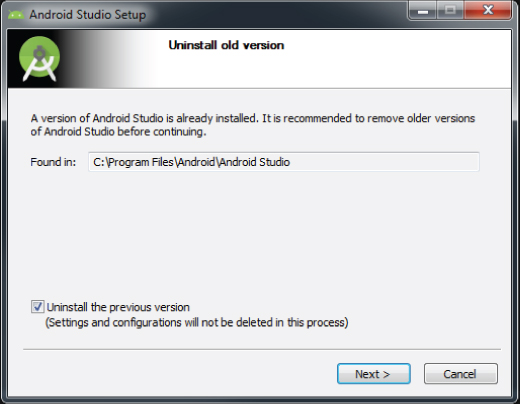
Now that Android Studio 2 is installed, you need to adjust the settings and options using the following steps:
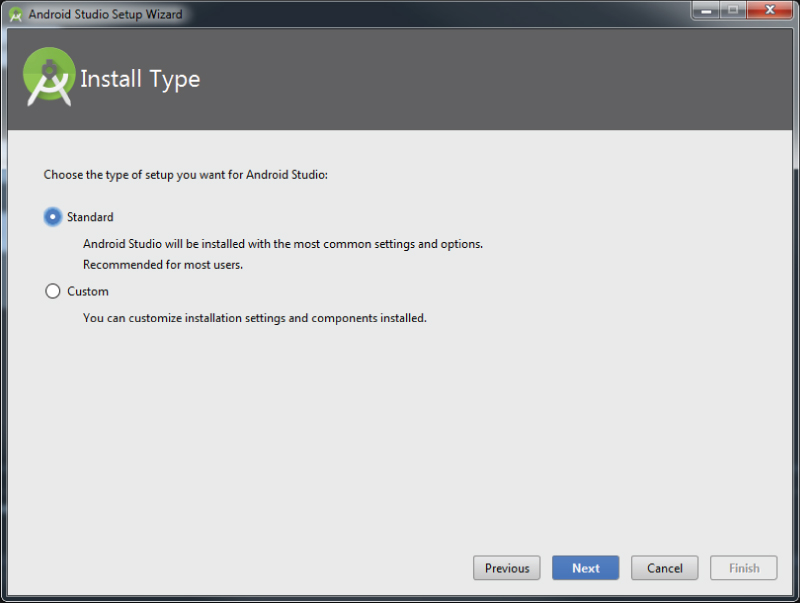
Now that Android Studio is set up, it's time to install the latest and greatest Android SDK.
The most important piece of software you need to download is, of course, the Android SDK. The Android SDK contains all of the packages and tools required to develop a functional Android application. The SDKs are named after the version of Android OS to which they correspond. By default, the Marshmallow SDK was installed with Android Studio 2, which means you can develop applications that will run seamlessly on devices with Android Marshmallow.
However, if you want to install a different Android SDK, you can do so using the SDK Manager from the Android Studio welcome screen (shown in Figure 1.15). From this screen, click the Configure drop-down menu in the lower-right corner. The Configure selection menu opens. Choose SDK Manager from this menu.
The SDK configuration screen, shown in Figure 1.16, shows that the Marshmallow SDK is already installed. Android N is available to be installed (as of the writing of this book Android Nougat was in a finalized beta, so it might be named differently now).
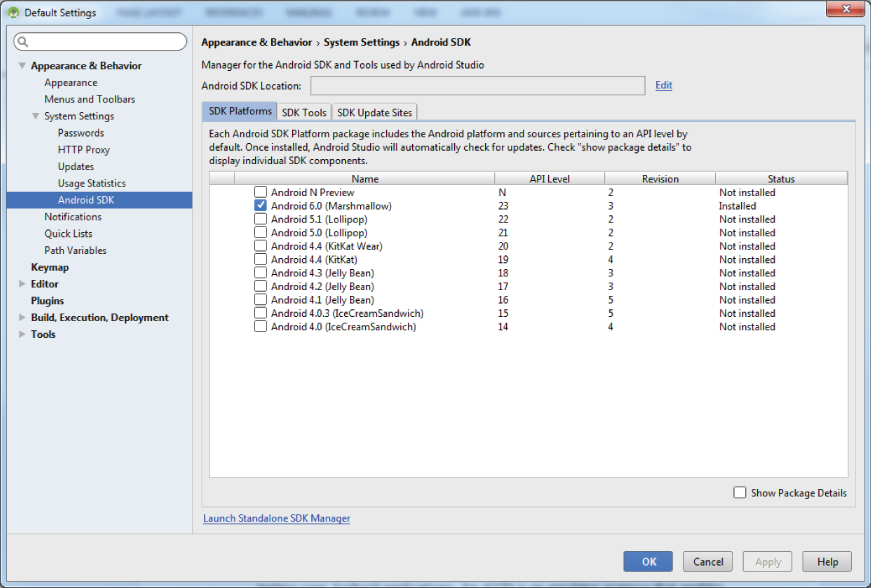
Select Android Nougat, click Apply, and then click OK. However, before the SDK is installed you must accept the licensing agreement as shown in Figure 1.17.
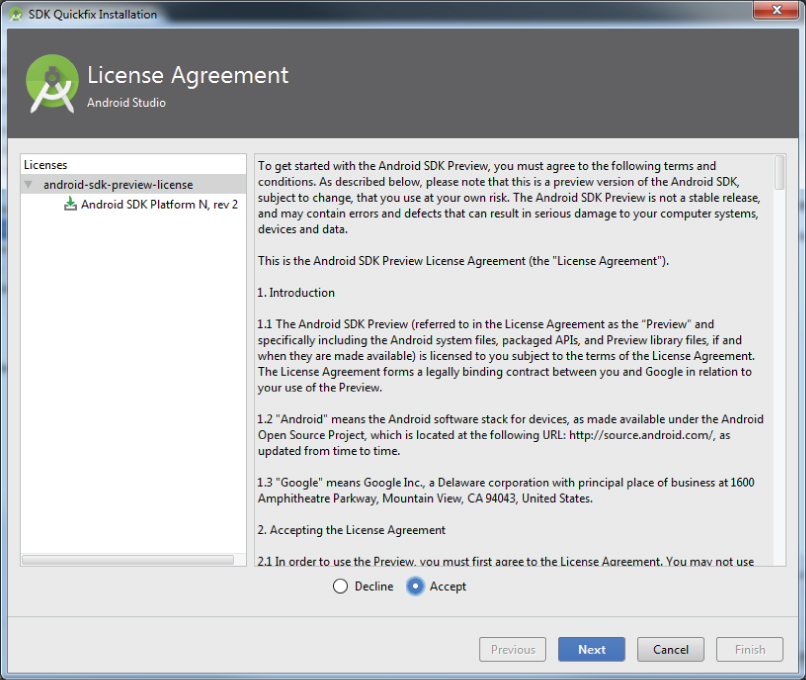
The setup process for Android Studio is now complete. The next section explains how to set up an Android Virtual Device that you can use to test your applications.
The next step is to create an Android Virtual Device (AVD) you can use for testing your Android applications. An AVD is an emulator instance that enables you to model an actual device. Each AVD consists of a hardware profile; a mapping to a system image; and emulated storage, such as a secure digital (SD) card. One important thing to remember about emulators is that they are not perfect. There are some applications, such as games (which are GPU heavy) or applications that use sensors such as the GPS or accelerometer. These types of applications cannot be simulated with the same speed or consistency within an emulator as they can when running on an actual device. However, the emulator is good for doing some generalized testing of your applications.
You can create as many AVDs as you want to test your applications with different configurations. This testing is important to confirm the behavior of your application when it is run on different devices with varying capabilities.
Use the following steps to create an AVD. This example demonstrates creating an AVD (put simply, an Android emulator) that emulates an Android device running Android N on the Nexus 5x hardware specs.
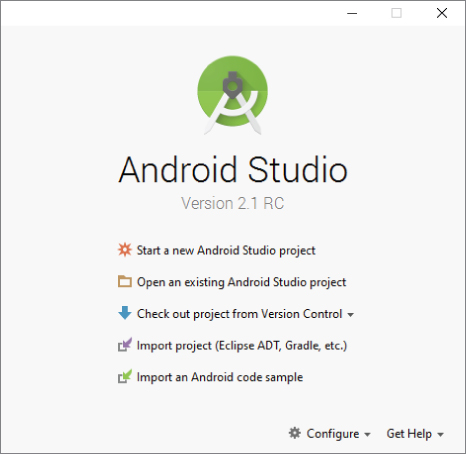
For the purposes of setting up a quick Hello World project and creating an AVD, you will be accepting many of the default values, without explanation, during the project setup process. This is fine for now, as all of the settings are explained in much greater detail in subsequent chapters.
Android
AVD Manager or using the AVD Manager button from the toolbar. Figure 1.23 shows the Android Virtual Device Manager Wizard, which is where you set up AVDs to be used when you emulate your application in Android on your desktop.
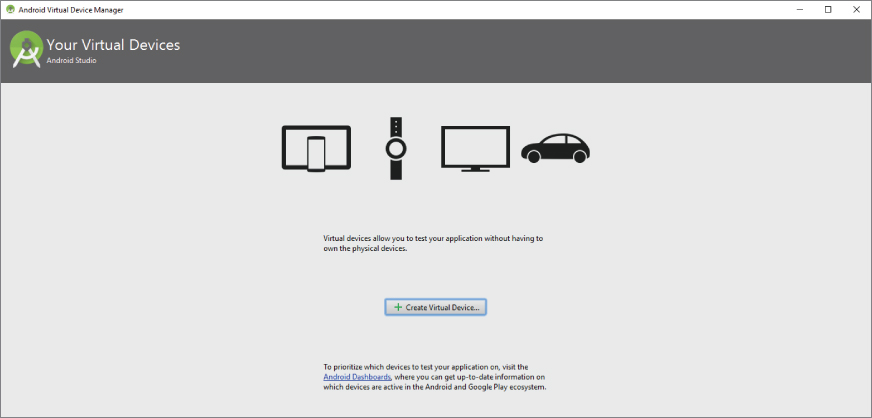
It is preferable to create a few AVDs with different API levels and hardware configurations so that your application can be tested on different versions of the Android OS.
When you created your first Android project earlier in this section, the setup process determined that Jelly Bean was the most active version of Android on Google Play. In this Try It Out, you create an AVD for Android Jelly Bean.
Android
AVD Manager or using the AVD Manager button from the toolbar.After you have created your ADV, it is time to test it. There is no better way to do this than to create and launch the ubiquitous Hello World application.
Now that Android is in its seventh version, there is a large developer community all over the world. It is easy to find solutions to problems and to find like-minded developers with whom to share app ideas and experiences.
The following are some developer communities and websites that you can turn to for help if you run into problems while working with Android:
With all the tools and the SDK downloaded and installed, it is now time to start your engine. As in most programming books, the first example uses the ubiquitous Hello World application. This will give you a detailed look at the various components that make up an Android project. This is also the easiest Android project you will ever make.
Believe it or not, the Hello World application is already finished. By default, when you create a new application in Android Studio, it creates a Hello World application. Let's launch this application and, in the process, also launch the Android emulator to see how everything works.
Run app from the Android Studio menu bar. You should see the Select Deployment Target dialog as shown in Figure 1.27.
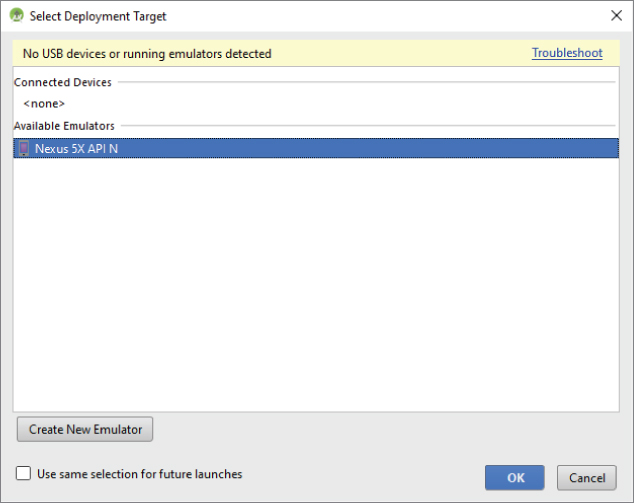
Note that If there's ever a time when you have not already created the emulator, you can create an emulator at this point.
Run app from the Android Studio menu bar.With the emulator fully loaded and started, Android Studio can install your Hello World application. The application will display as shown in Figure 1.28.
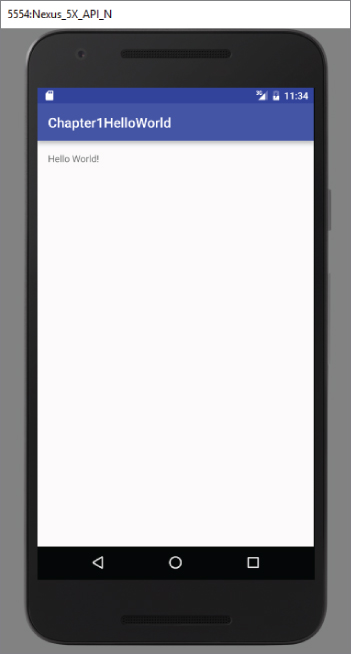
This was a very quick example of how to create and launch your first Android applications. However, what this example has really done for you is introduce you, on a general scale, to most of the major skills you will fine tune throughout this book.
This chapter provided a brief overview of Android and highlighted some of its capabilities. If you have followed the sections on downloading the tools and the Android SDK, you should now have a working system—one that is capable of developing Android applications that are more interesting than the Hello World application. In the next chapter, you find out about the inner workings of Android Studio before moving on to more complex Android application development concepts.
You can find answers to the exercises in the appendix.
| TOPIC | KEY CONCEPTS |
| Android OS | Android is an open source mobile operating system based on the Linux operating system. It is available to anyone who wants to adapt it to run on their own devices. |
| Languages used for Android application development | You use the Java programming language to develop Android applications. Written applications are compiled into Dalvik executables, which are then run on top of the Dalvik virtual machine. |
| Google Play | Google Play hosts all the various Android applications written by third-party developers. |
| Tools for Android application development | Android Studio, Android SDK, and virtual devices. |
There are no code downloads for this chapter.
Chapter 1 covers how to install and initially configure Android Studio for the purposes of developing Android applications. This chapter explains how to navigate the intricacies of Android Studio in a way that helps you develop applications more easily and with great efficiency.
Android Studio contains myriad features to help everyone from the greenest novices to the most senior superstar developers. By the time you finish this chapter, you will be able to navigate through the features of Android Studio with confidence, produce code that is easy to read and easy to reuse with the help of refactoring, save and share your code to GitHub, and use breakpoints to quickly find problems in your applications.
Let's begin by examining the features of Android Studio.
In this section you explore the Android Studio Integrated Development Environment, which is also known as the IDE. Basically, the IDE is the interface between you and Android Studio. The more you know about the tools, windows, and options that are available to you in Android Studio, the faster you will be able to produce code and the more confident you will be at creating applications.
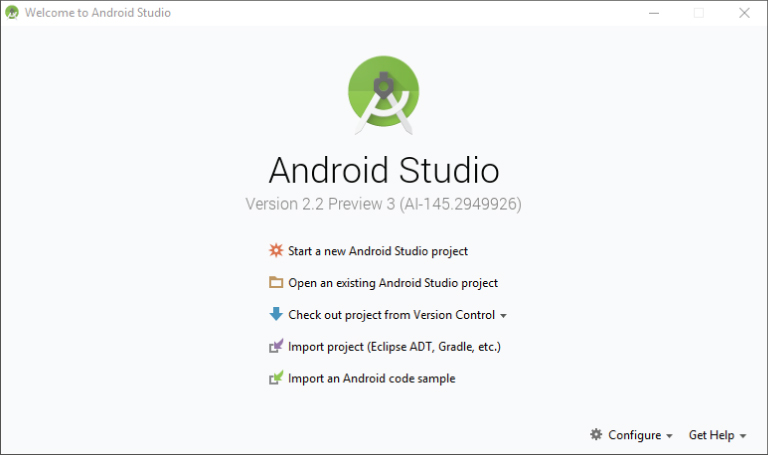
If you do not see the screen in Figure 2.1 and instead see the last Hello World project from Chapter 1, simply locate the File option on the menu bar. Click File
Close Project to return to the screen shown in Figure 2.1.
The first option you have is to name your project. Let's call this one IDEExplorer. The second option—the Company Domain—is very important because it is used to name the Java package to which your code will belong. You can type any name that you want into this field. There is no validation to check that you actually own the domain that you specify, but you should try to use a valid domain. I have used jfdimarzio.com. As you can see from the Package Name line, Android Studio automatically reverses your company domain to create the package name.
The package name is used in almost every code file in your project. It helps Android Studio identify which files belong to your project (and which, for example, belong to the core Java libraries). Throughout this book, when you look at the provided code samples, I remind you to replace all instances of my package name (com.jfdimarzio) with whatever package name you select here. If you do not, Android Studio doesn't know that the example code should belong to your project rather than mine.
The final option on the Create New Project screen is the path to which Android Studio will save your new project. I typically accept the default here because it makes it easier for me to find projects in the future. However, feel free to specify any valid location that you want to use—it will not affect this tutorial. Click Next to continue.
The next screen allows you to select the form factor on which your application will run (see Figure 2.3). For the purposes of this book, you exclusively use Phone and Tablet. The version of Android is Android N (or Nougat, depending on the version of the SDK you downloaded. As of the writing of this book, the name was officially announced as Nougat, but the SDK was still labeled N).
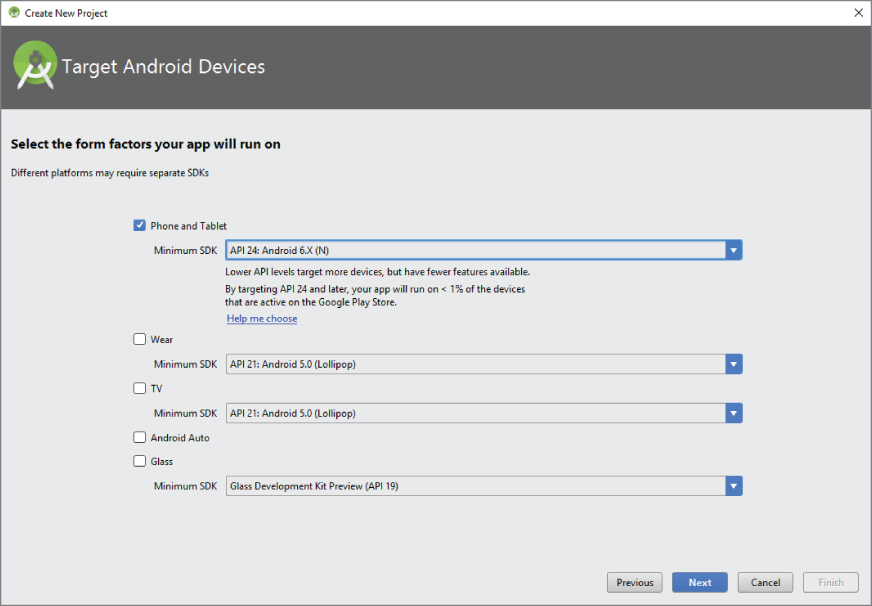
The other options on this screen allow you to create applications that run on Android Wear, Android Auto, and the elusive Google Glass. If you are feeling adventurous after reading this book, feel free to try some of these other application form factor options. For now, make sure to select Phone and Tablet and Android N and click Next to continue.
The next screen is the Add an Activity to Mobile screen, as shown in Figure 2.4. This screen is a helper that adds commonly used features to your project at the time the project is created. The options on this screen range from Add No Activity to Tabbed Activity. For example, if you were to select the Google Maps Activity option, Android Studio would create for you a project with a basic activity that contains a Google Map in it already. This can drastically cut down on the amount of time needed to create some types of applications.
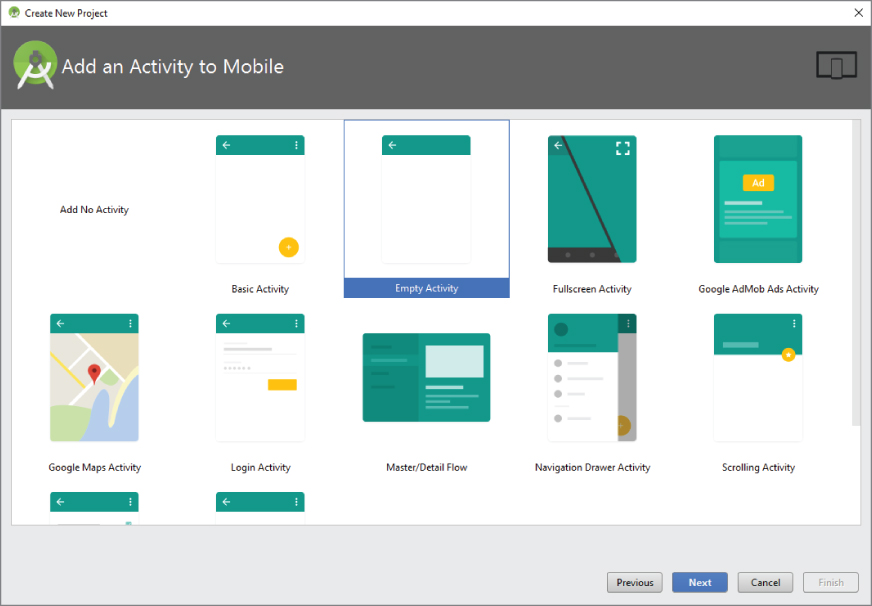
The default option is Empty Activity. This is the most useful for our examples because it creates a basic activity for you, with no code in it—thus allowing you to easily follow the examples in this book.
Unless otherwise specified in this book, all of the examples in the chapters assume you select the Empty Activity option.
Click Next to go to the Customize the Activity screen, as shown in Figure 2.5.
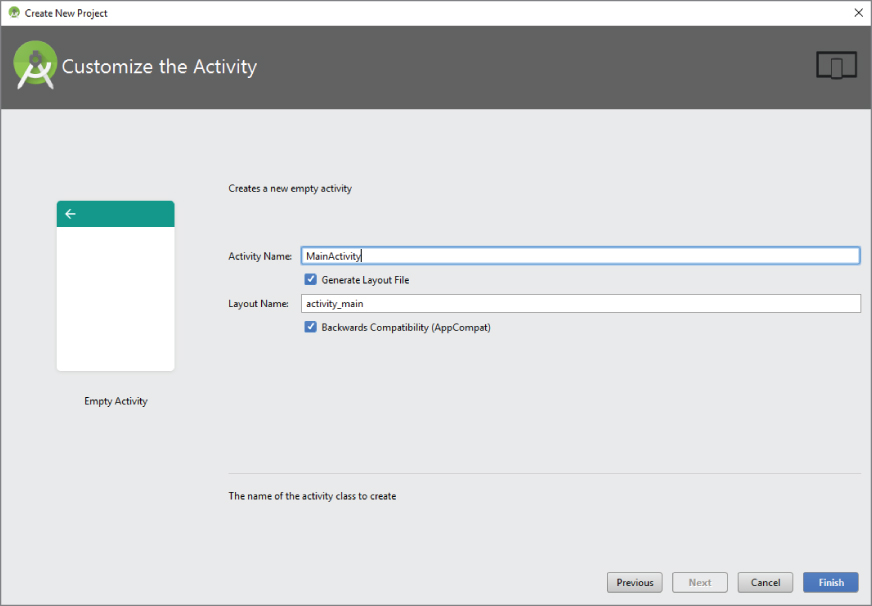
The Customize the Activity screen contains two options, one for naming your activity, and one for naming the main layout (presumably to be used by the main activity). Let's explore these two options.
MainActivity. The reason for this is to make it easier to locate the startup code for your application. If anyone else needs to look at or work with your application, they should know that the MainActivity is the starting point. All other activities can be named by their function, for example InputFormActivity or DeleteRecordActivity.activity_main layout. All other layouts should be named according to the activity that they support (activity_input, activity_delete).Unless otherwise specified, all of the examples in this book assume that you accept the defaults on the Customize the Activity screen of MainActivity and activity_main.
Click the Finish button to finish creating the project and jump into exploring the IDE.
The Android Studio IDE should now be visible to you as shown in Figure 2.6.
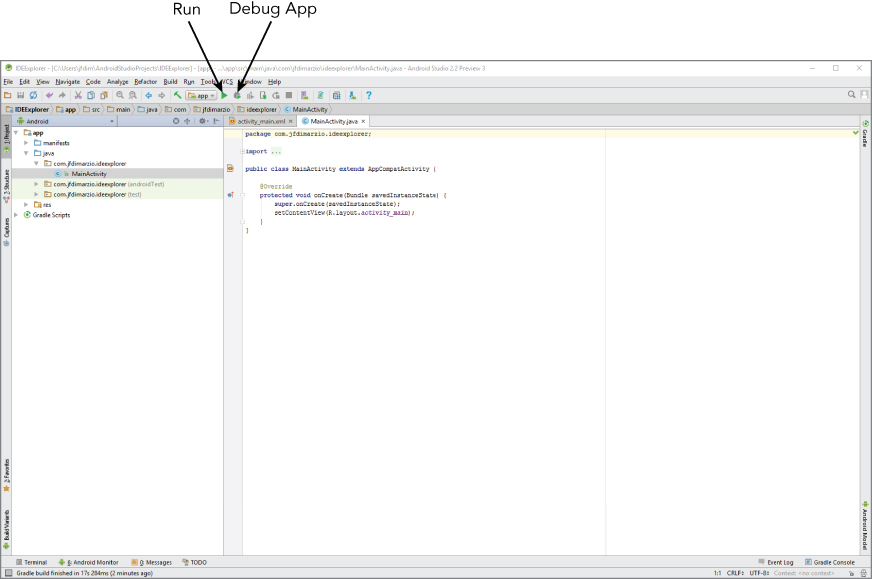
The upper portion of the IDE represents the menu bars or ribbons. Here, as with most applications that you have used in the past, you have all of your options for interacting directly with the IDE. The most important ones to note are the green arrow, which represents the Run app option, and the green arrow with a bug behind it, which is the Debug App option. The Debug App option is arguably the one that you use the most in this book.
By default, the left side of the IDE shows the Project window, as shown in Figure 2.7. The Project window enables you to quickly navigate the files within your project. By default, the Project window is set to the Android view (seen just above the Project window display). To change the view, click the word Android and use the drop-down list of options to make the change. I like to keep mine on Project view when I am working.
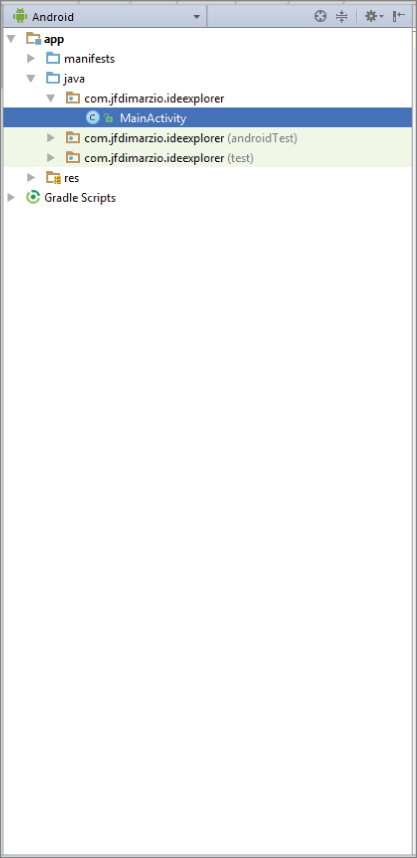
On the right side of the IDE (and taking up the largest area) are the Editor tabs (see Figure 2.8). The Editor tabs are where you write and work with your code files.
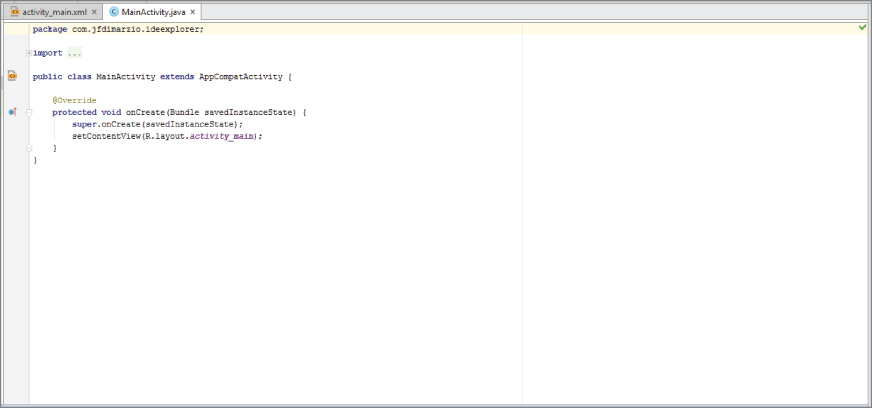
To work on a new file, simply locate the file in the Project window and double-click it to open a new Editor tab that contains that file's code. If you need to create a new file from scratch, right-click the directory into which you want to place your file, and select New
<File Type> from the context menu.
Finally, at the bottom of the IDE, you should see a button labeled Android Monitor. Click this button to open the Android Monitor (see Figure 2.9).

The Android Monitor automatically displays when you debug an application. It contains a very useful tool called logcat. Logcat displays most of the helpful messages that are output by your application while you are trying to debug it. In future chapters, you will make use of logcat—including writing custom messages to it.
Code completion is an invaluable tool that shows you contextual options for completing the piece of code that you are trying to write. For example, in the editor tab for the MainActivity.js file, locate the line that reads
setContentView(R.layout.activity_main);
Place your cursor after this line and press the Enter key. On the new line, type the letter R, and then type a period, as shown here:
R.
Android Studio Code Completion should display a list of values that you could use to try to complete the code statement. Figure 2.10 shows what this list might look like. This is important if you are not entirely sure of the spelling of a method call or of how to identify the different method signatures.
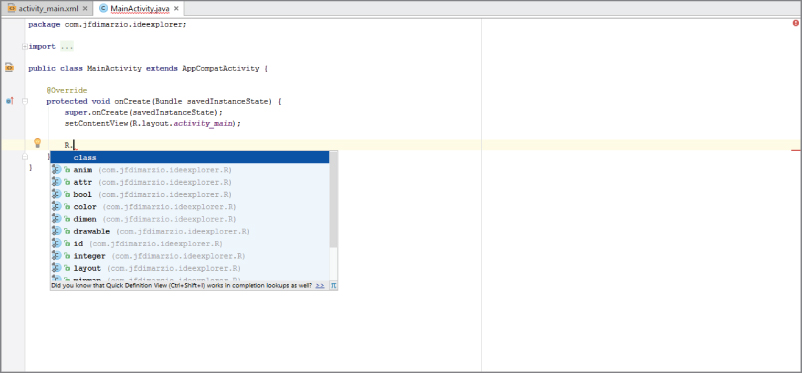
If the code completion window does not open, press Ctrl+Space to force it to open. This is the same key combination used in some other IDEs for their versions of code completion.
You can also use code completion to insert code stubs into your classes. If you are inheriting from a class that has methods you must override, code completion notifies you that there are methods that need to be overridden. With a click, it inserts the stubs of those methods into your application.
Finally, the ability to import packages is one of the Android Studio features and its code completion implementation that you will use most often while navigating the examples in this book. For example, if you were to attempt to create a variable of a type that belongs to a package that you have not imported, Android Studio recognizes this and underlines the type with a red squiggle. Set the cursor to that line and press Alt+Enter to automatically import the package into a using statement at the top of your code file.
After you have built an application, you need to be able to debug it and see what is going on inside your code. One of the handiest ways to be able to see inside your code it through the use of breakpoints. Breakpoints allow you to pause the execution of your code at specific locations and see what is going on (or what is going wrong). Let's take a look at how to use breakpoints in Android Studio.
Breakpoints are a mechanism by which you can tell Android Studio to temporarily pause execution of your code, which allows you to examine the condition of your application. This means that you can check on the values of variables in your application while you are debugging it. Also, you can check whether certain lines of code are being executed as expected—or at all.
To tell Android Studio that you want to examine a specific line of code during debugging, you must set a breakpoint at that line. Click the margin of the editor tab next to line of code you want to break at, to set a breakpoint. A red circle is placed in the margin, and the corresponding line is highlighted in red, as shown in Figure 2.11.
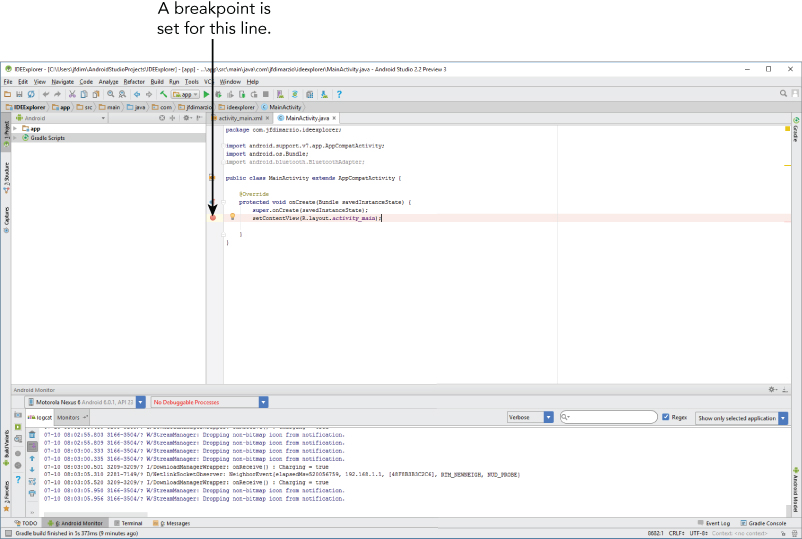
You can also set a breakpoint by placing your cursor in the line of code where you want it to break and clicking Run
Toggle Line Breakpoint. Notice that the term used is toggle, which means that any breakpoints you set can be turned off the same way you turn them on. Simply click an existing breakpoint to remove it from your code.
Android Studio only pauses execution at breakpoints when you debug your application—not when you run it. This means you must use the green arrow with the bug behind it (or select Run
Debug ‘app’, or press Shift+F9).
Let's say that you do not know the exact line of code where you want the break to be. You might want to check on the condition of your code when a specific method is called. You can set a method breakpoint by selecting Run
Toggle Method Breakpoint. A method breakpoint is represented by a red circle containing four dots placed at the method signature, as shown in Figure 2.12.
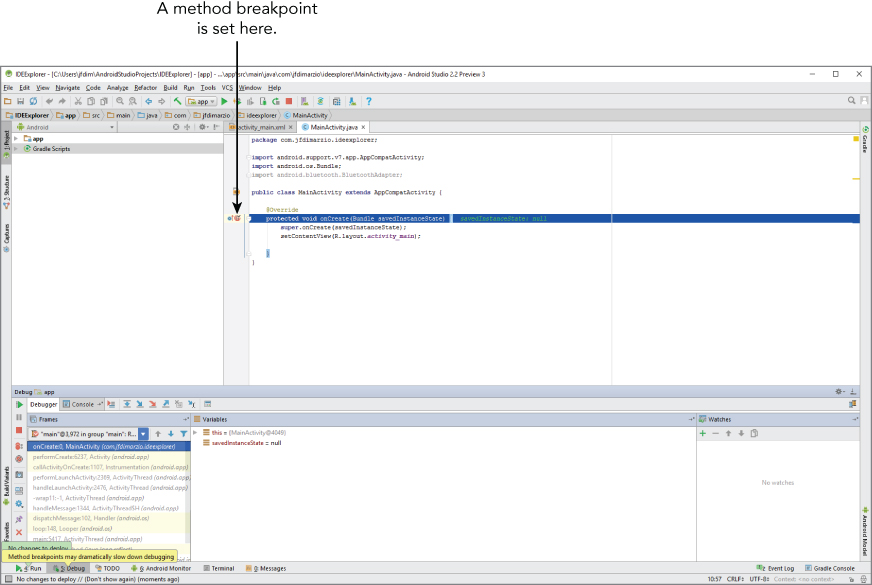
Notice in the lower left-hand area of Figure 2.12 that Android Studio has issued a warning that method breakpoints can dramatically slow down debugging. This is because method breakpoints do more than simple breakpoints in their default state. By default, method breakpoints are set apart from simple breakpoints. Android Studio pauses execution when the method is hit, and it also automatically sets a corresponding breakpoint and pauses at the end of the method (as shown in Figure 2.13).
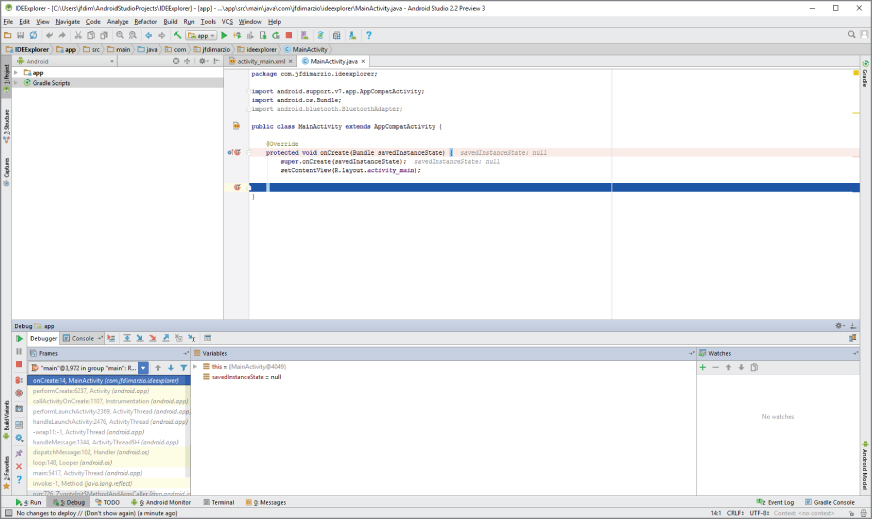
Using a method breakpoint is different from setting a simple breakpoint at the signature of a method. You could easily click in the margin of the editor tab at the signature of a method to set a simple breakpoint there. However, this one will get hit when execution enters the method. Also, a method breakpoint automatically pauses when the method is exited.
Thus far, I've discussed simple and method breakpoints. However, there are two other types of breakpoints that you examine in this section: temporary breakpoints and conditional breakpoints.
A temporary breakpoint is useful when you are trying to debug a large loop, or you just want to make sure a line of code is being hit during execution. To set a temporary breakpoint, place your cursor at the location in the code where you want it to break and select Run
Toggle Temporary Line Breakpoint. Notice that a red circle containing a 1 is now placed in the margin (once you set the conditions as shown in Figure 2.14).
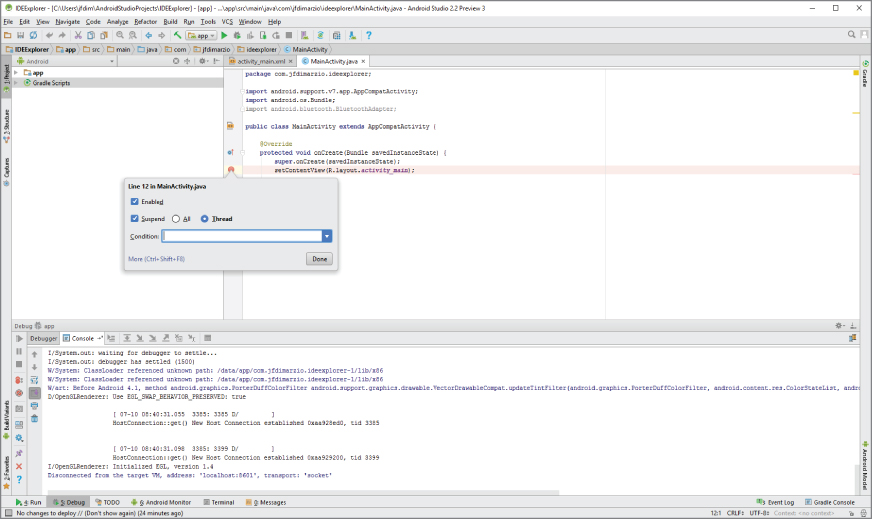
The 1 in the red circle represents the fact that Android Studio only stops at this breakpoint the first time your code enters it. After that, the line is executed as though there is no breakpoint set. This can be very useful if you want to ensure a line within a loop is being hit, but you don't want to stop at the line every time it is executed.
However, let's say that you want to ensure that a line within a loop is only being called when a specific variable is set to true (or something similarly complex). In such a case, you can use a conditional breakpoint.
A condition breakpoint is a breakpoint at which Android Studio only pauses when specific conditions are met. To set a conditional breakpoint, first set a simple breakpoint at the line of code you want to examine, then right-click the simple breakpoint to bring up the condition context menu (refer to Figure 2.14).
From here you can set conditions that tell Android Studio when to pause at a breakpoint. For example, you can tell Android Studio to only pause at a line of code when your variable named foo equals true. You would then set the condition in the breakpoint to
foo == true
Conditional breakpoints are extremely useful in diagnosing intermittent issues in complex code blocks.
While in debug mode, Android Studio pauses at any breakpoint that you have set. That is, as long as a breakpoint has been set on a reachable line of code (a line of code that would be executed by system), Android Studio halts execution at that line until you tell it to continue.
When Android Studio hits, and pauses at, a breakpoint, the red circle in the margin next to the corresponding line of code changes to a circle with a check mark (see Figure 2.15).
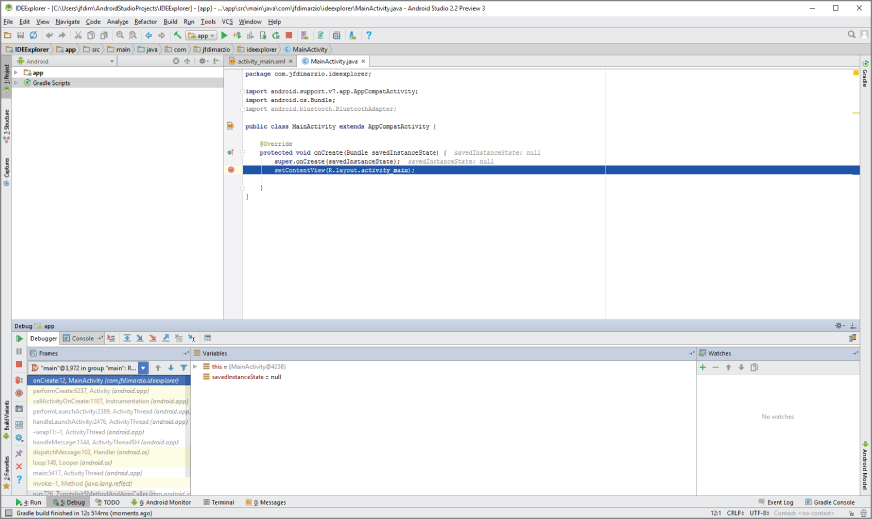
Once a breakpoint has been hit, the debug window opens at the bottom of Android Studio, as shown in Figure 2.16. The debug window contains many of the tools you use to navigate around your code.
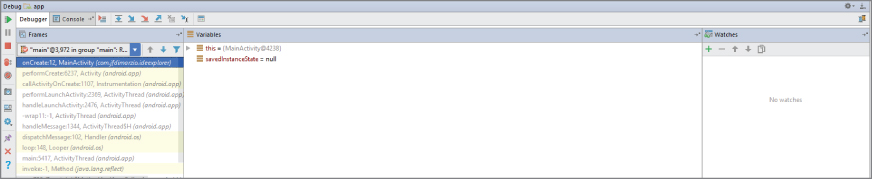
Notice the navigation buttons located in the menu bar of the debug window. The most commonly used are Step Over and Step Into. Step Over advances you to the line of code that immediately follows the one at which you are currently paused. This means that if you are paused at a method call, and you press Step Over, Android Studio executes the method call without pausing and then pauses again when execution reached the next line. However, what if an exception happens in that method call and execution never reaches the next line of code? For these situations use Step Into.
Step Into follows execution wherever it leads in the code. Therefore, if you are paused at a method call and click Step Into, Android Studio will shift the view to the method call and pause execution at the first line of code within that method. This allows you to then follow the execution of that method line-by-line before it returns to the calling block.
After you have created, and fully debugged, your application, you might want to deploy it to the Google Store for others to enjoy. The following sections outline the steps for publishing your applications.
To publish your finished application on the Google Play Store, you must generate a signed APK (the Android application package). The APK is the compiled, executable version of your application. Signing it is much like signing your name to a document. The signature identifies the app's developer to Google and the users who install your application. More importantly, unless your Android Studio is in developer mode, unsigned applications will not run. Use the following steps to generate a signed APK:
Generate Signed APK from the Menu bar to bring up the Generate Signed APK window as shown in Figure 2.17.
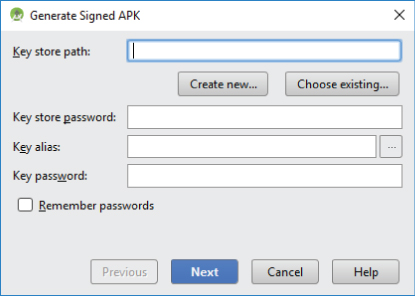
Notice that there are two places for a password. These are the passwords for your key store and your key, respectively. Because a key store can hold multiple keys, it requires a separate password than that of the key for a specific app.
Now that you have a signed APK, you can upload it to the Google Play Store using the developer console at https://play.google.com/apps/publish/.
Android Studio is a powerful IDE that contains many tools. In this chapter you learned how to navigate the different areas of the Android Studio IDE, such as the Project window and the Editor tabs. You also learned how to set breakpoints and navigate through paused code.
You can find answers to the exercises in the appendix.
| TOPIC | KEY POINTS |
| Android Studio IDE | Create a new project |
| Name the Java package | |
| Name the main entry point for your application | |
| Code Completion | Provides contextual information for completing your code |
| Breakpoints | Paused only while in debug mode |
| Simple | |
| Temporary | |
| Method | |
| Conditional |
The wrox.com code downloads for this chapter are found at www.wrox.com/go/beginningandroidprog on the Download Code tab. The code is in the Chapter 03 download and individually named according to the names throughout the chapter.
An Android application can have zero or more activities. Typically, applications have one or more activities. The main purpose of an activity is to interact with the user. From the moment an activity appears on the screen to the moment it is hidden, it goes through a number of stages. These stages are known as an activity's life cycle. Understanding the life cycle of an activity is vital to ensuring that your application works correctly. In addition to activities, Android N also supports fragments, a feature that was introduced for tablets in Android 3.0 and for phones in Android 4.0. Think of fragments as “miniature” activities that can be grouped to form an activity. In this chapter, you find out how activities and fragments work together.
Apart from activities, another unique concept in Android is that of an intent. An intent is basically the “glue” that enables activities from different applications to work together seamlessly, ensuring that tasks can be performed as though they all belong to one single application. Later in this chapter, you learn more about this very important concept and how you can use it to call built-in applications such as the Browser, Phone, Maps, and more.
This chapter begins by showing you how to create an activity. To create an activity, you create a Java class that extends the Activity base class:
package com.jfdimarzio.chapter1helloworld;
import android.support.v7.app.AppCompatActivity;
import android.os.Bundle;
public class MainActivity extends AppCompatActivity {
@Override
protected void onCreate(Bundle savedInstanceState) {
super.onCreate(savedInstanceState);
setContentView(R.layout.activity_main);
}
}
Your activity class loads its user interface (UI) component using the XML file defined in your res/layout folder. In this example, you would load the UI from the main.xml file:
setContentView(R.layout.activity_main);
Every activity you have in your application must be declared in your AndroidManifest.xml file, like this:
<?xml version="1.0" encoding="utf-8"?>
<manifest xmlns:android="http://schemas.android.com/apk/res/android
package="com.jfdimarzio.chapter1helloworld">
<application
android:allowBackup="true"
android:icon="@mipmap/ic_launcher"
android:label="@string/app_name"
android:supportsRtl="true"
android:theme="@style/AppTheme">
<activity android:name=".MainActivity">
<intent-filter>
<action android:name="android.intent.action.MAIN" />
<category android:name="android.intent.category.LAUNCHER" />
</intent-filter>
</activity>
</application>
</manifest>
The Activity base class defines a series of events that govern the life cycle of an activity. Figure 3.1 shows the lifecycle of an Activity.
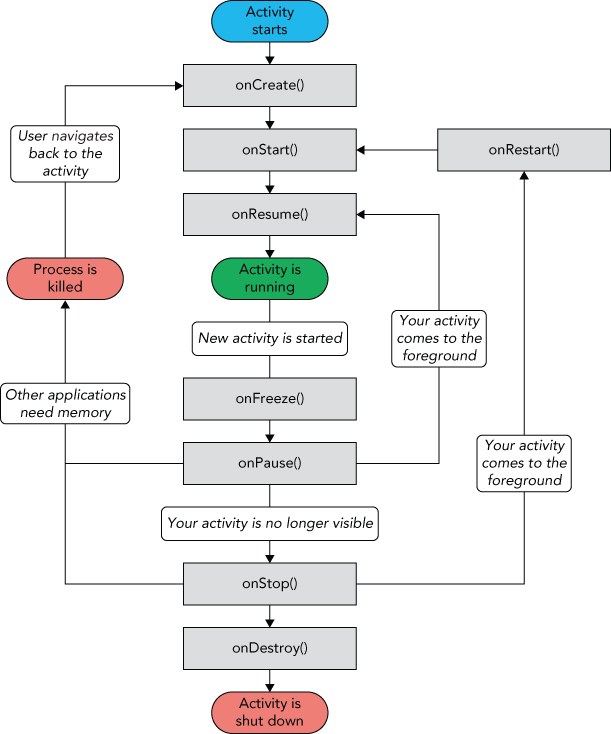
The Activity class defines the following events:
onCreate()—Called when the activity is first createdonStart()—Called when the activity becomes visible to the useronResume()—Called when the activity starts interacting with the useronPause()—Called when the current activity is being paused and the previous activity is being resumedonStop()—Called when the activity is no longer visible to the useronDestroy()—Called before the activity is destroyed by the system (either manually or by the system to conserve memory)onRestart()—Called when the activity has been stopped and is restarting againBy default, the activity created for you contains the onCreate() event. Within this event handler is the code that helps to display the UI elements of your screen.
Figure 3.2 shows the life cycle of an activity and the various stages it goes through—from when the activity is started until it ends.
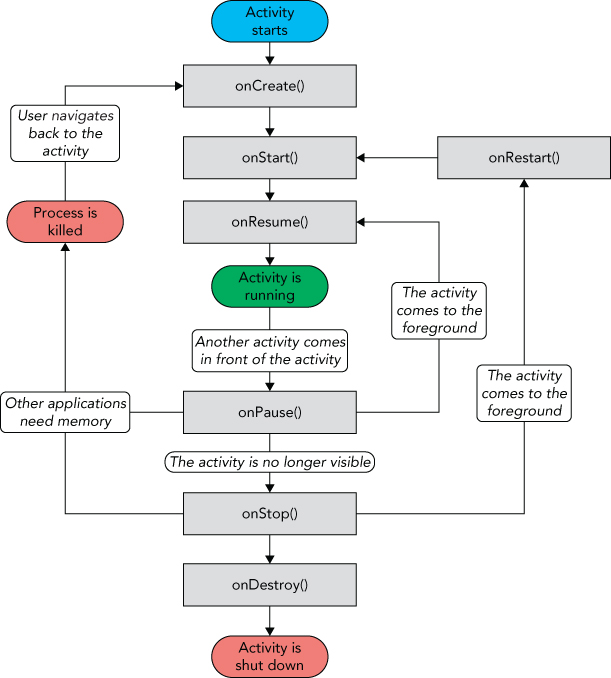
The best way to understand the various stages of an activity is to create a new project, implement the various events, and then subject the activity to various user interactions.
Activity101Activity.java file, add the following highlighted statements. (Please note: Throughout this example, be sure to change all references to "com.jfdimarzio" to whatever package name your project is using.)package com.jfdimarzio.activity101;
import android.support.v7.app.AppCompatActivity;
import android.os.Bundle;
import android.util.Log;
public class MainActivity extends AppCompatActivity
{
String tag = "Lifecycle Step";
@Override
protected void onCreate(Bundle savedInstanceState)
{
super.onCreate(savedInstanceState);
setContentView(R.layout.activity_main);
Log.d(tag, "In the onCreate() event");
}
public void onStart()
{
super.onStart();
Log.d(tag, "In the onStart() event");
}
public void onRestart()
{
super.onRestart();
Log.d(tag, "In the onRestart() event");
}
public void onResume()
{
super.onResume();
Log.d(tag, "In the onResume() event");
}
public void onPause()
{
super.onPause();
Log.d(tag, "In the onPause() event");
}
public void onStop()
{
super.onStop();
Log.d(tag, "In the onStop() event");
}
public void onDestroy()
{
super.onDestroy();
Log.d(tag, "In the onDestroy() event");
}
}
Debug. Then select one of your Android Virtual Devices from the pop-up window.
11-16 06:25:59.396: D/Lifecycle Step(559): In the onCreate() event
11-16 06:25:59.396: D/Lifecycle Step(559): In the onStart() event
11-16 06:25:59.396: D/Lifecycle Step(559): In the onResume() event
11-16 06:29:26.665: D/Lifecycle Step(559): In the onPause() event
11-16 06:29:28.465: D/Lifecycle Step(559): In the onStop() event
11-16 06:29:28.465: D/Lifecycle Step(559): In the onDestroy() event
Overview icon, select the Activity101 application, and observe the following:11-16 06:31:08.905: D/Lifecycle Step(559): In the onCreate() event
11-16 06:31:08.905: D/Lifecycle Step(559): In the onStart() event
11-16 06:31:08.925: D/Lifecycle Step(559): In the onResume() event
11-16 06:32:00.585: D/Lifecycle Step(559): In the onPause() event
11-16 06:32:05.015: D/Lifecycle Step(559): In the onStop() event
onDestroy() event is not called, indicating that the activity is still in memory. Exit the phone dialer by clicking the Back button. The activity is now visible again. Observe the output in the logcat window:11-16 06:32:50.515: D/Lifecycle(559): In the onRestart() event
11-16 06:32:50.515: D/Lifecycle(559): In the onStart() event
11-16 06:32:50.515: D/Lifecycle(559): In the onResume() event
The onRestart() event is now fired, followed by the onStart() and onResume() methods.
As you can see from this simple example, an activity is destroyed when you click the Back button. This is crucial to understand because whatever state the activity is currently in will be lost. This means you need to write additional code in your activity to preserve its state when the activity is destroyed (Chapter 4 shows you how). At this point, note that the onPause() method is called in both scenarios:
When an activity is started, the onStart() and onResume()methods are always called, regardless of whether the activity is restored from the background or newly created. When an activity is created for the first time, the onCreate() method is called.
From the preceding example, you can derive the following guidelines:
onCreate() method to create and instantiate the objects that you will be using in your application.onResume() method to start any services or code that needs to run while your activity is in the foreground.onPause() method to stop any services or code that does not need to run when your activity is not in the foreground.onDestroy() method to free up resources before your activity is destroyed.Even if an application has only one activity and the activity is killed, the application is still running in memory.
By default, an activity is themed to the default Android theme. However, there has been a push in recent years to adopt a new theme known as Material. The Material theme has a much more modern and clean look to it.
There are two versions of the Material theme available to Android developers: Material Light and Material Dark. Either of these themes can be applied from the AndroidManifest.xml.
To apply one of the Material themes to an activity, simply modify the <Application> element in the AndroidManifest.xml file by changing the default android:theme attribute. (Please be sure to change all instances of "com.jfdimarzio" to whatever package name your project is using.)
<?xml version="1.0" encoding="utf-8"?>
<manifest xmlns:android="http://schemas.android.com/apk/res/android"
xmlns:tools="http://schemas.android.com/tools"
package="com.jfdimarzio.activity101">
<application
android:allowBackup="true"
android:icon="@mipmap/ic_launcher"
android:label="@string/app_name"
android:supportsRtl="true"
android:theme="@android:style/Theme.Material">
<activity android:name=".MainActivity">
<intent-filter>
<action android:name="android.intent.action.MAIN"/>
<category android:name="android.intent.category.LAUNCHER"/>
</intent-filter>
</activity>
</application>
</manifest>
Changing the default theme to @android:style/Theme.Material, as in the highlighted code in the preceding snippet, applies the Material Dark theme and gives your application a darker look as shown in Figure 3.4.
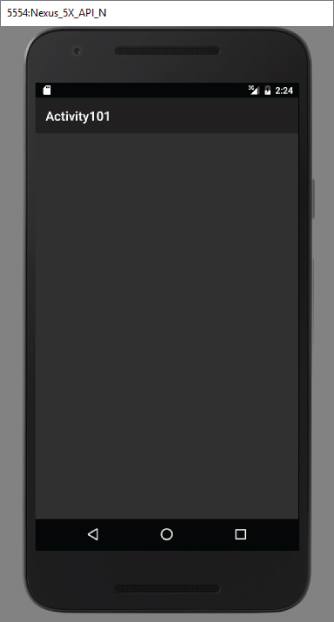
You can also hide the title of an activity if desired (such as when you just want to display a status update to the user). To do so, use the requestWindowFeature() method and pass it the Window.FEATURE_NO_TITLE constant, like this:
import android.support.v7.app.AppCompatActivity;
import android.os.Bundle;
import android.view.Window;
public class MainActivity extends AppCompatActivity {
@Override
protected void onCreate(Bundle savedInstanceState) {
super.onCreate(savedInstanceState);
setContentView(R.layout.activity_main);
requestWindowFeature(Window.FEATURE_NO_TITLE);
}
}
Now you need to change the theme in the AndroidManifest.xml to a theme that has no title bar. Be sure to change all instances of "com.jfdimarzio" to whatever package name your project is using.
package com.jfdimarzio.activity101;
<?xml version="1.0" encoding="utf-8"?>
<manifest xmlns:android="http://schemas.android.com/apk/res/android"
xmlns:tools="http://schemas.android.com/tools"
package="com.jfdimarzio.activity101">
<application
android:allowBackup="true"
android:icon="@mipmap/ic_launcher"
android:label="@string/app_name"
android:supportsRtl="true"
android:theme="@android:style/Theme.NoTitleBar">
<activity android:name=".MainActivity">
<intent-filter>
<action android:name="android.intent.action.MAIN"/>
<category android:name="android.intent.category.LAUNCHER"/>
</intent-filter>
</activity>
</application>
</manifest>
This hides the title bar, as shown in Figure 3.5.
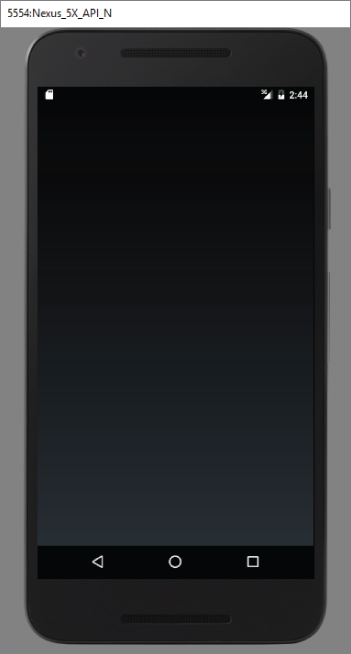
There are times when you need to display a dialog window to get a confirmation from the user. In this case, you can override the onCreateDialog() protected method defined in the Activity base class to display a dialog window. The following Try It Out shows you how.
DialogActivity.AndroidManifest.xml file. Be sure to change all instances of "com.jfdimarzio" to whatever package name your project is using.<?xml version="1.0" encoding="utf-8"?>
<manifest xmlns:android="http://schemas.android.com/apk/res/android"
package="com.jfdimarzio.dialog" >
<application
android:allowBackup="true"
android:icon="@mipmap/ic_launcher"
android:label="@string/app_name"
android:supportsRtl="true"
android:theme="@style/AppTheme" >
<activity
android:name=".DialogActivity"
android:label="@string/app_name"
android:theme="@style/Theme.AppCompat.Dialog" >
<intent-filter>
<action android:name="android.intent.action.MAIN"/>
<category android:name="android.intent.category.LAUNCHER"/>
</intent-filter>
</activity>
</application>
</manifest>
DialogActivity.java file to this:package com.jfdimarzio.dialog;
import android.os.Bundle;
import android.support.design.widget.FloatingActionButton;
import android.support.design.widget.Snackbar;
import android.support.v7.app.AppCompatActivity;
import android.support.v7.widget.Toolbar;
import android.view.View;
import android.view.Menu;
import android.view.MenuItem;
public class DialogActivity extends AppCompatActivity {
@Override
protected void onCreate(Bundle savedInstanceState) {
super.onCreate(savedInstanceState);
setContentView(R.layout.activity_dialog);
Toolbar toolbar = (Toolbar) findViewById(R.id.toolbar);
setSupportActionBar(toolbar);
FloatingActionButton fab = (FloatingActionButton) findViewById(R.id.fab);
fab.setOnClickListener(new View.OnClickListener() {
@Override
public void onClick(View view) {
Snackbar.make(view, "Replace with your own action",
Snackbar.LENGTH_LONG)
.setAction("Action", null).show();
}
});
}
@Override
public boolean onCreateOptionsMenu(Menu menu) {
// Inflate the menu; this adds items to the action bar if it is present.
getMenuInflater().inflate(R.menu.menu_dialog, menu);
return true;
}
@Override
public boolean onOptionsItemSelected(MenuItem item) {
// Handle action bar item clicks here. The action bar will
// automatically handle clicks on the Home/Up button, so long
// as you specify a parent activity in AndroidManifest.xml.
int id = item.getItemId();
//noinspection SimplifiableIfStatement
if (id == R.id.action_settings) {
return true;
}
return super.onOptionsItemSelected(item);
}
}
Android uses the AppCompat.Dialog theme to draw your standard activity as a free-floating dialog box. It would be very easy to modify this dialog to add some buttons if you needed to provide an OK or Cancel choice.
Notice also that the theme is applied to the Activity, not the project. Therefore, you could have a project with multiple activities, and apply the dialog theme to just one of them.
One common UI feature in an Android device is the “Please wait” dialog that you typically see when an application is performing a long-running task. For example, the application might be logging in to a server before the user is allowed to use it, or it might be doing a calculation before displaying the result to the user. In such cases, it is helpful to display a dialog, known as a progress dialog, so that the user is kept in the loop.
Android provides a ProgressDialog class you can call when you want to display a running meter to the user. ProgressDialog is easy to call from an activity.
The following Try It Out demonstrates how to display such a dialog.
AndroidManifest.xml file. Be sure to change all instances of "com.jfdimarzio" to whatever package name your project is using.<?xml version="1.0" encoding="utf-8"?>
<manifest xmlns:android="http://schemas.android.com/apk/res/android"
xmlns:tools="http://schemas.android.com/tools"
package="com.jfdimarzio.activity101">
<application
android:allowBackup="true"
android:icon="@mipmap/ic_launcher"
android:label="@string/app_name"
android:supportsRtl="true"
android:theme="@android:style/Theme.Material">
<activity android:name=".MainActivity">
<intent-filter>
<action android:name="android.intent.action.MAIN"/>
<category android:name="android.intent.category.LAUNCHER"/>
</intent-filter>
</activity>
</application>
</manifest>
MainActivity.java file:
package com.jfdimarzio.activity101;
import android.app.Activity;
import android.app.ProgressDialog;
import android.os.CountDownTimer;
import android.os.Bundle;
public class MainActivity extends Activity {
ProgressDialog progressDialog;
@Override
protected void onCreate(Bundle savedInstanceState) {
super.onCreate(savedInstanceState);
setContentView(R.layout.activity_main);
}
public void onStart()
{
super.onStart();
progressDialog = ProgressDialog.show(this,"Please Wait",
"Processing…",true);
CountDownTimer timer = new CountDownTimer(3000,1000) {
@Override
public void onTick(long millisUntilFinished) {
}
@Override
public void onFinish() {
progressDialog.dismiss();
}
}.start();
}
}
To create a progress dialog, you create an instance of the ProgressDialog class and call its show() method:
progressDialog = ProgressDialog.show(this,"Please Wait", "Processing…",true);
This displays the progress dialog shown in Figure 3.7. Because this is a modal dialog, it will block the UI until it is dismissed. To close the dialog, you create a timer that calls the dismiss() method after three seconds. (Chapter 12 covers threads and calling methods that can do extraneous work from a thread while a progress dialog is displayed.)
CountDownTimer timer = new CountDownTimer(3000,1000) {
@Override
public void onTick(long millisUntilFinished) {
}
@Override
public void onFinish() {
progressDialog.dismiss();
}
}.start();
After the three seconds have elapsed, you dismiss the dialog by calling the dismiss() method.
The next section explains using Intents, which help you navigate between multiple Activities.
An Android application can contain zero or more activities. When your application has more than one activity, you often need to navigate from one to another. In Android, you navigate between activities through what is known as an intent.
The best way to understand this very important but somewhat abstract concept is to experience it firsthand and see what it helps you achieve. The following Try It Out shows how to add another activity to an existing project and then navigate between the two activities.
MainActivity; name the project UsingIntent.app≫app≫src≫main≫java folder in the Project Files windows and select New
Java ClassAndroidManifest.xml file. Be sure to change all instances of "com.jfdimarzio" to whatever package name your project is using.<?xml version="1.0" encoding="utf-8"?>
<manifest xmlns:android="http://schemas.android.com/apk/res/android"
package="com.jfdimarzio.usingintent">
<application
android:allowBackup="true"
android:icon="@mipmap/ic_launcher"
android:label="@string/app_name"
android:supportsRtl="true"
android:theme="@style/AppTheme">
<activity android:name=".MainActivity">
<intent-filter>
<action android:name="android.intent.action.MAIN"/>
<category android:name="android.intent.category.LAUNCHER"/>
</intent-filter>
</activity>
<activity android:name=".SecondActivity" >
<intent-filter >
<action android:name="com.jfdimarzio.usingintent.SecondActivity" />
<category android:name="android.intent.category.DEFAULT" />
</intent-filter>
</activity>
</application>
</manifest>
activity_main.xml file (in the res/layout folder) by right-clicking it and selecting Copy. Then right-click the res/layout folder and select Paste. Name the file activity_second.xml.activity_second.xml file as follows:<?xml version="1.0" encoding="utf-8"?>
<RelativeLayout xmlns:android="http://schemas.android.com/apk/res/android"
xmlns:tools="http://schemas.android.com/tools"
android:layout_width="match_parent"
android:layout_height="match_parent"
android:paddingBottom="@dimen/activity_vertical_margin"
android:paddingLeft="@dimen/activity_horizontal_margin"
android:paddingRight="@dimen/activity_horizontal_margin"
android:paddingTop="@dimen/activity_vertical_margin"
tools:context="com.jfdimarzio.usingintent.SecondActivity">
<TextView
android:layout_width="wrap_content"
android:layout_height="wrap_content"
android:text="This is the Second Activity!" />
</RelativeLayout>
SecondActivity.java file, add the bolded statements from the following code:package com.jfdimarzio.usingintent;
import android.app.Activity;
import android.os.Bundle;
public class SecondActivity extends Activity {
public void onCreate(Bundle savedInstanceState) {
super.onCreate(savedInstanceState);
setContentView(R.layout.activity_second);
}
}
activity_main.xml file:<?xml version="1.0" encoding="utf-8"?>
<RelativeLayout xmlns:android="http://schemas.android.com/apk/res/android"
xmlns:tools="http://schemas.android.com/tools"
android:layout_width="match_parent"
android:layout_height="match_parent"
android:paddingBottom="@dimen/activity_vertical_margin"
android:paddingLeft="@dimen/activity_horizontal_margin"
android:paddingRight="@dimen/activity_horizontal_margin"
android:paddingTop="@dimen/activity_vertical_margin"
tools:context="com.jfdimarzio.usingintent.MainActivity">
<TextView
android:layout_width="wrap_content"
android:layout_height="wrap_content"
android:text="Main Activity!"
android:id="@+id/textView"/>
<Button
android:layout_width="wrap_content"
android:layout_height="wrap_content"
android:text="Display second activity"
android:onClick="onClick"
android:id="@+id/button"
android:layout_below="@+id/textView"
android:layout_alignParentStart="true"
android:layout_marginTop="56dp" />
</RelativeLayout>
MainActivity.java file as shown in the bolded lines in the following code:package com.jfdimarzio.usingintent;
import android.app.Activity;
import android.content.Intent;
import android.os.Bundle;
import android.view.View;
public class MainActivity extends Activity {
@Override
protected void onCreate(Bundle savedInstanceState) {
super.onCreate(savedInstanceState);
setContentView(R.layout.activity_main);
}
public void onClick(View view) {
startActivity(new Intent("com.jfdimarzio.usingintent.SecondActivity"));
}
}
As previously described, an activity is made up of a UI component (for example, activity_main.xml) and a class component (for example, MainActivity.java). If you want to add another activity to a project, you need to create these two components.
Specifically, you need to add the following to the AndroidManifest.xml file:
</activity>
<activity android:name=".SecondActivity" >
<intent-filter >
<action android:name="com.jfdimarzio.usingintent.SecondActivity"/>
<category android:name="android.intent.category.DEFAULT"/>
</intent-filter>
</activity>
When you add a new activity to the application, be sure to note the following:
SecondActivity.<Your Package Name>.SecondActivity. Other activities that want to call this activity invoke it via this name. Ideally, you should use the reverse domain name of your company as the intent filter name to reduce the chances of another application having the same intent filter name.android.intent.category.DEFAULT. You need to add this to the intent filter so that this activity can be started by another activity using the startActivity() method (more on this shortly).When the Display Second Activity button is clicked, you use the startActivity() method to display SecondActivity by creating an instance of the Intent class and passing it the intent filter name of SecondActivity (net.learn2develop.SecondActivity):
public void onClick(View view) {
startActivity(new Intent("net.learn2develop.SecondActivity"));
}
Activities in Android can be invoked by any application running on the device. For example, you can create a new Android project and then display SecondActivity by using its net.learn2develop.SecondActivity intent filter. This is one of the fundamental concepts in Android that enables an application to easily invoke another application.
If the activity you want to invoke is defined within the same project, you can rewrite the preceding statement like this:
startActivity(new Intent(this, SecondActivity.class));
However, this approach is applicable only when the activity you want to display is within the same project as the current activity.
The startActivity() method invokes another activity but does not return a result to the current activity. For example, you might have an activity that prompts the user for username and password. The information entered by the user in that activity needs to be passed back to the calling activity for further processing. If you need to pass data back from an activity, you should instead use the startActivityForResult() method. The following Try It Out demonstrates this.
secondactivity.xml file to look like the following code. Please be sure to change all references from "com.jfdimarzio" to whatever package name your project is using:<?xml version="1.0" encoding="utf-8"?>
<LinearLayout android:orientation="vertical"
xmlns:android="http://schemas.android.com/apk/res/android"
xmlns:tools="http://schemas.android.com/tools"
android:layout_width="match_parent"
android:layout_height="match_parent"
android:paddingBottom="@dimen/activity_vertical_margin"
android:paddingLeft="@dimen/activity_horizontal_margin"
android:paddingRight="@dimen/activity_horizontal_margin"
android:paddingTop="@dimen/activity_vertical_margin"
tools:context="com.jfdimarzio.usingintent.SecondActivity">
<TextView
android:layout_width="wrap_content"
android:layout_height="wrap_content"
android:text="This is the Second Activity!"
android:id="@+id/textView2"/>
<TextView
android:layout_width="wrap_content"
android:layout_height="wrap_content"
android:text="Please enter your name"
android:id="@+id/textView3"/>
<EditText
android:layout_width="match_parent"
android:layout_height="wrap_content"
android:id="@+id/txtUsername"/>
<Button
android:layout_width="wrap_content"
android:layout_height="wrap_content"
android:text="OK"
android:onClick="onClick"
android:id="@+id/button2"/>
</LinearLayout>
SecondActivity.java:package com.jfdimarzio.usingintent;
import android.app.Activity;
import android.content.Intent;
import android.net.Uri;
import android.os.Bundle;
import android.view.View;
import android.widget.EditText;
public class SecondActivity extends Activity {
public void onCreate(Bundle savedInstanceState) {
super.onCreate(savedInstanceState);
setContentView(R.layout.activity_second);
}
public void onClick(View view) {
Intent data = new Intent();
//---get the EditText view---
EditText txt_username = (EditText)findViewById(R.id.txtUsername);
//---set the data to pass back---
data.setData(Uri.parse( txt_username.getText().toString()));
setResult(RESULT_OK, data);
//---closes the activity---
finish();
}
}
MainActivity.java file:package com.jfdimarzio.usingintent;
import android.app.Activity;
import android.content.Intent;
import android.os.Bundle;
import android.view.View;
import android.widget.Toast;
public class MainActivity extends Activity {
int request_Code = 1;
@Override
protected void onCreate(Bundle savedInstanceState) {
super.onCreate(savedInstanceState);
setContentView(R.layout.activity_main);
}
public void onClick(View view) {
startActivityForResult(new Intent("com.jfdimarzio.usingintent.
SecondActivity"),request_Code);
}
public void onActivityResult(int requestCode, int resultCode, Intent data)
{
if (requestCode == request_Code) {
if (resultCode == RESULT_OK) {
Toast.makeText(this,data.getData().toString(),
Toast.LENGTH_SHORT).show();
}
}
}
}
SecondActivity. Enter your name (see Figures 3.10, 3.11, and 3.12) and click the OK button. The first activity displays the name you have entered using the Toast class.
To call an activity and wait for a result to be returned from it, you need to use the startActivityForResult() method, like this:
startActivityForResult(new Intent("com.jfdimarzio.usingintent.
SecondActivity"),request_Code);
In addition to passing in an Intent object, you need to pass in a request code as well. The request code is simply an integer value that identifies an activity you are calling. This is needed because when an activity returns a value, you must have a way to identify it. For example, you might be calling multiple activities at the same time, though some activities might not return immediately (for example, waiting for a reply from a server). When an activity returns, you need this request code to determine which activity is actually returned.
If the request code is set to –1 then calling it using the startActivityForResult() method is equivalent to calling it using the startActivity() method. That is, no result is returned.
In order for an activity to return a value to the calling activity, you use an Intent object to send data back via the setData() method:
Intent data = new Intent();
//---get the EditText view---
EditText txt_username =
(EditText) findViewById(R.id.txt_username);
//---set the data to pass back---
data.setData(Uri.parse(
txt_username.getText().toString()));
setResult(RESULT_OK, data);
//---closes the activity---
finish();
The setResult() method sets a result code (either RESULT_OK or RESULT_CANCELLED) and the data (an Intent object) to be returned back to the calling activity. The finish() method closes the activity and returns control to the calling activity.
In the calling activity, you need to implement the onActivityResult() method, which is called whenever an activity returns:
public void onActivityResult(int requestCode, int resultCode,
Intent data)
{
if (requestCode == request_Code) {
if (resultCode == RESULT_OK) {
Toast.makeText(this,data.getData().toString(),
Toast.LENGTH_SHORT).show();
}
}
}
Here, you check for the appropriate request and result codes and display the result that is returned. The returned result is passed in via the data argument; and you obtain its details through the getData() method.
Besides returning data from an activity, it is also common to pass data to an activity. For example, in the previous example, you might want to set some default text in the EditText view before the activity is displayed. In this case, you can use the Intent object to pass the data to the target activity.
The following Try It Out shows you the various ways in which you can pass data between activities.
activity_main.xml file. Be sure to change all instances of "com.jfdimarzio" to whatever package name your project is using.
<?xml version="1.0" encoding="utf-8"?>
<LinearLayout android:orientation="vertical"
xmlns:android="http://schemas.android.com/apk/res/android"
xmlns:tools="http://schemas.android.com/tools"
android:layout_width="match_parent"
android:layout_height="match_parent"
android:paddingBottom="@dimen/activity_vertical_margin"
android:paddingLeft="@dimen/activity_horizontal_margin"
android:paddingRight="@dimen/activity_horizontal_margin"
android:paddingTop="@dimen/activity_vertical_margin"
tools:context="com.jfdimarzio.passingdata.MainActivity">
<Button
android:layout_width="wrap_content"
android:layout_height="wrap_content"
android:text="Click to go to Second Activity"
android:id="@+id/button"
android:onClick="onClick"/>
</LinearLayout>
res/layout folder and name it activity_second.xml. Populate it as follows:<?xml version="1.0" encoding="utf-8"?>
<LinearLayout android:orientation="vertical"
xmlns:android="http://schemas.android.com/apk/res/android"
xmlns:tools="http://schemas.android.com/tools"
android:layout_width="match_parent"
android:layout_height="match_parent"
android:paddingBottom="@dimen/activity_vertical_margin"
android:paddingLeft="@dimen/activity_horizontal_margin"
android:paddingRight="@dimen/activity_horizontal_margin"
android:paddingTop="@dimen/activity_vertical_margin"
tools:context="com.jfdimarzio.passingdata.MainActivity">
<TextView
android:layout_width="wrap_content"
android:layout_height="wrap_content"
android:text="Welcome to the Second Activity"
android:id="@+id/textView"/>
<Button
android:layout_width="wrap_content"
android:layout_height="wrap_content"
android:text="Click to go to Main Activity"
android:id="@+id/button"
android:onClick="onClick"/>
</LinearLayout>
Class file to the package and name it SecondActivity. Populate the SecondActivity.java file as follows:package com.jfdimarzio.passingdata;
import android.app.Activity;
import android.content.Intent;
import android.net.Uri;
import android.os.Bundle;
import android.view.View;
import android.widget.Toast;
public class SecondActvity extends Activity {
@Override
public void onCreate(Bundle savedInstanceState) {
super.onCreate(savedInstanceState);
setContentView(R.layout.activity_second);
//---get the data passed in using getStringExtra()---
Toast.makeText(this,getIntent().getStringExtra("str1"),
Toast.LENGTH_SHORT).show();
//---get the data passed in using getIntExtra()---
Toast.makeText(this,Integer.toString(
getIntent().getIntExtra("age1", 0)),
Toast.LENGTH_SHORT).show();
//---get the Bundle object passed in---
Bundle bundle = getIntent().getExtras();
//---get the data using the getString()---
Toast.makeText(this, bundle.getString("str2"),
Toast.LENGTH_SHORT).show();
//---get the data using the getInt() method---
Toast.makeText(this,Integer.toString(bundle.getInt("age2")),
Toast.LENGTH_SHORT).show();
}
public void onClick(View view) {
//---use an Intent object to return data---
Intent i = new Intent();
//---use the putExtra() method to return some
// value---
i.putExtra("age3", 45);
//---use the setData() method to return some value---
i.setData(Uri.parse("Something passed back to main activity"));
//---set the result with OK and the Intent object---
setResult(RESULT_OK, i);
//---destroy the current activity---
finish();
}
}
AndroidManifest.xml file:<?xml version="1.0" encoding="utf-8"?>
<manifest xmlns:android="http://schemas.android.com/apk/res/android"
package="com.jfdimarzio.passingdata">
<application
android:allowBackup="true"
android:icon="@mipmap/ic_launcher"
android:label="@string/app_name"
android:supportsRtl="true"
android:theme="@style/AppTheme">
<activity android:name=".MainActivity">
<intent-filter>
<action android:name="android.intent.action.MAIN"/>
<category android:name="android.intent.category.LAUNCHER"/>
</intent-filter>
</activity>
<activity android:name=".SecondActvity" >
<intent-filter >
<action android:name="com.jfdimarzio.passingdata.SecondActivity" />
<category android:name="android.intent.category.DEFAULT" />
</intent-filter>
</activity>
</application>
</manifest>
MainActivity.java file:package com.jfdimarzio.passingdata;
import android.content.Intent;
import android.Activity;
import android.os.Bundle;
import android.view.View;
import android.widget.Toast;
public class MainActivity extends Activity {
@Override
protected void onCreate(Bundle savedInstanceState) {
super.onCreate(savedInstanceState);
setContentView(R.layout.activity_main);
}
public void onClick(View view) {
Intent i = new
Intent("com.jfdimarzio.passingdata.SecondActivity");
//---use putExtra() to add new name/value pairs---
i.putExtra("str1", "This is a string");
i.putExtra("age1", 25);
//---use a Bundle object to add new name/values
// pairs---
Bundle extras = new Bundle();
extras.putString("str2", "This is another string");
extras.putInt("age2", 35);
//---attach the Bundle object to the Intent object---
i.putExtras(extras);
//---start the activity to get a result back---
startActivityForResult(i, 1);
}
public void onActivityResult(int requestCode,
int resultCode, Intent data)
{
//---check if the request code is 1---
if (requestCode == 1) {
//---if the result is OK---
if (resultCode == RESULT_OK) {
//---get the result using getIntExtra()---
Toast.makeText(this, Integer.toString(
data.getIntExtra("age3", 0)),
Toast.LENGTH_SHORT).show();
//---get the result using getData()---
Toast.makeText(this, data.getData().toString(),
Toast.LENGTH_SHORT).show();
}
}
}
}
While this application is not visually exciting, it does illustrate some important ways to pass data between activities.
First, you can use the putExtra() method of an Intent object to add a name/value pair:
//---use putExtra() to add new name/value pairs---
i.putExtra("str1", "This is a string");
i.putExtra("age1", 25);
The preceding statements add two name/value pairs to the Intent object: one of type string and one of type integer.
Besides using the putExtra() method, you can also create a Bundle object and then attach it using the putExtras() method. Think of a Bundle object as a dictionary object—it contains a set of name/value pairs. The following statements create a Bundle object and then add two name/value pairs to it. The Bundle object is then attached to the Intent object:
//---use a Bundle object to add new name/values pairs---
Bundle extras = new Bundle();
extras.putString("str2", "This is another string");
extras.putInt("age2", 35);
//---attach the Bundle object to the Intent object---
i.putExtras(extras);
To obtain the data sent using the Intent object, you first obtain the Intent object using the getIntent() method. Then, call its getStringExtra() method to get the string value set using the putExtra() method:
//---get the data passed in using getStringExtra()---
Toast.makeText(this,getIntent().getStringExtra("str1"),
Toast.LENGTH_SHORT).show();
In this case, you have to call the appropriate method to extract the name/value pair based on the type of data set. For the integer value, use the getIntExtra() method (the second argument is the default value in case no value is stored in the specified name):
//---get the data passed in using getIntExtra()---
Toast.makeText(this,Integer.toString(
getIntent().getIntExtra("age1", 0)),
Toast.LENGTH_SHORT).show();
To retrieve the Bundle object, use the getExtras() method:
//---get the Bundle object passed in---
Bundle bundle = getIntent().getExtras();
To get the individual name/value pairs, use the appropriate method. For the string value, use the getString() method:
//---get the data using the getString()---
Toast.makeText(this, bundle.getString("str2"),
Toast.LENGTH_SHORT).show();
Likewise, use the getInt() method to retrieve an integer value:
//---get the data using the getInt() method---
Toast.makeText(this,Integer.toString(bundle.getInt("age2")),
Toast.LENGTH_SHORT).show();
Another way to pass data to an activity is to use the setData() method (as used in the previous section), like this:
//---use the setData() method to return some value---
i.setData(Uri.parse(
"Something passed back to main activity"));
Usually, you use the setData() method to set the data on which an Intent object is going to operate, such as passing a URL to an Intent object so that it can invoke a web browser to view a web page. (For more examples, see the section “Calling Built-In Applications Using Intents,” later in this chapter.)
To retrieve the data set using the setData() method, use the getData() method (in this example data is an Intent object):
//---get the result using getData()---
Toast.makeText(this, data.getData().toString(),
Toast.LENGTH_SHORT).show();
In the previous section, you learned what an activity is and how to use it. In a small-screen device (such as a smartphone), an activity typically fills the entire screen, displaying the various views that make up the user interface of an application. The activity is essentially a container for views. However, when an activity is displayed in a large-screen device, such as on a tablet, it is somewhat out of place. Because the screen is much bigger, all the views in an activity must be arranged to make full use of the increased space, resulting in complex changes to the view hierarchy. A better approach is to have “mini-activities,” each containing its own set of views. During runtime, an activity can contain one or more of these mini-activities, depending on the screen orientation in which the device is held. In Android 3.0 and later, these mini-activities are known as fragments.
Think of a fragment as another form of activity. You create fragments to contain views, just like activities. Fragments are always embedded in an activity. For example, Figure 3.13 shows two fragments. Fragment 1 might contain a ListView showing a list of book titles. Fragment 2 might contain some TextViews and ImageViews showing some text and images.
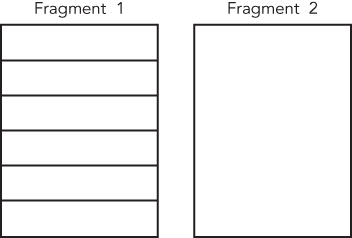
Now imagine the application is running on an Android tablet (or on an Android smartphone) in portrait mode. In this case, Fragment 1 might be embedded in one activity, whereas Fragment 2 might be embedded in another activity (see Figure 3.14). When users select an item in the list in Fragment 1, Activity 2 is started.
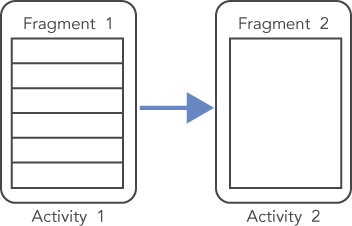
If the application is now displayed in a tablet in landscape mode, both fragments can be embedded within a single activity, as shown in Figure 3.15.
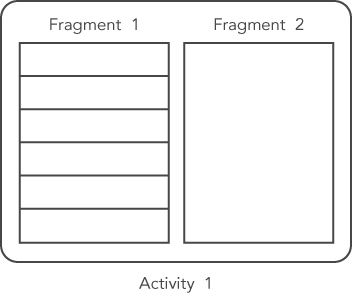
From this discussion, it becomes apparent that fragments present a versatile way in which you can create the user interface of an Android application. Fragments form the atomic unit of your user interface, and they can be dynamically added (or removed) to activities in order to create the best user experience possible for the target device.
The following Try It Out shows you the basics of working with fragments.
res/layout folder, add a new layout resource file and name it fragment1.xml. Populate it with the following code. Be sure to change all instances of "com.jfdimarzio" to whatever package name your project is using.<?xml version="1.0" encoding="utf-8"?>
<LinearLayout
xmlns:android="http://schemas.android.com/apk/res/android"
android:orientation="vertical"
android:layout_width="fill_parent"
android:layout_height="fill_parent"
android:background="#00FF00"
>
<TextView
android:layout_width="fill_parent"
android:layout_height="wrap_content"
android:text="This is fragment #1"
android:textColor="#000000"
android:textSize="25sp"/>
</LinearLayout>
res/layout folder, add another new layout resource file and name it fragment2.xml. Populate it as follows:<?xml version="1.0" encoding="utf-8"?>
<LinearLayout
xmlns:android="http://schemas.android.com/apk/res/android"
android:orientation="vertical"
android:layout_width="fill_parent"
android:layout_height="fill_parent"
android:background="#FFFE00"
>
<TextView
android:layout_width="fill_parent"
android:layout_height="wrap_content"
android:text="This is fragment #2"
android:textColor="#000000"
android:textSize="25sp"/>
</LinearLayout>
activity_main.xml, add the bolded lines in the following code:<?xml version="1.0" encoding="utf-8"?>
<LinearLayout android:orientation="vertical"
xmlns:android="http://schemas.android.com/apk/res/android"
xmlns:tools="http://schemas.android.com/tools"
android:layout_width="match_parent"
android:layout_height="match_parent"
android:paddingBottom="@dimen/activity_vertical_margin"
android:paddingLeft="@dimen/activity_horizontal_margin"
android:paddingRight="@dimen/activity_horizontal_margin"
android:paddingTop="@dimen/activity_vertical_margin"
tools:context="com.jfdimarzio.fragments.MainActivity">
<fragment
android:name="com.jfdimarzio.fragments.Fragment1"
android:id="@+id/fragment1"
android:layout_weight="1"
android:layout_width="fill_parent"
android:layout_height="match_parent" />
<fragment
android:name="com.jfdimarzio.fragments.Fragment2"
android:id="@+id/fragment2"
android:layout_weight="1"
android:layout_width="fill_parent"
android:layout_height="match_parent" />
</LinearLayout>
<Your Package Name>/fragments package name, add two Java class files and name them Fragment1.java and Fragment2.java.Fragment1.java:package com.jfdimarzio.fragments;
import android.app.Fragment;
import android.os.Bundle;
import android.view.LayoutInflater;
import android.view.View;
import android.view.ViewGroup;
public class Fragment1 extends Fragment {
@Override
public View onCreateView(LayoutInflater inflater,
ViewGroup container, Bundle savedInstanceState) {
//---Inflate the layout for this fragment---
return inflater.inflate(
R.layout.fragment1, container, false);
}
}
Fragment2.java:package com.jfdimarzio.fragments;
import android.app.Fragment;
import android.os.Bundle;
import android.view.LayoutInflater;
import android.view.View;
import android.view.ViewGroup;
public class Fragment2 extends Fragment {
@Override
public View onCreateView(LayoutInflater inflater,
ViewGroup container, Bundle savedInstanceState) {
//---Inflate the layout for this fragment---
return inflater.inflate(
R.layout.fragment2, container, false);
}
}
A fragment behaves very much like an activity: It has a Java class and it loads its UI from an XML file. The XML file contains all the usual UI elements that you expect from an activity: TextView, EditText, Button, and so on. The Java class for a fragment needs to extend the Fragment base class:
public class Fragment1 extends Fragment {
}
Besides the Fragment base class, a fragment can also extend a few other subclasses of the Fragment class, such as DialogFragment, ListFragment, and PreferenceFragment. Chapter 6 discusses these types of fragments in more detail.
To draw the UI for a fragment, you override the onCreateView() method. This method needs to return a View object, like this:
public View onCreateView(LayoutInflater inflater,
ViewGroup container, Bundle savedInstanceState) {
//---Inflate the layout for this fragment---
return inflater.inflate(
R.layout.fragment1, container, false);
}
Here, you use a LayoutInflater object to inflate the UI from the
specified XML file (R.layout.fragment1 in this case). The
container argument refers to the parent ViewGroup, which
is the activity in which you are trying to embed the
fragment. The savedInstanceState argument enables you
to restore the fragment to its previously saved state.
To add a fragment to an activity, you use the <fragment> element:
<?xml version="1.0" encoding="utf-8"?>
<LinearLayout xmlns:android="http://schemas.android.com/apk/res
/android"
android:layout_width="fill_parent"
android:layout_height="fill_parent"
android:orientation="vertical" >
<fragment
android:name=" com.jfdimarzio.fragments.Fragment1"
android:id="@+id/fragment1"
android:layout_weight="1"
android:layout_width="fill_parent"
android:layout_height="match_parent"/>
<fragment
android:name=" com.jfdimarzio.fragments.Fragment2"
android:id="@+id/fragment2"
android:layout_weight="1"
android:layout_width="fill_parent"
android:layout_height="match_parent"/>
</LinearLayout>
Note that each fragment needs a unique identifier. You can assign one via the android:id or android:tag attribute.
Although fragments enable you to compartmentalize your UI into various configurable parts, the real power of fragments is realized when you add them dynamically to activities during runtime. In the previous section, you saw how you can add fragments to an activity by modifying the XML file during design time. In reality, it is much more useful if you create fragments and add them to activities during runtime. This enables you to create a customizable user interface for your application. For example, if the application is running on a smartphone, you might fill an activity with a single fragment; if the application is running on a tablet, you might then fill the activity with two or more fragments, as the tablet has much more screen real estate compared to a smartphone.
The following Try It Out shows how you can programmatically add fragments to an activity during runtime.
main.xml file by commenting out the two <fragment> elements. Be sure to change all instances of "com.jfdimarzio" to whatever package name your project is using.<?xml version="1.0" encoding="utf-8"?>
<LinearLayout android:orientation="vertical"
xmlns:android="http://schemas.android.com/apk/res/android"
xmlns:tools="http://schemas.android.com/tools"
android:layout_width="match_parent"
android:layout_height="match_parent"
android:paddingBottom="@dimen/activity_vertical_margin"
android:paddingLeft="@dimen/activity_horizontal_margin"
android:paddingRight="@dimen/activity_horizontal_margin"
android:paddingTop="@dimen/activity_vertical_margin"
tools:context="com.jfdimarzio.fragments.MainActivity">
<!--
<fragment
android:name="com.jfdimarzio.fragments.Fragment1"
android:id="@+id/fragment1"
android:layout_weight="1"
android:layout_width="fill_parent"
android:layout_height="match_parent"/>
<fragment
android:name="com.jfdimarzio.fragments.Fragment2"
android:id="@+id/fragment2"
android:layout_weight="1"
android:layout_width="fill_parent"
android:layout_height="match_parent"/>
-->
</LinearLayout>
MainActivity.java file:package com.jfdimarzio.fragments;
import android.app.Activity;
import android.app.FragmentManager;
import android.app.FragmentTransaction;
import android.os.Bundle;
import android.util.DisplayMetrics;
public class MainActivity extends Activity {
/** Called when the activity is first created. */
@Override
public void onCreate(Bundle savedInstanceState) {
super.onCreate(savedInstanceState);
FragmentManager fragmentManager = getFragmentManager();
FragmentTransaction fragmentTransaction =
fragmentManager.beginTransaction();
//---get the current display info---
DisplayMetrics display = this.getResources().getDisplayMetrics();
int width = display.widthPixels;
int height = display.heightPixels;
if (width> height)
{
//---landscape mode---
Fragment1 fragment1 = new Fragment1();
// android.R.id.content refers to the content
// view of the activity
fragmentTransaction.replace(
android.R.id.content, fragment1);
}
else
{
//---portrait mode---
Fragment2 fragment2 = new Fragment2();
fragmentTransaction.replace(
android.R.id.content, fragment2);
}
fragmentTransaction.commit();
}
}
To add fragments to an activity, you use the FragmentManager class by first obtaining an instance of it:
FragmentManager fragmentManager = getFragmentManager();
You also need to use the FragmentTransaction class to perform fragment transactions (such as add, remove, or replace) in your activity:
FragmentTransaction fragmentTransaction =
fragmentManager.beginTransaction();
In this example, the WindowManager is used to determine whether the device is currently in portrait mode or landscape mode. Once that is determined, you can add the appropriate fragment to the activity by creating the fragment. Next, you call the replace() method of the FragmentTransaction object to add the fragment to the specified view container. In this case, android.R.id.content refers to the content view of the activity.
//---landscape mode---
Fragment1 fragment1 = new Fragment1();
// android.R.id.content refers to the content
// view of the activity
fragmentTransaction.replace(
android.R.id.content, fragment1);
Using the replace() method is essentially the same as calling the remove() method followed by the add() method of the FragmentTransaction object. To ensure that the changes take effect, you need to call the commit() method:
fragmentTransaction.commit();
Like activities, fragments have their own life cycle. Understanding the life cycle of a fragment enables you to properly save an instance of the fragment when it is destroyed, and restore it to its previous state when it is re-created.
The following Try It Out examines the various states experienced by a fragment.
Fragment1.java file. Be sure to change all instances of "com.jfdimarzio" to whatever package name your project is using.package com.jfdimarzio.fragments;
import android.app.Activity;
import android.app.Fragment;
import android.os.Bundle;
import android.util.Log;
import android.view.LayoutInflater;
import android.view.View;
import android.view.ViewGroup;
public class Fragment1 extends Fragment {
@Override
public View onCreateView(LayoutInflater inflater,
ViewGroup container, Bundle savedInstanceState) {
Log.d("Fragment 1", "onCreateView");
//---Inflate the layout for this fragment---
return inflater.inflate(
R.layout.fragment1, container, false);
}
@Override
public void onAttach(Activity activity) {
super.onAttach(activity);
Log.d("Fragment 1", "onAttach");
}
@Override
public void onCreate(Bundle savedInstanceState) {
super.onCreate(savedInstanceState);
Log.d("Fragment 1", "onCreate");
}
@Override
public void onActivityCreated(Bundle savedInstanceState) {
super.onActivityCreated(savedInstanceState);
Log.d("Fragment 1", "onActivityCreated");
}
@Override
public void onStart() {
super.onStart();
Log.d("Fragment 1", "onStart");
}
@Override
public void onResume() {
super.onResume();
Log.d("Fragment 1", "onResume");
}
@Override
public void onPause() {
super.onPause();
Log.d("Fragment 1", "onPause");
}
@Override
public void onStop() {
super.onStop();
Log.d("Fragment 1", "onStop");
}
@Override
public void onDestroyView() {
super.onDestroyView();
Log.d("Fragment 1", "onDestroyView");
}
@Override
public void onDestroy() {
super.onDestroy();
Log.d("Fragment 1", "onDestroy");
}
@Override
public void onDetach() {
super.onDetach();
Log.d("Fragment 1", "onDetach");
}
}
12-09 04:17:43.436: D/Fragment 1(2995): onAttach
12-09 04:17:43.466: D/Fragment 1(2995): onCreate
12-09 04:17:43.476: D/Fragment 1(2995): onCreateView
12-09 04:17:43.506: D/Fragment 1(2995): onActivityCreated
12-09 04:17:43.506: D/Fragment 1(2995): onStart
12-09 04:17:43.537: D/Fragment 1(2995): onResume
12-09 04:18:47.696: D/Fragment 1(2995): onPause
12-09 04:18:50.346: D/Fragment 1(2995): onStop
12-09 04:20:08.726: D/Fragment 1(2995): onStart
12-09 04:20:08.766: D/Fragment 1(2995): onResume
12-09 04:21:01.426: D/Fragment 1(2995): onPause
12-09 04:21:02.346: D/Fragment 1(2995): onStop
12-09 04:21:02.346: D/Fragment 1(2995): onDestroyView
12-09 04:21:02.346: D/Fragment 1(2995): onDestroy
12-09 04:21:02.346: D/Fragment 1(2995): onDetach
Like activities, fragments in Android also have their own life cycle. As you have seen, when a fragment is being created, it goes through the following states:
onAttach()onCreate()onCreateView()onActivityCreated()When the fragment becomes visible, it goes through these states:
onStart()onResume()When the fragment goes into the background mode, it goes through these states:
onPause()onStop()When the fragment is destroyed (when the activity in which it is currently hosted is destroyed), it goes through the following states:
onPause()onStop()onDestroyView()onDestroy()onDetach()Like activities, you can restore an instance of a fragment using a Bundle object, in the following states:
onCreate()onCreateView()onActivityCreated()Most of the states experienced by a fragment are similar to those of activities. However, a few new states are specific to fragments:
onAttached()—Called when the fragment has been associated with the activityonCreateView() Called to create the view for the fragmentonActivityCreated()—Called when the activity's onCreate() method has been returnedonDestroyView()—Called when the fragment's view is being removedonDetach()—Called when the fragment is detached from the activityOne of the main differences between activities and fragments is when an activity goes into the background, the activity is placed in the back stack. This allows the activity to be resumed when the user presses the Back button. In the case of fragments, however, they are not automatically placed in the back stack when they go into the background. Rather, to place a fragment into the back stack, you need to explicitly call the addToBackStack() method during a fragment transaction, like this:
//---get the current display info---
DisplayMetrics display = this.getResources().getDisplayMetrics();
int width = display.widthPixels;
int height = display.heightPixels;
if (width> height)
{
//---landscape mode---
Fragment1 fragment1 = new Fragment1();
// android.R.id.content refers to the content
// view of the activity
fragmentTransaction.replace(
android.R.id.content, fragment1);
}
else
{
//---portrait mode---
Fragment2 fragment2 = new Fragment2();
fragmentTransaction.replace(
android.R.id.content, fragment2);
}
//---add to the back stack---
fragmentTransaction.addToBackStack(null);
fragmentTransaction.commit();
The preceding code ensures that after the fragment has been added to the activity, the user can click the Back button to remove it.
Very often, an activity might contain one or more fragments working together to present a coherent UI to the user. In this case, it is important for fragments to communicate with one another and exchange data. For example, one fragment might contain a list of items (such as postings from an RSS feed). Also, when the user taps on an item in that fragment, details about the selected item might be displayed in another fragment.
The following Try It Out shows how one fragment can access the views contained within another fragment.
Fragment1.xml file. Be sure to change all instances of "com.jfdimarzio" to whatever package name your project is using.<?xml version="1.0" encoding="utf-8"?>
<LinearLayout
xmlns:android="http://schemas.android.com/apk/res/android"
android:orientation="vertical"
android:layout_width="fill_parent"
android:layout_height="fill_parent"
android:background="#00FF00" >
<TextView
android:id="@+id/lblFragment1"
android:layout_width="fill_parent"
android:layout_height="wrap_content"
android:text="This is fragment #1"
android:textColor="#000000"
android:textSize="25sp"/>
</LinearLayout>
fragment2.xml:<?xml version="1.0" encoding="utf-8"?>
<LinearLayout
xmlns:android="http://schemas.android.com/apk/res/android"
android:orientation="vertical"
android:layout_width="fill_parent"
android:layout_height="fill_parent"
android:background="#FFFE00" >
<TextView
android:layout_width="fill_parent"
android:layout_height="wrap_content"
android:text="This is fragment #2"
android:textColor="#000000"
android:textSize="25sp"/>
<Button
android:id="@+id/btnGetText"
android:layout_width="wrap_content"
android:layout_height="wrap_content"
android:text="Get text in Fragment #1"
android:textColor="#000000"
android:onClick="onClick" />
</LinearLayout>
main.xml:<?xml version="1.0" encoding="utf-8"?>
<LinearLayout android:orientation="vertical"
xmlns:android="http://schemas.android.com/apk/res/android"
xmlns:tools="http://schemas.android.com/tools"
android:layout_width="match_parent"
android:layout_height="match_parent"
android:paddingBottom="@dimen/activity_vertical_margin"
android:paddingLeft="@dimen/activity_horizontal_margin"
android:paddingRight="@dimen/activity_horizontal_margin"
android:paddingTop="@dimen/activity_vertical_margin"
tools:context="com.jfdimarzio.fragments.MainActivity">
<fragment
android:name="com.jfdimarzio.fragments.Fragment1"
android:id="@+id/fragment1"
android:layout_weight="1"
android:layout_width="fill_parent"
android:layout_height="match_parent"/>
<fragment
android:name="com.jfdimarzio.fragments.Fragment2"
android:id="@+id/fragment2"
android:layout_weight="1"
android:layout_width="fill_parent"
android:layout_height="match_parent"/>
</LinearLayout>
MainActivity.java file by commenting out the code that you added in the earlier sections. It should look like this after modification:public class MainActivity extends Activity {
/** Called when the activity is first created. */
@Override
public void onCreate(Bundle savedInstanceState) {
super.onCreate(savedInstanceState);
/*
FragmentManager fragmentManager = getFragmentManager();
FragmentTransaction fragmentTransaction =
fragmentManager.beginTransaction();
//---get the current display info---
DisplayMetrics display = this.getResources().getDisplayMetrics();
int width = display.widthPixels;
int height = display.heightPixels;
if (width> height)
{
//---landscape mode---
Fragment1 fragment1 = new Fragment1();
// android.R.id.content refers to the content
// view of the activity
fragmentTransaction.replace(
android.R.id.content, fragment1);
}
else
{
//---portrait mode---
Fragment2 fragment2 = new Fragment2();
fragmentTransaction.replace(
android.R.id.content, fragment2);
}
fragmentTransaction.commit();
*/
}
}
Fragment2.java file:package com.jfdimarzio.fragments;
import android.app.Fragment;
import android.os.Bundle;
import android.view.LayoutInflater;
import android.view.View;
import android.view.ViewGroup;
import android.widget.Button;
import android.widget.TextView;
import android.widget.Toast;
public class Fragment2 extends Fragment {
@Override
public View onCreateView(LayoutInflater inflater,
ViewGroup container, Bundle savedInstanceState) {
//---Inflate the layout for this fragment---
return inflater.inflate(
R.layout.fragment2, container, false);
}
@Override
public void onStart() {
super.onStart();
//---Button view---
Button btnGetText = (Button)
getActivity().findViewById(R.id.btnGetText);
btnGetText.setOnClickListener(new View.OnClickListener() {
public void onClick(View v) {
TextView lbl = (TextView)
getActivity().findViewById(R.id.lblFragment1);
Toast.makeText(getActivity(), lbl.getText(),
Toast.LENGTH_SHORT).show();
}
});
}
}
Toast class displaying the text This is fragment #1.Because fragments are embedded within activities, you can obtain the activity in which a fragment is currently embedded by first using the getActivity() method and then using the findViewById() method to locate the view(s) contained within the fragment:
TextView lbl = (TextView)
getActivity().findViewById(R.id.lblFragment1);
Toast.makeText(getActivity(), lbl.getText(),
Toast.LENGTH_SHORT).show();
The getActivity() method returns the activity with which the current fragment is currently associated.
Alternatively, you can also add the following method to the MainActivity.java file:
public void onClick(View v) {
TextView lbl = (TextView)
findViewById(R.id.lblFragment1);
Toast.makeText(this, lbl.getText(),
Toast.LENGTH_SHORT).show();
}
So far, you have seen the use of the Intent object to call other activities. This is a good time to recap and gain a more detailed understanding of how the Intent object performs its magic.
First, you learned that you can call another activity by passing its action to the constructor of an Intent object:
startActivity(new Intent("com.jfdimarzio.SecondActivity"));
The action (in this example "com.jfdimarzio.SecondActivity") is also known as the component name. This is used to identify the target activity/application that you want to invoke. You can also rewrite the component name by specifying the class name of the activity if it resides in your project, like this:
startActivity(new Intent(this, SecondActivity.class));
You can also create an Intent object by passing in an action constant and data, such as the following:
Intent i = new
Intent(android.content.Intent.ACTION_VIEW,
Uri.parse("http://www.amazon.com"));
startActivity(i);
The action portion defines what you want to do, whereas the data portion contains the data for the target activity to act upon. You can also pass the data to the Intent object using the setData() method:
Intent i = new
Intent("android.intent.action.VIEW");
i.setData(Uri.parse("http://www.amazon.com"));
In this example, you indicate that you want to view a web page with the specified URL. The Android OS will look for all activities that are able to satisfy your request. This process is known as intent resolution. The next section discusses in more detail how your activities can be the target of other activities.
For some intents, there is no need to specify the data. For example, to select a contact from the Contacts application, you specify the action and then indicate the MIME type using the setType() method:
Intent i = new
Intent(android.content.Intent.ACTION_PICK);
i.setType(ContactsContract.Contacts.CONTENT_TYPE);
Chapter 9 discusses how to use the Contacts application from within your application.
The setType() method explicitly specifies the MIME data type to indicate the type of data to return. The MIME type for ContactsContract.Contacts.CONTENT_TYPE is "vnd.android.cursor.dir/contact".
Besides specifying the action, the data, and the type, an Intent object can also specify a category. A category groups activities into logical units so that Android can use those activities for further filtering. The next section discusses categories in more detail.
To summarize, an Intent object can contain the following information:
Earlier, you saw how an activity can invoke another activity using the Intent object. In order for other activities to invoke your activity, you need to specify the action and category within the <intent-filter> element in the AndroidManifest.xml file, like this:
<intent-filter >
<action android:name="com.jfdimarzio.SecondActivity"/>
<category android:name="android.intent.category.DEFAULT"/>
</intent-filter>
This is a very simple example in which one activity calls another using the "com.jfdimarzio.SecondActivity" action.
So far, you have been using the Toast class to display messages to the user. While the Toast class is a handy way to show users alerts, it is not persistent. It flashes on the screen for a few seconds and then disappears. If it contains important information, users may easily miss it if they are not looking at the screen.
For messages that are important, you should use a more persistent method. In this case, you should use the NotificationManager to display a persistent message at the top of the device, commonly known as the status bar (sometimes also referred to as the notification bar). The following Try It Out demonstrates how.
NotificationView to the package. In addition, add a new notification.xml layout resource file to the res/layout folder.notification.xml file as follows. Be sure to change all instances of "com.jfdimarzio" to whatever package name your project is using)<?xml version="1.0" encoding="utf-8"?>
<LinearLayout xmlns:android="http://schemas.android.com/apk/res/android"
android:orientation="vertical" android:layout_width="match_parent"
android:layout_height="match_parent">
<TextView
android:layout_width="fill_parent"
android:layout_height="wrap_content"
android:text="Here are the details for the notification…" />
</LinearLayout>
NotificationView.java file as follows:package com.jfdimarzio.notifications;
import android.app.Activity;
import android.app.NotificationManager;
import android.os.Bundle;
public class NotificationView extends Activity {
@Override
public void onCreate(Bundle savedInstanceState)
{
super.onCreate(savedInstanceState);
setContentView(R.layout.notification);
//---look up the notification manager service---
NotificationManager nm = (NotificationManager)
getSystemService(NOTIFICATION_SERVICE);
//---cancel the notification that we started---
nm.cancel(getIntent().getExtras().getInt("notificationID"));
}
}
AndroidManifest.xml file:<?xml version="1.0" encoding="utf-8"?>
<manifest xmlns:android="http://schemas.android.com/apk/res/android"
package="com.jfdimarzio.notifications">
<uses-permission android:name="android.permission.VIBRATE"/>
<application
android:allowBackup="true"
android:icon="@mipmap/ic_launcher"
android:label="@string/app_name"
android:supportsRtl="true"
android:theme="@style/AppTheme">
<activity android:name=".MainActivity">
<intent-filter>
<action android:name="android.intent.action.MAIN"/>
<category android:name="android.intent.category.LAUNCHER"/>
</intent-filter>
</activity>
<activity android:name=".NotificationView"
android:label="Details of notification">
<intent-filter>
<action android:name="android.intent.action.MAIN" />
<category android:name="android.intent.category.DEFAULT" />
</intent-filter>
</activity>
</application>
</manifest>
activity_main.xml file:<?xml version="1.0" encoding="utf-8"?>
<RelativeLayout xmlns:android="http://schemas.android.com/apk/res/android"
xmlns:tools="http://schemas.android.com/tools"
android:layout_width="match_parent"
android:layout_height="match_parent"
android:paddingBottom="@dimen/activity_vertical_margin"
android:paddingLeft="@dimen/activity_horizontal_margin"
android:paddingRight="@dimen/activity_horizontal_margin"
android:paddingTop="@dimen/activity_vertical_margin"
tools:context="com.jfdimarzio.notifications.MainActivity">
<Button
android:id="@+id/btn_displaynotif"
android:layout_width="fill_parent"
android:layout_height="wrap_content"
android:text="Display Notification"
android:onClick="onClick"/>
</RelativeLayout>
MainActivity.java file:package com.jfdimarzio.notifications;
import android.app.Activity;
import android.app.NotificationManager;
import android.app.PendingIntent;
import android.content.Intent;
import android.os.Bundle;
import android.support.v4.app.NotificationCompat;
import android.view.View;
public class MainActivity extends Activity {
int notificationID = 1;
@Override
protected void onCreate(Bundle savedInstanceState) {
super.onCreate(savedInstanceState);
setContentView(R.layout.activity_main);
}
public void onClick(View view) {
displayNotification();
}
protected void displayNotification()
{
//---PendingIntent to launch activity if the user selects
// this notification---
Intent i = new Intent(this, NotificationView.class);
i.putExtra("notificationID", notificationID);
PendingIntent pendingIntent = PendingIntent.getActivity(this, 0, i, 0);
NotificationManager nm = (NotificationManager)getSystemService
(NOTIFICATION_SERVICE);
NotificationCompat.Builder notifBuilder;
notifBuilder = new NotificationCompat.Builder(this)
.setSmallIcon(R.mipmap.ic_launcher)
.setContentTitle("Meeting Reminder")
.setContentText("Reminder: Meeting starts in 5 minutes");
nm.notify(notificationID, notifBuilder.build());
}
}
Notification object) displays on the status bar.setLatestEventInfo() method of the Notification object (see Figure 3.19).
To display a notification, you first created an Intent object to point to the NotificationView class:
Intent i = new Intent(this, NotificationView.class);
i.putExtra("notificationID", notificationID);
This intent is used to launch another activity when the user selects a notification from the list. In this example, you added a name/value pair to the Intent object so that you can tag the notification ID, identifying the notification to the target activity. Later, you will use this ID to dismiss the notification.
You also need to create a PendingIntent object. A PendingIntent object helps you to perform an action on your application's behalf, often at a later time, regardless of whether your application is running. In this case, you initialized it as follows:
PendingIntent pendingIntent =
PendingIntent.getActivity(this, 0, i, 0);
The getActivity() method retrieves a PendingIntent object and you set it using the following arguments:
You then obtain an instance of the NotificationManager class and create an instance of the NotificationCompat.Builder class:
NotificationManager nm = (NotificationManager)getSystemService(NOTIFICATION
_SERVICE);
NotificationCompat.Builder notifBuilder;
notifBuilder = new NotificationCompat.Builder(this)
.setSmallIcon(R.mipmap.ic_launcher)
.setContentTitle("Meeting Reminder")
.setContentText("Reminder: Meeting starts in 5 minutes");
The NotificationCompat.Builder class enables you to specify the notification's main information.
Finally, to display the notification you use the notify() method:
nm.notify(notificationID, notifBuilder.build());
This chapter first provided a detailed look at how activities and fragments work and the various forms in which you can display them. You also learned how to display dialog windows using activities.
The second part of this chapter demonstrated a very important concept in Android—the intent. The intent is the “glue” that enables different activities to be connected, and it is a vital concept to understand when developing for the Android platform.
You can find answers to the exercises in the appendix.
| TOPIC | KEY CONCEPTS |
| Creating an activity | All activities must be declared in the AndroidManifest.xml file. |
| Key life cycle of an activity | When an activity is started, the onStart() and onResume() events are always called. |
When an activity is killed or sent to the background, the onPause() event is always called. |
|
| Displaying an activity as a dialog | Use the showDialog() method and implement the onCreateDialog() method. |
| Fragments | Fragments are “mini-activities” that you can add or remove from activities. |
| Manipulating fragments programmatically | You need to use the FragmentManager and FragmentTransaction classes when adding, removing, or replacing fragments during runtime. |
| Life cycle of a fragment | Similar to that of an activity—you save the state of a fragment in the onPause() event, and restore its state in one of the following events: onCreate(), onCreateView(), or onActivityCreated(). |
| Intent | The “glue” that connects different activities. |
| Calling an activity | Use the startActivity() or startActivityForResult() method. |
| Passing data to an activity | Use the Bundle object. |
Components in an Intent object |
An Intent object can contain the following: action, data, type, and category. |
| Displaying notifications | Use the NotificationManager class. |
The wrox.com code downloads for this chapter are found at www.wrox.com/go/beginningandroidprog on the Download Code tab. The code is in the Chapter 04 download and individually named according to the names throughout the chapter.
Chapter 3 discusses activities and their life cycles. An activity is a means by which users interact with the application. However, an activity by itself does not have a presence on the screen. Instead, it has to draw the screen using views and ViewGroups. In this chapter, you find out how to create user interfaces (UIs) in Android and how users interact with the UIs. In addition, you discover how to handle changes in screen orientation on your Android devices.
As explained in Chapter 3, the basic unit of an Android application is an activity, which displays the UI of your application. The activity may contain widgets such as buttons, labels, textboxes, and so on. Typically, you define your UI using an XML file (for example, the activity_main.xml file located in the res/layout folder of your project), which looks similar to what is shown in here.
<?xml version="1.0" encoding="utf-8"?>
<android.support.design.widget.CoordinatorLayout
xmlns:android="http://schemas.android.com/apk/res/android"
xmlns:app="http://schemas.android.com/apk/res-auto"
xmlns:tools="http://schemas.android.com/tools"
android:layout_width="match_parent"
android:layout_height="match_parent"
android:fitsSystemWindows="true"
tools:context="com.jfdimarzio.helloworld.MainActivity">
<android.support.design.widget.AppBarLayout
android:layout_width="match_parent"
android:layout_height="wrap_content"
android:theme="@style/AppTheme.AppBarOverlay">
<android.support.v7.widget.Toolbar
android:id="@+id/toolbar"
android:layout_width="match_parent"
android:layout_height="?attr/actionBarSize"
android:background="?attr/colorPrimary"
app:popupTheme="@style/AppTheme.PopupOverlay"/>
</android.support.design.widget.AppBarLayout>
<include layout="@layout/content_main"/>
<android.support.design.widget.FloatingActionButton
android:id="@+id/fab"
android:layout_width="wrap_content"
android:layout_height="wrap_content"
android:layout_gravity="bottom|end"
android:layout_margin="@dimen/fab_margin"
android:src="@android:drawable/ic_dialog_email"/>
</android.support.design.widget.CoordinatorLayout>
During runtime, you load the XML UI in the onCreate() method handler in your Activity class, using the setContentView() method of the Activity class:
@Override
public void onCreate(Bundle savedInstanceState) {
super.onCreate(savedInstanceState);
setContentView(R.layout.main);
}
During compilation, each element in the XML file is compiled into its equivalent Android GUI (Graphical User Interface) class, with attributes represented by methods. The Android system then creates the activity's UI when the activity is loaded.
Although it is always easier to build your UI using an XML file, sometimes you need to build your UI dynamically during runtime (for example, when writing games). Hence, it is also possible to create your UI entirely using code. Later in this chapter is an example showing how to create a UI using code.
An activity contains views and ViewGroups. A view is a widget that has an appearance on screen. Examples of views are buttons, labels, and text boxes. A view derives from the base class android.view.View.
Chapters 5 and 6 discuss the various common views in Android.
One or more views can be grouped into a ViewGroup. A ViewGroup (which is itself a special type of view) provides the layout in which you can order the appearance and sequence of views. Examples of ViewGroups include RadioGroup and ScrollView. A ViewGroup derives from the base class android.view.ViewGroup.
Another type of ViewGroup is a Layout. A Layout is another container that derives from android.view.ViewGroup and is used as a container for other views. However, whereas the purpose of a ViewGroup is to group views logically—such as a group of buttons with a similar purpose—a Layout is used to group and arrange views visually on the screen. The Layouts available to you in Android are as follows:
FrameLayoutLinearLayout(Horizontal)LinearLayout(Vertical)TableLayoutTableRowGridLayoutRelativeLayoutThe following sections describe each of these Layouts in more detail.
One of the great things about Android development, is that you can mix and match multiple Layouts to create a truly unique control layout for your application.
The FrameLayout is the most basic of the Android layouts. FrameLayouts are built to hold one view. As with all things related to development, there is no hard rule that FrameLayouts can't be used to hold multiple views. However, there is a reason why FrameLayouts were built the way they were.
Given that there are myriad screen sizes and resolutions, you have little control over the specifications of the devices that install your application. Therefore, when your application is resized and reformatted to fit any number of different devices you want to make sure it still looks as close to your initial design as possible.
The FrameLayout is used to help you control the stacking of single views as the screen is resized. In the following Try It Out, you add a TextView to a FrameLayout in your HelloWorld application.
Using the HelloWorld project you created in Chapters 1 and 2, create a new layout resource file for your application, add a FrameLayout to the new layout resource, and finally place a TextView within the FrameLayout.
res/layout folder and add a new layout resource file. Name the file framelayout_example.xml.FrameLayout and place it anywhere on the device screen.Plain TextView and place it in the FrameLayout.Plain TextView.The FrameLayout displays the Plain TextView as a free-floating control. The original purpose of the FrameLayout was to hold a single element. However, it can be used to hold more.
The LinearLayout arranges views in a single column or a single row. Child views can be arranged either horizontally or vertically, which explains the need for two different layouts—one for horizontal rows of views and one for vertical columns of views.
LinearLayout(Horizontal) and LinearLayout(Vertical) are actually the same layout with one property changed. Later in this section, you find out how the android:orientation property of the LinearLayout controls if the application has a horizontal or vertical flow.
To see how LinearLayout works, consider the following elements typically contained in the activity_main.xml file:
<?xml version="1.0" encoding="utf-8"?>
<LinearLayout xmlns:android="http://schemas.android.com/apk/res/android"
android:layout_width="fill_parent"
android:layout_height="fill_parent"
android:orientation="vertical" >
<TextView
android:layout_width="fill_parent"
android:layout_height="wrap_content"
android:text="@string/hello"/>
</LinearLayout>
In the activity_main.xml file, observe that the root element is <LinearLayout> and it has a <TextView> element contained within it. The <LinearLayout> element controls the order in which the views contained within it appear.
Each view and ViewGroup has a set of common attributes, some of which are described in Table 4.1.
Table 4.1 Common Attributes Used in Views and ViewGroups
| Attribute | Description |
layout_width |
Specifies the width of the view or ViewGroup |
layout_height |
Specifies the height of the view or ViewGroup |
layout_marginTop |
Specifies extra space on the top side of the view or ViewGroup |
layout_marginBottom |
Specifies extra space on the bottom side of the view or ViewGroup |
layout_marginLeft |
Specifies extra space on the left side of the view or ViewGroup |
layout_marginRight |
Specifies extra space on the right side of the view or ViewGroup |
layout_gravity |
Specifies how child views are positioned |
layout_weight |
Specifies how much of the extra space in the layout should be allocated to the view |
layout_x |
Specifies the x-coordinate of the view or ViewGroup |
layout_y |
Specifies the y-coordinate of the view or ViewGroup |
Some of these attributes are applicable only when a view is in a specific ViewGroup. For example, the layout_weight and layout_gravity attributes are applicable only when a view is in either a LinearLayout or a TableLayout.
For example, the width of the <TextView> element fills the entire width of its parent (which is the screen in this case) using the fill_parent constant. Its height is indicated by the wrap_content constant, which means that its height is the height of its content (in this case, the text contained within it). If you don't want the <TextView> view to occupy the entire row, you can set its layout_width attribute to wrap_content, like this:
<TextView
android:layout_width="wrap_content"
android:layout_height="wrap_content"
android:text="@string/hello"/>
The preceding code sets the width of the view to be equal to the width of the text contained within it. Consider the layout in the next code snippet, which shows two views with their width explicitly stated as a measurement, and their heights set to the height of their contents.
<?xml version="1.0" encoding="utf-8"?>
<LinearLayout xmlns:android="http://schemas.android.com/apk/res/android"
android:layout_width="fill_parent"
android:layout_height="fill_parent"
android:orientation="vertical" >
<TextView
android:layout_width="100dp"
android:layout_height="wrap_content"
android:text="@string/hello"/>
<Button
android:layout_width="160dp"
android:layout_height="wrap_content"
android:text="Button"
android:onClick="onClick"/>
</LinearLayout>
When specifying the size of an element on an Android UI, you should be aware of the following units of measurement:
dp—Density-independent pixel. 1 dp is equivalent to one pixel on a 160 dpi screen. This is the recommended unit of measurement when you're specifying the dimension of views in your layout. The 160 dpi screen is the baseline density assumed by Android. You can specify either dp or dip when referring to a density-independent pixel.sp—Scale-independent pixel. This is similar to dp and is recommended for specifying font sizes.pt—Point. A point is defined to be 1/72 of an inch, based on the physical screen size.px—Pixel. Corresponds to actual pixels on the screen. Using this unit is not recommended, as your UI might not render correctly on devices with a different screen resolution.Here, you set the width of both the TextView and Button views to an absolute value. In this case, the width for the TextView is set to 100 density-independent pixels wide, and the Button to 160 density-independent pixels wide. Before you see how the views look on different screens with different pixel densities, it is important to understand how Android recognizes screens of varying sizes and densities.
Figure 4.1 shows the screen of the Nexus 5 (from the emulator). It has a 5-inch screen (diagonally), with a screen width of 2.72 inches. Its resolution is 1080 (width) × 1920 (height) pixels. The pixel density of a screen varies according to screen size and resolution.
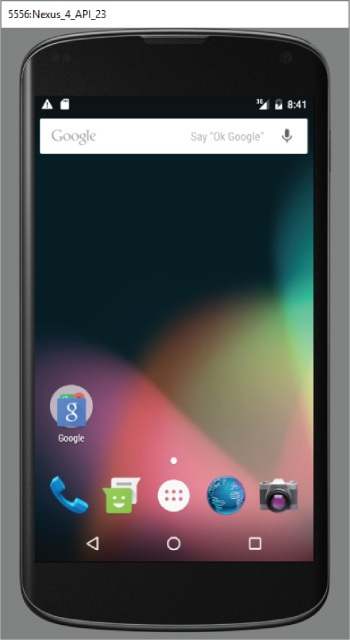
To test how the views defined in the XML file look when displayed on screens of different densities, create two Android Virtual Devices (AVDs) with different screen resolutions and abstracted LCD densities. Figure 4.2 shows an AVD with 1080 × 1920 resolution and LCD density of 480.
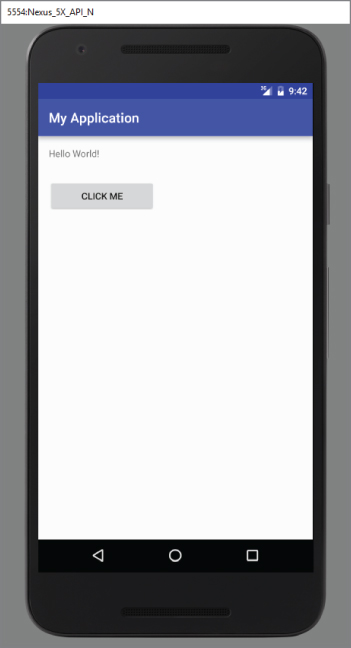
Figure 4.3 shows another AVD with 768 × 1280 resolution and LCD density of 320.
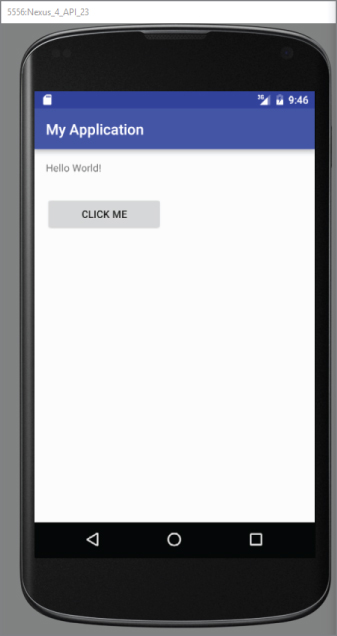
Using the dp unit ensures that your views are always displayed in the right proportion regardless of the screen density. Android automatically scales the size of the view depending on the density of the screen.
The formula for converting dp to px (pixels) is as follows:
Actual pixels = dp * (dpi / 160), where dpi is either 120, 160, 240, or 320.
Therefore, in the case of the Button on a 235 dpi screen, its actual width is 160 * (240/160) = 240 px. When run on the 180 dpi emulator (regarded as a 160 dpi device), its actual pixel width is now 160 * (160/160) = 160 px. In this case, one dp is equivalent to one px.
To prove that this is indeed correct, you can use the getWidth() method of a View object to get its width in pixels:
public void onClick(View view) {
Toast.makeText(this,
String.valueOf(view.getWidth()),
Toast.LENGTH_LONG).show();
}
What if instead of using dp you now specify the size using pixels (px)?
<TextView
android:layout_width="100px"
android:layout_height="wrap_content"
android:text="@string/hello"/>
<Button
android:layout_width="160px"
android:layout_height="wrap_content"
android:text="Click Me"
android:onClick="onClick"/>
Figure 4.4 shows how the Label and Button appear on a 480 dpi screen. Figure 4.5 shows the same views on a 320 dpi screen. In this case, Android does not perform any conversion because all the sizes are specified in pixels. If you use pixels for view sizes, the views appear smaller on a device with a high dpi screen than a screen with a lower dpi (assuming screen sizes are the same).
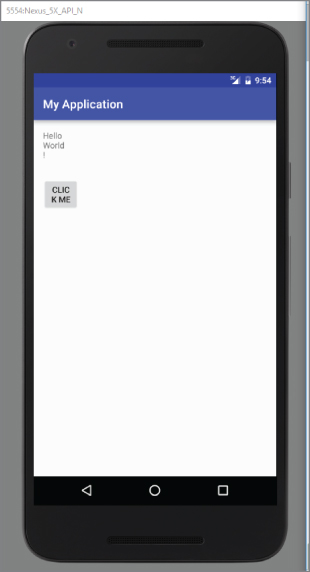
The preceding example also specifies that the orientation of the layout is vertical:
<LinearLayout xmlns:android="http://schemas.android.com/apk/res/android"
android:layout_width="fill_parent"
android:layout_height="fill_parent"
android:orientation="vertical" >
The default orientation layout is horizontal, so if you omit the android:orientation attribute, the views appear as shown in Figure 4.6.
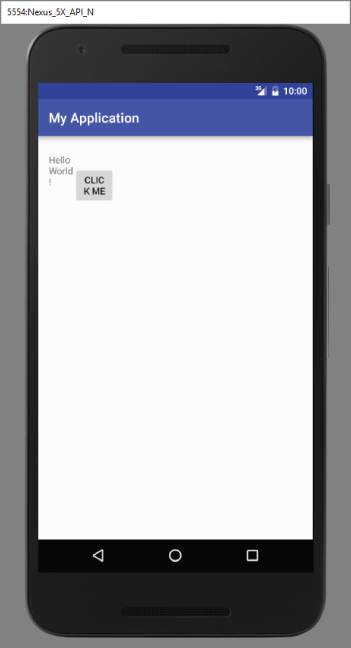
In LinearLayout, you can apply the layout_weight and layout_gravity attributes to views contained within it, as the modifications to activity_main.xml in the following code snippet show:
<?xml version="1.0" encoding="utf-8"?>
<LinearLayout xmlns:android="http://schemas.android.com/apk/res/android"
android:layout_width="fill_parent"
android:layout_height="fill_parent"
android:orientation="vertical" >
<Button
android:layout_width="160dp"
android:layout_height="0dp"
android:text="Button"
android:layout_gravity="left"
android:layout_weight="1"/>
<Button
android:layout_width="160dp"
android:layout_height="0dp"
android:text="Button"
android:layout_gravity="center"
android:layout_weight="2"/>
<Button
android:layout_width="160dp"
android:layout_height="0dp"
android:text="Button"
android:layout_gravity="right"
android:layout_weight="3"/>
</LinearLayout>
Figure 4.7 shows the positioning of the views as well as their heights. The layout_gravity attribute indicates the positions the views should gravitate toward, whereas the layout_weight attribute specifies the distribution of available space. In the preceding example, the three buttons occupy about 16.6 percent (1/(1+2+3) * 100), 33.3 percent (2/(1+2+3) * 100), and 50 percent (3/(1+2+3) * 100) of the available height, respectively.
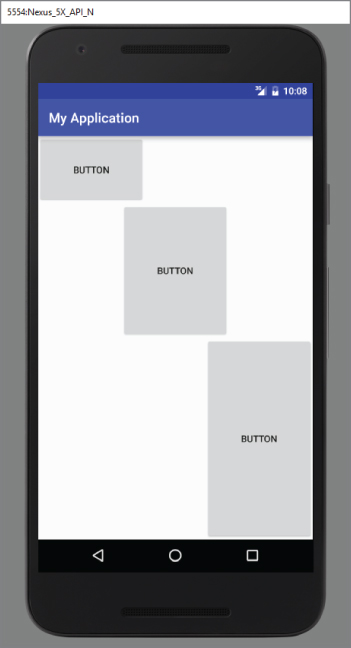
The height of each button is set to 0 dp because the layout orientation is vertical.
If you change the orientation of the LinearLayout to horizontal (as shown in the following code snippet), you need to change the width of each view to 0 dp. The views display as shown in Figure 4.8:
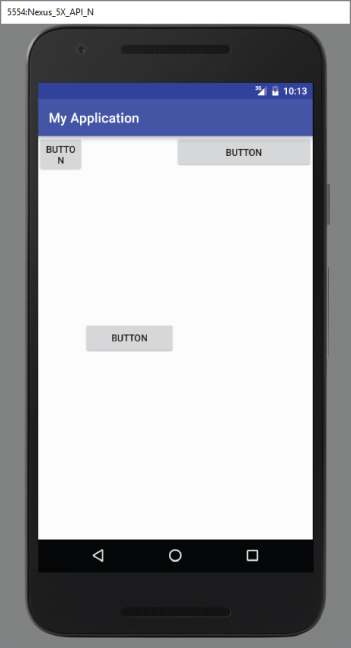
<LinearLayout xmlns:android="http://schemas.android.com/apk/res/android"
android:layout_width="fill_parent"
android:layout_height="fill_parent"
android:orientation="horizontal" >
<Button
android:layout_width="0dp"
android:layout_height="wrap_content"
android:text="Button"
android:layout_gravity="left"
android:layout_weight="1"/>
<Button
android:layout_width="0dp"
android:layout_height="wrap_content"
android:text="Button"
android:layout_gravity="center_horizontal"
android:layout_weight="2"/>
<Button
android:layout_width="0dp"
android:layout_height="wrap_content"
android:text="Button"
android:layout_gravity="right"
android:layout_weight="3"/>
</LinearLayout>
In the following Try It Out, you combine multiple LinearLayouts to create an L-shaped configuration of views.
Use two LinearLayouts, one with a vertical orientation and one with a horizontal orientation to place three TextViews and three Buttons in the configuration shown in Figure 4.9.
linearlayouts_example.xml. By default, this new file will be created with a LinearLayout (Vertical).TextViews in a single column within the LinearLayout.LinearLayout (Horizontal) under the third TextView.LinearLayout (Horizontal).Layouts can be combined in many different configurations to produce almost any look imaginable. In this example, you use a vertical and a horizontal LinearLayout to create an L-shaped layout. Your finished .xml file should look like this:
<?xml version="1.0" encoding="utf-8"?>
<LinearLayout xmlns:android="http://schemas.android.com/apk/res/android"
android:layout_width="fill_parent"
android:layout_height="fill_parent"
android:orientation="vertical" >
<TextView
android:layout_width="wrap_content"
android:layout_height="wrap_content"
android:text="Text 1"
android:id="@+id/textView"/>
<TextView
android:layout_width="wrap_content"
android:layout_height="wrap_content"
android:text="Text 2"
android:id="@+id/textView2"/>
<TextView
android:layout_width="wrap_content"
android:layout_height="wrap_content"
android:text="Text 3"
android:id="@+id/textView3"/>
<LinearLayout
android:orientation="horizontal"
android:layout_width="match_parent"
android:layout_height="wrap_content">
<Button
android:layout_width="wrap_content"
android:layout_height="wrap_content"
android:text="Button 1"
android:id="@+id/button"/>
<Button
android:layout_width="wrap_content"
android:layout_height="wrap_content"
android:text="Button 2"
android:id="@+id/button2"/>
<Button
android:layout_width="wrap_content"
android:layout_height="wrap_content"
android:text="Button 3"
android:id="@+id/button3"/>
</LinearLayout>
</LinearLayout>
The TableLayout Layout groups views into rows and columns. You use the <TableRow> element to designate a row in the table. Each row can contain one or more views. Each view you place within a row forms a cell. The width of each column is determined by the largest width of each cell in that column.
Consider the content of activity_main.xml shown here:
<TableLayout
xmlns:android="http://schemas.android.com/apk/res/android"
android:layout_height="fill_parent"
android:layout_width="fill_parent" >
<TableRow>
<TextView
android:text="User Name:"
android:width ="120dp"
/>
<EditText
android:id="@+id/txtUserName"
android:width="200dp"/>
</TableRow>
<TableRow>
<TextView
android:text="Password:"
/>
<EditText
android:id="@+id/txtPassword"
android:inputType="textPassword"
/>
</TableRow>
<TableRow>
<TextView/>
<CheckBox android:id="@+id/chkRememberPassword"
android:layout_width="fill_parent"
android:layout_height="wrap_content"
android:text="Remember Password"
/>
</TableRow>
<TableRow>
<Button
android:id="@+id/buttonSignIn"
android:text="Log In"/>
</TableRow>
</TableLayout>
Figure 4.10 shows how the preceding code appears when rendered on the Android emulator.
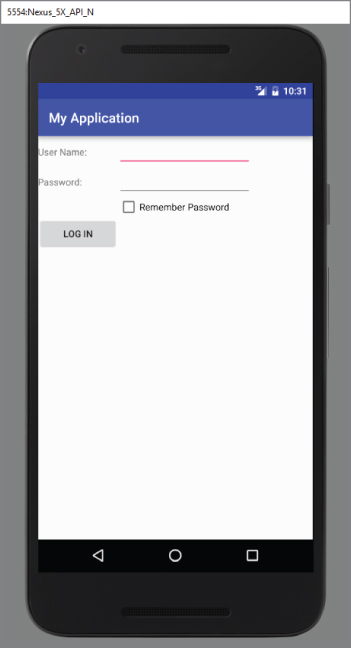
In the preceding example, there are two columns and four rows in the TableLayout. The cell directly under the Password TextView is populated with a <TextView/> empty element. If you don't do this, the Remember Password check box will appear under the Password TextView, as shown in Figure 4.11.
The RelativeLayout layout enables you to specify how child views are positioned relative to each other. Consider the following activity_main.xml file:
<?xml version="1.0" encoding="utf-8"?>
<RelativeLayout
android:id="@+id/RLayout"
android:layout_width="fill_parent"
android:layout_height="fill_parent"
xmlns:android="http://schemas.android.com/apk/res/android" >
<TextView
android:id="@+id/lblComments"
android:layout_width="wrap_content"
android:layout_height="wrap_content"
android:text="Comments"
android:layout_alignParentTop="true"
android:layout_alignParentStart="true"/>
<EditText
android:id="@+id/txtComments"
android:layout_width="fill_parent"
android:layout_height="170dp"
android:textSize="18sp"
android:layout_alignStart="@+id/lblComments"
android:layout_below="@+id/lblComments"
android:layout_centerHorizontal="true"/>
<Button
android:id="@+id/btnSave"
android:layout_width="125dp"
android:layout_height="wrap_content"
android:text="Save"
android:layout_below="@+id/txtComments"
android:layout_alignEnd="@+id/txtComments"/>
<Button
android:id="@+id/btnCancel"
android:layout_width="124dp"
android:layout_height="wrap_content"
android:text="Cancel"
android:layout_below="@+id/txtComments"
android:layout_alignStart="@+id/txtComments"/>
</RelativeLayout>
Notice that each view embedded within the RelativeLayout has attributes that enable it to align with another view. These attributes are as follows:
layout_alignParentToplayout_alignParentStartlayout_alignStartlayout_alignEndlayout_belowlayout_centerHorizontalThe value for each of these attributes is the ID for the view that you are referencing. The preceding XML UI creates the screen shown in Figure 4.12.
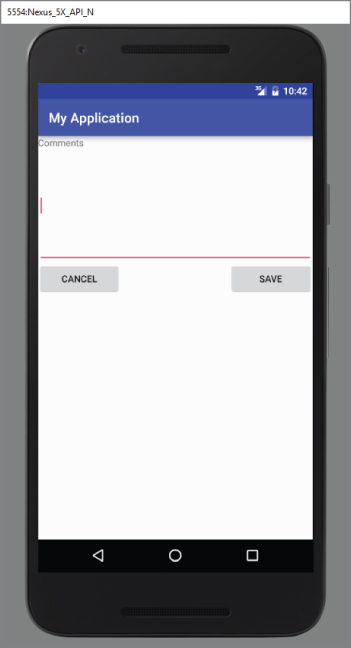
The FrameLayout layout is a placeholder on screen that you can use to display a single view. Views that you add to a FrameLayout are always anchored to the top left of the layout. Consider the following content in main.xml:
<?xml version="1.0" encoding="utf-8"?>
<RelativeLayout
android:id="@+id/RLayout"
android:layout_width="fill_parent"
android:layout_height="fill_parent"
xmlns:android="http://schemas.android.com/apk/res/android" >
<TextView
android:id="@+id/lblComments"
android:layout_width="wrap_content"
android:layout_height="wrap_content"
android:text="Hello, Android!"
android:layout_alignParentTop="true"
android:layout_alignParentStart="true"/>
<FrameLayout
android:layout_width="wrap_content"
android:layout_height="wrap_content"
android:layout_alignStart="@+id/lblComments"
android:layout_below="@+id/lblComments"
android:layout_centerHorizontal="true" >
<ImageView
android:src="@mipmap/butterfly"
android:layout_width="wrap_content"
android:layout_height="wrap_content"/>
</FrameLayout>
</RelativeLayout>
Here, you have a FrameLayout within a RelativeLayout. Within the FrameLayout, you embed an ImageView. The UI is shown in Figure 4.13.
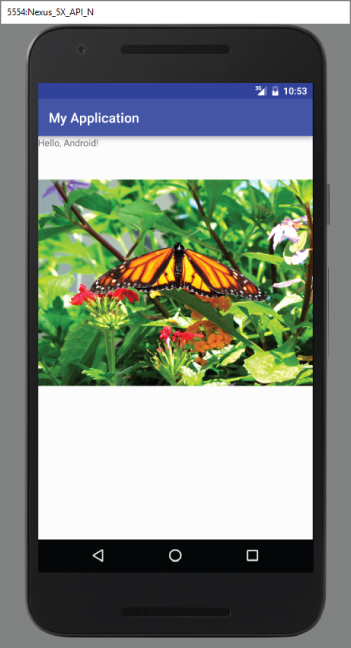
This example assumes that the res/mipmap-hdpi folder has an image named butterfly.png.
If you add another view (such as a Button view) within the FrameLayout, the view overlaps the previous view (see Figure 4.14):
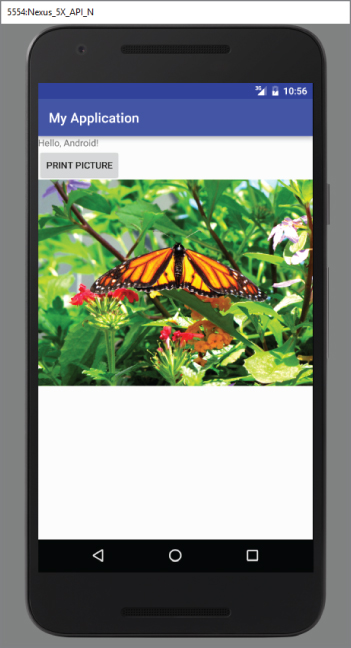
<?xml version="1.0" encoding="utf-8"?>
<RelativeLayout
android:id="@+id/RLayout"
android:layout_width="fill_parent"
android:layout_height="fill_parent"
xmlns:android="http://schemas.android.com/apk/res/android" >
<TextView
android:id="@+id/lblComments"
android:layout_width="wrap_content"
android:layout_height="wrap_content"
android:text="Hello, Android!"
android:layout_alignParentTop="true"
android:layout_alignParentStart="true"/>
<FrameLayout
android:layout_width="wrap_content"
android:layout_height="wrap_content"
android:layout_alignStart="@+id/lblComments"
android:layout_below="@+id/lblComments"
android:layout_centerHorizontal="true" >
<ImageView
android:src="@mipmap/butterfly"
android:layout_width="wrap_content"
android:layout_height="wrap_content"/>
<Button
android:layout_width="124dp"
android:layout_height="wrap_content"
android:text="Print Picture"/>
</FrameLayout>
You can add multiple views to a FrameLayout, but each is stacked on top of the previous one. This is when you want to animate a series of images, with only one visible at a time.
A ScrollView is a special type of FrameLayout in that it enables users to scroll through a list of views that occupy more space than the physical display. The ScrollView can contain only one child view or ViewGroup, which normally is a LinearLayout.
Do not use a ListView (discussed in Chapter 5) with the ScrollView. The ListView is designed for showing a list of related information and is optimized for dealing with large lists.
The following main.xml content shows a ScrollView containing a LinearLayout, which in turn contains some Button and EditText views:
<ScrollView
android:layout_width="fill_parent"
android:layout_height="fill_parent"
xmlns:android="http://schemas.android.com/apk/res/android" >
<LinearLayout
android:layout_width="fill_parent"
android:layout_height="wrap_content"
android:orientation="vertical" >
<Button
android:id="@+id/button1"
android:layout_width="fill_parent"
android:layout_height="wrap_content"
android:text="Button 1"/>
<Button
android:id="@+id/button2"
android:layout_width="fill_parent"
android:layout_height="wrap_content"
android:text="Button 2"/>
<Button
android:id="@+id/button3"
android:layout_width="fill_parent"
android:layout_height="wrap_content"
android:text="Button 3"/>
<EditText
android:id="@+id/txt"
android:layout_width="fill_parent"
android:layout_height="600dp"/>
<Button
android:id="@+id/button4"
android:layout_width="fill_parent"
android:layout_height="wrap_content"
android:text="Button 4"/>
<Button
android:id="@+id/button5"
android:layout_width="fill_parent"
android:layout_height="wrap_content"
android:text="Button 5"/>
</LinearLayout>
</ScrollView>
If you load the preceding code on the Android emulator, you see something like what's shown in Figure 4.15.
Because the EditText automatically gets the focus, it fills up the entire activity (as the height was set to 600dp). To prevent it from getting the focus, add the following two bolded attributes to the <LinearLayout> element:
<LinearLayout
android:layout_width="fill_parent"
android:layout_height="wrap_content"
android:orientation="vertical"
android:focusable="true"
android:focusableInTouchMode="true" >
Now you are able to view the buttons and scroll through the list of views (see Figure 4.16).
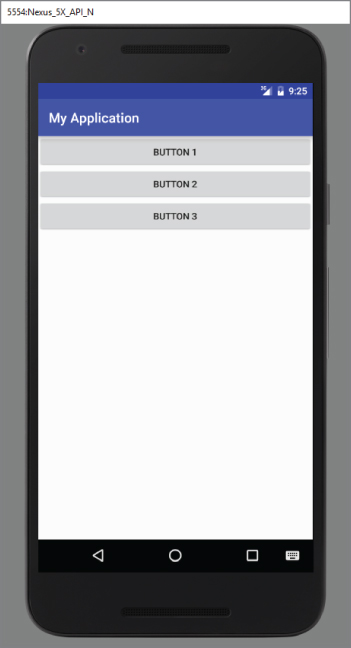
Sometimes you might want EditText to automatically get the focus, but you do not want the soft input panel (keyboard) to appear automatically (which happens on a real device). To prevent the keyboard from appearing, add the following bolded attribute to the <activity> element in the AndroidManifest.xml file:
<activity
android:label="@string/app_name"
android:name=".LayoutsActivity"
android:windowSoftInputMode="stateHidden" >
<intent-filter >
<action android:name="android.intent.action.MAIN"/>
<category android:name="android.intent.category.LAUNCHER"/>
</intent-filter>
</activity>
One of the key features of modern smartphones is their ability to switch screen orientation, and Android is no exception. Android supports two screen orientations: portrait and landscape. By default, when you change the display orientation of your Android device, the current activity automatically redraws its content in the new orientation. This is because the onCreate() method of the activity is fired whenever there is a change in display orientation.
When you change the orientation of your Android device, your current activity is actually destroyed and then re-created.
However, when the views are redrawn, they may be drawn in their original locations (depending on the layout selected). Figure 4.17 shows the previous example displayed in landscape mode.
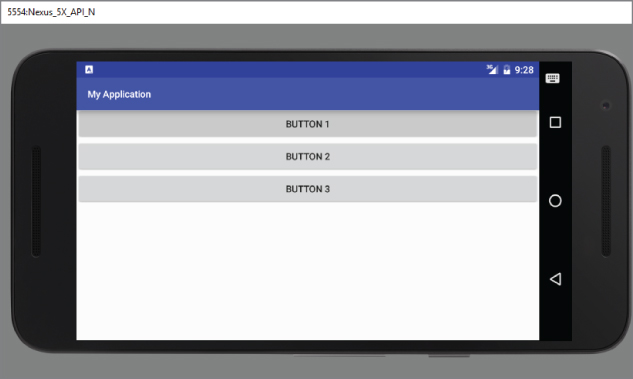
In general, you can employ two techniques to handle changes in screen orientation:
Anchoring can be easily achieved by using RelativeLayout. Consider the following main.xml file, which contains five Button views embedded within the <RelativeLayout> element:
<RelativeLayout
android:layout_width="fill_parent"
android:layout_height="fill_parent"
xmlns:android="http://schemas.android.com/apk/res/android">
<Button
android:id="@+id/button1"
android:layout_width="wrap_content"
android:layout_height="wrap_content"
android:text="Top Left"
android:layout_alignParentStart="true"
android:layout_alignParentTop="true"/>
<Button
android:id="@+id/button2"
android:layout_width="wrap_content"
android:layout_height="wrap_content"
android:text="Top Right"
android:layout_alignParentTop="true"
android:layout_alignParentEnd="true"/>
<Button
android:id="@+id/button3"
android:layout_width="wrap_content"
android:layout_height="wrap_content"
android:text="Bottom Left"
android:layout_alignParentStart="true"
android:layout_alignParentBottom="true"/>
<Button
android:id="@+id/button4"
android:layout_width="wrap_content"
android:layout_height="wrap_content"
android:text="Bottom Right"
android:layout_alignParentEnd="true"
android:layout_alignParentBottom="true"/>
<Button
android:id="@+id/button5"
android:layout_width="fill_parent"
android:layout_height="wrap_content"
android:text="Middle"
android:layout_centerVertical="true"
android:layout_centerHorizontal="true"/>
</RelativeLayout>
Note the following attributes found in the various Button views:
layout_alignParentStart—Aligns the view to the left of the parent viewlayout_alignParentEnd—Aligns the view to the right of the parent viewlayout_alignParentTop—Aligns the view to the top of the parent viewlayout_alignParentBottom—Aligns the view to the bottom of the parent viewlayout_centerVertical—Centers the view vertically within its parent viewlayout_centerHorizontal—Centers the view horizontally within its parent viewFigure 4.18 shows the activity when viewed in portrait mode.
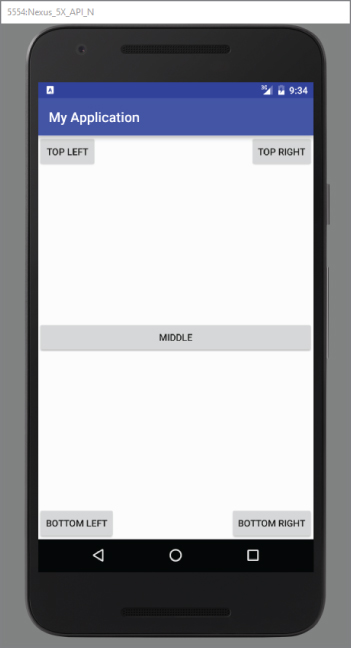
When the screen orientation changes to landscape mode, the four buttons are aligned to the four edges of the screen, and the center button is centered in the middle of the screen with its width fully stretched (see Figure 4.19).
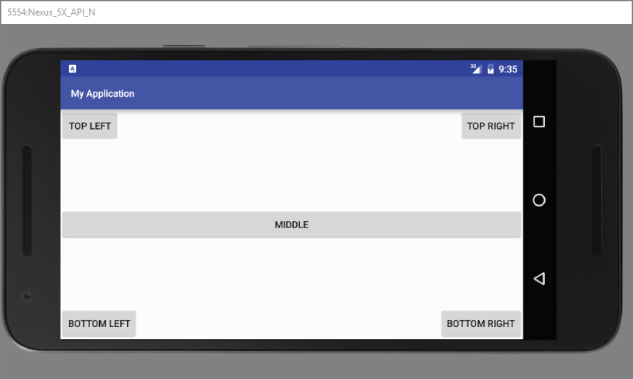
Now that you have looked at screen orientation changes, let's explore what happens to an activity's state when the device changes orientation.
The following Try It Out demonstrates the behavior of an activity when the device changes orientation.
activity_main.xml file:<?xml version="1.0" encoding="utf-8"?>
<LinearLayout xmlns:android="http://schemas.android.com/apk/res/android"
android:layout_width="fill_parent"
android:layout_height="fill_parent"
android:orientation="vertical" >
<EditText
android:id="@+id/txtField1"
android:layout_width="fill_parent"
android:layout_height="wrap_content" />
<EditText
android:layout_width="fill_parent"
android:layout_height="wrap_content" />
</LinearLayout>
MainActivity.java file:import android.app.Activity;
import android.os.Bundle;
import android.util.Log;
public class MainActivity extends Activity {
@Override
protected void onCreate(Bundle savedInstanceState) {
super.onCreate(savedInstanceState);
setContentView(R.layout.activity_main);
Log.d("StateInfo", "onCreate");
}
@Override
public void onStart() {
Log.d("StateInfo", "onStart");
super.onStart();
}
@Override
public void onResume() {
Log.d("StateInfo", "onResume");
super.onResume();
}
@Override
public void onPause() {
Log.d("StateInfo", "onPause");
super.onPause();
}
@Override
public void onStop() {
Log.d("StateInfo", "onStop");
super.onStop();
}
@Override
public void onDestroy() {
Log.d("StateInfo", "onDestroy");
super.onDestroy();
}
@Override
public void onRestart() {
Log.d("StateInfo", "onRestart");
super.onRestart();
}
}
EditText views (see Figure 4.20).
EditText view is still visible, while the second EditText view is now empty.
12-15 12:27:20.747: D/StateInfo(557): onCreate
12-15 12:27:20.747: D/StateInfo(557): onStart
12-15 12:27:20.747: D/StateInfo(557): onResume
…
12-15 12:39:37.846: D/StateInfo(557): onPause
12-15 12:39:37.846: D/StateInfo(557): onStop
12-15 12:39:37.866: D/StateInfo(557): onDestroy
12-15 12:39:38.206: D/StateInfo(557): onCreate
12-15 12:39:38.216: D/StateInfo(557): onStart
12-15 12:39:38.257: D/StateInfo(557): onResume
From the output shown in the logcat console, it is apparent that when the device changes orientation, the activity is destroyed:
12-15 12:39:37.846: D/StateInfo(557): onPause
12-15 12:39:37.846: D/StateInfo(557): onStop
12-15 12:39:37.866: D/StateInfo(557): onDestroy
It is then re-created:
12-15 12:39:38.206: D/StateInfo(557): onCreate
12-15 12:39:38.216: D/StateInfo(557): onStart
12-15 12:39:38.257: D/StateInfo(557): onResume
It is important to understand this behavior because you need to ensure that you take the necessary steps to preserve the state of your activity before it changes orientation. For example, your activity might have variables containing values needed for some calculations in the activity. For any activity, you should save whatever state you need to save in the onPause() method, which is fired every time the activity changes orientation. The following section demonstrates the different ways to save this state information.
Another important behavior to understand is that only views that are named (via the android:id attribute) in an activity have their state persisted when the activity they are contained in is destroyed. For example, the user might change orientation while entering some text into an EditText view. When this happens, any text inside the EditText view is persisted and restored automatically when the activity is re-created. Conversely, if you do not name the EditText view using the android:id attribute, the activity isn't able to persist the text currently contained within it.
So far, you have learned that changing screen orientation destroys an activity and re-creates it. Keep in mind that when an activity is re-created, its current state might be lost. When an activity is killed, it fires one or both of the following methods:
onPause()—This method is always fired whenever an activity is killed or pushed into the background.onSaveInstanceState()—This method is also fired whenever an activity is about to be killed or put into the background (just like the onPause() method). However, unlike the onPause() method, the onSaveInstanceState() method is not fired when an activity is being unloaded from the stack (such as when the user pressed the back button) because there is no need to restore its state later.In short, to preserve the state of an activity, you could always implement the onPause() method and then use your own ways to preserve the state of your activity, such as using a database, internal or external file storage, and so on.
If you simply want to preserve the state of an activity so that it can be restored later when the activity is re-created (such as when the device changes orientation), a much simpler way is to implement the onSaveInstanceState() method, as it provides a Bundle object as an argument so that you can use it to save your activity's state. The following code shows that you can save the string ID into the Bundle object during the onSaveInstanceState() method:
@Override
public void onSaveInstanceState(Bundle outState) {
//---save whatever you need to persist---
outState.putString("ID", "1234567890");
super.onSaveInstanceState(outState);
}
When an activity is re-created, the onCreate() method is first fired, followed by the onRestoreInstanceState() method, which enables you to retrieve the state that you saved previously in the onSaveInstanceState() method through the Bundle object in its argument:
@Override
public void onRestoreInstanceState(Bundle savedInstanceState) {
super.onRestoreInstanceState(savedInstanceState);
//---retrieve the information persisted earlier---
String ID = savedInstanceState.getString("ID");
}
}
When screen orientation changes, this change is part of what is known as a configuration change, which causes your current activity to be destroyed.
Sometimes you need to know the device's current orientation during runtime. To determine that, you can use the getResources() method. The following code snippet demonstrates how you can programmatically detect the current orientation of your activity:
@Override
protected void onCreate(Bundle savedInstanceState) {
super.onCreate(savedInstanceState);
setContentView(R.layout.activity_main);
if(getResources().getConfiguration().orientation == Configuration.ORIENTATION_LANDSCAPE){
Log.d("StateInfo", "Landscape");
}else if(getResources().getConfiguration().orientation == Configuration.ORIENTATION_PORTRAIT){
Log.d("StateInfo", "Portrait");
}
}
The getConfiguration() method contains an orientation object representing the screen of the device. You can then test this against the Configuration set of constants to determine the orientation.
Occasionally, you might want to ensure that your application is displayed in only a certain orientation. For example, you may be writing a game that should be viewed only in landscape mode. In this case, you can programmatically force a change in orientation using the setRequestOrientation() method of the Activity class:
import android.content.pm.ActivityInfo;
@Override
public void onCreate(Bundle savedInstanceState) {
super.onCreate(savedInstanceState);
setContentView(R.layout.main);
//---change to landscape mode---
setRequestedOrientation(ActivityInfo.SCREEN_ORIENTATION_LANDSCAPE);
}
To change to portrait mode, use the ActivityInfo.SCREEN_ORIENTATION_PORTRAIT constant.
Besides using the setRequestOrientation() method, you can also use the android:screenOrientation attribute on the <activity> element in AndroidManifest.xml as follows to constrain the activity to a certain orientation:
<?xml version="1.0" encoding="utf-8"?>
<manifest xmlns:android="http://schemas.android.com/apk/res/android"
package="com.jfdimarzio.orientations">
<application
android:allowBackup="true"
android:icon="@mipmap/ic_launcher"
android:label="@string/app_name"
android:supportsRtl="true"
android:theme="@style/AppTheme">
<activity android:name=".MainActivity"
android:screenOrientation="landscape" >
<intent-filter>
<action android:name="android.intent.action.MAIN"/>
<category android:name="android.intent.category.LAUNCHER"/>
</intent-filter>
</activity>
</application>
</manifest>
The preceding example constrains the activity to a certain orientation (landscape in this case) and prevents the activity from being destroyed; that is, the activity will not be destroyed and the onCreate() method will not be fired again when the orientation of the device changes.
Following are two other values that you can specify in the android:screenOrientation attribute:
portrait—Portrait modesensor—Based on the accelerometer (default)Besides fragments, another feature of Android is the Action Bar. In place of the traditional title bar located at the top of the device's screen, the Action Bar displays the application icon and the activity title. Optionally, on the right side of the Action Bar are action items. The next section discusses action items in more detail.
The following Try It Out shows how you can programmatically hide or display the Action Bar.
MainActivity.java file:import android.os.Bundle;
import android.support.design.widget.FloatingActionButton;
import android.support.design.widget.Snackbar;
import android.support.v7.app.AppCompatActivity;
import android.support.v7.widget.Toolbar;
import android.view.View;
import android.view.Menu;
import android.view.MenuItem;
public class MainActivity extends AppCompatActivity {
@Override
protected void onCreate(Bundle savedInstanceState) {
super.onCreate(savedInstanceState);
setContentView(R.layout.activity_main);
Toolbar toolbar = (Toolbar) findViewById(R.id.toolbar);
setSupportActionBar(toolbar);
FloatingActionButton fab = (FloatingActionButton) findViewById(R.id.fab);
fab.setOnClickListener(new View.OnClickListener() {
@Override
public void onClick(View view) {
Snackbar.make(view, "Replace with your own action"
, Snackbar.LENGTH_LONG)
.setAction("Action", null).show();
}
});
}
@Override
public boolean onCreateOptionsMenu(Menu menu) {
// Inflate the menu; this adds items to the action bar if it is present.
getMenuInflater().inflate(R.menu.menu_main, menu);
return true;
}
@Override
public boolean onOptionsItemSelected(MenuItem item) {
// Handle action bar item clicks here. The action bar will
// automatically handle clicks on the Home/Up button, so long
// as you specify a parent activity in AndroidManifest.xml.
int id = item.getItemId();
//noinspection SimplifiableIfStatement
if (id == R.id.action_settings) {
return true;
}
return super.onOptionsItemSelected(item);
}
}
The setSupportActionBar() method writes your Action Bar to the screen. The Action Bar can be an instance of a Tool Bar. In this case, Android has created an empty Tool Bar for you and then has set that Tool Bar to the Action Bar.
Besides displaying the application icon and the activity title on the left of the Action Bar, you can also display additional items on the Action Bar. These additional items are called action items. Action items are shortcuts to some of the commonly performed operations in your application. For example, you might be building an RSS reader application, in which case some of the action items might be Refresh Feed, Delete Feed, and Add New Feed.
The following Try It Out shows how you can add action items to the Action Bar.
MyActionBarActivity.java file to appear as follows:
import android.os.Bundle;
import android.support.design.widget.FloatingActionButton;
import android.support.design.widget.Snackbar;
import android.support.v7.app.AppCompatActivity;
import android.support.v7.widget.Toolbar;
import android.view.View;
import android.view.Menu;
import android.view.MenuItem;
import android.widget.Toast;
public class MainActivity extends AppCompatActivity {
@Override
protected void onCreate(Bundle savedInstanceState) {
super.onCreate(savedInstanceState);
setContentView(R.layout.activity_main);
Toolbar toolbar = (Toolbar) findViewById(R.id.toolbar);
setSupportActionBar(toolbar);
FloatingActionButton fab = (FloatingActionButton) findViewById(R.id.fab);
fab.setOnClickListener(new View.OnClickListener() {
@Override
public void onClick(View view) {
Snackbar.make(view,
"Replace with your own action", Snackbar.LENGTH_LONG)
.setAction("Action", null).show();
}
});
}
@Override
public boolean onCreateOptionsMenu(Menu menu) {
// Inflate the menu; this adds items to the action bar if it is present.
//getMenuInflater().inflate(R.menu.menu_main, menu);
CreateMenu(menu);
return true;
}
private void CreateMenu(Menu menu)
{
MenuItem mnu1 = menu.add(0, 0, 0, "Item 1");
{
mnu1.setIcon(R.mipmap.ic_launcher);
mnu1.setShowAsAction(MenuItem.SHOW_AS_ACTION_IF_ROOM);
}
MenuItem mnu2 = menu.add(0, 1, 1, "Item 2");
{
mnu2.setIcon(R.mipmap.ic_launcher);
mnu2.setShowAsAction(MenuItem.SHOW_AS_ACTION_IF_ROOM);
}
MenuItem mnu3 = menu.add(0, 2, 2, "Item 3");
{
mnu3.setIcon(R.mipmap.ic_launcher);
mnu3.setShowAsAction(MenuItem.SHOW_AS_ACTION_IF_ROOM);
}
MenuItem mnu4 = menu.add(0, 3, 3, "Item 4");
{
mnu4.setShowAsAction(MenuItem.SHOW_AS_ACTION_IF_ROOM);
}
MenuItem mnu5 = menu.add(0, 4, 4,"Item 5");
{
mnu5.setShowAsAction(MenuItem.SHOW_AS_ACTION_IF_ROOM);
}
}
private boolean MenuChoice(MenuItem item)
{
switch (item.getItemId()) {
case 0:
Toast.makeText(this, "You clicked on Item 1",
Toast.LENGTH_LONG).show();
return true;
case 1:
Toast.makeText(this, "You clicked on Item 2",
Toast.LENGTH_LONG).show();
return true;
case 2:
Toast.makeText(this, "You clicked on Item 3",
Toast.LENGTH_LONG).show();
return true;
case 3:
Toast.makeText(this, "You clicked on Item 4",
Toast.LENGTH_LONG).show();
return true;
case 4:
Toast.makeText(this, "You clicked on Item 5",
Toast.LENGTH_LONG).show();
return true;
}
return false;
}
@Override
public boolean onOptionsItemSelected(MenuItem item) {
// Handle action bar item clicks here. The action bar will
// automatically handle clicks on the Home/Up button, so long
// as you specify a parent activity in AndroidManifest.xml.
int id = item.getItemId();
//noinspection SimplifiableIfStatement
if (id == R.id.action_settings) {
return true;
}
return MenuChoice(item);
}
}
Toast class to display the name of the menu item selected (see Figure 4.26).
The Action Bar populates its action items by calling the onCreateOptionsMenu() method of an activity:
@Override
public boolean onCreateOptionsMenu(Menu menu) {
super.onCreateOptionsMenu(menu);
CreateMenu(menu);
return true;
}
In the preceding example, you called the CreateMenu() method to display a list of menu items:
private void CreateMenu(Menu menu)
{
MenuItem mnu1 = menu.add(0, 0, 0, "Item 1");
{
mnu1.setIcon(R.mipmap.ic_launcher);
mnu1.setShowAsAction(MenuItem.SHOW_AS_ACTION_IF_ROOM);
}
MenuItem mnu2 = menu.add(0, 1, 1, "Item 2");
{
mnu2.setIcon(R.mipmap.ic_launcher);
mnu2.setShowAsAction(MenuItem.SHOW_AS_ACTION_IF_ROOM);
}
MenuItem mnu3 = menu.add(0, 2, 2, "Item 3");
{
mnu3.setIcon(R.mipmap.ic_launcher);
mnu3.setShowAsAction(MenuItem.SHOW_AS_ACTION_IF_ROOM);
}
MenuItem mnu4 = menu.add(0, 3, 3, "Item 4");
{
mnu4.setShowAsAction(MenuItem.SHOW_AS_ACTION_IF_ROOM);
}
MenuItem mnu5 = menu.add(0, 4, 4,"Item 5");
{
mnu5.setShowAsAction(MenuItem.SHOW_AS_ACTION_IF_ROOM);
}
}
To make the menu item appear as an action item, you call its setShowAsAction() method using the SHOW_AS_ACTION_IF_ROOM constant. This tells the Android device to display the menu item as an action item if there is room for it.
When a menu item is selected by the user, the onOptionsItemSelected() method is called:
@Override
public boolean onOptionsItemSelected(MenuItem item)
{
return MenuChoice(item);
}
Here, you call the self-defined MenuChoice() method to check which menu item was clicked and then display a message:
private boolean MenuChoice(MenuItem item)
{
switch (item.getItemId()) {
case 0:
Toast.makeText(this, "You clicked on Item 1",
Toast.LENGTH_LONG).show();
return true;
case 1:
Toast.makeText(this, "You clicked on Item 2",
Toast.LENGTH_LONG).show();
return true;
case 2:
Toast.makeText(this, "You clicked on Item 3",
Toast.LENGTH_LONG).show();
return true;
case 3:
Toast.makeText(this, "You clicked on Item 4",
Toast.LENGTH_LONG).show();
return true;
case 4:
Toast.makeText(this, "You clicked on Item 5",
Toast.LENGTH_LONG).show();
return true;
}
return false;
}
So far, all the UIs you have seen in this chapter are created using XML. As mentioned earlier, besides using XML you can also create the UI using code. This approach is useful if your UI needs to be dynamically generated during runtime. For example, suppose you are building a cinema ticket reservation system and your application displays the seats of each cinema using buttons. In this case, you need to dynamically generate the UI based on the cinema selected by the user.
The following Try It Out demonstrates the code needed to dynamically build the UI in your activity.
MainActivity.java file, add the bold statements in the following code:import android.support.v7.app.AppCompatActivity;
import android.os.Bundle;
import android.support.v7.widget.LinearLayoutCompat;
import android.widget.Button;
import android.widget.LinearLayout;
import android.widget.TextView;
public class MainActivity extends AppCompatActivity {
@Override
protected void onCreate(Bundle savedInstanceState) {
super.onCreate(savedInstanceState);
LinearLayoutCompat.LayoutParams params =
new LinearLayoutCompat.LayoutParams(
LinearLayoutCompat.LayoutParams.WRAP_CONTENT,
LinearLayoutCompat.LayoutParams.WRAP_CONTENT);
//---create a layout---
LinearLayout layout = new LinearLayout(this);
layout.setOrientation(LinearLayout.VERTICAL);
//---create a textview---
TextView tv = new TextView(this);
tv.setText("This is a TextView");
tv.setLayoutParams(params);
//---create a button---
Button btn = new Button(this);
btn.setText("This is a Button");
btn.setLayoutParams(params);
//---adds the textview---
layout.addView(tv);
//---adds the button---
layout.addView(btn);
//---create a layout param for the layout---
LinearLayoutCompat.LayoutParams layoutParam =
new LinearLayoutCompat.LayoutParams(
LinearLayoutCompat.LayoutParams.WRAP_CONTENT,
LinearLayoutCompat.LayoutParams.WRAP_CONTENT );
this.addContentView(layout, layoutParam);
}
}
In this example, you first commented out the setContentView() statement so that it does not load the UI from the activity_main.xml file.
You then created a LayoutParams object to specify the layout parameter that can be used by other views (which you will create next):
//---create a layout param for the layout---
LinearLayoutCompat.LayoutParams layoutParam =
new LinearLayoutCompat.LayoutParams(
LinearLayoutCompat.LayoutParams.WRAP_CONTENT,
LinearLayoutCompat.LayoutParams.WRAP_CONTENT );
You also created a LinearLayout object to contain all the views in your activity:
//---create a layout---
LinearLayout layout = new LinearLayout(this);
layout.setOrientation(LinearLayout.VERTICAL);
Next, you created a TextView and a Button view:
//---create a textview---
TextView tv = new TextView(this);
tv.setText("This is a TextView");
tv.setLayoutParams(params);
//---create a button---
Button btn = new Button(this);
btn.setText("This is a Button");
btn.setLayoutParams(params);
You then added them to the LinearLayout object:
//---adds the textview---
layout.addView(tv);
//---adds the button---
layout.addView(btn);
You also created a LayoutParams object to be used by the LinearLayout object:
//---create a layout param for the layout---
LinearLayout.LayoutParams layoutParam =
new LinearLayout.LayoutParams(
LayoutParams.FILL_PARENT,
LayoutParams.WRAP_CONTENT );
Finally, you added the LinearLayout object to the activity:
this.addContentView(layout, layoutParam);
As you can see, using code to create the UI is quite a laborious affair. Hence, you should dynamically generate your UI using code only when necessary.
Users interact with your UI at two levels: the activity level and the view level. At the activity level, the Activity class exposes methods that you can override. Some common methods that you can override in your activities include the following:
onKeyDown—Called when a key was pressed and not handled by any of the views contained within the activityonKeyUp—Called when a key was released and not handled by any of the views contained within the activityonMenuItemSelected—Called when a panel's menu item has been selected by the user (covered in Chapter 6)onMenuOpened—Called when a panel's menu is opened by the user (covered in Chapter 6)In this chapter, you have learned how user interfaces are created in Android. You have also learned about the different layouts that you can use to position the views in your Android UI. Because Android devices support more than one screen orientation, you need to take special care to ensure that your UI can adapt to changes in screen orientation.
dp unit and the px unit? Which one should you use to specify the dimension of a view?AbsoluteLayout not recommended for use?onPause()method and the onSaveInstanceState() method?You can find answers to the exercises in the appendix.
| Topic | Key Concepts |
LinearLayout |
Arranges views in a single column or single row. |
AbsoluteLayout |
Enables you to specify the exact location of its children. |
TableLayout |
Groups views into rows and columns. |
RelativeLayout |
Enables you to specify how child views are positioned relative to each other. |
FrameLayout |
A placeholder on screen that you can use to display a single view. |
ScrollView |
A special type of FrameLayout in that it enables users to scroll through a list of views that occupy more space than the physical display allows. |
| Unit of Measure | Use dp for specifying the dimension of views and sp for font size. |
| Two ways to adapt to changes in orientation | Anchoring, and resizing and repositioning. |
| Using different XML files for different orientations | Use the layout folder for portrait UI, and layout-land for landscape UI. |
| Three ways to persist activity state | Use the onPause() method.Use the onSaveInstanceState() method.Use the onRetainNonConfigurationInstance() method. |
| Getting the dimension of the current device | Use the WindowManager class's getDefaultDisplay() method. |
| Constraining the activity's orientation | Use the setRequestOrientation() method or the android:screenOrientation attribute in the AndroidManifest.xml file. |
| Action Bar | Replaces the traditional title bar for older versions of Android. |
| Action items | Action items are displayed on the right of the Action Bar. They are created just like options menus. |
| Application icon | Usually used to return to the “home” activity of an application. It is advisable to use the Intent object with the Intent.FLAG_ACTIVITY_CLEAR_TOP flag. |
The wrox.com code downloads for this chapter are found at www.wrox.com/go/beginningandroidprog on the Download Code tab. The code is in the Chapter 05 download and individually named according to the names throughout the chapter.
In the previous chapter, you learned about the various layouts that you can use to position your views in an activity. You also learned about the techniques you can use to adapt to different screen resolutions and sizes. This chapter gives you a look at the various views that you can use to design the user interface (UI) for your applications.
In particular, the chapter covers the following ViewGroups:
TextView, EditText, and Button viewsTimePicker and DatePicker viewsListView and the SpinnerView viewsSubsequent chapters cover the other views not covered in this chapter, such as the analog and digital clock views and other views for displaying graphics, and so on.
To get started, this section explores some of the basic views that you can use to design the UI of your Android applications:
TextViewEditTextButtonImageButtonCheckBoxToggleButtonRadioButtonRadioGroupThese basic views enable you to display text information, as well as perform some basic selection. The following sections explore all these views in more detail.
When you create a new Android project, Android Studio always creates the activity_main.xml file (located in the res/layout folder), which contains a <TextView> element:
<?xml version="1.0" encoding="utf-8"?>
<LinearLayout xmlns:android="http://schemas.android.com/apk/res/android"
android:layout_width="fill_parent"
android:layout_height="fill_parent"
android:orientation="vertical" >
<TextView
android:layout_width="fill_parent"
android:layout_height="wrap_content"
android:text="@string/hello"/>
</LinearLayout>
You use the TextView view to display text to the user. This is the most basic view and one that you will frequently use when you develop Android applications. If you need to allow users to edit the text displayed, you should use the subclass of TextView—EditText—which is discussed in the next section.
In some other platforms, TextView is commonly known as the Label View. Its sole purpose is to display text on the screen, and it is read only—the user cannot enter any text into a label.
Besides the TextView view, which you will likely use the most often, there are some other basic views that you will find yourself frequently using:
Button—Represents a push-button widget.ImageButton—Similar to the Button view, except that it also displays an image.EditText—A subclass of the TextView view, which allows users to edit its text content.CheckBox—A special type of button that has two states: checked or unchecked.RadioGroup and RadioButton—The RadioButton has two states: either checked or unchecked. A RadioGroup is used to group one or more RadioButton views, thereby allowing only one RadioButton to be checked within the RadioGroup.ToggleButton—Displays checked/unchecked states using a light indicator.The following Try It Out provides details about how these views work.
activity_main.xml file located in the res/layout folder by adding the following elements shown in bold:
<?xml version="1.0" encoding="utf-8"?>
<LinearLayout xmlns:android="http://schemas.android.com/apk/res/android"
android:layout_width="fill_parent"
android:layout_height="fill_parent"
android:orientation="vertical" >
<Button android:id="@+id/btnSave"
android:layout_width="fill_parent"
android:layout_height="wrap_content"
android:text="save" />
<Button android:id="@+id/btnOpen"
android:layout_width="wrap_content"
android:layout_height="wrap_content"
android:text="Open" />
<ImageButton android:id="@+id/btnImg1"
android:layout_width="fill_parent"
android:layout_height="wrap_content"
android:src="@mipmap/ic_launcher" />
<EditText android:id="@+id/txtName"
android:layout_width="fill_parent"
android:layout_height="wrap_content" />
<CheckBox android:id="@+id/chkAutosave"
android:layout_width="fill_parent"
android:layout_height="wrap_content"
android:text="Autosave" />
<CheckBox android:id="@+id/star"
style="?android:attr/starStyle"
android:layout_width="wrap_content"
android:layout_height="wrap_content" />
<RadioGroup android:id="@+id/rdbGp1"
android:layout_width="fill_parent"
android:layout_height="wrap_content"
android:orientation="vertical" >
<RadioButton android:id="@+id/rdb1"
android:layout_width="fill_parent"
android:layout_height="wrap_content"
android:text="Option 1" />
<RadioButton android:id="@+id/rdb2"
android:layout_width="fill_parent"
android:layout_height="wrap_content"
android:text="Option 2" />
</RadioGroup>
<ToggleButton android:id="@+id/toggle1"
android:layout_width="wrap_content"
android:layout_height="wrap_content" />
</LinearLayout>
CheckBox view (Autosave) is checked.CheckBox View (star) is selected.RadioButton (Option 2) is selected.ToggleButton is turned on.So far, all the views are relatively straightforward. The views are listed using the <LinearLayout> element, so they are stacked on top of each other when they are displayed in the activity.
For the first Button, the layout_width attribute is set to fill_parent, which makes its width occupy the entire width of the screen:
<Button android:id="@+id/btnSave"
android:layout_width="fill_parent"
android:layout_height="wrap_content"
android:text="save"/>
For the second Button, the layout_width attribute is set to wrap_content so that its width will be the width of its content—specifically, the text that is displayed (for example, Open):
<Button android:id="@+id/btnOpen"
android:layout_width="wrap_content"
android:layout_height="wrap_content"
android:text="Open"/>
The ImageButton displays a button with an image. You set the image through the src attribute. In this code, note that an image has been used for the application icon:
<ImageButton android:id="@+id/btnImg1"
android:layout_width="fill_parent"
android:layout_height="wrap_content"
android:src="@drawable/ic_launcher"/>
The EditText view displays a rectangular region in which the user can enter text. In this example, layout_height has been set to wrap_content so that the text entry location automatically adjusts to fit the amount of text entered by the user (see Figure 5.3).
<EditText android:id="@+id/txtName"
android:layout_width="fill_parent"
android:layout_height="wrap_content"/>
The CheckBox displays a check box that users can tap to check or uncheck:
<CheckBox android:id="@+id/chkAutosave"
android:layout_width="fill_parent"
android:layout_height="wrap_content"
android:text="Autosave"/>
If you do not like the default look of the CheckBox, you can apply a style attribute so that the check mark is replaced by another image, such as a star:
<CheckBox android:id="@+id/star"
style="?android:attr/starStyle"
android:layout_width="wrap_content"
android:layout_height="wrap_content"/>
The format for the value of the style attribute is as follows:
?[package:][type:]name
The RadioGroup encloses two RadioButtons. This is important because radio buttons are usually used to present multiple options to the user for selection. When a RadioButton in a RadioGroup is selected, all other RadioButtons are automatically unselected:
<RadioGroup android:id="@+id/rdbGp1"
android:layout_width="fill_parent"
android:layout_height="wrap_content"
android:orientation="vertical" >
<RadioButton android:id="@+id/rdb1"
android:layout_width="fill_parent"
android:layout_height="wrap_content"
android:text="Option 1"/>
<RadioButton android:id="@+id/rdb2"
android:layout_width="fill_parent"
android:layout_height="wrap_content"
android:text="Option 2"/>
</RadioGroup>
Notice that the RadioButtons are listed vertically, one on top of another. If you want to list them horizontally, you need to change the orientation attribute to horizontal. You would also need to ensure that the layout_width attribute of the RadioButton views are set to wrap_content:
<RadioGroup android:id="@+id/rdbGp1"
android:layout_width="fill_parent"
android:layout_height="wrap_content"
android:orientation="horizontal" >
<RadioButton android:id="@+id/rdb1"
android:layout_width="wrap_content"
android:layout_height="wrap_content"
android:text="Option 1"/>
<RadioButton android:id="@+id/rdb2"
android:layout_width="wrap_content"
android:layout_height="wrap_content"
android:text="Option 2"/>
</RadioGroup>
Figure 5.4 shows the RadioButton views displayed horizontally.
The ToggleButton displays a rectangular button that users can toggle on and off by clicking:
<ToggleButton android:id="@+id/toggle1"
android:layout_width="wrap_content"
android:layout_height="wrap_content"/>
One thing that has been consistent throughout this example is that each view has the id attribute set to a particular value, such as in the case of the Button:
<Button android:id="@+id/btnSave"
android:layout_width="fill_parent"
android:layout_height="wrap_content"
android:text="@string/save"/>
The id attribute is an identifier for a view, which allows it to be retrieved using the View.findViewById() or Activity.findViewById() methods.
Now that you have seen what the various views for an activity look like, the following Try It Out demonstrates how you can programmatically control them.
MainActivity.java file by adding the following bolded statements:
import android.support.v7.app.AppCompatActivity;
import android.os.Bundle;
import android.view.View;
import android.widget.Button;
import android.widget.CheckBox;
import android.widget.RadioButton;
import android.widget.RadioGroup;
import android.widget.Toast;
import android.widget.ToggleButton;
public class MainActivity extends AppCompatActivity {
@Override
protected void onCreate(Bundle savedInstanceState) {
super.onCreate(savedInstanceState);
setContentView(R.layout.activity_main);
//---Button view---
Button btnOpen = (Button) findViewById(R.id.btnOpen);
btnOpen.setOnClickListener(new View.OnClickListener() {
public void onClick(View v) {
DisplayToast("You have clicked the Open button");
}
});
//---Button view---
Button btnSave = (Button) findViewById(R.id.btnSave);
btnSave.setOnClickListener(new View.OnClickListener()
{
public void onClick(View v) {
DisplayToast("You have clicked the Save button");
}
});
//---CheckBox---
CheckBox checkBox = (CheckBox) findViewById(R.id.chkAutosave);
checkBox.setOnClickListener(new View.OnClickListener()
{
public void onClick(View v) {
if (((CheckBox)v).isChecked())
DisplayToast("CheckBox is checked");
else
DisplayToast("CheckBox is unchecked");
}
});
//---RadioButton---
RadioGroup radioGroup = (RadioGroup) findViewById(R.id.rdbGp1);
radioGroup.setOnCheckedChangeListener(
new RadioGroup.OnCheckedChangeListener()
{
public void onCheckedChanged(RadioGroup group, int checkedId) {
RadioButton rb1 = (RadioButton) findViewById(R.id.rdb1);
if (rb1.isChecked()) {
DisplayToast("Option 1 checked!");
} else {
DisplayToast("Option 2 checked!");
}
}
});
//---ToggleButton---
ToggleButton toggleButton =
(ToggleButton) findViewById(R.id.toggle1);
toggleButton.setOnClickListener(new View.OnClickListener()
{
public void onClick(View v) {
if (((ToggleButton)v).isChecked())
DisplayToast("Toggle button is On");
else
DisplayToast("Toggle button is Off");
}
});
}
private void DisplayToast(String msg)
{
Toast.makeText(getBaseContext(), msg,
Toast.LENGTH_SHORT).show();
}
}
To handle the events fired by each view, you first must programmatically locate the view that you created during the onCreate() event. You do so using the findViewById() method (belonging to the Activity base class). You supply the findViewById()method with the ID of the view:
//---Button view---
Button btnOpen = (Button) findViewById(R.id.btnOpen);
The setOnClickListener() method registers a callback to be invoked later when the view is clicked:
btnOpen.setOnClickListener(new View.OnClickListener() {
public void onClick(View v) {
displayToast("You have clicked the Open button");
}
});
The onClick() method is called when the view is clicked.
To determine the state of the CheckBox, you must typecast the argument of the onClick() method to a CheckBox and then verify its isChecked() method to see if it is checked:
CheckBox checkBox = (CheckBox) findViewById(R.id.chkAutosave);
checkBox.setOnClickListener(new View.OnClickListener()
{
public void onClick(View v) {
if (((CheckBox)v).isChecked())
DisplayToast("CheckBox is checked");
else
DisplayToast("CheckBox is unchecked");
}
});
For the RadioButton, you need to use the setOnCheckedChangeListener() method on the RadioGroup to register a callback to be invoked when the checked RadioButton changes in this group. The following code will work for two radio buttons, as in a yes/no selection on a form:
//---RadioButton---
RadioGroup radioGroup = (RadioGroup) findViewById(R.id.rdbGp1);
radioGroup.setOnCheckedChangeListener(new OnCheckedChangeListener()
{
public void onCheckedChanged(RadioGroup group, int checkedId) {
RadioButton rb1 = (RadioButton) findViewById(R.id.rdb1);
if (rb1.isChecked()) {
DisplayToast("Option 1 checked!");
} else {
DisplayToast("Option 2 checked!");
}
}
});
When a RadioButton is selected, the onCheckedChanged() method is fired. Within it, locate individual RadioButton views and then call each isChecked() method to determine which RadioButton is selected. Alternatively, the onCheckedChanged() method contains a second argument that contains a unique identifier of the selected RadioButton.
The ToggleButton works just like the CheckBox.
So far, to handle the events on the views, you first had to get a reference to the view and then register a callback to handle the event. However, there is another way to handle view events. Using the Button as an example, you can add an attribute called onClick:
<Button android:id="@+id/btnSave"
android:layout_width="fill_parent"
android:layout_height="wrap_content"
android:text="@string/save"
android:onClick="btnSaved_clicked"/>
The onClick attribute specifies the click event of the button. The value of this attribute is the name of the event handler. Therefore, to handle the button's click event, you simply create a method called btnSaved_clicked, as shown in the following example (note that the method must have a single parameter of type View):
public class BasicViews1Activity extends Activity {
public void btnSaved_clicked (View view) {
DisplayToast("You have clicked the Save button1");
}
/** Called when the activity is first created. */
@Override
public void onCreate(Bundle savedInstanceState) {
super.onCreate(savedInstanceState);
setContentView(R.layout.main);
//…
}
private void DisplayToast(String msg)
{
Toast.makeText(getBaseContext(), msg,
Toast.LENGTH_SHORT).show();
}
}
If you compare the onClick approach to the callback method discussed previously, you'll see this is much simpler. Which method you use is really up to you, but this book mostly uses the onClick approach.
The ProgressBar view provides visual feedback about some ongoing tasks, such as when you are performing a task in the background. For example, you might be downloading some data from the web and need to update the user about the status of the download. In this case, the ProgressBar view is a good choice. The following activity demonstrates how to use the ProgressBar view.
activity_main.xml file located in the res/layout folder by adding the following code in bold:
<?xml version="1.0" encoding="utf-8"?>
<LinearLayout xmlns:android="http://schemas.android.com/apk/res/android"
android:layout_width="fill_parent"
android:layout_height="fill_parent"
android:orientation="vertical" >
<ProgressBar android:id="@+id/progressbar"
android:layout_width="wrap_content"
android:layout_height="wrap_content" />
</LinearLayout>
MainActivity.java file, add the following bolded statements:
import android.os.Handler;
import android.support.v7.app.AppCompatActivity;
import android.os.Bundle;
import android.view.View;
import android.widget.ProgressBar;
public class MainActivity extends AppCompatActivity {
static int progress;
ProgressBar progressBar;
int progressStatus = 0;
Handler handler = new Handler();
/** Called when the activity is first created. */
@Override
public void onCreate(Bundle savedInstanceState) {
super.onCreate(savedInstanceState);
setContentView(R.layout.activity_main);
progress = 0;
progressBar = (ProgressBar) findViewById(R.id.progressbar);
//---do some work in background thread---
new Thread(new Runnable()
{
public void run()
{
//---do some work here---
while (progressStatus < 10)
{
progressStatus = doSomeWork();
}
//---hides the progress bar---
handler.post(new Runnable()
{
public void run()
{
//---0 - VISIBLE; 4 - INVISIBLE; 8 - GONE---
progressBar.setVisibility(View.GONE);
}
});
}
//---do some long running work here---
private int doSomeWork()
{
try {
//---simulate doing some work---
Thread.sleep(500);
} catch (InterruptedException e)
{
e.printStackTrace();
}
return ++progress;
}
}).start();
}
}
ProgressBar animating. After about five seconds, it disappears.
The default mode of the ProgressBar view is indeterminate—that is, it shows a cyclic animation. This mode is useful for tasks that do not have specific completion times, such as when you are sending some data to a web service and waiting for the server to respond. If you simply put the <ProgressBar> element in your main.xml file, it continuously displays a spinning icon. It is your responsibility to stop it when your background task has completed.
The code added to the MainActivity.java file shows how you can spin off a background thread to simulate performing some long-running tasks. To do so, use the Thread class with a Runnable object. The run() method starts the execution of the thread, which in this case calls the doSomeWork() method to simulate doing some work. When the simulated work is done (after about five seconds), use a Handler object to send a message to the thread to dismiss the ProgressBar:
//---do some work in background thread---
new Thread(new Runnable()
{
public void run()
{
//---do some work here---
while (progressStatus < 10)
{
progressStatus = doSomeWork();
}
//---hides the progress bar---
handler.post(new Runnable()
{
public void run()
{
//---0 - VISIBLE; 4 - INVISIBLE; 8 - GONE---
progressBar.setVisibility(View.GONE);
}
});
}
//---do some long running work here---
private int doSomeWork()
{
try {
//---simulate doing some work---
Thread.sleep(500);
} catch (InterruptedException e)
{
e.printStackTrace();
}
return ++progress;
}
}).start();
When the task is completed, hide the ProgressBar by setting its Visibility property to View.GONE (value 8). There are two differences between the INVISIBLE constant and the GONE constant:
INVISIBLE constant simply hides the ProgressBar (the region occupied by the ProgressBar is still taking up space in the activity).GONE constant removes the ProgressBar view from the activity and does not take up any space.The next Try It Out shows how you can change the look of the ProgressBar.
activity_main.xml file as shown here:
<?xml version="1.0" encoding="utf-8"?>
<LinearLayout xmlns:android="http://schemas.android.com/apk/res/android"
android:layout_width="fill_parent"
android:layout_height="fill_parent"
android:orientation="vertical" >
<ProgressBar android:id="@+id/progressbar"
android:layout_width="wrap_content"
android:layout_height="wrap_content"
style="@android:style/Widget.ProgressBar.Horizontal"/>
</LinearLayout>
MainActivity.java file by adding the following bolded statements:
import android.os.Handler;
import android.support.v7.app.AppCompatActivity;
import android.os.Bundle;
import android.view.View;
import android.widget.ProgressBar;
public class MainActivity extends AppCompatActivity {
static int progress;
ProgressBar progressBar;
int progressStatus = 0;
Handler handler = new Handler();
/** Called when the activity is first created. */
@Override
public void onCreate(Bundle savedInstanceState) {
super.onCreate(savedInstanceState);
setContentView(R.layout.activity_main);
progress = 0;
progressBar = (ProgressBar) findViewById(R.id.progressbar);
progressBar.setMax(200);
//---do some work in background thread---
new Thread(new Runnable()
{
public void run()
{
//---do some work here---
while (progressStatus < 100)
{
progressStatus = doSomeWork();
//---Update the progress bar---
handler.post(new Runnable()
{
public void run() {
progressBar.setProgress(progressStatus);
}
});
}
//---hides the progress bar---
handler.post(new Runnable()
{
public void run()
{
//---0 - VISIBLE; 4 - INVISIBLE; 8 - GONE---
progressBar.setVisibility(View.GONE);
}
});
}
//---do some long running work here---
private int doSomeWork()
{
try {
//---simulate doing some work---
Thread.sleep(500);
} catch (InterruptedException e)
{
e.printStackTrace();
}
return ++progress;
}
}).start();
}
}
ProgressBar displaying the progress. The ProgressBar disappears when the progress reaches 50 percent.
To make the ProgressBar display horizontally, simply set its style attribute to @android:style/Widget.ProgressBar.Horizontal:
<ProgressBar android:id="@+id/progressbar"
android:layout_width="wrap_content"
android:layout_height="wrap_content"
style="@android:style/Widget.ProgressBar.Horizontal"/>
To display the progress, call its setProgress() method, passing in an integer indicating its progress:
//---Update the progress bar---
handler.post(new Runnable()
{
public void run() {
progressBar.setProgress(progressStatus);
}
});
In this example, set the range of the ProgressBar from 0 to 200 (via the setMax() method). This causes the ProgressBar to stop and then disappear when it is halfway through (because you only continue to call the doSomeWork() method as long as the progressStatus is less than 100). To ensure that the ProgressBar disappears only when the progress reaches 100%, either set the maximum value to 100 or modify the while loop to stop when the progressStatus reaches 200, like this:
//---do some work here---
while (progressStatus < 200)
Besides the horizontal style for the ProgressBar that you have used for this example, you can also use the following constants:
Widget.ProgressBar.HorizontalWidget.ProgressBar.SmallWidget.ProgressBar.LargeWidget.ProgressBar.InverseWidget.ProgressBar.Small.InverseWidget.ProgressBar.Large.InverseThe AutoCompleteTextView is a view that is similar to EditText (in fact it is a subclass of EditText), except that it automatically shows a list of completion suggestions while the user is typing. The following Try It Out shows how to use the AutoCompleteTextView to automatically help users complete the text entry.
activity_main.xml file located in the res/layout folder as shown here in bold:
<?xml version="1.0" encoding="utf-8"?>
<LinearLayout xmlns:android="http://schemas.android.com/apk/res/android"
android:layout_width="fill_parent"
android:layout_height="fill_parent"
android:orientation="vertical" >
<TextView
android:layout_width="fill_parent"
android:layout_height="wrap_content"
android:text="Name of President"/>
<AutoCompleteTextView android:id="@+id/txtCountries"
android:layout_width="fill_parent"
android:layout_height="wrap_content" />
</LinearLayout>
MainActivity.java file:
import android.support.v7.app.AppCompatActivity;
import android.os.Bundle;
public class MainActivity extends AppCompatActivity {
String[] presidents = {
"Dwight D. Eisenhower",
"John F. Kennedy",
"Lyndon B. Johnson",
"Richard Nixon",
"Gerald Ford",
"Jimmy Carter",
"Ronald Reagan",
"George H. W. Bush",
"Bill Clinton",
"George W. Bush",
"Barack Obama"
};
/** Called when the activity is first created. */
@Override
public void onCreate(Bundle savedInstanceState) {
super.onCreate(savedInstanceState);
setContentView(R.layout.activity_main);
ArrayAdapter<String> adapter = new ArrayAdapter<String>(this,
android.R.layout.simple_dropdown_item_1line, presidents);
AutoCompleteTextView textView = (AutoCompleteTextView)
findViewById(R.id.txtCountries);
textView.setThreshold(3);
textView.setAdapter(adapter);
}
}
AutoCompleteTextView field.
In the BasicViews3Activity class, you first create a String array containing a list of presidents' names:
String[] presidents = {
"Dwight D. Eisenhower",
"John F. Kennedy",
"Lyndon B. Johnson",
"Richard Nixon",
"Gerald Ford",
"Jimmy Carter",
"Ronald Reagan",
"George H. W. Bush",
"Bill Clinton",
"George W. Bush",
"Barack Obama"
};
The ArrayAdapter object manages the array of strings that are displayed by the AutoCompleteTextView. In the preceding example, you set the AutoCompleteTextView to display in the simple_dropdown_item_1line mode:
ArrayAdapter<String> adapter = new ArrayAdapter<String>(this,
android.R.layout.simple_dropdown_item_1line, presidents);
The setThreshold() method sets the minimum number of characters the user must type before the suggestions appear as a drop-down menu:
textView.setThreshold(3);
The list of suggestions to display for the AutoCompleteTextView is obtained from the ArrayAdapter object:
textView.setAdapter(adapter);
Selecting a date and time is one of the common tasks you need to perform in a mobile application. Android supports this functionality through the TimePicker and DatePicker views. The following sections demonstrate how to use these views in your activity.
The TimePicker view enables users to select a time of the day, in either 24-hour mode or AM/PM mode. The following Try It Out shows you how to use the TimePicker in the latest version of the Android SDK. When you are creating the project for this sample, be sure that you choose an SDK that is level 23 or greater.
activity_main.xml file located in the res/layout folder by adding the following bolded lines:
<?xml version="1.0" encoding="utf-8"?>
<LinearLayout xmlns:android="http://schemas.android.com/apk/res/android"
android:layout_width="fill_parent"
android:layout_height="fill_parent"
android:orientation="vertical" >
<TimePicker android:id="@+id/timePicker"
android:layout_width="wrap_content"
android:layout_height="wrap_content"/>
<Button android:id="@+id/btnSet"
android:layout_width="wrap_content"
android:layout_height="wrap_content"
android:text="I am all set!"
android:onClick="onClick" />
</LinearLayout>
TimePicker in action. You can use the numeric keypad or the time widget on the screen to change the hour and minute.
MainActivity.java file:
import android.support.v7.app.AppCompatActivity;
import android.os.Bundle;
import android.view.View;
import android.widget.TimePicker;
import android.widget.Toast;
public class MainActivity extends AppCompatActivity {
TimePicker timePicker;
/** Called when the activity is first created. */
@Override
public void onCreate(Bundle savedInstanceState) {
super.onCreate(savedInstanceState);
setContentView(R.layout.activity_main);
timePicker = (TimePicker) findViewById(R.id.timePicker);
timePicker.setIs24HourView(true);
}
public void onClick(View view) {
Toast.makeText(getBaseContext(),
"Time selected:" +
timePicker.getHour() +
":" + timePicker.getMinute(),
Toast.LENGTH_SHORT).show();
}
}
TimePicker is displayed in the 24-hour format. Clicking the Button displays the time that you have set in the TimePicker (see Figure 5.9).
The TimePicker displays a standard UI to enable users to set a time. By default, it displays the time in the AM/PM format. If you want to display the time in the 24-hour format, you can use the setIs24HourView() method.
To programmatically get the time set by the user, use the getHour() and getMinute() methods:
public void onClick(View view) {
Toast.makeText(getBaseContext(),
"Time selected:" +
timePicker.getHour() +
":" + timePicker.getMinute(),
Toast.LENGTH_SHORT).show();
}
The getHour() method always returns the hour in 24-hour format (that is, a value from 0 to 23).
Although you can display the TimePicker in an activity, it's better to display it in a dialog window because after the time is set, the window disappears and doesn't take up any space in an activity. The following Try It Out demonstrates how to do it.
MainActivity.java file as shown here:
import android.app.TimePickerDialog;
import android.support.v7.app.AppCompatActivity;
import android.os.Bundle;
import android.widget.TimePicker;
import java.util.Calendar;
public class MainActivity extends AppCompatActivity {
TimePickerDialog.OnTimeSetListener dialogListener = new TimePickerDialog.OnTimeSetListener() {
@Override
public void onTimeSet(TimePicker timePicker, int i, int i1) {
}
};
Calendar cal = Calendar.getInstance();
@Override
public void onCreate(Bundle savedInstanceState) {
super.onCreate(savedInstanceState);
setContentView(R.layout.activity_main);
showTimeDialog();
}
public void showTimeDialog(){
new TimePickerDialog(MainActivity.this,dialogListener, cal.get(Calendar.HOUR_ OF_DAY), cal.get(Calendar.MINUTE), false).show(); {};
}
}
activity_main.xml to look as follows:
<?xml version="1.0" encoding="utf-8"?>
<LinearLayout xmlns:android="http://schemas.android.com/apk/res/android"
android:layout_width="fill_parent"
android:layout_height="fill_parent"
android:orientation="vertical" >
</LinearLayout>
TimePicker displayed in a dialog window (see Figure 5.10).
To display a dialog window, you use the showTimeDialog() method:
showTimeDialog();
When the showTimeDialog() method is called, it creates a new instance of the TimePickerDialog class, passing it the current context, the callback, the initial hour and minute. It also determines whether the TimePicker should be displayed in 24-hour format.
public void showTimeDialog(){
new TimePickerDialog(MainActivity.this,dialogListener, cal.get(Calendar.HOUR_OF_DAY), cal.get(Calendar.MINUTE), false).show();
{
};
}
Another view that is similar to the TimePicker is the DatePicker. Using the DatePicker, you can enable users to select a particular date on the activity. The following Try It Out shows you how to use the DatePicker.
activity_main.xml file as shown here:
<?xml version="1.0" encoding="utf-8"?>
<LinearLayout xmlns:android="http://schemas.android.com/apk/res/android"
android:layout_width="fill_parent"
android:layout_height="fill_parent"
android:orientation="vertical" >
<Button android:id="@+id/btnSet"
android:layout_width="wrap_content"
android:layout_height="wrap_content"
android:text="I am all set!"
android:onClick="onClick"/>
<DatePicker android:id="@+id/datePicker"
android:layout_width="wrap_content"
android:layout_height="wrap_content" />
<TimePicker android:id="@+id/timePicker"
android:layout_width="wrap_content"
android:layout_height="wrap_content"/>
</LinearLayout>
MainActivity.java file:
import android.app.TimePickerDialog;
import android.icu.text.SimpleDateFormat;
import android.support.v7.app.AppCompatActivity;
import android.os.Bundle;
import android.view.View;
import android.widget.DatePicker;
import android.widget.TimePicker;
import android.widget.Toast;
import java.util.Date;
public class MainActivity extends AppCompatActivity {
TimePicker timePicker;
DatePicker datePicker;
int hour, minute;
/** Called when the activity is first created. */
@Override
public void onCreate(Bundle savedInstanceState) {
super.onCreate(savedInstanceState);
setContentView(R.layout.activity_main);
timePicker = (TimePicker) findViewById(R.id.timePicker);
timePicker.setIs24HourView(true);
datePicker = (DatePicker) findViewById(R.id.datePicker);
}
private TimePickerDialog.OnTimeSetListener mTimeSetListener =
new TimePickerDialog.OnTimeSetListener()
{
public void onTimeSet(
TimePicker view, int hourOfDay, int minuteOfHour)
{
hour = hourOfDay;
minute = minuteOfHour;
SimpleDateFormat timeFormat = new SimpleDateFormat("hh:mm aa");
Date date = new Date();
String strDate = timeFormat.format(date);
Toast.makeText(getBaseContext(),
"You have selected " + strDate,
Toast.LENGTH_SHORT).show();
}
};
public void onClick(View view) {
Toast.makeText(getBaseContext(),
"Date selected:" + (datePicker.getMonth() + 1) +
"/" + datePicker.getDayOfMonth() +
"/" + datePicker.getYear() + "\n" +
"Time selected:" + timePicker.getHour() +
":" + timePicker.getMinute(),
Toast.LENGTH_SHORT).show();
}
}
Button displays the date set (see Figure 5.11).
As with the TimePicker, you call the getMonth(), getDayOfMonth(), and getYear() methods to get the month, day, and year, respectively:
"Date selected:" + (datePicker.getMonth() + 1) +
"/" + datePicker.getDayOfMonth() +
"/" + datePicker.getYear() + "\n" +
Note that the getMonth()method returns 0 for January, 1 for February, and so on. This means you need to increment the result of this method by one to get the corresponding month number.
Like the TimePicker, you can also display the DatePicker in a dialog window.
List views are views that enable you to display a long list of items. In Android, there are two types of list views: ListView and SpinnerView. Both are useful for displaying long lists of items. The Try It Outs in this section show them in action.
The ListView displays a list of items in a vertically scrolling list. The following Try It Out demonstrates how to display a list of items using the ListView.
MainActivity.java file by inserting the bolded statements shown here:
import android.app.ListActivity;
import android.os.Bundle;
import android.view.View;
import android.widget.ArrayAdapter;
import android.widget.ListView;
import android.widget.Toast;
public class MainActivity extends ListActivity {
String[] presidents = {
"Dwight D. Eisenhower",
"John F. Kennedy",
"Lyndon B. Johnson",
"Richard Nixon",
"Gerald Ford",
"Jimmy Carter",
"Ronald Reagan",
"George H. W. Bush",
"Bill Clinton",
"George W. Bush",
"Barack Obama"
};
/** Called when the activity is first created. */
@Override
public void onCreate(Bundle savedInstanceState) {
super.onCreate(savedInstanceState);
setListAdapter(new ArrayAdapter<String>(this,
android.R.layout.simple_list_item_1, presidents));
}
public void onListItemClick(
ListView parent, View v, int position, long id)
{
Toast.makeText(this,
"You have selected " + presidents[position],
Toast.LENGTH_SHORT).show();
}
}
The first thing to notice in this example is that the MainActivity class extends the ListActivity class. The ListActivity class extends the Activity class and displays a list of items by binding to a data source. Also note there is no need to modify the activity_main.xml file to include the ListView because the ListActivity class itself contains a ListView. With the onCreate() method, you don't need to call the setContentView() method to load the UI from the main.xml file:
//---no need to call this---
//setContentView(R.layout.activity_main);
In the onCreate() method, you use the setListAdapter() method to programmatically fill the entire screen of the activity with a ListView. The ArrayAdapter object manages the array of strings that are displayed by the ListView. In the preceding example, you set the ListView to display in the simple_list_item_1 mode:
setListAdapter(new ArrayAdapter<String>(this,
android.R.layout.simple_list_item_1, presidents));
The onListItemClick() method is fired whenever an item in the ListView has been clicked:
public void onListItemClick(
ListView parent, View v, int position, long id)
{
Toast.makeText(this,
"You have selected " + presidents[position],
Toast.LENGTH_SHORT).show();
}
Here, you simply display the name of the president selected using the Toast class.
The ListView is a versatile view that you can further customize. The following Try It Out shows how to allow multiple items in the ListView to be selected and how to enable filtering support.
MainActivity.java file:
public void onCreate(Bundle savedInstanceState) {
super.onCreate(savedInstanceState);
ListView lstView = getListView();
lstView.setChoiceMode(ListView.CHOICE_MODE_MULTIPLE);
lstView.setTextFilterEnabled(true);
setListAdapter(new ArrayAdapter<String>(this,
android.R.layout.simple_list_item_checked, presidents));
}
To programmatically get a reference to the ListView object, use the getListView() method, which fetches the ListActivity's list view. This is necessary so that you can programmatically modify the behavior of the ListView. In this case, you used the setChoiceMode() method to specify how the ListView should handle a user's click. For this example, set the setChoiceMode() to ListView.CHOICE_MODE_MULTIPLE, which allows the user to select multiple items:
ListView lstView = getListView();
lstView.setChoiceMode(ListView.CHOICE_MODE_MULTIPLE);
A very cool feature of the ListView is its support for filtering. When you enable filtering through the setTextFilterEnabled() method, users can type on the keypad and the ListView automatically filters the items to match what was typed:
lstView.setTextFilterEnabled(true);
Figure 5.14 shows the list filtering in action. Here, all items in the list that contain the word “john” appear in the result list.
Although the previous example shows that the list of presidents' names is stored in an array, in a real-life application it is recommended that you either retrieve them from a database or at least store them in the strings.xml file. The following Try It Out shows you how.
strings.xml file located in the res/values folder:
<?xml version="1.0" encoding="utf-8"?>
<resources>
<string name="hello">Hello World, BasicViews5Activity!</string>
<string name="app_name">BasicViews5</string>
<string-array name="presidents_array">
<item>Dwight D. Eisenhower</item>
<item>John F. Kennedy</item>
<item>Lyndon B. Johnson</item>
<item>Richard Nixon</item>
<item>Gerald Ford</item>
<item>Jimmy Carter</item>
<item>Ronald Reagan</item>
<item>George H. W. Bush</item>
<item>Bill Clinton</item>
<item>George W. Bush</item>
<item>Barack Obama</item>
</string-array>
</resources>
MainActivity.java file as shown in bold:
import android.app.ListActivity;
import android.os.Bundle;
import android.view.View;
import android.widget.ArrayAdapter;
import android.widget.ListView;
import android.widget.Toast;
public class MainActivity extends ListActivity {
String[] presidents;
/** Called when the activity is first created. */
@Override
public void onCreate(Bundle savedInstanceState) {
super.onCreate(savedInstanceState);
ListView lstView = getListView();
lstView.setChoiceMode(ListView.CHOICE_MODE_MULTIPLE);
lstView.setTextFilterEnabled(true);
presidents =
getResources().getStringArray(R.array.presidents_array);
setListAdapter(new ArrayAdapter<String>(this,
android.R.layout.simple_list_item_checked, presidents));
}
public void onListItemClick(
ListView parent, View v, int position, long id)
{
Toast.makeText(this,
"You have selected " + presidents[position],
Toast.LENGTH_SHORT).show();
}
}
With the names now stored in the strings.xml file, you can retrieve it programmatically in the BasicViews5Activity.java file using the getResources() method:
presidents =
getResources().getStringArray(R.array.presidents_array);
In general, you can programmatically retrieve resources bundled with your application using the getResources() method.
This example demonstrated how to make items in a ListView selectable. At the end of the selection process, how do you know which item or items are selected? The following Try It Out shows you how.
activity_main.xml file:
<?xml version="1.0" encoding="utf-8"?>
<LinearLayout xmlns:android="http://schemas.android.com/apk/res/android"
android:layout_width="fill_parent"
android:layout_height="fill_parent"
android:orientation="vertical" >
<Button
android:id="@+id/btn"
android:layout_width="fill_parent"
android:layout_height="wrap_content"
android:text="Show selected items"
android:onClick="onClick"/>
<ListView
android:id="@+id/android:list"
android:layout_width="wrap_content"
android:layout_height="wrap_content"/>
</LinearLayout>
MainActivity.java file:
import android.app.ListActivity;
import android.os.Bundle;
import android.view.View;
import android.widget.ArrayAdapter;
import android.widget.ListView;
import android.widget.Toast;
public class MainActivity extends ListActivity {
String[] presidents;
/** Called when the activity is first created. */
@Override
public void onCreate(Bundle savedInstanceState) {
super.onCreate(savedInstanceState);
setContentView(R.layout.activity_main);
ListView lstView = getListView();
lstView.setChoiceMode(ListView.CHOICE_MODE_MULTIPLE);
lstView.setTextFilterEnabled(true);
presidents =
getResources().getStringArray(R.array.presidents_array);
setListAdapter(new ArrayAdapter<String>(this,
android.R.layout.simple_list_item_checked, presidents));
}
public void onListItemClick(
ListView parent, View v, int position, long id)
{
Toast.makeText(this,
"You have selected " + presidents[position],
Toast.LENGTH_SHORT).show();
}
public void onClick(View view) {
ListView lstView = getListView();
String itemsSelected = "Selected items: \n";
for (int i=0; i<lstView.getCount(); i++) {
if (lstView.isItemChecked(i)) {
itemsSelected += lstView.getItemAtPosition(i) + "\n";
}
}
Toast.makeText(this, itemsSelected, Toast.LENGTH_LONG).show();
}
}
In the previous section's exercise, you saw how to populate a ListView that occupies the entire activity. In that example, there is no need to add a ListView element to the activity_main.xml file. In this example, you saw how a ListView can partially fill an activity. To do that, you add a ListView element with the id attribute set to @+id/android:list:
<ListView
android:id="@+id/android:list"
android:layout_width="wrap_content"
android:layout_height="wrap_content"/>
You then load the content of the activity using the setContentView() method (previously commented out):
setContentView(R.layout.main);
To find out which items in the ListView have been checked, use the isItemChecked() method:
ListView lstView = getListView();
String itemsSelected = "Selected items: \n";
for (int i=0; i<lstView.getCount(); i++) {
if (lstView.isItemChecked(i)) {
itemsSelected += lstView.getItemAtPosition(i) + "\n";
}
}
Toast.makeText(this, itemsSelected, Toast.LENGTH_LONG).show();
The getItemAtPosition() method returns the name of the item at the specified position.
So far, all the examples show how to use the ListView inside a ListActivity. This is not absolutely necessary; you can also use the ListView inside an Activity. To programmatically refer to the ListView, you use the findViewByID() method instead of the getListView() method. Also, the id attribute of the <ListView> element can use the @+id/<view_name> format.
The ListView displays a long list of items in an activity, but you might want the user interface to display other views, meaning you do not have the additional space for a full-screen view, such as the ListView. In such cases, you should use the SpinnerView. The SpinnerView displays one item at a time from a list and enables users to choose from them.
The following Try It Out shows how you can use the SpinnerView in your activity.
activity_main.xml file located in the res/layout folder as shown here:
<?xml version="1.0" encoding="utf-8"?>
<LinearLayout xmlns:android="http://schemas.android.com/apk/res/android"
android:layout_width="fill_parent"
android:layout_height="fill_parent"
android:orientation="vertical" >
<Spinner
android:id="@+id/spinner1"
android:layout_width="wrap_content"
android:layout_height="wrap_content"
android:drawSelectorOnTop="true"/>
</LinearLayout>
strings.xml file located in the res/values folder:
<resources>
<string name="hello">Hello World, BasicViews6Activity!</string>
<string name="app_name">BasicViews6</string>
<string-array name="presidents_array">
<item>Dwight D. Eisenhower</item>
<item>John F. Kennedy</item>
<item>Lyndon B. Johnson</item>
<item>Richard Nixon</item>
<item>Gerald Ford</item>
<item>Jimmy Carter</item>
<item>Ronald Reagan</item>
<item>George H. W. Bush</item>
<item>Bill Clinton</item>
<item>George W. Bush</item>
<item>Barack Obama</item>
</string-array>
</resources>
MainActivity.java file:
import android.support.v7.app.AppCompatActivity;
import android.os.Bundle;
import android.view.View;
import android.widget.AdapterView;
import android.widget.ArrayAdapter;
import android.widget.Spinner;
import android.widget.Toast;
public class MainActivity extends AppCompatActivity {
String[] presidents;
/** Called when the activity is first created. */
@Override
public void onCreate(Bundle savedInstanceState) {
super.onCreate(savedInstanceState);
setContentView(R.layout.activity_main);
presidents =
getResources().getStringArray(R.array.presidents_array);
Spinner s1 = (Spinner) findViewById(R.id.spinner1);
ArrayAdapter<String> adapter = new ArrayAdapter<String>(this,
android.R.layout.simple_spinner_item, presidents);
s1.setAdapter(adapter);
s1.setOnItemSelectedListener(new AdapterView.OnItemSelectedListener()
{
@Override
public void onItemSelected(AdapterView<?> arg0,
View arg1, int arg2, long arg3)
{
int index = arg0.getSelectedItemPosition();
Toast.makeText(getBaseContext(),
"You have selected item : " + presidents[index],
Toast.LENGTH_SHORT).show();
}
@Override
public void onNothingSelected(AdapterView<?> arg0) { }
});
}
}
SpinnerView and you see a pop-up displaying the list of presidents' names (see Figure 5.16). Clicking an item displays a message showing the selected item.
The onNothingSelected() method is fired when the user presses the back button, which dismisses the list of items displayed. In this case, nothing is selected so you do not need to do anything.
Instead of displaying the items in the ArrayAdapter as a simple list, you can display them using radio buttons. To do so, modify the second parameter in the constructor of the ArrayAdapter class:
ArrayAdapter<String> adapter = new ArrayAdapter<String>(this,
android.R.layout.simple_list_item_single_choice, presidents);
This causes the items to be displayed as a list of radio buttons (see Figure 5.17).
Chapter 3 discusses the fragment feature that was added in Android 3. Fragments allow you to customize the user interface of your Android application by dynamically rearranging fragments to fit within an activity. This enables you to build applications that run on devices with different screen sizes.
As you have learned, fragments are really “mini-activities” that have their own life cycles. To create a fragment, you need a class that extends the Fragment base class. In addition to the Fragment base class, you can also extend from some other subclasses of the Fragment base class to create more specialized fragments. The following sections discuss the three subclasses of Fragment:
ListFragmentDialogFragmentPreferenceFragmentA list fragment is a fragment that contains a ListView, which displays a list of items from a data source, such as an array or a Cursor. A list fragment is useful because it's common to have one fragment that contains a list of items (such as a list of RSS postings), and another fragment that displays details about the selected posting. To create a list fragment, you need to extend the ListFragment base class.
The following Try It Out shows you how to get started with a list fragment.
activity_main.xml file as shown in bold. (Please replace instances of com.jfdimarzio with references your project's package:
<?xml version="1.0" encoding="utf-8"?>
<LinearLayout xmlns:android="http://schemas.android.com/apk/res/android"
android:layout_width="fill_parent"
android:layout_height="fill_parent"
android:orientation="horizontal" >
<fragment
android:name="com.jfdimarzio.listfragmentexample.Fragment1"
android:id="@+id/fragment1"
android:layout_weight="0.5"
android:layout_width="0dp"
android:layout_height="200dp" />
<fragment
android:name="com.jfdimarzio.listfragmentexample.Fragment1"
android:id="@+id/fragment2"
android:layout_weight="0.5"
android:layout_width="0dp"
android:layout_height="300dp" />
</LinearLayout>
res/layout folder and name it fragment1.xml.fragment1.xml as follows:
<?xml version="1.0" encoding="utf-8"?>
<LinearLayout xmlns:android="http://schemas.android.com/apk/res/android"
android:orientation="vertical"
android:layout_width="fill_parent"
android:layout_height="fill_parent">
<ListView
android:id="@id/android:list"
android:layout_width="match_parent"
android:layout_height="match_parent"
android:layout_weight="1"
android:drawSelectorOnTop="false"/>
</LinearLayout>
Fragment1.java file as follows:
import android.app.ListFragment;
import android.os.Bundle;
import android.view.LayoutInflater;
import android.view.View;
import android.view.ViewGroup;
import android.widget.ArrayAdapter;
import android.widget.ListView;
import android.widget.Toast;
public class Fragment1 extends ListFragment {
String[] presidents = {
"Dwight D. Eisenhower",
"John F. Kennedy",
"Lyndon B. Johnson",
"Richard Nixon",
"Gerald Ford",
"Jimmy Carter",
"Ronald Reagan",
"George H. W. Bush",
"Bill Clinton",
"George W. Bush",
"Barack Obama"
};
@Override
public View onCreateView(LayoutInflater inflater,
ViewGroup container, Bundle savedInstanceState) {
return inflater.inflate(R.layout.fragment1, container, false);
}
@Override
public void onCreate(Bundle savedInstanceState) {
super.onCreate(savedInstanceState);
setListAdapter(new ArrayAdapter<String>(getActivity(),
android.R.layout.simple_list_item_1, presidents));
}
public void onListItemClick(ListView parent, View v,
int position, long id)
{
Toast.makeText(getActivity(),
"You have selected " + presidents[position],
Toast.LENGTH_SHORT).show();
}
}
ListView views, and you see a message (see Figure 5.19).
First, create the XML file for the fragment by adding a ListView element:
<?xml version="1.0" encoding="utf-8"?>
<LinearLayout xmlns:android="http://schemas.android.com/apk/res/android"
android:orientation="vertical"
android:layout_width="fill_parent"
android:layout_height="fill_parent">
<ListView
android:id="@id/android:list"
android:layout_width="match_parent"
android:layout_height="match_parent"
android:layout_weight="1"
android:drawSelectorOnTop="false"/>
</LinearLayout>
To create a list fragment, the Java class for the fragment must extend the ListFragment base class:
public class Fragment1 extends ListFragment {
}
You then declare an array to contain the list of presidents' names in your activity:
String[] presidents = {
"Dwight D. Eisenhower",
"John F. Kennedy",
"Lyndon B. Johnson",
"Richard Nixon",
"Gerald Ford",
"Jimmy Carter",
"Ronald Reagan",
"George H. W. Bush",
"Bill Clinton",
"George W. Bush",
"Barack Obama"
};
In the onCreate() event, you use the setListAdapter() method to programmatically fill the ListView with the content of the array. The ArrayAdapter object manages the array of strings that are displayed by the ListView. In this example, you set the ListView to display in the simple_list_item_1 mode:
@Override
public void onCreate(Bundle savedInstanceState) {
super.onCreate(savedInstanceState);
setListAdapter(new ArrayAdapter<String>(getActivity(),
android.R.layout.simple_list_item_1, presidents));
}
The onListItemClick() method is fired whenever an item in the ListView is clicked:
public void onListItemClick(ListView parent, View v,
int position, long id)
{
Toast.makeText(getActivity(),
"You have selected " + presidents[position],
Toast.LENGTH_SHORT).show();
}
Finally, you add two fragments to the activity. Note the height of each fragment:
<?xml version="1.0" encoding="utf-8"?>
<LinearLayout xmlns:android="http://schemas.android.com/apk/res/android"
android:layout_width="fill_parent"
android:layout_height="fill_parent"
android:orientation="horizontal" >
<fragment
android:name="net.learn2develop.ListFragmentExample.Fragment1"
android:id="@+id/fragment1"
android:layout_weight="0.5"
android:layout_width="0dp"
android:layout_height="200dp"/>
<fragment
android:name="net.learn2develop.ListFragmentExample.Fragment1"
android:id="@+id/fragment2"
android:layout_weight="0.5"
android:layout_width="0dp"
android:layout_height="300dp"/>
</LinearLayout>
A dialog fragment floats on top of an activity and is displayed modally. Dialog fragments are useful when you need to obtain the user's response before continuing with execution. To create a dialog fragment, you must extend the DialogFragment base class.
The following Try It Out shows how to create a dialog fragment.
Fragment1.java file as follows:
import android.app.AlertDialog;
import android.app.Dialog;
import android.app.DialogFragment;
import android.content.DialogInterface;
import android.os.Bundle;
public class Fragment1 extends DialogFragment {
static Fragment1 newInstance(String title) {
Fragment1 fragment = new Fragment1();
Bundle args = new Bundle();
args.putString("title", title);
fragment.setArguments(args);
return fragment;
}
@Override
public Dialog onCreateDialog(Bundle savedInstanceState) {
String title = getArguments().getString("title");
return new AlertDialog.Builder(getActivity())
.setIcon(R.mipmap.ic_launcher)
.setTitle(title)
.setPositiveButton("OK",
new DialogInterface.OnClickListener() {
public void onClick(DialogInterface dialog,
int whichButton) {
((MainActivity)
getActivity()).doPositiveClick();
}
})
.setNegativeButton("Cancel",
new DialogInterface.OnClickListener() {
public void onClick(DialogInterface dialog,
int whichButton) {
((MainActivity)
getActivity()).doNegativeClick();
}
}).create();
}
}
MainActivity.java file as shown here in bold:
import android.support.v7.app.AppCompatActivity;
import android.os.Bundle;
import android.util.Log;
public class MainActivity extends AppCompatActivity {
@Override
protected void onCreate(Bundle savedInstanceState) {
super.onCreate(savedInstanceState);
setContentView(R.layout.activity_main);
Fragment1 dialogFragment = Fragment1.newInstance(
"Are you sure you want to do this?");
dialogFragment.show(getFragmentManager(), "dialog");
}
public void doPositiveClick() {
//---perform steps when user clicks on OK---
Log.d("DialogFragmentExample", "User clicks on OK");
}
public void doNegativeClick() {
//---perform steps when user clicks on Cancel---
Log.d("DialogFragmentExample", "User clicks on Cancel");
}
}
To create a dialog fragment, your Java class first must extend the DialogFragment base class:
public class Fragment1 extends DialogFragment {
}
In this example, you create an alert dialog, which is a dialog window that displays a message with optional buttons. Within the Fragment1 class, define the newInstance() method:
static Fragment1 newInstance(String title) {
Fragment1 fragment = new Fragment1();
Bundle args = new Bundle();
args.putString("title", title);
fragment.setArguments(args);
return fragment;
}
The newInstance() method allows a new instance of the fragment to be created. Also, this method accepts an argument specifying the string (title) to display in the alert dialog. The title is then stored in a Bundle object for use later.
Next, you define the onCreateDialog() method, which is called after onCreate() and before onCreateView():
public Dialog onCreateDialog(Bundle savedInstanceState) {
String title = getArguments().getString("title");
return new AlertDialog.Builder(getActivity())
.setIcon(R.mipmap.ic_launcher)
.setTitle(title)
.setPositiveButton("OK",
new DialogInterface.OnClickListener() {
public void onClick(DialogInterface dialog,
int whichButton) {
((MainActivity)
getActivity()).doPositiveClick();
}
})
.setNegativeButton("Cancel",
new DialogInterface.OnClickListener() {
public void onClick(DialogInterface dialog,
int whichButton) {
((MainActivity)
getActivity()).doNegativeClick();
}
}).create();
}
Here, you create an alert dialog with two buttons: OK and Cancel. The string to be displayed in the alert dialog is obtained from the title argument saved in the Bundle object.
To display the dialog fragment, you create an instance of it and then call its show() method:
Fragment1 dialogFragment = Fragment1.newInstance(
"Are you sure you want to do this?");
dialogFragment.show(getFragmentManager(), "dialog");
Also , you implement two methods, doPositiveClick() and doNegativeClick(), to handle the user clicking the OK or Cancel buttons, respectively:
public void doPositiveClick() {
//---perform steps when user clicks on OK---
Log.d("DialogFragmentExample", "User clicks on OK");
}
public void doNegativeClick() {
//---perform steps when user clicks on Cancel---
Log.d("DialogFragmentExample", "User clicks on Cancel");
}
Typically, in your Android applications you provide preferences for users to personalize the application. For example, you might allow users to save the login credentials that they use to access their web resources. Also, you could save information, such as how often the feeds must be refreshed (for example, in an RSS reader application), and so on. In Android, you can use the PreferenceActivity base class to display an activity for the user to edit the preferences. In Android 3.0 and later, you can use the PreferenceFragment class to do the same thing.
The following Try It Out shows you how to create and use a preference fragment in Android 3 and 4.
xml directory under the res folder and then add a new XML resource file to it. Name the XML file preferences.xml.preferences.xml file as follows:
<?xml version="1.0" encoding="utf-8"?>
<PreferenceScreen
xmlns:android="http://schemas.android.com/apk/res/android">
<PreferenceCategory android:title="Category 1">
<CheckBoxPreference
android:title="Checkbox"
android:defaultValue="false"
android:summary="True of False"
android:key="checkboxPref"/>
</PreferenceCategory>
<PreferenceCategory android:title="Category 2">
<EditTextPreference
android:name="EditText"
android:summary="Enter a string"
android:defaultValue="[Enter a string here]"
android:title="Edit Text"
android:key="editTextPref"/>
<RingtonePreference
android:name="Ringtone Preference"
android:summary="Select a ringtone"
android:title="Ringtones"
android:key="ringtonePref"/>
<PreferenceScreen
android:title="Second Preference Screen"
android:summary=
"Click here to go to the second Preference Screen"
android:key="secondPrefScreenPref">
<EditTextPreference
android:name="EditText"
android:summary="Enter a string"
android:title="Edit Text (second Screen)"
android:key="secondEditTextPref"/>
</PreferenceScreen>
</PreferenceCategory>
</PreferenceScreen>
Fragment1.java file as follows:
import android.os.Bundle;
import android.preference.PreferenceFragment;
public class Fragment1 extends PreferenceFragment {
@Override
public void onCreate(Bundle savedInstanceState) {
super.onCreate(savedInstanceState);
//---load the preferences from an XML file---
addPreferencesFromResource(R.xml.preferences);
}
}
MainActivity.java file as shown in bold:
import android.app.FragmentManager;
import android.app.FragmentTransaction;
import android.support.v7.app.AppCompatActivity;
import android.os.Bundle;
public class MainActivity extends AppCompatActivity {
@Override
protected void onCreate(Bundle savedInstanceState) {
super.onCreate(savedInstanceState);
setContentView(R.layout.activity_main);
FragmentManager fragmentManager = getFragmentManager();
FragmentTransaction fragmentTransaction =
fragmentManager.beginTransaction();
Fragment1 fragment1 = new Fragment1();
fragmentTransaction.replace(android.R.id.content, fragment1);
fragmentTransaction.addToBackStack(null);
fragmentTransaction.commit();
}
}
Chapter 7 describes how to retrieve the values saved in a preference file.
To create a list of preferences in your Android application, you first need to create the preferences.xml file and populate it with the various XML elements. This XML file defines the various items that you want to persist in your application.
To create the preference fragment, you must extend the PreferenceFragment base class:
public class Fragment1 extends PreferenceFragment {
}
To load the preferences file in the preference fragment, use the addPreferencesFromResource() method:
@Override
public void onCreate(Bundle savedInstanceState) {
super.onCreate(savedInstanceState);
//---load the preferences from an XML file---
addPreferencesFromResource(R.xml.preferences);
}
To display the preference fragment in your activity, you can make use of the FragmentManager and the FragmentTransaction classes:
FragmentManager fragmentManager = getFragmentManager();
FragmentTransaction fragmentTransaction =
fragmentManager.beginTransaction();
Fragment1 fragment1 = new Fragment1();
fragmentTransaction.replace(android.R.id.content, fragment1);
fragmentTransaction.addToBackStack(null);
fragmentTransaction.commit();
You need to add the preference fragment to the back stack using the addToBackStack() method so that the user can dismiss the fragment by clicking the Back button.
This chapter provided a look at some of the commonly used views in an Android application. Although it is not possible to exhaustively examine each view in detail, the views you learned about here should provide a good foundation for designing your Android application's user interface, regardless of its requirements.
RadioButton is checked?strings.xml file?You can find answers to the exercises in the appendix.
| Topic | Key Concepts |
TextView |
|
Button |
|
ImageButton |
|
EditText |
|
CheckBox |
|
RadioGroup and RadioButton |
|
ToggleButton |
|
ProgressBar |
|
AutoCompleteTextBox |
|
TimePicker |
|
DatePicker |
|
Spinner |
|
| Specialized fragment types |
|
The wrox.com code downloads for this chapter are found at www.wrox.com/go/beginningandroidprog on the Download Code tab. The code is in the Chapter 06 download and individually named according to the names throughout the chapter.
In the previous chapter, you learned about the various views that you can use to build the user interface of your Android application. This chapter continues your exploration of the other views that you can use to create robust and compelling applications.
In particular, you find out how to work with views that enable you to display images. Also, you see how to create option and context menus in your Android application. This chapter ends with a discussion of some helpful views that enable users to display the current time and web content.
So far, all the views you have seen are used to display text information. However, you can use the ImageView, ImageSwitcher, and GridView views for displaying images.
The following sections discuss each view in detail.
The ImageView is a view that shows images on the device screen. The following Try It Out shows you how to use the ImageView view to display an image.
res/mipmap folder as shown in Figure 6.1. (The image I used in this example is butterfly.png from http://jfdimarzio.com/butterfly.png.) Please note that you must be in project view to drag and drop images into the res/mipmap folder.
activity_main.xml file as shown in bold:
<?xml version="1.0" encoding="utf-8"?>
<LinearLayout xmlns:android="http://schemas.android.com/apk/res/android"
xmlns:app="http://schemas.android.com/apk/res-auto"
xmlns:tools="http://schemas.android.com/tools"
android:id="@+id/activity_main"
android:layout_width="wrap_content"
android:layout_height="match_parent"
tools:context="com.jfdimarzio.image.MainActivity">
<android.support.v7.widget.AppCompatImageView
android:layout_width="match_parent"
android:layout_height="match_parent"
android:src="@mipmap/butterfly" />
</LinearLayout>
Image view.
You first add the ImageView view to activity_main.xml. Then you associate that ImageView with an image from the res/mipmap folder. This allows you to view that image on the device screen.
The previous section demonstrated how to use the ImageView to display an image. However, sometimes you don't want an image to appear abruptly when the user opens the view. For example, you might want to apply some animation to an image when it transitions from one image to another. In this case, you need to use the ImageSwitcher. The following Try It Out shows you how.
activity_main.xml file by adding the following bolded statements. Please be sure to change all instances of com.jfdimarzio to reflect the package you use in your project:
<?xml version="1.0" encoding="utf-8"?>
<RelativeLayout xmlns:android="http://schemas.android.com/apk/res/android"
xmlns:tools="http://schemas.android.com/tools"
android:layout_width="match_parent"
android:layout_height="match_parent"
android:paddingBottom="@dimen/activity_vertical_margin"
android:paddingLeft="@dimen/activity_horizontal_margin"
android:paddingRight="@dimen/activity_horizontal_margin"
android:paddingTop="@dimen/activity_vertical_margin"
tools:context="com.jfdimarzio.imageswitcher.MainActivity">
<Button
android:text="View Windows"
android:layout_width="wrap_content"
android:layout_height="wrap_content"
android:id="@+id/button2"
/>
<ImageSwitcher
android:layout_width="match_parent"
android:layout_height="match_parent"
android:layout_alignParentStart="true"
android:layout_below="@+id/button2"
android:id="@+id/imageSwitcher">
</ImageSwitcher>
<Button
android:text="View Butterfly"
android:layout_width="wrap_content"
android:layout_height="wrap_content"
android:id="@+id/button"
android:layout_alignParentTop="true"
android:layout_alignParentEnd="true"
/>
</RelativeLayout>
res/mipmap folder (as you did in the previous Try It Out). For this example, I added an image named butterfly.png and an image named windows.jpg.MainActivity.java file:
import android.support.v7.app.ActionBar;
import android.support.v7.app.AppCompatActivity;
import android.os.Bundle;
import android.view.View;
import android.view.animation.AnimationUtils;
import android.widget.Button;
import android.widget.ImageSwitcher;
import android.widget.ImageView;
import android.widget.Toast;
import android.widget.ViewSwitcher;
public class MainActivity extends AppCompatActivity {
private ImageSwitcher imgSwitcher;
private Button btnViewWindows,btnViewButterfly;
@Override
protected void onCreate(Bundle savedInstanceState) {
super.onCreate(savedInstanceState);
setContentView(R.layout.activity_main);
imgSwitcher = (ImageSwitcher) findViewById(R.id.imageSwitcher);
imgSwitcher.setInAnimation(AnimationUtils.loadAnimation(this,
android.R.anim.fade_in));
imgSwitcher.setOutAnimation(AnimationUtils.loadAnimation(this,
android.R.anim.fade_out));
btnViewWindows = (Button) findViewById(R.id.button2);
btnViewButterfly = (Button) findViewById(R.id.button);
imgSwitcher.setFactory(new ViewSwitcher.ViewFactory() {
@Override
public View makeView() {
ImageView myView = new ImageView(getApplicationContext());
myView.setScaleType(ImageView.ScaleType.FIT_CENTER);
myView.setLayoutParams(new ImageSwitcher.LayoutParams(
ActionBar.LayoutParams.WRAP_CONTENT, ActionBar.LayoutParams.WRAP_CONTENT));
return myView;
}
});
btnViewWindows.setOnClickListener(new View.OnClickListener() {
@Override
public void onClick(View v) {
Toast.makeText(getApplicationContext()
, "View Windows",Toast.LENGTH_LONG).show();
imgSwitcher.setImageResource(R.mipmap.windows);
}
});
btnViewButterfly.setOnClickListener(new View.OnClickListener() {
@Override
public void onClick(View v) {
Toast.makeText(getApplicationContext(), "View Butterfly"
,Toast.LENGTH_LONG).show();
imgSwitcher.setImageResource(R.mipmap.butterfly);
}
});
}
}
ImageSwitcher and Button views, with no images loaded.
Toast indicating that the image is being viewed, as shown in Figure 6.4.
Toast indicating that the image is being viewed (as shown in Figure 6.5).
To use the ImageSwitcher view, you need to implement the ViewFactory interface, which creates the views for use with the ImageSwitcher view. For this, you need to implement the makeView() method:
imgSwitcher.setFactory(new ViewSwitcher.ViewFactory() {
@Override
public View makeView() {
ImageView myView = new ImageView(getApplicationContext());
myView.setScaleType(ImageView.ScaleType.FIT_CENTER);
myView.setLayoutParams(new ImageSwitcher.LayoutParams(
ActionBar.LayoutParams.WRAP_CONTENT, ActionBar.LayoutParams.WRAP_CONTENT));
return myView;
}
});
This method creates a new View to be added in the ImageSwitcher view, which in this case is an ImageView.
In the onCreate() method, you get a reference to the ImageSwitcher view and set the animation, specifying how images should “fade” in and out of the view.
Finally, when an image is selected from the Gallery view, the image is displayed in the ImageSwitcher view:
protected void onCreate(Bundle savedInstanceState) {
super.onCreate(savedInstanceState);
setContentView(R.layout.activity_main);
imgSwitcher = (ImageSwitcher) findViewById(R.id.imageSwitcher);
imgSwitcher.setInAnimation(AnimationUtils.loadAnimation(this,
android.R.anim.fade_in));
imgSwitcher.setOutAnimation(AnimationUtils.loadAnimation(this,
android.R.anim.fade_out));
btnViewWindows = (Button) findViewById(R.id.button2);
btnViewButterfly = (Button) findViewById(R.id.button);
…
}
In this example, when an image is selected in the Gallery view, it appears by “fading” in. When the next image is selected, the current image fades out. If you want the image to slide in from the left and slide out to the right when another image is selected, try the following animation:
imageSwitcher.setInAnimation(AnimationUtils.loadAnimation(this,
android.R.anim.slide_in_left));
imageSwitcher.setOutAnimation(AnimationUtils.loadAnimation(this,
android.R.anim.slide_out_right));
The GridView shows items in a two-dimensional scrolling grid. You can use the GridView together with an ImageView to display a series of images. The following Try It Out demonstrates how.
res/mipmap folder (see step 3 in the previous Try It Out for the images).activity_main.xml file with the following content:
<?xml version="1.0" encoding="utf-8"?>
<android.support.constraint.ConstraintLayout xmlns:android=
"http://schemas.android.com/apk/res/android"
xmlns:app="http://schemas.android.com/apk/res-auto"
xmlns:tools="http://schemas.android.com/tools"
android:id="@+id/activity_main"
android:layout_width="match_parent"
android:layout_height="match_parent"
tools:context="com.jfdimarzio.grid.MainActivity"
tools:layout_editor_absoluteX="0dp"
tools:layout_editor_absoluteY="81dp">
<GridView
android:layout_width="384dp"
android:layout_height="511dp"
tools:layout_editor_absoluteX="0dp"
tools:layout_editor_absoluteY="0dp"
app:layout_constraintLeft_toLeftOf="@+id/activity_main"
tools:layout_constraintLeft_creator="0"
app:layout_constraintTop_toTopOf="@+id/activity_main"
tools:layout_constraintTop_creator="0"
app:layout_constraintRight_toRightOf="@+id/activity_main"
tools:layout_constraintRight_creator="0"
app:layout_constraintBottom_toBottomOf="@+id/activity_main"
tools:layout_constraintBottom_creator="0"
android:id="@+id/gridview"/>
</android.support.constraint.ConstraintLayout>
MainActivity.java file:
import android.content.Context;
import android.support.v7.app.AppCompatActivity;
import android.os.Bundle;
import android.view.View;
import android.view.ViewGroup;
import android.widget.AdapterView;
import android.widget.BaseAdapter;
import android.widget.GridView;
import android.widget.ImageView;
import android.widget.Toast;
public class MainActivity extends AppCompatActivity {
//---the images to display---
Integer[] imageIDs = {
R.mipmap.butterfly,
R.mipmap.windows,
R.mipmap.ic_launcher
};
@Override
protected void onCreate(Bundle savedInstanceState) {
super.onCreate(savedInstanceState);
setContentView(R.layout.activity_main);
GridView gridView = (GridView) findViewById(R.id.gridview);
gridView.setAdapter(new ImageAdapter(this));
gridView.setOnItemClickListener(new AdapterView.OnItemClickListener()
{
public void onItemClick(AdapterView parent,
View v, int position, long id)
{
Toast.makeText(getBaseContext(),
"pic" + (position + 1) + " selected",
Toast.LENGTH_SHORT).show();
}
});
}
public class ImageAdapter extends BaseAdapter
{
private Context context;
public ImageAdapter(Context c)
{
context = c;
}
//---returns the number of images---
public int getCount() {
return imageIDs.length;
}
//---returns the item---
public Object getItem(int position) {
return position;
}
//---returns the ID of an item---
public long getItemId(int position) {
return position;
}
//---returns an ImageView view---
public View getView(int position, View convertView,
ViewGroup parent)
{
ImageView imageView;
if (convertView == null) {
imageView = new ImageView(context);
imageView.setLayoutParams(new
GridView.LayoutParams(150, 150));
imageView.setScaleType(
ImageView.ScaleType.CENTER_CROP);
imageView.setPadding(5, 5, 5, 5);
} else {
imageView = (ImageView) convertView;
}
imageView.setImageResource(imageIDs[position]);
return imageView;
}
}
}
GridView displaying all the images.
Like the ImageSwitcher example, you first implement the ImageAdapter class and then bind it to the GridView:
GridView gridView = (GridView) findViewById(R.id.gridview);
gridView.setAdapter(new ImageAdapter(this));
gridView.setOnItemClickListener(new OnItemClickListener()
{
public void onItemClick(AdapterView parent,
View v, int position, long id)
{
Toast.makeText(getBaseContext(),
"pic" + (position + 1) + " selected",
Toast.LENGTH_SHORT).show();
}
});
When an image is selected, you display a Toast message indicating the selected image.
Within the getView() method, you can specify the size of the images. You can also specify how images are spaced in the GridView by setting the padding for each image:
//---returns an ImageView view---
public View getView(int position, View convertView,
ViewGroup parent)
{
ImageView imageView;
if (convertView == null) {
imageView = new ImageView(context);
imageView.setLayoutParams(new
GridView.LayoutParams(85, 85));
imageView.setScaleType(
ImageView.ScaleType.CENTER_CROP);
imageView.setPadding(5, 5, 5, 5);
} else {
imageView = (ImageView) convertView;
}
imageView.setImageResource(imageIDs[position]);
return imageView;
}
}
Menus are useful for displaying additional options that are not directly visible on the main user interface (UI) of an application. There are two main types of menus in Android:
Before you go ahead and create your options and context menus, you need to create two helper methods. One creates a list of items to show inside a menu, whereas the other handles the event that is fired when the user selects an item inside the menu.
MainActivity.java file, add the following bolded statements:
import android.support.v7.app.AppCompatActivity;
import android.os.Bundle;
import android.view.Menu;
import android.view.MenuItem;
import android.widget.Toast;
public class MainActivity extends AppCompatActivity {
@Override
protected void onCreate(Bundle savedInstanceState) {
super.onCreate(savedInstanceState);
setContentView(R.layout.activity_main);
}
private void createMenu(Menu menu) {
MenuItem mnu1 = menu.add(0, 0, 0, "Item 1");
{
mnu1.setAlphabeticShortcut('a');
}
MenuItem mnu2 = menu.add(0, 1, 1, "Item 2");
{
mnu2.setAlphabeticShortcut('b');
}
MenuItem mnu3 = menu.add(0, 2, 2, "Item 3");
{
mnu3.setAlphabeticShortcut('c');
}
MenuItem mnu4 = menu.add(0, 3, 3, "Item 4");
{
mnu4.setAlphabeticShortcut('d');
}
menu.add(0, 4, 4, "Item 5");
menu.add(0, 5, 5, "Item 6");
menu.add(0, 6, 6, "Item 7");
}
private boolean MenuChoice(MenuItem item) {
switch (item.getItemId()) {
case 0:
Toast.makeText(this, "You clicked on Item 1",
Toast.LENGTH_LONG).show();
return true;
case 1:
Toast.makeText(this, "You clicked on Item 2",
Toast.LENGTH_LONG).show();
return true;
case 2:
Toast.makeText(this, "You clicked on Item 3",
Toast.LENGTH_LONG).show();
return true;
case 3:
Toast.makeText(this, "You clicked on Item 4",
Toast.LENGTH_LONG).show();
return true;
case 4:
Toast.makeText(this, "You clicked on Item 5",
Toast.LENGTH_LONG).show();
return true;
case 5:
Toast.makeText(this, "You clicked on Item 6",
Toast.LENGTH_LONG).show();
return true;
case 6:
Toast.makeText(this, "You clicked on Item 7",
Toast.LENGTH_LONG).show();
return true;
}
return false;
}
}
The preceding example creates two methods:
createMenu()menuChoice()The createMenu() method adds a series of menu items to a Menu argument.
To add a menu item to the menu, you create an instance of the MenuItem class and use the Menu object'sadd() method:
MenuItem mnu1 = menu.add(0, 0, 0, "Item 1");
{
mnu1.setAlphabeticShortcut('a');
mnu1.setIcon(R.mipmap.ic_launcher);
}
The four arguments of the add() method are
groupId—The group identifier of which the menu item should be a part. Use 0 if an item is not in a group.itemId—A unique item ID.order—The order in which the item should be displayed.title—The text to display for the menu item.You can use the setAlphabeticShortcut() method to assign a shortcut key to the menu item so that users can select an item by pressing a key on the keyboard. The setIcon() method sets an image to be displayed on the menu item.
The menuChoice() method takes a MenuItem argument and checks its ID to determine the menu item that is selected. It then displays a Toast message to let the user know which menu item was selected.
You are now ready to modify the application to display the options menu when the user presses the Menu key on the Android device.
MainActivity.java file:
import android.support.v7.app.AppCompatActivity;
import android.os.Bundle;
import android.view.Menu;
import android.view.MenuItem;
import android.widget.Toast;
public class MainActivity extends AppCompatActivity {
@Override
protected void onCreate(Bundle savedInstanceState) {
super.onCreate(savedInstanceState);
setContentView(R.layout.activity_main);
}
@Override
public boolean onCreateOptionsMenu(Menu menu) {
super.onCreateOptionsMenu(menu);
createMenu(menu);
return true;
}
@Override
public boolean onOptionsItemSelected(MenuItem item)
{
return menuChoice(item);
}
private void createMenu(Menu menu) {
MenuItem mnu1 = menu.add(0, 0, 0, "Item 1");
{
mnu1.setAlphabeticShortcut('a');
}
MenuItem mnu2 = menu.add(0, 1, 1, "Item 2");
{
mnu2.setAlphabeticShortcut('b');
}
MenuItem mnu3 = menu.add(0, 2, 2, "Item 3");
{
mnu3.setAlphabeticShortcut('c');
}
MenuItem mnu4 = menu.add(0, 3, 3, "Item 4");
{
mnu4.setAlphabeticShortcut('d');
}
menu.add(0, 4, 4, "Item 5");
menu.add(0, 5, 5, "Item 6");
menu.add(0, 6, 6, "Item 7");
}
private boolean menuChoice(MenuItem item) {
switch (item.getItemId()) {
case 0:
Toast.makeText(this, "You clicked on Item 1",
Toast.LENGTH_LONG).show();
return true;
case 1:
Toast.makeText(this, "You clicked on Item 2",
Toast.LENGTH_LONG).show();
return true;
case 2:
Toast.makeText(this, "You clicked on Item 3",
Toast.LENGTH_LONG).show();
return true;
case 3:
Toast.makeText(this, "You clicked on Item 4",
Toast.LENGTH_LONG).show();
return true;
case 4:
Toast.makeText(this, "You clicked on Item 5",
Toast.LENGTH_LONG).show();
return true;
case 5:
Toast.makeText(this, "You clicked on Item 6",
Toast.LENGTH_LONG).show();
return true;
case 6:
Toast.makeText(this, "You clicked on Item 7",
Toast.LENGTH_LONG).show();
return true;
}
return false;
}
}
To display the options menu for your activity, you need to implement two methods in your activity:
onCreateOptionsMenu()onOptionsItemSelected()The onCreateOptionsMenu() method is called when the Menu button is pressed. In this case, you call the createMenu() helper method to display the options menu.
When a menu item is selected, the onOptionsItemSelected() method is called. In this case, you call the menuChoice() method to display the menu item selected (and perform whatever action is appropriate).
Take note of the look and feel of the options menu in different versions of Android. Starting with Honeycomb, the options menu items do not have icons and display all menu items in a scrollable list. Prior to Honeycomb, no more than five menu items are displayed. Additional menu items are part of the More menu item that represents the rest of the menu items.
The previous section showed how the options menu is displayed when the user presses the Menu button. In addition to the options menu, you can also display a context menu. A context menu is usually associated with a view on an activity. A context menu is displayed when the user taps and holds an item. For example, if the user taps a Button view and holds it for a few seconds, a context menu can be displayed.
If you want to associate a context menu with a view on an activity, you need to call the setOnCreateContextMenuListener() method of that particular view. The following Try It Out shows how you can associate a context menu with a Button view.
activity_main.xml file:
<?xml version="1.0" encoding="utf-8"?>
<android.support.constraint.ConstraintLayout xmlns:android=
"http://schemas.android.com/apk/res/android"
xmlns:app="http://schemas.android.com/apk/res-auto"
xmlns:tools="http://schemas.android.com/tools"
android:id="@+id/activity_main"
android:layout_width="match_parent"
android:layout_height="match_parent"
tools:context="com.jfdimarzio.menus.MainActivity"
tools:layout_editor_absoluteX="0dp"
tools:layout_editor_absoluteY="81dp">
<TextView
android:layout_width="wrap_content"
android:layout_height="wrap_content"
android:text="Hello World!"
tools:layout_editor_absoluteX="154dp"
tools:layout_editor_absoluteY="247dp"
app:layout_constraintLeft_toLeftOf="@+id/activity_main"
tools:layout_constraintLeft_creator="0"
app:layout_constraintTop_toTopOf="@+id/activity_main"
tools:layout_constraintTop_creator="0"
app:layout_constraintRight_toRightOf="@+id/activity_main"
tools:layout_constraintRight_creator="0"
app:layout_constraintBottom_toBottomOf="@+id/activity_main"
tools:layout_constraintBottom_creator="0"/>
<Button
android:text="Button"
android:layout_width="wrap_content"
android:layout_height="wrap_content"
tools:layout_editor_absoluteX="148dp"
tools:layout_editor_absoluteY="102dp"
android:id="@+id/button"
app:layout_constraintLeft_toLeftOf="@+id/activity_main"
tools:layout_constraintLeft_creator="0"
app:layout_constraintRight_toRightOf="@+id/activity_main"
tools:layout_constraintRight_creator="0" />
</android.support.constraint.ConstraintLayout>
MenusActivity.java file:
import android.os.Bundle;
import android.view.ContextMenu;
import android.view.Menu;
import android.view.MenuItem;
import android.view.View;
import android.widget.Button;
import android.widget.Toast;
public class MainActivity extends AppCompatActivity {
@Override
protected void onCreate(Bundle savedInstanceState) {
super.onCreate(savedInstanceState);
setContentView(R.layout.activity_main);
Button btn = (Button) findViewById(R.id.button);
btn.setOnCreateContextMenuListener(this);
}
@Override
public void onCreateContextMenu(ContextMenu menu, View view,
ContextMenu.ContextMenuInfo menuInfo)
{
super.onCreateContextMenu(menu, view, menuInfo);
createMenu(menu);
}
@Override
public boolean onCreateOptionsMenu(Menu menu) {
super.onCreateOptionsMenu(menu);
createMenu(menu);
return true;
}
@Override
public boolean onOptionsItemSelected(MenuItem item)
{
return menuChoice(item);
}
private void createMenu(Menu menu) {
MenuItem mnu1 = menu.add(0, 0, 0, "Item 1");
{
mnu1.setAlphabeticShortcut('a');
}
MenuItem mnu2 = menu.add(0, 1, 1, "Item 2");
{
mnu2.setAlphabeticShortcut('b');
}
MenuItem mnu3 = menu.add(0, 2, 2, "Item 3");
{
mnu3.setAlphabeticShortcut('c');
}
MenuItem mnu4 = menu.add(0, 3, 3, "Item 4");
{
mnu4.setAlphabeticShortcut('d');
}
menu.add(0, 4, 4, "Item 5");
menu.add(0, 5, 5, "Item 6");
menu.add(0, 6, 6, "Item 7");
}
private boolean menuChoice(MenuItem item) {
switch (item.getItemId()) {
case 0:
Toast.makeText(this, "You clicked on Item 1",
Toast.LENGTH_LONG).show();
return true;
case 1:
Toast.makeText(this, "You clicked on Item 2",
Toast.LENGTH_LONG).show();
return true;
case 2:
Toast.makeText(this, "You clicked on Item 3",
Toast.LENGTH_LONG).show();
return true;
case 3:
Toast.makeText(this, "You clicked on Item 4",
Toast.LENGTH_LONG).show();
return true;
case 4:
Toast.makeText(this, "You clicked on Item 5",
Toast.LENGTH_LONG).show();
return true;
case 5:
Toast.makeText(this, "You clicked on Item 6",
Toast.LENGTH_LONG).show();
return true;
case 6:
Toast.makeText(this, "You clicked on Item 7",
Toast.LENGTH_LONG).show();
return true;
}
return false;
}
}
Button view.
In the preceding example, you call the setOnCreateContextMenuListener() method of the Button view to associate it with a context menu.
When the user taps and holds the Button view, the onCreateContextMenu() method is called. In this method, you call the createMenu() method to display the context menu.
Similarly, when an item inside the context menu is selected, the onContextItemSelected() method is called, where you call the menuChoice() method to display a message to the user.
Notice that the shortcut keys for the menu items do not work. To enable the shortcuts keys, you need to call the setQuertyMode() method of the Menu object, like this:
private void createMenu(Menu menu)
{
menu.setQwertyMode(true);
MenuItem mnu1 = menu.add(0, 0, 0, "Item 1");
{
mnu1.setAlphabeticShortcut('a');
}
//…
}
Aside from the standard views that you have seen up to this point, the Android SDK provides some additional views that make your applications much more interesting. This section explains more about the WebView.
The WebView enables you to embed a web browser in your activity. This is very useful if your application needs to embed some web content, such as maps from some other providers, and so on. The following Try It Out shows how you can programmatically load the content of a web page and display it in your activity.
activity_main.xml file:
<?xml version="1.0" encoding="utf-8"?>
<android.support.constraint.ConstraintLayout xmlns:android=
"http://schemas.android.com/apk/res/android"
xmlns:app="http://schemas.android.com/apk/res-auto"
xmlns:tools="http://schemas.android.com/tools"
android:id="@+id/activity_main"
android:layout_width="match_parent"
android:layout_height="match_parent"
tools:context="com.jfdimarzio.webview.MainActivity"
tools:layout_editor_absoluteX="0dp"
tools:layout_editor_absoluteY="81dp">
<WebView
android:layout_width="384dp"
android:layout_height="511dp"
tools:layout_editor_absoluteX="0dp"
tools:layout_editor_absoluteY="0dp"
app:layout_constraintLeft_toLeftOf="@+id/activity_main"
tools:layout_constraintLeft_creator="0"
app:layout_constraintTop_toTopOf="@+id/activity_main"
tools:layout_constraintTop_creator="0"
app:layout_constraintRight_toRightOf="@+id/activity_main"
tools:layout_constraintRight_creator="0"
app:layout_constraintBottom_toBottomOf="@+id/activity_main"
tools:layout_constraintBottom_creator="0"
android:id="@+id/webview" />
</android.support.constraint.ConstraintLayout>
MainActivity.java file, add the following bolded statements:
import android.support.v7.app.AppCompatActivity;
import android.os.Bundle;
import android.webkit.WebSettings;
import android.webkit.WebView;
public class MainActivity extends AppCompatActivity {
@Override
protected void onCreate(Bundle savedInstanceState) {
super.onCreate(savedInstanceState);
setContentView(R.layout.activity_main);
WebView wv = (WebView) findViewById(R.id.webview);
WebSettings webSettings = wv.getSettings();
webSettings.setBuiltInZoomControls(true);
wv.loadUrl(
"http://chart.apis.google.com/chart" +
"?chs=300x225" +
"&cht=v" +
"&chco=FF6342,ADDE63,63C6DE" +
"&chd=t:100,80,60,30,30,30,10" +
"&chdl=A|B|C");
}
}
app/manifests/AndroidManifest.xml file, add the following permission (shown in bold):
<?xml version="1.0" encoding="utf-8"?>
<manifest xmlns:android="http://schemas.android.com/apk/res/android"
package="com.jfdimarzio.webview">
<uses-permission android:name="android.permission.INTERNET"/>
<application
android:allowBackup="true"
android:icon="@mipmap/ic_launcher"
android:label="@string/app_name"
android:supportsRtl="true"
android:theme="@style/AppTheme">
<activity android:name=".MainActivity">
<intent-filter>
<action android:name="android.intent.action.MAIN"/>
<category android:name="android.intent.category.LAUNCHER"/>
</intent-filter>
</activity>
</application>
</manifest>
WebView.
To use the WebView to load a web page, you use the loadUrl() method and pass a URL to it, like this:
wv.loadUrl(
"http://chart.apis.google.com/chart" +
"?chs=300x225" +
"&cht=v" +
"&chco=FF6342,ADDE63,63C6DE" +
"&chd=t:100,80,60,30,30,30,10" +
"&chdl=A|B|C");
To display the built-in zoom controls, you need to first get the WebSettings property from the WebView and then call its setBuiltInZoomControls() method:
WebSettings webSettings = wv.getSettings();
webSettings.setBuiltInZoomControls(true);
Although most Android devices support multitouch screens, the built-in zoom controls are useful for zooming your web content when testing your application on the Android emulator.
In this chapter, you have taken a look at the various views that enable you to display images: Gallery, ImageView, ImageSwitcher, and GridView. Also, you learned about the difference between options menus and context menus, and how to display both in your application. Finally, you learned about the WebView, which displays the content of a web page.
ImageSwitcher?You can find answers to the exercises in the appendix.
| Topic | Key Concepts |
ImageView |
|
Using the ImageSwitcher view |
Performs animation when switching between images |
ImageSwitcher |
|
Using the GridView |
Shows items in a two-dimensional scrolling grid |
GridView |
|
WebView |
|
The wrox.com code downloads for this chapter are found at www.wrox.com/go/beginningandroidprog on the Download Code tab. The code is in the Chapter 07 download and individually named according to the names throughout the chapter.
This chapter describes how to persist data in your Android applications. Persisting data is an important topic in application development because users typically expect to reuse data in the future. For Android, there are primarily three basic ways of persisting data:
The techniques discussed in this chapter enable applications to create and access their own private data. Chapter 8 shows you how to share data across applications.
Android provides the SharedPreferences object to help you save simple application data. For example, your application may have an option that enables users to specify the font size used in your application. In this case, your application needs to remember the size set by the user so that the size is set appropriately each time the app is opened. You have several options for saving this type of preference:
SharedPreferences object—The SharedPreferences object, however, saves data through the use of name/value pairs. For example, specify a name for the data you want to save, and then both it and its value will be saved automatically to an XML file.In the following Try It Out, you see how to use the SharedPreferences object to store application data. You also find out how the stored application data can be modified directly by the user through a special type of activity provided by the Android OS.
myapppreferences.xml file as follows:<?xml version="1.0" encoding="utf-8"?>
<PreferenceScreen
xmlns:android="http://schemas.android.com/apk/res/android">
<PreferenceCategory android:title="Category 1">
<CheckBoxPreference
android:title="Checkbox"
android:defaultValue="false"
android:summary="True or False"
android:key="checkboxPref"/>
</PreferenceCategory>
<PreferenceCategory android:title="Category 2">
<EditTextPreference
android:summary="Enter a string"
android:defaultValue="[Enter a string here]"
android:title="Edit Text"
android:key="editTextPref"/>
<RingtonePreference
android:summary="Select a ringtone"
android:title="Ringtones"
android:key="ringtonePref"/>
<PreferenceScreen
android:title="Second Preference Screen"
android:summary=
"Click here to go to the second Preference Screen"
android:key="secondPrefScreenPref" >
<EditTextPreference
android:summary="Enter a string"
android:title="Edit Text (second Screen)"
android:key="secondEditTextPref"/>
</PreferenceScreen>
</PreferenceCategory>
</PreferenceScreen>
res/xml folder and name it prefheaders.xml.prefheaders.xml file as follows. Please be sure to replace instances of com.jfdimarzio with the package name used in your project:<?xml version="1.0" encoding="utf-8"?>
<preference-headers
xmlns:android="http://schemas.android.com/apk/res/android">
<header android:fragment=
"com.jfdimarzio.usingpreferences.AppPreferenceActivity$PrefFragment"
android:title="Preferences"
android:summary="Sample preferences"/>
</preference-headers>
app/java/< package name>, add a new Class file and name it AppPreferenceActivity.AppPreferenceActivity.java file as follows:import android.os.Bundle;
import android.preference.PreferenceActivity;
import android.preference.PreferenceFragment;
import android.preference.PreferenceManager;
import java.util.List;
public class AppPreferenceActivity extends PreferenceActivity {
@Override
public void onCreate(Bundle savedInstanceState) {
super.onCreate(savedInstanceState);
}
@Override
public void onBuildHeaders(List<Header> target) {
loadHeadersFromResource(R.xml.prefheaders, target);
}
@Override
protected boolean isValidFragment(String fragmentName) {
return true;
}
public static class PrefFragment extends PreferenceFragment {
@Override
public void onCreate(Bundle savedInstanceState) {
super.onCreate(savedInstanceState);
PreferenceManager.setDefaultValues(getActivity(),
R.xml.myapppreferences, false);
// Load the preferences from an XML resource
addPreferencesFromResource(R.xml.myapppreferences);
}
}
}
AndroidManifest.xml file, add the new entry for the AppPreferenceActivity class. Please be sure to replace instances of com.jfdimarzio with the package name used in your project:<?xml version="1.0" encoding="utf-8"?>
<manifest xmlns:android="http://schemas.android.com/apk/res/android"
package="com.jfdimarzio.usingpreferences">
<application
android:allowBackup="true"
android:icon="@mipmap/ic_launcher"
android:label="@string/app_name"
android:supportsRtl="true"
android:theme="@style/AppTheme">
<activity
android:name="com.jfdimarzio.usingpreferences.MainActivity"
android:label="@string/app_name" >
<intent-filter>
<action android:name="android.intent.action.MAIN" />
<category android:name="android.intent.category.LAUNCHER" />
</intent-filter>
</activity>
<activity
android:name="com.jfdimarzio.usingpreferences.AppPreferenceActivity"
android:label="@string/app_name" >
<intent-filter>
<action android:name="com.jfdimarzio.AppPreferenceActivity" />
<category android:name="android.intent.category.DEFAULT" />
</intent-filter>
</activity>
</application>
</manifest>
activity_main.xml file, add the following bolded code (replacing the existing TextView). Please be sure to replace instances of com.jfdimarzio with the package name used in your project:<?xml version="1.0" encoding="utf-8"?>
<android.support.constraint.ConstraintLayout xmlns:android=
"http://schemas.android.com/apk/res/android"
xmlns:app="http://schemas.android.com/apk/res-auto"
xmlns:tools="http://schemas.android.com/tools"
android:id="@+id/activity_main"
android:layout_width="match_parent"
android:layout_height="match_parent"
tools:context="com.jfdimarzio.usingpreferences.MainActivity">
<Button
android:text="Load Preferences Screen"
android:layout_width="310dp"
android:layout_height="wrap_content"
android:id="@+id/btnPreferences"
app:layout_constraintLeft_toLeftOf="@+id/activity_main"
android:layout_marginStart="40dp"
app:layout_constraintTop_toTopOf="@+id/activity_main"
android:layout_marginTop="16dp"
app:layout_constraintRight_toRightOf="@+id/activity_main"
android:layout_marginEnd="16dp"
app:layout_constraintBottom_toBottomOf="@+id/activity_main"
android:layout_marginBottom="16dp"
app:layout_constraintVertical_bias="0.0"
android:onClick="onClickLoad"/>
<Button
android:text="Display Preferences Values"
android:layout_width="310dp"
android:layout_height="wrap_content"
android:id="@+id/btnDisplayValues"
app:layout_constraintLeft_toLeftOf="@+id/btnPreferences"
app:layout_constraintTop_toBottomOf="@+id/btnPreferences"
android:layout_marginTop="16dp"
app:layout_constraintRight_toRightOf="@+id/btnPreferences"
android:onClick="onClickDisplay"/>
<EditText
android:layout_width="310dp"
android:layout_height="wrap_content"
android:inputType="textPersonName"
android:ems="10"
android:id="@+id/editText"
app:layout_constraintLeft_toLeftOf="@+id/btnPreferences"
app:layout_constraintTop_toBottomOf="@+id/btnDisplayValues"
android:layout_marginTop="16dp"
app:layout_constraintRight_toRightOf="@+id/btnPreferences" />
<Button
android:text="Modify Preferences Values"
android:layout_width="fill_parent"
android:layout_height="wrap_content"
android:id="@+id/btnModifyValues"
app:layout_constraintLeft_toLeftOf="@+id/btnDisplayValues"
app:layout_constraintTop_toBottomOf="@+id/editText"
android:layout_marginTop="16dp"
app:layout_constraintRight_toRightOf="@+id/btnDisplayValues"
android:onClick="onClickModify" />
</android.support.constraint.ConstraintLayout>
MainActivity.java file: Please be sure to replace instances of com.jfdimarzio with the package name used in your project:import android.support.v7.app.AppCompatActivity;
import android.content.Intent;
import android.os.Bundle;
import android.view.View;
public class MainActivity extends AppCompatActivity {
/** Called when the activity is first created. */
@Override
public void onCreate(Bundle savedInstanceState) {
super.onCreate(savedInstanceState);
setContentView(R.layout.activity_main);
}
public void onClickLoad(View view) {
Intent i = new Intent("com.jfdimarzio.AppPreferenceActivity");
startActivity(i);
}
}
You first create an XML file named myapppreferences.xml to store the types of preferences you want to save for your application:
<?xml version="1.0" encoding="utf-8"?>
<PreferenceScreen
xmlns:android="http://schemas.android.com/apk/res/android">
<PreferenceCategory android:title="Category 1">
<CheckBoxPreference
android:title="Checkbox"
android:defaultValue="false"
android:summary="True or False"
android:key="checkboxPref"/>
</PreferenceCategory>
<PreferenceCategory android:title="Category 2">
<EditTextPreference
android:summary="Enter a string"
android:defaultValue="[Enter a string here]"
android:title="Edit Text"
android:key="editTextPref"/>
<RingtonePreference
android:summary="Select a ringtone"
android:title="Ringtones"
android:key="ringtonePref"/>
<PreferenceScreen
android:title="Second Preference Screen"
android:summary=
"Click here to go to the second Preference Screen"
android:key="secondPrefScreenPref" >
<EditTextPreference
android:summary="Enter a string"
android:title="Edit Text (second Screen)"
android:key="secondEditTextPref"/>
</PreferenceScreen>
</PreferenceCategory>
</PreferenceScreen>
In the preceding snippet, you created the following:
checkboxPref and secondEditTextPrefringtonePrefThe android:key attribute specifies the key that you can programmatically reference in your code to set or retrieve the value of that particular preference.
To get the operating system (OS) to display all these preferences for users to edit, you create an activity that extends the PreferenceActivity base class, and then call a PreferenceFragment. The PreferenceFragment loads the prefheaders.xml and calls the addPreferencesFromResource() method to load the XML file containing the preferences:
public class AppPreferenceActivity extends PreferenceActivity {
@Override
public void onCreate(Bundle savedInstanceState) {
super.onCreate(savedInstanceState);
}
@Override
public void onBuildHeaders(List<Header> target) {
loadHeadersFromResource(R.xml.prefheaders, target);
}
@Override
protected boolean isValidFragment(String fragmentName) {
return true;
}
public static class PrefFragment extends PreferenceFragment {
@Override
public void onCreate(Bundle savedInstanceState) {
super.onCreate(savedInstanceState);
PreferenceManager.setDefaultValues(getActivity(),
R.xml.myapppreferences, false);
// Load the preferences from an XML resource
addPreferencesFromResource(R.xml.myapppreferences);
}
}
}
The PreferenceActivity class is a specialized type of activity that displays a hierarchy of preferences to the user.
To display the activity for the preferences, you invoke it using an Intent object:
public void onClickLoad(View view) {
Intent i = new Intent("com.jfdimarzio.AppPreferenceActivity");
startActivity(i);
}
All the changes made to the preferences are automatically persisted to an XML file in the shared_prefs folder of the application.
In the previous section, you saw how the PreferenceActivity class both enables developers to easily create preferences and enables users to modify them during runtime. To make use of these preferences in your application, you use the SharedPreferences class. The following Try It Out shows you how.
MainActivity.java file. Please be sure to replace instances of com.jfdimarzio with the package name used in your project:import android.support.v7.app.AppCompatActivity;
import android.os.Bundle;
import android.view.View;
import android.widget.EditText;
import android.widget.Toast;
public class MainActivity extends AppCompatActivity {
@Override
protected void onCreate(Bundle savedInstanceState) {
super.onCreate(savedInstanceState);
setContentView(R.layout.activity_main);
}
public void onClickLoad(View view) {
Intent i = new Intent("com.jfdimarzio.AppPreferenceActivity");
startActivity(i);
}
public void onClickDisplay(View view) {
SharedPreferences appPrefs =
getSharedPreferences(
"com.jfdimarzio.usingpreferences_preferences", MODE_PRIVATE);
DisplayText(appPrefs.getString("editTextPref", ""));
}
public void onClickModify(View view) {
SharedPreferences appPrefs =
getSharedPreferences(
"com.jfdimarzio.usingpreferences_preferences", MODE_PRIVATE);
SharedPreferences.Editor prefsEditor = appPrefs.edit();
prefsEditor.putString("editTextPref",
((EditText) findViewById(R.id.editText)).getText().toString());
prefsEditor.commit();
}
private void DisplayText(String str) {
Toast.makeText(getBaseContext(), str, Toast.LENGTH_LONG).show();
}
}
EditText view and click the Modify Preferences Values button (see Figure 7.7).
In the onClickDisplay() method, you first used the getSharedPreferences() method to obtain an instance of the SharedPreferences class. You do so by specifying the name of the XML file (in this case it is “<PackageName>.usingpreferences_preferences,” using the format: <PackageName>_preferences). To retrieve a string preference, you used the getString() method, passing it the key to the preference that you want to retrieve:
public void onClickDisplay(View view) {
SharedPreferences appPrefs =
getSharedPreferences("com.jfdimarzio.usingpreferences_preferences",
MODE_PRIVATE);
DisplayText(appPrefs.getString("editTextPref", ""));
}
The MODE_PRIVATE constant indicates that the preference file can be opened only by the application that created it.
In the onClickModify() method, create a SharedPreferences.Editor object through the edit() method of the SharedPreferences object. To change the value of a string preference, use the putString() method. To save the changes to the preferences file, use the commit() method:
public void onClickModify(View view) {
SharedPreferences appPrefs =
getSharedPreferences("com.jfdimarzio.usingpreferences_preferences",
MODE_PRIVATE);
SharedPreferences.Editor prefsEditor = appPrefs.edit();
prefsEditor.putString("editTextPref",
((EditText) findViewById(R.id.editText)).getText().toString());
prefsEditor.commit();
}
The SharedPreferences object enables you to store data that is best stored as name/value pairs—for example, user ID, birth date, gender, driver's license number, and so on. However, sometimes you might prefer to use the traditional file system to store your data. For example, you might want to store the text of poems you want to display in your applications. In Android, you can use the classes in the java.io package to do so.
The first way to save files in your Android application is to write to the device's internal storage. The following Try It Out demonstrates how to save a string entered by the user to the device's internal storage.
activity_main.xml file, add the following bolded statements:<?xml version="1.0" encoding="utf-8"?>
<android.support.constraint.ConstraintLayout xmlns:android=
"http://schemas.android.com/apk/res/android"
xmlns:app="http://schemas.android.com/apk/res-auto"
xmlns:tools="http://schemas.android.com/tools"
android:id="@+id/activity_main"
android:layout_width="match_parent"
android:layout_height="match_parent"
tools:context="com.jfdimarzio.files.MainActivity">
<TextView
android:text="Please enter some text."
android:layout_width="245dp"
android:layout_height="wrap_content"
android:id="@+id/textView"
app:layout_constraintLeft_toLeftOf="@+id/activity_main"
app:layout_constraintTop_toTopOf="@+id/activity_main"
android:layout_marginTop="16dp"
app:layout_constraintRight_toRightOf="@+id/activity_main"
app:layout_constraintBottom_toTopOf="@+id/editText"
android:layout_marginBottom="8dp"
app:layout_constraintVertical_bias="0.28" />
<EditText
android:layout_width="241dp"
android:layout_height="wrap_content"
android:inputType="text"
android:ems="10"
tools:layout_editor_absoluteY="82dp"
android:id="@+id/editText"
app:layout_constraintLeft_toLeftOf="@+id/activity_main"
app:layout_constraintRight_toRightOf="@+id/activity_main"
app:layout_constraintTop_toBottomOf="@+id/textView"
android:layout_marginTop="136dp"/>
<Button
android:text="Save"
android:layout_width="240dp"
android:layout_height="wrap_content"
android:id="@+id/btnSave"
app:layout_constraintLeft_toLeftOf="@+id/activity_main"
android:layout_marginStart="16dp"
app:layout_constraintTop_toBottomOf="@+id/editText"
android:layout_marginTop="136dp"
app:layout_constraintRight_toRightOf="@+id/activity_main"
android:layout_marginEnd="16dp"
android:onClick="onClickSave" />
<Button
android:text="Load"
android:layout_width="241dp"
android:layout_height="wrap_content"
android:id="@+id/btnLoad"
app:layout_constraintLeft_toLeftOf="@+id/activity_main"
android:layout_marginStart="16dp"
app:layout_constraintTop_toBottomOf="@+id/editText"
android:layout_marginTop="48dp"
app:layout_constraintRight_toRightOf="@+id/activity_main"
android:layout_marginEnd="16dp"
android:onClick="onClickLoad" />
</android.support.constraint.ConstraintLayout>
MainActivity.java file, add the following bolded statements:import android.os.Bundle;
import android.support.v7.app.AppCompatActivity;
import android.view.View;
import android.widget.EditText;
import android.widget.Toast;
import java.io.FileInputStream;
import java.io.FileOutputStream;
import java.io.IOException;
import java.io.InputStreamReader;
import java.io.OutputStreamWriter;
public class MainActivity extends AppCompatActivity {
EditText textBox;
static final int READ_BLOCK_SIZE = 100;
@Override
protected void onCreate(Bundle savedInstanceState) {
super.onCreate(savedInstanceState);
setContentView(R.layout.activity_main);
textBox = (EditText) findViewById(R.id.editText);
}
public void onClickSave(View view) {
String str = textBox.getText().toString();
try {
FileOutputStream fOut = openFileOutput("textfile.txt", MODE_PRIVATE);
OutputStreamWriter osw = new OutputStreamWriter(fOut);
//---write the string to the file---
try {
osw.write(str);
} catch (IOException e) {
e.printStackTrace();
}
osw.flush();
osw.close();
//---display file saved message---
Toast.makeText(getBaseContext(),
"File saved successfully!", Toast.LENGTH_SHORT).show();
//---clears the EditText---
textBox.setText("");
} catch (IOException ioe) {
ioe.printStackTrace();
}
}
public void onClickLoad(View view) {
try {
FileInputStream fIn = openFileInput("textfile.txt");
InputStreamReader isr = new InputStreamReader(fIn);
char[] inputBuffer = new char[READ_BLOCK_SIZE];
String s = "";
int charRead;
while ((charRead = isr.read(inputBuffer)) > 0) {
//---convert the chars to a String---
String readString =
String.copyValueOf(inputBuffer, 0,
charRead);
s += readString;
inputBuffer = new char[READ_BLOCK_SIZE];
}
//---set the EditText to the text that has been
// read---
textBox.setText(s);
Toast.makeText(getBaseContext(), "File loaded successfully!",
Toast.LENGTH_SHORT).show();
} catch (IOException ioe) {
ioe.printStackTrace();
}
}
}
EditText view (see Figure 7.9) and then click the Save button.
Toast class displaying the “File saved successfully!” message. The text in the EditText view should disappear.EditText view again. This confirms that the text is saved correctly.To save text into a file, you use the FileOutputStream class. The openFileOutput() method opens a named file for writing, with the mode specified. In this example, you use the MODE_PRIVATE constant to indicate that the file is readable by all other applications:
FileOutputStream fOut = openFileOutput("textfile.txt", MODE_PRIVATE);
To convert a character stream into a byte stream, you use an instance of the OutputStreamWriter class, by passing it an instance of the FileOutputStream object:
OutputStreamWriter osw = new
OutputStreamWriter(fOut);
You then use its write() method to write the string to the file. To ensure that all the bytes are written to the file, use the flush() method. Finally, use the close() method to close the file:
//---write the string to the file---
osw.write(str);
osw.flush();
osw.close();
FileInputStream class, together with the InputStreamReader class: FileInputStream fIn =
openFileInput("textfile.txt");
InputStreamReader isr = new
InputStreamReader(fIn);
Because you do not know the size of the file to read, the content is read in blocks of 100 characters into a buffer (character array). The characters read are then copied into a String object:
char[] inputBuffer = new char[READ_BLOCK_SIZE];
String s = "";
int charRead;
while ((charRead = isr.read(inputBuffer))>0)
{
//---convert the chars to a String---
String readString =
String.copyValueOf(inputBuffer, 0,
charRead);
s += readString;
inputBuffer = new char[READ_BLOCK_SIZE];
}
The read() method of the InputStreamReader object checks the number of characters read and returns –1 if the end of the file is reached.
The previous section showed how you can save your files to the internal storage of your Android device. Sometimes, it would be useful to save them to external storage (such as an SD card) because of its larger capacity, as well as the capability to share the files easily with other users (by removing the SD card and passing it to somebody else). You can use the following steps to save files to external storage:
onClick() method of the Save button as shown in bold here:import java.io.File;
import java.io.FileInputStream;
import java.io.FileOutputStream;
import java.io.IOException;
import java.io.InputStreamReader;
import java.io.OutputStreamWriter;
import android.app.Activity;
import android.os.Bundle;
import android.os.Environment;
import android.view.View;
import android.widget.EditText;
import android.widget.Toast;
public void onClickSave(View view) {
String str = textBox.getText().toString();
try
{
//---SD Card Storage---
File sdCard = Environment.getExternalStorageDirectory();
File directory = new File (sdCard.getAbsolutePath() +
"/MyFiles");
directory.mkdirs();
File file = new File(directory, "textfile.txt");
FileOutputStream fOut = new FileOutputStream(file);
/*
FileOutputStream fOut =
openFileOutput("textfile.txt",
MODE_WORLD_READABLE);
*/
OutputStreamWriter osw = new
OutputStreamWriter(fOut);
//---write the string to the file---
osw.write(str);
osw.flush();
osw.close();
//---display file saved message---
Toast.makeText(getBaseContext(),
"File saved successfully!",
Toast.LENGTH_SHORT).show();
//---clears the EditText---
textBox.setText("");
}
catch (IOException ioe)
{
ioe.printStackTrace();
}
}
getExternalStorageDirectory() method to return the full path to the external storage. Typically, it should return the “/sdcard” path for a real device, and “/mnt/sdcard” for an Android emulator. However, you should never try to hardcode the path to the SD card, as manufacturers may choose to assign a different path name to the SD card. Be sure to use the getExternalStorageDirectory() method to return the full path to the SD card.MyFiles in the SD card.onClickLoad() method for the Load button: public void onClickLoad(View view) {
try
{
//---SD Storage---
File sdCard = Environment.getExternalStorageDirectory();
File directory = new File (sdCard.getAbsolutePath() +
"/MyFiles");
File file = new File(directory, "textfile.txt");
FileInputStream fIn = new FileInputStream(file);
InputStreamReader isr = new InputStreamReader(fIn);
/*
FileInputStream fIn =
openFileInput("textfile.txt");
InputStreamReader isr = new
InputStreamReader(fIn);
*/
char[] inputBuffer = new char[READ_BLOCK_SIZE];
String s = "";
int charRead;
while ((charRead = isr.read(inputBuffer))>0)
{
//---convert the chars to a String---
String readString =
String.copyValueOf(inputBuffer, 0,
charRead);
s += readString;
inputBuffer = new char[READ_BLOCK_SIZE];
}
//---set the EditText to the text that has been
// read---
textBox.setText(s);
Toast.makeText(getBaseContext(),
"File loaded successfully!",
Toast.LENGTH_SHORT).show();
}
catch (IOException ioe) {
ioe.printStackTrace();
}
}
WRITE_EXTERNAL_STORAGE permission in your AndroidManifest.xml file:
<?xml version="1.0" encoding="utf-8"?>
<manifest xmlns:android="http://schemas.android.com/apk/res/android"
package="com.jfdimarzio.Files"
android:versionCode="1"
android:versionName="1.0" >
<uses-sdk android:minSdkVersion="14"/>
<uses-permission android:name="android.permission.WRITE_EXTERNAL_STORAGE" />
<application
android:icon="@drawable/ic_launcher"
android:label="@string/app_name" >
<activity
android:label="@string/app_name"
android:name=".FilesActivity" >
<intent-filter >
<action android:name="android.intent.action.MAIN"/>
<category android:name="android.intent.category.LAUNCHER"/>
</intent-filter>
</activity>
</application>
</manifest>
The previous sections described three main ways to save data in your Android applications: the SharedPreferences object, internal storage, and external storage. Which one should you use in your applications? Here are some guidelines:
SharedPreferences object. For example, if you want to store user preference data such as username, background color, date of birth, or last login date, then the SharedPreferences object is the ideal way to store this data. Moreover, you don't really have to do much to store data this way. Simply use the SharedPreferences object to store and retrieve it.So far, all the techniques you have seen are useful for saving simple sets of data. For saving relational data, using a database is much more efficient. For example, if you want to store the test results of all the students in a school, it is much more efficient to use a database to represent them because you can use database querying to retrieve the results of specific students. Moreover, using databases enables you to enforce data integrity by specifying the relationships between different sets of data.
Android uses the SQLite database system. The database that you create for an application is only accessible to itself; other applications will not be able to access it.
In this section, you find out how to programmatically create a SQLite database in your Android application. For Android, the SQLite database that you create programmatically in an application is always stored in the /data/data/<package_name>/databases folder.
A good practice for dealing with databases is to create a helper class to encapsulate all the complexities of accessing the data so that it is transparent to the calling code. For this section, you create a helper class called DBAdapter, which creates, opens, closes, and uses a SQLite database.
In this example, you are going to create a database named MyDB containing one table named contacts. This table has three columns: _id, name, and email.
DBAdapter.java file:import android.content.ContentValues;
import android.content.Context;
import android.database.Cursor;
import android.database.SQLException;
import android.database.sqlite.SQLiteDatabase;
import android.database.sqlite.SQLiteOpenHelper;
import android.util.Log;
public class DBAdapter {
static final String KEY_ROWID = "_id";
static final String KEY_NAME = "name";
static final String KEY_EMAIL = "email";
static final String TAG = "DBAdapter";
static final String DATABASE_NAME = "MyDB";
static final String DATABASE_TABLE = "contacts";
static final int DATABASE_VERSION = 1;
static final String DATABASE_CREATE =
"create table contacts (_id integer primary key autoincrement, "
+ "name text not null, email text not null);";
final Context context;
DatabaseHelper DBHelper;
SQLiteDatabase db;
public DBAdapter(Context ctx)
{
this.context = ctx;
DBHelper = new DatabaseHelper(context);
}
private static class DatabaseHelper extends SQLiteOpenHelper
{
DatabaseHelper(Context context)
{
super(context, DATABASE_NAME, null, DATABASE_VERSION);
}
@Override
public void onCreate(SQLiteDatabase db)
{
try {
db.execSQL(DATABASE_CREATE);
} catch (SQLException e) {
e.printStackTrace();
}
}
@Override
public void onUpgrade(SQLiteDatabase db, int oldVersion, int newVersion)
{
Log.w(TAG, "Upgrading database from version " + oldVersion + " to "
+ newVersion + ", which will destroy all old data");
db.execSQL("DROP TABLE IF EXISTS contacts");
onCreate(db);
}
}
//---opens the database---
public DBAdapter open() throws SQLException
{
db = DBHelper.getWritableDatabase();
return this;
}
//---closes the database---
public void close()
{
DBHelper.close();
}
//---insert a contact into the database---
public long insertContact(String name, String email)
{
ContentValues initialValues = new ContentValues();
initialValues.put(KEY_NAME, name);
initialValues.put(KEY_EMAIL, email);
return db.insert(DATABASE_TABLE, null, initialValues);
}
//---deletes a particular contact---
public boolean deleteContact(long rowId)
{
return db.delete(DATABASE_TABLE, KEY_ROWID + "=" + rowId, null) > 0;
}
//---retrieves all the contacts---
public Cursor getAllContacts()
{
return db.query(DATABASE_TABLE, new String[] {KEY_ROWID, KEY_NAME,
KEY_EMAIL}, null, null, null, null, null);
}
//---retrieves a particular contact---
public Cursor getContact(long rowId) throws SQLException
{
Cursor mCursor =
db.query(true, DATABASE_TABLE, new String[] {KEY_ROWID,
KEY_NAME, KEY_EMAIL},
KEY_ROWID + "=" + rowId, null,
null, null, null, null);
if (mCursor != null) {
mCursor.moveToFirst();
}
return mCursor;
}
//---updates a contact---
public boolean updateContact(long rowId, String name, String email)
{
ContentValues args = new ContentValues();
args.put(KEY_NAME, name);
args.put(KEY_EMAIL, email);
return db.update(DATABASE_TABLE, args, KEY_ROWID + "=" + rowId, null) > 0;
}
}
You first define several constants to contain the various fields for the table that you are going to create in your database:
static final String KEY_ROWID = "_id";
static final String KEY_NAME = "name";
static final String KEY_EMAIL = "email";
static final String TAG = "DBAdapter";
static final String DATABASE_NAME = "MyDB";
static final String DATABASE_TABLE = "contacts";
static final int DATABASE_VERSION = 1;
static final String DATABASE_CREATE =
"create table contacts (_id integer primary key autoincrement, "
+ "name text not null, email text not null);";
In particular, the DATABASE_CREATE constant contains the SQL statement for creating the contacts table within the MyDB database.
Within the DBAdapter class, you also add a private class that extends the SQLiteOpenHelper class. SQLiteOpenHelper is a helper class in Android to manage database creation and version management. In particular, you must override the onCreate() and onUpgrade() methods:
private static class DatabaseHelper extends SQLiteOpenHelper
{
DatabaseHelper(Context context)
{
super(context, DATABASE_NAME, null, DATABASE_VERSION);
}
@Override
public void onCreate(SQLiteDatabase db)
{
try {
db.execSQL(DATABASE_CREATE);
} catch (SQLException e) {
e.printStackTrace();
}
}
@Override
public void onUpgrade(SQLiteDatabase db, int oldVersion, int newVersion)
{
Log.w(TAG, "Upgrading database from version " + oldVersion + " to "
+ newVersion + ", which will destroy all old data");
db.execSQL("DROP TABLE IF EXISTS contacts");
onCreate(db);
}
}
The onCreate() method creates a new database if the required database is not present. The onUpgrade() method is called when the database needs to be upgraded. This is achieved by checking the value defined in the DATABASE_VERSION constant. For this implementation of the onUpgrade() method, you simply drop the table and create it again.
You can then define the various methods for opening and closing the database, as well as the methods for adding/editing/deleting rows in the table:
//---opens the database---
public DBAdapter open() throws SQLException
{
db = DBHelper.getWritableDatabase();
return this;
}
//---closes the database---
public void close()
{
DBHelper.close();
}
//---insert a contact into the database---
public long insertContact(String name, String email)
{
ContentValues initialValues = new ContentValues();
initialValues.put(KEY_NAME, name);
initialValues.put(KEY_EMAIL, email);
return db.insert(DATABASE_TABLE, null, initialValues);
}
//---deletes a particular contact---
public boolean deleteContact(long rowId)
{
return db.delete(DATABASE_TABLE, KEY_ROWID + "=" + rowId, null) > 0;
}
//---retrieves all the contacts---
public Cursor getAllContacts()
{
return db.query(DATABASE_TABLE, new String[] {KEY_ROWID, KEY_NAME,
KEY_EMAIL}, null, null, null, null, null);
}
//---retrieves a particular contact---
public Cursor getContact(long rowId) throws SQLException
{
Cursor mCursor =
db.query(true, DATABASE_TABLE, new String[] {KEY_ROWID,
KEY_NAME, KEY_EMAIL}, KEY_ROWID + "=" + rowId, null,
null, null, null, null);
if (mCursor != null) {
mCursor.moveToFirst();
}
return mCursor;
}
//---updates a contact---
public boolean updateContact(long rowId, String name, String email)
{
ContentValues args = new ContentValues();
args.put(KEY_NAME, name);
args.put(KEY_EMAIL, email);
return db.update(DATABASE_TABLE, args, KEY_ROWID + "=" + rowId, null) > 0;
}
Notice that Android uses the Cursor class as a return value for queries. Think of the Cursor as a pointer to the result set from a database query. Using Cursor enables Android to more efficiently manage rows and columns as needed.
You use a ContentValues object to store name/value pairs. Its put() method enables you to insert keys with values of different data types.
To create a database in your application using the DBAdapter class, you create an instance of the DBAdapter class:
public DBAdapter(Context ctx)
{
this.context = ctx;
DBHelper = new DatabaseHelper(context);
}
The constructor of the DBAdapter class will then create an instance of the DatabaseHelper class to create a new database:
DatabaseHelper(Context context)
{
super(context, DATABASE_NAME, null, DATABASE_VERSION);
}
With the DBAdapter helper class created, you are now ready to use the database. In the following sections, you will learn how to perform the regular CRUD (create, read, update and delete) operations commonly associated with databases.
The following Try It Out demonstrates how you can add a contact to the table.
MainActivity.java file:import android.support.v7.app.AppCompatActivity;
import android.os.Bundle;
public class MainActivity extends AppCompatActivity {
@Override
protected void onCreate(Bundle savedInstanceState) {
super.onCreate(savedInstanceState);
setContentView(R.layout.activity_main);
DBAdapter db = new DBAdapter(this);
//---add a contact---
db.open();
long id = db.insertContact("Jennifer Ann", "jenniferann@jfdimarzio.com");
id = db.insertContact("Oscar Diggs", "oscar@oscardiggs.com");
db.close();
}
}
In this example, you create an instance of the DBAdapter class:
DBAdapter db = new DBAdapter(this);
The insertContact() method returns the ID of the inserted row. If an error occurs during the operation, it returns –1.
To retrieve all the contacts in the contacts table, use the getAllContacts() method of the DBAdapter class, as the following Try It Out shows.
MainActivity.java file:import android.database.Cursor;
import android.support.v7.app.AppCompatActivity;
import android.os.Bundle;
import android.widget.Toast;
public class MainActivity extends AppCompatActivity {
@Override
protected void onCreate(Bundle savedInstanceState) {
super.onCreate(savedInstanceState);
setContentView(R.layout.activity_main);
DBAdapter db = new DBAdapter(this);
//---add a contact---
db.open();
long id = db.insertContact("Jennifer Ann", "jenniferann@jfdimarzio.com");
id = db.insertContact("Oscar Diggs", "oscar@oscardiggs.com");
db.close();
db.open();
Cursor c = db.getAllContacts();
if (c.moveToFirst())
{
do {
DisplayContact(c);
} while (c.moveToNext());
}
db.close();
}
public void DisplayContact(Cursor c)
{
Toast.makeText(this,
"id: " + c.getString(0) + "\n" +
"Name: " + c.getString(1) + "\n" +
"Email: " + c.getString(2),
Toast.LENGTH_LONG).show();
}
}
Toast class displaying the contacts retrieved from the database.
The getAllContacts() method of the DBAdapter class retrieves all the contacts stored in the database. The result is returned as a Cursor object. To display all the contacts, you first need to call the moveToFirst() method of the Cursor object. If it succeeds (which means at least one row is available), then you display the details of the contact using the DisplayContact() method. To move to the next contact, call the moveToNext() method of the Cursor object.
To retrieve a single contact using its ID, call the getContact() method of the DBAdapter class, as the following Try It Out shows.
MainActivity.java file: @Override
public void onCreate(Bundle savedInstanceState) {
super.onCreate(savedInstanceState);
setContentView(R.layout.main);
DBAdapter db = new DBAdapter(this);
/*
//---add a contact---
…
//--get all contacts---
…
db.close();
*/
//---get a contact---
db.open();
Cursor c = db.getContact(2);
if (c.moveToFirst())
DisplayContact(c);
else
Toast.makeText(this, "No contact found", Toast.LENGTH_LONG).show();
db.close();
}
Toast class.The getContact() method of the DBAdapter class retrieves a single contact using its ID. You pass in the ID of the contact. In this case, you pass in an ID of 2 to indicate that you want to retrieve the second contact:
Cursor c = db.getContact(2);
The result is returned as a Cursor object. If a row is returned, you display the details of the contact using the DisplayContact() method. Otherwise, you display a message using the Toast class.
To update a particular contact, call the updateContact() method in the DBAdapter class by passing the ID of the contact you want to update, as the following Try It Out shows.
MainActivity.java file: @Override
public void onCreate(Bundle savedInstanceState) {
super.onCreate(savedInstanceState);
setContentView(R.layout.main);
DBAdapter db = new DBAdapter(this);
/*
//---add a contact---
…
//--get all contacts---
…
//---get a contact---
…
db.close();
*/
//---update contact---
db.open();
if (db.updateContact(1, "Oscar Diggs", "oscar@oscardiggs.com"))
Toast.makeText(this, "Update successful.", Toast.LENGTH_LONG).show();
else
Toast.makeText(this, "Update failed.", Toast.LENGTH_LONG).show();
db.close();
}
The updateContact() method in the DBAdapter class updates a contact's details by using the ID of the contact you want to update. It returns a Boolean value, indicating whether the update was successful.
To delete a contact, use the deleteContact() method in the DBAdapter class by passing the ID of the contact you want to update, as the following Try It Out shows.
MainActivity.java file: @Override
public void onCreate(Bundle savedInstanceState) {
super.onCreate(savedInstanceState);
setContentView(R.layout.main);
DBAdapter db = new DBAdapter(this);
/*
//---add a contact---
…
//--get all contacts---
…
//---get a contact---
…
//---update contact---
…
db.close();
*/
//---delete a contact---
db.open();
if (db.deleteContact(1))
Toast.makeText(this, "Delete successful.", Toast.LENGTH_LONG).show();
else
Toast.makeText(this, "Delete failed.", Toast.LENGTH_LONG).show();
db.close();
}
The deleteContact() method in the DBAdapter class deletes a contact using the ID of the contact you want to delete. It returns a Boolean value, indicating whether the deletion was successful.
Sometimes, after creating and using the database, you might need to add additional tables, change the schema of the database, or add columns to your tables. In this case, you need to migrate your existing data from the old database to a newer one.
To upgrade the database, change the DATABASE_VERSION constant to a value higher than the previous one. For example, if its previous value was 1, change it to 2:
public class DBAdapter {
static final String KEY_ROWID = "_id";
static final String KEY_NAME = "name";
static final String KEY_EMAIL = "email";
static final String TAG = "DBAdapter";
static final String DATABASE_NAME = "MyDB";
static final String DATABASE_TABLE = "contacts";
static final int DATABASE_VERSION = 2;
Before you run this example, be sure to comment out the block of delete statements described in the previous section. If you don't, the deletion fails because the table in the database is dropped (deleted).
When you run the application one more time, you see the following message in the logcat window of Android Studio:
DBAdapter(8705): Upgrading database from version 1 to 2, which
will destroy all old data
For simplicity, simply drop the existing table and create a new one. In real life, you usually back up your existing table and then copy it over to the new table.
In this chapter, you were introduced to the different ways to save persistent data to your Android device. For simple unstructured data, using the SharedPreferences object is the ideal solution. If you need to store bulk data then consider using the traditional file system. Finally, for structured data, it is more efficient to store it in a relational database management system. For this, Android provides the SQLite database, which you can access easily using the APIs exposed.
Note that for the SharedPreferences object and the SQLite database, the data is accessible only by the application that creates it. In other words, it is not shareable. If you need to share data among different applications, you need to create a content provider. Content providers are discussed in more detail in Chapter 8.
You can find answers to the exercises in the appendix.
| Topic | Key Concepts |
| Saving simple user data | Use the SharedPreferences object. |
| Sharing data among activities in the same application | Use the getSharedPreferences() method. |
| Saving to a file | Use the FileOutputStream and OutputStreamReader classes. |
| Reading from a file | Use the FileInputStream and InputStreamReader classes. |
| Saving to external storage | Use the getExternalStorageDirectory() method to return the path to the external storage. |
Accessing files in the res/raw folder |
Use the openRawResource() method in the Resources object (obtained via the getResources() method). |
| Creating a database helper class | Extend the SQLiteOpenHelper class. |
The wrox.com code downloads for this chapter are found at www.wrox.com/go/beginningandroidprog on the Download Code tab. The code is in the Chapter 08 download and individually named according to the names throughout the chapter.
The previous chapter explains the various ways to persist data—using shared preferences, files, as well as SQLite databases. Although using the database approach is the recommended way to save structured and complex data, sharing data is a challenge because the database is accessible to only the package that created it.
This chapter explains Android's way of sharing data through the use of content providers. You find out how to use the built-in content providers, as well as implement your own content providers to share data across packages.
In Android, using a content provider is the recommended way to share data across packages. Think of a content provider as a data store. How it stores its data is not relevant to the application using it. However, the way in which packages can access the data stored in it using a consistent programming interface is important. A content provider behaves very much like a database—you can query it, edit its content, and add or delete content. However, unlike a database, a content provider can use different ways to store its data. The data can be stored in a database, in files, or even over a network.
Android ships with many useful content providers, including the following:
Besides the many built-in content providers, you can also create your own content providers.
To query a content provider, you specify the query string in the form of a Uniform Resource Identifier (URI), with an optional specifier for a particular row. Here's the format of the query URI:
<standard_prefix>://<authority>/<data_path>/<id>
The various parts of the URI are as follows:
The standard prefix for content providers is always content://.
The authority specifies the name of the content provider. An example would be contacts for the built-in Contacts content provider. For third-party content providers, this could be the fully qualified name, such as com.wrox.provider or com.jfdimarzio.provider.
data path specifies the kind of data requested. For example, if you are getting all the contacts from the Contacts content provider then the data path would be people, and the URI would look like this: content://contacts/people.id specifies the specific record requested. For example, if you are looking for contact number 2 in the Contacts content provider, the URI would look like this: content://contacts/people/2.Table 8.1 shows some examples of query strings.
Table 8.1 Example Query Strings
| QUERY STRING | DESCRIPTION |
content://media/internal/images |
Returns a list of the internal images on the device |
content://media/external/images |
Returns a list of the images stored on the external storage (for example, SD card) on the device |
content://call_log/calls |
Returns a list of calls registered in the Call Log |
content://browser/bookmarks |
Returns a list of bookmarks stored in the browser |
The best way to understand content providers is to actually use one. The following Try It Out shows how you can use a content provider from within your Android application.
activity_main.xml file. Be sure to change all instances of com.jfdimarzio to your package name:<?xml version="1.0" encoding="utf-8"?>
<android.support.constraint.ConstraintLayout xmlns:android=
"http://schemas.android.com/apk/res/android"
xmlns:app="http://schemas.android.com/apk/res-auto"
xmlns:tools="http://schemas.android.com/tools"
android:id="@+id/activity_main"
android:layout_width="match_parent"
android:layout_height="match_parent"
tools:context="com.jfdimarzio.provider.MainActivity">
<TextView
android:text="TextView"
android:layout_width="0dp"
android:layout_height="60dp"
android:id="@+id/contactName"
app:layout_constraintLeft_toLeftOf="@+id/activity_main"
android:layout_marginStart="63dp"
tools:layout_constraintLeft_creator="1"
app:layout_constraintRight_toRightOf="@+id/activity_main"
android:layout_marginEnd="63dp"
tools:layout_constraintRight_creator="1"
app:layout_constraintBottom_toTopOf="@+id/contactID"
android:layout_marginBottom="40dp"
tools:layout_constraintBottom_creator="1" />
<TextView
android:text="TextView"
android:layout_width="0dp"
android:layout_height="64dp"
android:id="@+id/contactID"
app:layout_constraintLeft_toLeftOf="@+id/activity_main"
android:layout_marginStart="63dp"
tools:layout_constraintLeft_creator="1"
app:layout_constraintRight_toRightOf="@+id/activity_main"
android:layout_marginEnd="63dp"
tools:layout_constraintRight_creator="1"
app:layout_constraintBottom_toBottomOf="@+id/activity_main"
android:layout_marginBottom="56dp"
tools:layout_constraintBottom_creator="1" />
<ListView
android:layout_height="0dp"
android:id="@android:id/list"
android:layout_width="wrap_content"
app:layout_constraintLeft_toLeftOf="@+id/activity_main"
app:layout_constraintTop_toTopOf="@+id/activity_main"
tools:layout_constraintTop_creator="1"
app:layout_constraintRight_toRightOf="@+id/activity_main"
app:layout_constraintBottom_toTopOf="@+id/contactName"
android:layout_marginBottom="5dp"
tools:layout_constraintBottom_creator="1" />
</android.support.constraint.ConstraintLayout>
MainActivity.java class, code the following:import android.Manifest;
import android.app.ListActivity;
import android.content.pm.PackageManager;
import android.database.Cursor;
import android.net.Uri;
import android.provider.ContactsContract;
import android.support.v4.app.ActivityCompat;
import android.support.v4.content.ContextCompat;
import android.support.v4.content.CursorLoader;
import android.support.v4.widget.CursorAdapter;
import android.support.v4.widget.SimpleCursorAdapter;
import android.os.Bundle;
import android.widget.Toast;
public class MainActivity extends ListActivity {
final private int REQUEST_READ_CONTACTS = 123;
@Override
protected void onCreate(Bundle savedInstanceState) {
super.onCreate(savedInstanceState);
setContentView(R.layout.activity_main);
if (ContextCompat.checkSelfPermission(this,
Manifest.permission.READ_CONTACTS)
!= PackageManager.PERMISSION_GRANTED) {
ActivityCompat.requestPermissions(this,
new String[]{Manifest.permission.READ_CONTACTS},
REQUEST_READ_CONTACTS);
} else{
ListContacts();
}
}
@Override
public void onRequestPermissionsResult(int requestCode
, String[] permissions, int[] grantResults) {
switch (requestCode) {
case REQUEST_READ_CONTACTS:
if (grantResults[0] == PackageManager.PERMISSION_GRANTED) {
ListContacts();
} else {
Toast.makeText(MainActivity.this
, "Permission Denied", Toast.LENGTH_SHORT).show();
}
break;
default:
super.onRequestPermissionsResult(requestCode
, permissions, grantResults);
}
}
protected void ListContacts(){
Uri allContacts = Uri.parse("content://contacts/people");
Cursor c;
CursorLoader cursorLoader = new CursorLoader(
this,
allContacts,
null,
null,
null,
null);
c = cursorLoader.loadInBackground();
String[] columns = new String[]{
ContactsContract.Contacts.DISPLAY_NAME,
ContactsContract.Contacts._ID};
int[] views = new int[]{R.id.contactName, R.id.contactID};
SimpleCursorAdapter adapter;
adapter = new SimpleCursorAdapter(
this, R.layout.activity_main, c, columns, views,
CursorAdapter.FLAG_REGISTER_CONTENT_OBSERVER);
this.setListAdapter(adapter);
}
}
AndroidManifest.xml file. Be sure to change all instances of com.jfdimarzio to your package name:<?xml version="1.0" encoding="utf-8"?>
<manifest xmlns:android="http://schemas.android.com/apk/res/android"
package="com.jfdimarzio.provider">
<uses-permission android:name="android.permission.READ_CONTACTS"/>
<application
android:allowBackup="true"
android:icon="@mipmap/ic_launcher"
android:label="@string/app_name"
android:supportsRtl="true"
android:theme="@style/AppTheme">
<activity android:name=".MainActivity">
<intent-filter>
<action android:name="android.intent.action.MAIN"/>
<category android:name="android.intent.category.LAUNCHER"/>
</intent-filter>
</activity>
</application>
</manifest>
In this example, you retrieved the contacts stored in the Contacts application and displayed them in the ListView.
First, you specify the URI for accessing the Contacts application:
Uri allContacts = Uri.parse("content://contacts/people");
Next, you must check that your app has permission to access the Contacts:
if (ContextCompat.checkSelfPermission(this,
Manifest.permission.READ_CONTACTS)
!= PackageManager.PERMISSION_GRANTED) {
ActivityCompat.requestPermissions(this,
new String[]{Manifest.permission.READ_CONTACTS},
REQUEST_READ_CONTACTS);
} else{
ListContacts();
}
If the application does not have permission, a request for permission is issued (causing Android to pop the permission dialog). If the application does have permission, the ListContacts() method is called.
The getContentResolver() method returns a ContentResolver object, which helps to resolve a content URI with the appropriate content provider.
The CursorLoader class (only available beginning with Android API level 11 and later) performs the cursor query on a background thread and therefore does not block the application UI.
CursorLoader cursorLoader = new CursorLoader(
this,
allContacts,
null,
null,
null ,
null);
c = cursorLoader.loadInBackground();
The SimpleCursorAdapter object maps a cursor to TextViews (or ImageViews) defined in your XML file (activity_main.xml). It maps the data (as represented by columns) to views (as represented by views):
String[] columns = new String[] {
ContactsContract.Contacts.DISPLAY_NAME,
ContactsContract.Contacts._ID};
int[] views = new int[] {R.id.contactName, R.id.contactID};
SimpleCursorAdapter adapter;
this.setListAdapter(adapter);
Like the managedQuery() method, one of the constructors for the SimpleCursorAdapter class has been deprecated. For devices running Honeycomb or later versions, you need to use the new constructor for the SimpleCursorAdapter class with one additional argument:
//---Honeycomb and later---
adapter = new SimpleCursorAdapter(
this, R.layout.main, c, columns, views,
CursorAdapter.FLAG_REGISTER_CONTENT_OBSERVER);
The flag registers the adapter to be informed when there is a change in the content provider.
Note that for your application to access the Contacts application, you need to have the READ_CONTACTS permission in your AndroidManifest.xml file.
Besides using the query URI, you can use a list of predefined query string constants in Android to specify the URI for the different data types. For example, besides using the query content://contacts/people, you can rewrite this statement:
Uri allContacts = Uri.parse("content://contacts/people");
using one of the predefined constants in Android, as follows:
Uri allContacts = ContactsContract.Contacts.CONTENT_URI;
The PrintContacts() method prints the following in the logcat window:
12-13 08:32:50.471: V/Content Providers(12346): 1, Wei-Meng Lee
12-13 08:32:50.471: V/Content Providers(12346): 2, Linda Chen
12-13 08:32:50.471: V/Content Providers(12346): 3, Joanna Yip
It prints the ID and name of each contact stored in the Contacts application. In this case, you access the ContactsContract.Contacts._ID field to obtain the ID of a contact, and ContactsContract.Contacts.DISPLAY_NAME for the name of a contact. If you want to display the phone number of a contact, you need to query the content provider again, as the information is stored in another table:
private void PrintContacts(Cursor c)
{
if (c.moveToFirst()) {
do{
String contactID = c.getString(c.getColumnIndex(
ContactsContract.Contacts._ID));
String contactDisplayName =
c.getString(c.getColumnIndex(
ContactsContract.Contacts.DISPLAY_NAME));
Log.v("Content Providers", contactID + ", " +
contactDisplayName);
//---get phone number---
Cursor phoneCursor =
getContentResolver().query(
ContactsContract.CommonDataKinds.Phone.CONTENT_URI, null,
ContactsContract.CommonDataKinds.Phone.CONTACT_ID + " = " +
contactID, null, null);
while (phoneCursor.moveToNext()) {
Log.v("Content Providers",
phoneCursor.getString(
phoneCursor.getColumnIndex(
ContactsContract.CommonDataKinds.Phone.NUMBER)));
}
phoneCursor.close();
} while (c.moveToNext());
}
}
To access the phone number of a contact, you need to query against the URI stored in ContactsContract.CommonDataKinds.Phone.CONTENT_URI.
In the preceding code snippet, you first check whether a contact has a phone number using the ContactsContract.Contacts.HAS_PHONE_NUMBER field. If the contact has at least a phone number, you then query the content provider again based on the ID of the contact. After the phone numbers are retrieved, you then iterate through them and print out the numbers. You should see something like this:
12-13 08:59:31.881: V/Content Providers(13351): 1, Wei-Meng Lee
12-13 08:59:32.311: V/Content Providers(13351): +651234567
12-13 08:59:32.321: V/Content Providers(13351): 2, Linda Chen
12-13 08:59:32.511: V/Content Providers(13351): +1 876-543-21
12-13 08:59:32.545: V/Content Providers(13351): 3, Joanna Yip
12-13 08:59:32.641: V/Content Providers(13351): +239 846 5522
The third parameter for the CursorLoader class controls how many columns are returned by the query. This parameter is known as the projection. Earlier, you specified null:
Cursor c;
CursorLoader cursorLoader = new CursorLoader(
this,
allContacts,
null,
null,
null ,
null);
c = cursorLoader.loadInBackground();
You can specify the exact columns to return by creating an array containing the name of the column to return, like this:
String[] projection = new String[]
{ContactsContract.Contacts._ID,
ContactsContract.Contacts.DISPLAY_NAME,
ContactsContract.Contacts.HAS_PHONE_NUMBER};
Cursor c;
CursorLoader cursorLoader = new CursorLoader(
this,
allContacts,
projection,
null,
null ,
null);
c = cursorLoader.loadInBackground();
In the preceding example, the _ID, DISPLAY_NAME, and HAS_PHONE_NUMBER fields are retrieved.
The fourth and fifth parameters for the CursorLoader class enable you to specify a SQL WHERE clause to filter the result of the query. For example, the following statement retrieves only the people whose name ends with “Lee”:
Cursor c;
CursorLoader cursorLoader = new CursorLoader(
this,
allContacts,
projection,
ContactsContract.Contacts.DISPLAY_NAME + " LIKE '%Lee'",
null ,
null);
c = cursorLoader.loadInBackground();
Here, the fourth parameter for the CursorLoader constructor contains a SQL statement containing the name to search for (“Lee”). You can also put the search string into the next argument of the method/constructor, like this:
Cursor c;
//---Honeycomb and later---
CursorLoader cursorLoader = new CursorLoader(
this,
allContacts,
projection,
ContactsContract.Contacts.DISPLAY_NAME + " LIKE ?",
new String[] {"%Lee"},
null);
c = cursorLoader.loadInBackground();
The last parameter of the CursorLoader class enables you to specify a SQL ORDER BY clause to sort the result of the query. For example, the following statement sorts the contact names in ascending order:
Cursor c;
CursorLoader cursorLoader = new CursorLoader(
this,
allContacts,
projection,
ContactsContract.Contacts.DISPLAY_NAME + " LIKE ?",
new String[] {"%Lee"},
ContactsContract.Contacts.DISPLAY_NAME + " ASC");
c = cursorLoader.loadInBackground();
Creating your own content provider in Android is relatively simple. All you need to do is extend the abstract ContentProvider class and override the various methods defined within it.
This section explains how to create a simple content provider that stores a list of books.
src folder of the project, add a new Java class file and name it BooksProvider.BooksProvider.java file as follows. Be sure to change all instances of com.jfdimarzio to your package name:import android.content.ContentProvider;
import android.content.ContentUris;
import android.content.ContentValues;
import android.content.Context;
import android.content.UriMatcher;
import android.database.Cursor;
import android.database.SQLException;
import android.database.sqlite.SQLiteDatabase;
import android.database.sqlite.SQLiteOpenHelper;
import android.database.sqlite.SQLiteQueryBuilder;
import android.net.Uri;
import android.text.TextUtils;
import android.util.Log;
public class BooksProvider extends ContentProvider {
static final String PROVIDER_NAME = "com.jfdimarzio.provider.Books";
static final Uri CONTENT_URI =
Uri.parse("content://"+ PROVIDER_NAME + "/books");
static final String _ID = "_id";
static final String TITLE = "title";
static final String ISBN = "isbn";
static final int BOOKS = 1;
static final int BOOK_ID = 2;
private static final UriMatcher uriMatcher;
static{
uriMatcher = new UriMatcher(UriMatcher.NO_MATCH);
uriMatcher.addURI(PROVIDER_NAME, "books", BOOKS);
uriMatcher.addURI(PROVIDER_NAME, "books/#", BOOK_ID);
}
//---for database use---
SQLiteDatabase booksDB;
static final String DATABASE_NAME = "Books";
static final String DATABASE_TABLE = "titles";
static final int DATABASE_VERSION = 1;
static final String DATABASE_CREATE =
"create table " + DATABASE_TABLE +
" (_id integer primary key autoincrement, "
+ "title text not null, isbn text not null);";
private static class DatabaseHelper extends SQLiteOpenHelper
{
DatabaseHelper(Context context) {
super(context, DATABASE_NAME, null, DATABASE_VERSION);
}
@Override
public void onCreate(SQLiteDatabase db)
{
db.execSQL(DATABASE_CREATE);
}
@Override
public void onUpgrade(SQLiteDatabase db, int oldVersion,
int newVersion) {
Log.w("Provider database",
"Upgrading database from version " +
oldVersion + " to " + newVersion +
", which will destroy all old data");
db.execSQL("DROP TABLE IF EXISTS titles");
onCreate(db);
}
}
@Override
public int delete(Uri arg0, String arg1, String[] arg2) {
// arg0 = uri
// arg1 = selection
// arg2 = selectionArgs
int count=0;
switch (uriMatcher.match(arg0)){
case BOOKS:
count = booksDB.delete(
DATABASE_TABLE,
arg1,
arg2);
break;
case BOOK_ID:
String id = arg0.getPathSegments().get(1);
count = booksDB.delete(
DATABASE_TABLE,
_ID + " = " + id +
(!TextUtils.isEmpty(arg1) ? " AND (" +
arg1 + ')' : ""),
arg2);
break;
default: throw new IllegalArgumentException("Unknown URI " + arg0);
}
getContext().getContentResolver().notifyChange(arg0, null);
return count;
}
@Override
public String getType(Uri uri) {
switch (uriMatcher.match(uri)){
//---get all books---
case BOOKS:
return "vnd.android.cursor.dir/vnd.learn2develop.books ";
//---get a particular book---
case BOOK_ID:
return "vnd.android.cursor.item/vnd.learn2develop.books ";
default:
throw new IllegalArgumentException("Unsupported URI: " + uri);
}
}
@Override
public Uri insert(Uri uri, ContentValues values) {
//---add a new book---
long rowID = booksDB.insert(
DATABASE_TABLE,
"",
values);
//---if added successfully---
if (rowID>0)
{
Uri _uri = ContentUris.withAppendedId(CONTENT_URI, rowID);
getContext().getContentResolver().notifyChange(_uri, null);
return _uri;
}
throw new SQLException("Failed to insert row into " + uri);
}
@Override
public boolean onCreate() {
Context context = getContext();
DatabaseHelper dbHelper = new DatabaseHelper(context);
booksDB = dbHelper.getWritableDatabase();
return (booksDB == null)? false:true;
}
@Override
public Cursor query(Uri uri, String[] projection, String selection,
String[] selectionArgs, String sortOrder) {
SQLiteQueryBuilder sqlBuilder = new SQLiteQueryBuilder();
sqlBuilder.setTables(DATABASE_TABLE);
if (uriMatcher.match(uri) == BOOK_ID)
//---if getting a particular book---
sqlBuilder.appendWhere(
_ID + " = " + uri.getPathSegments().get(1));
if (sortOrder==null || sortOrder=="")
sortOrder = TITLE;
Cursor c = sqlBuilder.query(
booksDB,
projection,
selection,
selectionArgs,
null,
null,
sortOrder);
//---register to watch a content URI for changes---
c.setNotificationUri(getContext().getContentResolver(), uri);
return c;
}
@Override
public int update(Uri uri, ContentValues values, String selection,
String[] selectionArgs) {
int count = 0;
switch (uriMatcher.match(uri)){
case BOOKS:
count = booksDB.update(
DATABASE_TABLE,
values,
selection,
selectionArgs);
break;
case BOOK_ID:
count = booksDB.update(
DATABASE_TABLE,
values,
_ID + " = " + uri.getPathSegments().get(1) +
(!TextUtils.isEmpty(selection) ? " AND (" +
selection + ')' : ""),
selectionArgs);
break;
default: throw new IllegalArgumentException("Unknown URI " + uri);
}
getContext().getContentResolver().notifyChange(uri, null);
return count;
}
}
AndroidManifest.xml file. Be sure to change all instances of com.jfdimarzio to your package name:<?xml version="1.0" encoding="utf-8"?>
<manifest xmlns:android="http://schemas.android.com/apk/res/android"
package="com.jfdimarzio.contentproviders">
<application
android:allowBackup="true"
android:icon="@mipmap/ic_launcher"
android:label="@string/app_name"
android:supportsRtl="true"
android:theme="@style/AppTheme">
<activity android:name=".MainActivity">
<intent-filter>
<action android:name="android.intent.action.MAIN"/>
<category android:name="android.intent.category.LAUNCHER"/>
</intent-filter>
</activity>
<provider android:name="BooksProvider"
android:authorities="com.jfdimarzio.provider.Books">
</provider>
</application>
</manifest>
In this example, you first create a class named BooksProvider that extends the ContentProvider base class. The various methods to override in this class are as follows:
getType()—Returns the MIME type of the data at the given URI.onCreate()—Called when the provider is started.query()—Receives a request from a client. The result is returned as a Cursor object.insert()—Inserts a new record into the content provider.delete()—Deletes an existing record from the content provider.update()—Updates an existing record from the content provider.Within your content provider, you are free to choose how you want to store your data—in a traditional file system, XML, a database, or even through web services. For this example, you use the SQLite database approach discussed in the previous chapter.
You then define the following constants within the BooksProvider class:
static final String PROVIDER_NAME =
"com.jfdimarzio.Books";
static final Uri CONTENT_URI =
Uri.parse("content://"+ PROVIDER_NAME + "/books");
static final String _ID = "_id";
static final String TITLE = "title";
static final String ISBN = "isbn";
static final int BOOKS = 1;
static final int BOOK_ID = 2;
private static final UriMatcher uriMatcher;
static{
uriMatcher = new UriMatcher(UriMatcher.NO_MATCH);
uriMatcher.addURI(PROVIDER_NAME, "books", BOOKS);
uriMatcher.addURI(PROVIDER_NAME, "books/#", BOOK_ID);
}
//---for database use---
SQLiteDatabase booksDB;
static final String DATABASE_NAME = "Books";
static final String DATABASE_TABLE = "titles";
static final int DATABASE_VERSION = 1;
static final String DATABASE_CREATE =
"create table " + DATABASE_TABLE +
" (_id integer primary key autoincrement, "
+ "title text not null, isbn text not null);";
Observe in the preceding code that you used an UriMatcher object to parse the content URI that is passed to the content provider through a ContentResolver. For example, the following content URI represents a request for all books in the content provider:
content://com.jfdimarzio.provider.Books/books
The following represents a request for a particular book with _id 5:
content://com.jfdimarzio.provider.Books/books/5
Your content provider uses a SQLite database to store the books. Note that you use the SQLiteOpenHelper helper class to help manage your database:
private static class DatabaseHelper extends SQLiteOpenHelper
{
DatabaseHelper(Context context) {
super(context, DATABASE_NAME, null, DATABASE_VERSION);
}
@Override
public void onCreate(SQLiteDatabase db)
{
db.execSQL(DATABASE_CREATE);
}
@Override
public void onUpgrade(SQLiteDatabase db, int oldVersion,
int newVersion) {
Log.w("Provider database",
"Upgrading database from version " +
oldVersion + " to " + newVersion +
", which will destroy all old data");
db.execSQL("DROP TABLE IF EXISTS titles");
onCreate(db);
}
}
Next, you override the getType() method to uniquely describe the data type for your content provider. Using the UriMatcher object, vnd.android.cursor.item/vnd.<package name>.books is returned for a single book, and vnd.android.cursor.dir/vnd.<package name>.books is returned for multiple books:
@Override
public String getType(Uri uri) {
switch (uriMatcher.match(uri)){
//---get all books---
case BOOKS:
return "vnd.android.cursor.dir/vnd.jfdimarzio.books ";
//---get a particular book---
case BOOK_ID:
return "vnd.android.cursor.item/vnd.jfdimarzio.books ";
default:
throw new IllegalArgumentException("Unsupported URI: " + uri);
}
}
Next, you override the onCreate() method to open a connection to the database when the content provider is started:
@Override
public boolean onCreate() {
Context context = getContext();
DatabaseHelper dbHelper = new DatabaseHelper(context);
booksDB = dbHelper.getWritableDatabase();
return (booksDB == null)? false:true;
}
Now, you override the query() method to allow clients to query for books:
@Override
public Cursor query(Uri uri, String[] projection, String selection,
String[] selectionArgs, String sortOrder) {
SQLiteQueryBuilder sqlBuilder = new SQLiteQueryBuilder();
sqlBuilder.setTables(DATABASE_TABLE);
if (uriMatcher.match(uri) == BOOK_ID)
//---if getting a particular book---
sqlBuilder.appendWhere(
_ID + " = " + uri.getPathSegments().get(1));
if (sortOrder==null || sortOrder=="")
sortOrder = TITLE;
Cursor c = sqlBuilder.query(
booksDB,
projection,
selection,
selectionArgs,
null,
null,
sortOrder);
//---register to watch a content URI for changes---
c.setNotificationUri(getContext().getContentResolver(), uri);
return c;
}
By default, the result of the query is sorted using the title field. The resulting query is returned as a Cursor object.
To allow a new book to be inserted into the content provider, you override the insert() method:
@Override
public Uri insert(Uri uri, ContentValues values) {
//---add a new book---
long rowID = booksDB.insert(
DATABASE_TABLE,
"",
values);
//---if added successfully---
if (rowID>0)
{
Uri _uri = ContentUris.withAppendedId(CONTENT_URI, rowID);
getContext().getContentResolver().notifyChange(_uri, null);
return _uri;
}
throw new SQLException("Failed to insert row into " + uri);
}
After the record is inserted successfully, you call the notifyChange() method of the ContentResolver. This notifies registered observers that a row was updated.
To delete a book, you override the delete() method:
@Override
public int delete(Uri arg0, String arg1, String[] arg2) {
// arg0 = uri
// arg1 = selection
// arg2 = selectionArgs
int count=0;
switch (uriMatcher.match(arg0)){
case BOOKS:
count = booksDB.delete(
DATABASE_TABLE,
arg1,
arg2);
break;
case BOOK_ID:
String id = arg0.getPathSegments().get(1);
count = booksDB.delete(
DATABASE_TABLE,
_ID + " = " + id +
(!TextUtils.isEmpty(arg1) ? " AND (" +
arg1 + ')' : ""),
arg2);
break;
default: throw new IllegalArgumentException("Unknown URI " + arg0);
}
getContext().getContentResolver().notifyChange(arg0, null);
return count;
}
Likewise, call the notifyChange() method of the ContentResolver after the deletion. This notifies registered observers that a row was deleted.
To update a book, you override the update() method:
@Override
public int update(Uri uri, ContentValues values, String selection,
String[] selectionArgs) {
int count = 0;
switch (uriMatcher.match(uri)){
case BOOKS:
count = booksDB.update(
DATABASE_TABLE,
values,
selection,
selectionArgs);
break;
case BOOK_ID:
count = booksDB.update(
DATABASE_TABLE,
values,
_ID + " = " + uri.getPathSegments().get(1) +
(!TextUtils.isEmpty(selection) ? " AND (" +
selection + ')' : ""),
selectionArgs);
break;
default: throw new IllegalArgumentException("Unknown URI " + uri);
}
getContext().getContentResolver().notifyChange(uri, null);
return count;
}
As with the insert() and delete() methods, you called the notifyChange() method of the ContentResolver after the update. This notifies registered observers that a row was updated.
Finally, to register your content provider with Android, modify the AndroidManifest.xml file by adding the <provider> element.
Now that you have built your new content provider, you can test it from within your Android application. The following Try It Out demonstrates how to do that.
activity_main.xml file. Be sure to change all instances of com.jfdimarzio to your package name:<?xml version="1.0" encoding="utf-8"?>
<android.support.constraint.ConstraintLayout xmlns:android=
"http://schemas.android.com/apk/res/android"
xmlns:app="http://schemas.android.com/apk/res-auto"
xmlns:tools="http://schemas.android.com/tools"
android:id="@+id/activity_main"
android:layout_width="match_parent"
android:layout_height="match_parent"
tools:context="com.jfdimarzio.contentproviders.MainActivity">
<TextView
android:text="ISBN"
android:layout_width="wrap_content"
android:layout_height="wrap_content"
android:id="@+id/textView"
app:layout_constraintLeft_toLeftOf="@+id/activity_main"
tools:layout_constraintLeft_creator="1"
app:layout_constraintTop_toTopOf="@+id/activity_main"
android:layout_marginTop="16dp"
app:layout_constraintRight_toRightOf="@+id/activity_main"
tools:layout_constraintRight_creator="1" />
<EditText
android:layout_width="wrap_content"
android:layout_height="wrap_content"
android:inputType="text"
android:ems="10"
android:id="@+id/txtISBN"
app:layout_constraintLeft_toLeftOf="@+id/activity_main"
tools:layout_constraintLeft_creator="1"
app:layout_constraintTop_toBottomOf="@+id/textView"
android:layout_marginTop="8dp"
app:layout_constraintRight_toRightOf="@+id/activity_main"
tools:layout_constraintRight_creator="1"
app:layout_constraintBottom_toTopOf="@+id/textView2"
android:layout_marginBottom="8dp"
app:layout_constraintHorizontal_bias="0.46"
app:layout_constraintVertical_bias="0.100000024" />
<TextView
android:text="Title"
android:layout_width="wrap_content"
android:layout_height="wrap_content"
android:id="@+id/textView2"
app:layout_constraintLeft_toLeftOf="@+id/activity_main"
tools:layout_constraintLeft_creator="1"
app:layout_constraintTop_toTopOf="@+id/activity_main"
android:layout_marginTop="142dp"
tools:layout_constraintTop_creator="1"
app:layout_constraintRight_toRightOf="@+id/activity_main"
tools:layout_constraintRight_creator="1" />
<EditText
android:layout_width="wrap_content"
android:layout_height="wrap_content"
android:inputType="text"
android:ems="10"
android:id="@+id/txtTitle"
app:layout_constraintLeft_toLeftOf="@+id/activity_main"
tools:layout_constraintLeft_creator="1"
app:layout_constraintTop_toBottomOf="@+id/textView2"
android:layout_marginTop="8dp"
app:layout_constraintRight_toRightOf="@+id/activity_main"
tools:layout_constraintRight_creator="1" />
<Button
android:text="Add Title"
android:layout_width="wrap_content"
android:layout_height="wrap_content"
android:id="@+id/btnAdd"
app:layout_constraintLeft_toLeftOf="@+id/activity_main"
tools:layout_constraintLeft_creator="1"
app:layout_constraintTop_toBottomOf="@+id/txtTitle"
android:layout_marginTop="112dp"
app:layout_constraintRight_toRightOf="@+id/activity_main"
tools:layout_constraintRight_creator="1"
android:onClick="onClickAddTitle" />
<Button
android:text="Retrieve Titles"
android:layout_width="wrap_content"
android:layout_height="wrap_content"
android:id="@+id/btnRetrieve"
app:layout_constraintLeft_toLeftOf="@+id/activity_main"
tools:layout_constraintLeft_creator="1"
app:layout_constraintTop_toBottomOf="@+id/btnAdd"
android:layout_marginTop="32dp"
app:layout_constraintRight_toRightOf="@+id/activity_main"
tools:layout_constraintRight_creator="1"
android:onClick="onClickRetrieveTitles" />
</android.support.constraint.ConstraintLayout>
MainActivity.java file, add the following bolded statements. Be sure to change all instances of com.jfdimarzio to your package name:import android.content.ContentValues;
import android.content.CursorLoader;
import android.database.Cursor;
import android.net.Uri;
import android.support.v7.app.AppCompatActivity;
import android.os.Bundle;
import android.view.View;
import android.widget.EditText;
import android.widget.Toast;
public class MainActivity extends AppCompatActivity {
@Override
protected void onCreate(Bundle savedInstanceState) {
super.onCreate(savedInstanceState);
setContentView(R.layout.activity_main);
}
public void onClickAddTitle(View view) {
//---add a book---
ContentValues values = new ContentValues();
values.put(BooksProvider.TITLE, ((EditText)
findViewById(R.id.txtTitle)).getText().toString());
values.put(BooksProvider.ISBN, ((EditText)
findViewById(R.id.txtISBN)).getText().toString());
Uri uri = getContentResolver().insert(
BooksProvider.CONTENT_URI, values);
Toast.makeText(getBaseContext(),uri.toString(),
Toast.LENGTH_LONG).show();
}
public void onClickRetrieveTitles(View view) {
//---retrieve the titles---
Uri allTitles = Uri.parse(
"content://com.jfdimarzio.provider.Books/books");
Cursor c;
CursorLoader cursorLoader = new CursorLoader(
this,
allTitles, null, null, null,
"title desc");
c = cursorLoader.loadInBackground();
if (c.moveToFirst()) {
do{
Toast.makeText(this,
c.getString(c.getColumnIndex(
BooksProvider._ID)) + ", " +
c.getString(c.getColumnIndex(
BooksProvider.TITLE)) + ", " +
c.getString(c.getColumnIndex(
BooksProvider.ISBN)),
Toast.LENGTH_SHORT).show();
} while (c.moveToNext());
}
}
}
Toast class displaying the URI of the book added to the content provider. To retrieve all the titles stored in the content provider, click the Retrieve Titles button and observe the values displayed using the Toast class.
First, you modify the activity so that users can enter a book's ISBN and title to add to the content provider that you have just created.
To add a book to the content provider, you create a new ContentValues object and then populate it with the various information about a book:
//---add a book---
ContentValues values = new ContentValues();
values.put(BooksProvider.TITLE, ((EditText)
findViewById(R.id.txtTitle)).getText().toString());
values.put(BooksProvider.ISBN, ((EditText)
findViewById(R.id.txtISBN)).getText().toString());
Uri uri = getContentResolver().insert(
BooksProvider.CONTENT_URI, values);
Notice that because your content provider is in the same package, you can use the BooksProvider.TITLE and the BooksProvider.ISBN constants to refer to the "title" and "isbn" fields, respectively. If you were accessing this content provider from another package, then you would not be able to use these constants. In that case, you need to specify the field name directly, like this:
ContentValues values = new ContentValues();
values.put("title", ((EditText)
findViewById(R.id.txtTitle)).getText().toString());
values.put("isbn", ((EditText)
findViewById(R.id.txtISBN)).getText().toString());
Uri uri = getContentResolver().insert(
Uri.parse(
"content://com.jfdimarzio.provider.Books/books"),
values);
Also note that for external packages, you need to refer to the content URI using the fully qualified content URI:
Uri.parse(
"content://com.jfdimarzio.provider.Books/books"),
To retrieve all the titles in the content provider, you use the following code snippets:
//---retrieve the titles---
Uri allTitles = Uri.parse(
"content://com.jfdimarzio.provider.Books/books");
Cursor c;
if (android.os.Build.VERSION.SDK_INT <11) {
//---before Honeycomb---
c = managedQuery(allTitles, null, null, null,
"title desc");
} else {
//---Honeycomb and later---
CursorLoader cursorLoader = new CursorLoader(
this,
allTitles, null, null, null,
"title desc");
c = cursorLoader.loadInBackground();
}
if (c.moveToFirst()) {
do{
Toast.makeText(this,
c.getString(c.getColumnIndex(
BooksProvider._ID)) + ", " +
c.getString(c.getColumnIndex(
BooksProvider.TITLE)) + ", " +
c.getString(c.getColumnIndex(
BooksProvider.ISBN)),
Toast.LENGTH_SHORT).show();
} while (c.moveToNext());
}
The preceding query returns the result sorted in descending order based on the title field.
If you want to update a book's detail, call the update() method with the content URI, indicating the book's ID (the number 2 at the end of the following example):
ContentValues editedValues = new ContentValues();
editedValues.put(BooksProvider.TITLE, "Android Tips and Tricks");
getContentResolver().update(
Uri.parse(
"content://com.jfdimarzio.provider.Books/books/2"),
editedValues,
null,
null);
To delete a book, use the delete() method with the content URI, indicating the book's ID:
//---delete a title---
getContentResolver().delete(
Uri.parse("content://com.jfdimarzio.provider.Books/books/2"),
null, null);
To delete all books, simply omit the book's ID in your content URI:
//---delete all titles---
getContentResolver().delete(
Uri.parse("content://com.jfdimarzio.provider.Books/books"),
null, null);
In this chapter, you learned what content providers are and how to use some of the built-in content providers in Android. In particular, you have seen how to use the Contacts content provider. Google's decision to provide content providers enables applications to share data through a standard set of programming interfaces. In addition to the built-in content providers, you can also create your own custom content provider to share data with other packages.
AndroidManifest.xml file?
You can find answers to the exercises in the appendix.
| TOPIC | KEY CONCEPTS |
| Retrieving a managed cursor | Use the CursorLoader class. |
| Two ways to specify a query for a content provider | Use either a query URI or a predefined query string constant. |
| Retrieving the value of a column in a content provider | Use the getColumnIndex() method. |
| Querying URI for accessing a contact's name | ContactsContract.Contacts.CONTENT_URI |
| Querying URI for accessing a contact's phone number | ContactsContract.CommonDataKinds.Phone.CONTENT_URI |
| Creating your own content provider | Create a class and extend the ContentProvider class. |
The wrox.com code downloads for this chapter are found at www.wrox.com/go/beginningandroidprog on the Download Code tab. The code is in the Chapter 09 download and individually named according to the names throughout the chapter.
After you have your basic Android application up and running, the next interesting thing you can add to it is the capability to communicate with the outside world. You might want your application to send an SMS message to another phone when an event happens (such as when a particular geographical location is reached), or you might want to access a web service that provides certain services (such as currency exchange, weather, and so on).
This chapter demonstrates how to send and receive SMS messages programmatically from within your Android application. You also find out how to invoke the Mail application from within your Android application to send email messages to other users.
SMS messaging is one of the main functions on a mobile phone today—for some users, it's as necessary as the device itself. Today, any mobile phone you buy will have SMS messaging capabilities, and nearly all users of any age know how to send and receive such messages. Android comes with a built-in SMS application that enables you to send and receive SMS messages. However, in some cases, you might want to integrate SMS capabilities into your Android application. For example, you might want to write an application that automatically sends an SMS message at regular time intervals. For example, this would be useful if you wanted to track the location of your kids—simply give them an Android device that sends out an SMS message containing its geographical location every 30 minutes. Now you know if they really went to the library after school! (Of course, such a capability also means you would have to pay the fees incurred from sending all those SMS messages.)
This section describes how you can programmatically send and receive SMS messages in your Android applications. The good news for Android developers is that you don't need a real device to test SMS messaging: The free Android emulator provides that capability. In fact, when looking at your emulator window, the four-digit number that appears above your emulator is its “phone number.” The first emulator session that you open is typically 5554, with each subsequent session being incremented by 1.
The first example explains how to send SMS messages programmatically from within your application. Using this approach, your application can automatically send an SMS message to a recipient without user intervention. The following Try It Out shows you how.
TextView with the following bolded statements in the activity_main.xml file. Be sure to replace instances of com.jfdimarzio with the package used in your project:<?xml version="1.0" encoding="utf-8"?>
<android.support.constraint.ConstraintLayout xmlns:android=
"http://schemas.android.com/apk/res/android"
xmlns:app="http://schemas.android.com/apk/res-auto"
xmlns:tools="http://schemas.android.com/tools"
android:id="@+id/activity_main"
android:layout_width="match_parent"
android:layout_height="match_parent"
tools:context="com.jfdimarzio.sms.MainActivity">
<Button
android:text="Send SMS"
android:layout_width="wrap_content"
android:layout_height="wrap_content"
android:id="@+id/btnSendSMS"
app:layout_constraintLeft_toLeftOf="@+id/activity_main"
app:layout_constraintTop_toTopOf="@+id/activity_main"
android:layout_marginTop="16dp"
app:layout_constraintRight_toRightOf="@+id/activity_main"
app:layout_constraintBottom_toBottomOf="@+id/activity_main"
android:layout_marginBottom="16dp"
android:onClick="onClick" />
</android.support.constraint.ConstraintLayout>
AndroidManifest.xml file, add the following bolded statements. Be sure to replace instances of com.jfdimarzio with the package used in your project:<?xml version="1.0" encoding="utf-8"?>
<manifest xmlns:android="http://schemas.android.com/apk/res/android"
package="com.jfdimarzio.sms">
<uses-permission android:name="android.permission.SEND_SMS"/>
<application
android:allowBackup="true"
android:icon="@mipmap/ic_launcher"
android:label="@string/app_name"
android:supportsRtl="true"
android:theme="@style/AppTheme">
<activity android:name=".MainActivity">
<intent-filter>
<action android:name="android.intent.action.MAIN"/>
<category android:name="android.intent.category.LAUNCHER"/>
</intent-filter>
</activity>
</application>
</manifest>
MainActivity.java file:import android.Manifest;
import android.content.pm.PackageManager;
import android.support.v4.app.ActivityCompat;
import android.support.v4.content.ContextCompat;
import android.support.v7.app.AppCompatActivity;
import android.os.Bundle;
import android.telephony.SmsManager;
import android.view.View;
import android.widget.Toast;
public class MainActivity extends AppCompatActivity {
final private int REQUEST_SEND_SMS = 123;
@Override
protected void onCreate(Bundle savedInstanceState) {
super.onCreate(savedInstanceState);
setContentView(R.layout.activity_main);
if (ContextCompat.checkSelfPermission(this,
Manifest.permission.SEND_SMS)
!= PackageManager.PERMISSION_GRANTED) {
ActivityCompat.requestPermissions(this,
new String[]{Manifest.permission.SEND_SMS},
REQUEST_SEND_SMS);
}
}
@Override
public void onRequestPermissionsResult(int requestCode,
String[] permissions, int[] grantResults) {
switch (requestCode) {
case REQUEST_SEND_SMS:
if (grantResults[0] == PackageManager.PERMISSION_GRANTED) {
Toast.makeText(MainActivity.this,
"Permission Granted", Toast.LENGTH_SHORT).show();
} else {
Toast.makeText(MainActivity.this,
"Permission Denied", Toast.LENGTH_SHORT).show();
}
break;
default:
super.onRequestPermissionsResult(requestCode,
permissions, grantResults);
}
}
public void onClick(View v) {
//---the "phone number" of your emulator should be 5554---
sendSMS("5554", "Hello my friends!");
}
//---sends an SMS message---
private void sendSMS(String phoneNumber, String message)
{
SmsManager sms = SmsManager.getDefault();
sms.sendTextMessage(phoneNumber, null, message, null, null);
}
}
Android uses a permissions-based policy whereby all the permissions needed by an application must be specified in the AndroidManifest.xml file. This ensures that when the application is installed, the user knows exactly which access permissions it requires. As shown in the Providers example in Chapter 8, the application asks the user to either grant or deny permissions.
To send an SMS message programmatically, you use the SmsManager class. Unlike other classes, you do not directly instantiate this class. Instead, you call the getDefault() static method to obtain an SmsManager object. You then send the SMS message using the sendTextMessage() method:
//---sends an SMS message---
private void sendSMS(String phoneNumber, String message)
{
SmsManager sms = SmsManager.getDefault();
sms.sendTextMessage(phoneNumber, null, message, null, null);
}
Following are the five arguments to the sendTextMessage() method:
destinationAddress—Phone number of the recipientscAddress—Service center address; use null for default SMSCtext—Content of the SMS messagesentIntent—Pending intent to invoke when the message is sent (discussed in more detail in the next section)deliveryIntent—Pending intent to invoke when the message has been delivered (discussed in more detail in the next section)If you send an SMS message programmatically using the SmsManager class, the message sent does not appear in the sender's built-in Messaging application.
Using the SmsManager class, you can send SMS messages from within your application without the need to involve the built-in Messaging application. However, sometimes it would be easier if you could simply invoke the built-in Messaging application and let it handle sending the message.
To activate the built-in Messaging application from within your application, you can use an Intent object with the MIME type "vnd.android-dir/mms-sms", as shown in the following code snippet:
Intent i = new
Intent(android.content.Intent.ACTION_VIEW);
i.putExtra("address", "5556; 5558; 5560");
i.putExtra("sms_body", "Hello my friends!");
i.setType("vnd.android-dir/mms-sms");
startActivity(i);
This code invokes the Messaging application directly. Note that you can send your SMS to multiple recipients by separating each phone number with a semicolon (in the putExtra() method). The numbers are separated using commas in the Messaging application.
If you use this method to invoke the Messaging application, there is no need to ask for the SEND_SMS permission in AndroidManifest.xml because your application is ultimately not the one sending the message.
Besides sending SMS messages from your Android applications, you can also receive incoming SMS messages from within your applications by using a BroadcastReceiver object. This is useful when you want your application to perform an action when a certain SMS message is received. For example, you might want to track the location of your phone in case it is lost or stolen. In this case, you can write an application that automatically listens for SMS messages containing some secret code. When that message is received, you can then send an SMS message containing the location's coordinates back to the sender.
The following Try It Out shows how to programmatically listen for incoming SMS messages.
AndroidManifest.xml file. Please be sure to replace all instances of com.jfdimarzio with the package used in your project:<?xml version="1.0" encoding="utf-8"?>
<manifest xmlns:android="http://schemas.android.com/apk/res/android"
package="com.jfdimarzio.sms">
<uses-permission android:name="android.permission.SEND_SMS"/>
<uses-permission android:name="android.permission.RECEIVE_SMS"/>
<application
android:allowBackup="true"
android:icon="@mipmap/ic_launcher"
android:label="@string/app_name"
android:supportsRtl="true"
android:theme="@style/AppTheme">
<activity android:name=".MainActivity">
<intent-filter>
<action android:name="android.intent.action.MAIN"/>
<category android:name="android.intent.category.LAUNCHER"/>
</intent-filter>
</activity>
<receiver android:name=".SMSReceiver" android:exported="true"
android:permission="android.permission.BROADCAST_SMS">
<intent-filter android:priority="9000">
<action android:name="android.provider.Telephony.SMS_RECEIVED" />
</intent-filter>
</receiver>
</application>
</manifest>
src folder of the project, add a new Class file to the package name and call it SMSReceiver (see Figure 9.2).
SMSReceiver.java file as follows:import android.content.BroadcastReceiver;
import android.content.Context;
import android.content.Intent;
import android.os.Bundle;
import android.telephony.SmsMessage;
import android.util.Log;
import android.widget.Toast;
public class SMSReceiver extends BroadcastReceiver
{
@Override
public void onReceive(Context context, Intent intent)
{
//---get the SMS message passed in---
Bundle bundle = intent.getExtras();
SmsMessage[] msgs = null;
String str = "SMS from ";
if (bundle != null)
{
//---retrieve the SMS message received---
msgs = Telephony.Sms.Intents.getMessagesFromIntent(intent);
for (int i=0; i<msgs.length; i++){
str += msgs[i].getMessageBody().toString();
}
//---get the message body---
str += msgs[i].getMessageBody().toString();
}
//---display the new SMS message---
Toast.makeText(context, str, Toast.LENGTH_SHORT).show();
Log.d("SMSReceiver", str);
}
}
}
More setting on the emulator, select Phone and Send Message, send a message to the emulator. Your application should be able to receive the message and display it using the Toast class (see Figure 9.3).
To listen for incoming SMS messages, you create a BroadcastReceiver class. The BroadcastReceiver class enables your application to receive intents sent by other applications using the sendBroadcast() method. Essentially, it enables your application to handle events raised by other applications. When an intent is received, the onReceive() method is called, which needs to be overridden.
When an incoming SMS message is received, the onReceive() method is fired. The SMS message is contained in the Intent object (intent, which is the second parameter in the onReceive() method) via a Bundle object. Note that each SMS message received invokes the onReceive() method. If your device receives five SMS messages then the onReceive() method is called five times.
Each SMS message is stored in an Object array. If the SMS message is fewer than 160 characters then the array has one element. If an SMS message contains more than 160 characters the message is split into multiple smaller messages and is stored as multiple elements in the array.
To extract the content of each message, use the static getMessagesFromIntent() method from Telephony.Sms . The phone number of the sender is obtained via the getOriginatingAddress() method. Therefore, if you need to send an autoreply to the sender, use the getOriginating-Address() method to obtain the sender's phone number. To extract the body of the message, use the getMessageBody() method.
One interesting characteristic of the BroadcastReceiver is that your application continues to listen for incoming SMS messages even if it is not running. As long as the application is installed on the device, any incoming SMS messages are received by the application.
In the previous section, you might have noticed that every time you send an SMS message to the emulator (or device), both your application and the built-in application receive it. This is because when an SMS message is received, all applications (including the Messaging application) on the Android device take turns handling the incoming message. Sometimes, however, this is not the behavior you want. For example, you might want your application to receive the message and prevent it from being sent to other applications. This is very useful, especially if you are building some kind of tracking application.
The solution is very simple. To prevent an incoming message from being handled by the built-in Messaging application, your application needs to handle the message before the Messaging app has the chance to do it. To do this, add the android:priority attribute to the <intent-filter> element, like this:
<receiver android:name=".SMSReceiver">
<intent-filter android:priority="100">
<action android:name=
"android.provider.Telephony.SMS_RECEIVED"/>
</intent-filter>
</receiver>
Set this attribute to a high number, such as 100. The higher the number, the earlier Android executes your application. When an incoming message is received, your application executes first, and you can decide what to do with the message. To prevent other applications from seeing the message, simply call the abortBroadcast() method in your BroadcastReceiver class:
@Override
public void onReceive(Context context, Intent intent)
{
//---get the SMS message passed in---
Bundle bundle = intent.getExtras();
SmsMessage[] msgs = null;
String str = "SMS from ";
if (bundle != null)
{
//---retrieve the SMS message received---
Object[] pdus = (Object[]) bundle.get("pdus");
msgs = new SmsMessage[pdus.length];
for (int i=0; i<msgs.length; i++){
msgs[i] = SmsMessage.createFromPdu((byte[])pdus[i]);
if (i==0) {
//---get the sender address/phone number---
str += msgs[i].getOriginatingAddress();
str += ": ";
}
//---get the message body---
str += msgs[i].getMessageBody().toString();
}
//---display the new SMS message---
Toast.makeText(context, str, Toast.LENGTH_SHORT).show();
Log.d("SMSReceiver", str);
//---stop the SMS message from being broadcasted---
this.abortBroadcast();
}
}
After you do this, no other applications are able to receive your SMS messages.
Be aware that after the preceding application is installed on your device, all incoming SMS messages will be intercepted by your application and will not appear in your Messaging application again.
The previous section demonstrates how you can use a BroadcastReceiver class to listen for incoming SMS messages and then use the Toast class to display the received SMS message. Often, you'll want to send the SMS message back to the main activity of your application. For example, you might want to display the message in a TextView. The following Try It Out demonstrates how you can do this.
activity_main.xml file. Be sure to replace all instances of com.jfdimarzio with the package used in your project:<?xml version="1.0" encoding="utf-8"?>
<android.support.constraint.ConstraintLayout xmlns:android=
"http://schemas.android.com/apk/res/android"
xmlns:app="http://schemas.android.com/apk/res-auto"
xmlns:tools="http://schemas.android.com/tools"
android:id="@+id/activity_main"
android:layout_width="match_parent"
android:layout_height="match_parent"
tools:context="com.jfdimarzio.sms.MainActivity">
<Button
android:text="Send SMS"
android:layout_width="wrap_content"
android:layout_height="wrap_content"
android:id="@+id/btnSendSMS"
android:onClick="onClick"
app:layout_constraintLeft_toLeftOf="@+id/activity_main"
app:layout_constraintTop_toTopOf="@+id/activity_main"
android:layout_marginTop="16dp"
app:layout_constraintRight_toRightOf="@+id/activity_main"
app:layout_constraintBottom_toBottomOf="@+id/activity_main"
android:layout_marginBottom="16dp"/>
<TextView
android:text="TextView"
android:layout_width="wrap_content"
android:layout_height="wrap_content"
android:id="@+id/textView"
app:layout_constraintLeft_toLeftOf="@+id/btnSendSMS"
app:layout_constraintTop_toBottomOf="@+id/btnSendSMS"
android:layout_marginTop="8dp"
app:layout_constraintRight_toRightOf="@+id/btnSendSMS"
app:layout_constraintBottom_toBottomOf="@+id/activity_main"
android:layout_marginBottom="16dp" />
</android.support.constraint.ConstraintLayout>
SMSReceiver.java file:import android.content.BroadcastReceiver;
import android.content.Context;
import android.content.Intent;
import android.os.Bundle;
import android.telephony.SmsMessage;
import android.util.Log;
import android.widget.Toast;
public class SMSReceiver extends BroadcastReceiver
{
@Override
public void onReceive(Context context, Intent intent)
{
//---get the SMS message passed in---
Bundle bundle = intent.getExtras();
SmsMessage[] msgs = null;
String str = "SMS from ";
if (bundle != null)
{
//---retrieve the SMS message received---
Object[] pdus = (Object[]) bundle.get("pdus");
msgs = new SmsMessage[pdus.length];
for (int i=0; i<msgs.length; i++){
msgs[i] = SmsMessage.createFromPdu((byte[])pdus[i]);
if (i==0) {
//---get the sender address/phone number---
str += msgs[i].getOriginatingAddress();
str += ": ";
}
//---get the message body---
str += msgs[i].getMessageBody().toString();
}
//---display the new SMS message---
Toast.makeText(context, str, Toast.LENGTH_SHORT).show();
Log.d("SMSReceiver", str);
Intent broadcastIntent = new Intent();
broadcastIntent.setAction("SMS_RECEIVED_ACTION");
broadcastIntent.putExtra("sms", str);
context.sendBroadcast(broadcastIntent);
}
}
}
MainActivity.java file:import android.Manifest;
import android.content.BroadcastReceiver;
import android.content.Context;
import android.content.Intent;
import android.content.IntentFilter;
import android.content.pm.PackageManager;
import android.support.v4.app.ActivityCompat;
import android.support.v4.content.ContextCompat;
import android.support.v7.app.AppCompatActivity;
import android.os.Bundle;
import android.telephony.SmsManager;
import android.view.View;
import android.widget.TextView;
import android.widget.Toast;
import static android.Manifest.permission_group.SMS;
public class MainActivity extends AppCompatActivity {
final private int REQUEST_SEND_SMS = 123;
final private int REQUEST_REC_SMS = 321;
BroadcastReceiver smsSentReceiver;
IntentFilter intentFilter;
private BroadcastReceiver intentReceiver = new BroadcastReceiver() {
@Override
public void onReceive(Context context, Intent intent) {
//---display the SMS received in the TextView---
TextView SMSes = (TextView) findViewById(R.id.textView);
SMSes.setText(intent.getExtras().getString("sms"));
}
};
@Override
protected void onCreate(Bundle savedInstanceState) {
super.onCreate(savedInstanceState);
setContentView(R.layout.activity_main);
if (ContextCompat.checkSelfPermission(this,
Manifest.permission.SEND_SMS)
!= PackageManager.PERMISSION_GRANTED ) {
ActivityCompat.requestPermissions(this,
new String[]{Manifest.permission.SEND_SMS},
REQUEST_SEND_SMS);
}
if (ContextCompat.checkSelfPermission(this,
Manifest.permission.RECEIVE_SMS)
!= PackageManager.PERMISSION_GRANTED ) {
ActivityCompat.requestPermissions(this,
new String[]{Manifest.permission.RECEIVE_SMS},
REQUEST_REC_SMS);
}
intentFilter = new IntentFilter();
intentFilter.addAction("SMS_RECEIVED_ACTION");
}
@Override
public void onResume() {
super.onResume();
//---register the receiver---
registerReceiver(intentReceiver, intentFilter);
}
@Override
public void onPause() {
super.onPause();
//---unregister the receiver---
unregisterReceiver(intentReceiver);
}
@Override
public void onRequestPermissionsResult(int requestCode,
String[] permissions, int[] grantResults) {
switch (requestCode) {
case REQUEST_SEND_SMS:
if (grantResults[0] == PackageManager.PERMISSION_GRANTED) {
Toast.makeText(MainActivity.this,
"SEND Permission Granted", Toast.LENGTH_SHORT).show();
} else {
Toast.makeText(MainActivity.this,
"SEND Permission Denied", Toast.LENGTH_SHORT).show();
}
break;
case REQUEST_REC_SMS:
if (grantResults[0] == PackageManager.PERMISSION_GRANTED) {
Toast.makeText(MainActivity.this,
"RECEIVE Permission Granted", Toast.LENGTH_SHORT).show();
} else {
Toast.makeText(MainActivity.this,
"RECEIVE Permission Denied", Toast.LENGTH_SHORT).show();
}
break;
default:
super.onRequestPermissionsResult(requestCode,
permissions, grantResults);
}
}
public void onClick(View v) {
sendSMS("5554", "Hello my friends!");
}
//---sends an SMS message to another device---
private void sendSMS(String phoneNumber, String message)
{
SmsManager sms = SmsManager.getDefault();
sms.sendTextMessage(phoneNumber, null, message, null, null);
}
}
Toast class displaying the message received, and the TextView showing the message received.
You first add a TextView to your activity so that it can be used to display the received SMS message.
Next, you modify the SMSReceiver class so that when it receives an SMS message, it broadcasts another Intent object so that any applications listening for this intent can be notified (which is the next thing you implement). The SMS received is also sent out via this intent:
//---send a broadcast intent to update the SMS received in the activity
Intent broadcastIntent = new Intent();
broadcastIntent.setAction("SMS_RECEIVED_ACTION");
broadcastIntent.putExtra("sms", str);
context.sendBroadcast(broadcastIntent);
In your activity you create a BroadcastReceiver object to listen for broadcast intents:
private BroadcastReceiver intentReceiver = new BroadcastReceiver() {
@Override
public void onReceive(Context context, Intent intent) {
//---display the SMS received in the TextView---
TextView SMSes = (TextView) findViewById(R.id.textView1);
SMSes.setText(intent.getExtras().getString("sms"));
}
};
When a broadcast intent is received, you update the SMS message in the TextView.
You need to create an IntentFilter object so that you can listen for a particular intent. In this case, the intent is "SMS_RECEIVED_ACTION":
@Override
public void onCreate(Bundle savedInstanceState) {
super.onCreate(savedInstanceState);
setContentView(R.layout.main);
//---intent to filter for SMS messages received---
intentFilter = new IntentFilter();
intentFilter.addAction("SMS_RECEIVED_ACTION");
}
Finally, you register the BroadcastReceiver in the activity's onResume() event and unregister it in the onPause() event:
@Override
public void onResume() {
super.onResume();
//---register the receiver---
registerReceiver(intentReceiver, intentFilter);
}
@Override
public void onPause() {
super.onPause();
//---unregister the receiver---
unregisterReceiver(intentReceiver);
}
This means that the TextView displays the SMS message only when the message is received while the activity is visible on the screen. If the SMS message is received when the activity is not in the foreground, the TextView is not updated.
The previous example shows how you can pass the SMS message received to be displayed in the activity. However, in many situations your activity might be in the background when the SMS message is received. In this case, it would be useful to be able to bring the activity to the foreground when a message is received. The following Try It Out shows you how.
MainActivity.java file:import android.Manifest;
import android.content.BroadcastReceiver;
import android.content.Context;
import android.content.Intent;
import android.content.IntentFilter;
import android.content.pm.PackageManager;
import android.support.v4.app.ActivityCompat;
import android.support.v4.content.ContextCompat;
import android.support.v7.app.AppCompatActivity;
import android.os.Bundle;
import android.telephony.SmsManager;
import android.view.View;
import android.widget.TextView;
import android.widget.Toast;
import static android.Manifest.permission_group.SMS;
public class MainActivity extends AppCompatActivity {
final private int REQUEST_SEND_SMS = 123;
final private int REQUEST_REC_SMS = 321;
BroadcastReceiver smsSentReceiver;
IntentFilter intentFilter;
private BroadcastReceiver intentReceiver = new BroadcastReceiver() {
@Override
public void onReceive(Context context, Intent intent) {
//---display the SMS received in the TextView---
TextView SMSes = (TextView) findViewById(R.id.textView);
SMSes.setText(intent.getExtras().getString("sms"));
}
};
@Override
protected void onCreate(Bundle savedInstanceState) {
super.onCreate(savedInstanceState);
setContentView(R.layout.activity_main);
if (ContextCompat.checkSelfPermission(this,
Manifest.permission.SEND_SMS)
!= PackageManager.PERMISSION_GRANTED ) {
ActivityCompat.requestPermissions(this,
new String[]{Manifest.permission.SEND_SMS},
REQUEST_SEND_SMS);
}
if (ContextCompat.checkSelfPermission(this,
Manifest.permission.RECEIVE_SMS)
!= PackageManager.PERMISSION_GRANTED ) {
ActivityCompat.requestPermissions(this,
new String[]{Manifest.permission.RECEIVE_SMS},
REQUEST_REC_SMS);
}
intentFilter = new IntentFilter();
intentFilter.addAction("SMS_RECEIVED_ACTION");
registerReceiver(intentReceiver, intentFilter);
}
@Override
public void onResume() {
super.onResume();
//---register the receiver---
//registerReceiver(intentReceiver, intentFilter);
}
@Override
public void onPause() {
super.onPause();
//---unregister the receiver---
unregisterReceiver(intentReceiver);
}
@Override
public void onRequestPermissionsResult(int requestCode,
String[] permissions, int[] grantResults) {
switch (requestCode) {
case REQUEST_SEND_SMS:
if (grantResults[0] == PackageManager.PERMISSION_GRANTED) {
Toast.makeText(MainActivity.this,
"SEND Permission Granted", Toast.LENGTH_SHORT).show();
} else {
Toast.makeText(MainActivity.this,
"SEND Permission Denied", Toast.LENGTH_SHORT).show();
}
break;
case REQUEST_REC_SMS:
if (grantResults[0] == PackageManager.PERMISSION_GRANTED) {
Toast.makeText(MainActivity.this,
"RECEIVE Permission Granted", Toast.LENGTH_SHORT).show();
} else {
Toast.makeText(MainActivity.this,
"RECEIVE Permission Denied", Toast.LENGTH_SHORT).show();
}
break;
default:
super.onRequestPermissionsResult(requestCode,
permissions, grantResults);
}
}
public void onClick(View v) {
sendSMS("5554", "Hello my friends!");
}
//---sends an SMS message to another device---
private void sendSMS(String phoneNumber, String message)
{
SmsManager sms = SmsManager.getDefault();
sms.sendTextMessage(phoneNumber, null, message, null, null);
}
}
SMSReceiver.java file:import android.content.BroadcastReceiver;
import android.content.Context;
import android.content.Intent;
import android.os.Bundle;
import android.telephony.SmsMessage;
import android.util.Log;
import android.widget.Toast;
public class SMSReceiver extends BroadcastReceiver
{
@Override
public void onReceive(Context context, Intent intent)
{
//---get the SMS message passed in---
Bundle bundle = intent.getExtras();
SmsMessage[] msgs = null;
String str = "SMS from ";
if (bundle != null)
{
//---retrieve the SMS message received---
Object[] pdus = (Object[]) bundle.get("pdus");
msgs = new SmsMessage[pdus.length];
for (int i=0; i<msgs.length; i++){
msgs[i] = SmsMessage.createFromPdu((byte[])pdus[i]);
if (i==0) {
//---get the sender address/phone number---
str += msgs[i].getOriginatingAddress();
str += ": ";
}
//---get the message body---
str += msgs[i].getMessageBody().toString();
}
//---display the new SMS message---
Toast.makeText(context, str, Toast.LENGTH_SHORT).show();
Log.d("SMSReceiver", str);
//---launch the SMSActivity---
Intent mainActivityIntent = new Intent(context, MainActivity.class);
mainActivityIntent.setFlags(Intent.FLAG_ACTIVITY_NEW_TASK);
context.startActivity(mainActivityIntent);
Intent broadcastIntent = new Intent();
broadcastIntent.setAction("SMS_RECEIVED_ACTION");
broadcastIntent.putExtra("sms", str);
context.sendBroadcast(broadcastIntent);
}
}
}
AndroidManifest.xml file as shown in bold:<?xml version="1.0" encoding="utf-8"?>
<manifest xmlns:android="http://schemas.android.com/apk/res/android"
package="com.jfdimarzio.sms">
<uses-permission android:name="android.permission.SEND_SMS"/>
<uses-permission android:name="android.permission.RECEIVE_SMS"/>
<application
android:allowBackup="true"
android:icon="@mipmap/ic_launcher"
android:label="@string/app_name"
android:supportsRtl="true"
android:launchMode="singleTask"
android:theme="@style/AppTheme">
<activity android:name=".MainActivity">
<intent-filter>
<action android:name="android.intent.action.MAIN"/>
<category android:name="android.intent.category.LAUNCHER"/>
</intent-filter>
</activity>
<receiver android:name=".SMSReceiver" android:exported="true"
android:permission="android.permission.BROADCAST_SMS">
<intent-filter android:priority="5822">
<action android:name="android.provider.Telephony.SMS_RECEIVED"/>
</intent-filter>
</receiver>
</application>
</manifest>
MainActivity is shown, click the Home button to send the activity to the background.In the MainActivity class, you first registered the BroadcastReceiver in the activity's onCreate() event, instead of the onResume() event. Instead of unregistering it in the onPause() event, you unregister it in the onDestroy() event. This ensures that even if the activity is in the background, it is still able to listen for the broadcast intent.
Next, you modify the onReceive() event in the SMSReceiver class by using an intent to bring the activity to the foreground before broadcasting another intent:
//---launch the SMSActivity---
Intent mainActivityIntent = new Intent(context, SMSActivity.class);
mainActivityIntent.setFlags(Intent.FLAG_ACTIVITY_NEW_TASK);
context.startActivity(mainActivityIntent);
//---send a broadcast intent to update the SMS received in the activity---
Intent broadcastIntent = new Intent();
broadcastIntent.setAction(“SMS_RECEIVED_ACTION”);
broadcastIntent.putExtra(“sms”, str);
context.sendBroadcast(broadcastIntent);
The startActivity() method launches the activity and brings it to the foreground. Note that you need to set the Intent.FLAG_ACTIVITY_NEW_TASK flag because calling startActivity() from outside of an activity context requires the FLAG_ACTIVITY_NEW_TASK flag.
You also need to set the launchMode attribute of the <activity> element in the AndroidManifest.xml file to singleTask:
<activity
android:label="@string/app_name"
android:name=".SMSActivity"
android:launchMode="singleTask" >
If you don't set this, multiple instances of the activity are launched as your application receives SMS messages.
Note that in this example, when the activity is in the background (such as when you click the Home button to show the home screen), the activity is brought to the foreground and its TextView is updated with the SMS received. However, if the activity was killed (such as when you click the Back button to destroy it), the activity is launched again but the TextView is not updated.
Although the capability to send and receive SMS messages makes Android a very compelling platform for developing sophisticated applications, this flexibility comes with a price. A seemingly innocent application might send SMS messages behind the scene without the user knowing, as demonstrated by a recent case of an SMS-based Trojan Android application (see http://www.tripwire.com/state-of-security/security-data-protection/android-malware-sms/). The app claims to be a media player, but when it's installed it sends SMS messages to a premium-rate number, resulting in huge phone bills for the user.
The user needs to explicitly give permissions (such as accessing the Internet, sending and receiving SMS messages, and so on) to your application; however, the request for permissions is shown only at installation time. If the user clicks the Install button, he or she is considered to have granted the application permission to send and receive SMS messages. This is dangerous because after the application is installed it can send and receive SMS messages without ever prompting the user again.
In addition to this, the application also can “sniff” for incoming SMS messages. For example, based on the techniques you learned from the previous section, you can easily write an application that checks for certain keywords in the SMS message. When an SMS message contains the keyword you are looking for, you can then use the Location Manager (discussed in Chapter 8) to obtain your geographical location and then send the coordinates back to the sender of the SMS message. The sender could then easily track your location. All these tasks can be done easily without the user knowing it! That said, users should try to avoid installing Android applications that come from dubious sources, such as from unknown websites or strangers.
Like SMS messaging, Android also supports email. The Gmail/Email application on Android enables you to configure an email account using POP3 or IMAP. Besides sending and receiving emails using the Gmail/Email application, you can also send email messages programmatically from within your Android application. The following Try It Out shows you how.
For the following example to work properly, you must configure the Email app on your emulator. Simply click the Email app on the emulator and follow the on-screen prompts to set up the application. If you do not, you receive a message stating that no application is configured to handle the Email intent.
activity_main.xml file, replacing the TextView. Please be sure to replace all instances of com.jfdimarzio with the package used in your project:<?xml version="1.0" encoding="utf-8"?>
<android.support.constraint.ConstraintLayout xmlns:android=
"http://schemas.android.com/apk/res/android"
xmlns:app="http://schemas.android.com/apk/res-auto"
xmlns:tools="http://schemas.android.com/tools"
android:id="@+id/activity_main"
android:layout_width="match_parent"
android:layout_height="match_parent"
tools:context="com.jfdimarzio.emails.MainActivity">
<Button
android:text="Send Email"
android:layout_width="wrap_content"
android:layout_height="wrap_content"
android:id="@+id/btnSendEmail"
app:layout_constraintLeft_toLeftOf="@+id/activity_main"
app:layout_constraintTop_toTopOf="@+id/activity_main"
app:layout_constraintRight_toRightOf="@+id/activity_main"
app:layout_constraintBottom_toBottomOf="@+id/activity_main" />
</android.support.constraint.ConstraintLayout>
MainActivity.java file:import android.content.Intent;
import android.net.Uri;
import android.support.v7.app.AppCompatActivity;
import android.os.Bundle;
import android.view.View;
public class MainActivity extends AppCompatActivity {
@Override
protected void onCreate(Bundle savedInstanceState) {
super.onCreate(savedInstanceState);
setContentView(R.layout.activity_main);
}
public void onClick(View v) {
//---replace the following email addresses with real ones---
String[] to =
{"someguy@example.com",
"anotherguy@example.com"};
String[] cc = {"busybody@example.com"};
sendEmail(to, cc, "Hello", "Hello my friends!");
}
private void sendEmail(String[] emailAddresses, String[] carbonCopies,
String subject, String message)
{
Intent emailIntent = new Intent(Intent.ACTION_SEND);
emailIntent.setData(Uri.parse("mailto:"));
String[] to = emailAddresses;
String[] cc = carbonCopies;
emailIntent.putExtra(Intent.EXTRA_EMAIL, to);
emailIntent.putExtra(Intent.EXTRA_CC, cc);
emailIntent.putExtra(Intent.EXTRA_SUBJECT, subject);
emailIntent.putExtra(Intent.EXTRA_TEXT, message);
emailIntent.setType("message/rfc822");
startActivity(Intent.createChooser(emailIntent, "Email"));
}
}
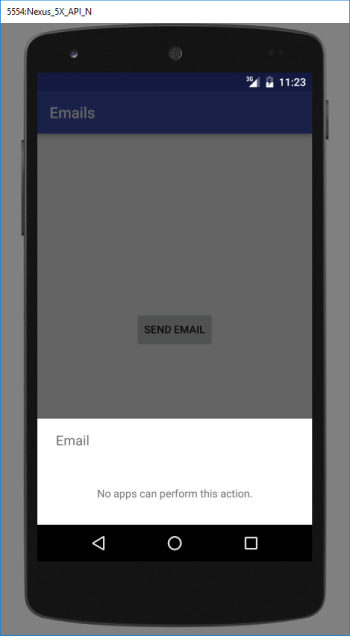
In this example, you are launching the built-in Email application to send an email message. You use an Intent object and set the various parameters using the setData(), putExtra(), and setType() methods:
Intent emailIntent = new Intent(Intent.ACTION_SEND);
emailIntent.setData(Uri.parse("mailto:"));
String[] to = emailAddresses;
String[] cc = carbonCopies;
emailIntent.putExtra(Intent.EXTRA_EMAIL, to);
emailIntent.putExtra(Intent.EXTRA_CC, cc);
emailIntent.putExtra(Intent.EXTRA_SUBJECT, subject);
emailIntent.putExtra(Intent.EXTRA_TEXT, message);
emailIntent.setType("message/rfc822");
startActivity(Intent.createChooser(emailIntent, "Email"));
This chapter described the two key ways for your application to communicate with the outside world. You first learned how to send and receive SMS messages. Using SMS, you can build a variety of applications that rely on the service provided by your mobile operator. Chapter 8 shows you a good example of how to use SMS messaging to build a location tracker application.
You also learned how to send email messages from within your Android application. You do that by invoking the built-in Email application through the use of an Intent object.
AndroidManifest.xml file for sending and receiving SMS messages.BroadcastReceiver?
You can find answers to the exercises in the appendix.
| TOPIC | KEY CONCEPTS |
| Programmatically sending SMS messages | Use the SmsManager class. |
| Sending SMS messages using Intent | Set the intent type to vnd.android-dir/mms-sms. |
| Receiving SMS messages | Implement a BroadcastReceiver and set it in the AndroidManifest.xml file. |
| Sending email using Intent | Set the intent type to message/rfc822. |
The wrox.com code downloads for this chapter are found at www.wrox.com/go/beginningandroidprog on the Download Code tab. The code is in the Chapter 10 download and individually named according to the names throughout the chapter.
You have seen the explosive growth of mobile apps in recent years. One category of apps that is very popular is Location-Based Services, commonly known as LBS. LBS apps track your location, and might offer additional services such as locating amenities nearby, offering suggestions for route planning, and so on. Of course, one of the key ingredients in an LBS app is maps, which present a visual representation of your location.
This chapter shows you how to make use of Google Maps in your Android application, as well as how to manipulate the map view programmatically. In addition, you find out how to obtain your geographical location using the LocationManager class available in the Android SDK. This chapter ends with a project to build a location tracker application that you can install on an Android device and use to track the location of friends and relatives using SMS messaging.
Google Maps is one of the many applications bundled with the Android platform. In addition to simply using the Maps application, you can also embed it into your own applications and make it do some very cool things. This section describes how to use Google Maps in your Android applications and programmatically perform the following:
To get started, you need to first create an Android project so that you can display Google Maps in your activity:
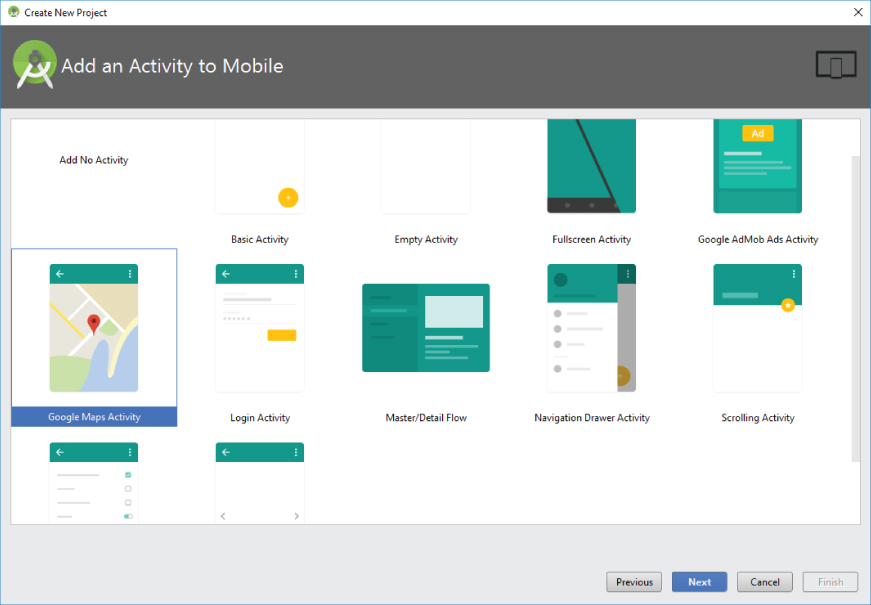
Beginning with the Android SDK release v1.0, you need to apply for a free Google Maps API key before you can integrate Google Maps into your Android application. When you apply for the key, you must also agree to Google's terms of use, so be sure to read them carefully.
To get a Google Maps key, open the google_maps_api.xml file that was created in your LBS project. Within this file is a link to create a new Google Maps key. Simply copy and paste the link into your browser and follow the instructions. Make note of the key that Google gives you because you need it later in this project.
You are now ready to display Google Maps in your Android application.
The following Try It Out shows you how.
YOUR_KEY_HERE placeholder in the google_maps_api.xml with your Google Maps key.
To display Google Maps in your application, you first need the ACCESS_FINE_LOCATION permission in your manifest file. This is created for you automatically when you selected to set up a Google Maps Activity. You can see the line if you open the AndroidManifest.xml.
<uses-permission android:name="android.permission.ACCESS_FINE_LOCATION" />
In order to test your application on the Android emulator, be sure to create an Emulator with an SDK version that includes Google Play Services as the selected target.
If instead of seeing Google Maps displayed you see an empty screen with grids, then most likely you are using the wrong API key in the google_maps_api.xml file. You might also want to ensure that you have Internet access on your emulator/devices. Finally, make sure that the package name that you supplied when you registered for your key matches the package name in your application.
The previous section showed how you can display Google Maps in your Android application. You can pan the map to any desired location and it updates on-the-fly. However, there is no way to use the emulator to zoom in or out from a particular location (on a real Android device you can pinch the map to zoom it). Thus, in this section, you find out how you can enable users to zoom in or out of the map using the built-in zoom controls.
activity_maps.xml. Please be sure to replace all instances of com.jfdimarzio with a reference to the package used in your application:<fragment xmlns:android="http://schemas.android.com/apk/res/android"
xmlns:tools="http://schemas.android.com/tools"
xmlns:map="http://schemas.android.com/apk/res-auto"
android:layout_width="match_parent"
android:layout_height="match_parent"
android:id="@+id/map"
tools:context="com.jfdimarzio.locationservices.MapsActivity"
android:name="com.google.android.gms.maps.SupportMapFragment"
map:uiZoomControls="true"
/>
To display the built-in zoom controls, you must add a parameter to activity_maps.xml that sets the uiZoomControls to true:
map:uiZoomControls="true"
Besides displaying the zoom controls, you can also programmatically zoom in or out of the map using the animateCamera() method of the GoogleMap class. The following Try It Out shows you how to achieve this.
MapsActivity.java file:import android.support.v4.app.FragmentActivity;
import android.os.Bundle;
import android.view.KeyEvent;
import com.google.android.gms.maps.CameraUpdateFactory;
import com.google.android.gms.maps.GoogleMap;
import com.google.android.gms.maps.OnMapReadyCallback;
import com.google.android.gms.maps.SupportMapFragment;
import com.google.android.gms.maps.model.LatLng;
import com.google.android.gms.maps.model.MarkerOptions;
public class MapsActivity extends FragmentActivity implements OnMapReadyCallback {
private GoogleMap mMap;
@Override
protected void onCreate(Bundle savedInstanceState) {
super.onCreate(savedInstanceState);
setContentView(R.layout.activity_maps);
// Obtain the SupportMapFragment and get notified
// when the map is ready to be used.
SupportMapFragment mapFragment =
(SupportMapFragment) getSupportFragmentManager()
.findFragmentById(R.id.map);
mapFragment.getMapAsync(this);
}
@Override
public void onMapReady(GoogleMap googleMap) {
mMap = googleMap;
// Add a marker in Sydney and move the camera
LatLng sydney = new LatLng(-34, 151);
mMap.addMarker(new MarkerOptions().position(sydney).title(
"Marker in Sydney"));
mMap.moveCamera(CameraUpdateFactory.newLatLng(sydney));
}
public boolean onKeyDown(int keyCode, KeyEvent event)
{
switch (keyCode)
{
case KeyEvent.KEYCODE_3:
mMap.animateCamera(CameraUpdateFactory.zoomIn());
break;
case KeyEvent.KEYCODE_1:
mMap.animateCamera(CameraUpdateFactory.zoomOut());
break;
}
return super.onKeyDown(keyCode, event);
}
}
To handle key presses on your activity, you handle the onKeyDown event:
public boolean onKeyDown(int keyCode, KeyEvent event)
{
switch (keyCode)
{
case KeyEvent.KEYCODE_3:
mMap.animateCamera(CameraUpdateFactory.zoomIn());
break;
case KeyEvent.KEYCODE_1:
mMap.animateCamera(CameraUpdateFactory.zoomOut());
break;
}
return super.onKeyDown(keyCode, event);
}
Note that if you deploy the application on a real Android device, you might not be able to test the zooming feature because most Android devices today do not have a physical keyboard.
By default, Google Maps is displayed in map view, which is basically drawings of streets and places of interest. You can also set Google Maps to display in satellite view using the setMapType() method of the GoogleMap class:
public void onMapReady(GoogleMap googleMap) {
mMap = googleMap;
// Add a marker in Sydney and move the camera
LatLng sydney = new LatLng(-34, 151);
mMap.addMarker(new MarkerOptions().position(sydney).title(
"Marker in Sydney"));
mMap.moveCamera(CameraUpdateFactory.newLatLng(sydney));
mMap.setMapType(GoogleMap.MAP_TYPE_SATELLITE);
}
Figure 10.4 shows Google Maps displayed in satellite view.
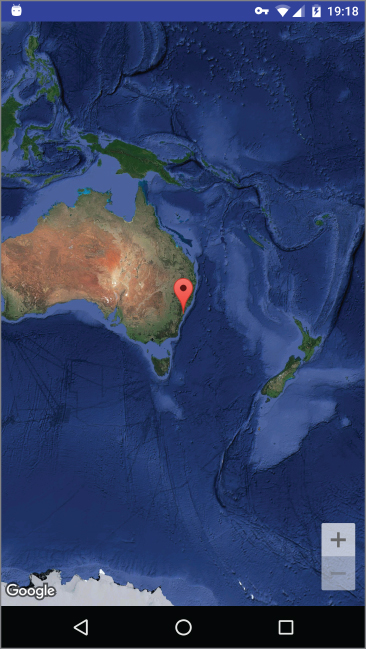
By default, Google Maps displays the map of Australia when it is first loaded. However, you can set Google Maps to display a particular location. To do so, you can use the moveCamera() method of the GoogleMap class.
The following Try It Out shows how you can programmatically animate Google Maps to a particular location.
MapsActivity.java file:import android.support.v4.app.FragmentActivity;
import android.os.Bundle;
import com.google.android.gms.maps.CameraUpdateFactory;
import com.google.android.gms.maps.GoogleMap;
import com.google.android.gms.maps.OnMapReadyCallback;
import com.google.android.gms.maps.SupportMapFragment;
import com.google.android.gms.maps.model.LatLng;
import com.google.android.gms.maps.model.MarkerOptions;
public class MapsActivity extends FragmentActivity implements OnMapReadyCallback {
private GoogleMap mMap;
@Override
protected void onCreate(Bundle savedInstanceState) {
super.onCreate(savedInstanceState);
setContentView(R.layout.activity_maps);
// Obtain the SupportMapFragment and get notified
// when the map is ready to be used.
SupportMapFragment mapFragment =
(SupportMapFragment) getSupportFragmentManager()
.findFragmentById(R.id.map);
mapFragment.getMapAsync(this);
}
@Override
public void onMapReady(GoogleMap googleMap) {
mMap = googleMap;
LatLng boston = new LatLng(42.3601, -71.0589);
mMap.addMarker(new MarkerOptions().position(boston).title("Boston, Mass"));
mMap.moveCamera(CameraUpdateFactory.newLatLng(boston));
}
}
In the preceding code, a LatLng object is created and set to the new coordinates of 42.3601 N, 71.0589 W (the coordinates of Boston). Notice that to represent either W (west) or S (south) you use the negative value of the coordinate.
After using Google Maps for a while, you might want to know the latitude and longitude of a location corresponding to the position on the screen that was just touched. Knowing this information is very useful because you can determine a location's address—a process known as reverse geocoding (you find out how this is done in the next section).
To get the latitude and longitude of a point on the Google Map that was touched, you must set a onMapClickListener:
import android.support.v4.app.FragmentActivity;
import android.os.Bundle;
import android.util.Log;
import com.google.android.gms.maps.CameraUpdateFactory;
import com.google.android.gms.maps.GoogleMap;
import com.google.android.gms.maps.OnMapReadyCallback;
import com.google.android.gms.maps.SupportMapFragment;
import com.google.android.gms.maps.model.LatLng;
import com.google.android.gms.maps.model.MarkerOptions;
public class MapsActivity extends FragmentActivity implements OnMapReadyCallback {
private GoogleMap mMap;
@Override
protected void onCreate(Bundle savedInstanceState) {
super.onCreate(savedInstanceState);
setContentView(R.layout.activity_maps);
// Obtain the SupportMapFragment and get notified
// when the map is ready to be used.
SupportMapFragment mapFragment =
(SupportMapFragment) getSupportFragmentManager()
.findFragmentById(R.id.map);
mapFragment.getMapAsync(this);
}
@Override
public void onMapReady(GoogleMap googleMap) {
mMap = googleMap;
LatLng boston = new LatLng(42.3601, -71.0589);
mMap.addMarker(new MarkerOptions().position(boston).title("Boston, Mass"));
mMap.moveCamera(CameraUpdateFactory.newLatLng(boston));
mMap.setOnMapClickListener(new GoogleMap.OnMapClickListener() {
@Override
public void onMapClick(LatLng point) {
Log.d("DEBUG","Map clicked [" + point.latitude +
" / " + point.longitude + "]");
}
});
}
}
You should see a logcat entry similar to this if you run the preceding code:
D/DEBUG: Map clicked [37.15198779979302 / -83.76536171883345]
As mentioned in the preceding section, if you know the latitude and longitude of a location, you can find out its address using a process known as reverse geocoding. Google Maps in Android supports reverse geocoding via the Geocoder class. The following code snippet shows how you can retrieve the address of a location just touched using the getFromLocation() method:
import android.location.Address;
import android.location.Geocoder;
import android.support.v4.app.FragmentActivity;
import android.os.Bundle;
import android.widget.Toast;
import com.google.android.gms.maps.CameraUpdateFactory;
import com.google.android.gms.maps.GoogleMap;
import com.google.android.gms.maps.OnMapReadyCallback;
import com.google.android.gms.maps.SupportMapFragment;
import com.google.android.gms.maps.model.LatLng;
import com.google.android.gms.maps.model.MarkerOptions;
import java.io.IOException;
import java.util.List;
import java.util.Locale;
public class MapsActivity extends FragmentActivity implements OnMapReadyCallback {
private GoogleMap mMap;
@Override
protected void onCreate(Bundle savedInstanceState) {
super.onCreate(savedInstanceState);
setContentView(R.layout.activity_maps);
// Obtain the SupportMapFragment and get notified
// when the map is ready to be used.
SupportMapFragment mapFragment =
(SupportMapFragment) getSupportFragmentManager()
.findFragmentById(R.id.map);
mapFragment.getMapAsync(this);
}
@Override
public void onMapReady(GoogleMap googleMap) {
mMap = googleMap;
LatLng boston = new LatLng(42.3601, -71.0589);
mMap.addMarker(new MarkerOptions().position(boston).title("Boston, Mass"));
mMap.moveCamera(CameraUpdateFactory.newLatLng(boston));
mMap.setOnMapClickListener(new GoogleMap.OnMapClickListener() {
@Override
public void onMapClick(LatLng point) {
Geocoder geoCoder = new Geocoder(
getBaseContext(), Locale.getDefault());
try {
List<Address> addresses = geoCoder.getFromLocation(
point.latitude,point.longitude,1);
String add = "";
if (addresses.size() > 0)
{
for (int i=0; i<addresses.get(0).getMaxAddressLineIndex();
i++)
add += addresses.get(0).getAddressLine(i) + "\n";
}
Toast.makeText(getBaseContext()
, add, Toast.LENGTH_SHORT).show();
}
catch (IOException e) {
e.printStackTrace();
}
}
});
}
}
The Geocoder object converts the latitude and longitude into an address using the getFromLocation() method. After the address is obtained, you display it using the Toast class. Keep in mind that pin will not move. In this example, we are only getting the address of a location that you touch. Figure 10.6 shows the application displaying the address of a location that was touched on the map.
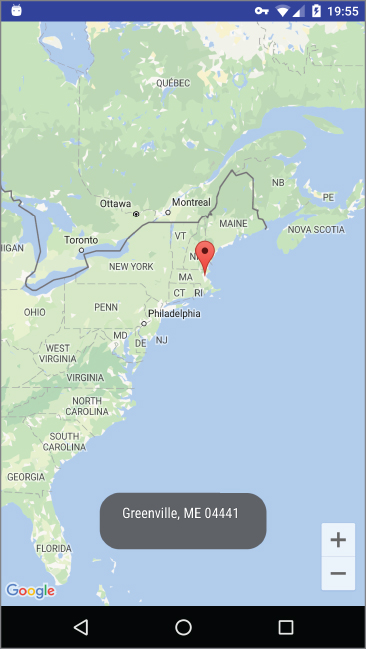
If you know the address of a location but want to know its latitude and longitude, you can do so via geocoding. Again, you can use the Geocoder class for this purpose. The following code shows how you can find the exact location of the Empire State Building by using the getFromLocationName() method:
Geocoder geoCoder = new Geocoder(
getBaseContext(), Locale.getDefault());
try {
List<Address> addresses = geoCoder.getFromLocationName(
"empire state building", 5);
if (addresses.size() > 0) {
LatLng p = new LatLng(
(int) (addresses.get(0).getLatitude()),
(int) (addresses.get(0).getLongitude()));
mMap.moveCamera(CameraUpdateFactory.newLatLng(p));
}
} catch (IOException e) {
e.printStackTrace();
}
Nowadays, mobile devices are commonly equipped with GPS receivers. Because of the many satellites orbiting the earth, you can use a GPS receiver to find your location easily. However, GPS requires a clear sky to work and hence does not always work indoors or where satellites can't penetrate (such as a tunnel through a mountain).
Another effective way to locate your position is through cell tower triangulation. When a mobile phone is switched on, it is constantly in contact with base stations surrounding it. By knowing the identity of cell towers, it is possible to translate this information into a physical location through the use of various databases containing the cell towers' identities and their exact geographical locations. The advantage of cell tower triangulation is that it works indoors, without the need to obtain information from satellites. However, it is not as precise as GPS because its accuracy depends on overlapping signal coverage, which varies quite a bit. Cell tower triangulation works best in densely populated areas where the cell towers are closely located.
A third method of locating your position is to rely on Wi-Fi triangulation. Rather than connect to cell towers, the device connects to a Wi-Fi network and checks the service provider against databases to determine the location serviced by the provider. Of the three methods described here, Wi-Fi triangulation is the least accurate.
On the Android platform, the SDK provides the LocationManager class to help your device determine the user's physical location. The following Try It Out shows how this is done in code.
MapsActivity.java file:import android.content.Context;
import android.content.pm.PackageManager;
import android.location.Location;
import android.location.LocationListener;
import android.location.LocationManager;
import android.support.v4.app.ActivityCompat;
import android.support.v4.app.FragmentActivity;
import android.os.Bundle;
import android.widget.Toast;
import com.google.android.gms.maps.CameraUpdateFactory;
import com.google.android.gms.maps.GoogleMap;
import com.google.android.gms.maps.OnMapReadyCallback;
import com.google.android.gms.maps.SupportMapFragment;
import com.google.android.gms.maps.model.LatLng;
public class MapsActivity extends FragmentActivity implements OnMapReadyCallback {
final private int REQUEST_COURSE_ACCESS = 123;
boolean permissionGranted = false;
private GoogleMap mMap;
LocationManager lm;
LocationListener locationListener;
@Override
protected void onCreate(Bundle savedInstanceState) {
super.onCreate(savedInstanceState);
setContentView(R.layout.activity_maps);
// Obtain the SupportMapFragment and get notified
// when the map is ready to be used.
SupportMapFragment mapFragment =
(SupportMapFragment) getSupportFragmentManager()
.findFragmentById(R.id.map);
mapFragment.getMapAsync(this);
}
@Override
public void onPause() {
super.onPause();
//---remove the location listener---
if (ActivityCompat.checkSelfPermission(this,
android.Manifest.permission.ACCESS_FINE_LOCATION)
!= PackageManager.PERMISSION_GRANTED && ActivityCompat.checkSelfPermission(
this, android.Manifest.permission.ACCESS_COARSE_LOCATION)
!= PackageManager.PERMISSION_GRANTED) {
ActivityCompat.requestPermissions(this,
new String[]{
android.Manifest.permission.ACCESS_COARSE_LOCATION},
REQUEST_COURSE_ACCESS);
return;
}else{
permissionGranted = true;
}
if(permissionGranted) {
lm.removeUpdates(locationListener);
}
}
@Override
public void onMapReady(GoogleMap googleMap) {
mMap = googleMap;
lm = (LocationManager)getSystemService(Context.LOCATION_SERVICE);
locationListener = new MyLocationListener();
if (ActivityCompat.checkSelfPermission(this,
android.Manifest.permission.ACCESS_FINE_LOCATION)
!= PackageManager.PERMISSION_GRANTED && ActivityCompat.checkSelfPermission(
this, android.Manifest.permission.ACCESS_COARSE_LOCATION)
!= PackageManager.PERMISSION_GRANTED) {
ActivityCompat.requestPermissions(this,
new String[]{
android.Manifest.permission.ACCESS_COARSE_LOCATION},
REQUEST_COURSE_ACCESS);
return;
}else{
permissionGranted = true;
}
if(permissionGranted) {
lm.requestLocationUpdates(LocationManager.GPS_PROVIDER, 0, 0,
locationListener);
}
}
@Override
public void onRequestPermissionsResult(int requestCode, String[] permissions,
int[] grantResults) {
switch (requestCode) {
case REQUEST_COURSE_ACCESS:
if (grantResults[0] == PackageManager.PERMISSION_GRANTED) {
permissionGranted = true;
} else {
permissionGranted = false;
}
break;
default:
super.onRequestPermissionsResult(requestCode, permissions,
grantResults);
}
}
private class MyLocationListener implements LocationListener
{
public void onLocationChanged(Location loc) {
if (loc != null) {
Toast.makeText(getBaseContext(),
"Location changed : Lat: " + loc.getLatitude() +
" Lng: " + loc.getLongitude(),
Toast.LENGTH_SHORT).show();
LatLng p = new LatLng(
(int) (loc.getLatitude()),
(int) (loc.getLongitude()));
mMap.moveCamera(CameraUpdateFactory.newLatLng(p));
mMap.animateCamera(CameraUpdateFactory.zoomTo(7));
}
}
public void onProviderDisabled(String provider) {
}
public void onProviderEnabled(String provider) {
}
public void onStatusChanged(String provider, int status,
Bundle extras) {
}
}
}
AndroidManifest.xml file.0 Please be sure to replace all instances of com.jfdimarzio with a reference to the package used in your application:<?xml version="1.0" encoding="utf-8"?>
<manifest xmlns:android="http://schemas.android.com/apk/res/android"
package="com.jfdimarzio.locationservices" >
<!--
The ACCESS_COARSE/FINE_LOCATION permissions are not required to use
Google Maps Android API v2, but you must specify either coarse or fine
location permissions for the 'MyLocation' functionality.
-->
<uses-permission android:name="android.permission.ACCESS_FINE_LOCATION"/>
<uses-permission android:name="android.permission.ACCESS_COARSE_LOCATION" />
<application
android:allowBackup="true"
android:icon="@mipmap/ic_launcher"
android:label="@string/app_name"
android:supportsRtl="true"
android:theme="@style/AppTheme" >
<!--
The API key for Google Maps-based APIs is defined as a string resource
(See the file "res/values/google_maps_api.xml").
Note that the API key is linked to the encryption
key used to sign the APK.
You need a different API key for each encryption key,
including the release key that is used to
sign the APK for publishing.
You can define the keys for the debug and release targets in
src/debug/ and src/release/.
-->
<meta-data
android:name="com.google.android.geo.API_KEY"
android:value="@string/google_maps_key"/>
<activity
android:name=".MapsActivity"
android:label="@string/title_activity_maps" >
<intent-filter>
<action android:name="android.intent.action.MAIN"/>
<category android:name="android.intent.category.LAUNCHER"/>
</intent-filter>
</activity>
</application>
</manifest>
In Android, location-based services are provided by the LocationManager class, located in the android.location package. Using the LocationManager class, your application can obtain periodic updates of the device's geographical locations, as well as fire an intent when it enters the proximity of a certain location.
In the MapsActivity.java file, you first check for permission to use the Course Locations. Then you obtain a reference to the LocationManager class using the getSystemService() method. You do this in the onCreate() method of the LBSActivity:
//---use the LocationManager class to obtain locations data---
lm = (LocationManager)
getSystemService(Context.LOCATION_SERVICE);
locationListener = new MyLocationListener();
Next, you create an instance of the MyLocationListener class, which you define later in the class.
The MyLocationListener class implements the LocationListener abstract class. You need to override four methods in this implementation:
onLocationChanged(Location location)—Called when the location has changedonProviderDisabled(String provider)—Called when the provider is disabled by the useronProviderEnabled(String provider)—Called when the provider is enabled by the useronStatusChanged(String provider, int status, Bundle extras)—Called when the provider status changesIn this example, you're more interested in what happens when a location changes, so you write your code in the onLocationChanged() method. Specifically, when a location changes, you display a small dialog on the screen showing the new location information: latitude and longitude. You show this dialog using the Toast class:
public void onLocationChanged(Location loc) {
if (loc != null) {
Toast.makeText(getBaseContext(),
"Location changed : Lat: " + loc.getLatitude() +
" Lng: " + loc.getLongitude(),
Toast.LENGTH_SHORT).show();
LatLng p = new LatLng(
(int) (loc.getLatitude()),
(int) (loc.getLongitude()));
mMap.moveCamera(CameraUpdateFactory.newLatLng(p));
mMap.animateCamera(CameraUpdateFactory.zoomTo(7));
}
}
In the preceding method, you also navigate the map to the location that you have received.
To be notified whenever there is a change in location, you needed to register a request for location changes so that your program can be notified periodically. You do this via the requestLocation-Updates() method:
if(permissionGranted) {
lm.requestLocationUpdates(LocationManager.GPS_PROVIDER, 0, 0,
locationListener);
}
The requestLocationUpdates() method takes four arguments:
provider—The name of the provider with which you register. In this case, you are using GPS to obtain your geographical location data.minTime—The minimum time interval for notifications, in milliseconds. 0 indicates that you want to be continually informed of location changes.minDistance—The minimum distance interval for notifications, in meters. 0 indicates that you want to be continually informed of location changes.listener—An object whose onLocationChanged() method will be called for each location updateFinally, in the onPause() method, you remove the listener when the activity is destroyed or goes into the background (so that the application no longer listens for changes in location, thereby saving the battery of the device). You do that using the removeUpdates() method:
@Override
public void onPause() {
super.onPause();
//---remove the location listener---
if (ActivityCompat.checkSelfPermission(this,
android.Manifest.permission.ACCESS_FINE_LOCATION)
!= PackageManager.PERMISSION_GRANTED && ActivityCompat.checkSelfPermission(
this, android.Manifest.permission.ACCESS_COARSE_LOCATION)
!= PackageManager.PERMISSION_GRANTED) {
ActivityCompat.requestPermissions(this,
new String[]{
android.Manifest.permission.ACCESS_COARSE_LOCATION},
REQUEST_COURSE_ACCESS);
return;
}else{
permissionGranted = true;
}
if(permissionGranted) {
lm.removeUpdates(locationListener);
}
}
The network provider will not work on the Android emulator. If you test the preceding code on the emulator, it results in an illegal argument exception. You need to test the code on a real device.
You can combine both the GPS location provider with the network location provider within your application:
@Override
public void onResume() {
super.onResume();
//---request for location updates---
lm.requestLocationUpdates(
LocationManager.GPS_PROVIDER,
0,
0,
locationListener);
//---request for location updates---
lm.requestLocationUpdates(
LocationManager.NETWORK_PROVIDER,
0,
0,
locationListener);
}
However, be aware that doing so will cause your application to receive two different sets of coordinates, as both the GPS provider and the NETWORK provider will try to get your location using their own methods (GPS versus Wi-Fi and cell ID triangulation). Hence, it is important that you monitor the status of the two providers in your device and use the appropriate one. You can check the status of the two providers by implementing the following three methods (shown in bold) of the MyLocationListener class:
private class MyLocationListener implements LocationListener
{
…
//---called when the provider is disabled---
public void onProviderDisabled(String provider) {
Toast.makeText(getBaseContext(),
provider + " disabled",
Toast.LENGTH_SHORT).show();
}
//---called when the provider is enabled---
public void onProviderEnabled(String provider) {
Toast.makeText(getBaseContext(),
provider + " enabled",
Toast.LENGTH_SHORT).show();
}
//---called when there is a change in the provider status---
public void onStatusChanged(String provider, int status,
Bundle extras) {
String statusString = "";
switch (status) {
case android.location.LocationProvider.AVAILABLE:
statusString = "available";
case android.location.LocationProvider.OUT_OF_SERVICE:
statusString = "out of service";
case android.location.LocationProvider.TEMPORARILY_UNAVAILABLE:
statusString = "temporarily unavailable";
}
Toast.makeText(getBaseContext(),
provider + " " + statusString,
Toast.LENGTH_SHORT).show();
}
}
One very cool feature of the LocationManager class is its ability to monitor a specific location. This is achieved using the addProximityAlert() method.
The following code snippet shows how to monitor a particular location such that if the user is within a five-meter radius from that location, your application will fire an intent to launch the web browser:
import android.app.PendingIntent;
import android.content.Intent;
import android.net.Uri;
//---use the LocationManager class to obtain locations data---
lm = (LocationManager)
getSystemService(Context.LOCATION_SERVICE);
//---PendingIntent to launch activity if the user is within
// some locations---
PendingIntent pendingIntent = PendingIntent.getActivity(
this, 0, new
Intent(android.content.Intent.ACTION_VIEW,
Uri.parse("http://www.amazon.com")), 0);
lm.addProximityAlert(37.422006, -122.084095, 5, -1, pendingIntent);
The addProximityAlert() method takes five arguments:
Note that if the Android device's screen goes to sleep, the proximity is also checked once every four minutes in order to preserve the battery life of the device.
This chapter took a whirlwind tour of the GoogleMap object, which displays Google Maps in your Android application. You have learned the various ways in which the map can be manipulated. You also have also seen how you can obtain geographical location data using the various network providers: GPS, cell ID, or Wi-Fi triangulation.
You can find answers to the exercises in the appendix.
| Topic | Key Concepts |
| Displaying the GoogleMap | <string name="google_maps_key" templateMergeStrategy="preserve" translatable="false">YOUR_KEY_HERE</string> |
| Displaying the zoom controls | map:uiZoomControls="true" |
| Programmatically zooming in or out of the map | mMap.animateCamera(CameraUpdateFactory.zoomTo(7)); |
| Changing views | mMap.setMapType(GoogleMap.MAP_TYPE_SATELLITE); |
| Animating to a particular location |
|
| Getting the location of the map touched |
|
| Geocoding and reverse geocoding | Use the Geocoder class |
| Setting a Proximity Alert |
|
The wrox.com code downloads for this chapter are found at www.wrox.com/go/beginningandroidprog on the Download Code tab. The code is in the Chapter 11 download and individually named according to the names throughout the chapter.
Chapter 11 explains how your application can talk to the outside world through the use of SMS messaging and emails. Another way to communicate with the outside world is through the wireless network available on your Android device. In this chapter, you find out how to use the HTTP protocol to talk to web servers so that you can download text and binary data. Also, you see how to parse XML files to extract the relevant parts of an XML document—a technique that is useful if you are accessing web services. In addition to XML web services, this chapter also covers JSON (JavaScript Object Notation), which is a lightweight alternative to XML. You make use of the classes available in the Android SDK to manipulate JSON content.
Finally, this chapter also demonstrates how to write an Android application to connect to servers using TCP sockets. Using sockets programming, you can write sophisticated, interesting networked applications.
One common way to communicate with the outside world is through HTTP. HTTP is no stranger to most people; it is the protocol that drives much of the web's success. Using the HTTP protocol, you can perform a variety of tasks, such as downloading web pages from a web server, downloading binary data, and more.
The following Try It Out creates an Android project so you can use the HTTP protocol to connect to the web to download all sorts of content.
AndroidManifest.xml file. Please be sure to replace all instances of com.jfdimarzio with the package name used in your application:<?xml version="1.0" encoding="utf-8"?>
<manifest xmlns:android="http://schemas.android.com/apk/res/android"
package="com.jfdimarzio.networking">
<uses-permission android:name="android.permission.INTERNET"/>
<application
android:allowBackup="true"
android:icon="@mipmap/ic_launcher"
android:label="@string/app_name"
android:supportsRtl="true"
android:theme="@style/AppTheme">
<activity android:name=".MainActivity">
<intent-filter>
<action android:name="android.intent.action.MAIN"/>
<category android:name="android.intent.category.LAUNCHER"/>
</intent-filter>
</activity>
</application>
</manifest>
MainActivity.java file:import android.support.v7.app.AppCompatActivity;
import android.os.Bundle;
import android.util.Log;
import java.io.IOException;
import java.io.InputStream;
import java.net.HttpURLConnection;
import java.net.URL;
import java.net.URLConnection;
OpenHttpConnection() method in the MainActivity.java file:public class MainActivity extends AppCompatActivity {
private InputStream OpenHttpConnection(String urlString) throws IOException
{
InputStream in = null;
int response = -1;
URL url = new URL(urlString);
URLConnection conn = url.openConnection();
if (!(conn instanceof HttpURLConnection))
throw new IOException("Not an HTTP connection");
try{
HttpURLConnection httpConn = (HttpURLConnection) conn;
httpConn.setAllowUserInteraction(false);
httpConn.setInstanceFollowRedirects(true);
httpConn.setRequestMethod("GET");
httpConn.connect();
response = httpConn.getResponseCode();
if (response == HttpURLConnection.HTTP_OK) {
in = httpConn.getInputStream();
}
}
catch (Exception ex)
{
Log.d("Networking", ex.getLocalizedMessage());
throw new IOException("Error connecting");
}
return in;
}
@Override
protected void onCreate(Bundle savedInstanceState) {
super.onCreate(savedInstanceState);
setContentView(R.layout.activity_main);
}
}
Before you finish the app, let's discuss what's happened to this point. Because you are using the HTTP protocol to connect to the web, your application needs the INTERNET permission. That means the first thing you do is add the permission in the AndroidManifest.xml file.
You then define the OpenHttpConnection() method, which takes a URL string and returns an InputStream object. Using an InputStream object, you can download the data by reading bytes from the stream object. In this method, you make use of the HttpURLConnection object to open an HTTP connection with a remote URL. You set all the various properties of the connection, such as the request method, and so on:
HttpURLConnection httpConn = (HttpURLConnection) conn;
httpConn.setAllowUserInteraction(false);
httpConn.setInstanceFollowRedirects(true);
httpConn.setRequestMethod("GET");
After trying to establish a connection with the server, the HTTP response code is returned. If the connection is established (via the response code HTTP_OK), then you proceed to get an InputStream object from the connection:
httpConn.connect();
response = httpConn.getResponseCode();
if (response == HttpURLConnection.HTTP_OK) {
in = httpConn.getInputStream();
}
Using the InputStream object, you can then start to download the data from the server.
A common task you need to perform is downloading binary data from the web. For example, you might want to download an image from a server so that you can display it in your application. The following Try It Out shows how this is done.
TextView with the following bolded statements to the main.xml file:<?xml version="1.0" encoding="utf-8"?>
<android.support.constraint.ConstraintLayout xmlns:android=
"http://schemas.android.com/apk/res/android"
xmlns:app="http://schemas.android.com/apk/res-auto"
xmlns:tools="http://schemas.android.com/tools"
android:id="@+id/activity_main"
android:layout_width="match_parent"
android:layout_height="match_parent"
tools:context="com.jfdimarzio.networking.MainActivity">
<ImageView
android:src="@color/material_grey_300"
android:layout_width="209dp"
android:layout_height="272dp"
android:id="@+id/imageView"
app:layout_constraintLeft_toLeftOf="@+id/activity_main"
app:layout_constraintTop_toTopOf="@+id/activity_main"
app:layout_constraintRight_toRightOf="@+id/activity_main"
app:layout_constraintBottom_toBottomOf="@+id/activity_main" />
</android.support.constraint.ConstraintLayout>
MainActivity.java file:import android.Manifest;
import android.content.pm.PackageManager;
import android.graphics.Bitmap;
import android.graphics.BitmapFactory;
import android.os.AsyncTask;
import android.support.v4.app.ActivityCompat;
import android.support.v4.content.ContextCompat;
import android.support.v7.app.AppCompatActivity;
import android.os.Bundle;
import android.util.Log;
import android.widget.ImageView;
import android.widget.Toast;
import java.io.IOException;
import java.io.InputStream;
import java.net.HttpURLConnection;
import java.net.URL;
import java.net.URLConnection;
public class MainActivity extends AppCompatActivity {
ImageView img;
final private int REQUEST_INTERNET = 123;
private InputStream OpenHttpConnection(String urlString) throws IOException
{
InputStream in = null;
int response = -1;
URL url = new URL(urlString);
URLConnection conn = url.openConnection();
if (!(conn instanceof HttpURLConnection))
throw new IOException("Not an HTTP connection");
try{
HttpURLConnection httpConn = (HttpURLConnection) conn;
httpConn.setAllowUserInteraction(false);
httpConn.setInstanceFollowRedirects(true);
httpConn.setRequestMethod("GET");
httpConn.connect();
response = httpConn.getResponseCode();
if (response == HttpURLConnection.HTTP_OK) {
in = httpConn.getInputStream();
}
}
catch (Exception ex)
{
Log.d("Networking", ex.getLocalizedMessage());
throw new IOException("Error connecting");
}
return in;
}
private Bitmap DownloadImage(String URL)
{
Bitmap bitmap = null;
InputStream in = null;
try {
in = OpenHttpConnection(URL);
bitmap = BitmapFactory.decodeStream(in);
in.close();
} catch (IOException e1) {
Log.d("NetworkingActivity", e1.getLocalizedMessage());
}
return bitmap;
}
private class DownloadImageTask extends AsyncTask<String, Void, Bitmap> {
protected Bitmap doInBackground(String… urls) {
return DownloadImage(urls[0]);
}
protected void onPostExecute(Bitmap result) {
ImageView img = (ImageView) findViewById(R.id.imageView);
img.setImageBitmap(result);
}
}
@Override
protected void onCreate(Bundle savedInstanceState) {
super.onCreate(savedInstanceState);
setContentView(R.layout.activity_main);
if (ContextCompat.checkSelfPermission(this,
Manifest.permission.INTERNET)
!= PackageManager.PERMISSION_GRANTED) {
ActivityCompat.requestPermissions(this,
new String[]{Manifest.permission.INTERNET},
REQUEST_INTERNET);
} else{
new DownloadImageTask().execute(
"http://www.jfdimarzio.com/butterfly.png");
}
}
@Override
public void onRequestPermissionsResult(int requestCode,
String[] permissions, int[] grantResults) {
switch (requestCode) {
case REQUEST_INTERNET:
if (grantResults[0] == PackageManager.PERMISSION_GRANTED) {
new DownloadImageTask().execute(
"http://www.jfdimarzio.com/butterfly.png");
} else {
Toast.makeText(MainActivity.this,
"Permission Denied", Toast.LENGTH_SHORT).show();
}
break;
default:
super.onRequestPermissionsResult(requestCode,
permissions, grantResults);
}
}
}
ImageView.
The DownloadImage() method takes the URL of the image to download and then opens the connection to the server using the OpenHttpConnection() method that you have defined earlier in this chapter. Using the InputStream object returned by the connection, the decodeStream() method from the BitmapFactory class is used to download and decode the data into a Bitmap object. The DownloadImage() method returns a Bitmap object.
To download an image and display it on the activity, you call the DownloadImage() method. However, starting with Android 3.0, synchronous operations can no longer be run directly from a UI thread. If you try to call the DownloadImage() method directly in your onCreate() method (as shown in the following code snippet), your application crashes when it is run on a device running Android 3.0 and later:
/** Called when the activity is first created. */
@Override
public void onCreate(Bundle savedInstanceState) {
super.onCreate(savedInstanceState);
setContentView(R.layout.main);
//---download an image---
//---code will not run in Android 3.0 and beyond---
Bitmap bitmap =
DownloadImage("http://www.mayoff.com/5-01cablecarDCP01934.jpg");
img = (ImageView) findViewById(R.id.img);
img.setImageBitmap(bitmap);
}
Because the DownloadImage() method is synchronous—that is, it will not return control until the image is downloaded—calling it directly freezes the UI of your activity. This is not allowed in Android 3.0 and later. All synchronous code must be wrapped using an AsyncTask class. Using AsyncTask enables you to perform background tasks in a separate thread and then return the result in a UI thread. That way, you can perform background operations without needing to handle complex threading issues.
To call the DownloadImage() method asynchronously, you need to wrap the code in a subclass of the AsyncTask class, as shown here:
private class DownloadImageTask extends AsyncTask<String, Void, Bitmap> {
protected Bitmap doInBackground(String… urls) {
return DownloadImage(urls[0]);
}
protected void onPostExecute(Bitmap result) {
ImageView img = (ImageView) findViewById(R.id.img);
img.setImageBitmap(result);
}
}
Basically, you define a class (DownloadImageTask) that extends the AsyncTask class. In this case, there are two methods within the DownloadImageTask class: doInBackground() and onPostExecute().
You put all the code that needs to be run asynchronously in the doInBackground() method. When the task is completed, the result is passed back via the onPostExecute() method.
In this case, you use the ImageView to display the downloaded image.
To be specific, if you set the android:minSdkVersion attribute in your AndroidManifest.xml file to a value of 9 or less (though it's not recommended) and then run your application on an Android 3.0 or later device, your synchronous code still works in a UI thread. However, if the android:minSdkVersion attribute value is set to 10 or higher, your synchronous code does not work in a UI thread.
Chapter 12 discusses the AsyncTask class in more detail.
To call the DownloadImageTask class, create an instance of it and then call its execute() method, which passes the image's URL:
@Override
public void onCreate(Bundle savedInstanceState) {
super.onCreate(savedInstanceState);
setContentView(R.layout.main);
new DownloadImageTask().execute(
"http://www.jfdimarzio.com/butterfly.png");
}
If you want to download a series of images asynchronously, you can modify the DownloadImageTask class as follows:
…
import android.widget.Toast;
…
private class DownloadImageTask extends AsyncTask
<String, Bitmap, Long> {
//---takes in a list of image URLs in String type---
protected Long doInBackground(String… urls) {
long imagesCount = 0;
for (int i = 0; i < urls.length; i++) {
//---download the image---
Bitmap imageDownloaded = DownloadImage(urls[i]);
if (imageDownloaded != null) {
//---increment the image count---
imagesCount++;
try {
//---insert a delay of 3 seconds---
Thread.sleep(3000);
} catch (InterruptedException e) {
e.printStackTrace();
}
//---return the image downloaded---
publishProgress(imageDownloaded);
}
}
//---return the total images downloaded count---
return imagesCount;
}
//---display the image downloaded---
protected void onProgressUpdate(Bitmap… bitmap) {
img.setImageBitmap(bitmap[0]);
}
//---when all the images have been downloaded---
protected void onPostExecute(Long imagesDownloaded) {
Toast.makeText(getBaseContext(),
"Total " + imagesDownloaded + " images downloaded" ,
Toast.LENGTH_LONG).show();
}
}
In this example, the DownloadImageTask class has one more method: onProgressUpdate(). Because the task to be performed inside an AsyncTask class can be lengthy, you call the publishProgress() method to update the progress of the operation. This triggers the onProgressUpdate() method, which in this case displays the image to be downloaded. The onProgressUpdate() method is executed on the UI thread. That means it is thread-safe to update the ImageView with the bitmap downloaded from the server.
To download a series of images asynchronously in the background, create an instance of the BackgroundTask class and call its execute() method, like this:
@Override
public void onCreate(Bundle savedInstanceState) {
super.onCreate(savedInstanceState);
setContentView(R.layout.main);
/* new DownloadImageTask().execute(
"http://www.mayoff.com/5-01cablecarDCP01934.jpg");
*/
img = (ImageView) findViewById(R.id.img);
new DownloadImageTask().execute(
"http://www.mayoff.com/5-01cablecarDCP01934.jpg",
"http://www.hartiesinfo.net/greybox/Cable_Car_
Hartbeespoort.jpg",
"http://mcmanuslab.ucsf.edu/sites/default/files/
imagepicker/m/mmcmanus/
CaliforniaSanFranciscoPaintedLadiesHz.jpg",
"http://www.fantom-xp.com/wallpapers/63/San_Francisco
_-_Sunset.jpg",
"http://travel.roro44.com/europe/france/
Paris_France.jpg",
"http://wwp.greenwichmeantime.com/time-zone/usa/nevada
/las-vegas/hotel/the-strip/paris-las-vegas/paris-
las-vegas-hotel.jpg",
"http://designheaven.files.wordpress.com/2010/04/
eiffel_tower_paris_france.jpg");
}
When you run the preceding code, the images are downloaded in the background and displayed at an interval of three seconds. When the last image has been downloaded, the Toast class displays the total number of images downloaded.
When working with the Android emulator, you might frequently need to access data hosted on the local web server using localhost. For example, your own web services are likely to be hosted on your local computer during development, and you'll want to test them on the same development machine you use to write your Android applications. In such cases, you should use the special IP address of 10.0.2.2 (not 127.0.0.1) to refer to the host computer's loopback interface. From the Android emulator's perspective, localhost (127.0.0.1) refers to its own loopback interface.
Besides downloading binary data, you can also download plain-text content. For example, you might want to access a web service that returns a string of random quotes. The following Try It Out shows how you can download a string from a web service in your application.
MainActivity.java file:import android.Manifest;
import android.content.pm.PackageManager;
import android.graphics.Bitmap;
import android.graphics.BitmapFactory;
import android.os.AsyncTask;
import android.support.v4.app.ActivityCompat;
import android.support.v4.content.ContextCompat;
import android.support.v7.app.AppCompatActivity;
import android.os.Bundle;
import android.util.Log;
import android.widget.ImageView;
import android.widget.Toast;
import java.io.IOException;
import java.io.InputStream;
import java.io.InputStreamReader;
import java.net.HttpURLConnection;
import java.net.URL;
import java.net.URLConnection;
public class MainActivity extends AppCompatActivity {
ImageView img;
final private int REQUEST_INTERNET = 123;
private InputStream OpenHttpConnection(String urlString) throws IOException
{
InputStream in = null;
int response = -1;
URL url = new URL(urlString);
URLConnection conn = url.openConnection();
if (!(conn instanceof HttpURLConnection))
throw new IOException("Not an HTTP connection");
try{
HttpURLConnection httpConn = (HttpURLConnection) conn;
httpConn.setAllowUserInteraction(false);
httpConn.setInstanceFollowRedirects(true);
httpConn.setRequestMethod("GET");
httpConn.connect();
response = httpConn.getResponseCode();
if (response == HttpURLConnection.HTTP_OK) {
in = httpConn.getInputStream();
}
}
catch (Exception ex)
{
Log.d("Networking", ex.getLocalizedMessage());
throw new IOException("Error connecting");
}
return in;
}
private String DownloadText(String URL)
{
int BUFFER_SIZE = 2000;
InputStream in = null;
try {
in = OpenHttpConnection(URL);
} catch (IOException e) {
Log.d("Networking", e.getLocalizedMessage());
return "";
}
InputStreamReader isr = new InputStreamReader(in);
int charRead;
String str = "";
char[] inputBuffer = new char[BUFFER_SIZE];
try {
while ((charRead = isr.read(inputBuffer))>0) {
//---convert the chars to a String---
String readString =
String.copyValueOf(inputBuffer, 0, charRead);
str += readString;
inputBuffer = new char[BUFFER_SIZE];
}
in.close();
} catch (IOException e) {
Log.d("Networking", e.getLocalizedMessage());
return "";
}
return str;
}
private class DownloadTextTask extends AsyncTask<String, Void, String> {
protected String doInBackground(String… urls) {
return DownloadText(urls[0]);
}
@Override
protected void onPostExecute(String result) {
Toast.makeText(getBaseContext(), result, Toast.LENGTH_LONG).show();
}
}
@Override
protected void onCreate(Bundle savedInstanceState) {
super.onCreate(savedInstanceState);
setContentView(R.layout.activity_main);
if (ContextCompat.checkSelfPermission(this,
Manifest.permission.INTERNET)
!= PackageManager.PERMISSION_GRANTED) {
ActivityCompat.requestPermissions(this,
new String[]{Manifest.permission.INTERNET},
REQUEST_INTERNET);
} else{
new DownloadTextTask().execute("http://jfdimarzio.com/test.htm");
}
}
}
Toast class.
The DownloadText() method accesses the text file's URL, downloads the text file, and then returns the desired string of text. It basically opens an HTTP connection to the server and then uses an InputStreamReader object to read each character from the stream and save it in a String object. As shown in the previous section, you had to create a subclass of the AsyncTask class to call the DownloadText() method asynchronously.
So far, this chapter has showed you how to download images and text from the web. The previous section demonstrated how to download some plain text from a server. Very often, you need to download XML files and parse the contents (a good example of this is consuming web services). Therefore, in this section you learn how to connect to a web service using the HTTP GET method. After the web service returns a result in XML, you extract the relevant parts and display its content using the Toast class.
In this example, you use the web method from http://services.aonaware.com/DictService/DictService.asmx?op=Define. This web method is from a dictionary web service that returns the definition of a given word.
The web method takes a request in the following format:
GET /DictService/DictService.asmx/Define?word=string HTTP/1.1
Host: services.aonaware.com
HTTP/1.1 200 OK
Content-Type: text/xml; charset=utf-8
Content-Length: length
It returns a response in the following format:
<?xml version="1.0" encoding="utf-8"?>
<WordDefinition xmlns="http://services.aonaware.com/webservices/">
<Word>string</Word>
<Definitions>
<Definition>
<Word>string</Word>
<Dictionary>
<Id>string</Id>
<Name>string</Name>
</Dictionary>
<WordDefinition>string</WordDefinition>
</Definition>
<Definition>
<Word>string</Word>
<Dictionary>
<Id>string</Id>
<Name>string</Name>
</Dictionary>
<WordDefinition>string</WordDefinition>
</Definition>
</Definitions>
</WordDefinition>
Hence, to obtain the definition of a word, you need to establish an HTTP connection to the web method and then parse the XML result that is returned. The following Try It Out shows you how.
MainActivity.java file:import org.w3c.dom.Document;
import org.w3c.dom.Element;
import org.w3c.dom.Node;
import org.w3c.dom.NodeList;
import javax.xml.parsers.DocumentBuilder;
import javax.xml.parsers.DocumentBuilderFactory;
import javax.xml.parsers.ParserConfigurationException;
public class MainActivity extends AppCompatActivity {
ImageView img;
final private int REQUEST_INTERNET = 123;
private InputStream OpenHttpConnection(String urlString) throws IOException
{
InputStream in = null;
int response = -1;
URL url = new URL(urlString);
URLConnection conn = url.openConnection();
if (!(conn instanceof HttpURLConnection))
throw new IOException("Not an HTTP connection");
try{
HttpURLConnection httpConn = (HttpURLConnection) conn;
httpConn.setAllowUserInteraction(false);
httpConn.setInstanceFollowRedirects(true);
httpConn.setRequestMethod("GET");
httpConn.connect();
response = httpConn.getResponseCode();
if (response == HttpURLConnection.HTTP_OK) {
in = httpConn.getInputStream();
}
}
catch (Exception ex)
{
Log.d("Networking", ex.getLocalizedMessage());
throw new IOException("Error connecting");
}
return in;
}
private String WordDefinition(String word) {
InputStream in = null;
String strDefinition = "";
try {
in = OpenHttpConnection(
"http://services.aonaware.com" +
"/DictService/DictService.asmx/Define?word=" + word);
Document doc = null;
DocumentBuilderFactory dbf =
DocumentBuilderFactory.newInstance();
DocumentBuilder db;
try {
db = dbf.newDocumentBuilder();
doc = db.parse(in);
} catch (ParserConfigurationException e) {
// TODO Auto-generated catch block
e.printStackTrace();
} catch (Exception e) {
// TODO Auto-generated catch block
e.printStackTrace();
}
doc.getDocumentElement().normalize();
//---retrieve all the <Definition> elements---
NodeList definitionElements =
doc.getElementsByTagName("Definition");
//---iterate through each <Definition> elements---
for (int i = 0; i < definitionElements.getLength(); i++) {
Node itemNode = definitionElements.item(i);
if (itemNode.getNodeType() == Node.ELEMENT_NODE)
{
//---convert the Definition node into an Element---
Element definitionElement = (Element) itemNode;
//---get all the <WordDefinition> elements under
// the <Definition> element---
NodeList wordDefinitionElements =
(definitionElement).getElementsByTagName(
"WordDefinition");
strDefinition = "";
//---iterate through each <WordDefinition> elements---
for (int j = 0; j < wordDefinitionElements.getLength(); j++) {
//---convert a <WordDefinition> node into an Element---
Element wordDefinitionElement =
(Element) wordDefinitionElements.item(j);
//---get all the child nodes under the
// <WordDefinition> element---
NodeList textNodes =
((Node) wordDefinitionElement).getChildNodes();
strDefinition +=
((Node) textNodes.item(0)).getNodeValue() + ". \n";
}
}
}
} catch (IOException e1) {
Log.d("NetworkingActivity", e1.getLocalizedMessage());
}
//---return the definitions of the word---
return strDefinition;
}
private class AccessWebServiceTask extends AsyncTask<String, Void, String> {
protected String doInBackground(String… urls) {
return WordDefinition(urls[0]);
}
protected void onPostExecute(String result) {
Toast.makeText(getBaseContext(), result, Toast.LENGTH_LONG).show();
}
}
@Override
protected void onCreate(Bundle savedInstanceState) {
super.onCreate(savedInstanceState);
setContentView(R.layout.activity_main);
if (ContextCompat.checkSelfPermission(this,
Manifest.permission.INTERNET)
!= PackageManager.PERMISSION_GRANTED) {
ActivityCompat.requestPermissions(this,
new String[]{Manifest.permission.INTERNET},
REQUEST_INTERNET);
} else{
new AccessWebServiceTask().execute("apple");
}
}
}
Toast class.
The WordDefinition() method first opens an HTTP connection to the web service, passing in the word for which you want the definition:
in = OpenHttpConnection(
"http://services.aonaware.com/DictService/DictService.asmx/Define?word=" + word);
It then uses the DocumentBuilderFactory and DocumentBuilder objects to obtain a Document (DOM) object from an XML file (which is the XML result returned by the web service):
Document doc = null;
DocumentBuilderFactory dbf =
DocumentBuilderFactory.newInstance();
DocumentBuilder db;
try {
db = dbf.newDocumentBuilder();
doc = db.parse(in);
} catch (ParserConfigurationException e) {
// TODO Auto-generated catch block
e.printStackTrace();
} catch (Exception e) {
// TODO Auto-generated catch block
e.printStackTrace();
}
doc.getDocumentElement().normalize();
When the Document object is obtained, you find all the elements with the <Definition> tag:
//---retrieve all the <Definition> elements---
NodeList definitionElements =
doc.getElementsByTagName("Definition");
Because the definition of a word is contained within the <WordDefinition> element, you then proceed to extract all the definitions:
//---iterate through each <Definition> elements---
for (int i = 0; i < definitionElements.getLength(); i++) {
Node itemNode = definitionElements.item(i);
if (itemNode.getNodeType() == Node.ELEMENT_NODE)
{
//---convert the Definition node into an Element---
Element definitionElement = (Element) itemNode;
//---get all the <WordDefinition> elements under
// the <Definition> element---
NodeList wordDefinitionElements =
(definitionElement).getElementsByTagName(
"WordDefinition");
strDefinition = "";
//---iterate through each <WordDefinition> elements---
for (int j = 0; j < wordDefinitionElements.getLength(); j++) {
//---convert a <WordDefinition> node into an Element---
Element wordDefinitionElement =
(Element) wordDefinitionElements.item(j);
//---get all the child nodes under the
// <WordDefinition> element---
NodeList textNodes =
((Node) wordDefinitionElement).getChildNodes();
strDefinition +=
((Node) textNodes.item(0)).getNodeValue() + ". \n";
} }
}
The preceding code loops through all the <Definition> elements looking for a child element named <WordDefinition>. The text content of the <WordDefinition> element contains the definition of a word, and the definitions of a word are then concatenated and returned by the WordDefinition() method:
//---return the definitions of the word---
return strDefinition;
As usual, you need to create a subclass of the AsyncTask class to call the WordDefinition() method asynchronously:
private class AccessWebServiceTask extends AsyncTask<String, Void, String> {
protected String doInBackground(String… urls) {
return WordDefinition(urls[0]);
}
protected void onPostExecute(String result) {
Toast.makeText(getBaseContext(), result, Toast.LENGTH_LONG).show();
}
}
Finally, you access the web service asynchronously using the execute() method:
//---access a Web Service using GET---
new AccessWebServiceTask().execute("apple");
In the previous section, you learned how to consume XML web services by using HTTP to connect to the web server and then obtain the results in XML. You also learned how to use DOM to parse the result of the XML document. However, manipulating XML documents is a computationally expensive operation for mobile devices, for the following reasons:
DocumentBuilderFactory, you must use DOM to traverse the tree in order to locate the information you want. In addition, DOM itself has to build the entire document in memory as a tree structure before you can traverse it. This is both memory and CPU intensive.A much more efficient way to represent information exists in the form of JSON (JavaScript Object Notation). JSON is a lightweight data-interchange format that is easy for humans to read and write. It is also easy for machines to parse and generate. The following lines of code show what a JSON message looks like:
[
{
"appeId":"1",
"survId":"1",
"location":"",
"surveyDate":"2008-03 14",
"surveyTime":"12:19:47",
"inputUserId":"1",
"inputTime":"2008-03-14 12:21:51",
"modifyTime":"0000-00-00 00:00:00"
},
{
"appeId":"2",
"survId":"32",
"location":"",
"surveyDate":"2008-03-14",
"surveyTime":"22:43:09",
"inputUserId":"32",
"inputTime":"2008-03-14 22:43:37",
"modifyTime":"0000-00-00 00:00:00"
},
{
"appeId":"3",
"survId":"32",
"location":"",
"surveyDate":"2008-03-15",
"surveyTime":"07:59:33",
"inputUserId":"32",
"inputTime":"2008-03-15 08:00:44",
"modifyTime":"0000-00-00 00:00:00"
},
{
"appeId":"4",
"survId":"1",
"location":"",
"surveyDate":"2008-03-15",
"surveyTime":"10:45:42",
"inputUserId":"1",
"inputTime":"2008-03-15 10:46:04",
"modifyTime":"0000-00-00 00:00:00"
},
{
"appeId":"5",
"survId":"32",
"location":"",
"surveyDate":"2008-03-16",
"surveyTime":"08:04:49",
"inputUserId":"32",
"inputTime":"2008-03-16 08:05:26",
"modifyTime":"0000-00-00 00:00:00"
},
{
"appeId":"6",
"survId":"32",
"location":"",
"surveyDate":"2008-03-20",
"surveyTime":"20:19:01",
"inputUserId":"32",
"inputTime":"2008-03-20 20:19:32",
"modifyTime":"0000-00-00 00:00:00"
}
]
The preceding block of lines represents a set of data taken for a survey. Note that the information is represented as a collection of key/value pairs, and that each key/value pair is grouped into an ordered list of objects. Unlike XML, there are no lengthy tag names. Instead, there are only brackets and braces.
The following Try It Out demonstrates how to process JSON messages easily using the JSONArray and JSONObject classes available in the Android SDK.
AndroidManifest.xml file. Please be sure to replace any instance of com.jfdimarzio with the name of the package used in your application:<?xml version="1.0" encoding="utf-8"?>
<manifest xmlns:android="http://schemas.android.com/apk/res/android"
package="com.jfdimarzio.json">
<uses-permission android:name="android.permission.INTERNET"/>
<application
android:allowBackup="true"
android:icon="@mipmap/ic_launcher"
android:label="@string/app_name"
android:supportsRtl="true"
android:theme="@style/AppTheme">
<activity android:name=".MainActivity">
<intent-filter>
<action android:name="android.intent.action.MAIN"/>
<category android:name="android.intent.category.LAUNCHER"/>
</intent-filter>
</activity>
</application>
</manifest>
MainActivity.java file:import android.os.AsyncTask;
import android.support.v7.app.AppCompatActivity;
import android.os.Bundle;
import android.util.Log;
import android.widget.Toast;
import org.json.JSONArray;
import org.json.JSONObject;
import java.io.BufferedInputStream;
import java.io.BufferedReader;
import java.io.IOException;
import java.io.InputStream;
import java.io.InputStreamReader;
import java.net.HttpURLConnection;
import java.net.MalformedURLException;
import java.net.URL;
public class MainActivity extends AppCompatActivity {
public String readJSONFeed(String address) {
URL url = null;
try {
url = new URL(address);
} catch (MalformedURLException e) {
e.printStackTrace();
};
StringBuilder stringBuilder = new StringBuilder();
HttpURLConnection urlConnection = null;
try {
urlConnection = (HttpURLConnection) url.openConnection();
} catch (IOException e) {
e.printStackTrace();
}
try {
InputStream content = new BufferedInputStream(
urlConnection.getInputStream());
BufferedReader reader = new BufferedReader(
new InputStreamReader(content));
String line;
while ((line = reader.readLine()) != null) {
stringBuilder.append(line);
}
} catch (IOException e) {
e.printStackTrace();
} finally {
urlConnection.disconnect();
}
return stringBuilder.toString();
}
private class ReadJSONFeedTask extends AsyncTask<String, Void, String> {
protected String doInBackground(String… urls) {
return readJSONFeed(urls[0]);
}
protected void onPostExecute(String result) {
try {
JSONArray jsonArray = new JSONArray(result);
Log.i("JSON", "Number of surveys in feed: " +
jsonArray.length());
//---print out the content of the json feed---
for (int i = 0; i < jsonArray.length(); i++) {
JSONObject jsonObject = jsonArray.getJSONObject(i);
Toast.makeText(getBaseContext(),
jsonObject.getString("appeId") +
" - " + jsonObject.getString("inputTime"),
Toast.LENGTH_SHORT).show();
}
} catch (Exception e) {
e.printStackTrace();
}
}
}
@Override
protected void onCreate(Bundle savedInstanceState) {
super.onCreate(savedInstanceState);
setContentView(R.layout.activity_main);
new ReadJSONFeedTask().execute(
"http://extjs.org.cn/extjs/examples/grid/survey.html");
}
}
Toast class appear a couple of times, displaying the information (see Figure 11.4).
The first thing you do in this project is define the readJSONFeed() method:
public String readJSONFeed(String address) {
URL url = null;
try {
url = new URL(address);
} catch (MalformedURLException e) {
e.printStackTrace();
};
StringBuilder stringBuilder = new StringBuilder();
HttpURLConnection urlConnection = null;
try {
urlConnection = (HttpURLConnection) url.openConnection();
} catch (IOException e) {
e.printStackTrace();
}
try {
InputStream content = new BufferedInputStream(
urlConnection.getInputStream());
BufferedReader reader = new BufferedReader(
new InputStreamReader(content));
String line;
while ((line = reader.readLine()) != null) {
stringBuilder.append(line);
}
} catch (IOException e) {
e.printStackTrace();
} finally {
urlConnection.disconnect();
}
return stringBuilder.toString();
}
This method simply connects to the specified URL and then reads the response from the web server. It returns a string as the result.
To call the readJSONFeed() method asynchronously, you created a subclass of the AsyncTask class:
private class ReadJSONFeedTask extends AsyncTask<String, Void, String> {
protected String doInBackground(String… urls) {
return readJSONFeed(urls[0]);
}
protected void onPostExecute(String result) {
try {
JSONArray jsonArray = new JSONArray(result);
Log.i("JSON", "Number of surveys in feed: " +
jsonArray.length());
//---print out the content of the json feed---
for (int i = 0; i < jsonArray.length(); i++) {
JSONObject jsonObject = jsonArray.getJSONObject(i);
Toast.makeText(getBaseContext(), jsonObject.getString("appeId") +
" - " + jsonObject.getString("inputTime"),
Toast.LENGTH_SHORT).show();
}
} catch (Exception e) {
e.printStackTrace();
}
}
}
You call the readJSONFeed() method in the doInBackground() method, and the JSON string that you fetch is passed in through the onPostExecute() method. The JSON string used in this example (and as illustrated earlier in the introduction to “Consuming JSON Services”) is from http://extjs.org.cn/extjs/examples/grid/survey.html.
To obtain the list of objects in the JSON string, you use the JSONArray class, passing it the JSON feed as the constructor for the class:
JSONArray jsonArray = new JSONArray(result);
Log.i("JSON", "Number of surveys in feed: " +
jsonArray.length());
The length() method returns the number of objects in the jsonArray object. With the list of objects stored in the jsonArray object, you iterate through it to obtain each object using the getJSONObject() method:
//---print out the content of the json feed---
for (int i = 0; i < jsonArray.length(); i++) {
JSONObject jsonObject = jsonArray.getJSONObject(i);
Toast.makeText(this, jsonObject.getString("appeId") +
" - " + jsonObject.getString("inputTime"),
Toast.LENGTH_SHORT).show();
}
The getJSONObject() method returns an object of type JSONObject. To obtain the value of the key/value pair stored inside the object, you use the getString() method (you can also use the getInt(), getLong(), and getBoolean() methods for other data types).
Finally, you access the JSON feed asynchronously using the execute() method:
new ReadJSONFeedTask().execute(
"http://extjs.org.cn/extjs/examples/grid/survey.html");
The preceding example shows how you can consume a JSON service and quickly parse its result. A much more interesting example is to use a real-life scenario: Twitter. The following changes make the application fetch my latest tweets from Twitter and then display the tweets in the Toast class (see Figure 10-6):
private class ReadJSONFeedTask extends AsyncTask<String, Void, String> {
protected String doInBackground(String… urls) {
return readJSONFeed(urls[0]);
}
protected void onPostExecute(String result) {
try {
JSONArray jsonArray = new JSONArray(result);
Log.i("JSON", "Number of surveys in feed: " +
jsonArray.length());
//---print out the content of the json feed---
for (int i = 0; i < jsonArray.length(); i++) {
JSONObject jsonObject = jsonArray.getJSONObject(i);
/*
Toast.makeText(getBaseContext(),
jsonObject.getString("appeId") +
" - " + jsonObject.getString("inputTime"),
Toast.LENGTH_SHORT).show();
*/
Toast.makeText(getBaseContext(),
jsonObject.getString("text") +
" - " + jsonObject.getString("created_at"),
Toast.LENGTH_SHORT).show();
}
} catch (Exception e) {
e.printStackTrace();
}
}
}
/** Called when the activity is first created. */
@Override
public void onCreate(Bundle savedInstanceState) {
super.onCreate(savedInstanceState);
setContentView(R.layout.main);
/*
new ReadJSONFeedTask().execute(
"http://extjs.org.cn/extjs/examples/grid/survey.html");
*/
new ReadJSONFeedTask().execute(
"https://twitter.com/statuses/user_timeline/weimenglee.json");
}
In this chapter, you learned how your application can connect with the outside world through the use of the HTTP protocol. Using the HTTP protocol, you can download various types of data from web servers. One good application of this is to talk to web services, whereby you need to parse XML files. In addition to XML web services, you also saw how to consume JSON services, which are more lightweight than XML web services. Finally, you saw an alternative to HTTP: using sockets for communication. Sockets enable your application to remain connected to a server so that it can receive data as it becomes available. An important lesson in this chapter is that all synchronous operations must be encapsulated using the AsyncTask class. Otherwise, your application does not work on devices running Honeycomb or later.
AndroidManifest.xml file for an HTTP connection.You can find answers to the exercises in the appendix.
| Topic | Key Concepts |
| Establishing an HTTP connection | Use the HttpURLConnection class. |
| Accessing XML web services | Use the Document, DocumentBuilderFactory, and DocumentBuilder classes to parse the XML result returned by the web service. |
| Dealing with JSON messages | Use the JSONArray and JSONObject classes. |
| Sockets programming | Use the Socket class to establish a TCP connection. Use the InputStream and OutputStream objects for receiving and sending data, respectively. |
The three methods in an AsyncTask class |
The three methods are doInBackground(), onProgressUpdate(), and onPostExecute(). |
The wrox.com code downloads for this chapter are found at www.wrox.com/go/beginningandroidprog on the Download Code tab. The code is in the Chapter 12 download and individually named according to the names throughout the chapter.
A service is an application in Android that runs in the background without needing to interact with the user. For example, while using an application, you might want to play some background music at the same time. In this case, the code that is playing the background music has no need to interact with the user; therefore, it can be run as a service. Also, services are ideal for situations in which there is no need to present a user interface (UI) to the user. A good example of this scenario is an application that continually logs the geographical coordinates of the device. In this case, you can write a service to do that in the background. In this chapter, you find out how to create your own services and use them to perform background tasks asynchronously.
The best way to understand how a service works is by creating one. The following Try It Out shows you the steps to create a simple service. Subsequent sections add more functionality to this service. For now, you see how to start and stop a service.
MyService.java file with the following code:import android.app.Service;
import android.content.Intent;
import android.os.IBinder;
import android.widget.Toast;
public class MyService extends Service {
@Override
public IBinder onBind(Intent arg0) {
return null;
}
@Override
public int onStartCommand(Intent intent, int flags, int startId) {
// We want this service to continue running until it is explicitly
// stopped, so return sticky.
Toast.makeText(this, "Service Started", Toast.LENGTH_LONG).show();
return START_STICKY;
}
@Override
public void onDestroy() {
super.onDestroy();
Toast.makeText(this, "Service Destroyed", Toast.LENGTH_LONG).show();
}
}
AndroidManifest.xml file, add the following bolded statement. Please be sure to replace all instances of com.jfdimarzio with the package used in your application:<?xml version="1.0" encoding="utf-8"?>
<manifest xmlns:android="http://schemas.android.com/apk/res/android"
package="com.jfdimarzio.services">
<application
android:allowBackup="true"
android:icon="@mipmap/ic_launcher"
android:label="@string/app_name"
android:supportsRtl="true"
android:theme="@style/AppTheme">
<activity android:name=".MainActivity">
<intent-filter>
<action android:name="android.intent.action.MAIN"/>
<category android:name="android.intent.category.LAUNCHER"/>
</intent-filter>
</activity>
<service android:name=".MyService" />
</application>
</manifest>
main.xml file, add the following bolded statements, replacing TextView. Please be sure to replace all instances of com.jfdimarzio with the package used in your application:<?xml version="1.0" encoding="utf-8"?>
android.support.constraint.ConstraintLayout xmlns:android=
"http://schemas.android.com/apk/res/android"
xmlns:app="http://schemas.android.com/apk/res-auto"
xmlns:tools="http://schemas.android.com/tools"
android:id="@+id/activity_main"
android:layout_width="match_parent"
android:layout_height="match_parent"
tools:context="com.jfdimarzio.services.MainActivity">
<Button
android:text="Start Service"
android:layout_width="90dp"
android:layout_height="50dp"
android:id="@+id/btnStartService"
app:layout_constraintLeft_toLeftOf="@+id/activity_main"
app:layout_constraintTop_toTopOf="@+id/activity_main"
android:layout_marginTop="16dp"
app:layout_constraintRight_toRightOf="@+id/activity_main"
app:layout_constraintBottom_toTopOf="@+id/btnStopService"
android:layout_marginBottom="8dp"
android:onClick="startService" />
<Button
android:text="Stop Service"
android:layout_width="88dp"
android:layout_height="48dp"
android:id="@+id/btnStopService"
app:layout_constraintLeft_toLeftOf="@+id/activity_main"
android:layout_marginStart="16dp"
app:layout_constraintTop_toTopOf="@+id/activity_main"
app:layout_constraintRight_toRightOf="@+id/activity_main"
android:layout_marginEnd="16dp"
app:layout_constraintBottom_toBottomOf="@+id/activity_main"
android:onClick="stopService" />
</android.support.constraint.ConstraintLayout>
startService and stopService statements to the MainActivity.java file:package net.learn2develop.Services;
import android.support.v7.app.AppCompatActivity;
import android.content.Intent;
import android.os.Bundle;
import android.view.View;
public class MainActivity extends AppCompatActivity {
/** Called when the activity is first created. */
@Override
public void onCreate(Bundle savedInstanceState) {
super.onCreate(savedInstanceState);
setContentView(R.layout.main);
}
public void startService(View view) {
startService(new Intent(getBaseContext(), MyService.class));
}
public void stopService(View view) {
stopService(new Intent(getBaseContext(), MyService.class));
}
}
This example demonstrated the simplest service that you can create. The service itself is not doing anything useful, of course, but it serves to illustrate how a service is created.
First, you define a class that extends the Service base class. All services extend the Service class:
public class MyService extends Service {
}
Within the MyService class, you implement three methods:
@Override
public IBinder onBind(Intent arg0) { … }
@Override
public int onStartCommand(Intent intent, int flags, int startId) { … }
@Override
public void onDestroy() { … }
onBind() method enables you to bind an activity to a service. This in turn enables an activity to directly access members and methods inside a service. For now, you simply return a null for this method. Later in this chapter, you find out more about binding.onStartCommand() method is called when you start the service explicitly using the startService() method (discussed shortly). This method signifies the start of the service, and you code it to do the things you need to do for your service. In this method, you returned the constant START_STICKY so that the service continues to run until it is explicitly stopped.onDestroy() method is called when the service is stopped using the stopService() method. This is where you clean up the resources used by your service.All services that you have created must be declared in the AndroidManifest.xml file, like this:
<service android:name=".MyService"/>
If you want your service to be available to other applications, you can always add an intent filter with an action name, like this:
<service android:name=".MyService">
<intent-filter>
<action android:name="net.learn2develop.MyService"/>
</intent-filter>
</service>
To start a service, you use the startService() method, like this:
startService(new Intent(getBaseContext(), MyService.class));
If you are calling this service from an external application, then the call to the startService() method looks like this:
startService(new Intent("net.learn2develop.MyService"));
To stop a service, use the stopService() method:
stopService(new Intent(getBaseContext(), MyService.class));
Because the service you created in the previous section does not do anything useful, in this section you modify it so that it performs a task. In the following Try It Out, you simulate the service of downloading a file from the Internet.
MyService.java file:import android.app.Service;
import android.content.Intent;
import android.os.IBinder;
import android.widget.Toast;
import java.net.MalformedURLException;
import java.net.URL;
public class MyService extends Service {
@Override
public IBinder onBind(Intent arg0) {
return null;
}
@Override
public int onStartCommand(Intent intent, int flags, int startId) {
// We want this service to continue running until it is explicitly
// stopped, so return sticky.
//Toast.makeText(this, "Service Started", Toast.LENGTH_LONG).show();
try {
int result =
DownloadFile(new URL("http://www.amazon.com/somefile.pdf"));
Toast.makeText(getBaseContext(),
"Downloaded " + result + " bytes",
Toast.LENGTH_LONG).show();
} catch (MalformedURLException e) {
// TODO Auto-generated catch block
e.printStackTrace();
}
return START_STICKY;
}
private int DownloadFile(URL url) {
try {
//---simulate taking some time to download a file---
Thread.sleep(5000);
} catch (InterruptedException e) {
e.printStackTrace();
}
//---return an arbitrary number representing
// the size of the file downloaded---
return 100;
}
@Override
public void onDestroy() {
super.onDestroy();
Toast.makeText(this, "Service Destroyed", Toast.LENGTH_LONG).show();
}
}
Toast class displays the “Downloaded 100 bytes” message (see Figure 12.2).
In this example, your service calls the DownloadFile() method to simulate downloading a file from a given URL. This method returns the total number of bytes downloaded (which is hardcoded as 100). To simulate the delays experienced by the service when downloading the file, you use the Thread.Sleep() method to pause the service for five seconds (5,000 milliseconds).
As you start the service, note that the activity is suspended for about five seconds. This is the time taken for the file to be downloaded from the Internet. During this time, the entire activity is not responsive, demonstrating a very important point: The service runs on the same thread as your activity. In this case, because the service is suspended for five seconds, so is the activity.
That means for a long-running service, it is important that you put all long-running code into a separate thread so that it does not tie up the application that calls it. The following Try It Out shows you how.
MyService.java file:import android.app.Service;
import android.content.Intent;
import android.os.AsyncTask;
import android.os.IBinder;
import android.util.Log;
import android.widget.Toast;
import java.net.MalformedURLException;
import java.net.URL;
public class MyService extends Service {
@Override
public IBinder onBind(Intent arg0) {
return null;
}
@Override
public int onStartCommand(Intent intent, int flags, int startId) {
// We want this service to continue running until it is explicitly
// stopped, so return sticky.
//Toast.makeText(this, "Service Started", Toast.LENGTH_LONG).show();
try {
new DoBackgroundTask().execute(
new URL("http://www.amazon.com/somefiles.pdf"),
new URL("http://www.wrox.com/somefiles.pdf"),
new URL("http://www.google.com/somefiles.pdf"),
new URL("http://www.learn2develop.net/somefiles.pdf"));
} catch (MalformedURLException e) {
// TODO Auto-generated catch block
e.printStackTrace();
}
return START_STICKY;
}
private int DownloadFile(URL url) {
try {
//---simulate taking some time to download a file---
Thread.sleep(5000);
} catch (InterruptedException e) {
e.printStackTrace();
}
//---return an arbitrary number representing
// the size of the file downloaded---
return 100;
}
private class DoBackgroundTask extends AsyncTask<URL, Integer, Long> {
protected Long doInBackground(URL… urls) {
int count = urls.length;
long totalBytesDownloaded = 0;
for (int i = 0; i < count; i++) {
totalBytesDownloaded += DownloadFile(urls[i]);
//---calculate percentage downloaded and
// report its progress---
publishProgress((int) (((i+1) / (float) count) * 100));
}
return totalBytesDownloaded;
}
protected void onProgressUpdate(Integer… progress) {
Log.d("Downloading files",
String.valueOf(progress[0]) + "% downloaded");
Toast.makeText(getBaseContext(),
String.valueOf(progress[0]) + "% downloaded",
Toast.LENGTH_LONG).show();
}
protected void onPostExecute(Long result) {
Toast.makeText(getBaseContext(),
"Downloaded " + result + " bytes",
Toast.LENGTH_LONG).show();
stopSelf();
}
}
@Override
public void onDestroy() {
super.onDestroy();
Toast.makeText(this, "Service Destroyed", Toast.LENGTH_LONG).show();
}
}
Toast class displays a message indicating what percentage of the download is completed. You should see four of them: 25 percent, 50 percent, 75 percent, and 100 percent.12-06 01:58:24.967: D/Downloading files(6020): 25% downloaded
12-06 01:58:30.019: D/Downloading files(6020): 50% downloaded
12-06 01:58:35.078: D/Downloading files(6020): 75% downloaded
12-06 01:58:40.096: D/Downloading files(6020): 100% downloaded
This example illustrates one way in which you can execute a task asynchronously within your service. You do so by creating an inner class that extends the AsyncTask class. The AsyncTask class enables you to perform background execution without needing to manually handle threads and handlers.
The DoBackgroundTask class extends the AsyncTask class by specifying three generic types:
private class DoBackgroundTask extends AsyncTask<URL, Integer, Long> {
In this case, the three types specified are URL, Integer, and Long. These three types specify the data type used by the following three methods that you implement in an AsyncTask class:
doInBackground()—This method accepts an array of the first generic type specified earlier. In this case, the type is URL. This method is executed in the background thread and is where you put your long-running code. To report the progress of your task, you call the publishProgress() method, which invokes the next method, onProgressUpdate(). This is implemented in an AsyncTask class. The return type of this method takes the third generic type specified earlier, which is Long in this case.onProgressUpdate()—This method is invoked in the UI thread and is called when you call the publishProgress() method. It accepts an array of the second generic type specified earlier. In this case, the type is Integer. Use this method to report the progress of the background task to the user.onPostExecute()—This method is invoked in the UI thread and is called when the doInBackground() method has finished execution. This method accepts an argument of the third generic type specified earlier, which in this case is a Long.To download multiple files in the background, you create an instance of the DoBackgroundTask class and then call its execute() method by passing in an array of URLs:
try {
new DoBackgroundTask().execute(
new URL("http://www.amazon.com/somefiles.pdf"),
new URL("http://www.wrox.com/somefiles.pdf"),
new URL("http://www.google.com/somefiles.pdf"),
new URL("http://www.learn2develop.net/somefiles.pdf"));
} catch (MalformedURLException e) {
// TODO Auto-generated catch block
e.printStackTrace();
}
The preceding causes the service to download the files in the background, and reports the progress as a percentage of files downloaded. More important, the activity remains responsive while the files are downloaded in the background, on a separate thread.
Note that when the background thread has finished execution, you can manually call the stopSelf() method to stop the service:
protected void onPostExecute(Long result) {
Toast.makeText(getBaseContext(),
"Downloaded " + result + " bytes",
Toast.LENGTH_LONG).show();
stopSelf();
}
The stopSelf() method is the equivalent of calling the stopService() method to stop the service.
In addition to performing long-running tasks in a service, you might also perform some repeated tasks in a service. For example, you could write an alarm clock service that runs persistently in the background. In this case, your service might need to periodically execute some code to check whether a prescheduled time has been reached so that an alarm can be sounded. To execute a block of code to be executed at a regular time interval, you can use the Timer class within your service. The following Try It Out shows you how.
MyService.java file:import android.app.Service;
import android.content.Intent;
import android.os.AsyncTask;
import android.os.IBinder;
import android.util.Log;
import android.widget.Toast;
import java.net.MalformedURLException;
import java.net.URL;
import java.util.Timer;
import java.util.TimerTask;
public class MyService extends Service {
int counter = 0;
static final int UPDATE_INTERVAL = 1000;
private Timer timer = new Timer();
@Override
public IBinder onBind(Intent arg0) {
return null;
}
@Override
public int onStartCommand(Intent intent, int flags, int startId) {
// We want this service to continue running until it is explicitly
// stopped, so return sticky.
//Toast.makeText(this, "Service Started", Toast.LENGTH_LONG).show();
doSomethingRepeatedly();
try {
new DoBackgroundTask().execute(
new URL("http://www.amazon.com/somefiles.pdf"),
new URL("http://www.wrox.com/somefiles.pdf"),
new URL("http://www.google.com/somefiles.pdf"),
new URL("http://www.learn2develop.net/somefiles.pdf"));
} catch (MalformedURLException e) {
// TODO Auto-generated catch block
e.printStackTrace();
}
return START_STICKY;
}
private void doSomethingRepeatedly() {
timer.scheduleAtFixedRate(new TimerTask() {
public void run() {
Log.d("MyService", String.valueOf(++counter));
}
}, 0, UPDATE_INTERVAL);
}
private int DownloadFile(URL url) {
try {
//---simulate taking some time to download a file---
Thread.sleep(5000);
} catch (InterruptedException e) {
e.printStackTrace();
}
//---return an arbitrary number representing
// the size of the file downloaded---
return 100;
}
private class DoBackgroundTask extends AsyncTask<URL, Integer, Long> {
protected Long doInBackground(URL… urls) {
int count = urls.length;
long totalBytesDownloaded = 0;
for (int i = 0; i < count; i++) {
totalBytesDownloaded += DownloadFile(urls[i]);
//---calculate percentage downloaded and
// report its progress---
publishProgress((int) (((i+1) / (float) count) * 100));
}
return totalBytesDownloaded;
}
protected void onProgressUpdate(Integer… progress) {
Log.d("Downloading files",
String.valueOf(progress[0]) + "% downloaded");
Toast.makeText(getBaseContext(),
String.valueOf(progress[0]) + "% downloaded",
Toast.LENGTH_LONG).show();
}
protected void onPostExecute(Long result) {
Toast.makeText(getBaseContext(),
"Downloaded " + result + " bytes",
Toast.LENGTH_LONG).show();
stopSelf();
}
}
@Override
public void onDestroy() {
super.onDestroy();
if (timer != null){
timer.cancel();
}
Toast.makeText(this, "Service Destroyed", Toast.LENGTH_LONG).show();
}
}
12-06 02:37:54.118: D/MyService(7752): 1
12-06 02:37:55.109: D/MyService(7752): 2
12-06 02:37:56.120: D/MyService(7752): 3
12-06 02:37:57.111: D/MyService(7752): 4
12-06 02:37:58.125: D/MyService(7752): 5
12-06 02:37:59.137: D/MyService(7752): 6
In this example, you create a Timer object and call its scheduleAtFixedRate() method inside the doSomethingRepeatedly() method that you have defined:
private void doSomethingRepeatedly() {
timer.scheduleAtFixedRate( new TimerTask() {
public void run() {
Log.d("MyService", String.valueOf(++counter));
}
}, 0, UPDATE_INTERVAL);
}
You pass an instance of the TimerTask class to the scheduleAtFixedRate() method so that you can repeatedly execute the block of code within the run() method. The second parameter to the scheduleAtFixedRate() method specifies the amount of time, in milliseconds, before first execution. The third parameter specifies the amount of time, in milliseconds, between subsequent executions.
In the preceding example, you essentially print the value of the counter every second (1,000 milliseconds). The service repeatedly prints the value of counter until the service is terminated:
@Override
public void onDestroy() {
super.onDestroy();
if (timer != null){
timer.cancel();
}
Toast.makeText(this, "Service Destroyed", Toast.LENGTH_LONG).show();
}
For the scheduleAtFixedRate() method, your code is executed at fixed time intervals, regardless of how long each task takes. For example, if the code within your run() method takes two seconds to complete, then your second task starts immediately after the first task has ended. Similarly, if your delay is set to three seconds and the task takes two seconds to complete, then the second task waits for one second before starting.
Also, notice that you call the doSomethingRepeatedly() method directly in the onStartCommand() method, without needing to wrap it in a subclass of the AsyncTask class. This is because the TimerTask class itself implements the Runnable interface, which allows it to run on a separate thread.
Earlier in this chapter, you learned how to start a service using the startService() method and stop a service using the stopService() method. You have also seen how you should execute long-running tasks on a separate thread—not the same thread as the calling activities. It is important to note that once your service has finished executing a task, it should be stopped as soon as possible so that it does not unnecessarily hold up valuable resources. That's why you use the stopSelf() method to stop the service when a task has been completed. Unfortunately, a lot of developers often forget to terminate a service when it is done performing its task. To easily create a service that runs a task asynchronously and terminates itself when it is done, you can use the IntentService class.
The IntentService class is a base class for Service that handles asynchronous requests on demand. It is started just like a normal service; and it executes its task within a worker thread and terminates itself when the task is completed. The following Try It Out demonstrates how to use the IntentService class.
MyIntentService.java file as follows:import android.app.IntentService;
import android.content.Intent;
import android.util.Log;
import java.net.MalformedURLException;
import java.net.URL;
public class MyIntentService extends IntentService {
private Thread thread = new Thread();
public MyIntentService() {
super("MyIntentServiceName");
}
@Override
protected void onHandleIntent(Intent intent) {
thread.start();
try {
int result =
DownloadFile(new URL("http://www.amazon.com/somefile.pdf"));
Log.d("IntentService", "Downloaded " + result + " bytes");
} catch (MalformedURLException e) {
e.printStackTrace();
}
}
private int DownloadFile(URL url) {
try {
//---simulate taking some time to download a file---
thread.sleep(5000);
} catch (InterruptedException e) {
e.printStackTrace();
}
return 100;
}
}
AndroidManifest.xml file. Please note, replace all instances of com.jfdimarzio to the package used in your application:<?xml version="1.0" encoding="utf-8"?>
<manifest xmlns:android="http://schemas.android.com/apk/res/android"
package="com.jfdimarzio.services">
<application
android:allowBackup="true"
android:icon="@mipmap/ic_launcher"
android:label="@string/app_name"
android:supportsRtl="true"
android:theme="@style/AppTheme">
<activity android:name=".MainActivity">
<intent-filter>
<action android:name="android.intent.action.MAIN"/>
<category android:name="android.intent.category.LAUNCHER"/>
</intent-filter>
</activity>
<service android:name=".MyService">
<intent-filter>
<action android:name="net.learn2develop.MyService" />
</intent-filter>
</service>
<service android:name=".MyIntentService" />
</application>
</manifest>
MainActivity.java file: public void startService(View view) {
//startService(new Intent(getBaseContext(), MyService.class));
//OR
//startService(new Intent("net.learn2develop.MyService"));
startService(new Intent(getBaseContext(), MyIntentService.class));
}
public void stopService(View view) {
stopService(new Intent(MainActivity.this, MyIntentService.class));
}
12-06 13:35:32.181: D/IntentService(861): Downloaded 100 bytes
First, you define the MyIntentService class, which extends the IntentService class instead of the Service class:
public class MyIntentService extends IntentService {
}
You need to implement a constructor for the class and call its superclass with the name of the intent service (setting it with a string):
public MyIntentService() {
super("MyIntentServiceName");
}
You then implement the onHandleIntent() method, which is executed on a worker thread:
@Override
protected void onHandleIntent(Intent intent) {
try {
int result =
DownloadFile(new URL("http://www.amazon.com/somefile.pdf"));
Log.d("IntentService", "Downloaded " + result + " bytes");
} catch (MalformedURLException e) {
e.printStackTrace();
}
}
The onHandleIntent() method is where you place the code that needs to be executed on a separate thread, such as downloading a file from a server. When the code has finished executing, the thread is terminated and the service is stopped automatically.
Often a service simply executes in its own thread, independently of the activity that calls it. This doesn't pose a problem if you simply want the service to perform some tasks periodically and the activity does not need to be notified about the service's status. For example, you might have a service that periodically logs the geographical location of the device to a database. In this case, there is no need for your service to interact with any activities, because its main purpose is to save the coordinates into a database. However, suppose you want to monitor for a particular location. When the service logs an address that is near the location you are monitoring, it might need to communicate that information to the activity. If so, you need to devise a way for the service to interact with the activity.
The following Try It Out demonstrates how a service can communicate with an activity using a BroadcastReceiver.
MyIntentService.java file:import android.app.IntentService;
import android.content.Intent;
import android.util.Log;
import java.net.MalformedURLException;
import java.net.URL;
public class MyIntentService extends IntentService {
public MyIntentService() {
super("MyIntentServiceName");
}
@Override
protected void onHandleIntent(Intent intent) {
try {
int result =
DownloadFile(new URL("http://www.amazon.com/somefile.pdf"));
Log.d("IntentService", "Downloaded " + result + " bytes");
//---send a broadcast to inform the activity
// that the file has been downloaded---
Intent broadcastIntent = new Intent();
broadcastIntent.setAction("FILE_DOWNLOADED_ACTION");
getBaseContext().sendBroadcast(broadcastIntent);
} catch (MalformedURLException e) {
e.printStackTrace();
}
}
private int DownloadFile(URL url) {
try {
//---simulate taking some time to download a file---
Thread.sleep(5000);
} catch (InterruptedException e) {
// TODO Auto-generated catch block
e.printStackTrace();
}
return 100;
}
}
MainActivity.java file:import android.content.BroadcastReceiver;
import android.content.Context;
import android.content.Intent;
import android.content.IntentFilter;
import android.support.v7.app.AppCompatActivity;
import android.os.Bundle;
import android.view.View;
import android.widget.Toast;
public class MainActivity extends AppCompatActivity {
IntentFilter intentFilter;
/** Called when the activity is first created. */
@Override
public void onCreate(Bundle savedInstanceState) {
super.onCreate(savedInstanceState);
setContentView(R.layout.activity_main);
}
@Override
public void onResume() {
super.onResume();
//---intent to filter for file downloaded intent---
intentFilter = new IntentFilter();
intentFilter.addAction("FILE_DOWNLOADED_ACTION");
//---register the receiver---
registerReceiver(intentReceiver, intentFilter);
}
@Override
public void onPause() {
super.onPause();
//---unregister the receiver---
unregisterReceiver(intentReceiver);
}
public void startService(View view) {
//startService(new Intent(getBaseContext(), MyService.class));
//OR
//startService(new Intent("net.learn2develop.MyService"));
startService(new Intent(getBaseContext(), MyIntentService.class));
}
public void stopService(View view) {
stopService(new Intent(getBaseContext(), MyService.class));
}
private BroadcastReceiver intentReceiver = new BroadcastReceiver() {
@Override
public void onReceive(Context context, Intent intent) {
Toast.makeText(getBaseContext(), "File downloaded!",
Toast.LENGTH_LONG).show();
}
};
}
Toast class displays a message indicating that the file has been downloaded (see Figure 12.3).
To notify an activity when a service has finished its execution, you broadcast an intent using the sendBroadcast() method:
@Override
protected void onHandleIntent(Intent intent) {
try {
int result =
DownloadFile(new URL("http://www.amazon.com/somefile.pdf"));
Log.d("IntentService", "Downloaded " + result + " bytes");
//---send a broadcast to inform the activity
// that the file has been downloaded---
Intent broadcastIntent = new Intent();
broadcastIntent.setAction("FILE_DOWNLOADED_ACTION");
getBaseContext().sendBroadcast(broadcastIntent);
} catch (MalformedURLException e) {
e.printStackTrace();
}
}
The action of this intent that you are broadcasting is set to "FILE_DOWNLOADED_ACTION", which means any activity that is listening for this intent will be invoked. That means in your MainActivity.java file, you listen for this intent using the registerReceiver() method from the IntentFilter class:
@Override
public void onResume() {
super.onResume();
//---intent to filter for file downloaded intent---
intentFilter = new IntentFilter();
intentFilter.addAction("FILE_DOWNLOADED_ACTION");
//---register the receiver---
registerReceiver(intentReceiver, intentFilter);
}
When the intent is received, it invokes an instance of the BroadcastReceiver class that you have defined:
private BroadcastReceiver intentReceiver = new BroadcastReceiver() {
@Override
public void onReceive(Context context, Intent intent) {
Toast.makeText(getBaseContext(), "File downloaded!",
Toast.LENGTH_LONG).show();
}
};
Chapter 9 discusses the BroadcastReceiver class in more detail.
In this Try It Out, the message “File downloaded!” is displayed. Of course, if you need to pass some data from the service to the activity, you can make use of the Intent object. The next section discusses this.
So far, you have seen how services are created, how they are called, and how they are terminated when they are done with their task. All the services that you have seen are simple—either they start with a counter and increment at regular intervals or they download a fixed set of files from the Internet. However, real-world services are usually much more sophisticated, requiring the passing of data so that they can do the job correctly for you.
Using the service demonstrated earlier that downloads a set of files, suppose you now want to let the calling activity determine what files to download, instead of hardcoding them in the service. Here is what you need to do.
Intent object, specifying the service name: public void startService(View view) {
Intent intent = new Intent(getBaseContext(), MyService.class);
}
URL objects and assign it to the Intent object through its putExtra() method.Intent object: public void startService(View view) {
Intent intent = new Intent(getBaseContext(), MyService.class);
try {
URL[] urls = new URL[] {
new URL("http://www.amazon.com/somefiles.pdf"),
new URL("http://www.wrox.com/somefiles.pdf"),
new URL("http://www.google.com/somefiles.pdf"),
new URL("http://www.learn2develop.net/somefiles.pdf")};
intent.putExtra("URLs", urls);
} catch (MalformedURLException e) {
e.printStackTrace();
}
startService(intent);
}
URL array is assigned to the Intent object as an Object array.Intent object in the onStartCommand() method: @Override
public int onStartCommand(Intent intent, int flags, int startId) {
// We want this service to continue running until it is explicitly
// stopped, so return sticky.
Toast.makeText(this, "Service Started", Toast.LENGTH_LONG).show();
Object[] objUrls = (Object[]) intent.getExtras().get("URLs");
URL[] urls = new URL[objUrls.length];
for (int i=0; i<objUrls.length-1; i++) {
urls[i] = (URL) objUrls[i];
}
new DoBackgroundTask().execute(urls);
return START_STICKY;
}
getExtras() method to return a Bundle object.get() method to extract the URL array as an Object array.execute() method.This is one way in which your activity can pass values to the service. As you can see, if you have relatively complex data to pass to the service, you must do some additional work to ensure that the data is passed correctly. A better way to pass data is to bind the activity directly to the service so that the activity can call any public members and methods on the service directly. The following Try It Out shows you how to bind an activity to a service.
MyService.java file (note that you are modifying the existing onStartCommand()): import android.app.Service;
import android.content.Intent;
import android.os.AsyncTask;
import android.os.Binder;
import android.os.IBinder;
import android.util.Log;
import android.widget.Toast;
import java.net.MalformedURLException;
import java.net.URL;
import java.util.Timer;
import java.util.TimerTask;
public class MyService extends Service {
int counter = 0;
URL[] urls;
static final int UPDATE_INTERVAL = 1000;
private Timer timer = new Timer();
private final IBinder binder = new MyBinder();
public class MyBinder extends Binder {
MyService getService() {
return MyService.this;
}
}
@Override
public IBinder onBind(Intent arg0) {
return binder;
}
@Override
public int onStartCommand(Intent intent, int flags, int startId) {
// We want this service to continue running until it is explicitly
// stopped, so return sticky.
Toast.makeText(this, "Service Started", Toast.LENGTH_LONG).show();
new DoBackgroundTask().execute(urls);
return START_STICKY;
}
private void doSomethingRepeatedly() {…}
private int DownloadFile(URL url) {…}
private class DoBackgroundTask extends AsyncTask<URL, Integer, Long> {…}
protected void onProgressUpdate(Integer… progress) {…}
@Override
public void onDestroy() {…}
}
MainActivity.java file, add the following bolded statements (note the change to the existing startService() method):import android.content.BroadcastReceiver;
import android.content.ComponentName;
import android.content.Context;
import android.content.Intent;
import android.content.IntentFilter;
import android.content.ServiceConnection;
import android.os.IBinder;
import android.support.v7.app.AppCompatActivity;
import android.os.Bundle;
import android.view.View;
import android.widget.Toast;
import java.net.MalformedURLException;
import java.net.URL;
public class MainActivity extends AppCompatActivity {
IntentFilter intentFilter;
MyService serviceBinder;
Intent i;
private ServiceConnection connection = new ServiceConnection() {
public void onServiceConnected(
ComponentName className, IBinder service) {
//—-called when the connection is made—-
serviceBinder = ((MyService.MyBinder)service).getService();
try {
URL[] urls = new URL[] {
new URL("http://www.amazon.com/somefiles.pdf"),
new URL("http://www.wrox.com/somefiles.pdf"),
new URL("http://www.google.com/somefiles.pdf"),
new URL("http://www.learn2develop.net/somefiles.pdf")};
//---assign the URLs to the service through the
// serviceBinder object---
serviceBinder.urls = urls;
} catch (MalformedURLException e) {
e.printStackTrace();
}
startService(i);
}
public void onServiceDisconnected(ComponentName className) {
//---called when the service disconnects---
serviceBinder = null;
}
};
/** Called when the activity is first created. */
@Override
public void onCreate(Bundle savedInstanceState) {…}
@Override
public void onResume() {…}
@Override
public void onPause() {…}
public void startService(View view) {
i = new Intent(MainActivity.this, MyService.class);
bindService(i, connection, Context.BIND_AUTO_CREATE);
}
public void stopService(View view) {…}
private BroadcastReceiver intentReceiver = new BroadcastReceiver() {…};
}
To bind activities to a service, you must first declare an inner class in your service that extends the Binder class:
public class MyBinder extends Binder {
MyService getService() {
return MyService.this;
}
}
Within this class you implement the getService() method, which returns an instance of the service.
You then create an instance of the MyBinder class:
private final IBinder binder = new MyBinder();
You also modify the onBind() method to return the MyBinder instance:
@Override
public IBinder onBind(Intent arg0) {
return binder;
}
In the onStartCommand() method, you then call the execute() method using the urls array, which you declare as a public member in your service:
public class MyService extends Service {
int counter = 0;
URL[] urls;
…
…
@Override
public int onStartCommand(Intent intent, int flags, int startId) {
// We want this service to continue running until it is explicitly
// stopped, so return sticky.
Toast.makeText(this, "Service Started", Toast.LENGTH_LONG).show();
new DoBackgroundTask().execute(urls);
return START_STICKY;
}
}
Next, this URL array must be set directly from your activity.
In the MainActivity.java file, you first declare an instance of your service and an Intent object:
MyService serviceBinder;
Intent i;
The serviceBinder object will be used as a reference to the service, which you access directly.
You then create an instance of the ServiceConnection class so that you can monitor the state of the service:
private ServiceConnection connection = new ServiceConnection() {
public void onServiceConnected(
ComponentName className, IBinder service) {
//---called when the connection is made---
serviceBinder = ((MyService.MyBinder)service).getService();
try {
URL[] urls = new URL[] {
new URL("http://www.amazon.com/somefiles.pdf"),
new URL("http://www.wrox.com/somefiles.pdf"),
new URL("http://www.google.com/somefiles.pdf"),
new URL("http://www.learn2develop.net/somefiles.pdf")};
//---assign the URLs to the service through the
// serviceBinder object---
serviceBinder.urls = urls;
} catch (MalformedURLException e) {
e.printStackTrace();
}
startService(i);
}
public void onServiceDisconnected(ComponentName className) {
//---called when the service disconnects---
serviceBinder = null;
}
};
You need to implement two methods: onServiceConnected() and onServiceDisconnected().
onServiceConnected() method is called when the activity is connected to the service.onServiceDisconnected()method is called when the service is disconnected from the activity.When the activity is connected to the service, you obtain an instance of the service from the onServiceConnected() method by using the getService() method of the service argument. You then assign it to the serviceBinder object. The serviceBinder object is a reference to the service, and all the members and methods in the service can be accessed through this object. Here, you create a URL array and then directly assign it to the public member in the service:
URL[] urls = new URL[] {
new URL("http://www.amazon.com/somefiles.pdf"),
new URL("http://www.wrox.com/somefiles.pdf"),
new URL("http://www.google.com/somefiles.pdf"),
new URL("http://www.learn2develop.net/somefiles.pdf")};
//---assign the URLs to the service through the
// serviceBinder object---
serviceBinder.urls = urls;
You then start the service using an Intent object:
startService(i);
Before you can start the service, you must bind the activity to the service. This is done in the startService() method of the Start Service button:
public void startService(View view) {
i = new Intent(MainActivity.this, MyService.class);
bindService(i, connection, Context.BIND_AUTO_CREATE);
}
The bindService() method enables your activity to be connected to the service. It takes three arguments:
Intent objectServiceConnection objectSo far, you have seen how services are created and why it is important to ensure that your long-running tasks are properly handled, especially when updating the UI thread. Earlier in this chapter (as well as in Chapter 9), you also saw how to use the AsyncTask class for executing long-running code in the background. This section briefly summarizes the various ways to handle long-running tasks correctly using a variety of methods available.
For this discussion, assume that you have an Android project named Threading. The main.xml file contains a Button and TextView:
<?xml version="1.0" encoding="utf-8"?>
<LinearLayout xmlns:android="http://schemas.android.com/apk/res/android"
android:layout_width="fill_parent"
android:layout_height="fill_parent"
android:orientation="vertical" >
<TextView
android:layout_width="fill_parent"
android:layout_height="wrap_content"
android:text="@string/hello"/>
<Button
android:id="@+id/btnStartCounter"
android:layout_width="match_parent"
android:layout_height="wrap_content"
android:text="Start"
android:onClick="startCounter"/>
<TextView
android:id="@+id/textView1"
android:layout_width="match_parent"
android:layout_height="wrap_content"
android:text="TextView"/>
</LinearLayout>
Suppose you want to display a counter on the activity, from 0 to 1,000. In your ThreadingActivity class, you have the following code:
package net.learn2develop.Threading;
import android.app.Activity;
import android.os.Bundle;
import android.util.Log;
import android.view.View;
import android.widget.TextView;
public class ThreadingActivity extends Activity {
TextView txtView1;
/** Called when the activity is first created. */
@Override
public void onCreate(Bundle savedInstanceState) {
super.onCreate(savedInstanceState);
setContentView(R.layout.main);
txtView1 = (TextView) findViewById(R.id.textView1);
}
public void startCounter(View view) {
for (int i=0; i<=1000; i++) {
txtView1.setText(String.valueOf(i));
try {
Thread.sleep(1000);
} catch (InterruptedException e) {
Log.d("Threading", e.getLocalizedMessage());
}
}
}
}
When you run the application and click the Start button, the application is briefly frozen.
The UI freezes because the application is continuously trying to display the value of the counter at the same time it is pausing for one second after it has been displayed. This ties up the UI, which is waiting for the display of the numbers to be completed. The result is a nonresponsive application that will frustrate your users.
To solve this problem, one option is to wrap the part of the code that contains the loop using a Thread and Runnable class, like this:
public void startCounter(View view) {
new Thread(new Runnable() {
public void run() {
for (int i=0; i<=1000; i++) {
txtView1.setText(String.valueOf(i));
try {
Thread.sleep(1000);
} catch (InterruptedException e) {
Log.d("Threading", e.getLocalizedMessage());
}
}
}
}).start();
}
In the preceding code, you first create a class that implements the Runnable interface. Within this class, you put your long-running code within the run() method. The Runnable block is then started using the Thread class.
A Runnable is a block of code that can be executed by a thread.
However, the preceding application will not work, and it will crash if you try to run it. This code that is placed inside the Runnable block is on a separate thread, and in the preceding example you are trying to update the UI from another thread, which is not a safe thing to do because Android UIs are not thread-safe. To resolve this, you need to use the post() method of a View to create another Runnable block to be added to the message queue. In short, the new Runnable block created will be executed in the UI thread, so it would now be safe to execute your application:
public void startCounter(View view) {
new Thread(new Runnable() {
@Override
public void run() {
for (int i=0; i<=1000; i++) {
final int valueOfi = i;
//---update UI---
txtView1.post(new Runnable() {
public void run() {
//---UI thread for updating---
txtView1.setText(String.valueOf(valueOfi));
}
});
//---insert a delay
try {
Thread.sleep(1000);
} catch (InterruptedException e) {
Log.d("Threading", e.getLocalizedMessage());
}
}
}
}).start();
}
This application will now work correctly, but it is complicated and makes your code difficult to maintain.
A second option to update the UI from another thread is to use the Handler class. A Handler enables you to send and process messages, similar to using the post() method of a View. The following code snippet shows a Handler class called UIupdater that updates the UI using the message that it receives:
For the following code to work, you must import the android.os.Handler package as well as add the static modifier to txtView1.
//---used for updating the UI on the main activity---
static Handler UIupdater = new Handler() {
@Override
public void handleMessage(Message msg) {
byte[] buffer = (byte[]) msg.obj;
//---convert the entire byte array to string---
String strReceived = new String(buffer);
//---display the text received on the TextView---
txtView1.setText(strReceived);
Log.d("Threading", "running");
}
};
public void startCounter(View view) {
new Thread(new Runnable() {
@Override
public void run() {
for (int i=0; i<=1000; i++) {
//---update the main activity UI---
ThreadingActivity.UIupdater.obtainMessage(
0, String.valueOf(i).getBytes() ).sendToTarget();
//---insert a delay
try {
Thread.sleep(1000);
} catch (InterruptedException e) {
Log.d("Threading", e.getLocalizedMessage());
}
}
}
}).start();
}
}
A detailed discussion of the Handler class is beyond the scope of this book. For more details, check out the documentation at https://developer.android.com/reference/android/os/Handler.html.
So far, the two methods just described enable you to update the UI from a separate thread. In Android, you could use the simpler AsyncTask class to do this. Using the AsyncTask, you could rewrite the preceding code as follows:
private class DoCountingTask extends AsyncTask<Void, Integer, Void> {
protected Void doInBackground(Void… params) {
for (int i = 0; i < 1000; i++) {
//---report its progress---
publishProgress(i);
try {
Thread.sleep(1000);
} catch (InterruptedException e) {
Log.d("Threading", e.getLocalizedMessage());
}
}
return null;
}
protected void onProgressUpdate(Integer… progress) {
txtView1.setText(progress[0].toString());
Log.d("Threading", "updating…");
}
}
public void startCounter(View view) {
new DoCountingTask().execute();
}
The preceding code will update the UI safely from another thread. What about stopping the task? If you run the preceding application and then click the Start button, the counter will start to display from zero. However, if you press the back button on the emulator/device, the task will continue to run even though the activity has been destroyed. You can verify this through the LogCat window. If you want to stop the task, use the following code snippets:
public class ThreadingActivity extends Activity {
static TextView txtView1;
DoCountingTask task;
/** Called when the activity is first created. */
@Override
public void onCreate(Bundle savedInstanceState) {
super.onCreate(savedInstanceState);
setContentView(R.layout.main);
txtView1 = (TextView) findViewById(R.id.textView1);
}
public void startCounter(View view) {
task = (DoCountingTask) new DoCountingTask().execute();
}
public void stopCounter(View view) {
task.cancel(true);
}
private class DoCountingTask extends AsyncTask<Void, Integer, Void> {
protected Void doInBackground(Void… params) {
for (int i = 0; i < 1000; i++) {
//---report its progress---
publishProgress(i);
try {
Thread.sleep(1000);
} catch (InterruptedException e) {
Log.d("Threading", e.getLocalizedMessage());
}
if (isCancelled()) break;
}
return null;
}
protected void onProgressUpdate(Integer… progress) {
txtView1.setText(progress[0].toString());
Log.d("Threading", "updating…");
}
}
@Override
protected void onPause() {
super.onPause();
stopCounter(txtView1);
}
}
To stop the AsyncTask subclass, you need to get an instance of it first. To stop the task, call its cancel() method. Within the task, you call the isCancelled() method to check whether the task should be terminated.
In this chapter, you learned how to create a service in your Android project to execute long-running tasks. You have seen the many approaches you can use to ensure that the background task is executed in an asynchronous fashion, without tying up the main calling activity. You have also learned how an activity can pass data into a service, and how you can alternatively bind to an activity so that it can access a service more directly.
IntentService class?AsyncTask class.You can find answers to the exercises in the appendix.
| TOPIC | KEY CONCEPTS |
| Creating a service | Create a class and extend the Service class. |
| Implementing the methods in a service | Implement the following methods: onBind(), onStartCommand(), and onDestroy(). |
| Starting a service | Use the startService() method. |
| Stopping a service | Use the stopService() method. |
| Performing long-running tasks | Use the AsyncTask class and implement three methods: doInBackground(), onProgressUpdate(), and onPostExecute(). |
| Performing repeated tasks | Use the Timer class and call its scheduleAtFixedRate() method. |
| Executing tasks on a separate thread and auto-stopping a service | Use the IntentService class. |
| Enabling communication between an activity and a service | Use the Intent object to pass data into the service. For a service, broadcast an Intent to notify an activity. |
| Binding an activity to a service | Use the Binder class in your service and implement the ServiceConnection class in your calling activity. |
Updating the UI from a Runnable block |
Use the post() method of a view to update the UI. Alternatively, you can also use a Handler class. The recommended way is to use the AsyncTask class. |
This appendix includes the answers to the end-of-chapter exercises.
android:theme onCreateDialog()startActivityForResult()dp unit is density independent and 1dp is equivalent to one pixel on a 160-dpi screen. The px unit corresponds to an actual pixel on screen. You should always use the dp unit because it enables your activity to scale properly when run on devices of varying screen size.AbsoluteLayout makes it difficult for your application to have a consistent look and feel across devices.onPause() event is fired whenever an activity is killed or sent to the background. The onSaveInstanceState() event is similar to the onPause() event, except that it is not always called, such as when the user presses the Back button to kill the activity.onPause(), onSaveInstanceState(), and onRetainNonConfigurationInstance(). onPause() method to preserve the activity's state because the method is always called when the activity is about to be destroyed.onSaveInstanceState() method to save the state of the activity (such as the data entered by the user) using a Bundle object.onRetainNonConfigurationInstance() method is useful for momentarily saving data (such as images or files downloaded from a web service) that might be too large to fit into a Bundle object.onCreateOptionsMenu() and onOptionsItemSelected() events.isChecked() method of each RadioButton to determine whether it has been selected.getResources() method. //—-get the current date—-
Calendar today = Calendar.getInstance();
yr = today.get(Calendar.YEAR);
month = today.get(Calendar.MONTH);
day = today.get(Calendar.DAY_OF_MONTH);
showDialog(DATE_DIALOG_ID);
ListFragment, DialogFragment, and PreferenceFragment. ListFragment is useful for displaying a list of items, such as an RSS listing of news items.DialogFragment allows you to display a dialog window modally and is useful when you want a response from the user before allowing him to continue with your application.PreferenceFragment displays a window containing your application's preferences and allows the user to edit them directly in your application.ImageSwitcher enables images to be displayed with animation. You can animate the image when it is being displayed, as well as when it is being replaced by another image.onCreateOptionsMenu() and onOptionsItemSelected().onCreateContextMenu() and onContextItemSelected().WebViewClient class and override the shouldOverrideUrlLoading() method.PreferenceActivity class.getExternalStorageDirectory().WRITE_EXTERNAL_STORAGE. Cursor c;
if (android.os.Build.VERSION.SDK_INT <11) {
//---before Honeycomb---
c = managedQuery(allContacts, projection,
ContactsContract.Contacts.DISPLAY_NAME + " LIKE ?",
new String[] {"%jack"},
ContactsContract.Contacts.DISPLAY_NAME + " ASC");
} else {
//---Honeycomb and later---
CursorLoader cursorLoader = new CursorLoader(
this,
allContacts,
projection,
ContactsContract.Contacts.DISPLAY_NAME + " LIKE ?",
new String[] {"%jack"},
ContactsContract.Contacts.DISPLAY_NAME + " ASC");
c = cursorLoader.loadInBackground();
}
getType(), onCreate(), query(), insert(), delete(), and update(). <provider android:name="BooksProvider"
android:authorities="net.learn2develop.provider.Books"/>
SEND_SMS and RECEIVE_SMS.onUpgrade()<uses-library> element in the AndroidManifest.xml fileINTERNET permission in the AndroidManifest.xml fileLocationManager.GPS_PROVIDERLocationManager.NETWORK_PROVIDERaddProximityAlert().INTERNET.JSONArray and JSONObject.AsyncTask.IntentService class is similar to the Service class except that it runs the tasks in a separate thread and automatically stops the service when the task has finished execution.doInBackground(), onProgressUpdate(), and onPostExecute().IntentFilter class.AsyncTask. This ensures that the UI is updated in a thread-safe manner.Beginning Android® Programming with Android Studio
Published by
John Wiley & Sons, Inc.
10475 Crosspoint Boulevard
Indianapolis, IN 46256
Copyright © 2017 by John Wiley & Sons, Inc., Indianapolis, Indiana
Published simultaneously in Canada
ISBN: 978-1-118-70559-9
ISBN: 978-1-118- 70742-5 (ebk)
ISBN: 978-1-119-19609-9 (ebk)
No part of this publication may be reproduced, stored in a retrieval system or transmitted in any form or by any means, electronic, mechanical, photocopying, recording, scanning or otherwise, except as permitted under Sections 107 or 108 of the 1976 United States Copyright Act, without either the prior written permission of the Publisher, or authorization through payment of the appropriate per-copy fee to the Copyright Clearance Center, 222 Rosewood Drive, Danvers, MA 01923, (978) 750-8400, fax (978) 646-8600. Requests to the Publisher for permission should be addressed to the Permissions Department, John Wiley & Sons, Inc., 111 River Street, Hoboken, NJ 07030, (201) 748-6011, fax (201) 748-6008, or online at http://www.wiley.com/go/permissions.
Limit of Liability/Disclaimer of Warranty: The publisher and the author make no representations or warranties with respect to the accuracy or completeness of the contents of this work and specifically disclaim all warranties, including without limitation warranties of fitness for a particular purpose. No warranty may be created or extended by sales or promotional materials. The advice and strategies contained herein may not be suitable for every situation. This work is sold with the understanding that the publisher is not engaged in rendering legal, accounting, or other professional services. If professional assistance is required, the services of a competent professional person should be sought. Neither the publisher nor the author shall be liable for damages arising herefrom. The fact that an organization or Web site is referred to in this work as a citation and/or a potential source of further information does not mean that the author or the publisher endorses the information the organization or Web site may provide or recommendations it may make. Further, readers should be aware that Internet Web sites listed in this work may have changed or disappeared between when this work was written and when it is read.
For general information on our other products and services please contact our Customer Care Department within the United States at (877) 762-2974, outside the United States at (317) 572-3993 or fax (317) 572-4002.
Wiley publishes in a variety of print and electronic formats and by print-on-demand. Some material included with standard print versions of this book may not be included in e-books or in print-on-demand. If this book refers to media such as a CD or DVD that is not included in the version you purchased, you may download this material at http://booksupport.wiley.com. For more information about Wiley products, visit www.wiley.com.
Library of Congress Control Number: 2016952673
Trademarks: Wiley, the Wiley logo, Wrox, the Wrox logo, Programmer to Programmer, and related trade dress are trademarks or registered trademarks of John Wiley & Sons, Inc. and/or its affiliates, in the United States and other countries, and may not be used without written permission. Android is a registered trademark of Google, Inc. All other trademarks are the property of their respective owners. John Wiley & Sons, Inc., is not associated with any product or vendor mentioned in this book.
To my children Christian, Sophia, and Giovanni;
Katie, Sarah, and Joe; and my love Jennifer.
J. F. DIMARZIO began developing computer programs—specifically games—in 1984 as a wide-eyed, curious child of the Atari age. Starting on the TRS-80 Color Computer II, in BASIC, he wrote several small text-based games and simple inventory applications. After leaving the Music program at the University of Massachusetts, J. F. moved into professional computer development; working for the United States Department of Defense, Walt Disney Imagineering, TechData, and The Walt Disney Company. In 2008, he started developing apps on the newly introduced Android platform (then on version 0.8). He has had 14 books published to date, 7 of which are on Android and Android game development.
CHÁD (SHOD) DARBY is an author, instructor, and speaker in the Java development world. As a recognized authority on Java applications and architectures, he has presented technical sessions at software development conferences worldwide (in the U.S., U.K., India, Italy, Russia, Netherlands, Singapore, Japan, and Australia). In his 20 years as a professional software architect, he's had the opportunity to work for Blue Cross/Blue Shield, Merck, Boeing, Red Hat, and a handful of startup companies.
Chád is a contributing author to several Java books, including Professional Java E-Commerce (Wrox Press), Beginning Java Networking (Wrox Press), and XML and Web Services Unleashed (Sams Publishing). Chád has Java certifications from Oracle and IBM. He holds a B.S. in Computer Science from Carnegie Mellon University.
J. F. DIMARZIO would like to thank Charlotte Kughen, Jim Minatel, Rick Kughen, and the team at John Wiley & Sons publishing; and Stacey Czarnowski, Katrina Bevan, and the team at Studio B.
Go to www.wiley.com/go/eula to access Wiley's ebook EULA.