The first command-line text editor we will discuss is perhaps the most popular for Linux: Vim. Vim is derived from the term Vi Improved, as it is an updated clone of the Unix editor Vi. It was created and is still maintained by Bram Moolenaar, who first released Vim publicly in 1991. Vim (or, on very old systems, Vi) should be present on all Unix or Unix-like machines you will encounter.
Vim is considered a hard-to-learn tool. This is mainly caused by the fact it works very differently from text editors that most people are used to. However, once the initial learning curve is over, many agree that a lot of actions can be done in Vim much more quickly than in a normal text editor (such as Microsoft's Notepad++).
Let's jump in! Log in to your virtual machine:
$ ssh reader@localhost -p 2222
Once logged in, open Vim to an empty file:
$ vim
You should be greeted by something looking approximately like the following:
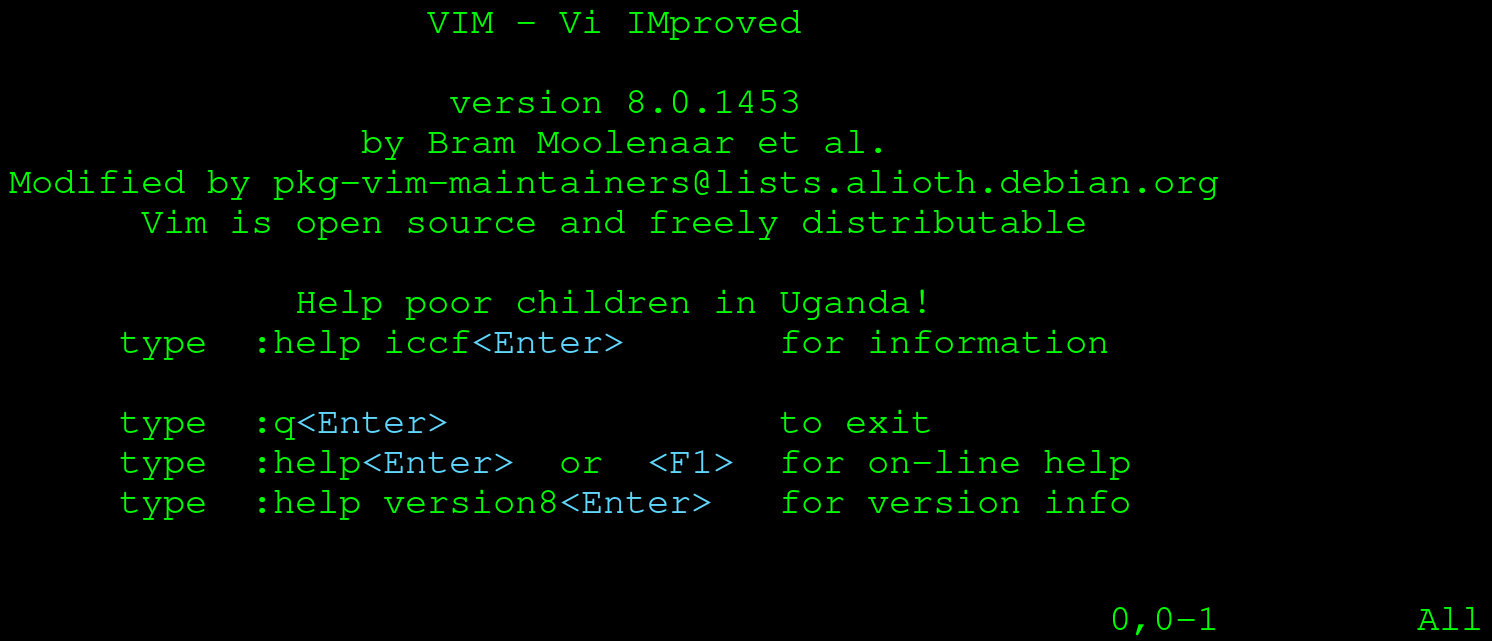
Vim starts a new process that uses your entire Terminal (don't worry, everything will still be right where you left it once you exit Vim!). When you start up Vim, you will be placed in normal mode. Vim has a number of modes, of which normal and insert are the most interesting to explore. In normal mode, you can't just start typing like you would in Notepad or Word. Since Vim was designed to be used without a mouse, it needed a way to manipulate text as well. Where some applications decided on using modifiers for this (holding the Shift key in Notepad for example), Vim decided on modes. Let's first enter insert mode so we can start to type some text. Press the I key, and your screen should switch to insert mode:
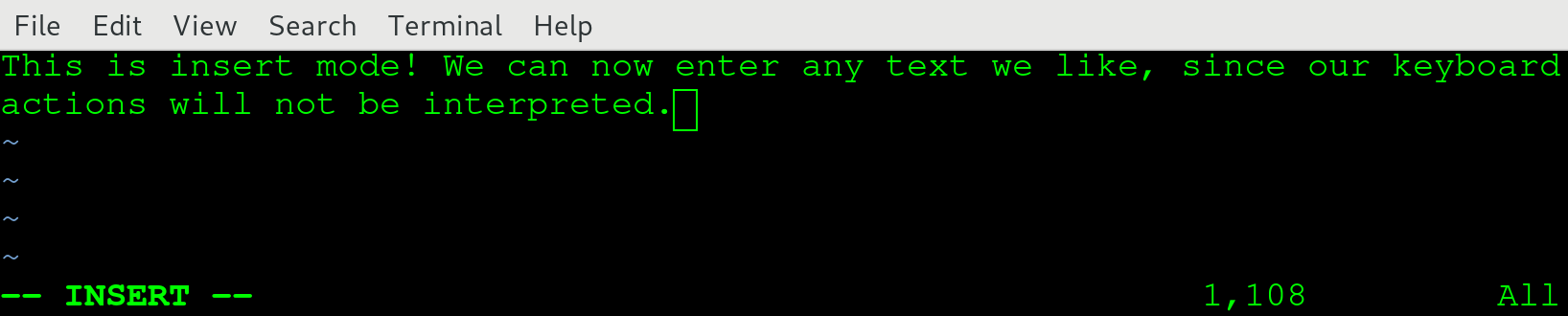
We've taken the liberty of typing some text while in insert mode. Be sure to do the same and when you're done, press Esc to go back to normal mode:

If you compare the two screenshots, you should a big difference: in the lower-left corner, the text -- INSERT -- is gone! When you're in a mode other than normal, that mode is clearly presented there. If you do not see anything, you can safely assume you're in normal mode. In normal mode, we can navigate using the arrow keys. We can also manipulate characters, words, and even (multiple) lines with a few key presses! For example, hit dd and notice that your whole line just got deleted. If you want to get it back, hit u for undo.
One challenge remains: exiting Vim. Normally, you might be tempted to use the Esc button to exit a program. If you're a little familiar with Linux, you might even know that a nice Ctrl + C will probably exit most programs as well. However, neither will work for Vim: Esc will just land you in normal mode, while Ctrl + C will not do anything. To quit Vim, make sure you are in normal mode and enter the following:
:q!
This exits your current document, without saving anything. If you want to save and exit, use the following:
:x filename.txt
This saves your current document as filename.txt and returns you to your Terminal. Note that normally you'll start Vim on an already existing file by using the following command:
$ vim filename.txt
In this case, you do not need to enter a filename when saving and exiting; using :x is enough in that case. :x is actually shorthand for :wq. :w is the write action, which you use to save a file, and :q is used to quit. Combined, they are used to save and quit. If you want to save your file at any other time during editing, you can just use :w to accomplish this.