Reactive Android Programming
Learn to build Android application using RxJava

BIRMINGHAM - MUMBAI
Copyright © 2017 Packt Publishing
All rights reserved. No part of this book may be reproduced, stored in a retrieval system, or transmitted in any form or by any means, without the prior written permission of the publisher, except in the case of brief quotations embedded in critical articles or reviews.
Every effort has been made in the preparation of this book to ensure the accuracy of the information presented. However, the information contained in this book is sold without warranty, either express or implied. Neither the author, nor Packt Publishing, and its dealers and distributors will be held liable for any damages caused or alleged to be caused directly or indirectly by this book.
Packt Publishing has endeavored to provide trademark information about all of the companies and products mentioned in this book by the appropriate use of capitals. However, Packt Publishing cannot guarantee the accuracy of this information.
First published: May 2017
Production reference: 1240517
ISBN 978-1-78728-990-1
|
Author Tadas Subonis |
Copy Editor Shaila Kusanale |
|
Reviewers Mantas Aleknavicius Javier Gamarra SeongUg Jung |
Project Coordinator Ritika Manoj |
|
Commissioning Editor Amarabha Banerjee |
Proofreader Safis Editing |
|
Acquisition Editor Siddharth Mandal |
Indexer Mariammal Chettiyar |
|
Content Development Editor Mohammed Yusuf Imaratwale |
Graphics Jason Monteiro |
|
Technical Editor Rashil Shah |
Production Coordinator Melwyn Dsa |
Tadas Subonis started coding roughly when he was thirteen. Since then, he has programmed with PHP, JavaScript, Python, C++, and Java (the language in which he has probably written the most code). He took up Android relatively recently--around 2014 (after a few false starts in 2012).
However, he soon learned that Android lacks decent support for asynchronous programming (Async Task was/is a joke) while more reckless languages, such as JavaScript, had Promises for a long time. Furthermore, Java's standard library was lacking decent support for functional programming primitives (map, filter), but that was easily fixable with libraries such as Guava.
This led Tadas to search for a library that would help him achieve a Promise-like functionality and interface. It didn't take long until he found ReactiveX and its family of implementations (including RxJava) that handle streams in Reactive fashion. It wasn't exactly the flow of Promise-like systems but, soon enough, he realized that it's something even more powerful.
Since then, he has been using RxJava (and RxKotlin) for his daily Android programming. The quality of the code (the lack of bugs, readability, and maintainability) has improved ten-fold. Giving a quick crash-free experience for the users of your application is a must these days when competition for user attention on app marketplaces is getting fiercer and fiercer.
Javier Gamarra is a developer who's always eager to learn and improve.
He currently works as an Android developer at Liferay, and he has worked with many development stacks: JS (Angular, Node…), Java EE, Scala, and Python. He loves challenges and learning about data visualization.
In his spare time, he organizes conferences and meetups in @cylicon_valley, a tech meetup in Castilla y Leon to help spread better technical practices in other companies, and he's a member of the board of @agilespain, the Spanish Agile national association.
He is available everywhere on the Internet under the @nhpatt handle.
SeongUg Jung has been developing Android applications for consumers and enterprises since 2010. He started his career working at Daou Tech, developing various applications such as messenger, calendar, e-mail, and Mobile Application Management services (including web). In December 2014, he became the lead Android Developer at Toss Lab, Inc., an enterprise communications startup focused on the Asian market.
He has contributed to Android libraries such as Robolectric-Gradle and Engine-io-java-client, and given lectures on development, especially Agile.
His specialities include Android TDD, good architectures, Agile, XP, Cl and so on. He enjoys helping others, so feel free to ask for help.
For support files and downloads related to your book, please visit www.PacktPub.com.
Did you know that Packt offers eBook versions of every book published, with PDF and ePub files available? You can upgrade to the eBook version at www.PacktPub.com and as a print book customer, you are entitled to a discount on the eBook copy. Get in touch with us at service@packtpub.com for more details.
At www.PacktPub.com, you can also read a collection of free technical articles, sign up for a range of free newsletters and receive exclusive discounts and offers on Packt books and eBooks.

Get the most in-demand software skills with Mapt. Mapt gives you full access to all Packt books and video courses, as well as industry-leading tools to help you plan your personal development and advance your career.
Thanks for purchasing this Packt book. At Packt, quality is at the heart of our editorial process. To help us improve, please leave us an honest review on this book's Amazon page at https://www.amazon.com/dp/1787289907.
If you'd like to join our team of regular reviewers, you can e-mail us at customerreviews@packtpub.com. We award our regular reviewers with free eBooks and videos in exchange for their valuable feedback. Help us be relentless in improving our products!
Writing code on Android is difficult. Writing a high-quality code that involves concurrent and parallel tasks is even harder. Ensuring that this code will run without unforeseen race conditions is on the order of magnitude, more difficult. This is especially relevant today, when almost every application (server or client) is interacting with many remote components, modules, or dependencies. Quite often (almost in all cases) when the remote operation is being executed, it must be done asynchronously so that the program doesn’t wait on I/O and can do something a bit more useful than only waiting for the response. With this book, I hope to introduce a novice developer to a wide variety of tools that RxJava provides so that the developers can produce robust and high-quality code for their asynchronous tasks by building a relatively simple application that will use advanced RxJava techniques to produce a high-quality product. First of all, in Chapter 1, Building your First "Hello World" RxJava Application, the book will lead a developer through an initial setup of RxJava in Android environment. Later, the reader will learn RxJava 2.0 step-by-step by starting off with stock data processing and display. Along with this, a developer will learn to choose appropriate Schedulers and use Retrofit library for remote requests. In Chapter 8, Writing Custom Observables, we will continue by adding an integration to Twitter to process its streaming data by combining it with stock data. For this, we will utilize advanced RxJava techniques, such as creating custom observables and flatMap.
Finally, we will learn to write custom RxJava Observables, and we will explore a few different ways of organizing the RxJava code to make it easier to understand and maintain. In the end, we will do a brief overview of marble diagrams so that the developers will have an easier time understanding RxJava documentation.
After the reader finishes reading this book, he will be well versed in various RxJava techniques to create robust, reusable, and easily understandable code to manage various kinds of I/O operations or just do a general processing in a reactive way that follows functional paradigm.
Chapter 1, Building your First "Hello World" RxJava Application, will briefly cover an initial setup of RxJava, and we will use it to produce a first "Hello World" message in a reactive fashion even though it will be super simplistic. To do this, we will set up RxJava dependencies and Retrolambda to make our application support lambdas from Java 8.
Chapter 2, Understanding the Basics of RxJava, will explain the core aspects of RxJava. We will learn what Observables, Subscribers, Flowables, and others are. These basic building blocks will be used extensively through the book.
Chapter 3, Learning to use Retrofit by Fetching Financial Data, says that very few modern applications can get away without relying on internet connectivity. In this chapter, we will learn how to use the most popular Retrofit library to do HTTP requests and some basics of data processing. All this will be done while retrieving remote financial stock quote data and displaying it in the UI.
Chapter 4, Integrating RxJava 1.0 with RxJava 2.0, explains that RxJava 2.0 was introduced quite recently, so lots of libraries are still available only for RxJava 1.0. Here, we will learn how to connect different versions of RxJava.
Chapter 5, Writing Data to SQLite and Schedulers, asserts that one of the most popular options for data persistence is SQLite database. With RxJava, you can use libraries, such as StorIO, to make the interactions reactive. Additionally, Schedulers will be covered so that developers can change where the actual computations are being run.
Chapter 6, Error Handling and SQLite Data Reading, cover one of the most important aspects while writing code--error handling. We will learn various ways of doing that in RxJava. Furthermore, we will learn how StorIO can be used to read financial stock data that was saved in SQLite before.
Chapter 7, Integrating RxJava with Activity Lifecycle, will teach a very important aspect of Android and RxJava--resource leaks. Here, we will learn how to prevent memory and thread leaks by delving deep into the Activity Lifecycle and exploring a few different ways how the life cycle methods can be connected to RxJava.
Chapter 8, Writing Custom Observables, explores the creation of custom observables. We will do this by creating a custom observable to consume an endless stream of Twitter updates. These updates will be incorporated into the existing financial quote data flow and displayed in the UI.
Chapter 9, Advanced Observable Flows Explained, says that there are many different operations available in RxJava. We will learn how the .zip() and .flatMap() operators work and how they can be used. Also, we will explore advanced operators, such as .groupBy() and .switchMap().
Chapter 10, Higher Level Abstractions, explains that as the code can get messy really easy, it is extremely useful to be well versed in refactoring, which helps to simplify code and abstract away unnecessary details. Here, we will learn how method extraction, static method factories, and other approaches can help us achieve that.
Chapter 11, Basics of Subjects and Preference Persistence, covers subjects as a handy tool that behave as data producer and consumer. We will learn how they work, and we will cover a few different types of Subjects. After this chapter, we will know how different Subject types can be used and what use cases are appropriate for them.
Chapter 12, Learning to Read Marble Diagrams, explores and explains several examples of marble diagrams. Marble diagrams and the knowledge of how to read them will prove to be of extreme use when one wants to read the official RxJava documentation, as almost all operations are explained in marble diagrams.
Before you start, it is expected that you have Android Studio setup and ready and Android SDK is installed as well. Other than that, there are no additional requirements.
Obviously, it will be very handy if you have real development smartphone devices available so that you wouldn’t need to rely on emulators.
This book is intended for developers who are familiar with Android (not necessarily experts) and who want to improve the quality of event handling, asynchronous tasks, and parallel processing code.
In this book, you will find a number of text styles that distinguish between different kinds of information. Here are some examples of these styles and an explanation of their meaning.
Code words in text, database table names, folder names, filenames, file extensions, pathnames, dummy URLs, user input, and Twitter handles are shown as follows: "However, in this particular case, I would recommend putting logging calls in .doOnNext() blocks."
A block of code is set as follows:
plugins {
    id "me.tatarka.retrolambda" version "3.4.0"
}

apply plugin: 'com.android.application'
New terms and important words are shown in bold. Words that you see on the screen, for example, in menus or dialog boxes, appear in the text like this: "This will create a very basic screen with a single text element that will say "Hello! Please use this app responsibly!"."
Feedback from our readers is always welcome. Let us know what you think about this book-what you liked or disliked. Reader feedback is important for us as it helps us develop titles that you will really get the most out of.
To send us general feedback, simply e-mail feedback@packtpub.com, and mention the book's title in the subject of your message.
If there is a topic that you have expertise in and you are interested in either writing or contributing to a book, see our author guide at www.packtpub.com/authors.
Now that you are the proud owner of a Packt book, we have a number of things to help you to get the most from your purchase.
You can download the example code files for this book from your account at http://www.packtpub.com. If you purchased this book elsewhere, you can visit http://www.packtpub.com/support and register to have the files e-mailed directly to you.
You can download the code files by following these steps:
Once the file is downloaded, please make sure that you unzip or extract the folder using the latest version of:
The code bundle for the book is also hosted on GitHub at https://github.com/PacktPublishing/-Reactive-Android-Programming. We also have other code bundles from our rich catalog of books and videos available at https://github.com/PacktPublishing/. Check them out!
Although we have taken every care to ensure the accuracy of our content, mistakes do happen. If you find a mistake in one of our books-maybe a mistake in the text or the code-we would be grateful if you could report this to us. By doing so, you can save other readers from frustration and help us improve subsequent versions of this book. If you find any errata, please report them by visiting http://www.packtpub.com/submit-errata, selecting your book, clicking on the Errata Submission Form link, and entering the details of your errata. Once your errata are verified, your submission will be accepted and the errata will be uploaded to our website or added to any list of existing errata under the Errata section of that title.
To view the previously submitted errata, go to https://www.packtpub.com/books/content/support and enter the name of the book in the search field. The required information will appear under the Errata section.
Piracy of copyrighted material on the Internet is an ongoing problem across all media. At Packt, we take the protection of our copyright and licenses very seriously. If you come across any illegal copies of our works in any form on the Internet, please provide us with the location address or website name immediately so that we can pursue a remedy.
Please contact us at copyright@packtpub.com with a link to the suspected pirated material.
We appreciate your help in protecting our authors and our ability to bring you valuable content.
If you have a problem with any aspect of this book, you can contact us at questions@packtpub.com, and we will do our best to address the problem.
Mastering Reactive Android programming with RxJava is no easy feat. At first, the way the code is structured and written may seem strange and alien. However, with some practice, we will quickly see that it is an easy and understandable way to write concurrent and parallel code.
One of the best ways to learn is by example. That's why we will build a simple application to learn RxJava. It will be a very straightforward financial stock quote monitoring app. We will tap into the streams of Yahoo Finance data to display the quotes while using the basics of RxJava.
In the later stages, we will plug in an endless stream of Twitter data and we will start using more advanced techniques to transform and handle data.
First of all, we will start with a simple Hello World application that will provide a solid foundation to the all the things that we will learn.
By the end of this chapter, we will learn and do the following things:
We will start our journey by creating a skeleton application to base all our further development upon. This initial code base will have RxJava dependencies and other libraries included, which we will use throughout this book.
Furthermore, it will have simple UI elements and some very basic examples of RxJava, on which we will continue building our code. This will be a super simple Android Hello World application with a twist of RxJava.
This app will also have elements, such us RecyclerView, which will be used in the later stages of the app but for now, they will be filled with mock data (but in a Reactive way!).
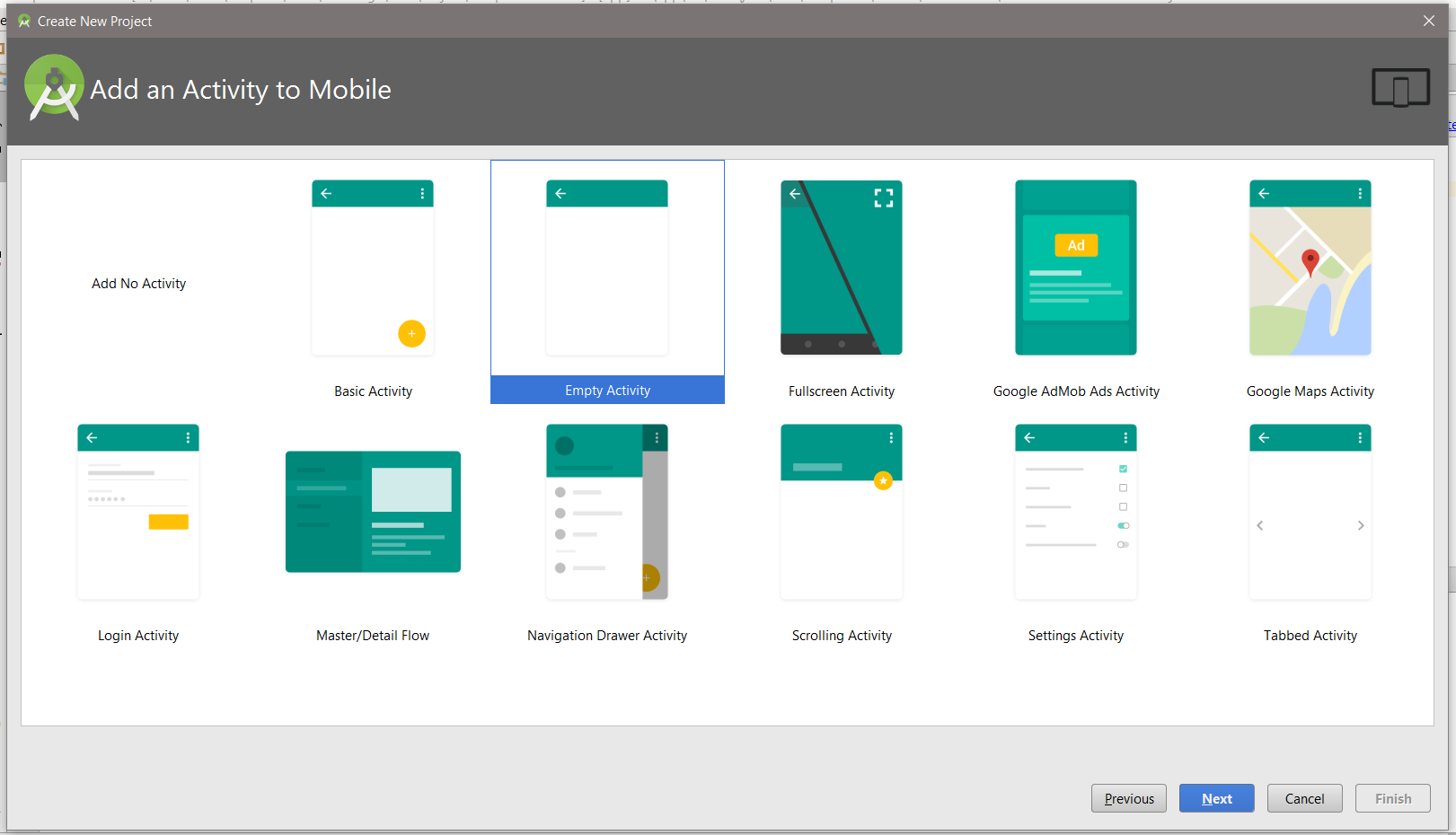
Finally, let's create our initial application using Android Studio. This can be done by starting up Android Studio (we will assume that you have a development environment set up and fully working) and using the initial Android Screen with an option of Start a new Android Studio project (or if you have a project already open, you can use a menu File->New->New Project) and select Empty Activity:
Before we can start the development, we need to prepare dependencies so that libraries, such as React, can be used. All the dependencies will be added in the app/build.gradle file.
Let's start by adding the RxJava 2.0 dependencies with a line:
compile 'io.reactivex.rxjava2:rxjava:2.0.3'
Also, we will want to use Android-specific schedulers, so let's add the following line:
compile 'io.reactivex.rxjava2:rxandroid:2.0.1'
To interact with UI elements, we will use two great libraries: RxBinding (which can be found at https://github.com/JakeWharton/RxBinding ) and Butterknife (which can be found at https://github.com/JakeWharton/butterknife ).
ButterKnife will let us easily import UI elements into Java code (no more pesky findViewById()!) and RxBinding will let us make all UI interactions RxJava friendly.
To include ButterKnife, let's add these lines:
compile 'com.jakewharton:butterknife:8.4.0'
annotationProcessor 'com.jakewharton:butterknife-compiler:8.4.0'
To include RxBinding, put in the following:
 compile 'com.jakewharton.rxbinding2:rxbinding:2.0.0'
 compile 'com.jakewharton.rxbinding2:rxbinding-recyclerview-v7:2.0.0'
Finally, we will be using the RecyclerView and CardView elements from Android Support Repository, so these will be needed as well:
compile 'com.android.support:cardview-v7:25.1.0'
compile 'com.android.support:recyclerview-v7:25.1.0'
In the future, we might need to mix different versions of RxJava, so this line (under android block) will help when both the libraries will be included at the same time:
packagingOptions {
    exclude 'META-INF/rxjava.properties'
}
In the end, the top of the build.gradle file will look like this:
plugins {
    id "me.tatarka.retrolambda" version "3.4.0"
}

apply plugin: 'com.android.application'
Also, the android block will be as follows:
android {
    compileSdkVersion 25
    buildToolsVersion "25.0.2"
    defaultConfig {
        applicationId "packt.reactivestocks"
        minSdkVersion 15
        targetSdkVersion 25
        versionCode 1
        versionName "1.0"
        testInstrumentationRunner
          "android.support.test.runner.AndroidJUnitRunner"
    }

    packagingOptions {
        exclude 'META-INF/rxjava.properties'
    }

    buildTypes {
        release {
            minifyEnabled false
            proguardFiles getDefaultProguardFile('proguard-
              android.txt'), 'proguard-rules.pro'
        }
    }
    compileOptions {
        targetCompatibility 1.8
        sourceCompatibility 1.8
    }
}
The dependency block will be set to the following:
dependencies {
    compile 'com.android.support:appcompat-v7:25.1.0'

    compile group: 'io.reactivex.rxjava2', name: 'rxjava', version:
      '2.0.3'
    compile group: 'io.reactivex.rxjava2', name: 'rxandroid', version:
      '2.0.1'

    compile 'com.jakewharton:butterknife:8.4.0'
    annotationProcessor 'com.jakewharton:butterknife-compiler:8.4.0'

    compile 'com.jakewharton.rxbinding2:rxbinding:2.0.0'
    compile 'com.jakewharton.rxbinding2:rxbinding-recyclerview-
      v7:2.0.0'

    compile 'com.android.support:cardview-v7:25.1.0'
    compile 'com.android.support:recyclerview-v7:25.1.0'

    compile "com.github.akarnokd:rxjava2-interop:0.8.1"
}
Let's update MainActivity to look like this:
@BindView(R.id.hello_world_salute)
TextView helloText;

@Override
protected void onCreate(Bundle savedInstanceState) {
super.onCreate(savedInstanceState);
    setContentView(R.layout.activity_main);

    ButterKnife.bind(this);

    Observable.just("Hello! Please use this app responsibly!")
        .subscribe(new Consumer<String>() {
            @Override
            public void accept(String s) {
                helloText.setText(s);
            }
        });
}
The import block for the preceding code is as shown:
import butterknife.BindView;
import butterknife.ButterKnife;
import io.reactivex.Observable;
import io.reactivex.functions.Consumer;
The contents of activity_main.xml at the moment are set to the following:
<?xml version="1.0" encoding="utf-8"?>
<RelativeLayout xmlns:android="http://schemas.android.com/apk/res/android"
    xmlns:tools="http://schemas.android.com/tools"
    android:id="@+id/activity_main"
    android:layout_width="match_parent"
    android:layout_height="match_parent"
    android:padding="6dp"
    tools:context="packt.reactivestocks.MainActivity">

    <TextView
        android:id="@+id/hello_world_salute"
        android:layout_width="wrap_content"
        android:layout_height="wrap_content"
        android:text="" />
</RelativeLayout>
This will create a very basic screen with a single text element that will say "Hello! Please use this app responsibly!".
Since the application will be displaying changes of financial stocks over time, it means that we will be working with data that's represented best as a list. For this, we will use RecyclerView.
First of all, add it to your activity_main.xml file:
<android.support.v7.widget.RecyclerView
    android:id="@+id/stock_updates_recycler_view"
    android:layout_width="match_parent"
    android:layout_height="match_parent"
    android:layout_below="@id/hello_world_salute" />
Then, inject it into your code with the following:
@BindView(R.id.stock_updates_recycler_view)
RecyclerView recyclerView;
The next step is to initialize it in your activity:
private LinearLayoutManager layoutManager;
private StockDataAdapter stockDataAdapter;

...
recyclerView.setHasFixedSize(true);

layoutManager = new LinearLayoutManager(this);
recyclerView.setLayoutManager(layoutManager);

stockDataAdapter = new StockDataAdapter();
recyclerView.setAdapter(stockDataAdapter);
The code for the StockDataAdapter is as illustrated:
public class StockDataAdapter extends RecyclerView.Adapter<StockUpdateViewHolder> {
private final List<String> data = new ArrayList<>();

@Override
    public StockUpdateViewHolder onCreateViewHolder(ViewGroup parent,
      int viewType) {
        View v = LayoutInflater.from(parent.getContext())
          .inflate(R.layout.stock_update_item, parent, false);
        StockUpdateViewHolder vh = new StockUpdateViewHolder(v);
        return vh;
    }

    @Override
    public void onBindViewHolder(StockUpdateViewHolder holder, int
      position) {
        holder.stockSymbol.setText(data.get(position));
    }

    @Override
    public int getItemCount() {
        return data.size();
    }

    public void add(String stockSymbol) {
        this.data.add(stockSymbol);
        notifyItemInserted(data.size() - 1);
    }
}
Finally, we need the layout XML for the RecyclerView items and a ViewHolder for them:
<?xml version="1.0" encoding="utf-8"?>
<android.support.v7.widget.CardView xmlns:android="http://schemas.android.com/apk/res/android"
    android:layout_width="match_parent"
    android:layout_height="wrap_content"
    android:layout_margin="3dp">

    <TextView
        android:id="@+id/stock_item_symbol"
        android:layout_width="wrap_content"
        android:layout_height="match_parent"
        android:layout_margin="20dp" />
</android.support.v7.widget.CardView>
To fill in the data for this view, we will have to utilize ViewHolders from the RecyclerView class:
public class StockUpdateViewHolder extends RecyclerView.ViewHolder {
@BindView(R.id.stock_item_symbol)
    TextView stockSymbol;

public StockUpdateViewHolder(View v) {
        super(v);
        ButterKnife.bind(this, v);
    }
}
The very last step is to populate it with the data. We will do that in a Reactive way:
Observable.just("APPL", "GOOGLE", "TWTR")
        .subscribe(new Consumer<String>() {
            @Override
            public void accept(String stockSymbol) {
                stockDataAdapter.add(stockSymbol);
            }
        });
This is rather simple code and I hope that most of the developers had no trouble following this. In case there were some not-so-clear bits, feel free to check out the code that's provided with this book. The examples there are fully working.
One will notice pretty quickly that it is quite unwieldy to work just with string data as the app will process stock updates. For the purpose of a proper way to track stock updates, we will create a Value object that will keep that information. It will contain the following fields for now:
The list might be a bit too naive for professional use, but it will serve as a starting point for upcoming work. The final class can look like this:
public class StockUpdate implements Serializable {
    private final String stockSymbol;
    private final BigDecimal price;
    private final Date date;

public StockUpdate(String stockSymbol, double price, Date date) {
        this.stockSymbol = stockSymbol;
        this.price = new BigDecimal(price);
        this.date = date;
    }

public String getStockSymbol() {
        return stockSymbol;
    }

public BigDecimal getPrice() {
        return price;
    }

public Date getDate() {
        return date;
    }
}
Obviously, we then need to update other parts of the code to make use of this refactoring:
@Override
public void onBindViewHolder(StockUpdateViewHolder holder, int position) {
    StockUpdate stockUpdate = data.get(position);
    holder.setStockSymbol(stockUpdate.getStockSymbol());
    holder.setPrice(stockUpdate.getPrice());
    holder.setDate(stockUpdate.getDate());
}
Also, StockUpdateViewHolder now has additional methods and view fields:
@BindView(R.id.stock_item_date)
TextView date;
@BindView(R.id.stock_item_price)
TextView price;

private static final NumberFormat PRICE_FORMAT = new DecimalFormat("#0.00");

public void setStockSymbol(String stockSymbol) {
    this.stockSymbol.setText(stockSymbol);
}

public void setPrice(BigDecimal price) {
    this.price.setText(PRICE_FORMAT.format(price.floatValue()));
}

public void setDate(Date date) {
    this.date.setText(DateFormat.format("yyyy-MM-dd hh:mm", date));
}
Also, our file stock_update_item.xml will change slightly to nicely display all this new data. The stock_item_symbol is now as shown:
<TextView
    android:id="@+id/stock_item_symbol"
    android:layout_width="wrap_content"
    android:layout_height="match_parent"
    android:text="GOOGLE"
    android:textSize="18sp" />
At the same time, stock_item_price and stock_item_date are handled by the following:
<TextView
    android:id="@+id/stock_item_price"
    android:layout_width="wrap_content"
    android:layout_height="match_parent"
    android:layout_alignParentRight="true"
    android:layout_centerVertical="true"
    android:text="18.90"
    android:textColor="@android:color/holo_green_dark"
    android:textSize="22sp" />

<TextView
    android:id="@+id/stock_item_date"
    android:layout_width="wrap_content"
    android:layout_height="match_parent"
    android:layout_below="@id/stock_item_symbol"
    android:layout_marginTop="5dp"
    android:text="2012-12-01"
    android:textSize="12sp" />
Also, all the preceding elements will be wrapped inside the RelativeLayout that will be in the CardView:
<?xml version="1.0" encoding="utf-8"?>
<android.support.v7.widget.CardView xmlns:android="http://schemas.android.com/apk/res/android"
    android:layout_width="match_parent"
    android:layout_height="wrap_content"
    android:layout_margin="3dp">

    <RelativeLayout
        android:layout_width="match_parent"
        android:layout_height="wrap_content"
        android:padding="20dp">
         [...]
    </RelativeLayout>
</android.support.v7.widget.CardView>
Finally, our Observable--the piece that creates the data--will look like this:
Observable.just(
        new StockUpdate("GOOGLE", 12.43, new Date()),
        new StockUpdate("APPL", 645.1, new Date()),
        new StockUpdate("TWTR", 1.43, new Date())
)
A curious developer might have heard about new Java 8 features, such as lambdas and method references. However, they are not available by default on the Android platform.
At the moment, there are three ways to add some of the Java 8 features on the platform. One of them is the new Jack compiler, but it is now deprecated. The other option is to rely on the new Java 8 features that will be released sometime soon in the default toolchain (at the time of writing, Java 8 support was in the preview).
The option we will be using is Retrolambda (https://github.com/orfjackal/retrolambda). We will enable it by using a plugin for Android (https://github.com/evant/gradle-retrolambda).
It can be done by simply adding the following at the very top of the application's app/build.gradle file:
plugins {
    id "me.tatarka.retrolambda" version "3.4.0"
}

apply plugin: 'com.android.application'
Also, let's not forget to tell the IDE that we will be using Java 8 by adding the following block:
android {
    ...
    compileOptions {
        targetCompatibility 1.8
        sourceCompatibility 1.8
    }
}
Finally, if proguard is being used, adding a line---dontwarn java.lang.invoke.*--to your proguard file might come in handy.
You might think that setting all Retrolambda can be just too much trouble for very little gain. Nothing could be further from the truth and it will be obvious after we take a look at a few examples of code.
Compare the following two samples of code. The first sample is as follows:
Observable.just("1")
        .subscribe(new Consumer<String>() {
            @Override
            public void accept(String e) {
                Log.d("APP", "Hello " + e);
            }
        });
Here's the next sample:
Observable.just("1")
        .subscribe(e -> Log.d("APP", "Hello " + e));
The latter is much more concise, but might fail to show the scale of the problem of the former approach. This example might be much better at doing so:
Observable.just("1")
        .map(new Function<String, String>() {
            @Override
            public String apply(String s) {
                return s + "mapped";
            }
        })
        .flatMap(new Function<String, Observable<String>>() {
            @Override
            public Observable<String> apply(String s) {
                return Observable.just("flat-" + s);
            }
        })
        .doOnNext(new Consumer<String>() {
            @Override
            public void accept(String s) {
                Log.d("APP", "on next " + s);
            }
        })
        .subscribe(new Consumer<String>() {
            @Override
            public void accept(String e) {
                Log.d("APP", "Hello " + e);
            }
        }, new Consumer<Throwable>() {
            @Override
            public void accept(Throwable throwable) {
                Log.d("APP", "Error!");
            }
        });
Now, take a look at this:
Observable.just("1")
        .map(s -> s + "mapped")
        .flatMap(s -> Observable.just("flat-" + s))
        .doOnNext(s -> Log.d("APP", "on next " + s))
        .subscribe(e -> Log.d("APP", "Hello " + e),
                throwable -> Log.d("APP", "Error!"));
That's 24 lines saved!
The observable flows can get pretty complicated and long, so these lines add up pretty quickly.
If you are stuck with an old version of Java, there are other means to make these flows clear; we will cover more about this in the later chapters.
Since we have just enabled Retrolambda, let's replace the existing code in MainActivity to make use of it:
Observable.just("Please use this app responsibly!")
        .subscribe(s -> helloText.setText(s));

Observable.just(
        new StockUpdate("GOOGLE", 12.43, new Date()),
        new StockUpdate("APPL", 645.1, new Date()),
        new StockUpdate("TWTR", 1.43, new Date())
)
        .subscribe(stockDataAdapter::add);
Note that we could have used the helloText::setText method reference in the first .subscribe() call as well, but it was left as it is just to serve as an example.
In the case where multiple lines are required, the subscribe part can look like this:
.subscribe(stockUpdate -> {
    Log.d("APP", "New update " + stockUpdate.getStockSymbol());
    stockDataAdapter.add(stockUpdate);
});
However, in this particular case, I would recommend putting logging calls in .doOnNext() blocks.
Finally, the resulting app should look like this screenshot:
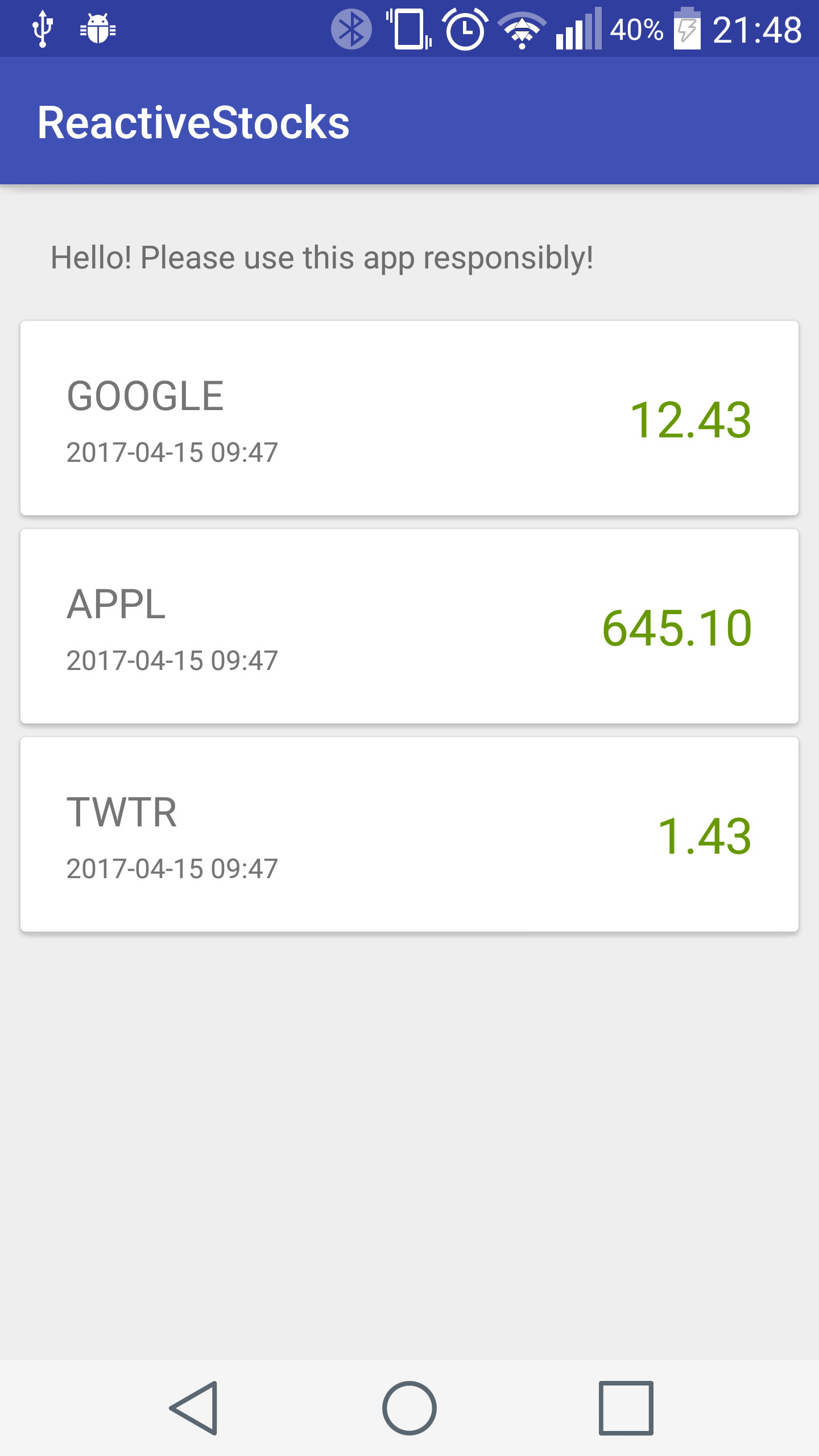
If it looks different, feel free to check out the code that's provided with the book.
At this point, we have a solid framework on which we can build our further financial stock monitoring application. The means to display data are here along with some basic tools and libraries that will become useful as we develop the application.
In particular, we integrated the RxJava library into our code and tested that it works with a very simple Hello World example. Also, we've plugged in additional libraries, such as Butterknife, that will help us work with views with less effort.
Finally, the use of Retrolambda was enabled, which will let us write a much more concise and readable code in future.
However, it's not clear what exactly an Observable is. This is exactly what the next chapter will tackle!
In the last chapter, we briefly used things called Observables, but we didn't cover that in depth. That will be the goal of this chapter--we will go through the core basics of RxJava so that we can fully understand what it is, what are the core elements, and how they work.
Before that, let's take a step back and briefly discuss how RxJava is different from other approaches. RxJava is about reacting to results. It might be an item that originated from some source. It can also be an error. RxJava provides a framework to handle these items in a reactive way and to create complicated manipulation and handling schemes in a very easy-to-use interface. Things such as waiting for an arrival of an item before transforming it become very easy with RxJava.
To achieve all this, RxJava provides some basic primitives:
First of all, we will cover Observables--the source of all the data and the core structure/class that we will be working with. We will explore how are they related to Disposables (Subscriptions).
Furthermore, the life cycle and hook points of an Observable will be described, so we will actually know what's happening when an item travels through an Observable and what are the different stages that we can tap into.
Finally, we will briefly introduce Flowable--a big brother of Observable that lets you handle big amounts of data with high rates of publishing.
To summarize, we will cover these aspects:
Let's dive into it!
Everything starts with an Observable. It's a source of data that you can observe for emitted data (hence the name). In almost all cases (at least in this book), you will be working with the Observable class. It is possible to (and we will!) combine different Observables into one Observable. Basically, it is a universal interface to tap into data streams in a reactive way.
There are lots of different ways of how one can create Observables. The simplest way is to use the .just() method like we did before:
Observable.just("First item", "Second item");
It is usually a perfect way to glue non-Rx-like parts of the code to Rx compatible flow.
When an Observable is created, it is not usually defined when it will start emitting data. If it was created using simple tools such as .just(), it won't start emitting data until there is a subscription to the observable. How do you create a subscription? It's done by calling .subscribe() :
Observable.just("First item", "Second item")
        .subscribe();
Usually (but not always), the observable be activated the moment somebody subscribes to it. So, if a new Observable was just created, it won't magically start sending data somewhere.
Quite often, in the literature and documentation terms, Hot and Cold Observables can be found.
Cold Observables are the most common Observable type. For example, one can be created with the following code:
Observable.just("First item", "Second item")
        .subscribe();
Cold Observable means that the items won't be emitted by the Observable until there is a Subscriber. This means that before the .subscribe() element is called, no items will be produced and thus none of the items that are intended to be omitted will be missed; everything will be processed.
A Hot Observable is an Observable that will begin producing (emitting) items internally as soon as it is created. For example, in the later chapters we will see that Twitter can be a Hot Observable--the status updates there are produced constantly and it doesn't matter if there is something that is ready to receive them (such as Subscription). If there were no subscriptions to the Observable, it means that the updates will be lost.
A disposable (previously called Subscription in RxJava 1.0) is a tool that can be used to control the life cycle of an Observable. If the stream of data that the Observable is producing is boundless, it means that it will stay active forever. It might not be a problem for a server-side application, but it can cause some serious trouble on Android. Usually, this is the common source of memory leaks. This will be discussed in-depth in the upcoming chapters.
Obtaining a reference to a disposable is pretty simple:
Disposable disposable = Observable.just("First item", "Second item")
        .subscribe();
A disposable is a very simple interface. It has only two methods: dispose() and isDisposed() .
The dispose() element can be used to cancel the existing Disposable (Subscription). This will stop the call of .subscribe()to receive any further items from Observable, and the Observable itself will be cleaned up.
The isDisposed() method has a pretty straightforward function--it checks whether the subscription is still active. However, it is not used very often in regular code as the subscriptions are usually unsubscribed and forgotten.
The disposed subscriptions (Disposables) cannot be re-enabled. They can only be created anew.
Finally, Disposables can be grouped using CompositeDisposable like this:
Disposable disposable = new CompositeDisposable(
        Observable.just("First item", "Second item").subscribe(),
        Observable.just("1", "2").subscribe(),
        Observable.just("One", "Two").subscribe()
);
It's useful in the cases when there are many Observables that should be canceled at the same time, for example, an Activity being destroyed.
As described in the documentation, a scheduler is something that can schedule a unit of work to be executed now or later. In practice, it means that Schedulers control where the code will actually be executed and usually that means selecting some kind of specific thread.
Most often, Subscribers are used to executing long-running tasks on some background thread so that it wouldn't block the main computation or UI thread. This is especially relevant on Android when all long-running tasks must not be executed on MainThread.
Schedulers can be set with a simple .subscribeOn() call:
Observable.just("First item", "Second item")
        .subscribeOn(Schedulers.io())
        .subscribe();
There are only a few main Schedulers that are commonly used:
The AndroidSchedulers.mainThread() is only used on Android systems.
Let's explore how Schedulers work by checking out a few examples.
Let's run the following code:
Observable.just("First item", "Second item")
        .doOnNext(e -> Log.d("APP", "on-next:" +
        Thread.currentThread().getName() + ":" + e))
        .subscribe(e -> Log.d("APP", "subscribe:" +
        Thread.currentThread().getName() + ":" + e));
The output will be as follows:
on-next:main:First item
subscribe:main:First item
on-next:main:Second item
subscribe:main:Second item
Now let's try changing the code as shown:
Observable.just("First item", "Second item")
        .subscribeOn(Schedulers.io())
        .doOnNext(e -> Log.d("APP", "on-next:" +
        Thread.currentThread().getName() + ":" + e))
        .subscribe(e -> Log.d("APP", "subscribe:" +
        Thread.currentThread().getName() + ":" + e));
Now, the output should look like this:
on-next:RxCachedThreadScheduler-1:First item
subscribe:RxCachedThreadScheduler-1:First item
on-next:RxCachedThreadScheduler-1:Second item
subscribe:RxCachedThreadScheduler-1:Second item
We can see how the code was executed on the main thread in the first case and on a new thread in the next.
Android requires that all UI modifications should be done on the main thread. So, how can we execute a long-running process in the background but process the result on the main thread? That can be done with .observeOn() method:
Observable.just("First item", "Second item")
        .subscribeOn(Schedulers.io())
        .doOnNext(e -> Log.d("APP", "on-next:" +
        Thread.currentThread().getName() + ":" + e))
        .observeOn(AndroidSchedulers.mainThread())
        .subscribe(e -> Log.d("APP", "subscribe:" +
        Thread.currentThread().getName() + ":" + e));
The output will be as illustrated:
on-next:RxCachedThreadScheduler-1:First item
on-next:RxCachedThreadScheduler-1:Second item
subscribe:main:First item
subscribe:main:Second item
You will note that the items in the doOnNext block were executed on the RxThread, and the subscribe block items were executed on the main thread.
We will cover Schedulers more and with examples in the later chapters when we will start working with databases.
The logging inside the steps of an Observable is a very powerful tool when one wants to understand how they work. If you are in doubt at any point as to what's happening, add logging and experiment. A few quick iterations with logs will definitely help you understand what's going on under the hood.
Let's use this technique to analyze a full flow of an Observable. We will start off with this script:
private void log(String stage, String item) {
    Log.d("APP", stage + ":" + Thread.currentThread().getName() + ":" +
    item);
}

private void log(String stage) {
    Log.d("APP", stage + ":" + Thread.currentThread().getName());
}
Observable.just("One", "Two")
 .subscribeOn(Schedulers.io())
 .doOnDispose(() -> log("doOnDispose"))
 .doOnComplete(() -> log("doOnComplete"))
 .doOnNext(e -> log("doOnNext", e))
 .doOnEach(e -> log("doOnEach"))
 .doOnSubscribe((e) -> log("doOnSubscribe"))
 .doOnTerminate(() -> log("doOnTerminate"))
 .doFinally(() -> log("doFinally"))
 .observeOn(AndroidSchedulers.mainThread())
 .subscribe(e -> log("subscribe", e));
It can be seen that it has lots of additional and unfamiliar steps (more about this later). They represent different stages during the processing of an Observable. So, what's the output of the preceding script?:
doOnSubscribe:main
doOnNext:RxCachedThreadScheduler-1:One
doOnEach:RxCachedThreadScheduler-1
doOnNext:RxCachedThreadScheduler-1:Two
doOnEach:RxCachedThreadScheduler-1
doOnComplete:RxCachedThreadScheduler-1
doOnEach:RxCachedThreadScheduler-1
doOnTerminate:RxCachedThreadScheduler-1
doFinally:RxCachedThreadScheduler-1
subscribe:main:One
subscribe:main:Two
doOnDispose:main
Let's go through some of the steps. First of all, by calling .subscribe() the doOnSubscribe block was executed. This started the emission of items from the Observable as we can see on the doOnNext and doOnEach lines. Finally, as the stream finished, termination life cycle was activated and methods doOnComplete, doOnTerminate and doOnFinally were called.
Also, the reader will note that the doOnDispose block was called on the main thread along with the subscribe block.
The flow will be a little different if .subscribeOn() and .observeOn() calls won't be there:
doOnSubscribe:main
doOnNext:main:One
doOnEach:main
subscribe:main:One
doOnNext:main:Two
doOnEach:main
subscribe:main:Two
doOnComplete:main
doOnEach:main
doOnTerminate:main
doOnDispose:main
doFinally:main
You will readily note that now, the doFinally block was executed after doOnDispose while in the former setup, doOnDispose was the last. This happens due to the way Android Looper Schedulers code blocks for execution and the fact that we used two different threads in the first case.
The takeaway here is that whenever you are unsure of what is going on, you can start logging actions (and the thread they are running on) to see what's actually happening.
Flowable can be regarded as a special type of Observable (but internally it isn't). It has almost the same method signature such as the Observable as well.
The difference is that Flowable allows you to process items that emitted faster from the source than some of the following steps can handle. It might sound confusing, so let's analyze an example.
Assume that you have a source that can emit a million items per second. However, the next step uses those items to do a network request. We know, for sure, that we cannot do more than 50 requests per second:
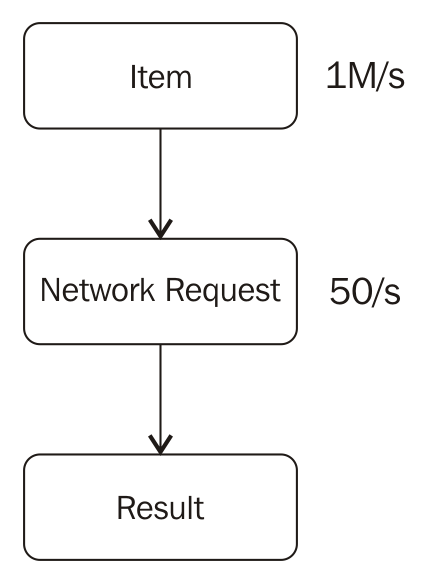
That poses a problem. What will we do after 60 seconds? There will be 60 million items in the queue waiting to be processed. The items are accumulating at a rate of 1 million items per second between the first and the second steps because the second step processes them at a much slower rate.
Clearly, the problem here is that the available memory will be exhausted and the programming will fail with an OutOfMemory (OOM) exception.
For example, this script will cause an excessive memory usage because the processing step just won't be able to keep up with the pace the items are emitted at:
PublishSubject<Integer> observable = PublishSubject.create();

observable
        .observeOn(Schedulers.computation())
        .subscribe(v -> log("s", v.toString()), this::log);

for (int i = 0; i < 1000000; i++) {
    observable.onNext(i);
}
private void log(Throwable throwable) {
    Log.e("APP", "Error", throwable);
}
By converting this to a Flowable, we can start controlling this behavior:
observable.toFlowable(BackpressureStrategy.MISSING)
        .observeOn(Schedulers.computation())
        .subscribe(v -> log("s", v.toString()), this::log);
Since we have chosen not to specify how we want to handle items that cannot be processed (it's called Backpressuring), it will throw a MissingBackpressureException. However, if the number of items was 100 instead of a million, it would have been just fine as it wouldn't hit the internal buffer of Flowable. By default, the size of the Flowable queue (buffer) is 128.
There are a few Backpressure strategies that will define how the excessive amount of items should be handled.
Dropping means that if the downstream processing steps cannot keep up with the pace of the source Observable, they will just drop the data that cannot be handled. This can only be used in cases when losing data is okay, and you care more about the values that were emitted in the beginning.
There are a few ways in which items can be dropped.
The first one is just to specify Backpressure strategy, like this:
observable.toFlowable(BackpressureStrategy.DROP)
Alternatively, it will be like this:
observable.toFlowable(BackpressureStrategy.MISSING)
        .onBackpressureDrop()
A similar way to do that would be to call .sample(). It will emit items only periodically, and it will take only the last value that's available (while BackpressureStrategy.DROP drops it instantly unless it is free to push it down the stream). All the other values between ticks will be dropped:
observable.toFlowable(BackpressureStrategy.MISSING)
        .sample(10, TimeUnit.MILLISECONDS)
        .observeOn(Schedulers.computation())
        .subscribe(v -> log("s", v.toString()), this::log);
Preserving the last items means that if the downstream cannot cope with the items that are being sent to them, the app will stop emitting values and wait until they become available. While waiting, it will keep dropping all the values except the last one that arrived and when the downstream becomes available, send the last message that's currently stored.
Like with Dropping, the Latest strategy can be specified while creating an Observable:
observable.toFlowable(BackpressureStrategy.LATEST)
Alternatively, by calling .onBackpressure():
observable.toFlowable(BackpressureStrategy.MISSING)
        .onBackpressureLatest()
Finally, a method, .debounce(), can periodically take the last value at specific intervals:
observable.toFlowable(BackpressureStrategy.MISSING)
        .debounce(10, TimeUnit.MILLISECONDS)
Buffering is usually a poor way to handle different paces of items being emitted and consumed as it often just delays the problem.
However, it can work just fine if there is just a temporal slowdown in one of the consumers. In this case, the items emitted will be stored until later processing and when the slowdown is over, the consumers will catch up. If the consumers cannot catch up, at some point the buffer will run out and we can see a very similar behavior to the original Observable with memory running out.
Enabling buffers is, again, pretty straightforward by calling the following:
observable.toFlowable(BackpressureStrategy.BUFFER)
Alternatively, you can call this:
observable.toFlowable(BackpressureStrategy.MISSING)
        .onBackpressureBuffer()
If there is a need to specify a particular value for the buffer, one can use .buffer():
observable.toFlowable(BackpressureStrategy.MISSING)
        .buffer(10)
Besides the types of Observable and Flowable, there are three more types that RxJava provides:
However, all these are used quite rarely. Let's take a quick look at the examples.
Since Completable can basically process just two types of actions--onComplete and onError--we will cover it very briefly.
Completable has many static factory methods available to create it but, most often, it will just be found as a return value in some other libraries. For example, the Completable can be created by calling the following:
Completable completable = Completable.fromAction(() -> {
    log("Let's do something");
});
Then, it is to be subscribed with the following:
completable.subscribe(() -> {
    log("Finished");
}, throwable -> {
log(throwable);
});
Single provides a way to represent an Observable that will return just a single item (thus the name). You might ask, why it is worth having it at all? These types are useful to tell the developers about the specific behavior that they should expect.
To create a Single, one can use this example:
Single.just("One item")
The Single and the Subscription to it can be created with the following:
Single.just("One item")
        .subscribe((item) -> {
            log(item);
        }, (throwable) -> {
            log(throwable);
        });
Note that this differs from Completable in that the first argument to the .subscribe() action now expects to receive an item as a result.
Finally, the Maybe type is very similar to the Single type, but the item might not be returned to the subscriber in the end.
The Maybe type can be created in a very similar fashion as before:
Maybe.empty();
Alternatively, it can be created as follows:
Maybe.just("Item");
However, the .subscribe() can be called with arguments dedicated to handling onSuccess (for received items), onError (to handle errors), and onComplete (to do a final action after the item is handled):
Maybe.just("Item")
        .subscribe(
                s -> log("success: " + s),
                throwable -> log("error"),
                () -> log("onComplete")
        );
Congratulations! You are now prepared to dive into the RxJava world.
In this chapter, we covered the most essentials parts of RxJava. Later in this book, we will keep introducing more advanced concepts and techniques, but they will all rely on Observables (Flowables), Disposables, and Schedulers.
Maybe not all this stuff makes sense yet (the big picture) but with more examples and use cases that will follow, their differences will become much more clear and distinct.
Very rarely, a modern mobile application can be created without communicating with external resources over the network. The Reactive Stocks application is no exception as it is not possible to get financial stock information without an external data source.
There are lots of libraries to handle network requests on Android (and especially HTTP) but in the author's subjective opinion, the best one yet is Retrofit.
Retrofit allows a developer to make any kind of HTTP request very easily. Also, it is readily pluggable into the RxJava framework.
This chapter will focus on such integration. We will use Retrofit to query remote financial stock data on Yahoo Finance and we will display that information in our app.
In short, the following topics will be covered in this chapter:
First of all, we will add these dependencies in the build.gradle file to set up Retrofit:
compile 'com.squareup.retrofit2:retrofit:2.1.0'
compile 'com.squareup.retrofit2:converter-gson:2.1.0'
compile 'com.jakewharton.retrofit:retrofit2-rxjava2-adapter:1.0.0'
compile 'com.squareup.okhttp3:logging-interceptor:3.5.0'
Consider the following line:
compile 'com.squareup.retrofit2:retrofit:2.1.0'
It adds the core Retrofit libraries to the project. Now, consider this:
compile 'com.squareup.retrofit2:converter-gson:2.1.0'
It makes the GsonConverterFactory class available, which is used internally by Retrofit to parse JSON responses.
Consider the record of the following:
compile 'com.jakewharton.retrofit:retrofit2-rxjava2-adapter:1.0.0'
It lets us read HTTP responses using RxJava library and its Observables. We will enable this behavior using the RxJava2CallAdapterFactory class. The following line is used to configure the dependencies for the logging that will be used in Retrofit:
compile 'com.squareup.okhttp3:logging-interceptor:3.5.0'
The first line is the Retrofit library itself, the second line will let us convert JSON responses to our internal datatypes using Gson, and the third line will expose a Retrofit interface in RxJava compatible way. The last line will allow the use of logging that's very useful while developing the app.
Finally, if you are using ProGuard, these lines might be needed:
-dontnote retrofit2.Platform
-dontnote retrofit2.Platform$IOS$MainThreadExecutor
-dontwarn retrofit2.Platform$Java8
-keepattributes Signature
-keepattributes Exceptions
Now we are ready to start making HTTP requests with Retrofit.
Before we can start making requests, we need to build a Retrofit object that will be used to create services. For this purpose, we will create a class, called RetrofitYahooServiceFactory, to create a Retrofit object and then service interface objects that will be used to make queries.
The following examples assume that in the end, we want to query this URL:
At first look, it may seem a bit too convoluted, but by taking everything apart we will show how Retrofit can help us to make HTTP requests in this case.
Service (endpoint) interfaces are the core things when working with Retrofit library. Basically, they let you define the structure and parameters of HTTP requests by putting metadata on a simple Java Class interface.
Let's take a look at this example that we will use to query financial stocks:
import io.reactivex.Single;
import retrofit2.http.GET;
import retrofit2.http.Query;

public interface YahooService {

@GET("yql?format=json")
    Single<YahooStockResult> yqlQuery(
            @Query("q") String query,
            @Query("env") String env
    );
}
Just by taking a quick look at this HTTP interface definition, we can already tell a few things:
If we want to make the same request as mentioned, we would need to set q (query) to the following:
String query = "select * from yahoo.finance.quote where symbol in ('YHOO','AAPL','GOOG','MSFT')";
Also, env is to be set to the following:
String env = "store://datatables.org/alltableswithkeys";
All the encoding that's required for special symbols such as / and others will be handled by Retrofit during the execution.
Let's start by creating a class--RetrofitYahooServiceFactory:
public class RetrofitYahooServiceFactory {
}
Before we can make our first request, we will need to prepare an interceptor that we will use for logging:
public class RetrofitYahooServiceFactory {

    HttpLoggingInterceptor interceptor = new HttpLoggingInterceptor()
            .setLevel(HttpLoggingInterceptor.Level.BODY);
}
It is advised to turn off logging for production applications to get better performance but, in our case, especially while we are learning, it is crucial to have appropriate logging so that we can see what is actually going on.
Afterward, the OkHttp client that the Retrofit will use, can be prepared:
OkHttpClient client = new OkHttpClient.Builder().addInterceptor(interceptor).build();
The Retrofit object will be constructed by calling the following:
Retrofit retrofit = new Retrofit.Builder()
        .client(client)
        .addCallAdapterFactory(RxJava2CallAdapterFactory.create())
        .addConverterFactory(GsonConverterFactory.create())
        .baseUrl("https://query.yahooapis.com/v1/public/")
        .build();
Here, a few things need our attention.
The .client(client) sets the actual HTTP client that we will be using. In this case,it's OkHttp.
By calling .addCallAdapterFactory() and using RxJava2CallAdapterFactory we integrate RxJava compatibility into Retrofit library.
The .addConverterFactory() call along with GsonConverterFactory adds support for JSON response parsing into Java objects.
Finally, we can set the root URL of our service that we will be using with .baseUrl(). This part sets the last missing part of the URL that we took as an example.
There are a few ways to choose baseUrl and the structure of Retrofit calls but, for the sake of simplicity, we will leave it as it is here in the example.
Finally, after we have initialized the Retrofit object, we can create Retrofit service objects:
public YahooService create() {
    return retrofit.create(YahooService.class);
}
This call will take the interface that we have created and turn it into a fully-functioning object using a bit of Java Reflection magic and proxies.
Now we are ready to start making requests. We have intentionally skipped the code of the YahooStockResult class as it will be covered in the next section.
When everything is put in place, this factory class will look as shown:
import com.jakewharton.retrofit2.adapter.rxjava2.RxJava2CallAdapterFactory;
import okhttp3.OkHttpClient;
import okhttp3.logging.HttpLoggingInterceptor;
import retrofit2.Retrofit;
import retrofit2.converter.gson.GsonConverterFactory;

public class RetrofitYahooServiceFactory {

    HttpLoggingInterceptor interceptor = new HttpLoggingInterceptor()
            .setLevel(HttpLoggingInterceptor.Level.BODY);

    OkHttpClient client = new
    OkHttpClient.Builder().addInterceptor(interceptor).build();
    Retrofit retrofit = new Retrofit.Builder()
            .client(client)
            .addCallAdapterFactory(RxJava2CallAdapterFactory.create())
            .addConverterFactory(GsonConverterFactory.create())
            .baseUrl("https://query.yahooapis.com/v1/public/")
            .build();

public YahooService create() {
        return retrofit.create(YahooService.class);
    }
}
The data that's returned by the API might not be readily usable as it is in this case. Often one needs to process the returned data to transform it into a more usable format.
First of all, we will start with JSON parsing. Most of that will be handled by the Gson library. However, we still need to correctly create a tree class that will be used to contain it.
Yahoo API returns a structure that should resemble something like this:
{
  "query": {
    "count": 4,
    "created": "2000-00-00T00:00:45Z",
    "lang": "en-US",
    "results": {
      "quote": [
        {
          "symbol": "YHOO",
          "AverageDailyVolume": "10089100",
          "Change": "+0.86",
          "DaysLow": "41.00",
          "DaysHigh": "42.00",
          "YearLow": "26.15",
          "YearHigh": "44.00",
          "MarketCapitalization": "40.00B",
          "LastTradePriceOnly": "42.00",
          "DaysRange": "41.54 - 42.37",
          "Name": "Yahoo! Inc.",
          "Symbol": "YHOO",
          "Volume": "4645383",
          "StockExchange": "NMS"
        },
        ...
      ]
    }
  }
}
Different levels of nesting will require multiple classes. For this purpose, we will create and put them into the packt.reactivestocks.yahoo.json package.
Let's start with the root class of YahooStockResult, which is a very simple wrapper:
public class YahooStockResult {
private YahooStockQuery query;

public YahooStockQuery getQuery() {
        return query;
    }
}
It's a very similar case with the YahooStockQuery class:
public class YahooStockQuery {
    private int count;
    private Date created;
    private YahooStockResults results;
    ...
}
Here, we have skipped getters for the sake of simplicity.
The YahooStockResults class can look as follows:
public class YahooStockResults {
    private List<YahooStockQuote> quote;
    ...
}
Finally, YahooStockQuote will have a bit more in it than other classes:
public class YahooStockQuote {
    private String symbol;

    @SerializedName("Name")
    private String name;

    @SerializedName("LastTradePriceOnly")
    private BigDecimal lastTradePriceOnly;

    @SerializedName("DaysLow")
    private BigDecimal daysLow;

    @SerializedName("DaysHigh")
    private BigDecimal daysHigh;

    @SerializedName("Volume")
    private String volume;
    ...
}
In this case, we have used the @SerializedName annotation to specify the names of the fields in JSON instead of relying on them to be caught by the name of the field. We did this so that we can keep the lowercase field names in the Java code to adhere to Java coding style conventions.
Let's glue all the pieces we have been creating until now to finally make that HTTP request and receive the stock data.
First of all, create an instance of the Retrofit service:
YahooService yahooService = new RetrofitYahooServiceFactory().create();
Next, define the parameters of the query:
String query = "select * from yahoo.finance.quote where symbol in ('YHOO','AAPL','GOOG','MSFT')";
String env = "store://datatables.org/alltableswithkeys";
Lastly, create the subscription to the service query:
yahooService.yqlQuery(query, env)
        .subscribeOn(Schedulers.io())
        .observeOn(AndroidSchedulers.mainThread())
        .subscribe(data -> log(
          data.getQuery().getResults()
          .getQuote().get(0).getSymbol())
        );
After this request is executed, a reader will see a nice YHOO message in the logs. Note that you will need to have an additional permission in AndroidManifest.xml to make HTTP requests:
<uses-permission android:name="android.permission.INTERNET" />
It's quite easy to note that this current JSON-like tree of objects will be unwieldy to work with, and we need something more manageable and robust.
A common practice is to use an Adapter pattern or so called anti-corruption layer to translate objects of remote systems into our domain.
We will use this practice, and we will convert Yahoo JSON objects into our StockUpdate object that we use already.
To unwrap a nested structure of the tree class, we will use a simple .map() call:
yahooService.yqlQuery(query, env)
        .subscribeOn(Schedulers.io())
        .map(r -> r.getQuery().getResults().getQuote())
This .map() call will transform all YahooStockResult (because it is what YahooService returns) objects into List<YahooStockQuote> (as it is the result of .getQuote()).
However, the resulting list is not something we really want to work with--the goal is to get to the YahooStockQuote object, which actually contains the data. That can be achieved with a .flatMap() call:
.toObservable()
.map(r -> r.getQuery().getResults().getQuote())
.flatMap(r -> Observable.fromIterable(r))
Here, we create a new Observable from the resulting list and, using .flatMap(), we feed the result of the just created Observable into the original Observable. This might be confusing but, basically, we've transformed one item of the List<YahooStockQuote> type into many items of the YahooStockQuote type. The .flatMap() operator will be covered more in the later chapters.
Also, we've used a .toObservable() call in the beginning because we needed to convert an Observable of the Single type into actual Observable to match the type of Observable.fromIterable(). We will cover these things in more detail in the later chapters, so do not stress if they do not make perfect sense just yet.
Finally, since we've decided to use the StockUpdate original class to work in the application, we will have to convert YahooStockQuote into StockUpdate. That can be done simply by the following:
.map(r -> StockUpdate.create(r))
Here, StockUpdate.create(r) is:
public static StockUpdate create(YahooStockQuote r) {
    return new StockUpdate(r.getSymbol(), r.getLastTradePriceOnly(),
    new Date());
}
In the end, we have a transformed the original class of YahooStockQuery, which was unwieldy to work with, into something that we are ready to use further in our code.
As we now have the data prepared, it will be super easy to plug it in to our existing RecyclerView population code.
Recall our initial RecyclerView population code that contained mock data:
Observable.just(
        new StockUpdate("GOOGLE", 12.43, new Date()),
        new StockUpdate("APPL", 645.1, new Date()),
        new StockUpdate("TWTR", 1.43, new Date())
)
        .subscribe(stockUpdate -> {
            Log.d("APP", "New update " + stockUpdate.getStockSymbol());
            stockDataAdapter.add(stockUpdate);
        });
Here, the last part (.subscribe()) can be taken and plugged in to the existing flow we have just created:
yahooService.yqlQuery(query, env)
        .subscribeOn(Schedulers.io())
        .toObservable()
        .map(r -> r.getQuery().getResults().getQuote())
        .flatMap(r -> Observable.fromIterable(r))
        .map(r -> StockUpdate.create(r))
        .observeOn(AndroidSchedulers.mainThread())
        .subscribe(stockUpdate -> {
            Log.d("APP", "New update " + stockUpdate.getStockSymbol());
            stockDataAdapter.add(stockUpdate);
        });
That's it! It's a strong argument that all the trouble for the anti-corruption layer was worth it as we don't need to change anything else, and we will finally be able to see real financial stock quotes from Yahoo service.
It wouldn't be a proper financial stocks monitor if it was unable to get updates automatically.
To get updates automatically from the Yahoo Finance data, we will use a polling mechanism. It means that the app will check for updates by itself at regular intervals.
We can do that by changing the given part:
yahooService.yqlQuery(query, env)
        .toObservable()
We can do so by prepending Observable.interval() to look like this:
Observable.interval(0, 5, TimeUnit.SECONDS)
        .flatMap(
                i -> yahooService.yqlQuery(query, env)
                        .toObservable()
        )
The following code creates an observable that emits an integer sequence at the specified interval:
Observable.interval(0, 5, TimeUnit.SECONDS)
In this case, it will be every 5 seconds. The first parameter of 0 indicates that the first tick should be done instantly without any waiting (0 second interval for the emitted integer).
Also, we plug in our previous code to fetch the data from Yahoo Service using .flatMap(). In the end, it means that whenever the integer is received from Observable.interval(), the yahooService.yqlQuery() is called to fetch financial stock quotes.
After an introduction of the regular updates of the stock quotes, it can soon be noticed that it generates lots of duplicate entries in the RecyclerView list.
The problem is that quite often the stock doesn't change right away, so we will see lots of duplicate or rather irrelevant entries.
This issue can be fixed by updating the .add() method of StockDataAdapter to as illustrated:
public void add(StockUpdate newStockUpdate) {
    for (StockUpdate stockUpdate : data) {
        if (stockUpdate.getStockSymbol().equals
           (newStockUpdate.getStockSymbol())) {
            if (stockUpdate.getPrice().equals
               (newStockUpdate.getPrice())) {
               return;
            }
            break;
        }
    }

    this.data.add(0, newStockUpdate);
    notifyItemInserted(0);
}
What this new code basically does is that now the new entries are checked against the existing entries, and if there is no change as compared to the previous entry, the update is discarded.
It does that by finding the first (newest) stock from the list that matches the current symbol. When a match is found, the price is checked--if it is equal to what was present previously, the update is ignored, and the update is applied if it is different.
In this chapter, we familiarized ourselves with a great Retrofit library and learned to make requests with it.
Furthermore, by now it should be clear that using functional transformations with .map() makes it possible to process data in a very concise and simple way.
Furthermore, we took a quick peek at the mechanisms (mainly, .flatMap()), and they will allow us to later combine and reuse different Observables.
Finally, the reader should start realizing how powerful RxJava is by now; we were able to plugin periodic updates, fetch remote services, data transformations, and UI updates in one simple and straightforward flow! Later in this book, we will explore bigger and more powerful examples .
RxJava 2.0 was released not so long ago (in November 2016), so not all libraries have had a chance to catch up and migrate to a new version.
Often, it is rather difficult to update a library to RxJava 2.0, as it means that the old API will have to be broken and that's not always acceptable.
However, as we will see in the next chapter, there can be lots of cases for a developer to use a library that hasn't migrated to RxJava 2.0 and the main code base is still written in RxJava 1.0. In such circumstances, a very good solution is to use the available compatibility layers or to create your own.
This might not be the most exciting chapter in the book, but it will definitely come in handy for Android developers as lots of libraries are still using RxJava 1.0.
The topics covered in this chapter are as follows:
First of all, before we can start writing compatibility layers, let's understand the differences between RxJava 1.0 and RxJava 2.0. There haven't been a lot of changes--it has been more like a cleanup, and some things have been moved around.
Mostly, the semantics stayed the same, so writing and using code between different versions is super easy.
The first thing that developers will note is that in the 1.0 version, the dependency for RxJava was as follows:
compile group: 'io.reactivex', name: 'rxjava', version: '1.2.5'
It has now become as follows (and that's the one we are using):
compile group: 'io.reactivex.rxjava2', name: 'rxjava', version: '2.0.3'
Basically, here, only the group part of the dependency changed from io.reactivex to io.reactivex.rxjava2.
However, much bigger and much more impactful changes lie under the hood. Now all the code has moved from the rx package to io.reactivex.
This means that the developers have to use imports like this:
import io.reactivex.Observable;
This is an alternative of the following:
import rx.Observable;
So, in cases when it seems that you are using Observables in an appropriate place but the compiler complains, take a look at the Observable that was imported and the type of Observable that the method call is expecting.
In RxJava 1.0, the methods that handled actions (such as .doOnNext()) expected a certain type of Action interface that was usually named Action0 (no arguments), Action1 (one argument), and so on.
In the new release of RxJava, the developers decided to adopt functional interfaces from Java 8.
Now, types of io.reactivex.functions.Action and io.reactivex.functions.Consumer are used.
For example, .doOnNext() looks like this in the current version:
.doOnNext(new Consumer<Integer>() {
    @Override
    public void accept(Integer integer) throws Exception {

    }
})
It used to be something like this earlier:
.doOnNext(new Action1<Integer>() {
    @Override
    public void call(Integer integer) {

    }
})
The difference here is trivial, and it's very easy to change, but it can become a source of major annoyance while migrating larger code bases to the new version of RxJava.
A very similar thing has happened to (data) transformation functions from the Func interface family.
The functions have been renamed from Func3 - Func9 to Function3 - Function9, while Func became Function and Func2 became BiFunction to follow the Java 8 structure.
Finally, the mentioned changes will be virtually painless if developers use Retrolambda. A compiler will figure out the right types and interfaces automatically, so no code changes will be needed.
One of the bigger changes that also needs to be mentioned is the introduction of Flowable in addition to Observable. In RxJava 1.0, there was only one class of Observable that combined the functionality of Flowable and Observable. It was a bit unwieldy and sometimes confusing to use and developers decided to split them apart.
Usually, it is pretty easy to migrate from an old Observable to the new one but care should be taken when the old Observable was used along with Backpressure mechanisms.
While the compilation errors about .onBackpressureBuffer() and similar methods not being found on Observable class in the new RxJava 2.0 will make it very obvious that you should use Flowable, it won't be so straightforward with the code that's written outside your application.
In such cases, there will be a need for closer investigation of whether the RxJava 1.0 Observable should be transformed into Flowable or not and will involve much more hands-on runtime testing (unless the functionality is covered by proper functional tests).
To make our lives easier, we will use another library that will help us to connect old RxJava Observables with newer interfaces of RxJava 2.0.
We will use the RxJava2Interop library from David Karnok that can be found at https://github.com/akarnokd/RxJava2Interop . It is a library; it would be straightforward to write one yourself, but it's much better to take something that's ready and has been tested in the wild so that there are fewer chances to run into bugs.
The RxJava2Interop library can be included in the project by adding the following line:
compile "com.github.akarnokd:rxjava2-interop:0.8.3"
In the project's build.gradle file under dependencies, there might be a newer version of the library by the time this book is released so that the reader can check whether that's the case by visiting https://mvnrepository.com/artifact/com.github.akarnokd/rxjava2-interop.
We will quickly see that it is super easy to convert Observables from the old interface to the new one.
First of all, let's create an old-typed Observable that we can play with, something like this:
rx.Observable.just("One", "Two", "Three")
        .doOnNext(i -> log("doOnNext", i))
        .subscribe(i -> log("subscribe", i));
To convert that to a new Observable of the io.reactivex.Observable type, we will need to use RxJavaInterop.toV2Observabe():
RxJavaInterop.toV2Observable(rx.Observable.just("One", "Two", "Three"))
        .doOnNext(i -> log("doOnNext", i))
        .subscribe(i -> log("subscribe", i));
It worth noting that it is especially useful to use the static import in such cases so that the code can be simplified to the following:
import static hu.akarnokd.rxjava.interop.RxJavaInterop.*;

toV2Observable(rx.Observable.just("One", "Two", "Three"))
 .doOnNext(i -> log("doOnNext", i))
 .subscribe(i -> log("subscribe", i));
Actually, if the toV2Observable call is used very often, it might be worth to write your own wrapper to make it less intrusive:
static <T> Observable<T> v2(rx.Observable<T> source) {
return toV2Observable(source);
}
So, the code will now look this:
v2(rx.Observable.just("One", "Two", "Three"))
        .doOnNext(i -> log("doOnNext", i))
        .subscribe(i -> log("subscribe", i));
However, that depends on a personal taste and the guidelines that your team prefers. It might not be a terribly useful tip, but it's important away from introducing your own abstractions in the code that make more sense in the context of the domain that you are working in.
It is a very similar process to convert an old Observable to Flowable:
toV2Flowable(rx.Observable.just("One", "Two", "Three"))
 .doOnNext(i -> log("doOnNext", i))
 .subscribe(i -> log("subscribe", i));
It's pretty much identical to what we have seen with toV2Observable.
The other conversations follow the same pattern, so using them is very straightforward.
The goal of this chapter was to introduce developers to a non-perfect world where the old RxJava library meets the shiny RxJava 2.0.
We saw that it is very easy to make 1.0 version talk to the new 2.0 version with the help of the RxJava2Interop library.
There will be many libraries that won't migrate to a new version any time soon, so an ability to plug one into another will become an extremely useful item in your toolbox.
In particular, we will use one such library of great importance, that's called StorIO, to access the SQLite database, but we'll discuss more about that in the next chapter.
However, in general, it is better to avoid mixing two versions of RxJava as it includes additional dependencies that just makes your application heavier (RxJava 1.0 adds additional ~500kB) for no good reason--in the end, RxJava 1.0 and RxJava 2.0 basically do the same. Also, it can cause you to run into the DEX limit of method count.
Supporting offline access in an app is a common pattern. Usually, it is done by persisting remote data locally and, if no Internet connection is available, local data is then fetched instead.
We will add offline access support in our application by following through the next two chapters.
This chapter will focus on the means to store data locally. For this, we will use the local SQLite database and, to access it, we will utilize the StorIO library. StorIO provides a fluent interface to SQLite and readily supports RxJava. At the time of writing, the library only supports RxJava 1.0, so our knowledge of how to plug in the old version of RxJava will come in very handy here.
In this chapter, we will focus only on the means of writing data, while the next chapter will focus on reading it.
Finally, before we start working with StorIO, we will cover Schedulers and how to use them in Android to avoid the dreaded "Wait-or-kill" notification.
To summarize, the topics covered here will be as follows:
As we have mentioned before, there are multiple Schedulers available for choice. Some of them are a great fit for math-like computations, while others are great for accessing HTTP services and reading files.
There are a few types of Schedulers and each of them is intended for a different type of work. Here, we will cover all of them, and we will explain when to use them by giving simple examples.
The Single Scheduler can be created by calling Schedulers.single(). It is backed by a single thread, so it means that the code will always be executed only on that one thread. Consider this as a replacement for you, main thread if there is a need for that. In general, there will be very few cases when you will want to use it.
Trampoline is a Scheduler that executes code on the current thread. The way it works is that it adds a code block that will be executed to a queue of the current thread.
If it is used on .observeOn() and .subscribeOn(), it doesn't change the default behavior of the Observable and, thus, it is basically a No-Operation (NOOP).
It is mostly reserved for advanced use when creating custom Observables. An example where Trampoline could be used is to help avoid StackOverflow exceptions when calling recursive code.
Finally, if there is really a need for it, and a developer knows it's something that he really needs, it can be created with a call to Schedulers.trampoline().
NewThread is a Scheduler (created by calling Schedulers.newThread()) where things are finally starting to get interesting. What it does is to create a new thread for each Observable when it becomes active, simple as that.
Basically, NewThread can be used anywhere whenever there is a need to offload computation from the current (main) thread. However, creating a new thread for each Observable can be costly in the long run, as thread creation is a relatively heavyweight operation and there are other Schedulers that might be better suited for computation offloading.
One thing to keep in mind is that this Scheduler doesn't place any limits on the number of threads that will be created. This might not be a problem for Observables that are created rarely and emit just a few items but, if there will be cases when a thousand Observables are created, it means that there will be a thousand threads! It's something that is best to be avoided by using other types of Schedulers.
IO is the most often used Scheduler. It can be created by calling Subscribers.io(), and it is perfect for (as the name implies) IO-related workloads, such as network requests, accessing the file system, or content resolvers on Android.
The IO Scheduler is backed by a worker (wrapper for a thread) pool. Initially, the pool starts with one worker, and it is reused between different Observables when available. However, if there are no workers left in the pool, a new worker is created. After the worker finishes its current execution, it becomes available once again for the next execution; so, the system can save resources by reusing workers (threads) instead of recreating them each time.
The size of a pool is unbounded, so care must be taken when there is a chance that an unbounded (or a very large) amount of Observables will be created. However, the unused workers are removed after 60 seconds so that the pool size can shrink down after a while.
In general, it is a very handy and robust Scheduler, so it can be used in almost all cases where IO operations are involved.
The Computation Scheduler is similar to the IO Scheduler in that they are both backed by a worker pool. However, the size of the Computation Scheduler's pool is fixed to the number of cores available in the system. Since the amount of available workers is fixed, means that if there are more jobs to run than the count of processors, they will have to wait until a worker becomes available again.
Since this Scheduler is sensitive to running out of workers, as there are only a few of them (most often 2 to 8), it would be a poor fit for IO-based tasks, and especially for network requests. For example, if there are only 2 workers available (quite often the case on phones), it will take only 2 requests to exhaust the pool. If the request takes 3 seconds to complete (and it can, depending on the connection), it means that the Scheduler won't be able to do anything else for at least 3 seconds, and everything else that uses the Computation Scheduler will be put to halt.
However, it is a great fit for calculations that need to be done off the main thread and are relatively quick to be completed. This includes event loops or buses, UI event handling, doing relatively complex math calculations, and similar kinds of work.
One of the last Schedulers that we will cover is the Executor Scheduler. It was created to consume a custom pool created with an Executors class from the java.util.concurrent package. An example of how that can be done looks like this:
final ExecutorService executor = Executors.newFixedThreadPool(10);
final Scheduler pooledScheduler = Schedulers.from(executor);
Then, it's just a matter of passing and using it in .subscribeOn():
.subscribeOn(pooledScheduler)
This Scheduler can be used to create bounded worker pools that can replace IO Scheduler in cases where the chance of creating lots of Observables is quite likely.
The last Scheduler that we will cover is the Android Scheduler from the rxandroid library. It's nothing new for the reader as we've already used it by calling this:
AndroidSchedulers.mainThread()
Its purpose is to return the execution of the code to the main thread of Android. It must always be used in cases when the computation was offloaded to some other Scheduler and the result that was returned must be shown in UI. As we already know, no UI modifications can be done on threads other than on the main Android thread.
In almost all cases, it will be used in .observeOn() calls as, usually, the main place where the UI modifications are handled are the .subscribe() blocks.
In this section, we will review the ways in which we can modify where the code gets executed. For this, we have two tools: .subscribeOn() and .observeOn(). We will cover them in detail here.
The .subscribeOn() modifies the Scheduler (thread) where the source Observable is supposed to emit items. Basically, it modifies the thread where all the data handling starts.
Let's say that we've created an Observable with Observable.just(), and we subscribe to it. The subscription flow looks like the one specified in the following figure (let's use it as a baseline):
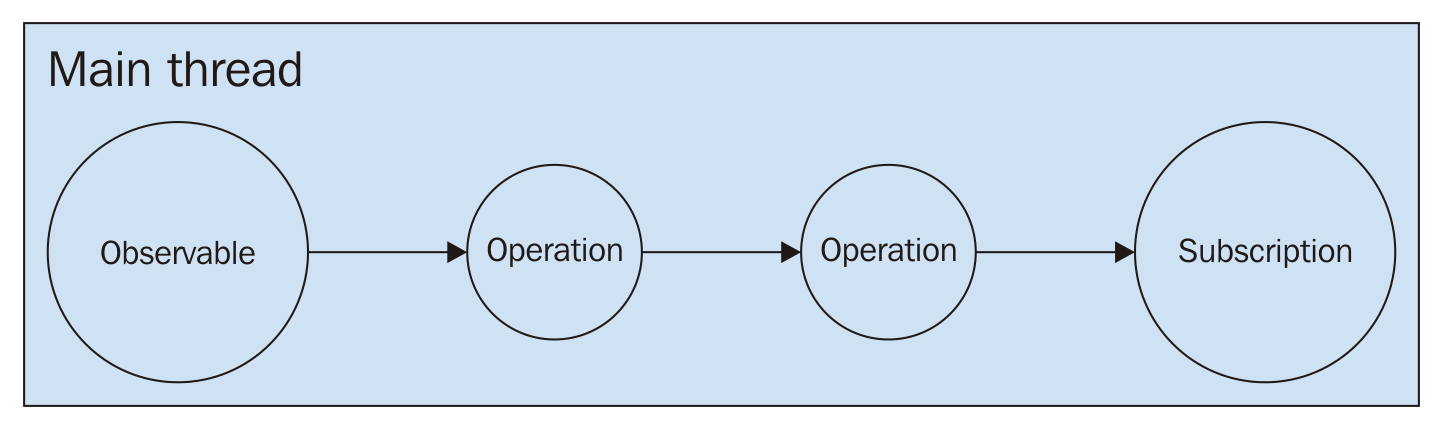
If .subscribeOn() is called, it will change the execution thread for the entire chain, as in the following figure:
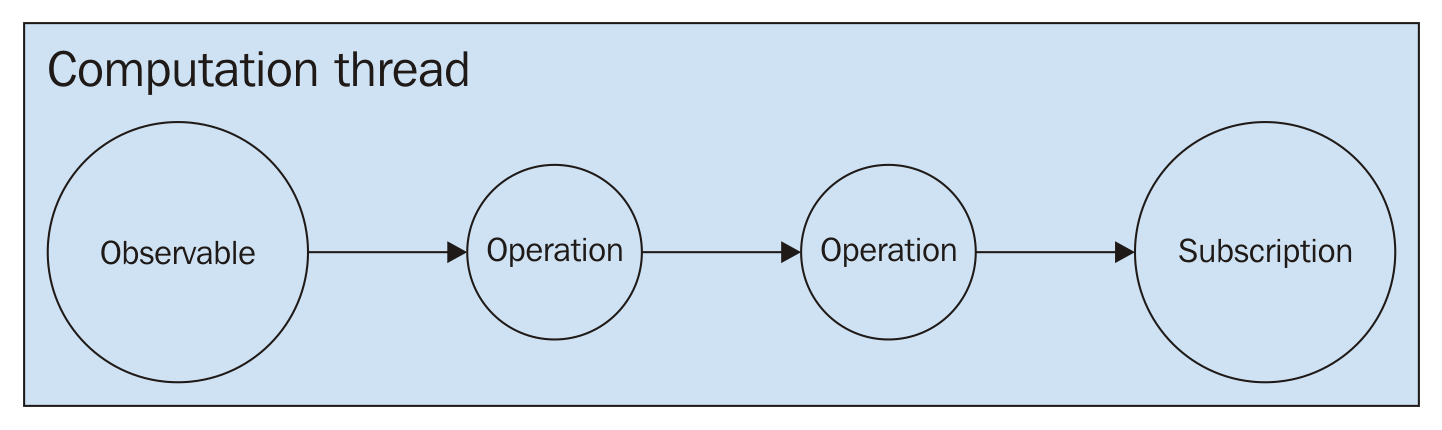
It is also useful to note that multiple calls to .subscribeOn() and the place where they are put will have the same effect on the source Observable, and only the first call to .subscribeOn() will have effect, as it changes only the Scheduler on which the Observable starts operating.
Consider the following example:
Observable.just("One", "Two", "Three")
        .subscribeOn(Schedulers.single())
        .doOnNext(i -> log("doOnNext", i))
        .subscribeOn(Schedulers.newThread())
        .doOnNext(i -> log("doOnNext", i))
        .subscribeOn(Schedulers.io())
        .subscribe(i -> log("subscribe", i));
It will produce the following output:
doOnNext:RxSingleScheduler-1:One
doOnNext:RxSingleScheduler-1:One
subscribe:RxSingleScheduler-1:One
doOnNext:RxSingleScheduler-1:Two
doOnNext:RxSingleScheduler-1:Two
subscribe:RxSingleScheduler-1:Two
doOnNext:RxSingleScheduler-1:Three
doOnNext:RxSingleScheduler-1:Three
subscribe:RxSingleScheduler-1:Three
As we can see, there are no mentions of the IO Scheduler or a NewThread Scheduler being used--only the Single Scheduler was applied.
.observeOn() works a bit differently than .subscribeOn(). Whenever .observeOn() is called, it changes the thread of downstream where the code is getting executed.
Consider that we have a flow that looks like this:
Observable.just("One", "Two", "Three")
        .doOnNext(i -> log("doOnNext", i))
        .observeOn(Schedulers.newThread())
        .doOnNext(i -> log("doOnNext", i))
        .subscribe(i -> log("subscribe", i));
Its structure can be represented in the following figure:
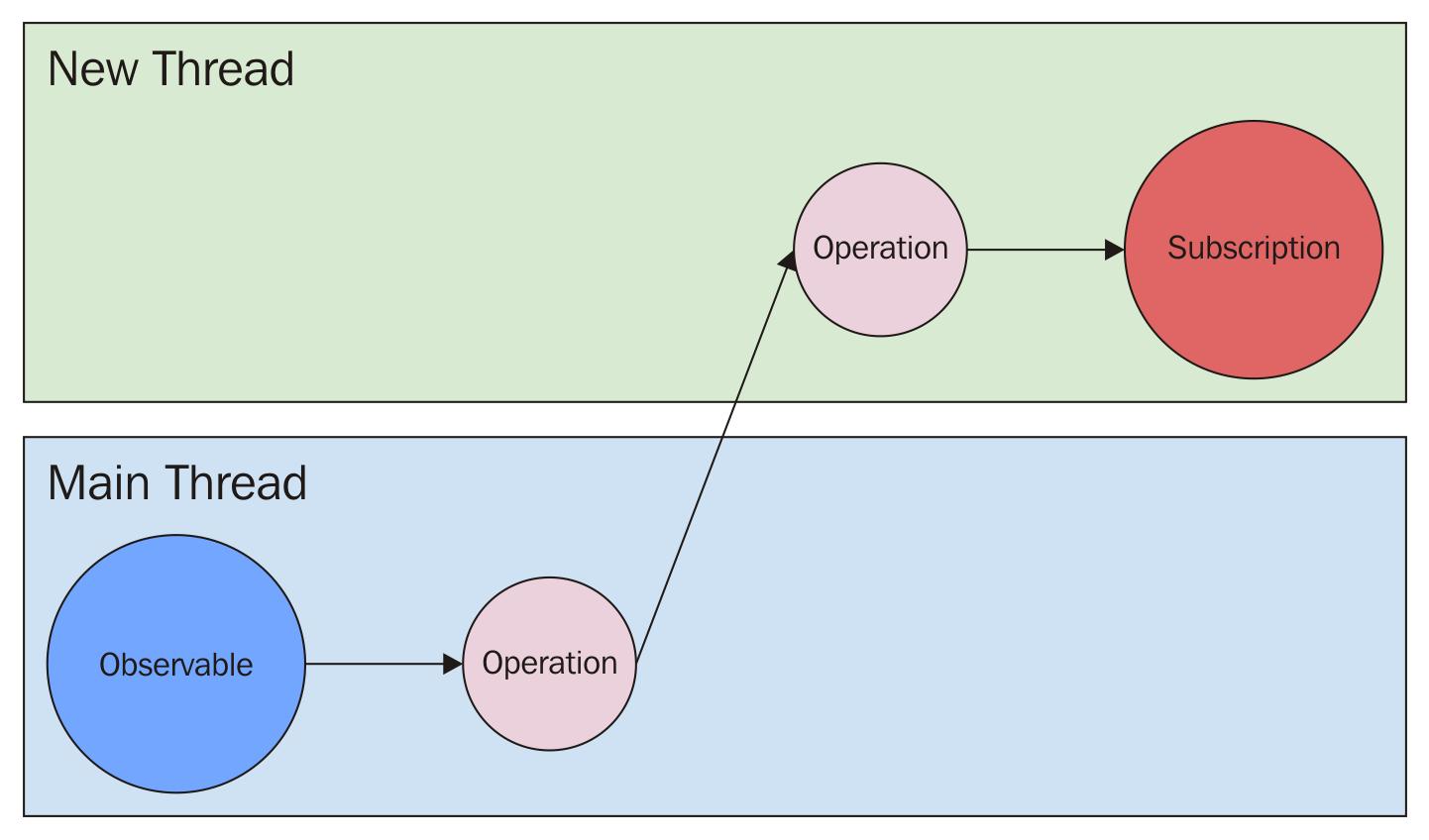
The output of such a call will be as follows:
doOnNext:main:One
doOnNext:main:Two
doOnNext:main:Three
doOnNext:RxNewThreadScheduler-1:One
subscribe:RxNewThreadScheduler-1:One
doOnNext:RxNewThreadScheduler-1:Two
subscribe:RxNewThreadScheduler-1:Two
doOnNext:RxNewThreadScheduler-1:Three
subscribe:RxNewThreadScheduler-1:Three
We can see that the first .doOnNext() block was executed in the main block, but the next one was executed on the NewThread Scheduler.
Consider that we were to change the code by adding one more .observeOn() call before the .subscribe, as follows:
Observable.just("One", "Two", "Three")
        .doOnNext(i -> log("doOnNext", i))
        .observeOn(Schedulers.newThread())
        .doOnNext(i -> log("doOnNext", i))
        .observeOn(Schedulers.computation())
        .subscribe(i -> log("subscribe", i));
Then, the output would be the following:
doOnNext:main:One
doOnNext:main:Two
doOnNext:main:Three
doOnNext:RxNewThreadScheduler-1:One
doOnNext:RxNewThreadScheduler-1:Two
doOnNext:RxNewThreadScheduler-1:Three
subscribe:RxComputationThreadPool-1:One
subscribe:RxComputationThreadPool-1:Two
subscribe:RxComputationThreadPool-1:Three
It can be seen that the execution thread of the .subscribe() block was changed, while the others were left as they were before.
While using .observeOn() and .subscribeOn(), there are two rules of thumb:
Obviously, there will be lots of cases when they will be needed somewhere else in the chain or even having multiple calls to them will be necessary. However, it is recommended to start like this.
Finally, if there is no need for the .subscribeOn() and .observeOn() calls, they should be omitted.
By default, code in RxJava is executed synchronously. This means that there is no concurrency and the code block is as follows:
Observable.just("One", "Two")
        .doOnNext(i -> log("doOnNext", i))
        .subscribe(i -> log("subscribe", i));
This will do the exact same thing as the following:
log("doOnNext", "One");
log("subscribe", "One");
log("doOnNext", "Two");
log("subscribe", "Two");
When the code is executed on different threads, something different happens. Two pieces of code can run simultaneously, but the steps of the flow that were defined while creating Observable will always be executed in the order they were defined.
Consider the following:
Observable.just("One", "Two")
        .doOnNext(i -> log("doOnNext", i))
        .observeOn(Schedulers.computation())
        .subscribe(i -> log("subscribe", i));
Now, consider its output:
doOnNext:main:One
doOnNext:main:Two
subscribe:RxComputationThreadPool-1:One
subscribe:RxComputationThreadPool-1:Two
What happened here was that the main thread was quick to emit items, so it finished its work first and then the computation thread caught up. The items were processed in the order the steps were defined and the order they were emitted.
A very similar thing will happen with the following:
Observable.range(1, 1000)
        .map(Object::toString)
        .doOnNext(i -> log("doOnNext", i))
        .observeOn(Schedulers.computation())
        .subscribe(i -> log("subscribe", i));
The number 500 will never be printed before the number 499.
However, this is not what we always want. Sometimes, we want to just emit a bunch of values and let them complete in whatever order is the fastest.
Unfortunately, RxJava doesn't have a very straightforward way to achieve parallelism in its core library. Once Observable and the Subscription are created, the operations will be executed on the threads that they were assigned to at the moment of Subscription.
That means that the same block cannot execute two pieces of code at the same time. However, there is a workaround about that--it just means that we need to keep creating new Observables as we need!
Consider this code:
Observable.range(1, 100)
        .map(Sandbox::importantLongTask)
        .map(Object::toString)
        .subscribe(e -> log("subscribe", e));
...
public static int importantLongTask(int i) {
    try {
        long minMillis = 10L;
        long maxMillis = 1000L;
        log("Working on " + i);
        final long waitingTime = (long) (minMillis + (Math.random() *
        maxMillis - minMillis));
        Thread.sleep(waitingTime);
        return i;
    } catch (InterruptedException e) {
        throw new RuntimeException(e);
    }
}
Clearly, here, some of the tasks can be completed faster than the others. To take advantage of that, and the fact that we don't care in which order the result will arrive, we can restructure the flow like this:
Observable.range(1, 100)
        .flatMap(i -> Observable.just(i)
                .subscribeOn(Schedulers.io())
                .map(Sandbox::importantLongTask)
        )
        .map(Object::toString)
        .subscribe(e -> log("subscribe", e));
Here, we had to use .flatMap() to make the creation of Observables a part of the flow. In the end, what it does is that Observable.range(1, 100) finishes very quickly and, in the process, creates a whole new bunch (in fact, 100) of Observables.
When this code is executed, we will be able to see lines like this:
subscribe:RxCachedThreadScheduler-83:78
subscribe:RxCachedThreadScheduler-35:35
This clearly shows that item 78, which was emitted after 35, was processed faster than the latter one.
Finally, it is quite rare to be in need of this on an Android device, as it is a very quick way to consume the resources of the system or network. Remember that the IO Scheduler is unbounded in the amount of workers that it can contain, so if there were to be a million items instead of a hundred, a few thousand workers would be created and that would consume large amounts of memory.
There are multiple ways to persist data locally for later consumption, but the most robust and convenient way on Android is the bundled SQLite database.
It is simple enough to use and will let us query data in the future based on the fields. An even simpler approach would be to store data just in plain files in the internal storage on the device, but that usually limits the possibilities to query and filter data in the future.
As SQLite doesn't have an interface to RxJava by default, we will have to rely on a specific library again. A perfect tool for the job is the StorIO library (https://github.com/pushtorefresh/storio) by Artem Zinnatullin. It is a great tool because it does not only provide a reactive interface to SQLite (as, for example, SQLBrite would) but gives the means to map domain classes to SQL calls with a fluent API as well.
SQLBrite (https://github.com/square/sqlbrite) is another possible option; however, it mostly manages just a system where notifications are sent when a specific table is updated and doesn't provide any means to easily map SQL-returned data to domain classes (ORM-like functionality).
There is a library call, SQLBrite DAO (https://github.com/sockeqwe/sqlbrite-dao); however, it isn't as well established as StorIO yet.
There are a lot of things to cover about StorIO. So, in this chapter, we will start with the data writing (persistence) aspect, and we will leave data reading for later chapters.
Finally, we will get to use the techniques that we've learned to integrate RxJava 1.0 and RxJava 2.0 libraries. In addition to that, we will make use of the things we have learned about Schedulers to offload write intensive tasks of the main thread so that the applications always stay responsive and snappy.
First of all, we will need to set up dependencies for StorIO. As before, there is nothing special about this case, and it can be simply done by adding the following line to app/build.gradle:
compile 'com.pushtorefresh.storio:sqlite:1.12.1'
We will also make use of annotation processors to help us write code that interfaces with SQLite database and write it faster. The dependencies for that will be the following:
    compile 'com.pushtorefresh.storio:sqlite-annotations:1.12.1'
    annotationProcessor 'com.pushtorefresh.storio:sqlite-annotations-
    processor:1.12.1'
Again, do not forget to check whether that's the newest version and if it matches the version of the com.pushtorefresh.storio:sqlite package.
That's it! We are ready to put StorIO to use.
A typical reactive call to persist data in StorIO looks like this:
StorIOSQLite storIOSQLite = ...;
storIOSQLite
        .put()
        .objects(entitiesToPersist)
        .prepare()
        .asRxSingle()
        .subscribe();
However, before we can start using this, we need to figure out a few things:
Let's start with the data mapping, which will be later plugged in to the StorIOSQLite interface.
We will dedicate specific constants to keep the names and queries that are related to the entity (StockUpdate) that we will be persisting.
For this, let's create a separate package, packt.reactivestocks.storio, that will hold StorIO-related classes, and let's put a class, named StockUpdateTable, which will contain queries and constants for StockUpdate, there:
class StockUpdateTable {
    static final String TABLE = "stock_updates";

    static class Columns {
        static final String ID = "_id";
        static final String STOCK_SYMBOL = "stock_symbol";
        static final String PRICE = "price";
        static final String DATE = "date";
    }

    private StockUpdateTable() {
    }

    static String createTableQuery() {
        return "CREATE TABLE " + TABLE + "("
                + Columns.ID + " INTEGER PRIMARY KEY AUTOINCREMENT, "
                + Columns.STOCK_SYMBOL + " TEXT NOT NULL, "
                + Columns.DATE + " LONG NOT NULL, "
                + Columns.PRICE + " LONG NOT NULL"
                + ");";
    }
}
The Columns subclass contains the column names that will later be used to query and update the data, while methods such as createTableQuery() will be used to set up the database on the first application run.
As we will be writing data in this chapter, here we will only cover how to write the PutResolver class for your entities. It is possible to generate them automatically, but it is also necessary to know how to write one yourself. This is often required in cases when the PutResolver involves modifying multiple database tables.
Create a class, named StockUpdatePutResolver, and make it extend DefaultPutResolver<StockUpdate>, as follows:
public class StockUpdatePutResolver extends
DefaultPutResolver<StockUpdate> {
DefaultPutResolver is an abstract class that extends the PutResolver interface and provides a convenient interface for mapping the data from domain objects to SQL data. This is done by implementing three methods:
The first one (mapToInsertQuery()) is used to look up the right table where the data will be inserted. In our case, it must look like this:
@NonNull
@Override
protected InsertQuery mapToInsertQuery(@NonNull StockUpdate object) {
    return InsertQuery.builder()
            .table(StockUpdateTable.TABLE)
            .build();
}
mapToUpdateQuery() is used to issue queries to look up whether the object that we are trying to save is already in the database or not. Our implementation for this method will be as follows:
@NonNull
@Override
protected UpdateQuery mapToUpdateQuery(@NonNull StockUpdate object) {
    return UpdateQuery.builder()
            .table(StockUpdateTable.TABLE)
            .where(StockUpdateTable.Columns.ID + " = ?")
            .whereArgs(object.getId())
            .build();
}
We can see that, here, we are querying a StockUpdate table for the element that has a specific ID. If the element with that ID is found, it will be updated instead of it being inserted as a new entry.
Finally, the mapToContentValues() call maps the values from the domain object to the ContentValues object that the SQLite database can digest. We will implement that as the following:
@NonNull
@Override
protected ContentValues mapToContentValues(@NonNull StockUpdate entity) {
    final ContentValues contentValues = new ContentValues();

    contentValues.put(StockUpdateTable.Columns.ID, entity.getId());
    contentValues.put(StockUpdateTable.Columns.STOCK_SYMBOL,
    entity.getStockSymbol());
    contentValues.put(StockUpdateTable.Columns.PRICE,
    getPrice(entity));
    contentValues.put(StockUpdateTable.Columns.DATE, getDate(entity));

    return contentValues;
}
As you can see in the preceding code, the StockUpdate class now has an ID:
public class StockUpdate implements Serializable {
    ...
    private Integer id;
    ....

    public Integer getId() {
        return id;
    }

    public void setId(Integer id) {
        this.id = id;
    }
}
The ID will be used to store the identifier retrieved from the database when an item is saved.
Note that StorIO (and Android's SQLite) cannot directly consume the BigDecimal data type that we use to store stock price and Date type. We will have to do a conversion to the appropriate types. For the sake of convenience, we will use the long data type, which can be easily digested by SQLite.
In the end, getPrice() will be as shown:
private long getPrice(@NonNull StockUpdate entity) {
    return entity.getPrice().scaleByPowerOfTen(4).longValue();
}
In addition, getDate() will be as follows:
private long getDate(@NonNull StockUpdate entity) {
    return entity.getDate().getTime();
}
Obviously, we will have to take similar steps to parse the long data type to its original format later.
We still haven't shown where the StockUpdatePutResolver class will be used. That will be covered in the section where we start configuring the StorIOSQLite interface.
The final step before we can start using StorIO is to create a StorIOSQLite interface. It will be an object that will tie all our resolvers configuration and will be a central go-to interface for operations with the database.
However, before we can do that, there is one more class that's missing. It's the StorIODbHelper class, and it will extend SQLiteOpenHelper. SQLiteOpenHelper is often used to handle the initialization of the database--creating tables, migrating old versions of tables, adding columns and so on. Basically, it ensures that the database is ready for work. We will keep this class very brief:
class StorIODbHelper extends SQLiteOpenHelper {

    StorIODbHelper(@NonNull Context context) {
        super(context, "reactivestocks.db", null, 1);
    }

    @Override
    public void onCreate(@NonNull SQLiteDatabase db) {
        db.execSQL(StockUpdateTable.createTableQuery());
    }

    @Override
    public void onUpgrade(@NonNull SQLiteDatabase db, int oldVersion,
    int newVersion) {
    }
}
As we do not care (yet) about database upgrade because we always start with a clean state, we set the onUpgrade method to be empty. In our case, it's just the onCreate method that needs to be filled with the code:
db.execSQL(StockUpdateTable.createTableQuery());
This will create the table for StockUpdate tweet. Consider the following line:
super(context, "reactivestocks.db", null, 1);
It tells the helper that the filename for the database will be reactivestocks.db, and it's at version 1.
After the SQLiteOpenHelper class is created, we can proceed with the creation of the main interface. To keep the code well organized, we will put interface creation code in the StorIOFactory class in packt.reactivestocks.storio with the rest of the classes. The factory method itself will be as illustrated:
private static StorIOSQLite INSTANCE;

public synchronized static StorIOSQLite get(Context context) {
    if (INSTANCE != null) {
        return INSTANCE;
    }

    INSTANCE = DefaultStorIOSQLite.builder()
            .sqliteOpenHelper(new StorIODbHelper(context))
            .addTypeMapping(StockUpdate.class, SQLiteTypeMapping.
            <StockUpdate>builder()
                    .putResolver(new StockUpdatePutResolver())
                    .getResolver(createGetResolver())
                    .deleteResolver(createDeleteResolver())
                    .build())
            .build();

    return INSTANCE;
}
Let's dissect this piece by piece. Consider the given line:
.sqliteOpenHelper(new StorIODbHelper(context))
It gives StorIO access to the original SQLite database. Also, it will ensure that the tables are created before we start using the database. After that, a mapping configuration follows with this:
.addTypeMapping(StockUpdate.class, ...)
The purpose of this line is to specify the configuration that will handle the StockUpdate class. Take a look at the following lines which are a part of the configuration:
SQLiteTypeMapping.<StockUpdate>builder()
        .putResolver(new StockUpdatePutResolver())
        .getResolver(createGetResolver())
        .deleteResolver(createDeleteResolver())
        .build()
The following code specifies a class that will be used to handle write operations and we have just created this class a while ago:
.putResolver(new StockUpdatePutResolver())
The following call sets the configuration that will specify how the database reads are handled:
.getResolver(createGetResolver())
However, since we will be leaving this for a later section, we will plug in a stub implementation here:
private static GetResolver<StockUpdate> createGetResolver() {
    return new DefaultGetResolver<StockUpdate>() {
        @NonNull
        @Override
        public StockUpdate mapFromCursor(@NonNull Cursor cursor) {
            return null;
        }
    };
}
The final line will configure the delete action to correctly delete the record in the database when the entity is deleted in the code:
.deleteResolver(createDeleteResolver())
Again, we will use a stub implementation of the following:
private static DeleteResolver<StockUpdate> createDeleteResolver() {
    return new DefaultDeleteResolver<StockUpdate>() {
        @NonNull
        @Override
        protected DeleteQuery mapToDeleteQuery(@NonNull StockUpdate
          object) {
            return null;
        }
    };
}
Finally, the mapping configuration is created by calling .build(), and then the DefaultStorIOSQLite implementation is initialized with the same method (but on a different class).
Now we are ready to do some writing to the database. We will integrate persistence in the existing flow that we have to process StockUpdates:
Observable.interval(0, 5, TimeUnit.SECONDS)
        .flatMap(
                i -> yahooService.yqlQuery(query, env)
                        .toObservable()
        )
        .subscribeOn(Schedulers.io())
        .map(r -> r.getQuery().getResults().getQuote())
        .flatMap(Observable::fromIterable)
        .map(StockUpdate::create)
        .observeOn(AndroidSchedulers.mainThread())
        .subscribe(stockUpdate -> {
            Log.d("APP", "New update " + stockUpdate.getStockSymbol());
            stockDataAdapter.add(stockUpdate);
        });
Here, consider the following line:
.observeOn(AndroidSchedulers.mainThread())
Before this, we will add a step that will save the StockUpdate to the database using .doOnNext():
.doOnNext(this::saveStockUpdate)
Here, saveStockUpdate is a method of:
private void saveStockUpdate(StockUpdate stockUpdate) {
    log("saveStockUpdate", stockUpdate.getStockSymbol());
    StorIOFactory.get(this)
            .put()
            .object(stockUpdate)
            .prepare()
            .asRxSingle()
            .subscribe();
}
Note that we don't need to add this line before .doOnNext(), which will transfer the execution of the code from the current thread to the IO Scheduler:
.observeOn(Schedulers.io())
This is because it is already done by the following line:
.subscribeOn(Schedulers.io())
We wouldn't know this if we hadn't covered Schedulers in depth before.
Finally, you should see these lines in the logs:
packt.reactivestocks D/APP: saveStockUpdate:RxCachedThreadScheduler-2:YHOO
packt.reactivestocks D/APP: saveStockUpdate:RxCachedThreadScheduler-2:AAPL
packt.reactivestocks D/APP: saveStockUpdate:RxCachedThreadScheduler-2:GOOG
packt.reactivestocks D/APP: saveStockUpdate:RxCachedThreadScheduler-2:MSFT
The saveStockUpdate() method effectively creates a new Subscription that is processed in the background to save items so that the general processing flow isn't impacted. That's done by the following lines in the saveStockUpdate() method:
.asRxSingle()
.subscribe();
This might not be ideal for some uses. In those cases, it would make sense to use .flatMap() and some clever nesting to wait for the result while returning the original StockUpdate, but we will leave this one for readers to figure out in later chapters.
This chapter was pretty awesome. First of all, we delved deep into how Schedulers work and we learned about the available schedulers on RxJava and how they both differ. Schedulers, such as IO, NewThread, Computation, and Executor, were covered. We learned how to use the Schedulers to modify the place where the computation takes place. This knowledge will be applicable to the Schedulers that we have created and Schedulers that were created by some external parties.
Next, StorIO was introduced, and we learned how to set it up and prepare it for use. We saw how Put, Get, and Delete Resolvers can be configured to map our domain classes and object to the tables and rows inside the SQLite database.
Finally, we combined the things that we learned about Schedulers and StorIO to persist the received stock updates in the application. In the next chapter, we will see how to read the data that we just saved so that it can be used in case there is no Internet connectivity or something else entirely.
In the last chapter, we learned how to write data to the SQLite database, but now it's time to read that data and put it to good use. In the Reactive Stocks application, we will utilize this functionality to load StockUpdate objects from the database when there is no Internet connection.
However, in order to do that, we will first need to learn how to properly handle exceptions in RxJava and the different ways to do that. It is very important to handle exceptions properly in general. In Android, every uncaught exception will kill the application. That's superbad user experience, and would surely result in negative reviews. It would be a pity after spending enormous amounts of money to develop and market an app, if it were all in vain because of a bug or some IO error that keeps killing your application.
Finally, we will explore some possible approaches for centralized exception logging so that the development will be less repetitive and easier to maintain.
The topics that are covered in this chapter are as follows:
As was said before, error handling is extremely important. It is important to gracefully inform the user about failures if they happen and, even more important, to not leave any loose exceptions so that they don't kill Android applications, completely ruining the user experience.
There are multiple ways of implementing exception handling in RxJava. We will learn how to use methods such as doOnError() or onExceptionResumeNext() to gracefully adjust the flow when an error occurs.
First of all, the most common way to handle errors and exceptions is to use the .subscribe() method. The .subscribe() method takes an additional argument that is used to process the exceptions that the Observable or operators have thrown.
Let's take an example. Consider this piece of code:
Observable.just("One")
        .doOnNext(i -> {
            throw new RuntimeException();
        })
        .subscribe(item -> {
            log("subscribe", item);
        });
As it is now, it will kill the entire application because there is an exception thrown in the .doOnNext() operator. This can be easily mitigated using the second argument of the .subscribe() method:
Observable.just("One")
        .doOnNext(i -> {
            throw new RuntimeException();
        })
        .subscribe(item -> {
            log("subscribe", item);
        }, throwable -> {
            log(throwable);
        });
More concisely, it can be done with the following:
Observable.just("One")
        .doOnNext(i -> {
            throw new RuntimeException("Very wrong");
        })
        .subscribe(item -> log("subscribe", item), this::log);
Here, the overloaded .log() method is available with the following body:
private void log(Throwable throwable) {
    Log.e("APP", "Error on " + Thread.currentThread().getName() + ":",
    throwable);
}
After this gets executed, we will find that the exception was successfully logged as illustrated:
Error on main:
java.lang.RuntimeException: Very wrong
As we can see, this is a very simple and straightforward way to handle errors. Also, this is usually one of the best, fail-safe ways to handle exceptions.
onExceptionResumeNext() is a great way to restore the flow processing from some other Observable after an exception has occurred. It can be used as a mechanism to plug in the backup Observable if the original one fails. That's exactly what we will do in later sections to handle the cases when we cannot fetch the new stock quote data from the remote service.
However, let's get back to onExceptionResumeNext(), and let's take a look at example of how it can be used:
Observable.<String>error(new RuntimeException("Crash!"))
        .onExceptionResumeNext(Observable.just("Second"))
        .subscribe(item -> {
            log("subscribe", item);
        }, e -> log("subscribe", e));
This time, we won't see any exceptions in the logs and the second (Second) item will be processed normally. The following message will appear in the logs:
subscribe:main:Second
The item for this message was taken from the second Observable that was created with this:
Observable.just("Second")
So, when the exception occurred, it reached the onExceptionResumeNext() operator, and it resumed the sequence from the second Observable.
Also, in this case, we have used a special Observable that just emits an error and ceases its operation:
Observable.<String>error(new RuntimeException("Crash!"))
Basically, it's a shortcut to throw an exception in an Observable-like fashion.
This method will become extremely useful in any developer's toolbox when working with RxJava.
.doOnError() is a bit of a different beast. It is used to intercept errors that haven't reached .subscribe() yet. You may wonder how this is possible; is because the flow can be intercepted and recovered from the exception. In such a case, the original exception will never reach the error handler if it is implemented in the .subscribe() section.
For example, we can build on a previous case with .onExceptionResumeNext():
Observable.<String>error(new RuntimeException("Crash!"))
        .doOnError(e -> log("doOnNext", e))
        .onExceptionResumeNext(Observable.just("Second"))
        .subscribe(item -> {
            log("subscribe", item);
        }, e -> log("subscribe", e));
Here, we've added a line:
.doOnError(e -> log("doOnNext", e))
It will intercept the exception before it reaches the .onExceptionResumeNext() block. So the output, in this case, will be as shown:
doOnNext:main: error
java.lang.RuntimeException: Crash!
subscribe:main:Second
Again, it's a super useful tool when there is a need to display notifications in the Android UI or just log that something failed in general.
There are a few other methods to process the errors. They are not so commonly used, but still, it's useful to know them. In this section, we will cover them briefly so that the reader will be familiar with the available options in case there is a need for them.
.onErrorResumeNext() is very similar to .onExceptionResumeNext(), but as the name implies, it can handle more general errors. .onExceptionResumeNext() handles only throwables of the java.lang.Exception type and its subclasses. .onErrorResumeNext() can catch java.lang.Throwable and java.lang.Error.
In the end, it is a more general handler that can help catch system errors, such as OutOfMemoryError .
.onErrorReturn() work in a similar fashion to .onErrorResumeNext(), but instead of using Observable to resume the flow, it takes the value unwrapped from the Observable. Consider the following example:
Observable.<String>error(new Error("Crash!"))
        .onErrorReturn(throwable -> "Return")
        .subscribe(item -> {
            log("subscribe", item);
        }, e -> log("subscribe", e));
We can see that we didn't need to wrap "Return" in the Observable class of any kind.
Again, .onErrorReturnItem() is a lot like .onErrorReturn() but is even simpler. In this case, it just returns a constant that was specified at the time an Observable was created, as here:
Observable.<String>error(new Error("Crash!"))
        .onErrorReturnItem("ReturnItem")
        .subscribe(item -> {
            log("subscribe", item);
        }, e -> log("subscribe", e));
Let's experiment a bit with error reporting on Android UI. It's important to properly handle errors not only in the sense that they should be logged and shouldn't kill the app, but the user should always be informed as to what happened. There are several patterns of what can be done on different kinds of failures.
Here, we will explore two options: Empty State Screen, when stock updates can't be loaded or if there are none, and a Toast notification, when the initial fetch of the data failed but we will try backing to the data that's saved in the SQLite database.
The Empty State Screen pattern will show a predefined default screen when we can't load data from the Internet (online) or from the SQLite database (offline). This can happen, for example, when a user launches the app for the first time while having no Internet connectivity.
To do this, we will modify the original activity_main.xml layout file to contain a message that is shown when there is no data:
<TextView
    android:id="@+id/no_data_available"
    android:layout_width="wrap_content"
    android:layout_height="wrap_content"
    android:layout_centerInParent="true"
    android:text="We are sorry, but we couldn't load any data."
    android:textAlignment="center"
    android:textSize="26sp"
    android:visibility="gone" />
It's a TextView that's hidden by default so that it doesn't get in the way while we are fetching data. However, if the fetch failed, and there is no data to display, we are ready to show it.
First of all, let's inject a component into our activity by adding the following:
@BindView(R.id.no_data_available)
TextView noDataAvailableView;
Next, we will modify the current .subscribe() block to handle the hiding and showing of the empty screen:
.subscribe(stockUpdate -> {
    Log.d("APP", "New update " + stockUpdate.getStockSymbol());
    noDataAvailableView.setVisibility(View.GONE);
    stockDataAdapter.add(stockUpdate);
}, error -> {
    if (stockDataAdapter.getItemCount() == 0) {
        noDataAvailableView.setVisibility(View.VISIBLE);
    }
});
If there is an exception that managed to reach the .subscribe() block, it will check whether there is any data in the adapter and if there are none, the empty view will be shown. Otherwise, we ensure that the empty state view is hidden by calling the following and add the data to the RecyclerView:
noDataAvailableView.setVisibility(View.GONE);
It's a very good and important practice to provide Empty State Screen so that the user is told explicitly that the data isn't loaded and that it isn't somewhere in the transition.
Showing a simple Toast notification is a much less involved process than handling state screens. Toast notification provides a very quick and snappy way of informing a user about certain events in the system.
We will use Toast notification to notify a user that the data couldn't be loaded from the Internet, but we will fall back to the saved data that's in the database--the offline mode.
Let's take a look at how that can be incorporated in the current flow:
Observable.interval(0, 5, TimeUnit.SECONDS)
        .flatMap(
                i -> Observable.<YahooStockResult>error(new RuntimeException("Oops"))
        )
        .subscribeOn(Schedulers.io())
        .observeOn(AndroidSchedulers.mainThread())
        .doOnError(error -> {
            log("doOnError", "error");
            Toast.makeText(this, "We couldn't reach internet - falling
            back to local data",
                    Toast.LENGTH_SHORT)
                    .show();
        })
        .observeOn(Schedulers.io())
        .map(r -> r.getQuery().getResults().getQuote())
        .flatMap(Observable::fromIterable)
        .map(StockUpdate::create)
        .doOnNext(this::saveStockUpdate)
        .observeOn(AndroidSchedulers.mainThread())
A few things need special attention here. The following line produces the error that we will use to test our Toast notification:
i -> Observable.<YahooStockResult>error(new RuntimeException("Oops"))
Actual creation of Toast notification happens in the following block:
        .observeOn(AndroidSchedulers.mainThread())
        .doOnError(error -> {
            Toast.makeText(this, "We couldn't reach internet - falling
            back to local data",
                    Toast.LENGTH_SHORT)
                    .show();
        })
Note that we have a call to .observeOn(AndroidSchedulers.mainThread()), which makes the next block execute on the main Android thread. This is necessary because Toast notification can be displayed only on the main Android thread.
In the following sections, somewhere down the flow, we will have a call to .onExceptionResumeNext() that will let us feed the flow with some backup Observable.
The code can become a real mess if each of the .subscribe() blocks have their own error-handling mechanisms. Quite often, the error-handling code is the same, and it is just a waste of time copying and pasting the same handlers around. Furthermore, if there is a need to change the way the logging works, it would have to be changed all over the place again.
In this section, we will explore a few ways of implementing a centralized logging solution so that it's easy to maintain and use.
A very convenient and flexible way to implement centralized logging is just to have a handler that is reused in the places where the general exception (error) handling is needed.
Basically, it will be a class that implements the Consumer<Throwable> interface. This way, it can be plugged in anywhere the RxJava is consuming that interface. This includes methods such as .doOnError() or the .subscribe() block.
Let's take a look at how it can be implemented:
public class ErrorHandler implements Consumer<Throwable> {

@Override
    public void accept(Throwable throwable) throws Exception {
        Log.e("APP", "Error on " + Thread.currentThread().getName() +
        ":", throwable);
    }
}
Since it is supposed to be used as a global handler of errors, it makes sense to make this class a singleton. To do that, add the following lines:
private static final ErrorHandler INSTANCE = new ErrorHandler();

public static ErrorHandler get() {
    return INSTANCE;
}

private ErrorHandler() {
}
Now the class can be used in Observable flows. Consider the following example:
Observable.<String>error(new Error("Crash!"))
        .doOnError(ErrorHandler.get())
        .subscribe(item -> {
            log("subscribe", item);
        }, ErrorHandler.get());
The beauty of this approach is that there can be multiple handlers like that. A developer can have something like WarnOnlyHandler that can be used to show only warnings instead of full exceptions or a handler that logs errors to some remote service only for specific parts of the application.
However, the bad thing is that we must always keep passing the ErrorHandler.get() call, and that can start to become a bit annoying later on.
A possible alternative to the former approach (or an improvement) is the use of the following call:
RxJavaPlugins.setErrorHandler(...);
It will set a global handler for all the exceptions (or errors) that weren't caught by the mechanisms provided by the Observable flow.
Since RxJavaPlugins.setErrorHandler consumes the Consumer<Throwable> interface, we might as well plug in the class we just created to do the actual handling of the errors:
RxJavaPlugins.setErrorHandler(ErrorHandler.get());
Now, all the errors will go through this final handler if they aren't captured earlier.
Since we are now prepared to handle all kinds of exceptions and interruptions of the flow, we can finally start creating a flow that will load locally saved StockUpdate entries from the SQLite database in cases when the quotes cannot be fetched from the Internet.
First of all, to do that, we will need to implement a GetResolver for the StorIO library that will handle the reading of the data. More specifically, it will handle the conversion of data from SQLite returned interfaces to our native domain objects (StockUpdate).
Next, we will incorporate that new local StockUpdate entry-reading mechanism into the existing flow so that the entries can be injected into the reactive stream.
Finally, we will inform the user that the remote data fetch was unsuccessful and we had to fall back to the local means of data retrieval.
We have implemented PutResolver before and we have created a stub interface for the GetResolver. Here, we will finish the work that we have started by fully implementing the missing interface.
Let's create a class named StockUpdateGetResolver in the same package as StockUpdatePutResolver, which will extend the DefaultGetResolver class:
public class StockUpdateGetResolver extends DefaultGetResolver<StockUpdate> {
}
Next, add a missing implementation of mapFromCursor():
@NonNull
@Override
public StockUpdate mapFromCursor(@NonNull Cursor cursor) {

    final int id = cursor.getInt(cursor.getColumnIndexOrThrow
        (StockUpdateTable.Columns.ID));
    final long dateLong = cursor.getLong(cursor.getColumnIndexOrThrow
        (StockUpdateTable.Columns.DATE));
    final long priceLong = cursor.getLong(cursor.getColumnIndexOrThrow
        (StockUpdateTable.Columns.PRICE));
    final String stockSymbol =
        cursor.getString(cursor.getColumnIndexOrThrow
            (StockUpdateTable.Columns.STOCK_SYMBOL));


    Date date = getDate(dateLong);
    BigDecimal price = getPrice(priceLong);

    final StockUpdate stockUpdate = new StockUpdate(
            stockSymbol,
            price,
            date
    );

    stockUpdate.setId(id);

return stockUpdate;
}
It's quite a big chunk of code, so let's dig into its pieces.
Consider the following lines:
final int id = cursor.getInt(cursor.getColumnIndexOrThrow
    (StockUpdateTable.Columns.ID));
These and the rest are responsible for fetching the data from the cursor. First of all, it looks up the index of the column by the name using the following:
cursor.getColumnIndexOrThrow(StockUpdateTable.Columns.ID)
Then, the actual value is retrieved using this:
cursor.getInt(...);
For the readers who are unfamiliar with SQLite, the values in the Cursor object are encoded by index and that index represents a column from where the data was retrieved. However, we can look up the index for the column automatically by calling cursor.getColumnIndexOrThrow(), where the name for the column is supplied by the constant from the StockUpdateTable table.
Since we had to encode the Date and BigDecimal types so that they are correctly saved in the database, now we have to do the decoding:
Date date = getDate(dateLong);
BigDecimal price = getPrice(priceLong);
For this, we will create two methods. The first one will handle Date:
private Date getDate(long dateLong) {
    return new Date(dateLong);
}
It will simply convert the milliseconds that are in the Long type format into the java.util.Date type.
Next is the conversion of the price to BigDecimal:
private BigDecimal getPrice(long priceLong) {
    return new BigDecimal(priceLong).scaleByPowerOfTen(-4);
}
Again, it takes the Long type and converts it to BigDecimal. However, since we have scaled the value by 4 decimal points, now we have to do the reverse. It is achieved by calling this:
.scaleByPowerOfTen(-4);
Finally, since all the data is available for use, we can create the StockUpdate object by calling the constructor with appropriate values:
final StockUpdate stockUpdate = new StockUpdate(
        stockSymbol,
        price,
        date
);
We shouldn't forget to set the ID of the StockUpdate that was given by the database:
stockUpdate.setId(id);
Now that we have the GetResolver ready, we should plug it in to StorIO.
The final step that's left before we can start using the GetResolver is to add it to the Type Mappings configuration. This is the call that looks like this:
INSTANCE = DefaultStorIOSQLite.builder()
        .sqliteOpenHelper(new StorIODbHelper(context))
        .addTypeMapping(StockUpdate.class, SQLiteTypeMapping.
        <StockUpdate>builder()
                .putResolver(new StockUpdatePutResolver())
                .getResolver(new StockUpdateGetResolver())
                .deleteResolver(createDeleteResolver())
                .build())
        .build();
Here, we need to find the following line that was a used to create a stub interface:
.getResolver(createGetResolver())
Now, we need to replace it with this:
.getResolver(new StockUpdateGetResolver())
We are now ready to read the data from the database!
Now, all the tools needed to load StockUpdate entries from the database for offline viewing are available.
To plug in the database reading functionality for offline use, we will use .onExceptionResumeNext() as we discussed previously; it will be used to catch the error when Internet connection fails and resume the loading of stream items from SQLite.
.onExceptionResumeNext() should be inserted just after this call because we don't want to save saved entries again:
.doOnNext(this::saveStockUpdate)
So, the newly inserted call will look like this in the existing flow:
.doOnNext(this::saveStockUpdate)
.onExceptionResumeNext(...)
.observeOn(AndroidSchedulers.mainThread())
.subscribe(stockUpdate -> {
However, what goes inside the .onExceptionResumeNext(...) call? Basically, we need to query the database using StorIO. The query is created by calling the following:
StorIOFactory.get(this)
        .get()
        .listOfObjects(StockUpdate.class)
        .withQuery(Query.builder()
                .table(StockUpdateTable.TABLE)
                .orderBy("date DESC")
                .limit(50)
                .build())
        .prepare()
Let's go line by line to see what this code does. The following line, which is the first line, instructs StorIO to start building a SELECT query:
.get()
The following line specifies what kind of type objects will be returned:
.listOfObjects(StockUpdate.class)
This call is basically used to select the appropriate mapper (GetResolver) to do a mapping from the SELECT query columns to domain objects.
The following line will start the building of the SELECT query that will be used to retrieve data:
.withQuery(Query.builder()
So the next line shows which table will be used:
.table(StockUpdateTable.TABLE)
Along with these lines that specify that we want entries retrieved in descending order by the date column and that the results should be limited to 50 entries:
.orderBy("date DESC")
.limit(50)
This line returns the Query object:
.build())
The following line lets the StorIO know that we are done configuring the StorIO and the query:
.prepare()
Finally, just by appending this to the .prepare() statement, we will create an Observable that will start returning data:
.asRxObservable()
However, we should keep in mind that this Observable is of the rx.Observable type from RxJava 1.0, so it cannot be used in our flow yet.
To make it usable, we should wrap it in the v2() function that we created so that the whole flow looks like this:
v2(StorIOFactory.get(this)
        .get()
        .listOfObjects(StockUpdate.class)
        .withQuery(Query.builder()
                .table(StockUpdateTable.TABLE)
                .orderBy("date DESC")
                .limit(50)
                .build())
        .prepare()
        .asRxObservable())
The StorIO Observable that we've just created will start returning data, but there are a few more things that we need to do.
First of all, the Observable never terminates because it keeps listening for the changes in the database for the StockUpdate table (that's the reactive nature of the StorIO framework).
To make it query data once and not to listen for the changes, we can append the following method:
.take(1)
This will make the Observable listen for the changes until it receives the first element, which in turn make it terminate after the initial SELECT query is executed.
Finally, the data is returned as the List<StockUpdate> type; but it should be of the StockUpdate type to plug it into the existing flow. We can use the technique with .flatMap and .fromIterable() that we used earlier:
.flatMap(Observable::fromIterable)
At this moment, we have a fully compatible Observable of the io.reactivex.Observable type that will emit items of the StockUpdate type, just what we need.
To complete this section, we will include the whole content of onExceptionResumeNext(). After all the preceding steps are merged into one flow, the final code will look like this:
v2(StorIOFactory.get(this)
        .get()
        .listOfObjects(StockUpdate.class)
        .withQuery(Query.builder()
                .table(StockUpdateTable.TABLE)
                .orderBy("date DESC")
                .limit(50)
                .build())
        .prepare()
        .asRxObservable())
        .take(1)
        .flatMap(Observable::fromIterable)
It's a lengthy piece of code, and it becomes even longer if you consider other (parent) parts of the StockUpdate item flow. In later chapters, we will explore how to make this more manageable.
We should also briefly mention how to handle notifications when we are unable to read remote financial stock data.
As we saw in the section dedicated to error handling, a good approach would be to show a Toast notification. So, to inform the user, we will just reuse the code we created before:
.doOnError(error -> {
    Toast.makeText(this, "We couldn't reach internet - falling back to local data",
            Toast.LENGTH_SHORT)
            .show();
})
In a larger context of the flow, this will look as shown:
.flatMap(
        i -> Observable.<YahooStockResult>error(new RuntimeException("Crash"))
)
.subscribeOn(Schedulers.io())
.observeOn(AndroidSchedulers.mainThread())
.doOnError(error -> {
    Toast.makeText(this, "We couldn't reach internet - falling back to
    local data",
            Toast.LENGTH_SHORT)
            .show();
})
.observeOn(Schedulers.io())
Just to get a feeling where it should be put.
Before we finish this chapter, it will be useful to create the last missing resolver for StorIO--DeleteResolver. We will add it so that we can use StorIO to the full if there is a need. At the moment, if we try to create a DELETE query with StorIO, it will fail, since there is no mapper for DELETE queries.
To implement DeleteResolver, we will create the StockUpdateDeleteResolver class (similar to before) that extends DefaultDeleteResolver<StockUpdate>:
public class StockUpdateDeleteResolver
    extends DefaultDeleteResolver<StockUpdate> {
}
Also, we will implement mapToDeleteQuery() with this:
@NonNull
@Override
protected DeleteQuery mapToDeleteQuery(@NonNull StockUpdate object) {
    return DeleteQuery.builder()
            .table(StockUpdateTable.TABLE)
            .where(StockUpdateTable.Columns.ID + " = ?")
            .whereArgs(object.getId())
            .build();
}
This creates a DeleteQuery object that queries the StockUpdate table based on the ID of the object. Later, if it is found, it is deleted.
Finally, this Resolver needs to be added to the configuration next to the other Resolvers:
.deleteResolver(new StockUpdateDeleteResolver())
If we ever want to use the delete functionality of StorIO, it would look something like this:
StorIOFactory.get(this)
        .delete()
        .object(stockUpdate)
        .prepare()
        .asRxCompletable()
        .subscribe()
It is a very similar approach to the one we used to retrieve entries (.get()), but here we will use .delete(), and we will specify the instance of the object to be deleted.
First of all, in this chapter, we learned a lot of different ways to handle exceptions in RxJava. Methods including .onResumeNext(), .doOnError(), and .subscribe(), to handle errors and exceptions were covered. We also explored a few different methods to show errors in the Android UI.
Most importantly, we learned how an exception can be handled in a centralized fashion so that it is easy to change error-handling mechanisms in the future.
In this chapter, we also learned how to retrieve data from the SQLite database using StorIO. In order to do that, we covered GetResolvers and how to construct Query objects for StorIO. We also saw how to handle data conversion from the types that the SQLite database supports and the types that are used in the application's domain model.
Furthermore, the StorIO querying capabilities were integrated into the current flow of StockUpdate items retrieval; so, now we will be able to show something even if there is no Internet connection.
Finally, we completed the configuration of StorIO for StockUpdate objects by implementing DeleteResolver so that all four operations are supported: Creating, Retrieving, Updating, and Deleting data (CRUD).
Also, by now, little by little, it should start to become visible that the flow we have been working on is becoming too complex and too difficult to maintain. We will see how to cope with this in later chapters.
There are so many important things to know before one can start building robust Android applications with RxJava that it's hard to pick which things to cover first. However, Android Activity Lifecycle management along with RxJava subscriptions will probably be more important (and more difficult).
Without proper awareness and integration with the lifecycle, it is quite easy to lose control of Subscriptions and Observables. We will see that it often leads to memory leaks and tasks that never terminate. However, we will also cover ways to prevent that from happening.
First of all, we will review the Android Activity Lifecycle, and we will pay extra attention to the places where RxJava is used most often.
Next, multiple ways will be explored to prevent loose Subscriptions. We will introduce the reader to ComposedDisposable to cancel Subscriptions at appropriate times in the Android Activity Lifecycle. Further, we will learn how to use RxLifecycle (https://github.com/trello/RxLifecycle) to make the management of Subscriptions a super easy task.
The topics covered in this chapter are as follows:
Activities are the core components in Android to show the User Interface. In most cases, all data processing, fetching, and any other action are tied to the Activity.
If you want to fetch the background image over the network, you will probably have to use the onCreate() method to start that. If there is data that you want to be updated when Activity starts--a good choice will be onStart() or onResume(). There are multiple lifecycle methods and, in one of those, an Observable will have to be put along with the Subscriptions.
Also, the created Observables and Subscriptions will often have to be cleaned by the developer. However, before we delve into that, let's review what the Android Activity Lifecycle looks like.
Most readers will be familiar thoroughly with Android Lifecycle. However, it is always useful to review this as it is a super important thing, and there might be some readers who haven't had a chance to know it so well.
The Android Activity Lifecycle describes an order and conditions on which the special methods are called:
Developers have to override them so that their code can get called at the points in the lifecycle specific to an activity:
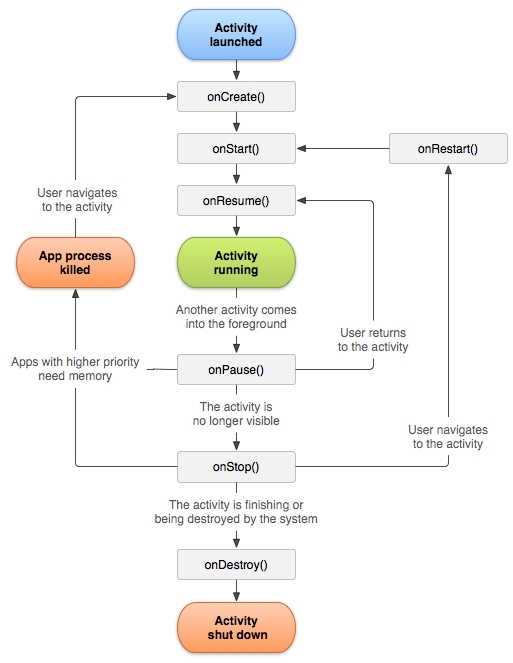
In the preceding figure (taken from https://developer.android.com/guide/components/activities/activity-lifecycle.html), we can see the full lifecycle of the activity.
At first, the activity gets created and onCreate() is called. Then, the activity gets started with the onStart() call. After it is started, it usually receives focus and onResume() is called.
Obviously, onPause(), onStop(), and onDestroy() are called at their respective times according to the flow mentioned before. It is worth noting that an Activity that is stopped is not necessarily immediately destroyed.
Activities can contain Fragments--self-contained units that contain views and have a lifecycle of their own. However, the lifecycle of a Fragment is bound to the Activity that contains it, so they are also tightly related.
The lifecycle can be seen in the following figure:
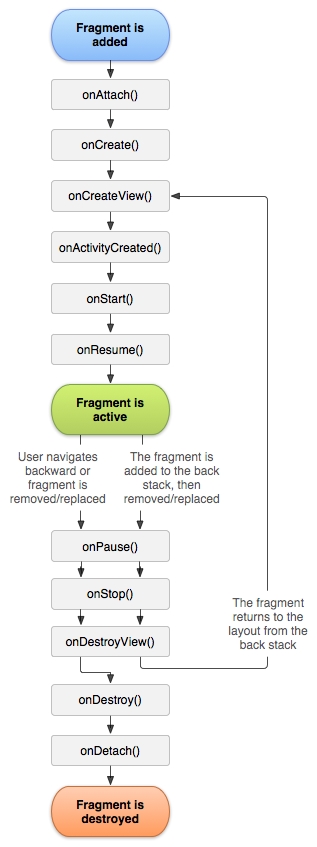
We can see that this is very similar to the lifecycle of an Activity, but there are a few new methods, such as the following:
It is beyond the scope of this book to cover the use of Fragments in any depth, but you just need to remember that the same rules about leaks that apply for Activities apply for Fragments as well.
From the flow that we have just analyzed, it can be seen that a great place to set up an Activity is the onCreate() call. Here, things such as setting up views, dependencies, parameter initialization/parsing--anything that will be used through the entire lifecycle of the Activity, usually go.
onStart() is a great place to initialize interactive operations. It can be a good place to start an Observable Subscription where the data is fetched. The logic is that onStop() will be called if a system Dialog is shown and, at this moment, there is no need to keep data updated because the user doesn't see it anyway. However, when the Dialog is closed, onStart() is called again and the data update resumes.
In our case, particularly, we might want to keep it in onCreate() because we still want to keep the UI updated with the newest stock data in the background so that we have fresh info at the moment we resume the Activity even if we are briefly distracted with some kind of a Dialog.
Finally, onResume() is called when the Activity gets focus. Before 7.0, it was almost always the case that after the onStart() is called the onResume() is called immediately, and after onPause() is called, the onStop() will follow. This didn't only happen in cases when the new Dialog or Activity didn't completely hide the previous Activity. In this case, the onPause() will be called in the parent activity but not onStop(), because it is partly visible; refer to the following figure:
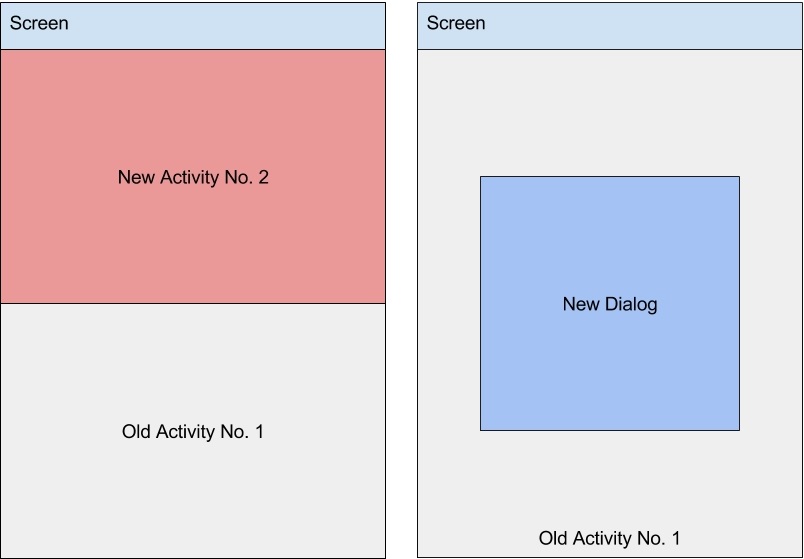
In Android 7.0, it is possible to have multiple Activities and Applications running side by side. In such cases, when an Activity loses focus, onPause() will be called but onStop() won't.
As we have seen, there are multiple places where an Activity can set itself up and start various kinds of operation. Care must be taken when setting up resources (and external ones such as the network) to not forget to tear them down. If something was started in onCreate(), it should be stopped in onDestroy(). If a background Thread was started in onStart(), it should be destroyed in onStop(). The same goes for onResume() and onPause(). In the following sections, we will see that if these rules aren't followed, it can create some serious problems.
At first, it might look that onCreate() is very straightforward--it gets called only once when an Activity gets created. However, the tricky bit is that an Activity can get destroyed and created not just when it is actually started (with startActivity()).
An Activity will also be destroyed and created in the following cases:
In all of these cases, the currently running Activity will be destroyed and created with a new configuration as a completely new instance (the same in-memory object will not be reused). Obviously, the entire lifecycle will be executed when it happens; so, the onPause(), onStop(), onDestroy(), onCreate(), onStart(), and finally onResume() will be called. We will soon see how important that is when working with Observables in Android.
If a proper lifecycle of the Activity isn't maintained, and if one doesn't take care of cleaning up resources, leaks will certainly happen. There are usually a few kinds of leaks
Memory Leaks will prevent the Garbage Collector (GC) from retrieving portions of unused memory and in the end, will cause the entire application to be killed because it ran out of available memory.
Thread (or Observable) leaks mean that there can be operations running in the background even though the parent Activity is closed and whatever result is returned doesn't matter anymore. This will also make it use CPU and thus drain the battery for no purpose.
Network responsiveness and bandwidth can be lost because a rogue Threads keeps an active connection to a remote server and keeps sending data, thus stealing resources from the operations that actually matter.
If a memory block that will not be used still has a reference pointing to it, it cannot be reclaimed by Garbage Collector, and thus it becomes a memory leak. Memory is taken; it cannot be used for other purposes but a developer has no use for it.
On Android, quite often it is possible to see leaked Activities, and this is a major source of memory leaks. It usually happens when there is a global (Application Scope) reference still pointing to an Activity Instance after the Activity has been destroyed (when onDestroy() was called). In such a case, the Activity object cannot be removed from the memory by the GC, and thus all the resources that the Activity was pointing to cannot be freed up as well.
This can easily add up to megabytes of memory, and it gets much worse when the leaking Activity is accessed multiple times; all the instances will be started, and memory will be allocated but never reclaimed.
Let's explore an example of what the memory leak can look like. For this, we will create MockActivity with this content:
public class MockActivity extends AppCompatActivity {

    private String[] bigArray = new String[10000000];

    @Override
    protected void onCreate(Bundle savedInstanceState) {
        super.onCreate(savedInstanceState);
        setContentView(R.layout.activity_mock);

        bigArray[0] = "test";

        Log.i("APP", "Activity Created");
    }

    @Override
    protected void onDestroy() {
        Log.i("APP", "Activity Destroyed");
        super.onDestroy();
    }
}
We will start this Activity from MainActivity by adding a button for testing purposes in its layout:
<Button
    android:id="@+id/start_another_activity_button"
    android:layout_width="wrap_content"
    android:layout_height="wrap_content"
    android:layout_below="@id/hello_world_salute"
    android:layout_margin="16dp"
    android:text="Start!" />
Here, the action will be handled by the following in the MainActivity again:
@OnClick(R.id.start_another_activity_button)
public void onStartAnotherActivityButtonClick(Button button) {
    startActivity(new Intent(this, MockActivity.class));
}
Also, do not forget to register this in AndroidManifest.xml:
<activity android:name=".MockActivity" />
This Activity, when it gets created, will allocate a big array (around 40MB) in the memory. Using Monitors in Android Studio, we can see how that looks:
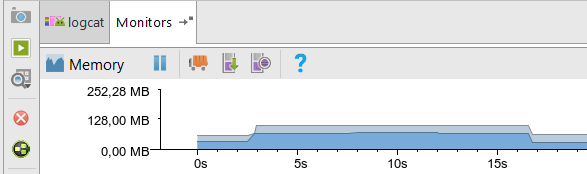
In the figure, we can see that memory usage jumped to around 68 MB after the MockActivity was started, and later when it was killed and we pressed Initiate GC button, it returned to the normal levels.
However, now let's add a reference to the MockActivity from some global, application scope variable. We can do this by simply introducing a static variable in the MockActivity class and make it reference instances of it, like this:
public class MockActivity extends AppCompatActivity {

    private static final List<MockActivity>
    INSTANCES = new ArrayList<>();

    private String[] bigArray = new String[10000000];

    @Override
    protected void onCreate(Bundle savedInstanceState) {
        super.onCreate(savedInstanceState);
        setContentView(R.layout.activity_mock);

        bigArray[0] = "test";
        INSTANCES.add(this);

        Log.i("APP", "Activity Created");
    }

    @Override
    protected void onDestroy() {
        Log.i("APP", "Activity Destroyed");
        super.onDestroy();
    }
}
Now, let's try starting this Activity and quitting it (by pressing Back) several times. The Memory Monitor will look like this:
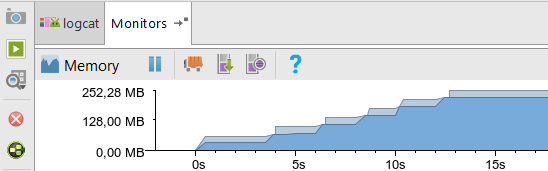
In the preceding figure, we can see that memory usage keeps growing, and it doesn't even drop if we initiate Garbage Collection. This happens because the class of MockActivity holds a reference to all the instances of MockActivity that were ever created. We can even see in the logs that the Activity is actually destroyed:
APP: Activity Destroyed
However, the instance itself isn't deleted from the memory. If we try starting MockActivity a few more times, it will fail with the following exception:
E/AndroidRuntime: FATAL EXCEPTION: main
Process: packt.reactivestocks, PID: 900
java.lang.OutOfMemoryError: Failed to allocate a 40000012 byte allocation with 33554336 free bytes and 36MB until OOM
at packt.reactivestocks.MockActivity.<init>(MockActivity.java:14)
at java.lang.reflect.Constructor.newInstance(Native Method)
at java.lang.Class.newInstance(Class.java:1572)
This was a very straightforward example, but it can sometimes be more subtle. Consider this code for MockActivity:
public class MockActivity extends AppCompatActivity {

    private String[] bigArray = new String[10000000];

    @Override
    protected void onCreate(Bundle savedInstanceState) {
        super.onCreate(savedInstanceState);
        setContentView(R.layout.activity_mock);

        bigArray[0] = "test";

        getApplication().registerComponentCallbacks(new
        ComponentCallbacks() {
            @Override
            public void onConfigurationChanged(Configuration newConfig)
            {
                Log.i("APP", "Some logging");
            }

            @Override
            public void onLowMemory() {}
        });

        Log.i("APP", "Activity Created");
    }
}
The same will happen as before--the Activity will leak and, at some point, an OutOfMemory Exception will be thrown. Why does this happen?
The application (accessed by getApplication()) is a global object that gets created once per application and gets destroyed only when the application is killed. In the application, we've used the registerComponentCallbacks() call to register our callback from inside the Activity. However, the callback that we've created with the following is an anonymous inner class that has an implicit this reference to the MockActivity:
new ComponentCallbacks() {...}
Thus, MockActivity instances are always referenced by the Application and can never be garbage-collected.
As it happens, it is quite easy to leak memory when using Observables. Usually, Observables have access to the Activity instance because, at some point, it has to update the UI with the results of the computation.
Now, consider the Observable that we used earlier:
Observable.interval(0, 5, TimeUnit.SECONDS)
This Observable never completes by itself and thus it never terminates. It keeps emitting values after it has been subscribed to. Also, consider this block, found downstream down the flow:
.doOnError(error -> {
    Toast.makeText(this, "We couldn't reach internet - falling back to
    local data",
            Toast.LENGTH_SHORT)
            .show();
})
It maintains a strong reference to the Activity by the this reference. This means that the Activity cannot be ever reclaimed by the GC while the Observable and the Subscription are still active and, in this particular case, the Observable will never terminate by itself--it needs to be cleaned up manually.
You might ask why the Observable isn't deleted along with Activity at once because it was the Activity that created it--the thing is that Observable isn't owned by the Activity--it is basically now owned by the Thread (Scheduler) that's running it.
In a very similar way, as we've just explored with Memory Leaks, it is possible to lose control (and related resources) of Threads and Background Threads.
Let's update the code for MockActivity to have an Observable.interval():
@Override
protected void onCreate(Bundle savedInstanceState) {
super.onCreate(savedInstanceState);
    setContentView(R.layout.activity_mock);

    Observable.interval(0, 2, TimeUnit.SECONDS)
            .subscribe(i -> Log.i("APP", "Instance " + this.toString()
            + " reporting"));

    Log.i("APP", "Activity Created");
}
Now, let's start the Activity a few times. We will promptly see that there are a lot of messages in the logs, as shown:
APP: Instance packt.reactivestocks.MockActivity@3c57ddae reporting
APP: Instance packt.reactivestocks.MockActivity@384e56b3 reporting
APP: Instance packt.reactivestocks.MockActivity@1bee4cb9 reporting
APP: Instance packt.reactivestocks.MockActivity@2e074272 reporting
APP: Instance packt.reactivestocks.MockActivity@163c07f8 reporting
APP: Instance packt.reactivestocks.MockActivity@159d438f reporting
Note that all of them have different IDs, so they are different instances. So, in this case, we've not only leaked the Activity with its memory, but also the background tasks that we have just created stay there and work even though the result is irrelevant after the Activity is destroyed.
Since we already know that Activities can be torn down and created again when the configuration of the device changes, it basically means that the onCreate() method of the Activity can be called multiples times while not changing (moving away) the Activity itself.
So, consider that there is a call like this in the onCreate() block:
Observable.interval(0, 5, TimeUnit.SECONDS)
It will be executed multiple times. If this isn't cleaned up properly, it will most likely leak the Activity along with its allocated memory and the Observable itself, which will keep running in the background and consuming resources.
More experienced readers will have noted this already, but we have exactly this kind of leak in our current codebase. It is a flow that we use to fetch and display financial stock data.
What makes it even worse is that every time we rotate the device, it creates an entire flow to fetch that data, and it stays active in the background. So, at the moment it is very easy to have several threads running that will keep fetching the remote financial stock data, saving it in the database (at the same time), and trying to update the UI of the RecyclerView, which doesn't matter anymore because the old Activity was destroyed (but not freed from memory).
So, even without the MockActivity and startActivity() call that we used to show how memory can leak, we can initiate multiple instances of the same Activity that will always be leaked.
By now, it has become crystal clear that Subscriptions have to be cleaned up because they will cause memory and thread leaks otherwise.
In this section, we will explore a few different ways to correctly destroy Subscriptions. One of the simplest options would be to use the Disposable interface. In addition to that, we will see how the RxLifecycle library can be used to make lifecycle management almost automatic, and we will check out a few examples of how to do that.
Finally, not every Subscription needs to be canceled or destroyed manually. Consider that it is just a simple call, as follows:
Observable.just(1)
        .subscribe();
Here, we can be sure that it will quickly complete, and it will terminate automatically.
Since every .subscribe() call returns a Disposable interface, it is the easiest way to terminate Subscriptions that are no longer needed; they can be canceled with a reference to the returned object.
In a simplified case, it will look like this:
private Disposable disposable;

@Override
protected void onCreate(Bundle savedInstanceState) {
    super.onCreate(savedInstanceState);
    setContentView(R.layout.activity_mock);

    disposable = Observable.interval(1, TimeUnit.SECONDS)
            .subscribe();
}

@Override
protected void onDestroy() {
    if (disposable != null) {
        disposable.dispose();
    }
    super.onDestroy();
}
Here, on the first line, we've created a field to keep a reference to the Disposable after it gets created:
private Disposable subscribe;
Next, in the onCreate() block, we have the Observable and the Subscription created with this:
disposable = Observable.interval(1, TimeUnit.SECONDS)
        .subscribe();
Also, we assign the Disposable reference.
Now, when the Activity is destroyed, the onDestroy() method will be called and the Subscription will be disposed of (canceled) with the following:
if (subscribe != null) {
    subscribe.dispose();
}
The same can be done with onStart-onStop and onResume-onPause pairs. However, it is important not to mix up pairs (such as onStart-onDestroy) as it will most likely lead to leaks or inconsistent behavior of the application.
The approach of manually tracking each Subscription might become unwieldy if there are multiple Subscriptions that need to be tracked in the same Activity. In this case, a CompositeDisposable might come in very handy. It's a class that can keep references to multiple Disposables and then unsubscribes from all of them at the same time.
So, consider this case:
Disposable disposable1 = Observable.interval(1, TimeUnit.SECONDS)
        .subscribe();

Disposable disposable2 = Observable.interval(1, TimeUnit.SECONDS)
        .subscribe();

Disposable disposable3 = Observable.interval(1, TimeUnit.SECONDS)
        .subscribe();
Here, we have three Disposables that we would normally need to unsubscribe from with three calls to .dispose(). By introducing a CompositeDisposable:
private CompositeDisposable disposable;

disposable = new CompositeDisposable();

Disposable disposable1 = Observable.interval(1, TimeUnit.SECONDS)
        .subscribe();
[...]
We can assign all the Disposables to CompositeDisposable with this:
disposable.addAll(
        disposable1,
        disposable2,
        disposable3
);
Then, the onDestroy() block will look like before:
@Override
protected void onDestroy() {
    if (disposable != null) {
        disposable.dispose();
    }
    super.onDestroy();
}
Then, there will be no need for a separate .dispose() call to each Disposable.
Disposing of Subscriptions appropriately can quickly become a tedious job. You need to capture variables for the Subscriptions, track them, and dispose them at the correct moment of the lifecycle.
There is an easier way to do this. Trello company has released an awesome library called RxLifecycle (available at https://github.com/trello/RxLifecycle). We will soon see that this library lets developers solve lifecycle management issues by just adding a single line to the Observable flow.
First of all, let's set up the library so that it can be used in the code. Again, this is a very straightforward thing to do. Just add the following lines to the app/build.gradle file:
compile 'com.trello.rxlifecycle2:rxlifecycle:2.0.1'
compile 'com.trello.rxlifecycle2:rxlifecycle-android:2.0.1'
compile 'com.trello.rxlifecycle2:rxlifecycle-components:2.0.1'
The first line adds support for general lifecycle management:
compile 'com.trello.rxlifecycle2:rxlifecycle:2.0.1'
It means that this library can be used not only for Android. The following line adds the necessary support for Android Platform:
compile 'com.trello.rxlifecycle2:rxlifecycle-android:2.0.1'
This line includes custom Activities for subclassing for even easier access to lifecycle management:
compile 'com.trello.rxlifecycle2:rxlifecycle-components:2.0.1'
The simplest way to use RxLifecycle in your code is to make your activities extend RxActivity:
import com.trello.rxlifecycle2.components.support.RxAppCompatActivity;

public class ExampleLifecycleActivity extends RxAppCompatActivity {
}
Since we've extended RxActivity, we now have an access to the bindToLifecycle() method that can be used to terminate the Subscription. It can look something like this:
public class ExampleLifecycleActivity extends RxAppCompatActivity {
    @Override
    protected void onCreate(Bundle savedInstanceState) {
        super.onCreate(savedInstanceState);
        setContentView(R.layout.activity_mock);

        Observable.interval(1, TimeUnit.SECONDS)
                .compose(bindToLifecycle())
                .subscribe();
    }
}
The key call here is the following:
.compose(bindToLifecycle())
It modifies the Observable to listen to the events from the lifecycle of the Activity. When it finds an appropriate event--and in this case, it will be DESTROY (opposite of CREATE)--it will terminate the Subscription.
To test this ourselves, we can always add some logging and see what happens:
Observable.interval(1, TimeUnit.SECONDS)
        .doOnDispose(() -> Log.i("APP", "Disposed"))
        .compose(bindToLifecycle())
        .subscribe();
After starting and navigating back from the Activity, we will see a message in the logs:
APP: Disposed
This means that the Subscription has been terminated and there is no task in the background that was leaked; however, before using .bindToLifecycle(), it would have kept running indefinitely.
Some readers might have noted that we've used the following class for the subclassing:
com.trello.rxlifecycle2.components.support.RxAppCompatActivity
There is also another one similarly named:
com.trello.rxlifecycle2.components.RxActivity
The difference is that the former one extends AppCompatActivity, and the latter extends Activity. So, if you have been using AppCompatActivity in your code before, you might want to stick to RxAppCompatActivity.
However, it might not be always feasible to make your classes extend RxActivity. It happens quite often that your class already extends some other class that you cannot control.
In this case, the best approach would be to re-implement the RxLifecycle class (which is actually very light) by introducing a Subject (more about them later):
BehaviorSubject<ActivityEvent> lifecycleSubject = BehaviorSubject.create();
Also, we would have to override appropriate lifecycle methods, such as this:
void onCreate(@Nullable Bundle savedInstanceState) {
    super.onCreate(savedInstanceState);
    lifecycleSubject.onNext(ActivityEvent.CREATE);
}
Another example of an appropriate lifecycle method is this:
void onDestroy() {
    lifecycleSubject.onNext(ActivityEvent.DESTROY);
    super.onDestroy();
}
Depending on your use cases, you might need to do that for the rest of the lifecycle methods as well.
RxLifecycle supports Fragments as well, so an identical approach can be taken to fragments:
import com.trello.rxlifecycle2.components.support.RxFragment;

public class ExampleFragment extends RxFragment {
    @Override
    public void onCreate(@Nullable Bundle savedInstanceState) {
        super.onCreate(savedInstanceState);

        Observable.interval(1, TimeUnit.SECONDS)
                .compose(this.bindToLifecycle())
                .subscribe();
    }
}
RxFragment has the same method, .bindToLifecycle(), available but tailored to the lifecycle of the Fragment. Thus, when an Activity and the Fragments that are inside it are destroyed, the Subscriptions will be cleaned up properly.
One can also use RxLifecycle with Views. It is quite rare to be in need of this functionality, but it can be used for animations or some delayed or periodic actions that are specific to the view shown.
The Views have a very simple lifecycle and the associated methods are as follows:
Binding the Observable (Subscription) to the lifecycle of the view can be done like this:
TextView textView;

Observable.interval(1, TimeUnit.SECONDS)
        .compose(RxLifecycleAndroid.bindView(textView))
        .subscribe();
Now the Observable will be terminated when onViewDetachedFromWindow() is called on the view.
Since we now know how to properly clean up Subscription, we can fix the main flow that we are using to fetch financial stock quotes.
First of all, let's make the MainActivity extend the RxAppCompatActivity so that access to the lifecycle methods will become available:
import com.trello.rxlifecycle2.components.support.RxAppCompatActivity;

public class MainActivity extends RxAppCompatActivity {
The next step is to add the .bindToLifecycle() call with this:
.compose(bindToLifecycle())
So, the start of the flow will look like this:
Observable.interval(0, 5, TimeUnit.SECONDS)
        .compose(bindToLifecycle())
        .flatMap(
                i -> yahooService.yqlQuery(query, env)
                        .toObservable()
        )
This will make the Observable terminate whenever the MainActivity is destroyed. We can also move the entire flow to the onStart() method where it will be activated when a user opens an Activity and deactivated when it's closed.
In this chapter, we refreshed our knowledge on the lifecycle of Activities and Fragments. Later, we used this knowledge to build and explore a few cases of how a memory and a thread leak can occur. This way, we clearly saw that Observables have to be manually terminated if they are endless (such as Observable.interval()) because they will be the reason for such leaks.
Next, we learned how to use the RxLifecycle library to easily terminate Subscriptions that are part of an Activity by binding them to the lifecycle of the Activity. This way, we ensure that the Activity and its resources will never be leaked in a very straightforward and easy-to-use way.
Finally, we used a newly acquired RxLifecycle library to fix our code that fetches financial quote information from spawning multiple redundant threads and leaking Observables.
In this chapter, we will enhance the stock monitoring application with an ability to fetch updates about certain companies from a Twitter stream using the Twitter4J library.
However, in order to do that, we will need to learn how to plug non-reactive code into RxJava. There are a few ways to wrap plain Java code and turn it into an Observable. We will see how to do this using Java's Futures and Callables, and we will explore how Emitter interface can be used to work with hot Observables.
Finally, we will adapt the Twitter4J library into our Reactive workflow, and we will show updates related to the followed companies on the UI.
Topics covered in this chapter are as follows:
As we will see soon, the creation of custom Observables isn't complicated. We will start off by exploring how we can plug in Java's Future and Callable interfaces as they are commonly used in various libraries to represent pending or background tasks.
Later, we will see how to use the Emitter interface, which can be consumed by Observable.create() to supply the Observable with values from some other source. This will be a perfect choice for integration with the Twitter4J library later.
The simplest way to integrate any Java code into RxJava is to use the Callable interface. It's an interface that represents an operation that returns some result and can throw an exception. It's very similar to Runnable; however, Runnable interface doesn't return any value.
To make Callable a part of reactive flow, the .fromCallable() method can be used on Observable:
Observable.fromCallable(() -> someOperation());
If the operation will be long-running, you must subscribe to an Observable on a specific scheduler:
Observable.fromCallable(() -> longRunningOperation())
        .subscribeOn(Schedulers.io());
Otherwise, it will run on the current thread by default and will block all the other operations.
Futures are usually used in places where a need to fetch a result of an asynchronous operation is present. The Future waits until the computation finishes, and then it becomes available for retrieval using the .get() method. If the result is not available, the Future will block until it becomes ready.
RxJava provides a method on Observable to consume Futures, such as the following:
Observable.fromFuture(new FutureTask<>(() -> longRunningOperation()))
.fromFuture() is more useful for integration with code that already provides Future as an interface for its long-running operations. If one is trying to adapt the existing code for use with RxJava, it is easier to just use the Callable interface.
The Emitter interface is a much more powerful construct because it allows you to control the way items will be emitted into the Observable in a very granular fashion. Basically, the Observable will be controlled by these three methods:
The Emitter interface is supplied to an Observable during its creation with the .create() method where the full type interface looks like this:
Observable.create(new ObservableOnSubscribe<Integer>() {
    @Override
    public void subscribe(ObservableEmitter<Integer> e) throws
    Exception {
        e.onNext(1);
        e.onNext(2);
        e.onComplete();
    }
});
However, since we are using lambdas, it will usually look like this:
Observable.<Integer>create(e -> {
    e.onNext(1);
    e.onNext(2);
    e.onComplete();
})
It is important not to forget to call the following whenever we are done supplying values:
e.onComplete();
Otherwise, the Observable won't terminate, and it will be needed to be disposed of manually.
The onComplete() call can be easily missed if exceptions aren't handled properly during the emission of the values. Consider the following example:
Observable.<Integer>create(e -> {
    e.onNext(returnValue());
    e.onComplete();
});
Here, returnValue() can throw an exception. If an exception is thrown, onComplete() won't ever be called. This can be fixed by adding a finally block, as shown:
Observable.<Integer>create(e -> {
    try {
        e.onNext(returnValue());
    } catch (Exception ex) {
        e.onError(ex);
    } finally {
        e.onComplete();
    }
});
This way, onComplete()will never be missed.
The Emitter interface is available for all reactive types, such as Flowable, Observable, Single, Maybe, and Completable. It is used in the same fashion:
Flowable.create(emitter -> {
    emitter.onNext(1);
    emitter.onNext(2);
    emitter.onComplete();
}, BackpressureStrategy.BUFFER);
The Emitter interface is a powerful tool and can be cumbersome to use in some cases, so Callables and .fromCallable() might be a preferred option in some cases if the flow is simple. However, it is almost always mandatory to use .create() whenever multiple values will be returned and in cases where we need to receive values from some external Listener.
Sometimes it is necessary to do a cleanup on the internal resources that were used to feed Emitter when an Observable completes. Consider this example where we will click events from a View:
Observable.create(emitter -> {
    helloText.setOnClickListener(v -> emitter.onNext(v));
});
This Observable never completes but even if it terminates, there is still a problem present--the reference to the Emitter (and thus Observable) will alway be present because the following call created a ClickListener that never went away:
helloText.setOnClickListener(v -> emitter.onNext(v));
So, the ClickListener always has a reference to the Emitter, and Emitter has a reference to the Observable. The memory will never be freed up, and the setOnClickListener() listener will keep calling:
v -> emitter.onNext(v)
To fix this, we need to add a Cancellable action with this:
emitter.setCancellable(() -> helloText.setOnClickListener(null));
This way, the listener on TextView will be cleaned up. This method can be used to clean up other kinds of resources, such as these:
So, now the block with clean up code can look as follows:
Observable.create(emitter -> {
    emitter.setCancellable(() -> helloText.setOnClickListener(null));
    helloText.setOnClickListener(v -> emitter.onNext(v));
})
In this particular case, since we are working with Views, it is advised to use MainThreadDisposable from the RxAndroid library. Consider the following example:
Observable.create(emitter -> {
    emitter.setDisposable(new MainThreadDisposable() {
        @Override
        protected void onDispose() {
            helloText.setOnClickListener(null);
        }
    });
    helloText.setOnClickListener(v -> emitter.onNext(v));
})
This way, the interaction with the TextView will happen on the main Android UI thread. Also, in this case, we've used the .setDisposable() method; it serves the same purpose as .setCancellable() but is used in cases where the Disposable interface is already available from somewhere else.
Since we know already how to integrate any kind of Java code into the reactive flow, we are ready to start working with Twitter streams.
To monitor Twitter for tweets that are related to the stocks we are following, we will use the Twitter4J (available at http://twitter4j.org or https://github.com/yusuke/twitter4j) library. It's a pure Java solution that provides an interface to the Twitter API through Java.
Initially, we will transform the original Twitter4J API into an Observable compatible interface. Afterward, we will plug it into the existing flow where we are monitoring stock updates.
Finally, since it will contain new textual data, we will have to make modifications to the UI so that we can show the status updates from Twitter along with stock quotes.
First of all, we will need to add relevant dependencies so we that can load the Twitter4J library. To do this, as usual, add the following entries to app/build.gradle:
compile 'org.twitter4j:twitter4j-core:4.0.6'
compile 'org.twitter4j:twitter4j-stream:4.0.6'
The first line is a general interface to the Twitter API (to make status updates, for example) that contains the core domain objects, such as Status or User.
The following line adds support for streaming the Twitter API through TwitterStream, which allows you to constantly listen for the status updates without making multiple connections to Twitter:
compile 'org.twitter4j:twitter4j-stream:4.0.6'
The application will require certain credentials from Twitter. Before it is possible to acquire them, you will need to create an application at https://apps.twitter.com/. After the setup there is completed, the system will provide credentials that will be needed later:
These credentials shouldn't be shared with other people.
Creating an Observable for the Twitter Streaming interface will consist of a few parts:
Finally, the resulting Observable will have to be plugged into the UI of our application to display status updates that are related to the companies we are following.
First of all, Twitter and thus Twitter4J requires us to set up credentials so that we can access Twitter's API. If you have done that already, it will be easy to proceed further. If not, go to https://apps.twitter.com/ to create an application that can be used to obtain the credentials.
When the credentials are obtained, we will need to create a special Configuration object where the credentials will be stored:
final Configuration configuration = new ConfigurationBuilder()
        .setDebugEnabled(true)
        .setOAuthConsumerKey("enterYourDataHere")
        .setOAuthConsumerSecret("enterYourDataHere")
        .setOAuthAccessToken("enterYourDataHere")
        .setOAuthAccessTokenSecret("enterYourDataHere")
        .build();
That's it. The following line is useful to keep for debugging purposes while we are developing the application:
.setDebugEnabled(true)
When the Configuration object is available, we can start setting up the code to monitor status updates and receive that data into our application.
Firstly, we need to acquire the TwitterStream object with this:
TwitterStream twitterStream = new TwitterStreamFactory(configuration).getInstance();
Next, we will need to create a listener that will be receiving the status updates. The listener is created with this:
StatusListener listener = new StatusListener() {
    @Override
    public void onStatus(Status status) {
        System.out.println(status.getUser().getName() + " : " +
        status.getText());
    }

    @Override
    public void onDeletionNotice(StatusDeletionNotice
        statusDeletionNotice) {
    }

    @Override
    public void onTrackLimitationNotice(int numberOfLimitedStatuses) {
    }

    @Override
    public void onScrubGeo(long userId, long upToStatusId) {
    }

    @Override
    public void onStallWarning(StallWarning warning) {
    }

    @Override
    public void onException(Exception ex) {
        ex.printStackTrace();
    }
};
We can see that there are quite a few methods from the StatusListener interface that need to be implemented. However, we will only be interested in the following to capture status updates:
void onStatus(Status status)
To handle any exceptions that can occur, we will be interested in this:
void onException(Exception ex)
When we have a StatusListener available, we can plug it into the TwitterStream by calling this:
twitterStream.addListener(listener);
The last step is to initiate a connection and start listening to the updates. For this, we will use the following method:
twitterStream.filter();
However, this method needs a criterion to select what kind of status updates we will listen to. For this, we will use the FilterQuery class:
twitterStream.filter(
new FilterQuery()
                .track("Yahoo", "Google", "Microsoft")
                .language("en")
);
Here, the following call specifies what kind of keywords we are looking for in the tweets:
.track("Yahoo", "Google", "Microsoft")
This limits tweets only to the English language:
.language("en")
As soon as .filter() is called, the StatusListener will start receiving updates and that can be seen in the console.
The whole code will look like this:
TwitterStream twitterStream = new TwitterStreamFactory(configuration).getInstance();
twitterStream.addListener(listener);
twitterStream.filter(
new FilterQuery()
.track("Yahoo", "Google", "Microsoft")
.language("en")
);
Here, the configuration and listener variables are the ones we have created before.
The final steps now left to take are to convert the preceding code into something that can be used in RxJava Observable flows.
We will do this using Observable.create() and by utilizing the Emitter interface.
Let's start by creating the given method:
Observable<Status> observeTwitterStream(Configuration configuration, FilterQuery filterQuery)
This will be responsible for the creation of such an Observable. Inside the methods, we will have a call to the Observable.create() call:
Observable<Status> observeTwitterStream(Configuration configuration, FilterQuery filterQuery) {
return Observable.create(emitter -> {
});
}
This will provide us with a convenient interface where we will be able to specify connection settings (Configuration argument) and the query (FilterQuery argument).
Inside the Observable.create() call, we will initialize the TwitterStream Object and attach it to the listener:
return Observable.create(emitter -> {
final TwitterStream twitterStream
= new TwitterStreamFactory(configuration).getInstance();
StatusListener listener = new StatusListener() {
@Override
public void onStatus(Status status) {
}
@Override
public void onDeletionNotice(StatusDeletionNotice
statusDeletionNotice) {
}
@Override
public void onTrackLimitationNotice(int
numberOfLimitedStatuses) {
}
@Override
public void onScrubGeo(long userId, long upToStatusId) {
}
@Override
public void onStallWarning(StallWarning warning) {
}
@Override
public void onException(Exception ex) {
}
};
twitterStream.addListener(listener);
twitterStream.filter(filterQuery);
});
The next step is to plug in the onStatus(Status status) to receive status updates into Observable by adding this:
public void onStatus(Status status) {
emitter.onNext(status);
}
Also, we will add onException(Exception ex) to handle exceptions:
public void onException(Exception ex) {
emitter.onError(ex);
}
Finally, we need to ensure that the TwitterStream is properly terminated when the Observable is being disposed of. That can be done by adding a callback to the emitter with .setCancellable():
emitter.setCancellable(() -> twitterStream.shutdown());
In the end, the whole method to create such an Observable will look like this:
Observable<Status> observeTwitterStream(Configuration configuration, FilterQuery filterQuery) {
return Observable.create(emitter -> {
final TwitterStream twitterStream
= new TwitterStreamFactory(configuration).getInstance();
emitter.setCancellable(() -> twitterStream.shutdown());
StatusListener listener = new StatusListener() {
@Override
public void onStatus(Status status) {
emitter.onNext(status);
}
[...]
@Override
public void onException(Exception ex) {
emitter.onError(ex);
}
};
twitterStream.addListener(listener);
twitterStream.filter(filterQuery);
});
}
Here, some of the overridden methods were skipped for the sake of compactness.
observeTwitterStream() will provide us with a very easy way to plug in to the Twitter data stream as we will see that next.
We now have everything ready to start integrating the new data from Twitter into the UI so that it can finally be visible for the end user.
However, before the data is ready for display, we will need to figure out a few things:
However, we will easily solve these challenges.
Now there are two sources from where the data is coming:
It is necessary to merge them into a single Observable so that we can make use of a single combined flow and reuse the code we already have to display them.
To merge two Observables, we will use the Observable.merge() function:
Observable.merge(
observable1,
observable2
)
This Observable will return items of the StockUpdate type, so it means that the observable1 and observable2 will have to return the StockUpdate type as well.
In the place of observable1, we can move the code that is responsible for the periodic updates of financial stock quotes. The block will be as follows:
Observable.interval(30, 5, TimeUnit.SECONDS)
.flatMap(
i -> yahooService.yqlQuery(query, env)
.toObservable()
)
.map(r -> r.getQuery().getResults().getQuote())
.flatMap(Observable::fromIterable)
.map(StockUpdate::create)
As you can see, we have included the code that converts YahooStockResult to StockUpdate--the inner Observable is responsible for returning the correct type.
In the place of observable2, we will put the code to retrieve status updates from Twitter with this:
observeTwitterStream(configuration, filterQuery)
.map(StockUpdate::create)
As we can see, the block here is much smaller because we do not need to worry about periodic updates or about extracting the correct type of update, that will be done later with the StockUpdate.create() method.
Finally, the whole block that will merge two streams of data will be this:
Observable.merge(
Observable.interval(30, 5, TimeUnit.SECONDS)
.flatMap(
i -> yahooService.yqlQuery(query, env)
.toObservable()
)
.map(r -> r.getQuery().getResults().getQuote())
.flatMap(Observable::fromIterable)
.map(StockUpdate::create),
observeTwitterStream(configuration, filterQuery)
.map(StockUpdate::create)
)
This will be followed by the code to managed lifecycle, some error logging, and the selection of the correct Scheduler as we have done that before:
.compose(bindToLifecycle())
.subscribeOn(Schedulers.io())
.doOnError(ErrorHandler.get())
The Value Object (StockUpdate) is not yet ready to carry the information of a status update from Twitter. We will fix that by adding a few additional fields and methods.
First of all, let's add the necessary fields for the text:
private final String twitterStatus;
[...]
public StockUpdate(String stockSymbol, BigDecimal price, Date date,
String twitterStatus) {
if (stockSymbol == null) {
stockSymbol = "";
}
if (twitterStatus == null) {
twitterStatus = "";
}
this.stockSymbol = stockSymbol;
this.price = price;
this.date = date;
this.twitterStatus = twitterStatus;
}
Here, we have added some additional checks so that we won't run into NullPointerException later on. Also, the existing .create() method has to be updated to the following:
public static StockUpdate create(YahooStockQuote r) {
return new StockUpdate(r.getSymbol(), r.getLastTradePriceOnly(),
new Date(), "");
}
Later, we will also need a call to check whether it is a status update from Twitter or a just regular stock update:
public boolean isTwitterStatusUpdate() {
return !twitterStatus.isEmpty();
}
Finally, we need to create a new .create() method to handle the Status type from Twitter4j:
public static StockUpdate create(Status status) {
return new StockUpdate("", BigDecimal.ZERO, status.getCreatedAt(),
status.getText());
}
Since the messages are being persisted to the local database, the StockUpdatePutResolver file and StockUpdateGetResolver need to be updated as well.
We will start by adding a new field definition to the StockUpdateTable:
static class Columns {
...
static final String TWITTER_STATUS = "twitter_status";
}
Then we'll update the createTableQuery() method:
static String createTableQuery() {
return "CREATE TABLE " + TABLE + "("
+ Columns.ID + " INTEGER PRIMARY KEY AUTOINCREMENT, "
+ Columns.STOCK_SYMBOL + " TEXT NOT NULL, "
+ Columns.DATE + " LONG NOT NULL, "
+ Columns.PRICE + " LONG NOT NULL, "
+ Columns.TWITTER_STATUS + " TEXT NULL, "
+ ");";
}
StockUpdatePutResolver will need to save one additional field with this:
protected ContentValues mapToContentValues(@NonNull StockUpdate entity) {
final ContentValues contentValues = new ContentValues();
contentValues.put(StockUpdateTable.Columns.ID, entity.getId());
contentValues.put(StockUpdateTable.Columns.STOCK_SYMBOL,
entity.getStockSymbol());
contentValues.put(StockUpdateTable.Columns.PRICE,
getPrice(entity));
contentValues.put(StockUpdateTable.Columns.DATE, getDate(entity));
contentValues.put(StockUpdateTable.Columns.TWITTER_STATUS,
entity.getTwitterStatus());
return contentValues;
}
On the other hand, the StockUpdateGetResolver will have the following:
final String twitterStatus = cursor.getString(cursor.getColumnIndexOrThrow(StockUpdateTable.Columns.TWITTER_STATUS));
[...]
final StockUpdate stockUpdate = new StockUpdate(
stockSymbol,
price,
date,
twitterStatus
);
After this is done, we can proceed with the layouts.
As we have readied the object that will carry and persist the tweet status information, we can continue work with the UI.
First of all, we will update the stock_update_item.xml layout file by adding this:
<TextView
android:id="@+id/stock_item_twitter_status"
android:layout_width="wrap_content"
android:layout_height="wrap_content"
android:text="Very long Twitter update that is going
to be displayed as a message"
android:textColor="@android:color/holo_green_dark"
android:textSize="18sp" />
This will contain the Twitter status message. To make it display properly, we will have to add a root component:
<RelativeLayout
android:id="@+id/stock_item_content_block"
android:layout_width="match_parent"
android:layout_height="wrap_content">
[...]
</RelativeLayout>
<TextView
android:id="@+id/stock_item_date"
android:layout_width="wrap_content"
android:layout_height="match_parent"
android:layout_below="@id/stock_item_content_block"
android:layout_marginTop="5dp"
android:text="2012-12-01"
android:textSize="12sp" />
This will contain the following whole block:
<TextView
android:id="@+id/stock_item_symbol"
android:layout_width="wrap_content"
android:layout_height="match_parent"
android:text="GOOGLE"
android:textSize="18sp" />
<TextView
android:id="@+id/stock_item_twitter_status"
android:layout_width="wrap_content"
android:layout_height="wrap_content"
android:text="Very long Twitter update that is going
to be displayed as a message"
android:textColor="@android:color/holo_green_dark"
android:textSize="18sp" />
<TextView
android:id="@+id/stock_item_price"
android:layout_width="wrap_content"
android:layout_height="match_parent"
android:layout_alignParentRight="true"
android:layout_centerVertical="true"
android:text="18.90"
android:textColor="@android:color/holo_green_dark"
android:textSize="22sp" />
Next, we will need to update StockUpdateViewHolder.java to have references to newly created elements in the layout:
@BindView(R.id.stock_item_twitter_status)
TextView twitterStatus;
[...]
public void setTwitterStatus(String twitterStatus) {
this.twitterStatus.setText(twitterStatus);
}
Also, when the Twitter status message is displayed, we should hide the quote name (at least for now) and the price of the stock. We can do this by adding a method in StockUpdateViewHolder.java, which, based on the type of the message, will hide the appropriate elements:
public void setIsStatusUpdate(boolean twitterStatusUpdate) {
if (twitterStatusUpdate) {
this.twitterStatus.setVisibility(View.VISIBLE);
this.price.setVisibility(View.GONE);
this.stockSymbol.setVisibility(View.GONE);
} else {
this.twitterStatus.setVisibility(View.GONE);
this.price.setVisibility(View.VISIBLE);
this.stockSymbol.setVisibility(View.VISIBLE);
}
}
Obviously, the onBindViewHolder() void needs to be updated to as follows in the StockDataAdapter.java as well:
@Override
public void onBindViewHolder(StockUpdateViewHolder holder, int position) {
StockUpdate stockUpdate = data.get(position);
holder.setStockSymbol(stockUpdate.getStockSymbol());
holder.setPrice(stockUpdate.getPrice());
holder.setDate(stockUpdate.getDate());
holder.setTwitterStatus(stockUpdate.getTwitterStatus());
holder.setIsStatusUpdate(stockUpdate.isTwitterStatusUpdate());
}
Additionally, the add() method in StockDataAdapter.java has to now take into account that some of the elements do not have quote information but have status updates:
for (StockUpdate stockUpdate : data) {
if (stockUpdate.getStockSymbol()
.equals(newStockUpdate.getStockSymbol())) {
if (stockUpdate.getPrice().equals(newStockUpdate.getPrice())
&& stockUpdate.getTwitterStatus().equals
(newStockUpdate.getTwitterStatus())) {
return;
}
break;
}
}
The code here takes O(n) time to check for duplicate entries. It can easily start consuming lots of resources when the history of entries becomes very long.
To fight this, it is possible to use TreeSet<> to do the checking for the existing entries or limit a number of tweets that can be kept on the list.
Now the UI is ready and the tweets can be seen as a part of the stream. It will be a mix of financial stock updates and status messages from Twitter and will look as illustrated:
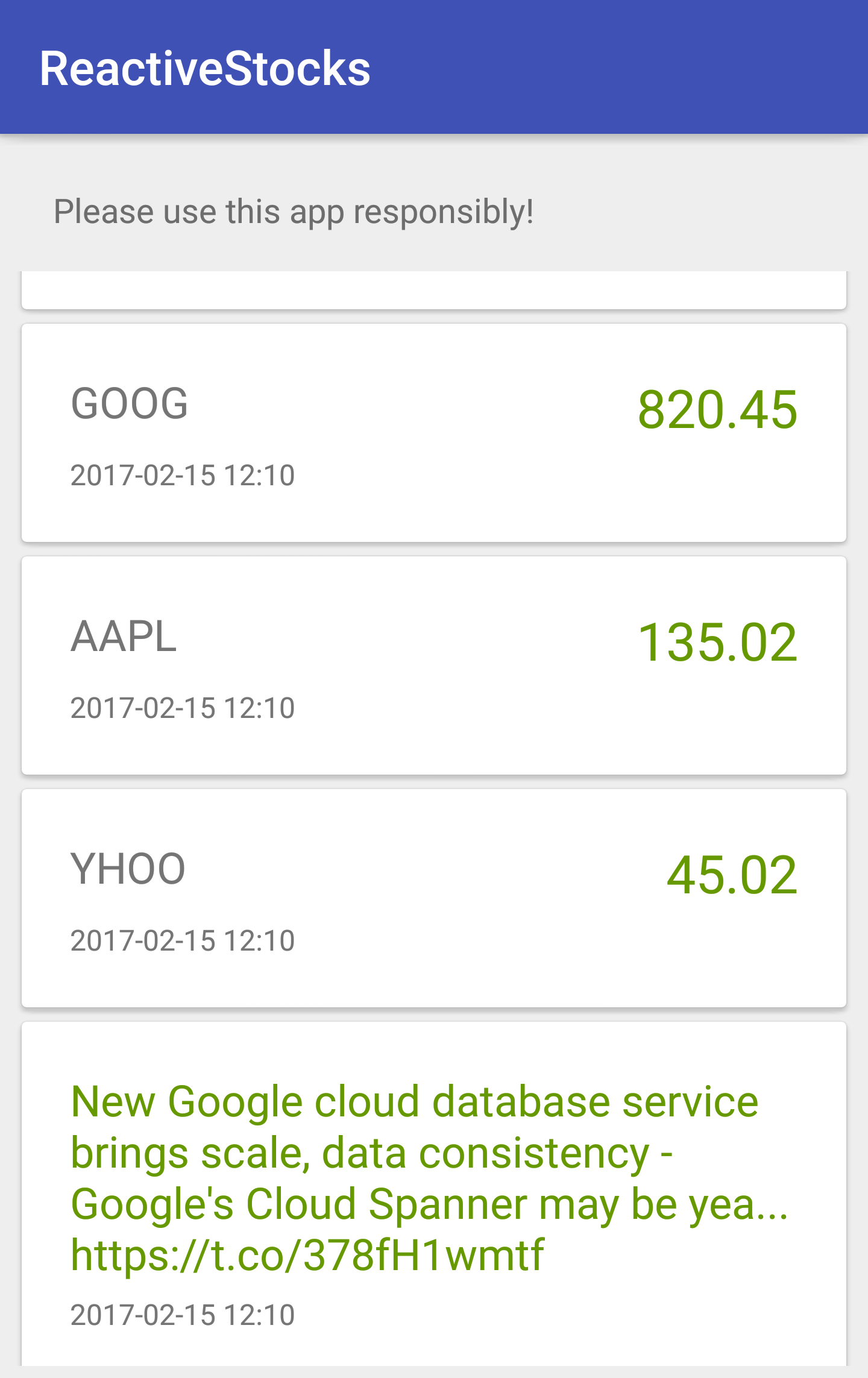
One can notice pretty fast that the rate the Twitter status updates are received at is really fast. To make the UI a little less overcrowded, we can add a simple .sample() method to reduce its rate:
observeTwitterStream(configuration, filterQuery)
.sample(700, TimeUnit.MILLISECONDS)
.map(StockUpdate::create)
With the following line, we make the TwitterStream Observable output an entry every 700 ms instead of flushing everything it receives:
.sample(700, TimeUnit.MILLISECONDS)
Obviously, this way we are losing some data, but for the sake of the exercise, it is a useful approach to cope with the data that keeps overflowing the UI.
Now, another problem is that the stream quickly leaves the user in the current scroll position, and it looks like it's stuck. That happens because we were viewing entry at position 0 initially, but there are new entries being entered above it constantly, so the current entry becomes second, third and so on pretty rapidly. In the end, we see stale data.
To make the stream always scroll to the top, whenever the new entry is received, we can update the .subscribe() block to include the following:
recyclerView.smoothScrollToPosition(0);
So, it becomes this:
.subscribe(stockUpdate -> {
Log.d("APP", "New update " + stockUpdate.getStockSymbol());
noDataAvailableView.setVisibility(View.GONE);
stockDataAdapter.add(stockUpdate);
recyclerView.smoothScrollToPosition(0);
}
This will cause the RecyclerView to always go to the very first element whenever a new entry is inserted.
After these few simple changes, we have made the app a bit more pleasant to use.
In this chapter, we covered a few ways to create the Observables to connect with regular Java code.
We learned that Observable.fromCallable() and Observable.fromFuture() are very useful in most of the simple cases. Observable.fromCallable() is used more with custom code, while Observable.fromFuture() is more fitting for the integration with external libraries that already use Futures.
Additionally, we saw how we can use the Emitter interface to construct more advanced and complex flows with custom clean up (.setCancellable()) code.
We learned how to use a few simple methods in the TwitterStream library to connect to the Twitter and start receiving updates.
Subsequently, we used the Emitter interface to plug in the existing Twitter4J interface of TwitterStream into the Observable, which allowed us to easily integrate tweets into the flow of the existing financial stock updates.
Finally, we adapted the existing UI to show tweets and financial stock updates at the same time.
In earlier chapters, we have already covered lots of ways that the Observable flows can be constructed. However, we left out some juicy details, for example, how the .flatMap() works.
Observable flows can be constructed to do many different and often complicated tasks. One can create flows where the result of two asynchronous actions will activate the next step only if certain conditions are satisfied. Alternatively, as we have already seen, different remote requests can be combined and, in case something goes wrong, the backup source can be used.
Here, we will cover several core methods that most developers will need to use at some point, such as the following:
Most developers will find them useful sooner or later. The ideas here build heavily on functional programming, so if you are familiar with that, it should be pretty easy to grasp everything in this chapter.
Finally, we will provide examples for each of these methods so that it is easier to understand how they work.
To summarize, we will cover things like the following:
As we have already seen, there is often a need to create and consume nested Observables. Let's say that the User ID is produced by an Observable, and we have to use that ID to retrieve payments through another Observable.
Plugging everything in to one seamless flow might not be so straightforward and, in cases like these, we have often used tools like .flatMap(). In this section, we will see how to use .flatMap() in detail and how it works.
However, before that, we will first cover .flatMap() close brother .map(). It will later help us understand why it is necessary to use .flatMap() and how it is related to mapping.
We have used .map() before as well. This is a functional method, and it is really easy to understand what it does--it just transforms one item to another.
Consider the given example:
Observable.just(1, 2, 3)
.map(i -> i + 1)
It will go through each number and return a new value that is higher by one. It is highly encouraged to never modify values in place, in the .map() method, but to always return a new one.
So, this approach will be bad:
Observable.just(new Date(1), new Date(2), new Date())
.map(i -> {
i.setTime(i.getTime() + 1);
return i;
})
Instead of that, prefer the following way:
Observable.just(new Date(1), new Date(2), new Date())
.map(i -> new Date(i.getTime() + 1))
This approach helps to avoid concurrent modification bugs; it is easier to debug, and it is easier to reason about.
Finally, .map() can be used to change the type of the value, as shown:
Observable.just(new Date(1), new Date(2), new Date())
.map(i -> i.toString())
Now instead of Date, a String type will be returned for the rest of the processing in the flow.
To summarize, .map() takes an item and returns a new item to be processed downstream. The newly returned item can be anything--of a different value, of a different type, or not changed at all. This can be represented in a figure, like this:

This Map transforms apples to pears. We will shortly see how all of this is related to .flatMap().
.flatMap() is a map operation--it transforms one value to another. However, the way it does it is a bit different. Let's examine this with an example where we have a bunch of IDs, and we need to request some remote service to receive data:
Observable.just("ID1", "ID2", "ID3")
.map(id -> Observable.fromCallable(mockHttpRequest(id)))
.subscribe(e -> log(e.toString()));
Here, we have three IDs and each of them will initiate a new request using our mockHttpRequest method; that implementation detail is not important here, let's assume that it returns a working Callable interface instance. For the sake of argument, we can set it to something like this:
private Callable<Date> mockHttpRequest(String id) {
return Date::new;
}
Let's see what will be printed in the logs:
APP: io.reactivex.internal.operators.observable.ObservableFromCallable@24732724:main
APP: io.reactivex.internal.operators.observable.ObservableFromCallable@4ccd28d:main
APP: io.reactivex.internal.operators.observable.ObservableFromCallable@196acc42:main
It's not really something that we wanted to have--we got a bunch of Observables because it was the function of the .map() transform IDs to Observables. Let's take a look at the following line:
final Observable<Observable<Date>> map
= Observable.just("ID1", "ID2", "ID3")
.map(id -> Observable.fromCallable(mockHttpRequest(id)));
The Observable<Observable<Date>> type here is not something we want to work with--we are actually hoping for Observable<Date>.
Now there is very little we can do with them. The only way to get values from them is to do something like this:
Observable.just("ID1", "ID2", "ID3")
.map(id -> Observable.fromCallable(mockHttpRequest(id)))
.subscribe(e -> {
e.subscribe(value -> log("subscribe-subscribe",
value.toString()));
});
Now, it will print the values we've wanted to see:
APP: subscribe-subscribe:main:Sat Feb 30 12:12:12 GMT+01:00 2017
APP: subscribe-subscribe:main:Sat Feb 30 12:12:12 GMT+01:00 2017
APP: subscribe-subscribe:main:Sat Feb 30 12:12:12 GMT+01:00 2017
However, the way to do this is absolutely absurd--we need two levels of .subscribe()!
If we consider the previous conveyor comparison, the current setup will look like this:
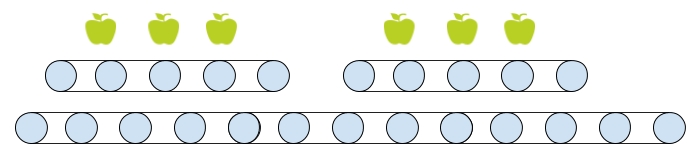
We can see that here we have an Observable of Observables in which the actual items are carried. So, how do we fix that?
.flatMap() unwraps the unnecessary Observable so that the flow becomes like this:
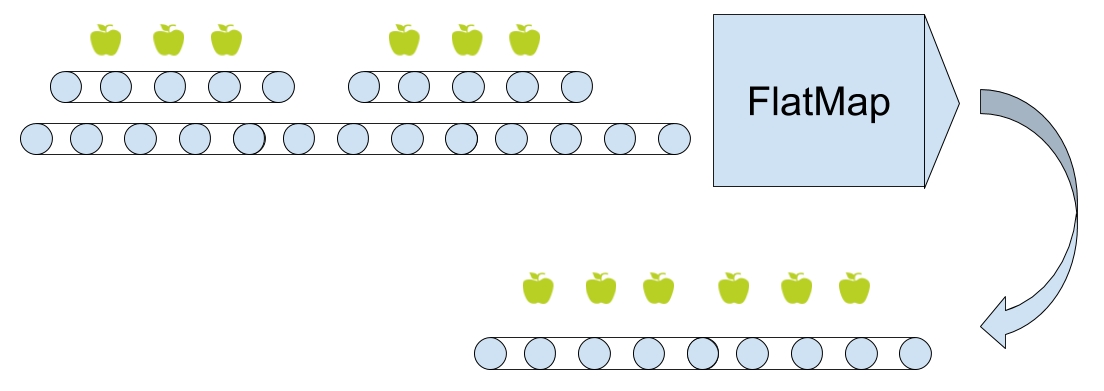
It can be seen that now there is one level of Observables. So, if we replace the .map() call with .flatMap() so that it becomes this:
Observable.just("ID1", "ID2", "ID3")
.flatMap(id -> Observable.fromCallable(mockHttpRequest(id)))
We can just do a regular .subscribe() as we are used to:
Observable.just("ID1", "ID2", "ID3")
.flatMap(id -> Observable.fromCallable(mockHttpRequest(id)))
.subscribe(value -> log("subscribe-subscribe",
value.toString()));
In the end, the .flatMap() is a transformation that expects the result to be of an Observable type and unwraps the values of that new Observable into the original Observable that we are actually using so that it becomes much easier to consume.
There are a few more .flatMap() variations that we can use. Recall the following block:
Observable.interval(0, 5, TimeUnit.SECONDS)
.flatMap(
i -> yahooService.yqlQuery(query, env)
.toObservable()
)
The .yqlQuery() call returns a Single type and thus cannot be used directly with .flatMap(), which expects to consume the Observable type. In this case, to work around that, we had to use the following to convert it to the Observable type:
.toObservable()
However, there is a better way. Instead of using .flatMap(), we can use .flatMapSingle() to do the same thing:
Observable.interval(0, 5, TimeUnit.SECONDS)
.flatMapSingle(i -> yahooService.yqlQuery(query, env))
.flatMapSingle() takes the Single type and automatically converts it to the Observable type.
There are other similar methods like that:
.switchMap() is a very close cousin of .flatMap(). The difference between them is that .flatMap() will return wait to return all of the elements from the Observables that were created inside .flatMap(), while .switchMap() will only return elements from the newest Observables that were created from the newest values.
The easiest way to explain this is by example. First, let's take a look at how .flatMap() will work with this:
Observable.interval(3, TimeUnit.SECONDS)
.take(2)
.flatMap(x -> Observable.interval(1, TimeUnit.SECONDS)
.map(i -> x + "A" + i)
.take(5)
)
.subscribe(item -> log("flatMap", item));
This will basically produce the two sets of items that will be numbered from zero to four. In total, there will be 10 items printed because the first .interval() produces two items (limited by .take(2)) and each of these items will produce another five items (limited by .take(5)) with another .interval() inside the .flatMap():
flatMap:RxComputationThreadPool-2:0A0
flatMap:RxComputationThreadPool-2:0A1
flatMap:RxComputationThreadPool-2:0A2
flatMap:RxComputationThreadPool-3:1A0
flatMap:RxComputationThreadPool-2:0A3
flatMap:RxComputationThreadPool-3:1A1
flatMap:RxComputationThreadPool-2:0A4
flatMap:RxComputationThreadPool-3:1A2
flatMap:RxComputationThreadPool-3:1A3
flatMap:RxComputationThreadPool-3:1A4
Now, let's try the version with .switchMap():
Observable.interval(3, TimeUnit.SECONDS)
.take(2)
.switchMap(x -> Observable.interval(1, TimeUnit.SECONDS)
.map(i -> x + "A" + i)
.take(5)
)
.subscribe(item -> log("switchMap", item));
The output of this Subscription will be a bit different:
switchMap:RxComputationThreadPool-2:0A0
switchMap:RxComputationThreadPool-2:0A1
switchMap:RxComputationThreadPool-3:1A0
switchMap:RxComputationThreadPool-3:1A1
switchMap:RxComputationThreadPool-3:1A2
switchMap:RxComputationThreadPool-3:1A3
switchMap:RxComputationThreadPool-3:1A4
We can see that the emissions from the first .interval() that was produced inside the .switchMap() stopped immediately when the second .interval() was produced. That's what the .switchMap() does--as soon as the next Observable is returned, it terminates the one that was used before it, and produces items only from the newest Observable.
This is useful, for example, in settings management--we might want to terminate the previous Observable that was created with the old values as soon as the new parameters arrive.
Alternatively, consider a case when we receive an item in an Observable, and we start a network request. If the second item is received, and the first request was started with .switchMap(), the first request will be canceled before the second network request will be made. If the request was started with .flatMap(), the Observable will wait for the first request to complete before starting the second one.
There will be a lot of cases where .map() was used, but we need to return the original value along with the new value.
One case where this can happen is the user registration. We might want to retrieve a User object and when that is ready, we will get the Access Token. However, there might be a consumer somewhere downstream that needs the value of the Access Token and the user ID that was used to retrieve it.
In general, it is a common necessity to pass some information from the nth step to the n+2 step in the Observable flow, as in this figure:
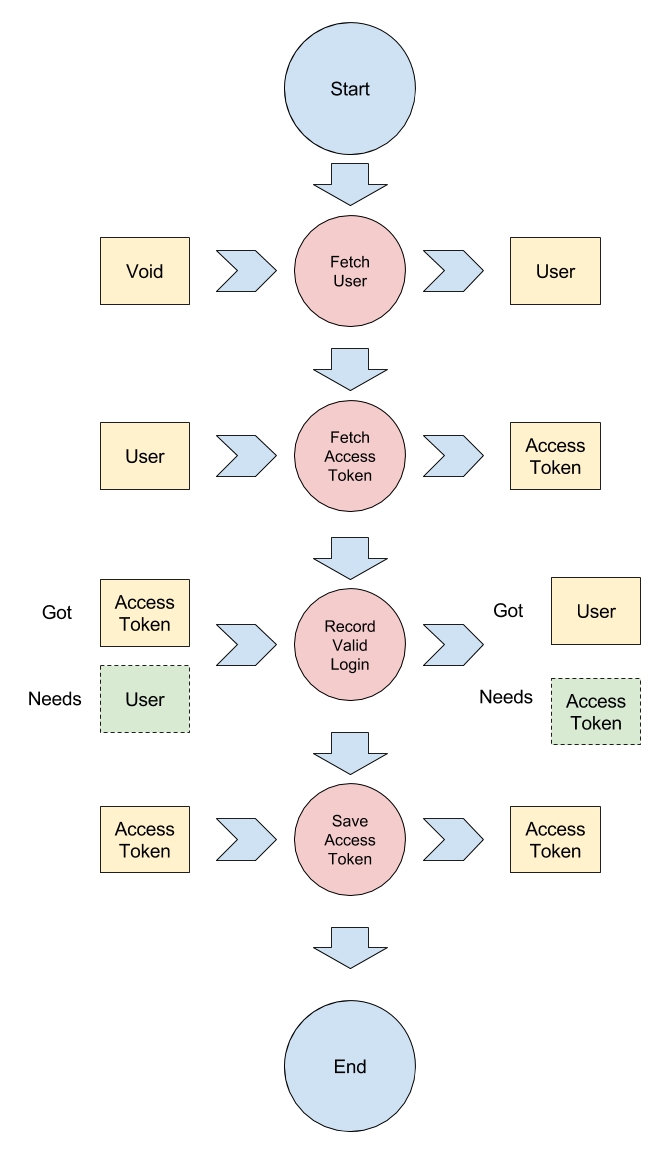
We can see that we need a User object to retrieve an Access Token. However, the subsequent step again requires a User object so that it that the success of the login can be recorded. Afterward, the Access Token needs to be saved for later use. In the end, we need both of them--an Access Token and a User object to be available in the multiple subsequent operations that follow.
After covering this section, we will be able to work with complex data types, and we will know how to pass information between multiple steps in the flow of an Observable.
One solution to the problem of returning multiple values from the .map() are the tuples. A tuple is a finite ordered list of elements. By default, Android provides a tuple in the form of Pair from the android.util package. Let's see how this can be used:
import android.util.Pair;
Observable.just("UserID1", "UserID2", "UserID3")
.map(id -> Pair.create(id, id + "-access-token"))
.subscribe(pair -> log("subscribe-subscribe", pair.second));
Now the values of the Pair are accessible through the given fields with the values in the according to order they were supplied to Pair.create() in. The first is this:
pair.first
The second field is as follows:
pair.second
A more sophisticated library for tuples in Java is available, and it is called JavaTuples (available at http://www.javatuples.org/). It contains things such as, but not limited to, the following:
The library can be easily installed by adding dependencies to the app/build.gradle file:
compile 'org.javatuples:javatuples:1.2'
The use of the library is simple and very simple to the android.util.Pair, as shown:
Observable.just("UserID1", "UserID2", "UserID3")
.map(id -> Triplet.with(id, id + "-access-token",
"third-value"))
.subscribe(triplet -> log(triplet.getValue0(),
triplet.getValue1() + triplet.getValue2()));
However, the library has a much higher overhead in memory compared to android.util.Pair, because it keeps much more references and objects in memory by referencing lists and arrays internally. This might be best avoided in cases when one has to work with data sizes of millions of items.
Furthermore, using anything bigger than Triplet makes code very confusing, so the developer should prefer using their own custom classes in such cases.
If we are working with some complex data that needs to be reused in multiple steps, it often makes sense to create our own custom classes. It is a very lightweight approach and what's even better--it's very explicit.
With custom classes, it is easy to describe the data passed--it will be the name of the class. For example, the user object + accessToken can become UserCredentials and will look like this:
class User {
String userId;
public User(String userId) {
this.userId = userId;
}
}
class UserCredentials {
public final User user;
public final String accessToken;
public UserCredentials(User user, String accessToken) {
this.user = user;
this.accessToken = accessToken;
}
}
This way, the data in later operations can be accessed using fields that are named explicitly by the purpose of the data they are carrying instead of value1 and value2:
Observable.just(new User("1"), new User("2"), new User("3"))
.map(user -> new UserCredentials(user, "accessToken"))
.subscribe(credentials -> log(credentials.user.userId,
credentials.accessToken));
It is worth emphasizing that one should try keeping these objects immutable--once they are created, they should not be modifiable.
If we recall the preceding figure with the flow where we couldn't get a User and an Access Token object at the same time, now it will look like this:
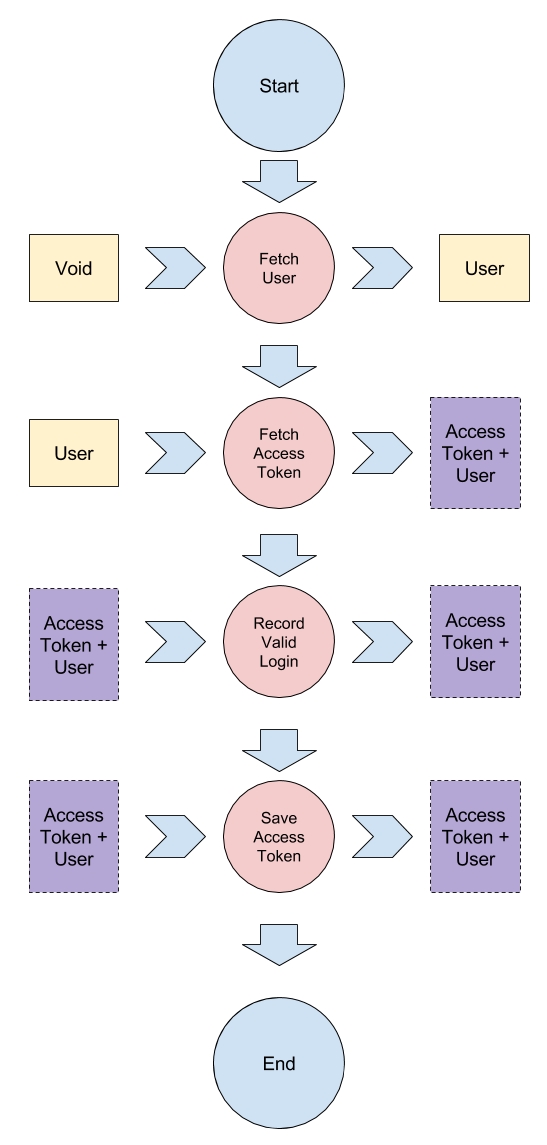
In this flow, using tuples or custom classes, we are returning the User and Access Token objects at the same time after the Fetch Access Token step. All the subsequent operations consume this composite object and each operation can pick the data that it needs in particular from the carrier object.
It can happen quite often that there is a need to execute two asynchronous tasks and wait for the result of both of them before the next step can be taken.
For example, consider downloading data for two stocks to compare their prices. The fetches for both of them can be executed independently, so there is no need to wait for one of them to complete before starting another, but how do we do that?
.zip() is an operation that combines items from two Observables into one by taking an item from each of the Observables and then producing a new value. It means that it waits for both of the Observables to produce a value before the flow continues.
This is useful in occasions where two values are produced independently but later (downstream), they are both consumed at the same time.
Let's see an example of that:
Observable.zip(
Observable.just("One", "Two", "Three"),
Observable.interval(1, TimeUnit.SECONDS),
(number, interval) -> number + "-" + interval
)
.subscribe(e -> log(e));
The first argument of .zip() is this:
Observable.just("One", "Two", "Three")
This is just a regular Observable that will produce three items. The second argument is
Observable.interval(1, TimeUnit.SECONDS)
This is an Observable that will normally produce items endlessly. However, in this case, the behavior will be a bit different--when one of the Observables completes, the .zip() operator unsubscribes from the other one automatically.
Consider that we were to augment the preceding example with some logging, as shown:
Observable.zip(
Observable.just("One", "Two", "Three")
.doOnDispose(() -> log("just", "doOnDispose"))
.doOnTerminate(() -> log("just", "doOnTerminate")),
Observable.interval(1, TimeUnit.SECONDS)
.doOnDispose(() -> log("interval", "doOnDispose"))
.doOnTerminate(() -> log("interval",
"doOnTerminate")),
(number, interval) -> number + "-" + interval)
.doOnDispose(() -> log("zip", "doOnDispose"))
.doOnTerminate(() -> log("zip", "doOnTerminate"))
.subscribe(e -> log(e));
We will then see that the output produced will be this:
APP: just:main:doOnTerminate
APP: One-0:RxComputationThreadPool-1
APP: Two-1:RxComputationThreadPool-1
APP: Three-2:RxComputationThreadPool-1
APP: just:RxComputationThreadPool-4:doOnDispose
APP: interval:RxComputationThreadPool-1:doOnDispose
APP: zip:RxComputationThreadPool-1:doOnTerminate
APP: zip:RxComputationThreadPool-1:doOnDispose
It can be seen that the .just() Observable is terminated quickly as its emissions are basically instant. Next, the following function is executed three times; this concatenates the items that were emitted from the Observables into a single value:
(number, interval) -> number + "-" + interval
The value is then logged into the terminal. Finally, we can see that both the Observables are unsubscribed (disposed), and the initial .zip() Observable is terminated.
It is worth noting that the .interval() Observable was never terminated because it never produced a onError() or onComplete() action--it was just constantly emitting values with onNext().
Also, there are multiple overloaded versions of .zip()--it can consume multiple Observables up to nine (or more if .zipArray() is used).
Another useful operator to know is .combineLatest(). It can be used to merge items from multiple Observables in a very similar way that .zip() is used, but instead of waiting for values to be produced by both the Observables, it produces new values every time one of the Observables emits an item.
When a value is produced from one of the Observable, the previous value of the other Observable is retrieved and instantly a new item from .combineLatest() is produced.
Let's explore an example:
Observable.combineLatest(
Observable.just("One", "Two", "Three"),
Observable.interval(1, TimeUnit.SECONDS),
(number, interval) -> number + "-" + interval)
.subscribe(e -> log("subscribe", e));
This will produce the following output:
APP: subscribe:RxComputationThreadPool-1:Three-0
APP: subscribe:RxComputationThreadPool-1:Three-1
APP: subscribe:RxComputationThreadPool-1:Three-2
APP: subscribe:RxComputationThreadPool-1:Three-3
APP: subscribe:RxComputationThreadPool-1:Three-4
APP: subscribe:RxComputationThreadPool-1:Three-5
We will note that there were more items than three produced; this is because Observable.interval() is never terminated and always keeps producing new values. The other thing that begs our attention is the fact that we can see only the three elements used--One and Two are never in the play because the .just() Observable completed before the first value was produced from the Observable.interval().
However, consider that we use the following:
Observable.combineLatest(
Observable.interval(500, TimeUnit.MILLISECONDS),
Observable.interval(1, TimeUnit.SECONDS),
(number, interval) -> number + "-" + interval
)
.subscribe(e -> log("subscribe", e));
The output will be much more diverse, as in here:
APP: subscribe:RxComputationThreadPool-2:0-0
APP: subscribe:RxComputationThreadPool-1:1-0
APP: subscribe:RxComputationThreadPool-2:1-1
APP: subscribe:RxComputationThreadPool-1:2-1
APP: subscribe:RxComputationThreadPool-1:3-1
APP: subscribe:RxComputationThreadPool-2:3-2
APP: subscribe:RxComputationThreadPool-1:4-2
This operator, in general, is useful in cases there is a need to constantly produce a new updated value whenever one of the dependencies changes. For example, in a settings pane, when one of the switches get changed, then, there is a need to fetch an updated data from the server.
Sometimes there is a need to merge two streams of the same type into one continuous stream. For this purpose, we can use .merge() and .concat().
In the following subsection, we will explore how they are similar and what's different in their mechanics.
.concat() can be used to merge two Observables, as in the following example:
Observable.concat(
Observable.just(1, 2),
Observable.just(3, 4)
)
.subscribe(v -> log("subscribe", v));
This will yield the given output:
APP: subscribe:main:1
APP: subscribe:main:2
APP: subscribe:main:3
APP: subscribe:main:4
This is not very surprising at all. However, it will be a different case if we execute code like this:
Observable.concat(
Observable.interval(3, TimeUnit.SECONDS),
Observable.just(-1L, -2L)
)
.subscribe(v -> log("subscribe", v));
.concat() waits for the first Observable to complete before it starts taking values from the second Observable. Since .interval() never completes, the values from the following will never be printed:
Observable.just(-1L, -2L)
This will be the only output:
APP: subscribe:RxComputationThreadPool-1:0
APP: subscribe:RxComputationThreadPool-1:1
APP: subscribe:RxComputationThreadPool-1:2
APP: subscribe:RxComputationThreadPool-1:3
...
However, if we change the order of the Observables to this:
Observable.concat(
Observable.just(-1L, -2L),
Observable.interval(3, TimeUnit.SECONDS)
)
.subscribe(v -> log("subscribe", v));
The values of the first Observable will be printed and also, the second Observable will get a chance to produce output but, again, it will never complete:
APP: subscribe:main:-1
APP: subscribe:main:-2
APP: subscribe:RxComputationThreadPool-1:0
APP: subscribe:RxComputationThreadPool-1:1
APP: subscribe:RxComputationThreadPool-1:2
APP: subscribe:RxComputationThreadPool-1:3
Compared to .concat(), .merge() doesn't need to wait for the first Observable to complete before emitting values from the second one.
Let's take a look at this example:
Observable.merge(
Observable.just(1L, 2L),
Observable.just(3L, 4L)
)
.subscribe(v -> log("subscribe", v));
It will produce the same output as .concat():
APP: subscribe:main:1
APP: subscribe:main:2
APP: subscribe:main:3
APP: subscribe:main:4
However, consider that we use the .interval() Observable as the first Observable, as illustrated:
Observable.merge(
Observable.interval(3, TimeUnit.SECONDS),
Observable.just(-1L, -2L)
)
.subscribe(v -> log("subscribe", v));
The Subscription will then produce values from both the Observables just fine:
APP: subscribe:main:-1
APP: subscribe:main:-2
APP: subscribe:RxComputationThreadPool-1:0
APP: subscribe:RxComputationThreadPool-1:1
This is because .merge() doesn't wait for the first Observable to complete before emitting more values.
One important aspect of RxJava that we haven't explored much is the filtering of values with .filter(). It is used to skip certain values that do not match a specified condition (filter).
In this section, we will use .filter() to optimize certain parts of the application and later, we will add notifications that will inform a user when a certain stock has dropped.
In the StockDataAdapter.java file, there was a code block to avoid adding the same values that are already present in the stream:
for (StockUpdate stockUpdate : data) {
if (stockUpdate.getStockSymbol()
.equals(newStockUpdate.getStockSymbol())) {
if (stockUpdate.getPrice()
.equals(newStockUpdate.getPrice())
&& stockUpdate.getTwitterStatus()
.equals(newStockUpdate.getTwitterStatus())) {
return;
}
break;
}
}
However, it would be better to make the .add() method simpler by freeing it up from this responsibility of skipping duplicate values; now we can handle it in the flow. Let's start by extracting a method to check whether there is a duplicate value:
public void add(StockUpdate newStockUpdate) {
this.data.add(0, newStockUpdate);
notifyItemInserted(0);
}
public boolean contains(StockUpdate newStockUpdate) {
for (StockUpdate stockUpdate : data) {
if (stockUpdate.getStockSymbol()
.equals(newStockUpdate.getStockSymbol())) {
if (stockUpdate.getPrice()
.equals(newStockUpdate.getPrice())
&& stockUpdate.getTwitterStatus()
.equals(newStockUpdate.getTwitterStatus())) {
return true;
}
break;
}
}
return false;
}
Now, the .contains() method can be used in the flow to add only new, non-existing entries:
.observeOn(AndroidSchedulers.mainThread())
.filter(update -> !stockDataAdapter.contains(update))
.subscribe(stockUpdate -> {
Log.d("APP", "New update " + stockUpdate.getStockSymbol());
noDataAvailableView.setVisibility(View.GONE);
stockDataAdapter.add(stockUpdate);
recyclerView.smoothScrollToPosition(0);
}, error -> {
if (stockDataAdapter.getItemCount() == 0) {
noDataAvailableView.setVisibility(View.VISIBLE);
}
});
Note the following line:
.filter(update -> !stockDataAdapter.contains(update))
This means that no value that doesn't satisfy the condition will be let through.
The current item existence checking algorithm (.contains()) isn't optimal because it can require O(n) time to execute, and it can be slow if the data history is long.
The core problem that we are facing here is that financial stock quotes do not change and, when they are not changed, we would rather avoid adding unnecessary entries into the RecyclerView. It means that we want to add a new value to the RecyclerView only when it's different from the previous one.
We can probably use the .distinct() call on the Observable that emits financial stock quotes. However, it won't work in our case because it ensures uniqueness of values for the entire lifetime of the Observable. In our case, the values can happen to be the same; for example, on the 10th and 100th emissions, we should still record these.
Another option is to use .distinctUntilChanged(), which only lets items through if they differ from the last value. This would be fine but, in our case, that will almost always be true--the items will always have at least the symbol (stock) name different.
We need a way to group items by their stock name and then use .distinctUntilChanged().
.groupBy() is a perfect tool for this. Given a key function, the .groupBy() will emit a new set of Observables (so we will have an Observable of Observables) which will contain items that had the same value that was returned by the key function.
Let's see an example:
Observable.just(
new StockUpdate("APPL", BigDecimal.ONE, new Date(), ""),
new StockUpdate("GOOG", BigDecimal.ONE, new Date(), ""),
new StockUpdate("APPL", BigDecimal.ONE, new Date(), ""),
new StockUpdate("APPL", BigDecimal.ONE, new Date(), "")
)
.groupBy(StockUpdate::getStockSymbol)
.flatMapSingle(groupedObservable ->
groupedObservable.count())
.subscribe(this::log);
This will result in the following output:
APP: main:3
APP: main:1
This means three items for APPL stock in one Observable and one item for GOOG in another Observable.
We can use the same idea to make emit values for the stocks only when they have changed:
Observable.interval(0, 5, TimeUnit.SECONDS)
.flatMapSingle(i -> yahooService.yqlQuery(query, env))
.map(r -> r.getQuery().getResults().getQuote())
.flatMap(Observable::fromIterable)
.map(StockUpdate::create)
.groupBy(StockUpdate::getStockSymbol)
.flatMap(Observable::distinctUntilChanged)
Here, we have added these lines:
.groupBy(StockUpdate::getStockSymbol)
.flatMap(Observable::distinctUntilChanged)
Alternatively, we can use lambdas instead of method references to make code easier to read (personal preference):
.groupBy(stockUpdate -> stockUpdate.getStockSymbol())
.flatMap(groupObservable -> groupObservable.distinctUntilChanged())
The first line produces a group of Observables that will contain StockUpdate, which have the same symbol in their respective group. The following line then unwraps the Observables back into regular StockUpdate items:
.flatMap(groupObservable -> groupObservable.distinctUntilChanged())
However, before the unwrapping is done, the following call ensures that each of the respective groups will only return items when they are different from the previous value:
.distinctUntilChanged()
The only thing that needs to be done now is to implement the .equals() and, preferably, .hashCode() methods on the StockUpdate object:
@Override
public boolean equals(Object o) {
if (this == o) return true;
if (o == null || getClass() != o.getClass()) return false;
StockUpdate that = (StockUpdate) o;
if (!stockSymbol.equals(that.stockSymbol)) return false;
if (!price.equals(that.price)) return false;
if (!twitterStatus.equals(that.twitterStatus)) return false;
return id != null ? id.equals(that.id) : that.id == null;
}
@Override
public int hashCode() {
int result = stockSymbol.hashCode();
result = 31 * result + price.hashCode();
result = 31 * result + twitterStatus.hashCode();
result = 31 * result + (id != null ? id.hashCode() : 0);
return result;
}
Usually, this is easy to do in modern IDEs, such as Android Studio, by utilising built in tools. On Android Studio, one can use the given menu to do that:
Code->Generate...->equals() and hashCode()
Finally, the line that we used for duplicate filtering can be removed as it isn't necessary anymore (it was useful as a learning example though):
.filter(update -> !stockDataAdapter.contains(update))
The way Twitter's search function works, we can end up having tweets in the stream that have no words that we were monitoring for. We can solve this problem by adding some additional filtering based on the text and the keywords that we are following.
There are a few ways to do that but, for the sake of the exercise, we will make use of a way that doesn't involve for loops and if statements. This approach might come in handy for other problems that might require a reactive way to solve them.
First of all, let's extract the monitored keywords to a separate variable--trackingKeywords:
final String[] trackingKeywords = {"Yahoo", "Google", "Microsoft"};
final FilterQuery filterQuery = new FilterQuery()
.track(trackingKeywords)
.language("en");
Next, we will add a filtering block to the tweet generating Observable. Consider the following block:
observeTwitterStream(configuration, filterQuery)
.sample(2700, TimeUnit.MILLISECONDS)
.map(StockUpdate::create)
It will be appended with this:
.flatMapMaybe(update -> Observable.fromArray(trackingKeywords)
.filter(keyword -> update.getTwitterStatus()
.toLowerCase().contains(keyword.toLowerCase()))
.map(keyword -> update)
.firstElement()
)
Let's break this down into parts. First of all, the following line changes the element that we are working with from StockUpdate to the stream of keywords that we are monitoring:
update -> Observable.fromArray(trackingKeywords)
By doing this, we can iterate (filter) through each of the keywords and check it against the update object with this:
.filter(keyword -> update.getTwitterStatus().toLowerCase().contains(keyword.toLowerCase()))
Since we have transformed the stream of StockUpdate items into keywords, we need to convert it back using this:
.map(keyword -> update)
Finally, the following line ensures that only one StockUpdate object is returned even if there are multiple keywords that match the content inside the tweet:
.firstElement()
Obviously, everything could have been done with a simple if statement and a for loop inside the .filter() block, as shown:
.filter(stockUpdate -> {
for(String keyword : trackingKeywords) {
if (stockUpdate.getTwitterStatus().contains(keyword)) {
return true;
}
}
return false;
})
However, it's no fun, and we would have learned much less.
In this chapter, we had a chance to cover lots of basic and advanced material. Even though we used .flatMap() earlier, only now did we get the chance to delve in depth to clarify what it exactly does.
Additionally, we covered things such as .switchMap(), which is closely related to .flatMap(), and we learned how to use tuples and custom classes to transport relevant data from one part of an Observable to another.
Finally, we implemented filtering for financial stock updates with the .filter(), .groupBy(), and .distinct() calls. The Twitter stream was optimized as well to skip tweets that do not contain the keywords that we are monitoring.
We are beginning to notice that the current financial stock retrieval flow is getting quite big and unwieldy. The current Observable creation code takes more than 50 lines, and it will soon be hard to understand what is going on at all.
Obviously, in cases like these, we need to refactor code to make it simpler so that it becomes easier to understand and work with.
This chapter will explore just that. We will learn how to extract methods to make code simpler. Method extraction will be used to simplify and properly name consumers or the code that creates Observables.
Next, we will cover Observable Transformations that allow creating code that can modify an Observable in multiple ways as part of a flow. These techniques can be used to create simple custom caching or persistence mechanisms for the reactive streams.
We will see how we can use Observable Transformations to persist results into a file-based cache or track execution time.
Finally, the topics discussed in this chapter are these:
Extracting code into separate methods is a very simple yet super effective technique to clarify the purpose of certain elements and make it easier to understand what is going on.
As we will see, it is also very easy to use in an RxJava setting because basically every part of the flow can be extracted into an independent method that does one thing and doesn't depend on anything else.
Also, modern IDEs, such as Android Studio, make a quick work of refactoring, such as method extraction. In the next section, we will see how we can use IDE to make these extractions super quick and simple.
A more advanced developer can feel free to skip the next section about method extractions because these techniques might seem obvious. However, people who have just started programming on Android will certainly learn some quick tricks which can be used to make their code easier to understand.
Finally, we will use all of these techniques to simplify the existing financial stock quote retrieval code.
To see how effective the method extraction technique can be, we will first try out a simple example on .filter() in the Twitter stream filtering code:
observeTwitterStream(configuration, filterQuery)
.sample(2700, TimeUnit.MILLISECONDS)
.map(StockUpdate::create)
.filter(stockUpdate -> {
for(String keyword : trackingKeywords) {
if (stockUpdate.getTwitterStatus()
.contains(keyword)) {
return true;
}
}
return false;
})
The .filter() block here is responsible for the removal of tweets that do not contain the keywords. Let's make that explicit by extracting a method:
containsAnyOfKeywords()
So, the block before will become this:
observeTwitterStream(configuration, filterQuery)
.sample(2700, TimeUnit.MILLISECONDS)
.map(StockUpdate::create)
.filter(containsAnyOfKeywords(trackingKeywords))
Also, the extracted method contains the following:
@NonNull
private Predicate<StockUpdate> containsAnyOfKeywords(String[] trackingKeywords) {
return stockUpdate -> {
for(String keyword : trackingKeywords) {
if (stockUpdate.getTwitterStatus().contains(keyword)) {
return true;
}
}
return false;
};
}
In the last code block, we can see that it returns a lambda that conforms to the type of Predicate<StockUpdate>, which is required for the .filter() method.
Extracting a method made .filter() more self-descriptive, and now we do not need to analyze the details of the implementation to understand what is happening. Basically, we replaced the lower-detail implementation with a higher-level concept.
This can be done by following a few simple steps:
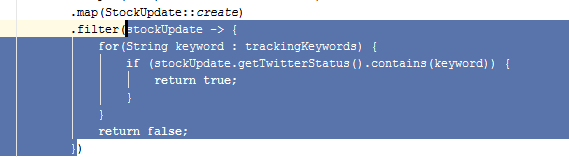
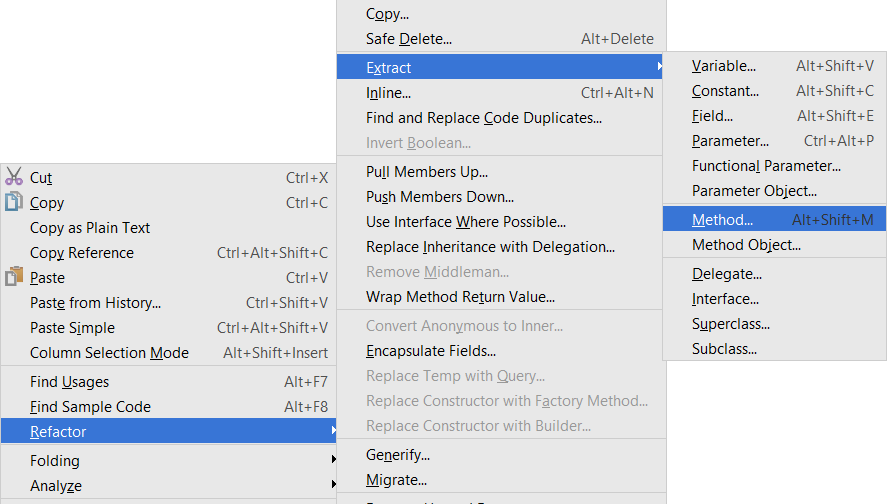
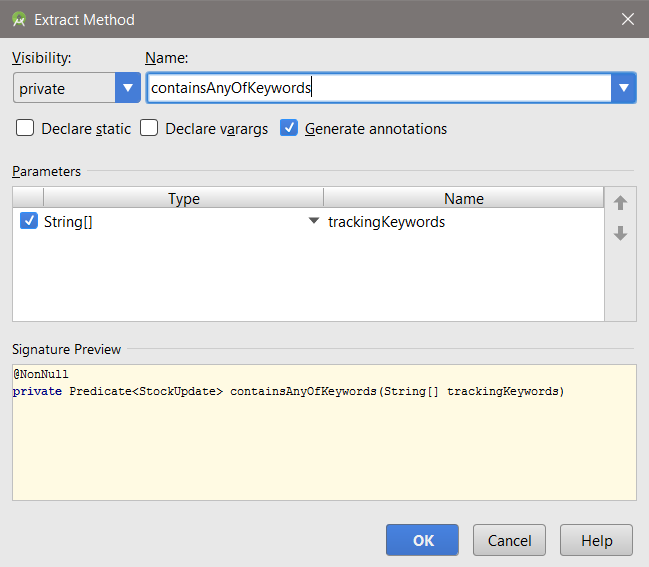
Proficient users who know their shortcuts by heart will make this even faster.
A very similar method extraction approach can be applied to Consumer actions, as in the following:
.doOnError(error -> {
Toast.makeText(this, "We couldn't reach internet - falling back to
local data",
Toast.LENGTH_SHORT)
.show();
})
Here, the error handling code can be extracted with a method:
showToastErrorNotification()
So, the line becomes this:
.doOnError(showToastErrorNotification())
Also, the method itself contains this:
@NonNull
private Consumer<Throwable> showToastErrorNotification() {
return error -> {
Toast.makeText(this, "We couldn't reach internet - falling
back to local data",
Toast.LENGTH_SHORT)
.show();
};
}
This way, the actions (consumers) become more descriptive and take less space in the flow itself.
It is not necessary to return a new lambda every time with the method calls--in lots of cases, we can use method references directly.
We have used this earlier:
.doOnError(showToastErrorNotification())
Instead, we could have as well created a method:
private void showToastErrorNotificationMethod(Throwable error) {
Toast.makeText(this, "We couldn't reach internet - falling back
to local data",
Toast.LENGTH_SHORT)
.show();
}
Then, we can replace the .filter() with this:
.doOnError(this::showToastErrorNotificationMethod)
There is very little difference between the two approaches, and it boils down to the personal preference. Usually, calling method, such as in the following case, gives more flexibility to do additional stuff inside the showToastErrorNotification() call (or the so-called lambda factory):
.doOnError(showToastErrorNotification())
However, the approach that uses the method reference avoids needlessly creating new lambdas every time:
.doOnError(this::showToastErrorNotificationMethod)
.flatMap() parts of the flow can become really complicated. Often, they contain nested calls to multiple .map(), Observable.just(), and other functions.
This makes the .flatMap() Function interfaces a prime candidate for simplification by method extraction. At the moment, consider the tweet retrieval part (the version that doesn't use for loop to filter tweets):
observeTwitterStream(configuration, filterQuery)
.sample(2700, TimeUnit.MILLISECONDS)
.map(StockUpdate::create)
.flatMapMaybe(update -> Observable.fromArray(trackingKeywords)
.filter(keyword ->
update.getTwitterStatus().toLowerCase()
.contains(keyword.toLowerCase()))
.map(keyword -> update)
.firstElement()
)
It has such a flow where the following bit can be extracted to make the bigger tweet retrieval flow simpler:
.flatMapMaybe(update -> Observable.fromArray(trackingKeywords)
.filter(keyword -> update.getTwitterStatus()
.toLowerCase().contains(keyword.toLowerCase()))
.map(keyword -> update)
.firstElement()
)
We will do that by introducing a method:
skipTweetsThatDoNotContainKeywords(trackingKeywords)
So, the .flatMapMaybe() call becomes as follows:
.flatMapMaybe(skipTweetsThatDoNotContainKeywords(trackingKeywords))
The body of such a method will be as follows:
@NonNull
private Function<StockUpdate, MaybeSource<? extends StockUpdate>> skipTweetsThatDoNotContainKeywords(String[] trackingKeywords) {
return update -> Observable.fromArray(trackingKeywords)
.filter(keyword -> update.getTwitterStatus()
.toLowerCase().contains(keyword.toLowerCase()))
.map(keyword -> update)
.firstElement();
}
Again, this can be done very easily using the IDE refactoring functionality.
Until now, we have used method extraction technique to simplify Consumers (actions), .flatMap(), and other similar calls. However, there is a slight difference when we are creating a method to create something that can be used completely independently in multiple places, as opposed to a method that was just used to extract a tightly-coupled piece of code.
Such an approach is called a Factory Method pattern--it is basically a method that hides the complexity of object creation.
In our code, we have a few candidates for that and all of them create complex Observables that produce StockUpdate objects:
All these Observables have relatively complex creation code and they can definitely be reused in other places independently (for example, if we decide that we want to see just the tweets).
We can start by extracting a Factory Method for the Observable that is responsible for the retrieval of financial stock quotes from Yahoo API using this:
Observable.interval(0, 5, TimeUnit.SECONDS)
.flatMapSingle(i -> yahooService.yqlQuery(query, env))
.map(r -> r.getQuery().getResults().getQuote())
.flatMap(Observable::fromIterable)
.map(StockUpdate::create)
.groupBy(stockUpdate -> stockUpdate.getStockSymbol())
.flatMap(groupObservable -> groupObservable.distinctUntilChanged())
This code can be extracted into a method:
createFinancialStockUpdateObservable()
This consists of the following:
private Observable<StockUpdate> createFinancialStockUpdateObservable(YahooService yahooService, String query, String env) {
return Observable.interval(0, 5, TimeUnit.SECONDS)
.flatMapSingle(i -> yahooService.yqlQuery(query, env))
.map(r -> r.getQuery().getResults().getQuote())
.flatMap(Observable::fromIterable)
.map(StockUpdate::create)
.groupBy(stockUpdate -> stockUpdate.getStockSymbol())
.flatMap(groupObservable ->
groupObservable.distinctUntilChanged());
}
It is a simple change, but now the Observable.merge() block looks as follows:
Observable.merge(
createFinancialStockUpdateObservable(yahooService, query, env),
observeTwitterStream(configuration, filterQuery)
.sample(2700, TimeUnit.MILLISECONDS)
.map(StockUpdate::create)
.filter(containsAnyOfKeywords(trackingKeywords))
.flatMapMaybe(skipTweetsThatDoNotContainKeywords
(trackingKeywords))
)
The extracted Factory Method can even be moved to some other class, but there is no need for that yet and there is a clear destination class for that, so we will leave it in the MainActivity class for now.
The identical approach should be applied to the Observable that's responsible for the retrieval of the tweets for the keywords that we are monitoring:
observeTwitterStream(configuration, filterQuery)
.sample(2700, TimeUnit.MILLISECONDS)
.map(StockUpdate::create)
.filter(containsAnyOfKeywords(trackingKeywords))
.flatMapMaybe(skipTweetsThatDoNotContainKeywords(trackingKeywords))
This block can be named as shown:
createTweetStockUpdateObservable()
It will have the body of the following:
private Observable<StockUpdate> createTweetStockUpdateObservable(Configuration configuration, String[] trackingKeywords, FilterQuery filterQuery) {
return observeTwitterStream(configuration, filterQuery)
.sample(2700, TimeUnit.MILLISECONDS)
.map(StockUpdate::create)
.filter(containsAnyOfKeywords(trackingKeywords))
.flatMapMaybe(skipTweetsThatDoNotContainKeywords
(trackingKeywords));
}
Now, the Observable.merge() block became super simple:
Observable.merge(
createFinancialStockUpdateObservable(yahooService, query, env),
createTweetStockUpdateObservable(configuration,
trackingKeywords, filterQuery)
)
It is now really obvious that we are creating an Observable that merges data from two Observables. One of them is supplying financial stock updates data and the other produces data from tweets.
Currently, in our main Observable flow, there is a big chunk of code that is responsible for the retrieval of financial stock updates and tweets in case there was an exception in the upstream:
.onExceptionResumeNext(
v2(StorIOFactory.get(this)
.get()
.listOfObjects(StockUpdate.class)
.withQuery(Query.builder()
.table(StockUpdateTable.TABLE)
.orderBy("date DESC")
.limit(50)
.build())
.prepare()
.asRxObservable())
.take(1)
.flatMap(Observable::fromIterable)
)
As you remember, this is used to retrieve elements from the local database when there is no internet connectivity (or some other error occurred upstream).
This big piece of code is quite distracting and takes attention of the purpose it is supposed to complete in the flow, so it should be extracted into something more descriptive, such as the following:
.onExceptionResumeNext(createLocalDbStockUpdateRetrievalObservable())
Obviously, the createLocalDbStockUpdateRetrievalObservable() method contains the same functionality as before:
private Observable<StockUpdate> createLocalDbStockUpdateRetrievalObservable() {
return v2(StorIOFactory.get(this)
.get()
.listOfObjects(StockUpdate.class)
.withQuery(Query.builder()
.table(StockUpdateTable.TABLE)
.orderBy("date DESC")
.limit(50)
.build())
.prepare()
.asRxObservable())
.take(1)
.flatMap(Observable::fromIterable);
}
Since this creates a completely new and independent Observable, and it can be reused in multiple other places, it makes sense to move it to the StorIOFactory class from MainActivity where it was just extracted. This Factory Method will need a few slight modifications, as it can be seen here:
public static Observable<StockUpdate> createLocalDbStockUpdateRetrievalObservable(Context context) {
return v2(StorIOFactory.get(context)
.get()
.listOfObjects(StockUpdate.class)
.withQuery(Query.builder()
.table(StockUpdateTable.TABLE)
.orderBy("date DESC")
.limit(50)
.build())
.prepare()
.asRxObservable())
.take(1)
.flatMap(Observable::fromIterable);
}
private static <T> Observable<T> v2(rx.Observable<T> source) {
return toV2Observable(source);
}
Since StorIOFactory.get() requires the context from Android, we have to pass it as an argument. Now, the relevant part in MainActivity will become this:
.onExceptionResumeNext(StorIOFactory.createLocalDbStockUpdateRetrievalObservable(this))
By extracting a simple Factory Method, we basically simplified our existing flow by more than 10 lines, and we gave a name to properly describe what's happening. Now, the other developers (or future you) will have a much easier time wrapping their heads around to what the code does.
After all the modifications we have made, the flow now became much more easy to understand:
Observable.merge(
createFinancialStockUpdateObservable(yahooService, query, env),
createTweetStockUpdateObservable(configuration,
trackingKeywords, filterQuery)
)
.compose(bindToLifecycle())
.subscribeOn(Schedulers.io())
.doOnError(ErrorHandler.get())
.observeOn(AndroidSchedulers.mainThread())
.doOnError(this::showToastErrorNotificationMethod)
.observeOn(Schedulers.io())
.doOnNext(this::saveStockUpdate)
.onExceptionResumeNext(StorIOFactory
.createLocalDbStockUpdateRetrievalObservable(this))
.doOnNext(update -> log(update))
.observeOn(AndroidSchedulers.mainThread())
.subscribe(stockUpdate -> {
Log.d("APP", "New update " + stockUpdate.getStockSymbol());
noDataAvailableView.setVisibility(View.GONE);
stockDataAdapter.add(stockUpdate);
recyclerView.smoothScrollToPosition(0);
}, error -> {
if (stockDataAdapter.getItemCount() == 0) {
noDataAvailableView.setVisibility(View.VISIBLE);
}
});
It still has some unwieldy .doOnNext() and .observeOn() calls, but as we will see in the next section, some of them can be taken care of using Observable Transformations.
In the existing flow, we can see some spots where we can extract several code blocks in unison. Consider the following example:
.observeOn(AndroidSchedulers.mainThread())
.doOnError(this::showToastErrorNotificationMethod)
.observeOn(Schedulers.io())
This can be extracted as one operation because it is responsible for the display of errors in the Android UI. These three lines are used to achieve one goal, so it will make sense to represent them as a single operation.
We will see how this can be done using the ObservableTransformer interface and .compose() method on the Observables. However, before that, we will explore an alternative approach that will help us understand why the use of Transformers makes sense in situations like this.
Let's take the error displaying code that we examined before:
.observeOn(AndroidSchedulers.mainThread())
.doOnError(this::showToastErrorNotificationMethod)
.observeOn(Schedulers.io())
Since it applies a few transformations of the original Observable, we can extract a method that will apply these three actions to the original Observable, as shown:
private Observable<StockUpdate>
addUiErrorHandling(Observable<StockUpdate> observable) {
return observable.observeOn(AndroidSchedulers.mainThread())
.doOnError(this::showToastErrorNotificationMethod)
.observeOn(Schedulers.io());
}
Also, the modified flow will become as follows:
addUiErrorHandling(
Observable.merge(
createFinancialStockUpdateObservable(yahooService,
query, env),
createTweetStockUpdateObservable
(configuration, trackingKeywords, filterQuery)
)
.compose(bindToLifecycle())
.subscribeOn(Schedulers.io())
.doOnError(ErrorHandler.get())
)
.doOnNext(this::saveStockUpdate)
.onExceptionResumeNext(StorIOFactory
.createLocalDbStockUpdateRetrievalObservable(this))
.doOnNext(update -> log(update))
.observeOn(AndroidSchedulers.mainThread())
.subscribe(stockUpdate -> {
Log.d("APP", "New update " + stockUpdate.getStockSymbol());
noDataAvailableView.setVisibility(View.GONE);
stockDataAdapter.add(stockUpdate);
recyclerView.smoothScrollToPosition(0);
}, error -> {
if (stockDataAdapter.getItemCount() == 0) {
noDataAvailableView.setVisibility(View.VISIBLE);
}
});
It is important to note that this method has to wrap the entire Observable that came before it. This is because the Observable is being constructed using a Builder pattern, and each new operation returns a new Observable. Consider the following block:
Observable.merge(
createFinancialStockUpdateObservable(yahooService,
query, env),
createTweetStockUpdateObservable(configuration,
trackingKeywords, filterQuery)
)
.compose(bindToLifecycle())
.subscribeOn(Schedulers.io())
.doOnError(ErrorHandler.get())
Basically, it returns an Observable that has to be passed to the following method:
Observable<StockUpdate> addUiErrorHandling(Observable<StockUpdate> observable)
An identical way to do that would be an extraction of a variable, as illustrated:
final Observable<StockUpdate> observable = Observable.merge(
createFinancialStockUpdateObservable(yahooService, query, env),
createTweetStockUpdateObservable(configuration,
trackingKeywords, filterQuery)
)
.compose(bindToLifecycle())
.subscribeOn(Schedulers.io())
.doOnError(ErrorHandler.get());
addUiErrorHandling(observable)
.doOnNext(this::saveStockUpdate)
At first, it might look like a reasonable approach to extract and reuse code. However, it doesn't scale beyond one such extraction. Let's say that we want to extract another block that's responsible for the StockUpdate item's persistence and retrieval:
.doOnNext(this::saveStockUpdate)
.onExceptionResumeNext(StorIOFactory.createLocalDbStockUpdateRetrievalObservable(this))
Similarly, we will extract a method that will ensure that items are saved in the local database and later retrieved:
private Observable<StockUpdate> addLocalItemPersistenceHandling(Observable<StockUpdate> observable) {
return observable.doOnNext(this::saveStockUpdate)
.onExceptionResumeNext(StorIOFactory.createLocalDbStockUpdateRetrievalObservable(this));
}
However, now let's try applying that method to the flow:
addLocalItemPersistenceHandling(
addUiErrorHandling(
Observable.merge(
createFinancialStockUpdateObservable
(yahooService, query, env),
createTweetStockUpdateObservable
(configuration, trackingKeywords, filterQuery)
)
.compose(bindToLifecycle())
.subscribeOn(Schedulers.io())
.doOnError(ErrorHandler.get())
)
)
.doOnNext(update -> log(update))
.observeOn(AndroidSchedulers.mainThread())
.subscribe(stockUpdate -> {
Log.d("APP", "New update " + stockUpdate.getStockSymbol());
noDataAvailableView.setVisibility(View.GONE);
stockDataAdapter.add(stockUpdate);
recyclerView.smoothScrollToPosition(0);
}, error -> {
if (stockDataAdapter.getItemCount() == 0) {
noDataAvailableView.setVisibility(View.VISIBLE);
}
});
We can see that the method had to wrap the existing call to the addUiErrorHandling():
Observable<StockUpdate> addLocalItemPersistenceHandling(Observable<StockUpdate> observable)
It is now obvious, that if we pursue this approach, we will end up with endless nested method calls that will make the refactoring and moving of code especially difficult.
Also, it will be really confusing--if we add addLocalItemPersistenceHandling() before addUiErrorHandling(), which operation will be applied first? We will end up with some really confusing and difficult-to-maintain code.
All of this can be done differently and in a much clearer fashion using ObservableTransformer interfaces and .compose() method calls on the Observable.
ObservableTransformer is a simple interface that defines a transformation on the Observable object as a whole instead of the individual items that the Observable produces. The ObservableTransformer interface is as follows:
package io.reactivex;
public interface ObservableTransformer<Upstream, Downstream> {
ObservableSource<Downstream> apply(Observable<Upstream> upstream);
}
Here, the .apply() method will apply a series of operations on the upstream (original) Observable when used in the .compose() method on the Observable.
Let's see an example with the error handling code that we examined before:
.observeOn(AndroidSchedulers.mainThread())
.doOnError(this::showToastErrorNotificationMethod)
.observeOn(Schedulers.io())
We can wrap these three operations in the ObservableTransformer interface and pass it to the .compose(), as shown here:
.compose(new ObservableTransformer<StockUpdate, StockUpdate>() {
@Override
public ObservableSource<StockUpdate> apply(Observable<StockUpdate>
upstream) {
return upstream.observeOn(AndroidSchedulers.mainThread())
.doOnError(MainActivity.this::showToastErrorNotificationMethod)
.observeOn(Schedulers.io());
}
})
Here, we have used an anonymous inner class to implement the interface for the sake of clarity, but we might as well use lambda, as follows:
.compose(
upstream -> upstream.observeOn(AndroidSchedulers.mainThread())
.doOnError(MainActivity.this::showToastErrorNotificationMethod)
.observeOn(Schedulers.io())
)
Now, we can take this one step further by extracting a method to represent this logical action:
ObservableTransformer<StockUpdate, StockUpdate> addUiErrorHandling()
This will make the entire flow code to be as shown:
Observable.merge(
createFinancialStockUpdateObservable(yahooService, query, env),
createTweetStockUpdateObservable(configuration,
trackingKeywords,
filterQuery)
)
.compose(bindToLifecycle())
.subscribeOn(Schedulers.io())
.doOnError(ErrorHandler.get())
.compose(addUiErrorHandling())
.doOnNext(this::saveStockUpdate)
.onExceptionResumeNext(StorIOFactory
.createLocalDbStockUpdateRetrievalObservable(this))
Here, the body of the addUiErrorHandling() method is this:
@NonNull
private ObservableTransformer<StockUpdate, StockUpdate> addUiErrorHandling() {
return upstream -> upstream.observeOn(AndroidSchedulers.mainThread())
.doOnError(MainActivity.this::showToastErrorNotificationMethod)
.observeOn(Schedulers.io());
}
This is just to quickly remind you why we need those three lines. The following line is needed because the UI modification needs to happen on the UI thread on Android:
.observeOn(AndroidSchedulers.mainThread())
The next line shows the actual error message using the Toast interface:
.doOnError(MainActivity.this::showToastErrorNotificationMethod)
The following one returns the Observable to the original scheduler that we were using before--the IO scheduler:
.observeOn(Schedulers.io())
We can use the same approach to extract code that's responsible for the persistence of the StockUpdate items and their retrieval when internet connection isn't available. So, consider the following lines:
.doOnNext(this::saveStockUpdate)
.onExceptionResumeNext(StorIOFactory.createLocalDbStockUpdateRetrievalObservable(this))
They can be replaced with the given lines:
.compose(addLocalItemPersistenceHandling())
Here, the addLocalItemPersistenceHandling() is set to this:
@NonNull
private ObservableTransformer<StockUpdate, StockUpdate> addLocalItemPersistenceHandling() {
return upstream -> upstream.doOnNext(this::saveStockUpdate)
.onExceptionResumeNext(StorIOFactory
.createLocalDbStockUpdateRetrievalObservable(this));
}
Finally, the entire financial stock retrieval and processing flow will look as shown in the following code block:
Observable.merge(
createFinancialStockUpdateObservable(yahooService, query, env),
createTweetStockUpdateObservable(configuration,
trackingKeywords, filterQuery)
)
.compose(bindToLifecycle())
.subscribeOn(Schedulers.io())
.doOnError(ErrorHandler.get())
.compose(addUiErrorHandling())
.compose(addLocalItemPersistenceHandling())
.doOnNext(update -> log(update))
.observeOn(AndroidSchedulers.mainThread())
.subscribe(stockUpdate -> {
Log.d("APP", "New update " + stockUpdate.getStockSymbol());
noDataAvailableView.setVisibility(View.GONE);
stockDataAdapter.add(stockUpdate);
recyclerView.smoothScrollToPosition(0);
}, error -> {
if (stockDataAdapter.getItemCount() == 0) {
noDataAvailableView.setVisibility(View.VISIBLE);
}
});
Using .compose(), we can clearly see the order of the transformations that are being applied, and it is very easy to move those blocks of code around.
Sometimes, it is worthwhile to move the extracted transformer to its own class. In most cases, this will be code that can be reused in multiple places between multiple Observables. In this section, we will see how we can do that to the persistence code, and we will explore a few additional examples for file-based caching and measure the timing of the execution.
For starters, as an exercise, we will move the code that handles the persistence of StockUpdate items to a separate class.
First of all, let's create a Transformer class in packt.reactivestocks.storio :
package packt.reactivestocks.storio;
import io.reactivex.ObservableTransformer;
import packt.reactivestocks.StockUpdate;
public class LocalItemPersistenceHandlingTransformer implements ObservableTransformer<StockUpdate, StockUpdate> {
}
Next, we will add the .apply() method that will execute the transformation itself:
public class LocalItemPersistenceHandlingTransformer implements ObservableTransformer<StockUpdate, StockUpdate> {
@Override
public ObservableSource<StockUpdate> apply(Observable<StockUpdate>
upstream) {
return upstream.doOnNext(this::saveStockUpdate)
.onExceptionResumeNext(StorIOFactory
.createLocalDbStockUpdateRetrievalObservable(context));
}
}
We will do this along with the saveStockUpdate() method from the MainActivity class where we had it before:
private void saveStockUpdate(StockUpdate stockUpdate) {
StorIOFactory.get(context)
.put()
.object(stockUpdate)
.prepare()
.asRxSingle()
.toBlocking()
.value();
}
As we can see, it requires a Context dependency, so we will have to pass it through a constructor to the Transformer, like this:
public class LocalItemPersistenceHandlingTransformer implements ObservableTransformer<StockUpdate, StockUpdate> {
private final Context context;
private LocalItemPersistenceHandlingTransformer(Context context) {
this.context = context;
}
...
}
Finally, for the convenience, we will add a static Factory Method:
public static LocalItemPersistenceHandlingTransformer addLocalItemPersistenceHandling(Context context) {
return new LocalItemPersistenceHandlingTransformer(context);
}
This will let us be more flexible in the naming of the Transformer.
At the very last, find the relevant line in the main flow:
.compose(addLocalItemPersistenceHandling())
We need to change it to this:
.compose(addLocalItemPersistenceHandling(this))
However, do not forget to add a static import at the top:
import static packt.reactivestocks.storio.LocalItemPersistenceHandlingTransformer.*;
Next, we will explore examples for the file-based caching and the measuring of the execution time.
Quite often, there is a need to cache some kind of results between the runs of the application. The most convenient way to do this on Android is a through basic file-based caching. This means that the result is computed, saved to the file, and--if it's needed again--read from the file directly instead of recomputing it again.
Usually, developers use this to save user credentials between the different sessions so that the users will not have to log in by entering their data again.
We will see how we can easily use the ObservableTranformer interface to create a universal file caching mechanism.
First of all, the FileCacheObservableTransformer should be created in the packt.reactivestocks package (or any other, according to your liking) that will host all the file-caching related code:
package packt.reactivestocks;
import android.content.Context;
import io.reactivex.ObservableTransformer;
public class FileCacheObservableTransformer<R> implements io.reactivex.ObservableTransformer<R, R> {
private final String filename;
private final Context context;
FileCacheObservableTransformer(String filename, Context context) {
this.filename = filename;
this.context = context;
}
}
As you can see, we will need the Context object to determine the appropriate caching directory and the filename itself that will be used to store the results.
Next, we will implement the .apply() method as it will be the main juice of this Transformer:
@Override
public ObservableSource<R> apply(Observable<R> upstream) {
return readFromFile()
.onExceptionResumeNext(
upstream
.take(1)
.doOnNext(this::saveToFile)
);
}
It is a very simple implementation, but it does need some explaining. First of all, the readFromFile() is called and returns an Observable that will execute successfully if the file is present. However, if the execution fails, the branch specified by .onExceptionResumeNext() will kick in and will start executing (retrieving items) from the original upstream Observable. Once that is done, the result will be saved with the .saveToFile() method.
It means that, for the first time, the readFromFile() will always fail and that will cause the original Observable to be executed and then the resulting item will be saved.
Also, we have used .take(1) to ensure that only the first items that are retrieved from the Observable are saved. Otherwise, it doesn't really make sense to keep saving items constantly, and overwriting the same file, in the same Observable stream.
Next, let's take a look at the missing pieces of code. The readFromFile() method is implemented as follows:
private Observable<R> readFromFile() {
return Observable.create(emitter -> {
ObjectInputStream input = null;
try {
final FileInputStream fileInputStream = new
FileInputStream(getFilename());
input = new ObjectInputStream(fileInputStream);
R foundObject = (R) input.readObject();
emitter.onNext(foundObject);
} catch (Exception e) {
emitter.onError(e);
} finally {
if (input != null) {
input.close();
}
emitter.onComplete();
}
});
}
It uses the already well-known technique with the Emitter interface. The saveToFile() is quite simple as well:
private void saveToFile(R r) throws IOException {
ObjectOutputStream objectOutputStream = null;
try {
final FileOutputStream fileOutputStream = new
FileOutputStream(getFilename());
objectOutputStream = new ObjectOutputStream(fileOutputStream);
objectOutputStream.writeObject(r);
} finally {
if (objectOutputStream != null) {
objectOutputStream.close();
}
}
}
As readers might have noted, this caching implementation uses the standard Java object persistence functionality that relies on the serialized interface.
Finally, the last missing piece is getFilename():
private String getFilename() {
return context.getFilesDir().getAbsolutePath() + File.separator +
filename;
}
It uses Android's Context to determine the appropriate directory for file caching and then the static Factory Method, as shown, to make the calls to this Transformer really simple:
public static <R> FileCacheObservableTransformer<R> cacheToLocalFileNamed(String filename, Context context) {
return new FileCacheObservableTransformer<R>(filename, context);
}
Eventually, this file caching transformer can be used as illustrated:
import static packt.reactivestocks.FileCacheObservableTransformer
.cacheToLocalFileNamed;
...
Observable.just("1")
.compose(cacheToLocalFileNamed("test", context))
.subscribe(this::log);
This cache can handle any type of object as long as it implements the Serializable interface.
Another useful example for the ObservableTransformer can be the tracking of the emission times of the items produced by the Observable. In other words, how much times has passed since the start when this item was emitted.
Again, we will use a very similar approach as before. We will create a class, called TimingObservableTransformer:
package packt.reactivestocks;
import io.reactivex.Observable;
import io.reactivex.ObservableSource;
import io.reactivex.ObservableTransformer;
import io.reactivex.functions.Consumer;
public class TimingObservableTransformer<R> implements
ObservableTransformer<R, R> {
private final Consumer<Long> timerAction;
public TimingObservableTransformer(Consumer<Long> timerAction) {
this.timerAction = timerAction;
}
}
Here, we have added a field that expects a variable of the Consumer<Long> type. We will use this as a handler; it will execute an action when each item is emitted, and it passes the elapse time since the start of the subscription.
To do this, we use Observable.combineLatest() to record the time at the very beginning, and then we will merge it with the original item from the upstream Observable. It might sound confusing, but the actual implementation is quite simple:
@Override
public ObservableSource<R> apply(Observable<R> upstream) {
return Observable.combineLatest(
Observable.just(new Date()),
upstream,
Pair::create
)
.doOnNext((pair) -> {
Date currentTime = new Date();
long diff = currentTime.getTime() -
pair.first.getTime();
long diffSeconds = diff / 1000;
timerAction.accept(diffSeconds);
})
.map(pair -> pair.second);
}
Let's break this down piece by piece. The following part basically records the current time at the moment of subscription and merges it with the items produced by the original upstream Observable using the Pair class from android.util:
Observable.combineLatest(
Observable.just(new Date()),
upstream,
Pair::create
)
Next, the following block receives the pair and calculates the time difference in seconds between the initial time (pair.first) and the current time:
.doOnNext((pair) -> {
Date currentTime = new Date();
long diff = currentTime.getTime() -
pair.first.getTime();
long diffSeconds = diff / 1000;
timerAction.accept(diffSeconds);
})
This calculation is done with this:
long diff = currentTime.getTime() - pair.first.getTime();
long diffSeconds = diff / 1000;
Then, the time is passed to the timerAction Consumer and some action that we will provide is executed.
Finally, the following makes the Observable return the original value of the upstream Observable without any date related stuff so that it can be used in the same way as before the Transformer was applied:
.map(pair -> pair.second);
Again, we will add some static Factory Methods to make the instantiation easier with this:
public static <R> TimingObservableTransformer<R> timeItems(Consumer<Long> timerAction) {
return new TimingObservableTransformer<>(timerAction);
}
At the end, the Transformer is used as shown:
Observable.interval(4, TimeUnit.SECONDS)
.compose(timeItems((seconds) -> {
Log.d("APP", "Seconds passed since the start: " + seconds);
}))
.subscribe(this::log);
After this code is executed, we will find the following lines in the logs:
APP: Seconds passed since the start: 4
APP: Seconds passed since the start: 8
APP: Seconds passed since the start: 12
APP: Seconds passed since the start: 16
It is worth pointing out that we could have used something like the following to record the instant when the subscription happened and then when the Observable was terminated (or in .doOnNext() for each item) to capture the elapsed time:
Date startDate;
...
return upstream
.doOnSubscribe((disposable) -> {
this.startDate = new Date();
})
.doOnTerminate(() -> {
});
The problem with this approach is that we will need to have some shared field in the TimingObservableTransformer class and when the Observable subscribes, there will be side effects in the Transformer. This will mean that this transformer instance can't be reused between the different subscriptions for the same Observable. Consider the given example:
final Observable<Long> observable = Observable.interval(4, TimeUnit.SECONDS)
.compose(timeItems((seconds) -> {
Log.d("APP", "Seconds passed since the start: " + seconds);
}));
observable.subscribe(this::log);
observable.subscribe(this::log);
This will break because the different subscriptions (and thus different items during separate executions) will end up using the same variables that will cause the date being overwritten or just plainly wrong.
One cool use case for transformations is to use them to print additional logging during the execution of the Observable. This can be really useful when what's happening inside the Observable flow is unclear. Sometimes the Observable can terminate abruptly with a regular onComplete() call, but you won't be able to find a reason why that is happening.
To help you debug cases like these, we can use a logging Transformer. In this section, we will create a tool for this--a logging Transformer.
Let's start by creating a class:
import io.reactivex.Observable;
import io.reactivex.ObservableSource;
import io.reactivex.ObservableTransformer;
public class LoggerTransformer<R>
implements ObservableTransformer<R, R> {
@Override
public ObservableSource<R> apply(Observable<R> upstream) {
}
}
In the apply() method, we can add a lot of tracking for different stages of an Observable's lifecycle to know what is going on:
@Override
public ObservableSource<R> apply(Observable<R> upstream) {
return upstream
.doOnNext(v -> this.log("doOnNext", v))
.doOnError(error -> this.log("doOnError", error))
.doOnComplete(() -> this.log("doOnComplete",
upstream.toString()))
.doOnTerminate(() -> this.log("doOnTerminate",
upstream.toString()))
.doOnDispose(() -> this.log("doOnDispose",
upstream.toString()))
.doOnSubscribe(v -> this.log("doOnSubscribe",
upstream.toString()));
}
This will make all steps that the Observable experiences plainly visible in the logs. As for logging methods, we will have these methods:
private void log(String stage, Object item) {
Log.d("APP-DEBUG:" + tag, stage + ":" + Thread.currentThread().getName() +
":" + item);
}
private void log(String stage, Throwable throwable) {
Log.e("APP-DEBUG:" + tag, stage + ":" +
Thread.currentThread().getName() + ":
error", throwable);
}
As you can see, we have a tag that we will use to differentiate between different instances of the LoggerTransformer. To pass the relevant tag, we will create a Factory Method along with a constructor:
private final String tag;
public LoggerTransformer(String tag) {
this.tag = tag;
}
public static <R> LoggerTransformer<R> debugLog(String tag) {
return new LoggerTransformer<>(tag);
}
Finally, the Transformer is used as shown here:
Observable.interval(1, TimeUnit.SECONDS)
.compose(debugLog("afterInterval"))
.flatMap((v) -> Observable.just("items"))
.observeOn(AndroidSchedulers.mainThread())
.compose(debugLog("afterFlatMap"))
.subscribe();
By inserting calls, such as the following, in multiple places, you will be able to see where the Observable starts its termination, which items reach which parts of the flow, and when the unsubscribe (dispose) actually happens:
.compose(debugLog("afterInterval"))
This can be a very powerful tool in your toolbox.
It was a lengthy chapter, but we did a lot here. We learned how to efficiently use extract method refactoring to simplify and clarify the code. This refactoring was applied to our code to greatly simplify the existing data retrieval flow.
We also saw how we can use the Factory Methods to create reusable Observables by wrapping their complex creation code inside familiarly named methods.
As we were exploring various ways of the method extraction helping us make the code easier to maintain, we saw the limits of this approach, and we learned to use ObservableTransformer to help us overcome those limitations.
The ObservableTransformer was successfully applied to simplify the persistence and error notification code. Further, we learned how to use Transformers to do a simple file-based caching and track the elapsed time for the emitted items.
Finally, after following through all of these techniques from this chapter, we reduced the main data retrieval flow from 63 lines to just 21 lines! That's a huge improvement toward the more maintainable code that is also much easier to understand.
In the next chapter, we will learn what Subjects are and how they are related to Observables and Subscriptions. Afterward, we will learn how they can be used to persist and pass preferences from storage to the Observables that are responsible for the financial stock data retrieval.
Sometimes, it is necessary to have an object that can subscribe to an Observable while being able to act as an Observable at the same time. It is useful to have a way to glue different Observables in an independent manner.
A Subject is a way to do this in RxJava and, in this chapter, we will explore various types of Subjects and on what occasions they should be used.
In RxJava, there are four different classes of Subject:
Each of them has different use cases, and we will cover their unique aspects so that the developer will be able to make the correct choice.
Furthermore, in this chapter, we will see how we can use Subject for preferences (settings) management. We will combine Subjects along with the RxPreferences library to persist settings between the different runs of the application.
We will learn that Subjects can be naturally integrated into the existing financial stock quote retrieval flow and how it will keep the app reactive to the changes that the user will make.
Also, we will provide a simple User Interface to interact with the settings for the user.
To summarize, we will cover the following topics:
Finally, in the next chapter, which is the last one, we will cover RxMarble diagrams, which are very often found in the documentation and often help quite a lot to understand operators.
A Subject is a consumer and an Observable at the same time. It means that it can listen for values from other Observables (subscribe to Observable), and it can produce values for other subscribers. So, for example, the following code is valid with a Subject:
Subject<String> subject = ...;
subject.subscribe(v -> log(v));
Observable.just("1")
.subscribe(subject);
We can see that, on the second line, we were able to subscribe to the subject successfully, and it means that it acts as Observable here. On the third line, we made the subject listen to the changes that this other Observable will produce.
As we will see later, this can come in extremely handy when we want to connect individual Observables without creating direct dependencies between them. In a sense, the Subject often acts as a mediator.
For example, sometimes we might want to react to certain changes, but we are not sure when they will happen and who will produce them, meaning that the source of the changes could be dynamic. Thus, we want to have a dedicated source of such data with ways to write to that source later.
As we will see in the following sections, there are four different Subjects and each of them is used best on various occasions.
One of the most straightforward Subject instance, is PublishSubject. The way PublishSubject works is that it just relays all the elements received to its subscribers. It can work as a message bus between different peers.
That's explained best by an example. Consider the following code:
Subject<Long> subject = PublishSubject.create();
Observable.interval(2, TimeUnit.SECONDS)
.take(5)
.doOnSubscribe((d) -> log("Original-doOnSubscribe"))
.doOnComplete(() -> log("Original-doOnComplete"))
.subscribe(subject);
subject
.doOnSubscribe((d) -> log("First-doOnSubscribe"))
.doOnComplete(() -> log("First-doOnComplete"))
.subscribe(v -> log("First:" + v));
Thread.sleep(4100);
subject
.doOnSubscribe((d) -> log("Second-doOnSubscribe"))
.doOnComplete(() -> log("Second-doOnComplete"))
.subscribe(v -> log("Second: " + v));
Here, we create a PublishSubject and make it receive five items from this:
Observable.interval(2, TimeUnit.SECONDS)
Next, we immediately start listening to changes to the PublishSubject by subscribing to it using the following:
subject
.doOnSubscribe((d) -> log("First-doOnSubscribe"))
.doOnComplete(() -> log("First-doOnComplete"))
.subscribe(v -> log("First:" + v));
Afterward, we wait for four seconds with this:
Thread.sleep(4100);
Then, we start the second subscription with the following:
subject
.doOnSubscribe((d) -> log("Second-doOnSubscribe"))
.doOnComplete(() -> log("Second-doOnComplete"))
.subscribe(v -> log("Second: " + v));
Also, we have added these calls to better understand the way the flow works:
.doOnSubscribe((d) -> log("..."))
.doOnComplete(() -> log("..."))
So, what's the output? Take a quick look at the following:
main:Original-doOnSubscribe
main:First-doOnSubscribe
RxComputationThreadPool-1:First: 0
RxComputationThreadPool-1:First: 1
main:Second-doOnSubscribe
RxComputationThreadPool-1:First: 2
RxComputationThreadPool-1:Second: 2
RxComputationThreadPool-1:First: 3
RxComputationThreadPool-1:Second: 3
RxComputationThreadPool-1:First: 4
RxComputationThreadPool-1:Second: 4
RxComputationThreadPool-1:Original-doOnComplete
RxComputationThreadPool-1:First-doOnComplete
RxComputationThreadPool-1:Second-doOnComplete
We can see that before the second subscription started, only the first one was emitting values:
RxComputationThreadPool-1:First: 0
RxComputationThreadPool-1:First: 1
The first value for the second subscription is this:
main:Second-doOnSubscribe
[...]
RxComputationThreadPool-1:Second: 2
It means that the first two values 0 and 1, because it wasn't yet subscribed. As we will see later, that's not always the case with other Subjects.
Next, the second subscription consumed the following values the same way as the first one, and they all completed at the same time, as seen from this:
RxComputationThreadPool-1:Original-doOnComplete
RxComputationThreadPool-1:First-doOnComplete
RxComputationThreadPool-1:Second-doOnComplete
As we can see from all this, the PublishSubject has a simple and straightforward behavior--it just keeps relying on values that it receives, and it will complete when the source of those values completes.
However, what will happen when there are multiple sources? Let's examine this example:
Subject<Long> subject = PublishSubject.create();
Observable.interval(2, TimeUnit.SECONDS)
.take(3)
.doOnComplete(() -> log("Origin-One-doOnComplete"))
.subscribe(subject);
Observable.interval(1, TimeUnit.SECONDS)
.take(2)
.doOnComplete(() -> log("Origin-Two-doOnComplete"))
.subscribe(subject);
subject
.doOnComplete(() -> log("First-doOnComplete"))
.subscribe(v -> log(v));
Here, there are two Observables. The first is this:
Observable.interval(2, TimeUnit.SECONDS)
The second one is as following:
Observable.interval(1, TimeUnit.SECONDS)
They are emitting values to the Subject (or rather Subject listens to them), but we can see that the second Observable will complete before the first one.
Let's take a look at the output:
RxComputationThreadPool-2:0
RxComputationThreadPool-1:0
RxComputationThreadPool-2:1
RxComputationThreadPool-2:Origin-Two-doOnComplete
RxComputationThreadPool-2:First-doOnComplete
RxComputationThreadPool-1:Origin-One-doOnComplete
As soon as the second Observable completed (because it was faster and had to emit fewer items), the Subject completed as well and stopped receiving values from the first Observable. This means that Subject completes whenever one of the upstream Observables complete.
Also, if none of the upstream Observables complete, it means that the Subject will not complete as well.
This knowledge will come in handy when there will be multiple data sources for the Subjects you will be working with.
BehaviorSubject is very similar to PublishSubject. However, there is a slight difference in the behavior when somebody subscribes to the Subject. While PublishSubject just relays the received items to its subscribers after they've subscribed, the BehaviorSubject emits one value to the subscriber that was the last to arrive at the Subject before subscription.
Let's look at an example:
Subject<String> subject = BehaviorSubject.create();
Observable.interval(0, 2, TimeUnit.SECONDS)
.map(v -> "A" + v)
.subscribe(subject);
subject.subscribe(v -> log(v));
Observable.interval(1, 1, TimeUnit.SECONDS)
.map(v -> "B" + v)
.subscribe(subject);
Here, the BehaviorSubject subscribes to the first Observable by calling this:
Observable.interval(0, 2, TimeUnit.SECONDS)
.map(v -> "A" + v)
.subscribe(subject);
Then, we start listening to the values emitted by the subject itself by starting the subscription:
subject.subscribe(v -> log(v));
Finally, we subscribe the subject to the last Observable:
Observable.interval(1, 1, TimeUnit.SECONDS)
.map(v -> "B" + v)
.subscribe(subject);
The output of this chain is as shown:
main:A0
RxComputationThreadPool-2:B0
RxComputationThreadPool-1:A1
RxComputationThreadPool-2:B1
...
This shows that as soon as the following line was executed, the subject emitted a value that was already present in the Subject (A0):
subject.subscribe(v -> log(v));
Afterward, when the new items were streamed into the subject, they were all printed out as it would have been in PublishSubject.
The way BehaviorSubject works makes it a perfect candidate to store and retrieve configuration options, for example, authentication credentials. As soon as you subscribe, it will recover the last known value, and if there are any changes, it will emit a new one.
ReplaySubject takes an entirely different approach compared to Publish and BehaviorSubject instances . It records all the values that it received and, upon a new subscription to itself, it will replay all the captured values to the new subscription.
Take a look here:
Subject<String> subject = ReplaySubject.create();
Observable.interval(0, 1, TimeUnit.SECONDS)
.map(Objects::toString)
.subscribe(subject);
Thread.sleep(3100);
subject.subscribe(v -> log(v));
In this block, we have created a ReplaySubject with the following:
Subject<String> subject = ReplaySubject.create();
Also, we have made it receive values from Observable.interval():
Observable.interval(0, 1, TimeUnit.SECONDS)
.map(Objects::toString)
.subscribe(subject);
Next, we wait for three seconds with this:
Thread.sleep(3100);
We subscribe to the created subject with the following:
subject.subscribe(v -> log(v));
Upon subscription, it will immediately print all the three items that were emitted until then:
main:0
main:1
main:2
main:3
RxComputationThreadPool-1:4
RxComputationThreadPool-1:5
RxComputationThreadPool-1:6
Afterward, it will just continue printing the items received from the original Observer. ReplaySubject will be useful when there is a need to replay the entire history of received items. For example, it can come in handy if anyone is working with the Event Sourcing or a command pattern.
Event Sourcing is a pattern where the resulting state of an object can always be recomputed by replaying events that lead to the current state. More information about this is available at https://msdn.microsoft.com/en-us/library/dn589792.aspx.
Command pattern usually defines changes to objects as commands and modifications to objects are done using only commands. This is very similar to Event Sourcing but more about this can be found at https://en.wikipedia.org/wiki/Command_pattern.
The last on the list is the AsyncSubject. It works entirely differently from the previous Subjects because it only emits a single value that it has received from upstream Observables. What it does is that it waits for the upstream Observable to complete, and only then it will emit an item to its subscribers.
Again, let's look at an example:
Subject<String> subject = AsyncSubject.create();
Observable.interval(0, 1, TimeUnit.SECONDS)
.take(4)
.map(Objects::toString)
.subscribe(subject);
subject.subscribe(v -> log(v));
Here, the upstream Observable is created by this:
Observable.interval(0, 1, TimeUnit.SECONDS)
.take(4)
.map(Objects::toString)
It will issue four items, and it will then complete. After this executes, we will see just this:
RxComputationThreadPool-1:3
It is the last value that was emitted from the source Observable before it is completed. Let's now consider that we subscribe twice to AsyncSubject, as shown here:
Subject<String> subject = AsyncSubject.create();
Observable.interval(0, 1, TimeUnit.SECONDS)
.take(4)
.map(Objects::toString)
.subscribe(subject);
subject.subscribe(v -> log(v));
Thread.sleep(5100);
subject.subscribe(v -> log(v));
The output will be as following because the second subscription basically completed immediately and returned the last stored-value in the AsyncSubject:
RxComputationThreadPool-1:3
main:3
Developers will find AsyncSubject useful in places they need to wait for a background operation to complete and then use (and reuse) that value in the future. One example that comes to the mind right away is the loading of categories--you initiate loading and wait until the Subject has the list of categories. Afterward, all the future subscribers will immediately receive the stored-values.
In the preceding section, we learned a lot about Subject but now it is the time to put it to use. In this section, we will use BehaviorSubject to store settings and pass it to the main financial quote retrieval flow.
Additionally, we will utilize the RxPreferences library to retrieve preferences from the SharedPreferences object. In the end, we will plug everything into one reactive flow so that when the settings are updated, the streams will update themselves automatically and will start retrieving quotes using the new parameters.
First of all, we will start by plugging in a library to make the access to SharedPreferences easier, that's called RxPreferences (and can be found at https://github.com/f2prateek/rx-preferences). One of the main things that the library does is that it starts listening to the changes inside the SharedPreferences class, and it can pass them through the Observable interface.
As usual, the dependencies setup is pretty simple--we just need to add the following line to app/build.gradle:
compile 'com.f2prateek.rx.preferences2:rx-preferences:2.0.0-RC1'
The library will be ready to use.
The library does provide some convenient interfaces to listen to the changes to the SharedPreferences object. However, first, we need to obtain a reference to the RxSharedPreferences object by calling this:
SharedPreferences preferences
= PreferenceManager.getDefaultSharedPreferences(context);
RxSharedPreferences rxPreferences
= RxSharedPreferences.create(preferences);
After that is done, we can start querying settings using something like this:
final Boolean item1 = rxPreferences.getBoolean("item1").get();
Alternatively, we can use the following:
rxPreferences.getBoolean("item1")
.asObservable()
.subscribe(value -> log(value));
Naturally, it exposes interfaces to other types, so it is possible to do the following, along with others:
rxPreferences.getBoolean("key");
rxPreferences.getFloat("key");
rxPreferences.getInteger("key");
rxPreferences.getLong("key");
rxPreferences.getString("key");
Setting properties is also straightforward with this:
rxPreferences.getBoolean("key").set(false);
rxPreferences.getString("key").set("newValue");
However, we won't use this functionality now as we will be relying on Android and its settings related UI to do the SharedPreferences modifications.
Having Settings management code scattered around might be a bit unwieldy; so, we will create a separate class, called Settings, for this purpose:
public class Settings {
}
Also, we will ensure that it will be instantiated only once using a singleton pattern:
public class Settings {
private static Settings INSTANCE;
private Settings(Context context) {
SharedPreferences preferences
= PreferenceManager.getDefaultSharedPreferences(context);
}
public synchronized static Settings get(Context context) {
if (INSTANCE != null) {
return INSTANCE;
}
INSTANCE = new Settings(context);
return INSTANCE;
}
}
The Settings class will expose two Subjects: one will be used to retrieve followed symbols and the second will be used to get monitored keywords for Twitter. Let's add two Subjects:
private Subject<List<String>> keywordsSubject
= BehaviorSubject.create();
private Subject<List<String>> symbolsSubject
= BehaviorSubject.create();
Now, let's expose them using getters:
public Observable<List<String>> getMonitoredKeywords() {
return keywordsSubject;
}
public Observable<List<String>> getMonitoredSymbols() {
return symbolsSubject;
}
Here, we've chosen to use BehaviorSubject because it will ensure that whenever we subscribe, it will emit the last available values from settings and will continue issuing new items whenever there are updates.
We will use this class to interact with the SharedPreferences class from Android by connecting the settings to RxPreferences and updating the constructor to the following:
private Settings(Context context) {
SharedPreferences preferences =
PreferenceManager.getDefaultSharedPreferences(context);
RxSharedPreferences rxPreferences =
RxSharedPreferences.create(preferences);
}
Finally, we will plug in a pref_keywords property from SharedPreferences to the Subjects with this:
rxPreferences.getString("pref_keywords", "").asObservable()
.filter(v -> !v.isEmpty())
.map(value -> value.split(" "))
.map(Arrays::asList)
.subscribe(keywordsSubject);
This will retrieve the monitored keywords. The following line ensures that we do not retrieve a new value when it is empty:
.filter(v -> !v.isEmpty())
This setup assumes that values are entered in one line and keywords are separated by the spaces. So, the following line splits the values and returns an array of keywords from a single text line:
.map(value -> value.split(" "))
Next, the values are converted to a list with this:
.map(Arrays::asList)
Finally, it is piped (subscribed) to the Subject by calling the following:
.subscribe(keywordsSubject);
A similar approach is taken to retrieve the financial stock symbols from the pref_symbols preference:
rxPreferences.getString("pref_symbols", "").asObservable()
.filter(v -> !v.isEmpty())
.map(String::toUpperCase)
.map(value -> value.split(" "))
.map(Arrays::asList)
.subscribe(symbolsSubject);
However, here we've added the following additional call to ensure that all symbols are uppercased:
.map(String::toUpperCase)
Finally, the entire constructor of Settings looks like this:
private Settings(Context context) {
SharedPreferences preferences =
PreferenceManager.getDefaultSharedPreferences(context);
RxSharedPreferences rxPreferences =
RxSharedPreferences.create(preferences);
rxPreferences.getString("pref_keywords", "").asObservable()
.filter(v -> !v.isEmpty())
.map(value -> value.split(" "))
.map(Arrays::asList)
.subscribe(keywordsSubject);
rxPreferences.getString("pref_symbols", "").asObservable()
.filter(v -> !v.isEmpty())
.map(String::toUpperCase)
.map(value -> value.split(" "))
.map(Arrays::asList)
.subscribe(symbolsSubject);
}
RxSharedPreferences is now listening for changes on the pref_keywords and pref_symbols keys so that whenever the value changes there, it will be propagated to the relevant Subject.
Since the Settings class is now ready, and it is possible to retrieve saved values, it is time to create a UI to change those settings.
For this, we will use a built-in interface from Android that relies on SettingsFragment and preferences XML. The planned activity will be reachable from the MainActivity using the options menu.
We will start by creating an activity for Settings:
import com.trello.rxlifecycle2.components.support.RxAppCompatActivity;
public class SettingsActivity extends RxAppCompatActivity {
@Override
protected void onCreate(Bundle savedInstanceState) {
super.onCreate(savedInstanceState);
}
Then, we will add it to AndroidManifest.xml:
<activity android:name=".SettingsActivity" />
Next, we will use PreferenceFragment by forming a SettingsFragment class inside the SettingsActivity to provide the preferences UI:
public static class SettingsFragment extends PreferenceFragment {
@Override
public void onCreate(Bundle savedInstanceState) {
super.onCreate(savedInstanceState);
addPreferencesFromResource(R.xml.preferences);
}
}
The R.xml.preferences resource doesn't exist yet, but we will create it promptly. Now we need to add a fragment to activity by calling the following:
getFragmentManager().beginTransaction()
.replace(android.R.id.content, new SettingsFragment())
.commit();
In the end, the whole activity is very compact:
public class SettingsActivity extends RxAppCompatActivity {
@Override
protected void onCreate(Bundle savedInstanceState) {
super.onCreate(savedInstanceState);
getFragmentManager().beginTransaction()
.replace(android.R.id.content, new SettingsFragment())
.commit();
}
public static class SettingsFragment extends PreferenceFragment {
@Override
public void onCreate(Bundle savedInstanceState) {
super.onCreate(savedInstanceState);
addPreferencesFromResource(R.xml.preferences);
}
}
}
PreferencesFragment will use an XML file to construct the user interface for the settings. We need to create a file, named preferences.xml, under the app/src/main/res/xml directory, which will contain the following code:
<PreferenceScreen xmlns:android="http://schemas.android.com/apk/res/android">
<EditTextPreference
android:key="pref_symbols"
android:summary="Stock Symbols to Follow"
android:title="Symbols" />
<EditTextPreference
android:key="pref_keywords"
android:summary="Twitter keywords to monitor"
android:title="Keywords" />
</PreferenceScreen>
The following element is responsible for displaying a text field whose value will be written to the key named pref_symbols in the SharedPreferences object:
<EditTextPreference
android:key="pref_symbols"
android:summary="Stock Symbols to Follow"
android:title="Symbols" />
Similarly, the block will do the same to write a value to pref_keywords so that the monitored keywords for Twitter can be retrieved later:
<EditTextPreference
android:key="pref_keywords"
android:summary="Twitter keywords to monitor"
android:title="Keywords" />
Finally, we need to make the SettingsActivity available from the MainActivity. As we said before, we will use the options menu on the MainActivty for this.
First of all, let's create a menu.xml file under the app/src/main/res/menu directory. The structure of the menu will be set to the following:
<?xml version="1.0" encoding="utf-8"?>
<menu xmlns:android="http://schemas.android.com/apk/res/android">
<item
android:id="@+id/settings"
android:icon="@drawable/ic_settings_black"
android:title="Settings" />
</menu>
This means that there will be just a single menu entry named settings. Also, we have added an icon for the entry:
@drawable/ic_settings_black
Usually, icons can be generated using Android Studio with File||New||Image Asset. This can be seen here:
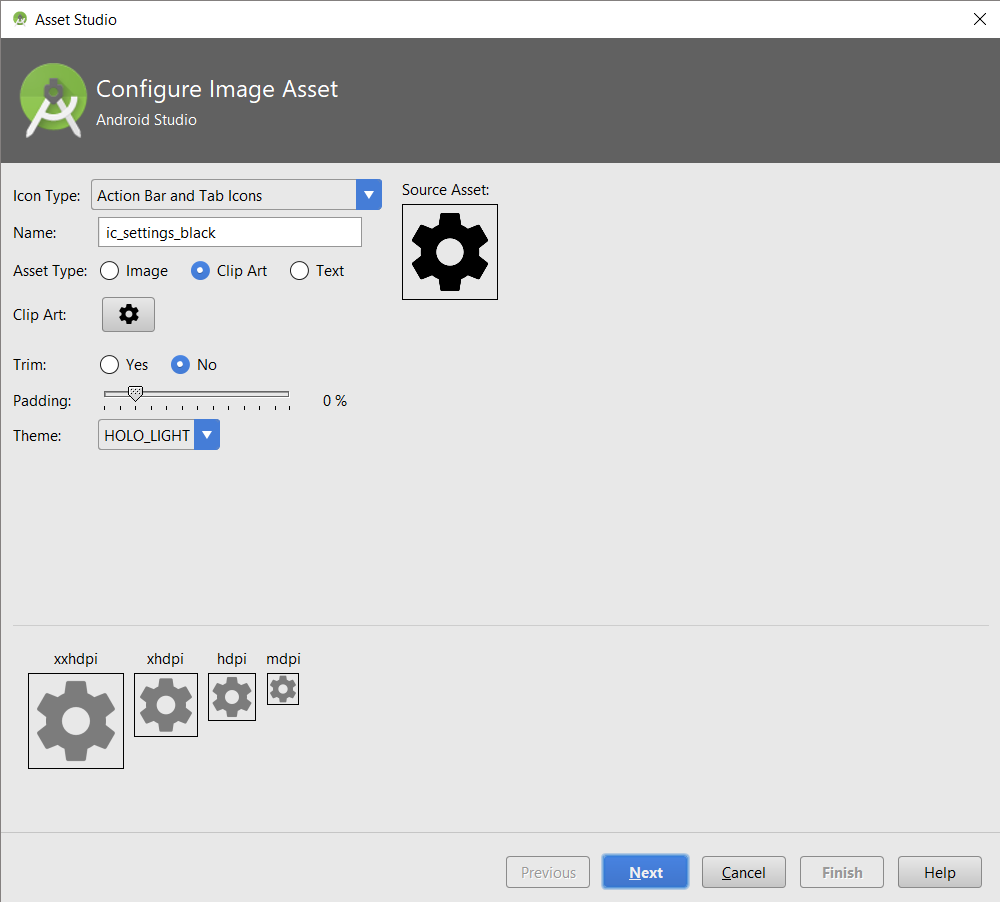
Next, we will enable this menu in the MainActivity by adding menu initialization code in the MainActivity class:
@Override
public boolean onCreateOptionsMenu(Menu menu) {
MenuInflater inflater = getMenuInflater();
inflater.inflate(R.menu.menu, menu);
return true;
}
The last step is to handle the action when the menu option gets selected by having the following in the MainActivity:
@Override
public boolean onOptionsItemSelected(MenuItem item) {
switch (item.getItemId()) {
case R.id.settings:
startActivity(new Intent(this, SettingsActivity.class));
return true;
default:
return super.onOptionsItemSelected(item);
}
}
That's it; now we have a fully working SettingsActivity class. After the settings option is clicked on, the user should be presented with this screen:
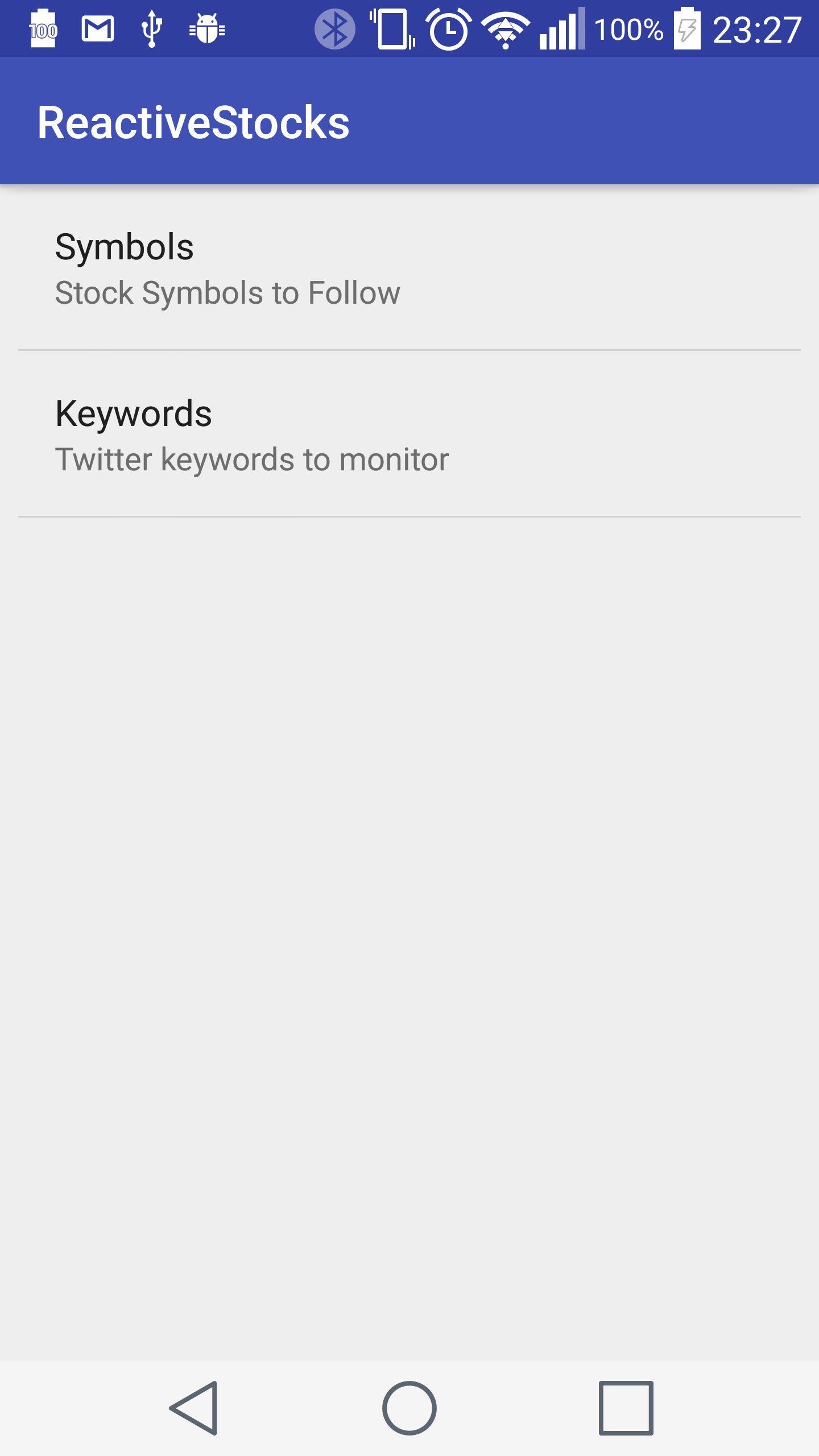
When a user clicks on Symbols or Keywords entries, a dialog box will be shown where the Keywords or Symbols can be entered:
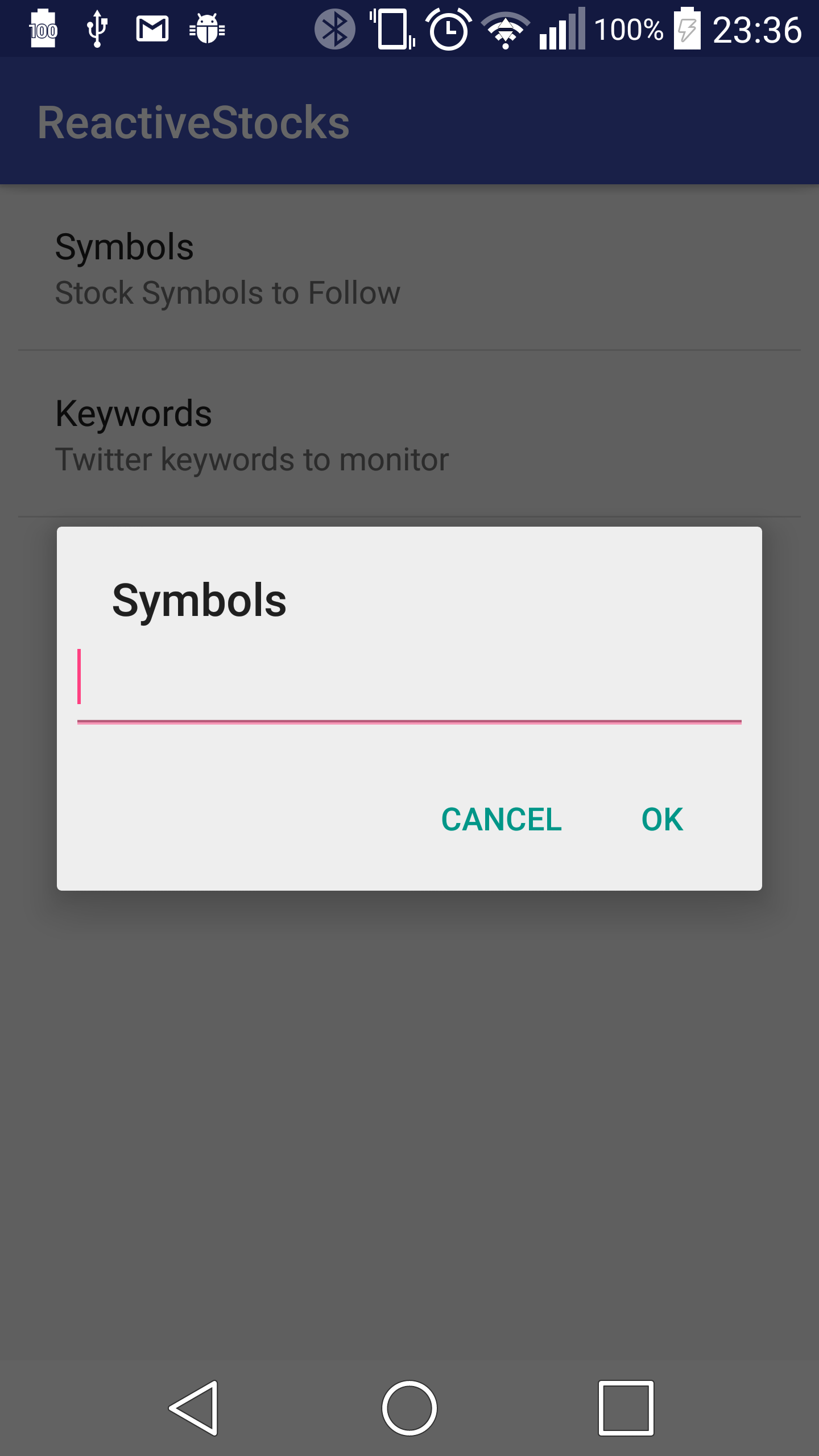
The values here are separated by spaces.
The only thing that's left to do now is to plug in the settings and its Observables into the main flow. Let's just jump right to that, and we will figure out the details as we go.
The existing code block of interest now is this:
Observable.merge(
createFinancialStockUpdateObservable(yahooService, query, env),
createTweetStockUpdateObservable(configuration,
trackingKeywords, filterQuery)
)
We will update it by prepending the Observables in front of the following:
createFinancialStockUpdateObservable(yahooService, query, env)
createTweetStockUpdateObservable(configuration, trackingKeywords,
filterQuery)
Let's start with the financial stock quote retrieval block. First of all, we will need to retrieve the preferences by calling this:
settings.getMonitoredSymbols()
Next, we will use .switchMap() to pass those symbols to the createFinancialStockUpdateObservable():
.switchMap(symbols -> {
String query = createQuery(symbols);
String env = "store://datatables.org/alltableswithkeys";
return createFinancialStockUpdateObservable(yahooService, query,
env);
})
We could have used .flatMap() to get a very similar effect here, but that would not have ended well. The problem with .flatMap() is that whenever the getMonitoredSymbols() produces a new symbol list, it will create a new Observable for financial stock quote updates but will not destroy the old one! If the symbol's property is changed five times, it means that there will be five different Observables created that will continue producing values until the entire root Observable is destroyed.
The .switchMap() block avoids that by terminating the previously created Observable inside the .switchMap() clause before producing the new one.
The block contains a new method--createQuery(). It is used to create a query for YQL, and its body can be seen here:
private String createQuery(List<String> symbols) {
StringBuilder buffer = new StringBuilder("select * from yahoo.finance.quote where symbol in (");
boolean first = true;
for (String symbol : symbols) {
if (!first) {
buffer.append(",");
}
buffer.append("'").append(symbol).append("'");
first = false;
}
buffer.append(")");
return buffer.toString();
}
It consumes the received list by appending its values to the YQL select query.
We will use a very similar approach for the monitored tweets. The settings here are retrieved using this:
settings.getMonitoredKeywords()
However, the .switchMap() block is a bit expanded here:
.switchMap(keywords -> {
if (keywords.isEmpty()) {
return Observable.never();
}
String[] trackingKeywords = keywords.toArray(new
String[0]);
final FilterQuery filterQuery = new FilterQuery()
.track(trackingKeywords)
.language("en");
return createTweetStockUpdateObservable(configuration,
trackingKeywords, filterQuery);
}
)
Here, we have included the following:
if (keywords.isEmpty()) {
return Observable.never();
}
This will ensure that the Observables return early if there are no monitored keywords. We could have done the same for the financial stock Observable, but this is useful to show that the Observables can have different flows inside.
The final block to produce the StockUpdate items will be this:
Observable.merge(
settings.getMonitoredSymbols()
.switchMap(symbols -> {
String query = createQuery(symbols);
String env = "store://datatables.org/alltableswithkeys";
return createFinancialStockUpdateObservable
(yahooService, query, env);
}),
settings.getMonitoredKeywords()
.switchMap(keywords -> {
if (keywords.isEmpty()) {
return Observable.never();
}
String[] trackingKeywords =
keywords.toArray(new String[0]);
final FilterQuery filterQuery
= new FilterQuery()
.track(trackingKeywords)
.language("en");
return createTweetStockUpdateObservable
(configuration, trackingKeywords,
filterQuery);
}
)
)
Again, we can extract these blocks to simplify the flow and make it more explicit and readable.
Earlier, we introduced a mechanism to skip duplicate entries from the financial stock updates that rely on .groupBy(). However, now it won't work because the distinctUntilChanged() block will get destroyed each time the .switchMap() block receives a new value and thus the last received entry will be lost.
The fix is quite simple. Consider this code:
.groupBy(stockUpdate -> stockUpdate.getStockSymbol())
.flatMap(groupObservable -> groupObservable.distinctUntilChanged())
It has to be moved outside the .merge():
Observable.merge(
...
)
.groupBy(stockUpdate -> stockUpdate.getStockSymbol())
.flatMap(groupObservable ->
groupObservable.distinctUntilChanged())
.compose(bindUntilEvent(ActivityEvent.DESTROY))
.subscribeOn(Schedulers.io())
This way, the .switchMap() block changes won't impact the last saved value, and it will successfully keep removing the duplicate entries as before.
In this chapter, we learned about Subjects and how they can be an Observable and a Subscriber at the same time. We covered multiple types of Subjects, such as the following:
We saw how they are different and that they have different use cases. Furthermore, we examined how they work by running through multiple examples that emphasize their uniqueness.
Next, we learned about the RxPreferences library and how it can be combined with BehaviorSubject to provide us with a reactive interface to the application settings.
Using the RxPreferences library, we connected a UI that used PreferencesFragment so that the changes will automatically propagate to the main financial stock retrieval flow right at the moment they are made.
Finally, we saw how easy it is to plugin reactive preference management into the existing data retrieval flow using .switchMap().
In the next chapter, we will cover marble diagrams and how to read them. They are used extensively in the documentation and can help a lot when one is learning new operators.
Congratulations on reaching the last chapter! This chapter will be about the documentation of ReactiveX family libraries. ReactiveX represents the core concepts and operations that are used in different programming languages.
In most cases, these ReactiveX operations are explained using marble diagrams, such as this one:
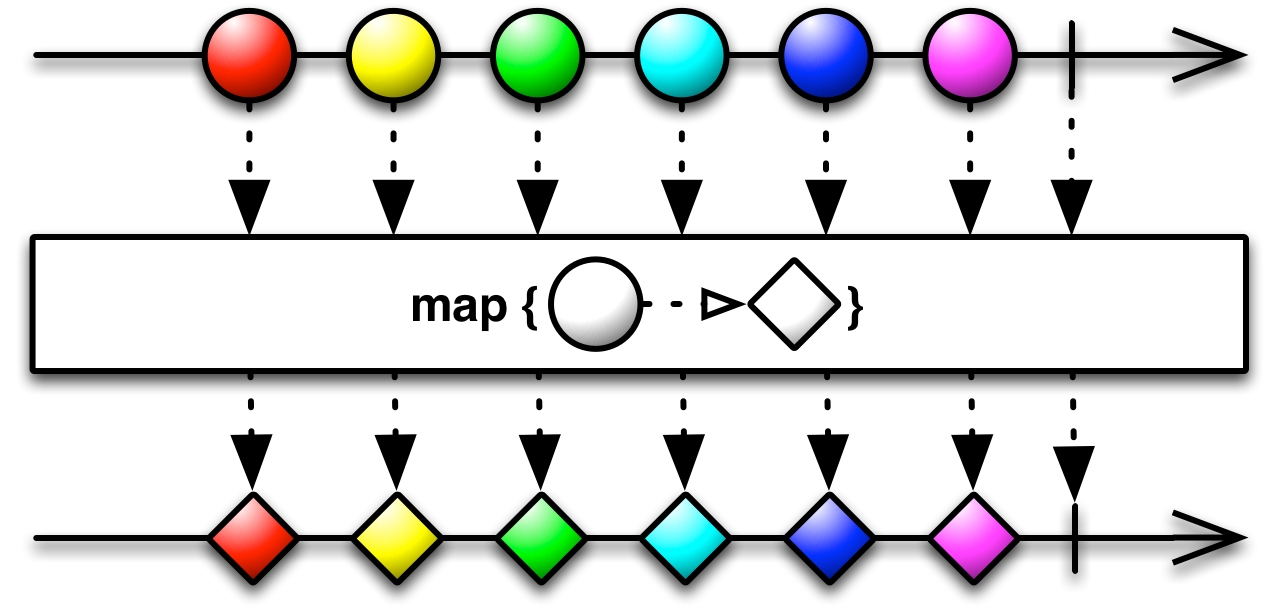
It will be especially important to understand how to read marble charts so that the developer can efficiently use and understand the documentation provided for RxJava and ReactiveX. There are many more operators that we didn't have a chance to cover here but can be very useful for developers, so the ability to read and understand the documentation is critical.
Why didn't we cover this earlier? We believe that these diagrams are hard to understand and explain right off the bat, but as you know what the operations are and what the .map() and .flatMap() do, it will be easier to wrap your head around the charts.
First, in this chapter, we will learn the core elements that make up the marble diagrams. Also, we will see that there are some great tools, such as RxMarbles, that can help you in the learning process.
Finally, we will explore a few operators along with their marble charts to examine each case by example, as shown here:
These case-by-case examples and explanations will provide the necessary groundwork to make the understanding of marble charts a lot easier.
After finishing reading this chapter, the developer will be able to go to the ReactiveX website, look up any operator, and understand right away what it does, what it is for, and how to use it.
The topics discussed in this chapter are:
Before we delve into the examples of RxJava operators and their respective marble diagrams, it is necessary to learn the basic elements of these diagrams.
In this chapter, we will see how the elements and operators are represented in the documentation, as well as how the termination symbols are represented.
To do this, we will take a great introductory example from the reactivex.io website, and we will go through each of its elements.
Finally, we will see that we can use tools such as RxMarbles to make the learning process easier by doing interactive examples.
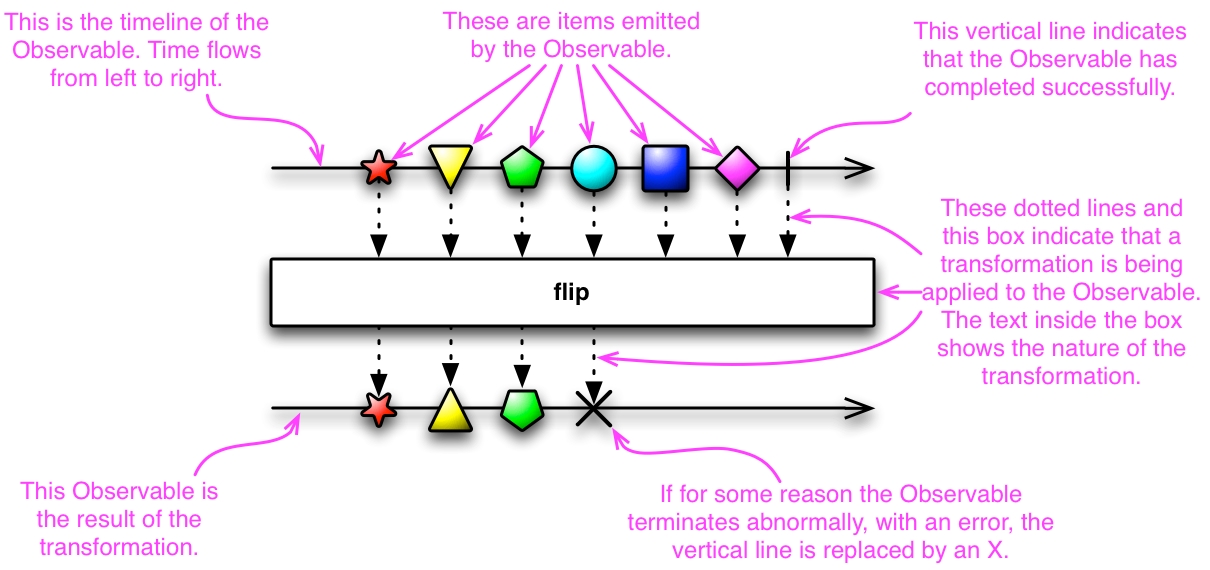
The following line represents an initial Observable with items that will be emitted as time passes:

For example, the equivalent in code will be as follows:
Observable.just(new Star(), new Triangle(), new Pentagon(), new
Circle(), new Square(), new Diamond())
The items that are being emitted are represented by the elements on the line (a star, a triangle, and so on). The operation that is being applied is represented by this:

Observable.just(...)
.flip(...)
This will result in an Observable that will emit the following:

The flip operation changed the rotation of each element. Consider the following:

It changed to become as follows:

If the sequence finishes normally (.onComplete()), that action is represented by the following symbol:

However, if it terminates abruptly (with an .onError() call), the following symbol is used to show this:

Having covered these basics, we can now continue with the examples; however, before that, let's take a look at the RxMarbles tool.
The RxMarbles tool is available at http://rxmarbles.com/ and was created by André Staltz. It provides an interactive interface for various reactive operators. This tool was created for RxJs, but there are no conceptual differences from RxJava. The things you learn across these platforms are transferable.
For example, it is possible to play with a .map() operation, as shown in the following figure:
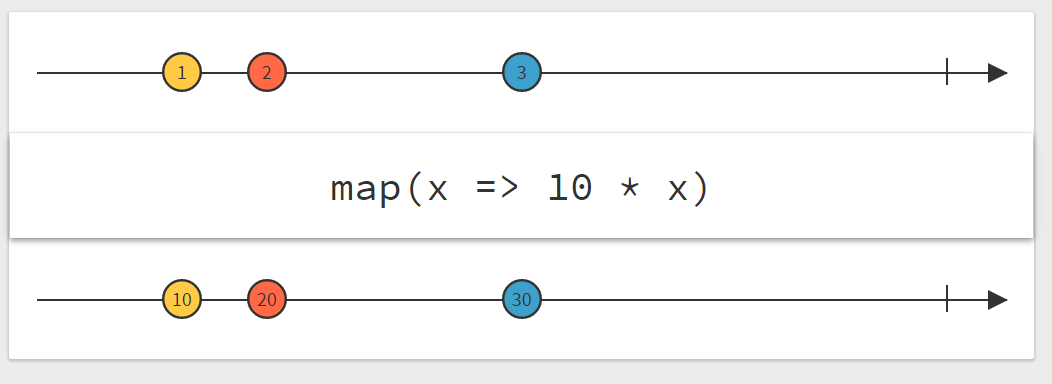
Also, the changes will be seen in realtime. So, for example, if we alter the order of the elements, as in the following figure, the after-transformation changes will be reflected immediately:
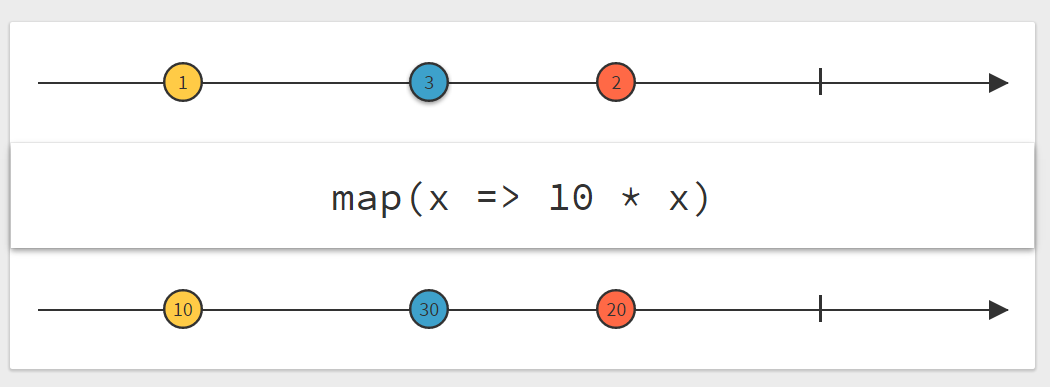
There isn't much to add about this tool--just give it a try, and it might help you clarify certain things about the operators that are available in RxJava.
To familiarize ourselves with the operators and their respective marble diagrams, the best way is to analyze the examples.
In this section, we see examples for the following operations:
This set of operators is diverse enough to familiarize the reader with the concepts of marble diagrams.
The .map() operator is one of the most basic operators available, and so it is a perfect candidate to start the example list with.
As we discussed earlier, the first line represents the original Observable and the items on the line are the values that will be emitted by the Observable in the specified order. At the very end of the sequence, there is a termination symbol.
In particular, we are interested in the operation that is being applied here. Let's take a look at the following diagram:
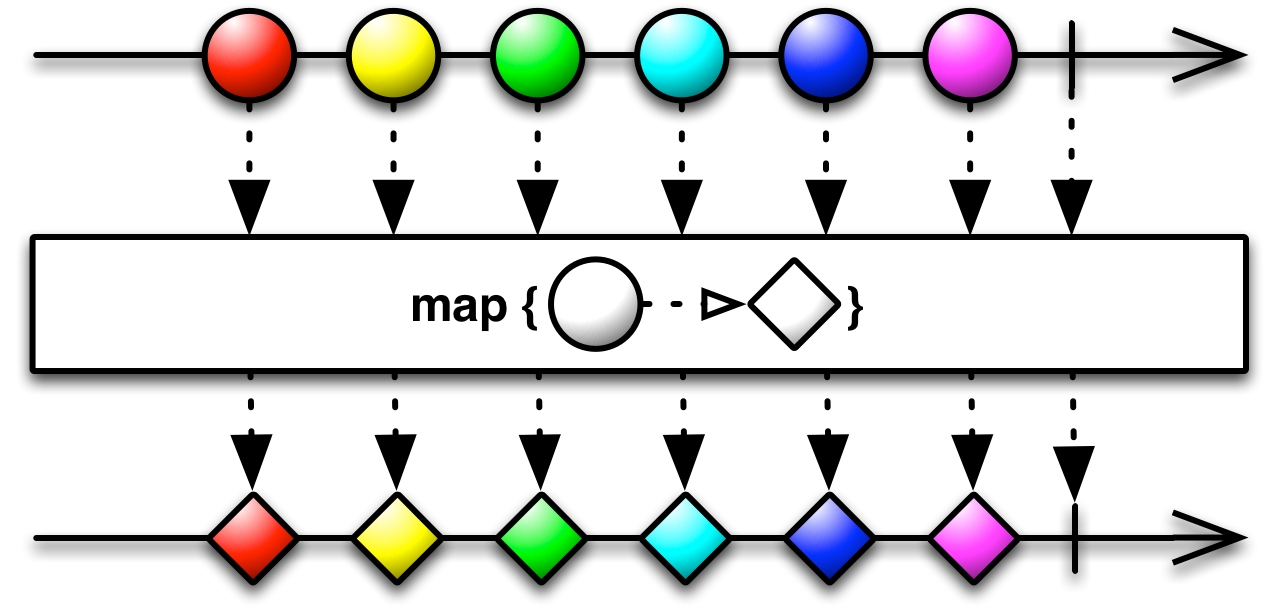
The following block represents the .map() operation being applied:

It says that the elements are transformed by changing the form of a circle into a diamond. So, the circle elements that were received from the original Observable will become diamonds in a new Observable.
The .flatMap() case is a bit more complex:
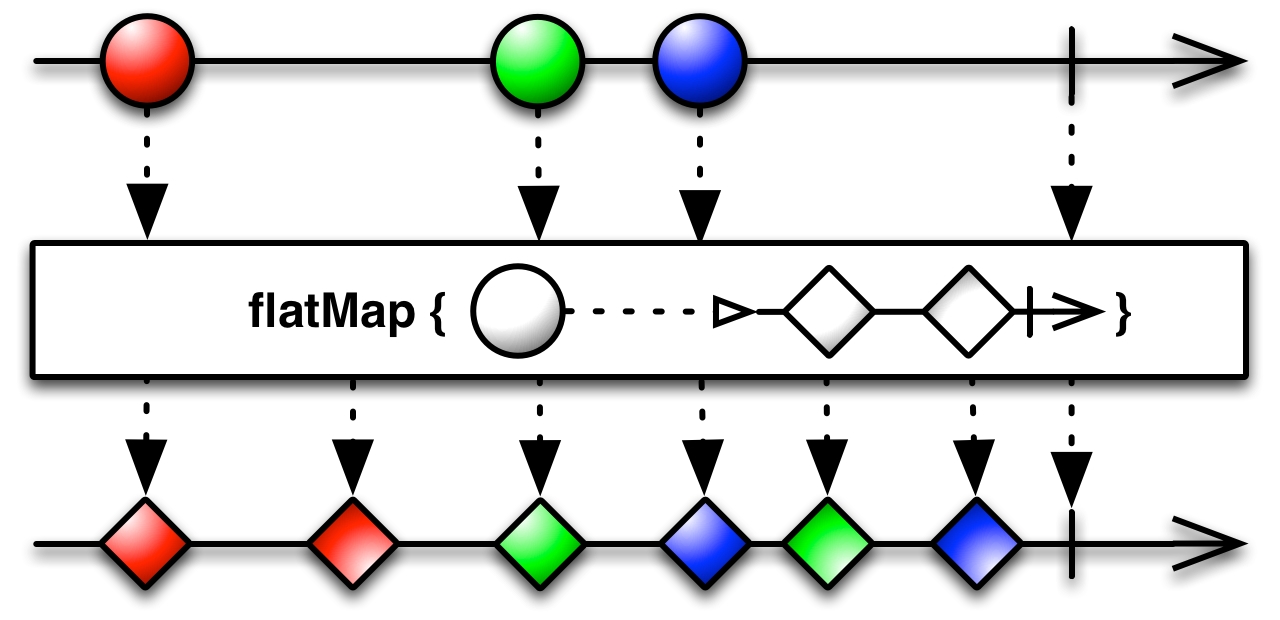
The operator here says that each received item is replaced by two new items that will be diamond shaped. After the two items are emitted, the sequence terminates normally (the vertical dash sign).
As we can see in the preceding figure, in the resulting Observable, each of the items was replaced by two elements. However, it emphasizes that the order of the items can be changed, because there is a green item after a blue one.
The .onExceptionResumeNext() operator resumes the Observable flow with a backup Observable, in case an exception is thrown somewhere upstream. The marble diagram for this operation can be seen here:
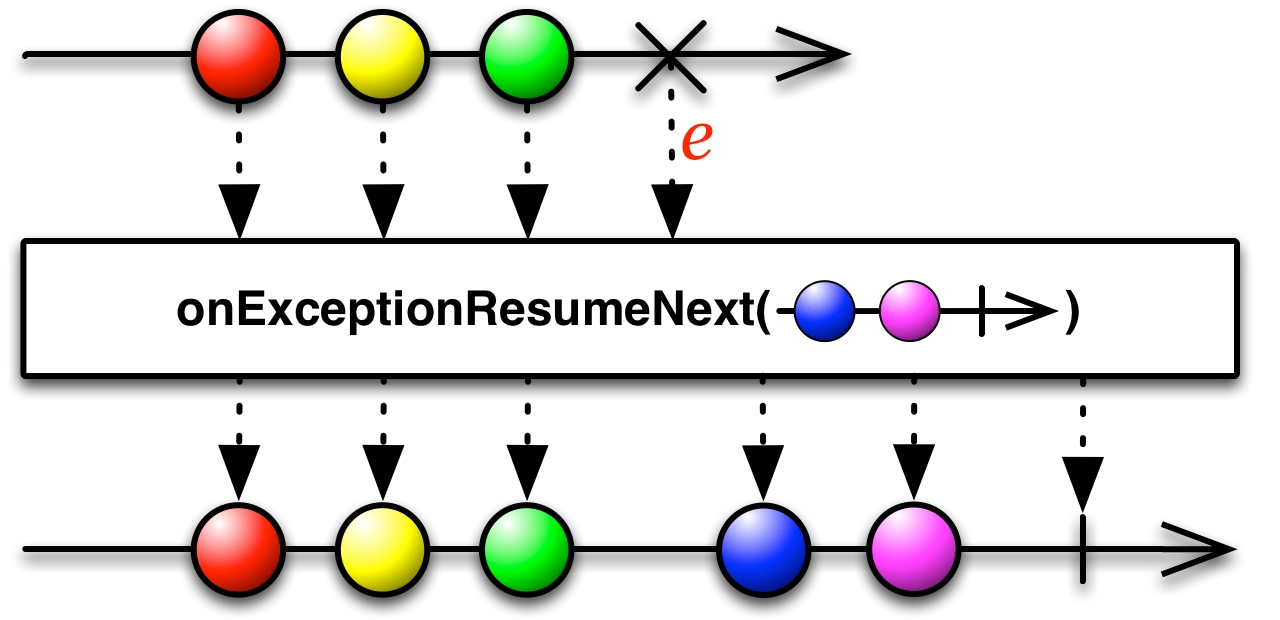
The last element on the first line represents an exception occurring in the Observable. However, the onExceptionResumeNext operator is provided with a backup Observable:
That will be used to resume the flow. That is what we can see in the resulting Observable--the first three marbles passed through normally, but the error is missing. The preceding Observable was filled in with its two elements instead of the exception, and the resulting Observable was allowed to complete normally.
The .groupBy() is one of the more complicated operators. As we have learned before, it groups elements emitted by the upstream Observable into a separate Observable based on a specified property or a key:
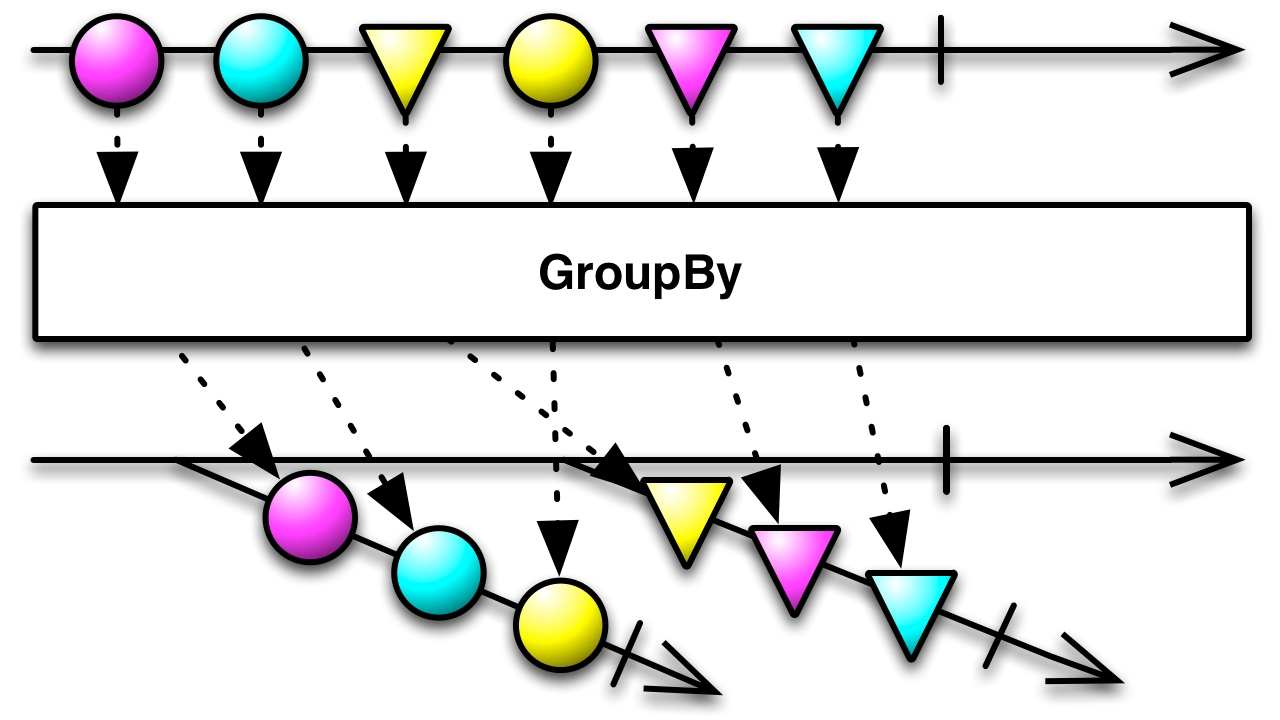
In the preceding figure, we can see that after applying .groupBy() operator, the new Observables are grouped by the shape of the original element.
The dashed arrows show how each element was mapped from the position in the original Observable into the new Observable.
The .subscribeOn() operator changes the scheduler where the Observer will start the execution, while the .observeOn() operator changes the scheduler where the actions will be executed after it is applied. The following .subscribeOn() action shows how it changed the scheduler for the entire Observable from the default one to the orange one; we can see this because the color of Observable lines and the color of dotted emission lines changed to orange:
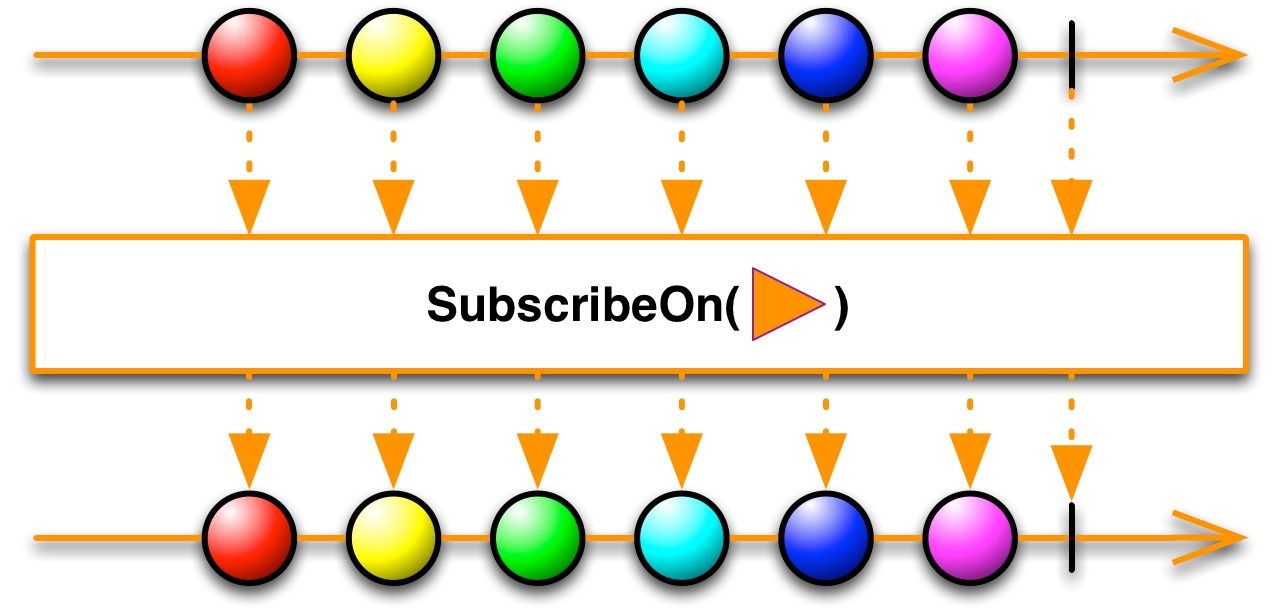
The following diagram is a bit more complicated:
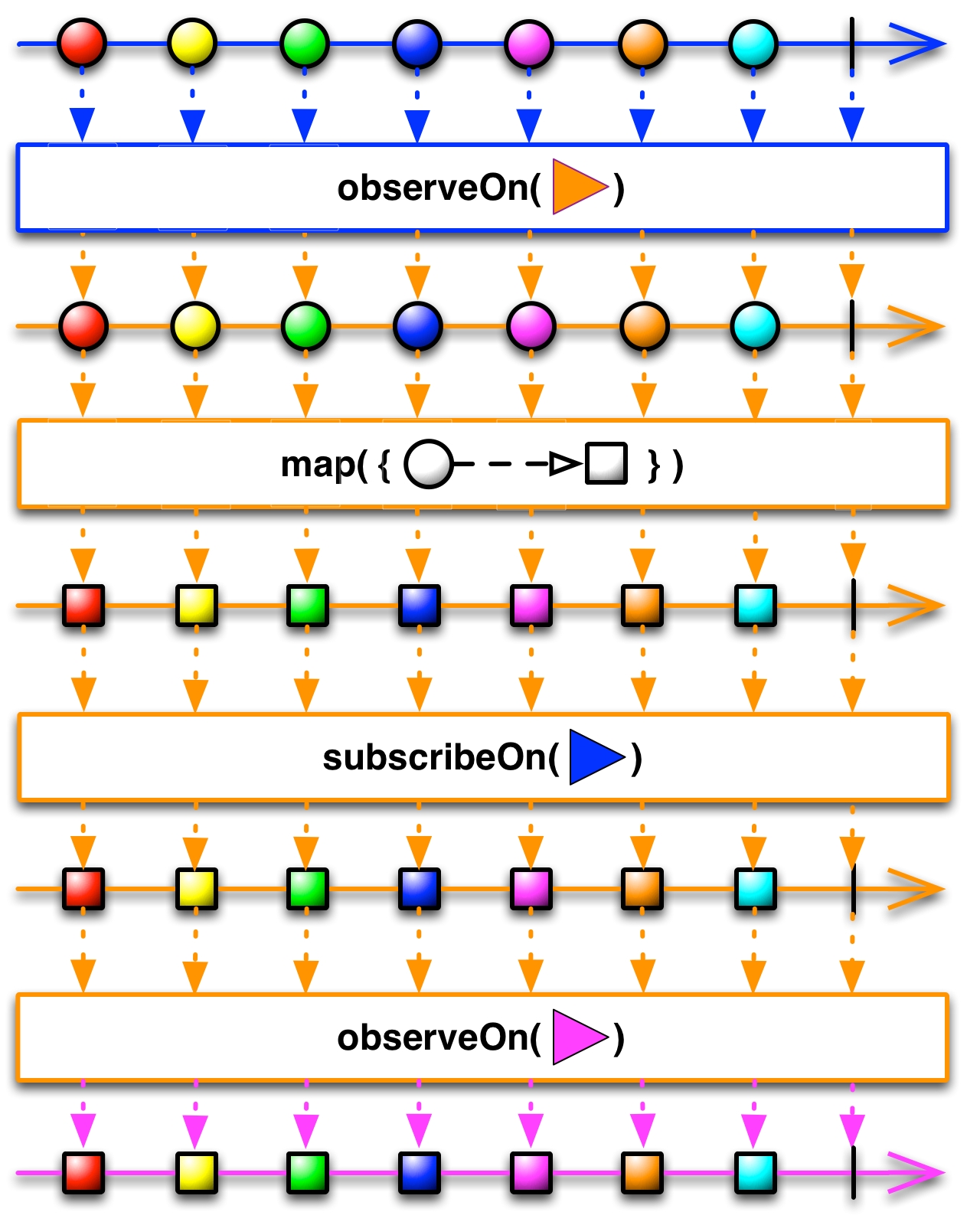
The first .observeOn() call changes the default scheduler from the default (blue in this case) to the orange scheduler. However, the next .subscribeOn() call is ignored because it happened after the .observeOn() call, and the Observer is already operating on a particular scheduler. We can see that the color of the Observable didn't change into blue, as the .subscribeOn() call asked.
Finally, the last .observeOn() call changed the scheduler again for the subsequent operations from the orange scheduler to the purple scheduler.
BehaviorSubject is the last example that we will cover. This Subject saves the last emitted value and, whenever there is a new subscriber, it emits that value and keeps emitting new values that it receives until the upstream completes. In the following figure, we can see that the BehaviorSubject is being created with a default value of a purple marble:
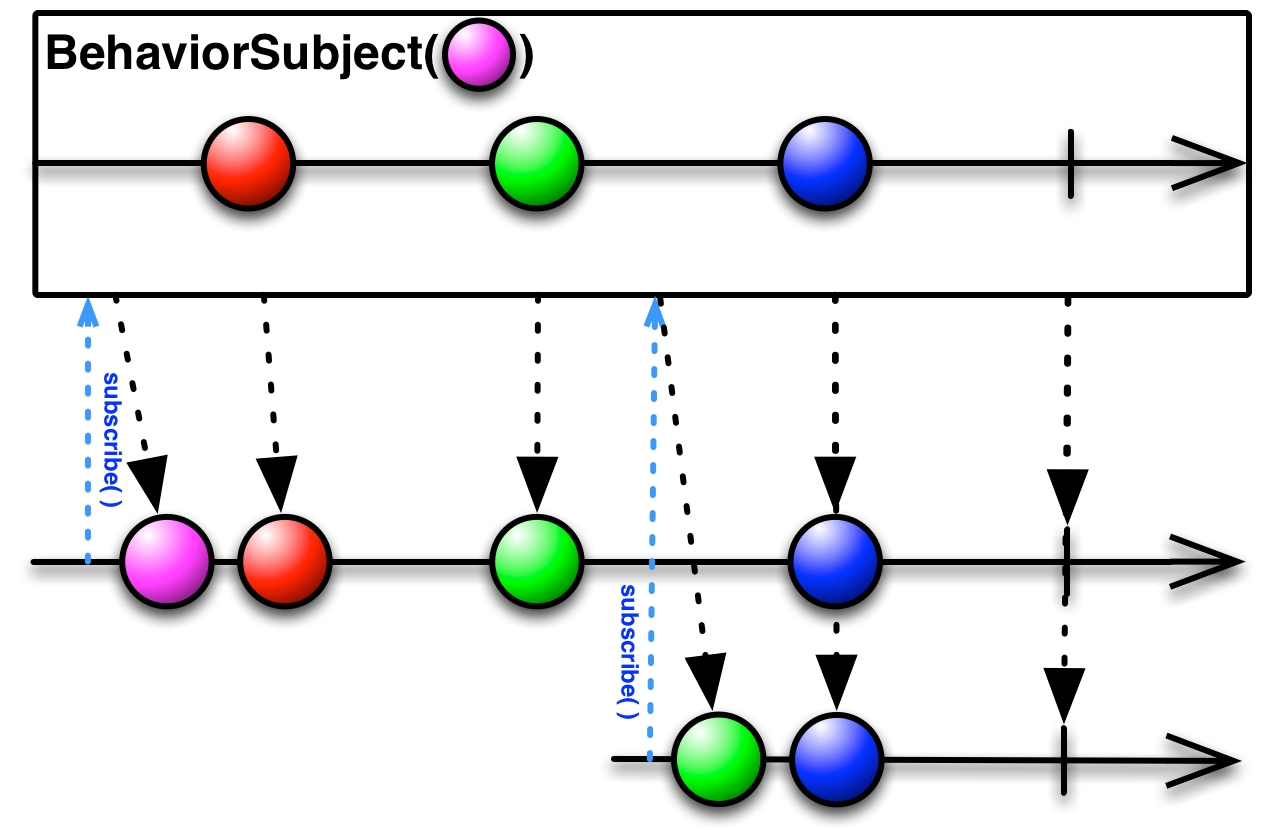
Next, we can see a subscription that's denoted with a blue dashed line. When the subscription happens, the current last saved value is emitted and, in this case, it's a purple marble.
Afterwards, the Subject relays all the marbles to the following first Observable (Subscription) that's denoted with a first solid line of the following:

We can also see a second subscribe happening, which will emit a green marble to the new Observable this time because, at the time, it was the last current value.
The blue marble was relayed to both Observables and when the Subject completed, it can be seen from the termination symbol.
Congratulations on completing the last chapter of the book! In this chapter, we saw how useful marble diagrams can be, and we learned to read them. We did that by analyzing the core elements of a marble diagram and then exploring examples for the following operations:
It might happen that marble diagrams are not fully clear at first, and it might be a bit too much to rely completely on them. However, they are amazing complementary material that can help clarify certain things that weren't obvious from the description in the documentation.
Also, by now a reader should be able to understand and see the benefits of the RxJava framework and how it helps to write higher-quality code that's easier to maintain. We learned the basic building blocks of the RxJava framework, along with more advanced patterns.
Hopefully, the knowledge presented in this book will allow developers to write much better Android applications that are resistant to the concurrency and threading bugs that plague applications that rely only on standard Android development tools.
Copyright © 2017 Packt Publishing
All rights reserved. No part of this book may be reproduced, stored in a retrieval system, or transmitted in any form or by any means, without the prior written permission of the publisher, except in the case of brief quotations embedded in critical articles or reviews.
Every effort has been made in the preparation of this book to ensure the accuracy of the information presented. However, the information contained in this book is sold without warranty, either express or implied. Neither the author, nor Packt Publishing, and its dealers and distributors will be held liable for any damages caused or alleged to be caused directly or indirectly by this book.
Packt Publishing has endeavored to provide trademark information about all of the companies and products mentioned in this book by the appropriate use of capitals. However, Packt Publishing cannot guarantee the accuracy of this information.
First published: May 2017
Production reference: 1240517
ISBN 978-1-78728-990-1
|
Author Tadas Subonis |
Copy Editor Shaila Kusanale |
|
Reviewers Mantas Aleknavicius Javier Gamarra SeongUg Jung |
Project Coordinator Ritika Manoj |
|
Commissioning Editor Amarabha Banerjee |
Proofreader Safis Editing |
|
Acquisition Editor Siddharth Mandal |
Indexer Mariammal Chettiyar |
|
Content Development Editor Mohammed Yusuf Imaratwale |
Graphics Jason Monteiro |
|
Technical Editor Rashil Shah |
Production Coordinator Melwyn Dsa |
Tadas Subonis started coding roughly when he was thirteen. Since then, he has programmed with PHP, JavaScript, Python, C++, and Java (the language in which he has probably written the most code). He took up Android relatively recently--around 2014 (after a few false starts in 2012).
However, he soon learned that Android lacks decent support for asynchronous programming (Async Task was/is a joke) while more reckless languages, such as JavaScript, had Promises for a long time. Furthermore, Java's standard library was lacking decent support for functional programming primitives (map, filter), but that was easily fixable with libraries such as Guava.
This led Tadas to search for a library that would help him achieve a Promise-like functionality and interface. It didn't take long until he found ReactiveX and its family of implementations (including RxJava) that handle streams in Reactive fashion. It wasn't exactly the flow of Promise-like systems but, soon enough, he realized that it's something even more powerful.
Since then, he has been using RxJava (and RxKotlin) for his daily Android programming. The quality of the code (the lack of bugs, readability, and maintainability) has improved ten-fold. Giving a quick crash-free experience for the users of your application is a must these days when competition for user attention on app marketplaces is getting fiercer and fiercer.
Javier Gamarra is a developer who's always eager to learn and improve.
He currently works as an Android developer at Liferay, and he has worked with many development stacks: JS (Angular, Node…), Java EE, Scala, and Python. He loves challenges and learning about data visualization.
In his spare time, he organizes conferences and meetups in @cylicon_valley, a tech meetup in Castilla y Leon to help spread better technical practices in other companies, and he's a member of the board of @agilespain, the Spanish Agile national association.
He is available everywhere on the Internet under the @nhpatt handle.
SeongUg Jung has been developing Android applications for consumers and enterprises since 2010. He started his career working at Daou Tech, developing various applications such as messenger, calendar, e-mail, and Mobile Application Management services (including web). In December 2014, he became the lead Android Developer at Toss Lab, Inc., an enterprise communications startup focused on the Asian market.
He has contributed to Android libraries such as Robolectric-Gradle and Engine-io-java-client, and given lectures on development, especially Agile.
His specialities include Android TDD, good architectures, Agile, XP, Cl and so on. He enjoys helping others, so feel free to ask for help.
For support files and downloads related to your book, please visit www.PacktPub.com.
Did you know that Packt offers eBook versions of every book published, with PDF and ePub files available? You can upgrade to the eBook version at www.PacktPub.com and as a print book customer, you are entitled to a discount on the eBook copy. Get in touch with us at service@packtpub.com for more details.
At www.PacktPub.com, you can also read a collection of free technical articles, sign up for a range of free newsletters and receive exclusive discounts and offers on Packt books and eBooks.
Get the most in-demand software skills with Mapt. Mapt gives you full access to all Packt books and video courses, as well as industry-leading tools to help you plan your personal development and advance your career.
Thanks for purchasing this Packt book. At Packt, quality is at the heart of our editorial process. To help us improve, please leave us an honest review on this book's Amazon page at https://www.amazon.com/dp/1787289907.
If you'd like to join our team of regular reviewers, you can e-mail us at customerreviews@packtpub.com. We award our regular reviewers with free eBooks and videos in exchange for their valuable feedback. Help us be relentless in improving our products!
Writing code on Android is difficult. Writing a high-quality code that involves concurrent and parallel tasks is even harder. Ensuring that this code will run without unforeseen race conditions is on the order of magnitude, more difficult. This is especially relevant today, when almost every application (server or client) is interacting with many remote components, modules, or dependencies. Quite often (almost in all cases) when the remote operation is being executed, it must be done asynchronously so that the program doesn’t wait on I/O and can do something a bit more useful than only waiting for the response. With this book, I hope to introduce a novice developer to a wide variety of tools that RxJava provides so that the developers can produce robust and high-quality code for their asynchronous tasks by building a relatively simple application that will use advanced RxJava techniques to produce a high-quality product. First of all, in Chapter 1, Building your First "Hello World" RxJava Application, the book will lead a developer through an initial setup of RxJava in Android environment. Later, the reader will learn RxJava 2.0 step-by-step by starting off with stock data processing and display. Along with this, a developer will learn to choose appropriate Schedulers and use Retrofit library for remote requests. In Chapter 8, Writing Custom Observables, we will continue by adding an integration to Twitter to process its streaming data by combining it with stock data. For this, we will utilize advanced RxJava techniques, such as creating custom observables and flatMap.
Finally, we will learn to write custom RxJava Observables, and we will explore a few different ways of organizing the RxJava code to make it easier to understand and maintain. In the end, we will do a brief overview of marble diagrams so that the developers will have an easier time understanding RxJava documentation.
After the reader finishes reading this book, he will be well versed in various RxJava techniques to create robust, reusable, and easily understandable code to manage various kinds of I/O operations or just do a general processing in a reactive way that follows functional paradigm.
Chapter 1, Building your First "Hello World" RxJava Application, will briefly cover an initial setup of RxJava, and we will use it to produce a first "Hello World" message in a reactive fashion even though it will be super simplistic. To do this, we will set up RxJava dependencies and Retrolambda to make our application support lambdas from Java 8.
Chapter 2, Understanding the Basics of RxJava, will explain the core aspects of RxJava. We will learn what Observables, Subscribers, Flowables, and others are. These basic building blocks will be used extensively through the book.
Chapter 3, Learning to use Retrofit by Fetching Financial Data, says that very few modern applications can get away without relying on internet connectivity. In this chapter, we will learn how to use the most popular Retrofit library to do HTTP requests and some basics of data processing. All this will be done while retrieving remote financial stock quote data and displaying it in the UI.
Chapter 4, Integrating RxJava 1.0 with RxJava 2.0, explains that RxJava 2.0 was introduced quite recently, so lots of libraries are still available only for RxJava 1.0. Here, we will learn how to connect different versions of RxJava.
Chapter 5, Writing Data to SQLite and Schedulers, asserts that one of the most popular options for data persistence is SQLite database. With RxJava, you can use libraries, such as StorIO, to make the interactions reactive. Additionally, Schedulers will be covered so that developers can change where the actual computations are being run.
Chapter 6, Error Handling and SQLite Data Reading, cover one of the most important aspects while writing code--error handling. We will learn various ways of doing that in RxJava. Furthermore, we will learn how StorIO can be used to read financial stock data that was saved in SQLite before.
Chapter 7, Integrating RxJava with Activity Lifecycle, will teach a very important aspect of Android and RxJava--resource leaks. Here, we will learn how to prevent memory and thread leaks by delving deep into the Activity Lifecycle and exploring a few different ways how the life cycle methods can be connected to RxJava.
Chapter 8, Writing Custom Observables, explores the creation of custom observables. We will do this by creating a custom observable to consume an endless stream of Twitter updates. These updates will be incorporated into the existing financial quote data flow and displayed in the UI.
Chapter 9, Advanced Observable Flows Explained, says that there are many different operations available in RxJava. We will learn how the .zip() and .flatMap() operators work and how they can be used. Also, we will explore advanced operators, such as .groupBy() and .switchMap().
Chapter 10, Higher Level Abstractions, explains that as the code can get messy really easy, it is extremely useful to be well versed in refactoring, which helps to simplify code and abstract away unnecessary details. Here, we will learn how method extraction, static method factories, and other approaches can help us achieve that.
Chapter 11, Basics of Subjects and Preference Persistence, covers subjects as a handy tool that behave as data producer and consumer. We will learn how they work, and we will cover a few different types of Subjects. After this chapter, we will know how different Subject types can be used and what use cases are appropriate for them.
Chapter 12, Learning to Read Marble Diagrams, explores and explains several examples of marble diagrams. Marble diagrams and the knowledge of how to read them will prove to be of extreme use when one wants to read the official RxJava documentation, as almost all operations are explained in marble diagrams.
Before you start, it is expected that you have Android Studio setup and ready and Android SDK is installed as well. Other than that, there are no additional requirements.
Obviously, it will be very handy if you have real development smartphone devices available so that you wouldn’t need to rely on emulators.
This book is intended for developers who are familiar with Android (not necessarily experts) and who want to improve the quality of event handling, asynchronous tasks, and parallel processing code.
In this book, you will find a number of text styles that distinguish between different kinds of information. Here are some examples of these styles and an explanation of their meaning.
Code words in text, database table names, folder names, filenames, file extensions, pathnames, dummy URLs, user input, and Twitter handles are shown as follows: "However, in this particular case, I would recommend putting logging calls in .doOnNext() blocks."
A block of code is set as follows:
plugins {
id "me.tatarka.retrolambda" version "3.4.0"
}
apply plugin: 'com.android.application'
New terms and important words are shown in bold. Words that you see on the screen, for example, in menus or dialog boxes, appear in the text like this: "This will create a very basic screen with a single text element that will say "Hello! Please use this app responsibly!"."
Feedback from our readers is always welcome. Let us know what you think about this book-what you liked or disliked. Reader feedback is important for us as it helps us develop titles that you will really get the most out of.
To send us general feedback, simply e-mail feedback@packtpub.com, and mention the book's title in the subject of your message.
If there is a topic that you have expertise in and you are interested in either writing or contributing to a book, see our author guide at www.packtpub.com/authors.
Now that you are the proud owner of a Packt book, we have a number of things to help you to get the most from your purchase.
You can download the example code files for this book from your account at http://www.packtpub.com. If you purchased this book elsewhere, you can visit http://www.packtpub.com/support and register to have the files e-mailed directly to you.
You can download the code files by following these steps:
Once the file is downloaded, please make sure that you unzip or extract the folder using the latest version of:
The code bundle for the book is also hosted on GitHub at https://github.com/PacktPublishing/-Reactive-Android-Programming. We also have other code bundles from our rich catalog of books and videos available at https://github.com/PacktPublishing/. Check them out!
Although we have taken every care to ensure the accuracy of our content, mistakes do happen. If you find a mistake in one of our books-maybe a mistake in the text or the code-we would be grateful if you could report this to us. By doing so, you can save other readers from frustration and help us improve subsequent versions of this book. If you find any errata, please report them by visiting http://www.packtpub.com/submit-errata, selecting your book, clicking on the Errata Submission Form link, and entering the details of your errata. Once your errata are verified, your submission will be accepted and the errata will be uploaded to our website or added to any list of existing errata under the Errata section of that title.
To view the previously submitted errata, go to https://www.packtpub.com/books/content/support and enter the name of the book in the search field. The required information will appear under the Errata section.
Piracy of copyrighted material on the Internet is an ongoing problem across all media. At Packt, we take the protection of our copyright and licenses very seriously. If you come across any illegal copies of our works in any form on the Internet, please provide us with the location address or website name immediately so that we can pursue a remedy.
Please contact us at copyright@packtpub.com with a link to the suspected pirated material.
We appreciate your help in protecting our authors and our ability to bring you valuable content.
If you have a problem with any aspect of this book, you can contact us at questions@packtpub.com, and we will do our best to address the problem.
Mastering Reactive Android programming with RxJava is no easy feat. At first, the way the code is structured and written may seem strange and alien. However, with some practice, we will quickly see that it is an easy and understandable way to write concurrent and parallel code.
One of the best ways to learn is by example. That's why we will build a simple application to learn RxJava. It will be a very straightforward financial stock quote monitoring app. We will tap into the streams of Yahoo Finance data to display the quotes while using the basics of RxJava.
In the later stages, we will plug in an endless stream of Twitter data and we will start using more advanced techniques to transform and handle data.
First of all, we will start with a simple Hello World application that will provide a solid foundation to the all the things that we will learn.
By the end of this chapter, we will learn and do the following things:
We will start our journey by creating a skeleton application to base all our further development upon. This initial code base will have RxJava dependencies and other libraries included, which we will use throughout this book.
Furthermore, it will have simple UI elements and some very basic examples of RxJava, on which we will continue building our code. This will be a super simple Android Hello World application with a twist of RxJava.
This app will also have elements, such us RecyclerView, which will be used in the later stages of the app but for now, they will be filled with mock data (but in a Reactive way!).
Finally, let's create our initial application using Android Studio. This can be done by starting up Android Studio (we will assume that you have a development environment set up and fully working) and using the initial Android Screen with an option of Start a new Android Studio project (or if you have a project already open, you can use a menu File->New->New Project) and select Empty Activity:
Before we can start the development, we need to prepare dependencies so that libraries, such as React, can be used. All the dependencies will be added in the app/build.gradle file.
Let's start by adding the RxJava 2.0 dependencies with a line:
compile 'io.reactivex.rxjava2:rxjava:2.0.3'
Also, we will want to use Android-specific schedulers, so let's add the following line:
compile 'io.reactivex.rxjava2:rxandroid:2.0.1'
To interact with UI elements, we will use two great libraries: RxBinding (which can be found at https://github.com/JakeWharton/RxBinding ) and Butterknife (which can be found at https://github.com/JakeWharton/butterknife ).
ButterKnife will let us easily import UI elements into Java code (no more pesky findViewById()!) and RxBinding will let us make all UI interactions RxJava friendly.
To include ButterKnife, let's add these lines:
compile 'com.jakewharton:butterknife:8.4.0'
annotationProcessor 'com.jakewharton:butterknife-compiler:8.4.0'
To include RxBinding, put in the following:
compile 'com.jakewharton.rxbinding2:rxbinding:2.0.0'
compile 'com.jakewharton.rxbinding2:rxbinding-recyclerview-v7:2.0.0'
Finally, we will be using the RecyclerView and CardView elements from Android Support Repository, so these will be needed as well:
compile 'com.android.support:cardview-v7:25.1.0'
compile 'com.android.support:recyclerview-v7:25.1.0'
In the future, we might need to mix different versions of RxJava, so this line (under android block) will help when both the libraries will be included at the same time:
packagingOptions {
exclude 'META-INF/rxjava.properties'
}
In the end, the top of the build.gradle file will look like this:
plugins {
id "me.tatarka.retrolambda" version "3.4.0"
}
apply plugin: 'com.android.application'
Also, the android block will be as follows:
android {
compileSdkVersion 25
buildToolsVersion "25.0.2"
defaultConfig {
applicationId "packt.reactivestocks"
minSdkVersion 15
targetSdkVersion 25
versionCode 1
versionName "1.0"
testInstrumentationRunner
"android.support.test.runner.AndroidJUnitRunner"
}
packagingOptions {
exclude 'META-INF/rxjava.properties'
}
buildTypes {
release {
minifyEnabled false
proguardFiles getDefaultProguardFile('proguard-
android.txt'), 'proguard-rules.pro'
}
}
compileOptions {
targetCompatibility 1.8
sourceCompatibility 1.8
}
}
The dependency block will be set to the following:
dependencies {
compile 'com.android.support:appcompat-v7:25.1.0'
compile group: 'io.reactivex.rxjava2', name: 'rxjava', version:
'2.0.3'
compile group: 'io.reactivex.rxjava2', name: 'rxandroid', version:
'2.0.1'
compile 'com.jakewharton:butterknife:8.4.0'
annotationProcessor 'com.jakewharton:butterknife-compiler:8.4.0'
compile 'com.jakewharton.rxbinding2:rxbinding:2.0.0'
compile 'com.jakewharton.rxbinding2:rxbinding-recyclerview-
v7:2.0.0'
compile 'com.android.support:cardview-v7:25.1.0'
compile 'com.android.support:recyclerview-v7:25.1.0'
compile "com.github.akarnokd:rxjava2-interop:0.8.1"
}
Let's update MainActivity to look like this:
@BindView(R.id.hello_world_salute)
TextView helloText;
@Override
protected void onCreate(Bundle savedInstanceState) {
super.onCreate(savedInstanceState);
setContentView(R.layout.activity_main);
ButterKnife.bind(this);
Observable.just("Hello! Please use this app responsibly!")
.subscribe(new Consumer<String>() {
@Override
public void accept(String s) {
helloText.setText(s);
}
});
}
The import block for the preceding code is as shown:
import butterknife.BindView;
import butterknife.ButterKnife;
import io.reactivex.Observable;
import io.reactivex.functions.Consumer;
The contents of activity_main.xml at the moment are set to the following:
<?xml version="1.0" encoding="utf-8"?>
<RelativeLayout xmlns:android="http://schemas.android.com/apk/res/android"
xmlns:tools="http://schemas.android.com/tools"
android:id="@+id/activity_main"
android:layout_width="match_parent"
android:layout_height="match_parent"
android:padding="6dp"
tools:context="packt.reactivestocks.MainActivity">
<TextView
android:id="@+id/hello_world_salute"
android:layout_width="wrap_content"
android:layout_height="wrap_content"
android:text="" />
</RelativeLayout>
This will create a very basic screen with a single text element that will say "Hello! Please use this app responsibly!".
Since the application will be displaying changes of financial stocks over time, it means that we will be working with data that's represented best as a list. For this, we will use RecyclerView.
First of all, add it to your activity_main.xml file:
<android.support.v7.widget.RecyclerView
android:id="@+id/stock_updates_recycler_view"
android:layout_width="match_parent"
android:layout_height="match_parent"
android:layout_below="@id/hello_world_salute" />
Then, inject it into your code with the following:
@BindView(R.id.stock_updates_recycler_view)
RecyclerView recyclerView;
The next step is to initialize it in your activity:
private LinearLayoutManager layoutManager;
private StockDataAdapter stockDataAdapter;
...
recyclerView.setHasFixedSize(true);
layoutManager = new LinearLayoutManager(this);
recyclerView.setLayoutManager(layoutManager);
stockDataAdapter = new StockDataAdapter();
recyclerView.setAdapter(stockDataAdapter);
The code for the StockDataAdapter is as illustrated:
public class StockDataAdapter extends RecyclerView.Adapter<StockUpdateViewHolder> {
private final List<String> data = new ArrayList<>();
@Override
public StockUpdateViewHolder onCreateViewHolder(ViewGroup parent,
int viewType) {
View v = LayoutInflater.from(parent.getContext())
.inflate(R.layout.stock_update_item, parent, false);
StockUpdateViewHolder vh = new StockUpdateViewHolder(v);
return vh;
}
@Override
public void onBindViewHolder(StockUpdateViewHolder holder, int
position) {
holder.stockSymbol.setText(data.get(position));
}
@Override
public int getItemCount() {
return data.size();
}
public void add(String stockSymbol) {
this.data.add(stockSymbol);
notifyItemInserted(data.size() - 1);
}
}
Finally, we need the layout XML for the RecyclerView items and a ViewHolder for them:
<?xml version="1.0" encoding="utf-8"?>
<android.support.v7.widget.CardView xmlns:android="http://schemas.android.com/apk/res/android"
android:layout_width="match_parent"
android:layout_height="wrap_content"
android:layout_margin="3dp">
<TextView
android:id="@+id/stock_item_symbol"
android:layout_width="wrap_content"
android:layout_height="match_parent"
android:layout_margin="20dp" />
</android.support.v7.widget.CardView>
To fill in the data for this view, we will have to utilize ViewHolders from the RecyclerView class:
public class StockUpdateViewHolder extends RecyclerView.ViewHolder {
@BindView(R.id.stock_item_symbol)
TextView stockSymbol;
public StockUpdateViewHolder(View v) {
super(v);
ButterKnife.bind(this, v);
}
}
The very last step is to populate it with the data. We will do that in a Reactive way:
Observable.just("APPL", "GOOGLE", "TWTR")
.subscribe(new Consumer<String>() {
@Override
public void accept(String stockSymbol) {
stockDataAdapter.add(stockSymbol);
}
});
This is rather simple code and I hope that most of the developers had no trouble following this. In case there were some not-so-clear bits, feel free to check out the code that's provided with this book. The examples there are fully working.
One will notice pretty quickly that it is quite unwieldy to work just with string data as the app will process stock updates. For the purpose of a proper way to track stock updates, we will create a Value object that will keep that information. It will contain the following fields for now:
The list might be a bit too naive for professional use, but it will serve as a starting point for upcoming work. The final class can look like this:
public class StockUpdate implements Serializable {
private final String stockSymbol;
private final BigDecimal price;
private final Date date;
public StockUpdate(String stockSymbol, double price, Date date) {
this.stockSymbol = stockSymbol;
this.price = new BigDecimal(price);
this.date = date;
}
public String getStockSymbol() {
return stockSymbol;
}
public BigDecimal getPrice() {
return price;
}
public Date getDate() {
return date;
}
}
Obviously, we then need to update other parts of the code to make use of this refactoring:
@Override
public void onBindViewHolder(StockUpdateViewHolder holder, int position) {
StockUpdate stockUpdate = data.get(position);
holder.setStockSymbol(stockUpdate.getStockSymbol());
holder.setPrice(stockUpdate.getPrice());
holder.setDate(stockUpdate.getDate());
}
Also, StockUpdateViewHolder now has additional methods and view fields:
@BindView(R.id.stock_item_date)
TextView date;
@BindView(R.id.stock_item_price)
TextView price;
private static final NumberFormat PRICE_FORMAT = new DecimalFormat("#0.00");
public void setStockSymbol(String stockSymbol) {
this.stockSymbol.setText(stockSymbol);
}
public void setPrice(BigDecimal price) {
this.price.setText(PRICE_FORMAT.format(price.floatValue()));
}
public void setDate(Date date) {
this.date.setText(DateFormat.format("yyyy-MM-dd hh:mm", date));
}
Also, our file stock_update_item.xml will change slightly to nicely display all this new data. The stock_item_symbol is now as shown:
<TextView
android:id="@+id/stock_item_symbol"
android:layout_width="wrap_content"
android:layout_height="match_parent"
android:text="GOOGLE"
android:textSize="18sp" />
At the same time, stock_item_price and stock_item_date are handled by the following:
<TextView
android:id="@+id/stock_item_price"
android:layout_width="wrap_content"
android:layout_height="match_parent"
android:layout_alignParentRight="true"
android:layout_centerVertical="true"
android:text="18.90"
android:textColor="@android:color/holo_green_dark"
android:textSize="22sp" />
<TextView
android:id="@+id/stock_item_date"
android:layout_width="wrap_content"
android:layout_height="match_parent"
android:layout_below="@id/stock_item_symbol"
android:layout_marginTop="5dp"
android:text="2012-12-01"
android:textSize="12sp" />
Also, all the preceding elements will be wrapped inside the RelativeLayout that will be in the CardView:
<?xml version="1.0" encoding="utf-8"?>
<android.support.v7.widget.CardView xmlns:android="http://schemas.android.com/apk/res/android"
android:layout_width="match_parent"
android:layout_height="wrap_content"
android:layout_margin="3dp">
<RelativeLayout
android:layout_width="match_parent"
android:layout_height="wrap_content"
android:padding="20dp">
[...]
</RelativeLayout>
</android.support.v7.widget.CardView>
Finally, our Observable--the piece that creates the data--will look like this:
Observable.just(
new StockUpdate("GOOGLE", 12.43, new Date()),
new StockUpdate("APPL", 645.1, new Date()),
new StockUpdate("TWTR", 1.43, new Date())
)
A curious developer might have heard about new Java 8 features, such as lambdas and method references. However, they are not available by default on the Android platform.
At the moment, there are three ways to add some of the Java 8 features on the platform. One of them is the new Jack compiler, but it is now deprecated. The other option is to rely on the new Java 8 features that will be released sometime soon in the default toolchain (at the time of writing, Java 8 support was in the preview).
The option we will be using is Retrolambda (https://github.com/orfjackal/retrolambda). We will enable it by using a plugin for Android (https://github.com/evant/gradle-retrolambda).
It can be done by simply adding the following at the very top of the application's app/build.gradle file:
plugins {
id "me.tatarka.retrolambda" version "3.4.0"
}
apply plugin: 'com.android.application'
Also, let's not forget to tell the IDE that we will be using Java 8 by adding the following block:
android {
...
compileOptions {
targetCompatibility 1.8
sourceCompatibility 1.8
}
}
Finally, if proguard is being used, adding a line---dontwarn java.lang.invoke.*--to your proguard file might come in handy.
You might think that setting all Retrolambda can be just too much trouble for very little gain. Nothing could be further from the truth and it will be obvious after we take a look at a few examples of code.
Compare the following two samples of code. The first sample is as follows:
Observable.just("1")
.subscribe(new Consumer<String>() {
@Override
public void accept(String e) {
Log.d("APP", "Hello " + e);
}
});
Here's the next sample:
Observable.just("1")
.subscribe(e -> Log.d("APP", "Hello " + e));
The latter is much more concise, but might fail to show the scale of the problem of the former approach. This example might be much better at doing so:
Observable.just("1")
.map(new Function<String, String>() {
@Override
public String apply(String s) {
return s + "mapped";
}
})
.flatMap(new Function<String, Observable<String>>() {
@Override
public Observable<String> apply(String s) {
return Observable.just("flat-" + s);
}
})
.doOnNext(new Consumer<String>() {
@Override
public void accept(String s) {
Log.d("APP", "on next " + s);
}
})
.subscribe(new Consumer<String>() {
@Override
public void accept(String e) {
Log.d("APP", "Hello " + e);
}
}, new Consumer<Throwable>() {
@Override
public void accept(Throwable throwable) {
Log.d("APP", "Error!");
}
});
Now, take a look at this:
Observable.just("1")
.map(s -> s + "mapped")
.flatMap(s -> Observable.just("flat-" + s))
.doOnNext(s -> Log.d("APP", "on next " + s))
.subscribe(e -> Log.d("APP", "Hello " + e),
throwable -> Log.d("APP", "Error!"));
That's 24 lines saved!
The observable flows can get pretty complicated and long, so these lines add up pretty quickly.
If you are stuck with an old version of Java, there are other means to make these flows clear; we will cover more about this in the later chapters.
Since we have just enabled Retrolambda, let's replace the existing code in MainActivity to make use of it:
Observable.just("Please use this app responsibly!")
.subscribe(s -> helloText.setText(s));
Observable.just(
new StockUpdate("GOOGLE", 12.43, new Date()),
new StockUpdate("APPL", 645.1, new Date()),
new StockUpdate("TWTR", 1.43, new Date())
)
.subscribe(stockDataAdapter::add);
Note that we could have used the helloText::setText method reference in the first .subscribe() call as well, but it was left as it is just to serve as an example.
In the case where multiple lines are required, the subscribe part can look like this:
.subscribe(stockUpdate -> {
Log.d("APP", "New update " + stockUpdate.getStockSymbol());
stockDataAdapter.add(stockUpdate);
});
However, in this particular case, I would recommend putting logging calls in .doOnNext() blocks.
Finally, the resulting app should look like this screenshot:
If it looks different, feel free to check out the code that's provided with the book.
At this point, we have a solid framework on which we can build our further financial stock monitoring application. The means to display data are here along with some basic tools and libraries that will become useful as we develop the application.
In particular, we integrated the RxJava library into our code and tested that it works with a very simple Hello World example. Also, we've plugged in additional libraries, such as Butterknife, that will help us work with views with less effort.
Finally, the use of Retrolambda was enabled, which will let us write a much more concise and readable code in future.
However, it's not clear what exactly an Observable is. This is exactly what the next chapter will tackle!
In the last chapter, we briefly used things called Observables, but we didn't cover that in depth. That will be the goal of this chapter--we will go through the core basics of RxJava so that we can fully understand what it is, what are the core elements, and how they work.
Before that, let's take a step back and briefly discuss how RxJava is different from other approaches. RxJava is about reacting to results. It might be an item that originated from some source. It can also be an error. RxJava provides a framework to handle these items in a reactive way and to create complicated manipulation and handling schemes in a very easy-to-use interface. Things such as waiting for an arrival of an item before transforming it become very easy with RxJava.
To achieve all this, RxJava provides some basic primitives:
First of all, we will cover Observables--the source of all the data and the core structure/class that we will be working with. We will explore how are they related to Disposables (Subscriptions).
Furthermore, the life cycle and hook points of an Observable will be described, so we will actually know what's happening when an item travels through an Observable and what are the different stages that we can tap into.
Finally, we will briefly introduce Flowable--a big brother of Observable that lets you handle big amounts of data with high rates of publishing.
To summarize, we will cover these aspects:
Let's dive into it!
Everything starts with an Observable. It's a source of data that you can observe for emitted data (hence the name). In almost all cases (at least in this book), you will be working with the Observable class. It is possible to (and we will!) combine different Observables into one Observable. Basically, it is a universal interface to tap into data streams in a reactive way.
There are lots of different ways of how one can create Observables. The simplest way is to use the .just() method like we did before:
Observable.just("First item", "Second item");
It is usually a perfect way to glue non-Rx-like parts of the code to Rx compatible flow.
When an Observable is created, it is not usually defined when it will start emitting data. If it was created using simple tools such as .just(), it won't start emitting data until there is a subscription to the observable. How do you create a subscription? It's done by calling .subscribe() :
Observable.just("First item", "Second item")
.subscribe();
Usually (but not always), the observable be activated the moment somebody subscribes to it. So, if a new Observable was just created, it won't magically start sending data somewhere.
Quite often, in the literature and documentation terms, Hot and Cold Observables can be found.
Cold Observables are the most common Observable type. For example, one can be created with the following code:
Observable.just("First item", "Second item")
.subscribe();
Cold Observable means that the items won't be emitted by the Observable until there is a Subscriber. This means that before the .subscribe() element is called, no items will be produced and thus none of the items that are intended to be omitted will be missed; everything will be processed.
A Hot Observable is an Observable that will begin producing (emitting) items internally as soon as it is created. For example, in the later chapters we will see that Twitter can be a Hot Observable--the status updates there are produced constantly and it doesn't matter if there is something that is ready to receive them (such as Subscription). If there were no subscriptions to the Observable, it means that the updates will be lost.
A disposable (previously called Subscription in RxJava 1.0) is a tool that can be used to control the life cycle of an Observable. If the stream of data that the Observable is producing is boundless, it means that it will stay active forever. It might not be a problem for a server-side application, but it can cause some serious trouble on Android. Usually, this is the common source of memory leaks. This will be discussed in-depth in the upcoming chapters.
Obtaining a reference to a disposable is pretty simple:
Disposable disposable = Observable.just("First item", "Second item")
.subscribe();
A disposable is a very simple interface. It has only two methods: dispose() and isDisposed() .
The dispose() element can be used to cancel the existing Disposable (Subscription). This will stop the call of .subscribe()to receive any further items from Observable, and the Observable itself will be cleaned up.
The isDisposed() method has a pretty straightforward function--it checks whether the subscription is still active. However, it is not used very often in regular code as the subscriptions are usually unsubscribed and forgotten.
The disposed subscriptions (Disposables) cannot be re-enabled. They can only be created anew.
Finally, Disposables can be grouped using CompositeDisposable like this:
Disposable disposable = new CompositeDisposable(
Observable.just("First item", "Second item").subscribe(),
Observable.just("1", "2").subscribe(),
Observable.just("One", "Two").subscribe()
);
It's useful in the cases when there are many Observables that should be canceled at the same time, for example, an Activity being destroyed.
As described in the documentation, a scheduler is something that can schedule a unit of work to be executed now or later. In practice, it means that Schedulers control where the code will actually be executed and usually that means selecting some kind of specific thread.
Most often, Subscribers are used to executing long-running tasks on some background thread so that it wouldn't block the main computation or UI thread. This is especially relevant on Android when all long-running tasks must not be executed on MainThread.
Schedulers can be set with a simple .subscribeOn() call:
Observable.just("First item", "Second item")
.subscribeOn(Schedulers.io())
.subscribe();
There are only a few main Schedulers that are commonly used:
The AndroidSchedulers.mainThread() is only used on Android systems.
Let's explore how Schedulers work by checking out a few examples.
Let's run the following code:
Observable.just("First item", "Second item")
.doOnNext(e -> Log.d("APP", "on-next:" +
Thread.currentThread().getName() + ":" + e))
.subscribe(e -> Log.d("APP", "subscribe:" +
Thread.currentThread().getName() + ":" + e));
The output will be as follows:
on-next:main:First item
subscribe:main:First item
on-next:main:Second item
subscribe:main:Second item
Now let's try changing the code as shown:
Observable.just("First item", "Second item")
.subscribeOn(Schedulers.io())
.doOnNext(e -> Log.d("APP", "on-next:" +
Thread.currentThread().getName() + ":" + e))
.subscribe(e -> Log.d("APP", "subscribe:" +
Thread.currentThread().getName() + ":" + e));
Now, the output should look like this:
on-next:RxCachedThreadScheduler-1:First item
subscribe:RxCachedThreadScheduler-1:First item
on-next:RxCachedThreadScheduler-1:Second item
subscribe:RxCachedThreadScheduler-1:Second item
We can see how the code was executed on the main thread in the first case and on a new thread in the next.
Android requires that all UI modifications should be done on the main thread. So, how can we execute a long-running process in the background but process the result on the main thread? That can be done with .observeOn() method:
Observable.just("First item", "Second item")
.subscribeOn(Schedulers.io())
.doOnNext(e -> Log.d("APP", "on-next:" +
Thread.currentThread().getName() + ":" + e))
.observeOn(AndroidSchedulers.mainThread())
.subscribe(e -> Log.d("APP", "subscribe:" +
Thread.currentThread().getName() + ":" + e));
The output will be as illustrated:
on-next:RxCachedThreadScheduler-1:First item
on-next:RxCachedThreadScheduler-1:Second item
subscribe:main:First item
subscribe:main:Second item
You will note that the items in the doOnNext block were executed on the RxThread, and the subscribe block items were executed on the main thread.
We will cover Schedulers more and with examples in the later chapters when we will start working with databases.
The logging inside the steps of an Observable is a very powerful tool when one wants to understand how they work. If you are in doubt at any point as to what's happening, add logging and experiment. A few quick iterations with logs will definitely help you understand what's going on under the hood.
Let's use this technique to analyze a full flow of an Observable. We will start off with this script:
private void log(String stage, String item) {
Log.d("APP", stage + ":" + Thread.currentThread().getName() + ":" +
item);
}
private void log(String stage) {
Log.d("APP", stage + ":" + Thread.currentThread().getName());
}
Observable.just("One", "Two")
.subscribeOn(Schedulers.io())
.doOnDispose(() -> log("doOnDispose"))
.doOnComplete(() -> log("doOnComplete"))
.doOnNext(e -> log("doOnNext", e))
.doOnEach(e -> log("doOnEach"))
.doOnSubscribe((e) -> log("doOnSubscribe"))
.doOnTerminate(() -> log("doOnTerminate"))
.doFinally(() -> log("doFinally"))
.observeOn(AndroidSchedulers.mainThread())
.subscribe(e -> log("subscribe", e));
It can be seen that it has lots of additional and unfamiliar steps (more about this later). They represent different stages during the processing of an Observable. So, what's the output of the preceding script?:
doOnSubscribe:main
doOnNext:RxCachedThreadScheduler-1:One
doOnEach:RxCachedThreadScheduler-1
doOnNext:RxCachedThreadScheduler-1:Two
doOnEach:RxCachedThreadScheduler-1
doOnComplete:RxCachedThreadScheduler-1
doOnEach:RxCachedThreadScheduler-1
doOnTerminate:RxCachedThreadScheduler-1
doFinally:RxCachedThreadScheduler-1
subscribe:main:One
subscribe:main:Two
doOnDispose:main
Let's go through some of the steps. First of all, by calling .subscribe() the doOnSubscribe block was executed. This started the emission of items from the Observable as we can see on the doOnNext and doOnEach lines. Finally, as the stream finished, termination life cycle was activated and methods doOnComplete, doOnTerminate and doOnFinally were called.
Also, the reader will note that the doOnDispose block was called on the main thread along with the subscribe block.
The flow will be a little different if .subscribeOn() and .observeOn() calls won't be there:
doOnSubscribe:main
doOnNext:main:One
doOnEach:main
subscribe:main:One
doOnNext:main:Two
doOnEach:main
subscribe:main:Two
doOnComplete:main
doOnEach:main
doOnTerminate:main
doOnDispose:main
doFinally:main
You will readily note that now, the doFinally block was executed after doOnDispose while in the former setup, doOnDispose was the last. This happens due to the way Android Looper Schedulers code blocks for execution and the fact that we used two different threads in the first case.
The takeaway here is that whenever you are unsure of what is going on, you can start logging actions (and the thread they are running on) to see what's actually happening.
Flowable can be regarded as a special type of Observable (but internally it isn't). It has almost the same method signature such as the Observable as well.
The difference is that Flowable allows you to process items that emitted faster from the source than some of the following steps can handle. It might sound confusing, so let's analyze an example.
Assume that you have a source that can emit a million items per second. However, the next step uses those items to do a network request. We know, for sure, that we cannot do more than 50 requests per second:
That poses a problem. What will we do after 60 seconds? There will be 60 million items in the queue waiting to be processed. The items are accumulating at a rate of 1 million items per second between the first and the second steps because the second step processes them at a much slower rate.
Clearly, the problem here is that the available memory will be exhausted and the programming will fail with an OutOfMemory (OOM) exception.
For example, this script will cause an excessive memory usage because the processing step just won't be able to keep up with the pace the items are emitted at:
PublishSubject<Integer> observable = PublishSubject.create();
observable
.observeOn(Schedulers.computation())
.subscribe(v -> log("s", v.toString()), this::log);
for (int i = 0; i < 1000000; i++) {
observable.onNext(i);
}
private void log(Throwable throwable) {
Log.e("APP", "Error", throwable);
}
By converting this to a Flowable, we can start controlling this behavior:
observable.toFlowable(BackpressureStrategy.MISSING)
.observeOn(Schedulers.computation())
.subscribe(v -> log("s", v.toString()), this::log);
Since we have chosen not to specify how we want to handle items that cannot be processed (it's called Backpressuring), it will throw a MissingBackpressureException. However, if the number of items was 100 instead of a million, it would have been just fine as it wouldn't hit the internal buffer of Flowable. By default, the size of the Flowable queue (buffer) is 128.
There are a few Backpressure strategies that will define how the excessive amount of items should be handled.
Dropping means that if the downstream processing steps cannot keep up with the pace of the source Observable, they will just drop the data that cannot be handled. This can only be used in cases when losing data is okay, and you care more about the values that were emitted in the beginning.
There are a few ways in which items can be dropped.
The first one is just to specify Backpressure strategy, like this:
observable.toFlowable(BackpressureStrategy.DROP)
Alternatively, it will be like this:
observable.toFlowable(BackpressureStrategy.MISSING)
.onBackpressureDrop()
A similar way to do that would be to call .sample(). It will emit items only periodically, and it will take only the last value that's available (while BackpressureStrategy.DROP drops it instantly unless it is free to push it down the stream). All the other values between ticks will be dropped:
observable.toFlowable(BackpressureStrategy.MISSING)
.sample(10, TimeUnit.MILLISECONDS)
.observeOn(Schedulers.computation())
.subscribe(v -> log("s", v.toString()), this::log);
Preserving the last items means that if the downstream cannot cope with the items that are being sent to them, the app will stop emitting values and wait until they become available. While waiting, it will keep dropping all the values except the last one that arrived and when the downstream becomes available, send the last message that's currently stored.
Like with Dropping, the Latest strategy can be specified while creating an Observable:
observable.toFlowable(BackpressureStrategy.LATEST)
Alternatively, by calling .onBackpressure():
observable.toFlowable(BackpressureStrategy.MISSING)
.onBackpressureLatest()
Finally, a method, .debounce(), can periodically take the last value at specific intervals:
observable.toFlowable(BackpressureStrategy.MISSING)
.debounce(10, TimeUnit.MILLISECONDS)
Buffering is usually a poor way to handle different paces of items being emitted and consumed as it often just delays the problem.
However, it can work just fine if there is just a temporal slowdown in one of the consumers. In this case, the items emitted will be stored until later processing and when the slowdown is over, the consumers will catch up. If the consumers cannot catch up, at some point the buffer will run out and we can see a very similar behavior to the original Observable with memory running out.
Enabling buffers is, again, pretty straightforward by calling the following:
observable.toFlowable(BackpressureStrategy.BUFFER)
Alternatively, you can call this:
observable.toFlowable(BackpressureStrategy.MISSING)
.onBackpressureBuffer()
If there is a need to specify a particular value for the buffer, one can use .buffer():
observable.toFlowable(BackpressureStrategy.MISSING)
.buffer(10)
Besides the types of Observable and Flowable, there are three more types that RxJava provides:
However, all these are used quite rarely. Let's take a quick look at the examples.
Since Completable can basically process just two types of actions--onComplete and onError--we will cover it very briefly.
Completable has many static factory methods available to create it but, most often, it will just be found as a return value in some other libraries. For example, the Completable can be created by calling the following:
Completable completable = Completable.fromAction(() -> {
log("Let's do something");
});
Then, it is to be subscribed with the following:
completable.subscribe(() -> {
log("Finished");
}, throwable -> {
log(throwable);
});
Single provides a way to represent an Observable that will return just a single item (thus the name). You might ask, why it is worth having it at all? These types are useful to tell the developers about the specific behavior that they should expect.
To create a Single, one can use this example:
Single.just("One item")
The Single and the Subscription to it can be created with the following:
Single.just("One item")
.subscribe((item) -> {
log(item);
}, (throwable) -> {
log(throwable);
});
Note that this differs from Completable in that the first argument to the .subscribe() action now expects to receive an item as a result.
Finally, the Maybe type is very similar to the Single type, but the item might not be returned to the subscriber in the end.
The Maybe type can be created in a very similar fashion as before:
Maybe.empty();
Alternatively, it can be created as follows:
Maybe.just("Item");
However, the .subscribe() can be called with arguments dedicated to handling onSuccess (for received items), onError (to handle errors), and onComplete (to do a final action after the item is handled):
Maybe.just("Item")
.subscribe(
s -> log("success: " + s),
throwable -> log("error"),
() -> log("onComplete")
);
Congratulations! You are now prepared to dive into the RxJava world.
In this chapter, we covered the most essentials parts of RxJava. Later in this book, we will keep introducing more advanced concepts and techniques, but they will all rely on Observables (Flowables), Disposables, and Schedulers.
Maybe not all this stuff makes sense yet (the big picture) but with more examples and use cases that will follow, their differences will become much more clear and distinct.
Very rarely, a modern mobile application can be created without communicating with external resources over the network. The Reactive Stocks application is no exception as it is not possible to get financial stock information without an external data source.
There are lots of libraries to handle network requests on Android (and especially HTTP) but in the author's subjective opinion, the best one yet is Retrofit.
Retrofit allows a developer to make any kind of HTTP request very easily. Also, it is readily pluggable into the RxJava framework.
This chapter will focus on such integration. We will use Retrofit to query remote financial stock data on Yahoo Finance and we will display that information in our app.
In short, the following topics will be covered in this chapter:
First of all, we will add these dependencies in the build.gradle file to set up Retrofit:
compile 'com.squareup.retrofit2:retrofit:2.1.0'
compile 'com.squareup.retrofit2:converter-gson:2.1.0'
compile 'com.jakewharton.retrofit:retrofit2-rxjava2-adapter:1.0.0'
compile 'com.squareup.okhttp3:logging-interceptor:3.5.0'
Consider the following line:
compile 'com.squareup.retrofit2:retrofit:2.1.0'
It adds the core Retrofit libraries to the project. Now, consider this:
compile 'com.squareup.retrofit2:converter-gson:2.1.0'
It makes the GsonConverterFactory class available, which is used internally by Retrofit to parse JSON responses.
Consider the record of the following:
compile 'com.jakewharton.retrofit:retrofit2-rxjava2-adapter:1.0.0'
It lets us read HTTP responses using RxJava library and its Observables. We will enable this behavior using the RxJava2CallAdapterFactory class. The following line is used to configure the dependencies for the logging that will be used in Retrofit:
compile 'com.squareup.okhttp3:logging-interceptor:3.5.0'
The first line is the Retrofit library itself, the second line will let us convert JSON responses to our internal datatypes using Gson, and the third line will expose a Retrofit interface in RxJava compatible way. The last line will allow the use of logging that's very useful while developing the app.
Finally, if you are using ProGuard, these lines might be needed:
-dontnote retrofit2.Platform
-dontnote retrofit2.Platform$IOS$MainThreadExecutor
-dontwarn retrofit2.Platform$Java8
-keepattributes Signature
-keepattributes Exceptions
Now we are ready to start making HTTP requests with Retrofit.
Before we can start making requests, we need to build a Retrofit object that will be used to create services. For this purpose, we will create a class, called RetrofitYahooServiceFactory, to create a Retrofit object and then service interface objects that will be used to make queries.
The following examples assume that in the end, we want to query this URL:
At first look, it may seem a bit too convoluted, but by taking everything apart we will show how Retrofit can help us to make HTTP requests in this case.
Service (endpoint) interfaces are the core things when working with Retrofit library. Basically, they let you define the structure and parameters of HTTP requests by putting metadata on a simple Java Class interface.
Let's take a look at this example that we will use to query financial stocks:
import io.reactivex.Single;
import retrofit2.http.GET;
import retrofit2.http.Query;
public interface YahooService {
@GET("yql?format=json")
Single<YahooStockResult> yqlQuery(
@Query("q") String query,
@Query("env") String env
);
}
Just by taking a quick look at this HTTP interface definition, we can already tell a few things:
If we want to make the same request as mentioned, we would need to set q (query) to the following:
String query = "select * from yahoo.finance.quote where symbol in ('YHOO','AAPL','GOOG','MSFT')";
Also, env is to be set to the following:
String env = "store://datatables.org/alltableswithkeys";
All the encoding that's required for special symbols such as / and others will be handled by Retrofit during the execution.
Let's start by creating a class--RetrofitYahooServiceFactory:
public class RetrofitYahooServiceFactory {
}
Before we can make our first request, we will need to prepare an interceptor that we will use for logging:
public class RetrofitYahooServiceFactory {
HttpLoggingInterceptor interceptor = new HttpLoggingInterceptor()
.setLevel(HttpLoggingInterceptor.Level.BODY);
}
It is advised to turn off logging for production applications to get better performance but, in our case, especially while we are learning, it is crucial to have appropriate logging so that we can see what is actually going on.
Afterward, the OkHttp client that the Retrofit will use, can be prepared:
OkHttpClient client = new OkHttpClient.Builder().addInterceptor(interceptor).build();
The Retrofit object will be constructed by calling the following:
Retrofit retrofit = new Retrofit.Builder()
.client(client)
.addCallAdapterFactory(RxJava2CallAdapterFactory.create())
.addConverterFactory(GsonConverterFactory.create())
.baseUrl("https://query.yahooapis.com/v1/public/")
.build();
Here, a few things need our attention.
The .client(client) sets the actual HTTP client that we will be using. In this case,it's OkHttp.
By calling .addCallAdapterFactory() and using RxJava2CallAdapterFactory we integrate RxJava compatibility into Retrofit library.
The .addConverterFactory() call along with GsonConverterFactory adds support for JSON response parsing into Java objects.
Finally, we can set the root URL of our service that we will be using with .baseUrl(). This part sets the last missing part of the URL that we took as an example.
There are a few ways to choose baseUrl and the structure of Retrofit calls but, for the sake of simplicity, we will leave it as it is here in the example.
Finally, after we have initialized the Retrofit object, we can create Retrofit service objects:
public YahooService create() {
return retrofit.create(YahooService.class);
}
This call will take the interface that we have created and turn it into a fully-functioning object using a bit of Java Reflection magic and proxies.
Now we are ready to start making requests. We have intentionally skipped the code of the YahooStockResult class as it will be covered in the next section.
When everything is put in place, this factory class will look as shown:
import com.jakewharton.retrofit2.adapter.rxjava2.RxJava2CallAdapterFactory;
import okhttp3.OkHttpClient;
import okhttp3.logging.HttpLoggingInterceptor;
import retrofit2.Retrofit;
import retrofit2.converter.gson.GsonConverterFactory;
public class RetrofitYahooServiceFactory {
HttpLoggingInterceptor interceptor = new HttpLoggingInterceptor()
.setLevel(HttpLoggingInterceptor.Level.BODY);
OkHttpClient client = new
OkHttpClient.Builder().addInterceptor(interceptor).build();
Retrofit retrofit = new Retrofit.Builder()
.client(client)
.addCallAdapterFactory(RxJava2CallAdapterFactory.create())
.addConverterFactory(GsonConverterFactory.create())
.baseUrl("https://query.yahooapis.com/v1/public/")
.build();
public YahooService create() {
return retrofit.create(YahooService.class);
}
}
The data that's returned by the API might not be readily usable as it is in this case. Often one needs to process the returned data to transform it into a more usable format.
First of all, we will start with JSON parsing. Most of that will be handled by the Gson library. However, we still need to correctly create a tree class that will be used to contain it.
Yahoo API returns a structure that should resemble something like this:
{
"query": {
"count": 4,
"created": "2000-00-00T00:00:45Z",
"lang": "en-US",
"results": {
"quote": [
{
"symbol": "YHOO",
"AverageDailyVolume": "10089100",
"Change": "+0.86",
"DaysLow": "41.00",
"DaysHigh": "42.00",
"YearLow": "26.15",
"YearHigh": "44.00",
"MarketCapitalization": "40.00B",
"LastTradePriceOnly": "42.00",
"DaysRange": "41.54 - 42.37",
"Name": "Yahoo! Inc.",
"Symbol": "YHOO",
"Volume": "4645383",
"StockExchange": "NMS"
},
...
]
}
}
}
Different levels of nesting will require multiple classes. For this purpose, we will create and put them into the packt.reactivestocks.yahoo.json package.
Let's start with the root class of YahooStockResult, which is a very simple wrapper:
public class YahooStockResult {
private YahooStockQuery query;
public YahooStockQuery getQuery() {
return query;
}
}
It's a very similar case with the YahooStockQuery class:
public class YahooStockQuery {
private int count;
private Date created;
private YahooStockResults results;
...
}
Here, we have skipped getters for the sake of simplicity.
The YahooStockResults class can look as follows:
public class YahooStockResults {
private List<YahooStockQuote> quote;
...
}
Finally, YahooStockQuote will have a bit more in it than other classes:
public class YahooStockQuote {
private String symbol;
@SerializedName("Name")
private String name;
@SerializedName("LastTradePriceOnly")
private BigDecimal lastTradePriceOnly;
@SerializedName("DaysLow")
private BigDecimal daysLow;
@SerializedName("DaysHigh")
private BigDecimal daysHigh;
@SerializedName("Volume")
private String volume;
...
}
In this case, we have used the @SerializedName annotation to specify the names of the fields in JSON instead of relying on them to be caught by the name of the field. We did this so that we can keep the lowercase field names in the Java code to adhere to Java coding style conventions.
Let's glue all the pieces we have been creating until now to finally make that HTTP request and receive the stock data.
First of all, create an instance of the Retrofit service:
YahooService yahooService = new RetrofitYahooServiceFactory().create();
Next, define the parameters of the query:
String query = "select * from yahoo.finance.quote where symbol in ('YHOO','AAPL','GOOG','MSFT')";
String env = "store://datatables.org/alltableswithkeys";
Lastly, create the subscription to the service query:
yahooService.yqlQuery(query, env)
.subscribeOn(Schedulers.io())
.observeOn(AndroidSchedulers.mainThread())
.subscribe(data -> log(
data.getQuery().getResults()
.getQuote().get(0).getSymbol())
);
After this request is executed, a reader will see a nice YHOO message in the logs. Note that you will need to have an additional permission in AndroidManifest.xml to make HTTP requests:
<uses-permission android:name="android.permission.INTERNET" />
It's quite easy to note that this current JSON-like tree of objects will be unwieldy to work with, and we need something more manageable and robust.
A common practice is to use an Adapter pattern or so called anti-corruption layer to translate objects of remote systems into our domain.
We will use this practice, and we will convert Yahoo JSON objects into our StockUpdate object that we use already.
To unwrap a nested structure of the tree class, we will use a simple .map() call:
yahooService.yqlQuery(query, env)
.subscribeOn(Schedulers.io())
.map(r -> r.getQuery().getResults().getQuote())
This .map() call will transform all YahooStockResult (because it is what YahooService returns) objects into List<YahooStockQuote> (as it is the result of .getQuote()).
However, the resulting list is not something we really want to work with--the goal is to get to the YahooStockQuote object, which actually contains the data. That can be achieved with a .flatMap() call:
.toObservable()
.map(r -> r.getQuery().getResults().getQuote())
.flatMap(r -> Observable.fromIterable(r))
Here, we create a new Observable from the resulting list and, using .flatMap(), we feed the result of the just created Observable into the original Observable. This might be confusing but, basically, we've transformed one item of the List<YahooStockQuote> type into many items of the YahooStockQuote type. The .flatMap() operator will be covered more in the later chapters.
Also, we've used a .toObservable() call in the beginning because we needed to convert an Observable of the Single type into actual Observable to match the type of Observable.fromIterable(). We will cover these things in more detail in the later chapters, so do not stress if they do not make perfect sense just yet.
Finally, since we've decided to use the StockUpdate original class to work in the application, we will have to convert YahooStockQuote into StockUpdate. That can be done simply by the following:
.map(r -> StockUpdate.create(r))
Here, StockUpdate.create(r) is:
public static StockUpdate create(YahooStockQuote r) {
return new StockUpdate(r.getSymbol(), r.getLastTradePriceOnly(),
new Date());
}
In the end, we have a transformed the original class of YahooStockQuery, which was unwieldy to work with, into something that we are ready to use further in our code.
As we now have the data prepared, it will be super easy to plug it in to our existing RecyclerView population code.
Recall our initial RecyclerView population code that contained mock data:
Observable.just(
new StockUpdate("GOOGLE", 12.43, new Date()),
new StockUpdate("APPL", 645.1, new Date()),
new StockUpdate("TWTR", 1.43, new Date())
)
.subscribe(stockUpdate -> {
Log.d("APP", "New update " + stockUpdate.getStockSymbol());
stockDataAdapter.add(stockUpdate);
});
Here, the last part (.subscribe()) can be taken and plugged in to the existing flow we have just created:
yahooService.yqlQuery(query, env)
.subscribeOn(Schedulers.io())
.toObservable()
.map(r -> r.getQuery().getResults().getQuote())
.flatMap(r -> Observable.fromIterable(r))
.map(r -> StockUpdate.create(r))
.observeOn(AndroidSchedulers.mainThread())
.subscribe(stockUpdate -> {
Log.d("APP", "New update " + stockUpdate.getStockSymbol());
stockDataAdapter.add(stockUpdate);
});
That's it! It's a strong argument that all the trouble for the anti-corruption layer was worth it as we don't need to change anything else, and we will finally be able to see real financial stock quotes from Yahoo service.
It wouldn't be a proper financial stocks monitor if it was unable to get updates automatically.
To get updates automatically from the Yahoo Finance data, we will use a polling mechanism. It means that the app will check for updates by itself at regular intervals.
We can do that by changing the given part:
yahooService.yqlQuery(query, env)
.toObservable()
We can do so by prepending Observable.interval() to look like this:
Observable.interval(0, 5, TimeUnit.SECONDS)
.flatMap(
i -> yahooService.yqlQuery(query, env)
.toObservable()
)
The following code creates an observable that emits an integer sequence at the specified interval:
Observable.interval(0, 5, TimeUnit.SECONDS)
In this case, it will be every 5 seconds. The first parameter of 0 indicates that the first tick should be done instantly without any waiting (0 second interval for the emitted integer).
Also, we plug in our previous code to fetch the data from Yahoo Service using .flatMap(). In the end, it means that whenever the integer is received from Observable.interval(), the yahooService.yqlQuery() is called to fetch financial stock quotes.
After an introduction of the regular updates of the stock quotes, it can soon be noticed that it generates lots of duplicate entries in the RecyclerView list.
The problem is that quite often the stock doesn't change right away, so we will see lots of duplicate or rather irrelevant entries.
This issue can be fixed by updating the .add() method of StockDataAdapter to as illustrated:
public void add(StockUpdate newStockUpdate) {
for (StockUpdate stockUpdate : data) {
if (stockUpdate.getStockSymbol().equals
(newStockUpdate.getStockSymbol())) {
if (stockUpdate.getPrice().equals
(newStockUpdate.getPrice())) {
return;
}
break;
}
}
this.data.add(0, newStockUpdate);
notifyItemInserted(0);
}
What this new code basically does is that now the new entries are checked against the existing entries, and if there is no change as compared to the previous entry, the update is discarded.
It does that by finding the first (newest) stock from the list that matches the current symbol. When a match is found, the price is checked--if it is equal to what was present previously, the update is ignored, and the update is applied if it is different.
In this chapter, we familiarized ourselves with a great Retrofit library and learned to make requests with it.
Furthermore, by now it should be clear that using functional transformations with .map() makes it possible to process data in a very concise and simple way.
Furthermore, we took a quick peek at the mechanisms (mainly, .flatMap()), and they will allow us to later combine and reuse different Observables.
Finally, the reader should start realizing how powerful RxJava is by now; we were able to plugin periodic updates, fetch remote services, data transformations, and UI updates in one simple and straightforward flow! Later in this book, we will explore bigger and more powerful examples .
RxJava 2.0 was released not so long ago (in November 2016), so not all libraries have had a chance to catch up and migrate to a new version.
Often, it is rather difficult to update a library to RxJava 2.0, as it means that the old API will have to be broken and that's not always acceptable.
However, as we will see in the next chapter, there can be lots of cases for a developer to use a library that hasn't migrated to RxJava 2.0 and the main code base is still written in RxJava 1.0. In such circumstances, a very good solution is to use the available compatibility layers or to create your own.
This might not be the most exciting chapter in the book, but it will definitely come in handy for Android developers as lots of libraries are still using RxJava 1.0.
The topics covered in this chapter are as follows:
First of all, before we can start writing compatibility layers, let's understand the differences between RxJava 1.0 and RxJava 2.0. There haven't been a lot of changes--it has been more like a cleanup, and some things have been moved around.
Mostly, the semantics stayed the same, so writing and using code between different versions is super easy.
The first thing that developers will note is that in the 1.0 version, the dependency for RxJava was as follows:
compile group: 'io.reactivex', name: 'rxjava', version: '1.2.5'
It has now become as follows (and that's the one we are using):
compile group: 'io.reactivex.rxjava2', name: 'rxjava', version: '2.0.3'
Basically, here, only the group part of the dependency changed from io.reactivex to io.reactivex.rxjava2.
However, much bigger and much more impactful changes lie under the hood. Now all the code has moved from the rx package to io.reactivex.
This means that the developers have to use imports like this:
import io.reactivex.Observable;
This is an alternative of the following:
import rx.Observable;
So, in cases when it seems that you are using Observables in an appropriate place but the compiler complains, take a look at the Observable that was imported and the type of Observable that the method call is expecting.
In RxJava 1.0, the methods that handled actions (such as .doOnNext()) expected a certain type of Action interface that was usually named Action0 (no arguments), Action1 (one argument), and so on.
In the new release of RxJava, the developers decided to adopt functional interfaces from Java 8.
Now, types of io.reactivex.functions.Action and io.reactivex.functions.Consumer are used.
For example, .doOnNext() looks like this in the current version:
.doOnNext(new Consumer<Integer>() {
@Override
public void accept(Integer integer) throws Exception {
}
})
It used to be something like this earlier:
.doOnNext(new Action1<Integer>() {
@Override
public void call(Integer integer) {
}
})
The difference here is trivial, and it's very easy to change, but it can become a source of major annoyance while migrating larger code bases to the new version of RxJava.
A very similar thing has happened to (data) transformation functions from the Func interface family.
The functions have been renamed from Func3 - Func9 to Function3 - Function9, while Func became Function and Func2 became BiFunction to follow the Java 8 structure.
Finally, the mentioned changes will be virtually painless if developers use Retrolambda. A compiler will figure out the right types and interfaces automatically, so no code changes will be needed.
One of the bigger changes that also needs to be mentioned is the introduction of Flowable in addition to Observable. In RxJava 1.0, there was only one class of Observable that combined the functionality of Flowable and Observable. It was a bit unwieldy and sometimes confusing to use and developers decided to split them apart.
Usually, it is pretty easy to migrate from an old Observable to the new one but care should be taken when the old Observable was used along with Backpressure mechanisms.
While the compilation errors about .onBackpressureBuffer() and similar methods not being found on Observable class in the new RxJava 2.0 will make it very obvious that you should use Flowable, it won't be so straightforward with the code that's written outside your application.
In such cases, there will be a need for closer investigation of whether the RxJava 1.0 Observable should be transformed into Flowable or not and will involve much more hands-on runtime testing (unless the functionality is covered by proper functional tests).
To make our lives easier, we will use another library that will help us to connect old RxJava Observables with newer interfaces of RxJava 2.0.
We will use the RxJava2Interop library from David Karnok that can be found at https://github.com/akarnokd/RxJava2Interop . It is a library; it would be straightforward to write one yourself, but it's much better to take something that's ready and has been tested in the wild so that there are fewer chances to run into bugs.
The RxJava2Interop library can be included in the project by adding the following line:
compile "com.github.akarnokd:rxjava2-interop:0.8.3"
In the project's build.gradle file under dependencies, there might be a newer version of the library by the time this book is released so that the reader can check whether that's the case by visiting https://mvnrepository.com/artifact/com.github.akarnokd/rxjava2-interop.
We will quickly see that it is super easy to convert Observables from the old interface to the new one.
First of all, let's create an old-typed Observable that we can play with, something like this:
rx.Observable.just("One", "Two", "Three")
.doOnNext(i -> log("doOnNext", i))
.subscribe(i -> log("subscribe", i));
To convert that to a new Observable of the io.reactivex.Observable type, we will need to use RxJavaInterop.toV2Observabe():
RxJavaInterop.toV2Observable(rx.Observable.just("One", "Two", "Three"))
.doOnNext(i -> log("doOnNext", i))
.subscribe(i -> log("subscribe", i));
It worth noting that it is especially useful to use the static import in such cases so that the code can be simplified to the following:
import static hu.akarnokd.rxjava.interop.RxJavaInterop.*;
toV2Observable(rx.Observable.just("One", "Two", "Three"))
.doOnNext(i -> log("doOnNext", i))
.subscribe(i -> log("subscribe", i));
Actually, if the toV2Observable call is used very often, it might be worth to write your own wrapper to make it less intrusive:
static <T> Observable<T> v2(rx.Observable<T> source) {
return toV2Observable(source);
}
So, the code will now look this:
v2(rx.Observable.just("One", "Two", "Three"))
.doOnNext(i -> log("doOnNext", i))
.subscribe(i -> log("subscribe", i));
However, that depends on a personal taste and the guidelines that your team prefers. It might not be a terribly useful tip, but it's important away from introducing your own abstractions in the code that make more sense in the context of the domain that you are working in.
It is a very similar process to convert an old Observable to Flowable:
toV2Flowable(rx.Observable.just("One", "Two", "Three"))
.doOnNext(i -> log("doOnNext", i))
.subscribe(i -> log("subscribe", i));
It's pretty much identical to what we have seen with toV2Observable.
The other conversations follow the same pattern, so using them is very straightforward.
The goal of this chapter was to introduce developers to a non-perfect world where the old RxJava library meets the shiny RxJava 2.0.
We saw that it is very easy to make 1.0 version talk to the new 2.0 version with the help of the RxJava2Interop library.
There will be many libraries that won't migrate to a new version any time soon, so an ability to plug one into another will become an extremely useful item in your toolbox.
In particular, we will use one such library of great importance, that's called StorIO, to access the SQLite database, but we'll discuss more about that in the next chapter.
However, in general, it is better to avoid mixing two versions of RxJava as it includes additional dependencies that just makes your application heavier (RxJava 1.0 adds additional ~500kB) for no good reason--in the end, RxJava 1.0 and RxJava 2.0 basically do the same. Also, it can cause you to run into the DEX limit of method count.
Supporting offline access in an app is a common pattern. Usually, it is done by persisting remote data locally and, if no Internet connection is available, local data is then fetched instead.
We will add offline access support in our application by following through the next two chapters.
This chapter will focus on the means to store data locally. For this, we will use the local SQLite database and, to access it, we will utilize the StorIO library. StorIO provides a fluent interface to SQLite and readily supports RxJava. At the time of writing, the library only supports RxJava 1.0, so our knowledge of how to plug in the old version of RxJava will come in very handy here.
In this chapter, we will focus only on the means of writing data, while the next chapter will focus on reading it.
Finally, before we start working with StorIO, we will cover Schedulers and how to use them in Android to avoid the dreaded "Wait-or-kill" notification.
To summarize, the topics covered here will be as follows:
As we have mentioned before, there are multiple Schedulers available for choice. Some of them are a great fit for math-like computations, while others are great for accessing HTTP services and reading files.
There are a few types of Schedulers and each of them is intended for a different type of work. Here, we will cover all of them, and we will explain when to use them by giving simple examples.
The Single Scheduler can be created by calling Schedulers.single(). It is backed by a single thread, so it means that the code will always be executed only on that one thread. Consider this as a replacement for you, main thread if there is a need for that. In general, there will be very few cases when you will want to use it.
Trampoline is a Scheduler that executes code on the current thread. The way it works is that it adds a code block that will be executed to a queue of the current thread.
If it is used on .observeOn() and .subscribeOn(), it doesn't change the default behavior of the Observable and, thus, it is basically a No-Operation (NOOP).
It is mostly reserved for advanced use when creating custom Observables. An example where Trampoline could be used is to help avoid StackOverflow exceptions when calling recursive code.
Finally, if there is really a need for it, and a developer knows it's something that he really needs, it can be created with a call to Schedulers.trampoline().
NewThread is a Scheduler (created by calling Schedulers.newThread()) where things are finally starting to get interesting. What it does is to create a new thread for each Observable when it becomes active, simple as that.
Basically, NewThread can be used anywhere whenever there is a need to offload computation from the current (main) thread. However, creating a new thread for each Observable can be costly in the long run, as thread creation is a relatively heavyweight operation and there are other Schedulers that might be better suited for computation offloading.
One thing to keep in mind is that this Scheduler doesn't place any limits on the number of threads that will be created. This might not be a problem for Observables that are created rarely and emit just a few items but, if there will be cases when a thousand Observables are created, it means that there will be a thousand threads! It's something that is best to be avoided by using other types of Schedulers.
IO is the most often used Scheduler. It can be created by calling Subscribers.io(), and it is perfect for (as the name implies) IO-related workloads, such as network requests, accessing the file system, or content resolvers on Android.
The IO Scheduler is backed by a worker (wrapper for a thread) pool. Initially, the pool starts with one worker, and it is reused between different Observables when available. However, if there are no workers left in the pool, a new worker is created. After the worker finishes its current execution, it becomes available once again for the next execution; so, the system can save resources by reusing workers (threads) instead of recreating them each time.
The size of a pool is unbounded, so care must be taken when there is a chance that an unbounded (or a very large) amount of Observables will be created. However, the unused workers are removed after 60 seconds so that the pool size can shrink down after a while.
In general, it is a very handy and robust Scheduler, so it can be used in almost all cases where IO operations are involved.
The Computation Scheduler is similar to the IO Scheduler in that they are both backed by a worker pool. However, the size of the Computation Scheduler's pool is fixed to the number of cores available in the system. Since the amount of available workers is fixed, means that if there are more jobs to run than the count of processors, they will have to wait until a worker becomes available again.
Since this Scheduler is sensitive to running out of workers, as there are only a few of them (most often 2 to 8), it would be a poor fit for IO-based tasks, and especially for network requests. For example, if there are only 2 workers available (quite often the case on phones), it will take only 2 requests to exhaust the pool. If the request takes 3 seconds to complete (and it can, depending on the connection), it means that the Scheduler won't be able to do anything else for at least 3 seconds, and everything else that uses the Computation Scheduler will be put to halt.
However, it is a great fit for calculations that need to be done off the main thread and are relatively quick to be completed. This includes event loops or buses, UI event handling, doing relatively complex math calculations, and similar kinds of work.
One of the last Schedulers that we will cover is the Executor Scheduler. It was created to consume a custom pool created with an Executors class from the java.util.concurrent package. An example of how that can be done looks like this:
final ExecutorService executor = Executors.newFixedThreadPool(10);
final Scheduler pooledScheduler = Schedulers.from(executor);
Then, it's just a matter of passing and using it in .subscribeOn():
.subscribeOn(pooledScheduler)
This Scheduler can be used to create bounded worker pools that can replace IO Scheduler in cases where the chance of creating lots of Observables is quite likely.
The last Scheduler that we will cover is the Android Scheduler from the rxandroid library. It's nothing new for the reader as we've already used it by calling this:
AndroidSchedulers.mainThread()
Its purpose is to return the execution of the code to the main thread of Android. It must always be used in cases when the computation was offloaded to some other Scheduler and the result that was returned must be shown in UI. As we already know, no UI modifications can be done on threads other than on the main Android thread.
In almost all cases, it will be used in .observeOn() calls as, usually, the main place where the UI modifications are handled are the .subscribe() blocks.
In this section, we will review the ways in which we can modify where the code gets executed. For this, we have two tools: .subscribeOn() and .observeOn(). We will cover them in detail here.
The .subscribeOn() modifies the Scheduler (thread) where the source Observable is supposed to emit items. Basically, it modifies the thread where all the data handling starts.
Let's say that we've created an Observable with Observable.just(), and we subscribe to it. The subscription flow looks like the one specified in the following figure (let's use it as a baseline):
If .subscribeOn() is called, it will change the execution thread for the entire chain, as in the following figure:
It is also useful to note that multiple calls to .subscribeOn() and the place where they are put will have the same effect on the source Observable, and only the first call to .subscribeOn() will have effect, as it changes only the Scheduler on which the Observable starts operating.
Consider the following example:
Observable.just("One", "Two", "Three")
.subscribeOn(Schedulers.single())
.doOnNext(i -> log("doOnNext", i))
.subscribeOn(Schedulers.newThread())
.doOnNext(i -> log("doOnNext", i))
.subscribeOn(Schedulers.io())
.subscribe(i -> log("subscribe", i));
It will produce the following output:
doOnNext:RxSingleScheduler-1:One
doOnNext:RxSingleScheduler-1:One
subscribe:RxSingleScheduler-1:One
doOnNext:RxSingleScheduler-1:Two
doOnNext:RxSingleScheduler-1:Two
subscribe:RxSingleScheduler-1:Two
doOnNext:RxSingleScheduler-1:Three
doOnNext:RxSingleScheduler-1:Three
subscribe:RxSingleScheduler-1:Three
As we can see, there are no mentions of the IO Scheduler or a NewThread Scheduler being used--only the Single Scheduler was applied.
.observeOn() works a bit differently than .subscribeOn(). Whenever .observeOn() is called, it changes the thread of downstream where the code is getting executed.
Consider that we have a flow that looks like this:
Observable.just("One", "Two", "Three")
.doOnNext(i -> log("doOnNext", i))
.observeOn(Schedulers.newThread())
.doOnNext(i -> log("doOnNext", i))
.subscribe(i -> log("subscribe", i));
Its structure can be represented in the following figure:
The output of such a call will be as follows:
doOnNext:main:One
doOnNext:main:Two
doOnNext:main:Three
doOnNext:RxNewThreadScheduler-1:One
subscribe:RxNewThreadScheduler-1:One
doOnNext:RxNewThreadScheduler-1:Two
subscribe:RxNewThreadScheduler-1:Two
doOnNext:RxNewThreadScheduler-1:Three
subscribe:RxNewThreadScheduler-1:Three
We can see that the first .doOnNext() block was executed in the main block, but the next one was executed on the NewThread Scheduler.
Consider that we were to change the code by adding one more .observeOn() call before the .subscribe, as follows:
Observable.just("One", "Two", "Three")
.doOnNext(i -> log("doOnNext", i))
.observeOn(Schedulers.newThread())
.doOnNext(i -> log("doOnNext", i))
.observeOn(Schedulers.computation())
.subscribe(i -> log("subscribe", i));
Then, the output would be the following:
doOnNext:main:One
doOnNext:main:Two
doOnNext:main:Three
doOnNext:RxNewThreadScheduler-1:One
doOnNext:RxNewThreadScheduler-1:Two
doOnNext:RxNewThreadScheduler-1:Three
subscribe:RxComputationThreadPool-1:One
subscribe:RxComputationThreadPool-1:Two
subscribe:RxComputationThreadPool-1:Three
It can be seen that the execution thread of the .subscribe() block was changed, while the others were left as they were before.
While using .observeOn() and .subscribeOn(), there are two rules of thumb:
Obviously, there will be lots of cases when they will be needed somewhere else in the chain or even having multiple calls to them will be necessary. However, it is recommended to start like this.
Finally, if there is no need for the .subscribeOn() and .observeOn() calls, they should be omitted.
By default, code in RxJava is executed synchronously. This means that there is no concurrency and the code block is as follows:
Observable.just("One", "Two")
.doOnNext(i -> log("doOnNext", i))
.subscribe(i -> log("subscribe", i));
This will do the exact same thing as the following:
log("doOnNext", "One");
log("subscribe", "One");
log("doOnNext", "Two");
log("subscribe", "Two");
When the code is executed on different threads, something different happens. Two pieces of code can run simultaneously, but the steps of the flow that were defined while creating Observable will always be executed in the order they were defined.
Consider the following:
Observable.just("One", "Two")
.doOnNext(i -> log("doOnNext", i))
.observeOn(Schedulers.computation())
.subscribe(i -> log("subscribe", i));
Now, consider its output:
doOnNext:main:One
doOnNext:main:Two
subscribe:RxComputationThreadPool-1:One
subscribe:RxComputationThreadPool-1:Two
What happened here was that the main thread was quick to emit items, so it finished its work first and then the computation thread caught up. The items were processed in the order the steps were defined and the order they were emitted.
A very similar thing will happen with the following:
Observable.range(1, 1000)
.map(Object::toString)
.doOnNext(i -> log("doOnNext", i))
.observeOn(Schedulers.computation())
.subscribe(i -> log("subscribe", i));
The number 500 will never be printed before the number 499.
However, this is not what we always want. Sometimes, we want to just emit a bunch of values and let them complete in whatever order is the fastest.
Unfortunately, RxJava doesn't have a very straightforward way to achieve parallelism in its core library. Once Observable and the Subscription are created, the operations will be executed on the threads that they were assigned to at the moment of Subscription.
That means that the same block cannot execute two pieces of code at the same time. However, there is a workaround about that--it just means that we need to keep creating new Observables as we need!
Consider this code:
Observable.range(1, 100)
.map(Sandbox::importantLongTask)
.map(Object::toString)
.subscribe(e -> log("subscribe", e));
...
public static int importantLongTask(int i) {
try {
long minMillis = 10L;
long maxMillis = 1000L;
log("Working on " + i);
final long waitingTime = (long) (minMillis + (Math.random() *
maxMillis - minMillis));
Thread.sleep(waitingTime);
return i;
} catch (InterruptedException e) {
throw new RuntimeException(e);
}
}
Clearly, here, some of the tasks can be completed faster than the others. To take advantage of that, and the fact that we don't care in which order the result will arrive, we can restructure the flow like this:
Observable.range(1, 100)
.flatMap(i -> Observable.just(i)
.subscribeOn(Schedulers.io())
.map(Sandbox::importantLongTask)
)
.map(Object::toString)
.subscribe(e -> log("subscribe", e));
Here, we had to use .flatMap() to make the creation of Observables a part of the flow. In the end, what it does is that Observable.range(1, 100) finishes very quickly and, in the process, creates a whole new bunch (in fact, 100) of Observables.
When this code is executed, we will be able to see lines like this:
subscribe:RxCachedThreadScheduler-83:78
subscribe:RxCachedThreadScheduler-35:35
This clearly shows that item 78, which was emitted after 35, was processed faster than the latter one.
Finally, it is quite rare to be in need of this on an Android device, as it is a very quick way to consume the resources of the system or network. Remember that the IO Scheduler is unbounded in the amount of workers that it can contain, so if there were to be a million items instead of a hundred, a few thousand workers would be created and that would consume large amounts of memory.
There are multiple ways to persist data locally for later consumption, but the most robust and convenient way on Android is the bundled SQLite database.
It is simple enough to use and will let us query data in the future based on the fields. An even simpler approach would be to store data just in plain files in the internal storage on the device, but that usually limits the possibilities to query and filter data in the future.
As SQLite doesn't have an interface to RxJava by default, we will have to rely on a specific library again. A perfect tool for the job is the StorIO library (https://github.com/pushtorefresh/storio) by Artem Zinnatullin. It is a great tool because it does not only provide a reactive interface to SQLite (as, for example, SQLBrite would) but gives the means to map domain classes to SQL calls with a fluent API as well.
SQLBrite (https://github.com/square/sqlbrite) is another possible option; however, it mostly manages just a system where notifications are sent when a specific table is updated and doesn't provide any means to easily map SQL-returned data to domain classes (ORM-like functionality).
There is a library call, SQLBrite DAO (https://github.com/sockeqwe/sqlbrite-dao); however, it isn't as well established as StorIO yet.
There are a lot of things to cover about StorIO. So, in this chapter, we will start with the data writing (persistence) aspect, and we will leave data reading for later chapters.
Finally, we will get to use the techniques that we've learned to integrate RxJava 1.0 and RxJava 2.0 libraries. In addition to that, we will make use of the things we have learned about Schedulers to offload write intensive tasks of the main thread so that the applications always stay responsive and snappy.
First of all, we will need to set up dependencies for StorIO. As before, there is nothing special about this case, and it can be simply done by adding the following line to app/build.gradle:
compile 'com.pushtorefresh.storio:sqlite:1.12.1'
We will also make use of annotation processors to help us write code that interfaces with SQLite database and write it faster. The dependencies for that will be the following:
compile 'com.pushtorefresh.storio:sqlite-annotations:1.12.1'
annotationProcessor 'com.pushtorefresh.storio:sqlite-annotations-
processor:1.12.1'
Again, do not forget to check whether that's the newest version and if it matches the version of the com.pushtorefresh.storio:sqlite package.
That's it! We are ready to put StorIO to use.
A typical reactive call to persist data in StorIO looks like this:
StorIOSQLite storIOSQLite = ...;
storIOSQLite
.put()
.objects(entitiesToPersist)
.prepare()
.asRxSingle()
.subscribe();
However, before we can start using this, we need to figure out a few things:
Let's start with the data mapping, which will be later plugged in to the StorIOSQLite interface.
We will dedicate specific constants to keep the names and queries that are related to the entity (StockUpdate) that we will be persisting.
For this, let's create a separate package, packt.reactivestocks.storio, that will hold StorIO-related classes, and let's put a class, named StockUpdateTable, which will contain queries and constants for StockUpdate, there:
class StockUpdateTable {
static final String TABLE = "stock_updates";
static class Columns {
static final String ID = "_id";
static final String STOCK_SYMBOL = "stock_symbol";
static final String PRICE = "price";
static final String DATE = "date";
}
private StockUpdateTable() {
}
static String createTableQuery() {
return "CREATE TABLE " + TABLE + "("
+ Columns.ID + " INTEGER PRIMARY KEY AUTOINCREMENT, "
+ Columns.STOCK_SYMBOL + " TEXT NOT NULL, "
+ Columns.DATE + " LONG NOT NULL, "
+ Columns.PRICE + " LONG NOT NULL"
+ ");";
}
}
The Columns subclass contains the column names that will later be used to query and update the data, while methods such as createTableQuery() will be used to set up the database on the first application run.
As we will be writing data in this chapter, here we will only cover how to write the PutResolver class for your entities. It is possible to generate them automatically, but it is also necessary to know how to write one yourself. This is often required in cases when the PutResolver involves modifying multiple database tables.
Create a class, named StockUpdatePutResolver, and make it extend DefaultPutResolver<StockUpdate>, as follows:
public class StockUpdatePutResolver extends
DefaultPutResolver<StockUpdate> {
DefaultPutResolver is an abstract class that extends the PutResolver interface and provides a convenient interface for mapping the data from domain objects to SQL data. This is done by implementing three methods:
The first one (mapToInsertQuery()) is used to look up the right table where the data will be inserted. In our case, it must look like this:
@NonNull
@Override
protected InsertQuery mapToInsertQuery(@NonNull StockUpdate object) {
return InsertQuery.builder()
.table(StockUpdateTable.TABLE)
.build();
}
mapToUpdateQuery() is used to issue queries to look up whether the object that we are trying to save is already in the database or not. Our implementation for this method will be as follows:
@NonNull
@Override
protected UpdateQuery mapToUpdateQuery(@NonNull StockUpdate object) {
return UpdateQuery.builder()
.table(StockUpdateTable.TABLE)
.where(StockUpdateTable.Columns.ID + " = ?")
.whereArgs(object.getId())
.build();
}
We can see that, here, we are querying a StockUpdate table for the element that has a specific ID. If the element with that ID is found, it will be updated instead of it being inserted as a new entry.
Finally, the mapToContentValues() call maps the values from the domain object to the ContentValues object that the SQLite database can digest. We will implement that as the following:
@NonNull
@Override
protected ContentValues mapToContentValues(@NonNull StockUpdate entity) {
final ContentValues contentValues = new ContentValues();
contentValues.put(StockUpdateTable.Columns.ID, entity.getId());
contentValues.put(StockUpdateTable.Columns.STOCK_SYMBOL,
entity.getStockSymbol());
contentValues.put(StockUpdateTable.Columns.PRICE,
getPrice(entity));
contentValues.put(StockUpdateTable.Columns.DATE, getDate(entity));
return contentValues;
}
As you can see in the preceding code, the StockUpdate class now has an ID:
public class StockUpdate implements Serializable {
...
private Integer id;
....
public Integer getId() {
return id;
}
public void setId(Integer id) {
this.id = id;
}
}
The ID will be used to store the identifier retrieved from the database when an item is saved.
Note that StorIO (and Android's SQLite) cannot directly consume the BigDecimal data type that we use to store stock price and Date type. We will have to do a conversion to the appropriate types. For the sake of convenience, we will use the long data type, which can be easily digested by SQLite.
In the end, getPrice() will be as shown:
private long getPrice(@NonNull StockUpdate entity) {
return entity.getPrice().scaleByPowerOfTen(4).longValue();
}
In addition, getDate() will be as follows:
private long getDate(@NonNull StockUpdate entity) {
return entity.getDate().getTime();
}
Obviously, we will have to take similar steps to parse the long data type to its original format later.
We still haven't shown where the StockUpdatePutResolver class will be used. That will be covered in the section where we start configuring the StorIOSQLite interface.
The final step before we can start using StorIO is to create a StorIOSQLite interface. It will be an object that will tie all our resolvers configuration and will be a central go-to interface for operations with the database.
However, before we can do that, there is one more class that's missing. It's the StorIODbHelper class, and it will extend SQLiteOpenHelper. SQLiteOpenHelper is often used to handle the initialization of the database--creating tables, migrating old versions of tables, adding columns and so on. Basically, it ensures that the database is ready for work. We will keep this class very brief:
class StorIODbHelper extends SQLiteOpenHelper {
StorIODbHelper(@NonNull Context context) {
super(context, "reactivestocks.db", null, 1);
}
@Override
public void onCreate(@NonNull SQLiteDatabase db) {
db.execSQL(StockUpdateTable.createTableQuery());
}
@Override
public void onUpgrade(@NonNull SQLiteDatabase db, int oldVersion,
int newVersion) {
}
}
As we do not care (yet) about database upgrade because we always start with a clean state, we set the onUpgrade method to be empty. In our case, it's just the onCreate method that needs to be filled with the code:
db.execSQL(StockUpdateTable.createTableQuery());
This will create the table for StockUpdate tweet. Consider the following line:
super(context, "reactivestocks.db", null, 1);
It tells the helper that the filename for the database will be reactivestocks.db, and it's at version 1.
After the SQLiteOpenHelper class is created, we can proceed with the creation of the main interface. To keep the code well organized, we will put interface creation code in the StorIOFactory class in packt.reactivestocks.storio with the rest of the classes. The factory method itself will be as illustrated:
private static StorIOSQLite INSTANCE;
public synchronized static StorIOSQLite get(Context context) {
if (INSTANCE != null) {
return INSTANCE;
}
INSTANCE = DefaultStorIOSQLite.builder()
.sqliteOpenHelper(new StorIODbHelper(context))
.addTypeMapping(StockUpdate.class, SQLiteTypeMapping.
<StockUpdate>builder()
.putResolver(new StockUpdatePutResolver())
.getResolver(createGetResolver())
.deleteResolver(createDeleteResolver())
.build())
.build();
return INSTANCE;
}
Let's dissect this piece by piece. Consider the given line:
.sqliteOpenHelper(new StorIODbHelper(context))
It gives StorIO access to the original SQLite database. Also, it will ensure that the tables are created before we start using the database. After that, a mapping configuration follows with this:
.addTypeMapping(StockUpdate.class, ...)
The purpose of this line is to specify the configuration that will handle the StockUpdate class. Take a look at the following lines which are a part of the configuration:
SQLiteTypeMapping.<StockUpdate>builder()
.putResolver(new StockUpdatePutResolver())
.getResolver(createGetResolver())
.deleteResolver(createDeleteResolver())
.build()
The following code specifies a class that will be used to handle write operations and we have just created this class a while ago:
.putResolver(new StockUpdatePutResolver())
The following call sets the configuration that will specify how the database reads are handled:
.getResolver(createGetResolver())
However, since we will be leaving this for a later section, we will plug in a stub implementation here:
private static GetResolver<StockUpdate> createGetResolver() {
return new DefaultGetResolver<StockUpdate>() {
@NonNull
@Override
public StockUpdate mapFromCursor(@NonNull Cursor cursor) {
return null;
}
};
}
The final line will configure the delete action to correctly delete the record in the database when the entity is deleted in the code:
.deleteResolver(createDeleteResolver())
Again, we will use a stub implementation of the following:
private static DeleteResolver<StockUpdate> createDeleteResolver() {
return new DefaultDeleteResolver<StockUpdate>() {
@NonNull
@Override
protected DeleteQuery mapToDeleteQuery(@NonNull StockUpdate
object) {
return null;
}
};
}
Finally, the mapping configuration is created by calling .build(), and then the DefaultStorIOSQLite implementation is initialized with the same method (but on a different class).
Now we are ready to do some writing to the database. We will integrate persistence in the existing flow that we have to process StockUpdates:
Observable.interval(0, 5, TimeUnit.SECONDS)
.flatMap(
i -> yahooService.yqlQuery(query, env)
.toObservable()
)
.subscribeOn(Schedulers.io())
.map(r -> r.getQuery().getResults().getQuote())
.flatMap(Observable::fromIterable)
.map(StockUpdate::create)
.observeOn(AndroidSchedulers.mainThread())
.subscribe(stockUpdate -> {
Log.d("APP", "New update " + stockUpdate.getStockSymbol());
stockDataAdapter.add(stockUpdate);
});
Here, consider the following line:
.observeOn(AndroidSchedulers.mainThread())
Before this, we will add a step that will save the StockUpdate to the database using .doOnNext():
.doOnNext(this::saveStockUpdate)
Here, saveStockUpdate is a method of:
private void saveStockUpdate(StockUpdate stockUpdate) {
log("saveStockUpdate", stockUpdate.getStockSymbol());
StorIOFactory.get(this)
.put()
.object(stockUpdate)
.prepare()
.asRxSingle()
.subscribe();
}
Note that we don't need to add this line before .doOnNext(), which will transfer the execution of the code from the current thread to the IO Scheduler:
.observeOn(Schedulers.io())
This is because it is already done by the following line:
.subscribeOn(Schedulers.io())
We wouldn't know this if we hadn't covered Schedulers in depth before.
Finally, you should see these lines in the logs:
packt.reactivestocks D/APP: saveStockUpdate:RxCachedThreadScheduler-2:YHOO
packt.reactivestocks D/APP: saveStockUpdate:RxCachedThreadScheduler-2:AAPL
packt.reactivestocks D/APP: saveStockUpdate:RxCachedThreadScheduler-2:GOOG
packt.reactivestocks D/APP: saveStockUpdate:RxCachedThreadScheduler-2:MSFT
The saveStockUpdate() method effectively creates a new Subscription that is processed in the background to save items so that the general processing flow isn't impacted. That's done by the following lines in the saveStockUpdate() method:
.asRxSingle()
.subscribe();
This might not be ideal for some uses. In those cases, it would make sense to use .flatMap() and some clever nesting to wait for the result while returning the original StockUpdate, but we will leave this one for readers to figure out in later chapters.
This chapter was pretty awesome. First of all, we delved deep into how Schedulers work and we learned about the available schedulers on RxJava and how they both differ. Schedulers, such as IO, NewThread, Computation, and Executor, were covered. We learned how to use the Schedulers to modify the place where the computation takes place. This knowledge will be applicable to the Schedulers that we have created and Schedulers that were created by some external parties.
Next, StorIO was introduced, and we learned how to set it up and prepare it for use. We saw how Put, Get, and Delete Resolvers can be configured to map our domain classes and object to the tables and rows inside the SQLite database.
Finally, we combined the things that we learned about Schedulers and StorIO to persist the received stock updates in the application. In the next chapter, we will see how to read the data that we just saved so that it can be used in case there is no Internet connectivity or something else entirely.
In the last chapter, we learned how to write data to the SQLite database, but now it's time to read that data and put it to good use. In the Reactive Stocks application, we will utilize this functionality to load StockUpdate objects from the database when there is no Internet connection.
However, in order to do that, we will first need to learn how to properly handle exceptions in RxJava and the different ways to do that. It is very important to handle exceptions properly in general. In Android, every uncaught exception will kill the application. That's superbad user experience, and would surely result in negative reviews. It would be a pity after spending enormous amounts of money to develop and market an app, if it were all in vain because of a bug or some IO error that keeps killing your application.
Finally, we will explore some possible approaches for centralized exception logging so that the development will be less repetitive and easier to maintain.
The topics that are covered in this chapter are as follows:
As was said before, error handling is extremely important. It is important to gracefully inform the user about failures if they happen and, even more important, to not leave any loose exceptions so that they don't kill Android applications, completely ruining the user experience.
There are multiple ways of implementing exception handling in RxJava. We will learn how to use methods such as doOnError() or onExceptionResumeNext() to gracefully adjust the flow when an error occurs.
First of all, the most common way to handle errors and exceptions is to use the .subscribe() method. The .subscribe() method takes an additional argument that is used to process the exceptions that the Observable or operators have thrown.
Let's take an example. Consider this piece of code:
Observable.just("One")
.doOnNext(i -> {
throw new RuntimeException();
})
.subscribe(item -> {
log("subscribe", item);
});
As it is now, it will kill the entire application because there is an exception thrown in the .doOnNext() operator. This can be easily mitigated using the second argument of the .subscribe() method:
Observable.just("One")
.doOnNext(i -> {
throw new RuntimeException();
})
.subscribe(item -> {
log("subscribe", item);
}, throwable -> {
log(throwable);
});
More concisely, it can be done with the following:
Observable.just("One")
.doOnNext(i -> {
throw new RuntimeException("Very wrong");
})
.subscribe(item -> log("subscribe", item), this::log);
Here, the overloaded .log() method is available with the following body:
private void log(Throwable throwable) {
Log.e("APP", "Error on " + Thread.currentThread().getName() + ":",
throwable);
}
After this gets executed, we will find that the exception was successfully logged as illustrated:
Error on main:
java.lang.RuntimeException: Very wrong
As we can see, this is a very simple and straightforward way to handle errors. Also, this is usually one of the best, fail-safe ways to handle exceptions.
onExceptionResumeNext() is a great way to restore the flow processing from some other Observable after an exception has occurred. It can be used as a mechanism to plug in the backup Observable if the original one fails. That's exactly what we will do in later sections to handle the cases when we cannot fetch the new stock quote data from the remote service.
However, let's get back to onExceptionResumeNext(), and let's take a look at example of how it can be used:
Observable.<String>error(new RuntimeException("Crash!"))
.onExceptionResumeNext(Observable.just("Second"))
.subscribe(item -> {
log("subscribe", item);
}, e -> log("subscribe", e));
This time, we won't see any exceptions in the logs and the second (Second) item will be processed normally. The following message will appear in the logs:
subscribe:main:Second
The item for this message was taken from the second Observable that was created with this:
Observable.just("Second")
So, when the exception occurred, it reached the onExceptionResumeNext() operator, and it resumed the sequence from the second Observable.
Also, in this case, we have used a special Observable that just emits an error and ceases its operation:
Observable.<String>error(new RuntimeException("Crash!"))
Basically, it's a shortcut to throw an exception in an Observable-like fashion.
This method will become extremely useful in any developer's toolbox when working with RxJava.
.doOnError() is a bit of a different beast. It is used to intercept errors that haven't reached .subscribe() yet. You may wonder how this is possible; is because the flow can be intercepted and recovered from the exception. In such a case, the original exception will never reach the error handler if it is implemented in the .subscribe() section.
For example, we can build on a previous case with .onExceptionResumeNext():
Observable.<String>error(new RuntimeException("Crash!"))
.doOnError(e -> log("doOnNext", e))
.onExceptionResumeNext(Observable.just("Second"))
.subscribe(item -> {
log("subscribe", item);
}, e -> log("subscribe", e));
Here, we've added a line:
.doOnError(e -> log("doOnNext", e))
It will intercept the exception before it reaches the .onExceptionResumeNext() block. So the output, in this case, will be as shown:
doOnNext:main: error
java.lang.RuntimeException: Crash!
subscribe:main:Second
Again, it's a super useful tool when there is a need to display notifications in the Android UI or just log that something failed in general.
There are a few other methods to process the errors. They are not so commonly used, but still, it's useful to know them. In this section, we will cover them briefly so that the reader will be familiar with the available options in case there is a need for them.
.onErrorResumeNext() is very similar to .onExceptionResumeNext(), but as the name implies, it can handle more general errors. .onExceptionResumeNext() handles only throwables of the java.lang.Exception type and its subclasses. .onErrorResumeNext() can catch java.lang.Throwable and java.lang.Error.
In the end, it is a more general handler that can help catch system errors, such as OutOfMemoryError .
.onErrorReturn() work in a similar fashion to .onErrorResumeNext(), but instead of using Observable to resume the flow, it takes the value unwrapped from the Observable. Consider the following example:
Observable.<String>error(new Error("Crash!"))
.onErrorReturn(throwable -> "Return")
.subscribe(item -> {
log("subscribe", item);
}, e -> log("subscribe", e));
We can see that we didn't need to wrap "Return" in the Observable class of any kind.
Again, .onErrorReturnItem() is a lot like .onErrorReturn() but is even simpler. In this case, it just returns a constant that was specified at the time an Observable was created, as here:
Observable.<String>error(new Error("Crash!"))
.onErrorReturnItem("ReturnItem")
.subscribe(item -> {
log("subscribe", item);
}, e -> log("subscribe", e));
Let's experiment a bit with error reporting on Android UI. It's important to properly handle errors not only in the sense that they should be logged and shouldn't kill the app, but the user should always be informed as to what happened. There are several patterns of what can be done on different kinds of failures.
Here, we will explore two options: Empty State Screen, when stock updates can't be loaded or if there are none, and a Toast notification, when the initial fetch of the data failed but we will try backing to the data that's saved in the SQLite database.
The Empty State Screen pattern will show a predefined default screen when we can't load data from the Internet (online) or from the SQLite database (offline). This can happen, for example, when a user launches the app for the first time while having no Internet connectivity.
To do this, we will modify the original activity_main.xml layout file to contain a message that is shown when there is no data:
<TextView
android:id="@+id/no_data_available"
android:layout_width="wrap_content"
android:layout_height="wrap_content"
android:layout_centerInParent="true"
android:text="We are sorry, but we couldn't load any data."
android:textAlignment="center"
android:textSize="26sp"
android:visibility="gone" />
It's a TextView that's hidden by default so that it doesn't get in the way while we are fetching data. However, if the fetch failed, and there is no data to display, we are ready to show it.
First of all, let's inject a component into our activity by adding the following:
@BindView(R.id.no_data_available)
TextView noDataAvailableView;
Next, we will modify the current .subscribe() block to handle the hiding and showing of the empty screen:
.subscribe(stockUpdate -> {
Log.d("APP", "New update " + stockUpdate.getStockSymbol());
noDataAvailableView.setVisibility(View.GONE);
stockDataAdapter.add(stockUpdate);
}, error -> {
if (stockDataAdapter.getItemCount() == 0) {
noDataAvailableView.setVisibility(View.VISIBLE);
}
});
If there is an exception that managed to reach the .subscribe() block, it will check whether there is any data in the adapter and if there are none, the empty view will be shown. Otherwise, we ensure that the empty state view is hidden by calling the following and add the data to the RecyclerView:
noDataAvailableView.setVisibility(View.GONE);
It's a very good and important practice to provide Empty State Screen so that the user is told explicitly that the data isn't loaded and that it isn't somewhere in the transition.
Showing a simple Toast notification is a much less involved process than handling state screens. Toast notification provides a very quick and snappy way of informing a user about certain events in the system.
We will use Toast notification to notify a user that the data couldn't be loaded from the Internet, but we will fall back to the saved data that's in the database--the offline mode.
Let's take a look at how that can be incorporated in the current flow:
Observable.interval(0, 5, TimeUnit.SECONDS)
.flatMap(
i -> Observable.<YahooStockResult>error(new RuntimeException("Oops"))
)
.subscribeOn(Schedulers.io())
.observeOn(AndroidSchedulers.mainThread())
.doOnError(error -> {
log("doOnError", "error");
Toast.makeText(this, "We couldn't reach internet - falling
back to local data",
Toast.LENGTH_SHORT)
.show();
})
.observeOn(Schedulers.io())
.map(r -> r.getQuery().getResults().getQuote())
.flatMap(Observable::fromIterable)
.map(StockUpdate::create)
.doOnNext(this::saveStockUpdate)
.observeOn(AndroidSchedulers.mainThread())
A few things need special attention here. The following line produces the error that we will use to test our Toast notification:
i -> Observable.<YahooStockResult>error(new RuntimeException("Oops"))
Actual creation of Toast notification happens in the following block:
.observeOn(AndroidSchedulers.mainThread())
.doOnError(error -> {
Toast.makeText(this, "We couldn't reach internet - falling
back to local data",
Toast.LENGTH_SHORT)
.show();
})
Note that we have a call to .observeOn(AndroidSchedulers.mainThread()), which makes the next block execute on the main Android thread. This is necessary because Toast notification can be displayed only on the main Android thread.
In the following sections, somewhere down the flow, we will have a call to .onExceptionResumeNext() that will let us feed the flow with some backup Observable.
The code can become a real mess if each of the .subscribe() blocks have their own error-handling mechanisms. Quite often, the error-handling code is the same, and it is just a waste of time copying and pasting the same handlers around. Furthermore, if there is a need to change the way the logging works, it would have to be changed all over the place again.
In this section, we will explore a few ways of implementing a centralized logging solution so that it's easy to maintain and use.
A very convenient and flexible way to implement centralized logging is just to have a handler that is reused in the places where the general exception (error) handling is needed.
Basically, it will be a class that implements the Consumer<Throwable> interface. This way, it can be plugged in anywhere the RxJava is consuming that interface. This includes methods such as .doOnError() or the .subscribe() block.
Let's take a look at how it can be implemented:
public class ErrorHandler implements Consumer<Throwable> {
@Override
public void accept(Throwable throwable) throws Exception {
Log.e("APP", "Error on " + Thread.currentThread().getName() +
":", throwable);
}
}
Since it is supposed to be used as a global handler of errors, it makes sense to make this class a singleton. To do that, add the following lines:
private static final ErrorHandler INSTANCE = new ErrorHandler();
public static ErrorHandler get() {
return INSTANCE;
}
private ErrorHandler() {
}
Now the class can be used in Observable flows. Consider the following example:
Observable.<String>error(new Error("Crash!"))
.doOnError(ErrorHandler.get())
.subscribe(item -> {
log("subscribe", item);
}, ErrorHandler.get());
The beauty of this approach is that there can be multiple handlers like that. A developer can have something like WarnOnlyHandler that can be used to show only warnings instead of full exceptions or a handler that logs errors to some remote service only for specific parts of the application.
However, the bad thing is that we must always keep passing the ErrorHandler.get() call, and that can start to become a bit annoying later on.
A possible alternative to the former approach (or an improvement) is the use of the following call:
RxJavaPlugins.setErrorHandler(...);
It will set a global handler for all the exceptions (or errors) that weren't caught by the mechanisms provided by the Observable flow.
Since RxJavaPlugins.setErrorHandler consumes the Consumer<Throwable> interface, we might as well plug in the class we just created to do the actual handling of the errors:
RxJavaPlugins.setErrorHandler(ErrorHandler.get());
Now, all the errors will go through this final handler if they aren't captured earlier.
Since we are now prepared to handle all kinds of exceptions and interruptions of the flow, we can finally start creating a flow that will load locally saved StockUpdate entries from the SQLite database in cases when the quotes cannot be fetched from the Internet.
First of all, to do that, we will need to implement a GetResolver for the StorIO library that will handle the reading of the data. More specifically, it will handle the conversion of data from SQLite returned interfaces to our native domain objects (StockUpdate).
Next, we will incorporate that new local StockUpdate entry-reading mechanism into the existing flow so that the entries can be injected into the reactive stream.
Finally, we will inform the user that the remote data fetch was unsuccessful and we had to fall back to the local means of data retrieval.
We have implemented PutResolver before and we have created a stub interface for the GetResolver. Here, we will finish the work that we have started by fully implementing the missing interface.
Let's create a class named StockUpdateGetResolver in the same package as StockUpdatePutResolver, which will extend the DefaultGetResolver class:
public class StockUpdateGetResolver extends DefaultGetResolver<StockUpdate> {
}
Next, add a missing implementation of mapFromCursor():
@NonNull
@Override
public StockUpdate mapFromCursor(@NonNull Cursor cursor) {
final int id = cursor.getInt(cursor.getColumnIndexOrThrow
(StockUpdateTable.Columns.ID));
final long dateLong = cursor.getLong(cursor.getColumnIndexOrThrow
(StockUpdateTable.Columns.DATE));
final long priceLong = cursor.getLong(cursor.getColumnIndexOrThrow
(StockUpdateTable.Columns.PRICE));
final String stockSymbol =
cursor.getString(cursor.getColumnIndexOrThrow
(StockUpdateTable.Columns.STOCK_SYMBOL));
Date date = getDate(dateLong);
BigDecimal price = getPrice(priceLong);
final StockUpdate stockUpdate = new StockUpdate(
stockSymbol,
price,
date
);
stockUpdate.setId(id);
return stockUpdate;
}
It's quite a big chunk of code, so let's dig into its pieces.
Consider the following lines:
final int id = cursor.getInt(cursor.getColumnIndexOrThrow
(StockUpdateTable.Columns.ID));
These and the rest are responsible for fetching the data from the cursor. First of all, it looks up the index of the column by the name using the following:
cursor.getColumnIndexOrThrow(StockUpdateTable.Columns.ID)
Then, the actual value is retrieved using this:
cursor.getInt(...);
For the readers who are unfamiliar with SQLite, the values in the Cursor object are encoded by index and that index represents a column from where the data was retrieved. However, we can look up the index for the column automatically by calling cursor.getColumnIndexOrThrow(), where the name for the column is supplied by the constant from the StockUpdateTable table.
Since we had to encode the Date and BigDecimal types so that they are correctly saved in the database, now we have to do the decoding:
Date date = getDate(dateLong);
BigDecimal price = getPrice(priceLong);
For this, we will create two methods. The first one will handle Date:
private Date getDate(long dateLong) {
return new Date(dateLong);
}
It will simply convert the milliseconds that are in the Long type format into the java.util.Date type.
Next is the conversion of the price to BigDecimal:
private BigDecimal getPrice(long priceLong) {
return new BigDecimal(priceLong).scaleByPowerOfTen(-4);
}
Again, it takes the Long type and converts it to BigDecimal. However, since we have scaled the value by 4 decimal points, now we have to do the reverse. It is achieved by calling this:
.scaleByPowerOfTen(-4);
Finally, since all the data is available for use, we can create the StockUpdate object by calling the constructor with appropriate values:
final StockUpdate stockUpdate = new StockUpdate(
stockSymbol,
price,
date
);
We shouldn't forget to set the ID of the StockUpdate that was given by the database:
stockUpdate.setId(id);
Now that we have the GetResolver ready, we should plug it in to StorIO.
The final step that's left before we can start using the GetResolver is to add it to the Type Mappings configuration. This is the call that looks like this:
INSTANCE = DefaultStorIOSQLite.builder()
.sqliteOpenHelper(new StorIODbHelper(context))
.addTypeMapping(StockUpdate.class, SQLiteTypeMapping.
<StockUpdate>builder()
.putResolver(new StockUpdatePutResolver())
.getResolver(new StockUpdateGetResolver())
.deleteResolver(createDeleteResolver())
.build())
.build();
Here, we need to find the following line that was a used to create a stub interface:
.getResolver(createGetResolver())
Now, we need to replace it with this:
.getResolver(new StockUpdateGetResolver())
We are now ready to read the data from the database!
Now, all the tools needed to load StockUpdate entries from the database for offline viewing are available.
To plug in the database reading functionality for offline use, we will use .onExceptionResumeNext() as we discussed previously; it will be used to catch the error when Internet connection fails and resume the loading of stream items from SQLite.
.onExceptionResumeNext() should be inserted just after this call because we don't want to save saved entries again:
.doOnNext(this::saveStockUpdate)
So, the newly inserted call will look like this in the existing flow:
.doOnNext(this::saveStockUpdate)
.onExceptionResumeNext(...)
.observeOn(AndroidSchedulers.mainThread())
.subscribe(stockUpdate -> {
However, what goes inside the .onExceptionResumeNext(...) call? Basically, we need to query the database using StorIO. The query is created by calling the following:
StorIOFactory.get(this)
.get()
.listOfObjects(StockUpdate.class)
.withQuery(Query.builder()
.table(StockUpdateTable.TABLE)
.orderBy("date DESC")
.limit(50)
.build())
.prepare()
Let's go line by line to see what this code does. The following line, which is the first line, instructs StorIO to start building a SELECT query:
.get()
The following line specifies what kind of type objects will be returned:
.listOfObjects(StockUpdate.class)
This call is basically used to select the appropriate mapper (GetResolver) to do a mapping from the SELECT query columns to domain objects.
The following line will start the building of the SELECT query that will be used to retrieve data:
.withQuery(Query.builder()
So the next line shows which table will be used:
.table(StockUpdateTable.TABLE)
Along with these lines that specify that we want entries retrieved in descending order by the date column and that the results should be limited to 50 entries:
.orderBy("date DESC")
.limit(50)
This line returns the Query object:
.build())
The following line lets the StorIO know that we are done configuring the StorIO and the query:
.prepare()
Finally, just by appending this to the .prepare() statement, we will create an Observable that will start returning data:
.asRxObservable()
However, we should keep in mind that this Observable is of the rx.Observable type from RxJava 1.0, so it cannot be used in our flow yet.
To make it usable, we should wrap it in the v2() function that we created so that the whole flow looks like this:
v2(StorIOFactory.get(this)
.get()
.listOfObjects(StockUpdate.class)
.withQuery(Query.builder()
.table(StockUpdateTable.TABLE)
.orderBy("date DESC")
.limit(50)
.build())
.prepare()
.asRxObservable())
The StorIO Observable that we've just created will start returning data, but there are a few more things that we need to do.
First of all, the Observable never terminates because it keeps listening for the changes in the database for the StockUpdate table (that's the reactive nature of the StorIO framework).
To make it query data once and not to listen for the changes, we can append the following method:
.take(1)
This will make the Observable listen for the changes until it receives the first element, which in turn make it terminate after the initial SELECT query is executed.
Finally, the data is returned as the List<StockUpdate> type; but it should be of the StockUpdate type to plug it into the existing flow. We can use the technique with .flatMap and .fromIterable() that we used earlier:
.flatMap(Observable::fromIterable)
At this moment, we have a fully compatible Observable of the io.reactivex.Observable type that will emit items of the StockUpdate type, just what we need.
To complete this section, we will include the whole content of onExceptionResumeNext(). After all the preceding steps are merged into one flow, the final code will look like this:
v2(StorIOFactory.get(this)
.get()
.listOfObjects(StockUpdate.class)
.withQuery(Query.builder()
.table(StockUpdateTable.TABLE)
.orderBy("date DESC")
.limit(50)
.build())
.prepare()
.asRxObservable())
.take(1)
.flatMap(Observable::fromIterable)
It's a lengthy piece of code, and it becomes even longer if you consider other (parent) parts of the StockUpdate item flow. In later chapters, we will explore how to make this more manageable.
We should also briefly mention how to handle notifications when we are unable to read remote financial stock data.
As we saw in the section dedicated to error handling, a good approach would be to show a Toast notification. So, to inform the user, we will just reuse the code we created before:
.doOnError(error -> {
Toast.makeText(this, "We couldn't reach internet - falling back to local data",
Toast.LENGTH_SHORT)
.show();
})
In a larger context of the flow, this will look as shown:
.flatMap(
i -> Observable.<YahooStockResult>error(new RuntimeException("Crash"))
)
.subscribeOn(Schedulers.io())
.observeOn(AndroidSchedulers.mainThread())
.doOnError(error -> {
Toast.makeText(this, "We couldn't reach internet - falling back to
local data",
Toast.LENGTH_SHORT)
.show();
})
.observeOn(Schedulers.io())
Just to get a feeling where it should be put.
Before we finish this chapter, it will be useful to create the last missing resolver for StorIO--DeleteResolver. We will add it so that we can use StorIO to the full if there is a need. At the moment, if we try to create a DELETE query with StorIO, it will fail, since there is no mapper for DELETE queries.
To implement DeleteResolver, we will create the StockUpdateDeleteResolver class (similar to before) that extends DefaultDeleteResolver<StockUpdate>:
public class StockUpdateDeleteResolver
extends DefaultDeleteResolver<StockUpdate> {
}
Also, we will implement mapToDeleteQuery() with this:
@NonNull
@Override
protected DeleteQuery mapToDeleteQuery(@NonNull StockUpdate object) {
return DeleteQuery.builder()
.table(StockUpdateTable.TABLE)
.where(StockUpdateTable.Columns.ID + " = ?")
.whereArgs(object.getId())
.build();
}
This creates a DeleteQuery object that queries the StockUpdate table based on the ID of the object. Later, if it is found, it is deleted.
Finally, this Resolver needs to be added to the configuration next to the other Resolvers:
.deleteResolver(new StockUpdateDeleteResolver())
If we ever want to use the delete functionality of StorIO, it would look something like this:
StorIOFactory.get(this)
.delete()
.object(stockUpdate)
.prepare()
.asRxCompletable()
.subscribe()
It is a very similar approach to the one we used to retrieve entries (.get()), but here we will use .delete(), and we will specify the instance of the object to be deleted.
First of all, in this chapter, we learned a lot of different ways to handle exceptions in RxJava. Methods including .onResumeNext(), .doOnError(), and .subscribe(), to handle errors and exceptions were covered. We also explored a few different methods to show errors in the Android UI.
Most importantly, we learned how an exception can be handled in a centralized fashion so that it is easy to change error-handling mechanisms in the future.
In this chapter, we also learned how to retrieve data from the SQLite database using StorIO. In order to do that, we covered GetResolvers and how to construct Query objects for StorIO. We also saw how to handle data conversion from the types that the SQLite database supports and the types that are used in the application's domain model.
Furthermore, the StorIO querying capabilities were integrated into the current flow of StockUpdate items retrieval; so, now we will be able to show something even if there is no Internet connection.
Finally, we completed the configuration of StorIO for StockUpdate objects by implementing DeleteResolver so that all four operations are supported: Creating, Retrieving, Updating, and Deleting data (CRUD).
Also, by now, little by little, it should start to become visible that the flow we have been working on is becoming too complex and too difficult to maintain. We will see how to cope with this in later chapters.
There are so many important things to know before one can start building robust Android applications with RxJava that it's hard to pick which things to cover first. However, Android Activity Lifecycle management along with RxJava subscriptions will probably be more important (and more difficult).
Without proper awareness and integration with the lifecycle, it is quite easy to lose control of Subscriptions and Observables. We will see that it often leads to memory leaks and tasks that never terminate. However, we will also cover ways to prevent that from happening.
First of all, we will review the Android Activity Lifecycle, and we will pay extra attention to the places where RxJava is used most often.
Next, multiple ways will be explored to prevent loose Subscriptions. We will introduce the reader to ComposedDisposable to cancel Subscriptions at appropriate times in the Android Activity Lifecycle. Further, we will learn how to use RxLifecycle (https://github.com/trello/RxLifecycle) to make the management of Subscriptions a super easy task.
The topics covered in this chapter are as follows:
Activities are the core components in Android to show the User Interface. In most cases, all data processing, fetching, and any other action are tied to the Activity.
If you want to fetch the background image over the network, you will probably have to use the onCreate() method to start that. If there is data that you want to be updated when Activity starts--a good choice will be onStart() or onResume(). There are multiple lifecycle methods and, in one of those, an Observable will have to be put along with the Subscriptions.
Also, the created Observables and Subscriptions will often have to be cleaned by the developer. However, before we delve into that, let's review what the Android Activity Lifecycle looks like.
Most readers will be familiar thoroughly with Android Lifecycle. However, it is always useful to review this as it is a super important thing, and there might be some readers who haven't had a chance to know it so well.
The Android Activity Lifecycle describes an order and conditions on which the special methods are called:
Developers have to override them so that their code can get called at the points in the lifecycle specific to an activity:
In the preceding figure (taken from https://developer.android.com/guide/components/activities/activity-lifecycle.html), we can see the full lifecycle of the activity.
At first, the activity gets created and onCreate() is called. Then, the activity gets started with the onStart() call. After it is started, it usually receives focus and onResume() is called.
Obviously, onPause(), onStop(), and onDestroy() are called at their respective times according to the flow mentioned before. It is worth noting that an Activity that is stopped is not necessarily immediately destroyed.
Activities can contain Fragments--self-contained units that contain views and have a lifecycle of their own. However, the lifecycle of a Fragment is bound to the Activity that contains it, so they are also tightly related.
The lifecycle can be seen in the following figure:
We can see that this is very similar to the lifecycle of an Activity, but there are a few new methods, such as the following:
It is beyond the scope of this book to cover the use of Fragments in any depth, but you just need to remember that the same rules about leaks that apply for Activities apply for Fragments as well.
From the flow that we have just analyzed, it can be seen that a great place to set up an Activity is the onCreate() call. Here, things such as setting up views, dependencies, parameter initialization/parsing--anything that will be used through the entire lifecycle of the Activity, usually go.
onStart() is a great place to initialize interactive operations. It can be a good place to start an Observable Subscription where the data is fetched. The logic is that onStop() will be called if a system Dialog is shown and, at this moment, there is no need to keep data updated because the user doesn't see it anyway. However, when the Dialog is closed, onStart() is called again and the data update resumes.
In our case, particularly, we might want to keep it in onCreate() because we still want to keep the UI updated with the newest stock data in the background so that we have fresh info at the moment we resume the Activity even if we are briefly distracted with some kind of a Dialog.
Finally, onResume() is called when the Activity gets focus. Before 7.0, it was almost always the case that after the onStart() is called the onResume() is called immediately, and after onPause() is called, the onStop() will follow. This didn't only happen in cases when the new Dialog or Activity didn't completely hide the previous Activity. In this case, the onPause() will be called in the parent activity but not onStop(), because it is partly visible; refer to the following figure:
In Android 7.0, it is possible to have multiple Activities and Applications running side by side. In such cases, when an Activity loses focus, onPause() will be called but onStop() won't.
As we have seen, there are multiple places where an Activity can set itself up and start various kinds of operation. Care must be taken when setting up resources (and external ones such as the network) to not forget to tear them down. If something was started in onCreate(), it should be stopped in onDestroy(). If a background Thread was started in onStart(), it should be destroyed in onStop(). The same goes for onResume() and onPause(). In the following sections, we will see that if these rules aren't followed, it can create some serious problems.
At first, it might look that onCreate() is very straightforward--it gets called only once when an Activity gets created. However, the tricky bit is that an Activity can get destroyed and created not just when it is actually started (with startActivity()).
An Activity will also be destroyed and created in the following cases:
In all of these cases, the currently running Activity will be destroyed and created with a new configuration as a completely new instance (the same in-memory object will not be reused). Obviously, the entire lifecycle will be executed when it happens; so, the onPause(), onStop(), onDestroy(), onCreate(), onStart(), and finally onResume() will be called. We will soon see how important that is when working with Observables in Android.
If a proper lifecycle of the Activity isn't maintained, and if one doesn't take care of cleaning up resources, leaks will certainly happen. There are usually a few kinds of leaks
Memory Leaks will prevent the Garbage Collector (GC) from retrieving portions of unused memory and in the end, will cause the entire application to be killed because it ran out of available memory.
Thread (or Observable) leaks mean that there can be operations running in the background even though the parent Activity is closed and whatever result is returned doesn't matter anymore. This will also make it use CPU and thus drain the battery for no purpose.
Network responsiveness and bandwidth can be lost because a rogue Threads keeps an active connection to a remote server and keeps sending data, thus stealing resources from the operations that actually matter.
If a memory block that will not be used still has a reference pointing to it, it cannot be reclaimed by Garbage Collector, and thus it becomes a memory leak. Memory is taken; it cannot be used for other purposes but a developer has no use for it.
On Android, quite often it is possible to see leaked Activities, and this is a major source of memory leaks. It usually happens when there is a global (Application Scope) reference still pointing to an Activity Instance after the Activity has been destroyed (when onDestroy() was called). In such a case, the Activity object cannot be removed from the memory by the GC, and thus all the resources that the Activity was pointing to cannot be freed up as well.
This can easily add up to megabytes of memory, and it gets much worse when the leaking Activity is accessed multiple times; all the instances will be started, and memory will be allocated but never reclaimed.
Let's explore an example of what the memory leak can look like. For this, we will create MockActivity with this content:
public class MockActivity extends AppCompatActivity {
private String[] bigArray = new String[10000000];
@Override
protected void onCreate(Bundle savedInstanceState) {
super.onCreate(savedInstanceState);
setContentView(R.layout.activity_mock);
bigArray[0] = "test";
Log.i("APP", "Activity Created");
}
@Override
protected void onDestroy() {
Log.i("APP", "Activity Destroyed");
super.onDestroy();
}
}
We will start this Activity from MainActivity by adding a button for testing purposes in its layout:
<Button
android:id="@+id/start_another_activity_button"
android:layout_width="wrap_content"
android:layout_height="wrap_content"
android:layout_below="@id/hello_world_salute"
android:layout_margin="16dp"
android:text="Start!" />
Here, the action will be handled by the following in the MainActivity again:
@OnClick(R.id.start_another_activity_button)
public void onStartAnotherActivityButtonClick(Button button) {
startActivity(new Intent(this, MockActivity.class));
}
Also, do not forget to register this in AndroidManifest.xml:
<activity android:name=".MockActivity" />
This Activity, when it gets created, will allocate a big array (around 40MB) in the memory. Using Monitors in Android Studio, we can see how that looks:
In the figure, we can see that memory usage jumped to around 68 MB after the MockActivity was started, and later when it was killed and we pressed Initiate GC button, it returned to the normal levels.
However, now let's add a reference to the MockActivity from some global, application scope variable. We can do this by simply introducing a static variable in the MockActivity class and make it reference instances of it, like this:
public class MockActivity extends AppCompatActivity {
private static final List<MockActivity>
INSTANCES = new ArrayList<>();
private String[] bigArray = new String[10000000];
@Override
protected void onCreate(Bundle savedInstanceState) {
super.onCreate(savedInstanceState);
setContentView(R.layout.activity_mock);
bigArray[0] = "test";
INSTANCES.add(this);
Log.i("APP", "Activity Created");
}
@Override
protected void onDestroy() {
Log.i("APP", "Activity Destroyed");
super.onDestroy();
}
}
Now, let's try starting this Activity and quitting it (by pressing Back) several times. The Memory Monitor will look like this:
In the preceding figure, we can see that memory usage keeps growing, and it doesn't even drop if we initiate Garbage Collection. This happens because the class of MockActivity holds a reference to all the instances of MockActivity that were ever created. We can even see in the logs that the Activity is actually destroyed:
APP: Activity Destroyed
However, the instance itself isn't deleted from the memory. If we try starting MockActivity a few more times, it will fail with the following exception:
E/AndroidRuntime: FATAL EXCEPTION: main
Process: packt.reactivestocks, PID: 900
java.lang.OutOfMemoryError: Failed to allocate a 40000012 byte allocation with 33554336 free bytes and 36MB until OOM
at packt.reactivestocks.MockActivity.<init>(MockActivity.java:14)
at java.lang.reflect.Constructor.newInstance(Native Method)
at java.lang.Class.newInstance(Class.java:1572)
This was a very straightforward example, but it can sometimes be more subtle. Consider this code for MockActivity:
public class MockActivity extends AppCompatActivity {
private String[] bigArray = new String[10000000];
@Override
protected void onCreate(Bundle savedInstanceState) {
super.onCreate(savedInstanceState);
setContentView(R.layout.activity_mock);
bigArray[0] = "test";
getApplication().registerComponentCallbacks(new
ComponentCallbacks() {
@Override
public void onConfigurationChanged(Configuration newConfig)
{
Log.i("APP", "Some logging");
}
@Override
public void onLowMemory() {}
});
Log.i("APP", "Activity Created");
}
}
The same will happen as before--the Activity will leak and, at some point, an OutOfMemory Exception will be thrown. Why does this happen?
The application (accessed by getApplication()) is a global object that gets created once per application and gets destroyed only when the application is killed. In the application, we've used the registerComponentCallbacks() call to register our callback from inside the Activity. However, the callback that we've created with the following is an anonymous inner class that has an implicit this reference to the MockActivity:
new ComponentCallbacks() {...}
Thus, MockActivity instances are always referenced by the Application and can never be garbage-collected.
As it happens, it is quite easy to leak memory when using Observables. Usually, Observables have access to the Activity instance because, at some point, it has to update the UI with the results of the computation.
Now, consider the Observable that we used earlier:
Observable.interval(0, 5, TimeUnit.SECONDS)
This Observable never completes by itself and thus it never terminates. It keeps emitting values after it has been subscribed to. Also, consider this block, found downstream down the flow:
.doOnError(error -> {
Toast.makeText(this, "We couldn't reach internet - falling back to
local data",
Toast.LENGTH_SHORT)
.show();
})
It maintains a strong reference to the Activity by the this reference. This means that the Activity cannot be ever reclaimed by the GC while the Observable and the Subscription are still active and, in this particular case, the Observable will never terminate by itself--it needs to be cleaned up manually.
You might ask why the Observable isn't deleted along with Activity at once because it was the Activity that created it--the thing is that Observable isn't owned by the Activity--it is basically now owned by the Thread (Scheduler) that's running it.
In a very similar way, as we've just explored with Memory Leaks, it is possible to lose control (and related resources) of Threads and Background Threads.
Let's update the code for MockActivity to have an Observable.interval():
@Override
protected void onCreate(Bundle savedInstanceState) {
super.onCreate(savedInstanceState);
setContentView(R.layout.activity_mock);
Observable.interval(0, 2, TimeUnit.SECONDS)
.subscribe(i -> Log.i("APP", "Instance " + this.toString()
+ " reporting"));
Log.i("APP", "Activity Created");
}
Now, let's start the Activity a few times. We will promptly see that there are a lot of messages in the logs, as shown:
APP: Instance packt.reactivestocks.MockActivity@3c57ddae reporting
APP: Instance packt.reactivestocks.MockActivity@384e56b3 reporting
APP: Instance packt.reactivestocks.MockActivity@1bee4cb9 reporting
APP: Instance packt.reactivestocks.MockActivity@2e074272 reporting
APP: Instance packt.reactivestocks.MockActivity@163c07f8 reporting
APP: Instance packt.reactivestocks.MockActivity@159d438f reporting
Note that all of them have different IDs, so they are different instances. So, in this case, we've not only leaked the Activity with its memory, but also the background tasks that we have just created stay there and work even though the result is irrelevant after the Activity is destroyed.
Since we already know that Activities can be torn down and created again when the configuration of the device changes, it basically means that the onCreate() method of the Activity can be called multiples times while not changing (moving away) the Activity itself.
So, consider that there is a call like this in the onCreate() block:
Observable.interval(0, 5, TimeUnit.SECONDS)
It will be executed multiple times. If this isn't cleaned up properly, it will most likely leak the Activity along with its allocated memory and the Observable itself, which will keep running in the background and consuming resources.
More experienced readers will have noted this already, but we have exactly this kind of leak in our current codebase. It is a flow that we use to fetch and display financial stock data.
What makes it even worse is that every time we rotate the device, it creates an entire flow to fetch that data, and it stays active in the background. So, at the moment it is very easy to have several threads running that will keep fetching the remote financial stock data, saving it in the database (at the same time), and trying to update the UI of the RecyclerView, which doesn't matter anymore because the old Activity was destroyed (but not freed from memory).
So, even without the MockActivity and startActivity() call that we used to show how memory can leak, we can initiate multiple instances of the same Activity that will always be leaked.
By now, it has become crystal clear that Subscriptions have to be cleaned up because they will cause memory and thread leaks otherwise.
In this section, we will explore a few different ways to correctly destroy Subscriptions. One of the simplest options would be to use the Disposable interface. In addition to that, we will see how the RxLifecycle library can be used to make lifecycle management almost automatic, and we will check out a few examples of how to do that.
Finally, not every Subscription needs to be canceled or destroyed manually. Consider that it is just a simple call, as follows:
Observable.just(1)
.subscribe();
Here, we can be sure that it will quickly complete, and it will terminate automatically.
Since every .subscribe() call returns a Disposable interface, it is the easiest way to terminate Subscriptions that are no longer needed; they can be canceled with a reference to the returned object.
In a simplified case, it will look like this:
private Disposable disposable;
@Override
protected void onCreate(Bundle savedInstanceState) {
super.onCreate(savedInstanceState);
setContentView(R.layout.activity_mock);
disposable = Observable.interval(1, TimeUnit.SECONDS)
.subscribe();
}
@Override
protected void onDestroy() {
if (disposable != null) {
disposable.dispose();
}
super.onDestroy();
}
Here, on the first line, we've created a field to keep a reference to the Disposable after it gets created:
private Disposable subscribe;
Next, in the onCreate() block, we have the Observable and the Subscription created with this:
disposable = Observable.interval(1, TimeUnit.SECONDS)
.subscribe();
Also, we assign the Disposable reference.
Now, when the Activity is destroyed, the onDestroy() method will be called and the Subscription will be disposed of (canceled) with the following:
if (subscribe != null) {
subscribe.dispose();
}
The same can be done with onStart-onStop and onResume-onPause pairs. However, it is important not to mix up pairs (such as onStart-onDestroy) as it will most likely lead to leaks or inconsistent behavior of the application.
The approach of manually tracking each Subscription might become unwieldy if there are multiple Subscriptions that need to be tracked in the same Activity. In this case, a CompositeDisposable might come in very handy. It's a class that can keep references to multiple Disposables and then unsubscribes from all of them at the same time.
So, consider this case:
Disposable disposable1 = Observable.interval(1, TimeUnit.SECONDS)
.subscribe();
Disposable disposable2 = Observable.interval(1, TimeUnit.SECONDS)
.subscribe();
Disposable disposable3 = Observable.interval(1, TimeUnit.SECONDS)
.subscribe();
Here, we have three Disposables that we would normally need to unsubscribe from with three calls to .dispose(). By introducing a CompositeDisposable:
private CompositeDisposable disposable;
disposable = new CompositeDisposable();
Disposable disposable1 = Observable.interval(1, TimeUnit.SECONDS)
.subscribe();
[...]
We can assign all the Disposables to CompositeDisposable with this:
disposable.addAll(
disposable1,
disposable2,
disposable3
);
Then, the onDestroy() block will look like before:
@Override
protected void onDestroy() {
if (disposable != null) {
disposable.dispose();
}
super.onDestroy();
}
Then, there will be no need for a separate .dispose() call to each Disposable.
Disposing of Subscriptions appropriately can quickly become a tedious job. You need to capture variables for the Subscriptions, track them, and dispose them at the correct moment of the lifecycle.
There is an easier way to do this. Trello company has released an awesome library called RxLifecycle (available at https://github.com/trello/RxLifecycle). We will soon see that this library lets developers solve lifecycle management issues by just adding a single line to the Observable flow.
First of all, let's set up the library so that it can be used in the code. Again, this is a very straightforward thing to do. Just add the following lines to the app/build.gradle file:
compile 'com.trello.rxlifecycle2:rxlifecycle:2.0.1'
compile 'com.trello.rxlifecycle2:rxlifecycle-android:2.0.1'
compile 'com.trello.rxlifecycle2:rxlifecycle-components:2.0.1'
The first line adds support for general lifecycle management:
compile 'com.trello.rxlifecycle2:rxlifecycle:2.0.1'
It means that this library can be used not only for Android. The following line adds the necessary support for Android Platform:
compile 'com.trello.rxlifecycle2:rxlifecycle-android:2.0.1'
This line includes custom Activities for subclassing for even easier access to lifecycle management:
compile 'com.trello.rxlifecycle2:rxlifecycle-components:2.0.1'
The simplest way to use RxLifecycle in your code is to make your activities extend RxActivity:
import com.trello.rxlifecycle2.components.support.RxAppCompatActivity;
public class ExampleLifecycleActivity extends RxAppCompatActivity {
}
Since we've extended RxActivity, we now have an access to the bindToLifecycle() method that can be used to terminate the Subscription. It can look something like this:
public class ExampleLifecycleActivity extends RxAppCompatActivity {
@Override
protected void onCreate(Bundle savedInstanceState) {
super.onCreate(savedInstanceState);
setContentView(R.layout.activity_mock);
Observable.interval(1, TimeUnit.SECONDS)
.compose(bindToLifecycle())
.subscribe();
}
}
The key call here is the following:
.compose(bindToLifecycle())
It modifies the Observable to listen to the events from the lifecycle of the Activity. When it finds an appropriate event--and in this case, it will be DESTROY (opposite of CREATE)--it will terminate the Subscription.
To test this ourselves, we can always add some logging and see what happens:
Observable.interval(1, TimeUnit.SECONDS)
.doOnDispose(() -> Log.i("APP", "Disposed"))
.compose(bindToLifecycle())
.subscribe();
After starting and navigating back from the Activity, we will see a message in the logs:
APP: Disposed
This means that the Subscription has been terminated and there is no task in the background that was leaked; however, before using .bindToLifecycle(), it would have kept running indefinitely.
Some readers might have noted that we've used the following class for the subclassing:
com.trello.rxlifecycle2.components.support.RxAppCompatActivity
There is also another one similarly named:
com.trello.rxlifecycle2.components.RxActivity
The difference is that the former one extends AppCompatActivity, and the latter extends Activity. So, if you have been using AppCompatActivity in your code before, you might want to stick to RxAppCompatActivity.
However, it might not be always feasible to make your classes extend RxActivity. It happens quite often that your class already extends some other class that you cannot control.
In this case, the best approach would be to re-implement the RxLifecycle class (which is actually very light) by introducing a Subject (more about them later):
BehaviorSubject<ActivityEvent> lifecycleSubject = BehaviorSubject.create();
Also, we would have to override appropriate lifecycle methods, such as this:
void onCreate(@Nullable Bundle savedInstanceState) {
super.onCreate(savedInstanceState);
lifecycleSubject.onNext(ActivityEvent.CREATE);
}
Another example of an appropriate lifecycle method is this:
void onDestroy() {
lifecycleSubject.onNext(ActivityEvent.DESTROY);
super.onDestroy();
}
Depending on your use cases, you might need to do that for the rest of the lifecycle methods as well.
RxLifecycle supports Fragments as well, so an identical approach can be taken to fragments:
import com.trello.rxlifecycle2.components.support.RxFragment;
public class ExampleFragment extends RxFragment {
@Override
public void onCreate(@Nullable Bundle savedInstanceState) {
super.onCreate(savedInstanceState);
Observable.interval(1, TimeUnit.SECONDS)
.compose(this.bindToLifecycle())
.subscribe();
}
}
RxFragment has the same method, .bindToLifecycle(), available but tailored to the lifecycle of the Fragment. Thus, when an Activity and the Fragments that are inside it are destroyed, the Subscriptions will be cleaned up properly.
One can also use RxLifecycle with Views. It is quite rare to be in need of this functionality, but it can be used for animations or some delayed or periodic actions that are specific to the view shown.
The Views have a very simple lifecycle and the associated methods are as follows:
Binding the Observable (Subscription) to the lifecycle of the view can be done like this:
TextView textView;
Observable.interval(1, TimeUnit.SECONDS)
.compose(RxLifecycleAndroid.bindView(textView))
.subscribe();
Now the Observable will be terminated when onViewDetachedFromWindow() is called on the view.
Since we now know how to properly clean up Subscription, we can fix the main flow that we are using to fetch financial stock quotes.
First of all, let's make the MainActivity extend the RxAppCompatActivity so that access to the lifecycle methods will become available:
import com.trello.rxlifecycle2.components.support.RxAppCompatActivity;
public class MainActivity extends RxAppCompatActivity {
The next step is to add the .bindToLifecycle() call with this:
.compose(bindToLifecycle())
So, the start of the flow will look like this:
Observable.interval(0, 5, TimeUnit.SECONDS)
.compose(bindToLifecycle())
.flatMap(
i -> yahooService.yqlQuery(query, env)
.toObservable()
)
This will make the Observable terminate whenever the MainActivity is destroyed. We can also move the entire flow to the onStart() method where it will be activated when a user opens an Activity and deactivated when it's closed.
In this chapter, we refreshed our knowledge on the lifecycle of Activities and Fragments. Later, we used this knowledge to build and explore a few cases of how a memory and a thread leak can occur. This way, we clearly saw that Observables have to be manually terminated if they are endless (such as Observable.interval()) because they will be the reason for such leaks.
Next, we learned how to use the RxLifecycle library to easily terminate Subscriptions that are part of an Activity by binding them to the lifecycle of the Activity. This way, we ensure that the Activity and its resources will never be leaked in a very straightforward and easy-to-use way.
Finally, we used a newly acquired RxLifecycle library to fix our code that fetches financial quote information from spawning multiple redundant threads and leaking Observables.
In this chapter, we will enhance the stock monitoring application with an ability to fetch updates about certain companies from a Twitter stream using the Twitter4J library.
However, in order to do that, we will need to learn how to plug non-reactive code into RxJava. There are a few ways to wrap plain Java code and turn it into an Observable. We will see how to do this using Java's Futures and Callables, and we will explore how Emitter interface can be used to work with hot Observables.
Finally, we will adapt the Twitter4J library into our Reactive workflow, and we will show updates related to the followed companies on the UI.
Topics covered in this chapter are as follows:
As we will see soon, the creation of custom Observables isn't complicated. We will start off by exploring how we can plug in Java's Future and Callable interfaces as they are commonly used in various libraries to represent pending or background tasks.
Later, we will see how to use the Emitter interface, which can be consumed by Observable.create() to supply the Observable with values from some other source. This will be a perfect choice for integration with the Twitter4J library later.
The simplest way to integrate any Java code into RxJava is to use the Callable interface. It's an interface that represents an operation that returns some result and can throw an exception. It's very similar to Runnable; however, Runnable interface doesn't return any value.
To make Callable a part of reactive flow, the .fromCallable() method can be used on Observable:
Observable.fromCallable(() -> someOperation());
If the operation will be long-running, you must subscribe to an Observable on a specific scheduler:
Observable.fromCallable(() -> longRunningOperation())
.subscribeOn(Schedulers.io());
Otherwise, it will run on the current thread by default and will block all the other operations.
Futures are usually used in places where a need to fetch a result of an asynchronous operation is present. The Future waits until the computation finishes, and then it becomes available for retrieval using the .get() method. If the result is not available, the Future will block until it becomes ready.
RxJava provides a method on Observable to consume Futures, such as the following:
Observable.fromFuture(new FutureTask<>(() -> longRunningOperation()))
.fromFuture() is more useful for integration with code that already provides Future as an interface for its long-running operations. If one is trying to adapt the existing code for use with RxJava, it is easier to just use the Callable interface.
The Emitter interface is a much more powerful construct because it allows you to control the way items will be emitted into the Observable in a very granular fashion. Basically, the Observable will be controlled by these three methods:
The Emitter interface is supplied to an Observable during its creation with the .create() method where the full type interface looks like this:
Observable.create(new ObservableOnSubscribe<Integer>() {
@Override
public void subscribe(ObservableEmitter<Integer> e) throws
Exception {
e.onNext(1);
e.onNext(2);
e.onComplete();
}
});
However, since we are using lambdas, it will usually look like this:
Observable.<Integer>create(e -> {
e.onNext(1);
e.onNext(2);
e.onComplete();
})
It is important not to forget to call the following whenever we are done supplying values:
e.onComplete();
Otherwise, the Observable won't terminate, and it will be needed to be disposed of manually.
The onComplete() call can be easily missed if exceptions aren't handled properly during the emission of the values. Consider the following example:
Observable.<Integer>create(e -> {
e.onNext(returnValue());
e.onComplete();
});
Here, returnValue() can throw an exception. If an exception is thrown, onComplete() won't ever be called. This can be fixed by adding a finally block, as shown:
Observable.<Integer>create(e -> {
try {
e.onNext(returnValue());
} catch (Exception ex) {
e.onError(ex);
} finally {
e.onComplete();
}
});
This way, onComplete()will never be missed.
The Emitter interface is available for all reactive types, such as Flowable, Observable, Single, Maybe, and Completable. It is used in the same fashion:
Flowable.create(emitter -> {
emitter.onNext(1);
emitter.onNext(2);
emitter.onComplete();
}, BackpressureStrategy.BUFFER);
The Emitter interface is a powerful tool and can be cumbersome to use in some cases, so Callables and .fromCallable() might be a preferred option in some cases if the flow is simple. However, it is almost always mandatory to use .create() whenever multiple values will be returned and in cases where we need to receive values from some external Listener.
Sometimes it is necessary to do a cleanup on the internal resources that were used to feed Emitter when an Observable completes. Consider this example where we will click events from a View:
Observable.create(emitter -> {
helloText.setOnClickListener(v -> emitter.onNext(v));
});
This Observable never completes but even if it terminates, there is still a problem present--the reference to the Emitter (and thus Observable) will alway be present because the following call created a ClickListener that never went away:
helloText.setOnClickListener(v -> emitter.onNext(v));
So, the ClickListener always has a reference to the Emitter, and Emitter has a reference to the Observable. The memory will never be freed up, and the setOnClickListener() listener will keep calling:
v -> emitter.onNext(v)
To fix this, we need to add a Cancellable action with this:
emitter.setCancellable(() -> helloText.setOnClickListener(null));
This way, the listener on TextView will be cleaned up. This method can be used to clean up other kinds of resources, such as these:
So, now the block with clean up code can look as follows:
Observable.create(emitter -> {
emitter.setCancellable(() -> helloText.setOnClickListener(null));
helloText.setOnClickListener(v -> emitter.onNext(v));
})
In this particular case, since we are working with Views, it is advised to use MainThreadDisposable from the RxAndroid library. Consider the following example:
Observable.create(emitter -> {
emitter.setDisposable(new MainThreadDisposable() {
@Override
protected void onDispose() {
helloText.setOnClickListener(null);
}
});
helloText.setOnClickListener(v -> emitter.onNext(v));
})
This way, the interaction with the TextView will happen on the main Android UI thread. Also, in this case, we've used the .setDisposable() method; it serves the same purpose as .setCancellable() but is used in cases where the Disposable interface is already available from somewhere else.
Since we know already how to integrate any kind of Java code into the reactive flow, we are ready to start working with Twitter streams.
To monitor Twitter for tweets that are related to the stocks we are following, we will use the Twitter4J (available at http://twitter4j.org or https://github.com/yusuke/twitter4j) library. It's a pure Java solution that provides an interface to the Twitter API through Java.
Initially, we will transform the original Twitter4J API into an Observable compatible interface. Afterward, we will plug it into the existing flow where we are monitoring stock updates.
Finally, since it will contain new textual data, we will have to make modifications to the UI so that we can show the status updates from Twitter along with stock quotes.
First of all, we will need to add relevant dependencies so we that can load the Twitter4J library. To do this, as usual, add the following entries to app/build.gradle:
compile 'org.twitter4j:twitter4j-core:4.0.6'
compile 'org.twitter4j:twitter4j-stream:4.0.6'
The first line is a general interface to the Twitter API (to make status updates, for example) that contains the core domain objects, such as Status or User.
The following line adds support for streaming the Twitter API through TwitterStream, which allows you to constantly listen for the status updates without making multiple connections to Twitter:
compile 'org.twitter4j:twitter4j-stream:4.0.6'
The application will require certain credentials from Twitter. Before it is possible to acquire them, you will need to create an application at https://apps.twitter.com/. After the setup there is completed, the system will provide credentials that will be needed later:
These credentials shouldn't be shared with other people.
Creating an Observable for the Twitter Streaming interface will consist of a few parts:
Finally, the resulting Observable will have to be plugged into the UI of our application to display status updates that are related to the companies we are following.
First of all, Twitter and thus Twitter4J requires us to set up credentials so that we can access Twitter's API. If you have done that already, it will be easy to proceed further. If not, go to https://apps.twitter.com/ to create an application that can be used to obtain the credentials.
When the credentials are obtained, we will need to create a special Configuration object where the credentials will be stored:
final Configuration configuration = new ConfigurationBuilder()
.setDebugEnabled(true)
.setOAuthConsumerKey("enterYourDataHere")
.setOAuthConsumerSecret("enterYourDataHere")
.setOAuthAccessToken("enterYourDataHere")
.setOAuthAccessTokenSecret("enterYourDataHere")
.build();
That's it. The following line is useful to keep for debugging purposes while we are developing the application:
.setDebugEnabled(true)
When the Configuration object is available, we can start setting up the code to monitor status updates and receive that data into our application.
Firstly, we need to acquire the TwitterStream object with this:
TwitterStream twitterStream = new TwitterStreamFactory(configuration).getInstance();
Next, we will need to create a listener that will be receiving the status updates. The listener is created with this:
StatusListener listener = new StatusListener() {
@Override
public void onStatus(Status status) {
System.out.println(status.getUser().getName() + " : " +
status.getText());
}
@Override
public void onDeletionNotice(StatusDeletionNotice
statusDeletionNotice) {
}
@Override
public void onTrackLimitationNotice(int numberOfLimitedStatuses) {
}
@Override
public void onScrubGeo(long userId, long upToStatusId) {
}
@Override
public void onStallWarning(StallWarning warning) {
}
@Override
public void onException(Exception ex) {
ex.printStackTrace();
}
};
We can see that there are quite a few methods from the StatusListener interface that need to be implemented. However, we will only be interested in the following to capture status updates:
void onStatus(Status status)
To handle any exceptions that can occur, we will be interested in this:
void onException(Exception ex)
When we have a StatusListener available, we can plug it into the TwitterStream by calling this:
twitterStream.addListener(listener);
The last step is to initiate a connection and start listening to the updates. For this, we will use the following method:
twitterStream.filter();
However, this method needs a criterion to select what kind of status updates we will listen to. For this, we will use the FilterQuery class:
twitterStream.filter(
new FilterQuery()
.track("Yahoo", "Google", "Microsoft")
.language("en")
);
Here, the following call specifies what kind of keywords we are looking for in the tweets:
.track("Yahoo", "Google", "Microsoft")
This limits tweets only to the English language:
.language("en")
As soon as .filter() is called, the StatusListener will start receiving updates and that can be seen in the console.
The whole code will look like this:
TwitterStream twitterStream = new TwitterStreamFactory(configuration).getInstance();
twitterStream.addListener(listener);
twitterStream.filter(
new FilterQuery()
.track("Yahoo", "Google", "Microsoft")
.language("en")
);
Here, the configuration and listener variables are the ones we have created before.
The final steps now left to take are to convert the preceding code into something that can be used in RxJava Observable flows.
We will do this using Observable.create() and by utilizing the Emitter interface.
Let's start by creating the given method:
Observable<Status> observeTwitterStream(Configuration configuration, FilterQuery filterQuery)
This will be responsible for the creation of such an Observable. Inside the methods, we will have a call to the Observable.create() call:
Observable<Status> observeTwitterStream(Configuration configuration, FilterQuery filterQuery) {
return Observable.create(emitter -> {
});
}
This will provide us with a convenient interface where we will be able to specify connection settings (Configuration argument) and the query (FilterQuery argument).
Inside the Observable.create() call, we will initialize the TwitterStream Object and attach it to the listener:
return Observable.create(emitter -> {
final TwitterStream twitterStream
= new TwitterStreamFactory(configuration).getInstance();
StatusListener listener = new StatusListener() {
@Override
public void onStatus(Status status) {
}
@Override
public void onDeletionNotice(StatusDeletionNotice
statusDeletionNotice) {
}
@Override
public void onTrackLimitationNotice(int
numberOfLimitedStatuses) {
}
@Override
public void onScrubGeo(long userId, long upToStatusId) {
}
@Override
public void onStallWarning(StallWarning warning) {
}
@Override
public void onException(Exception ex) {
}
};
twitterStream.addListener(listener);
twitterStream.filter(filterQuery);
});
The next step is to plug in the onStatus(Status status) to receive status updates into Observable by adding this:
public void onStatus(Status status) {
emitter.onNext(status);
}
Also, we will add onException(Exception ex) to handle exceptions:
public void onException(Exception ex) {
emitter.onError(ex);
}
Finally, we need to ensure that the TwitterStream is properly terminated when the Observable is being disposed of. That can be done by adding a callback to the emitter with .setCancellable():
emitter.setCancellable(() -> twitterStream.shutdown());
In the end, the whole method to create such an Observable will look like this:
Observable<Status> observeTwitterStream(Configuration configuration, FilterQuery filterQuery) {
return Observable.create(emitter -> {
final TwitterStream twitterStream
= new TwitterStreamFactory(configuration).getInstance();
emitter.setCancellable(() -> twitterStream.shutdown());
StatusListener listener = new StatusListener() {
@Override
public void onStatus(Status status) {
emitter.onNext(status);
}
[...]
@Override
public void onException(Exception ex) {
emitter.onError(ex);
}
};
twitterStream.addListener(listener);
twitterStream.filter(filterQuery);
});
}
Here, some of the overridden methods were skipped for the sake of compactness.
observeTwitterStream() will provide us with a very easy way to plug in to the Twitter data stream as we will see that next.
We now have everything ready to start integrating the new data from Twitter into the UI so that it can finally be visible for the end user.
However, before the data is ready for display, we will need to figure out a few things:
However, we will easily solve these challenges.
Now there are two sources from where the data is coming:
It is necessary to merge them into a single Observable so that we can make use of a single combined flow and reuse the code we already have to display them.
To merge two Observables, we will use the Observable.merge() function:
Observable.merge(
observable1,
observable2
)
This Observable will return items of the StockUpdate type, so it means that the observable1 and observable2 will have to return the StockUpdate type as well.
In the place of observable1, we can move the code that is responsible for the periodic updates of financial stock quotes. The block will be as follows:
Observable.interval(30, 5, TimeUnit.SECONDS)
.flatMap(
i -> yahooService.yqlQuery(query, env)
.toObservable()
)
.map(r -> r.getQuery().getResults().getQuote())
.flatMap(Observable::fromIterable)
.map(StockUpdate::create)
As you can see, we have included the code that converts YahooStockResult to StockUpdate--the inner Observable is responsible for returning the correct type.
In the place of observable2, we will put the code to retrieve status updates from Twitter with this:
observeTwitterStream(configuration, filterQuery)
.map(StockUpdate::create)
As we can see, the block here is much smaller because we do not need to worry about periodic updates or about extracting the correct type of update, that will be done later with the StockUpdate.create() method.
Finally, the whole block that will merge two streams of data will be this:
Observable.merge(
Observable.interval(30, 5, TimeUnit.SECONDS)
.flatMap(
i -> yahooService.yqlQuery(query, env)
.toObservable()
)
.map(r -> r.getQuery().getResults().getQuote())
.flatMap(Observable::fromIterable)
.map(StockUpdate::create),
observeTwitterStream(configuration, filterQuery)
.map(StockUpdate::create)
)
This will be followed by the code to managed lifecycle, some error logging, and the selection of the correct Scheduler as we have done that before:
.compose(bindToLifecycle())
.subscribeOn(Schedulers.io())
.doOnError(ErrorHandler.get())
The Value Object (StockUpdate) is not yet ready to carry the information of a status update from Twitter. We will fix that by adding a few additional fields and methods.
First of all, let's add the necessary fields for the text:
private final String twitterStatus;
[...]
public StockUpdate(String stockSymbol, BigDecimal price, Date date,
String twitterStatus) {
if (stockSymbol == null) {
stockSymbol = "";
}
if (twitterStatus == null) {
twitterStatus = "";
}
this.stockSymbol = stockSymbol;
this.price = price;
this.date = date;
this.twitterStatus = twitterStatus;
}
Here, we have added some additional checks so that we won't run into NullPointerException later on. Also, the existing .create() method has to be updated to the following:
public static StockUpdate create(YahooStockQuote r) {
return new StockUpdate(r.getSymbol(), r.getLastTradePriceOnly(),
new Date(), "");
}
Later, we will also need a call to check whether it is a status update from Twitter or a just regular stock update:
public boolean isTwitterStatusUpdate() {
return !twitterStatus.isEmpty();
}
Finally, we need to create a new .create() method to handle the Status type from Twitter4j:
public static StockUpdate create(Status status) {
return new StockUpdate("", BigDecimal.ZERO, status.getCreatedAt(),
status.getText());
}
Since the messages are being persisted to the local database, the StockUpdatePutResolver file and StockUpdateGetResolver need to be updated as well.
We will start by adding a new field definition to the StockUpdateTable:
static class Columns {
...
static final String TWITTER_STATUS = "twitter_status";
}
Then we'll update the createTableQuery() method:
static String createTableQuery() {
return "CREATE TABLE " + TABLE + "("
+ Columns.ID + " INTEGER PRIMARY KEY AUTOINCREMENT, "
+ Columns.STOCK_SYMBOL + " TEXT NOT NULL, "
+ Columns.DATE + " LONG NOT NULL, "
+ Columns.PRICE + " LONG NOT NULL, "
+ Columns.TWITTER_STATUS + " TEXT NULL, "
+ ");";
}
StockUpdatePutResolver will need to save one additional field with this:
protected ContentValues mapToContentValues(@NonNull StockUpdate entity) {
final ContentValues contentValues = new ContentValues();
contentValues.put(StockUpdateTable.Columns.ID, entity.getId());
contentValues.put(StockUpdateTable.Columns.STOCK_SYMBOL,
entity.getStockSymbol());
contentValues.put(StockUpdateTable.Columns.PRICE,
getPrice(entity));
contentValues.put(StockUpdateTable.Columns.DATE, getDate(entity));
contentValues.put(StockUpdateTable.Columns.TWITTER_STATUS,
entity.getTwitterStatus());
return contentValues;
}
On the other hand, the StockUpdateGetResolver will have the following:
final String twitterStatus = cursor.getString(cursor.getColumnIndexOrThrow(StockUpdateTable.Columns.TWITTER_STATUS));
[...]
final StockUpdate stockUpdate = new StockUpdate(
stockSymbol,
price,
date,
twitterStatus
);
After this is done, we can proceed with the layouts.
As we have readied the object that will carry and persist the tweet status information, we can continue work with the UI.
First of all, we will update the stock_update_item.xml layout file by adding this:
<TextView
android:id="@+id/stock_item_twitter_status"
android:layout_width="wrap_content"
android:layout_height="wrap_content"
android:text="Very long Twitter update that is going
to be displayed as a message"
android:textColor="@android:color/holo_green_dark"
android:textSize="18sp" />
This will contain the Twitter status message. To make it display properly, we will have to add a root component:
<RelativeLayout
android:id="@+id/stock_item_content_block"
android:layout_width="match_parent"
android:layout_height="wrap_content">
[...]
</RelativeLayout>
<TextView
android:id="@+id/stock_item_date"
android:layout_width="wrap_content"
android:layout_height="match_parent"
android:layout_below="@id/stock_item_content_block"
android:layout_marginTop="5dp"
android:text="2012-12-01"
android:textSize="12sp" />
This will contain the following whole block:
<TextView
android:id="@+id/stock_item_symbol"
android:layout_width="wrap_content"
android:layout_height="match_parent"
android:text="GOOGLE"
android:textSize="18sp" />
<TextView
android:id="@+id/stock_item_twitter_status"
android:layout_width="wrap_content"
android:layout_height="wrap_content"
android:text="Very long Twitter update that is going
to be displayed as a message"
android:textColor="@android:color/holo_green_dark"
android:textSize="18sp" />
<TextView
android:id="@+id/stock_item_price"
android:layout_width="wrap_content"
android:layout_height="match_parent"
android:layout_alignParentRight="true"
android:layout_centerVertical="true"
android:text="18.90"
android:textColor="@android:color/holo_green_dark"
android:textSize="22sp" />
Next, we will need to update StockUpdateViewHolder.java to have references to newly created elements in the layout:
@BindView(R.id.stock_item_twitter_status)
TextView twitterStatus;
[...]
public void setTwitterStatus(String twitterStatus) {
this.twitterStatus.setText(twitterStatus);
}
Also, when the Twitter status message is displayed, we should hide the quote name (at least for now) and the price of the stock. We can do this by adding a method in StockUpdateViewHolder.java, which, based on the type of the message, will hide the appropriate elements:
public void setIsStatusUpdate(boolean twitterStatusUpdate) {
if (twitterStatusUpdate) {
this.twitterStatus.setVisibility(View.VISIBLE);
this.price.setVisibility(View.GONE);
this.stockSymbol.setVisibility(View.GONE);
} else {
this.twitterStatus.setVisibility(View.GONE);
this.price.setVisibility(View.VISIBLE);
this.stockSymbol.setVisibility(View.VISIBLE);
}
}
Obviously, the onBindViewHolder() void needs to be updated to as follows in the StockDataAdapter.java as well:
@Override
public void onBindViewHolder(StockUpdateViewHolder holder, int position) {
StockUpdate stockUpdate = data.get(position);
holder.setStockSymbol(stockUpdate.getStockSymbol());
holder.setPrice(stockUpdate.getPrice());
holder.setDate(stockUpdate.getDate());
holder.setTwitterStatus(stockUpdate.getTwitterStatus());
holder.setIsStatusUpdate(stockUpdate.isTwitterStatusUpdate());
}
Additionally, the add() method in StockDataAdapter.java has to now take into account that some of the elements do not have quote information but have status updates:
for (StockUpdate stockUpdate : data) {
if (stockUpdate.getStockSymbol()
.equals(newStockUpdate.getStockSymbol())) {
if (stockUpdate.getPrice().equals(newStockUpdate.getPrice())
&& stockUpdate.getTwitterStatus().equals
(newStockUpdate.getTwitterStatus())) {
return;
}
break;
}
}
The code here takes O(n) time to check for duplicate entries. It can easily start consuming lots of resources when the history of entries becomes very long.
To fight this, it is possible to use TreeSet<> to do the checking for the existing entries or limit a number of tweets that can be kept on the list.
Now the UI is ready and the tweets can be seen as a part of the stream. It will be a mix of financial stock updates and status messages from Twitter and will look as illustrated:
One can notice pretty fast that the rate the Twitter status updates are received at is really fast. To make the UI a little less overcrowded, we can add a simple .sample() method to reduce its rate:
observeTwitterStream(configuration, filterQuery)
.sample(700, TimeUnit.MILLISECONDS)
.map(StockUpdate::create)
With the following line, we make the TwitterStream Observable output an entry every 700 ms instead of flushing everything it receives:
.sample(700, TimeUnit.MILLISECONDS)
Obviously, this way we are losing some data, but for the sake of the exercise, it is a useful approach to cope with the data that keeps overflowing the UI.
Now, another problem is that the stream quickly leaves the user in the current scroll position, and it looks like it's stuck. That happens because we were viewing entry at position 0 initially, but there are new entries being entered above it constantly, so the current entry becomes second, third and so on pretty rapidly. In the end, we see stale data.
To make the stream always scroll to the top, whenever the new entry is received, we can update the .subscribe() block to include the following:
recyclerView.smoothScrollToPosition(0);
So, it becomes this:
.subscribe(stockUpdate -> {
Log.d("APP", "New update " + stockUpdate.getStockSymbol());
noDataAvailableView.setVisibility(View.GONE);
stockDataAdapter.add(stockUpdate);
recyclerView.smoothScrollToPosition(0);
}
This will cause the RecyclerView to always go to the very first element whenever a new entry is inserted.
After these few simple changes, we have made the app a bit more pleasant to use.
In this chapter, we covered a few ways to create the Observables to connect with regular Java code.
We learned that Observable.fromCallable() and Observable.fromFuture() are very useful in most of the simple cases. Observable.fromCallable() is used more with custom code, while Observable.fromFuture() is more fitting for the integration with external libraries that already use Futures.
Additionally, we saw how we can use the Emitter interface to construct more advanced and complex flows with custom clean up (.setCancellable()) code.
We learned how to use a few simple methods in the TwitterStream library to connect to the Twitter and start receiving updates.
Subsequently, we used the Emitter interface to plug in the existing Twitter4J interface of TwitterStream into the Observable, which allowed us to easily integrate tweets into the flow of the existing financial stock updates.
Finally, we adapted the existing UI to show tweets and financial stock updates at the same time.
In earlier chapters, we have already covered lots of ways that the Observable flows can be constructed. However, we left out some juicy details, for example, how the .flatMap() works.
Observable flows can be constructed to do many different and often complicated tasks. One can create flows where the result of two asynchronous actions will activate the next step only if certain conditions are satisfied. Alternatively, as we have already seen, different remote requests can be combined and, in case something goes wrong, the backup source can be used.
Here, we will cover several core methods that most developers will need to use at some point, such as the following:
Most developers will find them useful sooner or later. The ideas here build heavily on functional programming, so if you are familiar with that, it should be pretty easy to grasp everything in this chapter.
Finally, we will provide examples for each of these methods so that it is easier to understand how they work.
To summarize, we will cover things like the following:
As we have already seen, there is often a need to create and consume nested Observables. Let's say that the User ID is produced by an Observable, and we have to use that ID to retrieve payments through another Observable.
Plugging everything in to one seamless flow might not be so straightforward and, in cases like these, we have often used tools like .flatMap(). In this section, we will see how to use .flatMap() in detail and how it works.
However, before that, we will first cover .flatMap() close brother .map(). It will later help us understand why it is necessary to use .flatMap() and how it is related to mapping.
We have used .map() before as well. This is a functional method, and it is really easy to understand what it does--it just transforms one item to another.
Consider the given example:
Observable.just(1, 2, 3)
.map(i -> i + 1)
It will go through each number and return a new value that is higher by one. It is highly encouraged to never modify values in place, in the .map() method, but to always return a new one.
So, this approach will be bad:
Observable.just(new Date(1), new Date(2), new Date())
.map(i -> {
i.setTime(i.getTime() + 1);
return i;
})
Instead of that, prefer the following way:
Observable.just(new Date(1), new Date(2), new Date())
.map(i -> new Date(i.getTime() + 1))
This approach helps to avoid concurrent modification bugs; it is easier to debug, and it is easier to reason about.
Finally, .map() can be used to change the type of the value, as shown:
Observable.just(new Date(1), new Date(2), new Date())
.map(i -> i.toString())
Now instead of Date, a String type will be returned for the rest of the processing in the flow.
To summarize, .map() takes an item and returns a new item to be processed downstream. The newly returned item can be anything--of a different value, of a different type, or not changed at all. This can be represented in a figure, like this:
This Map transforms apples to pears. We will shortly see how all of this is related to .flatMap().
.flatMap() is a map operation--it transforms one value to another. However, the way it does it is a bit different. Let's examine this with an example where we have a bunch of IDs, and we need to request some remote service to receive data:
Observable.just("ID1", "ID2", "ID3")
.map(id -> Observable.fromCallable(mockHttpRequest(id)))
.subscribe(e -> log(e.toString()));
Here, we have three IDs and each of them will initiate a new request using our mockHttpRequest method; that implementation detail is not important here, let's assume that it returns a working Callable interface instance. For the sake of argument, we can set it to something like this:
private Callable<Date> mockHttpRequest(String id) {
return Date::new;
}
Let's see what will be printed in the logs:
APP: io.reactivex.internal.operators.observable.ObservableFromCallable@24732724:main
APP: io.reactivex.internal.operators.observable.ObservableFromCallable@4ccd28d:main
APP: io.reactivex.internal.operators.observable.ObservableFromCallable@196acc42:main
It's not really something that we wanted to have--we got a bunch of Observables because it was the function of the .map() transform IDs to Observables. Let's take a look at the following line:
final Observable<Observable<Date>> map
= Observable.just("ID1", "ID2", "ID3")
.map(id -> Observable.fromCallable(mockHttpRequest(id)));
The Observable<Observable<Date>> type here is not something we want to work with--we are actually hoping for Observable<Date>.
Now there is very little we can do with them. The only way to get values from them is to do something like this:
Observable.just("ID1", "ID2", "ID3")
.map(id -> Observable.fromCallable(mockHttpRequest(id)))
.subscribe(e -> {
e.subscribe(value -> log("subscribe-subscribe",
value.toString()));
});
Now, it will print the values we've wanted to see:
APP: subscribe-subscribe:main:Sat Feb 30 12:12:12 GMT+01:00 2017
APP: subscribe-subscribe:main:Sat Feb 30 12:12:12 GMT+01:00 2017
APP: subscribe-subscribe:main:Sat Feb 30 12:12:12 GMT+01:00 2017
However, the way to do this is absolutely absurd--we need two levels of .subscribe()!
If we consider the previous conveyor comparison, the current setup will look like this:
We can see that here we have an Observable of Observables in which the actual items are carried. So, how do we fix that?
.flatMap() unwraps the unnecessary Observable so that the flow becomes like this:
It can be seen that now there is one level of Observables. So, if we replace the .map() call with .flatMap() so that it becomes this:
Observable.just("ID1", "ID2", "ID3")
.flatMap(id -> Observable.fromCallable(mockHttpRequest(id)))
We can just do a regular .subscribe() as we are used to:
Observable.just("ID1", "ID2", "ID3")
.flatMap(id -> Observable.fromCallable(mockHttpRequest(id)))
.subscribe(value -> log("subscribe-subscribe",
value.toString()));
In the end, the .flatMap() is a transformation that expects the result to be of an Observable type and unwraps the values of that new Observable into the original Observable that we are actually using so that it becomes much easier to consume.
There are a few more .flatMap() variations that we can use. Recall the following block:
Observable.interval(0, 5, TimeUnit.SECONDS)
.flatMap(
i -> yahooService.yqlQuery(query, env)
.toObservable()
)
The .yqlQuery() call returns a Single type and thus cannot be used directly with .flatMap(), which expects to consume the Observable type. In this case, to work around that, we had to use the following to convert it to the Observable type:
.toObservable()
However, there is a better way. Instead of using .flatMap(), we can use .flatMapSingle() to do the same thing:
Observable.interval(0, 5, TimeUnit.SECONDS)
.flatMapSingle(i -> yahooService.yqlQuery(query, env))
.flatMapSingle() takes the Single type and automatically converts it to the Observable type.
There are other similar methods like that:
.switchMap() is a very close cousin of .flatMap(). The difference between them is that .flatMap() will return wait to return all of the elements from the Observables that were created inside .flatMap(), while .switchMap() will only return elements from the newest Observables that were created from the newest values.
The easiest way to explain this is by example. First, let's take a look at how .flatMap() will work with this:
Observable.interval(3, TimeUnit.SECONDS)
.take(2)
.flatMap(x -> Observable.interval(1, TimeUnit.SECONDS)
.map(i -> x + "A" + i)
.take(5)
)
.subscribe(item -> log("flatMap", item));
This will basically produce the two sets of items that will be numbered from zero to four. In total, there will be 10 items printed because the first .interval() produces two items (limited by .take(2)) and each of these items will produce another five items (limited by .take(5)) with another .interval() inside the .flatMap():
flatMap:RxComputationThreadPool-2:0A0
flatMap:RxComputationThreadPool-2:0A1
flatMap:RxComputationThreadPool-2:0A2
flatMap:RxComputationThreadPool-3:1A0
flatMap:RxComputationThreadPool-2:0A3
flatMap:RxComputationThreadPool-3:1A1
flatMap:RxComputationThreadPool-2:0A4
flatMap:RxComputationThreadPool-3:1A2
flatMap:RxComputationThreadPool-3:1A3
flatMap:RxComputationThreadPool-3:1A4
Now, let's try the version with .switchMap():
Observable.interval(3, TimeUnit.SECONDS)
.take(2)
.switchMap(x -> Observable.interval(1, TimeUnit.SECONDS)
.map(i -> x + "A" + i)
.take(5)
)
.subscribe(item -> log("switchMap", item));
The output of this Subscription will be a bit different:
switchMap:RxComputationThreadPool-2:0A0
switchMap:RxComputationThreadPool-2:0A1
switchMap:RxComputationThreadPool-3:1A0
switchMap:RxComputationThreadPool-3:1A1
switchMap:RxComputationThreadPool-3:1A2
switchMap:RxComputationThreadPool-3:1A3
switchMap:RxComputationThreadPool-3:1A4
We can see that the emissions from the first .interval() that was produced inside the .switchMap() stopped immediately when the second .interval() was produced. That's what the .switchMap() does--as soon as the next Observable is returned, it terminates the one that was used before it, and produces items only from the newest Observable.
This is useful, for example, in settings management--we might want to terminate the previous Observable that was created with the old values as soon as the new parameters arrive.
Alternatively, consider a case when we receive an item in an Observable, and we start a network request. If the second item is received, and the first request was started with .switchMap(), the first request will be canceled before the second network request will be made. If the request was started with .flatMap(), the Observable will wait for the first request to complete before starting the second one.
There will be a lot of cases where .map() was used, but we need to return the original value along with the new value.
One case where this can happen is the user registration. We might want to retrieve a User object and when that is ready, we will get the Access Token. However, there might be a consumer somewhere downstream that needs the value of the Access Token and the user ID that was used to retrieve it.
In general, it is a common necessity to pass some information from the nth step to the n+2 step in the Observable flow, as in this figure:
We can see that we need a User object to retrieve an Access Token. However, the subsequent step again requires a User object so that it that the success of the login can be recorded. Afterward, the Access Token needs to be saved for later use. In the end, we need both of them--an Access Token and a User object to be available in the multiple subsequent operations that follow.
After covering this section, we will be able to work with complex data types, and we will know how to pass information between multiple steps in the flow of an Observable.
One solution to the problem of returning multiple values from the .map() are the tuples. A tuple is a finite ordered list of elements. By default, Android provides a tuple in the form of Pair from the android.util package. Let's see how this can be used:
import android.util.Pair;
Observable.just("UserID1", "UserID2", "UserID3")
.map(id -> Pair.create(id, id + "-access-token"))
.subscribe(pair -> log("subscribe-subscribe", pair.second));
Now the values of the Pair are accessible through the given fields with the values in the according to order they were supplied to Pair.create() in. The first is this:
pair.first
The second field is as follows:
pair.second
A more sophisticated library for tuples in Java is available, and it is called JavaTuples (available at http://www.javatuples.org/). It contains things such as, but not limited to, the following:
The library can be easily installed by adding dependencies to the app/build.gradle file:
compile 'org.javatuples:javatuples:1.2'
The use of the library is simple and very simple to the android.util.Pair, as shown:
Observable.just("UserID1", "UserID2", "UserID3")
.map(id -> Triplet.with(id, id + "-access-token",
"third-value"))
.subscribe(triplet -> log(triplet.getValue0(),
triplet.getValue1() + triplet.getValue2()));
However, the library has a much higher overhead in memory compared to android.util.Pair, because it keeps much more references and objects in memory by referencing lists and arrays internally. This might be best avoided in cases when one has to work with data sizes of millions of items.
Furthermore, using anything bigger than Triplet makes code very confusing, so the developer should prefer using their own custom classes in such cases.
If we are working with some complex data that needs to be reused in multiple steps, it often makes sense to create our own custom classes. It is a very lightweight approach and what's even better--it's very explicit.
With custom classes, it is easy to describe the data passed--it will be the name of the class. For example, the user object + accessToken can become UserCredentials and will look like this:
class User {
String userId;
public User(String userId) {
this.userId = userId;
}
}
class UserCredentials {
public final User user;
public final String accessToken;
public UserCredentials(User user, String accessToken) {
this.user = user;
this.accessToken = accessToken;
}
}
This way, the data in later operations can be accessed using fields that are named explicitly by the purpose of the data they are carrying instead of value1 and value2:
Observable.just(new User("1"), new User("2"), new User("3"))
.map(user -> new UserCredentials(user, "accessToken"))
.subscribe(credentials -> log(credentials.user.userId,
credentials.accessToken));
It is worth emphasizing that one should try keeping these objects immutable--once they are created, they should not be modifiable.
If we recall the preceding figure with the flow where we couldn't get a User and an Access Token object at the same time, now it will look like this:
In this flow, using tuples or custom classes, we are returning the User and Access Token objects at the same time after the Fetch Access Token step. All the subsequent operations consume this composite object and each operation can pick the data that it needs in particular from the carrier object.
It can happen quite often that there is a need to execute two asynchronous tasks and wait for the result of both of them before the next step can be taken.
For example, consider downloading data for two stocks to compare their prices. The fetches for both of them can be executed independently, so there is no need to wait for one of them to complete before starting another, but how do we do that?
.zip() is an operation that combines items from two Observables into one by taking an item from each of the Observables and then producing a new value. It means that it waits for both of the Observables to produce a value before the flow continues.
This is useful in occasions where two values are produced independently but later (downstream), they are both consumed at the same time.
Let's see an example of that:
Observable.zip(
Observable.just("One", "Two", "Three"),
Observable.interval(1, TimeUnit.SECONDS),
(number, interval) -> number + "-" + interval
)
.subscribe(e -> log(e));
The first argument of .zip() is this:
Observable.just("One", "Two", "Three")
This is just a regular Observable that will produce three items. The second argument is
Observable.interval(1, TimeUnit.SECONDS)
This is an Observable that will normally produce items endlessly. However, in this case, the behavior will be a bit different--when one of the Observables completes, the .zip() operator unsubscribes from the other one automatically.
Consider that we were to augment the preceding example with some logging, as shown:
Observable.zip(
Observable.just("One", "Two", "Three")
.doOnDispose(() -> log("just", "doOnDispose"))
.doOnTerminate(() -> log("just", "doOnTerminate")),
Observable.interval(1, TimeUnit.SECONDS)
.doOnDispose(() -> log("interval", "doOnDispose"))
.doOnTerminate(() -> log("interval",
"doOnTerminate")),
(number, interval) -> number + "-" + interval)
.doOnDispose(() -> log("zip", "doOnDispose"))
.doOnTerminate(() -> log("zip", "doOnTerminate"))
.subscribe(e -> log(e));
We will then see that the output produced will be this:
APP: just:main:doOnTerminate
APP: One-0:RxComputationThreadPool-1
APP: Two-1:RxComputationThreadPool-1
APP: Three-2:RxComputationThreadPool-1
APP: just:RxComputationThreadPool-4:doOnDispose
APP: interval:RxComputationThreadPool-1:doOnDispose
APP: zip:RxComputationThreadPool-1:doOnTerminate
APP: zip:RxComputationThreadPool-1:doOnDispose
It can be seen that the .just() Observable is terminated quickly as its emissions are basically instant. Next, the following function is executed three times; this concatenates the items that were emitted from the Observables into a single value:
(number, interval) -> number + "-" + interval
The value is then logged into the terminal. Finally, we can see that both the Observables are unsubscribed (disposed), and the initial .zip() Observable is terminated.
It is worth noting that the .interval() Observable was never terminated because it never produced a onError() or onComplete() action--it was just constantly emitting values with onNext().
Also, there are multiple overloaded versions of .zip()--it can consume multiple Observables up to nine (or more if .zipArray() is used).
Another useful operator to know is .combineLatest(). It can be used to merge items from multiple Observables in a very similar way that .zip() is used, but instead of waiting for values to be produced by both the Observables, it produces new values every time one of the Observables emits an item.
When a value is produced from one of the Observable, the previous value of the other Observable is retrieved and instantly a new item from .combineLatest() is produced.
Let's explore an example:
Observable.combineLatest(
Observable.just("One", "Two", "Three"),
Observable.interval(1, TimeUnit.SECONDS),
(number, interval) -> number + "-" + interval)
.subscribe(e -> log("subscribe", e));
This will produce the following output:
APP: subscribe:RxComputationThreadPool-1:Three-0
APP: subscribe:RxComputationThreadPool-1:Three-1
APP: subscribe:RxComputationThreadPool-1:Three-2
APP: subscribe:RxComputationThreadPool-1:Three-3
APP: subscribe:RxComputationThreadPool-1:Three-4
APP: subscribe:RxComputationThreadPool-1:Three-5
We will note that there were more items than three produced; this is because Observable.interval() is never terminated and always keeps producing new values. The other thing that begs our attention is the fact that we can see only the three elements used--One and Two are never in the play because the .just() Observable completed before the first value was produced from the Observable.interval().
However, consider that we use the following:
Observable.combineLatest(
Observable.interval(500, TimeUnit.MILLISECONDS),
Observable.interval(1, TimeUnit.SECONDS),
(number, interval) -> number + "-" + interval
)
.subscribe(e -> log("subscribe", e));
The output will be much more diverse, as in here:
APP: subscribe:RxComputationThreadPool-2:0-0
APP: subscribe:RxComputationThreadPool-1:1-0
APP: subscribe:RxComputationThreadPool-2:1-1
APP: subscribe:RxComputationThreadPool-1:2-1
APP: subscribe:RxComputationThreadPool-1:3-1
APP: subscribe:RxComputationThreadPool-2:3-2
APP: subscribe:RxComputationThreadPool-1:4-2
This operator, in general, is useful in cases there is a need to constantly produce a new updated value whenever one of the dependencies changes. For example, in a settings pane, when one of the switches get changed, then, there is a need to fetch an updated data from the server.
Sometimes there is a need to merge two streams of the same type into one continuous stream. For this purpose, we can use .merge() and .concat().
In the following subsection, we will explore how they are similar and what's different in their mechanics.
.concat() can be used to merge two Observables, as in the following example:
Observable.concat(
Observable.just(1, 2),
Observable.just(3, 4)
)
.subscribe(v -> log("subscribe", v));
This will yield the given output:
APP: subscribe:main:1
APP: subscribe:main:2
APP: subscribe:main:3
APP: subscribe:main:4
This is not very surprising at all. However, it will be a different case if we execute code like this:
Observable.concat(
Observable.interval(3, TimeUnit.SECONDS),
Observable.just(-1L, -2L)
)
.subscribe(v -> log("subscribe", v));
.concat() waits for the first Observable to complete before it starts taking values from the second Observable. Since .interval() never completes, the values from the following will never be printed:
Observable.just(-1L, -2L)
This will be the only output:
APP: subscribe:RxComputationThreadPool-1:0
APP: subscribe:RxComputationThreadPool-1:1
APP: subscribe:RxComputationThreadPool-1:2
APP: subscribe:RxComputationThreadPool-1:3
...
However, if we change the order of the Observables to this:
Observable.concat(
Observable.just(-1L, -2L),
Observable.interval(3, TimeUnit.SECONDS)
)
.subscribe(v -> log("subscribe", v));
The values of the first Observable will be printed and also, the second Observable will get a chance to produce output but, again, it will never complete:
APP: subscribe:main:-1
APP: subscribe:main:-2
APP: subscribe:RxComputationThreadPool-1:0
APP: subscribe:RxComputationThreadPool-1:1
APP: subscribe:RxComputationThreadPool-1:2
APP: subscribe:RxComputationThreadPool-1:3
Compared to .concat(), .merge() doesn't need to wait for the first Observable to complete before emitting values from the second one.
Let's take a look at this example:
Observable.merge(
Observable.just(1L, 2L),
Observable.just(3L, 4L)
)
.subscribe(v -> log("subscribe", v));
It will produce the same output as .concat():
APP: subscribe:main:1
APP: subscribe:main:2
APP: subscribe:main:3
APP: subscribe:main:4
However, consider that we use the .interval() Observable as the first Observable, as illustrated:
Observable.merge(
Observable.interval(3, TimeUnit.SECONDS),
Observable.just(-1L, -2L)
)
.subscribe(v -> log("subscribe", v));
The Subscription will then produce values from both the Observables just fine:
APP: subscribe:main:-1
APP: subscribe:main:-2
APP: subscribe:RxComputationThreadPool-1:0
APP: subscribe:RxComputationThreadPool-1:1
This is because .merge() doesn't wait for the first Observable to complete before emitting more values.
One important aspect of RxJava that we haven't explored much is the filtering of values with .filter(). It is used to skip certain values that do not match a specified condition (filter).
In this section, we will use .filter() to optimize certain parts of the application and later, we will add notifications that will inform a user when a certain stock has dropped.
In the StockDataAdapter.java file, there was a code block to avoid adding the same values that are already present in the stream:
for (StockUpdate stockUpdate : data) {
if (stockUpdate.getStockSymbol()
.equals(newStockUpdate.getStockSymbol())) {
if (stockUpdate.getPrice()
.equals(newStockUpdate.getPrice())
&& stockUpdate.getTwitterStatus()
.equals(newStockUpdate.getTwitterStatus())) {
return;
}
break;
}
}
However, it would be better to make the .add() method simpler by freeing it up from this responsibility of skipping duplicate values; now we can handle it in the flow. Let's start by extracting a method to check whether there is a duplicate value:
public void add(StockUpdate newStockUpdate) {
this.data.add(0, newStockUpdate);
notifyItemInserted(0);
}
public boolean contains(StockUpdate newStockUpdate) {
for (StockUpdate stockUpdate : data) {
if (stockUpdate.getStockSymbol()
.equals(newStockUpdate.getStockSymbol())) {
if (stockUpdate.getPrice()
.equals(newStockUpdate.getPrice())
&& stockUpdate.getTwitterStatus()
.equals(newStockUpdate.getTwitterStatus())) {
return true;
}
break;
}
}
return false;
}
Now, the .contains() method can be used in the flow to add only new, non-existing entries:
.observeOn(AndroidSchedulers.mainThread())
.filter(update -> !stockDataAdapter.contains(update))
.subscribe(stockUpdate -> {
Log.d("APP", "New update " + stockUpdate.getStockSymbol());
noDataAvailableView.setVisibility(View.GONE);
stockDataAdapter.add(stockUpdate);
recyclerView.smoothScrollToPosition(0);
}, error -> {
if (stockDataAdapter.getItemCount() == 0) {
noDataAvailableView.setVisibility(View.VISIBLE);
}
});
Note the following line:
.filter(update -> !stockDataAdapter.contains(update))
This means that no value that doesn't satisfy the condition will be let through.
The current item existence checking algorithm (.contains()) isn't optimal because it can require O(n) time to execute, and it can be slow if the data history is long.
The core problem that we are facing here is that financial stock quotes do not change and, when they are not changed, we would rather avoid adding unnecessary entries into the RecyclerView. It means that we want to add a new value to the RecyclerView only when it's different from the previous one.
We can probably use the .distinct() call on the Observable that emits financial stock quotes. However, it won't work in our case because it ensures uniqueness of values for the entire lifetime of the Observable. In our case, the values can happen to be the same; for example, on the 10th and 100th emissions, we should still record these.
Another option is to use .distinctUntilChanged(), which only lets items through if they differ from the last value. This would be fine but, in our case, that will almost always be true--the items will always have at least the symbol (stock) name different.
We need a way to group items by their stock name and then use .distinctUntilChanged().
.groupBy() is a perfect tool for this. Given a key function, the .groupBy() will emit a new set of Observables (so we will have an Observable of Observables) which will contain items that had the same value that was returned by the key function.
Let's see an example:
Observable.just(
new StockUpdate("APPL", BigDecimal.ONE, new Date(), ""),
new StockUpdate("GOOG", BigDecimal.ONE, new Date(), ""),
new StockUpdate("APPL", BigDecimal.ONE, new Date(), ""),
new StockUpdate("APPL", BigDecimal.ONE, new Date(), "")
)
.groupBy(StockUpdate::getStockSymbol)
.flatMapSingle(groupedObservable ->
groupedObservable.count())
.subscribe(this::log);
This will result in the following output:
APP: main:3
APP: main:1
This means three items for APPL stock in one Observable and one item for GOOG in another Observable.
We can use the same idea to make emit values for the stocks only when they have changed:
Observable.interval(0, 5, TimeUnit.SECONDS)
.flatMapSingle(i -> yahooService.yqlQuery(query, env))
.map(r -> r.getQuery().getResults().getQuote())
.flatMap(Observable::fromIterable)
.map(StockUpdate::create)
.groupBy(StockUpdate::getStockSymbol)
.flatMap(Observable::distinctUntilChanged)
Here, we have added these lines:
.groupBy(StockUpdate::getStockSymbol)
.flatMap(Observable::distinctUntilChanged)
Alternatively, we can use lambdas instead of method references to make code easier to read (personal preference):
.groupBy(stockUpdate -> stockUpdate.getStockSymbol())
.flatMap(groupObservable -> groupObservable.distinctUntilChanged())
The first line produces a group of Observables that will contain StockUpdate, which have the same symbol in their respective group. The following line then unwraps the Observables back into regular StockUpdate items:
.flatMap(groupObservable -> groupObservable.distinctUntilChanged())
However, before the unwrapping is done, the following call ensures that each of the respective groups will only return items when they are different from the previous value:
.distinctUntilChanged()
The only thing that needs to be done now is to implement the .equals() and, preferably, .hashCode() methods on the StockUpdate object:
@Override
public boolean equals(Object o) {
if (this == o) return true;
if (o == null || getClass() != o.getClass()) return false;
StockUpdate that = (StockUpdate) o;
if (!stockSymbol.equals(that.stockSymbol)) return false;
if (!price.equals(that.price)) return false;
if (!twitterStatus.equals(that.twitterStatus)) return false;
return id != null ? id.equals(that.id) : that.id == null;
}
@Override
public int hashCode() {
int result = stockSymbol.hashCode();
result = 31 * result + price.hashCode();
result = 31 * result + twitterStatus.hashCode();
result = 31 * result + (id != null ? id.hashCode() : 0);
return result;
}
Usually, this is easy to do in modern IDEs, such as Android Studio, by utilising built in tools. On Android Studio, one can use the given menu to do that:
Code->Generate...->equals() and hashCode()
Finally, the line that we used for duplicate filtering can be removed as it isn't necessary anymore (it was useful as a learning example though):
.filter(update -> !stockDataAdapter.contains(update))
The way Twitter's search function works, we can end up having tweets in the stream that have no words that we were monitoring for. We can solve this problem by adding some additional filtering based on the text and the keywords that we are following.
There are a few ways to do that but, for the sake of the exercise, we will make use of a way that doesn't involve for loops and if statements. This approach might come in handy for other problems that might require a reactive way to solve them.
First of all, let's extract the monitored keywords to a separate variable--trackingKeywords:
final String[] trackingKeywords = {"Yahoo", "Google", "Microsoft"};
final FilterQuery filterQuery = new FilterQuery()
.track(trackingKeywords)
.language("en");
Next, we will add a filtering block to the tweet generating Observable. Consider the following block:
observeTwitterStream(configuration, filterQuery)
.sample(2700, TimeUnit.MILLISECONDS)
.map(StockUpdate::create)
It will be appended with this:
.flatMapMaybe(update -> Observable.fromArray(trackingKeywords)
.filter(keyword -> update.getTwitterStatus()
.toLowerCase().contains(keyword.toLowerCase()))
.map(keyword -> update)
.firstElement()
)
Let's break this down into parts. First of all, the following line changes the element that we are working with from StockUpdate to the stream of keywords that we are monitoring:
update -> Observable.fromArray(trackingKeywords)
By doing this, we can iterate (filter) through each of the keywords and check it against the update object with this:
.filter(keyword -> update.getTwitterStatus().toLowerCase().contains(keyword.toLowerCase()))
Since we have transformed the stream of StockUpdate items into keywords, we need to convert it back using this:
.map(keyword -> update)
Finally, the following line ensures that only one StockUpdate object is returned even if there are multiple keywords that match the content inside the tweet:
.firstElement()
Obviously, everything could have been done with a simple if statement and a for loop inside the .filter() block, as shown:
.filter(stockUpdate -> {
for(String keyword : trackingKeywords) {
if (stockUpdate.getTwitterStatus().contains(keyword)) {
return true;
}
}
return false;
})
However, it's no fun, and we would have learned much less.
In this chapter, we had a chance to cover lots of basic and advanced material. Even though we used .flatMap() earlier, only now did we get the chance to delve in depth to clarify what it exactly does.
Additionally, we covered things such as .switchMap(), which is closely related to .flatMap(), and we learned how to use tuples and custom classes to transport relevant data from one part of an Observable to another.
Finally, we implemented filtering for financial stock updates with the .filter(), .groupBy(), and .distinct() calls. The Twitter stream was optimized as well to skip tweets that do not contain the keywords that we are monitoring.
We are beginning to notice that the current financial stock retrieval flow is getting quite big and unwieldy. The current Observable creation code takes more than 50 lines, and it will soon be hard to understand what is going on at all.
Obviously, in cases like these, we need to refactor code to make it simpler so that it becomes easier to understand and work with.
This chapter will explore just that. We will learn how to extract methods to make code simpler. Method extraction will be used to simplify and properly name consumers or the code that creates Observables.
Next, we will cover Observable Transformations that allow creating code that can modify an Observable in multiple ways as part of a flow. These techniques can be used to create simple custom caching or persistence mechanisms for the reactive streams.
We will see how we can use Observable Transformations to persist results into a file-based cache or track execution time.
Finally, the topics discussed in this chapter are these:
Extracting code into separate methods is a very simple yet super effective technique to clarify the purpose of certain elements and make it easier to understand what is going on.
As we will see, it is also very easy to use in an RxJava setting because basically every part of the flow can be extracted into an independent method that does one thing and doesn't depend on anything else.
Also, modern IDEs, such as Android Studio, make a quick work of refactoring, such as method extraction. In the next section, we will see how we can use IDE to make these extractions super quick and simple.
A more advanced developer can feel free to skip the next section about method extractions because these techniques might seem obvious. However, people who have just started programming on Android will certainly learn some quick tricks which can be used to make their code easier to understand.
Finally, we will use all of these techniques to simplify the existing financial stock quote retrieval code.
To see how effective the method extraction technique can be, we will first try out a simple example on .filter() in the Twitter stream filtering code:
observeTwitterStream(configuration, filterQuery)
.sample(2700, TimeUnit.MILLISECONDS)
.map(StockUpdate::create)
.filter(stockUpdate -> {
for(String keyword : trackingKeywords) {
if (stockUpdate.getTwitterStatus()
.contains(keyword)) {
return true;
}
}
return false;
})
The .filter() block here is responsible for the removal of tweets that do not contain the keywords. Let's make that explicit by extracting a method:
containsAnyOfKeywords()
So, the block before will become this:
observeTwitterStream(configuration, filterQuery)
.sample(2700, TimeUnit.MILLISECONDS)
.map(StockUpdate::create)
.filter(containsAnyOfKeywords(trackingKeywords))
Also, the extracted method contains the following:
@NonNull
private Predicate<StockUpdate> containsAnyOfKeywords(String[] trackingKeywords) {
return stockUpdate -> {
for(String keyword : trackingKeywords) {
if (stockUpdate.getTwitterStatus().contains(keyword)) {
return true;
}
}
return false;
};
}
In the last code block, we can see that it returns a lambda that conforms to the type of Predicate<StockUpdate>, which is required for the .filter() method.
Extracting a method made .filter() more self-descriptive, and now we do not need to analyze the details of the implementation to understand what is happening. Basically, we replaced the lower-detail implementation with a higher-level concept.
This can be done by following a few simple steps:
Proficient users who know their shortcuts by heart will make this even faster.
A very similar method extraction approach can be applied to Consumer actions, as in the following:
.doOnError(error -> {
Toast.makeText(this, "We couldn't reach internet - falling back to
local data",
Toast.LENGTH_SHORT)
.show();
})
Here, the error handling code can be extracted with a method:
showToastErrorNotification()
So, the line becomes this:
.doOnError(showToastErrorNotification())
Also, the method itself contains this:
@NonNull
private Consumer<Throwable> showToastErrorNotification() {
return error -> {
Toast.makeText(this, "We couldn't reach internet - falling
back to local data",
Toast.LENGTH_SHORT)
.show();
};
}
This way, the actions (consumers) become more descriptive and take less space in the flow itself.
It is not necessary to return a new lambda every time with the method calls--in lots of cases, we can use method references directly.
We have used this earlier:
.doOnError(showToastErrorNotification())
Instead, we could have as well created a method:
private void showToastErrorNotificationMethod(Throwable error) {
Toast.makeText(this, "We couldn't reach internet - falling back
to local data",
Toast.LENGTH_SHORT)
.show();
}
Then, we can replace the .filter() with this:
.doOnError(this::showToastErrorNotificationMethod)
There is very little difference between the two approaches, and it boils down to the personal preference. Usually, calling method, such as in the following case, gives more flexibility to do additional stuff inside the showToastErrorNotification() call (or the so-called lambda factory):
.doOnError(showToastErrorNotification())
However, the approach that uses the method reference avoids needlessly creating new lambdas every time:
.doOnError(this::showToastErrorNotificationMethod)
.flatMap() parts of the flow can become really complicated. Often, they contain nested calls to multiple .map(), Observable.just(), and other functions.
This makes the .flatMap() Function interfaces a prime candidate for simplification by method extraction. At the moment, consider the tweet retrieval part (the version that doesn't use for loop to filter tweets):
observeTwitterStream(configuration, filterQuery)
.sample(2700, TimeUnit.MILLISECONDS)
.map(StockUpdate::create)
.flatMapMaybe(update -> Observable.fromArray(trackingKeywords)
.filter(keyword ->
update.getTwitterStatus().toLowerCase()
.contains(keyword.toLowerCase()))
.map(keyword -> update)
.firstElement()
)
It has such a flow where the following bit can be extracted to make the bigger tweet retrieval flow simpler:
.flatMapMaybe(update -> Observable.fromArray(trackingKeywords)
.filter(keyword -> update.getTwitterStatus()
.toLowerCase().contains(keyword.toLowerCase()))
.map(keyword -> update)
.firstElement()
)
We will do that by introducing a method:
skipTweetsThatDoNotContainKeywords(trackingKeywords)
So, the .flatMapMaybe() call becomes as follows:
.flatMapMaybe(skipTweetsThatDoNotContainKeywords(trackingKeywords))
The body of such a method will be as follows:
@NonNull
private Function<StockUpdate, MaybeSource<? extends StockUpdate>> skipTweetsThatDoNotContainKeywords(String[] trackingKeywords) {
return update -> Observable.fromArray(trackingKeywords)
.filter(keyword -> update.getTwitterStatus()
.toLowerCase().contains(keyword.toLowerCase()))
.map(keyword -> update)
.firstElement();
}
Again, this can be done very easily using the IDE refactoring functionality.
Until now, we have used method extraction technique to simplify Consumers (actions), .flatMap(), and other similar calls. However, there is a slight difference when we are creating a method to create something that can be used completely independently in multiple places, as opposed to a method that was just used to extract a tightly-coupled piece of code.
Such an approach is called a Factory Method pattern--it is basically a method that hides the complexity of object creation.
In our code, we have a few candidates for that and all of them create complex Observables that produce StockUpdate objects:
All these Observables have relatively complex creation code and they can definitely be reused in other places independently (for example, if we decide that we want to see just the tweets).
We can start by extracting a Factory Method for the Observable that is responsible for the retrieval of financial stock quotes from Yahoo API using this:
Observable.interval(0, 5, TimeUnit.SECONDS)
.flatMapSingle(i -> yahooService.yqlQuery(query, env))
.map(r -> r.getQuery().getResults().getQuote())
.flatMap(Observable::fromIterable)
.map(StockUpdate::create)
.groupBy(stockUpdate -> stockUpdate.getStockSymbol())
.flatMap(groupObservable -> groupObservable.distinctUntilChanged())
This code can be extracted into a method:
createFinancialStockUpdateObservable()
This consists of the following:
private Observable<StockUpdate> createFinancialStockUpdateObservable(YahooService yahooService, String query, String env) {
return Observable.interval(0, 5, TimeUnit.SECONDS)
.flatMapSingle(i -> yahooService.yqlQuery(query, env))
.map(r -> r.getQuery().getResults().getQuote())
.flatMap(Observable::fromIterable)
.map(StockUpdate::create)
.groupBy(stockUpdate -> stockUpdate.getStockSymbol())
.flatMap(groupObservable ->
groupObservable.distinctUntilChanged());
}
It is a simple change, but now the Observable.merge() block looks as follows:
Observable.merge(
createFinancialStockUpdateObservable(yahooService, query, env),
observeTwitterStream(configuration, filterQuery)
.sample(2700, TimeUnit.MILLISECONDS)
.map(StockUpdate::create)
.filter(containsAnyOfKeywords(trackingKeywords))
.flatMapMaybe(skipTweetsThatDoNotContainKeywords
(trackingKeywords))
)
The extracted Factory Method can even be moved to some other class, but there is no need for that yet and there is a clear destination class for that, so we will leave it in the MainActivity class for now.
The identical approach should be applied to the Observable that's responsible for the retrieval of the tweets for the keywords that we are monitoring:
observeTwitterStream(configuration, filterQuery)
.sample(2700, TimeUnit.MILLISECONDS)
.map(StockUpdate::create)
.filter(containsAnyOfKeywords(trackingKeywords))
.flatMapMaybe(skipTweetsThatDoNotContainKeywords(trackingKeywords))
This block can be named as shown:
createTweetStockUpdateObservable()
It will have the body of the following:
private Observable<StockUpdate> createTweetStockUpdateObservable(Configuration configuration, String[] trackingKeywords, FilterQuery filterQuery) {
return observeTwitterStream(configuration, filterQuery)
.sample(2700, TimeUnit.MILLISECONDS)
.map(StockUpdate::create)
.filter(containsAnyOfKeywords(trackingKeywords))
.flatMapMaybe(skipTweetsThatDoNotContainKeywords
(trackingKeywords));
}
Now, the Observable.merge() block became super simple:
Observable.merge(
createFinancialStockUpdateObservable(yahooService, query, env),
createTweetStockUpdateObservable(configuration,
trackingKeywords, filterQuery)
)
It is now really obvious that we are creating an Observable that merges data from two Observables. One of them is supplying financial stock updates data and the other produces data from tweets.
Currently, in our main Observable flow, there is a big chunk of code that is responsible for the retrieval of financial stock updates and tweets in case there was an exception in the upstream:
.onExceptionResumeNext(
v2(StorIOFactory.get(this)
.get()
.listOfObjects(StockUpdate.class)
.withQuery(Query.builder()
.table(StockUpdateTable.TABLE)
.orderBy("date DESC")
.limit(50)
.build())
.prepare()
.asRxObservable())
.take(1)
.flatMap(Observable::fromIterable)
)
As you remember, this is used to retrieve elements from the local database when there is no internet connectivity (or some other error occurred upstream).
This big piece of code is quite distracting and takes attention of the purpose it is supposed to complete in the flow, so it should be extracted into something more descriptive, such as the following:
.onExceptionResumeNext(createLocalDbStockUpdateRetrievalObservable())
Obviously, the createLocalDbStockUpdateRetrievalObservable() method contains the same functionality as before:
private Observable<StockUpdate> createLocalDbStockUpdateRetrievalObservable() {
return v2(StorIOFactory.get(this)
.get()
.listOfObjects(StockUpdate.class)
.withQuery(Query.builder()
.table(StockUpdateTable.TABLE)
.orderBy("date DESC")
.limit(50)
.build())
.prepare()
.asRxObservable())
.take(1)
.flatMap(Observable::fromIterable);
}
Since this creates a completely new and independent Observable, and it can be reused in multiple other places, it makes sense to move it to the StorIOFactory class from MainActivity where it was just extracted. This Factory Method will need a few slight modifications, as it can be seen here:
public static Observable<StockUpdate> createLocalDbStockUpdateRetrievalObservable(Context context) {
return v2(StorIOFactory.get(context)
.get()
.listOfObjects(StockUpdate.class)
.withQuery(Query.builder()
.table(StockUpdateTable.TABLE)
.orderBy("date DESC")
.limit(50)
.build())
.prepare()
.asRxObservable())
.take(1)
.flatMap(Observable::fromIterable);
}
private static <T> Observable<T> v2(rx.Observable<T> source) {
return toV2Observable(source);
}
Since StorIOFactory.get() requires the context from Android, we have to pass it as an argument. Now, the relevant part in MainActivity will become this:
.onExceptionResumeNext(StorIOFactory.createLocalDbStockUpdateRetrievalObservable(this))
By extracting a simple Factory Method, we basically simplified our existing flow by more than 10 lines, and we gave a name to properly describe what's happening. Now, the other developers (or future you) will have a much easier time wrapping their heads around to what the code does.
After all the modifications we have made, the flow now became much more easy to understand:
Observable.merge(
createFinancialStockUpdateObservable(yahooService, query, env),
createTweetStockUpdateObservable(configuration,
trackingKeywords, filterQuery)
)
.compose(bindToLifecycle())
.subscribeOn(Schedulers.io())
.doOnError(ErrorHandler.get())
.observeOn(AndroidSchedulers.mainThread())
.doOnError(this::showToastErrorNotificationMethod)
.observeOn(Schedulers.io())
.doOnNext(this::saveStockUpdate)
.onExceptionResumeNext(StorIOFactory
.createLocalDbStockUpdateRetrievalObservable(this))
.doOnNext(update -> log(update))
.observeOn(AndroidSchedulers.mainThread())
.subscribe(stockUpdate -> {
Log.d("APP", "New update " + stockUpdate.getStockSymbol());
noDataAvailableView.setVisibility(View.GONE);
stockDataAdapter.add(stockUpdate);
recyclerView.smoothScrollToPosition(0);
}, error -> {
if (stockDataAdapter.getItemCount() == 0) {
noDataAvailableView.setVisibility(View.VISIBLE);
}
});
It still has some unwieldy .doOnNext() and .observeOn() calls, but as we will see in the next section, some of them can be taken care of using Observable Transformations.
In the existing flow, we can see some spots where we can extract several code blocks in unison. Consider the following example:
.observeOn(AndroidSchedulers.mainThread())
.doOnError(this::showToastErrorNotificationMethod)
.observeOn(Schedulers.io())
This can be extracted as one operation because it is responsible for the display of errors in the Android UI. These three lines are used to achieve one goal, so it will make sense to represent them as a single operation.
We will see how this can be done using the ObservableTransformer interface and .compose() method on the Observables. However, before that, we will explore an alternative approach that will help us understand why the use of Transformers makes sense in situations like this.
Let's take the error displaying code that we examined before:
.observeOn(AndroidSchedulers.mainThread())
.doOnError(this::showToastErrorNotificationMethod)
.observeOn(Schedulers.io())
Since it applies a few transformations of the original Observable, we can extract a method that will apply these three actions to the original Observable, as shown:
private Observable<StockUpdate>
addUiErrorHandling(Observable<StockUpdate> observable) {
return observable.observeOn(AndroidSchedulers.mainThread())
.doOnError(this::showToastErrorNotificationMethod)
.observeOn(Schedulers.io());
}
Also, the modified flow will become as follows:
addUiErrorHandling(
Observable.merge(
createFinancialStockUpdateObservable(yahooService,
query, env),
createTweetStockUpdateObservable
(configuration, trackingKeywords, filterQuery)
)
.compose(bindToLifecycle())
.subscribeOn(Schedulers.io())
.doOnError(ErrorHandler.get())
)
.doOnNext(this::saveStockUpdate)
.onExceptionResumeNext(StorIOFactory
.createLocalDbStockUpdateRetrievalObservable(this))
.doOnNext(update -> log(update))
.observeOn(AndroidSchedulers.mainThread())
.subscribe(stockUpdate -> {
Log.d("APP", "New update " + stockUpdate.getStockSymbol());
noDataAvailableView.setVisibility(View.GONE);
stockDataAdapter.add(stockUpdate);
recyclerView.smoothScrollToPosition(0);
}, error -> {
if (stockDataAdapter.getItemCount() == 0) {
noDataAvailableView.setVisibility(View.VISIBLE);
}
});
It is important to note that this method has to wrap the entire Observable that came before it. This is because the Observable is being constructed using a Builder pattern, and each new operation returns a new Observable. Consider the following block:
Observable.merge(
createFinancialStockUpdateObservable(yahooService,
query, env),
createTweetStockUpdateObservable(configuration,
trackingKeywords, filterQuery)
)
.compose(bindToLifecycle())
.subscribeOn(Schedulers.io())
.doOnError(ErrorHandler.get())
Basically, it returns an Observable that has to be passed to the following method:
Observable<StockUpdate> addUiErrorHandling(Observable<StockUpdate> observable)
An identical way to do that would be an extraction of a variable, as illustrated:
final Observable<StockUpdate> observable = Observable.merge(
createFinancialStockUpdateObservable(yahooService, query, env),
createTweetStockUpdateObservable(configuration,
trackingKeywords, filterQuery)
)
.compose(bindToLifecycle())
.subscribeOn(Schedulers.io())
.doOnError(ErrorHandler.get());
addUiErrorHandling(observable)
.doOnNext(this::saveStockUpdate)
At first, it might look like a reasonable approach to extract and reuse code. However, it doesn't scale beyond one such extraction. Let's say that we want to extract another block that's responsible for the StockUpdate item's persistence and retrieval:
.doOnNext(this::saveStockUpdate)
.onExceptionResumeNext(StorIOFactory.createLocalDbStockUpdateRetrievalObservable(this))
Similarly, we will extract a method that will ensure that items are saved in the local database and later retrieved:
private Observable<StockUpdate> addLocalItemPersistenceHandling(Observable<StockUpdate> observable) {
return observable.doOnNext(this::saveStockUpdate)
.onExceptionResumeNext(StorIOFactory.createLocalDbStockUpdateRetrievalObservable(this));
}
However, now let's try applying that method to the flow:
addLocalItemPersistenceHandling(
addUiErrorHandling(
Observable.merge(
createFinancialStockUpdateObservable
(yahooService, query, env),
createTweetStockUpdateObservable
(configuration, trackingKeywords, filterQuery)
)
.compose(bindToLifecycle())
.subscribeOn(Schedulers.io())
.doOnError(ErrorHandler.get())
)
)
.doOnNext(update -> log(update))
.observeOn(AndroidSchedulers.mainThread())
.subscribe(stockUpdate -> {
Log.d("APP", "New update " + stockUpdate.getStockSymbol());
noDataAvailableView.setVisibility(View.GONE);
stockDataAdapter.add(stockUpdate);
recyclerView.smoothScrollToPosition(0);
}, error -> {
if (stockDataAdapter.getItemCount() == 0) {
noDataAvailableView.setVisibility(View.VISIBLE);
}
});
We can see that the method had to wrap the existing call to the addUiErrorHandling():
Observable<StockUpdate> addLocalItemPersistenceHandling(Observable<StockUpdate> observable)
It is now obvious, that if we pursue this approach, we will end up with endless nested method calls that will make the refactoring and moving of code especially difficult.
Also, it will be really confusing--if we add addLocalItemPersistenceHandling() before addUiErrorHandling(), which operation will be applied first? We will end up with some really confusing and difficult-to-maintain code.
All of this can be done differently and in a much clearer fashion using ObservableTransformer interfaces and .compose() method calls on the Observable.
ObservableTransformer is a simple interface that defines a transformation on the Observable object as a whole instead of the individual items that the Observable produces. The ObservableTransformer interface is as follows:
package io.reactivex;
public interface ObservableTransformer<Upstream, Downstream> {
ObservableSource<Downstream> apply(Observable<Upstream> upstream);
}
Here, the .apply() method will apply a series of operations on the upstream (original) Observable when used in the .compose() method on the Observable.
Let's see an example with the error handling code that we examined before:
.observeOn(AndroidSchedulers.mainThread())
.doOnError(this::showToastErrorNotificationMethod)
.observeOn(Schedulers.io())
We can wrap these three operations in the ObservableTransformer interface and pass it to the .compose(), as shown here:
.compose(new ObservableTransformer<StockUpdate, StockUpdate>() {
@Override
public ObservableSource<StockUpdate> apply(Observable<StockUpdate>
upstream) {
return upstream.observeOn(AndroidSchedulers.mainThread())
.doOnError(MainActivity.this::showToastErrorNotificationMethod)
.observeOn(Schedulers.io());
}
})
Here, we have used an anonymous inner class to implement the interface for the sake of clarity, but we might as well use lambda, as follows:
.compose(
upstream -> upstream.observeOn(AndroidSchedulers.mainThread())
.doOnError(MainActivity.this::showToastErrorNotificationMethod)
.observeOn(Schedulers.io())
)
Now, we can take this one step further by extracting a method to represent this logical action:
ObservableTransformer<StockUpdate, StockUpdate> addUiErrorHandling()
This will make the entire flow code to be as shown:
Observable.merge(
createFinancialStockUpdateObservable(yahooService, query, env),
createTweetStockUpdateObservable(configuration,
trackingKeywords,
filterQuery)
)
.compose(bindToLifecycle())
.subscribeOn(Schedulers.io())
.doOnError(ErrorHandler.get())
.compose(addUiErrorHandling())
.doOnNext(this::saveStockUpdate)
.onExceptionResumeNext(StorIOFactory
.createLocalDbStockUpdateRetrievalObservable(this))
Here, the body of the addUiErrorHandling() method is this:
@NonNull
private ObservableTransformer<StockUpdate, StockUpdate> addUiErrorHandling() {
return upstream -> upstream.observeOn(AndroidSchedulers.mainThread())
.doOnError(MainActivity.this::showToastErrorNotificationMethod)
.observeOn(Schedulers.io());
}
This is just to quickly remind you why we need those three lines. The following line is needed because the UI modification needs to happen on the UI thread on Android:
.observeOn(AndroidSchedulers.mainThread())
The next line shows the actual error message using the Toast interface:
.doOnError(MainActivity.this::showToastErrorNotificationMethod)
The following one returns the Observable to the original scheduler that we were using before--the IO scheduler:
.observeOn(Schedulers.io())
We can use the same approach to extract code that's responsible for the persistence of the StockUpdate items and their retrieval when internet connection isn't available. So, consider the following lines:
.doOnNext(this::saveStockUpdate)
.onExceptionResumeNext(StorIOFactory.createLocalDbStockUpdateRetrievalObservable(this))
They can be replaced with the given lines:
.compose(addLocalItemPersistenceHandling())
Here, the addLocalItemPersistenceHandling() is set to this:
@NonNull
private ObservableTransformer<StockUpdate, StockUpdate> addLocalItemPersistenceHandling() {
return upstream -> upstream.doOnNext(this::saveStockUpdate)
.onExceptionResumeNext(StorIOFactory
.createLocalDbStockUpdateRetrievalObservable(this));
}
Finally, the entire financial stock retrieval and processing flow will look as shown in the following code block:
Observable.merge(
createFinancialStockUpdateObservable(yahooService, query, env),
createTweetStockUpdateObservable(configuration,
trackingKeywords, filterQuery)
)
.compose(bindToLifecycle())
.subscribeOn(Schedulers.io())
.doOnError(ErrorHandler.get())
.compose(addUiErrorHandling())
.compose(addLocalItemPersistenceHandling())
.doOnNext(update -> log(update))
.observeOn(AndroidSchedulers.mainThread())
.subscribe(stockUpdate -> {
Log.d("APP", "New update " + stockUpdate.getStockSymbol());
noDataAvailableView.setVisibility(View.GONE);
stockDataAdapter.add(stockUpdate);
recyclerView.smoothScrollToPosition(0);
}, error -> {
if (stockDataAdapter.getItemCount() == 0) {
noDataAvailableView.setVisibility(View.VISIBLE);
}
});
Using .compose(), we can clearly see the order of the transformations that are being applied, and it is very easy to move those blocks of code around.
Sometimes, it is worthwhile to move the extracted transformer to its own class. In most cases, this will be code that can be reused in multiple places between multiple Observables. In this section, we will see how we can do that to the persistence code, and we will explore a few additional examples for file-based caching and measure the timing of the execution.
For starters, as an exercise, we will move the code that handles the persistence of StockUpdate items to a separate class.
First of all, let's create a Transformer class in packt.reactivestocks.storio :
package packt.reactivestocks.storio;
import io.reactivex.ObservableTransformer;
import packt.reactivestocks.StockUpdate;
public class LocalItemPersistenceHandlingTransformer implements ObservableTransformer<StockUpdate, StockUpdate> {
}
Next, we will add the .apply() method that will execute the transformation itself:
public class LocalItemPersistenceHandlingTransformer implements ObservableTransformer<StockUpdate, StockUpdate> {
@Override
public ObservableSource<StockUpdate> apply(Observable<StockUpdate>
upstream) {
return upstream.doOnNext(this::saveStockUpdate)
.onExceptionResumeNext(StorIOFactory
.createLocalDbStockUpdateRetrievalObservable(context));
}
}
We will do this along with the saveStockUpdate() method from the MainActivity class where we had it before:
private void saveStockUpdate(StockUpdate stockUpdate) {
StorIOFactory.get(context)
.put()
.object(stockUpdate)
.prepare()
.asRxSingle()
.toBlocking()
.value();
}
As we can see, it requires a Context dependency, so we will have to pass it through a constructor to the Transformer, like this:
public class LocalItemPersistenceHandlingTransformer implements ObservableTransformer<StockUpdate, StockUpdate> {
private final Context context;
private LocalItemPersistenceHandlingTransformer(Context context) {
this.context = context;
}
...
}
Finally, for the convenience, we will add a static Factory Method:
public static LocalItemPersistenceHandlingTransformer addLocalItemPersistenceHandling(Context context) {
return new LocalItemPersistenceHandlingTransformer(context);
}
This will let us be more flexible in the naming of the Transformer.
At the very last, find the relevant line in the main flow:
.compose(addLocalItemPersistenceHandling())
We need to change it to this:
.compose(addLocalItemPersistenceHandling(this))
However, do not forget to add a static import at the top:
import static packt.reactivestocks.storio.LocalItemPersistenceHandlingTransformer.*;
Next, we will explore examples for the file-based caching and the measuring of the execution time.
Quite often, there is a need to cache some kind of results between the runs of the application. The most convenient way to do this on Android is a through basic file-based caching. This means that the result is computed, saved to the file, and--if it's needed again--read from the file directly instead of recomputing it again.
Usually, developers use this to save user credentials between the different sessions so that the users will not have to log in by entering their data again.
We will see how we can easily use the ObservableTranformer interface to create a universal file caching mechanism.
First of all, the FileCacheObservableTransformer should be created in the packt.reactivestocks package (or any other, according to your liking) that will host all the file-caching related code:
package packt.reactivestocks;
import android.content.Context;
import io.reactivex.ObservableTransformer;
public class FileCacheObservableTransformer<R> implements io.reactivex.ObservableTransformer<R, R> {
private final String filename;
private final Context context;
FileCacheObservableTransformer(String filename, Context context) {
this.filename = filename;
this.context = context;
}
}
As you can see, we will need the Context object to determine the appropriate caching directory and the filename itself that will be used to store the results.
Next, we will implement the .apply() method as it will be the main juice of this Transformer:
@Override
public ObservableSource<R> apply(Observable<R> upstream) {
return readFromFile()
.onExceptionResumeNext(
upstream
.take(1)
.doOnNext(this::saveToFile)
);
}
It is a very simple implementation, but it does need some explaining. First of all, the readFromFile() is called and returns an Observable that will execute successfully if the file is present. However, if the execution fails, the branch specified by .onExceptionResumeNext() will kick in and will start executing (retrieving items) from the original upstream Observable. Once that is done, the result will be saved with the .saveToFile() method.
It means that, for the first time, the readFromFile() will always fail and that will cause the original Observable to be executed and then the resulting item will be saved.
Also, we have used .take(1) to ensure that only the first items that are retrieved from the Observable are saved. Otherwise, it doesn't really make sense to keep saving items constantly, and overwriting the same file, in the same Observable stream.
Next, let's take a look at the missing pieces of code. The readFromFile() method is implemented as follows:
private Observable<R> readFromFile() {
return Observable.create(emitter -> {
ObjectInputStream input = null;
try {
final FileInputStream fileInputStream = new
FileInputStream(getFilename());
input = new ObjectInputStream(fileInputStream);
R foundObject = (R) input.readObject();
emitter.onNext(foundObject);
} catch (Exception e) {
emitter.onError(e);
} finally {
if (input != null) {
input.close();
}
emitter.onComplete();
}
});
}
It uses the already well-known technique with the Emitter interface. The saveToFile() is quite simple as well:
private void saveToFile(R r) throws IOException {
ObjectOutputStream objectOutputStream = null;
try {
final FileOutputStream fileOutputStream = new
FileOutputStream(getFilename());
objectOutputStream = new ObjectOutputStream(fileOutputStream);
objectOutputStream.writeObject(r);
} finally {
if (objectOutputStream != null) {
objectOutputStream.close();
}
}
}
As readers might have noted, this caching implementation uses the standard Java object persistence functionality that relies on the serialized interface.
Finally, the last missing piece is getFilename():
private String getFilename() {
return context.getFilesDir().getAbsolutePath() + File.separator +
filename;
}
It uses Android's Context to determine the appropriate directory for file caching and then the static Factory Method, as shown, to make the calls to this Transformer really simple:
public static <R> FileCacheObservableTransformer<R> cacheToLocalFileNamed(String filename, Context context) {
return new FileCacheObservableTransformer<R>(filename, context);
}
Eventually, this file caching transformer can be used as illustrated:
import static packt.reactivestocks.FileCacheObservableTransformer
.cacheToLocalFileNamed;
...
Observable.just("1")
.compose(cacheToLocalFileNamed("test", context))
.subscribe(this::log);
This cache can handle any type of object as long as it implements the Serializable interface.
Another useful example for the ObservableTransformer can be the tracking of the emission times of the items produced by the Observable. In other words, how much times has passed since the start when this item was emitted.
Again, we will use a very similar approach as before. We will create a class, called TimingObservableTransformer:
package packt.reactivestocks;
import io.reactivex.Observable;
import io.reactivex.ObservableSource;
import io.reactivex.ObservableTransformer;
import io.reactivex.functions.Consumer;
public class TimingObservableTransformer<R> implements
ObservableTransformer<R, R> {
private final Consumer<Long> timerAction;
public TimingObservableTransformer(Consumer<Long> timerAction) {
this.timerAction = timerAction;
}
}
Here, we have added a field that expects a variable of the Consumer<Long> type. We will use this as a handler; it will execute an action when each item is emitted, and it passes the elapse time since the start of the subscription.
To do this, we use Observable.combineLatest() to record the time at the very beginning, and then we will merge it with the original item from the upstream Observable. It might sound confusing, but the actual implementation is quite simple:
@Override
public ObservableSource<R> apply(Observable<R> upstream) {
return Observable.combineLatest(
Observable.just(new Date()),
upstream,
Pair::create
)
.doOnNext((pair) -> {
Date currentTime = new Date();
long diff = currentTime.getTime() -
pair.first.getTime();
long diffSeconds = diff / 1000;
timerAction.accept(diffSeconds);
})
.map(pair -> pair.second);
}
Let's break this down piece by piece. The following part basically records the current time at the moment of subscription and merges it with the items produced by the original upstream Observable using the Pair class from android.util:
Observable.combineLatest(
Observable.just(new Date()),
upstream,
Pair::create
)
Next, the following block receives the pair and calculates the time difference in seconds between the initial time (pair.first) and the current time:
.doOnNext((pair) -> {
Date currentTime = new Date();
long diff = currentTime.getTime() -
pair.first.getTime();
long diffSeconds = diff / 1000;
timerAction.accept(diffSeconds);
})
This calculation is done with this:
long diff = currentTime.getTime() - pair.first.getTime();
long diffSeconds = diff / 1000;
Then, the time is passed to the timerAction Consumer and some action that we will provide is executed.
Finally, the following makes the Observable return the original value of the upstream Observable without any date related stuff so that it can be used in the same way as before the Transformer was applied:
.map(pair -> pair.second);
Again, we will add some static Factory Methods to make the instantiation easier with this:
public static <R> TimingObservableTransformer<R> timeItems(Consumer<Long> timerAction) {
return new TimingObservableTransformer<>(timerAction);
}
At the end, the Transformer is used as shown:
Observable.interval(4, TimeUnit.SECONDS)
.compose(timeItems((seconds) -> {
Log.d("APP", "Seconds passed since the start: " + seconds);
}))
.subscribe(this::log);
After this code is executed, we will find the following lines in the logs:
APP: Seconds passed since the start: 4
APP: Seconds passed since the start: 8
APP: Seconds passed since the start: 12
APP: Seconds passed since the start: 16
It is worth pointing out that we could have used something like the following to record the instant when the subscription happened and then when the Observable was terminated (or in .doOnNext() for each item) to capture the elapsed time:
Date startDate;
...
return upstream
.doOnSubscribe((disposable) -> {
this.startDate = new Date();
})
.doOnTerminate(() -> {
});
The problem with this approach is that we will need to have some shared field in the TimingObservableTransformer class and when the Observable subscribes, there will be side effects in the Transformer. This will mean that this transformer instance can't be reused between the different subscriptions for the same Observable. Consider the given example:
final Observable<Long> observable = Observable.interval(4, TimeUnit.SECONDS)
.compose(timeItems((seconds) -> {
Log.d("APP", "Seconds passed since the start: " + seconds);
}));
observable.subscribe(this::log);
observable.subscribe(this::log);
This will break because the different subscriptions (and thus different items during separate executions) will end up using the same variables that will cause the date being overwritten or just plainly wrong.
One cool use case for transformations is to use them to print additional logging during the execution of the Observable. This can be really useful when what's happening inside the Observable flow is unclear. Sometimes the Observable can terminate abruptly with a regular onComplete() call, but you won't be able to find a reason why that is happening.
To help you debug cases like these, we can use a logging Transformer. In this section, we will create a tool for this--a logging Transformer.
Let's start by creating a class:
import io.reactivex.Observable;
import io.reactivex.ObservableSource;
import io.reactivex.ObservableTransformer;
public class LoggerTransformer<R>
implements ObservableTransformer<R, R> {
@Override
public ObservableSource<R> apply(Observable<R> upstream) {
}
}
In the apply() method, we can add a lot of tracking for different stages of an Observable's lifecycle to know what is going on:
@Override
public ObservableSource<R> apply(Observable<R> upstream) {
return upstream
.doOnNext(v -> this.log("doOnNext", v))
.doOnError(error -> this.log("doOnError", error))
.doOnComplete(() -> this.log("doOnComplete",
upstream.toString()))
.doOnTerminate(() -> this.log("doOnTerminate",
upstream.toString()))
.doOnDispose(() -> this.log("doOnDispose",
upstream.toString()))
.doOnSubscribe(v -> this.log("doOnSubscribe",
upstream.toString()));
}
This will make all steps that the Observable experiences plainly visible in the logs. As for logging methods, we will have these methods:
private void log(String stage, Object item) {
Log.d("APP-DEBUG:" + tag, stage + ":" + Thread.currentThread().getName() +
":" + item);
}
private void log(String stage, Throwable throwable) {
Log.e("APP-DEBUG:" + tag, stage + ":" +
Thread.currentThread().getName() + ":
error", throwable);
}
As you can see, we have a tag that we will use to differentiate between different instances of the LoggerTransformer. To pass the relevant tag, we will create a Factory Method along with a constructor:
private final String tag;
public LoggerTransformer(String tag) {
this.tag = tag;
}
public static <R> LoggerTransformer<R> debugLog(String tag) {
return new LoggerTransformer<>(tag);
}
Finally, the Transformer is used as shown here:
Observable.interval(1, TimeUnit.SECONDS)
.compose(debugLog("afterInterval"))
.flatMap((v) -> Observable.just("items"))
.observeOn(AndroidSchedulers.mainThread())
.compose(debugLog("afterFlatMap"))
.subscribe();
By inserting calls, such as the following, in multiple places, you will be able to see where the Observable starts its termination, which items reach which parts of the flow, and when the unsubscribe (dispose) actually happens:
.compose(debugLog("afterInterval"))
This can be a very powerful tool in your toolbox.
It was a lengthy chapter, but we did a lot here. We learned how to efficiently use extract method refactoring to simplify and clarify the code. This refactoring was applied to our code to greatly simplify the existing data retrieval flow.
We also saw how we can use the Factory Methods to create reusable Observables by wrapping their complex creation code inside familiarly named methods.
As we were exploring various ways of the method extraction helping us make the code easier to maintain, we saw the limits of this approach, and we learned to use ObservableTransformer to help us overcome those limitations.
The ObservableTransformer was successfully applied to simplify the persistence and error notification code. Further, we learned how to use Transformers to do a simple file-based caching and track the elapsed time for the emitted items.
Finally, after following through all of these techniques from this chapter, we reduced the main data retrieval flow from 63 lines to just 21 lines! That's a huge improvement toward the more maintainable code that is also much easier to understand.
In the next chapter, we will learn what Subjects are and how they are related to Observables and Subscriptions. Afterward, we will learn how they can be used to persist and pass preferences from storage to the Observables that are responsible for the financial stock data retrieval.
Sometimes, it is necessary to have an object that can subscribe to an Observable while being able to act as an Observable at the same time. It is useful to have a way to glue different Observables in an independent manner.
A Subject is a way to do this in RxJava and, in this chapter, we will explore various types of Subjects and on what occasions they should be used.
In RxJava, there are four different classes of Subject:
Each of them has different use cases, and we will cover their unique aspects so that the developer will be able to make the correct choice.
Furthermore, in this chapter, we will see how we can use Subject for preferences (settings) management. We will combine Subjects along with the RxPreferences library to persist settings between the different runs of the application.
We will learn that Subjects can be naturally integrated into the existing financial stock quote retrieval flow and how it will keep the app reactive to the changes that the user will make.
Also, we will provide a simple User Interface to interact with the settings for the user.
To summarize, we will cover the following topics:
Finally, in the next chapter, which is the last one, we will cover RxMarble diagrams, which are very often found in the documentation and often help quite a lot to understand operators.
A Subject is a consumer and an Observable at the same time. It means that it can listen for values from other Observables (subscribe to Observable), and it can produce values for other subscribers. So, for example, the following code is valid with a Subject:
Subject<String> subject = ...;
subject.subscribe(v -> log(v));
Observable.just("1")
.subscribe(subject);
We can see that, on the second line, we were able to subscribe to the subject successfully, and it means that it acts as Observable here. On the third line, we made the subject listen to the changes that this other Observable will produce.
As we will see later, this can come in extremely handy when we want to connect individual Observables without creating direct dependencies between them. In a sense, the Subject often acts as a mediator.
For example, sometimes we might want to react to certain changes, but we are not sure when they will happen and who will produce them, meaning that the source of the changes could be dynamic. Thus, we want to have a dedicated source of such data with ways to write to that source later.
As we will see in the following sections, there are four different Subjects and each of them is used best on various occasions.
One of the most straightforward Subject instance, is PublishSubject. The way PublishSubject works is that it just relays all the elements received to its subscribers. It can work as a message bus between different peers.
That's explained best by an example. Consider the following code:
Subject<Long> subject = PublishSubject.create();
Observable.interval(2, TimeUnit.SECONDS)
.take(5)
.doOnSubscribe((d) -> log("Original-doOnSubscribe"))
.doOnComplete(() -> log("Original-doOnComplete"))
.subscribe(subject);
subject
.doOnSubscribe((d) -> log("First-doOnSubscribe"))
.doOnComplete(() -> log("First-doOnComplete"))
.subscribe(v -> log("First:" + v));
Thread.sleep(4100);
subject
.doOnSubscribe((d) -> log("Second-doOnSubscribe"))
.doOnComplete(() -> log("Second-doOnComplete"))
.subscribe(v -> log("Second: " + v));
Here, we create a PublishSubject and make it receive five items from this:
Observable.interval(2, TimeUnit.SECONDS)
Next, we immediately start listening to changes to the PublishSubject by subscribing to it using the following:
subject
.doOnSubscribe((d) -> log("First-doOnSubscribe"))
.doOnComplete(() -> log("First-doOnComplete"))
.subscribe(v -> log("First:" + v));
Afterward, we wait for four seconds with this:
Thread.sleep(4100);
Then, we start the second subscription with the following:
subject
.doOnSubscribe((d) -> log("Second-doOnSubscribe"))
.doOnComplete(() -> log("Second-doOnComplete"))
.subscribe(v -> log("Second: " + v));
Also, we have added these calls to better understand the way the flow works:
.doOnSubscribe((d) -> log("..."))
.doOnComplete(() -> log("..."))
So, what's the output? Take a quick look at the following:
main:Original-doOnSubscribe
main:First-doOnSubscribe
RxComputationThreadPool-1:First: 0
RxComputationThreadPool-1:First: 1
main:Second-doOnSubscribe
RxComputationThreadPool-1:First: 2
RxComputationThreadPool-1:Second: 2
RxComputationThreadPool-1:First: 3
RxComputationThreadPool-1:Second: 3
RxComputationThreadPool-1:First: 4
RxComputationThreadPool-1:Second: 4
RxComputationThreadPool-1:Original-doOnComplete
RxComputationThreadPool-1:First-doOnComplete
RxComputationThreadPool-1:Second-doOnComplete
We can see that before the second subscription started, only the first one was emitting values:
RxComputationThreadPool-1:First: 0
RxComputationThreadPool-1:First: 1
The first value for the second subscription is this:
main:Second-doOnSubscribe
[...]
RxComputationThreadPool-1:Second: 2
It means that the first two values 0 and 1, because it wasn't yet subscribed. As we will see later, that's not always the case with other Subjects.
Next, the second subscription consumed the following values the same way as the first one, and they all completed at the same time, as seen from this:
RxComputationThreadPool-1:Original-doOnComplete
RxComputationThreadPool-1:First-doOnComplete
RxComputationThreadPool-1:Second-doOnComplete
As we can see from all this, the PublishSubject has a simple and straightforward behavior--it just keeps relying on values that it receives, and it will complete when the source of those values completes.
However, what will happen when there are multiple sources? Let's examine this example:
Subject<Long> subject = PublishSubject.create();
Observable.interval(2, TimeUnit.SECONDS)
.take(3)
.doOnComplete(() -> log("Origin-One-doOnComplete"))
.subscribe(subject);
Observable.interval(1, TimeUnit.SECONDS)
.take(2)
.doOnComplete(() -> log("Origin-Two-doOnComplete"))
.subscribe(subject);
subject
.doOnComplete(() -> log("First-doOnComplete"))
.subscribe(v -> log(v));
Here, there are two Observables. The first is this:
Observable.interval(2, TimeUnit.SECONDS)
The second one is as following:
Observable.interval(1, TimeUnit.SECONDS)
They are emitting values to the Subject (or rather Subject listens to them), but we can see that the second Observable will complete before the first one.
Let's take a look at the output:
RxComputationThreadPool-2:0
RxComputationThreadPool-1:0
RxComputationThreadPool-2:1
RxComputationThreadPool-2:Origin-Two-doOnComplete
RxComputationThreadPool-2:First-doOnComplete
RxComputationThreadPool-1:Origin-One-doOnComplete
As soon as the second Observable completed (because it was faster and had to emit fewer items), the Subject completed as well and stopped receiving values from the first Observable. This means that Subject completes whenever one of the upstream Observables complete.
Also, if none of the upstream Observables complete, it means that the Subject will not complete as well.
This knowledge will come in handy when there will be multiple data sources for the Subjects you will be working with.
BehaviorSubject is very similar to PublishSubject. However, there is a slight difference in the behavior when somebody subscribes to the Subject. While PublishSubject just relays the received items to its subscribers after they've subscribed, the BehaviorSubject emits one value to the subscriber that was the last to arrive at the Subject before subscription.
Let's look at an example:
Subject<String> subject = BehaviorSubject.create();
Observable.interval(0, 2, TimeUnit.SECONDS)
.map(v -> "A" + v)
.subscribe(subject);
subject.subscribe(v -> log(v));
Observable.interval(1, 1, TimeUnit.SECONDS)
.map(v -> "B" + v)
.subscribe(subject);
Here, the BehaviorSubject subscribes to the first Observable by calling this:
Observable.interval(0, 2, TimeUnit.SECONDS)
.map(v -> "A" + v)
.subscribe(subject);
Then, we start listening to the values emitted by the subject itself by starting the subscription:
subject.subscribe(v -> log(v));
Finally, we subscribe the subject to the last Observable:
Observable.interval(1, 1, TimeUnit.SECONDS)
.map(v -> "B" + v)
.subscribe(subject);
The output of this chain is as shown:
main:A0
RxComputationThreadPool-2:B0
RxComputationThreadPool-1:A1
RxComputationThreadPool-2:B1
...
This shows that as soon as the following line was executed, the subject emitted a value that was already present in the Subject (A0):
subject.subscribe(v -> log(v));
Afterward, when the new items were streamed into the subject, they were all printed out as it would have been in PublishSubject.
The way BehaviorSubject works makes it a perfect candidate to store and retrieve configuration options, for example, authentication credentials. As soon as you subscribe, it will recover the last known value, and if there are any changes, it will emit a new one.
ReplaySubject takes an entirely different approach compared to Publish and BehaviorSubject instances . It records all the values that it received and, upon a new subscription to itself, it will replay all the captured values to the new subscription.
Take a look here:
Subject<String> subject = ReplaySubject.create();
Observable.interval(0, 1, TimeUnit.SECONDS)
.map(Objects::toString)
.subscribe(subject);
Thread.sleep(3100);
subject.subscribe(v -> log(v));
In this block, we have created a ReplaySubject with the following:
Subject<String> subject = ReplaySubject.create();
Also, we have made it receive values from Observable.interval():
Observable.interval(0, 1, TimeUnit.SECONDS)
.map(Objects::toString)
.subscribe(subject);
Next, we wait for three seconds with this:
Thread.sleep(3100);
We subscribe to the created subject with the following:
subject.subscribe(v -> log(v));
Upon subscription, it will immediately print all the three items that were emitted until then:
main:0
main:1
main:2
main:3
RxComputationThreadPool-1:4
RxComputationThreadPool-1:5
RxComputationThreadPool-1:6
Afterward, it will just continue printing the items received from the original Observer. ReplaySubject will be useful when there is a need to replay the entire history of received items. For example, it can come in handy if anyone is working with the Event Sourcing or a command pattern.
Event Sourcing is a pattern where the resulting state of an object can always be recomputed by replaying events that lead to the current state. More information about this is available at https://msdn.microsoft.com/en-us/library/dn589792.aspx.
Command pattern usually defines changes to objects as commands and modifications to objects are done using only commands. This is very similar to Event Sourcing but more about this can be found at https://en.wikipedia.org/wiki/Command_pattern.
The last on the list is the AsyncSubject. It works entirely differently from the previous Subjects because it only emits a single value that it has received from upstream Observables. What it does is that it waits for the upstream Observable to complete, and only then it will emit an item to its subscribers.
Again, let's look at an example:
Subject<String> subject = AsyncSubject.create();
Observable.interval(0, 1, TimeUnit.SECONDS)
.take(4)
.map(Objects::toString)
.subscribe(subject);
subject.subscribe(v -> log(v));
Here, the upstream Observable is created by this:
Observable.interval(0, 1, TimeUnit.SECONDS)
.take(4)
.map(Objects::toString)
It will issue four items, and it will then complete. After this executes, we will see just this:
RxComputationThreadPool-1:3
It is the last value that was emitted from the source Observable before it is completed. Let's now consider that we subscribe twice to AsyncSubject, as shown here:
Subject<String> subject = AsyncSubject.create();
Observable.interval(0, 1, TimeUnit.SECONDS)
.take(4)
.map(Objects::toString)
.subscribe(subject);
subject.subscribe(v -> log(v));
Thread.sleep(5100);
subject.subscribe(v -> log(v));
The output will be as following because the second subscription basically completed immediately and returned the last stored-value in the AsyncSubject:
RxComputationThreadPool-1:3
main:3
Developers will find AsyncSubject useful in places they need to wait for a background operation to complete and then use (and reuse) that value in the future. One example that comes to the mind right away is the loading of categories--you initiate loading and wait until the Subject has the list of categories. Afterward, all the future subscribers will immediately receive the stored-values.
In the preceding section, we learned a lot about Subject but now it is the time to put it to use. In this section, we will use BehaviorSubject to store settings and pass it to the main financial quote retrieval flow.
Additionally, we will utilize the RxPreferences library to retrieve preferences from the SharedPreferences object. In the end, we will plug everything into one reactive flow so that when the settings are updated, the streams will update themselves automatically and will start retrieving quotes using the new parameters.
First of all, we will start by plugging in a library to make the access to SharedPreferences easier, that's called RxPreferences (and can be found at https://github.com/f2prateek/rx-preferences). One of the main things that the library does is that it starts listening to the changes inside the SharedPreferences class, and it can pass them through the Observable interface.
As usual, the dependencies setup is pretty simple--we just need to add the following line to app/build.gradle:
compile 'com.f2prateek.rx.preferences2:rx-preferences:2.0.0-RC1'
The library will be ready to use.
The library does provide some convenient interfaces to listen to the changes to the SharedPreferences object. However, first, we need to obtain a reference to the RxSharedPreferences object by calling this:
SharedPreferences preferences
= PreferenceManager.getDefaultSharedPreferences(context);
RxSharedPreferences rxPreferences
= RxSharedPreferences.create(preferences);
After that is done, we can start querying settings using something like this:
final Boolean item1 = rxPreferences.getBoolean("item1").get();
Alternatively, we can use the following:
rxPreferences.getBoolean("item1")
.asObservable()
.subscribe(value -> log(value));
Naturally, it exposes interfaces to other types, so it is possible to do the following, along with others:
rxPreferences.getBoolean("key");
rxPreferences.getFloat("key");
rxPreferences.getInteger("key");
rxPreferences.getLong("key");
rxPreferences.getString("key");
Setting properties is also straightforward with this:
rxPreferences.getBoolean("key").set(false);
rxPreferences.getString("key").set("newValue");
However, we won't use this functionality now as we will be relying on Android and its settings related UI to do the SharedPreferences modifications.
Having Settings management code scattered around might be a bit unwieldy; so, we will create a separate class, called Settings, for this purpose:
public class Settings {
}
Also, we will ensure that it will be instantiated only once using a singleton pattern:
public class Settings {
private static Settings INSTANCE;
private Settings(Context context) {
SharedPreferences preferences
= PreferenceManager.getDefaultSharedPreferences(context);
}
public synchronized static Settings get(Context context) {
if (INSTANCE != null) {
return INSTANCE;
}
INSTANCE = new Settings(context);
return INSTANCE;
}
}
The Settings class will expose two Subjects: one will be used to retrieve followed symbols and the second will be used to get monitored keywords for Twitter. Let's add two Subjects:
private Subject<List<String>> keywordsSubject
= BehaviorSubject.create();
private Subject<List<String>> symbolsSubject
= BehaviorSubject.create();
Now, let's expose them using getters:
public Observable<List<String>> getMonitoredKeywords() {
return keywordsSubject;
}
public Observable<List<String>> getMonitoredSymbols() {
return symbolsSubject;
}
Here, we've chosen to use BehaviorSubject because it will ensure that whenever we subscribe, it will emit the last available values from settings and will continue issuing new items whenever there are updates.
We will use this class to interact with the SharedPreferences class from Android by connecting the settings to RxPreferences and updating the constructor to the following:
private Settings(Context context) {
SharedPreferences preferences =
PreferenceManager.getDefaultSharedPreferences(context);
RxSharedPreferences rxPreferences =
RxSharedPreferences.create(preferences);
}
Finally, we will plug in a pref_keywords property from SharedPreferences to the Subjects with this:
rxPreferences.getString("pref_keywords", "").asObservable()
.filter(v -> !v.isEmpty())
.map(value -> value.split(" "))
.map(Arrays::asList)
.subscribe(keywordsSubject);
This will retrieve the monitored keywords. The following line ensures that we do not retrieve a new value when it is empty:
.filter(v -> !v.isEmpty())
This setup assumes that values are entered in one line and keywords are separated by the spaces. So, the following line splits the values and returns an array of keywords from a single text line:
.map(value -> value.split(" "))
Next, the values are converted to a list with this:
.map(Arrays::asList)
Finally, it is piped (subscribed) to the Subject by calling the following:
.subscribe(keywordsSubject);
A similar approach is taken to retrieve the financial stock symbols from the pref_symbols preference:
rxPreferences.getString("pref_symbols", "").asObservable()
.filter(v -> !v.isEmpty())
.map(String::toUpperCase)
.map(value -> value.split(" "))
.map(Arrays::asList)
.subscribe(symbolsSubject);
However, here we've added the following additional call to ensure that all symbols are uppercased:
.map(String::toUpperCase)
Finally, the entire constructor of Settings looks like this:
private Settings(Context context) {
SharedPreferences preferences =
PreferenceManager.getDefaultSharedPreferences(context);
RxSharedPreferences rxPreferences =
RxSharedPreferences.create(preferences);
rxPreferences.getString("pref_keywords", "").asObservable()
.filter(v -> !v.isEmpty())
.map(value -> value.split(" "))
.map(Arrays::asList)
.subscribe(keywordsSubject);
rxPreferences.getString("pref_symbols", "").asObservable()
.filter(v -> !v.isEmpty())
.map(String::toUpperCase)
.map(value -> value.split(" "))
.map(Arrays::asList)
.subscribe(symbolsSubject);
}
RxSharedPreferences is now listening for changes on the pref_keywords and pref_symbols keys so that whenever the value changes there, it will be propagated to the relevant Subject.
Since the Settings class is now ready, and it is possible to retrieve saved values, it is time to create a UI to change those settings.
For this, we will use a built-in interface from Android that relies on SettingsFragment and preferences XML. The planned activity will be reachable from the MainActivity using the options menu.
We will start by creating an activity for Settings:
import com.trello.rxlifecycle2.components.support.RxAppCompatActivity;
public class SettingsActivity extends RxAppCompatActivity {
@Override
protected void onCreate(Bundle savedInstanceState) {
super.onCreate(savedInstanceState);
}
Then, we will add it to AndroidManifest.xml:
<activity android:name=".SettingsActivity" />
Next, we will use PreferenceFragment by forming a SettingsFragment class inside the SettingsActivity to provide the preferences UI:
public static class SettingsFragment extends PreferenceFragment {
@Override
public void onCreate(Bundle savedInstanceState) {
super.onCreate(savedInstanceState);
addPreferencesFromResource(R.xml.preferences);
}
}
The R.xml.preferences resource doesn't exist yet, but we will create it promptly. Now we need to add a fragment to activity by calling the following:
getFragmentManager().beginTransaction()
.replace(android.R.id.content, new SettingsFragment())
.commit();
In the end, the whole activity is very compact:
public class SettingsActivity extends RxAppCompatActivity {
@Override
protected void onCreate(Bundle savedInstanceState) {
super.onCreate(savedInstanceState);
getFragmentManager().beginTransaction()
.replace(android.R.id.content, new SettingsFragment())
.commit();
}
public static class SettingsFragment extends PreferenceFragment {
@Override
public void onCreate(Bundle savedInstanceState) {
super.onCreate(savedInstanceState);
addPreferencesFromResource(R.xml.preferences);
}
}
}
PreferencesFragment will use an XML file to construct the user interface for the settings. We need to create a file, named preferences.xml, under the app/src/main/res/xml directory, which will contain the following code:
<PreferenceScreen xmlns:android="http://schemas.android.com/apk/res/android">
<EditTextPreference
android:key="pref_symbols"
android:summary="Stock Symbols to Follow"
android:title="Symbols" />
<EditTextPreference
android:key="pref_keywords"
android:summary="Twitter keywords to monitor"
android:title="Keywords" />
</PreferenceScreen>
The following element is responsible for displaying a text field whose value will be written to the key named pref_symbols in the SharedPreferences object:
<EditTextPreference
android:key="pref_symbols"
android:summary="Stock Symbols to Follow"
android:title="Symbols" />
Similarly, the block will do the same to write a value to pref_keywords so that the monitored keywords for Twitter can be retrieved later:
<EditTextPreference
android:key="pref_keywords"
android:summary="Twitter keywords to monitor"
android:title="Keywords" />
Finally, we need to make the SettingsActivity available from the MainActivity. As we said before, we will use the options menu on the MainActivty for this.
First of all, let's create a menu.xml file under the app/src/main/res/menu directory. The structure of the menu will be set to the following:
<?xml version="1.0" encoding="utf-8"?>
<menu xmlns:android="http://schemas.android.com/apk/res/android">
<item
android:id="@+id/settings"
android:icon="@drawable/ic_settings_black"
android:title="Settings" />
</menu>
This means that there will be just a single menu entry named settings. Also, we have added an icon for the entry:
@drawable/ic_settings_black
Usually, icons can be generated using Android Studio with File||New||Image Asset. This can be seen here:
Next, we will enable this menu in the MainActivity by adding menu initialization code in the MainActivity class:
@Override
public boolean onCreateOptionsMenu(Menu menu) {
MenuInflater inflater = getMenuInflater();
inflater.inflate(R.menu.menu, menu);
return true;
}
The last step is to handle the action when the menu option gets selected by having the following in the MainActivity:
@Override
public boolean onOptionsItemSelected(MenuItem item) {
switch (item.getItemId()) {
case R.id.settings:
startActivity(new Intent(this, SettingsActivity.class));
return true;
default:
return super.onOptionsItemSelected(item);
}
}
That's it; now we have a fully working SettingsActivity class. After the settings option is clicked on, the user should be presented with this screen:
When a user clicks on Symbols or Keywords entries, a dialog box will be shown where the Keywords or Symbols can be entered:
The values here are separated by spaces.
The only thing that's left to do now is to plug in the settings and its Observables into the main flow. Let's just jump right to that, and we will figure out the details as we go.
The existing code block of interest now is this:
Observable.merge(
createFinancialStockUpdateObservable(yahooService, query, env),
createTweetStockUpdateObservable(configuration,
trackingKeywords, filterQuery)
)
We will update it by prepending the Observables in front of the following:
createFinancialStockUpdateObservable(yahooService, query, env)
createTweetStockUpdateObservable(configuration, trackingKeywords,
filterQuery)
Let's start with the financial stock quote retrieval block. First of all, we will need to retrieve the preferences by calling this:
settings.getMonitoredSymbols()
Next, we will use .switchMap() to pass those symbols to the createFinancialStockUpdateObservable():
.switchMap(symbols -> {
String query = createQuery(symbols);
String env = "store://datatables.org/alltableswithkeys";
return createFinancialStockUpdateObservable(yahooService, query,
env);
})
We could have used .flatMap() to get a very similar effect here, but that would not have ended well. The problem with .flatMap() is that whenever the getMonitoredSymbols() produces a new symbol list, it will create a new Observable for financial stock quote updates but will not destroy the old one! If the symbol's property is changed five times, it means that there will be five different Observables created that will continue producing values until the entire root Observable is destroyed.
The .switchMap() block avoids that by terminating the previously created Observable inside the .switchMap() clause before producing the new one.
The block contains a new method--createQuery(). It is used to create a query for YQL, and its body can be seen here:
private String createQuery(List<String> symbols) {
StringBuilder buffer = new StringBuilder("select * from yahoo.finance.quote where symbol in (");
boolean first = true;
for (String symbol : symbols) {
if (!first) {
buffer.append(",");
}
buffer.append("'").append(symbol).append("'");
first = false;
}
buffer.append(")");
return buffer.toString();
}
It consumes the received list by appending its values to the YQL select query.
We will use a very similar approach for the monitored tweets. The settings here are retrieved using this:
settings.getMonitoredKeywords()
However, the .switchMap() block is a bit expanded here:
.switchMap(keywords -> {
if (keywords.isEmpty()) {
return Observable.never();
}
String[] trackingKeywords = keywords.toArray(new
String[0]);
final FilterQuery filterQuery = new FilterQuery()
.track(trackingKeywords)
.language("en");
return createTweetStockUpdateObservable(configuration,
trackingKeywords, filterQuery);
}
)
Here, we have included the following:
if (keywords.isEmpty()) {
return Observable.never();
}
This will ensure that the Observables return early if there are no monitored keywords. We could have done the same for the financial stock Observable, but this is useful to show that the Observables can have different flows inside.
The final block to produce the StockUpdate items will be this:
Observable.merge(
settings.getMonitoredSymbols()
.switchMap(symbols -> {
String query = createQuery(symbols);
String env = "store://datatables.org/alltableswithkeys";
return createFinancialStockUpdateObservable
(yahooService, query, env);
}),
settings.getMonitoredKeywords()
.switchMap(keywords -> {
if (keywords.isEmpty()) {
return Observable.never();
}
String[] trackingKeywords =
keywords.toArray(new String[0]);
final FilterQuery filterQuery
= new FilterQuery()
.track(trackingKeywords)
.language("en");
return createTweetStockUpdateObservable
(configuration, trackingKeywords,
filterQuery);
}
)
)
Again, we can extract these blocks to simplify the flow and make it more explicit and readable.
Earlier, we introduced a mechanism to skip duplicate entries from the financial stock updates that rely on .groupBy(). However, now it won't work because the distinctUntilChanged() block will get destroyed each time the .switchMap() block receives a new value and thus the last received entry will be lost.
The fix is quite simple. Consider this code:
.groupBy(stockUpdate -> stockUpdate.getStockSymbol())
.flatMap(groupObservable -> groupObservable.distinctUntilChanged())
It has to be moved outside the .merge():
Observable.merge(
...
)
.groupBy(stockUpdate -> stockUpdate.getStockSymbol())
.flatMap(groupObservable ->
groupObservable.distinctUntilChanged())
.compose(bindUntilEvent(ActivityEvent.DESTROY))
.subscribeOn(Schedulers.io())
This way, the .switchMap() block changes won't impact the last saved value, and it will successfully keep removing the duplicate entries as before.
In this chapter, we learned about Subjects and how they can be an Observable and a Subscriber at the same time. We covered multiple types of Subjects, such as the following:
We saw how they are different and that they have different use cases. Furthermore, we examined how they work by running through multiple examples that emphasize their uniqueness.
Next, we learned about the RxPreferences library and how it can be combined with BehaviorSubject to provide us with a reactive interface to the application settings.
Using the RxPreferences library, we connected a UI that used PreferencesFragment so that the changes will automatically propagate to the main financial stock retrieval flow right at the moment they are made.
Finally, we saw how easy it is to plugin reactive preference management into the existing data retrieval flow using .switchMap().
In the next chapter, we will cover marble diagrams and how to read them. They are used extensively in the documentation and can help a lot when one is learning new operators.
Congratulations on reaching the last chapter! This chapter will be about the documentation of ReactiveX family libraries. ReactiveX represents the core concepts and operations that are used in different programming languages.
In most cases, these ReactiveX operations are explained using marble diagrams, such as this one:
It will be especially important to understand how to read marble charts so that the developer can efficiently use and understand the documentation provided for RxJava and ReactiveX. There are many more operators that we didn't have a chance to cover here but can be very useful for developers, so the ability to read and understand the documentation is critical.
Why didn't we cover this earlier? We believe that these diagrams are hard to understand and explain right off the bat, but as you know what the operations are and what the .map() and .flatMap() do, it will be easier to wrap your head around the charts.
First, in this chapter, we will learn the core elements that make up the marble diagrams. Also, we will see that there are some great tools, such as RxMarbles, that can help you in the learning process.
Finally, we will explore a few operators along with their marble charts to examine each case by example, as shown here:
These case-by-case examples and explanations will provide the necessary groundwork to make the understanding of marble charts a lot easier.
After finishing reading this chapter, the developer will be able to go to the ReactiveX website, look up any operator, and understand right away what it does, what it is for, and how to use it.
The topics discussed in this chapter are:
Before we delve into the examples of RxJava operators and their respective marble diagrams, it is necessary to learn the basic elements of these diagrams.
In this chapter, we will see how the elements and operators are represented in the documentation, as well as how the termination symbols are represented.
To do this, we will take a great introductory example from the reactivex.io website, and we will go through each of its elements.
Finally, we will see that we can use tools such as RxMarbles to make the learning process easier by doing interactive examples.
The following line represents an initial Observable with items that will be emitted as time passes:
For example, the equivalent in code will be as follows:
Observable.just(new Star(), new Triangle(), new Pentagon(), new
Circle(), new Square(), new Diamond())
The items that are being emitted are represented by the elements on the line (a star, a triangle, and so on). The operation that is being applied is represented by this:
Observable.just(...)
.flip(...)
This will result in an Observable that will emit the following:
The flip operation changed the rotation of each element. Consider the following:
It changed to become as follows:
If the sequence finishes normally (.onComplete()), that action is represented by the following symbol:
However, if it terminates abruptly (with an .onError() call), the following symbol is used to show this:
Having covered these basics, we can now continue with the examples; however, before that, let's take a look at the RxMarbles tool.
The RxMarbles tool is available at http://rxmarbles.com/ and was created by André Staltz. It provides an interactive interface for various reactive operators. This tool was created for RxJs, but there are no conceptual differences from RxJava. The things you learn across these platforms are transferable.
For example, it is possible to play with a .map() operation, as shown in the following figure:
Also, the changes will be seen in realtime. So, for example, if we alter the order of the elements, as in the following figure, the after-transformation changes will be reflected immediately:
There isn't much to add about this tool--just give it a try, and it might help you clarify certain things about the operators that are available in RxJava.
To familiarize ourselves with the operators and their respective marble diagrams, the best way is to analyze the examples.
In this section, we see examples for the following operations:
This set of operators is diverse enough to familiarize the reader with the concepts of marble diagrams.
The .map() operator is one of the most basic operators available, and so it is a perfect candidate to start the example list with.
As we discussed earlier, the first line represents the original Observable and the items on the line are the values that will be emitted by the Observable in the specified order. At the very end of the sequence, there is a termination symbol.
In particular, we are interested in the operation that is being applied here. Let's take a look at the following diagram:
The following block represents the .map() operation being applied:
It says that the elements are transformed by changing the form of a circle into a diamond. So, the circle elements that were received from the original Observable will become diamonds in a new Observable.
The .flatMap() case is a bit more complex:
The operator here says that each received item is replaced by two new items that will be diamond shaped. After the two items are emitted, the sequence terminates normally (the vertical dash sign).
As we can see in the preceding figure, in the resulting Observable, each of the items was replaced by two elements. However, it emphasizes that the order of the items can be changed, because there is a green item after a blue one.
The .onExceptionResumeNext() operator resumes the Observable flow with a backup Observable, in case an exception is thrown somewhere upstream. The marble diagram for this operation can be seen here:
The last element on the first line represents an exception occurring in the Observable. However, the onExceptionResumeNext operator is provided with a backup Observable:
That will be used to resume the flow. That is what we can see in the resulting Observable--the first three marbles passed through normally, but the error is missing. The preceding Observable was filled in with its two elements instead of the exception, and the resulting Observable was allowed to complete normally.
The .groupBy() is one of the more complicated operators. As we have learned before, it groups elements emitted by the upstream Observable into a separate Observable based on a specified property or a key:
In the preceding figure, we can see that after applying .groupBy() operator, the new Observables are grouped by the shape of the original element.
The dashed arrows show how each element was mapped from the position in the original Observable into the new Observable.
The .subscribeOn() operator changes the scheduler where the Observer will start the execution, while the .observeOn() operator changes the scheduler where the actions will be executed after it is applied. The following .subscribeOn() action shows how it changed the scheduler for the entire Observable from the default one to the orange one; we can see this because the color of Observable lines and the color of dotted emission lines changed to orange:
The following diagram is a bit more complicated:
The first .observeOn() call changes the default scheduler from the default (blue in this case) to the orange scheduler. However, the next .subscribeOn() call is ignored because it happened after the .observeOn() call, and the Observer is already operating on a particular scheduler. We can see that the color of the Observable didn't change into blue, as the .subscribeOn() call asked.
Finally, the last .observeOn() call changed the scheduler again for the subsequent operations from the orange scheduler to the purple scheduler.
BehaviorSubject is the last example that we will cover. This Subject saves the last emitted value and, whenever there is a new subscriber, it emits that value and keeps emitting new values that it receives until the upstream completes. In the following figure, we can see that the BehaviorSubject is being created with a default value of a purple marble:
Next, we can see a subscription that's denoted with a blue dashed line. When the subscription happens, the current last saved value is emitted and, in this case, it's a purple marble.
Afterwards, the Subject relays all the marbles to the following first Observable (Subscription) that's denoted with a first solid line of the following:
We can also see a second subscribe happening, which will emit a green marble to the new Observable this time because, at the time, it was the last current value.
The blue marble was relayed to both Observables and when the Subject completed, it can be seen from the termination symbol.
Congratulations on completing the last chapter of the book! In this chapter, we saw how useful marble diagrams can be, and we learned to read them. We did that by analyzing the core elements of a marble diagram and then exploring examples for the following operations:
It might happen that marble diagrams are not fully clear at first, and it might be a bit too much to rely completely on them. However, they are amazing complementary material that can help clarify certain things that weren't obvious from the description in the documentation.
Also, by now a reader should be able to understand and see the benefits of the RxJava framework and how it helps to write higher-quality code that's easier to maintain. We learned the basic building blocks of the RxJava framework, along with more advanced patterns.
Hopefully, the knowledge presented in this book will allow developers to write much better Android applications that are resistant to the concurrency and threading bugs that plague applications that rely only on standard Android development tools.