Linux Shell Scripting Cookbook
Third Edition
Over 110 incredibly effective recipes to solve real-world problems, automate tedious tasks, and take advantage of Linux's newest features

BIRMINGHAM - MUMBAI

BIRMINGHAM - MUMBAI
Copyright © 2017 Packt Publishing
All rights reserved. No part of this book may be reproduced, stored in a retrieval system, or transmitted in any form or by any means, without the prior written permission of the publisher, except in the case of brief quotations embedded in critical articles or reviews.
Every effort has been made in the preparation of this book to ensure the accuracy of the information presented. However, the information contained in this book is sold without warranty, either express or implied. Neither the authors, nor Packt Publishing, and its dealers and distributors will be held liable for any damages caused or alleged to be caused directly or indirectly by this book.
Packt Publishing has endeavored to provide trademark information about all of the companies and products mentioned in this book by the appropriate use of capitals. However, Packt Publishing cannot guarantee the accuracy of this information.
First published: January 2011
Second edition: May 2013
Third edition: May 2017
Production reference: 1250517
ISBN 978-1-78588-198-5
|
Clif Flynt has been programming computers since 1970, administering Linux/Unix systems since 1985, and writing since he was 9 years old.
He's active in the Tcl/Tk and Linux user communities. He speaks frequently at technical conferences and user groups.
He owns and runs Noumena Corporation, where he develops custom software and delivers training sessions. His applications have been used by organizations ranging from one man startups to the US Navy. These applications range from distributed simulation systems to tools to help fiction authors write better (Editomat). He has trained programmers on four continents.
When not working with computers, Clif plays guitar, writes fiction experiments with new technologies, and plays with his wife's cats.
He's the author of Tcl/Tk: A Developer's Guide by Morgan Kauffman, 2012, as well as several papers, and magazine articles. His poetry and fiction have been published in small journals, including Write to Meow by Grey Wolfe Press, 2015.
h t t p ://w w w . n o u c o r p . c o m
h t t p s ://w w w . l i n k e d i n . c o m /i n /c l i f f l y n t /
Sarath Lakshman is a 27 year old who was bitten by the Linux bug during his teenage years. He is a software engineer working in ZCloud engineering group at Zynga, India. He is a life hacker who loves to explore innovations. He is a GNU/Linux enthusiast and hactivist of free and open source software. He spends most of his time hacking with computers and having fun with his great friends. Sarath is well known as the developer of SLYNUX (2005)—a user friendly GNU/Linux distribution for Linux newbies. The free and open source software projects he has contributed to are PiTiVi Video editor, SLYNUX GNU/Linux distro, Swathantra Malayalam Computing, School-Admin, Istanbul, and the Pardus Project. He has authored many articles for the Linux For You magazine on various domains of FOSS technologies. He had made a contribution to several different open source projects during his multiple Google Summer of Code projects. Currently, he is exploring his passion about scalable distributed systems in his spare time. Sarath can be reached via his website h t t p ://w w w . s a r a t h l a k s h m a n . c o m.
Shantanu Tushar is an advanced GNU/Linux user since his college days. He works as an application developer and contributes to the software in the KDE projects. Shantanu has been fascinated by computers since he was a child, and spent most of his high
school time writing C code to perform daily activities. Since he started using GNU/Linux, he has been using shell scripts to make the computer do all the hard work for him. He also takes time to visit students at various colleges to introduce them to the power of Free Software, including its various tools. Shantanu is a well-known contributor in the KDE community and works on Calligra, Gluon and the Plasma subprojects. He looks after maintaining Calligra Active – KDE's offie document viewer for tablets, Plasma Media Center, and the Gluon Player. One day, he believes, programming will be so easy that everybody will love to write programs for their computers. Shantanu can be reached by e-mail on shantanu@kde.org, shantanutushar on Identi.ca/Twitter, or his website h t t p ://w w w . s h a n t a n u t u s h a r . c o m.
John Kennedy has been a UNIX and Linux system administrator since 1997. He started on Solaris and has worked exclusively with Linux since 2005. He started scripting in 1999, when he realized that scripts could do much of his work for him, using the "a lazy sysadmin is a great sysadmin" philosophy. John currently works for Daon, a biometric security company, as a DevOps engineer.
John started tech editing in 2001 and also worked on the first edition of this book.
John has been married to Michele since 1994 and has a daughter, Denise, and a son, Kieran.
For support files and downloads related to your book, please visit www.PacktPub.com.
Did you know that Packt offers eBook versions of every book published, with PDF and ePub files available? You can upgrade to the eBook version at www.PacktPub.com and as a print book customer, you are entitled to a discount on the eBook copy. Get in touch with us at service@packtpub.com for more details.
At www.PacktPub.com, you can also read a collection of free technical articles, sign up for a range of free newsletters and receive exclusive discounts and offers on Packt books and eBooks.

h t t p s ://w w w . p a c k t p u b . c o m /m a p t
Get the most in-demand software skills with Mapt. Mapt gives you full access to all Packt books and video courses, as well as industry-leading tools to help you plan your personal development and advance your career.
Thanks for purchasing this Packt book. At Packt, quality is at the heart of our editorial process. To help us improve, please leave us an honest review on this book's Amazon page at https://www.amazon.com/dp/1785881981.
If you'd like to join our team of regular reviewers, you can e-mail us at customerreviews@packtpub.com. We award our regular reviewers with free eBooks and videos in exchange for their valuable feedback. Help us be relentless in improving our products!
This book will show you how to get the most from your Linux computer. It describes how to perform common tasks such as finding and searching files, explains complex system administration activities such as monitoring and tuning a system, and discusses networks, security, distribution, and how to use the cloud.
Casual users will enjoy recipes for reformatting their photos, downloading videos and sound files from the Internet, and archiving their files.
Advanced users will find the recipes and explanations that solve complex issues, such as backups, revision control, and packet sniffing, useful.
Systems administrators and cluster managers will find recipes for using containers, virtual machines, and the cloud to make their job easier.
Chapter 1, Shell Something Out, explains how to use a command line, write and debug bash scripts, and use pipes and shell configuration.
Chapter 2, Have a Good Command, introduces common Linux commands that can be used from the command line or in bash scripts. It also explains how to read data from files; find files by name, type, or date; and compare files.
Chapter 3, File In, File Out, explains how to work with files, including finding and comparing files, searching for text, navigating directory hierarchy, and manipulating image and video files.
Chapter 4, Texting and Driving, explains how to use regular expressions with awk, sed, and grep.
Chapter 5, Tangled Web? Not At All!, explains web interactions without a browser! It also explains how to script to check your website for broken links and download and parse HTML data.
Chapter 6, Repository Management, introduces revision control with Git or Fossil. Keep track of the changes and maintain history.
Chapter 7, The Backup Plan, discusses traditional and modern Linux backup tools. The bigger the disk, the more you need backups.
Chapter 8, The Old-Boy Network, explains how to configure and debug network issues, share a network, and create a VPN.
Chapter 9, Putting on the Monitor's Cap, helps us know what your system is doing. It also explains how to track disk and memory usage, track logins, and examine log files.
Chapter 10, Administration Calls, explains how to manage tasks, send messages to users, schedule automated tasks, document your work, and use terminals effectively.
Chapter 11, Tracing the Clues, explains how to snoop your network to find network issues and track problems in libraries and system calls.
Chapter 12, Tuning a Linux System, helps us understand how to make your system perform better and use memory, disk, I/O, and CPU efficiently.
Chapter 13, Containers, Virtual Machines, and the Cloud, explains when and how to use containers, virtual machines, and the cloud to distribute applications and share data.
The recipes in this book run on any Linux-based computer—from a Raspberry Pi to IBM Big Iron.
Everyone, from novice users to experienced admins, will find useful information in this book. It introduces and explains both the basic tools and advanced concepts, as well as the tricks of the trade.
In this book, you will find several headings that appear frequently (Getting ready, How to do it..., How it works..., There's more..., and See also).
To give clear instructions on how to complete a recipe, we use these sections as follows:
This section tells you what to expect in the recipe, and it describes how to set up any software or any preliminary settings required for the recipe.
This section contains the steps required to follow the recipe.
This section usually consists of a detailed explanation of what happened in the previous section.
This section consists of additional information about the recipe in order to make the reader more knowledgeable about the recipe.
This section provides helpful links to other useful information for the recipe.
In this book, you will find a number of styles of text that distinguish between different kinds of information. Here are some examples of these styles, and an explanation of their meaning.
Code words in text, database table names, folder names, filenames, file extensions, path names, dummy URLs, user input, and Twitter handles are shown as follows: "Shebang is a line on which #! is prefixed to the interpreter path."
A block of code is set as follows:
$> env
PWD=/home/clif/ShellCookBook
HOME=/home/clif
SHELL=/bin/bash
# ... And many more lines
When we wish to draw your attention to a particular part of a code block, the relevant lines or items are set in bold:
$> env
PWD=/home/clif/ShellCookBook
HOME=/home/clif
SHELL=/bin/bash
# ... And many more lines
Any command-line input or output is written as follows:
$ chmod a+x sample.sh
New terms and important words are shown in bold. Words that you see on the screen, for example, in menus or dialog boxes, appear in the text like this: "Select System info from the Administration panel."
Feedback from our readers is always welcome. Let us know what you think about this book—what you liked or disliked. Reader feedback is important for us as it helps us develop titles that you will really get the most out of.
To send us general feedback, simply e-mail feedback@packtpub.com, and mention the book's title in the subject of your message.
If there is a topic that you have expertise in and you are interested in either writing or contributing to a book, see our author guide at www.packtpub.com/authors.
Now that you are the proud owner of a Packt book, we have a number of things to help you to get the most from your purchase.
You can download the example code files for this book from your account at h t t p ://w w w . p a c k t p u b . c o m. If you purchased this book elsewhere, you can visit h t t p ://w w w . p a c k t p u b . c o m /s u p p o r t and register to have the files e-mailed directly to you.
You can download the code files by following these steps:
You can also download the code files by clicking on the Code Files button on the book's webpage at the Packt Publishing website. This page can be accessed by entering the book's name in the Search box. Please note that you need to be logged in to your Packt account.
Once the file is downloaded, please make sure that you unzip or extract the folder using the latest version of:
The code bundle for the book is also hosted on GitHub at
https://github.com/PacktPublishing/Linux-Shell-Scripting-Cookbook-Third-Edition.
We also have other code bundles from our rich catalog of books and videos available at
h t t p s ://g i t h u b . c o m /P a c k t P u b l i s h i n g /. Check them out!
We also provide you with a PDF file that has color images of the screenshots/diagrams used in this book. The color images will help you better understand the changes in the output. You can download this file from the following link:
Although we have taken every care to ensure the accuracy of our content, mistakes do happen. If you find a mistake in one of our books—maybe a mistake in the text or the code—we would be grateful if you could report this to us. By doing so, you can save other readers from frustration and help us improve subsequent versions of this book. If you find any errata, please report them by visiting http://www.packtpub.com/submit-errata, selecting your book, clicking on the Errata Submission Form link, and entering the details of your errata. Once your errata are verified, your submission will be accepted and the errata will be uploaded to our website or added to any list of existing errata under the Errata section of that title.
To view the previously submitted errata, go to h t t p s ://w w w . p a c k t p u b . c o m /b o o k s /c o n t e n t /s u p p o r t and enter the name of the book in the search field. The required information will appear under the Errata section.
Piracy of copyrighted material on the Internet is an ongoing problem across all media. At Packt, we take the protection of our copyright and licenses very seriously. If you come across any illegal copies of our works in any form on the Internet, please provide us with the location address or website name immediately so that we can pursue a remedy.
Please contact us at copyright@packtpub.com with a link to the suspected pirated material.
We appreciate your help in protecting our authors and our ability to bring you valuable content.
If you have a problem with any aspect of this book, you can contact us at questions@packtpub.com, and we will do our best to address the problem.
In this chapter, we will cover the following recipes:
In the beginning, computers read a program from cards or tape and generated a single report. There was no operating system, no graphics monitors, not even an interactive prompt.
By the 1960s, computers supported interactive terminals (frequently a teletype or glorified typewriter) to invoke commands.
When Bell Labs created an interactive user interface for the brand new Unix operating system, it had a unique feature. It could read and evaluate the same commands from a text file (called a shell script), as it accepted being typed on a terminal.
This facility was a huge leap forward in productivity. Instead of typing several commands to perform a set of operations, programmers could save the commands in a file and run them later with just a few keystrokes. Not only does a shell script save time, it also documents what you did.
Initially, Unix supported one interactive shell, written by Stephen Bourne, and named it the Bourne Shell (sh).
In 1989, Brian Fox of the GNU Project took features from many user interfaces and created a new shell—the Bourne Again Shell (bash). The bash shell understands all of the Bourne shell constructs and adds features from csh, ksh, and others.
As Linux has become the most popular implementation of Unix like operating systems, the bash shell has become the de-facto standard shell on Unix and Linux.
This book focuses on Linux and bash. Even so, most of these scripts will run on both Linux and Unix, using bash, sh, ash, dash, ksh, or other sh style shells.
This chapter will give readers an insight into the shell environment and demonstrate some basic shell features.
Users interact with the shell environment via a terminal session. If you are running a GUI-based system, this will be a terminal window. If you are running with no GUI, (a production server or ssh session), you will see the shell prompt as soon as you log in.
Displaying text in the terminal is a task most scripts and utilities need to perform regularly. The shell supports several methods and different formats for displaying text.
Commands are typed and executed in a terminal session. When a terminal is opened, a prompt is displayed. The prompt can be configured in many ways, but frequently resembles this:
username@hostname$
Alternatively, it can also be configured as root@hostname # or simply as $ or #.
The $ character represents regular users and # represents the administrative user root. Root is the most privileged user in a Linux system.
A shell script typically begins with a shebang:
#!/bin/bash
Shebang is a line on which #! is prefixed to the interpreter path. /bin/bash is the interpreter command path for Bash. A line starting with a # symbol is treated by the bash interpreter as a comment. Only the first line of a script can have a shebang to define the interpreter to be used to evaluate the script.
A script can be executed in two ways:
bash myScript.sh
        chmod 755 myScript.sh
        ./myScript.sh.
If a script is run as a command-line argument for bash, the shebang is not required. The shebang facilitates running the script on its own. Executable scripts use the interpreter path that follows the shebang to interpret a script.
Scripts are made executable with the chmod command:
$ chmod a+x sample.sh
This command makes a script executable by all users. The script can be executed as follows:
$ ./sample.sh #./ represents the current directory
Alternatively, the script can be executed like this:
$ /home/path/sample.sh # Full path of the script is used
The kernel will read the first line and see that the shebang is #!/bin/bash. It will identify /bin/bash and execute the script as follows:
$ /bin/bash sample.sh
When an interactive shell starts, it executes a set of commands to initialize settings, such as the prompt text, colors, and so on. These commands are read from a shell script at ~/.bashrc (or ~/.bash_profile for login shells), located in the home directory of the user. The Bash shell maintains a history of commands run by the user in the ~/.bash_history file.
A comment starts with # and proceeds up to the end of the line. The comment lines are most often used to describe the code, or to disable execution of a line of code during debugging:
# sample.sh - echoes "hello world"
echo "hello world"
Now let's move on to the basic recipes in this chapter.
The echo command is the simplest command for printing in the terminal.
By default, echo adds a newline at the end of every echo invocation:
$ echo "Welcome to Bash"
Welcome to Bash
Simply, using double-quoted text with the echo command prints the text in the terminal. Similarly, text without double quotes also gives the same output:
$ echo Welcome to Bash
Welcome to Bash
Another way to do the same task is with single quotes:
$ echo 'text in quotes'
These methods appear similar, but each has a specific purpose and side effects. Double quotes allow the shell to interpret special characters within the string. Single quotes disable this interpretation.
Consider the following command:
$ echo "cannot include exclamation - ! within double quotes"
This returns the following output:
bash: !: event not found error
If you need to print special characters such as !, you must either not use any quotes, use single quotes, or escape the special characters with a backslash (\):
$ echo Hello world !
Alternatively, use this:
$ echo 'Hello world !'
Alternatively, it can be used like this:
$ echo "Hello World\!" #Escape character \ prefixed.
When using echo without quotes, we cannot use a semicolon, as a semicolon is the delimiter between commands in the Bash shell:
echo hello; hello
From the preceding line, Bash takes echo hello as one command and the second hello as the second command.
Variable substitution, which is discussed in the next recipe, will not work within single quotes.
Another command for printing in the terminal is printf. It uses the same arguments as the C library printf function. Consider this example:
$ printf "Hello world"
The printf command takes quoted text or arguments delimited by spaces. It supports formatted strings. The format string specifies string width, left or right alignment, and so on. By default, printf does not append a newline. We have to specify a newline when required, as shown in the following script:
#!/bin/bash
#Filename: printf.sh

printf  "%-5s %-10s %-4s\n" No Name  Mark
printf  "%-5s %-10s %-4.2f\n" 1 Sarath 80.3456
printf  "%-5s %-10s %-4.2f\n" 2 James 90.9989
printf  "%-5s %-10s %-4.2f\n" 3 Jeff 77.564
We will receive the following formatted output:
No    Name       Mark
1     Sarath     80.35
2     James      91.00
3     Jeff       77.56
The %s, %c, %d, and %f characters are format substitution characters, which define how the following argument will be printed. The %-5s string defines a string substitution with left alignment (- represents left alignment) and a 5 character width. If - was not specified, the string would have been aligned to the right. The width specifies the number of characters reserved for the string. For Name, the width reserved is 10. Hence, any name will reside within the 10-character width reserved for it and the rest of the line will be filled with spaces up to 10 characters total.
For floating point numbers, we can pass additional parameters to round off the decimal places.
For the Mark section, we have formatted the string as %-4.2f, where .2 specifies rounding off to two decimal places. Note that for every line of the format string, a newline (\n) is issued.
While using flags for echo and printf, place the flags before any strings in the command, otherwise Bash will consider the flags as another string.
By default, echo appends a newline to the end of its output text. Disable the newline with the -n flag. The echo command accepts escape sequences in double-quoted strings as an argument. When using escape sequences, use echo as echo -e "string containing escape sequences". Consider the following example:
echo -e "1\t2\t3"
1  2  3
A script can use escape sequences to produce colored text on the terminal.
Colors for text are represented by color codes, including, reset = 0, black = 30, red = 31, green = 32, yellow = 33, blue = 34, magenta = 35, cyan = 36, and white = 37.
To print colored text, enter the following command:
echo -e "\e[1;31m This is red text \e[0m"
Here, \e[1;31m is the escape string to set the color to red and \e[0m resets the color back. Replace 31 with the required color code.
For a colored background, reset = 0, black = 40, red = 41, green = 42, yellow = 43, blue = 44, magenta = 45, cyan = 46, and white=47, are the commonly used color codes.
To print a colored background, enter the following command:
echo -e "\e[1;42m Green Background \e[0m"
These examples cover a subset of escape sequences. The documentation can be viewed with man console_codes.
All programming languages use variables to retain data for later use or modification. Unlike compiled languages, most scripting languages do not require a type declaration before a variable is created. The type is determined by usage. The value of a variable is accessed by preceding the variable name with a dollar sign. The shell defines several variables it uses for configuration and information like available printers, search paths, and so on. These are called environment variables.
Variables are named as a sequence of letters, numbers, and underscores with no whitespace. Common conventions are to use UPPER_CASE for environment variables and camelCase or lower_case for variables used within a script.
All applications and scripts can access the environment variables. To view all the environment variables defined in your current shell, issue the env or printenv command:
$> env
PWD=/home/clif/ShellCookBook
HOME=/home/clif
SHELL=/bin/bash
# ... And many more lines
To view the environment of other processes, use the following command:
cat /proc/$PID/environ
Set PID with a process ID of the process (PID is an integer value).
Assume an application called gedit is running. We obtain the process ID of gedit with the pgrep command:
$ pgrep gedit
12501
We view the environment variables associated with the process by executing the following command:
$ cat /proc/12501/environ
GDM_KEYBOARD_LAYOUT=usGNOME_KEYRING_PID=1560USER=slynuxHOME=/home/slynux
To make a human-friendly report, pipe the output of the cat command to tr, to substitute the \0 character with \n:
$ cat /proc/12501/environ | tr '\0' '\n'
Assign a value to a variable with the equal sign operator:
varName=value
The name of the variable is varName and value is the value to be assigned to it. If value does not contain any space character (such as space), it need not be enclosed in quotes, otherwise it must be enclosed in single or double quotes.
Access the contents of a variable by prefixing the variable name with a dollar sign ($).
var="value" #Assign "value" to var
echo $var
You may also use it like this:
echo ${var}
This output will be displayed:
value
Variable values within double quotes can be used with printf, echo, and other shell commands:
#!/bin/bash
#Filename :variables.sh
fruit=apple
count=5
echo "We have $count ${fruit}(s)"
The output will be as follows:
We have 5 apple(s)
Because the shell uses a space to delimit words, we need to add curly braces to let the shell know that the variable name is fruit, not fruit(s).
Environment variables are inherited from the parent processes. For example, HTTP_PROXY is an environment variable that defines which proxy server to use for an Internet connection.
Usually, it is set as follows:
HTTP_PROXY=192.168.1.23:3128
export HTTP_PROXY
The export command declares one or more variables that will be inherited by child tasks. After variables are exported, any application executed from the current shell script, receives this variable. There are many standard environment variables created and used by the shell, and we can export our own variables.
For example, the PATH variable lists the folders, which the shell will search for an application. A typical PATH variable will contain the following:
$ echo $PATH
/home/slynux/bin:/usr/local/sbin:/usr/local/bin:/usr/sbin:/usr/bin:/sbin:/bin:/usr/games
Directory paths are delimited by the : character. Usually, $PATH is defined in /etc/environment, /etc/profile or ~/.bashrc.
To add a new path to the PATH environment, use the following command:
export PATH="$PATH:/home/user/bin"
Alternatively, use these commands:
$ PATH="$PATH:/home/user/bin"
$ export PATH
$ echo $PATH
/home/slynux/bin:/usr/local/sbin:/usr/local/bin:/usr/sbin:/usr/bin:/sbin:/bin:/usr/games:/home/user/bin
Here we have added /home/user/bin to PATH.
Some of the well-known environment variables are HOME, PWD, USER, UID, and SHELL.
When using single quotes, variables will not be expanded and will be displayed as it is. This means, $ echo '$var' will display $var.
Whereas, $ echo "$var" will display the value of the $var variable if it is defined, or nothing if it is not defined.
The shell has many more built-in features. Here are a few more:
Get the length of a variable's value with the following command:
length=${#var}
Consider this example:
$ var=12345678901234567890$
echo ${#var}
20
The length parameter is the number of characters in the string.
To identify the shell which is currently being used, use the SHELL environment variable.
echo $SHELL
Alternatively, use this command:
echo $0
Consider this example:
$ echo $SHELL
/bin/bash
Also, by executing the echo $0 command, we will get the same output:
$ echo $0
/bin/bash
The UID environment variable holds the User ID. Use this value to check whether the current script is being run as a root user or regular user. Consider this example:
If [ $UID -ne 0 ]; then
  echo Non root user. Please run as root.
else
  echo Root user
fi
Note that [ is actually a command and must be separated from the rest of the string with spaces. We can also write the preceding script as follows:
if test $UID -ne 0:1
  then
    echo Non root user. Please run as root
  else
    echo Root User
fi
The UID value for the root user is 0.
When we open a terminal or run a shell, we see a prompt such as user@hostname: /home/$. Different GNU/Linux distributions have different prompts and different colors. The PS1 environment variable defines the primary prompt. The default prompt is defined by a line in the ~/.bashrc file.
        $ cat ~/.bashrc | grep PS1
        PS1='${debian_chroot:+($debian_chroot)}\u@\h:\w\$ '
        slynux@localhost: ~$ PS1="PROMPT> " # Prompt string changed
        PROMPT> Type commands here.
Certain special characters expand to system parameters. For example, \u expands to username, \h expands to hostname, and \w expands to the current working directory.
Environment variables are often used to store a list of paths of where to search for executables, libraries, and so on. Examples are $PATH and $LD_LIBRARY_PATH, which will typically resemble this:
PATH=/usr/bin;/bin
LD_LIBRARY_PATH=/usr/lib;/lib
This means that whenever the shell has to execute an application (binary or script), it will first look in /usr/bin and then search /bin.
When building and installing a program from source, we often need to add custom paths for the new executable and libraries. For example, we might install myapp in /opt/myapp, with binaries in a /opt/myapp/bin folder and libraries in /opt/myapp/lib.
This example shows how to add new paths to the beginning of an environment variable. The first example shows how to do this with what's been covered so far, the second demonstrates creating a function to simplify modifying the variable. Functions are covered later in this chapter.
export PATH=/opt/myapp/bin:$PATH
export LD_LIBRARY_PATH=/opt/myapp/lib;$LD_LIBRARY_PATH
The PATH and LD_LIBRARY_PATH variables should now look something like this:
PATH=/opt/myapp/bin:/usr/bin:/bin
LD_LIBRARY_PATH=/opt/myapp/lib:/usr/lib;/lib
We can make adding a new path easier by defining a prepend function in the .bashrc file.
prepend() { [ -d "$2" ] && eval $1=\"$2':'\$$1\" && export $1; }
This can be used in the following way:
prepend PATH /opt/myapp/bin
prepend LD_LIBRARY_PATH /opt/myapp/lib
The prepend() function first confirms that the directory specified by the second parameter to the function exists. If it does, the eval expression sets the variable, with the name in the first parameter equal to the second parameter string, followed by : (the path separator), and then the original value for the variable.
If the variable is empty when we try to prepend, there will be a trailing : at the end. To fix this, modify the function to this:
prepend() { [ -d "$2" ] && eval $1=\"$2\$\{$1:+':'\$$1\}\" && export $1 ; }
The Bash shell performs basic arithmetic operations using the let, (( )), and [] commands. The expr and bc utilities are used to perform advanced operations.
        #!/bin/bash
        no1=4;
        no2=5;
        let result=no1+no2
        echo $result
Other uses of let command are as follows:
$ let no1++
$ let no1--
                let no+=6
                let no-=6
These are equal to let no=no+6 and let no=no-6, respectively.
The [] operator is used in the same way as the let command:
result=$[ no1 + no2 ]
Using the $ prefix inside the [] operator is legal; consider this example:
result=$[ $no1 + 5 ]
The (( )) operator can also be used. The prefix variable names with a $ within the (( )) operator:
result=$(( no1 + 50 ))
The expr expression can be used for basic operations:
                    result=`expr 3 + 4`
                    result=$(expr $no1 + 5)
The preceding methods do not support floating point numbers,
and operate on integers only.
        echo "4 * 0.56" | bc
        2.24
        no=54;
        result=`echo "$no * 1.5" | bc`
        echo $result
        81.0
The bc application accepts prefixes to control the operation. These are separated from each other with a semicolon.
                echo "scale=2;22/7" | bc
                3.14
                #!/bin/bash
                Desc: Number conversion
                no=100
                echo "obase=2;$no" | bc
                1100100
                no=1100100
                echo "obase=10;ibase=2;$no" | bc
                100
                echo "sqrt(100)" | bc #Square root
                echo "10^10" | bc #Square
File descriptors are integers associated with the input and output streams. The best-known file descriptors are stdin, stdout, and stderr. The contents of one stream can be redirected to another. This recipe shows examples on how to manipulate and redirect with file descriptors.
Shell scripts frequently use standard input (stdin), standard output (stdout), and standard error (stderr). A script can redirect output to a file with the greater-than symbol. Text generated by a command may be normal output or an error message. By default, both normal output (stdout) and error messages (stderr) are sent to the display. The two streams can be separated by specifying a specific descriptor for each stream.
File descriptors are integers associated with an opened file or data stream. File descriptors 0, 1, and 2 are reserved, as given here:
$ echo "This is a sample text 1" > temp.txt
This stores the echoed text in temp.txt. If temp.txt already exists, the single greater-than sign will delete any previous contents.
$ echo "This is sample text 2" >> temp.txt
        $ cat temp.txt
        This is sample text 1
        This is sample text 2
The next recipes demonstrate redirecting stderr. A message is printed to the stderr stream when a command generates an error message. Consider the following example:
$ ls +
ls: cannot access +: No such file or directory
Here + is an invalid argument and hence an error is returned.
The following command prints the stderr text to the screen rather than to a file (and because there is no stdout output, out.txt will be empty):
$ ls + > out.txt
ls: cannot access +: No such file or directory
In the following command, we redirect stderr to out.txt with 2> (two greater-than):
$ ls + 2> out.txt # works
You can redirect stderr to one file and stdout to another file.
$ cmd 2>stderr.txt 1>stdout.txt
It is also possible to redirect stderr and stdout to a single file by converting stderr to stdout using this preferred method:
$ cmd 2>&1 allOutput.txt
This can be done even using an alternate approach:
$ cmd &> output.txt
If you don't want to see or save any error messages, you can redirect the stderr output to /dev/null, which removes it completely. For example, consider that we have three files a1, a2, and a3. However, a1 does not have the read-write-execute permission for the user. To print the contents of all files starting with the letter a, we use the cat command. Set up the test files as follows:
$ echo A1 > a1
$ echo A2 > a2
$ echo A3 > a3
$ chmod 000 a1  #Deny all permissions
Displaying the contents of the files using wildcards (a*), will generate an error message for the a1 file because that file does not have the proper read permission:
$ cat a*
cat: a1: Permission denied
A2
A3
Here, cat: a1: Permission denied belongs to the stderr data. We can redirect the stderr data into a file, while sending stdout to the terminal.
$ cat a* 2> err.txt #stderr is redirected to err.txt
A2
A3

$ cat err.txt
cat: a1: Permission denied
Some commands generate output that we want to process and also save for future reference or other processing. The stdout stream is a single stream that we can redirect to a file or pipe to another program. You might think there is no way for us to have our cake and eat it too.
However, there is a way to redirect data to a file, while providing a copy of redirected data as stdin to the next command in a pipe. The tee command reads from stdin and redirects the input data to stdout and one or more files.
command | tee FILE1 FILE2 | otherCommand
In the following code, the stdin data is received by the tee command. It writes a copy of stdout to the out.txt file and sends another copy as stdin for the next command. The cat -n command puts a line number for each line received from stdin and writes it into stdout:
$ cat a* | tee out.txt | cat -n
cat: a1: Permission denied
     1 A2
     2 A3
Use cat to examine the contents of out.txt:
$ cat out.txt
A2
A3
By default, the tee command overwrites the file. Including the -a option will force it to append the new data.
$ cat a* | tee -a out.txt | cat -n
Commands with arguments follow the format: command FILE1 FILE2 ... or simply command FILE.
To send two copies of the input to stdout, use - for the filename argument:
$ cmd1 | cmd2 | cmd -
Consider this example:
$ echo who is this | tee -
who is this
who is this
Alternately, we can use /dev/stdin as the output filename to use stdin.
Similarly, use /dev/stderr for standard error and /dev/stdout for standard output. These are special device files that correspond to stdin, stderr, and stdout.
The redirection operators (> and >>) send output to a file instead of the terminal. The > and >> operators behave slightly differently. Both redirect output to a file, but the single greater-than symbol (>) empties the file and then writes to it, whereas the double greater-than symbol (>>) adds the output to the end of the existing file.
By default, the redirection operates on standard output. To explicitly take a specific file descriptor, you must prefix the descriptor number to the operator.
The > operator is equivalent to 1> and similarly it applies for >> (equivalent to 1>>).
When working with errors, the stderr output is dumped to the /dev/null file. The ./dev/null file is a special device file where any data received by the file is discarded. The null device is often known as a black hole, as all the data that goes into it is lost forever.
Commands that read input from stdin can receive data in multiple ways. It is possible to specify file descriptors of our own, using cat and pipes. Consider this example:
$ cat file | cmd
$ cmd1 | cmd2
We can read data from a file as stdin with the less-than symbol (<):
$ cmd < file
Text can be redirected from a script into a file. To add a warning to the top of an automatically generated file, use the following code:
#!/bin/bash
cat<<EOF>log.txt
This is a generated file. Do not edit. Changes will be overwritten.
EOF
The lines that appear between cat <<EOF >log.txt and the next EOF line will appear as the stdin data. The contents of log.txt are shown here:
$ cat log.txt
This is a generated file. Do not edit. Changes will be overwritten.
A file descriptor is an abstract indicator for accessing a file. Each file access is associated with a special number called a file descriptor. 0, 1, and 2 are reserved descriptor numbers for stdin, stdout, and stderr.
The exec command can create new file descriptors. If you are familiar with file access in other programming languages, you may be familiar with the modes for opening files. These three modes are commonly used:
The < operator reads from the file to stdin. The > operator writes to a file with truncation (data is written to the target file after truncating the contents). The >> operator writes to a file by appending (data is appended to the existing file contents and the contents of the target file will not be lost). File descriptors are created with one of the three modes.
Create a file descriptor for reading a file:
$ exec 3<input.txt # open for reading with descriptor number 3
We can use it in the following way:
$ echo this is a test line > input.txt
$ exec 3<input.txt
Now you can use file descriptor 3 with commands. For example, we will use cat<&3:
$ cat<&3
this is a test line
If a second read is required, we cannot reuse the file descriptor 3. We must create a new file descriptor (perhaps 4) with exec to read from another file or re-read from the first file.
Create a file descriptor for writing (truncate mode):
$ exec 4>output.txt # open for writing
Consider this example:
$ exec 4>output.txt
$ echo newline >&4
$ cat output.txt
newline
Now create a file descriptor for writing (append mode):
$ exec 5>>input.txt
Consider the following example:
$ exec 5>>input.txt
$ echo appended line >&5
$ cat input.txt
newline
appended line
Arrays allow a script to store a collection of data as separate entities using indices. Bash supports both regular arrays that use integers as the array index, and associative arrays, which use a string as the array index. Regular arrays should be used when the data is organized numerically, for example, a set of successive iterations. Associative arrays can be used when the data is organized by a string, for example, host names. In this recipe, we will see how to use both of these.
To use associate arrays, you must have Bash Version 4 or higher.
Arrays can be defined using different techniques:
        array_var=(test1 test2 test3 test4)
        #Values will be stored in consecutive locations starting
        from index 0.
Alternately, define an array as a set of index-value pairs:
        array_var[0]="test1"
        array_var[1]="test2"
        array_var[2]="test3"
        array_var[3]="test4"
        array_var[4]="test5"
        array_var[5]="test6"
        echo ${array_var[0]}
        test1
        index=5
        echo ${array_var[$index]}
        test6
        $ echo ${array_var[*]}
        test1 test2 test3 test4 test5 test6
Alternately, you can use the following command:
        $ echo ${array_var[@]}
        test1 test2 test3 test4 test5 test6
$ echo ${#array_var[*]}6
Associative arrays have been introduced to Bash from Version 4.0. When the indices are a string (site names, user names, nonsequential numbers, and so on), an associative array is easier to work with than a numerically indexed array.
An associative array can use any text data as an array index. A declaration statement is required to define a variable name as an associative array:
$ declare -A ass_array
After the declaration, elements are added to the associative array using either of these two methods:
$ ass_array=([index1]=val1 [index2]=val2)
        $ ass_array[index1]=val1
        $ ass_array'index2]=val2
For example, consider the assignment of prices for fruits, using an associative array:
$ declare -A fruits_value
$ fruits_value=([apple]='100 dollars' [orange]='150 dollars')
Display the contents of an array:
$ echo "Apple costs ${fruits_value[apple]}"
Apple costs 100 dollars
Arrays have indexes for indexing each of the elements. Ordinary and associative arrays differ in terms of index type.
Obtain the list of indexes in an array.
$ echo ${!array_var[*]}
Alternatively, we can also use the following command:
$ echo ${!array_var[@]}
In the previous fruits_value array example, consider the following command:
$ echo ${!fruits_value[*]}
orange apple
This will work for ordinary arrays too.
An alias is a shortcut to replace typing a long-command sequence. In this recipe, we will see how to create aliases using the alias command.
These are the operations you can perform on aliases:
$ alias new_command='command sequence'
This example creates a shortcut for the apt-get install command:
$ alias install='sudo apt-get install'
Once the alias is defined, we can type install instead of sudo apt-get install.
$ echo 'alias cmd="command seq"' >> ~/.bashrc
alias rm='cp $@ ~/backup && rm $@'
When running as a privileged user, aliases can be a security breach. To avoid compromising your system, you should escape commands.
Given how easy it is to create an alias to masquerade as a native command, you should not run aliased commands as a privileged user. We can ignore any aliases currently defined, by escaping the command we want to run. Consider this example:
$ \command
The \ character escapes the command, running it without any aliased changes. When running privileged commands on an untrusted environment, it is always a good security practice to ignore aliases by prefixing the command with \. The attacker might have aliased the privileged command with his/her own custom command, to steal critical information that is provided by the user to the command.
The alias command lists the currently defined aliases:
$ aliasalias lc='ls -color=auto'
alias ll='ls -l'
alias vi='vim'
While writing command-line shell scripts, we often need to manipulate information about the current terminal, such as the number of columns, rows, cursor positions, masked password fields, and so on. This recipe helps in collecting and manipulating terminal settings.
The tput and stty commands are utilities used for terminal manipulations.
Here are some capabilities of the tput command:
        tput cols
        tput lines
tput longname
tput cup 100 100
tput setb n
The value of n can be a value in the range of 0 to 7
tput setf n
The value of n can be a value in the range of 0 to 7
tput bold
        tput smul
        tput rmul
tput ed
        #!/bin/sh
        #Filename: password.sh
        echo -e "Enter password: "
        # disable echo before reading password
        stty -echo
        read password
        # re-enable echo
        stty echo
        echo
        echo Password read.
A time delay is used to wait a set amount of time(such as 1 second) during the program execution, or to monitor a task every few seconds (or every few months). Working with times and dates requires an understanding of how time and date are represented and manipulated. This recipe will show you how to work with dates and time delays.
Dates can be printed in a variety of formats. Internally, dates are stored as an integer number of seconds since 00:00:00 1970-01-01. This is called epoch or Unix time.
The system's date can be set from the command line. The next recipes demonstrate how to read and set dates.
It is possible to read the dates in different formats and also to set the date.
        $ date
        Thu May 20 23:09:04 IST 2010
        $ date +%s
        1290047248
The date command can convert many formatted date strings into the epoch time. This lets you use dates in multiple date formats as input. Usually, you don't need to bother about the date string format you use if you are collecting the date from a system log or any standard application generated output.
Convert the date string into epoch:
        $ date --date "Wed mar 15 08:09:16 EDT 2017" +%s
        1489579718
The --date option defines a date string as input. We can use any date formatting options to print the output. The date command can be used to find the day of the week given a date string:
        $ date --date "Jan 20 2001" +%A
        Saturday
The date format strings are listed in the table mentioned in the How it works... section
        $ date "+%d %B %Y"
        20 May 2010
        # date -s "Formatted date string"
        # date -s "21 June 2009 11:01:22"
        #!/bin/bash
        #Filename: time_take.sh
        start=$(date +%s)
        commands;
        statements;
        end=$(date +%s)
        difference=$(( end - start))
        echo Time taken to execute commands is $difference seconds.
The Unix epoch is defined as the number of seconds that have elapsed since midnight proleptic Coordinated Universal Time (UTC) of January 1, 1970, not counting leap seconds. Epoch time is useful when you need to calculate the difference between two dates or times. Convert the two date strings to epoch and take the difference between the epoch values. This recipe calculates the number of seconds between two dates:
secs1=`date -d "Jan 2 1970"
secs2=`date -d "Jan 3 1970"
echo "There are `expr $secs2 - $secs1` seconds between Jan 2 and Jan 3"
There are 86400 seconds between Jan 2 and Jan 3
Displaying a time in seconds since midnight of January 1, 1970, is not easily read by humans. The date command supports output in human readable formats.
The following table lists the format options that the date command supports.
|
Date component
|
Format
|
| Weekday |
%a (for example, Sat) %A (for example, Saturday) |
| Month |
%b (for example, Nov) %B (for example, November) |
| Day | %d (for example, 31) |
| Date in format (mm/dd/yy) | %D (for example, 10/18/10) |
| Year |
%y (for example, 10) %Y (for example, 2010) |
| Hour | %I or %H (For example, 08) |
| Minute | %M (for example, 33) |
| Second | %S (for example, 10) |
| Nano second | %N (for example, 695208515) |
| Epoch Unix time in seconds | %s (for example, 1290049486) |
Producing time intervals is essential when writing monitoring scripts that execute in a loop. The following examples show how to generate time delays.
The sleep command will delay a script's execution period of time given in seconds. The following script counts from 0 to 40 seconds using tput and sleep:
#!/bin/bash
#Filename: sleep.sh
echo Count:
tput sc

# Loop for 40 seconds
for count in `seq 0 40`
do
  tput rc
  tput ed
  echo -n $count
  sleep 1
done
In the preceding example, a variable steps through the list of numbers generated by the seq command. We use tput sc to store the cursor position. On every loop execution, we write the new count in the terminal by restoring the cursor position using tput rc, and then clearing to the end of the line with tputs ed. After the line is cleared, the script echoes the new value. The sleep command causes the script to delay for 1 second between each iteration of the loop.
Debugging frequently takes longer than writing code. A feature every programming language should implement is to produce trace information when something unexpected happens. Debugging information can be read to understand what caused the program to behave in an unexpected fashion. Bash provides debugging options every developer should know. This recipe shows how to use these options.
We can either use Bash's inbuilt debugging tools or write our scripts in such a manner that they become easy to debug; here's how:
$ bash -x script.sh
Running the script with the -x flag will print each source line with the current status.
        #!/bin/bash
        #Filename: debug.sh
        for i in {1..6};
        do
            set -x
            echo $i
            set +x
        done
        echo "Script executed"
In the preceding script, the debug information for echo $i will only be printed, as debugging is restricted to that section using -x and +x.
The script uses the {start..end} construct to iterate from a start to end value, instead of the seq command used in the previous example. This construct is slightly faster than invoking the seq command.
Look at the following example code:
        #!/bin/bash
        function DEBUG()
        {
            [ "$_DEBUG" == "on" ] && $@ || :
        }
        for i in {1..10}
        do
          DEBUG echo "I is $i"
        done
Run the preceding script with debugging set to "on":
$ _DEBUG=on ./script.sh
We prefix DEBUG before every statement where debug information is to be printed. If _DEBUG=on is not passed to the script, debug information will not be printed. In Bash, the command : tells the shell to do nothing.
The -x flag outputs every line of script as it is executed. However, we may require only some portions of the source lines to be observed. Bash uses a set builtin to enable and disable debug printing within the script:
We can also use other convenient ways to debug scripts. We can make use of shebang in a trickier way to debug scripts.
The shebang can be changed from #!/bin/bash to #!/bin/bash -xv to enable debugging without any additional flags (-xv flags themselves).
It can be hard to track execution flow in the default output when each line is preceded by +. Set the PS4 environment variable to '$LINENO:' to display actual line numbers:
PS4='$LINENO: '
The debugging output may be long. When using -x or set -x, the debugging output is sent to stderr. It can be redirected to a file with the following command:
sh -x testScript.sh 2> debugout.txt
Bash 4.0 and later support using a numbered stream for debugging output:
exec 6> /tmp/debugout.txt
BASH_XTRACEFD=6
Functions and aliases appear similar at a casual glance, but behave slightly differently. The big difference is that function arguments can be used anywhere within the body of the function, while an alias simply appends arguments to the end of the command.
A function is defined with the function command, a function name, open/close parentheses, and a function body enclosed in curly brackets:
        function fname()
        {
            statements;
        }
Alternatively, it can be defined as:
        fname()
        {
            statements;
        }
It can even be defined as follows (for simple functions):
fname() { statement; }
$ fname ; # executes function
fname arg1 arg2 ; # passing args
The following is the definition of the function fname. In the fname function, we have included various ways of accessing the function arguments.
        fname()
        {
           echo $1, $2; #Accessing arg1 and arg2
           echo "$@"; # Printing all arguments as list at once
           echo "$*"; # Similar to $@, but arguments taken as single
           entity
           return 0; # Return value
         }
Arguments passed to scripts can be accessed as $0 (the name of the script):
        $> alias lsg='ls | grep'
        $> lsg txt
          file1.txt
          file2.txt
          file3.txt
        $> alias wontWork='/sbin/ifconfig | grep'
        $> wontWork eth0
        eth0  Link  encap:Ethernet  HWaddr 00:11::22::33::44:55
        $> function getIP() { /sbin/ifconfig $1 | grep 'inet ';  }
        $> getIP eth0
        inet addr:192.168.1.2 Bcast:192.168.255.255 Mask:255.255.0.0
Let's explore more tips on Bash functions.
Functions in Bash also support recursion (the function can call itself). For example, F() { echo $1; F hello; sleep 1; }.
Fork bomb
A recursive function is a function that calls itself: recursive functions must have an exit condition, or they will spawn until the system exhausts a resource and crashes.
This function: :(){ :|:& };: spawns processes forever and ends up in a denial-of-service attack.
The & character is postfixed with the function call to bring the subprocess into the background. This dangerous code forks processes forever and is called a fork bomb.
You may find it difficult to interpret the preceding code. Refer to the Wikipedia page h t t p ://e n . w i k i p e d i a . o r g /w i k i /F o r k _ b o m b for more details and interpretation of the fork bomb.
Prevent this attack by restricting the maximum number of processes that can be spawned by defining the nproc value in /etc/security/limits.conf.
This line will limit all users to 100 processes:
hard nproc 100
Exporting functions
Functions can be exported, just like environment variables, using the export command. Exporting extends the scope of the function to subprocesses:
export -f fname
$> function getIP() { /sbin/ifconfig $1 | grep 'inet '; }
$> echo "getIP eth0" >test.sh
$> sh test.sh
  sh: getIP: No such file or directory
$> export -f getIP
$> sh test.sh
  inet addr: 192.168.1.2 Bcast: 192.168.255.255 Mask:255.255.0.0
The return value of a command is stored in the $? variable.
cmd;
echo $?;
The return value is called exit status. This value can be used to determine whether a command completed successfully or unsuccessfully. If the command exits successfully, the exit status will be zero, otherwise it will be a nonzero value.
The following script reports the success/failure status of a command:
#!/bin/bash
#Filename: success_test.sh
# Evaluate the arguments on the command line - ie success_test.sh 'ls | grep txt'
eval $@
if [ $? -eq 0 ];
then
    echo "$CMD executed successfully"
else
    echo "$CMD terminated unsuccessfully"
fi
Most applications accept arguments in different formats. Suppose -p and -v are the options available, and -k N is another option that takes a number. Also, the command requires a filename as argument. This application can be executed in multiple ways:
Within a script, the command-line arguments can be accessed by their position in the command line. The first argument will be $1, the second $2, and so on.
This script will display the first three command line arguments:
echo $1 $2 $3
It's more common to iterate through the command arguments one at a time. The shift command shifts eachh argument one space to the left, to let a script access each argument as $1. The following code displays all the command-line values:
$ cat showArgs.sh
for i in `seq 1 $#`
do
echo $i is $1
shift
done
$ sh showArgs.sh a b c
1 is a
2 is b
3 is c
One of the best features of the Unix shells is the ease of combining many commands to produce a report. The output of one command can appear as the input to another, which passes its output to another command, and so on. The output of this sequence can be assigned to a variable. This recipe illustrates how to combine multiple commands and how the output can be read.
The input is usually fed into a command through stdin or arguments. The output is sent to stdout or stderr. When we combine multiple commands, we usually supply input via stdin and generate output to stdout.
In this context, the commands are called filters. We connect each filter using pipes, sympolized by the piping operator (|), like this:
$ cmd1 | cmd2 | cmd3
Here, we combine three commands. The output of cmd1 goes to cmd2, the output of cmd2 goes to cmd3, and the final output (which comes out of cmd3) will be displayed on the monitor, or directed to a file.
Pipes can be used with the subshell method for combining outputs of multiple commands.
$ ls | cat -n > out.txt
The output of ls (the listing of the current directory) is passed to cat -n, which in turn prepends line numbers to the input received through stdin. The output is redirected to out.txt.
cmd_output=$(COMMANDS)
This is called the subshell method. Consider this example:
        cmd_output=$(ls | cat -n)
        echo $cmd_output
Another method, called back quotes (some people also refer to it as back tick) can also be used to store the command output:
cmd_output=`COMMANDS`
Consider this example:
        cmd_output=`ls | cat -n`
        echo $cmd_output
Back quote is different from the single-quote character. It is the character on the ~ button on the keyboard.
There are multiple ways of grouping commands.
Subshells are separate processes. A subshell is defined using the ( ) operators:
        $> pwd
        /
        $> (cd /bin; ls)
        awk bash cat...
        $> pwd
        /
When commands are executed in a subshell, none of the changes occur in the current shell; changes are restricted to the subshell. For example, when the current directory in a subshell is changed using the cd command, the directory change is not reflected in the main shell environment.
Suppose we are assigning the output of a command to a variable using a subshell or the back quotes method, we must use double quotes to preserve the spacing and the newline character (\n). Consider this example:
$ cat text.txt
1
2
3

$ out=$(cat text.txt)
$ echo $out
1 2 3 # Lost \n spacing in 1,2,3

$ out="$(cat text.txt)"
$ echo $out
1
2
3
The bash command read inputs text from the keyboard or standard input. We can use read to acquire input from the user interactively, but read is capable of more. Most input libraries in any programming language read the input from the keyboard and terminate the string when return is pressed. There are certain situations when return cannot be pressed and string termination is done based on a number of characters received (perhaps a single character). For example, in an interactive game, a ball is moved upward when + is pressed. Pressing + and then pressing return to acknowledge the + press is not efficient.
This recipe uses the read command to accomplish this task without having to press return.
You can use various options of the read command to obtain different results, as shown in the following steps:
read -n number_of_chars variable_name
Consider this example:
        $ read -n 2 var
        $ echo $var
read -s var
read -p "Enter input:" var
read -t timeout var
Consider the following example:
        $ read -t 2 var
        # Read the string that is typed within 2 seconds into
        variable var.
read -d delim_char var
Consider this example:
        $ read -d ":" var
        hello:#var is set to hello
Sometimes a command can only succeed when certain conditions are met. For example, you can only download a file after the file is created. In such cases, one might want to run a command repeatedly until it succeeds.
Define a function in the following way:
repeat()
{
  while true
  do
    $@ && return
  done
}
Alternatively, add this to your shell's rc file for ease of use:
repeat() { while true; do $@ && return; done }
This repeat function has an infinite while loop, which attempts to run the command passed as a parameter (accessed by $@) to the function. It returns if the command was successful, thereby exiting the loop.
We saw a basic way to run commands until they succeed. Let's make things more efficient.
On most modern systems, true is implemented as a binary in /bin. This means that each time the aforementioned while loop runs, the shell has to spawn a process. To avoid this, we can use the shell built-in : command, which always returns an exit code 0:
repeat() { while :; do $@ && return; done }
Though not as readable, this is faster than the first approach.
Let's say you are using repeat() to download a file from the Internet which is not available right now, but will be after some time. An example would be as follows:
repeat wget -c http://www.example.com/software-0.1.tar.gz
This script will send too much traffic to the web server at www.example.com, which causes problems for the server (and maybe for you, if the server blacklists your IP as an attacker). To solve this, we modify the function and add a delay, as follows:
repeat() { while :; do $@ && return; sleep 30; done }
This will cause the command to run every 30 seconds.
The internal field separator (IFS) is an important concept in shell scripting. It is useful for manipulating text data.
An IFS is a delimiter for a special purpose. It is an environment variable that stores delimiting characters. It is the default delimiter string used by a running shell environment.
Consider the case where we need to iterate through words in a string or comma separated values (CSV). In the first case, we will use IFS=" " and in the second, IFS=",".
Consider the case of CSV data:
data="name,gender,rollno,location"
To read each of the item in a variable, we can use IFS.
oldIFS=$IFS
IFS=, # IFS is now a ,
for item in $data;
do
    echo Item: $item
done

IFS=$oldIFS
This generates the following output:
Item: name
Item: gender
Item: rollno
Item: location
The default value of IFS is a white-space (newline, tab, or a space character).
When IFS is set as , the shell interprets the comma as a delimiter character, therefore, the $item variable takes substrings separated by a comma as its value during the iteration.
If IFS is not set as , then it will print the entire data as a single string.
Let's go through another example usage of IFS to parse the /etc/passwd file. In the /etc/passwd file, every line contains items delimited by :. Each line in the file corresponds to an attribute related to a user.
Consider the input: root:x:0:0:root:/root:/bin/bash. The last entry on each line specifies the default shell for the user.
Print users and their default shells using the IFS hack:
#!/bin/bash
#Desc: Illustration of IFS
line="root:x:0:0:root:/root:/bin/bash"
oldIFS=$IFS;
IFS=":"
count=0
for item in $line;
do

     [ $count -eq 0 ]  && user=$item;
     [ $count -eq 6 ]  && shell=$item;
    let count++
done;
IFS=$oldIFS
echo $user's shell is $shell;
The output will be as follows:
root's shell is /bin/bash
Loops are very useful in iterating through a sequence of values. Bash provides many types of loops.
        for var in list;
        do
            commands; # use $var
        done
A list can be a string or a sequence of values.
We can generate sequences with the echo command:
echo {1..50} ;# Generate a list of numbers from 1 to 50.
echo {a..z} {A..Z} ;# List of lower and upper case letters.
We can combine these to concatenate data.
In the following code, in each iteration, the variable i will hold a character in the a to z range:
for i in {a..z}; do actions; done;
        for((i=0;i<10;i++))
        {
           commands; # Use $i
        }
The while loop continues while a condition is true, the until loop runs until a condition is true:
        while condition
        do
            commands;
        done
For an infinite loop, use true as the condition:
A special loop called until is available with Bash. This executes the loop until the given condition becomes true. Consider this example:
        x=0;
        until [ $x -eq 9 ]; # [ $x -eq 9 ] is the condition
        do
            let x++; echo $x;
        done
Flow control in a program is handled by comparison and test statements. Bash comes with several options to perform tests. We can use if, if else, and logical operators to perform tests and comparison operators to compare data items. There is also a command called test, which performs tests.
Here are some methods used for comparisons and performing tests:
        if condition;
        then
            commands;
        fi
        if condition;
        then
            commands;
        else if condition; then
            commands;
        else
            commands;
        fi
Nesting is possible with if and else. The if conditions can be lengthy; to make them shorter we can use logical operators:
[ condition ] && action; # action executes if the condition is true
[ condition ] || action; # action executes if the condition is false
&& is the logical AND operation and || is the logical OR operation. This is a very helpful trick while writing Bash scripts.
Performing mathematical comparisons: usually, conditions are enclosed in square brackets []. Note that there is a space between [ or ] and operands. It will show an error if no space is provided.
[$var -eq 0 ] or [ $var -eq 0]
Perform mathematical tests on variables and values, like this:
[ $var -eq 0 ]  # It returns true when $var equal to 0.
[ $var -ne 0 ] # It returns true when $var is not equal to 0
Other important operators include the following:
The -a operator is a logical AND and the -o operator is the logical OR. Multiple test conditions can be combined:
[ $var1 -ne 0 -a $var2 -gt 2 ]  # using and -a
[ $var1 -ne 0 -o var2 -gt 2 ] # OR -o
Filesystem-related tests are as follows:
Test different filesystem-related attributes using different condition flags
Consider this example:
fpath="/etc/passwd"
if [ -e $fpath ]; then
    echo File exists;
else
    echo Does not exist;
fi
String comparisons: When using string comparison, it is best to use double square brackets, since the use of single brackets can sometimes lead to errors
Test if two strings are identical:
Test if two strings are not identical:
Test for an empty string:
It is easier to combine multiple conditions using logical operators such as && and ||, as in the following code:
if [[ -n $str1 ]] && [[ -z $str2 ]] ;
   then
       commands;
   fi
Consider this example:
str1="Not empty "
str2=""
if [[ -n $str1 ]] && [[ -z $str2 ]];
then
    echo str1 is nonempty and str2 is empty string.
fi
This will be the output:
str1 is nonempty and str2 is empty string.
The test command can be used for performing condition checks. This reduces the number of braces used and can make your code more readable. The same test conditions enclosed within [] can be used with the test command.
Consider this example:
if  [ $var -eq 0 ]; then echo "True"; fi
can be written as
if  test $var -eq 0 ; then echo "True"; fi
Most commands you type on the command line can be placed in a special file, to be evaluated when you log in or start a new bash session. It's common to customize your shell by putting function definitions, aliases, and environment variable settings in one of these files.
Common commands to put into a configuration file include the following:
# Define my colors for ls
LS_COLORS='no=00:di=01;46:ln=00;36:pi=40;33:so=00;35:bd=40;33;01'
export LS_COLORS
# My primary prompt
PS1='Hello $USER'; export PS1
# Applications I install outside the normal distro paths
PATH=$PATH:/opt/MySpecialApplication/bin; export PATH
# Shorthand for commands I use frequently
function lc () {/bin/ls -C $* ; }
What customization file should I use?
Linux and Unix have several files that might hold customization scripts. These configuration files are divided into three camps—those sourced on login, those evaluated when an interactive shell is invoked, and files evaluated whenever a shell is invoked to process a script file.
These files are evaluated when a user logs into a shell:
/etc/profile, $HOME/.profile, $HOME/.bash_login, $HOME/.bash_profile /
If a .bash_profile or .bash_login file is present, a .profile file will not be read.
These files will be read by an interactive shell such as a X11 terminal session or using ssh to run a single command like: ssh 192.168.1.1 ls /tmp.
/etc/bash.bashrc $HOME/.bashrc
Run a shell script like this:
$> cat myscript.sh
#!/bin/bash
echo "Running"
None of these files will be sourced unless you have defined the BASH_ENV environment variable:
$> export BASH_ENV=~/.bashrc
$> ./myscript.sh
Use ssh to run a single command, as with the following:
ssh 192.168.1.100 ls /tmp
This will start a bash shell which will evaluate /etc/bash.bashrc and $HOME/.bashrc, but not /etc/profile or .profile.
Invoke a ssh login session, like this:
ssh 192.168.1.100
This creates a new login bash shell, which will evaluate the following:
/etc/profile
/etc/bash.bashrc
$HOME/.profile or .bashrc_profile
Use these files to define non-exported items such as aliases desired by all users. Consider this example:
alias l "ls -l"
/etc/bash.bashrc /etc/bashrc
Use these files to hold personal settings. They are useful for setting paths that must be inherited by other bash instances. They might include lines like these:
CLASSPATH=$CLASSPATH:$HOME/MyJavaProject; export CLASSPATH
$HOME/.bash_login $HOME/.bash_profile $HOME/.profile
Use these files to hold your personal values that need to be defined whenever a new shell is created. Define aliases and functions here if you want them available in an X11 terminal session:
$HOME/.bashrc, /etc/bash.bashrc
This file is evaluated when a user logs out of a session:
$HOME/.bash_logout
For example, if the user logs in remotely they should clear the screen when they log out.
$> cat ~/.bash_logout
# Clear the screen after a remote login/logout.
clear
In this chapter, we will cover the following recipes:
Unix-like systems have the best command-line tools. Each command performs a simple function to make our work easier. These simple functions can be combined with other commands to solve complex problems. Combining simple commands is an art; you will get better at it as you practice and gain experience. This chapter introduces some of the most interesting and useful commands, including grep, awk, sed, and find.
The cat command displays or concatenates the contents of a file, but cat is capable of more. For example, cat can combine standard input data with data from a file. One way of combining the stdin data with file data is to redirect stdin to a file and then append two files. The cat command can do this in a single invocation. The next recipes show basic and advanced usages of cat.
The cat command is a simple and frequently used command and it stands for conCATenate.
The general syntax of cat for reading contents is as follows:
$ cat file1 file2 file3 ...
This command concatenates data from the files specified as command-line arguments and sends that data to stdout.
        $ cat file.txt
        This is a line inside file.txt
        This is the second line inside file.txt
        $ cat one.txt two.txt
        This line is from one.txt
        This line is from two.txt
The cat command not only reads from files and concatenates the data but also reads from the standard input.
The pipe operator redirects data to the cat command's standard input as follows:
OUTPUT_FROM_SOME COMMANDS | cat
The cat command can also concatenate content from files with input from a terminal.
Combine stdin and data from another file, like this:
$ echo 'Text through stdin' | cat - file.txt
In this example, - acts as the filename for the stdin text.
The cat command has many other options for viewing files. You can view the complete list by typing man cat in a terminal session.
Some text files contain two or more blank lines together. If you need to remove the extra blank lines, use the following syntax:
$ cat -s file
Consider the following example:
$ cat multi_blanks.txt
line 1


line 2


line 3


line 4

$ cat -s multi_blanks.txt # Squeeze adjacent blank lines
line 1

line 2

line 3

line 4
We can remove all blank lines with tr, as discussed in the Translating with tr recipe in this chapter.
It is hard to distinguish tabs and repeated space characters. Languages such as Python may treat tabs and spaces differently. Mixtures of tabs and spaces may look similar in an editor, but appear as different indentations to the interpreter. It is difficult to identify the difference between tabs and spaces when viewing a file in a text editor. cat can also identify tabs. This helps you to debug indentation errors.
The cat command's -T option displays tab characters as ^I:
$ cat file.py
def function():
    var = 5
        next = 6
    third = 7

$ cat -T file.py
def function():
^Ivar = 5
^I^Inext = 6
^Ithird = 7^I
The cat command's -n flag prefixes a line number to each line. Consider this example:
$ cat lines.txt
line
line
line

$ cat -n lines.txt
     1 line
     2 line
     3 line
$> echo "This will vanish" > myfile
$> cat -n myfile >myfile
cat: myfile: input file is output file
$> cat myfile | cat -n >myfile
$> ls -l myfile
-rw-rw-rw-. 1 user user 0 Aug 24 00:14 myfile   ;# myfile has 0
bytes
Recording a screen session as a video is useful, but a video is an overkill for debugging terminal sessions or providing a shell tutorial.
The shell provides another option. The script command records your keystrokes and the timing of keystrokes as you type, and saves your input and the resulting output in a pair of files. The scriptreplay command will replay the session.
The script and scriptreplay commands are available in most GNU/Linux distributions. You can create tutorials of command-line hacks and tricks by recording the terminal sessions. You can also share the recorded files for others to playback and see how to perform a particular task with the command line. You can even invoke other interpreters and record the keystrokes sent to that interpreter. You cannot record vi, emacs, or other applications that map characters to particular locations on the screen.
Start recording the terminal session with the following command:
$ script -t 2> timing.log -a output.session
A full example looks like this:
$ script -t 2> timing.log -a output.session

# This is a demonstration of tclsh
$ tclsh
% puts [expr 2 + 2]
4
% exit
$ exit
The script command accepts a filename as an argument. This file will hold the keystrokes and the command results. When you use the -t option, the script command sends timing data to stdout. The timing data can be redirected to a file (timing.log), which records the timing info for each keystroke and output. The previous example used 2> to redirect stderr to timing.log.
Using the two files, timing.log and output.session, we can replay the sequence of command execution as follows:
$ scriptreplay timing.log output.session
# Plays the sequence of commands and output
We often record desktop videos to prepare tutorials. However, videos require a considerable amount of storage, while a terminal script file is just a text file, usually only in the order of kilobytes.
You can share the timing.log and output.session files to anyone who wants to replay a terminal session in their terminal.
The find command is one of the great utilities in the Unix/Linux command-line toolbox. It is useful both at the command line and in shell scripts. Like cat and ls, find has many features, and most people do not use it to its fullest. This recipe deals with some common ways to utilize find to locate files.
The find command uses the following strategy: find descends through a hierarchy of files, matches files that meet the specified criteria, and performs some actions. The default action is to print the names of files and folders, which can be specified with the -print option.
To list all the files and folders descending from a given directory, use this syntax:
$ find base_path
The base_path can be any location from which find should start descending (for example, /home/slynux/).
Here's an example of this command:
$ find . -print
.history
Downloads
Downloads/tcl.fossil
Downloads/chapter2.doc
…
The . specifies the current directory and .. specifies the parent directory. This convention is followed throughout the Unix filesystem.
The print option separates each file or folder name with a \n (newline). The -print0 option separates each name with a null character '\0'. The main use for -print0 is to pass filenames containing newlines or whitespace characters to the xargs command. The xargs command will be discussed in more detail later:
$> echo "test" > "file name"
$> find . -type f -print | xargs ls -l
ls: cannot access ./file: No such file or directory
ls: cannot access name: No such file or directory
$> find . -type f -print0 | xargs -0 ls -l
-rw-rw-rw-. 1 user group 5  Aug 24 15:00 ./file name
The previous examples demonstrated using find to list all the files and folders in a filesystem hierarchy. The find command can select files based on glob or regular expression rules, depth in the filesystem tree, date, type of file, and more.
The -name argument specifies a selection pattern for the name. The -name argument accepts both glob-style wildcards and regular expressions. In the following example, '*.txt' matches all the file or folder names ending with .txt and prints them.
$ find /home/slynux -name '*.txt' -print
The find command has an option -iname (ignore case), which is similar to -name, but it matches filenames regardless of case.
Consider the following example:
$ ls
example.txt  EXAMPLE.txt  file.txt
$ find . -iname "example*" -print
./example.txt
./EXAMPLE.txt
The find command supports logical operations with the selection options. The -a and -and options perform a logical AND, while the -o and -or option perform a logical OR.
$ ls
new.txt  some.jpg  text.pdf   stuff.png
$ find . \( -name '*.txt' -o -name '*.pdf' \) -print
./text.pdf
./new.txt
The previous command will print all the .txt and .pdf files, since the find command matches both .txt and .pdf files. \( and \) are used to treat -name "*.txt" -o -name "*.pdf" as a single unit.
The following command demonstrates using the -and operator to select only the file that starts with an s and has an e in the name somewhere.
$ find . \( -name '*e*' -and -name 's*' \)
./some.jpg
The -path argument restricts the match to files that match a path as well as a name. For example, $ find /home/users -path '*/slynux/*' -name '*.txt' -print will find /home/users/slynux/readme.txt, but not /home/users/slynux.txt.
Regular expressions are more complex than glob wildcards and support more precise pattern matching. A typical example of text matching with regular expressions is to recognize all e-mail addresses. An e-mail address takes the name@host.root form. It can be generalized as [a-z0-9]+@[a-z0-9]+\.[a-z0-9]+. The characters inside the square brackets represent a set of characters. In this case, a-z and 0-9 The + sign signifies that the previous class of characters can occur one or more times. A period is a single character wildcard (like a ? in glob wildcards), so it must be escaped with a backslash to match an actual dot in the e-mail address. So, this regular expression translates to 'a sequence of letters or numbers, followed by an @, followed by a sequence of letters or numbers, followed by a period, and ending with a sequence of letters or numbers'. See the Using regular expressions recipe in Chapter 4, Texting and Driving for more details.
This command matches the .py or .sh files:
$ ls
new.PY  next.jpg  test.py script.sh
$ find . -regex '.*\.(py\|sh\)$'
./test.py
script.sh
The -iregex option ignores the case for regular expression matches.
Consider this example:
$ find . -iregex '.*\(\.py\|\.sh\)$'
./test.py
./new.PY
./script.sh
The find command can also exclude things that match a pattern using !:
$ find . ! -name "*.txt" -print
This will match all the files whose names do not end in .txt. The following example shows the result of the command:
$ ls
list.txt  new.PY  new.txt  next.jpg  test.py

$ find . ! -name "*.txt" -print
.
./next.jpg
./test.py
./new.PY
The find command walks through all the subdirectories until it reaches the bottom of each subdirectory tree. By default, the find command will not follow symbolic links. The -L option will force it to follow symbolic links. If a link references a link that points to the original, find will be stuck in a loop.
The -maxdepth and -mindepth parameters restrict how far the find command will traverse. This will break the find command from an otherwise infinite search.
The /proc filesystem contains information about your system and running tasks. The folder hierarchy for a task is quite deep and includes symbolic links that loop back on themselves. Each process running your system has an entry in proc, named for the process ID. Under each process ID is a folder called cwd, which is a link to that task's current working directory.
The following example shows how to list all the tasks that are running in a folder with a file named bundlemaker.def:
$ find -L /proc -maxdepth 3 -name 'bundlemaker.def' 2>/dev/null
The -mindepth option is similar to -maxdepth, but it sets the minimum depth for which find will report matches. It can be used to find and print files that are located with a minimum level of depth from the base path. For example, to print all files whose names begin with f and that are at least two subdirectories distant from the current directory, use the following command:
$ find . -mindepth 2 -name "f*" -print
./dir1/dir2/file1
./dir3/dir4/f2
Files with names starting with f in the current directory or in dir1 and dir3 will not be printed.
Unix-like operating systems treat every object as a file. There are different kinds of file, such as regular files, directory, character devices, block devices, symlinks, hardlinks, sockets, FIFO, and so on.
The find command filters the file search with the -type option. Using -type, we can tell the find command to match only files of a specified type.
List only directories including descendants:
$ find . -type d -print
It is hard to list directories and files separately. But find helps to do it. List only regular files as follows:
$ find . -type f -print
List only symbolic links as follows:
$ find . -type l -print
The following table shows the types and arguments find recognizes:
|
File type
|
Type argument
|
|
Regular file |
f |
|
Symbolic link |
l |
|
Directory |
d |
|
Character special device |
c |
|
Block device |
b |
|
Socket |
s |
|
FIFO |
p |
Unix/Linux filesystems have three types of timestamp on each file. They are as follows:
Consider the following example:
$ find . -type f -atime -7 -print
$ find . -type f -atime 7 -print
$ find . -type f -atime +7 -print
The -mtime parameter will search for files based on the modification time; -ctime searches based on the change time.
The -atime, -mtime, and -ctime use time measured in days. The find command also supports options that measure in minutes. These are as follows:
To print all the files that have an access time older than seven minutes, use the following command:
$ find . -type f -amin +7 -print
The -newer option specifies a reference file with a modification time that will be used to select files modified more recently than the reference file.
Find all the files that were modified more recently than file.txt file:
$ find . -type f -newer file.txt -print
The find command's timestamp flags are useful for writing backup and maintenance scripts.
Based on the file sizes of the files, a search can be performed:
# Files having size greater than 2 kilobytes
$ find . -type f -size +2k

# Files having size less than 2 kilobytes
$ find . -type f -size -2k

# Files having size 2 kilobytes
$ find . -type f -size 2k
Instead of k, we can use these different size units:
It is possible to match files based on the file permissions. We can list out the files with specified file permissions:
$ find . -type f -perm 644 -print
# Print files having permission 644
The -perm option specifies that find should only match files with their permission set to a particular value. Permissions are explained in more detail in the Working with file permissions, ownership, and the sticky bit recipe in Chapter 3, File In, File Out.
As an example usage case, we can consider the case of the Apache web server. The PHP files in the web server require proper permissions to execute. We can find PHP files that don't have proper executing permissions:
$ find . -type f -name "*.php" ! -perm 644 -print
PHP/custom.php
$ ls -l PHP/custom.php
-rw-rw-rw-.  root   root   513 Mar 13  2016  PHP/custom.php
We can also search files based on ownership. The files owned by a specific user can be found with the -user USER option.
The USER argument can be a username or UID.
For example, to print a list of all files owned by the slynux user, you can use the following command:
$ find . -type f -user slynux -print
The find command can perform actions on the files it identifies. You can delete files, or execute an arbitrary Linux command on the files.
The find command's -delete flag removes files that are matched instead of displaying them. Remove the .swp files from the current directory:
$ find . -type f -name "*.swp" -delete
The find command can be coupled with many of the other commands using the -exec option.
Consider the previous example. We used -perm to find files that do not have proper permissions. Similarly, in the case where we need to change the ownership of all files owned by a certain user (for example, root) to another user (for example, www-data, the default Apache user in the web server), we can find all the files owned by root using the -user option and use -exec to perform the ownership change operation.
The find command uses an open/close curly brace pair {} to represent the filename. In the next example, each time find identifies a file it will replace the {} with the filename and change the ownership of the file. For example, if the find command finds two files with the root owner it will change both so they're owned by slynux:
# find . -type f -user root -exec chown slynux {} \;
Invoking a command for each file is a lot of overhead. If the command accepts multiple arguments (as chown does) you can terminate the command with a plus (+) instead of a semicolon. The plus causes find to make a list of all the files that match the search parameter and execute the application once with all the files on a single command line.
Another usage example is to concatenate all the C program files in a given directory and write them to a single file, say, all_c_files.txt. Each of these examples will perform this action:
$ find . -type f -name '*.c' -exec cat {} \;>all_c_files.txt
$ find . -type f -name '*.c' -exec cat {} > all_c_files.txt \;
$ fine . -type f -name '*.c' -exec cat {} >all_c_files.txt +
To redirect the data from find to the all_c_files.txt file, we used the > operator instead of >> (append) because the entire output from the find command is a single data stream (stdin); >> is necessary when multiple data streams are to be appended to a single file.
The following command will copy all the .txt files that are older than 10 days to a directory OLD:
$ find . -type f -mtime +10 -name "*.txt" -exec cp {} OLD \;
The find command can be coupled with many other commands.
-exec ./commands.sh {} \;
The -exec parameter can be coupled with printf to produce joutput. Consider this example:
$ find . -type f -name "*.txt" -exec printf "Text file: %s\n" {} \;
Config file: /etc/openvpn/easy-rsa/openssl-1.0.0.cnf
Config file: /etc/my.cnf
Skipping certain subdirectories may improve performance during the operation of find. For example, when searching for files in a development source tree under a version control system such as Git, the filesystem contains a directory in each of the subdirectories where version-control-related information is stored. These directories may not contain useful files and should be excluded from the search.
The technique of excluding files and directories is known as pruning. The following example shows how to use the -prune option to exclude files that match a pattern.
$ find devel/source_path -name '.git' -prune -o -type f -print
The -name ".git" -prune is the pruning section, which specifies that .git directories should be excluded. The -type f -print section describes the action to be performed.
Unix commands accept data either from the standard input (stdin) or as command line arguments. Previous examples have shown how to pass data from one application's standard output to another's standard input with a pipe.
We can invoke applications that accept command-line arguments in other ways. The simplest is to use the back-tic symbol to run a command and use its output as a command line:
$ gcc `find '*.c'`
This solution works fine in many situations, but if there are a lot of files to be processed, you'll see the dreaded Argument list too long error message. The xargs program solves this problem.
The xargs command reads a list of arguments from stdin and executes a command using these arguments in the command line. The xargs command can also convert any one-line or multiple-line text inputs into other formats, such as multiple lines (specified number of columns) or a single line, and vice versa.
The xargs command should be the first command to appear after a pipe operator. It uses standard input as the primary data source and executes another command using the values it reads from stdin as command-line arguments for the new command. This example will search for the main string in a collection of C files:
ls *.c | xargs grep main
The xargs command supplies arguments to a target command by reformatting the data received through stdin. By default, xargs will execute the echo command. In many respects, the xargs command is similar to the actions performed by the find command's -exec option:
Xarg's default echo command can be used to convert multiple-line input to single-line text, like this:
          $ cat example.txt # Example file
          1 2 3 4 5 6
          7 8 9 10
          11 12

          $ cat example.txt | xargs
          1 2 3 4 5 6 7 8 9 10 11 12
The -n argument to xargs limits the number of elements placed on each command line invocation. This recipe splits the input into multiple lines of N items each:
          $ cat example.txt | xargs -n 3
          1 2 3
          4 5 6
          7 8 9
          10 11 12
The xargs command works by accepting input from stdin, parsing the data into individual elements, and invoking a program with these elements as the final command line arguments. By default, xargs will split the input based on whitespace and execute /bin/echo.
Splitting the input into elements based on whitespace becomes an issue when file and folder names have spaces (or even newlines) in them. The My Documents folder would be parsed into two elements My and Documents, neither of which exists.
Most problems have solutions and this is no exception.
We can define the delimiter used to separate arguments. To specify a custom delimiter for input, use the -d option:
$ echo "split1Xsplit2Xsplit3Xsplit4" | xargs -d X
split1 split2 split3 split4
In the preceding code, stdin contains a string consisting of multiple X characters. We define X to be the input delimiter with the -d option.
Using -n along with the previous command, we can split the input into multiple lines of two words each as follows:
$ echo "splitXsplitXsplitXsplit" | xargs -d X -n 2
split split
split split
The xargs command integrates well with the find command. The output from find can be piped to xargs to perform more complex actions than the -exec option can handle. If the filesystem has files with spaces in the name, the find command's -print0 option will use a 0 (NULL) to delimit the elements, which works with the xargs -0 option to parse these. The following example searches for .docx files on a Samba mounted filesystem, where names with capital letters and spaces are common. It uses grep to report files with images:
$ find /smbMount -iname '*.docx' -print0 | xargs -0 grep -L image
The previous examples showed how to use xargs to organize a set of data. The next examples show how to format sets of data on a command line.
Here is a small echo script to make it obvious as to how xargs provides command arguments:
#!/bin/bash
#Filename: cecho.sh

echo $*'#'
When arguments are passed to the cecho.sh shell, it will print the arguments terminated by the # character. Consider this example:
    $ ./cecho.sh arg1 arg2
    arg1 arg2 #
Here's a common problem:
        ./cecho.sh arg1
        ./cecho.sh arg2
        ./cecho.sh arg3
        ./cecho.sh arg1 arg2
        ./cecho.sh arg3
./cecho.sh arg1 arg2 arg3
Run the cecho.sh script and note the output before going through the following section. The xargs command can format the arguments for each of these requirements. The list of arguments is in a file called args.txt:
$ cat args.txt
arg1
arg2
arg3
For the first form, we execute the command multiple times with one argument per execution. The xargs -n option can limit the number of command line arguments to one:
$ cat args.txt | xargs -n 1 ./cecho.sh
arg1 #
arg2 #
arg3 #
To limit the number of arguments to two or fewer, execute this:
$ cat args.txt | xargs -n 2 ./cecho.sh
arg1 arg2 #
arg3 #
Finally, to execute the command at once with all the arguments, do not use any -n argument:
$ cat args.txt | xargs ./cecho.sh
arg1 arg2 arg3 #
In the preceding examples, the arguments added by xargs were placed at the end of the command. However, we may need to have a constant phrase at the end of the command and want xargs to substitute its argument in the middle, like this:
./cecho.sh -p arg1 -l
In the preceding command execution, arg1 is the only variable text. All others should remain constant. The arguments from args.txt should be applied like this:
./cecho.sh -p arg1 -l
./cecho.sh -p arg2 -l
./cecho.sh -p arg3 -l
The xargs-I option specifies a replacement string to be replaced with the arguments xargs parses from the input. When -I is used with xargs, it will execute as one command execution per argument. This example solves the problem:
$ cat args.txt | xargs -I {} ./cecho.sh -p {} -l
-p arg1 -l #
-p arg2 -l #
-p arg3 -l #
The -I {} specifies the replacement string. For each of the arguments supplied for the command, the {} string will be replaced with arguments read through stdin.
The xargs and find command can be combined to perform tasks. However, take care to combine them carefully. Consider this example:
$ find . -type f -name "*.txt" -print | xargs rm -f
This is dangerous. It may cause removal of unexpected files. We cannot predict the delimiting character (whether it is '\n' or ' ') for the output of the find command. If any filenames contain a space character (' ') xargs may misinterpret it as a delimiter. For example, bashrc text.txt would be misinterpreted by xargs as bashrc and text.txt. The previous command would not delete bashrc text.txt, but would delete bashrc.
Use the -print0 option of find to produce an output delimited by the null character ('\0'); you use find output as xargs input.
This command will find and remove all .txt files and nothing else:
$ find . -type f -name "*.txt" -print0 | xargs -0 rm -f
At some point, most programmers need to count the Lines of Code (LOC) in their C program files The code for this task is as follows:
$ find source_code_dir_path -type f -name "*.c" -print0 | xargs -0 wc -l
The xargs command places arguments at the end of a command; thus, xargs cannot supply arguments to multiple sets of commands. We can create a subshell to handle complex situations. The subshell can use a while loop to read arguments and execute commands in a trickier way, like this:
$ cat files.txt  | ( while read arg; do cat $arg; done )
# Equivalent to cat files.txt | xargs -I {} cat {}
Here, by replacing cat $arg with any number of commands using a while loop, we can perform many command actions with the same arguments. We can pass the output to other commands without using pipes. Subshell ( ) tricks can be used in a variety of problematic environments. When enclosed within subshell operators, it acts as a single unit with multiple commands inside, like so:
$ cmd0 | ( cmd1;cmd2;cmd3) | cmd4
If cmd1 is cd / within the subshell, the path of the working directory changes. However, this change resides inside the subshell only. The cmd4 command will not see the directory change.
The shell accepts a -c option to invoke a subshell with a command-line script. This can be combined with xargs to solve the problem of needing multiple substitutions. The following example finds all C files and echoes the name of each file, preceded by a newline (the -e option enables backslash substitutions). Immediately after the filename is a list of all the times main appears in that file:
find . -name '*.c' | xargs -I ^ sh -c "echo -ne '\n ^: '; grep main ^"
The tr command is a versatile tool in the Unix command–warrior's kit. It is used to craft elegant one-liner commands. It performs substitution of characters, deletes selected characters, and can squeeze repeated characters from the standard input. Tr is short for translate, since it translates a set of characters to another set. In this recipe, we will see how to use tr to perform basic translation between sets.
The tr command accepts input through stdin (standard input) and cannot accept input through command-line arguments. It has this invocation format:
tr [options] set1 set2
Input characters from stdin are mapped from the first character in set1 to the first character in set2, and so on and the output is written to stdout (standard output). set1 and set2 are character classes or a set of characters. If the length of sets is unequal, set2 is extended to the length of set1 by repeating the last character; otherwise if the length of set2 is greater than that of set1, all the characters exceeding the length of set1 are ignored from set2.
To perform translation of characters in the input from uppercase to lowercase, use this command:
$ echo "HELLO WHO IS THIS" | tr 'A-Z' 'a-z'
hello who is this
The 'A-Z' and 'a-z' are the sets. We can specify custom sets as needed by appending characters or character classes.
The 'ABD-}', 'aA.,', 'a-ce-x', 'a-c0-9', and so on are valid sets. We can define sets easily. Instead of writing continuous character sequences, we can use the 'startchar-endchar' format. It can also be combined with any other characters or character classes. If startchar-endchar is not a valid continuous character sequence, they are then taken as a set of three characters (for example, startchar, -, and endchar). You can also use special characters such as '\t', '\n', or any ASCII characters.
Using tr with the concept of sets, we can map characters from one set to another set easily. Let's go through an example on using tr to encrypt and decrypt numeric characters:
$ echo 12345 | tr '0-9' '9876543210'
87654 #Encrypted

$ echo 87654 | tr '9876543210' '0-9'
12345 #Decrypted
The tr command can be used to encrypt text. ROT13 is a well-known encryption algorithm. In the ROT13 scheme, characters are shifted by 13 positions, thus the same function can encrypt and decrypt text:
$ echo "tr came, tr saw, tr conquered." | tr 'a-zA-Z' 'n-za-mN-ZA-M'
The output will be the following:
ge pnzr, ge fnj, ge pbadhrerq.
By sending the encrypted text again to the same ROT13 function, we get this:
$ echo ge pnzr, ge fnj, ge pbadhrerq. | tr 'a-zA-Z' 'n-za-mN-ZA-M'
The output will be the following:
tr came, tr saw, tr conquered.
The tr can convert each tab character to a single space, as follows:
$ tr '\t' ' ' < file.txt
We saw some basic translations using the tr command. Let's see what else can tr help us achieve.
The tr command has an option -d to delete a set of characters that appear on stdin using the specified set of characters to be deleted, as follows:
$ cat file.txt | tr -d  '[set1]'
#Only set1 is used, not set2
Consider this example:
$ echo "Hello 123 world 456" | tr -d '0-9'
Hello world
# Removes the numbers from stdin and print
We can use a set to complement set1 using the -c flag. set2 is optional in the following command:
tr -c [set1] [set2]
If only set1 is present, tr will delete all characters that are not in set1. If set2 is also present, tr will translate characters that aren't in set1 into values from set2. If you use the -c option by itself, you must use set1 and set2. If you combine the -c and -d options, you only use set1 and all other characters will be deleted.
The following example deletes all the characters from the input text, except the ones specified in the complement set:
$ echo hello 1 char 2 next 4 | tr -d -c '0-9 \n'
124
This example replaces all characters that aren't in set1 with spaces:
$ echo hello 1 char 2 next 4 | tr -c '0-9' ' '
      1      2     4
The tr command can perform many text-processing tasks. For example, it can remove multiple occurrences of a character in a string. The basic form for this is as follows:
tr -s '[set of characters to be squeezed]'
If you commonly put two spaces after a period, you'll need to remove extra spaces without removing duplicated letters:
$ echo "GNU is       not     UNIX.  Recursive   right ?" | tr -s ' '
GNU is not UNIX. Recursive right ?
The tr command can also be used to get rid of extra newlines:
$ cat multi_blanks.txt | tr -s '\n'
line 1
line 2
line 3
line 4
In the preceding usage of tr, it removes the extra '\n' characters. Let's use tr in a tricky way to add a given list of numbers from a file, as follows:
$ cat sum.txt
1
2
3
4
5

$ cat sum.txt | echo $[ $(tr '\n' '+' ) 0 ]
15
How does this hack work?
Here, the tr command replaces '\n' with the '+' character, hence, we form the string 1+2+3+..5+, but at the end of the string we have an extra + operator. In order to nullify the effect of the + operator, 0 is appended.
The $[ operation ] performs a numeric operation. Hence, it forms this string:
echo $[ 1+2+3+4+5+0 ]
If we used a loop to perform the addition by reading numbers from a file, it would take a few lines of code. With tr, a one–liner does the trick.
Even trickier is when we have a file with letters and numbers and we want to sum the numbers:
$ cat test.txt
first 1
second 2
third 3
We can use tr to strip out the letters with the -d option, then replace the spaces with +:
$ cat test.txt | tr -d [a-z] | echo "total: $[$(tr ' ' '+')]"
total: 6
The tr command can use different character classes as sets. Here are the supported character classes:
We can select the required classes, like this:
tr [:class:] [:class:]
Consider this example:
tr '[:lower:]' '[:upper:]'
Checksum programs are used to generate a relatively small unique key from files. We can recalculate the key to confirm that a file has not changed. Files may be modified deliberately (adding a new user changes the password file), accidentally (a data read error from a CD-ROM drive), or maliciously (a virus is inserted). Checksums let us verify that a file contains the data we expect it to.
Checksums are used by backup applications to check whether a file has been modified and needs to be backed up.
Most software distributions also have a checksum file available. Even robust protocols such as TCP can allow a file to be modified in transit. Hence, we need to know whether the received file is the original one or not by applying some kind of test.
By comparing the checksum of the file we downloaded with the checksum calculated by the distributer, we can verify that the received file is correct. If the checksum calculated from the original file at the source location matches the one calculated at the destination, the file has been received successfully.
Some system validation suites maintain a checksum of the critical files. If malware modifies a file, we can detect this from the changed checksum.
In this recipe, we will see how to compute checksums to verify the integrity of data.
Unix and Linux support several checksum programs, but the most robust and widely used algorithms are MD5 and SHA-1. The ms5sum and sha1sum programs generate checksum strings by applying the corresponding algorithm to the data. Let's see how to generate a checksum from a file and verify the integrity of that file.
To compute the md5sum, use the following command:
$ md5sum filename
68b329da9893e34099c7d8ad5cb9c940 filename
The md5sum is a 32-character hexadecimal string as given.
We can redirect the checksum output to a file for later use, as follows:
$ md5sum filename > file_sum.md5
The syntax for the md5sum checksum calculation is as follows:
$ md5sum file1 file2 file3 ..
When multiple files are used, the output will contain a checksum for each of the files, one checksum report per line:
[checksum1]   file1
[checksum1]   file2
[checksum1]   file3
The integrity of a file can be verified with the generated file, like this:
$ md5sum -c file_sum.md5
# It will output a message whether checksum matches or not
If we need to check all the files using all .md5 information available, use this:
$ md5sum -c *.md5
SHA-1 is another commonly used checksum algorithm. It generates a 40-character hex code from the input. The sha1sum command calculates an SHA-1 checksum. Its usage is similar to md5sum. Simply replace md5sum with sha1sum in all the commands previously mentioned. Instead of file_sum.md5, change the output filename to file_sum.sha1.
Checksums are useful to verify the integrity of files downloaded from the Internet. ISO images are susceptible to erroneous bits. A few wrong bits and the ISO may be unreadable, or, worse, it might install applications that fail in strange ways. Most file repositories include an md5 or sha1 file you can use to verify that files were downloaded correctly.
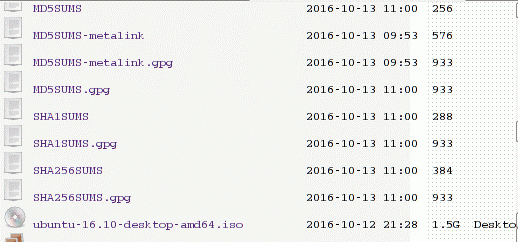
This is the MD5 sum checksum that is created:
3f50877c05121f7fd8544bef2d722824 *ubuntu-16.10-desktop-amd64.iso
e9e9a6c6b3c8c265788f4e726af25994 *ubuntu-16.10-desktop-i386.iso
7d6de832aee348bacc894f0a2ab1170d *ubuntu-16.10-server-amd64.iso
e532cfbc738876b353c7c9943d872606 *ubuntu-16.10-server-i386.iso
Checksums are also useful when used with a number of files. Let's see how to apply checksums to a collection of files and verify the accuracy.
Checksums are calculated for files. Calculating the checksum for a directory requires recursively calculating the checksums for all the files in the directory.
The md5deep or sha1deep commands traverse a file tree and calculate checksums for all files. These programs may not be installed on your system. Use apt-get or yum to install the md5deep package. An example of this command is as follows:
$ md5deep -rl directory_path > directory.md5
The -r option allows md5deep to recurse into sub-directories. The -l option enables displaying the relative path, instead of the default absolute path.
# -r to enable recursive traversal
# -l to use relative path. By default it writes absolute file
path in output
The find and md5sum commands can be used to calculate checksums recursively:
$ find directory_path -type f -print0 | xargs -0 md5sum >> directory.md5
To verify, use this command:
$ md5sum -c directory.md5
        $ md5sum file
        8503063d5488c3080d4800ff50850dc9  file
        $ sha1sum file
        1ba02b66e2e557fede8f61b7df282cd0a27b816b  file
These hashes are commonly used to store passwords. Only the hash for a password is stored. When a user needs to be authenticated, the password is read and converted to the hash and that hash is compared to the stored hash. If they are the same, the password is authenticated and access is provided. Storing plain–text password strings is risky and poses a security risk.
The next recipe shows how to generate a shadow-like salted hash for passwords. The hash for user passwords in Linux is stored in the /etc/shadow file. A typical line in /etc/shadow will look like this:
                    test:$6$fG4eWdUi$ohTKOlEUzNk77.4S8MrYe07NTRV4M3LrJnZP9p.qc1bR5c.
EcOruzPXfEu1uloBFUa18ENRH7F70zhodas3cR.:14790:0:99999:7:::
$6$fG4eWdUi$ohTKOlEUzNk77.4S8MrYe07NTRV4M3LrJnZP9p.qc1bR5c.EcOruzPXfEu1uloBFUa18ENRH7F70zhodas3cR is the hash corresponding to its password.
In some situations, we need to write scripts to edit passwords or add users. In that case, we must generate a shadow password string and write a similar line to the preceding one to the shadow file. We can generate a shadow password using openssl.
Shadow passwords are usually salted passwords. SALT is an extra string used to obfuscate and make the encryption stronger. Salt consists of random bits that are used as one of the inputs to a key derivation function that generates the salted hash for the password.
$ opensslpasswd -1 -salt SALT_STRING PASSWORD
$1$SALT_STRING$323VkWkSLHuhbt1zkSsUG.
Replace SALT_STRING with a random string and PASSWORD with the password you want to use.
Encryption techniques are used to protect data from unauthorized access. Unlike the checksum algorithms we just discussed, encryption programs can reconstruct the original data with no loss. There are many algorithms available and we will discuss those most commonly used in the Linux/Unix world.
Let's see how to use tools such as crypt, gpg, and base64:
        $ crypt <input_file >output_file
        Enter passphrase:
We can provide a passphrase on the command line:
$ crypt PASSPHRASE <input_file >encrypted_file
In order to decrypt the file, use this:
$ crypt PASSPHRASE -d <encrypted_file >output_file
In order to encrypt a file with gpg, use this:
$ gpg -c filename
This command reads the passphrase interactively and generates filename.gpg. In order to decrypt a gpg file, use the following command:
$ gpg filename.gpg
This command reads a passphrase and decrypts the file.
$ base64 filename > outputfile
Alternatively, use this command:
$ cat file | base64 > outputfile
It can read from stdin.
Decode Base64 data as follows:
$ base64 -d file > outputfile
Alternatively, use this:
$ cat base64_file | base64 -d > outputfile
Sorting text files is a common task. The sort command sorts text files and stdin. It can be coupled with other commands to produce the required output. uniq is often used with sort to extract unique (or duplicate) lines. The following recipes illustrate some sort and uniq use cases.
The sort and uniq commands accept input as filenames or from stdin (standard input) and output the result by writing to stdout.
$ sort file1.txt file2.txt > sorted.txt
Alternatively, use this:
$ sort file1.txt file2.txt -o sorted.txt
$ sort -n file.txt
$ sort -r file.txt
$ sort -M months.txt
$ sort -m sorted1 sorted2
$ sort file1.txt file2.txt | uniq
        #!/bin/bash
        #Desc: Sort
        sort -C filename ;
        if [ $? -eq 0 ]; then
           echo Sorted;
        else
           echo Unsorted;
        fi
Replace filename with the file you want to check and run the script.
As shown in the examples, sort accepts numerous parameters to define how the data is to be sorted. The sort command is useful with the uniq command, which expects sorted input.
There are numerous scenarios where the sort and uniq commands can be used. Let's go through the various options and usage techniques.
To check whether a file is already sorted, we exploit the fact that sort returns an exit code ($?) of 0 if the file is sorted and nonzero otherwise.
if sort -c fileToCheck ; then echo sorted ; else echo unsorted ; fi
These were some basic usages of the sort command. Here are sections for using it to accomplish complex tasks:
We can use a column with sort if the input data is formatted like this:
$ cat data.txt
1  mac    2000
2  winxp    4000
3  bsd    1000
4  linux    1000
We can sort this in many ways; currently it is sorted numerically, by the serial number (the first column). We can also sort by the second or third column.
The -k option specifies the characters to sort by. A single digit specifies the column. The -r option specifies sorting in reverse order. Consider this example:
# Sort reverse by column1
$ sort -nrk 1  data.txt
4  linux    1000
3  bsd    1000
2  winxp    4000
1  mac    2000
# -nr means numeric and reverse

# Sort by column 2
$ sort -k 2  data.txt
3  bsd    1000
4  linux    1000
1  mac    2000
2  winxp    4000
When -k is followed by a single integer, it specifies a column in the text file. Columns are separated by space characters. If we need to specify keys as a group of characters (for example, characters 4-5 of column 2), we define the range as two integers separated by a period to define a character position, and join the first and last character positions with a comma:
$ cat data.txt


1 alpha 300
2 beta 200
3 gamma 100
$ sort -bk 2.3,2.4 data.txt   ;# Sort m, p, t
3 gamma 100
1 alpha 300
2 beta 200
The highlighted characters are to be used as numeric keys. To extract them, use their positions in the lines as the key format (in the previous example, they are 2 and 3).
To use the first character as the key, use this:
$ sort -nk 1,1 data.txt
To make the sort's output xargs compatible with the \0 terminator, use this command:
$ sort -z data.txt | xargs -0
# Use zero terminator to make safe use with xargs
Sometimes, the text may contain unnecessary extraneous characters such as spaces. To sort them in dictionary order, ignoring punctuations and folds, use this:
$ sort -bd unsorted.txt
The -b option is used to ignore leading blank lines from the file and the -d option specifies sorting in dictionary order.
The uniq command finds the unique lines in a given input (stdin or a filename command line argument) and either reports or removes the duplicated lines.
This command only works with sorted data. Hence, uniq is often used with the sort command.
To produce the unique lines (all lines in the input are printed and duplicate lines are printed once), use this:
$ cat sorted.txt
bash
foss
hack
hack

$ uniq sorted.txt
bash
foss
hack
Alternatively, use this:
$ sort unsorted.txt | uniq
Display only unique lines (the lines that are not repeated or duplicated in the input file):
$ uniq -u sorted.txt
bash
foss
Alternatively, use this command:
$ sort unsorted.txt | uniq -u
To count how many times each of the lines appears in the file, use the following command:
$ sort unsorted.txt | uniq -c
  1 bash
  1 foss
  2 hack
To find duplicate lines in the file, use this:
$ sort unsorted.txt  | uniq -d
hack
To specify keys, we can use a combination of the -s and -w arguments:
The following example describes using the comparison key as the index for the uniq operation:
$ cat data.txt
u:01:gnu
d:04:linux
u:01:bash
u:01:hack
To test only the bold characters (skip the first two characters and use the next two) we use -s 2 to skip the first characters and -w 2 to use the next two:
$ sort data.txt | uniq -s 2 -w 2
d:04:linux
u:01:bash
When the output from one command is passed as input to the xargs command, it's best to use a zero-byte terminator for each element of data. Passing output from uniq to xargs is no exception to this rule. If a zero-byte terminator is not used, the default space characters are used to split the arguments in the xargs command. For example, a line with the text this is a line from stdin will be taken as four separate arguments by the xargs command instead of a single line. When a zero-byte terminator, \0, is used as the delimiter character, the full line including spaces is interpreted as a single argument.
The -z option generates zero-byte-terminated output:
$ uniq -z file.txt
This command removes all the files, with filenames read from files.txt:
$ uniq -z file.txt | xargs -0 rm
If a filename appears multiple time, the uniq command writes the filename only once to stdout, thus avoiding a rm: cannot remove FILENAME: No such file or directory error.
Shell scripts often need to store temporary data. The most suitable location to do this is /tmp (which will be cleaned out by the system on reboot). There are two methods to generate standard filenames for temporary data.
The mktemp command will create a unique temporary file or folder name:
        $ filename=`mktemp`
        $ echo $filename
        /tmp/tmp.8xvhkjF5fH
This creates a temporary file, stores the name in filename, and then displays the name.
        $ dirname=`mktemp -d`
        $ echo $dirname
        tmp.NI8xzW7VRX
This creates a temporary directory, stores the name in filename, and displays the name.
                $ tmpfile=`mktemp -u`
                $ echo $tmpfile
                /tmp/tmp.RsGmilRpcT
Here, the filename is stored in $tmpfile, but the file won't be created.
                $mktemp test.XXX
                test.2tc
The mktemp command is straightforward. It generates a file with a unique name and returns its filename (or directory name, in the case of directories).
When providing custom templates, X will be replaced by a random alphanumeric character. Also note that there must be at least three X characters in the template for mktemp to work.
Splitting a large file into smaller pieces is sometimes necessary. Long ago, we had to split files to transport large datasets on floppy disks. Today, we split files for readability, for generating logs, or for working around size-restrictions on e-mail attachments. These recipes will demonstrate ways of splitting files in different chunks.
The split command was created to split files. It accepts a filename as an argument and creates a set of smaller files in which the first part of the original file is in the alphabetically first new file, the next set in the alphabetically next file, and so on.
For example, a 100 KB file can be divided into smaller files of 10k each by specifying the split size. The split command supports M for MB, G for GB, c for byte, and w for word.
$ split -b 10k data.file
$ ls
data.file  xaa  xab  xac  xad  xae  xaf  xag  xah  xai  xaj
The preceding code will split data.file into ten files of 10k each. The new files are named xab, xac, xad, and so on. By default, split uses alphabetic suffixes. To use numeric suffixes, use the -d argument. It is also possible to specify a suffix length using -a length:
$ split -b 10k data.file -d -a 4

$ ls
data.file x0009  x0019  x0029  x0039  x0049  x0059  x0069  x0079
The split command has more options. Let's go through them.
All the previous split filenames start with x. If we are splitting more than one file, we'll want to name the pieces, so it's obvious which goes with which. We can use our own filename prefix by providing a prefix as the last argument.
Let's run the previous command with the split_file prefix:
$ split -b 10k data.file -d -a 4 split_file
$ ls
data.file       split_file0002  split_file0005  split_file0008
strtok.c
split_file0000  split_file0003  split_file0006  split_file0009
split_file0001  split_file0004  split_file0007
To split files based on the number of lines in each split rather than chunk size, use this:
-l no_of_lines:
 # Split into files of 10 lines each.
 $ split -l 10 data.file
The csplit utility splits files based on context instead of size. It can split based on line count or regular expression pattern. It's particularly useful for splitting log files.
Look at the following example log:
$ cat server.log
SERVER-1
[connection] 192.168.0.1 success
[connection] 192.168.0.2 failed
[disconnect] 192.168.0.3 pending
[connection] 192.168.0.4 success
SERVER-2
[connection] 192.168.0.1 failed
[connection] 192.168.0.2 failed
[disconnect] 192.168.0.3 success
[connection] 192.168.0.4 failed
SERVER-3
[connection] 192.168.0.1 pending
[connection] 192.168.0.2 pending
[disconnect] 192.168.0.3 pending
[connection] 192.168.0.4 failed
We may need to split the files into server1.log, server2.log, and server3.log from the contents for each SERVER in each file. This can be done as follows:
$ csplit server.log /SERVER/ -n 2 -s {*}  -f server -b "%02d.log"       $ rm server00.log
$ ls
server01.log  server02.log  server03.log  server.log
The details of the command are as follows:
We remove server00.log since the first split file is an empty file (the match word is the first line of the file).
Many shell scripts perform actions that involve modifying filenames. They may need to rename the files and preserve the extension, or convert files from one format to another and change the extension, while preserving the name, extracting a portion of the filename, and so on.
The shell has built-in features for manipulating filenames.
The % operator will extract the name from name.extension. This example extracts sample from sample.jpg:
file_jpg="sample.jpg"
name=${file_jpg%.*}
echo File name is: $name
The output is this:
File name is: sample
The # operator will extract the extension:
Extract .jpg from the filename stored in the file_jpg variable:
extension=${file_jpg#*.}
echo Extension is: jpg
The output is as follows:
Extension is: jpg
To extract the name from the filename formatted as name.extension, we use the % operator.
${VAR%.*} is interpreted as follows:
% is a nongreedy operation. It finds the minimal match for the wildcard from right to left. The %% operator is similar to %, but it is greedy. This means that it finds the maximal match of the string for the wildcard. Consider this example, where we have this:
VAR=hack.fun.book.txt
Use the % operator for a nongreedy match from right to left and match .txt:
$ echo ${VAR%.*}
The output will be: hack.fun.book.
Use the %% operator for a greedy match, and match .fun.book.txt:
$ echo ${VAR%%.*}
The output will be: hack.
The # operator extracts the extension from the filename. It is similar to %, but it evaluates from left to right.
${VAR#*.} is interpreted as follows:
Similarly, as in the case of %%, the operator ## is a greedy equivalent to #.
It makes greedy matches by evaluating from left to right and removes the match string from the specified variable. Let's use this example:
VAR=hack.fun.book.txt
The # operator performs a nongreedy match from left to right and matches hack:
$ echo ${VAR#*.}
The output will be: fun.book.txt.
The ## operator performs a greedy match from left to right and matches hack.fun.book:
$ echo ${VAR##*.}
The output will be: txt.
Here is a practical example to extract different portions of a domain name such as URL=www.google.com:
$ echo ${URL%.*} # Remove rightmost .*
www.google

$ echo ${URL%%.*} # Remove right to leftmost  .* (Greedy operator)
www


$ echo ${URL#*.} # Remove leftmost  part before *.
google.com


$ echo ${URL##*.} # Remove left to rightmost  part before *.
(Greedy operator) com
We frequently need to move and perhaps rename a set of files. System housekeeping often requires moving files with a common prefix or file type to a new folder. Images downloaded from a camera may need to be renamed and sorted. Music, video, and e-mail files all need to be reorganized eventually.
There are custom applications for many of these operations, but we can write our own custom scripts to do it our way.
Let's see how to write scripts to perform these kinds of operation.
The rename command changes filenames using Perl regular expressions. By combining the find, rename, and mv commands, we can perform a lot of things.
The following script uses find to locate PNG and JPEG files, then uses the ## operator and mv to rename them as image-1.EXT, image-2.EXT, and so on. This changes the file's name, but not its extension:
#!/bin/bash
#Filename: rename.sh
#Desc: Rename jpg and png files

count=1;
for img in `find . -iname '*.png' -o -iname '*.jpg' -type f -maxdepth 1`
do
  new=image-$count.${img##*.}

  echo "Renaming $img to $new"
  mv "$img" "$new"
  let count++

done
The output is as follows:
$ ./rename.sh Renaming hack.jpg to image-1.jpg Renaming new.jpg to image-2.jpg Renaming next.png to image-3.png
The preceding script renames all the .jpg and .png files in the current directory to new filenames in the format image-1.jpg, image-2.jpg, image-3.png, image-4.png, and so on.
The previous script uses a for loop to iterate through the names of all files ending with a .jpg or .png extension. The find command performs this search, using the -o option to specify multiple -iname options for case-insensitive matches. The -maxdepth 1 option restricts the search to the current directory, not any subdirectories.
The count variable is initialized to 1 to track the image number. Then the script renames the file using the mv command. The new name of the file is constructed using ${img##*.}, which parses the extension of the filename currently being processed (refer to the Slicing filenames based on extensions recipe in this chapter for an interpretation of ${img##*.}).
let count++ is used to increment the file number for each execution of the loop.
Here are other ways to perform rename operations:
$ rename *.JPG *.jpg
$ rename 's/ /_/g' *
# 's/ /_/g' is the replacement part in the filename and * is the wildcard for the target files. It can be *.txt or any other wildcard pattern.
$ rename 'y/A-Z/a-z/' *
$ rename 'y/a-z/A-Z/' *
$ find path -type f -name "*.mp3" -exec mv {} target_dir \;
$ find path -type f -exec rename 's/ /_/g' {} \;
Most Linux distributions include a dictionary file. However, very few people are aware of this, thus spelling errors abound. The aspell command-line utility is a spell checker. Let's go through a few scripts that make use of the dictionary file and the spell checker.
The /usr/share/dict/ directory contains one or perhaps more dictionary files, which are text files with a list of words. We can use this list to check whether a word is a dictionary word or not:
$ ls /usr/share/dict/ american-english british-english
To check whether the given word is a dictionary word, use the following script:
#!/bin/bash #Filename: checkword.sh word=$1 grep "^$1$" /usr/share/dict/british-english -q if [ $? -eq 0 ]; then echo $word is a dictionary word; else echo $word is not a dictionary word; fi
The usage is as follows:
$ ./checkword.sh ful ful is not a dictionary word $ ./checkword.sh fool fool is a dictionary word
In grep, ^ is the word-start marker character and the $ character is the word-end marker. The -q option suppresses any output, making the grep command quiet.
Alternatively, we can use the spell–check, aspell, to check whether a word is in a dictionary or not:
#!/bin/bash
#Filename: aspellcheck.sh
word=$1
output=`echo \"$word\" | aspell list`
if [ -z $output ]; then
echo $word is a dictionary word;
else
echo $word is not a dictionary word;
fi
The aspell list command returns output text when the given input is not a dictionary word, and does not output anything when the input is a dictionary word. A -z command checks whether $output is an empty string or not.
The look command will display lines that begin with a given string. You might use it to find the lines in a log file that start with a given date, or to find words in the dictionary that start with a given string. By default, look searches /usr/share/dict/words, or you can provide a file to search.
$ look word
Alternatively, this can be used:
$ grep "^word" filepath
Consider this example:
$ look android android android's androids
Use this to find lines with a given date in /var/log/syslog:
$look 'Aug 30' /var/log/syslog
We looked at commands that accept arguments on the command line. Linux also supports many interactive applications ranging from passwd to ssh.
We can create our own interactive shell scripts. It's easier for casual users to interact with a set of prompts rather than remember command line flags and the proper order. For instance, a script to back up a user's work, but not to back up and lock files, might look like this:
$ backupWork.sh
Automating interactive applications can save you time when you need to rerun the same application and frustration while you're developing one.
The first step to automating a task is to run it and note what you do. The script command discussed earlier may be of use.
Examine the sequence of interactive inputs. From the previous code, we can formulate the steps of the sequence like this:
notes[Return]docx[Return]
In addition to the preceding steps, type notes, press Return, type docx, and finally press Return to convert into a single string like this:
"notes\ndocx\n"
The \n character is sent when we press Return. By appending the return (\n) characters, we get the string that is passed to stdin (standard input).
By sending the equivalent string for the characters typed by the user, we can automate passing input to the interactive processes.
Let's write a script that reads input interactively for an automation example:
#!/bin/bash
# backup.sh
# Backup files with suffix. Do not backup temp files that start with ~
read -p " What folder should be backed up: " folder
read -p " What type of files should be backed up: " suffix
find $folder -name "*.$suffix" -a ! -name '~*' -exec cp {} \
$BACKUP/$LOGNAME/$folder
echo "Backed up files from $folder to $BACKUP/$LOGNAME/$folder"
Let's automate the sending of input to the command:
$ echo -e "notes\ndocx\n" | ./backup.sh Backed up files from notes to /BackupDrive/MyName/notes
This style of automating an interactive script can save you a lot of typing during developing and debugging. It also insures that you perform the same test each time and don't end up chasing a phantom bug because you mis-typed.
We used echo -e to produce the input sequence. The -e option signals to echo to interpret escape sequences. If the input is large we can use an input file and the redirection operator to supply input:
$ echo -e "notes\ndocx\n" > input.data $ cat input.data notes docx
You can manually craft the input file without the echo commands by hand–typing. Consider this example:
$ ./interactive.sh < input.data
This redirects interactive input data from a file.
If you are a reverse engineer, you may have played with buffer overflow exploits. To exploit them we need to redirect a shell code such as \xeb\x1a\x5e\x31\xc0\x88\x46, which is written in hex. These characters cannot be typed directly on the keyboard as keys for these characters are not present. Therefore, we use:
echo -e \xeb\x1a\x5e\x31\xc0\x88\x46"
This will redirect the byte sequence to a vulnerable executable.
These echo and redirection techniques automate interactive input programs. However, these techniques are fragile, in that there is no validity checking and it's assumed that the target application will always accept data in the same order. If the program asks for input in a changing order, or some inputs are not always required, these methods fail.
The expect program can perform complex interactions and adapt to changes in the target application. This program is in worldwide use to control hardware tests, validate software builds, query router statistics, and much more.
The expect application is an interpreter similar to the shell. It's based on the TCL language. We'll discuss the spawn, expect, and send commands for simple automation. With the power of the TCL language behind it, expect can do much more complex tasks. You can learn more about the TCL language at the www.tcl.tk website.
expect does not come by default on all Linux distributions. You may have to install the expect package with your package manager (apt-get or yum).
Expect has three main commands:
|
Commands
|
Description
|
| spawn | Runs the new target application. |
| expect | Watches for a pattern to be sent by the target application. |
| send | Sends a string to the target application. |
The following example spawns the backup script and then looks for the patterns *folder* and *file* to determine if the backup script is asking for a folder name or a filename. It will then send the appropriate reply. If the backup script is rewritten to request files first and then folders, this automation script still works.
#!/usr/bin/expect
#Filename: automate_expect.tcl
spawn ./backup .sh
expect {
"*folder*" {
send "notes\n"
exp_continue
}
"*type*" {
send "docx\n"
exp_continue
}
}
Run it as:
$ ./automate_expect.tcl
The spawn command's parameters are the target application and arguments to be automated.
The expect command accepts a set of patterns to look for and an action to perform when that pattern is matched. The action is enclosed in curly braces.
The send command is the message to be sent. This is similar to echo -n -e in that it does not automatically include the newline and does understand backslash symbols.
Computing power constantly increases not only because processors have higher clock cycles but also because they have multiple cores. This means that in a single hardware processor there are multiple logical processors. It's like having several computers, instead of just one.
However, multiple cores are useless unless the software makes use of them. For example, a program that does huge calculations may only run on one core while the others will sit idle. The software has to be aware and take advantage of the multiple cores if we want it to be faster.
In this recipe, we will see how we can make our commands run faster.
Let's take an example of the md5sum command we discussed in the previous recipes. This command performs complex computations, making it CPU-intensive. If we have more than one file that we want to generate a checksum for, we can run multiple instances of md5sum using a script like this:
#/bin/bash
#filename: generate_checksums.sh
PIDARRAY=()
for file in File1.iso File2.iso
do
md5sum $file &
PIDARRAY+=("$!")
done
wait ${PIDARRAY[@]}
When we run this, we get the following output:
$ ./generate_checksums.sh 330dcb53f253acdf76431cecca0fefe7 File1.iso bd1694a6fe6df12c3b8141dcffaf06e6 File2.iso
The output will be the same as running the following command:
md5sum File1.iso File2.iso
However, if the md5sum commands run simultaneously, you'll get the results quicker if you have a multi–core processor (you can verify this using the time command).
We exploit the Bash operand &, which instructs the shell to send the command to the background and continue with the script. However, this means our script will exit as soon as the loop completes, while the md5sum processes are still running in the background. To prevent this, we get the PIDs of the processes using $!, which in Bash holds the PID of the last background process. We append these PIDs to an array and then use the wait command to wait for these processes to finish.
The Bash & operand works well for a small number of tasks. If you had a hundred files to checksum, the script would try to start a hundred processes and might force your system into swapping, which would make the tasks run slower.
The GNU parallel command is not part of all installations, but again it can be loaded with your package manager. The parallel command optimizes the use of your resources without overloading any of them.
The parallel command reads a list of files on stdin and uses options similar to the find command's -exec argument to process these files. The {} symbol represents the file to be processed, and the {.} symbol represents the filename without a suffix.
The following command uses Imagemagick's convert command to make new, resized images of all the images in a folder:
ls *jpg | parallel convert {} -geometry 50x50 {.}Small.jpg
One of the commonest problems we deal with is finding misplaced files and sorting out mangled file hierarchies. This section will discuss tricks for examining a portion of the filesystem and presenting the contents.
The find command and loops we discussed give us tools to examine and report details in a directory and its contents.
The next recipes show two ways to examine a directory. First we'll display the hierarchy as a tree, then we'll see how to generate a summary of files and folders under a directory.
Sometimes it's easier to visualize a file system if it's presented graphically.
The next recipe pulls together several of the tools we discussed. It uses the find command to generate a list of all the files and sub-folders under the current folder.
The -exec option creates a subshell which uses echo to send the filenames to the tr command's stdin. There are two tr commands. The first deletes all alphanumeric characters, and any dash (-), underbar (_), or period (.). This passes only the slashes (/) in the path to the second tr command, which translates those slashes to spaces. Finally, the basename command strips the leading path from the filename and displays it.
Use these to view a tree of the folders in /var/log:
$ cd /var/log
$ find . -exec sh -c 'echo -n {} | tr -d "[:alnum:]_.\-" | \
tr "/" " "; basename {}' \;
This output is generated:
mail
statistics
gdm
::0.log
::0.log.1
cups
error_log
access_log
... access_l
We can generate a list of subdirectories, and the number of files in them, with a combination of the find command, echo, and wc commands, which will be discussed in greater detail in the next chapter.
Use the following to get a summary of files in the current folder:
for d in `find . -type d`; do echo `find $d -type f | wc -l` files in $d; done
If this script is run in /var/log, it will generate output like this:
103 files in . 17 files in ./cups 0 files in ./hp 0 files in ./hp/tmp
In this chapter, we will be covering the following recipes:
Unix provides a file-style interface to all devices and system features. The special files provide direct access to devices such as USB sticks and disk drives and provide access to system functions such as memory usage, sensors, and the process stack. For example, the command terminal we use is associated with a device file. We can write to the terminal by writing to the corresponding device file. We can access directories, regular files, block devices, character-special devices, symbolic links, sockets, named pipes, and so on as files. Filename, size, file type, modification time, access time, change time, inode, links associated, and the filesystem the file is on are all attributes and properties files can have. This chapter deals with recipes to handle operations or properties related to files.
A file of random data is useful for testing. You can use such files to test application efficiency, to confirm that an application is truly input-neutral, to confirm there's no size limitations in your application, to create loopback filesystems (loopback files are files that can contain a filesystem itself and these files can be mounted similarly to a physical device using the mount command), and more. Linux provides general utilities to construct such files.
The easiest way to create a large file of a given size is with the dd command. The dd command clones the given input and writes an exact copy to the output. Input can be stdin, a device file, a regular file, and so on. Output can be stdout, a device file, a regular file, and so on. An example of the dd command is as follows:
$ dd if=/dev/zero of=junk.data bs=1M count=1 1+0 records in 1+0 records out 1048576 bytes (1.0 MB) copied, 0.00767266 s, 137 MB/s
This command creates a file called junk.data containing exactly 1 MB of zeros.
Let's go through the parameters:
We can use various units for blocksize (bs). Append any of the following characters to the number to specify the size:
|
Unit size
|
Code
|
|
Byte (1 B) |
C |
|
Word (2 B) |
W |
|
Block (512 B) |
B |
|
Kilobyte (1024 B) |
K |
|
Megabyte (1024 KB) |
M |
|
Gigabyte (1024 MB) |
G |
We can generate a file of any size using bs. Instead of MB we can use any other unit notations, such as the ones mentioned in the previous table.
/dev/zero is a character special device, which returns the zero byte (\0).
If the input parameter (if) is not specified, dd will read input from stdin. If the output parameter (of) is not specified, dd will use stdout.
The dd command can be used to measure the speed of memory operations by transferring a large quantity of data to /dev/null and checking the command output (for example, 1048576 bytes (1.0 MB) copied, 0.00767266 s, 137 MB/s, as seen in the previous example).
Intersection and set difference operations are common in mathematics classes on set theory. Similar operations on strings are useful in some scenarios.
The comm command is a utility to perform a comparison between two sorted files. It displays lines that are unique to file 1, file 2, and lines in both files. It has options to suppress one more column, making it easy to perform intersection and difference operations.
Note that comm takes two sorted files as input. Here are our sample input files:
$ cat A.txt apple orange gold silver steel iron $ cat B.txt orange gold cookies carrot $ sort A.txt -o A.txt ; sort B.txt -o B.txt
$ comm A.txt B.txt
apple
carrot
cookies
gold
iron
orange
silver
steel
The first column of the output contains lines that are only in A.txt. The second column contains lines that are only in B.txt. The third column contains the common lines from A.txt and B.txt. Each of the columns are delimited using the tab (\t) character.
$ comm A.txt B.txt -1 -2
gold
orange
$ comm A.txt B.txt -3
apple
carrot
cookies
iron
silver
steel
This output uses two columns with blanks to show the unique lines in file1 and file2. We can make this more readable as a list of unique lines by merging the two columns into one, like this:
apple
carrot
cookies
iron
silver
steel
$ comm A.txt B.txt -3 | tr -d '\t'
apple
carrot
cookies
iron
silver
steel
$ comm A.txt B.txt -2 -3
-2 -3 removes the second and third columns
$ comm A.txt B.txt -1 -3
-2 -3 removes the second and third columns
These command-line options reduce the output:
The set difference operation enables you to compare two files and print all the lines that are in the A.txt or B.txt file excluding the common lines in A.txt and B.txt. When A.txt and B.txt are given as arguments to the comm command, the output will contain column-1 with the set difference for A.txt with regard to B.txt and column-2 will contain the set difference for B.txt with regard to A.txt.
The comm command will accept a - character on the command line to read one file from stdin. This provides a way to compare more than one file with a given input.
Suppose we have a C.txt file, like this:
$> cat C.txt
pear
orange
silver
mithral
We can compare the B.txt and C.txt files with A.txt, like this:
$> sort B.txt C.txt | comm - A.txt
apple
carrot
cookies
gold
iron
mithral
orange
pear
silver
steel
If you need to recover backups or you use your laptop in a disconnected mode or download images from a phone, you'll eventually end up with duplicates: files with the same content. You'll probably want to remove duplicate files and keep a single copy. We can identify duplicate files by examining the content with shell utilities. This recipe describes finding duplicate files and performing operations based on the result.
We identify the duplicate files by comparing file content. Checksums are ideal for this task. Files with the same content will produce the same checksum values.
Follow these steps for finding or deleting duplicate files:
$ echo "hello" > test ; cp test test_copy1 ; cp test test_copy2;
$ echo "next" > other;
# test_copy1 and test_copy2 are copy of test
#!/bin/bash
#Filename: remove_duplicates.sh
#Description: Find and remove duplicate files and
# keep one sample of each file.
ls -lS --time-style=long-iso | awk 'BEGIN {
getline; getline;
name1=$8; size=$5
}
{
name2=$8;
if (size==$5)
{
"md5sum "name1 | getline; csum1=$1;
"md5sum "name2 | getline; csum2=$1;
if ( csum1==csum2 )
{
print name1; print name2
}
};
size=$5; name1=name2;
}' | sort -u > duplicate_files
cat duplicate_files | xargs -I {} md5sum {} | \
sort | uniq -w 32 | awk '{ print $2 }' | \
sort -u > unique_files
echo Removing..
comm duplicate_files unique_files -3 | tee /dev/stderr | \
xargs rm
echo Removed duplicates files successfully.
$ ./remove_duplicates.sh
The preceding code will find the copies of the same file in a directory and remove all except one copy of the file. Let's go through the code and see how it works.
ls -lS lists the details of the files in the current folder sorted by file size. The --time-style=long-iso option tells ls to print dates in the ISO format. awk reads the output of ls -lS and performs comparisons on columns and rows of the input text to find duplicate files.
The logic behind the code is as follows:
total 16
-rw-r--r-- 1 slynux slynux 5 2010-06-29 11:50 other
-rw-r--r-- 1 slynux slynux 6 2010-06-29 11:50 test
-rw-r--r-- 1 slynux slynux 6 2010-06-29 11:50 test_copy1
-rw-r--r-- 1 slynux slynux 6 2010-06-29 11:50 test_copy2
We have played some tricks on the way to the solution.
The external command output can be read inside awk as follows:
"cmd"| getline
Once the line is read, the entire line is in $0 and each column is available in $1, $2, ..., $n. Here, we read the md5sum checksum of files into the csum1 and csum2 variables. The name1 and name2 variables store the consecutive filenames. If the checksums of two files are the same, they are confirmed to be duplicates and are printed.
We need to find a file from each group of duplicates so we can remove all other duplicates. We calculate the md5sum value of the duplicates and print one file from each group of duplicates by finding unique lines, comparing md5sum from each line using -w 32 (the first 32 characters in the md5sum output; usually, the md5sum output consists of a 32-character hash followed by the filename). One sample from each group of duplicates is written to unique_files.
Now, we need to remove the files listed in duplicate_files, excluding the files listed in unique_files. The comm command prints files in duplicate_files but not in unique_files.
For that, we use a set difference operation (refer to the recipes on intersection, difference, and set difference).
comm only processes sorted input. Therefore, sort -u is used to filter duplicate_files and unique_files.
The tee command is used to pass filenames to the rm command as well as print. The tee command sends its input to both stdout and a file. We can also print text to the terminal by redirecting to stderr. /dev/stderr is the device corresponding to stderr (standard error). By redirecting to a stderr device file, text sent to stdin will be printed in the terminal as standard error.
File permissions and ownership are one of the distinguishing features of the Unix/Linux filesystems. These features protect your information in a multi-user environment. Mismatched permissions and ownership can also make it difficult to share files. These recipes explain how to use a file's permission and ownership effectively.
Each file possesses many types of permissions. Three sets of permissions (user, group, and others) are commonly manipulated.
The user is the owner of the file, who commonly has all access permitted. The group is the collection of users (as defined by the system administrator) that may be permitted some access to the file. Others are any users other than the owner or members of the owner's group.
The ls command's -l option displays many aspects of the file including type, permissions, owner, and group:
-rw-r--r-- 1 slynux users 2497 2010-02-28 11:22 bot.py
drwxr-xr-x 2 slynux users 4096 2010-05-27 14:31 a.py
-rw-r--r-- 1 slynux users 539 2010-02-10 09:11 cl.pl
The first column of the output defines the file type as follows:
The next nine characters are divided into three groups of three letters each (--- --- ---). The first three characters correspond to the permissions of the user (owner), the second sets of three characters correspond to the permissions of the group, and the third sets of three characters correspond to the permissions of others. Each character in the nine-character sequence (nine permissions) specifies whether permission is set or unset. If the permission is set, a character appears in the corresponding position, otherwise a - character appears in that position, which means that the corresponding permission is unset (unavailable).
The three common letters in the trio are:
Let's take a look at what each of these three character sets mean for the user, group, and others:
Directories have a special permission called a sticky bit. When a sticky bit is set for a directory, only the user who created the directory can delete the files in the directory, even if the group and others have write permissions. The sticky bit appears in the position of execute character (x) in the others permission set. It is represented as character t or T. The t character appears in the x position if the execute permission is unset and the sticky bit is set. If the sticky bit and the execute permission are set, the T character appears in the x position. Consider this example:
------rwt , ------rwT
A typical example of a directory with sticky bit turned on is /tmp, where anyone can create a file, but only the owner can delete one.
In each of the ls -l output lines, the string slynux users corresponds to the user and group. Here, slynux is the owner who is a member of the group users.
In order to set permissions for files, we use the chmod command.
Assume that we need to set the permission, rwx rw- r-.
Set these permissions with chmod:
$ chmod u=rwx g=rw o=r filename
The options used here are as follows:
Use + to add permission to a user, group, or others, and use - to remove the permissions.
Add the executable permission to a file, which has the permission, rwx rw- r-:
$ chmod o+x filename
This command adds the x permission for others.
Add the executable permission to all permission categories, that is, for user, group, and others:
$ chmod a+x filename
Here a means all.
In order to remove a permission, use -. For example, $ chmod a-x filename.
Permissions can be denoted with three-digit octal numbers in which each digit corresponds to user, group, and other, in that order.
Read, write, and execute permissions have unique octal numbers, as follows:
We calculate the required combination of permissions by adding the octal values. Consider this example:
The permission rwx rw- r-- in the numeric method is as follows:
Therefore, rwx rw- r-- is equal to 764, and the command to set the permissions using octal values is $ chmod 764 filename.
Let's examine more tasks we can perform on files and directories.
The chown command will change the ownership of files and folders:
$ chown user.group filename
Consider this example:
$ chown slynux.users test.sh
Here, slynux is the user, and users is the group.
The sticky bit can be applied to directories. When the sticky bit is set, only the owner can delete files, even though others have write permission for the folder.
The sticky bit is set with the +t option to chmod:
$ chmod a+t directory_name
Sometimes, you may need to change the permissions of all the files and directories inside the current directory recursively. The -R option to chmod supports recursive changes:
$ chmod 777 . -R
The -R option specifies to change the permissions recursively.
We used . to specify the path as the current working directory. This is equivalent to $ chmod 777 "$(pwd)" -R.
The chown command also supports the -R flag to recursively change ownership:
$ chown user.group . -R
Some executables need to be executed as a user other than the current user. For example, the http server may be initiated during the boot sequence by root, but the task should be owned by the httpd user. The setuid permission enables the file to be executed as the file owner when any other user runs the program.
First, change the ownership to the user that needs to execute it and then log in as the user. Then, run the following commands:
$ chmod +s executable_file
# chown root.root executable_file
# chmod +s executable_file
$ ./executable_file
Now it executes as the root user regardless of who invokes it.
The setuid is only valid for Linux ELF binaries. You cannot set a shell script to run as another user. This is a security feature.
The Read, Write, Execute, and Setuid fields are common to all Linux file systems. The Extended File Systems (ext2, ext3, and ext4) support more attributes.
One of the extended attributes makes files immutable. When a file is made immutable, any user or super user cannot remove the file until the immutable attribute is removed from the file. You can determine the type of filesystem with the df -T command, or by looking at the /etc/mtab file. The first column of the file specifies the partition device path (for example, /dev/sda5) and the third column specifies the filesystem type (for example, ext3).
Making a file immutable is one method for securing files from modification. One example is to make the /etc/resolv.conf file immutable. The resolv.conf file stores a list of DNS servers, which convert domain names (such as packtpub.com) to IP addresses. The DNS server is usually your ISP's DNS server. However, if you prefer a third-party server, you can modify /etc/resolv.conf to point to that DNS. The next time you connect to your ISP, /etc/resolv.conf will be overwritten to point to ISP's DNS server. To prevent this, make /etc/resolv.conf immutable.
In this recipe, we will see how to make files immutable and make them mutable when required.
The chattr command is used to change extended attributes. It can make files immutable, as well as modify attributes to tune filesystem sync or compression.
To make the files immutable, follow these steps:
# chattr +i file
rm file
rm: cannot remove `file': Operation not permitted
chattr -i file
Scripts must be tested before they are used on a live system. We may need to generate thousands of files to confirm that there are no memory leaks or processes left hanging. This recipe shows how to generate blank files.
The touch command creates blank files or modifies the timestamp of existing files.
To generate blank files in bulk, follow these steps:
$ touch filename
for name in {1..100}.txt
do
touch $name
done
In the preceding code, {1..100} will be expanded to a string 1, 2, 3, 4, 5, 6, 7...100. Instead of {1..100}.txt, we can use various shorthand patterns such as test{1..200}.c, test{a..z}.txt, and so on.
If a file already exists, the touch command changes all timestamps associated with the file to the current time. These options define a subset of timestamps to be modified:
Instead of the current time, we can specify the time and date:
$ touch -d "Fri Jun 25 20:50:14 IST 1999" filename
The date string used with -d need not be in this exact format. It will accept many simple date formats. We can omit time from the string and provide only dates such as Jan 20, 2010.
Symbolic links are common in Unix-like systems. Reasons for using them range from convenient access, to maintaining multiple versions of the same library or program. This recipe will discuss the basic techniques for handling symbolic links.
Symbolic links are pointers to other files or folders. They are similar in function to aliases in MacOS X or shortcuts in Windows. When symbolic links are removed, it does not affect the original file.
The following steps will help you handle symbolic links:
$ ln -s target symbolic_link_name
Consider this example:
$ ln -l -s /var/www/ ~/web
This creates a symbolic link (called web) in the current user's home directory, which points to /var/www/.
$ ls -l ~/web
lrwxrwxrwx 1 slynux slynux 8 2010-06-25 21:34 web -> /var/www
web -> /var/www specifies that web points to /var/www.
$ ls -l | grep "^l"
$ find . -type l -print
$ readlink web
/var/www
When using ls and grep to display symbolic links in the current folder, the grep ^l command filters the ls -l output to only display lines starting with l. The ^ specifies the start of the string. The following l specifies that the string must start with l, the identifier for a link.
When using find, we use the argument -typel, which instructs find to search for symbolic link files. The -print option prints the list of symbolic links to the standard output (stdout). The initial path is given as the current directory.
Linux supports many file types. This recipe describes a script that enumerates through all the files inside a directory and its descendants, and prints a report with details on types of files (files with different file types), and the count of each file type. This recipe is an exercise on writing scripts to enumerate through many files and collect details.
On Unix/Linux systems, file types are not defined by the file extension (as Microsoft Windows does). Unix/Linux systems use the file command, which examines the file's contents to determine a file's type. This recipe collects file type statistics for a number of files. It stores the count of files of the same type in an associative array.
To enumerate file type statistics, follow these steps:
$ file filename
$ file /etc/passwd
/etc/passwd: ASCII text
$ file -b filename
ASCII text
#!/bin/bash
# Filename: filestat.sh
if [ $# -ne 1 ];
then
echo "Usage is $0 basepath";
exit
fi
path=$1
declare -A statarray;
while read line;
do
ftype=`file -b "$line" | cut -d, -f1`
let statarray["$ftype"]++;
done < (find $path -type f -print)
echo ============ File types and counts =============
for ftype in "${!statarray[@]}";
do
echo $ftype : ${statarray["$ftype"]}
done
The usage is as follows:
$ ./filestat.sh /home/slynux/temp
$ ./filetype.sh /home/slynux/programs
============ File types and counts =============
Vim swap file : 1
ELF 32-bit LSB executable : 6
ASCII text : 2
ASCII C program text : 10
This script relies on the associative array statarray. This array is indexed by the type of file: PDF, ASCII, and so on. Each index holds the count for that type of file. It is defined by the declare -A statarray command.
The script then consists of two loops: a while loop, that processes the output from the find command, and a for loop, that iterates through the indices of the statarray variable and generates output.
The while loop syntax looks like this:
while read line; do something done < filename
For this script, we use the output of the find command instead of a file as input to while.
The (find $path -type f -print) command is equivalent to a filename, but it substitutes the filename with a subprocess output.
The find command uses the -typef option to return a list of files under the subdirectory defined in $path. The filenames are read one line at a time by the read command. When the read command receives an EOF (End of File), it returns a fail and the while command exits.
Within the while loop, the file command is used to determine a file's type. The -b option is used to display the file type without the name.
The file command provides more details than we need, such as image encoding and resolution (in the case of an image file). The details are comma-separated, as in the following example:
$ file a.out -b
ELF 32-bit LSB executable, Intel 80386, version 1 (SYSV),
dynamically linked (uses shared libs), for GNU/Linux 2.6.15, not
stripped
We need to extract only ELF 32-bit LSB executable from the previous details. Hence, we use the -d, option to specify , as the delimiter and -f1 to select the first field.
<(find $path -type f -print) is equivalent to a filename, but it substitutes the filename with a subprocess output. Note that the first < is for input redirection and the second < is for converting the subprocess output to a filename. Also, there is a space between these two so that the shell won't interpret it as the << operator.
In Bash 3.x and higher, we have a new operator <<< that lets us use a string output as an input file. Using this operator, we can write the done line of the loop, as follows:
done <<< "`find $path -type f -print`"
${!statarray[@]} returns the list of array indexes.
Linux filesystems normally exist on devices such as disks or memory sticks. A file can also be mounted as a filesystem. This filesystem-in-a-file can be used for testing, for customized filesystems, or even as an encrypted disk for confidential information.
To create a 1 GB ext4 filesystem in a file, follow these steps:
$ dd if=/dev/zero of=loobackfile.img bs=1G count=1
1024+0 records in
1024+0 records out
1073741824 bytes (1.1 GB) copied, 37.3155 s, 28.8 MB/s
The size of the created file exceeds 1 GB because the hard disk is a block device, and hence, storage must be allocated by integral multiples of blocks size.
$ mkfs.ext4 loopbackfile.img
$ file loobackfile.img
loobackfile.img: Linux rev 1.0 ext4 filesystem data,
UUID=c9d56c42-
f8e6-4cbd-aeab-369d5056660a (extents) (large files) (huge files)
# mkdir /mnt/loopback
# mount -o loop loopbackfile.img /mnt/loopback
The -o loop option is used to mount loopback filesystems.
This is a short method that attaches the loopback filesystem to a device chosen by the operating system named something similar to /dev/loop1 or /dev/loop2.
# losetup /dev/loop1 loopbackfile.img
# mount /dev/loop1 /mnt/loopback
# umount mount_point
Consider this example:
# umount /mnt/loopback
# umount /dev/loop1
First we had to create a file to make a loopback filesystem. For this, we used dd, which is a generic command for copying raw data. It copies data from the file specified in the if parameter to the file specified in the of parameter. We instruct dd to copy data in blocks of size 1 GB and copy one such block, creating a 1 GB file. The /dev/zero file is a special file, which will always return 0 when you read from it.
We used the mkfts.ext4 command to create an ext4 filesystem in the file. A filesystem is needed on any device that can be mounted. Common filesystems include ext4, ext3, and vfat.
The mount command attaches the loopback file to a mountpoint (/mnt/loopback in this case). A mountpoint makes it possible for users to access the files stored on a filesystem. The mountpoint must be created using the mkdir command before executing the mount command. We pass the -o loop option to mount to tell it that we are mounting a loopback file, not a device.
When mount knows it is operating on a loopback file, it sets up a device in /dev corresponding to the loopback file and then mounts it. If we wish to do it manually, we use the losetup command to create the device and then the mount command to mount it.
Let's explore some more possibilities with loopback files and mounting.
Suppose we want to create a loopback file, partition it, and finally mount a sub-partition. In this case, we cannot use mount -o loop. We must manually set up the device and mount the partitions in it.
To partition a file of zeros:
# losetup /dev/loop1 loopback.img
# fdisk /dev/loop1
Create partitions in loopback.img and mount the first partition:
# losetup -o 32256 /dev/loop2 loopback.img
Here, /dev/loop2 represents the first partition,-o is the offset flag, and 32256 bytes are for a DOS partition scheme. The first partition starts 32256 bytes from the start of the hard disk.
We can set up the second partition by specifying the required offset. After mounting, we can perform all regular operations as we can on physical devices.
We can manually pass partition offsets to losetup to mount partitions inside a loopback disk image. However, there is a quicker way to mount all the partitions inside such an image using kpartx. This utility is usually not installed, so you will have to install it using your package manager:
# kpartx -v -a diskimage.img
add map loop0p1 (252:0): 0 114688 linear /dev/loop0 8192
add map loop0p2 (252:1): 0 15628288 linear /dev/loop0 122880
This creates mappings from the partitions in the disk image to devices in /dev/mapper, which you can then mount. For example, to mount the first partition, use the following command:
# mount /dev/mapper/loop0p1 /mnt/disk1
When you're done with the devices (and unmounting any mounted partitions using umount), remove the mappings by running the following command:
# kpartx -d diskimage.img
loop deleted : /dev/loop0
An ISO file is an archive of an optical media. We can mount ISO files in the same way that we mount physical disks using loopback mounting.
We can even use a nonempty directory as the mount path. Then, the mount path will contain data from the devices rather than the original contents, until the device is unmounted. Consider this example:
# mkdir /mnt/iso
# mount -o loop linux.iso /mnt/iso
Now, perform operations using files from /mnt/iso. ISO is a read-only filesystem.
Changes on a mounted device are not immediately written to the physical device. They are only written when the internal memory buffer is full. We can force writing with the sync command:
$ sync
An ISO image is an archive format that stores the exact image of an optical disk such as CD-ROM, DVD-ROM, and so on. ISO files are commonly used to store content to be burned to optical media.
This section will describe how to extract data from an optical disk into an ISO file that can be mounted as a loopback device, and then explain ways to generate your own ISO file systems that can be burned to an optical media.
We need to distinguish between bootable and non-bootable optical disks. Bootable disks are capable of booting from themselves and also running an operating system or another product. Bootable DVDs include installation kits and Live systems such as Knoppix and Puppy.
Non-bootable ISOs cannot do that. Upgrade kits, source code DVDs, and so on are non-bootable.
Many people use flash drives as a replacement for optical disks. When we write a bootable ISO to a flash drive, it will not be bootable unless we use a special hybrid ISO image designed specifically for the purpose.
These recipes will give you an insight into ISO images and manipulations.
As mentioned previously, Unix handles everything as files. Every device is a file. Hence, if we want to copy an exact image of a device, we need to read all data from it and write to a file. An optical media reader will be in the /dev folder with a name such as /dev/cdrom, /dev/dvd, or perhaps /dev/sd0. Be careful when accessing an sd*. Multiple disk-type devices are named sd#. Your hard drive may be sd0 and the CD-ROM sd1, for instance.
The cat command will read any data, and redirection will write that data to a file. This works, but we'll also see better ways to do it.
In order to create an ISO image from /dev/cdrom, use the following command:
# cat /dev/cdrom > image.iso
Though this will work, the preferred way to create an ISO image is with dd:
# dd if=/dev/cdrom of=image.iso
The mkisofs command creates an ISO image in a file. The output file created by mkisofs can be written to CD-ROM or DVD-ROM with utilities such as cdrecord. The mkisofs command will create an ISO file from a directory containing all the files to be copied to the ISO file:
$ mkisofs -V "Label" -o image.iso source_dir/
The -o option in the mkisofs command specifies the ISO file path. The source_dir is the path of the directory to be used as content for the ISO file and the -V option specifies the label to use for the ISO file.
Let's learn more commands and techniques related to ISO files.
Bootable ISO files cannot usually be transferred to a USB storage device to create a bootable USB stick. However, special types of ISO files called hybrid ISOs can be flashed to create a bootable device.
We can convert standard ISO files into hybrid ISOs with the isohybrid command. The isohybrid command is a new utility and most Linux distros don't include this by default. You can download the syslinux package from http://www.syslinux.org. The command may also be available in your yum or apt-get repository as syslinux-utils.
This command will make an ISO file bootable:
# isohybrid image.iso
The ISO file can now be written to USB storage devices.
To write the ISO to a USB storage device, use the following command:
# dd if=image.iso of=/dev/sdb1
Use the appropriate device instead of /dev/sdb1, or you can use cat, as follows:
# cat image.iso >> /dev/sdb1
The cdrecord command burns an ISO file to a CD-ROM or DVD-ROM.
To burn the image to the CD-ROM, run the following command:
# cdrecord -v dev=/dev/cdrom image.iso
Useful options include the following:
-speed SPEED
Consider this example:
# cdrecord -v dev=/dev/cdrom image.iso -speed 8
Here, 8 is the speed specified as 8x.
# cdrecord -v dev=/dev/cdrom image.iso -multi
If you are on a desktop computer, try the following commands and have fun:
$ eject
This command will eject the tray.
$ eject -t
This command will close the tray.
For extra points, write a loop that opens and closes the tray a number of times. It goes without saying that one would never slip this into a co-workers .bashrc while they are out getting a coffee.
When multiple versions of a file are available, it is useful to highlight the differences between files rather than comparing them manually. This recipe illustrates how to generate differences between files. When working with multiple developers, changes need to be distributed to the others. Sending the entire source code to other developers is time consuming. Sending a difference file instead is helpful, as it consists of only lines which are changed, added, or removed, and line numbers are attached with it. This difference file is called a patch file. We can add the changes specified in the patch file to the original source code with the patch command. We can revert the changes by patching again.
The diff utility reports the differences between two files.
File 1: version1.txt
this is the original text
line2
line3
line4
happy hacking !
File 2: version2.txt
this is the original text
line2
line4
happy hacking !
GNU is not UNIX
$ diff version1.txt version2.txt
3d2
<line3
6c5
> GNU is not UNIX
$ diff -u version1.txt version2.txt
--- version1.txt 2010-06-27 10:26:54.384884455 +0530
+++ version2.txt 2010-06-27 10:27:28.782140889 +0530
@@ -1,5 +1,5 @@
this is the original text
line2
-line3
line4
happy hacking !
-
+GNU is not UNIX
The -u option produces a unified output. Unified diff output is more readable and is easier to interpret.
In unified diff, the lines starting with + are the added lines and the lines starting with - are the removed lines.
$ diff -u version1.txt version2.txt > version.patch
The patch command can apply changes to either of the two files. When applied to version1.txt, we get the version2.txt file. When applied to version2.txt, we generate version1.txt.
$ patch -p1 version1.txt < version.patch
patching file version1.txt
We now have version1.txt with the same contents as version2.txt.
$ patch -p1 version1.txt < version.patch
patching file version1.txt
Reversed (or previously applied) patch detected! Assume -R? [n] y
#Changes are reverted.
As shown, patching an already patched file reverts the changes. To avoid prompting the user with y/n, we can use the -R option along with the patch command.
Let's go through additional features available with diff.
The diff command can act recursively against directories. It will generate a difference output for all the descendant files in the directories. Use the following command:
$ diff -Naur directory1 directory2
The interpretation of each of the options in this command is as follows:
When examining a large file, thousands of lines long, the cat command, which will display all the line,s is not suitable. Instead, we want to view a subset (for example, the first 10 lines of the file or the last 10 lines of the file). We may need to print the first n lines or last n lines or print all except the last n lines or all except the first n lines, or the lines between two locations.
The head and tail commands can do this.
The head command reads the beginning of the input file.
$ head file
$ cat text | head
$ head -n 4 file
This command prints the first four lines.
$ head -n -M file
For example, to print all the lines except the last five lines, use the following command line:
$ seq 11 | head -n -5
1
2
3
4
5
6
This command prints lines 1 to 5:
$ seq 100 | head -n 5
$ tail file
$ cat text | tail
$ tail -n 5 file
$ tail -n +(M+1)
For example, to print all lines except the first five lines, M + 1 = 6, the command is as follows:
$ seq 100 | tail -n +6
This will print from 6 to 100.
One common use for tail is to monitor new lines in a growing file, for instance, a system log file. Since new lines are appended to the end of the file, tail can be used to display them as they are written. To monitor the growth of the file, tail has a special option -f or --follow, which enables tail to follow the appended lines and display them as data is added:
$ tail -f growing_file
You will probably want to use this on logfiles. The command to monitor the growth of the files would be this:
# tail -f /var/log/messages
Alternatively, this command can be used:
$ dmesg | tail -f
The dmesg command returns contents of the kernel ring buffer messages. We can use this to debug USB devices, examine disk behavior, or monitor network connectivity. The -f tail can add a sleep interval -s to set the interval during which the file updates are monitored.
The tail command can be instructed to terminate after a given process ID dies.
Suppose a process Foo is appending data to a file that we are monitoring. The -f tail should be executed until the process Foo dies.
$ PID=$(pidof Foo)
$ tail -f file --pid $PID
When the process Foo terminates, tail also terminates.
Let's work on an example.
$ PID=$(pidof gedit)
$ tail -f file.txt --pid $PID
When you add new lines to the end of the file, the new lines will be written to the terminal by the tail command. When you close the edit session, the tail command will terminate.
Listing only directories via scripting is deceptively difficult. This recipe introduces multiple ways of listing only directories.
g ready There are multiple ways of listing directories only. The dir command is similar to ls, but with fewer options. We can also list directories with ls and find.
Directories in the current path can be displayed in the following ways:
$ ls -d */
$ ls -F | grep "/$"
$ ls -l | grep "^d"
$ find . -type d -maxdepth 1 -print
When the -F parameter is used with ls, all entries are appended with some type of file character such as @, *, |, and so on. For directories, entries are appended with the / character. We use grep to filter only entries ending with the /$ end-of-line indicator.
The first character of any line in the ls -l output is the type of file character. For a directory, the type of file character is d. Hence, we use grep to filter lines starting with "d."^ is a start-of-line indicator.
The find command can take the parameter type as directory and maxdepth is set to 1 since we don't want it to search inside the subdirectories.
When navigating around multiple locations in the filesystem, a common practice is to cd to paths you copy and paste. This is not efficient if we are dealing with several locations. When we need to navigate back and forth between locations, it is time consuming to type or paste the path with each cd command. Bash and other shells support pushd and popd to cycle between directories.
pushd and popd are used to switch between multiple directories without retyping directory paths. pushd and popd create a stack of paths-a LastInFirstOut (LIFO) list of the directories we've visited.
The pushd and popd commands replace cd for changing your working directory.
~ $ pushd /var/www
Now the stack contains /var/www ~ and the current directory is changed to /var/www.
/var/www $ pushd /usr/src
Now the stack contains /usr/src/var/www ~ and the current directory is /usr/src.
You can push as many directory paths as needed.
$ dirs
/usr/src /var/www ~ /usr/share /etc
0 1 2 3 4
$ pushd +3
Now it will rotate the stack and switch to the /usr/share directory.
pushd will always add paths to the stack. To remove paths from the stack, use popd.
$ popd
Suppose the stack is /usr/src /var/www ~ /usr/share /etc, and the current directory is /usr/src. The popd command will change the stack to /var/www ~ /usr/share /etc and change the current directory to /var/www.
Let's go through the essential directory navigation practices.
The current path is /var/www.
/var/www $ cd /usr/src
/usr/src $ # do something
Now, to switch back to /var/www, you don't have to type /var/www, just execute:
/usr/src $ cd -
To switch to /usr/src:
/var/www $ cd -
Counting the number of lines, words, and characters in a text file is frequently useful. This book includes some tricky examples in other chapters where the counts are used to produce the required output. Counting LOC (Lines of Code) is a common application for developers. We may need to count a subset of files, for example, all source code files, but not object files. A combination of wc with other commands can perform that.
The wc utility counts lines, words, and characters. It stands for word count.
The wc command supports options to count the number of lines, words, and characters:
$ wc -l file
$ cat file | wc -l
$ wc -w file
$ cat file | wc -w
$ wc -c file
$ cat file | wc -c
To count the characters in a text string, use this command:
echo -n 1234 | wc -c
4
Here, -n deletes the final newline character.
$ wc file
1435 15763 112200
Those are the number of lines, words, and characters.
$ wc file -L
205
Graphically representing directories and filesystems as a tree hierarchy makes them easier to visualize. This representation is used by monitoring scripts to present the filesystem in an easy-to-read format.
The tree command prints graphical trees of files and directories. The tree command does not come with preinstalled Linux distributions. You must install it using the package manager.
The following is a sample Unix filesystem tree to show an example:
$ tree ~/unixfs
unixfs/
|-- bin
| |-- cat
| `-- ls
|-- etc
| `-- passwd
|-- home
| |-- pactpub
| | |-- automate.sh
| | `-- schedule
| `-- slynux
|-- opt
|-- tmp
`-- usr
8 directories, 5 files
The tree command supports several options:
$ tree path -P PATTERN # Pattern should be wildcard in single
quotes
Consider this example:
$ tree PATH -P '*.sh' # Replace PATH with a directory path
|-- home
| |-- packtpub
| | `-- automate.sh
$ tree path -I PATTERN
$ tree -h
The tree command can generate output in HTML as well as to a terminal.
This command creates an HTML file with the tree output:
$ tree PATH -H http://localhost -o out.html
Replace http://localhost with the URL where you are planning to host the file. Replace PATH with a real path for the base directory. For the current directory, use . as PATH.
The web page generated from the directory listing will look as follows:
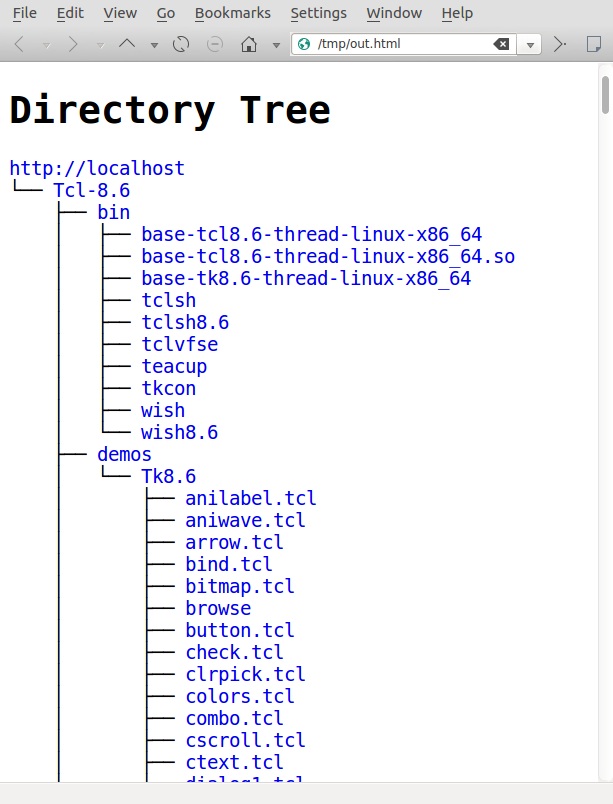
Linux and Unix support many applications and tools for working with images and video files. Most Linux distributions include the imageMagick suite with the convert application for manipulating images. The full-function video editing applications such as kdenlive and openshot are built on top of the ffmpeg and mencoder command line applications.
The convert application has hundreds of options. We'll just use the one that extracts a portion of an image.
ffmpeg and mencoder have enough options and features to fill a book all by themselves. We'll just look at a couple simple uses.
This section has some recipes for manipulating still images and videos.
Most Linux distributions include the ImageMagick tools. If your system does not include them, or if they are out of date, there are instructions for downloading and installing the latest tools on the ImageMagick website at www.imagemagick.org.
Like ImageMagick, many Linux distributions already include the ffmpeg and mencoder toolsets. The latest releases can be found at the ffmpeg and mencoder websites at http://www.ffmpeg.org and http://www.mplayerhq.hu.
Building and installing the video tools will probably require loading codecs and other ancillary files with confusing version dependencies. If you intend to use your Linux system for audio and video editing, it's simplest to use a Linux distribution that's designed for this, such as the Ubuntu Studio distributions.
Here are some recipes for a couple of common audio-video conversions:
Music videos are fun to watch, but the point of music is to listen to it. Extracting the audio portion from a video is simple:
The following command accepts an mp4 video file (FILE.mp4) and extracts the audio portion into a new file (OUTPUTFILE.mp3) as an mp3:
ffmpeg -i FILE.mp4 -acodec libmp3lame OUTPUTFILE.mp3
Many cameras support taking pictures at intervals. You can use this feature to do your own time-lapse photography or create stop-action videos. There are examples of this on www.cwflynt.com. You can convert a set of still images into a video with the OpenShot video editing package or from a command line using the mencoder tool.
This script will accept a list of images and will create an MPEG video file from it:
$ cat stills2mpg.sh echo $* | tr ' ' '\n' >files.txt mencoder mf://@files.txt -mf fps=24 -ovc lavc \ -lavcopts vcodec=msmpeg4v2 -noskip -o movie.mpg
To use this script, copy/paste the commands into a file named stills2mpg.sh, make it executable and invoke it as follows:
./stills2mpg.sh file1.jpg file2.jpg file3.jpg ...
Alternatively, use this to invoke it:
./stills2mpg.sh *.jpg
The mencoder command requires that the input file be formatted as one image file per line. The first line of the script echoes the command line arguments to the tr command to convert the space delimiters to newlines. This transforms the single-line list into a list of files arranged one per line.
You can change the speed of the video by resetting the FPS (frames-per-second) parameter. For example, setting the fps value to 1 will make a slide show that changes images every second.
If you decide to create your own video, you'll probably want a panned shot of some landscape at some point. You can record a video image with most cameras, but if you only have a still image you can still make a panned video.
Cameras commonly take a larger image than will fit on a video. You can create a motion-picture pan using the convert application to extract sections of a large image, and stitch them together into a video file with mencoder:
$> makePan.sh
# Invoke as:
# sh makePan.sh OriginalImage.jpg prefix width height xoffset yoffset
# Clean out any old data
rm -f tmpFiles
# Create 200 still images, stepping through the original xoffset and yoffset
# pixels at a time
for o in `seq 1 200`
do
x=$[ $o+$5 ]
convert -extract $3x$4+$x+$6 $1 $2_$x.jpg
echo $2_$x.jpg >> tmpFiles
done
#Stitch together the image files into a mpg video file
mencoder mf://@tmpFiles -mf fps=30 -ovc lavc -lavcopts \
vcodec=msmpeg4v2 -noskip -o $2.mpg
This script is more complex than the ones we've looked at so far. It uses seven command-line arguments to define the input image, a prefix to use for the output files, the width and height for the intermediate images, and the starting offset into the original image.
Within the for loop, it creates a set of image files and stores the names in a file named tmpFiles. Finally, the script uses mencoder to merge the extracted image files into an MPEG video that can be imported into a video editor such as kdenlive or OpenShot.
In this chapter, we will cover the following recipes:
Shell scripting includes many problem-solving tools. There is a rich set of tools for text processing. These tools include utilities, such as sed, awk, grep, and cut, which can be combined to perform text processing needs.
These utilities process files by character, line, word, column, or row to process text files in many ways.
Regular expressions are a basic pattern-matching technique. Most text-processing utilities support regular expressions. With regular expression strings, we can filter, strip, replace, and search within text files.
This chapter includes a collection of recipes to walk you through many solutions to text processing problems.
Regular expressions are at the heart of pattern-based text-processing. To use regular expressions effectively, one needs to understand them.
Everyone who uses ls is familiar with glob style patterns. Glob rules are useful in many situations, but are too limited for text processing. Regular expressions allow you to describe patterns in finer detail than glob rules.
A typical regular expression to match an e-mail address might look like this:
[a-z0-9_]+@[a-z0-9]+\.[a-z]+.
If this looks weird, don't worry; it is really simple once you understand the concepts through this recipe.
Regular expressions are composed of text fragments and symbols with special meanings. Using these, we can construct a regular expression to match any text. Regular expressions are the basis for many tools. This section describes regular expressions, but does not introduce the Linux/Unix tools that use them. Later recipes will describe the tools.
Regular expressions consist of one or more elements combined into a string. An element may be a position marker, an identifier, or a count modifier. A position marker anchors the regular expression to the beginning or end of the target string. An identifier defines one or more characters. The count modifier defines how many times an identifier may occur.
Before we look at some sample regular expressions, let's look at the rules.
A position marker anchors a regular expression to a position in the string. By default, any set of characters that match a regular expression can be used, regardless of position in the string.
|
regex
|
Description
|
Example
|
|
^ |
This specifies that the text that matches the regular expression must start at the beginning of the string |
^tux matches a line that starts with tux |
|
$ |
This specifies that the text that matches the regular expression must end with the last character in the target string |
tux$ matches a line that ends with tux |
Identifiers are the basis of regular expressions. These define the characters that must be present (or absent) to match the regular expression.
|
regex
|
Description
|
Example
|
|
A character |
The regular expression must match this letter. |
A will match the letter A |
|
. |
This matches any one character. |
"Hack." matches Hack1, Hacki, but not Hack12 or Hackil; only one additional character matches |
|
[] |
This matches any one of the characters enclosed in the brackets. The enclosed characters may be a set or a range. |
coo[kl] matches cook or cool; [0-9] matches any single digit |
|
[^] |
This matches any one of the characters except those that are enclosed in square brackets. The enclosed characters may be a set or a range. |
9[^01] matches 92 and 93, but not 91 and 90; A[^0-9] matches an A followed by anything except a digit |
An Identifier may occur once, never, or many times. The Count Modifier defines how many times a pattern may appear.
|
regex
|
Description
|
Example
|
|
? |
This means that the preceding item must match one or zero times |
colou?r matches color or colour, but not colouur |
|
+ |
This means that the preceding item must match one or more times |
Rollno-9+ matches Rollno-99 and Rollno-9, but not Rollno- |
|
* |
This means that the preceding item must match zero or more times |
co*l matches cl, col, and coool |
|
{n} |
This means that the preceding item must match n times |
[0-9]{3} matches any three-digit number; [0-9]{3} can be expanded as [0-9][0-9][0-9] |
|
{n,} |
This specifies the minimum number of times the preceding item should match |
[0-9]{2,} matches any number that is two digits or longer |
|
{n, m} |
This specifies the minimum and maximum number of times the preceding item should match |
[0-9]{2,5} matches any number that has two digits to five digits |
Here are other characters that fine–tune how a regular expression will be parsed.
|
() |
This treats the terms enclosed as one entity |
ma(tri)?x matches max or matrix |
|
| |
This specifies alternation-; one of the items on either of side of | should match |
Oct (1st | 2nd) matches Oct 1st or Oct 2nd |
|
\ |
This is the escape character for escaping any of the special characters mentioned previously |
a\.b matches a.b, but not ajb; it ignores the special meaning of . because of \ |
For more details on the regular expression components available, you can refer to http://www.linuxforu.com/2011/04/sed-explained-part-1/.
Let's see a few examples of regular expressions:
This regular expression would match any single word:
( +[a-zA-Z]+ +)
The initial + characters say we need 1 or more spaces.
The [a-zA-Z] set is all upper– and lower–case letters. The following plus sign says we need at least one letter and can have more.
The final + characters say we need to terminate the word with one or more spaces.
( +[a-zA-Z]+[?,\.]? +)
The [?,\.]? phrase means we might have a question mark, comma, or a period, but at most one. The period is escaped with a backslash because a bare period is a wildcard that will match anything.
It's easier to match an IP address. We know we'll have four three-digit numbers separated by periods.
The [0-9] phrase defines a number. The {1,3} phrase defines the count as being at least one digit and no more than three digits:
[0-9]{1,3}\.[0-9]{1,3}\.[0-9]{1,3}\.[0-9]{1,3}
We can also define an IP address using the [[:digit:]] construct to define a number:
[[:digit:]]{1,3}\.[[:digit:]]{1,3}\.[[:digit:]]{1,3}\.[[:digit:]]{1,3}
We know that an IP address is in the range of four integers (each from 0 to 255), separated by dots (for example, 192.168.0.2).
Regular expressions are parsed by a complex state machine that tries to find the best match for a regular expression with a string of target text. That text can be the output of a pipe, a file, or even a string you type on the command line. If there are multiple ways to fulfill a regular expression, the engine will usually select the largest set of characters that match.
For example, given the string this is a test and a regular expression s.*s, the match will be s is a tes, not s is.
For more details on the regular expression components available, you can refer to http://www.linuxforu.com/2011/04/sed-explained-part-1/.
The previous tables described the special meanings for characters used in regular expressions.
Regular expressions use some characters, such as $, ^, ., *, +, {, and }, as special characters. But, what if we want to use these characters as normal text characters? Let's see an example of a regex, a.txt.
This will match the character a, followed by any character (due to the . character), which is then followed by the txt string. However, we want . to match a literal . instead of any character. In order to achieve this, we precede the character with a backward slash \ (doing this is called escaping the character). This indicates that the regex wants to match the literal character rather than its special meaning. Hence, the final regex becomes a\.txt.
Regular expressions can be tough to understand. Fortunately, there are utilities available to help in visualizing regex. The page at http://www.regexper.com lets you enter a regular expression and creates a graph to help you understand it. Here is a screenshot describing a simple regular expression:
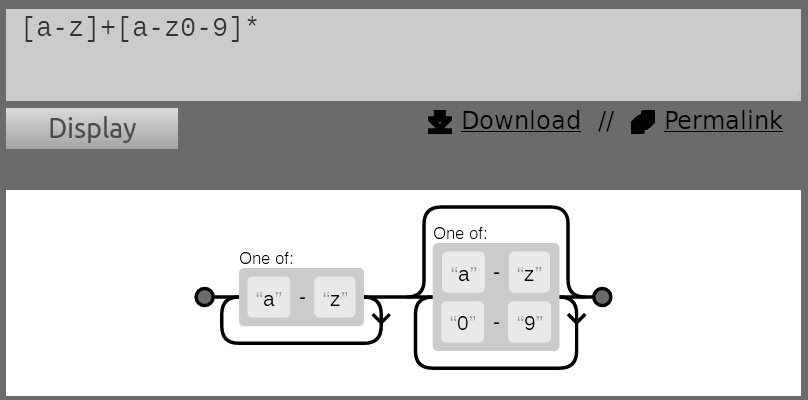
If you forget where you left your keys, you've just got to search for them. If you forget what file has some information, the grep command will find it for you. This recipe will teach you how to locate files that contain patterns.
The grep command is the magic Unix utility for searching text. It accepts regular expressions and can produce reports in various formats.
$ echo -e "this is a word\nnext line" | grep word
this is a word
$ grep pattern filename
this is the line containing pattern
Alternatively, this performs the same search:
$ grep "pattern" filename
this is the line containing pattern
$ grep "match_text" file1 file2 file3 ...
$ grep -color=auto word filename
this is the line containing word
$ grep -E "[a-z]+" filename
Or:
$ egrep "[a-z]+" filename
$ echo this is a line. | egrep -o "[a-z]+\."
line
$ grep -v match_pattern file
The -v option added to grep inverts the match results.
$ grep -c "text" filename
10
It should be noted that -c counts the number of matching lines, not the number of times a match is made. Consider this example:
$ echo -e "1 2 3 4\nhello\n5 6" | egrep -c "[0-9]"
2
Even though there are six matching items, grep reports 2, since there are only two matching lines. Multiple matches in a single line are counted only once.
$ echo -e "1 2 3 4\nhello\n5 6" | egrep -o "[0-9]" | wc -l
6
$ cat sample1.txt
gnu is not unix
linux is fun
bash is art
$ cat sample2.txt
planetlinux
$ grep linux -n sample1.txt
2:linux is fun
Or
$ cat sample1.txt | grep linux -n
If multiple files are used, the -c option will print the filename with the result:
$ grep linux -n sample1.txt sample2.txt
sample1.txt:2:linux is fun
sample2.txt:2:planetlinux
$ echo gnu is not unix | grep -b -o "not"
7:not
Character positions are numbered from 0, not from 1.
$ grep -l linux sample1.txt sample2.txt
sample1.txt
sample2.txt
The inverse of the -l argument is -L. The -L argument returns a list of nonmatching files.
The grep command is one of the most versatile Linux/Unix commands. It also includes options to search through folders, select files to search, and more options for identifying patterns.
To recursively search for a text in files contained in a file hierarchy, use the following command:
$ grep "text" . -R -n
In this command, . specifies the current directory.
Consider this example:
$ cd src_dir
$ grep "test_function()" . -R -n
./miscutils/test.c:16:test_function();
test_function() exists in line number 16 of miscutils/test.c. The -R option is particularly useful if you are searching for a phrase in a website or source code tree. It is equivalent to this command:
$ find . -type f | xargs grep "test_function()"
The -i argument matches patterns without considering the uppercase or lowercase:
$ echo hello world | grep -i "HELLO"
hello
The -e argument specifies multiple patterns for matching:
$ grep -e "pattern1" -e "pattern2"
This will print the lines that contain either of the patterns and output one line for each match. Consider this example:
$ echo this is a line of text | grep -o -e "this" -e "line"
this
line
Multiple patterns can be defined in a file. The -f option will read the file and use the line-separated patterns:
$ grep -f pattern_filesource_filename
Consider the following example:
$ cat pat_file
hello
cool
$ echo hello this is cool | grep -f pat_file
hello this is cool
grep can include or exclude files in which to search with wild card patterns.
To recursively search only for the .c and .cpp files, use the -include option:
$ grep "main()" . -r --include *.{c,cpp}
Note that some{string1,string2,string3} expands as somestring1 somestring2 somestring3.
Use the -exclude flag to exclude all README files from the search:
$ grep "main()" . -r --exclude "README"
The --exclude-dir option will exclude the named directories from the search:
$ grep main . -r -exclude-dir CVS
To read a list of files to exclude from a file, use --exclude-from FILE.
The xargs command provides a list of command-line arguments to another command. When filenames are used as command-line arguments, use a zero-byte terminator for the filenames instead of the default space terminator. Filenames can contain space characters, which will be misinterpreted as name separators, causing a filename to be broken into two filenames (for example, New file.txt might be interpreted as two filenames New and file.txt). Using the zero-byte suffix option solves this problem. We use xargs to accept stdin text from commands such as grep and find. These commands can generate output with a zero-byte suffix. The xargs command will expect 0 byte termination when the -0 flag is used.
Create some test files:
$ echo "test" > file1
$ echo "cool" > file2
$ echo "test" > file3
The -l option tells grep to output only the filenames where a match occurs. The -Z option causes grep to use the zero-byte terminator (\0) for these files. These two options are frequently used together. The -0 argument to xargs makes it read the input and separate filenames at the zero-byte terminator:
$ grep "test" file* -lZ | xargs -0 rm
Sometimes, instead of examining at the matched strings, we are only interested in whether there was a match or not. The quiet option (-q), causes grep to run silently and not generate any output. Instead, it runs the command and returns an exit status based on success or failure. The return status is 0 for success and nonzero for failure.
The grep command can be used in quiet mode, for testing whether a match text appears in a file or not:
#!/bin/bash #Filename: silent_grep.sh #Desc: Testing whether a file contain a text or not if [ $# -ne 2 ]; then echo "Usage: $0 match_text filename" exit 1 fi match_text=$1 filename=$2 grep -q "$match_text" $filename if [ $? -eq 0 ]; then echo "The text exists in the file" else echo "Text does not exist in the file" fi
The silent_grep.sh script accepts two command-line arguments, a match word (Student), and a file name (student_data.txt):
$ ./silent_grep.sh Student student_data.txt
The text exists in the file
Context-based printing is one of the nice features of grep. When grep finds lines that match the pattern, it prints only the matching lines. We may need to see n lines before or after the matching line. The -B and -A options display lines before and after the match, respectively.
The -A option prints lines after a match:
$ seq 10 | grep 5 -A 3
5
6
7
8
The -B option prints lines before the match:
$ seq 10 | grep 5 -B 3
2
3
4
5
The -A and -B options can be used together, or the -C option can be used to print the same number of lines before and after the match:
$ seq 10 | grep 5 -C 3
2
3
4
5
6
7
8
If there are multiple matches, then each section is delimited by a -- line:
$ echo -e "a\nb\nc\na\nb\nc" | grep a -A 1
a
b
--
a
b
The cut command splits a file by column instead of lines. This is useful for processing files with fixed-width fields, Comma Separated Values (CSV files), or space delimited files such as the standard log files.
The cut command extracts data between character locations or columns. You can specify the delimiter that separates each column. In the cut terminology, each column is known as a field.
cut -f FIELD_LIST filename
FIELD_LIST is a list of columns that are to be displayed. The list consists of column numbers delimited by commas. Consider this example:
$ cut -f 2,3 filename
Here, the second and the third columns are displayed.
Tab is the default delimiter for fields. Lines without delimiters will be printed. The -s option will disable printing lines without delimiter characters. The following commands demonstrate extracting columns from a tab delimited file:
$ cat student_data.txt
No Name Mark Percent
1 Sarath 45 90
2 Alex 49 98
3 Anu 45 90
$ cut -f1 student_data.txt
No
1
2
3
$ cut -f2,4 student_data.txt
Name Percent
Sarath 90
Alex 98
Anu 90
$ cut -f3 --complement student_data.txt
No Name Percent
1 Sarath 90
2 Alex 98
3 Anu 90
$ cat delimited_data.txt
No;Name;Mark;Percent
1;Sarath;45;90
2;Alex;49;98
3;Anu;45;90
$ cut -f2 -d";" delimited_data.txt
Name
Sarath
Alex
Anu
The cut command has more options to define the columns displayed.
A report with fixed-width columns will have varying numbers of spaces between the columns. You can't extract values based on field position, but you can extract them based on the character location. The cut command can select based on bytes or characters as well as fields.
It's unreasonable to enter every character position to extract, so cut accepts these notations as well as the comma-separated list:
|
N- |
From the Nth byte, character, or field, to the end of the line |
|
N-M |
From the Nth to Mth (included) byte, character, or field |
|
-M |
From the first to Mth (included) byte, character, or field |
We use the preceding notations to specify fields as a range of bytes, characters, or fields with the following options:
Consider this example:
$ cat range_fields.txt
abcdefghijklmnopqrstuvwxyz
abcdefghijklmnopqrstuvwxyz
abcdefghijklmnopqrstuvwxyz
abcdefghijklmnopqrstuvwxy
Display the second to fifth characters:
$ cut -c2-5 range_fields.txt
bcde
bcde
bcde
bcde
Display the first two characters:
$ cut -c -2 range_fields.txt
ab
ab
ab
ab
Replace -c with -b to count in bytes.
The -output-delimiter option specifies the output delimiter. This is particularly useful when displaying multiple sets of data:
$ cut range_fields.txt -c1-3,6-9 --output-delimiter ","
abc,fghi
abc,fghi
abc,fghi
abc,fghi
sed stands for stream editor. It's most commonly used for text replacement. This recipe covers many common sed techniques.
The sed command can replace occurrences of a pattern with another string. The pattern can be a simple string or a regular expression:
$ sed 's/pattern/replace_string/' file
Alternatively, sed can read from stdin:
$ cat file | sed 's/pattern/replace_string/'
$ cat /etc/passwd | cut -d : -f1,3 | sed 's/:/ - UID: /'
root - UID: 0
bin - UID: 1
...
$ sed -i 's/text/replace/' file
$ sed 's/pattern/replace_string/g' file
The /#g option will replace from the Nth occurrence onwards:
$ echo thisthisthisthis | sed 's/this/THIS/2g'
thisTHISTHISTHIS
$ echo thisthisthisthis | sed 's/this/THIS/3g'
thisthisTHISTHIS
$ echo thisthisthisthis | sed 's/this/THIS/4g'
thisthisthisTHIS
The sed command treats the character following s as the command delimiter. This allows us to change strings with a / character in them:
sed 's:text:replace:g'
sed 's|text|replace|g'
When the delimiter character appears inside the pattern, we have to escape it using the \ prefix, as follows:
sed 's|te\|xt|replace|g'
\| is a delimiter appearing in the pattern replaced with escape.
The sed command supports regular expressions as the pattern to be replaced and has more options to control its behavior.
Regular expression support makes it easy to remove blank lines. The ^$ regular expression defines a line with nothing between the beginning and end == a blank line. The final /d tells sed to delete the lines, rather than performing a substitution.
$ sed '/^$/d' file
When a filename is passed to sed, it usually prints to stdout. The -I option will cause sed to modify the contents of the file in place:
$ sed 's/PATTERN/replacement/' -i filename
For example, replace all three-digit numbers with another specified number in a file, as follows:
$ cat sed_data.txt
11 abc 111 this 9 file contains 111 11 88 numbers 0000
$ sed -i 's/\b[0-9]\{3\}\b/NUMBER/g' sed_data.txt
$ cat sed_data.txt
11 abc NUMBER this 9 file contains NUMBER 11 88 numbers 0000
The preceding one-liner replaces three-digit numbers only. \b[0-9]\{3\}\b is the regular expression used to match three-digit numbers. [0-9] is the range of digits from 0 to 9. The {3} string defines the count of digits. The backslash is used to give a special meaning for { and } and \b stands for a blank, the word boundary marker.
sed -i .bak 's/abc/def/' file
The & symbol is the matched string. This value can be used in the replacement string:
$ echo this is an example | sed 's/\w\+/[&]/g'
[this] [is] [an] [example]
Here, the \w\+ regex matches every word. Then, we replace it with [&], which corresponds to the word that is matched.
& corresponds to the matched string for the given pattern. Parenthesized portions of a regular expression can be matched with \#:
$ echo this is digit 7 in a number | sed 's/digit \([0-9]\)/\1/'
this is 7 in a number
The preceding command replaces digit 7 with 7. The substring matched is 7. \(pattern\) matches the substring. The pattern is enclosed in () and is escaped with backslashes. For the first substring match, the corresponding notation is \1, for the second, it is \2, and so on.
$ echo seven EIGHT | sed 's/\([a-z]\+\) \([A-Z]\+\)/\2 \1/'
EIGHT seven
([a-z]\+\) matches the first word and \([A-Z]\+\) matches the second word; \1 and \2 are used for referencing them. This type of referencing is called back referencing. In the replacement part, their order is changed as \2 \1, and hence, it appears in the reverse order.
Multiple sed commands can be combined with pipes, patterns separated by semicolons, or the -e PATTERN option:
sed 'expression' | sed 'expression'
The preceding command is equivalent to the following commands:
$ sed 'expression; expression'
Or:
$ sed -e 'expression' -e expression'
Consider these examples:
$ echo abc | sed 's/a/A/' | sed 's/c/C/'
AbC
$ echo abc | sed 's/a/A/;s/c/C/'
AbC
$ echo abc | sed -e 's/a/A/' -e 's/c/C/'
AbC
The sed expression is commonly quoted with single quotes. Double quotes can be used. The shell will expand double quotes before invoking sed. Using double quotes is useful when we want to use a variable string in a sed expression.
Consider this example:
$ text=hello
$ echo hello world | sed "s/$text/HELLO/"
HELLO world
$text is evaluated as hello.
The awk command processes data streams. It supports associative arrays, recursive functions, conditional statements, and more.
The structure of an awk script is:
awk ' BEGIN{ print "start" } pattern { commands } END{ print "end"}' file
The awk command can also read from stdin.
An awk script includes up to three parts–:BEGIN, END, and a common statement block with the pattern match option. These are optional and any of them can be absent in the script.
Awk will process the file line by line. The commands following BEGIN will be evaluated before <code>awk</code> starts processing the file. Awk will process each line that matches PATTERN with the commands that follow PATTERN. Finally, after processing the entire file, <CODE>awk</CODE> will process the commands that follow END.
Let's write a simple awk script enclosed in single quotes or double quotes:
awk 'BEGIN { statements } { statements } END { end statements }'
Or:
awk "BEGIN { statements } { statements } END { end statements }"
This command will report the number of lines in a file:
$ awk 'BEGIN { i=0 } { i++ } END{ print i}' filename
Or:
$ awk "BEGIN { i=0 } { i++ } END{ print i }" filename
The awk command processes arguments in the following order:
The BEGIN block is executed before awk starts reading lines from the input stream. It is an optional block. The commands, such as variable initialization and printing the output header for an output table, are common comamnds in the BEGIN block.
The END block is similar to the BEGIN block. It gets executed when awk completes reading all the lines from the input stream. This is commonly printing results after analyzing all the lines.
The most important block holds the common commands with the pattern block. This block is also optional. If it is not provided, { print } gets executed to print each line read. This block gets executed for each line read by awk. It is like a while loop, with statements to execute inside the body of the loop.
When a line is read, awk checks whether the pattern matches the line. The pattern can be a regular expression match, conditions, a range of lines, and so on. If the current line matches the pattern, awk executes the commands enclosed in { }.
The pattern is optional. If it is not used, all lines are matched:
$ echo -e "line1\nline2" | awk 'BEGIN{ print "Start" } { print } \
END{ print "End" } '
Start
line1
line2
End
When print is used without an argument, awk prints the current line.
The print command can accept arguments. These arguments are separated by commas, they are printed with a space delimiter. Double quotes are used as the concatenation operator.
Consider this example:
$ echo | awk '{ var1="v1"; var2="v2"; var3="v3"; \
print var1,var2,var3 ; }'
The preceding command will display this:
v1 v2 v3
The echo command writes a single line into the standard output. Hence, the statements in the { } block of awk are executed once. If the input to awk contains multiple lines, the commands in awk will be executed multiple times.
Concatenation is done with quoted strings:
$ echo | awk '{ var1="v1"; var2="v2"; var3="v3"; \
print var1 "-" var2 "-" var3 ; }'
v1-v2-v3
{ } is like a block in a loop, iterating through each line of a file.
The awk command differs from commands such as grep, find, and tr, in that it does more than a single function with options to change the behavior. The awk command is a program that interprets and executes programs and includes special variables just like the shell.
Some special variables that can be used with awk are as follows:
Consider this example:
$ echo -e "line1 f2 f3\nline2 f4 f5\nline3 f6 f7" | \
awk '{
print "Line no:"NR",No of fields:"NF, "$0="$0,
"$1="$1,"$2="$2,"$3="$3
}'
Line no:1,No of fields:3 $0=line1 f2 f3 $1=line1 $2=f2 $3=f3
Line no:2,No of fields:3 $0=line2 f4 f5 $1=line2 $2=f4 $3=f5
Line no:3,No of fields:3 $0=line3 f6 f7 $1=line3 $2=f6 $3=f7
We can print the last field of a line as print $NF, the next to last as $(NF-1), and so on.
awk also supports a printf() function with the same syntax as in C.
The following command prints the second and third field of every line:
$awk '{ print $3,$2 }' file
We can use NR to count the number of lines in a file:
$ awk 'END{ print NR }' file
Here, we only use the END block. Awk updates NR as each line is read. When awk reaches the end of the file, NR will contain the last line number. You can sum up all the numbers from each line of field 1 as follows:
$ seq 5 | awk 'BEGIN{ sum=0; print "Summation:" }
{ print $1"+"; sum+=$1 } END { print "=="; print sum }'
Summation:
1+
2+
3+
4+
5+
==
15
Using the -v argument, we can pass external values other than stdin to awk, as follows:
$ VAR=10000
$ echo | awk -v VARIABLE=$VAR '{ print VARIABLE }'
10000
There is a flexible alternate method to pass many variable values from outside awk. Consider the following example:
$ var1="Variable1" ; var2="Variable2"
$ echo | awk '{ print v1,v2 }' v1=$var1 v2=$var2
Variable1 Variable2
When an input is given through a file rather than standard input, use the following command:
$ awk '{ print v1,v2 }' v1=$var1 v2=$var2 filename
In the preceding method, variables are specified as key-value pairs, separated by a space, and (v1=$var1 v2=$var2 ) as command arguments to awk soon after the BEGIN, { }, and END blocks.
The awk program reads an entire file by default. The getline function will read one line. This can be used to read header information from a file in the BEGIN block and then process actual data in the main block.
The syntax is getline var. The var variable will contain the line. If getline is called without an argument, we can access the content of the line with $0, $1, and $2.
Consider this example:
$ seq 5 | awk 'BEGIN { getline; print "Read ahead first line", $0 }
{ print $0 }'
Read ahead first line 1
2
3
4
5
We can specify conditions for lines to be processed:
$ awk 'NR < 5' # first four lines
$ awk 'NR==1,NR==4' #First four lines
$ # Lines containing the pattern linux (we can specify regex)
$ awk '/linux/'
$ # Lines not containing the pattern linux
$ awk '!/linux/'
By default, the delimiter for fields is a space. The -F option defines a different field delimiter.
$ awk -F: '{ print $NF }' /etc/passwd
Or:
awk 'BEGIN { FS=":" } { print $NF }' /etc/passwd
We can set the output field separator by setting OFS="delimiter" in the BEGIN block.
Awk can invoke a command and read the output. Place a command string within quotes and use the vertical bar to pipe the output to getline:
"command" | getline output ;
The following code reads a single line from /etc/passwd and displays the login name and home folder. It resets the field separator to a : in the BEGIN block and invokes grep in the main block.
$ awk 'BEGIN {FS=":"} { "grep root /etc/passwd" | getline; \
print $1,$6 }'
root /root
Awk supports variables that contain a number or string and also supports associative arrays. An associative array is an array that's indexed by strings instead of numbers. You can recognize an associative array by the index within square brackets:
arrayName[index]
An array can be assigned a value with the equal sign, just like simple user-defined variables:
myarray[index]=value
Awk supports a numeric for loop with a syntax similar to C:
for(i=0;i<10;i++) { print $i ; }
Awk also supports a list style for loop that will display the contents of an array:
for(i in array) { print array[i]; }
The following example shows how to collect data into an array and then display it. This script reads lines from /etc/password, splits them into fields at the : markers, and creates an array of names in which the index is the login ID and the value is the user's name:
$ awk 'BEGIN {FS=":"} {nam[$1]=$5} END {for {i in nam} \
{print i,nam[i]}}' /etc/passwd
root root
ftp FTP User
userj Joe User
The language of awk includes many built-in string manipulation functions:
Computers are good at counting. We frequently need to count items such as the number of sites sending us spam, the number of downloads different web pages get, or how often words are used in a piece of text. This recipes show how to calculate word usage in a piece of text. The techniques are also applicable to log files, database output, and more.
We can use the associative arrays of awk to solve this problem in different ways. Words are alphabetic characters, delimited by space or a period. First, we should parse all the words in a given file and then the count of each word needs to be found. Words can be parsed using regex with tools such as sed, awk, or grep.
We just explored the logic and ideas about the solution; now let's create the shell script as follows:
#!/bin/bash
#Name: word_freq.sh
#Desc: Find out frequency of words in a file
if [ $# -ne 1 ];
then
echo "Usage: $0 filename";
exit -1
fi
filename=$1
egrep -o "\b[[:alpha:]]+\b" $filename | \
awk '{ count[$0]++ }
END {printf("%-14s%s\n","Word","Count") ;
for(ind in count)
{ printf("%-14s%d\n",ind,count[ind]);
}
}
The script will generate this output:
$ ./word_freq.sh words.txt
Word Count
used 1
this 2
counting 1
The egrep command converts the text file into a stream of words, one word per line. The \b[[:alpha:]]+\b pattern matches each word and removes whitespace and punctuation. The -o option prints the matching character sequences as one word in each line.
The awk command counts each word. It executes the statements in the { } block for each line, so we don't need a specific loop for doing that. The count is incremented by the count[$0]++ command, in which $0 is the current line and count is an associative array. After all the lines are processed, the END{} block prints the words and their count.
The body of this procedure can be modified using other tools we've looked at. We can merge capitalized and non-capitalized words into a single count with the tr command, and sort the output using the sort command, like this:
egrep -o "\b[[:alpha:]]+\b" $filename | tr [A=Z] [a-z] | \
awk '{ count[$0]++ }
END{ printf("%-14s%s\n","Word","Count") ;
for(ind in count)
{ printf("%-14s%d\n",ind,count[ind]);
}
}' | sort
JavaScript is widely used in websites. While developing the JavaScript code, we use whitespaces, comments, and tabs for readability and maintenance of the code. This increases the file size, which slows page loading. Hence, most professional websites use compressed JavaScript speed page loading. This compression (also known as minified JS) is accomplished by removing the whitespace and newline characters. Once JavaScript is compressed, it can be decompressed by replacing enough whitespace and newline characters to make it readable. This recipe produces similar functionality in the shell.
We are going to write a JavaScript compressor tool as well as a decompressing tool. Consider the following JavaScript:
$ cat sample.js
function sign_out()
{
$("#loading").show();
$.get("log_in",{logout:"True"},
function(){
window.location="";
});
}
Our script needs to perform these steps to compress the JavaScript:
To decompress or to make the JavaScript more readable, we can use the following tasks:
Using these steps, we can use the following command chain:
$ cat sample.js | \
tr -d '\n\t' | tr -s ' ' \
| sed 's:/\*.*\*/::g' \
| sed 's/ \?\([{}();,:]\) \?/\1/g'
The output is as follows:
function sign_out(){$("#loading").show();$.get("log_in",
{logout:"True"},function(){window.location="";});}
The following decompression script makes the obfuscated code readable:
$ cat obfuscated.txt | sed 's/;/;\n/g; s/{/{\n\n/g; s/}/\n\n}/g'
Or:
$ cat obfuscated.txt | sed 's/;/;\n/g' | sed 's/{/{\n\n/g' | sed
's/}/\n\n}/g'
The compression command performs the following tasks:
tr -d '\n\t'
tr -s ' ' or sed 's/[ ]\+/ /g'
sed 's:/\*.*\*/::g'
: is used as a sed delimiter to avoid the need to escape / since we need to use /* and */.
In sed, * is escaped as \*.
.* matches all the text in between /* and */.
sed 's/ \?\([{}();,:]\) \?/\1/g'
The preceding sed statement works like this:
The decompression command works as follows:
The can command can be used to merge two files by row, one file after the other. Sometimes we need to merge two or more files side by side, joining the lines from file 1 with the lines from file 2.
The paste command performs column-wise concatenation:
$ paste file1 file2 file3 ...
Here is an example:
$ cat file1.txt
1
2
3
4
5
$ cat file2.txt
slynux
gnu
bash
hack
$ paste file1.txt file2.txt
1 slynux
2 gnu
3 bash
4 hack
5
The default delimiter is tab. We can specify the delimiter with -d:
$ paste file1.txt file2.txt -d ","
1,slynux
2,gnu
3,bash
4,hack
5,
We often need to extract a few columns of useful data from a file. For example, in a list of students ordered by their scores, we want to get the fourth highest scorer. This recipe shows how to do this.
The awk command is frequently used for this task.
$ awk '{ print $5 }' filename
The following command will print the permission and filename of each file in the current directory:
$ ls -l | awk '{ print $1 " : " $8 }'
-rw-r--r-- : delimited_data.txt
-rw-r--r-- : obfuscated.txt
-rw-r--r-- : paste1.txt
-rw-r--r-- : paste2.txt
We may need to print a selected portion of a file, either a range of line numbers or a range matched by a start and end pattern.
Awk, grep, or sed will select lines to print, based on condition. It's simplest to use grep to print lines that include a pattern. Awk is the most versatile tool.
To print the text between line numbers or patterns, follow these steps:
$ awk 'NR==M, NR==N' filename
Awk can read from stdin:
$ cat filename | awk 'NR==M, NR==N'
$ seq 100 | awk 'NR==4,NR==6'
4
5
6
$ awk '/start_pattern/, /end _pattern/' filename
Consider this example:
$ cat section.txt
line with pattern1
line with pattern2
line with pattern3
line end with pattern4
line with pattern5
$ awk '/pa.*3/, /end/' section.txt
line with pattern3
line end with pattern4
The patterns used in awk are regular expressions.
This recipe may not seem useful, but it can be used to emulate the stack data structure in Bash.
The simplest way to accomplish this is with the tac command (the reverse of cat). The task can also be done with awk.
We will first see how to do this with tac.
tac file1 file2 ...
The tac command can also read from stdin:
$ seq 5 | tac
5
4
3
2
1
The default line separator for tac is \n. The -s option will redefine this:
$ echo "1,2" | tac -s ,
2
1
seq 9 | \
awk '{ lifo[NR]=$0 } \
END { for(lno=NR;lno>-1;lno--) { print lifo[lno]; }
}'
\ in the shell script is used to break a single-line command sequence into multiple lines.
The awk script stores each of the lines into an associative array using the line number as the index (NR returns the line number). After reading all the lines, awk executes the END block. The NR variable is maintained by awk. It holds the current line number. When awk starts the END block, NR is the count of lines. Using lno=NR in the { } block iterates from the last line number to 0, to print the lines in reverse order.
Parsing elements such as e-mail addresses and URLs is a common task. Regular expressions make finding these patterns easy.
The regular expression pattern to match an e-mail address is as follows:
[A-Za-z0-9._]+@[A-Za-z0-9.]+\.[a-zA-Z]{2,4}
Consider the following example:
$ cat url_email.txt
this is a line of text contains,<email> #slynux@slynux.com.
</email> and email address, blog "http://www.google.com",
test@yahoo.com dfdfdfdddfdf;cool.hacks@gmail.com<br />
<a href="http://code.google.com"><h1>Heading</h1>
As we are using extended regular expressions (+, for instance), we should use egrep:
$ egrep -o '[A-Za-z0-9._]+@[A-Za-z0-9.]+\.[a-zA-Z]{2,4}'
url_email.txt
slynux@slynux.com
test@yahoo.com
cool.hacks@gmail.com
The egrep regex pattern for an HTTP URL is as follows:
http://[a-zA-Z0-9\-\.]+\.[a-zA-Z]{2,4}
Consider this example:
$ egrep -o "http://[a-zA-Z0-9.]+\.[a-zA-Z]{2,3}" url_email.txt
http://www.google.com
http://code.google.com
Regular expressions are easy to design part-by-part. In the e-mail regex, we all know that an e-mail address takes the name@domain.some_2-4_letter_suffix form. Writing this pattern in the regex language will look like this:
[A-Za-z0-9.]+@[A-Za-z0-9.]+\.[a-zA-Z]{2,4}
[A-Za-z0-9.]+ means we need one or more characters in the [] block (+ means at least one, maybe more). This string is followed by an @ character. Next, we will see the domain name, a string of letters or numbers, a period, and then 2-4 more letters. The [A-Za-z0-9]+ pattern defines an alpha-numeric string. The \. pattern means that a literal period must appear. The [a-zA-Z]{2,4} pattern defines 2, 3, or 4 letters.
An HTTP URL is similar to an e-mail, but we don't need the name@ match part of the e-mail regex:
http://[a-zA-Z0-9.]+\.[a-zA-Z]{2,3}
Removing a sentence that contains a specific word is a simple task with regular expressions. This recipe demonstrates techniques for solving similar problems.
sed is the best utility for making substitutions. This recipe uses sed to replace the matched sentence with a blank.
Let's create a file with some text to carry out the substitutions. Consider this example:
$ cat sentence.txt
Linux refers to the family of Unix-like computer operating systems
that use the Linux kernel. Linux can be installed on a wide variety
of computer hardware, ranging from mobile phones, tablet computers
and video game consoles, to mainframes and supercomputers. Linux is
predominantly known for its use in servers.
To remove the sentence containing the words mobile phones, use the following sed expression:
$ sed 's/ [^.]*mobile phones[^.]*\.//g' sentence.txt
Linux refers to the family of Unix-like computer operating systems
that use the Linux kernel. Linux is predominantly known for its use
in servers.
The sed regex 's/ [^.]*mobile phones[^.]*\.//g' has the 's/substitution_pattern/replacement_string/g format. It replaces every occurrence of substitution_pattern with the replacement string.
The substitution pattern is the regex for a sentence. Every sentence begins with a space and ends with .. The regular expression must match the text in the format "space" some text MATCH_STRING some text "dot". A sentence may contain any characters except a "dot", which is the delimiter. The [^.] pattern matches any character except a period. The * pattern defines any number of those characters. The mobile phones text match string is placed between the pattern for non-period characters. Every match sentence is replaced by // (nothing).
We often need to replace a particular text with a new text in every file in a directory. An example would be changing a common URI everywhere in a website's source directory.
We can use find to locate the files to have text modified. We can use sed to do the actual replacement.
To replace the Copyright text with the Copyleft word in all .cpp files, use the following command:
find . -name *.cpp -print0 | \
xargs -I{} -0 sed -i 's/Copyright/Copyleft/g' {}
We use find on the current directory (.) to find the files with a .cpp suffix. The find command uses -print0 to print a null separated list of files (use -print0 when filenames have spaces in them). We pipe the list to xargs, which will pass the filenames to sed, which makes the modifications.
If you recall, find has an -exec option, which can be used to run a command on each of the files that match the search criteria. We can use this option to achieve the same effect or replace the text with a new one:
$ find . -name *.cpp -exec sed -i 's/Copyright/Copyleft/g' \{\} \;
Or:
$ find . -name *.cpp -exec sed -i 's/Copyright/Copyleft/g' \{\} \+
These commands perform the same function, but the first form will call sed once for every file, while the second form will combine multiple filenames and pass them together to sed.
This recipe walks through some simple text-replacement techniques and parameter-expansion shorthands available in Bash. A few simple techniques can help avoid writing multiple lines of code.
Let's get into the tasks.
Replace some text from a variable:
$ var="This is a line of text"
$ echo ${var/line/REPLACED}
This is a REPLACED of text"
The line word is replaced with REPLACED.
We can produce a substring by specifying the start position and string length, using the following syntax:
${variable_name:start_position:length}
Print from the fifth character onwards:
$ string=abcdefghijklmnopqrstuvwxyz
$ echo ${string:4}
efghijklmnopqrstuvwxyz
Print eight characters starting from the fifth character:
$ echo ${string:4:8}
efghijkl
The first character in a string is at position 0. We can count from the last letter as -1. When -1 is inside a parenthesis, (-1) is the index for the last letter:
echo ${string:(-1)}
z
$ echo ${string:(-2):2}
yz
In this chapter, we will cover the following recipes:
The Web has become the face of technology and the central access point for data processing. Shell scripts cannot do everything that languages such as PHP can do on the Web, but there are many tasks for which shell scripts are ideally suited. We will explore recipes to download and parse website data, send data to forms, and automate website-usage tasks and similar activities. We can automate many activities that we perform interactively through a browser with a few lines of scripting. The functionality provided by the HTTP protocol and command-line utilities enables us to write scripts to solve many web-automation needs.
Downloading a file or a web page is simple. A few command-line download utilities are available to perform this task.
wget is a flexible file download command-line utility that can be configured with many options.
A web page or a remote file can be downloaded using wget:
$ wget URL
For example:
$ wget knopper.net --2016-11-02 21:41:23-- http://knopper.net/ Resolving knopper.net... 85.214.68.145 Connecting to knopper.net|85.214.68.145|:80... connected. HTTP request sent, awaiting response... 200 OK Length: 6899 (6.7K) [text/html] Saving to: "index.html.1" 100% [=============================]45.5K=0.1s 2016-11-02 21:41:23 (45.5 KB/s) - "index.html.1" saved [6899/6899]
It is also possible to specify multiple download URLs:
$ wget URL1 URL2 URL3 ..
By default, the downloaded files are named the same as the URL, and the download information and progress is written to stdout.
The -O option specifies the output filename. If a file with that name already exists, it will be replaced by the downloaded file:
$ wget http://www.knopper.net -O knopper.html.
The -o option specifies a logfile instead of printing logs to stdout:
$ wget ftp://ftp.example.com/somefile.img -O dloaded_file.img -o log
Using the preceding command will print nothing on the screen. The log or progress will be written to the log and the output file will be dloaded_file.img.
There is a chance that downloads might break due to unstable Internet connections. The -t option specifies how many times the utility will retry before giving up:
$ wget -t 5 URL
$ wget -t 0 URL
The wget utility has options to fine-tune behavior and solve problems.
When there is limited bandwidth with many applications sharing it, a large file can devour all the bandwidth and starve other processes (perhaps interactive users). The wget option -limit-rate will specify the maximum bandwidth for the download job, allowing all applications fair access to the Internet:
$ wget --limit-rate 20k http://example.com/file.iso
In this command, k (kilobyte) specifies the speed limit. You can also use m for megabyte.
The -quota (or -Q) option specifies the maximum size of the download. wget will stop when the quota is exceeded. This is useful when downloading multiple files to a system with limited space:
$ wget -Q 100m http://example.com/file1 http://example.com/file2
If wget gets interrupted before the download is complete, it can be resumed where it left off with the -c option:
$ wget -c URL
wget can download a complete website by recursively collecting the URL links and downloading them like a crawler. To download the pages, use the --mirror option:
$ wget --mirror --convert-links exampledomain.com
Alternatively, use the following command:
$ wget -r -N -l -k DEPTH URL
The -l option specifies the depth of web pages as levels. This means that it will traverse only that number of levels. It is used along with -r (recursive). The -N argument is used to enable time stamping for the file. URL is the base URL for a website for which the download needs to be initiated. The -k or --convert-links option instructs wget to convert the links to other pages to the local copy.
The --user and --password arguments provide the username and password to websites that require authentication.
$ wget --user username --password pass URL
It is also possible to ask for a password without specifying the password inline. For this, use --ask-password instead of the --password argument.
Web pages are simply text with HTML tags, JavaScript, and CSS. The HTML tags define the content of the web page, which we can parse for specific content. Bash scripts can parse web pages. An HTML file can be viewed in a web browser to see it properly formatted or processed with tools described in the previous chapter.
Parsing a text document is simpler than parsing HTML data because we aren't required to strip off the HTML tags. Lynx is a command-line web browser that downloads a web page as plain text.
Lynx is not installed in all distributions, but is available via the package manager.
# yum install lynx
Alternatively, you can execute the following command:
apt-get install lynx
The -dump option downloads a web page as pure ASCII. The next recipe shows how to send that ASCII version of the page to a file:
$ lynx URL -dump > webpage_as_text.txt
This command will list all the hyperlinks (<a href="link">) separately under a heading References, as the footer of the text output. This lets us parse links separately with regular expressions.
Consider this example:
$lynx -dump http://google.com > plain_text_page.txt
You can see the plain text version of text using the cat command:
$ cat plain_text_page.txt
Search [1]Images [2]Maps [3]Play [4]YouTube [5]News [6]Gmail
[7]Drive
[8]More »
[9]Web History | [10]Settings | [11]Sign in
[12]St. Patrick's Day 2017
_______________________________________________________
Google Search I'm Feeling Lucky [13]Advanced search
[14]Language tools
[15]Advertising Programs [16]Business Solutions [17]+Google
[18]About Google
© 2017 - [19]Privacy - [20]Terms
References
...
cURL transfers data to or from a server using the HTTP, HTTPS, or FTP protocols. It supports POST, cookies, authentication, downloading partial files from a specified offset, referer, user agent string, extra headers, limiting speed, maximum file size, progress bar, and more. cURL is useful for maintaining a website, retrieving data, and checking server configurations.
Unlike wget, cURL is not included in all Linux distros; you may have to install it with your package manager.
By default, cURL dumps downloaded files to stdout, and progress information to stderr. To disable displaying progress information, use the --silent option.
The curl command performs many functions, including downloading, sending different HTTP requests, and specifying HTTP headers.
$ curl URL
$ curl www.knopper.net/index.htm --silent -O
$curl www.knopper.net -o knoppix_index.html
% Total % Received % Xferd Avg Speed Time Time Time
Current
Dload Upload Total Spent Left Speed
100 6889 100 6889 0 0 10902 0 --:-- --:-- --:-- 26033
$ curl URL --silent
$ curl http://knopper.net -o index.html --progress
################################## 100.0%
cURL downloads web pages or remote files to your local system. You can control the destination filename with the -O and -o options, and verbosity with the -silent and -progress options.
In the preceding sections, you learned how to download files. cURL supports more options to fine tune its behavior.
cURL can resume a download from a given offset. This is useful if you have a per-day data limit and a large file to download.
$ curl URL/file -C offset
offset is an integer value in bytes.
cURL doesn't require us to know the exact byte offset, if we want to resume downloading a file. If you want cURL to figure out the correct resume point, use the -C - option, as follows:
$ curl -C - URL
cURL will automatically figure out where to restart the download of the specified file.
Some dynamic pages check the referer string before returning the HTML data. For example, a web page may display a Google logo when a user navigates to a website from Google, and display a different page when the user types the URL.
A web developer can write a condition to return a Google page if the referer is www.google.com, or return a different page if not.
You can use --referer with the curl command to specify the referer string, as follows:
$ curl --referer Referer_URL target_URL
Consider this example:
$ curl --referer http://google.com http://knopper.org
curl can specify and store the cookies encountered during HTTP operations.
The -cookieCOOKIE_IDENTIFER option specifies which cookies to provide. Cookies are defined as name=value. Multiple cookies should be delimited with a semicolon (;):
$ curl http://example.com --cookie "user=username;pass=hack"
The -cookie-jar option specifies the file to store cookies in:
$ curl URL --cookie-jar cookie_file
Some web pages that check the user agent won't work if there is no user agent specified. For example, some old websites require Internet Explorer (IE). If a different browser is used, they display a message that the site must be viewed with IE. This is because the website checks for a user agent. You can set the user agent with curl.
The --user-agent or -A option sets the user agent:
$ curl URL --user-agent "Mozilla/5.0"
Additional headers can be passed with cURL. Use -H "Header" to pass additional headers:
$ curl -H "Host: www.knopper.net" -H "Accept-language: en" URL
When bandwidth is shared among multiple users, we can limit the download rate with the --limit-rate option:
$ curl URL --limit-rate 20k
The rate can be specified with k (kilobyte) or m (megabyte).
The --max-filesize option specifies the maximum file size:
$ curl URL --max-filesize bytes
The curl command's -u option performs HTTP or FTP authentication.
The username and password can be specified using -u username:password:
$ curl -u user:pass http://test_auth.com
If you prefer to be prompted for the password, provide only a username:
$ curl -u user http://test_auth.com
Examining headers is sufficient for many checks and statistics. For example, we don't need to download an entire page to confirm it is reachable. Just reading the HTTP response is sufficient.
Another use case for examining the HTTP header is to check the Content-Length field to determine the file size or the Last-Modified field to see if the file is newer than a current copy before downloading.
The -I or -head option outputs only the HTTP headers, without downloading the remote file:
$ curl -I http://knopper.net HTTP/1.1 200 OK Date: Tue, 08 Nov 2016 17:15:21 GMT Server: Apache Last-Modified: Wed, 26 Oct 2016 23:29:56 GMT ETag: "1d3c8-1af3-b10500" Accept-Ranges: bytes Content-Length: 6899 Content-Type: text/html; charset=ISO-8859-1
Gmail is a widely-used free e-mail service from Google: http://mail.google.com/. It allows you to read your mail via a browser or an authenticated RSS feeds. We can parse the RSS feeds to report the sender name and subject. This is a quick way to scan unread e-mails without opening the web browser.
Let's go through a shell script to parse the RSS feeds for Gmail to display the unread mails:
#!/bin/bash
#Desc: Fetch gmail tool
username='PUT_USERNAME_HERE'
password='PUT_PASSWORD_HERE'
SHOW_COUNT=5 # No of recent unread mails to be shown
echo
curl -u $username:$password --silent \
"https://mail.google.com/mail/feed/atom" | \
tr -d '\n' | sed 's:</entry>:\n:g' |\
sed -n 's/.*<title>\(.*\)<\/title.*<author><name>\([^<]*\)<\/name><email>
\([^<]*\).*/From: \2 [\3] \nSubject: \1\n/p' | \
head -n $(( $SHOW_COUNT * 3 ))
The output resembles this:
$ ./fetch_gmail.sh From: SLYNUX [ slynux@slynux.com ] Subject: Book release - 2 From: SLYNUX [ slynux@slynux.com ] Subject: Book release - 1 . ... 5 entries
The script uses cURL to download the RSS feed. You can view the format of the incoming data by logging in to your Gmail account and viewing https://mail.google.com/mail/feed/atom.
cURL reads the RSS feed with the user authentication provided by the -u user:pass argument. When you use -u user without the password cURL, it will interactively ask for the password.
The next block of script that needs to be executed as one single expression uses sed to extract the relevant fields:
sed 's/.*<title>\(.*\)<\/title.*<author><name>\([^<]*\)<\/name><email> \([^<]*\).*/Author: \2 [\3] \nSubject: \1\n/'
This script matches the title with the <title>\(.*\)<\/title regular expression, the sender name with the <author><name>\([^<]*\)<\/name> regular expression, and e-mail using <email>\([^<]*\). Sed uses back referencing to display the author, title, and subject of the e-mail into an easy to read format:
Author: \2 [\3] \nSubject: \1\n
\1 corresponds to the first substring match (title), \2 for the second substring match (name), and so on.
The SHOW_COUNT=5 variable is used to take the number of unread mail entries to be printed on the terminal.
head is used to display only the SHOW_COUNT*3 lines from the first line. SHOW_COUNT is multiplied by three in order to show three lines of output.
The lynx, sed, and awk commands can be used to mine data from websites. You might have come across a list of actress rankings in a Searching and mining text inside a file with grep recipe in Chapter 4, Texting and Driving; it was generated by parsing the http://www.johntorres.net/BoxOfficefemaleList.html web page.
Let's go through the commands used to parse details of actresses from the website:
$ lynx -dump -nolist \
http://www.johntorres.net/BoxOfficefemaleList.html
grep -o "Rank-.*" | \
sed -e 's/ *Rank-\([0-9]*\) *\(.*\)/\1\t\2/' | \
sort -nk 1 > actresslist.txt
The output is as follows:
# Only 3 entries shown. All others omitted due to space limits 1 Keira Knightley 2 Natalie Portman 3 Monica Bellucci
Lynx is a command-line web browser; it can dump a text version of a website as we will see in a web browser, instead of returning the raw HTML as wget or cURL does. This saves the step of removing HTML tags. The -nolist option shows the links without numbers. Parsing and formatting the lines that contain Rank is done with sed:
sed -e 's/ *Rank-\([0-9]*\) *\(.*\)/\1\t\2/'
These lines are then sorted according to the ranks.
Image crawlers download all the images that appear in a web page. Instead of going through the HTML page to pick the images by hand, we can use a script to identify the images and download them automatically.
This Bash script will identify and download the images from a web page:
#!/bin/bash #Desc: Images downloader #Filename: img_downloader.sh if [ $# -ne 3 ]; then echo "Usage: $0 URL -d DIRECTORY" exit -1 fi while [ $# -gt 0 ] do case $1 in -d) shift; directory=$1; shift ;; *) url=$1; shift;; esac done mkdir -p $directory; baseurl=$(echo $url | egrep -o "https?://[a-z.\-]+") echo Downloading $url curl -s $url | egrep -o "<img[^>]*src=[^>]*>" | \ sed 's/<img[^>]*src=\"\([^"]*\).*/\1/g' | \ sed "s,^/,$baseurl/," > /tmp/$$.list cd $directory; while read filename; do echo Downloading $filename curl -s -O "$filename" --silent done < /tmp/$$.list
An example usage is as follows:
$ url=https://commons.wikimedia.org/wiki/Main_Page $ ./img_downloader.sh $url -d images
The image downloader script reads an HTML page, strips out all tags except <img>, parses src="URL" from the <img> tag, and downloads them to the specified directory. This script accepts a web page URL and the destination directory as command-line arguments.
The [ $# -ne 3 ] statement checks whether the total number of arguments to the script is three, otherwise it exits and returns a usage example. Otherwise, this code parses the URL and destination directory:
while [ -n "$1" ]
do
case $1 in
-d) shift; directory=$1; shift ;;
*) url=${url:-$1}; shift;;
esac
done
The while loop runs until all the arguments are processed. The shift command shifts arguments to the left so that $1 will take the next argument's value; that is, $2, and so on. Hence, we can evaluate all arguments through $1 itself.
The case statement checks the first argument ($1). If that matches -d, the next argument must be a directory name, so the arguments are shifted and the directory name is saved. If the argument is any other string it is a URL.
The advantage of parsing arguments in this way is that we can place the -d argument anywhere in the command line:
$ ./img_downloader.sh -d DIR URL
Or:
$ ./img_downloader.sh URL -d DIR
egrep -o "<img src=[^>]*>" will print only the matching strings, which are the <img> tags including their attributes. The [^>]* phrase matches all the characters except the closing >, that is, <img src="image.jpg">.
sed's/<img src=\"\([^"]*\).*/\1/g' extracts the url from the src="url" string.
There are two types of image source paths: relative and absolute. Absolute paths contain full URLs that start with http:// or https://. Relative URLs starts with / or image_name itself. An example of an absolute URL is http://example.com/image.jpg. An example of a relative URL is /image.jpg.
For relative URLs, the starting / should be replaced with the base URL to transform it to http://example.com/image.jpg. The script initializes baseurl by extracting it from the initial URL with the following command:
baseurl=$(echo $url | egrep -o "https?://[a-z.\-]+")
The output of the previously described sed command is piped into another sed command to replace a leading / with baseurl, and the results are saved in a file named for the script's PID: (/tmp/$$.list).
sed "s,^/,$baseurl/," > /tmp/$$.list
The final while loop iterates through each line of the list and uses curl to download the images. The --silent argument is used with curl to avoid extra progress messages from being printed on the screen.
Web developers frequently create photo albums of full-size and thumbnail images. When a thumbnail is clicked, a large version of the picture is displayed. This requires resizing and placing many images. These actions can be automated with a simple Bash script. The script creates thumbnails, places them in exact directories, and generates the code fragment for <img> tags automatically.
This script uses a for loop to iterate over every image in the current directory. The usual Bash utilities such as cat and convert (from the Image Magick package) are used. These will generate an HTML album, using all the images, in index.html.
This Bash script will generate an HTML album page:
#!/bin/bash
#Filename: generate_album.sh
#Description: Create a photo album using images in current directory
echo "Creating album.."
mkdir -p thumbs
cat <<EOF1 > index.html
<html>
<head>
<style>
body
{
width:470px;
margin:auto;
border: 1px dashed grey;
padding:10px;
}
img
{
margin:5px;
border: 1px solid black;
}
</style>
</head>
<body>
<center><h1> #Album title </h1></center>
<p>
EOF1
for img in *.jpg;
do
convert "$img" -resize "100x" "thumbs/$img"
echo "<a href=\"$img\" >" >>index.html
echo "<img src=\"thumbs/$img\" title=\"$img\" /></a>" >> index.html
done
cat <<EOF2 >> index.html
</p>
</body>
</html>
EOF2
echo Album generated to index.html
Run the script as follows:
$ ./generate_album.sh Creating album.. Album generated to index.html
The initial part of the script is used to write the header part of the HTML page.
The following script redirects all the contents up to EOF1 to index.html:
cat <<EOF1 > index.html contents... EOF1
The header includes the HTML and CSS styling.
for img in *.jpg *.JPG; iterates over the filenames and evaluates the body of the loop.
convert "$img" -resize "100x" "thumbs/$img" creates images 100px-wide as thumbnails.
The following statement generates the required <img> tag and appends it to index.html:
echo "<a href=\"$img\" >" echo "<img src=\"thumbs/$img\" title=\"$img\" /></a>" >> index.html
Finally, the footer HTML tags are appended with cat as in the first part of the script.
Twitter is the hottest micro-blogging platform, as well as the latest buzz word for online social media now. We can use Twitter API to read tweets on our timeline from the command line!
Let's see how to do it.
Recently, Twitter stopped allowing people to log in using plain HTTP Authentication, so we must use OAuth to authenticate ourselves. A full explanation of OAuth is out of the scope of this book, so we will use a library which makes it easy to use OAuth from Bash scripts. Perform the following steps:
Great, now let's write the script that uses this.
This Bash script uses the OAuth library to read tweets or send your own updates:
#!/bin/bash
#Filename: twitter.sh
#Description: Basic twitter client
oauth_consumer_key=YOUR_CONSUMER_KEY
oauth_consumer_scret=YOUR_CONSUMER_SECRET
config_file=~/.$oauth_consumer_key-$oauth_consumer_secret-rc
if [[ "$1" != "read" ]] && [[ "$1" != "tweet" ]];
then
echo -e "Usage: $0 tweet status_message\n OR\n $0 read\n"
exit -1;
fi
#source /usr/local/bin/TwitterOAuth.sh
source bash-oauth-master/TwitterOAuth.sh
TO_init
if [ ! -e $config_file ]; then
TO_access_token_helper
if (( $? == 0 )); then
echo oauth_token=${TO_ret[0]} > $config_file
echo oauth_token_secret=${TO_ret[1]} >> $config_file
fi
fi
source $config_file
if [[ "$1" = "read" ]];
then
TO_statuses_home_timeline '' 'YOUR_TWEET_NAME' '10'
echo $TO_ret | sed 's/,"/\n/g' | sed 's/":/~/' | \
awk -F~ '{} \
{if ($1 == "text") \
{txt=$2;} \
else if ($1 == "screen_name") \
printf("From: %s\n Tweet: %s\n\n", $2, txt);} \
{}' | tr '"' ' '
elif [[ "$1" = "tweet" ]];
then
shift
TO_statuses_update '' "$@"
echo 'Tweeted :)'
fi
Run the script as follows:
$./twitter.sh read Please go to the following link to get the PIN: https://api.twitter.com/oauth/authorize? oauth_token=LONG_TOKEN_STRING PIN: PIN_FROM_WEBSITE Now you can create, edit and present Slides offline. - by A Googler $./twitter.sh tweet "I am reading Packt Shell Scripting Cookbook" Tweeted :) $./twitter.sh read | head -2 From: Clif Flynt Tweet: I am reading Packt Shell Scripting Cookbook
First of all, we use the source command to include the TwitterOAuth.sh library, so we can use its functions to access Twitter. The TO_init function initializes the library.
Every app needs to get an OAuth token and token secret the first time it is used. If these are not present, we use the TO_access_token_helper library function to acquire them. Once we have the tokens, we save them to a config file so we can simply source it the next time the script is run.
The TO_statuses_home_timeline library function fetches the tweets from Twitter. This data is retuned as a single long string in JSON format, which starts like this:
[{"created_at":"Thu Nov 10 14:45:20 +0000
"016","id":7...9,"id_str":"7...9","text":"Dining...
Each tweet starts with the "created_at" tag and includes a text and a screen_name tag. The script will extract the text and screen name data and display only those fields.
The script assigns the long string to the TO_ret variable.
The JSON format uses quoted strings for the key and may or may not quote the value. The key/value pairs are separated by commas, and the key and value are separated by a colon (:).
The first sed replaces each " character set with a newline, making each key/value a separate line. These lines are piped to another sed command to replace each occurrence of ": with a tilde (~), which creates a line like this:
screen_name~"Clif_Flynt"
The final awk script reads each line. The -F~ option splits the line into fields at the tilde, so $1 is the key and $2 is the value. The if command checks for text or screen_name. The text is first in the tweet, but it's easier to read if we report the sender first; so the script saves a text return until it sees a screen_name, then prints the current value of $2 and the saved value of the text.
The TO_statuses_update library function generates a tweet. The empty first parameter defines our message as being in the default format, and the message is a part of the second parameter.
Several dictionaries on the Web offer an API to interact with their website via scripts. This recipe demonstrates how to use a popular one.
We are going to use curl, sed, and grep for this define utility. There are a lot of dictionary websites where you can register and use their APIs for personal use for free. In this example, we are using Merriam-Webster's dictionary API. Perform the following steps:
This script will display a word definition:
#!/bin/bash #Filename: define.sh #Desc: A script to fetch definitions from dictionaryapi.com key=YOUR_API_KEY_HERE if [ $# -ne 2 ]; then echo -e "Usage: $0 WORD NUMBER" exit -1; fi curl --silent \ http://www.dictionaryapi.com/api/v1/references/learners/xml/$1?key=$key | \ grep -o \<dt\>.*\</dt\> | \ sed 's$</*[a-z]*>$$g' | \ head -n $2 | nl
Run the script like this:
$ ./define.sh usb 1
1 :a system for connecting a computer to another device (such as
a printer, keyboard, or mouse) by using a special kind of cord a
USB cable/port USB is an abbreviation of "Universal Serial Bus."How
it works...
We use curl to fetch the data from the dictionary API web page by specifying our API Key ($apikey), and the word we want the definition for ($1). The result contains definitions in the <dt> tags, selected with grep. The sed command removes the tags. The script selects the required number of lines from the definitions and uses nl to add a line number to each line.
Websites must be tested for broken links. It's not feasible to do this manually for large websites. Luckily, this is an easy task to automate. We can find the broken links with HTTP manipulation tools.
We can use lynx and curl to identify the links and find broken ones. Lynx has the -traversal option, which recursively visits pages on the website and builds a list of all hyperlinks. cURL is used to verify each of the links.
This script uses lynx and curl to find the broken links on a web page:
#!/bin/bash
#Filename: find_broken.sh
#Desc: Find broken links in a website
if [ $# -ne 1 ];
then
echo -e "$Usage: $0 URL\n"
exit 1;
fi
echo Broken links:
mkdir /tmp/$$.lynx
cd /tmp/$$.lynx
lynx -traversal $1 > /dev/null
count=0;
sort -u reject.dat > links.txt
while read link;
do
output=`curl -I $link -s \
| grep -e "HTTP/.*OK" -e "HTTP/.*200"`
if [[ -z $output ]];
then
output=`curl -I $link -s | grep -e "HTTP/.*301"`
if [[ -z $output ]];
then
echo "BROKEN: $link"
let count++
else
echo "MOVED: $link"
fi
fi
done < links.txt
[ $count -eq 0 ] && echo No broken links found.
lynx -traversal URL will produce a number of files in the working directory. It includes a reject.dat file, which will contain all the links in the website. sort -u is used to build a list by avoiding duplicates. Then, we iterate through each link and check the header response using curl -I. If the first line of the header contains HTTP/ and either OK or 200, it means that the link is valid. If the link is not valid, it is rechecked and tested for a 301-link moved-reply. If that test also fails, the broken link is printed on the screen.
Tracking website changes is useful for both web developers and users. Checking a website manually is impractical, but a change tracking script can be run at regular intervals. When a change occurs, it generates a notification.
Tracking changes in terms of Bash scripting means fetching websites at different times and taking the difference using the diff command. We can use curl and diff to do this.
This Bash script combines different commands, to track changes in a web page:
#!/bin/bash
#Filename: change_track.sh
#Desc: Script to track changes to webpage
if [ $# -ne 1 ];
then
echo -e "$Usage: $0 URL\n"
exit 1;
fi
first_time=0
# Not first time
if [ ! -e "last.html" ];
then
first_time=1
# Set it is first time run
fi
curl --silent $1 -o recent.html
if [ $first_time -ne 1 ];
then
changes=$(diff -u last.html recent.html)
if [ -n "$changes" ];
then
echo -e "Changes:\n"
echo "$changes"
else
echo -e "\nWebsite has no changes"
fi
else
echo "[First run] Archiving.."
fi
cp recent.html last.html
Let's look at the output of the track_changes.sh script on a website you control. First we'll see the output when a web page is unchanged, and then after making changes.
Note that you should change MyWebSite.org to your website name.
$ ./track_changes.sh http://www.MyWebSite.org
[First run] Archiving..
$ ./track_changes.sh http://www.MyWebSite.org
Website has no changes
$ ./track_changes.sh http://www.MyWebSite.org
Changes:
--- last.html 2010-08-01 07:29:15.000000000 +0200
+++ recent.html 2010-08-01 07:29:43.000000000 +0200
@@ -1,3 +1,4 @@
<html>
+added line :)
<p>data</p>
</html>
The script checks whether the script is running for the first time using [ ! -e "last.html" ];. If last.html doesn't exist, it means that it is the first time, and the web page must be downloaded and saved as last.html.
If it is not the first time, it downloads the new copy (recent.html) and checks the difference with the diff utility. Any changes will be displayed as diff output. Finally, recent.html is copied to last.html.
Note that changing the website you are checking will generate a huge diff file the first time you examine it. If you need to track multiple pages, you can create a folder for each website you intend to watch.
POST and GET are two types of request in HTTP to send information to or retrieve information from a website. In a GET request, we send parameters (name-value pairs) through the web page URL itself. The POST command places the key/value pairs in the message body instead of the URL. POST is commonly used when submitting long forms or to conceal information submitted from a casual glance.
For this recipe, we will use the sample guestbook website included in the tclhttpd package. You can download tclhttpd from http://sourceforge.net/projects/tclhttpd and then run it on your local system to create a local web server. The guestbook page requests a name and URL which it adds to a guestbook to show who has visited a site when the user clicks on the Add me to your guestbook button.
This process can be automated with a single curl (or wget) command.
Download the tclhttpd package and cd to the bin folder. Start the tclhttpd daemon with this command:
tclsh httpd.tcl
The format to POST and read the HTML response from the generic website resembles this:
$ curl URL -d "postvar=postdata2&postvar2=postdata2"
Consider the following example:
$ curl http://127.0.0.1:8015/guestbook/newguest.html \
-d "name=Clif&url=www.noucorp.com&http=www.noucorp.com"
The curl command prints a response page like this:
<HTML> <Head> <title>Guestbook Registration Confirmed</title> </Head> <Body BGCOLOR=white TEXT=black> <a href="www.noucorp.com">www.noucorp.com</a> <DL> <DT>Name <DD>Clif <DT>URL <DD> </DL> www.noucorp.com </Body>
-d is the argument used for posting. The string argument for -d is similar to the GET request semantics. var=value pairs are to be delimited by &.
You can post the data using wget using --post-data "string". Consider the following example:
$ wget http://127.0.0.1:8015/guestbook/newguest.cgi \
--post-data "name=Clif&url=www.noucorp.com&http=www.noucorp.com" \
-O output.html
Use the same format as cURL for name-value pairs. The text in output.html is the same as that returned by the cURL command.
If you look at the website source (use the View Source option from the web browser), you will see an HTML form defined, similar to the following code:
<form action="newguest.cgi" " method="post" > <ul> <li> Name: <input type="text" name="name" size="40" > <li> Url: <input type="text" name="url" size="40" > <input type="submit" > </ul> </form>
Here, newguest.cgi is the target URL. When the user enters the details and clicks on the Submit button, the name and URL inputs are sent to newguest.cgi as a POST request, and the response page is returned to the browser.
There are many reasons for downloading a video. If you are on a metered service, you might want to download videos during off-hours when the rates are cheaper. You might want to watch videos where the bandwidth doesn't support streaming, or you might just want to make certain that you always have that video of cute cats to show your friends.
One program for downloading videos is youtube-dl. This is not included in most distributions and the repositories may not be up-to-date, so it's best to go to the youtube-dl main site at http://yt-dl.org.
You'll find links and information on that page for downloading and installing youtube-dl.
Using youtube-dl is easy. Open your browser and find a video you like. Then copy/paste that URL to the youtube-dl command line:
youtube-dl https://www.youtube.com/watch?v=AJrsl3fHQ74
While youtube-dl is downloading the file it will generate a status line on your terminal.
The youtube-dl program works by sending a GET message to the server, just as a browser would do. It masquerades as a browser so that YouTube or other video providers will download a video as if the device were streaming.
The -list-formats (-F) option will list the available formats a video is available in, and the -format (-f) option will specify which format to download. This is useful if you want to download a higher-resolution video than your Internet connection can reliably stream.
The Open Text Summarizer (OTS) is an application that removes the fluff from a piece of text to create a succinct summary.
The ots package is not part of most Linux standard distributions, but it can be installed with the following command:
apt-get install libots-devel
The OTS application is easy to use. It reads text from a file or from stdin and generates the summary to stdout.
ots LongFile.txt | less
Or
cat LongFile.txt | ots | less
The OTS application can also be used with curl to summarize information from websites. For example, you can use ots to summarize longwinded blogs:
curl http://BlogSite.org | sed -r 's/<[^>]+>//g' | ots | less
The curl command retrieves the page from a blog site and passes the page to sed. The sed command uses a regular expression to replace all the HTML tags, a string that starts with a less-than symbol and ends with a greater-than symbol, with a blank. The stripped text is passed to ots, which generates a summary that's displayed by less.
Google provides an online translation service you can access via your browser. Andrei Neculau created an awk script that will access that service and do translations from the command line.
The command line translator is not included on most Linux distributions, but it can be installed directly from Git like this:
cd ~/bin
wget git.io/trans
chmod 755 ./trans
The trans application will translate into the language in your locale environment variable by default.
$> trans "J'adore Linux"
J'adore Linux
I love Linux
Translations of J'adore Linux
French -> English
J'adore Linux
I love Linux
You can control the language being translated from and to with an option before the text. The format for the option is as follows:
from:to
To translate from English to French, use the following command:
$> trans en:fr "I love Linux"
J'aime Linux
The trans program is about 5,000 lines of awk code that uses curl to communicate with the Google, Bing, and Yandex translation services.
In this chapter, we will cover the following recipes:
The more time you spend developing applications the more you come to appreciate software that tracks your revision history. A revision control system lets you create a sandbox for new approaches to problems, maintain multiple branches of released code, and provide a development history in the event of intellectual property disputes. Linux and Unix support many source code control systems ranging from the early and primitive SCCS and RCS to concurrent systems such as CVS and SVN and the modern distributed development systems such as GIT and FOSSIL.
The big advantage of Git and Fossil over older systems such as CVS and SVN is that a developer can use them without being connected to a network. Older systems such as CVS and RCS worked fine when you were at the office, but you could not check the new code or examine the old code while working remotely.
Git and Fossil are two different revision control systems with some similarities and some differences. Both support the distributed development model of revision control. Git provides source code control and has a number of add-on applications for more information while Fossil is a single executable that provides revision control, trouble tickets, a Wiki, web pages and technical notes.
Git is used for the Linux kernel development and has been adopted by many open source developers. Fossil was designed for the SQLite development team and is also widely used in both the open source and closed source communities.
Git is included with most Linux distributions. If it's not available on your system, you can install it with either yum (Redhat or SuSE) or apt-get (Debian or Ubuntu).
$ sudo yum install git-all
$ sudo apt-get install git-all
Using Git
The git system uses the git command with many subcommands to perform individual actions. We'll discuss git clone, git commit, git branch, and others.
To use git you need a code repository. You can either create one yourself (for your projects) or clone a remote repository.
If you are working on your own project, you will want to create your own repository. You can create the repository on your local system, or on a remote site such as GitHub.
All projects in git need a master folder that holds the rest of the project files.
$ mkdir MyProject
$ cd MyProject
The git init command creates the .git subfolder within your current working directory and initializes the files that configure git.
$ git init
The git init command initializes a git repository for local use. If you want to allow remote users access this repository, you need to enable that with the update-server-info command:
$ git update-server-info
If you intend to access someone else's project, either to contribute new code or just to use the project, you'll need to clone the code to your system.
You need to be online to clone a repository. Once you've copied the files to your system, you can commit new code, backtrack to older revisions, and so on. You can't send any new code changes upstream to the site you cloned from until you are online again.
The git clone command copies files from the remote site to your local system. The remote site might be an anonymous repository such as GitHub, or a system where you need to log in with an account name and perhaps password.
Clone from a known remote site such as GitHub:
$ git clone http://github.com/ProjectName
Clone from a login/password protected site (perhaps your own server):
$ git clone clif@172.16.183.130:gitTest
clif@172.16.183.130's password:
With distributed version control systems such as git, you do most of your work with your local copy of the repository. You can add new code, change code, test, revise, and finally commit the fully tested code. This encourages frequent small commits on your local repository and one large commit when the code is stable.
The git add command adds a change in your working code to the staging area. It does not change the repository, it just marks this change as one to be included with the next commit:
$ vim SomeFile.sh
$ git add SomeFile.sh
Doing a git add after every edit session is a good policy if you want to be certain you don't accidently leave out a change when you commit your changes.
You can also add new files to your repository with the git add command:
$ echo "my test file" >testfile.txt
$ git add testfile.txt
Alternatively, you can add multiple files:
$ git add *.c
The git commit command commits the changes to the repository:
$ vim OtherFile.sh
$ git add OtherFile.sh
$ git commit
The git commit command will open the editor defined in your EDITOR shell variable and pre-populate like this:
# Please enter the commit message for your changes. Lines starting
# with '#' will be ignored, and an empty message aborts the commit.
#
# Committer: Clif Flynt <clif@cflynt.com>
#
# On branch branch1
# Changes to be committed:
# (use "git reset HEAD <file>..." to unstage)
#
# modified: SomeFile.sh
# modified: OtherFile.sh
After you enter a comment your changes will be saved in your local copy of the repository.
This does not push your changes to the main repository (perhaps github), but other developers can pull the new code from your repository if they have an account on your system.
You can shorten the add/commit events with the -a and -m arguments to commit:
git commit -am "Add and Commit all modified files."
If you are maintaining an application you may need to return to an earlier branch to test. For instance, the bug you're fixing may have been around, but unreported, for a long time. You'll want to find when the bug was introduced to track down the code that introduced it. (Refer to git bisect in the Finding bugs recipe in this chapter.)
When you add new features, you should create a new branch to identify your changes. The project maintainer can then merge the new branch into the master branch after the new code is tested and validated. You can change and create new branches with the git's checkout subcommand.
Use git init or git clone to create the project on your system.
To change to a previously defined branch:
$ git checkout OldBranchName
The checkout subcommand examines the .git folder on your system and restores the snapshot associated with the desired branch.
Note that you cannot change to an existing branch if you have uncommitted changes in your current workspace.
You can create a new branch when you have uncommitted changes in the current workspaces. To create a new branch, use git checkout's -b option:
$ git checkout -b MyBranchName
Switched to a new branch 'MyBranchName'
This defines your current working branch to be MyBranchName. It sets a pointer to match MyBranchName to the previous branch. As you add and commit changes, the pointer will diverge further from the initial branch.
When you've tested the code in your new branch, you can merge the changes back into the branch you started from.
You can view the branches with the git branch command:
$ git branch
* MyBranchName
master
The current branch is highlighted with an asterisk (*).
After you've edited, added, tested, and committed, you'll want to merge your changes back into the initial branch.
After you've created a new branch and added and committed your changes, change back to the original branch and use the git merge command to merge the changes in your new branch:
$ git checkout originalBranch
$ git checkout -b modsToOriginalBranch
# Edit, test
$ git commit -a -m "Comment on modifications to originalBranch"
$ git checkout originalBranch
$ git merge modsToOriginalBranch
The first git checkout command retrieves the snapshot for the starting branch. The second git checkout command marks your current working code as also being a new branch.
The git commit command (or commands) move the snapshot pointer for the new branch further and further away from the original branch. The third git checkout command restores your code to the initial state before you made your edits and commits.
The git merge command moves the snapshot pointer for the initial branch to the snapshot of the branch you are merging.
After you merge a branch, you may not need it any longer. The -d option will delete the branch:
$ git branch -d MyBranchName
Git lets you work without connecting to the Internet. Eventually, you'll want to share your work.
There are two ways to do this, creating a patch or pushing your new code to the master repository.
Making a patch...
A patch file is a description of the changes that have been committed. Another developer can apply your patch files to their code to use your new code.
The format-patch command will collect your changes and create one or more patch files. The patch files will be named with a number, a description and .patch.
The format-patch command requires an identifier to tell Git what the first patch should be. Git will create as many patch files as it needs to change code from what it was then to what it should be.
There are several ways to identify the starting snapshot. One common use for a set of patches is to submit the changes you've made to a given branch to the package maintainer.
For example, suppose you've created a new branch off the master for a new feature. When you've completed your testing, you may send a set of patch files to the project maintainer so they can validate your work and merge the new feature into the project.
The format-patch sub-command with the name of a parent branch will generate the patch file to create your current branch:
$ git checkout master
$ git checkout -b newFeature
# Edits, adds and commits.
$ git format-patch master
0001-Patch-add-new-feature-to-menu.patch
0002-Patch-support-new-feature-in-library.patch
Another common identifier is a git snapshot SHA1. Each git snapshot is identified by an SHA1 string.
You can view a log of all the commits in your repository with the git log command:
$ git log
commit 82567395cb97876e50084fd29c93ccd3dfc9e558
Author: Clif Flynt <clif@example.com>
Date: Thu Dec 15 13:38:28 2016 -0500
Fixed reported bug #1
commit 721b3fee54e73fd9752e951d7c9163282dcd66b7
Author: Clif Flynt <clif@example.com>
Date: Thu Dec 15 13:36:12 2016 -0500
Created new feature
The git format-patch command with an SHA1 identifier looks like this:
$ git format-patch SHA1
You can use a unique leading segment of the SHA1 identifier or the full, long string:
$ git format-patch 721b
$ git format-patch 721b3fee54e73fd9752e951d7c9163282dcd66b7
You can also identify a snapshot by its distance from your current location with a -# option.
This command will make a patch file for the most recent change to the master branch:
$ git format-patch -1 master
This command will make a patch file for the two most recent changes to the bleedingEdge branch:
$ git format-patch -2 bleedingEdge
Applying a patch
The git apply command applies a patch to your working code set. You'll have to check out the appropriate snapshot before running this command.
You can test that the patch is valid with the --check option.
If your environment is correct for this patch, there will be no return. If you don't have the correct branch checked out, the patch -check command will generate an error condition:
$ git apply --check 0001-Patch-new-feature.patch
error: patch failed: feature.txt:2
error: feature.txt: patch does not apply
When the --check option does not generate an error message, use the git apply command to apply the patch:
$ git apply 0001-Patch-new-feature.patch
Eventually, you'll want to share your new code with everyone, not just send patches to individuals.
The git push command will push a branch to the master.
If you have a unique branch, it can always be pushed to the master repository:
$ git push origin MyBranchName
If you've modified an existing branch, you may receive an error message as follows:
In this case, you need to push your changes to a new branch on the remote site:
$ git push origin master:NewBranchName
You'll also need to alert the package maintainer to merge this branch into the master:
# On remote
$ git merge NewBranchName
Retrieving the latest sources for the current branch. If there are multiple developers on a project, you'll need to synchronize with the remote repository occasionally to retrieve data that's been pushed by other developers.
The get fetch and git pull commands will download data from the remote site to your local repository.
The git fetch and git pull command will download new code but not modify your working code set.
get fetch SITENAME
The site you cloned your repository from is named origin:
$ get fetch origin
To fetch from another developer's repository, use the following command:
$ get fetch Username@Address:Project
The git pull command performs a fetch and then merges the changes into your current code. This will fail if there are conflicts you need to resolve:
$ git pull origin
$ git pull Username@Address:Project
After a concentrated development and debugging session you are likely to forget all the changes you've made. The >git status command will remind you.
The git status command reports the current status of your project. It will tell you what branch you are on, whether you have uncommitted changes and whether you are out of sync with the origin repository:
$ git status
# On branch master
# Your branch is ahead of 'origin/master' by 1 commit.
#
# Changed but not updated:
# (use "git add <file>..." to update what will be committed)
# (use "git checkout -- <file>..." to discard changes in working
directory)
#
#modified: newFeature.tcl
The previous recipe shows git status output when a change has been added and committed and one file was modified but not yet committed.
This line indicates that there has been a commit that hasn't been pushed:
# Your branch is ahead of 'origin/master' by 1 commit.
Lines in this format report on files that have been modified, but not yet committed:
#modified: newFeature.tcl
git config --global user.name "Your Name"
git config --global user.email you@example.com
If the identity used for this commit is wrong, you can fix it with the following command:
git commit --amend --author='Your Name <you@example.com>'
1 files changed, 1 insertions(+), 0 deletions(-)
create mode 100644 testfile.txt
Before you start working on a project, you should review what's been done. You may need to review what's been done recently to keep up with other developer's work.
The git log command generates a report to help you keep up with a project's changes.
The git log command generates a report of SHA1 IDs, the author who committed that snapshot, the date it was committed, and the log message:
$ git log
commit fa9ef725fe47a34ab8b4488a38db446c6d664f3e
Author: Clif Flynt <clif@noucorp.com>
Date: Fri Dec 16 20:58:40 2016 -0500
Fixed bug # 1234
Even the best testing groups let bugs slip out into the field. When that happens, it's up to the developers to figure out what the bug is and how to fix it.
Git has tools to help.
Nobody deliberately creates bugs, so the problem is probably caused by fixing an old bug or adding a new feature.
If you can isolate the code that causes the issue, use the git blame command to find who committed the code that caused the problem and what the commit SHA code was.
The git blame command returns a list of commit hash codes, author, date, and the first line of the commit message:
$ git blame testGit.sh
d5f62aa1 (Flynt 2016-12-07 09:41:52 -0500 1) Created testGit.sh
063d573b (Flynt 2016-12-07 09:47:19 -0500 2) Edited on master repo.
2ca12fbf (Flynt 2016-12-07 10:03:47 -0500 3) Edit created remotely
and merged.
If you have a test that indicates the problem, but don't know the line of code that's at issue, you can use the git bisect command to find the commit that introduced the problem.
The git bisect command requires two identifiers, one for the last known good code and one for the bad release. The bisect command will identify a revision midway between the good and bad for you to test.
After you test the code, you reset the good or bad pointer. If the test worked, reset the good pointer, if the test failed, reset the bad pointer.
Git will then check out a new snapshot midway between the new good and bad locations:
# Pull the current (buggy) code into a git repository
$ git checkout buggyBranch
# Initialize git bisect.
$ git bisect start
# Mark the current commit as bad
$ git bisect bad
# Mark the last known good release tag
# Git pulls a commit at the midpoint for testing.
$ git bisect good v2.5
Bisecting: 3 revisions left to test after this (roughly 2 steps)
[6832085b8d358285d9b033cbc6a521a0ffa12f54] New Feature
# Compile and test
# Mark as good or bad
# Git pulls next commit to test
$ git bisect good
Bisecting: 1 revision left to test after this (roughly 1 step)
[2ca12fbf1487cbcd0447cf9a924cc5c19f0debf9] Merged. Merge branch
'branch1'
The git bisect command identifies the version of your code midway between a known good and known bad version. You can now build and test that version. After testing, rerun git bisect to declare that branch as good or bad. After the branch is declared, git bisect will identify a new version, halfway between the new good and bad markers.
Git supports tagging specific snapshots with a mnemonic string and an additional message. You can use the tags to make the development tree clearer with information such as Merged in new memory management or to mark specific snapshots along a branch. For example, you can use a tag to mark release-1.0 and release-1.1 along the release-1 branch.
Git supports both lightweight tags (just tagging a snapshot) and tags with associated annotation.
Git tags are local only. git push will not push your tags by default. To send tags to the origin repository, you must include the -tags option:
$ git push origin --tags
The git tag command has options to add, delete, and list tags.
The git tag command with no argument will list the visible tags:
$ git tag
release-1.0
release-1.0beta
release-1.1
You can create a tag on your current checkout by adding a tag name:
$ git tag ReleaseCandidate-1
You can add a tag to a previous commit by appending an SHA-1 identifier to the git tag command:
$ git log --pretty=oneline
72f76f89601e25a2bf5bce59551be4475ae78972 Initial checkin
fecef725fe47a34ab8b4488a38db446c6d664f3e Added menu GUI
ad606b8306d22f1175439e08d927419c73f4eaa9 Added menu functions
773fa3a914615556d172163bbda74ef832651ed5 Initial action buttons
$ git tag menuComplete ad606b
The -a option will attach annotation to a tag:
$ git tag -a tagWithExplanation
# git opens your editor to create the annotation
You can define the message on the command line with the -m option:
$ git tag -a tagWithShortMessage -m "A short description"
The message will be displayed when you use the git show command:
$ git show tagWithShortMessage
tag tagWithShortmessage
Tagger: Clif Flynt <clif@cflynt.com>
Date: Fri Dec 23 09:58:19 2016 -0500
A short description
...
The -d option will delete a tag:
$ git tag
tag1
tag2
tag3
$ git tag -d tag2
$ git tag
tag2
tag3F
The commit message is free form text. It can be whatever you think is useful. However, there are comment conventions used in the Git community.
The following paragraphs describe details that will be important to someone following up on your work. Mention any global state variables your code uses, side effects, and so on. If there is a description of the problem you fixed, include the URL for the bug report or feature request.
The fossil application is another distributed version control system. Like Git, it maintains a record of changes regardless of whether the developer has access to the master repository site. Unlike Git, fossil supports an auto-sync mode that will automatically push commits to the remote repository if it's accessible. If the remote site is not available at commit time, fossil saves the changes until the remote site becomes available.
Fossil differs from Git in several respects. The fossil repository is implemented in a single SQLite database instead of a set of folders as Git is implemented. The fossil application includes several other tools such as a web interface, a trouble-ticket system, and a wiki, while Git uses add-on applications to provide these services.
Like Git, the main interface to fossil is the fossil command with subcommands to perform specific actions like creating a new repository, cloning an existing repository, adding, committing files, and so on.
Fossil includes a help facility. The fossil help command will generate a list of supported commands, and fossil help CMDNAME will display a help page:
$ fossil help
Usage: fossil help COMMAND
Common COMMANDs: (use "fossil help -a|-all" for a complete list)
add cat finfo mv revert timeline
...
Fossil may not be installed on your system, and is not maintained by all repositories.
The definitive site for fossil is h t t p ://w w w . f o s s i l - s c m . o r g .
Download a copy of the fossil executable for your platform from http://www.fossil-scm.org and move it to your bin folder.
Fossil is easy to set up and use for your own projects as well as existing projects that you join.
The fossil new and fossil init commands are identical. You can use either depending on your preference.
The fossil new and fossil init commands create an empty fossil repository:
$ fossil new myProject.fossil
project-id: 855b0e1457da519d811442d81290b93bdc0869e2
server-id: 6b7087bce49d9d906c7572faea47cb2d405d7f72
admin-user: clif (initial password is "f8083e")
$ fossil init myProject.fossil
project-id: 91832f127d77dd523e108a9fb0ada24a5deceedd
server-id: 8c717e7806a08ca2885ca0d62ebebec571fc6d86
admin-user: clif (initial password is "ee884a")
The fossil init and fossil new commands are the same. They create a new empty repository database with the name you request. The .fossil suffix is not required, but it's a common convention.
Let us look at some more recipes:
The fossil web server provides either local or remote access to many features of the fossil system including configuration, trouble ticket management, a wiki, graphs of the commit history, and more.
The fossil ui command starts an http server and attempts to connect your local browser to the fossil server. By default, this interface connects you to the UI and you can perform any required task.
$ fossil ui
Listening for HTTP requests on TCP port 8080
#> fossil ui -P 80
Listening for HTTP requests on TCP port 80
The fossil server command starts a fossil server that allows a remote user to clone your repository. By default, fossil allows anyone to clone a project. Disable the checkin, checkout, clone, and download zip capabilities on the Admin/Users/Nobody and Admin/Users/Anonymous pages to restrict access to only registered users.
The web interface for configuration is supported when running fossil server, but instead of being the default, you must log in using the credentials provided when you created the repository.
The fossil server can be started with a full path to the repository:
$ fossil server /home/projects/projectOne.fossil
The fossil server can be started from a folder with the fossil repository without defining the repository:
$ cd /home/projects
$ ls
projectOne.fossil
$ fossil server
Listening for HTTP requests on TCP port 8080
Because the fossil repository is contained in a single file, you can clone it simply by copying that file. You can send a fossil repository to another developer as an e-mail attachment, put it on a website, or copy it to a USB memory stick.
The fossil scrub command removes user and password information that the web server may require from the database. This step is recommended before you distribute copies of your repository.
You can clone fossil from a site running fossil in the server mode with the fossil clone command. The fossil clone command distributes the version history, but not the users and password information:
$ fossil clone http://RemoteSite:port projectName.fossil
The fossil clone command copies the repository from the site you've specified to a local file with a name you provide (in the example: projectName.fossil).
The fossil open command extracts the files from a repository. It's usually simplest to create a subfolder under the folder with the fossil repository to hold the project.
Download the fossil repository:
$ fossil clone http://example.com/ProjectName project.fossil
Make a new folder for your working directory and change to it:
$ mkdir newFeature
$ cd newFeature
Open the repository in your working folder:
$ fossil open ../project.fossil
The fossil open command extracts all the folders, subfolders, and files that have been checked into the fossil repository.
You can use fossil open to extract specific revisions of the code in the repository. This example shows how to check out the 1.0 release to fix an old bug. Make a new folder for your working directory and change it as follows:
$ mkdir fix_1.0_Bug
$ cd fix_1.0_Bug
Open the repository in your working folder:
$ fossil open ../project.fossil release_1.0
Once you've created a repository, you want to add and edit files. The fossil add command adds a new file to a repository and the fossil commit command commits changes to the repository. This is different from Git in which the add command marks changes to be added and the commit command actually does the commit.
The next examples show how fossil behaves if you have not defined the EDITOR or VISUAL shell variables. If EDITOR or VISUAL are defined, fossil will use that editor instead of prompting you on the command line:
$ echo "example" >example.txt
$ fossil add example.txt
ADDED example.txt
$ fossil commit
# Enter a commit message for this check-in. Lines beginning with #
are ignored.
#
# user: clif
# tags: trunk
#
# ADDED example.txt
$ echo "Line 2" >>example.txt
$ fossil commit
# Enter a commit message for this check-in. Lines beginning with #
are ignored.
#
# user: clif
# tags: trunk
#
# EDITED example.txt
When you edit a file you only need to commit. By default, the commit will remember all your changes to the local repository. If auto-sync is enabled, the commit will also be pushed to the remote repository:
$ vim example.txt
$ vim otherExample.txt
$ fossil commit
# Enter a commit message for this check-in. Lines beginning with #
are ignored.
#
# user: clif
# tags: trunk
#
# EDITED example.txt, otherExample.txt
In an ideal world, a development tree is a straight line with one revision following directly from the previous. In reality, developers frequently work from a stable code base and make changes that are then merged back into the mainline development.
The fossil system distinguishes temporary divergences from the mainline code (for example, a bug fix in your repository) from permanent divergences (like the 1.x release that gets only bug fixes, while new features go into 2.x).
The convention in fossil is to refer to intentional divergences as branches and unintentional divergences as forks. For example, you might create a branch for a new code you are developing, while trying to commit a change to a file after someone else has committed a change to that file would cause a fork unless you first update and resolve collisions.
Branches can be temporary or permanent. A temporary branch might be one you create while developing a new feature. A permanent branch is when you make a release that is intended to diverge from the mainline code.
Both temporary and permanent branches are managed with tags and properties.
When you create a fossil repository with fossil init or fossil new, it assigns the tag trunk to the tree.
The fossil branch command manages branches. There are subcommands to create new branches, list branches, and close branches.
$ fossil branch new NewBranchName Basis-Id
New branch: 9ae25e77317e509e420a51ffbc43c2b1ae4034da
$ fossil checkout NewBranchName
NewBranchName is the name for your new branch. A convention is to name branches in a way that describes the modification being made. Branch names such as localtime_fixes or bug_1234_fix are common.
The Basis-Id is a string that identifies the node where the branch diverges. This can be the name of a branch if you are diverging from the head of a given branch.
The following commands show how to create a branch from the tip of a trunk:
$ fossil branch new test_rework_parse_logic trunk
New branch: 9ae25e77317e509e420a51ffbc43c2b1ae4034da
$ fossil checkout test_rework_parse_logic
The fossil commit command allows you to specify a new branch name at commit time with the --branch option:
$ fossil checkout trunk
# Make Changes
$ fossil commit --branch test_rework_parse_logic
Branches and forks can both be merged back into their parent branch. The forks are considered temporary and should be merged as soon as the modifications are approved. Branches are considered permanent, but even these may be merged back into the mainline code.
The fossil merge command will merge a temporary fork into another branch.
$ fossil checkout trunk
$ fossil commit --branch new_logic
$ fossil checkout trunk
$ fossil merge new_logic
$ fossil commit
If you use multiple platforms for development, or if you work on someone else's project, you need to synchronize your local repository with the remote, master repository. Fossil has several ways to handle this.
By default fossil runs in the autosync mode. In this mode, your commits are immediately propagated to the remote repository.
The autosync setting can be enabled and disabled with the fossil setting command:
$ fossil setting autosync off
$ fossil setting autosync on
When autosync is disabled (fossil is running in manual merge mode), you must use the fossil push command to send changes in your local repository to the remote:
$ fossil push
The push command pushes all changes in your local repository to the remote repository. It does not modify any checked out code.
The flip side of pushing your work to the remote repository is updating your local repository. You'll need to do this if you do some development on your laptop while the main repository is on your companies server, or if you are working on a project with multiple people and you need to keep up to date on their new features.
The fossil server does not push updates to remote repositories automatically. The fossil pull command will pull updates to your repository. It updates the repository, but does not change your working code:
$ fossil pull
The fossil checkout command will update your working code if there were changes in the repository:
$ fossil checkout
You can combine the pull and checkout subcommands with the fossil update command:
$ fossil update
UPDATE main.tcl
-------------------------------------------------------------------
------------
updated-to: 47c85d29075b25aa0d61f39d56f61f72ac2aae67 2016-12-20
17:35:49 UTC
tags: trunk
comment: Ticket 1234abc workaround (user: clif)
changes: 1 file modified.
"fossil undo" is available to undo changes to the working checkout.
Before you start any new development, you should compare the state of your local repository to the master repository. You don't want to waste time writing code that conflicts with code that's been accepted.
The fossil status command will report the current status of your project, whether you have uncommitted edits and whether your working code is at the tip:
$ fossil status
repository: /home/clif/myProject/../myProject.fossil
local-root: /home/clif/myProject/
config-db: /home/clif/.fossil
checkout: 47c85d29075b25aa0d61f39d56f61f72ac2aae67 2016-12-20
17:35:49 UTC
parent: f3c579cd47d383980770341e9c079a87d92b17db 2016-12-20
17:33:38 UTC
tags: trunk
comment: Ticket 1234abc workaround (user: clif)
EDITED main.tcl
If there has been a commit made to the branch you're working on since your last checkout, the status will include a line resembling the following:
child: abcdef123456789... YYYY-MM-DD HH:MM::SS UTC
This indicates that there is a commit after your code. You will have to do a fossil update to bring your working copy of the code into sync before you can commit to the head of the branch. This may require you to fix conflicts by hand.
Note that fossil can only report the data in your local repository. If commits have been made but not pushed to the server and pulled into your local repository, they won't be displayed. You should invoke fossil sync before fossil status to confirm that your repository has all the latest information.
The fossil server and fossil ui commands start fossil's web server and let you view the history of check-ins and navigate through code via your favorite browser.
The timeline tab provides a tree-structured view of the branches, commits, and merges. The web interface supports viewing the source code associated with the commits and performing diffs between different versions.
Start fossil in the UI mode. It will try to find your browser and open the main page. If that fails, you can point your browser to fossil:
$ fossil ui
Listening for HTTP requests on TCP port 8080
$ konqueror 127.0.0.1:8080
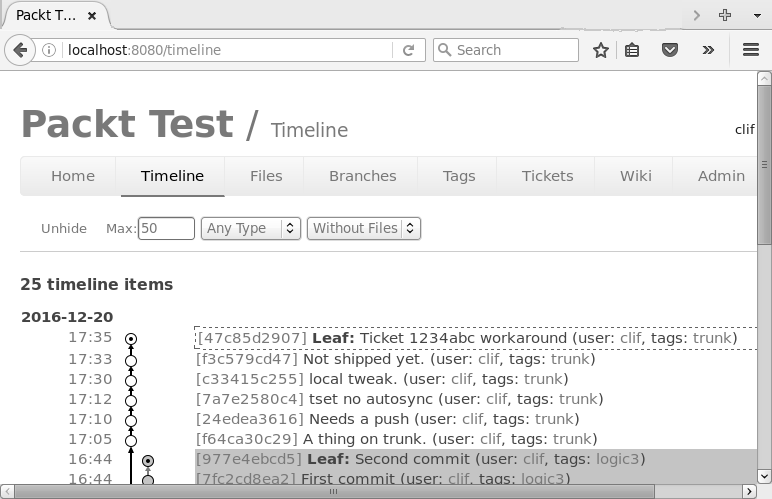
Fossil provides tools to help locate the commit where a bug was introduced:
|
Tools
|
Description
|
| fossil diff | This displays the difference between two revisions of a file |
| fossil blame | This generates a report showing the commit information for each line in a file |
| fossil bisect | This uses binary search to step between good and bad versions of an application |
The fossil diff command has several options. When looking for the code that introduced a problem, we generally want to perform a diff on two versions of a file. The -from and -to options to fossil diff perform this action:
$ fossil diff -from ID-1 -to ID-2FILENAME
ID-1 and ID-2 are identifiers used in the repository. They may be SHA-1 hashes, tags or dates, and so on. The FILENAME is the file that was committed to fossil.
For example, to find the difference between two revisions of main.tcl use the following command:
$ fossil diff -from 47c85 -to 7a7e25 main.tcl
Index: main.tcl
==================================================================
--- main.tcl
+++ main.tcl
@@ -9,10 +9,5 @@
set max 10
set min 1
+ while {$x < $max} {
- for {set x $min} {$x < $max} {incr x} {
- process $x
- }
-
The differences between two revisions are useful, but it's more useful to see the entire file annotated to show when lines were added.
The fossil blame command generates an annotated listing of a file showing when lines were added:
$ fossil blame main.tcl
7806f43641 2016-12-18 clif: # main.tcl
06e155a6c2 2016-12-19 clif: # Clif Flynt
b2420ef6be 2016-12-19 clif: # Packt fossil Test Script
a387090833 2016-12-19 clif:
76074da03c 2016-12-20 clif: for {set i 0} {$i < 10} {incr
i} {
76074da03c 2016-12-20 clif: puts "Buy my book"
2204206a18 2016-12-20 clif: }
7a7e2580c4 2016-12-20 clif:
When you know that there's a problem in one version but not in another, you need to center in on the version where the problem was introduced.
The fossil bisect command provides support for this. It lets you define a good and bad version of the code and automatically checks out the version between those to be tested. You can then mark this version as good or bad and fossil will repeat the process. Fossil bisect also generates reports showing how many versions have been tested and how many need to be tested.
How to do it...
The fossil bisect reset command initializes the good and bad pointers. The fossil bisect good and fossil bisect bad commands mark versions as good or bad and check out the version of the code that's midway between the good and bad version:
$ fossil bisect reset $ fossil bisect good 63e1e1 $ fossil bisect bad 47c85d UPDATE main.tcl ----------------------------------------------------------------------- updated-to: f64ca30c29df0f985105409700992d54e 2016-12-20 17:05:44 UTC tags: trunk comment: Reworked flaky test. (user: clif) changes: 1 file modified. "fossil undo" is available to undo changes to the working checkout. 2 BAD 2016-12-20 17:35:49 47c85d29075b25aa 3 CURRENT 2016-12-20 17:05:44 f64ca30c29df0f98 1 GOOD 2016-12-19 23:03:22 63e1e1290f853d76
After testing the f64ca version of the code, you can mark it good or bad and fossil bisect will check out the next version for testing.
There's more...
The fossil bisect status command generates a report of the available versions and marks the tested versions:
$ fossil bisect status 2016-12-20 17:35:49 47c85d2907 BAD 2016-12-20 17:33:38 f3c579cd47 2016-12-20 17:30:03 c33415c255 CURRENT NEXT 2016-12-20 17:12:04 7a7e2580c4 2016-12-20 17:10:35 24edea3616 2016-12-20 17:05:44 f64ca30c29 GOOD
Every node in the fossil graph can have one or more tags attached to it. Tags can identify releases, branches, or just particular milestones that you may want to refer to. For example, you may want a release-1 branch with tags for release-1.0, release-1.1, and so on. A tag can be used with checkout or merge instead of using the SHA1 identifier.
Tags are implemented with the fossil tag command. Fossil supports several subcommands to add, cancel, find, and list tags.
The fossil tag add command creates a new tag:
$ fossil tag add TagName Identifier
The TagName is whatever you want to call the branch.
Identifier is an identifier for the node to be tagged. The identifier can be one of the following:
# Tag the current tip of the trunk as release_1.0
$ fossil add tag release_1.0 trunk
# Tag the last commit on December 15 as beta_release_1
$ fossil add tag beta_release_1 2016-12-16
A tag can be used as an identifier to create a fork or branch:
$ fossil add tag newTag trunk
$ fossil branch new newTagBranch newTag
$ fossil checkout newTagBranch
A tag can create a branch with a commit and the -branch option:
$ fossil add tag myNewTag 2016-12-21
$ fossil checkout myNewTag
# edit and change
$ fossil commit -branch myNewTag
In this chapter, we will cover the following recipes:
Nobody cares about backups until they need them, and nobody makes backups unless forced. Therefore, making backups needs to be automated. With advances in disk drive technology, it's simplest to add a new drive or use the cloud for backups, rather than backing up to a tape drive. Even with cheap drives or cloud storage, backup data should be compressed to reduce storage needs and transfer time. Data should be encrypted before it's stored on the cloud. Data is usually archived and compressed before encrypting. Many standard encryption programs can be automated with shell scripts. This chapter's recipes describe creating and maintaining files or folder archives, compression formats, and encrypting techniques.
The tar command was written to archive files. It was originally designed to store data on tape, thus the name, Tape ARchive. Tar allows you to combine multiple files and directories into a single file while retaining the file attributes, such as owner and permissions. The file created by the tar command is often referred to as a tarball. These recipes describe creating archives with tar.
The tar command comes by default with all Unix-like operating systems. It has a simple syntax and creates archives in a portable file format. It supports many arguments to fine-tune its behavior.
The tar command creates, updates, examines, and unpacks archives.
$ tar -cf output.tar [SOURCES]
The c option creates a new archive and the f option tells tar the name of a file to use for the archive. The f option must be followed by a filename:
$ tar -cf archive.tar file1 file2 file3 folder1 ..
$ tar -tf archive.tar
file1
file2
$ tar -tvf archive.tar
-rw-rw-r-- shaan/shaan 0 2013-04-08 21:34 file1
-rw-rw-r-- shaan/shaan 0 2013-04-08 21:34 file2
The tar command accepts a list of filenames or wildcards such as *.txt to specify the sources. When finished, tar will archive the source files into the named file.
We cannot pass hundreds of files or folders as command-line arguments. So, it is safer to use the append option (explained later) if many files are to be archived.
Let's go through additional features supported by the tar command.
The -r option will append new files to the end of an existing archive:
$ tar -rvf original.tar new_file
The next example creates an archive with one text file in it:
$ echo hello >hello.txt
$ tar -cf archive.tar hello.txt
The -t option displays the files in an archive. The -f option defines the archive name:
$ tar -tf archive.tar
hello.txt
The -r option appends a file:
$ tar -rf archive.tar world.txt
$ tar -tf archive.tar
hello.txt
world.txt
The archive now contains both the files.
The -x option extracts the contents of the archive to the current directory:
$ tar -xf archive.tar
When -x is used, the tar command extracts the contents of the archive to the current directory. The -C option specifies a different directory to receive the extracted files:
$ tar -xf archive.tar -C /path/to/extraction_directory
The command extracts the contents of an archive to a specified directory. It extracts the entire contents of the archive. We can extract just a few files by specifying them as command arguments:
$ tar -xvf file.tar file1 file4
The preceding command extracts only file1 and file4, and it ignores other files in the archive.
While archiving, we can specify stdout as the output file so another command in a pipe can read it as stdin and process the archive.
This technique will transfer data through a Secure Shell (SSH) connection, for example:
$ tar cvf - files/ | ssh user@example.com "tar xv -C Documents/"
In the preceding example, the files/directory is added to a tar archive which is output to stdout (denoted by -) and extracted to the Documents folder on the remote system.
The -A option will merge multiple tar archives.
Given two tarballs, file1.tar and file2.tar, the following command will merge the contents of file2.tar into file1.tar:
$ tar -Af file1.tar file2.tar
Verify it by listing the contents:
$ tar -tvf file1.tar
The append option appends any given file to the archive. If a file already exists inside the archive, tar will append the file, and the archive will contain duplicates. The update option -u specifies only appending files that are newer than existing files inside the archive.
$ tar -tf archive.tar
filea
fileb
filec
To append filea only if filea has been modified since the last time it was added to archive.tar, use the following command:
$ tar -uf archive.tar filea
Nothing happens if the version of filea outside the archive and the filea inside archive.tar have the same timestamp.
Use the touch command to modify the file timestamp and then try the tar command again:
$ tar -uvvf archive.tar filea
-rw-r--r-- slynux/slynux 0 2010-08-14 17:53 filea
The file is appended since its timestamp is newer than the one inside the archive, as shown with the -t option:
$ tar -tf archive.tar
-rw-r--r-- slynux/slynux 0 2010-08-14 17:52 filea
-rw-r--r-- slynux/slynux 0 2010-08-14 17:52 fileb
-rw-r--r-- slynux/slynux 0 2010-08-14 17:52 filec
-rw-r--r-- slynux/slynux 0 2010-08-14 17:53 filea
Note that the new filea has been appended to the tar archive. When extracting this archive, tar will select the latest version of filea.
The -d flag compares files inside an archive with those on the filesystem. This feature can be used to determine whether or not a new archive needs to be created.
$ tar -df archive.tar
afile: Mod time differs
afile: Size differs
The -delete option removes files from an archive:
$ tar -f archive.tar --delete file1 file2 ..
Alternatively,
$ tar --delete --file archive.tar [FILE LIST]
The next example demonstrates deleting a file:
$ tar -tf archive.tar
filea
fileb
filec
$ tar --delete --file archive.tar filea
$ tar -tf archive.tar
fileb
filec
By default, the tar command archives files, it does not compress them. Tar supports options to compress the resulting archive. Compression can significantly decrease the size of the files. Tarballs are often compressed into one of the following formats:
Different tar flags are used to specify different compression formats:
It is possible to use compression formats without explicitly specifying special options as earlier. tar can compress based on the extension of the output or decompress based on an input file's extension. The -a or - auto-compress option causes tar to select a compression algorithm automatically based on file extension:
$ tar acvf archive.tar.gz filea fileb filec
filea
fileb
filec
$ tar tf archive.tar.gz
filea
fileb
filec
The -exclude [PATTEN] option will exclude files matched by wildcard patterns from being archived.
For example, to exclude all .txt files from archiving use the following command:
$ tar -cf arch.tar * --exclude "*.txt"
It is also possible to exclude a list of files provided in a list file with the -X flag as follows:
$ cat list
filea
fileb
$ tar -cf arch.tar * -X list
Now it excludes filea and fileb from archiving.
One use for tarballs is distributing source code. Much source code is maintained using version control systems such as subversion, Git, mercurial, and CVS, (refer to the previous chapter). Code directories under version control often contain special directories such as .svn or .git. These are managed by the version control application and are not useful to anyone except a developer. Thus, they should be eliminated from the tarball of the source code being distributed to users.
In order to exclude version control related files and directories while archiving use the --exclude-vcs option along with tar. Consider this example:
$ tar --exclude-vcs -czvvf source_code.tar.gz eye_of_gnome_svn
The -totals option will print the total bytes copied to the archive. Note that this is the number of bytes of actual data. If you include a compression option, the file size will be less than the number of bytes archived.
$ tar -cf arc.tar * --exclude "*.txt" --totals
Total bytes written: 20480 (20KiB, 12MiB/s)
The cpio application is another archiving format similar to tar. It is used to store files and directories in an archive with attributes such as permissions and ownership. The cpio format is used in RPM package archives (which are used in distros such as Fedora), initramfs files for the Linux kernel that contain the kernel image, and so on. This recipe will give simple examples of cpio.
The cpio application accepts input filenames via stdin and it writes the archive to stdout. We have to redirect stdout to a file to save the cpio output:
$ touch file1 file2 file3
$ ls file* | cpio -ov > archive.cpio
$ cpio -it < archive.cpio
$ cpio -id < archive.cpio
For the archiving command, the options are as follows:
The options in the command for listing all the files in the given cpio archive are as follows:
In the command for extraction, -o stands for extracting and cpio overwrites files without prompting. The -d option tells cpio to create new directories as needed.
The gzip application is a common compression format in the GNU/Linux platform. The gzip, gunzip, and zcat programs all handle gzip compression. These utilities only compress/decompress a single file or data stream. They cannot archive directories and multiple files directly. Fortunately, gzip can be used with both tar and cpio.
gzip will compress a file and gunzip will decompress it back to the original:
$ gzip filename
$ ls
filename.gz
$ gunzip filename.gz
$ ls
filename
$ gzip -l test.txt.gz
compressed uncompressed ratio uncompressed_name
35 6 -33.3% test.txt
Read data from stdin and output the compressed data to stdout:
$ cat file | gzip -c > file.gz
The -c option is used to specify output to stdout.
The gzip -c option works well with cpio:
$ ls * | cpio -o | gzip -c > cpiooutput.gz
$ zcat cpiooutput.gz | cpio -it
The gzip command is often used with other commands and has advanced options to specify the compression ratio.
A gzipped tarball is a tar archive compressed using gzip. We can use two methods to create such tarballs:
$ tar -czvvf archive.tar.gz [FILES]
Alternatively, this command can be used:
$ tar -cavvf archive.tar.gz [FILES]
The -z option specifies gzip compression and the -a option specifies that the compression format should be determined from the extension.
First, create a tarball:
$ tar -cvvf archive.tar [FILES]
Then, compress the tarball:
$ gzip archive.tar
If many files (a few hundred) are to be archived in a tarball and need to be compressed, we use the second method with a few changes. The problem with defining many files on the command line is that it can accept only a limited number of files as arguments. To solve this problem, we create a tar file by adding files one by one in a loop with the append option (-r), as follows:
FILE_LIST="file1 file2 file3 file4 file5" for f in $FILE_LIST; do tar -rvf archive.tar $f done gzip archive.tar
The following command will extract a gzipped tarball:
$ tar -xavvf archive.tar.gz -C extract_directory
In the preceding command, the -a option is used to detect the compression format.
The zcat command dumps uncompressed data from a .gz file to stdout without recreating the original file. The .gz file remains intact.
$ ls
test.gz
$ zcat test.gz
A test file
# file test contains a line "A test file"
$ ls
test.gz
We can specify the compression ratio, which is available in the range 1 to 9, where:
You can specify any ratio in that range as follows:
$ gzip -5 test.img
By default, gzip uses a value of -6, favoring a better compression at the cost of some speed.
bzip2 is similar to gzip in function and syntax. The difference is that bzip2 offers better compression and runs more slowly than gzip.
To compress a file using bzip2 use the command as follows:
$ bzip2 filename
Extract a bzipped file as follows:
$ bunzip2 filename.bz2
The way to compress to and extract from tar.bz2 files is similar to tar.gz, discussed earlier:
$ tar -xjvf archive.tar.bz2
Here -j specifies compressing the archive in the bzip2 format.
The lzma compression delivers better compression ratios than gzip and bzip2.
To compress a file using lzma use the command as follows:
$ lzma filename
To extract a lzma file, use the following command:
$ unlzma filename.lzma
A tarball can be compressed with the -lzma option:
$ tar -cvvf --lzma archive.tar.lzma [FILES]
Alternatively, this can be used:
$ tar -cavvf archive.tar.lzma [FILES]
To extract a tarball created with lzma compression to a specified directory, use this command:
$ tar -xvvf --lzma archive.tar.lzma -C extract_directory
In the preceding command, -x is used for extraction. --lzma specifies the use of lzma to decompress the resulting file.
Alternatively, use this:
$ tar -xavvf archive.tar.lzma -C extract_directory
ZIP is a popular compressed archive format available on Linux, Mac, and Windows. It isn't as commonly used as gzip or bzip2 on Linux but is useful when distributing data to other platforms.
$ zip archive_name.zip file1 file2 file3...
Consider this example:
$ zip file.zip file
Here, the file.zip file will be produced.
$ zip -r archive.zip folder1 folder2
$ unzip file.zip
The unzip command extracts the contents without removing the archive (unlike unlzma or gunzip).
$ zip file.zip -u newfile
$ zip -d arc.zip file.txt
$ unzip -l archive.zip
While being similar to most of the archiving and compression tools we have already discussed, zip, unlike lzma, gzip, or bzip2, won't remove the source file after archiving. While zip is similar to tar, it performs both archiving and compression, while tar by itself does not perform compression.
Most modern computers have at least two CPU cores. This is almost the same as two real CPUs doing your work. However, just having a multicore CPU doesn't mean a program will run faster; it is important that the program is designed to take advantage of the multiple cores.
The compression commands covered so far use only one CPU. The pbzip2, plzip, pigz, and lrzip commands are multithreaded and can use multiple cores, hence, decreasing the overall time taken to compress your files.
None of these are installed with most distros, but can be added to your system with apt-get or yum.
pbzip2 usually doesn't come preinstalled with most distros, you will have to use your package manager to install it:
sudo apt-get install pbzip2
pbzip2 myfile.tar
pbzip2 detects the number of cores on your system and compresses myfile.tar, to myfile.tar.bz2.
tar cf sav.tar.bz2 --use-compress-prog=pbzip2 dir
Alternatively, this can be used:
tar -c directory_to_compress/ | pbzip2 -c > myfile.tar.bz2
The -d flag will decompress a file:
pbzip2 -d myfile.tar.bz2
A tar archive can be decompressed and extracted using a pipe:
pbzip2 -dc myfile.tar.bz2 | tar x
The pbzip2 application uses the same compression algorithms as bzip2, but it compresses separate chunks of data simultaneously using pthreads, a threading library. The threading is transparent to the user, but provides much faster compression.
Like gzip or bzip2, pbzip2 does not create archives. It only works on a single file. To compress multiple files and directories, we use it in conjunction with tar or cpio.
There are other useful options we can use with pbzip2:
The -p option specifies the number of CPU cores to use. This is useful if automatic detection fails or you need cores free for other jobs:
pbzip2 -p4 myfile.tar
This will tell pbzip2 to use 4 CPUs.
The options from -1 to -9 specify the fastest and best compression ratios with 1 being the fastest and 9 being the best compression
The squashfs program creates a read-only, heavily compressed filesystem. The squashfs program can compress 2 to 3 GB of data into a 700 MB file. The Linux LiveCD (or LiveUSB) distributions are built using squashfs. These CDs make use of a read-only compressed filesystem, which keeps the root filesystem on a compressed file. The compressed file can be loopback-mounted to load a complete Linux environment. When files are required, they are decompressed and loaded into the RAM, run, and the RAM is freed.
The squashfs program is useful when you need a compressed archive and random access to the files. Completely decompressing a large compressed archive takes a long time. A loopback-mounted archive provides fast file access since only the requested portion of the archive is decompressed.
Mounting a squashfs filesystem is supported by all modern Linux distributions. However, creating squashfs files requires squashfs-tools, which can be installed using the package manager:
$ sudo apt-get install squashfs-tools
Alternatively, this can be used:
$ yum install squashfs-tools
$ mksquashfs SOURCES compressedfs.squashfs
Sources can be wildcards, files, or folder paths.
Consider this example:
$ sudo mksquashfs /etc test.squashfs
Parallel mksquashfs: Using 2 processors
Creating 4.0 filesystem on test.squashfs, block size 131072.
[=======================================] 1867/1867 100%
# mkdir /mnt/squash
# mount -o loop compressedfs.squashfs /mnt/squash
You can access the contents at /mnt/squashfs.
The squashfs filesystem can be customized by specifying additional parameters.
The -e flag will exclude files and folders:
$ sudo mksquashfs /etc test.squashfs -e /etc/passwd /etc/shadow
The -e option excludes /etc/passwd and /etc/shadow files from the squashfs filesystem.
The -ef option reads a file with a list of files to exclude:
$ cat excludelist
/etc/passwd
/etc/shadow
$ sudo mksquashfs /etc test.squashfs -ef excludelist
If we want to support wildcards in excludes lists, use -wildcard as an argument.
Backing up data is something that needs to be done regularly. In addition to local backups, we may need to back up data to or from remote locations. The rsync command synchronizes files and directories from one location to another while minimizing transfer time. The advantages of rsync over the cp command are that rsync compares modification dates and will only copy the files that are newer, rsync supports data transfer across remote machines, and rsync supports compression and encryption.
$ rsync -av source_path destination_path
Consider this example:
$ rsync -av /home/slynux/data
slynux@192.168.0.6:/home/backups/data
In the preceding command:
The preceding command will recursively copy all the files from the source path to the destination path. The source and destination paths can be either remote or local.
$ rsync -av source_dir username@host:PATH
To keep a mirror at the destination, run the same rsync command at regular intervals. It will copy only changed files to the destination.
$ rsync -av username@host:PATH destination
$ rsync -avz source destination
$ rsync -av /home/test/ /home/backups
The preceding command copies the source (/home/test) to an existing folder called backups.
$ rsync -av /home/test /home/backups
This command copies the source (/home/test) to a directory named backups by creating that directory.
The rsync command works with the source and destination paths, which can be either local or remote. Both paths can be remote paths. Usually, remote connections are made using SSH to provide secure, two-way communication. Local and remote paths look like this:
/home/user/data specifies the absolute path in the machine in which the rsync command is executed. user@192.168.0.6:/home/backups/data specifies that the path is /home/backups/data in the machine whose IP address is 192.168.0.6 and is logged in as the user user.
The rsync command supports several command-line options to fine-tune its behavior.
The -exclude and -exclude-from options specify files that should not be transferred:
--exclude PATTERN
We can specify a wildcard pattern of files to be excluded. Consider the following example:
$ rsync -avz /home/code/app /mnt/disk/backup/code --exclude "*.o"
This command excludes the .o files from backing up.
Alternatively, we can specify a list of files to be excluded by providing a list file.
Use --exclude-from FILEPATH.
By default, rsync does not remove files from the destination if they no longer exist at the source. The -delete option removes those files from the destination that do not exist at the source:
$ rsync -avz SOURCE DESTINATION --delete
You can create a cron job to schedule backups at regular intervals.
A sample is as follows:
$ crontab -ev
Add the following line:
0 */10 * * * rsync -avz /home/code user@IP_ADDRESS:/home/backups
The preceding crontab entry schedules rsync to be executed every 10 hours.
*/10 is the hour position of the crontab syntax. /10 specifies executing the backup every 10 hours. If */10 is written in the minutes position, it will execute every 10 minutes.
Have a look at the Scheduling with a cron recipe in Chapter 10, Administration Calls, to understand how to configure crontab.
The backup solutions described so far are full copies of a filesystem as it exists at that time. This snapshot is useful when you recognize a problem immediately and need the most recent snapshot to recover. It fails if you don't realize the problem until a new snapshot is made and the previous good data has been overwritten by current bad data.
An archive of a filesystem provides a history of file changes. This is useful when you need to return to an older version of a damaged file.
rsync, tar, and cpio can be used to make daily snapshots of a filesystem. However, backing up a full filesystem every day is expensive. Creating a separate snapshot for each day of the week will require seven times as much space as the original filesystem.
Differential backups only save the data that's changed since the last full backup. The dump/restore utilities from Unix support this style of archived backups. Unfortunately, these utilities were designed around tape drives and are not simple to use.
The find utility can be used with tar or cpio to duplicate this type of functionality.
Create an initial full backup with tar:
tar -cvz /backup/full.tgz /home/user
Use find's -newer flag to determine what files have changed since the full backup was created, and create a new archive:
tar -czf day-`date +%j`.tgz `find /home/user -newer
/backup/full.tgz`
The find command generates a list of all files that have been modified since the creation of the full backup (/backup/full.tgz).
The date command generates a filename based on the Julian date. Thus, the first differential backup of the year will be day-1.tgz, the backup for January 2 will be day-2.tgz, and so on.
The differential archive will be larger each day as more and more files are changed from the initial full backup. When the differential archives grow too large, make a new full backup.
The fsarchiver application can save the contents of a disk partition to a compressed archive file. Unlike tar or cpio, fsarchiver retains extended file attributes and can be restored to a disk with no current filesystem. The fsarchiver application recognizes and retains Windows file attributes as well as Linux attributes, making it suitable for migrating Samba-mounted partitions.
The fsarchiver application is not installed in most distros by default. You will have to install it using your package manager. For more information, go to http://www.fsarchiver.org/Installation.
Use the savefs option of fsarchiver like this:
fsarchiver savefs backup.fsa /dev/sda1
Here backup.fsa is the final backup file and /dev/sda1 is the partition to backup
Use the savefs option as earlier and pass the partitions as the last parameters to fsarchiver:
fsarchiver savefs backup.fsa /dev/sda1 /dev/sda2
Use the restfs option of fsarchiver like this:
fsarchiver restfs backup.fsa id=0,dest=/dev/sda1
id=0 denotes that we want to pick the first partition from the archive to the partition specified as dest=/dev/sda1.
Restore multiple partitions from a backup archive.
As earlier, use the restfs option as follows:
fsarchiver restfs backup.fsa id=0,dest=/dev/sda1
id=1,dest=/dev/sdb1
Here, we use two sets of the id,dest parameter to tell fsarchiver to restore the first two partitions from the backup to two physical partitions.
Like tar, fsarchiver examines the filesystem to create a list of files and then saves those files in a compressed archive file. Unlike tar which only saves information about the files, fsarchiver performs a backup of the filesystem as well. This makes it easier to restore the backup on a fresh partition as it is not necessary to recreate the filesystem.
If you are seeing the /dev/sda1 notation for partitions for the first time, this requires an explanation. /dev in Linux holds special files called device files, which refer to a physical device. The sd in sda1 refers to SATA disk, the next letter can be a, b, c, and so on, followed by the partition number.
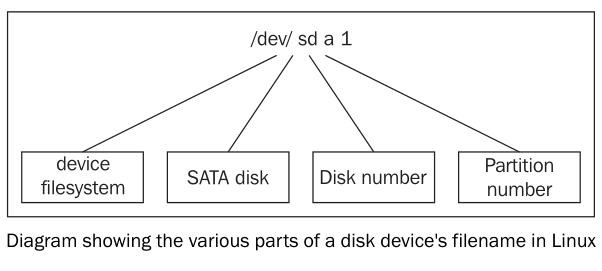
In this chapter, we will cover the following recipes:
Networking is the act of connecting computers to allow them to exchange information. The most widely used networking stack is TCP/IP, where each node is assigned a unique IP address for identification. If you are already familiar with networking, you can skip this introduction.
TCP/IP networks work by passing data packets from node to node. Each data packet contains the IP address of its destination and the port number of the application that can process this data.
When a node receives a packet, it checks to see if it is this packet's destination. If so, the node checks the port number and invokes the appropriate application to process the data. If this node is not the destination, it evaluates what it knows about the network and passes the packet to a node that is closer to the final destination.
Shell scripts can be used to configure the nodes in a network, test the availability of machines, automate execution of commands at remote hosts, and more. This chapter provides recipes that introduce tools and commands related to networking, and shows how to use them effectively.
Before digging through recipes based on networking, it is essential to have a basic understanding of setting up a network, terminologies, and commands for assigning IP address, adding routes, and so on. This recipe provides an overview of commands used in GNU/Linux networks.
A network interface physically connects a machine to a network, either with a wire or a Wi-Fi link. Linux denotes network interfaces using names such as eth0, eth1, or enp0s25 (referring to Ethernet interfaces). Other interfaces, namely usb0, wlan0, and tun0, are available for USB network interfaces, wireless LAN, and tunnels, respectively.
In this recipe, we will use these commands: ifconfig, route, nslookup, and host.
The ifconfig command is used to configure and display details about network interfaces, subnet mask, and so on. It should be available at /sbin/ifconfig.
$ ifconfig
lo Link encap:Local Loopback
inet addr:127.0.0.1 Mask:255.0.0.0
inet6addr: ::1/128 Scope:Host
UP LOOPBACK RUNNING MTU:16436 Metric:1
RX packets:6078 errors:0 dropped:0 overruns:0 frame:0
TX packets:6078 errors:0 dropped:0 overruns:0 carrier:0
collisions:0 txqueuelen:0
RX bytes:634520 (634.5 KB) TX bytes:634520 (634.5 KB)
wlan0 Link encap:EthernetHWaddr 00:1c:bf:87:25:d2
inet addr:192.168.0.82 Bcast:192.168.3.255 Mask:255.255.252.0
inet6addr: fe80::21c:bfff:fe87:25d2/64 Scope:Link
UP BROADCAST RUNNING MULTICAST MTU:1500 Metric:1
RX packets:420917 errors:0 dropped:0 overruns:0 frame:0
TX packets:86820 errors:0 dropped:0 overruns:0 carrier:0
collisions:0 txqueuelen:1000
RX bytes:98027420 (98.0 MB) TX bytes:22602672 (22.6 MB)
The leftmost column in the ifconfig output lists the names of network interfaces, and the right-hand columns show the details related to the corresponding network interface.
# ifconfig wlan0 192.168.0.80
You will need to run the preceding command as root
192.168.0.80 is defined as the address for the wireless device, wlan0
To set the subnet mask along with the IP address, use the following command:
# ifconfig wlan0 192.168.0.80 netmask 255.255.252.0
# dhclient eth0
The ifconfig command can be combined with other shell tools to produce specific reports.
This one-line command sequence displays network interfaces available on a system:
$ ifconfig | cut -c-10 | tr -d ' ' | tr -s 'n' lo wlan0
The first ten characters of each line in ifconfig output is reserved for writing names of network interfaces. Hence, we use cut to extract the first ten characters of each line. tr -d ' ' deletes every space character in each line. Now, the n newline character is squeezed using tr -s 'n' to produce a list of interface names.
The ifconfig command displays details of every active network interface available on the system. However, we can restrict it to a specific interface using the following command:
$ ifconfig iface_name
Consider this example:
$ ifconfig wlan0 wlan0 Link encap:EthernetHWaddr 00:1c:bf:87:25:d2 inet addr:192.168.0.82 Bcast:192.168.3.255 Mask:255.255.252.0 inet6 addr: fe80::3a2c:4aff:6e6e:17a9/64 Scope:Link UP BROADCAST RUNNINT MULTICAST MTU:1500 Metric:1 RX Packets...
To control a device, we need the IP address, broadcast address, hardware address, and subnet mask:
To extract the IP address from the ifconfig output, use this command:
$ ifconfig wlan0 | egrep -o "inetaddr:[^ ]*" | grep -o "[0-9.]*" 192.168.0.82
The egrep -o "inetaddr:[^ ]*" command returns inet addr:192.168.0.82. The pattern starts with inetaddr: and ends with any non-space character sequence (specified by [^ ]*). The next command, grep -o "[0-9.]*" reduces its input to only numbers and periods, and prints out an IP4 address.
When authentication or filtering is based on the hardware address, we can use hardware address spoofing. The hardware address appears in the ifconfig output as HWaddr 00:1c:bf:87:25:d2.
The hw subcommand of ifconfig will define a devices class and the MAC address:
# ifconfig eth0 hw ether 00:1c:bf:87:25:d5
In the preceding command, 00:1c:bf:87:25:d5 is the new MAC address to be assigned. This is useful when we need to access the Internet through MAC-authenticated service providers that provide access to the Internet for a single machine.
The underlying addressing scheme for the Internet is the dotted decimal form (like 83.166.169.231). Humans prefer to use words instead of numbers, so resources on the Internet are identified with strings of words called URLs or domain names. For example, www.packtpub.com is a domain name and it corresponds to an IP address. The site can be identified by the numeric or the string name.
This technique of mapping IP addresses to symbolic names is called Domain Name Service (DNS). When we enter www.google.com, our computer uses the DNS servers to resolve the domain name into the corresponding IP address. While on a local network, we set up the local DNS to name local machines with symbolic names.
Name servers are defined in /etc/resolv.conf:
$ cat /etc/resolv.conf # Local nameserver nameserver 192.168.1.1 # External nameserver nameserver 8.8.8.8
We can add name servers manually by editing that file or with a one-liner:
# sudo echo nameserver IP_ADDRESS >> /etc/resolv.conf
The easiest method to obtain an IP address is to use the ping command to access the domain name. The reply includes the IP address:
$ ping google.com PING google.com (64.233.181.106) 56(84) bytes of data.
The number 64.233.181.106 is the IP address of a google.com server.
A domain name may map to multiple IP addresses. In that case, ping shows one address from the list of IP addresses. To obtain all the addresses assigned to the domain name, we should use a DNS lookup utility.
Several DNS lookup utilities provide name and IP address resolution from the command line. The host and nslookup commands are two commonly installed utilities.
The host command lists all of the IP addresses attached to a domain name:
$ host google.com google.com has address 64.233.181.105 google.com has address 64.233.181.99 google.com has address 64.233.181.147 google.com has address 64.233.181.106 google.com has address 64.233.181.103 google.com has address 64.233.181.104
The nslookup command maps names to IP addresses and will also map IP addresses to names:
$ nslookup google.com Server: 8.8.8.8 Address: 8.8.8.8#53 Non-authoritative answer: Name: google.com Address: 64.233.181.105 Name: google.com Address: 64.233.181.99 Name: google.com Address: 64.233.181.147 Name: google.com Address: 64.233.181.106 Name: google.com Address: 64.233.181.103 Name: google.com Address: 64.233.181.104 Server: 8.8.8.8
The last line in the preceding command-line snippet corresponds to the default name server used for resolution.
It is possible to add a symbolic name to the IP address resolution by adding entries into the /etc/hosts file.
Entries in /etc/hosts follow this format:
IP_ADDRESS name1 name2 ...
You can update /etc/hosts like this:
# echo IP_ADDRESS symbolic_name>> /etc/hosts
Consider this example:
# echo 192.168.0.9 backupserver>> /etc/hosts
After adding this entry, whenever resolution to backupserver occurs, it will resolve to 192.168.0.9.
If backupserver has multiple names, you can include them on the same line:
# echo 192.168.0.9 backupserver backupserver.example.com >> /etc/hosts
It is common to have interconnected networks. For example, different departments at work or school may be on separate networks. When a device on one network wants to communicate with a device on the other network, it needs to send packets through a device which is common to both networks. This device is called a gateway and its function is to route packets to and from different networks.
The operating system maintains a table called the routing table, which contains the information on how packets are to be forwarded through machines on the network. The route command displays the routing table:
$ route Kernel IP routing table Destination Gateway GenmaskFlags Metric Ref UseIface 192.168.0.0 * 255.255.252.0 U 2 0 0wlan0 link-local * 255.255.0.0 U 1000 0 0wlan0 default p4.local 0.0.0.0 UG 0 0 0wlan0
Alternatively, you can also use this:
$ route -n Kernel IP routing table Destination Gateway Genmask Flags Metric Ref UseIface 192.168.0.0 0.0.0.0 255.255.252.0 U 2 0 0 wlan0 169.254.0.0 0.0.0.0 255.255.0.0 U 1000 0 0 wlan0 0.0.0.0 192.168.0.4 0.0.0.0 UG 0 0 0 wlan0
Using -n specifies to display the numeric addresses. By default, route will map the numeric address to a name.
When your system does not know the route to a destination, it sends the packet to a default gateway. The default gateway may be the link to the Internet or an inter-departmental router.
The route add command can add a default gateway:
# route add default gw IP_ADDRESS INTERFACE_NAME
Consider this example:
# route add default gw 192.168.0.1 wlan0
The ping command is a basic network command, supported on all major operating systems. Ping is used to verify connectivity between hosts on a network and identify accessible machines.
The ping command uses Internet Control Message Protocol (ICMP) packets to check the connectivity of two hosts on a network. When these echo packets are sent to a target, the target responds with a reply if the connection is complete. A ping request can fail if there is no route to the target or if there is no known route from the target back to the requester.
Pinging an address will check whether a host is reachable:
$ ping ADDRESS
The ADDRESS can be a hostname, domain name, or an IP address itself.
By default, ping will continuously send packets and the reply information is printed on the terminal. Stop the pinging process by pressing Ctrl + C.
Consider the following example:
$ ping 192.168.0.1
PING 192.168.0.1 (192.168.0.1) 56(84) bytes of data.
64 bytes from 192.168.0.1: icmp_seq=1 ttl=64 time=1.44 ms
^C
--- 192.168.0.1 ping statistics ---
1 packets transmitted, 1 received, 0% packet loss, time 0ms
rtt min/avg/max/mdev = 1.440/1.440/1.440/0.000 ms
$ ping google.com
PING google.com (209.85.153.104) 56(84) bytes of data.
64 bytes from bom01s01-in-f104.1e100.net (209.85.153.104):
icmp_seq=1 ttl=53 time=123 ms
^C
--- google.com ping statistics ---
1 packets transmitted, 1 received, 0% packet loss, time 0ms
rtt min/avg/max/mdev = 123.388/123.388/123.388/0.000 ms
$ ping 192.168.0.99
PING 192.168.0.99 (192.168.0.99) 56(84) bytes of data.
From 192.168.0.82 icmp_seq=1 Destination Host Unreachable
From 192.168.0.82 icmp_seq=2 Destination Host Unreachable
If the target is not reachable, the ping returns with the Destination Host Unreachable error message.
In addition to checking the connectivity between two points in a network, the ping command returns other information. The round trip time and lost packet reports can be used to determine whether a network is working properly.
The ping command displays Round Trip Time (RTT) for each packet sent and returned. RTT is reported in milliseconds. On an internal network, a RTT of under 1ms is common. When pinging a site on the Internet, RTT are commonly 10-400 ms, and may exceed 1000 ms:
--- google.com ping statistics --- 5 packets transmitted, 5 received, 0% packet loss, time 4000ms rtt min/avg/max/mdev = 118.012/206.630/347.186/77.713 ms
Here, the minimum RTT is 118.012 ms, the average RTT is 206.630 ms, and the maximum RTT is 347.186ms. The mdev (77.713ms) parameter in the ping output stands for mean deviation.
Each packet that ping sends is assigned a number, sequentially from 1 until ping stops. If a network is near saturation, packets may be returned out of order because of collisions and retries, or may be completely dropped:
$> ping example.com 64 bytes from example.com (1.2.3.4): icmp_seq=1 ttl=37 time=127.2 ms 64 bytes from example.com (1.2.3.4): icmp_seq=3 ttl=37 time=150.2 ms 64 bytes from example.com (1.2.3.4): icmp_seq=2 ttl=30 time=1500.3 ms
In this example, the second packet was dropped and then retried after a timeout, causing it to be returned out of order and with a longer Round Trip Time.
Each ping packet has a predefined number of hops it can take before it is dropped. Each router decrements that value by one. This value shows how many routers are between your system and the site you are pinging. The initial Time To Live (TTL) value can vary depending on your platform or ping revision. You can determine the initial value by pinging the loopback connection:
$> ping 127.0.0.1 64 bytes from 127.0.0.1: icmp_seq=1 ttl=64 time=0.049 ms $> ping www.google.com 64 bytes from 173.194.68.99: icmp_seq=1 ttl=45 time=49.4 ms
In this example, we ping the loopback address to determine what the TTL is with no hops (in this case, 64). Then we ping a remote site and subtract that TTL value from our No-Hop value to determine how many hops are between the two sites. In this case, 64-45 is 19 hops.
The TTL value is usually constant between two sites, but can change when conditions require alternative paths.
The ping command sends echo packets and waits for the reply of echo indefinitely until it is stopped by pressing Ctrl + C. The -c flag will limit the count of echo packets to be sent:
-c COUNT
Consider this example:
$ ping 192.168.0.1 -c 2 PING 192.168.0.1 (192.168.0.1) 56(84) bytes of data. 64 bytes from 192.168.0.1: icmp_seq=1 ttl=64 time=4.02 ms 64 bytes from 192.168.0.1: icmp_seq=2 ttl=64 time=1.03 ms --- 192.168.0.1 ping statistics --- 2 packets transmitted, 2 received, 0% packet loss, time 1001ms rtt min/avg/max/mdev = 1.039/2.533/4.028/1.495 ms
In the previous example, the ping command sends two echo packets and stops. This is useful when we need to ping multiple machines from a list of IP addresses through a script and check their statuses.
The ping command returns the exit status 0 when it succeeds and returns non-zero when it fails. Successful means the destination host is reachable, whereas Failure is when the destination host is unreachable.
The return status can be obtained as follows:
$ ping domain -c2 if [ $? -eq0 ]; then echo Successful ; else echo Failure fi
When an application requests a service through the Internet, the server may be at a distant location and connected via many of gateways or routers. The traceroute command displays the address of all intermediate gateways a packet visits before reaching its destination. traceroute information helps us to understand how many hops each packet takes to reach a destination. The number of intermediate gateways represents the effective distance between two nodes in a network, which may not be related to the physical distance. Travel time increases with each hop. It takes time for a router to receive, decipher, and transmit a packet.
The format for the traceroute command is as follows:
traceroute destinationIP
destinationIP may be numeric or a string:
$ traceroute google.com traceroute to google.com (74.125.77.104), 30 hops max, 60 byte packets 1 gw-c6509.lxb.as5577.net (195.26.4.1) 0.313 ms 0.371 ms 0.457 ms 2 40g.lxb-fra.as5577.net (83.243.12.2) 4.684 ms 4.754 ms 4.823 ms 3 de-cix10.net.google.com (80.81.192.108) 5.312 ms 5.348 ms 5.327 ms 4 209.85.255.170 (209.85.255.170) 5.816 ms 5.791 ms 209.85.255.172 (209.85.255.172) 5.678 ms 5 209.85.250.140 (209.85.250.140) 10.126 ms 9.867 ms 10.754 ms 6 64.233.175.246 (64.233.175.246) 12.940 ms 72.14.233.114 (72.14.233.114) 13.736 ms 13.803 ms 7 72.14.239.199 (72.14.239.199) 14.618 ms 209.85.255.166 (209.85.255.166) 12.755 ms 209.85.255.143 (209.85.255.143) 13.803 ms 8 209.85.255.98 (209.85.255.98) 22.625 ms 209.85.255.110 (209.85.255.110) 14.122 ms * 9 ew-in-f104.1e100.net (74.125.77.104) 13.061 ms 13.256 ms 13.484 ms
When we monitor a large network, we need to check the availability of all machines. A machine may not be available for two reasons: it is not powered on, or because of a problem in the network. We can write a shell script to determine and report which machines are available on the network.
In this recipe, we demonstrate two methods. The first method uses ping and the second method uses fping. The fping command is easier for scripts and has more features than the ping command. It may not be part of your Linux distribution, but can be installed with your package manager.
The next example script will find the visible machines on the network using the ping command:
#!/bin/bash
#Filename: ping.sh
# Change base address 192.168.0 according to your network.
for ip in 192.168.0.{1..255} ;
do
ping $ip -c 2 &> /dev/null ;
if [ $? -eq 0 ];
then
echo $ip is alive
fi
done
The output resembles this:
$ ./ping.sh 192.168.0.1 is alive 192.168.0.90 is alive
This script uses the ping command to find out the available machines on the network. It uses a for loop to iterate through a list of IP addresses generated by the expression 192.168.0.{1..255}. The {start..end} notation generates values between start and end. In this case, it creates IP addresses from 192.168.0.1 to 192.168.0.255.
ping $ip -c 2 &> /dev/null runs a ping command to the corresponding IP address. The -c option causes ping to send only two packets. The &> /dev/null redirects both stderr and stdout to /dev/null, so nothing is printed on the terminal. The script uses $? to evaluate the exit status. If it is successful, the exit status is 0, and the IP address which replied to our ping is printed.
In this script, a separate ping command is executed for each address, one after the other. This causes the script to run slowly when an IP address does not reply, since each ping must wait to time out before the next ping begins.
The next recipes show enhancements to the ping script and how to use fping.
The previous script tests each address sequentially. The delay for each test is accumulated and becomes large. Running the ping commands in parallel will make this faster. Enclosing the body of the loop in {}& will make the ping commands run in parallel. ( ) encloses a block of commands to run as a subshell, and & sends it to the background:
#!/bin/bash
#Filename: fast_ping.sh
# Change base address 192.168.0 according to your network.
for ip in 192.168.0.{1..255} ;
do
(
ping $ip -c2 &> /dev/null ;
if [ $? -eq0 ];
then
echo $ip is alive
fi
)&
done
wait
In the for loop, we execute many background processes and come out of the loop, terminating the script. The wait command prevents the script from terminating until all its child processes have exited.
The second method uses a different command called fping. The fping command generates ICMP messages to multiple IP addresses and then waits to see which reply. It runs much faster than the first script.
The options available with fping include the following:
$ fping -a 192.160.1/24 -g
Alternatively, this can be used:
$ fping -a 192.160.1 192.168.0.255 -g
It is also possible to manually specify a list of IP addresses as command-line arguments or as a list through stdin. Consider the following example:
$ fping -a 192.168.0.1 192.168.0.5 192.168.0.6 # Passes IP address as arguments $ fping -a <ip.list # Passes a list of IP addresses from a file
SSH stands for Secure Shell. It connects two computers across an encrypted tunnel. SSH gives you access to a shell on a remote computer where you can interactively run a single command and receive the results or start an interactive session.
SSH doesn't come preinstalled with all GNU/Linux distributions. You may have to install the openssh-server and openssh-client packages using a package manager. By default, SSH runs on port number 22.
$ ssh username@remote_host
The options in this command are as follows:
Consider this example:
$ ssh mec@192.168.0.1
The authenticity of host '192.168.0.1 (192.168.0.1)' can't be
established.
RSA key fingerprint is
2b:b4:90:79:49:0a:f1:b3:8a:db:9f:73:2d:75:d6:f9.
Are you sure you want to continue connecting (yes/no)? yes
Warning: Permanently added '192.168.0.1' (RSA) to the list of
known hosts.
Password:
Last login: Fri Sep 3 05:15:21 2010 from 192.168.0.82
mec@proxy-1:~$
SSH will ask for a password, and upon successful authentication it will connect to the login shell on the remote machine.
By default, the SSH server runs at port 22. However, certain servers run SSH service at different ports. In that case, use -p port_num with the ssh command to specify the port.
$ ssh user@locahost -p 422
When using ssh in shell scripts, we do not want an interactive shell, we simply want to execute commands on the remote system and process the command's output.
$ sshuser@host 'COMMANDS'
Consider this example:
$ ssh mec@192.168.0.1 'whoami'
mec
You can submit multiple commands by separating the commands with a semicolon:
$ ssh user@host "command1 ; command2 ; command3"
Consider the following example:
$ ssh mec@192.168.0.1 "echo user: $(whoami);echo OS: $(uname)"
Password:
user: mec
OS: Linux
In this example, the commands executed at the remote host are as follows:
echo user: $(whoami);
echo OS: $(uname)
We can pass a more complex subshell in the command sequence using the ( ) subshell operator.
It is assumed that all systems in IP_LIST have a common user test.
#!/bin/bash
#Filename: uptime.sh
#Description: Uptime monitor
IP_LIST="192.168.0.1 192.168.0.5 192.168.0.9"
USER="test"
for IP in $IP_LIST;
do
utime=$(ssh ${USER}@${IP} uptime |awk '{ print $3 }' )
echo $IP uptime: $utime
done
Expected output:
$ ./uptime.sh
192.168.0.1 uptime: 1:50,
192.168.0.5 uptime: 2:15,
192.168.0.9 uptime: 10:15,
The ssh command can be executed with several additional options.
The SSH protocol supports compressing the data transfer. This feature comes in handy when bandwidth is an issue. Use the -C option with the ssh command to enable compression:
$ ssh -C user@hostname COMMANDS
SSH allows you to use output from a task on your local system as input on the remote system:
$ echo 'text' | ssh user@remote_host 'echo' text
Alternatively, this can be used:
# Redirect data from file as: $ ssh user@remote_host 'echo' < file
echo on the remote host prints the data received through stdin, which in turn is passed to stdin from localhost.
This facility can be used to transfer tar archives from a local host to the remote host. This is described in detail in Chapter 7, The Backup plan:
$> tar -czf - LOCALFOLDER | ssh 'tar -xzvf-'
If you attempt to run a command on a remote machine that uses a graphical window, you will see an error similar to cannot open display. This is because the ssh shell is attempting (and failing) to connect to the X server on the remote machine.
To run an graphical application on a remote server, you need to set the $DISPLAY variable to force the application to connect to the X server on your local machine:
ssh user@host "export DISPLAY=:0 ; command1; command2"""
This will launch the graphical output on the remote machine.
If you want to show the graphical output on your local machine, use SSH's X11 forwarding option:
ssh -X user@host "command1; command2"
This will run the commands on the remote machine, but it will display graphics on your machine.
A major use for networking computers is resource sharing. Files are a common shared resource. There are different methods for transferring files between systems, ranging from a USB stick and sneakernet to network links such as NFS and Samba. These recipes describe how to transfer files using the common protocols FTP, SFTP, RSYNC, and SCP.
The commands for performing file transfer over the network are mostly available by default with Linux installation. Files can be transferred via FTP using the traditional ftp command or the newer lftp, or via an SSH connection using scp or sftp. Files can be synchronized across systems with the rsync command.
File Transfer Protocol (FTP) is old and is used in many public websites to share files. The service usually runs on port 21. FTP requires that an FTP server be installed and running on the remote machine. We can use the traditional ftp command or the newer lftp command to access an FTP-enabled server. The following commands are supported by both ftp and lftp. FTP is used in many public websites to share files.
To connect to an FTP server and transfer files to and from it, use the following command:
$ lftpusername@ftphost
It will prompt for a password and then display a logged in prompt:
lftp username@ftphost:~>
You can type commands in this prompt, as shown here:
lftp username@ftphost:~> get filename
lftp username@ftphost:~> put filename
Autocompletion is supported in the lftp prompt
Let's go through additional techniques and commands used for file transfer through a network.
The lftp and the ftp commands open an interactive session with the user. We can automate FTP file transfers with a shell script:
#!/bin/bash
#Automated FTP transfer
HOST=example.com'
USER='foo'
PASSWD='password'
lftp -u ${USER}:${PASSWD} $HOST <<EOF
binary
cd /home/foo
put testfile.jpg
quit
EOF
The preceding script has the following structure:
<<EOF DATA EOF
This is used to send data through stdin to the lftp command. The Playing with file descriptors and redirection recipe of Chapter 1, Shell Something Out, explains various methods for redirection to stdin.
The -u option logs in to the remote site with our defined USER and PASSWD. The binary command sets the file mode to binary.
SFTP is a file transfer system that runs on the top of an SSH connection and emulates an FTP interface. It requires an SSH server on the remote system instead of an FTP server. It provides an interactive session with an sftp prompt.
Sftp supports the same commands as ftp and lftp.
To start an sftp session, use the following command:
$ sftp user@domainname
Similar to lftp, an sftp session can be terminated by typing the quit command.
Sometimes, the SSH server will not be running at the default port 22. If it is running at a different port, we can specify the port along with sftp as -oPort=PORTNO. Consider this example:
$ sftp -oPort=422 user@slynux.org
-oPort should be the first argument of the sftp command.
The rsync command is widely used for copying files over networks and for taking backup snapshots. This is described in detail in the Backing up snapshots with rsync
recipe of Chapter 7, The Backup Plan.
SCP is a secure file copy command similar to the older, insecure remote copy tool called rcp. The files are transferred through an encrypted channel using SSH:
$ scp filename user@remotehost:/home/path
This will prompt for a password. Like ssh, the transfer can be made password-less with the auto-login SSH technique. The Password-less auto-login with SSH recipe in this chapter explains SSH auto-login. Once SSH login is automated, the scp command can be executed without an interactive password prompt.
The remotehost can be an IP address or domain name. The format of the scp command is as follows:
$ scp SOURCE DESTINATION
SOURCE or DESTINATION can be in the format username@host:/path:
$ scp user@remotehost:/home/path/filename filename
The preceding command copies a file from the remote host to the current directory with the given filename.
If SSH is running at a different port than 22, use -oPort with the same syntax, sftp.
The -r parameter tells scp to recursively copy a directory between two machines:
$ scp -r /home/usernameuser@remotehost:/home/backups # Copies the directory /home/usernameto the remote backup
The -p parameter will cause scp to retain permissions and modes when copying files.
An Ethernet connection is simple to configure, since it is connected through wired cables with no special requirements like authentication. However, wireless LAN requires an Extended Service Set IDentification network identifier (ESSID) and may also require a pass-phrase.
To connect to a wired network, we simply assign an IP address and subnet mask with the ifconfig utility. A wireless network connection requires the iwconfig and iwlist utilities.
This script will connect to a wireless LAN with WEP (Wired Equivalent Privacy):
#!/bin/bash #Filename: wlan_connect.sh #Description: Connect to Wireless LAN #Modify the parameters below according to your settings ######### PARAMETERS ########### IFACE=wlan0 IP_ADDR=192.168.1.5 SUBNET_MASK=255.255.255.0 GW=192.168.1.1 HW_ADDR='00:1c:bf:87:25:d2' #Comment above line if you don't want to spoof mac address ESSID="homenet" WEP_KEY=8b140b20e7 FREQ=2.462G ################################# KEY_PART="" if [[ -n $WEP_KEY ]]; then KEY_PART="key $WEP_KEY" fi if [ $UID -ne 0 ]; then echo "Run as root" exit 1; fi # Shut down the interface before setting new config /sbin/ifconfig $IFACE down if [[ -n $HW_ADDR ]]; then /sbin/ifconfig $IFACE hw ether $HW_ADDR echo Spoofed MAC ADDRESS to $HW_ADDR fi /sbin/iwconfig $IFACE essid $ESSID $KEY_PART freq $FREQ /sbin/ifconfig $IFACE $IP_ADDR netmask $SUBNET_MASK route add default gw $GW $IFACE echo Successfully configured $IFACE
The ifconfig, iwconfig, and route commands must be run as root. Hence, a check for the root user is performed before performing any actions in the scripts.
Wireless LAN requires parameters such as essid, key, and frequency to connect to the network. essid is the name of the wireless network to connect to. Some networks use a WEP key for authentication, which is usually a five- or ten-letter hex passphrase. The frequency assigned to the network is required by the iwconfig command to attach the wireless card with the proper wireless network.
The iwlist utility will scan and list the available wireless networks:
# iwlist scan
wlan0 Scan completed :
Cell 01 - Address: 00:12:17:7B:1C:65
Channel:11
Frequency:2.462 GHz (Channel 11)
Quality=33/70 Signal level=-77 dBm
Encryption key:on
ESSID:"model-2"
The Frequency parameter can be extracted from the scan result, from the Frequency:2.462 GHz (Channel 11) line.
SSH is widely used with automation scripting, as it makes it possible to remotely execute commands at remote hosts and read their outputs. Usually, SSH is authenticated with username and password, which are prompted during the execution of SSH commands. Providing passwords in automated scripts is impractical, so we need to automate logins. SSH has a feature which SSH allows a session to auto-login. This recipe describes how to create SSH keys for auto-login.
SSH uses an encryption technique called asymmetric keys consisting of two keys–a public key and a private key for automatic authentication. The ssh-keygen application creates an authentication key pair. To automate the authentication, the public key must be placed on the server (by appending the public key to the ~/.ssh/authorized_keys file) and the private key file of the pair should be present at the ~/.ssh directory of the user at the client machine. SSH configuration options (for example, path and name of the authorized_keys file) can be modified by altering the /etc/ssh/sshd_config configuration file.
There are two steps to implement automatic authentication with SSH. They are as follows:
To create an SSH key, run the ssh-keygen command with the encryption algorithm type specified as RSA:
$ ssh-keygen -t rsa Generating public/private rsa key pair. Enter file in which to save the key (/home/username/.ssh/id_rsa): Created directory '/home/username/.ssh'. Enter passphrase (empty for no passphrase): Enter same passphrase again: Your identification has been saved in /home/username/.ssh/id_rsa. Your public key has been saved in /home/username/.ssh/id_rsa.pub. The key fingerprint is: f7:17:c6:4d:c9:ee:17:00:af:0f:b3:27:a6:9c:0a:05 username@slynux-laptop The key'srandomart image is: +--[ RSA 2048]----+ | . | | o . .| | E o o.| | ...oo | | .S .+ +o.| | . . .=....| | .+.o...| | . . + o. .| | ..+ | +-----------------+
You need to enter a passphrase to generate the public-private key pair. It is possible to generate the key pair without entering a passphrase, but it is insecure.
If you intend to write scripts that use automated login to several machines, you should leave the passphrase empty to prevent the script from asking for a passphrase while running.
The ssh-keygen program creates two files. ~/.ssh/id_rsa.pub and ~/.ssh/id_rsa:id_rsa.pub is the generated public key and id_rsa is the private key. The public key has to be appended to the ~/.ssh/authorized_keys file on remote servers where we need to auto-login from the current host.
This command will append a key file:
$ ssh USER@REMOTE_HOST \
"cat >> ~/.ssh/authorized_keys" < ~/.ssh/id_rsa.pub
Password:
Provide the login password in the previous command.
The auto-login has been set up from now onwards, so SSH will not prompt for passwords during execution. Test this with the following command:
$ ssh USER@REMOTE_HOST uname Linux
You will not be prompted for a password. Most Linux distros include ssh-copy-id, which will append your private key to the appropriate authorized_keys file on the remote server. This is shorter than the ssh technique described earlier:
ssh-copy-id USER@REMOTE_HOST
Port forwarding is a technique which redirects an IP connection from one host to another. For example, if you are using a Linux/Unix system as a firewall you can redirect connections to port 1234 to an internal address such as 192.168.1.10:22 to provide an ssh tunnel from the outside world to an internal machine.
You can forward a port on your local machine to another machine and it's also possible to forward a port on a remote machine to another machine. In the following examples, you will get a shell prompt once the forwarding is complete. Keep this shell open to use the port forward and exit it whenever you want to stop the port forward.
ssh -L 8000:www.kernel.org:80user@localhost
Replace user with the username on your local machine.
ssh -L 8000:www.kernel.org:80user@REMOTE_MACHINE
Here, replace REMOTE_MACHINE with the hostname or IP address of the remote machine and user with the username you have SSH access to.
Port forwarding is more useful when using non-interactive mode or reverse port forwarding.
If you want to just set port forwarding instead of having a shell kept open while port forwarding is effective, use the following form of ssh:
ssh -fL8000:www.kernel.org:80user@localhost -N
The -f option instructs ssh to fork to background before executing the command. -N tells ssh that there is no command to run; we only want to forward ports.
Reverse port forwarding is one of the most powerful features of SSH. This is most useful in situations where you have a machine which isn't publicly accessible from the Internet, but you want others to be able to access a service on this machine. In this case, if you have SSH access to a remote machine which is publicly accessible on the Internet, you can set up a reverse port forward on that remote machine to the local machine which is running the service.
ssh -R 8000:localhost:80 user@REMOTE_MACHINE
This command will forward port 8000 on the remote machine to port 80 on the local machine. Don't forget to replace REMOTE_MACHINE with the hostname of the IP address of the remote machine.
Using this method, if you browse to http://localhost:8000 on the remote machine, you will connect to a web server running on port 80 of the local machine.
Having a local mount point to access the remote host filesystem facilitates read and write data transfer operations. SSH is the common transfer protocol. The sshfs application uses SSH to enable you to mount a remote filesystem on a local mount point.
sshfs doesn't come by default with GNU/Linux distributions. Install sshfs with a package manager. sshfs is an extension to the FUSE filesystem package that allows users to mount a wide variety of data as if it were a local filesystem. Variants of FUSE are supported on Linux, Unix, Mac OS/X, Windows, and more.
To mount a filesystem location at a remote host to a local mount point:
# sshfs -o allow_otheruser@remotehost:/home/path /mnt/mountpoint Password:
Issue the password when prompted. After the password is accepted, the data at /home/path on the remote host can be accessed via a local mount point, /mnt/mountpoint.
To unmount, use the following command:
# umount /mnt/mountpoint
Every application that accesses the network does it via a port. Listing the open ports, the application using a port and the user running the application is a way to track the expected and unexpected uses of your system. This information can be used to allocate resources as well as checking for rootkits or other malware.
Various commands are available for listing ports and services running on a network node. The lsof and netstat commands are available on most GNU/Linux distributions.
The lsof (list open files) command will list open files. The -i option limits it to open network connections:
$ lsof -i
COMMAND PID USER FD TYPE DEVICE SIZE/OFF NODE
NAME
firefox-b 2261 slynux 78u IPv4 63729 0t0 TCP
localhost:47797->localhost:42486 (ESTABLISHED)
firefox-b 2261 slynux 80u IPv4 68270 0t0 TCP
slynux-laptop.local:41204->192.168.0.2:3128 (CLOSE_WAIT)
firefox-b 2261 slynux 82u IPv4 68195 0t0 TCP
slynux-laptop.local:41197->192.168.0.2:3128 (ESTABLISHED)
ssh 3570 slynux 3u IPv6 30025 0t0 TCP
localhost:39263->localhost:ssh (ESTABLISHED)
ssh 3836 slynux 3u IPv4 43431 0t0 TCP
slynux-laptop.local:40414->boney.mt.org:422 (ESTABLISHED)
GoogleTal 4022 slynux 12u IPv4 55370 0t0 TCP
localhost:42486 (LISTEN)
GoogleTal 4022 slynux 13u IPv4 55379 0t0 TCP
localhost:42486->localhost:32955 (ESTABLISHED)
Each entry in the output of lsof corresponds to a service with an active network port. The last column of output consists of lines similar to this:
laptop.local:41197->192.168.0.2:3128
In this output, laptop.local:41197 corresponds to the localhost and 192.168.0.2:3128 corresponds to the remote host. 41197 is the port used on the current machine, and 3128 is the port to which the service connects at the remote host.
To list the opened ports from the current machine, use the following command:
$ lsof -i | grep ":[0-9a-z]+->" -o | grep "[0-9a-z]+" -o | sort | uniq
The :[0-9a-z]+-> regex for grep extracts the host port portion (:34395-> or :ssh->) from the lsof output. The next grep removes the leading colon and trailing arrow leaving the port number (which is alphanumeric). Multiple connections may occur through the same port and hence, multiple entries of the same port may occur. The output is sorted and passed through uniq to display each port only once.
There are more utilities that report open port and network traffic related information.
netstat also returns network service statistics. It has many features beyond what is covered in this recipe.
Use netstat -tnp to list opened port and services:
$ netstat -tnp
Proto Recv-Q Send-Q Local Address Foreign Address
State PID/Program name
tcp 0 0 192.168.0.82:38163 192.168.0.2:3128
ESTABLISHED 2261/firefox-bin
tcp 0 0 192.168.0.82:38164 192.168.0.2:3128
TIME_WAIT -
tcp 0 0 192.168.0.82:40414 193.107.206.24:422
ESTABLISHED 3836/ssh
tcp 0 0 127.0.0.1:42486 127.0.0.1:32955
ESTABLISHED 4022/GoogleTalkPlug
tcp 0 0 192.168.0.82:38152 192.168.0.2:3128
ESTABLISHED 2261/firefox-bin
tcp6 0 0 ::1:22 ::1:39263
ESTABLISHED -
tcp6 0 0 ::1:39263 ::1:22
ESTABLISHED 3570/ssh
The previous discussion of ping and traceroute was on measuring the latency of a network and the number of hops between nodes.
The iperf application provides more metrics for a networks' performance. The iperf application is not installed by default, but it is provided by most distributions' package manager.
The iperf application must be installed on both ends of a link (a host and a client). Once iperf is installed, start the server end:
$ iperf -s
Then run the client side to generate throughput statistics:
$ iperf -c 192.168.1.36 ------------------------------------------------------------ Client connecting to 192.168.1.36, TCP port 5001 TCP window size: 19.3 KByte (default) ------------------------------------------------------------ [ 3] local 192.168.1.44 port 46526 connected with 192.168.1.36 port 5001 [ ID] Interval Transfer Bandwidth [ 3] 0.0-10.0 sec 113 MBytes 94.7 Mbits/sec
The -m option instructs iperf to also find the Maximum Transfer Size (MTU):
$ iperf -mc 192.168.1.36 ------------------------------------------------------------ Client connecting to 192.168.1.36, TCP port 5001 TCP window size: 19.3 KByte (default) ------------------------------------------------------------ [ 3] local 192.168.1.44 port 46558 connected with 192.168.1.36 port 5001 [ ID] Interval Transfer Bandwidth [ 3] 0.0-10.0 sec 113 MBytes 94.7 Mbits/sec [ 3] MSS size 1448 bytes (MTU 1500 bytes, ethernet)
For operations such as file transfer and secure shell, there are prebuilt tools such as ftp and ssh. We can also write custom scripts as network services. The next recipe demonstrates how to create simple network sockets and use them for communication.
The netcat or nc command will create network sockets to transfer data over a TCP/IP network. We need two sockets: one listens for connections and the other connects to the listener.
nc -l 1234
This will create a listening socket on port 1234 on the local machine.
nc HOST 1234
If you are running this on the same machine as the listening socket, replace HOST with localhost, otherwise replace it with the IP address or hostname of the machine.
Network sockets can be used for more than just text communication, as shown in the following sections.
We can exploit netcat and shell redirection to copy files over the network. This command will send a file to the listening machine:
nc -l 1234 >destination_filename
nc HOST 1234 <source_filename
You can use netcan to create a custom server. The next recipe demonstrates a server that will send the time every 10 seconds. The time can be received by connecting to the port with a client nc session of telnet:
# A script to echo the date out a port while [ 1 ] do sleep 10 date done | nc -l 12345 echo exited
Copying files with nc works because ns echoes the input from the input of one socket to the output at the other.
The broadcasting server is a bit more complicated. The while [ 1 ] loop will run forever. Within the loop, the script sleeps for 10 seconds, then invokes the date command and pipes the output to the nc command.
You can use nc to create a client, as follows:
$ nc 127.0.0.1 12345
If you have two separate networks, you may need a way to pass data from one network to the other. This is commonly done by connecting the two subnets with a router, hub, or switch.
A Linux system can be used for a network bridge.
A bridge is a low-level connection that passes packets based on their MAC address instead of being identified by the IP address. As such it requires fewer machine resources and is more efficient.
You can use a bridge to link virtual machines on private, non-routed networks, or to link separate subnets in a company, for instance, to link a manufacturing subnet to the shipping sub-net so production information can be shared.
The Linux kernel has supported network bridges since the 2.2 kernel. The current tool to define a bridge, is the iproute2 (ip) command. This is standard in most distributions.
The ip command performs several actions using the command/subcommand model. To create a bridge, we use the ip link commands.
In this example, there are two NIC cards: eth0 is configured and connected to the 192.168.1.0 subnet, while eth1 is not configured but will be connected to the 10.0.0.0 subnet via the bridge:
# Create a new bridge named br0
ip link add br0 type bridge
# Add an Ethernet adapter to the bridge
ip link set dev eth1 master br0
# Configure the bridge's IP address
ifconfig br0 10.0.0.2
# Enable packet forwarding
echo 1 >/proc/sys/net/ipv4/ip_forward
This creates the bridge allowing packets to be sent from eth0 to eth1 and back. Before the bridge can be useful, we need to add this bridge to the routing tables.
On machines in the 10.0.0.0/24 network, we add a route to the 192.168.1.0/16 network:
route add -net 192.168.1.0/16 gw 10.0.0.2
Machines on the 192.168.1.0/16 subnet need to know how to find the 10.0.0.0/24 subnet. If the eth0 card is configured for IP address 192.168.1.2, the route command is as follows:
route add -net 10.0.0.0/24 gw 192.168.1.2
Most firewall/routers have the ability to share an Internet connection with the devices in your home or office. This is called Network Address Translation (NAT). A Linux computer with two Network Interface Cards (NIC) can act as a router, providing firewall protection and connection sharing.
Firewalling and NAT support are provided by the support for iptables built into the kernel. This recipe introduces iptables with a recipe that shares a computer's Ethernet link to the Internet through the wireless interface to give other wireless devices access to the Internet via the host's Ethernet NIC.
This recipe uses iptables to define a Network Address Translation (NAT), which lets a networking device share a connection with other devices. You will need the name of your wireless interface, which is reported by the iwconfig command.
#!/bin/bash
#filename: netsharing.sh
echo 1 > /proc/sys/net/ipv4/ip_forward
iptables -A FORWARD -i $1 -o $2 \
-s 10.99.0.0/16 -m conntrack --ctstate NEW -j ACCEPT
iptables -A FORWARD -m conntrack --ctstate \
ESTABLISHED,RELATED -j ACCEPT
iptables -A POSTROUTING -t nat -j MASQUERADE
./netsharing.sh eth0 wlan0
Here eth0 is the interface that is connected to the Internet and wlan0 is the wireless interface that is supposed to share the Internet with other devices.
There are three sets of IP addresses set aside for non-routing use. That means that no network interface visible to the Internet can use them. They are only used by machines on a local, internal network. The addresses are 10.x.x.x, 192.168.x.x, and 172.16.x.x-> 172.32.x.x. In this recipe, we use a portion of the 10.x.x.x address space for our internal network.
By default, Linux systems will accept or generate packets, but will not echo them. This is controlled by the value in/proc/sys/net/ipv4/ip_forward.
Echoing a 1 to that location tells the Linux kernel to forward any packet it doesn't recognize. This allows the wireless devices on the 10.99.66.x subnet to use 10.99.66.55 as their gateway. They will send a packet destined for an Internet site to 10.99.66.55, which will then forward it out its gateway on eth0 to the Internet to be routed to the destination.
The iptables command is how we interact with the Linux kernel's iptables subsystem. These commands add rules to forward all packets from the internal network to the outside world and to forward expected packets from the outside world to our internal network.
The next recipe will discuss more ways to use iptables.
A firewall is a network service that is used to filter network traffic for unwanted traffic, block it, and allow the desired traffic to pass. The standard firewall tool for Linux is iptables, which is integrated into the kernel in recent versions.
iptables is present by default on all modern Linux distributions. It's easy to configure for common scenarios:
#iptables -A OUTPUT -d 8.8.8.8 -j DROP
If you use PING 8.8.8.8 in another terminal, then by running the iptables command, you will see this:
PING 8.8.8.8 (8.8.8.8) 56(84) bytes of data.
64 bytes from 8.8.8.8: icmp_req=1 ttl=56 time=221 ms
64 bytes from 8.8.8.8: icmp_req=2 ttl=56 time=221 ms
ping: sendmsg: Operation not permitted
ping: sendmsg: Operation not permitted
Here, the ping fails the third time because we used the iptables command to drop all traffic to 8.8.8.8.
#iptables -A OUTPUT -p tcp -dport 21 -j DROP
$ ftp ftp.kde.org
ftp: connect: Connection timed out
If you find messages like this in your /var/log/secure or var/log/messages file, you have a small problem:
Failed password for abel from 1.2.3.4 port 12345 ssh2
Failed password for baker from 1.2.3.4 port 12345 ssh2
These messages mean a robot is probing your system for weak passwords. You can prevent the robot from accessing your site with an INPUT rule that will drop all traffic from that site.
#iptables -I INPUT -s 1.2.3.4 -j DROP
iptables is the command used to configure the firewall on Linux. The first argument in iptables is -A, which instructs iptables to append a new rule to the chain, or -I, which places the new rule at the start of the ruleset. The next parameter defines the chain. A chain is a collection of rules, and in earlier recipes we used the OUTPUT chain, which is evaluated for outgoing traffic, whereas the last recipes used the INPUT chain, which is evaluated for incoming traffic.
The -d parameter specifies the destination to match with the packet being sent, and -s specifies the source of a packet. Finally, the -j parameter instructs iptables to jump to a particular action. In these examples, we used the DROP action to drop the packet. Other actions include ACCEPT and REJECT.
In the second example, we use the -p parameter to specify that this rule matches only TCP on the port specified with -dport. This blocks only the outbound FTP traffic.
You can clear the changes made to the iptables chains with the -flush parameter:
#iptables -flush
A Virtual Private Network (VPN) is an encrypted channel that operates across public networks. The encryption keeps your information private. VPNs are used to connect remote offices, distributed manufacturing sites, and remote workers.
We've discussed copying files with nc, or scp, or ssh. With a VPN network, you can mount remote drives via NFS and access resources on the remote network as if they were local.
Linux has clients for several VPN systems, as well as client and server support for OpenVPN.
This section's recipes will describe setting up an OpenVPN server and client. This recipe is to configure a single server to service multiple clients in a hub and spoke model. OpenVPN supports more topologies that are beyond the scope of this chapter.
OpenVPN is not part of most Linux distributions. You can install it using your package manager:
apt-get install openvpn
Alternatively, this command can also be used:
yum install openvpn
Note that you'll need to do this on the server and each client.
Confirm that the tunnel device (/dev/net/tun) exists. Test this on server and client systems. On modern Linux systems, the tunnel should already exist:
ls /dev/net/tun
The first step in setting up an OpenVPN network is to create the certificates for the server and at least one client. The simplest way to handle this is to make self-signed certificates with the easy-rsa package included with pre-version 2.3 releases of OpenVPN. If you have a later version of OpenVPN, easy-rsa should be available via the package manager.
This package is probably installed in /usr/share/easy-rsa.
First, make sure you've got a clean slate with nothing left over from previous installations:
# cd /usr/share/easy-rsa # . ./vars # ./clean-all
Next, create the Certificate Authority key with the build-ca command. This command will prompt you for information about your site. You'll have to enter this information several times. Substitute your name, e-mail, site name, and so on for the values in this recipe. The required information varies slightly between commands. Only the unique sections will be repeated in these recipes:
# ./build-ca Generating a 2048 bit RSA private key ......+++ .....................................................+++ writing new private key to 'ca.key' ----- You are about to be asked to enter information that will be incorporated into your certificate request. What you are about to enter is what is called a Distinguished Name or a DN. There are quite a few fields but you can leave some blank For somefieldsthere will be a default value, If you enter '.', the field will be left blank. ----- Country Name (2 letter code) [US]: State or Province Name (full name) [CA]:MI Locality Name (eg, city) [SanFrancisco]:WhitmoreLake Organization Name (eg, company) [Fort-Funston]:Example Organizational Unit Name (eg, section) [MyOrganizationalUnit]:Packt Common Name (eg, your name or your server's hostname) [Fort-Funston CA]:vpnserver Name [EasyRSA]: Email Address [me@myhost.mydomain]:admin@example.com Next, build the server certificate with the build-key command: # ./build-key server Generating a 2048 bit RSA private key ..................................+++ .....................+++ writing new private key to 'server.key' ----- You are about to be asked to enter information that will be incorporated into your certificate request.... Please enter the following 'extra' attributes to be sent with your certificate request A challenge password []:
Create a certificate for at least one client. You'll need a separate client certificate for each machine that you wish to connect to this OpenVPN server:
# ./build-key client1 Generating a 2048 bit RSA private key .......................+++ .................................................+++ writing new private key to 'client1.key' ----- You are about to be asked to enter information that will be incorporated into your certificate request. ... Please enter the following 'extra' attributes to be sent with your certificate request A challenge password []: An optional company name []: Using configuration from /usr/share/easy-rsa/openssl-1.0.0.cnf Check that the request matches the signature Signature ok The Subject's Distinguished Name is as follows countryName :PRINTABLE:'US' stateOrProvinceName :PRINTABLE:'MI' localityName :PRINTABLE:'WhitmoreLake' organizationName :PRINTABLE:'Example' organizationalUnitName:PRINTABLE:'Packt' commonName :PRINTABLE:'client1' name :PRINTABLE:'EasyRSA' emailAddress:IA5STRING:'admin@example.com' Certificate is to be certified until Jan 8 15:24:13 2027 GMT (3650 days) Sign the certificate? [y/n]:y 1 out of 1 certificate requests certified, commit? [y/n]y Write out database with 1 new entries Data Base Updated
Finally, generate the Diffie-Hellman with the build-dh command. This will take several seconds and will generate a few screens filled with dots and plusses:
# ./build-dh Generating DH parameters, 2048 bit long safe prime, generator 2 This is going to take a long time ......................+............+........
These steps will create several files in the keys folder. The next step is to copy them to the folders where they'll be used.
Copy server keys to /etc/openvpn:
# cp keys/server* /etc/openvpn # cp keys/ca.crt /etc/openvpn # cp keys/dh2048.pem /etc/openvpn
Copy the client keys to the client system:
# scp keys/client1* client.example.com:/etc/openvpn # scp keys/ca.crt client.example.com:/etc/openvpn
OpenVPN includes sample configuration files that are almost ready to use. You only need to customize a few lines for your environment. The files are commonly found in /usr/share/doc/openvpn/examples/sample-config-files:
# cd /usr/share/doc/openvpn/examples/sample-config-files # cp server.conf.gz /etc/openvpn # cd /etc/openvpn # gunzip server.conf.gz # vim server.conf
Set the local IP address to listen on. This is the IP address of the NIC attached to the network you intend to allow VPN connections through:
local 192.168.1.125 Modify the paths to the certificates: ca /etc/openvpn/ca.crt cert /etc/openvpn/server.crt key /etc/openvpn/server.key # This file should be kept secret
Finally, check that the diffie-hellman parameter file is correct. The OpenVPN sample config file may specify a 1024-bit length key, while the easy-rsa creates a 2048-bit (more secure) key.
#dh dh1024.pem dh dh2048.pem
There is a similar set of configurations to do on each client.
Copy the client configuration file to /etc/openvpn:
# cd /usr/share/doc/openvpn/examples/sample-config-files # cpclient.conf /etc/openvpn
Edit the client.conf file:
# cd /etc/openvpn # vim client.conf
Change the paths for the certificates to the point to correct folders:
ca /etc/openvpn/ca.crt cert /etc/openvpn/server.crt key /etc/openvpn/server.key # This file should be kept secret
Set the remote site for your server:
#remote my-server-1 1194 remote server.example.com 1194
The server can be started now. If everything is configured correctly, you'll see it output several lines of output. The important line to look for is the Initialization Sequence Completed line. If that is missing, look for an error message earlier in the output:
# openvpnserver.conf Wed Jan 11 12:31:08 2017 OpenVPN 2.3.4 x86_64-pc-linux-gnu [SSL (OpenSSL)] [LZO] [EPOLL] [PKCS11] [MH] [IPv6] built on Nov 12 2015 Wed Jan 11 12:31:08 2017 library versions: OpenSSL 1.0.1t 3 May 2016, LZO 2.08... Wed Jan 11 12:31:08 2017 client1,10.8.0.4 Wed Jan 11 12:31:08 2017 Initialization Sequence Completed
Using ifconfig, you can confirm that the server is running. You should see the tunnel device (tun) listed:
$ ifconfig
tun0 Link encap:UNSPECHWaddr 00-00-00-00-00-00-00-00-00-00-00-00-00-00-00-00
inet addr:10.8.0.1 P-t-P:10.8.0.2 Mask:255.255.255.255
UP POINTOPOINT RUNNING NOARP MULTICAST MTU:1500 Metric:1
RX packets:0 errors:0 dropped:0 overruns:0 frame:0
TX packets:0 errors:0 dropped:0 overruns:0 carrier:0
collisions:0 txqueuelen:100
RX bytes:0 (0.0 B) TX bytes:0 (0.0 B)
Once the server is running, you can start a client. Like the server, the client side of OpenVPN is created with the openvpn command. Again, the important part of this output is the Initialization Sequence Completed line:
# openvpn client.conf Wed Jan 11 12:34:14 2017 OpenVPN 2.3.4 i586-pc-linux-gnu [SSL (OpenSSL)] [LZO] [EPOLL] [PKCS11] [MH] [IPv6] built on Nov 19 2015 Wed Jan 11 12:34:14 2017 library versions: OpenSSL 1.0.1t 3 May 2016, LZO 2.08... Wed Jan 11 12:34:17 2017 /sbin/ipaddr add dev tun0 local 10.8.0.6 peer 10.8.0.5 Wed Jan 11 12:34:17 2017 /sbin/ip route add 10.8.0.1/32 via 10.8.0.5 Wed Jan 11 12:34:17 2017 Initialization Sequence Completed
Using the ifconfig command, you can confirm that the tunnel has been initialized:
$ /sbin/ifconfig
tun0 Link encap:UNSPECHWaddr 00-00-00-00-00-00-00-00...00-00-00-00
inet addr:10.8.0.6 P-t-P:10.8.0.5 Mask:255.255.255.255
UP POINTOPOINT RUNNING NOARP MULTICAST MTU:1500 Metric:1
RX packets:2 errors:0 dropped:0 overruns:0 frame:0
TX packets:4 errors:0 dropped:0 overruns:0 carrier:0
collisions:0 txqueuelen:100
RX bytes:168 (168.0 B) TX bytes:336 (336.0 B)
Use the netstat command to confirm that the new network is routed correctly:
$ netstat -rn Kernel IP routing table Destination Gateway Genmask Flags MSS Window irttIface 0.0.0.0 192.168.1.7 0.0.0.0 UG 0 0 0 eth0 10.8.0.1 10.8.0.5 255.255.255.255 UGH 0 0 0 tun0 10.8.0.5 0.0.0.0 255.255.255.255 UH 0 0 0 tun0 192.168.1.0 0.0.0.0 255.255.255.0 U 0 0 0 eth0
This output shows the tunnel device connected to the 10.8.0.x network, and the gateway is 10.8.0.1.
Finally, you can test connectivity with the ping command:
$ ping 10.8.0.1 PING 10.8.0.1 (10.8.0.1) 56(84) bytes of data. 64 bytes from 10.8.0.1: icmp_seq=1 ttl=64 time=1.44 ms
In this chapter, we will cover the following recipes:
A computing system is a set of hardware and the software components that control it. The software includes the operating system kernel which allocates resources and many modules that perform individual tasks, ranging from reading disk data to serving web pages.
An administrator needs to monitor these modules and applications to confirm that they are working correctly and to understand whether resources need to be reallocated (moving a user partition to a larger disk, providing a faster network, and so on).
Linux provides both interactive programs for examining the system's current performance and modules for logging performance over time.
This chapter describes the commands that monitor system activity and discusses logging techniques.
Disk space is always a limited resource. We monitor disk usage to know when it's running low, then search for large files or folders to delete, move, or compress. This recipe illustrates disk monitoring commands.
The du (disk usage) and df (disk free) commands report disk usage. These tools report what files and folders are consuming disk space and how much space is available.
To find the disk space used by a file (or files), use the following command:
$ du FILENAME1 FILENAME2 ..
Consider this example:
$ du file.txt
To obtain the disk usage for all files inside a directory, along with the individual disk usage for each file shown in each line, use this command:
$ du -a DIRECTORY
The -a option outputs results for all files in the specified directory or directories recursively.
Consider this example:
$ du -a test
4 test/output.txt
4 test/process_log.sh
4 test/pcpu.sh
16 test
The du command can be used on a directory:
$ du test
16 test
The du command includes options to define how the data is reported.
By default, the disk usage command displays the total bytes used by a file. A more human-readable format is expressed in units such as KB, MB, or GB. The -h option displays the results in a human-readable format:
du -h FILENAME
Consider this example:
$ du -h test/pcpu.sh
4.0K test/pcpu.sh
# Multiple file arguments are accepted
Alternatively, use it like this:
# du -h DIRECTORY
$ du -h hack/
16K hack/
The -c option will calculate the total size used by files or directories, as well as display individual file sizes:
$ du -c FILENAME1 FILENAME2..
du -c process_log.sh pcpu.sh
4 process_log.sh
4 pcpu.sh
8 total
Alternatively, use it like one of these:
$ du -c DIRECTORY
$ du -c test/
16 test/
16 total
Or:
$ du -c *.txt
# Wildcards
The -c option can be used with options such as -a and -h to produce the usual output, with an extra line containing the total size.
The -s option (summarize), will print the grand total as the output. The -h flag can be used with it to print in a human-readable format:
$ du -sh /usr/bin
256M /usr/bin
The -b, -k, and -m options will force du to print the disk usage in specified units. Note that these cannot be used with the -h option:
$ du -b FILE(s)
$ du -k FILE(s)
$ du -m FILE(s)
$ du -B BLOCK_SIZE FILE(s)
Here, BLOCK_SIZE is specified in bytes.
Note that the file size returned is not intuitively obvious. With the -b option, du reports the exact number of bytes in the file. With other options, du reports the amount of disk space used by the file. Since disk space is allocated in fixed-size chunks (commonly 4 K), the space used by a 400-byte file will be a single block (4 K):
$ du pcpu.sh
4 pcpu.sh
$ du -b pcpu.sh
439 pcpu.sh
$ du -k pcpu.sh
4 pcpu.sh
$ du -m pcpu.sh
1 pcpu.sh
$ du -B 4 pcpu.sh
1024 pcpu.sh
The --exclude and -exclude-from options cause du to exclude files from the disk usage calculation.
$ du --exclude "WILDCARD" DIRECTORY
Consider this example:
# Excludes all .txt files from calculation
$ du --exclude "*.txt" *
# Exclude temp.txt from calculation
$ du --exclude "temp.txt" *
$ ls *.txt >EXCLUDE.txt
$ ls *.odt >>EXCLUDE.txt
# EXCLUDE.txt contains a list of all .txt and .odt files.
$ du --exclude-from EXCLUDE.txt DIRECTORY
The -max-depth option restricts how many subdirectories du will examine. A depth of 1 calculates disk usage in the current directory. A depth of 2 calculates usage in the current directory and the next subdirectory:
$ du --max-depth 2 DIRECTORY
The du command requires read permission for all files, and read and execute for all directories. The du command will throw an error if the user running it does not have proper permissions.
Combine the du and sort commands to find large files that should be deleted or moved:
$ du -ak SOURCE_DIR | sort -nrk 1 | head
The -a option makes du display the size of all the files and directories in the SOURCE_DIR. The first column of the output is the size. The -k option causes it to be displayed in kilobytes. The second column contains the file or folder name.
The -n option to sort performs a numerical sort. The -1 option specifies column 1 and the -r option reverses the sort order. The head command extracts the first ten lines from the output:
$ du -ak /home/slynux | sort -nrk 1 | head -n 4
50220 /home/slynux
43296 /home/slynux/.mozilla
43284 /home/slynux/.mozilla/firefox
43276 /home/slynux/.mozilla/firefox/8c22khxc.default
One of the drawbacks of this one-liner is that it includes directories in the result. We can improve the one-liner to output only the large files with the find command:
$ find . -type f -exec du -k {} \; | sort -nrk 1 | head
The find command selects only filenames for du to process, rather than having du traverse the filesystem to select items to report.
Note that the du command reports the number of bytes that a file requires. This is not necessarily the same as the amount of disk space the file is consuming. Space on the disk is allocated in blocks, so a 1-byte file will consume one disk block, usually between 512 and 4096 bytes.
The next section describes using the df command to determine how much space is actually available.
The du command provides information about the usage, while df provides information about free disk space. Use -h with df to print the disk space in a human-readable format. Consider this example:
$ df -h
Filesystem Size Used Avail Use% Mounted on
/dev/sda1 9.2G 2.2G 6.6G 25% /
none 497M 240K 497M 1% /dev
none 502M 168K 501M 1% /dev/shm
none 502M 88K 501M 1% /var/run
none 502M 0 502M 0% /var/lock
none 502M 0 502M 0% /lib/init/rw
none 9.2G 2.2G 6.6G 25%
/var/lib/ureadahead/debugfs
The df command can be invoked with a folder name. In that case, it will report free space for the disk partition that contains that directory. This is useful if you don't know which partition contains a directory:
$ df -h /home/user
Filesystem Size Used Avail Use% Mounted on
/dev/md1 917G 739G 133G 85% /raid1
Execution time is the criteria for analyzing an application's efficiency or comparing algorithms.
Consider the following example:
$ time APPLICATION
The time command executes APPLICATION. When APPLICATION is complete, the time command reports the real, system, and user time statistics to stderr and sends the APPLICATION's normal output to stdout.
$ time ls
test.txt
next.txt
real 0m0.008s
user 0m0.001s
sys 0m0.003s
$ /usr/bin/time -o output.txt COMMAND
The filename must appear immediately after the -o flag.
The -a flag can be used with -o to append the time statistics to a file:
$ /usr/bin/time -a -o output.txt COMMAND
We can create a formatted output by combining these parameters with extra text:
$ /usr/bin/time -f "FORMAT STRING" COMMAND
Consider this example:
$ /usr/bin/time -f "Time: %U" -a -o timing.log uname
Linux
The %U parameter specifies user time.
The time command sends the target application's output to stdout and the time command output to stderr. We can redirect the output with a redirection operator (>) and redirect the time information output with the (2>) error redirection operator.
Consider the following example:
$ /usr/bin/time -f "Time: %U" uname> command_output.txt
2>time.log
$ cat time.log
Time: 0.00
$ cat command_output.txt
Linux
$ /usr/bin/time -f "Max: %M K\nPage size: %Z bytes" \
ls>
/dev/null
Max: 996 K
Page size: 4096 bytes
In this example, the output of the target application is unimportant, so the standard output is directed to /dev/null rather than being displayed.
The time command reports these times by default:
Many details regarding a process can be reported by the time command. These include exit status, number of signals received, and number of context switches made. Each parameter can be displayed when a suitable format string is supplied to the -f option.
The following table shows some of the interesting parameters:
|
Parameter
|
Description
|
|
%C |
This shows the name and command-line arguments of the command being timed. |
|
%D |
This shows the average size of the process's unshared data area, in kilobytes. |
|
%E |
This shows the elapsed real (wall clock) time used by the process in [hours:] minutes:seconds. |
|
%x |
This shows the exit status of the command. |
|
%k |
This shows the number of signals delivered to the process. |
|
%W |
This shows the number of times the process was swapped out of the main memory. |
|
%Z |
This shows the system's page size in bytes. This is a per-system constant, but varies between systems. |
|
%P |
This shows the percentage of the CPU that this job got. This is just user + system times divided by the total running time. It also prints a percentage sign. |
|
%K |
This shows the average total (data + stack + text) memory usage of the process, in Kilobytes. |
|
%w |
This shows the number of times that the program was context-switched voluntarily, for instance, while waiting for an I/O operation to complete. |
|
%c |
This shows the number of times the process was context-switched involuntarily (because the time slice expired). |
Linux supports commands to report aspects of the runtime system including logged in users, how long the computer has been powered on, and boot failures. This data is used to allocate resources and diagnose problems.
This recipe introduces the who, w, users, uptime, last, and lastb commands.
$ who
slynux pts/0 2010-09-29 05:24 (slynuxs-macbook-pro.local)
slynux tty7 2010-09-29 07:08 (:0)
This output lists the login name, the TTY used by the users, login time, and remote hostname (or X display information) about logged in users.
$ w
07:09:05 up 1:45, 2 users, load average: 0.12, 0.06, 0.02
USER TTY FROM LOGIN@ IDLE JCPU PCPU WHAT
slynux pts/0 slynuxs 05:24 0.00s 0.65s 0.11s sshd: slynux
slynux tty7 :0 07:08 1:45m 3.28s 0.26s bash
This first line lists the current time, system uptime, number of users currently logged on, and the system load averages for the past 1, 5, and 15 minutes. Following this, the details about each login session are displayed with each line containing the login name, the TTY name, the remote host, login time, idle time, total CPU time used by the user since login, CPU time of the currently running process, and the command line of their current process.
$ users
slynux slynux slynux hacker
If a user has multiple sessions open, either by logging in remotely several times or opening several terminal windows, there will be an entry for each session. In the preceding output, the slynux user has opened three terminals sessions. The easiest way to print unique users is to filter the output through sort and uniq:
$ users | tr ' ' '\n' | sort | uniq
slynux
hacker
The tr command replaces each ' ' character with '\n'. Then a combination of sort and uniq reduces the list to a unique entry for each user.
$ uptime
21:44:33 up 6 days, 11:53, 8 users, load average: 0.09, 0.14,
0.09
The time that follows the up word is how long the system has been powered on. We can write a one-liner to extract the uptime only:
$ uptime | sed 's/.*up \(.*\),.*users.*/\1/'
This uses sed to replace the line of output with only the string between the word up and the comma before users.
$ last
aku1 pts/3 10.2.1.3 Tue May 16 08:23 - 16:14 (07:51)
cfly pts/0 cflynt.com Tue May 16 07:49 still logged in
dgpx pts/0 10.0.0.5 Tue May 16 06:19 - 06:27 (00:07)
stvl pts/0 10.2.1.4 Mon May 15 18:38 - 19:07 (00:29)
The last command reports who logged in, what tty they were assigned, where they logged in from (IP address or local terminal), the login, logout, and session time. Reboots are marked as a login by a pseudo-user named reboot.
$ last USER
$ last reboot
reboot system boot 2.6.32-21-generi Tue Sep 28 18:10 - 21:48
(03:37)
reboot system boot 2.6.32-21-generi Tue Sep 28 05:14 - 21:48
(16:33)
# lastb
test tty8 :0 Wed Dec 15 03:56 - 03:56
(00:00)
slynux tty8 :0 Wed Dec 15 03:55 - 03:55
(00:00)
The lastb command must be run as the root user.
Both last and lastb report the contents of /var/log/wtmp. The default is to report month, day, and time of the event. However, there may be multiple years of data in that file, and the month/day can be confusing.
The -F flag will report the full date:
# lastb -F
hacker tty0 1.2.3.4 Sat Jan 7 11:50:53 2017 -
Sat Jan 7 11:50:53 2017 (00:00)
The CPU is another resource that can be exhausted by a misbehaving process. Linux supports commands to identify and control the processes hogging the CPU.
The ps command displays details about the processes running on the system. It reports details such as CPU usage, running commands, memory usage, and process status. The ps command can be used in a script to identify who consumed the most CPU resource over an hour. For more details on the ps command, refer to Chapter 10, Administration Calls.
This shell script monitors and calculates CPU usages for one hour:
#!/bin/bash
#Name: pcpu_usage.sh
#Description: Script to calculate cpu usage by processes for 1 hour
#Change the SECS to total seconds to monitor CPU usage.
#UNIT_TIME is the interval in seconds between each sampling
SECS=3600
UNIT_TIME=60
STEPS=$(( $SECS / $UNIT_TIME ))
echo Watching CPU usage... ;
# Collect data in temp file
for((i=0;i<STEPS;i++))
do
ps -eocomm,pcpu | egrep -v '(0.0)|(%CPU)' >> /tmp/cpu_usage.$$
sleep $UNIT_TIME
done
# Process collected data
echo
echo CPU eaters :
cat /tmp/cpu_usage.$$ | \
awk '
{ process[$1]+=$2; }
END{
for(i in process)
{
printf("%-20s %s\n",i, process[i]) ;
}
}' | sort -nrk 2 | head
#Remove the temporary log file
rm /tmp/cpu_usage.$$
The output resembles the following:
$ ./pcpu_usage.sh Watching CPU usage... CPU eaters : Xorg 20 firefox-bin 15 bash 3 evince 2 pulseaudio 1.0 pcpu.sh 0.3 wpa_supplicant 0 wnck-applet 0 watchdog/0 0 usb-storage 0
The CPU usage data is generated by the first loop that runs for one hour (3600 seconds). Once each minute, the ps -eocomm,pcpu command generates a report on the system activity at that time. The -e option specifies to collect data on all processes, not just this session's tasks. The -o option specifies an output format. The comm and pcpu words specify reporting the command name and percentage of CPU, respectively. This ps command generates a line with the command name and current percentage of CPU usage for each running process. These lines are filtered with grep to remove lines where there was no CPU usage (%CPU is 0.0) and the COMMAND %CPU header. The interesting lines are appended to a temporary file.
The temporary file is named /tmp/cpu_usage.$$. Here, $$ is a script variable that holds the process ID (PID) of the current script. For example, if the script's PID is 1345, the temporary file will be named /tmp/cpu_usage.1345.
The statistics file will be ready after one hour and will contain 60 sets of entries, corresponding to the system status at each minute. The awk script sums the total CPU usage for each process into an associative array named process. This array uses the process name as array index. Finally, awk sorts the result with a numeric reverse sort according to the total CPU usage and uses head to limit the report to the top 10 usage entries.
The watch command will execute a command at intervals and display that command's output. You can use a terminal session and the screen command described in chapter 10, Administration Calls to create a customized dashboard to monitor your systems with watch.
The watch command monitors the output of a command on the terminal at regular intervals. The syntax of the watch command is as follows:
$ watch COMMAND
Consider this example:
$ watch ls
Alternatively, it can be used like this:
$ watch 'df /home'
Consider the following example:
# list only directories
$ watch 'ls -l | grep "^d"'
This command will update the output at a default interval of two seconds.
The -n SECONDS option defines the time interval for updating the output:
# Monitor the output of ls -l every of 5 seconds
$ watch -n 5 'ls -l'
The watch command can be used with any command that generates output. Some commands change their output frequently, and the changes are more important than the entire output. The watch command will highlight the difference between consecutive runs. Note that this highlight only lasts until the next update.
The -d option highlights differences between successive runs of the command being watched:
$ watch -d 'COMMANDS'
# Highlight new network connections for 30 seconds
$ watch -n 30 -d 'ss | grep ESTAB'
There are many reasons you may need to be notified when a file is accessed. You might want to know when a file is modified so it can be backed up, or you might want to know when files in /bin are modified by a hacker.
The inotifywait command watches a file or directory and reports when an event occurs. It doesn't come by default with every Linux distribution. You have to install the inotify-tools package. It requires the inotify support in the Linux kernel. Most new GNU/Linux distributions compile the inotify support into the kernel.
The inotify command can monitor a directory:
#/bin/bash
#Filename: watchdir.sh
#Description: Watch directory access
path=$1
#Provide path of directory or file as argument to script
$ inotifywait -m -r -e create,move,delete $path -q
A sample output resembles the following:
$ ./watchdir.sh .
./ CREATE new
./ MOVED_FROM new
./ MOVED_TO news
./ DELETE news
The previous script will log create, move, and delete events in the given path. The -m option causes watch to stay active and monitor changes continuously, rather than exiting after an event happens. The -r option enables a recursive watch of the directories (symbolic links are ignored). The -e option specifies the list of events to be watched and -q reduces the verbose messages and prints only the required ones. This output can be redirected to a log file.
The events that inotifywait can check include the following:
|
Event
|
Description
|
|
access |
When a read happens to a file |
|
modify |
When file contents are modified |
|
attrib |
When metadata is changed |
|
move |
When a file undergoes a move operation |
|
create |
When a new file is created |
|
open |
When a file undergoes an open operation |
|
close |
When a file undergoes a close operation |
|
delete |
When a file is removed |
Log files related to daemons and system processes are located in the /var/log directory. These log files use a standard protocol called syslog, handled by the syslogd daemon. Every standard application makes use of syslogd to log information. This recipe describes how to use syslogd to log information from a shell script.
Log files help you deduce what is going wrong with a system. It is a good practice to log progress and actions with log file messages. The logger command will place data into log files with syslogd.
These are some of the standard Linux log files. Some distributions use different names for these files:
|
Log file
|
Description
|
|
/var/log/boot.log |
Boot log information |
|
/var/log/httpd |
Apache web server log |
|
/var/log/messages |
Post boot kernel information |
|
/var/log/auth.log /var/log/secure |
User authentication log |
|
/var/log/dmesg |
System boot up messages |
|
/var/log/mail.log /var/log/maillog |
Mail server log |
|
/var/log/Xorg.0.log |
X server log |
The logger command allows scripts to create and manage log messages:
$ logger LOG_MESSAGE
Consider this example:
$ logger This is a test log line
$ tail -n 1 /var/log/messages
Sep 29 07:47:44 slynux-laptop slynux: This is a test log line
The /var/log/messages log file is a general purpose log file. When the logger command is used, it logs to /var/log/messages by default.
$ logger -t TAG This is a message
$ tail -n 1 /var/log/messages
Sep 29 07:48:42 slynux-laptop TAG: This is a message
The -p option to logger and configuration files in /etc/rsyslog.d control where log messages are saved.
To save to a custom file, follow these steps:
Consider the following example:
# cat /etc/rsyslog.d/myConfig
local7.* /var/log/local7
# cd /etc/init.d
# ./syslogd restart
# logger -p local7.info A line to be placed in /var/log/local7
$ logger -f /var/log/source.log
Log files keep track of events on the system. They are essential for debugging problems and monitoring live machines. Log files grow as time passes and more events are recorded. Since the older data is less useful than the current data, log files are renamed when they reach a size limit and the oldest files are deleted.
The logrotate command can restrict the size of the log file. The system logger facility appends information to the end of a log file without deleting earlier data. Thus a log file will grow larger over time. The logrotate command scans log files defined in the configuration file. It will keep the last 100 kilobytes (for example, specified SIZE = 100 k) from the log file and move the rest of the data (older log data) to a new file logfile_name.1. When the old-data file (logfile_name.1) exceeds SIZE, logrotate renames that file to logfile_name.2 and starts a new logfile_name.1. The logrotate command can compress the older logs as logfile_name.1.gz, logfile_name.2.gz, and so on.
The system's logrotate configuration files are held in /etc/logrotate.d. Most Linux distributions have many files in this folder.
We can create a custom configuration for a log file (say /var/log/program.log):
$ cat /etc/logrotate.d/program
/var/log/program.log {
missingok
notifempty
size 30k
compress
weekly
rotate 5
create 0600 root root
}
This is a complete configuration. The /var/log/program.log string specifies the log file path. Logrotate will archive old logs in the same directory.
The logrotate command supports these options in the configuration file:
|
Parameter
|
Description
|
|
missingok |
This ignores if the log file is missing and return without rotating the log. |
|
notifempty |
This only rotates the log if the source log file is not empty. |
|
size 30k |
This limits the size of the log file for which the rotation is to be made. It can be 1 M for 1 MB. |
|
compress |
This enables compression with gzip for older logs. |
|
weekly |
This specifies the interval at which the rotation is to be performed. It can be weekly, yearly, or daily. |
|
rotate 5 |
This is the number of older copies of log file archives to be kept. Since 5 is specified, there will be program.log.1.gz, program.log.2.gz, and so on up to program.log.5.gz. |
|
create 0600 root root |
This specifies the mode, user, and the group of the log file archive to be created. |
The options in the table are examples of what can be specified. More options can be defined in the logrotate configuration file. Refer to the man page at http://linux.die.net/man/8/logrotate, for more information.
Log files can be used to gather details about the state of the system and attacks on the system.
Suppose we have a system connected to the Internet with SSH enabled. Many attackers are trying to log in to the system. We need to design an intrusion detection system to identify users who fail their login attempts. Such attempts may be of a hacker using a dictionary attack. The script should generate a report with the following details:
A shell script can scan the log files and gather the required information. Login details are recorded in /var/log/auth.log or /var/log/secure. The script scans the log file for failed login attempts and analyzes the data. It uses the host command to map the host from the IP address.
The intrusion detection script resembles this:
#!/bin/bash
#Filename: intruder_detect.sh
#Description: Intruder reporting tool with auth.log input
AUTHLOG=/var/log/auth.log
if [[ -n $1 ]];
then
AUTHLOG=$1
echo Using Log file : $AUTHLOG
fi
# Collect the failed login attempts
LOG=/tmp/failed.$$.log
grep "Failed pass" $AUTHLOG > $LOG
# extract the users who failed
users=$(cat $LOG | awk '{ print $(NF-5) }' | sort | uniq)
# extract the IP Addresses of failed attempts
ip_list="$(egrep -o "[0-9]+\.[0-9]+\.[0-9]+\.[0-9]+" $LOG | sort | uniq)"
printf "%-10s|%-3s|%-16s|%-33s|%s\n" "User" "Attempts" "IP address" \
"Host" "Time range"
# Loop through IPs and Users who failed.
for ip in $ip_list;
do
for user in $users;
do
# Count attempts by this user from this IP
attempts=`grep $ip $LOG | grep " $user " | wc -l`
if [ $attempts -ne 0 ]
then
first_time=`grep $ip $LOG | grep " $user " | head -1 | cut -c-16`
time="$first_time"
if [ $attempts -gt 1 ]
then
last_time=`grep $ip $LOG | grep " $user " | tail -1 | cut -c-16`
time="$first_time -> $last_time"
fi
HOST=$(host $ip 8.8.8.8 | tail -1 | awk '{ print $NF }' )
printf "%-10s|%-3s|%-16s|%-33s|%-s\n" "$user" "$attempts" "$ip"\
"$HOST" "$time";
fi
done
done
rm $LOG
The output resembles the following:
Using Log file : secure User |Attempts|IP address|Host |Time range pi |1 |10.251.90.93 |3(NXDOMAIN) |Jan 2 03:50:24 root |1 |10.56.180.82 |2(SERVFAIL) |Dec 26 04:31:29 root |6 |10.80.142.25 |example.com |Dec 19 07:46:49 -> Dec 19 07:47:38
The intruder_detect.sh script defaults to using /var/log/auth.log as input. Alternatively, we can provide a log file with a command-line argument. The failed logins are collected in a temporary file to reduce processing.
When a login attempt fails, SSH logs lines are similar to this:
sshd[21197]: Failed password for bob1 from 10.83.248.32 port 50035
The script greps for the Failed passw string and puts those lines in /tmp/failed.$$.log.
The next step is to extract the users who failed to login. The awk command extracts the fifth field from the end (the user name) and pipes that to sort and uniq to create a list of the users.
Next, the unique IP addresses are extracted with a regular expression and the egrep command.
Nested for loops iterate through the IP address and users extracting the lines with each IP address and user combination. If the number of attempts for this IP/User combination is > 0, the time of the first occurrence is extracted with grep, head, and cut. If the number of attempts is > 1, then the last time is extracted using tail instead of head.
This login attempt is then reported with the formatted printf command.
Finally, the temporary file is removed.
Disks fill up and sometimes wear out. Even RAIDed storage systems can fail if you don't replace a faulty drive before the others fail. Monitoring the health of the storage systems is part of an administrator's job.
The job gets easier when an automated script checks the devices on the network and generates a one-line report, the date, IP address of the machine, device, capacity of device, used space, free space, percentage usage, and alert status. If the disk usage is under 80 percent, the drive status is reported as SAFE. If the drive is getting full and needs attention, the status is reported as ALERT.
The script uses SSH to log in to remote systems, collect disk usage statistics, and write them to a log file in the central machine. This script can be scheduled to run at a particular time.
The script requires a common user account on the remote machines so the disklog script can log in to collect data. We should configure auto-login with SSH for the common user (the Password-less auto-login with SSH recipe of Chapter 8, The Old-Boy Network, explains auto-login).
Here's the code:
#!/bin/bash
#Filename: disklog.sh
#Description: Monitor disk usage health for remote systems
logfile="diskusage.log"
if [[ -n $1 ]]
then
logfile=$1
fi
# Use the environment variable or modify this to a hardcoded value
user=$USER
#provide the list of remote machine IP addresses
IP_LIST="127.0.0.1 0.0.0.0"
# Or collect them at runtime with nmap
# IP_LIST=`nmap -sn 192.168.1.2-255 | grep scan | grep cut -c22-`
if [ ! -e $logfile ]
then
printf "%-8s %-14s %-9s %-8s %-6s %-6s %-6s %s\n" \
"Date" "IP address" "Device" "Capacity" "Used" "Free" \
"Percent" "Status" > $logfile
fi
(
for ip in $IP_LIST;
do
ssh $user@$ip 'df -H' | grep ^/dev/ > /tmp/$$.df
while read line;
do
cur_date=$(date +%D)
printf "%-8s %-14s " $cur_date $ip
echo $line | \
awk '{ printf("%-9s %-8s %-6s %-6s %-8s",$1,$2,$3,$4,$5); }'
pusg=$(echo $line | egrep -o "[0-9]+%")
pusg=${pusg/\%/};
if [ $pusg -lt 80 ];
then
echo SAFE
else
echo ALERT
fi
done< /tmp/$$.df
done
) >> $logfile
The cron utility will schedule the script to run at regular intervals. For example, to run the script every day at 10 a.m., write the following entry in crontab:
00 10 * * * /home/path/disklog.sh /home/user/diskusg.log
Run the crontab -e command and add the preceding line.
You can run the script manually as follows:
$ ./disklog.sh
The output for the previous script resembles this:
01/18/17 192.168.1.6 /dev/sda1 106G 53G 49G 52% SAFE 01/18/17 192.168.1.6 /dev/md1 958G 776G 159G 84% ALERT
The disklog.sh script accepts the log file path as a command-line argument or uses the default log file. The -e $logfile checks whether the file exists or not. If the log file does not exist, it is initialized with a column header. The list of remote machine IP addresses can be hardcoded in IP_LIST, delimited with spaces, or the nmap command can be used to scan the network for available nodes. If you use the nmap call, adjust the IP address range for your network.
A for loop iterates through each of the IP addresses. The ssh application sends the df -H command to each node to retrieve the disk usage information. The df output is stored in a temporary file. A while loop reads that file line by line and invokes awk to extract the relevant data and output it. An egrep command extracts the percent full value and strips %. If this value is less than 80, the line is marked SAFE, else it's marked ALERT. The entire output string must be redirected to the log file. Hence, the for loop is enclosed in a subshell () and the standard output is redirected to the log file.
This recipe makes use of the system logs to find out how many hours each user has spent on the server and ranks them according to the total usage hours. A report is generated with the details, including rank, user, first logged in date, last logged in date, number of times logged in, and total usage hours.
The raw data about user sessions is stored in a binary format in the /var/log/wtmp file. The last command returns details about login sessions. The sum of the session hours for each user is that user's total usage hours.
This script will determine the active users and generate the report:
#!/bin/bash
#Filename: active_users.sh
#Description: Reporting tool to find out active users
log=/var/log/wtmp
if [[ -n $1 ]];
then
log=$1
fi
printf "%-4s %-10s %-10s %-6s %-8s\n" "Rank" "User" "Start" \
"Logins" "Usage hours"
last -f $log | head -n -2 > /tmp/ulog.$$
cat /tmp/ulog.$$ | cut -d' ' -f1 | sort | uniq> /tmp/users.$$
(
while read user;
do
grep ^$user /tmp/ulog.$$ > /tmp/user.$$
minutes=0
while read t
do
s=$(echo $t | awk -F: '{ print ($1 * 60) + $2 }')
let minutes=minutes+s
done< <(cat /tmp/user.$$ | awk '{ print $NF }' | tr -d ')(')
firstlog=$(tail -n 1 /tmp/user.$$ | awk '{ print $5,$6 }')
nlogins=$(cat /tmp/user.$$ | wc -l)
hours=$(echo "$minutes / 60.0" | bc)
printf "%-10s %-10s %-6s %-8s\n" $user "$firstlog" $nlogins $hours
done< /tmp/users.$$
) | sort -nrk 4 | awk '{ printf("%-4s %s\n", NR, $0) }'
rm /tmp/users.$$ /tmp/user.$$ /tmp/ulog.$$
The output resembles the following:
$ ./active_users.sh Rank User Start Logins Usage hours 1 easyibaa Dec 11 531 349 2 demoproj Dec 10 350 230 3 kjayaram Dec 9 213 55 4 cinenews Dec 11 85 139 5 thebenga Dec 10 54 35 6 gateway2 Dec 11 52 34 7 soft132 Dec 12 49 25 8 sarathla Nov 1 45 29 9 gtsminis Dec 11 41 26 10 agentcde Dec 13 39 32
The active_users.sh script reads from /var/log/wtmp or a wtmp log file defined on the command line. The last -f command extracts the log file contents. The first column in the log file is the username. The cut command extracts the first column from the log file. The sort and uniq commands reduce this to a list of unique users.
The script's outer loop iterates through the users. For each user, grep is used to extract the log lines corresponding to a particular user.
The last column of each line is the duration of this login session. These values are summed in the inner while read t loop.
The session duration is formatted as (HOUR:SEC). This value is extracted with awk to report the last field and then piped to tr -d to remove the parentheses. A second awk command converts the HH::MM string to minutes and the minutes are totaled. When the loop is complete, the total minutes are converted to hours by dividing $minutes with 60.
The first login time for a user is the last line in the temporary file of user data. This is extracted with tail and awk. The number of login sessions is the number of lines in this file, calculated with wc.
The users are sorted by the total usage hours with sort's -nr option for the numeric and descending order and -k4 to specify the sort column (usage hour). Finally, the output of the sort is passed to awk, which prefixes each line with a line number representing the rank of each user.
Battery capacity is a critical resource on mobile devices, such as notebook computers and tablets. Linux provides tools that measure power consumption, one such command is powertop.
The powertop application doesn't come preinstalled with many Linux distributions, you will have to install it using your package manager.
The powertop application measures per-module power consumption and supports interactively optimizing power consumption:
With no options, powertop presents a display on the terminal:
# powertop
The powertop command takes measurements and displays detailed information about power usage, the processes using the most power, and so on:
PowerTOP 2.3 Overview Idle stats Frequency stats Device stats Tunable Summary: 1146.1 wakeups/sec, 0.0 GPU ops/secs, 0.0 VFS ops/sec and 73.0% C Usage Events/s Category Description 407.4 ms/s 258.7 Process /usr/lib/vmware/bin/vmware 64.8 ms/s 313.8 Process /usr/lib64/firefox/firefox
The -html tag will cause powertop to take measurements over a period of time and generate an HTML report with the default filename PowerTOP.html, which you can open using any web browser:
# powertop --html
In the interactive mode, you can optimize power usage. When powertop is running, use the arrow or tab keys to switch to the Tunables tab; this shows a list of attributes powertop can tune to for consuming less power. Choose the ones you want, press Enter to toggle from Bad to Good.
A popular naming convention for monitoring tools is to end the name with the 'top' word (the command used to monitor processes). The tool to monitor disk I/O is called iotop.
The iotop application doesn't come preinstalled with most Linux distributions, you will have to install it using your package manager. The iotop application requires root privileges, so you'll need to run it as sudo or root user.
The iotop application can either perform continuous monitoring or generate reports for a fixed period:
# iotop -o
The -o option tells iotop to show only those processes that are doing active I/O while it is running, which reduces the noise in the output.
# iotop -b -n 2
# iotop -p PID
PID is the process you wish to monitor.
Linux filesystems are incredibly robust. Despite that, a filesystem can become corrupted and data can be lost. The sooner you find a problem, the less data loss and corruption you need to worry about.
The standard tool for checking filesystems is fsck. This command is installed on all modern distributions. Note that you'll need to run fsck as root or via a sudo.
Linux will run fsck automatically at boot time if the filesystem has been unchecked for a long time or there is a reason (unsafe reboot after a power glitch) to suspect it's been corrupted. You can run fsck manually.
# fsck /dev/sdb3
fsck from util-linux 2.20.1
e2fsck 1.42.5 (29-Jul-2012)
HDD2 has been mounted 26 times without being checked, check forced.
Pass 1: Checking inodes, blocks, and sizes
Pass 2: Checking directory structure
Pass 3: Checking directory connectivity
Pass 4: Checking reference counts
Pass 5: Checking group summary information
HDD2: 75540/16138240 files (0.7% non-contiguous),
48756390/64529088 blocks
# fsck -A
This will go through the /etc/fstab file, checking each filesystem. The fstab file defines the mapping between physical disk partitions and mount points. It's used to mount filesystems during boot.
# fsck -a /dev/sda2
# fsck -AN
fsck from util-linux 2.20.1
[/sbin/fsck.ext4 (1) -- /] fsck.ext4 /dev/sda8
[/sbin/fsck.ext4 (1) -- /home] fsck.ext4 /dev/sda7
[/sbin/fsck.ext3 (1) -- /media/Data] fsck.ext3 /dev/sda6
The fsck application is a frontend for filesystem specific fsck applications. When we run fsck, it detects the type of the filesystem and runs the appropriate fsck.fstype command, where fstype is the type of the filesystem. For example, if we run fsck on an ext4 filesystem, it will end up calling the fsck.ext4 command.
Because of this, fsck supports only the common options across all filesystem-specific tools. To find more detailed options, read the application specific man pages such as fsck.ext4.
It's very rare, but possible, for fsck to lose data or make a badly damaged filesystem worse. If you suspect severe corruption of a filesystem, you should use the -N option to list the actions that fsck will perform without actually performing them. If fsck reports more than a dozen problems it can fix or if these include damaged directory structures, you may want to mount the drive in the read-only mode and try to extract critical data before running fsck.
Modern disk drives run for years with no problems, but when a disk fails, it's a major disaster. Modern disk drives include a Self-Monitoring, Analysis, and Reporting Technology (SMART) facility to monitor the disk's health so you can replace an ailing drive before a major failure occurs.
Linux supports interacting with the drives SMART utilities via the smartmontools package. This is installed by default on most distributions. If it's not present, you can install it with your package manager:
apt-get install smartmontools
Alternatively, this command can be used:
yum install smartmontools
The user interface to smartmontools is the smartctl application. This application initiates tests on the disk drive and reports the status of the SMART device.
Since the smartctl application accesses the raw disk device, you must have root access to run it.
The -a option reports the full status of a device:
$ smartctl -a /dev/sda
The output will be a header of basic information, a set of raw data values and the test results. The header includes details about the drive being tested and a datestamp for this report:
smartctl 5.43 2012-06-30 r3573 [x86_64-linux-2.6.32-
642.11.1.el6.x86_64] (local build)
Copyright (C) 2002-12 by Bruce Allen,
http://smartmontools.sourceforge.net
=== START OF INFORMATION SECTION ===
Device Model: WDC WD10EZEX-00BN5A0
Serial Number: WD-WCC3F1HHJ4T8
LU WWN Device Id: 5 0014ee 20c75fb3b
Firmware Version: 01.01A01
User Capacity: 1,000,204,886,016 bytes [1.00 TB]
Sector Sizes: 512 bytes logical, 4096 bytes physical
Device is: Not in smartctl database [for details use: -P
showall]
ATA Version is: 8
ATA Standard is: ACS-2 (unknown minor revision code: 0x001f)
Local Time is: Mon Jan 23 11:26:57 2017 EST
SMART support is: Available - device has SMART capability.
SMART support is: Enabled
...
The raw data values include error counts, spin-up time, power-on hours, and more. The last two columns (WHEN_FAILED and RAW_VALUE) are of particular interest. In the following sample, the device has been powered on 9823 hours. It was powered on and off 11 times (servers don't get power-cycled a lot) and the current temperature is 30° C. When the value for power on gets close to the manufacturer's Mean Time Between Failures (MTBF), it's time to start considering replacing the drive or moving it to a less critical system. If the Power Cycle count increases between reboots, it could indicate a failing power supply or faulty cables. If the temperature gets high, you should consider checking the drive's enclosure. A fan may have failed or a filter might be clogged:
ID# ATTRIBUTE_NAME FLAG VALUE WORST THRESH TYPE UPDATED
WHEN_FAILED RAW_VALUE
9 Power_On_Hours 0x0032 087 087 000 Old_age Always
- 9823
12 Power_Cycle_Count 0x0032 100 100 000 Old_age Always
- 11
194 Temperature_Celsius 0x0022 113 109 000 Old_age Always
- 30
The last section of the output will be the results of the tests:
SMART Error Log Version: 1 No Errors Logged SMART Self-test log structure revision number 1
Num Test_Description Status Remaining LifeTime(hours)
LBA_of_first_error
# 1 Extended offline Completed without error 00% 9825
-
The -t flag forces the SMART device to run the self-tests. These are non-destructive and can be run on a drive while it is in service. SMART devices can run a long or short test. A short test will take a few minutes, while the long test will take an hour or more on a large device:
$ smartctl -t [long][short] DEVICE $ smartctl -t long /dev/sda smartctl 5.43 2012-06-30 r3573 [x86_64-linux-2.6.32-642.11.1.el6.x86_64] (local build) Copyright (C) 2002-12 by Bruce Allen, http://smartmontools.sourceforge.net === START OF OFFLINE IMMEDIATE AND SELF-TEST SECTION === Sending command: "Execute SMART Extended self-test routine immediately in off-line mode". Drive command "Execute SMART Extended self-test routine immediately in off-line mode" successful. Testing has begun. Please wait 124 minutes for test to complete. Test will complete after Mon Jan 23 13:31:23 2017 Use smartctl -X to abort test.
In a bit over two hours, this test will be completed and the results will be viewable with the smartctl -a command.
Modern disk drives are much more than a spinning metal disk. They include a CPU, ROM, memory, and custom signal processing chips. The smartctl command interacts with the small operating system running on the disk's CPU to requests tests and reports.
The smartctl command provides many disk statistics and tests the drives. The hdparm command provides more statistics and examines how the disk performs in your system, which may be influenced by controller chips, cables, and so on.
The hdparm command is standard on most Linux distributions. You must have root access to use it.
The -I option will provide basic information about your device:
$ hdparm -I DEVICE
$ hdparm -I /dev/sda
The following sample output shows some of the data reported. The model number and firmware are the same as reported by smartctl. The configuration includes parameters that can be tuned before a drive is partitioned and a filesystem is created:
/dev/sda: ATA device, with non-removable media Model Number: WDC WD10EZEX-00BN5A0 Serial Number: WD-WCC3F1HHJ4T8 Firmware Revision: 01.01A01 Transport: Serial, SATA 1.0a, SATA II Extensions, SATA Rev 2.5, SATA Rev 2.6, SATA Rev 3.0 Standards: Used: unknown (minor revision code 0x001f) Supported: 9 8 7 6 5 Likely used: 9 Configuration: Logical max current cylinders 16383 16383 heads 16 16 sectors/track 63 63 -- CHS current addressable sectors: 16514064 LBA user addressable sectors: 268435455 LBA48 user addressable sectors: 1953525168 Logical Sector size: 512 bytes Physical Sector size: 4096 bytes device size with M = 1024*1024: 953869 MBytes device size with M = 1000*1000: 1000204 MBytes (1000 GB) cache/buffer size = unknown Nominal Media Rotation Rate: 7200 ... Security: Master password revision code = 65534 supported not enabled not locked not frozen not expired: security count supported: enhanced erase 128min for SECURITY ERASE UNIT. 128min for ENHANCED SECURITY ERASE UNIT. Logical Unit WWN Device Identifier: 50014ee20c75fb3b NAA : 5 IEEE OUI : 0014ee Unique ID : 20c75fb3b Checksum: correct
The hdparm command is a user interface into the kernel libraries and modules. It includes support for modifying parameters as well as reporting them. Use extreme caution when changing these parameters!
The hdparm command can test a disk's performance. The -t and -T options performs timing tests on buffered and cached reads, respectively:
# hdparm -t /dev/sda Timing buffered disk reads: 486 MB in 3.00 seconds = 161.86 MB/sec # hdparm -T /dev/sda Timing cached reads: 26492 MB in 1.99 seconds = 13309.38 MB/sec
In this chapter, we will cover the following topics:
Managing multiple terminals from one GNU/Linux ecosystem consists of the network, each set of hardware, the OS Kernel that allocates resources, interface modules, system utilities, and user programs. An administrator needs to monitor the entire system to keep everything running smoothly. Linux administration tools range from all-in-one GUI applications to command-line tools designed for scripting.
The term process in this case means the running instance of a program. Many processes run simultaneously on a computer. Each process is assigned a unique identification number, called a process ID (PID). Multiple instances of the same program with the same name can run at the same time, but they will each have different PIDs and attributes. Process attributes include the user who owns the process, the amount of memory used by the program, the CPU time used by the program, and so on. This recipe shows how to gather information about processes.
Important commands related to process management are top, ps, and pgrep. These tools are available in all Linux distributions.
ps reports information about active processes. It provides information about which user owns the process, when the process started, the command path used to execute the process, the PID, the terminal it is attached to (TTY, for TeleTYpe), the memory used by the process, the CPU time used by the process, and so on. Consider the following example:
$ ps PID TTY TIME CMD 1220 pts/0 00:00:00 bash 1242 pts/0 00:00:00 ps
Be default, ps will display the processes initiated from the current terminal (TTY). The first column shows the PID, the second column refers to the terminal (TTY), the third column indicates how much time has elapsed since the process started, and finally we have CMD (the command).
The ps command report can be modified with command-line parameters.
The -f (full) option displays more columns of information:
$ ps -f UID PID PPID C STIME TTY TIME CMD slynux 1220 1219 0 18:18 pts/0 00:00:00 -bash slynux 1587 1220 0 18:59 pts/0 00:00:00 ps -f
The -e (every) and -ax (all) options provide a report on every process that is running on the system.
The commands ps -e, ps -ef, ps -ax, and ps -axf generate reports on all processes and provide more information than ps:
$ ps -e | head -5 PID TTY TIME CMD 1 ? 00:00:00 init 2 ? 00:00:00 kthreadd 3 ? 00:00:00 migration/0 4 ? 00:00:00 ksoftirqd/0
The -e option generates a long report. This example filters the output with head to display the first five entries.
The -o PARAMETER1, PARAMETER2 option specifies the data to be displayed.
In this example, comm stands for COMMAND and pcpu represents the percentage of CPU usage:
$ ps -eo comm,pcpu | head -5 COMMAND %CPU init 0.0 kthreadd 0.0 migration/0 0.0 ksoftirqd/0 0.0
The following parameters for the -o option are supported:
|
Parameter
|
Description
|
|
pcpu |
Percentage of CPU |
|
pid |
Process ID |
|
ppid |
Parent process ID |
|
pmem |
Percentage of memory |
|
comm |
Executable filename |
|
cmd |
A simple command |
|
user |
The user who started the process |
|
nice |
The priority (niceness) |
|
time |
Cumulative CPU time |
|
etime |
Elapsed time since the process started |
|
tty |
The associated TTY device |
|
euid |
The effective user |
|
stat |
Process state |
The ps command, grep, and other tools can be combined to produce custom reports.
Some processes are dependent on their environment variable definitions. Knowing the environment variables and values can help you debug or customize a process.
The ps command does not normally show the environment information of a command. The e output modifier at the end of the command adds this information to the output:
$ ps e
Here's an example of environment information:
$ ps -eo pid,cmd e | tail -n 1 1238 -bash USER=slynux LOGNAME=slynux HOME=/home/slynux PATH=/usr/local/sbin:/usr/local/bin:/usr/sbin:/usr/bin:/sbin:/bin MAIL=/var/mail/slynux SHELL=/bin/bash SSH_CLIENT=10.211.55.2 49277 22 SSH_CONNECTION=10.211.55.2 49277 10.211.55.4 22 SSH_TTY=/dev/pts/0
Environment information helps trace problems using the apt-get package manager. If you use an HTTP proxy to connect to the Internet, you may need to set environment variables using http_proxy=host:port. If this is not set, the apt-get command will not select the proxy and hence returns an error. Knowing that http_proxy is not set makes the problem obvious.
When a scheduling tool, such as cron (discussed later in this chapter), is used to run an application, the expected environment variables may not be set. This crontab entry will not open a GUI-windowed application:
00 10 * * * /usr/bin/windowapp
It fails because GUI applications require the DISPLAY environment variable. To determine the required environment variables, run windowapp manually and then ps -C windowapp -eo cmd e.
After you've identified the required environment variables, define them before the command name in crontab:
00 10 * * * DISPLAY=:0 /usr/bin/windowapp
OR
DISPLAY=0 00 10 * * * /usr/bin/windowapp
The definition DISPLAY=:0 was obtained from the ps output.
The ps command can report a process PID, but tracking from a child to the ultimate parent is tedious. Adding f to the end of the ps command creates a tree view of the processes, showing the parent-child relationship between tasks. The next example shows an ssh session invoked from a bash shell running inside xterm:
$ ps -u clif f | grep -A2 xterm | head -3 15281 ? S 0:00 xterm 15284 pts/20 Ss+ 0:00 \_ bash 15286 pts/20 S+ 0:18 \_ ssh 192.168.1.2
By default, the ps command output is unsorted. The -sort parameter forces ps to sort the output. The ascending or descending order can be specified by adding the + (ascending) or - (descending) prefix to the parameter:
$ ps [OPTIONS] --sort -paramter1,+parameter2,parameter3..
For example, to list the top five CPU-consuming processes, use the following:
$ ps -eo comm,pcpu --sort -pcpu | head -5 COMMAND %CPU Xorg 0.1 hald-addon-stor 0.0 ata/0 0.0 scsi_eh_0 0.0
This displays the top five processes, sorted in descending order by percentage of CPU usage.
The grep command can filter the ps output. To report only those Bash processes that are currently running, use the following:
$ ps -eo comm,pid,pcpu,pmem | grep bash bash 1255 0.0 0.3 bash 1680 5.5 0.3
The ps command can group processes based on the real and effective usernames or IDs specified. The ps command filters the output by checking whether each entry belongs to a specific effective user or a real user from the list of arguments.
Here's an example of this:
# display user and percent cpu usage for processes with real user
# and effective user of root
$ ps -u root -U root -o user,pcpu
The -o may be used with -e as -eo but when filters are applied, -e should not be used. It overrides the filter options.
The ps output can be selected by specifying the TTY to which the process is attached. Use the -t option to specify the TTY list:
$ ps -t TTY1, TTY2 ..
Here's an example of this:
$ ps -t pts/0,pts/1
PID TTY TIME CMD
1238 pts/0 00:00:00 bash
1835 pts/1 00:00:00 bash
1864 pts/0 00:00:00 ps
The -L option to ps will display information about process threads. This option adds an LWP column to the thread ID. Adding the -f option to -L (-Lf) adds two columns: NLWP, the thread count, and LWP, the thread ID:
$ ps -Lf
UID PID PPID LWP C NLWP STIME TTY TIME
CMD
user 1611 1 1612 0 2 Jan16 ? 00:00:00
/usr/lib/gvfs/gvfsd
This command lists five processes with a maximum number of threads:
$ ps -eLf --sort -nlwp | head -5
UID PID PPID LWP C NLWP STIME TTY TIME
CMD
root 647 1 647 0 64 14:39 ? 00:00:00
/usr/sbin/console-kit-daemon --no-daemon
root 647 1 654 0 64 14:39 ? 00:00:00
/usr/sbin/console-kit-daemon --no-daemon
root 647 1 656 0 64 14:39 ? 00:00:00
/usr/sbin/console-kit-daemon --no-daemon
root 647 1 657 0 64 14:39 ? 00:00:00
/usr/sbin/console-kit-daemon --no-daemon
The ps command supports many options to select fields in order to display and control how they are displayed. Here are some of the more common options:
|
-f |
This specifies a full format. It includes the starting time of the parent PID user ID. |
|
-u userList |
This selects processes owned by the users in the list. By default, it selects the current user. |
|
-l |
Long listing. It displays the user ID, parent PID, size, and more. |
There may be several files with the same name. Knowing which executable is being invoked and whether a file is compiled code or a script is useful information.
The which, whereis, file, and whatis commands report information about files and directories.
$ which ls
/bin/ls
$ echo $PATH
/usr/local/bin:/usr/bin:/bin:/usr/sbin:/sbin
$ export PATH=$PATH:/opt/bin
# /opt/bin is added to PATH
$ whereis ls
ls: /bin/ls /usr/share/man/man1/ls.1.gz
$ whatis ls
ls (1) - list directory contents
The file command reports a file type. Its syntax is as follows:
$ file FILENAME
$file /etc/passwd
/etc/passwd: ASCII text
$ file /bin/ls
/bin/ls: ELF 32-bit LSB executable, Intel 80386, version 1
(SYSV), dynamically linked (uses shared libs), for GNU/Linux
2.6.15, stripped
Suppose several instances of a command are being executed. In such a scenario, we need the PID of each process. Both the ps and pgrep command return this information:
$ ps -C COMMAND_NAME
Alternatively, the following is returned:
$ ps -C COMMAND_NAME -o pid=
When = is appended to pid, it removes the header PID from the output of ps. To remove headers from a column, append = to the parameter.
This command lists the process IDs of Bash processes:
$ ps -C bash -o pid=
1255
1680
The pgrep command also returns a list of process IDs for a command:
$ pgrep bash
1255
1680
The -d option specifies an output delimiter other than the default new line:
$ pgrep COMMAND -d DELIMITER_STRING
$ pgrep bash -d ":"
1255:1680
The -u option filters for a list of users:
$ pgrep -u root,slynux COMMAND
In this command, root and slynux are users.
The -c option returns the count of matching processes:
$ pgrep -c COMMAND
Systems are either unused or overloaded. The load average value describes the total load on the running system. It describes the average number of runnable processes, processes with all resources except CPU time slices, on the system.
Load average is reported by the uptime and top commands. It is reported with three values. The first value indicates the average in 1 minute, the second indicates the average in 5 minutes, and the third indicates the average in 15 minutes.
It is reported by uptime:
$ uptime
12:40:53 up 6:16, 2 users, load average: 0.00, 0.00, 0.00
By default, the top command displays a list of the top CPU-consuming processes as well as basic system statistics, including the number of tasks in the process list, CPU cores, and memory usage. The output is updated every few seconds.
This command displays several parameters along with the top CPU-consuming processes:
$ top
top - 18:37:50 up 16 days, 4:41,7 users,load average 0.08 0.05 .11
Tasks: 395 total, 2 running, 393 sleeping, 0 stopped 0 zombie
You may need to kill processes (if they go rogue and start consuming too many resources) if you need to reduce system load, or before rebooting. Signals are an inter-process communication mechanism that interrupts a running process and forces it to perform some action. These actions include forcing a process to terminate in either a controlled or immediate manner.
Signals send an interrupt to a running program. When a process receives a signal, it responds by executing a signal handler. Compiled applications generate signals with the kill system call. A signal can be generated from the command line (or shell script) with the kill command. The trap command can be used in a script to handle received signals.
Each signal is identified by a name and an integer value. The SIGKILL (9) signal terminates a process immediately. The keystroke events Ctrl + C and Ctrl + Z send signals to abort or put the task in the background.
$ kill -l
SIGHUP 2) SIGINT 3) SIGQUIT 4) SIGILL 5) SIGTRAP
...
$ kill PROCESS_ID_LIST
The kill command issues a SIGTERM signal by default. The process ID list is specified with spaces for delimiters.
$ kill -s SIGNAL PID
The SIGNAL argument is either a signal name or a signal number. There are many signals available for different purposes. The most common ones are as follows:
$ kill -s SIGKILL PROCESS_ID
Alternatively, use this to perform the cleanup operation:
$ kill -9 PROCESS_ID
Linux supports other commands to signal or terminate processes.
The kill command takes the process ID as the argument. The killall command terminates the process by name:
$ killall process_name
The -s option specifies the signal to send. By default, killall sends a SIGTERM signal:
$ killall -s SIGNAL process_name
The -9 option forcibly kills a process by name:
$ killall -9 process_name
Here's an example of the preceding:
$ killall -9 gedit
The -u owner specifies the process's user:
$ killall -u USERNAME process_name
The -I option makes killall run in interactive mode:
The pkill command is similar to the kill command, but by default it accepts a process name instead of a process ID:
$ pkill process_name
$ pkill -s SIGNAL process_name
SIGNAL is the signal number. The SIGNAL name is not supported with pkill. The pkill command provides many of the same options as the kill command. Check the pkill man pages for more details.
Well-behaved programs save data and shut down cleanly when they receive a SIGTERM signal. The trap command assigns a signal handler to signals in a script. Once a function is assigned to a signal using the trap command, when a script receives a signal, this function is executed.
The syntax is as follows:
trap 'signal_handler_function_name' SIGNAL LIST
SIGNAL LIST is space-delimited. It can include both signal numbers and signal names.
This shell script responds to the SIGINT signal:
#/bin/bash
#Filename: sighandle.sh
#Description: Signal handler
function handler()
{
echo Hey, received signal : SIGINT
}
# $$ is a special variable that returns process ID of current
# process/script
echo My process ID is $$
#handler is the name of the signal handler function for SIGINT signal
trap 'handler' SIGINT
while true;
do
sleep 1
done
Run this script in a terminal. When the script is running, pressing Ctrl + C it will show the message by executing the signal handler associated with it. Ctrl + C corresponds to a SIGINT signal.
The while loop is used to keep the process running forever without being terminated. This is done so the script can respond to signals. The loop to keep a process alive infinitely is often called the event loop.
If the process ID of the script is given, the kill command can send a signal to it:
$ kill -s SIGINT PROCESS_ID
The process ID of the preceding script will be printed when it is executed; alternatively, you can find it with the ps command.
If no signal handlers are specified for signals, a script will call the default signal handlers assigned by the operating system. Generally, pressing Ctrl + C will terminate a program, as the default handler provided by the operating system will terminate the process. The custom handler defined here overrides the default handler.
We can define signal handlers for any signals available (kill -l) with the trap command. A single signal handler can process multiple signals.
Linux supports three applications to display messages on another user's screen. The write command sends a message to a user, the talk command lets two users have a conversation, and the wall command sends a message to all users.
Before doing something potentially disruptive (say, rebooting the server), the system administrator should send a message to the terminal of every user on the system or network.
The write and wall commands are part of most Linux distributions. If a user is logged in multiple times, you may need to specify the terminal you wish to send a message to.
You can determine a user's terminals with the who command:
$> who
user1 pts/0 2017-01-16 13:56 (:0.0)
user1 pts/1 2017-01-17 08:35 (:0.0)
The second column (pts/#) is the user's terminal identifier.
The write and wall programs work on a single system. The talk program can connect users across a network.
The talk program is not commonly installed. Both the talk program and talk server must be installed and running on any machine where talk is used. Install the talk application as talk and talkd on Debian-based systems or as talk and talk-server on Red Hat-based systems. You will probably need to edit /etc/xinet.d/talk and /etc/xinet.d/ntalk to set the disable field to no. Once you do this, restart xinet:
# cd /etc/xinet.d
# vi ntalk
# cd /etc/init.d
#./xinetd restart
The write command will send a message to a single user:
$ write USERNAME [device]
You can redirect a message from a file or an echo or write interactively. An interactive write is terminated with Ctrl-D.
The message can be directed to a specific session by appending the pseudo terminal identifier to the command:
$ echo "Log off now. I'm rebooting the system" | write user1 pts/3
The talk command opens an interactive conversation between two users. The syntax for this is $ talk user@host.
The next command initiates a conversation with user2 on their workstation:
$ talk user2@workstation2.example.com
After typing the talk command, your terminal session is cleared and split into two windows. In one of the windows, you'll see text like this:
[Waiting for your party to respond]
The person you're trying to talk to will see a message like this:
Message from Talk_Daemon@workstation1.example.com
talk: connection requested by user1@workstation.example.com
talk: respond with talk user1@workstation1.example.com
When they invoke talk, their terminal session will also be cleared and split. What you type will appear in one window on their screen and what they type will appear on yours:
I need to reboot the database server.
How much longer will your processing take?
---------------------------------------------
90% complete. Should be just a couple more minutes.
The wall (WriteALL) command broadcasts a message to all the users and terminal sessions:
$ cat message | wall
Or:
$ wall < message
Broadcast Message from slynux@slynux-laptop
(/dev/pts/1) at 12:54 ...
This is a message
The message header shows who sent the message: which user and which host.
The write, talk, and wall commands only deliver messages between users when the write message option is enabled. Messages from the root are displayed regardless of the write message option.
The message option is usually enabled. The mesg command will enable or disable the receiving of messages:
# enable receiving messages
$ mesg y
# disable receiving messages
$ mesg n
/proc is an in-memory pseudo filesystem that provides user-space access to many of the Linux kernel's internal data structures. Most pseudo files are read-only, but some, such as /proc/sys/net/ipv4/forward (described in Chapter 8, The Old-Boy Network), can be used to fine-tune your system's behavior.
The /proc directory contains several files and directories. You can view most files in /proc and their subdirectories with cat, less, or more. They are displayed as plain text.
Every process running on a system has a directory in /proc, named according to the process's PID.
Suppose Bash is running with PID 4295 (pgrep bash); in this case, /proc/4295 will exist. This folder will contain information about the process. The files under /proc/PID include:
$ readlink /proc/4295/exe
/bin/bash
Describing a computer system requires many sets of data. This data includes network information, the hostname, kernel version, Linux distribution name, CPU description, memory allocation, disk partitions, and more. This information can be retrieved from the command line.
$ hostname
Alternatively, they print the following:
$ uname -n
server.example.com
$ uname -a
server.example.com 2.6.32-642.11.1.e16.x86_64 #1 SMP Fri Nov 18
19:25:05 UTC 2016 x86_64 x86_64 GNU/Linux
$ uname -r
2.6.32-642.11.1.e16.x86_64
$ uname -m
x86_64
$ cat /proc/cpuinfo
processor : 0
vendor_id : GenuineIntel
cpu family : 6
model : 63
model name : Intel(R)Core(TM)i7-5820K CPU @ 3.30GHz
...
If the processor has multiple cores, these lines will be repeated n times. To extract only one item of information, use sed. The fifth line contains the processor name:
$ cat /proc/cpuinfo | sed -n 5p
Intel(R)CORE(TM)i7-5820K CPU @ 3.3 GHz
$ cat /proc/meminfo
MemTotal: 32777552 kB
MemFree: 11895296 kB
Buffers: 634628 kB
...
The first line of meminfo shows the system's total RAM:
$ cat /proc/meminfo | head -1
MemTotal: 1026096 kB
$ cat /proc/partitions
major minor #blocks name
8 0 976762584 sda
8 1 512000 sda1
8 2 976248832 sda2
...
The fdisk program edits a disk's partition table and also reports the current partition table. Run this command as root:
$ sudo fdisk -l
$ sudo lshw
description: Computer
product: 440BX
vendor: Intel
...
$ sudo dmidecode
SMBIOS 2.8 present
115 structures occupying 4160 bytes.
Table at 0xDCEE1000.
BIOS Information
Vendor: American Megatrends Inc
...
The GNU/Linux system supports several utilities for scheduling tasks. The cron utility is the most widely supported. It allows you to schedule tasks to be run in the background at regular intervals. The cron utility uses a table (crontab) with a list of scripts or commands to be executed and the time when they are to be executed.
Cron is used to schedule system housekeeping tasks, such as performing backups, synchronizing the system clocking with ntpdate, and removing temporary files.
A regular user might use cron to schedule Internet downloads to happen late at night when their ISP allows drop caps and the available bandwidth is higher.
The cron scheduling utility comes with all GNU/Linux distributions. It scans the cron tables to determine whether a command is due to be run. Each user has their own cron table, which is a plain text file. The crontab command manipulates the cron table.
A crontab entry specifies the time to execute a command and the command to be executed. Each line in the cron table defines a single command. The command can either be a script or a binary application. When cron runs a task, it runs as the user who created the entry, but it does not source the user's .bashrc. If the task requires environment variables, they must be defined in the crontab.
Each cron table line consists of six space-delimited fields in the following order:
The first five fields specify the time when an instance of the command is to be executed. Multiple values are delimited by commas (no spaces). A star signifies that any time or any day will match. A division sign schedules the event to trigger every /Y interval (*/5 in minutes means every five minutes).
02 * * * * /home/slynux/test.sh
00 5,6,7 * * /home/slynux/test.sh
00 */2 * * 0 /home/slynux/script.sh
00 02 * * * /sbin/shutdown -h
Use the -e option with crontab to edit the cron table:
$ crontab -e
02 02 * * * /home/slynux/script.sh
When crontab -e is entered, the default text editor (usually vi) is opened and the user can type the cron jobs and save them. The cron jobs will be scheduled and executed at specified time intervals.
$ crontab task.cron
$ crontab<<EOF
02 * * * * /home/slynux/script.sh
EOF
The cron job needs to be written between crontab<<EOF and EOF.
An asterisk (*) specifies that the command should be executed at every instance during the given time period. A * in the Hour field in the cron job will cause the command to be executed every hour. To execute the command at multiple instances of a time period, specify the time intervals separated by a comma in this time field. For example, to run the command at the 5th and 10th minute, enter 5,10 in the Minute field. A slash (divide by) symbol will cause the command to run as per a division of the time. For example 0-30/6 in the Minutes field will run a command every 5 minutes during the first half of each hour. The string */12 in the Hours field will run a command every other hour.
Cron jobs are executed as the user who created crontab. If you need to execute commands that require higher privileges, such as shutting down the computer, run the crontab command as root.
The commands specified in a cron job are written with the full path to the command. This is because cron does not source your .bashrc, so the environment in which a cron job is executed is different from the bash shell we execute on a terminal. Hence, the PATH environment variable may not be set. If your command requires certain environment variables, you must explicitly set them.
The crontab command has more options.
Many commands require environment variables to be set properly for execution. The cron command sets the SHELL variable to "/bin/sh" and also sets LOGNAME and HOME from the values in /etc/passwd. If other variables are required, they can be defined in the crontab. These can be defined for all tasks or individually for a single task.
If the MAILTO environment variable is defined, cron will send the output of the command to that user via an e-mail.
The crontab defines environment variables by inserting a line with a variable assignment statement in the user's cron table.
The following crontab defines an http_proxy environment variable to use a proxy server for Internet interactions:
http_proxy=http://192.168.0.3:3128
MAILTO=user@example.com
00 * * * * /home/slynux/download.sh
This format is supported by vixie-cron, used in Debian, Ubunto, and CentOS distributions. For other distributions, environment variables can be defined on a per-command basis:
00 * * * * http_proxy=http:192.168.0.2:3128;
/home/sylinux/download.sh
Running specific commands when the system starts (or boots) is a common requirement. Some cron implementations support a @reboot time field to run a job during the reboot process. Note that this feature is not supported by all cron implementations and only root is allowed to use this feature on some systems. Now check out the following code:
@reboot command
This will run the command as your user at runtime.
The -l option to crontab will list the current user's crontab:
$ crontab -l
02 05 * * * /home/user/disklog.sh
Adding the -u option will specify a user's crontab to view. You must be logged in as root to use the -u option:
# crontab -l -u slynux
09 10 * * * /home/slynux/test.sh
The -r option will remove the current user's cron table:
$ crontab -r
The -u option specifies the crontab to remove. You must be a root user to remove another user's crontab:
# crontab -u slynux -r
Linux supports many styles of databases, ranging from simple text files (/etc/passwd) to low level B-Tree databases (Berkely DB and bdb), lightweight SQL (sqlite), and fully featured relational database servers, such as Postgres, Oracle, and MySQL.
One rule of thumb for selecting a database style is to use the least complex system that works for your application. A text file and grep is sufficient for a small database when the fields are known and fixed.
Some applications require references. For example, a database of books and authors should be created with two tables, one for books and one for the authors, to avoid duplicating the author information for each book.
If the table is read more often than it's modified, then SQLite is a good choice. This database engine does not require a server, which makes it portable and easy to embed in another application (as Firefox does).
If the database is modified frequently by multiple tasks (for example, a webstore's inventory system), then one of the RDBMS systems, such as Postgres, Oracle, or MySQL, is appropriate.
You can create a text-based database with standard shell tools. SqlLite is commonly installed by default; the executable is sqlite3. You'll need to install MySQL, Oracle, and Postgres. The next section will explain how to install MySQL. You can download Oracle from www.oracle.com. Postgres is usually available with your package manager.
A text file database can be built with common shell tools.
To create an address list, create a file with one line per address and fields separated by a known character. In this case, the character is a tilde (~):
first last~Street~City, State~Country~Phone~
For instance:
Joe User~123 Example Street~AnyTown, District~1-123-123-1234~
Then add a function to find lines that match a pattern and translate each line into a human-friendly format:
function addr {
grep $1 $HOME/etc/addr.txt | sed 's/~/\n/g'
}
When in use, this would resemble the following:
$ addr Joe
Joe User
123 Example Street
AnyTown District
1-123-123-1234
The SQLite, Postgres, Oracle, and MySQL database applications provide a more powerful database paradigm known as relational databases. A relational database stores relations between tables, for example, the relation between a book and its author.
A common way to interact with a relational database is using SQL. This language is supported by SQLite, Postgres, Oracle, MySQL, and other database engines.
SQL is a rich language. You can read books devoted to it. Luckily, you just need a few commands to use SQL effectively.
Tables are defined with the CREATE TABLE command:
CREATE TABLE tablename (field1 type1, field2 type2,...);
The next line creates a table of books and authors:
CREATE TABLE book (title STRING, author STRING);
The insert command will insert a row of data into the database.
INSERT INTO table (columns) VALUES (val1, val2,...);
The following command inserts the book you're currently reading:
INSERT INTO book (title, author) VALUES ('Linux Shell Scripting
Cookbook', 'Clif Flynt');
The select command will select all the rows that match a test:
SELECT fields FROM table WHERE test;
This command will select book titles that include the word Shell from the book table:
SELECT title FROM book WHERE title like '%Shell%';
SQLite is a lightweight database engine that is used in applications ranging from Android apps and Firefox to US Navy inventory systems. Because of the range of use, there are more applications running SQLite than any other database.
A SQLite database is a single file that is accessed by one or more database engines. The database engine is a C library that can be linked to an application; it is loaded as a library to a scripting language, such as TCL, Python, or Perl, or run as a standalone program.
The standalone application sqlite3 is the easiest to use within a shell script.
The sqlite3 executable may not be installed in your installation. If it is not, it can be installed by loading the sqlite3 package with your package manager.
For Debian and Ubuntu, use the following:
apt-get install sqlite3 libsqlite3-dev
For Red Hat, SuSE, Fedora, and Centos, use the following:
yum install sqlite sqlite-devel
The sqlite3 command is an interactive database engine that connects to a SQLite database and supports the process of creating tables, inserting data, querying tables, and so on.
The syntax of the sqlite3 command is this:
sqlite3 databaseName
If the databaseName file exists, sqlite3 will open it. If the file does not exist, sqlite3 will create an empty database. In this recipe, we will create a table, insert one row, and retrieve that entry:
# Create a books database
$ sqlite3 books.db
sqlite> CREATE TABLE books (title string, author string);
sqlite> INSERT INTO books (title, author) VALUES ('Linux Shell
Scripting Cookbook', 'Clif Flynt');
sqlite> SELECT * FROM books WHERE author LIKE '%Flynt%';
Linux Shell Scripting Cookbook|Clif Flynt
The sqlite3 application creates an empty database named books.db and displays the sqlite> prompt to accept SQL commands.
The CREATE TABLE command creates a table with two fields: title and author.
The INSERT command inserts one book into the database. Strings in SQL are delimited with single quotes.
The SELECT command retrieves the rows that match the test. The percentage symbol (%) is the SQL wildcard, similar to a star (*) in the shell.
A shell script can use sqlite3 to access a database and provide a simple user interface. The next script implements the previous address database with sqlite instead of a flat text file. It provides three commands:
In use, it would look like this:
$> dbaddr.sh init
$> dbaddr.sh insert 'Joe User' '123-1234' 'user@example.com'
$> dbaddr.sh query name Joe
Joe User
123-1234
user@example.com
The following script implements this database application:
#!/bin/bash
# Create a command based on the first argument
case $1 in
init )
cmd="CREATE TABLE address \
(name string, phone string, email string);" ;;
query )
cmd="SELECT name, phone, email FROM address \
WHERE $2 LIKE '$3';";;
insert )
cmd="INSERT INTO address (name, phone, email) \
VALUES ( '$2', '$3', '$4' );";;
esac
# Send the command to sqlite3 and reformat the output
echo $cmd | sqlite3 $HOME/addr.db | sed 's/|/\n/g'
This script uses the case statement to select the SQL command string. The other command-line arguments are replaced with this string and the string is sent to sqlite3 to be evaluated. The $1, $2, $3, and $4 are the first, second, third, and fourth arguments, respectively, to the script.
MySQL is a widely used database management system. In 2009, Oracle acquired SUN and with that the MySQL database. The MariaDB package is a fork of the MySQL package that is independent of Oracle. MariaDB can access MySQL databases, but MySQL engines cannot always access MariaDB databases.
Both MySQL and MariaDB have interfaces for many languages, including PHP, Python, C++, Tcl, and more. All of them use the mysql command to provide an interactive session in order to access a database. This is the easiest way for a shell script to interact with a MySQL database. These examples should work with either MySQL or MariaDB.
A bash script can convert a text or Comma-Separated Values (CSV) file into MySQL tables and rows. For example, we can read all the e-mail addresses stored in a guestbook program's database by running a query from the shell script.
The next set of scripts demonstrates how to insert the contents of the file into a database table of students and generate a report while ranking each student within the department.
MySQL and MariaDB are not always present in the base Linux distribution. They can be installed as either mysql-server and mysql-client or the mariadb-server package. The MariaDB distribution uses MySQL as a command and is sometimes installed when the MySQL package is requested.
MySQL supports a username and password for authentication. You will be prompted for a password during the installation.
Use the mysql command to create a new database on a fresh installation. After you create the database with the CREATE DATABASE command, you can select it for use with the use command. Once a database is selected, standard SQL commands can be used to create tables and insert data:
$> mysql -user=root -password=PASSWORD Welcome to the MariaDB monitor. Commands end with ; or \g. Your MariaDB connection id is 44 Server version: 10.0.29-MariaDB-0+deb8u1 (Debian) Copyright (c) 2000, 2016, Oracle, MariaDB Corporation Ab and others. Type 'help;' or '\h' for help. Type '\c' to clear the current input statement. MariaDB [(none)]> CREATE DATABASE test1; Query OK, 1 row affected (0.00 sec) MariaDB [(none)]> use test1;
The quit command or Ctrl-D will terminate a mysql interactive session.
This recipe consists of three scripts: one to create a database and table, one to insert student data, and one to read and display data from the table.
Create the database and table script:
#!/bin/bash
#Filename: create_db.sh
#Description: Create MySQL database and table
USER="user"
PASS="user"
mysql -u $USER -p$PASS <<EOF 2> /dev/null
CREATE DATABASE students;
EOF
[ $? -eq 0 ] && echo Created DB || echo DB already exist
mysql -u $USER -p$PASS students <<EOF 2> /dev/null
CREATE TABLE students(
id int,
name varchar(100),
mark int,
dept varchar(4)
);
EOF
[ $? -eq 0 ] && echo Created table students || \
echo Table students already exist
mysql -u $USER -p$PASS students <<EOF
DELETE FROM students;
EOF
This script inserts data in the table:
#!/bin/bash
#Filename: write_to_db.sh
#Description: Read from CSV and write to MySQLdb
USER="user"
PASS="user"
if [ $# -ne 1 ];
then
echo $0 DATAFILE
echo
exit 2
fi
data=$1
while read line;
do
oldIFS=$IFS
IFS=,
values=($line)
values[1]="\"`echo ${values[1]} | tr ' ' '#' `\""
values[3]="\"`echo ${values[3]}`\""
query=`echo ${values[@]} | tr ' #' ', ' `
IFS=$oldIFS
mysql -u $USER -p$PASS students <<EOF
INSERT INTO students VALUES($query);
EOF
done< $data
echo Wrote data into DB
The last script queries the database and generates a report:
#!/bin/bash #Filename: read_db.sh #Description: Read from the database USER="user" PASS="user" depts=`mysql -u $USER -p$PASS students <<EOF | tail -n +2 SELECT DISTINCT dept FROM students; EOF` for d in $depts; do echo Department : $d result="`mysql -u $USER -p$PASS students <<EOF SET @i:=0; SELECT @i:=@i+1 as rank,name,mark FROM students WHERE dept="$d" ORDER BY mark DESC; EOF`" echo "$result" echo done
The data for the input CSV file (studentdata.csv) will resemble this:
1,Navin M,98,CS 2,Kavya N,70,CS 3,Nawaz O,80,CS 4,Hari S,80,EC 5,Alex M,50,EC 6,Neenu J,70,EC 7,Bob A,30,EC 8,Anu M,90,AE 9,Sruthi,89,AE 10,Andrew,89,AE
Execute the scripts in the following sequence:
$ ./create_db.sh Created DB Created table students $ ./write_to_db.sh studentdat.csv Wrote data into DB $ ./read_db.sh Department : CS rank name mark 1 Navin M 98 2 Nawaz O 80 3 Kavya N 70 Department : EC rank name mark 1 Hari S 80 2 Neenu J 70 3 Alex M 50 4 Bob A 30 Department : AE rank name mark 1 Anu M 90 2 Sruthi 89 3 Andrew 89
The first script, create_db.sh, creates a database called students and a table named students inside it. The mysql command is used for MySQL manipulations. The mysql command specifies the username with -u and the password with -pPASSWORD. The variables USER and PASS are used to store the username and password.
The other command argument for the mysql command is the database name. If a database name is specified as an argument to the mysql command, it will use that database; otherwise, we have to explicitly define the database to be used with the use database_name command.
The mysql command accepts the queries to be executed through standard input (stdin). A convenient way of supplying multiple lines through stdin is using the <<EOF method. The text that appears between <<EOF and EOF is passed to mysql as standard input.
The CREATE DATABASE and CREATE TABLE commands redirect stderr to /dev/null to prevent the display of error messages. The script checks the exit status for the mysql command stored in $? to determine whether a failure has occurred; it assumes that a failure occurs because a table or database already exists. If the database or table already exists, a message is displayed to notify the user; otherwise, the database and table are created.
The write_to_db.sh script accepts the filename of the student data CSV file. It reads each line of the CSV file in the while loop. On each iteration, a line from the CSV file is read and reformatted into a SQL command. The script stores the data from the comma-separated line in an array. Array assignment is done in this form: array=(val1 val2 val3). Here, the space character is the InternalFieldSeparator (IFS). This data has comma-separated values. By changing the IFS to a comma, we can easily assign values to the array (IFS=,).
The data elements in the comma-separated line are id, name, mark, and department. The id and mark values are integers, while name and dept are strings that must be quoted.
The name could contain space characters that would conflict with the IFS. The script replaces the space in the name with a character (#) and restores it after formulating the query.
To quote the strings, the values in the array are reassigned with a prefix and suffixed with \". The tr command substitutes each space in the name with #.
Finally, the query is formed by replacing the space character with a comma and replacing # with a space. Then, SQL's INSERT command is executed.
The third script, read_db.sh, generates a list of students for each department ordered by rank. The first query finds distinct names of departments. We use a while loop to iterate through each department and run the query to display student details in the order of highest marks obtained. SET @i=0 is an SQL construct to set this: i=0. On each row, it is incremented and displayed as the rank of the student.
GNU/Linux is a multiuser operating system that allows many users to log in and perform activities at the same time. Administration tasks involving user management include setting the default shell for the user, adding a user to a group, disabling a shell account, adding new users, removing users, setting a password, setting an expiry date for a user account, and so on. This recipe demonstrates a user management tool to handle these tasks.
This script performs common user management tasks:
#!/bin/bash
#Filename: user_adm.sh
#Description: A user administration tool
function usage()
{
echo Usage:
echo Add a new user
echo $0 -adduser username password
echo
echo Remove an existing user
echo $0 -deluser username
echo
echo Set the default shell for the user
echo $0 -shell username SHELL_PATH
echo
echo Suspend a user account
echo $0 -disable username
echo
echo Enable a suspended user account
echo $0 -enable username
echo
echo Set expiry date for user account
echo $0 -expiry DATE
echo
echo Change password for user account
echo $0 -passwd username
echo
echo Create a new user group
echo $0 -newgroup groupname
echo
echo Remove an existing user group
echo $0 -delgroup groupname
echo
echo Add a user to a group
echo $0 -addgroup username groupname
echo
echo Show details about a user
echo $0 -details username
echo
echo Show usage
echo $0 -usage
echo
exit
}
if [ $UID -ne 0 ];
then
echo Run $0 as root.
exit 2
fi
case $1 in
-adduser) [ $# -ne 3 ] && usage ; useradd $2 -p $3 -m ;;
-deluser) [ $# -ne 2 ] && usage ; deluser $2 --remove-all-files;;
-shell) [ $# -ne 3 ] && usage ; chsh $2 -s $3 ;;
-disable) [ $# -ne 2 ] && usage ; usermod -L $2 ;;
-enable) [ $# -ne 2 ] && usage ; usermod -U $2 ;;
-expiry) [ $# -ne 3 ] && usage ; chage $2 -E $3 ;;
-passwd) [ $# -ne 2 ] && usage ; passwd $2 ;;
-newgroup) [ $# -ne 2 ] && usage ; addgroup $2 ;;
-delgroup) [ $# -ne 2 ] && usage ; delgroup $2 ;;
-addgroup) [ $# -ne 3 ] && usage ; addgroup $2 $3 ;;
-details) [ $# -ne 2 ] && usage ; finger $2 ; chage -l $2 ;;
-usage) usage ;;
*) usage ;;
esac
A sample output resembles the following:
# ./user_adm.sh -details test Login: test Name: Directory: /home/test Shell: /bin/sh Last login Tue Dec 21 00:07 (IST) on pts/1 from localhost No mail. No Plan. Last password change : Dec 20, 2010 Password expires : never Password inactive : never Account expires : Oct 10, 2010 Minimum number of days between password change : 0 Maximum number of days between password change : 99999 Number of days of warning before password expires : 7
The user_adm.sh script performs several common user management tasks. The usage() text explains how to use the script when the user provides incorrect parameters or includes the -usage parameter. A case statement parses command arguments and executes the appropriate commands.
The valid command options for the user_adm.sh script are: -adduser, -deluser, -shell, -disable, -enable, -expiry, -passwd, -newgroup, -delgroup, -addgroup, -details, and -usage. When the *) case is matched, it means no option was recognized; hence, usage() is invoked.
Run this script as the root. It confirms the user ID (the root's user ID is 0) before the arguments are examined.
When an argument is matched, the [ $# -ne 3 ] && test usage checks the number of arguments. If the number of command arguments does not match the required number, the usage() function is invoked and the script exits.
These options are supported by the following scripts:
useradd USER -p PASSWORD -m
deluser USER --remove-all-files
chsh USER -s SHELL
chage -E DATE
These options are supported:
passwd USER
The command will prompt to enter a new password:
addgroup GROUP
If you include a username, it will add this user to a group:
addgroup USER GROUP
-delgroup
The delgroup command removes a user group:
delgroup GROUP
All of us download photos from our phones and cameras. Before we e-mail an image or post it to the Web, we may need to resize it or perhaps change the format. We can use scripts to modify these image files in bulk. This recipe describes recipes for image management.
The convert command from the ImageMagick suite contains tools for manipulating images. It supports many image formats and conversion options. Most GNU/Linux distributions don't include ImageMagick by default. You need to manually install the package. For more information, point your web browser at www.imagemagick.org.
The convert program will convert a file from one image format to another:
$ convert INPUT_FILE OUTPUT_FILE
Here's an example of this:
$ convert file1.jpg file1.png
We can resize an image by specifying the scale percentage or the width and height of the output image. To resize an image by specifying WIDTH or HEIGHT, use this:
$ convert imageOrig.png -resize WIDTHxHEIGHT imageResized.png
Here's an example of this:
$ convert photo.png -resize 1024x768 wallpaper.png
If either WIDTH or HEIGHT is missing, then whatever is missing will be automatically calculated to preserve the image aspect ratio:
$ convert image.png -resize WIDTHx image.png
Here's an example of this:
$ convert image.png -resize 1024x image.png
To resize the image by specifying the percentage scale factor, use this:
$ convert image.png -resize "50%" image.png
This script will perform a set of operations on all the images in a directory:
#!/bin/bash
#Filename: image_help.sh
#Description: A script for image management
if [ $# -ne 4 -a $# -ne 6 -a $# -ne 8 ];
then
echo Incorrect number of arguments
exit 2
fi
while [ $# -ne 0 ];
do
case $1 in
-source) shift; source_dir=$1 ; shift ;;
-scale) shift; scale=$1 ; shift ;;
-percent) shift; percent=$1 ; shift ;;
-dest) shift ; dest_dir=$1 ; shift ;;
-ext) shift ; ext=$1 ; shift ;;
*) echo Wrong parameters; exit 2 ;;
esac;
done
for img in `echo $source_dir/*` ;
do
source_file=$img
if [[ -n $ext ]];
then
dest_file=${img%.*}.$ext
else
dest_file=$img
fi
if [[ -n $dest_dir ]];
then
dest_file=${dest_file##*/}
dest_file="$dest_dir/$dest_file"
fi
if [[ -n $scale ]];
then
PARAM="-resize $scale"
elif [[ -n $percent ]]; then
PARAM="-resize $percent%"
fi
echo Processing file : $source_file
convert $source_file $PARAM $dest_file
done
The following example scales the images in the sample_dir directory to 20%:
$ ./image_help.sh -source sample_dir -percent 20% Processing file :sample/IMG_4455.JPG Processing file :sample/IMG_4456.JPG Processing file :sample/IMG_4457.JPG Processing file :sample/IMG_4458.JPG
To scale images to a width of 1024, use this:
$ ./image_help.sh -source sample_dir -scale 1024x
To scale and convert files into a specified destination directory, use this:
# newdir is the new destination directory $ ./image_help.sh -source sample -scale 50% -ext png -dest newdir
The preceding image_help.sh script accepts these arguments:
The command line is parsed with a while loop and the case statement and values are assigned to appropriate variables. $# is a special variable that contains the number of arguments. The shift command shifts the command arguments one position to the left. With this, every time the shifting happens, we can access the next command argument as $1 rather than using $1, $2, $3, and so on.
The case statement is like a switch statement in the C programming language. When a case is matched, the corresponding statements are executed. Each match statement is terminated with ;;. Once all the parameters are parsed into the variables percent, scale, source_dir, ext, and dest_dir, a for loop iterates through each file in the source directory and the file is converted.
Several tests are done within the for loop to fine-tune the conversion.
If the variable ext is defined (if -ext is given in the command argument), the extension of the destination file is changed from source_file.extension to source_file.$ext.
If the -dest parameter is provided, the destination file path is modified by replacing the directory in the source path with the destination directory.
If -scale or -percent are specified, the resize parameter (-resize widthx or -resize perc%) is added to the command.
After the parameters are evaluated, the convert command is executed with proper arguments.
As GUI applications proliferate, it becomes important to take screenshots, both to document your actions and to report unexpected results. Linux supports several tools for grabbing screenshots.
This section will describe the xwd application and a tool from ImageMagick, which was used in the previous recipe. The xwd application is usually installed with the base GUI. You can install ImageMagick using your package manager.
The xwd program extracts visual information from a window, converts it into X Window Dump format, and prints the data to stdout. This output can be redirected to a file, and the file can be converted into GIF, PNG, or JPEG format, as shown in the previous recipe.
When xwd is invoked, it changes your cursor to a crosshair. When you move this crosshair to an X Window and click on it, the window is grabbed:
$ xwd >step1.xwd
ImageMagick's import command supports more options for taking screenshots:
To take a screenshot of the whole screen, use this:
$ import -window root screenshot.png
You can manually select a region and take a screenshot of it using this:
$ import screenshot.png
To take a screenshot of a specific window, use this:
$ import -window window_id screenshot.png
The xwininfo command will return a window ID. Run the command and click on the window you want. Then, pass this window_id value to the -window option of import.
SSH sessions, Konsoles, and xterms are heavyweight solutions for applications you want to run for a long time, but they perform a check infrequently (such as monitoring log files or disk usage).
The GNU screen utility creates multiple virtual screens in a terminal session. The tasks you start in a virtual screen continue to run when the screen is hidden.
To achieve this, we will use a utility called GNU screen. If the screen is not installed on your distribution by default, install it using the package manager:
apt-get install screen
screen -r -d
screen -r -d PID
Here, PID is the PID of the screen session you want to attach.
In this chapter, we will cover the following topics:
Nothing happens without a trace. On a Linux system, we can trace events via the log files discussed in Chapter 9, Put On The Monitor's Cap. The top command shows which programs use the most CPU time, and watch, df, and du let us monitor disk usage.
This chapter will describe ways to get more information about network packets, CPU usage, disk usage, and dynamic library calls.
Just knowing which applications are using a given port may not be sufficient information to trace down a problem. Sometimes you need to check the data that is being transferred as well.
You need to be a root user to run tcpdump. The tcpdump application may not be installed in your system by default. So install it with your package manager:
$ sudo apt-get install tcpdump $ sudo yum install libpcap tcpdump
The tcpdump application is the frontend to Wireshark and other network sniffer programs. The GUI interface supports many of the options we'll describe shortly.
This application's default behavior is to display every packet seen on the primary Ethernet link. The format of a packet report is as follows:
TIMESTAMP SRC_IP:PORT > DEST_IP:PORT: NAME1 VALUE1, NAME2 VALUE2,...
The name-value pairs include:
The following output shows requests from a Windows computer to the SAMBA server intermingled with a DNS request. The intermingling of different packets from different sources and applications makes it difficult to track a specific application or traffic on a given host. However, the tcpdump command has flags that make our life easier:
$ tcpdump 22:00:25.269277 IP 192.168.1.40.49182 > 192.168.1.2.microsoft-ds: Flags [P.], seq 3265172834:3265172954, ack 850195805, win 257, length 120SMB PACKET: SMBtrans2 (REQUEST) 22:00:25.269417 IP 192.168.1.44.33150 > 192.168.1.7.domain: 13394+ PTR? 2.1.168.192.in-addr.arpa. (42) 22:00:25.269917 IP 192.168.1.2.microsoft-ds > 192.168.1.40.49182: Flags [.], ack 120, win 1298, length 0 22:00:25.269927 IP 192.168.1.2.microsoft-ds > 192.168.1.40.49182: Flags [P.], seq 1:105, ack 120, win 1298, length 104SMB PACKET: SMBtrans2 (REPLY)
The -w flag sends the tcpdump output to a file instead of the terminal. The output format is in binary form, which can be read with the -r flag. Sniffing packets must be done with root privileges, but displaying the results from a previously saved file can be done as a normal user.
By default, tcpdump runs and collects data until it is killed using Ctrl-C or SIGTERM. The -c flag limits the number of packets:
# tcpdump -w /tmp/tcpdump.raw -c 50 tcpdump: listening on eth0, link-type EN10MB (Ethernet), capture size 65535 bytes 50 packets captured 50 packets received by filter 0 packets dropped by kernel
As a rule, we want to examine the activity on a single host, perhaps a single application.
The last values of the tcpdump command line form an expression that helps us filter packets. The expression is a set of key-value pairs with modifiers and Boolean operators. The next recipes demonstrate using filters.
The port key displays only the packets sent to or from a given port:
$ tcpdump -r /tmp/tcpdump.raw port http reading from file /tmp/tcpdump.raw, link-type EN10MB (Ethernet) 10:36:50.586005 IP 192.168.1.44.59154 > ord38s04-in-f3.1e100.net.http: Flags [.], ack 3779320903, win 431, options [nop,nop,TS val 2061350532 ecr 3014589802], length 0 10:36:50.586007 IP ord38s04-in-f3.1e100.net.http > 192.168.1.44.59152: Flags [.], ack 1, win 350, options [nop,nop,TS val 3010640112 ecr 2061270277], length 0
If you are trying to track web usage on your network, you may only need to see the packets generated on your site. The src modifier specifies only these packets, with given values, in the source file. The dst modifier specifies only the destination:
$ tcpdump -r /tmp/tcpdump.raw src port http reading from file /tmp/tcpdump.raw, link-type EN10MB (Ethernet) 10:36:50.586007 IP ord38s04-in-f3.1e100.net.http > 192.168.1.44.59152: Flags [.], ack 1, win 350, options [nop,nop,TS val 3010640112 ecr 2061270277], length 0 10:36:50.586035 IP ord38s04-in-f3.1e100.net.http > 192.168.1.44.59150: Flags [.], ack 1, win 350, options [nop,nop,TS val 3010385005 ecr 2061270277], length 0
If you need to track down the host that's swamping the network, all you need is headers. If you are trying to debug a web or database application, you probably need to see the contents of the packets as well as the headers.
The -X flag will include the packet data in the output.
The host keyword can be combined with port information to limit the report to data to and from a given host.
The two tests are connected with and to perform the Boolean and operation, and they report only those packets that are to or from noucorp.com and/or the HTTP server. The sample output shows the start of a GET request and the server's reply:
$ tcpdump -X -r /tmp/tcpdump.raw host noucorp.com and port http
reading from file /tmp/tcpdump.raw, link-type EN10MB (Ethernet)
11:12:04.708905 IP 192.168.1.44.35652 > noucorp.com.http: Flags [P.], seq 2939551893:2939552200, ack 1031497919, win 501, options [nop,nop,TS val 2063464654 ecr 28236429], length 307
0x0000: 4500 0167 1e54 4000 4006 70a5 c0a8 012c E..g.T@.@.p....,
0x0010: 98a0 5023 8b44 0050 af36 0095 3d7b 68bf ..P#.D.P.6..={h.
0x0020: 8018 01f5 abf1 0000 0101 080a 7afd f8ce ............z...
0x0030: 01ae da8d 4745 5420 2f20 4854 5450 2f31 ....GET./.HTTP/1
0x0040: 2e31 0d0a 486f 7374 3a20 6e6f 7563 6f72 .1..Host:.noucor
0x0050: 702e 636f 6d0d 0a55 7365 722d 4167 656e p.com..User-Agen
0x0060: 743a 204d 6f7a 696c 6c61 2f35 2e30 2028 t:.Mozilla/5.0.(
0x0070: 5831 313b 204c 696e 7578 2078 3836 5f36 X11;.Linux.x86_6
0x0080: 343b 2072 763a 3435 2e30 2920 4765 636b 4;.rv:45.0).Geck
0x0090: 6f2f 3230 3130 3031 3031 2046 6972 6566 o/20100101.Firef
0x00a0: 6f78 2f34 352e 300d 0a41 6363 6570 743a ox/45.0..Accept:
...
11:12:04.731343 IP noucorp.com.http > 192.168.1.44.35652: Flags [.], seq 1:1449, ack 307, win 79, options [nop,nop,TS val 28241838 ecr 2063464654], length 1448
0x0000: 4500 05dc 0491 4000 4006 85f3 98a0 5023 E.....@.@.....P#
0x0010: c0a8 012c 0050 8b44 3d7b 68bf af36 01c8 ...,.P.D={h..6..
0x0020: 8010 004f a7b4 0000 0101 080a 01ae efae ...O............
0x0030: 7afd f8ce 4854 5450 2f31 2e31 2032 3030 z...HTTP/1.1.200
0x0040: 2044 6174 6120 666f 6c6c 6f77 730d 0a44 .Data.follows..D
0x0050: 6174 653a 2054 6875 2c20 3039 2046 6562 ate:.Thu,.09.Feb
0x0060: 2032 3031 3720 3136 3a31 323a 3034 2047 .2017.16:12:04.G
0x0070: 4d54 0d0a 5365 7276 6572 3a20 5463 6c2d MT..Server:.Tcl-
0x0080: 5765 6273 6572 7665 722f 332e 352e 3220 Webserver/3.5.2.
The tcpdump application sets a promiscuous flag that causes the NIC to pass all the packets to the processor. It does this instead of filtering only the ones that pertain to this host. This flag allows the recording of any packet on the physical network that the host is connected to, not just the packets intended for this host.
This application is used to trace issues with overloaded network segments, hosts that generate unexpected traffic, network looping, faulty NICs, malformed packets, and more.
With the -w and -r option, tcpdump saves data in raw format, allowing you to examine it later as a regular user. For example, if there are excessive network packet collisions at 3:00 A.M., you can set up a cron job to run tcpdump at 3:00 A.M. and then examine the data during normal working hours.
The ngrep application is a cross between grep and tcpdump. It watches network ports and displays packets that match a pattern. You must have root privileges to run ngrep.
You may not have the ngrep package installed. However, it can be installed with most package managers:
# apt-get install ngrep # yum install ngrep
The ngrep application accepts a pattern to watch for (such as grep), a filter string (such as tcpdump), and many command-line flags to fine-tune its behavior.
The following example watches the traffic on port 80 and reports any packets with the string Linux in them:
$> ngrep -q -c 64 Linux port 80 interface: eth0 (192.168.1.0/255.255.255.0) filter: ( port 80 ) and (ip or ip6) match: Linux T 192.168.1.44:36602 -> 152.160.80.35:80 [AP] GET /Training/linux_detail/ HTTP/1.1..Host: noucorp.com..Us er-Agent: Mozilla/5.0 (X11; Linux x86_64; rv:45.0) Gecko/20 100101 Firefox/45.0..Accept: text/html,application/xhtml+xm l,application/xml;q=0.9,*/*;q=0.8..Accept-Language: en-US,e n;q=0.5..Accept-Encoding: gzip, deflate..Referer: http://no ucorp.com/Training/..Connection: keep-alive..Cache-Control: max-age=0....
The -q flag directs ngrep to only print the headers and payloads.
The -c flag defines the number of columns to use for payload data. By default, the number is four, which is not useful for text-based packets.
After the flags is the match string (Linux), followed by a filter expression using the same filter language as tcpdump.
The ngrep application also sets the promiscuous flag, allowing it to sniff all the visible packets, whether they relate to the host or not.
The previous example displayed all of the HTTP traffic. If the host system is on a wireless network or wired via a hub (instead of a switch), it will display all of the web traffic caused by all the active users.
The -x option in ngrep displays a hex dump as well as a printable form. Combining this with -X allows you to search for a binary string (perhaps a virus signature or some known pattern).
This example watches for a binary stream from an HTTPS connection:
# ngrep -xX '1703030034' port 443 interface: eth0 (192.168.1.0/255.255.255.0) filter: ( port 443 ) and (ip or ip6) match: 0x1703030034 ################################################# T 172.217.6.1:443 -> 192.168.1.44:40698 [AP] 17 03 03 00 34 00 00 00 00 00 00 00 07 dd b0 02 ....4........... f5 38 07 e8 24 08 eb 92 3c c6 66 2f 07 94 8b 25 .8..$...<.f/...% 37 b3 1c 8d f4 f0 64 c3 99 9e b3 45 44 14 64 23 7.....d....ED.d# 80 85 1b a1 81 a3 d2 7a cd .......z.
The hash marks indicate the packets that were scanned; they do not include the target pattern. There are many more options to ngrep; read the man page for the complete list.
The ip utility reports information about the state of your network. It can tell you how many packets are being sent and received, what types of packets are being sent, how the packets are being routed, and more.
The netstat utility described in Chapter 8, The Old-Boy Network is standard in all Linux distributions; however, it is now being replaced by more efficient utilities, such as ip. These new utilities are included in the iproute2 package, which is already installed on most modern distributions.
The ip utility has many features. This recipe will discuss a few that are useful for tracing network behavior.
When packets don't reach their destination (ping or traceroute fail), the first thing an experienced user checks is the cables. The next thing to check is the routing tables. If a system lacks a default gateway (0.0.0.0), it will only find machines on its physical network. If you have multiple networks running on the same wires, you'll need to add routes to allow machines attached to one network to send packets to another.
The ip route command reports known routes:
$ ip route 10.8.0.2 dev tun0 proto kernel scope link src 10.8.0.1 192.168.87.0/24 dev vmnet1 proto kernel scope link src 192.168.87.1 192.168.1.0/24 dev eth0 proto kernel scope link src 192.168.1.44 default via 192.168.1.1 dev eth0 proto static
The ip route report is space-delimited. After the first element, it consists of a set of keys and values.
The first line in the preceding code describes the 10.8.0.2 address as a tunnel device that uses a kernel protocol, and this address is only valid on this tunnel device. The second line describes the 192.168.87.x network used to communicate with virtual machines. The third line is the primary network of this system, which is connected to /dev/eth0. The last line defines the default route, which routes to 192.168.1.1 through eth0.
The keys reported by ip route include the following:
The ip neighbor command reports known relationships between the IP address, device, and hardware MAC address. It reports whether the relationship was reestablished recently or has gone stale:
$> ip neighbor 192.168.1.1 dev eth0 lladdr 2c:30:33:c9:af:3e STALE 192.168.1.4 dev eth0 lladdr 00:0a:e6:11:c7:dd STALE 172.16.183.138 dev vmnet8 lladdr 00:50:56:20:3d:6c STALE 192.168.1.2 dev eth0 lladdr 6c:f0:49:cd:45:ff REACHABLE
The output of the ip neighbor command shows that there has been no recent activity between either this system and the default gateway, or this system and the host at 192.168.1.4. It also shows that there has been no recent activity in the virtual machines and the host at 192.168.1.2 is connected recently.
The current status of REACHABLE in the preceding output means that the arp table is up to date and the host thinks it knows the MAC address of the remote system. The value of STALE here does not indicate that the system is unreachable; it merely means the values in the arp table have expired. When your system tries to use one of these routes, it sends an ARP request first to verify the MAC address associated with the IP address.
The relationship between the MAC address and the IP address should only change when the hardware is changed or devices are reassigned.
If devices on a network show intermittent connectivity, it may mean that two devices have been assigned the same IP address. It could also be possible that two DHCP servers are running or someone has manually assigned an address that's already in use.
In the case of two devices with the same IP address, the reported MAC address for a given IP address will change in intervals, and the ip neighbor command will help track down the misconfigured device.
The traceroute command discussed in Chapter 8, The Old-Boy Network traces a packet's entire path from the current host to its destination. The route get command reports the next hop from the current machine:
$ ip route get 172.16.183.138 172.16.183.138 dev vmnet8 src 172.16.183.1 cache mtu 1500 hoplimit 64
The preceding return shows that the route to the virtual machine is through the vmnet8 interface located at 172.16.183.1. The packets sent to this site will be split if they are larger than 1,500 bytes and discarded after 64 hops:
$ in route get 148.59.87.90 148.59.87.90 via 192.168.1.1 dev eth0 src 192.168.1.3 cache mtu 1500 hoplimit 64
To reach an address on the Internet, a packet needs to leave the local network via the default gateway, and the link to this gateway is the host's eth0 device at 192.168.1.3.
The ip command runs in the user space and interfaces in the kernel tables. Using this command, a normal user can examine the network configuration whereas a superuser can configure the network.
A GNU/Linux computer may have hundreds of tasks running at a time, but it will possess only one Network Interface, one disk drive, one keyboard, and so on. The Linux kernel allocates these limited resources and controls how tasks access them. This prevents two tasks from accidently intermingling data in a disk file, for example.
When you run an application, it uses a combination of User-Space libraries (functions such as printf and fopen) and System-Space Libraries (functions such as write and open). When your program calls printf (or a script invokes the echo command), it invokes a user-space library call to printf to format the output string; this is followed by a system-space call to the write function. The system call makes sure only one task can access a resource at a time.
In a perfect world, all computer programs would run with no problems. In an almost perfect world, you'd have the source code, the program would be compiled with debugging support, and it would fail consistently.
In the real world, you sometimes have to cope with programs where you don't have the source, and it fails intermittently. Developers can't help you unless you give them some data to work with.
The Linux strace command reports the system calls that an application makes; this can help us understand what it's doing even if we don't have the source code.
The strace command is installed as part of the Developer package; it can be installed separately as well:
$ sudo apt-get install strace $ sudo yum install strace
One way to understand strace is to write a short C program and use strace to see what system calls it makes.
This test program allocates memory, uses the memory, prints a short message, frees the memory, and exits.
The strace output shows the system functions this program calls:
$ cat test.c
#include <stdio.h>
#include <stdlib.h>
#include <string.h>
main () {
char *tmp;
tmp=malloc(100);
strcat(tmp, "testing");
printf("TMP: %s\n", tmp);
free(tmp);
exit(0);
}
$ gcc test.c
$ strace ./a.out
execve("./a.out", ["./a.out"], [/* 51 vars */]) = 0
brk(0) = 0x9fc000
mmap(NULL, 4096, PROT_READ|PROT_WRITE, MAP_PRIVATE|MAP_ANONYMOUS, -1, 0) = 0x7fc85c7f5000
access("/etc/ld.so.preload", R_OK) = -1 ENOENT (No such file or directory)
open("/etc/ld.so.cache", O_RDONLY) = 3
fstat(3, {st_mode=S_IFREG|0644, st_size=95195, ...}) = 0
mmap(NULL, 95195, PROT_READ, MAP_PRIVATE, 3, 0) = 0x7fc85c7dd000
close(3) = 0
open("/lib64/libc.so.6", O_RDONLY) = 3
read(3, "\177ELF\2\1\1\3\0\0\0\0\0\0\0\0\3\0>\0\1\0\0\0000\356\1\16;\0\0\0"..., 832) = 832
fstat(3, {st_mode=S_IFREG|0755, st_size=1928936, ...}) = 0
mmap(0x3b0e000000, 3750184, PROT_READ|PROT_EXEC, MAP_PRIVATE|MAP_DENYWRITE, 3, 0) = 0x3b0e000000
mprotect(0x3b0e18a000, 2097152, PROT_NONE) = 0
mmap(0x3b0e38a000, 24576, PROT_READ|PROT_WRITE, MAP_PRIVATE|MAP_FIXED|MAP_DENYWRITE, 3, 0x18a000) = 0x3b0e38a000
mmap(0x3b0e390000, 14632, PROT_READ|PROT_WRITE, MAP_PRIVATE|MAP_FIXED|MAP_ANONYMOUS, -1, 0) = 0x3b0e390000
close(3) = 0
mmap(NULL, 4096, PROT_READ|PROT_WRITE, MAP_PRIVATE|MAP_ANONYMOUS, -1, 0) = 0x7fc85c7dc000
mmap(NULL, 4096, PROT_READ|PROT_WRITE, MAP_PRIVATE|MAP_ANONYMOUS, -1, 0) = 0x7fc85c7db000
mmap(NULL, 4096, PROT_READ|PROT_WRITE, MAP_PRIVATE|MAP_ANONYMOUS, -1, 0) = 0x7fc85c7da000
arch_prctl(ARCH_SET_FS, 0x7fc85c7db700) = 0
mprotect(0x3b0e38a000, 16384, PROT_READ) = 0
mprotect(0x3b0de1f000, 4096, PROT_READ) = 0
munmap(0x7fc85c7dd000, 95195) = 0
brk(0) = 0x9fc000
brk(0xa1d000) = 0xa1d000
fstat(1, {st_mode=S_IFCHR|0620, st_rdev=makedev(136, 11), ...}) = 0
mmap(NULL, 4096, PROT_READ|PROT_WRITE, MAP_PRIVATE|MAP_ANONYMOUS, -1, 0) = 0x7fc85c7f4000
write(1, "TMP: testing\n", 13) = 13
exit_group(0) = ?
+++ exited with 0 +++
The first lines are standard start up commands for any application. The execve call is the system call to initialize a new executable. The brk call returns the current memory address, and the mmap call allocates 4,096 bytes of memory for dynamic libraries and other applications that load housekeeping.
The attempt to access ld.so.preload fails because ld.so.preload is a hook to preload the libraries. It is not required on most production systems.
The ld.so.cache file is the memory-resident copy of /etc/ld.so,conf.d, which contains the paths for loading dynamic libraries. These values are kept in memory to reduce the overhead in starting programs.
The next lines with mmap, mprotect, arch_prctl, and munmap calls continue to load the libraries and mapping devices to memory.
The two calls to brk are invoked by the program's malloc call. This allocates 100 bytes from the heap.
The strcat call is a user-space function that doesn't generate any system calls.
The printf call doesn't generate a system call to format the data, but it makes calls to send the formatted string to stdout.
The fstat and mmap calls load and initialize the stdout device. These calls occur only once in a program that generates output to stdout.
The write system call sends the string to stdout.
Finally, the exit_group call exits the program, frees resources, and terminates all the threads associated with the executable.
Note that there is no brk call associated with freeing memory. The malloc and free functions are user-space functions that manage a task's memory. They only invoke the brk function if the program's overall memory footprint changes. When your program allocates N bites, it needs to add that many bytes to its available memory. When it frees that block, the memory is marked available, but it remains a part of this program's memory pool. The next malloc uses memory from the pool of available memory space until it's exhausted. At this point, another brk call adds more memory to the program's memory pool.
Knowing the user-space library functions being called is as useful as knowing the system functions being invoked. The ltrace command provides a similar function to strace; however, it tracks user-space library calls instead of system calls.
Have the ltrace command installed using the Developer tools.
To trace user-space dynamic library calls, invoke the strace command, followed by the command you want to trace:
$ ltrace myApplication
The next example is a program with a subroutine:
$ cat test.c
#include <stdio.h>
#include <stdlib.h>
#include <string.h>
int print (char *str) {
printf("%s\n", str);
}
main () {
char *tmp;
tmp=malloc(100);
strcat(tmp, "testing");
print(tmp);
free(tmp);
exit(0);
}
$ gcc test.c
$ ltrace ./a.out
(0, 0, 603904, -1, 0x1f25bc2) = 0x3b0de21160
__libc_start_main(0x4005fe, 1, 0x7ffd334a95f8, 0x400660, 0x400650 <unfinished ...>
malloc(100) = 0x137b010
strcat("", "testing") = "testing"
puts("testing") = 8
free(0x137b010) = <void>
exit(0 <unfinished ...>
+++ exited (status 0) +++
In the ltrace output, we see the call to the dynamically linked strcat; however, we do not see the statically linked local function, namely print. The call to printf was simplified to a call to puts. The calls to malloc and free are shown since they are user-space function calls.
The ltrace and strace utilities use the ptrace function to rewrite the Procedure Linkage Table (PLT) which maps between dynamic library calls and the actual memory address of the called function. This means that ltrace can trap any dynamically linked function call but not a statically linked function.
The ltrace and strace commands are useful, but it would be really nice to trace both user-space and system-space function calls. The -S option to ltrace will do this. The next example shows the ltrace -S output from the previous executable:
$> ltrace -S ./a.out
SYS_brk(NULL) = 0xa9f000
SYS_mmap(0, 4096, 3, 34, 0xffffffff) = 0x7fcdce4ce000
SYS_access(0x3b0dc1d380, 4, 0x3b0dc00158, 0, 0) = -2
SYS_open("/etc/ld.so.cache", 0, 01) = 4
SYS_fstat(4, 0x7ffd70342bc0, 0x7ffd70342bc0, 0, 0xfefefefefefefeff) = 0
SYS_mmap(0, 95195, 1, 2, 4) = 0x7fcdce4b6000
SYS_close(4) = 0
SYS_open("/lib64/libc.so.6", 0, 00) = 4
SYS_read(4, "\177ELF\002\001\001\003", 832) = 832
SYS_fstat(4, 0x7ffd70342c20, 0x7ffd70342c20, 4, 0x7fcdce4ce640) = 0
SYS_mmap(0x3b0e000000, 0x393928, 5, 2050, 4) = 0x3b0e000000
SYS_mprotect(0x3b0e18a000, 0x200000, 0, 1, 4) = 0
SYS_mmap(0x3b0e38a000, 24576, 3, 2066, 4) = 0x3b0e38a000
SYS_mmap(0x3b0e390000, 14632, 3, 50, 0xffffffff) = 0x3b0e390000
SYS_close(4) = 0
SYS_mmap(0, 4096, 3, 34, 0xffffffff) = 0x7fcdce4b5000
SYS_mmap(0, 4096, 3, 34, 0xffffffff) = 0x7fcdce4b4000
SYS_mmap(0, 4096, 3, 34, 0xffffffff) = 0x7fcdce4b3000
SYS_arch_prctl(4098, 0x7fcdce4b4700, 0x7fcdce4b3000, 34, 0xffffffff) = 0
SYS_mprotect(0x3b0e38a000, 16384, 1, 0x3b0de20fd8, 0x1f25bc2) = 0
SYS_mprotect(0x3b0de1f000, 4096, 1, 0x4003e0, 0x1f25bc2) = 0
(0, 0, 987392, -1, 0x1f25bc2) = 0x3b0de21160
SYS_munmap(0x7fcdce4b6000, 95195) = 0
__libc_start_main(0x4005fe, 1, 0x7ffd703435c8, 0x400660, 0x400650 <unfinished ...>
malloc(100 <unfinished ...>
SYS_brk(NULL) = 0xa9f000
SYS_brk(0xac0000) = 0xac0000
<... malloc resumed> ) = 0xa9f010
strcat("", "testing") = "testing"
puts("testing" <unfinished ...>
SYS_fstat(1, 0x7ffd70343370, 0x7ffd70343370, 0x7ffd70343230, 0x3b0e38f040) = 0
SYS_mmap(0, 4096, 3, 34, 0xffffffff) = 0x7fcdce4cd000
SYS_write(1, "testing\n", 8) = 8
<... puts resumed> ) = 8
free(0xa9f010) = <void>
exit(0 <unfinished ...>
SYS_exit_group(0 <no return ...>
+++ exited (status 0) +++
This shows the same type of startup call (sbrk, mmap, and so on) as the strace example.
When a user-space function invokes a system-space function (as with the malloc and puts calls), the display shows that the user-space function was interrupted (malloc(100 <unfinished...>) and then resumed (<... malloc resumed>) after the system call was completed.
Note that the malloc call needed to pass control to sbrk to allocate more memory for the application. However, the free call does not shrink the application; it just frees the memory for future use by this application.
In this chapter, we will cover the following recipes:
No system runs as fast as we need it to run, and any computer's performance can be improved.
We can improve the performance of a system by turning off unused services, by tuning the kernel parameters, or by adding new hardware.
The first step in tuning a system is understanding what the demands are and whether they are being met. Different types of applications have different critical needs. The questions to ask yourself include the following:
The next question to ask is: How do I measure usage? Knowing how a system is being used will lead you to the questions, but may not lead you to the answer. A fileserver will cache commonly accessed files in the memory, so one with too little memory may be disk/RAM limited rather than network limited.
Linux has tools for analyzing a system. Many have been discussed in Chapter 8, The Old-Boy Network, Chapter 9, Put on The Monitor's Cap, and Chapter 11, Tracing The Clues. This chapter will introduce more monitoring tools.
Here is a list of subsystems and tools to examine them. Many (but not all) of these tools have been discussed in this book.
Many of these tools are part of a standard Linux distribution. The others can be loaded with your package manager.
A Linux system can run hundreds of tasks at a time. Most of these are part of the operating system environment, but you might discover you're running a daemon or two you don't need.
Linux distributions support one of the three utilities that start daemons and services. The traditional SysV system uses scripts in /etc/init.d. The newer systemd daemon uses the same /etc/init.d scripts and also uses a systemctl call. Some distributions use Upstart, which stores configuration scripts in /etc/init.
The SysV init system is being phased out in favor of the systemd suite. The upstart utility was developed and used by Ubuntu, but discarded in favor of systemd with the 14.04 release. This chapter will focus on systemd, since that's the system used by most distributions.
The first step is to determine whether your system is using the SysV init calls, systemd, or upstart.
Linux/Unix systems must have an initialization process running as PID 1. This process executes a fork and exec to start every other process. The ps command may tell you which initialization process is running:
$ ps -p 1 -o cmd
/lib/system/systemd
In the previous example, the system is definitely running systemd. However, on some distributions, the SysV init program is sym-linked to the actual init process, and ps will always show /sbin/init, whether it's SysV init, upstart, or systemd that's actually being used:
$ ps -p 1 -o cmd
/sbin/init
The ps and grep commands give more clues:
$ ps -eaf | grep upstart
Alternatively, they can be used like this:
ps -eaf | grep systemd
If either of these commands return tasks such as upstart-udev-bridge or systemd/systemd, the system is running upstart or systemd, respectively. If there are no matches, then your system is probably running the SysV init utility.
The service command is supported on most distributions. The -status-all option will report the current status of all services defined in /etc/init.d. The output format varies between distributions:
$> service -status-all
Debian:
[ + ] acpid [ - ] alsa-utils [ - ] anacron [ + ] atd [ + ] avahi-daemon [ - ] bootlogs [ - ] bootmisc.sh ...
CentOS:
abrt-ccpp hook is installed abrtd (pid 4009) is running... abrt-dump-oops is stopped acpid (pid 3674) is running... atd (pid 4056) is running... auditd (pid 3029) is running... ...
The grep command will reduce the output to only running tasks:
Debian:
$ service -status-all | grep +
CentOS:
$ service -status-all | grep running
You should disable any unnecessary services. This reduces the load on the system and improves the system security.
Services to check for include the following:
There are several potential ways to disable an unnecessary service depending on whether your system is Redhat or Debian derived, and whether it's running systemd, SysV, or Upstart. All of these commands must be run with root privileges.
The systemctl command enables and disables services. The syntax is as follows:
systemctl enable SERVICENAME
Alternatively, it can also be as follows:
systemctl disable SERVICENAME
To disable an FTP server, use the following command:
# systemctl disable ftp
The chkconfig utility provides a frontend for working with SysV style initialization scripts in /etc/rc#.d. The -del option disables a service, while the -add option enables a service. Note that an initialization file must already exist to add a service.
The syntax is as follows:
# chkconfig -del SERVICENAME
# chkconfig -add SERVICENAME
To disable the HTTPD daemon, use the following command:
# chkconfig -del httpd
Debian-based systems provide the update-rc.d utility to control SysV style initialization scripts. The update-rc.d command supports enable and disable as subcommands:
To disable the telnet daemon, use the following command:
# update-rc.d disable telnetd
These techniques will find services that have been started at root with the SysV or systemd initialization scripts. However, services may be started manually, or in a boot script, or with xinetd.
The xinetd daemon functions in a similar way to init: it starts services. Unlike init, the xinitd daemon only starts a service when it's requested. For services such as SSH, which are required infrequently and run for a long time once started, this reduces the system load. Services such as httpd that perform small actions (serve a web page) frequently are more efficient to start once and keep running.
The configuration file for xinet is /etc/xinetd.conf. The individual service files are commonly stored in /etc/xinetd.d.
The individual service files resemble this:
# cat /etc/xinetd.d/talk
# description: The talk server accepts talk requests for chatting \
# with users on other systems.
service talk
{
flags = IPv4
disable = no
socket_type = dgram
wait = yes
user = nobody
group = tty
server = /usr/sbin/in.talkd
}
A service can be enabled or disabled by changing the value of the disable field. If disable is no, the service is enabled. If disable is yes, the service is disabled.
After editing a service file, you must restart xinetd:
# cd /etc/init.d
# ./inetd restart
The daemons started by init and xinetd may not be the only services running on a system. Daemons can be started by commands in an init local file (/etc/rc.d/rc.local), a crontab entry, or even by a user with privileges.
The ss command returns socket statistics, including services using sockets, and current socket status.
The ss utility is included in the iproute2 package that is already installed on most modern distributions.
The ss command displays more information than the netstat command. These recipes will introduce a few of its features.
A tcp socket connection is opened for every HTTP access, every SSH session, and so on. The -t option reports the status of TCP connections:
$ ss -t
ESTAB 0 0 192.168.1.44:740 192.168.1.2:nfs
ESTAB 0 0 192.168.1.44:35484 192.168.1.4:ssh
CLOSE-WAIT 0 0 192.168.1.44:47135 23.217.139.9:http
This example shows an NFS server connected at IP address 192.168.1.2 and an SSH connection to 192.168.1.4.
The CLOSE-WAIT socket status means that the FIN signal has been sent, but the socket has not been fully closed. A socket can remain in this state forever (or until you reboot). Terminating the process that owns the socket may free the socket, but that's not guaranteed.
A service on your system will open a socket in the listen mode to accept network connections from a remote site. The SSHD application does this to listen for SSH connections, http servers do this to accept HTTP requests, and so on.
If your system has been hacked, it might have a new application listening for instructions from its master.
The -l option to ss will list sockets that are open in the listen mode. The -u option specifies to report UDP sockets. A -t option reports TCP sockets.
This command shows a subset of the listening UDP sockets on a Linux workstation:
$ ss -ul State Recv-Q Send-Q Local Address:Port Peer Address:Port UNCONN 0 0 *:sunrpc *:* UNCONN 0 0 *:ipp *:* UNCONN 0 0 *:ntp *:* UNCONN 0 0 127.0.0.1:766 *:* UNCONN 0 0 *:898 *:*
This output shows that this system will accept Remote Procedure Calls (sunrpc). This port is used by the portmap program. The portmap program controls access to the RPC services and is used by the nfs client and server.
The ipp and ntp ports are used for Internet Printing Protocol and Network Time Protocol. Both are useful tools, but may not be required on a given system.
Ports 766 and 898 are not listed in /etc/services. The -I option of the lsof command will display the task that has a port open. You may need to have root access to view this:
# lsof -I :898
Or:
# lsof -n -I :898
COMMAND PID USER FD TYPE DEVICE SIZE/OFF NODE NAME
rpcbind 3267 rpc 7u IPv4 16584 0t0 UDP *:898
rpcbind 3267 rpc 10u IPv6 16589 0t0 UDP *:898
This command shows that the tasks listening on port 898 are part of the RPC system, not a hacker.
The ss command uses system calls to extract information from the internal kernel tables. The known services and ports on your system are defined in /etc/services.
Knowing what services are running may not tell you which services are slowing down your system. The top command (discussed in Chapter 9, Put on the Monitor's Cap) will tell you about CPU usage and how much time is spent waiting for IO, but it might not tell you enough to track down a task that's overloading the system.
Tracking I/O and context switches can help trace a problem to its source.
The dstat utility can point you to a potential bottleneck.
The dstat application is not commonly installed. It will need to be installed with your package manager. It requires Python 2.2, which is installed by default on modern Linux systems:
# apt-get install dstat
# yum install dstat
The dstat application displays disk, network, memory usage, and running task information at regular intervals. The default output gives you an overview of the system activity. By default, this report is updated every second on a new line, allowing easy comparison with previous values.
The default output lets you track overall system activity. The application supports more options to track top resource users.
Invoking dstat with no arguments will show CPU activity, disk I/O, network I/O, paging, interrupts, and context switches at one second intervals.
The following example shows the default dstat output:
$ dstat ----total-cpu-usage---- -dsk/total- -net/total- ---paging-- ---system-- usr sys idl wai hiq siq| read writ| recv send| in out | int csw 1 2 97 0 0 0|5457B 55k| 0 0 | 0 0 |1702 3177 1 2 97 0 0 0| 0 0 | 15k 2580B| 0 0 |2166 4830 1 2 96 0 0 0| 0 36k|1970B 1015B| 0 0 |2122 4794
You can ignore the first line. Those values are the initial contents of the tables dstat mines. The subsequent lines show the activity during a time slice.
In this sample, the CPU is mostly idle, and there is little disk activity. The system is generating network traffic, but only a few packets a second.
There is no paging on this system. Linux only pages out memory to disk when the main memory is exhausted. Paging lets a system run more applications than it could run without paging, but disk access is thousands of times slower than memory access, so a computer will slow to a crawl if it needs to page.
If your system sees consistent paging activity, it needs more RAM or fewer applications.
A database application can cause intermittent paging when queries that require building large in-memory arrays are evaluated. It may be possible to rewrite these queries using the IN operation instead of a JOIN to reduce the memory requirement. (This is a more advanced SQL than what is covered in this book.)
Context switches (csw) happen with every system call (refer to the strace and ltrace discussion in Chapter 11, Tracing the Clues) and when a timeslice expires and another application is given access to the CPU. A system call happens whenever I/O is performed or a program resizes itself.
If the system is performing tens of thousands of context switches per second, it's a symptom of a potential problem.
The dstat utility is a Python script that collects and analyzes data from the /proc filesystem described in Chapter 10, Administration Calls.
The dstat utility can identify the top resource user in a category:
The following example displays the CPU and Network usage and the top users in each category:
$ dstat -c -top-cpu -n -top-io ----total-cpu-usage---- -most-expensive- -net/total- ----most-expensive---- usr sys idl wai hiq siq| cpu process | recv send| i/o process 1 2 97 0 0 0|vmware-vmx 1.0| 0 0 |bash 26k 2B 2 1 97 0 0 0|vmware-vmx 1.7| 18k 3346B|xterm 235B 1064B 2 2 97 0 0 0|vmware-vmx 1.9| 700B 1015B|firefox 82B 32k
On a system running an active virtual machine, the VM uses the most CPU time, but not the bulk of the IO. The CPU is spending most of its time in the idle state.
The -c and -n options specify showing the CPU usage and Network usage, respectively.
The -top-io and -top-cpu flags will identify a top resource user, but might not provide enough information to identify the problem if there are multiple instances of a resource hog.
The pidstat program will report per-process statistics, which can be sorted to provide more insight.
The pidstat application may not be installed by default. It can be installed with this command:
# apt-get install sysstat
The pidstat application has several options for generating different reports:
Report Context Switch activity:
$ pidstat -w | head -5
Linux 2.6.32-642.11.1.el6.x86_64 (rtdaserver.cflynt.com)
02/15/2017 _x86_64_ (12 CPU)
11:18:35 AM PID cswch/s nvcswch/s Command
11:18:35 AM 1 0.00 0.00 init
11:18:35 AM 2 0.00 0.00 kthreadd
The pidstat application sorts its report by the PID number. The data can be re-organized with the sort utility. The following command displays the five applications that generate the most context switches per second (Field 4 in the -w output):
$ pidstat -w | sort -nr -k 4 | head -5
11:13:55 AM 13054 351.49 9.12 vmware-vmx
11:13:55 AM 5763 37.57 1.10 vmware-vmx
11:13:55 AM 3157 27.79 0.00 kondemand/0
11:13:55 AM 3167 21.18 0.00 kondemand/10
11:13:55 AM 3158 21.17 0.00 kondemand/1
The pidstat application queries the kernel to get task information. The sort and head utilities reduce the data to pinpoint the program hogging a resource.
The Linux kernel has about 1,000 tunable parameters. These default to reasonable values for common usage, which means they are not perfect for anyone.
The sysctl command is available on all Linux systems. You must be root to modify kernel parameters.
The sysctl command will change the parameter value immediately, but the value will revert to the original value upon reboot unless you add a line to define the parameter to /etc/sysctl.conf.
It's a good policy to change a value manually and test it before modifying sysctl.conf. You can make a system unbootable by applying bad values to /etc/sysctl.conf.
The sysctl command supports several options:
The task scheduler is optimized for a desktop environment, where a fast response to a user is more important than overall efficiency. Increasing the time a task stays resident improves the performance of server systems. The following example examines the value of kernel.sched_migration_cost_ns:
$ sysctl.kernel.shed_migration_cost_ns
kernel.sched_migration_cost_ns = 500000
The kernel_sched_migration_cost_ns (and kernel.sched_migration_cost in older kernels) controls how long a task will remain active before being exchanged for another task. On systems with many tasks or many threads, this can result in too much overhead being used for context switching. The default value of 500000 ns is too small for systems running Postgres or Apache servers. It's recommended that you change the value to 5 ms:
# sysctl kernel.sched_migration_cost_ns=5000000
On some systems (postgres servers in particular), unsetting the sched_autogroup_enabled parameter improves performance.
The default values for network buffers may be too small on a system performing many network operations (NFS client, NFS server, and so on).
Examine the values for maximum read buffer memory:
$ sysctl net.core.rmem_max
net.core.rmem_max = 124928
Increase values for network servers:
# sysctl net.core.rmem_max=16777216
# sysctl net.core.wmem_max=16777216
# sysctl net.ipv4.tcp_rmem="4096 87380 16777216"
# sysctl net.ipv4.tcp_wmem="4096 65536 16777216"
# sysctl net.ipv4.tcp_max_syn_backlog=4096
The sysctl command lets you directly access kernel parameters. By default, most distributions optimize these parameters for a normal workstation.
If your system has lots of memory, you can improve performance by increasing the amount of memory devoted to buffers. If it's short on memory, you may want to shrink these. If the system is a server, you may want to keep tasks resident longer than you would for a single-user workstation.
The /proc filesystem is available on all Linux distributions. It includes a folder for every running task and folders for all the major kernel subsystems. The files within these folders can be viewed and updated with cat.
The parameters supported by sysctl are commonly supported by the /proc filesystem as well.
Thus, net.core.rmem_max can also be accessed as /proc/sys/net/core/rmem_max.
The Linux system includes several files to define how disks are mounted, and so on. Some parameters can be set in these files instead of using /proc or sysctl.
There are several files in /etc that control how a system is configured. These can be edited with a standard text editor such as vi or emacs. The changes may not take effect until the system is rebooted.
The /etc/fstab file defines how disks are to be mounted and what options are supported.
The Linux system records when a file is created, modified, and read. There is little value in knowing that a file has been read, and updating the Acessed timestamp every time a common utility like cat is accessed gets expensive.
The noatime and relatime mount options will reduce disk thrashing:
$ cat /dev/fstab
/dev/mapper/vg_example_root / ext4 defaults,noatime 1 1
/dev/mapper/gb_example_spool /var ext4 defaults,relatime 1 1
The preceding example mounts the / partition (which includes /bin and /usr/bin) with the usual default options, plus the noatime parameter to disable updating the disk every time a file is accessed. The /var partition (which includes the mail spool folder) has the realtime option set, which will update time at least once every day, but not every time a file is accessed.
Every task on a Linux system has a priority. The priority values range from -20 to 19. The lower the priority (-20), the more CPU time a task will be allocated. The default priority is 0.
Not all tasks need the same priority. An interactive application needs to respond quickly or it becomes difficult to use. A background task run via crontab only needs to finish before it is scheduled to run again.
The nice command will modify a task's priority. It can be used to invoke a task with modified priority. Raising a task's priority value will free resources for other tasks.
Invoking the nice command with no arguments will report a task's current priority:
$ cat nicetest.sh
echo "my nice is `nice`"
$ sh nicetest.sh
my nice is 0
Invoking the nice command followed by another command name will run the second command with a niceness of 10–it will add 10 to the task's default priority:
$ nice sh nicetest.sh
my nice is 10
Invoking the nice command with a value before the command will run the command with a defined niceness:
$ nice -15 sh nicetest.sh
my nice is 15
Only a superuser can give a task a higher priority (lower priority number), by assigning a negative niceness value:
# nice -adjustment=-15 nicetest.sh
my nice is -15
The nice command modifies the kernel's scheduling table to run a task with a greater or lesser priority. The lower the priority value, the more time the scheduler will give to this task.
The renice command modifies the priority of a running task. Tasks that use a lot of resources, but are not time-critical, can be made nicer with this command. The top command is useful to find tasks that are utilizing the CPU the most.
The renice command is invoked with a new priority value and the program ID (PID):
$ renice 10 12345
12345: old priority 0, new priority 10
In this chapter, we will cover the following topics:
Modern Linux applications can be deployed on dedicated hardware, containers, Virtual Machines (VMs), or the cloud. Each solution has strengths and weaknesses, and each of them can be configured and maintained with scripts as well as GUIs.
A container is ideal if you want to deploy many copies of a single application where each instance needs its own copy of data. For example, containers work well with database-driven web servers where each server needs the same web infrastructure but has private data.
However, the downside of a container is that it relies on the host system's kernel. You can run multiple Linux distributions on a Linux host, but you can't run Windows in a container.
Using a VM is your best bet if you need a complete environment that is not the same for all instances. With VMs, you can run Windows and Linux on a single host. This is ideal for validation testing when you don't want a dozen boxes in your office but need to test against different distributions and operating systems.
The downside of VMs is that they are huge. Each VM implements an entire computer-operating system, device drivers, all the applications and utilities, and so on. Each Linux VM needs at least one core and 1 GB RAM. A Windows VM may need two cores and 4 GB RAM. If you wish to run multiple VMs simultaneously, you need enough RAM to support each one of the VMs; otherwise, the host will start swapping and performance will suffer.
The cloud is like having many computers and lots of bandwidth at your fingertips. You may actually be running on a VM or container in the cloud, or you might have your own dedicated system.
The biggest advantage of the cloud is that it can scale. If you think your application might go viral or your usage is cyclic, the ability to scale up and down quickly without needing to buy or lease new hardware new connectivity is necessary. For example, if your system processes college registrations, it will be overworked for about two weeks, twice a year, and almost dormant for the rest of the time. You may need a dozen sets of hardware for those two weeks, but you don't want to have them sitting idle for the rest of the year.
The downside of the cloud is that it's not something you can see. All of the maintenance and configuration has to be done remotely.
Linux Container (lxc) packages provide the basic container functionality used by Docker and LXD container deployment systems.
A Linux container uses kernel level support for Control Groups (cgroups) and the systemd tools described in Chapter 12, Tuning a Linux System. The cgroups support provides tools to control the resources available to a group of programs. This informs kernel control about the resources that are available to the processes running in a container. A container may have limited access to devices, network connectivity, memory, and so on. This control keeps the containers from interfering with each other or potentially damaging the host system.
Container support is not provided in stock distributions. You'll need to install it separately. The level of support across distributions is inconsistent. The lxc container system was developed by Canonical, so Ubuntu distributions have complete container support. Debian 9 (Stretch) is better than Debian 8 (Jessie) in this regard.
Fedora has limited support for lxc containers. It is easy to create privileged containers and a bridged Ethernet connection, but as of Fedora 25, the cgmanager service required for unprivileged containers is unavailable.
SuSE supports limited use of lxc. SuSE's libvirt-lxc package is similar but not identical to lxc. SuSE's libvirt-lxc package is not covered in this chapter. A privileged container with no Ethernet is easy to create under SuSE, but it does not support unprivileged containers and bridged Ethernet.
Here's how to install lxc support on major distributions.
For Ubuntu, use the following code:
# apt-get install lxc1
Next we have Debian. Debian distributions may only include the security repositories in /etc/apt/sources.list. If so, you'll need to add deb http://ftp.us.debian.org/debian stretch main contrib to /etc/apt/sources.list and then perform apt-get update before, loading the lxc package:
# apt-get install lxc
For OpenSuSE, use the following code:
# zypper install lxc
RedHat, Fedora:
For Red Hat/Fedora-based systems, add the following Epel repository:
# yum install epel-release
Once you've done this, install the following packages before you install lxc support:
# yum install perl libvirt debootstrap
The libvirt package provides networking support, and debootstrap is required to run Debian-based containers:
# yum install lxc lxc-templates tunctl bridge-utils
The lxc package adds several commands to your system. These include:
On Red Hat-based systems, you may need to disable SELinux while testing. On OpenSuSE systems, you may need to disable AppArmor. You'll need to reboot after disabling AppArmor via yast2.
Linux containers come in two basic flavors: privileged and unprivileged. Privileged containers are created by the root and the underlying system has root privileges. An unprivileged container is created by a user and only has user privileges.
Privileged containers are easier to create and more widely supported since they don't require uid and gid mapping, device permissions, and so on. However, if a user or application manages to escape from the container, they'll have full privileges on the host.
Creating a privileged container is a good way to confirm that all the required packages are installed on your system. After you create a privileged container, use unprivileged containers for your applications.
The easiest way to get started with Linux containers is to download a prebuilt distribution in a privileged container. The lxc-create command creates a base container structure and can populate it with a predefined Linux distribution. The syntax of the lxc-create command is as follows:
lxc-create -n NAME -t TYPE
The -n option defines a name for this container. This name will be used to identify this container when it is started, stopped, or reconfigured.
The -t option defines the template to be used to create this container. The type download connects your system to a repository of prebuilt containers and prompts you for the container to download.
This is an easy way to experiment with other distributions or create an application that needs a distribution other than the host's Linux distribution:
$ sudo lxc-create -t download -n ContainerName
The download template retrieves a list of the available predefined containers from the Internet and populates the container from the network archive. The create command provides a list of the available containers and then prompts for the Distribution, Release, and Architecture. You can only run a container if your hardware supports this Architecture. You cannot run an Arm container if your system has an Intel CPU, but you can run a 32-bit i386 container on a system with a 64-bit Intel CPU:
$ sudo lxc-create -t download -n ubuntuContainer ... ubuntu zesty armhf default 20170225_03:49 ubuntu zesty i386 default 20170225_03:49 ubuntu zesty powerpc default 20170225_03:49 ubuntu zesty ppc64el default 20170225_03:49 ubuntu zesty s390x default 20170225_03:49 --- Distribution: ubuntu Release: trusty Architecture: i386 Downloading the image index Downloading the rootfs Downloading the metadata The image cache is now ready Unpacking the rootfs --- You just created an Ubuntu container (release=trusty, arch=i386, variant=default) To enable sshd, run: apt-get install openssh-server For security reason, container images ship without user accounts and without a root password. Use lxc-attach or chroot directly into the rootfs to set a root password or create user accounts.
You can create a container based on your current distribution by selecting a template that matches the current installation. The templates are defined in /usr/share/lxc/templates:
# ls /usr/share/lxc/templates
lxc-busybox lxc-debian lxc-download ...
To create a container for your current distribution, select the appropriate template and run the lxc-create command. The download process and installation takes several minutes. The following example skips most of the installation and configuration messages:
$ cat /etc/issue Debian GNU/Linux 8 $ sudo lxc-create -t debian -n debianContainer debootstrap is /usr/sbin/debootstrap Checking cache download in /var/cache/lxc/debian/rootfs-jessie-i386 ... Downloading debian minimal ... I: Retrieving Release I: Retrieving Release.gpg I: Checking Release signature I: Valid Release signature (key id 75DDC3C4A499F1A18CB5F3C8CBF8D6FD518E17E1) ... I: Retrieving Packages I: Validating Packages I: Checking component main on http://http.debian.net/debian... I: Retrieving acl 2.2.52-2 I: Validating acl 2.2.52-2 I: Retrieving libacl1 2.2.52-2 I: Validating libacl1 2.2.52-2 I: Configuring libc-bin... I: Configuring systemd... I: Base system installed successfully. Current default time zone: 'America/New_York' Local time is now: Sun Feb 26 11:38:38 EST 2017. Universal Time is now: Sun Feb 26 16:38:38 UTC 2017. Root password is 'W+IkcKkk', please change !
The preceding command populates the new container from the repositories defined in your package manager. Before you can use a container, you must start it.
The lxc-start command starts a container. As with other lxc commands, you must provide the name of the container to start:
# lxc-start -n ubuntuContainer
The boot sequence may hang and you may see errors similar to the following one. These are caused by the container's boot sequence trying to perform graphics operations, such as displaying a splash screen without graphics support in the client:
<4>init: plymouth-upstart-bridge main process (5) terminated with
status 1
...
You can wait for these errors to time out and ignore them, or you can disable the splash screen. Disabling the splash screen varies between distributions and releases. The files may be in /etc/init, but that's not guaranteed.
There are two ways to work within a container:
The first use of a container is to attach directly to create user accounts:
# lxc-attach -n containerName root@containerName:/# root@containerName:/# useradd -d /home/USERNAME -m USERNAME root@containerName:/# passwd USERNAME Enter new UNIX password: Retype new UNIX password:
After you've created a user account, log in as an unprivileged user or root with the lxc-console application:
$ lxc-console -n containerName Connected to tty 1 Type <Ctrl+a q> to exit the console, <Ctrl+a Ctrl+a> to enter Ctrl+a itself Login:
The lxc-stop command stops a container:
# lxc-stop -n containerName
The lxc-ls command lists the container names that are available for the current user. This does not list all the containers in a system, only those that the current user owns:
$ lxc-ls
container1Name container2Name...
The lxc-info command displays information about a container:
$ lxc-info -n containerName Name: testContainer State: STOPPED
This command will only display information about a single container, though. Using a shell loop, as described in Chapter 1, Shell Something Out, we can display information about all the containers:
$ for c in `lxc-ls` do lxc-info -n $c echo done Name: name1 State: STOPPED Name: name2 State: RUNNING PID: 1234 IP 10.0.3.225 CPU use: 4.48 seconds BlkIO use: 728.00 KiB Memory use: 15.07 MiB KMem use: 2.40 MiB Link: vethMU5I00 TX bytes: 20.48 KiB RX bytes: 30.01 KiB Total bytes: 50.49 KiB
If the container is stopped, there is no status information available. Running containers record their CPU, memory, disk (block), I/O, and network usage. This tool lets you monitor your containers to see which ones are most active.
Unprivileged containers are recommended for normal use. There is potential for a badly configured container or badly configured application to allow control to escape from the container. Since containers invoke system calls in the host kernel, if the container is running as the root, the system calls will also run as the root. However, unprivileged containers run with normal user privileges and are thus safer.
To create unprivileged containers, the host must support Linux Control Groups and uid mapping. This support is included in basic Ubuntu distributions, but it needs to be added to other distributions. The cgmanager package is not available in all distributions. You cannot start an unprivileged container without this package:
# apt-get install cgmanager uidmap systemd-services
Start cgmanager:
$ sudo service cgmanager start
Debian systems may require that clone support be enabled. If you receive a chown error when creating a container, these lines will fix it:
# echo 1 > /sys/fs/cgroup/cpuset/cgroup.clone_children
# echo 1 > /proc/sys/kernel/unprivileged_userns_clone
The username of an account that's allowed to create containers must be included in the etc mapping tables:
$ sudo usermod --add-subuids 100000-165536 $USER
$ sudo usermod --add-subgids 100000-165536 $USER
$ sudo chmod +x $HOME
These commands add the user to the User ID and Group ID mapping tables (/etc/subuid and /etc/subgid) and assign UIDs from 100000 -> 165536 to the user.
Next, set up the configuration file for your containers:
$ mkdir ~/.config/lxc
$ cp /etc/lxc/default.conf ~/.config/lxc
Add the following lines to ~/.config/lxc/default.conf:
lxc.id_map = u 0 100000 65536
lxc.id_map = g 0 100000 65536
If the containers support network access, add a line to /etc/lxc/lxc-usernet to define the users who will have access to the network bridge:
USERNAME veth BRIDGENAME COUNT
Here, USERNAME is the name of the user who owns the container. veth is the usual name for the virtual Ethernet device. BRIDGENAME is the name that's displayed by ifconfig. It is usually either br0 or lxcbro. COUNT is the number of simultaneous connections that will be allowed:
$ cat /etc/lxc/lxc-usernet
clif veth lxcbr0 10
A container cannot access your Ethernet adapter directly. It requires a bridge between the Virtual Ethernet and the actual Ethernet. Recent Ubuntu distributions create an Ethernet bridge automatically when you install the lxc package. Debian and Fedora may require that you manually create the bridge. To create a bridge on Fedora, use the libvirt package to create a virtual bridge first:
# systemctl start libvirtd
Then, edit /etc/lxc/default.conf to reference virbr0 instead of lxcbr0:
lxc.network_link = virbr0
If you've already created a container, edit the config file for that container as well.
To create a bridge on Debian systems, you must edit the network configuration and the container configuration files.
Edit /etc/lxc/default.conf. Comment out the default empty network and add a definition for the lxc bridge:
# lxc.network.type = empty
lxc.network.type = veth
lxc.network.link = lxcbr0
lxc.network.flage = up`
Next, create the networking bridge:
# systemctl enable lxc-net
# systemctl start lxc-net
Containers created after these steps are performed will have networking enabled. Network support can be added to the existing containers by adding the lxc.network lines to the container's config file.
The container created by the lxc-create command is a directory tree that includes the configuration options and root filesystem for the container. Privileged containers are constructed under /var/lib/lxc. Nonprivileged containers are stored under $HOME/.local/lxc:
$ ls /var/lib/lxc/CONTAINERNAME
config rootfs
You can examine or modify a container's configuration by editing the config file in the container's top directory:
# vim /var/lib/lxc/CONTAINERNAME/config
The rootfs folder contains a root filesystem for the container. This is the root (/) folder of a running container:
# ls /var/lib/lxc/CONTAINERNAME/rootfs
bin boot cdrom dev etc home lib media mnt proc
root run sbin sys tmp usr var
You can populate a container by adding, deleting, or modifying files in the rootfs folder. For instance, to run web services, a container might have basic web services installed via the package manager and the actual data of each service installed by copying files to the rootfs.
The lxc containers are complex and can be difficult to work with. These issues led to the Docker package. Docker uses the same underlying Linux functionalities of namespaces and cgroups to create lightweight containers.
Docker is only officially supported on 64-bit systems, making lxc the better choice for legacy systems.
The major difference between a Docker container and an lxc container is that a Docker container commonly runs one process, while an lxc container runs many. To deploy a database-backed web server, you need at least two Docker containers–one for the web server and one for the database server–but only one lxc container.
The Docker philosophy makes it easy to construct systems from smaller building blocks, but it can make it harder to develop blocks since so many Linux utilities are expected to run inside a full Linux system with crontab entries to carry out operations such as cleanup, log rotation, and so on.
Once a Docker container is created, it will run exactly as expected on other Docker servers. This makes it very easy to deploy Docker containers on cloud clusters or remote sites.
Docker is not installed with most distributions. It is distributed via Docker's repositories. Using these requires adding new repositories to your package manager with new checksums.
Docker has instructions for each distribution and different releases on their main page, which is available at http://docs.docker.com.
When Docker is first installed, it is not running. You must start the server with a command such as the following:
# service docker start
The Docker command has many subcommands that provide functionality. These commands will find a Docker container and download and run it. Here's a bit about the subcommands:
The default Docker installation requires that the docker command be run either as a root or using sudo.
Each of these commands have a man page. This page is named by combining the command and subcommand with a dash. To view the docker search man page, use man docker-search.
The next recipe demonstrates how to download a Docker container and run it.
The docker search command returns a list of Docker containers that match a search term:
docker search TERM
Here TERM is an alphanumeric string (no wild cards). The search command will return up to 25 containers that include the string in their name:
# docker search apache NAME DESCRIPTION STARS OFFICIAL AUTOMATED eboraas/apache Apache (with SSL support) 70 [OK] bitnami/apache Bitnami Apache Docker 25 [OK] apache/nutch Apache Nutch 12 [OK] apache/marmotta Apache Marmotta 4 [OK] lephare/apache Apache container 3 [OK]
Here STARS represent a rating for the container. The containers are ordered with the highest rating first.
The docker pull command downloads a container from the Docker registry. By default, it pulls data from Docker's public registry at registry-1.docker.io. The downloaded container is added to your system. The containers are commonly stored under /var/lib/docker:
# docker pull lephare/apache latest: Pulling from lephare/apache 425e28bb756f: Pull complete ce4a2c3907b1: Extracting [======================> ] 2.522 MB/2.522 MB 40e152766c6c: Downloading [==================> ] 2.333 MB/5.416 MB db2f8d577dce: Download complete Digest: sha256:e11a0f7e53b34584f6a714cc4dfa383cbd6aef1f542bacf69f5fccefa0108ff8 Status: Image is up to date for lephare/apache:latest
The docker run command starts a process in a container. Commonly, the process is a bash shell that allows you to attach to the container and start other processes. This command returns a hash value that defines this session.
When a Docker container starts, a network connection is created for it automatically.
The syntax for the run command is as follows:
docker run [OPTIONS] CONTAINER COMMAND
The docker run command supports many options, including:
This example starts the bash shell in the container that was previously pulled:
# docker run -t -i -d --name leph1 lephare/apache /bin/bash
1d862d7552bcaadf5311c96d439378617d85593843131ad499...
The docker ps command lists the currently running Docker sessions:
# docker ps CONTAINER ID IMAGE COMMAND CREATED STATUS PORTS NAMES 123456abc lephare/apache /bin/bash 10:05 up 80/tcp leph1
The -a option will list all the Docker containers on your system, whether they are running or not.
The docker attach command attaches your display to the tty session in a running container. You need to run as the root within this container.
To exit an attached session, type ^P^Q.
This example creates an HTML page and starts the Apache web server in the container:
$ docker attach leph1
root@131aaaeeac79:/# cd /var/www
root@131aaaeeac79:/var/www# mkdir symfony
root@131aaaeeac79:/var/www# mkdir symfony/web
root@131aaaeeac79:/var/www# cd symfony/web
root@131aaaeeac79:/var/www/symfony/web# echo "<html><body><h1>It's Alive</h1></body></html>"
>index.html
root@131aaaeeac79:/# cd /etc/init.d
root@131aaaeeac79:/etc/init.d# ./apache2 start
[....] Starting web server: apache2/usr/sbin/apache2ctl: 87: ulimit: error setting limit (Operation
not permitted)
Setting ulimit failed. See README.Debian for more information.
AH00558: apache2: Could not reliably determine the server's fully qualified domain name, using
172.17.0.5. Set the 'ServerName' directive globally to suppress this message
. ok
Browsing to 172.17.0.5 will show the It's Alive page.
The docker stop command terminates a running Docker session:
# docker stop leph1
The docker rm command removes a container. The container must be stopped before removing it. A container can be removed either by name or identifier:
# docker rm leph1
Alternatively, you can use this:
# docker rm 131aaaeeac79
The Docker containers use the same namespace and cgroup kernel support as that of the lxc containers. Initially, Docker was a layer over lxc, but it has since evolved into a unique system.
The main configuration files for the server are stored at /var/lib/docker and /etc/docker.
There are four options for using VMs in Linux. The three open source options are KVM, XEN, and VirtualBox. Commercially, VMware supplies a virtual engine that can be hosted in Linux and an executive that can run VMs.
VMware has been supporting VMs longer than anyone else. They support Unix, Linux, Mac OS X, and Windows as hosts and Unix, Linux, and Windows as guest systems. For commercial use, VMware Player or VMWare Workstation are the two best choices you have.
KVM and VirtualBox are the two most popular VM engines for Linux. KVM delivers better performance, but it requires a CPU that supports virtualization (Intel VT-x). Most modern Intel and AMD CPUs support these features. VirtualBox has the advantage of being ported to Windows and Mac OS X, allowing you to move a virtual machine to another platform easily. VirtualBox does not require VT-x support, making it suitable for legacy systems as well as modern systems.
VirtualBox is supported by most distributions, but it may not be part of these distributions' default package repositories.
To install VirtualBox on Debian 9, you need to add the virtualbox.org repository to the sites that apt-get will accept packages from:
# vi /etc/apt/sources.list ## ADD: deb http://download.virtualbox.org/virtualbox/debian stretch contrib
The curl package is required to install the proper keys. If this is not already present, install it before adding the key and updating the repository information:
# apt-get install curl # curl -O https://www.virtualbox.org/download/oracle_vbox_2016.asc # apt-key add oracle_vbox_2016.asc # apt-get update
Once the repository is updated, you can install VirtualBox with apt-get:
# apt-get install virtualbox-5.1 OpenSuSE # zypper install gcc make kernel-devel Open yast2, select Software Management, search for virtualbox. Select virtualbox, virtualbox-host-kmp-default, and virtualbox-qt.
When VirtualBox is installed, it creates an item in the start menu. It may be under System or Applications/System Tools. The GUI can be started from a terminal session as virtualbox or as VirtualBox.
The VirtualBox GUI makes it easy to create and run VMs. The GUI has a button named New in the upper-left corner; this is used to create a new, empty VM. The wizard prompts you for information such as memory and disk limits for the new VM.
Once the VM is created, the Start button is activated. The default settings connect the virtual machine's CD-ROM to the host's CD-ROM. You can put an installation disk in the CD-ROM and click on Start to install the operating system on a new VM.
There are two primary reasons to use a cloud server. Service providers use a commercial cloud service, such as Amazon's AWS, because it lets them easily ramp up their resources when demand is higher and ramp down their costs when demand is lower. Cloud storage providers, such as Google Docs, allow users to access their data from any device and share data with others.
The OwnCloud package transforms your Linux server into a private cloud storage system. You can use an OwnCloud server as a private corporate file sharing system to share files with friends or as a remote backup for your phone or tablet.
The OwnCloud project forked in 2016. The NextCloud server and applications are expected to use the same protocol as that of OwnCloud and to be interchangeable.
Running the OwnCloud package requires a LAMP (Linux, Apache, MySQL, PHP) installation. These packages are supported by all Linux distributions, though they may not be installed by default. Administering and installing MySQL is discussed in Chapter 10, Administration Calls.
Most distributions do not include the OwnCloud server in their repositories. Instead, the OwnCloud project maintains repositories to support the distributions. You'll need to attach OwnCloud to your RPM or apt repository before you download.
The following steps will install the LAMP stack on a Ubuntu 16.10 system. Similar commands will work for any Debian-based system. Unfortunately, package names sometimes vary between releases:
apt-get install apache2
apt-get install mysql-server php-mysql
OwnCloud requires security beyond default settings. The mysql_secure_installation script will configure MySQL properly:
/usr/bin/mysql_secure_installation
Configure the OwnCloud repository:
curl \ https://download.owncloud.org/download/repositories/stable/ \ Ubuntu_16.10/Release.key/'| sudo tee \ /etc/apt/sources.list.d/owncloud.list apt-get update
Once the repository is in place, apt will install and start the server:
apt-get install owncloud
Install the LAMP stack with Yast2. Open yast2, select Software Management, and install apache2, mysql, and owncloud-client.
Next, select the System tab, and from this tab, select the Services Manager tab. Confirm that the mysql and apache2 services are enabled and active.
These steps install the OwnCloud client that will let you synchronize your workspace to an OwnCloud server and the system requirements for a server.
OwnCloud requires security beyond default settings. The mysql_secure_installation script will configure MySQL properly:
/usr/bin/mysql_secure_installation
The following commands will install and start the OwnCloud server. The first three commands configure zypper to include the OwnCloud repository. Once these repositories are added, the Owncloud package is installed like any other package:
rpm --import https://download.owncloud.org/download/repositories/stable/openSUSE_Leap_42.2/repodata/repomd.xml.key zypper addrepo http://download.owncloud.org/download/repositories/stable/openSUSE_Leap_42.2/ce:stable.repo zypper refresh zypper install owncloud
Once OwnCloud is installed, you can configure an admin account, and from there, add user accounts. The NextCloud Android app will communicate with the OwnCloud server as well as the NextCloud server.
Once owncloud is installed, you can configure it by browsing to your local address:
$ konqueror http://127.0.0.1/owncloud
The initial screen will prompt you for an admin username and password. You can log in as the user to create backups and copy files between phones, tablets, and computers.
The bare installation process we just discussed is suitable for testing. OwnCloud and NextCloud will use HTTPS sessions if HTTPS support is available. Enabling HTTPS support requires an X.509 security certificate.
You can purchase a security certificate from one of the dozens of commercial providers, self-sign a certificate for your own use, or create a free certificate with Let's Encrypt (http://letsencrypt.org).
A self-signed certificate is adequate for testing, but most browsers and phone apps will flag this as an untrusted site. Let's Encrypt is a service of the Internet Security Research Group (ISRG). The certificates they generate are fully registered and all applications can accept them.
The first step in acquiring a certificate is verifying that your site is what you claim it is. Let's Encrypt certificates are validated using a system called Automated Certificate Management Environment (ACME). The ACME system creates a hidden file on your web server, tells the Certificate Authority (CA) where that file is, and the CA confirms that the expected file is there. This proves that you have access to the web server and that DNS records point to the proper hardware.
If you are using a common web server, such as Nginx or Apache, the simplest way to set up your certificates is with the certbot created by EFF:
# wget https://dl.eff.org/certbot-auto
# chmod a+x certbot-auto
# ./certbot-auto
This robot will add new packages and install your new certificate in the proper place.
If you are using a less common server or have a non-standard installation, the getssl package is more configurable. The getssl package is a bash script that reads two configuration files to automate the creation of the certificate. Download the package from here and unzip from https://github.com/srvrco/getssl.
Unzipping getssl.zip creates a folder named getssl_master.
Generating and installing the certificates requires three steps:
Start by cd-ing to the getssl_master folder and creating the configuration files:
# cd getssl_master
# getssl -c DOMAIN.com
Replace DOMAIN with the name of your domain.
This step creates the $HOME/.getssl and $HOME/.getssl/DOMAIN.com folders and creates a file named getssl.cfg in both of these. Each of these files must be edited.
Edit ~/.getssl/getssl.cfg and add your email address:
ACCOUNT_EMAIL='myName@mySite.com'
The default values in the rest of the fields are suitable for most sites.
Next, edit ~/.getssl/DOMAIN.com/getssl.cfg. There are several fields to modify in this file.
The main change is to set the Acme Challenge Location (ACL) field. The ACME protocol will try to find a file in http://www.DOMAIN.com/.well-known/acme-challenge. The ACL value is the physical location of that folder on your system. You must create the .well-known and .well-known/acme-challenge folders and set ownership if they don't exist.
If your web pages are kept in /var/web/DOMAIN, you could create new folders as follows:
# mkdir /var/web/DOMAIN/.well-known # mkdir /var/web/DOMAIN/.well-known/acme-challenge # chown webUser.webGroup /var/web/DOMAIN/.well-known # chown webUser.webGroup /var/web/DOMAIN/.well-known/acme-challenge
The ACL lines would resemble the following:
ACL="/var/web/DOMAIN/.well-known/acme-challenge" USE_SINGLE_ACL="true"
You must also define where the certificates are to be placed. This location must match the configuration option in your web server. For instance, if certificates are kept in /var/web/certs, the definitions will resemble this:
DOMAIN_CERT_LOCATION="/var/web/certs/DOMAIN.crt" DOMAIN_KEY_LOCATION="/var/web/certs/DOMAIN.key" CA_CERT_LOCATION="/var/web/certs/DOMAIN.com.bundle"
You must set the type of test that the ACME protocol will use. These are commented out at the bottom of the configuration file. Using the default values are usually best:
SERVER_TYPE="https" CHECK_REMOTE="true"
After these edits are complete, test them by running this:
./getssl DOMAIN.com
This command resembles the first one, but it does not include the -c (create) option. You can repeat this command until you've corrected any errors and are happy with the results.
The default behavior of the getssl script is to generate a test certificate that's not really valid. This is done because Let's Encrypt limits the number of actual certificates it will generate for a site to avoid abuse.
Once the configuration files are correct, edit them again and change the server–from the Staging server to the actual Let's Encrypt server:
CA="https://acme-v01.api.letsencrypt.org"
Then, rerun the getssl script one last time with the -f option to force it to rebuild and replace the previous files:
./getssl -f DOMAIN.com
You may need to restart your web server or reboot your system before the new files are recognized.
BIRMINGHAM - MUMBAI
Copyright © 2017 Packt Publishing
All rights reserved. No part of this book may be reproduced, stored in a retrieval system, or transmitted in any form or by any means, without the prior written permission of the publisher, except in the case of brief quotations embedded in critical articles or reviews.
Every effort has been made in the preparation of this book to ensure the accuracy of the information presented. However, the information contained in this book is sold without warranty, either express or implied. Neither the authors, nor Packt Publishing, and its dealers and distributors will be held liable for any damages caused or alleged to be caused directly or indirectly by this book.
Packt Publishing has endeavored to provide trademark information about all of the companies and products mentioned in this book by the appropriate use of capitals. However, Packt Publishing cannot guarantee the accuracy of this information.
First published: January 2011
Second edition: May 2013
Third edition: May 2017
Production reference: 1250517
ISBN 978-1-78588-198-5
|
Clif Flynt has been programming computers since 1970, administering Linux/Unix systems since 1985, and writing since he was 9 years old.
He's active in the Tcl/Tk and Linux user communities. He speaks frequently at technical conferences and user groups.
He owns and runs Noumena Corporation, where he develops custom software and delivers training sessions. His applications have been used by organizations ranging from one man startups to the US Navy. These applications range from distributed simulation systems to tools to help fiction authors write better (Editomat). He has trained programmers on four continents.
When not working with computers, Clif plays guitar, writes fiction experiments with new technologies, and plays with his wife's cats.
He's the author of Tcl/Tk: A Developer's Guide by Morgan Kauffman, 2012, as well as several papers, and magazine articles. His poetry and fiction have been published in small journals, including Write to Meow by Grey Wolfe Press, 2015.
h t t p ://w w w . n o u c o r p . c o m
h t t p s ://w w w . l i n k e d i n . c o m /i n /c l i f f l y n t /
Sarath Lakshman is a 27 year old who was bitten by the Linux bug during his teenage years. He is a software engineer working in ZCloud engineering group at Zynga, India. He is a life hacker who loves to explore innovations. He is a GNU/Linux enthusiast and hactivist of free and open source software. He spends most of his time hacking with computers and having fun with his great friends. Sarath is well known as the developer of SLYNUX (2005)—a user friendly GNU/Linux distribution for Linux newbies. The free and open source software projects he has contributed to are PiTiVi Video editor, SLYNUX GNU/Linux distro, Swathantra Malayalam Computing, School-Admin, Istanbul, and the Pardus Project. He has authored many articles for the Linux For You magazine on various domains of FOSS technologies. He had made a contribution to several different open source projects during his multiple Google Summer of Code projects. Currently, he is exploring his passion about scalable distributed systems in his spare time. Sarath can be reached via his website h t t p ://w w w . s a r a t h l a k s h m a n . c o m.
Shantanu Tushar is an advanced GNU/Linux user since his college days. He works as an application developer and contributes to the software in the KDE projects. Shantanu has been fascinated by computers since he was a child, and spent most of his high
school time writing C code to perform daily activities. Since he started using GNU/Linux, he has been using shell scripts to make the computer do all the hard work for him. He also takes time to visit students at various colleges to introduce them to the power of Free Software, including its various tools. Shantanu is a well-known contributor in the KDE community and works on Calligra, Gluon and the Plasma subprojects. He looks after maintaining Calligra Active – KDE's offie document viewer for tablets, Plasma Media Center, and the Gluon Player. One day, he believes, programming will be so easy that everybody will love to write programs for their computers. Shantanu can be reached by e-mail on shantanu@kde.org, shantanutushar on Identi.ca/Twitter, or his website h t t p ://w w w . s h a n t a n u t u s h a r . c o m.
John Kennedy has been a UNIX and Linux system administrator since 1997. He started on Solaris and has worked exclusively with Linux since 2005. He started scripting in 1999, when he realized that scripts could do much of his work for him, using the "a lazy sysadmin is a great sysadmin" philosophy. John currently works for Daon, a biometric security company, as a DevOps engineer.
John started tech editing in 2001 and also worked on the first edition of this book.
John has been married to Michele since 1994 and has a daughter, Denise, and a son, Kieran.
For support files and downloads related to your book, please visit www.PacktPub.com.
Did you know that Packt offers eBook versions of every book published, with PDF and ePub files available? You can upgrade to the eBook version at www.PacktPub.com and as a print book customer, you are entitled to a discount on the eBook copy. Get in touch with us at service@packtpub.com for more details.
At www.PacktPub.com, you can also read a collection of free technical articles, sign up for a range of free newsletters and receive exclusive discounts and offers on Packt books and eBooks.
h t t p s ://w w w . p a c k t p u b . c o m /m a p t
Get the most in-demand software skills with Mapt. Mapt gives you full access to all Packt books and video courses, as well as industry-leading tools to help you plan your personal development and advance your career.
Thanks for purchasing this Packt book. At Packt, quality is at the heart of our editorial process. To help us improve, please leave us an honest review on this book's Amazon page at https://www.amazon.com/dp/1785881981.
If you'd like to join our team of regular reviewers, you can e-mail us at customerreviews@packtpub.com. We award our regular reviewers with free eBooks and videos in exchange for their valuable feedback. Help us be relentless in improving our products!
This book will show you how to get the most from your Linux computer. It describes how to perform common tasks such as finding and searching files, explains complex system administration activities such as monitoring and tuning a system, and discusses networks, security, distribution, and how to use the cloud.
Casual users will enjoy recipes for reformatting their photos, downloading videos and sound files from the Internet, and archiving their files.
Advanced users will find the recipes and explanations that solve complex issues, such as backups, revision control, and packet sniffing, useful.
Systems administrators and cluster managers will find recipes for using containers, virtual machines, and the cloud to make their job easier.
Chapter 1, Shell Something Out, explains how to use a command line, write and debug bash scripts, and use pipes and shell configuration.
Chapter 2, Have a Good Command, introduces common Linux commands that can be used from the command line or in bash scripts. It also explains how to read data from files; find files by name, type, or date; and compare files.
Chapter 3, File In, File Out, explains how to work with files, including finding and comparing files, searching for text, navigating directory hierarchy, and manipulating image and video files.
Chapter 4, Texting and Driving, explains how to use regular expressions with awk, sed, and grep.
Chapter 5, Tangled Web? Not At All!, explains web interactions without a browser! It also explains how to script to check your website for broken links and download and parse HTML data.
Chapter 6, Repository Management, introduces revision control with Git or Fossil. Keep track of the changes and maintain history.
Chapter 7, The Backup Plan, discusses traditional and modern Linux backup tools. The bigger the disk, the more you need backups.
Chapter 8, The Old-Boy Network, explains how to configure and debug network issues, share a network, and create a VPN.
Chapter 9, Putting on the Monitor's Cap, helps us know what your system is doing. It also explains how to track disk and memory usage, track logins, and examine log files.
Chapter 10, Administration Calls, explains how to manage tasks, send messages to users, schedule automated tasks, document your work, and use terminals effectively.
Chapter 11, Tracing the Clues, explains how to snoop your network to find network issues and track problems in libraries and system calls.
Chapter 12, Tuning a Linux System, helps us understand how to make your system perform better and use memory, disk, I/O, and CPU efficiently.
Chapter 13, Containers, Virtual Machines, and the Cloud, explains when and how to use containers, virtual machines, and the cloud to distribute applications and share data.
The recipes in this book run on any Linux-based computer—from a Raspberry Pi to IBM Big Iron.
Everyone, from novice users to experienced admins, will find useful information in this book. It introduces and explains both the basic tools and advanced concepts, as well as the tricks of the trade.
In this book, you will find several headings that appear frequently (Getting ready, How to do it..., How it works..., There's more..., and See also).
To give clear instructions on how to complete a recipe, we use these sections as follows:
This section tells you what to expect in the recipe, and it describes how to set up any software or any preliminary settings required for the recipe.
This section contains the steps required to follow the recipe.
This section usually consists of a detailed explanation of what happened in the previous section.
This section consists of additional information about the recipe in order to make the reader more knowledgeable about the recipe.
This section provides helpful links to other useful information for the recipe.
In this book, you will find a number of styles of text that distinguish between different kinds of information. Here are some examples of these styles, and an explanation of their meaning.
Code words in text, database table names, folder names, filenames, file extensions, path names, dummy URLs, user input, and Twitter handles are shown as follows: "Shebang is a line on which #! is prefixed to the interpreter path."
A block of code is set as follows:
$> env PWD=/home/clif/ShellCookBook HOME=/home/clif SHELL=/bin/bash # ... And many more lines
When we wish to draw your attention to a particular part of a code block, the relevant lines or items are set in bold:
$> env PWD=/home/clif/ShellCookBook HOME=/home/clif SHELL=/bin/bash # ... And many more lines
Any command-line input or output is written as follows:
$ chmod a+x sample.sh
New terms and important words are shown in bold. Words that you see on the screen, for example, in menus or dialog boxes, appear in the text like this: "Select System info from the Administration panel."
Feedback from our readers is always welcome. Let us know what you think about this book—what you liked or disliked. Reader feedback is important for us as it helps us develop titles that you will really get the most out of.
To send us general feedback, simply e-mail feedback@packtpub.com, and mention the book's title in the subject of your message.
If there is a topic that you have expertise in and you are interested in either writing or contributing to a book, see our author guide at www.packtpub.com/authors.
Now that you are the proud owner of a Packt book, we have a number of things to help you to get the most from your purchase.
You can download the example code files for this book from your account at h t t p ://w w w . p a c k t p u b . c o m. If you purchased this book elsewhere, you can visit h t t p ://w w w . p a c k t p u b . c o m /s u p p o r t and register to have the files e-mailed directly to you.
You can download the code files by following these steps:
You can also download the code files by clicking on the Code Files button on the book's webpage at the Packt Publishing website. This page can be accessed by entering the book's name in the Search box. Please note that you need to be logged in to your Packt account.
Once the file is downloaded, please make sure that you unzip or extract the folder using the latest version of:
The code bundle for the book is also hosted on GitHub at
https://github.com/PacktPublishing/Linux-Shell-Scripting-Cookbook-Third-Edition.
We also have other code bundles from our rich catalog of books and videos available at
h t t p s ://g i t h u b . c o m /P a c k t P u b l i s h i n g /. Check them out!
We also provide you with a PDF file that has color images of the screenshots/diagrams used in this book. The color images will help you better understand the changes in the output. You can download this file from the following link:
Although we have taken every care to ensure the accuracy of our content, mistakes do happen. If you find a mistake in one of our books—maybe a mistake in the text or the code—we would be grateful if you could report this to us. By doing so, you can save other readers from frustration and help us improve subsequent versions of this book. If you find any errata, please report them by visiting http://www.packtpub.com/submit-errata, selecting your book, clicking on the Errata Submission Form link, and entering the details of your errata. Once your errata are verified, your submission will be accepted and the errata will be uploaded to our website or added to any list of existing errata under the Errata section of that title.
To view the previously submitted errata, go to h t t p s ://w w w . p a c k t p u b . c o m /b o o k s /c o n t e n t /s u p p o r t and enter the name of the book in the search field. The required information will appear under the Errata section.
Piracy of copyrighted material on the Internet is an ongoing problem across all media. At Packt, we take the protection of our copyright and licenses very seriously. If you come across any illegal copies of our works in any form on the Internet, please provide us with the location address or website name immediately so that we can pursue a remedy.
Please contact us at copyright@packtpub.com with a link to the suspected pirated material.
We appreciate your help in protecting our authors and our ability to bring you valuable content.
If you have a problem with any aspect of this book, you can contact us at questions@packtpub.com, and we will do our best to address the problem.
In this chapter, we will cover the following recipes:
In the beginning, computers read a program from cards or tape and generated a single report. There was no operating system, no graphics monitors, not even an interactive prompt.
By the 1960s, computers supported interactive terminals (frequently a teletype or glorified typewriter) to invoke commands.
When Bell Labs created an interactive user interface for the brand new Unix operating system, it had a unique feature. It could read and evaluate the same commands from a text file (called a shell script), as it accepted being typed on a terminal.
This facility was a huge leap forward in productivity. Instead of typing several commands to perform a set of operations, programmers could save the commands in a file and run them later with just a few keystrokes. Not only does a shell script save time, it also documents what you did.
Initially, Unix supported one interactive shell, written by Stephen Bourne, and named it the Bourne Shell (sh).
In 1989, Brian Fox of the GNU Project took features from many user interfaces and created a new shell—the Bourne Again Shell (bash). The bash shell understands all of the Bourne shell constructs and adds features from csh, ksh, and others.
As Linux has become the most popular implementation of Unix like operating systems, the bash shell has become the de-facto standard shell on Unix and Linux.
This book focuses on Linux and bash. Even so, most of these scripts will run on both Linux and Unix, using bash, sh, ash, dash, ksh, or other sh style shells.
This chapter will give readers an insight into the shell environment and demonstrate some basic shell features.
Users interact with the shell environment via a terminal session. If you are running a GUI-based system, this will be a terminal window. If you are running with no GUI, (a production server or ssh session), you will see the shell prompt as soon as you log in.
Displaying text in the terminal is a task most scripts and utilities need to perform regularly. The shell supports several methods and different formats for displaying text.
Commands are typed and executed in a terminal session. When a terminal is opened, a prompt is displayed. The prompt can be configured in many ways, but frequently resembles this:
username@hostname$
Alternatively, it can also be configured as root@hostname # or simply as $ or #.
The $ character represents regular users and # represents the administrative user root. Root is the most privileged user in a Linux system.
A shell script typically begins with a shebang:
#!/bin/bash
Shebang is a line on which #! is prefixed to the interpreter path. /bin/bash is the interpreter command path for Bash. A line starting with a # symbol is treated by the bash interpreter as a comment. Only the first line of a script can have a shebang to define the interpreter to be used to evaluate the script.
A script can be executed in two ways:
bash myScript.sh
chmod 755 myScript.sh
./myScript.sh.
If a script is run as a command-line argument for bash, the shebang is not required. The shebang facilitates running the script on its own. Executable scripts use the interpreter path that follows the shebang to interpret a script.
Scripts are made executable with the chmod command:
$ chmod a+x sample.sh
This command makes a script executable by all users. The script can be executed as follows:
$ ./sample.sh #./ represents the current directory
Alternatively, the script can be executed like this:
$ /home/path/sample.sh # Full path of the script is used
The kernel will read the first line and see that the shebang is #!/bin/bash. It will identify /bin/bash and execute the script as follows:
$ /bin/bash sample.sh
When an interactive shell starts, it executes a set of commands to initialize settings, such as the prompt text, colors, and so on. These commands are read from a shell script at ~/.bashrc (or ~/.bash_profile for login shells), located in the home directory of the user. The Bash shell maintains a history of commands run by the user in the ~/.bash_history file.
A comment starts with # and proceeds up to the end of the line. The comment lines are most often used to describe the code, or to disable execution of a line of code during debugging:
# sample.sh - echoes "hello world" echo "hello world"
Now let's move on to the basic recipes in this chapter.
The echo command is the simplest command for printing in the terminal.
By default, echo adds a newline at the end of every echo invocation:
$ echo "Welcome to Bash" Welcome to Bash
Simply, using double-quoted text with the echo command prints the text in the terminal. Similarly, text without double quotes also gives the same output:
$ echo Welcome to Bash Welcome to Bash
Another way to do the same task is with single quotes:
$ echo 'text in quotes'
These methods appear similar, but each has a specific purpose and side effects. Double quotes allow the shell to interpret special characters within the string. Single quotes disable this interpretation.
Consider the following command:
$ echo "cannot include exclamation - ! within double quotes"
This returns the following output:
bash: !: event not found error
If you need to print special characters such as !, you must either not use any quotes, use single quotes, or escape the special characters with a backslash (\):
$ echo Hello world !
Alternatively, use this:
$ echo 'Hello world !'
Alternatively, it can be used like this:
$ echo "Hello World\!" #Escape character \ prefixed.
When using echo without quotes, we cannot use a semicolon, as a semicolon is the delimiter between commands in the Bash shell:
echo hello; hello
From the preceding line, Bash takes echo hello as one command and the second hello as the second command.
Variable substitution, which is discussed in the next recipe, will not work within single quotes.
Another command for printing in the terminal is printf. It uses the same arguments as the C library printf function. Consider this example:
$ printf "Hello world"
The printf command takes quoted text or arguments delimited by spaces. It supports formatted strings. The format string specifies string width, left or right alignment, and so on. By default, printf does not append a newline. We have to specify a newline when required, as shown in the following script:
#!/bin/bash #Filename: printf.sh printf "%-5s %-10s %-4s\n" No Name Mark printf "%-5s %-10s %-4.2f\n" 1 Sarath 80.3456 printf "%-5s %-10s %-4.2f\n" 2 James 90.9989 printf "%-5s %-10s %-4.2f\n" 3 Jeff 77.564
We will receive the following formatted output:
No Name Mark 1 Sarath 80.35 2 James 91.00 3 Jeff 77.56
The %s, %c, %d, and %f characters are format substitution characters, which define how the following argument will be printed. The %-5s string defines a string substitution with left alignment (- represents left alignment) and a 5 character width. If - was not specified, the string would have been aligned to the right. The width specifies the number of characters reserved for the string. For Name, the width reserved is 10. Hence, any name will reside within the 10-character width reserved for it and the rest of the line will be filled with spaces up to 10 characters total.
For floating point numbers, we can pass additional parameters to round off the decimal places.
For the Mark section, we have formatted the string as %-4.2f, where .2 specifies rounding off to two decimal places. Note that for every line of the format string, a newline (\n) is issued.
While using flags for echo and printf, place the flags before any strings in the command, otherwise Bash will consider the flags as another string.
By default, echo appends a newline to the end of its output text. Disable the newline with the -n flag. The echo command accepts escape sequences in double-quoted strings as an argument. When using escape sequences, use echo as echo -e "string containing escape sequences". Consider the following example:
echo -e "1\t2\t3" 1 2 3
A script can use escape sequences to produce colored text on the terminal.
Colors for text are represented by color codes, including, reset = 0, black = 30, red = 31, green = 32, yellow = 33, blue = 34, magenta = 35, cyan = 36, and white = 37.
To print colored text, enter the following command:
echo -e "\e[1;31m This is red text \e[0m"
Here, \e[1;31m is the escape string to set the color to red and \e[0m resets the color back. Replace 31 with the required color code.
For a colored background, reset = 0, black = 40, red = 41, green = 42, yellow = 43, blue = 44, magenta = 45, cyan = 46, and white=47, are the commonly used color codes.
To print a colored background, enter the following command:
echo -e "\e[1;42m Green Background \e[0m"
These examples cover a subset of escape sequences. The documentation can be viewed with man console_codes.
All programming languages use variables to retain data for later use or modification. Unlike compiled languages, most scripting languages do not require a type declaration before a variable is created. The type is determined by usage. The value of a variable is accessed by preceding the variable name with a dollar sign. The shell defines several variables it uses for configuration and information like available printers, search paths, and so on. These are called environment variables.
Variables are named as a sequence of letters, numbers, and underscores with no whitespace. Common conventions are to use UPPER_CASE for environment variables and camelCase or lower_case for variables used within a script.
All applications and scripts can access the environment variables. To view all the environment variables defined in your current shell, issue the env or printenv command:
$> env PWD=/home/clif/ShellCookBook HOME=/home/clif SHELL=/bin/bash # ... And many more lines
To view the environment of other processes, use the following command:
cat /proc/$PID/environ
Set PID with a process ID of the process (PID is an integer value).
Assume an application called gedit is running. We obtain the process ID of gedit with the pgrep command:
$ pgrep gedit 12501
We view the environment variables associated with the process by executing the following command:
$ cat /proc/12501/environ GDM_KEYBOARD_LAYOUT=usGNOME_KEYRING_PID=1560USER=slynuxHOME=/home/slynux
To make a human-friendly report, pipe the output of the cat command to tr, to substitute the \0 character with \n:
$ cat /proc/12501/environ | tr '\0' '\n'
Assign a value to a variable with the equal sign operator:
varName=value
The name of the variable is varName and value is the value to be assigned to it. If value does not contain any space character (such as space), it need not be enclosed in quotes, otherwise it must be enclosed in single or double quotes.
Access the contents of a variable by prefixing the variable name with a dollar sign ($).
var="value" #Assign "value" to var echo $var
You may also use it like this:
echo ${var}
This output will be displayed:
value
Variable values within double quotes can be used with printf, echo, and other shell commands:
#!/bin/bash
#Filename :variables.sh
fruit=apple
count=5
echo "We have $count ${fruit}(s)"
The output will be as follows:
We have 5 apple(s)
Because the shell uses a space to delimit words, we need to add curly braces to let the shell know that the variable name is fruit, not fruit(s).
Environment variables are inherited from the parent processes. For example, HTTP_PROXY is an environment variable that defines which proxy server to use for an Internet connection.
Usually, it is set as follows:
HTTP_PROXY=192.168.1.23:3128 export HTTP_PROXY
The export command declares one or more variables that will be inherited by child tasks. After variables are exported, any application executed from the current shell script, receives this variable. There are many standard environment variables created and used by the shell, and we can export our own variables.
For example, the PATH variable lists the folders, which the shell will search for an application. A typical PATH variable will contain the following:
$ echo $PATH /home/slynux/bin:/usr/local/sbin:/usr/local/bin:/usr/sbin:/usr/bin:/sbin:/bin:/usr/games
Directory paths are delimited by the : character. Usually, $PATH is defined in /etc/environment, /etc/profile or ~/.bashrc.
To add a new path to the PATH environment, use the following command:
export PATH="$PATH:/home/user/bin"
Alternatively, use these commands:
$ PATH="$PATH:/home/user/bin" $ export PATH $ echo $PATH /home/slynux/bin:/usr/local/sbin:/usr/local/bin:/usr/sbin:/usr/bin:/sbin:/bin:/usr/games:/home/user/bin
Here we have added /home/user/bin to PATH.
Some of the well-known environment variables are HOME, PWD, USER, UID, and SHELL.
When using single quotes, variables will not be expanded and will be displayed as it is. This means, $ echo '$var' will display $var.
Whereas, $ echo "$var" will display the value of the $var variable if it is defined, or nothing if it is not defined.
The shell has many more built-in features. Here are a few more:
Get the length of a variable's value with the following command:
length=${#var}
Consider this example:
$ var=12345678901234567890$
echo ${#var}
20
The length parameter is the number of characters in the string.
To identify the shell which is currently being used, use the SHELL environment variable.
echo $SHELL
Alternatively, use this command:
echo $0
Consider this example:
$ echo $SHELL /bin/bash
Also, by executing the echo $0 command, we will get the same output:
$ echo $0 /bin/bash
The UID environment variable holds the User ID. Use this value to check whether the current script is being run as a root user or regular user. Consider this example:
If [ $UID -ne 0 ]; then echo Non root user. Please run as root. else echo Root user fi
Note that [ is actually a command and must be separated from the rest of the string with spaces. We can also write the preceding script as follows:
if test $UID -ne 0:1
then
echo Non root user. Please run as root
else
echo Root User
fi
The UID value for the root user is 0.
When we open a terminal or run a shell, we see a prompt such as user@hostname: /home/$. Different GNU/Linux distributions have different prompts and different colors. The PS1 environment variable defines the primary prompt. The default prompt is defined by a line in the ~/.bashrc file.
$ cat ~/.bashrc | grep PS1
PS1='${debian_chroot:+($debian_chroot)}\u@\h:\w\$ '
slynux@localhost: ~$ PS1="PROMPT> " # Prompt string changed
PROMPT> Type commands here.
Certain special characters expand to system parameters. For example, \u expands to username, \h expands to hostname, and \w expands to the current working directory.
Environment variables are often used to store a list of paths of where to search for executables, libraries, and so on. Examples are $PATH and $LD_LIBRARY_PATH, which will typically resemble this:
PATH=/usr/bin;/bin LD_LIBRARY_PATH=/usr/lib;/lib
This means that whenever the shell has to execute an application (binary or script), it will first look in /usr/bin and then search /bin.
When building and installing a program from source, we often need to add custom paths for the new executable and libraries. For example, we might install myapp in /opt/myapp, with binaries in a /opt/myapp/bin folder and libraries in /opt/myapp/lib.
This example shows how to add new paths to the beginning of an environment variable. The first example shows how to do this with what's been covered so far, the second demonstrates creating a function to simplify modifying the variable. Functions are covered later in this chapter.
export PATH=/opt/myapp/bin:$PATH export LD_LIBRARY_PATH=/opt/myapp/lib;$LD_LIBRARY_PATH
The PATH and LD_LIBRARY_PATH variables should now look something like this:
PATH=/opt/myapp/bin:/usr/bin:/bin LD_LIBRARY_PATH=/opt/myapp/lib:/usr/lib;/lib
We can make adding a new path easier by defining a prepend function in the .bashrc file.
prepend() { [ -d "$2" ] && eval $1=\"$2':'\$$1\" && export $1; }
This can be used in the following way:
prepend PATH /opt/myapp/bin prepend LD_LIBRARY_PATH /opt/myapp/lib
The prepend() function first confirms that the directory specified by the second parameter to the function exists. If it does, the eval expression sets the variable, with the name in the first parameter equal to the second parameter string, followed by : (the path separator), and then the original value for the variable.
If the variable is empty when we try to prepend, there will be a trailing : at the end. To fix this, modify the function to this:
prepend() { [ -d "$2" ] && eval $1=\"$2\$\{$1:+':'\$$1\}\" && export $1 ; }
The Bash shell performs basic arithmetic operations using the let, (( )), and [] commands. The expr and bc utilities are used to perform advanced operations.
#!/bin/bash
no1=4;
no2=5;
let result=no1+no2
echo $result
Other uses of let command are as follows:
$ let no1++
$ let no1--
let no+=6
let no-=6
These are equal to let no=no+6 and let no=no-6, respectively.
The [] operator is used in the same way as the let command:
result=$[ no1 + no2 ]
Using the $ prefix inside the [] operator is legal; consider this example:
result=$[ $no1 + 5 ]
The (( )) operator can also be used. The prefix variable names with a $ within the (( )) operator:
result=$(( no1 + 50 ))
The expr expression can be used for basic operations:
result=`expr 3 + 4`
result=$(expr $no1 + 5)
The preceding methods do not support floating point numbers,
and operate on integers only.
echo "4 * 0.56" | bc
2.24
no=54;
result=`echo "$no * 1.5" | bc`
echo $result
81.0
The bc application accepts prefixes to control the operation. These are separated from each other with a semicolon.
echo "scale=2;22/7" | bc
3.14
#!/bin/bash
Desc: Number conversion
no=100
echo "obase=2;$no" | bc
1100100
no=1100100
echo "obase=10;ibase=2;$no" | bc
100
echo "sqrt(100)" | bc #Square root
echo "10^10" | bc #Square
File descriptors are integers associated with the input and output streams. The best-known file descriptors are stdin, stdout, and stderr. The contents of one stream can be redirected to another. This recipe shows examples on how to manipulate and redirect with file descriptors.
Shell scripts frequently use standard input (stdin), standard output (stdout), and standard error (stderr). A script can redirect output to a file with the greater-than symbol. Text generated by a command may be normal output or an error message. By default, both normal output (stdout) and error messages (stderr) are sent to the display. The two streams can be separated by specifying a specific descriptor for each stream.
File descriptors are integers associated with an opened file or data stream. File descriptors 0, 1, and 2 are reserved, as given here:
$ echo "This is a sample text 1" > temp.txt
This stores the echoed text in temp.txt. If temp.txt already exists, the single greater-than sign will delete any previous contents.
$ echo "This is sample text 2" >> temp.txt
$ cat temp.txt
This is sample text 1
This is sample text 2
The next recipes demonstrate redirecting stderr. A message is printed to the stderr stream when a command generates an error message. Consider the following example:
$ ls + ls: cannot access +: No such file or directory
Here + is an invalid argument and hence an error is returned.
The following command prints the stderr text to the screen rather than to a file (and because there is no stdout output, out.txt will be empty):
$ ls + > out.txt ls: cannot access +: No such file or directory
In the following command, we redirect stderr to out.txt with 2> (two greater-than):
$ ls + 2> out.txt # works
You can redirect stderr to one file and stdout to another file.
$ cmd 2>stderr.txt 1>stdout.txt
It is also possible to redirect stderr and stdout to a single file by converting stderr to stdout using this preferred method:
$ cmd 2>&1 allOutput.txt
This can be done even using an alternate approach:
$ cmd &> output.txt
If you don't want to see or save any error messages, you can redirect the stderr output to /dev/null, which removes it completely. For example, consider that we have three files a1, a2, and a3. However, a1 does not have the read-write-execute permission for the user. To print the contents of all files starting with the letter a, we use the cat command. Set up the test files as follows:
$ echo A1 > a1 $ echo A2 > a2 $ echo A3 > a3 $ chmod 000 a1 #Deny all permissions
Displaying the contents of the files using wildcards (a*), will generate an error message for the a1 file because that file does not have the proper read permission:
$ cat a* cat: a1: Permission denied A2 A3
Here, cat: a1: Permission denied belongs to the stderr data. We can redirect the stderr data into a file, while sending stdout to the terminal.
$ cat a* 2> err.txt #stderr is redirected to err.txt A2 A3 $ cat err.txt cat: a1: Permission denied
Some commands generate output that we want to process and also save for future reference or other processing. The stdout stream is a single stream that we can redirect to a file or pipe to another program. You might think there is no way for us to have our cake and eat it too.
However, there is a way to redirect data to a file, while providing a copy of redirected data as stdin to the next command in a pipe. The tee command reads from stdin and redirects the input data to stdout and one or more files.
command | tee FILE1 FILE2 | otherCommand
In the following code, the stdin data is received by the tee command. It writes a copy of stdout to the out.txt file and sends another copy as stdin for the next command. The cat -n command puts a line number for each line received from stdin and writes it into stdout:
$ cat a* | tee out.txt | cat -n
cat: a1: Permission denied
1 A2
2 A3
Use cat to examine the contents of out.txt:
$ cat out.txt A2 A3
By default, the tee command overwrites the file. Including the -a option will force it to append the new data.
$ cat a* | tee -a out.txt | cat -n
Commands with arguments follow the format: command FILE1 FILE2 ... or simply command FILE.
To send two copies of the input to stdout, use - for the filename argument:
$ cmd1 | cmd2 | cmd -
Consider this example:
$ echo who is this | tee - who is this who is this
Alternately, we can use /dev/stdin as the output filename to use stdin.
Similarly, use /dev/stderr for standard error and /dev/stdout for standard output. These are special device files that correspond to stdin, stderr, and stdout.
The redirection operators (> and >>) send output to a file instead of the terminal. The > and >> operators behave slightly differently. Both redirect output to a file, but the single greater-than symbol (>) empties the file and then writes to it, whereas the double greater-than symbol (>>) adds the output to the end of the existing file.
By default, the redirection operates on standard output. To explicitly take a specific file descriptor, you must prefix the descriptor number to the operator.
The > operator is equivalent to 1> and similarly it applies for >> (equivalent to 1>>).
When working with errors, the stderr output is dumped to the /dev/null file. The ./dev/null file is a special device file where any data received by the file is discarded. The null device is often known as a black hole, as all the data that goes into it is lost forever.
Commands that read input from stdin can receive data in multiple ways. It is possible to specify file descriptors of our own, using cat and pipes. Consider this example:
$ cat file | cmd $ cmd1 | cmd2
We can read data from a file as stdin with the less-than symbol (<):
$ cmd < file
Text can be redirected from a script into a file. To add a warning to the top of an automatically generated file, use the following code:
#!/bin/bash cat<<EOF>log.txt This is a generated file. Do not edit. Changes will be overwritten. EOF
The lines that appear between cat <<EOF >log.txt and the next EOF line will appear as the stdin data. The contents of log.txt are shown here:
$ cat log.txt This is a generated file. Do not edit. Changes will be overwritten.
A file descriptor is an abstract indicator for accessing a file. Each file access is associated with a special number called a file descriptor. 0, 1, and 2 are reserved descriptor numbers for stdin, stdout, and stderr.
The exec command can create new file descriptors. If you are familiar with file access in other programming languages, you may be familiar with the modes for opening files. These three modes are commonly used:
The < operator reads from the file to stdin. The > operator writes to a file with truncation (data is written to the target file after truncating the contents). The >> operator writes to a file by appending (data is appended to the existing file contents and the contents of the target file will not be lost). File descriptors are created with one of the three modes.
Create a file descriptor for reading a file:
$ exec 3<input.txt # open for reading with descriptor number 3
We can use it in the following way:
$ echo this is a test line > input.txt $ exec 3<input.txt
Now you can use file descriptor 3 with commands. For example, we will use cat<&3:
$ cat<&3 this is a test line
If a second read is required, we cannot reuse the file descriptor 3. We must create a new file descriptor (perhaps 4) with exec to read from another file or re-read from the first file.
Create a file descriptor for writing (truncate mode):
$ exec 4>output.txt # open for writing
Consider this example:
$ exec 4>output.txt $ echo newline >&4 $ cat output.txt newline
Now create a file descriptor for writing (append mode):
$ exec 5>>input.txt
Consider the following example:
$ exec 5>>input.txt $ echo appended line >&5 $ cat input.txt newline appended line
Arrays allow a script to store a collection of data as separate entities using indices. Bash supports both regular arrays that use integers as the array index, and associative arrays, which use a string as the array index. Regular arrays should be used when the data is organized numerically, for example, a set of successive iterations. Associative arrays can be used when the data is organized by a string, for example, host names. In this recipe, we will see how to use both of these.
To use associate arrays, you must have Bash Version 4 or higher.
Arrays can be defined using different techniques:
array_var=(test1 test2 test3 test4)
#Values will be stored in consecutive locations starting
from index 0.
Alternately, define an array as a set of index-value pairs:
array_var[0]="test1"
array_var[1]="test2"
array_var[2]="test3"
array_var[3]="test4"
array_var[4]="test5"
array_var[5]="test6"
echo ${array_var[0]}
test1
index=5
echo ${array_var[$index]}
test6
$ echo ${array_var[*]}
test1 test2 test3 test4 test5 test6
Alternately, you can use the following command:
$ echo ${array_var[@]}
test1 test2 test3 test4 test5 test6
$ echo ${#array_var[*]}6
Associative arrays have been introduced to Bash from Version 4.0. When the indices are a string (site names, user names, nonsequential numbers, and so on), an associative array is easier to work with than a numerically indexed array.
An associative array can use any text data as an array index. A declaration statement is required to define a variable name as an associative array:
$ declare -A ass_array
After the declaration, elements are added to the associative array using either of these two methods:
$ ass_array=([index1]=val1 [index2]=val2)
$ ass_array[index1]=val1
$ ass_array'index2]=val2
For example, consider the assignment of prices for fruits, using an associative array:
$ declare -A fruits_value $ fruits_value=([apple]='100 dollars' [orange]='150 dollars')
Display the contents of an array:
$ echo "Apple costs ${fruits_value[apple]}"
Apple costs 100 dollars
Arrays have indexes for indexing each of the elements. Ordinary and associative arrays differ in terms of index type.
Obtain the list of indexes in an array.
$ echo ${!array_var[*]}
Alternatively, we can also use the following command:
$ echo ${!array_var[@]}
In the previous fruits_value array example, consider the following command:
$ echo ${!fruits_value[*]}
orange apple
This will work for ordinary arrays too.
An alias is a shortcut to replace typing a long-command sequence. In this recipe, we will see how to create aliases using the alias command.
These are the operations you can perform on aliases:
$ alias new_command='command sequence'
This example creates a shortcut for the apt-get install command:
$ alias install='sudo apt-get install'
Once the alias is defined, we can type install instead of sudo apt-get install.
$ echo 'alias cmd="command seq"' >> ~/.bashrc
alias rm='cp $@ ~/backup && rm $@'
When running as a privileged user, aliases can be a security breach. To avoid compromising your system, you should escape commands.
Given how easy it is to create an alias to masquerade as a native command, you should not run aliased commands as a privileged user. We can ignore any aliases currently defined, by escaping the command we want to run. Consider this example:
$ \command
The \ character escapes the command, running it without any aliased changes. When running privileged commands on an untrusted environment, it is always a good security practice to ignore aliases by prefixing the command with \. The attacker might have aliased the privileged command with his/her own custom command, to steal critical information that is provided by the user to the command.
The alias command lists the currently defined aliases:
$ aliasalias lc='ls -color=auto' alias ll='ls -l' alias vi='vim'
While writing command-line shell scripts, we often need to manipulate information about the current terminal, such as the number of columns, rows, cursor positions, masked password fields, and so on. This recipe helps in collecting and manipulating terminal settings.
The tput and stty commands are utilities used for terminal manipulations.
Here are some capabilities of the tput command:
tput cols
tput lines
tput longname
tput cup 100 100
tput setb n
The value of n can be a value in the range of 0 to 7
tput setf n
The value of n can be a value in the range of 0 to 7
tput bold
tput smul
tput rmul
tput ed
#!/bin/sh
#Filename: password.sh
echo -e "Enter password: "
# disable echo before reading password
stty -echo
read password
# re-enable echo
stty echo
echo
echo Password read.
A time delay is used to wait a set amount of time(such as 1 second) during the program execution, or to monitor a task every few seconds (or every few months). Working with times and dates requires an understanding of how time and date are represented and manipulated. This recipe will show you how to work with dates and time delays.
Dates can be printed in a variety of formats. Internally, dates are stored as an integer number of seconds since 00:00:00 1970-01-01. This is called epoch or Unix time.
The system's date can be set from the command line. The next recipes demonstrate how to read and set dates.
It is possible to read the dates in different formats and also to set the date.
$ date
Thu May 20 23:09:04 IST 2010
$ date +%s
1290047248
The date command can convert many formatted date strings into the epoch time. This lets you use dates in multiple date formats as input. Usually, you don't need to bother about the date string format you use if you are collecting the date from a system log or any standard application generated output.
Convert the date string into epoch:
$ date --date "Wed mar 15 08:09:16 EDT 2017" +%s
1489579718
The --date option defines a date string as input. We can use any date formatting options to print the output. The date command can be used to find the day of the week given a date string:
$ date --date "Jan 20 2001" +%A
Saturday
The date format strings are listed in the table mentioned in the How it works... section
$ date "+%d %B %Y"
20 May 2010
# date -s "Formatted date string"
# date -s "21 June 2009 11:01:22"
#!/bin/bash
#Filename: time_take.sh
start=$(date +%s)
commands;
statements;
end=$(date +%s)
difference=$(( end - start))
echo Time taken to execute commands is $difference seconds.
The Unix epoch is defined as the number of seconds that have elapsed since midnight proleptic Coordinated Universal Time (UTC) of January 1, 1970, not counting leap seconds. Epoch time is useful when you need to calculate the difference between two dates or times. Convert the two date strings to epoch and take the difference between the epoch values. This recipe calculates the number of seconds between two dates:
secs1=`date -d "Jan 2 1970" secs2=`date -d "Jan 3 1970" echo "There are `expr $secs2 - $secs1` seconds between Jan 2 and Jan 3" There are 86400 seconds between Jan 2 and Jan 3
Displaying a time in seconds since midnight of January 1, 1970, is not easily read by humans. The date command supports output in human readable formats.
The following table lists the format options that the date command supports.
|
Date component
|
Format
|
| Weekday |
%a (for example, Sat) %A (for example, Saturday) |
| Month |
%b (for example, Nov) %B (for example, November) |
| Day | %d (for example, 31) |
| Date in format (mm/dd/yy) | %D (for example, 10/18/10) |
| Year |
%y (for example, 10) %Y (for example, 2010) |
| Hour | %I or %H (For example, 08) |
| Minute | %M (for example, 33) |
| Second | %S (for example, 10) |
| Nano second | %N (for example, 695208515) |
| Epoch Unix time in seconds | %s (for example, 1290049486) |
Producing time intervals is essential when writing monitoring scripts that execute in a loop. The following examples show how to generate time delays.
The sleep command will delay a script's execution period of time given in seconds. The following script counts from 0 to 40 seconds using tput and sleep:
#!/bin/bash #Filename: sleep.sh echo Count: tput sc # Loop for 40 seconds for count in `seq 0 40` do tput rc tput ed echo -n $count sleep 1 done
In the preceding example, a variable steps through the list of numbers generated by the seq command. We use tput sc to store the cursor position. On every loop execution, we write the new count in the terminal by restoring the cursor position using tput rc, and then clearing to the end of the line with tputs ed. After the line is cleared, the script echoes the new value. The sleep command causes the script to delay for 1 second between each iteration of the loop.
Debugging frequently takes longer than writing code. A feature every programming language should implement is to produce trace information when something unexpected happens. Debugging information can be read to understand what caused the program to behave in an unexpected fashion. Bash provides debugging options every developer should know. This recipe shows how to use these options.
We can either use Bash's inbuilt debugging tools or write our scripts in such a manner that they become easy to debug; here's how:
$ bash -x script.sh
Running the script with the -x flag will print each source line with the current status.
#!/bin/bash
#Filename: debug.sh
for i in {1..6};
do
set -x
echo $i
set +x
done
echo "Script executed"
In the preceding script, the debug information for echo $i will only be printed, as debugging is restricted to that section using -x and +x.
The script uses the {start..end} construct to iterate from a start to end value, instead of the seq command used in the previous example. This construct is slightly faster than invoking the seq command.
Look at the following example code:
#!/bin/bash
function DEBUG()
{
[ "$_DEBUG" == "on" ] && $@ || :
}
for i in {1..10}
do
DEBUG echo "I is $i"
done
Run the preceding script with debugging set to "on":
$ _DEBUG=on ./script.sh
We prefix DEBUG before every statement where debug information is to be printed. If _DEBUG=on is not passed to the script, debug information will not be printed. In Bash, the command : tells the shell to do nothing.
The -x flag outputs every line of script as it is executed. However, we may require only some portions of the source lines to be observed. Bash uses a set builtin to enable and disable debug printing within the script:
We can also use other convenient ways to debug scripts. We can make use of shebang in a trickier way to debug scripts.
The shebang can be changed from #!/bin/bash to #!/bin/bash -xv to enable debugging without any additional flags (-xv flags themselves).
It can be hard to track execution flow in the default output when each line is preceded by +. Set the PS4 environment variable to '$LINENO:' to display actual line numbers:
PS4='$LINENO: '
The debugging output may be long. When using -x or set -x, the debugging output is sent to stderr. It can be redirected to a file with the following command:
sh -x testScript.sh 2> debugout.txt
Bash 4.0 and later support using a numbered stream for debugging output:
exec 6> /tmp/debugout.txt BASH_XTRACEFD=6
Functions and aliases appear similar at a casual glance, but behave slightly differently. The big difference is that function arguments can be used anywhere within the body of the function, while an alias simply appends arguments to the end of the command.
A function is defined with the function command, a function name, open/close parentheses, and a function body enclosed in curly brackets:
function fname()
{
statements;
}
Alternatively, it can be defined as:
fname()
{
statements;
}
It can even be defined as follows (for simple functions):
fname() { statement; }
$ fname ; # executes function
fname arg1 arg2 ; # passing args
The following is the definition of the function fname. In the fname function, we have included various ways of accessing the function arguments.
fname()
{
echo $1, $2; #Accessing arg1 and arg2
echo "$@"; # Printing all arguments as list at once
echo "$*"; # Similar to $@, but arguments taken as single
entity
return 0; # Return value
}
Arguments passed to scripts can be accessed as $0 (the name of the script):
$> alias lsg='ls | grep'
$> lsg txt
file1.txt
file2.txt
file3.txt
$> alias wontWork='/sbin/ifconfig | grep'
$> wontWork eth0
eth0 Link encap:Ethernet HWaddr 00:11::22::33::44:55
$> function getIP() { /sbin/ifconfig $1 | grep 'inet '; }
$> getIP eth0
inet addr:192.168.1.2 Bcast:192.168.255.255 Mask:255.255.0.0
Let's explore more tips on Bash functions.
Functions in Bash also support recursion (the function can call itself). For example, F() { echo $1; F hello; sleep 1; }.
Fork bomb
A recursive function is a function that calls itself: recursive functions must have an exit condition, or they will spawn until the system exhausts a resource and crashes.
This function: :(){ :|:& };: spawns processes forever and ends up in a denial-of-service attack.
The & character is postfixed with the function call to bring the subprocess into the background. This dangerous code forks processes forever and is called a fork bomb.
You may find it difficult to interpret the preceding code. Refer to the Wikipedia page h t t p ://e n . w i k i p e d i a . o r g /w i k i /F o r k _ b o m b for more details and interpretation of the fork bomb.
Prevent this attack by restricting the maximum number of processes that can be spawned by defining the nproc value in /etc/security/limits.conf.
This line will limit all users to 100 processes:
hard nproc 100
Exporting functions
Functions can be exported, just like environment variables, using the export command. Exporting extends the scope of the function to subprocesses:
export -f fname
$> function getIP() { /sbin/ifconfig $1 | grep 'inet '; }
$> echo "getIP eth0" >test.sh
$> sh test.sh
sh: getIP: No such file or directory
$> export -f getIP
$> sh test.sh
inet addr: 192.168.1.2 Bcast: 192.168.255.255 Mask:255.255.0.0
The return value of a command is stored in the $? variable.
cmd; echo $?;
The return value is called exit status. This value can be used to determine whether a command completed successfully or unsuccessfully. If the command exits successfully, the exit status will be zero, otherwise it will be a nonzero value.
The following script reports the success/failure status of a command:
#!/bin/bash
#Filename: success_test.sh
# Evaluate the arguments on the command line - ie success_test.sh 'ls | grep txt'
eval $@
if [ $? -eq 0 ];
then
echo "$CMD executed successfully"
else
echo "$CMD terminated unsuccessfully"
fi
Most applications accept arguments in different formats. Suppose -p and -v are the options available, and -k N is another option that takes a number. Also, the command requires a filename as argument. This application can be executed in multiple ways:
Within a script, the command-line arguments can be accessed by their position in the command line. The first argument will be $1, the second $2, and so on.
This script will display the first three command line arguments:
echo $1 $2 $3
It's more common to iterate through the command arguments one at a time. The shift command shifts eachh argument one space to the left, to let a script access each argument as $1. The following code displays all the command-line values:
$ cat showArgs.sh for i in `seq 1 $#` do echo $i is $1 shift done $ sh showArgs.sh a b c 1 is a 2 is b 3 is c
One of the best features of the Unix shells is the ease of combining many commands to produce a report. The output of one command can appear as the input to another, which passes its output to another command, and so on. The output of this sequence can be assigned to a variable. This recipe illustrates how to combine multiple commands and how the output can be read.
The input is usually fed into a command through stdin or arguments. The output is sent to stdout or stderr. When we combine multiple commands, we usually supply input via stdin and generate output to stdout.
In this context, the commands are called filters. We connect each filter using pipes, sympolized by the piping operator (|), like this:
$ cmd1 | cmd2 | cmd3
Here, we combine three commands. The output of cmd1 goes to cmd2, the output of cmd2 goes to cmd3, and the final output (which comes out of cmd3) will be displayed on the monitor, or directed to a file.
Pipes can be used with the subshell method for combining outputs of multiple commands.
$ ls | cat -n > out.txt
The output of ls (the listing of the current directory) is passed to cat -n, which in turn prepends line numbers to the input received through stdin. The output is redirected to out.txt.
cmd_output=$(COMMANDS)
This is called the subshell method. Consider this example:
cmd_output=$(ls | cat -n)
echo $cmd_output
Another method, called back quotes (some people also refer to it as back tick) can also be used to store the command output:
cmd_output=`COMMANDS`
Consider this example:
cmd_output=`ls | cat -n`
echo $cmd_output
Back quote is different from the single-quote character. It is the character on the ~ button on the keyboard.
There are multiple ways of grouping commands.
Subshells are separate processes. A subshell is defined using the ( ) operators:
$> pwd
/
$> (cd /bin; ls)
awk bash cat...
$> pwd
/
When commands are executed in a subshell, none of the changes occur in the current shell; changes are restricted to the subshell. For example, when the current directory in a subshell is changed using the cd command, the directory change is not reflected in the main shell environment.
Suppose we are assigning the output of a command to a variable using a subshell or the back quotes method, we must use double quotes to preserve the spacing and the newline character (\n). Consider this example:
$ cat text.txt 1 2 3 $ out=$(cat text.txt) $ echo $out 1 2 3 # Lost \n spacing in 1,2,3 $ out="$(cat text.txt)" $ echo $out 1 2 3
The bash command read inputs text from the keyboard or standard input. We can use read to acquire input from the user interactively, but read is capable of more. Most input libraries in any programming language read the input from the keyboard and terminate the string when return is pressed. There are certain situations when return cannot be pressed and string termination is done based on a number of characters received (perhaps a single character). For example, in an interactive game, a ball is moved upward when + is pressed. Pressing + and then pressing return to acknowledge the + press is not efficient.
This recipe uses the read command to accomplish this task without having to press return.
You can use various options of the read command to obtain different results, as shown in the following steps:
read -n number_of_chars variable_name
Consider this example:
$ read -n 2 var
$ echo $var
read -s var
read -p "Enter input:" var
read -t timeout var
Consider the following example:
$ read -t 2 var
# Read the string that is typed within 2 seconds into
variable var.
read -d delim_char var
Consider this example:
$ read -d ":" var
hello:#var is set to hello
Sometimes a command can only succeed when certain conditions are met. For example, you can only download a file after the file is created. In such cases, one might want to run a command repeatedly until it succeeds.
Define a function in the following way:
repeat()
{
while true
do
$@ && return
done
}
Alternatively, add this to your shell's rc file for ease of use:
repeat() { while true; do $@ && return; done }
This repeat function has an infinite while loop, which attempts to run the command passed as a parameter (accessed by $@) to the function. It returns if the command was successful, thereby exiting the loop.
We saw a basic way to run commands until they succeed. Let's make things more efficient.
On most modern systems, true is implemented as a binary in /bin. This means that each time the aforementioned while loop runs, the shell has to spawn a process. To avoid this, we can use the shell built-in : command, which always returns an exit code 0:
repeat() { while :; do $@ && return; done }
Though not as readable, this is faster than the first approach.
Let's say you are using repeat() to download a file from the Internet which is not available right now, but will be after some time. An example would be as follows:
repeat wget -c http://www.example.com/software-0.1.tar.gz
This script will send too much traffic to the web server at www.example.com, which causes problems for the server (and maybe for you, if the server blacklists your IP as an attacker). To solve this, we modify the function and add a delay, as follows:
repeat() { while :; do $@ && return; sleep 30; done }
This will cause the command to run every 30 seconds.
The internal field separator (IFS) is an important concept in shell scripting. It is useful for manipulating text data.
An IFS is a delimiter for a special purpose. It is an environment variable that stores delimiting characters. It is the default delimiter string used by a running shell environment.
Consider the case where we need to iterate through words in a string or comma separated values (CSV). In the first case, we will use IFS=" " and in the second, IFS=",".
Consider the case of CSV data:
data="name,gender,rollno,location"
To read each of the item in a variable, we can use IFS.
oldIFS=$IFS
IFS=, # IFS is now a ,
for item in $data;
do
echo Item: $item
done
IFS=$oldIFS
This generates the following output:
Item: name Item: gender Item: rollno Item: location
The default value of IFS is a white-space (newline, tab, or a space character).
When IFS is set as , the shell interprets the comma as a delimiter character, therefore, the $item variable takes substrings separated by a comma as its value during the iteration.
If IFS is not set as , then it will print the entire data as a single string.
Let's go through another example usage of IFS to parse the /etc/passwd file. In the /etc/passwd file, every line contains items delimited by :. Each line in the file corresponds to an attribute related to a user.
Consider the input: root:x:0:0:root:/root:/bin/bash. The last entry on each line specifies the default shell for the user.
Print users and their default shells using the IFS hack:
#!/bin/bash
#Desc: Illustration of IFS
line="root:x:0:0:root:/root:/bin/bash"
oldIFS=$IFS;
IFS=":"
count=0
for item in $line;
do
[ $count -eq 0 ] && user=$item;
[ $count -eq 6 ] && shell=$item;
let count++
done;
IFS=$oldIFS
echo $user's shell is $shell;
The output will be as follows:
root's shell is /bin/bash
Loops are very useful in iterating through a sequence of values. Bash provides many types of loops.
for var in list;
do
commands; # use $var
done
A list can be a string or a sequence of values.
We can generate sequences with the echo command:
echo {1..50} ;# Generate a list of numbers from 1 to 50.
echo {a..z} {A..Z} ;# List of lower and upper case letters.
We can combine these to concatenate data.
In the following code, in each iteration, the variable i will hold a character in the a to z range:
for i in {a..z}; do actions; done;
for((i=0;i<10;i++))
{
commands; # Use $i
}
The while loop continues while a condition is true, the until loop runs until a condition is true:
while condition
do
commands;
done
For an infinite loop, use true as the condition:
A special loop called until is available with Bash. This executes the loop until the given condition becomes true. Consider this example:
x=0;
until [ $x -eq 9 ]; # [ $x -eq 9 ] is the condition
do
let x++; echo $x;
done
Flow control in a program is handled by comparison and test statements. Bash comes with several options to perform tests. We can use if, if else, and logical operators to perform tests and comparison operators to compare data items. There is also a command called test, which performs tests.
Here are some methods used for comparisons and performing tests:
if condition;
then
commands;
fi
if condition;
then
commands;
else if condition; then
commands;
else
commands;
fi
Nesting is possible with if and else. The if conditions can be lengthy; to make them shorter we can use logical operators:
[ condition ] && action; # action executes if the condition is true
[ condition ] || action; # action executes if the condition is false
&& is the logical AND operation and || is the logical OR operation. This is a very helpful trick while writing Bash scripts.
Performing mathematical comparisons: usually, conditions are enclosed in square brackets []. Note that there is a space between [ or ] and operands. It will show an error if no space is provided.
[$var -eq 0 ] or [ $var -eq 0]
Perform mathematical tests on variables and values, like this:
[ $var -eq 0 ] # It returns true when $var equal to 0. [ $var -ne 0 ] # It returns true when $var is not equal to 0
Other important operators include the following:
The -a operator is a logical AND and the -o operator is the logical OR. Multiple test conditions can be combined:
[ $var1 -ne 0 -a $var2 -gt 2 ] # using and -a [ $var1 -ne 0 -o var2 -gt 2 ] # OR -o
Filesystem-related tests are as follows:
Test different filesystem-related attributes using different condition flags
Consider this example:
fpath="/etc/passwd"
if [ -e $fpath ]; then
echo File exists;
else
echo Does not exist;
fi
String comparisons: When using string comparison, it is best to use double square brackets, since the use of single brackets can sometimes lead to errors
Test if two strings are identical:
Test if two strings are not identical:
Test for an empty string:
It is easier to combine multiple conditions using logical operators such as && and ||, as in the following code:
if [[ -n $str1 ]] && [[ -z $str2 ]] ;
then
commands;
fi
Consider this example:
str1="Not empty "
str2=""
if [[ -n $str1 ]] && [[ -z $str2 ]];
then
echo str1 is nonempty and str2 is empty string.
fi
This will be the output:
str1 is nonempty and str2 is empty string.
The test command can be used for performing condition checks. This reduces the number of braces used and can make your code more readable. The same test conditions enclosed within [] can be used with the test command.
Consider this example:
if [ $var -eq 0 ]; then echo "True"; fi can be written as if test $var -eq 0 ; then echo "True"; fi
Most commands you type on the command line can be placed in a special file, to be evaluated when you log in or start a new bash session. It's common to customize your shell by putting function definitions, aliases, and environment variable settings in one of these files.
Common commands to put into a configuration file include the following:
# Define my colors for ls
LS_COLORS='no=00:di=01;46:ln=00;36:pi=40;33:so=00;35:bd=40;33;01'
export LS_COLORS
# My primary prompt
PS1='Hello $USER'; export PS1
# Applications I install outside the normal distro paths
PATH=$PATH:/opt/MySpecialApplication/bin; export PATH
# Shorthand for commands I use frequently
function lc () {/bin/ls -C $* ; }
What customization file should I use?
Linux and Unix have several files that might hold customization scripts. These configuration files are divided into three camps—those sourced on login, those evaluated when an interactive shell is invoked, and files evaluated whenever a shell is invoked to process a script file.
These files are evaluated when a user logs into a shell:
/etc/profile, $HOME/.profile, $HOME/.bash_login, $HOME/.bash_profile /
If a .bash_profile or .bash_login file is present, a .profile file will not be read.
These files will be read by an interactive shell such as a X11 terminal session or using ssh to run a single command like: ssh 192.168.1.1 ls /tmp.
/etc/bash.bashrc $HOME/.bashrc
Run a shell script like this:
$> cat myscript.sh #!/bin/bash echo "Running"
None of these files will be sourced unless you have defined the BASH_ENV environment variable:
$> export BASH_ENV=~/.bashrc $> ./myscript.sh
Use ssh to run a single command, as with the following:
ssh 192.168.1.100 ls /tmp
This will start a bash shell which will evaluate /etc/bash.bashrc and $HOME/.bashrc, but not /etc/profile or .profile.
Invoke a ssh login session, like this:
ssh 192.168.1.100
This creates a new login bash shell, which will evaluate the following:
/etc/profile /etc/bash.bashrc $HOME/.profile or .bashrc_profile
Use these files to define non-exported items such as aliases desired by all users. Consider this example:
alias l "ls -l" /etc/bash.bashrc /etc/bashrc
Use these files to hold personal settings. They are useful for setting paths that must be inherited by other bash instances. They might include lines like these:
CLASSPATH=$CLASSPATH:$HOME/MyJavaProject; export CLASSPATH $HOME/.bash_login $HOME/.bash_profile $HOME/.profile
Use these files to hold your personal values that need to be defined whenever a new shell is created. Define aliases and functions here if you want them available in an X11 terminal session:
$HOME/.bashrc, /etc/bash.bashrc
This file is evaluated when a user logs out of a session:
$HOME/.bash_logout
For example, if the user logs in remotely they should clear the screen when they log out.
$> cat ~/.bash_logout # Clear the screen after a remote login/logout. clear
In this chapter, we will cover the following recipes:
Unix-like systems have the best command-line tools. Each command performs a simple function to make our work easier. These simple functions can be combined with other commands to solve complex problems. Combining simple commands is an art; you will get better at it as you practice and gain experience. This chapter introduces some of the most interesting and useful commands, including grep, awk, sed, and find.
The cat command displays or concatenates the contents of a file, but cat is capable of more. For example, cat can combine standard input data with data from a file. One way of combining the stdin data with file data is to redirect stdin to a file and then append two files. The cat command can do this in a single invocation. The next recipes show basic and advanced usages of cat.
The cat command is a simple and frequently used command and it stands for conCATenate.
The general syntax of cat for reading contents is as follows:
$ cat file1 file2 file3 ...
This command concatenates data from the files specified as command-line arguments and sends that data to stdout.
$ cat file.txt
This is a line inside file.txt
This is the second line inside file.txt
$ cat one.txt two.txt
This line is from one.txt
This line is from two.txt
The cat command not only reads from files and concatenates the data but also reads from the standard input.
The pipe operator redirects data to the cat command's standard input as follows:
OUTPUT_FROM_SOME COMMANDS | cat
The cat command can also concatenate content from files with input from a terminal.
Combine stdin and data from another file, like this:
$ echo 'Text through stdin' | cat - file.txt
In this example, - acts as the filename for the stdin text.
The cat command has many other options for viewing files. You can view the complete list by typing man cat in a terminal session.
Some text files contain two or more blank lines together. If you need to remove the extra blank lines, use the following syntax:
$ cat -s file
Consider the following example:
$ cat multi_blanks.txt
line 1
line 2
line 3
line 4
$ cat -s multi_blanks.txt # Squeeze adjacent blank lines
line 1
line 2
line 3
line 4
We can remove all blank lines with tr, as discussed in the Translating with tr recipe in this chapter.
It is hard to distinguish tabs and repeated space characters. Languages such as Python may treat tabs and spaces differently. Mixtures of tabs and spaces may look similar in an editor, but appear as different indentations to the interpreter. It is difficult to identify the difference between tabs and spaces when viewing a file in a text editor. cat can also identify tabs. This helps you to debug indentation errors.
The cat command's -T option displays tab characters as ^I:
$ cat file.py
def function():
var = 5
next = 6
third = 7
$ cat -T file.py
def function():
^Ivar = 5
^I^Inext = 6
^Ithird = 7^I
The cat command's -n flag prefixes a line number to each line. Consider this example:
$ cat lines.txt
line
line
line
$ cat -n lines.txt
1 line
2 line
3 line
$> echo "This will vanish" > myfile $> cat -n myfile >myfile cat: myfile: input file is output file $> cat myfile | cat -n >myfile $> ls -l myfile -rw-rw-rw-. 1 user user 0 Aug 24 00:14 myfile ;# myfile has 0 bytes
Recording a screen session as a video is useful, but a video is an overkill for debugging terminal sessions or providing a shell tutorial.
The shell provides another option. The script command records your keystrokes and the timing of keystrokes as you type, and saves your input and the resulting output in a pair of files. The scriptreplay command will replay the session.
The script and scriptreplay commands are available in most GNU/Linux distributions. You can create tutorials of command-line hacks and tricks by recording the terminal sessions. You can also share the recorded files for others to playback and see how to perform a particular task with the command line. You can even invoke other interpreters and record the keystrokes sent to that interpreter. You cannot record vi, emacs, or other applications that map characters to particular locations on the screen.
Start recording the terminal session with the following command:
$ script -t 2> timing.log -a output.session
A full example looks like this:
$ script -t 2> timing.log -a output.session # This is a demonstration of tclsh $ tclsh % puts [expr 2 + 2] 4 % exit $ exit
The script command accepts a filename as an argument. This file will hold the keystrokes and the command results. When you use the -t option, the script command sends timing data to stdout. The timing data can be redirected to a file (timing.log), which records the timing info for each keystroke and output. The previous example used 2> to redirect stderr to timing.log.
Using the two files, timing.log and output.session, we can replay the sequence of command execution as follows:
$ scriptreplay timing.log output.session # Plays the sequence of commands and output
We often record desktop videos to prepare tutorials. However, videos require a considerable amount of storage, while a terminal script file is just a text file, usually only in the order of kilobytes.
You can share the timing.log and output.session files to anyone who wants to replay a terminal session in their terminal.
The find command is one of the great utilities in the Unix/Linux command-line toolbox. It is useful both at the command line and in shell scripts. Like cat and ls, find has many features, and most people do not use it to its fullest. This recipe deals with some common ways to utilize find to locate files.
The find command uses the following strategy: find descends through a hierarchy of files, matches files that meet the specified criteria, and performs some actions. The default action is to print the names of files and folders, which can be specified with the -print option.
To list all the files and folders descending from a given directory, use this syntax:
$ find base_path
The base_path can be any location from which find should start descending (for example, /home/slynux/).
Here's an example of this command:
$ find . -print .history Downloads Downloads/tcl.fossil Downloads/chapter2.doc …
The . specifies the current directory and .. specifies the parent directory. This convention is followed throughout the Unix filesystem.
The print option separates each file or folder name with a \n (newline). The -print0 option separates each name with a null character '\0'. The main use for -print0 is to pass filenames containing newlines or whitespace characters to the xargs command. The xargs command will be discussed in more detail later:
$> echo "test" > "file name" $> find . -type f -print | xargs ls -l ls: cannot access ./file: No such file or directory ls: cannot access name: No such file or directory $> find . -type f -print0 | xargs -0 ls -l -rw-rw-rw-. 1 user group 5 Aug 24 15:00 ./file name
The previous examples demonstrated using find to list all the files and folders in a filesystem hierarchy. The find command can select files based on glob or regular expression rules, depth in the filesystem tree, date, type of file, and more.
The -name argument specifies a selection pattern for the name. The -name argument accepts both glob-style wildcards and regular expressions. In the following example, '*.txt' matches all the file or folder names ending with .txt and prints them.
$ find /home/slynux -name '*.txt' -print
The find command has an option -iname (ignore case), which is similar to -name, but it matches filenames regardless of case.
Consider the following example:
$ ls example.txt EXAMPLE.txt file.txt $ find . -iname "example*" -print ./example.txt ./EXAMPLE.txt
The find command supports logical operations with the selection options. The -a and -and options perform a logical AND, while the -o and -or option perform a logical OR.
$ ls new.txt some.jpg text.pdf stuff.png $ find . \( -name '*.txt' -o -name '*.pdf' \) -print ./text.pdf ./new.txt
The previous command will print all the .txt and .pdf files, since the find command matches both .txt and .pdf files. \( and \) are used to treat -name "*.txt" -o -name "*.pdf" as a single unit.
The following command demonstrates using the -and operator to select only the file that starts with an s and has an e in the name somewhere.
$ find . \( -name '*e*' -and -name 's*' \) ./some.jpg
The -path argument restricts the match to files that match a path as well as a name. For example, $ find /home/users -path '*/slynux/*' -name '*.txt' -print will find /home/users/slynux/readme.txt, but not /home/users/slynux.txt.
Regular expressions are more complex than glob wildcards and support more precise pattern matching. A typical example of text matching with regular expressions is to recognize all e-mail addresses. An e-mail address takes the name@host.root form. It can be generalized as [a-z0-9]+@[a-z0-9]+\.[a-z0-9]+. The characters inside the square brackets represent a set of characters. In this case, a-z and 0-9 The + sign signifies that the previous class of characters can occur one or more times. A period is a single character wildcard (like a ? in glob wildcards), so it must be escaped with a backslash to match an actual dot in the e-mail address. So, this regular expression translates to 'a sequence of letters or numbers, followed by an @, followed by a sequence of letters or numbers, followed by a period, and ending with a sequence of letters or numbers'. See the Using regular expressions recipe in Chapter 4, Texting and Driving for more details.
This command matches the .py or .sh files:
$ ls new.PY next.jpg test.py script.sh $ find . -regex '.*\.(py\|sh\)$' ./test.py script.sh
The -iregex option ignores the case for regular expression matches.
Consider this example:
$ find . -iregex '.*\(\.py\|\.sh\)$' ./test.py ./new.PY ./script.sh
The find command can also exclude things that match a pattern using !:
$ find . ! -name "*.txt" -print
This will match all the files whose names do not end in .txt. The following example shows the result of the command:
$ ls list.txt new.PY new.txt next.jpg test.py $ find . ! -name "*.txt" -print . ./next.jpg ./test.py ./new.PY
The find command walks through all the subdirectories until it reaches the bottom of each subdirectory tree. By default, the find command will not follow symbolic links. The -L option will force it to follow symbolic links. If a link references a link that points to the original, find will be stuck in a loop.
The -maxdepth and -mindepth parameters restrict how far the find command will traverse. This will break the find command from an otherwise infinite search.
The /proc filesystem contains information about your system and running tasks. The folder hierarchy for a task is quite deep and includes symbolic links that loop back on themselves. Each process running your system has an entry in proc, named for the process ID. Under each process ID is a folder called cwd, which is a link to that task's current working directory.
The following example shows how to list all the tasks that are running in a folder with a file named bundlemaker.def:
$ find -L /proc -maxdepth 3 -name 'bundlemaker.def' 2>/dev/null
The -mindepth option is similar to -maxdepth, but it sets the minimum depth for which find will report matches. It can be used to find and print files that are located with a minimum level of depth from the base path. For example, to print all files whose names begin with f and that are at least two subdirectories distant from the current directory, use the following command:
$ find . -mindepth 2 -name "f*" -print ./dir1/dir2/file1 ./dir3/dir4/f2
Files with names starting with f in the current directory or in dir1 and dir3 will not be printed.
Unix-like operating systems treat every object as a file. There are different kinds of file, such as regular files, directory, character devices, block devices, symlinks, hardlinks, sockets, FIFO, and so on.
The find command filters the file search with the -type option. Using -type, we can tell the find command to match only files of a specified type.
List only directories including descendants:
$ find . -type d -print
It is hard to list directories and files separately. But find helps to do it. List only regular files as follows:
$ find . -type f -print
List only symbolic links as follows:
$ find . -type l -print
The following table shows the types and arguments find recognizes:
|
File type
|
Type argument
|
|
Regular file |
f |
|
Symbolic link |
l |
|
Directory |
d |
|
Character special device |
c |
|
Block device |
b |
|
Socket |
s |
|
FIFO |
p |
Unix/Linux filesystems have three types of timestamp on each file. They are as follows:
Consider the following example:
$ find . -type f -atime -7 -print
$ find . -type f -atime 7 -print
$ find . -type f -atime +7 -print
The -mtime parameter will search for files based on the modification time; -ctime searches based on the change time.
The -atime, -mtime, and -ctime use time measured in days. The find command also supports options that measure in minutes. These are as follows:
To print all the files that have an access time older than seven minutes, use the following command:
$ find . -type f -amin +7 -print
The -newer option specifies a reference file with a modification time that will be used to select files modified more recently than the reference file.
Find all the files that were modified more recently than file.txt file:
$ find . -type f -newer file.txt -print
The find command's timestamp flags are useful for writing backup and maintenance scripts.
Based on the file sizes of the files, a search can be performed:
# Files having size greater than 2 kilobytes $ find . -type f -size +2k # Files having size less than 2 kilobytes $ find . -type f -size -2k # Files having size 2 kilobytes $ find . -type f -size 2k
Instead of k, we can use these different size units:
It is possible to match files based on the file permissions. We can list out the files with specified file permissions:
$ find . -type f -perm 644 -print # Print files having permission 644
The -perm option specifies that find should only match files with their permission set to a particular value. Permissions are explained in more detail in the Working with file permissions, ownership, and the sticky bit recipe in Chapter 3, File In, File Out.
As an example usage case, we can consider the case of the Apache web server. The PHP files in the web server require proper permissions to execute. We can find PHP files that don't have proper executing permissions:
$ find . -type f -name "*.php" ! -perm 644 -print PHP/custom.php $ ls -l PHP/custom.php -rw-rw-rw-. root root 513 Mar 13 2016 PHP/custom.php
We can also search files based on ownership. The files owned by a specific user can be found with the -user USER option.
The USER argument can be a username or UID.
For example, to print a list of all files owned by the slynux user, you can use the following command:
$ find . -type f -user slynux -print
The find command can perform actions on the files it identifies. You can delete files, or execute an arbitrary Linux command on the files.
The find command's -delete flag removes files that are matched instead of displaying them. Remove the .swp files from the current directory:
$ find . -type f -name "*.swp" -delete
The find command can be coupled with many of the other commands using the -exec option.
Consider the previous example. We used -perm to find files that do not have proper permissions. Similarly, in the case where we need to change the ownership of all files owned by a certain user (for example, root) to another user (for example, www-data, the default Apache user in the web server), we can find all the files owned by root using the -user option and use -exec to perform the ownership change operation.
The find command uses an open/close curly brace pair {} to represent the filename. In the next example, each time find identifies a file it will replace the {} with the filename and change the ownership of the file. For example, if the find command finds two files with the root owner it will change both so they're owned by slynux:
# find . -type f -user root -exec chown slynux {} \;
Invoking a command for each file is a lot of overhead. If the command accepts multiple arguments (as chown does) you can terminate the command with a plus (+) instead of a semicolon. The plus causes find to make a list of all the files that match the search parameter and execute the application once with all the files on a single command line.
Another usage example is to concatenate all the C program files in a given directory and write them to a single file, say, all_c_files.txt. Each of these examples will perform this action:
$ find . -type f -name '*.c' -exec cat {} \;>all_c_files.txt
$ find . -type f -name '*.c' -exec cat {} > all_c_files.txt \;
$ fine . -type f -name '*.c' -exec cat {} >all_c_files.txt +
To redirect the data from find to the all_c_files.txt file, we used the > operator instead of >> (append) because the entire output from the find command is a single data stream (stdin); >> is necessary when multiple data streams are to be appended to a single file.
The following command will copy all the .txt files that are older than 10 days to a directory OLD:
$ find . -type f -mtime +10 -name "*.txt" -exec cp {} OLD \;
The find command can be coupled with many other commands.
-exec ./commands.sh {} \;
The -exec parameter can be coupled with printf to produce joutput. Consider this example:
$ find . -type f -name "*.txt" -exec printf "Text file: %s\n" {} \;
Config file: /etc/openvpn/easy-rsa/openssl-1.0.0.cnf
Config file: /etc/my.cnf
Skipping certain subdirectories may improve performance during the operation of find. For example, when searching for files in a development source tree under a version control system such as Git, the filesystem contains a directory in each of the subdirectories where version-control-related information is stored. These directories may not contain useful files and should be excluded from the search.
The technique of excluding files and directories is known as pruning. The following example shows how to use the -prune option to exclude files that match a pattern.
$ find devel/source_path -name '.git' -prune -o -type f -print
The -name ".git" -prune is the pruning section, which specifies that .git directories should be excluded. The -type f -print section describes the action to be performed.
Unix commands accept data either from the standard input (stdin) or as command line arguments. Previous examples have shown how to pass data from one application's standard output to another's standard input with a pipe.
We can invoke applications that accept command-line arguments in other ways. The simplest is to use the back-tic symbol to run a command and use its output as a command line:
$ gcc `find '*.c'`
This solution works fine in many situations, but if there are a lot of files to be processed, you'll see the dreaded Argument list too long error message. The xargs program solves this problem.
The xargs command reads a list of arguments from stdin and executes a command using these arguments in the command line. The xargs command can also convert any one-line or multiple-line text inputs into other formats, such as multiple lines (specified number of columns) or a single line, and vice versa.
The xargs command should be the first command to appear after a pipe operator. It uses standard input as the primary data source and executes another command using the values it reads from stdin as command-line arguments for the new command. This example will search for the main string in a collection of C files:
ls *.c | xargs grep main
The xargs command supplies arguments to a target command by reformatting the data received through stdin. By default, xargs will execute the echo command. In many respects, the xargs command is similar to the actions performed by the find command's -exec option:
Xarg's default echo command can be used to convert multiple-line input to single-line text, like this:
$ cat example.txt # Example file
1 2 3 4 5 6
7 8 9 10
11 12
$ cat example.txt | xargs
1 2 3 4 5 6 7 8 9 10 11 12
The -n argument to xargs limits the number of elements placed on each command line invocation. This recipe splits the input into multiple lines of N items each:
$ cat example.txt | xargs -n 3
1 2 3
4 5 6
7 8 9
10 11 12
The xargs command works by accepting input from stdin, parsing the data into individual elements, and invoking a program with these elements as the final command line arguments. By default, xargs will split the input based on whitespace and execute /bin/echo.
Splitting the input into elements based on whitespace becomes an issue when file and folder names have spaces (or even newlines) in them. The My Documents folder would be parsed into two elements My and Documents, neither of which exists.
Most problems have solutions and this is no exception.
We can define the delimiter used to separate arguments. To specify a custom delimiter for input, use the -d option:
$ echo "split1Xsplit2Xsplit3Xsplit4" | xargs -d X split1 split2 split3 split4
In the preceding code, stdin contains a string consisting of multiple X characters. We define X to be the input delimiter with the -d option.
Using -n along with the previous command, we can split the input into multiple lines of two words each as follows:
$ echo "splitXsplitXsplitXsplit" | xargs -d X -n 2 split split split split
The xargs command integrates well with the find command. The output from find can be piped to xargs to perform more complex actions than the -exec option can handle. If the filesystem has files with spaces in the name, the find command's -print0 option will use a 0 (NULL) to delimit the elements, which works with the xargs -0 option to parse these. The following example searches for .docx files on a Samba mounted filesystem, where names with capital letters and spaces are common. It uses grep to report files with images:
$ find /smbMount -iname '*.docx' -print0 | xargs -0 grep -L image
The previous examples showed how to use xargs to organize a set of data. The next examples show how to format sets of data on a command line.
Here is a small echo script to make it obvious as to how xargs provides command arguments:
#!/bin/bash #Filename: cecho.sh echo $*'#'
When arguments are passed to the cecho.sh shell, it will print the arguments terminated by the # character. Consider this example:
$ ./cecho.sh arg1 arg2
arg1 arg2 #
Here's a common problem:
./cecho.sh arg1
./cecho.sh arg2
./cecho.sh arg3
./cecho.sh arg1 arg2
./cecho.sh arg3
./cecho.sh arg1 arg2 arg3
Run the cecho.sh script and note the output before going through the following section. The xargs command can format the arguments for each of these requirements. The list of arguments is in a file called args.txt:
$ cat args.txt arg1 arg2 arg3
For the first form, we execute the command multiple times with one argument per execution. The xargs -n option can limit the number of command line arguments to one:
$ cat args.txt | xargs -n 1 ./cecho.sh arg1 # arg2 # arg3 #
To limit the number of arguments to two or fewer, execute this:
$ cat args.txt | xargs -n 2 ./cecho.sh arg1 arg2 # arg3 #
Finally, to execute the command at once with all the arguments, do not use any -n argument:
$ cat args.txt | xargs ./cecho.sh arg1 arg2 arg3 #
In the preceding examples, the arguments added by xargs were placed at the end of the command. However, we may need to have a constant phrase at the end of the command and want xargs to substitute its argument in the middle, like this:
./cecho.sh -p arg1 -l
In the preceding command execution, arg1 is the only variable text. All others should remain constant. The arguments from args.txt should be applied like this:
./cecho.sh -p arg1 -l ./cecho.sh -p arg2 -l ./cecho.sh -p arg3 -l
The xargs-I option specifies a replacement string to be replaced with the arguments xargs parses from the input. When -I is used with xargs, it will execute as one command execution per argument. This example solves the problem:
$ cat args.txt | xargs -I {} ./cecho.sh -p {} -l
-p arg1 -l #
-p arg2 -l #
-p arg3 -l #
The -I {} specifies the replacement string. For each of the arguments supplied for the command, the {} string will be replaced with arguments read through stdin.
The xargs and find command can be combined to perform tasks. However, take care to combine them carefully. Consider this example:
$ find . -type f -name "*.txt" -print | xargs rm -f
This is dangerous. It may cause removal of unexpected files. We cannot predict the delimiting character (whether it is '\n' or ' ') for the output of the find command. If any filenames contain a space character (' ') xargs may misinterpret it as a delimiter. For example, bashrc text.txt would be misinterpreted by xargs as bashrc and text.txt. The previous command would not delete bashrc text.txt, but would delete bashrc.
Use the -print0 option of find to produce an output delimited by the null character ('\0'); you use find output as xargs input.
This command will find and remove all .txt files and nothing else:
$ find . -type f -name "*.txt" -print0 | xargs -0 rm -f
At some point, most programmers need to count the Lines of Code (LOC) in their C program files The code for this task is as follows:
$ find source_code_dir_path -type f -name "*.c" -print0 | xargs -0 wc -l
The xargs command places arguments at the end of a command; thus, xargs cannot supply arguments to multiple sets of commands. We can create a subshell to handle complex situations. The subshell can use a while loop to read arguments and execute commands in a trickier way, like this:
$ cat files.txt | ( while read arg; do cat $arg; done )
# Equivalent to cat files.txt | xargs -I {} cat {}
Here, by replacing cat $arg with any number of commands using a while loop, we can perform many command actions with the same arguments. We can pass the output to other commands without using pipes. Subshell ( ) tricks can be used in a variety of problematic environments. When enclosed within subshell operators, it acts as a single unit with multiple commands inside, like so:
$ cmd0 | ( cmd1;cmd2;cmd3) | cmd4
If cmd1 is cd / within the subshell, the path of the working directory changes. However, this change resides inside the subshell only. The cmd4 command will not see the directory change.
The shell accepts a -c option to invoke a subshell with a command-line script. This can be combined with xargs to solve the problem of needing multiple substitutions. The following example finds all C files and echoes the name of each file, preceded by a newline (the -e option enables backslash substitutions). Immediately after the filename is a list of all the times main appears in that file:
find . -name '*.c' | xargs -I ^ sh -c "echo -ne '\n ^: '; grep main ^"
The tr command is a versatile tool in the Unix command–warrior's kit. It is used to craft elegant one-liner commands. It performs substitution of characters, deletes selected characters, and can squeeze repeated characters from the standard input. Tr is short for translate, since it translates a set of characters to another set. In this recipe, we will see how to use tr to perform basic translation between sets.
The tr command accepts input through stdin (standard input) and cannot accept input through command-line arguments. It has this invocation format:
tr [options] set1 set2
Input characters from stdin are mapped from the first character in set1 to the first character in set2, and so on and the output is written to stdout (standard output). set1 and set2 are character classes or a set of characters. If the length of sets is unequal, set2 is extended to the length of set1 by repeating the last character; otherwise if the length of set2 is greater than that of set1, all the characters exceeding the length of set1 are ignored from set2.
To perform translation of characters in the input from uppercase to lowercase, use this command:
$ echo "HELLO WHO IS THIS" | tr 'A-Z' 'a-z' hello who is this
The 'A-Z' and 'a-z' are the sets. We can specify custom sets as needed by appending characters or character classes.
The 'ABD-}', 'aA.,', 'a-ce-x', 'a-c0-9', and so on are valid sets. We can define sets easily. Instead of writing continuous character sequences, we can use the 'startchar-endchar' format. It can also be combined with any other characters or character classes. If startchar-endchar is not a valid continuous character sequence, they are then taken as a set of three characters (for example, startchar, -, and endchar). You can also use special characters such as '\t', '\n', or any ASCII characters.
Using tr with the concept of sets, we can map characters from one set to another set easily. Let's go through an example on using tr to encrypt and decrypt numeric characters:
$ echo 12345 | tr '0-9' '9876543210' 87654 #Encrypted $ echo 87654 | tr '9876543210' '0-9' 12345 #Decrypted
The tr command can be used to encrypt text. ROT13 is a well-known encryption algorithm. In the ROT13 scheme, characters are shifted by 13 positions, thus the same function can encrypt and decrypt text:
$ echo "tr came, tr saw, tr conquered." | tr 'a-zA-Z' 'n-za-mN-ZA-M'
The output will be the following:
ge pnzr, ge fnj, ge pbadhrerq.
By sending the encrypted text again to the same ROT13 function, we get this:
$ echo ge pnzr, ge fnj, ge pbadhrerq. | tr 'a-zA-Z' 'n-za-mN-ZA-M'
The output will be the following:
tr came, tr saw, tr conquered.
The tr can convert each tab character to a single space, as follows:
$ tr '\t' ' ' < file.txt
We saw some basic translations using the tr command. Let's see what else can tr help us achieve.
The tr command has an option -d to delete a set of characters that appear on stdin using the specified set of characters to be deleted, as follows:
$ cat file.txt | tr -d '[set1]' #Only set1 is used, not set2
Consider this example:
$ echo "Hello 123 world 456" | tr -d '0-9' Hello world # Removes the numbers from stdin and print
We can use a set to complement set1 using the -c flag. set2 is optional in the following command:
tr -c [set1] [set2]
If only set1 is present, tr will delete all characters that are not in set1. If set2 is also present, tr will translate characters that aren't in set1 into values from set2. If you use the -c option by itself, you must use set1 and set2. If you combine the -c and -d options, you only use set1 and all other characters will be deleted.
The following example deletes all the characters from the input text, except the ones specified in the complement set:
$ echo hello 1 char 2 next 4 | tr -d -c '0-9 \n' 124
This example replaces all characters that aren't in set1 with spaces:
$ echo hello 1 char 2 next 4 | tr -c '0-9' ' '
1 2 4
The tr command can perform many text-processing tasks. For example, it can remove multiple occurrences of a character in a string. The basic form for this is as follows:
tr -s '[set of characters to be squeezed]'
If you commonly put two spaces after a period, you'll need to remove extra spaces without removing duplicated letters:
$ echo "GNU is not UNIX. Recursive right ?" | tr -s ' ' GNU is not UNIX. Recursive right ?
The tr command can also be used to get rid of extra newlines:
$ cat multi_blanks.txt | tr -s '\n' line 1 line 2 line 3 line 4
In the preceding usage of tr, it removes the extra '\n' characters. Let's use tr in a tricky way to add a given list of numbers from a file, as follows:
$ cat sum.txt 1 2 3 4 5 $ cat sum.txt | echo $[ $(tr '\n' '+' ) 0 ] 15
How does this hack work?
Here, the tr command replaces '\n' with the '+' character, hence, we form the string 1+2+3+..5+, but at the end of the string we have an extra + operator. In order to nullify the effect of the + operator, 0 is appended.
The $[ operation ] performs a numeric operation. Hence, it forms this string:
echo $[ 1+2+3+4+5+0 ]
If we used a loop to perform the addition by reading numbers from a file, it would take a few lines of code. With tr, a one–liner does the trick.
Even trickier is when we have a file with letters and numbers and we want to sum the numbers:
$ cat test.txt first 1 second 2 third 3
We can use tr to strip out the letters with the -d option, then replace the spaces with +:
$ cat test.txt | tr -d [a-z] | echo "total: $[$(tr ' ' '+')]" total: 6
The tr command can use different character classes as sets. Here are the supported character classes:
We can select the required classes, like this:
tr [:class:] [:class:]
Consider this example:
tr '[:lower:]' '[:upper:]'
Checksum programs are used to generate a relatively small unique key from files. We can recalculate the key to confirm that a file has not changed. Files may be modified deliberately (adding a new user changes the password file), accidentally (a data read error from a CD-ROM drive), or maliciously (a virus is inserted). Checksums let us verify that a file contains the data we expect it to.
Checksums are used by backup applications to check whether a file has been modified and needs to be backed up.
Most software distributions also have a checksum file available. Even robust protocols such as TCP can allow a file to be modified in transit. Hence, we need to know whether the received file is the original one or not by applying some kind of test.
By comparing the checksum of the file we downloaded with the checksum calculated by the distributer, we can verify that the received file is correct. If the checksum calculated from the original file at the source location matches the one calculated at the destination, the file has been received successfully.
Some system validation suites maintain a checksum of the critical files. If malware modifies a file, we can detect this from the changed checksum.
In this recipe, we will see how to compute checksums to verify the integrity of data.
Unix and Linux support several checksum programs, but the most robust and widely used algorithms are MD5 and SHA-1. The ms5sum and sha1sum programs generate checksum strings by applying the corresponding algorithm to the data. Let's see how to generate a checksum from a file and verify the integrity of that file.
To compute the md5sum, use the following command:
$ md5sum filename 68b329da9893e34099c7d8ad5cb9c940 filename
The md5sum is a 32-character hexadecimal string as given.
We can redirect the checksum output to a file for later use, as follows:
$ md5sum filename > file_sum.md5
The syntax for the md5sum checksum calculation is as follows:
$ md5sum file1 file2 file3 ..
When multiple files are used, the output will contain a checksum for each of the files, one checksum report per line:
[checksum1] file1 [checksum1] file2 [checksum1] file3
The integrity of a file can be verified with the generated file, like this:
$ md5sum -c file_sum.md5 # It will output a message whether checksum matches or not
If we need to check all the files using all .md5 information available, use this:
$ md5sum -c *.md5
SHA-1 is another commonly used checksum algorithm. It generates a 40-character hex code from the input. The sha1sum command calculates an SHA-1 checksum. Its usage is similar to md5sum. Simply replace md5sum with sha1sum in all the commands previously mentioned. Instead of file_sum.md5, change the output filename to file_sum.sha1.
Checksums are useful to verify the integrity of files downloaded from the Internet. ISO images are susceptible to erroneous bits. A few wrong bits and the ISO may be unreadable, or, worse, it might install applications that fail in strange ways. Most file repositories include an md5 or sha1 file you can use to verify that files were downloaded correctly.
This is the MD5 sum checksum that is created:
3f50877c05121f7fd8544bef2d722824 *ubuntu-16.10-desktop-amd64.iso e9e9a6c6b3c8c265788f4e726af25994 *ubuntu-16.10-desktop-i386.iso 7d6de832aee348bacc894f0a2ab1170d *ubuntu-16.10-server-amd64.iso e532cfbc738876b353c7c9943d872606 *ubuntu-16.10-server-i386.iso
Checksums are also useful when used with a number of files. Let's see how to apply checksums to a collection of files and verify the accuracy.
Checksums are calculated for files. Calculating the checksum for a directory requires recursively calculating the checksums for all the files in the directory.
The md5deep or sha1deep commands traverse a file tree and calculate checksums for all files. These programs may not be installed on your system. Use apt-get or yum to install the md5deep package. An example of this command is as follows:
$ md5deep -rl directory_path > directory.md5
The -r option allows md5deep to recurse into sub-directories. The -l option enables displaying the relative path, instead of the default absolute path.
# -r to enable recursive traversal # -l to use relative path. By default it writes absolute file path in output
The find and md5sum commands can be used to calculate checksums recursively:
$ find directory_path -type f -print0 | xargs -0 md5sum >> directory.md5
To verify, use this command:
$ md5sum -c directory.md5
$ md5sum file
8503063d5488c3080d4800ff50850dc9 file
$ sha1sum file
1ba02b66e2e557fede8f61b7df282cd0a27b816b file
These hashes are commonly used to store passwords. Only the hash for a password is stored. When a user needs to be authenticated, the password is read and converted to the hash and that hash is compared to the stored hash. If they are the same, the password is authenticated and access is provided. Storing plain–text password strings is risky and poses a security risk.
The next recipe shows how to generate a shadow-like salted hash for passwords. The hash for user passwords in Linux is stored in the /etc/shadow file. A typical line in /etc/shadow will look like this:
test:$6$fG4eWdUi$ohTKOlEUzNk77.4S8MrYe07NTRV4M3LrJnZP9p.qc1bR5c.
EcOruzPXfEu1uloBFUa18ENRH7F70zhodas3cR.:14790:0:99999:7:::
$6$fG4eWdUi$ohTKOlEUzNk77.4S8MrYe07NTRV4M3LrJnZP9p.qc1bR5c.EcOruzPXfEu1uloBFUa18ENRH7F70zhodas3cR is the hash corresponding to its password.
In some situations, we need to write scripts to edit passwords or add users. In that case, we must generate a shadow password string and write a similar line to the preceding one to the shadow file. We can generate a shadow password using openssl.
Shadow passwords are usually salted passwords. SALT is an extra string used to obfuscate and make the encryption stronger. Salt consists of random bits that are used as one of the inputs to a key derivation function that generates the salted hash for the password.
$ opensslpasswd -1 -salt SALT_STRING PASSWORD $1$SALT_STRING$323VkWkSLHuhbt1zkSsUG.
Replace SALT_STRING with a random string and PASSWORD with the password you want to use.
Encryption techniques are used to protect data from unauthorized access. Unlike the checksum algorithms we just discussed, encryption programs can reconstruct the original data with no loss. There are many algorithms available and we will discuss those most commonly used in the Linux/Unix world.
Let's see how to use tools such as crypt, gpg, and base64:
$ crypt <input_file >output_file
Enter passphrase:
We can provide a passphrase on the command line:
$ crypt PASSPHRASE <input_file >encrypted_file
In order to decrypt the file, use this:
$ crypt PASSPHRASE -d <encrypted_file >output_file
In order to encrypt a file with gpg, use this:
$ gpg -c filename
This command reads the passphrase interactively and generates filename.gpg. In order to decrypt a gpg file, use the following command:
$ gpg filename.gpg
This command reads a passphrase and decrypts the file.
$ base64 filename > outputfile
Alternatively, use this command:
$ cat file | base64 > outputfile
It can read from stdin.
Decode Base64 data as follows:
$ base64 -d file > outputfile
Alternatively, use this:
$ cat base64_file | base64 -d > outputfile
Sorting text files is a common task. The sort command sorts text files and stdin. It can be coupled with other commands to produce the required output. uniq is often used with sort to extract unique (or duplicate) lines. The following recipes illustrate some sort and uniq use cases.
The sort and uniq commands accept input as filenames or from stdin (standard input) and output the result by writing to stdout.
$ sort file1.txt file2.txt > sorted.txt
Alternatively, use this:
$ sort file1.txt file2.txt -o sorted.txt
$ sort -n file.txt
$ sort -r file.txt
$ sort -M months.txt
$ sort -m sorted1 sorted2
$ sort file1.txt file2.txt | uniq
#!/bin/bash
#Desc: Sort
sort -C filename ;
if [ $? -eq 0 ]; then
echo Sorted;
else
echo Unsorted;
fi
Replace filename with the file you want to check and run the script.
As shown in the examples, sort accepts numerous parameters to define how the data is to be sorted. The sort command is useful with the uniq command, which expects sorted input.
There are numerous scenarios where the sort and uniq commands can be used. Let's go through the various options and usage techniques.
To check whether a file is already sorted, we exploit the fact that sort returns an exit code ($?) of 0 if the file is sorted and nonzero otherwise.
if sort -c fileToCheck ; then echo sorted ; else echo unsorted ; fi
These were some basic usages of the sort command. Here are sections for using it to accomplish complex tasks:
We can use a column with sort if the input data is formatted like this:
$ cat data.txt 1 mac 2000 2 winxp 4000 3 bsd 1000 4 linux 1000
We can sort this in many ways; currently it is sorted numerically, by the serial number (the first column). We can also sort by the second or third column.
The -k option specifies the characters to sort by. A single digit specifies the column. The -r option specifies sorting in reverse order. Consider this example:
# Sort reverse by column1 $ sort -nrk 1 data.txt 4 linux 1000 3 bsd 1000 2 winxp 4000 1 mac 2000 # -nr means numeric and reverse # Sort by column 2 $ sort -k 2 data.txt 3 bsd 1000 4 linux 1000 1 mac 2000 2 winxp 4000
When -k is followed by a single integer, it specifies a column in the text file. Columns are separated by space characters. If we need to specify keys as a group of characters (for example, characters 4-5 of column 2), we define the range as two integers separated by a period to define a character position, and join the first and last character positions with a comma:
$ cat data.txt 1 alpha 300 2 beta 200 3 gamma 100 $ sort -bk 2.3,2.4 data.txt ;# Sort m, p, t 3 gamma 100 1 alpha 300 2 beta 200
The highlighted characters are to be used as numeric keys. To extract them, use their positions in the lines as the key format (in the previous example, they are 2 and 3).
To use the first character as the key, use this:
$ sort -nk 1,1 data.txt
To make the sort's output xargs compatible with the \0 terminator, use this command:
$ sort -z data.txt | xargs -0 # Use zero terminator to make safe use with xargs
Sometimes, the text may contain unnecessary extraneous characters such as spaces. To sort them in dictionary order, ignoring punctuations and folds, use this:
$ sort -bd unsorted.txt
The -b option is used to ignore leading blank lines from the file and the -d option specifies sorting in dictionary order.
The uniq command finds the unique lines in a given input (stdin or a filename command line argument) and either reports or removes the duplicated lines.
This command only works with sorted data. Hence, uniq is often used with the sort command.
To produce the unique lines (all lines in the input are printed and duplicate lines are printed once), use this:
$ cat sorted.txt bash foss hack hack $ uniq sorted.txt bash foss hack
Alternatively, use this:
$ sort unsorted.txt | uniq
Display only unique lines (the lines that are not repeated or duplicated in the input file):
$ uniq -u sorted.txt bash foss
Alternatively, use this command:
$ sort unsorted.txt | uniq -u
To count how many times each of the lines appears in the file, use the following command:
$ sort unsorted.txt | uniq -c 1 bash 1 foss 2 hack
To find duplicate lines in the file, use this:
$ sort unsorted.txt | uniq -d hack
To specify keys, we can use a combination of the -s and -w arguments:
The following example describes using the comparison key as the index for the uniq operation:
$ cat data.txt u:01:gnu d:04:linux u:01:bash u:01:hack
To test only the bold characters (skip the first two characters and use the next two) we use -s 2 to skip the first characters and -w 2 to use the next two:
$ sort data.txt | uniq -s 2 -w 2 d:04:linux u:01:bash
When the output from one command is passed as input to the xargs command, it's best to use a zero-byte terminator for each element of data. Passing output from uniq to xargs is no exception to this rule. If a zero-byte terminator is not used, the default space characters are used to split the arguments in the xargs command. For example, a line with the text this is a line from stdin will be taken as four separate arguments by the xargs command instead of a single line. When a zero-byte terminator, \0, is used as the delimiter character, the full line including spaces is interpreted as a single argument.
The -z option generates zero-byte-terminated output:
$ uniq -z file.txt
This command removes all the files, with filenames read from files.txt:
$ uniq -z file.txt | xargs -0 rm
If a filename appears multiple time, the uniq command writes the filename only once to stdout, thus avoiding a rm: cannot remove FILENAME: No such file or directory error.
Shell scripts often need to store temporary data. The most suitable location to do this is /tmp (which will be cleaned out by the system on reboot). There are two methods to generate standard filenames for temporary data.
The mktemp command will create a unique temporary file or folder name:
$ filename=`mktemp`
$ echo $filename
/tmp/tmp.8xvhkjF5fH
This creates a temporary file, stores the name in filename, and then displays the name.
$ dirname=`mktemp -d`
$ echo $dirname
tmp.NI8xzW7VRX
This creates a temporary directory, stores the name in filename, and displays the name.
$ tmpfile=`mktemp -u`
$ echo $tmpfile
/tmp/tmp.RsGmilRpcT
Here, the filename is stored in $tmpfile, but the file won't be created.
$mktemp test.XXX
test.2tc
The mktemp command is straightforward. It generates a file with a unique name and returns its filename (or directory name, in the case of directories).
When providing custom templates, X will be replaced by a random alphanumeric character. Also note that there must be at least three X characters in the template for mktemp to work.
Splitting a large file into smaller pieces is sometimes necessary. Long ago, we had to split files to transport large datasets on floppy disks. Today, we split files for readability, for generating logs, or for working around size-restrictions on e-mail attachments. These recipes will demonstrate ways of splitting files in different chunks.
The split command was created to split files. It accepts a filename as an argument and creates a set of smaller files in which the first part of the original file is in the alphabetically first new file, the next set in the alphabetically next file, and so on.
For example, a 100 KB file can be divided into smaller files of 10k each by specifying the split size. The split command supports M for MB, G for GB, c for byte, and w for word.
$ split -b 10k data.file $ ls data.file xaa xab xac xad xae xaf xag xah xai xaj
The preceding code will split data.file into ten files of 10k each. The new files are named xab, xac, xad, and so on. By default, split uses alphabetic suffixes. To use numeric suffixes, use the -d argument. It is also possible to specify a suffix length using -a length:
$ split -b 10k data.file -d -a 4 $ ls data.file x0009 x0019 x0029 x0039 x0049 x0059 x0069 x0079
The split command has more options. Let's go through them.
All the previous split filenames start with x. If we are splitting more than one file, we'll want to name the pieces, so it's obvious which goes with which. We can use our own filename prefix by providing a prefix as the last argument.
Let's run the previous command with the split_file prefix:
$ split -b 10k data.file -d -a 4 split_file $ ls data.file split_file0002 split_file0005 split_file0008 strtok.c split_file0000 split_file0003 split_file0006 split_file0009 split_file0001 split_file0004 split_file0007
To split files based on the number of lines in each split rather than chunk size, use this:
-l no_of_lines: # Split into files of 10 lines each. $ split -l 10 data.file
The csplit utility splits files based on context instead of size. It can split based on line count or regular expression pattern. It's particularly useful for splitting log files.
Look at the following example log:
$ cat server.log SERVER-1 [connection] 192.168.0.1 success [connection] 192.168.0.2 failed [disconnect] 192.168.0.3 pending [connection] 192.168.0.4 success SERVER-2 [connection] 192.168.0.1 failed [connection] 192.168.0.2 failed [disconnect] 192.168.0.3 success [connection] 192.168.0.4 failed SERVER-3 [connection] 192.168.0.1 pending [connection] 192.168.0.2 pending [disconnect] 192.168.0.3 pending [connection] 192.168.0.4 failed
We may need to split the files into server1.log, server2.log, and server3.log from the contents for each SERVER in each file. This can be done as follows:
$ csplit server.log /SERVER/ -n 2 -s {*} -f server -b "%02d.log" $ rm server00.log
$ ls
server01.log server02.log server03.log server.log
The details of the command are as follows:
We remove server00.log since the first split file is an empty file (the match word is the first line of the file).
Many shell scripts perform actions that involve modifying filenames. They may need to rename the files and preserve the extension, or convert files from one format to another and change the extension, while preserving the name, extracting a portion of the filename, and so on.
The shell has built-in features for manipulating filenames.
The % operator will extract the name from name.extension. This example extracts sample from sample.jpg:
file_jpg="sample.jpg"
name=${file_jpg%.*}
echo File name is: $name
The output is this:
File name is: sample
The # operator will extract the extension:
Extract .jpg from the filename stored in the file_jpg variable:
extension=${file_jpg#*.}
echo Extension is: jpg
The output is as follows:
Extension is: jpg
To extract the name from the filename formatted as name.extension, we use the % operator.
${VAR%.*} is interpreted as follows:
% is a nongreedy operation. It finds the minimal match for the wildcard from right to left. The %% operator is similar to %, but it is greedy. This means that it finds the maximal match of the string for the wildcard. Consider this example, where we have this:
VAR=hack.fun.book.txt
Use the % operator for a nongreedy match from right to left and match .txt:
$ echo ${VAR%.*}
The output will be: hack.fun.book.
Use the %% operator for a greedy match, and match .fun.book.txt:
$ echo ${VAR%%.*}
The output will be: hack.
The # operator extracts the extension from the filename. It is similar to %, but it evaluates from left to right.
${VAR#*.} is interpreted as follows:
Similarly, as in the case of %%, the operator ## is a greedy equivalent to #.
It makes greedy matches by evaluating from left to right and removes the match string from the specified variable. Let's use this example:
VAR=hack.fun.book.txt
The # operator performs a nongreedy match from left to right and matches hack:
$ echo ${VAR#*.}
The output will be: fun.book.txt.
The ## operator performs a greedy match from left to right and matches hack.fun.book:
$ echo ${VAR##*.}
The output will be: txt.
Here is a practical example to extract different portions of a domain name such as URL=www.google.com:
$ echo ${URL%.*} # Remove rightmost .*
www.google
$ echo ${URL%%.*} # Remove right to leftmost .* (Greedy operator)
www
$ echo ${URL#*.} # Remove leftmost part before *.
google.com
$ echo ${URL##*.} # Remove left to rightmost part before *.
(Greedy operator) com
We frequently need to move and perhaps rename a set of files. System housekeeping often requires moving files with a common prefix or file type to a new folder. Images downloaded from a camera may need to be renamed and sorted. Music, video, and e-mail files all need to be reorganized eventually.
There are custom applications for many of these operations, but we can write our own custom scripts to do it our way.
Let's see how to write scripts to perform these kinds of operation.
The rename command changes filenames using Perl regular expressions. By combining the find, rename, and mv commands, we can perform a lot of things.
The following script uses find to locate PNG and JPEG files, then uses the ## operator and mv to rename them as image-1.EXT, image-2.EXT, and so on. This changes the file's name, but not its extension:
#!/bin/bash
#Filename: rename.sh
#Desc: Rename jpg and png files
count=1;
for img in `find . -iname '*.png' -o -iname '*.jpg' -type f -maxdepth 1`
do
new=image-$count.${img##*.}
echo "Renaming $img to $new"
mv "$img" "$new"
let count++
done
The output is as follows:
$ ./rename.sh Renaming hack.jpg to image-1.jpg Renaming new.jpg to image-2.jpg Renaming next.png to image-3.png
The preceding script renames all the .jpg and .png files in the current directory to new filenames in the format image-1.jpg, image-2.jpg, image-3.png, image-4.png, and so on.
The previous script uses a for loop to iterate through the names of all files ending with a .jpg or .png extension. The find command performs this search, using the -o option to specify multiple -iname options for case-insensitive matches. The -maxdepth 1 option restricts the search to the current directory, not any subdirectories.
The count variable is initialized to 1 to track the image number. Then the script renames the file using the mv command. The new name of the file is constructed using ${img##*.}, which parses the extension of the filename currently being processed (refer to the Slicing filenames based on extensions recipe in this chapter for an interpretation of ${img##*.}).
let count++ is used to increment the file number for each execution of the loop.
Here are other ways to perform rename operations:
$ rename *.JPG *.jpg
$ rename 's/ /_/g' *
# 's/ /_/g' is the replacement part in the filename and * is the wildcard for the target files. It can be *.txt or any other wildcard pattern.
$ rename 'y/A-Z/a-z/' *
$ rename 'y/a-z/A-Z/' *
$ find path -type f -name "*.mp3" -exec mv {} target_dir \;
$ find path -type f -exec rename 's/ /_/g' {} \;
Most Linux distributions include a dictionary file. However, very few people are aware of this, thus spelling errors abound. The aspell command-line utility is a spell checker. Let's go through a few scripts that make use of the dictionary file and the spell checker.
The /usr/share/dict/ directory contains one or perhaps more dictionary files, which are text files with a list of words. We can use this list to check whether a word is a dictionary word or not:
$ ls /usr/share/dict/ american-english british-english
To check whether the given word is a dictionary word, use the following script:
#!/bin/bash #Filename: checkword.sh word=$1 grep "^$1$" /usr/share/dict/british-english -q if [ $? -eq 0 ]; then echo $word is a dictionary word; else echo $word is not a dictionary word; fi
The usage is as follows:
$ ./checkword.sh ful ful is not a dictionary word $ ./checkword.sh fool fool is a dictionary word
In grep, ^ is the word-start marker character and the $ character is the word-end marker. The -q option suppresses any output, making the grep command quiet.
Alternatively, we can use the spell–check, aspell, to check whether a word is in a dictionary or not:
#!/bin/bash
#Filename: aspellcheck.sh
word=$1
output=`echo \"$word\" | aspell list`
if [ -z $output ]; then
echo $word is a dictionary word;
else
echo $word is not a dictionary word;
fi
The aspell list command returns output text when the given input is not a dictionary word, and does not output anything when the input is a dictionary word. A -z command checks whether $output is an empty string or not.
The look command will display lines that begin with a given string. You might use it to find the lines in a log file that start with a given date, or to find words in the dictionary that start with a given string. By default, look searches /usr/share/dict/words, or you can provide a file to search.
$ look word
Alternatively, this can be used:
$ grep "^word" filepath
Consider this example:
$ look android android android's androids
Use this to find lines with a given date in /var/log/syslog:
$look 'Aug 30' /var/log/syslog
We looked at commands that accept arguments on the command line. Linux also supports many interactive applications ranging from passwd to ssh.
We can create our own interactive shell scripts. It's easier for casual users to interact with a set of prompts rather than remember command line flags and the proper order. For instance, a script to back up a user's work, but not to back up and lock files, might look like this:
$ backupWork.sh
Automating interactive applications can save you time when you need to rerun the same application and frustration while you're developing one.
The first step to automating a task is to run it and note what you do. The script command discussed earlier may be of use.
Examine the sequence of interactive inputs. From the previous code, we can formulate the steps of the sequence like this:
notes[Return]docx[Return]
In addition to the preceding steps, type notes, press Return, type docx, and finally press Return to convert into a single string like this:
"notes\ndocx\n"
The \n character is sent when we press Return. By appending the return (\n) characters, we get the string that is passed to stdin (standard input).
By sending the equivalent string for the characters typed by the user, we can automate passing input to the interactive processes.
Let's write a script that reads input interactively for an automation example:
#!/bin/bash
# backup.sh
# Backup files with suffix. Do not backup temp files that start with ~
read -p " What folder should be backed up: " folder
read -p " What type of files should be backed up: " suffix
find $folder -name "*.$suffix" -a ! -name '~*' -exec cp {} \
$BACKUP/$LOGNAME/$folder
echo "Backed up files from $folder to $BACKUP/$LOGNAME/$folder"
Let's automate the sending of input to the command:
$ echo -e "notes\ndocx\n" | ./backup.sh Backed up files from notes to /BackupDrive/MyName/notes
This style of automating an interactive script can save you a lot of typing during developing and debugging. It also insures that you perform the same test each time and don't end up chasing a phantom bug because you mis-typed.
We used echo -e to produce the input sequence. The -e option signals to echo to interpret escape sequences. If the input is large we can use an input file and the redirection operator to supply input:
$ echo -e "notes\ndocx\n" > input.data $ cat input.data notes docx
You can manually craft the input file without the echo commands by hand–typing. Consider this example:
$ ./interactive.sh < input.data
This redirects interactive input data from a file.
If you are a reverse engineer, you may have played with buffer overflow exploits. To exploit them we need to redirect a shell code such as \xeb\x1a\x5e\x31\xc0\x88\x46, which is written in hex. These characters cannot be typed directly on the keyboard as keys for these characters are not present. Therefore, we use:
echo -e \xeb\x1a\x5e\x31\xc0\x88\x46"
This will redirect the byte sequence to a vulnerable executable.
These echo and redirection techniques automate interactive input programs. However, these techniques are fragile, in that there is no validity checking and it's assumed that the target application will always accept data in the same order. If the program asks for input in a changing order, or some inputs are not always required, these methods fail.
The expect program can perform complex interactions and adapt to changes in the target application. This program is in worldwide use to control hardware tests, validate software builds, query router statistics, and much more.
The expect application is an interpreter similar to the shell. It's based on the TCL language. We'll discuss the spawn, expect, and send commands for simple automation. With the power of the TCL language behind it, expect can do much more complex tasks. You can learn more about the TCL language at the www.tcl.tk website.
expect does not come by default on all Linux distributions. You may have to install the expect package with your package manager (apt-get or yum).
Expect has three main commands:
|
Commands
|
Description
|
| spawn | Runs the new target application. |
| expect | Watches for a pattern to be sent by the target application. |
| send | Sends a string to the target application. |
The following example spawns the backup script and then looks for the patterns *folder* and *file* to determine if the backup script is asking for a folder name or a filename. It will then send the appropriate reply. If the backup script is rewritten to request files first and then folders, this automation script still works.
#!/usr/bin/expect
#Filename: automate_expect.tcl
spawn ./backup .sh
expect {
"*folder*" {
send "notes\n"
exp_continue
}
"*type*" {
send "docx\n"
exp_continue
}
}
Run it as:
$ ./automate_expect.tcl
The spawn command's parameters are the target application and arguments to be automated.
The expect command accepts a set of patterns to look for and an action to perform when that pattern is matched. The action is enclosed in curly braces.
The send command is the message to be sent. This is similar to echo -n -e in that it does not automatically include the newline and does understand backslash symbols.
Computing power constantly increases not only because processors have higher clock cycles but also because they have multiple cores. This means that in a single hardware processor there are multiple logical processors. It's like having several computers, instead of just one.
However, multiple cores are useless unless the software makes use of them. For example, a program that does huge calculations may only run on one core while the others will sit idle. The software has to be aware and take advantage of the multiple cores if we want it to be faster.
In this recipe, we will see how we can make our commands run faster.
Let's take an example of the md5sum command we discussed in the previous recipes. This command performs complex computations, making it CPU-intensive. If we have more than one file that we want to generate a checksum for, we can run multiple instances of md5sum using a script like this:
#/bin/bash
#filename: generate_checksums.sh
PIDARRAY=()
for file in File1.iso File2.iso
do
md5sum $file &
PIDARRAY+=("$!")
done
wait ${PIDARRAY[@]}
When we run this, we get the following output:
$ ./generate_checksums.sh 330dcb53f253acdf76431cecca0fefe7 File1.iso bd1694a6fe6df12c3b8141dcffaf06e6 File2.iso
The output will be the same as running the following command:
md5sum File1.iso File2.iso
However, if the md5sum commands run simultaneously, you'll get the results quicker if you have a multi–core processor (you can verify this using the time command).
We exploit the Bash operand &, which instructs the shell to send the command to the background and continue with the script. However, this means our script will exit as soon as the loop completes, while the md5sum processes are still running in the background. To prevent this, we get the PIDs of the processes using $!, which in Bash holds the PID of the last background process. We append these PIDs to an array and then use the wait command to wait for these processes to finish.
The Bash & operand works well for a small number of tasks. If you had a hundred files to checksum, the script would try to start a hundred processes and might force your system into swapping, which would make the tasks run slower.
The GNU parallel command is not part of all installations, but again it can be loaded with your package manager. The parallel command optimizes the use of your resources without overloading any of them.
The parallel command reads a list of files on stdin and uses options similar to the find command's -exec argument to process these files. The {} symbol represents the file to be processed, and the {.} symbol represents the filename without a suffix.
The following command uses Imagemagick's convert command to make new, resized images of all the images in a folder:
ls *jpg | parallel convert {} -geometry 50x50 {.}Small.jpg
One of the commonest problems we deal with is finding misplaced files and sorting out mangled file hierarchies. This section will discuss tricks for examining a portion of the filesystem and presenting the contents.
The find command and loops we discussed give us tools to examine and report details in a directory and its contents.
The next recipes show two ways to examine a directory. First we'll display the hierarchy as a tree, then we'll see how to generate a summary of files and folders under a directory.
Sometimes it's easier to visualize a file system if it's presented graphically.
The next recipe pulls together several of the tools we discussed. It uses the find command to generate a list of all the files and sub-folders under the current folder.
The -exec option creates a subshell which uses echo to send the filenames to the tr command's stdin. There are two tr commands. The first deletes all alphanumeric characters, and any dash (-), underbar (_), or period (.). This passes only the slashes (/) in the path to the second tr command, which translates those slashes to spaces. Finally, the basename command strips the leading path from the filename and displays it.
Use these to view a tree of the folders in /var/log:
$ cd /var/log
$ find . -exec sh -c 'echo -n {} | tr -d "[:alnum:]_.\-" | \
tr "/" " "; basename {}' \;
This output is generated:
mail
statistics
gdm
::0.log
::0.log.1
cups
error_log
access_log
... access_l
We can generate a list of subdirectories, and the number of files in them, with a combination of the find command, echo, and wc commands, which will be discussed in greater detail in the next chapter.
Use the following to get a summary of files in the current folder:
for d in `find . -type d`; do echo `find $d -type f | wc -l` files in $d; done
If this script is run in /var/log, it will generate output like this:
103 files in . 17 files in ./cups 0 files in ./hp 0 files in ./hp/tmp
In this chapter, we will be covering the following recipes:
Unix provides a file-style interface to all devices and system features. The special files provide direct access to devices such as USB sticks and disk drives and provide access to system functions such as memory usage, sensors, and the process stack. For example, the command terminal we use is associated with a device file. We can write to the terminal by writing to the corresponding device file. We can access directories, regular files, block devices, character-special devices, symbolic links, sockets, named pipes, and so on as files. Filename, size, file type, modification time, access time, change time, inode, links associated, and the filesystem the file is on are all attributes and properties files can have. This chapter deals with recipes to handle operations or properties related to files.
A file of random data is useful for testing. You can use such files to test application efficiency, to confirm that an application is truly input-neutral, to confirm there's no size limitations in your application, to create loopback filesystems (loopback files are files that can contain a filesystem itself and these files can be mounted similarly to a physical device using the mount command), and more. Linux provides general utilities to construct such files.
The easiest way to create a large file of a given size is with the dd command. The dd command clones the given input and writes an exact copy to the output. Input can be stdin, a device file, a regular file, and so on. Output can be stdout, a device file, a regular file, and so on. An example of the dd command is as follows:
$ dd if=/dev/zero of=junk.data bs=1M count=1 1+0 records in 1+0 records out 1048576 bytes (1.0 MB) copied, 0.00767266 s, 137 MB/s
This command creates a file called junk.data containing exactly 1 MB of zeros.
Let's go through the parameters:
We can use various units for blocksize (bs). Append any of the following characters to the number to specify the size:
|
Unit size
|
Code
|
|
Byte (1 B) |
C |
|
Word (2 B) |
W |
|
Block (512 B) |
B |
|
Kilobyte (1024 B) |
K |
|
Megabyte (1024 KB) |
M |
|
Gigabyte (1024 MB) |
G |
We can generate a file of any size using bs. Instead of MB we can use any other unit notations, such as the ones mentioned in the previous table.
/dev/zero is a character special device, which returns the zero byte (\0).
If the input parameter (if) is not specified, dd will read input from stdin. If the output parameter (of) is not specified, dd will use stdout.
The dd command can be used to measure the speed of memory operations by transferring a large quantity of data to /dev/null and checking the command output (for example, 1048576 bytes (1.0 MB) copied, 0.00767266 s, 137 MB/s, as seen in the previous example).
Intersection and set difference operations are common in mathematics classes on set theory. Similar operations on strings are useful in some scenarios.
The comm command is a utility to perform a comparison between two sorted files. It displays lines that are unique to file 1, file 2, and lines in both files. It has options to suppress one more column, making it easy to perform intersection and difference operations.
Note that comm takes two sorted files as input. Here are our sample input files:
$ cat A.txt apple orange gold silver steel iron $ cat B.txt orange gold cookies carrot $ sort A.txt -o A.txt ; sort B.txt -o B.txt
$ comm A.txt B.txt
apple
carrot
cookies
gold
iron
orange
silver
steel
The first column of the output contains lines that are only in A.txt. The second column contains lines that are only in B.txt. The third column contains the common lines from A.txt and B.txt. Each of the columns are delimited using the tab (\t) character.
$ comm A.txt B.txt -1 -2
gold
orange
$ comm A.txt B.txt -3
apple
carrot
cookies
iron
silver
steel
This output uses two columns with blanks to show the unique lines in file1 and file2. We can make this more readable as a list of unique lines by merging the two columns into one, like this:
apple
carrot
cookies
iron
silver
steel
$ comm A.txt B.txt -3 | tr -d '\t'
apple
carrot
cookies
iron
silver
steel
$ comm A.txt B.txt -2 -3
-2 -3 removes the second and third columns
$ comm A.txt B.txt -1 -3
-2 -3 removes the second and third columns
These command-line options reduce the output:
The set difference operation enables you to compare two files and print all the lines that are in the A.txt or B.txt file excluding the common lines in A.txt and B.txt. When A.txt and B.txt are given as arguments to the comm command, the output will contain column-1 with the set difference for A.txt with regard to B.txt and column-2 will contain the set difference for B.txt with regard to A.txt.
The comm command will accept a - character on the command line to read one file from stdin. This provides a way to compare more than one file with a given input.
Suppose we have a C.txt file, like this:
$> cat C.txt
pear
orange
silver
mithral
We can compare the B.txt and C.txt files with A.txt, like this:
$> sort B.txt C.txt | comm - A.txt
apple
carrot
cookies
gold
iron
mithral
orange
pear
silver
steel
If you need to recover backups or you use your laptop in a disconnected mode or download images from a phone, you'll eventually end up with duplicates: files with the same content. You'll probably want to remove duplicate files and keep a single copy. We can identify duplicate files by examining the content with shell utilities. This recipe describes finding duplicate files and performing operations based on the result.
We identify the duplicate files by comparing file content. Checksums are ideal for this task. Files with the same content will produce the same checksum values.
Follow these steps for finding or deleting duplicate files:
$ echo "hello" > test ; cp test test_copy1 ; cp test test_copy2;
$ echo "next" > other;
# test_copy1 and test_copy2 are copy of test
#!/bin/bash
#Filename: remove_duplicates.sh
#Description: Find and remove duplicate files and
# keep one sample of each file.
ls -lS --time-style=long-iso | awk 'BEGIN {
getline; getline;
name1=$8; size=$5
}
{
name2=$8;
if (size==$5)
{
"md5sum "name1 | getline; csum1=$1;
"md5sum "name2 | getline; csum2=$1;
if ( csum1==csum2 )
{
print name1; print name2
}
};
size=$5; name1=name2;
}' | sort -u > duplicate_files
cat duplicate_files | xargs -I {} md5sum {} | \
sort | uniq -w 32 | awk '{ print $2 }' | \
sort -u > unique_files
echo Removing..
comm duplicate_files unique_files -3 | tee /dev/stderr | \
xargs rm
echo Removed duplicates files successfully.
$ ./remove_duplicates.sh
The preceding code will find the copies of the same file in a directory and remove all except one copy of the file. Let's go through the code and see how it works.
ls -lS lists the details of the files in the current folder sorted by file size. The --time-style=long-iso option tells ls to print dates in the ISO format. awk reads the output of ls -lS and performs comparisons on columns and rows of the input text to find duplicate files.
The logic behind the code is as follows:
total 16
-rw-r--r-- 1 slynux slynux 5 2010-06-29 11:50 other
-rw-r--r-- 1 slynux slynux 6 2010-06-29 11:50 test
-rw-r--r-- 1 slynux slynux 6 2010-06-29 11:50 test_copy1
-rw-r--r-- 1 slynux slynux 6 2010-06-29 11:50 test_copy2
We have played some tricks on the way to the solution.
The external command output can be read inside awk as follows:
"cmd"| getline
Once the line is read, the entire line is in $0 and each column is available in $1, $2, ..., $n. Here, we read the md5sum checksum of files into the csum1 and csum2 variables. The name1 and name2 variables store the consecutive filenames. If the checksums of two files are the same, they are confirmed to be duplicates and are printed.
We need to find a file from each group of duplicates so we can remove all other duplicates. We calculate the md5sum value of the duplicates and print one file from each group of duplicates by finding unique lines, comparing md5sum from each line using -w 32 (the first 32 characters in the md5sum output; usually, the md5sum output consists of a 32-character hash followed by the filename). One sample from each group of duplicates is written to unique_files.
Now, we need to remove the files listed in duplicate_files, excluding the files listed in unique_files. The comm command prints files in duplicate_files but not in unique_files.
For that, we use a set difference operation (refer to the recipes on intersection, difference, and set difference).
comm only processes sorted input. Therefore, sort -u is used to filter duplicate_files and unique_files.
The tee command is used to pass filenames to the rm command as well as print. The tee command sends its input to both stdout and a file. We can also print text to the terminal by redirecting to stderr. /dev/stderr is the device corresponding to stderr (standard error). By redirecting to a stderr device file, text sent to stdin will be printed in the terminal as standard error.
File permissions and ownership are one of the distinguishing features of the Unix/Linux filesystems. These features protect your information in a multi-user environment. Mismatched permissions and ownership can also make it difficult to share files. These recipes explain how to use a file's permission and ownership effectively.
Each file possesses many types of permissions. Three sets of permissions (user, group, and others) are commonly manipulated.
The user is the owner of the file, who commonly has all access permitted. The group is the collection of users (as defined by the system administrator) that may be permitted some access to the file. Others are any users other than the owner or members of the owner's group.
The ls command's -l option displays many aspects of the file including type, permissions, owner, and group:
-rw-r--r-- 1 slynux users 2497 2010-02-28 11:22 bot.py
drwxr-xr-x 2 slynux users 4096 2010-05-27 14:31 a.py
-rw-r--r-- 1 slynux users 539 2010-02-10 09:11 cl.pl
The first column of the output defines the file type as follows:
The next nine characters are divided into three groups of three letters each (--- --- ---). The first three characters correspond to the permissions of the user (owner), the second sets of three characters correspond to the permissions of the group, and the third sets of three characters correspond to the permissions of others. Each character in the nine-character sequence (nine permissions) specifies whether permission is set or unset. If the permission is set, a character appears in the corresponding position, otherwise a - character appears in that position, which means that the corresponding permission is unset (unavailable).
The three common letters in the trio are:
Let's take a look at what each of these three character sets mean for the user, group, and others:
Directories have a special permission called a sticky bit. When a sticky bit is set for a directory, only the user who created the directory can delete the files in the directory, even if the group and others have write permissions. The sticky bit appears in the position of execute character (x) in the others permission set. It is represented as character t or T. The t character appears in the x position if the execute permission is unset and the sticky bit is set. If the sticky bit and the execute permission are set, the T character appears in the x position. Consider this example:
------rwt , ------rwT
A typical example of a directory with sticky bit turned on is /tmp, where anyone can create a file, but only the owner can delete one.
In each of the ls -l output lines, the string slynux users corresponds to the user and group. Here, slynux is the owner who is a member of the group users.
In order to set permissions for files, we use the chmod command.
Assume that we need to set the permission, rwx rw- r-.
Set these permissions with chmod:
$ chmod u=rwx g=rw o=r filename
The options used here are as follows:
Use + to add permission to a user, group, or others, and use - to remove the permissions.
Add the executable permission to a file, which has the permission, rwx rw- r-:
$ chmod o+x filename
This command adds the x permission for others.
Add the executable permission to all permission categories, that is, for user, group, and others:
$ chmod a+x filename
Here a means all.
In order to remove a permission, use -. For example, $ chmod a-x filename.
Permissions can be denoted with three-digit octal numbers in which each digit corresponds to user, group, and other, in that order.
Read, write, and execute permissions have unique octal numbers, as follows:
We calculate the required combination of permissions by adding the octal values. Consider this example:
The permission rwx rw- r-- in the numeric method is as follows:
Therefore, rwx rw- r-- is equal to 764, and the command to set the permissions using octal values is $ chmod 764 filename.
Let's examine more tasks we can perform on files and directories.
The chown command will change the ownership of files and folders:
$ chown user.group filename
Consider this example:
$ chown slynux.users test.sh
Here, slynux is the user, and users is the group.
The sticky bit can be applied to directories. When the sticky bit is set, only the owner can delete files, even though others have write permission for the folder.
The sticky bit is set with the +t option to chmod:
$ chmod a+t directory_name
Sometimes, you may need to change the permissions of all the files and directories inside the current directory recursively. The -R option to chmod supports recursive changes:
$ chmod 777 . -R
The -R option specifies to change the permissions recursively.
We used . to specify the path as the current working directory. This is equivalent to $ chmod 777 "$(pwd)" -R.
The chown command also supports the -R flag to recursively change ownership:
$ chown user.group . -R
Some executables need to be executed as a user other than the current user. For example, the http server may be initiated during the boot sequence by root, but the task should be owned by the httpd user. The setuid permission enables the file to be executed as the file owner when any other user runs the program.
First, change the ownership to the user that needs to execute it and then log in as the user. Then, run the following commands:
$ chmod +s executable_file
# chown root.root executable_file
# chmod +s executable_file
$ ./executable_file
Now it executes as the root user regardless of who invokes it.
The setuid is only valid for Linux ELF binaries. You cannot set a shell script to run as another user. This is a security feature.
The Read, Write, Execute, and Setuid fields are common to all Linux file systems. The Extended File Systems (ext2, ext3, and ext4) support more attributes.
One of the extended attributes makes files immutable. When a file is made immutable, any user or super user cannot remove the file until the immutable attribute is removed from the file. You can determine the type of filesystem with the df -T command, or by looking at the /etc/mtab file. The first column of the file specifies the partition device path (for example, /dev/sda5) and the third column specifies the filesystem type (for example, ext3).
Making a file immutable is one method for securing files from modification. One example is to make the /etc/resolv.conf file immutable. The resolv.conf file stores a list of DNS servers, which convert domain names (such as packtpub.com) to IP addresses. The DNS server is usually your ISP's DNS server. However, if you prefer a third-party server, you can modify /etc/resolv.conf to point to that DNS. The next time you connect to your ISP, /etc/resolv.conf will be overwritten to point to ISP's DNS server. To prevent this, make /etc/resolv.conf immutable.
In this recipe, we will see how to make files immutable and make them mutable when required.
The chattr command is used to change extended attributes. It can make files immutable, as well as modify attributes to tune filesystem sync or compression.
To make the files immutable, follow these steps:
# chattr +i file
rm file
rm: cannot remove `file': Operation not permitted
chattr -i file
Scripts must be tested before they are used on a live system. We may need to generate thousands of files to confirm that there are no memory leaks or processes left hanging. This recipe shows how to generate blank files.
The touch command creates blank files or modifies the timestamp of existing files.
To generate blank files in bulk, follow these steps:
$ touch filename
for name in {1..100}.txt
do
touch $name
done
In the preceding code, {1..100} will be expanded to a string 1, 2, 3, 4, 5, 6, 7...100. Instead of {1..100}.txt, we can use various shorthand patterns such as test{1..200}.c, test{a..z}.txt, and so on.
If a file already exists, the touch command changes all timestamps associated with the file to the current time. These options define a subset of timestamps to be modified:
Instead of the current time, we can specify the time and date:
$ touch -d "Fri Jun 25 20:50:14 IST 1999" filename
The date string used with -d need not be in this exact format. It will accept many simple date formats. We can omit time from the string and provide only dates such as Jan 20, 2010.
Symbolic links are common in Unix-like systems. Reasons for using them range from convenient access, to maintaining multiple versions of the same library or program. This recipe will discuss the basic techniques for handling symbolic links.
Symbolic links are pointers to other files or folders. They are similar in function to aliases in MacOS X or shortcuts in Windows. When symbolic links are removed, it does not affect the original file.
The following steps will help you handle symbolic links:
$ ln -s target symbolic_link_name
Consider this example:
$ ln -l -s /var/www/ ~/web
This creates a symbolic link (called web) in the current user's home directory, which points to /var/www/.
$ ls -l ~/web
lrwxrwxrwx 1 slynux slynux 8 2010-06-25 21:34 web -> /var/www
web -> /var/www specifies that web points to /var/www.
$ ls -l | grep "^l"
$ find . -type l -print
$ readlink web
/var/www
When using ls and grep to display symbolic links in the current folder, the grep ^l command filters the ls -l output to only display lines starting with l. The ^ specifies the start of the string. The following l specifies that the string must start with l, the identifier for a link.
When using find, we use the argument -typel, which instructs find to search for symbolic link files. The -print option prints the list of symbolic links to the standard output (stdout). The initial path is given as the current directory.
Linux supports many file types. This recipe describes a script that enumerates through all the files inside a directory and its descendants, and prints a report with details on types of files (files with different file types), and the count of each file type. This recipe is an exercise on writing scripts to enumerate through many files and collect details.
On Unix/Linux systems, file types are not defined by the file extension (as Microsoft Windows does). Unix/Linux systems use the file command, which examines the file's contents to determine a file's type. This recipe collects file type statistics for a number of files. It stores the count of files of the same type in an associative array.
To enumerate file type statistics, follow these steps:
$ file filename
$ file /etc/passwd
/etc/passwd: ASCII text
$ file -b filename
ASCII text
#!/bin/bash
# Filename: filestat.sh
if [ $# -ne 1 ];
then
echo "Usage is $0 basepath";
exit
fi
path=$1
declare -A statarray;
while read line;
do
ftype=`file -b "$line" | cut -d, -f1`
let statarray["$ftype"]++;
done < (find $path -type f -print)
echo ============ File types and counts =============
for ftype in "${!statarray[@]}";
do
echo $ftype : ${statarray["$ftype"]}
done
The usage is as follows:
$ ./filestat.sh /home/slynux/temp
$ ./filetype.sh /home/slynux/programs
============ File types and counts =============
Vim swap file : 1
ELF 32-bit LSB executable : 6
ASCII text : 2
ASCII C program text : 10
This script relies on the associative array statarray. This array is indexed by the type of file: PDF, ASCII, and so on. Each index holds the count for that type of file. It is defined by the declare -A statarray command.
The script then consists of two loops: a while loop, that processes the output from the find command, and a for loop, that iterates through the indices of the statarray variable and generates output.
The while loop syntax looks like this:
while read line; do something done < filename
For this script, we use the output of the find command instead of a file as input to while.
The (find $path -type f -print) command is equivalent to a filename, but it substitutes the filename with a subprocess output.
The find command uses the -typef option to return a list of files under the subdirectory defined in $path. The filenames are read one line at a time by the read command. When the read command receives an EOF (End of File), it returns a fail and the while command exits.
Within the while loop, the file command is used to determine a file's type. The -b option is used to display the file type without the name.
The file command provides more details than we need, such as image encoding and resolution (in the case of an image file). The details are comma-separated, as in the following example:
$ file a.out -b
ELF 32-bit LSB executable, Intel 80386, version 1 (SYSV),
dynamically linked (uses shared libs), for GNU/Linux 2.6.15, not
stripped
We need to extract only ELF 32-bit LSB executable from the previous details. Hence, we use the -d, option to specify , as the delimiter and -f1 to select the first field.
<(find $path -type f -print) is equivalent to a filename, but it substitutes the filename with a subprocess output. Note that the first < is for input redirection and the second < is for converting the subprocess output to a filename. Also, there is a space between these two so that the shell won't interpret it as the << operator.
In Bash 3.x and higher, we have a new operator <<< that lets us use a string output as an input file. Using this operator, we can write the done line of the loop, as follows:
done <<< "`find $path -type f -print`"
${!statarray[@]} returns the list of array indexes.
Linux filesystems normally exist on devices such as disks or memory sticks. A file can also be mounted as a filesystem. This filesystem-in-a-file can be used for testing, for customized filesystems, or even as an encrypted disk for confidential information.
To create a 1 GB ext4 filesystem in a file, follow these steps:
$ dd if=/dev/zero of=loobackfile.img bs=1G count=1
1024+0 records in
1024+0 records out
1073741824 bytes (1.1 GB) copied, 37.3155 s, 28.8 MB/s
The size of the created file exceeds 1 GB because the hard disk is a block device, and hence, storage must be allocated by integral multiples of blocks size.
$ mkfs.ext4 loopbackfile.img
$ file loobackfile.img
loobackfile.img: Linux rev 1.0 ext4 filesystem data,
UUID=c9d56c42-
f8e6-4cbd-aeab-369d5056660a (extents) (large files) (huge files)
# mkdir /mnt/loopback
# mount -o loop loopbackfile.img /mnt/loopback
The -o loop option is used to mount loopback filesystems.
This is a short method that attaches the loopback filesystem to a device chosen by the operating system named something similar to /dev/loop1 or /dev/loop2.
# losetup /dev/loop1 loopbackfile.img
# mount /dev/loop1 /mnt/loopback
# umount mount_point
Consider this example:
# umount /mnt/loopback
# umount /dev/loop1
First we had to create a file to make a loopback filesystem. For this, we used dd, which is a generic command for copying raw data. It copies data from the file specified in the if parameter to the file specified in the of parameter. We instruct dd to copy data in blocks of size 1 GB and copy one such block, creating a 1 GB file. The /dev/zero file is a special file, which will always return 0 when you read from it.
We used the mkfts.ext4 command to create an ext4 filesystem in the file. A filesystem is needed on any device that can be mounted. Common filesystems include ext4, ext3, and vfat.
The mount command attaches the loopback file to a mountpoint (/mnt/loopback in this case). A mountpoint makes it possible for users to access the files stored on a filesystem. The mountpoint must be created using the mkdir command before executing the mount command. We pass the -o loop option to mount to tell it that we are mounting a loopback file, not a device.
When mount knows it is operating on a loopback file, it sets up a device in /dev corresponding to the loopback file and then mounts it. If we wish to do it manually, we use the losetup command to create the device and then the mount command to mount it.
Let's explore some more possibilities with loopback files and mounting.
Suppose we want to create a loopback file, partition it, and finally mount a sub-partition. In this case, we cannot use mount -o loop. We must manually set up the device and mount the partitions in it.
To partition a file of zeros:
# losetup /dev/loop1 loopback.img
# fdisk /dev/loop1
Create partitions in loopback.img and mount the first partition:
# losetup -o 32256 /dev/loop2 loopback.img
Here, /dev/loop2 represents the first partition,-o is the offset flag, and 32256 bytes are for a DOS partition scheme. The first partition starts 32256 bytes from the start of the hard disk.
We can set up the second partition by specifying the required offset. After mounting, we can perform all regular operations as we can on physical devices.
We can manually pass partition offsets to losetup to mount partitions inside a loopback disk image. However, there is a quicker way to mount all the partitions inside such an image using kpartx. This utility is usually not installed, so you will have to install it using your package manager:
# kpartx -v -a diskimage.img
add map loop0p1 (252:0): 0 114688 linear /dev/loop0 8192
add map loop0p2 (252:1): 0 15628288 linear /dev/loop0 122880
This creates mappings from the partitions in the disk image to devices in /dev/mapper, which you can then mount. For example, to mount the first partition, use the following command:
# mount /dev/mapper/loop0p1 /mnt/disk1
When you're done with the devices (and unmounting any mounted partitions using umount), remove the mappings by running the following command:
# kpartx -d diskimage.img
loop deleted : /dev/loop0
An ISO file is an archive of an optical media. We can mount ISO files in the same way that we mount physical disks using loopback mounting.
We can even use a nonempty directory as the mount path. Then, the mount path will contain data from the devices rather than the original contents, until the device is unmounted. Consider this example:
# mkdir /mnt/iso
# mount -o loop linux.iso /mnt/iso
Now, perform operations using files from /mnt/iso. ISO is a read-only filesystem.
Changes on a mounted device are not immediately written to the physical device. They are only written when the internal memory buffer is full. We can force writing with the sync command:
$ sync
An ISO image is an archive format that stores the exact image of an optical disk such as CD-ROM, DVD-ROM, and so on. ISO files are commonly used to store content to be burned to optical media.
This section will describe how to extract data from an optical disk into an ISO file that can be mounted as a loopback device, and then explain ways to generate your own ISO file systems that can be burned to an optical media.
We need to distinguish between bootable and non-bootable optical disks. Bootable disks are capable of booting from themselves and also running an operating system or another product. Bootable DVDs include installation kits and Live systems such as Knoppix and Puppy.
Non-bootable ISOs cannot do that. Upgrade kits, source code DVDs, and so on are non-bootable.
Many people use flash drives as a replacement for optical disks. When we write a bootable ISO to a flash drive, it will not be bootable unless we use a special hybrid ISO image designed specifically for the purpose.
These recipes will give you an insight into ISO images and manipulations.
As mentioned previously, Unix handles everything as files. Every device is a file. Hence, if we want to copy an exact image of a device, we need to read all data from it and write to a file. An optical media reader will be in the /dev folder with a name such as /dev/cdrom, /dev/dvd, or perhaps /dev/sd0. Be careful when accessing an sd*. Multiple disk-type devices are named sd#. Your hard drive may be sd0 and the CD-ROM sd1, for instance.
The cat command will read any data, and redirection will write that data to a file. This works, but we'll also see better ways to do it.
In order to create an ISO image from /dev/cdrom, use the following command:
# cat /dev/cdrom > image.iso
Though this will work, the preferred way to create an ISO image is with dd:
# dd if=/dev/cdrom of=image.iso
The mkisofs command creates an ISO image in a file. The output file created by mkisofs can be written to CD-ROM or DVD-ROM with utilities such as cdrecord. The mkisofs command will create an ISO file from a directory containing all the files to be copied to the ISO file:
$ mkisofs -V "Label" -o image.iso source_dir/
The -o option in the mkisofs command specifies the ISO file path. The source_dir is the path of the directory to be used as content for the ISO file and the -V option specifies the label to use for the ISO file.
Let's learn more commands and techniques related to ISO files.
Bootable ISO files cannot usually be transferred to a USB storage device to create a bootable USB stick. However, special types of ISO files called hybrid ISOs can be flashed to create a bootable device.
We can convert standard ISO files into hybrid ISOs with the isohybrid command. The isohybrid command is a new utility and most Linux distros don't include this by default. You can download the syslinux package from http://www.syslinux.org. The command may also be available in your yum or apt-get repository as syslinux-utils.
This command will make an ISO file bootable:
# isohybrid image.iso
The ISO file can now be written to USB storage devices.
To write the ISO to a USB storage device, use the following command:
# dd if=image.iso of=/dev/sdb1
Use the appropriate device instead of /dev/sdb1, or you can use cat, as follows:
# cat image.iso >> /dev/sdb1
The cdrecord command burns an ISO file to a CD-ROM or DVD-ROM.
To burn the image to the CD-ROM, run the following command:
# cdrecord -v dev=/dev/cdrom image.iso
Useful options include the following:
-speed SPEED
Consider this example:
# cdrecord -v dev=/dev/cdrom image.iso -speed 8
Here, 8 is the speed specified as 8x.
# cdrecord -v dev=/dev/cdrom image.iso -multi
If you are on a desktop computer, try the following commands and have fun:
$ eject
This command will eject the tray.
$ eject -t
This command will close the tray.
For extra points, write a loop that opens and closes the tray a number of times. It goes without saying that one would never slip this into a co-workers .bashrc while they are out getting a coffee.
When multiple versions of a file are available, it is useful to highlight the differences between files rather than comparing them manually. This recipe illustrates how to generate differences between files. When working with multiple developers, changes need to be distributed to the others. Sending the entire source code to other developers is time consuming. Sending a difference file instead is helpful, as it consists of only lines which are changed, added, or removed, and line numbers are attached with it. This difference file is called a patch file. We can add the changes specified in the patch file to the original source code with the patch command. We can revert the changes by patching again.
The diff utility reports the differences between two files.
File 1: version1.txt
this is the original text
line2
line3
line4
happy hacking !
File 2: version2.txt
this is the original text
line2
line4
happy hacking !
GNU is not UNIX
$ diff version1.txt version2.txt
3d2
<line3
6c5
> GNU is not UNIX
$ diff -u version1.txt version2.txt
--- version1.txt 2010-06-27 10:26:54.384884455 +0530
+++ version2.txt 2010-06-27 10:27:28.782140889 +0530
@@ -1,5 +1,5 @@
this is the original text
line2
-line3
line4
happy hacking !
-
+GNU is not UNIX
The -u option produces a unified output. Unified diff output is more readable and is easier to interpret.
In unified diff, the lines starting with + are the added lines and the lines starting with - are the removed lines.
$ diff -u version1.txt version2.txt > version.patch
The patch command can apply changes to either of the two files. When applied to version1.txt, we get the version2.txt file. When applied to version2.txt, we generate version1.txt.
$ patch -p1 version1.txt < version.patch
patching file version1.txt
We now have version1.txt with the same contents as version2.txt.
$ patch -p1 version1.txt < version.patch
patching file version1.txt
Reversed (or previously applied) patch detected! Assume -R? [n] y
#Changes are reverted.
As shown, patching an already patched file reverts the changes. To avoid prompting the user with y/n, we can use the -R option along with the patch command.
Let's go through additional features available with diff.
The diff command can act recursively against directories. It will generate a difference output for all the descendant files in the directories. Use the following command:
$ diff -Naur directory1 directory2
The interpretation of each of the options in this command is as follows:
When examining a large file, thousands of lines long, the cat command, which will display all the line,s is not suitable. Instead, we want to view a subset (for example, the first 10 lines of the file or the last 10 lines of the file). We may need to print the first n lines or last n lines or print all except the last n lines or all except the first n lines, or the lines between two locations.
The head and tail commands can do this.
The head command reads the beginning of the input file.
$ head file
$ cat text | head
$ head -n 4 file
This command prints the first four lines.
$ head -n -M file
For example, to print all the lines except the last five lines, use the following command line:
$ seq 11 | head -n -5
1
2
3
4
5
6
This command prints lines 1 to 5:
$ seq 100 | head -n 5
$ tail file
$ cat text | tail
$ tail -n 5 file
$ tail -n +(M+1)
For example, to print all lines except the first five lines, M + 1 = 6, the command is as follows:
$ seq 100 | tail -n +6
This will print from 6 to 100.
One common use for tail is to monitor new lines in a growing file, for instance, a system log file. Since new lines are appended to the end of the file, tail can be used to display them as they are written. To monitor the growth of the file, tail has a special option -f or --follow, which enables tail to follow the appended lines and display them as data is added:
$ tail -f growing_file
You will probably want to use this on logfiles. The command to monitor the growth of the files would be this:
# tail -f /var/log/messages
Alternatively, this command can be used:
$ dmesg | tail -f
The dmesg command returns contents of the kernel ring buffer messages. We can use this to debug USB devices, examine disk behavior, or monitor network connectivity. The -f tail can add a sleep interval -s to set the interval during which the file updates are monitored.
The tail command can be instructed to terminate after a given process ID dies.
Suppose a process Foo is appending data to a file that we are monitoring. The -f tail should be executed until the process Foo dies.
$ PID=$(pidof Foo)
$ tail -f file --pid $PID
When the process Foo terminates, tail also terminates.
Let's work on an example.
$ PID=$(pidof gedit)
$ tail -f file.txt --pid $PID
When you add new lines to the end of the file, the new lines will be written to the terminal by the tail command. When you close the edit session, the tail command will terminate.
Listing only directories via scripting is deceptively difficult. This recipe introduces multiple ways of listing only directories.
g ready There are multiple ways of listing directories only. The dir command is similar to ls, but with fewer options. We can also list directories with ls and find.
Directories in the current path can be displayed in the following ways:
$ ls -d */
$ ls -F | grep "/$"
$ ls -l | grep "^d"
$ find . -type d -maxdepth 1 -print
When the -F parameter is used with ls, all entries are appended with some type of file character such as @, *, |, and so on. For directories, entries are appended with the / character. We use grep to filter only entries ending with the /$ end-of-line indicator.
The first character of any line in the ls -l output is the type of file character. For a directory, the type of file character is d. Hence, we use grep to filter lines starting with "d."^ is a start-of-line indicator.
The find command can take the parameter type as directory and maxdepth is set to 1 since we don't want it to search inside the subdirectories.
When navigating around multiple locations in the filesystem, a common practice is to cd to paths you copy and paste. This is not efficient if we are dealing with several locations. When we need to navigate back and forth between locations, it is time consuming to type or paste the path with each cd command. Bash and other shells support pushd and popd to cycle between directories.
pushd and popd are used to switch between multiple directories without retyping directory paths. pushd and popd create a stack of paths-a LastInFirstOut (LIFO) list of the directories we've visited.
The pushd and popd commands replace cd for changing your working directory.
~ $ pushd /var/www
Now the stack contains /var/www ~ and the current directory is changed to /var/www.
/var/www $ pushd /usr/src
Now the stack contains /usr/src/var/www ~ and the current directory is /usr/src.
You can push as many directory paths as needed.
$ dirs
/usr/src /var/www ~ /usr/share /etc
0 1 2 3 4
$ pushd +3
Now it will rotate the stack and switch to the /usr/share directory.
pushd will always add paths to the stack. To remove paths from the stack, use popd.
$ popd
Suppose the stack is /usr/src /var/www ~ /usr/share /etc, and the current directory is /usr/src. The popd command will change the stack to /var/www ~ /usr/share /etc and change the current directory to /var/www.
Let's go through the essential directory navigation practices.
The current path is /var/www.
/var/www $ cd /usr/src
/usr/src $ # do something
Now, to switch back to /var/www, you don't have to type /var/www, just execute:
/usr/src $ cd -
To switch to /usr/src:
/var/www $ cd -
Counting the number of lines, words, and characters in a text file is frequently useful. This book includes some tricky examples in other chapters where the counts are used to produce the required output. Counting LOC (Lines of Code) is a common application for developers. We may need to count a subset of files, for example, all source code files, but not object files. A combination of wc with other commands can perform that.
The wc utility counts lines, words, and characters. It stands for word count.
The wc command supports options to count the number of lines, words, and characters:
$ wc -l file
$ cat file | wc -l
$ wc -w file
$ cat file | wc -w
$ wc -c file
$ cat file | wc -c
To count the characters in a text string, use this command:
echo -n 1234 | wc -c
4
Here, -n deletes the final newline character.
$ wc file
1435 15763 112200
Those are the number of lines, words, and characters.
$ wc file -L
205
Graphically representing directories and filesystems as a tree hierarchy makes them easier to visualize. This representation is used by monitoring scripts to present the filesystem in an easy-to-read format.
The tree command prints graphical trees of files and directories. The tree command does not come with preinstalled Linux distributions. You must install it using the package manager.
The following is a sample Unix filesystem tree to show an example:
$ tree ~/unixfs
unixfs/
|-- bin
| |-- cat
| `-- ls
|-- etc
| `-- passwd
|-- home
| |-- pactpub
| | |-- automate.sh
| | `-- schedule
| `-- slynux
|-- opt
|-- tmp
`-- usr
8 directories, 5 files
The tree command supports several options:
$ tree path -P PATTERN # Pattern should be wildcard in single
quotes
Consider this example:
$ tree PATH -P '*.sh' # Replace PATH with a directory path
|-- home
| |-- packtpub
| | `-- automate.sh
$ tree path -I PATTERN
$ tree -h
The tree command can generate output in HTML as well as to a terminal.
This command creates an HTML file with the tree output:
$ tree PATH -H http://localhost -o out.html
Replace http://localhost with the URL where you are planning to host the file. Replace PATH with a real path for the base directory. For the current directory, use . as PATH.
The web page generated from the directory listing will look as follows:
Linux and Unix support many applications and tools for working with images and video files. Most Linux distributions include the imageMagick suite with the convert application for manipulating images. The full-function video editing applications such as kdenlive and openshot are built on top of the ffmpeg and mencoder command line applications.
The convert application has hundreds of options. We'll just use the one that extracts a portion of an image.
ffmpeg and mencoder have enough options and features to fill a book all by themselves. We'll just look at a couple simple uses.
This section has some recipes for manipulating still images and videos.
Most Linux distributions include the ImageMagick tools. If your system does not include them, or if they are out of date, there are instructions for downloading and installing the latest tools on the ImageMagick website at www.imagemagick.org.
Like ImageMagick, many Linux distributions already include the ffmpeg and mencoder toolsets. The latest releases can be found at the ffmpeg and mencoder websites at http://www.ffmpeg.org and http://www.mplayerhq.hu.
Building and installing the video tools will probably require loading codecs and other ancillary files with confusing version dependencies. If you intend to use your Linux system for audio and video editing, it's simplest to use a Linux distribution that's designed for this, such as the Ubuntu Studio distributions.
Here are some recipes for a couple of common audio-video conversions:
Music videos are fun to watch, but the point of music is to listen to it. Extracting the audio portion from a video is simple:
The following command accepts an mp4 video file (FILE.mp4) and extracts the audio portion into a new file (OUTPUTFILE.mp3) as an mp3:
ffmpeg -i FILE.mp4 -acodec libmp3lame OUTPUTFILE.mp3
Many cameras support taking pictures at intervals. You can use this feature to do your own time-lapse photography or create stop-action videos. There are examples of this on www.cwflynt.com. You can convert a set of still images into a video with the OpenShot video editing package or from a command line using the mencoder tool.
This script will accept a list of images and will create an MPEG video file from it:
$ cat stills2mpg.sh echo $* | tr ' ' '\n' >files.txt mencoder mf://@files.txt -mf fps=24 -ovc lavc \ -lavcopts vcodec=msmpeg4v2 -noskip -o movie.mpg
To use this script, copy/paste the commands into a file named stills2mpg.sh, make it executable and invoke it as follows:
./stills2mpg.sh file1.jpg file2.jpg file3.jpg ...
Alternatively, use this to invoke it:
./stills2mpg.sh *.jpg
The mencoder command requires that the input file be formatted as one image file per line. The first line of the script echoes the command line arguments to the tr command to convert the space delimiters to newlines. This transforms the single-line list into a list of files arranged one per line.
You can change the speed of the video by resetting the FPS (frames-per-second) parameter. For example, setting the fps value to 1 will make a slide show that changes images every second.
If you decide to create your own video, you'll probably want a panned shot of some landscape at some point. You can record a video image with most cameras, but if you only have a still image you can still make a panned video.
Cameras commonly take a larger image than will fit on a video. You can create a motion-picture pan using the convert application to extract sections of a large image, and stitch them together into a video file with mencoder:
$> makePan.sh
# Invoke as:
# sh makePan.sh OriginalImage.jpg prefix width height xoffset yoffset
# Clean out any old data
rm -f tmpFiles
# Create 200 still images, stepping through the original xoffset and yoffset
# pixels at a time
for o in `seq 1 200`
do
x=$[ $o+$5 ]
convert -extract $3x$4+$x+$6 $1 $2_$x.jpg
echo $2_$x.jpg >> tmpFiles
done
#Stitch together the image files into a mpg video file
mencoder mf://@tmpFiles -mf fps=30 -ovc lavc -lavcopts \
vcodec=msmpeg4v2 -noskip -o $2.mpg
This script is more complex than the ones we've looked at so far. It uses seven command-line arguments to define the input image, a prefix to use for the output files, the width and height for the intermediate images, and the starting offset into the original image.
Within the for loop, it creates a set of image files and stores the names in a file named tmpFiles. Finally, the script uses mencoder to merge the extracted image files into an MPEG video that can be imported into a video editor such as kdenlive or OpenShot.
In this chapter, we will cover the following recipes:
Shell scripting includes many problem-solving tools. There is a rich set of tools for text processing. These tools include utilities, such as sed, awk, grep, and cut, which can be combined to perform text processing needs.
These utilities process files by character, line, word, column, or row to process text files in many ways.
Regular expressions are a basic pattern-matching technique. Most text-processing utilities support regular expressions. With regular expression strings, we can filter, strip, replace, and search within text files.
This chapter includes a collection of recipes to walk you through many solutions to text processing problems.
Regular expressions are at the heart of pattern-based text-processing. To use regular expressions effectively, one needs to understand them.
Everyone who uses ls is familiar with glob style patterns. Glob rules are useful in many situations, but are too limited for text processing. Regular expressions allow you to describe patterns in finer detail than glob rules.
A typical regular expression to match an e-mail address might look like this:
[a-z0-9_]+@[a-z0-9]+\.[a-z]+.
If this looks weird, don't worry; it is really simple once you understand the concepts through this recipe.
Regular expressions are composed of text fragments and symbols with special meanings. Using these, we can construct a regular expression to match any text. Regular expressions are the basis for many tools. This section describes regular expressions, but does not introduce the Linux/Unix tools that use them. Later recipes will describe the tools.
Regular expressions consist of one or more elements combined into a string. An element may be a position marker, an identifier, or a count modifier. A position marker anchors the regular expression to the beginning or end of the target string. An identifier defines one or more characters. The count modifier defines how many times an identifier may occur.
Before we look at some sample regular expressions, let's look at the rules.
A position marker anchors a regular expression to a position in the string. By default, any set of characters that match a regular expression can be used, regardless of position in the string.
|
regex
|
Description
|
Example
|
|
^ |
This specifies that the text that matches the regular expression must start at the beginning of the string |
^tux matches a line that starts with tux |
|
$ |
This specifies that the text that matches the regular expression must end with the last character in the target string |
tux$ matches a line that ends with tux |
Identifiers are the basis of regular expressions. These define the characters that must be present (or absent) to match the regular expression.
|
regex
|
Description
|
Example
|
|
A character |
The regular expression must match this letter. |
A will match the letter A |
|
. |
This matches any one character. |
"Hack." matches Hack1, Hacki, but not Hack12 or Hackil; only one additional character matches |
|
[] |
This matches any one of the characters enclosed in the brackets. The enclosed characters may be a set or a range. |
coo[kl] matches cook or cool; [0-9] matches any single digit |
|
[^] |
This matches any one of the characters except those that are enclosed in square brackets. The enclosed characters may be a set or a range. |
9[^01] matches 92 and 93, but not 91 and 90; A[^0-9] matches an A followed by anything except a digit |
An Identifier may occur once, never, or many times. The Count Modifier defines how many times a pattern may appear.
|
regex
|
Description
|
Example
|
|
? |
This means that the preceding item must match one or zero times |
colou?r matches color or colour, but not colouur |
|
+ |
This means that the preceding item must match one or more times |
Rollno-9+ matches Rollno-99 and Rollno-9, but not Rollno- |
|
* |
This means that the preceding item must match zero or more times |
co*l matches cl, col, and coool |
|
{n} |
This means that the preceding item must match n times |
[0-9]{3} matches any three-digit number; [0-9]{3} can be expanded as [0-9][0-9][0-9] |
|
{n,} |
This specifies the minimum number of times the preceding item should match |
[0-9]{2,} matches any number that is two digits or longer |
|
{n, m} |
This specifies the minimum and maximum number of times the preceding item should match |
[0-9]{2,5} matches any number that has two digits to five digits |
Here are other characters that fine–tune how a regular expression will be parsed.
|
() |
This treats the terms enclosed as one entity |
ma(tri)?x matches max or matrix |
|
| |
This specifies alternation-; one of the items on either of side of | should match |
Oct (1st | 2nd) matches Oct 1st or Oct 2nd |
|
\ |
This is the escape character for escaping any of the special characters mentioned previously |
a\.b matches a.b, but not ajb; it ignores the special meaning of . because of \ |
For more details on the regular expression components available, you can refer to http://www.linuxforu.com/2011/04/sed-explained-part-1/.
Let's see a few examples of regular expressions:
This regular expression would match any single word:
( +[a-zA-Z]+ +)
The initial + characters say we need 1 or more spaces.
The [a-zA-Z] set is all upper– and lower–case letters. The following plus sign says we need at least one letter and can have more.
The final + characters say we need to terminate the word with one or more spaces.
( +[a-zA-Z]+[?,\.]? +)
The [?,\.]? phrase means we might have a question mark, comma, or a period, but at most one. The period is escaped with a backslash because a bare period is a wildcard that will match anything.
It's easier to match an IP address. We know we'll have four three-digit numbers separated by periods.
The [0-9] phrase defines a number. The {1,3} phrase defines the count as being at least one digit and no more than three digits:
[0-9]{1,3}\.[0-9]{1,3}\.[0-9]{1,3}\.[0-9]{1,3}
We can also define an IP address using the [[:digit:]] construct to define a number:
[[:digit:]]{1,3}\.[[:digit:]]{1,3}\.[[:digit:]]{1,3}\.[[:digit:]]{1,3}
We know that an IP address is in the range of four integers (each from 0 to 255), separated by dots (for example, 192.168.0.2).
Regular expressions are parsed by a complex state machine that tries to find the best match for a regular expression with a string of target text. That text can be the output of a pipe, a file, or even a string you type on the command line. If there are multiple ways to fulfill a regular expression, the engine will usually select the largest set of characters that match.
For example, given the string this is a test and a regular expression s.*s, the match will be s is a tes, not s is.
For more details on the regular expression components available, you can refer to http://www.linuxforu.com/2011/04/sed-explained-part-1/.
The previous tables described the special meanings for characters used in regular expressions.
Regular expressions use some characters, such as $, ^, ., *, +, {, and }, as special characters. But, what if we want to use these characters as normal text characters? Let's see an example of a regex, a.txt.
This will match the character a, followed by any character (due to the . character), which is then followed by the txt string. However, we want . to match a literal . instead of any character. In order to achieve this, we precede the character with a backward slash \ (doing this is called escaping the character). This indicates that the regex wants to match the literal character rather than its special meaning. Hence, the final regex becomes a\.txt.
Regular expressions can be tough to understand. Fortunately, there are utilities available to help in visualizing regex. The page at http://www.regexper.com lets you enter a regular expression and creates a graph to help you understand it. Here is a screenshot describing a simple regular expression:
If you forget where you left your keys, you've just got to search for them. If you forget what file has some information, the grep command will find it for you. This recipe will teach you how to locate files that contain patterns.
The grep command is the magic Unix utility for searching text. It accepts regular expressions and can produce reports in various formats.
$ echo -e "this is a word\nnext line" | grep word
this is a word
$ grep pattern filename
this is the line containing pattern
Alternatively, this performs the same search:
$ grep "pattern" filename
this is the line containing pattern
$ grep "match_text" file1 file2 file3 ...
$ grep -color=auto word filename
this is the line containing word
$ grep -E "[a-z]+" filename
Or:
$ egrep "[a-z]+" filename
$ echo this is a line. | egrep -o "[a-z]+\."
line
$ grep -v match_pattern file
The -v option added to grep inverts the match results.
$ grep -c "text" filename
10
It should be noted that -c counts the number of matching lines, not the number of times a match is made. Consider this example:
$ echo -e "1 2 3 4\nhello\n5 6" | egrep -c "[0-9]"
2
Even though there are six matching items, grep reports 2, since there are only two matching lines. Multiple matches in a single line are counted only once.
$ echo -e "1 2 3 4\nhello\n5 6" | egrep -o "[0-9]" | wc -l
6
$ cat sample1.txt
gnu is not unix
linux is fun
bash is art
$ cat sample2.txt
planetlinux
$ grep linux -n sample1.txt
2:linux is fun
Or
$ cat sample1.txt | grep linux -n
If multiple files are used, the -c option will print the filename with the result:
$ grep linux -n sample1.txt sample2.txt
sample1.txt:2:linux is fun
sample2.txt:2:planetlinux
$ echo gnu is not unix | grep -b -o "not"
7:not
Character positions are numbered from 0, not from 1.
$ grep -l linux sample1.txt sample2.txt
sample1.txt
sample2.txt
The inverse of the -l argument is -L. The -L argument returns a list of nonmatching files.
The grep command is one of the most versatile Linux/Unix commands. It also includes options to search through folders, select files to search, and more options for identifying patterns.
To recursively search for a text in files contained in a file hierarchy, use the following command:
$ grep "text" . -R -n
In this command, . specifies the current directory.
Consider this example:
$ cd src_dir
$ grep "test_function()" . -R -n
./miscutils/test.c:16:test_function();
test_function() exists in line number 16 of miscutils/test.c. The -R option is particularly useful if you are searching for a phrase in a website or source code tree. It is equivalent to this command:
$ find . -type f | xargs grep "test_function()"
The -i argument matches patterns without considering the uppercase or lowercase:
$ echo hello world | grep -i "HELLO"
hello
The -e argument specifies multiple patterns for matching:
$ grep -e "pattern1" -e "pattern2"
This will print the lines that contain either of the patterns and output one line for each match. Consider this example:
$ echo this is a line of text | grep -o -e "this" -e "line"
this
line
Multiple patterns can be defined in a file. The -f option will read the file and use the line-separated patterns:
$ grep -f pattern_filesource_filename
Consider the following example:
$ cat pat_file
hello
cool
$ echo hello this is cool | grep -f pat_file
hello this is cool
grep can include or exclude files in which to search with wild card patterns.
To recursively search only for the .c and .cpp files, use the -include option:
$ grep "main()" . -r --include *.{c,cpp}
Note that some{string1,string2,string3} expands as somestring1 somestring2 somestring3.
Use the -exclude flag to exclude all README files from the search:
$ grep "main()" . -r --exclude "README"
The --exclude-dir option will exclude the named directories from the search:
$ grep main . -r -exclude-dir CVS
To read a list of files to exclude from a file, use --exclude-from FILE.
The xargs command provides a list of command-line arguments to another command. When filenames are used as command-line arguments, use a zero-byte terminator for the filenames instead of the default space terminator. Filenames can contain space characters, which will be misinterpreted as name separators, causing a filename to be broken into two filenames (for example, New file.txt might be interpreted as two filenames New and file.txt). Using the zero-byte suffix option solves this problem. We use xargs to accept stdin text from commands such as grep and find. These commands can generate output with a zero-byte suffix. The xargs command will expect 0 byte termination when the -0 flag is used.
Create some test files:
$ echo "test" > file1
$ echo "cool" > file2
$ echo "test" > file3
The -l option tells grep to output only the filenames where a match occurs. The -Z option causes grep to use the zero-byte terminator (\0) for these files. These two options are frequently used together. The -0 argument to xargs makes it read the input and separate filenames at the zero-byte terminator:
$ grep "test" file* -lZ | xargs -0 rm
Sometimes, instead of examining at the matched strings, we are only interested in whether there was a match or not. The quiet option (-q), causes grep to run silently and not generate any output. Instead, it runs the command and returns an exit status based on success or failure. The return status is 0 for success and nonzero for failure.
The grep command can be used in quiet mode, for testing whether a match text appears in a file or not:
#!/bin/bash #Filename: silent_grep.sh #Desc: Testing whether a file contain a text or not if [ $# -ne 2 ]; then echo "Usage: $0 match_text filename" exit 1 fi match_text=$1 filename=$2 grep -q "$match_text" $filename if [ $? -eq 0 ]; then echo "The text exists in the file" else echo "Text does not exist in the file" fi
The silent_grep.sh script accepts two command-line arguments, a match word (Student), and a file name (student_data.txt):
$ ./silent_grep.sh Student student_data.txt
The text exists in the file
Context-based printing is one of the nice features of grep. When grep finds lines that match the pattern, it prints only the matching lines. We may need to see n lines before or after the matching line. The -B and -A options display lines before and after the match, respectively.
The -A option prints lines after a match:
$ seq 10 | grep 5 -A 3
5
6
7
8
The -B option prints lines before the match:
$ seq 10 | grep 5 -B 3
2
3
4
5
The -A and -B options can be used together, or the -C option can be used to print the same number of lines before and after the match:
$ seq 10 | grep 5 -C 3
2
3
4
5
6
7
8
If there are multiple matches, then each section is delimited by a -- line:
$ echo -e "a\nb\nc\na\nb\nc" | grep a -A 1
a
b
--
a
b
The cut command splits a file by column instead of lines. This is useful for processing files with fixed-width fields, Comma Separated Values (CSV files), or space delimited files such as the standard log files.
The cut command extracts data between character locations or columns. You can specify the delimiter that separates each column. In the cut terminology, each column is known as a field.
cut -f FIELD_LIST filename
FIELD_LIST is a list of columns that are to be displayed. The list consists of column numbers delimited by commas. Consider this example:
$ cut -f 2,3 filename
Here, the second and the third columns are displayed.
Tab is the default delimiter for fields. Lines without delimiters will be printed. The -s option will disable printing lines without delimiter characters. The following commands demonstrate extracting columns from a tab delimited file:
$ cat student_data.txt
No Name Mark Percent
1 Sarath 45 90
2 Alex 49 98
3 Anu 45 90
$ cut -f1 student_data.txt
No
1
2
3
$ cut -f2,4 student_data.txt
Name Percent
Sarath 90
Alex 98
Anu 90
$ cut -f3 --complement student_data.txt
No Name Percent
1 Sarath 90
2 Alex 98
3 Anu 90
$ cat delimited_data.txt
No;Name;Mark;Percent
1;Sarath;45;90
2;Alex;49;98
3;Anu;45;90
$ cut -f2 -d";" delimited_data.txt
Name
Sarath
Alex
Anu
The cut command has more options to define the columns displayed.
A report with fixed-width columns will have varying numbers of spaces between the columns. You can't extract values based on field position, but you can extract them based on the character location. The cut command can select based on bytes or characters as well as fields.
It's unreasonable to enter every character position to extract, so cut accepts these notations as well as the comma-separated list:
|
N- |
From the Nth byte, character, or field, to the end of the line |
|
N-M |
From the Nth to Mth (included) byte, character, or field |
|
-M |
From the first to Mth (included) byte, character, or field |
We use the preceding notations to specify fields as a range of bytes, characters, or fields with the following options:
Consider this example:
$ cat range_fields.txt
abcdefghijklmnopqrstuvwxyz
abcdefghijklmnopqrstuvwxyz
abcdefghijklmnopqrstuvwxyz
abcdefghijklmnopqrstuvwxy
Display the second to fifth characters:
$ cut -c2-5 range_fields.txt
bcde
bcde
bcde
bcde
Display the first two characters:
$ cut -c -2 range_fields.txt
ab
ab
ab
ab
Replace -c with -b to count in bytes.
The -output-delimiter option specifies the output delimiter. This is particularly useful when displaying multiple sets of data:
$ cut range_fields.txt -c1-3,6-9 --output-delimiter ","
abc,fghi
abc,fghi
abc,fghi
abc,fghi
sed stands for stream editor. It's most commonly used for text replacement. This recipe covers many common sed techniques.
The sed command can replace occurrences of a pattern with another string. The pattern can be a simple string or a regular expression:
$ sed 's/pattern/replace_string/' file
Alternatively, sed can read from stdin:
$ cat file | sed 's/pattern/replace_string/'
$ cat /etc/passwd | cut -d : -f1,3 | sed 's/:/ - UID: /'
root - UID: 0
bin - UID: 1
...
$ sed -i 's/text/replace/' file
$ sed 's/pattern/replace_string/g' file
The /#g option will replace from the Nth occurrence onwards:
$ echo thisthisthisthis | sed 's/this/THIS/2g'
thisTHISTHISTHIS
$ echo thisthisthisthis | sed 's/this/THIS/3g'
thisthisTHISTHIS
$ echo thisthisthisthis | sed 's/this/THIS/4g'
thisthisthisTHIS
The sed command treats the character following s as the command delimiter. This allows us to change strings with a / character in them:
sed 's:text:replace:g'
sed 's|text|replace|g'
When the delimiter character appears inside the pattern, we have to escape it using the \ prefix, as follows:
sed 's|te\|xt|replace|g'
\| is a delimiter appearing in the pattern replaced with escape.
The sed command supports regular expressions as the pattern to be replaced and has more options to control its behavior.
Regular expression support makes it easy to remove blank lines. The ^$ regular expression defines a line with nothing between the beginning and end == a blank line. The final /d tells sed to delete the lines, rather than performing a substitution.
$ sed '/^$/d' file
When a filename is passed to sed, it usually prints to stdout. The -I option will cause sed to modify the contents of the file in place:
$ sed 's/PATTERN/replacement/' -i filename
For example, replace all three-digit numbers with another specified number in a file, as follows:
$ cat sed_data.txt
11 abc 111 this 9 file contains 111 11 88 numbers 0000
$ sed -i 's/\b[0-9]\{3\}\b/NUMBER/g' sed_data.txt
$ cat sed_data.txt
11 abc NUMBER this 9 file contains NUMBER 11 88 numbers 0000
The preceding one-liner replaces three-digit numbers only. \b[0-9]\{3\}\b is the regular expression used to match three-digit numbers. [0-9] is the range of digits from 0 to 9. The {3} string defines the count of digits. The backslash is used to give a special meaning for { and } and \b stands for a blank, the word boundary marker.
sed -i .bak 's/abc/def/' file
The & symbol is the matched string. This value can be used in the replacement string:
$ echo this is an example | sed 's/\w\+/[&]/g'
[this] [is] [an] [example]
Here, the \w\+ regex matches every word. Then, we replace it with [&], which corresponds to the word that is matched.
& corresponds to the matched string for the given pattern. Parenthesized portions of a regular expression can be matched with \#:
$ echo this is digit 7 in a number | sed 's/digit \([0-9]\)/\1/'
this is 7 in a number
The preceding command replaces digit 7 with 7. The substring matched is 7. \(pattern\) matches the substring. The pattern is enclosed in () and is escaped with backslashes. For the first substring match, the corresponding notation is \1, for the second, it is \2, and so on.
$ echo seven EIGHT | sed 's/\([a-z]\+\) \([A-Z]\+\)/\2 \1/'
EIGHT seven
([a-z]\+\) matches the first word and \([A-Z]\+\) matches the second word; \1 and \2 are used for referencing them. This type of referencing is called back referencing. In the replacement part, their order is changed as \2 \1, and hence, it appears in the reverse order.
Multiple sed commands can be combined with pipes, patterns separated by semicolons, or the -e PATTERN option:
sed 'expression' | sed 'expression'
The preceding command is equivalent to the following commands:
$ sed 'expression; expression'
Or:
$ sed -e 'expression' -e expression'
Consider these examples:
$ echo abc | sed 's/a/A/' | sed 's/c/C/'
AbC
$ echo abc | sed 's/a/A/;s/c/C/'
AbC
$ echo abc | sed -e 's/a/A/' -e 's/c/C/'
AbC
The sed expression is commonly quoted with single quotes. Double quotes can be used. The shell will expand double quotes before invoking sed. Using double quotes is useful when we want to use a variable string in a sed expression.
Consider this example:
$ text=hello
$ echo hello world | sed "s/$text/HELLO/"
HELLO world
$text is evaluated as hello.
The awk command processes data streams. It supports associative arrays, recursive functions, conditional statements, and more.
The structure of an awk script is:
awk ' BEGIN{ print "start" } pattern { commands } END{ print "end"}' file
The awk command can also read from stdin.
An awk script includes up to three parts–:BEGIN, END, and a common statement block with the pattern match option. These are optional and any of them can be absent in the script.
Awk will process the file line by line. The commands following BEGIN will be evaluated before <code>awk</code> starts processing the file. Awk will process each line that matches PATTERN with the commands that follow PATTERN. Finally, after processing the entire file, <CODE>awk</CODE> will process the commands that follow END.
Let's write a simple awk script enclosed in single quotes or double quotes:
awk 'BEGIN { statements } { statements } END { end statements }'
Or:
awk "BEGIN { statements } { statements } END { end statements }"
This command will report the number of lines in a file:
$ awk 'BEGIN { i=0 } { i++ } END{ print i}' filename
Or:
$ awk "BEGIN { i=0 } { i++ } END{ print i }" filename
The awk command processes arguments in the following order:
The BEGIN block is executed before awk starts reading lines from the input stream. It is an optional block. The commands, such as variable initialization and printing the output header for an output table, are common comamnds in the BEGIN block.
The END block is similar to the BEGIN block. It gets executed when awk completes reading all the lines from the input stream. This is commonly printing results after analyzing all the lines.
The most important block holds the common commands with the pattern block. This block is also optional. If it is not provided, { print } gets executed to print each line read. This block gets executed for each line read by awk. It is like a while loop, with statements to execute inside the body of the loop.
When a line is read, awk checks whether the pattern matches the line. The pattern can be a regular expression match, conditions, a range of lines, and so on. If the current line matches the pattern, awk executes the commands enclosed in { }.
The pattern is optional. If it is not used, all lines are matched:
$ echo -e "line1\nline2" | awk 'BEGIN{ print "Start" } { print } \
END{ print "End" } '
Start
line1
line2
End
When print is used without an argument, awk prints the current line.
The print command can accept arguments. These arguments are separated by commas, they are printed with a space delimiter. Double quotes are used as the concatenation operator.
Consider this example:
$ echo | awk '{ var1="v1"; var2="v2"; var3="v3"; \
print var1,var2,var3 ; }'
The preceding command will display this:
v1 v2 v3
The echo command writes a single line into the standard output. Hence, the statements in the { } block of awk are executed once. If the input to awk contains multiple lines, the commands in awk will be executed multiple times.
Concatenation is done with quoted strings:
$ echo | awk '{ var1="v1"; var2="v2"; var3="v3"; \
print var1 "-" var2 "-" var3 ; }'
v1-v2-v3
{ } is like a block in a loop, iterating through each line of a file.
The awk command differs from commands such as grep, find, and tr, in that it does more than a single function with options to change the behavior. The awk command is a program that interprets and executes programs and includes special variables just like the shell.
Some special variables that can be used with awk are as follows:
Consider this example:
$ echo -e "line1 f2 f3\nline2 f4 f5\nline3 f6 f7" | \
awk '{
print "Line no:"NR",No of fields:"NF, "$0="$0,
"$1="$1,"$2="$2,"$3="$3
}'
Line no:1,No of fields:3 $0=line1 f2 f3 $1=line1 $2=f2 $3=f3
Line no:2,No of fields:3 $0=line2 f4 f5 $1=line2 $2=f4 $3=f5
Line no:3,No of fields:3 $0=line3 f6 f7 $1=line3 $2=f6 $3=f7
We can print the last field of a line as print $NF, the next to last as $(NF-1), and so on.
awk also supports a printf() function with the same syntax as in C.
The following command prints the second and third field of every line:
$awk '{ print $3,$2 }' file
We can use NR to count the number of lines in a file:
$ awk 'END{ print NR }' file
Here, we only use the END block. Awk updates NR as each line is read. When awk reaches the end of the file, NR will contain the last line number. You can sum up all the numbers from each line of field 1 as follows:
$ seq 5 | awk 'BEGIN{ sum=0; print "Summation:" }
{ print $1"+"; sum+=$1 } END { print "=="; print sum }'
Summation:
1+
2+
3+
4+
5+
==
15
Using the -v argument, we can pass external values other than stdin to awk, as follows:
$ VAR=10000
$ echo | awk -v VARIABLE=$VAR '{ print VARIABLE }'
10000
There is a flexible alternate method to pass many variable values from outside awk. Consider the following example:
$ var1="Variable1" ; var2="Variable2"
$ echo | awk '{ print v1,v2 }' v1=$var1 v2=$var2
Variable1 Variable2
When an input is given through a file rather than standard input, use the following command:
$ awk '{ print v1,v2 }' v1=$var1 v2=$var2 filename
In the preceding method, variables are specified as key-value pairs, separated by a space, and (v1=$var1 v2=$var2 ) as command arguments to awk soon after the BEGIN, { }, and END blocks.
The awk program reads an entire file by default. The getline function will read one line. This can be used to read header information from a file in the BEGIN block and then process actual data in the main block.
The syntax is getline var. The var variable will contain the line. If getline is called without an argument, we can access the content of the line with $0, $1, and $2.
Consider this example:
$ seq 5 | awk 'BEGIN { getline; print "Read ahead first line", $0 }
{ print $0 }'
Read ahead first line 1
2
3
4
5
We can specify conditions for lines to be processed:
$ awk 'NR < 5' # first four lines
$ awk 'NR==1,NR==4' #First four lines
$ # Lines containing the pattern linux (we can specify regex)
$ awk '/linux/'
$ # Lines not containing the pattern linux
$ awk '!/linux/'
By default, the delimiter for fields is a space. The -F option defines a different field delimiter.
$ awk -F: '{ print $NF }' /etc/passwd
Or:
awk 'BEGIN { FS=":" } { print $NF }' /etc/passwd
We can set the output field separator by setting OFS="delimiter" in the BEGIN block.
Awk can invoke a command and read the output. Place a command string within quotes and use the vertical bar to pipe the output to getline:
"command" | getline output ;
The following code reads a single line from /etc/passwd and displays the login name and home folder. It resets the field separator to a : in the BEGIN block and invokes grep in the main block.
$ awk 'BEGIN {FS=":"} { "grep root /etc/passwd" | getline; \
print $1,$6 }'
root /root
Awk supports variables that contain a number or string and also supports associative arrays. An associative array is an array that's indexed by strings instead of numbers. You can recognize an associative array by the index within square brackets:
arrayName[index]
An array can be assigned a value with the equal sign, just like simple user-defined variables:
myarray[index]=value
Awk supports a numeric for loop with a syntax similar to C:
for(i=0;i<10;i++) { print $i ; }
Awk also supports a list style for loop that will display the contents of an array:
for(i in array) { print array[i]; }
The following example shows how to collect data into an array and then display it. This script reads lines from /etc/password, splits them into fields at the : markers, and creates an array of names in which the index is the login ID and the value is the user's name:
$ awk 'BEGIN {FS=":"} {nam[$1]=$5} END {for {i in nam} \
{print i,nam[i]}}' /etc/passwd
root root
ftp FTP User
userj Joe User
The language of awk includes many built-in string manipulation functions:
Computers are good at counting. We frequently need to count items such as the number of sites sending us spam, the number of downloads different web pages get, or how often words are used in a piece of text. This recipes show how to calculate word usage in a piece of text. The techniques are also applicable to log files, database output, and more.
We can use the associative arrays of awk to solve this problem in different ways. Words are alphabetic characters, delimited by space or a period. First, we should parse all the words in a given file and then the count of each word needs to be found. Words can be parsed using regex with tools such as sed, awk, or grep.
We just explored the logic and ideas about the solution; now let's create the shell script as follows:
#!/bin/bash
#Name: word_freq.sh
#Desc: Find out frequency of words in a file
if [ $# -ne 1 ];
then
echo "Usage: $0 filename";
exit -1
fi
filename=$1
egrep -o "\b[[:alpha:]]+\b" $filename | \
awk '{ count[$0]++ }
END {printf("%-14s%s\n","Word","Count") ;
for(ind in count)
{ printf("%-14s%d\n",ind,count[ind]);
}
}
The script will generate this output:
$ ./word_freq.sh words.txt
Word Count
used 1
this 2
counting 1
The egrep command converts the text file into a stream of words, one word per line. The \b[[:alpha:]]+\b pattern matches each word and removes whitespace and punctuation. The -o option prints the matching character sequences as one word in each line.
The awk command counts each word. It executes the statements in the { } block for each line, so we don't need a specific loop for doing that. The count is incremented by the count[$0]++ command, in which $0 is the current line and count is an associative array. After all the lines are processed, the END{} block prints the words and their count.
The body of this procedure can be modified using other tools we've looked at. We can merge capitalized and non-capitalized words into a single count with the tr command, and sort the output using the sort command, like this:
egrep -o "\b[[:alpha:]]+\b" $filename | tr [A=Z] [a-z] | \
awk '{ count[$0]++ }
END{ printf("%-14s%s\n","Word","Count") ;
for(ind in count)
{ printf("%-14s%d\n",ind,count[ind]);
}
}' | sort
JavaScript is widely used in websites. While developing the JavaScript code, we use whitespaces, comments, and tabs for readability and maintenance of the code. This increases the file size, which slows page loading. Hence, most professional websites use compressed JavaScript speed page loading. This compression (also known as minified JS) is accomplished by removing the whitespace and newline characters. Once JavaScript is compressed, it can be decompressed by replacing enough whitespace and newline characters to make it readable. This recipe produces similar functionality in the shell.
We are going to write a JavaScript compressor tool as well as a decompressing tool. Consider the following JavaScript:
$ cat sample.js
function sign_out()
{
$("#loading").show();
$.get("log_in",{logout:"True"},
function(){
window.location="";
});
}
Our script needs to perform these steps to compress the JavaScript:
To decompress or to make the JavaScript more readable, we can use the following tasks:
Using these steps, we can use the following command chain:
$ cat sample.js | \
tr -d '\n\t' | tr -s ' ' \
| sed 's:/\*.*\*/::g' \
| sed 's/ \?\([{}();,:]\) \?/\1/g'
The output is as follows:
function sign_out(){$("#loading").show();$.get("log_in",
{logout:"True"},function(){window.location="";});}
The following decompression script makes the obfuscated code readable:
$ cat obfuscated.txt | sed 's/;/;\n/g; s/{/{\n\n/g; s/}/\n\n}/g'
Or:
$ cat obfuscated.txt | sed 's/;/;\n/g' | sed 's/{/{\n\n/g' | sed
's/}/\n\n}/g'
The compression command performs the following tasks:
tr -d '\n\t'
tr -s ' ' or sed 's/[ ]\+/ /g'
sed 's:/\*.*\*/::g'
: is used as a sed delimiter to avoid the need to escape / since we need to use /* and */.
In sed, * is escaped as \*.
.* matches all the text in between /* and */.
sed 's/ \?\([{}();,:]\) \?/\1/g'
The preceding sed statement works like this:
The decompression command works as follows:
The can command can be used to merge two files by row, one file after the other. Sometimes we need to merge two or more files side by side, joining the lines from file 1 with the lines from file 2.
The paste command performs column-wise concatenation:
$ paste file1 file2 file3 ...
Here is an example:
$ cat file1.txt
1
2
3
4
5
$ cat file2.txt
slynux
gnu
bash
hack
$ paste file1.txt file2.txt
1 slynux
2 gnu
3 bash
4 hack
5
The default delimiter is tab. We can specify the delimiter with -d:
$ paste file1.txt file2.txt -d ","
1,slynux
2,gnu
3,bash
4,hack
5,
We often need to extract a few columns of useful data from a file. For example, in a list of students ordered by their scores, we want to get the fourth highest scorer. This recipe shows how to do this.
The awk command is frequently used for this task.
$ awk '{ print $5 }' filename
The following command will print the permission and filename of each file in the current directory:
$ ls -l | awk '{ print $1 " : " $8 }'
-rw-r--r-- : delimited_data.txt
-rw-r--r-- : obfuscated.txt
-rw-r--r-- : paste1.txt
-rw-r--r-- : paste2.txt
We may need to print a selected portion of a file, either a range of line numbers or a range matched by a start and end pattern.
Awk, grep, or sed will select lines to print, based on condition. It's simplest to use grep to print lines that include a pattern. Awk is the most versatile tool.
To print the text between line numbers or patterns, follow these steps:
$ awk 'NR==M, NR==N' filename
Awk can read from stdin:
$ cat filename | awk 'NR==M, NR==N'
$ seq 100 | awk 'NR==4,NR==6'
4
5
6
$ awk '/start_pattern/, /end _pattern/' filename
Consider this example:
$ cat section.txt
line with pattern1
line with pattern2
line with pattern3
line end with pattern4
line with pattern5
$ awk '/pa.*3/, /end/' section.txt
line with pattern3
line end with pattern4
The patterns used in awk are regular expressions.
This recipe may not seem useful, but it can be used to emulate the stack data structure in Bash.
The simplest way to accomplish this is with the tac command (the reverse of cat). The task can also be done with awk.
We will first see how to do this with tac.
tac file1 file2 ...
The tac command can also read from stdin:
$ seq 5 | tac
5
4
3
2
1
The default line separator for tac is \n. The -s option will redefine this:
$ echo "1,2" | tac -s ,
2
1
seq 9 | \
awk '{ lifo[NR]=$0 } \
END { for(lno=NR;lno>-1;lno--) { print lifo[lno]; }
}'
\ in the shell script is used to break a single-line command sequence into multiple lines.
The awk script stores each of the lines into an associative array using the line number as the index (NR returns the line number). After reading all the lines, awk executes the END block. The NR variable is maintained by awk. It holds the current line number. When awk starts the END block, NR is the count of lines. Using lno=NR in the { } block iterates from the last line number to 0, to print the lines in reverse order.
Parsing elements such as e-mail addresses and URLs is a common task. Regular expressions make finding these patterns easy.
The regular expression pattern to match an e-mail address is as follows:
[A-Za-z0-9._]+@[A-Za-z0-9.]+\.[a-zA-Z]{2,4}
Consider the following example:
$ cat url_email.txt
this is a line of text contains,<email> #slynux@slynux.com.
</email> and email address, blog "http://www.google.com",
test@yahoo.com dfdfdfdddfdf;cool.hacks@gmail.com<br />
<a href="http://code.google.com"><h1>Heading</h1>
As we are using extended regular expressions (+, for instance), we should use egrep:
$ egrep -o '[A-Za-z0-9._]+@[A-Za-z0-9.]+\.[a-zA-Z]{2,4}'
url_email.txt
slynux@slynux.com
test@yahoo.com
cool.hacks@gmail.com
The egrep regex pattern for an HTTP URL is as follows:
http://[a-zA-Z0-9\-\.]+\.[a-zA-Z]{2,4}
Consider this example:
$ egrep -o "http://[a-zA-Z0-9.]+\.[a-zA-Z]{2,3}" url_email.txt
http://www.google.com
http://code.google.com
Regular expressions are easy to design part-by-part. In the e-mail regex, we all know that an e-mail address takes the name@domain.some_2-4_letter_suffix form. Writing this pattern in the regex language will look like this:
[A-Za-z0-9.]+@[A-Za-z0-9.]+\.[a-zA-Z]{2,4}
[A-Za-z0-9.]+ means we need one or more characters in the [] block (+ means at least one, maybe more). This string is followed by an @ character. Next, we will see the domain name, a string of letters or numbers, a period, and then 2-4 more letters. The [A-Za-z0-9]+ pattern defines an alpha-numeric string. The \. pattern means that a literal period must appear. The [a-zA-Z]{2,4} pattern defines 2, 3, or 4 letters.
An HTTP URL is similar to an e-mail, but we don't need the name@ match part of the e-mail regex:
http://[a-zA-Z0-9.]+\.[a-zA-Z]{2,3}
Removing a sentence that contains a specific word is a simple task with regular expressions. This recipe demonstrates techniques for solving similar problems.
sed is the best utility for making substitutions. This recipe uses sed to replace the matched sentence with a blank.
Let's create a file with some text to carry out the substitutions. Consider this example:
$ cat sentence.txt
Linux refers to the family of Unix-like computer operating systems
that use the Linux kernel. Linux can be installed on a wide variety
of computer hardware, ranging from mobile phones, tablet computers
and video game consoles, to mainframes and supercomputers. Linux is
predominantly known for its use in servers.
To remove the sentence containing the words mobile phones, use the following sed expression:
$ sed 's/ [^.]*mobile phones[^.]*\.//g' sentence.txt
Linux refers to the family of Unix-like computer operating systems
that use the Linux kernel. Linux is predominantly known for its use
in servers.
The sed regex 's/ [^.]*mobile phones[^.]*\.//g' has the 's/substitution_pattern/replacement_string/g format. It replaces every occurrence of substitution_pattern with the replacement string.
The substitution pattern is the regex for a sentence. Every sentence begins with a space and ends with .. The regular expression must match the text in the format "space" some text MATCH_STRING some text "dot". A sentence may contain any characters except a "dot", which is the delimiter. The [^.] pattern matches any character except a period. The * pattern defines any number of those characters. The mobile phones text match string is placed between the pattern for non-period characters. Every match sentence is replaced by // (nothing).
We often need to replace a particular text with a new text in every file in a directory. An example would be changing a common URI everywhere in a website's source directory.
We can use find to locate the files to have text modified. We can use sed to do the actual replacement.
To replace the Copyright text with the Copyleft word in all .cpp files, use the following command:
find . -name *.cpp -print0 | \
xargs -I{} -0 sed -i 's/Copyright/Copyleft/g' {}
We use find on the current directory (.) to find the files with a .cpp suffix. The find command uses -print0 to print a null separated list of files (use -print0 when filenames have spaces in them). We pipe the list to xargs, which will pass the filenames to sed, which makes the modifications.
If you recall, find has an -exec option, which can be used to run a command on each of the files that match the search criteria. We can use this option to achieve the same effect or replace the text with a new one:
$ find . -name *.cpp -exec sed -i 's/Copyright/Copyleft/g' \{\} \;
Or:
$ find . -name *.cpp -exec sed -i 's/Copyright/Copyleft/g' \{\} \+
These commands perform the same function, but the first form will call sed once for every file, while the second form will combine multiple filenames and pass them together to sed.
This recipe walks through some simple text-replacement techniques and parameter-expansion shorthands available in Bash. A few simple techniques can help avoid writing multiple lines of code.
Let's get into the tasks.
Replace some text from a variable:
$ var="This is a line of text"
$ echo ${var/line/REPLACED}
This is a REPLACED of text"
The line word is replaced with REPLACED.
We can produce a substring by specifying the start position and string length, using the following syntax:
${variable_name:start_position:length}
Print from the fifth character onwards:
$ string=abcdefghijklmnopqrstuvwxyz
$ echo ${string:4}
efghijklmnopqrstuvwxyz
Print eight characters starting from the fifth character:
$ echo ${string:4:8}
efghijkl
The first character in a string is at position 0. We can count from the last letter as -1. When -1 is inside a parenthesis, (-1) is the index for the last letter:
echo ${string:(-1)}
z
$ echo ${string:(-2):2}
yz
In this chapter, we will cover the following recipes:
The Web has become the face of technology and the central access point for data processing. Shell scripts cannot do everything that languages such as PHP can do on the Web, but there are many tasks for which shell scripts are ideally suited. We will explore recipes to download and parse website data, send data to forms, and automate website-usage tasks and similar activities. We can automate many activities that we perform interactively through a browser with a few lines of scripting. The functionality provided by the HTTP protocol and command-line utilities enables us to write scripts to solve many web-automation needs.
Downloading a file or a web page is simple. A few command-line download utilities are available to perform this task.
wget is a flexible file download command-line utility that can be configured with many options.
A web page or a remote file can be downloaded using wget:
$ wget URL
For example:
$ wget knopper.net --2016-11-02 21:41:23-- http://knopper.net/ Resolving knopper.net... 85.214.68.145 Connecting to knopper.net|85.214.68.145|:80... connected. HTTP request sent, awaiting response... 200 OK Length: 6899 (6.7K) [text/html] Saving to: "index.html.1" 100% [=============================]45.5K=0.1s 2016-11-02 21:41:23 (45.5 KB/s) - "index.html.1" saved [6899/6899]
It is also possible to specify multiple download URLs:
$ wget URL1 URL2 URL3 ..
By default, the downloaded files are named the same as the URL, and the download information and progress is written to stdout.
The -O option specifies the output filename. If a file with that name already exists, it will be replaced by the downloaded file:
$ wget http://www.knopper.net -O knopper.html.
The -o option specifies a logfile instead of printing logs to stdout:
$ wget ftp://ftp.example.com/somefile.img -O dloaded_file.img -o log
Using the preceding command will print nothing on the screen. The log or progress will be written to the log and the output file will be dloaded_file.img.
There is a chance that downloads might break due to unstable Internet connections. The -t option specifies how many times the utility will retry before giving up:
$ wget -t 5 URL
$ wget -t 0 URL
The wget utility has options to fine-tune behavior and solve problems.
When there is limited bandwidth with many applications sharing it, a large file can devour all the bandwidth and starve other processes (perhaps interactive users). The wget option -limit-rate will specify the maximum bandwidth for the download job, allowing all applications fair access to the Internet:
$ wget --limit-rate 20k http://example.com/file.iso
In this command, k (kilobyte) specifies the speed limit. You can also use m for megabyte.
The -quota (or -Q) option specifies the maximum size of the download. wget will stop when the quota is exceeded. This is useful when downloading multiple files to a system with limited space:
$ wget -Q 100m http://example.com/file1 http://example.com/file2
If wget gets interrupted before the download is complete, it can be resumed where it left off with the -c option:
$ wget -c URL
wget can download a complete website by recursively collecting the URL links and downloading them like a crawler. To download the pages, use the --mirror option:
$ wget --mirror --convert-links exampledomain.com
Alternatively, use the following command:
$ wget -r -N -l -k DEPTH URL
The -l option specifies the depth of web pages as levels. This means that it will traverse only that number of levels. It is used along with -r (recursive). The -N argument is used to enable time stamping for the file. URL is the base URL for a website for which the download needs to be initiated. The -k or --convert-links option instructs wget to convert the links to other pages to the local copy.
The --user and --password arguments provide the username and password to websites that require authentication.
$ wget --user username --password pass URL
It is also possible to ask for a password without specifying the password inline. For this, use --ask-password instead of the --password argument.
Web pages are simply text with HTML tags, JavaScript, and CSS. The HTML tags define the content of the web page, which we can parse for specific content. Bash scripts can parse web pages. An HTML file can be viewed in a web browser to see it properly formatted or processed with tools described in the previous chapter.
Parsing a text document is simpler than parsing HTML data because we aren't required to strip off the HTML tags. Lynx is a command-line web browser that downloads a web page as plain text.
Lynx is not installed in all distributions, but is available via the package manager.
# yum install lynx
Alternatively, you can execute the following command:
apt-get install lynx
The -dump option downloads a web page as pure ASCII. The next recipe shows how to send that ASCII version of the page to a file:
$ lynx URL -dump > webpage_as_text.txt
This command will list all the hyperlinks (<a href="link">) separately under a heading References, as the footer of the text output. This lets us parse links separately with regular expressions.
Consider this example:
$lynx -dump http://google.com > plain_text_page.txt
You can see the plain text version of text using the cat command:
$ cat plain_text_page.txt
Search [1]Images [2]Maps [3]Play [4]YouTube [5]News [6]Gmail
[7]Drive
[8]More »
[9]Web History | [10]Settings | [11]Sign in
[12]St. Patrick's Day 2017
_______________________________________________________
Google Search I'm Feeling Lucky [13]Advanced search
[14]Language tools
[15]Advertising Programs [16]Business Solutions [17]+Google
[18]About Google
© 2017 - [19]Privacy - [20]Terms
References
...
cURL transfers data to or from a server using the HTTP, HTTPS, or FTP protocols. It supports POST, cookies, authentication, downloading partial files from a specified offset, referer, user agent string, extra headers, limiting speed, maximum file size, progress bar, and more. cURL is useful for maintaining a website, retrieving data, and checking server configurations.
Unlike wget, cURL is not included in all Linux distros; you may have to install it with your package manager.
By default, cURL dumps downloaded files to stdout, and progress information to stderr. To disable displaying progress information, use the --silent option.
The curl command performs many functions, including downloading, sending different HTTP requests, and specifying HTTP headers.
$ curl URL
$ curl www.knopper.net/index.htm --silent -O
$curl www.knopper.net -o knoppix_index.html
% Total % Received % Xferd Avg Speed Time Time Time
Current
Dload Upload Total Spent Left Speed
100 6889 100 6889 0 0 10902 0 --:-- --:-- --:-- 26033
$ curl URL --silent
$ curl http://knopper.net -o index.html --progress
################################## 100.0%
cURL downloads web pages or remote files to your local system. You can control the destination filename with the -O and -o options, and verbosity with the -silent and -progress options.
In the preceding sections, you learned how to download files. cURL supports more options to fine tune its behavior.
cURL can resume a download from a given offset. This is useful if you have a per-day data limit and a large file to download.
$ curl URL/file -C offset
offset is an integer value in bytes.
cURL doesn't require us to know the exact byte offset, if we want to resume downloading a file. If you want cURL to figure out the correct resume point, use the -C - option, as follows:
$ curl -C - URL
cURL will automatically figure out where to restart the download of the specified file.
Some dynamic pages check the referer string before returning the HTML data. For example, a web page may display a Google logo when a user navigates to a website from Google, and display a different page when the user types the URL.
A web developer can write a condition to return a Google page if the referer is www.google.com, or return a different page if not.
You can use --referer with the curl command to specify the referer string, as follows:
$ curl --referer Referer_URL target_URL
Consider this example:
$ curl --referer http://google.com http://knopper.org
curl can specify and store the cookies encountered during HTTP operations.
The -cookieCOOKIE_IDENTIFER option specifies which cookies to provide. Cookies are defined as name=value. Multiple cookies should be delimited with a semicolon (;):
$ curl http://example.com --cookie "user=username;pass=hack"
The -cookie-jar option specifies the file to store cookies in:
$ curl URL --cookie-jar cookie_file
Some web pages that check the user agent won't work if there is no user agent specified. For example, some old websites require Internet Explorer (IE). If a different browser is used, they display a message that the site must be viewed with IE. This is because the website checks for a user agent. You can set the user agent with curl.
The --user-agent or -A option sets the user agent:
$ curl URL --user-agent "Mozilla/5.0"
Additional headers can be passed with cURL. Use -H "Header" to pass additional headers:
$ curl -H "Host: www.knopper.net" -H "Accept-language: en" URL
When bandwidth is shared among multiple users, we can limit the download rate with the --limit-rate option:
$ curl URL --limit-rate 20k
The rate can be specified with k (kilobyte) or m (megabyte).
The --max-filesize option specifies the maximum file size:
$ curl URL --max-filesize bytes
The curl command's -u option performs HTTP or FTP authentication.
The username and password can be specified using -u username:password:
$ curl -u user:pass http://test_auth.com
If you prefer to be prompted for the password, provide only a username:
$ curl -u user http://test_auth.com
Examining headers is sufficient for many checks and statistics. For example, we don't need to download an entire page to confirm it is reachable. Just reading the HTTP response is sufficient.
Another use case for examining the HTTP header is to check the Content-Length field to determine the file size or the Last-Modified field to see if the file is newer than a current copy before downloading.
The -I or -head option outputs only the HTTP headers, without downloading the remote file:
$ curl -I http://knopper.net HTTP/1.1 200 OK Date: Tue, 08 Nov 2016 17:15:21 GMT Server: Apache Last-Modified: Wed, 26 Oct 2016 23:29:56 GMT ETag: "1d3c8-1af3-b10500" Accept-Ranges: bytes Content-Length: 6899 Content-Type: text/html; charset=ISO-8859-1
Gmail is a widely-used free e-mail service from Google: http://mail.google.com/. It allows you to read your mail via a browser or an authenticated RSS feeds. We can parse the RSS feeds to report the sender name and subject. This is a quick way to scan unread e-mails without opening the web browser.
Let's go through a shell script to parse the RSS feeds for Gmail to display the unread mails:
#!/bin/bash
#Desc: Fetch gmail tool
username='PUT_USERNAME_HERE'
password='PUT_PASSWORD_HERE'
SHOW_COUNT=5 # No of recent unread mails to be shown
echo
curl -u $username:$password --silent \
"https://mail.google.com/mail/feed/atom" | \
tr -d '\n' | sed 's:</entry>:\n:g' |\
sed -n 's/.*<title>\(.*\)<\/title.*<author><name>\([^<]*\)<\/name><email>
\([^<]*\).*/From: \2 [\3] \nSubject: \1\n/p' | \
head -n $(( $SHOW_COUNT * 3 ))
The output resembles this:
$ ./fetch_gmail.sh From: SLYNUX [ slynux@slynux.com ] Subject: Book release - 2 From: SLYNUX [ slynux@slynux.com ] Subject: Book release - 1 . ... 5 entries
The script uses cURL to download the RSS feed. You can view the format of the incoming data by logging in to your Gmail account and viewing https://mail.google.com/mail/feed/atom.
cURL reads the RSS feed with the user authentication provided by the -u user:pass argument. When you use -u user without the password cURL, it will interactively ask for the password.
The next block of script that needs to be executed as one single expression uses sed to extract the relevant fields:
sed 's/.*<title>\(.*\)<\/title.*<author><name>\([^<]*\)<\/name><email> \([^<]*\).*/Author: \2 [\3] \nSubject: \1\n/'
This script matches the title with the <title>\(.*\)<\/title regular expression, the sender name with the <author><name>\([^<]*\)<\/name> regular expression, and e-mail using <email>\([^<]*\). Sed uses back referencing to display the author, title, and subject of the e-mail into an easy to read format:
Author: \2 [\3] \nSubject: \1\n
\1 corresponds to the first substring match (title), \2 for the second substring match (name), and so on.
The SHOW_COUNT=5 variable is used to take the number of unread mail entries to be printed on the terminal.
head is used to display only the SHOW_COUNT*3 lines from the first line. SHOW_COUNT is multiplied by three in order to show three lines of output.
The lynx, sed, and awk commands can be used to mine data from websites. You might have come across a list of actress rankings in a Searching and mining text inside a file with grep recipe in Chapter 4, Texting and Driving; it was generated by parsing the http://www.johntorres.net/BoxOfficefemaleList.html web page.
Let's go through the commands used to parse details of actresses from the website:
$ lynx -dump -nolist \
http://www.johntorres.net/BoxOfficefemaleList.html
grep -o "Rank-.*" | \
sed -e 's/ *Rank-\([0-9]*\) *\(.*\)/\1\t\2/' | \
sort -nk 1 > actresslist.txt
The output is as follows:
# Only 3 entries shown. All others omitted due to space limits 1 Keira Knightley 2 Natalie Portman 3 Monica Bellucci
Lynx is a command-line web browser; it can dump a text version of a website as we will see in a web browser, instead of returning the raw HTML as wget or cURL does. This saves the step of removing HTML tags. The -nolist option shows the links without numbers. Parsing and formatting the lines that contain Rank is done with sed:
sed -e 's/ *Rank-\([0-9]*\) *\(.*\)/\1\t\2/'
These lines are then sorted according to the ranks.
Image crawlers download all the images that appear in a web page. Instead of going through the HTML page to pick the images by hand, we can use a script to identify the images and download them automatically.
This Bash script will identify and download the images from a web page:
#!/bin/bash #Desc: Images downloader #Filename: img_downloader.sh if [ $# -ne 3 ]; then echo "Usage: $0 URL -d DIRECTORY" exit -1 fi while [ $# -gt 0 ] do case $1 in -d) shift; directory=$1; shift ;; *) url=$1; shift;; esac done mkdir -p $directory; baseurl=$(echo $url | egrep -o "https?://[a-z.\-]+") echo Downloading $url curl -s $url | egrep -o "<img[^>]*src=[^>]*>" | \ sed 's/<img[^>]*src=\"\([^"]*\).*/\1/g' | \ sed "s,^/,$baseurl/," > /tmp/$$.list cd $directory; while read filename; do echo Downloading $filename curl -s -O "$filename" --silent done < /tmp/$$.list
An example usage is as follows:
$ url=https://commons.wikimedia.org/wiki/Main_Page $ ./img_downloader.sh $url -d images
The image downloader script reads an HTML page, strips out all tags except <img>, parses src="URL" from the <img> tag, and downloads them to the specified directory. This script accepts a web page URL and the destination directory as command-line arguments.
The [ $# -ne 3 ] statement checks whether the total number of arguments to the script is three, otherwise it exits and returns a usage example. Otherwise, this code parses the URL and destination directory:
while [ -n "$1" ]
do
case $1 in
-d) shift; directory=$1; shift ;;
*) url=${url:-$1}; shift;;
esac
done
The while loop runs until all the arguments are processed. The shift command shifts arguments to the left so that $1 will take the next argument's value; that is, $2, and so on. Hence, we can evaluate all arguments through $1 itself.
The case statement checks the first argument ($1). If that matches -d, the next argument must be a directory name, so the arguments are shifted and the directory name is saved. If the argument is any other string it is a URL.
The advantage of parsing arguments in this way is that we can place the -d argument anywhere in the command line:
$ ./img_downloader.sh -d DIR URL
Or:
$ ./img_downloader.sh URL -d DIR
egrep -o "<img src=[^>]*>" will print only the matching strings, which are the <img> tags including their attributes. The [^>]* phrase matches all the characters except the closing >, that is, <img src="image.jpg">.
sed's/<img src=\"\([^"]*\).*/\1/g' extracts the url from the src="url" string.
There are two types of image source paths: relative and absolute. Absolute paths contain full URLs that start with http:// or https://. Relative URLs starts with / or image_name itself. An example of an absolute URL is http://example.com/image.jpg. An example of a relative URL is /image.jpg.
For relative URLs, the starting / should be replaced with the base URL to transform it to http://example.com/image.jpg. The script initializes baseurl by extracting it from the initial URL with the following command:
baseurl=$(echo $url | egrep -o "https?://[a-z.\-]+")
The output of the previously described sed command is piped into another sed command to replace a leading / with baseurl, and the results are saved in a file named for the script's PID: (/tmp/$$.list).
sed "s,^/,$baseurl/," > /tmp/$$.list
The final while loop iterates through each line of the list and uses curl to download the images. The --silent argument is used with curl to avoid extra progress messages from being printed on the screen.
Web developers frequently create photo albums of full-size and thumbnail images. When a thumbnail is clicked, a large version of the picture is displayed. This requires resizing and placing many images. These actions can be automated with a simple Bash script. The script creates thumbnails, places them in exact directories, and generates the code fragment for <img> tags automatically.
This script uses a for loop to iterate over every image in the current directory. The usual Bash utilities such as cat and convert (from the Image Magick package) are used. These will generate an HTML album, using all the images, in index.html.
This Bash script will generate an HTML album page:
#!/bin/bash
#Filename: generate_album.sh
#Description: Create a photo album using images in current directory
echo "Creating album.."
mkdir -p thumbs
cat <<EOF1 > index.html
<html>
<head>
<style>
body
{
width:470px;
margin:auto;
border: 1px dashed grey;
padding:10px;
}
img
{
margin:5px;
border: 1px solid black;
}
</style>
</head>
<body>
<center><h1> #Album title </h1></center>
<p>
EOF1
for img in *.jpg;
do
convert "$img" -resize "100x" "thumbs/$img"
echo "<a href=\"$img\" >" >>index.html
echo "<img src=\"thumbs/$img\" title=\"$img\" /></a>" >> index.html
done
cat <<EOF2 >> index.html
</p>
</body>
</html>
EOF2
echo Album generated to index.html
Run the script as follows:
$ ./generate_album.sh Creating album.. Album generated to index.html
The initial part of the script is used to write the header part of the HTML page.
The following script redirects all the contents up to EOF1 to index.html:
cat <<EOF1 > index.html contents... EOF1
The header includes the HTML and CSS styling.
for img in *.jpg *.JPG; iterates over the filenames and evaluates the body of the loop.
convert "$img" -resize "100x" "thumbs/$img" creates images 100px-wide as thumbnails.
The following statement generates the required <img> tag and appends it to index.html:
echo "<a href=\"$img\" >" echo "<img src=\"thumbs/$img\" title=\"$img\" /></a>" >> index.html
Finally, the footer HTML tags are appended with cat as in the first part of the script.
Twitter is the hottest micro-blogging platform, as well as the latest buzz word for online social media now. We can use Twitter API to read tweets on our timeline from the command line!
Let's see how to do it.
Recently, Twitter stopped allowing people to log in using plain HTTP Authentication, so we must use OAuth to authenticate ourselves. A full explanation of OAuth is out of the scope of this book, so we will use a library which makes it easy to use OAuth from Bash scripts. Perform the following steps:
Great, now let's write the script that uses this.
This Bash script uses the OAuth library to read tweets or send your own updates:
#!/bin/bash
#Filename: twitter.sh
#Description: Basic twitter client
oauth_consumer_key=YOUR_CONSUMER_KEY
oauth_consumer_scret=YOUR_CONSUMER_SECRET
config_file=~/.$oauth_consumer_key-$oauth_consumer_secret-rc
if [[ "$1" != "read" ]] && [[ "$1" != "tweet" ]];
then
echo -e "Usage: $0 tweet status_message\n OR\n $0 read\n"
exit -1;
fi
#source /usr/local/bin/TwitterOAuth.sh
source bash-oauth-master/TwitterOAuth.sh
TO_init
if [ ! -e $config_file ]; then
TO_access_token_helper
if (( $? == 0 )); then
echo oauth_token=${TO_ret[0]} > $config_file
echo oauth_token_secret=${TO_ret[1]} >> $config_file
fi
fi
source $config_file
if [[ "$1" = "read" ]];
then
TO_statuses_home_timeline '' 'YOUR_TWEET_NAME' '10'
echo $TO_ret | sed 's/,"/\n/g' | sed 's/":/~/' | \
awk -F~ '{} \
{if ($1 == "text") \
{txt=$2;} \
else if ($1 == "screen_name") \
printf("From: %s\n Tweet: %s\n\n", $2, txt);} \
{}' | tr '"' ' '
elif [[ "$1" = "tweet" ]];
then
shift
TO_statuses_update '' "$@"
echo 'Tweeted :)'
fi
Run the script as follows:
$./twitter.sh read Please go to the following link to get the PIN: https://api.twitter.com/oauth/authorize? oauth_token=LONG_TOKEN_STRING PIN: PIN_FROM_WEBSITE Now you can create, edit and present Slides offline. - by A Googler $./twitter.sh tweet "I am reading Packt Shell Scripting Cookbook" Tweeted :) $./twitter.sh read | head -2 From: Clif Flynt Tweet: I am reading Packt Shell Scripting Cookbook
First of all, we use the source command to include the TwitterOAuth.sh library, so we can use its functions to access Twitter. The TO_init function initializes the library.
Every app needs to get an OAuth token and token secret the first time it is used. If these are not present, we use the TO_access_token_helper library function to acquire them. Once we have the tokens, we save them to a config file so we can simply source it the next time the script is run.
The TO_statuses_home_timeline library function fetches the tweets from Twitter. This data is retuned as a single long string in JSON format, which starts like this:
[{"created_at":"Thu Nov 10 14:45:20 +0000
"016","id":7...9,"id_str":"7...9","text":"Dining...
Each tweet starts with the "created_at" tag and includes a text and a screen_name tag. The script will extract the text and screen name data and display only those fields.
The script assigns the long string to the TO_ret variable.
The JSON format uses quoted strings for the key and may or may not quote the value. The key/value pairs are separated by commas, and the key and value are separated by a colon (:).
The first sed replaces each " character set with a newline, making each key/value a separate line. These lines are piped to another sed command to replace each occurrence of ": with a tilde (~), which creates a line like this:
screen_name~"Clif_Flynt"
The final awk script reads each line. The -F~ option splits the line into fields at the tilde, so $1 is the key and $2 is the value. The if command checks for text or screen_name. The text is first in the tweet, but it's easier to read if we report the sender first; so the script saves a text return until it sees a screen_name, then prints the current value of $2 and the saved value of the text.
The TO_statuses_update library function generates a tweet. The empty first parameter defines our message as being in the default format, and the message is a part of the second parameter.
Several dictionaries on the Web offer an API to interact with their website via scripts. This recipe demonstrates how to use a popular one.
We are going to use curl, sed, and grep for this define utility. There are a lot of dictionary websites where you can register and use their APIs for personal use for free. In this example, we are using Merriam-Webster's dictionary API. Perform the following steps:
This script will display a word definition:
#!/bin/bash #Filename: define.sh #Desc: A script to fetch definitions from dictionaryapi.com key=YOUR_API_KEY_HERE if [ $# -ne 2 ]; then echo -e "Usage: $0 WORD NUMBER" exit -1; fi curl --silent \ http://www.dictionaryapi.com/api/v1/references/learners/xml/$1?key=$key | \ grep -o \<dt\>.*\</dt\> | \ sed 's$</*[a-z]*>$$g' | \ head -n $2 | nl
Run the script like this:
$ ./define.sh usb 1
1 :a system for connecting a computer to another device (such as
a printer, keyboard, or mouse) by using a special kind of cord a
USB cable/port USB is an abbreviation of "Universal Serial Bus."How
it works...
We use curl to fetch the data from the dictionary API web page by specifying our API Key ($apikey), and the word we want the definition for ($1). The result contains definitions in the <dt> tags, selected with grep. The sed command removes the tags. The script selects the required number of lines from the definitions and uses nl to add a line number to each line.
Websites must be tested for broken links. It's not feasible to do this manually for large websites. Luckily, this is an easy task to automate. We can find the broken links with HTTP manipulation tools.
We can use lynx and curl to identify the links and find broken ones. Lynx has the -traversal option, which recursively visits pages on the website and builds a list of all hyperlinks. cURL is used to verify each of the links.
This script uses lynx and curl to find the broken links on a web page:
#!/bin/bash
#Filename: find_broken.sh
#Desc: Find broken links in a website
if [ $# -ne 1 ];
then
echo -e "$Usage: $0 URL\n"
exit 1;
fi
echo Broken links:
mkdir /tmp/$$.lynx
cd /tmp/$$.lynx
lynx -traversal $1 > /dev/null
count=0;
sort -u reject.dat > links.txt
while read link;
do
output=`curl -I $link -s \
| grep -e "HTTP/.*OK" -e "HTTP/.*200"`
if [[ -z $output ]];
then
output=`curl -I $link -s | grep -e "HTTP/.*301"`
if [[ -z $output ]];
then
echo "BROKEN: $link"
let count++
else
echo "MOVED: $link"
fi
fi
done < links.txt
[ $count -eq 0 ] && echo No broken links found.
lynx -traversal URL will produce a number of files in the working directory. It includes a reject.dat file, which will contain all the links in the website. sort -u is used to build a list by avoiding duplicates. Then, we iterate through each link and check the header response using curl -I. If the first line of the header contains HTTP/ and either OK or 200, it means that the link is valid. If the link is not valid, it is rechecked and tested for a 301-link moved-reply. If that test also fails, the broken link is printed on the screen.
Tracking website changes is useful for both web developers and users. Checking a website manually is impractical, but a change tracking script can be run at regular intervals. When a change occurs, it generates a notification.
Tracking changes in terms of Bash scripting means fetching websites at different times and taking the difference using the diff command. We can use curl and diff to do this.
This Bash script combines different commands, to track changes in a web page:
#!/bin/bash
#Filename: change_track.sh
#Desc: Script to track changes to webpage
if [ $# -ne 1 ];
then
echo -e "$Usage: $0 URL\n"
exit 1;
fi
first_time=0
# Not first time
if [ ! -e "last.html" ];
then
first_time=1
# Set it is first time run
fi
curl --silent $1 -o recent.html
if [ $first_time -ne 1 ];
then
changes=$(diff -u last.html recent.html)
if [ -n "$changes" ];
then
echo -e "Changes:\n"
echo "$changes"
else
echo -e "\nWebsite has no changes"
fi
else
echo "[First run] Archiving.."
fi
cp recent.html last.html
Let's look at the output of the track_changes.sh script on a website you control. First we'll see the output when a web page is unchanged, and then after making changes.
Note that you should change MyWebSite.org to your website name.
$ ./track_changes.sh http://www.MyWebSite.org
[First run] Archiving..
$ ./track_changes.sh http://www.MyWebSite.org
Website has no changes
$ ./track_changes.sh http://www.MyWebSite.org
Changes:
--- last.html 2010-08-01 07:29:15.000000000 +0200
+++ recent.html 2010-08-01 07:29:43.000000000 +0200
@@ -1,3 +1,4 @@
<html>
+added line :)
<p>data</p>
</html>
The script checks whether the script is running for the first time using [ ! -e "last.html" ];. If last.html doesn't exist, it means that it is the first time, and the web page must be downloaded and saved as last.html.
If it is not the first time, it downloads the new copy (recent.html) and checks the difference with the diff utility. Any changes will be displayed as diff output. Finally, recent.html is copied to last.html.
Note that changing the website you are checking will generate a huge diff file the first time you examine it. If you need to track multiple pages, you can create a folder for each website you intend to watch.
POST and GET are two types of request in HTTP to send information to or retrieve information from a website. In a GET request, we send parameters (name-value pairs) through the web page URL itself. The POST command places the key/value pairs in the message body instead of the URL. POST is commonly used when submitting long forms or to conceal information submitted from a casual glance.
For this recipe, we will use the sample guestbook website included in the tclhttpd package. You can download tclhttpd from http://sourceforge.net/projects/tclhttpd and then run it on your local system to create a local web server. The guestbook page requests a name and URL which it adds to a guestbook to show who has visited a site when the user clicks on the Add me to your guestbook button.
This process can be automated with a single curl (or wget) command.
Download the tclhttpd package and cd to the bin folder. Start the tclhttpd daemon with this command:
tclsh httpd.tcl
The format to POST and read the HTML response from the generic website resembles this:
$ curl URL -d "postvar=postdata2&postvar2=postdata2"
Consider the following example:
$ curl http://127.0.0.1:8015/guestbook/newguest.html \
-d "name=Clif&url=www.noucorp.com&http=www.noucorp.com"
The curl command prints a response page like this:
<HTML> <Head> <title>Guestbook Registration Confirmed</title> </Head> <Body BGCOLOR=white TEXT=black> <a href="www.noucorp.com">www.noucorp.com</a> <DL> <DT>Name <DD>Clif <DT>URL <DD> </DL> www.noucorp.com </Body>
-d is the argument used for posting. The string argument for -d is similar to the GET request semantics. var=value pairs are to be delimited by &.
You can post the data using wget using --post-data "string". Consider the following example:
$ wget http://127.0.0.1:8015/guestbook/newguest.cgi \
--post-data "name=Clif&url=www.noucorp.com&http=www.noucorp.com" \
-O output.html
Use the same format as cURL for name-value pairs. The text in output.html is the same as that returned by the cURL command.
If you look at the website source (use the View Source option from the web browser), you will see an HTML form defined, similar to the following code:
<form action="newguest.cgi" " method="post" > <ul> <li> Name: <input type="text" name="name" size="40" > <li> Url: <input type="text" name="url" size="40" > <input type="submit" > </ul> </form>
Here, newguest.cgi is the target URL. When the user enters the details and clicks on the Submit button, the name and URL inputs are sent to newguest.cgi as a POST request, and the response page is returned to the browser.
There are many reasons for downloading a video. If you are on a metered service, you might want to download videos during off-hours when the rates are cheaper. You might want to watch videos where the bandwidth doesn't support streaming, or you might just want to make certain that you always have that video of cute cats to show your friends.
One program for downloading videos is youtube-dl. This is not included in most distributions and the repositories may not be up-to-date, so it's best to go to the youtube-dl main site at http://yt-dl.org.
You'll find links and information on that page for downloading and installing youtube-dl.
Using youtube-dl is easy. Open your browser and find a video you like. Then copy/paste that URL to the youtube-dl command line:
youtube-dl https://www.youtube.com/watch?v=AJrsl3fHQ74
While youtube-dl is downloading the file it will generate a status line on your terminal.
The youtube-dl program works by sending a GET message to the server, just as a browser would do. It masquerades as a browser so that YouTube or other video providers will download a video as if the device were streaming.
The -list-formats (-F) option will list the available formats a video is available in, and the -format (-f) option will specify which format to download. This is useful if you want to download a higher-resolution video than your Internet connection can reliably stream.
The Open Text Summarizer (OTS) is an application that removes the fluff from a piece of text to create a succinct summary.
The ots package is not part of most Linux standard distributions, but it can be installed with the following command:
apt-get install libots-devel
The OTS application is easy to use. It reads text from a file or from stdin and generates the summary to stdout.
ots LongFile.txt | less
Or
cat LongFile.txt | ots | less
The OTS application can also be used with curl to summarize information from websites. For example, you can use ots to summarize longwinded blogs:
curl http://BlogSite.org | sed -r 's/<[^>]+>//g' | ots | less
The curl command retrieves the page from a blog site and passes the page to sed. The sed command uses a regular expression to replace all the HTML tags, a string that starts with a less-than symbol and ends with a greater-than symbol, with a blank. The stripped text is passed to ots, which generates a summary that's displayed by less.
Google provides an online translation service you can access via your browser. Andrei Neculau created an awk script that will access that service and do translations from the command line.
The command line translator is not included on most Linux distributions, but it can be installed directly from Git like this:
cd ~/bin
wget git.io/trans
chmod 755 ./trans
The trans application will translate into the language in your locale environment variable by default.
$> trans "J'adore Linux"
J'adore Linux
I love Linux
Translations of J'adore Linux
French -> English
J'adore Linux
I love Linux
You can control the language being translated from and to with an option before the text. The format for the option is as follows:
from:to
To translate from English to French, use the following command:
$> trans en:fr "I love Linux"
J'aime Linux
The trans program is about 5,000 lines of awk code that uses curl to communicate with the Google, Bing, and Yandex translation services.
In this chapter, we will cover the following recipes:
The more time you spend developing applications the more you come to appreciate software that tracks your revision history. A revision control system lets you create a sandbox for new approaches to problems, maintain multiple branches of released code, and provide a development history in the event of intellectual property disputes. Linux and Unix support many source code control systems ranging from the early and primitive SCCS and RCS to concurrent systems such as CVS and SVN and the modern distributed development systems such as GIT and FOSSIL.
The big advantage of Git and Fossil over older systems such as CVS and SVN is that a developer can use them without being connected to a network. Older systems such as CVS and RCS worked fine when you were at the office, but you could not check the new code or examine the old code while working remotely.
Git and Fossil are two different revision control systems with some similarities and some differences. Both support the distributed development model of revision control. Git provides source code control and has a number of add-on applications for more information while Fossil is a single executable that provides revision control, trouble tickets, a Wiki, web pages and technical notes.
Git is used for the Linux kernel development and has been adopted by many open source developers. Fossil was designed for the SQLite development team and is also widely used in both the open source and closed source communities.
Git is included with most Linux distributions. If it's not available on your system, you can install it with either yum (Redhat or SuSE) or apt-get (Debian or Ubuntu).
$ sudo yum install git-all
$ sudo apt-get install git-all
Using Git
The git system uses the git command with many subcommands to perform individual actions. We'll discuss git clone, git commit, git branch, and others.
To use git you need a code repository. You can either create one yourself (for your projects) or clone a remote repository.
If you are working on your own project, you will want to create your own repository. You can create the repository on your local system, or on a remote site such as GitHub.
All projects in git need a master folder that holds the rest of the project files.
$ mkdir MyProject
$ cd MyProject
The git init command creates the .git subfolder within your current working directory and initializes the files that configure git.
$ git init
The git init command initializes a git repository for local use. If you want to allow remote users access this repository, you need to enable that with the update-server-info command:
$ git update-server-info
If you intend to access someone else's project, either to contribute new code or just to use the project, you'll need to clone the code to your system.
You need to be online to clone a repository. Once you've copied the files to your system, you can commit new code, backtrack to older revisions, and so on. You can't send any new code changes upstream to the site you cloned from until you are online again.
The git clone command copies files from the remote site to your local system. The remote site might be an anonymous repository such as GitHub, or a system where you need to log in with an account name and perhaps password.
Clone from a known remote site such as GitHub:
$ git clone http://github.com/ProjectName
Clone from a login/password protected site (perhaps your own server):
$ git clone clif@172.16.183.130:gitTest
clif@172.16.183.130's password:
With distributed version control systems such as git, you do most of your work with your local copy of the repository. You can add new code, change code, test, revise, and finally commit the fully tested code. This encourages frequent small commits on your local repository and one large commit when the code is stable.
The git add command adds a change in your working code to the staging area. It does not change the repository, it just marks this change as one to be included with the next commit:
$ vim SomeFile.sh
$ git add SomeFile.sh
Doing a git add after every edit session is a good policy if you want to be certain you don't accidently leave out a change when you commit your changes.
You can also add new files to your repository with the git add command:
$ echo "my test file" >testfile.txt
$ git add testfile.txt
Alternatively, you can add multiple files:
$ git add *.c
The git commit command commits the changes to the repository:
$ vim OtherFile.sh
$ git add OtherFile.sh
$ git commit
The git commit command will open the editor defined in your EDITOR shell variable and pre-populate like this:
# Please enter the commit message for your changes. Lines starting
# with '#' will be ignored, and an empty message aborts the commit.
#
# Committer: Clif Flynt <clif@cflynt.com>
#
# On branch branch1
# Changes to be committed:
# (use "git reset HEAD <file>..." to unstage)
#
# modified: SomeFile.sh
# modified: OtherFile.sh
After you enter a comment your changes will be saved in your local copy of the repository.
This does not push your changes to the main repository (perhaps github), but other developers can pull the new code from your repository if they have an account on your system.
You can shorten the add/commit events with the -a and -m arguments to commit:
git commit -am "Add and Commit all modified files."
If you are maintaining an application you may need to return to an earlier branch to test. For instance, the bug you're fixing may have been around, but unreported, for a long time. You'll want to find when the bug was introduced to track down the code that introduced it. (Refer to git bisect in the Finding bugs recipe in this chapter.)
When you add new features, you should create a new branch to identify your changes. The project maintainer can then merge the new branch into the master branch after the new code is tested and validated. You can change and create new branches with the git's checkout subcommand.
Use git init or git clone to create the project on your system.
To change to a previously defined branch:
$ git checkout OldBranchName
The checkout subcommand examines the .git folder on your system and restores the snapshot associated with the desired branch.
Note that you cannot change to an existing branch if you have uncommitted changes in your current workspace.
You can create a new branch when you have uncommitted changes in the current workspaces. To create a new branch, use git checkout's -b option:
$ git checkout -b MyBranchName
Switched to a new branch 'MyBranchName'
This defines your current working branch to be MyBranchName. It sets a pointer to match MyBranchName to the previous branch. As you add and commit changes, the pointer will diverge further from the initial branch.
When you've tested the code in your new branch, you can merge the changes back into the branch you started from.
You can view the branches with the git branch command:
$ git branch
* MyBranchName
master
The current branch is highlighted with an asterisk (*).
After you've edited, added, tested, and committed, you'll want to merge your changes back into the initial branch.
After you've created a new branch and added and committed your changes, change back to the original branch and use the git merge command to merge the changes in your new branch:
$ git checkout originalBranch
$ git checkout -b modsToOriginalBranch
# Edit, test
$ git commit -a -m "Comment on modifications to originalBranch"
$ git checkout originalBranch
$ git merge modsToOriginalBranch
The first git checkout command retrieves the snapshot for the starting branch. The second git checkout command marks your current working code as also being a new branch.
The git commit command (or commands) move the snapshot pointer for the new branch further and further away from the original branch. The third git checkout command restores your code to the initial state before you made your edits and commits.
The git merge command moves the snapshot pointer for the initial branch to the snapshot of the branch you are merging.
After you merge a branch, you may not need it any longer. The -d option will delete the branch:
$ git branch -d MyBranchName
Git lets you work without connecting to the Internet. Eventually, you'll want to share your work.
There are two ways to do this, creating a patch or pushing your new code to the master repository.
Making a patch...
A patch file is a description of the changes that have been committed. Another developer can apply your patch files to their code to use your new code.
The format-patch command will collect your changes and create one or more patch files. The patch files will be named with a number, a description and .patch.
The format-patch command requires an identifier to tell Git what the first patch should be. Git will create as many patch files as it needs to change code from what it was then to what it should be.
There are several ways to identify the starting snapshot. One common use for a set of patches is to submit the changes you've made to a given branch to the package maintainer.
For example, suppose you've created a new branch off the master for a new feature. When you've completed your testing, you may send a set of patch files to the project maintainer so they can validate your work and merge the new feature into the project.
The format-patch sub-command with the name of a parent branch will generate the patch file to create your current branch:
$ git checkout master
$ git checkout -b newFeature
# Edits, adds and commits.
$ git format-patch master
0001-Patch-add-new-feature-to-menu.patch
0002-Patch-support-new-feature-in-library.patch
Another common identifier is a git snapshot SHA1. Each git snapshot is identified by an SHA1 string.
You can view a log of all the commits in your repository with the git log command:
$ git log
commit 82567395cb97876e50084fd29c93ccd3dfc9e558
Author: Clif Flynt <clif@example.com>
Date: Thu Dec 15 13:38:28 2016 -0500
Fixed reported bug #1
commit 721b3fee54e73fd9752e951d7c9163282dcd66b7
Author: Clif Flynt <clif@example.com>
Date: Thu Dec 15 13:36:12 2016 -0500
Created new feature
The git format-patch command with an SHA1 identifier looks like this:
$ git format-patch SHA1
You can use a unique leading segment of the SHA1 identifier or the full, long string:
$ git format-patch 721b
$ git format-patch 721b3fee54e73fd9752e951d7c9163282dcd66b7
You can also identify a snapshot by its distance from your current location with a -# option.
This command will make a patch file for the most recent change to the master branch:
$ git format-patch -1 master
This command will make a patch file for the two most recent changes to the bleedingEdge branch:
$ git format-patch -2 bleedingEdge
Applying a patch
The git apply command applies a patch to your working code set. You'll have to check out the appropriate snapshot before running this command.
You can test that the patch is valid with the --check option.
If your environment is correct for this patch, there will be no return. If you don't have the correct branch checked out, the patch -check command will generate an error condition:
$ git apply --check 0001-Patch-new-feature.patch
error: patch failed: feature.txt:2
error: feature.txt: patch does not apply
When the --check option does not generate an error message, use the git apply command to apply the patch:
$ git apply 0001-Patch-new-feature.patch
Eventually, you'll want to share your new code with everyone, not just send patches to individuals.
The git push command will push a branch to the master.
If you have a unique branch, it can always be pushed to the master repository:
$ git push origin MyBranchName
If you've modified an existing branch, you may receive an error message as follows:
In this case, you need to push your changes to a new branch on the remote site:
$ git push origin master:NewBranchName
You'll also need to alert the package maintainer to merge this branch into the master:
# On remote
$ git merge NewBranchName
Retrieving the latest sources for the current branch. If there are multiple developers on a project, you'll need to synchronize with the remote repository occasionally to retrieve data that's been pushed by other developers.
The get fetch and git pull commands will download data from the remote site to your local repository.
The git fetch and git pull command will download new code but not modify your working code set.
get fetch SITENAME
The site you cloned your repository from is named origin:
$ get fetch origin
To fetch from another developer's repository, use the following command:
$ get fetch Username@Address:Project
The git pull command performs a fetch and then merges the changes into your current code. This will fail if there are conflicts you need to resolve:
$ git pull origin
$ git pull Username@Address:Project
After a concentrated development and debugging session you are likely to forget all the changes you've made. The >git status command will remind you.
The git status command reports the current status of your project. It will tell you what branch you are on, whether you have uncommitted changes and whether you are out of sync with the origin repository:
$ git status
# On branch master
# Your branch is ahead of 'origin/master' by 1 commit.
#
# Changed but not updated:
# (use "git add <file>..." to update what will be committed)
# (use "git checkout -- <file>..." to discard changes in working
directory)
#
#modified: newFeature.tcl
The previous recipe shows git status output when a change has been added and committed and one file was modified but not yet committed.
This line indicates that there has been a commit that hasn't been pushed:
# Your branch is ahead of 'origin/master' by 1 commit.
Lines in this format report on files that have been modified, but not yet committed:
#modified: newFeature.tcl
git config --global user.name "Your Name"
git config --global user.email you@example.com
If the identity used for this commit is wrong, you can fix it with the following command:
git commit --amend --author='Your Name <you@example.com>'
1 files changed, 1 insertions(+), 0 deletions(-)
create mode 100644 testfile.txt
Before you start working on a project, you should review what's been done. You may need to review what's been done recently to keep up with other developer's work.
The git log command generates a report to help you keep up with a project's changes.
The git log command generates a report of SHA1 IDs, the author who committed that snapshot, the date it was committed, and the log message:
$ git log
commit fa9ef725fe47a34ab8b4488a38db446c6d664f3e
Author: Clif Flynt <clif@noucorp.com>
Date: Fri Dec 16 20:58:40 2016 -0500
Fixed bug # 1234
Even the best testing groups let bugs slip out into the field. When that happens, it's up to the developers to figure out what the bug is and how to fix it.
Git has tools to help.
Nobody deliberately creates bugs, so the problem is probably caused by fixing an old bug or adding a new feature.
If you can isolate the code that causes the issue, use the git blame command to find who committed the code that caused the problem and what the commit SHA code was.
The git blame command returns a list of commit hash codes, author, date, and the first line of the commit message:
$ git blame testGit.sh
d5f62aa1 (Flynt 2016-12-07 09:41:52 -0500 1) Created testGit.sh
063d573b (Flynt 2016-12-07 09:47:19 -0500 2) Edited on master repo.
2ca12fbf (Flynt 2016-12-07 10:03:47 -0500 3) Edit created remotely
and merged.
If you have a test that indicates the problem, but don't know the line of code that's at issue, you can use the git bisect command to find the commit that introduced the problem.
The git bisect command requires two identifiers, one for the last known good code and one for the bad release. The bisect command will identify a revision midway between the good and bad for you to test.
After you test the code, you reset the good or bad pointer. If the test worked, reset the good pointer, if the test failed, reset the bad pointer.
Git will then check out a new snapshot midway between the new good and bad locations:
# Pull the current (buggy) code into a git repository
$ git checkout buggyBranch
# Initialize git bisect.
$ git bisect start
# Mark the current commit as bad
$ git bisect bad
# Mark the last known good release tag
# Git pulls a commit at the midpoint for testing.
$ git bisect good v2.5
Bisecting: 3 revisions left to test after this (roughly 2 steps)
[6832085b8d358285d9b033cbc6a521a0ffa12f54] New Feature
# Compile and test
# Mark as good or bad
# Git pulls next commit to test
$ git bisect good
Bisecting: 1 revision left to test after this (roughly 1 step)
[2ca12fbf1487cbcd0447cf9a924cc5c19f0debf9] Merged. Merge branch
'branch1'
The git bisect command identifies the version of your code midway between a known good and known bad version. You can now build and test that version. After testing, rerun git bisect to declare that branch as good or bad. After the branch is declared, git bisect will identify a new version, halfway between the new good and bad markers.
Git supports tagging specific snapshots with a mnemonic string and an additional message. You can use the tags to make the development tree clearer with information such as Merged in new memory management or to mark specific snapshots along a branch. For example, you can use a tag to mark release-1.0 and release-1.1 along the release-1 branch.
Git supports both lightweight tags (just tagging a snapshot) and tags with associated annotation.
Git tags are local only. git push will not push your tags by default. To send tags to the origin repository, you must include the -tags option:
$ git push origin --tags
The git tag command has options to add, delete, and list tags.
The git tag command with no argument will list the visible tags:
$ git tag
release-1.0
release-1.0beta
release-1.1
You can create a tag on your current checkout by adding a tag name:
$ git tag ReleaseCandidate-1
You can add a tag to a previous commit by appending an SHA-1 identifier to the git tag command:
$ git log --pretty=oneline
72f76f89601e25a2bf5bce59551be4475ae78972 Initial checkin
fecef725fe47a34ab8b4488a38db446c6d664f3e Added menu GUI
ad606b8306d22f1175439e08d927419c73f4eaa9 Added menu functions
773fa3a914615556d172163bbda74ef832651ed5 Initial action buttons
$ git tag menuComplete ad606b
The -a option will attach annotation to a tag:
$ git tag -a tagWithExplanation
# git opens your editor to create the annotation
You can define the message on the command line with the -m option:
$ git tag -a tagWithShortMessage -m "A short description"
The message will be displayed when you use the git show command:
$ git show tagWithShortMessage
tag tagWithShortmessage
Tagger: Clif Flynt <clif@cflynt.com>
Date: Fri Dec 23 09:58:19 2016 -0500
A short description
...
The -d option will delete a tag:
$ git tag
tag1
tag2
tag3
$ git tag -d tag2
$ git tag
tag2
tag3F
The commit message is free form text. It can be whatever you think is useful. However, there are comment conventions used in the Git community.
The following paragraphs describe details that will be important to someone following up on your work. Mention any global state variables your code uses, side effects, and so on. If there is a description of the problem you fixed, include the URL for the bug report or feature request.
The fossil application is another distributed version control system. Like Git, it maintains a record of changes regardless of whether the developer has access to the master repository site. Unlike Git, fossil supports an auto-sync mode that will automatically push commits to the remote repository if it's accessible. If the remote site is not available at commit time, fossil saves the changes until the remote site becomes available.
Fossil differs from Git in several respects. The fossil repository is implemented in a single SQLite database instead of a set of folders as Git is implemented. The fossil application includes several other tools such as a web interface, a trouble-ticket system, and a wiki, while Git uses add-on applications to provide these services.
Like Git, the main interface to fossil is the fossil command with subcommands to perform specific actions like creating a new repository, cloning an existing repository, adding, committing files, and so on.
Fossil includes a help facility. The fossil help command will generate a list of supported commands, and fossil help CMDNAME will display a help page:
$ fossil help
Usage: fossil help COMMAND
Common COMMANDs: (use "fossil help -a|-all" for a complete list)
add cat finfo mv revert timeline
...
Fossil may not be installed on your system, and is not maintained by all repositories.
The definitive site for fossil is h t t p ://w w w . f o s s i l - s c m . o r g .
Download a copy of the fossil executable for your platform from http://www.fossil-scm.org and move it to your bin folder.
Fossil is easy to set up and use for your own projects as well as existing projects that you join.
The fossil new and fossil init commands are identical. You can use either depending on your preference.
The fossil new and fossil init commands create an empty fossil repository:
$ fossil new myProject.fossil
project-id: 855b0e1457da519d811442d81290b93bdc0869e2
server-id: 6b7087bce49d9d906c7572faea47cb2d405d7f72
admin-user: clif (initial password is "f8083e")
$ fossil init myProject.fossil
project-id: 91832f127d77dd523e108a9fb0ada24a5deceedd
server-id: 8c717e7806a08ca2885ca0d62ebebec571fc6d86
admin-user: clif (initial password is "ee884a")
The fossil init and fossil new commands are the same. They create a new empty repository database with the name you request. The .fossil suffix is not required, but it's a common convention.
Let us look at some more recipes:
The fossil web server provides either local or remote access to many features of the fossil system including configuration, trouble ticket management, a wiki, graphs of the commit history, and more.
The fossil ui command starts an http server and attempts to connect your local browser to the fossil server. By default, this interface connects you to the UI and you can perform any required task.
$ fossil ui
Listening for HTTP requests on TCP port 8080
#> fossil ui -P 80
Listening for HTTP requests on TCP port 80
The fossil server command starts a fossil server that allows a remote user to clone your repository. By default, fossil allows anyone to clone a project. Disable the checkin, checkout, clone, and download zip capabilities on the Admin/Users/Nobody and Admin/Users/Anonymous pages to restrict access to only registered users.
The web interface for configuration is supported when running fossil server, but instead of being the default, you must log in using the credentials provided when you created the repository.
The fossil server can be started with a full path to the repository:
$ fossil server /home/projects/projectOne.fossil
The fossil server can be started from a folder with the fossil repository without defining the repository:
$ cd /home/projects
$ ls
projectOne.fossil
$ fossil server
Listening for HTTP requests on TCP port 8080
Because the fossil repository is contained in a single file, you can clone it simply by copying that file. You can send a fossil repository to another developer as an e-mail attachment, put it on a website, or copy it to a USB memory stick.
The fossil scrub command removes user and password information that the web server may require from the database. This step is recommended before you distribute copies of your repository.
You can clone fossil from a site running fossil in the server mode with the fossil clone command. The fossil clone command distributes the version history, but not the users and password information:
$ fossil clone http://RemoteSite:port projectName.fossil
The fossil clone command copies the repository from the site you've specified to a local file with a name you provide (in the example: projectName.fossil).
The fossil open command extracts the files from a repository. It's usually simplest to create a subfolder under the folder with the fossil repository to hold the project.
Download the fossil repository:
$ fossil clone http://example.com/ProjectName project.fossil
Make a new folder for your working directory and change to it:
$ mkdir newFeature
$ cd newFeature
Open the repository in your working folder:
$ fossil open ../project.fossil
The fossil open command extracts all the folders, subfolders, and files that have been checked into the fossil repository.
You can use fossil open to extract specific revisions of the code in the repository. This example shows how to check out the 1.0 release to fix an old bug. Make a new folder for your working directory and change it as follows:
$ mkdir fix_1.0_Bug
$ cd fix_1.0_Bug
Open the repository in your working folder:
$ fossil open ../project.fossil release_1.0
Once you've created a repository, you want to add and edit files. The fossil add command adds a new file to a repository and the fossil commit command commits changes to the repository. This is different from Git in which the add command marks changes to be added and the commit command actually does the commit.
The next examples show how fossil behaves if you have not defined the EDITOR or VISUAL shell variables. If EDITOR or VISUAL are defined, fossil will use that editor instead of prompting you on the command line:
$ echo "example" >example.txt
$ fossil add example.txt
ADDED example.txt
$ fossil commit
# Enter a commit message for this check-in. Lines beginning with #
are ignored.
#
# user: clif
# tags: trunk
#
# ADDED example.txt
$ echo "Line 2" >>example.txt
$ fossil commit
# Enter a commit message for this check-in. Lines beginning with #
are ignored.
#
# user: clif
# tags: trunk
#
# EDITED example.txt
When you edit a file you only need to commit. By default, the commit will remember all your changes to the local repository. If auto-sync is enabled, the commit will also be pushed to the remote repository:
$ vim example.txt
$ vim otherExample.txt
$ fossil commit
# Enter a commit message for this check-in. Lines beginning with #
are ignored.
#
# user: clif
# tags: trunk
#
# EDITED example.txt, otherExample.txt
In an ideal world, a development tree is a straight line with one revision following directly from the previous. In reality, developers frequently work from a stable code base and make changes that are then merged back into the mainline development.
The fossil system distinguishes temporary divergences from the mainline code (for example, a bug fix in your repository) from permanent divergences (like the 1.x release that gets only bug fixes, while new features go into 2.x).
The convention in fossil is to refer to intentional divergences as branches and unintentional divergences as forks. For example, you might create a branch for a new code you are developing, while trying to commit a change to a file after someone else has committed a change to that file would cause a fork unless you first update and resolve collisions.
Branches can be temporary or permanent. A temporary branch might be one you create while developing a new feature. A permanent branch is when you make a release that is intended to diverge from the mainline code.
Both temporary and permanent branches are managed with tags and properties.
When you create a fossil repository with fossil init or fossil new, it assigns the tag trunk to the tree.
The fossil branch command manages branches. There are subcommands to create new branches, list branches, and close branches.
$ fossil branch new NewBranchName Basis-Id
New branch: 9ae25e77317e509e420a51ffbc43c2b1ae4034da
$ fossil checkout NewBranchName
NewBranchName is the name for your new branch. A convention is to name branches in a way that describes the modification being made. Branch names such as localtime_fixes or bug_1234_fix are common.
The Basis-Id is a string that identifies the node where the branch diverges. This can be the name of a branch if you are diverging from the head of a given branch.
The following commands show how to create a branch from the tip of a trunk:
$ fossil branch new test_rework_parse_logic trunk
New branch: 9ae25e77317e509e420a51ffbc43c2b1ae4034da
$ fossil checkout test_rework_parse_logic
The fossil commit command allows you to specify a new branch name at commit time with the --branch option:
$ fossil checkout trunk
# Make Changes
$ fossil commit --branch test_rework_parse_logic
Branches and forks can both be merged back into their parent branch. The forks are considered temporary and should be merged as soon as the modifications are approved. Branches are considered permanent, but even these may be merged back into the mainline code.
The fossil merge command will merge a temporary fork into another branch.
$ fossil checkout trunk
$ fossil commit --branch new_logic
$ fossil checkout trunk
$ fossil merge new_logic
$ fossil commit
If you use multiple platforms for development, or if you work on someone else's project, you need to synchronize your local repository with the remote, master repository. Fossil has several ways to handle this.
By default fossil runs in the autosync mode. In this mode, your commits are immediately propagated to the remote repository.
The autosync setting can be enabled and disabled with the fossil setting command:
$ fossil setting autosync off
$ fossil setting autosync on
When autosync is disabled (fossil is running in manual merge mode), you must use the fossil push command to send changes in your local repository to the remote:
$ fossil push
The push command pushes all changes in your local repository to the remote repository. It does not modify any checked out code.
The flip side of pushing your work to the remote repository is updating your local repository. You'll need to do this if you do some development on your laptop while the main repository is on your companies server, or if you are working on a project with multiple people and you need to keep up to date on their new features.
The fossil server does not push updates to remote repositories automatically. The fossil pull command will pull updates to your repository. It updates the repository, but does not change your working code:
$ fossil pull
The fossil checkout command will update your working code if there were changes in the repository:
$ fossil checkout
You can combine the pull and checkout subcommands with the fossil update command:
$ fossil update
UPDATE main.tcl
-------------------------------------------------------------------
------------
updated-to: 47c85d29075b25aa0d61f39d56f61f72ac2aae67 2016-12-20
17:35:49 UTC
tags: trunk
comment: Ticket 1234abc workaround (user: clif)
changes: 1 file modified.
"fossil undo" is available to undo changes to the working checkout.
Before you start any new development, you should compare the state of your local repository to the master repository. You don't want to waste time writing code that conflicts with code that's been accepted.
The fossil status command will report the current status of your project, whether you have uncommitted edits and whether your working code is at the tip:
$ fossil status
repository: /home/clif/myProject/../myProject.fossil
local-root: /home/clif/myProject/
config-db: /home/clif/.fossil
checkout: 47c85d29075b25aa0d61f39d56f61f72ac2aae67 2016-12-20
17:35:49 UTC
parent: f3c579cd47d383980770341e9c079a87d92b17db 2016-12-20
17:33:38 UTC
tags: trunk
comment: Ticket 1234abc workaround (user: clif)
EDITED main.tcl
If there has been a commit made to the branch you're working on since your last checkout, the status will include a line resembling the following:
child: abcdef123456789... YYYY-MM-DD HH:MM::SS UTC
This indicates that there is a commit after your code. You will have to do a fossil update to bring your working copy of the code into sync before you can commit to the head of the branch. This may require you to fix conflicts by hand.
Note that fossil can only report the data in your local repository. If commits have been made but not pushed to the server and pulled into your local repository, they won't be displayed. You should invoke fossil sync before fossil status to confirm that your repository has all the latest information.
The fossil server and fossil ui commands start fossil's web server and let you view the history of check-ins and navigate through code via your favorite browser.
The timeline tab provides a tree-structured view of the branches, commits, and merges. The web interface supports viewing the source code associated with the commits and performing diffs between different versions.
Start fossil in the UI mode. It will try to find your browser and open the main page. If that fails, you can point your browser to fossil:
$ fossil ui
Listening for HTTP requests on TCP port 8080
$ konqueror 127.0.0.1:8080
Fossil provides tools to help locate the commit where a bug was introduced:
|
Tools
|
Description
|
| fossil diff | This displays the difference between two revisions of a file |
| fossil blame | This generates a report showing the commit information for each line in a file |
| fossil bisect | This uses binary search to step between good and bad versions of an application |
The fossil diff command has several options. When looking for the code that introduced a problem, we generally want to perform a diff on two versions of a file. The -from and -to options to fossil diff perform this action:
$ fossil diff -from ID-1 -to ID-2FILENAME
ID-1 and ID-2 are identifiers used in the repository. They may be SHA-1 hashes, tags or dates, and so on. The FILENAME is the file that was committed to fossil.
For example, to find the difference between two revisions of main.tcl use the following command:
$ fossil diff -from 47c85 -to 7a7e25 main.tcl
Index: main.tcl
==================================================================
--- main.tcl
+++ main.tcl
@@ -9,10 +9,5 @@
set max 10
set min 1
+ while {$x < $max} {
- for {set x $min} {$x < $max} {incr x} {
- process $x
- }
-
The differences between two revisions are useful, but it's more useful to see the entire file annotated to show when lines were added.
The fossil blame command generates an annotated listing of a file showing when lines were added:
$ fossil blame main.tcl
7806f43641 2016-12-18 clif: # main.tcl
06e155a6c2 2016-12-19 clif: # Clif Flynt
b2420ef6be 2016-12-19 clif: # Packt fossil Test Script
a387090833 2016-12-19 clif:
76074da03c 2016-12-20 clif: for {set i 0} {$i < 10} {incr
i} {
76074da03c 2016-12-20 clif: puts "Buy my book"
2204206a18 2016-12-20 clif: }
7a7e2580c4 2016-12-20 clif:
When you know that there's a problem in one version but not in another, you need to center in on the version where the problem was introduced.
The fossil bisect command provides support for this. It lets you define a good and bad version of the code and automatically checks out the version between those to be tested. You can then mark this version as good or bad and fossil will repeat the process. Fossil bisect also generates reports showing how many versions have been tested and how many need to be tested.
How to do it...
The fossil bisect reset command initializes the good and bad pointers. The fossil bisect good and fossil bisect bad commands mark versions as good or bad and check out the version of the code that's midway between the good and bad version:
$ fossil bisect reset $ fossil bisect good 63e1e1 $ fossil bisect bad 47c85d UPDATE main.tcl ----------------------------------------------------------------------- updated-to: f64ca30c29df0f985105409700992d54e 2016-12-20 17:05:44 UTC tags: trunk comment: Reworked flaky test. (user: clif) changes: 1 file modified. "fossil undo" is available to undo changes to the working checkout. 2 BAD 2016-12-20 17:35:49 47c85d29075b25aa 3 CURRENT 2016-12-20 17:05:44 f64ca30c29df0f98 1 GOOD 2016-12-19 23:03:22 63e1e1290f853d76
After testing the f64ca version of the code, you can mark it good or bad and fossil bisect will check out the next version for testing.
There's more...
The fossil bisect status command generates a report of the available versions and marks the tested versions:
$ fossil bisect status 2016-12-20 17:35:49 47c85d2907 BAD 2016-12-20 17:33:38 f3c579cd47 2016-12-20 17:30:03 c33415c255 CURRENT NEXT 2016-12-20 17:12:04 7a7e2580c4 2016-12-20 17:10:35 24edea3616 2016-12-20 17:05:44 f64ca30c29 GOOD
Every node in the fossil graph can have one or more tags attached to it. Tags can identify releases, branches, or just particular milestones that you may want to refer to. For example, you may want a release-1 branch with tags for release-1.0, release-1.1, and so on. A tag can be used with checkout or merge instead of using the SHA1 identifier.
Tags are implemented with the fossil tag command. Fossil supports several subcommands to add, cancel, find, and list tags.
The fossil tag add command creates a new tag:
$ fossil tag add TagName Identifier
The TagName is whatever you want to call the branch.
Identifier is an identifier for the node to be tagged. The identifier can be one of the following:
# Tag the current tip of the trunk as release_1.0
$ fossil add tag release_1.0 trunk
# Tag the last commit on December 15 as beta_release_1
$ fossil add tag beta_release_1 2016-12-16
A tag can be used as an identifier to create a fork or branch:
$ fossil add tag newTag trunk
$ fossil branch new newTagBranch newTag
$ fossil checkout newTagBranch
A tag can create a branch with a commit and the -branch option:
$ fossil add tag myNewTag 2016-12-21
$ fossil checkout myNewTag
# edit and change
$ fossil commit -branch myNewTag
In this chapter, we will cover the following recipes:
Nobody cares about backups until they need them, and nobody makes backups unless forced. Therefore, making backups needs to be automated. With advances in disk drive technology, it's simplest to add a new drive or use the cloud for backups, rather than backing up to a tape drive. Even with cheap drives or cloud storage, backup data should be compressed to reduce storage needs and transfer time. Data should be encrypted before it's stored on the cloud. Data is usually archived and compressed before encrypting. Many standard encryption programs can be automated with shell scripts. This chapter's recipes describe creating and maintaining files or folder archives, compression formats, and encrypting techniques.
The tar command was written to archive files. It was originally designed to store data on tape, thus the name, Tape ARchive. Tar allows you to combine multiple files and directories into a single file while retaining the file attributes, such as owner and permissions. The file created by the tar command is often referred to as a tarball. These recipes describe creating archives with tar.
The tar command comes by default with all Unix-like operating systems. It has a simple syntax and creates archives in a portable file format. It supports many arguments to fine-tune its behavior.
The tar command creates, updates, examines, and unpacks archives.
$ tar -cf output.tar [SOURCES]
The c option creates a new archive and the f option tells tar the name of a file to use for the archive. The f option must be followed by a filename:
$ tar -cf archive.tar file1 file2 file3 folder1 ..
$ tar -tf archive.tar
file1
file2
$ tar -tvf archive.tar
-rw-rw-r-- shaan/shaan 0 2013-04-08 21:34 file1
-rw-rw-r-- shaan/shaan 0 2013-04-08 21:34 file2
The tar command accepts a list of filenames or wildcards such as *.txt to specify the sources. When finished, tar will archive the source files into the named file.
We cannot pass hundreds of files or folders as command-line arguments. So, it is safer to use the append option (explained later) if many files are to be archived.
Let's go through additional features supported by the tar command.
The -r option will append new files to the end of an existing archive:
$ tar -rvf original.tar new_file
The next example creates an archive with one text file in it:
$ echo hello >hello.txt
$ tar -cf archive.tar hello.txt
The -t option displays the files in an archive. The -f option defines the archive name:
$ tar -tf archive.tar
hello.txt
The -r option appends a file:
$ tar -rf archive.tar world.txt
$ tar -tf archive.tar
hello.txt
world.txt
The archive now contains both the files.
The -x option extracts the contents of the archive to the current directory:
$ tar -xf archive.tar
When -x is used, the tar command extracts the contents of the archive to the current directory. The -C option specifies a different directory to receive the extracted files:
$ tar -xf archive.tar -C /path/to/extraction_directory
The command extracts the contents of an archive to a specified directory. It extracts the entire contents of the archive. We can extract just a few files by specifying them as command arguments:
$ tar -xvf file.tar file1 file4
The preceding command extracts only file1 and file4, and it ignores other files in the archive.
While archiving, we can specify stdout as the output file so another command in a pipe can read it as stdin and process the archive.
This technique will transfer data through a Secure Shell (SSH) connection, for example:
$ tar cvf - files/ | ssh user@example.com "tar xv -C Documents/"
In the preceding example, the files/directory is added to a tar archive which is output to stdout (denoted by -) and extracted to the Documents folder on the remote system.
The -A option will merge multiple tar archives.
Given two tarballs, file1.tar and file2.tar, the following command will merge the contents of file2.tar into file1.tar:
$ tar -Af file1.tar file2.tar
Verify it by listing the contents:
$ tar -tvf file1.tar
The append option appends any given file to the archive. If a file already exists inside the archive, tar will append the file, and the archive will contain duplicates. The update option -u specifies only appending files that are newer than existing files inside the archive.
$ tar -tf archive.tar
filea
fileb
filec
To append filea only if filea has been modified since the last time it was added to archive.tar, use the following command:
$ tar -uf archive.tar filea
Nothing happens if the version of filea outside the archive and the filea inside archive.tar have the same timestamp.
Use the touch command to modify the file timestamp and then try the tar command again:
$ tar -uvvf archive.tar filea
-rw-r--r-- slynux/slynux 0 2010-08-14 17:53 filea
The file is appended since its timestamp is newer than the one inside the archive, as shown with the -t option:
$ tar -tf archive.tar
-rw-r--r-- slynux/slynux 0 2010-08-14 17:52 filea
-rw-r--r-- slynux/slynux 0 2010-08-14 17:52 fileb
-rw-r--r-- slynux/slynux 0 2010-08-14 17:52 filec
-rw-r--r-- slynux/slynux 0 2010-08-14 17:53 filea
Note that the new filea has been appended to the tar archive. When extracting this archive, tar will select the latest version of filea.
The -d flag compares files inside an archive with those on the filesystem. This feature can be used to determine whether or not a new archive needs to be created.
$ tar -df archive.tar
afile: Mod time differs
afile: Size differs
The -delete option removes files from an archive:
$ tar -f archive.tar --delete file1 file2 ..
Alternatively,
$ tar --delete --file archive.tar [FILE LIST]
The next example demonstrates deleting a file:
$ tar -tf archive.tar
filea
fileb
filec
$ tar --delete --file archive.tar filea
$ tar -tf archive.tar
fileb
filec
By default, the tar command archives files, it does not compress them. Tar supports options to compress the resulting archive. Compression can significantly decrease the size of the files. Tarballs are often compressed into one of the following formats:
Different tar flags are used to specify different compression formats:
It is possible to use compression formats without explicitly specifying special options as earlier. tar can compress based on the extension of the output or decompress based on an input file's extension. The -a or - auto-compress option causes tar to select a compression algorithm automatically based on file extension:
$ tar acvf archive.tar.gz filea fileb filec
filea
fileb
filec
$ tar tf archive.tar.gz
filea
fileb
filec
The -exclude [PATTEN] option will exclude files matched by wildcard patterns from being archived.
For example, to exclude all .txt files from archiving use the following command:
$ tar -cf arch.tar * --exclude "*.txt"
It is also possible to exclude a list of files provided in a list file with the -X flag as follows:
$ cat list
filea
fileb
$ tar -cf arch.tar * -X list
Now it excludes filea and fileb from archiving.
One use for tarballs is distributing source code. Much source code is maintained using version control systems such as subversion, Git, mercurial, and CVS, (refer to the previous chapter). Code directories under version control often contain special directories such as .svn or .git. These are managed by the version control application and are not useful to anyone except a developer. Thus, they should be eliminated from the tarball of the source code being distributed to users.
In order to exclude version control related files and directories while archiving use the --exclude-vcs option along with tar. Consider this example:
$ tar --exclude-vcs -czvvf source_code.tar.gz eye_of_gnome_svn
The -totals option will print the total bytes copied to the archive. Note that this is the number of bytes of actual data. If you include a compression option, the file size will be less than the number of bytes archived.
$ tar -cf arc.tar * --exclude "*.txt" --totals
Total bytes written: 20480 (20KiB, 12MiB/s)
The cpio application is another archiving format similar to tar. It is used to store files and directories in an archive with attributes such as permissions and ownership. The cpio format is used in RPM package archives (which are used in distros such as Fedora), initramfs files for the Linux kernel that contain the kernel image, and so on. This recipe will give simple examples of cpio.
The cpio application accepts input filenames via stdin and it writes the archive to stdout. We have to redirect stdout to a file to save the cpio output:
$ touch file1 file2 file3
$ ls file* | cpio -ov > archive.cpio
$ cpio -it < archive.cpio
$ cpio -id < archive.cpio
For the archiving command, the options are as follows:
The options in the command for listing all the files in the given cpio archive are as follows:
In the command for extraction, -o stands for extracting and cpio overwrites files without prompting. The -d option tells cpio to create new directories as needed.
The gzip application is a common compression format in the GNU/Linux platform. The gzip, gunzip, and zcat programs all handle gzip compression. These utilities only compress/decompress a single file or data stream. They cannot archive directories and multiple files directly. Fortunately, gzip can be used with both tar and cpio.
gzip will compress a file and gunzip will decompress it back to the original:
$ gzip filename
$ ls
filename.gz
$ gunzip filename.gz
$ ls
filename
$ gzip -l test.txt.gz
compressed uncompressed ratio uncompressed_name
35 6 -33.3% test.txt
Read data from stdin and output the compressed data to stdout:
$ cat file | gzip -c > file.gz
The -c option is used to specify output to stdout.
The gzip -c option works well with cpio:
$ ls * | cpio -o | gzip -c > cpiooutput.gz
$ zcat cpiooutput.gz | cpio -it
The gzip command is often used with other commands and has advanced options to specify the compression ratio.
A gzipped tarball is a tar archive compressed using gzip. We can use two methods to create such tarballs:
$ tar -czvvf archive.tar.gz [FILES]
Alternatively, this command can be used:
$ tar -cavvf archive.tar.gz [FILES]
The -z option specifies gzip compression and the -a option specifies that the compression format should be determined from the extension.
First, create a tarball:
$ tar -cvvf archive.tar [FILES]
Then, compress the tarball:
$ gzip archive.tar
If many files (a few hundred) are to be archived in a tarball and need to be compressed, we use the second method with a few changes. The problem with defining many files on the command line is that it can accept only a limited number of files as arguments. To solve this problem, we create a tar file by adding files one by one in a loop with the append option (-r), as follows:
FILE_LIST="file1 file2 file3 file4 file5" for f in $FILE_LIST; do tar -rvf archive.tar $f done gzip archive.tar
The following command will extract a gzipped tarball:
$ tar -xavvf archive.tar.gz -C extract_directory
In the preceding command, the -a option is used to detect the compression format.
The zcat command dumps uncompressed data from a .gz file to stdout without recreating the original file. The .gz file remains intact.
$ ls
test.gz
$ zcat test.gz
A test file
# file test contains a line "A test file"
$ ls
test.gz
We can specify the compression ratio, which is available in the range 1 to 9, where:
You can specify any ratio in that range as follows:
$ gzip -5 test.img
By default, gzip uses a value of -6, favoring a better compression at the cost of some speed.
bzip2 is similar to gzip in function and syntax. The difference is that bzip2 offers better compression and runs more slowly than gzip.
To compress a file using bzip2 use the command as follows:
$ bzip2 filename
Extract a bzipped file as follows:
$ bunzip2 filename.bz2
The way to compress to and extract from tar.bz2 files is similar to tar.gz, discussed earlier:
$ tar -xjvf archive.tar.bz2
Here -j specifies compressing the archive in the bzip2 format.
The lzma compression delivers better compression ratios than gzip and bzip2.
To compress a file using lzma use the command as follows:
$ lzma filename
To extract a lzma file, use the following command:
$ unlzma filename.lzma
A tarball can be compressed with the -lzma option:
$ tar -cvvf --lzma archive.tar.lzma [FILES]
Alternatively, this can be used:
$ tar -cavvf archive.tar.lzma [FILES]
To extract a tarball created with lzma compression to a specified directory, use this command:
$ tar -xvvf --lzma archive.tar.lzma -C extract_directory
In the preceding command, -x is used for extraction. --lzma specifies the use of lzma to decompress the resulting file.
Alternatively, use this:
$ tar -xavvf archive.tar.lzma -C extract_directory
ZIP is a popular compressed archive format available on Linux, Mac, and Windows. It isn't as commonly used as gzip or bzip2 on Linux but is useful when distributing data to other platforms.
$ zip archive_name.zip file1 file2 file3...
Consider this example:
$ zip file.zip file
Here, the file.zip file will be produced.
$ zip -r archive.zip folder1 folder2
$ unzip file.zip
The unzip command extracts the contents without removing the archive (unlike unlzma or gunzip).
$ zip file.zip -u newfile
$ zip -d arc.zip file.txt
$ unzip -l archive.zip
While being similar to most of the archiving and compression tools we have already discussed, zip, unlike lzma, gzip, or bzip2, won't remove the source file after archiving. While zip is similar to tar, it performs both archiving and compression, while tar by itself does not perform compression.
Most modern computers have at least two CPU cores. This is almost the same as two real CPUs doing your work. However, just having a multicore CPU doesn't mean a program will run faster; it is important that the program is designed to take advantage of the multiple cores.
The compression commands covered so far use only one CPU. The pbzip2, plzip, pigz, and lrzip commands are multithreaded and can use multiple cores, hence, decreasing the overall time taken to compress your files.
None of these are installed with most distros, but can be added to your system with apt-get or yum.
pbzip2 usually doesn't come preinstalled with most distros, you will have to use your package manager to install it:
sudo apt-get install pbzip2
pbzip2 myfile.tar
pbzip2 detects the number of cores on your system and compresses myfile.tar, to myfile.tar.bz2.
tar cf sav.tar.bz2 --use-compress-prog=pbzip2 dir
Alternatively, this can be used:
tar -c directory_to_compress/ | pbzip2 -c > myfile.tar.bz2
The -d flag will decompress a file:
pbzip2 -d myfile.tar.bz2
A tar archive can be decompressed and extracted using a pipe:
pbzip2 -dc myfile.tar.bz2 | tar x
The pbzip2 application uses the same compression algorithms as bzip2, but it compresses separate chunks of data simultaneously using pthreads, a threading library. The threading is transparent to the user, but provides much faster compression.
Like gzip or bzip2, pbzip2 does not create archives. It only works on a single file. To compress multiple files and directories, we use it in conjunction with tar or cpio.
There are other useful options we can use with pbzip2:
The -p option specifies the number of CPU cores to use. This is useful if automatic detection fails or you need cores free for other jobs:
pbzip2 -p4 myfile.tar
This will tell pbzip2 to use 4 CPUs.
The options from -1 to -9 specify the fastest and best compression ratios with 1 being the fastest and 9 being the best compression
The squashfs program creates a read-only, heavily compressed filesystem. The squashfs program can compress 2 to 3 GB of data into a 700 MB file. The Linux LiveCD (or LiveUSB) distributions are built using squashfs. These CDs make use of a read-only compressed filesystem, which keeps the root filesystem on a compressed file. The compressed file can be loopback-mounted to load a complete Linux environment. When files are required, they are decompressed and loaded into the RAM, run, and the RAM is freed.
The squashfs program is useful when you need a compressed archive and random access to the files. Completely decompressing a large compressed archive takes a long time. A loopback-mounted archive provides fast file access since only the requested portion of the archive is decompressed.
Mounting a squashfs filesystem is supported by all modern Linux distributions. However, creating squashfs files requires squashfs-tools, which can be installed using the package manager:
$ sudo apt-get install squashfs-tools
Alternatively, this can be used:
$ yum install squashfs-tools
$ mksquashfs SOURCES compressedfs.squashfs
Sources can be wildcards, files, or folder paths.
Consider this example:
$ sudo mksquashfs /etc test.squashfs
Parallel mksquashfs: Using 2 processors
Creating 4.0 filesystem on test.squashfs, block size 131072.
[=======================================] 1867/1867 100%
# mkdir /mnt/squash
# mount -o loop compressedfs.squashfs /mnt/squash
You can access the contents at /mnt/squashfs.
The squashfs filesystem can be customized by specifying additional parameters.
The -e flag will exclude files and folders:
$ sudo mksquashfs /etc test.squashfs -e /etc/passwd /etc/shadow
The -e option excludes /etc/passwd and /etc/shadow files from the squashfs filesystem.
The -ef option reads a file with a list of files to exclude:
$ cat excludelist
/etc/passwd
/etc/shadow
$ sudo mksquashfs /etc test.squashfs -ef excludelist
If we want to support wildcards in excludes lists, use -wildcard as an argument.
Backing up data is something that needs to be done regularly. In addition to local backups, we may need to back up data to or from remote locations. The rsync command synchronizes files and directories from one location to another while minimizing transfer time. The advantages of rsync over the cp command are that rsync compares modification dates and will only copy the files that are newer, rsync supports data transfer across remote machines, and rsync supports compression and encryption.
$ rsync -av source_path destination_path
Consider this example:
$ rsync -av /home/slynux/data
slynux@192.168.0.6:/home/backups/data
In the preceding command:
The preceding command will recursively copy all the files from the source path to the destination path. The source and destination paths can be either remote or local.
$ rsync -av source_dir username@host:PATH
To keep a mirror at the destination, run the same rsync command at regular intervals. It will copy only changed files to the destination.
$ rsync -av username@host:PATH destination
$ rsync -avz source destination
$ rsync -av /home/test/ /home/backups
The preceding command copies the source (/home/test) to an existing folder called backups.
$ rsync -av /home/test /home/backups
This command copies the source (/home/test) to a directory named backups by creating that directory.
The rsync command works with the source and destination paths, which can be either local or remote. Both paths can be remote paths. Usually, remote connections are made using SSH to provide secure, two-way communication. Local and remote paths look like this:
/home/user/data specifies the absolute path in the machine in which the rsync command is executed. user@192.168.0.6:/home/backups/data specifies that the path is /home/backups/data in the machine whose IP address is 192.168.0.6 and is logged in as the user user.
The rsync command supports several command-line options to fine-tune its behavior.
The -exclude and -exclude-from options specify files that should not be transferred:
--exclude PATTERN
We can specify a wildcard pattern of files to be excluded. Consider the following example:
$ rsync -avz /home/code/app /mnt/disk/backup/code --exclude "*.o"
This command excludes the .o files from backing up.
Alternatively, we can specify a list of files to be excluded by providing a list file.
Use --exclude-from FILEPATH.
By default, rsync does not remove files from the destination if they no longer exist at the source. The -delete option removes those files from the destination that do not exist at the source:
$ rsync -avz SOURCE DESTINATION --delete
You can create a cron job to schedule backups at regular intervals.
A sample is as follows:
$ crontab -ev
Add the following line:
0 */10 * * * rsync -avz /home/code user@IP_ADDRESS:/home/backups
The preceding crontab entry schedules rsync to be executed every 10 hours.
*/10 is the hour position of the crontab syntax. /10 specifies executing the backup every 10 hours. If */10 is written in the minutes position, it will execute every 10 minutes.
Have a look at the Scheduling with a cron recipe in Chapter 10, Administration Calls, to understand how to configure crontab.
The backup solutions described so far are full copies of a filesystem as it exists at that time. This snapshot is useful when you recognize a problem immediately and need the most recent snapshot to recover. It fails if you don't realize the problem until a new snapshot is made and the previous good data has been overwritten by current bad data.
An archive of a filesystem provides a history of file changes. This is useful when you need to return to an older version of a damaged file.
rsync, tar, and cpio can be used to make daily snapshots of a filesystem. However, backing up a full filesystem every day is expensive. Creating a separate snapshot for each day of the week will require seven times as much space as the original filesystem.
Differential backups only save the data that's changed since the last full backup. The dump/restore utilities from Unix support this style of archived backups. Unfortunately, these utilities were designed around tape drives and are not simple to use.
The find utility can be used with tar or cpio to duplicate this type of functionality.
Create an initial full backup with tar:
tar -cvz /backup/full.tgz /home/user
Use find's -newer flag to determine what files have changed since the full backup was created, and create a new archive:
tar -czf day-`date +%j`.tgz `find /home/user -newer
/backup/full.tgz`
The find command generates a list of all files that have been modified since the creation of the full backup (/backup/full.tgz).
The date command generates a filename based on the Julian date. Thus, the first differential backup of the year will be day-1.tgz, the backup for January 2 will be day-2.tgz, and so on.
The differential archive will be larger each day as more and more files are changed from the initial full backup. When the differential archives grow too large, make a new full backup.
The fsarchiver application can save the contents of a disk partition to a compressed archive file. Unlike tar or cpio, fsarchiver retains extended file attributes and can be restored to a disk with no current filesystem. The fsarchiver application recognizes and retains Windows file attributes as well as Linux attributes, making it suitable for migrating Samba-mounted partitions.
The fsarchiver application is not installed in most distros by default. You will have to install it using your package manager. For more information, go to http://www.fsarchiver.org/Installation.
Use the savefs option of fsarchiver like this:
fsarchiver savefs backup.fsa /dev/sda1
Here backup.fsa is the final backup file and /dev/sda1 is the partition to backup
Use the savefs option as earlier and pass the partitions as the last parameters to fsarchiver:
fsarchiver savefs backup.fsa /dev/sda1 /dev/sda2
Use the restfs option of fsarchiver like this:
fsarchiver restfs backup.fsa id=0,dest=/dev/sda1
id=0 denotes that we want to pick the first partition from the archive to the partition specified as dest=/dev/sda1.
Restore multiple partitions from a backup archive.
As earlier, use the restfs option as follows:
fsarchiver restfs backup.fsa id=0,dest=/dev/sda1
id=1,dest=/dev/sdb1
Here, we use two sets of the id,dest parameter to tell fsarchiver to restore the first two partitions from the backup to two physical partitions.
Like tar, fsarchiver examines the filesystem to create a list of files and then saves those files in a compressed archive file. Unlike tar which only saves information about the files, fsarchiver performs a backup of the filesystem as well. This makes it easier to restore the backup on a fresh partition as it is not necessary to recreate the filesystem.
If you are seeing the /dev/sda1 notation for partitions for the first time, this requires an explanation. /dev in Linux holds special files called device files, which refer to a physical device. The sd in sda1 refers to SATA disk, the next letter can be a, b, c, and so on, followed by the partition number.
In this chapter, we will cover the following recipes:
Networking is the act of connecting computers to allow them to exchange information. The most widely used networking stack is TCP/IP, where each node is assigned a unique IP address for identification. If you are already familiar with networking, you can skip this introduction.
TCP/IP networks work by passing data packets from node to node. Each data packet contains the IP address of its destination and the port number of the application that can process this data.
When a node receives a packet, it checks to see if it is this packet's destination. If so, the node checks the port number and invokes the appropriate application to process the data. If this node is not the destination, it evaluates what it knows about the network and passes the packet to a node that is closer to the final destination.
Shell scripts can be used to configure the nodes in a network, test the availability of machines, automate execution of commands at remote hosts, and more. This chapter provides recipes that introduce tools and commands related to networking, and shows how to use them effectively.
Before digging through recipes based on networking, it is essential to have a basic understanding of setting up a network, terminologies, and commands for assigning IP address, adding routes, and so on. This recipe provides an overview of commands used in GNU/Linux networks.
A network interface physically connects a machine to a network, either with a wire or a Wi-Fi link. Linux denotes network interfaces using names such as eth0, eth1, or enp0s25 (referring to Ethernet interfaces). Other interfaces, namely usb0, wlan0, and tun0, are available for USB network interfaces, wireless LAN, and tunnels, respectively.
In this recipe, we will use these commands: ifconfig, route, nslookup, and host.
The ifconfig command is used to configure and display details about network interfaces, subnet mask, and so on. It should be available at /sbin/ifconfig.
$ ifconfig
lo Link encap:Local Loopback
inet addr:127.0.0.1 Mask:255.0.0.0
inet6addr: ::1/128 Scope:Host
UP LOOPBACK RUNNING MTU:16436 Metric:1
RX packets:6078 errors:0 dropped:0 overruns:0 frame:0
TX packets:6078 errors:0 dropped:0 overruns:0 carrier:0
collisions:0 txqueuelen:0
RX bytes:634520 (634.5 KB) TX bytes:634520 (634.5 KB)
wlan0 Link encap:EthernetHWaddr 00:1c:bf:87:25:d2
inet addr:192.168.0.82 Bcast:192.168.3.255 Mask:255.255.252.0
inet6addr: fe80::21c:bfff:fe87:25d2/64 Scope:Link
UP BROADCAST RUNNING MULTICAST MTU:1500 Metric:1
RX packets:420917 errors:0 dropped:0 overruns:0 frame:0
TX packets:86820 errors:0 dropped:0 overruns:0 carrier:0
collisions:0 txqueuelen:1000
RX bytes:98027420 (98.0 MB) TX bytes:22602672 (22.6 MB)
The leftmost column in the ifconfig output lists the names of network interfaces, and the right-hand columns show the details related to the corresponding network interface.
# ifconfig wlan0 192.168.0.80
You will need to run the preceding command as root
192.168.0.80 is defined as the address for the wireless device, wlan0
To set the subnet mask along with the IP address, use the following command:
# ifconfig wlan0 192.168.0.80 netmask 255.255.252.0
# dhclient eth0
The ifconfig command can be combined with other shell tools to produce specific reports.
This one-line command sequence displays network interfaces available on a system:
$ ifconfig | cut -c-10 | tr -d ' ' | tr -s 'n' lo wlan0
The first ten characters of each line in ifconfig output is reserved for writing names of network interfaces. Hence, we use cut to extract the first ten characters of each line. tr -d ' ' deletes every space character in each line. Now, the n newline character is squeezed using tr -s 'n' to produce a list of interface names.
The ifconfig command displays details of every active network interface available on the system. However, we can restrict it to a specific interface using the following command:
$ ifconfig iface_name
Consider this example:
$ ifconfig wlan0 wlan0 Link encap:EthernetHWaddr 00:1c:bf:87:25:d2 inet addr:192.168.0.82 Bcast:192.168.3.255 Mask:255.255.252.0 inet6 addr: fe80::3a2c:4aff:6e6e:17a9/64 Scope:Link UP BROADCAST RUNNINT MULTICAST MTU:1500 Metric:1 RX Packets...
To control a device, we need the IP address, broadcast address, hardware address, and subnet mask:
To extract the IP address from the ifconfig output, use this command:
$ ifconfig wlan0 | egrep -o "inetaddr:[^ ]*" | grep -o "[0-9.]*" 192.168.0.82
The egrep -o "inetaddr:[^ ]*" command returns inet addr:192.168.0.82. The pattern starts with inetaddr: and ends with any non-space character sequence (specified by [^ ]*). The next command, grep -o "[0-9.]*" reduces its input to only numbers and periods, and prints out an IP4 address.
When authentication or filtering is based on the hardware address, we can use hardware address spoofing. The hardware address appears in the ifconfig output as HWaddr 00:1c:bf:87:25:d2.
The hw subcommand of ifconfig will define a devices class and the MAC address:
# ifconfig eth0 hw ether 00:1c:bf:87:25:d5
In the preceding command, 00:1c:bf:87:25:d5 is the new MAC address to be assigned. This is useful when we need to access the Internet through MAC-authenticated service providers that provide access to the Internet for a single machine.
The underlying addressing scheme for the Internet is the dotted decimal form (like 83.166.169.231). Humans prefer to use words instead of numbers, so resources on the Internet are identified with strings of words called URLs or domain names. For example, www.packtpub.com is a domain name and it corresponds to an IP address. The site can be identified by the numeric or the string name.
This technique of mapping IP addresses to symbolic names is called Domain Name Service (DNS). When we enter www.google.com, our computer uses the DNS servers to resolve the domain name into the corresponding IP address. While on a local network, we set up the local DNS to name local machines with symbolic names.
Name servers are defined in /etc/resolv.conf:
$ cat /etc/resolv.conf # Local nameserver nameserver 192.168.1.1 # External nameserver nameserver 8.8.8.8
We can add name servers manually by editing that file or with a one-liner:
# sudo echo nameserver IP_ADDRESS >> /etc/resolv.conf
The easiest method to obtain an IP address is to use the ping command to access the domain name. The reply includes the IP address:
$ ping google.com PING google.com (64.233.181.106) 56(84) bytes of data.
The number 64.233.181.106 is the IP address of a google.com server.
A domain name may map to multiple IP addresses. In that case, ping shows one address from the list of IP addresses. To obtain all the addresses assigned to the domain name, we should use a DNS lookup utility.
Several DNS lookup utilities provide name and IP address resolution from the command line. The host and nslookup commands are two commonly installed utilities.
The host command lists all of the IP addresses attached to a domain name:
$ host google.com google.com has address 64.233.181.105 google.com has address 64.233.181.99 google.com has address 64.233.181.147 google.com has address 64.233.181.106 google.com has address 64.233.181.103 google.com has address 64.233.181.104
The nslookup command maps names to IP addresses and will also map IP addresses to names:
$ nslookup google.com Server: 8.8.8.8 Address: 8.8.8.8#53 Non-authoritative answer: Name: google.com Address: 64.233.181.105 Name: google.com Address: 64.233.181.99 Name: google.com Address: 64.233.181.147 Name: google.com Address: 64.233.181.106 Name: google.com Address: 64.233.181.103 Name: google.com Address: 64.233.181.104 Server: 8.8.8.8
The last line in the preceding command-line snippet corresponds to the default name server used for resolution.
It is possible to add a symbolic name to the IP address resolution by adding entries into the /etc/hosts file.
Entries in /etc/hosts follow this format:
IP_ADDRESS name1 name2 ...
You can update /etc/hosts like this:
# echo IP_ADDRESS symbolic_name>> /etc/hosts
Consider this example:
# echo 192.168.0.9 backupserver>> /etc/hosts
After adding this entry, whenever resolution to backupserver occurs, it will resolve to 192.168.0.9.
If backupserver has multiple names, you can include them on the same line:
# echo 192.168.0.9 backupserver backupserver.example.com >> /etc/hosts
It is common to have interconnected networks. For example, different departments at work or school may be on separate networks. When a device on one network wants to communicate with a device on the other network, it needs to send packets through a device which is common to both networks. This device is called a gateway and its function is to route packets to and from different networks.
The operating system maintains a table called the routing table, which contains the information on how packets are to be forwarded through machines on the network. The route command displays the routing table:
$ route Kernel IP routing table Destination Gateway GenmaskFlags Metric Ref UseIface 192.168.0.0 * 255.255.252.0 U 2 0 0wlan0 link-local * 255.255.0.0 U 1000 0 0wlan0 default p4.local 0.0.0.0 UG 0 0 0wlan0
Alternatively, you can also use this:
$ route -n Kernel IP routing table Destination Gateway Genmask Flags Metric Ref UseIface 192.168.0.0 0.0.0.0 255.255.252.0 U 2 0 0 wlan0 169.254.0.0 0.0.0.0 255.255.0.0 U 1000 0 0 wlan0 0.0.0.0 192.168.0.4 0.0.0.0 UG 0 0 0 wlan0
Using -n specifies to display the numeric addresses. By default, route will map the numeric address to a name.
When your system does not know the route to a destination, it sends the packet to a default gateway. The default gateway may be the link to the Internet or an inter-departmental router.
The route add command can add a default gateway:
# route add default gw IP_ADDRESS INTERFACE_NAME
Consider this example:
# route add default gw 192.168.0.1 wlan0
The ping command is a basic network command, supported on all major operating systems. Ping is used to verify connectivity between hosts on a network and identify accessible machines.
The ping command uses Internet Control Message Protocol (ICMP) packets to check the connectivity of two hosts on a network. When these echo packets are sent to a target, the target responds with a reply if the connection is complete. A ping request can fail if there is no route to the target or if there is no known route from the target back to the requester.
Pinging an address will check whether a host is reachable:
$ ping ADDRESS
The ADDRESS can be a hostname, domain name, or an IP address itself.
By default, ping will continuously send packets and the reply information is printed on the terminal. Stop the pinging process by pressing Ctrl + C.
Consider the following example:
$ ping 192.168.0.1
PING 192.168.0.1 (192.168.0.1) 56(84) bytes of data.
64 bytes from 192.168.0.1: icmp_seq=1 ttl=64 time=1.44 ms
^C
--- 192.168.0.1 ping statistics ---
1 packets transmitted, 1 received, 0% packet loss, time 0ms
rtt min/avg/max/mdev = 1.440/1.440/1.440/0.000 ms
$ ping google.com
PING google.com (209.85.153.104) 56(84) bytes of data.
64 bytes from bom01s01-in-f104.1e100.net (209.85.153.104):
icmp_seq=1 ttl=53 time=123 ms
^C
--- google.com ping statistics ---
1 packets transmitted, 1 received, 0% packet loss, time 0ms
rtt min/avg/max/mdev = 123.388/123.388/123.388/0.000 ms
$ ping 192.168.0.99
PING 192.168.0.99 (192.168.0.99) 56(84) bytes of data.
From 192.168.0.82 icmp_seq=1 Destination Host Unreachable
From 192.168.0.82 icmp_seq=2 Destination Host Unreachable
If the target is not reachable, the ping returns with the Destination Host Unreachable error message.
In addition to checking the connectivity between two points in a network, the ping command returns other information. The round trip time and lost packet reports can be used to determine whether a network is working properly.
The ping command displays Round Trip Time (RTT) for each packet sent and returned. RTT is reported in milliseconds. On an internal network, a RTT of under 1ms is common. When pinging a site on the Internet, RTT are commonly 10-400 ms, and may exceed 1000 ms:
--- google.com ping statistics --- 5 packets transmitted, 5 received, 0% packet loss, time 4000ms rtt min/avg/max/mdev = 118.012/206.630/347.186/77.713 ms
Here, the minimum RTT is 118.012 ms, the average RTT is 206.630 ms, and the maximum RTT is 347.186ms. The mdev (77.713ms) parameter in the ping output stands for mean deviation.
Each packet that ping sends is assigned a number, sequentially from 1 until ping stops. If a network is near saturation, packets may be returned out of order because of collisions and retries, or may be completely dropped:
$> ping example.com 64 bytes from example.com (1.2.3.4): icmp_seq=1 ttl=37 time=127.2 ms 64 bytes from example.com (1.2.3.4): icmp_seq=3 ttl=37 time=150.2 ms 64 bytes from example.com (1.2.3.4): icmp_seq=2 ttl=30 time=1500.3 ms
In this example, the second packet was dropped and then retried after a timeout, causing it to be returned out of order and with a longer Round Trip Time.
Each ping packet has a predefined number of hops it can take before it is dropped. Each router decrements that value by one. This value shows how many routers are between your system and the site you are pinging. The initial Time To Live (TTL) value can vary depending on your platform or ping revision. You can determine the initial value by pinging the loopback connection:
$> ping 127.0.0.1 64 bytes from 127.0.0.1: icmp_seq=1 ttl=64 time=0.049 ms $> ping www.google.com 64 bytes from 173.194.68.99: icmp_seq=1 ttl=45 time=49.4 ms
In this example, we ping the loopback address to determine what the TTL is with no hops (in this case, 64). Then we ping a remote site and subtract that TTL value from our No-Hop value to determine how many hops are between the two sites. In this case, 64-45 is 19 hops.
The TTL value is usually constant between two sites, but can change when conditions require alternative paths.
The ping command sends echo packets and waits for the reply of echo indefinitely until it is stopped by pressing Ctrl + C. The -c flag will limit the count of echo packets to be sent:
-c COUNT
Consider this example:
$ ping 192.168.0.1 -c 2 PING 192.168.0.1 (192.168.0.1) 56(84) bytes of data. 64 bytes from 192.168.0.1: icmp_seq=1 ttl=64 time=4.02 ms 64 bytes from 192.168.0.1: icmp_seq=2 ttl=64 time=1.03 ms --- 192.168.0.1 ping statistics --- 2 packets transmitted, 2 received, 0% packet loss, time 1001ms rtt min/avg/max/mdev = 1.039/2.533/4.028/1.495 ms
In the previous example, the ping command sends two echo packets and stops. This is useful when we need to ping multiple machines from a list of IP addresses through a script and check their statuses.
The ping command returns the exit status 0 when it succeeds and returns non-zero when it fails. Successful means the destination host is reachable, whereas Failure is when the destination host is unreachable.
The return status can be obtained as follows:
$ ping domain -c2 if [ $? -eq0 ]; then echo Successful ; else echo Failure fi
When an application requests a service through the Internet, the server may be at a distant location and connected via many of gateways or routers. The traceroute command displays the address of all intermediate gateways a packet visits before reaching its destination. traceroute information helps us to understand how many hops each packet takes to reach a destination. The number of intermediate gateways represents the effective distance between two nodes in a network, which may not be related to the physical distance. Travel time increases with each hop. It takes time for a router to receive, decipher, and transmit a packet.
The format for the traceroute command is as follows:
traceroute destinationIP
destinationIP may be numeric or a string:
$ traceroute google.com traceroute to google.com (74.125.77.104), 30 hops max, 60 byte packets 1 gw-c6509.lxb.as5577.net (195.26.4.1) 0.313 ms 0.371 ms 0.457 ms 2 40g.lxb-fra.as5577.net (83.243.12.2) 4.684 ms 4.754 ms 4.823 ms 3 de-cix10.net.google.com (80.81.192.108) 5.312 ms 5.348 ms 5.327 ms 4 209.85.255.170 (209.85.255.170) 5.816 ms 5.791 ms 209.85.255.172 (209.85.255.172) 5.678 ms 5 209.85.250.140 (209.85.250.140) 10.126 ms 9.867 ms 10.754 ms 6 64.233.175.246 (64.233.175.246) 12.940 ms 72.14.233.114 (72.14.233.114) 13.736 ms 13.803 ms 7 72.14.239.199 (72.14.239.199) 14.618 ms 209.85.255.166 (209.85.255.166) 12.755 ms 209.85.255.143 (209.85.255.143) 13.803 ms 8 209.85.255.98 (209.85.255.98) 22.625 ms 209.85.255.110 (209.85.255.110) 14.122 ms * 9 ew-in-f104.1e100.net (74.125.77.104) 13.061 ms 13.256 ms 13.484 ms
When we monitor a large network, we need to check the availability of all machines. A machine may not be available for two reasons: it is not powered on, or because of a problem in the network. We can write a shell script to determine and report which machines are available on the network.
In this recipe, we demonstrate two methods. The first method uses ping and the second method uses fping. The fping command is easier for scripts and has more features than the ping command. It may not be part of your Linux distribution, but can be installed with your package manager.
The next example script will find the visible machines on the network using the ping command:
#!/bin/bash
#Filename: ping.sh
# Change base address 192.168.0 according to your network.
for ip in 192.168.0.{1..255} ;
do
ping $ip -c 2 &> /dev/null ;
if [ $? -eq 0 ];
then
echo $ip is alive
fi
done
The output resembles this:
$ ./ping.sh 192.168.0.1 is alive 192.168.0.90 is alive
This script uses the ping command to find out the available machines on the network. It uses a for loop to iterate through a list of IP addresses generated by the expression 192.168.0.{1..255}. The {start..end} notation generates values between start and end. In this case, it creates IP addresses from 192.168.0.1 to 192.168.0.255.
ping $ip -c 2 &> /dev/null runs a ping command to the corresponding IP address. The -c option causes ping to send only two packets. The &> /dev/null redirects both stderr and stdout to /dev/null, so nothing is printed on the terminal. The script uses $? to evaluate the exit status. If it is successful, the exit status is 0, and the IP address which replied to our ping is printed.
In this script, a separate ping command is executed for each address, one after the other. This causes the script to run slowly when an IP address does not reply, since each ping must wait to time out before the next ping begins.
The next recipes show enhancements to the ping script and how to use fping.
The previous script tests each address sequentially. The delay for each test is accumulated and becomes large. Running the ping commands in parallel will make this faster. Enclosing the body of the loop in {}& will make the ping commands run in parallel. ( ) encloses a block of commands to run as a subshell, and & sends it to the background:
#!/bin/bash
#Filename: fast_ping.sh
# Change base address 192.168.0 according to your network.
for ip in 192.168.0.{1..255} ;
do
(
ping $ip -c2 &> /dev/null ;
if [ $? -eq0 ];
then
echo $ip is alive
fi
)&
done
wait
In the for loop, we execute many background processes and come out of the loop, terminating the script. The wait command prevents the script from terminating until all its child processes have exited.
The second method uses a different command called fping. The fping command generates ICMP messages to multiple IP addresses and then waits to see which reply. It runs much faster than the first script.
The options available with fping include the following:
$ fping -a 192.160.1/24 -g
Alternatively, this can be used:
$ fping -a 192.160.1 192.168.0.255 -g
It is also possible to manually specify a list of IP addresses as command-line arguments or as a list through stdin. Consider the following example:
$ fping -a 192.168.0.1 192.168.0.5 192.168.0.6 # Passes IP address as arguments $ fping -a <ip.list # Passes a list of IP addresses from a file
SSH stands for Secure Shell. It connects two computers across an encrypted tunnel. SSH gives you access to a shell on a remote computer where you can interactively run a single command and receive the results or start an interactive session.
SSH doesn't come preinstalled with all GNU/Linux distributions. You may have to install the openssh-server and openssh-client packages using a package manager. By default, SSH runs on port number 22.
$ ssh username@remote_host
The options in this command are as follows:
Consider this example:
$ ssh mec@192.168.0.1
The authenticity of host '192.168.0.1 (192.168.0.1)' can't be
established.
RSA key fingerprint is
2b:b4:90:79:49:0a:f1:b3:8a:db:9f:73:2d:75:d6:f9.
Are you sure you want to continue connecting (yes/no)? yes
Warning: Permanently added '192.168.0.1' (RSA) to the list of
known hosts.
Password:
Last login: Fri Sep 3 05:15:21 2010 from 192.168.0.82
mec@proxy-1:~$
SSH will ask for a password, and upon successful authentication it will connect to the login shell on the remote machine.
By default, the SSH server runs at port 22. However, certain servers run SSH service at different ports. In that case, use -p port_num with the ssh command to specify the port.
$ ssh user@locahost -p 422
When using ssh in shell scripts, we do not want an interactive shell, we simply want to execute commands on the remote system and process the command's output.
$ sshuser@host 'COMMANDS'
Consider this example:
$ ssh mec@192.168.0.1 'whoami'
mec
You can submit multiple commands by separating the commands with a semicolon:
$ ssh user@host "command1 ; command2 ; command3"
Consider the following example:
$ ssh mec@192.168.0.1 "echo user: $(whoami);echo OS: $(uname)"
Password:
user: mec
OS: Linux
In this example, the commands executed at the remote host are as follows:
echo user: $(whoami);
echo OS: $(uname)
We can pass a more complex subshell in the command sequence using the ( ) subshell operator.
It is assumed that all systems in IP_LIST have a common user test.
#!/bin/bash
#Filename: uptime.sh
#Description: Uptime monitor
IP_LIST="192.168.0.1 192.168.0.5 192.168.0.9"
USER="test"
for IP in $IP_LIST;
do
utime=$(ssh ${USER}@${IP} uptime |awk '{ print $3 }' )
echo $IP uptime: $utime
done
Expected output:
$ ./uptime.sh
192.168.0.1 uptime: 1:50,
192.168.0.5 uptime: 2:15,
192.168.0.9 uptime: 10:15,
The ssh command can be executed with several additional options.
The SSH protocol supports compressing the data transfer. This feature comes in handy when bandwidth is an issue. Use the -C option with the ssh command to enable compression:
$ ssh -C user@hostname COMMANDS
SSH allows you to use output from a task on your local system as input on the remote system:
$ echo 'text' | ssh user@remote_host 'echo' text
Alternatively, this can be used:
# Redirect data from file as: $ ssh user@remote_host 'echo' < file
echo on the remote host prints the data received through stdin, which in turn is passed to stdin from localhost.
This facility can be used to transfer tar archives from a local host to the remote host. This is described in detail in Chapter 7, The Backup plan:
$> tar -czf - LOCALFOLDER | ssh 'tar -xzvf-'
If you attempt to run a command on a remote machine that uses a graphical window, you will see an error similar to cannot open display. This is because the ssh shell is attempting (and failing) to connect to the X server on the remote machine.
To run an graphical application on a remote server, you need to set the $DISPLAY variable to force the application to connect to the X server on your local machine:
ssh user@host "export DISPLAY=:0 ; command1; command2"""
This will launch the graphical output on the remote machine.
If you want to show the graphical output on your local machine, use SSH's X11 forwarding option:
ssh -X user@host "command1; command2"
This will run the commands on the remote machine, but it will display graphics on your machine.
A major use for networking computers is resource sharing. Files are a common shared resource. There are different methods for transferring files between systems, ranging from a USB stick and sneakernet to network links such as NFS and Samba. These recipes describe how to transfer files using the common protocols FTP, SFTP, RSYNC, and SCP.
The commands for performing file transfer over the network are mostly available by default with Linux installation. Files can be transferred via FTP using the traditional ftp command or the newer lftp, or via an SSH connection using scp or sftp. Files can be synchronized across systems with the rsync command.
File Transfer Protocol (FTP) is old and is used in many public websites to share files. The service usually runs on port 21. FTP requires that an FTP server be installed and running on the remote machine. We can use the traditional ftp command or the newer lftp command to access an FTP-enabled server. The following commands are supported by both ftp and lftp. FTP is used in many public websites to share files.
To connect to an FTP server and transfer files to and from it, use the following command:
$ lftpusername@ftphost
It will prompt for a password and then display a logged in prompt:
lftp username@ftphost:~>
You can type commands in this prompt, as shown here:
lftp username@ftphost:~> get filename
lftp username@ftphost:~> put filename
Autocompletion is supported in the lftp prompt
Let's go through additional techniques and commands used for file transfer through a network.
The lftp and the ftp commands open an interactive session with the user. We can automate FTP file transfers with a shell script:
#!/bin/bash
#Automated FTP transfer
HOST=example.com'
USER='foo'
PASSWD='password'
lftp -u ${USER}:${PASSWD} $HOST <<EOF
binary
cd /home/foo
put testfile.jpg
quit
EOF
The preceding script has the following structure:
<<EOF DATA EOF
This is used to send data through stdin to the lftp command. The Playing with file descriptors and redirection recipe of Chapter 1, Shell Something Out, explains various methods for redirection to stdin.
The -u option logs in to the remote site with our defined USER and PASSWD. The binary command sets the file mode to binary.
SFTP is a file transfer system that runs on the top of an SSH connection and emulates an FTP interface. It requires an SSH server on the remote system instead of an FTP server. It provides an interactive session with an sftp prompt.
Sftp supports the same commands as ftp and lftp.
To start an sftp session, use the following command:
$ sftp user@domainname
Similar to lftp, an sftp session can be terminated by typing the quit command.
Sometimes, the SSH server will not be running at the default port 22. If it is running at a different port, we can specify the port along with sftp as -oPort=PORTNO. Consider this example:
$ sftp -oPort=422 user@slynux.org
-oPort should be the first argument of the sftp command.
The rsync command is widely used for copying files over networks and for taking backup snapshots. This is described in detail in the Backing up snapshots with rsync
recipe of Chapter 7, The Backup Plan.
SCP is a secure file copy command similar to the older, insecure remote copy tool called rcp. The files are transferred through an encrypted channel using SSH:
$ scp filename user@remotehost:/home/path
This will prompt for a password. Like ssh, the transfer can be made password-less with the auto-login SSH technique. The Password-less auto-login with SSH recipe in this chapter explains SSH auto-login. Once SSH login is automated, the scp command can be executed without an interactive password prompt.
The remotehost can be an IP address or domain name. The format of the scp command is as follows:
$ scp SOURCE DESTINATION
SOURCE or DESTINATION can be in the format username@host:/path:
$ scp user@remotehost:/home/path/filename filename
The preceding command copies a file from the remote host to the current directory with the given filename.
If SSH is running at a different port than 22, use -oPort with the same syntax, sftp.
The -r parameter tells scp to recursively copy a directory between two machines:
$ scp -r /home/usernameuser@remotehost:/home/backups # Copies the directory /home/usernameto the remote backup
The -p parameter will cause scp to retain permissions and modes when copying files.
An Ethernet connection is simple to configure, since it is connected through wired cables with no special requirements like authentication. However, wireless LAN requires an Extended Service Set IDentification network identifier (ESSID) and may also require a pass-phrase.
To connect to a wired network, we simply assign an IP address and subnet mask with the ifconfig utility. A wireless network connection requires the iwconfig and iwlist utilities.
This script will connect to a wireless LAN with WEP (Wired Equivalent Privacy):
#!/bin/bash #Filename: wlan_connect.sh #Description: Connect to Wireless LAN #Modify the parameters below according to your settings ######### PARAMETERS ########### IFACE=wlan0 IP_ADDR=192.168.1.5 SUBNET_MASK=255.255.255.0 GW=192.168.1.1 HW_ADDR='00:1c:bf:87:25:d2' #Comment above line if you don't want to spoof mac address ESSID="homenet" WEP_KEY=8b140b20e7 FREQ=2.462G ################################# KEY_PART="" if [[ -n $WEP_KEY ]]; then KEY_PART="key $WEP_KEY" fi if [ $UID -ne 0 ]; then echo "Run as root" exit 1; fi # Shut down the interface before setting new config /sbin/ifconfig $IFACE down if [[ -n $HW_ADDR ]]; then /sbin/ifconfig $IFACE hw ether $HW_ADDR echo Spoofed MAC ADDRESS to $HW_ADDR fi /sbin/iwconfig $IFACE essid $ESSID $KEY_PART freq $FREQ /sbin/ifconfig $IFACE $IP_ADDR netmask $SUBNET_MASK route add default gw $GW $IFACE echo Successfully configured $IFACE
The ifconfig, iwconfig, and route commands must be run as root. Hence, a check for the root user is performed before performing any actions in the scripts.
Wireless LAN requires parameters such as essid, key, and frequency to connect to the network. essid is the name of the wireless network to connect to. Some networks use a WEP key for authentication, which is usually a five- or ten-letter hex passphrase. The frequency assigned to the network is required by the iwconfig command to attach the wireless card with the proper wireless network.
The iwlist utility will scan and list the available wireless networks:
# iwlist scan
wlan0 Scan completed :
Cell 01 - Address: 00:12:17:7B:1C:65
Channel:11
Frequency:2.462 GHz (Channel 11)
Quality=33/70 Signal level=-77 dBm
Encryption key:on
ESSID:"model-2"
The Frequency parameter can be extracted from the scan result, from the Frequency:2.462 GHz (Channel 11) line.
SSH is widely used with automation scripting, as it makes it possible to remotely execute commands at remote hosts and read their outputs. Usually, SSH is authenticated with username and password, which are prompted during the execution of SSH commands. Providing passwords in automated scripts is impractical, so we need to automate logins. SSH has a feature which SSH allows a session to auto-login. This recipe describes how to create SSH keys for auto-login.
SSH uses an encryption technique called asymmetric keys consisting of two keys–a public key and a private key for automatic authentication. The ssh-keygen application creates an authentication key pair. To automate the authentication, the public key must be placed on the server (by appending the public key to the ~/.ssh/authorized_keys file) and the private key file of the pair should be present at the ~/.ssh directory of the user at the client machine. SSH configuration options (for example, path and name of the authorized_keys file) can be modified by altering the /etc/ssh/sshd_config configuration file.
There are two steps to implement automatic authentication with SSH. They are as follows:
To create an SSH key, run the ssh-keygen command with the encryption algorithm type specified as RSA:
$ ssh-keygen -t rsa Generating public/private rsa key pair. Enter file in which to save the key (/home/username/.ssh/id_rsa): Created directory '/home/username/.ssh'. Enter passphrase (empty for no passphrase): Enter same passphrase again: Your identification has been saved in /home/username/.ssh/id_rsa. Your public key has been saved in /home/username/.ssh/id_rsa.pub. The key fingerprint is: f7:17:c6:4d:c9:ee:17:00:af:0f:b3:27:a6:9c:0a:05 username@slynux-laptop The key'srandomart image is: +--[ RSA 2048]----+ | . | | o . .| | E o o.| | ...oo | | .S .+ +o.| | . . .=....| | .+.o...| | . . + o. .| | ..+ | +-----------------+
You need to enter a passphrase to generate the public-private key pair. It is possible to generate the key pair without entering a passphrase, but it is insecure.
If you intend to write scripts that use automated login to several machines, you should leave the passphrase empty to prevent the script from asking for a passphrase while running.
The ssh-keygen program creates two files. ~/.ssh/id_rsa.pub and ~/.ssh/id_rsa:id_rsa.pub is the generated public key and id_rsa is the private key. The public key has to be appended to the ~/.ssh/authorized_keys file on remote servers where we need to auto-login from the current host.
This command will append a key file:
$ ssh USER@REMOTE_HOST \
"cat >> ~/.ssh/authorized_keys" < ~/.ssh/id_rsa.pub
Password:
Provide the login password in the previous command.
The auto-login has been set up from now onwards, so SSH will not prompt for passwords during execution. Test this with the following command:
$ ssh USER@REMOTE_HOST uname Linux
You will not be prompted for a password. Most Linux distros include ssh-copy-id, which will append your private key to the appropriate authorized_keys file on the remote server. This is shorter than the ssh technique described earlier:
ssh-copy-id USER@REMOTE_HOST
Port forwarding is a technique which redirects an IP connection from one host to another. For example, if you are using a Linux/Unix system as a firewall you can redirect connections to port 1234 to an internal address such as 192.168.1.10:22 to provide an ssh tunnel from the outside world to an internal machine.
You can forward a port on your local machine to another machine and it's also possible to forward a port on a remote machine to another machine. In the following examples, you will get a shell prompt once the forwarding is complete. Keep this shell open to use the port forward and exit it whenever you want to stop the port forward.
ssh -L 8000:www.kernel.org:80user@localhost
Replace user with the username on your local machine.
ssh -L 8000:www.kernel.org:80user@REMOTE_MACHINE
Here, replace REMOTE_MACHINE with the hostname or IP address of the remote machine and user with the username you have SSH access to.
Port forwarding is more useful when using non-interactive mode or reverse port forwarding.
If you want to just set port forwarding instead of having a shell kept open while port forwarding is effective, use the following form of ssh:
ssh -fL8000:www.kernel.org:80user@localhost -N
The -f option instructs ssh to fork to background before executing the command. -N tells ssh that there is no command to run; we only want to forward ports.
Reverse port forwarding is one of the most powerful features of SSH. This is most useful in situations where you have a machine which isn't publicly accessible from the Internet, but you want others to be able to access a service on this machine. In this case, if you have SSH access to a remote machine which is publicly accessible on the Internet, you can set up a reverse port forward on that remote machine to the local machine which is running the service.
ssh -R 8000:localhost:80 user@REMOTE_MACHINE
This command will forward port 8000 on the remote machine to port 80 on the local machine. Don't forget to replace REMOTE_MACHINE with the hostname of the IP address of the remote machine.
Using this method, if you browse to http://localhost:8000 on the remote machine, you will connect to a web server running on port 80 of the local machine.
Having a local mount point to access the remote host filesystem facilitates read and write data transfer operations. SSH is the common transfer protocol. The sshfs application uses SSH to enable you to mount a remote filesystem on a local mount point.
sshfs doesn't come by default with GNU/Linux distributions. Install sshfs with a package manager. sshfs is an extension to the FUSE filesystem package that allows users to mount a wide variety of data as if it were a local filesystem. Variants of FUSE are supported on Linux, Unix, Mac OS/X, Windows, and more.
To mount a filesystem location at a remote host to a local mount point:
# sshfs -o allow_otheruser@remotehost:/home/path /mnt/mountpoint Password:
Issue the password when prompted. After the password is accepted, the data at /home/path on the remote host can be accessed via a local mount point, /mnt/mountpoint.
To unmount, use the following command:
# umount /mnt/mountpoint
Every application that accesses the network does it via a port. Listing the open ports, the application using a port and the user running the application is a way to track the expected and unexpected uses of your system. This information can be used to allocate resources as well as checking for rootkits or other malware.
Various commands are available for listing ports and services running on a network node. The lsof and netstat commands are available on most GNU/Linux distributions.
The lsof (list open files) command will list open files. The -i option limits it to open network connections:
$ lsof -i
COMMAND PID USER FD TYPE DEVICE SIZE/OFF NODE
NAME
firefox-b 2261 slynux 78u IPv4 63729 0t0 TCP
localhost:47797->localhost:42486 (ESTABLISHED)
firefox-b 2261 slynux 80u IPv4 68270 0t0 TCP
slynux-laptop.local:41204->192.168.0.2:3128 (CLOSE_WAIT)
firefox-b 2261 slynux 82u IPv4 68195 0t0 TCP
slynux-laptop.local:41197->192.168.0.2:3128 (ESTABLISHED)
ssh 3570 slynux 3u IPv6 30025 0t0 TCP
localhost:39263->localhost:ssh (ESTABLISHED)
ssh 3836 slynux 3u IPv4 43431 0t0 TCP
slynux-laptop.local:40414->boney.mt.org:422 (ESTABLISHED)
GoogleTal 4022 slynux 12u IPv4 55370 0t0 TCP
localhost:42486 (LISTEN)
GoogleTal 4022 slynux 13u IPv4 55379 0t0 TCP
localhost:42486->localhost:32955 (ESTABLISHED)
Each entry in the output of lsof corresponds to a service with an active network port. The last column of output consists of lines similar to this:
laptop.local:41197->192.168.0.2:3128
In this output, laptop.local:41197 corresponds to the localhost and 192.168.0.2:3128 corresponds to the remote host. 41197 is the port used on the current machine, and 3128 is the port to which the service connects at the remote host.
To list the opened ports from the current machine, use the following command:
$ lsof -i | grep ":[0-9a-z]+->" -o | grep "[0-9a-z]+" -o | sort | uniq
The :[0-9a-z]+-> regex for grep extracts the host port portion (:34395-> or :ssh->) from the lsof output. The next grep removes the leading colon and trailing arrow leaving the port number (which is alphanumeric). Multiple connections may occur through the same port and hence, multiple entries of the same port may occur. The output is sorted and passed through uniq to display each port only once.
There are more utilities that report open port and network traffic related information.
netstat also returns network service statistics. It has many features beyond what is covered in this recipe.
Use netstat -tnp to list opened port and services:
$ netstat -tnp
Proto Recv-Q Send-Q Local Address Foreign Address
State PID/Program name
tcp 0 0 192.168.0.82:38163 192.168.0.2:3128
ESTABLISHED 2261/firefox-bin
tcp 0 0 192.168.0.82:38164 192.168.0.2:3128
TIME_WAIT -
tcp 0 0 192.168.0.82:40414 193.107.206.24:422
ESTABLISHED 3836/ssh
tcp 0 0 127.0.0.1:42486 127.0.0.1:32955
ESTABLISHED 4022/GoogleTalkPlug
tcp 0 0 192.168.0.82:38152 192.168.0.2:3128
ESTABLISHED 2261/firefox-bin
tcp6 0 0 ::1:22 ::1:39263
ESTABLISHED -
tcp6 0 0 ::1:39263 ::1:22
ESTABLISHED 3570/ssh
The previous discussion of ping and traceroute was on measuring the latency of a network and the number of hops between nodes.
The iperf application provides more metrics for a networks' performance. The iperf application is not installed by default, but it is provided by most distributions' package manager.
The iperf application must be installed on both ends of a link (a host and a client). Once iperf is installed, start the server end:
$ iperf -s
Then run the client side to generate throughput statistics:
$ iperf -c 192.168.1.36 ------------------------------------------------------------ Client connecting to 192.168.1.36, TCP port 5001 TCP window size: 19.3 KByte (default) ------------------------------------------------------------ [ 3] local 192.168.1.44 port 46526 connected with 192.168.1.36 port 5001 [ ID] Interval Transfer Bandwidth [ 3] 0.0-10.0 sec 113 MBytes 94.7 Mbits/sec
The -m option instructs iperf to also find the Maximum Transfer Size (MTU):
$ iperf -mc 192.168.1.36 ------------------------------------------------------------ Client connecting to 192.168.1.36, TCP port 5001 TCP window size: 19.3 KByte (default) ------------------------------------------------------------ [ 3] local 192.168.1.44 port 46558 connected with 192.168.1.36 port 5001 [ ID] Interval Transfer Bandwidth [ 3] 0.0-10.0 sec 113 MBytes 94.7 Mbits/sec [ 3] MSS size 1448 bytes (MTU 1500 bytes, ethernet)
For operations such as file transfer and secure shell, there are prebuilt tools such as ftp and ssh. We can also write custom scripts as network services. The next recipe demonstrates how to create simple network sockets and use them for communication.
The netcat or nc command will create network sockets to transfer data over a TCP/IP network. We need two sockets: one listens for connections and the other connects to the listener.
nc -l 1234
This will create a listening socket on port 1234 on the local machine.
nc HOST 1234
If you are running this on the same machine as the listening socket, replace HOST with localhost, otherwise replace it with the IP address or hostname of the machine.
Network sockets can be used for more than just text communication, as shown in the following sections.
We can exploit netcat and shell redirection to copy files over the network. This command will send a file to the listening machine:
nc -l 1234 >destination_filename
nc HOST 1234 <source_filename
You can use netcan to create a custom server. The next recipe demonstrates a server that will send the time every 10 seconds. The time can be received by connecting to the port with a client nc session of telnet:
# A script to echo the date out a port while [ 1 ] do sleep 10 date done | nc -l 12345 echo exited
Copying files with nc works because ns echoes the input from the input of one socket to the output at the other.
The broadcasting server is a bit more complicated. The while [ 1 ] loop will run forever. Within the loop, the script sleeps for 10 seconds, then invokes the date command and pipes the output to the nc command.
You can use nc to create a client, as follows:
$ nc 127.0.0.1 12345
If you have two separate networks, you may need a way to pass data from one network to the other. This is commonly done by connecting the two subnets with a router, hub, or switch.
A Linux system can be used for a network bridge.
A bridge is a low-level connection that passes packets based on their MAC address instead of being identified by the IP address. As such it requires fewer machine resources and is more efficient.
You can use a bridge to link virtual machines on private, non-routed networks, or to link separate subnets in a company, for instance, to link a manufacturing subnet to the shipping sub-net so production information can be shared.
The Linux kernel has supported network bridges since the 2.2 kernel. The current tool to define a bridge, is the iproute2 (ip) command. This is standard in most distributions.
The ip command performs several actions using the command/subcommand model. To create a bridge, we use the ip link commands.
In this example, there are two NIC cards: eth0 is configured and connected to the 192.168.1.0 subnet, while eth1 is not configured but will be connected to the 10.0.0.0 subnet via the bridge:
# Create a new bridge named br0
ip link add br0 type bridge
# Add an Ethernet adapter to the bridge
ip link set dev eth1 master br0
# Configure the bridge's IP address
ifconfig br0 10.0.0.2
# Enable packet forwarding
echo 1 >/proc/sys/net/ipv4/ip_forward
This creates the bridge allowing packets to be sent from eth0 to eth1 and back. Before the bridge can be useful, we need to add this bridge to the routing tables.
On machines in the 10.0.0.0/24 network, we add a route to the 192.168.1.0/16 network:
route add -net 192.168.1.0/16 gw 10.0.0.2
Machines on the 192.168.1.0/16 subnet need to know how to find the 10.0.0.0/24 subnet. If the eth0 card is configured for IP address 192.168.1.2, the route command is as follows:
route add -net 10.0.0.0/24 gw 192.168.1.2
Most firewall/routers have the ability to share an Internet connection with the devices in your home or office. This is called Network Address Translation (NAT). A Linux computer with two Network Interface Cards (NIC) can act as a router, providing firewall protection and connection sharing.
Firewalling and NAT support are provided by the support for iptables built into the kernel. This recipe introduces iptables with a recipe that shares a computer's Ethernet link to the Internet through the wireless interface to give other wireless devices access to the Internet via the host's Ethernet NIC.
This recipe uses iptables to define a Network Address Translation (NAT), which lets a networking device share a connection with other devices. You will need the name of your wireless interface, which is reported by the iwconfig command.
#!/bin/bash
#filename: netsharing.sh
echo 1 > /proc/sys/net/ipv4/ip_forward
iptables -A FORWARD -i $1 -o $2 \
-s 10.99.0.0/16 -m conntrack --ctstate NEW -j ACCEPT
iptables -A FORWARD -m conntrack --ctstate \
ESTABLISHED,RELATED -j ACCEPT
iptables -A POSTROUTING -t nat -j MASQUERADE
./netsharing.sh eth0 wlan0
Here eth0 is the interface that is connected to the Internet and wlan0 is the wireless interface that is supposed to share the Internet with other devices.
There are three sets of IP addresses set aside for non-routing use. That means that no network interface visible to the Internet can use them. They are only used by machines on a local, internal network. The addresses are 10.x.x.x, 192.168.x.x, and 172.16.x.x-> 172.32.x.x. In this recipe, we use a portion of the 10.x.x.x address space for our internal network.
By default, Linux systems will accept or generate packets, but will not echo them. This is controlled by the value in/proc/sys/net/ipv4/ip_forward.
Echoing a 1 to that location tells the Linux kernel to forward any packet it doesn't recognize. This allows the wireless devices on the 10.99.66.x subnet to use 10.99.66.55 as their gateway. They will send a packet destined for an Internet site to 10.99.66.55, which will then forward it out its gateway on eth0 to the Internet to be routed to the destination.
The iptables command is how we interact with the Linux kernel's iptables subsystem. These commands add rules to forward all packets from the internal network to the outside world and to forward expected packets from the outside world to our internal network.
The next recipe will discuss more ways to use iptables.
A firewall is a network service that is used to filter network traffic for unwanted traffic, block it, and allow the desired traffic to pass. The standard firewall tool for Linux is iptables, which is integrated into the kernel in recent versions.
iptables is present by default on all modern Linux distributions. It's easy to configure for common scenarios:
#iptables -A OUTPUT -d 8.8.8.8 -j DROP
If you use PING 8.8.8.8 in another terminal, then by running the iptables command, you will see this:
PING 8.8.8.8 (8.8.8.8) 56(84) bytes of data.
64 bytes from 8.8.8.8: icmp_req=1 ttl=56 time=221 ms
64 bytes from 8.8.8.8: icmp_req=2 ttl=56 time=221 ms
ping: sendmsg: Operation not permitted
ping: sendmsg: Operation not permitted
Here, the ping fails the third time because we used the iptables command to drop all traffic to 8.8.8.8.
#iptables -A OUTPUT -p tcp -dport 21 -j DROP
$ ftp ftp.kde.org
ftp: connect: Connection timed out
If you find messages like this in your /var/log/secure or var/log/messages file, you have a small problem:
Failed password for abel from 1.2.3.4 port 12345 ssh2
Failed password for baker from 1.2.3.4 port 12345 ssh2
These messages mean a robot is probing your system for weak passwords. You can prevent the robot from accessing your site with an INPUT rule that will drop all traffic from that site.
#iptables -I INPUT -s 1.2.3.4 -j DROP
iptables is the command used to configure the firewall on Linux. The first argument in iptables is -A, which instructs iptables to append a new rule to the chain, or -I, which places the new rule at the start of the ruleset. The next parameter defines the chain. A chain is a collection of rules, and in earlier recipes we used the OUTPUT chain, which is evaluated for outgoing traffic, whereas the last recipes used the INPUT chain, which is evaluated for incoming traffic.
The -d parameter specifies the destination to match with the packet being sent, and -s specifies the source of a packet. Finally, the -j parameter instructs iptables to jump to a particular action. In these examples, we used the DROP action to drop the packet. Other actions include ACCEPT and REJECT.
In the second example, we use the -p parameter to specify that this rule matches only TCP on the port specified with -dport. This blocks only the outbound FTP traffic.
You can clear the changes made to the iptables chains with the -flush parameter:
#iptables -flush
A Virtual Private Network (VPN) is an encrypted channel that operates across public networks. The encryption keeps your information private. VPNs are used to connect remote offices, distributed manufacturing sites, and remote workers.
We've discussed copying files with nc, or scp, or ssh. With a VPN network, you can mount remote drives via NFS and access resources on the remote network as if they were local.
Linux has clients for several VPN systems, as well as client and server support for OpenVPN.
This section's recipes will describe setting up an OpenVPN server and client. This recipe is to configure a single server to service multiple clients in a hub and spoke model. OpenVPN supports more topologies that are beyond the scope of this chapter.
OpenVPN is not part of most Linux distributions. You can install it using your package manager:
apt-get install openvpn
Alternatively, this command can also be used:
yum install openvpn
Note that you'll need to do this on the server and each client.
Confirm that the tunnel device (/dev/net/tun) exists. Test this on server and client systems. On modern Linux systems, the tunnel should already exist:
ls /dev/net/tun
The first step in setting up an OpenVPN network is to create the certificates for the server and at least one client. The simplest way to handle this is to make self-signed certificates with the easy-rsa package included with pre-version 2.3 releases of OpenVPN. If you have a later version of OpenVPN, easy-rsa should be available via the package manager.
This package is probably installed in /usr/share/easy-rsa.
First, make sure you've got a clean slate with nothing left over from previous installations:
# cd /usr/share/easy-rsa # . ./vars # ./clean-all
Next, create the Certificate Authority key with the build-ca command. This command will prompt you for information about your site. You'll have to enter this information several times. Substitute your name, e-mail, site name, and so on for the values in this recipe. The required information varies slightly between commands. Only the unique sections will be repeated in these recipes:
# ./build-ca Generating a 2048 bit RSA private key ......+++ .....................................................+++ writing new private key to 'ca.key' ----- You are about to be asked to enter information that will be incorporated into your certificate request. What you are about to enter is what is called a Distinguished Name or a DN. There are quite a few fields but you can leave some blank For somefieldsthere will be a default value, If you enter '.', the field will be left blank. ----- Country Name (2 letter code) [US]: State or Province Name (full name) [CA]:MI Locality Name (eg, city) [SanFrancisco]:WhitmoreLake Organization Name (eg, company) [Fort-Funston]:Example Organizational Unit Name (eg, section) [MyOrganizationalUnit]:Packt Common Name (eg, your name or your server's hostname) [Fort-Funston CA]:vpnserver Name [EasyRSA]: Email Address [me@myhost.mydomain]:admin@example.com Next, build the server certificate with the build-key command: # ./build-key server Generating a 2048 bit RSA private key ..................................+++ .....................+++ writing new private key to 'server.key' ----- You are about to be asked to enter information that will be incorporated into your certificate request.... Please enter the following 'extra' attributes to be sent with your certificate request A challenge password []:
Create a certificate for at least one client. You'll need a separate client certificate for each machine that you wish to connect to this OpenVPN server:
# ./build-key client1 Generating a 2048 bit RSA private key .......................+++ .................................................+++ writing new private key to 'client1.key' ----- You are about to be asked to enter information that will be incorporated into your certificate request. ... Please enter the following 'extra' attributes to be sent with your certificate request A challenge password []: An optional company name []: Using configuration from /usr/share/easy-rsa/openssl-1.0.0.cnf Check that the request matches the signature Signature ok The Subject's Distinguished Name is as follows countryName :PRINTABLE:'US' stateOrProvinceName :PRINTABLE:'MI' localityName :PRINTABLE:'WhitmoreLake' organizationName :PRINTABLE:'Example' organizationalUnitName:PRINTABLE:'Packt' commonName :PRINTABLE:'client1' name :PRINTABLE:'EasyRSA' emailAddress:IA5STRING:'admin@example.com' Certificate is to be certified until Jan 8 15:24:13 2027 GMT (3650 days) Sign the certificate? [y/n]:y 1 out of 1 certificate requests certified, commit? [y/n]y Write out database with 1 new entries Data Base Updated
Finally, generate the Diffie-Hellman with the build-dh command. This will take several seconds and will generate a few screens filled with dots and plusses:
# ./build-dh Generating DH parameters, 2048 bit long safe prime, generator 2 This is going to take a long time ......................+............+........
These steps will create several files in the keys folder. The next step is to copy them to the folders where they'll be used.
Copy server keys to /etc/openvpn:
# cp keys/server* /etc/openvpn # cp keys/ca.crt /etc/openvpn # cp keys/dh2048.pem /etc/openvpn
Copy the client keys to the client system:
# scp keys/client1* client.example.com:/etc/openvpn # scp keys/ca.crt client.example.com:/etc/openvpn
OpenVPN includes sample configuration files that are almost ready to use. You only need to customize a few lines for your environment. The files are commonly found in /usr/share/doc/openvpn/examples/sample-config-files:
# cd /usr/share/doc/openvpn/examples/sample-config-files # cp server.conf.gz /etc/openvpn # cd /etc/openvpn # gunzip server.conf.gz # vim server.conf
Set the local IP address to listen on. This is the IP address of the NIC attached to the network you intend to allow VPN connections through:
local 192.168.1.125 Modify the paths to the certificates: ca /etc/openvpn/ca.crt cert /etc/openvpn/server.crt key /etc/openvpn/server.key # This file should be kept secret
Finally, check that the diffie-hellman parameter file is correct. The OpenVPN sample config file may specify a 1024-bit length key, while the easy-rsa creates a 2048-bit (more secure) key.
#dh dh1024.pem dh dh2048.pem
There is a similar set of configurations to do on each client.
Copy the client configuration file to /etc/openvpn:
# cd /usr/share/doc/openvpn/examples/sample-config-files # cpclient.conf /etc/openvpn
Edit the client.conf file:
# cd /etc/openvpn # vim client.conf
Change the paths for the certificates to the point to correct folders:
ca /etc/openvpn/ca.crt cert /etc/openvpn/server.crt key /etc/openvpn/server.key # This file should be kept secret
Set the remote site for your server:
#remote my-server-1 1194 remote server.example.com 1194
The server can be started now. If everything is configured correctly, you'll see it output several lines of output. The important line to look for is the Initialization Sequence Completed line. If that is missing, look for an error message earlier in the output:
# openvpnserver.conf Wed Jan 11 12:31:08 2017 OpenVPN 2.3.4 x86_64-pc-linux-gnu [SSL (OpenSSL)] [LZO] [EPOLL] [PKCS11] [MH] [IPv6] built on Nov 12 2015 Wed Jan 11 12:31:08 2017 library versions: OpenSSL 1.0.1t 3 May 2016, LZO 2.08... Wed Jan 11 12:31:08 2017 client1,10.8.0.4 Wed Jan 11 12:31:08 2017 Initialization Sequence Completed
Using ifconfig, you can confirm that the server is running. You should see the tunnel device (tun) listed:
$ ifconfig
tun0 Link encap:UNSPECHWaddr 00-00-00-00-00-00-00-00-00-00-00-00-00-00-00-00
inet addr:10.8.0.1 P-t-P:10.8.0.2 Mask:255.255.255.255
UP POINTOPOINT RUNNING NOARP MULTICAST MTU:1500 Metric:1
RX packets:0 errors:0 dropped:0 overruns:0 frame:0
TX packets:0 errors:0 dropped:0 overruns:0 carrier:0
collisions:0 txqueuelen:100
RX bytes:0 (0.0 B) TX bytes:0 (0.0 B)
Once the server is running, you can start a client. Like the server, the client side of OpenVPN is created with the openvpn command. Again, the important part of this output is the Initialization Sequence Completed line:
# openvpn client.conf Wed Jan 11 12:34:14 2017 OpenVPN 2.3.4 i586-pc-linux-gnu [SSL (OpenSSL)] [LZO] [EPOLL] [PKCS11] [MH] [IPv6] built on Nov 19 2015 Wed Jan 11 12:34:14 2017 library versions: OpenSSL 1.0.1t 3 May 2016, LZO 2.08... Wed Jan 11 12:34:17 2017 /sbin/ipaddr add dev tun0 local 10.8.0.6 peer 10.8.0.5 Wed Jan 11 12:34:17 2017 /sbin/ip route add 10.8.0.1/32 via 10.8.0.5 Wed Jan 11 12:34:17 2017 Initialization Sequence Completed
Using the ifconfig command, you can confirm that the tunnel has been initialized:
$ /sbin/ifconfig
tun0 Link encap:UNSPECHWaddr 00-00-00-00-00-00-00-00...00-00-00-00
inet addr:10.8.0.6 P-t-P:10.8.0.5 Mask:255.255.255.255
UP POINTOPOINT RUNNING NOARP MULTICAST MTU:1500 Metric:1
RX packets:2 errors:0 dropped:0 overruns:0 frame:0
TX packets:4 errors:0 dropped:0 overruns:0 carrier:0
collisions:0 txqueuelen:100
RX bytes:168 (168.0 B) TX bytes:336 (336.0 B)
Use the netstat command to confirm that the new network is routed correctly:
$ netstat -rn Kernel IP routing table Destination Gateway Genmask Flags MSS Window irttIface 0.0.0.0 192.168.1.7 0.0.0.0 UG 0 0 0 eth0 10.8.0.1 10.8.0.5 255.255.255.255 UGH 0 0 0 tun0 10.8.0.5 0.0.0.0 255.255.255.255 UH 0 0 0 tun0 192.168.1.0 0.0.0.0 255.255.255.0 U 0 0 0 eth0
This output shows the tunnel device connected to the 10.8.0.x network, and the gateway is 10.8.0.1.
Finally, you can test connectivity with the ping command:
$ ping 10.8.0.1 PING 10.8.0.1 (10.8.0.1) 56(84) bytes of data. 64 bytes from 10.8.0.1: icmp_seq=1 ttl=64 time=1.44 ms
In this chapter, we will cover the following recipes:
A computing system is a set of hardware and the software components that control it. The software includes the operating system kernel which allocates resources and many modules that perform individual tasks, ranging from reading disk data to serving web pages.
An administrator needs to monitor these modules and applications to confirm that they are working correctly and to understand whether resources need to be reallocated (moving a user partition to a larger disk, providing a faster network, and so on).
Linux provides both interactive programs for examining the system's current performance and modules for logging performance over time.
This chapter describes the commands that monitor system activity and discusses logging techniques.
Disk space is always a limited resource. We monitor disk usage to know when it's running low, then search for large files or folders to delete, move, or compress. This recipe illustrates disk monitoring commands.
The du (disk usage) and df (disk free) commands report disk usage. These tools report what files and folders are consuming disk space and how much space is available.
To find the disk space used by a file (or files), use the following command:
$ du FILENAME1 FILENAME2 ..
Consider this example:
$ du file.txt
To obtain the disk usage for all files inside a directory, along with the individual disk usage for each file shown in each line, use this command:
$ du -a DIRECTORY
The -a option outputs results for all files in the specified directory or directories recursively.
Consider this example:
$ du -a test
4 test/output.txt
4 test/process_log.sh
4 test/pcpu.sh
16 test
The du command can be used on a directory:
$ du test
16 test
The du command includes options to define how the data is reported.
By default, the disk usage command displays the total bytes used by a file. A more human-readable format is expressed in units such as KB, MB, or GB. The -h option displays the results in a human-readable format:
du -h FILENAME
Consider this example:
$ du -h test/pcpu.sh
4.0K test/pcpu.sh
# Multiple file arguments are accepted
Alternatively, use it like this:
# du -h DIRECTORY
$ du -h hack/
16K hack/
The -c option will calculate the total size used by files or directories, as well as display individual file sizes:
$ du -c FILENAME1 FILENAME2..
du -c process_log.sh pcpu.sh
4 process_log.sh
4 pcpu.sh
8 total
Alternatively, use it like one of these:
$ du -c DIRECTORY
$ du -c test/
16 test/
16 total
Or:
$ du -c *.txt
# Wildcards
The -c option can be used with options such as -a and -h to produce the usual output, with an extra line containing the total size.
The -s option (summarize), will print the grand total as the output. The -h flag can be used with it to print in a human-readable format:
$ du -sh /usr/bin
256M /usr/bin
The -b, -k, and -m options will force du to print the disk usage in specified units. Note that these cannot be used with the -h option:
$ du -b FILE(s)
$ du -k FILE(s)
$ du -m FILE(s)
$ du -B BLOCK_SIZE FILE(s)
Here, BLOCK_SIZE is specified in bytes.
Note that the file size returned is not intuitively obvious. With the -b option, du reports the exact number of bytes in the file. With other options, du reports the amount of disk space used by the file. Since disk space is allocated in fixed-size chunks (commonly 4 K), the space used by a 400-byte file will be a single block (4 K):
$ du pcpu.sh
4 pcpu.sh
$ du -b pcpu.sh
439 pcpu.sh
$ du -k pcpu.sh
4 pcpu.sh
$ du -m pcpu.sh
1 pcpu.sh
$ du -B 4 pcpu.sh
1024 pcpu.sh
The --exclude and -exclude-from options cause du to exclude files from the disk usage calculation.
$ du --exclude "WILDCARD" DIRECTORY
Consider this example:
# Excludes all .txt files from calculation
$ du --exclude "*.txt" *
# Exclude temp.txt from calculation
$ du --exclude "temp.txt" *
$ ls *.txt >EXCLUDE.txt
$ ls *.odt >>EXCLUDE.txt
# EXCLUDE.txt contains a list of all .txt and .odt files.
$ du --exclude-from EXCLUDE.txt DIRECTORY
The -max-depth option restricts how many subdirectories du will examine. A depth of 1 calculates disk usage in the current directory. A depth of 2 calculates usage in the current directory and the next subdirectory:
$ du --max-depth 2 DIRECTORY
The du command requires read permission for all files, and read and execute for all directories. The du command will throw an error if the user running it does not have proper permissions.
Combine the du and sort commands to find large files that should be deleted or moved:
$ du -ak SOURCE_DIR | sort -nrk 1 | head
The -a option makes du display the size of all the files and directories in the SOURCE_DIR. The first column of the output is the size. The -k option causes it to be displayed in kilobytes. The second column contains the file or folder name.
The -n option to sort performs a numerical sort. The -1 option specifies column 1 and the -r option reverses the sort order. The head command extracts the first ten lines from the output:
$ du -ak /home/slynux | sort -nrk 1 | head -n 4
50220 /home/slynux
43296 /home/slynux/.mozilla
43284 /home/slynux/.mozilla/firefox
43276 /home/slynux/.mozilla/firefox/8c22khxc.default
One of the drawbacks of this one-liner is that it includes directories in the result. We can improve the one-liner to output only the large files with the find command:
$ find . -type f -exec du -k {} \; | sort -nrk 1 | head
The find command selects only filenames for du to process, rather than having du traverse the filesystem to select items to report.
Note that the du command reports the number of bytes that a file requires. This is not necessarily the same as the amount of disk space the file is consuming. Space on the disk is allocated in blocks, so a 1-byte file will consume one disk block, usually between 512 and 4096 bytes.
The next section describes using the df command to determine how much space is actually available.
The du command provides information about the usage, while df provides information about free disk space. Use -h with df to print the disk space in a human-readable format. Consider this example:
$ df -h
Filesystem Size Used Avail Use% Mounted on
/dev/sda1 9.2G 2.2G 6.6G 25% /
none 497M 240K 497M 1% /dev
none 502M 168K 501M 1% /dev/shm
none 502M 88K 501M 1% /var/run
none 502M 0 502M 0% /var/lock
none 502M 0 502M 0% /lib/init/rw
none 9.2G 2.2G 6.6G 25%
/var/lib/ureadahead/debugfs
The df command can be invoked with a folder name. In that case, it will report free space for the disk partition that contains that directory. This is useful if you don't know which partition contains a directory:
$ df -h /home/user
Filesystem Size Used Avail Use% Mounted on
/dev/md1 917G 739G 133G 85% /raid1
Execution time is the criteria for analyzing an application's efficiency or comparing algorithms.
Consider the following example:
$ time APPLICATION
The time command executes APPLICATION. When APPLICATION is complete, the time command reports the real, system, and user time statistics to stderr and sends the APPLICATION's normal output to stdout.
$ time ls
test.txt
next.txt
real 0m0.008s
user 0m0.001s
sys 0m0.003s
$ /usr/bin/time -o output.txt COMMAND
The filename must appear immediately after the -o flag.
The -a flag can be used with -o to append the time statistics to a file:
$ /usr/bin/time -a -o output.txt COMMAND
We can create a formatted output by combining these parameters with extra text:
$ /usr/bin/time -f "FORMAT STRING" COMMAND
Consider this example:
$ /usr/bin/time -f "Time: %U" -a -o timing.log uname
Linux
The %U parameter specifies user time.
The time command sends the target application's output to stdout and the time command output to stderr. We can redirect the output with a redirection operator (>) and redirect the time information output with the (2>) error redirection operator.
Consider the following example:
$ /usr/bin/time -f "Time: %U" uname> command_output.txt
2>time.log
$ cat time.log
Time: 0.00
$ cat command_output.txt
Linux
$ /usr/bin/time -f "Max: %M K\nPage size: %Z bytes" \
ls>
/dev/null
Max: 996 K
Page size: 4096 bytes
In this example, the output of the target application is unimportant, so the standard output is directed to /dev/null rather than being displayed.
The time command reports these times by default:
Many details regarding a process can be reported by the time command. These include exit status, number of signals received, and number of context switches made. Each parameter can be displayed when a suitable format string is supplied to the -f option.
The following table shows some of the interesting parameters:
|
Parameter
|
Description
|
|
%C |
This shows the name and command-line arguments of the command being timed. |
|
%D |
This shows the average size of the process's unshared data area, in kilobytes. |
|
%E |
This shows the elapsed real (wall clock) time used by the process in [hours:] minutes:seconds. |
|
%x |
This shows the exit status of the command. |
|
%k |
This shows the number of signals delivered to the process. |
|
%W |
This shows the number of times the process was swapped out of the main memory. |
|
%Z |
This shows the system's page size in bytes. This is a per-system constant, but varies between systems. |
|
%P |
This shows the percentage of the CPU that this job got. This is just user + system times divided by the total running time. It also prints a percentage sign. |
|
%K |
This shows the average total (data + stack + text) memory usage of the process, in Kilobytes. |
|
%w |
This shows the number of times that the program was context-switched voluntarily, for instance, while waiting for an I/O operation to complete. |
|
%c |
This shows the number of times the process was context-switched involuntarily (because the time slice expired). |
Linux supports commands to report aspects of the runtime system including logged in users, how long the computer has been powered on, and boot failures. This data is used to allocate resources and diagnose problems.
This recipe introduces the who, w, users, uptime, last, and lastb commands.
$ who
slynux pts/0 2010-09-29 05:24 (slynuxs-macbook-pro.local)
slynux tty7 2010-09-29 07:08 (:0)
This output lists the login name, the TTY used by the users, login time, and remote hostname (or X display information) about logged in users.
$ w
07:09:05 up 1:45, 2 users, load average: 0.12, 0.06, 0.02
USER TTY FROM LOGIN@ IDLE JCPU PCPU WHAT
slynux pts/0 slynuxs 05:24 0.00s 0.65s 0.11s sshd: slynux
slynux tty7 :0 07:08 1:45m 3.28s 0.26s bash
This first line lists the current time, system uptime, number of users currently logged on, and the system load averages for the past 1, 5, and 15 minutes. Following this, the details about each login session are displayed with each line containing the login name, the TTY name, the remote host, login time, idle time, total CPU time used by the user since login, CPU time of the currently running process, and the command line of their current process.
$ users
slynux slynux slynux hacker
If a user has multiple sessions open, either by logging in remotely several times or opening several terminal windows, there will be an entry for each session. In the preceding output, the slynux user has opened three terminals sessions. The easiest way to print unique users is to filter the output through sort and uniq:
$ users | tr ' ' '\n' | sort | uniq
slynux
hacker
The tr command replaces each ' ' character with '\n'. Then a combination of sort and uniq reduces the list to a unique entry for each user.
$ uptime
21:44:33 up 6 days, 11:53, 8 users, load average: 0.09, 0.14,
0.09
The time that follows the up word is how long the system has been powered on. We can write a one-liner to extract the uptime only:
$ uptime | sed 's/.*up \(.*\),.*users.*/\1/'
This uses sed to replace the line of output with only the string between the word up and the comma before users.
$ last
aku1 pts/3 10.2.1.3 Tue May 16 08:23 - 16:14 (07:51)
cfly pts/0 cflynt.com Tue May 16 07:49 still logged in
dgpx pts/0 10.0.0.5 Tue May 16 06:19 - 06:27 (00:07)
stvl pts/0 10.2.1.4 Mon May 15 18:38 - 19:07 (00:29)
The last command reports who logged in, what tty they were assigned, where they logged in from (IP address or local terminal), the login, logout, and session time. Reboots are marked as a login by a pseudo-user named reboot.
$ last USER
$ last reboot
reboot system boot 2.6.32-21-generi Tue Sep 28 18:10 - 21:48
(03:37)
reboot system boot 2.6.32-21-generi Tue Sep 28 05:14 - 21:48
(16:33)
# lastb
test tty8 :0 Wed Dec 15 03:56 - 03:56
(00:00)
slynux tty8 :0 Wed Dec 15 03:55 - 03:55
(00:00)
The lastb command must be run as the root user.
Both last and lastb report the contents of /var/log/wtmp. The default is to report month, day, and time of the event. However, there may be multiple years of data in that file, and the month/day can be confusing.
The -F flag will report the full date:
# lastb -F
hacker tty0 1.2.3.4 Sat Jan 7 11:50:53 2017 -
Sat Jan 7 11:50:53 2017 (00:00)
The CPU is another resource that can be exhausted by a misbehaving process. Linux supports commands to identify and control the processes hogging the CPU.
The ps command displays details about the processes running on the system. It reports details such as CPU usage, running commands, memory usage, and process status. The ps command can be used in a script to identify who consumed the most CPU resource over an hour. For more details on the ps command, refer to Chapter 10, Administration Calls.
This shell script monitors and calculates CPU usages for one hour:
#!/bin/bash
#Name: pcpu_usage.sh
#Description: Script to calculate cpu usage by processes for 1 hour
#Change the SECS to total seconds to monitor CPU usage.
#UNIT_TIME is the interval in seconds between each sampling
SECS=3600
UNIT_TIME=60
STEPS=$(( $SECS / $UNIT_TIME ))
echo Watching CPU usage... ;
# Collect data in temp file
for((i=0;i<STEPS;i++))
do
ps -eocomm,pcpu | egrep -v '(0.0)|(%CPU)' >> /tmp/cpu_usage.$$
sleep $UNIT_TIME
done
# Process collected data
echo
echo CPU eaters :
cat /tmp/cpu_usage.$$ | \
awk '
{ process[$1]+=$2; }
END{
for(i in process)
{
printf("%-20s %s\n",i, process[i]) ;
}
}' | sort -nrk 2 | head
#Remove the temporary log file
rm /tmp/cpu_usage.$$
The output resembles the following:
$ ./pcpu_usage.sh Watching CPU usage... CPU eaters : Xorg 20 firefox-bin 15 bash 3 evince 2 pulseaudio 1.0 pcpu.sh 0.3 wpa_supplicant 0 wnck-applet 0 watchdog/0 0 usb-storage 0
The CPU usage data is generated by the first loop that runs for one hour (3600 seconds). Once each minute, the ps -eocomm,pcpu command generates a report on the system activity at that time. The -e option specifies to collect data on all processes, not just this session's tasks. The -o option specifies an output format. The comm and pcpu words specify reporting the command name and percentage of CPU, respectively. This ps command generates a line with the command name and current percentage of CPU usage for each running process. These lines are filtered with grep to remove lines where there was no CPU usage (%CPU is 0.0) and the COMMAND %CPU header. The interesting lines are appended to a temporary file.
The temporary file is named /tmp/cpu_usage.$$. Here, $$ is a script variable that holds the process ID (PID) of the current script. For example, if the script's PID is 1345, the temporary file will be named /tmp/cpu_usage.1345.
The statistics file will be ready after one hour and will contain 60 sets of entries, corresponding to the system status at each minute. The awk script sums the total CPU usage for each process into an associative array named process. This array uses the process name as array index. Finally, awk sorts the result with a numeric reverse sort according to the total CPU usage and uses head to limit the report to the top 10 usage entries.
The watch command will execute a command at intervals and display that command's output. You can use a terminal session and the screen command described in chapter 10, Administration Calls to create a customized dashboard to monitor your systems with watch.
The watch command monitors the output of a command on the terminal at regular intervals. The syntax of the watch command is as follows:
$ watch COMMAND
Consider this example:
$ watch ls
Alternatively, it can be used like this:
$ watch 'df /home'
Consider the following example:
# list only directories
$ watch 'ls -l | grep "^d"'
This command will update the output at a default interval of two seconds.
The -n SECONDS option defines the time interval for updating the output:
# Monitor the output of ls -l every of 5 seconds
$ watch -n 5 'ls -l'
The watch command can be used with any command that generates output. Some commands change their output frequently, and the changes are more important than the entire output. The watch command will highlight the difference between consecutive runs. Note that this highlight only lasts until the next update.
The -d option highlights differences between successive runs of the command being watched:
$ watch -d 'COMMANDS'
# Highlight new network connections for 30 seconds
$ watch -n 30 -d 'ss | grep ESTAB'
There are many reasons you may need to be notified when a file is accessed. You might want to know when a file is modified so it can be backed up, or you might want to know when files in /bin are modified by a hacker.
The inotifywait command watches a file or directory and reports when an event occurs. It doesn't come by default with every Linux distribution. You have to install the inotify-tools package. It requires the inotify support in the Linux kernel. Most new GNU/Linux distributions compile the inotify support into the kernel.
The inotify command can monitor a directory:
#/bin/bash
#Filename: watchdir.sh
#Description: Watch directory access
path=$1
#Provide path of directory or file as argument to script
$ inotifywait -m -r -e create,move,delete $path -q
A sample output resembles the following:
$ ./watchdir.sh .
./ CREATE new
./ MOVED_FROM new
./ MOVED_TO news
./ DELETE news
The previous script will log create, move, and delete events in the given path. The -m option causes watch to stay active and monitor changes continuously, rather than exiting after an event happens. The -r option enables a recursive watch of the directories (symbolic links are ignored). The -e option specifies the list of events to be watched and -q reduces the verbose messages and prints only the required ones. This output can be redirected to a log file.
The events that inotifywait can check include the following:
|
Event
|
Description
|
|
access |
When a read happens to a file |
|
modify |
When file contents are modified |
|
attrib |
When metadata is changed |
|
move |
When a file undergoes a move operation |
|
create |
When a new file is created |
|
open |
When a file undergoes an open operation |
|
close |
When a file undergoes a close operation |
|
delete |
When a file is removed |
Log files related to daemons and system processes are located in the /var/log directory. These log files use a standard protocol called syslog, handled by the syslogd daemon. Every standard application makes use of syslogd to log information. This recipe describes how to use syslogd to log information from a shell script.
Log files help you deduce what is going wrong with a system. It is a good practice to log progress and actions with log file messages. The logger command will place data into log files with syslogd.
These are some of the standard Linux log files. Some distributions use different names for these files:
|
Log file
|
Description
|
|
/var/log/boot.log |
Boot log information |
|
/var/log/httpd |
Apache web server log |
|
/var/log/messages |
Post boot kernel information |
|
/var/log/auth.log /var/log/secure |
User authentication log |
|
/var/log/dmesg |
System boot up messages |
|
/var/log/mail.log /var/log/maillog |
Mail server log |
|
/var/log/Xorg.0.log |
X server log |
The logger command allows scripts to create and manage log messages:
$ logger LOG_MESSAGE
Consider this example:
$ logger This is a test log line
$ tail -n 1 /var/log/messages
Sep 29 07:47:44 slynux-laptop slynux: This is a test log line
The /var/log/messages log file is a general purpose log file. When the logger command is used, it logs to /var/log/messages by default.
$ logger -t TAG This is a message
$ tail -n 1 /var/log/messages
Sep 29 07:48:42 slynux-laptop TAG: This is a message
The -p option to logger and configuration files in /etc/rsyslog.d control where log messages are saved.
To save to a custom file, follow these steps:
Consider the following example:
# cat /etc/rsyslog.d/myConfig
local7.* /var/log/local7
# cd /etc/init.d
# ./syslogd restart
# logger -p local7.info A line to be placed in /var/log/local7
$ logger -f /var/log/source.log
Log files keep track of events on the system. They are essential for debugging problems and monitoring live machines. Log files grow as time passes and more events are recorded. Since the older data is less useful than the current data, log files are renamed when they reach a size limit and the oldest files are deleted.
The logrotate command can restrict the size of the log file. The system logger facility appends information to the end of a log file without deleting earlier data. Thus a log file will grow larger over time. The logrotate command scans log files defined in the configuration file. It will keep the last 100 kilobytes (for example, specified SIZE = 100 k) from the log file and move the rest of the data (older log data) to a new file logfile_name.1. When the old-data file (logfile_name.1) exceeds SIZE, logrotate renames that file to logfile_name.2 and starts a new logfile_name.1. The logrotate command can compress the older logs as logfile_name.1.gz, logfile_name.2.gz, and so on.
The system's logrotate configuration files are held in /etc/logrotate.d. Most Linux distributions have many files in this folder.
We can create a custom configuration for a log file (say /var/log/program.log):
$ cat /etc/logrotate.d/program
/var/log/program.log {
missingok
notifempty
size 30k
compress
weekly
rotate 5
create 0600 root root
}
This is a complete configuration. The /var/log/program.log string specifies the log file path. Logrotate will archive old logs in the same directory.
The logrotate command supports these options in the configuration file:
|
Parameter
|
Description
|
|
missingok |
This ignores if the log file is missing and return without rotating the log. |
|
notifempty |
This only rotates the log if the source log file is not empty. |
|
size 30k |
This limits the size of the log file for which the rotation is to be made. It can be 1 M for 1 MB. |
|
compress |
This enables compression with gzip for older logs. |
|
weekly |
This specifies the interval at which the rotation is to be performed. It can be weekly, yearly, or daily. |
|
rotate 5 |
This is the number of older copies of log file archives to be kept. Since 5 is specified, there will be program.log.1.gz, program.log.2.gz, and so on up to program.log.5.gz. |
|
create 0600 root root |
This specifies the mode, user, and the group of the log file archive to be created. |
The options in the table are examples of what can be specified. More options can be defined in the logrotate configuration file. Refer to the man page at http://linux.die.net/man/8/logrotate, for more information.
Log files can be used to gather details about the state of the system and attacks on the system.
Suppose we have a system connected to the Internet with SSH enabled. Many attackers are trying to log in to the system. We need to design an intrusion detection system to identify users who fail their login attempts. Such attempts may be of a hacker using a dictionary attack. The script should generate a report with the following details:
A shell script can scan the log files and gather the required information. Login details are recorded in /var/log/auth.log or /var/log/secure. The script scans the log file for failed login attempts and analyzes the data. It uses the host command to map the host from the IP address.
The intrusion detection script resembles this:
#!/bin/bash
#Filename: intruder_detect.sh
#Description: Intruder reporting tool with auth.log input
AUTHLOG=/var/log/auth.log
if [[ -n $1 ]];
then
AUTHLOG=$1
echo Using Log file : $AUTHLOG
fi
# Collect the failed login attempts
LOG=/tmp/failed.$$.log
grep "Failed pass" $AUTHLOG > $LOG
# extract the users who failed
users=$(cat $LOG | awk '{ print $(NF-5) }' | sort | uniq)
# extract the IP Addresses of failed attempts
ip_list="$(egrep -o "[0-9]+\.[0-9]+\.[0-9]+\.[0-9]+" $LOG | sort | uniq)"
printf "%-10s|%-3s|%-16s|%-33s|%s\n" "User" "Attempts" "IP address" \
"Host" "Time range"
# Loop through IPs and Users who failed.
for ip in $ip_list;
do
for user in $users;
do
# Count attempts by this user from this IP
attempts=`grep $ip $LOG | grep " $user " | wc -l`
if [ $attempts -ne 0 ]
then
first_time=`grep $ip $LOG | grep " $user " | head -1 | cut -c-16`
time="$first_time"
if [ $attempts -gt 1 ]
then
last_time=`grep $ip $LOG | grep " $user " | tail -1 | cut -c-16`
time="$first_time -> $last_time"
fi
HOST=$(host $ip 8.8.8.8 | tail -1 | awk '{ print $NF }' )
printf "%-10s|%-3s|%-16s|%-33s|%-s\n" "$user" "$attempts" "$ip"\
"$HOST" "$time";
fi
done
done
rm $LOG
The output resembles the following:
Using Log file : secure User |Attempts|IP address|Host |Time range pi |1 |10.251.90.93 |3(NXDOMAIN) |Jan 2 03:50:24 root |1 |10.56.180.82 |2(SERVFAIL) |Dec 26 04:31:29 root |6 |10.80.142.25 |example.com |Dec 19 07:46:49 -> Dec 19 07:47:38
The intruder_detect.sh script defaults to using /var/log/auth.log as input. Alternatively, we can provide a log file with a command-line argument. The failed logins are collected in a temporary file to reduce processing.
When a login attempt fails, SSH logs lines are similar to this:
sshd[21197]: Failed password for bob1 from 10.83.248.32 port 50035
The script greps for the Failed passw string and puts those lines in /tmp/failed.$$.log.
The next step is to extract the users who failed to login. The awk command extracts the fifth field from the end (the user name) and pipes that to sort and uniq to create a list of the users.
Next, the unique IP addresses are extracted with a regular expression and the egrep command.
Nested for loops iterate through the IP address and users extracting the lines with each IP address and user combination. If the number of attempts for this IP/User combination is > 0, the time of the first occurrence is extracted with grep, head, and cut. If the number of attempts is > 1, then the last time is extracted using tail instead of head.
This login attempt is then reported with the formatted printf command.
Finally, the temporary file is removed.
Disks fill up and sometimes wear out. Even RAIDed storage systems can fail if you don't replace a faulty drive before the others fail. Monitoring the health of the storage systems is part of an administrator's job.
The job gets easier when an automated script checks the devices on the network and generates a one-line report, the date, IP address of the machine, device, capacity of device, used space, free space, percentage usage, and alert status. If the disk usage is under 80 percent, the drive status is reported as SAFE. If the drive is getting full and needs attention, the status is reported as ALERT.
The script uses SSH to log in to remote systems, collect disk usage statistics, and write them to a log file in the central machine. This script can be scheduled to run at a particular time.
The script requires a common user account on the remote machines so the disklog script can log in to collect data. We should configure auto-login with SSH for the common user (the Password-less auto-login with SSH recipe of Chapter 8, The Old-Boy Network, explains auto-login).
Here's the code:
#!/bin/bash
#Filename: disklog.sh
#Description: Monitor disk usage health for remote systems
logfile="diskusage.log"
if [[ -n $1 ]]
then
logfile=$1
fi
# Use the environment variable or modify this to a hardcoded value
user=$USER
#provide the list of remote machine IP addresses
IP_LIST="127.0.0.1 0.0.0.0"
# Or collect them at runtime with nmap
# IP_LIST=`nmap -sn 192.168.1.2-255 | grep scan | grep cut -c22-`
if [ ! -e $logfile ]
then
printf "%-8s %-14s %-9s %-8s %-6s %-6s %-6s %s\n" \
"Date" "IP address" "Device" "Capacity" "Used" "Free" \
"Percent" "Status" > $logfile
fi
(
for ip in $IP_LIST;
do
ssh $user@$ip 'df -H' | grep ^/dev/ > /tmp/$$.df
while read line;
do
cur_date=$(date +%D)
printf "%-8s %-14s " $cur_date $ip
echo $line | \
awk '{ printf("%-9s %-8s %-6s %-6s %-8s",$1,$2,$3,$4,$5); }'
pusg=$(echo $line | egrep -o "[0-9]+%")
pusg=${pusg/\%/};
if [ $pusg -lt 80 ];
then
echo SAFE
else
echo ALERT
fi
done< /tmp/$$.df
done
) >> $logfile
The cron utility will schedule the script to run at regular intervals. For example, to run the script every day at 10 a.m., write the following entry in crontab:
00 10 * * * /home/path/disklog.sh /home/user/diskusg.log
Run the crontab -e command and add the preceding line.
You can run the script manually as follows:
$ ./disklog.sh
The output for the previous script resembles this:
01/18/17 192.168.1.6 /dev/sda1 106G 53G 49G 52% SAFE 01/18/17 192.168.1.6 /dev/md1 958G 776G 159G 84% ALERT
The disklog.sh script accepts the log file path as a command-line argument or uses the default log file. The -e $logfile checks whether the file exists or not. If the log file does not exist, it is initialized with a column header. The list of remote machine IP addresses can be hardcoded in IP_LIST, delimited with spaces, or the nmap command can be used to scan the network for available nodes. If you use the nmap call, adjust the IP address range for your network.
A for loop iterates through each of the IP addresses. The ssh application sends the df -H command to each node to retrieve the disk usage information. The df output is stored in a temporary file. A while loop reads that file line by line and invokes awk to extract the relevant data and output it. An egrep command extracts the percent full value and strips %. If this value is less than 80, the line is marked SAFE, else it's marked ALERT. The entire output string must be redirected to the log file. Hence, the for loop is enclosed in a subshell () and the standard output is redirected to the log file.
This recipe makes use of the system logs to find out how many hours each user has spent on the server and ranks them according to the total usage hours. A report is generated with the details, including rank, user, first logged in date, last logged in date, number of times logged in, and total usage hours.
The raw data about user sessions is stored in a binary format in the /var/log/wtmp file. The last command returns details about login sessions. The sum of the session hours for each user is that user's total usage hours.
This script will determine the active users and generate the report:
#!/bin/bash
#Filename: active_users.sh
#Description: Reporting tool to find out active users
log=/var/log/wtmp
if [[ -n $1 ]];
then
log=$1
fi
printf "%-4s %-10s %-10s %-6s %-8s\n" "Rank" "User" "Start" \
"Logins" "Usage hours"
last -f $log | head -n -2 > /tmp/ulog.$$
cat /tmp/ulog.$$ | cut -d' ' -f1 | sort | uniq> /tmp/users.$$
(
while read user;
do
grep ^$user /tmp/ulog.$$ > /tmp/user.$$
minutes=0
while read t
do
s=$(echo $t | awk -F: '{ print ($1 * 60) + $2 }')
let minutes=minutes+s
done< <(cat /tmp/user.$$ | awk '{ print $NF }' | tr -d ')(')
firstlog=$(tail -n 1 /tmp/user.$$ | awk '{ print $5,$6 }')
nlogins=$(cat /tmp/user.$$ | wc -l)
hours=$(echo "$minutes / 60.0" | bc)
printf "%-10s %-10s %-6s %-8s\n" $user "$firstlog" $nlogins $hours
done< /tmp/users.$$
) | sort -nrk 4 | awk '{ printf("%-4s %s\n", NR, $0) }'
rm /tmp/users.$$ /tmp/user.$$ /tmp/ulog.$$
The output resembles the following:
$ ./active_users.sh Rank User Start Logins Usage hours 1 easyibaa Dec 11 531 349 2 demoproj Dec 10 350 230 3 kjayaram Dec 9 213 55 4 cinenews Dec 11 85 139 5 thebenga Dec 10 54 35 6 gateway2 Dec 11 52 34 7 soft132 Dec 12 49 25 8 sarathla Nov 1 45 29 9 gtsminis Dec 11 41 26 10 agentcde Dec 13 39 32
The active_users.sh script reads from /var/log/wtmp or a wtmp log file defined on the command line. The last -f command extracts the log file contents. The first column in the log file is the username. The cut command extracts the first column from the log file. The sort and uniq commands reduce this to a list of unique users.
The script's outer loop iterates through the users. For each user, grep is used to extract the log lines corresponding to a particular user.
The last column of each line is the duration of this login session. These values are summed in the inner while read t loop.
The session duration is formatted as (HOUR:SEC). This value is extracted with awk to report the last field and then piped to tr -d to remove the parentheses. A second awk command converts the HH::MM string to minutes and the minutes are totaled. When the loop is complete, the total minutes are converted to hours by dividing $minutes with 60.
The first login time for a user is the last line in the temporary file of user data. This is extracted with tail and awk. The number of login sessions is the number of lines in this file, calculated with wc.
The users are sorted by the total usage hours with sort's -nr option for the numeric and descending order and -k4 to specify the sort column (usage hour). Finally, the output of the sort is passed to awk, which prefixes each line with a line number representing the rank of each user.
Battery capacity is a critical resource on mobile devices, such as notebook computers and tablets. Linux provides tools that measure power consumption, one such command is powertop.
The powertop application doesn't come preinstalled with many Linux distributions, you will have to install it using your package manager.
The powertop application measures per-module power consumption and supports interactively optimizing power consumption:
With no options, powertop presents a display on the terminal:
# powertop
The powertop command takes measurements and displays detailed information about power usage, the processes using the most power, and so on:
PowerTOP 2.3 Overview Idle stats Frequency stats Device stats Tunable Summary: 1146.1 wakeups/sec, 0.0 GPU ops/secs, 0.0 VFS ops/sec and 73.0% C Usage Events/s Category Description 407.4 ms/s 258.7 Process /usr/lib/vmware/bin/vmware 64.8 ms/s 313.8 Process /usr/lib64/firefox/firefox
The -html tag will cause powertop to take measurements over a period of time and generate an HTML report with the default filename PowerTOP.html, which you can open using any web browser:
# powertop --html
In the interactive mode, you can optimize power usage. When powertop is running, use the arrow or tab keys to switch to the Tunables tab; this shows a list of attributes powertop can tune to for consuming less power. Choose the ones you want, press Enter to toggle from Bad to Good.
A popular naming convention for monitoring tools is to end the name with the 'top' word (the command used to monitor processes). The tool to monitor disk I/O is called iotop.
The iotop application doesn't come preinstalled with most Linux distributions, you will have to install it using your package manager. The iotop application requires root privileges, so you'll need to run it as sudo or root user.
The iotop application can either perform continuous monitoring or generate reports for a fixed period:
# iotop -o
The -o option tells iotop to show only those processes that are doing active I/O while it is running, which reduces the noise in the output.
# iotop -b -n 2
# iotop -p PID
PID is the process you wish to monitor.
Linux filesystems are incredibly robust. Despite that, a filesystem can become corrupted and data can be lost. The sooner you find a problem, the less data loss and corruption you need to worry about.
The standard tool for checking filesystems is fsck. This command is installed on all modern distributions. Note that you'll need to run fsck as root or via a sudo.
Linux will run fsck automatically at boot time if the filesystem has been unchecked for a long time or there is a reason (unsafe reboot after a power glitch) to suspect it's been corrupted. You can run fsck manually.
# fsck /dev/sdb3
fsck from util-linux 2.20.1
e2fsck 1.42.5 (29-Jul-2012)
HDD2 has been mounted 26 times without being checked, check forced.
Pass 1: Checking inodes, blocks, and sizes
Pass 2: Checking directory structure
Pass 3: Checking directory connectivity
Pass 4: Checking reference counts
Pass 5: Checking group summary information
HDD2: 75540/16138240 files (0.7% non-contiguous),
48756390/64529088 blocks
# fsck -A
This will go through the /etc/fstab file, checking each filesystem. The fstab file defines the mapping between physical disk partitions and mount points. It's used to mount filesystems during boot.
# fsck -a /dev/sda2
# fsck -AN
fsck from util-linux 2.20.1
[/sbin/fsck.ext4 (1) -- /] fsck.ext4 /dev/sda8
[/sbin/fsck.ext4 (1) -- /home] fsck.ext4 /dev/sda7
[/sbin/fsck.ext3 (1) -- /media/Data] fsck.ext3 /dev/sda6
The fsck application is a frontend for filesystem specific fsck applications. When we run fsck, it detects the type of the filesystem and runs the appropriate fsck.fstype command, where fstype is the type of the filesystem. For example, if we run fsck on an ext4 filesystem, it will end up calling the fsck.ext4 command.
Because of this, fsck supports only the common options across all filesystem-specific tools. To find more detailed options, read the application specific man pages such as fsck.ext4.
It's very rare, but possible, for fsck to lose data or make a badly damaged filesystem worse. If you suspect severe corruption of a filesystem, you should use the -N option to list the actions that fsck will perform without actually performing them. If fsck reports more than a dozen problems it can fix or if these include damaged directory structures, you may want to mount the drive in the read-only mode and try to extract critical data before running fsck.
Modern disk drives run for years with no problems, but when a disk fails, it's a major disaster. Modern disk drives include a Self-Monitoring, Analysis, and Reporting Technology (SMART) facility to monitor the disk's health so you can replace an ailing drive before a major failure occurs.
Linux supports interacting with the drives SMART utilities via the smartmontools package. This is installed by default on most distributions. If it's not present, you can install it with your package manager:
apt-get install smartmontools
Alternatively, this command can be used:
yum install smartmontools
The user interface to smartmontools is the smartctl application. This application initiates tests on the disk drive and reports the status of the SMART device.
Since the smartctl application accesses the raw disk device, you must have root access to run it.
The -a option reports the full status of a device:
$ smartctl -a /dev/sda
The output will be a header of basic information, a set of raw data values and the test results. The header includes details about the drive being tested and a datestamp for this report:
smartctl 5.43 2012-06-30 r3573 [x86_64-linux-2.6.32-
642.11.1.el6.x86_64] (local build)
Copyright (C) 2002-12 by Bruce Allen,
http://smartmontools.sourceforge.net
=== START OF INFORMATION SECTION ===
Device Model: WDC WD10EZEX-00BN5A0
Serial Number: WD-WCC3F1HHJ4T8
LU WWN Device Id: 5 0014ee 20c75fb3b
Firmware Version: 01.01A01
User Capacity: 1,000,204,886,016 bytes [1.00 TB]
Sector Sizes: 512 bytes logical, 4096 bytes physical
Device is: Not in smartctl database [for details use: -P
showall]
ATA Version is: 8
ATA Standard is: ACS-2 (unknown minor revision code: 0x001f)
Local Time is: Mon Jan 23 11:26:57 2017 EST
SMART support is: Available - device has SMART capability.
SMART support is: Enabled
...
The raw data values include error counts, spin-up time, power-on hours, and more. The last two columns (WHEN_FAILED and RAW_VALUE) are of particular interest. In the following sample, the device has been powered on 9823 hours. It was powered on and off 11 times (servers don't get power-cycled a lot) and the current temperature is 30° C. When the value for power on gets close to the manufacturer's Mean Time Between Failures (MTBF), it's time to start considering replacing the drive or moving it to a less critical system. If the Power Cycle count increases between reboots, it could indicate a failing power supply or faulty cables. If the temperature gets high, you should consider checking the drive's enclosure. A fan may have failed or a filter might be clogged:
ID# ATTRIBUTE_NAME FLAG VALUE WORST THRESH TYPE UPDATED
WHEN_FAILED RAW_VALUE
9 Power_On_Hours 0x0032 087 087 000 Old_age Always
- 9823
12 Power_Cycle_Count 0x0032 100 100 000 Old_age Always
- 11
194 Temperature_Celsius 0x0022 113 109 000 Old_age Always
- 30
The last section of the output will be the results of the tests:
SMART Error Log Version: 1 No Errors Logged SMART Self-test log structure revision number 1
Num Test_Description Status Remaining LifeTime(hours)
LBA_of_first_error
# 1 Extended offline Completed without error 00% 9825
-
The -t flag forces the SMART device to run the self-tests. These are non-destructive and can be run on a drive while it is in service. SMART devices can run a long or short test. A short test will take a few minutes, while the long test will take an hour or more on a large device:
$ smartctl -t [long][short] DEVICE $ smartctl -t long /dev/sda smartctl 5.43 2012-06-30 r3573 [x86_64-linux-2.6.32-642.11.1.el6.x86_64] (local build) Copyright (C) 2002-12 by Bruce Allen, http://smartmontools.sourceforge.net === START OF OFFLINE IMMEDIATE AND SELF-TEST SECTION === Sending command: "Execute SMART Extended self-test routine immediately in off-line mode". Drive command "Execute SMART Extended self-test routine immediately in off-line mode" successful. Testing has begun. Please wait 124 minutes for test to complete. Test will complete after Mon Jan 23 13:31:23 2017 Use smartctl -X to abort test.
In a bit over two hours, this test will be completed and the results will be viewable with the smartctl -a command.
Modern disk drives are much more than a spinning metal disk. They include a CPU, ROM, memory, and custom signal processing chips. The smartctl command interacts with the small operating system running on the disk's CPU to requests tests and reports.
The smartctl command provides many disk statistics and tests the drives. The hdparm command provides more statistics and examines how the disk performs in your system, which may be influenced by controller chips, cables, and so on.
The hdparm command is standard on most Linux distributions. You must have root access to use it.
The -I option will provide basic information about your device:
$ hdparm -I DEVICE
$ hdparm -I /dev/sda
The following sample output shows some of the data reported. The model number and firmware are the same as reported by smartctl. The configuration includes parameters that can be tuned before a drive is partitioned and a filesystem is created:
/dev/sda: ATA device, with non-removable media Model Number: WDC WD10EZEX-00BN5A0 Serial Number: WD-WCC3F1HHJ4T8 Firmware Revision: 01.01A01 Transport: Serial, SATA 1.0a, SATA II Extensions, SATA Rev 2.5, SATA Rev 2.6, SATA Rev 3.0 Standards: Used: unknown (minor revision code 0x001f) Supported: 9 8 7 6 5 Likely used: 9 Configuration: Logical max current cylinders 16383 16383 heads 16 16 sectors/track 63 63 -- CHS current addressable sectors: 16514064 LBA user addressable sectors: 268435455 LBA48 user addressable sectors: 1953525168 Logical Sector size: 512 bytes Physical Sector size: 4096 bytes device size with M = 1024*1024: 953869 MBytes device size with M = 1000*1000: 1000204 MBytes (1000 GB) cache/buffer size = unknown Nominal Media Rotation Rate: 7200 ... Security: Master password revision code = 65534 supported not enabled not locked not frozen not expired: security count supported: enhanced erase 128min for SECURITY ERASE UNIT. 128min for ENHANCED SECURITY ERASE UNIT. Logical Unit WWN Device Identifier: 50014ee20c75fb3b NAA : 5 IEEE OUI : 0014ee Unique ID : 20c75fb3b Checksum: correct
The hdparm command is a user interface into the kernel libraries and modules. It includes support for modifying parameters as well as reporting them. Use extreme caution when changing these parameters!
The hdparm command can test a disk's performance. The -t and -T options performs timing tests on buffered and cached reads, respectively:
# hdparm -t /dev/sda Timing buffered disk reads: 486 MB in 3.00 seconds = 161.86 MB/sec # hdparm -T /dev/sda Timing cached reads: 26492 MB in 1.99 seconds = 13309.38 MB/sec
In this chapter, we will cover the following topics:
Managing multiple terminals from one GNU/Linux ecosystem consists of the network, each set of hardware, the OS Kernel that allocates resources, interface modules, system utilities, and user programs. An administrator needs to monitor the entire system to keep everything running smoothly. Linux administration tools range from all-in-one GUI applications to command-line tools designed for scripting.
The term process in this case means the running instance of a program. Many processes run simultaneously on a computer. Each process is assigned a unique identification number, called a process ID (PID). Multiple instances of the same program with the same name can run at the same time, but they will each have different PIDs and attributes. Process attributes include the user who owns the process, the amount of memory used by the program, the CPU time used by the program, and so on. This recipe shows how to gather information about processes.
Important commands related to process management are top, ps, and pgrep. These tools are available in all Linux distributions.
ps reports information about active processes. It provides information about which user owns the process, when the process started, the command path used to execute the process, the PID, the terminal it is attached to (TTY, for TeleTYpe), the memory used by the process, the CPU time used by the process, and so on. Consider the following example:
$ ps PID TTY TIME CMD 1220 pts/0 00:00:00 bash 1242 pts/0 00:00:00 ps
Be default, ps will display the processes initiated from the current terminal (TTY). The first column shows the PID, the second column refers to the terminal (TTY), the third column indicates how much time has elapsed since the process started, and finally we have CMD (the command).
The ps command report can be modified with command-line parameters.
The -f (full) option displays more columns of information:
$ ps -f UID PID PPID C STIME TTY TIME CMD slynux 1220 1219 0 18:18 pts/0 00:00:00 -bash slynux 1587 1220 0 18:59 pts/0 00:00:00 ps -f
The -e (every) and -ax (all) options provide a report on every process that is running on the system.
The commands ps -e, ps -ef, ps -ax, and ps -axf generate reports on all processes and provide more information than ps:
$ ps -e | head -5 PID TTY TIME CMD 1 ? 00:00:00 init 2 ? 00:00:00 kthreadd 3 ? 00:00:00 migration/0 4 ? 00:00:00 ksoftirqd/0
The -e option generates a long report. This example filters the output with head to display the first five entries.
The -o PARAMETER1, PARAMETER2 option specifies the data to be displayed.
In this example, comm stands for COMMAND and pcpu represents the percentage of CPU usage:
$ ps -eo comm,pcpu | head -5 COMMAND %CPU init 0.0 kthreadd 0.0 migration/0 0.0 ksoftirqd/0 0.0
The following parameters for the -o option are supported:
|
Parameter
|
Description
|
|
pcpu |
Percentage of CPU |
|
pid |
Process ID |
|
ppid |
Parent process ID |
|
pmem |
Percentage of memory |
|
comm |
Executable filename |
|
cmd |
A simple command |
|
user |
The user who started the process |
|
nice |
The priority (niceness) |
|
time |
Cumulative CPU time |
|
etime |
Elapsed time since the process started |
|
tty |
The associated TTY device |
|
euid |
The effective user |
|
stat |
Process state |
The ps command, grep, and other tools can be combined to produce custom reports.
Some processes are dependent on their environment variable definitions. Knowing the environment variables and values can help you debug or customize a process.
The ps command does not normally show the environment information of a command. The e output modifier at the end of the command adds this information to the output:
$ ps e
Here's an example of environment information:
$ ps -eo pid,cmd e | tail -n 1 1238 -bash USER=slynux LOGNAME=slynux HOME=/home/slynux PATH=/usr/local/sbin:/usr/local/bin:/usr/sbin:/usr/bin:/sbin:/bin MAIL=/var/mail/slynux SHELL=/bin/bash SSH_CLIENT=10.211.55.2 49277 22 SSH_CONNECTION=10.211.55.2 49277 10.211.55.4 22 SSH_TTY=/dev/pts/0
Environment information helps trace problems using the apt-get package manager. If you use an HTTP proxy to connect to the Internet, you may need to set environment variables using http_proxy=host:port. If this is not set, the apt-get command will not select the proxy and hence returns an error. Knowing that http_proxy is not set makes the problem obvious.
When a scheduling tool, such as cron (discussed later in this chapter), is used to run an application, the expected environment variables may not be set. This crontab entry will not open a GUI-windowed application:
00 10 * * * /usr/bin/windowapp
It fails because GUI applications require the DISPLAY environment variable. To determine the required environment variables, run windowapp manually and then ps -C windowapp -eo cmd e.
After you've identified the required environment variables, define them before the command name in crontab:
00 10 * * * DISPLAY=:0 /usr/bin/windowapp
OR
DISPLAY=0 00 10 * * * /usr/bin/windowapp
The definition DISPLAY=:0 was obtained from the ps output.
The ps command can report a process PID, but tracking from a child to the ultimate parent is tedious. Adding f to the end of the ps command creates a tree view of the processes, showing the parent-child relationship between tasks. The next example shows an ssh session invoked from a bash shell running inside xterm:
$ ps -u clif f | grep -A2 xterm | head -3 15281 ? S 0:00 xterm 15284 pts/20 Ss+ 0:00 \_ bash 15286 pts/20 S+ 0:18 \_ ssh 192.168.1.2
By default, the ps command output is unsorted. The -sort parameter forces ps to sort the output. The ascending or descending order can be specified by adding the + (ascending) or - (descending) prefix to the parameter:
$ ps [OPTIONS] --sort -paramter1,+parameter2,parameter3..
For example, to list the top five CPU-consuming processes, use the following:
$ ps -eo comm,pcpu --sort -pcpu | head -5 COMMAND %CPU Xorg 0.1 hald-addon-stor 0.0 ata/0 0.0 scsi_eh_0 0.0
This displays the top five processes, sorted in descending order by percentage of CPU usage.
The grep command can filter the ps output. To report only those Bash processes that are currently running, use the following:
$ ps -eo comm,pid,pcpu,pmem | grep bash bash 1255 0.0 0.3 bash 1680 5.5 0.3
The ps command can group processes based on the real and effective usernames or IDs specified. The ps command filters the output by checking whether each entry belongs to a specific effective user or a real user from the list of arguments.
Here's an example of this:
# display user and percent cpu usage for processes with real user
# and effective user of root
$ ps -u root -U root -o user,pcpu
The -o may be used with -e as -eo but when filters are applied, -e should not be used. It overrides the filter options.
The ps output can be selected by specifying the TTY to which the process is attached. Use the -t option to specify the TTY list:
$ ps -t TTY1, TTY2 ..
Here's an example of this:
$ ps -t pts/0,pts/1
PID TTY TIME CMD
1238 pts/0 00:00:00 bash
1835 pts/1 00:00:00 bash
1864 pts/0 00:00:00 ps
The -L option to ps will display information about process threads. This option adds an LWP column to the thread ID. Adding the -f option to -L (-Lf) adds two columns: NLWP, the thread count, and LWP, the thread ID:
$ ps -Lf
UID PID PPID LWP C NLWP STIME TTY TIME
CMD
user 1611 1 1612 0 2 Jan16 ? 00:00:00
/usr/lib/gvfs/gvfsd
This command lists five processes with a maximum number of threads:
$ ps -eLf --sort -nlwp | head -5
UID PID PPID LWP C NLWP STIME TTY TIME
CMD
root 647 1 647 0 64 14:39 ? 00:00:00
/usr/sbin/console-kit-daemon --no-daemon
root 647 1 654 0 64 14:39 ? 00:00:00
/usr/sbin/console-kit-daemon --no-daemon
root 647 1 656 0 64 14:39 ? 00:00:00
/usr/sbin/console-kit-daemon --no-daemon
root 647 1 657 0 64 14:39 ? 00:00:00
/usr/sbin/console-kit-daemon --no-daemon
The ps command supports many options to select fields in order to display and control how they are displayed. Here are some of the more common options:
|
-f |
This specifies a full format. It includes the starting time of the parent PID user ID. |
|
-u userList |
This selects processes owned by the users in the list. By default, it selects the current user. |
|
-l |
Long listing. It displays the user ID, parent PID, size, and more. |
There may be several files with the same name. Knowing which executable is being invoked and whether a file is compiled code or a script is useful information.
The which, whereis, file, and whatis commands report information about files and directories.
$ which ls
/bin/ls
$ echo $PATH
/usr/local/bin:/usr/bin:/bin:/usr/sbin:/sbin
$ export PATH=$PATH:/opt/bin
# /opt/bin is added to PATH
$ whereis ls
ls: /bin/ls /usr/share/man/man1/ls.1.gz
$ whatis ls
ls (1) - list directory contents
The file command reports a file type. Its syntax is as follows:
$ file FILENAME
$file /etc/passwd
/etc/passwd: ASCII text
$ file /bin/ls
/bin/ls: ELF 32-bit LSB executable, Intel 80386, version 1
(SYSV), dynamically linked (uses shared libs), for GNU/Linux
2.6.15, stripped
Suppose several instances of a command are being executed. In such a scenario, we need the PID of each process. Both the ps and pgrep command return this information:
$ ps -C COMMAND_NAME
Alternatively, the following is returned:
$ ps -C COMMAND_NAME -o pid=
When = is appended to pid, it removes the header PID from the output of ps. To remove headers from a column, append = to the parameter.
This command lists the process IDs of Bash processes:
$ ps -C bash -o pid=
1255
1680
The pgrep command also returns a list of process IDs for a command:
$ pgrep bash
1255
1680
The -d option specifies an output delimiter other than the default new line:
$ pgrep COMMAND -d DELIMITER_STRING
$ pgrep bash -d ":"
1255:1680
The -u option filters for a list of users:
$ pgrep -u root,slynux COMMAND
In this command, root and slynux are users.
The -c option returns the count of matching processes:
$ pgrep -c COMMAND
Systems are either unused or overloaded. The load average value describes the total load on the running system. It describes the average number of runnable processes, processes with all resources except CPU time slices, on the system.
Load average is reported by the uptime and top commands. It is reported with three values. The first value indicates the average in 1 minute, the second indicates the average in 5 minutes, and the third indicates the average in 15 minutes.
It is reported by uptime:
$ uptime
12:40:53 up 6:16, 2 users, load average: 0.00, 0.00, 0.00
By default, the top command displays a list of the top CPU-consuming processes as well as basic system statistics, including the number of tasks in the process list, CPU cores, and memory usage. The output is updated every few seconds.
This command displays several parameters along with the top CPU-consuming processes:
$ top
top - 18:37:50 up 16 days, 4:41,7 users,load average 0.08 0.05 .11
Tasks: 395 total, 2 running, 393 sleeping, 0 stopped 0 zombie
You may need to kill processes (if they go rogue and start consuming too many resources) if you need to reduce system load, or before rebooting. Signals are an inter-process communication mechanism that interrupts a running process and forces it to perform some action. These actions include forcing a process to terminate in either a controlled or immediate manner.
Signals send an interrupt to a running program. When a process receives a signal, it responds by executing a signal handler. Compiled applications generate signals with the kill system call. A signal can be generated from the command line (or shell script) with the kill command. The trap command can be used in a script to handle received signals.
Each signal is identified by a name and an integer value. The SIGKILL (9) signal terminates a process immediately. The keystroke events Ctrl + C and Ctrl + Z send signals to abort or put the task in the background.
$ kill -l
SIGHUP 2) SIGINT 3) SIGQUIT 4) SIGILL 5) SIGTRAP
...
$ kill PROCESS_ID_LIST
The kill command issues a SIGTERM signal by default. The process ID list is specified with spaces for delimiters.
$ kill -s SIGNAL PID
The SIGNAL argument is either a signal name or a signal number. There are many signals available for different purposes. The most common ones are as follows:
$ kill -s SIGKILL PROCESS_ID
Alternatively, use this to perform the cleanup operation:
$ kill -9 PROCESS_ID
Linux supports other commands to signal or terminate processes.
The kill command takes the process ID as the argument. The killall command terminates the process by name:
$ killall process_name
The -s option specifies the signal to send. By default, killall sends a SIGTERM signal:
$ killall -s SIGNAL process_name
The -9 option forcibly kills a process by name:
$ killall -9 process_name
Here's an example of the preceding:
$ killall -9 gedit
The -u owner specifies the process's user:
$ killall -u USERNAME process_name
The -I option makes killall run in interactive mode:
The pkill command is similar to the kill command, but by default it accepts a process name instead of a process ID:
$ pkill process_name
$ pkill -s SIGNAL process_name
SIGNAL is the signal number. The SIGNAL name is not supported with pkill. The pkill command provides many of the same options as the kill command. Check the pkill man pages for more details.
Well-behaved programs save data and shut down cleanly when they receive a SIGTERM signal. The trap command assigns a signal handler to signals in a script. Once a function is assigned to a signal using the trap command, when a script receives a signal, this function is executed.
The syntax is as follows:
trap 'signal_handler_function_name' SIGNAL LIST
SIGNAL LIST is space-delimited. It can include both signal numbers and signal names.
This shell script responds to the SIGINT signal:
#/bin/bash
#Filename: sighandle.sh
#Description: Signal handler
function handler()
{
echo Hey, received signal : SIGINT
}
# $$ is a special variable that returns process ID of current
# process/script
echo My process ID is $$
#handler is the name of the signal handler function for SIGINT signal
trap 'handler' SIGINT
while true;
do
sleep 1
done
Run this script in a terminal. When the script is running, pressing Ctrl + C it will show the message by executing the signal handler associated with it. Ctrl + C corresponds to a SIGINT signal.
The while loop is used to keep the process running forever without being terminated. This is done so the script can respond to signals. The loop to keep a process alive infinitely is often called the event loop.
If the process ID of the script is given, the kill command can send a signal to it:
$ kill -s SIGINT PROCESS_ID
The process ID of the preceding script will be printed when it is executed; alternatively, you can find it with the ps command.
If no signal handlers are specified for signals, a script will call the default signal handlers assigned by the operating system. Generally, pressing Ctrl + C will terminate a program, as the default handler provided by the operating system will terminate the process. The custom handler defined here overrides the default handler.
We can define signal handlers for any signals available (kill -l) with the trap command. A single signal handler can process multiple signals.
Linux supports three applications to display messages on another user's screen. The write command sends a message to a user, the talk command lets two users have a conversation, and the wall command sends a message to all users.
Before doing something potentially disruptive (say, rebooting the server), the system administrator should send a message to the terminal of every user on the system or network.
The write and wall commands are part of most Linux distributions. If a user is logged in multiple times, you may need to specify the terminal you wish to send a message to.
You can determine a user's terminals with the who command:
$> who
user1 pts/0 2017-01-16 13:56 (:0.0)
user1 pts/1 2017-01-17 08:35 (:0.0)
The second column (pts/#) is the user's terminal identifier.
The write and wall programs work on a single system. The talk program can connect users across a network.
The talk program is not commonly installed. Both the talk program and talk server must be installed and running on any machine where talk is used. Install the talk application as talk and talkd on Debian-based systems or as talk and talk-server on Red Hat-based systems. You will probably need to edit /etc/xinet.d/talk and /etc/xinet.d/ntalk to set the disable field to no. Once you do this, restart xinet:
# cd /etc/xinet.d
# vi ntalk
# cd /etc/init.d
#./xinetd restart
The write command will send a message to a single user:
$ write USERNAME [device]
You can redirect a message from a file or an echo or write interactively. An interactive write is terminated with Ctrl-D.
The message can be directed to a specific session by appending the pseudo terminal identifier to the command:
$ echo "Log off now. I'm rebooting the system" | write user1 pts/3
The talk command opens an interactive conversation between two users. The syntax for this is $ talk user@host.
The next command initiates a conversation with user2 on their workstation:
$ talk user2@workstation2.example.com
After typing the talk command, your terminal session is cleared and split into two windows. In one of the windows, you'll see text like this:
[Waiting for your party to respond]
The person you're trying to talk to will see a message like this:
Message from Talk_Daemon@workstation1.example.com
talk: connection requested by user1@workstation.example.com
talk: respond with talk user1@workstation1.example.com
When they invoke talk, their terminal session will also be cleared and split. What you type will appear in one window on their screen and what they type will appear on yours:
I need to reboot the database server.
How much longer will your processing take?
---------------------------------------------
90% complete. Should be just a couple more minutes.
The wall (WriteALL) command broadcasts a message to all the users and terminal sessions:
$ cat message | wall
Or:
$ wall < message
Broadcast Message from slynux@slynux-laptop
(/dev/pts/1) at 12:54 ...
This is a message
The message header shows who sent the message: which user and which host.
The write, talk, and wall commands only deliver messages between users when the write message option is enabled. Messages from the root are displayed regardless of the write message option.
The message option is usually enabled. The mesg command will enable or disable the receiving of messages:
# enable receiving messages
$ mesg y
# disable receiving messages
$ mesg n
/proc is an in-memory pseudo filesystem that provides user-space access to many of the Linux kernel's internal data structures. Most pseudo files are read-only, but some, such as /proc/sys/net/ipv4/forward (described in Chapter 8, The Old-Boy Network), can be used to fine-tune your system's behavior.
The /proc directory contains several files and directories. You can view most files in /proc and their subdirectories with cat, less, or more. They are displayed as plain text.
Every process running on a system has a directory in /proc, named according to the process's PID.
Suppose Bash is running with PID 4295 (pgrep bash); in this case, /proc/4295 will exist. This folder will contain information about the process. The files under /proc/PID include:
$ readlink /proc/4295/exe
/bin/bash
Describing a computer system requires many sets of data. This data includes network information, the hostname, kernel version, Linux distribution name, CPU description, memory allocation, disk partitions, and more. This information can be retrieved from the command line.
$ hostname
Alternatively, they print the following:
$ uname -n
server.example.com
$ uname -a
server.example.com 2.6.32-642.11.1.e16.x86_64 #1 SMP Fri Nov 18
19:25:05 UTC 2016 x86_64 x86_64 GNU/Linux
$ uname -r
2.6.32-642.11.1.e16.x86_64
$ uname -m
x86_64
$ cat /proc/cpuinfo
processor : 0
vendor_id : GenuineIntel
cpu family : 6
model : 63
model name : Intel(R)Core(TM)i7-5820K CPU @ 3.30GHz
...
If the processor has multiple cores, these lines will be repeated n times. To extract only one item of information, use sed. The fifth line contains the processor name:
$ cat /proc/cpuinfo | sed -n 5p
Intel(R)CORE(TM)i7-5820K CPU @ 3.3 GHz
$ cat /proc/meminfo
MemTotal: 32777552 kB
MemFree: 11895296 kB
Buffers: 634628 kB
...
The first line of meminfo shows the system's total RAM:
$ cat /proc/meminfo | head -1
MemTotal: 1026096 kB
$ cat /proc/partitions
major minor #blocks name
8 0 976762584 sda
8 1 512000 sda1
8 2 976248832 sda2
...
The fdisk program edits a disk's partition table and also reports the current partition table. Run this command as root:
$ sudo fdisk -l
$ sudo lshw
description: Computer
product: 440BX
vendor: Intel
...
$ sudo dmidecode
SMBIOS 2.8 present
115 structures occupying 4160 bytes.
Table at 0xDCEE1000.
BIOS Information
Vendor: American Megatrends Inc
...
The GNU/Linux system supports several utilities for scheduling tasks. The cron utility is the most widely supported. It allows you to schedule tasks to be run in the background at regular intervals. The cron utility uses a table (crontab) with a list of scripts or commands to be executed and the time when they are to be executed.
Cron is used to schedule system housekeeping tasks, such as performing backups, synchronizing the system clocking with ntpdate, and removing temporary files.
A regular user might use cron to schedule Internet downloads to happen late at night when their ISP allows drop caps and the available bandwidth is higher.
The cron scheduling utility comes with all GNU/Linux distributions. It scans the cron tables to determine whether a command is due to be run. Each user has their own cron table, which is a plain text file. The crontab command manipulates the cron table.
A crontab entry specifies the time to execute a command and the command to be executed. Each line in the cron table defines a single command. The command can either be a script or a binary application. When cron runs a task, it runs as the user who created the entry, but it does not source the user's .bashrc. If the task requires environment variables, they must be defined in the crontab.
Each cron table line consists of six space-delimited fields in the following order:
The first five fields specify the time when an instance of the command is to be executed. Multiple values are delimited by commas (no spaces). A star signifies that any time or any day will match. A division sign schedules the event to trigger every /Y interval (*/5 in minutes means every five minutes).
02 * * * * /home/slynux/test.sh
00 5,6,7 * * /home/slynux/test.sh
00 */2 * * 0 /home/slynux/script.sh
00 02 * * * /sbin/shutdown -h
Use the -e option with crontab to edit the cron table:
$ crontab -e
02 02 * * * /home/slynux/script.sh
When crontab -e is entered, the default text editor (usually vi) is opened and the user can type the cron jobs and save them. The cron jobs will be scheduled and executed at specified time intervals.
$ crontab task.cron
$ crontab<<EOF
02 * * * * /home/slynux/script.sh
EOF
The cron job needs to be written between crontab<<EOF and EOF.
An asterisk (*) specifies that the command should be executed at every instance during the given time period. A * in the Hour field in the cron job will cause the command to be executed every hour. To execute the command at multiple instances of a time period, specify the time intervals separated by a comma in this time field. For example, to run the command at the 5th and 10th minute, enter 5,10 in the Minute field. A slash (divide by) symbol will cause the command to run as per a division of the time. For example 0-30/6 in the Minutes field will run a command every 5 minutes during the first half of each hour. The string */12 in the Hours field will run a command every other hour.
Cron jobs are executed as the user who created crontab. If you need to execute commands that require higher privileges, such as shutting down the computer, run the crontab command as root.
The commands specified in a cron job are written with the full path to the command. This is because cron does not source your .bashrc, so the environment in which a cron job is executed is different from the bash shell we execute on a terminal. Hence, the PATH environment variable may not be set. If your command requires certain environment variables, you must explicitly set them.
The crontab command has more options.
Many commands require environment variables to be set properly for execution. The cron command sets the SHELL variable to "/bin/sh" and also sets LOGNAME and HOME from the values in /etc/passwd. If other variables are required, they can be defined in the crontab. These can be defined for all tasks or individually for a single task.
If the MAILTO environment variable is defined, cron will send the output of the command to that user via an e-mail.
The crontab defines environment variables by inserting a line with a variable assignment statement in the user's cron table.
The following crontab defines an http_proxy environment variable to use a proxy server for Internet interactions:
http_proxy=http://192.168.0.3:3128
MAILTO=user@example.com
00 * * * * /home/slynux/download.sh
This format is supported by vixie-cron, used in Debian, Ubunto, and CentOS distributions. For other distributions, environment variables can be defined on a per-command basis:
00 * * * * http_proxy=http:192.168.0.2:3128;
/home/sylinux/download.sh
Running specific commands when the system starts (or boots) is a common requirement. Some cron implementations support a @reboot time field to run a job during the reboot process. Note that this feature is not supported by all cron implementations and only root is allowed to use this feature on some systems. Now check out the following code:
@reboot command
This will run the command as your user at runtime.
The -l option to crontab will list the current user's crontab:
$ crontab -l
02 05 * * * /home/user/disklog.sh
Adding the -u option will specify a user's crontab to view. You must be logged in as root to use the -u option:
# crontab -l -u slynux
09 10 * * * /home/slynux/test.sh
The -r option will remove the current user's cron table:
$ crontab -r
The -u option specifies the crontab to remove. You must be a root user to remove another user's crontab:
# crontab -u slynux -r
Linux supports many styles of databases, ranging from simple text files (/etc/passwd) to low level B-Tree databases (Berkely DB and bdb), lightweight SQL (sqlite), and fully featured relational database servers, such as Postgres, Oracle, and MySQL.
One rule of thumb for selecting a database style is to use the least complex system that works for your application. A text file and grep is sufficient for a small database when the fields are known and fixed.
Some applications require references. For example, a database of books and authors should be created with two tables, one for books and one for the authors, to avoid duplicating the author information for each book.
If the table is read more often than it's modified, then SQLite is a good choice. This database engine does not require a server, which makes it portable and easy to embed in another application (as Firefox does).
If the database is modified frequently by multiple tasks (for example, a webstore's inventory system), then one of the RDBMS systems, such as Postgres, Oracle, or MySQL, is appropriate.
You can create a text-based database with standard shell tools. SqlLite is commonly installed by default; the executable is sqlite3. You'll need to install MySQL, Oracle, and Postgres. The next section will explain how to install MySQL. You can download Oracle from www.oracle.com. Postgres is usually available with your package manager.
A text file database can be built with common shell tools.
To create an address list, create a file with one line per address and fields separated by a known character. In this case, the character is a tilde (~):
first last~Street~City, State~Country~Phone~
For instance:
Joe User~123 Example Street~AnyTown, District~1-123-123-1234~
Then add a function to find lines that match a pattern and translate each line into a human-friendly format:
function addr {
grep $1 $HOME/etc/addr.txt | sed 's/~/\n/g'
}
When in use, this would resemble the following:
$ addr Joe
Joe User
123 Example Street
AnyTown District
1-123-123-1234
The SQLite, Postgres, Oracle, and MySQL database applications provide a more powerful database paradigm known as relational databases. A relational database stores relations between tables, for example, the relation between a book and its author.
A common way to interact with a relational database is using SQL. This language is supported by SQLite, Postgres, Oracle, MySQL, and other database engines.
SQL is a rich language. You can read books devoted to it. Luckily, you just need a few commands to use SQL effectively.
Tables are defined with the CREATE TABLE command:
CREATE TABLE tablename (field1 type1, field2 type2,...);
The next line creates a table of books and authors:
CREATE TABLE book (title STRING, author STRING);
The insert command will insert a row of data into the database.
INSERT INTO table (columns) VALUES (val1, val2,...);
The following command inserts the book you're currently reading:
INSERT INTO book (title, author) VALUES ('Linux Shell Scripting
Cookbook', 'Clif Flynt');
The select command will select all the rows that match a test:
SELECT fields FROM table WHERE test;
This command will select book titles that include the word Shell from the book table:
SELECT title FROM book WHERE title like '%Shell%';
SQLite is a lightweight database engine that is used in applications ranging from Android apps and Firefox to US Navy inventory systems. Because of the range of use, there are more applications running SQLite than any other database.
A SQLite database is a single file that is accessed by one or more database engines. The database engine is a C library that can be linked to an application; it is loaded as a library to a scripting language, such as TCL, Python, or Perl, or run as a standalone program.
The standalone application sqlite3 is the easiest to use within a shell script.
The sqlite3 executable may not be installed in your installation. If it is not, it can be installed by loading the sqlite3 package with your package manager.
For Debian and Ubuntu, use the following:
apt-get install sqlite3 libsqlite3-dev
For Red Hat, SuSE, Fedora, and Centos, use the following:
yum install sqlite sqlite-devel
The sqlite3 command is an interactive database engine that connects to a SQLite database and supports the process of creating tables, inserting data, querying tables, and so on.
The syntax of the sqlite3 command is this:
sqlite3 databaseName
If the databaseName file exists, sqlite3 will open it. If the file does not exist, sqlite3 will create an empty database. In this recipe, we will create a table, insert one row, and retrieve that entry:
# Create a books database
$ sqlite3 books.db
sqlite> CREATE TABLE books (title string, author string);
sqlite> INSERT INTO books (title, author) VALUES ('Linux Shell
Scripting Cookbook', 'Clif Flynt');
sqlite> SELECT * FROM books WHERE author LIKE '%Flynt%';
Linux Shell Scripting Cookbook|Clif Flynt
The sqlite3 application creates an empty database named books.db and displays the sqlite> prompt to accept SQL commands.
The CREATE TABLE command creates a table with two fields: title and author.
The INSERT command inserts one book into the database. Strings in SQL are delimited with single quotes.
The SELECT command retrieves the rows that match the test. The percentage symbol (%) is the SQL wildcard, similar to a star (*) in the shell.
A shell script can use sqlite3 to access a database and provide a simple user interface. The next script implements the previous address database with sqlite instead of a flat text file. It provides three commands:
In use, it would look like this:
$> dbaddr.sh init
$> dbaddr.sh insert 'Joe User' '123-1234' 'user@example.com'
$> dbaddr.sh query name Joe
Joe User
123-1234
user@example.com
The following script implements this database application:
#!/bin/bash
# Create a command based on the first argument
case $1 in
init )
cmd="CREATE TABLE address \
(name string, phone string, email string);" ;;
query )
cmd="SELECT name, phone, email FROM address \
WHERE $2 LIKE '$3';";;
insert )
cmd="INSERT INTO address (name, phone, email) \
VALUES ( '$2', '$3', '$4' );";;
esac
# Send the command to sqlite3 and reformat the output
echo $cmd | sqlite3 $HOME/addr.db | sed 's/|/\n/g'
This script uses the case statement to select the SQL command string. The other command-line arguments are replaced with this string and the string is sent to sqlite3 to be evaluated. The $1, $2, $3, and $4 are the first, second, third, and fourth arguments, respectively, to the script.
MySQL is a widely used database management system. In 2009, Oracle acquired SUN and with that the MySQL database. The MariaDB package is a fork of the MySQL package that is independent of Oracle. MariaDB can access MySQL databases, but MySQL engines cannot always access MariaDB databases.
Both MySQL and MariaDB have interfaces for many languages, including PHP, Python, C++, Tcl, and more. All of them use the mysql command to provide an interactive session in order to access a database. This is the easiest way for a shell script to interact with a MySQL database. These examples should work with either MySQL or MariaDB.
A bash script can convert a text or Comma-Separated Values (CSV) file into MySQL tables and rows. For example, we can read all the e-mail addresses stored in a guestbook program's database by running a query from the shell script.
The next set of scripts demonstrates how to insert the contents of the file into a database table of students and generate a report while ranking each student within the department.
MySQL and MariaDB are not always present in the base Linux distribution. They can be installed as either mysql-server and mysql-client or the mariadb-server package. The MariaDB distribution uses MySQL as a command and is sometimes installed when the MySQL package is requested.
MySQL supports a username and password for authentication. You will be prompted for a password during the installation.
Use the mysql command to create a new database on a fresh installation. After you create the database with the CREATE DATABASE command, you can select it for use with the use command. Once a database is selected, standard SQL commands can be used to create tables and insert data:
$> mysql -user=root -password=PASSWORD Welcome to the MariaDB monitor. Commands end with ; or \g. Your MariaDB connection id is 44 Server version: 10.0.29-MariaDB-0+deb8u1 (Debian) Copyright (c) 2000, 2016, Oracle, MariaDB Corporation Ab and others. Type 'help;' or '\h' for help. Type '\c' to clear the current input statement. MariaDB [(none)]> CREATE DATABASE test1; Query OK, 1 row affected (0.00 sec) MariaDB [(none)]> use test1;
The quit command or Ctrl-D will terminate a mysql interactive session.
This recipe consists of three scripts: one to create a database and table, one to insert student data, and one to read and display data from the table.
Create the database and table script:
#!/bin/bash
#Filename: create_db.sh
#Description: Create MySQL database and table
USER="user"
PASS="user"
mysql -u $USER -p$PASS <<EOF 2> /dev/null
CREATE DATABASE students;
EOF
[ $? -eq 0 ] && echo Created DB || echo DB already exist
mysql -u $USER -p$PASS students <<EOF 2> /dev/null
CREATE TABLE students(
id int,
name varchar(100),
mark int,
dept varchar(4)
);
EOF
[ $? -eq 0 ] && echo Created table students || \
echo Table students already exist
mysql -u $USER -p$PASS students <<EOF
DELETE FROM students;
EOF
This script inserts data in the table:
#!/bin/bash
#Filename: write_to_db.sh
#Description: Read from CSV and write to MySQLdb
USER="user"
PASS="user"
if [ $# -ne 1 ];
then
echo $0 DATAFILE
echo
exit 2
fi
data=$1
while read line;
do
oldIFS=$IFS
IFS=,
values=($line)
values[1]="\"`echo ${values[1]} | tr ' ' '#' `\""
values[3]="\"`echo ${values[3]}`\""
query=`echo ${values[@]} | tr ' #' ', ' `
IFS=$oldIFS
mysql -u $USER -p$PASS students <<EOF
INSERT INTO students VALUES($query);
EOF
done< $data
echo Wrote data into DB
The last script queries the database and generates a report:
#!/bin/bash #Filename: read_db.sh #Description: Read from the database USER="user" PASS="user" depts=`mysql -u $USER -p$PASS students <<EOF | tail -n +2 SELECT DISTINCT dept FROM students; EOF` for d in $depts; do echo Department : $d result="`mysql -u $USER -p$PASS students <<EOF SET @i:=0; SELECT @i:=@i+1 as rank,name,mark FROM students WHERE dept="$d" ORDER BY mark DESC; EOF`" echo "$result" echo done
The data for the input CSV file (studentdata.csv) will resemble this:
1,Navin M,98,CS 2,Kavya N,70,CS 3,Nawaz O,80,CS 4,Hari S,80,EC 5,Alex M,50,EC 6,Neenu J,70,EC 7,Bob A,30,EC 8,Anu M,90,AE 9,Sruthi,89,AE 10,Andrew,89,AE
Execute the scripts in the following sequence:
$ ./create_db.sh Created DB Created table students $ ./write_to_db.sh studentdat.csv Wrote data into DB $ ./read_db.sh Department : CS rank name mark 1 Navin M 98 2 Nawaz O 80 3 Kavya N 70 Department : EC rank name mark 1 Hari S 80 2 Neenu J 70 3 Alex M 50 4 Bob A 30 Department : AE rank name mark 1 Anu M 90 2 Sruthi 89 3 Andrew 89
The first script, create_db.sh, creates a database called students and a table named students inside it. The mysql command is used for MySQL manipulations. The mysql command specifies the username with -u and the password with -pPASSWORD. The variables USER and PASS are used to store the username and password.
The other command argument for the mysql command is the database name. If a database name is specified as an argument to the mysql command, it will use that database; otherwise, we have to explicitly define the database to be used with the use database_name command.
The mysql command accepts the queries to be executed through standard input (stdin). A convenient way of supplying multiple lines through stdin is using the <<EOF method. The text that appears between <<EOF and EOF is passed to mysql as standard input.
The CREATE DATABASE and CREATE TABLE commands redirect stderr to /dev/null to prevent the display of error messages. The script checks the exit status for the mysql command stored in $? to determine whether a failure has occurred; it assumes that a failure occurs because a table or database already exists. If the database or table already exists, a message is displayed to notify the user; otherwise, the database and table are created.
The write_to_db.sh script accepts the filename of the student data CSV file. It reads each line of the CSV file in the while loop. On each iteration, a line from the CSV file is read and reformatted into a SQL command. The script stores the data from the comma-separated line in an array. Array assignment is done in this form: array=(val1 val2 val3). Here, the space character is the InternalFieldSeparator (IFS). This data has comma-separated values. By changing the IFS to a comma, we can easily assign values to the array (IFS=,).
The data elements in the comma-separated line are id, name, mark, and department. The id and mark values are integers, while name and dept are strings that must be quoted.
The name could contain space characters that would conflict with the IFS. The script replaces the space in the name with a character (#) and restores it after formulating the query.
To quote the strings, the values in the array are reassigned with a prefix and suffixed with \". The tr command substitutes each space in the name with #.
Finally, the query is formed by replacing the space character with a comma and replacing # with a space. Then, SQL's INSERT command is executed.
The third script, read_db.sh, generates a list of students for each department ordered by rank. The first query finds distinct names of departments. We use a while loop to iterate through each department and run the query to display student details in the order of highest marks obtained. SET @i=0 is an SQL construct to set this: i=0. On each row, it is incremented and displayed as the rank of the student.
GNU/Linux is a multiuser operating system that allows many users to log in and perform activities at the same time. Administration tasks involving user management include setting the default shell for the user, adding a user to a group, disabling a shell account, adding new users, removing users, setting a password, setting an expiry date for a user account, and so on. This recipe demonstrates a user management tool to handle these tasks.
This script performs common user management tasks:
#!/bin/bash
#Filename: user_adm.sh
#Description: A user administration tool
function usage()
{
echo Usage:
echo Add a new user
echo $0 -adduser username password
echo
echo Remove an existing user
echo $0 -deluser username
echo
echo Set the default shell for the user
echo $0 -shell username SHELL_PATH
echo
echo Suspend a user account
echo $0 -disable username
echo
echo Enable a suspended user account
echo $0 -enable username
echo
echo Set expiry date for user account
echo $0 -expiry DATE
echo
echo Change password for user account
echo $0 -passwd username
echo
echo Create a new user group
echo $0 -newgroup groupname
echo
echo Remove an existing user group
echo $0 -delgroup groupname
echo
echo Add a user to a group
echo $0 -addgroup username groupname
echo
echo Show details about a user
echo $0 -details username
echo
echo Show usage
echo $0 -usage
echo
exit
}
if [ $UID -ne 0 ];
then
echo Run $0 as root.
exit 2
fi
case $1 in
-adduser) [ $# -ne 3 ] && usage ; useradd $2 -p $3 -m ;;
-deluser) [ $# -ne 2 ] && usage ; deluser $2 --remove-all-files;;
-shell) [ $# -ne 3 ] && usage ; chsh $2 -s $3 ;;
-disable) [ $# -ne 2 ] && usage ; usermod -L $2 ;;
-enable) [ $# -ne 2 ] && usage ; usermod -U $2 ;;
-expiry) [ $# -ne 3 ] && usage ; chage $2 -E $3 ;;
-passwd) [ $# -ne 2 ] && usage ; passwd $2 ;;
-newgroup) [ $# -ne 2 ] && usage ; addgroup $2 ;;
-delgroup) [ $# -ne 2 ] && usage ; delgroup $2 ;;
-addgroup) [ $# -ne 3 ] && usage ; addgroup $2 $3 ;;
-details) [ $# -ne 2 ] && usage ; finger $2 ; chage -l $2 ;;
-usage) usage ;;
*) usage ;;
esac
A sample output resembles the following:
# ./user_adm.sh -details test Login: test Name: Directory: /home/test Shell: /bin/sh Last login Tue Dec 21 00:07 (IST) on pts/1 from localhost No mail. No Plan. Last password change : Dec 20, 2010 Password expires : never Password inactive : never Account expires : Oct 10, 2010 Minimum number of days between password change : 0 Maximum number of days between password change : 99999 Number of days of warning before password expires : 7
The user_adm.sh script performs several common user management tasks. The usage() text explains how to use the script when the user provides incorrect parameters or includes the -usage parameter. A case statement parses command arguments and executes the appropriate commands.
The valid command options for the user_adm.sh script are: -adduser, -deluser, -shell, -disable, -enable, -expiry, -passwd, -newgroup, -delgroup, -addgroup, -details, and -usage. When the *) case is matched, it means no option was recognized; hence, usage() is invoked.
Run this script as the root. It confirms the user ID (the root's user ID is 0) before the arguments are examined.
When an argument is matched, the [ $# -ne 3 ] && test usage checks the number of arguments. If the number of command arguments does not match the required number, the usage() function is invoked and the script exits.
These options are supported by the following scripts:
useradd USER -p PASSWORD -m
deluser USER --remove-all-files
chsh USER -s SHELL
chage -E DATE
These options are supported:
passwd USER
The command will prompt to enter a new password:
addgroup GROUP
If you include a username, it will add this user to a group:
addgroup USER GROUP
-delgroup
The delgroup command removes a user group:
delgroup GROUP
All of us download photos from our phones and cameras. Before we e-mail an image or post it to the Web, we may need to resize it or perhaps change the format. We can use scripts to modify these image files in bulk. This recipe describes recipes for image management.
The convert command from the ImageMagick suite contains tools for manipulating images. It supports many image formats and conversion options. Most GNU/Linux distributions don't include ImageMagick by default. You need to manually install the package. For more information, point your web browser at www.imagemagick.org.
The convert program will convert a file from one image format to another:
$ convert INPUT_FILE OUTPUT_FILE
Here's an example of this:
$ convert file1.jpg file1.png
We can resize an image by specifying the scale percentage or the width and height of the output image. To resize an image by specifying WIDTH or HEIGHT, use this:
$ convert imageOrig.png -resize WIDTHxHEIGHT imageResized.png
Here's an example of this:
$ convert photo.png -resize 1024x768 wallpaper.png
If either WIDTH or HEIGHT is missing, then whatever is missing will be automatically calculated to preserve the image aspect ratio:
$ convert image.png -resize WIDTHx image.png
Here's an example of this:
$ convert image.png -resize 1024x image.png
To resize the image by specifying the percentage scale factor, use this:
$ convert image.png -resize "50%" image.png
This script will perform a set of operations on all the images in a directory:
#!/bin/bash
#Filename: image_help.sh
#Description: A script for image management
if [ $# -ne 4 -a $# -ne 6 -a $# -ne 8 ];
then
echo Incorrect number of arguments
exit 2
fi
while [ $# -ne 0 ];
do
case $1 in
-source) shift; source_dir=$1 ; shift ;;
-scale) shift; scale=$1 ; shift ;;
-percent) shift; percent=$1 ; shift ;;
-dest) shift ; dest_dir=$1 ; shift ;;
-ext) shift ; ext=$1 ; shift ;;
*) echo Wrong parameters; exit 2 ;;
esac;
done
for img in `echo $source_dir/*` ;
do
source_file=$img
if [[ -n $ext ]];
then
dest_file=${img%.*}.$ext
else
dest_file=$img
fi
if [[ -n $dest_dir ]];
then
dest_file=${dest_file##*/}
dest_file="$dest_dir/$dest_file"
fi
if [[ -n $scale ]];
then
PARAM="-resize $scale"
elif [[ -n $percent ]]; then
PARAM="-resize $percent%"
fi
echo Processing file : $source_file
convert $source_file $PARAM $dest_file
done
The following example scales the images in the sample_dir directory to 20%:
$ ./image_help.sh -source sample_dir -percent 20% Processing file :sample/IMG_4455.JPG Processing file :sample/IMG_4456.JPG Processing file :sample/IMG_4457.JPG Processing file :sample/IMG_4458.JPG
To scale images to a width of 1024, use this:
$ ./image_help.sh -source sample_dir -scale 1024x
To scale and convert files into a specified destination directory, use this:
# newdir is the new destination directory $ ./image_help.sh -source sample -scale 50% -ext png -dest newdir
The preceding image_help.sh script accepts these arguments:
The command line is parsed with a while loop and the case statement and values are assigned to appropriate variables. $# is a special variable that contains the number of arguments. The shift command shifts the command arguments one position to the left. With this, every time the shifting happens, we can access the next command argument as $1 rather than using $1, $2, $3, and so on.
The case statement is like a switch statement in the C programming language. When a case is matched, the corresponding statements are executed. Each match statement is terminated with ;;. Once all the parameters are parsed into the variables percent, scale, source_dir, ext, and dest_dir, a for loop iterates through each file in the source directory and the file is converted.
Several tests are done within the for loop to fine-tune the conversion.
If the variable ext is defined (if -ext is given in the command argument), the extension of the destination file is changed from source_file.extension to source_file.$ext.
If the -dest parameter is provided, the destination file path is modified by replacing the directory in the source path with the destination directory.
If -scale or -percent are specified, the resize parameter (-resize widthx or -resize perc%) is added to the command.
After the parameters are evaluated, the convert command is executed with proper arguments.
As GUI applications proliferate, it becomes important to take screenshots, both to document your actions and to report unexpected results. Linux supports several tools for grabbing screenshots.
This section will describe the xwd application and a tool from ImageMagick, which was used in the previous recipe. The xwd application is usually installed with the base GUI. You can install ImageMagick using your package manager.
The xwd program extracts visual information from a window, converts it into X Window Dump format, and prints the data to stdout. This output can be redirected to a file, and the file can be converted into GIF, PNG, or JPEG format, as shown in the previous recipe.
When xwd is invoked, it changes your cursor to a crosshair. When you move this crosshair to an X Window and click on it, the window is grabbed:
$ xwd >step1.xwd
ImageMagick's import command supports more options for taking screenshots:
To take a screenshot of the whole screen, use this:
$ import -window root screenshot.png
You can manually select a region and take a screenshot of it using this:
$ import screenshot.png
To take a screenshot of a specific window, use this:
$ import -window window_id screenshot.png
The xwininfo command will return a window ID. Run the command and click on the window you want. Then, pass this window_id value to the -window option of import.
SSH sessions, Konsoles, and xterms are heavyweight solutions for applications you want to run for a long time, but they perform a check infrequently (such as monitoring log files or disk usage).
The GNU screen utility creates multiple virtual screens in a terminal session. The tasks you start in a virtual screen continue to run when the screen is hidden.
To achieve this, we will use a utility called GNU screen. If the screen is not installed on your distribution by default, install it using the package manager:
apt-get install screen
screen -r -d
screen -r -d PID
Here, PID is the PID of the screen session you want to attach.
In this chapter, we will cover the following topics:
Nothing happens without a trace. On a Linux system, we can trace events via the log files discussed in Chapter 9, Put On The Monitor's Cap. The top command shows which programs use the most CPU time, and watch, df, and du let us monitor disk usage.
This chapter will describe ways to get more information about network packets, CPU usage, disk usage, and dynamic library calls.
Just knowing which applications are using a given port may not be sufficient information to trace down a problem. Sometimes you need to check the data that is being transferred as well.
You need to be a root user to run tcpdump. The tcpdump application may not be installed in your system by default. So install it with your package manager:
$ sudo apt-get install tcpdump $ sudo yum install libpcap tcpdump
The tcpdump application is the frontend to Wireshark and other network sniffer programs. The GUI interface supports many of the options we'll describe shortly.
This application's default behavior is to display every packet seen on the primary Ethernet link. The format of a packet report is as follows:
TIMESTAMP SRC_IP:PORT > DEST_IP:PORT: NAME1 VALUE1, NAME2 VALUE2,...
The name-value pairs include:
The following output shows requests from a Windows computer to the SAMBA server intermingled with a DNS request. The intermingling of different packets from different sources and applications makes it difficult to track a specific application or traffic on a given host. However, the tcpdump command has flags that make our life easier:
$ tcpdump 22:00:25.269277 IP 192.168.1.40.49182 > 192.168.1.2.microsoft-ds: Flags [P.], seq 3265172834:3265172954, ack 850195805, win 257, length 120SMB PACKET: SMBtrans2 (REQUEST) 22:00:25.269417 IP 192.168.1.44.33150 > 192.168.1.7.domain: 13394+ PTR? 2.1.168.192.in-addr.arpa. (42) 22:00:25.269917 IP 192.168.1.2.microsoft-ds > 192.168.1.40.49182: Flags [.], ack 120, win 1298, length 0 22:00:25.269927 IP 192.168.1.2.microsoft-ds > 192.168.1.40.49182: Flags [P.], seq 1:105, ack 120, win 1298, length 104SMB PACKET: SMBtrans2 (REPLY)
The -w flag sends the tcpdump output to a file instead of the terminal. The output format is in binary form, which can be read with the -r flag. Sniffing packets must be done with root privileges, but displaying the results from a previously saved file can be done as a normal user.
By default, tcpdump runs and collects data until it is killed using Ctrl-C or SIGTERM. The -c flag limits the number of packets:
# tcpdump -w /tmp/tcpdump.raw -c 50 tcpdump: listening on eth0, link-type EN10MB (Ethernet), capture size 65535 bytes 50 packets captured 50 packets received by filter 0 packets dropped by kernel
As a rule, we want to examine the activity on a single host, perhaps a single application.
The last values of the tcpdump command line form an expression that helps us filter packets. The expression is a set of key-value pairs with modifiers and Boolean operators. The next recipes demonstrate using filters.
The port key displays only the packets sent to or from a given port:
$ tcpdump -r /tmp/tcpdump.raw port http reading from file /tmp/tcpdump.raw, link-type EN10MB (Ethernet) 10:36:50.586005 IP 192.168.1.44.59154 > ord38s04-in-f3.1e100.net.http: Flags [.], ack 3779320903, win 431, options [nop,nop,TS val 2061350532 ecr 3014589802], length 0 10:36:50.586007 IP ord38s04-in-f3.1e100.net.http > 192.168.1.44.59152: Flags [.], ack 1, win 350, options [nop,nop,TS val 3010640112 ecr 2061270277], length 0
If you are trying to track web usage on your network, you may only need to see the packets generated on your site. The src modifier specifies only these packets, with given values, in the source file. The dst modifier specifies only the destination:
$ tcpdump -r /tmp/tcpdump.raw src port http reading from file /tmp/tcpdump.raw, link-type EN10MB (Ethernet) 10:36:50.586007 IP ord38s04-in-f3.1e100.net.http > 192.168.1.44.59152: Flags [.], ack 1, win 350, options [nop,nop,TS val 3010640112 ecr 2061270277], length 0 10:36:50.586035 IP ord38s04-in-f3.1e100.net.http > 192.168.1.44.59150: Flags [.], ack 1, win 350, options [nop,nop,TS val 3010385005 ecr 2061270277], length 0
If you need to track down the host that's swamping the network, all you need is headers. If you are trying to debug a web or database application, you probably need to see the contents of the packets as well as the headers.
The -X flag will include the packet data in the output.
The host keyword can be combined with port information to limit the report to data to and from a given host.
The two tests are connected with and to perform the Boolean and operation, and they report only those packets that are to or from noucorp.com and/or the HTTP server. The sample output shows the start of a GET request and the server's reply:
$ tcpdump -X -r /tmp/tcpdump.raw host noucorp.com and port http
reading from file /tmp/tcpdump.raw, link-type EN10MB (Ethernet)
11:12:04.708905 IP 192.168.1.44.35652 > noucorp.com.http: Flags [P.], seq 2939551893:2939552200, ack 1031497919, win 501, options [nop,nop,TS val 2063464654 ecr 28236429], length 307
0x0000: 4500 0167 1e54 4000 4006 70a5 c0a8 012c E..g.T@.@.p....,
0x0010: 98a0 5023 8b44 0050 af36 0095 3d7b 68bf ..P#.D.P.6..={h.
0x0020: 8018 01f5 abf1 0000 0101 080a 7afd f8ce ............z...
0x0030: 01ae da8d 4745 5420 2f20 4854 5450 2f31 ....GET./.HTTP/1
0x0040: 2e31 0d0a 486f 7374 3a20 6e6f 7563 6f72 .1..Host:.noucor
0x0050: 702e 636f 6d0d 0a55 7365 722d 4167 656e p.com..User-Agen
0x0060: 743a 204d 6f7a 696c 6c61 2f35 2e30 2028 t:.Mozilla/5.0.(
0x0070: 5831 313b 204c 696e 7578 2078 3836 5f36 X11;.Linux.x86_6
0x0080: 343b 2072 763a 3435 2e30 2920 4765 636b 4;.rv:45.0).Geck
0x0090: 6f2f 3230 3130 3031 3031 2046 6972 6566 o/20100101.Firef
0x00a0: 6f78 2f34 352e 300d 0a41 6363 6570 743a ox/45.0..Accept:
...
11:12:04.731343 IP noucorp.com.http > 192.168.1.44.35652: Flags [.], seq 1:1449, ack 307, win 79, options [nop,nop,TS val 28241838 ecr 2063464654], length 1448
0x0000: 4500 05dc 0491 4000 4006 85f3 98a0 5023 E.....@.@.....P#
0x0010: c0a8 012c 0050 8b44 3d7b 68bf af36 01c8 ...,.P.D={h..6..
0x0020: 8010 004f a7b4 0000 0101 080a 01ae efae ...O............
0x0030: 7afd f8ce 4854 5450 2f31 2e31 2032 3030 z...HTTP/1.1.200
0x0040: 2044 6174 6120 666f 6c6c 6f77 730d 0a44 .Data.follows..D
0x0050: 6174 653a 2054 6875 2c20 3039 2046 6562 ate:.Thu,.09.Feb
0x0060: 2032 3031 3720 3136 3a31 323a 3034 2047 .2017.16:12:04.G
0x0070: 4d54 0d0a 5365 7276 6572 3a20 5463 6c2d MT..Server:.Tcl-
0x0080: 5765 6273 6572 7665 722f 332e 352e 3220 Webserver/3.5.2.
The tcpdump application sets a promiscuous flag that causes the NIC to pass all the packets to the processor. It does this instead of filtering only the ones that pertain to this host. This flag allows the recording of any packet on the physical network that the host is connected to, not just the packets intended for this host.
This application is used to trace issues with overloaded network segments, hosts that generate unexpected traffic, network looping, faulty NICs, malformed packets, and more.
With the -w and -r option, tcpdump saves data in raw format, allowing you to examine it later as a regular user. For example, if there are excessive network packet collisions at 3:00 A.M., you can set up a cron job to run tcpdump at 3:00 A.M. and then examine the data during normal working hours.
The ngrep application is a cross between grep and tcpdump. It watches network ports and displays packets that match a pattern. You must have root privileges to run ngrep.
You may not have the ngrep package installed. However, it can be installed with most package managers:
# apt-get install ngrep # yum install ngrep
The ngrep application accepts a pattern to watch for (such as grep), a filter string (such as tcpdump), and many command-line flags to fine-tune its behavior.
The following example watches the traffic on port 80 and reports any packets with the string Linux in them:
$> ngrep -q -c 64 Linux port 80 interface: eth0 (192.168.1.0/255.255.255.0) filter: ( port 80 ) and (ip or ip6) match: Linux T 192.168.1.44:36602 -> 152.160.80.35:80 [AP] GET /Training/linux_detail/ HTTP/1.1..Host: noucorp.com..Us er-Agent: Mozilla/5.0 (X11; Linux x86_64; rv:45.0) Gecko/20 100101 Firefox/45.0..Accept: text/html,application/xhtml+xm l,application/xml;q=0.9,*/*;q=0.8..Accept-Language: en-US,e n;q=0.5..Accept-Encoding: gzip, deflate..Referer: http://no ucorp.com/Training/..Connection: keep-alive..Cache-Control: max-age=0....
The -q flag directs ngrep to only print the headers and payloads.
The -c flag defines the number of columns to use for payload data. By default, the number is four, which is not useful for text-based packets.
After the flags is the match string (Linux), followed by a filter expression using the same filter language as tcpdump.
The ngrep application also sets the promiscuous flag, allowing it to sniff all the visible packets, whether they relate to the host or not.
The previous example displayed all of the HTTP traffic. If the host system is on a wireless network or wired via a hub (instead of a switch), it will display all of the web traffic caused by all the active users.
The -x option in ngrep displays a hex dump as well as a printable form. Combining this with -X allows you to search for a binary string (perhaps a virus signature or some known pattern).
This example watches for a binary stream from an HTTPS connection:
# ngrep -xX '1703030034' port 443 interface: eth0 (192.168.1.0/255.255.255.0) filter: ( port 443 ) and (ip or ip6) match: 0x1703030034 ################################################# T 172.217.6.1:443 -> 192.168.1.44:40698 [AP] 17 03 03 00 34 00 00 00 00 00 00 00 07 dd b0 02 ....4........... f5 38 07 e8 24 08 eb 92 3c c6 66 2f 07 94 8b 25 .8..$...<.f/...% 37 b3 1c 8d f4 f0 64 c3 99 9e b3 45 44 14 64 23 7.....d....ED.d# 80 85 1b a1 81 a3 d2 7a cd .......z.
The hash marks indicate the packets that were scanned; they do not include the target pattern. There are many more options to ngrep; read the man page for the complete list.
The ip utility reports information about the state of your network. It can tell you how many packets are being sent and received, what types of packets are being sent, how the packets are being routed, and more.
The netstat utility described in Chapter 8, The Old-Boy Network is standard in all Linux distributions; however, it is now being replaced by more efficient utilities, such as ip. These new utilities are included in the iproute2 package, which is already installed on most modern distributions.
The ip utility has many features. This recipe will discuss a few that are useful for tracing network behavior.
When packets don't reach their destination (ping or traceroute fail), the first thing an experienced user checks is the cables. The next thing to check is the routing tables. If a system lacks a default gateway (0.0.0.0), it will only find machines on its physical network. If you have multiple networks running on the same wires, you'll need to add routes to allow machines attached to one network to send packets to another.
The ip route command reports known routes:
$ ip route 10.8.0.2 dev tun0 proto kernel scope link src 10.8.0.1 192.168.87.0/24 dev vmnet1 proto kernel scope link src 192.168.87.1 192.168.1.0/24 dev eth0 proto kernel scope link src 192.168.1.44 default via 192.168.1.1 dev eth0 proto static
The ip route report is space-delimited. After the first element, it consists of a set of keys and values.
The first line in the preceding code describes the 10.8.0.2 address as a tunnel device that uses a kernel protocol, and this address is only valid on this tunnel device. The second line describes the 192.168.87.x network used to communicate with virtual machines. The third line is the primary network of this system, which is connected to /dev/eth0. The last line defines the default route, which routes to 192.168.1.1 through eth0.
The keys reported by ip route include the following:
The ip neighbor command reports known relationships between the IP address, device, and hardware MAC address. It reports whether the relationship was reestablished recently or has gone stale:
$> ip neighbor 192.168.1.1 dev eth0 lladdr 2c:30:33:c9:af:3e STALE 192.168.1.4 dev eth0 lladdr 00:0a:e6:11:c7:dd STALE 172.16.183.138 dev vmnet8 lladdr 00:50:56:20:3d:6c STALE 192.168.1.2 dev eth0 lladdr 6c:f0:49:cd:45:ff REACHABLE
The output of the ip neighbor command shows that there has been no recent activity between either this system and the default gateway, or this system and the host at 192.168.1.4. It also shows that there has been no recent activity in the virtual machines and the host at 192.168.1.2 is connected recently.
The current status of REACHABLE in the preceding output means that the arp table is up to date and the host thinks it knows the MAC address of the remote system. The value of STALE here does not indicate that the system is unreachable; it merely means the values in the arp table have expired. When your system tries to use one of these routes, it sends an ARP request first to verify the MAC address associated with the IP address.
The relationship between the MAC address and the IP address should only change when the hardware is changed or devices are reassigned.
If devices on a network show intermittent connectivity, it may mean that two devices have been assigned the same IP address. It could also be possible that two DHCP servers are running or someone has manually assigned an address that's already in use.
In the case of two devices with the same IP address, the reported MAC address for a given IP address will change in intervals, and the ip neighbor command will help track down the misconfigured device.
The traceroute command discussed in Chapter 8, The Old-Boy Network traces a packet's entire path from the current host to its destination. The route get command reports the next hop from the current machine:
$ ip route get 172.16.183.138 172.16.183.138 dev vmnet8 src 172.16.183.1 cache mtu 1500 hoplimit 64
The preceding return shows that the route to the virtual machine is through the vmnet8 interface located at 172.16.183.1. The packets sent to this site will be split if they are larger than 1,500 bytes and discarded after 64 hops:
$ in route get 148.59.87.90 148.59.87.90 via 192.168.1.1 dev eth0 src 192.168.1.3 cache mtu 1500 hoplimit 64
To reach an address on the Internet, a packet needs to leave the local network via the default gateway, and the link to this gateway is the host's eth0 device at 192.168.1.3.
The ip command runs in the user space and interfaces in the kernel tables. Using this command, a normal user can examine the network configuration whereas a superuser can configure the network.
A GNU/Linux computer may have hundreds of tasks running at a time, but it will possess only one Network Interface, one disk drive, one keyboard, and so on. The Linux kernel allocates these limited resources and controls how tasks access them. This prevents two tasks from accidently intermingling data in a disk file, for example.
When you run an application, it uses a combination of User-Space libraries (functions such as printf and fopen) and System-Space Libraries (functions such as write and open). When your program calls printf (or a script invokes the echo command), it invokes a user-space library call to printf to format the output string; this is followed by a system-space call to the write function. The system call makes sure only one task can access a resource at a time.
In a perfect world, all computer programs would run with no problems. In an almost perfect world, you'd have the source code, the program would be compiled with debugging support, and it would fail consistently.
In the real world, you sometimes have to cope with programs where you don't have the source, and it fails intermittently. Developers can't help you unless you give them some data to work with.
The Linux strace command reports the system calls that an application makes; this can help us understand what it's doing even if we don't have the source code.
The strace command is installed as part of the Developer package; it can be installed separately as well:
$ sudo apt-get install strace $ sudo yum install strace
One way to understand strace is to write a short C program and use strace to see what system calls it makes.
This test program allocates memory, uses the memory, prints a short message, frees the memory, and exits.
The strace output shows the system functions this program calls:
$ cat test.c
#include <stdio.h>
#include <stdlib.h>
#include <string.h>
main () {
char *tmp;
tmp=malloc(100);
strcat(tmp, "testing");
printf("TMP: %s\n", tmp);
free(tmp);
exit(0);
}
$ gcc test.c
$ strace ./a.out
execve("./a.out", ["./a.out"], [/* 51 vars */]) = 0
brk(0) = 0x9fc000
mmap(NULL, 4096, PROT_READ|PROT_WRITE, MAP_PRIVATE|MAP_ANONYMOUS, -1, 0) = 0x7fc85c7f5000
access("/etc/ld.so.preload", R_OK) = -1 ENOENT (No such file or directory)
open("/etc/ld.so.cache", O_RDONLY) = 3
fstat(3, {st_mode=S_IFREG|0644, st_size=95195, ...}) = 0
mmap(NULL, 95195, PROT_READ, MAP_PRIVATE, 3, 0) = 0x7fc85c7dd000
close(3) = 0
open("/lib64/libc.so.6", O_RDONLY) = 3
read(3, "\177ELF\2\1\1\3\0\0\0\0\0\0\0\0\3\0>\0\1\0\0\0000\356\1\16;\0\0\0"..., 832) = 832
fstat(3, {st_mode=S_IFREG|0755, st_size=1928936, ...}) = 0
mmap(0x3b0e000000, 3750184, PROT_READ|PROT_EXEC, MAP_PRIVATE|MAP_DENYWRITE, 3, 0) = 0x3b0e000000
mprotect(0x3b0e18a000, 2097152, PROT_NONE) = 0
mmap(0x3b0e38a000, 24576, PROT_READ|PROT_WRITE, MAP_PRIVATE|MAP_FIXED|MAP_DENYWRITE, 3, 0x18a000) = 0x3b0e38a000
mmap(0x3b0e390000, 14632, PROT_READ|PROT_WRITE, MAP_PRIVATE|MAP_FIXED|MAP_ANONYMOUS, -1, 0) = 0x3b0e390000
close(3) = 0
mmap(NULL, 4096, PROT_READ|PROT_WRITE, MAP_PRIVATE|MAP_ANONYMOUS, -1, 0) = 0x7fc85c7dc000
mmap(NULL, 4096, PROT_READ|PROT_WRITE, MAP_PRIVATE|MAP_ANONYMOUS, -1, 0) = 0x7fc85c7db000
mmap(NULL, 4096, PROT_READ|PROT_WRITE, MAP_PRIVATE|MAP_ANONYMOUS, -1, 0) = 0x7fc85c7da000
arch_prctl(ARCH_SET_FS, 0x7fc85c7db700) = 0
mprotect(0x3b0e38a000, 16384, PROT_READ) = 0
mprotect(0x3b0de1f000, 4096, PROT_READ) = 0
munmap(0x7fc85c7dd000, 95195) = 0
brk(0) = 0x9fc000
brk(0xa1d000) = 0xa1d000
fstat(1, {st_mode=S_IFCHR|0620, st_rdev=makedev(136, 11), ...}) = 0
mmap(NULL, 4096, PROT_READ|PROT_WRITE, MAP_PRIVATE|MAP_ANONYMOUS, -1, 0) = 0x7fc85c7f4000
write(1, "TMP: testing\n", 13) = 13
exit_group(0) = ?
+++ exited with 0 +++
The first lines are standard start up commands for any application. The execve call is the system call to initialize a new executable. The brk call returns the current memory address, and the mmap call allocates 4,096 bytes of memory for dynamic libraries and other applications that load housekeeping.
The attempt to access ld.so.preload fails because ld.so.preload is a hook to preload the libraries. It is not required on most production systems.
The ld.so.cache file is the memory-resident copy of /etc/ld.so,conf.d, which contains the paths for loading dynamic libraries. These values are kept in memory to reduce the overhead in starting programs.
The next lines with mmap, mprotect, arch_prctl, and munmap calls continue to load the libraries and mapping devices to memory.
The two calls to brk are invoked by the program's malloc call. This allocates 100 bytes from the heap.
The strcat call is a user-space function that doesn't generate any system calls.
The printf call doesn't generate a system call to format the data, but it makes calls to send the formatted string to stdout.
The fstat and mmap calls load and initialize the stdout device. These calls occur only once in a program that generates output to stdout.
The write system call sends the string to stdout.
Finally, the exit_group call exits the program, frees resources, and terminates all the threads associated with the executable.
Note that there is no brk call associated with freeing memory. The malloc and free functions are user-space functions that manage a task's memory. They only invoke the brk function if the program's overall memory footprint changes. When your program allocates N bites, it needs to add that many bytes to its available memory. When it frees that block, the memory is marked available, but it remains a part of this program's memory pool. The next malloc uses memory from the pool of available memory space until it's exhausted. At this point, another brk call adds more memory to the program's memory pool.
Knowing the user-space library functions being called is as useful as knowing the system functions being invoked. The ltrace command provides a similar function to strace; however, it tracks user-space library calls instead of system calls.
Have the ltrace command installed using the Developer tools.
To trace user-space dynamic library calls, invoke the strace command, followed by the command you want to trace:
$ ltrace myApplication
The next example is a program with a subroutine:
$ cat test.c
#include <stdio.h>
#include <stdlib.h>
#include <string.h>
int print (char *str) {
printf("%s\n", str);
}
main () {
char *tmp;
tmp=malloc(100);
strcat(tmp, "testing");
print(tmp);
free(tmp);
exit(0);
}
$ gcc test.c
$ ltrace ./a.out
(0, 0, 603904, -1, 0x1f25bc2) = 0x3b0de21160
__libc_start_main(0x4005fe, 1, 0x7ffd334a95f8, 0x400660, 0x400650 <unfinished ...>
malloc(100) = 0x137b010
strcat("", "testing") = "testing"
puts("testing") = 8
free(0x137b010) = <void>
exit(0 <unfinished ...>
+++ exited (status 0) +++
In the ltrace output, we see the call to the dynamically linked strcat; however, we do not see the statically linked local function, namely print. The call to printf was simplified to a call to puts. The calls to malloc and free are shown since they are user-space function calls.
The ltrace and strace utilities use the ptrace function to rewrite the Procedure Linkage Table (PLT) which maps between dynamic library calls and the actual memory address of the called function. This means that ltrace can trap any dynamically linked function call but not a statically linked function.
The ltrace and strace commands are useful, but it would be really nice to trace both user-space and system-space function calls. The -S option to ltrace will do this. The next example shows the ltrace -S output from the previous executable:
$> ltrace -S ./a.out
SYS_brk(NULL) = 0xa9f000
SYS_mmap(0, 4096, 3, 34, 0xffffffff) = 0x7fcdce4ce000
SYS_access(0x3b0dc1d380, 4, 0x3b0dc00158, 0, 0) = -2
SYS_open("/etc/ld.so.cache", 0, 01) = 4
SYS_fstat(4, 0x7ffd70342bc0, 0x7ffd70342bc0, 0, 0xfefefefefefefeff) = 0
SYS_mmap(0, 95195, 1, 2, 4) = 0x7fcdce4b6000
SYS_close(4) = 0
SYS_open("/lib64/libc.so.6", 0, 00) = 4
SYS_read(4, "\177ELF\002\001\001\003", 832) = 832
SYS_fstat(4, 0x7ffd70342c20, 0x7ffd70342c20, 4, 0x7fcdce4ce640) = 0
SYS_mmap(0x3b0e000000, 0x393928, 5, 2050, 4) = 0x3b0e000000
SYS_mprotect(0x3b0e18a000, 0x200000, 0, 1, 4) = 0
SYS_mmap(0x3b0e38a000, 24576, 3, 2066, 4) = 0x3b0e38a000
SYS_mmap(0x3b0e390000, 14632, 3, 50, 0xffffffff) = 0x3b0e390000
SYS_close(4) = 0
SYS_mmap(0, 4096, 3, 34, 0xffffffff) = 0x7fcdce4b5000
SYS_mmap(0, 4096, 3, 34, 0xffffffff) = 0x7fcdce4b4000
SYS_mmap(0, 4096, 3, 34, 0xffffffff) = 0x7fcdce4b3000
SYS_arch_prctl(4098, 0x7fcdce4b4700, 0x7fcdce4b3000, 34, 0xffffffff) = 0
SYS_mprotect(0x3b0e38a000, 16384, 1, 0x3b0de20fd8, 0x1f25bc2) = 0
SYS_mprotect(0x3b0de1f000, 4096, 1, 0x4003e0, 0x1f25bc2) = 0
(0, 0, 987392, -1, 0x1f25bc2) = 0x3b0de21160
SYS_munmap(0x7fcdce4b6000, 95195) = 0
__libc_start_main(0x4005fe, 1, 0x7ffd703435c8, 0x400660, 0x400650 <unfinished ...>
malloc(100 <unfinished ...>
SYS_brk(NULL) = 0xa9f000
SYS_brk(0xac0000) = 0xac0000
<... malloc resumed> ) = 0xa9f010
strcat("", "testing") = "testing"
puts("testing" <unfinished ...>
SYS_fstat(1, 0x7ffd70343370, 0x7ffd70343370, 0x7ffd70343230, 0x3b0e38f040) = 0
SYS_mmap(0, 4096, 3, 34, 0xffffffff) = 0x7fcdce4cd000
SYS_write(1, "testing\n", 8) = 8
<... puts resumed> ) = 8
free(0xa9f010) = <void>
exit(0 <unfinished ...>
SYS_exit_group(0 <no return ...>
+++ exited (status 0) +++
This shows the same type of startup call (sbrk, mmap, and so on) as the strace example.
When a user-space function invokes a system-space function (as with the malloc and puts calls), the display shows that the user-space function was interrupted (malloc(100 <unfinished...>) and then resumed (<... malloc resumed>) after the system call was completed.
Note that the malloc call needed to pass control to sbrk to allocate more memory for the application. However, the free call does not shrink the application; it just frees the memory for future use by this application.
In this chapter, we will cover the following recipes:
No system runs as fast as we need it to run, and any computer's performance can be improved.
We can improve the performance of a system by turning off unused services, by tuning the kernel parameters, or by adding new hardware.
The first step in tuning a system is understanding what the demands are and whether they are being met. Different types of applications have different critical needs. The questions to ask yourself include the following:
The next question to ask is: How do I measure usage? Knowing how a system is being used will lead you to the questions, but may not lead you to the answer. A fileserver will cache commonly accessed files in the memory, so one with too little memory may be disk/RAM limited rather than network limited.
Linux has tools for analyzing a system. Many have been discussed in Chapter 8, The Old-Boy Network, Chapter 9, Put on The Monitor's Cap, and Chapter 11, Tracing The Clues. This chapter will introduce more monitoring tools.
Here is a list of subsystems and tools to examine them. Many (but not all) of these tools have been discussed in this book.
Many of these tools are part of a standard Linux distribution. The others can be loaded with your package manager.
A Linux system can run hundreds of tasks at a time. Most of these are part of the operating system environment, but you might discover you're running a daemon or two you don't need.
Linux distributions support one of the three utilities that start daemons and services. The traditional SysV system uses scripts in /etc/init.d. The newer systemd daemon uses the same /etc/init.d scripts and also uses a systemctl call. Some distributions use Upstart, which stores configuration scripts in /etc/init.
The SysV init system is being phased out in favor of the systemd suite. The upstart utility was developed and used by Ubuntu, but discarded in favor of systemd with the 14.04 release. This chapter will focus on systemd, since that's the system used by most distributions.
The first step is to determine whether your system is using the SysV init calls, systemd, or upstart.
Linux/Unix systems must have an initialization process running as PID 1. This process executes a fork and exec to start every other process. The ps command may tell you which initialization process is running:
$ ps -p 1 -o cmd
/lib/system/systemd
In the previous example, the system is definitely running systemd. However, on some distributions, the SysV init program is sym-linked to the actual init process, and ps will always show /sbin/init, whether it's SysV init, upstart, or systemd that's actually being used:
$ ps -p 1 -o cmd
/sbin/init
The ps and grep commands give more clues:
$ ps -eaf | grep upstart
Alternatively, they can be used like this:
ps -eaf | grep systemd
If either of these commands return tasks such as upstart-udev-bridge or systemd/systemd, the system is running upstart or systemd, respectively. If there are no matches, then your system is probably running the SysV init utility.
The service command is supported on most distributions. The -status-all option will report the current status of all services defined in /etc/init.d. The output format varies between distributions:
$> service -status-all
Debian:
[ + ] acpid [ - ] alsa-utils [ - ] anacron [ + ] atd [ + ] avahi-daemon [ - ] bootlogs [ - ] bootmisc.sh ...
CentOS:
abrt-ccpp hook is installed abrtd (pid 4009) is running... abrt-dump-oops is stopped acpid (pid 3674) is running... atd (pid 4056) is running... auditd (pid 3029) is running... ...
The grep command will reduce the output to only running tasks:
Debian:
$ service -status-all | grep +
CentOS:
$ service -status-all | grep running
You should disable any unnecessary services. This reduces the load on the system and improves the system security.
Services to check for include the following:
There are several potential ways to disable an unnecessary service depending on whether your system is Redhat or Debian derived, and whether it's running systemd, SysV, or Upstart. All of these commands must be run with root privileges.
The systemctl command enables and disables services. The syntax is as follows:
systemctl enable SERVICENAME
Alternatively, it can also be as follows:
systemctl disable SERVICENAME
To disable an FTP server, use the following command:
# systemctl disable ftp
The chkconfig utility provides a frontend for working with SysV style initialization scripts in /etc/rc#.d. The -del option disables a service, while the -add option enables a service. Note that an initialization file must already exist to add a service.
The syntax is as follows:
# chkconfig -del SERVICENAME
# chkconfig -add SERVICENAME
To disable the HTTPD daemon, use the following command:
# chkconfig -del httpd
Debian-based systems provide the update-rc.d utility to control SysV style initialization scripts. The update-rc.d command supports enable and disable as subcommands:
To disable the telnet daemon, use the following command:
# update-rc.d disable telnetd
These techniques will find services that have been started at root with the SysV or systemd initialization scripts. However, services may be started manually, or in a boot script, or with xinetd.
The xinetd daemon functions in a similar way to init: it starts services. Unlike init, the xinitd daemon only starts a service when it's requested. For services such as SSH, which are required infrequently and run for a long time once started, this reduces the system load. Services such as httpd that perform small actions (serve a web page) frequently are more efficient to start once and keep running.
The configuration file for xinet is /etc/xinetd.conf. The individual service files are commonly stored in /etc/xinetd.d.
The individual service files resemble this:
# cat /etc/xinetd.d/talk
# description: The talk server accepts talk requests for chatting \
# with users on other systems.
service talk
{
flags = IPv4
disable = no
socket_type = dgram
wait = yes
user = nobody
group = tty
server = /usr/sbin/in.talkd
}
A service can be enabled or disabled by changing the value of the disable field. If disable is no, the service is enabled. If disable is yes, the service is disabled.
After editing a service file, you must restart xinetd:
# cd /etc/init.d
# ./inetd restart
The daemons started by init and xinetd may not be the only services running on a system. Daemons can be started by commands in an init local file (/etc/rc.d/rc.local), a crontab entry, or even by a user with privileges.
The ss command returns socket statistics, including services using sockets, and current socket status.
The ss utility is included in the iproute2 package that is already installed on most modern distributions.
The ss command displays more information than the netstat command. These recipes will introduce a few of its features.
A tcp socket connection is opened for every HTTP access, every SSH session, and so on. The -t option reports the status of TCP connections:
$ ss -t
ESTAB 0 0 192.168.1.44:740 192.168.1.2:nfs
ESTAB 0 0 192.168.1.44:35484 192.168.1.4:ssh
CLOSE-WAIT 0 0 192.168.1.44:47135 23.217.139.9:http
This example shows an NFS server connected at IP address 192.168.1.2 and an SSH connection to 192.168.1.4.
The CLOSE-WAIT socket status means that the FIN signal has been sent, but the socket has not been fully closed. A socket can remain in this state forever (or until you reboot). Terminating the process that owns the socket may free the socket, but that's not guaranteed.
A service on your system will open a socket in the listen mode to accept network connections from a remote site. The SSHD application does this to listen for SSH connections, http servers do this to accept HTTP requests, and so on.
If your system has been hacked, it might have a new application listening for instructions from its master.
The -l option to ss will list sockets that are open in the listen mode. The -u option specifies to report UDP sockets. A -t option reports TCP sockets.
This command shows a subset of the listening UDP sockets on a Linux workstation:
$ ss -ul State Recv-Q Send-Q Local Address:Port Peer Address:Port UNCONN 0 0 *:sunrpc *:* UNCONN 0 0 *:ipp *:* UNCONN 0 0 *:ntp *:* UNCONN 0 0 127.0.0.1:766 *:* UNCONN 0 0 *:898 *:*
This output shows that this system will accept Remote Procedure Calls (sunrpc). This port is used by the portmap program. The portmap program controls access to the RPC services and is used by the nfs client and server.
The ipp and ntp ports are used for Internet Printing Protocol and Network Time Protocol. Both are useful tools, but may not be required on a given system.
Ports 766 and 898 are not listed in /etc/services. The -I option of the lsof command will display the task that has a port open. You may need to have root access to view this:
# lsof -I :898
Or:
# lsof -n -I :898
COMMAND PID USER FD TYPE DEVICE SIZE/OFF NODE NAME
rpcbind 3267 rpc 7u IPv4 16584 0t0 UDP *:898
rpcbind 3267 rpc 10u IPv6 16589 0t0 UDP *:898
This command shows that the tasks listening on port 898 are part of the RPC system, not a hacker.
The ss command uses system calls to extract information from the internal kernel tables. The known services and ports on your system are defined in /etc/services.
Knowing what services are running may not tell you which services are slowing down your system. The top command (discussed in Chapter 9, Put on the Monitor's Cap) will tell you about CPU usage and how much time is spent waiting for IO, but it might not tell you enough to track down a task that's overloading the system.
Tracking I/O and context switches can help trace a problem to its source.
The dstat utility can point you to a potential bottleneck.
The dstat application is not commonly installed. It will need to be installed with your package manager. It requires Python 2.2, which is installed by default on modern Linux systems:
# apt-get install dstat
# yum install dstat
The dstat application displays disk, network, memory usage, and running task information at regular intervals. The default output gives you an overview of the system activity. By default, this report is updated every second on a new line, allowing easy comparison with previous values.
The default output lets you track overall system activity. The application supports more options to track top resource users.
Invoking dstat with no arguments will show CPU activity, disk I/O, network I/O, paging, interrupts, and context switches at one second intervals.
The following example shows the default dstat output:
$ dstat ----total-cpu-usage---- -dsk/total- -net/total- ---paging-- ---system-- usr sys idl wai hiq siq| read writ| recv send| in out | int csw 1 2 97 0 0 0|5457B 55k| 0 0 | 0 0 |1702 3177 1 2 97 0 0 0| 0 0 | 15k 2580B| 0 0 |2166 4830 1 2 96 0 0 0| 0 36k|1970B 1015B| 0 0 |2122 4794
You can ignore the first line. Those values are the initial contents of the tables dstat mines. The subsequent lines show the activity during a time slice.
In this sample, the CPU is mostly idle, and there is little disk activity. The system is generating network traffic, but only a few packets a second.
There is no paging on this system. Linux only pages out memory to disk when the main memory is exhausted. Paging lets a system run more applications than it could run without paging, but disk access is thousands of times slower than memory access, so a computer will slow to a crawl if it needs to page.
If your system sees consistent paging activity, it needs more RAM or fewer applications.
A database application can cause intermittent paging when queries that require building large in-memory arrays are evaluated. It may be possible to rewrite these queries using the IN operation instead of a JOIN to reduce the memory requirement. (This is a more advanced SQL than what is covered in this book.)
Context switches (csw) happen with every system call (refer to the strace and ltrace discussion in Chapter 11, Tracing the Clues) and when a timeslice expires and another application is given access to the CPU. A system call happens whenever I/O is performed or a program resizes itself.
If the system is performing tens of thousands of context switches per second, it's a symptom of a potential problem.
The dstat utility is a Python script that collects and analyzes data from the /proc filesystem described in Chapter 10, Administration Calls.
The dstat utility can identify the top resource user in a category:
The following example displays the CPU and Network usage and the top users in each category:
$ dstat -c -top-cpu -n -top-io ----total-cpu-usage---- -most-expensive- -net/total- ----most-expensive---- usr sys idl wai hiq siq| cpu process | recv send| i/o process 1 2 97 0 0 0|vmware-vmx 1.0| 0 0 |bash 26k 2B 2 1 97 0 0 0|vmware-vmx 1.7| 18k 3346B|xterm 235B 1064B 2 2 97 0 0 0|vmware-vmx 1.9| 700B 1015B|firefox 82B 32k
On a system running an active virtual machine, the VM uses the most CPU time, but not the bulk of the IO. The CPU is spending most of its time in the idle state.
The -c and -n options specify showing the CPU usage and Network usage, respectively.
The -top-io and -top-cpu flags will identify a top resource user, but might not provide enough information to identify the problem if there are multiple instances of a resource hog.
The pidstat program will report per-process statistics, which can be sorted to provide more insight.
The pidstat application may not be installed by default. It can be installed with this command:
# apt-get install sysstat
The pidstat application has several options for generating different reports:
Report Context Switch activity:
$ pidstat -w | head -5
Linux 2.6.32-642.11.1.el6.x86_64 (rtdaserver.cflynt.com)
02/15/2017 _x86_64_ (12 CPU)
11:18:35 AM PID cswch/s nvcswch/s Command
11:18:35 AM 1 0.00 0.00 init
11:18:35 AM 2 0.00 0.00 kthreadd
The pidstat application sorts its report by the PID number. The data can be re-organized with the sort utility. The following command displays the five applications that generate the most context switches per second (Field 4 in the -w output):
$ pidstat -w | sort -nr -k 4 | head -5
11:13:55 AM 13054 351.49 9.12 vmware-vmx
11:13:55 AM 5763 37.57 1.10 vmware-vmx
11:13:55 AM 3157 27.79 0.00 kondemand/0
11:13:55 AM 3167 21.18 0.00 kondemand/10
11:13:55 AM 3158 21.17 0.00 kondemand/1
The pidstat application queries the kernel to get task information. The sort and head utilities reduce the data to pinpoint the program hogging a resource.
The Linux kernel has about 1,000 tunable parameters. These default to reasonable values for common usage, which means they are not perfect for anyone.
The sysctl command is available on all Linux systems. You must be root to modify kernel parameters.
The sysctl command will change the parameter value immediately, but the value will revert to the original value upon reboot unless you add a line to define the parameter to /etc/sysctl.conf.
It's a good policy to change a value manually and test it before modifying sysctl.conf. You can make a system unbootable by applying bad values to /etc/sysctl.conf.
The sysctl command supports several options:
The task scheduler is optimized for a desktop environment, where a fast response to a user is more important than overall efficiency. Increasing the time a task stays resident improves the performance of server systems. The following example examines the value of kernel.sched_migration_cost_ns:
$ sysctl.kernel.shed_migration_cost_ns
kernel.sched_migration_cost_ns = 500000
The kernel_sched_migration_cost_ns (and kernel.sched_migration_cost in older kernels) controls how long a task will remain active before being exchanged for another task. On systems with many tasks or many threads, this can result in too much overhead being used for context switching. The default value of 500000 ns is too small for systems running Postgres or Apache servers. It's recommended that you change the value to 5 ms:
# sysctl kernel.sched_migration_cost_ns=5000000
On some systems (postgres servers in particular), unsetting the sched_autogroup_enabled parameter improves performance.
The default values for network buffers may be too small on a system performing many network operations (NFS client, NFS server, and so on).
Examine the values for maximum read buffer memory:
$ sysctl net.core.rmem_max
net.core.rmem_max = 124928
Increase values for network servers:
# sysctl net.core.rmem_max=16777216
# sysctl net.core.wmem_max=16777216
# sysctl net.ipv4.tcp_rmem="4096 87380 16777216"
# sysctl net.ipv4.tcp_wmem="4096 65536 16777216"
# sysctl net.ipv4.tcp_max_syn_backlog=4096
The sysctl command lets you directly access kernel parameters. By default, most distributions optimize these parameters for a normal workstation.
If your system has lots of memory, you can improve performance by increasing the amount of memory devoted to buffers. If it's short on memory, you may want to shrink these. If the system is a server, you may want to keep tasks resident longer than you would for a single-user workstation.
The /proc filesystem is available on all Linux distributions. It includes a folder for every running task and folders for all the major kernel subsystems. The files within these folders can be viewed and updated with cat.
The parameters supported by sysctl are commonly supported by the /proc filesystem as well.
Thus, net.core.rmem_max can also be accessed as /proc/sys/net/core/rmem_max.
The Linux system includes several files to define how disks are mounted, and so on. Some parameters can be set in these files instead of using /proc or sysctl.
There are several files in /etc that control how a system is configured. These can be edited with a standard text editor such as vi or emacs. The changes may not take effect until the system is rebooted.
The /etc/fstab file defines how disks are to be mounted and what options are supported.
The Linux system records when a file is created, modified, and read. There is little value in knowing that a file has been read, and updating the Acessed timestamp every time a common utility like cat is accessed gets expensive.
The noatime and relatime mount options will reduce disk thrashing:
$ cat /dev/fstab
/dev/mapper/vg_example_root / ext4 defaults,noatime 1 1
/dev/mapper/gb_example_spool /var ext4 defaults,relatime 1 1
The preceding example mounts the / partition (which includes /bin and /usr/bin) with the usual default options, plus the noatime parameter to disable updating the disk every time a file is accessed. The /var partition (which includes the mail spool folder) has the realtime option set, which will update time at least once every day, but not every time a file is accessed.
Every task on a Linux system has a priority. The priority values range from -20 to 19. The lower the priority (-20), the more CPU time a task will be allocated. The default priority is 0.
Not all tasks need the same priority. An interactive application needs to respond quickly or it becomes difficult to use. A background task run via crontab only needs to finish before it is scheduled to run again.
The nice command will modify a task's priority. It can be used to invoke a task with modified priority. Raising a task's priority value will free resources for other tasks.
Invoking the nice command with no arguments will report a task's current priority:
$ cat nicetest.sh
echo "my nice is `nice`"
$ sh nicetest.sh
my nice is 0
Invoking the nice command followed by another command name will run the second command with a niceness of 10–it will add 10 to the task's default priority:
$ nice sh nicetest.sh
my nice is 10
Invoking the nice command with a value before the command will run the command with a defined niceness:
$ nice -15 sh nicetest.sh
my nice is 15
Only a superuser can give a task a higher priority (lower priority number), by assigning a negative niceness value:
# nice -adjustment=-15 nicetest.sh
my nice is -15
The nice command modifies the kernel's scheduling table to run a task with a greater or lesser priority. The lower the priority value, the more time the scheduler will give to this task.
The renice command modifies the priority of a running task. Tasks that use a lot of resources, but are not time-critical, can be made nicer with this command. The top command is useful to find tasks that are utilizing the CPU the most.
The renice command is invoked with a new priority value and the program ID (PID):
$ renice 10 12345
12345: old priority 0, new priority 10
In this chapter, we will cover the following topics:
Modern Linux applications can be deployed on dedicated hardware, containers, Virtual Machines (VMs), or the cloud. Each solution has strengths and weaknesses, and each of them can be configured and maintained with scripts as well as GUIs.
A container is ideal if you want to deploy many copies of a single application where each instance needs its own copy of data. For example, containers work well with database-driven web servers where each server needs the same web infrastructure but has private data.
However, the downside of a container is that it relies on the host system's kernel. You can run multiple Linux distributions on a Linux host, but you can't run Windows in a container.
Using a VM is your best bet if you need a complete environment that is not the same for all instances. With VMs, you can run Windows and Linux on a single host. This is ideal for validation testing when you don't want a dozen boxes in your office but need to test against different distributions and operating systems.
The downside of VMs is that they are huge. Each VM implements an entire computer-operating system, device drivers, all the applications and utilities, and so on. Each Linux VM needs at least one core and 1 GB RAM. A Windows VM may need two cores and 4 GB RAM. If you wish to run multiple VMs simultaneously, you need enough RAM to support each one of the VMs; otherwise, the host will start swapping and performance will suffer.
The cloud is like having many computers and lots of bandwidth at your fingertips. You may actually be running on a VM or container in the cloud, or you might have your own dedicated system.
The biggest advantage of the cloud is that it can scale. If you think your application might go viral or your usage is cyclic, the ability to scale up and down quickly without needing to buy or lease new hardware new connectivity is necessary. For example, if your system processes college registrations, it will be overworked for about two weeks, twice a year, and almost dormant for the rest of the time. You may need a dozen sets of hardware for those two weeks, but you don't want to have them sitting idle for the rest of the year.
The downside of the cloud is that it's not something you can see. All of the maintenance and configuration has to be done remotely.
Linux Container (lxc) packages provide the basic container functionality used by Docker and LXD container deployment systems.
A Linux container uses kernel level support for Control Groups (cgroups) and the systemd tools described in Chapter 12, Tuning a Linux System. The cgroups support provides tools to control the resources available to a group of programs. This informs kernel control about the resources that are available to the processes running in a container. A container may have limited access to devices, network connectivity, memory, and so on. This control keeps the containers from interfering with each other or potentially damaging the host system.
Container support is not provided in stock distributions. You'll need to install it separately. The level of support across distributions is inconsistent. The lxc container system was developed by Canonical, so Ubuntu distributions have complete container support. Debian 9 (Stretch) is better than Debian 8 (Jessie) in this regard.
Fedora has limited support for lxc containers. It is easy to create privileged containers and a bridged Ethernet connection, but as of Fedora 25, the cgmanager service required for unprivileged containers is unavailable.
SuSE supports limited use of lxc. SuSE's libvirt-lxc package is similar but not identical to lxc. SuSE's libvirt-lxc package is not covered in this chapter. A privileged container with no Ethernet is easy to create under SuSE, but it does not support unprivileged containers and bridged Ethernet.
Here's how to install lxc support on major distributions.
For Ubuntu, use the following code:
# apt-get install lxc1
Next we have Debian. Debian distributions may only include the security repositories in /etc/apt/sources.list. If so, you'll need to add deb http://ftp.us.debian.org/debian stretch main contrib to /etc/apt/sources.list and then perform apt-get update before, loading the lxc package:
# apt-get install lxc
For OpenSuSE, use the following code:
# zypper install lxc
RedHat, Fedora:
For Red Hat/Fedora-based systems, add the following Epel repository:
# yum install epel-release
Once you've done this, install the following packages before you install lxc support:
# yum install perl libvirt debootstrap
The libvirt package provides networking support, and debootstrap is required to run Debian-based containers:
# yum install lxc lxc-templates tunctl bridge-utils
The lxc package adds several commands to your system. These include:
On Red Hat-based systems, you may need to disable SELinux while testing. On OpenSuSE systems, you may need to disable AppArmor. You'll need to reboot after disabling AppArmor via yast2.
Linux containers come in two basic flavors: privileged and unprivileged. Privileged containers are created by the root and the underlying system has root privileges. An unprivileged container is created by a user and only has user privileges.
Privileged containers are easier to create and more widely supported since they don't require uid and gid mapping, device permissions, and so on. However, if a user or application manages to escape from the container, they'll have full privileges on the host.
Creating a privileged container is a good way to confirm that all the required packages are installed on your system. After you create a privileged container, use unprivileged containers for your applications.
The easiest way to get started with Linux containers is to download a prebuilt distribution in a privileged container. The lxc-create command creates a base container structure and can populate it with a predefined Linux distribution. The syntax of the lxc-create command is as follows:
lxc-create -n NAME -t TYPE
The -n option defines a name for this container. This name will be used to identify this container when it is started, stopped, or reconfigured.
The -t option defines the template to be used to create this container. The type download connects your system to a repository of prebuilt containers and prompts you for the container to download.
This is an easy way to experiment with other distributions or create an application that needs a distribution other than the host's Linux distribution:
$ sudo lxc-create -t download -n ContainerName
The download template retrieves a list of the available predefined containers from the Internet and populates the container from the network archive. The create command provides a list of the available containers and then prompts for the Distribution, Release, and Architecture. You can only run a container if your hardware supports this Architecture. You cannot run an Arm container if your system has an Intel CPU, but you can run a 32-bit i386 container on a system with a 64-bit Intel CPU:
$ sudo lxc-create -t download -n ubuntuContainer ... ubuntu zesty armhf default 20170225_03:49 ubuntu zesty i386 default 20170225_03:49 ubuntu zesty powerpc default 20170225_03:49 ubuntu zesty ppc64el default 20170225_03:49 ubuntu zesty s390x default 20170225_03:49 --- Distribution: ubuntu Release: trusty Architecture: i386 Downloading the image index Downloading the rootfs Downloading the metadata The image cache is now ready Unpacking the rootfs --- You just created an Ubuntu container (release=trusty, arch=i386, variant=default) To enable sshd, run: apt-get install openssh-server For security reason, container images ship without user accounts and without a root password. Use lxc-attach or chroot directly into the rootfs to set a root password or create user accounts.
You can create a container based on your current distribution by selecting a template that matches the current installation. The templates are defined in /usr/share/lxc/templates:
# ls /usr/share/lxc/templates
lxc-busybox lxc-debian lxc-download ...
To create a container for your current distribution, select the appropriate template and run the lxc-create command. The download process and installation takes several minutes. The following example skips most of the installation and configuration messages:
$ cat /etc/issue Debian GNU/Linux 8 $ sudo lxc-create -t debian -n debianContainer debootstrap is /usr/sbin/debootstrap Checking cache download in /var/cache/lxc/debian/rootfs-jessie-i386 ... Downloading debian minimal ... I: Retrieving Release I: Retrieving Release.gpg I: Checking Release signature I: Valid Release signature (key id 75DDC3C4A499F1A18CB5F3C8CBF8D6FD518E17E1) ... I: Retrieving Packages I: Validating Packages I: Checking component main on http://http.debian.net/debian... I: Retrieving acl 2.2.52-2 I: Validating acl 2.2.52-2 I: Retrieving libacl1 2.2.52-2 I: Validating libacl1 2.2.52-2 I: Configuring libc-bin... I: Configuring systemd... I: Base system installed successfully. Current default time zone: 'America/New_York' Local time is now: Sun Feb 26 11:38:38 EST 2017. Universal Time is now: Sun Feb 26 16:38:38 UTC 2017. Root password is 'W+IkcKkk', please change !
The preceding command populates the new container from the repositories defined in your package manager. Before you can use a container, you must start it.
The lxc-start command starts a container. As with other lxc commands, you must provide the name of the container to start:
# lxc-start -n ubuntuContainer
The boot sequence may hang and you may see errors similar to the following one. These are caused by the container's boot sequence trying to perform graphics operations, such as displaying a splash screen without graphics support in the client:
<4>init: plymouth-upstart-bridge main process (5) terminated with
status 1
...
You can wait for these errors to time out and ignore them, or you can disable the splash screen. Disabling the splash screen varies between distributions and releases. The files may be in /etc/init, but that's not guaranteed.
There are two ways to work within a container:
The first use of a container is to attach directly to create user accounts:
# lxc-attach -n containerName root@containerName:/# root@containerName:/# useradd -d /home/USERNAME -m USERNAME root@containerName:/# passwd USERNAME Enter new UNIX password: Retype new UNIX password:
After you've created a user account, log in as an unprivileged user or root with the lxc-console application:
$ lxc-console -n containerName Connected to tty 1 Type <Ctrl+a q> to exit the console, <Ctrl+a Ctrl+a> to enter Ctrl+a itself Login:
The lxc-stop command stops a container:
# lxc-stop -n containerName
The lxc-ls command lists the container names that are available for the current user. This does not list all the containers in a system, only those that the current user owns:
$ lxc-ls
container1Name container2Name...
The lxc-info command displays information about a container:
$ lxc-info -n containerName Name: testContainer State: STOPPED
This command will only display information about a single container, though. Using a shell loop, as described in Chapter 1, Shell Something Out, we can display information about all the containers:
$ for c in `lxc-ls` do lxc-info -n $c echo done Name: name1 State: STOPPED Name: name2 State: RUNNING PID: 1234 IP 10.0.3.225 CPU use: 4.48 seconds BlkIO use: 728.00 KiB Memory use: 15.07 MiB KMem use: 2.40 MiB Link: vethMU5I00 TX bytes: 20.48 KiB RX bytes: 30.01 KiB Total bytes: 50.49 KiB
If the container is stopped, there is no status information available. Running containers record their CPU, memory, disk (block), I/O, and network usage. This tool lets you monitor your containers to see which ones are most active.
Unprivileged containers are recommended for normal use. There is potential for a badly configured container or badly configured application to allow control to escape from the container. Since containers invoke system calls in the host kernel, if the container is running as the root, the system calls will also run as the root. However, unprivileged containers run with normal user privileges and are thus safer.
To create unprivileged containers, the host must support Linux Control Groups and uid mapping. This support is included in basic Ubuntu distributions, but it needs to be added to other distributions. The cgmanager package is not available in all distributions. You cannot start an unprivileged container without this package:
# apt-get install cgmanager uidmap systemd-services
Start cgmanager:
$ sudo service cgmanager start
Debian systems may require that clone support be enabled. If you receive a chown error when creating a container, these lines will fix it:
# echo 1 > /sys/fs/cgroup/cpuset/cgroup.clone_children
# echo 1 > /proc/sys/kernel/unprivileged_userns_clone
The username of an account that's allowed to create containers must be included in the etc mapping tables:
$ sudo usermod --add-subuids 100000-165536 $USER
$ sudo usermod --add-subgids 100000-165536 $USER
$ sudo chmod +x $HOME
These commands add the user to the User ID and Group ID mapping tables (/etc/subuid and /etc/subgid) and assign UIDs from 100000 -> 165536 to the user.
Next, set up the configuration file for your containers:
$ mkdir ~/.config/lxc
$ cp /etc/lxc/default.conf ~/.config/lxc
Add the following lines to ~/.config/lxc/default.conf:
lxc.id_map = u 0 100000 65536
lxc.id_map = g 0 100000 65536
If the containers support network access, add a line to /etc/lxc/lxc-usernet to define the users who will have access to the network bridge:
USERNAME veth BRIDGENAME COUNT
Here, USERNAME is the name of the user who owns the container. veth is the usual name for the virtual Ethernet device. BRIDGENAME is the name that's displayed by ifconfig. It is usually either br0 or lxcbro. COUNT is the number of simultaneous connections that will be allowed:
$ cat /etc/lxc/lxc-usernet
clif veth lxcbr0 10
A container cannot access your Ethernet adapter directly. It requires a bridge between the Virtual Ethernet and the actual Ethernet. Recent Ubuntu distributions create an Ethernet bridge automatically when you install the lxc package. Debian and Fedora may require that you manually create the bridge. To create a bridge on Fedora, use the libvirt package to create a virtual bridge first:
# systemctl start libvirtd
Then, edit /etc/lxc/default.conf to reference virbr0 instead of lxcbr0:
lxc.network_link = virbr0
If you've already created a container, edit the config file for that container as well.
To create a bridge on Debian systems, you must edit the network configuration and the container configuration files.
Edit /etc/lxc/default.conf. Comment out the default empty network and add a definition for the lxc bridge:
# lxc.network.type = empty
lxc.network.type = veth
lxc.network.link = lxcbr0
lxc.network.flage = up`
Next, create the networking bridge:
# systemctl enable lxc-net
# systemctl start lxc-net
Containers created after these steps are performed will have networking enabled. Network support can be added to the existing containers by adding the lxc.network lines to the container's config file.
The container created by the lxc-create command is a directory tree that includes the configuration options and root filesystem for the container. Privileged containers are constructed under /var/lib/lxc. Nonprivileged containers are stored under $HOME/.local/lxc:
$ ls /var/lib/lxc/CONTAINERNAME
config rootfs
You can examine or modify a container's configuration by editing the config file in the container's top directory:
# vim /var/lib/lxc/CONTAINERNAME/config
The rootfs folder contains a root filesystem for the container. This is the root (/) folder of a running container:
# ls /var/lib/lxc/CONTAINERNAME/rootfs
bin boot cdrom dev etc home lib media mnt proc
root run sbin sys tmp usr var
You can populate a container by adding, deleting, or modifying files in the rootfs folder. For instance, to run web services, a container might have basic web services installed via the package manager and the actual data of each service installed by copying files to the rootfs.
The lxc containers are complex and can be difficult to work with. These issues led to the Docker package. Docker uses the same underlying Linux functionalities of namespaces and cgroups to create lightweight containers.
Docker is only officially supported on 64-bit systems, making lxc the better choice for legacy systems.
The major difference between a Docker container and an lxc container is that a Docker container commonly runs one process, while an lxc container runs many. To deploy a database-backed web server, you need at least two Docker containers–one for the web server and one for the database server–but only one lxc container.
The Docker philosophy makes it easy to construct systems from smaller building blocks, but it can make it harder to develop blocks since so many Linux utilities are expected to run inside a full Linux system with crontab entries to carry out operations such as cleanup, log rotation, and so on.
Once a Docker container is created, it will run exactly as expected on other Docker servers. This makes it very easy to deploy Docker containers on cloud clusters or remote sites.
Docker is not installed with most distributions. It is distributed via Docker's repositories. Using these requires adding new repositories to your package manager with new checksums.
Docker has instructions for each distribution and different releases on their main page, which is available at http://docs.docker.com.
When Docker is first installed, it is not running. You must start the server with a command such as the following:
# service docker start
The Docker command has many subcommands that provide functionality. These commands will find a Docker container and download and run it. Here's a bit about the subcommands:
The default Docker installation requires that the docker command be run either as a root or using sudo.
Each of these commands have a man page. This page is named by combining the command and subcommand with a dash. To view the docker search man page, use man docker-search.
The next recipe demonstrates how to download a Docker container and run it.
The docker search command returns a list of Docker containers that match a search term:
docker search TERM
Here TERM is an alphanumeric string (no wild cards). The search command will return up to 25 containers that include the string in their name:
# docker search apache NAME DESCRIPTION STARS OFFICIAL AUTOMATED eboraas/apache Apache (with SSL support) 70 [OK] bitnami/apache Bitnami Apache Docker 25 [OK] apache/nutch Apache Nutch 12 [OK] apache/marmotta Apache Marmotta 4 [OK] lephare/apache Apache container 3 [OK]
Here STARS represent a rating for the container. The containers are ordered with the highest rating first.
The docker pull command downloads a container from the Docker registry. By default, it pulls data from Docker's public registry at registry-1.docker.io. The downloaded container is added to your system. The containers are commonly stored under /var/lib/docker:
# docker pull lephare/apache latest: Pulling from lephare/apache 425e28bb756f: Pull complete ce4a2c3907b1: Extracting [======================> ] 2.522 MB/2.522 MB 40e152766c6c: Downloading [==================> ] 2.333 MB/5.416 MB db2f8d577dce: Download complete Digest: sha256:e11a0f7e53b34584f6a714cc4dfa383cbd6aef1f542bacf69f5fccefa0108ff8 Status: Image is up to date for lephare/apache:latest
The docker run command starts a process in a container. Commonly, the process is a bash shell that allows you to attach to the container and start other processes. This command returns a hash value that defines this session.
When a Docker container starts, a network connection is created for it automatically.
The syntax for the run command is as follows:
docker run [OPTIONS] CONTAINER COMMAND
The docker run command supports many options, including:
This example starts the bash shell in the container that was previously pulled:
# docker run -t -i -d --name leph1 lephare/apache /bin/bash
1d862d7552bcaadf5311c96d439378617d85593843131ad499...
The docker ps command lists the currently running Docker sessions:
# docker ps CONTAINER ID IMAGE COMMAND CREATED STATUS PORTS NAMES 123456abc lephare/apache /bin/bash 10:05 up 80/tcp leph1
The -a option will list all the Docker containers on your system, whether they are running or not.
The docker attach command attaches your display to the tty session in a running container. You need to run as the root within this container.
To exit an attached session, type ^P^Q.
This example creates an HTML page and starts the Apache web server in the container:
$ docker attach leph1
root@131aaaeeac79:/# cd /var/www
root@131aaaeeac79:/var/www# mkdir symfony
root@131aaaeeac79:/var/www# mkdir symfony/web
root@131aaaeeac79:/var/www# cd symfony/web
root@131aaaeeac79:/var/www/symfony/web# echo "<html><body><h1>It's Alive</h1></body></html>"
>index.html
root@131aaaeeac79:/# cd /etc/init.d
root@131aaaeeac79:/etc/init.d# ./apache2 start
[....] Starting web server: apache2/usr/sbin/apache2ctl: 87: ulimit: error setting limit (Operation
not permitted)
Setting ulimit failed. See README.Debian for more information.
AH00558: apache2: Could not reliably determine the server's fully qualified domain name, using
172.17.0.5. Set the 'ServerName' directive globally to suppress this message
. ok
Browsing to 172.17.0.5 will show the It's Alive page.
The docker stop command terminates a running Docker session:
# docker stop leph1
The docker rm command removes a container. The container must be stopped before removing it. A container can be removed either by name or identifier:
# docker rm leph1
Alternatively, you can use this:
# docker rm 131aaaeeac79
The Docker containers use the same namespace and cgroup kernel support as that of the lxc containers. Initially, Docker was a layer over lxc, but it has since evolved into a unique system.
The main configuration files for the server are stored at /var/lib/docker and /etc/docker.
There are four options for using VMs in Linux. The three open source options are KVM, XEN, and VirtualBox. Commercially, VMware supplies a virtual engine that can be hosted in Linux and an executive that can run VMs.
VMware has been supporting VMs longer than anyone else. They support Unix, Linux, Mac OS X, and Windows as hosts and Unix, Linux, and Windows as guest systems. For commercial use, VMware Player or VMWare Workstation are the two best choices you have.
KVM and VirtualBox are the two most popular VM engines for Linux. KVM delivers better performance, but it requires a CPU that supports virtualization (Intel VT-x). Most modern Intel and AMD CPUs support these features. VirtualBox has the advantage of being ported to Windows and Mac OS X, allowing you to move a virtual machine to another platform easily. VirtualBox does not require VT-x support, making it suitable for legacy systems as well as modern systems.
VirtualBox is supported by most distributions, but it may not be part of these distributions' default package repositories.
To install VirtualBox on Debian 9, you need to add the virtualbox.org repository to the sites that apt-get will accept packages from:
# vi /etc/apt/sources.list ## ADD: deb http://download.virtualbox.org/virtualbox/debian stretch contrib
The curl package is required to install the proper keys. If this is not already present, install it before adding the key and updating the repository information:
# apt-get install curl # curl -O https://www.virtualbox.org/download/oracle_vbox_2016.asc # apt-key add oracle_vbox_2016.asc # apt-get update
Once the repository is updated, you can install VirtualBox with apt-get:
# apt-get install virtualbox-5.1 OpenSuSE # zypper install gcc make kernel-devel Open yast2, select Software Management, search for virtualbox. Select virtualbox, virtualbox-host-kmp-default, and virtualbox-qt.
When VirtualBox is installed, it creates an item in the start menu. It may be under System or Applications/System Tools. The GUI can be started from a terminal session as virtualbox or as VirtualBox.
The VirtualBox GUI makes it easy to create and run VMs. The GUI has a button named New in the upper-left corner; this is used to create a new, empty VM. The wizard prompts you for information such as memory and disk limits for the new VM.
Once the VM is created, the Start button is activated. The default settings connect the virtual machine's CD-ROM to the host's CD-ROM. You can put an installation disk in the CD-ROM and click on Start to install the operating system on a new VM.
There are two primary reasons to use a cloud server. Service providers use a commercial cloud service, such as Amazon's AWS, because it lets them easily ramp up their resources when demand is higher and ramp down their costs when demand is lower. Cloud storage providers, such as Google Docs, allow users to access their data from any device and share data with others.
The OwnCloud package transforms your Linux server into a private cloud storage system. You can use an OwnCloud server as a private corporate file sharing system to share files with friends or as a remote backup for your phone or tablet.
The OwnCloud project forked in 2016. The NextCloud server and applications are expected to use the same protocol as that of OwnCloud and to be interchangeable.
Running the OwnCloud package requires a LAMP (Linux, Apache, MySQL, PHP) installation. These packages are supported by all Linux distributions, though they may not be installed by default. Administering and installing MySQL is discussed in Chapter 10, Administration Calls.
Most distributions do not include the OwnCloud server in their repositories. Instead, the OwnCloud project maintains repositories to support the distributions. You'll need to attach OwnCloud to your RPM or apt repository before you download.
The following steps will install the LAMP stack on a Ubuntu 16.10 system. Similar commands will work for any Debian-based system. Unfortunately, package names sometimes vary between releases:
apt-get install apache2
apt-get install mysql-server php-mysql
OwnCloud requires security beyond default settings. The mysql_secure_installation script will configure MySQL properly:
/usr/bin/mysql_secure_installation
Configure the OwnCloud repository:
curl \ https://download.owncloud.org/download/repositories/stable/ \ Ubuntu_16.10/Release.key/'| sudo tee \ /etc/apt/sources.list.d/owncloud.list apt-get update
Once the repository is in place, apt will install and start the server:
apt-get install owncloud
Install the LAMP stack with Yast2. Open yast2, select Software Management, and install apache2, mysql, and owncloud-client.
Next, select the System tab, and from this tab, select the Services Manager tab. Confirm that the mysql and apache2 services are enabled and active.
These steps install the OwnCloud client that will let you synchronize your workspace to an OwnCloud server and the system requirements for a server.
OwnCloud requires security beyond default settings. The mysql_secure_installation script will configure MySQL properly:
/usr/bin/mysql_secure_installation
The following commands will install and start the OwnCloud server. The first three commands configure zypper to include the OwnCloud repository. Once these repositories are added, the Owncloud package is installed like any other package:
rpm --import https://download.owncloud.org/download/repositories/stable/openSUSE_Leap_42.2/repodata/repomd.xml.key zypper addrepo http://download.owncloud.org/download/repositories/stable/openSUSE_Leap_42.2/ce:stable.repo zypper refresh zypper install owncloud
Once OwnCloud is installed, you can configure an admin account, and from there, add user accounts. The NextCloud Android app will communicate with the OwnCloud server as well as the NextCloud server.
Once owncloud is installed, you can configure it by browsing to your local address:
$ konqueror http://127.0.0.1/owncloud
The initial screen will prompt you for an admin username and password. You can log in as the user to create backups and copy files between phones, tablets, and computers.
The bare installation process we just discussed is suitable for testing. OwnCloud and NextCloud will use HTTPS sessions if HTTPS support is available. Enabling HTTPS support requires an X.509 security certificate.
You can purchase a security certificate from one of the dozens of commercial providers, self-sign a certificate for your own use, or create a free certificate with Let's Encrypt (http://letsencrypt.org).
A self-signed certificate is adequate for testing, but most browsers and phone apps will flag this as an untrusted site. Let's Encrypt is a service of the Internet Security Research Group (ISRG). The certificates they generate are fully registered and all applications can accept them.
The first step in acquiring a certificate is verifying that your site is what you claim it is. Let's Encrypt certificates are validated using a system called Automated Certificate Management Environment (ACME). The ACME system creates a hidden file on your web server, tells the Certificate Authority (CA) where that file is, and the CA confirms that the expected file is there. This proves that you have access to the web server and that DNS records point to the proper hardware.
If you are using a common web server, such as Nginx or Apache, the simplest way to set up your certificates is with the certbot created by EFF:
# wget https://dl.eff.org/certbot-auto
# chmod a+x certbot-auto
# ./certbot-auto
This robot will add new packages and install your new certificate in the proper place.
If you are using a less common server or have a non-standard installation, the getssl package is more configurable. The getssl package is a bash script that reads two configuration files to automate the creation of the certificate. Download the package from here and unzip from https://github.com/srvrco/getssl.
Unzipping getssl.zip creates a folder named getssl_master.
Generating and installing the certificates requires three steps:
Start by cd-ing to the getssl_master folder and creating the configuration files:
# cd getssl_master
# getssl -c DOMAIN.com
Replace DOMAIN with the name of your domain.
This step creates the $HOME/.getssl and $HOME/.getssl/DOMAIN.com folders and creates a file named getssl.cfg in both of these. Each of these files must be edited.
Edit ~/.getssl/getssl.cfg and add your email address:
ACCOUNT_EMAIL='myName@mySite.com'
The default values in the rest of the fields are suitable for most sites.
Next, edit ~/.getssl/DOMAIN.com/getssl.cfg. There are several fields to modify in this file.
The main change is to set the Acme Challenge Location (ACL) field. The ACME protocol will try to find a file in http://www.DOMAIN.com/.well-known/acme-challenge. The ACL value is the physical location of that folder on your system. You must create the .well-known and .well-known/acme-challenge folders and set ownership if they don't exist.
If your web pages are kept in /var/web/DOMAIN, you could create new folders as follows:
# mkdir /var/web/DOMAIN/.well-known # mkdir /var/web/DOMAIN/.well-known/acme-challenge # chown webUser.webGroup /var/web/DOMAIN/.well-known # chown webUser.webGroup /var/web/DOMAIN/.well-known/acme-challenge
The ACL lines would resemble the following:
ACL="/var/web/DOMAIN/.well-known/acme-challenge" USE_SINGLE_ACL="true"
You must also define where the certificates are to be placed. This location must match the configuration option in your web server. For instance, if certificates are kept in /var/web/certs, the definitions will resemble this:
DOMAIN_CERT_LOCATION="/var/web/certs/DOMAIN.crt" DOMAIN_KEY_LOCATION="/var/web/certs/DOMAIN.key" CA_CERT_LOCATION="/var/web/certs/DOMAIN.com.bundle"
You must set the type of test that the ACME protocol will use. These are commented out at the bottom of the configuration file. Using the default values are usually best:
SERVER_TYPE="https" CHECK_REMOTE="true"
After these edits are complete, test them by running this:
./getssl DOMAIN.com
This command resembles the first one, but it does not include the -c (create) option. You can repeat this command until you've corrected any errors and are happy with the results.
The default behavior of the getssl script is to generate a test certificate that's not really valid. This is done because Let's Encrypt limits the number of actual certificates it will generate for a site to avoid abuse.
Once the configuration files are correct, edit them again and change the server–from the Staging server to the actual Let's Encrypt server:
CA="https://acme-v01.api.letsencrypt.org"
Then, rerun the getssl script one last time with the -f option to force it to rebuild and replace the previous files:
./getssl -f DOMAIN.com
You may need to restart your web server or reboot your system before the new files are recognized.