Table of Contents for
Vue.js in Action
 Vue.js in Action
Published by
Manning Publications, 2018
Vue.js in Action
Published by
Manning Publications, 2018
- Cover
- Vue.js in Action
- Copyright
- Brief Table of Contents
- Table of Contents
- Foreword
- Preface
- Acknowledgments
- About this book
- About the author
- About the cover illustration
- Part 1. Getting to know Vue.js
- Chapter 1. Introducing Vue.js
- Chapter 2. The Vue instance
- Part 2. The View and ViewModel
- Chapter 3. Adding interactivity
- Chapter 4. Forms and inputs
- Chapter 5. Conditionals, looping, and lists
- Chapter 6. Working with components
- Chapter 7. Advanced components and routing
- Chapter 8. Transitions and animations
- Chapter 9. Extending Vue
- Part 3. Modeling data, consuming APIs, and testing
- Chapter 10. Vuex
- Chapter 11. Communicating with a server
- Chapter 12. Testing
- A.1. Chrome Developer Tools
- Chapter 2
- Cheat sheet
- Cheat sheet
- Index
- List of Figures
- List of Tables
- List of Listings
Chapter 7. Advanced components and routing
- Working with slots
- Using dynamic components
- Implementing async components
- Using single-file components with Vue-CLI
Now that we’ve looked at components and how they can be used to break applications into smaller parts, let’s look deeper into components and explore more of their advanced features. These features will help us create more dynamic and robust applications.
We’ll look at slots first. Slots interweave the parent’s content with the child components template, making it easier to dynamically update content inside components. Then we’ll move on to dynamic components, which offer the ability to switch out components in real time. This feature makes it easy to change out whole components based on user action. For example, you might be creating an admin panel that displays multiple graphs. You can easily swap out each graph with dynamic components based on user action.
We’ll also look at async components and how to divide an application into smaller chunks. Each chunk will load only when needed—a nice addition when our application grows large and we need to be sensitive to how much data we load when the application starts up.
While we’re here, we’ll look at single-file components and Vue-CLI. With Vue-CLI we can set up and create an application within seconds without having to worry about learning complicated tooling. We’ll take everything we’ve learned from this chapter and refactor our pet store application to take advantage of Vue-CLI!
Finally, we’ll look at routing and how we can use it to create route parameters and child routes. Let’s begin!
7.1. Working with slots
When working with components, we occasionally need to weave in parent content with the child content, meaning that you’ll need data passed into your component. Imagine you have a custom form component that you’d like to use on a book-publishing site. Inside the form are two text input elements, named author and title. Preceding each text input element is a label that describes them. Each label’s title is already defined inside the root Vue.js instance data function.
You may have noticed when working with components that you can’t add content in between the opening and closing tags. As you can see in figure 7.1, any content in between the opening and closing tags will be replaced.
Figure 7.1. Information inside component tags will be discarded.

The easiest way to make sure content is shown is to use the slot element, as we’ll see next. This can be accomplished with Vue’s slot element, a special tag that Vue.js uses to represent where data that’s added in between the opening and closing tags of a component should be shown. In other JavaScript frameworks, this process is also known as content distribution; in Angular, it’s called transclusion and it’s similar to React’s child components. No matter the name or framework being used, the idea is the same. It’s a way to embed content from the parent to the child without passing it in.
At first, you may think of passing the values down from the root Vue.js instance to the child component. This will work, but let’s see if we run into any limitations. We’ll take each property and pass it down to the component.
Create a new file for this example and create a local component called form-component and a simple form inside it. The goal here is to create two simple props that the component will accept: title and author. In the root Vue.js instance, pass in the props to the component, as you can see in listing 7.1. This is similar to the prop passing we learned in chapter 6.
For the next few examples we’ll create smaller standalone examples. Feel free to copy, or type, this into your text editor and follow along.
Listing 7.1. Creating a normal parent/child component with props: chapter-07/parent-child.html
<!DOCTYPE html>
<html>
<head>
<script src="https://unpkg.com/vue"></script>
</head>
<body>
  <div id="app">
    <form-component
      :author="authorLabel"                       1
      :title="titleLabel">                        2
    </form-component>
  </div>
<script>
const FormComponent ={
  template: `
  <div>
    <form>
      <label for="title">{{title}}</label>        3
         <input id="title" type="text" /><br/>
      <label for="author">{{author}}</label>      4
         <input id="author" type="text" /><br/>
      <button>Submit</button>
    </form>
  </div>

  `,
  props: ['title', 'author']
}
new Vue({
  el: '#app',
  components: {'form-component': FormComponent},
  data() {
    return {
        titleLabel: 'The Title:',
        authorLabel: 'The Author:'
    }
  }

})
</script>
</body>
</html>
- 1 Passes in author label to form component
- 2 Passes in title label to form component
- 3 Displays passed in element title
- 4 Displays passed in element author
As I mentioned, the code will work, but as the form scales, we’ll need to deal with passing in several attributes. What if we added in ISBN, date, and year to the form? We need to add more props and more attributes to the component. This can become tedious and means many properties to keep track of, which can lead to errors in your code.
Instead, let’s rewrite this example to use slots. To begin, add text that can be displayed at the top of the form. Instead of passing the value in as props, we’ll use a slot to display it. We won’t need to pass everything into the component as a property. We can display whatever we want directly inside the opening and closing brackets of the component. When the form is completed, it should look like figure 7.2.
Figure 7.2. Book form page example.
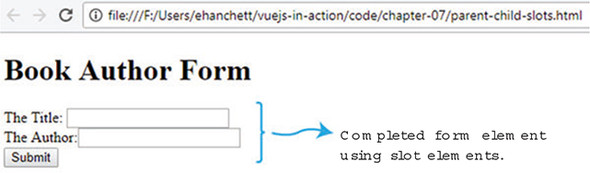
Copy and paste listing 7.1 into a file and change the data function and add a new property called header. (Remember you can always download the code for this book at my GitHub at https://github.com/ErikCH/VuejsInActionCode.) As you can see in figure 7.2, we’ll add a new header property that displays the Book Author Form. Next, find the opening and closing form-component that’s declared in the parent’s Vue.js instance. Add the header property in between those tags. Finally, we need to update the form-component itself. Immediately after the first <form>, add the <slot></slot> elements. This tells Vue to add whatever is in between the opening and closing tags of the form-component. To run this example, update the code from listing 7.1 with the new updates in this listing.
Listing 7.2. Adding in the slot element: chapter-07/parent-child-slots-extract.html
...
<body>
  <div id="app">
    <form-component
      :author="authorLabel"
      :title="titleLabel">
      <h1>{{header}}</h1>                        1
    </form-component>
  </div>
<script>
const FormComponent ={
  template: `
  <div>
    <form>
      <slot></slot>                              2
      <label for="title">{{title}}</label>
    <input id="title" type="text" /><br/>
      <label for="author">{{author}}</label>
         <input id="author" type="text" /><br/>
      <button>Submit</button>
    </form>
  </div>

  `,
  props: ['title', 'author']
}
new Vue({
  el: '#app',
  components: {'form-component': FormComponent},
  data() {
    return {
        titleLabel: 'The Title:',
        authorLabel: 'The Author:',
        header: 'Book Author Form'               3
    }
  }

})
</script>
</body>
</html>
- 1 Shows header variable added inside form-component
- 2 Inserts slot element from parent
- 3 Adds new header property
7.2. A look at named slots
As of now, we’ve added only one slot element to our component. But, as you may have guessed, this isn’t too flexible. What if we had multiple props we wanted to pass in to a component and each prop needed to be displayed at different locations? Once again, passing in every single prop can be tedious, so what if we decided to use slots instead? Is there a way to do it?
This is where named slots come in. Named slots are like normal slots except they can be specifically placed inside a component. And unlike unnamed slots, we can have multiple named slots in our components. We can place these named slots anywhere in our components. Let’s add two named slots to our example app. To add them, we need to define exactly where we want them added in our child component. In listing 7.3 we’ll add two named slots—titleSlot and authorSlot—to the form-component.
We’ll begin by replacing the form-components template with the new slot names. To do this, we must add a new named-slot element into the HTML. Take the completed code listing from 7.2 and move the label elements from the form-component to the parent’s template as seen in listing 7.3. Make sure to change the name of the property in the label from title to titleLabel and from author to authorLabel.
Next, add two new slot elements. Each will replace the label in the form component’s template. It should look like this: <slot name="titleSlot"></slot> and <slot name="authorSlot"></slot>.
Inside the parent’s template, update the label we moved over and add a new attribute called slot to it. Each label should have a slot attribute like this: <label for="title" slot="titleSlot">. This tells Vue.js to make sure that the contents of this label are added to the corresponding named slot. Because we’re no longer using the passed-in props, we can delete them from the form component. This is the completed code listing.
Listing 7.3. Using named slots: chapter-07/named-slots.html
<!DOCTYPE html>
<html>
<head>
<script src="https://unpkg.com/vue"></script>
</head>
<body>
  <div id="app">
    <form-component>
      <h1>{{header}}</h1>
      <label for="title" slot="titleSlot">{{titleLabel}}</label>       1
      <label for="author" slot="authorSlot">{{authorLabel}}</label>    2
    </form-component>
  </div>
<script>
const FormComponent ={
  template: `
  <div>
    <form>
      <slot></slot>
      <slot name="titleSlot"></slot>                                   3
         <input id="title" type="text" /><br/>
      <slot name="authorSlot"></slot>                                  4
         <input id="author" type="text" /><br/>
      <button>Submit</button>
    </form>
  </div>

  `
}
new Vue({
  el: '#app',
  components: {'form-component': FormComponent},
  data() {
    return {
        titleLabel: 'The Title:',
        authorLabel: 'The Author:',
        header: 'Book Author Form'
    }
  }

})
</script>
</body>
</html>
- 1 Displays the label using the slot titleSlot
- 2 Displays the label for the author linked to slot authorSlot
- 3 Inserts the named slot for titleSlot
- 4 Inserts the named slot for authorSlot
The named slots make it much easier to insert elements from the parent into the child component in various places. As we can see, the code is a little shorter and cleaner. In addition, there are no more props passing, and we no longer have to bind attributes when declaring the form-component. As you design more complicated applications, this will come in handy.
In listing 7.3 we added a data property from the root Vue.js instance within the opening and closing tags of our form component. Keep in mind that the child component doesn’t have access to this element because it was added from the parent. It’s easy to accidentally mistake the correct scope for elements when using slots. Remember that everything in the parent template is compiled in the parent’s scope. Everything compiled in the child template is compiled in the child scope. This is good to memorize because you might run into these problems in the future.
7.3. Scoped slots
Scoped slots are like named slots except they’re more like reusable templates that you can pass data to. To do this, they use a special template element with a special attribute called slot-scope.
The slot-scope attribute is a temporary variable that holds properties that are passed in from the component. Instead of passing values into a child component, we can pass values from the child component back to the parent.
To illustrate this, imagine you have a web page that lists books. Each book has an author and title. We want to create a book component that holds the look and feel of the page, but we want to style each book that’s listed inside the parent. In this case, we’ll need to pass the book list from the child back to the parent. When all is said and done, it should look like figure 7.3.
Figure 7.3. List of books and authors in the book list.
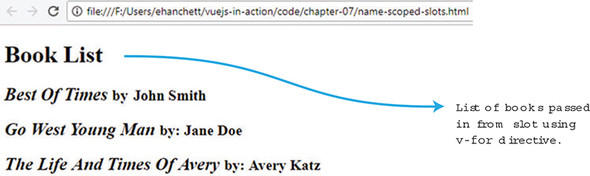
This is a bit of a contrived example, but it shows the power of scoped slots and how we can easily pass data back and forth from child components. To create this app, we’ll create a new book component. Inside the component we’ll display a header using a named slot, and we’ll create another named slot for each book. As you can see in listing 7.4, we’ll add a v-for directive that will loop through all the books and bind values to each one.
The books array is created in the root Vue.js instance. It’s basically an array of objects, each having a title and author. We can pass that books array into the book-component using the v-bind directive :books.
Inside the parent’s template we’ve add the new <template> element. We must also add the slot-scope attribute to the template tag for this to work. The slot-scope attribute binds the passed-in value from the child component. In this case, {{props.text}} is equal to {{book}} from the child component.
Inside the template tags, we can now access the {{props.text}} as if it were {{books}}. In other words, {{props.text.title}} is the same as {{book .title}}. We’ll add special styling to each title and author to make it stand out.
Open your code editor and try to copy the code yourself from listing 7.4. What you’ll see is that we took the books array and passed it into the book component. We then displayed each book in a slot that got passed into a template that the parent displayed to the user.
Listing 7.4. Scoped slots: chapter-07/name-scoped-slots.html
<!DOCTYPE html>
<html>
<head>
<script src="https://unpkg.com/vue"></script>
</head>
<body>
  <div id="app">
    <book-component :books="books">                               1
      <h1 slot="header">{{header}}</h1>                           2
      <template slot="book" slot-scope="props">                   3
        <h2>
          <i>{{props.text.title}}</i>                             4
          <small>by: {{props.text.author}}</small>
        </h2>
      </template>
    </book-component>
  </div>
<script>
const BookComponent ={
  template: `
  <div>
      <slot name="header"></slot>
      <slot name="book"                                           5
        v-for="book in books"
        :text="book">                                             6
      </slot>
  </div>
  `,
  props: ['books']
}
new Vue({
  el: '#app',
  components: {'book-component': BookComponent},
  data() {
    return {
      header: 'Book List',
      books: [{author: 'John Smith', title: 'Best Of Times' },    7
              {author: 'Jane Doe', title: 'Go West Young Man' },
              {author: 'Avery Katz', title: 'The Life And Times Of Avery' }
             ]
    }
  }

})
</script>
</body>
</html>
- 1 Shows book component with passed-in books
- 2 Shows header text using named slot header
- 3 Inserts template element with slot-scope of props
- 4 Displays text for each individual book
- 5 Inserts named slot that binds the v-for directive
- 6 Passes in alias book from book in books
- 7 Sets an array of books
This might be a little confusing at first, but using scoped slots is powerful. We can take values from our component and display them in our parent to do special styling. As you’re dealing with more complicated components with lists of data, this is a nice tool to have.
7.4. Creating a dynamic components app
Another powerful feature of Vue.js is dynamic components. This feature lets us dynamically change between multiple components using the reserved <component> element and the is attribute.
Inside our data function, we can create a property that will determine which component will display. Then, inside our template, we need to add the component element with the is attribute which points to the data property we created. Let’s look at a practical example.
Imagine that we’re creating an app with three different components. We need to add a button so we can cycle through each one. One component will list our books, another will list a form to add books, and the last will display header information. When we get it all done, it should look like figure 7.4.
Figure 7.4. Dynamic book component cycle that displays each component after clicking the Cycle button.
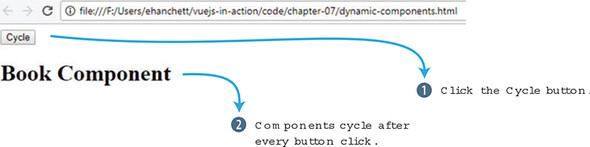
Clicking the Cycle button displays the next component. The Cycle button triggers simple JavaScript that rotates through the book component to the form component then to the header component.
Open your text editor and create a new Vue.js application. Instead of creating one component, we’ll create three. In each template, we’ll display text letting the user know which component is activated. You can see an example of this in listing 7.5.
The data function will have one property called currentView. This property will point to the BookComponent at the start of the application. Next, create a method called cycle. This will update the currentView property on every click so it cycles through all the components.
As a final step, in the root Vue.js instance we’ll add our button, with a click event attached like this: <button @click="cycle">Cycle</button>. Under the button we’ll add an <h1> tag with our new component element. The component element will have one attribute, is, which will point to currentView. This is how you can dynamically change the component. The currentView property will update on every button click. To run this example, create a dynamic-components.html file. Add in this code.
Listing 7.5. Dynamic components: chapter-07/dynamic-components.html
<!DOCTYPE html>
<html>
<head>
<script src="https://unpkg.com/vue"></script>
</head>
<body>
  <div id="app">
    <button @click="cycle">Cycle</button>                   1
    <h1>
      <component :is="currentView"></component>             2
    </h1>
  </div>
<script>
const BookComponent ={
  template: `
  <div>
    Book Component
  </div>
  `
}

const FormComponent = {
  template: `
  <div>
    Form Component
  </div>
  `
}

const HeaderComponent = {
  template: `
  <div>
    Header Component
  </div>
  `
}

new Vue({
  el: '#app',
  components: {'book-component': BookComponent,             3
               'form-component': FormComponent,
               'header-component': HeaderComponent},
  data() {
    return {
      currentView: BookComponent                            4
    }

  },
  methods: {
        cycle() {                                           5
          if(this.currentView === HeaderComponent)
            this.currentView = BookComponent
          else
            this.currentView = this.currentView === BookComponent ?
            FormComponent : HeaderComponent;
        }
    }

})
</script>
</body>
</html>
- 1 On every button click, the cycle method is triggered that changes currentView.
- 2 Shows the component element that’s dynamically bound to currentView
- 3 Lists all components created
- 4 This is the property that’s assigned initially to the BookComponent.
- 5 Shows the method to cycle through all three components
You’ve learned how you can use one button to cycle through three different components. It’s also possible to do this example using multiple v-if and v-else directives but this is much easier to understand and works better.
7.5. Setting up async components
When working with larger applications, there might be times when we need to divide the app into smaller components and load only parts of the app when needed. Vue makes this easy with asynchronous components. Each component can be defined as a function that asynchronously resolves the component. Furthermore, Vue.js will cache the results for future re-renders.
Let’s set up a simple example and simulate a server load. Going back to our book example, let’s say we’re loading a book list from a backend, and that backend takes a second to respond. Let’s resolve this using Vue.js. Figure 7.5 is how it will look when we’re all done.
Figure 7.5. Async component rendered after 1 second onscreen.
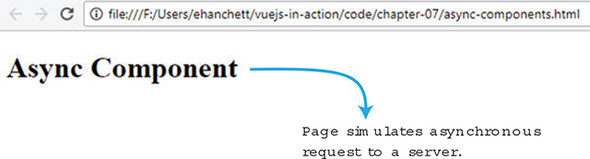
The function has a resolve and reject callback and we must set up our component to handle the situations. Create an app and new book component, as seen in listing 7.6.
This simple component displays text on the screen after it resolves. We’ll create a timeout so it will take 1 second. The timeout is used to simulate network latency.
The most important thing to do when creating an async component is to define it as a function with a resolve and reject callback. You can trigger different actions to occur, depending on whether the callback is resolved or rejected.
To run this example, create a file called async-componets.html. Copy the code in the following listing to see it in action. You should see a simple asynchronous component. We’re simulating a server that takes 1 second to respond. We could have also created a reject as well that would have resolved if the call failed.
Listing 7.6. Async components; chapter-07/async-components.html
<!DOCTYPE html>
<html>
<head>
<script src="https://unpkg.com/vue"></script>
</head>
<body>
  <div id="app">
    <book-component></book-component>                   1
  </div>
<script>

const BookComponent = function(resolve, reject) {       2
  setTimeout(function() {                               3
    resolve({
      template: `
      <div>
        <h1>
          Async Component
        </h1>
      </div>
      `
    });

  },1000);

}

new Vue({
  el: '#app',
  components: {'book-component': BookComponent }

})
</script>
</body>
</html>
- 1 Displays book component in template
- 2 Shows an asynchronous book component that must resolve or reject
- 3 Shows a timeout that simulates a server and resolves after 1000 ms
Since Vue 2.3.0, you can now create more advanced async components. In these components, you can set up loading components that will display when the component is loaded. You can set error components and set timeouts. If you’d like to learn more about these components, check out the official guides at http://mng.bz/thlA.
7.6. Converting the pet store app using Vue-CLI
Until now, we’ve built our applications using one file. This has proved challenging because our pet store application has grown. One thing that would make our code base cleaner is to break the application into separate components.
As we saw in chapter 6, there are many ways to break up our application. One of the most powerful ways is using single-file components, which have many advantages over the other ways of creating components. The most important advantages are component-scoped CSS, syntax highlighting, ease of reuse, and ES6 modules.
Component-scoped CSS lets us scope CSS per component. This can help us easily make specific styles for each component. Syntax highlighting is improved because we no longer have to worry about our IDE not recognizing our component’s template text since it no longer has to be assigned to a variable or property. ES6 modules make it easier to pull in our favorite third-party libraries. Each has advantages that make writing Vue.js applications a little easier.
To take full advantage of single-file components, we’ll need to use a build tool such as Webpack that helps bundle all our modules and dependencies. In addition, we can use tools such as Babel to transpile our JavaScript so we can ensure that it’s compatible with every browser. We could try to do this all ourselves, but Vue.js has given us Vue-CLI to make this process much easier.
Vue-CLI is a scaffolding tool to help jumpstart your Vue.js applications. It comes with all the glue needed to get started. The CLI has a number of official templates, so you can start your application with the tools you prefer. (You can learn more about Vue-CLI from the official GitHub page at https://vuejs.org/v2/guide/installation.html.) The following is a list of the most common templates:
- webpack— A full-featured Webpack build with Vue loader, hot reload, linting testing, and CSS extraction.
- webpack-simple— A simple Webpack + Vue loader for quick prototyping.
- browserify— A full-featured Browserify + Vuetify setup with hot reload, linting, and unit testing.
- browserify-simple— A simple Browserify + Vuetify setup for quick prototyping.
- pwa— A PWA (Progressive Web Application) template based on Webpack.
- Simple— The simplest possible Vue setup in a single HTML file.
To create an application, you’ll need to install Node and Git, and then install Vue-CLI. (If you haven’t done this yet, please refer to appendix A for more information.)
Note
As of this writing Vue-CLI 3.0 is still in beta. This chapter was written with the latest version of Vue-CLI, 2.9.2. If you’re using Vue-CLI 3.0, several of these options will be different. Instead of creating the application with vue init, you’ll use vue create <project name>. It will then ask you a new set of questions. You can either select a set of default presets or the features you want from a list. These include TypeScript, Router, Vuex, and CSS pre-processors, to name a few. If you’re following along, make sure to select the same options as you see in listing 7.7. You can then skip ahead to section 7.6.2. For more information on Vue-CLI 3.0, check out the official readme at https://github.com/vuejs/vue-cli/blob/dev/docs/README.md.
7.6.1. Creating a new application with Vue-CLI
Let’s create an application using Vue-CLI for our pet store. Open your terminal and type in vue init webpack petstore. This command tells Vue-CLI to create an application using the Webpack template.
As of this writing the latest Vue-CLI version is 2.9.2. If you’re using a later version don’t worry, the questions should be similar and self-explanatory. If you run into any issues, follow the official guides on the installation and use of Vue-CLI at https://vuejs.org/v2/guide/installation.html - CLI.
After you run the command, you’re prompted with a few questions. The first asks for a name, then a description and author. Type in the name as petstore and put in any description and author you like. The next few questions prompt you whether to run Vue.js with a runtime only or runtime and compiler. I recommend running with the runtime and compiler together. This makes it easier when we’re creating our templates; otherwise all templates are allowed in only .vue files.
The next question asks about installing the vue-router. Type yes. After this, it asks if you want to use ESLint. This is a linting library that will check your code on every save. For our purposes, we’ll say no here because this isn’t important to our project. The last two questions are about testing. In later chapters, I’ll show you how to create test cases using the vue-test-utils library, but for now you can answer yes to both. Follow along with the this listing and create a new Vue-CLI application for our pet store app.
Listing 7.7. Terminal commands
$ vue init webpack petstore                         1
? Project name petstore
? Project description Petstore application for book
? Author Erik Hanchett <erikhanchettblog@gmail.com>
? Vue build standalone
? Install vue-router? Yes
? Use ESLint to lint your code? No
? Setup unit tests with Karma + Mocha? Yes
? Setup e2e tests with Nightwatch? Yes

   vue-cli · Generated "petstore".                  2

   To get started:

     cd petstore
     npm install
     npm run dev

   Documentation can be found at https://vuejs-templates.github.io/webpack
After the application is created and the template is downloaded, you need to install all the dependencies. Change directories to petstore and run npm install, or YARN, to install all the dependencies by running the following commands at the prompt:
$ cd petstore
$ npm install
This will install all the dependencies for your application. This could take several minutes. After all the dependencies are installed, you should now be able to run the server with the following command:
$ npm run dev
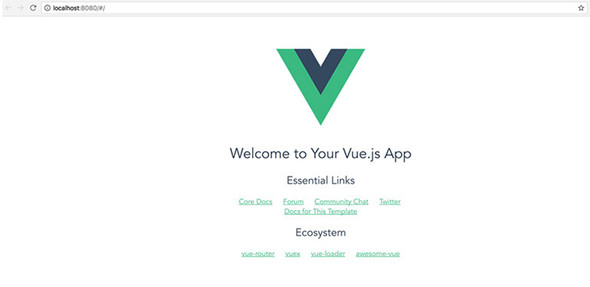
Open your web browser and navigate to localhost:8080, where you should see the Welcome to Your Vue.js App window as seen in figure 7.6. (While the server is running, any changes will be hot reloaded in your browser.) If the server doesn’t start, make sure another application isn’t running on the default 8080 port.
Figure 7.6. Default welcome screen for Vue-CLI
We’re now ready to move to our pet store application.
7.6.2. Setting up our routes
Vue-CLI comes with an advanced routing library called vue-router, the official router for Vue.js. It supports all sorts of features, including route parameters, query parameters, and wildcards. In addition, it has HTML5 history mode and hash mode with auto-fallback for Internet Explorer 9. You should have the ability to create any route you need with it and not have to worry about browser compatibility.
For our pet store app, we’ll create two routes called Main and Form. The Main route will display the list of products from our products.json file. The Form route will be our checkout page.
Inside the app we created, open the src/router/index.js file and look for the routes array. You may see the default Hello route in it; feel free to delete this. Update the routes array so it matches listing 7.8. Every object in the array has at a minimum a path and a component. The path is the URL that you’ll need to navigate to inside the browser to visit the route. The component is the name of the component we’ll use for that route.
Optionally we can also add a name property. This name represents the route. We’ll use the route name later. Props is another optional property. This tells Vue.js if the component should expect props being sent to it.
After updating the array make sure to import the Form and Main components into the router. Any time we refer to a component, you must import it. By default, Vue-CLI uses the ES6 import style. If the components aren’t imported, you’ll see an error in the console.
Finally, by default the vue-router uses hashes when routing. When navigating to form in the browser, Vue will construct the URL as #/form instead of /form. We can turn this off by adding mode: 'history' to the router.
Listing 7.8. Adding routes: chapter-07/petstore/src/router/index.js
import Vue from 'vue'
import Router from 'vue-router'
import Form from '@/components/Form'        1
import Main from '@/components/Main'

Vue.use(Router)

export default new Router({
  mode: 'history',                          2
  routes: [
    {
      path: '/',
      name: 'iMain',                        3
      component: Main,
      props: true
    },
    {
      path: '/form',
      name: 'Form',                         4
      component: Form,
      props: true
    }

  ]
})
- 1 Imports the components Form and Main
- 2 Shows history mode with routes without hashes
- 3 Shows iMain route at /
- 4 Shows Form route at /form
It’s a good idea to start any new application with your routes first. It gives you a good indication on how you want to construct the app.
7.6.3. Adding CSS, Bootstrap, and Axios to our application
Our pet store app uses a handful of different libraries that we need to add to our CLI project. We can handle this in different ways.
One way is to use a Vue.js-specific library. As Vue has grown, so has the ecosystem. New Vue.js-specific libraries are popping up all the time. For example, BootstrapVue, is a Vue.js-specific library to add Bootstrap to our project. Vuetify is a popular material-design library. We’ll be looking at several of these libraries in the future, but not right now.
Another common way of adding libraries is to include them in the index file. This is useful when there isn’t a Vue.js-specific library available.
To get started, open the index.html file in the root folder of our pet store application. To stay consistent with our original application from chapter 5, we’ll add a link to Bootstrap 3 and Axios CDN in this file, as shown in the following listing. By adding these libraries in this file, we now have access to it throughout the application.
Listing 7.9. Adding Axios and Bootstrap: chapter-07/petstore/index.html
<!DOCTYPE html>
<html>
<head>
<meta charset="utf-8">
<script
src="https://cdnjs.cloudflare.com/ajax/libs/axios/0.16.2/axios.js"> 1
</script>
<title>Vue.js Pet Depot</title>
<link rel="stylesheet"
href="https://maxcdn.bootstrapcdn.com/bootstrap/3.3.7/css/bootstrap
 .min.css" crossorigin="anonymous"> 2
</head>
<body>
<div id="app"></div>
<!-- built files will be auto injected -->
</body>
</html>
.min.css" crossorigin="anonymous"> 2
</head>
<body>
<div id="app"></div>
<!-- built files will be auto injected -->
</body>
</html>
We have a few ways we can add in the CSS. As we’ll see later, one way to add CSS is to scope it to each component. This is a helpful feature if we have specific CSS we want to use for a component.
We can also specify CSS that will be used throughout the site. To keep things simple, let’s add our CSS to our pet store app so it can be accessed by all components inside it. (Later, we’ll look at using scoped CSS.)
Open the src/main.js file. This is where the root Vue.js instance lives. From here we can import the CSS we’d like to use for our application. Because we’re using Webpack we’ll need to use the require keyword with the relative path to the asset.
FYI
For more information on how Webpack and assets work, check out the documentation at https://vuejs-templates.github.io/webpack/static.html.
Copy the app.css file into the src/assets folder, as shown in the next listing. You can find a copy of the app.css with the included code for the book in the appendix A.
Listing 7.10. Adding CSS: chapter-07/petstore/src/main.js
import Vue from 'vue'
import App from './App'
import router from './router'
require('./assets/app.css')             1

Vue.config.productionTip = false

/* eslint-disable no-new */
new Vue({
  el: '#app',
  router,
  template: '<App/>',
  components: { App }
})
- 1 Adds the app.css to the application
After the CSS is added to the application, every component will use it.
7.6.4. Setting up our components
As we discussed previously, components make it easy to break our application into smaller reusable parts. Let’s break our pet store app into a few smaller pieces so we can more easily work with our application. For the pet store we’ll have a Main, Form, and Header. The Header component will display our site name and navigation, Main will list all our products, and Form will display the checkout form.
Before we begin, delete the HelloWorld.vue file in the src/components folder. We won’t use this. Create a file called Header.vue in this folder instead. This file is where we’ll put in our header information.
Most .vue files follow a simple pattern. The top of the file is usually where the template resides. The template is surrounded by an opening and closing template tag. As we’ve seen before, you must also include a root element after the template tag. I usually put a <div> tag in but a <header> tag will work too. Keep in mind a template can only have one root element.
After the template is a <script> tag. This is where we’ll create our Vue instance. After the <script> tag is a <style> tag, which is where we can optionally put in our CSS code and scope it to the component. (You’ll see this in listing 7.12.)
Go ahead and copy the code from listing 7.11 for the template. This code is similar to the code in chapter 5 for the header. You’ll notice that we have a new element in the template called router-link, which is a part of the vue-router library. The router-link element creates internal links in our Vue.js application between routes. The <router-link> tag has an attribute called to. We can bind that attribute to one of our named routes. Let’s bind it to the Main route.
Listing 7.11. Header template: chapter-07/petstore/src/components/Header.vue
<template>
<header>
  <div class="navbar navbar-default">
    <div class="navbar-header">
      <h1><router-link :to="{name: 'iMain'}">          1
           {{ sitename }}
               </router-link>
                 </h1>
    </div>
    <div class="nav navbar-nav navbar-right cart">
      <button type="button"
class="btn btn-default btn-lg"
v-on:click="showCheckout">
        <span class="glyphicon glyphicon-shopping-cart">
                {{cartItemCount}}</span> Checkout
      </button>
    </div>
  </div>
</header>
</template>
- 1 This links to the iMain route.
Next, we need to create the logic for this component. We’ll copy and paste from our previous pet store application into the Header.vue file. We’ll need to make a few changes though. When we last updated the pet store application in chapter 5, we used a v-if directive to determine whether or not to display the checkout page. We created a method that toggled showProduct when the Checkout button was clicked.
Let’s replace that logic so that instead of toggling showProduct we switch to the Form route we created earlier. As you can see in listing 7.14, this is done with this.$router.push. Similar to the router-link, we need to provide the router with the name of the route we want to navigate to. For this reason, we’ll have the Checkout button navigate to the Form route.
Because we changed the sitename variable to a link using router-link, it now looks a little different than it did before. We should update the CSS for our new anchor tag by putting it in the <style> section. Because we added the keyword scoped to it, Vue.js will make sure the CSS will be scoped for this component only.
Also, you may notice from listing 7.12 that we’re no longer using the Vue.js instance initializer that we used in previous chapters. The CLI doesn’t require it. Instead we use a simpler syntax, the ES6 module default export (export default { }). Put all your Vue.js code in here.
In our CSS, we’ll turn off text decorations and set the color to black. Combine listings 7.11 and 7.12 into one file.
Listing 7.12. Adding the script and CSS: chapter-07/petstore/src/components/Header.vue
<script>
export default {
  name: 'my-header',
  data () {
    return {
    sitename: "Vue.js Pet Depot",
    }
  },
  props: ['cartItemCount'],
  methods: {
    showCheckout() {
      this.$router.push({name: 'Form'});                             1
    }

  }
}
</script>

<!-- Add "scoped" attribute to limit CSS to this component only -->
<style scoped>                                                       2
a {
  text-decoration: none;
  color: black;
}
</style>
- 1 Navigates Vue.js app to the Form route
- 2 Shows scoped CSS
From there you should be all set with this component. You may have also noticed that our header accepts a prop called cartItemCount. Our main component will pass this information in, as we’ll see when we create the Main component. The cartItemCount will keep track of how many items we’ve added to our cart.
7.6.5. Creating the Form component
The Form component is where the checkout page resides. It will remain close to what we created in chapter 5. The biggest difference is that we’re now referencing the new my-header component at the top of the template. We’ll also pass in the cartItemCount into the header.
Create a component in the src/components folder and call it Form.vue. As you can see in listing 7.13, the HTML code in the template is almost exactly what we saw in chapter 5. The only change is that we’ve added a new component at the top for the header. I won’t copy it all here, so I suggest that you download the code for chapter 07 (download instructions are in appendix A).
Listing 7.13. Creating the form component: chapter-07/petstore/src/components/Form.vue
<template>
  <div>
  <my-header :cartItemCount="cartItemCount"></my-header>      1
    <div class="row">
      <div class="col-md-10 col-md-offset-1">
        ...


      </div><!--end of col-md-10 col-md-offset-1-->
    </div><!--end of row-->
  </div>
</template>
- 1 The header component shows a passed-in value of cartItemCount.
The script code for this component resembles that from chapter 5. One difference is that now it accepts a prop called cartItemCount. In addition, we must define the Header component so it can be used in the template, as shown in this listing.
Listing 7.14. Adding the script tag: chapter-07/petstore/src/components/Form.vue
<script>
import MyHeader from './Header.vue';        1
export default {
  name: 'Form',
  props: ['cartItemCount'],                 2
  data () {
    return {
      states: {
...
      },
      order: {
           ...
      }

    }
  },
  components: { MyHeader },
  methods: {
    submitForm() {
      alert('Submitted');
    }
  }
}
</script>
Combine listings 7.13 and 7.14 and you should be all set. In later chapters we’ll add more logic for inputs, but for now this will work.
7.6.6. Adding the Main component
The Main component of the pet store application will display all our products. It’s where we’ll add products to our cart and see the star ratings. We’ve already written all the logic for this, so the only thing we really need to do is get it into one .vue file.
As with the Form component, we’ll add the my-header component to the top of the file and pass in the cartItemCount to it. Create a file called Main.vue in the src/components folder. Add the following code into it.
Listing 7.15. Creating the main template: chapter-07/petstore/src/components/Main.vue
<template>
<div>
<my-header :cartItemCount="cartItemCount"></my-header> 1
<main>
<div v-for="product in sortedProducts">
<div class="row">
<div class="col-md-5 col-md-offset-0">
<figure>
<img class="product" v-bind:src="product.image" >
</figure>
</div>
<div class="col-md-6 col-md-offset-0 description">
<h1 v-text="product.title"></h1>
<p v-html="product.description"></p>
<p class="price">
{{product.price | formatPrice}}
</p>
<button class=" btn btn-primary btn-lg"
v-on:click="addToCart(product)"
v-if="canAddToCart(product)">Add to cart</button>
<button disabled="true" class=" btn btn-primary btn-lg"
v-else >Add to cart</button>
<span class="inventory-message"
v-if="product.availableInventory - cartCount(product.id)
=== 0"> All Out!
</span>
<span class="inventory-message"
v-else-if="product.availableInventory - cartCount(product.id) < 5">
Only {{product.availableInventory - cartCount(product.id)}} left!
</span>
<span class="inventory-message"
v-else>Buy Now!
</span>
<div class="rating">
<span v-bind:class="{'rating-active' :checkRating(n, product)}"
v-for="n in 5" > </span>
</div>
</div><!-- end of col-md-6-->
</div><!-- end of row-->
<hr />
</div><!-- end of v-for-->
</main>
</div>
</template>
</span>
</div>
</div><!-- end of col-md-6-->
</div><!-- end of row-->
<hr />
</div><!-- end of v-for-->
</main>
</div>
</template>
After you add the template, we’ll need to add the Vue.js code. Add a new MyHeader import statement at the top of the file, as seen in listing 7.16. You’ll also need to declare the component by referencing components: { MyHeader } after the data function.
Before we add the rest of the code, make sure to copy the image folder and the products.json files into the petstore/static folder. You can find these files and the code for chapter 7 at https://github.com/ErikCH/VuejsInActionCode.
When using the CLI, we can store files in two places—either the assets folder or the static folder. Asset files are processed by Webpack’s url-loader and file-loader. The assets are inlined/copied/renamed during the build, so they’re essentially the same as the source code. Whenever you reference files in the assets folder, you do so by using relative paths. The ./assets/logo.png file could be the location of the logo in the assets folder.
Static files aren’t processed by Webpack at all; they’re directly copied to their final destination as is. When referencing these files, you must do so using absolute paths. Because we’re loading all our files using a products.json file, it’s easier to copy the files to a static folder and reference them from there.
Go ahead and update the Main.vue file in the src/components folder. (Filters and methods are excluded in listing 7.16.) Grab the Vue.js instance data, methods, filters, and lifecycle hooks from the pet store application and add it to the Main.vue file below the template.
Listing 7.16. Creating the script for Main.vue: chapter-07/petstore/src/components/Main.vue
<script>
import MyHeader from './Header.vue'             1
export default {
  name: 'imain',
  data () {
    return {
      products: {},
      cart: []
    }
  },
  components: { MyHeader },
  methods: {
    ...

  },
  filters: {
    ...

  },
  created: function() {
    axios.get('/static/products.json')           2
    .then((response) =>{
      this.products=response.data.products;
      console.log(this.products);
    });
  }
}
</script>
- 1 Imports MyHeader into project
- 2 JSON products file is located in the static folder with the absolute path.
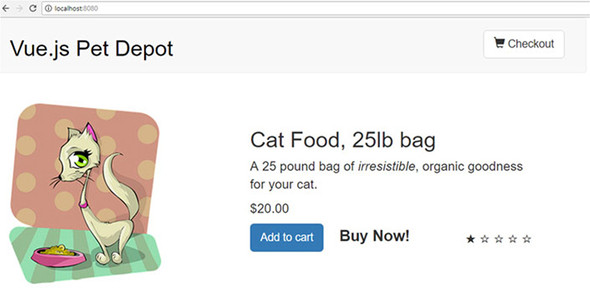
After copying the file, delete the styles and logo.png <img> tag in the App.vue file. If you like, you can also delete the logo.png file in the assets folder. Make sure to restart the Vue-CLI server by running npm run dev, if you haven’t already. You should see the pet store application launch, where you can navigate to the checkout page by clicking the Checkout button (figure 7.7). If you receive any errors, double-check the console. For example, if you forgot to import the Axios library inside index.html as we did in listing 7.9, you’ll get an error.
Figure 7.7. Pet store application opened with Vue-CLI.
7.7. Routing
Now that we have our app using Vue-CLI, let’s take a deeper look at routing. Earlier in the chapter, we set up a couple of routes. In this section, we’ll add a couple more.
In any single-page application such as Vue.js, routing helps with the navigation of the app. In the pet store, we have a Form route. When you load the application and go to /form, the route is loaded. Unlike traditional web apps, data doesn’t have to be sent from the server for the route to load. When the URL changes, the Vue router intercepts the request and displays the appropriate route. This is an important concept because it allows us to create all the routing on the client side instead of having to rely on the server.
Inside this section, we’ll look at how to create child routes, use parameters to pass information between routes, and how to set up redirection and wildcards. We aren’t going to cover everything, so if you need more information, please check out the official Vue router documentation at https://router.vuejs.org/en/.
7.7.1. Adding a product route with parameters
In our application, we have only two routes, Main and Form. Let’s add another route for our product. Let’s imagine we’ve been given a new requirement for our pet store app. We’ve been told to add a product description page This can be achieved with dynamic route matching, using route parameters. Parameters are dynamic values sent inside the URL. After we add the new product description route, you’ll look up a product page using the URL, as shown in figure 7.8. Notice how the URL at the top is product/1001? This is the dynamic route.
Figure 7.8. Dynamic segment for product 1001.
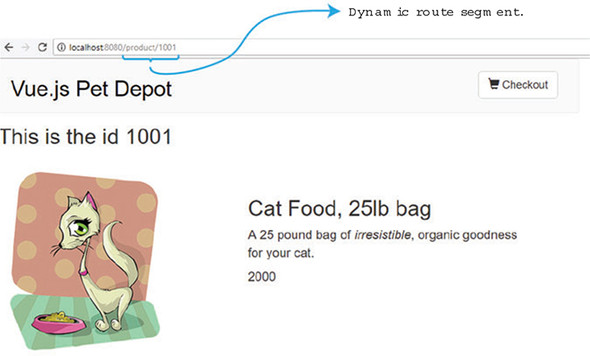
We designate dynamic routes with a colon (:)inside the router file. This tells Vue.js to match any route after /product to the Product component. In other words, both routes /product/1001 and /product/1002 would be handled by the Product component. The 1001 and 1002 will be passed into the component as a parameter with the name id.
Inside the pet store app, look for the src/router folder. The index.js file has our existing routes. Copy the snippet of code from the following listing and add it to the routes array in the src/router/index.js file. Make sure to import the Product component at the top. We’ll create that next.
Listing 7.17. Editing the router file: chapter-07/route-product.js
import Product from '@/components/Product'
...
    },
    {
        path: '/product/:id',         1
        name: 'Id',
        component: Product,
        props: true
    }
...
- 1 Shows the dynamic route segment called id
We have a dynamic segment with a parameter named id. We set the name of the route to Id so we can easily look it up later using the router-link component. As mentioned, let’s create a Product component.
Inside the Product component is a single product that we’ll retrieve from the route params. Our purpose is to display that product information inside the component.
Inside the product template, we’ll have access to the $route.params.id. This will display the id passed into the parameter. We’ll display the id at the top of the component to verify that it was passed in correctly.
Copy the following code into a new file at src/components/Product.vue. This is the top of the file for the component.
Listing 7.18. Adding the product template: chapter-07/product-template.vue
<template>
  <div>
    <my-header></my-header>
    <h1> This is the id {{ $route.params.id}}</h1>            1
    <div class="row">
      <div class="col-md-5 col-md-offset-0">
        <figure>
          <img class="product" v-bind:src="product.image" >
        </figure>
      </div>
      <div class="col-md-6 col-md-offset-0 description">
        <h1>{{product.title}}</h1>
        <p v-html="product.description"></p>
        <p class="price">
          {{product.price }}
        </p>
      </div>
    </div>
  </div>
  </template>
...
- 1 The $route.params.id shows the passed-in id.
The template was straightforward but the bottom of the component, where the logic and script live, is a little more complex. To load the correct product for the template, we need to find the correct product using the id that was passed in.
Luckily, with simple JavaScript we can do exactly that. We’ll use the Axios library again to access the products.json flat file. This time we’ll use the JavaScript filter function to return only the products whose ID matches this.$route.params.id. The filter should return only one value because all the IDs are unique. If for any reason this doesn’t occur, double-check the products.json flat file and make sure each ID is unique.
Last, we’ll need to add a fo/’ character in front of the this.product.image that’s returned from our flat file (listing 7.19). This needs to be done because we’re using dynamic route matching and relative paths to files can cause problems.
Copy the code in this listing and add it to the bottom of the src/components/Product.vue file. Make sure that the code from both listings 7.18 and 7.19 are present in the file.
Listing 7.19. Product script: chapter-07/product-script.js
...
  <script>
  import MyHeader from './Header.vue'                     1
  export default {
    components: { MyHeader },
    data() {
    return {
      product: ''
    }
  },
  created: function() {
    axios.get('/static/products.json')                    2
    .then((response) =>{
      this.product = response.data.products.filter(       3
          data => data.id == this.$route.params.id)[0]    4
      this.product.image = '/' + this.product.image;      5
    });
  }
}
</script>
- 1 Imports Header component into file
- 2 Retrieves the static file with the Axios library
- 3 Filters the response data
- 4 Adds only data that matches the route params to this.product
- 5 Adds a ‘/’ to the front of product.image to help with the relative path
With the product component in place, we can now save the file and open our web browser. We don’t have a way to access the route directly yet, but we can type the URL inside the browser at http://localhost:8080/product/1001. This will display the first product.
Troubleshooting
If the route doesn’t load, open the console and look for any errors. Make sure you saved the data inside the router file; otherwise, the route won’t load. It’s also easy to forget to add the ‘/’ in front of this.product.image.
7.7.2. Setting up a router-link with tags
Routes can be useless unless we add links to them inside our app. Otherwise, our users would have to memorize each URL. With Vue router, we can make routing to a path easy. One of the easiest ways, which we saw earlier in the chapter, is using the router-link component. You can define the route you want to navigate to by using the :to property. This can be bound to a specific path or object that defines the name of the route to navigate to. For example, <router-link :to="{ name: 'Id' }">Product</router-link> will route to the named route Id. In our app, it’s the Product component.
The router-link component has a few other tricks up its sleeve. This component has many additional props that add more functionality. In this section, we’ll focus on the active-class and tag props.
Let’s imagine we’ve been given another requirement for our pet store app. We want the Checkout button to appear like it’s been clicked when the user navigates to the Form route. When the user leaves the route, the button must return to its normal state. We can do this by adding a class named active to the button when the route is activated and remove the class when the user is not on the route. We also need to add a way for the user to click the title of any product and have it route to the product description page.
When all is done, our app will appear like figure 7.9 after the user clicks the Checkout button. Notice the button’s appearance when the user is on the checkout page.
Figure 7.9. Checkout button updated with new style.
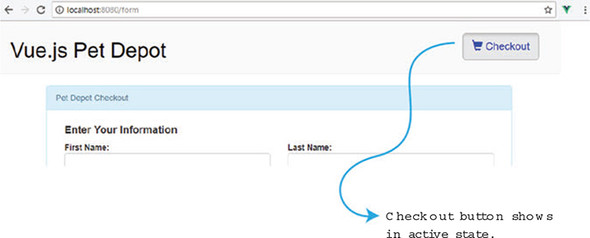
Let’s add the link to our new product page. Open the src/Main.vue file and look for the h1 tag that displays {{product.title}}. Delete it and add a new router-link. Inside the router-link, add a tag prop. The tag prop is used to convert the router-link to the tag listed. In this case, the router-link will display as an h1 tag in the browser.
The to prop is used to denote the target route of the link. It has an optional descriptor object that we can pass to it. To send a param, use the params: {id: product.id} syntax. This tells Vue router to send the product.id as the id to the dynamic segment. For example, if the product.id was 1005, the route would be /product/1005.
Open the src/Main.vue file and update the component with the code in the following listing. Notice how the :to has two different props, name and params. You can separate each prop with a comma.
Listing 7.20. Updating router-link in main: chapter-07/route-link-example.html
...
<div class="col-md-6 col-md-offset-0 description">
  <router-link                                             1
 tag="h1"                                                  2
        :to="{ name : 'Id', params: {id: product.id}}">    3
        {{product.title}}                                  4
  </router-link>
  <p v-html="product.description"></p>
...
- 1 Starts router-link
- 2 Converts router- link to show up as an h1 tag
- 3 The target of the route is Id and the params is passed.
- 4 This will be the clickable text.
Save and open the browser after running the command, npm run dev. You can now click the title of any product to navigate to the Product component. The id param will be sent to the Product route and used to display the product.
Query parameters are another way we can send information between routes. Parameters are appended to the end of the URL. Instead of using a dynamic route segment, we could send the product ID using a query parameter. To add a query parameter with Vue router, all you need to do is add a query prop to the descriptor object like this:
<router-link  tag="h1":to=" {name : 'Id', query:
 {Id: '123'}}">{{product.title}}</router-link>
Multiple query parameters can be added, but each one must be separated by a comma; for example, {Id: '123', info: 'erik'}. This will show up in the URL as ?id=123&info=erik. You can access queries inside the template with $route.query.info. If you want more information on query parameters, check out the official documentation at https://router.vuejs.org/en/api/router-link.
7.7.3. Setting up a router-link with style
One of our requirements is to find a way to activate the Checkout button after the user navigates to the Form route. The active-class prop makes this easy. When the route is active, the router-link will automatically add whatever value we assign to active-class to the tag. Because we’re using Bootstrap, the class name active will make the button look like it’s been activated.
Open the src/components/Header.vue file and update the button element for {{cartItemCount}}. Delete the existing button and add the router-link instead, as in this listing. You can also delete the showCheckout method because it will no longer be needed.
Listing 7.21. Updating header links when route is active: chapter-07/header-link.html
...
<div class="nav navbar-nav navbar-right cart">
    <router-link                                          1
active-class="active"                                     2
tag="button"                                              3
class="btn btn-default btn-lg"                            4
:to="{name: 'Form'}">                                     5
        <span
            class="glyphicon glyphicon-shopping-cart">
            {{ cartItemCount}}
     </span> Checkout
...
- 1 Notes the router-link element that will navigate to the checkout page
- 2 The active-class prop will add the active class.
- 3 Converts route-link to h1 tag
- 4 Bootstraps classes for button
- 5 Navigates to the Form route
Save the changes to the header component and navigate the app. If you open the browser console, you’ll see how the active class is added to the checkout button inside the header after each time it’s clicked. When you navigate to the Main route again, the active class is removed. The active class is added to the button only if the route is active. When the user navigates away from the Form route, the active class is removed.
As of Vue 2.5.0+, a new CSS class was added whenever the user changes route. This is called the router-link-exact-active class. We can use this class out of the box and define functionality. Let’s say we wanted to change the link to the color blue whenever the class was active.
Inside the src/components/Header.vue, add a new CSS selector at the bottom: copy the snippet from this listing. This class will be added to only the router-link element when the route is active.
Listing 7.22. Router-link-exact-active: chapter-07/route-link.css
...
.router-link-exact-active {          1
  color: blue;
}
...
- 1 Sets element to blue when route is active
Save the file and try navigating around in the browser. You’ll notice that the Checkout button text in the header changes to blue when the route is active. For the rest of this book, we’ll change this CSS selector to black, because blue doesn’t look as nice as black. It’s nice knowing it’s there if we need it.
7.7.4. Adding a child edit route
The new Id route displays each individual product, but let’s suppose we need to add a way to edit each product. Let’s add another route that will display inside the Product route that’s triggered whenever the user clicks the Edit Product button.
Note
For the sake of simplicity, we won’t implement the edit functionality. With our current implementation, there’s no way we can save changes to our static file. Rather, we’ll focus on how to add a child route and save the implementation of changing the product for the future.
Child routes are nested routes. They’re perfect for situations where you need to edit or delete information within a current route. You can access these routes by adding a router-view component within the parent route, as we’ll see.
When we have everything wired together, the new Edit route should look like figure 7.10. Take notice of the URL, product/1001/Edit.
Figure 7.10. The child Edit route of a product.
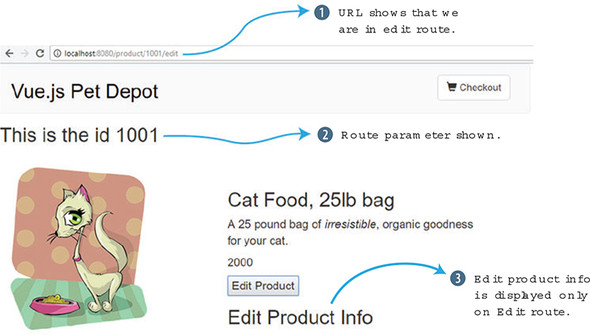
Let’s begin by adding a new component. Inside the src/components folder, add a new file and call it EditProduct.vue. Copy this listing and add it to the src/components/EditProduct.vue file.
Listing 7.23. Adding the EditProduct component: chapter-07/edit-comp.vue
<template>
  <div>
    <h1> Edit Product Info</h1>
  </div>
</template>
<script>
    export default {
        //future           1
    }
   </script>
Inside the Product component, add a router-view component. This component is internal to Vue router and is used for the endpoint for new routes. When this route is activated, the EditProduct component will display inside where the router-view component is located.
Copy the code snippet in the following listing and edit the src/components/Product.vue file to add a new button at the bottom and the router-view component. The button will trigger the new edit method. This pushes the Edit route and activates it.
Listing 7.24. Adding the Edit Product button: chapter-07/edit-button.vue
...
  </p>
  <button @click="edit">Edit Product</button>    1
  <router-view></router-view>                    2
</div>
...
methods: {
    edit() {
      this.$router.push({name: 'Edit'})          3
    }
},
- 1 Shows the button that triggers the edit method
- 2 The router-view component is the entry point for the route.
- 3 The $router.push activates the Edit route.
Now we have everything in place to update the router file. Add a new array called children inside the Id route. Inside the children array, we’ll add the Edit route and the component EditProduct.
Take the code from the next listing and update the src/router/index.js file. Update the Id route and add the new children array. Make sure to also import the EditProduct component at the top.
Listing 7.25. Updating the router with the new child route: chapter-07/child-route.js
import EditProduct from '@/components/EditProduct'
import Product from '@/components/Product'
...
{
    path: '/product/:id',
    name: 'Id',
    component: Product,
    props: true,
    children: [               1
      {
        path: 'edit',
        name: 'Edit',
        component: EditProduct,
        props: true
      }
    ]
},
...
- 1 Defines a new child route that will only appear inside the Id route.
Save the index.js file and check out the new route in your browser. Click the Edit Product button and you should see the Edit Product Info message. If the route isn’t loading, double-check for errors in the console and verify the index.js file again.
7.7.5. Using redirection and wildcards
The last features of Vue router I want to cover are redirection and wildcard routes. Let’s imagine we’re given one final requirement for our pet store app. We need to make sure that if anyone accidentally enters the wrong URL, it routes them back to the main page. This is done with wildcard routes and redirection.
When creating a route, we can use a wildcard, also known as the * symbol, to catch any routes that aren’t already covered by the other routes. This route must be added at the bottom of all the other routes.
The redirect option redirects the browser to another route. Go ahead and edit the src/routes/index.js file. At the bottom of the route, add this snippet of code.
Listing 7.26. Adding wildcard for route: chapter-07/wildcard-route.js
...
{
  path: '*',          1
  redirect:"/"        2
}
...
- 1 Catches all
- 2 Redirects to “/”
Save the file and try to browse to /anything or /testthis. Both URLs will route you back to the main “/” route.
Navigation guards, as the name suggests, guard navigation by redirecting or canceling routes. This might be particularly helpful if you’re trying to validate a user before letting them enter a route. One way to use navigation guards is to add a beforeEnter guard directly in the route configuration object. It might look like this:
beforeEnter (to, from, next) => { next() }
You can also add a beforeEnter(to, from, next) hook inside any component. This is loaded before the route loads. The next() tells the route to continue. A next(false) will stop the route from loading. If you’d like more information, see the official documentation at https://router.vuejs.org/guide/advanced/navigation-guards.html.
For reference, this listing shows the full src/routes/index.js file.
Listing 7.27. Full router file: chapter-07/petstore/src/router/index.js
import Vue from 'vue'
import Router from 'vue-router'
import Form from '@/components/Form'
import Main from '@/components/Main'
import Product from '@/components/Product'
import EditProduct from '@/components/EditProduct'
Vue.use(Router)

export default new Router({
  mode: 'history',
  routes: [
    {
      path: '/',
      name: 'iMain',
      component: Main,
      props: true,
    },
    {
        path: '/product/:id',        1
        name: 'Id',
        component: Product,
        props: true,
        children: [                  2
          {
            path: 'edit',
            name: 'Edit',
            component: EditProduct,
            props: true
          }
        ]
    },
    {
      path: '/form',
      name: 'Form',
      component: Form,
      props: true
    },
    {                                3
      path: '*',
      redirect:"/"
    }
  ]
})
- 1 Notes the dynamic route segment for id
- 2 Shows the child route inside Id route
- 3 Catches all at the bottom of routes that redirect to “/”
The Vue-CLI uses Webpack to bundle the JavaScript code. This bundle can become quite big. This could affect load times in larger applications or for users with slow internet connections. We can use vue.js async component features and code splitting with lazy loading to help decrease the size of our bundles. This concept is beyond this book, but I strongly suggest you look up the official documentation for more information on it. You can find it at https://router.vuejs.org/guide/advanced/lazy-loading.html.
Routes are fundamental to most Vue applications. Anything beyond a simple “Hello World” app will need them. Make sure to take time and map out your routes accordingly so they make logical sense. Use child routes to specify things such as adding or editing. When passing information between routes, don’t be afraid to use parameters. If you’re stuck on a routing issue, don’t forget to check out the official documentation at http://router.vuejs.org/en.
Exercise
Use your knowledge of this chapter to answer the following question:
- Name two ways you can navigate between different routes.
See the solution in appendix B.
Summary
- Using slots makes an application more dynamic when passing information into components.
- You can use a dynamic component to switch between components within an application.
- Adding asynchronous component to an application improves speed.
- You can use Vue-CLI to convert an application.
- You can pass values using props between components.
- Child routes can be used to edit information inside parent routes.