Table of Contents for
Vue.js in Action
 Vue.js in Action
Published by
Manning Publications, 2018
Vue.js in Action
Published by
Manning Publications, 2018
- Cover
- Vue.js in Action
- Copyright
- Brief Table of Contents
- Table of Contents
- Foreword
- Preface
- Acknowledgments
- About this book
- About the author
- About the cover illustration
- Part 1. Getting to know Vue.js
- Chapter 1. Introducing Vue.js
- Chapter 2. The Vue instance
- Part 2. The View and ViewModel
- Chapter 3. Adding interactivity
- Chapter 4. Forms and inputs
- Chapter 5. Conditionals, looping, and lists
- Chapter 6. Working with components
- Chapter 7. Advanced components and routing
- Chapter 8. Transitions and animations
- Chapter 9. Extending Vue
- Part 3. Modeling data, consuming APIs, and testing
- Chapter 10. Vuex
- Chapter 11. Communicating with a server
- Chapter 12. Testing
- A.1. Chrome Developer Tools
- Chapter 2
- Cheat sheet
- Cheat sheet
- Index
- List of Figures
- List of Tables
- List of Listings
Chapter 2. The Vue instance
This chapter covers
- Creating a Vue instance
- Observing the Vue lifecycle
- Adding data to a Vue instance
- Binding data to markup
- Formatting our output
Over the course of this book we’re going to build a complete web application: a webstore with product listings, a checkout process, an administrative interface, and more. The completed webstore may seem like it’s a long way off, especially if you’re new to web application development, but Vue allows you to start small, build on what you learn, and ship a sophisticated product in one smooth progression.
The key to Vue’s consistency at every stage of an application’s growth is the Vue instance. A Vue application is a Vue instance, Vue components are all Vue instances, and you can even extend Vue by creating instances with your own custom properties.
It’s impossible to touch on all the facets of the Vue instance in a single chapter, so we’ll build on the foundation we establish as our application evolves. As we explore new features in chapters to come, we’ll often refer to what we learn about the Vue instance and the Vue lifecycle in this chapter.
2.1. Our first application
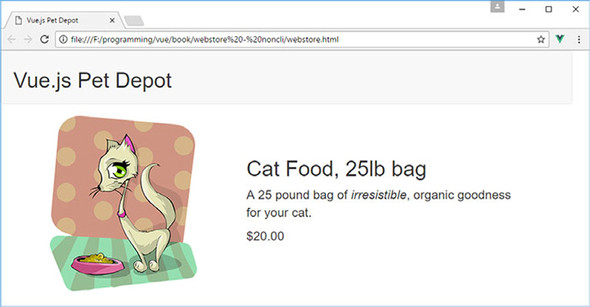
To begin our journey, we’re going to create the foundation of our webstore application, display its name, and create a single product listing. Our focus is on how we create a Vue application and the relationship of the data in our view-model to how it’s displayed in the view. Figure 2.1 shows what our application should look like by the end of this chapter.
Figure 2.1. A preview of our humble webstore’s beginnings.
BTW
If you tried the simple calculator sample in listing 1.2, technically this will be your second Vue application. You’re a seasoned veteran already!
Before we begin, download the vue-devtools plugin for your browser. You can find more information on how to download this plugin in appendix A.
2.1.1. The root Vue instance
At the heart of every Vue application, no matter how big or small, is the root Vue instance, Vue instance for short. Creating a root Vue instance is done by invoking the Vue constructor, new Vue(). The constructor bootstraps our application by compiling an HTML template for our app, initializing any instance data, and creating the data and event bindings that make our application interactive.
The Vue constructor accepts a single JavaScript object, known as the options object, new Vue({ /* options go here */ }). It’s our job to populate that object with everything the Vue constructor needs to bootstrap our application, but to start off we’re focusing on a single option, the el option.
The el option is used by Vue to specify a DOM element (hence el) where Vue will mount our application. Vue will locate the corresponding DOM element in our HTML and use it as the mount point for our application.
This code is the beginning of our webstore application. To make things easier to follow, I’ve included each code listing in its own file that you can download for this chapter. But to run the application, you’ll need to combine each snippet of code from each file into a single index.html file. Yes, the index.html file will get rather large as we progress through the book, and that’s normal. In future chapters, we’ll discuss ways of splitting our application into separate files.
If you’d like to see the completed application from this chapter, look for the index.html file that’s included with the code in the chapter-02 folder. (If you haven’t downloaded the code that accompanies this chapter, learn how and where to get it in appendix A.) Let’s create our first Vue application.
Listing 2.1. Our first Vue application: chapter-02/first-vue.html
<html>
<head>
<title>Vue.js Pet Depot</title>
<script src="https://unpkg.com/vue"></script> 1
<link rel="stylesheet" type="text/css" href="assets/css/app.css"/> 2
<link rel="stylesheet"
 href="https://maxcdn.bootstrapcdn.com/bootstrap/3.3.7/css/
bootstrap.min.css" crossorigin="anonymous">
</head>
<body>
<div id="app"></div> 3
<script type="text/javascript">
var webstore = new Vue({ 4
el: '#app' 5
});
</script>
</body>
</html>
href="https://maxcdn.bootstrapcdn.com/bootstrap/3.3.7/css/
bootstrap.min.css" crossorigin="anonymous">
</head>
<body>
<div id="app"></div> 3
<script type="text/javascript">
var webstore = new Vue({ 4
el: '#app' 5
});
</script>
</body>
</html>
- 1 Lists the CDN version of Vue.js
- 2 Our internal app.css stylesheet as well as the Bootstrap stylesheet
- 3 The element where Vue will mount our application
- 4 The Vue constructor
- 5 Lists a CSS selector used to locate the DOM mounting point
The markup contains a single div element with a CSS ID selector, #app. Vue uses that value to locate our div and mount the application to it. This selector matches the same syntax used by CSS (such as #id, .class).
Note
Throughout this book we’ll use Bootstrap 3 for all layout and design. This works great and helps keep the focus on Vue.js. As of the time of writing, Bootstrap 4 was recently released, but because the focus of this book isn’t on design, I decided to leave Bootstrap 3 in. These examples will work on Bootstrap 4; but you may need to swap out several of the classes to the newer Bootstrap 4 classes if you do switch over. Keep that in mind.
If the CSS selector we provide resolves to more than one DOM element, Vue will mount the application to the first element that matches the selector. If we had an HTML document with three div elements, and we invoked the Vue constructor as new Vue({ el: 'div' }), Vue would mount the application at the first div element of the three.
If you need to run multiple Vue instances on a single page, you could mount them to different DOM elements by using unique selectors. This may seem like an odd practice, but if you use Vue to build small components, such as an image carousel or a webform, it’s easy to see how you could have several root Vue instances all running on a single page.
2.1.2. Making sure our application is running
Let’s head over to Chrome and open the file you created for your first Vue application from listing 2.1, though it won’t yet render anything you can see in the main browser window. (After all, there’s no visible HTML!)
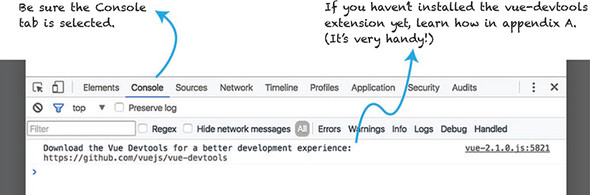
Once the page loads, open the JavaScript console if it isn’t already open, and hopefully you’ll see . . . <drum roll> . . . absolutely nothing (or perhaps a note about downloading vue-devtools if you haven’t already done so, or a note that you’re running Vue in development mode). Figure 2.2 shows what your console might look like.
Figure 2.2. The JavaScript console with no errors or warnings.
Even as simple as our application is so far, we can still run into trouble when we load our file in Chrome. Here are two common issues to look out for when things don’t go as planned:
- Uncaught SyntaxError: Unexpected identifier almost always indicates a typo in the JavaScript code and can usually be traced to a missing comma or curly brace. You can click the filename and line number displayed on the right of the error to jump to the corresponding code. Keep in mind that you may have to hunt a few lines up or down to find the offending typo.
- [Vue warn]: Property or method "propertyname" is not defined . . . lets you know something wasn’t defined in the options object when the instance was created. Check to see whether the property or method exists in your options object, and if it does, check for typos in its name. Also check to be sure the name is spelled correctly in the binding in your markup.
Tracking down errors the first few times can be frustrating, but after you’ve resolved a few errors the process will become more natural.
If you run into something you can’t figure out, or you find a particularly nasty error, you can check out the Help section of the Vue forum at https://forum.vuejs.org/c/help or ask for help in the Vue Gitter chat at https://gitter.im/vuejs/vue.
After Vue finishes initializing and mounting the application, it returns a reference to the root Vue instance, which we stored in the webstore variable. We can use that variable to inspect our application in the JavaScript console. Let’s use it now to make sure that our application is alive and well before continuing.
With the console open, enter webstore at the prompt. The result is a Vue object that we can inspect further in the console. For now, click the disclosure triangles
( ) to expand the object and look at the properties of our root Vue instance as seen in figure 2.3.
Figure 2.3. Using the webstore variable to display a representation of the Vue instance and explore its properties.
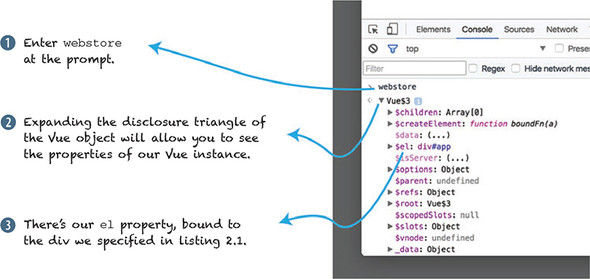
You may have to scroll around a bit, but you should be able to locate the el property we specified as part of our application’s options object. In future chapters, we’ll use the console to access our instance for debugging, manipulating data, and triggering behaviors in our application while it’s running, so we can validate that it behaves as expected. We can also use vue-devtools to peek inside our application while it’s running. (Again, if you don’t yet have vue-devtools installed, visit appendix A to learn how to install it.) Let’s see how it compares with using the JavaScript console. Figure 2.4 shows the different parts of the vue-devtools.
Figure 2.4. The vue-devtools window with nothing selected.
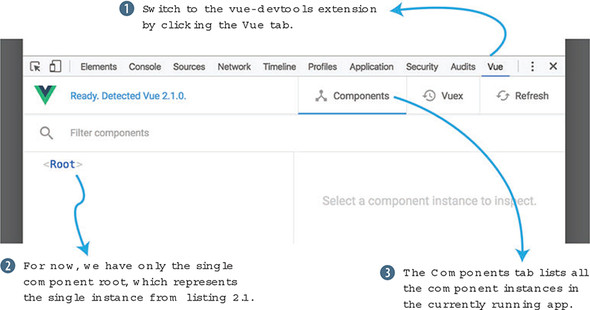
The vue-devtools extension provides big functionality for inspecting a Vue application, its data, and the relationship of its components. As an application grows in complexity, the searchable tree view in vue-devtools shows the relationship of components in a way the JavaScript console cannot. We’ll discuss more about Vue components and how they relate to the Vue instance in a later chapter.
We’ll frequently use both tools to zero in on problems with our application as we build it. In fact, we can use vue-devtools to discover another way to access our application instance in the JavaScript console as seen in figure 2.5.
Figure 2.5. The root instance selected in vue-devtools with a variable dynamically assigned to the instance.
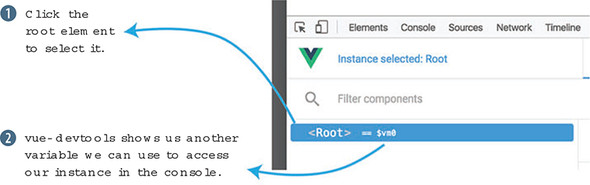
When you select an instance in the tree view, as in figure 2.5, vue-devtools assigns a reference to the instance to the $vm0 variable. We can use $vm0 the same way we used our webstore variable. Try using $vm0 in the JavaScript console to see if you can inspect the root Vue instance
Having multiple ways to access the same instance may appear redundant, but it’s helpful to have both.
When we assigned our root Vue instance to the global variable webstore, we gave ourselves a way to refer to the application in other JavaScript code on the page. Doing so allows us to integrate with other libraries, frameworks, or our own code that may require a reference back to our application.
The Vue instance assigned to the $vm0 variable reflects the current selection made in vue-devtools. When an application is made up of hundreds, or even thousands of instances, it isn’t practical to declaratively assign each instance, so having a way to access specific instances that are created programmatically becomes indispensable when inspecting and debugging such a complex application.
2.1.3. Displaying something inside our view
Until now, our application has been a real snoozefest. Let’s liven it up by displaying data from our application instance in our application’s template. Remember, our Vue instance uses the DOM element we provide as the basis for its template.
We’re going to start by adding the name of our webstore. This will show us how to pass data into the Vue constructor, and how to bind that data to a view. In this listing let’s update the application code from listing 2.1.
Listing 2.2. Adding data and a data binding: chapter-02/data-binding.html
<html>
  <head>
    <title>Vue.js Pet Depot</title>
    <script src="https://unpkg.com/vue"></script>  </head>
  <body>
    <div id="app">
      <header>                                           1
        <h1 v-text="sitename"></h1>                      2
      </header>                                          1
    </div>

    <script type="text/javascript">
      var webstore = new Vue({
        el: '#app', // <=== Don't forget this comma!
        data: {                                          3
          sitename: 'Vue.js Pet Depot'                   4
        }                                                3
      });
    </script>
  </body>
</html>
- 1 A header element is added to the div.
- 2 Shows data binding for the sitename property
- 3 Adds a data object to the Vue options
- 4 Shows the sitename property we bind to in the header
We’ve added a data object to the options we pass into our Vue constructor. That data object contains a single property, sitename, which contains the name of our webstore.
Our site’s name needs a home, so we’ve also added a header element to the markup inside of the application’s root div element. On the heading element <h1>, we use a data binding element directive, v-text="sitename".
A v-text directive prints a string representation of the property it references. In this case, once our application is up and running we should see a header with the text “Vue.js Pet Depot” displayed inside it.
If you need to display a property value in the middle of a larger string, you can use Mustache syntax—{{ property-name }}—to bind to a property. To include the name of our webstore in a sentence, you might write <p>Welcome to {{ sitename }}</p>.
Tip
Vue only borrows the {{ ... }} syntax from Mustache for text interpolations, not from the entire Mustache specification. But if you’re curious where it comes from, visit the online manual at https://mustache.github.io/mustache.5.html.
With our data binding in place, let’s go see how our new header looks in the browser.
2.1.4. Inspecting properties in Vue
When you reload the application in Chrome, you should see the header proudly displaying the value of our sitename property as seen in figure 2.6. The visual appearance of our header is provided by the stylesheet in chapter-02/assets/css/app.css. We’ll use our stylesheet and Bootstrap to design our application. If you’d like to tinker with the appearance of the header, open that file and find the styles defined by header h1.
Figure 2.6. Our sitename property displayed in the header of our webstore.

Vue automatically creates getter and setter functions for each property of the data object when it initializes our application. That gives us the ability to retrieve the current value of, or set a new value for, any of our instance’s properties without writing any additional code. To see these functions in action, let’s start by using the getter to print the value of the sitename property.
As you can see in figure 2.7, the getter and setter functions for our sitename property are exposed at the root level of our application instance. That lets us access the property from the JavaScript console, or from any other JavaScript that interacts with our application.
Figure 2.7. Using the console and vue-devtools, we can check on our sitename property.
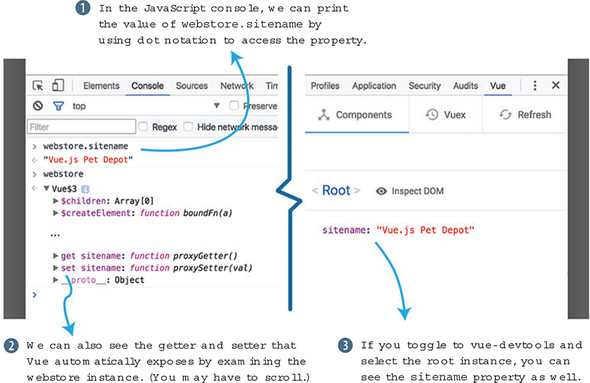
You can also see the property listed in vue-devtools when we select the <root> instance. Now let’s see what happens in figure 2.8 when we use the setter to set the value of sitename in the JavaScript console.
Figure 2.8. Using Vue’s property getter and setter to print and update the sitename property, respectively.
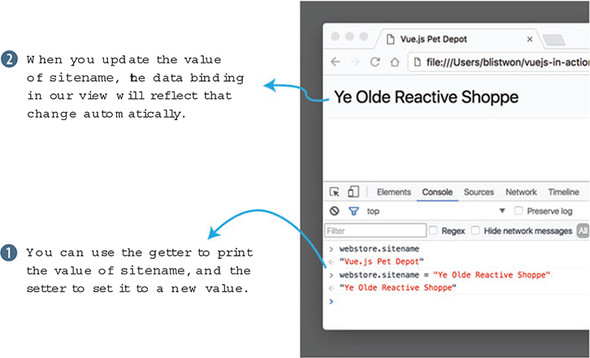
Once we provide a new value for sitename and hit Enter, the output in our header element is automatically updated. This is Vue’s event loop in action. Let’s look at the Vue lifecycle to see how and when changes to our data trigger updates to the view.
2.2. The Vue lifecycle
When a Vue application is first instantiated, it begins its journey through a sequence of events known collectively as the Vue lifecycle. Although a long-running Vue application will likely spend most of its time cycling within the event loop, much of the heavy lifting of the library itself occurs when an application is first created. Let’s take a high-level look at the lifecycle in figure 2.9.
Figure 2.9. Diagram of the Vue lifecycle, divided into four phases.
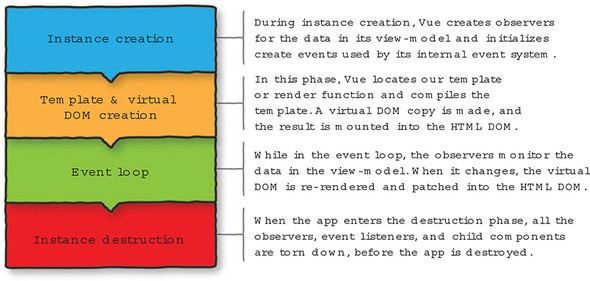
Each phase builds upon the previous phase to create the Vue lifecycle. You may wonder what the virtual DOM is and how the render function works. The virtual DOM is a lightweight abstraction that represents the DOM. It mimics the DOM tree that’s normally accessed by the browser. Vue can make updates to the virtual DOM much quicker than the browser-specific DOM. The render function is the way Vue can display information to the user. For more information on the Vue instance and lifecycle hooks, please check out the official guides at https://vuejs.org/v2/guide/instance.html.
2.2.1. Adding lifecycle hooks
To see when our application instance passes through the different phases of the lifecycle, we can write callback functions for Vue’s lifecycle hooks. Let’s update the code in our main application file (index.html) in listing 2.3.
Info
A hook is a function that gets “hooked” onto a part of the Vue library’s code. Whenever Vue reaches that part of the code during execution, it calls the function you define or continues along if there’s nothing to do.
Listing 2.3. Adding lifecycle hooks to our instance: chapter-02/life-cycle-hooks.js
var APP_LOG_LIFECYCLE_EVENTS = true;        1

var webstore = new Vue({
  el: "#app",
  data: {
    sitename: "Vue.js Pet Depot",
  },
  beforeCreate: function() {                2
    if (APP_LOG_LIFECYCLE_EVENTS) {         2
      console.log("beforeCreate");          2
    }                                       2
  },                                        2
  created: function() {                     3
    if (APP_LOG_LIFECYCLE_EVENTS) {         3
      console.log("created");               3
    }                                       3
  },                                        3
  beforeMount: function() {                 4
    if (APP_LOG_LIFECYCLE_EVENTS) {         4
      console.log("beforeMount");           4
    }                                       4
  },                                        4
  mounted:  function() {                    5
    if (APP_LOG_LIFECYCLE_EVENTS) {         5
      console.log("mounted");               5
    }                                       5
  },                                        5
  beforeUpdate:  function() {               6
    if (APP_LOG_LIFECYCLE_EVENTS) {         6
      console.log("beforeUpdate");          6
    }                                       6
  },                                        6
  updated:  function() {                    7
    if (APP_LOG_LIFECYCLE_EVENTS) {         7
      console.log("updated");               7
    }                                       7
  },                                        7
  beforeDestroy:  function() {              8
    if (APP_LOG_LIFECYCLE_EVENTS) {         8
      console.log("beforeDestroy ");        8
    }                                       8
  },                                        8
  destroyed:  function() {                  9
    if (APP_LOG_LIFECYCLE_EVENTS) {         9
      console.log("destroyed");             9
    }                                       9
  }                                         9
});
- 1 Shows a variable used to enable or disable our callbacks
- 2 Logs the beforeCreate event
- 3 Logs the created event
- 4 Logs the beforeMount event
- 5 Logs the mounted event
- 6 Logs the beforeUpdate event
- 7 Logs the updated event
- 8 Logs the beforeDestroy event
- 9 Logs the destroyed event
The first thing you’ll notice in listing 2.3 is that we’ve defined a variable, APP_LOG_LIFECYCLE_EVENTS, that we can use to enable or disable logging of lifecycle events. We define our variable outside the Vue instance, so it can be used globally by the root instance or any child components we write later. Also, if we defined it inside our application instance, it wouldn’t be available in the beforeCreate callback because it hasn’t yet been created!
Note
APP_LOG_LIFECYCLE_EVENTS uses the uppercase syntax typically reserved for constant definition because, when we start using ECMAScript 6 later in the book, we’ll use the const feature to create constants. Planning ahead means we won’t have to do any find-and-replace to change the name in the rest of our code.
The remainder of the code defines functions that log each lifecycle event as it’s encountered. Let’s revisit our console exploration of the sitename property to see what happens in the Vue lifecycle.
2.2.2. Exploring the lifecycle code
If you open the console in Chrome and reload the app, you should immediately see the output from several of our callbacks as seen in figure 2.10.
Figure 2.10. Output from some of our lifecycle functions can be seen in the console.
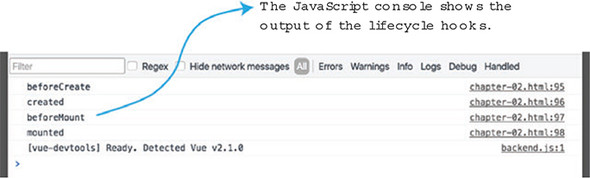
As you might expect, the first four lifecycle hooks get triggered as Vue creates and mounts our application. To test the other hooks, we’ll need to interact with the console a bit. First, let’s trigger the update callbacks by setting a new name for our site. Figure 2.11 displays how this can be done.
Figure 2.11. Setting the sitename property triggers the update lifecycle callbacks.
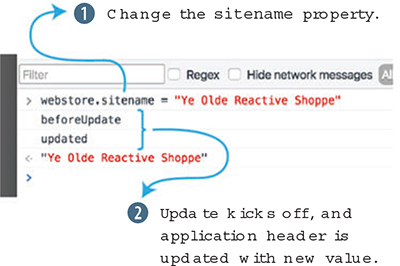
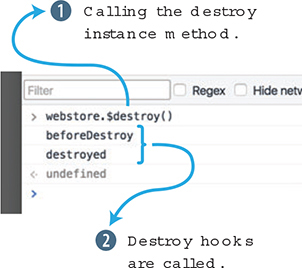
When you change the sitename property, the update cycle kicks off as the data binding in the application’s header is updated with the new value. Now let’s destroy our application! (Don’t worry, it’ll come right back with a reload.) To trigger the last two lifecycle hooks, we use our instance’s $destroy method.
Tip
Special methods that Vue creates on our instance are available using the $ prefix. For more information on Vue’s lifecycle instance methods, you can visit the API documentation at https://vuejs.org/v2/api/#Instance-Methods-Lifecycle.
These last two hooks are typically used for cleanup activities in an application or component. If our application created an instance of a third-party library, we should call that library’s teardown code, or de-allocate any references to it manually, so that we avoid leaking memory allocated to our application. Figure 2.12 shows how calling the $destroy() instance method will trigger the destroy hooks.
Figure 2.12. Calling the destroy instance method triggers the final pair of lifecycle callbacks.
2.2.3. Keeping the lifecycle code, or not
The lifecycle hooks provide a great way to see what’s going on as an application runs, but I’m the first to admit that there’s repetitive, verbose code required to log messages to the console. Because they’re fairly bulky, I won’t include these debugging functions in code listings from here on, but we’ll occasionally use lifecycle hooks to explore new behavior or for functional reasons in the application itself.
If you do keep these hooks around, and the console gets too noisy with output, you can disable the logging by setting APP_LOG_LIFECYCLE_EVENTS to false. Bear in mind that you can disable them completely by changing the value in the index.html, or you can temporarily toggle logging on and off by setting the value at runtime using the JavaScript console.
2.3. Displaying a product
Displaying the name of our webstore is a good start, but there are a few more aspects of displaying data in our markup that we should cover before moving on. Our webstore will display products in one of several ways: in a list, in a grid, as a featured product, and on its own individual product page. As we design and mark up each view, we’ll continue to use the same data, but we’ll use Vue’s functionality to manipulate it differently for each display without altering the underlying values or structure.
2.3.1. Defining product data
For now, we’re only going to display a single product, so let’s add a sample product to our data object.
Listing 2.4. Adding product data to our Vue instance: chapter-02/product-data.js
data: {
  sitename: "Vue.js Pet Depot",
  product: {                                                  1
    id: 1001,                                                 2
    title: "Cat Food, 25lb bag",                              2
    description: "A 25 pound bag of <em>irresistible</em>,"+  2
                  "organic goodness for your cat.",           2
    price: 2000,                                              2
    image: "assets/images/product-fullsize.png"               2
  }
},
- 1 An object for our product data
- 2 The product’s attributes are properties of our product object.
Adding a product object to our data option is relatively straightforward:
- The id property is used to uniquely identify a product. This property will increment if we add more products.
- Although the title and description properties are both strings, the description contains HTML markup. We’ll look at what that means when we get around to displaying each of those values in our product markup.
- The price property represents the cost of our product as an integer. This simplifies calculations we’ll do later, and this format avoids potentially destructive type casting that occurs when values are stored as floats or strings in a database.
- The image property provides a path to our product’s primary image file. We’re going to iterate on this one quite a bit, so if seeing a hardcoded path here makes you nervous, breathe easy, because we’ll explore better options.
With our data in place, let’s get our view up to speed.
2.3.2. Marking up the product view
Now we can focus on adding the product markup to our HTML. Beneath the header element, we’ll add a main element that acts as the primary container for the content of our application. The main element, <main>, is a new addition to HTML5 and is meant to contain the primary content of a webpage or application.
Info
For more information about the main element (and others), start by visiting www.quackit.com/html_5/tags/html_main_tag.cfm.
The product layout uses two columns so that the product image is displayed to the side of the product information (figure 2.13). Our stylesheet (chapter-02/assets/css/app.css) already has all the column styles defined, so we only need to include the appropriate class names in our markup.
Listing 2.5. Adding product markup: chapter-02/product-markup.html
<main>
  <div class="row product">
    <div class="col">
      <figure>
        <img v-bind:src="product.image">             1
      </figure>
    </div>
    <div class="col col-expand">
      <h1 v-text="product.title"></h1>               2
      <p v-text="product.description"></p>           2
      <p v-text="product.price" class="price"></p>   2
    </div>
  </div>
</main>
- 1 The product’s image path is bound to the src of the img tag using a v-bind directive.
- 2 Other product properties are displayed using the v-text directive.
One thing you’ll notice right away is the use of JavaScript dot notation in the data bindings. Because product is an object, we must provide each binding with the entire path to a property. Most of the properties of our product data—title, description and price—are bound using the v-text directives, the same way we bound the sitename property in the header.
The product’s image path introduces an attribute binding. We use the v-bind directive because element attributes cannot be bound using simple text interpolations. Any valid element attribute can be bound using the v-bind directive, but it’s important to note that there are special cases for styles, class names, and other scenarios that we’ll come to in future chapters.
Note
You can use a shorthand for the v-bind directive. Instead of typing out v-bind every time you need to use it, you can remove the v-bind and type :, so instead of using v-bind:src=" ... ", you can type :src=" ... ".
We don’t need to restrict our data bindings to properties of our data. Vue allows us to use any valid JavaScript expression inside any of our bindings. A few examples using the code from listing 2.5 might be:
{{ product.title.toUpperCase() }} -> CAT FOOD, 25LB BAG
{{ product.title.substr(4,4) }} -> Food
{{ product.price - (product.price * 0.25)  }} -> 1500
<img :src="product.image.replace('.png', '.jpg')"> -> <img src=" //assets/
images/product-fullsize.png">
Though using expressions in this way is convenient, it introduces logic into the view that’s almost always better off inside the JavaScript code of the application or component responsible for the view’s data. Additionally, expressions like this make it difficult to reason about where an application’s data gets manipulated, especially as an application’s complexity increases.
In general, using an inline expression is a great way to test something before formalizing that functionality within an application.
The next section and upcoming chapters introduce the best practices for manipulating, filtering, and deriving data from existing values without compromising the integrity of our views or application data. For details on what’s considered an expression, please visit https://vuejs.org/v2/guide/syntax.html#Using-JavaScript-Expressions.
Let’s flip over to Chrome, reload the page, and confirm that the product information is displayed as designed.
Figure 2.13. Our product is displayed but has a few issues we need to clean up.
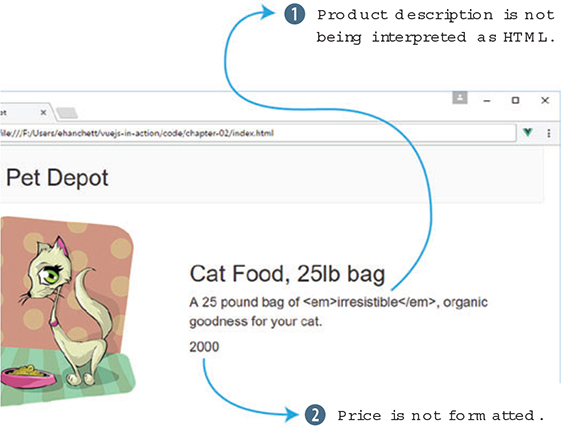
Uh oh, we’ve got a couple of things to work on:
- The product description is being output as a string and isn’t interpreting the HTML embedded in the description’s value.
- The product’s price is displayed as a string representation of the integer 2000, and not as a well-formatted dollar figure.
Let’s solve that first issue first. What we need is an HTML directive, so let’s update the product markup using the v-html binding to output the product’s description as intended.
Listing 2.6. Adding product markup: chapter-02/product-markup-cont.html
<main>
  <div class="row product">
    <div class="col">
      <figure>
        <img v-bind:src="product.image">
      </figure>
    </div>
    <div class="col col-expand">
      <h1 v-text="product.title"></h1>
      <p v-html="product.description"></p>               1
      <p v-text="product.price" class="price"></p>
    </div>
  </div>
</main>
- 1 Uses an HTML directive to output the product description as HTML, not plain text
Reloading the app in Chrome should now render the value of our product description as HTML and the emphasis tag should italicize the word “irresistible,” as shown in figure 2.14.
Figure 2.14. Using the v-html binding allows us to display the description as raw HTML.
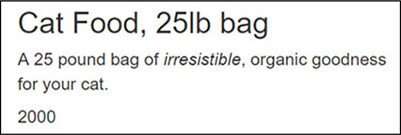
The v-html binding will render the bound property as raw HTML. This can be handy but should be used sparingly and only when the value is one you can trust. Now we need to fix the display of that pesky price value.
When we write code that inserts HTML directly into a view, we open our applications up to cross-site scripting (XSS) attacks.
At a high level, if a bad actor visits our site and saves malicious JavaScript in our database by using a form we haven’t sanitized, we’re vulnerable when we output that code to our HTML.
In general, best practice dictates that we should, at a minimum, follow basic principles regarding HTML and content:
- Only output trusted content when using HTML interpolations.
- Never output user-sourced content when using HTML interpolations, no matter how well-scrutinized the content is.
- If absolutely required, try to implement the feature using a component with its own template, rather than allow HTML elements in text inputs.
For a comprehensive, clear overview of XSS, start with this article at https://excess-xss.com/, and for a deeper understanding of attacks and sample code for each exploit, consult this OWASP wiki at www.owasp.org/index.php/Cross-site_Scripting_(XSS).
2.4. Applying output filters
The last thing left to do is to display our product’s price in a familiar format, not as a raw integer. Output filters let us apply formatting to a value before it’s displayed in our markup. The general format of an output filter is {{ property | filter }}. In our case, we want to format the product’s price to look like $20.00, rather than 2000.
2.4.1. Write the filter function
Output filters are functions that receive a value, perform a formatting task, and return the formatted value for output. When used as part of a text interpolation, the value passed to the filter is the property we’re binding to.
All our output filters reside in the filters object of the options we pass to our Vue instance, so that’s where we’ll add our price formatter in the following listing.
Listing 2.7. Adding the formatPrice filter: chapter-02/format-price.js
var webstore = new Vue({
  el: '#app',
  data: { ... },
  filters: {                                                  1
    formatPrice: function(price) {                            2
      if (!parseInt(price)) { return ""; }                    3
      if (price > 99999) {                                    4
        var priceString = (price / 100).toFixed(2);           5
        var priceArray = priceString.split("").reverse();     6
        var index = 3;                                        6
        while (priceArray.length > index + 3) {               6
          priceArray.splice(index+3, 0, ",");                 6
          index += 4;                                         6
        }                                                     6
        return "$" + priceArray.reverse().join("");           7
      } else {
        return "$" + (price / 100).toFixed(2);              8
      }
    }
  }
});
- 1 The filters option contains output filters.
- 2 formatPrice takes an integer and formats a price value.
- 3 If we can’t get an integer, return immediately.
- 4 Formats values $1,000 and up
- 5 Converts the value to a decimal
- 6 Adds commas every three places
- 7 Returns the formatted value
- 8 If less than $1,000, returns a formatted decimal value
The formatPrice function takes an integer and returns a string formatted to look like a U.S. dollar value. Generically, it will return a value similar to $12,345.67. Depending on the size of the integer provided, the function branches as follows:
- If the input is greater than 99,999 (the equivalent of $999.99), the output will require commas every three digits to the left of the decimal, so we need to process it accordingly.
- Otherwise, the input can be converted using .toFixed, and returned because no commas are required.
Note
You can find probably a gazillion ways to format a dollar figure that are more efficient, terse, or whatever quality you’re searching for. Here, I’ve tried to favor clarity over expediency. For an idea of how complex the issue is, and how many solutions there are, dive into this post at http://mng.bz/qusZ.
2.4.2. Adding the filter to our markup and testing different values
To use our shiny new filter function, we need to add it to the binding for our product’s price. We also need to update our price binding to use the Mustache-style binding to apply the filter, as shown next. Filters cannot be used with the v-text binding syntax.
Listing 2.8. Adding product markup: chapter-02/v-text-binding.html
<main>
  <div class="row product">
    <div class="col">
      <figure>
        <img v-bind:src="product.image">
      </figure>
    </div>
    <div class="col col-expand">
      <h1>{{ product.title }}</h1>
      <p v-html="product.description"></p>
      <p class="price">                         1
        {{ product.price | formatPrice }}       1
      </p>                                      1
    </div>
  </div>
</main>
- 1 Uses our new output filter to format the value of a product’s price
Remember, bindings with filters have the generic form {{ property | filter }}, so we’ve updated our price binding accordingly, {{ product.price | formatPrice }}. Flip back over to Chrome, refresh, and voilà, we’ve got a formatted price as seen in figure 2.15.
Figure 2.15. Our price formatter adds a dollar sign and the appropriate punctuation to the display of our price property’s value.
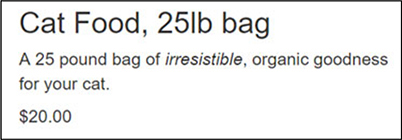
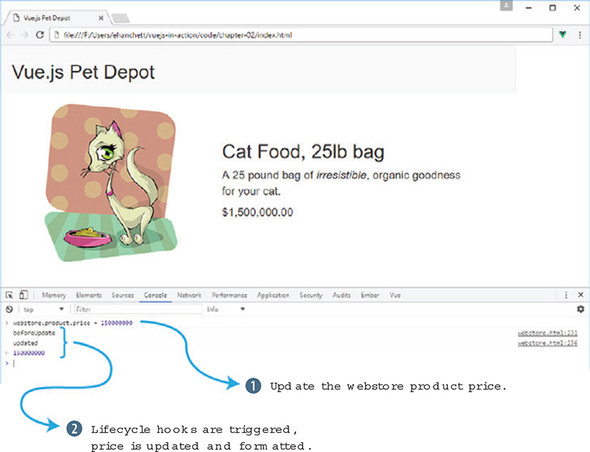
We can see how our filter is applied to different product price values in real time if we tinker with our data in the console. To try different values, open the console and set the value of product.price with a statement such as webstore.product.price = 150000000.
Figure 2.16 shows what will occur after the product price is updated. Be sure to try out small (< 100) and large (> 10000000) values to be sure each is formatted correctly.
Figure 2.16. Updating the product price triggers our lifecycle events (if you still have them enabled), as well as an update to the price, which is now run through our filter function.
Exercise
Use your knowledge from this chapter to answer this question:
- In section 2.4 we created a filter for the price. Can you think of any other filters that might be helpful?
See the solution in appendix B.
Summary
- Vue gives you the ability to add interactivity to your applications.
- At any time, we can hook into the Vue lifecycle to help perform certain functions.
- Vue.js offers powerful filters to help display information in a certain way.