Over the past decade, regular expressions have experienced a remarkable rise in popularity. Today, all the popular programming languages include a powerful regular expression library, or even have regular expression support built right into the language. Many developers have taken advantage of these regular expression features to provide the users of their applications the ability to search or filter through their data using a regular expression. Regular expressions are everywhere.
Many books have been published to ride the wave of regular expression adoption. Most do a good job of explaining the regular expression syntax along with some examples and a reference. But there aren’t any books that present solutions based on regular expressions to a wide range of real-world practical problems dealing with text on a computer and in a range of Internet applications. We, Steve and Jan, decided to fill that need with this book.
We particularly wanted to show how you can use regular expressions in situations where people with limited regular expression experience would say it can’t be done, or where software purists would say a regular expression isn’t the right tool for the job. Because regular expressions are everywhere these days, they are often a readily available tool that can be used by end users, without the need to involve a team of programmers. Even programmers can often save time by using a few regular expressions for information retrieval and alteration tasks that would take hours or days to code in procedural code, or that would otherwise require a third-party library that needs prior review and management approval.
As with anything that becomes popular in the IT industry, regular expressions come in many different implementations, with varying degrees of compatibility. This has resulted in many different regular expression flavors that don’t always act the same way, or work at all, on a particular regular expression.
Many books do mention that there are different flavors and point out some of the differences. But they often leave out certain flavors here and there—particularly when a flavor lacks certain features—instead of providing alternative solutions or workarounds. This is frustrating when you have to work with different regular expression flavors in different applications or programming languages.
Casual statements in the literature, such as “everybody uses Perl-style regular expressions now,” unfortunately trivialize a wide range of incompatibilities. Even “Perl-style” packages have important differences, and meanwhile Perl continues to evolve. Oversimplified impressions can lead programmers to spend half an hour or so fruitlessly running the debugger instead of checking the details of their regular expression implementation. Even when they discover that some feature they were depending on is not present, they don’t always know how to work around it.
This book is the first book on the market that discusses the most popular and feature-rich regular expression flavors side by side, and does so consistently throughout the book.
You should read this book if you regularly work with text on a computer, whether that’s searching through a pile of documents, manipulating text in a text editor, or developing software that needs to search through or manipulate text. Regular expressions are an excellent tool for the job. Regular Expressions Cookbook teaches you everything you need to know about regular expressions. You don’t need any prior experience whatsoever, because we explain even the most basic aspects of regular expressions.
If you do have experience with regular expressions, you’ll find a wealth of detail that other books and online articles often gloss over. If you’ve ever been stumped by a regex that works in one application but not another, you’ll find this book’s detailed and equal coverage of seven of the world’s most popular regular expression flavors very valuable. We organized the whole book as a cookbook, so you can jump right to the topics you want to read up on. If you read the book cover to cover, you’ll become a world-class chef of regular expressions.
This book teaches you everything you need to know about regular expressions and then some, regardless of whether you are a programmer. If you want to use regular expressions with a text editor, search tool, or any application with an input box labeled “regex,” you can read this book with no programming experience at all. Most of the recipes in this book have solutions purely based on one or more regular expressions.
If you are a programmer, Chapter 3 provides all the information you need to implement regular expressions in your source code. This chapter assumes you’re familiar with the basic language features of the programming language of your choice, but it does not assume you have ever used a regular expression in your source code.
.NET, Java, JavaScript, PCRE, Perl, Python, and Ruby aren’t just back-cover buzzwords. These are the seven regular expression flavors covered by this book. We cover all seven flavors equally. We’ve particularly taken care to point out all the inconsistencies that we could find between those regular expression flavors.
The programming chapter (Chapter 3) has code listings in C#, Java, JavaScript, PHP, Perl, Python, Ruby, and VB.NET. Again, every recipe has solutions and explanations for all eight languages. While this makes the chapter somewhat repetitive, you can easily skip discussions on languages you aren’t interested in without missing anything you should know about your language of choice.
The first three chapters of this book cover useful tools and basic information that give you a basis for using regular expressions; each of the subsequent chapters presents a variety of regular expressions while investigating one area of text processing in depth.
Chapter 1, Introduction to Regular Expressions, explains the role of regular expressions and introduces a number of tools that will make it easier to learn, create, and debug them.
Chapter 2, Basic Regular Expression Skills, covers each element and feature of regular expressions, along with important guidelines for effective use. It forms a complete tutorial to regular expressions.
Chapter 3, Programming with Regular Expressions, specifies coding techniques and includes code listings for using regular expressions in each of the programming languages covered by this book.
Chapter 4, Validation and Formatting, contains recipes for handling typical user input, such as dates, phone numbers, and postal codes in various countries.
Chapter 5, Words, Lines, and Special Characters, explores common text processing tasks, such as checking for lines that contain or fail to contain certain words.
Chapter 6, Numbers, shows how to detect integers, floating-point numbers, and several other formats for this kind of input.
Chapter 7, Source Code and Log Files, provides building blocks for parsing source code and other text file formats, and shows how you can process log files with regular expressions.
Chapter 8, URLs, Paths, and Internet Addresses, shows you how to take apart and manipulate the strings commonly used on the Internet and Windows systems to find things.
Chapter 9, Markup and Data Formats, covers the manipulation of HTML, XML, comma-separated values (CSV), and INI-style configuration files.
The following typographical conventions are used in this book:
Indicates new terms, URLs, email addresses, filenames, and file extensions.
Constant widthUsed for program listings, program elements such as variable or function names, values returned as the result of a regular expression replacement, and subject or input text that is applied to a regular expression. This could be the contents of a text box in an application, a file on disk, or the contents of a string variable.
Constant width italicShows text that should be replaced with user-supplied values or by values determined by context.
Regular●expression›Represents a regular expression, standing alone or as you would type it into the search box of an application. Spaces in regular expressions are indicated with gray circles to make them more obvious. Spaces are not indicated with gray circles in free-spacing mode because this mode ignores spaces.
Replacement●text»Represents the text that regular expression matches will be replaced within a search-and-replace operation. Spaces in replacement text are indicated with gray circles to make them more obvious.
Matched
textRepresents the part of the subject text that matches a regular expression.
A gray ellipsis in a regular expression indicates that you have to “fill in the blank” before you can use the regular expression. The accompanying text explains what you can fill in.
CR, LF, and CRLFCR, LF, and CRLF in boxes represent actual line break
characters in strings, rather than character escapes such as
\r, \n, and \r\n. Such strings
can be created by pressing Enter in a multiline edit control in an
application, or by using multiline string constants in source code
such as verbatim strings in C# or triple-quoted strings in
Python.
The return arrow, as you may see on the Return or Enter key on your keyboard, indicates that we had to break up a line to make it fit the width of the printed page. When typing the text into your source code, you should not press Enter, but instead type everything on a single line.
This icon signifies a tip, suggestion, or general note.
This icon indicates a warning or caution.
This book is here to help you get your job done. In general, you may use the code in this book in your programs and documentation. You do not need to contact us for permission unless you’re reproducing a significant portion of the code. For example, writing a program that uses several chunks of code from this book does not require permission. Selling or distributing a CD-ROM of examples from O’Reilly books does require permission. Answering a question by citing this book and quoting example code does not require permission. Incorporating a significant amount of example code from this book into your product’s documentation does require permission.
We appreciate, but do not require, attribution. An attribution usually includes the title, author, publisher, and ISBN. For example: “Regular Expressions Cookbook by Jan Goyvaerts and Steven Levithan. Copyright 2012 Jan Goyvaerts and Steven Levithan, 978-1-449-31943-4.”
If you feel your use of code examples falls outside fair use or the permission given here, feel free to contact us at permissions@oreilly.com.
Safari Books Online (www.safaribooksonline.com) is an on-demand digital library that delivers expert content in both book and video form from the world’s leading authors in technology and business.
Technology professionals, software developers, web designers, and business and creative professionals use Safari Books Online as their primary resource for research, problem solving, learning, and certification training.
Safari Books Online offers a range of product mixes and pricing programs for organizations, government agencies, and individuals. Subscribers have access to thousands of books, training videos, and prepublication manuscripts in one fully searchable database from publishers like O’Reilly Media, Prentice Hall Professional, Addison-Wesley Professional, Microsoft Press, Sams, Que, Peachpit Press, Focal Press, Cisco Press, John Wiley & Sons, Syngress, Morgan Kaufmann, IBM Redbooks, Packt, Adobe Press, FT Press, Apress, Manning, New Riders, McGraw-Hill, Jones & Bartlett, Course Technology, and dozens more. For more information about Safari Books Online, please visit us online.
Please address comments and questions concerning this book to the publisher:
| O’Reilly Media, Inc. |
| 1005 Gravenstein Highway North |
| Sebastopol, CA 95472 |
| 800-998-9938 (in the United States or Canada) |
| 707-829-0515 (international or local) |
| 707-829-0104 (fax) |
We have a web page for this book, where we list errata and any additional information. You can access this page at:
| http://oreilly.com/catalog/9781449319434 |
To comment or ask technical questions about this book, send email to:
| bookquestions@oreilly.com |
For more information about our books, courses, conferences, and news, see our website at http://www.oreilly.com.
Find us on Facebook: http://facebook.com/oreilly
Follow us on Twitter: http://twitter.com/oreillymedia
Watch us on YouTube: http://www.youtube.com/oreillymedia
We thank Andy Oram, our editor at O’Reilly Media, Inc., for helping us see this project from start to finish. We also thank Jeffrey Friedl, Zak Greant, Nikolaj Lindberg, and Ian Morse for their careful technical reviews on the first edition, and Nikolaj Lindberg, Judith Myerson, and Zak Greant for reviewing the second, which made this a more comprehensive and accurate book.
Having opened this cookbook, you are probably eager to inject some of the ungainly strings of parentheses and question marks you find in its chapters right into your code. If you are ready to plug and play, be our guest: the practical regular expressions are listed and described in Chapters 4 through 9.
But the initial chapters of this book may save you a lot of time in the long run. For instance, this chapter introduces you to a number of utilities—some of them created by the authors, Jan and Steven—that let you test and debug a regular expression before you bury it in code where errors are harder to find. And these initial chapters also show you how to use various features and options of regular expressions to make your life easier, help you understand regular expressions in order to improve their performance, and learn the subtle differences between how regular expressions are handled by different programming languages—and even different versions of your favorite programming language.
So we’ve put a lot of effort into these background matters, confident that you’ll read it before you start or when you get frustrated by your use of regular expressions and want to bolster your understanding.
In the context of this book, a regular expression is a specific kind of text pattern that you can use with many modern applications and programming languages. You can use them to verify whether input fits into the text pattern, to find text that matches the pattern within a larger body of text, to replace text matching the pattern with other text or rearranged bits of the matched text, to split a block of text into a list of subtexts, and to shoot yourself in the foot. This book helps you understand exactly what you’re doing and avoid disaster.
If you use regular expressions with skill, they simplify many programming and text processing tasks, and allow many that wouldn’t be at all feasible without the regular expressions. You would need dozens if not hundreds of lines of procedural code to extract all email addresses from a document—code that is tedious to write and hard to maintain. But with the proper regular expression, as shown in Recipe 4.1, it takes just a few lines of code, or maybe even one line.
But if you try to do too much with just one regular expression, or use regexes where they’re not really appropriate, you’ll find out why some people say:[1]
Some people, when confronted with a problem, think “I know, I’ll use regular expressions.” Now they have two problems.
The second problem those people have is that they didn’t read the owner’s manual, which you are holding now. Read on. Regular expressions are a powerful tool. If your job involves manipulating or extracting text on a computer, a firm grasp of regular expressions will save you plenty of overtime.
All right, the title of the previous section was a lie. We didn’t define what regular expressions are. We can’t. There is no official standard that defines exactly which text patterns are regular expressions and which aren’t. As you can imagine, every designer of programming languages and every developer of text processing applications has a different idea of exactly what a regular expression should be. So now we’re stuck with a whole palette of regular expression flavors.
Fortunately, most designers and developers are lazy. Why create something totally new when you can copy what has already been done? As a result, all modern regular expression flavors, including those discussed in this book, can trace their history back to the Perl programming language. We call these flavors Perl-style regular expressions. Their regular expression syntax is very similar, and mostly compatible, but not completely so.
Writers are lazy, too. We’ll usually type regex or regexp to denote a single regular expression, and regexes to denote the plural.
Regex flavors do not correspond one-to-one with programming languages. Scripting languages tend to have their own, built-in regular expression flavor. Other programming languages rely on libraries for regex support. Some libraries are available for multiple languages, while certain languages can draw on a choice of different libraries.
This introductory chapter deals with regular expression flavors only and completely ignores any programming considerations. Chapter 3 begins the code listings, so you can peek ahead to Programming Languages and Regex Flavors in Chapter 3 to find out which flavors you’ll be working with. But ignore all the programming stuff for now. The tools listed in the next section are an easier way to explore the regex syntax through “learning by doing.”
For this book, we selected the most popular regex flavors in use today. These are all Perl-style regex flavors. Some flavors have more features than others. But if two flavors have the same feature, they tend to use the same syntax. We’ll point out the few annoying inconsistencies as we encounter them.
All these regex flavors are part of programming languages and libraries that are in active development. The list of flavors tells you which versions this book covers. Further along in the book, we mention the flavor without any versions if the presented regex works the same way with all flavors. This is almost always the case. Aside from bug fixes that affect corner cases, regex flavors tend not to change, except to add features by giving new meaning to syntax that was previously treated as an error:
The Microsoft .NET Framework provides a
full-featured Perl-style regex flavor through the System.Text.RegularExpressions package.
This book covers .NET versions 1.0 through 4.0. Strictly speaking,
there are only two versions of the .NET regex flavor: 1.0 and 2.0.
No changes were made to the Regex classes at all in .NET 1.1, 3.0, and 3.5. The
Regex class got a few new methods in .NET 4.0, but
the regex syntax is unchanged.
Any .NET programming language, including C#, VB.NET, Delphi for .NET, and even COBOL.NET, has full access to the .NET regex flavor. If an application developed with .NET offers you regex support, you can be quite certain it uses the .NET flavor, even if it claims to use “Perl regular expressions.” For a long time, a glaring exception was Visual Studio (VS) itself. Up until Visual Studio 2010, the VS integrated development environment (IDE) had continued to use the same old regex flavor it has had from the beginning, which was not Perl-style at all. Visual Studio 11, which is in beta when we write this, finally uses the .NET regex flavor in the IDE too.
Java 4 is the first Java release to provide built-in
regular expression support through the java.util.regex
package. It has quickly eclipsed the various third-party regex
libraries for Java. Besides being standard and built in, it offers
a full-featured Perl-style regex flavor and excellent performance,
even when compared with applications written in C. This book
covers the java.util.regex
package in Java 4, 5, 6, and 7.
If you’re using software developed with Java during the past few years, any regular expression support it offers likely uses the Java flavor.
In this book, we use the term JavaScript to indicate the regular expression flavor defined in versions 3 and 5 of the ECMA-262 standard. This standard defines the ECMAScript programming language, which is better known through its JavaScript and JScript implementations in various web browsers. Internet Explorer (as of version 5.5), Firefox, Chrome, Opera, and Safari all implement Edition 3 or 5 of ECMA-262. As far as regular expressions go, the differences between JavaScript 3 and JavaScript 5 are minimal. However, all browsers have various corner case bugs causing them to deviate from the standard. We point out such issues in situations where they matter.
If a website allows you to search or filter using a regular expression without waiting for a response from the web server, it uses the JavaScript regex flavor, which is the only cross-browser client-side regex flavor. Even Microsoft’s VBScript and Adobe’s ActionScript 3 use it, although ActionScript 3 adds some extra features.
XRegExp is an open source JavaScript library developed by Steven Levithan. You can download it at http://xregexp.com. XRegExp extends JavaScript’s regular expression syntax and removes some cross-browser inconsistencies. Recipes in this book that use regular expression features that are not available in standard JavaScript show additional solutions using XRegExp. If a solution shows XRegExp as the regular expression flavor, that means it works with JavaScript when using the XRegExp library, but not with standard JavaScript without the XRegExp library. If a solution shows JavaScript as the regular expression flavor, then it works with JavaScript whether you are using the XRegExp library or not.
This book covers XRegExp version 2.0. The recipes assume
you’re using xregexp-all.js so
that all of XRegExp’s Unicode features are available.
PCRE is the “Perl-Compatible Regular Expressions” C library developed by Philip Hazel. You can download this open source library at http://www.pcre.org. This book covers versions 4 through 8 of PCRE.
Though PCRE claims to be Perl-compatible, and is so more than any other flavor in this book, it really is just Perl-style. Some features, such as Unicode support, are slightly different, and you can’t mix Perl code into your regex, as Perl itself allows.
Because of its open source license and solid programming, PCRE has found its way into many programming languages and applications. It is built into PHP and wrapped into numerous Delphi components. If an application claims to support “Perl-compatible” regular expressions without specifically listing the actual regex flavor being used, it’s likely PCRE.
Perl’s built-in support for regular expressions is the main reason why regexes are popular today. This book covers Perl 5.6, 5.8, 5.10, 5.12, and 5.14. Each of these versions adds new features to Perl’s regular expression syntax. When this book indicates that a certain regex works with a certain version of Perl, then it works with that version and all later versions covered by this book.
Many applications and regex libraries that claim to use Perl or Perl-compatible regular expressions in reality merely use Perl-style regular expressions. They use a regex syntax similar to Perl’s, but don’t support the same set of regex features. Quite likely, they’re using one of the regex flavors further down this list. Those flavors are all Perl-style.
Python supports regular expressions through its
re module. This
book covers Python 2.4 until 3.2. The differences between the
re modules in Python 2.4, 2.5,
2.6, and 2.7 are negligible. Python 3.0 improved Python’s handling
of Unicode in regular expressions. Python 3.1 and 3.2 brought no
regex-related changes.
Ruby’s regular expression support is part of the Ruby language itself, similar to Perl. This book covers Ruby 1.8 and 1.9. A default compilation of Ruby 1.8 uses the regular expression flavor provided directly by the Ruby source code. A default compilation of Ruby 1.9 uses the Oniguruma regular expression library. Ruby 1.8 can be compiled to use Oniguruma, and Ruby 1.9 can be compiled to use the older Ruby regex flavor. In this book, we denote the native Ruby flavor as Ruby 1.8, and the Oniguruma flavor as Ruby 1.9.
To test which Ruby regex flavor your site uses, try to use
the regular expression ‹a++›. Ruby 1.8 will
say the regular expression is invalid, because it does not support
possessive quantifiers, whereas Ruby 1.9 will match a string of
one or more a characters.
The Oniguruma library is designed to be backward-compatible
with Ruby 1.8, simply adding new features that will not break
existing regexes. The implementors even left in features that
arguably should have been changed, such as using ‹(?m)›
to mean “the dot matches line breaks,” where other regex flavors
use ‹(?s)›.
[1] Jeffrey Friedl traces the history of this quote in his blog at http://regex.info/blog/2006-09-15/247.
Search-and-replace is a common job for regular expressions. A search-and-replace function takes a subject string, a regular expression, and a replacement string as input. The output is the subject string with all matches of the regular expression replaced with the replacement text.
Although the replacement text is not a regular expression at all, you can use certain special syntax to build dynamic replacement texts. All flavors let you reinsert the text matched by the regular expression or a capturing group into the replacement. Recipes 2.20 and 2.21 explain this. Some flavors also support inserting matched context into the replacement text, as Recipe 2.22 shows. In Chapter 3, Recipe 3.16 teaches you how to generate a different replacement text for each match in code.
Different ideas by different regular expression software developers have led to a wide range of regular expression flavors, each with different syntax and feature sets. The story for the replacement text is no different. In fact, there are even more replacement text flavors than regular expression flavors. Building a regular expression engine is difficult. Most programmers prefer to reuse an existing one, and bolting a search-and-replace function onto an existing regular expression engine is quite easy. The result is that there are many replacement text flavors for regular expression libraries that do not have built-in search-and-replace features.
Fortunately, all the regular expression flavors in this book have corresponding replacement text flavors, except PCRE. This gap in PCRE complicates life for programmers who use flavors based on it. The open source PCRE library does not include any functions to make replacements. Thus, all applications and programming languages that are based on PCRE need to provide their own search-and-replace function. Most programmers try to copy existing syntax, but never do so in exactly the same way.
This book covers the following replacement text flavors. Refer to Regex Flavors Covered by This Book for more details on the regular expression flavors that correspond with the replacement text flavors:
The System.Text.RegularExpressions package
provides various search-and-replace functions. The .NET
replacement text flavor corresponds with the .NET regular
expression flavor. All versions of .NET use the same replacement
text flavor. The new regular expression features in .NET 2.0 do
not affect the replacement text syntax.
The java.util.regex
package has built-in search-and-replace functions. This book
covers Java 4, 5, 6, and 7.
In this book, we use the term JavaScript to indicate both the replacement text flavor and the regular expression flavor defined in editions 3 and 5 of the ECMA-262 standard.
Steven Levithan’s XRegExp has its own replace()
function that eliminates cross-browser inconsistencies and adds
support for backreferences to XRegExp’s named capturing groups.
Recipes in this book that use named capture show additional
solutions using XRegExp. If a solution shows XRegExp as the
replacement text flavor, that means it works with JavaScript when
using the XRegExp library, but not with standard JavaScript
without the XRegExp library. If a solution shows JavaScript as the
replacement text flavor, then it works with JavaScript whether you
are using the XRegExp library or not.
This book covers XRegExp version 2.0, which you can download at http://xregexp.com.
In this book, the PHP replacement text flavor refers
to the preg_replace
function in PHP. This function uses the PCRE regular expression
flavor and the PHP replacement text flavor. It was first
introduced in PHP 4.0.0.
Other programming languages that use PCRE do not use the same replacement text flavor as PHP. Depending on where the designers of your programming language got their inspiration, the replacement text syntax may be similar to PHP or any of the other replacement text flavors in this book.
PHP also has an ereg_replace
function. This function uses a different regular expression
flavor (POSIX ERE), and a different replacement text flavor, too.
PHP’s ereg functions are
deprecated. They are not discussed in this book.
Perl has built-in support for regular expression
substitution via the s/regex/replace/ operator. The Perl
replacement text flavor corresponds with the Perl regular
expression flavor. This book covers Perl 5.6 to Perl 5.14. Perl
5.10 added support for named backreferences in the replacement
text, as it adds named capture to the regular expression
syntax.
Python’s re
module provides a sub function to
search and replace. The Python replacement text flavor corresponds
with the Python regular expression flavor. This book covers Python
2.4 until 3.2. There are no differences in the replacement text
syntax between these versions of Python.
Ruby’s regular expression support is part of the Ruby language itself, including the search-and-replace function. This book covers Ruby 1.8 and 1.9. While there are significant differences in the regex syntax between Ruby 1.8 and 1.9, the replacement syntax is basically the same. Ruby 1.9 only adds support for named backreferences in the replacement text. Named capture is a new feature in Ruby 1.9 regular expressions.
Unless you have been programming with regular expressions for some time, we recommend that you first experiment with regular expressions in a tool rather than in source code. The sample regexes in this chapter and Chapter 2 are plain regular expressions that don’t contain the extra escaping that a programming language (even a Unix shell) requires. You can type these regular expressions directly into an application’s search box.
Chapter 3 explains how to mix regular expressions into your source code. Quoting a literal regular expression as a string makes it even harder to read, because string escaping rules compound regex escaping rules. We leave that until Recipe 3.1. Once you understand the basics of regular expressions, you’ll be able to see the forest through the backslashes.
The tools described in this section also provide debugging, syntax checking, and other feedback that you won’t get from most programming environments. Therefore, as you develop regular expressions in your applications, you may find it useful to build a complicated regular expression in one of these tools before you plug it in to your program.
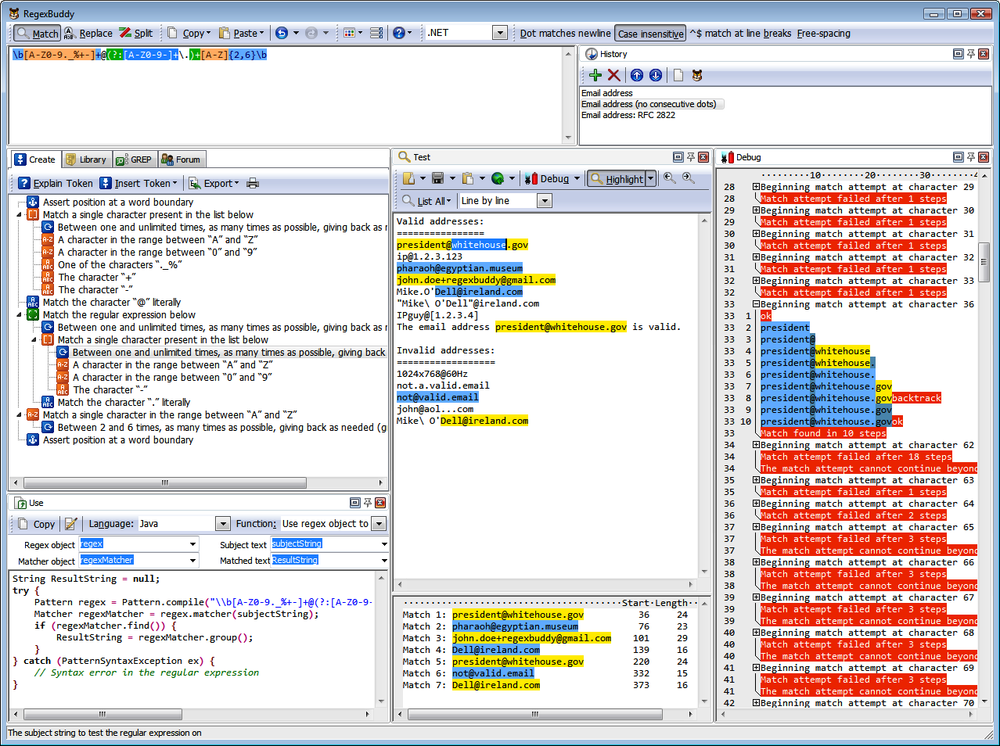
RegexBuddy (Figure 1-1) is the most full-featured tool available at the time of this writing for creating, testing, and implementing regular expressions. It has the unique ability to emulate all the regular expression flavors discussed in this book, and even convert among the different flavors.
RegexBuddy was designed and developed by Jan Goyvaerts, one of this book’s authors. Designing and developing RegexBuddy made Jan an expert on regular expressions, and using RegexBuddy helped get coauthor Steven hooked on regular expressions to the point where he pitched this book to O’Reilly.
If the screenshot (Figure 1-1) looks a little busy, that’s because we’ve arranged most of the panels side by side to show off RegexBuddy’s extensive functionality. The default view tucks all the panels neatly into a row of tabs. You also can drag panels off to a secondary monitor.
To try one of the regular expressions shown in this book, simply type it into the edit box at the top of RegexBuddy’s window. RegexBuddy automatically applies syntax highlighting to your regular expression, making errors and mismatched brackets obvious.
The Create panel automatically builds a detailed English-language analysis while you type in the regex. Double-click on any description in the regular expression tree to edit that part of your regular expression. You can insert new parts to your regular expression by hand, or by clicking the Insert Token button and selecting what you want from a menu. For instance, if you don’t remember the complicated syntax for positive lookahead, you can ask RegexBuddy to insert the proper characters for you.
Type or paste in some sample text on the Test panel. When the Highlight button is active, RegexBuddy automatically highlights the text matched by the regex.
Some of the buttons you’re most likely to use are:
Displays a list of all matches.
The Replace button at the top displays a new window that lets you enter replacement text. The Replace button in the Test box then lets you view the subject text after the replacements are made.
Treats the regular expression as a separator, and splits the subject into tokens based on where matches are found in your subject text using your regular expression.
Click any of these buttons and select Update Automatically to make RegexBuddy keep the results dynamically in sync as you edit your regex or subject text.
To see exactly how your regex works (or doesn’t), click on a highlighted match or at the spot where the regex fails to match on the Test panel, and click the Debug button. RegexBuddy will switch to the Debug panel, showing the entire matching processes step by step. Click anywhere on the debugger’s output to see which regex token matched the text you clicked on. Click on your regular expression to highlight that part of the regex in the debugger.
On the Use panel, select your favorite programming language. Then, select a function to instantly generate source code to implement your regex. RegexBuddy’s source code templates are fully editable with the built-in template editor. You can add new functions and even new languages, or change the provided ones.
To test your regex on a larger set of data, switch to the GREP panel to search (and replace) through any number of files and folders.
When you find a regex in source code you’re maintaining, copy it to the clipboard, including the delimiting quotes or slashes. In RegexBuddy, click the Paste button at the top and select the string style of your programming language. Your regex will then appear in RegexBuddy as a plain regex, without the extra quotes and escapes needed for string literals. Use the Copy button at the top to create a string in the desired syntax, so you can paste it back into your source code.
As your experience grows, you can build up a handy library of regular expressions on the Library panel. Make sure to add a detailed description and a test subject when you store a regex. Regular expressions can be cryptic, even for experts.
If you really can’t figure out a regex, click on the Forum panel and then the Login button. If you’ve purchased RegexBuddy, the login screen appears. Click OK and you are instantly connected to the RegexBuddy user forum. Steven and Jan often hang out there.
RegexBuddy runs on Windows 98, ME, 2000, XP, Vista, 7, and 8. For Linux and Apple fans, RegexBuddy also runs well on VMware, Parallels, CrossOver Office, and with a few issues on WINE. You can download a free evaluation copy of RegexBuddy at http://www.regexbuddy.com/RegexBuddyCookbook.exe. Except for the user forum, the trial is fully functional for seven days of actual use.
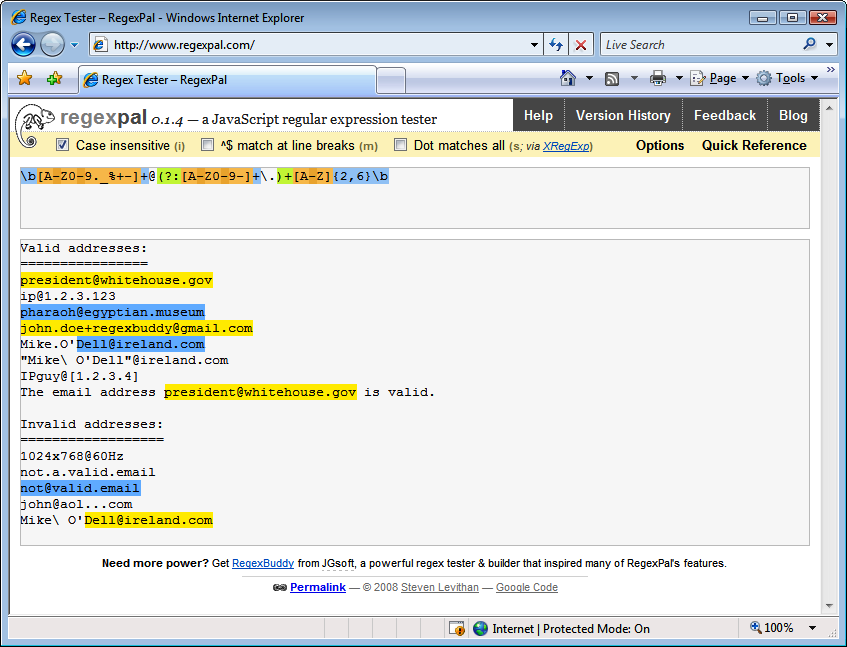
RegexPal (Figure 1-2) is an online regular expression tester created by Steven Levithan, one of this book’s authors. All you need to use it is a modern web browser. RegexPal is written entirely in JavaScript. Therefore, it supports only the JavaScript regex flavor, as implemented in the web browser you’re using to access it.
To try one of the regular expressions shown in this book, browse to http://regexpal.com. Type the regex into the box at the top. RegexPal automatically applies syntax highlighting to your regular expression, which immediately reveals any syntax errors in the regex. RegexPal is aware of the cross-browser issues that can ruin your day when dealing with JavaScript regular expressions. If certain syntax doesn’t work correctly in some browsers, RegexPal will highlight it as an error.
Now type or paste some sample text into the large box at the center. RegexPal automatically highlights the text matched by your regex.
There are no buttons to click, making RegexPal one of the most convenient online regular expression testers.
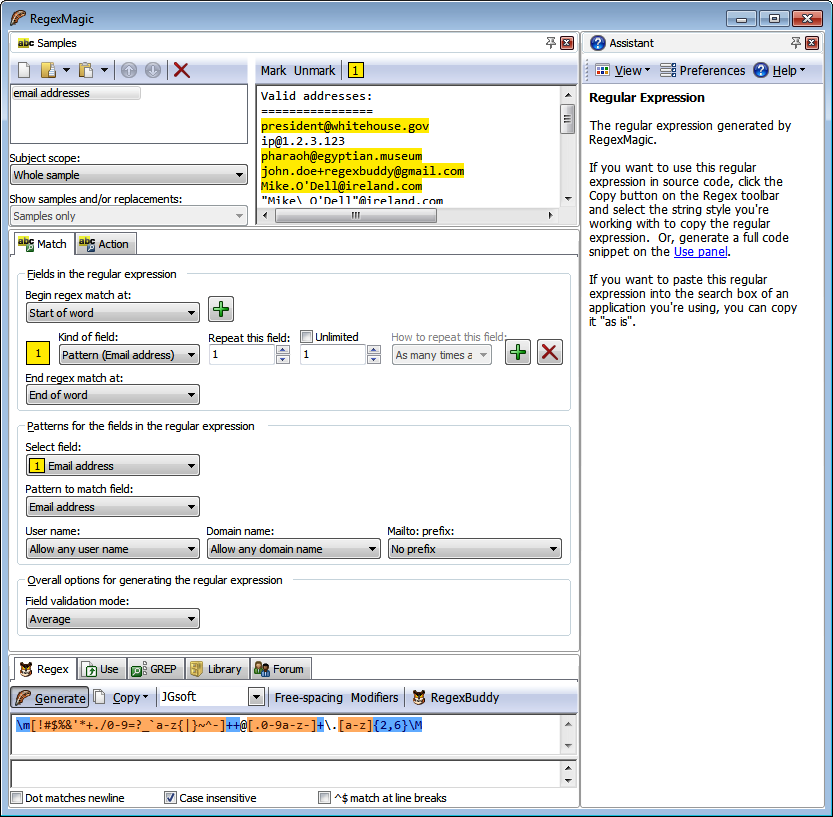
RegexMagic (Figure 1-3) is another tool designed and developed by Jan Goyvaerts. Where RegexBuddy makes it easy to work with the regular expression syntax, RegexMagic is primarily designed for people who do not want to deal with the regular expression syntax, and certainly won’t read 500-page books on the topic.
With RegexMagic, you describe the text you want to match based on
sample text and RegexMagic’s high-level patterns. The screen shot shows
that selecting the “email address” pattern is all you need to do to get
a regular expression to match an email address. You can customize the
pattern to limit the allowed user names and domain names, and you can
choose whether to allow or require the mailto: prefix.
Since you are reading this book, you are on your way to becoming well versed in regular expressions. RegexMagic will not be your primary tool for working with them. But there will still be situations where it comes in handy. In Recipe 6.7 we explain how you can create a regular expression to match a range of numbers. Though a regular expression is not the best way to see if a number is within a certain range, there are situations where a regular expression is all you can use. There are far more applications with a built-in regex engine than with a built-in scripting language. There is nothing difficult about the technique described in Recipe 6.7. But it can be quite tedious to do this by hand.
Imagine that instead of the simple examples given in Recipe 6.7, you need to match a number between
2,147,483,648 (231) and 4,294,967,295
(2321/n 1) in decimal notation. With
RegexMagic, you just select the “Integer” pattern, select the “decimal”
option, and limit the range to 2147483648..4294967295. In “strict” mode,
RegexMagic will instantly generate this beast:
\b(?:429496729[0-5]|42949672[0-8][0-9]|4294967[01][0-9]{2}|429496[0-6]↵
[0-9]{3}|42949[0-5][0-9]{4}|4294[0-8][0-9]{5}|429[0-3][0-9]{6}|42[0-8]↵
[0-9]{7}|4[01][0-9]{8}|3[0-9]{9}|2[2-9][0-9]{8}|21[5-9][0-9]{7}|214[89]↵
[0-9]{6}|2147[5-9][0-9]{5}|214749[0-9]{4}|214748[4-9][0-9]{3}|2147483↵
[7-9][0-9]{2}|21474836[5-9][0-9]|214748364[89])\b| Regex options: None |
| Regex flavors: .NET, Java, JavaScript, PCRE, Perl, Python, Ruby |
RegexMagic runs on Windows 98, ME, 2000, XP, Vista, 7, and 8. For Linux and Apple fans, RegexMagic also runs well on VMware, Parallels, CrossOver Office, and with a few issues on WINE. You can download a free evaluation copy of RegexMagic at http://www.regexmagic.com/RegexMagicCookbook.exe. Except for the user forum, the trial is fully functional for seven days of actual use.
Creating a simple online regular expression tester is easy. If you have some basic web development skills, the information in Chapter 3 is all you need to roll your own. Hundreds of people have already done this; a few have added some extra features that make them worth mentioning.
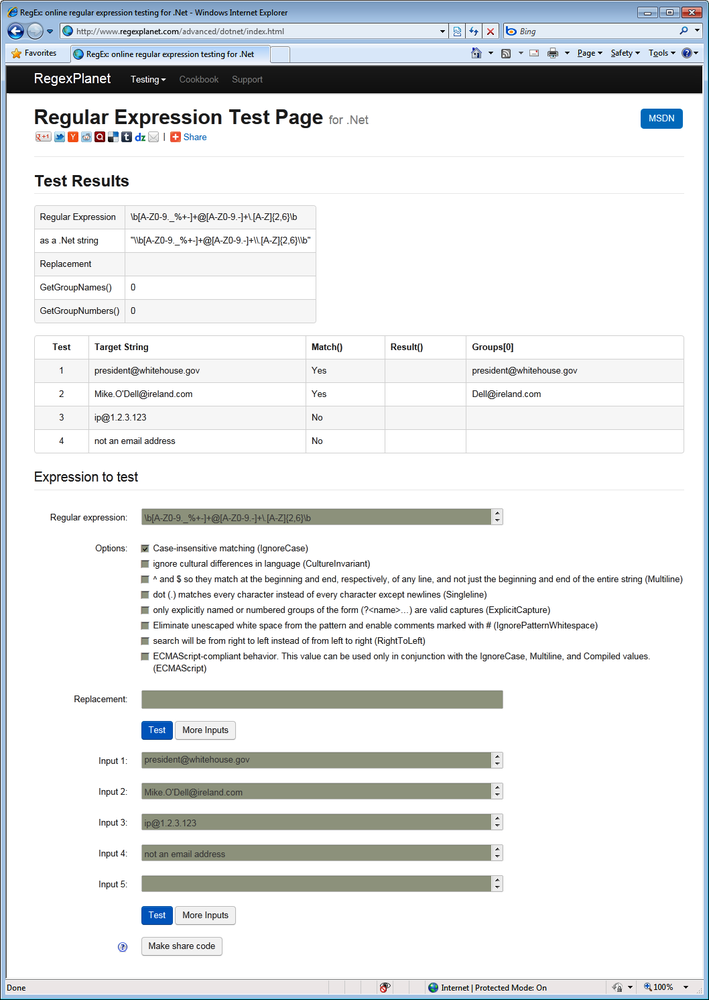
RegexPlanet is a website developed by Andrew Marcuse. Its claim to fame is that it allows you to test your regexes against a larger variety of regular expression libraries than any other regex tester we are aware of. On the home page you’ll find links to testers for Java, JavaScript, .NET, Perl, PHP, Python, and Ruby. They all use the same basic interface. Only the list of options is adapted to those of each programming language. Figure 1-4 shows the .NET version.
Type or paste your regular expression into the “regular expression” box. If you want to test a search-and-replace, paste the replacement text into the “replacement” box. You can test your regex against as many different subject strings as you like. Paste your subject strings into the “input” boxes. Click “more inputs” if you need more than five. The “regex” and “input” boxes allow you to type or paste in multiple lines of text, even though they only show one line at a time. The arrows at the right are the scrollbar.
When you’re done, click the “test” button to send all your strings to the regexplanet.com server. The resulting page, as shown in Figure 1-4, lists the test results at the top. The first two columns repeat your input. The remaining columns show the results of various function calls. These columns are different for the various programming languages that the site supports.
Lars Olav Torvik has put a great little regular expression tester online at http://regex.larsolavtorvik.com (see Figure 1-5).
To start, select the regular expression flavor you’re working
with by clicking on the flavor’s name at the top of the page. Lars
offers PHP PCRE, PHP POSIX, and JavaScript. PHP PCRE, the PCRE regex
flavor discussed in this book, is used by PHP’s preg functions. POSIX is an old and limited
regex flavor used by PHP’s ereg
functions, which are not discussed in this book. If you select
JavaScript, you’ll be working with your browser’s JavaScript
implementation.
Type your regular expression into the Pattern field and your subject text into the Subject field. A moment later, the Matches field displays your subject text with highlighted regex matches. The Code field displays a single line of source code that applies your regex to your subject text. Copying and pasting this into your code editor saves you the tedious job of manually converting your regex into a string literal. Any string or array returned by the code is displayed in the Result field. Because Lars used Ajax technology to build his site, results are updated in just a few moments for all flavors. To use the tool, you have to be online, as PHP is processed on the server rather than in your browser.
The second column displays a list of regex commands and regex options. These depend on the regex flavor. The regex commands typically include match, replace, and split operations. The regex options consist of common options such as case insensitivity, as well as implementation-specific options. These commands and options are described in Chapter 3.
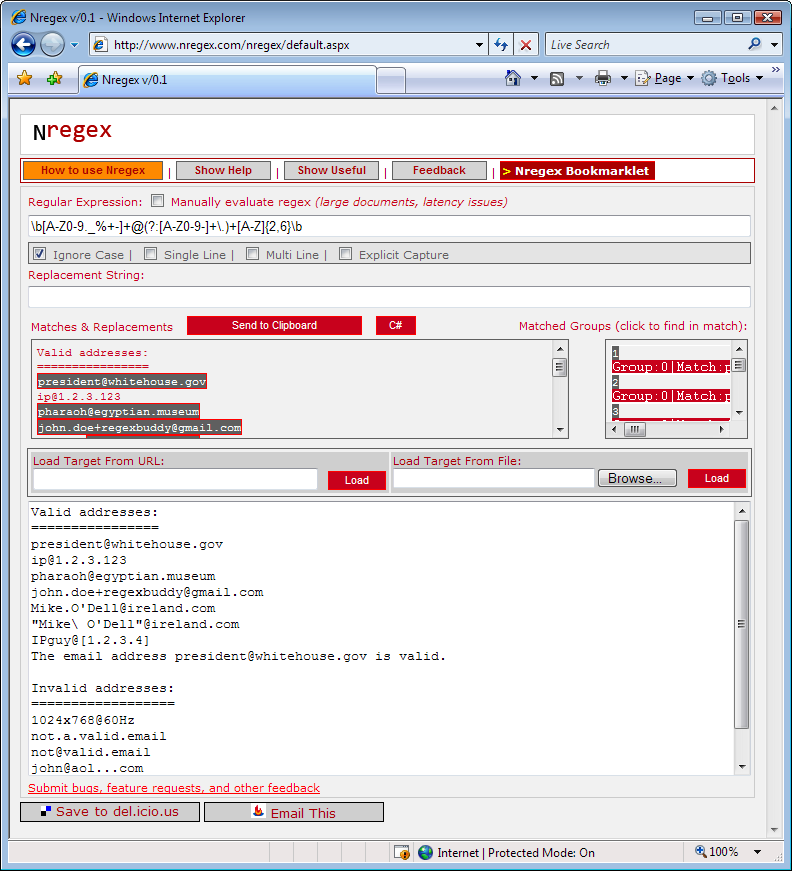
http://www.nregex.com (Figure 1-6) is a straightforward online regex tester built on .NET technology by David Seruyange. It supports the .NET 2.0 regex flavor, which is also used by .NET 3.0, 3.5, and 4.0.
The layout of the page is somewhat confusing. Enter your regular
expression into the field under the Regular Expression label, and set
the regex options using the checkboxes below that. Enter your subject
text in the large box at the bottom, replacing the default If I just had $5.00 then "she"
wouldn't be so @#$! mad.. If your subject is a web page,
type the URL in the Load Target From URL field, and click the Load
button under that input field. If your subject is a file on your hard
disk, click the Browse button, find the file you want, and then click
the Load button under that input field.
Your subject text will appear duplicated in the “Matches &
Replacements” field at the center of the web page, with the regex
matches highlighted. If you type something into the Replacement String
field, the result of the search-and-replace is shown instead. If your
regular expression is invalid, ...
appears.
The regex matching is done in .NET code running on the server, so you need to be online for the site to work. If the automatic updates are slow, perhaps because your subject text is very long, tick the Manually Evaluate Regex checkbox above the field for your regular expression to show the Evaluate button. Click that button to update the “Matches & Replacements” display.
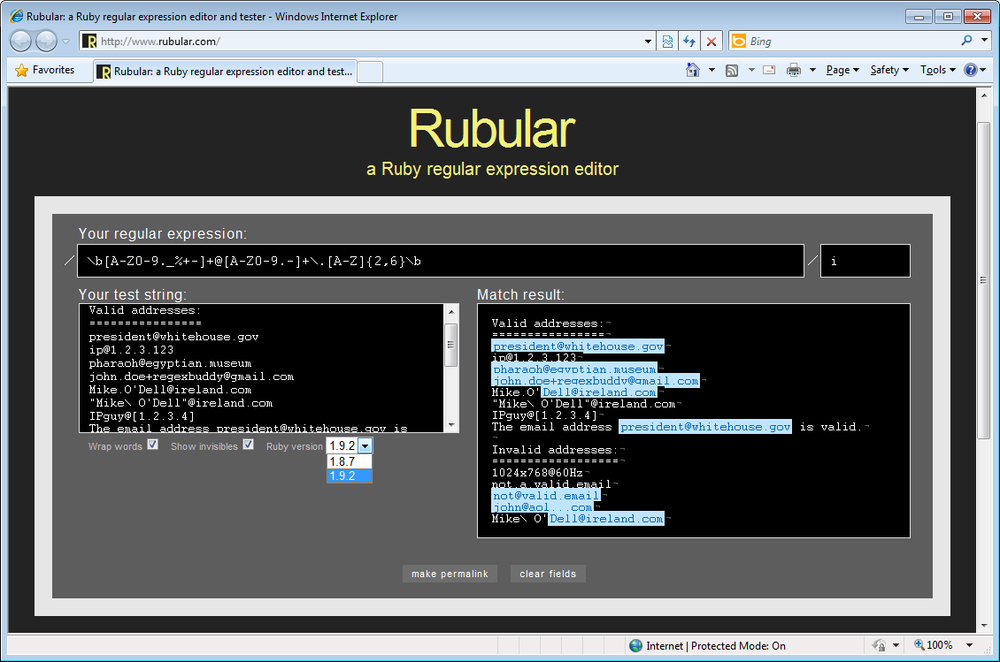
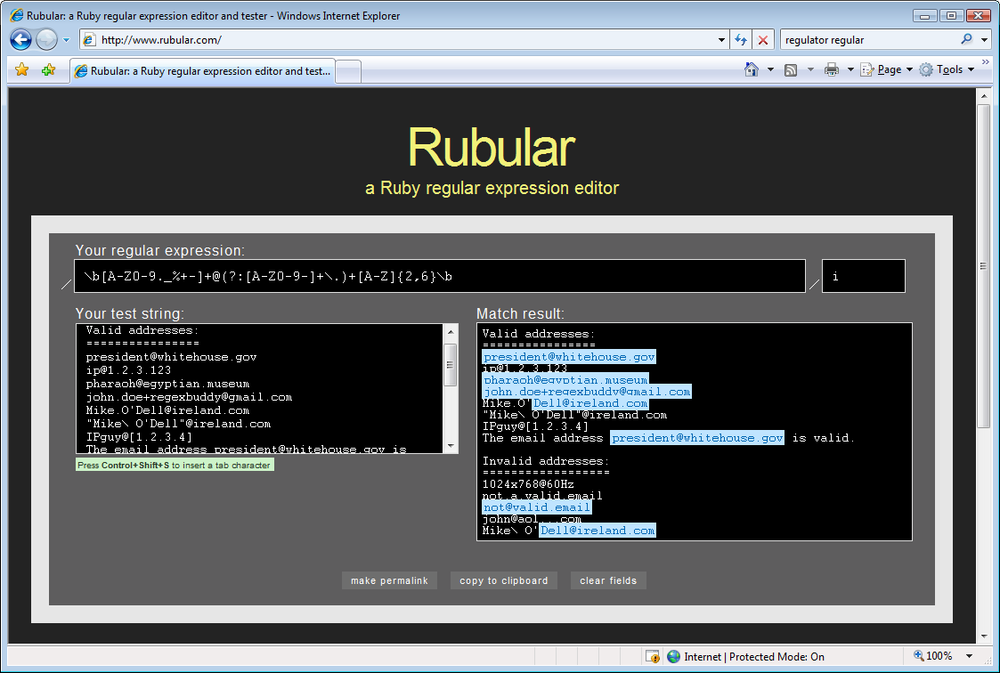
Michael Lovitt put a minimalistic regex tester online at http://www.rubular.com (Figure 1-7). At the time of writing, it lets you choose between Ruby 1.8.7 and Ruby 1.9.2. This allows you to test both the Ruby 1.8 and Ruby 1.9 regex flavors used in this book.
Enter your regular expression in the box between the two forward
slashes under “Your regular expression.” You can turn on case
insensitivity by typing an i in the
small box after the second slash. Similarly, if you like, turn on the
option “the dot matches line breaks” by typing an m in the same box. im turns on both options. Though these
conventions may seem a bit user-unfriendly if you’re new to Ruby, they
conform to the /regex/im syntax used to specify a regex
in Ruby source code.
Type or paste your subject text into the “Your test string” box, and wait a moment. A new “Match result” box appears to the right, showing your subject text with all regex matches highlighted.
Sergey Evdokimov created several regular expression
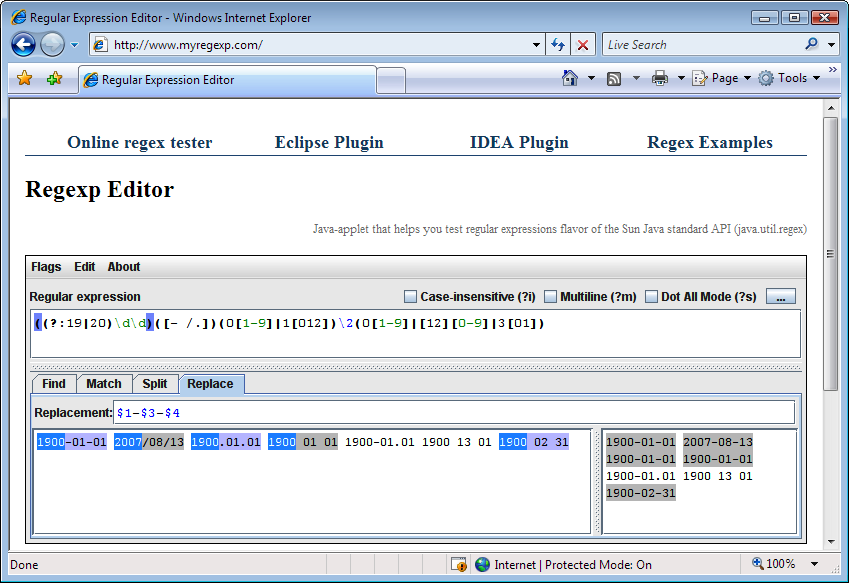
testers for Java developers. The home page at http://www.myregexp.com (Figure 1-8)
offers an online regex tester. It’s a Java applet that runs in your
browser. The Java 4 (or later) runtime needs to be installed on your
computer. The applet uses the java.util.regex
package to evaluate your regular expressions, which is new in Java 4.
In this book, the “Java” regex flavor refers to this package.
Type your regular expression into the Regular Expression box. Use the Flags menu to set the regex options you want. Three of the options also have direct checkboxes.
If you want to test a regex that already exists as a string in Java code, copy the whole string to the clipboard. In the myregexp.com tester, click on the Edit menu, and then “Paste Regex from Java String.” In the same menu, pick “Copy Regex for Java Source” when you’re done editing the regular expression. The Edit menu has similar commands for JavaScript and XML as well.
Below the regular expression, there are four tabs that run four different tests:
Highlights all regular expression matches in the sample
text. These are the matches found by the Matcher.find() method in Java.
Tests whether the regular expression matches the sample
text entirely. If it does,
the whole text is highlighted. This is what the
String.matches()
and Matcher.matches() methods do.
The second box at the right shows the array of strings
returned by String.split() or Pattern.split() when used with your
regular expression and sample text.
Type in a replacement text, and the box at the right shows
the text returned by String.replaceAll() or Matcher.replaceAll().
At the top of the page at http://www.myregexp.com, you can click the link to get Sergey’s regex tester as a plug-in for Eclipse.
Expresso (not to be confused with caffeine-laden espresso) is a .NET application for creating and testing regular expressions. You can download it at http://www.ultrapico.com/Expresso.htm. The .NET Framework 2.0 or later must be installed on your computer.
The download is a free 60-day trial. After the trial, you have to register or Expresso will (mostly) stop working. Registration is free, but requires you to give the Ultrapico folks your email address. The registration key is sent by email.
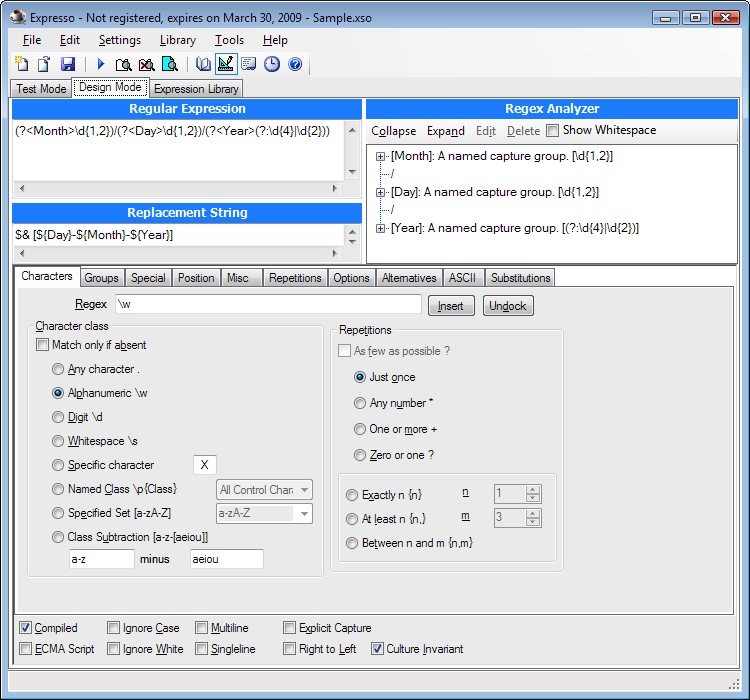
Expresso displays a screen like the one shown in Figure 1-9. The Regular Expression box where you type in your regular expression is permanently visible. No syntax highlighting is available. The Regex Analyzer box automatically builds a brief English-language analysis of your regular expression. It too is permanently visible.
In Design Mode, you can set matching options such as “Ignore Case” at the bottom of the screen. Most of the screen space is taken up by a row of tabs where you can select the regular expression token you want to insert. If you have two monitors or one large monitor, click the Undock button to float the row of tabs. Then you can build up your regular expression in the other mode (Test Mode) as well.
In Test Mode, type or paste your sample text in the lower-left corner. Then, click the Run Match button to get a list of all matches in the Search Results box. No highlighting is applied to the sample text. Click on a match in the results to select that match in the sample text.
The Expression Library shows a list of sample regular expressions and a list of recent regular expressions. Your regex is added to that list each time you press Run Match. You can edit the library through the Library menu in the main menu bar.
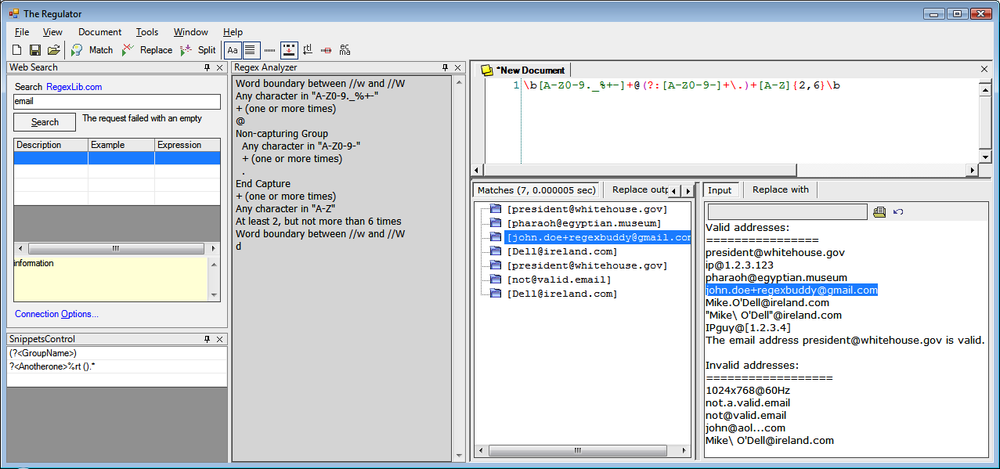
The Regulator, which you can download from http://sourceforge.net/projects/regulator/, is not safe for SCUBA diving or cooking-gas canisters; it is another .NET application for creating and testing regular expressions. The latest version requires .NET 2.0 or later. Older versions for .NET 1.x can still be downloaded. The Regulator is open source, and no payment or registration is required.
The Regulator does everything in one screen (Figure 1-10). The New Document tab is where you enter your regular expression. Syntax highlighting is automatically applied, but syntax errors in your regex are not made obvious. Right-click to select the regex token you want to insert from a menu. You can set regular expression options via the buttons on the main toolbar. The icons are a bit cryptic. Wait for the tool tip to see which option you’re setting with each button.
Below the area for your regex and to the right, click on the Input button to display the area for pasting in your sample text. Click the “Replace with” button to type in the replacement text, if you want to do a search-and-replace. Below the regex and to the left, you can see the results of your regex operation. Results are not updated automatically; you must click the Match, Replace, or Split button in the toolbar to update the results. No highlighting is applied to the input. Click on a match in the results to select it in the subject text.
The Regex Analyzer panel shows a simple English-language analysis of your regular expression, but it is not automatic or interactive. To update the analysis, select Regex Analyzer in the View menu, even if it is already visible. Clicking on the analysis only moves the text cursor.
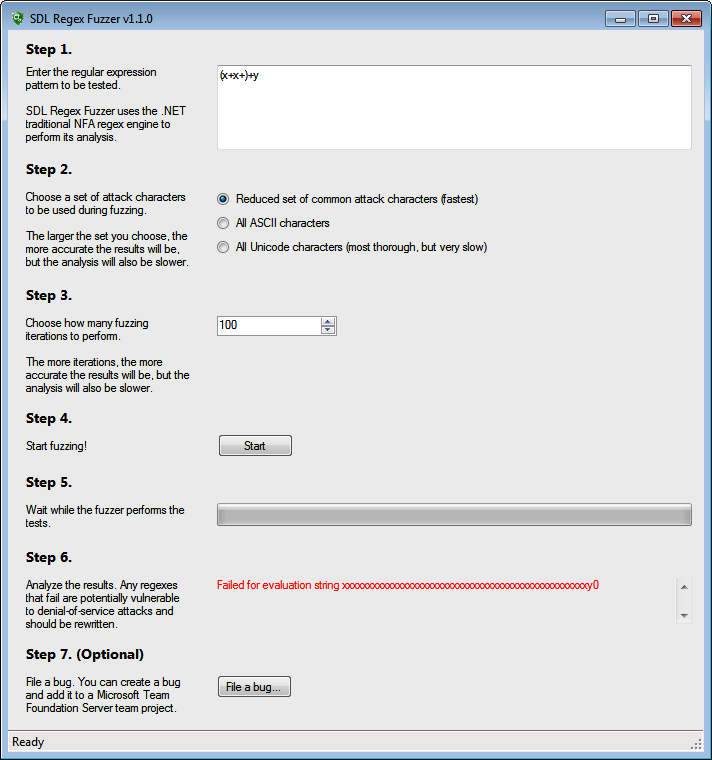
SDL Regex Fuzzer’s fuzzy name does not make its purpose obvious. Microsoft bills it as “a tool to help test regular expressions for potential denial of service vulnerabilities.” You can download it for free at http://www.microsoft.com/en-us/download/details.aspx?id=20095. It requires .NET 3.5 to run.
What SDL Regex Fuzzer really does is to check whether there exists a subject string that causes your regular expression to execute in exponential time. In our book we call this “catastrophic backtracking.” We explain this in detail along with potential solutions in Recipe 2.15. Basically, a regex that exhibits catastrophic backtracking will cause your application to run forever or to crash. If your application is a server, that could be exploited in a denial-of-service attack.
Figure 1-11 shows the results of a test in SDL Regex Fuzzer. In Step 1 we pasted in a regular expression from Recipe 2.15. Since this regex can never match non-ASCII characters, there’s no need to select that option in Step 2. Otherwise, we should have. We left Step 3 set to the default of 100 iterations. About five seconds after clicking the Start button in Step 4, SDL Regex Fuzzer showed a sample string that will cause our regex to fail in .NET 3.5.
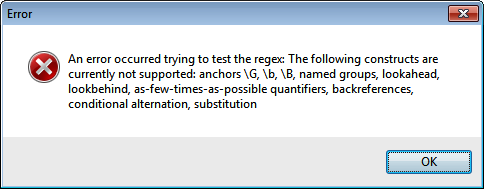
Unfortunately, the usefulness of this tool is greatly limited because it only supports a small subset of the .NET regex syntax. When we tried to test the naïve solution from Recipe 2.15, which would definitely fail this test, we received the error message shown in Figure 1-12. Proper understanding of the concepts discussed in Recipe 2.15 is still the only way to make sure you don’t bring down your applications with overly complex regular expressions.
The name grep is derived from the g/re/p command that
performed a regular expression search in the Unix text editor ed, one of the first applications to
support regular expressions. This
command was so popular that all Unix systems now have a dedicated grep
utility for searching through files using a regular expression. If
you’re using Unix, Linux, or OS X, type man
grep into a terminal window to learn all about it.
The following three tools are Windows applications that do what grep does, and more.
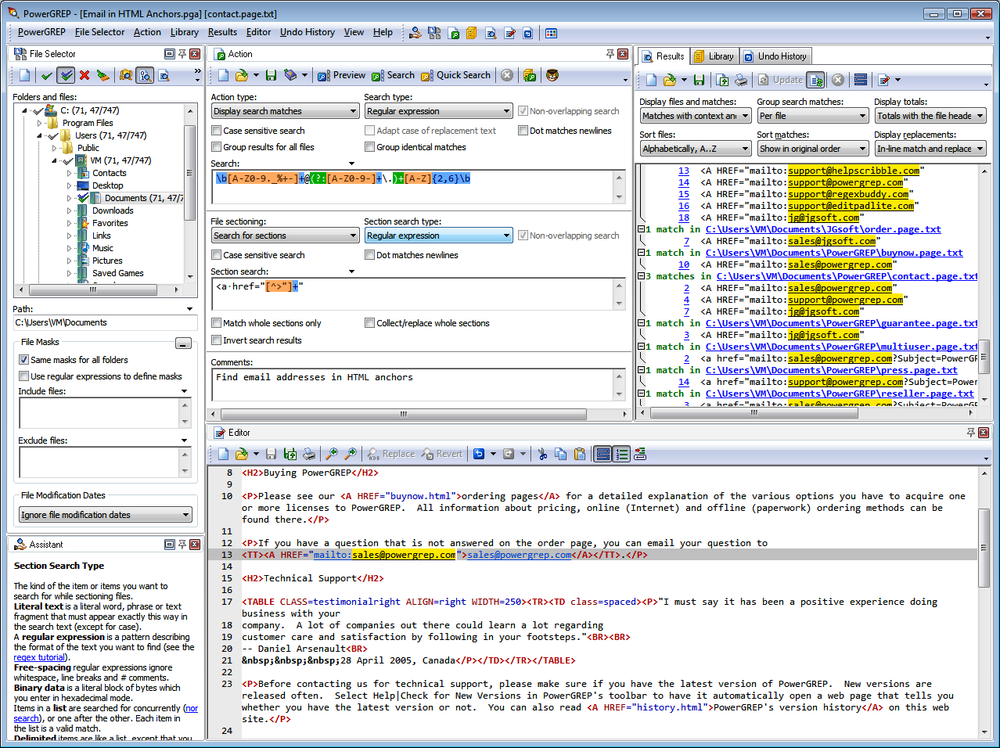
PowerGREP, developed by Jan Goyvaerts, one of this book’s authors, is probably the most feature-rich grep tool available for the Microsoft Windows platform (Figure 1-13). PowerGREP uses a custom regex flavor that combines the best of the flavors discussed in this book. This flavor is labeled “JGsoft” in RegexBuddy.
To run a quick regular expression search, simply select Clear in the Action menu and type your regular expression into the Search box on the Action panel. Click on a folder in the File Selector panel, and select “Include File or Folder” or “Include Folder and Subfolders” in the File Selector menu. Then, select Execute in the Action menu to run your search.
To run a search-and-replace, select “search-and-replace” in the “action type” drop-down list at the top-left corner of the Action panel after clearing the action. A Replace box will appear below the Search box. Enter your replacement text there. All the other steps are the same as for searching.
PowerGREP has the unique ability to use up to five lists of regular expressions at the same time, with any number of regular expressions in each list. While the previous two paragraphs provide all you need to run simple searches like you can in any grep tool, unleashing PowerGREP’s full potential will take a bit of reading through the tool’s comprehensive documentation.
PowerGREP runs on Windows 2000, XP, Vista, 7, and 8. You can download a free evaluation copy at http://www.powergrep.com/PowerGREPCookbook.exe. Except for saving results and libraries, the trial is fully functional for 15 days of actual use. Though the trial won’t save the results shown on the Results panel, it will modify all your files for search-and-replace actions, just like the full version does.
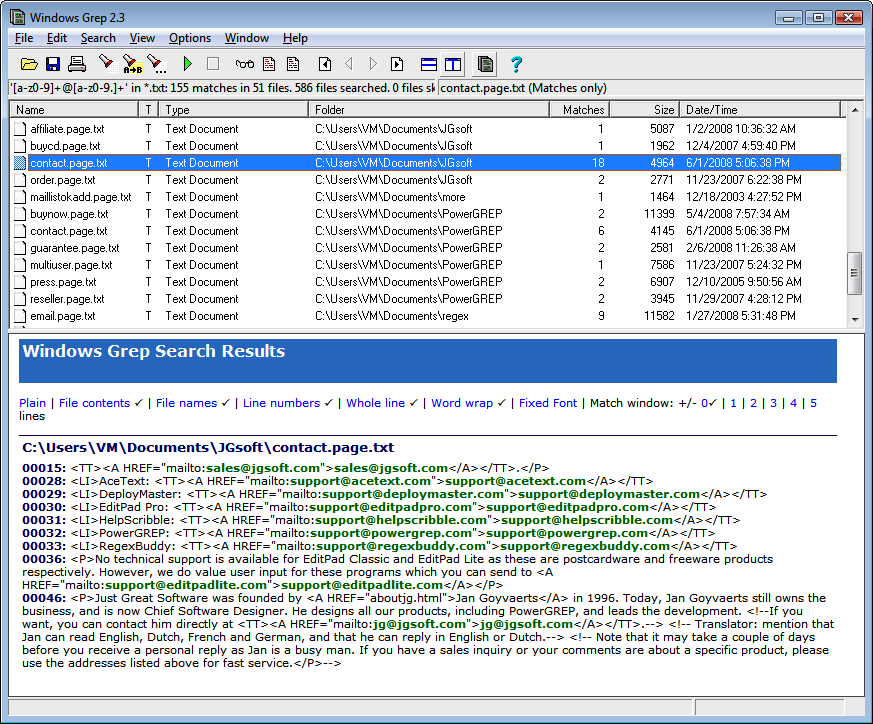
Windows Grep (http://www.wingrep.com) is one of the oldest grep tools for Windows. Its age shows a bit in its user interface (Figure 1-14), but it does what it says on the tin just fine. It supports a limited regular expression flavor called POSIX ERE. For the features that it supports, it uses the same syntax as the flavors in this book. Windows Grep is shareware, which means you can download it for free, but payment is expected if you want to keep it.
To prepare a search, select Search in the Search menu. The screen that appears differs depending on whether you’ve selected Beginner Mode or Expert Mode in the Options menu. Beginners get a step-by-step wizard, whereas experts get a tabbed dialog.
When you’ve set up the search, Windows Grep immediately executes it, presenting you with a list of files in which matches were found. Click once on a file to see its matches in the bottom panel, and double-click to open the file. Select “All Matches” in the View menu to make the bottom panel show everything.
To run a search-and-replace, select Replace in the Search menu.
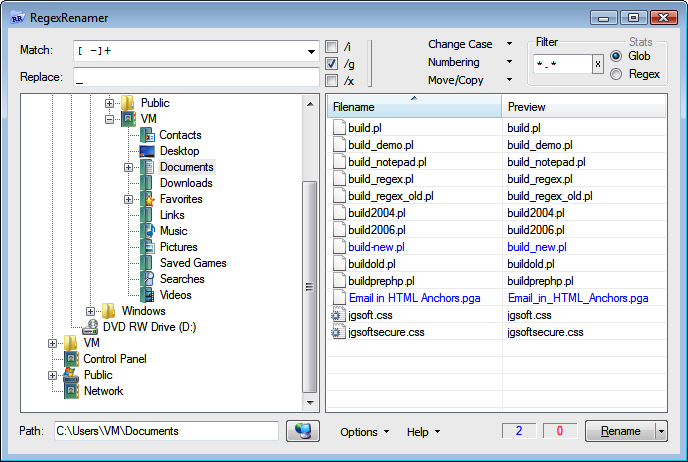
RegexRenamer (Figure 1-15) is not really a grep tool. Instead of searching through the contents of files, it searches and replaces through the names of files. You can download it at http://regexrenamer.sourceforge.net. RegexRenamer requires version 2.0 or later of the Microsoft .NET Framework.
Type your regular expression into the Match box and the
replacement text into the Replace box. Click /i to turn on case
insensitivity, and /g to replace all
matches in each filename rather than just the first. /x turns on
free-spacing syntax, which isn’t very useful, since you have only one
line to type in your regular expression.
Use the tree at the left to select the folder that holds the files you want to rename. You can set a file mask or a regex filter in the top-right corner. This restricts the list of files to which your search-and-replace regex will be applied. Using one regex to filter and another to replace is much handier than trying to do both tasks with just one regex.
Most modern text editors have at least basic support for regular expressions. In the search or search-and-replace panel, you’ll typically find a checkbox to turn on regular expression mode. Some editors, such as EditPad Pro, also use regular expressions for various features that process text, such as syntax highlighting or class and function lists. The documentation with each editor explains all these features. Some popular text editors with regular expression support include:
BBEdit (PCRE)
Boxer Text Editor (PCRE)
Dreamweaver (JavaScript)
EditPad Pro (custom flavor that combines the best of the flavors discussed in this book; labeled “JGsoft” in RegexBuddy)
Multi-Edit (PCRE, if you select the “Perl” option)
Nisus Writer Pro (Ruby 1.9 [Oniguruma])
Notepad++ (PCRE)
NoteTab (PCRE)
UltraEdit (PCRE)
The problems presented in this chapter aren’t the kind of real-world problems that your boss or your customers ask you to solve. Rather, they’re technical problems you’ll encounter while creating and editing regular expressions to solve real-world problems. The first recipe, for example, explains how to match literal text with a regular expression, and how to deal with characters that have special meanings in regular expressions. This isn’t a goal on its own, because you don’t need a regex when all you want to do is to search for literal text. But when creating a regular expression, you’ll likely need it to match certain text literally, and you’ll need to know which characters to escape. Recipe 2.1 tells you how.
The recipes start out with very basic regular expression techniques. If you’ve used regular expressions before, you can probably skim or even skip them. The recipes further along in this chapter will surely teach you something new, unless you have already read Mastering Regular Expressions by Jeffrey E.F. Friedl (O’Reilly) cover to cover.
We devised the recipes in this chapter in such a way that each explains one aspect of the regular expression syntax. Together, they form a comprehensive tutorial to regular expressions. Read it from start to finish to get a firm grasp of regular expressions. Or dive right in to the real-world regular expressions in Chapters 4 through 9, and follow the references back to this chapter whenever those chapters use some syntax you’re not familiar with.
This tutorial chapter deals with regular expressions only and completely ignores any programming considerations. The next chapter is the one with all the code listings. You can peek ahead to Programming Languages and Regex Flavors in Chapter 3 to find out which regular expression flavor your programming language uses. The flavors themselves, which this chapter talks about, were introduced in Regex Flavors Covered by This Book.
Create a regular expression to exactly match this
gloriously contrived sentence: The punctuation characters in the ASCII table are:
!"#$%&'()*+,-./:;<=>?@[\]^_`{|}~.
This is intended to show which characters have special meaning in regular expressions, and which characters always match themselves literally.
This regular expression matches the sentence stated in the problem:
The●punctuation●characters●in●the●ASCII●table●are:●↵ !"#\$%&'\(\)\*\+,-\./:;<=>\?@\[\\]\^_`\{\|}~
| Regex options: None |
| Regex flavors: .NET, Java, JavaScript, PCRE, Perl, Python, Ruby |
Any regular expression that does not include any of the dozen
characters $()*+.?[\^{| simply
matches itself. To find whether Mary had a little lamb in the text you’re
editing, simply search for ‹Mary●had●a●little●lamb›. It doesn’t matter whether the
“regular expression” checkbox is turned on in your text editor.
The 12 punctuation characters that make regular expressions work
their magic are called metacharacters. If you want your
regex to match them literally, you need to escape them by placing a backslash
in front of them. Thus, the regex: ‹\$\(\)\*\+\.\?\[\\\^\{\|› matches the text
$()*+.?[\^{|.
Notably absent from the list are the closing square bracket
], the hyphen -, and the closing curly bracket }. The first two become metacharacters only
after an unescaped [, and the } only after an unescaped {. There’s no need to
ever escape }. Metacharacter rules
for the blocks that appear between [ and ] are explained in Recipe 2.3.
Escaping any other nonalphanumeric character does not change how your regular expression works—at least not when working with any of the flavors discussed in this book. Escaping an alphanumeric character may give it a special meaning or throw a syntax error.
People new to regular expressions often escape every punctuation character in sight. Don’t let anyone know you’re a newbie. Escape judiciously. A jungle of needless backslashes makes regular expressions hard to read, particularly when all those backslashes have to be doubled up to quote the regex as a literal string in source code.
We can make our solution easier to read when using a regex flavor that supports a feature called block escape:
The●punctuation●characters●in●the●ASCII●table●are:●↵ \Q!"#$%&'()*+,-./:;<=>?@[\]^_`{|}~\E
| Regex options: None |
| Regex flavors: Java 6, PCRE, Perl |
Perl, PCRE and Java support the regex tokens ‹\Q› and
‹\E›.
‹\Q›
suppresses the meaning of all metacharacters, including the backslash,
until ‹\E›. If
you omit ‹\E›, all
characters after the ‹\Q› until
the end of the regex are treated as literals.
The only benefit of ‹\Q...\E› is that it is easier to read than
‹\.\.\.›.
Though Java 4 and 5 support this feature, you should not use
it. Bugs in the implementation cause regular expressions with
‹\Q⋯\E› to match different things from
what you intended, and from what PCRE, Perl, or Java 6 would match.
These bugs were fixed in Java 6, making it behave the same way as
PCRE and Perl.
By default, regular expressions are case sensitive.
‹regex› matches
regex but not
Regex, REGEX, or ReGeX. To make ‹regex› match all of those, you
need to turn on case insensitivity.
In most applications, that’s a simple matter of marking or clearing a checkbox. All programming languages discussed in the next chapter have a flag or property that you can set to make your regex case insensitive. Recipe 3.4 in the next chapter explains how to apply the regex options listed with each regular expression solution in this book in your source code.
ascii
| Regex options: Case insensitive |
| Regex flavors: .NET, Java, JavaScript, PCRE, Perl, Python, Ruby |
If you cannot turn on case insensitivity outside the regex, you
can do so within by using the ‹(?i)›
mode modifier, such as ‹(?i)regex›. This works with the .NET, Java,
PCRE, Perl, Python, and Ruby flavors. It works with JavaScript when
using the XRegExp library.
(?i)ascii
| Regex options: None |
| Regex flavors: .NET, Java, XRegExp, PCRE, Perl, Python, Ruby |
.NET, Java, PCRE, Perl, and Ruby support local mode modifiers,
which affect only part of the regular expression. ‹sensitive(?i)caseless(?-i)sensitive› matches
sensitiveCASELESSsensitive but not
SENSITIVEcaselessSENSITIVE. ‹(?i)›
turns on case insensitivity for
the remainder of the regex, and ‹(?-i)›
turns it off for the remainder of the regex. They act as toggle
switches.
Recipe 2.9 shows how to use local mode modifiers with groups instead of toggles.
Recipe 2.3 explains character classes. The metacharacters inside character classes are different from those outside character classes.
Recipe 5.14 demonstrates how to use a regular expression to escape all metacharacters in a string. Doing so converts the string into a regular expression that matches the string literally.
Example JavaScript solution in Recipe 5.2 shows some sample JavaScript code for escaping all regex metacharacters. Some programming languages have a built-in command for this.
Match a string of the following ASCII control characters: bell, escape, form feed, line feed, carriage return, horizontal tab, vertical tab. These characters have the hexadecimal ASCII codes 07, 1B, 0C, 0A, 0D, 09, 0B.
This demonstrates the use of escape sequences and how to reference characters by their hexadecimal codes.
\a\e\f\n\r\t\v
| Regex options: None |
| Regex flavors: .NET, Java, PCRE, Python, Ruby |
\x07\x1B\f\n\r\t\v
| Regex options: None |
| Regex flavors: .NET, Java, JavaScript, Python, Ruby |
\a\e\f\n\r\t\x0B
| Regex options: None |
| Regex flavors: .NET, Java, PCRE, Perl, Python, Ruby |
Seven of the most commonly used ASCII control characters have dedicated escape sequences. These all consist of a backslash followed by a letter. This is the same syntax that is used by string literals in many programming languages. Table 2-1 shows the common nonprinting characters and how they are represented.
Table 2-1. Nonprinting characters
Representation | Meaning | Hexadecimal representation | Regex flavors |
|---|---|---|---|
0x07 | .NET, Java, PCRE, Perl, Python, Ruby | ||
0x1B | .NET, Java, PCRE, Perl, Ruby | ||
form feed | 0x0C | .NET, Java, JavaScript, PCRE, Perl, Python, Ruby | |
0x0A | .NET, Java, JavaScript, PCRE, Perl, Python, Ruby | ||
0x0D | .NET, Java, JavaScript, PCRE, Perl, Python, Ruby | ||
0x09 | .NET, Java, JavaScript, PCRE, Perl, Python, Ruby | ||
vertical tab | 0x0B | .NET, Java, JavaScript, Python, Ruby |
In Perl 5.10 and later, and PCRE 7.2 and later, ‹\v› does
match the vertical tab. In these flavors ‹\v› matches
all vertical whitespace. That includes the vertical tab, line breaks,
and the Unicode line and paragraph separators. So for Perl and PCRE we
have to use a different syntax for the vertical tab.
JavaScript does not support ‹\a\e
These control characters, as well as the alternative syntax shown in the following section, can be used equally inside and outside character classes in your regular expression.
Here’s another way to match the same seven ASCII control characters matched by the regexes earlier in this recipe:
\cG\x1B\cL\cJ\cM\cI\cK
| Regex options: None |
| Regex flavors: .NET, Java, JavaScript, PCRE, Perl, Ruby 1.9 |
Using ‹\cA›
through ‹\cZ›, you can
match one of the 26 control characters that occupy positions 1 through
26 in the ASCII table. The c must
be lowercase. The letter that follows the c is case insensitive in most flavors. We
recommend that you always use an uppercase letter. Java requires
this.
This syntax can be handy if you’re used to entering control
characters on console systems by pressing the Control key along with a
letter. On a terminal, Ctrl-H sends a backspace. In a regex,
‹\cH›
matches a backspace.
Python and the classic Ruby engine in Ruby 1.8 do not support this syntax. The Oniguruma engine in Ruby 1.9 does.
The escape control character, at position 27 in the ASCII table,
is beyond the reach of the English alphabet, so we leave it as
‹\x1B› in our regular
expression.
Following is yet another way to match our list of seven commonly used control characters:
\x07\x1B\x0C\x0A\x0D\x09\x0B
| Regex options: None |
| Regex flavors: .NET, Java, JavaScript, PCRE, Perl, Python, Ruby |
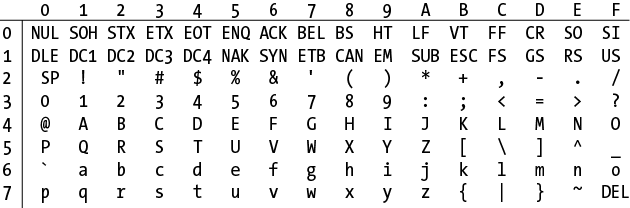
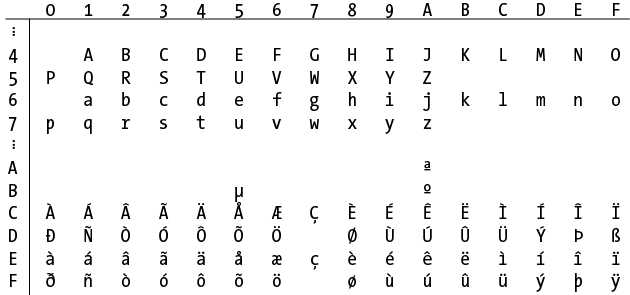
A lowercase \x followed by two
uppercase hexadecimal digits matches a single character in the ASCII
set. Figure 2-1 shows which hexadecimal
combinations from ‹\x00›
through ‹\x7F› match
each character in the entire ASCII character set. The table is
arranged with the first hexadecimal digit going down the left side and
the second digit going across the top.
The characters that ‹\x80› through ‹\xFF› match depends on how your regex engine
interprets them, and which code page your subject text is encoded in.
We recommend that you not use ‹\x80› through ‹\xFF›. Instead, use the Unicode code point token
described in Recipe 2.7.
If you’re using Ruby 1.8 or you compiled PCRE without UTF-8
support, you cannot use Unicode code points. Ruby 1.8 and PCRE
without UTF-8 are 8-bit regex engines. They are completely ignorant
about text encodings and multibyte characters. ‹\xAA› in these engines simply
matches the byte 0xAA, regardless of which character 0xAA happens to
represent or whether 0xAA is part of a multibyte
character.
Recipe 2.7 explains how to make a regex match particular Unicode characters. If your regex engine supports Unicode, you can match nonprinting characters that way too.
Create one regular expression to match all common
misspellings of calendar, so you can find this word in a
document without having to trust the author’s spelling ability. Allow an
a or
e to be used
in each of the vowel positions. Create another regular expression to
match a single hexadecimal character. Create a third regex to match a
single character that is not a hexadecimal character.
The problems in this recipe are used to explain an important and commonly used regex construct called a character class.
The notation using square brackets is called a
character class. A character class matches a
single character out of a list of possible characters. The three classes
in the first regex match either an a
or an e. They do so independently.
When you test calendar against this regex, the first
character class matches a, the second e, and the third a.
Inside a character class, only four characters have a special
function: \, ^, -, and ]. If you’re using Java or .NET, the opening
bracket [ is also a
metacharacter inside character classes.
A backslash always escapes the character that follows it,
just as it does outside character classes. The escaped character can be
a single character, or the start or end of a range. The other four
metacharacters get their special meanings only when they’re placed in a
certain position. It is possible to include them as literal characters
in a character class without escaping them, by positioning them in a way
that they don’t get their special meaning. ‹[][^-]› pulls off this trick. This works with all
flavors in this book, except JavaScript. JavaScript treats ‹[]› as an
empty character class that always fails to match. But we recommend that
you always escape these metacharacters, so the previous regex should be
‹[\]\[\^\-]›. Escaping the metacharacters makes
your regular expression easier to understand.
All other characters are literals and simply add themselves to the
character class. The regular expression ‹[$()*+.?{|]› matches any one of the nine
characters between the square brackets. These nine characters only have
special meanings outside character classes. Inside character classes
they are just literal text. Escaping them would only make your regular
expression harder to read.
Alphanumeric characters cannot be escaped with a backslash. Doing
so may be an error or may create a regular expression token (something
with a special meaning in a regular expression). In our discussions of
certain other regex tokens, such as in Recipe 2.2, we mention that they can be used inside
character classes. All these tokens consist of a backslash and a letter,
sometimes followed by a bunch of other characters. Thus, ‹[\r\n]› matches a carriage return
(\r) or line feed (\n).
A caret (^) negates the
character class if you place it immediately after the opening bracket.
It makes the character class match any character that is
not in the list.
In all the regex flavors discussed in this book, a negated character class matches line break characters, unless you add them to the negated character class. Make sure that you don’t accidentally allow your regex to span across lines.
A hyphen (-) creates a
range when it is placed between two characters.
The range includes the character before the hyphen, the character after
the hyphen, and all characters that lie between them in numerical order.
To know which characters those are, you have to look at the ASCII or
Unicode character table. ‹[A-z]› includes all
characters in the ASCII table between the uppercase A and the lowercase z. The range includes some punctuation, so
‹[A-Z\[\\\]\^_`a-z]›
matches the same characters more explicitly. We recommend that you
create ranges only between two digits or between two letters that are
both upper- or lowercase.
Reversed ranges, such as ‹[z-a]›, are not permitted.
Six regex tokens that consist of a backslash and a
letter form shorthand character classes:
‹\d›,
‹\D›,
‹\w›,
‹\W›,
‹\s› and
‹\S›. You
can use these both inside and outside character classes. Each
lowercase shorthand character has an associated uppercase shorthand
character with the opposite meaning.
‹\d› and ‹[\d]› both match a single digit.
‹\D›
matches any character that is not a digit, and is
equivalent to ‹[^\d]›.
Here is how we can use the ‹\d› shorthand to rewrite the “hexadecimal
character” regex from earlier in this recipe:
[a-fA-F\d]
| Regex options: None |
| Regex flavors: .NET, Java, PCRE, Perl, Python, Ruby |
‹\w›
matches a single word character. A word
character is a character that can occur as part of a word. That
includes letters, digits, and the underscore. The particular choice of
characters here may seem odd, but it was chosen because these are the
characters that are typically allowed in identifiers in programming
languages. ‹\W› matches
any character that is not part of such a propellerhead word.
In Java 4 to 6, JavaScript, PCRE, and Ruby, ‹\w› is always identical to
‹[a-zA-Z0-9_]›. In .NET,
it includes letters and digits from all other scripts (Cyrillic, Thai,
etc.). In Java 7, the other scripts are included only if you set the
UNICODE_CHARACTER_CLASS flag. In
Python 2.x, the other scripts are included only if you pass the
UNICODE or U flag when creating the regex. In Python
3.x the other scripts are included by default, but you can make
‹\w› ASCII-only with the
ASCII or A flag. In Perl 5.14, the /a (ASCII) flag makes
‹\w› identical to
‹[a-zA-Z0-9_]›, while
/u (Unicode) adds all
Unicode scripts, and /l (locale) makes
‹\w› depend on the
locale. Prior to Perl 5.14, or when using /d (default) or none
of the /adlu flags in Perl 5.14,
‹\w› automatically
includes Unicode scripts if the subject string or the regex are
encoded as UTF-8, or the regex includes a code point above 255 such as
‹\x{100}› or a Unicode
property such as ‹\p{L}›.
If not, the default for ‹\w› is pure ASCII.
‹\d› follows the
same rules as ‹\w› in
all these flavors. In .NET, digits from other scripts are always
included. In Python it depends on the UNICODE and ASCII flags, and whether you’re using Python
2.x or 3.x. In Perl 5.14, it depends on the /adlu flags. In earlier versions of Perl, it
depends on the encoding of the subject and regex, and whether the
regex has any Uncicode tokens.
‹\s›
matches any whitespace character. This includes
spaces, tabs, and line breaks. ‹\S› matches any character not matched by
‹\s› In .NET and
JavaScript, ‹\s› also
matches any character defined as whitespace by the Unicode standard.
In Java, Perl, and Python, ‹\s› follows the same rules as ‹\w› and ‹\d›.
Notice that JavaScript uses Unicode for ‹\s› but ASCII for ‹\d› and ‹\w›. Further inconsistency arises when we add
‹\b› to the mix.
‹\b› is not a shorthand
character class, but a word boundary. Though
you’d expect ‹\b› to
support Unicode when ‹\w› does and to be ASCII-only when ‹\w› is ASCII-only, this isn’t
always the case. The subsection Word Characters in Recipe 2.6 has the details.
(?i)[A-F0-9]
| Regex options: None |
| Regex flavors: .NET, Java, XRegExp, PCRE, Perl, Python, Ruby |
(?i)[^A-F0-9]
| Regex options: None |
| Regex flavors: .NET, Java, XRegExp, PCRE, Perl, Python, Ruby |
Case insensitivity, whether set with an external flag (see Recipe 3.4) or a mode modifier inside the regex (see Case-insensitive matching in Recipe 2.1), also affects character classes. The two regexes just shown are equivalent to the ones in the original solution.
JavaScript follows the same rule, but it doesn’t support
‹(?i)›. To
make a regular expression case-insensitive in JavaScript, set the
/i flag when creating
it. Or use the XRegExp library for JavaScript, which adds support for
mode modifiers at the start of the regex.
[a-zA-Z0-9-[g-zG-Z]]
| Regex options: None |
| Regex flavors: .NET 2.0 or later |
This regular expression matches a single hexadecimal
character, but in a roundabout way. The base character class matches
any alphanumeric character, and a nested class then subtracts the
letters g through z. This nested class must appear at the end
of the base class, preceded by a hyphen, as shown here: ‹[›.class-[subtract]]
Character class subtraction is
particularly useful when working with Unicode categories, blocks, and
scripts. As an example, ‹\p{IsThai}› matches any character in the Thai
block. ‹\P{N}›
matches any character that is not in the Number category. Combining
them with subtraction, ‹[\p{IsThai}-[\P{N}]]› matches any of the 10 Thai
digits using character class
subtraction. Recipe 2.7 has all the details
on working with Unicode properties.
Java allows one character class to be nested inside
another. If the nested class is included directly, the resulting class
is the union of the two. You can nest as many
classes as you like. The regexes ‹[a-f[A-F][0-9]]› and ‹[a-f[A-F[0-9]]]› use character class union. They
match a hexadecimal digit just like the original regex without the
extra square brackets.
The regex ‹[\w&&[a-fA-F0-9\s]]› uses character
class intersection to match a hexadecimal
digit. It could win a prize in a regex obfuscation contest. The base
character class ‹[\w]›
matches any word character. The nested class ‹[a-fA-F0-9\s]› matches any hexadecimal digit and
any whitespace character. The resulting class is the intersection of
the two, matching hexadecimal digits and nothing else. Because the
base class does not match whitespace and the nested class does not
match ‹[g-zG-Z_]›, those
are dropped from the final character class, leaving only the
hexadecimal digits.
‹[a-zA-Z0-9&&[^g-zG-Z]]› uses character
class subtraction to match a single hexadecimal
character in a roundabout way. The base character class ‹[a-zA-Z0-9]› matches any
alphanumeric character. The nested class ‹[^g-zG-Z]› then subtracts the letters g through z. This nested class must be a negated
character class, preceded by two ampersands, as shown here: ‹[›.class&&[^subtract]]
Character class intersection and subtraction are particularly
useful when working with Unicode properties, blocks, and scripts.
Thus, ‹\p{InThai}›
matches any character in the Thai block, whereas ‹\p{N}›
matches any character that is in the Number category. In consequence,
‹[\p{InThai}&&[\p{N}]]› matches any of
the 10 Thai digits using character class intersection.
If you’re wondering about the subtle differences in the
‹\p› regex
tokens, you’ll find those all explained in Recipe 2.7. Recipe 2.7 has
all the details on working with Unicode properties.
Recipe 2.2 explains how to match nonprinting characters. Recipe 2.7 explains how to match Unicode characters. You can use the syntax for nonprinting and Unicode characters inside character classes.
Bat, cat, or rat in Recipe 5.3 describes some common character class mistakes made by people who are new to regular expressions.
This recipe explains the ins and outs of the dot metacharacter.
Match a quoted character. Provide one solution that allows any single character, except a line break, between the quotes. Provide another that truly allows any character, including line breaks.
The dot is one of the oldest and simplest regular expression features. Its meaning has always been to match any single character.
There is, however, some confusion as to what any character truly means. The oldest tools for working with regular expressions processed files line by line, so there was never an opportunity for the subject text to include a line break. The programming languages discussed in this book process the subject text as a whole, no matter how many line breaks you put into it. If you want true line-by-line processing, you have to write a bit of code that splits the subject into an array of lines and applies the regex to each line in the array. Recipe 3.21 in the next chapter shows how to do this.
Larry Wall, the developer of Perl, wanted Perl to retain
the traditional behavior of line-based tools, in which the dot never
matched a line break. All the other flavors discussed in this book
followed suit. ‹.› thus
matches any single character except line break
characters.
If you do want to allow your regular expression to span multiple lines, turn on the “dot matches line breaks” option. This option masquerades under different names. Perl and many others confusingly call it “single line” mode, whereas Java calls it “dot all” mode. Recipe 3.4 in the next chapter has all the details. Whatever the name of this option in your favorite programming language is, think of it as “dot matches line breaks” mode. That’s all the option does.
An alternative solution is needed for JavaScript, which doesn’t
have a “dot matches line breaks” option. As Recipe 2.3 explains, ‹\s›
matches any whitespace character, whereas ‹\S›
matches any character that is not matched by ‹\s›. Combining these into ‹[\s\S]› results in a character
class that includes all characters, including line breaks. ‹[\d\D]› and ‹[\w\W]› have the same
effect.
The dot is the most abused regular expression feature.
‹\d\d.\d\d.\d\d› is not
a good way to match a date. It does match 05/16/08 just fine, but it also matches
99/99/99.
Worse, it matches 12345678.
A proper regex for matching only valid dates is a subject for a
later chapter (see Recipe 4.5). But
replacing the dot with a more appropriate character class is very
easy. ‹\d\d[/.\-]\d\d[/.\-]\d\d› allows a forward
slash, dot, or hyphen to be used as the date separator. This regex
still matches 99/99/99, but not 12345678.
It’s just a coincidence that the previous example includes a dot inside the character classes. Inside a character class, the dot is just a literal character. It’s worth including in this particular regular expression because in some countries, such as Germany, the dot is used as a date separator.
Use the dot only when you really want to allow any character. Use a character class or negated character class in any other situation.
Here’s how to match any quoted character, including line breaks, with the help of an inline mode modifier:
(?s)'.'
| Regex options: None |
| Regex flavors: .NET, Java, XRegExp, PCRE, Perl, Python |
(?m)'.'
| Regex options: None |
| Regex flavors: Ruby |
If you cannot turn on “dot matches line breaks” mode outside the regular expression, you can place a mode modifier at the start of the regular expression. We explain the concept of mode modifiers, and JavaScript’s lack of support for them, in the subsection Case-insensitive matching in Recipe 2.1.
‹(?s)› is
the mode modifier for “dot matches line breaks” mode in .NET, Java,
XRegExp, PCRE, Perl, and Python. The s stands for “single line” mode, which is
Perl’s confusing name for “dot matches line breaks.”
The terminology is so confusing that the developer of Ruby’s regex
engine copied it wrongly. Ruby uses ‹(?m)› to
turn on “dot matches line breaks” mode. Other than the different letter,
the functionality is exactly the same. The new engine in Ruby 1.9
continues to use ‹(?m)› for
“dot matches line breaks.” Perl’s very different meaning for ‹(?m)› is
explained in Recipe 2.5.
In many cases, you don’t want to match truly any character, but rather any character except a select few. Recipe 2.3 explains how to do that.
Recipe 3.4 explains how to set options such as “dot matches line breaks” in your source code.
When working with Unicode text, you may prefer to use ‹\X› to
match a Unicode grapheme instead of the dot which matches a Unicode code
point. Recipe 2.7 explains this in
detail.
Create four regular expressions. Match the word alpha, but only if it
occurs at the very beginning of the subject text. Match the word
omega, but only
if it occurs at the very end of the subject text. Match the word
begin, but only
if it occurs at the beginning of a line. Match the word end, but only if it occurs
at the end of a line.
^alpha
| Regex options: None (“^ and $ match at line breaks” must not be set) |
| Regex flavors: .NET, Java, JavaScript, PCRE, Perl, Python |
\Aalpha
| Regex options: None |
| Regex flavors: .NET, Java, PCRE, Perl, Python, Ruby |
omega$
| Regex options: None (“^ and $ match at line breaks” must not be set) |
| Regex flavors: .NET, Java, JavaScript, PCRE, Perl, Python |
omega\Z
| Regex options: None |
| Regex flavors: .NET, Java, PCRE, Perl, Python, Ruby |
The regular expression tokens ‹^›,
‹$›,
‹\A›,
‹\Z›, and ‹\z› are
called anchors. They do not match any
characters. Instead, they match at certain positions, effectively
anchoring the regular expression match at those positions.
A line is the part of the subject text
that lies between the start of the subject and a line break, between
two line breaks, or between a line break and the end of the subject.
If there are no line breaks in the subject, then the whole subject is
considered to be one line. Thus, the following text consists of four
lines, one each for one, two, an empty string, and four:
one two four
The text could be represented in a program as one.LFtwoLFLFfour
The anchor ‹\A›
always matches at the very start of the subject text, before the first
character. That is the only place where it matches. Place ‹\A› at the start of your regular
expression to test whether the subject text begins with the text you
want to match. The “A” must be uppercase.
JavaScript does not support ‹\A›.
The anchor ‹^› is
equivalent to ‹\A›, as
long as you do not turn on the “^ and $ match at line breaks” option.
This option is off by default for all regex flavors except Ruby. Ruby
does not offer a way to turn this option off.
Unless you’re using JavaScript, we recommend that you always use
‹\A› instead of ‹^›. The meaning of ‹\A› never changes, avoiding any
confusion or mistakes in setting regex options.
The anchors ‹\Z› and
‹\z›
always match at the very end of the subject text, after the last
character. Place ‹\Z› or
‹\z› at
the end of your regular expression to test whether the subject text
ends with the text you want to match.
.NET, Java, PCRE, Perl, and Ruby support both ‹\Z› and ‹\z›.
Python supports only ‹\Z›. JavaScript does not support ‹\Z› or ‹\z› at
all.
The difference between ‹\Z› and ‹\z› comes
into play when the last character in your subject text is a line
break. In that case, ‹\Z› can match at the very end of the subject
text, after the final line break, as well as immediately before that
line break. The benefit is that you can search for ‹omega\Z› without having to worry
about stripping off a trailing line break at the end of your subject
text. When reading a file line by line, some tools include the line
break at the end of the line, whereas others don’t; ‹\Z› masks this difference.
‹\z›
matches only at the very end of the subject text, so it will not match
text if a trailing line break follows.
The anchor ‹$› is
equivalent to ‹\Z›, as
long as you do not turn on the “^ and $ match at line breaks” option.
This option is off by default for all regex flavors except Ruby. Ruby
does not offer a way to turn this option off. Just like ‹\Z›, ‹$› matches at the very end of the subject text,
as well as before the final line break, if any.
To help clarify this subtle and somewhat confusing situation,
let’s look at an example in Perl. Assuming that $/ (the current record
separator) is set to its default \n, the following Perl statement reads a single
line from the terminal (standard input):
$line = <>;
Perl leaves the newline on the content of the variable $line. Therefore, an expression such as
‹end●of●input.\z› will not match the variable.
But ‹end●of●input.\Z› and ‹end●of●input.$› will both match, because they
ignore the trailing newline.
To make processing easier, Perl programmers often strip newlines with:
chomp $line;
After that operation is performed, all three anchors will match.
(Technically, chomp
strips a string of the current record separator.)
Unless you’re using JavaScript, we recommend that you always use
‹\Z› instead of ‹$›. The meaning of ‹\Z› never changes, avoiding any
confusion or mistakes in setting regex options.
By default, ‹^›
matches only at the start of the subject text, just like ‹\A›. Only in Ruby does
‹^› always
match at the start of a line. All the other flavors require you to
turn on the option to make the caret and dollar sign match at line
breaks. This option is typically referred to as “multiline”
mode.
Do not confuse this mode with “single line” mode, which would be better known as “dot matches line breaks” mode. “Multiline” mode affects only the caret and dollar sign; “single line” mode affects only the dot, as Recipe 2.4 explains. It is perfectly possible to turn on both “single line” and “multiline” mode at the same time. By default, both options are off.
With the correct option set, ‹^› will match at the start of each line in the
subject text. Strictly speaking, it matches before the very first
character in the file, as it always does, and also after each line
break character in the subject text. The caret in ‹\n^› is redundant because
‹^› always matches after
‹\n›.
By default, ‹$› matches only at the end of the subject text
or before the final line break, just like ‹\Z›. Only in Ruby does ‹$› always
match at the end of each line. All the other flavors require you to
turn on the “multiline” option to make the caret and dollar match at
line breaks.
With the correct option set, ‹$› will match at the end of each line in the
subject text. (Of course, it also matches after the very last
character in the text because that is always the end of a line as
well.) The dollar in ‹$\n› is redundant because ‹$› always matches before
‹\n›.
It is perfectly valid for a regular expression to consist of nothing but one or more anchors. Such a regular expression will find a zero-length match at each position where the anchor can match. If you place several anchors together, all of them need to match at the same position for the regex to match.
You could use such a regular expression in a search-and-replace.
Replace ‹\A› or
‹\Z› to
prepend or append something to the whole subject. Replace ‹^› or ‹$›, in “^ and $ match at line breaks” mode, to
prepend or append something in each line in the subject text.
Combine two anchors to test for blank lines or missing input.
‹\A\Z› matches the empty
string, as well as the string that consists of a single newline.
‹\A\z› matches only the
empty string. ‹^$›, in
“^ and $ match at line breaks” mode, matches each empty line in the
subject text.
(?m)^begin
| Regex options: None |
| Regex flavors: .NET, Java, XRegExp, PCRE, Perl, Python |
(?m)end$
| Regex options: None |
| Regex flavors: .NET, Java, XRegExp, PCRE, Perl, Python |
If you cannot turn on “^ and $ match at line breaks” mode outside the regular expression, you can place a mode modifier at the start of the regular expression. The concept of mode modifiers and JavaScript’s lack of support for them are both explained in the subsection Case-insensitive matching under Recipe 2.1.
‹(?m)› is
the mode modifier for “^ and $ match at line breaks” mode in .NET, Java,
XRegExp, PCRE, Perl, and Python. The m stands for “multiline” mode, which is Perl’s
confusing name for “^ and $ match at line breaks.”
As explained earlier, the terminology was so confusing that the
developer of Ruby’s regex engine copied it incorrectly. Ruby uses
‹(?m)› to
turn on “dot matches line breaks” mode. Ruby’s ‹(?m)› has
nothing to do with the caret and dollar anchors. In Ruby, ‹^› and
‹$› always
match at the start and end of each line.
Except for the unfortunate mix-up in letters, Ruby’s choice to use
‹^› and ‹$› exclusively for lines is a good
one. Unless you’re using JavaScript, we recommend that you copy this
choice in your own regular expressions.
Jan Goyvaerts followed the same idea in his designs of
EditPad Pro and PowerGREP. You won’t find a checkbox labeled “^ and $
match at line breaks,” even though there is one labeled “dot matches
line breaks.” Unless you prefix your regular expression with ‹(?-m)›,
you’ll have to use ‹\A›
and ‹\Z› to anchor your
regex to the beginning or end of your file.
Recipe 3.4 explains how to set options such as “^ and $ match at line breaks” in your source code.
Recipe 3.21 shows how to use procedural code to really make a regex process some text line by line.
Create a regex that matches cat in My cat is brown, but not in category or bobcat. Create another
regex that matches cat in staccato, but not in any of the three
previous subject strings.
The regular expression token ‹\b› is
called a word boundary. It matches at the start
or the end of a word. By itself, it results in a zero-length match.
‹\b› is an
anchor, just like the tokens introduced in the
previous section.
Strictly speaking, ‹\b› matches in these three positions:
Before the first character in the subject, if the first character is a word character
After the last character in the subject, if the last character is a word character
Between two characters in the subject, where one is a word character and the other is not a word character
To run a “whole words only” search using a regular expression,
simply place the word between two word boundaries, as we did with
‹\bcat\b›. The first
‹\b› requires the
‹c› to occur at the very
start of the string, or after a nonword character. The second ‹\b› requires the ‹t› to occur at the very end of
the string, or before a nonword character.
Line break characters are nonword characters. ‹\b› will match after a line
break if the line break is immediately followed by a word character.
It will also match before a line break immediately preceded by a word
character. So a word that occupies a whole line by itself will be
found by a “whole words only” search. ‹\b› is unaffected by “multiline” mode or
‹(?m)›,
which is one of the reasons why this book refers to “multiline” mode
as “^ and $ match at line breaks” mode.
None of the flavors discussed in this book have separate tokens
for matching only before or only after a word. Unless you wanted to
create a regex that consists of nothing but a word boundary, these
aren’t needed. The tokens before or after the ‹\b› in your regular expression will determine
where ‹\b› can match.
The ‹\b› in ‹\bx› and ‹!\b› could match only at the
start of a word. The ‹\b› in ‹x\b› and ‹\b!› could match only at the end of a word.
‹x\bx› and ‹!\b!› can never match
anywhere.
If you really want to match only the position before a
word or only after a word, you can do so with lookahead and
lookbehind. Recipe 2.16 explains lookahead
and lookbehind. This method does not work with JavaScript and Ruby 1.8
because these flavors do not support lookbehind. The regex ‹(?<!\w)(?=\w)› matches the
start of a word by checking that the character before the match
position is not a word character, and that the character after the
match position is a word character. ‹(?<=\w)(?!\w)› does the opposite: it matches
the end of the word by checking that the preceding character is a word
character, and that the following character is not a word character.
It’s important to use negative lookaround with ‹\w› rather than positive
lookaround with ‹\W› to
check for the absence of a word character. ‹(?<!\w)› matches at the start of the string
because there is no word character (or any character at all) before
the start of the string. But ‹(?<=\W)› never matches at the start of the
string. ‹(?!\w)› matches
at the end of the string for the same reason. So our two lookaround
constructs will correctly match the start of the string if the string
begins with a word and the end of the string if it ends with a
word.
‹\B›
matches at every position in the subject text where ‹\b› does
not match. ‹\B› matches
at every position that is not at the start or end of a word.
Strictly speaking, ‹\B› matches in these five positions:
Before the first character in the subject, if the first character is not a word character
After the last character in the subject, if the last character is not a word character
Between two word characters
Between two nonword characters
The empty string
‹\Bcat\B› matches
cat in
staccato,
but not in My cat is
brown, category, or bobcat.
To do the opposite of a “whole words only” search (i.e.,
excluding My cat is
brown and including staccato, category, and bobcat), you need to
use alternation to combine ‹\Bcat› and ‹cat\B› into ‹\Bcat|cat\B›. ‹\Bcat› matches cat in staccato and bobcat. ‹cat\B› matches cat in category (and staccato if ‹\Bcat› hadn’t already taken care
of that). Recipe 2.8 explains
alternation.
All this talk about word boundaries, but no talk about
what a word character is. A word character is a
character that can occur as part of a word. The subsection Shorthands in Recipe 2.3 discussed which characters are included
in ‹\w›, which
matches a single word character. Unfortunately, the story is not the
same for ‹\b›.
Although all the flavors in this book support ‹\b› and
‹\B›, they
differ in which characters are word characters.
.NET, JavaScript, PCRE, Perl, Python, and Ruby have ‹\b› match between two characters
where one is matched by ‹\w› and the other by ‹\W›. ‹\B› always
matches between two characters where both are matched by ‹\w› or ‹\W›.
JavaScript, PCRE, and Ruby view only ASCII characters as word
characters. ‹\w› is
identical to ‹[a-zA-Z0-9_]›. With these flavors, you can do a
“whole words only” search on words in languages that use only the
letters A to Z without diacritics, such as English. But these flavors
cannot do “whole words only” searches on words in other languages, such
as Spanish or Russian.
.NET treats letters and digits from all scripts as word characters. You can do a “whole words only” search on words in any language, including those that don’t use the Latin alphabet.
Python gives you an option. In Python 2.x, non-ASCII characters
are included only if you pass the UNICODE or U flag when creating the regex. In Python 3.x,
non-ASCII character are included by default, but you can exclude them
with the ASCII or A flag. This flag affects both ‹\b› and ‹\w› equally.
In Perl, it depends on your version of Perl and /adlu flags whether ‹\w› is pure ASCII or includes all Unicode letters,
digits, and underscores. The subsection Shorthands in Recipe 2.3 explains this in more detail. In all
versions of Perl, ‹\b› is
consistent with ‹\w›.
Java behaves inconsistently. ‹\w› matches only ASCII characters in Java 4 to 6.
In Java 7, ‹\w› matches
only ASCII characters by default, but matches Unicode characters if you
set the UNICODE_CHARACTER_CLASS flag.
But ‹\b› is
Unicode-enabled in all versions of Java, supporting any script. In Java
4 to 6, ‹\b\w\b› matches a
single English letter, digit, or underscore that does not occur as part
of a word in any language. ‹\bкошка\b› always correctly matches the Russian
word for cat in Java, because ‹\b› supports Unicode. But ‹\w+› will not match any Russian word in Java 4 to
6, because ‹\w› is
ASCII-only.
Recipe 2.3 discusses which characters
are matched by the shorthand character class ‹\w› which matches a word character.
Recipe 5.1 shows how you can use word boundaries to match complete words, and how you can work around the different behavior of word boundaries in various regex flavors.
Use a regular expression to find the trademark sign (™) by specifying its Unicode code point rather than copying and pasting an actual trademark sign. If you like copy and paste, the trademark sign is just another literal character, even though you cannot type it directly on your keyboard. Literal characters are discussed in Recipe 2.1.
Create a regular expression that matches any character is in the “Currency Symbol” Unicode category.
Create a regular expression that matches any character in the “Greek Extended” Unicode block.
Create a regular expression that matches any character that, according to the Unicode standard, is part of the Greek script.
Create a regular expression that matches a grapheme, or what is commonly thought of as a character: a base character with all its combining marks.
\u2122
| Regex options: None |
| Regex flavors: .NET, Java, JavaScript, Python, Ruby 1.9 |
\U00002122
| Regex options: None |
| Regex flavors: Python |
These regexes work in Python 2.x only when quoted as
Unicode strings: u"\u2122" or u"\U00002122".
\x{2122}| Regex options: None |
| Regex flavors: Java 7, PCRE, Perl |
PCRE must be compiled with UTF-8 support; in PHP, turn
on UTF-8 support with the /u
pattern modifier.
\u{2122}| Regex options: None |
| Regex flavors: Ruby 1.9 |
\p{Sc}| Regex options: None |
| Regex flavors: .NET, Java, XRegExp, PCRE, Perl, Ruby 1.9 |
PCRE must be compiled with UTF-8 support; in PHP, turn
on UTF-8 support with the /u
pattern modifier. JavaScript and Python do not support Unicode
properties. XRegExp adds support for Unicode properties to JavaScript.
Ruby 1.8 does not support Unicode regular expressions.
\p{IsGreekExtended}| Regex options: None |
| Regex flavors: .NET, Perl |
\p{InGreekExtended}| Regex options: None |
| Regex flavors: Java, XRegExp, Perl |
JavaScript, PCRE, Python, and Ruby 1.9 do not support Unicode blocks. They do support Unicode code points, which you can use to match blocks as shown in the section in this recipe. XRegExp adds support for Unicode blocks to JavaScript.
\p{Greek}| Regex options: None |
| Regex flavors: XRegExp, PCRE, Perl, Ruby 1.9 |
\p{IsGreek}| Regex options: None |
| Regex flavors: Java 7, Perl |
Unicode script support requires PCRE 6.5 or later, and
PCRE must be compiled with UTF-8 support. In PHP, turn on UTF-8
support with the /u pattern
modifier. .NET, JavaScript, and Python do not support Unicode
properties. XRegExp adds support for Unicode properties to JavaScript.
Ruby 1.8 does not support Unicode regular expressions.
\X
| Regex options: None |
| Regex flavors: PCRE, Perl |
PCRE and Perl have a dedicated token for matching
graphemes. PCRE must be compiled with UTF-8 support; in PHP, turn on
UTF-8 support with the /u pattern
modifier.
(?>\P{M}\p{M}*)| Regex options: None |
| Regex flavors: .NET, Java, Ruby 1.9 |
(?:\P{M}\p{M}*)| Regex options: None |
| Regex flavors: XRegExp |
.NET, Java, XRegExp, and Ruby 1.9 do not have a token for matching graphemes. But they do support Unicode categories, which we can use to emulate matching graphemes.
JavaScript (without XRegExp) and Python do not support Unicode properties. Ruby 1.8 does not support Unicode regular expressions.
A code point is one entry in the Unicode character database. A code point is not the same as a character, depending on the meaning you give to “character.” What appears as a character on screen is called a grapheme in Unicode.
The Unicode code point U+2122
represents the “trademark sign” character. You can match this with
‹\u2122›, ‹\u{2122}›, or ‹\x{2122}›, depending on the
regex flavor you’re working with.
The ‹\u›
syntax requires exactly four hexadecimal digits. This means you can
only use it for Unicode code points U+0000 through U+FFFF.
‹\u{⋯}› and ‹\x{⋯}› allow between one and six
hexadecimal digits between the braces, supporting all code points
U+000000 through U+10FFFF. You can match U+00E0 with ‹\x{E0}› or ‹\x{00E0}›. Code points U+100000
and above are used very infrequently. They are poorly supported by
fonts and operating systems.
Python’s regular expression engine has no support for Unicode
code points. Literal Unicode strings in Python 2.x and literal text
strings in Python 3.x do have escapes for Unicode code points.
\u0000 through \uFFFF represent Unicode code points U+0000
through U+FFFF. \U00000000 through
\U0010FFFF represent all Unicode
code points. You have to specify eight hexadecimal numbers after
\U, even though there
are no Unicode code points beyond U+10FFFF.
When hard-coding regular expressions as literal strings in your
Python code, you can directly use ‹\u2122› and ‹\U00002122› in your regexes. When reading
regexes from a file or receiving them from user input, these Unicode
escapes will not work if you pass the string you read or received
directly to re.compile(). In Python 2.x, you can decode the
Unicode escapes by calling string.decode('unicode-escape'). In Python 3.x
you can call string.encode('utf-8').decode('unicode-escape').
Code points can be used inside and outside character classes.
Each Unicode code point fits into a single Unicode category. There are 30 Unicode categories, specified with a code consisting of two letters. These are grouped into 7 super-categories that are specified with a single letter.
‹\p{L}›: Any
kind of letter from any language |
‹\p{Ll}›: A
lowercase letter that has an uppercase variant |
‹\p{Lu}›: An
uppercase letter that has a lowercase variant |
‹\p{Lt}›: A
letter that appears at the start of a word when only the first
letter of the word is capitalized |
‹\p{Lm}›: A
special character that is used like a letter |
‹\p{Lo}›: A
letter or ideograph that does not have lowercase and uppercase
variants |
‹\p{M}›: A
character intended to be combined with another character (accents,
umlauts, enclosing boxes, etc.) |
‹\p{Mn}›: A
character intended to be combined with another character that does
not take up extra space (e.g., accents, umlauts, etc.) |
‹\p{Mc}›: A
character intended to be combined with another character that does
take up extra space (e.g., vowel signs in many Eastern
languages) |
‹\p{Me}›: A
character that encloses another character (circle, square, keycap,
etc.) |
‹\p{Z}›: Any
kind of whitespace or invisible separator |
‹\p{Zs}›: A
whitespace character that is invisible, but does take up
space |
‹\p{Zl}›: The
line separator character U+2028 |
‹\p{Zp}›: The
paragraph separator character U+2029 |
‹\p{S}›: Math
symbols, currency signs, dingbats, box-drawing characters,
etc. |
‹\p{Sm}›: Any
mathematical symbol |
‹\p{Sc}›: Any
currency sign |
‹\p{Sk}›: A
combining character (mark) as a full character on its own |
‹\p{So}›:
Various symbols that are not math symbols, currency signs, or
combining characters |
‹\p{N}›: Any
kind of numeric character in any script |
‹\p{Nd}›: A
digit 0 through 9 in any script except ideographic scripts |
‹\p{Nl}›: A
number that looks like a letter, such as a Roman numeral |
‹\p{No}›: A
superscript or subscript digit, or a number that is not a digit 0…9
(excluding numbers from ideographic scripts) |
‹\p{P}›: Any
kind of punctuation character |
‹\p{Pd}›: Any
kind of hyphen or dash |
‹\p{Ps}›: Any
kind of opening bracket |
‹\p{Pe}›: Any
kind of closing bracket |
‹\p{Pi}›: Any
kind of opening quote |
‹\p{Pf}›: Any
kind of closing quote |
‹\p{Pc}›: A
punctuation character such as an underscore that connects
words |
‹\p{Po}›: Any
kind of punctuation character that is not a dash, bracket, quote or
connector |
‹\p{C}›:
Invisible control characters and unused code points |
‹\p{Cc}›: An
ASCII or Latin-1 control character 0x00…0x1F and 0x7F…0x9F |
‹\p{Cf}›: An
invisible formatting indicator |
‹\p{Co}›: Any
code point reserved for private use |
‹\p{Cs}›: One
half of a surrogate pair in UTF-16 encoding |
‹\p{Cn}›: Any
code point to which no character has been assigned |
‹\p{Ll}›
matches a single code point that is in the Ll, or “lowercase letter,” category.
‹\p{L}› is
a quick way of writing ‹[\p{Ll}\p{Lu}\p{Lt}\p{Lm}\p{Lo}]› that matches a
single code point in any of the “letter” categories.
‹\P› is
the negated version of ‹\p›.
‹\P{Ll}›
matches a single code point that is not in the Ll category. ‹\P{L}›
matches a single code point that does not have any of the “letter”
properties. This is not the same as ‹[\P{Ll}\P{Lu}\P{Lt}\P{Lm}\P{Lo}]›, which matches
all code points. ‹\P{Ll}›
matches the code points in the Lu
category (and every other category except Ll), whereas ‹\P{Lu}›
includes the Ll code points.
Combining just these two in a code point class already matches all
possible code points.
The Unicode character database divides all the code points into blocks. Each block consists of a single range of code points. The code points U+0000 through U+FFFF are divided into 156 blocks in version 6.1 of the Unicode standard:
‹U+0000…U+007F
\p{InBasicLatin}› |
‹U+0080…U+00FF
\p{InLatin-1Supplement}› |
‹U+0100…U+017F
\p{InLatinExtended-A}› |
‹U+0180…U+024F
\p{InLatinExtended-B}› |
‹U+0250…U+02AF
\p{InIPAExtensions}› |
‹U+02B0…U+02FF
\p{InSpacingModifierLetters}› |
‹U+0300…U+036F
\p{InCombiningDiacriticalMarks}› |
‹U+0370…U+03FF
\p{InGreekandCoptic}› |
‹U+0400…U+04FF
\p{InCyrillic}› |
‹U+0500…U+052F
\p{InCyrillicSupplement}› |
‹U+0530…U+058F
\p{InArmenian}› |
‹U+0590…U+05FF
\p{InHebrew}› |
‹U+0600…U+06FF
\p{InArabic}› |
‹U+0700…U+074F
\p{InSyriac}› |
‹U+0750…U+077F
\p{InArabicSupplement}› |
‹U+0780…U+07BF
\p{InThaana}› |
‹U+07C0…U+07FF
\p{InNKo}› |
‹U+0800…U+083F
\p{InSamaritan}› |
‹U+0840…U+085F
\p{InMandaic}› |
‹U+08A0…U+08FF
\p{InArabicExtended-A}› |
‹U+0900…U+097F
\p{InDevanagari}› |
‹U+0980…U+09FF
\p{InBengali}› |
‹U+0A00…U+0A7F
\p{InGurmukhi}› |
‹U+0A80…U+0AFF
\p{InGujarati}› |
‹U+0B00…U+0B7F
\p{InOriya}› |
‹U+0B80…U+0BFF
\p{InTamil}› |
‹U+0C00…U+0C7F
\p{InTelugu}› |
‹U+0C80…U+0CFF
\p{InKannada}› |
‹U+0D00…U+0D7F
\p{InMalayalam}› |
‹U+0D80…U+0DFF
\p{InSinhala}› |
‹U+0E00…U+0E7F
\p{InThai}› |
‹U+0E80…U+0EFF
\p{InLao}› |
‹U+0F00…U+0FFF
\p{InTibetan}› |
‹U+1000…U+109F
\p{InMyanmar}› |
‹U+10A0…U+10FF
\p{InGeorgian}› |
‹U+1100…U+11FF
\p{InHangulJamo}› |
‹U+1200…U+137F
\p{InEthiopic}› |
‹U+1380…U+139F
\p{InEthiopicSupplement}› |
‹U+13A0…U+13FF
\p{InCherokee}› |
‹U+1400…U+167F
\p{InUnifiedCanadianAboriginalSyllabics}› |
‹U+1680…U+169F
\p{InOgham}› |
‹U+16A0…U+16FF
\p{InRunic}› |
‹U+1700…U+171F
\p{InTagalog}› |
‹U+1720…U+173F
\p{InHanunoo}› |
‹U+1740…U+175F
\p{InBuhid}› |
‹U+1760…U+177F
\p{InTagbanwa}› |
‹U+1780…U+17FF
\p{InKhmer}› |
‹U+1800…U+18AF
\p{InMongolian}› |
‹U+18B0…U+18FF
\p{InUnifiedCanadianAboriginalSyllabicsExtended}› |
‹U+1900…U+194F
\p{InLimbu}› |
‹U+1950…U+197F
\p{InTaiLe}› |
‹U+1980…U+19DF
\p{InNewTaiLue}› |
‹U+19E0…U+19FF
\p{InKhmerSymbols}› |
‹U+1A00…U+1A1F
\p{InBuginese}› |
‹U+1A20…U+1AAF
\p{InTaiTham}› |
‹U+1B00…U+1B7F
\p{InBalinese}› |
‹U+1B80…U+1BBF
\p{InSundanese}› |
‹U+1BC0…U+1BFF
\p{InBatak}› |
‹U+1C00…U+1C4F
\p{InLepcha}› |
‹U+1C50…U+1C7F
\p{InOlChiki}› |
‹U+1CC0…U+1CCF
\p{InSundaneseSupplement}› |
‹U+1CD0…U+1CFF
\p{InVedicExtensions}› |
‹U+1D00…U+1D7F
\p{InPhoneticExtensions}› |
‹U+1D80…U+1DBF
\p{InPhoneticExtensionsSupplement}› |
‹U+1DC0…U+1DFF
\p{InCombiningDiacriticalMarksSupplement}› |
‹U+1E00…U+1EFF
\p{InLatinExtendedAdditional}› |
‹U+1F00…U+1FFF
\p{InGreekExtended}› |
‹U+2000…U+206F
\p{InGeneralPunctuation}› |
‹U+2070…U+209F
\p{InSuperscriptsandSubscripts}› |
‹U+20A0…U+20CF
\p{InCurrencySymbols}› |
‹U+20D0…U+20FF
\p{InCombiningDiacriticalMarksforSymbols}› |
‹U+2100…U+214F
\p{InLetterlikeSymbols}› |
‹U+2150…U+218F
\p{InNumberForms}› |
‹U+2190…U+21FF
\p{InArrows}› |
‹U+2200…U+22FF
\p{InMathematicalOperators}› |
‹U+2300…U+23FF
\p{InMiscellaneousTechnical}› |
‹U+2400…U+243F
\p{InControlPictures}› |
‹U+2440…U+245F
\p{InOpticalCharacterRecognition}› |
‹U+2460…U+24FF
\p{InEnclosedAlphanumerics}› |
‹U+2500…U+257F
\p{InBoxDrawing}› |
‹U+2580…U+259F
\p{InBlockElements}› |
‹U+25A0…U+25FF
\p{InGeometricShapes}› |
‹U+2600…U+26FF
\p{InMiscellaneousSymbols}› |
‹U+2700…U+27BF
\p{InDingbats}› |
‹U+27C0…U+27EF
\p{InMiscellaneousMathematicalSymbols-A}› |
‹U+27F0…U+27FF
\p{InSupplementalArrows-A}› |
‹U+2800…U+28FF
\p{InBraillePatterns}› |
‹U+2900…U+297F
\p{InSupplementalArrows-B}› |
‹U+2980…U+29FF
\p{InMiscellaneousMathematicalSymbols-B}› |
‹U+2A00…U+2AFF
\p{InSupplementalMathematicalOperators}› |
‹U+2B00…U+2BFF
\p{InMiscellaneousSymbolsandArrows}› |
‹U+2C00…U+2C5F
\p{InGlagolitic}› |
‹U+2C60…U+2C7F
\p{InLatinExtended-C}› |
‹U+2C80…U+2CFF
\p{InCoptic}› |
‹U+2D00…U+2D2F
\p{InGeorgianSupplement}› |
‹U+2D30…U+2D7F
\p{InTifinagh}› |
‹U+2D80…U+2DDF
\p{InEthiopicExtended}› |
‹U+2DE0…U+2DFF
\p{InCyrillicExtended-A}› |
‹U+2E00…U+2E7F
\p{InSupplementalPunctuation}› |
‹U+2E80…U+2EFF
\p{InCJKRadicalsSupplement}› |
‹U+2F00…U+2FDF
\p{InKangxiRadicals}› |
‹U+2FF0…U+2FFF
\p{InIdeographicDescriptionCharacters}› |
‹U+3000…U+303F
\p{InCJKSymbolsandPunctuation}› |
‹U+3040…U+309F
\p{InHiragana}› |
‹U+30A0…U+30FF
\p{InKatakana}› |
‹U+3100…U+312F
\p{InBopomofo}› |
‹U+3130…U+318F
\p{InHangulCompatibilityJamo}› |
‹U+3190…U+319F
\p{InKanbun}› |
‹U+31A0…U+31BF
\p{InBopomofoExtended}› |
‹U+31C0…U+31EF
\p{InCJKStrokes}› |
‹U+31F0…U+31FF
\p{InKatakanaPhoneticExtensions}› |
‹U+3200…U+32FF
\p{InEnclosedCJKLettersandMonths}› |
‹U+3300…U+33FF
\p{InCJKCompatibility}› |
‹U+3400…U+4DBF
\p{InCJKUnifiedIdeographsExtensionA}› |
‹U+4DC0…U+4DFF
\p{InYijingHexagramSymbols}› |
‹U+4E00…U+9FFF
\p{InCJKUnifiedIdeographs}› |
‹U+A000…U+A48F
\p{InYiSyllables}› |
‹U+A490…U+A4CF
\p{InYiRadicals}› |
‹U+A4D0…U+A4FF
\p{InLisu}› |
‹U+A500…U+A63F
\p{InVai}› |
‹U+A640…U+A69F
\p{InCyrillicExtended-B}› |
‹U+A6A0…U+A6FF
\p{InBamum}› |
‹U+A700…U+A71F
\p{InModifierToneLetters}› |
‹U+A720…U+A7FF
\p{InLatinExtended-D}› |
‹U+A800…U+A82F
\p{InSylotiNagri}› |
‹U+A830…U+A83F
\p{InCommonIndicNumberForms}› |
‹U+A840…U+A87F
\p{InPhags-pa}› |
‹U+A880…U+A8DF
\p{InSaurashtra}› |
‹U+A8E0…U+A8FF
\p{InDevanagariExtended}› |
‹U+A900…U+A92F
\p{InKayahLi}› |
‹U+A930…U+A95F
\p{InRejang}› |
‹U+A960…U+A97F
\p{InHangulJamoExtended-A}› |
‹U+A980…U+A9DF
\p{InJavanese}› |
‹U+AA00…U+AA5F
\p{InCham}› |
‹U+AA60…U+AA7F
\p{InMyanmarExtended-A}› |
‹U+AA80…U+AADF
\p{InTaiViet}› |
‹U+AAE0…U+AAFF
\p{InMeeteiMayekExtensions}› |
‹U+AB00…U+AB2F
\p{InEthiopicExtended-A}› |
‹U+ABC0…U+ABFF
\p{InMeeteiMayek}› |
‹U+AC00…U+D7AF
\p{InHangulSyllables}› |
‹U+D7B0…U+D7FF
\p{InHangulJamoExtended-B}› |
‹U+D800…U+DB7F
\p{InHighSurrogates}› |
‹U+DB80…U+DBFF
\p{InHighPrivateUseSurrogates}› |
‹U+DC00…U+DFFF
\p{InLowSurrogates}› |
‹U+E000…U+F8FF
\p{InPrivateUseArea}› |
‹U+F900…U+FAFF
\p{InCJKCompatibilityIdeographs}› |
‹U+FB00…U+FB4F
\p{InAlphabeticPresentationForms}› |
‹U+FB50…U+FDFF
\p{InArabicPresentationForms-A}› |
‹U+FE00…U+FE0F
\p{InVariationSelectors}› |
‹U+FE10…U+FE1F
\p{InVerticalForms}› |
‹U+FE20…U+FE2F
\p{InCombiningHalfMarks}› |
‹U+FE30…U+FE4F
\p{InCJKCompatibilityForms}› |
‹U+FE50…U+FE6F
\p{InSmallFormVariants}› |
‹U+FE70…U+FEFF
\p{InArabicPresentationForms-B}› |
‹U+FF00…U+FFEF
\p{InHalfwidthandFullwidthForms}› |
‹U+FFF0…U+FFFF
\p{InSpecials}› |
A Unicode block is a single, contiguous range of code points. Although many blocks have the names of Unicode scripts and Unicode categories, they do not correspond 100% with them. The name of a block only indicates its primary use.
The Currency block does not
include the dollar and yen symbols. Those are found in the BasicLatin and Latin-1Supplement blocks, for historical
reasons. Both are in the Currency
Symbol category. To match any currency symbol, use ‹\p{Sc}› instead of ‹\p{InCurrency}›.
Most blocks include unassigned code points, which are in the
category ‹\p{Cn}›. None
of the other Unicode categories, and none of the Unicode scripts,
include unassigned code points.
The ‹\p{InBlockName}› syntax works with .NET,
XRegExp, and Perl. Java uses the ‹\p{IsBlockName}›
syntax.
Perl also supports the Is
variant, but we recommend you stick with the In syntax, to avoid confusion with Unicode
scripts. For scripts, Perl supports ‹\p{Script}› and ‹\p{IsScript}›, but not ‹\p{InScript}›.
The Unicode standard stipulates that block names should be case insensitive, and that any differences in spaces, hyphens, or underscores should be ignored. Most regex flavors are not this flexible, unfortunately. All versions of .NET and Java 4 require the block names to be capitalized as shown in the preceding list. Perl 5.8 and later and Java 5 and later allow any mixture of case. Perl, Java, and .NET all support the notation with hyphens and without spaces used in the preceding list. We recommend you use this notation. Of the flavors discussed in this book, only XRegExp and Perl 5.12 and later are fully flexible with regard to spaces, hyphens, and underscores in Unicode block names.
Each Unicode code point, except unassigned ones, is part of exactly one Unicode script. Unassigned code points are not part of any script. The assigned code points up to U+FFFF are assigned to these 72 scripts in version 6.1 of the Unicode standard:
‹\p{Common}› | ‹\p{Lepcha}› |
‹\p{Arabic}› | ‹\p{Limbu}› |
‹\p{Armenian}› | ‹\p{Lisu}› |
‹\p{Balinese}› | ‹\p{Malayalam}› |
‹\p{Bamum}› | ‹\p{Mandaic}› |
‹\p{Batak}› | ‹\p{Meetei_Mayek}› |
‹\p{Bengali}› | ‹\p{Mongolian}› |
‹\p{Bopomofo}› | ‹\p{Myanmar}› |
‹\p{Braille}› | ‹\p{New_Tai_Lue}› |
‹\p{Buginese}› | ‹\p{Nko}› |
‹\p{Buhid}› | ‹\p{Ogham}› |
‹\p{Canadian_Aboriginal}› | ‹\p{Ol_Chiki}› |
‹\p{Cham}› | ‹\p{Oriya}› |
‹\p{Cherokee}› | ‹\p{Phags_Pa}› |
‹\p{Coptic}› | ‹\p{Rejang}› |
‹\p{Cyrillic}› | ‹\p{Runic}› |
‹\p{Devanagari}› | ‹\p{Samaritan}› |
‹\p{Ethiopic}› | ‹\p{Saurashtra}› |
‹\p{Georgian}› | ‹\p{Sinhala}› |
‹\p{Glagolitic}› | ‹\p{Sundanese}› |
‹\p{Greek}› | ‹\p{Syloti_Nagri}› |
‹\p{Gujarati}› | ‹\p{Syriac}› |
‹\p{Gurmukhi}› | ‹\p{Tagalog}› |
‹\p{Han}› | ‹\p{Tagbanwa}› |
‹\p{Hangul}› | ‹\p{Tai_Le}› |
‹\p{Hanunoo}› | ‹\p{Tai_Tham}› |
‹\p{Hebrew}› | ‹\p{Tai_Viet}› |
‹\p{Hiragana}› | ‹\p{Tamil}› |
‹\p{Inherited}› | ‹\p{Telugu}› |
‹\p{Javanese}› | ‹\p{Thaana}› |
‹\p{Kannada}› | ‹\p{Thai}› |
‹\p{Katakana}› | ‹\p{Tibetan}› |
‹\p{Kayah_Li}› | ‹\p{Tifinagh}› |
‹\p{Khmer}› | ‹\p{Vai}› |
‹\p{Lao}› | ‹\p{Yi}› |
‹\p{Latin}› |
A script is a group of code points used by a particular
human writing system. Some scripts, such as Thai, correspond with a single human
language. Other scripts, such as Latin, span multiple languages. Some
languages are composed of multiple scripts. For instance, there is no
Japanese Unicode script; instead, Unicode offers the Hiragana, Katakana, Han, and Latin scripts that Japanese documents are
usually composed of.
We listed the Common script
first, out of alphabetical order. This script contains all sorts of
characters that are common to a wide range of scripts, such as
punctuation, whitespace, and miscellaneous symbols.
Java requires the name of the script to be prefixed with
Is, as in ‹\p{IsYi}›. Perl allows the Is prefix, but doesn’t require it. XRegExp,
PCRE, and Ruby do not allow the Is
prefix.
The Unicode standard stipulates that script names should be case insensitive, and that any differences in spaces, hyphens, or underscores should be ignored. Most regex flavors are not this flexible, unfortunately. The notation with the words in the script names capitalized and with underscores between the words works with all flavors in this book that support Unicode scripts.
The difference between code points and characters comes into play when there are combining marks. The Unicode code point U+0061 is “Latin small letter a,” whereas U+00E0 is “Latin small letter a with grave accent.” Both represent what most people would describe as a character.
U+0300 is the “combining grave accent” combining mark. It can be
used sensibly only after a letter. A string consisting of the Unicode
code points U+0061 U+0300 will be displayed as à, just like U+00E0. The combining mark
U+0300 is displayed on top of the character U+0061.
The reason for these two different ways of displaying an accented letter is that many historical character sets encode “a with grave accent” as a single character. Unicode’s designers thought it would be useful to have a one-on-one mapping with popular legacy character sets, in addition to the Unicode way of separating marks and base letters, which makes arbitrary combinations not supported by legacy character sets possible.
What matters to you as a regex user is that all regex flavors
discussed in this book operate on code points rather than graphical
characters. When we say that the regular expression ‹.› matches a single character,
it really matches just a single code point. If your subject text
consists of the two code points U+0061 U+0300, which can be
represented as the string literal "\u0061\u0300" in a programming language such as
Java, the dot will match only the code point U+0061, or a, without the accent U+0300. The regex
‹..› will match
both.
Perl and PCRE offer a special regex token ‹\X›,
which matches any single Unicode grapheme. Essentially, it is the
Unicode version of the venerable dot. ‹\X› will
find two matches in the text àà, regardless of how it is encoded. If
it is encoded as \u00E0\u0061\u0300 the first match is \u00E0, and the second \u0061\u0300. The dot, which
matches any single Unicode code point, would find three matches as it
matches \u00E0,
\u0061, and \u0300 separately.
The rules for exactly which combinations of Unicode code points
are considered graphemes are quite complicated.[2] Generally speaking, to match a grapheme we need to match
any character that is not a mark and all the marks that follow it, if
any. We can match this with the regex ‹(?>\P{M}\p{M}*)› in all regex flavors that
support Unicode but not the ‹\X› token
for graphemes. ‹\P{M}›
matches any character that is not in the Mark category. ‹\p{M}*› matches all the marks, if any, that
follow it.
We put these two regex tokens in an atomic group to make sure
the ‹\p{M}*› won’t
backtrack if any following regex tokens fail to match. ‹\X{2}.› does not match
àà, because
there is nothing left for the dot to match after ‹\X{2}› has matched the two
accented letters. ‹(?>\P{M}\p{M}*){2}.› does not match
àà for the
same reason. But ‹(?:\P{M}\p{M}*){2}.› with an non-capturing group
does match àà if it is encoded as \u00E0\u0061\u0300. Upon the
second iteration of the group, ‹\p{M}*› will match \u0300. The dot will then fail to match. This
causes the regex to backtrack, forcing ‹\p{M}*› to give up its match, allowing the dot
to match \u0300.
JavaScript’s regex engine does not support atomic
grouping. This is not a feature that could be added by XRegExp,
because XRegExp still relies on JavaScript’s regex engine for the
actual pattern matching. So when using XRegExp, ‹(?:\P{M}\p{M}*)› is the closest
we can get to emulating ‹\X›.
Without the atomic group, you’ll have to keep in mind that ‹\p{M}*› may backtrack if
whatever follows ‹(?:\P{M}\p{M}*)› in your regex can match
characters in the Mark category.
The uppercase ‹\P› is
the negated variant of the lowercase ‹\p›. For
instance, ‹\P{Sc}›
matches any character that does not have the “Currency Symbol” Unicode
property. ‹\P› is
supported by all flavors that support ‹\p›, and
for all the properties, block, and scripts that they
support.
All flavors allow all the ‹\u›,
‹\x›,
‹\p›, and
‹\P›
tokens they support to be used inside character classes. The character
represented by the code point, or the characters in the category,
block, or script, are then added to the character class. For instance,
you could match a character that is either an opening quote (initial
punctuation property), a closing quote (final punctuation property),
or the trademark symbol (U+2122) with:
[\p{Pi}\p{Pf}\u2122]| Regex options: None |
| Regex flavors: .NET, Java, XRegExp, Ruby 1.9 |
[\p{Pi}\p{Pf}\x{2122}]| Regex options: None |
| Regex flavors: Java 7, PCRE, Perl |
If your regular expression flavor does not support Unicode categories, blocks, or scripts, you can list the characters that are in the category, block, or script in a character class. For blocks this is very easy: each block is simply a range between two code points. The Greek Extended block comprises the characters U+1F00 to U+1FFF:
[\u1F00-\u1FFF]
| Regex options: None |
| Regex flavors: .NET, Java, JavaScript, Python, Ruby 1.9 |
[\x{1F00}-\x{1FFF}]| Regex options: None |
| Regex flavors: Java 7, PCRE, Perl |
For most categories and many scripts, the equivalent character class is a long list of individual code points and short ranges. The characters that comprise each category and many of the scripts are scattered throughout the Unicode table. This is the Greek script:
[\u0370-\u0373\u0375-\u0377\u037A-\u037D\u0384\u0386\u0388-\u038A↵ \u038C\u038E-\u03A1\u03A3-\u03E1\u03F0-\u03FF\u1D26-\u1D2A\u1D5D-\u1D61↵ \u1D66-\u1D6A\u1DBF\u1F00-\u1F15\u1F18-\u1F1D\u1F20-\u1F45\u1F48-\u1F4D↵ \u1F50-\u1F57\u1F59\u1F5B\u1F5D\u1F5F-\u1F7D\u1F80-\u1FB4\u1FB6-\u1FC4↵ \u1FC6-\u1FD3\u1FD6-\u1FDB\u1FDD-\u1FEF\u1FF2-\u1FF4\u1FF6-\u1FFE\u2126↵ \U00010140-\U0001018A\U0001D200-\U0001D245]
We generated this regular expression using the UnicodeSet web
application at http://unicode.org/cldr/utility/list-unicodeset.jsp. We
entered \p{Greek} as the input,
ticked the “Abbreviate” and “Escape” checkboxes, and clicked the “Show
Set” button.
Only Python supports this syntax for Unicode code points as we explained earlier in this recipe in the section Unicode code point. To make this regular expression work with other regex flavors, we need to make some changes.
The regex will work with many more flavors if we remove the code points beyond U+FFFF from the character class:
| Regex options: None |
| Regex flavors: Python |
[\u0370-\u0373\u0375-\u0377\u037A-\u037D\u0384\u0386\u0388-\u038A↵ \u038C\u038E-\u03A1\u03A3-\u03E1\u03F0-\u03FF\u1D26-\u1D2A\u1D5D-\u1D61↵ \u1D66-\u1D6A\u1DBF\u1F00-\u1F15\u1F18-\u1F1D\u1F20-\u1F45\u1F48-\u1F4D↵ \u1F50-\u1F57\u1F59\u1F5B\u1F5D\u1F5F-\u1F7D\u1F80-\u1FB4\u1FB6-\u1FC4↵ \u1FC6-\u1FD3\u1FD6-\u1FDB\u1FDD-\u1FEF\u1FF2-\u1FF4\u1FF6-\u1FFE\u2126]
| Regex options: None |
| Regex flavors: .NET, Java, JavaScript, Python, Ruby 1.9 |
Perl and PCRE use a different syntax for Unicode code points. In
the original regex, we need to replace ‹\uFFFF› with ‹\x{FFFF}› and ‹\U0010FFFF› with ‹\x{10FFFF}›. This regex also works with Java
7.
[\x{0370}-\x{0373}\x{0375}-\x{0377}\x{037A}-\x{037D}\x{0384}\x{0386}↵
\x{0388}-\x{038A}\x{038C}\x{038E}-\x{03A1}\x{03A3}-\x{03E1}↵
\x{03F0}-\x{03FF}\x{1D26}-\x{1D2A}\x{1D5D}-\x{1D61}\x{1D66}-\x{1D6A}↵
\x{1DBF}\x{1F00}-\x{1F15}\x{1F18}-\x{1F1D}\x{1F20}-\x{1F45}↵
\x{1F48}-\x{1F4D}\x{1F50}-\x{1F57}\x{1F59}\x{1F5B}\x{1F5D}\x{1F5F}-↵
\x{1F7D}\x{1F80}-\x{1FB4}\x{1FB6}-\x{1FC4}\x{1FC6}-\x{1FD3}\x{1FD6}-↵
\x{1FDB}\x{1FDD}-\x{1FEF}\x{1FF2}-\x{1FF4}\x{1FF6}-\x{1FFE}\x{2126}↵
\x{10140}-\x{10178}\x{10179}-\x{10189}\x{1018A}\x{1D200}-\x{1D245}]| Regex options: None |
| Regex flavors: Java 7, PCRE, Perl |
http://www.unicode.org is the official website of the Unicode Consortium, where you can download all the official Unicode documents, character tables, etc.
Unicode is a vast topic, on which entire books have been written. One such book is Unicode Explained by Jukka K. Korpela (O’Reilly).
We can’t explain everything you should know about Unicode code points, categories, blocks, and scripts in just one section. We haven’t even tried to explain why you should care—you should. The comfortable simplicity of the extended ASCII table is a lonely place in today’s globalized world.
Limit input to alphanumeric characters in any language in Recipe 4.8 and Limit the number of words in Recipe 4.9 solve some real-world problems using Unicode categories.
[2] You can find all the details in Unicode Standard Annex #29 at http://www.unicode.org/reports/tr29/. The “Graphemes and Normalization” section in Chapter 6 in the fourth edition of Programming Perl has more practical details on how to deal with Unicode graphemes in your software.
Create a regular expression that when applied repeatedly
to the text Mary, Jane,
and Sue went to Mary's house will match Mary, Jane, Sue, and then Mary again. Further match
attempts should fail.
The vertical bar, or pipe
symbol, splits the regular expression into multiple
alternatives. ‹Mary|Jane|Sue› matches Mary, or Jane, or Sue with each match
attempt. Only one name matches each time, but a different name can match
each time.
All regular expression flavors discussed in this book use a regex-directed engine. The engine is simply the software that makes the regular expression work. Regex-directed[3] means that all possible permutations of the regular expression are attempted at each character position in the subject text, before the regex is attempted at the next character position.
When you apply ‹Mary|Jane|Sue› to Mary, Jane, and Sue went to Mary's house,
the match Mary
is immediately found at the start of the string.
When you apply the same regex to the remainder of the string—e.g.,
by clicking “Find Next” in your text editor—the regex engine attempts to
match ‹Mary› at the first
comma in the string. That fails. Then, it attempts to match ‹Jane› at the same position, which
also fails. Attempting to match ‹Sue› at the comma fails, too. Only then does the
regex engine advance to the next character in the string. Starting at
the first space, all three alternatives fail in the same way.
Starting at the J, the first alternative, ‹Mary›, fails to match. The second
alternative, ‹Jane›, is
then attempted starting at the J. It matches Jane. The regex engine declares
victory.
Notice that Jane was found even though there is another
occurrence of Mary in the subject text, and that ‹Mary› appears before ‹Jane› in the regex. At least in
this case, the order of the alternatives in the regular expression does
not matter. The regular expression finds the leftmost match. It scans the text
from left to right, tries all alternatives in the regular expression at
each step, and stops at the first position in the text where any of the
alternatives produces a valid match.
If we do another search through the remainder of the string,
Sue will be
found. The fourth search will find Mary once more. If you tell the regular
engine to do a fifth search, that will fail, because none of the three
alternatives match the remaining ’s house string.
The order of the alternatives in the regex matters only when two
of them can match at the same position in the string. The regex ‹Jane|Janet› has two alternatives
that match at the same position in the text Her name is Janet. There are no word
boundaries in the regular expression. The fact that ‹Jane› matches the word Janet in Her name is Janet only
partially does not matter.
‹Jane|Janet› matches
Jane in
Her name is
Janet because a regex-directed regular expression engine is
eager. In addition to scanning the
subject text from left to right, finding the leftmost match in the text,
it also scans the alternatives in the regex from left to right. The
engine stops as soon as it finds an alternative that matches.
When ‹Jane|Janet›
reaches the J
in Her name is
Janet, the first alternative, ‹Jane›, matches. The second alternative is not
attempted. If we tell the engine to look for a second match, the
t is all that
is left of the subject text. Neither alternative matches there.
There are two ways to stop Jane from stealing Janet’s limelight.
One way is to put the longer alternative first: ‹Janet|Jane›. A more solid solution is to be
explicit about what we’re trying to do: we’re looking for names, and
names are complete words. Regular expressions don’t deal with words, but
they can deal with word boundaries.
So ‹\bJane\b|\bJanet\b› and ‹\bJanet\b|\bJane\b› will both match Janet in Her name is Janet.
Because of the word boundaries, only one alternative can match. The
order of the alternatives is again irrelevant.
Recipe 2.12 explains the best solution:
‹\bJanet?\b›.
Recipe 2.9 explains how to group parts of a regex. You need to use a group if you want to place several alternatives in the middle of a regex.
[3] The other kind of engine is a text-directed engine. The key difference is that a text-directed engine visits each character in the subject text only once, whereas a regex-directed engine may visit each character many times. Text-directed engines are much faster, but support regular expressions only in the mathematical sense described at the beginning of Chapter 1. The fancy Perl-style regular expressions that make this book so interesting can be implemented only with a regex-directed engine.
Improve the regular expression for matching Mary, Jane, or Sue by forcing the match to
be a whole word. Use grouping to achieve this with one pair of word
boundaries for the whole regex, instead of one pair for each
alternative.
Create a regular expression that matches any date in yyyy-mm-dd format, and separately captures the year, month, and day. The goal is to make it easy to work with these separate values in the code that processes the match. You can assume all dates in the subject text to be valid. The regular expression does not have to exclude things like 9999-99-99, as these won’t occur in the subject text at all.
\b(Mary|Jane|Sue)\b
| Regex options: None |
| Regex flavors: .NET, Java, JavaScript, PCRE, Perl, Python, Ruby |
\b(\d\d\d\d)-(\d\d)-(\d\d)\b
| Regex options: None |
| Regex flavors: .NET, Java, JavaScript, PCRE, Perl, Python, Ruby |
The alternation operator, explained in the previous section, has
the lowest precedence of all regex operators. If you try ‹\bMary|Jane|Sue\b›, the three
alternatives are ‹\bMary›,
‹Jane›, and ‹Sue\b›. This regex matches
Jane in
Her name is
Janet.
If you want something in your regex to be excluded from the
alternation, you have to group the alternatives. Grouping is
done with parentheses. They have the highest precedence of all regex
operators, just as in most programming languages. ‹\b(Mary|Jane|Sue)\b› has three
alternatives—‹Mary›,
‹Jane›, and ‹Sue›—between two word boundaries.
This regex does not match anything in Her name is Janet.
When the regex engine reaches the J in Janet in the subject text, the first word
boundary matches. The engine then enters the group. The first
alternative in the group, ‹Mary›, fails. The second alternative, ‹Jane›, succeeds. The engine exits
the group. All that is left is ‹\b›. The word boundary fails to match between the
e and
t at the end
of the subject. The overall match attempt starting at J fails.
A pair of parentheses isn’t just a group; it’s a
capturing group. For the Mary-Jane-Sue regex, the
capture isn’t very useful, because it’s simply the overall regex match.
Captures become useful when they cover only part of the regular
expression, as in ‹\b(\d\d\d\d)-(\d\d)-(\d\d)\b›.
This regular expression matches a date in yyyy-mm-dd format. The
regex ‹\b\d\d\d\d-\d\d-\d\d\b› does exactly the same.
Because this regular expression does not use any alternation or
repetition, the grouping function of the parentheses is not needed. But
the capture function is very handy.
The regex ‹\b(\d\d\d\d)-(\d\d)-(\d\d)\b› has three capturing
groups. Groups are numbered by counting opening parentheses from left to
right. ‹(\d\d\d\d)› is
group number 1. ‹(\d\d)›
is number 2. The second ‹(\d\d)› is group number 3.
During the matching process, when the regular expression engine
exits the group upon reaching the closing parenthesis, it stores the
part of the text matched by the capturing group. When our regex matches
2008-05-24,
2008 is stored
in the first capture, 05 in the second capture, and 24 in the third
capture.
There are three ways you can use the captured text. Recipe 2.10 in this chapter explains how you can match the captured text again within the same regex match. Recipe 2.21 shows how to insert the captured text into the replacement text when doing a search-and-replace. Recipe 3.9 in the next chapter describes how your application can use the parts of the regex match.
In the regex ‹\b(Mary|Jane|Sue)\b›, we need the parentheses
for grouping only. Instead of using a capturing group, we could use a
noncapturing group:
\b(?:Mary|Jane|Sue)\b
| Regex options: None |
| Regex flavors: .NET, Java, JavaScript, PCRE, Perl, Python, Ruby |
The three characters ‹(?:› open
the noncapturing group. The parenthesis ‹)› closes it. The noncapturing group provides
the same grouping functionality, but does not capture anything.
When counting opening parentheses of capturing groups to determine their numbers, do not count the parenthesis of the noncapturing group. This is the main benefit of noncapturing groups: you can add them to an existing regex without upsetting the references to numbered capturing groups.
Another benefit of noncapturing groups is performance. If you’re not going to use a backreference to a particular group (Recipe 2.10), reinsert it into the replacement text (Recipe 2.21), or retrieve its match in source code (Recipe 3.9), a capturing group adds unnecessary overhead that you can eliminate by using a noncapturing group. In practice, you’ll hardly notice the performance difference, unless you’re using the regex in a tight loop and/or on lots of data.
In the variation of Recipe 2.1, we explain that .NET, Java, PCRE, Perl, and Ruby support local
mode modifiers, using the mode toggles: ‹sensitive(?i)caseless(?-i)sensitive›.
Although this syntax also involves parentheses, a toggle such as
‹(?i)› does not involve any grouping.
Instead of using toggles, you can specify mode modifiers in a noncapturing group:
\b(?i:Mary|Jane|Sue)\b
| Regex options: None |
| Regex flavors: .NET, Java, PCRE, Perl, Ruby |
sensitive(?i:caseless)sensitive
| Regex options: None |
| Regex flavors: .NET, Java, PCRE, Perl, Ruby |
Adding mode modifiers to a noncapturing group sets that mode for the part of the regular expression inside the group. The previous settings are restored at the closing parenthesis. Since case sensitivity is the default, only the part of the regex inside:
(?i:⋯)is case insensitive.
You can combine multiple modifiers. ‹(?ism:⋯)›. Use a hyphen to turn off modifiers:
‹(?-ism:⋯)› turns off the three options.
‹(?i-sm)› turns on case
insensitivity (i), and turns off
both “dot matches line breaks” (s)
and “^ and $ match at line breaks” (m). These options are explained in Recipes
2.4 and
2.5.
Recipe 2.10 explains how to make a regex match the same text that was matched by a capturing group.
Recipe 2.11 explains named capturing groups. Naming the groups in your regex makes the regex easier to read and maintain.
Recipe 2.21 explains how to make the replacement text reinsert text matched by a capturing group when doing a search-and-replace.
Recipe 3.9 explains how to retrieve the text matched by a capturing group in procedural code.
Recipe 2.15 explains how to make sure the regex engine doesn’t needlessly try different ways of matching a group.
Create a regular expression that matches “magical” dates in yyyy-mm-dd format. A date is magical if the year minus the century, the month, and the day of the month are all the same numbers. For example, 2008-08-08 is a magical date. You can assume all dates in the subject text to be valid. The regular expression does not have to exclude things like 9999-99-99, as these won’t occur in the subject text. You only need to find the magical dates.
\b\d\d(\d\d)-\1-\1\b
| Regex options: None |
| Regex flavors: .NET, Java, JavaScript, PCRE, Perl, Python, Ruby |
To match previously matched text later in a regex, we
first have to capture the previous text. We do that with a capturing
group, as shown in Recipe 2.9. After that, we can
match the same text anywhere in the regex using a backreference. You can reference
the first nine capturing groups with a backslash followed by a single
digit one through nine. For groups 10 through 99, use ‹\10› to ‹\99›.
Do not use ‹\01›.
That is either an octal escape or an error. We don’t use octal escapes
in this book at all, because the ‹\xFF› hexadecimal escapes are much easier to
understand.
When the regular expression ‹\b\d\d(\d\d)-\1-\1\b› encounters 2008-08-08, the first
‹\d\d› matches 20. The regex engine then
enters the capturing group, noting the position reached in the subject
text.
The ‹\d\d› inside
the capturing group matches 08, and the engine reaches the group’s
closing parenthesis. At this point, the partial match 08 is stored in capturing
group 1.
The next token is the hyphen, which matches literally. Then comes
the backreference. The regex engine checks the contents of the first
capturing group: 08. The engine tries to match this text
literally. If the regular expression is case-insensitive, the captured
text is matched in this way. Here, the backreference succeeds. The next
hyphen and backreference also succeed. Finally, the word boundary
matches at the end of the subject text, and an overall match is found:
2008-08-08. The
capturing group still holds 08.
If a capturing group is repeated, either by a quantifier (Recipe 2.12) or by backtracking (Recipe 2.13), the stored match is overwritten each time the capturing group matches something. A backreference to the group matches only the text that was last captured by the group.
If the same regex encounters 2008-05-24 2007-07-07, the first time the
group captures something is when ‹\b\d\d(\d\d)› matches 2008, storing 08 for the first (and only) capturing
group. Next, the hyphen matches itself. The backreference, which tries
to match ‹08›, fails
against 05.
Since there are no other alternatives in the regular expression,
the engine gives up the match attempt. This involves clearing all the
capturing groups. When the engine tries again, starting at the first
0 in the
subject, ‹\1› holds no
text at all.
Still processing 2008-05-24 2007-07-07, the next time the
group captures something is when ‹\b\d\d(\d\d)› matches 2007, storing 07. Next, the hyphen matches itself. Now
the backreference tries to match ‹07›. This succeeds, as do the next hyphen,
backreference, and word boundary. 2007-07-07 has been found.
Because the regex engine proceeds from start to end, you should
put the capturing parentheses before the backreference. The regular
expressions ‹\b\d\d\1-(\d\d)-\1› and ‹\b\d\d\1-\1-(\d\d)\b› could never match anything.
Since the backreference is encountered before the capturing group, it
has not captured anything yet. Unless you’re using JavaScript, a
backreference always fails if it points to a group that hasn’t already
participated in the match attempt.
A group that hasn’t participated is not the same as a group that
has captured a zero-length match. A backreference to a group with a
zero-length capture always succeeds. When ‹(^)\1› matches at the start of the string, the
first capturing group captures the caret’s zero-length match, causing
‹\1› to succeed. In
practice, this can happen when the contents of the capturing group are
all optional.
JavaScript is the only flavor we know that goes against
decades of backreference tradition in regular expressions. In
JavaScript, or at least in implementations that follow the JavaScript
standard, a backreference to a group that hasn’t participated always
succeeds, just like a backreference to a group that captured a
zero-length match. So, in JavaScript, ‹\b\d\d\1-\1-(\d\d)\b› can match 12--34.
Recipe 2.9 explains the capturing groups that backreferences refer to.
Recipe 2.11 explains named capturing groups and named backreferences. Naming the groups and backreferences in your regex makes the regex easier to read and maintain.
Recipe 2.21 explains how to make the replacement text reinsert text matched by a capturing group when doing a search-and-replace.
Recipe 3.9 explains how to retrieve the text matched by a capturing group in procedural code.
Recipes 5.8, 5.9, and show how you can solve some real-world problems using backreferences.
Create a regular expression that matches any date in yyyy-mm-dd format and separately captures the year, month, and day. The goal is to make it easy to work with these separate values in the code that processes the match. Contribute to this goal by assigning the descriptive names “year,” “month,” and “day” to the captured text.
Create another regular expression that matches “magical” dates in yyyy-mm-dd format. A date is magical if the year minus the century, the month, and the day of the month are all the same numbers. For example, 2008-08-08 is a magical date. Capture the magical number (08 in the example), and label it “magic.”
You can assume all dates in the subject text to be valid. The regular expressions don’t have to exclude things like 9999-99-99, because these won’t occur in the subject text.
\b(?<year>\d\d\d\d)-(?<month>\d\d)-(?<day>\d\d)\b
| Regex options: None |
| Regex flavors: .NET, Java 7, XRegExp, PCRE 7, Perl 5.10, Ruby 1.9 |
\b(?'year'\d\d\d\d)-(?'month'\d\d)-(?'day'\d\d)\b
| Regex options: None |
| Regex flavors: .NET, PCRE 7, Perl 5.10, Ruby 1.9 |
\b(?P<year>\d\d\d\d)-(?P<month>\d\d)-(?P<day>\d\d)\b
| Regex options: None |
| Regex flavors: PCRE 4 and later, Perl 5.10, Python |
\b\d\d(?<magic>\d\d)-\k<magic>-\k<magic>\b
| Regex options: None |
| Regex flavors: .NET, Java 7, XRegExp, PCRE 7, Perl 5.10, Ruby 1.9 |
\b\d\d(?'magic'\d\d)-\k'magic'-\k'magic'\b
| Regex options: None |
| Regex flavors: .NET, PCRE 7, Perl 5.10, Ruby 1.9 |
\b\d\d(?P<magic>\d\d)-(?P=magic)-(?P=magic)\b
| Regex options: None |
| Regex flavors: PCRE 4 and later, Perl 5.10, Python |
Recipes 2.9 and 2.10 illustrate capturing groups and backreferences. To be more precise: these recipes use numbered capturing groups and numbered backreferences. Each group automatically gets a number, which you use for the backreference.
Modern regex flavors support named capturing groups in addition to numbered groups. The only difference between named and numbered groups is your ability to assign a descriptive name, instead of being stuck with automatic numbers. Named groups make your regular expression more readable and easier to maintain. Inserting a capturing group into an existing regex can change the numbers assigned to all the capturing groups. Names that you assign remain the same.
Python was the first regular expression flavor to support named
capture. It uses the syntax ‹(?P<name>regex)›. The name must consist of
word characters matched by ‹\w›. ‹(?P<name>› is the group’s opening bracket,
and ‹)› is the closing
bracket.
The designers of the .NET Regex class came up with their own syntax
for named capture, using two interchangeable variants. ‹(?<name>regex)› mimics
Python’s syntax, minus the P. The
name must consist of word characters matched by ‹\w›. ‹(?<name>› is the group’s opening bracket,
and ‹)› is the closing
bracket.
The angle brackets in the named capture syntax are annoying when
you’re coding in XML, or writing this book in DocBook XML. That’s the
reason for .NET’s alternate named capture syntax: ‹(?'name'regex)›. The angle
brackets are replaced with single quotes. Choose whichever syntax is
easier for you to type. Their functionality is identical.
Perhaps due to .NET’s popularity over Python, the .NET syntax seems to be the one that other regex library developers prefer to copy. Perl 5.10 and later have it, and so does the Oniguruma engine in Ruby 1.9. Perl 5.10 and Ruby 1.9 support both the syntax using angle brackets and single quotes. Java 7 also copied the .NET syntax, but only the variant using angle brackets. Standard JavaScript does not support named capture. XRegExp adds support for named capture using the .NET syntax, but only the variant with angle brackets.
PCRE copied Python’s syntax long ago, at a time when Perl did not support named capture at all. PCRE 7, the version that adds the new features in Perl 5.10, supports both the .NET syntax and the Python syntax. Perhaps as a testament to the success of PCRE, in a reverse compatibility move, Perl 5.10 also supports the Python syntax. In PCRE and Perl 5.10, the functionality of the .NET syntax and the Python syntax for named capture is identical.
Choose the syntax that is most useful to you. If you’re coding
in PHP and you want your code to work with older versions of PHP that
incorporate older versions of PCRE, use the Python syntax. If you
don’t need compatibility with older versions and you also work with
.NET or Ruby, the .NET syntax makes it easier to copy and paste
between all these languages. If you’re unsure, use the Python syntax
for PHP/PCRE. People recompiling your code with an older version of
PCRE are going to be unhappy if the regexes in your code suddenly stop
working. When copying a regex to .NET or Ruby, deleting a few Ps is easy enough.
Documentation for PCRE 7 and Perl 5.10 barely mention the Python syntax, but it is by no means deprecated. For PCRE and PHP, we actually recommend it.
With named capture comes named backreferences. Just as named capturing groups are functionally identical to numbered capturing groups, named backreferences are functionally identical to numbered backreferences. They’re just easier to read and maintain.
Python uses the syntax ‹(?P=name)› to create a backreference to the
group name. Although this syntax
uses parentheses, the backreference is not a group. You cannot put
anything between the name and the closing parenthesis. A backreference
‹(?P=name)› is a singular regex token, just like
‹\1›. PCRE and Perl 5.10
also support the Python syntax for named backreferences.
.NET uses the syntax ‹\k<name>› and ‹\k'name'›. The two variants are identical in
functionality, and you can freely mix them. A named group created with
the bracket syntax can be referenced with the quote syntax, and vice
versa. Perl 5.10, PCRE 7, and Ruby 1.9 also support the .NET syntax
for named backreferences. Java 7 and XRegExp support only the variant
using angle brackets.
We strongly recommend you don’t mix named and numbered groups in the same regex. Different flavors follow different rules for numbering unnamed groups that appear between named groups. Perl 5.10, Ruby 1.9, Java 7, and XRegExp copied .NET’s syntax, but they do not follow .NET’s way of numbering named capturing groups or of mixing numbered capturing groups with named groups. Instead of trying to explain the differences, we simply recommend not mixing named and numbered groups. Avoid the confusion and either give all unnamed groups a name or make them noncapturing.
Perl 5.10, Ruby 1.9, and .NET allow multiple named capturing groups to share the same name. We take advantage of this in the solutions for recipes 4.5, 8.7, and 8.19. When a regular expression uses alternation to find different variations of certain text, using capturing groups with the same name makes it easy to extract parts from the match, regardless of which alternative actually matched the text. The section Pure regular expression in Recipe 4.5 uses alternation to separately match dates in months of different lengths. Each alternative matches the day and the month. By using the same group names “day” and “month” in all the alternatives, we only need to query two capturing groups to retrieve the day and the month after the regular expression finds a match.
All the other flavors in this book that support named capture treat multiple groups with the same name as an error.
Using multiple capturing groups with the same name only works reliably when only one of the groups participates in the match. That is the case in all the recipes in this book that use capturing groups with the same name. The groups are in separate alternatives, and the alternatives are not inside a group that is repeated. Perl 5.10, Ruby 1.9, and .NET do allow two groups with the same name to participate in the match. But then the behavior of backreferences and the text retained for the group after the match will differ significantly between these flavors. It is confusing enough for us to recommend to use groups with the same name only when they’re in separate alternatives in the regular expression.
Recipe 2.9 on numbered capturing groups has more fundamental information on how grouping works in regular expressions.
Recipe 2.10 explains how to make a regex match the same text that was matched by a named capturing group.
Recipe 2.11 explains named capturing groups. Naming the groups in your regex makes the regex easier to read and maintain.
Recipe 2.21 explains how to make the replacement text reinsert text matched by a capturing group when doing a search-and-replace.
Recipe 3.9 explains how to retrieve the text matched by a capturing group in procedural code.
Recipe 2.15 explains how to make sure the regex engine doesn’t needlessly try different ways of matching a group.
Many of the recipes in the later chapters use named capture to make it easier to retrieve parts of the text that was matched. Recipes 4.5, 8.7, and Recipe 8.19 show some of the more interesting solutions.
Create regular expressions that match the following kinds of numbers:
A googol (a decimal number with 100 digits).
A 32-bit hexadecimal number.
A 32-bit hexadecimal number with an optional h suffix.
A floating-point number with an optional integer part, a mandatory fractional part, and an optional exponent. Each part allows any number of digits.
\b[a-f0-9]{1,8}\b| Regex options: Case insensitive |
| Regex flavors: .NET, Java, JavaScript, PCRE, Perl, Python, Ruby |
The quantifier ‹{›,
where n}n is a nonnegative integer, repeats
the preceding regex token n number of
times. The ‹\d{100}› in
‹\b\d{100}\b› matches a
string of 100 digits. You could achieve the same by typing ‹\d› 100 times.
‹{1}› repeats the
preceding token once, as it would without any quantifier. ‹ab{1}c› is the same regex as
‹abc›.
‹{0}› repeats the
preceding token zero times, essentially deleting it from the regular
expression. ‹ab{0}c› is
the same regex as ‹ac›.
For variable repetition, we use
the quantifier ‹{›, where
n,m}n is a nonnegative integer and
m is greater than
n. ‹\b[a-f0-9]{1,8}\b› matches a hexadecimal number
with one to eight digits. With variable repetition, the order in which
the alternatives are attempted comes into play. Recipe 2.13 explains that in detail.
If n and m
are equal, we have fixed repetition. ‹\b\d{100,100}\b› is the same regex as ‹\b\d{100}\b›.
The quantifier ‹{›, where
n,}n is a nonnegative integer, allows for
infinite repetition. Essentially, infinite repetition is
variable repetition without an upper limit.
‹\d{1,}› matches
one or more digits, and ‹\d+› does the same. A plus after a regex token
that’s not a quantifier means “one or more.” Recipe 2.13 shows the meaning of a plus after a
quantifier.
‹\d{0,}› matches
zero or more digits, and ‹\d*› does the same. The asterisk always means
“zero or more.” In addition to allowing infinite repetition, ‹{0,}› and the asterisk also make
the preceding token optional.
If we use variable repetition with
n set to zero, we’re effectively making the
token that precedes the quantifier optional. ‹h{0,1}› matches the ‹h› once or not at all. If there is no h, ‹h{0,1}› results in a zero-length
match. If you use ‹h{0,1}› as a regular expression all by itself,
it will find a zero-length match before each character in the subject
text that is not an h. Each h will result in a match of one
character (the h).
‹h?› does the same
as ‹h{0,1}›. A question
mark after a valid and complete regex token that is not a quantifier
means “zero or once.” The next recipe shows the meaning of a question
mark after a quantifier.
A question mark, or any other quantifier, after an opening
parenthesis is a syntax error. Perl and the flavors that copy it use
this to add “Perl extensions” to the regex syntax. Preceding recipes
show noncapturing groups and named capturing groups, which all use a
question mark after an opening parenthesis as part of their syntax.
These question marks are not quantifiers at all; they’re simply part
of the syntax for noncapturing groups and named capturing groups.
Following recipes will show more styles of groups using the ‹(?› syntax.
If you place a quantifier after the closing parenthesis
of a group, the whole group is repeated. ‹(?:abc){3}› is the same as ‹abcabcabc›.
Quantifiers can be nested. ‹(e\d+)?› matches an e followed by one or more digits, or a
zero-length match. In our floating-point regular expression, this is
the optional exponent.
Capturing groups can be repeated. As explained in Recipe 2.9, the group’s match is captured each time
the engine exits the group, overwriting any text previously matched by
the group. ‹(\d\d){1,3}›
matches a string of two, four, or six digits. The engine exits the
group three times. When this regex matches 123456, the capturing group will hold
56, because
56 was stored
by the last iteration of the group. The other two matches by the
group, 12 and
34, cannot be
retrieved.
‹(\d\d){3}›
captures the same text as ‹\d\d\d\d(\d\d)›. If you want the capturing group
to capture all two, four, or six digits rather than just the last two,
you have to place the capturing group around the quantifier instead of
repeating the capturing group: ‹((?:\d\d){1,3})›. Here we used a noncapturing
group to take over the grouping function from the capturing group. We
also could have used two capturing groups: ‹((\d\d){1,3})›. When this last regex matches
123456,
‹\1› holds 123456 and ‹\2› holds 56.
.NET’s regular expression engine is the only one that allows you
to retrieve all the iterations of a repeated capturing group. If you
directly query the group’s Value
property, which returns a string, you’ll get 56, as with every other
regular expression engine. Backreferences in the regular expression
and replacement text also substitute 56, but if you use the group’s CaptureCollection, you’ll get a stack with
56, 34, and 12.
Recipe 2.9 explains how to group part of a regex, so that part can be repeated as a whole.
Recipe 2.13 explains how to choose between minimal repetition and maximal repetition.
Recipe 2.14 explains how to make sure the regex engine doesn’t needlessly try different amounts of repetition.
Match a pair of <p> and </p> XHTML tags and the text between
them. The text between the tags can include other XHTML tags.
<p>.*?</p>
| Regex options: Dot matches line breaks |
| Regex flavors: .NET, Java, JavaScript, PCRE, Perl, Python, Ruby |
All the quantifiers discussed in Recipe 2.12 are greedy, meaning they try to repeat as many times as possible, giving back only when required to allow the remainder of the regular expression to match.
This can make it hard to pair tags in XHTML (which is a version of XML and therefore requires every opening tag to be matched by a closing tag). Consider the following simple excerpt of XHTML:
<p> The very <em>first</em> task is to find the beginning of a paragraph. </p> <p> Then you have to find the end of the paragraph </p>
There are two opening <p>
tags and two closing </p> tags
in the excerpt. You want to match the first <p> with the first </p>, because they mark a single
paragraph. Note that this paragraph contains a nested <em> tag, so the regex can’t simply stop
when it encounters a <
character.
Take a look at one incorrect solution for the problem in this recipe:
<p>.*</p>
| Regex options: Dot matches line breaks |
| Regex flavors: .NET, Java, JavaScript, PCRE, Perl, Python, Ruby |
The only difference is that this incorrect solution lacks the extra question mark after the asterisk. The incorrect solution uses the same greedy asterisk explained in Recipe 2.12.
After matching the first <p> tag in the subject, the engine
reaches ‹.*›. The dot
matches any character, including line breaks. The asterisk repeats it
zero or more times. The asterisk is greedy, and so ‹.*› matches everything all the way
to the end of the subject text. Let me say that again: ‹.*› eats up your whole XHTML file,
starting with the first paragraph.
When the ‹.*› has
its belly full, the engine attempts to match the ‹<› at the end of the subject
text. That fails. But it’s not the end of the story: the regex engine
backtracks.
The asterisk prefers to grab as much text as possible, but it’s also perfectly satisfied to match nothing at all (zero repetitions). With each repetition of a quantifier beyond the quantifier’s minimum, the regular expression stores a backtracking position. Those are positions the engine can go back to, in case the part of the regex following the quantifier fails.
When ‹<› fails,
the engine backtracks by making the ‹.*› give up one character of its match. Then
‹<› is attempted again,
at the last character in the file. If it fails again, the engine
backtracks once more, attempting ‹<› at the second-to-last character in the file.
This process continues until ‹<› succeeds. If ‹<› never succeeds, the ‹.*› eventually runs out of backtracking positions
and the overall match attempt fails.
If ‹<› does match
at some point during all that backtracking, ‹/› is attempted. If ‹/› fails, the engine backtracks again. This
repeats until ‹</p>›
can be matched entirely.
So what’s the problem? Because the asterisk is greedy, the
incorrect regular expression matches everything from the first
<p> in
the XHTML file to the last </p>. But to correctly match an
XHTML paragraph, we need to match the first <p> with the first </p> that follows
it.
That’s where lazy quantifiers come in. You can
make any quantifier lazy by placing a question mark after it: ‹*?›, ‹+?›, ‹??›, and ‹{7,42}?› are all lazy quantifiers.
Lazy quantifiers backtrack too, but the other way around. A lazy quantifier repeats as few times as it has to, stores one backtracking position, and allows the regex to continue. If the remainder of the regex fails and the engine backtracks, the lazy quantifier repeats once more. If the regex keeps backtracking, the quantifier will expand until its maximum number of repetitions, or until the regex token it repeats fails to match.
‹<p>.*?</p>› uses a lazy quantifier to
correctly match an XHTML paragraph. When ‹<p>› matches, the ‹.*?›, lazy as it is, initially does nothing but
procrastinate. If ‹</p>› immediately occurs after <p>, an empty
paragraph is matched. If not, the engine backtracks to ‹.*?›, which matches one character.
If ‹</p>› still
fails, ‹.*?› matches the
next character. This continues until either ‹</p>› succeeds or ‹.*?› fails to expand. Since the dot matches
everything, failure won’t occur until the ‹.*?› has matched everything up to the end of the
XHTML file.
The quantifiers ‹*› and
‹*?› allow
all the same regular expression matches. The only difference is the
order in which the possible matches are tried. The greedy quantifier
will find the longest possible match. The lazy quantifier will find the
shortest possible match.
If possible, the best solution is to make sure there is only one
possible match. The regular expressions for matching numbers in Recipe 2.12 will still match the same numbers if you
make all their quantifiers lazy. The reason is that the parts of those
regular expressions that have quantifiers and the parts that follow them
are mutually exclusive. ‹\d› matches
a digit, and ‹\b› matches
after ‹\d› only if the
next character is not a digit (or letter).
It may help to understand the operation of greedy and lazy
repetition by comparing how ‹\d+\b› and ‹\d+?\b› act on a couple of different subject
texts. The greedy and lazy versions produce the same results, but test
the subject text in a different order.
If we use ‹\d+\b› on
1234, ‹\d+› will match all the digits.
‹\b› then matches, and an
overall match is found. If we use ‹\d+?\b›, ‹\d+?› first matches only 1. ‹\b› fails between 1 and 2. ‹\d+?› expands to 12, and ‹\b› still fails. This continues until ‹\d+?› matches 1234, and ‹\b› succeeds.
If our subject text is 1234X, the first regex, ‹\d+\b›, still has ‹\d+› match 1234. But then ‹\b› fails. ‹\d+› backtracks to 123. ‹\b› still fails. This continues
until ‹\d+› has
backtracked to its minimum 1, and ‹\b› still fails. Then the whole match attempt
fails.
If we use ‹\d+?\b›
on 1234X,
‹\d+?› first matches only
1. ‹\b› fails between 1 and 2. ‹\d+?› expands to 12. ‹\b› still fails. This continues
until ‹\d+?› matches
1234, and
‹\b› still fails. The
regex engine attempts to expand ‹\d+?› once more, but ‹\d› does not match X. The overall match attempt
fails.
If we put ‹\d+›
between word boundaries, it must match all the digits in the subject
text, or it fails. Making the quantifier lazy won’t affect the final
regex match or its eventual failure. In fact, ‹\b\d+\b› would be better off without any
backtracking at all. The next recipe explains how you can use a
possessive quantifier ‹\b\d++\b› to achieve that, at least with some
flavors.
Recipe 2.8 describes how the regex engine attempts different alternatives when you use alternation. That is also a form of backtracking.
Recipe 2.12 shows the different alternation operators supported by regular expressions.
Recipe 2.9 explains how to group part of a regex, so that part can be repeated as a whole.
Recipe 2.14 explains how to make sure the regex engine doesn’t needlessly try different amounts of repetition.
Recipe 2.15 explains how to make sure the regex engine doesn’t needlessly try different ways of matching a group.
The previous recipe explains the difference between greedy and lazy quantifiers, and how they backtrack. In some situations, this backtracking is unnecessary.
‹\b\d+\b› uses a
greedy quantifier, and ‹\b\d+?\b› uses a lazy quantifier. They both match
the same thing: an integer. Given the same subject text, both will find
the exact same matches. Any backtracking that is done is unnecessary.
Rewrite this regular expression to explicitly eliminate all
backtracking, making the regular expression more efficient.
\b\d++\b
| Regex options: None |
| Regex flavors: Java, PCRE, Perl 5.10, Ruby 1.9 |
The easiest solution is to use a possessive quantifier. But it is supported only in a few recent regex flavors.
\b(?>\d+)\b
| Regex options: None |
| Regex flavors: .NET, Java, PCRE, Perl, Ruby |
An atomic group provides exactly the same functionality, using a slightly less readable syntax. Support for atomic grouping is more widespread than support for possessive quantifiers.
JavaScript and Python do not support possessive quantifiers or atomic grouping. There is no way to eliminate needless backtracking with these two regex flavors.
A possessive quantifier is similar to a greedy quantifier: it tries to repeat as many times as possible. The difference is that a possessive quantifier will never give back, not even when giving back is the only way that the remainder of the regular expression could match. Possessive quantifiers do not keep backtracking positions.
You can make any quantifier possessive by placing a plus sign
after it. For example, ‹*+›, ‹++›,
‹?+›, and
‹{7,42}+› are all
possessive quantifiers.
Possessive quantifiers are supported by Java 4 and later, the
first Java release to include the java.util.regex
package. All versions of PCRE discussed in this book (version 4 to 7)
support possessive quantifiers. Perl supports them starting with Perl
5.10. Classic Ruby regular expressions do not support possessive
quantifiers, but the Oniguruma engine, which is the default in Ruby 1.9,
does support them.
Wrapping a greedy quantifier inside an atomic
group has the exact same effect as using a possessive
quantifier. When the regex engine exits the atomic group, all
backtracking positions remembered by quantifiers and alternation inside
the group are thrown away. The syntax is ‹(?>⋯)›, where ‹⋯› is
any regular expression. An atomic group is essentially a noncapturing
group, with the extra job of refusing to backtrack. The question mark is
not a quantifier; the opening bracket simply consists of the three
characters ‹(?>›.
When you apply the regex ‹\b\d++\b› (possessive) to 123abc 456, ‹\b› matches
at the start of the subject, and ‹\d++› matches 123. So far, this is no different from what
‹\b\d+\b› (greedy) would do. But then the
second ‹\b› fails to match
between 3 and
a.
The possessive quantifier did not store any backtracking
positions. Since there are no other quantifiers or alternation in this
regular expression, there are no further options to try when the second
word boundary fails. The regex engine immediately declares failure for
the match attempt starting at 1.
The regex engine does attempt the regex starting at the next
character positions in the string, and using a possessive quantifier
does not change that. If the regex must match the whole subject, use
anchors, as discussed in Recipe 2.5.
Eventually, the regex engine will attempt the regex starting at the
4 and find the
match 456.
The difference with the greedy quantifier is that when the second
‹\b› fails during the
first match attempt, the greedy quantifier will backtrack. The regex
engine will then (needlessly) test ‹\b› between 2 and 3, and between 1 and 2.
The matching process using atomic grouping is essentially the
same. When you apply the regex ‹\b(?>\d+)\b› (possessive) to 123abc 456, the word
boundary matches at the start of the subject. The regex engine enters
the atomic group, and ‹\d+› matches 123. Now the engine exits the atomic group.
At this point, the backtracking positions remembered by ‹\d+› are thrown away. When the
second ‹\b› fails, the
regex engine is left without any further options, causing the match
attempt to fail immediately. As with the possessive quantifier,
eventually 456
will be found.
We describe the possessive quantifier as failing to remember
backtracking positions, and the atomic group as throwing them away. This
makes it easier to understand the matching process, but don’t get hung
up on the difference, as it may not even exist in the regex flavor
you’re working with. In many flavors, ‹x++› is merely syntactic sugar for ‹(?>x+)›, and both are
implemented in exactly the same way. Whether the engine never remembers
backtracking positions or throws them away later is irrelevant for the
final outcome of the match attempt.
Where possessive quantifiers and atomic grouping differ is that a possessive quantifier applies only to a single regular expression token, whereas an atomic group can wrap a whole regular expression.
‹\w++\d++› and
‹(?>\w+\d+)› are not
the same at all. ‹\w++\d++›, which is the same as ‹(?>\w+)(?>\d+)›, will not
match abc123.
‹\w++› matches abc123 entirely. Then, the
regex engine attempts ‹\d++› at the end of the subject text. Since there
are no further characters that can be matched, ‹\d++› fails. Without any remembered backtracking
positions, the match attempt fails.
‹(?>\w+\d+)› has
two greedy quantifiers inside the same atomic group. Within the atomic
group, backtracking occurs normally. Backtracking positions are thrown
away only when the engine exits the whole group. When the subject is
abc123,
‹\w+› matches abc123. The greedy
quantifier does remember backtracking positions. When ‹\d+› fails to match, ‹\w+› gives up one character.
‹\d+› then matches
3. Now, the
engine exits the atomic group, throwing away all backtracking positions
remembered for ‹\w+› and
‹\d+›. Since the end of
the regex has been reached, this doesn’t really make any difference. An
overall match is found.
If the end had not been reached, as in ‹(?>\w+\d+)\d+›, we would be in the same
situation as with ‹\w++\d++›. The second ‹\d+› has nothing left to match at the end of the
subject. Since the backtracking positions were thrown away, the regex
engine can only declare failure.
Possessive quantifiers and atomic grouping don’t just optimize regular expressions. They can alter the matches found by a regular expression by eliminating those that would be reached through backtracking.
This recipe shows how to use possessive quantifiers and atomic grouping to make minor optimizations, which may not even show any difference in benchmarks. The next recipe will showcase how atomic grouping can make a dramatic difference.
Recipe 2.12 shows the different alternation operators supported by regular expressions.
Recipe 2.15 explains how to make sure the regex engine doesn’t needlessly try different ways of matching a group.
Use a single regular expression to match a complete HTML
file, checking for properly nested html, head,
title, and body tags. The regular expression must fail
efficiently on HTML files that do not have the proper tags.
<html>(?>.*?<head>)(?>.*?<title>)(?>.*?</title>)↵ (?>.*?</head>)(?>.*?<body[^>]*>)(?>.*?</body>).*?</html>
| Regex options: Case insensitive, dot matches line breaks |
| Regex flavors: .NET, Java, PCRE, Perl, Ruby |
JavaScript and Python do not support atomic grouping. There is no way to eliminate needless backtracking with these two regex flavors. When programming in JavaScript or Python, you can solve this problem by doing a literal text search for each of the tags one by one, searching for the next tag through the remainder of the subject text after the one last found.
The proper solution to this problem is more easily understood if we start from this naïve solution:
<html>.*?<head>.*?<title>.*?</title>↵ .*?</head>.*?<body[^>]*>.*?</body>.*?</html>
| Regex options: Case insensitive, dot matches line breaks |
| Regex flavors: .NET, Java, JavaScript, PCRE, Perl, Python, Ruby |
When you test this regex on a proper HTML file, it works perfectly
well. ‹.*?› skips over
anything, because we turn on “dot matches line breaks.” The lazy
asterisk makes sure the regex goes ahead only one character at a time,
each time checking whether the next tag can be matched. Recipes 2.4 and 2.13 explain
all this.
But this regex gets you into trouble when it needs to deal with a
subject text that does not have all the HTML tags. The worst case occurs
when </html> is missing.
Imagine the regex engine has matched all the preceding tags and is
now busy expanding the last ‹.*?›. Since ‹</html>› can never match, the ‹.*?› expands all the way to the
end of the file. When it can no longer expand, it fails.
But that is not the end of the story. The other six ‹.*?› have all remembered a
backtracking position that allows them to expand further. When the last
‹.*?› fails, the one
before expands, gradually matching </body>. That same text was
previously matched by the literal ‹</body>› in the regex. This ‹.*?› too will expand all the way
to the end of the file, as will all preceding lazy dots. Only when the
first one reaches the end of the file will the regex engine declare
failure.
This regular expression has a worst-case complexity[4] of O(n7), the length of the subject text to the seventh power. There are seven lazy dots that can potentially expand all the way to the end of the file. If the file is twice the size, the regex can need up to 128 times as many steps to figure out it doesn’t match.
We call this catastrophic backtracking. So much backtracking occurs that the regex either takes forever or crashes your application. Some regex implementations are clever and will abort runaway match attempts early, but even then the regex will still kill your application’s performance.
Catastrophic backtracking is an instance of a phenomenon known as a combinatorial explosion, in which several orthogonal conditions intersect and all combinations have to be tried. You could also say that the regex is a Cartesian product of the various repetition operators.
The solution is to use atomic grouping to prevent needless
backtracking. There is no need for the sixth ‹.*?› to expand after ‹</body>› has matched. If ‹</html>› fails, expanding
the sixth lazy dot will not magically produce a closing html tag.
To make a quantified regular expression token stop when the
following delimiter matches, place both the quantified part of the regex
and the delimiter together in an atomic group: ‹(?>.*?</body>)›. Now the regex engine
throws away all the matching positions for ‹.*?</body>› when ‹</body>› is found. If ‹</html>› later fails, the
regex engine has forgotten about ‹.*?</body>›, and no further expansion will
occur.
If we do the same for all the other ‹.*?› in the regex, none of them will expand
further. Although there are still seven lazy dots in the regex, they
will never overlap. This reduces the complexity of the regular
expression to O(n), which is linear with respect to
the length of the subject text. A regular expression can never be more
efficient than this.
If you really want to see catastrophic backtracking at work, try
‹(x+x+)+y› on xxxxxxxxxx. If it fails
quickly, add one x to the subject. Repeat this until the
regex starts to take very long to match or your application crashes. It
won’t take many more x characters, unless you’re using
Perl.
Of the regex flavors discussed in this book, only Perl is able to detect that the regular expression is too complex and then abort the match attempt without crashing.
The complexity of this regex is
O(2n). When ‹y› fails to match, the regex
engine will try all possible permutations of repeating each ‹x+› and the group containing them.
For instance, one such permutation, far down the match attempt, is
‹x+› matching xxx, the second ‹x+› matching x, and then the group
being repeated three more times with each ‹x+› matching x. With 10 x characters, there are 1,024 such
permutations. If we increase the number to 32, we’re at over 4 billion
permutations, which will surely cause any regex engine to run out of
memory, unless it has a safety switch that allows it to give up and say
that your regular expression is too complicated.
In this case, this nonsensical regular expression is easily
rewritten as ‹xx+y›, which
finds exactly the same matches in linear time. In practice, the solution
may not be so obvious with more complicated regexes.
Essentially, you have to watch out when two or more parts of the regular expression can match the same text. In these cases, you may need atomic grouping to make sure the regex engine doesn’t try all possible ways of dividing the subject text between those two parts of the regex. Always test your regex on (long) test subjects that contain text that can be partially but not entirely matched by the regex.
Recipe 2.13 explains how to choose between minimal repetition and maximal repetition.
Recipe 2.14 explains how to make sure the regex engine doesn’t needlessly try different amounts of repetition.
The section Unicode grapheme in Recipe 2.7 has another example of how atomic grouping can prevent undesirable match results.
SDL Regex Fuzzer describes SDL Regex Fuzzer, which is a tool that can test (some) regular expressions for catastrophic backtracking.
[4] Complexity of computer algorithms is usually described using the “big O notation.” The article at http://en.wikipedia.org/wiki/Time_complexity provides a good overview of common time complexities for computer algorithms.
Find any word that occurs between a pair of HTML bold
tags, without including the tags in the regex match. For instance, if
the subject is My
<b>cat</b> is furry, the only valid match should
be cat.
(?<=<b>)\w+(?=</b>)
| Regex options: Case insensitive |
| Regex flavors: .NET, Java, PCRE, Perl, Python, Ruby 1.9 |
JavaScript and Ruby 1.8 support the lookahead ‹(?=</b>)›, but not the lookbehind ‹(?<=<b>)›.
The four kinds of lookaround groups supported by modern regex flavors have the special property of giving up the text matched by the part of the regex inside the lookaround. Essentially, lookaround checks whether certain text can be matched without actually matching it.
Lookaround that looks backward is called lookbehind. This is the only
regular expression construct that will traverse the text from right to
left instead of from left to right. The syntax for positive
lookbehind is ‹(?<=⋯)›. The four characters ‹(?<=›
form the opening bracket. What you can put inside the lookbehind, here
represented by ‹⋯›, varies among regular
expression flavors. But simple literal text, such as ‹(?<=<b>)›, always
works.
Lookbehind checks to see whether the text inside the lookbehind
occurs immediately to the left of the position that the regular
expression engine has reached. If you match ‹(?<=<b>)› against My <b>cat</b> is
furry, the lookbehind will fail to match until the regular
expression starts the match attempt at the letter c in the subject. The
regex engine then enters the lookbehind group, telling it to look to
the left. ‹<b>›
matches to the left of c. The engine exits the lookbehind at
this point, and discards any text matched by the lookbehind from the
match attempt. In other words, the match-in-progress is back at where
it was when the engine entered the lookbehind. In this case, the
match-in-progress is the zero-length match before the c in the subject
string. The lookbehind only tests or asserts that ‹<b>› can be matched; it
does not actually match it. Lookaround constructs are therefore called
zero-length assertions.
After the lookbehind has matched, the shorthand character class
‹\w+› attempts to match
one or more word characters. It matches cat. The ‹\w+› is not inside any kind of lookaround or
group, and so it matches the text cat normally. We say that ‹\w+› matches and consumes cat, whereas lookaround
can match something but can never consume anything.
Lookaround that looks forward, in the same direction that the
regular expression normally traverses the text, is called lookahead. Lookahead is equally
supported by all regex flavors in this book. The syntax for
positive lookahead is ‹(?=⋯)›. The three characters ‹(?=› form
the opening bracket of the group. Everything you can use in a regular
expression can be used inside lookahead, here represented by ‹⋯›.
When the ‹\w+› in
‹(?<=<b>)\w+(?=</b>)› has matched
cat in
My
<b>cat</b> is furry, the regex engine enters
the lookahead. The only special behavior for the lookahead at this
point is that the regex engine remembers which part of the text it has
matched so far, associating it with the lookahead. ‹</b>› is then matched
normally. Now the regex engine exits the lookahead. The regex inside
the lookahead matches, so the lookahead itself matches. The regex
engine discards the text matched by the lookahead, by restoring the
match-in-progress it remembered when entering the lookahead. Our
overall match-in-progress is back at cat. Since this is also the end of our
regular expression, cat becomes the final match
result.
‹(?!⋯)›, with an exclamation
point instead of an equals sign, is negative
lookahead. Negative lookahead works just like positive
lookahead, except that whereas positive lookahead matches when the
regex inside the lookahead matches, negative lookahead matches when
the regex inside the lookahead fails to match.
The matching process is exactly the same. The engine saves the match-in-progress when entering the negative lookahead, and attempts to match the regex inside the lookahead normally. If the sub-regex matches, the lookahead fails, and the regex engine backtracks. If the sub-regex fails to match, the engine restores the match-in-process and proceeds with the remainder of the regex.
Similarly, (?<!⋯) is
negative lookbehind. Negative lookbehind
matches when none of the alternatives inside the lookbehind can be
found looking backward from the position the regex has reached in the
subject text.
Lookahead is easy. All regex flavors discussed in this book allow you to put a complete regular expression inside the lookahead. Everything you can use in a regular expression can be used inside lookahead. You can even nest other lookahead and lookbehind groups inside lookahead. Your brain might get into a twist, but the regex engine will handle everything nicely.
Lookbehind is a different story. Regular expression software has always been designed to search the text from left to right only. Searching backward is often implemented as a bit of a hack: the regex engine determines how many characters you put inside the lookbehind, jumps back that many characters, and then compares the text in the lookbehind with the text in the subject from left to right.
For this reason, the earliest implementations allowed only fixed-length literal text inside lookbehind. Perl and Python still require lookbehind to have a fixed length, but they do allow fixed-length regex tokens such as character classes, and allow alternation as long as all alternatives match the same number of characters.
PCRE and Ruby 1.9 take this one step further. They allow
alternatives of different lengths inside lookbehind, as long as the
length of each alternative is constant. They can handle something like
‹(?<=one|two|three|forty-two|gr[ae]y)›, but
nothing more complex than that.
Internally, PCRE and Ruby 1.9 expand this into six lookbehind
tests. First, they jump back three characters to test ‹one|two›, then four characters
to test ‹gray|grey›,
then five to test ‹three›, and finally nine to test ‹forty-two›.
Java takes lookbehind one step further. Java allows any
finite-length regular expression inside lookbehind. This means you can
use anything except the infinite quantifiers ‹*›, ‹+›, and ‹{42,}› inside lookbehind. Internally, Java’s
regex engine calculates the minimum and maximum length of the text
that could possibly be matched by the part of the regex in the
lookbehind. It then jumps back the minimum number of characters, and
applies the regex in the lookbehind from left to right. If this fails,
the engine jumps back one more character and tries again, until either
the lookbehind matches or the maximum number of characters has been
tried.
If all this sounds rather inefficient, it is. Lookbehind is very convenient, but it won’t break any speed records. Later, we present a solution for JavaScript and Ruby 1.8, which don’t support lookbehind at all. This solution is actually far more efficient than using lookbehind.
The regular expression engine in the .NET Framework is the only one in the world[5] that can actually apply a full regular expression from right to left. .NET allows you to use anything inside lookbehind, and it will actually apply the regular expression from right to left. Both the regular expression inside the lookbehind and the subject text are scanned from right to left.
If you use lookbehind at the start of the regex or lookahead at the end of the regex, the net effect is that you’re requiring something to appear before or after the regex match, without including it in the match. If you use lookaround in the middle of your regular expression, you can apply multiple tests to the same text.
In Flavor-Specific Features (a subsection of Recipe 2.3), we showed how to use character class subtraction to match a Thai digit. Only .NET and Java support character class subtraction.
A character is a Thai digit if it is both a Thai character (any sort) and a digit (any script). With lookahead, you can test both requirements on the same character:
(?=\p{Thai})\p{N}| Regex options: None |
| Regex flavors: PCRE, Perl, Ruby 1.9 |
This regex works only with the three flavors that support Unicode scripts, as we explain in Recipe 2.7. But the principle of using lookahead to match the same character more than once works with all flavors discussed in this book.
When the regular expression engine searches for ‹(?=\p{Thai})\p{N}›, it starts by
entering the lookahead at each position in the string where it begins
a match attempt. If the character at that position is not in the Thai
script (i.e., ‹\p{Thai}›
fails to match), the lookahead fails. This causes the whole match
attempt to fail, forcing the regex engine to start over at the next
character.
When the regex reaches a Thai character, ‹\p{Thai}› matches. Thus, the
‹(?=\p{Thai})›
lookaround matches, too. As the engine exits the lookaround, it
restores the match-in-progress. In this case, that’s the zero-length
match before the character just found to be Thai. Next up is ‹\p{N}›. Because the lookahead
discarded its match, ‹\p{N}› is compared with the same character that
‹\p{Thai}› already
matched. If this character has the Unicode property Number, ‹\p{N}› matches. Since ‹\p{N}› is not inside a lookaround, it consumes
the character, and we have found our Thai digit.
When the regular expression engine exits a lookaround group, it discards the text matched by the lookaround. Because the text is discarded, any backtracking positions remembered by alternation or quantifiers inside the lookaround are also discarded. This effectively makes lookahead and lookbehind atomic. Recipe 2.14 explains atomic groups in detail.
In most situations, the atomic nature of lookaround is irrelevant. A lookaround is merely an assertion to check whether the regex inside the lookaround matches or fails. How many different ways it can match is irrelevant, as it does not consume any part of the subject text.
The atomic nature comes into play only when you use capturing groups inside lookahead (and lookbehind, if your regex flavor allows you to). While the lookahead does not consume any text, the regex engine will remember which part of the text was matched by any capturing groups inside the lookahead. If the lookahead is at the end of the regex, you will indeed end up with capturing groups that match text not matched by the regular expression itself. If the lookahead is in the middle of the regex, you can end up with capturing groups that match overlapping parts of the subject text.
The only situation in which the atomic nature of lookaround can alter the overall regex match is when you use a backreference outside the lookaround to a capturing group created inside the lookaround. Consider this regular expression:
(?=(\d+))\w+\1
| Regex options: None |
| Regex flavors: .NET, Java, JavaScript, PCRE, Perl, Python, Ruby |
At first glance, you may think that this regex would match
123x12.
‹\d+› would capture
12 into the
first capturing group, then ‹\w+› would match 3x, and finally ‹\1› would match 12 again.
But that never happens. The regular expression enters the
lookaround and the capturing group. The greedy ‹\d+› matches 123. This match is stored
into the first capturing group. The engine then exits the lookahead,
resetting the match-in-progress to the start of the string, discarding
the backtracking positions remembered by the greedy plus but keeping
the 123 stored
in the first capturing group.
Now, the greedy ‹\w+› is attempted at the start of the string. It
eats up 123x12. ‹\1›, which references 123, fails at the end of the string.
‹\w+› backtracks one
character. ‹\1› fails
again. ‹\w+› keeps
backtracking until it has given up everything except the first
1 in the
subject. ‹\1› also fails
to match after the first 1.
The final 12 would match
‹\1› if the regex engine
could return to the lookahead and give up 123 in favor of 12, but the regex engine doesn’t do
that.
The regex engine has no further backtracking positions to go to.
‹\w+› backtracked all
the way, and the lookaround forced ‹\d+› to give up its backtracking positions. The
match attempt fails.
<b>\K\w+(?=</b>)
| Regex options: Case insensitive |
| Regex flavors: PCRE 7.2, Perl 5.10 |
Perl 5.10, PCRE 7.2, and later versions, provide an
alternative mechanism to lookbehind using ‹\K›. When
the regex engine encounters ‹\K› in the
regular expression, it will keep the text it has
matched so far. The match attempt will continue as it would if the regex
did not include the ‹\K›. But
the text matched prior to the ‹\K› will
not be included in the overall match result. Text matched by capturing
groups before the ‹\K› will
still be available to backreferences after the ‹\K›. Only
the overall match result is affected by ‹\K›.
The result is that ‹\K› can be
used instead of positive lookbehind in many situations. ‹before\Ktext› will match
text but only
when immediately preceded by before, just as ‹(?<=before)text› does. The benefit of
‹\K› over
positive lookbehind in Perl and PCRE is that you can use the full
regular expression syntax with ‹\K›, while
lookbehind has various restrictions, such as not allowing
quantifiers.
The major difference between ‹\K› and
lookbehind is that when you use ‹\K›, the
regex is matched strictly from left to right. It does not look backwards
in any way. Lookbehind does look backward. This difference comes into
play when the part of the regex after the ‹\K› or
after the lookbehind can match the same text as the part of the regex
before the ‹\K› or
inside the lookbehind.
The regex ‹(?<=a)a› finds two matches in the string
aaa. The first
match attempt at the start of the string fails, because the regex engine
cannot find an a while looking back. The match attempt
starting between the first and second a is successful. Looking back the regex
engine sees the first a in the string, which satisfies the
lookbehind. The second ‹a›
in the regex then matches the second a in the string. The third match attempt
starting between the second and third a is also successful. Looking back the
second a in
the string satisfies the lookbehind. The regex then matches the third
a. The final
match attempt at the end of the string also fails. Looking back the
third a in the
string does satisfy the lookbehind. But there are no characters left in
the string for the second ‹a› in the regex to match.
The regex ‹a\Ka›
finds only one match in the string. The first match attempt at the start
of the string succeeds. The first ‹a› in the regex matches the first a in the string. ‹\K›
excludes this part of the match from the result that will be returned,
but does not change the matching process. The second ‹a› in the regex then matches the
second a in the
string, which is returned as the overall match. The second match attempt
begins between the second and third a in the string. The first ‹a› in the regex matches the third
a in the string.
‹\K›
excludes it from the overall result, but the regex engine continues
normally. But there are no characters left in the string for the second
‹a› in the regex to match,
so the match attempt fails.
As you can see, when using ‹\K›, the
regex matching process works normally. The regex ‹a\Ka› will find the exact same
matches as the capturing group in the regex ‹a(a)›. You cannot use ‹\K› to
match the same part of the string more than once. With lookbehind, you
can. You can use ‹(?<=\p{Thai})(?<=\p{Nd})a› to match an
a that is
preceded by a single character that is both in the Thai script and is a
digit. If you tried ‹\p{Thai}\K\p{Nd}\Ka› you’d be matching a Thai
character followed by a digit followed by an a, but returning only the a as the match. Again, this
is no different from matching all three characters with ‹\p{Thai}\p{Nd}(a)› and using only
the part matched by the capturing group.
All the preceding arcane explanations are of no use if you’re using Ruby 1.8 or JavaScript, because you cannot use lookbehind at all. There’s no way to solve the problem as stated with these regex flavors, but you can work around the need for lookbehind by using capturing groups. This alternative solution also works with all the other regex flavors:
(<b>)(\w+)(?=</b>)
| Regex options: Case insensitive |
| Regex flavors: .NET, Java, JavaScript, PCRE, Perl, Python, Ruby |
Instead of using lookbehind, we used a capturing group for the
opening tag ‹<b>›.
We also placed the part of the match we’re interested in, the ‹\w+›, into a capturing
group.
When you apply this regular expression to My <b>cat</b> is
furry, the overall regex match will be <b>cat. The first
capturing group will hold <b>, and the second, cat.
If the requirement is to match only cat (the word between the <b> tags) because you want to extract
only that from the text, you can reach that goal by simply storing the
text matched by the second capturing group instead of the overall
regex.
If the requirement is that you want to do a search-and-replace, replacing only the word between the tags, simply use a backreference to the first capturing group to reinsert the opening tag into the replacement text. In this case, you don’t really need the capturing group, as the opening tag is always the same. But when it’s variable, the capturing group reinserts exactly what was matched. Recipe 2.21 explains this in detail.
Finally, if you really want to simulate lookbehind, you can do so
with two regular expressions. First, search for your regex without the
lookbehind. When it matches, copy the part of the subject text before
the match into a new string variable. Do the test you did inside the
lookbehind with a second regex, appending an end-of-string anchor
(‹\z› or
‹$›). The anchor makes
sure the match of the second regex ends at the end of the string. Since
you cut the string at the point where the first regex matched, that
effectively puts the second match immediately to the left of the first
match.
In JavaScript, you could code this along these lines:
var mainregexp = /\w+(?=<\/b>)/;
var lookbehind = /<b>$/;
if (match = mainregexp.exec("My <b>cat</b> is furry")) {
// Found a word before a closing tag </b>
var potentialmatch = match[0];
var leftContext = match.input.substring(0, match.index);
if (lookbehind.exec(leftContext)) {
// Lookbehind matched:
// potentialmatch occurs between a pair of <b> tags
} else {
// Lookbehind failed: potentialmatch is no good
}
} else {
// Unable to find a word before a closing tag </b>
}[5] RegexBuddy’s regex engine also allows a full regex inside
lookbehind, but does not (yet) have a feature similar to .NET’s
RegexOptions.RightToLeft to reverse the
whole regular expression.
Create a regular expression that matches a comma-delimited
list of the words one, two, and three. Each word can occur any number of
times in the list, and the words can occur in any order, but each word
must appear at least once.
\b(?:(?:(one)|(two)|(three))(?:,|\b)){3,}(?(1)|(?!))(?(2)|(?!))(?(3)|(?!))| Regex options: None |
| Regex flavors: .NET, PCRE, Perl, Python |
Java, JavaScript, and Ruby do not support conditionals. When programming in these languages (or any other language), you can use the regular expression without the conditionals, and write some extra code to check if each of the three capturing groups matched something.
\b(?:(?:(one)|(two)|(three))(?:,|\b)){3,}| Regex options: None |
| Regex flavors: .NET, Java, JavaScript, PCRE, Perl, Python, Ruby |
.NET, PCRE, Perl, and Python support conditionals using numbered
capturing groups. ‹(?(1)›
is a conditional that checks whether the first capturing group has
already matched something. If it has, the regex engine attempts to match
‹then|else)thenelse
The parentheses, question mark, and vertical bar are all
part of the syntax for the conditional. They don’t have their usual
meaning. You can use any kind of regular expression for the ‹thenelse
If you want, you can omit either the ‹thenelsethen
An empty negative lookahead, ‹(?!)›,
fills the ‹else(?(1)|(?!))› always fails when the first capturing
group did not match anything.
By placing each of the three required alternatives in their own capturing group, we can use three conditionals at the end of the regex to test if all the capturing groups captured something. If one of the words was not matched, the conditional referencing its capturing group will evaluate the “else” part, which will cause the conditional to fail to match because of our empty negative lookahead. Thus the regex will fail to match if one of the words was not matched.
To allow the words to appear in any order and any number of times, we place the words inside a group using alternation, and repeat this group with a quantifier. Since we have three words, and we require each word to be matched at least once, we know the group has to be repeated at least three times.
.NET, Python, and PCRE 6.7 allow you to specify the name of a
capturing group in a conditional. ‹(?(›
checks whether the named capturing group name)then|else)name participated in the match attempt thus
far. Perl 5.10 and later also support named conditionals. But Perl
requires angle brackets or quotes around the name, as in ‹(?(<›
or ‹name>)then|else)(?('›.
PCRE 7.0 and later also supports Perl’s syntax for named conditional,
while also supporting the syntax used by .NET and Python.name')then|else)
To better understand how conditionals work, let’s examine the
regular expression ‹(a)?b(?(1)c|d)›. This is essentially a complicated
way of writing ‹abc|bd›.
If the subject text starts with an a, this is captured in the first
capturing group. If not, the first capturing group does not participate
in the match attempt at all. It is important that the question mark is
outside the capturing group because this makes the whole group optional.
If there is no a, the group is repeated zero times, and
never gets the chance to capture anything at all. It can’t capture a
zero-length string.
If you use ‹(a?)›,
the group always participates in the match attempt. There’s no
quantifier after the group, so it is repeated exactly once. The group
will either capture a or capture nothing.
Regardless of whether ‹a› was matched, the next token is ‹b›. The conditional is next. If
the capturing group participated in the match attempt, even if it
captured the zero-length string (not possible here), ‹c› will be attempted. If not,
‹d› will be
attempted.
In English, ‹(a)?b(?(1)c|d)› either matches ab followed by c, or matches b followed by d.
With .NET, PCRE, and Perl, but not with Python, conditionals can
also use lookaround. ‹(?(?=›
first tests ‹if)then|else)(?=› as a normal
lookahead. Recipe 2.16 explains how this
works. If the lookaround succeeds, the ‹if)thenelsethenelseif
You can use lookbehind instead of lookahead in the conditional. You can also use negative lookaround, though we recommend against it, as it only confuses things by reversing the meaning of “then” and “else.”
A conditional using lookaround can be written without the
conditional as ‹(?=›.
If the positive lookahead succeeds, the ‹if)then|(?!if)elsethenif(?=› failed. Thus,
‹if)elseif
A conditional is essentially the combination of a lookaround (Recipe 2.16) and alternation (Recipe 2.8) inside a group (Recipe 2.9).
Eliminate incorrect ISBN identifiers in Recipe 4.13 and Using a conditional in Recipe 5.7 show how you can solve some real-world problems using conditionals.
‹\d{4}-\d{2}-\d{2}› matches a date in yyyy-mm-dd
format, without doing any validation of the numbers. Such a simple
regular expression is appropriate when you know your data does not
contain any invalid dates. Add comments to this regular expression to
indicate what each part of the regular expression does.
\d{4} # Year
- # Separator
\d{2} # Month
- # Separator
\d{2} # Day| Regex options: Free-spacing |
| Regex flavors: .NET, Java, XRegExp, PCRE, Perl, Python, Ruby |
Regular expressions can quickly become complicated and difficult to understand. Just as you should comment source code, you should comment all but the most trivial regular expressions.
All regular expression flavors in this book, except JavaScript, offer an alternative regular expression syntax that makes it very easy to clearly comment your regular expressions. You can enable this syntax by turning on the free-spacing option. It has different names in various programming languages.
In .NET, set the RegexOptions.IgnorePatternWhitespace option. In
Java, pass the Pattern.COMMENTS flag. Python expects
re.VERBOSE. PHP, Perl, and Ruby use the
/x
flag.
Though standard JavaScript does not support free-spacing regular
expressions, the XRegExp library adds that option. Simply add 'x' to the flags passed as the
second parameter to the XRegExp()
constructor.
Turning on free-spacing mode has two effects. It turns the hash symbol (#) into a metacharacter, outside character
classes. The hash starts a comment that runs until the end of the line
or the end of the regex (whichever comes first). The hash and
everything after it is simply ignored by the regular expression
engine. To match a literal hash sign, either place it inside a character class ‹[#]› or escape it ‹\#›.
The other effect is that whitespace, which includes spaces,
tabs, and line breaks, is also
ignored outside character classes. To match a literal space,
either place it inside a character class ‹[●]› or escape it ‹\●›. If you’re concerned about
readability, you could use the hexadecimal escape ‹\x20› or the Unicode escape
‹\u0020› or ‹\x{0020}› instead. To match a
tab, use ‹\t›. For
line breaks, use ‹\r\n›
(Windows) or ‹\n›
(Unix/Linux/OS X).
Free-spacing mode does not change anything inside character classes. A character class is a single token. Any whitespace characters or hashes inside character classes are literal characters that are added to the character class. You cannot break up character classes to comment their parts.
Regular expressions wouldn’t live up to their reputation unless at least one flavor was incompatible with the others. In this case, Java is the odd one out.
In Java, character classes are not parsed as single tokens. If
you turn on free-spacing mode, Java ignores whitespace in character
classes, and hashes inside character classes do start comments. This
means you cannot use ‹[●]› and ‹[#]› to match these characters
literally. Use ‹\u0020›
and ‹\#›
instead.
(?#Year)\d{4}(?#Separator)-(?#Month)\d{2}-(?#Day)\d{2}| Regex options: None |
| Regex flavors: .NET, XRegExp, PCRE, Perl, Python, Ruby |
If, for some reason, you can’t or don’t want to use free-spacing
syntax, you can still add comments by way of ‹(?#comment)›. All characters between ‹(?#› and ‹)› are ignored.
Unfortunately, JavaScript, the only flavor in this book that
doesn’t support free-spacing, also
doesn’t support this comment syntax. XRegExp, which adds support for
free-spacing regular expressions
to JavaScript, also adds support for the comment syntax. While Java supports
comments in free-spacing regular expressions, it does not support the
‹(?#comment)› syntax.
(?x)\d{4} # Year
- # Separator
\d{2} # Month
- # Separator
\d{2} # Day| Regex options: None |
| Regex flavors: .NET, Java, XRegExp, PCRE, Perl, Python, Ruby |
If you cannot turn on free-spacing mode outside the regular
expression, you can place the mode modifier ‹(?x)› at
the very start of the regular expression. Make sure there’s no
whitespace before the ‹(?x)›.
Free-spacing mode begins only at this mode modifier; any whitespace
before it is significant.
Mode modifiers are explained in detail in Case-insensitive matching, a subsection of Recipe 2.1.
$%\*$$1\1
| Replacement text flavors: .NET, JavaScript |
\$%\\*\$1\\1
| Replacement text flavor: Java |
$%\*\$1\\1
| Replacement text flavor: PHP |
\$%\*\$1\\1
| Replacement text flavor: Perl |
$%\*$1\\1
| Replacement text flavors: Python, Ruby |
This recipe shows you the different escape rules used by the various replacement text flavors. The only two characters you may ever need to escape in the replacement text are the dollar sign and the backslash. The escape characters are also the dollar sign and the backslash.
The percentage sign and asterisk in this example are always
literal characters, though a preceding backslash may be treated as an
escape instead of a literal backslash. «$1» and/or «\1» are a backreference to a capturing
group. Recipe 2.21 tells you which
flavors use which syntax for backreferences.
The fact that this problem has five different solutions for seven replacement text flavors demonstrates that there really is no standard for replacement text syntax.
.NET and JavaScript always treat a backslash as a literal character. Do not escape it with another backslash, or you’ll end up with two backslashes in the replacement.
A lone dollar sign is a literal character. Dollar signs need to be escaped only when they are followed by a digit, ampersand, backtick, straight quote, underscore, plus sign, or another dollar sign. To escape a dollar sign, precede it with another dollar sign. You can double up all dollar signs if you feel that makes your replacement text more readable. This solution is equally valid:
$$%\*$$1\1
| Replacement text flavors: .NET, JavaScript |
.NET and XRegExp also require dollar signs followed by an
opening curly brace to be escaped. «${group}» is a named
backreference in .NET and XRegExp. Standard JavaScript without the
XRegExp library does not support named backreferences.
In Java, the backslash is used to escape backslashes and dollar signs in the replacement text. All literal backslashes and all literal dollar signs must be escaped. If you do not escape them, Java will throw an exception.
PHP requires backslashes followed by a digit, and dollar signs followed by a digit or opening curly brace, to be escaped with a backslash.
A backslash also escapes another backslash. Thus, you need to
write «\\\\»
to replace with two literal backslashes. All other backslashes are
treated as literal backslashes.
Perl is a bit different from the other replacement text
flavors: it does not really have a replacement text flavor. Whereas
the other programming languages have special logic in their
search-and-replace routines to substitute things such as «$1», in Perl that’s
just normal variable interpolation. In the replacement text, you need
to escape all literal dollar signs with a backslash, just as you would
in any double-quoted string.
One exception is that Perl does support the «\1» syntax for
backreferences. Thus, you need to escape a backslash followed by a
digit if you want the backslash to be a literal. A backslash followed
by a dollar sign also needs to be escaped, to prevent the backslash
from escaping the dollar sign.
A backslash also escapes another backslash. Thus, you need to
write «\\\\»
to replace with two literal backslashes. All other backslashes are
treated as literal backslashes.
The dollar sign has no special meaning in the replacement text in Python and Ruby. Backslashes need to be escaped with another backslash when followed by a character that gives the backslash a special meaning.
With Python, «\1» through «\9» and «\g<» create backreferences. These
backslashes need to be escaped.
For Ruby, you need to escape a backslash followed by a digit, ampersand, backtick, straight quote, or plus sign.
In both languages, a backslash also escapes another backslash.
Thus, you need to write «\\\\» to include two literal
backslashes in replacement text. All other backslashes are treated as
literal backslashes.
Remember that in this chapter, we deal only with the regular expressions and replacement text themselves. The next chapter covers programming languages and string literals.
The replacement texts shown earlier will work when the actual
string variable you’re passing to the replace() function
holds this text. In other words, if your application provides a text
box for the user to type in the replacement text, these solutions show
what the user would have to type in order for the search-and-replace
to work as intended. If you test your search-and-replace commands with
RegexBuddy or another regex tester, the replacement texts included in
this recipe will show the expected results.
But these same replacement texts will not work if you paste them directly into your source code and put quote characters around them. String literals in programming languages have their own escape rules, and you need to follow those rules on top of the replacement text escape rules. You may indeed end up with a mess of backslashes.
Recipe 3.14 shows how to add a search-and-replace to source code.
Perform a search-and-replace that converts URLs into HTML
links that point to the URL, and use the URL as the text for the link.
For this exercise, define a URL as “http:”
and all nonwhitespace characters that follow it. For instance,
Please visit
http://www.regexcookbook.com becomes Please
visit <a
href="http://www.regexcookbook.com">http://www.regexcookbook.com</a>.
Inserting the whole regex match back into the replacement text is an easy way to insert new text before, after, or around the matched text, or even between multiple copies of the matched text. Unless you’re using Python, you don’t have to add any capturing groups to your regular expression to be able to reuse the overall match.
In Perl, «$&» is actually a variable. Perl
stores the overall regex match in this variable after each successful
regex match. Using «$&» adds a performance penalty to
all your regexes in Perl, so you may prefer to wrap your whole regex in
a capturing group and use a backreference to that group instead.
.NET and JavaScript have adopted the «$&» syntax to insert the regex match
into the replacement text. Ruby uses backslashes instead of dollar signs
for replacement text tokens, so use «\&» for the overall match.
Java, PHP, and Python do not have a special token to reinsert the
overall regex match, but they do allow text matched by capturing groups
to be inserted into the replacement text, as the next section explains.
The overall match is an implicit capturing group number 0. For Python,
we need to use the syntax for named capture to reference group zero.
Python does not support «\0».
.NET, XRegExp, and Ruby also support the zeroth capturing group syntax, but it doesn’t matter which syntax you use. The result is the same.
Search and Replace with Regular Expressions in Chapter 1 describes the various replacement text flavors.
Recipe 3.15 explains how to use replacement text in source code.
Match any contiguous sequence of 10 digits, such as
1234567890.
Convert the sequence into a nicely formatted phone number—for example,
(123) 456-7890.
Recipe 2.10 explains how you can use capturing groups in your regular expression to match the same text more than once. The text matched by each capturing group in your regex is also available after each successful match. You can insert the text of some or all capturing groups—in any order, or even more than once—into the replacement text.
Some flavors, such as Python and Ruby, use the same «\1» syntax for
backreferences in both the regular expression and the replacement
text. Other flavors use Perl’s «$1» syntax, using a dollar sign
instead of a backslash. PHP supports both.
In Perl, «$1» and above are actually variables
that are set after each successful regex match. You can use them
anywhere in your code until the next regex match. .NET, Java,
JavaScript, and PHP support «$1» only in the replacement syntax.
These programming languages do offer other ways to access capturing
groups in code. Chapter 3 explains that in
detail.
All regex flavors in this book support up to 99
capturing groups in a regular expression. In the replacement text,
ambiguity can occur with «$10» or «\10» and above. These can be
interpreted as either the 10th capturing group, or the first capturing
group followed by a literal zero.
.NET, XRegExp, PHP, and Perl allow you to put curly braces
around the number to make your intention clear. «${10}» is always the
10th capturing group, and «${1}0» is always the first followed by
a literal zero.
Java and JavaScript try to be clever with «$10». If a capturing
group with the specified two-digit number exists in your regular
expression, both digits are used for the capturing group. If fewer
capturing groups exist, only the first digit is used to reference the
group, leaving the second as a literal. Thus «$23» is the 23rd capturing group, if
it exists. Otherwise, it is the second capturing group followed by a
literal «3».
.NET, XRegExp, PHP, Perl, Python, and Ruby always treat «$10» and «\10» as the 10th
capturing group, regardless of whether it exists. If it doesn’t, the
behavior for nonexistent groups comes into play.
The regular expression in the solution for this recipe
has three capturing groups. If you type «$4» or «\4» into the replacement text, you’re
adding a reference to a capturing group that does not exist. This
triggers one of three different behaviors.
Java, XRegExp, and Python will cry foul by raising an exception
or returning an error message. Do not use invalid backreferences with
these flavors. (Actually, you shouldn’t use invalid backreferences
with any flavor.) If you want to insert «$4» or «\4» literally, escape the dollar sign
or backslash. Recipe 2.19 explains this
in detail.
PHP, Perl, and Ruby substitute all backreferences in the replacement text, including those that point to groups that don’t exist. Groups that don’t exist did not capture any text and therefore references to these groups are simply replaced with nothing.
Finally, .NET and JavaScript (without XRegExp) leave backreferences to groups that don’t exist as literal text in the replacement.
All flavors do replace groups that do exist in the regular expression but did not capture anything. Those are replaced with nothing.
\b(?<area>\d{3})(?<exchange>\d{3})(?<number>\d{4})\b| Regex options: None |
| Regex flavors: .NET, Java 7, XRegExp, PCRE 7, Perl 5.10, Ruby 1.9 |
\b(?'area'\d{3})(?'exchange'\d{3})(?'number'\d{4})\b| Regex options: None |
| Regex flavors: .NET, PCRE 7, Perl 5.10, Ruby 1.9 |
\b(?P<area>\d{3})(?P<exchange>\d{3})(?P<number>\d{4})\b| Regex options: None |
| Regex flavors: PCRE, Perl 5.10, Python |
(${area})●${exchange}-${number}| Replacement text flavors: .NET, Java 7, XRegExp |
(\g<area>)●\g<exchange>-\g<number>| Replacement text flavor: Python |
(\k<area>)●\k<exchange>-\k<number>| Replacement text flavor: Ruby 1.9 |
(\k'area')●\k'exchange'-\k'number'| Replacement text flavor: Ruby 1.9 |
($+{area})●$+{exchange}-$+{number}| Replacement text flavor: Perl 5.10 |
($1)●$2-$3| Replacement text flavor: PHP |
.NET, Java 7, XRegExp, Python, and Ruby 1.9 allow you to use named backreferences in the replacement text if you used named capturing groups in your regular expression. The syntax for named backreferences in the replacement text differs from that in the regular expression.
Ruby uses the same syntax for backreferences in the replacement
text as it does in the regular
expression. For named capturing groups in Ruby 1.9, this syntax is
«\k<group>» or «\k'group'». The choice
between angle brackets and single quotes is merely a notational
convenience.
Perl 5.10 and later store the text matched by named capturing
groups into the hash %+. You can
get the text matched by the group “name” with $+{name}. Perl interpolates variables in the
replacement text, so you can treat «$+{name}» as a named backreference in
the replacement text.
PHP (using PCRE) supports named capturing groups in regular expressions, but not in the replacement text. You can use numbered backreferences in the replacement text to named capturing groups in the regular expression. PCRE assigns numbers to both named and unnamed groups, from left to right.
.NET, Java 7, XRegExp, Python, and Ruby 1.9 also allow numbered references to named groups. However, .NET uses a different numbering scheme for named groups, as Recipe 2.11 explains. Mixing names and numbers with .NET, Java 7, XRegExp, Python, or Ruby is not recommended. Either give all your capturing groups names or don’t name any groups at all. Always use named backreferences for named groups.
Recipe 2.9 explains the capturing groups that backreferences refer to.
Recipe 2.11 explains named capturing groups. Naming the groups in your regex and the backreferences in your replacement text makes them easier to read and maintain.
Search and Replace with Regular Expressions in Chapter 1 describes the various replacement text flavors.
Recipe 2.10 shows how to use backrefreences in the regular expression itself. The syntax is different than for backreferences in the replacement text.
Recipe 3.15 explains how to use replacement text in source code.
Create replacement text that replaces the regex match with
the text before the regex match, followed by the whole subject text,
followed by the text after the regex match. For example, if Match is found in BeforeMatchAfter, replace
the match with BeforeBeforeMatchAfterAfter,
yielding the new text
BeforeBeforeBeforeMatchAfterAfterAfter.
$`$_$'
| Replacement text flavors: .NET, Perl |
\`\`\&\'\'
| Replacement text flavor: Ruby |
$`$`$&$'$'
| Replacement text flavor: JavaScript |
The term context refers to the subject text that the regular expression was applied to. There are three pieces of context: the subject text before the regex match, the subject text after the regex match, and the whole subject text. The text before the match is sometimes called the left context, and the text after the match is correspondingly the right context. The whole subject text is the left context, the match, and the right context.
.NET and Perl support «$`», «$'», and «$_» to insert all three forms of context
into the replacement text. Actually, in Perl these are variables set
after a successful regex match and are available in any code until the
next match attempt. Dollar backtick is the left context. You can type
the backtick on a U.S. keyboard by pressing the key to the left of the 1
key in the top-left corner of your keyboard. Dollar straight quote is
the right context. The straight quote is the usual single quote. On a
U.S. keyboard, it sits between the semicolon and Enter keys. Dollar
underscore is the whole subject text. Like .NET and Perl, JavaScript
uses «$`» and «$'» for left and right context. However,
JavaScript does not have a token for inserting the entire subject text.
You can recompose the subject text by inserting the whole regex match
with «$&»
between the left and right context.
Ruby supports left and right context via «\`» and «\'», and uses «\&» to insert the whole regex match.
Like JavaScript, there is no token for the whole subject text.
Search and Replace with Regular Expressions in Chapter 1 describes the various replacement text flavors.
Recipe 3.15 explains how to use replacement text in source code.
This chapter explains how to implement regular expressions with your programming language of choice. The recipes in this chapter assume you already have a working regular expression at your disposal; the previous chapters can help in that regard. Now you face the job of putting a regular expression into your source code and actually making it do something.
We’ve done our best in this chapter to explain exactly how and why each piece of code works the way it does. Because of the level of detail in this chapter, reading it from start to finish may get a bit tedious. If you’re reading Regular Expression Cookbook for the first time, we recommend you skim this chapter to get an idea of what can or needs to be done. Later, when you want to implement one of the regular expressions from the following chapters, come back here to learn exactly how to integrate the regexes with your programming language of choice.
Chapters 4 through 9 use regular expressions to solve real-world problems. Those chapters focus on the regular expressions themselves, and many recipes in those chapters don’t show any source code at all. To make the regular expressions you find in those chapters work, simply plug them into one of the code snippets in this chapter.
Because the other chapters focus on regular expressions, they present their solutions for specific regular expression flavors, rather than for specific programming languages. Regex flavors do not correspond one-on-one with programming languages. Scripting languages tend to have their own regular expression flavor built-in, and other programming languages rely on libraries for regex support. Some libraries are available for multiple languages, while certain languages have multiple libraries available for them.
Many Flavors of Regular Expressions describes all the regular expression flavors covered in this book. Many Flavors of Replacement Text lists the replacement text flavors, used for searching and replacing with a regular expression. All of the programming languages covered in this chapter use one of these flavors.
This chapter covers eight programming languages. Each recipe has separate solutions for all eight programming languages, and many recipes also have separate discussions for all eight languages. If a technique applies to more than one language, we repeat it in the discussion for each of those languages. We’ve done this so you can safely skip the discussions of programming languages that you’re not interested in:
C# uses the Microsoft .NET Framework. The System.Text.RegularExpressions classes
use the “.NET” regular expression and replacement text flavor.
This book covers C# 1.0 through 4.0, or Visual Studio 2002 until
Visual Studio 2010.
This book uses VB.NET and Visual Basic.NET to refer
to Visual Basic 2002 and later, to distinguish these versions from
Visual Basic 6 and earlier. Visual Basic now uses the Microsoft
.NET Framework. The System.Text.RegularExpressions classes
use the “.NET” regular expression and replacement text flavor.
This book covers Visual Basic 2002 until Visual Basic 2010.
Java 4 is the first Java release to provide built-in
regular expression support through the java.util.regex
package. The java.util.regex
package uses the “Java” regular expression and replacement text
flavor. This book covers Java 4, 5, 6, and 7.
This is the regex flavor used in the programming language commonly known as JavaScript. All modern web browsers implement it: Internet Explorer (as of version 5.5), Firefox, Opera, Safari, and Chrome. Many other applications also use JavaScript as a scripting language.
Strictly speaking, in this book we use the term JavaScript to indicate the programming language defined in versions 3 and 5 of the ECMA-262 standard. This standard defines the ECMAScript programming language, which is better known through its implementations JavaScript and JScript in various web browsers.
ECMA-262v3 and ECMA-262v5 also define the regular expression and replacement text flavors used by JavaScript. Those flavors are labeled as “JavaScript” in this book.
XRegExp is an open source JavaScript library developed by Steven Levithan. You can download it at http://xregexp.com. XRegExp extends JavaScript’s regular expression syntax. XRegExp also provides replacement functions for JavaScript’s regex matching functions for better cross-browser consistency, as well as new higher-level functions that make tasks such as iterating over all matches easier.
Most recipes in this chapter do not have separate JavaScript and XRegExp solutions. You can use the standard JavaScript solutions with regular expressions created by XRegExp. In situations where XRegExp’s methods offer a significantly better solution, we show code for both standard JavaScript, as well as JavaScript with XRegExp.
PHP has three sets of regular expression functions.
We strongly recommend using the preg
functions. Therefore, this book only covers the preg
functions, which are built into PHP as of version 4.2.0. This book
covers PHP 4 and 5. The preg
functions are PHP wrappers around the PCRE library. The PCRE regex
flavor is indicated as “PCRE” in this book. Since PCRE does not
include search-and-replace functionality, the PHP developers
devised their own replacement text syntax for preg_replace. This replacement text flavor
is labeled “PHP” in this book.
The mb_ereg functions are part of PHP’s
“multibyte” functions, which are designed to work well with
languages that are traditionally encoded with multibyte character
sets, such as Japanese and Chinese. In PHP 5, the mb_ereg functions use the Oniguruma regex
library, which was originally developed for Ruby. The Oniguruma
regex flavor is indicated as “Ruby 1.9” in this book. Using the
mb_ereg functions is recommended only if you
have a specific requirement to deal with multibyte code pages and you’re
already familiar with the mb_ functions in PHP.
The ereg
group of functions is the oldest set of PHP regex functions, and
are officially deprecated as of PHP 5.3.0. They don’t depend on
external libraries, and implement the POSIX ERE flavor. This
flavor offers only a limited feature set, and is not discussed in this book.
POSIX ERE is a strict subset of the Ruby 1.9 and PCRE flavors. You
can take the regex from any ereg function call and use it with mb_ereg or preg.
For preg,
you have to add Perl-style delimiters (Recipe 3.1).
Perl’s built-in support for regular expressions is
the main reason why regexes are popular today. The regular
expression and replacement text flavors used by Perl’s m//
and s///
operators are labeled as “Perl” in this book. This book covers
Perl 5.6, 5.8, 5.10, 5.12, and 5.14.
Python supports regular expressions through its
re module. The
regular expression and replacement text flavor used by this module
are labeled “Python” in this book. This book covers Python 2.4
until 3.2.
Ruby has built-in support for regular expressions. This book covers Ruby 1.8 and Ruby 1.9. These two versions of Ruby have different default regular expression engines. Ruby 1.9 uses the Oniguruma engine, which has more regex features than the classic engine in Ruby 1.8. Regex Flavors Covered by This Book has more details on this.
In this chapter, we don’t talk much about the differences between Ruby 1.8 and 1.9. The regular expressions in this chapter are very basic, and they don’t use the new features in Ruby 1.9. Because the regular expression support is compiled into the Ruby language itself, the Ruby code you use to implement your regular expressions is the same, regardless of whether you’ve compiled Ruby using the classic regex engine or the Oniguruma engine. You could recompile Ruby 1.8 to use the Oniguruma engine if you need its features.
The programming languages in the following list aren’t covered by this book, but they do use one of the regular expression flavors in this book. If you use one of these languages, you can skip this chapter, but all the other chapters are still useful:
ActionScript is Adobe’s implementation of the ECMA-262 standard. As of version 3.0, ActionScript has full support for ECMA-262v3 regular expressions. This regex flavor is labeled “JavaScript” in this book. The ActionScript language is also very close to JavaScript. You should be able to adapt the JavaScript examples in this chapter for ActionScript.
C can use a wide variety of regular expression libraries. The open source PCRE library is likely the best choice out of the flavors covered by this book. You can download the full C source code at http://www.pcre.org. The code is written to compile with a wide range of compilers on a wide range of platforms.
C++ can use a wide variety of regular expression libraries. The open source PCRE library is likely the best choice out of the flavors covered by this book. You can either use the C API directly or use the C++ class wrappers included with the PCRE download itself (see http://www.pcre.org).
On Windows, you could import the VBScript 5.5 RegExp COM object, as explained later for Visual Basic 6. That could be useful for regex consistency between a C++ backend and a JavaScript frontend.
C++ TR1 defines a <regex> header file that defines
functions such as regex_search(), regex_match(), and regex_replace() that you can use to search
through strings, validate strings, and search-and-replace through
strings with regular expressions. The regular expression support
in C++ TR1 is based on the Boost.Regex library. You can use the
Boost.Regex library if your C++ compiler does not support TR1. You
can find full documentation at http://www.boost.org/libs/regex/.
Delphi XE was the first version of Delphi to have
built-in support for regular expressions. The regex features are
unchanged in Delphi XE2. The RegularExpressionsAPI unit is a thin wrapper
around the PCRE library. You won’t use this unit directly.
The RegularExpressionsCore unit implements the
TPerlRegEx class. It provides a full set of
methods to search, replace, and split strings using regular
expressions. It uses the UTF8String type for all strings, as PCRE is
based on UTF-8. You can use the TPerlRegEx class in situations where you
want full control over when strings are converted to and from
UTF-8, or if your data is in UTF-8 already. You can also use this
unit if you’re porting code from an older version of Delphi that
used Jan Goyvaerts’s TPerlRegEx class. The RegularExpressionsCore unit
is based on code that Jan Goyvaerts donated to Embarcadero.
The RegularExpressions unit is the one you’ll
use most for new code. It implements records such as TRegex and TMatch that have names and
methods that closely mimic the regular expression classes in the
.NET Framework. Because they’re records, you don’t have to worry
about explicitly creating and destroying them. They provide many
static methods that allow you to use a regular expression with
just a single line of code.
If you are using an older version of Delphi, your best
choice is Jan Goyvaerts’s TPerlRegEx class. You can download the
full source code at http://www.regexp.info/delphi.html. It is open
source under the Mozilla Public License. The latest release of
TPerlRegEx is fully
compatible with the RegularExpressionsCore unit in Delphi XE.
For new code written in Delphi 2010 or earlier, using the latest
release of TPerlRegEx is strongly recommended. If you later
migrate your code to Delphi XE, all you have to do is replace
PerlRegEx with
RegularExpressionsCore in the uses clause of
your units. When compiled with Delphi 2009 or Delphi 2010, the
PerlRegEx unit uses
UTF8String and
fully supports Unicode. When compiled with Delphi 2007 or earlier,
the unit uses AnsiString and does not support
Unicode.
Another popular PCRE wrapper for Delphi is the TJclRegEx class part of the JCL library at
http://www.delphi-jedi.org. It is also open
source under the Mozilla Public License.
In Delphi Prism, you can use the regular expression
support provided by the .NET Framework. Simply add System.Text.RegularExpressions to the
uses
clause of any Delphi Prism unit in which you want to use regular
expressions.
Once you’ve done that, you can use the same techniques shown in the C# and VB.NET code snippets in this chapter.
You can use regular expressions in Groovy with the
java.util.regex
package, just as you can in Java. In fact, all of the Java
solutions in this chapter should work with Groovy as well.
Groovy’s own regular expression syntax merely provides notational
shortcuts. A literal regex delimited with forward slashes is an
instance of java.lang.String
and the =~ operator
instantiates java.util.regex.Matcher. You can freely
mix the Groovy syntax with the standard Java syntax—the classes
and objects are all the same.
PowerShell is Microsoft’s shell-scripting language,
based on the .NET Framework. PowerShell’s built-in -match and
-replace
operators use the .NET regex flavor and replacement text as
described in this book.
The R Project supports regular expressions via the
grep,
sub,
and regexpr functions in the base package. All these
functions take an argument labeled perl, which is FALSE if you omit it. Set it to TRUE to use the PCRE regex
flavor as described in this book. The regular expressions shown
for PCRE 7 work with R 2.5.0 and later. For earlier versions of R,
use the regular expressions marked as “PCRE 4 and later” in this
book. The “basic” and “extended” flavors supported by R are older
and limited regex flavors not discussed in this book.
REALbasic has a built-in RegEx
class. Internally, this class uses the UTF-8 version of the PCRE
library. This means that you can use PCRE’s Unicode support, but
you have to use REALbasic’s TextConverter class to convert non-ASCII
text into UTF-8 before passing it to the RegEx class.
All regular expressions shown in this book for PCRE 7 will
work with REALbasic 2011. One caveat is that in REALbasic, the
“case insensitive” (Regex.Options.CaseSensitive) and “^ and
$ match at line breaks” (Regex.Options.TreatTargetAsOneLine)
options are on by default. If you want to use a regular expression
from this book that does not tell you to turn on these matching
modes, you have to turn them off explicitly in
REALbasic.
Scala provides built-in regex support through the
scala.util.matching package. This
support is built on the regular expression engine in Java’s
java.util.regex
package. The regular expression and replacement text flavors used
by Java and Scala are labeled “Java” in this book.
Visual Basic 6 is the last version of Visual Basic that does not require the .NET Framework. That also means Visual Basic 6 cannot use the excellent regular expression support of the .NET Framework. The VB.NET code samples in this chapter won’t work with VB 6 at all.
Visual Basic 6 does make it very easy to use the functionality provided by ActiveX and COM libraries. One such library is Microsoft’s VBScript scripting library, which has decent regular expression capabilities starting with version 5.5. The scripting library implements the same regular expression flavor used in JavaScript, as standardized in ECMA-262v3. This library is part of Internet Explorer 5.5 and later. It is available on all computers running Windows XP or Vista, and previous versions of Windows if the user has upgraded to IE 5.5 or later. That includes almost every Windows PC that is used to connect to the Internet.
To use this library in your Visual Basic application, select Project|References in the VB IDE’s menu. Scroll down the list to find the item “Microsoft VBScript Regular Expressions 5.5”, which is immediately below the “Microsoft VBScript Regular Expressions 1.0” item. Make sure to tick the 5.5 version. The 1.0 version is only provided for backward compatibility, and its capabilities are less than satisfactory.
After adding the reference, you can see which classes and class members the library provides. Select View|Object Browser in the menu. In the Object Browser, select the “VBScript_RegExp_55” library in the drop-down list in the upper-left corner.
You have been given the regular expression ‹[$"'\n\d/\\]› as the solution to a
problem. This regular expression consists of a single character class
that matches a dollar sign, a double quote, a single quote, a line feed,
any digit between 0 and 9, a forward slash, or a backslash. You want to
hardcode this regular expression into your source code as a string
constant or regular expression operator.
When this book shows you a regular expression by itself (as opposed to as part of a larger source code snippet), it always shows regular expressions unadorned. This recipe is the only exception. If you’re using a regular expression tester such as RegexBuddy or RegexPal, you would type in the regex this way. If your application accepts a regular expression as user input, the user would type it in this way.
But if you want to hardcode the regular expression into your source code, you have extra work. Carelessly copying and pasting regular expressions from a regular expression tester into your source code—or vice versa—will often leave you scratching your head as to why the regular expression works in your tool but not in your source code, or why the tester fails on a regex you’ve copied from somebody else’s code. All programming languages discussed in this book require literal regular expressions to be delimited in a certain way, with some languages requiring strings and some requiring a special regex constant. If your regex includes the language’s delimiters or certain other characters with special meanings in the language, you have to escape them.
The backslash is the most commonly used escape character. That’s why most of the solutions to this problem have far more backslashes in them than the four in the original regular expression.
In C#, you can pass literal regular expressions to the
Regex() constructor, and to various
member functions in the Regex
class. The parameter that takes the regular expression is always
declared as a string.
C# supports two kinds of string literals. The most
common kind is the double-quoted string, well-known from languages
such as C++ and Java. Within double-quoted strings, double quotes and
backslashes must be escaped with a backslash. Escapes for nonprintable
characters, such as ‹\n›, are
also supported in strings. There is a difference between "\n" and "\\n" when using RegexOptions.IgnorePatternWhitespace (see Recipe 3.4) to turn on free-spacing mode, as
explained in Recipe 2.18. "\n" is a string with a literal
line break, which is ignored as whitespace. "\\n" is a string with the regex token
‹\n›,
which matches a newline.
Verbatim strings start with an at sign and a double
quote, and end with a double quote on its own. To include a double
quote in a verbatim string, double it up. Backslashes do not need to
be escaped, resulting in a significantly more readable regular
expression. @"\n" is
always the regex token ‹\n›,
which matches a newline, even in free-spacing mode. Verbatim strings
do not support ‹\n› at
the string level, but can span multiple lines instead. That makes
verbatim strings ideal for free-spacing regular expressions.
The choice is clear: use verbatim strings to put regular expressions into your C# source code.
In VB.NET, you can pass literal regular expressions to
the Regex() constructor, and to
various member functions in the Regex class. The parameter that takes the
regular expression is always declared as a string.
Visual Basic uses double-quoted strings. Double quotes within the string must be doubled. No other characters need to be escaped.
In Java, you can pass literal regular expressions to the
Pattern.compile() class factory, and to various
functions of the String
class. The parameter that takes the regular expression is always
declared as a string.
Java uses double-quoted strings. Within double-quoted strings,
double quotes and backslashes must be escaped with a backslash.
Escapes for nonprintable characters, such as ‹\n›, and
Unicode escapes such as ‹\uFFFF› are also supported in strings.
There is a difference between "\n" and "\\n" when using Pattern.COMMENTS (see Recipe 3.4) to turn on free-spacing mode, as
explained in Recipe 2.18. "\n" is a string with a literal
line break, which is ignored as whitespace. "\\n" is a string with the regex token
‹\n›,
which matches a newline.
In JavaScript, regular expressions are best created by using the special syntax for declaring literal regular expressions. Simply place your regular expression between two forward slashes. If any forward slashes occur within the regular expression itself, escape those with a backslash.
Although it is possible to create a RegExp object from a string, it makes little
sense to use the string notation for literal regular expressions in
your code. You would have to escape quotes and backslashes, which
generally leads to a forest of backslashes.
If you use XRegExp to extend JavaScript’s regular
expression syntax, then you will be creating XRegExp objects from strings, and you’ll need to
escape quotes and backslashes.
Literal regular expressions for use with PHP’s
preg
functions are a curious contraption. Unlike JavaScript or Perl, PHP
does not have a native regular expression type. Regular expressions
must always be quoted as strings. This is true for the ereg and
mb_ereg
functions as well. But in their quest to mimic Perl, the developers of
PHP’s wrapper functions for PCRE added an additional
requirement.
Within the string, the regular expression must be quoted as a
Perl-style literal regular expression. That means that where you would
write /regex/ in Perl,
the string for PHP’s preg functions becomes '/regex/'. As in Perl, you can use any pair of
punctuation characters as the delimiters. If the regex delimiter
occurs within the regex, it must be escaped with a backslash. To avoid
this, choose a delimiter that does not occur in the regex. For this
recipe, we used the percentage sign, because the forward slash occurs
in the regex but the percentage sign does not. If the forward slash
does not occur in the regex, use that, as it’s the most commonly used
delimiter in Perl and the required delimiter in JavaScript and
Ruby.
PHP supports both single-quoted and double-quoted strings. Both require the quote (single or double) and the backslash within a regex to be escaped with a backslash. In double-quoted strings, the dollar sign also needs to be escaped. For regular expressions, you should use single-quoted strings, unless you really want to interpolate variables in your regex.
In Perl, literal regular expressions are used with the
pattern-matching operator and the substitution operator. The
pattern-matching operator consists of two forward slashes, with the
regex between it. Forward slashes within the regular expression must
be escaped with a backslash. There’s no need to escape any other
characters, except perhaps $ and
@, as explained at
the end of this subsection.
An alternative notation for the pattern-matching operator puts
the regular expression between any pair of punctuation characters,
preceded by the letter m. If you use any kind of opening and closing
punctuation (parentheses, braces, or brackets) as the delimiter, they
need to match up: for example, m{. If you use
other punctuation, simply use the same character twice. The solution
for this recipe uses the exclamation point. That saves us having to
escape the literal forward slash in the regular expression. Only the
closing delimiter needs to be escaped with a backslash.regex}
The substitution operator is similar to the pattern-matching
operator. It starts with s instead of m, and tacks on the replacement text. When using
brackets or similar punctuation as the delimiters, you need two pairs:
s[.
If you mix different delimiters, you also need two pairs: regex][replace]s[.
For all other punctuation, use it three times: regex]/replace/s/.regex/replace/
Perl parses the pattern-matching and substitution operators as
double-quoted strings. If you write m/I am $name/ and $name holds "Jan", you end up with the regular expression
‹I●am●Jan›. $" is also a variable in Perl, so we have to
escape the literal dollar sign in the character class in our regular
expression in this recipe.
Never escape a dollar sign that you
want to use as an anchor (see Recipe 2.5). An
escaped dollar sign is always a literal. Perl is smart enough to
differentiate between dollars used as anchors, and dollars used for
variable interpolation, due to the fact that anchors can be used
sensibly only at the end of a group or the whole regex, or before a
newline. You shouldn’t escape the dollar in ‹m/^› if you
want to check whether “regex” matches the subject string
entirely.regex$/
The at sign does not have a special meaning in regular expressions, but it is used for variable interpolation in Perl. You need to escape it in literal regular expressions in Perl code, as you do for double-quoted strings.
The functions in Python’s re module expect literal regular expressions to
be passed as strings. You can use any of the various ways that Python
provides to quote strings. Depending on the characters that occur in
your regular expression, different ways of quoting it may reduce the
number of characters you need to escape with backslashes.
Generally, raw strings are the best option. Python raw
strings don’t require any characters to be escaped. If you use a raw
string, you don’t need to double up the backslashes in your regular
expression. r"\d+" is
easier to read than "\\d+", particularly as your regex gets
long.
The only situation where raw strings aren’t ideal is when your regular expression includes both the single quote and double quote characters. Then you can’t use a raw string delimited with one pair of single or double quotes, because there’s no way to escape the quotes inside the regular expression. In that case, you can triple-quote the raw string, as we did in the Python solution for this recipe. The normal string is shown for comparison.
If you want to use the Unicode features explained in Recipe 2.7 in your regular expression in Python
2.x, you need to use Unicode strings. You can turn a string into a
Unicode string by preceding it with a u. In Python 3.0 and later, all text is
Unicode.
Raw strings don’t support nonprintable character escapes such as
\n. Raw
strings treat escape sequences as literal text. This is not a problem
for the re module. It
supports these escapes as part of the regular expression syntax, and
as part of the replacement text syntax. A literal \n in a
raw string will still be interpreted as a newline in your regular
expressions and replacement texts.
There is a difference between the string "\n" on one side, and the string
"\\n" and the raw
string r"\n" on the
other side when using re.VERBOSE (see Recipe 3.4) to turn on free-spacing mode, as
explained in Recipe 2.18. "\n" is a string with a literal
line break, which is ignored as whitespace. "\\n" and r"\n" are both strings with the regex token
‹\n›,
which matches a newline.
When using free-spacing mode,
triple-quoted raw strings such as r"""\n""" are the best solution, because they
can span multiple lines. Also, ‹\n› is
not interpreted at the string level, so it can be interpreted at the
regex level to match a line break.
In Ruby, regular expressions are best created by using the special syntax for declaring literal regular expressions. Simply place your regular expression between two forward slashes. If any forward slashes occur within the regular expression itself, escape those with a backslash.
If you don’t want to escape forward slashes in your regex, you
can prefix your regular expression with %r and
then use any punctuation character of your choice as the delimiter.
Although it is possible to create a Regexp object from a string, it makes little
sense to use the string notation for literal regular expressions in
your code. You then would have to escape quotes and backslashes, which
generally leads to a forest of backslashes.
Recipe 2.3 explains how character classes work, and why two backslashes are needed in the regular expression to include just one in the character class.
Recipe 3.4 explains how to set regular expression options, which is done as part of literal regular expressions in some programming languages.
To be able to use regular expressions in your application, you want to import the regular expression library or namespace into your source code.
The remainder of the source code snippets in this book assume that you have already done this, if needed.
Some programming languages have regular expressions built-in. For these languages, you don’t need to do anything to enable regular expression support. Other languages provide regular expression functionality through a library that needs to be imported with an import statement in your source code. Some languages don’t have regex support at all. For those, you’ll have to compile and link in the regular expression support yourself.
If you place the using
statement at the top of your C# source file, you can reference the
classes that provide regular expression functionality directly,
without having to fully qualify
them. For instance, you can write Regex() instead of System.Text.RegularExpressions.Regex().
If you place the Imports
statement at the top of your VB.NET source file, you can reference the
classes that provide regular expression functionality directly,
without having to fully qualify them. For instance, you can write
Regex()
instead of System.Text.RegularExpressions.Regex().
You have to import the java.util.regex package into your application to
be able to use Java’s built-in regular expression library.
If you want to use XRegExp to extend JavaScript’s
regular expression syntax, your web page will need to load the XRegExp
library. The easiest way to do that is to load xregexp-all-min.js which includes all of
XRegExp’s functionality in minimized form. The XRegExp recipes in this book assume
you’re doing just that.
If you’re concerned about page loading times and you do not use
Unicode categories, blocks, and/or scripts, you can load the base
library xregexp-min.js and load the addon libraries as needed. Load
unicode-base.js to enable the ‹\p{⋯}› syntax for Unicode properties. You
can then load unicode-blocks.js, unicode-categories.js, and/or unicode-scripts.js to make it possible to match
Unicode blocks, categories, and/or scripts with ‹\p{⋯}›.
If you are using Node.js to run JavaScript on a server,
then you’ll need to install XRegExp as an npm package. This can be
done by entering npm install
xregexp on the command line. Once installed, your
server-side scripts can import the XRegExp library as shown in the
Solution section.
You want to instantiate a regular expression object or otherwise compile a regular expression so you can use it efficiently throughout your application.
If you know the regex to be correct:
Regex regexObj = new Regex("regex pattern");If the regex is provided by the end user (UserInput being a string
variable):
try {
Regex regexObj = new Regex(UserInput);
} catch (ArgumentException ex) {
// Syntax error in the regular expression
}If you know the regex to be correct:
Dim RegexObj As New Regex("regex pattern")If the regex is provided by the end user (UserInput being a string
variable):
Try
Dim RegexObj As New Regex(UserInput)
Catch ex As ArgumentException
'Syntax error in the regular expression
End TryIf you know the regex to be correct:
Pattern regex = Pattern.compile("regex pattern");If the regex is provided by the end user (userInput being a string
variable):
try {
Pattern regex = Pattern.compile(userInput);
} catch (PatternSyntaxException ex) {
// Syntax error in the regular expression
}To be able to use the regex on a string, create a Matcher:
Matcher regexMatcher = regex.matcher(subjectString);
To use the regex on another string, you can create a new
Matcher,
as just shown, or reuse an existing one:
regexMatcher.reset(anotherSubjectString);
Literal regular expression in your code:
var myregexp = /regex pattern/;Regular expression retrieved from user input, as a string stored
in the variable userinput:
var myregexp = new RegExp(userinput);
If you want to use XRegExp’s extended regular expression syntax in JavaScript, you need to create an XRegExp object from a string:
var myregexp = XRegExp("regex pattern");$myregex = qr/regex pattern/Regular expression retrieved from user input, as a string stored
in the variable $userinput:
$myregex = qr/$userinput/
Before the regular expression engine can match a regular expression to a string, the regular expression has to be compiled. This compilation happens while your application is running. The regular expression constructor or compile function parses the string that holds your regular expression and converts it into a tree structure or state machine. The function that does the actual pattern matching will traverse this tree or state machine as it scans the string. Programming languages that support literal regular expressions do the compilation when execution reaches the regular expression operator.
In C# and VB.NET, the .NET class System.Text.RegularExpressions.Regex holds one
compiled regular expression. The simplest constructor takes just one
parameter: a string that holds your regular expression.
If there’s a syntax error in the regular expression, the
Regex() constructor
will throw an ArgumentException. The exception message will
indicate exactly which error was encountered. It is important to catch
this exception if the regular expression is provided by the user of
your application. Display the exception message and ask the user to
correct the regular expression. If your regular expression is a
hardcoded string literal, you can omit catching the exception if you
use a code coverage tool to make sure the line is executed without
throwing an exception. There are no possible changes to state or mode
that could cause the same literal regex to compile in one situation
and fail to compile in another. Note that if there is a syntax error
in your literal regex, the exception will occur when your application
is run, not when your application is compiled.
You should construct a Regex object if you will be using the regular
expression inside a loop or repeatedly throughout your application.
Constructing the regex object involves no extra overhead. The static
members of the Regex class that
take the regex as a string parameter construct a Regex object internally anyway,
so you might just as well do it in your own code and keep a reference
to the object.
If you plan to use the regex only once or a few times, you can
use the static members of the Regex class instead, to save a line of
code. The static Regex
members do not throw away the internally constructed regular
expression object immediately; instead, they keep a cache of the 15
most recently used regular expressions. You can change the cache size
by setting the Regex.CacheSize property. The cache lookup is
done by looking up your regular expression string in the cache. But
don’t go overboard with the cache. If you need lots of regex objects
frequently, keep a cache of your own that you can look up more
efficiently than with a string search.
In Java, the Pattern
class holds one compiled regular expression. You can create objects of
this class with the Pattern.compile() class factory, which requires
just one parameter: a string with your regular expression.
If there’s a syntax error in the regular expression, the
Pattern.compile() factory will throw a
PatternSyntaxException. The exception message
will indicate exactly which error was encountered. It is important to
catch this exception if the regular expression is provided by the user
of your application. Display the exception message and ask the user to
correct the regular expression. If your regular expression is a
hardcoded string literal, you can omit catching the exception if you
use a code coverage tool to make sure the line is executed without
throwing an exception. There are no possible changes to state or mode
that could cause the same literal regex to compile in one situation
and fail to compile in another. Note that if there is a syntax error
in your literal regex, the exception will occur when your application
is run, not when your application is compiled.
Unless you plan to use a regex only once, you should create a
Pattern
object instead of using the static members of the String
class. Though it takes a few lines of extra code, that code will run
more efficiently. The static calls recompile your regex each and every
time. In fact, Java provides static calls for only a few very basic
regex tasks.
A Pattern
object only stores a compiled regular expression; it does not do any
actual work. The actual regex matching is done by the Matcher
class. To create a Matcher,
call the matcher()
method on your compiled regular expression. Pass the subject string as
the only argument to matcher().
You can call matcher() as many times as you like to use the
same regular expression on multiple strings. You can work with
multiple matchers using the same regex at the same time, as long as
you keep everything in a single thread. The Pattern
and Matcher
classes are not thread-safe. If
you want to use the same regex in multiple threads, call Pattern.compile() in each
thread.
If you’re done applying a regex to one string and want to apply
the same regex to another string, you can reuse the Matcher object by calling
reset(). Pass the next
subject string as the only argument. This is more efficient than
creating a new Matcher
object. reset() returns
the same Matcher you
called it on, allowing you to easily reset and use a matcher in one
line of code—for example, regexMatcher.reset(nextString).find().
The notation for literal regular expressions shown in Recipe 3.2 already creates a new regular expression object. To use the same object repeatedly, simply assign it to a variable.
If you have a regular expression stored in a string variable
(e.g., because you asked the user to type in a regular expression),
use the RegExp()
constructor to compile the regular expression. Notice that the regular
expression inside the string is not delimited by forward slashes.
Those slashes are part of JavaScript’s notation for literal RegExp
objects, rather than part of the regular expression itself.
Since assigning a literal regex to a variable is trivial, most of the JavaScript solutions in this chapter omit this line of code and use the literal regular expression directly. In your own code, when using the same regex more than once, you should assign the regex to a variable and use that variable instead of pasting the same literal regex multiple times into your code. This increases performance and makes your code easier to maintain.
If you want to use XRegExp’s enhancements to
JavaScript’s regular expression syntax, you have to use the XRegExp()
constructor to compile the regular expression. For best performance
when using the same regular expression repeatedly, you should assign
it to a variable. Pass that variable to methods of the XRegExp
class when using the regular expression.
In situations where it isn’t practical to keep a variable around
to hold the XRegExp
object, you can use the XRegExp.cache() method to compile the regular
expression. This method will compile each regular expression only
once. Each time you call it with the same parameters, it will return
the same XRegExp
instance.
PHP does not provide a way to store a compiled regular
expression in a variable. Whenever you want to do something with a
regular expression, you have to pass it as a string to one of the
preg
functions.
The preg
functions keep a cache of up to 4,096 compiled regular expressions.
Although the hash-based cache lookup is not as fast as referencing a
variable, the performance hit is not as dramatic as having to
recompile the same regular expression over and over. When the cache is
full, the regex that was compiled the longest ago is
removed.
You can use the “quote regex” operator to compile a
regular expression and assign it to a variable. It uses the same
syntax as the match operator described in Recipe 3.1, except that it starts with the
letters qr
instead of the letter m.
Perl is generally quite efficient at reusing previously compiled
regular expressions. Therefore, we don’t use qr// in
the code samples in this chapter. Only Recipe 3.5 demonstrates its use.
qr// is
useful when you’re interpolating variables in the regular expression
or when you’ve retrieved the whole regular expression as a string
(e.g., from user input). With qr/$regexstring/, you can control when the regex
is recompiled to reflect the new contents of $regexstring. m/$regexstring/ would recompile the regex every
time, whereas m/$regexstring/o never recompiles it. Recipe 3.4 explains /o.
The compile()
function in Python’s re module
takes a string with your regular expression, and returns an object
with your compiled regular expression.
You should call compile()
explicitly if you plan to use the same regular expression repeatedly.
All the functions in the re module first call compile(), and then call the function you wanted
on the compiled regular expression object.
The compile()
function keeps a reference to the last 100 regular expressions that it
compiled. This reduces the recompilation of any of the last 100 used
regular expressions to a dictionary lookup. When the cache is full, it
is cleared out entirely.
If performance is not an issue, the cache works well enough that
you can use the functions in the re module directly. But when performance
matters, calling compile()
is a good idea.
The notation for literal regular expressions shown in Recipe 3.2 already creates a new regular expression object. To use the same object repeatedly, simply assign it to a variable.
If you have a regular expression stored in a string variable
(e.g., because you asked the user to type in a regular expression),
use the Regexp.new()
factory or its synonym Regexp.compile() to compile the regular
expression. Notice that the regular expression inside the string is
not delimited by forward slashes. Those slashes are part of Ruby’s
notation for literal Regexp objects and are not part of the regular
expression itself.
Since assigning a literal regex to a variable is trivial, most of the Ruby solutions in this chapter omit this line of code and use the literal regular expression directly. In your own code, when using the same regex more than once, you should assign the regex to a variable and use the variable instead of pasting the same literal regex multiple times into your code. This increases performance and makes your code easier to maintain.
When you construct a Regex object in .NET without passing any options,
the regular expression is compiled in the way we described in Discussion. If you pass RegexOptions.Compiled as a second
parameter to the Regex()
constructor, the Regex
class does something rather different: it compiles your regular
expression down to CIL, also known as MSIL. CIL stands for Common
Intermediate Language, a low-level programming language that is closer
to assembly than to C# or Visual Basic. All .NET compilers produce CIL.
The first time your application runs, the .NET Framework compiles the
CIL further down to machine code suitable for the user’s
computer.
The benefit of compiling a regular expression with RegexOptions.Compiled is that it
can run up to 10 times faster than a regular expression compiled without
this option. The drawback is that
this compilation can be up to two orders of magnitude slower than simply
parsing the regex string into a tree. The CIL code also becomes a
permanent part of your application until it is terminated. CIL code is
not garbage collected.
Use RegexOptions.Compiled only if a regular expression
is either so complex or needs to process so much text that the user
experiences a noticeable wait during operations using the regular
expression. The compilation and assembly overhead is not worth it for
regexes that do their job in a split second.
Recipe 3.1 explains how to insert regular expressions as literal strings into source code.
Recipe 3.2 explains how to import the regular expression library into your source code. Some programming languages require this extra step before you can create regular expression objects.
Recipe 3.4 explains how to set regular expression options, which is done as part of literal regular expressions in some programming languages.
You want to compile a regular expression with all of the available matching modes: free-spacing, case insensitive, dot matches line breaks, and “^ and $ match at line breaks.”
Regex regexObj = new Regex("regex pattern",
RegexOptions.IgnorePatternWhitespace | RegexOptions.IgnoreCase |
RegexOptions.Singleline | RegexOptions.Multiline);Dim RegexObj As New Regex("regex pattern",
RegexOptions.IgnorePatternWhitespace Or RegexOptions.IgnoreCase Or
RegexOptions.Singleline Or RegexOptions.Multiline)Pattern regex = Pattern.compile("regex pattern",
Pattern.COMMENTS | Pattern.CASE_INSENSITIVE | Pattern.UNICODE_CASE |
Pattern.DOTALL | Pattern.MULTILINE);Many of the regular expressions in this book, and those that you find elsewhere, are written to be used with certain regex matching modes. There are four basic modes that nearly all modern regex flavors support. Unfortunately, some flavors use inconsistent and confusing names for the options that implement the modes. Using the wrong modes usually breaks the regular expression.
All the solutions in this recipe use flags or options provided by the programming language or regular expression class to set the modes. Another way to set modes is to use mode modifiers within the regular expression. Mode modifiers within the regex always override options or flags set outside the regular expression.
The Regex() constructor takes an optional second
parameter with regular expressions options. You can find the available
options in the RegexOptions enumeration.
Free-spacing:
RegexOptions.IgnorePatternWhitespace |
Case insensitive:
RegexOptions.IgnoreCase |
Dot matches line
breaks: RegexOptions.Singleline |
^ and $ match at line
breaks: RegexOptions.Multiline |
The Pattern.compile() class factory takes an
optional second parameter with regular expression options. The
Pattern class defines
several constants that set the various options. You can set multiple
options by combining them with the bitwise inclusive or operator
|.
Free-spacing:
Pattern.COMMENTS |
Case insensitive:
Pattern.CASE_INSENSITIVE |
Pattern.UNICODE_CASE |
Dot matches line
breaks: Pattern.DOTALL |
^ and $ match at line
breaks: Pattern.MULTILINE |
There are indeed two options for case insensitivity, and
you have to set both for full case insensitivity. If you set only
Pattern.CASE_INSENSITIVE, only the English
letters A to Z are matched case insensitively. If you set both
options, all characters from all scripts are matched case
insensitively. The only reason not to use Pattern.UNICODE_CASE is performance, in case you
know in advance you’ll be dealing with ASCII text only. When using
mode modifiers inside your regular expression, use ‹(?i)› for
ASCII-only case insensitivity and ‹(?iu)› for full case insensitivity.
In JavaScript, you can specify options by appending one
or more single-letter flags to the RegExp literal, after the forward slash that
terminates the regular expression. When talking about these flags in
documentation, they are usually written as /i and
/m, even
though the flag itself is only one letter. No additional slashes are
added to specify regex mode flags.
When using the RegExp() constructor to compile a string into a
regular expression, you can pass an optional second parameter with
flags to the constructor. The second parameter should be a string with
the letters of the options you want to set. Do not put any slashes
into the string.
| Free-spacing: Not supported by JavaScript. |
Case insensitive:
/i |
| Dot matches line breaks: Not supported by JavaScript. |
^ and $ match at line
breaks: /m |
XRegExp extends JavaScript’s regular expression syntax,
adding support for the “free-spacing” and “dot matches line breaks”
modes with the letters “x” and “s” commonly used by other regular
expression flavors. Pass these letters in the string with the flags in
the second parameter to the XRegExp() constructor.
Free-spacing:
"x" |
Case insensitive:
"i" |
Dot matches line
breaks: "s" |
^ and $ match at line
breaks: "m" |
Recipe 3.1 explains that the
PHP preg
functions require literal regular expressions to be delimited with two
punctuation characters, usually forward slashes, and the whole lot
formatted as a string literal. You can specify regular expression
options by appending one or more single-letter modifiers to the end of
the string. That is, the modifier letters come after the closing regex
delimiter, but still inside the string’s single or double quotes. When
talking about these modifiers in documentation, they are usually
written as /x, even
though the flag itself is only one letter, and even though the
delimiter between the regex and the modifiers doesn’t have to be a
forward slash.
Free-spacing:
/x |
Case insensitive:
/i |
Dot matches line
breaks: /s |
^ and $ match at line
breaks: /m |
You can specify regular expression options by appending
one or more single-letter modifiers to the end of the pattern-matching
or substitution operator. When talking about these modifiers in
documentation, they are usually written as /x, even
though the flag itself is only one letter, and even though the
delimiter between the regex and the modifiers doesn’t have to be a
forward slash.
Free-spacing:
/x |
Case insensitive:
/i |
Dot matches line
breaks: /s |
^ and $ match at line
breaks: /m |
The compile() function (explained in the previous
recipe) takes an optional second parameter with regular expression
options. You can build up this parameter by using the | operator to combine the
constants defined in the re
module. Many of the other functions in the re module that take a literal regular expression
as a parameter also accept regular expression options as a final and
optional parameter.
The constants for the regular expression options come in pairs. Each option can be represented either as a constant with a full name or as just a single letter. Their functionality is equivalent. The only difference is that the full name makes your code easier to read by developers who aren’t familiar with the alphabet soup of regular expression options. The basic single-letter options listed in this section are the same as in Perl.
Free-spacing:
re.VERBOSE or re.X |
Case insensitive:
re.IGNORECASE or re.I |
Dot matches line
breaks: re.DOTALL or re.S |
^ and $ match at line
breaks: re.MULTILINE or re.M |
In Ruby, you can specify options by appending one or
more single-letter flags to the Regexp literal, after the forward slash that
terminates the regular expression. When talking about these flags in
documentation, they are usually written as /i and
/m, even
though the flag itself is only one letter. No additional slashes are
added to specify regex mode flags.
When using the Regexp.new() factory to compile a string into a
regular expression, you can pass an optional second parameter with
flags to the constructor. The second parameter should be either
nil to turn off all
options, or a combination of constants from the Regexp class combined with the
or operator.
RegexOptions.ExplicitCapture makes all groups,
except named groups, noncapturing. With this option, ‹(⋯)› is the same as ‹(?:⋯)›. If you always name your capturing
groups, turn on this option to make your regular expression more
efficient without the need to use the ‹(?:⋯)› syntax. Instead of using RegexOptions.ExplicitCapture, you can turn on
this option by putting ‹(?n)› at
the start of your regular expression. See Recipe 2.9 to learn about grouping. Recipe 2.11 explains named groups.
Specify RegexOptions.ECMAScript if you’re using the same
regular expression in your .NET code and in JavaScript code, and you
want to make sure it behaves in the same way. This is particularly
useful when you’re developing the client side of a web application in
JavaScript and the server side in ASP.NET. The most important effect
is that with this option, ‹\w› and
‹\d› are restricted to
ASCII characters, as they are in JavaScript.
An option unique to Java is Pattern.CANON_EQ, which enables “canonical
equivalence.” As explained in the discussion in Unicode grapheme, Unicode provides
different ways to represent characters with diacritics. When you turn
on this option, your regex will match a character, even if it is
encoded differently in the subject string. For instance, the regex
‹\u00E0› will match both
"\u00E0" and "\u0061\u0300", because they are
canonically equivalent. They both appear as “à” when displayed on
screen, indistinguishable to the end user. Without canonical
equivalence, the regex ‹\u00E0› does not match the string "\u0061\u0300". This is how all
other regex flavors discussed in this book behave.
In Java 7, you can set Pattern.UNICODE_CHARACTER_CLASS to make
shorthand character classes match Unicode characters rather than just
ASCII characters. See Shorthands in Recipe 2.3 for details.
Finally, Pattern.UNIX_LINES tells Java to treat only
‹\n› as a
line break character for the dot, caret, and dollar. By default, all
Unicode line breaks are treated as line break characters.
If you want to apply a regular expression repeatedly to
the same string (e.g., to iterate over all matches or to search and
replace all matches instead of just the first) specify the /g or
“global” flag.
XRegExp needs the “g” flag if you want to apply a
regular expression repeatedly to the same string just as standard
JavaScript does. XRegExp also adds the “n” flag which makes all
groups, except named groups, noncapturing. With this option, ‹(⋯)› is the same as ‹(?:⋯)›. If you always name your capturing
groups, turn on this option to make your regular expression more
efficient without the need to use the ‹(?:⋯)› syntax. See Recipe 2.9 to learn about grouping. Recipe 2.11 explains named groups.
/u tells
PCRE to interpret both the regular expression and the subject string
as UTF-8 strings. This modifier also enables Unicode regex tokens such
as ‹\x{FFFF}› and
‹\p{L}›. These are
explained in Recipe 2.7. Without this
modifier, PCRE treats each byte as a separate character, and Unicode
regex tokens cause an error.
/U flips
the “greedy” and “lazy” behavior of adding an extra question mark to a
quantifier. Normally, ‹.*› is greedy and ‹.*?› is lazy. With /U,
‹.*› is lazy and
‹.*?› is greedy. We
strongly recommend that you never use this flag, as it will confuse
programmers who read your code later and miss the extra /U
modifier, which is unique to PHP. Also, don’t confuse /U with
/u if you encounter it
in somebody else’s code. Regex modifiers are case sensitive.
If you want to apply a regular expression repeatedly to
the same string (e.g., to iterate over all matches or to
search-and-replace all matches instead of just the first one), specify
the /g (“global”)
flag.
If you interpolate a variable in a regex as in m/I am $name/ then Perl will
recompile the regular expression each time it needs to be used,
because the contents of $name may have changed. You can suppress this
with the /o
modifier. m/I am
$name/o is compiled the first time Perl needs to use it, and
then reused the way it is after that. If the contents of $name change, the regex will not
reflect the change. See Recipe 3.3 if you
want to control when the regex is recompiled.
If your regex uses shorthand character classes or word
boundaries, you can specify one of the /d,
/u, /a, or
/l flags
to control whether the shorthands and word boundaries will match only
ASCII characters, or whether they use Unicode or the current locale.
The “Variations” sections in Recipes 2.3 and
2.3
have more details on what these flags do in Perl.
Python has two extra options that change the meaning of
word boundaries (see Recipe 2.6) and
the shorthand character classes ‹\w›,
‹\d›, and
‹\s›, as
well as their negated counterparts (see Recipe 2.3). By default, these tokens deal only
with ASCII letters, digits, and whitespace.
The re.LOCALE
or re.L
option makes these tokens dependent on the current locale. The locale
then determines which characters are treated as letters, digits, and
whitespace by these regex tokens. You should specify this option when
the subject string is not a Unicode string and you want characters
such as letters with diacritics to be treated as such.
The re.UNICODE or re.U
makes these tokens dependent on the Unicode standard. All characters
defined by Unicode as letters, digits, and whitespace are then treated
as such by these regex tokens. You should specify this option when the
subject string you’re applying the regular expression to is a Unicode
string.
The Regexp.new() factory takes an optional third
parameter to select the string encoding your regular expression
supports. If you do not specify an encoding for your regular
expression, it will use the same encoding as your source file. Most of
the time, using the source file’s encoding is the right thing to
do.
To select a coding explicitly, pass a single character for this parameter. The parameter is case-insensitive. Possible values are:
When using a literal regular expression, you can set the
encoding with the modifiers /n,
/e, /s, and /u. Only one of these modifiers can be used
for a single regular expression. They can be used in combination with
any or all of the /x, /i, and /m modifiers.
The effects of the matching modes are explained in detail in Chapter 2. Those sections also explain the use of mode modifiers within the regular expression.
| Free-spacing: Recipe 2.18 |
| Case insensitive: Case-insensitive matching in Recipe 2.1 |
| Dot matches line breaks: Recipe 2.4 |
| ^ and $ match at line breaks: Recipe 2.5 |
Recipes 3.1 and 3.3 explain how to use literal regular expressions in your source code and how to create regular expression objects. You set the regular expression options while creating a regular expression.
You want to check whether a match can be found for a particular
regular expression in a particular string. A partial match is
sufficient. For instance, the regex ‹regex●pattern› partially matches The regex pattern can be
found. You don’t care about any of the details of the match.
You just want to know whether the regex matches the string.
For quick one-off tests, you can use the static call:
bool foundMatch = Regex.IsMatch(subjectString, "regex pattern");If the regex is provided by the end user, you should use the static call with full exception handling:
bool foundMatch = false;
try {
foundMatch = Regex.IsMatch(subjectString, UserInput);
} catch (ArgumentNullException ex) {
// Cannot pass null as the regular expression or subject string
} catch (ArgumentException ex) {
// Syntax error in the regular expression
}To use the same regex repeatedly, construct a Regex object:
Regex regexObj = new Regex("regex pattern");
bool foundMatch = regexObj.IsMatch(subjectString);If the regex is provided by the end user, you should use the
Regex object with full
exception handling:
bool foundMatch = false;
try {
Regex regexObj = new Regex(UserInput);
try {
foundMatch = regexObj.IsMatch(subjectString);
} catch (ArgumentNullException ex) {
// Cannot pass null as the regular expression or subject string
}
} catch (ArgumentException ex) {
// Syntax error in the regular expression
}For quick one-off tests, you can use the static call:
Dim FoundMatch = Regex.IsMatch(SubjectString, "regex pattern")If the regex is provided by the end user, you should use the static call with full exception handling:
Dim FoundMatch As Boolean
Try
FoundMatch = Regex.IsMatch(SubjectString, UserInput)
Catch ex As ArgumentNullException
'Cannot pass Nothing as the regular expression or subject string
Catch ex As ArgumentException
'Syntax error in the regular expression
End TryTo use the same regex repeatedly, construct a Regex object:
Dim RegexObj As New Regex("regex pattern")
Dim FoundMatch = RegexObj.IsMatch(SubjectString)The IsMatch() call should
have SubjectString as the only
parameter, and the call should be made on the RegexObj instance rather than the Regex class:
Dim FoundMatch = RegexObj.IsMatch(SubjectString)
If the regex is provided by the end user, you should use the
Regex object with full
exception handling:
Dim FoundMatch As Boolean
Try
Dim RegexObj As New Regex(UserInput)
Try
FoundMatch = Regex.IsMatch(SubjectString)
Catch ex As ArgumentNullException
'Cannot pass Nothing as the regular expression or subject string
End Try
Catch ex As ArgumentException
'Syntax error in the regular expression
End TryThe only way to test for a partial match is to create a Matcher:
Pattern regex = Pattern.compile("regex pattern");
Matcher regexMatcher = regex.matcher(subjectString);
boolean foundMatch = regexMatcher.find();If the regex is provided by the end user, you should use exception handling:
boolean foundMatch = false;
try {
Pattern regex = Pattern.compile(UserInput);
Matcher regexMatcher = regex.matcher(subjectString);
foundMatch = regexMatcher.find();
} catch (PatternSyntaxException ex) {
// Syntax error in the regular expression
}With the subject string held in the special variable $_:
if (m/regex pattern/) {
# Successful match
} else {
# Match attempt failed
}With the subject string held in the variable $subject:
if ($subject =~ m/regex pattern/) {
# Successful match
} else {
# Match attempt failed
}Using a precompiled regular expression:
$regex = qr/regex pattern/;
if ($subject =~ $regex) {
# Successful match
} else {
# Match attempt failed
}For quick one-off tests, you can use the global function:
if re.search("regex pattern", subject):
# Successful match
else:
# Match attempt failedTo use the same regex repeatedly, use a compiled object:
reobj = re.compile("regex pattern")
if reobj.search(subject):
# Successful match
else:
# Match attempt failedThe most basic task for a regular expression is to check whether a string matches the regex. In most programming languages, a partial match is sufficient for the match function to return true. The match function will scan through the entire subject string to see whether the regular expression matches any part of it. The function returns true as soon as a match is found. It returns false only when it reaches the end of the string without finding any matches.
The code examples in this recipe are useful for checking whether a string contains certain data. If you want to check whether a string fits a certain pattern in its entirety (e.g., for input validation), use the next recipe instead.
The Regex
class provides four overloaded versions of the IsMatch()
method, two of which are static. This makes it possible to call
IsMatch()
with different parameters. The subject string is always the first
parameter. This is the string in which the regular expression will try
to find a match. The first parameter must not be null. Otherwise, IsMatch()
will throw an ArgumentNullException.
You can perform the test in a single line of code by calling
Regex.IsMatch() without constructing a Regex object. Simply pass the
regular expression as the second parameter and pass regex options as
an optional third parameter. If your regular expression has a syntax
error, an ArgumentException will be thrown by IsMatch(). If your regex is valid, the call will
return true if a
partial match was found, or false if no match could be found at all.
If you want to use the same regular expression on many strings,
you can make your code more efficient by constructing a Regex object first, and calling
IsMatch()
on that object. The first parameter, which holds the subject string,
is then the only required parameter. You can specify an optional
second parameter to indicate the character index at which the regular
expression should begin the check. Essentially, the number you pass as
the second parameter is the number of characters at the start of your
subject string that the regular expression should ignore. This can be
useful when you’ve already processed the string up to a point, and you
want to check whether the remainder should be processed further. If
you specify a number, it must be greater than or equal to zero and
less than or equal to the length of the subject string. Otherwise,
IsMatch()
throws an ArgumentOutOfRangeException.
To test whether a regex matches a string partially or
entirely, instantiate a Matcher
object as explained in Recipe 3.3. Then
call the find()
method on your newly created or newly reset matcher.
Do not call String.matches(), Pattern.matches(), or Matcher.matches(). Those all require the regex
to match the whole string.
To test whether a regular expression can match part of a
string, call the test()
method on your regular expression. Pass the subject string as the only
parameter.
regexp.test()
returns true if the
regular expression matches part or all of the subject string, and
false if it does
not.
The preg_match() function can be used for a variety
of purposes. The most basic way to call it is with only the two
required parameters: the string with your regular expression, and the string with the
subject text you want the regex to search through. preg_match() returns 1 if a match can be found and 0 when the regex cannot match
the subject at all.
Later recipes in this chapter explain the optional parameters
you can pass to preg_match().
In Perl, m// is in
fact a regular expression operator, not a mere regular expression
container. If you use m// by
itself, it uses the $_
variable as the subject string.
If you want to use the matching operator on the contents of
another variable, use the =~ binding operator to associate the regex
operator with your variable. Binding the regex to a string immediately
executes the regex. The pattern-matching operator returns true if the
regex matches part of the subject string, and false if it doesn’t
match at all.
If you want to check whether a regular expression does not match
a string, you can use !~, which
is the negated version of =~.
The search()
function in the re
module searches through a string to find whether the regular
expression matches part of it. Pass your regular expression as the
first parameter and the subject string as the second parameter. You
can pass the regular expression options in the optional third
parameter.
The re.search() function calls re.compile(), and then calls the search()
method on the compiled regular expression object. This method takes
just one parameter: the subject string.
If the regular expression finds a match, search()
returns a MatchObject
instance. If the regex fails to match, search()
returns None. When you
evaluate the returned value in an if statement, the MatchObject evaluates to True, whereas None evaluates to False. Later recipes in this
chapter show how to use the information stored by MatchObject.
The =~
operator is the pattern-matching operator. Place it between a regular
expression and a string to find the first regular expression match.
The operator returns an integer with the position at which the regex
match begins in the string. It returns nil if no match can be found.
This operator is implemented in both the Regexp and String classes. In Ruby 1.8, it
doesn’t matter which class you place to the left and which to the
right of the operator. In Ruby 1.9, doing so has a special side effect
involving named capturing groups. Recipe 3.9 explains this.
In all the other Ruby code snippets in this book, we place the
subject string to the left of the =~ operator and the regular expression to the
right. This maintains consistency with Perl, from which Ruby
borrowed the =~
syntax, and avoids the Ruby 1.9 magic with named capturing groups
that people might not expect.
Recipe 3.6 shows code to test whether a regex matches a subject string entirely.
Recipe 3.7 shows code to get the text that was actually matched by the regex.
You want to check whether a string fits a certain pattern in its
entirety. That is, you want to check that the regular expression holding
the pattern can match the string from start to end. For instance, if
your regex is ‹regex●pattern›, it will match
input text consisting of regex pattern but not the longer string
The regex pattern can be
found.
For quick one-off tests, you can use the static call:
bool foundMatch = Regex.IsMatch(subjectString, @"\Aregex pattern\Z");To use the same regex repeatedly, construct a Regex object:
Regex regexObj = new Regex(@"\Aregex pattern\Z");
bool foundMatch = regexObj.IsMatch(subjectString);For quick one-off tests, you can use the static call:
Dim FoundMatch = Regex.IsMatch(SubjectString, "\Aregex pattern\Z")To use the same regex repeatedly, construct a Regex object:
Dim RegexObj As New Regex("\Aregex pattern\Z")
Dim FoundMatch = RegexObj.IsMatch(SubjectString)The IsMatch() call should
have SubjectString as the only
parameter, and the call should be made on the RegexObj instance rather than the Regex class:
Dim FoundMatch = RegexObj.IsMatch(SubjectString)
If you want to test just one string, you can use the static call:
boolean foundMatch = subjectString.matches("regex pattern");If you want to use the same regex on multiple strings, compile your regex and create a matcher:
Pattern regex = Pattern.compile("regex pattern");
Matcher regexMatcher = regex.matcher(subjectString);
boolean foundMatch = regexMatcher.matches(subjectString);if (preg_match('/\Aregex pattern\Z/', $subject)) {
# Successful match
} else {
# Match attempt failed
}For quick one-off tests, you can use the global function:
if re.match(r"regex pattern\Z", subject):
# Successful match
else:
# Match attempt failedTo use the same regex repeatedly, use a compiled object:
reobj = re.compile(r"regex pattern\Z")
if reobj.match(subject):
# Successful match
else:
# Match attempt failedNormally, a successful regular expression match tells you that the pattern you want is somewhere within the subject text. In many situations you also want to make sure it completely matches, with nothing else in the subject text. Probably the most common situation calling for a complete match is validating input. If a user enters a phone number or IP address but includes extraneous characters, you want to reject the input.
The solutions that use the anchors ‹$› and ‹\Z› also
work when you’re processing a file line by line (Recipe 3.21), and the mechanism you’re using to
retrieve the lines leaves the line breaks at the end of the line. As
Recipe 2.5 explains, these anchors also match
before a final line break, essentially allowing the final line break to
be ignored.
In the following subsections, we explain the solutions for various languages in detail.
The Regex
class in the .NET Framework does not have a function for testing
whether a regex matches a string entirely. The solution is to add the
start-of-string anchor ‹\A› to
the start of your regular expression, and the end-of-string anchor
‹\Z› to the end of your
regular expression. This way, the regular expression can only match a
string either in its entirety or not at all. If your regular
expression uses alternation, as in ‹one|two|three›, make sure to group the
alternation before adding the anchors: ‹\A(?:one|two|three)\Z›.
With your regular expression amended to match whole strings, you
can use the same IsMatch() method as described in the previous
recipe.
Java has three methods called matches(). They all check whether a regex can
match a string entirely. These methods are a quick way to do input
validation, without having to enclose your regex with start-of-string
and end-of-string anchors.
The String
class has a matches()
method that takes a regular expression as the only parameter. It
returns true or
false to indicate
whether the regex can match the whole string. The Pattern
class has a static matches()
method, which takes two strings: the first is the regular expression,
and the second is the subject string. Actually, you can pass any
CharSequence as the subject string to Pattern.matches(). That’s the only reason for
using Pattern.matches() instead of String.matches().
Both String.matches() and
Pattern.matches()
recompile the regular expression each time by calling Pattern.compile("regex").matcher(subjectString).matches().
Because the regex is recompiled each time, you should use these calls
only when you want to use the regex only once (e.g., to validate one
field on an input form) or when efficiency is not an issue. These
methods don’t provide a way to specify matching options outside of the
regular expression. A PatternSyntaxException is thrown if your regular
expression has a syntax error.
If you want to use the same regex to test many strings
efficiently, you should compile your regex and create and reuse a
Matcher, as explained
in Recipe 3.3. Then call matches()
on your Matcher
instance. This function does not take any parameters, because you’ve
already specified the subject string when creating or resetting the
matcher.
JavaScript does not have a function for testing whether
a regex matches a string entirely. The solution is to add ‹^› to the start of your regular
expression, and ‹$› to
the end of your regular expression. Make sure that you do not set the
/m flag
for your regular expression. Only without /m do the
caret and dollar match only at the start and end of the subject
string. When you set /m, they
also match at line breaks in the middle of the string.
With the anchors added to your regular expression, you can use
the same regexp.test()
method described in the previous recipe.
PHP does not have a function for testing whether a regex
matches a string entirely. The solution is to add the start-of-string
anchor ‹\A› to the start
of your regular expression, and the end-of-string anchor ‹\Z› to the end of your regular
expression. This way, the regular expression can only match a string
either in its entirety or not at all. If your regular expression uses
alternation, as in ‹one|two|three›, make sure to group the
alternation before adding the anchors: ‹\A(?:one|two|three)\Z›.
With your regular expression amended to match whole strings, you
can use the same preg_match() function as described in the
previous recipe.
Perl has only one pattern-matching operator, which is
satisfied with partial matches. If you want to check whether your
regex matches the whole subject string, add the start-of-string anchor ‹\A› to the start of your regular
expression, and the end-of-string anchor ‹\Z› to the end of your regular expression. This
way, the regular expression can only match a string either in its
entirety or not at all. If your regular expression uses alternation,
as in ‹one|two|three›,
make sure to group the alternation before adding the anchors: ‹\A(?:one|two|three)\Z›.
With your regular expression amended to match whole strings, use it as described in the previous recipe.
The match()
function is very similar to the search() function described in the previous
recipe. The key difference is that match()
evaluates the regular expression only at the very beginning of the
subject string. If the regex does not match at the start of the
string, match()
returns None right
away. The search()
function, however, will keep trying the regex at each successive
position in the string until it either finds a match or reaches the
end of the subject string.
The match()
function does not require the regular expression to match the whole
string. A partial match is accepted, as long as it begins at the start
of the string. If you want to check whether your regex can match the
whole string, append the end-of-string anchor ‹\Z› to your regular expression.
Ruby’s Regexp
class does not have a function for testing whether a regex matches a
string entirely. The solution is to add the start-of-string anchor
‹\A› to the start of
your regular expression, and the end-of-string anchor ‹\Z› to the end of your regular
expression. This way, the
regular expression can only match a string either in its entirety or
not at all. If your regular expression uses alternation, as in
‹one|two|three›, make
sure to group the alternation before adding the anchors: ‹\A(?:one|two|three)\Z›.
With your regular expression amended to match whole strings, you
can use the same =~
operator as described in the previous recipe.
Recipe 2.5 explains in detail how anchors work.
Recipes 2.8 and 2.9 explain alternation and grouping. If your regex uses alternation outside of any groups, you need to group your regex before adding the anchors. If your regex does not use alternation, or if it uses alternation only within groups, then no extra grouping is needed to make the anchors work as intended.
Follow Recipe 3.5 when partial matches are acceptable.
You have a regular expression that matches a part of the subject
text, and you want to extract the text that was matched. If the regular
expression can match the string more than once, you want only the first
match. For example, when applying the regex ‹\d+›
to the string Do
you like 13 or 42?, 13 should be returned.
For quick one-off matches, you can use the static call:
string resultString = Regex.Match(subjectString, @"\d+").Value;
If the regex is provided by the end user, you should use the static call with full exception handling:
string resultString = null;
try {
resultString = Regex.Match(subjectString, @"\d+").Value;
} catch (ArgumentNullException ex) {
// Cannot pass null as the regular expression or subject string
} catch (ArgumentException ex) {
// Syntax error in the regular expression
}To use the same regex repeatedly, construct a Regex object:
Regex regexObj = new Regex(@"\d+"); string resultString = regexObj.Match(subjectString).Value;
If the regex is provided by the end user, you should use the
Regex object with full
exception handling:
string resultString = null;
try {
Regex regexObj = new Regex(@"\d+");
try {
resultString = regexObj.Match(subjectString).Value;
} catch (ArgumentNullException ex) {
// Cannot pass null as the subject string
}
} catch (ArgumentException ex) {
// Syntax error in the regular expression
}For quick one-off matches, you can use the static call:
Dim ResultString = Regex.Match(SubjectString, "\d+").Value
If the regex is provided by the end user, you should use the static call with full exception handling:
Dim ResultString As String = Nothing
Try
ResultString = Regex.Match(SubjectString, "\d+").Value
Catch ex As ArgumentNullException
'Cannot pass Nothing as the regular expression or subject string
Catch ex As ArgumentException
'Syntax error in the regular expression
End TryTo use the same regex repeatedly, construct a Regex object:
Dim RegexObj As New Regex("\d+")
Dim ResultString = RegexObj.Match(SubjectString).ValueIf the regex is provided by the end user, you should use the
Regex object with full
exception handling:
Dim ResultString As String = Nothing
Try
Dim RegexObj As New Regex("\d+")
Try
ResultString = RegexObj.Match(SubjectString).Value
Catch ex As ArgumentNullException
'Cannot pass Nothing as the subject string
End Try
Catch ex As ArgumentException
'Syntax error in the regular expression
End TryCreate a Matcher
to run the search and store the result:
String resultString = null;
Pattern regex = Pattern.compile("\\d+");
Matcher regexMatcher = regex.matcher(subjectString);
if (regexMatcher.find()) {
resultString = regexMatcher.group();
}If the regex is provided by the end user, you should use full exception handling:
String resultString = null;
try {
Pattern regex = Pattern.compile("\\d+");
Matcher regexMatcher = regex.matcher(subjectString);
if (regexMatcher.find()) {
resultString = regexMatcher.group();
}
} catch (PatternSyntaxException ex) {
// Syntax error in the regular expression
}For quick one-off matches, you can use the global function:
matchobj = re.search("regex pattern", subject)
if matchobj:
result = matchobj.group()
else:
result = ""To use the same regex repeatedly, use a compiled object:
reobj = re.compile("regex pattern")
matchobj = reobj.search(subject)
if match:
result = matchobj.group()
else:
result = ""Extracting the part of a longer string that fits the pattern is another prime job for regular expressions. All programming languages discussed in this book provide an easy way to get the first regular expression match from a string. The function will attempt the regular expression at the start of the string and continue scanning through the string until the regular expression matches.
The .NET Regex
class does not have a member that returns the string matched by the
regular expression. But it does have a Match()
method that returns an instance of the Match class. This Match object has a property called Value, which holds the text
matched by the regular expression. If the regular expression fails to
match, it still returns a Match object, but the Value property holds an empty string.
A total of five overloads allows you to call the Match() method in various ways.
The first parameter is always the string that holds the subject text
in which you want the regular expression to find a match. This
parameter should not be null. Otherwise, Match() will throw an ArgumentNullException.
If you want to use the regular expression only a few times, you
can use a static call. The second parameter is then the regular
expression you want to use. You can pass regex options as an optional
third parameter. If your regular expression has a syntax error, an
ArgumentException will be thrown.
If you want to use the same regular expression on many strings,
you can make your code more efficient by constructing a Regex object first and then
calling Match()
on that object. The first parameter with the subject string is then
the only required parameter. You can specify an optional second
parameter to indicate the character index at which the regular
expression should begin to search. Essentially, the number you pass as
the second parameter is the number of characters at the start of your
subject string that the regular expression should ignore. This can be
useful when you’ve already processed the string up to a point and want
to search the remainder of the string. If you specify this number, it
must be in the range from zero to the length of the subject string.
Otherwise, IsMatch()
throws an ArgumentOutOfRangeException.
If you specify the second parameter with the starting position,
you can specify a third parameter that indicates the length of the
substring the regular expression is allowed to search through. This
number must be greater than or equal to zero and must not exceed the
length of the subject string (first parameter) minus the starting
offset (second parameter). For instance, regexObj.Match("123456", 3, 2) tries to find a
match in "45". If the
third parameter is greater than the length of the subject string,
Match()
throws an ArgumentOutOfRangeException. If the third
parameter is not greater than the length of the subject string, but
the sum of the second and third parameters is greater than the length
of the string, then another IndexOutOfRangeException is thrown. If you allow
the user to specify starting and ending positions, either check them
before calling Match()
or make sure to catch both out-of-range exceptions.
The static overloads do not allow for the parameters that specify which part of the string the regular expression can search through.
To get the part of a string matched by a regular
expression, you need to create a Matcher, as explained in Recipe 3.3. Then call the find()
method on your matcher, without any parameters. If find()
returns true, call
group() without any
parameters to retrieve the text matched by your regular expression. If
find()
returns false, you
should not call group(), as all you’ll get is an IllegalStateException.
Matcher.find() takes one optional parameter with
the starting position in the subject string. You can use this to begin
the search at a certain position in the string. Specify zero to begin the match attempt
at the start of the string. An IndexOutOfBoundsException is thrown if you set
the starting position to a negative number, or to a number greater
than the length of the subject string.
If you omit the parameter, find()
starts at the character after the previous match found by find().
If you’re calling find()
for the first time after Pattern.matcher() or Matcher.reset(), then find()
begins searching at the start of the string.
The string.match() method takes a regular expression
as its only parameter. You can pass the regular expression as a
literal regex, a regular expression object, or as a string. If you
pass a string, string.match() creates a temporary regexp object.
When the match attempt fails, string.match() returns null. This allows you to differentiate between a
regex that finds no matches, and a regex that finds a zero-length
match. It does mean that you cannot directly display the result, as
“null” or an error about a null object may appear.
When the match attempt succeeds, string.match() returns an array with the details
of the match. Element zero in the array is a string that holds the
text matched by the regular expression.
Make sure that you do not add the /g flag to your regular expression. If you do,
string.match() behaves differently, as Recipe 3.10 explains.
The preg_match() function discussed in the previous
two recipes takes an optional third parameter to store the text
matched by the regular expression and its capturing groups. When
preg_match() returns 1, the variable holds an array of strings.
Element zero in the array holds the overall regular expression match.
The other elements are explained in Recipe 3.9.
When the pattern-matching operator m// finds
a match, it sets several special variables. One of those is the
$&
variable, which holds the part of the string matched by the regular
expression. The other special variables are explained in later
recipes.
Recipe 3.5 explains the
search()
function. This time, we store the MatchObject instance returned by search()
into a variable. To get the part of the string matched by the regular
expression, we call the group() method on the match object without any
parameters.
Recipe 3.8 explains the
$~
variable and the MatchData object. In a string context, this
object evaluates to the text matched by the regular expression. In an
array context, this object evaluates to an array with element number
zero holding the overall regular expression match.
$& is a
special read-only variable. It is an alias for $~[0], which holds a string with
the text matched by the regular expression.
Recipe 3.5 shows code to test whether a regex matches a subject string, without retrieving the actual match.
Recipe 3.8 shows code to determine the position and length of the match.
Recipe 3.9 shows code to get the text matched by a particular part (capturing group) of a regex.
Recipe 3.10 shows code to get a list of all the matches a regex can find in a string.
Recipe 3.11 shows code to iterate over all the matches a regex can find in a string.
Instead of extracting the substring matched by the regular expression, as shown in the previous recipe, you want to determine the starting position and length of the match. With this information, you can extract the match in your own code or apply whatever processing you fancy on the part of the original string matched by the regex.
For quick one-off matches, you can use the static call:
int matchstart, matchlength = -1;
Match matchResult = Regex.Match(subjectString, @"\d+");
if (matchResult.Success) {
matchstart = matchResult.Index;
matchlength = matchResult.Length;
}To use the same regex repeatedly, construct a Regex object:
int matchstart, matchlength = -1;
Regex regexObj = new Regex(@"\d+");
Match matchResult = regexObj.Match(subjectString).Value;
if (matchResult.Success) {
matchstart = matchResult.Index;
matchlength = matchResult.Length;
}For quick one-off matches, you can use the static call:
Dim MatchStart = -1
Dim MatchLength = -1
Dim MatchResult = Regex.Match(SubjectString, "\d+")
If MatchResult.Success Then
MatchStart = MatchResult.Index
MatchLength = MatchResult.Length
End IfTo use the same regex repeatedly, construct a Regex object:
Dim MatchStart = -1
Dim MatchLength = -1
Dim RegexObj As New Regex("\d+")
Dim MatchResult = Regex.Match(SubjectString, "\d+")
If MatchResult.Success Then
MatchStart = MatchResult.Index
MatchLength = MatchResult.Length
End Ifint matchStart, matchLength = -1;
Pattern regex = Pattern.compile("\\d+");
Matcher regexMatcher = regex.matcher(subjectString);
if (regexMatcher.find()) {
matchStart = regexMatcher.start();
matchLength = regexMatcher.end() - matchStart;
}var matchstart = -1;
var matchlength = -1;
var match = /\d+/.exec(subject);
if (match) {
matchstart = match.index;
matchlength = match[0].length;
}if (preg_match('/\d+/', $subject, $groups, PREG_OFFSET_CAPTURE)) {
$matchstart = $groups[0][1];
$matchlength = strlen($groups[0][0]);
}For quick one-off matches, you can use the global function:
matchobj = re.search(r"\d+", subject)
if matchobj:
matchstart = matchobj.start()
matchlength = matchobj.end() - matchstartTo use the same regex repeatedly, use a compiled object:
reobj = re.compile(r"\d+")
matchobj = reobj.search(subject)
if matchobj:
matchstart = matchobj.start()
matchlength = matchobj.end() - matchstartYou can use the =~ operator and its magic $~
variable:
if subject =~ /regex pattern/
matchstart = $~.begin()
matchlength = $~.end() - matchstart
endAlternatively, you can call the match method on a Regexp object:
matchobj = /regex pattern/.match(subject)
if matchobj
matchstart = matchobj.begin()
matchlength = matchobj.end() - matchstart
endTo get the match index and length, we use the same
Regex.Match() method described in the previous
recipe. This time, we use the Index and
Length
properties of the Match
object returned by Regex.Match().
Index is
the index in the subject string at which the regex match begins. If
the regex match begins at the start of the string, Index
will be zero. If the match starts at the second character in the
string, Index
will be one. The maximum value for Index is
the length of the string. That
can happen when the regex finds a zero-length match at the end of the
string. For example, the regex consisting solely of the end-of-string
anchor ‹\Z› always
matches at the end of the string.
Length
indicates the number of characters that were matched. It is possible
for a valid match to be zero characters long. For example, the regex
consisting only of the word boundary ‹\b› will
find a zero-length match at the start of the first word in the
string.
If the match attempt fails, Regex.Match() still returns a Match object. Its Index and
Length
properties will both be zero. These values can also happen with a
successful match. The regex consisting of the start-of-string anchor
‹\A› will
find a zero-length match at the start of the string. Thus, you cannot
rely on Match.Index or Match.Length to indicate whether the
match attempt was successful. Use Match.Success instead.
To get the position and length of the match, call
Matcher.find() as described in the previous
recipe. When find()
returns true, call Matcher.start() without any parameters to obtain
the index of the first character that is part of the regex match. Call
end()
without any parameters to get the index of the first character after
the match. Subtract the start from the end to get the length of the
match, which can be zero. If you call start()
or end()
without a prior call to find(),
you’ll get an IllegalStateException.
Call the exec()
method on a regexp object to get an
array with details about the match. This array has a few additional
properties. The index
property stores the position in the subject string at which the regex
match begins. If the match begins at the start of the string,
index
will be zero. Element zero in the array holds a string with the
overall regex match. Get the length
property of that string to determine the length of the match.
If the regular expression cannot match the string at all,
regexp.exec() returns null.
Do not use the lastIndex
property of the array returned by exec() to
determine the ending position of the match. In a strict JavaScript
implementation, the lastIndex
does not exist in the returned array at all, but only in the regexp object itself. You shouldn’t use
regexp.lastIndex either. It is unreliable, due
to cross-browser differences (see Recipe 3.11 for more details). Instead, simply
add up match.index and match[0].length to determine where the regex
match ended.
The previous recipe explains how you can get the text
matched by the regular expression by passing a third parameter to
preg_match(). You can get the position of the
match by passing the constant PREG_OFFSET_CAPTURE as a fourth parameter. This
parameter changes what preg_match() stores in the third parameter when
it returns 1.
When you either omit the fourth parameter or set it to zero, the
variable passed as the third parameter receives an array of strings.
When you pass PREG_OFFSET_CAPTURE as the fourth parameter, the
variable receives an array of arrays. Element zero in the overall
array is still the overall match (see the preceding recipe), and
elements one and beyond are still capturing groups one and beyond (see
the next recipe). But instead of holding a string with the text
matched by the regex or a capturing group, the element holds an array
with two values: the text that was matched and the position in the
string at which it was matched.
To get the details of the overall match, subelement zero of
element zero gives us the text matched by the regex. We pass this to
the strlen()
function to calculate its length. Subelement one of element zero holds
an integer with the position in the subject string at which the match
starts.
Perl stores the position where the match of each
capturing group starts in the array @- and the position where each group ends in
@-. The overall regex
match is group number zero. You can get starting position of the
overall match with $-[0] and the ending position with $+[0].
The start()
method of MatchObject
returns the position in the string at which the regular expression
match begins. The end()
method returns the position of the first character after the match.
Both methods return the same value when a zero-length regular
expression match is found.
You can pass a parameter to start()
and end() to
retrieve the range of text matched by one of the capturing groups in
the regular expressions. Call start(1) for the first capturing group, end(2) for the second group, and
so on. Python supports up to 99 capturing groups. Group number 0 is
the overall regular expression match. Any number other than zero up to
the number of capturing groups in the regular expression (with 99
being the ceiling) causes start()
and end() to
raise an IndexError exception. If the group number is
valid but the group did not participate in the regex match, start()
and end()
both return -1 for that
group.
If you want to store both the starting and ending positions in a
tuple, call the span()
method on the match object.
Recipe 3.5 uses the
=~
operator to find the first regex match in a string. A side effect of
this operator is that it fills the special
$~ variable with an instance of the
MatchData class. This
variable is thread-local and method-local. That means you can use the
contents of this variable until your method exits or until the next
time you use the =~
operator in your method, without worrying that another thread or
another method in your thread will overwrite it.
If you want to keep the details of multiple regex matches, call
the match()
method on a Regexp
object. This method takes a subject string as its only parameter. It
returns a MatchData
instance when a match can be found, or nil otherwise. It also sets the $~
variable to the same MatchObject instance, but does not overwrite
other MatchObject instances stored in other
variables.
The MatchData
object stores all the details about a regular expression match.
Recipes 3.7 and 3.9
explain how to get the text matched by the regular expression and by
capturing groups.
The begin()
method returns the position in the subject string at which the regex
match begins. end()
returns the position of the first character after the regex match.
offset()
returns an array with the beginning and ending positions.
These three methods take one parameter. Pass 0 to get the positions of the overall regex
match, or pass a positive number to get the positions of the specified
capturing group. For example, begin(1) returns the start of the first
capturing group.
Do not use length()
or size() to
get the length of the match. Both these methods return the number of
elements in the array that MatchData
evaluates to in array context, as explained in Recipe 3.9.
Recipe 3.5 shows code to test whether a regex matches a subject string, without retrieving the actual match.
Recipe 3.7 shows code to get the text that was actually matched by the regex.
Recipe 3.9 shows code to get the text matched by a particular part (capturing group) of a regex.
As in Recipe 3.7, you have a regular expression that matches a substring of the subject text, but this time you want to match just one part of that substring. To isolate the part you want, you added a capturing group to your regular expression, as described in Recipe 2.9.
For example, the regular expression ‹http://([a-z0-9.-]+)› matches http://www.regexcookbook.com in the string
Please visit
http://www.regexcookbook.com for more information. The part
of the regex inside the first capturing group matches www.regexcookbook.com, and
you want to retrieve the domain name captured by the first capturing
group into a string variable.
We’re using this simple regex to illustrate the concept of capturing groups. See Chapter 8 for more accurate regular expressions for matching URLs.
For quick one-off matches, you can use the static call:
string resultString = Regex.Match(subjectString,
"http://([a-z0-9.-]+)").Groups[1].Value;To use the same regex repeatedly, construct a Regex object:
Regex regexObj = new Regex("http://([a-z0-9.-]+)");
string resultString = regexObj.Match(subjectString).Groups[1].Value;For quick one-off matches, you can use the static call:
Dim ResultString = Regex.Match(SubjectString,
"http://([a-z0-9.-]+)").Groups(1).ValueTo use the same regex repeatedly, construct a Regex object:
Dim RegexObj As New Regex("http://([a-z0-9.-]+)")
Dim ResultString = RegexObj.Match(SubjectString).Groups(1).ValueString resultString = null;
Pattern regex = Pattern.compile("http://([a-z0-9.-]+)");
Matcher regexMatcher = regex.matcher(subjectString);
if (regexMatcher.find()) {
resultString = regexMatcher.group(1);
}var result;
var match = /http:\/\/([a-z0-9.-]+)/.exec(subject);
if (match) {
result = match[1];
} else {
result = "";
}if (preg_match('%http://([a-z0-9.-]+)%', $subject, $groups)) {
$result = $groups[1];
} else {
$result = '';
}For quick one-off matches, you can use the global function:
matchobj = re.search("http://([a-z0-9.-]+)", subject)
if matchobj:
result = matchobj.group(1)
else:
result = ""To use the same regex repeatedly, use a compiled object:
reobj = re.compile("http://([a-z0-9.-]+)")
matchobj = reobj.search(subject)
if match:
result = matchobj.group(1)
else:
result = ""You can use the =~ operator and its magic numbered variables,
such as $1:
if subject =~ %r!http://([a-z0-9.-]+)!
result = $1
else
result = ""
endAlternatively, you can call the match method on a Regexp object:
matchobj = %r!http://([a-z0-9.-]+)!.match(subject)
if matchobj
result = matchobj[1]
else
result = ""
endRecipe 2.10 and Recipe 2.21 explain how you can use numbered backreferences in the regular expression and the replacement text to match the same text again, or to insert part of the regex match into the replacement text. You can use the same reference numbers to retrieve the text matched by one or more capturing groups in your code.
In regular expressions, capturing groups are numbered starting at one. Programming languages typically start numbering arrays and lists at zero. All programming languages discussed in this book that store capturing groups in an array or list use the same numbering for capturing groups as the regular expression, starting at one. The zeroth element in the array or list is used to store the overall regular expression match. This means that if your regular expression has three capturing groups, the array storing their matches will have four elements. Element zero holds the overall match, and elements one, two, and three store the text matched by the three capturing groups.
To retrieve details about capturing groups, we again
resort to the Regex.Match() member function, first explained
in Recipe 3.7. The returned Match object has a property
called Groups. This is
a collection property of type GroupCollection. The collection holds the
details for all the capturing groups in your regular expression.
Groups[1] holds the
details for the first capturing group, Groups[2] the second group, and so on.
The Groups
collection holds one Group object for each capturing group. The
Group class has the
same properties as the Match
class, except for the Groups property. Match.Groups[1].Value returns the text matched
by the first capturing group, in the same way that Match.Value returns the overall regex match.
Match.Groups[1].Index
and Match.Groups[1].Length return the starting
position and length of the text matched by the group. See Recipe 3.8 for more details on Index and
Length.
Groups[0] holds
the details for the overall regex match, which are also held by the
match object directly. Match.Value and Match.Groups[0].Value are equivalent.
The Groups
collection does not throw an exception if you pass an invalid group
number. For example, Groups[-1] still returns a Group object, but the properties
of that Group object
will indicate that the fictional capturing group -1 failed to match. The best way
to test this is to use the Success
property. Groups[-1].Success will return false.
To determine how many capturing groups there are, check
Match.Groups.Count. The Count
property follows the same convention as the Count
property for all collection objects in .NET: it returns the number of
elements in the collection, which is the highest allowed index plus
one. In our example, the Groups
collection holds Groups[0] and Groups[1]. Groups.Count thus returns
2.
The code for getting either the text matched by a
capturing group or the match details of a capturing group is
practically the same as that for the whole regex match, as shown in
the preceding two recipes. The group(),
start()
and end(),
methods of the Matcher
class all take one optional parameter. Without this parameter, or with
this parameter set to zero, you get the match or positions of the
whole regex match.
If you pass a positive number, you get the details of that
capturing group. Groups are numbered starting at one, just like
backreferences in the regular expression itself. If you specify a
number higher than the number of capturing groups in your regular
expression, these three functions throw an IndexOutOfBoundsException. If the capturing
group exists but did not participate in the match, group( returns
n)null, whereas start( and n)end( both return
n)-1.
As explained in the previous recipe, the exec()
method of a regular expression object returns an array with details
about the match. Element zero in the array holds the overall regex
match. Element one holds the text matched by the first capturing
group, element two stores the second group’s match, etc.
If the regular expression cannot match the string at all,
regexp.exec() returns null.
Recipe 3.7 explains how you
can get the text matched by the regular expression by passing a third
parameter to preg_match(). When preg_match() returns 1, the parameter is filled with an array.
Element zero holds a string with the overall regex match.
Element one holds the text matched by the first capturing group, element two the text from the second group, and so on. The length of the array is the number of capturing groups plus one. Array indexes correspond to backreference numbers in the regular expression.
If you specify the PREG_OFFSET_CAPTURE constant as the fourth
parameter, as explained in the previous recipe, then the length of the
array is still the number of capturing groups plus one. But instead of
holding a string at each index, the array will hold subarrays with two
elements. Subelement zero is the string with the text matched by the
overall regex or the capturing group. Subelement one is an integer
that indicates the position in the subject string at which the matched
text starts.
When the pattern-matching operator m// finds
a match, it sets several special variables. Those include the numbered
variables $1, $2, $3, etc., which hold the part of the string
matched by the capturing groups in the regular expression.
The solution to this problem is almost identical to the
one in Recipe 3.7. Instead of calling
group()
without any parameters, we specify the number of the capturing group
we’re interested in. Call group(1) to get the text matched by the first
capturing group, group(2) for the second group, and so on. Python
supports up to 99 capturing groups.
Group number 0 is the overall regular expression match. If
you pass a number greater than the number of capturing groups in your
regular expression, then group()
raises an IndexError
exception. If the group number is valid but the group did not
participate in the regex match, group()
returns None.
You can pass multiple group numbers to group()
to get the text matched by several capturing groups in one call. The
result will be a list of strings.
If you want to retrieve a tuple with the text matched by all the
capturing groups, you can call the groups()
method of MatchObject.
The tuple will hold None for groups that did not participate in the
match. If you pass a parameter to groups(),
that value is used instead of None for groups that did not participate in the
match.
If you want a dictionary instead of a tuple with the text
matched by the capturing groups, call groupdict() instead of groups().
You can pass a parameter to groupdict() to put something other than
None in the dictionary
for groups that did not participate in the match.
Recipe 3.8 explains the
$~
variable and the MatchData
object. In an array context, this object evaluates to an array with
the text matched by all the capturing groups in your regular
expression. Capturing groups are numbered starting at 1, just like backreferences in
the regular expression. Element 0 in the array holds the overall regular
expression match.
$1, $2, and beyond are special
read-only variables. $1
is a shortcut to $~[1],
which holds the text matched by the first capturing group. $2 retrieves the second group,
and so on.
If your regular expression uses named capturing groups, you can use the group’s name to retrieve its match in your code.
For quick one-off matches, you can use the static call:
string resultString = Regex.Match(subjectString,
"http://(?<domain>[a-z0-9.-]+)").Groups["domain"].Value;To use the same regex repeatedly, construct a Regex object:
Regex regexObj = new Regex("http://(?<domain>[a-z0-9.-]+)");
string resultString = regexObj.Match(subjectString).Groups["domain"].Value;In C#, there’s no real difference in the code for getting the
Group
object for a named group compared with a numbered group. Instead of
indexing the Groups
collection with an integer, index it with a string. Also in this case,
.NET will not throw an exception if the group does not exist. Match.Groups["nosuchgroup"].Success merely
returns false.
For quick one-off matches, you can use the static call:
Dim ResultString = Regex.Match(SubjectString,
"http://(?<domain>[a-z0-9.-]+)").Groups("domain").ValueTo use the same regex repeatedly, construct a Regex
object:
Dim RegexObj As New Regex("http://(?<domain>[a-z0-9.-]+)")
Dim ResultString = RegexObj.Match(SubjectString).Groups("domain").ValueIn VB.NET, there’s no real difference in the code for getting
the Group
object for a named group compared with a numbered group. Instead of
indexing the Groups
collection with an integer, index it with a string. Also in this case,
.NET will not throw an exception if the group does not exist. Match.Groups("nosuchgroup").Success merely
returns False.
String resultString = null;
Pattern regex = Pattern.compile("http://(?<domain>[a-z0-9.-]+)");
Matcher regexMatcher = regex.matcher(subjectString);
if (regexMatcher.find()) {
resultString = regexMatcher.group("domain");
}Java 7 adds support for named capturing groups. It also
adds an overload to the Matcher.group() method that takes the name of a
capturing group as its parameter, and returns the text matched by that
capturing group. It throws an IllegalArgumentException if you pass the name of
a group that does not exist.
Unfortunately, the Matcher.start() and Matcher.end() methods do not have similar
overloads. If you want to get the start or the end of a named
capturing group, you have to reference it by its number. Java numbers
both named and unnamed capturing groups from left to right. The
group(), start(), and end() methods of the Matcher
class all take one optional parameter. Without this parameter, or with
this parameter set to zero, you get the match or positions of the
whole regex match.
var result;
var match = XRegExp.exec(subject,
XRegExp("http://(?<domain>[a-z0-9.-]+)"));
if (match) {
result = match.domain;
} else {
result = "";
}XRegExp extends JavaScript’s
regular expression syntax with named capture. XRegExp.exec() adds a property for each named
capturing group to the match object it returns, allowing you
to easily reference each group by name.
if (preg_match('%http://(?P<domain>[a-z0-9.-]+)%', $subject, $groups)) {
$result = $groups['domain'];
} else {
$result = '';
}If your regular expression has named capturing groups,
then the array assigned to $groups is an associative array. The text
matched by each named capturing group is added to the array twice. You
can retrieve the matched text by indexing the array with either the
group’s number or the group’s name. In the code sample, $groups[0] stores the overall
regex match, whereas both $groups[1] and $groups['domain'] store the text matched by the
regular expression’s only capturing group.
if ($subject =~ '!http://(?<domain>[a-z0-9.-]+)%!) {
$result = $+{'domain'};
} else {
$result = '';
}Perl supports named capturing groups starting with
version 5.10. The %+ hash
stores the text matched by all named capturing groups. Perl numbers
named groups along with numbered groups. In this example, both
$1 and $+{name} store the text matched
by the regular expression’s only capturing group.
matchobj = re.search("http://(?P<domain>[a-z0-9.-]+)", subject)
if matchobj:
result = matchobj.group("domain")
else:
result = ""If your regular expression has named capturing groups,
you can pass the group’s name instead of its number to the group()
method.
Ruby 1.9 adds support for named capture to the regular
expression syntax. It also extends the $~
variable and the MatchData
object explained in Recipe 3.8 to
support named capture. $~["name"] or matchobj["name"] returns the text matched by the
named group “name.” Call matchobj.begin("name") and matchobj.end("name") to retrieve
the beginning and ending positions of the match of a named
group.
All the preceding recipes in this chapter deal only with the first
match that a regular expression can find in the subject string. But in
many cases, a regular expression that partially matches a string can
find another match in the remainder of the string. And there may be a
third match after the second, and so on. For example, the regex ‹\d+› can find six matches in the
subject string The lucky
numbers are 7, 13, 16, 42, 65, and 99: 7, 13, 16, 42, 65, and 99.
You want to retrieve the list of all substrings that the regular expression finds when it is applied repeatedly to the remainder of the string, after each match.
You can use the static call when you process only a small number of strings with the same regular expression:
MatchCollection matchlist = Regex.Matches(subjectString, @"\d+");
Construct a Regex
object if you want to use the same regular expression with a large
number of strings:
Regex regexObj = new Regex(@"\d+"); MatchCollection matchlist = regexObj.Matches(subjectString);
You can use the static call when you process only a small number of strings with the same regular expression:
Dim MatchList = Regex.Matches(SubjectString, "\d+")
Construct a Regex
object if you want to use the same regular expression with a large
number of strings:
Dim RegexObj As New Regex("\d+")
Dim MatchList = RegexObj.Matches(SubjectString)List<String> resultList = new ArrayList<String>();
Pattern regex = Pattern.compile("\\d+");
Matcher regexMatcher = regex.matcher(subjectString);
while (regexMatcher.find()) {
resultList.add(regexMatcher.group());
}@result = $subject =~ m/\d+/g;
This only works for regular expressions that don’t have capturing groups, so use noncapturing groups instead. See Recipe 2.9 for details.
The Matches()
method of the Regex
class applies the regular expression repeatedly to the string, until
all matches have been found. It returns a MatchCollection object that holds all the
matches. The subject string is always the first parameter. This is the
string in which the regular expression will try to find a match. The
first parameter must not be null. Otherwise, Matches()
will throw an ArgumentNullException.
If you want to get the regex matches in only a small number of
strings, you can use the static overload of Matches(). Pass your subject string as the first
parameter and your regular expression as the second parameter. You can
pass regular expression options as an optional third parameter.
If you’ll be processing many strings, construct a Regex
object first, and use that to call Matches(). The subject string is then the only
required parameter. You can specify an optional second parameter to
indicate the character index at which the regular expression should
begin the check. Essentially, the number you pass as the second
parameter is the number of characters at the start of your subject
string that the regular expression should ignore. This can be useful
when you’ve already processed the string up to a point and want to
check whether the remainder should be processed further. If you
specify the number, it must be between zero and the length of the
subject string. Otherwise, IsMatch()
throws an ArgumentOutOfRangeException.
The static overloads do not allow for the parameter that
specifies where the regex attempt should start in the string. There is
no overload that allows you to tell Matches() to stop before the end of the string.
If you want to do that, you could call Regex.Match("subject", start, stop) in a loop,
as shown in the next recipe, and add all the matches it finds to a
list of your own.
Java does not provide a function that retrieves the list
of matches for you. You can easily do this in your own code by
adapting Recipe 3.7. Instead of calling
find() in
an if statement, do it
in a while
loop.
To use the List
and ArrayList classes,
as in the example, put import
java.util.*; at the start of your code.
This code calls string.match(), just like the JavaScript
solution to Recipe 3.7. There is one small
but very important difference: the /g flag. Regex flags are explained in Recipe 3.4.
The /g flag tells
the match()
function to iterate over all matches in the string and put them into
an array. In the code sample, list[0] will hold the first regex match,
list[1] the second, and
so on. Check list.length to determine the number of matches.
If no matches can be found at all, string.match returns null as usual.
The elements in the array are strings. When you use a regex with
the /g flag, string.match() does not provide
any further details about the regular expression match. If you want to
get match details for all regex matches, iterate over the matches as
explained in Recipe 3.11.
All the previous PHP recipes used preg_match(), which finds the first regex match
in a string. preg_match_all() is very similar. The key
difference is that it will find all matches in the string. It returns
an integer indicating the number of times the regex could
match.
The first three parameters for preg_match_all() are the same as the first three
for preg_match(): a
string with your regular expression, the string you want to search
through, and a variable that will receive an array with the results.
The only differences are that the third parameter is required and the
array is always multidimensional.
For the fourth parameter, specify either the constant PREG_PATTERN_ORDER or PREG_SET_ORDER. If you omit the
fourth parameter, PREG_PATTERN_ORDER is the default.
If you use PREG_PATTERN_ORDER, you will get an array that
stores the details of the overall match at element zero, and the
details of capturing groups one and beyond at elements one and beyond.
The length of the array is the number of capturing groups plus one.
This is the same order used by preg_match(). The difference is that instead of
each element holding a string with the only regex match found by
preg_match(), each element holds a subarray with
all the matches found by preg_matches(). The length of each subarray is
the same as the value returned by preg_matches().
To get a list of all the regex matches in the string, discarding
text matched by capturing groups, specify PREG_PATTERN_ORDER and retrieve element zero in
the array. If you’re only
interested in the text matched by a particular capturing
group, use PREG_PATTERN_ORDER and the capturing group’s
number. For example, specifying $result[1] after calling preg_match('%http://([a-z0-9.-]+)%',
$subject, $result) gives you the list of domain names of all
the URLs in your subject string.
PREG_SET_ORDER fills the array with the same
strings, but in a different way. The length of the array is the value
returned by preg_matches(). Each element in the array is a
subarray, with the overall regex match in subelement zero and the
capturing groups in elements one and beyond. If you specify PREG_SET_ORDER, then $result[0] holds the same array as if you had
called preg_match().
You can combine PREG_OFFSET_CAPTURE with PREG_PATTERN_ORDER or PREG_SET_ORDER. Doing so has the same effect as
passing PREG_OFFSET_CAPTURE as the fourth parameter to
preg_match(). Instead of each element in the
array holding a string, it will hold a two-element array with the
string and the offset at which that string occurs in the original
subject string.
Recipe 3.4 explains that you
need to add the /g
modifier to enable your regex to find more than one match in the
subject string. If you use a global regex in a list context, it will
find all the matches and return them. In this recipe, the list
variable to the left of the assignment operator provides the list
context.
If the regular expression does not have any capturing groups, the list will contain the overall regex matches. If the regular expression does have capturing groups, the list will contain the text matched by all the capturing groups for each regex match. The overall regex match is not included, unless you put a capturing group around the whole regex. If you only want to get a list of overall regex matches, replace all capturing groups with noncapturing groups. Recipe 2.9 explains both kinds of grouping.
The findall()
function in the re module
searches repeatedly through a string to find all matches of the
regular expression. Pass your regular expression as the first
parameter and the subject string as the second parameter. You can pass
the regular expression options in the optional third parameter.
The re.findall() function calls re.compile(), and then calls the findall()
method on the compiled regular expression object. This method has only
one required parameter: the subject string.
The findall()
method takes two optional parameters that the global re.findall() function does not
support. After the subject string, you can pass the character position
in the string at which findall() should begin its search. If you omit
this parameter, findall() processes the whole subject string. If
you specify a starting position, you can also specify an ending
position. If you don’t specify an ending position, the search runs
until the end of the string.
No matter how you call findall(), the result is always a list with all
the matches that could be found. If the regex has no capturing groups,
you get a list of strings. If it does have capturing groups, you get a
list of tuples with the text matched by all the capturing groups for
each regex match.
The scan()
method of the String
class takes a regular expression as its only parameter. It iterates
over all the regular expression matches in the string. When called
without a block, scan()
returns an array of all regex matches.
If your regular expression does not contain any capturing
groups, scan()
returns an array of strings. The array has one element for each regex
match, holding the text that was matched.
When there are capturing groups, scan()
returns an array of arrays. The array has one element for each regex
match. Each element is an array with the text matched by each of the
capturing groups. Subelement zero holds the text matched by the first
capturing group, subelement one holds the second capturing group, etc.
The overall regex match is not included in the array. If you want the
overall match to be included, enclose your entire regular expression
with an extra capturing group:
Ruby does not provide an option to make scan()
return an array of strings when the regex has capturing groups. Your
only solution is to replace all named and numbered capturing groups
with noncapturing groups.
Recipe 3.7 shows code to get only the first regex match.
Recipe 3.11 shows code to iterate over all the matches a regex can find in a string.
Recipe 3.12 shows code to iterate over all the matches a regex can find in a string and only retain those matches that meet certain criteria.
The previous recipe shows how a regex could be applied repeatedly to a string to get a list of matches. Now you want to iterate over all the matches in your own code.
You can use the static call when you process only a small number of strings with the same regular expression:
Match matchResult = Regex.Match(subjectString, @"\d+");
while (matchResult.Success) {
// Here you can process the match stored in matchResult
matchResult = matchResult.NextMatch();
}Construct a Regex
object if you want to use the same regular expression with a large
number of strings:
Regex regexObj = new Regex(@"\d+");
matchResult = regexObj.Match(subjectString);
while (matchResult.Success) {
// Here you can process the match stored in matchResult
matchResult = matchResult.NextMatch();
}You can use the static call when you process only a small number of strings with the same regular expression:
Dim MatchResult = Regex.Match(SubjectString, "\d+")
While MatchResult.Success
'Here you can process the match stored in MatchResult
MatchResult = MatchResult.NextMatch
End WhileConstruct a Regex
object if you want to use the same regular expression with a large
number of strings:
Dim RegexObj As New Regex("\d+")
Dim MatchResult = RegexObj.Match(SubjectString)
While MatchResult.Success
'Here you can process the match stored in MatchResult
MatchResult = MatchResult.NextMatch
End WhilePattern regex = Pattern.compile("\\d+");
Matcher regexMatcher = regex.matcher(subjectString);
while (regexMatcher.find()) {
// Here you can process the match stored in regexMatcher
}If your regular expression may yield a zero-length match, or if
you’re simply not sure about that, make sure to work around
cross-browser issues dealing with zero-length matches and exec():
var regex = /\d+/g;
var match = null;
while (match = regex.exec(subject)) {
// Don't let browsers get stuck in an infinite loop
if (match.index == regex.lastIndex) regex.lastIndex++;
// Here you can process the match stored in the match variable
}If you know for sure your regex can never find a zero-length match, you can iterate over the regex directly:
var regex = /\d+/g;
var match = null;
while (match = regex.exec(subject)) {
// Here you can process the match stored in the match variable
}If you’re using the XRegExp
JavaScript library, you can use the dedicated XRegExp.forEach() method to iterate over
matches:
XRegExp.forEach(subject, /\d+/, function(match) {
// Here you can process the match stored in the match variable
});preg_match_all('/\d+/', $subject, $result, PREG_PATTERN_ORDER);
for ($i = 0; $i < count($result[0]); $i++) {
# Matched text = $result[0][$i];
}If you process only a small number of strings with the same regular expression, you can use the global function:
for matchobj in re.finditer(r"\d+", subject):
# Here you can process the match stored in the matchobj variableTo use the same regex repeatedly, use a compiled object:
reobj = re.compile(r"\d+")
for matchobj in reobj.finditer(subject):
# Here you can process the match stored in the matchobj variableRecipe 3.7 explains how to use
the Match()
member function of the Regex
class to retrieve the first regular expression match in the string. To
iterate over all matches in the string, we again call the Match()
function to retrieve the details of the first match. The Match()
function returns an instance of the Match
class, which we store in the variable matchResult. If the Success
property of the matchResult object holds true, we can begin our
loop.
At the start of the loop, you can use the properties of the
Match class to process
the details of the first match. Recipe 3.7
explains the Value
property, Recipe 3.8 explains the
Index and
Length
properties, and Recipe 3.9 explains
the Groups
collection.
When you’re done with the first match, call the NextMatch() member function on the matchResult variable. Match.NextMatch() returns an instance of the
Match
class, just like Regex.Match() does. The newly returned instance
holds the details of the second match.
Assigning the result from matchResult.NextMatch() to the same matchResult variable makes it
easy to iterate over all matches. We have to check matchResult.Success again to see whether
NextMatch() did in fact find another match. When
NextMatch() fails, it still returns a Match
object, but its Success
property will be set to false. By using a single matchResult variable, we can
combine the initial test for success and the test after the call to
NextMatch() into a single while statement.
Calling NextMatch() does not invalidate the Match
object you called it on. If you want, you could keep the full
Match
object for each regular expression match.
The NextMatch() method does not accept any
parameters. It uses the same regular expression and subject string as
you passed to the Regex.Match() method. The Match
object keeps references to your regular expression and subject
string.
You can use the static Regex.Match() call, even when your subject
string contains a very large number of regex matches. Regex.Match() will compile your regular
expression once, and the returned Match
object will hold a reference to the compiled regular expression.
Match.MatchAgain() uses the previously compiled
regular expression referenced by
the Match
object, even when you used the static Regex.Match() call. You need to instantiate the
Regex
class only if you want to call Regex.Match() repeatedly (i.e., use the same
regex on many strings).
Iterating over all the matches in a string is very easy
in Java. Simply call the find() method introduced in Recipe 3.7 in a while loop. Each call to find() updates the Matcher object with the details
about the match and the starting position for the next match
attempt.
Before you begin, make sure to specify the /g flag if you want to use your
regex in a loop. This flag is explained in Recipe 3.4. while (regexp.exec()) finds all numbers in the subject string when regexp = /\d+/g. If regexp = /\d+/, then while (regexp.exec()) finds the
first number in the string again and again, until your script crashes
or is forcibly terminated by the browser.
Note that while
(/\d+/g.exec()) (looping over a literal regex with /g) also will get stuck in the
same infinite loop, at least with certain JavaScript implementations,
because the regular expression is recompiled during each iteration of
the while loop. When the regex is
recompiled, the starting position for the match attempt is reset to
the start of the string. Assign the regular expression to a variable
outside the loop, to make sure it is compiled only once.
Recipes 3.8 and 3.9
explain the object returned by regexp.exec(). This object is the same,
regardless of whether you use exec() in
a loop. You can do whatever you want with this object.
The only effect of the /g is that it updates the lastIndex
property of the regexp
object on which you’re calling exec().
This works even when you’re using a literal regular expression, as
shown in the second JavaScript solution for this recipe. Next time you
call exec(),
the match attempt will begin at lastIndex. If you assign a new value to
lastIndex, the match attempt will begin at the
position you specified.
There is, unfortunately, one major problem with lastIndex. If you read the ECMA-262v3 standard for JavaScript
literally, then exec()
should set lastIndex
to the first character after the
match. This means that if the match is zero characters long, the next
match attempt will begin at the position of the match just found,
resulting in an infinite loop.
All modern browsers implement the standard as written, which
means regexp.exec() may get stuck in an infinite loop.
This outcome is not unlikely.
For example, you can use re =
/^.*$/gm; while (re.exec()) to iterate over all lines in a
multiline string. If the string has a blank line, your script will get
stuck on it.
The workaround is to increment lastIndex
in your own code if the exec()
function hasn’t already done this. The first JavaScript solution to
this recipe shows you how. If you’re unsure, simply paste in this one
line of code and be done with it.
Older versions of Internet Explorer avoided this problem by
incrementing lastIndex
by one if the match is zero-length. Internet Explorer 9 only
does this when running in quirks mode. This is why Recipe 3.7 claims that you cannot use lastIndex
to determine the end of the match, as you’ll get incorrect values in
Internet Explorer’s quirks
mode.
All other regular expression engines discussed in this book deal with this by automatically starting the next match attempt one character further in the string, if the previous match was zero-length.
This problem does not exist with string.replace() (Recipe 3.14) or when finding all matches with
string.match() (Recipe 3.10). For these methods, which use
lastIndex
internally, the ECMA-262v3 standard does state that lastIndex
must be incremented for each zero-length match.
If you’re using the XRegExp JavaScript library, the
dedicated XRegExp.forEach() method makes your life much
easier. Pass your subject string, your regular expression, and a
callback function to this method. Your callback function will be
called for each match of the regular expression in the subject string.
The callback will receive the match array, the index of the match
(counting from zero), the subject string, and the regex being used to
search the string as parameters. If you pass a fourth parameter to
XRegExp.forEach(), then this will be
used as the context that is used as the value for this in the callback and will
also be returned by XRegExp.forEach() after it finishes finding
matches.
XRegExp.forEach() ignores the global and lastIndex properties of the
RegExp object you pass
to it. It always iterates over all matches. Use XRegExp.forEach() to neatly sidestep any issues
with zero-length matches.
XRegExp also provides its own XRegExp.exec() method. This
method ignores the lastIndex property. Instead, it takes an optional
third parameter that lets you specify the position at which
the match attempt should begin. To find the next match, specify the
position where the previous match ended. If the previous match was
zero-length, specify the position where the match ended plus
one.
The preg_match() function takes an optional fifth
parameter to indicate the position in the string at which the match
attempt should start. You could adapt Recipe 3.8 to pass $matchstart + $matchlength as the fifth parameter upon the
second call to preg_match() to find the second match in the
string, and repeat that for the third and following matches until
preg_match() returns
0. Recipe 3.18 uses this method.
In addition to requiring extra code to calculate the starting
offset for each match attempt, repeatedly calling preg_match() is inefficient, because there’s no
way to store a compiled regular expression in a variable. preg_match() has to look up the compiled regular
expression in its cache each time you call it.
An easier and more efficient solution is to call preg_match_all(), as explained in the previous
recipe, and iterate over the array with the match results.
Recipe 3.4 explains that you
need to add the /g
modifier to enable your regex to find more than one match in the
subject string. If you use a global regex in a scalar context, it will
try to find the next match, continuing at the end of the previous
match. In this recipe, the while statement provides the scalar context. All
the special variables, such as $& (explained in Recipe 3.7), are available inside the while loop.
The finditer() function in re returns an iterator that you can use to find
all the matches of the regular expression. Pass your regular
expression as the first parameter and the subject string as the second
parameter. You can pass the regular expression options in the optional
third parameter.
The re.finditer() function calls re.compile(), and then calls the finditer() method on the compiled regular
expression object. This method has only one required parameter: the subject string.
The finditer() method takes two optional parameters
that the global re.finditer() function does not support. After
the subject string, you can pass the character position in the string
at which finditer() should begin its search. If you omit
this parameter, the iterator will process the whole subject string. If
you specify a starting position, you can also specify an ending
position. If you don’t specify an ending position, the search runs
until the end of the string.
The scan()
method of the String
class takes a regular expression as its only parameter and iterates
over all the regular expression matches in the string. When it is
called with a block, you can process each match as it is found.
If your regular expression does not contain any capturing groups, specify one iterator variable in the block. This variable will receive a string with the text matched by the regular expression.
If your regex does contain one or more capturing groups, list one variable for each group. The first variable will receive a string with the text matched by the first capturing group, the second variable receives the second capturing group, and so on. No variable will be filled with the overall regex match. If you want the overall match to be included, enclose your entire regular expression with an extra capturing group.
subject.scan(/(a)(b)(c)/) {|a, b, c|
# a, b, and c hold the text matched by the three capturing groups
}If you list fewer variables than there are capturing groups in
your regex, you will be able to access only those capturing groups for
which you provided variables. If you list more variables than there
are capturing groups, the extra variables will be set to nil.
If you list only one iterator variable and your regex has one or more capturing groups, the variable will be filled with an array of strings. The array will have one string for each capturing group. If there is only one capturing group, the array will have a single element:
subject.scan(/(a)(b)(c)/) {|abc|
# abc[0], abc[1], and abc[2] hold the text
# matched by the three capturing groups
}Recipe 3.12 expands on this recipe by only retaining those matches that meet certain criteria.
Recipe 3.7 shows code to get only the first regex match.
Recipe 3.8 shows code to determine the position and length of the match.
Recipe 3.10 shows code to get a list of all the matches a regex can find in a string.
Construct a Parser shows how you can build a simple parser by iterating over all the matches of a regular expression.
Recipe 3.10 shows how you can retrieve a list of all matches a regular expression can find in a string when it is applied repeatedly to the remainder of the string after each match. Now you want to get a list of matches that meet certain extra criteria that you cannot (easily) express in a regular expression. For example, when retrieving a list of lucky numbers, you only want to retain those that are an integer multiple of 13.
You can use the static call when you process only a small number of strings with the same regular expression:
StringCollection resultList = new StringCollection();
Match matchResult = Regex.Match(subjectString, @"\d+");
while (matchResult.Success) {
if (int.Parse(matchResult.Value) % 13 == 0) {
resultList.Add(matchResult.Value);
}
matchResult = matchResult.NextMatch();
}Construct a Regex
object if you want to use the same regular expression with a large
number of strings:
StringCollection resultList = new StringCollection();
Regex regexObj = new Regex(@"\d+");
matchResult = regexObj.Match(subjectString);
while (matchResult.Success) {
if (int.Parse(matchResult.Value) % 13 == 0) {
resultList.Add(matchResult.Value);
}
matchResult = matchResult.NextMatch();
}You can use the static call when you process only a small number of strings with the same regular expression:
Dim ResultList = New StringCollection
Dim MatchResult = Regex.Match(SubjectString, "\d+")
While MatchResult.Success
If Integer.Parse(MatchResult.Value) Mod 13 = 0 Then
ResultList.Add(MatchResult.Value)
End If
MatchResult = MatchResult.NextMatch
End WhileConstruct a Regex object if you want to use the same regular
expression with a large number of strings:
Dim ResultList = New StringCollection
Dim RegexObj As New Regex("\d+")
Dim MatchResult = RegexObj.Match(SubjectString)
While MatchResult.Success
If Integer.Parse(MatchResult.Value) Mod 13 = 0 Then
ResultList.Add(MatchResult.Value)
End If
MatchResult = MatchResult.NextMatch
End WhileList<String> resultList = new ArrayList<String>();
Pattern regex = Pattern.compile("\\d+");
Matcher regexMatcher = regex.matcher(subjectString);
while (regexMatcher.find()) {
if (Integer.parseInt(regexMatcher.group()) % 13 == 0) {
resultList.add(regexMatcher.group());
}
}var list = [];
var regex = /\d+/g;
var match = null;
while (match = regex.exec(subject)) {
// Don't let browsers get stuck in an infinite loop
if (match.index == regex.lastIndex) regex.lastIndex++;
// Here you can process the match stored in the match variable
if (match[0] % 13 == 0) {
list.push(match[0]);
}
}var list = [];
XRegExp.forEach(subject, /\d+/, function(match) {
if (match[0] % 13 == 0) {
list.push(match[0]);
}
});preg_match_all('/\d+/', $subject, $matchdata, PREG_PATTERN_ORDER);
for ($i = 0; $i < count($matchdata[0]); $i++) {
if ($matchdata[0][$i] % 13 == 0) {
$list[] = $matchdata[0][$i];
}
}If you process only a small number of strings with the same regular expression, you can use the global function:
list = []
for matchobj in re.finditer(r"\d+", subject):
if int(matchobj.group()) % 13 == 0:
list.append(matchobj.group())To use the same regex repeatedly, use a compiled object:
list = []
reobj = re.compile(r"\d+")
for matchobj in reobj.finditer(subject):
if int(matchobj.group()) % 13 == 0:
list.append(matchobj.group())Regular expressions deal with text. Though the regular expression
‹\d+› matches what we call
a number, to the regular expression engine it’s just a string of one or
more digits.
If you want to find specific numbers, such as those divisible by 13, it is much easier to write a general regex that matches all numbers, and then use a bit of procedural code to skip the regex matches you’re not interested in.
The solutions for this recipe all are based on the solutions for the previous recipe, which shows how to iterate over all matches. Inside the loop, we convert the regular expression match into a number.
Some languages do this automatically; other languages require an explicit function call to convert the string into an integer. We then check whether the integer is divisible by 13. If it is, the regex match is added to the list. If it is not, the regex match is skipped.
Recipe 3.12 was used as a basis for this recipe. It explains how iterating over regex matches works.
Recipe 3.7 shows code to get only the first regex match.
Recipe 3.8 shows code to determine the position and length of the match.
Recipe 3.10 shows code to get a list of all the matches a regex can find in a string.
You want to find all the matches of a particular regular expression, but only within certain sections of the subject string. Another regular expression matches each of the sections in the string.
Suppose you have an HTML file in which various passages
are marked as bold with <b>
tags. You want to find all numbers marked as bold. If some bold text
contains multiple numbers, you want to match all of them separately. For
example, when processing the string 1 <b>2</b> 3 4 <b>5 6
7</b>, you want to find four matches: 2, 5, 6, and 7.
StringCollection resultList = new StringCollection();
Regex outerRegex = new Regex("<b>(.*?)</b>", RegexOptions.Singleline);
Regex innerRegex = new Regex(@"\d+");
// Find the first section
Match outerMatch = outerRegex.Match(subjectString);
while (outerMatch.Success) {
// Get the matches within the section
Match innerMatch = innerRegex.Match(outerMatch.Groups[1].Value);
while (innerMatch.Success) {
resultList.Add(innerMatch.Value);
innerMatch = innerMatch.NextMatch();
}
// Find the next section
outerMatch = outerMatch.NextMatch();
}Dim ResultList = New StringCollection
Dim OuterRegex As New Regex("<b>(.*?)</b>", RegexOptions.Singleline)
Dim InnerRegex As New Regex("\d+")
'Find the first section
Dim OuterMatch = OuterRegex.Match(SubjectString)
While OuterMatch.Success
'Get the matches within the section
Dim InnerMatch = InnerRegex.Match(OuterMatch.Groups(1).Value)
While InnerMatch.Success
ResultList.Add(InnerMatch.Value)
InnerMatch = InnerMatch.NextMatch
End While
OuterMatch = OuterMatch.NextMatch
End WhileIterating using two matchers is easy, and works with Java 4 and later:
List<String> resultList = new ArrayList<String>();
Pattern outerRegex = Pattern.compile("<b>(.*?)</b>", Pattern.DOTALL);
Pattern innerRegex = Pattern.compile("\\d+");
Matcher outerMatcher = outerRegex.matcher(subjectString);
while (outerMatcher.find()) {
Matcher innerMatcher = innerRegex.matcher(outerMatcher.group(1));
while (innerMatcher.find()) {
resultList.add(innerMatcher.group());
}
}The following code is more efficient (because innerMatcher is created only
once), but requires Java 5 or later:
List<String> resultList = new ArrayList<String>();
Pattern outerRegex = Pattern.compile("<b>(.*?)</b>", Pattern.DOTALL);
Pattern innerRegex = Pattern.compile("\\d+");
Matcher outerMatcher = outerRegex.matcher(subjectString);
Matcher innerMatcher = innerRegex.matcher(subjectString);
while (outerMatcher.find()) {
innerMatcher.region(outerMatcher.start(1), outerMatcher.end(1));
while (innerMatcher.find()) {
resultList.add(innerMatcher.group());
}
}var result = [];
var outerRegex = /<b>([\s\S]*?)<\/b>/g;
var innerRegex = /\d+/g;
var outerMatch;
var innerMatches;
while (outerMatch = outerRegex.exec(subject)) {
if (outerMatch.index == outerRegex.lastIndex)
outerRegex.lastIndex++;
innerMatches = outerMatch[1].match(innerRegex);
if (innerMatches) {
result = result.concat(innerMatches);
}
}XRegExp has a matchChain() method that is specifically
designed to get the matches of one regex within the matches of another
regex:
var result = XRegExp.matchChain(subject, [
{regex: XRegExp("<b>(.*?)</b>", "s"), backref: 1},
/\d+/
]);Alternatively, you can use XRegExp.forEach() for a solution similar to the
standard JavaScript solution:
var result = [];
var outerRegex = XRegExp("<b>(.*?)</b>", "s");
var innerRegex = /\d+/g;
XRegExp.forEach(subject, outerRegex, function(outerMatch) {
var innerMatches = outerMatch[1].match(innerRegex);
if (innerMatches) {
result = result.concat(innerMatches);
}
});$list = array();
preg_match_all('%<b>(.*?)</b>%s', $subject, $outermatches,
PREG_PATTERN_ORDER);
for ($i = 0; $i < count($outermatches[0]); $i++) {
if (preg_match_all('/\d+/', $outermatches[1][$i], $innermatches,
PREG_PATTERN_ORDER)) {
$list = array_merge($list, $innermatches[0]);
}
}while ($subject =~ m!<b>(.*?)</b>!gs) {
push(@list, ($1 =~ m/\d+/g));
}This only works if the inner regular expression
(‹\d+›, in this example)
doesn’t have any capturing groups, so use noncapturing groups instead.
See Recipe 2.9 for details.
Regular expressions are well suited for tokenizing input, but they are not well suited for parsing input. Tokenizing means to identify different parts of a string, such as numbers, words, symbols, tags, comments, etc. It involves scanning the text from left to right, trying different alternatives and quantities of characters to be matched. Regular expressions handle this very well.
Parsing means to process the relationship between those tokens. For example, in a programming language, combinations of such tokens form statements, functions, classes, namespaces, etc. Keeping track of the meaning of the tokens within the larger context of the input is best left to procedural code. In particular, regular expressions cannot keep track of nonlinear context, such as nested constructs.[6]
Trying to find one kind of token within another kind of token is a
task that people commonly try to tackle with regular expressions. A pair
of HTML bold tags is easily matched with the regular expression ‹<b>(.*?)</b>›.[7] A number is even more easily matched with the regex
‹\d+›. But if you try to
combine these into a single regex, you’ll end up with something rather
different:
\d+(?=(?:(?!<b>).)*</b>)
| Regex options: None |
| Regex flavors: .NET, Java, JavaScript, PCRE, Perl, Python, Ruby |
Though the regular expression just shown is a solution to the problem posed by this recipe, it is hardly intuitive. Even a regular expression expert will have to carefully scrutinize the regex to determine what it does, or perhaps resort to a tool to highlight the matches. And this is the combination of just two simple regexes.
A better solution is to keep the two regular expressions as they
are and use procedural code to combine them. The resulting code, while a
bit longer, is much easier to understand and maintain, and creating
simple code is the reason for using regular expressions in the first
place. A regex such as ‹<b>(.*?)</b>› is easy to understand by
anyone with a modicum of regex experience, and quickly does what would
otherwise take many more lines of code that are harder to
maintain.
Though the solutions for this recipe are some of the most complex ones in this chapter, they’re very straightforward. Two regular expressions are used. The “outer” regular expression matches the HTML bold tags and the text between them, and the text in between is captured by the first capturing group. This regular expression is implemented with the same code shown in Recipe 3.11. The only difference is that the placeholder comment saying where to use the match has been replaced with code that lets the “inner” regular expression do its job.
The second regular expression matches a digit. This regex is implemented with the same code as shown in Recipe 3.10. The only difference is that instead of processing the subject string entirely, the second regex is applied only to the part of the subject string matched by the first capturing group of the outer regular expression.
There are two ways to restrict the inner regular expressions to the text matched by (a capturing group of) the outer regular expressions. Some languages provide a function that allows the regular expression to be applied to part of a string. That can save an extra string copy if the match function doesn’t automatically fill a structure with the text matched by the capturing groups. We can always simply retrieve the substring matched by the capturing group and apply the inner regex to that.
Either way, using two regular expressions together in a loop will
be faster than using the one regular expression with its nested
lookahead groups. The latter requires the regex engine to do a whole lot
of backtracking. On large files, using just one regex will be much
slower, as it needs to determine the section boundaries (HTML bold tags)
for each number in the subject string, including numbers that are not
between <b> tags. The solution
that uses two regular expressions doesn’t even begin to look for numbers
until it has found the section boundaries, which it does in linear
time.
The XRegExp library for JavaScript has a special matchChain() method that is specifically designed
to get the matches of one regex within the matches of another regex.
This method takes an array of regexes as its second parameter. You can
add as many regexes to the array as you want. You can find the matches
of a regex within the matches of another regex, within the matches of
other regexes, as many levels deep as you want. This recipe only uses
two regexes, so our array only needs two elements. If you want the next
regex to search within the text matched by a particular capturing group
of a regex, add that regex as an object to the array. The object should
have a regex
property with the regular expression, and a backref
property with the name or number of the capturing group. If you specify
the last regex in the array as an object with a regex and a backref
property, then the returned array will contain the matches of that
capturing group in the final regex.
This recipe uses techniques introduced by three earlier recipes. Recipe 3.8 shows code to determine the position and length of the match. Recipe 3.10 shows code to get a list of all the matches a regex can find in a string. Recipe 3.11 shows code to iterate over all the matches a regex can find in a string.
[6] A few modern regex flavors have tried to introduce features for balanced or recursive matching. These features result in such complex regular expessions, however, that they only end up proving our point that parsing is best left to procedural code.
[7] To allow the tag to span multiple lines, turn on “dot matches
line breaks” mode. For JavaScript, use ‹<b>([\s\S]*?)</b>›.
You want to replace all matches of the regular expression ‹before› with the replacement text
«after».
You can use the static call when you process only a small number of strings with the same regular expression:
string resultString = Regex.Replace(subjectString, "before", "after");
If the regex is provided by the end user, you should use the static call with full exception handling:
string resultString = null;
try {
resultString = Regex.Replace(subjectString, "before", "after");
} catch (ArgumentNullException ex) {
// Cannot pass null as the regular expression, subject string,
// or replacement text
} catch (ArgumentException ex) {
// Syntax error in the regular expression
}Construct a Regex
object if you want to use the same regular expression with a large
number of strings:
Regex regexObj = new Regex("before");
string resultString = regexObj.Replace(subjectString, "after");If the regex is provided by the end user, you should use the
Regex
object with full exception handling:
string resultString = null;
try {
Regex regexObj = new Regex("before");
try {
resultString = regexObj.Replace(subjectString, "after");
} catch (ArgumentNullException ex) {
// Cannot pass null as the subject string or replacement text
}
} catch (ArgumentException ex) {
// Syntax error in the regular expression
}You can use the static call when you process only a small number of strings with the same regular expression:
Dim ResultString = Regex.Replace(SubjectString, "before", "after")
If the regex is provided by the end user, you should use the static call with full exception handling:
Dim ResultString As String = Nothing
Try
ResultString = Regex.Replace(SubjectString, "before", "after")
Catch ex As ArgumentNullException
'Cannot pass null as the regular expression, subject string,
'or replacement text
Catch ex As ArgumentException
'Syntax error in the regular expression
End TryConstruct a Regex
object if you want to use the same regular expression with a large
number of strings:
Dim RegexObj As New Regex("before")
Dim ResultString = RegexObj.Replace(SubjectString, "after")If the regex is provided by the end user, you should use the
Regex
object with full exception handling:
Dim ResultString As String = Nothing
Try
Dim RegexObj As New Regex("before")
Try
ResultString = RegexObj.Replace(SubjectString, "after")
Catch ex As ArgumentNullException
'Cannot pass null as the subject string or replacement text
End Try
Catch ex As ArgumentException
'Syntax error in the regular expression
End TryYou can use the static call when you process only one string with the same regular expression:
String resultString = subjectString.replaceAll("before", "after");If the regex or replacement text is provided by the end user, you should use the static call with full exception handling:
try {
String resultString = subjectString.replaceAll("before", "after");
} catch (PatternSyntaxException ex) {
// Syntax error in the regular expression
} catch (IllegalArgumentException ex) {
// Syntax error in the replacement text (unescaped $ signs?)
} catch (IndexOutOfBoundsException ex) {
// Non-existent backreference used the replacement text
}Construct a Matcher
object if you want to use the same regular expression with a large
number of strings:
Pattern regex = Pattern.compile("before");
Matcher regexMatcher = regex.matcher(subjectString);
String resultString = regexMatcher.replaceAll("after");If the regex or replacement text is provided by the end user,
you should use the Matcher
object with full exception handling:
String resultString = null;
try {
Pattern regex = Pattern.compile("before");
Matcher regexMatcher = regex.matcher(subjectString);
try {
resultString = regexMatcher.replaceAll("after");
} catch (IllegalArgumentException ex) {
// Syntax error in the replacement text (unescaped $ signs?)
} catch (IndexOutOfBoundsException ex) {
// Non-existent backreference used the replacement text
}
} catch (PatternSyntaxException ex) {
// Syntax error in the regular expression
}With the subject string held in the special variable $_,
storing the result back into $_:
s/before/after/g;
With the subject string held in the variable $subject, storing the result
back into $subject:
$subject =~ s/before/after/g;
With the subject string held in the variable $subject, storing the result
into $result:
($result = $subject) =~ s/before/after/g;
In .NET, you will always use the Regex.Replace() method to search and replace
with a regular expression. The Replace()
method has 10 overloads. Half of those take a string as the replacement text; those
are discussed here. The other half take a MatchEvaluator delegate as the
replacement, and those are discussed in Recipe 3.16.
The first parameter expected by Replace()
is always the string that holds the original subject text you want to
search and replace through. This parameter should not be null. Otherwise, Replace()
will throw an ArgumentNullException. The return value of
Replace()
is always the string with the replacements applied.
If you want to use the regular expression only a few times, you
can use a static call. The second parameter is then the regular
expression you want to use. Specify the replacement text as the third
parameter. You can pass regex options as an optional fourth parameter.
If your regular expression has a syntax error, an ArgumentException will be thrown.
If you want to use the same regular expression on many strings,
you can make your code more efficient by constructing a Regex object first, and then
calling Replace()
on that object. Pass the subject string as the first parameter and the
replacement text as the second parameter. Those are the only required
parameters.
When calling Replace()
on an instance of the Regex class, you can pass additional parameters
to limit the search-and-replace. If you omit these parameters, all
matches of the regular expression in the subject string will be
replaced. The static overloads of Replace()
do not allow these additional parameters; they always replace all
matches.
As the optional third parameter, after the subject and
replacement, you can pass the number of replacements to be made. If
you pass a number greater than one, that is the maximum number of
replacements that will be made. For example, Replace(subject, replacement, 3) replaces only
the first three regular expression matches, and further matches are
ignored. If there are fewer than three possible matches in the string,
all matches will be replaced. You will not receive any indication that
fewer replacements were made than you requested. If you pass zero as
the third parameter, no replacements will be made at all and the
subject string will be returned unchanged. If you pass -1, all regex matches are
replaced. Specifying a number less than -1 will cause Replace()
to throw an ArgumentOutOfRangeException.
If you specify the third parameter with the number of
replacements to be made, then you can specify an optional fourth
parameter to indicate the character index at which the regular
expression should begin to search. Essentially, the number you pass as
the fourth parameter is the number of characters at the start of your
subject string that the regular expression should ignore. This can be
useful when you’ve already processed the string up to a point, and you
want to search and replace only through the remainder of the string.
If you specify the number, it must be between zero and the length of
the subject string. Otherwise, Replace()
throws an ArgumentOutOfRangeException. Unlike Match(), Replace() does not allow you to
provide a parameter that specifies the length of the substring the
regular expression is allowed to search through.
If you only want to search and replace through one
string with the same regex, you can
call either the replaceFirst() or replaceAll() method directly on your string.
Both methods take two
parameters: a string with your regular expression and a string with your replacement text. These
are convenience functions that call
Pattern.compile("before").matcher(subjectString).replaceFirst("after")
and Pattern.compile("before").matcher(subjectString).replaceAll("after").
If you want to use the same regex on multiple strings, you
should create the Matcher
object as explained in Recipe 3.3. Then,
call replaceFirst() or replaceAll() on your matcher, passing the
replacement text as the only parameter.
There are three different exception classes you have to contend
with if the regex and
replacement text are provided by the end user. The exception
class PatternSyntaxException is thrown by
Pattern.compile(), String.replaceFirst(), and String.replaceAll() if the
regular expression has a syntax error. IllegalArgumentException is thrown by
replaceFirst() and
replaceAll() if there’s a syntax error in the
replacement text. If the replacement text is syntactically valid but
references a capturing group that does not exist, then IndexOutOfBoundsException is
thrown instead.
To search and replace through a string using a regular
expression, call the replace()
function on the string. Pass your regular expression as the first
parameter and the string with your replacement text as the second
parameter. The replace()
function returns a new string with the replacements applied.
If you want to replace all regex matches in the string, set the
/g flag when creating
your regular expression object. Recipe 3.4
explains how this works. If you don’t use the /g flag, only the first match will be
replaced.
You can easily search and replace through a string with
preg_replace(). Pass your regular expression as
the first parameter, the replacement text as the second parameter, and
the subject string as the third parameter. The return value is a
string with the replacements applied.
The optional fourth parameter allows you to limit the number of
replacements made. If you omit the parameter or specify -1, all regex matches are
replaced. If you specify 0, no replacements are made. If you specify a
positive number, preg_replace() will replace up to as many regex
matches as you specified. If there are fewer matches, all of them are
replaced without error.
If you want to know how many replacements were made, you can add a fifth parameter to the call. This parameter will receive an integer with the number of replacements that were actually made.
A special feature of preg_replace() is that you can pass arrays
instead of strings for the first three parameters. If you pass an
array of strings instead of a single string as the third parameter,
preg_replace() will return an array with the
search-and-replace done on all the strings.
If you pass an array of regular expression strings as the first
parameter, preg_replace() will use the regular expressions
one by one to search and replace through the subject string. If you
pass an array of subject strings, all the regular expressions are used
on all the subject strings. When searching for an array of regular
expressions, you can specify either a single string as the replacement
(to be used by all the regexes) or an array of replacements. When
using two arrays, preg_replace() walks through both the regex and
replacement arrays, using a different replacement text for each regex.
preg_replace() walks
through the array as it is stored in memory, which is not necessarily
the numerical order of the indexes in the array. If you didn’t build
the array in numerical order, call ksort() on the arrays with the regular
expressions and replacement texts before passing them to preg_replace().
This example builds the $replace array in reverse order:
$regex[0] = '/a/'; $regex[1] = '/b/'; $regex[2] = '/c/'; $replace[2] = '3'; $replace[1] = '2'; $replace[0] = '1'; echo preg_replace($regex, $replace, "abc"); ksort($replace); echo preg_replace($regex, $replace, "abc");
The first call to preg_replace() displays
321, which is not what you might expect.
After using ksort(),
the replacement returns 123 as we intended.
ksort()
modifies the variable you pass to it. Don’t pass its return value
(true or false) to preg_replace().
In Perl, s/// is
in fact a substitution operator. If you use s/// by
itself, it will search and replace through the $_
variable, storing the result back into $_.
If you want to use the substitution operator on another
variable, use the =~
binding operator to associate the substitution operator with your
variable. Binding the substitution operator to a string immediately
executes the search-and-replace. The result is stored back into the
variable that holds the subject string.
The s///
operator always modifies the variable you bind it to. If you want to
store the result of the search-and-replace in a new variable without
modifying the original, first assign the original string to the result
variable, and then bind the substitution operator to that variable.
The Perl solution to this recipe shows how you can take those two
steps in one line of code.
Use the /g
modifier explained in Recipe 3.4 to
replace all regex matches. Without it, Perl replaces only the first
match.
The sub()
function in the re module
performs a search-and-replace using a regular expression. Pass your
regular expression as the first parameter, your replacement text as
the second parameter, and the subject string as the third parameter.
The global sub()
function does not accept a parameter with regular expression
options.
The re.sub()
function calls re.compile(), and then calls the sub()
method on the compiled regular expression object. This method has two
required parameters: the replacement text and the subject
string.
Both forms of sub()
return a string with all the regular expressions replaced. Both take
one optional parameter that you can use to limit the number of
replacements to be made. If you omit it or set it to zero, all regex
matches are replaced. If you pass a positive number, that is the
maximum number of matches to be replaced. If fewer matches can be
found than the count you specified, all matches are replaced without
error.
The gsub()
method of the String
class does a search-and-replace using a regular expression. Pass the
regular expression as the first parameter and a string with the
replacement text as the second parameter. The return value is a new
string with the replacements applied. If no regex matches can be
found, then gsub() returns the
original string.
gsub()
does not modify the string on which you call the method. If you want
the original string to be modified, call gsub!()
instead. If no regex matches can be found, gsub!()
returns nil. Otherwise,
it returns the string you called it on, with the replacements
applied.
Search and Replace with Regular Expressions in Chapter 1 describes the various replacement text flavors.
Recipe 3.15 shows code to make a search-and-replace reinsert parts of the text matched by the regular expression.
Recipe 3.16 shows code to search and replace with replacements generated in code for each regex match instead of using a fixed replacement text for all matches.
You want to run a search-and-replace that reinserts parts of the regex match back into the replacement. The parts you want to reinsert have been isolated in your regular expression using capturing groups, as described in Recipe 2.9.
For example, you want to match pairs of words delimited by an equals sign, and swap those words in the replacement.
You can use the static call when you process only a small number of strings with the same regular expression:
string resultString = Regex.Replace(subjectString, @"(\w+)=(\w+)",
"$2=$1");Construct a Regex
object if you want to use the same regular expression with a large
number of strings:
Regex regexObj = new Regex(@"(\w+)=(\w+)"); string resultString = regexObj.Replace(subjectString, "$2=$1");
You can use the static call when you process only a small number of strings with the same regular expression:
Dim ResultString = Regex.Replace(SubjectString, "(\w+)=(\w+)", "$2=$1")
Construct a Regex
object if you want to use the same regular expression with a large
number of strings:
Dim RegexObj As New Regex("(\w+)=(\w+)")
Dim ResultString = RegexObj.Replace(SubjectString, "$2=$1")You can call String.replaceAll() when you process only one
string with the same regular expression:
String resultString = subjectString.replaceAll("(\\w+)=(\\w+)", "$2=$1");Construct a Matcher
object if you want to use the same regular expression with a large
number of strings:
Pattern regex = Pattern.compile("(\\w+)=(\\w+)");
Matcher regexMatcher = regex.matcher(subjectString);
String resultString = regexMatcher.replaceAll("$2=$1");The regular expression ‹(\w+)=(\w+)› matches the pair of words and
captures each word into its own capturing group. The word before the
equals sign is captured by the first group, and the word after the sign
by the second group.
For the replacement, you need to specify that you want to use the text matched by the second capturing group, followed by an equals sign, followed by the text matched by the first capturing group. You can do this with special placeholders in the replacement text. The replacement text syntax varies widely between different programming languages. Search and Replace with Regular Expressions in Chapter 1 describes the replacement text flavors, and Recipe 2.21 explains how to reference capturing groups in the replacement text.
In .NET, you can use the same Regex.Replace() method described in the previous
recipe, using a string as the replacement. The syntax for adding
backreferences to the replacement text follows the .NET replacement
text flavor Recipe 2.21.
In Java, you can use the same replaceFirst() and replaceAll() methods described in the previous
recipe. The syntax for adding backreferences to the replacement text
follows the Java replacement text flavor described in this
book.
In JavaScript, you can use the same string.replace() method described in the
previous recipe. The syntax for adding backreferences to the
replacement text follows the JavaScript replacement text flavor
described in this book.
In PHP, you can use the same preg_replace() function described in the
previous recipe. The syntax for adding backreferences to the
replacement text follows the PHP replacement text flavor described in
this book.
In Perl, the replace part in s/regex/replace/ is simply interpreted as a
double-quoted string. You can use the special variables $&, $1, $2, etc., explained in Recipe 3.7 and Recipe 3.9 in the replacement string. The
variables are set right after the regex match is found, before it is
replaced. You can also use these variables in all other Perl code.
Their values persist until you tell Perl to find another regex
match.
All the other programming languages in this book provide a
function call that takes the replacement text as a string. The
function call parses the string to process backreferences such as $1 or \1. But outside the replacement text string,
$1 has no meaning with
these languages.
In Python, you can use the same sub()
function described in the previous recipe. The syntax for adding
backreferences to the replacement text follows the Python replacement
text flavor described in this book.
In Ruby, you can use the same String.gsub() method described in the previous
recipe. The syntax for adding backreferences to the replacement text
follows the Ruby replacement text flavor described in this
book.
You cannot interpolate variables such as $1 in the replacement text.
That’s because Ruby does variable interpolation before the gsub() call is executed. Before
the call, gsub() hasn’t
found any matches yet, so backreferences can’t be substituted. If you
try to interpolate $1,
you’ll get the text matched by the first capturing group in the last
regex match before the call to gsub().
Instead, use replacement text tokens such as «\1». The gsub()
function substitutes those tokens in the replacement text for each
regex match. We recommend that you use single-quoted strings for the
replacement text. In double-quoted strings, the backslash is used as
an escape, and escaped digits are octal escapes. '\1' and "\\1" use the text matched by
the first capturing group as the replacement, whereas "\1" substitutes the single
literal character 0x01.
If you use named capturing groups in your regular expression, you can reference the groups by their names in your replacement string.
You can use the static call when you process only a small number of strings with the same regular expression:
string resultString = Regex.Replace(subjectString,
@"(?<left>\w+)=(?<right>\w+)", "${right}=${left}");Construct a Regex
object if you want to use the same regular expression with a large
number of strings:
Regex regexObj = new Regex(@"(?<left>\w+)=(?<right>\w+)");
string resultString = regexObj.Replace(subjectString, "${right}=${left}");You can use the static call when you process only a small number of strings with the same regular expression:
Dim ResultString = Regex.Replace(SubjectString,
"(?<left>\w+)=(?<right>\w+)", "${right}=${left}")Construct a Regex
object if you want to use the same regular expression with a large
number of strings:
Dim RegexObj As New Regex("(?<left>\w+)=(?<right>\w+)")
Dim ResultString = RegexObj.Replace(SubjectString, "${right}=${left}")Java 7 adds support for named capture to the regular expression syntax and for named backreferences to the replacement text syntax.
You can call String.replaceAll() when you process only one
string with the same regular expression:
String resultString = subjectString.replaceAll(
"(?<left>\\w+)=(?<right>\\w+)", "${right}=${left}");Construct a Matcher
object if you want to use the same regular expression with a large
number of strings:
Pattern regex = Pattern.compile("(?<left>\\w+)=(?<right>\\w+)");
Matcher regexMatcher = regex.matcher(subjectString);
String resultString = regexMatcher.replaceAll("${right}=${left}");The XRegExp.replace() method extends JavaScript’s
replacement text syntax with named backreferences.
var re = XRegExp("(?<left>\\w+)=(?<right>\\w+)", "g");
var result = XRegExp.replace(subject, re, "${right}=${left}");$result = preg_replace('/(?P<left>\w+)=(?P<right>\w+)/',
'$2=$1', $subject);PHP’s preg
functions use the PCRE library, which supports named capture. The
preg_match() and
preg_match_all()
functions add named capturing groups to the array with match results.
Unfortunately, preg_replace() does not provide a way to use
named backreferences in the replacement text. If your regex has named
capturing groups, count both the named and numbered capturing groups
from left to right to determine the backreference number of each
group. Use those numbers in the replacement text.
$subject =~ s/(?<left>\w+)=(?<right>\w+)/$+{right}=$+{left}/g;Perl supports named capturing groups starting with
version 5.10. The %+ hash
stores the text matched by all named capturing groups in the regular
expression last used. You can use this hash in the replacement text
string, as well as anywhere else.
If you have only a few strings to process, you can use the global function:
result = re.sub(r"(?P<left>\w+)=(?P<right>\w+)", r"\g<right>=\g<left>",
subject)To use the same regex repeatedly, use a compiled object:
reobj = re.compile(r"(?P<left>\w+)=(?P<right>\w+)") result = reobj.sub(r"\g<right>=\g<left>", subject)
Search and Replace with Regular Expressions in Chapter 1 describes the replacement text flavors.
Recipe 2.21 explains how to reference capturing groups in the replacement text.
You want to replace all matches of a regular expression with a new string that you build up in procedural code. You want to be able to replace each match with a different string, based on the text that was actually matched.
For example, suppose you want to replace all numbers in a string with the number multiplied by two.
You can use the static call when you process only a small number of strings with the same regular expression:
string resultString = Regex.Replace(subjectString, @"\d+",
new MatchEvaluator(ComputeReplacement));Construct a Regex
object if you want to use the same regular expression with a large
number of strings:
Regex regexObj = new Regex(@"\d+");
string resultString = regexObj.Replace(subjectString,
new MatchEvaluator(ComputeReplacement));Both code snippets call the function ComputeReplacement. You should add this method
to the class in which you’re implementing this solution:
public String ComputeReplacement(Match matchResult) {
int twiceasmuch = int.Parse(matchResult.Value) * 2;
return twiceasmuch.ToString();
}You can use the static call when you process only a small number of strings with the same regular expression:
Dim MyMatchEvaluator As New MatchEvaluator(AddressOf ComputeReplacement) Dim ResultString = Regex.Replace(SubjectString, "\d+", MyMatchEvaluator)
Construct a Regex
object if you want to use the same regular expression with a large
number of strings:
Dim RegexObj As New Regex("\d+")
Dim MyMatchEvaluator As New MatchEvaluator(AddressOf ComputeReplacement)
Dim ResultString = RegexObj.Replace(SubjectString, MyMatchEvaluator)Both code snippets call the function ComputeReplacement. You should add this method
to the class in which you’re implementing this solution:
Public Function ComputeReplacement(ByVal MatchResult As Match) As String
Dim TwiceAsMuch = Int.Parse(MatchResult.Value) * 2;
Return TwiceAsMuch.ToString();
End FunctionStringBuffer resultString = new StringBuffer();
Pattern regex = Pattern.compile("\\d+");
Matcher regexMatcher = regex.matcher(subjectString);
while (regexMatcher.find()) {
Integer twiceasmuch = Integer.parseInt(regexMatcher.group()) * 2;
regexMatcher.appendReplacement(resultString, twiceasmuch.toString());
}
regexMatcher.appendTail(resultString);Using a declared callback function:
$result = preg_replace_callback('/\d+/', 'compute_replacement', $subject);
function compute_replacement($groups) {
return $groups[0] * 2;
}Using an anonymous callback function:
$result = preg_replace_callback(
'/\d+/',
create_function(
'$groups',
'return $groups[0] * 2;'
),
$subject
);If you have only a few strings to process, you can use the global function:
result = re.sub(r"\d+", computereplacement, subject)
To use the same regex repeatedly, use a compiled object:
reobj = re.compile(r"\d+") result = reobj.sub(computereplacement, subject)
Both code snippets call the function computereplacement. This function needs to be
declared before you can pass it to sub().
def computereplacement(matchobj):
return str(int(matchobj.group()) * 2)When using a string as the replacement text, you can do only basic text substitution. To replace each match with something totally different that varies along with the match being replaced, you need to create the replacement text in your own code.
Recipe 3.14 discusses the
various ways in which you can call the Regex.Replace() method, passing a string as the
replacement text. When using a static call, the replacement is the
third parameter, after the subject and the regular expression. If you
passed the regular expression to the Regex() constructor, you can call Replace()
on that object with the replacement as the second parameter.
Instead of passing a string as the second or third parameter,
you can pass a MatchEvaluator delegate. This delegate
is a reference to a member function that you add to the class where
you’re doing the search-and-replace. To create the delegate, use the
new keyword to call the
MatchEvaluator()
constructor. Pass your member function as the only parameter to
MatchEvaluator().
The function you want to use for the delegate should return a
string and take one parameter of class System.Text.RegularExpressions.Match. This is
the same Match class
returned by the Regex.Match() member used in nearly all the
previous recipes in this chapter.
When you call Replace()
with a MatchEvaluator
as the replacement, your function will be called for each regular
expression match that needs to be replaced. Your function needs to
return the replacement text. You can use any of the properties of the
Match object to build your replacement
text. The example shown earlier uses matchResult.Value to retrieve the
string with the whole regex match. Often, you’ll use matchResult.Groups[] to build up
your replacement text from the capturing groups in your regular
expression.
If you do not want to replace certain regex matches, your
function should return matchResult.Value. If you
return null or an empty
string, the regex match is replaced with nothing (i.e.,
deleted).
Recipe 3.14 discusses the
various ways in which you can call the Regex.Replace() method, passing a string as the
replacement text. When using a static call, the replacement text is
the third parameter, after the subject and the regular expression. If
you used the Dim
keyword to create a variable with your regular expression, you can
call Replace() on that
object with the replacement as the second parameter.
Instead of passing a string as the second or third parameter,
you can pass a MatchEvaluator object. This object
holds a reference to a function that you add to the class where you’re
doing the search-and-replace. Use the Dim keyword to create a new variable of type
MatchEvaluator. Pass
one parameter with the AddressOf keyword followed by the name of your
member function. The AddressOf operator returns a reference to your
function, without actually calling the function at that point.
The function you want to use for MatchEvaluator should return a string and should
take one parameter of class System.Text.RegularExpressions.Match. This is
the same Match class
returned by the Regex.Match() member used in nearly all the
previous recipes in this chapter. The parameter will be passed by
value, so you have to declare it with ByVal.
When you call Replace()
with a MatchEvaluator
as the replacement, your function will be called for each regular
expression match that needs to be replaced. Your function needs to
return the replacement text. You can use any of the properties of the
Match object to build
your replacement text. The example uses MatchResult.Value to retrieve the string with
the whole regex match. Often, you’ll use MatchResult.Groups() to build up your
replacement text from the capturing groups in your regular
expression.
If you do not want to replace certain regex matches, your
function should return MatchResult.Value. If you return
Nothing or an empty
string, the regex match is replaced with nothing (i.e.,
deleted).
The Java solution is very straightforward. We iterate
over all the regex matches as explained in Recipe 3.11. Inside the loop, we call appendReplacement() on our
Matcher object. When
find() fails to find
any further matches, we call appendTail(). The two methods appendReplacement() and appendTail() make it very easy
to use a different replacement text for each regex match.
appendReplacement() takes two parameters. The
first is the StringBuffer where you’re (temporarily) storing
the result of the search-and-replace in progress. The second is the
replacement text to be used for the last match found by find(). This replacement text
can include references to capturing groups, such as "$1". If there is a syntax error
in your replacement text, an IllegalArgumentException is thrown. If the
replacement text references a capturing group that does not exist, an
IndexOutOfBoundsException is thrown instead. If
you call appendReplacement() without a prior successful
call to find(), it
throws an IllegalStateException.
If you call appendReplacement() correctly, it does two
things. First, it copies the text located between the previous and
current regex match to the string buffer, without making any
modifications to the text. If the current match is the first one, it
copies all the text before that match. After that, it appends your
replacement text, substituting any backreferences in it with the text
matched by the referenced capturing groups.
If you want to delete a particular match, simply replace it with
an empty string. If you want to leave a match in the string unchanged,
you can omit the call to appendReplacement() for that match. By “previous
regex match,” We mean the previous match for which you called appendReplacement(). If you
don’t call appendReplacement() for certain matches, those
become part of the text between the matches that you do replace, which
is copied unchanged into the target string buffer.
When you’re done replacing matches, call appendTail(). That copies the
text at the end of the string after the last regex match for which you
called appendReplacement().
In JavaScript, a function is really just another object
that can be assigned to a variable.
Instead of passing a literal string or a variable that holds
a string to the string.replace() function, we can pass a
function that returns a string. This function is then called each time
a replacement needs to be made.
You can make your replacement function accept one or more parameters. If you do, the first parameter will be set to the text matched by the regular expression. If your regular expression has capturing groups, the second parameter will hold the text matched by the first capturing group, the third parameter gives you the text of the second capturing group, and so on. You can set these parameters to use bits of the regular expression match to compose the replacement.
The replacement function in the JavaScript solution for this recipe simply takes the text matched by the regular expression, and returns it multiplied by two. JavaScript handles the string-to-number and number-to-string conversions implicitly.
The preg_replace_callback() function works just like
the preg_replace() function described in Recipe 3.14. It takes a regular expression,
replacement, subject string, optional replacement limit, and optional
replacement count. The regular expression and subject string can be
single strings or arrays.
The difference is that preg_replace_callback() expects the second
parameter to be a function rather than the actual replacement text. If
you declare the function in your code, then the name of the function
must be passed as a string. Alternatively, you can pass the result of
create_function() to
create an anonymous function. Either way, your replacement function
should take one parameter and return a string (or something that can
be coerced into a string).
Each time preg_replace_callback() finds a regex match, it
will call your callback function. The parameter will be filled with an
array of strings. Element zero holds the overall regex match, and
elements one and beyond hold the text matched by capturing groups one
and beyond. You can use this array to build up your replacement text
using the text matched by the regular expression or one or more
capturing groups.
The s///
operator supports one extra modifier that is ignored by the m//
operator: /e. The
/e, or
“execute,” modifier tells the substitution operator to execute the
replacement part as Perl code, instead of interpreting it as the
contents of a double-quoted string. Using this modifier, we can easily
retrieve the matched text with the $&
variable, and then multiply it by two. The result of the code is used
as the replacement string.
Python’s sub() function allows you to pass the name of a
function instead of a string as the replacement text. This function is
then called for each regex match to be replaced.
You need to declare this function before you can reference it.
It should take one parameter to receive a MatchObject instance, which is the same object
returned by the search()
function. You can use it to retrieve (part of) the regex match to
build your replacement. See Recipe 3.7 and
Recipe 3.9 for details.
Your function should return a string with the replacement text.
The previous two recipes called the gsub()
method of the String
class with two parameters: the regex and the replacement text. This
method also exists in block form.
In block form, gsub()
takes your regular expression as its only parameter. It fills one
iterator variable with a string that holds the text matched by the
regular expression. If you supply additional iterator variables, they
are set to nil, even if
your regular expression has capturing groups.
Inside the block, place an expression that evaluates to the
string that you want to use as the replacement text. You can use the
special regex match variables, such as $~,
$&, and $1, inside the block. Their
values change each time the block is evaluated to make another
replacement. See Recipes 3.7, 3.8,
and 3.9 for details.
You cannot use replacement text tokens such as «\1». Those remain as
literal text.
Recipe 3.9 shows code to get the text matched by a particular part (capturing group) of a regex.
Recipe 3.15 shows code to make a search-and-replace reinsert parts of the text matched by the regular expression.
You want to replace all the matches of a particular regular expression, but only within certain sections of the subject string. Another regular expression matches each of the sections in the string.
Say you have an HTML file in which various passages are marked as
bold with <b> tags. Between
each pair of bold tags, you want to replace all matches of the regular
expression ‹before› with
the replacement text ‹after›. For example, when processing the string
before <b>first
before</b> before <b>before before</b>,
you want to end up with: before <b>first after</b> before
<b>after after</b>.
Regex outerRegex = new Regex("<b>.*?</b>", RegexOptions.Singleline);
Regex innerRegex = new Regex("before");
string resultString = outerRegex.Replace(subjectString,
new MatchEvaluator(ComputeReplacement));
public String ComputeReplacement(Match matchResult) {
// Run the inner search-and-replace on each match of the outer regex
return innerRegex.Replace(matchResult.Value, "after");
}Dim OuterRegex As New Regex("<b>.*?</b>", RegexOptions.Singleline)
Dim InnerRegex As New Regex("before")
Dim MyMatchEvaluator As New MatchEvaluator(AddressOf ComputeReplacement)
Dim ResultString = OuterRegex.Replace(SubjectString, MyMatchEvaluator)
Public Function ComputeReplacement(ByVal MatchResult As Match) As String
'Run the inner search-and-replace on each match of the outer regex
Return InnerRegex.Replace(MatchResult.Value, "after");
End FunctionStringBuffer resultString = new StringBuffer();
Pattern outerRegex = Pattern.compile("<b>.*?</b>");
Pattern innerRegex = Pattern.compile("before");
Matcher outerMatcher = outerRegex.matcher(subjectString);
while (outerMatcher.find()) {
outerMatcher.appendReplacement(resultString,
innerRegex.matcher(outerMatcher.group()).replaceAll("after"));
}
outerMatcher.appendTail(resultString);var result = subject.replace(/<b>.*?<\/b>/g, function(match) {
return match.replace(/before/g, "after");
});$result = preg_replace_callback('%<b>.*?</b>%',
replace_within_tag, $subject);
function replace_within_tag($groups) {
return preg_replace('/before/', 'after', $groups[0]);
}This solution is again the combination of two previous solutions,
using two regular expressions. The “outer” regular expression, ‹<b>.*?</b>›, matches
the HTML bold tags and the text between them. The “inner” regular
expression matches the “before,” which we’ll replace with
“after.”
Recipe 3.16 explains how you
can run a search-and-replace and build the replacement text for each
regex match in your own code. Here, we do this with the outer regular
expression. Each time it finds a pair of opening and closing <b> tags, we run a search-and-replace using the inner regex,
just as we do in Recipe 3.14. The subject
string for the search-and-replace with the inner regex is the text
matched by the outer regex.
This recipe uses techniques introduced by three earlier recipes. Recipe 3.11 shows code to iterate over all the matches a regex can find in a string. Recipe 3.15 shows code to find regex matches within the matches of another regex. Recipe 3.16 shows code to search and replace with replacements generated in code for each regex match instead of using a fixed replacement text for all matches.
You want to replace all the matches of a particular regular expression, but only within certain sections of the subject string. Another regular expression matches the text between the sections. In other words, you want to search and replace through all parts of the subject string not matched by the other regular expression.
Say you have an HTML file in which you want to replace straight
double quotes with smart (curly) double quotes, but you only want to
replace the quotes outside of HTML tags. Quotes within HTML tags must
remain plain ASCII straight quotes, or your web browser won’t be able to parse the
HTML anymore. For example, you want to turn
"text" <span class="middle">"text"</span>
"text" into “text” <span class="middle">“text”</span>
“text”.
string resultString = null;
Regex outerRegex = new Regex("<[^<>]*>");
Regex innerRegex = new Regex("\"([^\"]*)\"");
// Find the first section
int lastIndex = 0;
Match outerMatch = outerRegex.Match(subjectString);
while (outerMatch.Success) {
// Search and replace through the text between this match,
// and the previous one
string textBetween =
subjectString.Substring(lastIndex, outerMatch.Index - lastIndex);
resultString += innerRegex.Replace(textBetween, "\u201C$1\u201D");
lastIndex = outerMatch.Index + outerMatch.Length;
// Copy the text in the section unchanged
resultString += outerMatch.Value;
// Find the next section
outerMatch = outerMatch.NextMatch();
}
// Search and replace through the remainder after the last regex match
string textAfter = subjectString.Substring(lastIndex,
subjectString.Length - lastIndex);
resultString += innerRegex.Replace(textAfter, "\u201C$1\u201D");Dim ResultString As String = Nothing
Dim OuterRegex As New Regex("<[^<>]*>")
Dim InnerRegex As New Regex("""([^""]*)""")
'Find the first section
Dim LastIndex = 0
Dim OuterMatch = OuterRegex.Match(SubjectString)
While OuterMatch.Success
'Search and replace through the text between this match,
'and the previous one
Dim TextBetween = SubjectString.Substring(LastIndex,
OuterMatch.Index - LastIndex);
ResultString += InnerRegex.Replace(TextBetween,
ChrW(&H201C) + "$1" + ChrW(&H201D))
LastIndex = OuterMatch.Index + OuterMatch.Length
'Copy the text in the section unchanged
ResultString += OuterMatch.Value
'Find the next section
OuterMatch = OuterMatch.NextMatch
End While
'Search and replace through the remainder after the last regex match
Dim TextAfter = SubjectString.Substring(LastIndex,
SubjectString.Length - LastIndex);
ResultString += InnerRegex.Replace(TextAfter,
ChrW(&H201C) + "$1" + ChrW(&H201D))StringBuffer resultString = new StringBuffer();
Pattern outerRegex = Pattern.compile("<[^<>]*>");
Pattern innerRegex = Pattern.compile("\"([^\"]*)\"");
Matcher outerMatcher = outerRegex.matcher(subjectString);
int lastIndex = 0;
while (outerMatcher.find()) {
// Search and replace through the text between this match,
// and the previous one
String textBetween = subjectString.substring(lastIndex,
outerMatcher.start());
Matcher innerMatcher = innerRegex.matcher(textBetween);
resultString.append(innerMatcher.replaceAll("\u201C$1\u201D"));
lastIndex = outerMatcher.end();
// Append the regex match itself unchanged
resultString.append(outerMatcher.group());
}
// Search and replace through the remainder after the last regex match
String textAfter = subjectString.substring(lastIndex);
Matcher innerMatcher = innerRegex.matcher(textAfter);
resultString.append(innerMatcher.replaceAll("\u201C$1\u201D"));var result = "";
var outerRegex = /<[^<>]*>/g;
var innerRegex = /"([^"]*)"/g;
var outerMatch = null;
var lastIndex = 0;
while (outerMatch = outerRegex.exec(subject)) {
if (outerMatch.index == outerRegex.lastIndex) outerRegex.lastIndex++;
// Search and replace through the text between this match,
// and the previous one
var textBetween = subject.slice(lastIndex, outerMatch.index);
result += textBetween.replace(innerRegex, "\u201C$1\u201D");
lastIndex = outerMatch.index + outerMatch[0].length;
// Append the regex match itself unchanged
result += outerMatch[0];
}
// Search and replace through the remainder after the last regex match
var textAfter = subject.slice(lastIndex);
result += textAfter.replace(innerRegex, "\u201C$1\u201D");$result = '';
$lastindex = 0;
while (preg_match('/<[^<>]*>/', $subject, $groups, PREG_OFFSET_CAPTURE,
$lastindex)) {
$matchstart = $groups[0][1];
$matchlength = strlen($groups[0][0]);
// Search and replace through the text between this match,
// and the previous one
$textbetween = substr($subject, $lastindex, $matchstart-$lastindex);
$result .= preg_replace('/"([^"]*)"/', '“$1”', $textbetween);
// Append the regex match itself unchanged
$result .= $groups[0][0];
// Move the starting position for the next match
$lastindex = $matchstart + $matchlength;
if ($matchlength == 0) {
// Don't get stuck in an infinite loop
// if the regex allows zero-length matches
$lastindex++;
}
}
// Search and replace through the remainder after the last regex match
$textafter = substr($subject, $lastindex);
$result .= preg_replace('/"([^"]*)"/', '“$1”', $textafter);use encoding "utf-8";
$result = '';
while ($subject =~ m/<[^<>]*>/g) {
$match = $&;
$textafter = $';
($textbetween = $`) =~ s/"([^"]*)"/\x{201C}$1\x{201D}/g;
$result .= $textbetween . $match;
}
$textafter =~ s/"([^"]*)"/\x{201C}$1\x{201D}/g;
$result .= $textafter;innerre = re.compile('"([^"]*)"')
result = "";
lastindex = 0;
for outermatch in re.finditer("<[^<>]*>", subject):
# Search and replace through the text between this match,
# and the previous one
textbetween = subject[lastindex:outermatch.start()]
result += innerre.sub(u"\u201C\\1\u201D", textbetween)
lastindex = outermatch.end()
# Append the regex match itself unchanged
result += outermatch.group()
# Search and replace through the remainder after the last regex match
textafter = subject[lastindex:]
result += innerre.sub(u"\u201C\\1\u201D", textafter)Recipe 3.13 explains how to use two regular expressions to find matches (of the second regex) only within certain sections of the file (matches of the first regex). The solution for this recipe uses the same technique to search and replace through only certain parts of the subject string.
It is important that the regular expression you use to find the
sections continues to work on the original subject string. If you modify
the original subject string, you have to shift the starting position for
the regex that finds the section as the inner regex adds or deletes
characters. More importantly, the modifications can have unintended side
effects. For example, if your outer regex uses the anchor ‹^› to match something at the start
of a line, and your inner regex inserts a line break at the end of the
section found by the outer regex, then ‹^› will match right after the previous section
because of the newly inserted line break.
Though the solutions for this recipe are quite long, they’re very
straightforward. Two regular expressions are used. The “outer” regular
expression, ‹<[^<>]*>›, matches a pair of angle
brackets and anything between them, except angle brackets. This is a
crude way of matching any HTML tag. This regex works fine as long as the
HTML file does not contain any literal angle brackets that were
(incorrectly) not encoded as entities. We implement this regular
expression with the same code shown in Recipe 3.11. The only difference is that the
placeholder comment in that code that said where to use the match was
replaced by the code that does the actual search-and-replace.
The search-and-replace within the loop follows the code shown in Recipe 3.14. The subject string for the search-and-replace is the text between the previous match of the outer regex and the current match. We append the result of the inner search-and-replace to the overall result string. We also append the current match of the outer regular expression unchanged.
When the outer regex fails to find further matches, we run the inner search-and-replace once more, on the text after the last match of the outer regex.
The regex ‹"([^"]*)"›, used for the search-and-replace inside
the loop, matches a pair of double-quote characters and anything between
them, except double quotes. The text between the quotes is captured into
the first capturing group.
For the replacement text, we use a reference to the first
capturing group, which is placed between two smart quotes. The smart
quotes occupy Unicode code points U+201C and U+201D. Normally, you can simply paste the
smart quotes directly into your source code. Visual Studio 2008,
however, insists on being clever and automatically replaces literal
smart quotes with straight quotes.
In a regular expression, you can match a Unicode code point with
‹\u201C› or ‹\x{201C}›, but none of the
programming languages discussed in this book support such tokens as part
of the replacement text. If an end user wants to insert smart quotes
into the replacement text he types into an edit control, he’ll have to
paste them in literally from a character map. In your source code, you
can use Unicode escapes in the replacement text, if your language
supports such escapes as part of literal strings. For example, C# and
Java support \u201C at the string
level, but VB.NET does not offer a way to escape Unicode characters in
strings. In VB.NET, you can use the ChrW function to
convert a Unicode code point into a character.
The Perl and Ruby solutions use two special variables available
in these languages that we haven’t explained yet. $`
(dollar backtick) holds the part of the text to the left of the
subject match, and $'
(dollar single quote) holds the part of the text to the right of the
subject match. Instead of iterating over the matches in the original
subject string, we start a new search on the part of the string after
the previous match. This way, we can easily retrieve the text between
the match and the previous one with $`.
This recipe uses techniques introduced by three earlier recipes. Recipe 3.11 shows code to iterate over all the matches a regex can find in a string. Recipe 3.15 shows code to find regex matches within the matches of another regex. Recipe 3.16 shows code to search and replace with replacements generated in code for each regex match instead of using a fixed replacement text for all matches.
You want to split a string using a regular expression. After the split, you will have an array or list of strings with the text between the regular expression matches.
For example, you want to split a string with HTML tags in it along
the HTML tags. Splitting I●like●<b>bold</b>●and●<i>italic</i>●fonts should result in an array of
five strings: I●like●, bold,
●and●, italic, and ●fonts.
You can use the static call when you process only a small number of strings with the same regular expression:
string[] splitArray = Regex.Split(subjectString, "<[^<>]*>");
If the regex is provided by the end user, you should use the static call with full exception handling:
string[] splitArray = null;
try {
splitArray = Regex.Split(subjectString, "<[^<>]*>");
} catch (ArgumentNullException ex) {
// Cannot pass null as the regular expression or subject string
} catch (ArgumentException ex) {
// Syntax error in the regular expression
}Construct a Regex
object if you want to use the same regular expression with a large
number of strings:
Regex regexObj = new Regex("<[^<>]*>");
string[] splitArray = regexObj.Split(subjectString);If the regex is provided by the end user, you should use the
Regex object with full
exception handling:
string[] splitArray = null;
try {
Regex regexObj = new Regex("<[^<>]*>");
try {
splitArray = regexObj.Split(subjectString);
} catch (ArgumentNullException ex) {
// Cannot pass null as the subject string
}
} catch (ArgumentException ex) {
// Syntax error in the regular expression
}You can use the static call when you process only a small number of strings with the same regular expression:
Dim SplitArray = Regex.Split(SubjectString, "<[^<>]*>")
If the regex is provided by the end user, you should use the static call with full exception handling:
Dim SplitArray As String()
Try
SplitArray = Regex.Split(SubjectString, "<[^<>]*>")
Catch ex As ArgumentNullException
'Cannot pass null as the regular expression or subject string
Catch ex As ArgumentException
'Syntax error in the regular expression
End TryConstruct a Regex
object if you want to use the same regular expression with a large
number of strings:
Dim RegexObj As New Regex("<[^<>]*>")
Dim SplitArray = RegexObj.Split(SubjectString)If the regex is provided by the end user, you should use the
Regex object with full
exception handling:
Dim SplitArray As String()
Try
Dim RegexObj As New Regex("<[^<>]*>")
Try
SplitArray = RegexObj.Split(SubjectString)
Catch ex As ArgumentNullException
'Cannot pass null as the subject string
End Try
Catch ex As ArgumentException
'Syntax error in the regular expression
End TryYou can call String.Split() directly when you want to split
only one string with the same regular expression:
String[] splitArray = subjectString.split("<[^<>]*>");If the regex is provided by the end user, you should use full exception handling:
try {
String[] splitArray = subjectString.split("<[^<>]*>");
} catch (PatternSyntaxException ex) {
// Syntax error in the regular expression
}Construct a Pattern
object if you want to use the same regular expression with a large
number of strings:
Pattern regex = Pattern.compile("<[^<>]*>");
String[] splitArray = regex.split(subjectString);If the regex is provided by the end user, you should use the
Pattern
object with full exception handling:
String[] splitArray = null;
try {
Pattern regex = Pattern.compile("<[^<>]*>");
splitArray = regex.split(subjectString);
} catch (ArgumentException ex) {
// Syntax error in the regular expression
}The string.split()
result = subject.split(/<[^<>]*>/);
Splitting a string using a regular expression essentially produces the opposite result of Recipe 3.10. Instead of retrieving a list with all the regex matches, you get a list of the text between the matches, including the text before the first and after the last match. The regex matches themselves are omitted from the output of the split function.
In .NET, you will always use the Regex.Split() method to split a string with a
regular expression. The first parameter expected by Split()
is always the string that holds the original subject text you want to
split. This parameter should not be null. If it is, Split() will throw an ArgumentNullException. The return value of
Split() is always an
array of strings.
If you want to use the regular expression only a few times, you
can use a static call. The second parameter is then the regular
expression you want to use. You can pass regex options as an optional
third parameter. If your regular expression has a syntax error, an
ArgumentException will be thrown.
If you want to use the same regular expression on many strings,
you can make your code more efficient by constructing a Regex object first, and then
calling Split()
on that object. The subject string is then the only required
parameter.
When calling Split()
on an instance of the Regex class, you can pass additional parameters
to limit the split operation. If you omit these parameters, the string
will be split at all matches of the regular expression in the subject
string. The static overloads of Split()
do not allow these additional parameters. They always split the whole
string at all matches.
As the optional second parameter, after the subject string, you
can pass the maximum number of split strings you want to end up with.
For example, if you call regexObj.Split(subject,
3), you will receive an array with at most three
strings in it. The Split()
function will try to find two regex matches, and return an array with
the text before the first match, the text between the two matches, and
the text after the second match. Any further possible regex matches
within the remainder of the subject string are ignored, and left in
the last string in the array.
If there are not enough regex matches to reach your limit,
Split()
will split along all the available regex matches and return an array
with fewer strings than you specified. regexObj.Split(subject, 1) does not split the
string at all, returning an array with the original string as the only
element. regexObj.Split(subject,
0) splits at all regex matches, just like Split()
does when you omit the second parameter. Specifying a negative number
will cause Split()
to throw an ArgumentOutOfRangeException.
If you specify the second parameter with the maximum number of strings in the returned array, you also can specify an optional third parameter to indicate the character index at which the regular expression should begin to find matches. Essentially, the number you pass as the third parameter is the number of characters at the start of your subject string that the regular expression should ignore. This can be useful when you’ve already processed the string up to a point, and you only want to split the remainder of the string.
The characters skipped by the regular expression will still be
added to the returned array. The first string in the array is the
whole substring before the first regex match found after the starting position
you specified, including the characters before that starting position.
If you specify the third parameter, it must be between zero and the length of the subject
string. Otherwise, Split()
throws an ArgumentOutOfRangeException. Unlike
Match(),
Split()
does not allow you to specify a parameter that sets the length of the
substring the regular expression is allowed to search through.
If a match occurs at the start of the subject string, the first string in the resulting array will be an empty string. When two regex matches can be found right next to each other in the subject string, with no text between them, an empty string will be added to the array. If a match occurs at the end of the subject string, the last element in the array will be an empty string.
If you have only one string to split, you can call the
split()
method directly on your subject string. Pass the regular expression as
the only parameter. This method simply calls Pattern.compile("regex").split(subjectString).
If you want to split multiple strings, use the Pattern.compile() factory to create a Pattern object. This way, your
regular expression needs to be compiled only once. Then, call the
split()
method on your Pattern
instance, and pass your subject string as the parameter. There’s no
need to create a Matcher
object. The Matcher
class does not have a split()
method at all.
Pattern.split() takes an optional second
parameter, but String.split() does not. You can use the second
parameter to pass the maximum number of split strings you want to end
up with. For example, if you call Pattern.split(subject, 3), you will receive an
array with at most three strings in it. The split()
function will try to find two regex matches, and return an array with
the text before the first match, the text between the two matches, and
the text after the second match. Any further possible regex matches
within the remainder of the subject string are ignored, and left in
the last string in the array. If there are not enough regex matches to
reach your limit, split()
will split along all the available regex matches, and return an array
with fewer strings than you specified. Pattern.split(subject, 1) does not split the
string at all, returning an array with the original string as the only
element.
If a match occurs at the start of the subject string, the first string in the resulting array will be an empty string. When two regex matches can be found right next to each other in the subject string, with no text between them, an empty string will be added to the array. If a match occurs at the end of the subject string, the last element in the array will be an empty string.
Java, however, will eliminate empty strings at the end of the
array. If you want the empty strings to be included, pass a negative
number as the second parameter to Pattern.split(). This tells Java to
split the string as many times as possible, and leave any empty
strings at the end of the array. The actual value of the second
parameter makes no difference when it is negative. You cannot tell
Java to split a string a certain number of times and also leave empty
strings at the end of the array at the same time.
In JavaScript, call the split()
method on the string you want to split. Pass the regular expression as
the only parameter to get an array with the string split as many times
as possible. You can pass an optional second parameter to specify the
maximum number of strings you want to have in the returned array. This
should be a positive number. If you pass zero, you get an empty array.
If you omit the second parameter or pass a negative number, the string
is split as many times as possible. Setting the /g flag for the regex (Recipe 3.4) makes no difference.
In a standards-compliant browser, the split()
method includes the matches of capturing groups in the returned array.
It even adds undefined
for nonparticipating capturing groups. If you do not want these extra
elements in your array, use only noncapturing groups (Recipe 2.9) in regular expressions you pass to
split().
All the major web browsers now implement String.prototype.split() correctly. Older
browsers have various issues with capturing groups and adjacent
matches. If you want an implementation of String.prototype.split() that follows the
standard and also works with all browsers, Steven Levithan has a
solution for you at http://blog.stevenlevithan.com/archives/cross-browser-split.
When using XRegExp in JavaScript, call XRegExp.split(subject, regex)
instead of subject.split(regex) for standards-compliant
results in all browsers.
Call preg_split() to split a string into an array of
strings along the regex matches. Pass the regular expression as the
first parameter and the subject string as the second parameter. If you
omit the second parameter, $_ is
used as the subject string.
You can pass an optional third parameter to specify the
maximum number of split strings
you want to end up with. For example, if you call preg_split($regex, $subject, 3), you will receive
an array with at most three strings in it. The
preg_split() function
will try to find two regex matches, and return an array with the text
before the first match, the text between the two matches, and the text
after the second match. Any further possible regex matches within the
remainder of the subject string are ignored, and left in the last
string in the array. If there are not enough regex matches to reach
your limit, preg_split() will split along all the available
regex matches and return an array with fewer strings than you
specified. If you omit the third parameter or set it to -1, the string is split as many
times as possible.
If a match occurs at the start of the subject string, the first
string in the resulting array will be an empty string. When two regex
matches can be found right next to each other in the subject string,
with no text between them, an empty string will be added to the array.
If a match occurs at the end of the subject string, the last element
in the array will be an empty string. By default, preg_split() includes those
empty strings in the array it returns. If you don’t want empty strings
in the array, pass the constant PREG_SPLIT_NO_EMPTY as the fourth
parameter.
Call the split()
function to split a string into an array of strings along the regex
matches. Pass a regular expression operator as the first parameter and
the subject string as the second parameter.
You can pass an optional third parameter to specify the maximum
number of split strings you want to end up with. For example, if you
call split(/regex/, subject,
3), you will receive an array with at most three strings in
it. The split()
function will try to find two regex matches, and return an array with
the text before the first match, the text between the two matches, and
the text after the second match. Any further possible regex matches
within the remainder of the subject string are ignored, and left in
the last string in the array. If there are not enough regex matches to
reach your limit, split() will split along all the available regex
matches and return an array with fewer strings than you
specified.
If you omit the third parameter, Perl will determine the
appropriate limit. If you assign the result to an array variable, as
the solution for this recipe does, the string is split as many times
as possible. If you assign the result to a list of scalar variables,
Perl sets the limit to the number of variables plus one. In other
words, Perl will attempt to fill all the variables, and will discard
the unsplit remainder. For example, ($one, $two, $three) = split(/,/) splits
$_ with a
limit of 4.
If a match occurs at the start of the subject string, the first string in the resulting array will be an empty string. When two regex matches can be found right next to each other in the subject string, with no text between them, an empty string will be added to the array. If a match occurs at the end of the subject string, the last element in the array will be an empty string.
The split()
function in the re
module splits a string using a regular expression. Pass your regular
expression as the first parameter and the subject string as the second
parameter. The global split()
function does not accept a parameter with regular expression
options.
The re.split() function calls re.compile(), and then calls the split()
method on the compiled regular expression object. This method has only
one required parameter: the subject string.
Both forms of split()
return a list with the text between all the regex matches. Both take
one optional parameter that you can use to limit the number of times
the string should be split. If you omit it or set it to zero, the
string is split as many times as possible. If you pass a positive
number, that is the maximum number of regex matches at which the
string will be split. The resulting list will contain one more string
than the count you specified. The last string is the unsplit remainder
of the subject string after the last regex match. If fewer matches can
be found than the count you specified, the string is split at all
regex matches without error.
Call the split()
method on the subject string and pass your regular expression as the
first parameter to divide the string into an array of strings along
the regex matches.
The split()
method takes an optional second parameter, which you can use to
indicate the maximum number of split strings you want to end up with.
For example, if you call subject.split(re, 3), you will receive an array
with at most three strings in it. The split() function will try to find two regex
matches, and return an array with the text before the first match, the
text between the two matches, and the text after the second match. Any
further possible regex matches within the remainder of the subject
string are ignored, and left in the last string in the array. If there
are not enough regex matches to reach your limit, split() will split along all the
available regex matches, and return an array with fewer strings than
you specified. split(re,
1) does not split the string at all, returning an array with
the original string as the only element.
If a match occurs at the start of the subject string, the first string in the resulting array will be an empty string. When two regex matches can be found right next to each other in the subject string, with no text between them, an empty string will be added to the array. If a match occurs at the end of the subject string, the last element in the array will be an empty string.
Ruby, however, will eliminate empty strings at the end of the
array. If you want the empty strings to be included, pass a negative
number as the second parameter to split(). This tells Ruby to split the string as
many times as possible and leave any empty strings at the end of the
array. The actual value of the second parameter makes no difference
when it is negative. You cannot tell Ruby to split a string a certain
number of times and also leave empty strings at the end of the array
at the same time.
Recipe 3.20 shows code that splits a string into an array and also adds the regex matches to the array.
You want to split a string using a regular expression. After the split, you will have an array or list of strings with the text between the regular expression matches, as well as the regex matches themselves.
Suppose you want to split a string with HTML tags in it along the
HTML tags, and also keep the HTML tags. Splitting I●like●<b>bold</b>●and●<i>italic</i>●fonts should result in an array of
nine strings: I●like●, <b>, bold, </b>, ●and●, <i>, italic, </i>, and ●fonts.
You can use the static call when you process only a small number of strings with the same regular expression:
string[] splitArray = Regex.Split(subjectString, "(<[^<>]*>)");
Construct a Regex
object if you want to use the same regular expression with a large
number of strings:
Regex regexObj = new Regex("(<[^<>]*>)");
string[] splitArray = regexObj.Split(subjectString);You can use the static call when you process only a small number of strings with the same regular expression:
Dim SplitArray = Regex.Split(SubjectString, "(<[^<>]*>)")
Construct a Regex
object if you want to use the same regular expression with a large
number of strings:
Dim RegexObj As New Regex("(<[^<>]*>)")
Dim SplitArray = RegexObj.Split(SubjectString)List<String> resultList = new ArrayList<String>();
Pattern regex = Pattern.compile("<[^<>]*>");
Matcher regexMatcher = regex.matcher(subjectString);
int lastIndex = 0;
while (regexMatcher.find()) {
resultList.add(subjectString.substring(lastIndex,
regexMatcher.start()));
resultList.add(regexMatcher.group());
lastIndex = regexMatcher.end();
}
resultList.add(subjectString.substring(lastIndex));In .NET, the Regex.Split() method includes the text matched
by capturing groups into the array. .NET 1.0 and 1.1 include only the
first capturing group. .NET 2.0 and later include all capturing groups
as separate strings into the array. If you want to include the overall
regex match into the array, place the whole regular expression inside
a capturing group. For .NET 2.0 and later, all other groups should be
noncapturing, or they will be included in the array.
The capturing groups are not included in the string count that
you can pass to the Split() function. If you call regexObj.Split(subject, 4) with
the example string and regex of this recipe, you’ll get an array with
seven strings. Those will be the four strings with the text before,
between, and after the first three regex matches, plus three strings
between them with the regex matches, as captured by the only capturing
group in the regular expression. Simply put, you’ll get an array with:
I●like●, <b>, bold,
</b>, ●and●, <i>, and
italic</i>●fonts. If your regex has 10 capturing
groups and you’re using .NET 2.0 or later, regexObj.Split(subject, 4) returns an array with
34 strings.
.NET does not provide an option to exclude the capturing groups
from the array. Your only solution is to replace all named and
numbered capturing groups with noncapturing groups. An easy way to do
this in .NET is to use RegexOptions.ExplicitCapture, and replace all
named groups with normal groups (i.e., just a pair of parentheses) in
your regular expression.
Java’s Pattern.split() method does not provide the
option to add the regex matches to the resulting array. Instead, we
can adapt Recipe 3.12 to add the text
between the regex matches along with the regex matches themselves to a
list. To get the text between the matches, we use the match details
explained in Recipe 3.8.
JavaScript’s string.split()
All the major web browsers now implement String.prototype.split() correctly. Older
browsers did not always correctly add capturing groups to the returned
array. If you want an implementation of String.prototype.split() that follows the
standard and also works with all browsers, Steven Levithan has a
solution for you at http://blog.stevenlevithan.com/archives/cross-browser-split.
When using XRegExp in JavaScript, call XRegExp.split(subject, regex)
instead of subject.split(regex) for standards-compliant
results in all browsers.
Pass PREG_SPLIT_DELIM_CAPTURE as the fourth parameter
to preg_split() to include the text matched by
capturing groups in the returned array. You can use the | operator to combine PREG_SPLIT_DELIM_CAPTURE with PREG_SPLIT_NO_EMPTY.
The capturing groups are not included in the string count that
you specify as the third argument to the preg_split() function. If you set the limit to
four with the example string and regex of this recipe, you’ll get an
array with seven strings. Those will be the four strings with the text
before, between, and after the first three regex matches, plus three
strings between them with the regex matches, as captured by the only
capturing group in the regular expression. Simply put, you’ll get an
array with: I●like●, <b>,
bold, </b>, ●and●, <i>, and italic</i>●fonts.
Perl’s split()
function includes the text matched by all capturing groups into the
array. If you want to include the overall regex match into the array,
place the whole regular expression inside a capturing group.
The capturing groups are not included in the string count that
you can pass to the split() function. If you call split(/(<[^<>]*>)/, $subject,
4) with the example string and regex of this recipe, you’ll
get an array with seven strings. Those will be the four strings with
the text before, between, and after the first three regex matches,
plus three strings between them with the regex matches, as captured by
the only capturing group in the regular expression. Simply put, you’ll
get an array with: I●like●, <b>,
bold, </b>, ●and●, <i>, and italic</i>●fonts. If
your regex has 10 capturing groups, split($regex, $subject, 4) returns an array with
34 strings.
Perl does not provide an option to exclude the capturing groups from the array. Your only solution is to replace all named and numbered capturing groups with noncapturing groups.
Python’s split()
function includes the text matched by all capturing groups into the
array. If you want to include the overall regex match into the array,
place the whole regular expression inside a capturing group.
The capturing groups do not affect the number of times the
string is split. If you call split(/(<[^<>]*>)/, $subject, 3)
with the example string and regex of this recipe, you’ll get an array
with seven strings. The string is split three times, which results in
four pieces of text between the matches, plus three pieces of text
matched by the capturing group. Simply put, you’ll get an array with:
“I like”,
“<b>”,
“bold”,
“</b>”, " and
", “<i>”, and
“italic</i> fonts”. If your regex has
10 capturing groups, split($regex, $subject, 3) returns an array with
34 strings.
Python does not provide an option to exclude the capturing groups from the array. Your only solution is to replace all named and numbered capturing groups with noncapturing groups.
Ruby’s String.split() method does not provide the
option to add the regex matches to the resulting array. Instead, we
can adapt Recipe 3.11 to add the text
between the regex matches along with the regex matches themselves to a
list. To get the text between the matches, we use the match details
explained in Recipe 3.8.
Recipe 2.9 explains capturing and noncapturing groups. Recipe 2.11 explains named capturing groups. Some programming languages also add text matched by capturing groups to the array when splitting a string.
Recipe 3.19 shows code that splits a string into an array without adding the regex matches to the array.
Traditional grep tools apply your regular expression to one line of text at a time, and display the lines matched (or not matched) by the regular expression. You have an array of strings, or a multiline string, that you want to process in this way.
If you have a multiline string, split it into an array of strings first, with each string in the array holding one line of text:
string[] lines = Regex.Split(subjectString, "\r?\n");
Then, iterate over the lines array:
Regex regexObj = new Regex("regex pattern");
for (int i = 0; i < lines.Length; i++) {
if (regexObj.IsMatch(lines[i])) {
// The regex matches lines[i]
} else {
// The regex does not match lines[i]
}
}If you have a multiline string, split it into an array of strings first, with each string in the array holding one line of text:
Dim Lines = Regex.Split(SubjectString, "\r?\n")
Then, iterate over the lines array:
Dim RegexObj As New Regex("regex pattern")
For i As Integer = 0 To Lines.Length - 1
If RegexObj.IsMatch(Lines(i)) Then
'The regex matches Lines(i)
Else
'The regex does not match Lines(i)
End If
NextIf you have a multiline string, split it into an array of strings first, with each string in the array holding one line of text:
String[] lines = subjectString.split("\r?\n");Then, iterate over the lines array:
Pattern regex = Pattern.compile("regex pattern");
Matcher regexMatcher = regex.matcher("");
for (int i = 0; i < lines.length; i++) {
regexMatcher.reset(lines[i]);
if (regexMatcher.find()) {
// The regex matches lines[i]
} else {
// The regex does not match lines[i]
}
}If you have a multiline string, split it into an array of strings first, with each string in the array holding one line of text.
var lines = subject.split(/\r?\n/);
Then, iterate over the lines array:
var regexp = /regex pattern/;
for (var i = 0; i < lines.length; i++) {
if (lines[i].match(regexp)) {
// The regex matches lines[i]
} else {
// The regex does not match lines[i]
}
}If you have a multiline string, split it into an array of strings first, with each string in the array holding one line of text:
$lines = preg_split('/\r?\n/', $subject)Then, iterate over the $lines array:
foreach ($lines as $line) {
if (preg_match('/regex pattern/', $line)) {
// The regex matches $line
} else {
// The regex does not match $line
}
}If you have a multiline string, split it into an array of strings first, with each string in the array holding one line of text:
@lines = split(m/\r?\n/, $subject)
Then, iterate over the $lines array:
foreach $line (@lines) {
if ($line =~ m/regex pattern/) {
# The regex matches $line
} else {
# The regex does not match $line
}
}If you have a multiline string, split it into an array of strings first, with each string in the array holding one line of text:
lines = re.split("\r?\n", subject)Then, iterate over the lines array:
reobj = re.compile("regex pattern")
for line in lines[:]:
if reobj.search(line):
# The regex matches line
else:
# The regex does not match lineIf you have a multiline string, split it into an array of strings first, with each string in the array holding one line of text:
lines = subject.split(/\r?\n/)
Then, iterate over the lines array:
re = /regex pattern/
lines.each { |line|
if line =~ re
# The regex matches line
else
# The regex does not match line
}When working with line-based data, you can save yourself a lot of trouble if you split the data into an array of lines, instead of trying to work with one long string with embedded line breaks. Then, you can apply your actual regex to each string in the array, without worrying about matching more than one line. This approach also makes it easy to keep track of the relationship between lines. For example, you could easily iterate over the array using one regex to find a header line and then another to find the footer line. With the delimiting lines found, you can then use a third regex to find the data lines you’re interested in. Though this may seem like a lot of work, it’s all very straightforward, and will yield code that performs well. Trying to craft a single regex to find the header, data, and footer all at once will be a lot more complicated, and will result in a much slower regex.
Processing a string line by line also makes it easy to negate a regular expression. Regular expressions don’t provide an easy way of saying “match a line that does not contain this or that word.” Only character classes can be easily negated. But if you’ve already split your string into lines, finding the lines that don’t contain a word becomes as easy as doing a literal text search in all the lines, and removing the ones in which the word can be found.
Recipe 3.19 shows how you can easily
split a string into an array. The regular expression ‹\r\n›
matches a pair of CR and LF characters, which delimit lines on the
Microsoft Windows platforms. ‹\n› matches
an LF character, which delimits lines
on Unix and its derivatives, such as Linux and even OS X. Since these
two regular expressions are essentially plain text, you don’t even need
to use a regular expression. If your programming language can split
strings using literal text, by all means split the string that
way.
If you’re not sure which line break style your data uses, you
could split it using the regular expression ‹\r?\n›. By
making the CR optional, this regex
matches either a CRLF Windows line
break or an LF Unix line break.
Once you have your strings into the array, you can easily loop over it. Inside the loop, follow the recipe shown in Recipe 3.5 to check which lines match, and which don’t.
This recipe uses techniques introduced by two earlier recipes. Recipe 3.11 shows code to iterate over all the matches a regex can find in a string. Recipe 3.19 shows code to split a string into an array or list using a regular expression.
You have an application that stores certain data in a table. Your task is to add a new feature to this application to import that data from a file format that your application does not yet support. There are no off-the-shelf parsers available for this file format. You will have to roll your own.
The rules of the file format you need to parse are as follows:
The keyword table begins a
new table. A file can have an unlimited number of tables, and must
have at least one.
Any strings that follow the table keyword form the table’s caption. A
table does not need to have a caption.
The keyword row begins a
new row. A row cannot exist outside of a table. A table can have an
unlimited number of rows, and must have at least one.
The row keyword cannot be
followed by a string.
The keyword cell begins a
new cell. A cell cannot exist outside of a row. A row can have an
unlimited number of cells, but does not need any. Different rows in
the same table can have different numbers of cells.
Any strings that follow the cell keyword form the content of the cell.
A cell does not need to have any content.
A string is a sequence of zero or more characters enclosed by percentage signs. A string with nothing between the percentage signs is an empty string. Two sequential percentage signs in a character string denote a single character, a percentage sign. No characters other than the percentage sign have a special meaning in strings. Line breaks and other control characters that appear between the percentage signs are all part of the string.
If two or more strings follow the same table or cell keyword, those strings form separate
lines in the table’s caption or the cell’s content, regardless of
whether there is a line break between the strings in the
file.
Keywords are case insensitive. Cell, cell, CELL, and CeLl are all the same.
Any whitespace between keywords and/or strings must be ignored. Whitespace is required to delimit adjacent keywords. Whitespace is also required to delimit adjacent strings. Whitespace is not required to delimit keywords from strings.
Any characters in the file that do not form a keyword or string are an error.
This sample file illustrates the rules:
table %First table%
row cell %A1% cell %B1% cell%C1%cell%D1%
ROW row CELL %The previous row was blank%
cell %B3%
row
cell %A4% %second line%
cEll %B4%
%second line%
cell %C4
second line%
row cell %%%string%%%
cell %%
cell %%%%
cell %%%%%%Formatted as a table, it would look like Table 3-1.
Table 3-1. Table to be parsed from the sample file
A1 | B1 | C1 | D1 |
(omitted) | (omitted) | (omitted) | (omitted) |
The previous row was blank | B3 | (omitted) | (omitted) |
A4 | B4 | C4 | (omitted) |
%string% | (blank) | % | %% |
Your solution should define a function that parses a string
containing the entire contents of the file that needs to be imported.
You should use the application’s existing data structures RECTable, RECRow, and RECCell to store the tables imported from the
file.
static RECTable ImportTable(string fileContents) {
RECTable table = null;
RECRow row = null;
RECCell cell = null;
Regex regexObj = new Regex(
@" \b(?<keyword>table|row|cell)\b
| %(?<string>[^%]*(?:%%[^%]*)*)%
| (?<error>\S+)",
RegexOptions.IgnoreCase | RegexOptions.IgnorePatternWhitespace);
Match match = regexObj.Match(fileContents);
while (match.Success) {
if (match.Groups["keyword"].Success) {
string keyword = match.Groups["keyword"].Value.ToLower();
if (keyword == "table") {
table = new RECTable();
row = null;
cell = null;
} else if (keyword == "row") {
if (table == null)
throw new Exception("Invalid data: row without table");
row = table.addRow();
cell = null;
} else if (keyword == "cell") {
if (row == null)
throw new Exception("Invalid data: cell without row");
cell = row.addCell();
} else {
throw new Exception("Parser bug: unknown keyword");
}
} else if (match.Groups["string"].Success) {
string content = match.Groups["string"].Value.Replace("%%", "%");
if (cell != null)
cell.addContent(content);
else if (row != null)
throw new Exception("Invalid data: string after row keyword");
else if (table != null)
table.addCaption(content);
else
throw new Exception("Invalid data: string before table keyword");
} else if (match.Groups["error"].Success) {
throw new Exception("Invalid data: " + match.Groups["error"].Value);
} else {
throw new Exception("Parser bug: no capturing group matched");
}
match = match.NextMatch();
}
if (table == null)
throw new Exception("Invalid data: table keyword missing");
return table;
}Function ImportTable(ByVal FileContents As String)
Dim Table As RECTable = Nothing
Dim Row As RECRow = Nothing
Dim Cell As RECCell = Nothing
Dim RegexObj As New Regex(
" \b(?<keyword>table|row|cell)\b" & _
"| %(?<string>[^%]*(?:%%[^%]*)*)%" & _
"| (?<error>\S+)",
RegexOptions.IgnoreCase Or RegexOptions.IgnorePatternWhitespace)
Dim MatchResults As Match = RegexObj.Match(FileContents)
While MatchResults.Success
If MatchResults.Groups("keyword").Success Then
Dim Keyword As String = MatchResults.Groups("keyword").Value
Keyword = Keyword.ToLower()
If Keyword = "table" Then
Table = New RECTable
Row = Nothing
Cell = Nothing
ElseIf Keyword = "row" Then
If Table Is Nothing Then
Throw New Exception("Invalid data: row without table")
End If
Row = Table.addRow
Cell = Nothing
ElseIf Keyword = "cell" Then
If Row Is Nothing Then
Throw New Exception("Invalid data: cell without row")
End If
Cell = Row.addCell
Else
Throw New Exception("Parser bug: unknown keyword")
End If
ElseIf MatchResults.Groups("string").Success Then
Dim Content As String = MatchResults.Groups("string").Value
Content = Content.Replace("%%", "%")
If Cell IsNot Nothing Then
Cell.addContent(Content)
ElseIf Row IsNot Nothing Then
Throw New Exception("Invalid data: string after row keyword")
ElseIf Table IsNot Nothing Then
Table.addCaption(Content)
Else
Throw New Exception("Invalid data: string before table keyword")
End If
ElseIf MatchResults.Groups("error").Success Then
Throw New Exception("Invalid data")
Else
Throw New Exception("Parser bug: no capturing group matched")
End If
MatchResults = MatchResults.NextMatch()
End While
If Table Is Nothing Then
Throw New Exception("Invalid data: table keyword missing")
End If
Return Table
End FunctionRECTable ImportTable(String fileContents) throws Exception {
RECTable table = null;
RECRow row = null;
RECCell cell = null;
final int groupkeyword = 1;
final int groupstring = 2;
final int grouperror = 3;
Pattern regex = Pattern.compile(
" \\b(table|row|cell)\\b\n" +
"| %([^%]*(?:%%[^%]*)*)%\n" +
"| (\\S+)",
Pattern.CASE_INSENSITIVE | Pattern.COMMENTS);
Matcher regexMatcher = regex.matcher(fileContents);
while (regexMatcher.find()) {
if (regexMatcher.start(groupkeyword) >= 0) {
String keyword = regexMatcher.group(groupkeyword).toLowerCase();
if (keyword.equals("table")) {
table = new RECTable();
row = null;
cell = null;
} else if (keyword.equals("row")) {
if (table == null)
throw new Exception("Invalid data: row without table");
row = table.addRow();
cell = null;
} else if (keyword.equals("cell")) {
if (row == null)
throw new Exception("Invalid data: cell without row");
cell = row.addCell();
} else {
throw new Exception("Parser bug: unknown keyword");
}
} else if (regexMatcher.start(groupstring) >= 0) {
String content = regexMatcher.group(groupstring);
content = content.replaceAll("%%", "%");
if (cell != null)
cell.addContent(content);
else if (row != null)
throw new Exception("Invalid data: String after row keyword");
else if (table != null)
table.addCaption(content);
else
throw new Exception("Invalid data: String before table keyword");
} else if (regexMatcher.start(grouperror) >= 0) {
throw new Exception("Invalid data: " +
regexMatcher.group(grouperror));
} else {
throw new Exception("Parser bug: no capturing group matched");
}
}
if (table == null)
throw new Exception("Invalid data: table keyword missing");
return table;
}function importTable(fileContents) {
var table = null;
var row = null;
var cell = null;
var groupkeyword = 1;
var groupstring = 2;
var grouperror = 3;
var myregexp = /\b(table|row|cell)\b|%([^%]*(?:%%[^%]*)*)%|(\S+)/ig;
var match;
var keyword;
var content;
while (match = myregexp.exec(fileContents)) {
if (match[groupkeyword] !== undefined) {
keyword = match[groupkeyword].toLowerCase();
if (keyword == "table") {
table = new RECTable();
row = null;
cell = null;
} else if (keyword == "row") {
if (!table)
throw new Error("Invalid data: row without table");
row = table.addRow();
cell = null;
} else if (keyword == "cell") {
if (!row)
throw new Error("Invalid data: cell without row");
cell = row.addCell();
} else {
throw new Error("Parser bug: unknown keyword");
}
} else if (match[groupstring] !== undefined) {
content = match[groupstring].replace(/%%/g, "%");
if (cell)
cell.addContent(content);
else if (row)
throw new Error("Invalid data: string after row keyword");
else if (table)
table.addCaption(content);
else
throw new Error("Invalid data: string before table keyword");
} else if (match[grouperror] !== undefined) {
throw new Error("Invalid data: " + match[grouperror]);
} else {
throw new Error("Parser bug: no capturing group matched");
}
}
if (!table)
throw new Error("Invalid data: table keyword missing");
return table;
}function importTable(fileContents) {
var table = null;
var row = null;
var cell = null;
var myregexp = XRegExp("(?ix)\\b(?<keyword>table|row|cell)\\b" +
" | %(?<string>[^%]*(?:%%[^%]*)*)%" +
" | (?<error>\\S+)");
XRegExp.forEach(fileContents, myregexp, function(match) {
var keyword;
var content;
if (match.keyword !== undefined) {
keyword = match.keyword.toLowerCase();
if (keyword == "table") {
table = new RECTable();
row = null;
cell = null;
} else if (keyword == "row") {
if (!table)
throw new Error("Invalid data: row without table");
row = table.addRow();
cell = null;
} else if (keyword == "cell") {
if (!row)
throw new Error("Invalid data: cell without row");
cell = row.addCell();
} else {
throw new Error("Parser bug: unknown keyword");
}
} else if (match.string !== undefined) {
content = match.string.replace(/%%/g, "%");
if (cell)
cell.addContent(content);
else if (row)
throw new Error("Invalid data: string after row keyword");
else if (table)
table.addCaption(content);
else
throw new Error("Invalid data: string before table keyword");
} else if (match.error !== undefined) {
throw new Error("Invalid data: " + match.error);
} else {
throw new Error("Parser bug: no capturing group matched");
}
});
if (!table)
throw new Error("Invalid data: table keyword missing");
return table;
}sub importtable {
my $filecontents = shift;
my $table;
my $row;
my $cell;
while ($filecontents =~
m/ \b(table|row|cell)\b
| %([^%]*(?:%%[^%]*)*)%
| (\S+)/ixg) {
if (defined($1)) { # Keyword
my $keyword = lc($1);
if ($keyword eq "table") {
$table = new RECTable();
undef $row;
undef $cell;
} elsif ($keyword eq "row") {
if (!defined($table)) {
die "Invalid data: row without table";
}
$row = $table->addRow();
undef $cell;
} elsif ($keyword eq "cell") {
if (!defined($row)) {
die "Invalid data: cell without row";
}
$cell = $row->addCell();
} else {
die "Parser bug: unknown keyword";
}
} elsif (defined($2)) { # String
my $content = $2;
$content =~ s/%%/%/g;
if (defined($cell)) {
$cell->addContent($content);
} elsif (defined($row)) {
die "Invalid data: string after row keyword";
} elsif (defined($table)) {
$table->addCaption($content);
} else {
die "Invalid data: string before table keyword";
}
} elsif (defined($3)) { # Error
die "Invalid data: $3";
} else {
die "Parser bug: no capturing group matched";
}
}
if (!defined(table)) {
die "Invalid data: table keyword missing";
}
return table;
}def importtable(filecontents):
table = None
row = None
cell = None
for match in re.finditer(
r"""(?ix)\b(?P<keyword>table|row|cell)\b
| %(?P<string>[^%]*(?:%%[^%]*)*)%
| (?P<error>\S+)""", filecontents):
if match.group("keyword") != None:
keyword = match.group("keyword").lower()
if keyword == "table":
table = RECTable()
row = None
cell = None
elif keyword == "row":
if table == None:
raise Exception("Invalid data: row without table")
row = table.addRow()
cell = None
elif keyword == "cell":
if row == None:
raise Exception("Invalid data: cell without row")
cell = row.addCell()
else:
raise Exception("Parser bug: unknown keyword")
elif match.group("string") != None:
content = match.group("string").replace("%%", "%")
if cell != None:
cell.addContent(content)
elif row != None:
raise Exception("Invalid data: string after row keyword")
elif table != None:
table.addCaption(content)
else:
raise Exception("Invalid data: string before table keyword")
elif match.group("error") != None:
raise Exception("Invalid data: " + match.group("error"))
else:
raise Exception("Parser bug: no capturing group matched")
if table == None:
raise Exception("Invalid data: table keyword missing")
return tablefunction importTable($fileContents) {
preg_match_all(
'/ \b(?P<keyword>table|row|cell)\b
| (?P<string>%[^%]*(?:%%[^%]*)*%)
| (?P<error>\S+)/ix',
$fileContents, $matches, PREG_PATTERN_ORDER);
$table = NULL;
$row = NULL;
$cell = NULL;
for ($i = 0; $i < count($matches[0]); $i++) {
if ($matches['keyword'][$i] != NULL) {
$keyword = strtolower($matches['keyword'][$i]);
if ($keyword == "table") {
$table = new RECTable();
$row = NULL;
$cell = NULL;
} elseif ($keyword == "row") {
if ($table == NULL)
throw new Exception("Invalid data: row without table");
$row = $table->addRow();
$cell = NULL;
} elseif ($keyword == "cell") {
if ($row == NULL)
throw new Exception("Invalid data: cell without row");
$cell = $row->addCell();
} else {
throw new Exception("Parser bug: unknown keyword");
}
} elseif ($matches['string'][$i] != NULL) {
$content = $matches['string'][$i];
$content = substr($content, 1, strlen($content)-2);
$content = str_replace('%%', '%', $content);
if ($cell != NULL)
$cell->addContent($content);
elseif ($row != NULL)
throw new Exception("Invalid data: string after row keyword");
elseif ($table != NULL)
$table->addCaption($content);
else
throw new Exception("Invalid data: string before table keyword");
} elseif ($matches['error'][$i] != NULL) {
throw new Exception("Invalid data: " + $matches['error'][$i]);
} else {
throw new Exception("Parser bug: no capturing group matched");
}
}
if ($table == NULL)
throw new Exception("Invalid data: table keyword missing");
return $table;
}def importtable(filecontents)
table = nil
row = nil
cell = nil
groupkeyword = 0;
groupstring = 1;
grouperror = 2;
regexp = / \b(table|row|cell)\b
| %([^%]*(?:%%[^%]*)*)%
| (\S+)/ix
filecontents.scan(regexp) do |match|
if match[groupkeyword]
keyword = match[groupkeyword].downcase
if keyword == "table"
table = RECTable.new()
row = nil
cell = nil
elsif keyword == "row"
if table.nil?
raise "Invalid data: row without table"
end
row = table.addRow()
cell = nil
elsif keyword == "cell"
if row.nil?
raise "Invalid data: cell without row"
end
cell = row.addCell()
else
raise "Parser bug: unknown keyword"
end
elsif not match[groupstring].nil?
content = match[groupstring].gsub("%%", "%")
if not cell.nil?
cell.addContent(content)
elsif not row.nil?
raise "Invalid data: string after row keyword"
elsif not table.nil?
table.addCaption(content)
else
raise "Invalid data: string before table keyword"
end
elsif not match[grouperror].nil?
raise "Invalid data: " + match.group("error")
else
raise "Parser bug: no capturing group matched"
end
end
if table.nil?
raise "Invalid data: table keyword missing"
end
return table
endA straightforward way to create a parser is to use a regular expression to tokenize the input and to use procedural code to parse those tokens.
To tokenize means to scan the file for tokens, which are the smallest elements that the syntax allows. In the file format we’re working with, those tokens are the three keywords, strings enclosed by percentage signs, whitespace between keywords and strings, and nonwhitespace other than keywords and strings. We can easily create a regular expression that matches each of these tokens.
\b(?<keyword>table|row|cell)\b | %(?<string>[^%]*(?:%%[^%]*)*)% | (?<error>\S+)
| Regex options: Free-spacing, case insensitive |
| Regex flavors: .NET, Java 7, XRegExp, PCRE 7, Perl 5.10, Ruby 1.9 |
\b(?P<keyword>table|row|cell)\b | %(?P<string>[^%]*(?:%%[^%]*)*)% | (?P<error>\S+)
| Regex options: Free-spacing, case insensitive |
| Regex flavors: PCRE 4 and later, Perl 5.10, Python |
\b(table|row|cell)\b | %([^%]*(?:%%[^%]*)*)% | (\S+)
| Regex options: Free-spacing, case insensitive |
| Regex flavors: .NET, Java, XRegExp, PCRE, Perl, Python, Ruby |
\b(table|row|cell)\b|%([^%]*+(?:%%[^%]*+)*+)%|(\S+)
| Regex options: Case insensitive |
| Regex flavors: .NET, Java, JavaScript, PCRE, Perl, Python, Ruby |
If you iterate over all the matches of this regular expression in the sample file, it will match each keyword and string separately. On another file with invalid characters, each sequence of invalid characters would also be matched separately. The regular expression does not match the whitespace between keywords and strings because the parser does not need to process it. The word boundaries around the list of keywords are all that is needed to make sure that keywords are delimited with whitespace. We use a separate capturing group for each kind of token. That makes it much easier to identify the token that was matched in the procedural part of our solution.
We use free-spacing and named capture to make our regular expression and our code more readable in the programming languages that have regex flavors that support free-spacing and named capture. There is no functional difference between these four regular expressions.
The capturing group for the strings does not include the
percentage signs that enclose the strings. The benefit is that the
procedural code won’t have to remove those percentage signs to get the
content of the string that was matched. The drawback is that when the
regex matches an empty string (two percentage signs with nothing in
between), the capturing group for the string will find a zero-length
match. When we test which capturing group found the match, we have to
make sure that we accept a zero-length match as a valid match. In the
JavaScript solution, for example, we use if
(match[groupstring] !== undefined), which evaluates to
true if the group participated in the
match attempt, even when the match is empty. We cannot use if (match[groupstring]) because that evaluates
to false when the group finds a
zero-length match.
Internet Explorer 8 and prior do not follow the JavaScript standard that requires nonparticipating groups to be undefined in the match object. IE8 stores empty strings for nonparticipating groups, making it impossible to distinguish between a group that did not participate, and one that participated and captured a zero-length string. This means the JavaScript solution will not work with IE8 and prior. This bug was fixed in Internet Explorer 9.
The XRegExp.exec() method
does return a match object that leaves nonparticipating groups
undefined, regardless of the browser running the code. So does
XRegExp.forEach() as it relies on
XRegExp.exec(). If you need a
solution for browsers such as IE8 that aren’t standards-compliant in
this area, you should use the solution based on XRegExp.
In PHP, the preg_match_all()
function stores NULL in the array for
capturing groups that found a zero-length match as well as for capturing
groups that did not participate in the match. Thus the PHP solution
includes the enclosing percentage signs in the string group. An extra line of PHP code calls
substr to remove them.
The procedural code implements our parser. This parser has four
different states. It keeps track of the state it is in by checking which
of the variables table, row, and cell are assigned.
Nothing: nothing has been read yet. The variables table, row, and cell are all unassigned.
Inside table: a table
keyword has been parsed. The variable table is assigned, while row and cell are unassigned. Since a table can
have any number of caption strings, including none, the parser does
not need a separate state to track whether a string was parsed after
the table keyword.
Inside row: a row keyword
has been parsed. The variables table and row have been assigned, while cell is unassigned.
Inside cell: a cell keyword
has been parsed. The variables table, row, and cell have all been assigned. Since a cell
can have any number of caption strings, including none, the parser
does not need a separate state to track whether a string was parsed
after the cell keyword.
When the parser runs, it iterates over all matches in the regular expression. It checks what kind of token was matched by the regular expression (a keyword, a string, or invalid text) and then processes that token depending on the state the parser is in, as shown in Table 3-2.
Table 3-2. Regex matches are handled depending on the state of the parser
Match | State | |||
|---|---|---|---|---|
Nothing | Inside table | Inside row | Inside cell | |
keyword
| Create new table and change state to “inside table” | Create new table and change state to “inside table” | Create new table and change state to “inside table” | Create new table and change state to “inside table” |
keyword
| Fail: data is invalid | Add row to table and change state to “inside row” | Add row to table | Add row to table and change state to “inside row” |
keyword
| Fail: data is invalid | Fail: data is invalid | Add cell to row and change state to “inside cell” | Add cell to row |
string | Fail: data is invalid | Add caption to table | Fail: data is invalid | Add content to cell |
invalid text | Fail: data is invalid | Fail: data is invalid | Fail: data is invalid | Fail: data is invalid |
Techniques used in the regular expression in this recipe are discussed in Chapter 2. Recipe 2.6 explains word boundaries and Recipe 2.8 explains alternation, which we used to match the keywords. Recipe 2.11 explains named capturing groups. Naming the groups in your regex makes the regex easier to read and maintain.
To match the strings enclosed in percentage signs, we used the same technique explained in Strings for matching quoted strings in source code. The only difference is that here the strings are enclosed with percentage signs rather than quotes.
The parser iterates over all the matches found by the regular expression. Recipe 3.11 explains how that works.
This chapter contains recipes for validating and formatting common types of user input. Some of the solutions show how to allow variations of valid input, such as U.S. postal codes that can contain either five or nine digits. Others are designed to harmonize or fix commonly understood formats for things such as phone numbers, dates, and credit card numbers.
Beyond helping you get the job done by eliminating invalid input, these recipes can also improve the user experience of your applications. Messages such as “no spaces or hyphens” next to phone or credit card number fields often frustrate users or are simply ignored. Fortunately, in many cases regular expressions allow you to let users enter data in formats with which they are familiar and comfortable, with very little extra work on your part.
Certain programming languages provide functionality similar to some recipes in this chapter through their native classes or libraries. Depending on your needs, it might make more sense to use these built-in options, so we’ll point them out along the way.
You have a form on your website or a dialog box in your application that asks the user for an email address. You want to use a regular expression to validate this email address before trying to send email to it. This reduces the number of emails returned to you as undeliverable.
This first solution does a very simple check. It only validates that the string contains an at sign (@) that is preceded and followed by one or more nonwhitespace characters.
^\S+@\S+$
| Regex options: None |
| Regex flavors: .NET, Java, JavaScript, PCRE, Perl, Python |
\A\S+@\S+\Z
| Regex options: None |
| Regex flavors: .NET, Java, PCRE, Perl, Python, Ruby |
The domain name, the part after the @ sign, is restricted to characters allowed in domain names. Internationalized domain names are not allowed. The local part, the part before the @ sign, is restricted to characters commonly used in email local parts, which is more restrictive than what most email clients and servers will accept:
^[A-Z0-9+_.-]+@[A-Z0-9.-]+$
| Regex options: Case insensitive |
| Regex flavors: .NET, Java, JavaScript, PCRE, Perl, Python |
\A[A-Z0-9+_.-]+@[A-Z0-9.-]+\Z
| Regex options: Case insensitive |
| Regex flavors: .NET, Java, PCRE, Perl, Python, Ruby |
This regular expression expands the previous one by allowing a larger set of rarely used characters in the local part. Not all email software can handle all these characters, but we’ve included all the characters permitted by RFC 5322, which governs the email message format. Among the permitted characters are some that present a security risk if passed directly from user input to an SQL statement, such as the single quote (') and the pipe character (|). Be sure to escape sensitive characters when inserting the email address into a string passed to another program, in order to prevent security holes such as SQL injection attacks:
^[A-Z0-9_!#$%&'*+/=?`{|}~^.-]+@[A-Z0-9.-]+$| Regex options: Case insensitive |
| Regex flavors: .NET, Java, JavaScript, PCRE, Perl, Python |
\A[A-Z0-9_!#$%&'*+/=?`{|}~^.-]+@[A-Z0-9.-]+\Z| Regex options: Case insensitive |
| Regex flavors: .NET, Java, PCRE, Perl, Python, Ruby |
Both the local part and the domain name can contain one or more dots, but no two dots can appear right next to each other. Furthermore, the first and last characters in the local part and in the domain name must not be dots:
^[A-Z0-9_!#$%&'*+/=?`{|}~^-]+(?:\.[A-Z0-9_!#$%&'*+/=?`{|}~^-]+↵
)*@[A-Z0-9-]+(?:\.[A-Z0-9-]+)*$| Regex options: Case insensitive |
| Regex flavors: .NET, Java, JavaScript, PCRE, Perl, Python |
\A[A-Z0-9_!#$%&'*+/=?`{|}~^-]+(?:\.[A-Z0-9_!#$%&'*+/=?`{|}~^-]+↵
)*@[A-Z0-9-]+(?:\.[A-Z0-9-]+)*\Z| Regex options: Case insensitive |
| Regex flavors: .NET, Java, PCRE, Perl, Python, Ruby |
This regular expression adds to the previous versions by
specifying that the domain name must include at least one dot, and
that the part of the domain name after the last dot can only consist
of letters. That is, the domain must contain at least two levels, such
as secondlevel.com or thirdlevel.secondlevel.com. The top-level
domain (.com in these
examples) must consist of two to six letters. All country-code
top-level domains (.us, .uk, etc.) have two
letters. The generic top-level domains have between three (.com) and six letters (.museum):
^[\w!#$%&'*+/=?`{|}~^-]+(?:\.[\w!#$%&'*+/=?`{|}~^-]+)*@↵
(?:[A-Z0-9-]+\.)+[A-Z]{2,6}$| Regex options: Case insensitive |
| Regex flavors: .NET, Java, JavaScript, PCRE, Perl, Python |
\A[\w!#$%&'*+/=?`{|}~^-]+(?:\.[\w!#$%&'*+/=?`{|}~^-]+)*@↵
(?:[A-Z0-9-]+\.)+[A-Z]{2,6}\Z| Regex options: Case insensitive |
| Regex flavors: .NET, Java, PCRE, Perl, Python, Ruby |
If you thought something as conceptually simple as validating an email address would have a simple one-size-fits-all regex solution, you’re quite wrong. This recipe is a prime example that before you can start writing a regular expression, you have to decide exactly what you want to match. There is no universally agreed-upon rule as to which email addresses are valid and which not. It depends on your definition of valid.
asdf@asdf.asdf is valid according to
RFC 5322, which defines the syntax for email addresses.
But it is not valid if your definition specifies that a valid email
address is one that accepts mail. There is no top-level asdf domain.
The short answer to the validity problem is that you can’t know
whether john.doe@somewhere.com is an email
address that can actually receive email until you try to send email to
it. And even then, you can’t be sure if the lack of response signals
that the somewhere.com domain is
silently discarding mail sent to nonexistent mailboxes, or if John Doe
hit the Delete button on his keyboard, or if his spam filter beat him
to it.
Because you ultimately have to check whether the address exists
by actually sending email to it, you can decide to use a simpler or
more relaxed regular expression. Allowing invalid addresses to slip
through may be preferable to annoying people by blocking valid
addresses. For this reason, you may want to select the “simple”
regular expression. Though it obviously allows many things that aren’t
email addresses, such as #$%@.-, the regex is quick and simple,
and will never block a valid email address.
If you want to avoid sending too many undeliverable emails, while still not blocking any real email addresses, the regex in Top-level domain has two to six letters is a good choice.
You have to consider how complex you want your regular expression to be. If you’re validating user input, you’ll likely want a more complex regex, because the user could type in anything. But if you’re scanning database files that you know contain only valid email addresses, you can use a very simple regex that merely separates the email addresses from the other data. Even the solution in the earlier subsection may be enough in this case.
Finally, you have to consider how future-proof you want your
regular expression to be. In the past, it made sense to restrict the
top-level domain to only two-letter combinations for the country
codes, and exhaustively list the generic top-level domains—that is,
‹com|net|org|mil|edu›.
With new top-level domains being added all the time, such regular
expressions now quickly go out of date.
The regular expressions presented in this recipe show all the basic parts of the regular expression syntax in action. If you read up on these parts in Chapter 2, you can already do 90% of the jobs that are best solved with regular expressions.
All the regular expressions, except the “simple” one, require
the case-insensitive matching option to be turned on. Otherwise, only
uppercase characters will be allowed. Turning on this option allows
you to type ‹[A-Z]›
instead of ‹[A-Za-z]›,
saving a few keystrokes.
‹\S› is a
shorthand character class, as Recipe 2.3
explains. ‹\S› matches
any character that is not a whitespace character.
‹@› and ‹\.› match a literal @ sign and a
dot, respectively. Since the dot is a metacharacter when used outside
character classes, it needs to be escaped with a backslash. The @ sign
never has a special meaning with any of the regular expression flavors
in this book. Recipe 2.1 gives you a list of
all the metacharacters that need to be escaped.
‹[A-Z0-9.-]› and
the other sequences between square brackets are character classes.
This one allows all letters between A and Z, all digits between 0 and
9, as well as a literal dot and hyphen. Though the hyphen normally
creates a range in a character class, the hyphen is treated as a
literal when it occurs as the first or last character in a character
class. Recipe 2.3 tells you all about
character classes, including combining them with shorthands, as in
‹[A-Z0-9_!#$%&'*+/=?`{|}~^.-]›. This class
matches a word character, as well as any of the 19 listed punctuation
characters.
‹+› and
‹*›, when
used outside character classes, are quantifiers. The plus sign repeats
the preceding regex token one or more times, whereas the asterisk
repeats it zero or more times. In these regular expressions, the
quantified token is usually a character class, and sometimes a group.
Therefore, ‹[A-Z0-9.-]+›
matches one or more letters, digits, dots, and/or hyphens.
As an example of the use of a group, ‹(?:[A-Z0-9-]+\.)+› matches one or more letters,
digits, and/or hyphens, followed by one literal dot. The plus sign
repeats this group one or more times. The group must match at least
once, but can match as many times as possible. Recipe 2.12 explains the mechanics of the plus sign
and other quantifiers in detail.
‹(?:⋯)› is a noncapturing
group. The capturing group ‹(⋯)› does the same thing with a cleaner
syntax, so you could replace ‹(?:› with
‹(› in all of the
regular expressions we’ve used so far without changing the overall
match results. But since we’re not interested in separately capturing
parts of the email address, the noncapturing group is somewhat more
efficient, although it makes the regular expression somewhat harder to
read. Recipe 2.9 tells you all about capturing
and noncapturing groups.
In most regex flavors, the anchors ‹^› and
‹$› force the regular
expression to find its match at the start and end of the subject text,
respectively. Placing the whole regular expression between these
characters effectively requires the regular expression to match the
entire subject.
This is important when validating user input. You do not want to
accept drop database;
-- joe@server.com haha! as a
valid email address. Without the anchors, all the previous regular
expressions will match because they find joe@server.com in the middle of the given
text. See Recipe 2.5 for details about
anchors. That recipe also explains why the “^ and $ match at line
breaks” matching option must be off for these regular expressions.
In Ruby, the caret and dollar always match at line breaks. The
regular expressions using the caret and dollar work correctly in Ruby,
but only if the string you’re trying to validate contains no line
breaks. If the string may contain line breaks, all the regexes using
‹^› and ‹$› will match the email address
in drop database; --
, where LFjoe@server.comLF haha!LF represents a line break.
To avoid this, use the anchors ‹\A› and ‹\Z›
instead. These match at the start and end of the string only,
regardless of any options, in all flavors discussed in this book,
except JavaScript. JavaScript does not support ‹\A› and ‹\Z› at all. Recipe 2.5
explains these anchors.
The issue with ‹^› and
‹$› versus ‹\A› and ‹\Z› applies to all regular
expressions that validate input. There are a lot of these in this
book. Although we will offer the occasional reminder, we will not
constantly repeat this advice or show separate solutions for
JavaScript and Ruby for each and every recipe. In many cases, we’ll
show only one solution using the caret and dollar, and list Ruby as
a compatible flavor. If you’re using Ruby, remember to use ‹\A› and ‹\Z› if you want to avoid
matching one line in a multiline string.
This recipe illustrates how you can build a regular expression step-by-step. This technique is particularly handy with an interactive regular expression tester, such as RegexBuddy.
First, load a bunch of valid and invalid sample data into the tool. In this case, that would be a list of valid email addresses and a list of invalid email addresses.
Then, write a simple regular expression that matches all the
valid email addresses. Ignore the invalid addresses for now. ‹^\S+@\S+$› already defines the
basic structure of an email address: a local part, an at sign, and a
domain name.
With the basic structure of your text pattern defined, you can refine each part until your regular expression no longer matches any of the invalid data. If your regular expression only has to work with previously existing data, that can be a quick job. If your regex has to work with any user input, editing the regular expression until it is restrictive enough will be a much harder job than just getting it to match the valid data.
If you want to search for email addresses in larger bodies of text
instead of checking whether the
input as a whole is an email address, you cannot use the
anchors ‹^› and ‹$›. Merely removing the anchors
from the regular expression is not the right solution. If you do that
with the final regex, which restricts the top-level domain to letters,
it will match john@doe.com in john@doe.com77, for example. Instead of
anchoring the regex match to the start and end of the subject, you have
to specify that the start of the local part and the top-level domain
cannot be part of longer words.
This is easily done with a pair of word boundaries. Replace both
‹^› and ‹$› with ‹\b›. For instance,
‹^[A-Z0-9+_.-]+@[A-Z0-9.-]+$› becomes
‹\b[A-Z0-9+_.-]+@[A-Z0-9.-]+\b›.
RFC 5322 defines the structure and syntax of email messages, including the email addresses used in email messages. You can download RFC 5322 at http://www.ietf.org/html/rfc5322.txt.
Wikipedia maintains a comprehensive list of top-level domain names at http://en.wikipedia.org/wiki/List_of_Internet_top-level_domains.
Chapter 8 has a lot of solutions for working with URLs and Internet addresses.
Techniques used in the regular expressions in this recipe are discussed in Chapter 2. Recipe 2.1 explains which special characters need to be escaped. Recipe 2.3 explains character classes. Recipe 2.5 explains anchors. Recipe 2.6 explains word boundaries. Recipe 2.9 explains grouping. Recipe 2.12 explains repetition.
You want to determine whether a user entered a North
American phone number, including the local area code, in a common
format. These formats include 1234567890, 123-456-7890, 123.456.7890, 123 456 7890, (123) 456 7890, and all related
combinations. If the phone number is valid, you want to convert it to
your standard format, (123) 456-7890, so that
your phone number records are consistent.
A regular expression can easily check whether a user entered something that looks like a valid phone number. By using capturing groups to remember each set of digits, the same regular expression can be used to replace the subject text with precisely the format you want.
^\(?([0-9]{3})\)?[-.●]?([0-9]{3})[-.●]?([0-9]{4})$| Regex options: None |
| Regex flavors: .NET, Java, JavaScript, PCRE, Perl, Python, Ruby |
($1)●$2-$3| Replacement text flavors: .NET, Java, JavaScript, Perl, PHP |
(\1)●\2-\3| Replacement text flavors: Python, Ruby |
Regex phoneRegex =
new Regex(@"^\(?([0-9]{3})\)?[-. ]?([0-9]{3})[-. ]?([0-9]{4})$");
if (phoneRegex.IsMatch(subjectString)) {
string formattedPhoneNumber =
phoneRegex.Replace(subjectString, "($1) $2-$3");
} else {
// Invalid phone number
}var phoneRegex = /^\(?([0-9]{3})\)?[-. ]?([0-9]{3})[-. ]?([0-9]{4})$/;
if (phoneRegex.test(subjectString)) {
var formattedPhoneNumber =
subjectString.replace(phoneRegex, "($1) $2-$3");
} else {
// Invalid phone number
}If you need help converting the examples just listed to your programming language of choice, Recipe 3.6 shows how to implement the test of whether a regex matches the entire subject, and Recipe 3.15 has code listings for performing a replacement that reuses parts of a match (done here to reformat the phone number).
This regular expression matches three groups of digits. The first group can optionally be enclosed with parentheses, and the first two groups can optionally be followed with a choice of three separators (a hyphen, dot, or space). The following layout breaks the regular expression into its individual parts, omitting the redundant groups of digits:
^ # Assert position at the beginning of the string.
\( # Match a literal "("
? # between zero and one time.
( # Capture the enclosed match to backreference 1:
[0-9] # Match a digit
{3} # exactly three times.
) # End capturing group 1.
\) # Match a literal ")"
? # between zero and one time.
[-. ] # Match one hyphen, dot, or space
? # between zero and one time.
⋯ # [Match the remaining digits and separator.]
$ # Assert position at the end of the string.Let’s look at each of these parts more closely.
The ‹^› and ‹$› at the beginning and end of the
regular expression are a special kind of metacharacter called an
anchor or assertion. Instead of matching
text, assertions match a position within the text. Specifically,
‹^› matches at the
beginning of the text, and ‹$› at the end. This ensures that the phone number
regex does not match within longer text, such as 123-456-78901.
As we’ve repeatedly seen, parentheses are special characters in
regular expressions, but in this case we want to allow a user to enter
parentheses and have our regex recognize them. This is a textbook
example of where we need a backslash to escape a special character so
the regular expression treats it as literal input. Thus, the ‹\(› and ‹\)› sequences that enclose the first group of
digits match literal parenthesis characters. Both are followed by a
question mark, which makes them optional. We’ll explain more about the
question mark after discussing the other types of tokens in this regular
expression.
The parentheses that appear without backslashes are capturing groups and are used to remember the values matched within them so that the matched text can be recalled later. In this case, backreferences to the captured values are used in the replacement text so we can easily reformat the phone number as needed.
Two other types of tokens used in this regular expression are
character classes and quantifiers. Character classes allow you to match
any one out of a set of characters. ‹[0-9]› is a character class that matches any
digit. The regular expression flavors covered by this book all include
the shorthand character class ‹\d› that
also matches a digit, but in some flavors ‹\d› matches a digit from any language’s character
set or script, which is not what we want here. See Recipe 2.3 for more information about ‹\d›.
‹[-.●]› is another character class, one that
allows any one of three separators. It’s important that the hyphen
appears first or last in this character class, because if it appeared
between other characters, it would create a range, as with ‹[0-9]›. Another way to ensure that
a hyphen inside a character class matches a literal version of itself is
to escape it with a backslash. ‹[.\-●]› is therefore equivalent. The ‹●› represents a literal space
character.
Finally, quantifiers allow you to repeatedly match a token or
group. ‹{3}› is a
quantifier that causes its preceding element to be matched exactly three
times. The regular expression ‹[0-9]{3}› is therefore equivalent to ‹[0-9][0-9][0-9]›, but is shorter
and hopefully easier to read. A question mark (mentioned earlier) is a
quantifier that causes its preceding element to match zero or one time.
It could also be written as ‹{0,1}›. Any quantifier that allows something to
match zero times effectively makes that element optional. Since a
question mark is used after each separator, the phone number digits are
allowed to run together.
Note that although this recipe claims to handle North American phone numbers, it’s actually designed to work with North American Numbering Plan (NANP) numbers. The NANP is the telephone numbering plan for the countries that share the country code “1.” This includes the United States and its territories, Canada, Bermuda, and 17 Caribbean nations. It excludes Mexico and the Central American nations.
So far, the regular expression matches any 10-digit number. If you want to limit matches to valid phone numbers according to the North American Numbering Plan, here are the basic rules:
Area codes start with a number 2–9, followed by 0–8, and then any third digit.
The second group of three digits, known as the central office or exchange code, starts with a number 2–9, followed by any two digits.
The final four digits, known as the station code, have no restrictions.
These rules can easily be implemented with a few character classes.
^\(?([2-9][0-8][0-9])\)?[-.●]?([2-9][0-9]{2})[-.●]?([0-9]{4})$
| Regex options: None |
| Regex flavors: .NET, Java, JavaScript, PCRE, Perl, Python, Ruby |
Beyond the basic rules just listed, there are a variety of reserved, unassigned, and restricted phone numbers. Unless you have very specific needs that require you to filter out as many phone numbers as possible, don’t go overboard trying to eliminate unused numbers. New area codes that fit the rules listed earlier are made available regularly, and even if a phone number is valid, that doesn’t necessarily mean it was issued or is in active use.
Two simple changes allow the previous regular expressions to match phone numbers within longer text:
\(?\b([0-9]{3})\)?[-.●]?([0-9]{3})[-.●]?([0-9]{4})\b| Regex options: None |
| Regex flavors: .NET, Java, JavaScript, PCRE, Perl, Python, Ruby |
Here, the ‹^› and
‹$› assertions that
bound the regular expression to the beginning and end of the text have
been removed. In their place, word boundary tokens (‹\b›) have been added to ensure
that the matched text stands on its own and is not part of a longer
number or word.
Similar to ‹^› and
‹$›, ‹\b› is an
assertion that matches a position rather than any actual text.
Specifically, ‹\b›
matches the position between a word character and either a nonword
character or the beginning or end of the text. Letters, numbers, and
underscore are all considered word characters (see Recipe 2.6).
Note that the first word boundary token appears after the optional, opening parenthesis. This is important because there is no word boundary to be matched between two nonword characters, such as the opening parenthesis and a preceding space character. The first word boundary is relevant only when matching a number without parentheses, since the word boundary always matches between the opening parenthesis and the first digit of a phone number.
You can allow an optional, leading “1” for the country code (which covers the North American Numbering Plan region) via the addition shown in the following regex:
^(?:\+?1[-.●]?)?\(?([0-9]{3})\)?[-.●]?([0-9]{3})[-.●]?([0-9]{4})$
| Regex options: None |
| Regex flavors: .NET, Java, JavaScript, PCRE, Perl, Python, Ruby |
In addition to the phone number formats shown
previously, this regular expression will also match strings such as
+1 (123)
456-7890 and 1-123-456-7890. It uses a noncapturing
group, written as ‹(?:⋯)›. When a question
mark follows an unescaped left parenthesis like this, it’s not a
quantifier, but instead helps to identify the type of grouping.
Standard capturing groups require the regular expression engine to
keep track of backreferences, so it’s more efficient to use
noncapturing groups whenever the text matched by a group does not need
to be referenced later. Another reason to use a noncapturing group
here is to allow you to keep using the same replacement string as in
the previous examples. If we added a capturing group, we’d have to
change $1 to $2 (and so on) in the replacement text shown
earlier in this recipe.
The full addition to this version of the regex is ‹(?:\+?1[-.●]?)?›. The “1” in this pattern is
preceded by an optional plus sign, and optionally followed by one of
three separators (hyphen, dot, or space). The entire, added
noncapturing group is also optional, but since the “1” is required
within the group, the preceding plus sign and separator are not
allowed if there is no leading “1.”
To allow matching phone numbers that omit the local area code, enclose the first group of digits together with its surrounding parentheses and following separator in an optional, noncapturing group:
^(?:\(?([0-9]{3})\)?[-.●]?)?([0-9]{3})[-.●]?([0-9]{4})$| Regex options: None |
| Regex flavors: .NET, Java, JavaScript, PCRE, Perl, Python, Ruby |
Since the area code is no longer required as part of the match,
simply replacing any match with «($1)●$2-$3» might now result in something
like () 123-4567, with an empty set of
parentheses. To work around this, add code outside the regex that
checks whether group 1 matched any text, and adjust the replacement
text accordingly.
Recipe 4.3 shows how to validate international phone numbers.
As noted previously, the North American Numbering Plan (NANP) is the telephone numbering plan for the United States and its territories, Canada, Bermuda, and 17 Caribbean nations. More information is available at http://www.nanpa.com.
Techniques used in the regular expressions and replacement text in this recipe are discussed in Chapter 2. Recipe 2.1 explains which special characters need to be escaped. Recipe 2.3 explains character classes. Recipe 2.5 explains anchors. Recipe 2.9 explains grouping. Recipe 2.12 explains repetition. Recipe 2.6 explains word boundaries. Recipe 2.21 explains how to insert text matched by capturing groups into the replacement text.
You want to validate international phone numbers. The numbers should start with a plus sign, followed by the country code and national number.
^\+(?:[0-9]●?){6,14}[0-9]$| Regex options: None |
| Regex flavors: .NET, Java, JavaScript, PCRE, Perl, Python, Ruby |
function validate(phone) {
var regex = /^\+(?:[0-9] ?){6,14}[0-9]$/;
if (regex.test(phone)) {
// Valid international phone number
} else {
// Invalid international phone number
}
}Follow Recipe 3.6 to implement this regular expression with other programming languages.
The rules and conventions used to print international phone numbers vary significantly around the world, so it’s hard to provide meaningful validation for an international phone number unless you adopt a strict format. Fortunately, there is a simple, industry-standard notation specified by ITU-T E.123. This notation requires that international phone numbers include a leading plus sign (known as the international prefix symbol), and allows only spaces to separate groups of digits. Although the tilde character (~) can appear within a phone number to indicate the existence of an additional dial tone, it has been excluded from this regular expression since it is merely a procedural element (in other words, it is not actually dialed) and is infrequently used. Thanks to the international phone numbering plan (ITU-T E.164), phone numbers cannot contain more than 15 digits. The shortest international phone numbers in use contain seven digits.
With all of this in mind, let’s look at the regular expression
again after breaking it into its pieces. Because this version is written
using free-spacing style, the literal space character has been replaced
with ‹\x20›:
^ # Assert position at the beginning of the string.
\+ # Match a literal "+" character.
(?: # Group but don't capture:
[0-9] # Match a digit.
\x20 # Match a space character
? # between zero and one time.
) # End the noncapturing group.
{6,14} # Repeat the group between 6 and 14 times.
[0-9] # Match a digit.
$ # Assert position at the end of the string.| Regex options: Free-spacing |
| Regex flavors: .NET, Java, XRegExp, PCRE, Perl, Python, Ruby |
The ‹^› and ‹$› anchors at the edges of the
regular expression ensure that it matches the whole subject text. The
noncapturing group, enclosed with ‹(?:⋯)›, matches a single digit followed by an
optional space character. Repeating this grouping with the interval
quantifier ‹{6,14}›
enforces the rules for the minimum and maximum number of digits, while
allowing space separators to appear anywhere within the number. The
second instance of the character class ‹[0-9]› completes the rule for the number of digits
(bumping it up from between 6 and 14 digits to between 7 and 15), and
ensures that the phone number does not end with a space.
^\+[0-9]{1,3}\.[0-9]{4,14}(?:x.+)?$| Regex options: None |
| Regex flavors: .NET, Java, JavaScript, PCRE, Perl, Python, Ruby |
This regular expression follows the international phone number notation specified by the Extensible Provisioning Protocol (EPP). EPP is a relatively recent protocol (finalized in 2004), designed for communication between domain name registries and registrars. It is used by a growing number of domain name registries, including .com, .info, .net, .org, and .us. The significance of this is that EPP-style international phone numbers are increasingly used and recognized, and therefore provide a good alternative format for storing (and validating) international phone numbers.
EPP-style phone numbers use the format +,
where CCC.NNNNNNNNNNxEEEEC is the 1–3 digit country code,
N is up to 14 digits, and
E is the (optional) extension. The leading
plus sign and the dot following the country code are required. The
literal “x” character is required only if an extension is
provided.
Recipe 4.2 provides more options for validating North American phone numbers.
ITU-T Recommendation E.123 (“Notation for national and international telephone numbers, e-mail addresses and web addresses”) can be downloaded at http://www.itu.int/rec/T-REC-E.123. ITU-T Recommendation E.164 (“The international public telecommunication numbering plan”) can be downloaded at http://www.itu.int/rec/T-REC-E.164. National numbering plans can be downloaded at http://www.itu.int/ITU-T/inr/nnp/.
RFC 5733 defines the syntax and semantics of EPP contact identifiers, including international phone numbers. You can download RFC 5733 at http://tools.ietf.org/html/rfc5733.
Techniques used in the regular expressions in this recipe are discussed in Chapter 2. Recipe 2.1 explains which special characters need to be escaped. Recipe 2.3 explains character classes. Recipe 2.5 explains anchors. Recipe 2.9 explains grouping. Recipe 2.12 explains repetition.
You want to validate dates in the traditional formats mm/dd/yy, mm/dd/yyyy, dd/mm/yy, and dd/mm/yyyy. You want to use a simple regex that simply checks whether the input looks like a date, without trying to weed out things such as February 31st.
Solution 1: Match any of these date formats, allowing leading zeros to be omitted:
^[0-3]?[0-9]/[0-3]?[0-9]/(?:[0-9]{2})?[0-9]{2}$| Regex options: None |
| Regex flavors: .NET, Java, JavaScript, PCRE, Perl, Python, Ruby |
Solution 2: Match any of these date formats, requiring leading zeros:
^[0-3][0-9]/[0-3][0-9]/(?:[0-9][0-9])?[0-9][0-9]$
| Regex options: None |
| Regex flavors: .NET, Java, JavaScript, PCRE, Perl, Python, Ruby |
Solution 3: Match m/d/yy and mm/dd/yyyy, allowing any combination of one or two digits for the day and month, and two or four digits for the year:
^(1[0-2]|0?[1-9])/(3[01]|[12][0-9]|0?[1-9])/(?:[0-9]{2})?[0-9]{2}$| Regex options: None |
| Regex flavors: .NET, Java, JavaScript, PCRE, Perl, Python, Ruby |
Solution 4: Match mm/dd/yyyy, requiring leading zeros:
^(1[0-2]|0[1-9])/(3[01]|[12][0-9]|0[1-9])/[0-9]{4}$| Regex options: None |
| Regex flavors: .NET, Java, JavaScript, PCRE, Perl, Python, Ruby |
Solution 5: Match d/m/yy and dd/mm/yyyy, allowing any combination of one or two digits for the day and month, and two or four digits for the year:
^(3[01]|[12][0-9]|0?[1-9])/(1[0-2]|0?[1-9])/(?:[0-9]{2})?[0-9]{2}$| Regex options: None |
| Regex flavors: .NET, Java, JavaScript, PCRE, Perl, Python, Ruby |
Solution 6: Match dd/mm/yyyy, requiring leading zeros:
^(3[01]|[12][0-9]|0[1-9])/(1[0-2]|0[1-9])/[0-9]{4}$| Regex options: None |
| Regex flavors: .NET, Java, JavaScript, PCRE, Perl, Python, Ruby |
Solution 7: Match any of these date formats with greater accuracy, allowing leading zeros to be omitted:
^(?:(1[0-2]|0?[1-9])/(3[01]|[12][0-9]|0?[1-9])|↵
(3[01]|[12][0-9]|0?[1-9])/(1[0-2]|0?[1-9]))/(?:[0-9]{2})?[0-9]{2}$| Regex options: None |
| Regex flavors: .NET, Java, JavaScript, PCRE, Perl, Python, Ruby |
We can use the free-spacing option to make this regular expression easier to read:
^(?:
# m/d or mm/dd
(1[0-2]|0?[1-9])/(3[01]|[12][0-9]|0?[1-9])
|
# d/m or dd/mm
(3[01]|[12][0-9]|0?[1-9])/(1[0-2]|0?[1-9])
)
# /yy or /yyyy
/(?:[0-9]{2})?[0-9]{2}$| Regex options: Free-spacing |
| Regex flavors: .NET, Java, XRegExp, PCRE, Perl, Python, Ruby |
Solution 8: Match any of these date formats with greater accuracy, requiring leading zeros:
^(?:(1[0-2]|0[1-9])/(3[01]|[12][0-9]|0[1-9])|↵
(3[01]|[12][0-9]|0[1-9])/(1[0-2]|0[1-9]))/[0-9]{4}$| Regex options: None |
| Regex flavors: .NET, Java, JavaScript, PCRE, Perl, Python, Ruby |
The same solution using the free-spacing option to make it easier to read:
^(?:
# mm/dd
(1[0-2]|0[1-9])/(3[01]|[12][0-9]|0[1-9])
|
# dd/mm
(3[01]|[12][0-9]|0[1-9])/(1[0-2]|0[1-9])
)
# /yyyy
/[0-9]{4}$| Regex options: Free-spacing |
| Regex flavors: .NET, Java, XRegExp, PCRE, Perl, Python, Ruby |
You might think that something as conceptually trivial as a date
should be an easy job for a regular expression. But it isn’t, for two
reasons. Because dates are such an everyday thing, humans are very
sloppy with them. 4/1 may be April Fools’ Day to you. To
somebody else, it may be the first working day of the year, if New
Year’s Day is on a Friday.
The other issue is that regular expressions don’t deal directly
with numbers. You can’t tell a regular expression to “match a number
between 1 and 31”, for instance. Regular expressions work character by
character. We use ‹3[01]|[12][0-9]|0?[1-9]› to match 3 followed by 0 or 1, or
to match 1 or 2 followed by any digit, or to match an
optional 0 followed by 1 to 9. In
character classes, we can use ranges for single digits, such as ‹[1-9]›. That’s because the
characters for the digits 0 through 9 occupy consecutive positions in
the ASCII and Unicode character tables. See Chapter 6
for more details on matching all kinds of numbers with regular
expressions.
Because of this, you have to choose how simple or how accurate you
want your regular expression to be. If you already know your subject
text doesn’t contain any invalid dates, you could use a trivial regex
such as ‹\d{2}/\d{2}/\d{4}›. The fact that this matches
things like 99/99/9999 is irrelevant if those don’t
occur in the subject text.
The first two solutions for this recipe are quick and
simple, too, and they also match invalid dates, such as 0/0/00 and 31/31/2008. They only use
literal characters for the date delimiters, character classes (see Recipe 2.3) for the digits, and the question mark
(see Recipe 2.12) to make certain digits
optional. ‹(?:[0-9]{2})?[0-9]{2}› allows the year to consist
of two or four digits. ‹[0-9]{2}› matches exactly two digits. ‹(?:[0-9]{2})?› matches zero or two
digits. The noncapturing group (see Recipe 2.9)
is required, because the question mark needs to apply to the character
class and the quantifier ‹{2}› combined. ‹[0-9]{2}?› matches exactly two
digits, just like ‹[0-9]{2}›. Without the group, the
question mark makes the quantifier lazy, which has no effect because
‹{2}› cannot repeat more
than two times or fewer than two times.
Solutions 3 through 6 restrict the month to numbers between 1 and 12, and the day to numbers between 1 and 31. We use alternation (see Recipe 2.8) inside a group to match various pairs of digits to form a range of two-digit numbers. We use capturing groups here because you’ll probably want to capture the day and month numbers anyway.
The final two solutions are a little more complex, so we’re presenting these in both condensed and free-spacing form. The only difference between the two forms is readability. JavaScript does not support free-spacing. The final two solutions allow all of the date formats, just like the first two examples. The difference is that the last two use an extra level of alternation to restrict the dates to 12/31 and 31/12, disallowing invalid months, such as 31/31.
If you want to search for dates in larger bodies of text instead
of checking whether the input as a whole is a date, you cannot use the
anchors ‹^› and ‹$›. Merely removing the anchors
from the regular expression is not the right solution. That would allow
any of these regexes to match 12/12/2001 within 9912/12/200199, for
example. Instead of anchoring the regex match to the start and end of
the subject, you have to specify that the date cannot be part of longer
sequences of digits.
This is easily done with a pair of word boundaries. In regular
expressions, digits are treated as characters that can be part of words.
Replace both ‹^› and
‹$› with ‹\b›. As an example:
\b(1[0-2]|0[1-9])/(3[01]|[12][0-9]|0[1-9])/[0-9]{4}\b| Regex options: None |
| Regex flavors: .NET, Java, JavaScript, PCRE, Perl, Python, Ruby |
This chapter has several other recipes for matching dates and times. Recipe 4.5 shows how to validate traditional date formats more accurately. Recipe 4.6 shows how to validate traditional time formats. Recipe 4.7 shows how to validate date and time formats according to the ISO 8601 standard.
Recipe 6.7 explains how you can create a regular expression to match a number in a given range of numbers.
Techniques used in the regular expressions in this recipe are discussed in Chapter 2. Recipe 2.3 explains character classes. Recipe 2.5 explains anchors. Recipe 2.8 explains alternation. Recipe 2.9 explains grouping. Recipe 2.12 explains repetition.
You want to validate dates in the traditional formats mm/dd/yy, mm/dd/yyyy, dd/mm/yy, and dd/mm/yyyy, as shown in Recipe 4.4. But this time, you also want to weed out invalid dates, such as February 31st.
The first solution requires the month to be specified before the day. The regular expression works with a variety of flavors:
^(?<month>[0-3]?[0-9])/(?<day>[0-3]?[0-9])/(?<year>(?:[0-9]{2})?[0-9]{2})$| Regex options: None |
| Regex flavors: .NET, Java 7, XRegExp, PCRE 7, Perl 5.10 |
This is the complete solution implemented in C#:
DateTime foundDate;
Match matchResult = Regex.Match(SubjectString,
"^(?<month>[0-3]?[0-9])/(?<day>[0-3]?[0-9])/" +
"(?<year>(?:[0-9]{2})?[0-9]{2})$");
if (matchResult.Success) {
int year = int.Parse(matchResult.Groups["year"].Value);
if (year < 50) year += 2000;
else if (year < 100) year += 1900;
try {
foundDate = new DateTime(year,
int.Parse(matchResult.Groups["month"].Value),
int.Parse(matchResult.Groups["day"].Value));
} catch {
// Invalid date
}
}The second solution requires the day to be specified before the month. The only difference is that we’ve swapped the names of the capturing groups in the regular expression.
^(?<day>[0-3]?[0-9])/(?<month>[0-3]?[0-9])/(?<year>(?:[0-9]{2})?[0-9]{2})$| Regex options: None |
| Regex flavors: .NET, Java 7, XRegExp, PCRE 7, Perl 5.10 |
The C# code is unchanged, except for the regular expression:
DateTime foundDate;
Match matchResult = Regex.Match(SubjectString,
"^(?<day>[0-3]?[0-9])/(?<month>[0-3]?[0-9])/" +
"(?<year>(?:[0-9]{2})?[0-9]{2})$");
if (matchResult.Success) {
int year = int.Parse(matchResult.Groups["year"].Value);
if (year < 50) year += 2000;
else if (year < 100) year += 1900;
try {
foundDate = new DateTime(year,
int.Parse(matchResult.Groups["month"].Value),
int.Parse(matchResult.Groups["day"].Value));
} catch {
// Invalid date
}
}The first solution requires the month to be specified before the day. The regular expression works with all flavors covered in this book.
^([0-3]?[0-9])/([0-3]?[0-9])/((?:[0-9]{2})?[0-9]{2})$| Regex options: None |
| Regex flavors: .NET, Java, JavaScript, PCRE, Perl, Python, Ruby |
This is the complete solution implemented in Perl:
@daysinmonth = (31, 28, 31, 30, 31, 30, 31, 31, 30, 31, 30, 31);
$validdate = 0;
if ($subject =~ m!^([0-3]?[0-9])/([0-3]?[0-9])/((?:[0-9]{2})?[0-9]{2})$!)
{
$month = $1;
$day = $2;
$year = $3;
$year += 2000 if $year < 50;
$year += 1900 if $year < 100;
if ($month == 2 && $year % 4 == 0 && ($year % 100 != 0 ||
$year % 400 == 0)) {
$validdate = 1 if $day >= 1 && $day <= 29;
} elsif ($month >= 1 && $month <= 12) {
$validdate = 1 if $day >= 1 && $day <= $daysinmonth[$month-1];
}
}The second solution requires the day to be specified before the month. The regular expression is exactly the same. The Perl code swaps the meaning of the first two capturing groups.
@daysinmonth = (31, 28, 31, 30, 31, 30, 31, 31, 30, 31, 30, 31);
$validdate = 0;
if ($subject =~ m!^([0-3]?[0-9])/([0-3]?[0-9])/((?:[0-9]{2})?[0-9]{2})$!)
{
$day = $1;
$month = $2;
$year = $3;
$year += 2000 if $year < 50;
$year += 1900 if $year < 100;
if ($month == 2 && $year % 4 == 0 && ($year % 100 != 0 ||
$year % 400 == 0)) {
$validdate = 1 if $day >= 1 && $day <= 29;
} elsif ($month >= 1 && $month <= 12) {
$validdate = 1 if $day >= 1 && $day <= $daysinmonth[$month-1];
}
}You can solve this problem with one regular expression without procedural code, if that is all you can use in your application.
Month before day:
^(?:
# February (29 days every year)
(?<month>0?2)/(?<day>[12][0-9]|0?[1-9])
|
# 30-day months
(?<month>0?[469]|11)/(?<day>30|[12][0-9]|0?[1-9])
|
# 31-day months
(?<month>0?[13578]|1[02])/(?<day>3[01]|[12][0-9]|0?[1-9])
)
# Year
/(?<year>(?:[0-9]{2})?[0-9]{2})$| Regex options: Free-spacing |
| Regex flavors: .NET, Perl 5.10, Ruby 1.9 |
^(?:
# February (29 days every year)
(0?2)/([12][0-9]|0?[1-9])
|
# 30-day months
(0?[469]|11)/(30|[12][0-9]|0?[1-9])
|
# 31-day months
(0?[13578]|1[02])/(3[01]|[12][0-9]|0?[1-9])
)
# Year
/((?:[0-9]{2})?[0-9]{2})$| Regex options: Free-spacing |
| Regex flavors: .NET, Java, XRegExp, PCRE, Perl, Python, Ruby |
^(?:(0?2)/([12][0-9]|0?[1-9])|(0?[469]|11)/(30|[12][0-9]|0?[1-9])|↵
(0?[13578]|1[02])/(3[01]|[12][0-9]|0?[1-9]))/((?:[0-9]{2})?[0-9]{2})$| Regex options: None |
| Regex flavors: .NET, Java, JavaScript, PCRE, Perl, Python, Ruby |
Day before month:
^(?:
# February (29 days every year)
(?<day>[12][0-9]|0?[1-9])/(?<month>0?2)
|
# 30-day months
(?<day>30|[12][0-9]|0?[1-9])/(?<month>0?[469]|11)
|
# 31-day months
(?<day>3[01]|[12][0-9]|0?[1-9])/(?<month>0?[13578]|1[02])
)
# Year
/(?<year>(?:[0-9]{2})?[0-9]{2})$| Regex options: Free-spacing |
| Regex flavors: .NET, Perl 5.10, Ruby 1.9 |
^(?:
# February (29 days every year)
([12][0-9]|0?[1-9])/(0?2)
|
# 30-day months
(30|[12][0-9]|0?[1-9])/([469]|11)
|
# 31-day months
(3[01]|[12][0-9]|0?[1-9])/(0?[13578]|1[02])
)
# Year
/((?:[0-9]{2})?[0-9]{2})$| Regex options: Free-spacing |
| Regex flavors: .NET, Java, XRegExp, PCRE, Perl, Python, Ruby |
^(?:([12][0-9]|0?[1-9])/(0?2)|(30|[12][0-9]|0?[1-9])/([469]|11)|↵
(3[01]|[12][0-9]|0?[1-9])/(0?[13578]|1[02]))/((?:[0-9]{2})?[0-9]{2})$| Regex options: None |
| Regex flavors: .NET, Java, JavaScript, PCRE, Perl, Python, Ruby |
There are essentially two ways to accurately validate dates with a regular expression. One method is to use a simple regex that merely captures groups of numbers that look like a month/day/year combination, and then use procedural code to check whether the date is correct.
The main benefit of this method is that you can easily add
additional restrictions, such as limiting dates to certain periods.
Many programming languages provide specific support for dealing with
dates. The C# solution uses .NET’s DateTime structure to
check whether the date is valid and return the date in a useful
format, all in one step.
We used the first regex from Recipe 4.4 that allows any number between 0 and 39 for the day and month. That makes it easy to change the format from mm/dd/yy to dd/mm/yy by changing which capturing group is treated as the month. When we’re using named capture, that means changing the names of the capturing groups in the regular expression. When we’re using numbered capture, that means changing the references to the numbered groups in the procedural code.
The other method is to do everything with a regular expression. We can use the same technique of spelling out the alternatives as we did for the more final solutions presented in Recipe 4.4. The solution is manageable, if we take the liberty of treating every year as a leap year, allowing the regex to match February 29th regardless of the year. Allowing February 29th only on leap years would require us to spell out all the years that are leap years, and all the years that aren’t.
The problem with using a single regular expression is that it no longer neatly captures the day and month in a single capturing group. We now have three capturing groups for the month, and three for the day. When the regex matches a date, only three of the seven groups in the regex will actually capture something. If the month is February, groups 1 and 2 capture the month and day. If the month has 30 days, groups 3 and 4 return the month and day. If the month has 31 days, groups 5 and 6 take action. Group 7 always captures the year.
Perl 5.10, Ruby 1.9, and .NET help us in this situation. Their regex flavors allow multiple named capturing groups to share the same name. See the section Groups with the same name in Recipe 2.11 for details. We take advantage of this by using the same names “month” and “day” in each of the alternatives. When the regex finds a match, we can retrieve the text matched by the groups “month” and “day” without worrying about how many days the month has.
For the other regex flavors, we use numbered capturing groups. When a match is found, three different groups have to be checked to extract the day, and three other groups to extract the month.
The pure regex solution is interesting only in situations where one regex is all you can use, such as when you’re using an application that offers one box to type in a regex. When programming, make things easier with a bit of extra code. This will be particularly helpful if you want to add extra checks on the date later.
To show how complicated the pure regex solution gets as you add more requirements, here’s a pure regex solution that matches any date between 2 May 2007 and 29 August 2008 in d/m/yy or dd/mm/yyyy format:
# 2 May 2007 till 29 August 2008
^(?:
# 2 May 2007 till 31 December 2007
(?:
# 2 May till 31 May
(?<day>3[01]|[12][0-9]|0?[2-9])/(?<month>0?5)/(?<year>2007)
|
# 1 June till 31 December
(?:
# 30-day months
(?<day>30|[12][0-9]|0?[1-9])/(?<month>0?[69]|11)
|
# 31-day months
(?<day>3[01]|[12][0-9]|0?[1-9])/(?<month>0?[78]|1[02])
)
/(?<year>2007)
)
|
# 1 January 2008 till 29 August 2008
(?:
# 1 August till 29 August
(?<day>[12][0-9]|0?[1-9])/(?<month>0?8)/(?<year>2008)
|
# 1 Janary till 30 June
(?:
# February
(?<day>[12][0-9]|0?[1-9])/(?<month>0?2)
|
# 30-day months
(?<day>30|[12][0-9]|0?[1-9])/(?<month>0?[46])
|
# 31-day months
(?<day>3[01]|[12][0-9]|0?[1-9])/(?<month>0?[1357])
)
/(?<year>2008)
)
)$| Regex options: Free-spacing |
| Regex flavors: .NET, Perl 5.10, Ruby 1.9 |
This chapter has several other recipes for matching dates and times. Recipe 4.5 shows how to validate traditional date formats more simply, giving up some accuracy. Recipe 4.6 shows how to validate traditional time formats. Recipe 4.7 shows how to validate date and time formats according to the ISO 8601 standard.
Techniques used in the regular expressions in this recipe are discussed in Chapter 2. Recipe 2.3 explains character classes. Recipe 2.5 explains anchors. Recipe 2.8 explains alternation. Recipe 2.9 explains grouping. Recipe 2.11 explains named capturing groups. Recipe 2.12 explains repetition.
You want to validate times in various traditional time formats, such as hh:mm and hh:mm:ss in both 12-hour and 24-hour formats.
Hours and minutes, 12-hour clock:
^(1[0-2]|0?[1-9]):([0-5]?[0-9])(●?[AP]M)?$| Regex options: None |
| Regex flavors: .NET, Java, JavaScript, PCRE, Perl, Python, Ruby |
Hours and minutes, 24-hour clock:
^(2[0-3]|[01]?[0-9]):([0-5]?[0-9])$
| Regex options: None |
| Regex flavors: .NET, Java, JavaScript, PCRE, Perl, Python, Ruby |
Hours, minutes, and seconds, 12-hour clock:
^(1[0-2]|0?[1-9]):([0-5]?[0-9]):([0-5]?[0-9])(●?[AP]M)?$| Regex options: None |
| Regex flavors: .NET, Java, JavaScript, PCRE, Perl, Python, Ruby |
Hours, minutes, and seconds, 24-hour clock:
^(2[0-3]|[01]?[0-9]):([0-5]?[0-9]):([0-5]?[0-9])$
| Regex options: None |
| Regex flavors: .NET, Java, JavaScript, PCRE, Perl, Python, Ruby |
The question marks in all of the preceding regular expressions make leading zeros optional. Remove the question marks to make leading zeros mandatory.
Validating times is considerably easier than validating dates.
Every hour has 60 minutes, and every minute has 60 seconds. This means
we don’t need any complicated alternations in the regex. For the minutes
and seconds, we don’t use alternation at all. ‹[0-5]?[0-9]› matches a digit between 0 and 5,
followed by a digit between 0 and 9. This correctly matches any number
between 0 and 59. The question mark after the first character class
makes it optional. This way, a single digit between 0 and 9 is also
accepted as a valid minute or second. Remove the question mark if the
first 10 minutes and seconds should be written as 00 to 09. See Recipes
2.3
and 2.12
for details on character classes and quantifiers such as the question
mark.
For the hours, we do need to use alternation (see Recipe 2.8). The second digit allows different
ranges, depending on the first digit. On a 12-hour clock, if the first
digit is 0, the second digit allows all 10 digits, but if the first
digit is 1, the second digit must be 0, 1, or 2. In a regular
expression, we write this as ‹1[0-2]|0?[1-9]›. On a 24-hour clock, if the first
digit is 0 or 1, the second digit allows all 10 digits, but if the first
digit is 2, the second digit must be between 0 and 3. In regex syntax,
this can be expressed as ‹2[0-3]|[01]?[0-9]›. Again, the question mark
allows the first 10 hours to be written with a single digit. Whether
you’re working with a 12- or 24-hour clock, remove the question mark to
require two digits.
We put parentheses around the parts of the regex that match the hours, minutes, and seconds. That makes it easy to retrieve the digits for the hours, minutes, and seconds, without the colons. Recipe 2.9 explains how parentheses create capturing groups. Recipe 3.9 explains how you can retrieve the text matched by those capturing groups in procedural code.
The parentheses around the hour part keeps two alternatives for the hour together. If you remove those parentheses, the regex won’t work correctly. Removing the parentheses around the minutes and seconds has no effect, other than making it impossible to retrieve their digits separately.
On a 12-hour clock, we allow the time to be followed by AM or PM.
We also allow a space between the time and the AM/PM indicator. ‹[AP]M› matches AM or PM. ‹●?› matches an optional space. ‹(●?[AP]M)?› groups the space and the
indicator, and makes them optional as one unit. We don’t use ‹●?([AP]M)?› because that would allow a
space even when the indicator is omitted.
If you want to search for times in larger bodies of text instead
of checking whether the input as a
whole is a time, you cannot use the anchors ‹^› and ‹$›. Merely removing the anchors from the regular
expression is not the right solution. That would allow the hour and
minute regexes to match 12:12 within 9912:1299, for instance. Instead of
anchoring the regex match to the start and end of the subject, you have
to specify that the time cannot be part of longer sequences of
digits.
This is easily done with a pair of word boundaries. In regular
expressions, digits are treated as characters that can be part of words.
Replace both ‹^› and
‹$› with ‹\b›. As an example:
\b(2[0-3]|[01]?[0-9]):([0-5]?[0-9])\b
| Regex options: None |
| Regex flavors: .NET, Java, JavaScript, PCRE, Perl, Python, Ruby |
Word boundaries don’t disallow everything; they only disallow
letters, digits and underscores. The regex just shown, which matches
hours and minutes on a 24-hour clock, matches 16:08 within the subject text The time is 16:08:42
sharp. The space is not a word character, whereas the
1 is, so the
word boundary matches between them. The 8 is a word character, whereas the colon
isn’t, so ‹\b› also
matches between those two.
If you want to disallow colons as well as word characters, you
need to use lookaround (see Recipe 2.16), as
shown in the following regex. Unlike before, this regex will not match
any part of The time is
16:08:42 sharp. It only works with flavors that support
lookbehind:
(?<![:\w])(2[0-3]|[01]?[0-9]):([0-5]?[0-9])(?![:\w])
| Regex options: None |
| Regex flavors: .NET, Java, PCRE, Perl, Python, Ruby 1.9 |
This chapter has several other recipes for matching dates and times. Recipes 4.4 and 4.5 show how to validate traditional date formats. Recipe 4.7 shows how to validate date and time formats according to the ISO 8601 standard.
Techniques used in the regular expressions in this recipe are discussed in Chapter 2. Recipe 2.3 explains character classes. Recipe 2.5 explains anchors. Recipe 2.6 explains word boundaries. Recipe 2.8 explains alternation. Recipe 2.9 explains grouping. Recipe 2.12 explains repetition. Recipe 2.16 explains lookaround.
You want to match dates and/or times in the official ISO
8601 format, which is the basis for many standardized date and time
formats. For example, in XML Schema, the built-in date, time, and dateTime types are all based on ISO 8601.
The ISO 8601 standard defines a wide range of date and time formats. Most applications that use ISO 8601 only use a subset of it. These solutions match the most commonly used ISO 8601 date and time formats. We’ve also added solutions for XML Schema, which is one particular implementation of ISO 8601.
The following matches a calendar month (e.g., 2008-08). The hyphen is
required:
^([0-9]{4})-(1[0-2]|0[1-9])$| Regex options: None |
| Regex flavors: .NET, Java, JavaScript, PCRE, Perl, Python, Ruby |
Named capture makes the regular expression and any code that may reference the capturing groups easier to read:
^(?<year>[0-9]{4})-(?<month>1[0-2]|0[1-9])$| Regex options: None |
| Regex flavors: .NET, Java 7, XRegExp, PCRE 7, Perl 5.10, Ruby 1.9 |
Python uses a different syntax for named capture, adding a
P. For brevity, we only show one
solution using the Python syntax. All the other solutions using
.NET-style named capture can be easily adapted to Python-style named
capture in the same way.
^(?P<year>[0-9]{4})-(?P<month>1[0-2]|0[1-9])$| Regex options: None |
| Regex flavors: PCRE, Python |
ISO 8601 allows hyphens to be omitted from calendar dates, making both 2010-08-20 and 20100820 valid representations of the same date. The following regex accounts for this, but also allows for invalid formats like YYYY-MMDD and YYYYMM-DD.
^([0-9]{4})-?(1[0-2]|0[1-9])-?(3[01]|0[1-9]|[12][0-9])$| Regex options: None |
| Regex flavors: .NET, Java, JavaScript, PCRE, Perl, Python, Ruby |
^(?<year>[0-9]{4})-?(?<month>1[0-2]|0[1-9])-?↵
(?<day>3[01]|0[1-9]|[12][0-9])$| Regex options: None |
| Regex flavors: .NET, Java 7, XRegExp, PCRE 7, Perl 5.10, Ruby 1.9 |
Calendar date, such as 2008-08-30 or 20080830. The hyphens
are optional. This regex uses a capturing group and a backreference to
match YYYY-MM-DD or YYYYMMDD, but not YYYY-MMDD or YYYYMM-DD.
^([0-9]{4})(-?)(1[0-2]|0[1-9])\2(3[01]|0[1-9]|[12][0-9])$| Regex options: None |
| Regex flavors: .NET, Java, JavaScript, PCRE, Perl, Python, Ruby |
^(?<year>[0-9]{4})(?<hyphen>-?)(?<month>1[0-2]|0[1-9])↵
\k<hyphen>(?<day>3[01]|0[1-9]|[12][0-9])$| Regex options: None |
| Regex flavors: .NET, Java 7, XRegExp, PCRE 7, Perl 5.10, Ruby 1.9 |
Python also uses a different syntax for named backreferences:
^(?P<year>[0-9]{4})(?P<hyphen>-?)(?P<month>1[0-2]|0[1-9])↵
(?P=hyphen)(?<day>3[01]|0[1-9]|[12][0-9])$| Regex options: None |
| Regex flavors: .NET, Java 7, XRegExp, PCRE 7, Perl 5.10, Ruby 1.9 |
Ordinal date (e.g., 2008-243). The hyphen is
optional:
^([0-9]{4})-?(36[0-6]|3[0-5][0-9]|[12][0-9]{2}|0[1-9][0-9]|00[1-9])$| Regex options: None |
| Regex flavors: .NET, Java, JavaScript, PCRE, Perl, Python, Ruby |
^(?<year>[0-9]{4})-?↵
(?<day>36[0-6]|3[0-5][0-9]|[12][0-9]{2}|0[1-9][0-9]|00[1-9])$| Regex options: None |
| Regex flavors: .NET, Java 7, PCRE 7, Perl 5.10, Ruby 1.9 |
Week of the year (e.g., 2008-W35). The hyphen is
optional:
^([0-9]{4})-?W(5[0-3]|[1-4][0-9]|0[1-9])$| Regex options: None |
| Regex flavors: .NET, Java, JavaScript, PCRE, Perl, Python, Ruby |
^(?<year>[0-9]{4})-?W(?<week>5[0-3]|[1-4][0-9]|0[1-9])$| Regex options: None |
| Regex flavors: .NET, Java 7, XRegExp, PCRE 7, Perl 5.10, Ruby 1.9 |
Week date (e.g., 2008-W35-6). The hyphens are
optional.
^([0-9]{4})-?W(5[0-3]|[1-4][0-9]|0[1-9])-?([1-7])$| Regex options: None |
| Regex flavors: .NET, Java, JavaScript, PCRE, Perl, Python, Ruby |
^(?<year>[0-9]{4})-?W(?<week>5[0-3]|[1-4][0-9]|0[1-9])-?(?<day>[1-7])$| Regex options: None |
| Regex flavors: .NET, Java 7, XRegExp, PCRE 7, Perl 5.10, Ruby 1.9 |
Hours and minutes (e.g., 17:21). The colon is optional:
^(2[0-3]|[01][0-9]):?([0-5][0-9])$
| Regex options: None |
| Regex flavors: .NET, Java, JavaScript, PCRE, Perl, Python, Ruby |
^(?<hour>2[0-3]|[01][0-9]):?(?<minute>[0-5][0-9])$
| Regex options: None |
| Regex flavors: .NET, Java 7, XRegExp, PCRE 7, Perl 5.10, Ruby 1.9 |
Hours, minutes, and seconds (e.g., 17:21:59). The colons are
optional:
^(2[0-3]|[01][0-9]):?([0-5][0-9]):?([0-5][0-9])$
| Regex options: None |
| Regex flavors: .NET, Java, JavaScript, PCRE, Perl, Python, Ruby |
^(?<hour>2[0-3]|[01][0-9]):?(?<minute>[0-5][0-9]):?↵ (?<second>[0-5][0-9])$
| Regex options: None |
| Regex flavors: .NET, Java 7, XRegExp, PCRE 7, Perl 5.10, Ruby 1.9 |
Time zone designator (e.g., Z, +07 or +07:00). The colons and the minutes are
optional:
^(Z|[+-](?:2[0-3]|[01][0-9])(?::?(?:[0-5][0-9]))?)$
| Regex options: None |
| Regex flavors: .NET, Java, JavaScript, PCRE, Perl, Python, Ruby |
Hours, minutes, and seconds with time zone designator (e.g.,
17:21:59+07:00). All the colons are
optional. The minutes in the time zone designator are also
optional:
^(2[0-3]|[01][0-9]):?([0-5][0-9]):?([0-5][0-9])↵ (Z|[+-](?:2[0-3]|[01][0-9])(?::?(?:[0-5][0-9]))?)$
| Regex options: None |
| Regex flavors: .NET, Java, JavaScript, PCRE, Perl, Python, Ruby |
^(?<hour>2[0-3]|[01][0-9]):?(?<minute>[0-5][0-9]):?(?<second>[0-5][0-9])↵ (?<timezone>Z|[+-](?:2[0-3]|[01][0-9])(?::?(?:[0-5][0-9]))?)$
| Regex options: None |
| Regex flavors: .NET, Java 7, XRegExp, PCRE 7, Perl 5.10, Ruby 1.9 |
Calendar date with hours, minutes, and seconds (e.g.,
2008-08-30
17:21:59 or 20080830 172159). A space is required
between the date and the time. The hyphens and colons are optional.
This regex matches dates and times that specify some hyphens or colons
but omit others. This does not follow ISO 8601.
^([0-9]{4})-?(1[0-2]|0[1-9])-?(3[01]|0[1-9]|[12][0-9])↵
●(2[0-3]|[01][0-9]):?([0-5][0-9]):?([0-5][0-9])$| Regex options: None |
| Regex flavors: .NET, Java, JavaScript, PCRE, Perl, Python, Ruby |
^(?<year>[0-9]{4})-?(?<month>1[0-2]|0[1-9])-?↵
(?<day>3[01]|0[1-9]|[12][0-9])●(?<hour>2[0-3]|[01][0-9])↵
:?(?<minute>[0-5][0-9]):?(?<second>[0-5][0-9])$| Regex options: None |
| Regex flavors: .NET, Java 7, XRegExp, PCRE 7, Perl 5.10, Ruby 1.9 |
A more complicated solution is needed if we want to match date and time values that specify either all of the hyphens and colons, or none of them. The cleanest solution is to use conditionals. But only some flavors support conditionals.
^([0-9]{4})(-)?(1[0-2]|0[1-9])(?(2)-)(3[01]|0[1-9]|[12][0-9])↵
●(2[0-3]|[01][0-9])(?(2):)([0-5][0-9])(?(2):)([0-5][0-9])$| Regex options: None |
| Regex flavors: .NET, PCRE, Perl, Python |
^(?<year>[0-9]{4})(?<hyphen>-)?(?<month>1[0-2]|0[1-9])↵
(?(hyphen)-)(?<day>3[01]|0[1-9]|[12][0-9])●(?<hour>2[0-3]|[01][0-9])↵
(?(hyphen):)(?<minute>[0-5][0-9])(?(hyphen):)(?<second>[0-5][0-9])$| Regex options: None |
| Regex flavors: .NET, PCRE 7, Perl 5.10 |
^(?P<year>[0-9]{4})(?P<hyphen>-)?(?P<month>1[0-2]|0[1-9])↵
(?(hyphen)-)(?P<day>3[01]|0[1-9]|[12][0-9])●(?P<hour>2[0-3]|[01][0-9])↵
(?(hyphen):)(?P<minute>[0-5][0-9])(?(hyphen):)(?P<second>[0-5][0-9])$| Regex options: None |
| Regex flavors: PCRE, Perl 5.10, Python |
If conditionals are not available, then we have to use alternation to spell out the alternatives with and without delimiters.
^(?:([0-9]{4})-?(1[0-2]|0[1-9])-?(3[01]|0[1-9]|[12][0-9])↵
●(2[0-3]|[01][0-9]):?([0-5][0-9]):?([0-5][0-9])|↵
([0-9]{4})(1[0-2]|0[1-9])(3[01]|0[1-9]|[12][0-9])↵
●(2[0-3]|[01][0-9])([0-5][0-9])([0-5][0-9]))$| Regex options: None |
| Regex flavors: .NET, Java, JavaScript, PCRE, Perl, Python, Ruby |
The date and time types defined in the XML Schema
standard are based on the ISO 8601 standard. The date types allow
negative years for years before the start of the calendar (B.C.
years). It also allows for years with more than four digits, but not
for years with fewer than four digits. Years with more than four
digits must not have leading zeros. If you only want to allow years
with four digits as in the preceding solutions, remove -?(?:[1-9][0-9]*)? from the following
solutions.
Date, with optional time zone (e.g., 2008-08-30 or 2008-08-30+07:00).
Hyphens are required. This is the XML Schema date type:
^(-?(?:[1-9][0-9]*)?[0-9]{4})-(1[0-2]|0[1-9])-(3[01]|0[1-9]|[12][0-9])↵
(Z|[+-](?:2[0-3]|[01][0-9]):[0-5][0-9])?$| Regex options: None |
| Regex flavors: .NET, Java, JavaScript, PCRE, Perl, Python, Ruby |
^(?<year>-?(?:[1-9][0-9]*)?[0-9]{4})-(?<month>1[0-2]|0[1-9])-↵
(?<day>3[01]|0[1-9]|[12][0-9])↵
(?<timezone>Z|[+-](?:2[0-3]|[01][0-9]):[0-5][0-9])?$| Regex options: None |
| Regex flavors: .NET, Java 7, XRegExp, PCRE 7, Perl 5.10, Ruby 1.9 |
Time, with optional fractional seconds and time zone (e.g.,
01:45:36 or
01:45:36.123+07:00). There is no limit
on the number of digits for the fractional seconds. This is the XML
Schema time
type:
^(2[0-3]|[01][0-9]):([0-5][0-9]):([0-5][0-9])(\.[0-9]+)?↵ (Z|[+-](?:2[0-3]|[01][0-9]):[0-5][0-9])?$
| Regex options: None |
| Regex flavors: .NET, Java, JavaScript, PCRE, Perl, Python, Ruby |
^(?<hour>2[0-3]|[01][0-9]):(?<minute>[0-5][0-9]):(?<second>[0-5][0-9])↵ (?<frac>\.[0-9]+)?(?<timezone>Z|[+-](?:2[0-3]|[01][0-9]):[0-5][0-9])?$
| Regex options: None |
| Regex flavors: .NET, Java 7, XRegExp, PCRE 7, Perl 5.10, Ruby 1.9 |
Date and time, with optional fractional seconds and time zone
(e.g., 2008-08-30T01:45:36 or 2008-08-30T01:45:36.123Z). This is the
XML Schema dateTime
type:
^(-?(?:[1-9][0-9]*)?[0-9]{4})-(1[0-2]|0[1-9])-(3[01]|0[1-9]|[12][0-9])↵
T(2[0-3]|[01][0-9]):([0-5][0-9]):([0-5][0-9])(\.[0-9]+)?↵
(Z|[+-](?:2[0-3]|[01][0-9]):[0-5][0-9])?$| Regex options: None |
| Regex flavors: .NET, Java, JavaScript, PCRE, Perl, Python, Ruby |
^(?<year>-?(?:[1-9][0-9]*)?[0-9]{4})-(?<month>1[0-2]|0[1-9])-↵
(?<day>3[01]|0[1-9]|[12][0-9])T(?<hour>2[0-3]|[01][0-9]):↵
(?<minute>[0-5][0-9]):(?<second>[0-5][0-9])(?<ms>\.[0-9]+)?↵
(?<timezone>Z|[+-](?:2[0-3]|[01][0-9]):[0-5][0-9])?$| Regex options: None |
| Regex flavors: .NET, Java 7, XRegExp, PCRE 7, Perl 5.10, Ruby 1.9 |
ISO 8601 defines a wide range of date and time formats. The
regular expressions presented here cover the most common formats, but
most systems that use ISO 8601 only use a subset. For example, in XML
Schema dates and times, the hyphens and colons are mandatory. To make
hyphens and colons mandatory, simply remove the question marks after
them. To disallow hyphens and colons, remove the hyphens and colons
along with the question mark that follows them. Do watch out for the
noncapturing groups, which use the ‹(?:⋯)› syntax. If a question mark and a colon
follow an opening parenthesis, those three characters open a
noncapturing group.
We put parentheses around all the number parts of the regexes. That makes it easy to retrieve the numbers for the years, months, days, hours, minutes, seconds, and time zones. Recipe 2.9 explains how parentheses create capturing groups. Recipe 3.9 explains how you can retrieve the text matched by those capturing groups in procedural code.
For most regexes, we also show an alternative using named capture.
Some of these date and time formats may be unfamiliar to you or your
fellow developers. Named capture makes the regex easier to understand.
.NET, Java 7, XRegExp, PCRE 7, Perl 5.10, and Ruby 1.9 support the
‹(?<› syntax used in the
solutions in this recipe. All versions of PCRE and Python covered in
this book support the alternative ‹name>⋯)(?P<› syntax, which adds a
‹name>⋯)P›. See Recipes 2.11 and 3.9
for details.
The number ranges in all the regexes are strict. For example, the calendar day is restricted between 01 and 31. You’ll never end up with day 32 or month 13. None of the regexes here attempts to exclude invalid day and month combinations, such as February 31st; Recipe 4.5 explains how you can deal with that.
The regular expressions, except those in the XML Schema
subsection, make the individual hyphens and colons optional. This does
not follow ISO 8601 exactly. For example, 1733:26 is not a valid ISO 8601 time, but
will be accepted by the time regexes. Requiring all hyphens and colons
to be present or omitted at the same time makes your regex quite a bit
more complex.
If the delimiters are all the same, we can do this quite
easily using a capturing group for the first delimiter and
backreferences for the remaining delimiters. The “dates” subsection of
the “Solution” section shows an example. For the first hyphen, we use
‹(-?)›, ‹(?<hyphen>-?)› or ‹(?P<hyphen>-?)› to match an
optional hyphen and capture it into a named or numbered group. If the
hyphen was omitted, the capturing group stores the zero-length string.
The question mark that makes the hyphen optional must be inside the
group. If we made the group itself optional, then backreferences to that
group would always fail to match if the hyphen was not matched, as the
group would not have participated in the match at all. For the remaining
hyphens, we use ‹\2›,
‹\k<hyphen>›, or
‹(?P=hyphen)› to match the
same text that was matched by the capturing group, which is either a
hyphen or nothing at all, depending on whether the first hyphen was
matched or not. When using numbered capture, make sure to use the
correct number for the backreference.
If the delimiters are different, such as when matching a single
string with both a date and a time, the solution is more complex. The
“date and time” subsection shows an example. This time, we use ‹(-)?›, ‹(?<hyphen>-)?› or ‹(?P<hyphen>-)?› to match the hyphen. Now the
question mark is outside the capturing group so that it will not
participate in the match at all when the hyphen is omitted. This allows
us to use the capturing group with a conditional. ‹(?(2)-)› matches a hyphen and
‹(?(2):)› matches a colon
if the second capturing group participated in the match. The
conditionals have no alternative, which means they will match nothing at
all (but still succeed) when the second capturing group did not
participate in the match. ‹(?(hyphen)-)› and ‹(?(hyphen):)› do the same using named
capture.
Only some flavors support conditionals. If conditionals are not available, the only solution is to use alternation to spell out the two alternatives with and without delimiters. The disadvantage of this solution is that it results in two capturing groups for each part of the date and time. Only one of the two sets of capturing groups will participate in the match. Code that uses this regex will have to check both groups.
This chapter has several other recipes for matching dates and times. Recipes 4.4 and 4.5 show how to validate traditional date formats. Recipe 4.6 shows how to validate traditional time formats.
Techniques used in the regular expressions in this recipe are discussed in Chapter 2. Recipe 2.3 explains character classes. Recipe 2.5 explains anchors. Recipe 2.8 explains alternation. Recipe 2.9 explains grouping. Recipe 2.10 explains backreferences. Recipe 2.11 explains named capturing groups. Recipe 2.12 explains repetition. Recipe 2.17 explains conditionals.
Your application requires that users limit their responses to one or more alphanumeric English characters (letters A–Z and a–z, and digits 0–9).
With regular expressions at your disposal, the solution is dead simple. A character class can set up the allowed range of characters. With an added quantifier that repeats the character class one or more times, and anchors that bind the match to the start and end of the string, you’re good to go.
^[A-Z0-9]+$
| Regex options: Case insensitive |
| Regex flavors: .NET, Java, JavaScript, PCRE, Perl, Python, Ruby |
if subject =~ /^[A-Z0-9]+$/i
puts "Subject is alphanumeric"
else
puts "Subject is not alphanumeric"
endFollow Recipe 3.6 to add this regex to your code in other programming languages. Recipe 3.4 shows how to set regular expression options, including the “case insensitive” modifier used here.
Let’s look at the four pieces of this regular expression one at a time:
^ # Assert position at the beginning of the string. [A-Z0-9] # Match a character from A to Z or from 0 to 9 + # between one and unlimited times. $ # Assert position at the end of the string.
| Regex options: Case insensitive, free-spacing |
| Regex flavors: .NET, Java, XRegExp, PCRE, Perl, Python, Ruby |
The ‹^› and
‹$›
assertions at the beginning and end of the regular expression ensure
that the entire input string is tested. Without them, the regex could
match any part of a longer string, letting invalid characters through.
The plus quantifier ‹+› repeats
the preceding element one or more times. If you wanted to allow the
regex to match an entirely empty string, you could replace the ‹+› with ‹*›. That’s because the asterisk quantifier
‹*› allows zero or more
repetitions, effectively making the preceding element optional.
The following regular expression limits input to the 128 characters in the seven-bit ASCII character table. This includes 33 nonvisible control characters:
^[\x00-\x7F]+$
| Regex options: None |
| Regex flavors: .NET, Java, JavaScript, PCRE, Perl, Python, Ruby |
Use the following regular expression to limit input to
visible characters and whitespace in the ASCII character table,
excluding control characters. The line feed and carriage return
characters (at positions 0x0A and 0x0D, respectively) are the most
commonly used control characters, so they’re explicitly included using
‹\n› (line feed) and
‹\r› (carriage
return):
^[\n\r\x20-\x7E]+$
| Regex options: None |
| Regex flavors: .NET, Java, JavaScript, PCRE, Perl, Python, Ruby |
ISO-8859-1 and Windows-1252 (often called ANSI) are two commonly used eight-bit character encodings that are both based on the Latin-1 standard (or more formally, ISO/IEC 8859-1). However, the characters they map to the positions between 0x80 and 0x9F are incompatible. ISO-8859-1 uses these positions for control codes, whereas Windows-1252 uses them for an extended range of letters and punctuation. These differences sometimes lead to difficulty displaying characters, particularly with documents that do not declare their encoding or when the recipient is using a non-Windows system. The following regular expression can be used to limit input to characters that are shared by ISO-8859-1 and Windows-1252 (including shared control characters):
^[\x00-\x7F\xA0-\xFF]+$
| Regex options: None |
| Regex flavors: .NET, Java, JavaScript, PCRE, Perl, Python, Ruby |
The hexadecimal notation might make this regular expression hard
to read, but it works the same way as the ‹[A-Z0-9]› character class shown earlier. It
matches characters in two ranges: \x00-\x7F and \xA0-\xFF.
This regular expression limits input to letters and numbers from any language or script:
^[\p{L}\p{M}\p{Nd}]+$| Regex options: None |
| Regex flavors: .NET, Java, XRegExp, PCRE, Perl, Ruby 1.9 |
This uses a character class that includes shorthands for all code points in the Unicode Letter, Mark, and Decimal Number categories, which follows the official Unicode definition of an alphanumeric character. The Mark category is included since marks are required for words of many languages. Marks are code points that are intended to be combined with other characters (for example, to form an accented version of a base letter).
Unfortunately, Unicode categories are not supported by all of
the regular expression flavors covered by this book. Specifically,
this regex will not work with JavaScript (unless using XRegExp),
Python, or Ruby 1.8’s native flavor. Using this regex with PCRE
requires PCRE to be compiled with UTF-8 support, and Unicode
categories can be used with PHP’s preg functions (which
rely on PCRE) if the /u option is appended
to the regex.
The following regex shows a workaround for Python:
^[^\W_]+$
| Regex options: Unicode |
| Regex flavors: Python |
Here, we work around the lack of Unicode categories in Python by
using the UNICODE or U flag when creating
the regular expression. This changes the meaning of some regex tokens
by making them use the Unicode character table. ‹\w› then gets us most of the way
to a solution since it matches alphanumeric characters and the
underscore. By using its inverse ‹\W› in a negated character class, we can remove
the underscore from this set. Double negatives like this are
occasionally quite useful in regular expressions, though they can be
difficult to wrap your head around.[8] Python 3.x includes non-ASCII characters in shorthands
like ‹\w› by default,
and therefore doesn’t require the UNICODE flag.
Recipe 4.9 shows how to limit text by length instead of character set.
Techniques used in the regular expressions in this recipe are discussed in Chapter 2. Recipe 2.2 explains how to match nonprinting characters. Recipe 2.3 explains character classes. Recipe 2.5 explains anchors. Recipe 2.12 explains repetition. Recipe 2.7 explains how to match Unicode characters.
[8] For even more fun (if you have a twisted definition of fun), try creating triple, quadruple, or even greater levels of negatives by throwing in negative lookaround (see Recipe 2.16) and character class subtraction (see Flavor-Specific Features in Recipe 2.3).
All the programming languages covered by this book provide a
simple, efficient way to check the length of text. For example,
JavaScript strings have a length property that
holds an integer indicating the string’s length. However, using regular
expressions to check text length can be useful in some situations,
particularly when length is only one of multiple rules that determine
whether the subject text fits the desired pattern. The following regular
expression ensures that text is between 1 and 10 characters long, and
additionally limits the text to the uppercase letters A–Z. You can
modify the regular expression to allow any minimum or maximum text
length, or allow characters other than A–Z.
if ($ARGV[0] =~ /^[A-Z]{1,10}$/) {
print "Input is valid\n";
} else {
print "Input is invalid\n";
}See Recipe 3.6 for help with implementing this regular expression with other programming languages.
Here’s the breakdown for this very straightforward regex:
^ # Assert position at the beginning of the string.
[A-Z] # Match one letter from A to Z
{1,10} # between 1 and 10 times.
$ # Assert position at the end of the string.| Regex options: Free-spacing |
| Regex flavors: .NET, Java, XRegExp, PCRE, Perl, Python, Ruby |
The ‹^› and
‹$› anchors
ensure that the regex matches the entire subject string; otherwise, it
could match 10 characters within longer text. The ‹[A-Z]› character class matches any
single uppercase character from A to Z, and the interval quantifier
‹{1,10}› repeats the
character class from 1 to 10 times. By combining the interval quantifier
with the surrounding start- and end-of-string anchors, the regex will
fail to match if the subject text’s length falls outside the desired
range.
Note that the character class ‹[A-Z]› explicitly allows only uppercase letters.
If you want to also allow the lowercase letters a to z, you can either
change the character class to ‹[A-Za-z]› or apply the case insensitive option.
Recipe 3.4 shows how to do this.
A mistake commonly made by new regular expression users is to
try to save a few characters by using the character class range
‹[A-z]›. At first
glance, this might seem like a clever trick to allow all uppercase and
lowercase letters. However, the ASCII character table includes several
punctuation characters in positions between the A–Z and a–z ranges.
Hence, ‹[A-z]› is
actually equivalent to ‹[A-Z[\]^_`a-z]›.
Because quantifiers such as ‹{1,10}› apply only to the immediately preceding
element, limiting the number of characters that can be matched by
patterns that include more than a single token requires a different
approach.
As explained in Recipe 2.16,
lookaheads (and their counterpart, lookbehinds) are a special kind of
assertion that, like ‹^› and
‹$›, match a position
within the subject string and do not consume any characters.
Lookaheads can be either positive or negative, which means they can
check if a pattern follows or does not follow the current position in
the match. A positive lookahead, written as ‹(?=⋯)›, can be used at the beginning of the
pattern to ensure that the string is within the target length range.
The remainder of the regex can then validate the desired pattern
without worrying about text length. Here’s a simple example:
^(?=.{1,10}$).*| Regex options: Dot matches line breaks |
| Regex flavors: .NET, Java, XRegExp, PCRE, Perl, Python, Ruby |
^(?=[\S\s]{1,10}$)[\S\s]*| Regex options: None |
| Regex flavors: .NET, Java, JavaScript, PCRE, Perl, Python, Ruby |
It is important that the ‹$› anchor appears inside the lookahead because
the maximum length test works only if we ensure that there are no more
characters after we’ve reached the limit. Because the lookahead at the
beginning of the regex enforces the length range, the following
pattern can then apply any additional validation rules. In this case,
the pattern ‹.*› (or
‹[\S\s]*› in the version
that adds native JavaScript support) is used to simply match the
entire subject text with no added constraints.
The first regex uses the “dot matches line breaks” option so that it will work correctly when your subject string contains line breaks. See Recipe 3.4 for details about how to apply this modifier with your programming language. Standard JavaScript without XRegExp doesn’t have a “dot matches line breaks” option, so the second regex uses a character class that matches any character. See Any character including line breaks for more information.
The following regex matches any string that contains between 10 and 100 nonwhitespace characters:
^\s*(?:\S\s*){10,100}$| Regex options: None |
| Regex flavors: .NET, Java, JavaScript, PCRE, Perl, Python, Ruby |
By default, ‹\s› in
.NET, JavaScript, Perl, and Python 3.x matches all Unicode whitespace,
and ‹\S› matches
everything else. In Java, PCRE, Python 2.x, and Ruby, ‹\s› matches ASCII whitespace
only, and ‹\S› matches
everything else. In Python 2.x, you can make ‹\s› match all Unicode whitespace by passing the
UNICODE
or U flag
when creating the regex. In Java 7, you can make ‹\s› match all Unicode whitespace
by passing the UNICODE_CHARACTER_CLASS flag. Developers using
Java 4 to 6, PCRE, and Ruby 1.9 who want to avoid having any Unicode
whitespace count against their character limit can switch to the
following version of the regex that takes advantage of Unicode
categories (described in Recipe 2.7):
^[\p{Z}\s]*(?:[^\p{Z}\s][\p{Z}\s]*){10,100}$| Regex options: None |
| Regex flavors: .NET, Java, XRegExp, PCRE, Perl, Ruby 1.9 |
PCRE must be compiled with UTF-8 support for this to
work. In PHP, turn on UTF-8 support with the /u pattern modifier.
This latter regex combines the Unicode ‹\p{Z}›
Separator property with the ‹\s› shorthand for whitespace. That’s because the
characters matched by ‹\p{Z}›
and ‹\s› do not
completely overlap. ‹\s›
includes the characters at positions 0x09 through 0x0D (tab, line
feed, vertical tab, form feed, and carriage return), which are not
assigned the Separator property by the Unicode standard. By combining
‹\p{Z}›
and ‹\s› in a character
class, you ensure that all whitespace characters are matched.
In both regexes, the interval quantifier ‹{10,100}› is applied to the
noncapturing group that precedes it, rather than a single token. The
group matches any single nonwhitespace character followed by zero or
more whitespace characters. The interval quantifier can reliably track
how many nonwhitespace characters are matched because exactly one
nonwhitespace character is matched during each iteration.
The following regex is very similar to the previous example of limiting the number of nonwhitespace characters, except that each repetition matches an entire word rather than a single nonwhitespace character. It matches between 10 and 100 words, skipping past any nonword characters, including punctuation and whitespace:
^\W*(?:\w+\b\W*){10,100}$| Regex options: None |
| Regex flavors: .NET, Java, JavaScript, PCRE, Perl, Python, Ruby |
In Java 4 to 6, JavaScript, PCRE, Python 2.x, and Ruby, the word
character token ‹\w› in
this regex will match only the ASCII characters A–Z, a–z, 0–9, and _,
and therefore this cannot correctly count words that contain non-ASCII
letters and numbers. In .NET and Perl, ‹\w› is based on the Unicode table (as is its
inverse, ‹\W›, and the
word boundary ‹\b›) and
will match letters and digits from all Unicode scripts. In Python 2.x,
you can choose to make these tokens Unicode-based by passing the
UNICODE
or U flag when creating
the regex. In Python 3.x, they are Unicode-based by default. In Java
7, you can choose to make the shorthands for word and nonword
characters Unicode-based by passing the UNICODE_CHARACTER_CLASS flag. Java’s ‹\b› is
always Unicode-based.
If you want to count words that contain non-ASCII letters and numbers, the following regexes provide this capability for additional regex flavors:
^[^\p{L}\p{M}\p{Nd}\p{Pc}]*(?:[\p{L}\p{M}\p{Nd}\p{Pc}]+↵
\b[^\p{L}\p{M}\p{Nd}\p{Pc}]*){10,100}$| Regex options: None |
| Regex flavors: .NET, Java, Perl |
^[^\p{L}\p{M}\p{Nd}\p{Pc}]*(?:[\p{L}\p{M}\p{Nd}\p{Pc}]+↵
(?:[^\p{L}\p{M}\p{Nd}\p{Pc}]+|$)){10,100}$| Regex options: None |
| Regex flavors: .NET, Java, XRegExp, PCRE, Perl, Ruby 1.9 |
PCRE must be compiled with UTF-8 support for this to work. In
PHP, turn on UTF-8 support with the /u pattern modifier.
As noted, the reason for these different (but equivalent) regexes is the varying handling of the word character and word boundary tokens, explained more fully in Word Characters.
The last two regexes use character classes that include the
separate Unicode categories for letters, marks (necessary for matching
words of many languages), decimal numbers, and connector punctuation
(the underscore and similar characters), which makes them equivalent
to the earlier regex that used ‹\w› and ‹\W›.
Each repetition of the noncapturing group in the first two of
these three regexes matches an entire word followed by zero or more
nonword characters. The ‹\W› (or ‹[^\p{L}\p{M}\p{Nd}\p{Pc}]›) token inside the
group is allowed to repeat zero times in case the string ends with a
word character. However, since this effectively makes the nonword
character sequence optional throughout the matching process, the word
boundary assertion ‹\b›
is needed between ‹\w›
and ‹\W› (or ‹[\p{L}\p{M}\p{Nd}\p{Pc}]› and
‹[^\p{L}\p{M}\p{Nd}\p{Pc}]›), to ensure that each
repetition of the group really matches an entire word. Without the
word boundary, a single repetition would be allowed to match any part
of a word, with subsequent repetitions matching additional
pieces.
The third version of the regex (which adds support for XRegExp,
PCRE, and Ruby 1.9) works a bit differently. It uses a plus (one or
more) instead of an asterisk (zero or more) quantifier, and explicitly
allows matching zero characters only if the matching process has
reached the end of the string. This allows us to avoid the word
boundary token, which is necessary to ensure accuracy since ‹\b› is not Unicode-enabled in
XRegExp, PCRE, or Ruby. ‹\b› is Unicode-enabled in
Java, even though Java’s ‹\w› is not (unless you use the UNICODE_CHARACTER_CLASS flag in Java 7).
Unfortunately, none of these options allow standard JavaScript or Ruby 1.8 to correctly handle words that use non-ASCII characters. A possible workaround is to reframe the regex to count whitespace rather than word character sequences, as shown here:
^\s*(?:\S+(?:\s+|$)){10,100}$| Regex options: None |
| Regex flavors: .NET, Java, JavaScript, Perl, PCRE, Python, Ruby |
In many cases, this will work the same as the previous solutions, although it’s not exactly equivalent. For example, one difference is that compounds joined by a hyphen, such as “far-reaching,” will now be counted as one word instead of two. The same applies to words with apostrophes, such as “don’t.”
Recipe 4.8 shows how to limit input by character set (alphanumeric, ASCII-only, etc.) instead of length.
Recipe 4.10 explains the subtleties that go into precisely limiting the number of lines in your text.
Techniques used in the regular expressions in this recipe are discussed in Chapter 2. Recipe 2.3 explains character classes. Recipe 2.4 explains that the dot matches any character. Recipe 2.5 explains anchors. Recipe 2.7 explains how to match Unicode characters. Recipe 2.12 explains repetition. Recipe 2.16 explains lookaround.
You need to check whether a string is composed of five or fewer lines, without regard for how many total characters appear in the string.
The exact characters or character sequences used as line
separators can vary depending on your operating system’s convention,
application or user preferences, and so on. Crafting an ideal solution
therefore raises questions about what conventions for indicating the
start of a new line should be supported. The following solutions support
the standard MS-DOS/Windows (‹\r\n›), legacy Mac OS (‹\r›), and Unix/Linux/BSD/OS X (‹\n›) line break
conventions.
The following three flavor-specific regexes contain two
differences. The first regex uses atomic groups, written as ‹(?>⋯)›, instead of noncapturing groups,
written as ‹(?:⋯)›, because they have
the potential to provide a minor efficiency improvement here for the
regex flavors that support them. Python and JavaScript do not support
atomic groups, so they are not used with those flavors. The other
difference is the tokens used to assert position at the beginning and
end of the string (‹\A›
or ‹^› for the beginning
of the string, and ‹\z›,
‹\Z›, or ‹$› for the end). The reasons for
this variation are discussed in depth later in this recipe. All three
flavor-specific regexes, however, match exactly the same
strings:
\A(?>[^\r\n]*(?>\r\n?|\n)){0,4}[^\r\n]*\z| Regex options: None |
| Regex flavors: .NET, Java, PCRE, Perl, Ruby |
\A(?:[^\r\n]*(?:\r\n?|\n)){0,4}[^\r\n]*\Z| Regex options: None |
| Regex flavor: Python |
^(?:[^\r\n]*(?:\r\n?|\n)){0,4}[^\r\n]*$| Regex options: None (“^ and $ match at line breaks” must not be set) |
| Regex flavor: JavaScript |
if (preg_match('/\A(?>[^\r\n]*(?>\r\n?|\n)){0,4}[^\r\n]*\z/',
$_POST['subject'])) {
print 'Subject contains five or fewer lines';
} else {
print 'Subject contains more than five lines';
}See Recipe 3.6 for help implementing these regular expressions with other programming languages.
All of the regular expressions shown so far in this recipe use a grouping that matches any number of non-line-break characters followed by an MS-DOS/Windows, legacy Mac OS, or Unix/Linux/BSD/OS X line break sequence. The grouping is repeated between zero and four times, since four line breaks occur in five lines of text. After the grouping, we allow one last sequence of non-line-break characters to fill out the fifth line, if present.
In the following example, we’ve broken up the first version of the regex into its individual parts. We’ll explain the variations for alternative regex flavors afterward:
\A # Assert position at the beginning of the string.
(?> # Group but don't capture or keep backtracking positions:
[^\r\n]* # Match zero or more characters except CR and LF.
(?> # Group but don't capture or keep backtracking positions:
\r\n? # Match a CR, with an optional following LF (CRLF).
| # Or:
\n # Match a standalone LF character.
) # End the noncapturing, atomic group.
){0,4} # End group; repeat between zero and four times.
[^\r\n]* # Match zero or more characters except CR and LF.
\z # Assert position at the end of the string.| Regex options: Free-spacing |
| Regex flavors: .NET, Java, PCRE, Perl, Ruby |
The leading ‹\A›
matches the position at the beginning of the string, and ‹\z› matches at the end. This helps
to ensure that the entire string contains no more than five lines,
because unless the regex is anchored to the start and end of the text,
it can match any five lines within a longer string.
Next, an atomic group (see Recipe 2.14) encloses a character class that matches any number of non-line-break characters and a subgroup that matches one line break sequence. The character class is optional (in that its following quantifier allows it to repeat zero times), but the subgroup is required and must match exactly one line break per repetition of the outer group. The outer group’s immediately following quantifier allows it to repeat between zero and four times. Zero repetitions allows matching a completely empty string, or a string with only one line (no line breaks).
Following the outer group is another character class that matches
zero or more non-line-break characters. This lets the regex fill in the
match with the fifth line of subject text, if present. We can’t simply
omit this class and change the preceding quantifier to ‹{0,5}›, because then the text
would have to end with a line break to match at all. So long as the last
line was empty, it would also allow matching six lines, since six lines
are separated by five line breaks. That’s no good.
In all of these regexes, the subgroup matches any of three line break sequences:
Now let’s move on to the cross-flavor differences.
The first version of the regex (used by all flavors except Python and JavaScript) uses atomic groups rather than simple noncapturing groups. Although in some cases the use of atomic groups can have a much more profound impact, in this case they simply let the regex engine avoid a bit of unnecessary backtracking that can occur if the match attempt fails.
The other cross-flavor differences are the tokens used to assert
position at the beginning and end of the string. All of the regex
flavors discussed here support ‹^› and
‹$›, so why
do some of the regexes use ‹\A›, ‹\Z›, and
‹\z› instead? The short
explanation is that the meaning of these metacharacters differs slightly
between regular expression flavors. The long explanation leads us to a
bit of regex history….
When using Perl to read a line from a file, the resulting string
ends with a line break. Hence, Perl introduced an “enhancement” to the
traditional meaning of ‹$› that has
since been copied by most regex flavors. In addition to matching the
absolute end of a string, Perl’s ‹$› matches just before a string-terminating line
break. Perl also introduced two more assertions that match the end of a
string: ‹\Z› and ‹\z›. Perl’s ‹\Z› anchor has the same quirky
meaning as ‹$›, except
that it doesn’t change when the option to let ‹^› and ‹$› match at line breaks is set. ‹\z› always matches only the
absolute end of a string, no exceptions. Since this recipe explicitly
deals with line breaks in order to count the lines in a string, it uses
the ‹\z› assertion for the
regex flavors that support it, to ensure that an empty, sixth line is
not allowed.
Most of the other regex flavors copied Perl’s
end-of-line/string anchors. .NET, Java, PCRE, and Ruby all support both
‹\Z› and ‹\z› with the same meanings as
Perl. Python includes only ‹\Z› (uppercase), but confusingly changes its
meaning to match only the absolute end of the string, just like Perl’s
lowercase ‹\z›. JavaScript doesn’t include any “z” anchors, but unlike all
of the other flavors discussed here, its ‹$› anchor matches only at the absolute end of the
string (when the option to let ‹^› and ‹$› match at line breaks is not enabled).
As for ‹\A›, the
situation is somewhat better. It always matches only at the start of a
string, and it means exactly the same thing in all flavors discussed
here, except JavaScript (which doesn’t support it).
Although it’s unfortunate that these kinds of confusing cross-flavor inconsistencies exist, one of the benefits of using the regular expressions in this book is that you generally won’t need to worry about them. Gory details like the ones we’ve just described are included in case you care to dig deeper.
The previously shown regexes limit support to the conventional MS-DOS/Windows, Unix/Linux/BSD/OS X, and legacy Mac OS line break character sequences. However, there are several rarer vertical whitespace characters that you might occasionally encounter. The following regexes take these additional characters into account while limiting matches to five lines of text or fewer
\A(?>\V*\R){0,4}\V*\z| Regex options: None |
| Regex flavors: PCRE 7.2 (with the PCRE_BSR_UNICODE option), Perl 5.10 |
\A(?>[^\n-\r\x85\x{2028}\x{2029}]*(?>\r\n?|↵
[\n-\f\x85\x{2028}\x{2029}])){0,4}[^\n-\r\x85\x{2028}\x{2029}]*\z| Regex options: None |
| Regex flavors: Java 7, PCRE, Perl |
\A(?>[^\n-\r\u0085\u2028\u2029]*(?>\r\n?|↵
[\n-\f\u0085\u2028\u2029])){0,4}[^\n-\r\u0085\u2028\u2029]*\z| Regex options: None |
| Regex flavors: .NET, Java, Ruby 1.9 |
\A(?>[^\n-\r\x85\u2028\u2029]*(?>\r\n?|↵
[\n-\f\x85\u2028\u2029])){0,4}[^\n-\r\x85\u2028\u2029]*\z| Regex options: None |
| Regex flavors: .NET, Java |
\A(?:[^\n-\r\x85\u2028\u2029]*(?:\r\n?|↵
[\n-\f\x85\u2028\u2029])){0,4}[^\n-\r\x85\u2028\u2029]*\Z| Regex options: None |
| Regex flavor: Python |
^(?:[^\n-\r\x85\u2028\u2029]*(?:\r\n?|↵
[\n-\f\x85\u2028\u2029])){0,4}[^\n-\r\x85\u2028\u2029]*$| Regex options: None (“^ and $ match at line breaks” must not be set) |
| Regex flavor: JavaScript |
Ruby 1.8 does not support Unicode regular expressions, and
therefore cannot use any of these options. Ruby 1.9 does not support
the shorter ‹\x› syntax for
non-ASCII character positions (anything greater than 0x7F), and
therefore must use ‹NN\u0085› instead of ‹\x85›.
All of these regexes handle the line separators in Table 4-1, listed with their Unicode positions and names. This list comprises the characters that the Unicode standard recognizes as line terminators.
Table 4-1. Line separators
Unicode sequence | Regex equivalent | Name | Abbr. | Common usage |
|---|---|---|---|---|
| Carriage return and line feed | CRLF | Windows and MS-DOS text files | |
| ‹ | Line feed | LF | Unix, Linux, BSD, and OS X text files |
| Line tabulation (aka vertical tab) | VT | (Rare) | |
| Form feed | FF | (Rare) | |
| Carriage return | CR | Legacy Mac OS text files | |
| ‹ | Next line | NEL | IBM mainframe text files |
| ‹ | Line separator | LS | (Rare) |
| ‹ | Paragraph separator | PS |
Recipe 4.9 shows how to limit the length of text based on characters and words, rather than lines.
Techniques used in the regular expressions in this recipe are discussed in Chapter 2. Recipe 2.2 explains how to match nonprinting characters. Recipe 2.3 explains character classes. Recipe 2.5 explains anchors. Recipe 2.7 explains how to match Unicode characters. Recipe 2.9 explains grouping. Recipe 2.12 explains repetition. Recipe 2.14 explains atomic groups.
You need to check a configuration option or command-line
response for a positive value. You want to provide some flexibility in
the accepted responses, so that true, t, yes, y, okay, ok, and 1 are all accepted in any combination of
uppercase and lowercase.
Using a regex that combines all of the accepted forms allows you to perform the check with one simple test.
^(?:1|t(?:rue)?|y(?:es)?|ok(?:ay)?)$
| Regex options: Case insensitive |
| Regex flavors: .NET, Java, JavaScript, PCRE, Perl, Python, Ruby |
var yes = /^(?:1|t(?:rue)?|y(?:es)?|ok(?:ay)?)$/i;
if (yes.test(subject)) {
alert("Yes");
} else {
alert("No");
}Follow Recipe 3.6 to run this regex with other programming languages. Recipe 3.4 shows how to apply the “case insensitive” regex option, among others.
The following breakdown shows the individual parts of the regex. Combinations of tokens that are easy to read together are shown on the same line:
^ # Assert position at the beginning of the string. (?: # Group but don't capture: 1 # Match "1". | # Or: t(?:rue)? # Match "t", optionally followed by "rue". | # Or: y(?:es)? # Match "y", optionally followed by "es". | # Or: ok(?:ay)? # Match "ok", optionally followed by "ay". ) # End the noncapturing group. $ # Assert position at the end of the string.
| Regex options: Case insensitive, free-spacing |
| Regex flavors: .NET, Java, XRegExp, PCRE, Perl, Python, Ruby |
This regex is essentially a simple test for one of seven literal,
case-insensitive values. It could be written in a number of ways. For
example, ‹^(?:[1ty]|true|yes|ok(?:ay)?)$› is an equally good
approach. Simply alternating between all seven values as ‹^(?:1|t|true|y|yes|ok|okay)$›
would also work fine, although for performance reasons it’s generally
better to reduce the amount of alternation via the pipe ‹|› operator
in favor of character classes and optional suffixes (using the
‹?›
quantifier). In this case, the performance difference is probably no
more than a few microseconds, but it’s a good idea to keep regex
performance issues in the back of your mind. Sometimes the difference
between these approaches can surprise you.
All of these examples surround the potential match values with a
noncapturing group to limit the reach of the alternation operators. If
we omit the grouping and instead use something like ‹^true|yes$›, the regex engine will
search for “the start of the string followed by ‘true’” or “‘yes’
followed by the end of the string.” ‹^(?:true|yes)$› tells the regex engine to find the
start of the string, then either “true” or “yes,” and then the end of
the string.
Recipes 5.2 and 5.3 provide more examples of matching any one out of many or similar words.
Techniques used in the regular expressions in this recipe are discussed in Chapter 2. Recipe 2.5 explains anchors. Recipe 2.8 explains alternation. Recipe 2.9 explains grouping. Recipe 2.12 explains repetition.
You need to check whether a user has entered a valid Social Security number in your application or website form.
If you simply need to ensure that a string follows the basic Social Security number format and that obvious, invalid numbers are eliminated, the following regex provides an easy solution. If you need a more rigorous solution that checks with the Social Security Administration to determine whether the number belongs to a living person, refer to the section of this recipe.
^(?!000|666)[0-8][0-9]{2}-(?!00)[0-9]{2}-(?!0000)[0-9]{4}$| Regex options: None |
| Regex flavors: .NET, Java, JavaScript, PCRE, Perl, Python, Ruby |
if re.match(r"^(?!000|666)[0-8][0-9]{2}-(?!00)[0-9]{2}-↵
(?!0000)[0-9]{4}$", sys.argv[1]):
print "SSN is valid"
else:
print "SSN is invalid"See Recipe 3.6 for help with implementing this regular expression with other programming languages.
United States Social Security numbers are nine-digit numbers in
the format AAA-GG-SSSS:
The first three digits were historically (prior to mid-2011) assigned by geographical region, and are thus called the area number. The area number cannot be 000, 666, or between 900 and 999.
Digits four and five are called the group number and range from 01 to 99.
The last four digits are serial numbers from 0001 to 9999.
This recipe follows all of the rules just listed. Here’s the regular expression again, this time explained piece by piece:
^ # Assert position at the beginning of the string.
(?!000|666) # Assert that neither "000" nor "666" can be matched here.
[0-8] # Match a digit between 0 and 8.
[0-9]{2} # Match a digit, exactly two times.
- # Match a literal "-".
(?!00) # Assert that "00" cannot be matched here.
[0-9]{2} # Match a digit, exactly two times.
- # Match a literal "-".
(?!0000) # Assert that "0000" cannot be matched here.
[0-9]{4} # Match a digit, exactly four times.
$ # Assert position at the end of the string.| Regex options: Free-spacing |
| Regex flavors: .NET, Java, XRegExp, PCRE, Perl, Python, Ruby |
Apart from the ‹^›
and ‹$› tokens that assert
position at the beginning and end of the string, this regex can be
broken into three sets of digits separated by hyphens. The first set
allows any number from 000 to 899, but uses the preceding negative
lookahead ‹(?!000|666)› to
rule out the specific values 000 and 666. This kind of restriction can
be pulled off without lookahead, but having this tool in our arsenal
dramatically simplifies the regex. If you wanted to remove 000 and 666
from the range of valid area numbers without using any sort of
lookaround, you’d need to restructure ‹(?!000|666)[0-8][0-9]{2}› as ‹(?:00[1-9]|0[1-9][0-9]|[1-578][0-9]{2}|6[0-57-9][0-9]|66[0-57-9])›.
This far less readable approach uses a series of numeric ranges, which
you can read all about in Recipe 6.7.
The second and third sets of digits in this pattern simply match any two- or four-digit number, respectively, but use a preceding negative lookahead to rule out the possibility of matching all zeros.
If you’re searching for Social Security numbers in a
larger document or input string, replace the ‹^› and ‹$› anchors with word boundaries. Regular
expression engines consider all alphanumeric characters and the
underscore to be word characters.
\b(?!000|666)[0-8][0-9]{2}-(?!00)[0-9]{2}-(?!0000)[0-9]{4}\b| Regex options: None |
| Regex flavors: .NET, Java, JavaScript, PCRE, Perl, Python, Ruby |
The Social Security Number Verification Service (SSNVS) at http://www.socialsecurity.gov/employer/ssnv.htm offers two ways to verify over the Internet that names and Social Security numbers match the Social Security Administration’s records.
Techniques used in the regular expressions in this recipe are discussed in Chapter 2. Recipe 2.3 explains character classes. Recipe 2.5 explains anchors. Recipe 2.6 explains word boundaries. Recipe 2.8 explains alternation. Recipe 2.9 explains grouping. Recipe 2.12 explains repetition. Recipe 2.16 explains lookaround.
You need to check the validity of an International Standard Book Number (ISBN), which can be in either the older ISBN-10 or the current ISBN-13 format. You want to allow a leading “ISBN” identifier, and ISBN parts can optionally be separated by hyphens or spaces. All of the following are examples of valid input:
ISBN
978-0-596-52068-7
ISBN-13:
978-0-596-52068-7
978 0 596 52068
7
9780596520687
ISBN-10
0-596-52068-9
0-596-52068-9
You cannot validate an ISBN using a regex alone, because the last digit is computed using a checksum algorithm. The regular expressions in this section validate the format of an ISBN, whereas the subsequent code examples include a validity check for the final digit.
Three regex solutions follow that allow you to match ISBN-10s and ISBN-13s, either exclusively or together. Each of the solutions is shown with and without free-spacing and comments. JavaScript doesn’t support free-spacing, but with other programming languages you can choose whichever suits you best.
In the free-spaced regexes, literal space characters have been escaped with backslashes. Java’s free-spacing mode requires that even spaces within character classes be escaped.
ISBN-10:
^(?:ISBN(?:-10)?:?●)?(?=[0-9X]{10}$|(?=(?:[0-9]+[-●]){3})[-●0-9X]{13}$)↵ [0-9]{1,5}[-●]?[0-9]+[-●]?[0-9]+[-●]?[0-9X]$
| Regex options: None |
| Regex flavors: .NET, Java, JavaScript, PCRE, Perl, Python, Ruby |
^
(?:ISBN(?:-10)?:?\ )? # Optional ISBN/ISBN-10 identifier.
(?= # Basic format pre-checks (lookahead):
[0-9X]{10}$ # Require 10 digits/Xs (no separators).
| # Or:
(?=(?:[0-9]+[-\ ]){3}) # Require 3 separators
[-\ 0-9X]{13}$ # out of 13 characters total.
) # End format pre-checks.
[0-9]{1,5}[-\ ]? # 1-5 digit group identifier.
[0-9]+[-\ ]?[0-9]+[-\ ]? # Publisher and title identifiers.
[0-9X] # Check digit.
$| Regex options: Free-spacing |
| Regex flavors: .NET, Java, XRegExp, PCRE, Perl, Python, Ruby |
ISBN-13:
^(?:ISBN(?:-13)?:?●)?(?=[0-9]{13}$|(?=(?:[0-9]+[-●]){4})[-●0-9]{17}$)↵ 97[89][-●]?[0-9]{1,5}[-●]?[0-9]+[-●]?[0-9]+[-●]?[0-9]$
| Regex options: None |
| Regex flavors: .NET, Java, JavaScript, PCRE, Perl, Python, Ruby |
^
(?:ISBN(?:-13)?:?\ )? # Optional ISBN/ISBN-13 identifier.
(?= # Basic format pre-checks (lookahead):
[0-9]{13}$ # Require 13 digits (no separators).
| # Or:
(?=(?:[0-9]+[-\ ]){4}) # Require 4 separators
[-\ 0-9]{17}$ # out of 17 characters total.
) # End format pre-checks.
97[89][-\ ]? # ISBN-13 prefix.
[0-9]{1,5}[-\ ]? # 1-5 digit group identifier.
[0-9]+[-\ ]?[0-9]+[-\ ]? # Publisher and title identifiers.
[0-9] # Check digit.
$| Regex options: Free-spacing |
| Regex flavors: .NET, Java, XRegExp, PCRE, Perl, Python, Ruby |
^(?:ISBN(?:-1[03])?:?●)?(?=[0-9X]{10}$|(?=(?:[0-9]+[-●]){3})↵ [-●0-9X]{13}$|97[89][0-9]{10}$|(?=(?:[0-9]+[-●]){4})[-●0-9]{17}$)↵ (?:97[89][-●]?)?[0-9]{1,5}[-●]?[0-9]+[-●]?[0-9]+[-●]?[0-9X]$
| Regex options: None |
| Regex flavors: .NET, Java, JavaScript, PCRE, Perl, Python, Ruby |
^
(?:ISBN(?:-1[03])?:?\ )? # Optional ISBN/ISBN-10/ISBN-13 identifier.
(?= # Basic format pre-checks (lookahead):
[0-9X]{10}$ # Require 10 digits/Xs (no separators).
| # Or:
(?=(?:[0-9]+[-\ ]){3}) # Require 3 separators
[-\ 0-9X]{13}$ # out of 13 characters total.
| # Or:
97[89][0-9]{10}$ # 978/979 plus 10 digits (13 total).
| # Or:
(?=(?:[0-9]+[-\ ]){4}) # Require 4 separators
[-\ 0-9]{17}$ # out of 17 characters total.
) # End format pre-checks.
(?:97[89][-\ ]?)? # Optional ISBN-13 prefix.
[0-9]{1,5}[-\ ]? # 1-5 digit group identifier.
[0-9]+[-\ ]?[0-9]+[-\ ]? # Publisher and title identifiers.
[0-9X] # Check digit.
$| Regex options: Free-spacing |
| Regex flavors: .NET, Java, XRegExp, PCRE, Perl, Python, Ruby |
var subject = document.getElementById("isbn").value;
// Checks for ISBN-10 or ISBN-13 format
var regex = /^(?:ISBN(?:-1[03])?:? )?(?=[0-9X]{10}$|↵
(?=(?:[0-9]+[- ]){3})[- 0-9X]{13}$|97[89][0-9]{10}$|↵
(?=(?:[0-9]+[- ]){4})[- 0-9]{17}$)(?:97[89][- ]?)?[0-9]{1,5}[- ]?↵
[0-9]+[- ]?[0-9]+[- ]?[0-9X]$/;
if (regex.test(subject)) {
// Remove non ISBN digits, then split into an array
var chars = subject.replace(/[- ]|^ISBN(?:-1[03])?:?/g, "").split("");
// Remove the final ISBN digit from `chars`, and assign it to `last`
var last = chars.pop();
var sum = 0;
var check, i;
if (chars.length == 9) {
// Compute the ISBN-10 check digit
chars.reverse();
for (i = 0; i < chars.length; i++) {
sum += (i + 2) * parseInt(chars[i], 10);
}
check = 11 - (sum % 11);
if (check == 10) {
check = "X";
} else if (check == 11) {
check = "0";
}
} else {
// Compute the ISBN-13 check digit
for (i = 0; i < chars.length; i++) {
sum += (i % 2 * 2 + 1) * parseInt(chars[i], 10);
}
check = 10 - (sum % 10);
if (check == 10) {
check = "0";
}
}
if (check == last) {
alert("Valid ISBN");
} else {
alert("Invalid ISBN check digit");
}
} else {
alert("Invalid ISBN");
}import re
import sys
subject = sys.argv[1]
# Checks for ISBN-10 or ISBN-13 format
regex = re.compile("^(?:ISBN(?:-1[03])?:? )?(?=[0-9X]{10}$|↵
(?=(?:[0-9]+[- ]){3})[- 0-9X]{13}$|97[89][0-9]{10}$|↵
(?=(?:[0-9]+[- ]){4})[- 0-9]{17}$)(?:97[89][- ]?)?[0-9]{1,5}[- ]?↵
[0-9]+[- ]?[0-9]+[- ]?[0-9X]$")
if regex.search(subject):
# Remove non ISBN digits, then split into a list
chars = list(re.sub("[- ]|^ISBN(?:-1[03])?:?", "", subject))
# Remove the final ISBN digit from `chars`, and assign it to `last`
last = chars.pop()
if len(chars) == 9:
# Compute the ISBN-10 check digit
val = sum((x + 2) * int(y) for x,y in enumerate(reversed(chars)))
check = 11 - (val % 11)
if check == 10:
check = "X"
elif check == 11:
check = "0"
else:
# Compute the ISBN-13 check digit
val = sum((x % 2 * 2 + 1) * int(y) for x,y in enumerate(chars))
check = 10 - (val % 10)
if check == 10:
check = "0"
if (str(check) == last):
print("Valid ISBN")
else:
print("Invalid ISBN check digit")
else:
print("Invalid ISBN")An ISBN is a unique identifier for commercial books and book-like products. The 10-digit ISBN format was published as an international standard, ISO 2108, in 1970. All ISBNs assigned since January 1, 2007 are 13 digits.
ISBN-10 and ISBN-13 numbers are divided into four or five elements, respectively. Three of the elements are of variable length; the remaining one or two elements are of fixed length. All five parts are usually separated with hyphens or spaces. A brief description of each element follows:
13-digit ISBNs start with the prefix 978 or 979.
The group identifier identifies the language-sharing country group. It ranges from one to five digits long.
The publisher identifier varies in length and is assigned by the national ISBN agency.
The title identifier also varies in length and is selected by the publisher.
The final character is called the check digit, and is computed using a checksum algorithm. An ISBN-10 check digit can be either a number from 0 to 9 or the letter X (Roman numeral for 10), whereas an ISBN-13 check digit ranges from 0 to 9. The allowed characters are different because the two ISBN types use different checksum algorithms.
All three regex solutions shown earlier are composed of similar
parts, so here we’ll focus on the “ISBN-10 or ISBN-13” regex. Its
leading ‹^(?:ISBN(?:-1[03])?:?●)?› part has three optional elements,
allowing it to match any one of the following seven strings (all except
the empty-string option include a space character at the end):
ISBN●
ISBN-10●
ISBN-13●
ISBN:●
ISBN-10:●
ISBN-13:●
The empty string (no prefix)
After the leading ‹^(?:ISBN(?:-1[03])?:?●)?› that we just discussed, there is a
positive lookahead that enforces one of four options (separated by the
‹|› alternation operator)
for the length and character set of the rest of the match, as well as
the number of allowed separators (zero or three for ISBN-10s, and zero
or four for ISBN-13s). Because there are four alternatives within it,
the lookahead is quite long. Here’s the full lookahead: ‹(?=[0-9X]{10}$|(?=(?:[0-9]+[-●]){3})[-●0-9X]{13}$|97[89][0-9]{10}$|(?=(?:[0-9]+[-●]){4})[-●0-9]{17}$)›. Since that’s difficult to
analyze on its own, each of the four options within it are shown next.
They all end with the ‹$›
anchor, which ensures that there cannot be any trailing text that
doesn’t fit into one of the patterns:
[0-9X]{10}$›Allows an ISBN-10 with no separators (10 total characters)
(?=(?:[0-9]+[-●]){3})[-●0-9X]{13}$›Allows an ISBN-10 with three separators (13 total characters)
97[89][0-9]{10}$›Allows an ISBN-13 with no separators (13 total characters)
(?=(?:[0-9]+[-●]){4})[-●0-9]{17}$›Allows an ISBN-13 with four separators (17 total characters)
Two of these options (the ones that allow separators) include their own, nested lookaheads to ensure the right number of separators are present, before moving on to test the length of the string.
After the positive lookahead validates the length, character set,
and number of separators, we can match the individual elements of the
ISBN without worrying about their combined length. ‹(?:97[89][-●]?)?› matches the “978” or “979” prefix
required by an ISBN-13. The noncapturing group is optional because it
will not match within an ISBN-10 subject string. ‹[0-9]{1,5}[-●]?› matches the one to five digit group
identifier and an optional, following separator. ‹[0-9]+[-●]?[0-9]+[-●]?› matches the variable-length publisher
and title identifiers, along with their optional separators. Finally,
‹[0-9X]$› matches the
check digit at the end of the string.
Although a regular expression can check that the final digit uses a valid character (a digit or X), it cannot determine whether it’s correct for the ISBN’s checksum. One of two checksum algorithms (determined by whether you’re working with an ISBN-10 or ISBN-13) are used to provide some level of assurance that the ISBN digits haven’t been accidentally transposed or otherwise entered incorrectly. The JavaScript and Python example code shown earlier implemented both algorithms. The following sections describe the checksum rules in order to help you implement these algorithms with other programming languages.
The check digit for an ISBN-10 number ranges from 0 to 10 (with the Roman numeral X used instead of 10). It is computed as follows:
Multiply each of the first 9 digits by a number in the descending sequence from 10 to 2, and sum the results.
Divide the sum by 11.
Subtract the remainder (not the quotient) from 11.
If the result is 11, use the number 0; if 10, use the letter X.
Here’s an example of how to derive the ISBN-10 check digit for
0-596-52068-?:
Step 1: sum = 10×0+ 9×5+ 8×9+ 7×6+ 6×5+ 5×2+ 4×0+ 3×6+ 2×8= 0 + 45 + 72 + 42 + 30 + 10 + 0 + 18 + 16 = 233 Step 2: 233 ÷ 11 = 21, remainder 2 Step 3: 11 − 2 = 9 Step 4: 9 [no substitution required]
The check digit is 9, so the complete sequence is ISBN 0-596-52068-9.
An ISBN-13 check digit ranges from 0 to 9, and is computed using similar steps:
Multiply each of the first 12 digits by 1 or 3, alternating as you move from left to right, and sum the results.
Divide the sum by 10.
Subtract the remainder (not the quotient) from 10.
If the result is 10, use the number 0.
For example, the ISBN-13 check digit for 978-0-596-52068-?
is calculated as follows:
Step 1: sum = 1×9+ 3×7+ 1×8+ 3×0+ 1×5+ 3×9+ 1×6+ 3×5+ 1×2+ 3×0+ 1×6+ 3×8= 9 + 21 + 8 + 0 + 5 + 27 + 6 + 15 + 2 + 0 + 6 + 24 = 123 Step 2: 123 ÷ 10 = 12, remainder 3 Step 3: 10 − 3 = 7 Step 4: 7 [no substitution required]
The check digit is 7, and the complete sequence is ISBN 978-0-596-52068-7.
This adaptation of the “ISBN-10 or ISBN-13” regex uses word boundaries instead of anchors to help you find ISBNs within longer text while ensuring that they stand on their own. The “ISBN” identifier has also been made a required string in this version, for two reasons. First, requiring it helps eliminate false positives (without it, the regex could potentially match any 10- or 13-digit number), and second, ISBNs are officially required to use this identifier when printed:
\bISBN(?:-1[03])?:?●(?=[0-9X]{10}$|(?=(?:[0-9]+[-●]){3})↵ [-●0-9X]{13}$|97[89][0-9]{10}$|(?=(?:[0-9]+[-●]){4})[-●0-9]{17}$)↵ (?:97[89][-●]?)?[0-9]{1,5}[-●]?[0-9]+[-●]?[0-9]+[-●]?[0-9X]\b
| Regex options: None |
| Regex flavors: .NET, Java, JavaScript, PCRE, Perl, Python, Ruby |
A limitation of the previous regexes is that they allow matching an ISBN-10 number preceded by the “ISBN-13” identifier, and vice versa. The following regex uses conditionals (see Recipe 2.17) to ensure that an “ISBN-10” or “ISBN-13” identifier is followed by the appropriate ISBN type. It allows both ISBN-10 and ISBN-13 numbers when the type is not explicitly specified. This regex is overkill in most circumstances because the same result could be achieved more manageably using the ISBN-10 and ISBN-13 specific regexes that were shown earlier, one at a time. It’s included here merely to demonstrate an interesting use of regular expressions:
^
(?:ISBN(-1(?:(0)|3))?:?\ )?
(?(1)
(?(2)
# ISBN-10
(?=[0-9X]{10}$|(?=(?:[0-9]+[- ]){3})[- 0-9X]{13}$)
[0-9]{1,5}[- ]?[0-9]+[- ]?[0-9]+[- ]?[0-9X]
|
# ISBN-13
(?=[0-9]{13}$|(?=(?:[0-9]+[- ]){4})[- 0-9]{17}$)
97[89][- ]?[0-9]{1,5}[- ]?[0-9]+[- ]?[0-9]+[- ]?[0-9]
)
|
# No explicit identifier; allow ISBN-10 or ISBN-13
(?=[0-9X]{10}$|(?=(?:[0-9]+[- ]){3})[- 0-9X]{13}$|97[89][0-9]{10}$|
(?=(?:[0-9]+[- ]){4})[- 0-9]{17}$)
(?:97[89][- ]?)?[0-9]{1,5}[- ]?[0-9]+[- ]?[0-9]+[- ]?[0-9X]
)
$| Regex options: Free-spacing |
| Regex flavors: .NET, PCRE, Perl, Python |
The most up-to-date version of the ISBN Users’ Manual, along with tools for validating individual ISBNs and converting between ISBN-10 and ISBN-13, can be found on the International ISBN Agency’s website at http://www.isbn-international.org.
Techniques used in the regular expressions in this recipe are discussed in Chapter 2. Recipe 2.3 explains character classes. Recipe 2.5 explains anchors. Recipe 2.6 explains word boundaries. Recipe 2.8 explains alternation. Recipe 2.9 explains grouping. Recipe 2.12 explains repetition. Recipe 2.16 explains lookaround. Recipe 2.17 explains conditionals.
You need to validate a ZIP code (U.S. postal code),
allowing both the five-digit and nine-digit (called
ZIP+4) formats. The regex should match 12345 and 12345-6789, but not
1234,
123456,
123456789, or
1234-56789.
^[0-9]{5}(?:-[0-9]{4})?$| Regex options: None |
| Regex flavors: .NET, Java, JavaScript, PCRE, Perl, Python, Ruby |
If Regex.IsMatch(subjectString, "^[0-9]{5}(?:-[0-9]{4})?$") Then
Console.WriteLine("Valid ZIP code")
Else
Console.WriteLine("Invalid ZIP code")
End IfSee Recipe 3.6 for help with implementing this regular expression with other programming languages.
A breakdown of the ZIP code regular expression follows:
^ # Assert position at the beginning of the string.
[0-9]{5} # Match a digit, exactly five times.
(?: # Group but don't capture:
- # Match a literal "-".
[0-9]{4} # Match a digit, exactly four times.
) # End the noncapturing group.
? # Make the group optional.
$ # Assert position at the end of the string.| Regex options: Free-spacing |
| Regex flavors: .NET, Java, XRegExp, PCRE, Perl, Python, Ruby |
This regex is pretty straightforward, so there isn’t much to add.
A simple change that would allow you to find ZIP codes within a longer
input string is to replace the ‹^› and ‹$› anchors with word boundaries, so you end up
with ‹\b[0-9]{5}(?:-[0-9]{4})?\b›.
There is one valid ZIP+4 code that this regex will not match:
10022-SHOE.
This is the only ZIP code that includes letters. In 2007, it was
assigned specifically to the eighth floor Saks Fifth Avenue shoe store
in New York, New York. At least thus far, however, the U.S. Postal
Service has not created any other vanity ZIP codes. Mail addressed to
ZIP code 10022 will still reach the shoe store
(and pass validation) just fine, so we don’t think it’s worthwhile to
modify the regex to shoehorn in this sole exception.
For people who deal with non-U.S. addresses, we’ve covered Canadian postal codes in Recipe 4.15, and U.K. postcodes in Recipe 4.16.
Recipe 4.17 shows how to determine whether something looks like a P.O. box address, for cases where you need to treat P.O. boxes differently than normal street addresses.
You can look up cities by ZIP code, or ZIP codes by city and state or address, at https://www.usps.com/zip4/. However, ZIP codes actually correspond to mail delivery paths rather than specific geographic locations, so there are many unusual cases including ZIP codes that cross state boundaries or that service military vessels, specific corporate buildings, or P.O. boxes.
Techniques used in the regular expressions in this recipe are discussed in Chapter 2. Recipe 2.3 explains character classes. Recipe 2.5 explains anchors. Recipe 2.9 explains grouping. Recipe 2.12 explains repetition.
^(?!.*[DFIOQU])[A-VXY][0-9][A-Z]●?[0-9][A-Z][0-9]$| Regex options: None |
| Regex flavors: .NET, Java, JavaScript, PCRE, Perl, Python, Ruby |
The negative lookahead at the beginning of this regular expression
prevents D, F, I, O, Q, or U anywhere in the subject string. The
‹[A-VXY]› character class
further prevents W or Z as the first character. Aside from those two
exceptions, Canadian postal codes simply use an alternating sequence of
six alphanumeric characters with an optional space in the middle. For
example, the regex will match K1A 0B1, which is the postal code for
Canada Post’s Ottawa headquarters.
See Recipe 4.14 for coverage of U.S. ZIP codes, and Recipe 4.16 for U.K. postcodes.
Recipe 4.17 explains how to determine whether something looks like a P.O. box address, in case you need to treat P.O. boxes differently than normal street addresses.
Canada Post offers a web page to look up postal codes at http://www.canadapost.ca/cpotools/apps/fpc/personal/findByCity.
Techniques used in the regular expressions in this recipe are discussed in Chapter 2. Recipe 2.3 explains character classes. Recipe 2.4 explains that the dot matches any character. Recipe 2.5 explains anchors. Recipe 2.12 explains repetition. Recipe 2.16 explains lookaround.
^[A-Z]{1,2}[0-9R][0-9A-Z]?●[0-9][ABD-HJLNP-UW-Z]{2}$| Regex options: None |
| Regex flavors: .NET, Java, JavaScript, PCRE, Perl, Python, Ruby |
Postal codes in the U.K. (or postcodes, as they’re called) are composed of five to seven alphanumeric characters separated by a space. The rules covering which characters can appear at particular positions are rather complicated and fraught with exceptions. The regular expression just shown therefore sticks to the basic rules.
If you need a regex that ticks all the boxes for the postcode rules at the expense of readability, here you go:
^(?:(?:[A-PR-UWYZ][0-9]{1,2}|[A-PR-UWYZ][A-HK-Y][0-9]{1,2}↵
|[A-PR-UWYZ][0-9][A-HJKSTUW]|[A-PR-UWYZ][A-HK-Y][0-9]↵
[ABEHMNPRV-Y])●[0-9][ABD-HJLNP-UW-Z]{2}|GIR 0AA)$| Regex options: None |
| Regex flavors: .NET, Java, JavaScript, PCRE, Perl, Python, Ruby |
British Standard BS7666, available at http://interim.cabinetoffice.gov.uk/govtalk/schemasstandards/e-gif/datastandards/address/postcode.aspx, describes the U.K. postcode rules.
The Royal Mail’s website at http://www.royalmail.com/postcode-finder lets you use an address to look up an individual postcode.
Recipes 4.14 and 4.15 show how to validate U.S. ZIP codes and Canadian postal codes.
Recipe 4.17 explains how to identify addresses that contain a P.O. box.
Techniques used in the regular expressions in this recipe are discussed in Chapter 2. Recipe 2.3 explains character classes. Recipe 2.5 explains anchors. Recipe 2.8 explains alternation. Recipe 2.9 explains grouping. Recipe 2.12 explains repetition.
You want to catch addresses that contain a P.O. box, and warn users that their shipping information must contain a street address.
^(?:Post(?:al)?●(?:Office●)?|P[.●]?O\.?●)?Box\b
| Regex options: Case insensitive, ^ and $ match at line breaks |
| Regex flavors: .NET, Java, JavaScript, PCRE, Perl, Python, Ruby |
Regex regexObj = new Regex(
@"^(?:Post(?:al)? (?:Office )?|P[. ]?O\.? )?Box\b",
RegexOptions.IgnoreCase | RegexOptions.Multiline
);
if (regexObj.IsMatch(subjectString) {
Console.WriteLine("The value does not appear to be a street address");
} else {
Console.WriteLine("Good to go");
}See Recipe 3.5 for help with running a regular expression match test like this with other programming languages. Recipe 3.4 explains how to set the regex options used here.
The following explanation is written in free-spacing mode, so each of the meaningful space characters in the regex has been escaped with a backslash:
^ # Assert position at the beginning of a line. (?: # Group but don't capture: Post(?:al)?\ # Match "Post " or "Postal ". (?:Office\ )? # Optionally match "Office ". | # Or: P[.\ ]? # Match "P" and an optional period or space character. O\.?\ # Match "O", an optional period, and a space character. )? # Make the group optional. Box # Match "Box". \b # Assert position at a word boundary.
| Regex options: Case insensitive, ^ and $ match at line breaks, free-spacing |
| Regex flavors: .NET, Java, XRegExp, PCRE, Perl, Python, Ruby |
This regular expression matches all of the following example strings when they appear at the beginning of a line:
Post Office
Box
Postal
Box
post
box
P.O.
box
P O
Box
Po.
box
PO
Box
Box
Despite the precautions taken here, you might encounter a few false positives or false negatives because many people are used to shippers being flexible in how they decipher addresses. To mitigate this risk, it’s best to state up front that P.O. boxes are not allowed. If you get a match using this regular expression, consider warning users that it appears they have entered a P.O. box, while still providing the option to keep the entry.
Recipes 4.14, 4.15, and 4.16 show how to validate U.S., Canadian, and U.K. postal codes, respectively.
Techniques used in the regular expressions in this recipe are discussed in Chapter 2. Recipe 2.3 explains character classes. Recipe 2.5 explains anchors. Recipe 2.6 explains word boundaries. Recipe 2.8 explains alternation. Recipe 2.9 explains grouping. Recipe 2.12 explains repetition.
You want to convert people’s names from the “FirstName LastName” format to “LastName, FirstName” for use in an alphabetical listing. You additionally want to account for other name parts, so that you can, say convert “FirstName MiddleNames Particles LastName Suffix” to “LastName, FirstName MiddleNames Particles Suffix.”
Unfortunately, it isn’t possible to reliably parse names using a regular expression. Regular expressions are rigid, whereas names are so flexible that even humans get them wrong. Determining the structure of a name or how it should be listed alphabetically often requires taking traditional and national conventions, or even personal preferences, into account. Nevertheless, if you’re willing to make certain assumptions about your data and can handle a moderate level of error, a regular expression can provide a quick solution.
The following regular expression has intentionally been kept simple, rather than trying to account for edge cases.
^(.+?)●([^\s,]+)(,?●(?:[JS]r\.?|III?|IV))?$
| Regex options: Case insensitive |
| Regex flavors: .NET, Java, JavaScript, PCRE, Perl, Python, Ruby |
$2,●$1$3| Replacement text flavors: .NET, Java, JavaScript, Perl, PHP |
\2,●\1\3| Replacement text flavors: Python, Ruby |
function formatName(name) {
return name.replace(/^(.+?) ([^\s,]+)(,? (?:[JS]r\.?|III?|IV))?$/i,
"$2, $1$3");
}Recipe 3.15 has code listings that will help you add this regex search-and-replace to programs written in other languages. Recipe 3.4 shows how to set the “case insensitive” option used here.
First, let’s take a look at this regular expression piece by piece. Higher-level comments are provided afterward to help explain which parts of a name are being matched by various segments of the regex. Since the regex is written here in free-spacing mode, the literal space characters have been escaped with backslashes:
^ # Assert position at the beginning of the string.
( # Capture the enclosed match to backreference 1:
.+? # Match one or more characters, as few times as possible.
) # End the capturing group.
\ # Match a literal space character.
( # Capture the enclosed match to backreference 2:
[^\s,]+ # Match one or more non-whitespace/comma characters.
) # End the capturing group.
( # Capture the enclosed match to backreference 3:
,?\ # Match ", " or " ".
(?: # Group but don't capture:
[JS]r\.? # Match "Jr", "Jr.", "Sr", or "Sr.".
| # Or:
III? # Match "II" or "III".
| # Or:
IV # Match "IV".
) # End the noncapturing group.
)? # Make the group optional.
$ # Assert position at the end of the string.| Regex options: Case insensitive, free-spacing |
| Regex flavors: .NET, Java, XRegExp, PCRE, Perl, Python, Ruby |
This regular expression makes the following assumptions about the subject data:
It contains at least one first name and one last name (other name parts are optional).
The first name is listed before the last name (not the norm with some national conventions).
If the name contains a suffix, it is one of the values “Jr”, “Jr.”, “Sr”, “Sr.”, “II”, “III”, or “IV”, with an optional preceding comma.
A few more issues to consider:
The regular expression cannot identify compound surnames that
don’t use hyphens. For example, Sacha Baron Cohen would be replaced
with Cohen, Sacha Baron, rather than the
correct listing, Baron Cohen,
Sacha.
It does not keep particles in front of the family name, although this is sometimes called for by convention or personal preference (for example, the correct alphabetical listing of “Charles de Gaulle” is “de Gaulle, Charles” according to the Chicago Manual of Style, 16th Edition, which contradicts Merriam-Webster’s Biographical Dictionary on this particular name).
Because of the ‹^› and ‹$› anchors that bind the match to the
beginning and end of the string, no replacement can be made if the
entire subject text does not fit the pattern. Hence, if no suitable
match is found (for example, if the subject text contains only one
name), the name is left unaltered.
As for how the regular expression works, it uses three capturing
groups to split up the name. The pieces are then reassembled in the
desired order via backreferences in the replacement string. Capturing
group 1 uses the maximally flexible ‹.+?› pattern to grab the first name along with any
number of middle names and surname particles, such as the German “von”
or the French, Portuguese, and Spanish “de.” These name parts are
handled together because they are listed sequentially in the output.
Lumping the first and middle names together also helps avoid errors,
because the regular expression cannot distinguish between a compound
first name, such as “Mary Lou” or “Norma Jeane,” and a first name plus
middle name. Even humans cannot accurately make the distinction just by
visual examination.
Capturing group 2 matches the last name using ‹[^\s,]+›. Like the dot used in
capturing group 1, the flexibility of this character class allows it to
match accented characters and any other non-Latin characters. Capturing
group 3 matches an optional suffix, such as “Jr.” or “III,” from a
predefined list of possible values. The suffix is handled separately
from the last name because it should continue to appear at the end of
the reformatted name.
Let’s go back for a minute to capturing group 1. Why was the dot
within group 1 followed by the lazy ‹+?›
quantifier, whereas the character class in group 2 was followed by the
greedy ‹+›
quantifier? If group 1 (which handles a variable number of elements and
therefore needs to go as far as it can into the name) used a greedy
quantifier, capturing group 3 (which attempts to match a suffix)
wouldn’t have a shot at participating in the match. The dot from group 1
would match until the end of the string, and since capturing group 3 is
optional, the regex engine would only backtrack enough to find a match
for group 2 before declaring success. Capturing group 2 can use a greedy
quantifier because its more restrictive character class only allows it
to match one name.
Table 4-2 shows some examples of how names are formatted using this regular expression and replacement string.
An added segment in the following regular expression allows you to output surname particles from a predefined list in front of the last name. Specifically, this regular expression accounts for the values “de”, “du”, “la”, “le”, “St”, “St.”, “Ste”, “Ste.”, “van”, and “von”. Any number of these values are allowed in sequence (for example, “de la”):
^(.+?)●((?:(?:d[eu]|l[ae]|Ste?\.?|v[ao]n)●)*[^\s,]+)↵ (,?●(?:[JS]r\.?|III?|IV))?$
| Regex options: Case insensitive |
| Regex flavors: .NET, Java, JavaScript, PCRE, Perl, Python, Ruby |
$2,●$1$3| Replacement text flavors: .NET, Java, JavaScript, Perl, PHP |
\2,●\1\3| Replacement text flavors: Python, Ruby |
Techniques used in the regular expressions and replacement text in this recipe are discussed in Chapter 2. Recipe 2.1 explains which special characters need to be escaped. Recipe 2.3 explains character classes. Recipe 2.4 explains that the dot matches any character. Recipe 2.5 explains anchors. Recipe 2.8 explains alternation. Recipe 2.9 explains grouping. Recipe 2.12 explains repetition. Recipe 2.13 explains how greedy and lazy quantifiers backtrack. Recipe 2.21 explains how to insert text matched by capturing groups into the replacement text.
You’re tasked with ensuring that any passwords chosen by your website users meet your organization’s minimum complexity requirements.
The following regular expressions check many individual conditions, and can be mixed and matched as necessary to meet your business requirements. At the end of this section, we’ve included several JavaScript code examples that show how you can tie these regular expressions together as part of a password security validation routine.
^.{8,32}$| Regex options: Dot matches line breaks (“^ and $ match at line breaks” must not be set) |
| Regex flavors: .NET, Java, XRegExp, PCRE, Perl, Python, Ruby |
Standard JavaScript doesn’t have a “dot matches line
breaks” option. Use ‹[\s\S]›
instead of a dot in JavaScript to ensure that the regex works
correctly even for crazy passwords that include line breaks:
^[\s\S]{8,32}$| Regex options: None (“^ and $ match at line breaks” must not be set) |
| Regex flavors: .NET, Java, JavaScript, PCRE, Perl, Python, Ruby |
If this next regex matches a password, you can be sure
it includes only the characters A–Z,
a–z, 0–9,
space, and ASCII punctuation. No control characters, line breaks, or
characters outside of the ASCII table are allowed:
^[\x20-\x7E]+$
| Regex options: None (“^ and $ match at line breaks” must not be set) |
| Regex flavors: .NET, Java, JavaScript, PCRE, Perl, Python, Ruby |
If you want to additionally prevent the use of spaces, use
‹^[\x21-\x7E]+$›
instead.
[A-Z]
| Regex options: None (“case insensitive” must not be set) |
| Regex flavors: .NET, Java, JavaScript, PCRE, Perl, Python, Ruby |
Any Unicode uppercase letter:
\p{Lu}| Regex options: None (“case insensitive” must not be set) |
| Regex flavors: .NET, Java, PCRE, Perl, Ruby 1.9 |
If you want to check for the presence of any letter character
(not limited to uppercase), enable the “case insensitive” option or
use ‹[A-Za-z]›. For the
Unicode case, you can use ‹\p{L}›,
which matches any kind of letter from any language.
[a-z]
| Regex options: None (“case insensitive” must not be set) |
| Regex flavors: .NET, Java, JavaScript, PCRE, Perl, Python, Ruby |
\p{Ll}| Regex options: None (“case insensitive” must not be set) |
| Regex flavors: .NET, Java, PCRE, Perl, Ruby 1.9 |
ASCII punctuation and spaces only:
[●!"#$%&'()*+,\-./:;<=>?@[\\\]^_`{|}~]| Regex options: None |
| Regex flavors: .NET, Java, JavaScript, PCRE, Perl, Python, Ruby |
Anything other than ASCII letters and numbers:
[^A-Za-z0-9]
| Regex options: None |
| Regex flavors: .NET, Java, JavaScript, PCRE, Perl, Python, Ruby |
This next regex is intended to rule out passwords like
111111. It works in the opposite
way of the others in this recipe. If it matches, the password
doesn’t meet the condition. In other words, the
regex only matches strings that repeat a character three times in a
row.
(.)\1\1
| Regex options: Dot matches line breaks |
| Regex flavors: .NET, Java, XRegExp, PCRE, Perl, Python, Ruby |
([\s\S])\1\1
| Regex options: None |
| Regex flavors: .NET, Java, JavaScript, PCRE, Perl, Python, Ruby |
The following code combines five password requirements:
Length between 8 and 32 characters.
One or more uppercase letters.
One or more lowercase letters.
One or more numbers.
One or more special characters (ASCII punctuation or space characters).
function validate(password) {
var minMaxLength = /^[\s\S]{8,32}$/,
upper = /[A-Z]/,
lower = /[a-z]/,
number = /[0-9]/,
special = /[ !"#$%&'()*+,\-./:;<=>?@[\\\]^_`{|}~]/;
if (minMaxLength.test(password) &&
upper.test(password) &&
lower.test(password) &&
number.test(password) &&
special.test(password)
) {
return true;
}
return false;
}The validate
function just shown returns true if
the provided string meets the password requirements. Otherwise,
false is returned.
This next example enforces a minimum and maximum password length (8–32 characters), and additionally requires that at least three of the following four character types are present:
One or more uppercase letters.
One or more lowercase letters.
One or more numbers.
One or more special characters (anything other than ASCII letters and numbers).
function validate(password) {
var minMaxLength = /^[\s\S]{8,32}$/,
upper = /[A-Z]/,
lower = /[a-z]/,
number = /[0-9]/,
special = /[^A-Za-z0-9]/,
count = 0;
if (minMaxLength.test(password)) {
// Only need 3 out of 4 of these to match
if (upper.test(password)) count++;
if (lower.test(password)) count++;
if (number.test(password)) count++;
if (special.test(password)) count++;
}
return count >= 3;
}As before, this modified validate function returns true if the provided password meets the
overall requirements. If not, it returns false.
This final code example is the most complicated of the
bunch. It assigns a positive or negative score to various conditions,
and uses the regexes we’ve been looking at to help calculate an
overall score for the provided password. The rankPassword function returns a number from
0–4 that corresponds to the password rankings
“Too Short,” “Weak,” “Medium,” “Strong,” and “Very Strong”:
var rank = {
TOO_SHORT: 0,
WEAK: 1,
MEDIUM: 2,
STRONG: 3,
VERY_STRONG: 4
};
function rankPassword(password) {
var upper = /[A-Z]/,
lower = /[a-z]/,
number = /[0-9]/,
special = /[^A-Za-z0-9]/,
minLength = 8,
score = 0;
if (password.length < minLength) {
return rank.TOO_SHORT; // End early
}
// Increment the score for each of these conditions
if (upper.test(password)) score++;
if (lower.test(password)) score++;
if (number.test(password)) score++;
if (special.test(password)) score++;
// Penalize if there aren't at least three char types
if (score < 3) score--;
if (password.length > minLength) {
// Increment the score for every 2 chars longer than the minimum
score += Math.floor((password.length - minLength) / 2);
}
// Return a ranking based on the calculated score
if (score < 3) return rank.WEAK; // score is 2 or lower
if (score < 4) return rank.MEDIUM; // score is 3
if (score < 6) return rank.STRONG; // score is 4 or 5
return rank.VERY_STRONG; // score is 6 or higher
}
// Test it...
var result = rankPassword("password1"),
labels = ["Too Short", "Weak", "Medium", "Strong", "Very Strong"];
alert(labels[result]); // -> WeakBecause of how this password ranking algorithm is designed, it
can serve two purposes equally well. First, it can be used to give
users guidance about the quality of their password while they’re still
typing it. Second, it lets you easily reject passwords that don’t rank
at whatever you choose as your minimum security threshold. For
example, the condition if(result
<= rank.MEDIUM) can be used to reject any password that
isn’t ranked as “Strong” or “Very Strong.”
Users are notorious for choosing simple or common passwords that are easy to remember. But easy to remember doesn’t necessarily translate into something that keeps their account and your company’s information safe. It’s therefore typically necessary to protect users from themselves by enforcing minimum password complexity rules. However, the exact rules to use can vary widely between businesses and systems, which is why this recipe includes numerous regexes that serve as the raw ingredients to help you cook up whatever combination of validation rules you choose.
Limiting each regex to a specific rule brings the additional benefit of simplicity. As a result, all of the regexes shown thus far are fairly straightforward. Following are a few additional notes on each of them:
To require a different minimum or maximum length, change the
numbers used as the upper and lower bounds for the quantifier
‹{8,32}›. If you
don’t want to specify a maximum, use ‹{8,}›, or remove the ‹$› anchor and change the
quantifier to ‹{8}›.
All of the programming languages covered by this book provide a simple and efficient way to determine the length of a string. However, using a regex allows you to test both the minimum and maximum length at the same time, and makes it easier to mix and match password complexity rules by choosing from a list of regexes.
As mentioned earlier, this regex allows the characters
A–Z, a–z,
0–9, space, and ASCII punctuation only. To
be more specific about the allowed punctuation characters, they
are !, ", #,
$, %, &, ', (,
), *, +,
-, ., /, :,
;, <, =, >, ?, @,
[, \, ],
^, _, `, {, |,
}, ~, and comma. In other words, all the
punctuation you can type using a standard U.S. keyboard.
Limiting passwords to these characters can help avoid character encoding related issues, but keep in mind that it also limits the potential complexity of your passwords.
To check whether the password contains two or more uppercase
letters, use ‹[A-Z].*[A-Z]›. For three or more, use
‹[A-Z].*[A-Z].*[A-Z]› or ‹(?:[A-Z].*){3}›. If you’re
allowing any Unicode uppercase letters, just change each ‹[A-Z]› in the preceding
examples to ‹\p{Lu}›. In JavaScript, replace the dots
with ‹[\s\S]›.
As with the “uppercase letters” regex, you can check whether
the password contains at least two lowercase letters using
‹[a-z].*[a-z]›. For
three or more, use ‹[a-z].*[a-z].*[a-z]› or ‹(?:[a-z].*){3}›. If you’re
allowing any Unicode lowercase letters, change each ‹[a-z]› to ‹\p{Ll}›. In JavaScript,
replace the dots with ‹[\s\S]›.
You can check whether the password contains two or more
numbers using ‹[0-9].*[0-9]›, and ‹[0-9].*[0-9].*[0-9]› or ‹(?:[0-9].*){3}› for three or
more. In JavaScript, replace the dots with ‹[\s\S]›.
We didn’t include a listing for matching any Unicode decimal
digit (‹\p{Nd}›),
because it’s uncommon to treat characters other than 0–9
as numbers (although readers who speak Arabic or Hindi might
disagree!).
Use the same principles shown for letters and numbers if you
want to require more than one special character. For instance,
using ‹[^A-Za-z0-9].*[^A-Za-z0-9]› would require
the password to contain at least two special characters.
Note that ‹[^A-Za-z0-9]› is different than ‹\W›
(the negated version of the ‹\w› shorthand for word characters). ‹\W› goes beyond ‹[^A-Za-z0-9]› by
additionally excluding the underscore, which we don’t want to do
here. In some regex flavors, ‹\W› also excludes any Unicode letter or
decimal digit from any language.
This regex matches repeated characters using backreferences
to a previously matched character. Recipe 2.10 explains how backreferences work. If
you want to disallow any use of repeated
characters, change the regex to ‹(.)\1›. To allow up to three repeated
characters but not four, use ‹(.)\1\1\1› or ‹(.)\1{3}›.
Remember that you need to check whether this regular expression doesn’t match your subject text. A match would indicate that repeated characters are present.
The three blocks of JavaScript example code each use this recipe’s regular expressions a bit differently.
The first example requires all conditions to be met or else the
password fails. In the second example, acing the password test
requires three out of four conditional requirements to be met. The
third example, titled , is probably the most interesting. It
includes a function called rankPassword that does what it says on the tin
and ranks passwords by how secure they are. It can thus help provide a
more user-friendly experience and encourage users to choose strong
passwords.
The rankPassword
function’s password ranking algorithm increments and decrements an
internal password score based on multiple conditions. If the
password’s length is less than the specified minimum of eight
characters, the function returns early with the numeric equivalent of
“Too Short.” Not including at least three character types incurs a
one-point penalty, but this can be balanced out because every two
additional characters after the minimum of eight adds a point to the
running score.
The code can of course be customized to further improve it or to meet your particular requirements. However, it works quite well as-is, regardless of what you throw at it. As a sanity check, we ran it against several hundred of the known most common (and therefore most insecure) user passwords. All came out ranked as either “Too Short” or “Weak,” which is exactly what we were hoping for.
Up to this point, we’ve split password validation into discrete rules that can be tested using simple regexes. That’s usually the best approach. It keeps the regexes readable, and makes it easier to provide error messages that identify why a password isn’t up to code. It can even help you rank a password’s complexity, as we’ve seen. However, there may be times when you don’t care about all that, or when one regex is all you can use. In any case, it’s common for people to want to validate multiple password rules using a single regex, so let’s take a look at how it can be done. We’ll use the following requirements:
Length between 8 and 32 characters.
One or more uppercase letters.
One or more lowercase letters.
One or more numbers.
Here’s a regex that pulls it all off:
^(?=.{8,32}$)(?=.*[A-Z])(?=.*[a-z])(?=.*[0-9]).*| Regex options: Dot matches line breaks (“^ and $ match at line breaks” must not be set) |
| Regex flavors: .NET, Java, XRegExp, PCRE, Perl, Python, Ruby |
This regex can be used with standard JavaScript (which doesn’t
have a “dot matches line breaks” option) if you replace each of the
five dots with ‹[\s\S]›.
Otherwise, you might fail to match some valid passwords that contain
line breaks. Either way, though, the regex won’t match any invalid
passwords.
Notice how this regular expression puts each validation rule into its own lookahead group at the beginning of the regex. Because lookahead does not consume any characters as part of a match (see Recipe 2.16), each lookahead test runs from the very beginning of the string. When a lookahead succeeds, the regex moves along to test the next one, starting from the same position. Any lookahead that fails to find a match causes the overall match to fail.
The first lookahead, ‹(?=.{8,32}$)›, ensures that any match is between
8 and 32 characters long. Make sure to keep the ‹$› anchor after ‹{8,32}›, otherwise the match
will succeed even when there are more than 32 characters. The next
three lookaheads search one by one for an uppercase letter, lowercase
letter, and digit. Because each lookahead searches from the beginning
of the string, they use ‹.*› before their respective character classes.
This allows other characters to appear before the character type that
they’re searching for.
By following the approach shown here, it’s possible to add as many lookahead-based password tests as you want to a single regex, so long as all of the conditions are always required.
The ‹.*› at the
very end of this regex is not actually required. Without it, though,
the regex would return a zero-length empty string when it successfully
matches. The trailing ‹.*› lets the regex include the password itself
in successful match results.
It’s equally valid to write this regex as ‹^(?=.*[A-Z])(?=.*[a-z])(?=.*[0-9]).{8,32}$›,
with the length test coming after the lookaheads. Unfortunately,
writing it this way triggers a bug in Internet Explorer 5.5–8 that
prevents it from working correctly. Microsoft fixed the bug in the
new regex engine included in IE9.
Techniques used in the regular expressions in this recipe are discussed in Chapter 2. Recipe 2.2 explains how to match nonprinting characters. Recipe 2.3 explains character classes. Recipe 2.4 explains that the dot matches any character. Recipe 2.5 explains anchors. Recipe 2.7 explains how to match Unicode characters. Recipe 2.9 explains grouping. Recipe 2.10 explains backreferences. Recipe 2.12 explains repetition. Recipe 2.16 explains lookaround.
You’re given the job of implementing an order form for a company that accepts payment by credit card. Since the credit card processor charges for each transaction attempt, including failed attempts, you want to use a regular expression to weed out obviously invalid credit card numbers.
Doing this will also improve the customer’s experience. A regular expression can instantly detect obvious typos as soon as the customer finishes filling in the field on the web form. A round trip to the credit card processor, by contrast, easily takes 10 to 30 seconds.
To keep the implementation simple, this solution is split into two parts. First we strip out spaces and hyphens. Then we validate what remains.
Retrieve the credit card number entered by the customer and store it into a variable. Before performing the check for a valid number, perform a search-and-replace to strip out spaces and hyphens. Replace all matches of this regular expression with blank replacement text:
[●-]| Regex options: None |
| Regex flavors: .NET, Java, JavaScript, PCRE, Perl, Python, Ruby |
Recipe 3.14 shows you how to perform this initial replacement.
With spaces and hyphens stripped from the input, the next regular expression checks if the credit card number uses the format of any of the six major credit card companies. It uses named capture to detect which brand of credit card the customer has:
^(?:
(?<visa>4[0-9]{12}(?:[0-9]{3})?) |
(?<mastercard>5[1-5][0-9]{14}) |
(?<discover>6(?:011|5[0-9]{2})[0-9]{12}) |
(?<amex>3[47][0-9]{13}) |
(?<diners>3(?:0[0-5]|[68][0-9])[0-9]{11}) |
(?<jcb>(?:2131|1800|35[0-9]{3})[0-9]{11})
)$| Regex options: Free-spacing |
| Regex flavors: .NET, Java 7, XRegExp, PCRE 7, Perl 5.10, Ruby 1.9 |
^(?:
(?P<visa>4[0-9]{12}(?:[0-9]{3})?) |
(?P<mastercard>5[1-5][0-9]{14}) |
(?P<discover>6(?:011|5[0-9]{2})[0-9]{12}) |
(?P<amex>3[47][0-9]{13}) |
(?P<diners>3(?:0[0-5]|[68][0-9])[0-9]{11}) |
(?P<jcb>(?:2131|1800|35[0-9]{3})[0-9]{11})
)$| Regex options: Free-spacing |
| Regex flavors: PCRE, Python |
Java 4 to 6, Perl 5.8 and earlier, and Ruby 1.8 do not support named capture. You can use numbered capture instead. Group 1 will capture Visa cards, group 2 MasterCard, and so on up to group 6 for JCB:
^(?:
(4[0-9]{12}(?:[0-9]{3})?) | # Visa
(5[1-5][0-9]{14}) | # MasterCard
(6(?:011|5[0-9]{2})[0-9]{12}) | # Discover
(3[47][0-9]{13}) | # AMEX
(3(?:0[0-5]|[68][0-9])[0-9]{11}) | # Diners Club
((?:2131|1800|35[0-9]{3})[0-9]{11}) # JCB
)$| Regex options: Free-spacing |
| Regex flavors: .NET, Java, XRegExp, PCRE, Perl, Python, Ruby |
Standard JavaScript does not support named capture or free-spacing. Removing whitespace and comments, we get:
^(?:(4[0-9]{12}(?:[0-9]{3})?)|(5[1-5][0-9]{14})|↵
(6(?:011|5[0-9]{2})[0-9]{12})|(3[47][0-9]{13})|↵
(3(?:0[0-5]|[68][0-9])[0-9]{11})|((?:2131|1800|35[0-9]{3})[0-9]{11}))$| Regex options: None |
| Regex flavors: .NET, Java, JavaScript, PCRE, Perl, Python, Ruby |
If you don’t need to determine which type the card is, you can remove the six capturing groups that surround the pattern for each card type, as they don’t serve any other purpose.
Follow Recipe 3.6 to add this regular expression to your order form to validate the card number. If you use different processors for different cards, or if you just want to keep some statistics, you can use Recipe 3.9 to check which named or numbered capturing group holds the match. That will tell you which brand of credit card the customer has.
<html>
<head>
<title>Credit Card Test</title>
</head>
<body>
<h1>Credit Card Test</h1>
<form>
<p>Please enter your credit card number:</p>
<p><input type="text" size="20" name="cardnumber"
onkeyup="validatecardnumber(this.value)"></p>
<p id="notice">(no card number entered)</p>
</form>
<script>
function validatecardnumber(cardnumber) {
// Strip spaces and dashes
cardnumber = cardnumber.replace(/[ -]/g, '');
// See if the card is valid
// The regex will capture the number in one of the capturing groups
var match = /^(?:(4[0-9]{12}(?:[0-9]{3})?)|(5[1-5][0-9]{14})|↵
(6(?:011|5[0-9]{2})[0-9]{12})|(3[47][0-9]{13})|(3(?:0[0-5]|[68][0-9])↵
[0-9]{11})|((?:2131|1800|35[0-9]{3})[0-9]{11}))$/.exec(cardnumber);
if (match) {
// List of card types, in the same order as the regex capturing groups
var types = ['Visa', 'MasterCard', 'Discover', 'American Express',
'Diners Club', 'JCB'];
// Find the capturing group that matched
// Skip the zeroth element of the match array (the overall match)
for (var i = 1; i < match.length; i++) {
if (match[i]) {
// Display the card type for that group
document.getElementById('notice').innerHTML = types[i - 1];
break;
}
}
} else {
document.getElementById('notice').innerHTML = '(invalid card number)';
}
}
</script>
</body>
</html>On an actual credit card, the digits of the embossed card number are usually placed into groups of four. That makes the card number easier for humans to read. Naturally, many people will try to enter the card number in the same way, including the spaces, on order forms.
Writing a regular expression that validates a card number, allowing for spaces, hyphens, and whatnot, is much more difficult that writing a regular expression that only allows digits. Thus, unless you want to annoy the customer with retyping the card number without spaces or hyphens, do a quick search-and-replace to strip them out before validating the card number and sending it to the card processor.
The regular expression ‹[●-]› matches a character that is a space
or a hyphen. Replacing all matches of this regular expression with
nothing effectively deletes all spaces and hyphens.
Each of the credit card companies uses a different number format. We’ll exploit that difference to allow users to enter a number without specifying a company; the company can be determined from the number. The format for each company is:
13 or 16 digits, starting with 4.
16 digits, starting with 51 through 55.
16 digits, starting with 6011 or 65.
15 digits, starting with 34 or 37.
14 digits, starting with 300 through 305, 36, or 38.
15 digits, starting with 2131 or 1800, or 16 digits starting with
35.
If you accept only certain brands of credit cards, you can
delete the cards that you don’t accept from the regular expression.
When deleting JCB, make sure to delete the last remaining ‹|› in the regular expression as
well. If you end up with ‹||› or ‹|)› in your regular expression, it will accept
the empty string as a valid card number.
For example, to accept only Visa, MasterCard, and AMEX, you can use:
^(?:
4[0-9]{12}(?:[0-9]{3})? | # Visa
5[1-5][0-9]{14} | # MasterCard
3[47][0-9]{13} # AMEX
)$| Regex options: Free-spacing |
| Regex flavors: .NET, Java, XRegExp, PCRE, Perl, Python, Ruby |
Alternatively:
^(?:4[0-9]{12}(?:[0-9]{3})?|5[1-5][0-9]{14}|3[47][0-9]{13})$| Regex options: None |
| Regex flavors: .NET, Java, JavaScript, PCRE, Perl, Python, Ruby |
If you’re searching for credit card numbers in a larger body of
text, replace the anchors with ‹\b› word
boundaries.
The section Example web page with JavaScript
shows how you could add these two regular expressions to your order
form. The input box for the credit card number has an onkeyup event handler that calls
the validatecardnumber() function. This function retrieves the card number from
the input box, strips the spaces and hyphens, and then validates it
using the regular expression with numbered capturing groups. The
result of the validation is displayed by replacing the text in the
last paragraph on the page.
If the regular expression fails to match, regexp.exec()null, and
(invalid card number) is displayed. If the
regex does match, regexp.exec()
Our regular expression has six capturing groups, divided by
alternation. This means that exactly one capturing group will
participate in the match and hold the card number. The other groups
will be empty (either undefined or the empty string, depending on your
browser). The function checks the six capturing groups, one by one.
When it finds one that is not empty, the card number is recognized and
displayed.
There is an extra validation check that you can do on the credit card number before processing the order. The last digit in the credit card number is a checksum calculated according to the Luhn algorithm. Since this algorithm requires basic arithmetic, you cannot implement it with a regular expression.
You can add the Luhn check to the web page example for this recipe
by inserting the call luhn(cardnumber); before the “else” line in the
validatecardnumber()
function. This way, the Luhn check will be done only if the regular
expression finds a valid match, and after determining the card brand.
However, determining the brand of the credit card is not necessary for
the Luhn check. All credit cards use the same method.
In JavaScript, you can code the Luhn function as follows:
function luhn(cardnumber) {
// Build an array with the digits in the card number
var digits = cardnumber.split('');
for (var i = 0; i < digits.length; i++) {
digits[i] = parseInt(digits[i], 10);
}
// Run the Luhn algorithm on the array
var sum = 0;
var alt = false;
for (i = digits.length - 1; i >= 0; i--) {
if (alt) {
digits[i] *= 2;
if (digits[i] > 9) {
digits[i] -= 9;
}
}
sum += digits[i];
alt = !alt;
}
// Check the result
if (sum % 10 == 0) {
document.getElementById('notice').innerHTML += '; Luhn check passed';
} else {
document.getElementById('notice').innerHTML += '; Luhn check failed';
}
}This function takes a string with the credit card number as a
parameter. The card number should consist only of digits. In our
example, validatecardnumber() has already stripped spaces
and hyphens and determined the card number to have the right number of
digits.
First, we split the string into an array of individual characters.
Then we iterate over the array to convert the characters into integers.
If we don’t convert them, the sum variable will end up as a string concatenation
of the digits, rather than the integer addition of the numbers.
The actual algorithm runs on the array, calculating a checksum. If the sum modulus 10 is zero, then the card number is valid. If not, the number is invalid.
Techniques used in the regular expressions in this recipe are discussed in Chapter 2. Recipe 2.3 explains character classes. Recipe 2.5 explains anchors. Recipe 2.8 explains alternation. Recipe 2.9 explains grouping. Recipe 2.11 explains named capturing groups. Recipe 2.12 explains repetition.
You’re given the job of implementing an online order form for a business in the European Union.
European tax laws stipulate that when a VAT-registered business (your customer) located in one EU country purchases from a vendor (your company) in another EU country, the vendor must not charge VAT (Value-Added Tax). If the buyer is not VAT-registered, the vendor must charge VAT and remit the VAT to the local tax office. The vendor must use the VAT registration number of the buyer as proof to the tax office that no VAT is due. This means that for the vendor, it is very important to validate the buyer’s VAT number before proceeding with the tax-exempt sale.
The most common cause of invalid VAT numbers are simple typing mistakes by the customer. To make the ordering process faster and friendlier, you should use a regular expression to validate the VAT number immediately while the customer fills out your online order form. You can do this with some client-side JavaScript or in the CGI script on your web server that receives the order form. If the number does not match the regular expression, the customer can correct the typo right away.
To keep the implementation simple, this solution is split into two parts. First we strip out spaces and punctuation. Then we validate what remains.
Retrieve the VAT number entered by the customer and store it into a variable. Before performing the check for a valid number, replace all matches of this regular expression with a blank replacement text:
[-.●]| Regex options: None |
| Regex flavors: .NET, Java, JavaScript, PCRE, Perl, Python, Ruby |
Recipe 3.14 shows you how to perform this initial replacement. We’ve assumed that the customer wouldn’t enter any punctuation except hyphens, dots, and spaces. Any other extraneous characters will be caught by the upcoming check.
With whitespace and punctuation stripped, this regular expression checks whether the VAT number is valid for any of the 27 EU countries:
^(
(AT)?U[0-9]{8} | # Austria
(BE)?0[0-9]{9} | # Belgium
(BG)?[0-9]{9,10} | # Bulgaria
(CY)?[0-9]{8}L | # Cyprus
(CZ)?[0-9]{8,10} | # Czech Republic
(DE)?[0-9]{9} | # Germany
(DK)?[0-9]{8} | # Denmark
(EE)?[0-9]{9} | # Estonia
(EL|GR)?[0-9]{9} | # Greece
(ES)?[0-9A-Z][0-9]{7}[0-9A-Z] | # Spain
(FI)?[0-9]{8} | # Finland
(FR)?[0-9A-Z]{2}[0-9]{9} | # France
(GB)?([0-9]{9}([0-9]{3})?|[A-Z]{2}[0-9]{3}) | # United Kingdom
(HU)?[0-9]{8} | # Hungary
(IE)?[0-9]S[0-9]{5}L | # Ireland
(IT)?[0-9]{11} | # Italy
(LT)?([0-9]{9}|[0-9]{12}) | # Lithuania
(LU)?[0-9]{8} | # Luxembourg
(LV)?[0-9]{11} | # Latvia
(MT)?[0-9]{8} | # Malta
(NL)?[0-9]{9}B[0-9]{2} | # Netherlands
(PL)?[0-9]{10} | # Poland
(PT)?[0-9]{9} | # Portugal
(RO)?[0-9]{2,10} | # Romania
(SE)?[0-9]{12} | # Sweden
(SI)?[0-9]{8} | # Slovenia
(SK)?[0-9]{10} # Slovakia
)$| Regex options: Free-spacing, case insensitive |
| Regex flavors: .NET, Java, XRegExp, PCRE, Perl, Python, Ruby |
The above regular expression uses free-spacing mode to make it easy to edit later. Every now and then, new countries join the European Union, and member countries change their rules for VAT numbers. Unfortunately, JavaScript does not support free-spacing. In this case, you’re stuck putting everything on one line:
^((AT)?U[0-9]{8}|(BE)?0[0-9]{9}|(BG)?[0-9]{9,10}|(CY)?[0-9]{8}L|↵
(CZ)?[0-9]{8,10}|(DE)?[0-9]{9}|(DK)?[0-9]{8}|(EE)?[0-9]{9}|↵
(EL|GR)?[0-9]{9}|(ES)?[0-9A-Z][0-9]{7}[0-9A-Z]|(FI)?[0-9]{8}|↵
(FR)?[0-9A-Z]{2}[0-9]{9}|(GB)?([0-9]{9}([0-9]{3})?|[A-Z]{2}[0-9]{3})|↵
(HU)?[0-9]{8}|(IE)?[0-9]S[0-9]{5}L|(IT)?[0-9]{11}|↵
(LT)?([0-9]{9}|[0-9]{12})|(LU)?[0-9]{8}|(LV)?[0-9]{11}|(MT)?[0-9]{8}|↵
(NL)?[0-9]{9}B[0-9]{2}|(PL)?[0-9]{10}|(PT)?[0-9]{9}|(RO)?[0-9]{2,10}|↵
(SE)?[0-9]{12}|(SI)?[0-9]{8}|(SK)?[0-9]{10})$| Regex options: Case insensitive |
| Regex flavors: .NET, Java, JavaScript, PCRE, Perl, Python, Ruby |
Follow Recipe 3.6 to add this regular expression to your order form.
To make VAT numbers easier to read for humans, people often type
them in with extra punctuation to split the digits into groups. For
instance, a German customer might enter his VAT number DE123456789 as
DE
123.456.789.
A single regular expression that matches VAT numbers from 27 countries in any possible notation is an impossible job. Since the punctuation is only for readability, it is much easier to first strip all the punctuation, then validate the resulting bare VAT number.
The regular expression ‹[-.●]› matches a character that is a
hyphen, dot, or space. Replacing all matches of this regular
expression with nothing effectively deletes the punctuation characters
commonly used in VAT numbers.
The two regular expressions for validating the number are identical. The only difference is that the first one uses the free-spacing syntax to make the regular expression more readable, and to indicate the countries. JavaScript does not support free-spacing unless you use the XRegExp library. The other flavors give you the choice.
The regex uses alternation to accommodate the VAT numbers of all 27 EU countries. The essential formats are shown in Table 4-3.
Table 4-3. EU VAT number formats
Country | VAT number format |
|---|---|
Austria | U99999999 |
Belgium | 0999999999 |
Bulgaria | 999999999 or 9999999999 |
Cyprus | 99999999L |
Czech Republic | 99999999, 999999999, or 9999999999 |
Germany | 999999999 |
Denmark | 99999999 |
Estonia | 999999999 |
Greece | 999999999 |
Spain | X9999999X |
Finland | 99999999 |
France | XX999999999 |
United Kingdom | 999999999, 999999999999, or XX999 |
Hungary | 99999999 |
Ireland | 9S99999L |
Italy | 99999999999 |
Lithuania | 999999999 or 99999999999 |
Luxembourg | 99999999 |
Latvia | 99999999999 |
Malta | 99999999 |
Netherlands | 999999999B99 |
Poland | 999999999 |
Portugal | 999999999 |
Romania | 99, 999, 9999, 99999, 999999, 9999999, 99999999, 999999999, or 9999999999 |
Sweden | 99999999999 |
Slovenia | 99999999 |
Slovakia | 999999999 |
Strictly speaking, the two-letter country code is part of the VAT number. However, people often omit it, since the billing address already indicates the country. The regular expression will accept VAT numbers with and without the country code. If you want the country code to be mandatory, remove all the question marks from the regular expression. If you do, mention that you require the country code in the error message that tells the user the VAT number is invalid.
If you accept orders only from certain countries, you can leave
out the countries that don’t appear in the country selection on your
order form. When you delete an alternative, make sure to also delete
the ‹|› operator that
separates the alternative from the next or previous one. If you don’t,
you end up with ‹||› in
your regular expression. ‹||› inserts an alternative that matches the
empty string, which means your order form will accept the omission of
a VAT number as a valid VAT number.
The 27 alternatives are grouped together. The group is placed between a caret and a dollar sign, which anchor the regular expression to the beginning and ending of the string you’re validating. The whole input must validate as a VAT number.
If you’re searching for VAT numbers in a larger body of text,
replace the anchors with ‹\b› word boundaries.
The benefit of using one regular expression to check for all 27 countries is that you only need to add one regex validation to your order form. You could enhance your order form by using 27 separate regular expressions. First, check the country that the customer specified in the billing address. Then, look up the appropriate regular expression according to the country in Table 4-4.
Table 4-4. EU VAT number regular expressions
Country | VAT number regular expression |
|---|---|
Austria | ‹ |
Belgium | ‹ |
Bulgaria | ‹ |
Cyprus | ‹ |
Czech Republic | ‹ |
Germany | ‹ |
Denmark | ‹ |
Estonia | ‹ |
Greece | ‹ |
Spain | ‹ |
Finland | ‹ |
France | ‹ |
United Kingdom | ‹ |
Hungary | ‹ |
Ireland | ‹ |
Italy | ‹ |
Lithuania | ‹ |
Luxembourg | ‹ |
Latvia | ‹ |
Malta | ‹ |
Netherlands | ‹ |
Poland | ‹ |
Portugal | ‹ |
Romania | ‹ |
Sweden | ‹ |
Slovenia | ‹ |
Slovakia | ‹ |
Implement Recipe 3.6 to validate the VAT number against the selected regular expression. That will tell you if the number is valid for the country the customer claims to reside in.
The main benefit of using the separate regular expressions is that you can force the VAT number to start with the correct country code, without asking the customer to type it in. When the regular expression matches the provided number, check the contents of the first capturing group. Recipe 3.9 explains how to do this. If the first capturing group is empty, the customer did not type the country code at the start of the VAT number. You can then add the country code before storing the validated number in your order database.
Greek VAT numbers allow two country codes. EL is traditionally used for Greek VAT
numbers, but GR is the ISO country
code for Greece.
The regular expression merely checks if the number looks like a valid VAT number. This is enough to weed out honest mistakes. A regular expression obviously cannot check whether the VAT number is assigned to the business placing the order. The European Union provides a web page at http://ec.europa.eu/taxation_customs/vies/vieshome.do where you can check which business a particular VAT number belongs to, if any.
Techniques used in the regular expressions in this recipe are discussed in Chapter 2. Recipe 2.3 explains character classes. Recipe 2.5 explains anchors. Recipe 2.8 explains alternation. Recipe 2.9 explains grouping. Recipe 2.12 explains repetition.
This chapter contains recipes that deal with finding and manipulating text in a variety of contexts. Some of the recipes show how to do things you might expect from an advanced search engine, such as finding any one of several words or finding words that appear near each other. Other examples help you find entire lines that contain particular words, remove repeated words, or escape regular expression metacharacters.
The central theme of this chapter is showing a variety of regular expression constructs and techniques in action. Reading through it is like a workout for a large number of regular expression syntax features, and will help you apply regular expressions generally to the problems you encounter. In many cases, what we search for is simple, but the templates we provide in the solutions allow you to customize them for the specific problems you’re facing.
You’re given the simple task of finding all occurrences of
the word cat, case insensitively. The
catch is that it must appear as a complete word. You don’t want to find
pieces of longer words, such as hellcat, application, or Catwoman.
Word boundary tokens make this a very easy problem to solve:
\bcat\b
| Regex options: Case insensitive |
| Regex flavors: .NET, Java, JavaScript, PCRE, Perl, Python, Ruby |
The word boundaries at both ends of the regular expression
ensure that cat is matched only when it appears as a
complete word. More precisely, the word boundaries require that
cat is set
apart from other text by the beginning or end of the string, whitespace,
punctuation, or other nonword characters.
Regular expression engines consider letters, numbers, and underscores to all be word characters. Recipe 2.6 is where we first talked about word boundaries, and covers them in greater detail.
A problem can occur when working with international text
in JavaScript, PCRE, and Ruby, since those regular expression flavors
only consider letters in the ASCII table to
create a word boundary. In other words, word boundaries are
found only at the positions
between a match of ‹[^A-Za-z0-9_]|^› and ‹[A-Za-z0-9_]›, or between ‹[A-Za-z0-9_]› and ‹[^A-Za-z0-9_]|$›. The same is true
in Python when the UNICODE or U flag is not set. This
prevents ‹\b› from
being useful for a “whole word only” search within text that contains
accented letters or words that use non-Latin scripts. For example, in
JavaScript, PCRE, and Ruby, ‹\büber\b› will find a match within darüber, but not within
dar über. In
most cases, this is the exact opposite of what you would want. The
problem occurs because ü is
considered a nonword character, and a word boundary is therefore found
between the two characters rü. No word boundary is found between a
space character and ü, because they
create a contiguous sequence of nonword characters.
You can deal with this problem by using lookahead and
lookbehind (collectively, lookaround—see Recipe 2.16) instead of word boundaries. Like word
boundaries, lookarounds match zero-width positions. In PCRE (when
compiled with UTF-8 support) and Ruby 1.9, you can emulate Unicode-based
word boundaries using, for example, ‹(?<=[^\p{L}\p{M}]|^)cat(?=[^\p{L}\p{M}]|$)›.
This regular expression also uses Unicode Letter and Mark category
tokens (‹\p{L}› and
‹\p{M}›), which are
discussed in Recipe 2.7. If you want the
lookarounds to also treat any Unicode decimal numbers and connector
punctuation (underscore and similar) as word characters, like ‹\b› does in regex flavors that
correctly support Unicode, replace the two instances of ‹[^\p{L}\p{M}]› with ‹[^\p{L}\p{M}\p{Nd}\p{Pc}]›.
JavaScript and Ruby 1.8 support neither lookbehind nor Unicode
categories. You can work around the lack of lookbehind support by
matching the nonword character preceding each match, and then either
removing it from each match using procedural code or putting it back
into the string when replacing matches (see the examples of using parts
of a match in a replacement string in Recipe 3.15). The additional lack of support
for matching Unicode categories (coupled with the fact that both
programming languages’ ‹\w› and
‹\W› tokens consider only
ASCII word characters) means you might need to make do with a more
restrictive solution. Code points in the Letter and Mark categories are
scattered throughout Unicode’s character set, so it would take thousands
of characters to emulate ‹[^\p{L}\p{M}]› using Unicode escape sequences and
character class ranges. A good compromise might be ‹[^A-Za-z\xAA\xB5\xBA\xC0-\xD6\xD8-\xF6\xF8-\xFF]›,
which matches all except Unicode letter characters in eight-bit address
space (i.e., the first 256 Unicode code points, from positions 0x00 to
0xFF). There are no code points in the Mark category within this range.
See Figure 5-1 for the list of
nonmatched characters. This negated character class lets you exclude (or
in nonnegated form, match) some of the most commonly used, accented
characters.
Following is an example of how to replace all instances of the
word “cat” with “dog” in JavaScript. It correctly accounts for common,
accented characters, so écat is not altered. To do this, you’ll
need to construct your own character class instead of relying on the
built-in ‹\b› or ‹\w›:
// 8-bit-wide letter characters
var pL = "A-Za-z\xAA\xB5\xBA\xC0-\xD6\xD8-\xF6\xF8-\xFF",
pattern = "([^{L}]|^)cat([^{L}]|$)".replace(/{L}/g, pL),
regex = new RegExp(pattern, "gi");
// replace cat with dog, and put back any
// additional matched characters
subject = subject.replace(regex, "$1dog$2");Note that JavaScript string literals use \x (where
HHHHpL variable that is passed to the
regular expression actually ends up containing the literal versions of
the characters. If you wanted the \x metasequences to be passed through to the
regex itself, you would have to escape the backslashes in the string
literal (i.e., HH"\\x). However,
in this case it doesn’t matter and will not change what the regular
expression matches.HH"
This chapter has a variety of recipes that deal with matching words. Recipe 5.2 explains how to find any of multiple words. Recipe 5.3 explains how to find similar words. Recipe 5.4 explains how to find all except a specific word. Recipe 5.10 explains how to match complete lines that contain a word.
Techniques used in the regular expressions in this recipe are discussed in Chapter 2. Recipe 2.3 explains character classes. Recipe 2.5 explains anchors. Recipe 2.6 explains word boundaries. Recipe 2.7 explains how to match Unicode characters. Recipe 2.8 explains alternation. Recipe 2.9 explains grouping. Recipe 2.16 explains lookaround.
You want to find any one out of a list of words, without having to search through the subject string multiple times.
The simple solution is to alternate between the words you want to match:
\b(?:one|two|three)\b
| Regex options: Case insensitive |
| Regex flavors: .NET, Java, JavaScript, PCRE, Perl, Python, Ruby |
More complex examples of matching similar words are shown in Recipe 5.3.
var subject = "One times two plus one equals three.";
// Solution 1:
var regex = /\b(?:one|two|three)\b/gi;
subject.match(regex);
// Returns an array with four matches: ["One","two","one","three"]
// Solution 2 (reusable):
// This function does the same thing but accepts an array of words to
// match. Any regex metacharacters within the accepted words are escaped
// with a backslash before searching.
function matchWords(subject, words) {
var regexMetachars = /[(){[*+?.\\^$|]/g;
for (var i = 0; i < words.length; i++) {
words[i] = words[i].replace(regexMetachars, "\\$&");
}
var regex = new RegExp("\\b(?:" + words.join("|") + ")\\b", "gi");
return subject.match(regex) || [];
}
matchWords(subject, ["one","two","three"]);
// Returns an array with four matches: ["One","two","one","three"]There are three parts to this regular expression: the
word boundaries on both ends, the noncapturing group, and the list of
words (each separated by the ‹|›
alternation operator). The word boundaries ensure that the regex does
not match part of a longer word. The noncapturing group limits the
reach of the alternation operators; otherwise, you’d need to write
‹\bone\b|\btwo\b|\bthree\b› to achieve the same
effect. Each of the words simply matches itself.
Since the words are surrounded on both sides by word boundaries,
they can appear in any order. Without the word boundaries, however, it
might be important to put longer words first; otherwise, you’d never
find “awesome” when searching for ‹awe|awesome›. The regex would always just match
the “awe” at the beginning of the word.
Because the regex engine attempts to match each word in the list from left to right, you might see a very slight performance gain by placing the words that are most likely to be found in the subject text near the beginning of the list.
Note that this regular expression is meant to generically
demonstrate matching one out of a list of words. Because both the
‹two› and ‹three› in this example start
with the same letter, you can more efficiently guide the regular
expression engine by rewriting the regex as ‹\b(?:one|t(?:wo|hree))\b›. Don’t go crazy with
such hand-tuning, though. Most regex engines try to perform this
optimization for you automatically, at least in simple cases. See
Recipe 5.3 for more examples of how to
efficiently match one out of a
list of similar words.
The JavaScript example matches the same list of words in two
different ways. The first approach is to simply create the regex and
search the subject string using the match() method that is available for
JavaScript strings. When the match() method is passed a regular
expression that uses the /g (global) flag, it
returns an array of all matches found in the string, or null if no match is found.
The second approach creates a function called matchWords() that accepts a string to search
within and an array of words to search for. The function first escapes
any regex metacharacters that might exist in the provided words (see
Recipe 2.1), and then splices the word list
into a new regular expression. That regex is then used to search the
string for all of the target words at once, rather than searching for
words one at a time in a loop. The function returns an array of any
matches that are found, or an empty array if the generated regex
doesn’t match the string at all. The desired words can be matched in
any combination of upper- and lowercase, thanks to the use of the
case-insensitive (/i)
flag.
This chapter has a variety of recipes that deal with matching words. Recipe 5.1 explains how to find a specific word. Recipe 5.3 explains how to find similar words. Recipe 5.4 explains how to find all except a specific word.
Recipe 4.11 shows how to validate affirmative responses, and similarly matches any of several words.
Some programming languages have a built-in function for escaping regular expression metacharacters, as explained in Recipe 5.14.
Techniques used in the regular expressions in this recipe are discussed in Chapter 2. Recipe 2.6 explains word boundaries. Recipe 2.8 explains alternation. Recipe 2.9 explains grouping.
You have several problems in this case:
You want to find all occurrences of both color and colour in a
string.
You want to find any of three words that end with “at”:
bat,
cat, or
rat.
You want to find any word ending with phobia.
You want to find common variations on the name “Steven”:
Steve,
Steven,
and Stephen.
You want to match any common form of the term “regular expression.”
Regular expressions to solve each of the problems just listed are shown in turn. All of these solutions are listed with the case insensitive option.
\bcolou?r\b
| Regex options: Case insensitive |
| Regex flavors: .NET, Java, JavaScript, PCRE, Perl, Python, Ruby |
\b[bcr]at\b
| Regex options: Case insensitive |
| Regex flavors: .NET, Java, JavaScript, PCRE, Perl, Python, Ruby |
\b\w*phobia\b
| Regex options: Case insensitive |
| Regex flavors: .NET, Java, JavaScript, PCRE, Perl, Python, Ruby |
All five of these regular expressions use word
boundaries (‹\b›) to
ensure that they match only complete words. The patterns use several
different approaches to allow variation in the words that they
match.
This regular expression will match color or colour, but will not match within colorblind. It uses the
‹?›
quantifier to make its preceding u optional. Quantifiers such as
‹?› do not work like the
wildcards that many people are more familiar with. Instead, they bind
to the immediately preceding element, which can be either a single
token (in this case, the literal character u) or a group of tokens wrapped in
parentheses. The ‹?›
quantifier repeats the preceding element zero or one time. The regex
engine first tries to match the element that the quantifier is bound
to, and if that doesn’t work, the engine moves forward without
matching it. Any quantifier that allows zero repetitions effectively
makes the preceding element optional, which is exactly what we want
here.
This regular expression uses a character class to match
b,
c, or
r, followed
by the literal characters at. You could do the same thing using
‹\b(?:b|c|r)at\b›,
‹\b(?:bat|cat|rat)\b›,
or ‹\bbat\b|\bcat\b|\brat\b›. However, any time the
difference between allowed matches is a choice from one of a list of
characters, you’re better off using a character class. Not only do
character classes provide a more compact and readable syntax (thanks
to being able to drop all the vertical bars and use ranges such as
A–Z), most regex engines also provide far superior optimization for
character classes. Alternation using vertical bars requires the engine
to use the computationally expensive backtracking algorithm, whereas
character classes use a simpler search approach.
A few words of caution, though. Character classes are among the most frequently misused regular expression features. It’s possible that they’re not always documented well, or maybe some readers just skimmed over the details. Whatever the reasons, don’t let yourself make the same newbie mistakes. Character classes are only capable of matching one character at a time from the characters specified within them—no exceptions.
Following are two of the most common ways that character classes are misused:
Sure, something like ‹[cat]{3}› will match cat, but it will
also match act, ttt, and any other three-character
combination of the listed characters. The same applies to
negated character classes such as ‹[^cat]›, which matches any single
character that is not c, a, or t.
By definition, character classes allow a choice between
the characters specified within them. ‹[a|b|c]› matches a single character from
the set “abc|”, which is probably not what you want. And even if
it is, the class contains a redundant vertical bar.
See Recipe 2.3 for all the details you need to use character classes correctly and effectively.
This pattern combines features from the two previous regexes to
provide the variation in the strings it matches. Like the “bat, cat,
or rat” regex, it uses a character class (the shorthand ‹\w›) that matches any word
character. It then uses the ‹*›
quantifier to repeat the shorthand class zero or more times, similar
to the “color or colour” regex’s use of ‹?›.
This regular expression matches, for example, arachnophobia and hippopotomonstrosesquipedaliophobia.
Because the ‹*› allows
zero repetitions, it also matches phobia on its own. If you want to require
at least one word character before the “phobia” suffix, change the
‹*› to ‹+›.
Here we add alternation to the mix as yet another means for
regex variation. A noncapturing group, written as ‹(?:⋯)›, limits the reach of the ‹|› alternation operator. The
‹?› quantifier used
inside the group’s first alternation option makes the preceding
‹n› character optional.
This improves efficiency (and brevity) versus the equivalent ‹\bSte(?:ve|ven|phen)\b›. The
same principle explains why the literal string ‹Ste› appears at the front of the
regular expression, rather than being repeated three times as with
‹\b(?:Steve|Steven|Stephen)\b› or ‹\bSteve\b|\bSteven\b|\bStephen\b›. Some
backtracking regular expression engines are not smart enough to figure
out that any text matched by these latter regexes must start with
Ste.
Instead, as the engine steps through the subject string looking for a
match, it will first find a word boundary, then check the following
character to see if it is an S. If
not, the engine must try all alternative paths through the regular
expression before it can move on and start over again at the next
position in the string. Although it’s easy for a human to see that
this would be a waste of effort (since the alternative paths through
the regex all start with Ste), the
engine doesn’t know this. If instead you write the regex as ‹\bSte(?:ven?|phen)\b›, the
engine immediately realizes that it cannot match any string that does
not start with those characters.
For an in-depth look under the hood of a backtracking regular expression engine, see Recipe 2.13.
The final example for this recipe mixes alternation, character classes, and quantifiers to match any common variation of the term “regular expression.” Since the regular expression can be a bit difficult to take in at a glance, let’s break it down and examine each of its parts.
This next regex uses the free-spacing option, which is not available in standard JavaScript. Since whitespace is ignored in free-spacing mode, the literal space character has been escaped with a backslash:
\b # Assert position at a word boundary.
reg # Match "reg".
(?: # Group but don't capture:
ular\ # Match "ular ".
expressions? # Match "expression" or "expressions".
| # Or:
ex # Match "ex".
(?: # Group but don't capture:
ps? # Match "p" or "ps".
| # Or:
e[sn] # Match "es" or "en".
)? # End the group and make it optional.
) # End the group.
\b # Assert position at a word boundary.| Regex options: Free-spacing, case insensitive |
| Regex flavors: .NET, Java, XRegExp, PCRE, Perl, Python, Ruby |
This pattern matches any of the following seven strings, with any combination of upper- and lowercase letters:
regular
expressions
regular
expression
regexps
regexp
regexes
regexen
regex
Recipe 5.1 explains how to find a specific word. Recipe 5.2 explains how to find any of multiple words. Recipe 5.4 explains how to find all except a specific word.
Techniques used in the regular expressions in this recipe are discussed in Chapter 2. Recipe 2.3 explains character classes. Recipe 2.6 explains word boundaries. Recipe 2.9 explains grouping. Recipe 2.12 explains repetition.
You want to use a regular expression to match any complete
word except cat. Catwoman, vindicate, and other words that
merely contain the letters “cat” should be matched—just not cat.
A negative lookahead can help you rule out specific words, and is key to this next regex:
\b(?!cat\b)\w+
| Regex options: Case insensitive |
| Regex flavors: .NET, Java, JavaScript, PCRE, Perl, Python, Ruby |
Although a negated character class (written as ‹[^⋯]›) makes it easy to match anything
except a specific character, you can’t just write ‹[^cat]› to match anything except
the word cat.
‹[^cat]› is a valid regex,
but it matches any character except c, a, or t. Hence, although ‹\b[^cat]+\b› would avoid matching
the word cat,
it wouldn’t match the word time either, because it contains the
forbidden letter t. The regular expression ‹\b[^c][^a][^t]\w*› is no good
either, because it would reject any word with c as its first letter, a as its second letter,
or t as its
third. Furthermore, that doesn’t restrict the first three letters to
word characters, and it only matches words with at least three
characters since none of the negated character classes are
optional.
With all that in mind, let’s take another look at how the regular expression shown at the beginning of this recipe solved the problem:
\b # Assert position at a word boundary. (?! # Not followed by: cat # Match "cat". \b # Assert position at a word boundary. ) # End the negative lookahead. \w+ # Match one or more word characters.
| Regex options: Free-spacing, case insensitive |
| Regex flavors: .NET, Java, XRegExp, PCRE, Perl, Python, Ruby |
The key to this pattern is its negative lookahead,
‹(?!⋯)›. The negative lookahead disallows the
sequence cat
followed by a word boundary, without preventing the use of those letters
when they do not appear in that exact sequence, or when they appear as
part of a longer or shorter word. There’s no word boundary at the very
end of the regular expression, because it wouldn’t change what the regex
matches. The ‹+›
quantifier in ‹\w+›
repeats the word character token as many times as possible, which means
that it will always match until the next word boundary.
When applied to the subject string categorically match any word except cat,
the regex will find five matches: categorically, match, any, word, and except.
If, instead of trying to match any word that is not
cat, you are
trying to match any word that does not contain cat, a slightly different approach is
needed:
\b(?:(?!cat)\w)+\b
| Regex options: Case insensitive |
| Regex flavors: .NET, Java, JavaScript, PCRE, Perl, Python, Ruby |
In the earlier section of this recipe, the word boundary at the
beginning of the regular expression provided a convenient anchor that
allowed us to simply place the negative lookahead at the beginning of
the word. The solution used here is not as efficient, but it’s
nevertheless a commonly used construct that allows you to match
something other than a particular word or pattern. It does this by
repeating a group containing a negative lookahead and a single word
character. Before matching each character, the regex engine makes sure
that the word cat cannot be matched starting at the
current position.
Unlike the previous regular expression, this one requires a
terminating word boundary. Otherwise, it could match just the first
part of a word, up to where cat appears within it.
When applied to the subject string categorically match any word except
cat, the regex will find four matches: match, any, word, and except.
Recipe 5.1 explains how to find a specific word. Recipe 5.5 explains how to find any word not followed by a specific word. Recipe 5.6 explains how to find any word not preceded by a specific word. Recipe 5.11 explains how to match complete lines that do not contain a word.
Techniques used in the regular expressions in this recipe are discussed in Chapter 2. Recipe 2.3 explains character classes. Recipe 2.6 explains word boundaries. Recipe 2.9 explains grouping. Recipe 2.12 explains repetition. Recipe 2.16 explains lookaround.
You want to match any word that is not immediately
followed by the word cat, ignoring any whitespace,
punctuation, or other nonword characters that appear in between.
Negative lookahead is the secret ingredient for this recipe:
\b\w+\b(?!\W+cat\b)
| Regex options: Case insensitive |
| Regex flavors: .NET, Java, JavaScript, PCRE, Perl, Python, Ruby |
As with many other recipes in this chapter, word boundaries
(‹\b›) and the word
character token (‹\w›)
work together to match a complete word. You can find in-depth
descriptions of these features in Recipe 2.6.
The ‹(?!⋯)› surrounding the second
part of this regex is a negative lookahead. Lookahead tells the regex
engine to temporarily step forward in the string, to check whether the
pattern inside the lookahead can be matched just ahead of the current
position. It does not consume any of the characters matched inside the
lookahead. Instead, it merely asserts whether a match is possible. Since
we’re using a negative lookahead,
the result of the assertion is inverted. In other words, if the pattern
inside the lookahead can be matched just ahead, the match attempt fails,
and regex engine moves forward to try all over again starting from the
next character in the subject string. You can find much more detail
about lookahead (and its counterpart, lookbehind) in Recipe 2.16.
As for the pattern inside the lookahead, the ‹\W+› matches one or more nonword
characters, such as whitespace and punctuation, that appear before
‹cat›. The word boundary
at the end of the lookahead ensures that we skip only words not followed
by cat as a
complete word, rather than just any word starting with cat.
Note that this regular expression even matches the word cat, as long as the
subsequent word is not also cat. If you also want to avoid matching
cat, you could
combine this regex with the one in Recipe 5.4 to
end up with ‹\b(?!cat\b)\w+\b(?!\W+cat\b)›.
If you want to only match words that are followed by cat (without including cat and its preceding
nonword characters as part of the matched text), change the lookahead
from negative to positive, then turn your frown upside-down:
\b\w+\b(?=\W+cat\b)
| Regex options: Case insensitive |
| Regex flavors: .NET, Java, JavaScript, PCRE, Perl, Python, Ruby |
Recipe 5.4 explains how to find all except a specific word. Recipe 5.6 explains how to find any word not preceded by a specific word.
Techniques used in the regular expressions in this recipe are discussed in Chapter 2. Recipe 2.3 explains character classes. Recipe 2.6 explains word boundaries. Recipe 2.12 explains repetition. Recipe 2.16 explains lookaround.
You want to match any word that is not immediately
preceded by the word cat, ignoring any whitespace,
punctuation, or other nonword characters that come between.
Lookbehind lets you check if text appears before a given position. It works by instructing the regex engine to temporarily step backward in the string, checking whether something can be found ending at the position where you placed the lookbehind. See Recipe 2.16 if you need to brush up on the details of lookbehind.
The following regexes use negative lookbehind, ‹(?<!⋯)›. Unfortunately, the regex
flavors covered by this book differ in what kinds of patterns they
allow you to place within lookbehind. The solutions therefore end up
working a bit differently in each case. Read on to the
section of this recipe for further details.
Any number of separating nonword characters:
(?<!\bcat\W+)\b\w+
| Regex options: Case insensitive |
| Regex flavor: .NET |
Limited number of separating nonword characters:
(?<!\bcat\W{1,9})\b\w+| Regex options: Case insensitive |
| Regex flavors: .NET, Java |
Single separating nonword character:
(?<!\bcat\W)\b\w+
| Regex options: Case insensitive |
| Regex flavors: .NET, Java, PCRE, Perl, Python |
(?<!\Wcat\W)(?<!^cat\W)\b\w+
| Regex options: Case insensitive |
| Regex flavors: .NET, Java, PCRE, Perl, Python, Ruby 1.9 |
JavaScript and Ruby 1.8 do not support lookbehind at all, even though they do support lookahead. However, because the lookbehind for this problem appears at the very beginning of the regex, it’s possible to simulate the lookbehind by splitting the regex into two parts, as demonstrated in the following JavaScript example:
var subject = "My cat is fluffy.",
mainRegex = /\b\w+/g,
lookbehind = /\bcat\W+$/i,
lookbehindType = false, // false for negative, true for positive
matches = [],
match,
leftContext;
while (match = mainRegex.exec(subject)) {
leftContext = subject.substring(0, match.index);
if (lookbehindType == lookbehind.test(leftContext)) {
matches.push(match[0]);
} else {
mainRegex.lastIndex = match.index + 1;
}
}
// matches: ["My", "cat", "fluffy"]The first regular expression uses the negative lookbehind
‹(?<!\bcat\W+)›.
Because the ‹+›
quantifier used inside the lookbehind has no upper limit on how many
characters it can match, this version works with the .NET regular
expression flavor only. All of the other regular expression flavors
covered by this book require a fixed or maximum (finite) length for
lookbehind patterns.
The second regular expression replaces the ‹+› within the lookbehind with
‹{1,9}›. As a result, it
can be used with .NET and Java, both of which support variable-length
lookbehind when there is a known upper limit to how many characters
can be matched within them. I’ve arbitrarily chosen a maximum length
of nine nonword characters to separate the words. That allows a bit of
punctuation and a few blank lines to separate the words. Unless you’re
working with unusual subject text, this will probably end up working
exactly like the previous .NET-only solution. Even in .NET, however,
providing a reasonable repetition limit for any quantifiers inside
lookbehind is a good safety practice since it reduces the amount of
unanticipated backtracking that can potentially occur within the
lookbehind.
The third regular expression entirely dropped the quantifier
after the ‹\W› nonword
character inside the lookbehind. Doing so lets the lookbehind test a
fixed-length string, thereby adding support for PCRE, Perl, and
Python. But it’s a steep price to pay, and now the regular expression
only avoids matching words that are preceded by “cat” and exactly one
separating character. The regex correctly matches only cat in the string
cat fluff,
but it matches both cat and fluff in the string cat, fluff.
Since Ruby 1.9 doesn’t allow ‹\b› word
boundaries in lookbehind, the fourth regular expression uses two
separate lookbehinds. The first lookbehind prevents cat as the preceding word when it is itself
preceded by a nonword character such as whitespace or punctuation. The
second uses the ‹^›
anchor to prevent cat as the
preceding word when it appears at the start of the string.
JavaScript does not support lookbehind, but the JavaScript example code shows how you can simulate lookbehind that appears at the beginning of a regex. It doesn’t impose any restrictions on the length of the text matched by the (simulated) lookbehind.
We start by splitting the ‹(?<!\bcat\W+)\b\w+› regular expression from
the first solution into two pieces: the pattern inside the lookbehind
(‹\bcat\W+›) and the
pattern that comes after it (‹\b\w+›). Append a ‹$› to the end of the lookbehind pattern. If you
need to use the “^ and $ match at line breaks” option (/m) with the lookbehind regex, use ‹$(?!\s)› instead of ‹$› at the end of the lookbehind
pattern to ensure that it can match only at the very end of its
subject text. The lookbehindType
variable controls whether we’re emulating positive or negative
lookbehind. Use true for positive
and false for negative.
After the variables are set up, we use mainRegex and the exec() method to iterate over the subject
string (see Recipe 3.11 for a description
of this process). When a match is found, the part of the subject text
before the match is copied into a new string variable (leftContext), and we test whether the
lookbehind regex matches that
string. Because of the anchor we appended to the end of lookbehind, this can only match immediately
to the left of the match found by mainRegex, or in other words, at the end of
leftContext. By comparing the
result of the lookbehind test to lookbehindType, we can determine whether the
match meets the complete criteria for a successful match.
Finally, we take one of two steps. If we have a successful
match, append the text matched by mainRegex to the matches array. If not, change the position
at which to continue searching for a match (using mainRegex.lastIndex) to the position one
character after the starting position of mainRegex’s last match, rather than letting
the next iteration of the exec()
method start at the end of the current match.
Whew! We’re done.
This is an advanced trick that takes advantage of the lastIndex property that is dynamically
updated with JavaScript regular expressions that use the /g (global) flag. Usually, updating and
resetting lastIndex is something
that happens automagically. Here, we use it to take control of the
regex’s path through the subject string, moving forward and backward
as necessary. This trick only lets you emulate lookbehind that appears
at the beginning of a regex. With a few changes, the code could also
be used to emulate lookbehind at the very end of a regex. However, it
does not serve as a full substitute for lookbehind support. Due to the
interplay of lookbehind and backtracking, this approach cannot help
you accurately emulate the behavior of a lookbehind that appears in
the middle of a regex.
If you want to match words that are preceded by cat (without including the word
cat and its
following nonword characters as part of the matched text), change the
negative lookbehind to positive lookbehind, as shown next.
Any number of separating nonword characters:
(?<=\bcat\W+)\w+
| Regex options: Case insensitive |
| Regex flavor: .NET |
Limited number of separating nonword characters:
(?<=\bcat\W{1,9})\w+| Regex options: Case insensitive |
| Regex flavors: .NET, Java |
Single separating nonword character:
(?<=\bcat\W)\w+
| Regex options: Case insensitive |
| Regex flavors: .NET, Java, PCRE, Perl, Python |
(?:(?<=\Wcat\W)|(?<=^cat\W))\w+
| Regex options: Case insensitive |
| Regex flavors: .NET, Java, PCRE, Perl, Python, Ruby 1.9 |
These adapted versions of the regexes no longer include a ‹\b› word boundary before the
‹\w+› at the end because
the positive lookbehinds already ensure that any match is preceded by a
nonword character. The last regex (which adds support for Ruby 1.9)
wraps its two positive lookbehinds in ‹(?:⋯|⋯)›, since only one of the
lookbehinds can match at a given position.
PCRE 7.2 and Perl 5.10 support the fancy ‹\K› or
keep operator that resets the starting position for
the part of a match that is returned in the match result (see Alternative to Lookbehind for more details). We can use this
to come close to emulating leading infinite-length positive lookbehind,
as shown in the next regex:
\bcat\W+\K\w+
| Regex options: Case insensitive |
| Regex flavors: PCRE 7.2, Perl 5.10 |
There is a subtle but important difference between this and the
.NET-only regex that allowed any number of separating nonword
characters. Unlike with lookbehind, the text matched to the left of the
‹\K› is
consumed by the match even though it is not included in the match
result. You can see this difference by comparing the results of the
regexes with ‹\K› and
positive lookbehind when they’re applied to the subject string
cat cat cat
cat. In Perl and PHP, if you replace all matches of ‹(?<=\bcat\W)\w+› with «dog», you’ll get the
result cat dog dog dog, since only
the first word is not itself preceded by cat. If you use the regex ‹\bcat\W+\K\w+› to perform the same
replacement, the result will be cat dog cat
dog. After matching the leading cat cat (and replacing it with cat dog), the next match attempt can’t peek to
the left of its starting position like lookbehind does. The regex
matches the second cat
cat, which is again replaced with cat dog.
Recipe 5.4 explains how to find all except a specific word. Recipe 5.5 explains how to find any word not followed by a specific word.
Techniques used in the regular expressions in this recipe are
discussed in Chapter 2. Recipe 2.3 explains character classes. Recipe 2.5 explains anchors. Recipe 2.6 explains word boundaries. Recipe 2.9 explains grouping. Recipe 2.12 explains repetition. Recipe 2.16 explains lookaround. It also explains
‹\K›, in the
section Alternative to Lookbehind.
You want to emulate a NEAR search using a regular
expression. For readers unfamiliar with the term, some search tools that
use Boolean operators such as NOT and OR also have a special operator
called NEAR. Searching for “word1 NEAR word2” finds word1 and word2 in any order, as long
as they occur within a certain distance of each other.
If you’re searching for just two different words, you can combine
two regular expressions—one that
matches word1
before word2,
and another that flips the order of the words. The following regex
allows up to five words to separate the two you’re searching for:
\b(?:word1\W+(?:\w+\W+){0,5}?word2|word2\W+(?:\w+\W+){0,5}?word1)\b| Regex options: Case insensitive |
| Regex flavors: .NET, Java, JavaScript, PCRE, Perl, Python, Ruby |
\b(?:
word1 # first term
\W+ (?:\w+\W+){0,5}? # up to five words
word2 # second term
| # or, the same pattern in reverse:
word2 # second term
\W+ (?:\w+\W+){0,5}? # up to five words
word1 # first term
)\b| Regex options: Free-spacing, case insensitive |
| Regex flavors: .NET, Java, XRegExp, PCRE, Perl, Python, Ruby |
The second regular expression here uses the free-spacing option and adds whitespace and comments for readability. Apart from that, the two regular expressions are identical. JavaScript doesn’t support free-spacing mode unless you use the XRegExp library, but the other listed regex flavors allow you to take your pick. Recipes 3.5 and 3.7 show examples of how you can add these regular expressions to your search form or other code.
This regular expression puts two inverted copies of the same
pattern back to back, and then surrounds them with word boundaries. The
first subpattern matches word1, followed by between zero and five
words, and then word2. The second subpattern matches the
same thing, with the order of word1 and word2 reversed.
The lazy quantifier ‹{0,5}?› appears in both of the subpatterns. It
causes the regular expression to match as few words as possible between
the two terms you’re searching for. If you run the regular expression
over the subject text word1 word2 word2, it will match
word1 word2
because that has fewer words (zero) between the start and end points. To
configure the distance permitted between the target words, change the 0
and 5 within the two quantifiers to your preferred values. For example,
if you changed them to ‹{1,15}?›, that would allow up to 15 words between
the two you’re looking for, and require that they be separated by at
least one other word.
The shorthand character classes that are used to match word
characters and nonword characters (‹\w› and
‹\W›,
respectively) follow the quirky regular expression definition of which
characters words are composed of (letters, numbers, and
underscore).
Often, there are many ways to write the same regular expression. In this book, we’ve tried hard to balance the trade-offs between portability, brevity, efficiency, and other considerations. However, sometimes solutions that are less than ideal can still be educational. The next two regular expressions illustrate alternative approaches to finding words near each other. We don’t recommend actually using them, because although they match the same text, they will typically take a little longer to do so. They also work with fewer regular expression flavors.
This first regular expression uses a conditional (see Recipe 2.17) to determine whether to match
word1 or
word2 at the
end of the regex, rather than simply stringing reversed patterns
together. The conditional checks if capturing group 1 participated in
the match, which would mean that the match started with word2:
\b(?:word1|(word2))\W+(?:\w+\W+){0,5}?(?(1)word1|word2)\b| Regex options: None |
| Regex flavors: .NET, PCRE, Perl, Python |
This next version once again uses a conditional to determine which word should be matched at the end, but it adds two more regular expression features into the mix:
\b(?:(?<w1>word1)|(?<w2>word2))\W+(?:\w+\W+){0,5}?(?(w2)(?&w1)|(?&w2))\b| Regex options: None |
| Regex flavors: PCRE 7, Perl 5.10 |
Here, named capturing groups, written as ‹(?<›, surround the first
instances of ‹name>⋯)word1› and
‹word2›. This allows you
to use the ‹(?&›
subroutine syntax to reuse a subpattern that is
called by name. This does not work the same as a backreference to a
named group. A named backreference, such as ‹name)\k<›
(.NET, Java 7, XRegExp, PCRE 7, Perl 5.10) or ‹name>(?P=› (PCRE 4,
Perl 5.10, Python) lets you rematch text that has already been matched
by a named capturing group. A subroutine such as ‹name)(?&› allows
you to reuse the actual pattern contained within the corresponding
group. You can’t use a backreference here, because that would only
allow rematching words that have already been matched. The subroutines
within the conditional at the end of the regex match the word from the
two provided options that hasn’t already been
matched, without having to spell out the words again. This means there
is only one place in the regex to update if you need to reuse it to
match different words.name)
Ruby 1.9 supports named subroutines using the syntax ‹\g<›,
but since Ruby 1.9 doesn’t support conditionals, it can’t run the
regexes shown earlier. PCRE 4 was the first regex library to support
named subroutines, but back then it used the syntax ‹name>(?P>›,
which is now discouraged in favor of the Perl-compatible ‹name)(?&› that
was added in Perl 5.10 and PCRE 7. PCRE 7.7 added Ruby 1.9’s
subroutine syntax as yet another supported alternative.name)
Matching two words near each other is a fairly straightforward task. After all, there are only two possible ways to order them. But what if you want to match three words in any order? Now there are six possible orders (see Example 5-1). The number of ways you can shift a given set of words around is n!, or the product of consecutive integers 1 through n (“n factorial”). With four words, there are 24 possible ways to order them. By the time you get to 10 words, the number of arrangements explodes into the millions. It is simply not viable to match more than a few words near each other using the regular expression techniques discussed so far.
One way to solve this problem is by repeating a group that matches the required words or any other word (after a required word has been matched), and then using conditionals to prevent a match attempt from finishing successfully until all of the required words have been matched. Following is an example of matching three words in any order with up to five other words separating them:
\b(?:(?>(word1)|(word2)|(word3)|(?(1)|(?(2)|(?(3)|(?!))))\w+)\b\W*?){3,8}↵
(?(1)(?(2)(?(3)|(?!))|(?!))|(?!))| Regex options: Case insensitive |
| Regex flavors: .NET, PCRE, Perl |
Example 5-1. Many ways to arrange a set
Two values:
[ 12, 21 ]
= 2 possible arrangements
Three values:
[ 123, 132,
213, 231,
312, 321 ]
= 6 possible arrangements
Four values:
[ 1234, 1243, 1324, 1342, 1423, 1432,
2134, 2143, 2314, 2341, 2413, 2432,
3124, 3142, 3214, 3241, 3412, 3421,
4123, 4132, 4213, 4231, 4312, 4321 ]
= 24 possible arrangements
Factorials:
2! = 2 × 1 = 2
3! = 3 × 2 × 1 = 6
4! = 4 × 3 × 2 × 1 = 24
5! = 5 × 4 × 3 × 2 × 1 = 120
⋮
10! = 10 × 9 × 8 × 7 × 6 × 5 × 4 × 3 × 2 × 1 = 3628800Here again is the regex, except that the atomic group (see Recipe 2.14) has been replaced by a standard, noncapturing group. This adds support for Python at the cost of some efficiency:
\b(?:(?:(word1)|(word2)|(word3)|(?(1)|(?(2)|(?(3)|(?!))))\w+)\b\W*?){3,8}↵
(?(1)(?(2)(?(3)|(?!))|(?!))|(?!))| Regex options: Case insensitive |
| Regex flavors: .NET, PCRE, Perl, Python |
The ‹{3,8}›
quantifiers in the regular expressions just shown account for the
three required words, and thus allow zero to five words in between
them. The empty negative lookaheads, which look like ‹(?!)›,
will never match and are therefore used to block certain paths
through the regex until one or more of the required words have been
matched. The logic that controls these paths is implemented using
two sets of nested conditionals. The first set prevents matching any
old word using ‹\w+›
until at least one of the required words have been matched. The
second set of conditionals at the end forces the regex engine to
backtrack or fail unless all of the required words have been
matched.
That’s the brief overview of how this works, but rather than getting further into the weeds and describing how to add additional required words, let’s take a look at an improved implementation that adds support for more regex flavors, and involves a bit of a trick.
The ugly solution works, but it could probably win a regex obfuscation contest for being so difficult to read and manage. It would only get worse if you added more required words into the mix.
Fortunately, there’s a regular expression hack you can use that makes this a lot easier to follow, while also adding support for Java and Ruby (neither of which supports conditionals).
The behavior described in this section should be used with caution in production applications. We’re pushing expectations for regex behavior into places that are undocumented for most regex libraries.
\b(?:(?>word1()|word2()|word3()|(?>\1|\2|\3)\w+)\b\W*?){3,8}\1\2\3| Regex options: Case insensitive |
| Regex flavors: .NET, Java, PCRE, Perl, Ruby |
\b(?:(?:word1()|word2()|word3()|(?:\1|\2|\3)\w+)\b\W*?){3,8}\1\2\3| Regex options: Case insensitive |
| Regex flavors: .NET, Java, PCRE, Perl, Python, Ruby |
Using this construct, it’s easy to add more required words. Here’s an example that allows four required words to appear in any order, with a total of up to five other words between them:
\b(?:(?>word1()|word2()|word3()|word4()|↵
(?>\1|\2|\3|\4)\w+)\b\W*?){4,9}\1\2\3\4| Regex options: Case insensitive |
| Regex flavors: .NET, Java, PCRE, Perl, Ruby |
\b(?:(?:word1()|word2()|word3()|word4()|↵
(?:\1|\2|\3|\4)\w+)\b\W*?){4,9}\1\2\3\4| Regex options: Case insensitive |
| Regex flavors: .NET, Java, PCRE, Perl, Python, Ruby |
These regular expressions intentionally use empty
capturing groups after each of the required words. Since any attempt
to match a backreference such as ‹\1› will fail if the corresponding capturing
group has not yet participated in the match, backreferences to empty
groups can be used to control the path a regex engine takes through
a pattern, much like the more verbose conditionals we showed
earlier. If the corresponding group has already participated in the
match attempt when the engine reaches the backreference, it will
simply match the empty string and move on.
Here, the ‹(?>\1|\2|\3)› grouping prevents matching a
word using ‹\w+› until
at least one of the required words has been matched. The
backreferences are repeated at the end of the pattern to prevent any
match from successfully completing until all of the required words
have been found.
Python does not support atomic groups, so once again the examples that list Python among the regex flavors replace such groups with standard noncapturing groups. Although this makes the regexes less efficient, it doesn’t change what they match. The outermost grouping cannot be atomic in any flavor, because in order for this to work, the regex engine must be able to backtrack into the outer group if the backreferences at the end of the pattern fail to match.
Even though JavaScript supports all the syntax used in the Python versions of this pattern, it has two behavioral rules that prevent this trick from working like the other flavors. The first issue is what is matched by backreferences to capturing groups that have not yet participated in a match. The JavaScript specification dictates that such backreferences match the empty string, or in other words, they always match successfully. In just about every other regular expression flavor, the opposite is true: they never match, and as a result they force the regex engine to backtrack until either the entire match fails or the group they reference participates, thereby providing the possibility that the backreference too will match.
The second difference with the JavaScript flavor involves the
value remembered by capturing groups nested within a repeated, outer
group—for example, ‹((a)|(b))+›. With most regex flavors, the
value remembered by a capturing group within a repeated grouping is
whatever the group matched the last time it participated in the
match. So, after ‹(?:(a)|(b))+› is used to match ab, the value of
backreference 1 would be a. However, according to the JavaScript
specification, the value of backreferences to nested groups is reset
every time the outer group is repeated. Hence, ‹(?:(a)|(b))+› would still
match ab,
but backreference 1 after the match is complete would reference a
nonparticipating capturing group, which in JavaScript would match an
empty string within the regex
itself and be returned as undefined in, for example, the array
returned by the regexp.exec()
Either of these behavioral differences found in the JavaScript regex flavor are enough to prevent emulating conditionals using empty capturing groups, as described here.
If you simply want to test whether a list of words can be found anywhere in a subject string without regard for their proximity, positive lookahead provides a way to do so using one search operation.
In many cases it’s simpler and more efficient to perform discrete searches for each term you’re looking for, while keeping track of whether all tests come back positive.
^(?=.*?\bword1\b)(?=.*?\bword2\b).*
| Regex options: Case insensitive, dot matches line breaks (“^ and $ match at line breaks” must not be set) |
| Regex flavors: .NET, Java, XRegExp, PCRE, Perl, Python, Ruby |
^(?=[\s\S]*?\bword1\b)(?=[\s\S]*?\bword2\b)[\s\S]*
| Regex options: Case insensitive (“^ and $ match at line breaks” must not be set) |
| Regex flavors: .NET, Java, JavaScript, PCRE, Perl, Python, Ruby |
These regular expressions match the entire string they’re run against if all of your target words are found within it; otherwise, they will not find any match. JavaScript programmers cannot use the first version unless using the XRegExp library, because standard JavaScript doesn’t support the “dot matches line breaks” option.
You can implement these regular expressions by following the
code in Recipe 3.6. Simply change
the ‹word1› and ‹word2› placeholders to the terms
you’re searching for. If you’re checking for more than two words, you
can add as many lookaheads to the front of the regex as you need. For
example, ‹^(?=.*?\bword1\b)(?=.*?\bword2\b)(?=.*?\bword3\b).*›
searches for three words.
Recipe 5.5 explains how to find any word not followed by a specific word. Recipe 5.6 explains how to find any word not preceded by a specific word.
Techniques used in the regular expressions in this recipe are discussed in Chapter 2. Recipe 2.3 explains character classes. Recipe 2.6 explains word boundaries. Recipe 2.8 explains alternation. Recipe 2.9 explains grouping. Recipe 2.10 explains backreferences. Recipe 2.11 explains named capturing groups. Recipe 2.12 explains repetition. Recipe 2.14 explains atomic groups. Recipe 2.17 explains conditionals.
You’re editing a document and would like to check it for any incorrectly repeated words. You want to find these doubled words despite capitalization differences, such as with “The the.” You also want to allow differing amounts of whitespace between words, even if this causes the words to extend across more than one line. Any separating punctuation, however, should cause the words to no longer be treated as if they are repeating.
A backreference matches something that has been matched before, and therefore provides the key ingredient for this recipe:
\b([A-Z]+)\s+\1\b
| Regex options: Case insensitive |
| Regex flavors: .NET, Java, JavaScript, PCRE, Perl, Python, Ruby |
If you want to use this regular expression to keep the first word but remove subsequent duplicate words, replace all matches with backreference 1. Another approach is to highlight matches by surrounding them with other characters (such as an HTML tag), so you can more easily identify them during later inspection. Recipe 3.15 shows how you can use backreferences in your replacement text, which you’ll need to do to implement either of these approaches.
If you just want to find repeated words so you can manually examine whether they need to be corrected, Recipe 3.7 shows the code you need. A text editor or grep-like tool, such as those mentioned in Tools for Working with Regular Expressions in Chapter 1, can help you find repeated words while providing the context needed to determine whether the words in question are in fact used correctly.
There are two things needed to match something that was previously
matched: a capturing group and a backreference. Place the thing you want
to match more than once inside a capturing group, and then match it
again using a backreference. This works differently from simply
repeating a token or group using a quantifier. Consider the difference
between the simplified regular expressions ‹(\w)\1› and ‹\w{2}›. The first regex uses a capturing group and
backreference to match the same word character twice, whereas the latter
uses a quantifier to match any two word characters. Recipe 2.10 discusses the magic of backreferences in
greater depth.
Back to the problem at hand. This recipe only finds repeated words
that are composed of letters from A
to Z and a to z
(since the case insensitive option is enabled). To also allow accented
letters and letters from other scripts, you can use the Unicode Letter
category ‹\p{L}› if
your regex flavor supports it (see Unicode category).
Between the capturing group and backreference, ‹\s+› matches any whitespace
characters, such as spaces, tabs, or line breaks. If you want to
restrict the characters that can separate repeated words to horizontal
whitespace (i.e., no line breaks), replace the ‹\s› with ‹[●\t\xA0]›. This prevents matching repeated
words that appear across multiple lines. The ‹\xA0› in the character class matches a no-break
space, which is sometimes found in text copied and pasted from the Web
(most web developers are familiar with using to insert a no-break space in their
content). PCRE 7.2 and Perl 5.10 include the shorthand character class
‹\h› that
you might prefer to use here since it is specifically designed to match
horizontal whitespace, and matches some additional esoteric horizontal
whitespace characters.
Finally, the word boundaries at the beginning and end of the regular expression ensure that it doesn’t match within other words ( e.g., with “this thistle”).
Note that the use of repeated words is not always incorrect, so simply removing them without examination is potentially dangerous. For example, the constructions “that that” and “had had” are generally accepted in colloquial English. Homonyms, names, onomatopoeic words (such as “oink oink” or “ha ha”), and some other constructions also occasionally result in intentionally repeated words. In most cases you should visually examine each match.
The solution shown earlier was intentionally kept simple. That simplicity came at the cost of not accounting for a variety of special cases:
Repeated words that use letters with accents or other diacritical marks, such as “café café” or “naïve naïve.”
Repeated words that include hyphens, single quotes, or right single quotes, such as “co-chair co-chair,” “don’t don’t,” or “rollin’ rollin.’”
Repeated words written in a non-English alphabet, such as the Russian words “друзья друзья.”
Dealing with these issues prevents us from relying on the
‹\b› word
boundary token, which we previously used to ensure that complete words
only are matched. There are two reasons ‹\b› won’t work when accounting for the special
cases just mentioned. First, hyphens and apostrophes are not word
characters, so there is no word boundary to match between the whitespace
or punctuation that separates words, and a hyphen or apostrophe that
appears at the beginning or end of a word. Second, ‹\b› is not Unicode aware in some
regex flavors (see Word Characters
in Recipe 2.6), so it won’t always work
correctly if your data uses letters other than A to Z without
diacritics.
Instead of ‹\b›, we’ll therefore need to use lookahead and
lookbehind (see Recipe 2.16) to make sure
that we still match complete words only. We’ll also use Unicode
categories (see Recipe 2.7) to match letters
(‹\p{L}›) and diacritical
marks (‹\p{M}›) in any
alphabet or script:
(?<![\p{L}\p{M}\-'\u2019])([\-'\u2019]?(?:[\p{L}\p{M}][\-'\u2019]?)+)↵
\s+\1(?![\p{L}\p{M}\-'\u2019])| Regex options: Case insensitive |
| Regex flavors: .NET, Java, Ruby 1.9 |
Even though ‹\p{L}›
matches letters in any casing, you still need to enable the “case
insensitive” option, because the backreference matched by ‹\1› might use different casing
than the initially matched word.
The ‹\u2019› tokens
in the regular expression match a right single quote mark (’). Perl and PCRE use a different syntax for
matching individual Unicode code points, so we need to change the regex
slightly for them:
(?<![\p{L}\p{M}\-'\x{2019}])([\-'\x{2019}]?(?:[\p{L}\p{M}]↵
[\-'\x{2019}]?)+)\s+\1(?![\p{L}\p{M}\-'\x{2019}])| Regex options: Case insensitive |
| Regex flavors: Java 7, PCRE, Perl |
Neither of these regexes work in JavaScript, Python, or Ruby 1.8,
because those flavors lack support for Unicode categories like
‹\p{L}›.
JavaScript and Ruby 1.8 additionally lack support for lookbehind.
Following are several examples of repeated words that these regexes will match:
The
the
café
café
друзья
друзья
don't
don't
rollin’
rollin’
O’Keeffe’s
O’Keeffe’s
co-chair
co-chair
devil-may-care
devil-may-care
Here are some examples of strings that are not matched:
hello,
hello
1000
1000
-
-
test’’ing
test’’ing
one--two
one--two
Recipe 5.9 shows how to match repeated lines of text.
Techniques used in the regular expressions in this recipe are discussed in Chapter 2. Recipe 2.3 explains character classes. Recipe 2.6 explains word boundaries. Recipe 2.7 explains how to match Unicode characters. Recipe 2.9 explains grouping. Recipe 2.10 explains backreferences. Recipe 2.12 explains repetition. Recipe 2.16 explains lookaround.
You have a log file, database query output, or some other type of file or string with duplicate lines. You need to remove all but one of each duplicate line using a text editor or other similar tool.
There is a variety of software (including the Unix command-line
utility uniq and Windows PowerShell cmdlet Get-Unique) that can help you remove duplicate
lines in a file or string. The following sections contain three
regex-based approaches that can be especially helpful when trying to
accomplish this task in a nonscriptable text editor with regular
expression search-and-replace support.
When you’re programming, options two and three should be avoided since they are inefficient compared to other available approaches, such as using a hash object to keep track of unique lines. However, the first option (which requires that you sort the lines in advance, unless you only want to remove adjacent duplicates) may be an acceptable approach since it’s quick and easy.
If you’re able to sort lines in the file or string you’re working with so that any duplicate lines appear next to each other, you should do so, unless the order of the lines must be preserved. This option will allow using a simpler and more efficient search-and-replace operation to remove the duplicates than would otherwise be possible.
After sorting the lines, use the following regex and replacement string to get rid of the duplicates:
^(.*)(?:(?:\r?\n|\r)\1)+$
| Regex options: ^ and $ match at line breaks (“dot matches line breaks” must not be set) |
| Regex flavors: .NET, Java, JavaScript, PCRE, Perl, Python, Ruby |
Replace with:
$1
| Replacement text flavors: .NET, Java, JavaScript, Perl, PHP |
\1
| Replacement text flavors: Python, Ruby |
This regular expression uses a capturing group and a backreference (among other ingredients) to match two or more sequential, duplicate lines. A backreference is used in the replacement string to put back the first line. Recipe 3.15 shows example code that can be repurposed to implement this.
If you are using a text editor that does not have the built-in ability to sort lines, or if it is important to preserve the original line order, the following solution lets you remove duplicates even when they are separated by other lines:
^([^\r\n]*)(?:\r?\n|\r)(?=.*^\1$)
| Regex options: Dot matches line breaks, ^ and $ match at line breaks |
| Regex flavors: .NET, Java, XRegExp, PCRE, Perl, Python, Ruby |
Here’s the same thing as a regex compatible with standard JavaScript, without the requirement for the “dot matches line breaks” option:
^(.*)(?:\r?\n|\r)(?=[\s\S]*^\1$)
| Regex options: ^ and $ match at line breaks (“dot matches line breaks” must not be set) |
| Regex flavor: .NET, Java, JavaScript, PCRE, Perl, Python, Ruby |
Replace with:
| Replacement text flavors: N/A |
If you want to preserve the first occurrence of each duplicate line, you’ll need to use a somewhat different approach. First, here is the regular expression and replacement string we will use:
^([^\r\n]*)$(.*?)(?:(?:\r?\n|\r)\1$)+
| Regex options: Dot matches line breaks, ^ and $ match at line breaks |
| Regex flavors: .NET, Java, XRegExp, PCRE, Perl, Python, Ruby |
Once again, we need to make a couple changes to make this compatible with JavaScript-flavor regexes, since standard JavaScript doesn’t have a “dot matches line breaks” option.
^(.*)$([\s\S]*?)(?:(?:\r?\n|\r)\1$)+
| Regex options: ^ and $ match at line breaks (“dot matches line breaks” must not be set) |
| Regex flavors: .NET, Java, JavaScript, PCRE, Perl, Python, Ruby |
Replace with:
$1$2
| Replacement text flavors: .NET, Java, JavaScript, Perl, PHP |
\1\2
| Replacement text flavors: Python, Ruby |
Unlike the Option 1 and 2 regexes, this version cannot remove all duplicate lines with one search-and-replace operation. You’ll need to continually apply “replace all” until the regex no longer matches your string, meaning that there are no more duplicates to remove. See the section of this recipe for further details.
This regex removes all but the first of duplicate lines that appear next to each other. It does not remove duplicates that are separated by other lines. Let’s step through the process.
First, the ‹^› at the
front of the regular expression matches the start of a line. Normally
it would only match at the beginning of the subject string, so you
need to make sure that the option to let ^ and $ match at line breaks
is enabled (Recipe 3.4 shows you how to
set regex options in code). Next, the ‹.*› within the capturing parentheses matches the
entire contents of a line (even if it’s blank), and the value is
stored as backreference 1. For this to work correctly, the “dot
matches line breaks” option must not be set; otherwise, the
dot-asterisk combination would match until the end of the
string.
Within an outer, noncapturing group, we’ve used ‹(?:\r?\n|\r)› to match a line
separator used in Windows/MS-DOS (‹\r\n›), Unix/Linux/BSD/OS X (‹\n›), or legacy Mac OS (‹\r›) text files. The
backreference ‹\1› then
tries to match the line we just finished matching. If the same line
isn’t found at that position, the match attempt fails and the regex
engine moves on. If it matches, we repeat the group (composed of a
line break sequence and backreference 1) using the ‹+›
quantifier to match any immediately following duplicate lines.
Finally, we use the dollar sign at the end of the regex to assert position at the end of the line. This ensures that we only match identical lines, and not lines that merely start with the same characters as a previous line.
Because we’re doing a search-and-replace, each entire match (including the original line and line breaks) is removed from the string. We replace this with backreference 1 to put the original line back in.
There are several changes here compared to the Option 1
regex that finds duplicate lines only when they appear next to each
other. First, in the non-JavaScript version of the Option 2 regex, the
dot within the capturing group has been replaced with ‹[^\r\n]› (any character except a
line break), and the “dot matches line breaks” option has been
enabled. That’s because a dot is used later in the regex to match any
character, including line breaks. Second, a lookahead has been added
to scan for duplicate lines at any position further along in the
string. Since the lookahead does not consume any characters, the text
matched by the regex is always a single line (along with its following
line break) that is known to appear again later in the string.
Replacing all matches with the empty string removes the duplicate
lines, leaving behind only the last occurrence of each.
Lookbehind is not as widely supported as lookahead, and where it is supported, you still may not be able to look as far backward as you need to. Thus, the Option 3 regex is conceptually different from Option 2. Instead of matching lines that are known to be repeated earlier in the string (which would be comparable to Option 2’s tactic), this regex matches a line, the first duplicate of that line that occurs later in the string, and all the lines in between. The original line is stored as backreference 1, and the lines in between (if any) as backreference 2. By replacing each match with both backreference 1 and 2, you put back the parts you want to keep, leaving out the trailing, duplicate line and its preceding line break.
This alternative approach presents a couple of issues. First, because each match of a set of duplicate lines may include other lines in between, it’s possible that there are duplicates of a different value within your matched text, and those will be skipped over during a “replace all” operation. Second, if a line is repeated more than twice, the regex will first match duplicates one and two, but after that, it will take another set of duplicates to get the regex to match again as it advances through the string. Thus, a single “replace all” action will at best remove only every other duplicate of any specific line. To solve both of these problems and make sure that all duplicates are removed, you’ll need to continually apply the search-and-replace operation to your entire subject string until the regex no longer matches within it. Consider how this regex will work when applied to the following text:
value1 value2 value2 value3 value3 value1 value2
Removing all duplicate lines from this string will take three passes. Table 5-1 shows the result of each pass.
Recipe 5.8 shows how to match repeated words.
Recipe 3.19 has code listings for
splitting a string using a regular expression, which provides an
alternative, (mostly) non-regex-based means to remove duplicate lines
when programming. If you use a regex that matches line breaks (such as
‹\r?\n|\r›) as the
separator for your split operation, you’ll be left with a list of all
lines in the string. You can then loop over this list and keep track of
unique lines using a hash object, discarding any lines you’ve previously
encountered.
Techniques used in the regular expressions and replacement text in this recipe are discussed in Chapter 2. Recipe 2.2 explains how to match nonprinting characters. Recipe 2.3 explains character classes. Recipe 2.4 explains that the dot matches any character. Recipe 2.5 explains anchors. Recipe 2.8 explains alternation. Recipe 2.9 explains grouping. Recipe 2.10 explains backreferences. Recipe 2.12 explains repetition. Recipe 2.21 explains how to insert text matched by capturing groups into the replacement text.
^.*\berror\b.*$
| Regex options: Case insensitive, ^ and $ match at line breaks (“dot matches line breaks” must not be set) |
| Regex flavors: .NET, Java, JavaScript, PCRE, Perl, Python, Ruby |
It’s often useful to match complete lines in order to collect or
remove them. To match any line that contains the word error, we start with the
regular expression ‹\berror\b›. The word boundary tokens on both ends
make sure that we match “error” only when it appears as a complete word,
as explained in Recipe 2.6.
To expand the regex to match a complete line, add ‹.*› at both ends. The dot-asterisk
sequences match zero or more characters within the current line. The
asterisk quantifiers are greedy, so they will match as much text as
possible. The first dot-asterisk matches until the last occurrence of
“error” on the line, and the second dot-asterisk matches any
non-line-break characters that occur after it.
Finally, place caret and dollar sign anchors at the beginning and end of the regular expression, respectively, to ensure that matches contain a complete line. Strictly speaking, the dollar sign anchor at the end is redundant since the dot and greedy asterisk will always match until the end of the line. However, it doesn’t hurt to add it, and makes the regular expression a little more self-explanatory. Adding line or string anchors to your regexes, when appropriate, can sometimes help you avoid unexpected issues, so it’s a good habit to form. Note that unlike the dollar sign, the caret at the beginning of the regular expression is not necessarily redundant, since it ensures that the regex only matches complete lines, even if the search starts in the middle of a line for some reason.
Remember that the three key metacharacters used to
restrict matches to a single line (the ‹^› and
‹$› anchors,
and the dot) do not have fixed meanings. To make them all line-oriented,
you have to enable the option to let ^ and $ match at line breaks, and
make sure that the option to let the dot match line breaks is not
enabled. Recipe 3.4 shows how to apply these
options in code. If you’re using JavaScript or Ruby, there is one less
option to worry about, because JavaScript does not have an option to let
dot match line breaks, and Ruby’s caret and dollar sign anchors always
match at line breaks.
To search for lines that contain any one of multiple words, use alternation:
^.*\b(one|two|three)\b.*$
| Regex options: Case insensitive, ^ and $ match at line breaks (“dot matches line breaks” must not be set) |
| Regex flavors: .NET, Java, JavaScript, PCRE, Perl, Python, Ruby |
This regular expression matches any line that contains at least
one of the words “one,” “two,” or “three.” The parentheses around the
words serve two purposes. First, they limit the reach of the
alternation, and second, they capture the specific word that was found
on the line to backreference 1. If the line contains more than one of
the words, the backreference will hold the one that occurs farthest to
the right. This is because the asterisk quantifier that appears before
the parentheses is greedy, and will expand the dot to match as much text
as possible. If you make the asterisk lazy, as with ‹^.*?\b(one|two|three)\b.*$›,
backreference 1 will contain the word from your list that appears
farthest to the left.
To find lines that must contain multiple words, use lookahead:
^(?=.*?\bone\b)(?=.*?\btwo\b)(?=.*?\bthree\b).+$
| Regex options: Case insensitive, ^ and $ match at line breaks (“dot matches line breaks” must not be set) |
| Regex flavors: .NET, Java, JavaScript, PCRE, Perl, Python, Ruby |
This regular expression uses positive lookahead to match lines
that contain three required words anywhere within them. The ‹.+› at the end is used to actually
match the line, after the lookaheads have determined that the line meets
the requirements.
Recipe 5.11 shows how to match complete lines that do not contain a particular word.
If you’re not concerned with matching complete lines, Recipe 5.1 describes how to match a specific word, and Recipe 5.2 shows how to match any of multiple words.
Recipe 3.21 includes code listings for searching through text line by line, which can simplify the process of searching within and identifying lines of interest.
Techniques used in the regular expressions in this recipe are discussed in Chapter 2. Recipe 2.4 explains that the dot matches any character. Recipe 2.5 explains anchors. Recipe 2.6 explains word boundaries. Recipe 2.8 explains alternation. Recipe 2.9 explains grouping. Recipe 2.12 explains repetition. Recipe 2.16 explains lookaround.
^(?:(?!\berror\b).)*$
| Regex options: Case insensitive, ^ and $ match at line breaks (“dot matches line breaks” must not be set) |
| Regex flavors: .NET, Java, JavaScript, PCRE, Perl, Python, Ruby |
In order to match a line that does not contain something, use negative lookahead
(described in Recipe 2.16). Notice that in
this regular expression, a negative lookahead and a dot are repeated
together using a noncapturing group. This is necessary to ensure that
the regex ‹\berror\b›
fails at every position in the line. The ‹^› and ‹$› anchors at the edges of the regular expression
make sure you match a complete line, and additionally prevent the group
containing the negative lookahead from limiting it’s tests to only some
part of the line.
The options you apply to this regular expression determine whether it tries to match the entire subject string or just one line at a time. With the option to let ^ and $ match at line breaks enabled and the option to let dot match line breaks disabled, this regular expression works as described and matches line by line. If you invert the state of these two options, the regular expression will match any complete string that does not contain the word “error.”
Testing a negative lookahead against every position in a line or string is rather inefficient. This solution is intended to be used in situations where one regular expression is all that can be used, such as when using an application that can’t be programmed. When programming, it is more efficient to search through text line by line. Recipe 3.21 shows the code for this.
Recipe 5.10 shows how to match complete lines that do contain a particular word.
Recipe 3.21 includes code listings for searching through text line by line, which can simplify the process of searching within and identifying lines of interest.
Techniques used in the regular expressions in this recipe are discussed in Chapter 2. Recipe 2.4 explains that the dot matches any character. Recipe 2.5 explains anchors. Recipe 2.6 explains word boundaries. Recipe 2.9 explains grouping. Recipe 2.12 explains repetition. Recipe 2.16 explains lookaround.
You want to remove leading and trailing whitespace from a string. For instance, you might need to do this to clean up data submitted by users in a web form before passing their input to one of the validation regexes in Chapter 4.
To keep things simple and fast, the best all-around solution is to use two substitutions—one to remove leading whitespace, and another to remove trailing whitespace.
Leading whitespace:
\A\s+
| Regex options: None |
| Regex flavors: .NET, Java, PCRE, Perl, Python, Ruby |
^\s+
| Regex options: None (“^ and $ match at line breaks” must not be set) |
| Regex flavors: .NET, Java, JavaScript, PCRE, Perl, Python |
Trailing whitespace:
\s+\Z
| Regex options: None |
| Regex flavors: .NET, Java, PCRE, Perl, Python, Ruby |
\s+$
| Regex options: None (“^ and $ match at line breaks” must not be set) |
| Regex flavors: .NET, Java, JavaScript, PCRE, Perl, Python |
Simply replace matches found using one of the “leading whitespace” regexes and one of the “trailing whitespace” regexes with the empty string. Follow the code in Recipe 3.14 to perform replacements. With both the leading and trailing whitespace regular expressions, you only need to replace the first match found since the regexes match all leading or trailing whitespace in one go.
Removing leading and trailing whitespace is a simple but common
task. The regular expressions just shown contain three parts each: the
shorthand character class to match any whitespace character (‹\s›), a quantifier to repeat the
class one or more times (‹+›), and an anchor to assert position at the
beginning or end of the string. ‹\A› and
‹^› match at the
beginning; ‹\Z› and
‹$› at the end.
We’ve included two options for matching both leading and
trailing whitespace because of incompatibilities between Ruby and
JavaScript. With the other regex flavors, you can chose either option.
The versions with ‹^› and
‹$› don’t
work correctly in Ruby, because Ruby always lets these anchors match at
the beginning and end of any line. JavaScript doesn’t support the
‹\A› and ‹\Z› anchors.
Many programming languages provide a function, usually called
trim or strip, that can remove leading and trailing
whitespace for you. Table 5-2
shows how to use this built-in function or method in a variety of
programming languages.
Table 5-2. Standard functions to remove leading and trailing whitespace
Language | Function |
|---|---|
C#, VB.NET | |
Java, JavaScript | |
PHP | |
Python, Ruby | |
Perl does not have an equivalent function in its standard library, but you can create your own by using the regular expressions shown earlier in this recipe:
sub trim {
my $string = shift;
$string =~ s/^\s+//;
$string =~ s/\s+$//;
return $string;
}JavaScript’s string.trim()
// Add the trim method for browsers that don't already include it
if (!String.prototype.trim) {
String.prototype.trim = function() {
return this.replace(/^\s+/, "").replace(/\s+$/, "");
};
}There are in fact many different ways you can write a regular
expression to help you trim a string. However, the alternatives are
usually slower than using two simple substitutions when working with
long strings (when performance matters most). Following are some of the
more common alternative solutions you might encounter. They are all
written in JavaScript, and since standard JavaScript doesn’t have a “dot
matches line breaks” option, the regular expressions use ‹[\s\S]› to
match any single character, including line breaks. In other programming
languages, use a dot instead, and enable the “dot matches line breaks”
option.
string.replace(/^\s+|\s+$/g, "");This is probably the most common solution. It combines the
two simple regexes via alternation (see Recipe 2.8), and uses the /g (global) flag to replace all matches
rather than just the first (it will match twice when its target
contains both leading and trailing whitespace). This isn’t a
terrible approach, but it’s slower than using two simple
substitutions when working with long strings since the two
alternation options need to be tested at every character
position.
string.replace(/^\s*([\s\S]*?)\s*$/,
"$1")This regex works by matching the entire string and capturing the sequence from the first to the last nonwhitespace characters (if any) to backreference 1. By replacing the entire string with backreference 1, you’re left with a trimmed version of the string.
This approach is conceptually simple, but the lazy quantifier inside the capturing group makes the regex do a lot of extra work (i.e., backtracking), and therefore tends to make this option slow with long target strings.
Let’s step back to look at how this actually works. After
the regex enters the capturing group, the ‹[\s\S]› class’s lazy ‹*?›
quantifier requires that it be repeated as few times as possible.
Thus, the regex matches one character at a time, stopping after
each character to try to match the remaining ‹\s*$› pattern. If that fails
because nonwhitespace characters remain somewhere after the
current position in the string, the regex matches one more
character, updates the backreference, and then tries the remainder
of the pattern again.
string.replace(/^\s*([\s\S]*\S)?\s*$/,
"$1")This is similar to the last regex, but it replaces
the lazy quantifier with a greedy one for performance reasons. To
make sure that the capturing group still only matches up to the
last nonwhitespace character, a trailing ‹\S›
is required. However, since the regex must be able to match
whitespace-only strings, the entire capturing group is made
optional by adding a trailing question mark quantifier.
Here, the greedy asterisk in ‹[\s\S]*› repeats its any-character pattern
to the end of the string. The regex then backtracks one character
at a time until it’s able to match the following ‹\S›, or until it backtracks
to the first character matched within the group (after which it
skips the group).
Unless there’s more trailing whitespace than other text, this generally ends up being faster than the previous solution that used a lazy quantifier. Still, it doesn’t hold up to the consistent performance of using two simple substitutions.
string.replace(/^\s*(\S*(?:\s+\S+)*)\s*$/,
"$1")This is a relatively common approach, but there’s no good reason to use it since it’s consistently one of the slowest of the options shown here. It’s similar to the last two regexes in that it matches the entire string and replaces it with the part you want to keep, but because the inner, noncapturing group matches only one word at a time, there are a lot of discrete steps the regex must take. The performance hit may be unnoticeable when trimming short strings, but with long strings that contain many words, this regex can become a performance problem.
Some regular expression implementations contain clever optimizations that alter the internal matching processes described here, and therefore make some of these options perform a bit better or worse than we’ve suggested. Nevertheless, the simplicity of using two substitutions provides consistently respectable performance with different string lengths and varying string contents, and it’s therefore the best all-around solution.
Recipe 5.13 explains how to replace repeated whitespace with a single space.
Techniques used in the regular expressions and replacement text in this recipe are discussed in Chapter 2. Recipe 2.3 explains character classes. Recipe 2.5 explains anchors. Recipe 2.8 explains alternation. Recipe 2.9 explains grouping. Recipe 2.12 explains repetition. Recipe 2.13 explains how greedy and lazy quantifiers backtrack. Recipe 2.21 explains how to insert text matched by capturing groups into the replacement text.
As part of a cleanup routine for user input or other data, you want to replace repeated whitespace characters with a single space. Any tabs, line breaks, or other whitespace should also be replaced with a space.
To implement either of the following regular expressions, simply replace all matches with a single space character. Recipe 3.14 shows the code to do this.
A common text cleanup routine is to replace repeated whitespace characters with a single space. In HTML, for example, repeated whitespace is simply ignored when rendering a page (with a few exceptions). Removing repeated whitespace can therefore help to reduce the file size of some pages (or at least page sections) without any negative effects.
In this solution, any sequence of whitespace characters
(line breaks, tabs, spaces, etc.) is replaced with a single space.
Since the ‹+›
quantifier repeats the ‹\s›
whitespace class one or more times, even a single tab character, for
example, will be replaced with a space. If you replaced the ‹+› with ‹{2,}›, only sequences of two or more whitespace
characters would be replaced. This could result in fewer replacements
and thus improved performance, but it could also leave behind tab
characters or line breaks that would otherwise be replaced with space
characters. The better approach, therefore, depends on what you’re
trying to accomplish.
This works exactly like the previous solution, except
that it leaves line breaks alone. Only spaces, tabs, and no-break
spaces are replaced. HTML no-break space entities ( ) are unaffected.
PCRE 7.2 and Perl 5.10 include the shorthand character class
‹\h› that
you might prefer to use here since it is specifically designed to
match horizontal whitespace. It also matches some additional esoteric
horizontal whitespace characters.
Using ‹\xA0› to
match no-break spaces in Ruby 1.9 may lead to an “invalid multibyte
escape” or other encoding related errors, since it references a
character beyond the ASCII range ‹\x00› to ‹\x7F›. Use ‹\u00A0› instead.
Recipe 5.12 explains how to trim leading and trailing whitespace.
Techniques used in the regular expressions in this recipe are discussed in Chapter 2. Recipe 2.2 explains how to match nonprinting characters. Recipe 2.3 explains character classes. Recipe 2.12 explains repetition.
You want to use a literal string provided by a user or from some other source as part of a regular expression. However, you want to escape all regular expression metacharacters within the string before embedding it in your regex, to avoid any unintended consequences.
By adding a backslash before any characters that potentially have special meaning within a regular expression, you can safely use the resulting pattern to match a literal sequence of characters. Of the programming languages covered by this book, all except JavaScript have a built-in function or method to perform this task (listed in Table 5-3). However, for the sake of completeness, we’ll show how to pull this off using your own regex, even in the languages that have a ready-made solution.
Table 5-3 lists the built-in functions and methods designed to solve this problem.
Table 5-3. Built-in solutions for escaping regular expression metacharacters
Language | Function |
|---|---|
C#, VB.NET | |
Java | |
XRegExp | |
Perl | |
PHP | |
Python | |
Ruby | |
Notably absent from the list is JavaScript (without XRegExp), which does not have a native function designed for this purpose.
Although it’s best to use a built-in solution if available, you can pull this off on your own by using the following regular expression along with the appropriate replacement string (shown next). Make sure to replace all matches, rather than only the first. Recipe 3.15 shows code for replacing matches with strings that contain backreferences. You’ll need a backreference here to bring back the matched special character along with a preceding backslash:
[[\]{}()*+?.\\|^$\-,&#\s]| Regex options: None |
| Regex flavors: .NET, Java, JavaScript, PCRE, Perl, Python, Ruby |
The following replacement strings contain a literal backslash character. The strings are shown without the extra backslashes that may be needed to escape backslashes when using string literals in some programming languages. See Recipe 2.19 for more details about replacement text flavors.
\$&
| Replacement text flavors: .NET, JavaScript |
\$0
| Replacement text flavors: .NET, XRegExp |
\\$&
| Replacement text flavor: Perl |
\\$0
| Replacement text flavors: Java, PHP |
\\\0
| Replacement text flavors: PHP, Ruby |
\\\&
| Replacement text flavor: Ruby |
\\\g<0>
| Replacement text flavor: Python |
Here’s an example of how you can put the regular
expression and replacement string to use to create a static method
called RegExp.escape() in
JavaScript:
RegExp.escape = function(str) {
return str.replace(/[[\]{}()*+?.\\|^$\-,&#\s]/g, "\\$&");
};
// Test it...
var str = "<Hello World.>";
var escapedStr = RegExp.escape(str);
alert(escapedStr == "<Hello\\ World\\.>"); // -> trueThis recipe’s regular expression puts all the regex metacharacters inside a single character class. Let’s take a look at each of those characters, and examine why they need to be escaped. Some are less obvious than others:
[ { ( )‹[›
creates a character class. ‹{›
creates an interval quantifier and is also used with some other
special constructs, such as Unicode properties. ‹(› and ‹)› are used for grouping,
capturing, and other special constructs.
* + ?These three characters are quantifiers that repeat their preceding element zero or more, one or more, or between zero and one time, respectively. The question mark is also used after an opening parenthesis to create special groupings and other constructs (the same is true for the asterisk in Perl 5.10 and PCRE 7).
. \ |A dot matches any character within a line or string, a backslash makes a special character literal or a literal character special, and a vertical bar alternates between multiple options.
^ $The caret and dollar symbols are anchors that match the start or end of a line or string. The caret can also negate a character class.
The remaining characters matched by the regular expression are only special in special circumstances. They’re included in the list to err on the side of caution.
]A right square bracket ends a character class. Normally, this would not need to be escaped on its own, but doing so avoids unintentionally ending a character class when embedding text inside one. Keep in mind that if you do embed text inside a character class, the resulting regex will not match the embedded string, but rather any one of the characters in the embedded string.
-A hyphen creates a range within a character class. It’s escaped here to avoid inadvertently creating ranges when embedding text in the middle of a character class.
}A right curly bracket ends an interval quantifier or other special construct. Since most regular expression flavors treat curly brackets as literal characters if they do not form a valid quantifier, it’s possible to create a quantifier where there was none before when inserting literal text in a regex if you don’t escape both ends of curly brackets.
,A comma is used inside an interval quantifier such as
‹{1,5}›. It’s
possible (though a bit unlikely) to create a quantifier where
there was none before when inserting literal text in a regex if
you don’t escape commas.
&The ampersand is included in the list because two ampersands in a row are used for character class intersection in Java (see Flavor-Specific Features). In other programming languages, it’s safe to remove the ampersand from the list of characters that need to be escaped, but it doesn’t hurt to keep it.
# and
whitespaceThe pound sign and whitespace (matched by ‹\s›) are metacharacters only
if the free-spacing option is enabled. Again, it doesn’t hurt to
escape them anyway.
As for the replacement text, one of five tokens («$&», «\&», «$0», «\0», or «\g<0>») is used to restore the
matched character along with a preceding backslash. In Perl, $& is actually a variable, and using it
with any regular expression imposes a global performance penalty on all
regular expressions. If $& is
used elsewhere in your Perl program, it’s OK to use it as much as you
want because you’ve already paid the price. Otherwise, it’s probably
better to wrap the entire regex in a capturing group, and use $1 instead of $& in the replacement.
As explained in Block escape, you can create a
block escape sequence within a regex using ‹\Q⋯\E›. However, block escapes are only
supported by Java, PCRE, and Perl, and even in those languages block
escapes are not foolproof. For complete safety, you’d still need to
escape any occurrence of \E within the string
you plan to embed in your regex. In most cases it’s probably easier to
just use the cross-language approach of escaping all regex
metacharacters.
Recipe 2.1 discusses how to match literal characters and escape metacharacters. However, its list of characters that need to be escaped is shorter since it doesn’t concern itself with characters that may need to be escaped in free-spacing mode or when dropped into an arbitrary, longer pattern.
The example JavaScript solution in Recipe 5.2 creates a function that escapes any regular expression metacharacters within words to be searched for. It uses the shorter list of special characters from Recipe 2.1.
Techniques used in the regular expression and replacement text in this recipe are discussed in Chapter 2. Recipe 2.3 explains character classes. Recipe 2.20 explains how to insert the regex match into the replacement text.
Regular expressions are designed to deal with text, and don’t
understand the numerical meanings that humans assign to strings of digits.
To a regular expression, 56 is not the number fifty-six, but a string
consisting of two characters displayed as the digits 5 and 6. The regex
engine knows they’re digits, because the shorthand character class
‹\d› matches
them (see Recipe 2.3). But that’s it. It doesn’t
know that 56 has a
higher meaning, just as it doesn’t know that :-) is anything but three punctuation characters
matched by ‹\p{P}{3}›.
But numbers are some of the most important input you’re likely to deal with, and sometimes you need to process them inside a regular expression instead of just passing them to a conventional programming language when you want to answer questions such as, “Is this number within the range 1 through 100?” So we’ve devoted a whole chapter to matching all kinds of numbers with regular expressions. We start off with a few recipes that may seem trivial, but actually explain important basic concepts. The later recipes that deal with more complicated regexes assume you grasp these basic concepts.
You want to find various kinds of integer decimal numbers in a larger body of text, or check whether a string variable holds an integer decimal number.
Find any positive integer decimal number in a larger body of text:
\b[0-9]+\b
| Regex options: None |
| Regex flavors: .NET, Java, JavaScript, PCRE, Perl, Python, Ruby |
Check whether a text string holds just a positive integer decimal number:
\A[0-9]+\Z
| Regex options: None |
| Regex flavors: .NET, Java, PCRE, Perl, Python, Ruby |
^[0-9]+$
| Regex options: None |
| Regex flavors: .NET, Java, JavaScript, PCRE, Perl, Python |
Find any positive integer decimal number that stands alone in a larger body of text:
(?<=^|\s)[0-9]+(?=$|\s)
| Regex options: None |
| Regex flavors: .NET, Java, PCRE, Ruby 1.9 |
For Perl and Python, we have to tweak the preceding solution, because they do not support alternatives of different lengths inside lookbehind:
(?:^|(?<=\s))[0-9]+(?=$|\s)
| Regex options: None |
| Regex flavors: .NET, Java, PCRE, Perl, Python, Ruby 1.9 |
Find any positive integer decimal number that stands alone in a larger body of text, allowing leading whitespace to be included in the regex match:
(^|\s)([0-9]+)(?=$|\s)
| Regex options: None |
| Regex flavors: .NET, Java, JavaScript, PCRE, Perl, Python, Ruby |
Find any integer decimal number with an optional leading plus or minus sign:
[+-]?\b[0-9]+\b
| Regex options: None |
| Regex flavors: .NET, Java, JavaScript, PCRE, Perl, Python, Ruby |
Check whether a text string holds just an integer decimal number with optional sign:
\A[+-]?[0-9]+\Z
| Regex options: None |
| Regex flavors: .NET, Java, PCRE, Perl, Python, Ruby |
^[+-]?[0-9]+$
| Regex options: None |
| Regex flavors: .NET, Java, JavaScript, PCRE, Perl, Python |
Find any integer decimal number with optional sign, allowing whitespace between the number and the sign, but no leading whitespace without the sign:
([+-]●*)?\b[0-9]+\b| Regex options: None |
| Regex flavors: .NET, Java, JavaScript, PCRE, Perl, Python, Ruby |
An integer number is a contiguous series of one or more digits,
each between zero and nine. We can easily represent this with a
character class (Recipe 2.3) and a quantifier
(Recipe 2.12): ‹[0-9]+›.
We prefer to use the explicit range ‹[0-9]› instead of the shorthand ‹\d›. In .NET and Perl, ‹\d› matches any digit in any
script, but ‹[0-9]›
always just matches the 10 digits in the ASCII table. If you know your
subject text doesn’t include any non-ASCII digits, you can save a few
keystrokes and use ‹\d›
instead of ‹[0-9]›.
If you don’t know whether your subject will include digits
outside the ASCII table, you
need to think about what you want to do with the regex matches and
what the user’s expectations are in order to decide whether you should
use ‹\d› or ‹[0-9]›. If you plan to convert
the text matched by the regular expression into an integer, check
whether the string-to-integer
function in your programming language can interpret non-ASCII digits.
Users writing documents in their native scripts will expect your
software to recognize digits in their native scripts.
Beyond being a series of digits, the number must also stand alone.
A4 is a paper
size, not a number. There are several ways to make sure your regex only
matches pure numbers.
If you want to check whether your string holds nothing but
a number, simply put start-of-string and end-of-string anchors around
your regex. ‹\A› and
‹\Z› are
your best option, because their meaning doesn’t change. Unfortunately,
JavaScript doesn’t support them. In JavaScript, use ‹^› and ‹$›, and make sure you don’t specify the /m flag that makes the
caret and dollar match at line breaks. In Ruby, the caret and dollar
always match at line breaks, so you can’t reliably use them to force
your regex to match the whole string.
When searching for numbers within a larger body of text, word
boundaries (Recipe 2.6) are an easy
solution. When you place them before or after a regex token that matches
a digit, the word boundary makes sure there is no word character before
or after the matched digit. For example, ‹4› matches 4 in A4. ‹4\b› does too, because there’s no word character
after the 4.
‹\b4› and ‹\b4\b› don’t match anything in
A4, because
‹\b› fails between the two
word characters A and 4. In regular expressions, word
characters include letters, digits and underscores.
If you include nonword characters such as plus or minus
signs or whitespace in your regex, you have to be careful with the
placement of word boundaries. To match +4 while excluding +4B, use ‹\+4\b› instead of ‹\b\+4\b›. The latter does not
match +4,
because there’s no word character before the plus in the subject string
to satisfy the word boundary. ‹\b\+4\b› does match +4 in the text 3+4, because 3 is a word character and + is not.
‹\+4\b› only needs
one word boundary. The first ‹\b› in ‹\+\b4\b› is superfluous. When this regex matches,
the first ‹\b› is always
between a +
and a 4, and
thus never excludes anything. The first ‹\b› becomes important when the plus sign is
optional. ‹\+?\b4\b› does
not match the 4 in A4, whereas ‹\+?4\b› does.
Word boundaries are not always the right solution. Consider the
subject text $123,456.78. If you iterate over this
string with the regex ‹\b[0-9]+\b›, it’ll match 123, 456, and 78. The dollar sign, comma,
and decimal point are not word characters, so the word boundary matches
between a digit and any of these characters. Sometimes this is what you
want, sometimes not.
If you only want to find integers surrounded by whitespace or the
start or end of a string, you need to use lookaround instead of word
boundaries. ‹(?=$|\s)›
matches at the end of the string or before a character that is
whitespace (whitespace includes line breaks). ‹(?<=^|\s)› matches either at
the start of the string, or after a character that is whitespace. You
can replace ‹\s› with a
character class that matches any of the characters you want to allow
before or after the number. See Recipe 2.16
to learn how lookaround works.
Perl and Python support lookbehind, but they don’t allow
alternatives of different length inside lookbehind. Since ‹^› is zero-length and ‹\s› matches a single character, we
have to put the ‹^›
alternative outside the lookbehind. Thus ‹(?<=^|\s)› becomes ‹(?:^|(?<=\s))› for Perl and Python. These two
regexes are functionally identical. The latter just takes a bit more
effort on the keyboard.
JavaScript and Ruby 1.8 don’t support lookbehind. You can use a normal group instead of lookbehind to check if the number occurs at the start of the string, or if it is preceded by whitespace. The drawback is that the whitespace character will be included in the overall regex match if the number doesn’t occur at the start of the string. An easy solution to that is to put the part of the regex that matches the number inside a capturing group. The fifth regex in the section captures the whitespace character in the first capturing group and the matched integer in the second capturing group.
All the other recipes in this chapter show more ways of matching different kinds of numbers with a regular expression.
Techniques used in the regular expressions in this recipe are discussed in Chapter 2. Recipe 2.3 explains character classes. Recipe 2.5 explains anchors. Recipe 2.6 explains word boundaries. Recipe 2.8 explains alternation. Recipe 2.9 explains grouping. Recipe 2.12 explains repetition. Recipe 2.16 explains lookaround.
You want to find hexadecimal numbers in a larger body of text, or check whether a string variable holds a hexadecimal number.
Find any hexadecimal number in a larger body of text:
\b[0-9A-F]+\b
| Regex options: Case insensitive |
| Regex flavors: .NET, Java, JavaScript, PCRE, Perl, Python, Ruby |
\b[0-9A-Fa-f]+\b
| Regex options: None |
| Regex flavors: .NET, Java, JavaScript, PCRE, Perl, Python, Ruby |
Check whether a text string holds just a hexadecimal number:
\A[0-9A-F]+\Z
| Regex options: Case insensitive |
| Regex flavors: .NET, Java, PCRE, Perl, Python, Ruby |
^[0-9A-F]+$
| Regex options: Case insensitive |
| Regex flavors: .NET, Java, JavaScript, PCRE, Perl, Python |
Find a hexadecimal number with a 0x prefix:
\b0x[0-9A-F]+\b
| Regex options: Case insensitive |
| Regex flavors: .NET, Java, JavaScript, PCRE, Perl, Python, Ruby |
Find a hexadecimal number with an &H prefix:
&H[0-9A-F]+\b
| Regex options: Case insensitive |
| Regex flavors: .NET, Java, JavaScript, PCRE, Perl, Python, Ruby |
Find a hexadecimal number with an H suffix:
\b[0-9A-F]+H\b
| Regex options: Case insensitive |
| Regex flavors: .NET, Java, JavaScript, PCRE, Perl, Python, Ruby |
Find a hexadecimal byte value or 8-bit number:
\b[0-9A-F]{2}\b| Regex options: Case insensitive |
| Regex flavors: .NET, Java, JavaScript, PCRE, Perl, Python, Ruby |
Find a hexadecimal word value or 16-bit number:
\b[0-9A-F]{4}\b| Regex options: Case insensitive |
| Regex flavors: .NET, Java, JavaScript, PCRE, Perl, Python, Ruby |
Find a hexadecimal double word value or 32-bit number:
\b[0-9A-F]{8}\b| Regex options: Case insensitive |
| Regex flavors: .NET, Java, JavaScript, PCRE, Perl, Python, Ruby |
Find a hexadecimal quad word value or 64-bit number:
\b[0-9A-F]{16}\b| Regex options: Case insensitive |
| Regex flavors: .NET, Java, JavaScript, PCRE, Perl, Python, Ruby |
Find a string of hexadecimal bytes (i.e., an even number of hexadecimal digits):
\b(?:[0-9A-F]{2})+\b| Regex options: Case insensitive |
| Regex flavors: .NET, Java, JavaScript, PCRE, Perl, Python, Ruby |
The techniques for matching hexadecimal integers with a regular expression is the same as matching decimal integers. The only difference is that the character class that matches a single digit now has to include the letters A through F. You have to consider whether the letters must be either uppercase or lowercase, or if mixed case is permitted. The regular expressions shown here all allow mixed case.
By default, regular expressions are case-sensitive. ‹[0-9a-f]› allows only lowercase
hexadecimal digits, and ‹[0-9A-F]› allows only uppercase hexadecimal
digits. To allow mixed case, use ‹[0-9a-fA-F]› or turn on the option to make your
regular expression case insensitive. Recipe 3.4 explains how to do that with the
programming languages covered by this book. The first regex in the
solution is shown twice, using the two different ways of making it
case-insensitive. The others shown use only the second method.
If you only want to allow uppercase letters in hexadecimal
numbers, use the regexes shown with case insensitivity turned off. To
allow only lowercase letters, turn off case insensitivity and replace
‹A-F› with ‹a-f›.
‹(?:[0-9A-F]{2})+›
matches an even number of hexadecimal digits. ‹[0-9A-F]{2}› matches exactly two hexadecimal
digits. ‹(?:[0-9A-F]{2})+›
does that one or more times. The noncapturing group (see Recipe 2.9) is required because the plus needs to
repeat the character class and the quantifier ‹{2}› combined. ‹[0-9]{2}+› is not a syntax error in Java, PCRE,
and Perl 5.10, but it doesn’t do what you want. The extra ‹+› makes the ‹{2}› possessive. That has no
effect, because ‹{2}›
cannot repeat fewer than two times anyway.
Several of the solutions show how to require the hexadecimal number to have one of the prefixes or suffixes commonly used to identify hexadecimal numbers. These are used to differentiate between decimal numbers and hexadecimal numbers that happen to consist of only decimal digits. For example, 10 could be the decimal number between 9 and 11, or the hexadecimal number between F and 11.
Most solutions are shown with word boundaries (Recipe 2.6). Use word boundaries as shown to
find numbers within a larger body of text. Notice that the regex using
the &H prefix does not have a
word boundary at the start. That’s because the ampersand is not a word
boundary. If we put a word boundary at the start of that regex, it would
only find hexadecimal numbers immediately after a word character.
If you want to check whether your string holds nothing but
a hexadecimal number, simply put start-of-string and end-of-string
anchors around your regex. ‹\A› and
‹\Z› are
your best options, because their meanings don’t change. Unfortunately,
JavaScript doesn’t support them. In JavaScript, use ‹^› and ‹$›, and make sure you don’t specify the /m flag that makes the
caret and dollar match at line breaks. In Ruby, the caret and dollar
always match at line breaks, so you can’t reliably use them to force
your regex to match the whole string.
All the other recipes in this chapter show more ways of matching different kinds of numbers with a regular expression.
Techniques used in the regular expressions in this recipe are discussed in Chapter 2. Recipe 2.3 explains character classes. Recipe 2.6 explains word boundaries. Recipe 2.12 explains repetition.
You want to find binary numbers in a larger body of text, or check whether a string variable holds a binary number.
Find a binary number in a larger body of text:
\b[01]+\b
| Regex options: None |
| Regex flavors: .NET, Java, JavaScript, PCRE, Perl, Python, Ruby |
Check whether a text string holds just a binary number:
\A[01]+\Z
| Regex options: None |
| Regex flavors: .NET, Java, PCRE, Perl, Python, Ruby |
^[01]+$
| Regex options: None |
| Regex flavors: .NET, Java, JavaScript, PCRE, Perl, Python |
Find a binary number with a 0b prefix:
\b0b[01]+\b
| Regex options: Case insensitive |
| Regex flavors: .NET, Java, JavaScript, PCRE, Perl, Python, Ruby |
Find a binary number with a B suffix:
\b[01]+B\b
| Regex options: Case insensitive |
| Regex flavors: .NET, Java, JavaScript, PCRE, Perl, Python, Ruby |
Find a binary byte value or 8-bit number:
\b[01]{8}\b| Regex options: None |
| Regex flavors: .NET, Java, JavaScript, PCRE, Perl, Python, Ruby |
Find a binary word value or 16-bit number:
\b[01]{16}\b| Regex options: None |
| Regex flavors: .NET, Java, JavaScript, PCRE, Perl, Python, Ruby |
Find a string of bytes (i.e., a multiple of eight bits):
\b(?:[01]{8})+\b| Regex options: None |
| Regex flavors: .NET, Java, JavaScript, PCRE, Perl, Python, Ruby |
All these regexes use techniques explained in the previous two
recipes. The key difference is that each digit is now a 0 or a 1. We easily match that
with a character class that includes just those two characters: ‹[01]›.
All the other recipes in this chapter show more ways of matching different kinds of numbers with a regular expression.
Techniques used in the regular expressions in this recipe are discussed in Chapter 2. Recipe 2.3 explains character classes. Recipe 2.6 explains word boundaries. Recipe 2.12 explains repetition.
You want to find octal numbers in a larger body of text,
or check whether a string variable holds an octal number. An octal
number is a number that consists of the digits 0 to 7. The number must
either have at least one leading zero, or it must be prefixed with
0o.
Find an octal number in a larger body of text:
\b0[0-7]*\b
| Regex options: None |
| Regex flavors: .NET, Java, JavaScript, PCRE, Perl, Python, Ruby |
Check whether a text string holds just an octal number:
\A0[0-7]*\Z
| Regex options: None |
| Regex flavors: .NET, Java, PCRE, Perl, Python, Ruby |
^0[0-7]*$
| Regex options: None |
| Regex flavors: .NET, Java, JavaScript, PCRE, Perl, Python |
Find an octal number with a 0o prefix:
\b0o[0-7]+\b
| Regex options: Case insensitive |
| Regex flavors: .NET, Java, JavaScript, PCRE, Perl, Python, Ruby |
These regexes are very similar to the ones in the preceding recipes in this chapter. The only significant difference is that the prefix 0 is also part of the octal number itself. In particular, the digit 0 all by itself is also a valid octal number. So while the solutions for preceding recipes use the plus to repeat the digit ranges one or more times, the first two solutions in this recipe use the asterisk to repeat the digit ranges zero or more times. This way we allow octal numbers of any length, including the number 0.
The third solution uses the plus again, because we require at
least one digit after the 0o
prefix.
All the other recipes in this chapter show more ways of matching different kinds of numbers with a regular expression.
Techniques used in the regular expressions in this recipe are discussed in Chapter 2. Recipe 2.3 explains character classes. Recipe 2.6 explains word boundaries. Recipe 2.5 explains anchors. Recipe 2.12 explains repetition.
You want to find various kinds of integer decimal numbers in a larger body of text, or check whether a string variable holds an integer decimal number. The number must not have a leading zero, as only octal numbers can have leading zeros. But the number zero itself is a valid decimal number.
Find any positive integer decimal number without a leading zero in a larger body of text:
\b(0|[1-9][0-9]*)\b
| Regex options: None |
| Regex flavors: .NET, Java, JavaScript, PCRE, Perl, Python, Ruby |
Check whether a text string holds just a positive integer decimal number without a leading zero:
\A(0|[1-9][0-9]*)\Z
| Regex options: None |
| Regex flavors: .NET, Java, PCRE, Perl, Python, Ruby |
^(0|[1-9][0-9]*)$
| Regex options: None |
| Regex flavors: .NET, Java, JavaScript, PCRE, Perl, Python |
Recipe 6.1 shows a lot of solutions for
matching integer decimal numbers, along with a detailed explanation. But
the solutions in that recipe do not take into account that in many
programming languages, numbers with a leading zero are octal numbers
rather than decimal numbers. They simply use ‹[0-9]+› to match any sequence of decimal
digits.
The solutions in this recipe exclude numbers with a leading zero,
while still matching the number zero itself. Instead of matching any
sequence of decimal digits with ‹[0-9]+›, these regular expressions use ‹0|[1-9][0-9]*› to match either the
digit zero, or a decimal number with at least one digit that does not
begin with a zero. Since the alternation operator has the lowest
precedence of all regular expression operators, we use a group to make
sure the anchors and word boundaries stay outside of the alternation.
Recipe 6.4 has solutions for matching octal numbers.
Techniques used in the regular expressions in this recipe are discussed in Chapter 2. Recipe 2.3 explains character classes. Recipe 2.5 explains anchors. Recipe 2.6 explains word boundaries. Recipe 2.8 explains alternation. Recipe 2.9 explains grouping. Recipe 2.12 explains repetition.
You want to match an integer number, and either return the number without any leading zeros or delete the leading zeros.
\b0*([1-9][0-9]*|0)\b
| Regex options: None |
| Regex flavors: .NET, Java, JavaScript, PCRE, Perl, Python, Ruby |
We use a capturing group to separate a number from its
leading zeros. Before the group, ‹0*› matches the leading zeros, if any. Within the
group, ‹[1-9][0-9]*›
matches a number that consists of one or more digits, with the first
digit being nonzero. The number can begin with a zero only if the number
is zero itself. The word boundaries make sure we don’t match partial
numbers, as explained in Recipe 6.1.
To get a list of all numbers in the subject text without leading zeros, iterate over the regex matches as explained in Recipe 3.11. Inside the loop, retrieve the text matched by the first (and only) capturing group, as explained in Recipe 3.9. The solution for this shows how you could do this in Perl.
Stripping the leading zeros is easy with a search-and-replace. Our regex has a capturing group that separates the number from its leading zeros. If we replace the overall regex match (the number including the leading zeros) with the text matched by the first capturing group, we’ve effectively stripped out the leading zeros. The solution shows how to do this in PHP. Recipe 3.15 shows how to do it in other programming languages.
All the other recipes in this chapter show more ways of matching different kinds of numbers with a regular expression.
Techniques used in the regular expressions in this recipe are discussed in Chapter 2. Recipe 2.3 explains character classes. Recipe 2.5 explains anchors. Recipe 2.6 explains word boundaries. Recipe 2.8 explains alternation. Recipe 2.9 explains grouping. Recipe 2.12 explains repetition.
You want to match an integer number within a certain range of numbers. You want the regular expression to specify the range accurately, rather than just limiting the number of digits.
1 to 12 (hour or month):
^(1[0-2]|[1-9])$
| Regex options: None |
| Regex flavors: .NET, Java, JavaScript, PCRE, Perl, Python, Ruby |
1 to 24 (hour):
^(2[0-4]|1[0-9]|[1-9])$
| Regex options: None |
| Regex flavors: .NET, Java, JavaScript, PCRE, Perl, Python, Ruby |
1 to 31 (day of the month):
^(3[01]|[12][0-9]|[1-9])$
| Regex options: None |
| Regex flavors: .NET, Java, JavaScript, PCRE, Perl, Python, Ruby |
1 to 53 (week of the year):
^(5[0-3]|[1-4][0-9]|[1-9])$
| Regex options: None |
| Regex flavors: .NET, Java, JavaScript, PCRE, Perl, Python, Ruby |
0 to 59 (minute or second):
^[1-5]?[0-9]$
| Regex options: None |
| Regex flavors: .NET, Java, JavaScript, PCRE, Perl, Python, Ruby |
0 to 100 (percentage):
^(100|[1-9]?[0-9])$
| Regex options: None |
| Regex flavors: .NET, Java, JavaScript, PCRE, Perl, Python, Ruby |
1 to 100:
^(100|[1-9][0-9]?)$
| Regex options: None |
| Regex flavors: .NET, Java, JavaScript, PCRE, Perl, Python, Ruby |
32 to 126 (printable ASCII codes):
^(12[0-6]|1[01][0-9]|[4-9][0-9]|3[2-9])$
| Regex options: None |
| Regex flavors: .NET, Java, JavaScript, PCRE, Perl, Python, Ruby |
0 to 127 (nonnegative signed byte):
^(12[0-7]|1[01][0-9]|[1-9]?[0-9])$
| Regex options: None |
| Regex flavors: .NET, Java, JavaScript, PCRE, Perl, Python, Ruby |
–128 to 127 (signed byte):
^(12[0-7]|1[01][0-9]|[1-9]?[0-9]|-(12[0-8]|1[01][0-9]|[1-9]?[0-9]))$
| Regex options: None |
| Regex flavors: .NET, Java, JavaScript, PCRE, Perl, Python, Ruby |
0 to 255 (unsigned byte):
^(25[0-5]|2[0-4][0-9]|1[0-9]{2}|[1-9]?[0-9])$| Regex options: None |
| Regex flavors: .NET, Java, JavaScript, PCRE, Perl, Python, Ruby |
1 to 366 (day of the year):
^(36[0-6]|3[0-5][0-9]|[12][0-9]{2}|[1-9][0-9]?)$| Regex options: None |
| Regex flavors: .NET, Java, JavaScript, PCRE, Perl, Python, Ruby |
1900 to 2099 (year):
^(19|20)[0-9]{2}$| Regex options: None |
| Regex flavors: .NET, Java, JavaScript, PCRE, Perl, Python, Ruby |
0 to 32767 (nonnegative signed word):
^(3276[0-7]|327[0-5][0-9]|32[0-6][0-9]{2}|3[01][0-9]{3}|[12][0-9]{4}|↵
[1-9][0-9]{1,3}|[0-9])$| Regex options: None |
| Regex flavors: .NET, Java, JavaScript, PCRE, Perl, Python, Ruby |
–32768 to 32767 (signed word):
^(3276[0-7]|327[0-5][0-9]|32[0-6][0-9]{2}|3[01][0-9]{3}|[12][0-9]{4}|↵
[1-9][0-9]{1,3}|[0-9]|-(3276[0-8]|327[0-5][0-9]|32[0-6][0-9]{2}|↵
3[01][0-9]{3}|[12][0-9]{4}|[1-9][0-9]{1,3}|[0-9]))$| Regex options: None |
| Regex flavors: .NET, Java, JavaScript, PCRE, Perl, Python, Ruby |
0 to 65535 (unsigned word):
^(6553[0-5]|655[0-2][0-9]|65[0-4][0-9]{2}|6[0-4][0-9]{3}|[1-5][0-9]{4}|↵
[1-9][0-9]{1,3}|[0-9])$| Regex options: None |
| Regex flavors: .NET, Java, JavaScript, PCRE, Perl, Python, Ruby |
The previous recipes matched integers with any number of digits, or with a certain number of digits. They allowed the full range of digits for all the digits in the number. Such regular expressions are very straightforward.
Matching a number in a specific range (e.g., a number between 0
and 255) is not a simple task with regular expressions. You can’t write
‹[0-255]›. Well, you
could, but it wouldn’t match a number between 0 and 255. This character
class, which is equivalent to ‹[0125]›, matches a single character that is one of
the digits 0, 1, 2, or 5.
Because these regular expressions are quite a bit longer, the solutions all use anchors to make the regex suitable to check whether a string, such as user input, consists of a single acceptable number. Recipe 6.1 explains how you can use word boundaries or lookaround instead of the anchors for other purposes. In the discussion, we show the regexes without any anchors, keep the focus on dealing with numeric ranges. If you want to use any of these regexes, you’ll have to add anchors or word boundaries to make sure your regex doesn’t match digits that are part of a longer number.
Regular expressions work character by character. If we want to match a number that consists of more than one digit, we have to spell out all the possible combinations for the digits. The essential building blocks are character classes (Recipe 2.3) and alternation (Recipe 2.8).
In character classes, we can use ranges for single digits, such as
‹[0-5]›. That’s because
the characters for the digits 0 through 9 occupy consecutive positions
in the ASCII and Unicode character tables. ‹[0-5]› matches one of six characters, just like
‹[j-o]› and ‹[\x09-\x0E]› match different
ranges of six characters.
When a numeric range is represented as text, it consists of a number of positions. Each position allows a certain range of digits. Some ranges have a fixed number of positions, such as 12 to 24. Others have a variable number of positions, such as 1 to 12. The range of digits allowed by each position can be either interdependent or independent of the digits in the other positions. In the range 40 to 59, the positions are independent. In the range 44 to 55, the positions are interdependent.
The easiest ranges are those with a fixed number of independent positions, such as 40 to 59. To code these as a regular expression, all you need to do is to string together a bunch of character classes. Use one character class for each position, specifying the range of digits allowed at that position.
[45][0-9]
| Regex options: None |
| Regex flavors: .NET, Java, JavaScript, PCRE, Perl, Python, Ruby |
The range 40 to 59 requires a number with two digits. Thus we need
two character classes. The first digit must be a 4 or 5. The character
class ‹[45]› matches
either digit. The second digit can be any of the 10 digits. ‹[0-9]› does the trick.
We could also have used the shorthand ‹\d› instead of ‹[0-9]›. We use the explicit range ‹[0-9]› for consistency with the
other character classes, to help maintain readability. Reducing the
number of backslashes in your regexes is also very helpful if you’re
working with a programming language such as Java that requires
backslashes to be escaped in literal strings.
The numbers in the range 44 to 55 also need two positions, but they’re not independent. The first digit must be 4 or 5. If the first digit is 4, the second digit must be between 4 and 9. That covers the numbers 44 to 49. If the first digit is 5, the second digit must be between 0 and 5. That covers the numbers 50 to 55. To create our regex, we simply use alternation to combine the two ranges:
4[4-9]|5[0-5]
| Regex options: None |
| Regex flavors: .NET, Java, JavaScript, PCRE, Perl, Python, Ruby |
By using alternation, we’re telling the regex engine to match
‹4[4-9]› or ‹5[0-5]›. The alternation operator
has the lowest precedence of all regex operators, and so we don’t need
to group the digits, as in ‹(4[4-9])|(5[0-5)›.
You can string together as many ranges using alternation as you want. The range 34 to 65 also has two interdependent positions. The first digit must be between 3 and 6. If the first digit is 3, the second must be 4 to 9. If the first is 4 or 5, the second can be any digit. If the first is 6, the second must be 0 to 5:
3[4-9]|[45][0-9]|6[0-5]
| Regex options: None |
| Regex flavors: .NET, Java, JavaScript, PCRE, Perl, Python, Ruby |
Just like we use alternation to split ranges with interdependent positions into multiple ranges with independent positions, we can use alternation to split ranges with a variable number of positions into multiple ranges with a fixed number of positions. The range 1 to 12 has numbers with one or two positions. We split this into the range 1 to 9 with one position, and the range 10 to 12 with two positions. The positions in each of these two ranges are independent, so we don’t need to split them up further:
1[0-2]|[1-9]
| Regex options: None |
| Regex flavors: .NET, Java, JavaScript, PCRE, Perl, Python, Ruby |
We listed the range with two digits before the one with a single
digit. This is intentional because the regular expression engine is
eager. It scans the alternatives
from left to right, and stops as soon as one matches. If your subject
text is 12,
then ‹1[0-2|[1-9]› matches
12, whereas
‹[1-9]|1[0-2]› matches
just ‹1›. The first
alternative, ‹[1-9]›, is
tried first. Since that alternative is happy to match just 1, the regex engine never
tries to check whether ‹1[0-2]› might offer a “better” solution.
The range 85 to 117 includes numbers of two different lengths. The range 85 to 99 has two positions, and the range 100 to 117 has three positions. The positions in these ranges are interdependent, and so we have to split them up further. For the two-digit range, if the first digit is 8, the second must be between 5 and 9. If the first digit is 9, the second digit can be any digit. For the three-digit range, the first position allows only the digit 1. If the second position has the digit 0, the third position allows any digit. But if the second digit is 1, then the third digit must be between 0 and 7. This gives us four ranges total: 85 to 89, 90 to 99, 100 to 109, and 110 to 117. Though things are getting long-winded, the regular expression remains as straightforward as the previous ones:
8[5-9]|9[0-9]|10[0-9]|11[0-7]
| Regex options: None |
| Regex flavors: .NET, Java, JavaScript, PCRE, Perl, Python, Ruby |
That’s all there really is to matching numeric ranges with regular expressions: simply split up the range until you have ranges with a fixed number of positions with independent digits. This way, you’ll always get a correct regular expression that is easy to read and maintain, even if it may get a bit long-winded.
There are some extra techniques that allow for shorter regular expressions. For example, using the previous system, the range 0 to 65535 would require this regex:
6553[0-5]|655[0-2][0-9]|65[0-4][0-9][0-9]|6[0-4][0-9][0-9][0-9]|↵ [1-5][0-9][0-9][0-9][0-9]|[1-9][0-9][0-9][0-9]|[1-9][0-9][0-9]|↵ [1-9][0-9]|[0-9]
| Regex options: None |
| Regex flavors: .NET, Java, JavaScript, PCRE, Perl, Python, Ruby |
This regular expression works perfectly, and you won’t be able to come up with a regex that runs measurably faster. Any optimizations that could be made (e.g., there are various alternatives starting with a 6) are already made by the regular expression engine when it compiles your regular expression. There’s no need to waste your time to make your regex more complicated in the hopes of getting it faster. But you can make your regex shorter, to reduce the amount of typing you need to do, while still keeping it readable.
Several of the alternatives have identical character classes next to each other. You can eliminate the duplication by using quantifiers. Recipe 2.12 tells you all about those.
6553[0-5]|655[0-2][0-9]|65[0-4][0-9]{2}|6[0-4][0-9]{3}|[1-5][0-9]{4}|↵
[1-9][0-9]{3}|[1-9][0-9]{2}|[1-9][0-9]|[0-9]| Regex options: None |
| Regex flavors: .NET, Java, JavaScript, PCRE, Perl, Python, Ruby |
The ‹[1-9][0-9]{3}|[1-9][0-9]{2}|[1-9][0-9]› part of
the regex has three very similar alternatives, and they all have the
same pair of character classes. The only difference is the number of
times the second class is repeated. We can easily combine that into
‹[1-9][0-9]{1,3}›.
6553[0-5]|655[0-2][0-9]|65[0-4][0-9]{2}|6[0-4][0-9]{3}|[1-5][0-9]{4}|↵
[1-9][0-9]{1,3}|[0-9]| Regex options: None |
| Regex flavors: .NET, Java, JavaScript, PCRE, Perl, Python, Ruby |
Any further tricks will hurt readability. For example, you could isolate the leading 6 from the first four alternatives:
6(?:553[0-5]|55[0-2][0-9]|5[0-4][0-9]{2}|[0-4][0-9]{3})|[1-5][0-9]{4}|↵
[1-9][0-9]{1,3}|[0-9]| Regex options: None |
| Regex flavors: .NET, Java, JavaScript, PCRE, Perl, Python, Ruby |
But this regex is actually one character longer because we had to add a noncapturing group to isolate the alternatives with the leading 6 from the other alternatives. You won’t get a performance benefit with any of the regex flavors discussed in this book. They all make this optimization internally.
All the other recipes in this chapter show more ways of matching different kinds of numbers with a regular expression. Recipe 6.8 shows how to match ranges of hexadecimal numbers.
Recipe 4.12 shows how to remove specific numbers from a valid range, using negative lookahead.
Techniques used in the regular expressions in this recipe are discussed in Chapter 2. Recipe 2.3 explains character classes. Recipe 2.5 explains anchors. Recipe 2.8 explains alternation. Recipe 2.9 explains grouping. Recipe 2.12 explains repetition.
You want to match a hexadecimal number within a certain range of numbers. You want the regular expression to specify the range accurately, rather than just limiting the number of digits.
1 to C (1 to 12: hour or month):
^[1-9a-c]$
| Regex options: Case insensitive |
| Regex flavors: .NET, Java, JavaScript, PCRE, Perl, Python, Ruby |
1 to 18 (1 to 24: hour):
^(1[0-8]|[1-9a-f])$
| Regex options: Case insensitive |
| Regex flavors: .NET, Java, JavaScript, PCRE, Perl, Python, Ruby |
1 to 1F (1 to 31: day of the month):
^(1[0-9a-f]|[1-9a-f])$
| Regex options: Case insensitive |
| Regex flavors: .NET, Java, JavaScript, PCRE, Perl, Python, Ruby |
1 to 35 (1 to 53: week of the year):
^(3[0-5]|[12][0-9a-f]|[1-9a-f])$
| Regex options: Case insensitive |
| Regex flavors: .NET, Java, JavaScript, PCRE, Perl, Python, Ruby |
0 to 3B (0 to 59: minute or second):
^(3[0-9a-b]|[12]?[0-9a-f])$
| Regex options: Case insensitive |
| Regex flavors: .NET, Java, JavaScript, PCRE, Perl, Python, Ruby |
0 to 64 (0 to 100: percentage):
^(6[0-4]|[1-5]?[0-9a-f])$
| Regex options: Case insensitive |
| Regex flavors: .NET, Java, JavaScript, PCRE, Perl, Python, Ruby |
1 to 64 (1 to 100):
^(6[0-4]|[1-5][0-9a-f]|[1-9a-f])$
| Regex options: Case insensitive |
| Regex flavors: .NET, Java, JavaScript, PCRE, Perl, Python, Ruby |
20 to 7E (32 to 126: printable ASCII codes):
^(7[0-9a-e]|[2-6][0-9a-f])$
| Regex options: Case insensitive |
| Regex flavors: .NET, Java, JavaScript, PCRE, Perl, Python, Ruby |
0 to 7F (0 to 127: 7-bit number):
^[1-7]?[0-9a-f]$
| Regex options: Case insensitive |
| Regex flavors: .NET, Java, JavaScript, PCRE, Perl, Python, Ruby |
0 to FF (0 to 255: 8-bit number):
^[1-9a-f]?[0-9a-f]$
| Regex options: Case insensitive |
| Regex flavors: .NET, Java, JavaScript, PCRE, Perl, Python, Ruby |
1 to 16E (1 to 366: day of the year):
^(16[0-9a-e]|1[0-5][0-9a-f]|[1-9a-f][0-9a-f]?)$
| Regex options: Case insensitive |
| Regex flavors: .NET, Java, JavaScript, PCRE, Perl, Python, Ruby |
76C to 833 (1900 to 2099: year):
^(83[0-3]|8[0-2][0-9a-f]|7[7-9a-f][0-9a-f]|76[c-f])$
| Regex options: Case insensitive |
| Regex flavors: .NET, Java, JavaScript, PCRE, Perl, Python, Ruby |
0 to 7FFF: (0 to 32767: 15-bit number):
^([1-7][0-9a-f]{3}|[1-9a-f][0-9a-f]{1,2}|[0-9a-f])$| Regex options: Case insensitive |
| Regex flavors: .NET, Java, JavaScript, PCRE, Perl, Python, Ruby |
0 to FFFF: (0 to 65535: 16-bit number):
^([1-9a-f][0-9a-f]{1,3}|[0-9a-f])$| Regex options: Case insensitive |
| Regex flavors: .NET, Java, JavaScript, PCRE, Perl, Python, Ruby |
There’s no difference between matching decimal numeric ranges and hexadecimal numeric ranges with a regular expression. As the previous recipe explains, split the range into multiple ranges, until each range has a fixed number of positions with independent hexadecimal digits. Then it’s just a matter of using a character class for each position, and combining the ranges with alternation.
Since letters and digits occupy separate areas in the ASCII and
Unicode character tables, you cannot use the character class ‹[0-F]› to match any of the 16
hexadecimal digits. Though this character class will actually do that,
it will also match the punctuation symbols that sit between the digits
and the letters in the ASCII table. Instead, place two character ranges
in the character class: [0-9A-F].
Another issue that comes into play is case-sensitivity. By
default, regular expressions are case-sensitive. ‹[0-9A-F]› matches only uppercase
characters, and ‹[0-9a-f]›
matches only lowercase characters. ‹[0-9A-Fa-f]› matches both.
Explicitly typing both the uppercase and lowercase ranges in each character class quickly gets tedious. Turning on the case insensitivity option is much easier. See Recipe 3.4 to learn how to do that in your favorite programming language.
All the other recipes in this chapter show more ways of matching different kinds of numbers with a regular expression.
Techniques used in the regular expressions in this recipe are discussed in Chapter 2. Recipe 2.3 explains character classes. Recipe 2.5 explains anchors. Recipe 2.8 explains alternation. Recipe 2.9 explains grouping. Recipe 2.12 explains repetition.
You want to find various kinds of integer numbers in a
larger body of text, or check whether a string variable holds an integer
number. Underscores are allowed as separators between groups of numbers,
to make the integers easier to read. Numbers may not begin or end with
an underscore. You want to allow decimal, octal, hexadecimal, and binary
numbers. Hexadecimal and binary numbers must be prefixed with 0x and 0b.
0b0111_1111_1111_1111_1111_1111_1111_1111,
0177_7777_7777, 2_147_483_647, and
0x7fff_ffff
are examples of valid numbers.
Find any decimal or octal integer with optional underscores in a larger body of text:
\b[0-9]+(_+[0-9]+)*\b
| Regex options: None |
| Regex flavors: .NET, Java, JavaScript, PCRE, Perl, Python, Ruby |
Find any hexadecimal integer with optional underscores in a larger body of text:
\b0x[0-9A-F]+(_+[0-9A-F]+)*\b
| Regex options: Case insensitive |
| Regex flavors: .NET, Java, JavaScript, PCRE, Perl, Python, Ruby |
Find any binary integer with optional underscores in a larger body of text:
\b0b[01]+(_+[01]+)*\b
| Regex options: Case insensitive |
| Regex flavors: .NET, Java, JavaScript, PCRE, Perl, Python, Ruby |
Find any decimal, octal, hexadecimal, or binary integer with optional underscores in a larger body of text:
\b([0-9]+(_+[0-9]+)*|0x[0-9A-F]+(_+[0-9A-F]+)*|0b[01]+(_+[01]+)*)\b
| Regex options: Case insensitive |
| Regex flavors: .NET, Java, JavaScript, PCRE, Perl, Python, Ruby |
Check whether a text string holds just a decimal, octal, hexadecimal, or binary integer with optional underscores:
\A([0-9]+(_+[0-9]+)*|0x[0-9A-F]+(_+[0-9A-F]+)*|0b[01]+(_+[01]+)*)\Z
| Regex options: Case insensitive |
| Regex flavors: .NET, Java, PCRE, Perl, Python, Ruby |
^([0-9]+(_+[0-9]+)*|0x[0-9A-F]+(_+[0-9A-F]+)*|0b[01]+(_+[01]+)*)$
| Regex options: Case insensitive |
| Regex flavors: .NET, Java, JavaScript, PCRE, Perl, Python |
Recipes 6.1, 6.2, and 6.3 explain in detail how to match
integer numbers. These recipes do not allow underscores in the numbers.
Their regular expressions can easily use ‹[0-9]+›, ‹[0-9A-F]+›, and ‹[01]+› to match decimal, hexadecimal, and binary
numbers.
If we wanted to allow underscores anywhere, we could just add the
underscore to these three character classes. But we do not want to allow
underscores at the start or the end. The first and last characters in
the number must be a digit. You might think of ‹[0-9][0-9_]+[0-9]› as an easy solution. But this
fails to match single digit numbers. So we need a slightly more complex
solution.
Our solution ‹[0-9]+(_+[0-9]+)*› uses ‹[0-9]+› to match the initial digit or digits as
before. We add ‹(_+[0-9]+)*› to allow the digits to be followed by
one or more underscores, as long as those underscores are followed by
more digits. ‹_+› allows
any number of sequential underscores. ‹[0-9]+› allows any number of digits after the
underscores. We put those two inside a group that we repeat zero or more
times with a asterisk. This allows any number of nonsequential
underscores with digits in between them and after them, while also
allowing numbers with no underscores at all.
Techniques used in the regular expressions in this recipe are discussed in Chapter 2. Recipe 2.3 explains character classes. Recipe 2.5 explains anchors. Recipe 2.6 explains word boundaries. Recipe 2.8 explains alternation. Recipe 2.9 explains grouping. Recipe 2.12 explains repetition.
You want to match a floating-point number and specify whether the sign, integer, fraction and exponent parts of the number are required, optional, or disallowed. You don’t want to use the regular expression to restrict the numbers to a specific range, and instead leave that to procedural code, as explained in Recipe 3.12.
Mandatory sign, integer, fraction, and exponent:
^[-+][0-9]+\.[0-9]+[eE][-+]?[0-9]+$
| Regex options: None |
| Regex flavors: .NET, Java, JavaScript, PCRE, Perl, Python, Ruby |
Mandatory sign, integer, and fraction, but no exponent:
^[-+][0-9]+\.[0-9]+$
| Regex options: None |
| Regex flavors: .NET, Java, JavaScript, PCRE, Perl, Python, Ruby |
Optional sign, mandatory integer and fraction, and no exponent:
^[-+]?[0-9]+\.[0-9]+$
| Regex options: None |
| Regex flavors: .NET, Java, JavaScript, PCRE, Perl, Python, Ruby |
Optional sign and integer, mandatory fraction, and no exponent:
^[-+]?[0-9]*\.[0-9]+$
| Regex options: None |
| Regex flavors: .NET, Java, JavaScript, PCRE, Perl, Python, Ruby |
Optional sign, integer, and fraction. If the integer part is omitted, the fraction is mandatory. If the fraction is omitted, the decimal dot must be omitted, too. No exponent.
^[-+]?([0-9]+(\.[0-9]+)?|\.[0-9]+)$
| Regex options: None |
| Regex flavors: .NET, Java, JavaScript, PCRE, Perl, Python, Ruby |
Optional sign, integer, and fraction. If the integer part is omitted, the fraction is mandatory. If the fraction is omitted, the decimal dot is optional. No exponent.
^[-+]?([0-9]+(\.[0-9]*)?|\.[0-9]+)$
| Regex options: None |
| Regex flavors: .NET, Java, JavaScript, PCRE, Perl, Python, Ruby |
Optional sign, integer, and fraction. If the integer part is omitted, the fraction is mandatory. If the fraction is omitted, the decimal dot must be omitted, too. Optional exponent.
^[-+]?([0-9]+(\.[0-9]+)?|\.[0-9]+)([eE][-+]?[0-9]+)?$
| Regex options: None |
| Regex flavors: .NET, Java, JavaScript, PCRE, Perl, Python, Ruby |
Optional sign, integer, and fraction. If the integer part is omitted, the fraction is mandatory. If the fraction is omitted, the decimal dot is optional. Optional exponent.
^[-+]?([0-9]+(\.[0-9]*)?|\.[0-9]+)([eE][-+]?[0-9]+)?$
| Regex options: None |
| Regex flavors: .NET, Java, JavaScript, PCRE, Perl, Python, Ruby |
The preceding regex, edited to find the number in a larger body of text:
[-+]?(\b[0-9]+(\.[0-9]*)?|\.[0-9]+)([eE][-+]?[0-9]+\b)?
| Regex options: None |
| Regex flavors: .NET, Java, JavaScript, PCRE, Perl, Python, Ruby |
All regular expressions are wrapped between anchors (Recipe 2.5) to make sure we check whether the whole input is a floating-point number, as opposed to a floating-point number occurring in a larger string. You could use word boundaries or lookaround as explained in Recipe 6.1 if you want to find floating-point numbers in a larger body of text.
The solutions without any optional parts are very straightforward:
they simply spell things out from left to right. Character classes
(Recipe 2.3) match the sign, digits, and the
e. The plus and question mark
quantifiers (Recipe 2.12) allow for any number of
digits and an optional exponent sign.
Making just the sign and integer parts optional is easy. The question mark after the character class with the sign symbols makes it optional. Using an asterisk instead of a plus to repeat the integer digits allows for zero or more instead of one or more digits.
Complications arise when sign, integer, and fraction are all
optional. Although they are optional on their own, they are not all
optional at the same time, and the empty string is not a valid
floating-point number. The naïve solution, ‹[-+]?[0-9]*\.?[0-9]*›, does match all valid
floating-point numbers, but it also matches the empty string. And
because we omitted the anchors, this regex will match the zero-length
string between any two characters in your subject text. If you run a
search-and-replace with this regex and the replacement «{$&}» on 123abc456, you’ll get
{123}{}a{}b{}c{456}{}. The regex does match
123 and
456 correctly,
but it finds a zero-length match at every other match attempt,
too.
When creating a regular expression in a situation where everything is optional, it’s very important to consider whether everything else remains optional if one part is actually omitted. Floating-point numbers must have at least one digit.
The solutions for this recipe clearly spell out that when the
integer and fractional parts are optional, either of them is still
required. They also spell out whether 123. is a floating-point number with a decimal dot,
or whether it’s an integer number followed by a dot that’s not part of
the number. For example, in a programming language, that trailing dot
might be a concatenation operator or the first dot in a range operator
specified by two dots.
To implement the requirement that the integer and fractional can’t
be omitted at the same time, we use alternation (Recipe 2.8) inside a group (Recipe 2.9) to simply spell out the two situations.
‹[0-9]+(\.[0-9]+)?›
matches a number with a required integer part and an optional fraction.
‹\.[0-9]+› matches just a
fractional number.
Combined, ‹[0-9]+(\.[0-9]+)?|\.[0-9]+› covers all three
situations. The first alternative covers numbers with both the integer
and fractional parts, as well as numbers without a fraction. The second
alternative matches just the fraction. Because the alternation operator
has the lowest precedence of all, we have to place these two
alternatives in a group before we can add them to a longer regular
expression.
‹[0-9]+(\.[0-9]+)?|\.[0-9]+› requires the decimal
dot to be omitted when the fraction is omitted. If the decimal dot can
occur even without fractional digits, we use ‹[0-9]+(\.[0-9]*)?|\.[0-9]+› instead. In the first
alternative in this regex, the fractional part is still grouped with the
question mark quantifier, which makes it optional. The difference is
that the fractional digits themselves are now optional. We changed the
plus (one or more) into an asterisk (zero or more). The result is that
the first alternative in this regex matches an integer with optional
fractional part, where the fraction can either be a decimal dot with
digits or just a decimal dot. The second alternative in the regex is
unchanged.
This last example is interesting because we have a requirement change about one thing, but change the quantifier in the regex on something else. The requirement change is about the dot being optional on its own, rather than in combination with the fractional digits. We achieve this by changing the quantifier on the character class for the fractional digits. This works because the decimal dot and the character class were already inside a group that made both of them optional at the same time.
All the other recipes in this chapter show more ways of matching different kinds of numbers with a regular expression.
Techniques used in the regular expressions in this recipe are discussed in Chapter 2. Recipe 2.1 explains which special characters need to be escaped. Recipe 2.3 explains character classes. Recipe 2.5 explains anchors. Recipe 2.8 explains alternation. Recipe 2.9 explains grouping. Recipe 2.12 explains repetition.
You want to match numbers that use the comma as the thousand separator and the dot as the decimal separator.
Mandatory integer and fraction:
^[0-9]{1,3}(,[0-9]{3})*\.[0-9]+$| Regex options: None |
| Regex flavors: .NET, Java, JavaScript, PCRE, Perl, Python, Ruby |
Mandatory integer and optional fraction. Decimal dot must be omitted if the fraction is omitted.
^[0-9]{1,3}(,[0-9]{3})*(\.[0-9]+)?$| Regex options: None |
| Regex flavors: .NET, Java, JavaScript, PCRE, Perl, Python, Ruby |
Optional integer and optional fraction. Decimal dot must be omitted if the fraction is omitted.
^([0-9]{1,3}(,[0-9]{3})*(\.[0-9]+)?|\.[0-9]+)$| Regex options: None |
| Regex flavors: .NET, Java, JavaScript, PCRE, Perl, Python, Ruby |
The preceding regex, edited to find the number in a larger body of text:
\b[0-9]{1,3}(,[0-9]{3})*(\.[0-9]+)?\b|\.[0-9]+\b| Regex options: None |
| Regex flavors: .NET, Java, JavaScript, PCRE, Perl, Python, Ruby |
Since these are all regular expressions for matching
floating-point numbers, they use the same techniques as the previous
recipe. The only difference is that instead of simply matching the
integer part with ‹[0-9]+›, we now use ‹[0-9]{1,3}(,[0-9]{3})*›. This regular expression
matches between 1 and 3 digits, followed by zero or more groups that
consist of a comma and 3 digits.
We cannot use ‹[0-9]{0,3}(,[0-9]{3})*› to make the integer part
optional, because that would match numbers with a leading comma (e.g.,
,123). It’s the
same trap of making everything optional, explained in the previous
recipe. To make the integer part optional, we don’t change the part of
the regex for the integer, but instead make it optional in its entirety.
The last two regexes in the solution do this using alternation. The
regex for a mandatory integer and optional fraction is alternated with a
regex that matches the fraction without the integer. That yields a regex
where both integer and fraction are optional, but not at the same
time.
All the other recipes in this chapter show more ways of matching different kinds of numbers with a regular expression. Recipe 6.12 shows how you can add thousand separators to numbers that don’t have them.
Techniques used in the regular expressions in this recipe are discussed in Chapter 2. Recipe 2.1 explains which special characters need to be escaped. Recipe 2.3 explains character classes. Recipe 2.5 explains anchors. Recipe 2.6 explains word boundaries. Recipe 2.8 explains alternation. Recipe 2.9 explains grouping. Recipe 2.12 explains repetition.
You want to add commas as the thousand separator to numbers with four or more digits. You want to do this both for individual numbers and for any numbers in a string or file.
For example, you’d like to convert this:
There are more than
7000000000 people in the world today.
To this:
There are more than 7,000,000,000 people
in the world today.
Not all countries and written languages use the same character as the thousand separator. The solutions here use a comma, but some people use dots, underscores, apostrophes, or spaces for the same purpose. If you want, you can replace the commas in this recipe’s replacement strings with one of these other characters.
The following solutions work both for individual numbers and for all numbers in a given string. They’re designed to be used in a search-and-replace for all matches.
Regular expression:
[0-9](?=(?:[0-9]{3})+(?![0-9]))| Regex options: None |
| Regex flavors: .NET, Java, JavaScript, PCRE, Perl, Python, Ruby |
Although this regular expression works equally well with all of the flavors covered by this book, the accompanying replacement text is decidedly less portable.
Replacement:
$&,
| Replacement text flavors: .NET, JavaScript, Perl |
$0,
| Replacement text flavors: .NET, Java, XRegExp, PHP |
\0,
| Replacement text flavors: PHP, Ruby |
\&,
| Replacement text flavor: Ruby |
\g<0>,
| Replacement text flavor: Python |
These replacement strings all put the matched number back using backreference zero (the entire match, which in this case is a single digit), followed by a comma. When programming, you can implement this regular expression search-and-replace as explained in Recipe 3.15.
(?<=[0-9])(?=(?:[0-9]{3})+(?![0-9]))| Regex options: None |
| Regex flavors: .NET, Java, PCRE, Perl, Python, Ruby 1.9 |
Replacement:
,
| Replacement text flavors: .NET, Java, Perl, PHP, Python, Ruby |
Recipe 3.14 explains how you can implement this basic regular expression search-and-replace when programming.
This version doesn’t work with JavaScript or Ruby 1.8, because they don’t support any type of lookbehind. This time around, however, we need only one version of the replacement text because we’re simply using a comma without any backreference as the replacement.
Adding thousand separators to numbers in your documents, data, and program output is a simple but effective way to improve their readability and appearance.
Some of the programming languages covered by this book provide
built-in methods to add locale-aware thousand separators to numbers.
For instance, in Python you can use locale.format('%d', 1000000, True) to convert
the number 1000000 to
the string '1,000,000',
assuming you’ve previously set your program to use a locale that uses
commas as the thousand separator. For other locales, the number might
be separated using dots, underscores, apostrophes, or spaces.
However, locale-aware processing is not always available, reliable, or appropriate. In the finance world, for example, using commas as thousand separators is the norm, regardless of location. Internationalization might not be a relevant issue to begin with when working in a text editor rather than programming. For these reasons, and for simplicity, in this recipe we’ve assumed you always want to use commas as the thousand separator. In the upcoming section, we’ve also assumed you want to use dots as decimal points. If you need to use other characters, feel free to swap them in.
Although adding thousand separators to all numbers in a file or string can improve the presentation of your data, it’s important to understand what kind of content you’re dealing with before doing so. For instance, you probably don’t want to add commas to IDs, four-digit years, and ZIP codes. Documents and data that include these kinds of numbers might not be good candidates for automated comma insertion.
This regular expression matches any single digit that has digits
on the right in exact sets of three. It therefore matches twice in the
string 12345678, finding the digits 2 and 5. All the other digits
are not followed by an exact multiple of three digits.
The accompanying replacement text puts back the matched digit
using backreference zero (the entire match), and follows it with a
comma. That leaves us with 12,345,678. Voilà!
To explain how the regex determines which digits to match, we’ll
split it into two parts. The first part is the leading character class
‹[0-9]› that matches any
single digit. The second part is the positive lookahead ‹(?=(?:[0-9]{3})+(?![0-9]))› that
causes the match attempt to fail unless it’s at a position followed by
digits in exact sets of three. In other words, the lookahead ensures
that the regex matches only the digits that should be followed by a
comma. Recipe 2.16 explains how lookahead
works.
The ‹(?:[0-9]{3})+› within the lookahead matches
digits in sets of three. The negative lookahead ‹(?![0-9])› that follows is there
to ensure that no digits come immediately after the digits we matched
in sets of three. Otherwise, the outer positive lookahead would be
satisfied by any number of following digits, so long as there were at
least three.
This adaptation of the previous regex doesn’t match any digits at all. Instead, it matches only the positions where we want to insert commas within numbers. These positions are wherever there are digits on the right in exact sets of three, and at least one digit on the left.
The lookahead used to search for sets of exactly three digits on
the right is the same as in the last regex. The difference here is
that, instead of starting the regex with ‹[0-9]› to match a digit, we instead assert that
there is at least one digit to the left by using the positive
lookbehind ‹(?<=[0-9])›. Without the lookbehind, the
regex would match the position to the left of 123 and therefore the
search-and-replace would convert it to ,100. Lookbehind is explained together with
lookahead in Recipe 2.16.
JavaScript and Ruby 1.8 don’t support lookbehind, so they cannot use this version of the regular expression.
The preceding regexes add commas to any sequence of four or more digits. A rather glaring issue with this basic approach is that it can add commas to digits that come after a dot as the decimal separator, so long as there are at least four digits after the dot. Following are two ways to fix this.
The problem is easy to solve if you’re able to use an
infinite-length quantifier like ‹+› or at least a long finite-length quantifier
like ‹{1,100}› within
lookbehind.
Regular expression:
[0-9](?=(?:[0-9]{3})+(?![0-9]))(?<!\.[0-9]+)| Regex options: None |
| Regex flavors: .NET |
[0-9](?=(?:[0-9]{3})+(?![0-9]))(?<!\.[0-9]{1,100})| Regex options: None |
| Regex flavors: .NET, Java |
Replacement:
$0,
| Replacement text flavors: .NET, Java |
The first regex here works in .NET only because of the
‹+› in
the lookbehind. The second regex works in both .NET and Java,
because Java supports any finite-length quantifier inside
lookbehind—even arbitrarily long interval quantifiers like {1,100}. The .NET-only version
therefore works correctly with any number, whereas the Java version
avoids adding commas to numbers after a decimal place only when
there are 100 or fewer digits after the dot. You can bump up the
second number in the ‹{1,100}› quantifier if you want to support
even longer numbers to the right of a decimal separator.
With both regexes, we’ve put the new lookbehind at the end of the pattern. The regexes could be restructured to add the lookbehind at the front, as you might intuitively expect, but we’ve done it this way to optimize efficiency. Since the lookbehind is the slowest part of the regex, putting it at the end lets the regex fail more quickly at positions within the subject string where the lookbehind doesn’t need to be evaluated in order to rule out a match.
If you’re not working with .NET or Java and therefore can’t look as far back into the subject string as you want, you can still use fixed-length lookbehind to help match entire numbers that aren’t preceded by a dot. That lets you identify the numbers that qualify for having commas added (and correctly exclude any digits that come after a decimal point), but because it matches entire numbers, you can’t simply include a comma in the replacement string and be done with it.
Completing the solution requires using two regexes. An outer regex to match the numbers that should have commas added to them, and an inner regex that searches within the qualifying numbers as part of a search-and-replace that inserts the commas.
Outer regex:
\b(?<!\.)[0-9]{4,}| Regex options: None |
| Regex flavors: .NET, Java, PCRE, Perl, Python, Ruby 1.9 |
This matches any entire number with four or more digits that
is not preceded by a dot. The word boundary at the beginning of the
regex ensures that any matched numbers start at the beginning of the
string or are separate from other numbers and words. Otherwise, the
regex could match the 2345 from 0.12345. In other words, without the
word boundary, matches could start from the second digit after a
decimal point, since a dot is no longer the preceding character at
that point.
The inner regex and replacement text to go with this are the same as the Basic solution.
In order to apply the inner regex’s generated replacement values to each match of the outer regex, we need to replace matches of the outer regex with values generated in code, rather than using a simple string replacement. That way we can run the inner regex within the code that generates the outer regex’s replacement value. This may sound complicated, but the programming languages covered by this book all make it fairly straightforward.
Here’s the complete solution for Ruby 1.9:
subject.gsub(/\b(?<!\.)[0-9]{4,}/) {|match|
match.gsub(/[0-9](?=(?:[0-9]{3})+(?![0-9]))/, '\0,')
}The subject
variable in this code holds the string to commafy. Ruby’s gsub string method performs a
global search-and-replace. For other programming languages, follow
Recipe 3.16, which explains how
to replace matches with replacements generated in code. It includes
examples that show this technique in action for each
language.
The lack of lookbehind support in JavaScript and Ruby 1.8 prevents this solution from being fully portable, since we used lookbehind in the outer regex. We can work around this in JavaScript and Ruby 1.8 by including the character, if any, that precedes a number as part of the match, and requiring that it be something other than a digit or dot. We can then put the nondigit/nondot character back using a backreference in the generated replacement text.
Here’s the JavaScript code to pull this off:
subject.replace(/(^|[^0-9.])([0-9]{4,})/g, function($0, $1, $2) {
return $1 + $2.replace(/[0-9](?=(?:[0-9]{3})+(?![0-9]))/g, "$&,");
});Recipe 6.11 explains how to match numbers that already include commas within them.
All the other recipes in this chapter show more ways of matching different kinds of numbers with a regular expression.
Roman numerals without validation:
^[MDCLXVI]+$
| Regex options: Case insensitive |
| Regex flavors: .NET, Java, JavaScript, PCRE, Perl, Python, Ruby |
Modern Roman numerals, strict:
^(?=[MDCLXVI])M*(C[MD]|D?C{0,3})(X[CL]|L?X{0,3})(I[XV]|V?I{0,3})$| Regex options: Case insensitive |
| Regex flavors: .NET, Java, JavaScript, PCRE, Perl, Python, Ruby |
Modern Roman numerals, flexible:
^(?=[MDCLXVI])M*(C[MD]|D?C*)(X[CL]|L?X*)(I[XV]|V?I*)$
| Regex options: Case insensitive |
| Regex flavors: .NET, Java, JavaScript, PCRE, Perl, Python, Ruby |
Simple Roman numerals:
^(?=[MDCLXVI])M*D?C{0,4}L?X{0,4}V?I{0,4}$| Regex options: Case insensitive |
| Regex flavors: .NET, Java, JavaScript, PCRE, Perl, Python, Ruby |
Roman numerals are written using the letters M, D, C, L, X, V, and I, representing the values 1,000, 500, 100, 50, 10, 5, and 1, respectively. The first regex matches any string composed of these letters, without checking whether the letters appear in the order or quantity necessary to form a proper Roman numeral.
In modern times (meaning during the past few hundred years), Roman numerals have generally been written following a strict set of rules. These rules yield exactly one Roman numeral per number. For example, 4 is always written as IV, never as IIII. The second regex in the solution matches only Roman numerals that follow these modern rules.
Each nonzero digit of the decimal number is written out separately in the Roman numeral. 1999 is written as MCMXCIX, where M is 1000, CM is 900, XC is 90, and IX is 9. We don’t write MIM or IMM.
The thousands are easy: one M per thousand, easily matched with
‹M*›.
There are 10 variations for the hundreds, which we match using two
alternatives. ‹C[MD]›
matches CM and CD, which represent 900 and 400. ‹D?C{0,3}› matches DCCC, DCC, DC, D, CCC, CC, C,
and the empty string, representing 800, 700, 600, 500, 300, 200, 100,
and nothing. This gives us all of the 10 digits for the hundreds.
We match the tens with ‹X[CL]|L?X{0,3}› and the units with ‹I[XV]|V?I{0,3}›. These use the
same syntax, but with different letters.
All four parts of the regex allow everything to be optional,
because each of the digits could be zero. The Romans did not have a
symbol, or even a word, to represent zero. Thus, zero is unwritten in
Roman numerals. While each part of the regex should indeed be optional,
they’re not all optional at the same time. We have to make sure our
regex does not allow zero-length
matches. To do this, we put the lookahead ‹(?=[MDCLXVI])› at the start of the regex.
This lookahead, as Recipe 2.16 explains,
makes sure that there’s at least one letter in the regex match. The
lookahead does not consume the letter that it matches, so that letter
can be matched again by the remainder of the regex.
The third regex is a bit more flexible. It also accepts numerals such as IIII, while still accepting IV.
The fourth regex only allows numerals written without using subtraction, and therefore all the letters must be in descending order. 4 must be written as IIII rather than IV. The Romans themselves usually wrote numbers this way.
All regular expressions are wrapped between anchors (Recipe 2.5) to make sure we check whether the whole
input is a Roman numeral, as opposed to a floating-point number
occurring in a larger string. You can replace ‹^› and ‹$› with ‹\b› word boundaries if you want to find Roman
numerals in a larger body of text.
This Perl function uses the “strict” regular expression
from this recipe to check whether the input is a valid Roman numeral. If
it is, it uses the regex ‹[MDLV]|C[MD]?|X[CL]?|I[XV]?› to iterate over all
of the letters in the numeral, adding up their values:
sub roman2decimal {
my $roman = shift;
if ($roman =~
m/^(?=[MDCLXVI])
(M*) # 1000
(C[MD]|D?C{0,3}) # 100
(X[CL]|L?X{0,3}) # 10
(I[XV]|V?I{0,3}) # 1
$/ix)
{
# Roman numeral found
my %r2d = ('I' => 1, 'IV' => 4, 'V' => 5, 'IX' => 9,
'X' => 10, 'XL' => 40, 'L' => 50, 'XC' => 90,
'C' => 100, 'CD' => 400, 'D' => 500, 'CM' => 900,
'M' => 1000);
my $decimal = 0;
while ($roman =~ m/[MDLV]|C[MD]?|X[CL]?|I[XV]?/ig) {
$decimal += $r2d{uc($&)};
}
return $decimal;
} else {
# Not a Roman numeral
return 0;
}
}All the other recipes in this chapter show more ways of matching different kinds of numbers with a regular expression.
Techniques used in the regular expressions in this recipe are discussed in Chapter 2. Recipe 2.1 explains which special characters need to be escaped. Recipe 2.3 explains character classes. Recipe 2.5 explains anchors. Recipe 2.8 explains alternation. Recipe 2.9 explains grouping. Recipe 2.10 explains backreferences. Recipe 2.12 explains repetition. Recipe 2.16 explains lookaround.
The source code snippet in this recipe uses the technique for iterating over regex matches discussed in Recipe 3.11.
As shown in Construct a Parser, regular expressions are an excellent solution for tokenizing input while constructing a parser for a custom file format or scripting language. This chapter has many recipes for matching syntactic elements that are commonly used in programming languages and other text-based file formats. You can combine the regular expressions from these recipes into a larger regular expression to be used by a parser. These regular expressions will also come in handy when manipulating source code in a text editor and when searching through your code base with a grep tool.
The second part of this chapter shows how you can use regular expressions to extract information from log files. The recipes mostly deal with web logs, as many of our readers will have access to such log files and may even be familiar with their format. You can easily adapt the techniques shown in these recipes to any other log formats you may be dealing with.
You are working with a file format for forms in a software application. The words “end,” “in,” “inline,” “inherited,” “item,” and “object” are reserved keywords in this format.[9] You want a regular expression that matches any of these keywords.
The basic solution is very straightforward and works with all regex flavors in this book:
\b(?:end|in|inline|inherited|item|object)\b
| Regex options: Case insensitive |
| Regex flavors: .NET, Java, JavaScript, PCRE, Perl, Python, Ruby |
We can optimize the regular expression for regex flavors that support atomic grouping:
\b(?>end|in(?:line|herited)?|item|object)\b
| Regex options: Case insensitive |
| Regex flavors: .NET, Java, PCRE, Perl, Python, Ruby |
Matching a word from a list of words is very easy with a regular
expression. We simply use alternation to match any one of the keywords.
The word boundaries at the start and the end of the regex make sure we
only match entire words. The regex should match inline rather than
in when the file
contains inline, and it should fail to match when
the file contains interesting. Because alternation has the
lowest precedence of all regex operators, we have to put the list of
keywords inside a group. Here we used a noncapturing group for
efficiency. When using this regex as part of a larger regular
expression, you may want to use a capturing group instead, so you can
determine whether the regex matched a keyword or something else.
We can optimize this regular expression when using regular
expression flavors that support atomic grouping. When the first regex
from the Solution section encounters the word interesting, the ‹in› alternative will match. After that, the word
boundary at the end of the regex will fail to match. The regex engine
will then backtrack, fruitlessly attempting the remaining
alternatives.
By putting the alternatives inside an atomic group, we prevent the
regex from backtracking after the second ‹\b› fails to match. This allows the regex to fail
faster.
Because the regex won’t backtrack, we have to make sure no
backtracking is required to match any of our keywords. When the first
regex encounters inline, it will first match in. The second word
boundary then fails. The regex engine backtracks to match inline, at which point the
word boundary, and thus the whole regex, can find their match. Because
this backtracking won’t work with the atomic group, we changed ‹in|inline|inherited› from the
first regex into ‹in(?:line|herited)?› in the second regex. The
first regex attempts to match in, inline, and inherited in that order, because
alternation is eager. The second regex matches inline or iniherited if it can
because the quantifier is greedy, and matches in otherwise. Only after inline, inherited, or in has been matched will
the second regex proceed with the word boundary. If the word boundary
cannot be matched, there is no point in trying any of the other
alternatives, which we expressed with the atomic group.
Matching just the keywords may not be sufficient. The form file format won’t treat these words as reserved keywords when they appear in single-quoted strings. If the form contains a control that has a caption with the text “The end is near,” that will be stored in the file this way:
object Button1: TButton
Caption = 'The end is near'
endIn this snippet, the second occurrence of end is a keyword, but the
first occurrence is not. We need a more complex solution if we only want
to treat the second occurrence of end as a keyword.
There is no easy way to make our regex match keywords only when they appear outside of strings. But we can easily make our regex match both keywords and strings.
\b(end|in|inline|inherited|item|object)\b|'[^'\r\n]*(?:''[^'\r\n]*)*'
| Regex options: Case insensitive |
| Regex flavors: .NET, Java, JavaScript, PCRE, Perl, Python, Ruby |
When this regex encounters a single quote, it will match the whole
string up to the next single quote. The next match attempt then begins
after the string. This way, the regex does not separately match keywords
when they appear inside strings. The whole string will be matched
instead. In the previous sample, this regular expression will first
match object,
then 'The end is
near', and finally end at the end of the sample.
To be able to determine whether the regex matched a keyword or a string, we’re now using a capturing group rather than a noncapturing group for the list of keywords. When the regex matches a keyword, it will be held by the first (and only) capturing group. When the regex matches a string, the first capturing group will be blank, as it didn’t participate in the match.
If you’ll be constructing a parser as explained in Construct a Parser, then you will always combine the keyword regex with the string regex and the regexes for all the other tokens in the file format you’re dealing with. You will use the same technique as we used for keywords and strings here. Your regex will simply have many more alternatives to cover the whole syntax of your file format. That will automatically deal with keywords appearing inside of strings.
When matching keywords in other file formats or
programming languages, the word boundaries may not be sufficient. In
many languages, $end is a
variable, even when end
is a keyword. In that case, the word boundaries are not sufficient to
make sure that you’re not matching keywords that aren’t keywords.
‹\bend\b› matches
end in
$end. The
dollar sign is not a word character, but a letter is. ‹\b› matches between the dollar
sign and a letter.
You can solve this with lookaround. ‹(?<![$\w])(?:end|in|inline|inherited|item|object)\b›
uses negative lookbehind to make sure the keyword is not preceded by a
dollar sign. The negative lookbehind includes ‹\w›, and we
still have word boundary ‹\b› at the end to make sure the keyword is not
part of a longer word.
Chapter 2 discusses the techniques used in the regular expressions in this recipe. Recipe 2.6 explains word boundaries, and Recipe 2.8 explains alternation, which we used to match the keywords. Recipe 2.14 explains the atomic group, and Recipe 2.12 explains the quantifier we used to optimize the regular expression. Recipe 2.16 explains lookaround.
[9] This recipe gets its inspiration from Delphi form files, which use these exact keywords, except for “in,” which we added here to illustrate some pitfalls.
You need a regular expression that matches any identifier in your source code. Your programming language requires identifiers to start with an underscore or an ASCII letter. The following characters can be underscores or ASCII letters or digits. Identifiers can be between 1 and 32 characters long.
\b[a-z_][0-9a-z_]{0,31}\b| Regex options: Case insensitive |
| Regex flavors: .NET, Java, JavaScript, PCRE, Perl, Python, Ruby |
The character class ‹[a-z_]› matches the first character in the
identifier. ‹[0-9a-z_]›
matches the second and following characters. We allow between 0 and 31
of those. We use ‹[0-9a-z_]› rather than the shorthand ‹\w› so we don’t need to worry
whether ‹\w› includes
non-ASCII characters or not. We don’t include the uppercase letters in
the character classes, because turning on the case insensitive option
does the same and usually requires fewer keystrokes. You can use
‹\b[a-zA-Z_][0-9a-zA-Z_]{0,31}\b› if you want a
regex that does not depend on the case insensitivity option.
The two word boundaries ‹\b› make
sure that we do not match part of a sequence of alphanumeric characters
that is more than 32 characters long.
Techniques used in the regular expressions in this recipe are discussed in Chapter 2. Recipe 2.3 explains character classes. Recipe 2.6 explains word boundaries.
You need a regular expression that matches a decimal
integer without a leading zero, an octal integer with a leading zero, a
hexadecimal integer prefixed with 0x,
or a binary integer prefixed with 0b.
The integer may have the suffix L to
denote it is a long rather than an
int.
The regular expression should have separate (named) capturing
groups for decimal, octal, hexadecimal, and binary numbers without any
prefix or suffix, so the procedural code that will use this regex can
easily determine the base of the number and convert the text into an
actual number. The suffix L should also have its
own capturing group, so the type of the integer can be easily
identified.
\b(?:(?<dec>[1-9][0-9]*) | (?<oct>0[0-7]*) | 0x(?<hex>[0-9A-F]+) | 0b(?<bin>[01]+) )(?<L>L)?\b
| Regex options: Free-spacing, case insensitive |
| Regex flavors: .NET, Java 7, XRegExp, PCRE 7, Perl 5.10, Ruby 1.9 |
\b(?:(?P<dec>[1-9][0-9]*) | (?P<oct>0[0-7]*) | 0x(?P<hex>[0-9A-F]+) | 0b(?P<bin>[01]+) )(?P<L>L)?\b
| Regex options: Free-spacing, case insensitive |
| Regex flavors: PCRE 4, Perl 5.10, Python |
\b(?:([1-9][0-9]*)|(0[0-7]*)|0x([0-9A-F]+)|0b([01]+))(L)?\b
| Regex options: Case insensitive |
| Regex flavors: .NET, Java, JavaScript, PCRE, Perl, Python, Ruby |
This regular expression is essentially the combination of the solutions presented in Recipe 6.5 (decimal), Recipe 6.4 (octal), Recipe 6.2 (hexadecimal), and Recipe 6.3 (binary). The digit zero all by itself can be either a decimal or an octal number. This makes no difference, as it is number zero either way. So we removed the alternative for the number zero from the part of the regex that matches decimal numbers.
We used a noncapturing group around each of the four
alternatives to make sure that the word boundaries and the suffix
L are applied to the regex as a whole, rather than to
just the first and last alternative. Named capturing groups make the
regex easier to read and make it easier to convert the matched number
from text into an actual number in procedural code. JavaScript and Ruby
1.8 do not support named capture. For these languages, you can use the
alternative solution with five numbered capturing groups.
Chapter 6 has all the details on matching integer and floating-point numbers with regular expressions. In addition to the techniques explained there, this recipe uses named capture (Recipe 2.11) and free-spacing (Recipe 2.18).
You are developing a syntax coloring scheme for your
favorite text editor. You need a regular expression that matches any of
the characters that can be used as operators in the programming language
for which you’re creating the scheme: -, +, *, /, =, <, >, %, &, ^, |, !, ~, and ?. The
regex doesn’t need to check whether the combination of characters forms
a valid operator. That is not a job for a syntax coloring scheme;
instead, it should simply highlight all operator characters as
such.
If you read Recipe 2.3, the solution is obvious. You may wonder why we included this as a separate recipe.
The focus of this chapter is on regular expressions that will be used in larger systems, such as syntax coloring schemes. Such systems will often combine regular expressions using alternation. That can lead to unexpected pitfalls that may not be obvious when you see a regular expression in isolation.
One pitfall is that a system using this regular expression will
likely have other regular expressions that match the same characters.
Many programming languages use / as the division operator and // to start a comment. If you
combine the regular expression from this recipe with the one from Single-Line Comments into ‹(?<operator>[-+*/=<>%&^|!~?])|(?<comment>//.*)›,
then you will find that your system never matches any comments. All
forward slashes will be matched as operators.
The solution is to reverse the alternatives: ‹(?<comment>//.*)|(?<operator>[-+*/=<>%&^|!~?])›.
This regex will always match two adjacent forward slashes as a
single-line comment. It will not attempt to match any operators until
the first half of the regex has failed to match a single-line comment.
If you have an application that combines multiple regular expressions,
such as a text editor with regex-based syntax coloring, you will need to
know the order in which the application combines the regular
expressions.
Another pitfall is that you may try to be clever and “optimize”
your regex by adding a quantifier after the character class: ‹[-+*/=<>%&^|!~?]+›.
Because the syntax coloring scheme needs to highlight all operator
characters, it should be more efficient to highlight all successive
operator characters in one go. And it would be if highlighting operators
were the scheme’s only task. But it will fail in some situations, even
when the regular expressions are combined in the order we determined to
be correct in the previous paragraph: ‹(?<comment>//.*)|(?<operator>[-+*/=<>%&^|!~?]+)›.
This regex will correctly highlight operators and single-line comments,
unless the single-line comment is immediately preceded by an operator.
When the regex encounters !//bang, the “comment” alternative will
fail to match the *. The regex then tries the “operator”
alternative. This will match not just !; instead, it will match all of
!// because the
‹+› after the character
class makes it match as many operator characters as it can. After this
match has been found, the regex will be attempted again on bang. The regex fails to
match because the characters that started the comment have already been
consumed by the previous match.
If we leave off the quantifier and use ‹(?<comment>//.*)|(?<operator>[-+*/=<>%&^|!~?])›,
the operator part of the regex will only match ! when encountering
!//bang. The
next match attempt will then see //bang, which will be matched by the
“comment” alternative in the regex.
The forward slash has no special meaning in regular expressions,
so we can easily match the start of the comment with ‹//›. Some programming languages
use forward slashes to delimit regular expressions. When you use this
regular expression in your code, you may need to escape the forward
slashes as explained in Recipe 3.1.
‹.*› simply matches
everything up to the end of the line. We don’t need to add anything to
the regular expression to make it stop at the end of a line. Just make
sure the option “dot matches line breaks” is turned off when using this
regular expression.
Recipe 2.4 explains that the dot matches any character.
You want to match a comment that starts with /* and ends with */. Nested comments are not permitted. Any
/* between /* and */
is simply part of the comment. Comments can span across lines.
/\*.*?\*/
| Regex options: Dot matches line breaks |
| Regex flavors: .NET, Java, XRegExp, PCRE, Perl, Python, Ruby |
/\*[\s\S]*?\*/
| Regex options: None |
| Regex flavors: .NET, Java, JavaScript, PCRE, Perl, Python, Ruby |
The forward slash has no special meaning in regular expressions,
but the asterisk does. We need to escape the asterisk with a backslash.
This gives ‹/\*› and
‹\*/› to match /* and */. Backslashes and/or
forward slashes may get other special meanings when you add literal
regular expressions to your source code, so you may need to escape the
forward slashes as explained in Recipe 3.1.
We use ‹.*?› to
match anything between the two delimiters of the comment. The option
“dot matches line breaks” that most regex engines have allows this to
span multiple lines. We need to use a lazy quantifier to make sure that
the comment stops at the first */
after the /*, rather than at the last
*/ in the file.
JavaScript is the only regex flavor in this book that does not
have an option to make the dot match line breaks. If you’re using
JavaScript without the XRegExp library, you can use ‹[\s\S]› to
accomplish the same. Although you could use ‹[\s\S]› with the other regex flavors too, we do
not recommend it, as regex engines generally have optimized code to handle the dot, which is
one of the most elementary features of regular expressions.
If the regex will be used in a system that needs to deal with
source code files while they’re being edited, you may want to make the
closing delimiter optional. Then everything until the end of the file
will be matched as a comment while it is being typed in, until the
closing */ has been typed in. Syntax
coloring in text editors, for example, usually works this way. Making
the closing delimiter optional does not change how this regex works on
files that only have properly closed multiline comments. The quantifier
for the closing delimiter is greedy, so it will be matched if present.
The quantifier for the dot is lazy, so it will stop as soon as the
closing delimiter can be matched.
/\*.*?(?:\*/)?
| Regex options: Dot matches line breaks |
| Regex flavors: .NET, Java, XRegExp, PCRE, Perl, Python, Ruby |
/\*[\s\S]*?(?:\*/)?
| Regex options: None |
| Regex flavors: .NET, Java, JavaScript, PCRE, Perl, Python, Ruby |
Recipe 2.4 explains the dot, including the option to make it match line breaks, and the workaround for JavaScript. Recipe 2.13 explains the difference between greedy and lazy quantifiers.
You want a regex that matches both single-line and multiline comments, as described in the "Problem" sections of the preceding two recipes.
(?-s://.*)|(?s:/\*.*?\*/)
| Regex options: None |
| Regex flavors: .NET, Java, PCRE, Perl |
(?-m://.*)|(?m:/\*.*?\*/)
| Regex options: None |
| Regex flavors: Ruby |
//[^\r\n]*|/\*.*?\*/
| Regex options: Dot matches line breaks |
| Regex flavors: .NET, Java, XRegExp, PCRE, Perl, Python, Ruby |
//.*|/\*[\s\S]*?\*/
| Regex options: None |
| Regex flavors: .NET, Java, JavaScript, PCRE, Perl, Python, Ruby |
You might think that you could just use alternation to combine the
solutions from the previous two recipes: //.*|/\*.*?\*/. That won’t work, because the
first alternative should have “dot matches line breaks” turned off,
whereas the second alternative should have it turned on. If you want to
combine the two regular expressions using the dot, you need to use mode
modifiers to turn on the option “dot matches line breaks” for the second
half of the regular expression. The solutions shown here also explicitly
turn off the option for the first half of the regular expression.
Strictly speaking, this isn’t necessary, but it makes things more
obvious and prevents mistakes with the “dot matches line breaks” option
if this regex were combined into an even longer regex.
Python and JavaScript (with or without XRegExp) do not support
mode modifiers in the middle of the regular expression. For Python and
JavaScript with XRegExp, we can use the negated character class ‹[^\r\n]*› to match everything up
to the end of the line for the single-line comment, and use ‹.*?› for the multiline comment
with “dot matches line breaks” turned on.
JavaScript without XRegExp does not have an option to make the dot
match line breaks. So we keep ‹.*› for the single-line comment, and we use
‹[\s\S]*?› for the
multiline comment.
Recipe 2.4 explains the dot, including the mode modifiers that affect it, and the workaround for JavaScript. Recipe 2.8 explains alternation.
You need a regex that matches a string, which is a sequence of zero or more characters enclosed by double quotes. A string with nothing between the quotes is an empty string. Two sequential double quotes in a character string denote a single character, a double quote. Strings cannot include line breaks. Backslashes or other characters have no special meaning in strings.
Your regular expression should match any string, including empty
strings, and it should return a single match for strings that contain
double quotes. For example, it should return "before quote""after quote" as a single
match, rather than matching "before quote" and "after quote"
separately.
"[^"\r\n]*(?:""[^"\r\n]*)*"
| Regex options: None |
| Regex flavors: .NET, Java, JavaScript, PCRE, Perl, Python, Ruby |
Matching a string that cannot contain quotes or line breaks would
be easy with ‹"[^\r\n"]*"›. Double quotes are literal characters
in regular expressions, and we can easily match a sequence of characters
that are not quotes or line breaks with a negated character
class.
But our strings can contain quotes if they are specified as two
consecutive quotes. Matching these is not much more difficult if we
handle the quotes separately. After the opening quote, we use ‹[^\r\n"]*› to match anything but
quotes and line breaks. This may be followed by zero or more pairs of
double quotes. We could match those with ‹(?:"")*›, but after each pair of double quotes,
the string can have more characters that are not quotes or line breaks.
So we match one pair of double quotes and following nonquote, nonbreak
characters with ‹""[^\r\n"]*›, or all the pairs with ‹(?:""[^\r\n"]*)*›. We end the
regex with the double quote that closes the string.
The match returned by this regex will be the whole string, including enclosing quotes, and pairs of quotes inside the string. To get only the contents of the string, the code that processes the regex match needs to do some extra work. First, it should strip off the quotes at the start and the end of the match. Then it should search for all pairs of double quotes and replace them with individual double quotes.
You may wonder why we don’t simply use ‹"(?:[^"\r\n]|"")*"› to match our strings. This
regex matches a pair of quotes containing ‹(?:[^"\r\n]|"")*›, which matches zero or more
occurrences of any combination of two alternatives. ‹[^"\r\n]› matches a character that
isn’t a double quote or a line break. ‹""› matches a pair of double quotes. Put together,
the overall regex matches a pair of double quotes containing zero or
more characters that aren’t quotes or line breaks or that are a pair of
double quotes. This is the definition of a string in the stated problem.
This regex indeed correctly matches the strings we want, but it is not
very efficient. The regular expression engine has to enter a group with
two alternatives for each character in the string. With the regex from
the section, the regex engine only enters a
group for each pair of double quotes in the string, which is a rare
occurrence.
You could try to optimize the inefficient regex as
‹"(?:[^"\r\n]+|"")*"›. The
idea is that this regex only enters the group for each pair of double
quotes and for each sequence of characters without quotes or line
breaks. That is true, as long as the regex encounters only valid
strings. But if this regex is ever used on a file that contains a string
without the closing quote, this will lead to catastrophic backtracking.
When the closing quote fails to match, the regex engine will try each
and every permutation of the plus and the asterisk in the regex to match
all the characters between the string’s opening quote and the end of the
line.
Table 7-1
shows how this regex attempts all different ways of matching "abcd. The cells in the
table show the text matched by ‹[^"\r\n]+›. At first, it matches abcd, but when the closing
quote fails to match, the ‹+› will
backtrack, giving up part of its match. When it does, the ‹*› will repeat the group, causing
the next iteration of ‹[^"\r\n]+› to match the remaining characters. Now
we have two iterations that will backtrack. This continues until each
iteration of ‹[^"\r\n]+›
matches a single character, and «*» has repeated the group as many times
as there are characters on the line.
Table 7-1. Line separators
Permutation | 1st ‹ | 2nd ‹ | 3rd ‹ | 4th ‹ |
|---|---|---|---|---|
1 | | n/a | n/a | n/a |
2 | | | n/a | n/a |
3 | | | n/a | n/a |
4 | | | | n/a |
5 | | | n/a | n/a |
6 | | | | n/a |
7 | | | | n/a |
8 | | | | |
As you can see, the number of permutations grows
exponentially[10] with the number of characters after the opening double
quote. For a file with short lines, this will result in your application
running slowly. For a file with very long lines, your application may
lock up or crash. If you use the variant ‹"(?:[^"]+|"")*"› to match multiline strings, the
permutations may run all the way to the end of the file if there are no
further double quotes in the file.
You could prevent that backtracking with an atomic group, as in
‹"(?>[^"\r\n]+|"")*"›,
or with possessive quantifiers, as in ‹"(?:[^"\r\n]++|"")*+"›, if your regex flavor
supports either of these features. But having to resort to special
features defeats the purpose of trying to come up with something simpler
than the regex presented in the
section.
Strings delimited with single quotes can be matched just as easily:
'[^'\r\n]*(?:''[^'\r\n]*)*'
| Regex options: None |
| Regex flavors: .NET, Java, JavaScript, PCRE, Perl, Python, Ruby |
If your language supports both single-quoted and double-quoted strings, you’ll need to handle those as separate alternatives:
"[^"\r\n]*(?:""[^"\r\n]*)*"|'[^'\r\n]*(?:''[^'\r\n]*)*'
| Regex options: None |
| Regex flavors: .NET, Java, JavaScript, PCRE, Perl, Python, Ruby |
If strings can include line breaks, simply remove them from the negated character classes:
"[^"]*(?:""[^"]*)*"
| Regex options: None |
| Regex flavors: .NET, Java, JavaScript, PCRE, Perl, Python, Ruby |
If the regex will be used in a system that needs to deal with source code files while they’re being edited, you may want to make the closing quote optional. Then everything until the end of the line will be matched as a string while it is being typed in, until the closing quote has been typed in. Syntax coloring in text editors, for example, usually works this way. Making the closing quote optional does not change how this regex works on files that only have properly closed strings. The quantifier for the closing quote is greedy, so the quote will be matched if present. The negated character classes make sure that the regex does not incorrectly match closing quotes as part of the string.
"[^"\r\n]*(?:""[^"\r\n]*)*"?
| Regex options: None |
| Regex flavors: .NET, Java, JavaScript, PCRE, Perl, Python, Ruby |
Techniques used in the regular expressions in this recipe are discussed in Chapter 2. Recipe 2.3 explains character classes, Recipe 2.9 explains grouping, and Recipe 2.12 explains repetition.
Recipes 2.15 and 2.14 explain catastrophic backtracking and how to avoid it with atomic grouping and possessive quantifiers.
[10] If there are n characters between the
double quote and the end of the string, the regex engine will
try
21/n
permutations of ‹(?:[^"\r\n]+|"")*›.
You need a regex that matches a string, which is a sequence of zero or more characters enclosed by double quotes. A string with nothing between the quotes is an empty string. A double quote can be included in the string by escaping it with a backslash, and backslashes can also be used to escape other characters in the string. Strings cannot include line breaks, and line breaks cannot be escaped with backslashes.
"[^"\\\r\n]*(?:\\.[^"\\\r\n]*)"
| Regex options: None |
| Regex flavors: .NET, Java, JavaScript, PCRE, Perl, Python, Ruby |
This regular expression has the same structure as the one in the
preceding recipe. The difference is that we now have two characters with
a special meaning: the double quote and the backslash. We exclude both
from the characters matched by the two negated character classes. We use
‹\\.› to separately match
any escaped character. ‹\\› matches a single backslash, and ‹.› matches
any character that is not a line break. Make sure the option “dot
matches line breaks” is turned off.
Strings delimited with single quotes can be matched just as easily:
'[^'\\\r\n]*(?:\\.[^'\\\r\n]*)'
| Regex options: None |
| Regex flavors: .NET, Java, JavaScript, PCRE, Perl, Python, Ruby |
If your language supports both single-quoted and double-quoted strings, you’ll need to handle those as separate alternatives:
"[^"\\\r\n]*(?:\\.[^"\\\r\n]*)"|'[^'\\\r\n]*(?:\\.[^'\\\r\n]*)'
| Regex options: None |
| Regex flavors: .NET, Java, JavaScript, PCRE, Perl, Python, Ruby |
If strings can include line breaks escaped with a backslash, we
can modify our original regular expression to allow a line break to be
matched after the backslash. We use ‹(?:.|\r?\n)› rather than just the dot with the
“dot matches line breaks option” to make sure that Windows-style line
breaks are matched correctly. The dot would match only the CR in a CR LF
line break, and the regex would then fail to match the LF. ‹\r?\n›
handles both Windows-style and Unix-style line breaks.
"[^"\\\r\n]*(?:\\(?:.|\r?\n)[^"\\\r\n]*)"
| Regex options: None (make sure “dot matches line breaks” is off) |
| Regex flavors: .NET, Java, JavaScript, PCRE, Perl, Python, Ruby |
If strings can include line breaks even when they are not escaped, remove them from the negated character classes. Also make sure to allow the dot to match line breaks.
"[^"\\]*(?:\\.[^"\\]*)*"
| Regex options: None |
| Regex flavors: .NET, Java, XRegExp, PCRE, Perl, Python, Ruby |
We need a separate solution for JavaScript without XRegExp, because it does not have an option to make the dot match lines.
"[^"\\]*(?:\\[\s\S][^"\\]*)*"
| Regex options: None |
| Regex flavors: .NET, Java, JavaScript, PCRE, Perl, Python, Ruby |
Strings explains the basic structure of the regular expression in this recipe’s solution. Recipe 2.4 explains the dot, including the option to make it match line breaks, and the workaround for JavaScript.
You need a regular expression that matches regular expression literals in your source code files so you can easily find them in your text editor or with a grep tool. Your programming language uses forward slashes to delimit regular expressions. Forward slashes in the regex must be escaped with a backslash.
Your regex only needs to match whatever looks like a regular expression literal. It doesn’t need to verify that the text between a pair of forward slashes is actually a valid regular expression.
Because you will be using just one regex rather than writing a full compiler, your regular expression does need to be smart enough to know the difference between a forward slash used as a division operator and one used to start a regex. In your source code, literal regular expressions appear as part of assignments (after an equals sign), in equality or inequality tests (after an equals sign), possibly with a negation operator (exclamation point) before the regex, in literal object definitions (after a colon), and as a parameter to a function (after an opening parenthesis or a comma). Whitespace between the regex and the character that precedes it needs to be ignored.
(?<=[=:(,](?:\s*!)?\s*)/[^/\\\r\n]*(?:\\.[^/\\\r\n]*)*/
| Regex options: None |
| Regex flavors: .NET |
[=:(,](?:\s*!)?\s*\K/[^/\\\r\n]*(?:\\.[^/\\\r\n]*)*/
| Regex options: None |
| Regex flavors: PCRE 7.2, Perl 5.10 |
(?<=[=:(,](?:\s{0,10}+!)?\s{0,10})/[^/\\\r\n]*(?:\\.[^/\\\r\n]*)*/| Regex options: None |
| Regex flavors: .NET, Java |
[=:(,](?:\s*!)?+\s*(/[^/\\\r\n]*(?:\\.[^/\\\r\n]*)*/)
| Regex options: None |
| Regex flavors: .NET, Java, JavaScript, PCRE, Perl, Python, Ruby |
All four solutions use ‹/[^/\\\r\n]*(?:\\.[^/\\\r\n]*)*/› to match the
regular expression. This is the same regular expression that was the
Solution to Strings with Escapes, except that it
has forward slashes instead of quotes. A literal regular expression
really is just a string quoted with forward slashes that can contain
forward slashes if escaped with a backslash.
The difference between the four solutions is how they check whether the regex is preceded by an equals sign, a colon, an opening parenthesis, or a comma, possibly with an exclamation point between that character and the regular expression. We could easily do that with lookbehind if we didn’t also want to allow any amount of whitespace between the regex and the preceding character. That complicates matters because the regex flavors in this book vary widely in their support for lookbehind.
The .NET regex flavor is the only one in this book that
allows infinite repetition inside lookbehind. So for .NET we have a
perfect solution: ‹(?<=[=:(,](?:\s*!)?\s*)›. The character class
‹[=:(,]› checks for the
presence of any of the four characters. ‹(?:\s*!)?› allows the character to be followed by
an exclamation point, with any amount of whitespace between the
character and the exclamation point. The second ‹\s*› allows any amount of whitespace before the
forward slash that opens the regex.
Perl and PCRE do not allow repetition inside lookbehind. A
solution using lookbehind wouldn’t be flexible enough in Perl or PCRE.
But Perl 5.10 and PCRE 7.2 added a new regex token ‹\K› that we
can use instead. We use ‹[=:(,](?:\s*!)?\s*› to match any of the four
characters, optionally followed by any amount of whitespace and an
exclamation point, and also optionally followed by any amount of
whitespace. After the regex has matched this, the ‹\K› tells
the regex engine to keep what it has just
matched. The punctuation characters just matched by our regex will not
be included in the overall match result. The matching process will
continue normally with ‹/[^/\\\r\n]*(?:\\.[^/\\\r\n]*)*/› to match the
regular expression.
Java
does not allow infinite repetition in lookbehind, but does allow finite
repetition. So instead of using ‹\s*› to check for absolutely any amount of
whitespace, we use ‹\s{0,10}› to check for up to 10 whitespace
characters. The number 10 is arbitrary; we just need something
sufficiently large to make sure we don’t miss any regexes that are
deeply indented. We also need to keep the number reasonably small to
make sure we don’t needlessly slow down the regular expression. The
greater the number of repetitions we allow, the more characters Java
will scan while looking for a match to what’s inside the
lookbehind.
The other regex flavors either don’t support repetition inside
lookbehind or don’t support lookbehind or ‹\K› at all.
For these flavors, we simply use ‹[=:(,](?:\s*!)?+\s*› to match the punctuation we
want before the regex, and ‹(/[^/\\\r\n]*(?:\\.[^/\\\r\n]*)*/)› to match the
regex itself and store it in a capturing group. The overall regex match
will include both the punctuation and the regex. The capturing group
makes it easier to retrieve just the regex. This solution will work only
if the application with which you’ll use this regex can work on the text
matched by a capturing group rather than the whole regex match.
Recipe 2.16 has all the details on
lookbehind and ‹\K›.
You need a regex that matches here
documents in source files for a scripting language in which
a here document can be started with << followed by a word. The word may have
single or double quotes around it. The here document ends when that word
appears at the very start of a line, without any quotes, using the same
case.
<<(["']?)([A-Za-z]+)\b\1.*?^\2\b
| Regex options: Dot matches line breaks, ^ and $ match at line breaks |
| Regex flavors: .NET, Java, XRegExp, PCRE, Perl, Python, Ruby |
<<(["']?)([A-Za-z]+)\b\1[\s\S]*?^\2\b
| Regex options: ^ and $ match at line breaks |
| Regex flavors: .NET, Java, JavaScript, PCRE, Perl, Python, Ruby |
This regex may look a bit cryptic, but it is very straightforward.
‹<<› simply matches
<<.
‹(["']?)›, then matches an
optional single or double quote. The parentheses form a capturing group
to store the quote, or the lack thereof. It is important that the
quantifier ‹?› is inside
the group rather than outside of it, so that the group always
participates in the match. If we made the group itself optional, the
group would not participate in the match when no quote can be matched,
and a backreference to that group would fail to match.
The capturing group with character class ‹([A-Za-z]+)› matches a word and stores it into the
second backreference. The word boundary ‹\b› makes sure we match the entire word after
‹<<›. If we were to
omit the word boundary, the regex engine would backtrack. It would try
to match the word partially if the backreference ‹\2› cannot be matched. We do not
need a word boundary before the word, because ‹<<(["']?)› already makes sure there is a
nonword character before the word.
‹\1› is a
backreference to the first capturing group. This group will hold the
quote if we matched one; otherwise, the group holds the empty string.
Thus ‹\1› matches the same
quote matched by the capturing group. ‹\1› has no effect if the capturing group holds the
empty string.
‹.*?› matches any
amount of text. We turned on the option “dot matches line breaks” to
allow it to span multiple lines. JavaScript does not have that option,
and so for JavaScript we use ‹[\s\S]*?› to match the text. Either way, the
question mark makes the asterisk lazy, telling it to match as few
characters as possible. The here document should end at the first
occurrence of the terminating word rather than the last occurrence. The
file may have multiple here documents using the same terminating word,
and the lazy quantifier makes sure we match each here document
separately.
‹^› matches
at the start of any line because we turned on the option to make the
caret and dollar match at line breaks. Ruby does not have this option.
Because the caret and dollar always match at line breaks in Ruby, this
does not change our solution. There is just one less option to
set.
‹\2› is a
backreference to the second capturing group. This group holds the word
we matched at the start of the here document. Because the here document
syntax of our scripting language is case sensitive, our regex needs to
be case sensitive too. That’s why we used ‹[A-Za-z]+› to match the word rather than using
‹[a-z]+› or ‹[A-Z]+› and turning on case
insensitivity. Backreferences also become case insensitive when the case
insensitivity option is turned on.
Finally, another word boundary ‹\b› makes
sure that the regex stops only if ‹\2› matched the word on its own, rather than as
part of a longer word. We do not need a word boundary before ‹\b›, as the caret has already made
sure the word is at the start of the line. Whenever ‹\2› or the final ‹\b› fail to match, the regex
engine will backtrack and let ‹.*?› match more characters.
Techniques used in the regular expressions in this recipe are discussed in Chapter 2. Recipe 2.3 explains character classes. Recipe 2.4 explains that the dot matches any character. Recipe 2.5 explains anchors such as the caret. Recipe 2.6 explains word boundaries. Recipe 2.9 explains capturing groups, and Recipe 2.10 explains backreferences. Recipe 2.12 explains repetition, and Recipe 2.13 explains how to make them match as few characters as needed.
You need a regular expression that matches each line in the log files produced by a web server that uses the Common Log Format.[11] For example:
127.0.0.1 - jg
[27/Apr/2012:11:27:36 +0700] "GET /regexcookbook.html HTTP/1.1" 200
2326
The regular expression should have a capturing group for each field, to allow the application using the regular expression to easily process the fields of each entry in the log.
^(?<client>\S+)●\S+●(?<userid>\S+)●\[(?<datetime>[^\]]+)\]↵ ●"(?<method>[A-Z]+)●(?<request>[^●"]+)?●HTTP/[0-9.]+"↵ ●(?<status>[0-9]{3})●(?<size>[0-9]+|-)
| Regex options: ^ and $ match at line breaks |
| Regex flavors: .NET, Java 7, XRegExp, PCRE 7, Perl 5.10, Ruby 1.9 |
^(?P<client>\S+)●\S+●(?P<userid>\S+)●\[(?P<datetime>[^\]]+)\]↵ ●"(?P<method>[A-Z]+)●(?P<request>[^●"]+)?●HTTP/[0-9.]+"↵ ●(?P<status>[0-9]{3})●(?P<size>[0-9]+|-)
| Regex options: ^ and $ match at line breaks |
| Regex flavors: PCRE 4, Perl 5.10, Python |
^(\S+)●\S+●(\S+)●\[([^\]]+)\]●"([A-Z]+)●([^●"]+)?●HTTP/[0-9.]+"↵ ●([0-9]{3})●([0-9]+|-)●"([^"]*)"●"([^"]*)"
| Regex options: ^ and $ match at line breaks |
| Regex flavors: .NET, Java, JavaScript, PCRE, Perl, Python, Ruby |
Creating a regular expressions to match any entry in a log file generally is very straightforward. It certainly is when the log format puts the same information in each entry, just with different values. This is true for web servers that save access logs using the Common Log Format, such as Apache. Each line in the log file is one log entry, and each entry consists of seven fields, delimited with spaces:
IP address or hostname of the client that made the request.
RFC 1413 client ID. Rarely used. A hyphen indicates the client ID is not available.
The username when using HTTP authentication, and a hyphen when not using HTTP authentication.
The time the request was received, between square brackets. Usually in the format [day/month/year:hour:minute:second timezone] on a 24-hour clock.
The request, between double quotes, with three pieces of information, delimited by spaces:
The request method,[12] such as GET, POST, or HEAD.
The requested resource, which is the part of the URL after the hostname used for the request.
The protocol version, which is either HTTP/1.0 or HTTP/1.1.
The status code,[13] which is a three-digit number such as 200 (meaning “OK”) or 404 (“not found”).
The size of the data returned to the client, excluding the headers. This can be a hyphen or zero if no response was returned.
We don’t really need to know all these details to create a regular expression that successfully matches each entry. We can assume that the web server will write only valid information to the log. Our regular expression doesn’t need to filter the log by matching only entries with certain values, because the application that uses the regular expression will do that.
So we really only need to know how the entries and fields are delimited. Then we can match each field separately into its own capturing group. Entries are delimited by line breaks, and fields are delimited by spaces. But the date and request fields can contain spaces, so we’ll need to handle those two with a bit of extra care.
The first three fields cannot contain spaces. We can easily match
them with the shorthand character class ‹\S+›, which matches one or more characters that
are not spaces or line breaks. Because the client ID is rarely used, we
do not grab it with a capturing group.
The date field is always surrounded by square brackets, which are
metacharacters in a regular expression. To match literal brackets, we
escape them: ‹\[› and
‹\]›. Strictly speaking,
the closing bracket does not need to be escaped outside of a character
class. But since we will put a character class between the literal
brackets, escaping the closing bracket makes the regex easier to read.
The negated character class ‹[^\]]+› matches one or more characters that are
not closing brackets. In JavaScript, the closing bracket must be escaped
to include it as a literal in a character class. The other flavors do
not require the closing bracket to be escaped when it immediately
follows the opening bracket or negating caret, but we escape it anyway
for clarity. We put the parentheses around the negated character class,
between the escaped literal brackets: ‹\[([^\]]+)\]›. This makes our regex capture the
date without the brackets around it, so the application that processes
the regex matches does not have to strip off the brackets when parsing
the date.
Because the request actually contains three bits of information,
we use three separate capturing groups to match it. ‹[A-Z]+› matches any uppercase
word, which covers all possible request methods. The requested resource
can be pretty much anything. ‹[^
"]+› matches anything but spaces and quotes. ‹HTTP/[0-9.]+› matches the HTTP
version, allowing any combination of digits and dots for the
version.
The status code consists of three digits, which we easily match
with ‹[0-9]{3}›. The data
size is a number or a hyphen, easily matched with ‹[0-9]+|-›. The capturing group
takes care of grouping the two alternatives.
We put a caret at the start of the regular expression and turn on the option to make it match after line breaks, to make sure that we start matching each log entry at the start of the line. This will significantly improve the performance of the regular expression in the off chance that the log file contains some invalid lines. The regex will attempt to match such lines only once, at the start of the line, rather than at every position in the line.
We did not put a dollar at the end of the line to force each log entry to end at the end of a line. If a log entry has more information, the regex simply ignores this. This allows our regular expression to work equally well on extended logs such as the Combined Log Format, described in the next recipe.
Our final regular expression has eight capturing groups. To make it easy to keep track of the groups, we use named capture for the flavors that support it. JavaScript (without XRegExp) and Ruby 1.8 are the only two flavors in this book that do not support named capture. For those flavors, we use numbered groups instead.
^(?<client>\S+)●\S+●(?<userid>\S+)●\[(?<day>[0-9]{2})/(?<month>↵ [A-Za-z]+)/(?<year>[0-9]{4}):(?<hour>[0-9]{2}):(?<min>[0-9]{2}):↵ (?<sec>[0-9]{2})●(?<zone>[-+][0-9]{4})\]●"(?<method>[A-Z]+)●↵ (?<file>[^#?●"]+)(?<parameters>[#?][^●"]*)?●HTTP/[0-9.]+"●↵ (?<status>[0-9]{3})●(?<size>[0-9]+|-)
| Regex options: ^ and $ match at line breaks |
| Regex flavors: .NET, Java 7, XRegExp, PCRE 7, Perl 5.10, Ruby 1.9 |
^(?P<client>\S+)●\S+●(?P<userid>\S+)●\[(?P<day>[0-9]{2})/(?P<month>↵ [A-Za-z]+)/(?P<year>[0-9]{4}):(?P<hour>[0-9]{2}):(?P<min>[0-9]{2}):↵ (?P<sec>[0-9]{2})●(?P<zone>[-+][0-9]{4})\]●"(?P<method>[A-Z]+)●↵ (?P<file>[^#?●"]+)(?P<parameters>[#?][^●"]*)?●HTTP/[0-9.]+"●↵ (?P<status>[0-9]{3})●(?P<size>[0-9]+|-)
| Regex options: ^ and $ match at line breaks |
| Regex flavors: PCRE 4, Perl 5.10, Python |
^(\S+) \S+ (\S+) \[([0-9]{2})/([A-Za-z]+)/([0-9]{4}):([0-9]{2}):↵
([0-9]{2}):([0-9]{2}) ([\-+][0-9]{4})\] "([A-Z]+) ([^#? "]+)↵
([#?][^ "]*)? HTTP/[0-9.]+" ([0-9]{3}) ([0-9]+|-)| Regex options: ^ and $ match at line breaks |
| Regex flavors: .NET, Java, JavaScript, PCRE, Perl, Python, Ruby |
The regular expression presented as the solution in this recipe just matches all the fields, leaving the processing to the application that uses the regex. Depending on what the application needs to do with the log entries, it may be helpful to use a regular expression that provides some more detail.
In this variation, we match all the elements in the timestamp
separately, making it easier for the application to convert the matched
text into an actual date and time value. We also split up the requested
object in separate “file” and “parameters” parts. If the requested
object contains a ? or # character, the “file” group will capture the
text before the ? or #. The “parameters” group will capture the
? or # and anything that follows. This will make it
easier for the application to ignore parameters when calculating page
counts, for example.
Techniques used in the regular expressions in this recipe are discussed in Chapter 2. Recipe 2.3 explains character classes. Recipe 2.5 explains anchors such as the caret. Recipe 2.11 explains named capturing groups.
Chapter 3 has code snippets that you can use with this regular expression to process log files in your application. If your application loads the whole log file into a string, then Recipe 3.11 shows code to iterate over all the regex matches. If your application reads the file line by line, follow Recipe 3.7 to get the regex match on each line. Either way, Recipe 3.9 shows code to get the text matched by the capturing groups.
You need a regular expression that matches each line in the log files produced by a web server that uses the Combined Log Format.[14] For example:
127.0.0.1 - jg
[27/Apr/2012:11:27:36 +0700] "GET /regexcookbook.html HTTP/1.1" 200 2326
"http://www.regexcookbook.com/" "Mozilla/5.0 (compatible; MSIE 9.0;
Windows NT 6.1; Trident/5.0)"
^(?<client>\S+)●\S+●(?<userid>\S+)●\[(?<datetime>[^\]]+)\]↵ ●"(?<method>[A-Z]+)●(?<request>[^●"]+)?●HTTP/[0-9.]+"↵ ●(?<status>[0-9]{3})●(?<size>[0-9]+|-)●"(?<referrer>[^"]*)"↵ ●"(?<useragent>[^"]*)"
| Regex options: ^ and $ match at line breaks |
| Regex flavors: .NET, Java 7, XRegExp, PCRE 7, Perl 5.10, Ruby 1.9 |
^(?P<client>\S+)●\S+●(?P<userid>\S+)●\[(?P<datetime>[^\]]+)\]↵ ●"(?P<method>[A-Z]+)●(?P<request>[^●"]+)?●HTTP/[0-9.]+"↵ ●(?P<status>[0-9]{3})●(?P<size>[0-9]+|-)●"(?P<referrer>[^"]*)"↵ ●"(?P<useragent>[^"]*)"
| Regex options: ^ and $ match at line breaks |
| Regex flavors: PCRE 4, Perl 5.10, Python |
^(\S+)●\S+●(\S+)●\[([^\]]+)\]●"([A-Z]+)●([^●"]+)?●HTTP/[0-9.]+"↵ ●([0-9]{3})●([0-9]+|-)●"([^"]*)"●"([^"]*)"●"([^"]*)"●"([^"]*)"
| Regex options: ^ and $ match at line breaks |
| Regex flavors: .NET, Java, JavaScript, PCRE, Perl, Python, Ruby |
The Combined Log Format is the same as the Common Log Format, but
with two extra fields added at the end of each entry, and the first
extra field is the referring URL. The second extra field is the user
agent. Both appear as double-quoted strings. We can easily match those
strings with ‹"[^"]*"›. We
put a capturing group around the ‹[^"]*› so that we can easily retrieve the referrer
or user agent without the enclosing quotes.
You have a log for your website in the Combined Log Format. You want to check the log for any errors caused by broken links on your own website.
"(?:GET|POST)●(?<file>[^#?●"]+)(?:[#?][^●"]*)?●HTTP/[0-9.]+"●404●↵ (?:[0-9]+|-)●"(?<referrer>http://www\.yoursite\.com[^"]*)"
| Regex options: None |
| Regex flavors: .NET, Java 7, XRegExp, PCRE 7, Perl 5.10, Ruby 1.9 |
"(?:GET|POST)●(?P<file>[^#?●"]+)(?:[#?][^●"]*)?●HTTP/[0-9.]+"●404●↵ (?:[0-9]+|-)●"(?P<referrer>http://www\.yoursite\.com[^"]*)"
| Regex options: None |
| Regex flavors: PCRE 4, Perl 5.10, Python |
"(?:GET|POST)●([^#?●"]+)(?:[#?][^●"]*)?●HTTP/[0-9.]+"●404●↵ (?:[0-9]+|-)●"(http://www\.yoursite\.com[^"]*)"
| Regex options: None |
| Regex flavors: .NET, Java, JavaScript, PCRE, Perl, Python, Ruby |
When a visitor clicks a link on your website that points to a file on your own site that does not exist, the visitor gets a “page not found” error. Your web server will write an entry in its log that contains the file that does not exist as the requested object, status code 404, and the page that contains the broken link as the referrer. So you need to extract the requested object and the referrer from log entries that have status code 404 and a referring URL on your own website.
One way to do this would be to use your favorite programming
language to write a script that implements Combined Log Format. While iterating over all the
matches, check whether the “status” group captured 404 and whether the
“referrer” group’s match begins with http://www.yoursite.com. If it does, output
the text matched by the “referrer” and “request” groups to indicate the
broken link. This is a perfectly good solution. The benefit is that you
can expand the script to do any other checks you may want to
perform.
The stated problem for this recipe, however, can be handled easily with just one regular expression, without any procedural code. You could open the log file in the same text editor you use to edit your website and use the regular expression presented as the solution to find the 404 errors that indicate broken links on your own site. This regular expression is derived from the regex shown in Combined Log Format. We’ll explain the process for the variant using .NET-style named capture. The variants using Python-style named capture and numbered capture are the same, except for the syntax used for the capturing groups.
We really only had to make the “status” group match only 404 errors and make the “referrer” group check that the domain is on your own site:
^(?<client>\S+)●\S+●(?<userid>\S+)●\[(?<datetime>[^\]]+)\]↵ ●"(?<method>[A-Z]+)●(?<request>[^●"]+)?●HTTP/[0-9.]+"●(?<status>404)↵ ●(?<size>[0-9]+|-)●"(?<referrer>http://www\.yoursite\.com[^"]*)"↵ ●"(?<useragent>[^"]*)"
| Regex options: ^ and $ match at line breaks |
| Regex flavors: .NET, Java 7, XRegExp, PCRE 7, Perl 5.10, Ruby 1.9 |
The regular expression just shown already solves the problem. But it is not as efficient as it could be. It matches the entire log entry, but we only need the “request,” “status,” and “referrer” groups. The “useragent” group does not affect the match at all, so we can easily cut that off:
^(?<client>\S+)●\S+●(?<userid>\S+)●\[(?<datetime>[^\]]+)\]↵ ●"(?<method>[A-Z]+)●(?<request>[^●"]+)?●HTTP/[0-9.]+"●(?<status>404)↵ ●(?<size>[0-9]+|-)●"(?<referrer>http://www\.yoursite\.com[^"]*)"
| Regex options: ^ and $ match at line breaks |
| Regex flavors: .NET, Java 7, XRegExp, PCRE 7, Perl 5.10, Ruby 1.9 |
We cannot cut off the groups “client” through “method” so easily.
These groups anchor the regex to the start of the line, making sure that
the “request” through “referrer” groups match the right fields in the
log. If we want to remove some of the groups at the start of the regex,
we need to make sure that the regex will still match only the fields
that we want. For our web logs, this is not a big issue. Most of the
fields have unique content, and our regular expression is sufficiently
detailed. Our regular expression explicitly requires enclosing brackets
and quotes for the entries that have them, allows only numbers for
numeric fields, matches fixed text such as “HTTP” exactly, and so on.
Had we been lazy and used ‹\S+› to match all of the fields, then we would not
be able to efficiently shorten the regex any further, as ‹\S+› matches pretty much
anything.
We also need to make sure the regular expression remains
efficient. The caret at the start of the regex makes sure that the regex
is attempted only at the start of each line. If it fails to match a
line, because the status code is not 404 or the referrer is on another
domain, the regex immediately skips ahead to the next line in the log.
If we were to cut off everything before the ‹(?<request>[^●"]+)?› group, our regex would begin with
‹[^●"]+›. The regex engine would go through
its matching process at every character in the whole log file that is
not a space or a double quote. That would make the regex very slow on
large log files.
A good point to trim this regex is before ‹"(?<method>[A-Z]+)›. To further enhance
efficiency, we also spell out the two request methods we’re interested
in:
"(?<method>GET|POST)●(?<request>[^●"]+)?●HTTP/[0-9.]+"●(?<status>404)↵ ●(?<size>[0-9]+|-)●"(?<referrer>http://www\.yoursite\.com[^"]*)"
| Regex options: ^ and $ match at line breaks |
| Regex flavors: .NET, Java 7, XRegExp, PCRE 7, Perl 5.10, Ruby 1.9 |
This regular expression begins with literal double quotes. Regular
expressions that begin with literal text tend to be very efficient
because regular expression engines are usually optimized for this case.
Each entry in our log has six double-quote characters. Thus the regular
expression will be attempted only six times on each log entry that is
not a 404 error. Five times out of six, the attempt will fail almost
immediately when ‹GET|POST› fails to match right after the double
quote. Though six match attempts per line may seem less efficient than
one match attempt, immediately failing with ‹GET|POST› is quicker than having to match ‹^(?<client>\S+)●\S+●(?<userid>\S+)●\[(?<datetime>[^\]]+)\]●›.
The last optimization is to eliminate the capturing groups that we do not use. Some can be removed completely. The ones containing an alternation operator can be replaced with noncapturing groups. This gives us the regular expression presented in the section.
We left the “file” and “referrer” capturing groups in the final regular expression. When using this regular expression in a text editor or grep tool that can collect the text matched by capturing groups in a regular expression, you can set your tool to collect just the text matched by the “file” and “referrer” groups. That will give you a list of broken links and the pages on which they occur, without any unnecessary information.
Common Log Format explains how to match web log entries with a regular expression. It also has references to Chapter 2 where you can find explanations of the regex syntax used in this recipe.
Along with numbers, which were the subject of the previous chapter, another major subject that concerns a wide range of programs is the various paths and locators for finding data:
URLs, URNs, and related strings
Domain names
IP addresses
Microsoft Windows file and folder names
The URL format in particular has proven so flexible and useful that it has been adopted for a wide range of resources that have nothing to do with the World Wide Web. The toolbox of parsing regular expressions in this chapter will thus prove valuable in a surprising variety of situations.
Allow almost any URL:
^(https?|ftp|file)://.+$
| Regex options: Case insensitive |
| Regex flavors: .NET, Java, JavaScript, PCRE, Perl, Python |
\A(https?|ftp|file)://.+\Z
| Regex options: Case insensitive |
| Regex flavors: .NET, Java, PCRE, Perl, Python, Ruby |
Require a domain name, and don’t allow a username or password:
\A # Anchor (https?|ftp):// # Scheme [a-z0-9-]+(\.[a-z0-9-]+)+ # Domain ([/?].*)? # Path and/or parameters \Z # Anchor
| Regex options: Free-spacing, case insensitive |
| Regex flavors: .NET, Java, PCRE, Perl, Python, Ruby |
^(https?|ftp)://[a-z0-9-]+(\.[a-z0-9-]+)+↵ ([/?].+)?$
| Regex options: Case insensitive |
| Regex flavors: .NET, Java, JavaScript, PCRE, Perl, Python, Ruby |
Require a domain name, and don’t allow a username or password. Allow the scheme (http or ftp) to be omitted if it can be inferred from the subdomain (www or ftp):
\A # Anchor ((https?|ftp)://|(www|ftp)\.) # Scheme or subdomain [a-z0-9-]+(\.[a-z0-9-]+)+ # Domain ([/?].*)? # Path and/or parameters \Z # Anchor
| Regex options: Free-spacing, case insensitive |
| Regex flavors: .NET, Java, PCRE, Perl, Python, Ruby |
^((https?|ftp)://|(www|ftp)\.)[a-z0-9-]+(\.[a-z0-9-]+)+([/?].*)?$
| Regex options: Case insensitive |
| Regex flavors: .NET, Java, JavaScript, PCRE, Perl, Python |
Require a domain name and a path that points to an image file. Don’t allow a username, password, or parameters:
\A # Anchor (https?|ftp):// # Scheme [a-z0-9-]+(\.[a-z0-9-]+)+ # Domain (/[\w-]+)* # Path /[\w-]+\.(gif|png|jpg) # File \Z # Anchor
| Regex options: Free-spacing, case insensitive |
| Regex flavors: .NET, Java, PCRE, Perl, Python, Ruby |
^(https?|ftp)://[a-z0-9-]+(\.[a-z0-9-]+)+(/[\w-]+)*/[\w-]+\.(gif|png|jpg)$
| Regex options: Case insensitive |
| Regex flavors: .NET, Java, JavaScript, PCRE, Perl, Python |
You cannot create a regular expression that matches every valid URL without matching any invalid URLs. The reason is that pretty much anything could be a valid URL in some as of yet uninvented scheme.
Validating URLs becomes useful only when we know the context in which those URLs have to be valid. We then can limit the URLs we accept to schemes supported by the software we’re using. All the regular expressions for this recipe are for URLs used by web browsers. Such URLs use the form:
scheme://user:password@domain.name:80/path/file.ext?param=value¶m2↵ =value2#fragment
All these parts are in fact optional. A file: URL has only a path. http: URLs only need a domain name.
The solutions presented in this recipe work with the generally accepted rules for valid URLs that are used by most web browsers and other applications. They do not attempt to implement RFC 3986, which is the official standard for URLs. Follow Recipe 8.7 instead of this recipe if you want a solution compliant with RFC 3986.
The first regular expression in the solution checks whether the
URL begins with one of the common schemes used by web browsers: http, https, ftp,
and file. The caret anchors the regex
to the start of the string (Recipe 2.5).
Alternation (Recipe 2.8) is used to spell out
the list of schemes. ‹https?› is a clever way of saying ‹http|https›.
Because the first regex allows for rather different schemes, such
as http and file, it doesn’t try to validate the text
after the scheme. ‹.+$›
simply grabs everything until the end of the string, as long as the
string doesn’t contain any line break characters.
By default, the dot (Recipe 2.4) matches all
characters except line break characters, and the dollar (Recipe 2.5) does not match at embedded line breaks.
Ruby is the exception here. In Ruby, caret and dollar always match at
embedded line breaks, and so we have to use ‹\A› and
‹\Z› instead
(Recipe 2.5). Strictly speaking, you’d have to
make the same change for Ruby for all the other regular expressions
shown in this recipe. You should…if your input could consist of multiple
lines and you want to avoid matching a URL that takes up one line in
several lines of text.
The next two regular expressions are the free-spacing (Recipe 2.18) and regular versions of the same regex. The free-spacing regex is easier to read, whereas the regular version is faster to type. JavaScript does not support free-spacing regular expressions.
These two regexes accept only web and FTP URLs, and require the HTTP or FTP scheme to be followed by something that looks like a valid domain name. The domain name must be in ASCII. Internationalized domains (IDNs) are not accepted. The domain can be followed by a path or a list of parameters, separated from the domain with a forward slash or a question mark. Since the question mark is inside a character class (Recipe 2.3), we don’t need to escape it. The question mark is an ordinary character in character classes, and the forward slash is an ordinary character anywhere in a regular expression. (If you see it escaped in source code, that’s because Perl and several other programming languages use forward slashes to delimit literal regular expressions.)
No attempt is made to validate the path or the parameters.
‹.*› simply matches
anything that doesn’t include line breaks. Since the path and parameters
are both optional, ‹[/?].*› is placed inside a group that is made
optional with a question mark (Recipe 2.12).
These regular expressions, and the ones that follow, don’t allow a username or password to be specified as part of the URL. Putting user information in a URL is considered bad practice for security reasons.
Most web browsers accept URLs that don’t specify the scheme, and
correctly infer the scheme from the domain name. For example, www.regexbuddy.com is short for http://www.regexbuddy.com. To allow such URLs,
we simply expand the list of schemes allowed by the regular expression
to include the subdomains www. and
ftp..
‹(https?|ftp)://|(www|ftp)\.› does this nicely.
This list has two alternatives, each of which starts with two
alternatives. The first alternative allows ‹https?› and ‹ftp›, which must be followed by ‹://›. The second alternative
allows ‹www› and ‹ftp›, which must be followed by a
dot. You can easily edit both lists to change the schemes and subdomains
the regex should accept.
The last two regular expressions require a scheme, an ASCII domain
name, a path, and a filename to a GIF, PNG, or JPEG image file. The path
and filename allow all letters and digits in any script, as well as
underscores and hyphens. The shorthand character class ‹\w›
includes all that, except the hyphens (Recipe 2.3).
Which of these regular expressions should you use? That really depends on what you’re trying to do. In many situations, the answer may be to not use any regular expression at all. Simply try to resolve the URL. If it returns valid content, accept it. If you get a 404 or other error, reject it. Ultimately, that’s the only real test to see whether a URL is valid.
Techniques used in the regular expressions in this recipe are discussed in Chapter 2. Recipe 2.3 explains character classes. Recipe 2.8 explains alternation. Recipe 2.9 explains grouping. Recipe 2.12 explains repetition.
Recipe 8.7 provides a solution that follows RFC 3986.
You want to find URLs in a larger body of text. URLs may or may not be enclosed in punctuation, such as parentheses, that are not part of the URL.
URL without spaces:
\b(https?|ftp|file)://\S+
| Regex options: Case insensitive |
| Regex flavors: .NET, Java, JavaScript, PCRE, Perl, Python, Ruby |
URL without spaces or final punctuation:
\b(https?|ftp|file)://[-A-Z0-9+&@#/%?=~_|$!:,.;]*↵ [A-Z0-9+&@#/%=~_|$]
| Regex options: Case insensitive |
| Regex flavors: .NET, Java, JavaScript, PCRE, Perl, Python, Ruby |
URL without spaces or final punctuation. URLs that start with the
www or ftp subdomain can omit the scheme:
\b((https?|ftp|file)://|(www|ftp)\.)[-A-Z0-9+&@#/%?=~_|$!:,.;]*↵ [A-Z0-9+&@#/%=~_|$]
| Regex options: Case insensitive |
| Regex flavors: .NET, Java, JavaScript, PCRE, Perl, Python, Ruby |
Given the text:
Visit http://www.somesite.com/page, where you will find more information.
what is the URL?
Before you say http://www.somesite.com/page, think about
this: punctuation and spaces are valid characters in URLs. Though RFC
3986 (see Recipe 8.7) does not allow literal
spaces in URLs, all major browsers accept URLs with literal spaces just
fine. Some WYSIWYG web authoring tools even make it easy for the user to
put spaces in file and folder names, and include those spaces literally
in links to those files.
That means that if we use a regular expression that allows all valid URLs, it will find this URL in the preceding text:
http://www.somesite.com/page, where you will find more information.
The odds are small that the person who typed in this sentence
intended the spaces to be part of the URL. The first regular expression
in the solution excludes them using the shorthand character class
‹\S›, which
includes all characters that are not whitespace. Though the regex
specifies the “case insensitive” option, the S must be uppercase,
because ‹\S› is not the
same as ‹\s›. In fact,
they’re exactly the opposite. Recipe 2.3 has
all the details.
The first regular expression is still quite crude. It will include the comma in the example text into the URL. Though it’s not uncommon for URLs to include commas and other punctuation, punctuation rarely occurs at the end of the URL.
The next regular expression uses two character classes instead of
the single shorthand ‹\S›.
The first character class includes more punctuation than the second. The
second class excludes those characters that are likely to appear as
English language punctuation right after a URL when the URL is placed
into an English sentence. The first character class has the asterisk
quantifier (Recipe 2.12), to allow URLs of any
length. The second character class has no quantifier, requiring the URL
to end with one character from that class. The character classes don’t
include the lowercase letters; the “case insensitive” option takes care of those.
See Recipe 3.4 to learn how to set such
options in your programming language.
The second regex will work incorrectly with certain URLs that use odd punctuation, matching those URLs only partially. But this regex does solve the very common problem of a comma or full stop right after a URL, while still allowing commas and dots within the URL.
Most web browsers accept URLs that don’t specify the scheme, and
correctly infer the scheme from the domain name. For example, www.regexbuddy.com is short for http://www.regexbuddy.com. To allow such URLs,
the final regex expands the list of allowed schemes to include the
subdomains www. and ftp..
‹(https?|ftp)://|(www|ftp)\.› does this nicely.
This list has two alternatives, each of which starts with two
alternatives. The first alternative allows ‹https?› and ‹ftp›, which must be followed by ‹://›. The second alternative
allows ‹www› and ‹ftp›, which must be followed by a
dot. You can easily edit both lists to change the schemes and subdomains the regex should accept.
Techniques used in the regular expressions in this recipe are discussed in Chapter 2. Recipe 2.3 explains character classes. Recipe 2.6 explains word boundaries. Recipe 2.8 explains alternation. Recipe 2.9 explains grouping. Recipe 2.12 explains repetition.
Recipe 8.5 gives a replacement text that you can use in combination with this regular expression to create a search-and-replace that converts URLs into HTML anchors.
You want to find URLs in a larger body of text. URLs may or may not be enclosed in punctuation that is part of the larger body of text rather than part of the URL. You want to give users the option to place URLs between quotation marks, so they can explicitly indicate whether punctuation, or even spaces, should be part of the URL.
\b(?:(?:https?|ftp|file)://|(www|ftp)\.)[-A-Z0-9+&@#/%?=~_|$!:,.;]*
[-A-Z0-9+&@#/%=~_|$]
|"(?:(?:https?|ftp|file)://|(www|ftp)\.)[^"\r\n]+"
|'(?:(?:https?|ftp|file)://|(www|ftp)\.)[^'\r\n]+'| Regex options: Free-spacing, case insensitive, dot matches line breaks, anchors match at line breaks |
| Regex flavors: .NET, Java, JavaScript, PCRE, Perl, Python, Ruby |
The previous recipe explains the issue of mixing URLs with English text, and how to differentiate between English punctuation and URL characters. Though the solution to the previous recipe is a very useful one that gets it right most of the time, no regex will get it right all of the time.
If your regex will be used on text to be written in the future,
you can provide a way for your users to quote their URLs. The solution
we present allows a pair of single quotes or a pair of double quotes to
be placed around the URL. When a URL is quoted, it must start with one
of several schemes: ‹https?|ftp|file› or one of two subdomains ‹www|ftp›. After the scheme or
subdomain, the regex allows the URL to include any character, except for
line breaks, and the delimiting quote.
The regular expression as a whole is split into three alternatives. The first alternative is the regex from the previous recipe, which matches an unquoted URL, trying to differentiate between English punctuation and URL characters. The second alternative matches a double-quoted URL. The third alternative matches a single-quoted URL. We use two alternatives rather than a single alternative with a capturing group around the opening quote and a backreference for the closing quote, because we cannot use a backreference inside the negated character class that excludes the quote character from the URL.
We chose to use single and double quotes because that’s how URLs commonly appear in HTML and XHTML files. Quoting URLs this way is natural to people who work on the Web, but you can easily edit the regex to allow different pairs of characters to delimit URLs.
Techniques used in the regular expressions in this recipe are discussed in Chapter 2. Recipe 2.2 explains how to match nonprinting characters. Recipe 2.3 explains character classes. Recipe 2.6 explains word boundaries. Recipe 2.8 explains alternation. Recipe 2.9 explains grouping. Recipe 2.12 explains repetition.
You want to find URLs in a larger body of text. URLs may or may not be enclosed in punctuation that is part of the larger body of text rather than part of the URL. You want to correctly match URLs that include pairs of parentheses as part of the URL, without matching parentheses placed around the entire URL.
\b(?:(?:https?|ftp|file)://|www\.|ftp\.) (?:\([-A-Z0-9+&@#/%=~_|$?!:,.]*\)|[-A-Z0-9+&@#/%=~_|$?!:,.])* (?:\([-A-Z0-9+&@#/%=~_|$?!:,.]*\)|[A-Z0-9+&@#/%=~_|$])
| Regex options: Free-spacing, case insensitive |
| Regex flavors: .NET, Java, PCRE, Perl, Python, Ruby |
\b(?:(?:https?|ftp|file)://|www\.|ftp\.)(?:\([-A-Z0-9+&@#/%=~_|$?!:,.]*\)↵ |[-A-Z0-9+&@#/%=~_|$?!:,.])*(?:\([-A-Z0-9+&@#/%=~_|$?!:,.]*\)|↵ [A-Z0-9+&@#/%=~_|$])
| Regex options: Case insensitive |
| Regex flavors: .NET, Java, JavaScript, PCRE, Perl, Python, Ruby |
Pretty much any character is valid in URLs, including parentheses. Parentheses are very rare in URLs, however, and that’s why we don’t include them in any of the regular expressions in the previous recipes. But certain important websites have started using them:
http://en.wikipedia.org/wiki/PC_Tools_(Central_Point_Software) http://msdn.microsoft.com/en-us/library/aa752574(VS.85).aspx
One solution is to require your users to quote such URLs. The other is to enhance your regex to accept such URLs. The hard part is how to determine whether a closing parenthesis is part of the URL or is used as punctuation around the URL, as in this example:
RegexBuddy's website (at http://www.regexbuddy.com) is really cool.
Since it’s possible for one of the parentheses to be adjacent to the URL while the other one isn’t, we can’t use the technique for quoting regexes from the previous recipe. The most straightforward solution is to allow parentheses in URLs only when they occur in unnested pairs of opening and closing parentheses. The Wikipedia and Microsoft URLs meet that requirement.
The two regular expressions in the solution are the same. The first uses free-spacing mode to make it a bit more readable.
These regular expressions are essentially the same as the last regex in the solution to Recipe 8.2. There are three parts to all these regexes: the list of schemes, followed by the body of the URL that uses the asterisk quantifier to allow URLs of any length, and the end of the URL, which has no quantifier (i.e., it must occur once). In the original regex in Recipe 8.2, both the body of the URL and the end of the URL consisted of just one character class.
The solutions to this recipe replace the two character classes with more elaborate things. The middle character class:
[-A-Z0-9+&@#/%=~_|$?!:,.]
has become:
\([-A-Z0-9+&@#/%=~_|$?!:,.]*\)|[-A-Z0-9+&@#/%=~_|$?!:,.]
The final character class:
[A-Z0-9+&@#/%=~_|$]
has become:
\([-A-Z0-9+&@#/%=~_|$?!:,.]*\)|[A-Z0-9+&@#/%=~_|$]
Both character classes were replaced with something involving alternation (Recipe 2.8). Because alternation has the lowest precedence of all regex operators, we use noncapturing groups (Recipe 2.9) to keep the two alternatives together.
For both character classes, we’ve added the alternative ‹\([-A-Z0-9+&@#/%=~_|$?!:,.]*\)› while leaving
the original character class as the other alternative. The new
alternative matches a pair of parentheses, with any number of any of the
characters we allow in the URL in between.
The final character class was given the same alternative, allowing the URL to end with text between parentheses or with a single character that is not likely to be English-language punctuation.
Combined, this results in a regex that matches URLs with any number of parentheses, including URLs without parentheses and even URLs that consist of nothing but parentheses, and as long as those parentheses occur in pairs.
For the body of the URL, we put the asterisk quantifier around the whole noncapturing group. This allows any number of pairs of parentheses to occur in the URL. Because we have the asterisk around the noncapturing group, we no longer need an asterisk directly on the original character class. In fact, we must make sure not to include the asterisk.
The regex in the solution has the form ‹(ab*c|d)*› in the middle, where ‹a› and ‹c› are the literal parentheses, and ‹b› and ‹d› are character classes. Writing this as ‹(ab*c|d*)*› would be a mistake. It
might seem logical at first, because we allow any number of the
characters from ‹d›, but
the outer ‹*› already
repeats ‹d› just fine. If
we add an inner asterisk directly on ‹d›, the complexity of the regular expression
becomes exponential. ‹(d*)*› can
match dddd in
many ways. For example, the outer asterisk could repeat four times,
repeating the inner asterisk once each time. The outer asterisk could
repeat three times, with the inner asterisk doing 2-1-1, 1-2-1, or
1-1-2. The outer asterisk could repeat twice, with the inner asterisk
doing 2-2, 1-3, or 3-1. You can imagine that as the length of the string
grows, the number of combinations quickly explodes. We call this
catastrophic backtracking, a term introduced in Recipe 2.15. This problem will arise when the regular
expression cannot find a valid match (e.g., because you’ve appended
something to the regex to find URLs that end with or contain something
specific to your requirements).
Techniques used in the regular expressions in this recipe are discussed in Chapter 2. Recipe 2.1 explains which special characters need to be escaped. Recipe 2.3 explains character classes. Recipe 2.6 explains word boundaries. Recipe 2.8 explains alternation. Recipe 2.9 explains grouping. Recipe 2.12 explains repetition.
Recipe 8.5 gives a replacement text that you can use in combination with this regular expression to create a search-and-replace that converts URLs into HTML anchors.
You have a body of text that may contain one or more URLs. You want to convert the URLs that it contains into links by placing HTML anchor tags around the URLs. The URL itself will be both the destination for the link and the text being linked.
To find the URLs in the text, use one of the regular expressions from Recipes 8.2 or 8.4. As the replacement text, use:
<a●href="$&">$&</a>| Replacement text flavors: .NET, JavaScript, Perl |
<a●href="$0">$0</a>| Replacement text flavors: .NET, Java, XRegExp, PHP |
<a●href="\0">\0</a>| Replacement text flavors: PHP, Ruby |
<a●href="\&">\&</a>| Replacement text flavor: Ruby |
<a●href="\g<0>">\g<0></a>| Replacement text flavor: Python |
When programming, you can implement this search-and-replace as explained in Recipe 3.15.
The solution to this problem is very straightforward. We use a
regular expression to match a URL, and then replace it with «<a●href="»,
where URL">URL</a>URL represents the URL that we matched.
Different programming languages use different syntax for the replacement
text, hence the long list of solutions to this problem. But they all do
exactly the same thing. Recipe 2.20
explains the replacement text syntax.
Recipes 8.2 or 8.4 explain the regular expressions to be used along with these replacement texts.
Techniques used in the replacement text in this recipe are discussed in Chapter 2. Recipe 2.21 explains how to insert text matched by capturing groups into the replacement text.
When programming, you can implement this search-and-replace as explained in Recipe 3.15.
You want to check whether a string represents a valid Uniform Resource Name (URN), as specified in RFC 2141, or find URNs in a larger body of text.
Check whether a string consists entirely of a valid URN:
\Aurn:
# Namespace Identifier
[a-z0-9][a-z0-9-]{0,31}:
# Namespace Specific String
[a-z0-9()+,\-.:=@;$_!*'%/?#]+
\Z| Regex options: Free-spacing, case insensitive |
| Regex flavors: .NET, Java, PCRE, Perl, Python, Ruby |
^urn:[a-z0-9][a-z0-9-]{0,31}:[a-z0-9()+,\-.:=@;$_!*'%/?#]+$| Regex options: Case insensitive |
| Regex flavors: .NET, Java, JavaScript, PCRE, Perl, Python |
Find a URN in a larger body of text:
\burn:
# Namespace Identifier
[a-z0-9][a-z0-9-]{0,31}:
# Namespace Specific String
[a-z0-9()+,\-.:=@;$_!*'%/?#]+| Regex options: Free-spacing, case insensitive |
| Regex flavors: .NET, Java, PCRE, Perl, Python, Ruby |
\burn:[a-z0-9][a-z0-9-]{0,31}:[a-z0-9()+,\-.:=@;$_!*'%/?#]+| Regex options: Case insensitive |
| Regex flavors: .NET, Java, JavaScript, PCRE, Perl, Python, Ruby |
Find a URN in a larger body of text, assuming that punctuation at the end of the URN is part of the (English) text in which the URN is quoted rather than part of the URN itself:
\burn:
# Namespace Identifier
[a-z0-9][a-z0-9-]{0,31}:
# Namespace Specific String
[a-z0-9()+,\-.:=@;$_!*'%/?#]*[a-z0-9+=@$/]| Regex options: Free-spacing, case insensitive |
| Regex flavors: .NET, Java, PCRE, Perl, Python, Ruby |
\burn:[a-z0-9][a-z0-9-]{0,31}:[a-z0-9()+,\-.:=@;$_!*'%/?#]*[a-z0-9+=@$/]| Regex options: Case insensitive |
| Regex flavors: .NET, Java, JavaScript, PCRE, Perl, Python, Ruby |
A URN consists of three parts. The first part is the four
characters urn:, which we can add
literally to the regular expression.
The second part is the Namespace Identifier (NID). It is between 1 and 32 characters long. The first character must be a letter or a digit. The remaining characters can be letters, digits, and hyphens. We match this using two character classes (Recipe 2.3): the first one matches a letter or a digit, and the second one matches between 0 and 31 letters, digits, and hyphens. The NID must be delimited with a colon, which we again add literally to the regex.
The third part of the URN is the Namespace Specific String (NSS). It can be of any length, and can include a bunch of punctuation characters in addition to letters and digits. We easily match this with another character class. The plus after the character class repeats it one or more times (Recipe 2.12).
If you want to check whether a string represents a valid URN, all
that remains is to add anchors to the start and the end of the regex
that match at the start and the end of the string. We can do this with
‹^› and
‹$› in all flavors except
Ruby, and with ‹\A› and
‹\Z› in all flavors except
JavaScript. Recipe 2.5 has all the details on
these anchors.
Things are a little trickier if you want to find URNs in a larger body of text. The punctuation issue with URLs discussed in Recipe 8.2 also exists for URNs. Suppose you have the text:
The URN is urn:nid:nss, isn't it?
The issue is whether the comma is part of the URN. URNs that end with commas are syntactically valid, but any human reading this English-language sentence would see the comma as English punctuation, not as part of the URN. The last regular expression in the section solves this issue by being a little more strict than RFC 2141. It restricts the last character of the URN to be a character that is valid for the NSS part, and is not likely to appear as English punctuation in a sentence mentioning a URN.
This is easily done by replacing the plus quantifier (one or more) with an asterisk (zero or more), and adding a second character class for the final character. If we added the character class without changing the quantifier, we’d require the NSS to be at least two characters long, which isn’t what we want.
Techniques used in the regular expressions in this recipe are discussed in Chapter 2. Recipe 2.3 explains character classes. Recipe 2.5 explains anchors. Recipe 2.12 explains repetition. Recipe 2.18 explains how to add comments.
\A (# Scheme [a-z][a-z0-9+\-.]*: (# Authority & path // ([a-z0-9\-._~%!$&'()*+,;=]+@)? # User ([a-z0-9\-._~%]+ # Named host |\[[a-f0-9:.]+\] # IPv6 host |\[v[a-f0-9][a-z0-9\-._~%!$&'()*+,;=:]+\]) # IPvFuture host (:[0-9]+)? # Port (/[a-z0-9\-._~%!$&'()*+,;=:@]+)*/? # Path |# Path without authority (/?[a-z0-9\-._~%!$&'()*+,;=:@]+(/[a-z0-9\-._~%!$&'()*+,;=:@]+)*/?)? ) |# Relative URL (no scheme or authority) (# Relative path [a-z0-9\-._~%!$&'()*+,;=@]+(/[a-z0-9\-._~%!$&'()*+,;=:@]+)*/? |# Absolute path (/[a-z0-9\-._~%!$&'()*+,;=:@]+)+/? ) ) # Query (\?[a-z0-9\-._~%!$&'()*+,;=:@/?]*)? # Fragment (\#[a-z0-9\-._~%!$&'()*+,;=:@/?]*)? \Z
| Regex options: Free-spacing, case insensitive |
| Regex flavors: .NET, Java, PCRE, Perl, Python, Ruby |
\A
(# Scheme
(?<scheme>[a-z][a-z0-9+\-.]*):
(# Authority & path
//
(?<user>[a-z0-9\-._~%!$&'()*+,;=]+@)? # User
(?<host>[a-z0-9\-._~%]+ # Named host
| \[[a-f0-9:.]+\] # IPv6 host
| \[v[a-f0-9][a-z0-9\-._~%!$&'()*+,;=:]+\]) # IPvFuture host
(?<port>:[0-9]+)? # Port
(?<path>(/[a-z0-9\-._~%!$&'()*+,;=:@]+)*/?) # Path
|# Path without authority
(?<path>/?[a-z0-9\-._~%!$&'()*+,;=:@]+
(/[a-z0-9\-._~%!$&'()*+,;=:@]+)*/?)?
)
|# Relative URL (no scheme or authority)
(?<path>
# Relative path
[a-z0-9\-._~%!$&'()*+,;=@]+(/[a-z0-9\-._~%!$&'()*+,;=:@]+)*/?
|# Absolute path
(/[a-z0-9\-._~%!$&'()*+,;=:@]+)+/?
)
)
# Query
(?<query>\?[a-z0-9\-._~%!$&'()*+,;=:@/?]*)?
# Fragment
(?<fragment>\#[a-z0-9\-._~%!$&'()*+,;=:@/?]*)?
\Z| Regex options: Free-spacing, case insensitive |
| Regex flavors: .NET, Perl 5.10, Ruby 1.9 |
\A
(# Scheme
(?<scheme>[a-z][a-z0-9+\-.]*):
(# Authority & path
//
(?<user>[a-z0-9\-._~%!$&'()*+,;=]+@)? # User
(?<host>[a-z0-9\-._~%]+ # Named host
| \[[a-f0-9:.]+\] # IPv6 host
| \[v[a-f0-9][a-z0-9\-._~%!$&'()*+,;=:]+\]) # IPvFuture host
(?<port>:[0-9]+)? # Port
(?<hostpath>(/[a-z0-9\-._~%!$&'()*+,;=:@]+)*/?) # Path
|# Path without authority
(?<schemepath>/?[a-z0-9\-._~%!$&'()*+,;=:@]+
(/[a-z0-9\-._~%!$&'()*+,;=:@]+)*/?)?
)
|# Relative URL (no scheme or authority)
(?<relpath>
# Relative path
[a-z0-9\-._~%!$&'()*+,;=@]+(/[a-z0-9\-._~%!$&'()*+,;=:@]+)*/?
|# Absolute path
(/[a-z0-9\-._~%!$&'()*+,;=:@]+)+/?
)
)
# Query
(?<query>\?[a-z0-9\-._~%!$&'()*+,;=:@/?]*)?
# Fragment
(?<fragment>\#[a-z0-9\-._~%!$&'()*+,;=:@/?]*)?
\Z| Regex options: Free-spacing, case insensitive |
| Regex flavors: .NET, Java 7, PCRE 7, Perl 5.10, Ruby 1.9 |
\A
(# Scheme
(?P<scheme>[a-z][a-z0-9+\-.]*):
(# Authority & path
//
(?P<user>[a-z0-9\-._~%!$&'()*+,;=]+@)? # User
(?P<host>[a-z0-9\-._~%]+ # Named host
| \[[a-f0-9:.]+\] # IPv6 host
| \[v[a-f0-9][a-z0-9\-._~%!$&'()*+,;=:]+\]) # IPvFuture host
(?P<port>:[0-9]+)? # Port
(?P<hostpath>(/[a-z0-9\-._~%!$&'()*+,;=:@]+)*/?) # Path
|# Path without authority
(?P<schemepath>/?[a-z0-9\-._~%!$&'()*+,;=:@]+
(/[a-z0-9\-._~%!$&'()*+,;=:@]+)*/?)?
)
|# Relative URL (no scheme or authority)
(?P<relpath>
# Relative path
[a-z0-9\-._~%!$&'()*+,;=@]+(/[a-z0-9\-._~%!$&'()*+,;=:@]+)*/?
|# Absolute path
(/[a-z0-9\-._~%!$&'()*+,;=:@]+)+/?
)
)
# Query
(?P<query>\?[a-z0-9\-._~%!$&'()*+,;=:@/?]*)?
# Fragment
(?P<fragment>\#[a-z0-9\-._~%!$&'()*+,;=:@/?]*)?
\Z| Regex options: Free-spacing, case insensitive |
| Regex flavors: PCRE 4 and later, Perl 5.10, Python |
^([a-z][a-z0-9+\-.]*:(\/\/([a-z0-9\-._~%!$&'()*+,;=]+@)?([a-z0-9\-._~%]+|↵ \[[a-f0-9:.]+\]|\[v[a-f0-9][a-z0-9\-._~%!$&'()*+,;=:]+\])(:[0-9]+)?↵ (\/[a-z0-9\-._~%!$&'()*+,;=:@]+)*\/?|(\/?[a-z0-9\-._~%!$&'()*+,;=:@]+↵ (\/[a-z0-9\-._~%!$&'()*+,;=:@]+)*\/?)?)|([a-z0-9\-._~%!$&'()*+,;=@]+↵ (\/[a-z0-9\-._~%!$&'()*+,;=:@]+)*\/?|(\/[a-z0-9\-._~%!$&'()*+,;=:@]+)↵ +\/?)) (\?[a-z0-9\-._~%!$&'()*+,;=:@\/?]*)?(#[a-z0-9\-._~%!$&'()*+,;=:@\/?]*)?$
| Regex options: Case insensitive |
| Regex flavors: .NET, Java, JavaScript, PCRE, Perl, Python |
Most of the preceding recipes in this chapter deal with URLs, and the regular expressions in those recipes deal with specific kinds of URLs. Some of the regexes are adapted to specific purposes, such as determining whether punctuation is part of the URL or the text that quotes the URL.
The regular expressions in this recipe deal with generic URLs. They’re not intended for searching for URLs in larger text, but for validating strings that are supposed to hold URLs, and for splitting URLs into their various parts. They accomplish these tasks for any kind of URL, but in practice, you’ll likely want to make the regexes more specific. The recipes after this one show examples of more specific regexes.
RFC 3986 describes what a valid URL should look like. It covers every possible URL, including relative URLs and URLs for schemes that haven’t even been invented yet. As a result, RFC 3986 is very broad, and a regular expression that implements it is quite long. The regular expressions in this recipe only implement the basics. They’re enough to reliably split the URL into its various parts, but not to validate each of those parts. Validating all the parts would require specific knowledge of each URL scheme anyway.
RFC 3986 does not cover all URLs that you may encounter in
the wild. For example, many browsers and web servers accept URLs with
literal spaces in them, but RFC 3986 requires spaces to be escaped as
%20.
An absolute URL must begin with a scheme, such as http: or ftp:. The first character of the scheme must
be a letter. The following characters may be letters, digits, and a few
specific punctuation characters. We can easily match that with two
character classes: ‹[a-z][a-z0-9+\-.]*›.
Many URL schemes require what RFC 3986 calls an “authority.” The authority is the domain name or IP address of the server, optionally preceded by a username, and optionally followed by a port number.
The username can consist of letters, digits, and a bunch of
punctuation. It must be delimited from the domain name or IP address
with an @ sign. ‹[a-z0-9\-._~%!$&'()*+,;=]+@› matches the
username and delimiter.
RFC 3986 is quite liberal in what it allows for the domain name.
Recipe 8.15 explains what is commonly allowed for
domains: letters, digits, hyphens, and dots. RFC 3986 also allows
tildes, and any other character via the percentage notation. The domain
name must be converted to UTF-8, and any byte that is not a letter,
digit, hyphen, or tilde must be encoded as %, where
FFFF is the hexadecimal representation of the
byte.
To keep our regular expression simple, we don’t check if each
percentage sign is followed by exactly two hexadecimal digits. It is
better to do such validation after the various parts of the URL have
been separated. So we match the hostname with just ‹[a-z0-9\-._~%]+›, which also
matches IPv4 addresses (allowed under RFC 3986).
Instead of a domain name or IPv4 address, the host also can be
specified as an IPv6 address between square brackets, or even a future
version of IP addresses. We match the IPv6 addresses with ‹\[[a-f0-9:.]+\]› and the future
addresses with ‹\[v[a-f0-9][a-z0-9\-._~%!$&'()*+,;=:]+\]›.
Although we can’t validate IP addresses using a version of IP that
hasn’t been defined yet, we could be more strict about the IPv6
addresses. But this is again better left for a second regex, after
extracting the address from the URL. Recipe 8.17
shows that validating IPv6 addresses is far from trivial.
The port number, if specified, is simply a decimal number
separated from the hostname with a colon. ‹:[0-9]+› is all we need.
If an authority is specified, it must be followed by either an
absolute path or no path at all. An absolute path starts with a forward
slash, followed by one or more segments delimited by forward slashes. A
segment consists of one or more letters, digits, or punctuation
characters. There can be no consecutive forward slashes. The path may
end with a forward slash. ‹(/[a-z0-9\-._~%!$&'()*+,;=:@]+)*/?› matches
such paths.
If the URL does not specify an authority, the path can be
absolute, relative, or omitted. Absolute paths start with a forward
slash, whereas relative paths don’t. Because the leading forward slash
is now optional, we need a slightly longer regex to match both absolute
and relative paths: ‹/?[a-z0-9\-._~%!$&'()*+,;=:@]+(/[a-z0-9\-._~%!$&'()*+,;=:@]+)*/?›.
Relative URLs do not specify a scheme, and therefore no authority.
The path becomes mandatory, and it can be absolute or relative. Since
the URL does not specify a scheme, the first segment of a relative path
cannot contain any colons. Otherwise, that colon would be seen as the
delimiter of the scheme. So we need two regular expressions to match the
path of a relative URL. We match relative paths with ‹[a-z0-9\-._~%!$&'()*+,;=@]+(/[a-z0-9\-._~%!$&'()*+,;=:@]+)*/?›.
This is very similar to the regex for paths with a scheme but no
authority. The only differences are the optional forward slash at the
start, which is missing, and the first character class, which does not
include the colon. We match absolute paths with ‹(/[a-z0-9\-._~%!$&'()*+,;=:@]+)+/?›. This is
the same regex as the one for paths in URLs that specify a scheme and an
authority, except that the asterisk that repeats the segments of the
path has become a plus. Relative URLs require at least one path
segment.
The query part of the URL is optional. If present, it must start
with a question mark. The query runs until the first hash sign in the
URL or until the end of the URL. Since the hash sign is not among valid
punctuation characters for the query part of the URL, we can easily
match this with ‹\?[a-z0-9\-._~%!$&'()*+,;=:@/?]*›. Both of the
question marks in this regex are literal characters. The first one is
outside a character class, and must be escaped. The second one is inside
a character class, where it is always a literal character.
The final part of a URL is the fragment, which is also optional.
It begins with a hash sign and runs until the end of the URL. ‹\#[a-z0-9\-._~%!$&'()*+,;=:@/?]*› matches
this.
To make it easier to work with the various parts of the URL, we use named capturing groups. Recipe 2.11 explains how named capture works in the different regex flavors discussed in this book. Perl 5.10, Ruby 1.9, and .NET allow multiple named capturing groups to share the same name. This is very handy in this situation, because our regex has multiple ways of matching the URL’s path, depending on whether the scheme and/or the authority are specified. If we give these three groups the same name, we can simply query the “path” group to get the path, regardless of whether the URL has a scheme and/or an authority.
The other flavors don’t support this behavior for named capture, even though most support the same syntax for named capture. For the other flavors, the three capturing groups for the path all have different names. Only one of them will actually hold the URL’s path when a match is found. The other two won’t have participated in the match.
Recipe 3.9 shows code to get the text matched by a particular part (capturing group) of a regex. Use this to get the parts of the URL you want.
Techniques used in the regular expressions in this recipe are discussed in Chapter 2. Recipe 2.3 explains character classes. Recipe 2.5 explains anchors. Recipe 2.8 explains alternation. Recipe 2.9 explains grouping. Recipe 2.11 explains named capturing groups. Recipe 2.12 explains repetition. Recipe 2.18 explains how to add comments.
Recipe 8.1 provides a simpler solution that follows more liberal rules for valid URLs used by the major web browsers, rather than strictly adhering to RFC 3986.
You want to extract the URL scheme from a string that
holds a URL. For example, you want to extract http from http://www.regexcookbook.com.
^([a-z][a-z0-9+\-.]*):
| Regex options: Case insensitive |
| Regex flavors: .NET, Java, JavaScript, PCRE, Perl, Python, Ruby |
\A ([a-z][a-z0-9+\-.]*): (# Authority & path // ([a-z0-9\-._~%!$&'()*+,;=]+@)? # User ([a-z0-9\-._~%]+ # Named host |\[[a-f0-9:.]+\] # IPv6 host |\[v[a-f0-9][a-z0-9\-._~%!$&'()*+,;=:]+\]) # IPvFuture host (:[0-9]+)? # Port (/[a-z0-9\-._~%!$&'()*+,;=:@]+)*/? # Path |# Path without authority (/?[a-z0-9\-._~%!$&'()*+,;=:@]+(/[a-z0-9\-._~%!$&'()*+,;=:@]+)*/?)? ) # Query (\?[a-z0-9\-._~%!$&'()*+,;=:@/?]*)? # Fragment (\#[a-z0-9\-._~%!$&'()*+,;=:@/?]*)? \Z
| Regex options: Case insensitive |
| Regex flavors: .NET, Java, PCRE, Perl, Python, Ruby |
^([a-z][a-z0-9+\-.]*):(//([a-z0-9\-._~%!$&'()*+,;=]+@)?([a-z0-9\-._~%]+|↵ \[[a-f0-9:.]+\]|\[v[a-f0-9][a-z0-9\-._~%!$&'()*+,;=:]+\])(:[0-9]+)?↵ (/[a-z0-9\-._~%!$&'()*+,;=:@]+)*/?|(/?[a-z0-9\-._~%!$&'()*+,;=:@]+↵ (/[a-z0-9\-._~%!$&'()*+,;=:@]+)*/?)?)(\?[a-z0-9\-._~%!$&'()*+,;=:@/?]*)?↵ (#[a-z0-9\-._~%!$&'()*+,;=:@/?]*)?$
| Regex options: Case insensitive |
| Regex flavors: .NET, Java, JavaScript, PCRE, Perl, Python |
Extracting the scheme from a URL is easy if you already know that
your subject text is a valid URL. A URL’s scheme always occurs at the
very start of the URL. The caret (Recipe 2.5)
specifies that requirement in the regex. The scheme begins with a
letter, which can be followed by additional letters, digits, plus signs,
hyphens, and dots. We match this with the two character classes ‹[a-z][a-z0-9+\-.]*› (Recipe 2.3).
The scheme is delimited from the rest of the URL with a colon. We add this colon to the regex to make sure we match the scheme only if the URL actually starts with a scheme. Relative URLs do not start with a scheme. The URL syntax specified in RFC 3986 makes sure that relative URLs don’t contain any colons, unless those colons are preceded by characters that aren’t allowed in schemes. That’s why we had to exclude the colon from one of the character classes for matching the path in Recipe 8.7. If you use the regexes in this recipe on a valid but relative URL, they won’t find a match at all.
Since the regex matches more than just the scheme itself (it includes the colon), we’ve added a capturing group to the regular expression. When the regex finds a match, you can retrieve the text matched by the first (and only) capturing group to get the scheme without the colon. Recipe 2.9 tells you all about capturing groups. See Recipe 3.9 to learn how to retrieve text matched by capturing groups in your favorite programming language.
If you don’t already know that your subject text is a valid URL, you can use a simplified version of the regex from Recipe 8.7. Since we want to extract the scheme, we can exclude relative URLs, which don’t specify a scheme. That makes the regular expression slightly simpler.
Since this regex matches the whole URL, we added an extra capturing group around the part of the regex that matches the scheme. Retrieve the text matched by capturing group number 1 to get the URL’s scheme.
Recipe 3.9 shows code to get the text matched by a particular part (capturing group) of a regex. Use this to get the URL scheme.
Techniques used in the regular expressions in this recipe are discussed in Chapter 2. Recipe 2.3 explains character classes. Recipe 2.5 explains anchors. Recipe 2.8 explains alternation. Recipe 2.9 explains grouping. Recipe 2.11 explains named capturing groups. Recipe 2.12 explains repetition. Recipe 2.18 explains how to add comments.
You want to extract the user from a string that holds a
URL. For example, you want to extract jan from ftp://jan@www.regexcookbook.com.
^[a-z0-9+\-.]+://([a-z0-9\-._~%!$&'()*+,;=]+)@
| Regex options: Case insensitive |
| Regex flavors: .NET, Java, JavaScript, PCRE, Perl, Python, Ruby |
\A [a-z][a-z0-9+\-.]*:// # Scheme ([a-z0-9\-._~%!$&'()*+,;=]+)@ # User ([a-z0-9\-._~%]+ # Named host |\[[a-f0-9:.]+\] # IPv6 host |\[v[a-f0-9][a-z0-9\-._~%!$&'()*+,;=:]+\]) # IPvFuture host (:[0-9]+)? # Port (/[a-z0-9\-._~%!$&'()*+,;=:@]+)*/? # Path (\?[a-z0-9\-._~%!$&'()*+,;=:@/?]*)? # Query (\#[a-z0-9\-._~%!$&'()*+,;=:@/?]*)? # Fragment \Z
| Regex options: Case insensitive |
| Regex flavors: .NET, Java, PCRE, Perl, Python, Ruby |
^[a-z][a-z0-9+\-.]*://([a-z0-9\-._~%!$&'()*+,;=]+)@([a-z0-9\-._~%]+|↵ \[[a-f0-9:.]+\]|\[v[a-f0-9][a-z0-9\-._~%!$&'()*+,;=:]+\])(:[0-9]+)?↵ (/[a-z0-9\-._~%!$&'()*+,;=:@]+)*/?(\?[a-z0-9\-._~%!$&'()*+,;=:@/?]*)?↵ (#[a-z0-9\-._~%!$&'()*+,;=:@/?]*)?$
| Regex options: Case insensitive |
| Regex flavors: .NET, Java, JavaScript, PCRE, Perl, Python |
Extracting the user from a URL is easy if you already know that your subject text is a valid URL. The username, if present in the URL, occurs right after the scheme and the two forward slashes that begin the “authority” part of the URL. The username is separated from the hostname that follows it with an @ sign. Since @ signs are not valid in hostnames, we can be sure that we’re extracting the username portion of a URL if we find an @ sign after the two forward slashes and before the next forward slash in the URL. Forward slashes are not valid in usernames, so we don’t need to do any special checking for them.
All these rules mean we can very easily extract the username if we
know the URL to be valid. We just skip over the scheme with ‹[a-z0-9+\-.]+› and the ://. Then, we grab the username that follows.
If we can match the @ sign, we know that the characters before it are
the username. The character class ‹[a-z0-9\-._~%!$&'()*+,;=]› lists all the
characters that are valid in usernames.
This regex will find a match only if the URL actually specifies a user. When it does, the regex will match both the scheme and the user parts of the URL. Therefore, we’ve added a capturing group to the regular expression. When the regex finds a match, you can retrieve the text matched by the first (and only) capturing group to get the username without any delimiters or other URL parts. Recipe 2.9 tells you all about capturing groups. See Recipe 3.9 to learn how to retrieve text matched by capturing groups in your favorite programming language.
If you don’t already know that your subject text is a valid URL, you can use a simplified version of the regex from Recipe 8.7. Since we want to extract the user, we can exclude URLs that don’t specify an authority. The regex in the solution actually matches only URLs that specify an authority that includes a username. Requiring the authority part of the URL makes the regular expression quite a bit simpler. It’s even simpler than the one we used in Recipe 8.8.
Since this regex matches the whole URL, we added an extra capturing group around the part of the regex that matches the user. Retrieve the text matched by capturing group number 1 to get the URL’s user.
If you want a regex that matches any valid URL, including those that don’t specify the user, you can use one of the regexes from Recipe 8.7. The first regex in that recipe captures the user, if present, in the third capturing group. The capturing group will include the @ symbol. You can add an extra capturing group to the regex if you want to capture the username without the @ symbol.
Recipe 3.9 shows code to get the text matched by a particular part (capturing group) of a regex. Use this to get the user name.
Techniques used in the regular expressions in this recipe are discussed in Chapter 2. Recipe 2.3 explains character classes. Recipe 2.5 explains anchors. Recipe 2.8 explains alternation. Recipe 2.9 explains grouping. Recipe 2.11 explains named capturing groups. Recipe 2.12 explains repetition. Recipe 2.18 explains how to add comments.
You want to extract the host from a string that holds a
URL. For example, you want to extract www.regexcookbook.com from http://www.regexcookbook.com/.
\A [a-z][a-z0-9+\-.]*:// # Scheme ([a-z0-9\-._~%!$&'()*+,;=]+@)? # User ([a-z0-9\-._~%]+ # Named or IPv4 host |\[[a-z0-9\-._~%!$&'()*+,;=:]+\]) # IPv6+ host
| Regex options: Free-spacing, case insensitive |
| Regex flavors: .NET, Java, JavaScript, PCRE, Perl, Python, Ruby |
^[a-z][a-z0-9+\-.]*://([a-z0-9\-._~%!$&'()*+,;=]+@)?([a-z0-9\-._~%]+|↵ \[[a-z0-9\-._~%!$&'()*+,;=:]+\])
| Regex options: Case insensitive |
| Regex flavors: .NET, Java, JavaScript, PCRE, Perl, Python, Ruby |
\A [a-z][a-z0-9+\-.]*:// # Scheme ([a-z0-9\-._~%!$&'()*+,;=]+@)? # User ([a-z0-9\-._~%]+ # Named host |\[[a-f0-9:.]+\] # IPv6 host |\[v[a-f0-9][a-z0-9\-._~%!$&'()*+,;=:]+\]) # IPvFuture host (:[0-9]+)? # Port (/[a-z0-9\-._~%!$&'()*+,;=:@]+)*/? # Path (\?[a-z0-9\-._~%!$&'()*+,;=:@/?]*)? # Query (\#[a-z0-9\-._~%!$&'()*+,;=:@/?]*)? # Fragment \Z
| Regex options: Case insensitive |
| Regex flavors: .NET, Java, PCRE, Perl, Python, Ruby |
^[a-z][a-z0-9+\-.]*://([a-z0-9\-._~%!$&'()*+,;=]+@)?([a-z0-9\-._~%]+|↵ \[[a-f0-9:.]+\]|\[v[a-f0-9][a-z0-9\-._~%!$&'()*+,;=:]+\])(:[0-9]+)?↵ (/[a-z0-9\-._~%!$&'()*+,;=:@]+)*/?(\?[a-z0-9\-._~%!$&'()*+,;=:@/?]*)?↵ (#[a-z0-9\-._~%!$&'()*+,;=:@/?]*)?$
| Regex options: Case insensitive |
| Regex flavors: .NET, Java, JavaScript, PCRE, Perl, Python |
Extracting the host from a URL is easy if you already know that
your subject text is a valid URL. We use ‹\A› or ‹^› to anchor the match to the start of the string.
‹[a-z][a-z0-9+\-.]*://›
skips over the scheme, and ‹([a-z0-9\-._~%!$&'()*+,;=]+@)?› skips over the
optional user. The hostname follows right after that.
RFC 3986 allows two different notations for the host. Domain names and IPv4 addresses are specified without square brackets, whereas IPv6 and future IP addresses are specified with square brackets. We need to handle those separately because the notation with square brackets allows more punctuation than the notation without. In particular, the colon is allowed between square brackets, but not in domain names or IPv4 addresses. The colon is also used to delimit the hostname (with or without square brackets) from the port number.
‹[a-z0-9\-._~%]+›
matches domain names and IPv4 addresses. ‹\[[a-z0-9\-._~%!$&'()*+,;=:]+\]› handles IP
version 6 and later. We combine these two using alternation (Recipe 2.8) in a group. The capturing group also
allows us to extract the hostname.
This regex will find a match only if the URL actually specifies a host. When it does, the regex will match the scheme, user, and host parts of the URL. When the regex finds a match, you can retrieve the text matched by the second capturing group to get the hostname without any delimiters or other URL parts. The capturing group will include the square brackets for IPv6 addresses. Recipe 2.9 tells you all about capturing groups. See Recipe 3.9 to learn how to retrieve text matched by capturing groups in your favorite programming language.
If you don’t already know that your subject text is a valid URL, you can use a simplified version of the regex from Recipe 8.7. Since we want to extract the host, we can exclude URLs that don’t specify an authority. This makes the regular expression quite a bit simpler. It’s very similar to the one we used in Recipe 8.9. The only difference is that now the user part of the authority is optional again, as it was in Recipe 8.7.
This regex also uses alternation for the various notations for the host, which is kept together by a capturing group. Retrieve the text matched by capturing group number 2 to get the URL’s host.
If you want a regex that matches any valid URL, including those that don’t specify the host, you can use one of the regexes from Recipe 8.7. The first regex in that recipe captures the host, if present, in the fourth capturing group.
Recipe 3.9 shows code to get the text matched by a particular part (capturing group) of a regex. Use this to get the host address.
Techniques used in the regular expressions in this recipe are discussed in Chapter 2. Recipe 2.3 explains character classes. Recipe 2.5 explains anchors. Recipe 2.8 explains alternation. Recipe 2.9 explains grouping. Recipe 2.11 explains named capturing groups. Recipe 2.12 explains repetition. Recipe 2.18 explains how to add comments.
You want to extract the port number from a string that
holds a URL. For example, you want to extract 80 from http://www.regexcookbook.com:80/.
\A [a-z][a-z0-9+\-.]*:// # Scheme ([a-z0-9\-._~%!$&'()*+,;=]+@)? # User ([a-z0-9\-._~%]+ # Named or IPv4 host |\[[a-z0-9\-._~%!$&'()*+,;=:]+\]) # IPv6+ host :(?<port>[0-9]+) # Port number
| Regex options: Free-spacing, case insensitive |
| Regex flavors: .NET, Java 7, PCRE 7, Perl 5.10, Ruby 1.9 |
\A [a-z][a-z0-9+\-.]*:// # Scheme ([a-z0-9\-._~%!$&'()*+,;=]+@)? # User ([a-z0-9\-._~%]+ # Named or IPv4 host |\[[a-z0-9\-._~%!$&'()*+,;=:]+\]) # IPv6+ host :(?P<port>[0-9]+) # Port number
| Regex options: Free-spacing, case insensitive |
| Regex flavors: PCRE, Perl 5.10, Python |
^[a-z][a-z0-9+\-.]*://([a-z0-9\-._~%!$&'()*+,;=]+@)?↵ ([a-z0-9\-._~%]+|\[[a-z0-9\-._~%!$&'()*+,;=:]+\]):([0-9]+)
| Regex options: Case insensitive |
| Regex flavors: .NET, Java, JavaScript, PCRE, Perl, Python, Ruby |
\A [a-z][a-z0-9+\-.]*:// # Scheme ([a-z0-9\-._~%!$&'()*+,;=]+@)? # User ([a-z0-9\-._~%]+ # Named host |\[[a-f0-9:.]+\] # IPv6 host |\[v[a-f0-9][a-z0-9\-._~%!$&'()*+,;=:]+\]) # IPvFuture host :([0-9]+) # Port (/[a-z0-9\-._~%!$&'()*+,;=:@]+)*/? # Path (\?[a-z0-9\-._~%!$&'()*+,;=:@/?]*)? # Query (\#[a-z0-9\-._~%!$&'()*+,;=:@/?]*)? # Fragment \Z
| Regex options: Case insensitive |
| Regex flavors: .NET, Java, PCRE, Perl, Python, Ruby |
^[a-z][a-z0-9+\-.]*:\/\/([a-z0-9\-._~%!$&'()*+,;=]+@)?↵ ([a-z0-9\-._~%]+|\[[a-f0-9:.]+\]|\[v[a-f0-9][a-z0-9\-._~%!$&'()*+,;=:]↵ +\]):([0-9]+)(\/[a-z0-9\-._~%!$&'()*+,;=:@]+)*\/?↵ (\?[a-z0-9\-._~%!$&'()*+,;=:@\/?]*)?(#[a-z0-9\-._~%!$&'()*+,;=:@\/?]*)?$
| Regex options: Case insensitive |
| Regex flavors: .NET, Java, JavaScript, PCRE, Perl, Python |
Extracting the port number from a URL is easy if you already know
that your subject text is a valid URL. We use ‹\A› or ‹^› to anchor the match to the start of the string.
‹[a-z][a-z0-9+\-.]*://›
skips over the scheme, and ‹([a-z0-9\-._~%!$&'()*+,;=]+@)?› skips over the
optional user. ‹([a-z0-9\-._~%]+|\[[a-z0-9\-._~%!$&'()*+,;=:]+\])›
skips over the hostname.
The port number is separated from the hostname with a colon, which
we add as a literal character to the regular expression. The port number
itself is simply a string of digits, easily matched with ‹[0-9]+›.
This regex will find a match only if the URL actually specifies a port number. When it does, the regex will match the scheme, user, host, and port number parts of the URL. When the regex finds a match, you can retrieve the text matched by the third capturing group to get the port number without any delimiters or other URL parts.
The other two groups are used to make the username optional, and to keep the two alternatives for the hostname together. Recipe 2.9 tells you all about capturing groups. See Recipe 3.9 to learn how to retrieve text matched by capturing groups in your favorite programming language.
If you don’t already know that your subject text is a valid URL, you can use a simplified version of the regex from Recipe 8.7. Since we want to extract the port number, we can exclude URLs that don’t specify a port number. This makes the regular expression quite a bit simpler. It’s very similar to the one we used in Recipe 8.10.
The only difference is that this time the port number isn’t optional, and we moved the port number’s capturing group to exclude the colon that separates the port number from the hostname. The capturing group’s number is 3.
If you want a regex that matches any valid URL, including those that don’t specify the port, you can use one of the regexes from Recipe 8.7. The first regex in that recipe captures the port, if present, in the fifth capturing group.
Recipe 3.9 shows code to get the text matched by a particular part (capturing group) of a regex. Use this to get the port number.
Techniques used in the regular expressions in this recipe are discussed in Chapter 2. Recipe 2.3 explains character classes. Recipe 2.5 explains anchors. Recipe 2.8 explains alternation. Recipe 2.9 explains grouping. Recipe 2.11 explains named capturing groups. Recipe 2.12 explains repetition. Recipe 2.18 explains how to add comments.
You want to extract the path from a string that holds a
URL. For example, you want to
extract /index.html from http://www.regexcookbook.com/index.html
or from /index.html#fragment.
Extract the path from a string known to hold a valid URL. The following finds a match for all URLs, even for URLs that have no path:
\A # Skip over scheme and authority, if any ([a-z][a-z0-9+\-.]*:(//[^/?#]+)?)? # Path ([a-z0-9\-._~%!$&'()*+,;=:@/]*)
| Regex options: Free-spacing, case insensitive |
| Regex flavors: .NET, Java, PCRE, Perl, Python, Ruby |
^([a-z][a-z0-9+\-.]*:(//[^/?#]+)?)?([a-z0-9\-._~%!$&'()*+,;=:@/]*)
| Regex options: Case insensitive |
| Regex flavors: .NET, Java, JavaScript, PCRE, Perl, Python, Ruby |
Extract the path from a string known to hold a valid URL. Only match URLs that actually have a path:
\A # Skip over scheme and authority, if any ([a-z][a-z0-9+\-.]*:(//[^/?#]+)?)? # Path (/?[a-z0-9\-._~%!$&'()*+,;=@]+(/[a-z0-9\-._~%!$&'()*+,;=:@]+)*/?|/) # Query, fragment, or end of URL ([#?]|\Z)
| Regex options: Free-spacing, case insensitive |
| Regex flavors: .NET, Java, PCRE, Perl, Python, Ruby |
^([a-z][a-z0-9+\-.]*:(//[^/?#]+)?)?(/?[a-z0-9\-._~%!$&'()*+,;=@]+↵ (/[a-z0-9\-._~%!$&'()*+,;=:@]+)*/?|/)([#?]|$)
| Regex options: Case insensitive |
| Regex flavors: .NET, Java, JavaScript, PCRE, Perl, Python, Ruby |
Extract the path from a string known to hold a valid URL. Use atomic grouping to match only those URLs that actually have a path:
\A # Skip over scheme and authority, if any (?>([a-z][a-z0-9+\-.]*:(//[^/?#]+)?)?) # Path ([a-z0-9\-._~%!$&'()*+,;=:@/]+)
| Regex options: Free-spacing, case insensitive |
| Regex flavors: .NET, Java, PCRE, Perl, Ruby |
You can use a much simpler regular expression to extract the path if you already know that your subject text is a valid URL. While the generic regex in Recipe 8.7 has three different ways to match the path, depending on whether the URL specifies a scheme and/or authority, the specific regex for extracting the path from a URL known to be valid needs to match the path only once.
We start with ‹\A›
or ‹^› to anchor the match
to the start of the string. ‹[a-z][a-z0-9+\-.]*:› skips over the scheme, and
‹//[^/?#]+› skips over the
authority. We can use this very simple regex for the authority because
we already know it to be valid, and
we’re not interested in extracting the user, host, or port from
the authority. The authority
starts with two forward slashes, and runs until the start of the path
(forward slash), query (question mark), or fragment (hash). The negated
character class matches everything up to the first forward slash,
question mark, or hash (Recipe 2.3).
Because the authority is optional, we put it into a group followed
by the question mark quantifier: ‹(//[^/?#]+)?›. The scheme is also optional. If the
scheme is omitted, the authority must be omitted, too. To match this, we
place the parts of the regex for the scheme and the optional authority
in another group, also made optional with a question mark.
Since we know the URL to be valid, we can easily match the path
with a single character class ‹[a-z0-9\-._~%!$&'()*+,;=:@/]*› that includes
the forward slash. We don’t need to check for consecutive forward
slashes, which aren’t allowed in paths in URLs.
We indeed use an asterisk rather than a plus as the quantifier on the character class for the path. It may seem strange to make the path optional in a regex that only exists to extract the path from a URL. Actually, making the path optional is essential because of the shortcuts we took in skipping over the scheme and the authority.
In the generic regex for URLs in Recipe 8.7, we have three different ways of matching the path, depending on whether the scheme and/or authority are present in the URL. This makes sure the scheme isn’t accidentally matched as the path.
Now we’re trying to keep things simple by using only one character
class for the path. Consider the URL http://www.regexcookbook.com, which has a
scheme and an authority but no path. The first part of our regex will
happily match the scheme and the authority. The regex engine then tries
to match the character class for the path, but there are no characters
left. If the path is optional (using the asterisk quantifier), the regex
engine is perfectly happy not to match any characters for the path. It
reaches the end of the regex and declares that an overall match has been
found.
But if the character class for the path is not optional,
the regex engine backtracks. (See Recipe 2.13
if you’re not familiar with backtracking.) It remembered that the
authority and scheme parts of our regex are optional, so the engine
says: let’s try this again, without allowing ‹(//[^/?#]+)?› to match anything. ‹[a-z0-9\-._~%!$&'()*+,;=:@/]+›
would then match //www.regexcookbook.com for the path,
clearly not what we want. If we used a more accurate regex for the path
to disallow the double forward slashes, the regex engine would simply
backtrack again, and pretend the URL has no scheme. With an accurate
regex for the path, it would match http as the path. To prevent that as well,
we would have to add an extra check to make sure the path is followed by
the query, fragment, or nothing at all. If we do all that, we end up
with the regular expressions indicated as “only match URLs that actually
have a path” in this recipe’s section. These are quite a bit more
complicated than the first two, all just to make the regex not match
URLs without a path.
If your regex flavor supports atomic grouping, there’s an easier way. All flavors discussed in this book, except JavaScript and Python, support atomic grouping (see Recipe 2.14). Essentially, an atomic group tells the regex engine not to backtrack. If we place the scheme and authority parts of our regex inside an atomic group, the regex engine will be forced to keep the matches of the scheme and authority parts once they’ve been matched, even if that allows no room for the character class for the path to match. This solution is just as efficient as making the path optional.
Regardless of which regular expression you choose from this
recipe, the third capturing group will hold the path. The third
capturing group may return the empty string, or null in JavaScript, if you use one of the first
two regexes that allow the path to be optional.
If you don’t already know that your subject text is a valid URL, you can use the regex from Recipe 8.7. If you’re using .NET, you can use the .NET-specific regex that includes three groups named “path” to capture the three parts of the regex that could match the URL’s path. If you use another flavor that supports named capture, one of three groups will have captured it: “hostpath,” “schemepath,” or “relpath.” Since only one of the three groups will actually capture anything, a simple trick to get the path is to concatenate the strings returned by the three groups. Two of them will return the empty string, so no actual concatenation is done.
If your flavor does not support named capture, you can use the
first regex in Recipe 8.7. It captures the
path in group 6, 7, or 8. You can use the same trick to concatenate the
text captured by these three groups, as two of them will return the
empty string. In JavaScript, however, this won’t work. JavaScript
returns undefined for groups that
don’t participate.
Recipe 3.9 has more information on retrieving the text matched by named and numbered capturing groups in your favorite programming language.
Recipe 3.9 shows code to get the text matched by a particular part (capturing group) of a regex. Use this to get the path.
Techniques used in the regular expressions in this recipe are discussed in Chapter 2. Recipe 2.3 explains character classes. Recipe 2.5 explains anchors. Recipe 2.8 explains alternation. Recipe 2.9 explains grouping. Recipe 2.11 explains named capturing groups. Recipe 2.12 explains repetition. Recipe 2.18 explains how to add comments.
You want to extract the query from a string that holds a
URL. For example, you want to
extract param=value from http://www.regexcookbook.com?param=value
or from /index.html?param=value.
^[^?#]+\?([^#]+)
| Regex options: Case insensitive |
| Regex flavors: .NET, Java, JavaScript, PCRE, Perl, Python, Ruby |
Extracting the query from a URL is trivial if you know that your
subject text is a valid URL. The query is delimited from the part of the
URL before it with a question mark. That is the first question mark
allowed anywhere in URLs. Thus, we can easily skip ahead to the first
question mark with ‹^[^?#]+\?›. The question mark is a metacharacter
only outside character classes, but not inside, so we escape the literal
question mark outside the character class. The first ‹^› is an
anchor (Recipe 2.5), whereas the second
‹^› negates the character
class (Recipe 2.3).
Question marks can appear in URLs as part of the (optional)
fragment after the query. So we do need to use ‹^[^?#]+\?›, rather than just ‹\?›, to make sure we have the
first question mark in the URL, and make sure that it isn’t part of the
fragment in a URL without a query.
The query runs until the start of the fragment, or the end of the
URL if there is no fragment. The fragment is delimited from the rest of
the URL with a hash sign. Since hash signs are not permitted anywhere
except in the fragment, ‹[^#]+› is all we need to match the query. The
negated character class matches everything up to the first hash sign, or
everything until the end of the subject if it doesn’t contain any hash
signs.
This regular expression will find a match only for URLs that
actually contain a query. When it matches a URL, the match includes
everything from the start of the URL, so we put the ‹[^#]+› part of the regex that
matches the query inside a capturing group. When the regex finds a
match, you can retrieve the text matched by the first (and only)
capturing group to get the query without any delimiters or other URL
parts. Recipe 2.9 tells you all about capturing
groups. See Recipe 3.9 to learn how to
retrieve text matched by capturing groups in your favorite programming
language.
If you don’t already know that your subject text is a valid URL, you can use one of the regexes from Recipe 8.7. The first regex in that recipe captures the query, if one is present in the URL, into capturing group number 12.
Recipe 3.9 shows code to get the text matched by a particular part (capturing group) of a regex. Use this to get the query.
Techniques used in the regular expressions in this recipe are discussed in Chapter 2. Recipe 2.3 explains character classes. Recipe 2.5 explains anchors. Recipe 2.8 explains alternation. Recipe 2.9 explains grouping. Recipe 2.11 explains named capturing groups. Recipe 2.12 explains repetition. Recipe 2.18 explains how to add comments.
You want to extract the fragment from a string that holds
a URL. For example, you want to extract top from http://www.regexcookbook.com#top or from
/index.html#top.
Extracting the fragment from a URL is trivial if you know that
your subject text is a valid URL. The fragment is delimited from the
part of the URL before it with a hash sign. The fragment is the only
part of URLs in which hash signs are allowed, and the fragment is always
the last part of the URL. Thus, we can easily extract the fragment by
finding the first hash sign and grabbing everything until the end of the
string. ‹#.+› does that
nicely. Make sure to turn off free-spacing mode; otherwise, you need to
escape the literal hash sign with a backslash.
This regular expression will find a match only for URLs that actually contain a fragment. The match consists of just the fragment, but includes the hash sign that delimits the fragment from the rest of the URL. The solution has an extra capturing group to retrieve just the fragment, without the delimiting #.
If you don’t already know that your subject text is a valid URL, you can use one of the regexes from Recipe 8.7. The first regex in that recipe captures the fragment, if one is present in the URL, into capturing group number 13.
Recipe 3.9 shows code to get the text matched by a particular part (capturing group) of a regex. Use this to get the fragment.
Techniques used in the regular expressions in this recipe are discussed in Chapter 2. Recipe 2.3 explains character classes. Recipe 2.5 explains anchors. Recipe 2.8 explains alternation. Recipe 2.9 explains grouping. Recipe 2.11 explains named capturing groups. Recipe 2.12 explains repetition. Recipe 2.18 explains how to add comments.
You want to check whether a string looks like it may be a valid, fully qualified domain name, or find such domain names in longer text.
Check whether a string looks like a valid domain name:
^([a-z0-9]+(-[a-z0-9]+)*\.)+[a-z]{2,}$| Regex options: Case insensitive |
| Regex flavors: .NET, Java, JavaScript, PCRE, Perl, Python |
\A([a-z0-9]+(-[a-z0-9]+)*\.)+[a-z]{2,}\Z| Regex options: Case insensitive |
| Regex flavors: .NET, Java, PCRE, Perl, Python, Ruby |
Find valid domain names in longer text:
\b([a-z0-9]+(-[a-z0-9]+)*\.)+[a-z]{2,}\b| Regex options: Case insensitive |
| Regex flavors: .NET, Java, JavaScript, PCRE, Perl, Python, Ruby |
Check whether each part of the domain is not longer than 63 characters:
\b((?=[a-z0-9-]{1,63}\.)[a-z0-9]+(-[a-z0-9]+)*\.)+[a-z]{2,63}\b| Regex options: Case insensitive |
| Regex flavors: .NET, Java, JavaScript, PCRE, Perl, Python, Ruby |
Allow internationalized domain names using the punycode notation:
\b((xn--)?[a-z0-9]+(-[a-z0-9]+)*\.)+[a-z]{2,}\b| Regex options: Case insensitive |
| Regex flavors: .NET, Java, JavaScript, PCRE, Perl, Python, Ruby |
Check whether each part of the domain is not longer than 63 characters, and allow internationalized domain names using the punycode notation:
\b((?=[a-z0-9-]{1,63}\.)(xn--)?[a-z0-9]+(-[a-z0-9]+)*\.)+[a-z]{2,63}\b| Regex options: Case insensitive |
| Regex flavors: .NET, Java, JavaScript, PCRE, Perl, Python, Ruby |
A domain name has the form of domain.tld, or subdomain.domain.tld, or any number of
additional subdomains. The top-level domain (tld) consists of two or more letters. That’s
the easiest part of the regex: ‹[a-z]{2,}›.
The domain, and any subdomains, consist of letters,
digits, and hyphens. Hyphens cannot appear in pairs, and cannot appear
as the first or last character in the domain. We handle this with the
regular expression ‹[a-z0-9]+(-[a-z0-9]+)*›. This regex allows any
number of letters and digits, optionally followed by any number of
groups that consist of a hyphen followed by another sequence of letters
and digits. Remember that the hyphen is a metacharacter inside character
classes (Recipe 2.3) but an ordinary
character outside of character classes, so we don’t need to escape any
hyphens in this regex.
The domain and the subdomains are delimited with a literal dot,
which we match with ‹\.›
in a regular expression. Since we can have any number of subdomains in
addition to the domain, we place the domain name part of the regex and
the literal dot in a group that we repeat: ‹([a-z0-9]+(-[a-z0-9]+)*\.)+›. Since the subdomains
follow the same syntax as the domain, this one group handles
both.
If you want to check whether a string represents a valid domain
name, all that remains is to add anchors to the start and the end of the
regex that match at the start and the end of the string. We can do this
with ‹^› and
‹$› in all flavors except
Ruby, and with ‹\A› and
‹\Z› in all flavors except
JavaScript. Recipe 2.5 has all the
details.
If you want to find domain names in a larger body of text,
you can add word boundaries (‹\b›; see
Recipe 2.6).
Our first set of regular expressions doesn’t check whether each
part of the domain is no longer than 63 characters. We can’t easily do
this, because our regex for each domain part, ‹[a-z0-9]+(-[a-z0-9]+)*›, has three quantifiers in
it. There’s no way to tell the regex engine to make these add up to
63.
We could use ‹[-a-z0-9]{1,63}› to match a domain part that is 1
to 63 characters long, or ‹\b([-a-z0-9]{1,63}\.)+[a-z]{2,63}› for the whole
domain name. But then we’re no longer excluding domains with hyphens in
the wrong places.
What we can do is to use lookahead to match the same text
twice. Review Recipe 2.16 first if you’re not
familiar with lookahead. We use the same regex ‹[a-z0-9]+(-[a-z0-9]+)*\.› to match a domain name
with valid hyphens, and add ‹[-a-z0-9]{1,63}\.› inside a lookahead to check
that its length is also 63 characters or less. The result is ‹(?=[-a-z0-9]{1,63}\.)[a-z0-9]+(-[a-z0-9]+)*\.›.
The lookahead ‹(?=[-a-z0-9]{1,63}\.)› first checks that there are
1 to 63 letters, digits, and hyphens until the next dot. It’s important
to include the dot in the lookahead. Without it, domains longer than 63
characters would still satisfy the lookahead’s requirement for 63
characters. Only by putting the literal dot inside the lookahead do we
enforce the requirement that we want at most 63 characters.
The lookahead does not consume the text that it matched.
Thus, if the lookahead succeeds, ‹[a-z0-9]+(-[a-z0-9]+)*\.› is applied to the same
text already matched by the lookahead. We’ve confirmed there are no more
than 63 characters, and now we test that they’re the right combination
of hyphens and nonhyphens.
Internationalized domain names (IDNs) theoretically can contain
pretty much any character. The actual list of characters depends on the
registry that manages the top-level domain. For example, .es allows domain names
with Spanish characters.
In practice, internationalized domain names are often encoded
using a scheme called punycode. Although the
punycode algorithm is quite complicated, what matters here is that it
results in domain names that are a combination of letters, digits, and
hyphens, following the rules we’re already handling with our regular
expression for domain names. The only difference is that the domain name
produced by punycode is prefixed with xn--. To add support for such domains to our
regular expression, we only need to add ‹(xn--)?› to the group in our regular expression
that matches the domain name parts.
Techniques used in the regular expressions in this recipe are discussed in Chapter 2. Recipe 2.1 explains which special characters need to be escaped. Recipe 2.3 explains character classes. Recipe 2.5 explains anchors. Recipe 2.6 explains word boundaries. Recipe 2.9 explains grouping. Recipe 2.12 explains repetition. Recipe 2.16 explains lookaround.
You want to check whether a certain string represents a valid IPv4 address in 255.255.255.255 notation. Optionally, you want to convert this address into a 32-bit integer.
Simple regex to check for an IP address:
^(?:[0-9]{1,3}\.){3}[0-9]{1,3}$| Regex options: None |
| Regex flavors: .NET, Java, JavaScript, PCRE, Perl, Python, Ruby |
Accurate regex to check for an IP address, allowing leading zeros:
^(?:(?:25[0-5]|2[0-4][0-9]|[01]?[0-9][0-9]?)\.){3}↵
(?:25[0-5]|2[0-4][0-9]|[01]?[0-9][0-9]?)$| Regex options: None |
| Regex flavors: .NET, Java, JavaScript, PCRE, Perl, Python, Ruby |
Accurate regex to check for an IP address, disallowing leading zeros:
^(?:(?:25[0-5]|2[0-4][0-9]|1[0-9][0-9]|[1-9]?[0-9])\.){3}↵
(?:25[0-5]|2[0-4][0-9]|1[0-9][0-9]|[1-9]?[0-9])$| Regex options: None |
| Regex flavors: .NET, Java, JavaScript, PCRE, Perl, Python, Ruby |
Simple regex to extract IP addresses from longer text:
\b(?:[0-9]{1,3}\.){3}[0-9]{1,3}\b| Regex options: None |
| Regex flavors: .NET, Java, JavaScript, PCRE, Perl, Python, Ruby |
Accurate regex to extract IP addresses from longer text, allowing leading zeros:
\b(?:(?:25[0-5]|2[0-4][0-9]|[01]?[0-9][0-9]?)\.){3}↵
(?:25[0-5]|2[0-4][0-9]|[01]?[0-9][0-9]?)\b| Regex options: None |
| Regex flavors: .NET, Java, JavaScript, PCRE, Perl, Python, Ruby |
Accurate regex to extract IP addresses from longer text, dis25[0-5]|2[0-4][0-9]|1[0-9][0-9]|[1-9]?[0-9]allowing leading zeros:
\b(?:(?:25[0-5]|2[0-4][0-9]|1[0-9][0-9]|[1-9]?[0-9])\.){3}↵
(?:25[0-5]|2[0-4][0-9]|1[0-9][0-9]|[1-9]?[0-9])\b| Regex options: None |
| Regex flavors: .NET, Java, JavaScript, PCRE, Perl, Python, Ruby |
Simple regex that captures the four parts of the IP address:
^([0-9]{1,3})\.([0-9]{1,3})\.([0-9]{1,3})\.([0-9]{1,3})$| Regex options: None |
| Regex flavors: .NET, Java, JavaScript, PCRE, Perl, Python, Ruby |
Accurate regex that captures the four parts of the IP address, allowing leading zeros:
^(25[0-5]|2[0-4][0-9]|[01]?[0-9][0-9]?)\.↵ (25[0-5]|2[0-4][0-9]|[01]?[0-9][0-9]?)\.↵ (25[0-5]|2[0-4][0-9]|[01]?[0-9][0-9]?)\.↵ (25[0-5]|2[0-4][0-9]|[01]?[0-9][0-9]?)$
| Regex options: None |
| Regex flavors: .NET, Java, JavaScript, PCRE, Perl, Python, Ruby |
Accurate regex that captures the four parts of the IP address, disallowing leading zeros:
^(25[0-5]|2[0-4][0-9]|1[0-9][0-9]|[1-9]?[0-9])\.↵ (25[0-5]|2[0-4][0-9]|1[0-9][0-9]|[1-9]?[0-9])\.↵ (25[0-5]|2[0-4][0-9]|1[0-9][0-9]|[1-9]?[0-9])\.↵ (25[0-5]|2[0-4][0-9]|1[0-9][0-9]|[1-9]?[0-9])$
| Regex options: None |
| Regex flavors: .NET, Java, JavaScript, PCRE, Perl, Python, Ruby |
A version 4 IP address is usually written in the form 255.255.255.255, where each of the four numbers must be between 0 and 255. Matching such IP addresses with a regular expression is very straightforward.
In the solution, we present four regular expressions. Two of them are billed as “simple,” while the other two are marked “accurate.”
The simple regexes use ‹[0-9]{1,3}› to match each of the four blocks of
digits in the IP address. These actually allow numbers from 0 to 999
rather than 0 to 255. The simple regexes are more efficient when you
already know your input will contain only valid IP addresses, and you
only need to separate the IP addresses from the other stuff.
The accurate regexes use ‹25[0-5]|2[0-4][0-9]|[01]?[0-9][0-9]?› to match
each of the four numbers in the IP address. This regex accurately
matches a number in the range 0 to 255, with one optional leading zero
for numbers between 10 and 99, and two optional leading zeros for
numbers between 0 and 9. ‹25[0-5]› matches 250 through 255, ‹2[0-4][0-9]› matches 200 to 249,
and ‹[01]?[0-9][0-9]?›
takes care of 0 to 199, including the optional leading zeros. Recipe 6.7 explains in detail how to match numeric
ranges with a regular expression.
While many applications accept IP addresses with leading zeros,
strictly speaking leading zeros are not allowed in IPv4 addresses. We
can enhance the regexes to use ‹25[0-5]|2[0-4][0-9]|1[0-9][0-9]|[1-9]?[0-9]› to
match a number in the range 0 to 255, without leading zeros. The numbers
200 to 255 are matched in the same way. Instead of using just ‹[01]?[0-9][0-9]?› to match the
range 0 to 99, we now use ‹1[0-9][0-9]|[1-9]?[0-9]› with two separate
alternatives. ‹1[0-9][0-9]› matches the range 100 to 199.
‹[1-9]?[0-9]› matches the
range 0 to 99. By making the leading digit optional, we can use a single
alternative to match both the single digit and double digit
ranges.
If you want to check whether a string is a valid IP address in its
entirety, use one of the regexes that begin with a caret and end with a
dollar. These are the start-of-string and end-of-string anchors,
explained in Recipe 2.5. If you want to find IP
addresses within longer text, use one of the regexes that begin and end
with the word boundaries ‹\b› (Recipe 2.6).
The first four regular expressions use the form ‹(?:number\.){3}number›. The first
three numbers in the IP address are matched by a noncapturing group
(Recipe 2.9) that is repeated three times (Recipe 2.12). The group matches a number and a literal
dot, of which there are three in an IP address. The last part of the
regex matches the final number in the IP address. Using the noncapturing
group and repeating it three times makes our regular expression shorter
and more efficient.
To convert the textual representation of the IP address into an integer, we need to capture the four numbers separately. The last two regexes in the solution do this. Instead of using the trick of repeating a group three times, they have four capturing groups, one for each number. Spelling things out this way is the only way we can separately capture all four numbers in the IP address.
Once we’ve captured the number, combining them into a
32-bit number is easy. In Perl, the special variables $1, $2,
$3, and $4 hold the text matched by the four capturing
groups in the regular expression. Recipe 3.9 explains how to retrieve capturing
groups in other programming languages. In Perl, the string variables for
the capturing groups are automatically coerced into numbers when we
apply the bitwise left shift operator (<<) to them. In other languages, you may
have to call String.toInteger() or
something similar before you can shift the numbers and combine them with
a bitwise or.
Techniques used in the regular expressions in this recipe are discussed in Chapter 2. Recipe 2.1 explains which special characters need to be escaped. Recipe 2.3 explains character classes. Recipe 2.5 explains anchors. Recipe 2.6 explains word boundaries. Recipe 2.9 explains grouping. Recipe 2.8 explains alternation. Recipe 2.12 explains repetition.
You want to check whether a string represents a valid IPv6 address using the standard, compact, and/or mixed notations.
Match an IPv6 address in standard notation, which consists of
eight 16-bit words using hexadecimal notation, delimited by colons
(e.g.: 1762:0:0:0:0:B03:1:AF18). Leading zeros
are optional.
Check whether the whole subject text is an IPv6 address using standard notation:
^(?:[A-F0-9]{1,4}:){7}[A-F0-9]{1,4}$| Regex options: Case insensitive |
| Regex flavors: .NET, Java, JavaScript, PCRE, Perl, Python |
\A(?:[A-F0-9]{1,4}:){7}[A-F0-9]{1,4}\Z| Regex options: Case insensitive |
| Regex flavors: .NET, Java, PCRE, Perl, Python, Ruby |
Find an IPv6 address using standard notation within a larger collection of text:
(?<![:.\w])(?:[A-F0-9]{1,4}:){7}[A-F0-9]{1,4}(?![:.\w])| Regex options: Case insensitive |
| Regex flavors: .NET, Java, PCRE, Perl, Python, Ruby 1.9 |
JavaScript and Ruby 1.8 don’t support lookbehind. We have to remove the check at the start of the regex that keeps it from finding IPv6 addresses within longer sequences of hexadecimal digits and colons. A word boundary performs part of the test:
\b(?:[A-F0-9]{1,4}:){7}[A-F0-9]{1,4}\b| Regex options: Case insensitive |
| Regex flavors: .NET, Java, JavaScript, PCRE, Perl, Python, Ruby |
Match an IPv6 address in mixed notation, which consists
of six 16-bit words using hexadecimal notation, followed by four bytes
using decimal notation. The words are delimited with colons, and the
bytes with dots. A colon separates the words from the bytes. Leading
zeros are optional for both the hexadecimal words and the decimal
bytes. This notation is used in situations where IPv4 and IPv6 are
mixed, and the IPv6 addresses are extensions of the IPv4 addresses.
1762:0:0:0:0:B03:127.32.67.15 is an
example of an IPv6 address in mixed notation.
Check whether the whole subject text is an IPv6 address using mixed notation:
^(?:[A-F0-9]{1,4}:){6}(?:(?:25[0-5]|2[0-4][0-9]|1[0-9][0-9]|[1-9]?[0-9])↵
\.){3}(?:25[0-5]|2[0-4][0-9]|1[0-9][0-9]|[1-9]?[0-9])$| Regex options: Case insensitive |
| Regex flavors: .NET, Java, JavaScript, PCRE, Perl, Python, Ruby |
Find IPv6 address using mixed notation within a larger collection of text:
(?<![:.\w])(?:[A-F0-9]{1,4}:){6}↵
(?:(?:25[0-5]|2[0-4][0-9]|1[0-9][0-9]|[1-9]?[0-9])\.){3}↵
(?:25[0-5]|2[0-4][0-9]|1[0-9][0-9]|[1-9]?[0-9])(?![:.\w])| Regex options: Case insensitive |
| Regex flavors: .NET, Java, JavaScript, PCRE, Perl, Python, Ruby |
JavaScript and Ruby 1.8 don’t support lookbehind. We have to remove the check at the start of the regex that keeps it from finding IPv6 addresses within longer sequences of hexadecimal digits and colons. A word boundary performs part of the test:
\b(?:[A-F0-9]{1,4}:){6}(?:(?:25[0-5]|2[0-4][0-9]|1[0-9][0-9]|[1-9]?[0-9])↵
\.){3}(?:25[0-5]|2[0-4][0-9]|1[0-9][0-9]|[1-9]?[0-9])\b| Regex options: Case insensitive |
| Regex flavors: .NET, Java, JavaScript, PCRE, Perl, Python, Ruby |
Match an IPv6 address using standard or mixed notation.
Check whether the whole subject text is an IPv6 address using standard or mixed notation:
\A # Start of string
(?:[A-F0-9]{1,4}:){6} # 6 words
(?:[A-F0-9]{1,4}:[A-F0-9]{1,4} # 2 words
| (?:(?:25[0-5]|2[0-4][0-9]|1[0-9][0-9]|[1-9]?[0-9])\.){3} # or 4 bytes
(?:25[0-5]|2[0-4][0-9]|1[0-9][0-9]|[1-9]?[0-9])
)\Z # End of string| Regex options: Free-spacing, case insensitive |
| Regex flavors: .NET, Java, PCRE, Perl, Python, Ruby |
^(?:[A-F0-9]{1,4}:){6}(?:[A-F0-9]{1,4}:[A-F0-9]{1,4}|↵
(?:(?:25[0-5]|2[0-4][0-9]|1[0-9][0-9]|[1-9]?[0-9])\.){3}↵
(?:25[0-5]|2[0-4][0-9]|1[0-9][0-9]|[1-9]?[0-9]))$| Regex options: Case insensitive |
| Regex flavors: .NET, Java, JavaScript, PCRE, Perl, Python |
Find IPv6 address using standard or mixed notation within a larger collection of text:
(?<![:.\w]) # Anchor address
(?:[A-F0-9]{1,4}:){6} # 6 words
(?:[A-F0-9]{1,4}:[A-F0-9]{1,4} # 2 words
| (?:(?:25[0-5]|2[0-4][0-9]|1[0-9][0-9]|[1-9]?[0-9])\.){3} # or 4 bytes
(?:25[0-5]|2[0-4][0-9]|1[0-9][0-9]|[1-9]?[0-9])
)(?![:.\w]) # Anchor address| Regex options: Free-spacing, case insensitive |
| Regex flavors: .NET, Java, PCRE, Perl, Python, Ruby 1.9 |
JavaScript and Ruby 1.8 don’t support lookbehind. We have to remove the check at the start of the regex that keeps it from finding IPv6 addresses within longer sequences of hexadecimal digits and colons. A word boundary performs part of the test:
\b # Word boundary
(?:[A-F0-9]{1,4}:){6} # 6 words
(?:[A-F0-9]{1,4}:[A-F0-9]{1,4} # 2 words
| (?:(?:25[0-5]|2[0-4][0-9]|1[0-9][0-9]|[1-9]?[0-9])\.){3} # or 4 bytes
(?:25[0-5]|2[0-4][0-9]|1[0-9][0-9]|[1-9]?[0-9])
)\b # Word boundary| Regex options: Free-spacing, case insensitive |
| Regex flavors: .NET, Java, PCRE, Perl, Python, Ruby |
\b(?:[A-F0-9]{1,4}:){6}(?:[A-F0-9]{1,4}:[A-F0-9]{1,4}|↵
(?:(?:25[0-5]|2[0-4][0-9]|1[0-9][0-9]|[1-9]?[0-9])\.){3}↵
(?:25[0-5]|2[0-4][0-9]|1[0-9][0-9]|[1-9]?[0-9]))\b| Regex options: Case insensitive |
| Regex flavors: .NET, Java, JavaScript, PCRE, Perl, Python, Ruby |
Match an IPv6 address using compressed notation. Compressed notation is the same as standard notation, except that one sequence of one or more words that are zero may be omitted, leaving only the colons before and after the omitted zeros. Addresses using compressed notation can be recognized by the occurrence of two adjacent colons in the address. Only one sequence of zeros may be omitted; otherwise, it would be impossible to determine how many words have been omitted in each sequence. If the omitted sequence of zeros is at the start or the end of the IP address, it will begin or end with two colons. If all numbers are zero, the compressed IPv6 address consists of just two colons, without any digits.
For example, 1762::B03:1:AF18 is the compressed form
of 1762:0:0:0:0:B03:1:AF18. The regular
expressions in this section will match both the compressed and the
standard form of the IPv6 address. Check whether the whole subject
text is an IPv6 address using standard or compressed notation:
\A(?:
# Standard
(?:[A-F0-9]{1,4}:){7}[A-F0-9]{1,4}
# Compressed with at most 7 colons
|(?=(?:[A-F0-9]{0,4}:){0,7}[A-F0-9]{0,4}
\Z) # and anchored
# and at most 1 double colon
(([0-9A-F]{1,4}:){1,7}|:)((:[0-9A-F]{1,4}){1,7}|:)
# Compressed with 8 colons
|(?:[A-F0-9]{1,4}:){7}:|:(:[A-F0-9]{1,4}){7}
)\Z| Regex options: Free-spacing, case insensitive |
| Regex flavors: .NET, Java, PCRE, Perl, Python, Ruby |
^(?:(?:[A-F0-9]{1,4}:){7}[A-F0-9]{1,4}|(?=(?:[A-F0-9]{0,4}:){0,7}↵
[A-F0-9]{0,4}$)(([0-9A-F]{1,4}:){1,7}|:)((:[0-9A-F]{1,4}){1,7}|:)↵
|(?:[A-F0-9]{1,4}:){7}:|:(:[A-F0-9]{1,4}){7})$| Regex options: Case insensitive |
| Regex flavors: .NET, Java, JavaScript, PCRE, Perl, Python |
Find IPv6 address using standard or compressed notation within a larger collection of text:
(?<![:.\w])(?:
# Standard
(?:[A-F0-9]{1,4}:){7}[A-F0-9]{1,4}
# Compressed with at most 7 colons
|(?=(?:[A-F0-9]{0,4}:){0,7}[A-F0-9]{0,4}
(?![:.\w])) # and anchored
# and at most 1 double colon
(([0-9A-F]{1,4}:){1,7}|:)((:[0-9A-F]{1,4}){1,7}|:)
# Compressed with 8 colons
|(?:[A-F0-9]{1,4}:){7}:|:(:[A-F0-9]{1,4}){7}
)(?![:.\w])| Regex options: Free-spacing, case insensitive |
| Regex flavors: .NET, Java, PCRE, Perl, Python, Ruby 1.9 |
JavaScript and Ruby 1.8 don’t support lookbehind, so we have to remove the check at the start of the regex that keeps it from finding IPv6 addresses within longer sequences of hexadecimal digits and colons. We cannot use a word boundary, because the address may start with a colon, which is not a word character:
(?:
# Standard
(?:[A-F0-9]{1,4}:){7}[A-F0-9]{1,4}
# Compressed with at most 7 colons
|(?=(?:[A-F0-9]{0,4}:){0,7}[A-F0-9]{0,4}
(?![:.\w])) # and anchored
# and at most 1 double colon
(([0-9A-F]{1,4}:){1,7}|:)((:[0-9A-F]{1,4}){1,7}|:)
# Compressed with 8 colons
|(?:[A-F0-9]{1,4}:){7}:|:(:[A-F0-9]{1,4}){7}
)(?![:.\w])| Regex options: Free-spacing, case insensitive |
| Regex flavors: .NET, Java, PCRE, Perl, Python, Ruby |
(?:(?:[A-F0-9]{1,4}:){7}[A-F0-9]{1,4}|(?=(?:[A-F0-9]{0,4}:){0,7}↵
[A-F0-9]{0,4}(?![:.\w]))(([0-9A-F]{1,4}:){1,7}|:)((:[0-9A-F]{1,4}){1,7}|:)↵
|(?:[A-F0-9]{1,4}:){7}:|:(:[A-F0-9]{1,4}){7})(?![:.\w])| Regex options: Case insensitive |
| Regex flavors: .NET, Java, JavaScript, PCRE, Perl, Python, Ruby |
Match an IPv6 address using compressed mixed notation. Compressed mixed notation is the same as mixed notation, except that one sequence of one or more words that are zero may be omitted, leaving only the colons before and after the omitted zeros. The four decimal bytes must all be specified, even if they are zero. Addresses using compressed mixed notation can be recognized by the occurrence of two adjacent colons in the first part of the address and the three dots in the second part. Only one sequence of zeros may be omitted; otherwise, it would be impossible to determine how many words have been omitted in each sequence. If the omitted sequence of zeros is at the start of the IP address, it will begin with two colons rather than with a digit.
For example, the IPv6 address 1762::B03:127.32.67.15 is the
compressed form of 1762:0:0:0:0:B03:127.32.67.15. The
regular expressions in this section will match both compressed and
noncompressed IPv6 address using mixed notation.
Check whether the whole subject text is an IPv6 address using compressed or noncompressed mixed notation:
\A
(?:
# Non-compressed
(?:[A-F0-9]{1,4}:){6}
# Compressed with at most 6 colons
|(?=(?:[A-F0-9]{0,4}:){0,6}
(?:[0-9]{1,3}\.){3}[0-9]{1,3} # and 4 bytes
\Z) # and anchored
# and at most 1 double colon
(([0-9A-F]{1,4}:){0,5}|:)((:[0-9A-F]{1,4}){1,5}:|:)
# Compressed with 7 colons and 5 numbers
|::(?:[A-F0-9]{1,4}:){5}
)
# 255.255.255.
(?:(?:25[0-5]|2[0-4][0-9]|1[0-9][0-9]|[1-9]?[0-9])\.){3}
# 255
(?:25[0-5]|2[0-4][0-9]|1[0-9][0-9]|[1-9]?[0-9])
\Z| Regex options: Free-spacing, case insensitive |
| Regex flavors: .NET, Java, PCRE, Perl, Python, Ruby |
^(?:(?:[A-F0-9]{1,4}:){6}|(?=(?:[A-F0-9]{0,4}:){0,6}(?:[0-9]{1,3}\.)↵
{3}[0-9]{1,3}$)(([0-9A-F]{1,4}:){0,5}|:)((:[0-9A-F]{1,4}){1,5}:|:)↵
|::(?:[A-F0-9]{1,4}:){5})(?:(?:25[0-5]|2[0-4][0-9]|1[0-9][0-9]|↵
[1-9]?[0-9])\.){3}(?:25[0-5]|2[0-4][0-9]|[01]?[0-9][0-9]?)$| Regex options: Case insensitive |
| Regex flavors: .NET, Java, JavaScript, PCRE, Perl, Python |
Find IPv6 address using compressed or noncompressed mixed notation within a larger collection of text:
(?<![:.\w])
(?:
# Non-compressed
(?:[A-F0-9]{1,4}:){6}
# Compressed with at most 6 colons
|(?=(?:[A-F0-9]{0,4}:){0,6}
(?:[0-9]{1,3}\.){3}[0-9]{1,3} # and 4 bytes
(?![:.\w])) # and anchored
# and at most 1 double colon
(([0-9A-F]{1,4}:){0,5}|:)((:[0-9A-F]{1,4}){1,5}:|:)
# Compressed with 7 colons and 5 numbers
|::(?:[A-F0-9]{1,4}:){5}
)
# 255.255.255.
(?:(?:25[0-5]|2[0-4][0-9]|1[0-9][0-9]|[1-9]?[0-9])\.){3}
# 255
(?:25[0-5]|2[0-4][0-9]|1[0-9][0-9]|[1-9]?[0-9])
(?![:.\w])| Regex options: Free-spacing, case insensitive |
| Regex flavors: .NET, Java, PCRE, Perl, Python, Ruby 1.9 |
JavaScript and Ruby 1.8 don’t support lookbehind, so we have to remove the check at the start of the regex that keeps it from finding IPv6 addresses within longer sequences of hexadecimal digits and colons. We cannot use a word boundary, because the address may start with a colon, which is not a word character.
(?:
# Non-compressed
(?:[A-F0-9]{1,4}:){6}
# Compressed with at most 6 colons
|(?=(?:[A-F0-9]{0,4}:){0,6}
(?:[0-9]{1,3}\.){3}[0-9]{1,3} # and 4 bytes
(?![:.\w])) # and anchored
# and at most 1 double colon
(([0-9A-F]{1,4}:){0,5}|:)((:[0-9A-F]{1,4}){1,5}:|:)
# Compressed with 7 colons and 5 numbers
|::(?:[A-F0-9]{1,4}:){5}
)
# 255.255.255.
(?:(?:25[0-5]|2[0-4][0-9]|1[0-9][0-9]|[1-9]?[0-9])\.){3}
# 255
(?:25[0-5]|2[0-4][0-9]|1[0-9][0-9]|[1-9]?[0-9])
(?![:.\w])| Regex options: Free-spacing, case insensitive |
| Regex flavors: .NET, Java, PCRE, Perl, Python, Ruby |
(?:(?:[A-F0-9]{1,4}:){6}|(?=(?:[A-F0-9]{0,4}:){0,6}(?:[0-9]{1,3}\.){3}↵
[0-9]{1,3}(?![:.\w]))(([0-9A-F]{1,4}:){0,5}|:)((:[0-9A-F]{1,4}){1,5}:|:)↵
|::(?:[A-F0-9]{1,4}:){5})(?:(?:25[0-5]|2[0-4][0-9]|1[0-9][0-9]|[1-9]?↵
[0-9])\.){3}(?:25[0-5]|2[0-4][0-9]|1[0-9][0-9]|[1-9]?[0-9])(?![:.\w])| Regex options: Case insensitive |
| Regex flavors: .NET, Java, JavaScript, PCRE, Perl, Python, Ruby |
Match an IPv6 address using any of the notations explained earlier: standard, mixed, compressed, and compressed mixed.
Check whether the whole subject text is an IPv6 address:
\A(?:
# Mixed
(?:
# Non-compressed
(?:[A-F0-9]{1,4}:){6}
# Compressed with at most 6 colons
|(?=(?:[A-F0-9]{0,4}:){0,6}
(?:[0-9]{1,3}\.){3}[0-9]{1,3} # and 4 bytes
\Z) # and anchored
# and at most 1 double colon
(([0-9A-F]{1,4}:){0,5}|:)((:[0-9A-F]{1,4}){1,5}:|:)
# Compressed with 7 colons and 5 numbers
|::(?:[A-F0-9]{1,4}:){5}
)
# 255.255.255.
(?:(?:25[0-5]|2[0-4][0-9]|1[0-9][0-9]|[1-9]?[0-9])\.){3}
# 255
(?:25[0-5]|2[0-4][0-9]|1[0-9][0-9]|[1-9]?[0-9])
|# Standard
(?:[A-F0-9]{1,4}:){7}[A-F0-9]{1,4}
|# Compressed with at most 7 colons
(?=(?:[A-F0-9]{0,4}:){0,7}[A-F0-9]{0,4}
\Z) # and anchored
# and at most 1 double colon
(([0-9A-F]{1,4}:){1,7}|:)((:[0-9A-F]{1,4}){1,7}|:)
# Compressed with 8 colons
|(?:[A-F0-9]{1,4}:){7}:|:(:[A-F0-9]{1,4}){7}
)\Z| Regex options: Free-spacing, case insensitive |
| Regex flavors: .NET, Java, PCRE, Perl, Python, Ruby |
^(?:(?:(?:[A-F0-9]{1,4}:){6}|(?=(?:[A-F0-9]{0,4}:){0,6}(?:[0-9]{1,3}↵
\.){3}[0-9]{1,3}$)(([0-9A-F]{1,4}:){0,5}|:)((:[0-9A-F]{1,4}){1,5}:|:)↵
|::(?:[A-F0-9]{1,4}:){5})(?:(?:25[0-5]|2[0-4][0-9]|1[0-9][0-9]|↵
[1-9]?[0-9])\.){3}(?:25[0-5]|2[0-4][0-9]|1[0-9][0-9]|[1-9]?[0-9])|↵
(?:[A-F0-9]{1,4}:){7}[A-F0-9]{1,4}|(?=(?:[A-F0-9]{0,4}:){0,7}↵
[A-F0-9]{0,4}$)(([0-9A-F]{1,4}:){1,7}|:)((:[0-9A-F]{1,4}){1,7}|:)|↵
(?:[A-F0-9]{1,4}:){7}:|:(:[A-F0-9]{1,4}){7})$| Regex options: Case insensitive |
| Regex flavors: .NET, Java, JavaScript, PCRE, Perl, Python |
Find an IPv6 address using standard or mixed notation within a larger collection of text:
(?<![:.\w])(?:
# Mixed
(?:
# Non-compressed
(?:[A-F0-9]{1,4}:){6}
# Compressed with at most 6 colons
|(?=(?:[A-F0-9]{0,4}:){0,6}
(?:[0-9]{1,3}\.){3}[0-9]{1,3} # and 4 bytes
(?![:.\w])) # and anchored
# and at most 1 double colon
(([0-9A-F]{1,4}:){0,5}|:)((:[0-9A-F]{1,4}){1,5}:|:)
# Compressed with 7 colons and 5 numbers
|::(?:[A-F0-9]{1,4}:){5}
)
# 255.255.255.
(?:(?:25[0-5]|2[0-4][0-9]|1[0-9][0-9]|[1-9]?[0-9])\.){3}
# 255
(?:25[0-5]|2[0-4][0-9]|1[0-9][0-9]|[1-9]?[0-9])
|# Standard
(?:[A-F0-9]{1,4}:){7}[A-F0-9]{1,4}
|# Compressed with at most 7 colons
(?=(?:[A-F0-9]{0,4}:){0,7}[A-F0-9]{0,4}
(?![:.\w])) # and anchored
# and at most 1 double colon
(([0-9A-F]{1,4}:){1,7}|:)((:[0-9A-F]{1,4}){1,7}|:)
# Compressed with 8 colons
|(?:[A-F0-9]{1,4}:){7}:|:(:[A-F0-9]{1,4}){7}
)(?![:.\w])| Regex options: Free-spacing, case insensitive |
| Regex flavors: .NET, Java, PCRE, Perl, Python, Ruby 1.9 |
JavaScript and Ruby 1.8 don’t support lookbehind, so we have to remove the check at the start of the regex that keeps it from finding IPv6 addresses within longer sequences of hexadecimal digits and colons. We cannot use a word boundary, because the address may start with a colon, which is not a word character.
(?:
# Mixed
(?:
# Non-compressed
(?:[A-F0-9]{1,4}:){6}
# Compressed with at most 6 colons
|(?=(?:[A-F0-9]{0,4}:){0,6}
(?:[0-9]{1,3}\.){3}[0-9]{1,3} # and 4 bytes
(?![:.\w])) # and anchored
# and at most 1 double colon
(([0-9A-F]{1,4}:){0,5}|:)((:[0-9A-F]{1,4}){1,5}:|:)
# Compressed with 7 colons and 5 numbers
|::(?:[A-F0-9]{1,4}:){5}
)
# 255.255.255.
(?:(?:25[0-5]|2[0-4][0-9]|1[0-9][0-9]|[1-9]?[0-9])\.){3}
# 255
(?:25[0-5]|2[0-4][0-9]|1[0-9][0-9]|[1-9]?[0-9])
|# Standard
(?:[A-F0-9]{1,4}:){7}[A-F0-9]{1,4}
|# Compressed with at most 7 colons
(?=(?:[A-F0-9]{0,4}:){0,7}[A-F0-9]{0,4}
(?![:.\w])) # and anchored
# and at most 1 double colon
(([0-9A-F]{1,4}:){1,7}|:)((:[0-9A-F]{1,4}){1,7}|:)
# Compressed with 8 colons
|(?:[A-F0-9]{1,4}:){7}:|:(:[A-F0-9]{1,4}){7}
)(?![:.\w])| Regex options: Free-spacing, case insensitive |
| Regex flavors: .NET, Java, PCRE, Perl, Python, Ruby |
(?:(?:(?:[A-F0-9]{1,4}:){6}|(?=(?:[A-F0-9]{0,4}:){0,6}(?:[0-9]{1,3}\.){3}↵
[0-9]{1,3}(?![:.\w]))(([0-9A-F]{1,4}:){0,5}|:)((:[0-9A-F]{1,4}){1,5}:|:)↵
|::(?:[A-F0-9]{1,4}:){5})(?:(?:25[0-5]|2[0-4][0-9]|1[0-9][0-9]|↵
[1-9]?[0-9])\.){3}(?:25[0-5]|2[0-4][0-9]|[01]?[0-9][0-9]?)|↵
(?:[A-F0-9]{1,4}:){7}[A-F0-9]{1,4}|(?=(?:[A-F0-9]{0,4}:){0,7}↵
[A-F0-9]{0,4}(?![:.\w]))(([0-9A-F]{1,4}:){1,7}|:)((:[0-9A-F]{1,4}){1,7}↵
|:)|(?:[A-F0-9]{1,4}:){7}:|:(:[A-F0-9]{1,4}){7})(?![:.\w])| Regex options: Case insensitive |
| Regex flavors: .NET, Java, JavaScript, PCRE, Perl, Python, Ruby |
Because of the different notations, matching an IPv6 address isn’t nearly as simple as matching an IPv4 address. Which notations you want to accept will greatly impact the complexity of your regular expression. Basically, there are two notations: standard and mixed. You can decide to allow only one of the two notations, or both. That gives us three sets of regular expressions.
Both the standard and mixed notations have a compressed form that omits zeros. Allowing compressed notation gives us another three sets of regular expressions.
You’ll need slightly different regexes depending on whether you
want to check if a given string is a valid IPv6 address, or whether you
want to find IP addresses in a larger body of text. To validate the IP
address, we use anchors, as Recipe 2.5
explains. JavaScript uses the ‹^› and ‹$› anchors, whereas Ruby uses ‹\A› and
‹\Z›. All
other flavors support both. Ruby also supports ‹^› and ‹$›, but allows them to match at embedded line
breaks in the string as well. You should use the caret and dollar in
Ruby only if you know your string doesn’t have any embedded line
breaks.
To find IPv6 addresses within larger text, we use negative
lookbehind ‹(?<![:.\w])› and negative lookahead ‹(?![:.\w])›
to make sure the address isn’t preceded or followed by a word character
(letter, digit, or underscore) or by a dot or colon. This makes sure we
don’t match parts of longer sequences of digits and colons. Recipe 2.16 explains how lookbehind and lookahead
work. If lookaround isn’t available, word boundaries can check that the
address isn’t preceded or followed by a word character, but only if the
first and last character in the address are sure to be (hexadecimal)
digits. Compressed notation allows addresses that start and end with a
colon. If we were to put a word boundary before or after a colon, it
would require an adjacent letter or digit, which isn’t what we want.
Recipe 2.6 explains everything about
word boundaries.
Standard IPv6 notation is very straightforward to handle
with a regular expression. We need to match eight words in hexadecimal
notation, delimited by seven colons. ‹[A-F0-9]{1,4}› matches 1 to 4
hexadecimal characters, which is what we need for a 16-bit word with
optional leading zeros. The character class (Recipe 2.3) lists only the uppercase letters. The
case-insensitive matching mode takes care of the lowercase letters.
See Recipe 3.4 to learn how to set
matching modes in your programming language.
The noncapturing group ‹(?:[A-F0-9]{1,4}:){7}› matches a hexadecimal
word followed by a literal colon. The quantifier repeats the group
seven times. The first colon in this regex is part of the regex syntax
for noncapturing groups, as Recipe 2.9
explains, and the second is a literal colon. The colon is not a
metacharacter in regular expressions, except in a few very specific
situations as part of a larger regex token. Therefore, we don’t need
to use backslashes to escape literal colons in our regular
expressions. We could escape them, but it would only make the regex
harder to read.
The regex for the mixed IPv6 notation consists of two
parts. ‹(?:[A-F0-9]{1,4}:){6}› matches six hexadecimal
words, each followed by a literal colon, just like we have a sequence
of seven such words in the regex for the standard IPv6
notation.
Instead of having two more hexadecimal words at the end, we now have a full IPv4 address at the end. We match this using the “accurate” regex that disallows leading zeros shown in Recipe 8.16.
Allowing both standard and mixed notation requires a slightly longer regular expression. The two notations differ only in their representation of the last 32 bits of the IPv6 address. Standard notation uses two 16-bit words, whereas mixed notation uses 4 decimal bytes, as with IPv4.
The first part of the regex matches six hexadecimal words, as in the regex that supports mixed notation only. The second part of the regex is now a noncapturing group with the two alternatives for the last 32 bits. As Recipe 2.8 explains, the alternation operator (vertical bar) has the lowest precedence of all regex operators. Thus, we need the noncapturing group to exclude the six words from the alternation.
The first alternative, located to the left of the vertical bar, matches two hexadecimal words with a literal colon in between. The second alternative matches an IPv4 address.
Things get quite a bit more complicated when we allow
compressed notation. The reason is that compressed notation allows a
variable number of zeros to be omitted. 1:0:0:0:0:6:0:0, 1::6:0:0, and
1:0:0:0:0:6:: are three ways of writing
the same IPv6 address. The address may have at most eight words, but
it needn’t have any. If it has less than eight, it must have one
double-colon sequence that represents the omitted zeros.
Variable repetition is easy with regular expressions. If an IPv6 address has a double colon, there can be at most seven words before and after the double colon. We could easily write this as:
(
([0-9A-F]{1,4}:){1,7} # 1 to 7 words to the left
| : # or a double colon at the start
)
(
(:[0-9A-F]{1,4}){1,7} # 1 to 7 words to the right
| : # or a double colon at the end
)| Regex options: Free-spacing, case insensitive |
| Regex flavors: .NET, Java, PCRE, Perl, Python, Ruby |
This regular expression and the ones that follow in this discussion also work with JavaScript if you eliminate the comments and extra whitespace. JavaScript supports all the features used in these regexes, except free-spacing, which we use here to make these regexes easier to understand. Or, you can use the XRegExp library which enables free-spacing regular expressions in JavaScript, among other regex syntax enhancements.
This regular expression matches all compressed IPv6 addresses, but it doesn’t match any addresses that use noncompressed standard notation.
This regex is quite simple. The first part matches 1 to 7 words followed by a colon, or just the colon for addresses that don’t have any words to the left of the double colon. The second part matches 1 to 7 words preceded by a colon, or just the colon for addresses that don’t have any words to the right of the double colon. Put together, valid matches are a double colon by itself, a double colon with 1 to 7 words at the left only, a double colon with 1 to 7 words at the right only, and a double colon with 1 to 7 words at both the left and the right.
It’s the last part that is troublesome. The regex allows 1 to 7 words at both the left and the right, as it should, but it doesn’t specify that the total number of words at the left and right must be 7 or less. An IPv6 address has 8 words. The double colon indicates we’re omitting at least one word, so at most 7 remain.
Regular expressions don’t do math. They can count if something occurs between 1 and 7 times. But they cannot count if two things occur for a total of 7 times, splitting those 7 times between the two things in any combination.
To understand this problem better, let’s examine a simple
analog. Say we want to match something in the form of aaaaxbbb. The string
must be between 1 and 8 characters long and consist of 0 to 7 times
a, exactly
one x, and 0
to 7 times b.
There are two ways to solve this problem with a regular expression. One way is to spell out all the alternatives. The next section discussing compressed mixed notation uses this. It can result in a long-winded regex, but it will be easy to understand.
\A(?:a{7}x
| a{6}xb?
| a{5}xb{0,2}
| a{4}xb{0,3}
| a{3}xb{0,4}
| a{2}xb{0,5}
| axb{0,6}
| xb{0,7}
)\Z| Regex options: Free-spacing |
| Regex flavors: .NET, Java, PCRE, Perl, Python, Ruby |
This regular expression has one alternative for each of the
possible number of letters a. Each alternative spells out how many
letters b
are allowed after the given number of letters a and the x have been
matched.
The other solution is to use lookahead. This is the method used for the regex within the section that matches an IPv6 address using compressed notation. If you’re not familiar with lookahead, see Recipe 2.16 first. Using lookahead, we can essentially match the same text twice, checking it for two conditions.
\A
(?=[abx]{1,8}\Z)
a{0,7}xb{0,7}
\Z| Regex options: Free-spacing |
| Regex flavors: .NET, Java, PCRE, Perl, Python, Ruby |
The ‹\A› at the
start of the regex anchors it to the start of the subject text. Then
the positive lookahead kicks in. It checks whether a series of 1 to 8
letters ‹a›, ‹b›, and/or ‹x› can be matched, and that the
end of the string is reached when those 1 to 8 letters have been
matched. The ‹\Z› inside
the lookahead is crucial. In order to limit the regex to strings of
eight characters or less, the lookahead must test that there aren’t
any further characters after those that it matched.
In a different scenario, you might use another kind of delimiter
instead of ‹\A› and
‹\Z›. If you wanted to
do a “whole words only” search for aaaaxbbb and friends, you would use
word boundaries. But to restrict the regex match to the right length,
you have to use some kind of delimiter, and you have to put the
delimiter that matches the end of the string both inside the lookahead
and at the end of the regular expression. If you don’t, the regular
expression will partly match a string that has too many characters.
When the lookahead has satisfied its requirement, it gives up
the characters that it has matched. Thus, when the regex engine
attempts ‹a{0,7}›, it is
back at the start of the string. The fact that the lookahead doesn’t
consume the text that it matched is the key difference between a
lookahead and a noncapturing group, and is what allows us to apply two
patterns to a single piece of text.
Although ‹a{0,7}xb{0,7}› on its own could match up to 15
letters, in this case it can match only 8, because the lookahead
already made sure there are only 8 letters. All ‹a{0,7}xb{0,7}› has to do is to
check that they appear in the right order. In fact, ‹a*xb*› would have the exact same
effect as ‹a{0,7}xb{0,7}› in this regular
expression.
The second ‹\Z› at
the end of the regex is also essential. Just like the lookahead needs
to make sure there aren’t too many letters, the second test after the
lookahead needs to make sure that all the letters are in the right
order. This makes sure we don’t match something like axba, even though it
satisfies the lookahead by being between 1 and 8 characters
long.
Mixed notation can be compressed just like standard notation. Although the four bytes at the end must always be specified, even when they are zero, the number of hexadecimal words before them again becomes variable. If all the hexadecimal words are zero, the IPv6 address could end up looking like an IPv4 address with two colons before it.
Creating a regex for compressed mixed notation involves solving the same issues as for compressed standard notation. The previous section explains all this.
The main difference between the regex for compressed mixed notation and the regex for compressed (standard) notation is that the one for compressed mixed notation needs to check for the IPv4 address after the six hexadecimal words. We do this check at the end of the regex, using the same regex for accurate IPv4 addresses from Recipe 8.16 that we used in this recipe for noncompressed mixed notation.
We have to match the IPv4 part of the address at the end of the regex, but we also have to check for it inside the lookahead that makes sure we have no more than six colons or six hexadecimal words in the IPv6 address. Since we’re already doing an accurate test at the end of the regex, the lookahead can suffice with a simple IPv4 check. The lookahead doesn’t need to validate the IPv4 part, as the main regex already does that. But it does have to match the IPv4 part, so that the end-of-string anchor at the end of the lookahead can do its job.
The final set of regular expressions puts it all together. These match an IPv6 address in any notation: standard or mixed, compressed or not.
These regular expressions are formed by alternating the ones for compressed mixed notation and compressed (standard) notation. These regexes already use alternation to match both the compressed and noncompressed variety of the IPv6 notation they support.
The result is a regular expression with three top-level alternatives, with the first alternative consisting of two alternatives of its own. The first alternative matches an IPv6 address using mixed notation, either noncompressed or compressed. The second alternative matches an IPv6 address using standard notation. The third alternative covers the compressed (standard) notation.
We have three top-level alternatives instead of two alternatives that each contain their own two alternatives because there’s no particular reason to group the alternatives for standard and compressed notation. For mixed notation, we do keep the compressed and noncompressed alternatives together, because it saves us having to spell out the IPv4 part twice.
Essentially, we combined this regex:
^(6words|compressed6words)ip4$
and this regex:
^(8words|compressed8words)$
into:
^((6words|compressed6words)ip4|8words|compressed8words)$
^((6words|compressed6words)ip4|(8words|compressed8words))$
Techniques used in the regular expressions in this recipe are discussed in Chapter 2. Recipe 2.1 explains which special characters need to be escaped. Recipe 2.3 explains character classes. Recipe 2.5 explains anchors. Recipe 2.6 explains word boundaries. Recipe 2.9 explains grouping. Recipe 2.8 explains alternation. Recipe 2.12 explains repetition. Recipe 2.16 explains lookaround. Recipe 2.18 explains how to add comments.
You want to check whether a string looks like a valid path to a folder or file on the Microsoft Windows operating system.
\A [a-z]:\\ # Drive (?:[^\\/:*?"<>|\r\n]+\\)* # Folder [^\\/:*?"<>|\r\n]* # File \Z
| Regex options: Free-spacing, case insensitive |
| Regex flavors: .NET, Java, PCRE, Perl, Python, Ruby |
^[a-z]:\\(?:[^\\/:*?"<>|\r\n]+\\)*[^\\/:*?"<>|\r\n]*$
| Regex options: Case insensitive |
| Regex flavors: .NET, Java, JavaScript, PCRE, Perl, Python |
\A (?:[a-z]:|\\\\[a-z0-9_.$\●-]+\\[a-z0-9_.$\●-]+)\\ # Drive (?:[^\\/:*?"<>|\r\n]+\\)* # Folder [^\\/:*?"<>|\r\n]* # File \Z
| Regex options: Free-spacing, case insensitive |
| Regex flavors: .NET, Java, PCRE, Perl, Python, Ruby |
^(?:[a-z]:|\\\\[a-z0-9_.$●-]+\\[a-z0-9_.$●-]+)\\(?:[^\\/:*?"<>|\r\n]+\\)*↵ [^\\/:*?"<>|\r\n]*$
| Regex options: Case insensitive |
| Regex flavors: .NET, Java, JavaScript, PCRE, Perl, Python |
\A (?:(?:[a-z]:|\\\\[a-z0-9_.$\●-]+\\[a-z0-9_.$\●-]+)\\| # Drive \\?[^\\/:*?"<>|\r\n]+\\?) # Relative path (?:[^\\/:*?"<>|\r\n]+\\)* # Folder [^\\/:*?"<>|\r\n]* # File \Z
| Regex options: Free-spacing, case insensitive |
| Regex flavors: .NET, Java, PCRE, Perl, Python, Ruby |
^(?:(?:[a-z]:|\\\\[a-z0-9_.$●-]+\\[a-z0-9_.$●-]+)\\|\\?[^\\/:*?"<>|↵ \r\n]+\\?)(?:[^\\/:*?"<>|\r\n]+\\)*[^\\/:*?"<>|\r\n]*$
| Regex options: Case insensitive |
| Regex flavors: .NET, Java, JavaScript, PCRE, Perl, Python |
Matching a full path to a file or folder on a drive that
has a drive letter is very straightforward. The drive is indicated
with a single letter, followed by a colon and a backslash. We easily
match this with ‹[a-z]:\\›. The backslash is a metacharacter in
regular expressions, and so we need to escape it with another
backslash to match it literally.
Folder and filenames on Windows can contain all characters,
except these: \/:*?"<>|. Line
breaks aren’t allowed either. We can easily match a sequence of all
characters except these with the negated character class ‹[^\\/:*?"<>|\r\n]+›. The
backslash is a metacharacter in character classes too, so we escape
it. ‹\r› and
‹\n› are
the two line break characters. See Recipe 2.3 to learn more about (negated)
character classes. The plus quantifier (Recipe 2.12) specifies we want one or more such
characters.
Folders are delimited with backslashes. We can match a sequence
of zero or more folders with ‹(?:[^\\/:*?"<>|\r\n]+\\)*›, which puts the
regex for the folder name and a literal backslash inside a
noncapturing group (Recipe 2.9) that is
repeated zero or more times with the asterisk (Recipe 2.12).
To match the filename, we use ‹[^\\/:*?"<>|\r\n]*›. The asterisk makes
the filename optional, to allow paths that end with a backslash. If
you don’t want to allow paths that end with a backslash, change the
last ‹*› in the regex
into a ‹+›.
Paths to files on network drives that aren’t mapped to
drive letters can be accessed using Universal Naming Convention (UNC)
paths. UNC paths have the form \\.server\share\folder\file
We can easily adapt the regex for drive letter paths to support
UNC paths as well. All we have to do is to replace the ‹[a-z]:› part that matches the
drive letter with something that matches a drive letter or server
name.
‹(?:[a-z]:|\\\\[a-z0-9_.$●-]+\\[a-z0-9_.$●-]+)› does that. The vertical bar is
the alternation operator (Recipe 2.8). It
gives the choice between a drive letter matched with ‹[a-z]:› or a server and share
name matched with ‹\\\\[a-z0-9_.$●-]+\\[a-z0-9_.$●-]+›. The alternation operator has the
lowest precedence of all regex operators. To group the two
alternatives together, we use a noncapturing group. As Recipe 2.9 explains, the characters ‹(?:› form
the somewhat complicated opening bracket of a noncapturing group. The
question mark does not have its usual meaning after a parenthesis.
The rest of the regular expression can remain the same. The name of the share in UNC paths will be matched by the part of the regex that matches folder names.
A relative path is one that begins with a folder name
(perhaps the special folder .. to select the parent folder) or
consists of just a filename. To support relative paths, we add a third
alternative to the “drive” portion of our regex. This alternative
matches the start of a relative path rather than a drive letter or
server name.
‹\\?[^\\/:*?"<>|\r\n]+\\?› matches the
start of the relative path. The path can begin with a backslash, but
it doesn’t have to. ‹\\?› matches the backslash if present, or
nothing otherwise. ‹[^\\/:*?"<>|\r\n]+› matches a folder or
filename. If the relative path consists of just a filename, the final
‹\\?› won’t match
anything, and neither will the “folder” and “file” parts of the regex,
which are both optional. If the relative path specifies a folder, the
final ‹\\?› will match
the backslash that delimits the first folder in the relative path from
the rest of the path. The “folder” part then matches the remaining
folders in the path, if any, and the “file” part matches the
filename.
The regular expression for matching relative paths no longer neatly uses distinct parts of the regex to match distinct parts of the subject text. The regex part labeled “relative path” will actually match a folder or filename if the path is relative. If the relative path specifies one or more folders, the “relative path” part matches the first folder, and the “folder” and “file” paths match what’s left. If the relative path is just a filename, it will be matched by the “relative path” part, leaving nothing for the “folder” and “file” parts. Since we’re only interested in validating the path, this doesn’t matter. The comments in the regex are just labels to help us understand it.
If we wanted to extract parts of the path into capturing groups, we’d have to be more careful to match the drive, folder, and filename separately. The next recipe handles that problem.
Recipe 8.19 also validates a Windows path but adds capturing groups for the drive, folder, and file, allowing you to extract those separately.
Techniques used in the regular expressions in this recipe are discussed in Chapter 2. Recipe 2.1 explains which special characters need to be escaped. Recipe 2.2 explains how to match nonprinting characters. Recipe 2.3 explains character classes. Recipe 2.5 explains anchors. Recipe 2.8 explains alternation. Recipe 2.9 explains grouping. Recipe 2.12 explains repetition. Recipe 2.18 explains how to add comments.
You want to check whether a string looks like a valid path to a folder or file on the Microsoft Windows operating system. If the string turns out to hold a valid Windows path, then you also want to extract the drive, folder, and filename parts of the path separately.
\A (?<drive>[a-z]:)\\ (?<folder>(?:[^\\/:*?"<>|\r\n]+\\)*) (?<file>[^\\/:*?"<>|\r\n]*) \Z
| Regex options: Free-spacing, case insensitive |
| Regex flavors: .NET, Java 7, PCRE 7, Perl 5.10, Ruby 1.9 |
\A (?P<drive>[a-z]:)\\ (?P<folder>(?:[^\\/:*?"<>|\r\n]+\\)*) (?P<file>[^\\/:*?"<>|\r\n]*) \Z
| Regex options: Free-spacing, case insensitive |
| Regex flavors: PCRE 4 and later, Perl 5.10, Python |
\A ([a-z]:)\\ ((?:[^\\/:*?"<>|\r\n]+\\)*) ([^\\/:*?"<>|\r\n]*) \Z
| Regex options: Free-spacing, case insensitive |
| Regex flavors: .NET, Java, PCRE, Perl, Python, Ruby |
^([a-z]:)\\((?:[^\\/:*?"<>|\r\n]+\\)*)([^\\/:*?"<>|\r\n]*)$
| Regex options: Case insensitive |
| Regex flavors: .NET, Java, JavaScript, PCRE, Perl, Python |
\A (?<drive>[a-z]:|\\\\[a-z0-9_.$●-]+\\[a-z0-9_.$●-]+)\\ (?<folder>(?:[^\\/:*?"<>|\r\n]+\\)*) (?<file>[^\\/:*?"<>|\r\n]*) \Z
| Regex options: Free-spacing, case insensitive |
| Regex flavors: .NET, Java 7, PCRE 7, Perl 5.10, Ruby 1.9 |
\A (?P<drive>[a-z]:|\\\\[a-z0-9_.$●-]+\\[a-z0-9_.$●-]+)\\ (?P<folder>(?:[^\\/:*?"<>|\r\n]+\\)*) (?P<file>[^\\/:*?"<>|\r\n]*) \Z
| Regex options: Free-spacing, case insensitive |
| Regex flavors: PCRE 4 and later, Perl 5.10, Python |
\A ([a-z]:|\\\\[a-z0-9_.$●-]+\\[a-z0-9_.$●-]+)\\ ((?:[^\\/:*?"<>|\r\n]+\\)*) ([^\\/:*?"<>|\r\n]*) \Z
| Regex options: Free-spacing, case insensitive |
| Regex flavors: .NET, Java, PCRE, Perl, Python, Ruby |
^([a-z]:|\\\\[a-z0-9_.$●-]+\\[a-z0-9_.$●-]+)\\((?:[^\\/:*?"<>|\r\n]+\\)*)↵ ([^\\/:*?"<>|\r\n]*)$
| Regex options: Case insensitive |
| Regex flavors: .NET, Java, JavaScript, PCRE, Perl, Python |
These regular expressions can match the empty string. See the section for more details and an alternative solution.
\A (?<drive>[a-z]:\\|\\\\[a-z0-9_.$●-]+\\[a-z0-9_.$●-]+\\|\\?) (?<folder>(?:[^\\/:*?"<>|\r\n]+\\)*) (?<file>[^\\/:*?"<>|\r\n]*) \Z
| Regex options: Free-spacing, case insensitive |
| Regex flavors: .NET, Java 7, PCRE 7, Perl 5.10, Ruby 1.9 |
\A (?P<drive>[a-z]:\\|\\\\[a-z0-9_.$●-]+\\[a-z0-9_.$●-]+\\|\\?) (?P<folder>(?:[^\\/:*?"<>|\r\n]+\\)*) (?P<file>[^\\/:*?"<>|\r\n]*) \Z
| Regex options: Free-spacing, case insensitive |
| Regex flavors: PCRE 4 and later, Perl 5.10, Python |
\A ([a-z]:\\|\\\\[a-z0-9_.$●-]+\\[a-z0-9_.$●-]+\\|\\?) ((?:[^\\/:*?"<>|\r\n]+\\)*) ([^\\/:*?"<>|\r\n]*) \Z
| Regex options: Free-spacing, case insensitive |
| Regex flavors: .NET, Java, PCRE, Perl, Python, Ruby |
^([a-z]:\\|\\\\[a-z0-9_.$●-]+\\[a-z0-9_.$●-]+\\|\\?)↵ ((?:[^\\/:*?"<>|\r\n]+\\)*)([^\\/:*?"<>|\r\n]*)$
| Regex options: Case insensitive |
| Regex flavors: .NET, Java, JavaScript, PCRE, Perl, Python |
The regular expressions in this recipe are very similar to the ones in the previous recipe. This discussion assumes you’ve already read and understood the discussion of the previous recipe.
We’ve made only one change to the regular expressions
for drive letter paths, compared to the ones in the previous recipe.
We’ve added three capturing groups that you can use to retrieve the
various parts of the path: ‹drive›, ‹folder›, and ‹file›. You can use these names if your regex
flavor supports named capture (Recipe 2.11). If
not, you’ll have to reference the capturing groups by their numbers:
1, 2, and 3. See Recipe 3.9 to learn
how to get the text matched by named and/or numbered groups in your
favorite programming language.
Things get a bit more complicated if we also want to allow relative paths. In the previous recipe, we could just add a third alternative to the drive part of the regex to match the start of the relative path. We can’t do that here. In case of a relative path, the capturing group for the drive should remain empty.
Instead, the literal backslash that was after the capturing group for the drives in the regex in the “drive letter and UNC paths” section is now moved into that capturing group. We add it to the end of the alternatives for the drive letter and the network share. We add a third alternative with an optional backslash for relative paths that may or may not begin with a backslash. Because the third alternative is optional, the whole group for the drive is essentially optional.
The resulting regular expression correctly matches all Windows paths. The problem is that by making the drive part optional, we now have a regex in which everything is optional. The folder and file parts were already optional in the regexes that support absolute paths only. In other words: our regular expression will match the empty string.
If we want to make sure the regex doesn’t match empty strings, we’d have to add additional alternatives to deal with relative paths that specify a folder (in which case the filename is optional), and relative paths that don’t specify a folder (in which case the filename is mandatory):
\A (?: (?<drive>[a-z]:|\\\\[a-z0-9_.$●-]+\\[a-z0-9_.$●-]+)\\ (?<folder>(?:[^\\/:*?"<>|\r\n]+\\)*) (?<file>[^\\/:*?"<>|\r\n]*) | (?<relativefolder>\\?(?:[^\\/:*?"<>|\r\n]+\\)+) (?<file2>[^\\/:*?"<>|\r\n]*) | (?<relativefile>[^\\/:*?"<>|\r\n]+) ) \Z
| Regex options: Free-spacing, case insensitive |
| Regex flavors: .NET, Java 7, PCRE 7, Perl 5.10, Ruby 1.9 |
\A (?: (?P<drive>[a-z]:|\\\\[a-z0-9_.$●-]+\\[a-z0-9_.$●-]+)\\ (?P<folder>(?:[^\\/:*?"<>|\r\n]+\\)*) (?P<file>[^\\/:*?"<>|\r\n]*) | (?P<relativefolder>\\?(?:[^\\/:*?"<>|\r\n]+\\)+) (?P<file2>[^\\/:*?"<>|\r\n]*) | (?P<relativefile>[^\\/:*?"<>|\r\n]+) ) \Z
| Regex options: Free-spacing, case insensitive |
| Regex flavors: PCRE 4 and later, Perl 5.10, Python |
\A (?: ([a-z]:|\\\\[a-z0-9_.$●-]+\\[a-z0-9_.$●-]+)\\ ((?:[^\\/:*?"<>|\r\n]+\\)*) ([^\\/:*?"<>|\r\n]*) | (\\?(?:[^\\/:*?"<>|\r\n]+\\)+) ([^\\/:*?"<>|\r\n]*) | ([^\\/:*?"<>|\r\n]+) ) \Z
| Regex options: Free-spacing, case insensitive |
| Regex flavors: .NET, Java, PCRE, Perl, Python, Ruby |
^(?:([a-z]:|\\\\[a-z0-9_.$●-]+\\[a-z0-9_.$●-]+)\\↵ ((?:[^\\/:*?"<>|\r\n]+\\)*)([^\\/:*?"<>|\r\n]*)|(\\?(?:[^\\/:*?"<>|↵ \r\n]+\\)+)([^\\/:*?"<>|\r\n]*)|([^\\/:*?"<>|\r\n]+))$
| Regex options: Case insensitive |
| Regex flavors: .NET, Java, JavaScript, PCRE, Perl, Python |
The price we pay for excluding zero-length strings is that we now have six capturing groups to capture the three different parts of the path. You’ll have to look at the scenario in which you want to use these regular expressions to determine whether it’s easier to do an extra check for empty strings before using the regex or to spend more effort in dealing with multiple capturing groups after a match has been found.
When using Perl 5.10, Ruby 1.9, or .NET, we can give multiple named groups the same name. See the section Groups with the same name in Recipe 2.11 for details. This way we can simply get the match of the folder or file group, without worrying about which of the two folder groups or three file groups actually participated in the regex match:
\A (?: (?<drive>[a-z]:|\\\\[a-z0-9_.$●-]+\\[a-z0-9_.$●-]+)\\ (?<folder>(?:[^\\/:*?"<>|\r\n]+\\)*) (?<file>[^\\/:*?"<>|\r\n]*) | (?<folder>\\?(?:[^\\/:*?"<>|\r\n]+\\)+) (?<file>[^\\/:*?"<>|\r\n]*) | (?<file>[^\\/:*?"<>|\r\n]+) ) \Z
| Regex options: Free-spacing, case insensitive |
| Regex flavors: .NET, Perl 5.10, Ruby 1.9 |
Recipe 8.18 validates a Windows path using simpler regular expressions without separate capturing groups for the drive, folder, and file.
Recipe 3.9 shows code to get the text matched by a particular part (capturing group) of a regex. Use this to get the parts of the path you’re interested in.
Techniques used in the regular expressions in this recipe are discussed in Chapter 2. Recipe 2.1 explains which special characters need to be escaped. Recipe 2.2 explains how to match nonprinting characters. Recipe 2.3 explains character classes. Recipe 2.5 explains anchors. Recipe 2.8 explains alternation. Recipe 2.9 explains grouping. Recipe 2.11 explains named capturing groups. Recipe 2.12 explains repetition.
You have a string that holds a (syntactically) valid path
to a file or folder on a Windows PC or network. You want to extract the
drive letter, if any, from the path. For example, you want to extract
c from
c:\folder\file.ext.
^([a-z]):
| Regex options: Case insensitive |
| Regex flavors: .NET, Java, JavaScript, PCRE, Perl, Python, Ruby |
Extracting the drive letter from a string known to hold a valid path is trivial, even if you don’t know whether the path actually starts with a drive letter. The path could be a relative path or a UNC path.
Colons are invalid characters in Windows paths, except to delimit the drive letter. Thus, if we have a letter followed by a colon at the start of the string, we know the letter is the drive letter.
The anchor ‹^›
matches at the start of the string (Recipe 2.5). The fact that the caret also matches at
embedded line breaks in Ruby doesn’t matter, because valid Windows paths
don’t include line breaks. The character class ‹[a-z]› matches a single letter (Recipe 2.3). We place the character class between a
pair of parentheses (which form a capturing group) so you can get the
drive letter without the literal colon that is also matched by the
regular expression. We add the colon to the regular expression to make
sure we’re extracting the drive letter, rather than the first letter in
a relative path.
Recipe 2.9 tells you all about capturing groups.
See Recipe 3.9 to learn how to retrieve text matched by capturing groups in your favorite programming language.
Follow Recipe 8.19 if you don’t know in advance that your string holds a valid Windows path.
You have a string that holds a (syntactically) valid path
to a file or folder on a Windows PC or network. If the path is a UNC
path, then you want to extract the name of the network server and the
share on the server that the path points to. For example, you want to
extract server
and share from
\\server\share\folder\file.ext.
^\\\\([a-z0-9_.$●-]+)\\([a-z0-9_.$●-]+)
| Regex options: Case insensitive |
| Regex flavors: .NET, Java, JavaScript, PCRE, Perl, Python, Ruby |
Extracting the network server and share from a string known to hold a valid path is easy, even if you don’t know whether the path is a UNC path. The path could be a relative path or use a drive letter.
UNC paths begin with two backslashes. Two consecutive backslashes are not allowed in Windows paths, except to begin a UNC path. Thus, if a known valid path begins with two backslashes, we know that the server and share name must follow.
The anchor ‹^›
matches at the start of the string (Recipe 2.5). The fact that the caret also matches at
embedded line breaks in Ruby doesn’t matter, because valid Windows paths
don’t include line breaks. ‹\\\\› matches two literal backslashes. Since the
backslash is a metacharacter in regular expressions, we have to escape a
backslash with another backslash if we want to match it as a literal
character. The first character class, ‹[a-z0-9_.$●-]+›, matches the name of the network
server. The second one, after another literal backslash, matches the
name of the share. We place both character classes between a pair of
parentheses, which form a capturing group. That way you can get the
server name alone from the first capturing group, and the share name
alone from the second capturing group. The overall regex match will be
\\server\share.
Recipe 2.9 tells you all about capturing groups.
See Recipe 3.9 to learn how to retrieve text matched by capturing groups in your favorite programming language.
Follow Recipe 8.19 if you don’t know in advance that your string holds a valid Windows path.
You have a string that holds a (syntactically) valid path
to a file or folder on a Windows PC or network, and you want to extract
the folder from the path. For example, you want to extract \folder\subfolder\ from
c:\folder\subfolder\file.ext or
\\server\share\folder\subfolder\file.ext.
^([a-z]:|\\\\[a-z0-9_.$●-]+\\[a-z0-9_.$●-]+)?((?:\\|^)↵ (?:[^\\/:*?"<>|\r\n]+\\)+)
| Regex options: Case insensitive |
| Regex flavors: .NET, Java, JavaScript, PCRE, Perl, Python, Ruby |
Extracting the folder from a Windows path is a bit tricky if we want to support UNC paths, because we can’t just grab the part of the path between backslashes. If we did, we’d be grabbing the server and share from UNC paths too.
The first part of the regex, ‹^([a-z]:|\\\\[a-z0-9_.$●-]+\\[a-z0-9_.$●-]+)?›, skips over the drive letter or
the network server and network share names at the start of the path.
This piece of the regex consists of a capturing group with two
alternatives. The first alternative matches the drive letter, as in
Recipe 8.20, and the second alternative matches
the server and share in UNC paths, as in Recipe 8.21. Recipe 2.8
explains the alternation operator.
The question mark after the group makes it optional. This allows us to support relative paths, which don’t have a drive letter or network share.
The folders are easily matched with ‹(?:[^\\/:*?"<>|\r\n]+\\)+›. The character
class matches a folder name. The noncapturing group matches a folder
name followed by a literal backslash that delimits the folders from each
other and from the filename. We repeat this group one or more times.
This means our regular expression will match only those paths that
actually specify a folder. Paths that specify only a filename, drive, or
network share won’t be matched.
If the path begins with a drive letter or network share, that must be followed by a backslash. A relative path may or may not begin with a backslash. Thus, we need to add an optional backslash to the start of the group that matches the folder part of the path. Since we will only use our regex on paths known to be valid, we don’t have to be strict about requiring the backslash in case of a drive letter or network share. We only have to allow for it.
Because we require the regex to match at least one folder, we have
to make sure that our regex doesn’t match e\ as the folder in \\server\share\. That’s
why we use ‹(\\|^)› rather than ‹\\?› to add the optional backslash
at the start of the capturing group for the folder.
If you’re wondering why \\server\shar might be matched as the drive
and e\ as the
folder, review Recipe 2.13. Regular expression
engines backtrack. Imagine this regex:
^([a-z]:|\\\\[a-z0-9_.$●-]+\\[a-z0-9_.$●-]+)?↵ ((?:\\?(?:[^\\/:*?"<>|\r\n]+\\)+)
This regex, just like the regex in the solution, requires at least
one nonbackslash character and one backslash for the path. If the regex
has matched \\server\share for the drive in \\server\share and then
fails to match the folder group, it doesn’t just give up; it tries
different permutations of the regex.
In this case, the engine has remembered that the character class
‹[a-z0-9_.$●-]+›, which matches the network share,
doesn’t have to match all available characters. One character is enough
to satisfy the ‹+›. The
engine backtracks by forcing the character class to give up one
character, and then it tries to continue.
When the engine continues, it has two remaining characters in the
subject string to match the folder: e\. These two characters are enough to
satisfy ‹(?:[^\\/:*?"<>|\r\n]+\\)+›, and we have an
overall match for the regex. But it’s not the match we wanted.
Using ‹(\\|^)›
instead of ‹\\?› solves
this. It still allows for an optional backslash, but when the backslash
is missing, it requires the folder to begin at the start of the string.
This means that if a drive has been matched, and thus the regex engine
has proceeded beyond the start of the string, the backslash is required.
The regex engine will still try to backtrack if it can’t match any
folders, but it will do so in vain because ‹(\\|^)› will fail to match. The regex
engine will backtrack until it is back at the start of the string. The
capturing group for the drive letter and network share is optional, so
the regex engine is welcome to try to match the folder at the start of
the string. Although ‹(\\|^)› will match there,
the rest of the regex will not, because ‹(?:[^\\/:*?"<>|\r\n]+\\)+› does not allow
the colon that follows the drive letter or the double backslash of the
network share.
If you’re wondering why we don’t use this technique in Recipes Recipe 8.18 and Recipe 8.19, that’s because those regular expressions don’t require a folder. Since everything after the part that matches the drive in those regexes is optional, the regex engine never does any backtracking. Of course, making things optional can lead to different problems, as discussed in Recipe 8.19.
When this regular expression finds a match, the first capturing group will hold the drive letter or network share, and the second capturing group will hold the folder. The first capturing group will be empty in case of a relative path. The second capturing group will always contain at least one folder. If you use this regex on a path that doesn’t specify a folder, the regex won’t find a match at all.
Recipe 2.9 tells you all about capturing groups.
See Recipe 3.9 to learn how to retrieve text matched by capturing groups in your favorite programming language.
Follow Recipe 8.19 if you don’t know in advance that your string holds a valid Windows path.
You have a string that holds a (syntactically) valid path
to a file or folder on a Windows PC or network, and you want to extract
the filename, if any, from the path. For example, you want to extract
file.ext from
c:\folder\file.ext.
[^\\/:*?"<>|\r\n]+$
| Regex options: Case insensitive |
| Regex flavors: .NET, Java, JavaScript, PCRE, Perl, Python, Ruby |
Extracting the filename from a string known to hold a valid path is trivial, even if you don’t know whether the path actually ends with a filename.
The filename always occurs at the end of the string. It can’t contain any colons or backslashes, so it cannot be confused with folders, drive letters, or network shares, which all use backslashes and/or colons.
The anchor ‹$› matches
at the end of the string (Recipe 2.5). The fact
that the dollar also matches at
embedded line breaks in Ruby doesn’t matter, because valid Windows paths
don’t include line breaks. The negated character class ‹[^\\/:*?"<>|\r\n]+› (Recipe 2.3) matches the characters that can occur
in filenames. Though the regex engine scans the string from left to
right, the anchor at the end of the regex makes sure that only the last run of filename
characters in the string will be matched, giving us our filename.
If the string ends with a backslash, as it will for paths that don’t specify a filename, the regex won’t match at all. When it does match, it will match only the filename, so we don’t need to use any capturing groups to separate the filename from the rest of the path.
See Recipe 3.7 to learn how to retrieve text matched by the regular expression in your favorite programming language.
Follow Recipe 8.19 if you don’t know in advance that your string holds a valid Windows path.
You have a string that holds a (syntactically) valid path
to a file or folder on a Windows PC or network, and you want to extract
the file extension, if any, from the path. For example, you want to
extract .ext
from c:\folder\file.ext.
\.[^.\\/:*?"<>|\r\n]+$
| Regex options: Case insensitive |
| Regex flavors: .NET, Java, JavaScript, PCRE, Perl, Python, Ruby |
We can use the same technique for extracting the file extension as we used for extracting the whole filename in Recipe 8.23.
The only difference is in how we handle dots. The regex in Recipe 8.23 does not include any dots. The negated character class in that regex will simply match any dots that happen to be in the filename.
A file extension must begin with a dot. Thus, we add ‹\.› to match a literal dot at the
start of the regex.
Filenames such as Version 2.0.txt may contain multiple
dots. The last dot is the one that delimits the extension from the
filename. The extension itself should not contain any dots. We specify
this in the regex by putting a dot inside the character class. The dot
is simply a literal character inside character classes, so we don’t need
to escape it. The ‹$›
anchor at the end of the regex makes sure we match .txt instead of .0.
If the string ends with a backslash, or with a filename that doesn’t include any dots, the regex won’t match at all. When it does match, it will match the extension, including the dot that delimits the extension and the filename.
Follow Recipe 8.19 if you don’t know in advance that your string holds a valid Windows path.
You want to strip a string of characters that aren’t valid in Windows filenames. For example, you have a string with the title of a document that you want to use as the default filename when the user clicks the Save button the first time.
The characters \/:"*?<>| are not valid in Windows
filenames. These characters are used to delimit drives and folders, to
quote paths, or to specify wildcards and redirection on the command
line.
We can easily match those characters with the character class
‹[\\/:"*?<>|]›. The
backslash is a metacharacter inside character classes, so we need to
escape it with another backslash.
All the other characters are always literal characters inside character
classes.
We repeat the character class with a ‹+› for efficiency. This way, if the string
contains a sequence of invalid characters, the whole sequence will be
deleted at once, rather than character by character. You won’t notice
the performance difference when dealing with very short strings, such as
filenames, but it is a good technique to keep in mind when you’re
dealing with larger sets of data that are more likely to have longer
runs of characters that you want to delete.
Since we just want to delete the offending characters, we run a search-and-replace with the empty string as the replacement text.
Recipe 3.14 explains how to run a search-and-replace with a fixed replacement text in your favorite programming language.
This final chapter focuses on common tasks that come up when working with an assortment of common markup languages and data formats: HTML, XHTML, XML, CSV, and INI. Although we’ll assume at least basic familiarity with these technologies, a brief description of each is included next to make sure we’re on the same page before digging in. The descriptions concentrate on the basic syntax rules needed to correctly search through the data structures of each format. Other details will be introduced as we encounter relevant issues.
Although it’s not always apparent on the surface, some of these formats can be surprisingly complex to process and manipulate accurately, at least using regular expressions. When programming, it’s usually best to use dedicated parsers and APIs instead of regular expressions when performing many of the tasks in this chapter, especially if accuracy is paramount (e.g., if your processing might have security implications). However, we don’t ascribe to a dogmatic view that XML-style markup should never be processed with regular expressions. There are cases when regular expressions are a great tool for the job, such as when making one-time edits in a text editor, scraping data from a limited set of HTML files, fixing broken XML files, or dealing with file formats that look like but aren’t quite XML. There are some issues to be aware of, but reading through this chapter will ensure that you don’t stumble into them blindly.
For help with implementing parsers that use regular expressions to tokenize custom data formats, see Construct a Parser.
Following are the basic syntax rules for HTML, XHTML, XML, CSV, and INI files. Keep in mind that some of the difficulties we’ll encounter throughout this chapter involve how we should handle cases that deviate from the following rules in expected or unexpected ways.
HTML is used to describe the structure, semantics, and appearance of billions of web pages and other documents. Although processing HTML using regular expressions is a popular task, you should know up front that the language is poorly suited to the rigidity and precision of regular expressions. This is especially true of the bastardized HTML that is common on many web pages, thanks in part to the extreme tolerance for poorly constructed HTML that web browsers are known for. In this chapter we’ll concentrate on the rules needed to process the key components of well-formed HTML: elements (and the attributes they contain), character references, comments, and document type declarations. This book covers HTML 4.01 (finalized in 1999) and the latest HTML5 draft as of mid 2012.
The basic HTML building blocks are called
elements. Elements are written using
tags, which are surrounded by angle
brackets. Elements usually have both a start tag (e.g., <html>) and end tag (</html>). An element’s start tag
may contain attributes, which are described
later. Between the tags is the element’s
content, which can be composed of text and
other elements or left empty. Elements may be nested, but cannot overlap (e.g.,
<div><div></div></div>
is OK, but not <div><span></div></span>).
For some elements (such as <p>, which marks a paragraph), the
end tag is optional. A few elements (including <br>, which terminates a line)
cannot contain content, and never use an end tag. However, an
empty element may still contain attributes. Empty elements may
optionally end with />, as
in <br/>,. HTML element
names start with a letter from A–Z. All valid elements use only
letters and numbers in their names. Element names are
case-insensitive.
<script> and
<style> elements warrant
special consideration because they let you embed scripting
language code and stylesheets in your document. These elements end
after the first occurrence of </style> or </script>, even if it appears
within a comment or string inside the style or scripting
language.
Attributes appear within an element’s start tag after the
element name, and are separated by one or more whitespace
characters. Most attributes are written as name-value pairs. The
following example shows an <a> (anchor) element with two
attributes and the content “Click me!”:
<a href="http://www.regexcookbook.com"
title = 'Regex Cookbook'>Click me!</a>As shown here, an attribute’s name and value are separated
by an equals sign and optional whitespace. The value is enclosed
with single or double quotes. To use the enclosing quote type
within the value, you must use a character reference (described
next). The enclosing quote characters are not required if the
value does not contain any of the characters double quote, single
quote, grave accent, equals, less than, greater than, or
whitespace (written in regex, that’s ‹^[^"'`=<>\s]+$›). A few attributes
(such as the selected and checked attributes used with
some form elements) affect the element that contains them simply
by their presence, and do not require a value. In these cases, the
equals sign that separates an attribute’s name and value is also
omitted. Alternatively, these “minimized” attributes may reuse
their name as their value (e.g.,
selected="selected").
Attribute names start with a letter from A–Z. All valid attributes
use only letters, hyphens, and colons in their names. Attributes
may appear in any order, and their names are
case-insensitive.
HTML5 defines more than 2,000 named character
references[15] and more than a million numeric character
references (collectively, we’ll call these
character references). Numeric character
references refer to a character by its Unicode code point, and use
the format &#
or nnnn;&#x,
where hhhh;nnnn is one or more decimal
digits from 0–9 and
hhhh is one or more hexadecimal digits
0–9 and A–F (case-insensitive). Named character
references are written as &
(case-sensitive, unlike most other aspects of HTML), and are
especially helpful when entering literal characters that are
sensitive in some contexts, such as angle brackets (entityname;< and >), double quotes ("), and ampersands (&).
Also common is the entity (no-break space,
position 0xA0), which is particularly useful since all occurrences
of this character are rendered, even when they appear in sequence.
Spaces, tabs, and line breaks are all normally rendered as a
single space character, even if many of them are entered in a row.
The ampersand character (&)
cannot be used outside of character references.
HTML comments have the following syntax:
<!-- this is a comment -->
<!-- so is this, but this comment
spans more than one line -->Content within comments has no special meaning, and is
hidden from view by most user agents. For compatibility with
ancient (pre-1995) browsers, some people surround the content of
<script> and <style> elements with an HTML
comment. Modern browsers ignore these comments and process the
script or style content normally.
HTML documents often start with a document type declaration (informally, a DOCTYPE), which identifies the permitted and prohibited content for the document. The DOCTYPE looks a bit similar to an HTML element, as shown in the following line used with documents wishing to conform to the HTML 4.01 strict definition:
<!DOCTYPE html PUBLIC "-//W3C//DTD HTML 4.01//EN"
"http://www.w3.org/TR/html4/strict.dtd">Here is the standard HTML5 DOCTYPE:
<!DOCTYPE html>
Finally, HTML5 allows CDATA sections,
but only within embedded MathML and SVG content. CDATA sections
were brought over from XML, and are used to escape blocks of text.
They begin with the string <![CDATA[ and end with the first
occurrence of ]]>.
So that’s the physical structure of an HTML document in a nutshell.[16] Be aware that real-world HTML is often rife with deviations from these rules, and that most browsers are happy to accommodate the deviations. Beyond these basics, each element has restrictions on the content and attributes that may appear within it in order for an HTML document to be considered valid. Such content rules are beyond the scope of this book, but O’Reilly’s HTML & XHTML: The Definitive Guide by Chuck Musciano and Bill Kennedy is a good source if you need more information.
Because the syntax of HTML is very similar to XHTML and XML (both described next), many regular expressions in this chapter are written to support all three markup languages.
XHTML was designed as the successor to HTML 4.01, and migrated HTML from its SGML heritage to an XML foundation. However, development of HTML continued separately. XHTML5 is now being developed as part of the HTML5 specification, and will be the XML serialization of HTML5 rather than introducing new features of its own. This book covers XHTML 1.0, 1.1, and 5.[17] Although XHTML syntax is largely backward-compatible with HTML, there are a few key differences from the HTML structure we’ve just described:
XHTML documents may start with an XML
declaration such as <?xml version="1.0"
encoding="UTF-8"?>.
Nonempty elements must have a closing tag. Empty
elements must either use a closing tag or end with />.
Element and attribute names are case-sensitive and use lowercase.
Due to the use of XML namespace prefixes, both element and attribute names may include a colon, in addition to the characters found in HTML names.
Unquoted attribute values are not allowed. Attribute values must be enclosed in single or double quotes.
Attributes must have an accompanying value.
There are a number of other differences between HTML and XHTML that mostly affect edge cases and error handling, but generally they do not affect the regexes in this chapter. For more on the differences between HTML and XHTML, see http://www.w3.org/TR/xhtml1/#diffs and http://wiki.whatwg.org/wiki/HTML_vs._XHTML.
Because the syntax of XHTML is a subset of HTML (as of HTML5) and is formed from XML, many regular expressions in this chapter are written to support all three of these markup languages. Recipes that refer to “(X)HTML” handle HTML and XHTML equally. You usually cannot depend on a document using only HTML or XHTML conventions, since mix-ups are common and web browsers generally don’t mind.
XML is a general-purpose language designed primarily for sharing structured data. It is used as the foundation to create a wide array of markup languages, including XHTML, which we’ve just discussed. This book covers XML versions 1.0 and 1.1. A full description of XML features and grammar is beyond the scope of this book, but for our purposes, there are only a few key differences from the HTML syntax we’ve already described:
XML documents may start with an XML declaration such as
<?xml version="1.0"
encoding="UTF-8"?>, and
may contain other, similarly formatted processing
instructions. For example, <?xml-stylesheet type="text/xsl"
href="transform.xslt"?> specifies that the XSL
transformation file transform.xslt should be
applied to the document.
The DOCTYPE may include internal markup declarations within square brackets. For example:
<!DOCTYPE example [ <!ENTITY copy "©"> <!ENTITY copyright-notice "Copyright © 2012, O'Reilly"> ]>
Nonempty elements must have a closing tag. Empty
elements must either use a closing tag or end with />.
XML names (which govern the rules for element, attribute, and character reference names) are case-sensitive, and may use a large group of Unicode characters. The allowed characters include A–Z, a–z, colon, and underscore, as well as 0–9, hyphen, and period after the first character. See Recipe 9.4 for more details.
Unquoted attribute values are not allowed. Attribute values must be enclosed in single or double quotes.
Attributes must have an accompanying value.
There are many other rules that must be adhered to when authoring well-formed XML documents, or if you want to write your own conforming XML parser. However, the rules we’ve just described (appended to the structure we’ve already outlined for HTML documents) are generally enough for simple regex searches.
Because the syntax of XML is very similar to HTML and forms the basis of XHTML, many regular expressions in this chapter are written to support all three markup languages. Recipes that refer to “XML-style” markup handle XML, XHTML, and HTML equally.
CSV is an old but still very common file format used for spreadsheet-like data. The CSV format is supported by most spreadsheets and database management systems, and is especially popular for exchanging data between applications. Although there is no official CSV specification, an attempt at a common definition was published in October 2005 as RFC 4180 and registered with IANA as MIME type “text/csv.” Before this RFC was published, the CSV conventions used by Microsoft Excel had been established as more or less a de facto standard. Because the RFC specifies rules that are very similar to those used by Excel, this doesn’t present much of a problem. This chapter covers the CSV formats specified by RFC 4180 and used by Microsoft Excel 2003 and later.
As the name suggests, CSV files contain a list of values, known as record items or fields, that are separated by commas. Each row, or record, starts on a new line. The last field in a record is not followed by a comma. The last record in a file may or may not be followed by a line break. Throughout the entire file, each record should have the same number of fields.
The value of each CSV field may be unadorned or enclosed with double quotes. Fields may also be entirely empty. Any field that contains commas, double quotes, or line breaks must be enclosed in double quotes. A double quote appearing inside a field is escaped by preceding it with another double quote.
The first record in a CSV file is sometimes used as a header with the names of each column. This cannot be programmatically determined from the content of a CSV file alone, so some applications prompt the user to decide how the first row should be handled.
RFC 4180 specifies that leading and trailing spaces in a field are part of the value. Some older versions of Excel ignored these spaces, but Excel 2003 and later follow the RFC on this point. The RFC does not specify error handling for unescaped double quotes or pretty much anything else. Excel’s handling can be a bit unpredictable in edge cases, so it’s important to ensure that double quotes are escaped, fields containing double quotes are themselves enclosed with double quotes, and quoted fields do not contain leading or trailing spaces outside of the quotes.
The following CSV example demonstrates many of the rules we’ve just discussed. It contains two records with three fields each:
aaa,b b,"""c"" cc" 1,,"333, three, still more threes"
Table 9-1 shows how the CSV content just shown would be displayed in a table.
Although we’ve described the CSV rules observed by the recipes in this chapter, there is a fair amount of variation in how different programs read and write CSV files. Many applications even allow files with the .csv extension to use any delimiter, not just commas. Other common variations include how commas (or other field delimiters), double quotes, and line breaks are embedded within fields, and whether leading and trailing whitespace in unquoted fields is ignored or treated as literal text.
The lightweight INI file format is commonly used for configuration files. It is poorly defined, and as a result, there is plenty of variation in how different programs and systems interpret the format. The regexes in this chapter adhere to the most common INI file conventions, which we’ll describe here.
INI file parameters are name-value pairs, separated by an equals sign and optional spaces or tabs. Values may be enclosed in single or double quotes, which allows them to contain leading and trailing whitespace and other special characters.
Parameters may be grouped into sections, which start with the section’s name enclosed in square brackets on its own line. Sections continue until either the next section declaration or the end of the file. Sections cannot be nested.
A semicolon marks the start of a comment, which continues until the end of the line. A comment may appear on the same line as a parameter or section declaration. Content within comments has no special meaning.
Following is an example INI file with an introductory comment (noting when the file was last modified), two sections (“user” and “post”), and a total of three parameters (“name,” “title,” and “content”):
; last modified 2012-02-14 [user] name=J. Random Hacker [post] title = How do I love thee, regular expressions? content = "Let me count the ways..."
[15] Many characters have more than one corresponding named
character reference in HTML5. For instance, the symbol ≈ has
six: ≈, ≈, ≈, ≈, ≈, and ≈.
[16] HTML 4.01 defines some esoteric SGML features, including processing instructions (using a different syntax than XML) and shorthand markup, but recommends against their use. In this chapter, we act as if these features don’t exist, because browsers do the same don’t support them. If you wish, you can read about their syntax in Appendix B of the HTML 4.01 specification, in sections B.3.5–7. HTML5 explicitly removes support for these features, which browsers don’t use anyway.
[17] If you’re wondering about the missing version numbers, XHTML 2.0 was in development by the W3C for several years before being scrapped in favor of a refocus on HTML5. XHTML version numbers 3–4 were skipped outright.
You want to match any HTML, XHTML, or XML tags in a string, in order to remove, modify, count, or otherwise deal with them.
The most appropriate solution depends on several factors, including the level of accuracy, efficiency, and tolerance for erroneous markup that is acceptable to you. Once you’ve determined the approach that works for your needs, there are any number of things you might want to do with the results. But whether you want to remove the tags, search within them, add or remove attributes, or replace them with alternative markup, the first step is to find them.
Be forewarned that this will be a long recipe, fraught with subtleties, exceptions, and variations. If you’re looking for a quick fix and are not willing to put in the effort to determine the best solution for your needs, you might want to jump to the section of this recipe, which offers a decent mix of tolerance versus precaution.
This first solution is simple and more commonly used
than you might expect, but it’s included here mostly for comparison
and for an examination of its flaws. It may be good enough when you
know exactly what type of content you’re dealing with and are not
overly concerned about the consequences of incorrect handling. This
regex matches a < symbol, then simply continues
until the first > occurs:
<[^>]*>
| Regex options: None |
| Regex flavors: .NET, Java, JavaScript, PCRE, Perl, Python, Ruby |
This next regex is again rather simplistic and does not
handle all cases correctly. However, it might work well for your needs
if it will be used to process only snippets of valid (X)HTML. It’s
advantage over the previous regex is that it correctly passes over
> characters that appear within
attribute values:
<(?:[^>"']|"[^"]*"|'[^']*')*>
| Regex options: None |
| Regex flavors: .NET, Java, JavaScript, PCRE, Perl, Python, Ruby |
Here is the same regex, with added whitespace and comments for readability:
< (?: [^>"'] # Non-quoted character | "[^"]*" # Double-quoted attribute value | '[^']*' # Single-quoted attribute value )* >
| Regex options: Free-spacing |
| Regex flavors: .NET, Java, XRegExp, PCRE, Perl, Python, Ruby |
The two regexes just shown work identically, so you can use whichever you prefer. JavaScripters are stuck with the first option unless using the XRegExp library, since standard JavaScript lacks a free-spacing option.
In addition to supporting > characters embedded in attribute
values, this next regex emulates the lenient rules for (X)HTML tags
that browsers actually implement. This both improves accuracy with
poorly formed markup and lets the regex avoid content that does not
look like a tag, including comments, DOCTYPEs, and unencoded < characters in text. To get these
improvements, two main changes are made. First, there is extra
handling that helps determine where attribute values start and end in
edge cases, such as when tags contain stray quote marks as part of an
unquoted attribute value or separate from any legit attribute. Second,
special handling is added for the tag name, including requiring the
name to begin with a letter A–Z. The tag name is captured to
backreference 1 in case you need to refer back to it:
</?([A-Za-z][^\s>/]*)(?:=\s*(?:"[^"]*"|'[^']*'|[^\s>]+)|[^>])*(?:>|$)
| Regex options: None |
| Regex flavors: .NET, Java, JavaScript, PCRE, Perl, Python, Ruby |
And in free-spacing mode:
<
/? # Permit closing tags
([A-Za-z][^\s>/]*) # Capture the tag name to backreference 1
(?: # Attribute value branch:
= \s* # Signals the start of an attribute value
(?: "[^"]*" # Double-quoted attribute value
| '[^']*' # Single-quoted attribute value
| [^\s>]+ # Unquoted attribute value
)
| # Non-attribute-value branch:
[^>] # Character outside of an attribute value
)*
(?:>|$) # End of the tag or string| Regex options: Free-spacing |
| Regex flavors: .NET, Java, XRegExp, PCRE, Perl, Python, Ruby |
The last two regexes work identically, although the latter cannot be used in JavaScript (without XRegExp), since it lacks a free-spacing option.
This regex is more complicated than those we’ve already seen in this recipe, because it actually follows the rules for (X)HTML tags explained in the introductory section of this chapter. This is not always desirable, since browsers don’t strictly adhere to these rules. In other words, this regex will avoid matching content that does not look like a valid (X)HTML tag, at the cost of possibly not matching some content that browsers would in fact interpret as a tag (e.g., if your markup uses an attribute name that includes characters not accounted for here, or if attributes are included in a closing tag). Both HTML and XHTML tag rules are handled together since it is common for their conventions to be mixed. The tag name is captured to backreference 1 or 2 (depending on whether it is an opening or closing tag), in case you need to refer back to it:
<(?:([A-Z][-:A-Z0-9]*)(?:\s+[A-Z][-:A-Z0-9]*(?:\s*=\s*(?:"[^"]*"|↵ '[^']*'|[^"'`=<>\s]+))?)*\s*/?|/([A-Z][-:A-Z0-9]*)\s*)>
| Regex options: Case insensitive |
| Regex flavors: .NET, Java, JavaScript, PCRE, Perl, Python, Ruby |
To make it a little less cryptic, here is the same regex in free-spacing mode with comments:
<
(?: # Branch for opening tags:
([A-Z][-:A-Z0-9]*) # Capture the opening tag name to backreference 1
(?: # This group permits zero or more attributes
\s+ # Whitespace to separate attributes
[A-Z][-:A-Z0-9]* # Attribute name
(?: \s*=\s* # Attribute name-value delimiter
(?: "[^"]*" # Double-quoted attribute value
| '[^']*' # Single-quoted attribute value
| [^"'`=<>\s]+ # Unquoted attribute value (HTML)
)
)? # Permit attributes without a value (HTML)
)*
\s* # Permit trailing whitespace
/? # Permit self-closed tags
| # Branch for closing tags:
/
([A-Z][-:A-Z0-9]*) # Capture the closing tag name to backreference 2
\s* # Permit trailing whitespace
)
>| Regex options: Case insensitive, free-spacing |
| Regex flavors: .NET, Java, XRegExp, PCRE, Perl, Python, Ruby |
XML is a precisely specified language, and requires that user agents strictly adhere to and enforce its rules. This is a stark change from HTML and the longsuffering browsers that process it. We’ve therefore included only a “strict” version for XML:
<(?:([_:A-Z][-.:\w]*)(?:\s+[_:A-Z][-.:\w]*\s*=\s*(?:"[^"]*"|'[^']*'))*\s*↵ /?|/([_:A-Z][-.:\w]*)\s*)>
| Regex options: Case insensitive |
| Regex flavors: .NET, Java, JavaScript, PCRE, Perl, Python, Ruby |
Once again, here is the same regex in free-spacing mode with added comments:
<
(?: # Branch for opening tags:
([_:A-Z][-.:\w]*) # Capture the opening tag name to backreference 1
(?: # This group permits zero or more attributes
\s+ # Whitespace to separate attributes
[_:A-Z][-.:\w]* # Attribute name
\s*=\s* # Attribute name-value delimiter
(?: "[^"]*" # Double-quoted attribute value
| '[^']*' # Single-quoted attribute value
)
)*
\s* # Permit trailing whitespace
/? # Permit self-closed tags
| # Branch for closing tags:
/
([_:A-Z][-.:\w]*) # Capture the closing tag name to backreference 2
\s* # Permit trailing whitespace
)
>| Regex options: Case insensitive, free-spacing |
| Regex flavors: .NET, Java, XRegExp, PCRE, Perl, Python, Ruby |
Like the previous solution for (X)HTML tags, these regexes capture the tag name to backreference 1 or 2, depending on whether an opening or closing tag is matched. The XML tag regex is a little shorter than the (X)HTML version since it doesn’t have to deal with HTML-only syntax (minimized attributes and unquoted values). It also allows a wider range of characters to be used for element and attribute names.
Although it’s common to want to match XML-style tags using regular expressions, doing it safely requires balancing trade-offs and thinking carefully about the data you’re working with. Because of these difficulties, some people choose to forgo the use of regular expressions for any sort of XML or (X)HTML processing in favor of specialized parsers and APIs. That’s an approach you should seriously consider, since such tools are sometimes easier to use and typically include robust detection or handling for incorrect markup. In browser-land, for example, it’s usually best to take advantage of the tree-based Document Object Model (DOM) for your HTML search and manipulation needs. Elsewhere, you might be well-served by a SAX parser or XPath. However, you may occasionally find places where regex-based solutions make a lot of sense and work perfectly fine.
If you want to sterilize HTML from untrusted sources because
you’re worried about specially-crafted malicious HTML and cross-site
scripting (XSS) attacks, your safest bet is to first convert all
<, >, and & characters to their corresponding
named character references (<, >, and &), then bring back tags that are
known to be safe (as long as they contain no attributes or only use
those within a select list of approved attributes). For example, to
bring back <p>, <em>, and <strong> tags with no attributes
after replacing <, >, and & with character references, search
case-insensitively using the regex ‹<(/?)(p|em|strong)>› and replace
matches with «<$1$2>» (or in Python and
Ruby, «<\1\2>»). If necessary, you
can then safely search your modified string for HTML tags using the
regexes in this recipe.
With those disclaimers out of the way, let’s examine the regexes
we’ve already seen in this recipe. The first two solutions are overly
simplistic for most cases, but handle XML-style markup languages
equally. The latter three follow stricter rules and are tailored to
their respective markup languages. Even in the latter solutions,
however, HTML and XHTML tag conventions are handled together since
it’s common for them to be mixed, often inadvertently. For example, an
author may use an XHTML-style self-closing <br
/> tag in an HTML4 document, or incorrectly use
an uppercase element name in a document with an XHTML DOCTYPE. HTML5
further blurs the distinction between HTML and XHTML syntax.
The advantage of this solution is its simplicity, which makes it easy to remember and type, and also fast to run. The trade-off is that it incorrectly handles certain valid and invalid XML and (X)HTML constructs. If you’re working with markup you wrote yourself and know that such cases will never appear in your subject text, or if you are not concerned about the consequences if they do, this trade-off might be OK. Another example of where this solution might be good enough is when you’re working with a text editor that lets you preview regex matches.
The regex starts off by finding a literal ‹<› character (the start of a
tag). It then uses a negated character class and greedy asterisk
quantifier ‹[^>]*› to
match zero or more following characters that are not >. This takes care of matching the name
of the tag, attributes, and a leading or trailing /. We could use a lazy quantifier (‹[^>]*?›) instead, but that
wouldn’t change anything other than making the regex a tiny bit slower
since it would cause more backtracking (Recipe 2.13 explains why). To end the tag, the
regex then matches a literal ‹>›.
If you prefer to use a dot instead of the negated character
class ‹[^>]›, go for
it. A dot will work fine as long as you also use a lazy asterisk along
with it (‹.*?›) and make
sure to enable the “dot matches line breaks” option (in JavaScript,
you could use ‹[\s\S]*?›
instead). A dot with a greedy asterisk (making the full pattern
‹<.*>›) would
change the regex’s meaning, causing it to incorrectly match from the
first <
until the very last > in the subject string, even if the
regex has to swallow multiple tags along the way in order to do
so.
It’s time for a few examples. The regex matches each of the following lines in full:
<div>
</div>
<div
class="box">
<div
id="pandoras-box" class="box" />
<!-- comment
-->
<!DOCTYPE
html>
<< <
w00t! >
<>
Notice that the pattern matches more than just tags. Worse, it
will not correctly match the entire tags in the subject strings
<input type="button"
value=">>"> or <input type="button"
onclick="alert(2>1)">. Instead, it will only match
until the first > that appears
within the attribute values. It will have similar problems with
comments, XML CDATA sections, DOCTYPEs, code within <script> elements, and anything else
that contains embedded >
symbols.
If you’re processing anything more than the most basic markup, especially if the subject text is coming from mixed or unknown sources, you will be better served by one of the more robust solutions further along in this recipe.
Like the quick and dirty regex we’ve just described,
this next one is included primarily to contrast it with the later,
more robust solutions. Nevertheless, it covers the basics needed to
match XML-style tags, and thus it might work well for your needs if it
will be used to process snippets of valid markup that include only
elements and text. The difference from the last regex is that it
passes over > characters that
appear within attribute values. For example, it will correctly match
the entire <input> tags in
the example subject strings we’ve previously shown: <input type="button"
value=">>"> and <input type="button"
onclick="alert(2>1)">.
As before, the regex uses literal angle bracket characters at
the edges of the regex to match the start and end of a tag. In
between, it repeats a noncapturing group containing three
alternatives, each separated by the ‹|› alternation metacharacter.
The first alternative is the negated character class ‹[^>"']›, which matches any
single character other than a right angle bracket (which closes the
tag), double quote, or single quote (both quote marks indicate the
start of an attribute value). This first alternative is responsible
for matching the tag and attribute names as well as any other
characters outside of quoted values. The order of the alternatives is
intentional, and written with performance in mind. Regular expression
engines attempt alternative paths through a regex from left to right,
and attempts at matching this first option will most likely succeed
more often than the alternatives for quoted values (especially since
it matches only one character at a time).
Next come the alternatives for matching double and single quoted
attribute values (‹"[^"]*"› and ‹'[^']*'›). Their use of negated character
classes allows them to continue matching past any included > characters, line breaks, and anything
else that isn’t a closing quote mark.
Note that this solution has no special handling that allows it to exclude or properly match comments and other special nodes in your documents. Make sure you’re familiar with the kind of content you’re working with before putting this regex to use.
Via a couple main changes, this regex gets a lot closer to emulating the easygoing rules that web browsers use to identify (X)HTML tags in source code. That makes it a good solution in cases where you’re trying to copy browser behavior or the HTML5 parsing algorithm and don’t care whether the tags you match actually follow all the rules for valid markup. Keep in mind that it’s still possible to create horrifically invalid HTML that this regex will not handle in the same way as one or more browsers, since browsers parse some edge cases of erroneous markup in their own, unique ways.
This regex’s most significant difference from the previous
solution is that it requires the character following the opening left
angle bracket (<) to be a letter
A–Z or a–z, optionally preceded by / (for closing tags). This constraint rules
out matching stray, unencoded <
characters in text, as well as comments, DOCTYPEs, XML declarations
and processing instructions, CDATA sections, and so on. That doesn’t
protect it from matching something that looks like a tag but is
actually within a comment, scripting language code, the content of a
<textarea> element, or other
similar situation where text is treated literally. The upcoming
section, Skip Tricky (X)HTML and XML Sections, shows
a workaround for this issue. But first, let’s look at how this regex
works.
‹<› starts off
the match with a literal left angle bracket. The ‹/?› that follows allows an
optional forward slash, for closing tags. Next comes the capturing
group ‹([A-Za-z][^\s>/]*)›, which matches the tag’s
name and remembers it as backreference 1. If you don’t need to refer
back to the tag name (e.g., if you’re simply removing all tags), you
can remove the capturing parentheses (just don’t get rid of the
pattern within them). Within the group are two character classes. The
first class, ‹[A-Za-z]›,
matches the first character of the tag’s name. The second class,
‹[^\s>/]›, allows
nearly any characters to follow as part of the name. The only
exceptions are whitespace (‹\s›, which separates the tag name from any
following attributes), > (which
ends the tag), and / (used before
the closing > for XHTML-style
singleton tags). Any other characters (even including quote marks and
the equals sign) are treated as part of the tag’s name. That might
seem a bit overly permissive, but it’s how most browsers operate.
Bogus tags might not have any effect on the way a page is rendered,
but they nevertheless become accessible via the DOM tree and are not
rendered as text, although any content within them will show
up.
After the tag name comes the attribute handling, which is
significantly changed from the previous solution in order to more
accurately emulate browser-style parsing of edge cases with poorly
formed markup. Since unencoded >
symbols end a tag unless they are within attribute values, it’s
important to accurately determine where attribute values start and
end. This is a bit tricky since it’s possible for stray quote marks
and equals signs to appear within a tag but separate from any
attribute value, or even as part of an unquoted attribute
value.
Consider a few examples. This regex matches each of the following lines in their entirety:
<em
title=">">
<em
!=">">
</em// em
<em>
<em
title=">"">
<em
title=""em"> [18]
<em"
title=">">
The regex matches only the underlined portions of the following lines:
<em
"> ">
<em="> ">
<em
title=="> "> [19]
<em
title=em="> ">
<em title=
="> ">
Keep in mind that the handling for these examples is specifically designed to match common browser behavior.
Getting back to the attribute handling, we come to the
noncapturing group ‹(?:=\s*(?:"[^"]*"|'[^']*'|[^\s>]+)|[^>])*›.
There are two outermost alternatives here, separated by ‹|›.
The first alternative, ‹=\s*(?:"[^"]*"|'[^']*'|[^\s>]+)›, is for
matching attribute values; the equals sign at the start signals their
onset. After the equals sign and optional whitespace (‹\s*›), there is a nested
noncapturing group that includes three options: ‹"[^"]*"› for double quoted
values, ‹'[^']*'› for
single quoted values, and ‹[^\s>]+› for unquoted values. The pattern for
unquoted values notably allows anything except whitespace or >, even matching quote marks and equals
signs. This is more permissive than is officially allowed for valid
HTML, but follows browser behavior. Note that because the pattern for
unquoted values matches quote marks, it must appear last in the list
of options or the other two alternatives (for matching quoted values)
would never have a chance to match.
The second alternative in the outer group is simply ‹[^>]›. This is used to match
(one character at a time) attribute names, the whitespace separating
attributes, the trailing / symbol
for self-closed tags, and any other stray characters within the tag’s
boundaries. Because this character class matches equals signs (in
addition to almost everything else), it must be the latter option in
its containing group or else the alternative that matches attribute
values would never have a chance to participate.
Finally, we close out the regex with ‹(?:>|$)›. This matches either the end of the
tag or, if it’s reached first, the end of the string.
By letting the match end successfully if the end of the string
is reached without finding the end of the tag, we’re emulating most
browsers’ behavior, but we’re also doing it to avoid potential runaway
backtracking (see Recipe 2.15). If we forced
the regex to backtrack (and ultimately fail to match) when there is no
tag-ending > to be found, the
amount of backtracking that might be needed to try every possible
permutation of this regex’s medley of overlapping patterns and nested
repeating groups could create performance problems. However, the regex
as it’s written sidesteps this issue, and should always perform
efficiently.
The following regexes show how this pattern can be tweaked to match opening and singleton (self-closing) or closing tags only:
<([A-Za-z][^\s>/]*)(?:=\s*(?:"[^"]*"|'[^']*'|[^\s>]+)|[^>])*(?:>|$)
| Regex options: None |
| Regex flavors: .NET, Java, JavaScript, PCRE, Perl, Python, Ruby |
This version removes the ‹/?› that appeared after the opening
‹<›.
</([A-Za-z][^\s>/]*)(?:=\s*(?:"[^"]*"|'[^']*'|[^\s>]+)|[^>])*(?:>|$)
| Regex options: None |
| Regex flavors: .NET, Java, JavaScript, PCRE, Perl, Python, Ruby |
The forward slash after the opening ‹<› has been made a
required part of the match here. Note that we are intentionally
allowing attributes inside closing tags, since this is based on
the “loose” solution. Although browsers don’t use attributes
that occur in closing tags, they don’t mind if such attributes
exist.
By saying that this solution is strict, we mean that it attempts to follow the HTML and XHTML syntax rules explained in the introductory section of this chapter, rather than emulating the rules browsers actually use when parsing the source code of a document. This strictness adds the following rules compared to the previous regexes:
Both tag and attribute names must start with a letter A–Z or
a–z, and their names may only use the characters A–Z, a–z, 0–9,
hyphen, and colon. In regex, that’s ‹^[A-Za-z][-:A-Za-z0-9]*$›.
Inappropriate, stray characters are not allowed after the
tag name. Only whitespace, attributes (with or without an
accompanying value), and optionally a trailing forward slash
(/) may appear after the tag
name.
Unquoted attribute values may not use the characters
", ', `, =, <, >, and whitespace. In regex, ‹^[^"'`=<>\s]+$›.
Closing tags cannot include attributes.
Since the pattern is split into two branches using alternation, the tag name is captured to either backreference 1 or 2, depending on what type of tag is matched. The first branch is for opening and singleton tags, and the second branch is for closing tags. Both sets of capturing parentheses may be removed if you have no need to refer back to the tag names.
The two branches of the pattern are separated into their own regexes in the following modified versions. Both capture the tag name to backreference 1:
<([A-Z][-:A-Z0-9]*)(?:\s+[A-Z][-:A-Z0-9]*(?:\s*=\s*↵ (?:"[^"]*"|'[^']*'|[^"'`=<>\s]+))?)*\s*/?>
| Regex options: Case insensitive |
| Regex flavors: .NET, Java, JavaScript, PCRE, Perl, Python, Ruby |
The ‹/?›
that appears just before the closing ‹>› is what allows this regex to match
both opening and singleton tags. Remove it to match opening tags
only. Remove just the question mark quantifier (making the
‹/› required), and
it will match singleton tags only.
</([A-Z][-:A-Z0-9]*)\s*>
| Regex options: Case insensitive |
| Regex flavors: .NET, Java, JavaScript, PCRE, Perl, Python, Ruby |
In the last couple of sections, we’ve shown how to get a
potential performance boost by adding atomic groups or possessive
quantifiers. The strictly defined paths through this regex (and the
adapted versions just shown) result in there being no potential to
match the same strings more than one way, and therefore having less
potential backtracking to worry about. These regexes don’t actually
rely on backtracking, so if you wanted to, you
could make every last one of their ‹*›, ‹+›, and
‹?›
quantifiers possessive (or achieve the same effect using atomic
groups) and they would continue matching or failing to match the
exactly same strings with only slightly less backtracking along the
way. We’re therefore going to skip such variations for this (and the
next) regex, to try to keep the number of options in this recipe under
control.
See Skip Tricky (X)HTML and XML Sections for a
way to avoid matching tags within comments, <script> tags, and so on.
XML precludes the need for a “loose” solution through its precise specification and requirement that conforming parsers do not process markup that is not well-formed. Although you could use one of the preceding regexes when processing XML documents, their simplicity won’t give you the advantage of actually providing a more reliable search, since there is no loose XML user agent behavior to emulate.
This regex is basically a simpler version of the “(X)HTML tags
(strict)” regex, since we’re able to remove support for two HTML
features that are not allowed in XML: unquoted attribute values and
minimized attributes (attributes without an accompanying value). The
only other difference is the characters that are allowed as part of
the tag and attribute names. In fact, the rules for XML names (which
govern the requirements for both tag and attribute names) are more
permissive than shown here, allowing hundreds of thousands of
additional Unicode characters. If you need to allow these characters
in your search, you can replace the three occurrences of ‹[_:A-Z][-.:\w]*› with one of the
patterns found in Recipe 9.4. Note that the
list of characters allowed differs depending on the version of XML in
use.
As with the (X)HTML regexes, the tag name is captured to backreference 1 or 2, depending on whether an opening/singleton or closing tag is matched. And once again, you can remove the capturing parentheses if you don’t need to refer back to the tag names.
The two branches of the pattern are separated in the following modified regexes. As a result, both regexes capture the tag name to backreference 1:
<([_:A-Z][-.:\w]*)(?:\s+[_:A-Z][-.:\w]*\s*=\s*↵ (?:"[^"]*"|'[^']*'))*\s*/?>
| Regex options: Case insensitive |
| Regex flavors: .NET, Java, JavaScript, PCRE, Perl, Python, Ruby |
The ‹/?›
that appears just before the closing ‹>› is what allows this regex to match
both opening and singleton tags. Remove it to match only opening
tags. Remove just the question mark quantifier, and it will
match only singleton tags.
</([_:A-Z][-.:\w]*)\s*>
| Regex options: Case insensitive |
| Regex flavors: .NET, Java, JavaScript, PCRE, Perl, Python, Ruby |
See the next section, , for a way to avoid matching tags within comments, CDATA sections, and DOCTYPEs.
When trying to match XML-style tags within a source file or string, much of the battle is avoiding content that looks like a tag, even though its placement or other context precludes it from being interpreted as a tag. The (X)HTML- and XML-specific regexes we’ve shown in this recipe avoid some problematic content by restricting the initial character of an element’s name. Some went even further, requiring tags to fulfill the (X)HTML or XML syntax rules. Still, a robust solution requires that we also avoid any content that appears within comments, scripting language code (which may use greater-than and less-than symbols for mathematical operations), XML CDATA sections, and various other constructs. We can solve this issue by first searching for these problematic sections, and then searching for tags only in the content outside of those matches.
Recipe 3.18 shows the code for searching between matches of another regex. It takes two patterns: an inner regex and outer regex. Any of the tag-matching regexes in this recipe can serve as the inner regex. The outer regex is shown next, with separate patterns for (X)HTML and XML. This approach hides the problematic sections from the inner regex’s view, and thereby lets us keep things relatively simple.
Instead of searching between matches of the outer regex, it
might be easier to simply remove all matches of the outer regex (i.e.,
replace matches with an empty string). You can then search for XML or
(X)HTML tags without worrying about skipping over tricky sections like
CDATA blocks and <script>
tags, since they’ve already been removed.
The following regex matches comments, CDATA sections,
and a number of special elements. Of the special elements, <script>, <style>, <textarea>, <title>, and <xmp>[20] tags are matched together with their entire contents and
end tags. The <plaintext>[21] element is also matched, and when found, the match
continues until the end of the string:
<!--.*?-->|<!\[CDATA\[.*?]]>|<(script|style|textarea|title|xmp)↵ \b(?:[^>"']|"[^"]*"|'[^']*')*>.*?</\1\s*>|<plaintext↵ \b(?:[^>"']|"[^"]*"|'[^']*')*>.*
| Regex options: Case insensitive, dot matches line breaks |
| Regex flavors: .NET, Java, XRegExp, PCRE, Perl, Python, Ruby |
In case that’s not the most readable line of code you’ve ever read, here is the regex again in free-spacing mode, with a few comments added:
# Comment <!-- .*? --> | # CDATA section <!\[CDATA\[ .*? ]]> | # Special element and its content <( script | style | textarea | title | xmp )\b (?:[^>"']|"[^"]*"|'[^']*')* > .*? </\1\s*> | # <plaintext/> continues until the end of the string <plaintext\b (?:[^>"']|"[^"]*"|'[^']*')* > .*
| Regex options: Case insensitive, dot matches line breaks, free-spacing |
| Regex flavors: .NET, Java, XRegExp, PCRE, Perl, Python, Ruby |
Neither of the above regexes work correctly in JavaScript
without XRegExp, since standard JavaScript lacks both the “dot matches
line breaks” and “free-spacing” options. The following regex reverts
to being unreadable and replaces the dots with ‹[\s\S]›
so it can be used in standard JavaScript:
<!--[\s\S]*?-->|<!\[CDATA\[[\s\S]*?]]>|<(script|style|textarea|title|xmp)↵ \b(?:[^>"']|"[^"]*"|'[^']*')*>[\s\S]*?</\1\s*>|<plaintext↵ \b(?:[^>"']|"[^"]*"|'[^']*')*>[\s\S]*
| Regex options: Case insensitive |
| Regex flavors: .NET, Java, JavaScript, PCRE, Perl, Python, Ruby |
These regexes present a bit of a dilemma: because they match
<script>, <style>, <textarea>, <title>, <xmp>, and <plaintext> tags, those tags are never
matched by the second (inner) regex, even though we’re supposedly
searching for all tags. However, it should just be a matter of adding
a bit of extra procedural code to handle those tags specially, when
they are matched by the outer regex.
This regex matches comments, CDATA sections, and
DOCTYPEs. Each of these cases are matched using a discrete pattern.
The patterns are combined into one regex using the ‹|› alternation
metacharacter:
<!--.*?--\s*>|<!\[CDATA\[.*?]]>|<!DOCTYPE\s(?:[^<>"']|"[^"]*"|↵ '[^']*'|<!(?:[^>"']|"[^"]*"|'[^']*')*>)*>
| Regex options: Case insensitive, dot matches line breaks |
| Regex flavors: .NET, Java, XRegExp, PCRE, Perl, Python, Ruby |
Here it is again in free-spacing mode:
# Comment
<!-- .*? --\s*>
|
# CDATA section
<!\[CDATA\[ .*? ]]>
|
# Document type declaration
<!DOCTYPE\s
(?: [^<>"'] # Non-special character
| "[^"]*" # Double-quoted value
| '[^']*' # Single-quoted value
| <!(?:[^>"']|"[^"]*"|'[^']*')*> # Markup declaration
)*
>| Regex options: Case insensitive, dot matches line breaks, free-spacing |
| Regex flavors: .NET, Java, XRegExp, PCRE, Perl, Python, Ruby |
And here is a version that works in standard JavaScript (which lacks the “dot matches line breaks” and “free-spacing” options):
<!--[\s\S]*?--\s*>|<!\[CDATA\[[\s\S]*?]]>|<!DOCTYPE\s(?:[^<>"']|"[^"]*"|↵ '[^']*'|<!(?:[^>"']|"[^"]*"|'[^']*')*>)*>
| Regex options: Case insensitive |
| Regex flavors: .NET, Java, JavaScript, PCRE, Perl, Python, Ruby |
The regexes just shown allow whitespace via ‹\s*› between the closing
-- and > of XML comments. This differs from
the version shown earlier, because HTML5
and web browsers differ from XML on this point. See Find valid HTML comments for
a discussion of the differences between valid XML and HTML
comments.
Matching any and all tags can be useful, but it’s also common to want to match a specific one or a few out of the bunch; Recipe 9.2 shows how to pull off these tasks. Recipe 9.3 describes how to match all except a select list of tags.
Recipe 9.4 details the characters that can be used in valid XML element and attribute names.
Recipe 9.7 shows how to find tags that contain a specific attribute. Recipe 9.8 finds tags that do not contain a specific attribute.
Techniques used in the regular expressions in this recipe are discussed in Chapter 2. Recipe 2.1 explains which special characters need to be escaped. Recipe 2.3 explains character classes. Recipe 2.5 explains anchors. Recipe 2.8 explains alternation. Recipe 2.9 explains grouping. Recipe 2.10 explains backreferences. Recipe 2.12 explains repetition. Recipe 2.13 explains how greedy and lazy quantifiers backtrack. Recipe 2.14 explains possessive quantifiers and atomic groups. Recipe 2.16 explains lookaround.
[18] The title attribute’s
value is the empty string, not em.
[19] The title attribute’s
value is =", not >. The second equals sign
triggers the start of an unquoted value.
[20] <xmp> is a
little-known but widely supported element similar to <pre>. Like <pre>, it preserves all whitespace
and uses a fixed-width font by default, but it goes one step
further and displays all of its contents (including HTML tags) as
plain text. <xmp> was
deprecated in HTML 3.2, and removed entirely from HTML 4.0.
[21] <plaintext> is like
<xmp> except that it
cannot be turned off by an end tag and runs until the very end of
the document. Also like <xmp>, it was obsoleted in HTML
4.0 but remains widely supported.
You want to replace all opening and closing <b> tags in a string with corresponding
<strong> tags, while preserving
any existing attributes.
This regex matches opening and closing <b> tags, with or without
attributes:
<(/?)b\b((?:[^>"']|"[^"]*"|'[^']*')*)>
| Regex options: Case insensitive |
| Regex flavors: .NET, Java, JavaScript, PCRE, Perl, Python, Ruby |
In free-spacing mode:
<
(/?) # Capture the optional leading slash to backreference 1
b \b # Tag name, with word boundary
( # Capture any attributes, etc. to backreference 2
(?: [^>"'] # Any character except >, ", or '
| "[^"]*" # Double-quoted attribute value
| '[^']*' # Single-quoted attribute value
)*
)
>| Regex options: Case insensitive, free-spacing |
| Regex flavors: .NET, Java, XRegExp, PCRE, Perl, Python, Ruby |
To preserve all attributes while changing the tag name, use the following replacement text:
<$1strong$2>
| Replacement text flavors: .NET, Java, JavaScript, Perl, PHP |
<\1strong\2>
| Replacement text flavors: Python, Ruby |
If you want to discard any attributes in the same process, omit backreference 2 in the replacement string:
<$1strong>
| Replacement text flavors: .NET, Java, JavaScript, Perl, PHP |
<\1strong>
| Replacement text flavors: Python, Ruby |
Recipe 3.15 shows the code needed to implement these replacements.
The previous recipe (9.1) included a detailed discussion of
many ways to match any XML-style tag. That frees
this recipe to focus on a straightforward approach to search for a
specific type of tag. <b> and
its replacement <strong> are
offered as examples, but you can substitute those tag names with any two
others.
The regex starts by matching a literal ‹<›—the first character of any tag. It then
optionally matches the forward slash found in closing tags using
‹/?›, within capturing
parentheses. Capturing the result of this pattern (which will be either
an empty string or a forward slash) allows you to easily restore the
forward slash in the replacement string, without any conditional
logic.
Next, we match the tag name itself, ‹b›. You could use any other tag name instead if
you wanted to. Use the case-insensitive option to make sure that you
also match an uppercase B.
The word boundary (‹\b›) that follows the tag name is easy to forget,
but it’s one of the most important pieces of this regex. The word
boundary lets us match only <b>
tags, and not <br>, <body>, <blockquote>, or any other tags that
merely start with the letter “b.” We could alternatively match a
whitespace token (‹\s›)
after the name as a safeguard against this same problem, but that
wouldn’t work for tags that have no attributes and thus might not have
any whitespace following their tag name. The word boundary solves this
problem simply and elegantly.
When working with XML and XHTML, be aware that the colon used
for namespaces, as well as hyphens and some other characters allowed
as part of XML names, create a word boundary. For example, the regex
could end up matching something like <b-sharp>. If you’re worried about
this, you might want to use the lookahead ‹(?=[\s/>])› instead of a word boundary. It
achieves the same result of ensuring that we do not match partial tag
names, and does so more reliably.
After the tag name, the pattern ‹((?:[^>"']|"[^"]*"|'[^']*')*)› is used to match
anything remaining within the tag up until the closing right angle
bracket. Wrapping this pattern in a capturing group as we’ve done here
lets us easily bring back any attributes and other characters (such as
the trailing slash for singleton tags) in our replacement string. Within
the capturing parentheses, the pattern repeats a noncapturing group with
three alternatives. The first, ‹[^>"']›, matches any single character except
>, ", or '.
The remaining two alternatives match an entire double- or single-quoted
string, which lets you match attribute values that contain right angle
brackets without having the regex think it has found the end of the
tag.
If you want to match any tag from a list of tag names, a simple change is needed. Place all of the desired tag names within a group, and alternate between them.
The following regex matches opening and closing <b>, <i>, <em>, and <big> tags. The replacement text shown
later replaces all of them with a corresponding <strong> or </strong> tag, while
preserving any attributes:
<(/?)([bi]|em|big)\b((?:[^>"']|"[^"]*"|'[^']*')*)>
| Regex options: Case insensitive |
| Regex flavors: .NET, Java, JavaScript, PCRE, Perl, Python, Ruby |
Here’s the same regex in free-spacing mode:
<
(/?) # Capture the optional leading slash to backreference 1
([bi]|em|big) \b # Capture the tag name to backreference 2
( # Capture any attributes, etc. to backreference 3
(?: [^>"'] # Any character except >, ", or '
| "[^"]*" # Double-quoted attribute value
| '[^']*' # Single-quoted attribute value
)*
)
>| Regex options: Case insensitive, free-spacing |
| Regex flavors: .NET, Java, XRegExp, PCRE, Perl, Python, Ruby |
We’ve used the character class ‹[bi]› to match both <b> and <i> tags, rather than separating them
with the alternation metacharacter ‹|› as
we’ve done for <em> and
<big>.
Character classes are faster than alternation because they are
implemented using bit vectors (or other fast implementations) rather
than backtracking. When the difference between two options is a single
character, use a character class.
We’ve also added a capturing group for the tag name, which
shifted the group that matches attributes, etc. to store its match as
backreference 3. Although there’s no need to refer back to the tag
name if you’re just going to replace all matches with <strong> tags, storing the tag name in
its own backreference can help you check what type of tag was matched,
when needed.
To preserve all attributes while replacing the tag name, use the following replacement text:
<$1strong$3>
| Replacement text flavors: .NET, Java, JavaScript, Perl, PHP |
<\1strong\3>
| Replacement text flavors: Python, Ruby |
Omit backreference 3 in the replacement string if you want to discard attributes for matched tags as part of the same process:
<$1strong>
| Replacement text flavors: .NET, Java, JavaScript, Perl, PHP |
<\1strong>
| Replacement text flavors: Python, Ruby |
Recipe 9.1 shows how to match all XML-style tags while balancing trade-offs including tolerance for invalid markup.
Recipe 9.3 is the opposite of this recipe, and shows how to match all except a select list of tags.
Techniques used in the regular expressions and replacement text in this recipe are discussed in Chapter 2. Recipe 2.3 explains character classes. Recipe 2.6 explains word boundaries. Recipe 2.8 explains alternation. Recipe 2.9 explains grouping. Recipe 2.12 explains repetition. Recipe 2.16 explains lookaround. Recipe 2.21 explains how to insert text matched by capturing groups into the replacement text.
You want to remove all tags in a string except <em> and <strong>.
In a separate case, you not only want to remove all tags other
than <em> and <strong>, you also want to remove
<em> and <strong> tags that contain
attributes.
This is a perfect setting to put negative lookahead (explained in
Recipe 2.16) to use. Applied to this problem,
negative lookahead lets you match what looks like a tag,
except when certain words come immediately after
the opening < or </. If you then replace all matches with an
empty string (following the code in Recipe 3.14), only the approved tags are left
behind.
</?(?!(?:em|strong)\b)[a-z](?:[^>"']|"[^"]*"|'[^']*')*>
| Regex options: Case insensitive |
| Regex flavors: .NET, Java, JavaScript, PCRE, Perl, Python, Ruby |
In free-spacing mode:
< /? # Permit closing tags
(?!
(?: em | strong ) # List of tags to avoid matching
\b # Word boundary avoids partial word matches
)
[a-z] # Tag name initial character must be a-z
(?: [^>"'] # Any character except >, ", or '
| "[^"]*" # Double-quoted attribute value
| '[^']*' # Single-quoted attribute value
)*
>| Regex options: Case insensitive, free-spacing |
| Regex flavors: .NET, Java, XRegExp, PCRE, Perl, Python, Ruby |
With one change (replacing the ‹\b› with ‹\s*>›), you can make the regex also match any
<em> and <strong> tags that contain
attributes:
</?(?!(?:em|strong)\s*>)[a-z](?:[^>"']|"[^"]*"|'[^']*')*>
| Regex options: Case insensitive |
| Regex flavors: .NET, Java, JavaScript, PCRE, Perl, Python, Ruby |
Once again, the same regex in free-spacing mode:
< /? # Permit closing tags
(?!
(?: em | strong ) # List of tags to avoid matching
\s* > # Only avoid tags if they contain no attributes
)
[a-z] # Tag name initial character must be a-z
(?: [^>"'] # Any character except >, ", or '
| "[^"]*" # Double-quoted attribute value
| '[^']*' # Single-quoted attribute value
)*
>| Regex options: Case insensitive, free-spacing |
| Regex flavors: .NET, Java, XRegExp, PCRE, Perl, Python, Ruby |
This recipe’s regular expressions have a lot in common with those we’ve included earlier in this chapter for matching XML-style tags. Apart from the negative lookahead added to prevent some tags from being matched, these regexes are nearly equivalent to the “(X)HTML tags (loose)” regex from Recipe 9.1. The other main difference here is that we’re not capturing the tag name to backreference 1.
So let’s look more closely at what’s new in this recipe. Solution
1 never matches <em> or
<strong> tags, regardless of
whether they have any attributes, but matches all other tags. Solution 2
matches all the same tags as Solution 1, and additionally matches
<em> and <strong> tags that contain one or more
attributes. Table 9-2 shows a few
example subject strings that illustrate this.
Table 9-2. A few example subject strings
Subject string | Solution 1 | Solution 2 |
|---|---|---|
| Match | Match |
| Match | Match |
| Match | Match |
| No match | No match |
| No match | No match |
| No match | Match |
Since the point of these regexes is to replace matches with empty
strings (in other words, remove the tags), Solution 2 is less prone to
abuse of the allowed <em> and
<strong> tags to provide
unexpected formatting or other shenanigans.
This recipe has (until now) intentionally avoided the word
“whitelist” when describing how only a few tags are left in place,
since that word has security connotations. There are a variety of ways
to work around this pattern’s constraints using specially crafted,
malicious HTML strings. If you’re worried about malicious HTML and
cross-site scripting (XSS) attacks, your safest bet is to convert all
<, >, and & characters to their corresponding
named character references (<, >, and &), then bring back tags that are
known to be safe (as long as they contain no attributes or only use
those within a select list of approved attributes). style is an example of an attribute that is
not safe, since some browsers let you embed scripting language code in
your CSS. To bring back <em>
and <strong> tags with no
attributes after replacing <,
>, and & with character references, search
case-insensitively using the regex ‹<(/?)(em|strong)>› and replace
matches with «<$1$2>» (or in Python and Ruby,
«<\1\2>»).
Consider these new requirements: you need to match all tags
except <a>, <em>, and <strong>, with two exceptions. Any
<a> tags that have attributes
other than href or title should be matched, and if <em> or <strong> tags have any attributes at
all, match them too. All matched strings will be removed.
In other words, you want to remove all tags except those on your
whitelist (<a>, <em>, and <strong>). The only whitelisted
attributes are href and title, and they are allowed only within
<a> tags. If a nonwhitelisted
attribute appears in any tag, the entire tag should be removed.
Here’s a regex that can get the job done:
<(?!(?:em|strong|a(?:\s+(?:href|title)\s*=\s*(?:"[^"]*"|'[^']*'))*)\s*>)↵ [a-z](?:[^>"']|"[^"]*"|'[^']*')*>
| Regex options: Case insensitive |
| Regex flavors: .NET, Java, JavaScript, PCRE, Perl, Python, Ruby |
With free-spacing:
< /? # Permit closing tags
(?!
(?: em # Dont match <em>
| strong # or <strong>
| a # or <a>
(?: # Only avoid matching <a> tags that use only
\s+ # href and/or title attributes
(?:href|title)
\s*=\s*
(?:"[^"]*"|'[^']*') # Quoted attribute value
)*
)
\s* > # Only avoid matching these tags when they're
) # limited to any attributes permitted above
[a-z] # Tag name initial character must be a-z
(?: [^>"'] # Any character except >, ", or '
| "[^"]*" # Double-quoted attribute value
| '[^']*' # Single-quoted attribute value
)*
>| Regex options: Case insensitive, free-spacing |
| Regex flavors: .NET, Java, XRegExp, PCRE, Perl, Python, Ruby |
This pushes the boundary of where it makes sense to use such a complicated regex. If your rules get any more complex than this, it would probably be better to write some code based on Recipe 3.11 or 3.16 that checks the value of each matched tag to determine how to process it (based on the tag name, included attributes, or whatever else is needed).
Recipe 9.1 shows how to match all XML-style tags while balancing trade-offs including tolerance for invalid markup.
Recipe 9.2 is the opposite of this recipe, and shows how to match a select list of tags, rather than all except a few.
Techniques used in the regular expressions in this recipe are discussed in Chapter 2. Recipe 2.3 explains character classes. Recipe 2.8 explains alternation. Recipe 2.9 explains grouping. Recipe 2.12 explains repetition. Recipe 2.16 explains lookaround.
You want to check whether a string is a legitimate XML name (a common syntactic construct). XML provides precise rules for the characters that can occur in a name, and reuses those rules for element, attribute, and entity names, processing instruction targets, and more. Names must be composed of a letter, underscore, or colon as the first character, followed by any combination of letters, digits, underscores, colons, hyphens, and periods. That’s actually an approximate description, but it’s pretty close. The exact list of permitted characters depends on the version of XML in use.
Alternatively, you might want to splice a pattern for matching valid names into other XML-handling regexes, when the extra precision warrants the added complexity.
Following are some examples of valid names:
thing
_thing_2_
:Российские-Вещь
fantastic4:the.thing
日本の物
Note that letters from non-Latin scripts are allowed, even including the ideographic characters in the last example. Likewise, any Unicode digit is allowed after the first character, not just the Arabic numerals 0–9.
For comparison, here are several examples of invalid names that should not be matched by the regex:
thing!
thing with
spaces
.thing.with.a.dot.in.front
-thingamajig
2nd_thing
Like identifiers in many programming languages, there is a set of characters that can occur in an XML name, and a subset that can be used as the first character. Those character lists are dramatically different for XML 1.0 Fourth Edition (and earlier) and XML 1.1 and 1.0 Fifth Edition. Essentially, XML 1.1 names can use all the characters permitted by 1.0 Fourth Edition, plus almost a million more. However, the majority of the additional characters are nothing more than positions in the Unicode table. Most don’t have a character assigned to them yet, but are allowed for future compatibility as the Unicode character database expands.
For brevity’s sake, references to XML 1.0 in this recipe describe the first through fourth editions of XML 1.0. When we talk about XML 1.1 names, we’re also describing the XML 1.0 Fifth Edition rules. The fifth edition only became an official W3C Recommendation at the end of November 2008, nearly five years after XML 1.1.
Regexes in this recipe are shown with start and end of string
anchors (‹^⋯$›) that cause your
subject string to be matched in its entirety or not at all. If you
want to embed any of these patterns in a longer regular expression
that deals with matching, say, XML elements, make sure to remove the
anchors at the beginning and end of the patterns displayed here.
Anchors are explained in Recipe 2.5.
^[:_\p{Ll}\p{Lu}\p{Lt}\p{Lo}\p{Nl}][:_\-.\p{L}\p{M}\p{Nd}\p{Nl}]*$| Regex options: None (“^ and $ match at line breaks” must not be set) |
| Regex flavors: .NET, Java, XRegExp, PCRE, Perl, Ruby 1.9 |
PCRE must be compiled with UTF-8 support for the Unicode
properties (‹\p{⋯}›) to work. In PHP,
turn on UTF-8 support with the /u pattern
modifier.
Unicode properties are not supported by JavaScript (without XRegExp), Python, or Ruby 1.8. The XML 1.1 names regex that comes next doesn’t rely on Unicode properties and therefore might be a good alternative if you’re using one of these programming languages. See the section of this recipe for details on why you might be better off using the XML 1.1-based solution anyway, even if your regex flavor supports Unicode properties.
Following are two versions of the same regular
expression, due to flavor differences. The second version uses
‹\x{⋯}› instead of ‹\u⋯› to specify Unicode code
points.
^[:_A-Za-z\u00C0-\u00D6\u00D8-\u00F6\u00F8-\u02FF\u0370-\u037D\u037F-↵ \u1FFF\u200C\u200D\u2070-\u218F\u2C00-\u2FEF\u3001-\uD7FF\uF900-\uFDCF↵ \uFDF0-\uFFFD][:_\-.A-Za-z0-9\u00B7\u00C0-\u00D6\u00D8-\u00F6\u00F8-↵ \u036F\u0370-\u037D\u037F-\u1FFF\u200C\u200D\u203F\u2040\u2070-\u218F↵ \u2C00-\u2FEF\u3001-\uD7FF\uF900-\uFDCF\uFDF0-\uFFFD]*$
| Regex options: None (“^ and $ match at line breaks” must not be set) |
| Regex flavors: .NET, Java, JavaScript, Python, Ruby 1.9 |
^[:_A-Za-z\x{C0}-\x{D6}\x{D8}-\x{F6}\x{F8}-\x{2FF}\x{370}-\x{37D}\x{37F}-↵
\x{1FFF}\x{200C}\x{200D}\x{2070}-\x{218F}\x{2C00}-\x{2FEF}\x{3001}-↵
\x{D7FF}\x{F900}-\x{FDCF}\x{FDF0}-\x{FFFD}][:_\-.A-Za-z0-9\x{B7}\x{C0}-↵
\x{D6}\x{D8}-\x{F6}\x{F8}-\x{36F}\x{370}-\x{37D}\x{37F}-\x{1FFF}\x{200C}↵
\x{200D}\x{203F}\x{2040}\x{2070}-\x{218F}\x{2C00}-\x{2FEF}\x{3001}-↵
\x{D7FF}\x{F900}-\x{FDCF}\x{FDF0}-\x{FFFD}]*$| Regex options: None (“^ and $ match at line breaks” must not be set) |
| Regex flavors: Java 7, PCRE, Perl |
PCRE must be compiled with UTF-8 support for the ‹\x{⋯}› metasequences to work with values
greater than FF hexadecimal. In PHP, turn on UTF-8 support with the
/u pattern modifier.
Ruby 1.8 does not support Unicode regular expressions at all, but see the section of this recipe for a possible alternative solution that is less precise.
Although we’ve claimed these regular expressions follow the XML 1.1 name rules exactly, that’s actually only true for characters up to 16 bits wide (positions 0x0000 through 0xFFFF, which composes Unicode’s plane 0 or Basic Multilingual Plane). XML 1.1 additionally allows the 917,503 code points between positions 0x10000 and 0xEFFFF (Unicode planes 1–14) to occur after the initial name character. However, only PCRE, Perl, Python, and Ruby 1.9 are even capable of referencing code points beyond 0xFFFF, and you are unlikely to encounter any in real-world XML names (for one thing, most of the positions in this range have not been assigned an actual character). If you need to add support for these extra code points, add one of the following ranges at the end of the second character class:
‹\x{10000}-\x{EFFFF}›
‹\U00010000-\U000EFFFF›
‹\u{10000}-\u{EFFFF}›
Even without adding this massive range at the end, the XML 1.1 name character list we’ve just shown is much more permissive than XML 1.0.
Python’s support for the syntax with ‹\U›
followed by eight hexadecimal digits comes from its syntax for literal
strings. See Recipe 2.7 for important details
about this.
Since many of the regular expressions in this chapter deal with matching XML elements, this recipe largely serves to provide a fuller discussion of the patterns that can be used when you want to get very specific about how tag and attribute names are matched. Elsewhere, we mostly stick to simpler patterns that are less precise, in the interest of readability and efficiency.
So let’s dig a little deeper into the rules behind these patterns.
The XML 1.0 specification uses a whitelist approach for its name
rules, and explicitly lists all the characters that are allowed. The
first character in a name can be a colon (:), underscore (_), or approximately any character in the
following Unicode categories:
Lowercase Letter (Ll)
Uppercase Letter (Lu)
Titlecase Letter (Lt)
Other Letter (Lo)
Letter Number (Nl)
After the initial character, hyphen (-), period (.), and any character in the following
categories are allowed in addition to the characters already
mentioned:
Mark (M), which combines the subcategories Nonspacing Mark (Mn), Spacing Mark (Mc), and Enclosing Mark (Me)
Modifier Letter (Lm)
Decimal Number (Nd)
These rules lead us to the regular expression shown in the section of this recipe. Here it is again, this time in free-spacing mode:
^ # Start of string
[:_\p{Ll}\p{Lu}\p{Lt}\p{Lo}\p{Nl}] # Initial name character
[:_\-.\p{L}\p{M}\p{Nd}\p{Nl}]* # Subsequent name characters (optional)
$ # End of string| Regex options: Free-spacing (“^ and $ match at line breaks” must not be set) |
| Regex flavors: .NET, Java, XRegExp, PCRE, Perl, Ruby 1.9 |
Again, PCRE must be compiled with UTF-8 support. In PHP, turn on
UTF-8 support with the /u pattern
modifier.
Notice that in the second character class, all of the Letter
subcategories (Ll, Lu, Lt, Lo, and Lm) have been combined into their
base category using ‹\p{L}›.
Earlier, we noted that the rules described here are approximate. There are a couple of reasons for that. First, the XML 1.0 specification (remember that we’re not talking about the fifth edition and later here) lists a number of exceptions to these allowed characters. Second, the XML 1.0 character lists were explicitly derived from Unicode 2.0, which was released back in 1996. Later versions of the Unicode standard have added support for an assortment of new scripts whose characters are not permitted by the XML 1.0 rules.
Decoupling the regex from whatever Unicode version your regex engine uses so you can restrict matches to Unicode 2.0 characters would turn this pattern into a page-long monstrosity filled with hundreds of ranges and code points. If you really want to create this monster, refer to XML 1.0, Fourth Edition (http://www.w3.org/TR/2006/REC-xml-20060816/) section 2.3, “Common Syntactic Constructs,” and Appendix B, “Character Classes.”
Following are several flavor-specific ways to shorten the regex we’ve already seen.
Perl and PCRE let you combine the Lowercase Letter (Ll),
Uppercase Letter (Lu), and Titlecase Letter (Lt) subcategories into
the special Cased Letter (L&) category. These regex flavors also
let you omit the curly brackets in the ‹\p{⋯}› escape sequence if only one letter
is used within. We’ve taken advantage of this in the following regex
by using ‹\pL\pM›
instead of ‹\p{L}\p{M}›:
^[:_\p{L&}\p{Lo}\p{Nl}][:_\-.\pL\pM\p{Nd}\p{Nl}]*$| Regex options: None (“^ and $ match at line breaks” must not be set) |
| Regex flavors: PCRE, Perl |
.NET supports character class subtraction, which is used in the first character class here to subtract the Lm subcategory from L, rather than explicitly listing all the other Letter subcategories:
^[:_\p{L}\p{Nl}-[\p{Lm}]][:_\-.\p{L}\p{M}\p{Nd}\p{Nl}]*$| Regex options: None (“^ and $ match at line breaks” must not be set) |
| Regex flavor: .NET |
Java, like PCRE and Perl, lets you omit the curly brackets around one-letter Unicode categories. The following regex also takes advantage of Java’s more complicated version of character class subtraction (implemented via intersection with a negated class) to subtract the Lm subcategory from L:
^[:_\pL\p{Nl}&&[^\p{Lm}]][:_\-.\pL\pM\p{Nd}\p{Nl}]*$| Regex options: None (“^ and $ match at line breaks” must not be set) |
| Regex flavor: Java |
JavaScript (without XRegExp), Python, and Ruby 1.8 don’t support Unicode categories at all. XRegExp and Ruby 1.9 don’t have the fancy features just described, but they do support the more portable version of this regex shown in the section of this recipe.
XML 1.0 made the mistake of explicitly tying itself to Unicode 2.0. Later versions of the Unicode standard have added support for many more characters, some of which are from scripts that weren’t previously accounted for at all (e.g., Cherokee, Ethiopic, and Mongolian). Since XML wants to be regarded as a universal format, it has tried to fix this problem with XML 1.1 and 1.0 Fifth Edition. These later versions switch from a whitelist to a blacklist approach for name characters in order to support not only the characters added since Unicode 2.0, but also those that may be added in the future.
This new strategy of allowing anything that isn’t explicitly forbidden improves future compatibility, and it also makes it easier and less verbose to precisely follow the rules. That’s why the XML 1.1 name regexes are labeled as being exact, whereas the XML 1.0 regex is approximate.
In some of this chapter’s recipes (e.g., Recipe 9.1), the pattern segments that deal with XML names employ next to no restrictions or disallow foreign scripts and other characters that are in fact perfectly valid. This is done to keep things simple. However, if you want to allow foreign scripts while still providing a base level of restrictions (and you don’t need the more precise name validation of earlier regexes in this recipe), these next regexes might do the trick.
We’ve left the start- and end-of-string anchors off of these regexes since they’re not meant to be used on their own, but rather as parts of longer patterns.
This first regex simply avoids matching the characters used as separators and delimiters within XML tags, and additionally prevents matching a digit as the first character:
[^\d\s"'/<=>][^\s"'/<=>]*
| Regex options: None |
| Regex flavors: .NET, Java, JavaScript, PCRE, Perl, Python, Ruby |
Following is another, even shorter way to accomplish the same
thing. Instead of using two separate character classes, it uses negative
lookahead to forbid a digit as the initial character. This ban applies
to the first matched character only, even though the ‹+› quantifier after the character
class lets the regex match an unlimited number of characters:
(?!\d)[^\s"'/<=>]+
| Regex options: None |
| Regex flavors: .NET, Java, JavaScript, PCRE, Perl, Python, Ruby |
John Cowan, one of the editors of the XML 1.1 specification, explains which characters are forbidden in XML 1.1 names and why in a blog post at http://recycledknowledge.blogspot.com/2008/02/which-characters-are-excluded-in-xml.html.
The document “Background to Changes in XML 1.0, 5th Edition” at http://www.w3.org/XML/2008/02/xml10_5th_edition_background.html discusses the rationale for backporting XML 1.1’s name rules to XML 1.0, Fifth Edition.
Recipe 9.1 shows how to match XML-style tags while balancing trade-offs including tolerance for invalid markup.
Techniques used in the regular expressions in this recipe are discussed in Chapter 2. Recipe 2.3 explains character classes. Recipe 2.5 explains anchors. Recipe 2.7 explains how to match Unicode characters. Recipe 2.12 explains repetition.
Given a plain text string, such as a multiline value
submitted via a form, you want to convert it to an HTML fragment to
display within a web page. Paragraphs, separated by two line breaks in a
row, should be surrounded with <p>⋯</p>. Additional
line breaks should be replaced with <br> tags.
This problem can be solved in four simple steps. In most programming languages, only the middle two steps benefit from regular expressions.
As we’re converting plain text to HTML, the first step
is to convert the three special HTML characters &, <, and > to named character references (see
Table 9-3).
Otherwise, the resulting markup could lead to unintended results when
displayed in a web browser.
Table 9-3. HTML special character substitutions
Search for | Replace with |
|---|---|
‹ | « |
‹ | « |
‹ | « |
Ampersands (&) must be
replaced first, since you’ll be adding more ampersands to the subject
string as part of the named character references.
\r\n?|\n
| Regex options: None |
| Regex flavors: .NET, Java, JavaScript, PCRE, Perl, Python, Ruby |
\R
| Regex options: None |
| Regex flavors: PCRE 7, Perl 5.10 |
<br>
| Replacement text flavors: .NET, Java, JavaScript, Perl, PHP, Python, Ruby |
<br>\s*<br>
| Regex options: None |
| Regex flavors: .NET, Java, JavaScript, PCRE, Perl, Python, Ruby |
</p><p>
| Replacement text flavors: .NET, Java, JavaScript, Perl, PHP, Python, Ruby |
Tying all four steps together, we’ll create a JavaScript
function called htmlFromPlainText(). This function accepts a
string, processes it using the steps we’ve just described, then
returns the new HTML string:
function htmlFromPlainText(subject) {
// Step 1 (plain text searches)
subject = subject.replace(/&/g, "&").
replace(/</g, "<").
replace(/>/g, ">");
// Step 2
subject = subject.replace(/\r\n?|\n/g, "<br>");
// Step 3
subject = subject.replace(/<br>\s*<br>/g, "</p><p>");
// Step 4
subject = "<p>" + subject + "</p>";
return subject;
}
// Run some tests...
htmlFromPlainText("Test."); // -> "<p>Test.</p>"
htmlFromPlainText("Test.\n"); // -> "<p>Test.<br></p>"
htmlFromPlainText("Test.\n\n"); // -> "<p>Test.</p><p></p>"
htmlFromPlainText("Test1.\nTest2."); // -> "<p>Test1.<br>Test2.</p>"
htmlFromPlainText("Test1.\n\nTest2."); // -> "<p>Test1.</p><p>Test2.</p>"
htmlFromPlainText("< AT&T >"); // -> "<p>< AT&T ></p>"Several examples are included at the end of the code snippet
that show the output when this function is applied to various subject
strings. If JavaScript is foreign to you, note that the /g modifier appended
to each of the regex literals causes the replace() method to replace all occurrences
of the pattern, rather than just the first. The \n metasequence in
the example subject strings inserts a line feed character (ASCII
position 0x0A) in a JavaScript string literal.
The easiest way to complete this step is to use three discrete search-and-replace operations (see Table 9-3, shown earlier, for the list of replacements). JavaScript always uses regular expressions for global search-and-replace operations, but in other programming languages you will typically get better performance from simple plain-text substitutions.
In this step, we use the regular expression ‹\r\n?|\n› to find line breaks
that follow the Windows/MS-DOS (CRLF), Unix/Linux/BSD/OS X (LF), and
legacy Mac OS (CR) conventions. Perl 5.10 and PCRE 7 users can use the
dedicated ‹\R› token
(note the uppercase R) instead for matching those and other line break
sequences.
Replacing all line breaks with <br> before adding paragraph tags in
the next step keeps things simpler overall. It also makes it easy to
add whitespace between your </p><p> tags in later
substitutions, if you want to keep your HTML code readable.
If you prefer to use XHTML-style singleton tags, use «<br●/>» instead of «<br>» as your
replacement string. You’ll also need to alter the regular expression
in Step 3 to match this change.
Two line breaks in a row indicate the end of one
paragraph and the start of another, so our replacement text for this
step is a closing </p> tag
followed by an opening <p>.
If the subject text contains only one paragraph (i.e., two line breaks
never appear in a row), no substitutions will be made. Step 2 already
replaced any of several line break types (leaving behind only <br> tags), so this step could be
handled with a plain text substitution. However, using a regex here
makes it easy to take things one step further and ignore whitespace
that appears between line breaks. Any extra space characters won’t be
rendered in an HTML document anyway.
If you’re generating XHTML and therefore replaced line breaks
with «<br●/>» instead of
«<br>»,
you’ll need to adjust the regex for this step to ‹<br●/>\s*<br●/>›.
Recipe 4.10 includes more information
about Perl and PCRE’s ‹\R›
token, and shows how to manually match the additional, esoteric line
separators that are supported by ‹\R›.
Recipe 9.6 demonstrates how to decode XML-style named and numbered character references.
Techniques used in the regular expressions in this recipe are discussed in Chapter 2. Recipe 2.2 explains how to match nonprinting characters. Recipe 2.3 explains character classes. Recipe 2.8 explains alternation. Recipe 2.12 explains repetition.
You want to convert all character entities defined by the
XML standard to their corresponding literal characters. The conversion
should handle named character references (such as &, <, and ") as well as numeric character
references (be they in decimal notation as Σ or Σ, or in hexadecimal notation as
Σ, Σ, or Σ).
&(?:#([0-9]+)|#x([0-9a-fA-F]+)|([0-9a-zA-Z]+));
| Regex options: None |
| Regex flavors: .NET, Java, JavaScript, PCRE, Perl, Python, Ruby |
This regular expression includes three capturing groups. Only one of the groups participate in any particular match and capture a value. Using three groups like this allows you to easily check which type of entity was matched.
Use the regular expression just shown, together with the code in Recipe 3.16. The code examples listed there show how to perform a search-and-replace with replacement text generated in code.
When writing your replacement callback function, use backreferences to determine the appropriate replacement character. If group 1 captured a value, backreference 1 holds a numeric character reference in decimal notation, possibly with leading zeros. If group 2 captured a value, backreference 2 holds a numeric character reference in hexadecimal notation, possibly with leading zeros. If group 3 captured a value, backreference 3 holds an entity name. Use a lookup object, dictionary, hash, or whatever data structure is most convenient to map entity names to their corresponding characters by value or character code. You can then quickly identify which character to use as your replacement text.
The next section uses JavaScript to demonstrate how this all ties together.
// Accepts the match ($0) and backreferences; returns replacement text
function callback($0, $1, $2, $3) {
var charCode;
// Name lookup object that maps to decimal character codes
// Equivalent hexadecimal numbers are listed in comments
var names = {
quot: 34, // 0x22
amp: 38, // 0x26
apos: 39, // 0x27
lt: 60, // 0x3C
gt: 62 // 0x3E
};
// Decimal character reference
if ($1) {
charCode = parseInt($1, 10);
// Hexadecimal character reference
} else if ($2) {
charCode = parseInt($2, 16);
// Named entity with a lookup mapping
} else if ($3 && ($3 in names)) {
charCode = names[$3];
// Invalid or unknown entity name
} else {
return $0; // Return the match unaltered
}
// Return a literal character
return String.fromCharCode(charCode);
}
// Replace all entities with literal text
subject = subject.replace(
/&(?:#([0-9]+)|#x([0-9a-fA-F]+)|([0-9a-zA-Z]+));/g,
callback);The regular expression and example code we’ve shown in this recipe are intended for decoding snippets of XML-style text, rather than entire XML documents. The regex here can be useful when converting XML or (X)HTML content to plain text, but keep in mind that no restrictions are placed on where named or numbered entities can occur within the subject text. For instance, there is no special handling for skipping entities in XML CDATA blocks or HTML script blocks.
The JavaScript example code converts both decimal and hexadecimal
numeric references to their corresponding literal characters, and
additionally converts the five named entities that are defined in the
XML standard: " (“),
& (&), ' ('), < (<), and > (>). HTML includes many more named
entities that aren’t covered here.[22] If you follow the approach used in the example code,
however, it should be straightforward to add as many more entity names
as you need.
The JavaScript example code converts the following subject string:
"< &bogus; dec AA &lt; hex AA >"
To this:
"< &bogus; dec AA < hex AA >"
JavaScript doesn’t support Unicode code points beyond U+FFFF, so
the provided code (or more specifically, the String.fromCharCode() method used within it) works
correctly only with numeric character references up to  hexadecimal and  decimal. This shouldn’t be a
problem in most cases, since characters beyond this range are rare.
Numeric character references with numbers above this range are invalid
in the first edition of the XML 1.0 standard.
Some programming languages and XML APIs have built-in functions
to perform XML or HTML entity decoding. For instance, in PHP 4.3 and
later you can use the function html_entity_decode(). It might still be helpful
to implement your own method since such functions vary in which entity
names they recognize. In some cases, such as with Ruby’s CGI::unescapeHTML(), even fewer
than the standard five XML named entities are recognized.
Recipe 9.5 explains how to
convert plain text to HTML by adding <p> and <br> tags. The first step in the process
is HTML-encoding &, <, and > characters using named entities.
Techniques used in the regular expressions in this recipe are discussed in Chapter 2. Recipe 2.3 explains character classes. Recipe 2.9 explains grouping. Recipe 2.12 explains repetition.
Within an (X)HTML or XML file, you want to find tags that contain
a specific attribute, such as id.
This recipe covers several variations on the same problem. Suppose that you want to match each of the following types of strings using separate regular expressions:
Tags that contain an id
attribute.
<div> tags that
contain an id attribute.
Tags that contain an id
attribute with the value my-id.
Tags that contain my-class
within their class attribute
value (even if there are multiple classes separated by
whitespace).
If you want to do a quick search in a text editor that lets you preview your results, the following (overly simplistic) regex might do the trick:
<[^>]+\sid\b[^>]*>
| Regex options: Case insensitive |
| Regex flavors: .NET, Java, JavaScript, PCRE, Perl, Python, Ruby |
Here’s a breakdown of the regex in free-spacing mode:
< # Start of the tag [^>]+ # Tag name, attributes, etc. \s id \b # The target attribute name, as a whole word [^>]* # The remainder of the tag, including the id attribute's value > # End of the tag
| Regex options: Case insensitive, free-spacing |
| Regex flavors: .NET, Java, XRegExp, PCRE, Perl, Python, Ruby |
Unlike the regex just shown, this next take on the same problem
supports quoted attribute values that contain literal > characters, and it
doesn’t match tags that merely contain the word id within one of their
attributes’ values:
<(?:[^>"']|"[^"]*"|'[^']*')+?\sid\s*=\s*("[^"]*"|'[^']*')↵
(?:[^>"']|"[^"]*"|'[^']*')*>| Regex options: Case insensitive |
| Regex flavors: .NET, Java, JavaScript, PCRE, Perl, Python, Ruby |
In free-spacing mode:
< (?: [^>"'] # Tag and attribute names, etc. | "[^"]*" # and quoted attribute values | '[^']*' )+? \s id # The target attribute name, as a whole word \s* = \s* # Attribute name-value delimiter ( "[^"]*" | '[^']*' ) # Capture the attribute value to backreference 1 (?: [^>"'] # Any remaining characters | "[^"]*" # and quoted attribute values | '[^']*' )* >
| Regex options: Case insensitive, free-spacing |
| Regex flavors: .NET, Java, XRegExp, PCRE, Perl, Python, Ruby |
This regex captures the id
attribute’s value and surrounding quote marks to backreference 1. This
allows you to use the value in code outside of the regex or in a
replacement string. If you don’t need to reuse the value, you can
switch to a noncapturing group or replace the entire ‹\s*=\s*("[^"]*"|'[^']*')›
sequence with ‹\b›. The
remainder of the regex will pick up the slack and match the id attribute’s value.
To search for a specific tag type, you need to add its name to
the beginning of the regex and make a couple of other minor changes.
In the following regex, we’ve added ‹div\s› after the opening ‹<›. The ‹\s› (whitespace) token ensures
that we don’t match tags whose names merely start with the letters
“div.” We know there will be a whitespace character following the tag
name because the tags we’re searching for have at least one attribute
(id). Additionally, the ‹+?\sid› sequence has been
changed to ‹*?\bid›, so
that the regex works when id is the
first attribute within the tag and there are no additional separating
characters (beyond the initial space) after the tag name:
<div\s(?:[^>"']|"[^"]*"|'[^']*')*?\bid\s*=\s*("[^"]*"|'[^']*')↵
(?:[^>"']|"[^"]*"|'[^']*')*>| Regex options: Case insensitive |
| Regex flavors: .NET, Java, JavaScript, PCRE, Perl, Python, Ruby |
Here is the same thing in free-spacing mode:
<div \s # Tag name and following whitespace character (?: [^>"'] # Tag and attribute names, etc. | "[^"]*" # and quoted attribute values | '[^']*' )*? \b id # The target attribute name, as a whole word \s* = \s* # Attribute name-value delimiter ( "[^"]*" | '[^']*' ) # Capture the attribute value to backreference 1 (?: [^>"'] # Any remaining characters | "[^"]*" # and quoted attribute values | '[^']*' )* >
| Regex options: Case insensitive, free-spacing |
| Regex flavors: .NET, Java, XRegExp, PCRE, Perl, Python, Ruby |
Compared to the regex titled Tags that contain an id attribute (more reliable), this time
we’ll remove the capturing group around the id attribute’s value since we know the value
in advance. Specifically, the subpattern ‹("[^"]*"|'[^']*')› has been replaced with
‹(?:"my-id"|'my-id')›:
<(?:[^>"']|"[^"]*"|'[^']*')+?\sid\s*=\s*(?:"my-id"|'my-id')↵ (?:[^>"']|"[^"]*"|'[^']*')*>
| Regex options: Case insensitive |
| Regex flavors: .NET, Java, JavaScript, PCRE, Perl, Python, Ruby |
And the free-spacing version:
< (?: [^>"'] # Tag and attribute names, etc. | "[^"]*" # and quoted attribute values | '[^']*' )+? \s id # The target attribute name, as a whole word \s* = \s* # Attribute name-value delimiter (?: "my-id" # The target attribute value | 'my-id' ) # surrounded by single or double quotes (?: [^>"'] # Any remaining characters | "[^"]*" # and quoted attribute values | '[^']*' )* >
| Regex options: Case insensitive, free-spacing |
| Regex flavors: .NET, Java, XRegExp, PCRE, Perl, Python, Ruby |
Going back to the ‹(?:"my-id"|'my-id')› subpattern for a second,
you could alternatively avoid repeating “my-id” (at the cost of some
efficiency) by using ‹(["'])my-id\1›. That uses a capturing group and
backreference to ensure that the value starts and ends with the same
type of quote mark.
If the previous regular expressions haven’t already
passed this threshold, this is where it becomes obvious that we’re
pushing the boundary of what can sensibly be accomplished using a
single regex. Splitting up the process using multiple regexes helps,
so we’ll split this search into three parts. The first regex will
match tags, the next will find the class attribute within it (and store its
value within a backreference), and finally we’ll search within the
value for my-class.
Find tags:
<(?:[^>"']|"[^"]*"|'[^']*')+>
| Regex options: None |
| Regex flavors: .NET, Java, JavaScript, PCRE, Perl, Python, Ruby |
Recipe 9.1 is dedicated to matching XML-style tags. It explains how the regex just shown works, and provides a number of alternatives with varying degrees of complexity and accuracy.
Next, follow the code in Recipe 3.13
to search within each match for a class attribute using the following
regex:
^(?:[^>"']|"[^"]*"|'[^']*')+?\sclass\s*=\s*("[^"]*"|'[^']*')| Regex options: Case insensitive |
| Regex flavors: .NET, Java, JavaScript, PCRE, Perl, Python, Ruby |
This captures the entire class value and its surrounding quote marks
to backreference 1. Everything before the class attribute is matched using ‹^(?:[^>"']|"[^"]*"|'[^']*')+?›, which matches
quoted values in single steps to avoid finding the word “class” inside
another attribute’s value. On the right side of the pattern, the match
ends as soon as we reach the end of the class attribute’s value. Nothing after that
is relevant to our search, so there’s no reason to match all the way
to the end of the tag within which we’re searching.
The caret at the beginning of the regex anchors it to the start of the subject string. This doesn’t change what is matched, but it’s there so that if the regex engine can’t find a match starting at the beginning of the string, it doesn’t try again (and inevitably fail) at each subsequent character position.
Finally, if both of the previous regexes found matches, use the following pattern to search within backreference 1 of each match found by the second regex:
["'\s]my-class["'\s]
| Regex options: None |
| Regex flavors: .NET, Java, JavaScript, PCRE, Perl, Python, Ruby |
Since classes are separated by whitespace, my-class must be bordered on both ends by
either whitespace or a quote mark. If it weren’t for the fact that
class names can include hyphens, you could use word boundary tokens
instead of the two character classes here. However, hyphens create
word boundaries, and thus ‹\bmy-class\b› would match within not-my-class.
The section of this recipe already covers the details of how these regular expressions work, so we’ll avoid rehashing it all here. Remember that regular expressions are often not the ideal solution for markup searches, especially those that reach the complexity described in this recipe. Before using these regular expressions, consider whether you’d be better served by an alternative solution, such as XPath, a SAX parser, or a DOM. We’ve included these regexes since it’s not uncommon for people to try to pull off this kind of thing, but don’t say you weren’t warned. Hopefully this has at least helped to show some of the issues involved in markup searches, and helped you avoid even more naïve solutions.
The regular expressions in this recipe are written with the expectation that attribute values are always enclosed in single or double quotes. Unquoted attribute values are not supported.
Recipe 9.8 is the conceptual inverse of this recipe, and finds tags that do not contain a specific attribute.
Recipe 9.1 shows how to match all XML-style tags while balancing trade-offs including tolerance for invalid markup.
Techniques used in the regular expressions in this recipe are discussed in Chapter 2. Recipe 2.3 explains character classes. Recipe 2.5 explains anchors. Recipe 2.6 explains word boundaries. Recipe 2.8 explains alternation. Recipe 2.9 explains grouping. Recipe 2.10 explains backreferences. Recipe 2.12 explains repetition.
You want to search through an (X)HTML file and add
cellspacing="0" to all tables that do
not already include a cellspacing
attribute.
This recipe serves as an example of adding an attribute to XML-style tags that do not already include it. You can modify the regexes and replacement strings in this recipe to use whatever tag and attribute names and values you prefer.
You can use negative lookahead to match <table> tags that do not contain the
word cellspacing, as
follows:
<table\b(?![^>]*?\scellspacing\b)([^>]*)>
| Regex options: Case insensitive |
| Regex flavors: .NET, Java, JavaScript, PCRE, Perl, Python, Ruby |
Here’s the regex again in free-spacing mode:
<table \b # Match "<table", as a complete word (?! # Not followed by: [^>]*? # Any attributes, etc. \s cellspacing \b # "cellspacing", as a complete word ) ([^>]*) # Capture attributes, etc. to backreference 1 >
| Regex options: Case insensitive |
| Regex flavors: .NET, Java, XRegExp, PCRE, Perl, Python, Ruby |
The following regex works exactly the same as Solution 1, except
that both instances of the negated character class ‹[^>]› are replaced with
‹(?:[^>"']|"[^"]*"|'[^']*')›. This longer
pattern passes over double- and single-quoted attribute values in one
step:
<table\b(?!(?:[^>"']|"[^"]*"|'[^']*')*?\scellspacing\b)↵ ((?:[^>"']|"[^"]*"|'[^']*')*)>
| Regex options: Case insensitive |
| Regex flavors: .NET, Java, JavaScript, PCRE, Perl, Python, Ruby |
And here it is in free-spacing mode:
<table \b # Match "<table", as a complete word (?! # Not followed by: Any attributes, etc., then "cellspacing" (?:[^>"']|"[^"]*"|'[^']*')*? \s cellspacing \b ) ( # Capture attributes, etc. to backreference 1 (?:[^>"']|"[^"]*"|'[^']*')* ) >
| Regex options: Case insensitive |
| Regex flavors: .NET, Java, XRegExp, PCRE, Perl, Python, Ruby |
The regexes shown as Solution 1 and Solution 2 can use the same
replacement string, since they both capture attributes (if any) within
the matched <table> tags to backreference 1.
This lets you bring back those attributes as part of your replacement
value, while adding the new cellspacing attribute. Here are the
necessary replacement strings:
<table●cellspacing="0"$1>| Replacement text flavors: .NET, Java, JavaScript, Perl, PHP |
<table●cellspacing="0"\1>| Replacement text flavors: Python, Ruby |
Recipe 3.15 shows the code for performing substitutions that use a backreference in the replacement string.
In order to examine how these regexes work, we’ll first break down the simplistic Solution 1. As you’ll see, it has four logical parts.
The first part, ‹<table\b›, matches the literal characters
<table,
followed by a word boundary (‹\b›). The word boundary prevents matching tag
names that merely start with “table.” Although that might seem
unnecessary here when working with (X)HTML (since there are no valid
elements named “tablet,” “tableau,” or “tablespoon,” for example), it’s
good practice nonetheless, and can help you avoid bugs when adapting
this regex to search for other tags.
The second part of the regex, ‹(?![^>]*?\scellspacing\b)›, is a negative
lookahead. It doesn’t consume any text as part of the match, but it
asserts that the match attempt should fail if the word cellspacing occurs
anywhere within the opening tag. Since we’re going to add the cellspacing attribute to
all matches, we don’t want to match tags that already contain it.
Because the lookahead peeks forward from the current position in
the match attempt, it uses the leading ‹[^>]*?› to let it search as far forward as it
needs to, up until what is assumed to be the end of the tag (the first
occurrence of >). The remainder of the lookahead
subpattern (‹\scellspacing\b›) simply matches the literal
characters “cellspacing” as a complete word. We match a leading
whitespace character (‹\s›) since whitespace must always separate an
attribute name from the tag name or preceding attributes. We match a
trailing word boundary instead of another whitespace character since a
word boundary fulfills the need to match cellspacing as a complete word, yet works
even if the attribute has no value or if the attribute name is
immediately followed by an equals sign.
The way this is set up, if the regex finds cellspacing before >, the match fails. If the lookahead does
not find cellspacing before it runs
into a >, the rest of the match
attempt can continue.
Moving along, we get to the third piece of the regex: ‹([^>]*)›. This is a negated
character class and a following “zero or more” quantifier, wrapped in a
capturing group. Capturing this part of the match allows you to easily
bring back the attributes that each matched tag contained as part of the
replacement string. And unlike the negative lookahead, this part
actually adds the attributes within the tag to the string matched by the
regex.
Finally, the regex matches the literal character ‹>› to end the tag.
Solution 2, the more reliable version, replaces both instances of
the negated character class ‹[^>]› from the simplistic solution with
‹(?:[^>"']|"[^"]*"|'[^']*')›. This improves the
regular expression’s reliability in two ways. First, it adds support for
quoted attribute values that contain literal > characters. Second, it ensures that we
don’t preclude matching tags that merely contain the word “cellspacing”
within an attribute’s value.
As for the replacement strings, they work with both regexes,
replacing each matched <table>
tag with a new tag that includes cellspacing="0" as the first attribute,
followed by whatever attributes occurred within the original tag
(backreference 1).
Recipe 9.7 is the conceptual inverse of this recipe, and finds tags that contain a specific attribute.
Recipe 9.1 shows how to match all XML-style tags while balancing trade-offs including tolerance for invalid markup.
Techniques used in the regular expressions in this recipe are discussed in Chapter 2. Recipe 2.3 explains character classes. Recipe 2.6 explains word boundaries. Recipe 2.8 explains alternation. Recipe 2.9 explains grouping. Recipe 2.12 explains repetition. Recipe 2.16 explains lookaround.
You want to remove comments from an (X)HTML or XML document. For example, you want to remove development comments from a web page before it is served to web browsers, or you want to perform subsequent searches without finding any matches within comments.
Finding comments is not a difficult task, thanks to the availability of lazy quantifiers. Here is the regular expression for the job:
<!--.*?-->
| Regex options: Dot matches line breaks |
| Regex flavors: .NET, Java, XRegExp, PCRE, Perl, Python, Ruby |
That’s pretty straightforward. As usual, though, JavaScript’s lack of a “dot matches line breaks” option (unless you use the XRegExp library) means that you’ll need to replace the dot with an all-inclusive character class in order for the regular expression to match comments that span more than one line. Following is a version that works with standard JavaScript:
<!--[\s\S]*?-->
| Regex options: None |
| Regex flavor: .NET, Java, JavaScript, PCRE, Perl, Python, Ruby |
To remove the comments, replace all matches with the empty string (i.e., nothing). Recipe 3.14 lists code to replace all matches of a regex.
At the beginning and end of this regular expression are the
literal character sequences ‹<!--› and ‹-->›. Since none of those characters are
special in regex syntax (except within character classes, where
hyphens create ranges), they don’t need to be escaped. That just
leaves the ‹.*?› or
‹[\s\S]*?› in the middle
of the regex to examine further.
Thanks to the “dot matches line breaks” option, the dot in the
regex shown first matches any single character. In the JavaScript
version, the character class ‹[\s\S]›
takes its place. However, the two regexes are exactly equivalent.
‹\s›
matches any whitespace character, and ‹\S›
matches everything else. Combined, they match any character.
The lazy ‹*?›
quantifier repeats its preceding “any character” element zero or more
times, as few times as possible. Thus, the preceding token is repeated
only until the first occurrence of -->, rather than matching all the
way to the end of the subject string, and then backtracking until the
last -->.
(See Recipe 2.13 for more on how
backtracking works with lazy and greedy quantifiers.) This simple
strategy works well since XML-style comments cannot be nested within
each other. In other words, they always end at the first (leftmost)
occurrence of -->.
Most web developers are familiar with using HTML comments within
<script> and <style> elements for backward
compatibility with ancient browsers. These days, it’s just a
meaningless incantation, but its use lives on in part because of
copy-and-paste coding. We’re
going to assume that when you remove comments from an (X)HTML
document, you don’t want to strip out embedded JavaScript and CSS. You
probably also want to leave the contents of <textarea> elements, CDATA sections,
and the values of attributes within tags alone.
Earlier, we said removing comments wasn’t a difficult task. As it turns out, that was only true if you ignore some of the tricky areas of (X)HTML or XML where the syntax rules change. In other words, if you ignore the hard parts of the problem, it’s easy.
Of course, in some cases you might evaluate the markup you’re dealing with and decide it’s OK to ignore these problem cases, maybe because you wrote the markup yourself and know what to expect. It might also be OK if you’re doing a search-and-replace in a text editor and are able to manually inspect each match before removing it.
But getting back to how to work around these issues, in Skip Tricky (X)HTML and XML Sections we discussed some of these same problems in the context of matching XML-style tags. We can use a similar line of attack when searching for comments. Use the code in Recipe 3.18 to first search for tricky sections using the regular expression shown next, and then replace comments found between matches with the empty string (in other words, remove the comments):
<(script|style|textarea|title|xmp)\b(?:[^>"']|"[^"]*"|'[^']*')*>↵ .*?</\1\s*>|<plaintext\b(?:[^>"']|"[^"]*"|'[^']*')*>.*|↵ <[a-z](?:[^>"']|"[^"]*"|'[^']*')*>|<!\[CDATA\[.*?]]>
| Regex options: Case insensitive, dot matches line breaks |
| Regex flavors: .NET, Java, XRegExp, PCRE, Perl, Python, Ruby |
Adding some whitespace and a few comments to the regex in free-spacing mode makes this a lot easier to follow:
# Special element: tag and its content <( script | style | textarea | title | xmp )\b (?:[^>"']|"[^"]*"|'[^']*')* > .*? </\1\s*> | # <plaintext/> continues until the end of the string <plaintext\b (?:[^>"']|"[^"]*"|'[^']*')* > .* | # Standard element: tag only <[a-z] # Tag name initial character (?:[^>"']|"[^"]*"|'[^']*')* > | # CDATA section <!\[CDATA\[ .*? ]]>
| Regex options: Case insensitive, dot matches line breaks, free-spacing |
| Regex flavors: .NET, Java, XRegExp, PCRE, Perl, Python, Ruby |
Here’s an equivalent version for standard JavaScript, which lacks both “dot matches line breaks” and “free-spacing” options:
<(script|style|textarea|title|xmp)\b(?:[^>"']|"[^"]*"|'[^']*')*>↵ [\s\S]*?</\1\s*>|<plaintext\b(?:[^>"']|"[^"]*"|'[^']*')*>[\s\S]*|↵ <[a-z](?:[^>"']|"[^"]*"|'[^']*')*>|<!\[CDATA\[[\s\S]*?]]>
| Regex options: Case insensitive |
| Regex flavor: .NET, Java, JavaScript, PCRE, Perl, Python, Ruby |
There are in fact a few syntax rules for XML comments
that go beyond simply starting with <!-- and ending with -->.
Specifically:
Two hyphens cannot appear in a row within a comment. For
example, <!--
com--ment -->
is invalid because of the two hyphens in the
middle.
The closing delimiter cannot be preceded by a hyphen that is
part of the comment. For
example, <!--
comment ---> is invalid, but the completely empty
comment <!----> is allowed.
Whitespace may occur between the closing -- and >. For example,
<!-- comment --
> is a valid, complete comment.
It’s not hard to work these rules into a regex:
<!--[^-]*(?:-[^-]+)*--\s*>
| Regex options: None |
| Regex flavors: .NET, Java, JavaScript, PCRE, Perl, Python, Ruby |
Notice that everything between the opening and closing comment
delimiters is still optional, so it matches the completely empty
comment <!---->. However, if a hyphen
occurs between the delimiters, it must be followed by at least one
nonhyphen character. And since the inner portion of the regex can no
longer match two hyphens in a row, the lazy quantifier from the
regexes at the beginning of this recipe has been replaced with greedy
quantifiers. Lazy quantifiers would still work fine, but sticking with
them here would result in unnecessary backtracking (see Recipe 2.13).
Some readers might look at this new regex and wonder why the
‹[^-]› negated character
class is used twice, rather than just making the hyphen inside the
noncapturing group optional (i.e., ‹<!--(?:-?[^-]+)*--\s*>›). There’s a good
reason, which brings us back to the discussion of “catastrophic
backtracking” from Recipe 2.15.
So-called nested quantifiers always
warrant extra attention and care in order to ensure that you’re not
creating the potential for catastrophic backtracking. A quantifier is
nested when it occurs within a grouping that is itself repeated by a
quantifier. For example, the pattern ‹(?:-?[^-]+)*› contains two nested quantifiers:
the question mark following the hyphen and the plus sign following the
negated character class.
However, nesting quantifiers is not really what makes this
dangerous, performance-wise. Rather, it’s that there are a potentially
massive number of ways that the outer ‹*› quantifier can be combined with the inner
quantifiers while attempting to match a string. If the regex engine
fails to find --> at the end of a partial match
(as is required when you plug this pattern segment into the
comment-matching regex), the engine must try all possible repetition
combinations before failing the match attempt and moving on. This
number of options expands extremely rapidly with each additional
character that the engine must try to match. However, there is nothing
dangerous about the nested quantifiers if this situation is avoided.
For example, the pattern ‹(?:-[^-]+)*› does not pose a risk even though it
contains a nested ‹+›
quantifier, because now that exactly one hyphen must be matched per
repetition of the group, the potential number of backtracking points
increases linearly with the length of the subject string.
Another way to avoid the potential backtracking problem we’ve just described is to use an atomic group. The following is equivalent to the first regex shown in this section, but it’s a few characters shorter and isn’t supported by JavaScript or Python:
<!--(?>-?[^-]+)*--\s*>
| Regex options: None |
| Regex flavors: .NET, Java, PCRE, Perl, Ruby |
See Recipe 2.14 for the details about how atomic groups (and their counterpart, possessive quantifiers) work.
HTML 4.01 officially used the XML comment rules we
described earlier, but web browsers never paid much attention to the
finer points. HTML5 comment syntax has two differences from XML, which
brings it closer to what web browsers actually implement. First,
whitespace is not allowed between the closing -- and >. Second, the text within comments is
not allowed to start with > or
-> (in web browsers, that ends
the comment early).
Here are the HTML5 comment rules translated into regex:
<!--(?!-?>)[^-]*(?:-[^-]+)*-->
| Regex options: None |
| Regex flavors: .NET, Java, JavaScript, PCRE, Perl, Python, Ruby |
Compared to the earlier regex for matching valid XML comments,
this one doesn’t include ‹\s*› before the trailing ‹>›, and adds the negative
lookahead ‹(?!-?>)›
just after the opening ‹<!--›.
Recipe 9.10 shows how to find specific words when they occur within XML-style comments.
Recipes , , and explain how to match various styles of single- and multiline programming language comments in source code.
Techniques used in the regular expressions in this recipe are discussed in Chapter 2. Recipe 2.1 explains which special characters need to be escaped. Recipe 2.3 explains character classes. Recipe 2.4 explains that the dot matches any character. Recipe 2.6 explains word boundaries. Recipe 2.8 explains alternation. Recipe 2.9 explains grouping. Recipe 2.10 explains backreferences. Recipe 2.12 explains repetition. Recipe 2.13 explains how greedy and lazy quantifiers backtrack. Recipe 2.16 explains lookaround.
You want to find all occurrences of the word TODO within (X)HTML or
XML comments. For example, you want to match only the underlined text
within the following string:
This "TODO" is not within a comment, but the next one is. <!--TODO: ↵ Come up with a cooler comment for this example. -->
There are at least two approaches to this problem, and both have their advantages. The first tactic, which we’ll call the “two-step approach,” is to find comments with an outer regex, and then search within each match using a separate regex or even a plain text search. That works best if you’re writing code to do the job, since separating the task into two steps keeps things simple and fast. However, if you’re searching through files using a text editor or grep tool, splitting the task in two won’t work unless your tool of choice offers a special option to search within matches found by another regex.[23]
When you need to find words within comments using a single regex, you can accomplish this with the help of lookaround. This second method is shown in the upcoming section .
When it’s a workable option, the better solution is to split the
task in two: search for comments, and then search within those
comments for TODO.
Here’s how you can find comments:
<!--.*?-->
| Regex options: Dot matches line breaks |
| Regex flavors: .NET, Java, XRegExp, PCRE, Perl, Python, Ruby |
Standard JavaScript doesn’t have a “dot matches line breaks” option, but you can use an all-inclusive character class in place of the dot, as follows:
<!--[\s\S]*?-->
| Regex options: None |
| Regex flavor: .NET, Java, JavaScript, PCRE, Perl, Python, Ruby |
For each comment you find using one of the regexes just shown,
you can then search within the matched text for the literal characters
‹TODO›. If you prefer,
you can make it a case-insensitive regex with word boundaries on each
end to make sure that only the complete word TODO is matched, like
so:
\bTODO\b
| Regex options: Case insensitive |
| Regex flavors: .NET, Java, JavaScript, PCRE, Perl, Python, Ruby |
Follow the code in Recipe 3.13 to search within matches of an outer regex.
Lookahead (described in Recipe 2.16)
lets you solve this problem with a single regex, albeit less
efficiently. In the following regex, positive lookahead is used to
make sure that the word TODO is followed by the closing comment
delimiter -->. On its own, that doesn’t tell
whether the word appears within a comment or is simply followed by a
comment, so a nested negative lookahead is used to ensure that the
opening comment delimiter <!-- does not appear before the
-->:
\bTODO\b(?=(?:(?!<!--).)*?-->)
| Regex options: Case insensitive, dot matches line breaks |
| Regex flavors: .NET, Java, XRegExp, PCRE, Perl, Python, Ruby |
Since standard JavaScript doesn’t have a “dot matches line
breaks” option, use ‹[\s\S]› in place of the dot:
\bTODO\b(?=(?:(?!<!--)[\s\S])*?-->)
| Regex options: Case insensitive |
| Regex flavor: .NET, Java, JavaScript, PCRE, Perl, Python, Ruby |
Recipe 3.13 shows the code you need to
search within matches of another regex. It takes an inner and outer
regex. The comment regex serves as the outer regex, and ‹\bTODO\b› as the inner regex.
The main thing to note here is the lazy ‹*?›
quantifier that follows the dot or character class in the comment
regex. As explained in Recipe 2.13, that
lets you match up to the first --> (the one that ends the comment),
rather than the very last occurrence of --> in your subject string.
This solution is more complex, and slower. On the plus side, it combines the two steps of the previous approach into one regex. Thus, it can be used when working with a text editor, IDE, or other tool that doesn’t allow searching within matches of another regex.
Let’s break this regex down in free-spacing mode, and take a closer look at each part:
\b TODO \b # Match the characters "TODO", as a complete word
(?= # Followed by:
(?: # Group but don't capture:
(?! <!-- ) # Not followed by: "<!--"
. # Match any single character
)*? # Repeat zero or more times, as few as possible (lazy)
--> # Match the characters "-->"
)| Regex options: Dot matches line breaks, free-spacing |
| Regex flavors: .NET, Java, XRegExp, PCRE, Perl, Python, Ruby |
This commented version of the regex doesn’t work in JavaScript unless you use the XRegExp library, since standard JavaScript lacks both “free-spacing” and “dot matches line breaks” modes.
Notice that the regex contains a negative lookahead nested
within an outer, positive lookahead. That lets you require that any
match of TODO is followed by --> and that
<!-- does
not occur in between.
If it’s clear to you how all of this works together, great: you can skip the rest of this section. But in case it’s still a little hazy, let’s take another step back and build the outer, positive lookahead in this regex step by step.
Let’s say for a moment that we simply want to match occurrences
of the word TODO that are followed at some point in
the string by -->. That gives us the regex
‹\bTODO\b(?=.*?-->)›
(with “dot matches line breaks” enabled), which matches the underlined
text in <!--TODO--> just fine. We need the ‹.*?› at the beginning of the
lookahead, because otherwise the regex would match only when
TODO is
immediately followed by -->, with no characters in between.
The ‹*?› quantifier
repeats the dot zero or more times, as few times as possible, which is
great since we only want to match until the first following -->.
As an aside, the regex so far could be rewritten as ‹\bTODO(?=.*?-->)\b›—with the
second ‹\b› moved
after the lookahead—without any affect on the text that is matched.
That’s because both the word boundary and the lookahead are
zero-length assertions (see Lookaround). However, it’s
better to place the word boundary first for readability and
efficiency. In the middle of a partial match, the regex engine can
more quickly test a word boundary, fail, and move forward to try the
regex again at the next character in the string without having to
spend time testing the lookahead when it isn’t necessary.
OK, so the regex ‹\bTODO\b(?=.*?-->)› seems to work fine so
far, but what about when it’s applied to the subject string TODO <!--separate
comment-->? The regex still matches TODO since it’s followed
by -->,
even though TODO is not within a comment this time.
We therefore need to change the dot within the lookahead from matching
any character to matching any character that is not part of the string
<!--,
since that would indicate the start of a new comment. We can’t use a
negated character class such as ‹[^<!-]›, because we want to allow <, !, and - characters that are
not grouped into the exact sequence <!--.
That’s where the nested negative lookahead comes in. ‹(?!<!--).› matches any single
character that is not part of an opening comment delimiter. Placing
that pattern within a noncapturing group as ‹(?:(?!<!--).)› allows us to repeat the whole
sequence with the lazy ‹*?› quantifier we’d previously applied to just
the dot.
Putting it all together, we get the final regex that was listed
as the solution for this
problem: ‹\bTODO\b(?=(?:(?!<!--).)*?-->)›. In
JavaScript, which lacks the necessary “dot matches line breaks”
option, ‹\bTODO\b(?=(?:(?!<!--)[\s\S])*?-->)› is
equivalent.
Although the “single-step approach” regex ensures that any match
of TODO is
followed by --> without <!-- occurring in between, it doesn’t
check the reverse: that the target word is also preceded by <!-- without
--> in
between. There are several reasons we left that rule out:
You can usually get away with not doing this double-check, especially since the single-step regex is meant to be used with text editors and the like, where you can visually verify your results.
Having less to verify means less time spent performing the verification. In other words, the regex is faster when the extra check is left out.
Most importantly, since you don’t know how far back the comment may have started, looking backward like this requires infinite-length lookbehind, which is supported by the .NET regex flavor only.
If you’re working with .NET and want to include this added check, use the following regex:
(?<=<!--(?:(?!-->).)*?)\bTODO\b(?=(?:(?!<!--).)*?-->)
| Regex options: Case insensitive, dot matches line breaks |
| Regex flavor: .NET |
This stricter, .NET-only regex adds a positive lookbehind at the
front, which works just like the lookahead at the end but in reverse.
Because the lookbehind works forward from the position where it finds
<!--, the
lookbehind contains a nested negative lookahead that lets it match any
characters that are not part of the sequence -->.
Since the leading lookahead and trailing lookbehind are both
zero-length assertions, the final match is just the word TODO. The strings matched
within the lookarounds do not become a part of the final matched
text.
Recipe 9.9 includes a detailed discussion of how to match XML-style comments.
Techniques used in the regular expressions in this recipe are discussed in Chapter 2. Recipe 2.3 explains character classes. Recipe 2.4 explains that the dot matches any character. Recipe 2.6 explains word boundaries. Recipe 2.9 explains grouping. Recipe 2.12 explains repetition. Recipe 2.13 explains how greedy and lazy quantifiers backtrack. Recipe 2.16 explains lookaround.
[23] PowerGREP—described in Tools for Working with Regular Expressions in Chapter 1—is one tool that’s able to search within matches.
You want to change all field-delimiting commas in a CSV file to tabs. Commas that occur within double-quoted values should be left alone.
The following regular expression matches an individual CSV field along with its preceding delimiter, if any. The preceding delimiter is usually a comma, but can also be an empty string (i.e., nothing) when matching the first field of the first record, or a line break when matching the first field of any subsequent record. Every time a match is found, the field itself, including the double quotes that may surround it, is captured to backreference 2, and its preceding delimiter is captured to backreference 1.
The regular expressions in this recipe are designed to work correctly with valid CSV files only, according to the format rules discussed in Comma-Separated Values (CSV).
(,|\r?\n|^)([^",\r\n]+|"(?:[^"]|"")*")?
| Regex options: None |
| Regex flavors: .NET, Java, JavaScript, PCRE, Perl, Python, Ruby |
Here is the same regular expression again in free-spacing mode:
( , | \r?\n | ^ ) # Capture the leading field delimiter to backref 1 ( # Capture a single field to backref 2: [^",\r\n]+ # Unquoted field | # Or: " (?:[^"]|"")* " # Quoted field (may contain escaped double quotes) )? # The group is optional because fields may be empty
| Regex options: Free-spacing |
| Regex flavors: .NET, Java, XRegExp, PCRE, Perl, Python, Ruby |
Using this regex and the code in Recipe 3.11, you can iterate over your CSV file and check the value of backreference 1 after each match. The necessary replacement string for each match depends on the value of this backreference. If it’s a comma, replace it with a tab character. If the backreference is empty or contains a line break, leave the value in place (i.e., do nothing, or put it back as part of a replacement string). Since CSV fields are captured to backreference 2 as part of each match, you’ll also have to put that back as part of each replacement string. The only things you’re actually replacing are the commas that are captured to backreference 1.
The following code is a complete web page that includes two multiline text input fields, with a button labeled Replace between them. Clicking the button takes whatever string you put into the first text box (labeled Input), converts any comma delimiters to tabs with the help of the regular expression just shown, then puts the new string into the second text box (labeled Output). If you use valid CSV content as your input, it should show up in the second text box with all comma delimiters replaced with tabs. To test it, save this code into a file with the .html extension and open it in your favorite web browser:
<html>
<head>
<title>Change CSV delimiters from commas to tabs</title>
</head>
<body>
<p>Input:</p>
<textarea id="input" rows="5" cols="75"></textarea>
<p><input type="button" value="Replace" onclick="commasToTabs()"></p>
<p>Output:</p>
<textarea id="output" rows="5" cols="75"></textarea>
<script>
function commasToTabs() {
var input = document.getElementById("input"),
output = document.getElementById("output"),
regex = /(,|\r?\n|^)([^",\r\n]+|"(?:[^"]|"")*")?/g,
result = "",
match;
while (match = regex.exec(input.value)) {
// Check the value of backreference 1
if (match[1] == ",") {
// Add a tab (in place of the matched comma) and backreference
// 2 to the result. If backreference 2 is undefined (because
// the optional, second capturing group did not participate in
// the match), use an empty string instead.
result += "\t" + (match[2] || "");
} else {
// Add the entire match to the result
result += match[0];
}
// If there is an empty match, prevent some browsers from getting
// stuck in an infinite loop
if (match.index == regex.lastIndex) {
regex.lastIndex++;
}
}
output.value = result;
}
</script>
</body>
</html>The approach prescribed by this recipe allows you to pass over each complete CSV field (including any embedded line breaks, escaped double quotes, and commas) one at a time. Each match then starts just before the next field delimiter.
The first capturing group in the regex, ‹(,|\r?\n|^)›, matches a comma, line break, or the
position at the beginning of the subject string. Since the regex engine
will attempt alternatives from left to right, these options are listed
in the order in which they will most frequently occur in the average CSV
file. This capturing group is the only part of the regex that is
required to match. Therefore, it’s possible for the complete regex to
match an empty string since the ‹^› anchor can match once. The value matched by
this first capturing group must be checked in the code outside of the
regex that replaces commas with your substitute delimiters (in this
case, tabs).
We haven’t yet gotten through the entire regex, but the approach described so far is already somewhat convoluted. You might be wondering why the regex is not written to match only the commas that should be replaced with tabs. If you could do that, a simple substitution of all matched text would avoid the need for code outside of the regex to check whether capturing group 1 matched a comma or some other string. After all, it should be possible to use lookahead and lookbehind to determine whether a comma is inside or outside a quoted CSV field, right?
Unfortunately, in order for such an approach to accurately determine which commas are outside of double-quoted fields, you’d need infinite-length lookbehind, which is available in the .NET regex flavor only (see Different levels of lookbehind for a discussion of the varying lookbehind limitations). Even .NET developers should avoid a lookaround-based approach since it would add significant complexity and also make the regex slower.
Getting back to how the regex works, most of the pattern appears within the next set of parentheses: capturing group 2. This second group matches a single CSV field, including any surrounding double quotes. Unlike the previous capturing group, this one is optional in order to allow matching empty fields.
Note that group 2 within the regex contains two alternative
patterns separated by the ‹|›
metacharacter. The first alternative, ‹[^",\r\n]+›, is a negated character class followed
by a one-or-more quantifier (‹+›) that, together, match an entire unquoted
field. For this to match, the field cannot contain any double quotes,
commas, or line breaks.
The second alternative within group 2, ‹"(?:[^"]|"")*"›, matches a field surrounded by
double quotes. More precisely, it matches a double quote character,
followed by zero or more non-double-quote characters or repeated
(escaped) double quotes, followed by a closing double quote. The
‹*›
quantifier at the end of the noncapturing group continues repeating the
two options within the group until it reaches a double quote that is not
repeated and therefore ends the field.
Assuming you’re working with a valid CSV file, the first match found by this regex should occur at the beginning of the subject string, and each subsequent match should occur immediately after the end of the last match.
Recipe 9.12 describes how to reuse the regex in this recipe to extract CSV fields from a specific column.
Techniques used in the regular expressions in this recipe are discussed in Chapter 2. Recipe 2.2 explains how to match nonprinting characters. Recipe 2.3 explains character classes. Recipe 2.5 explains anchors. Recipe 2.8 explains alternation. Recipe 2.9 explains grouping. Recipe 2.12 explains repetition.
The regular expressions from Recipe 9.11 can be reused here to iterate over each field in a CSV subject string. With a bit of extra code, you can count the number of fields from left to right in each row, or record, and extract the fields at the position you’re interested in.
The following regular expression (shown with and without the free-spacing option) matches a single CSV field and its preceding delimiter in two separate capturing groups. Since line breaks can appear within double-quoted fields, it would not be accurate to simply search from the beginning of each line in your CSV string. By matching and stepping past fields one by one, you can easily determine which line breaks appear outside of double-quoted fields and therefore start a new record.
The regular expressions in this recipe are designed to work correctly with valid CSV files only, according to the format rules discussed in Comma-Separated Values (CSV).
(,|\r?\n|^)([^",\r\n]+|"(?:[^"]|"")*")?
| Regex options: None |
| Regex flavors: .NET, Java, JavaScript, PCRE, Perl, Python, Ruby |
( , | \r?\n | ^ ) # Capture the leading field delimiter to backref 1 ( # Capture a single field to backref 2: [^",\r\n]+ # Unquoted field | # Or: " (?:[^"]|"")* " # Quoted field (may contain escaped double quotes) )? # The group is optional because fields may be empty
| Regex options: Free-spacing |
| Regex flavors: .NET, Java, XRegExp, PCRE, Perl, Python, Ruby |
These regular expressions are exactly the same as in Recipe 9.11, and they can be repurposed for plenty of other CSV processing tasks as well. The following example code demonstrates how you can use the version without the free-spacing option to help you extract a CSV column.
The following code is a complete web page that includes two multiline text input fields and a button between them labeled Extract Column 3. Clicking the button takes whatever string you put into the Input text box, extracts the value of the third field in each record with the help of the regular expression just shown, then puts the entire column (with each value separated by a line break) into the Output field. To test it, save this code into a file with the .html extension and open it in your favorite web browser:
<html>
<head>
<title>Extract the third column from a CSV string</title>
</head>
<body>
<p>Input:</p>
<textarea id="input" rows="5" cols="75"></textarea>
<p><input type="button" value="Extract Column 3"
onclick="displayCsvColumn(2)"></p>
<p>Output:</p>
<textarea id="output" rows="5" cols="75"></textarea>
<script>
function displayCsvColumn(index) {
var input = document.getElementById("input"),
output = document.getElementById("output"),
columnFields = getCsvColumn(input.value, index);
if (columnFields.length > 0) {
// Show each record on its own line, separated by a line feed (\n)
output.value = columnFields.join("\n");
} else {
output.value = "[No data found to extract]";
}
}
// Return an array of CSV fields at the provided, zero-based index
function getCsvColumn(csv, index) {
var regex = /(,|\r?\n|^)([^",\r\n]+|"(?:[^"]|"")*")?/g,
result = [],
columnIndex = 0,
match;
while (match = regex.exec(csv)) {
// Check the value of backreference 1. If it's a comma,
// increment columnIndex. Otherwise, reset it to zero.
if (match[1] == ",") {
columnIndex++;
} else {
columnIndex = 0;
}
if (columnIndex == index) {
// Add the field (backref 2) at the end of the result array
result.push(match[2]);
}
// If there is an empty match, prevent some browsers from getting
// stuck in an infinite loop
if (match.index == regex.lastIndex) {
regex.lastIndex++;
}
}
return result;
}
</script>
</body>
</html>Since the regular expressions here are repurposed from Recipe 9.11, we won’t repeat the detailed explanation of how they work. However, this recipe includes new JavaScript example code that uses the regex to extract fields at a specific index from each record in the CSV subject string.
In the provided code, the getCsvColumn() function works by iterating over
the subject string one match at a time. After each match, backreference
1 is examined to check whether it contains a comma. If so, you’ve
matched something other than the first field in a row, so the columnIndex variable is
incremented to keep track of which column you’re at. If backreference 1
is anything other than a comma (i.e., an empty string or a line break),
you’ve matched the first field in a new row and columnIndex is reset to zero.
The next step in the code is to check whether the columnIndex counter has reached
the index you’re looking to extract. Every time it does, the value of
backreference 2 (everything after the leading delimiter) is pushed to
the result array. After
you’ve iterated over the entire subject string, the getCsvColumn() function returns an
array containing values for the entire specified column (in this
example, the third column). The list of matches is then dumped into the
second text box on the page, with each value separated by a line feed
character (\n).
A simple improvement would be to let the user specify which column
index should be extracted, via a prompt or additional text field. The
getCsvColumn() function
we’ve been discussing is already written with this feature in mind, and
lets you specify the desired column as an integer (counting from zero)
via its second parameter (index).
Although using code to iterate over a string one CSV field at a time allows for extra flexibility, if you’re using a text editor to get the job done, you may be limited to just search-and-replace. In this situation, you can achieve a similar result by matching each complete record and replacing it with the value of the field at the column index you’re searching for (using a backreference). The following regexes illustrate this technique for particular column indexes, replacing each record with the field in a specific column.
With all of these regexes, if any record does not contain at least as many fields as the column index you’re searching for, that record will not be matched and will be left in place.
^([^",\r\n]+|"(?:[^"]|"")*")?(?:,(?:[^",\r\n]+|"(?:[^"]|"")*")?)*
| Regex options: ^ and $ match at line breaks |
| Regex flavors: .NET, Java, JavaScript, PCRE, Perl, Python, Ruby |
^(?:[^",\r\n]+|"(?:[^"]|"")*")?,([^",\r\n]+|"(?:[^"]|"")*")?↵ (?:,(?:[^",\r\n]+|"(?:[^"]|"")*")?)*
| Regex options: ^ and $ match at line breaks |
| Regex flavors: .NET, Java, JavaScript, PCRE, Perl, Python, Ruby |
^(?:[^",\r\n]+|"(?:[^"]|"")*")?(?:,(?:[^",\r\n]+|"(?:[^"]|"")*")?){1},↵
([^",\r\n]+|"(?:[^"]|"")*")?(?:,(?:[^",\r\n]+|"(?:[^"]|"")*")?)*| Regex options: ^ and $ match at line breaks |
| Regex flavors: .NET, Java, JavaScript, PCRE, Perl, Python, Ruby |
Increment the number within the ‹{1}› quantifier to make this last regex work for
anything higher than column 3. For example, change it to ‹{2}› to capture fields from
column 4, ‹{3}› for
column 5, and so on. If you’re working with column 3, you can simply
remove the ‹{1}› if you
prefer, since it has no effect here.
Recipe 9.11 shows how to use the regex in this recipe to change the delimiters in a CSV file from commas to tabs.
Techniques used in the regular expressions and replacement text in this recipe are discussed in Chapter 2. Recipe 2.2 explains how to match nonprinting characters. Recipe 2.3 explains character classes. Recipe 2.5 explains anchors. Recipe 2.8 explains alternation. Recipe 2.9 explains grouping. Recipe 2.12 explains repetition. Recipe 2.21 explains how to insert text matched by capturing groups into the replacement text.
INI section headers appear at the beginning of a line, and are
designated by placing a name within square brackets (e.g., [Section1]). Those rules are simple to
translate into a regex:
^\[[^\]\r\n]+]
| Regex options: ^ and $ match at line breaks |
| Regex flavors: .NET, Java, JavaScript, PCRE, Perl, Python, Ruby |
There aren’t many parts to this regex, so it’s easy to break down:
The leading ‹^›
matches the position at the beginning of a line, since the “^ and $
match at line breaks” option is enabled.
‹\[› matches a
literal [ character. It’s
escaped with a backslash to prevent [ from starting a
character class.
‹[^\]\r\n]› is a
negated character class that matches any character except ], a carriage return (\r), or a line feed (\n). The immediately following ‹+› quantifier lets the class
match one or more characters, which brings us to….
The trailing ‹]›
matches a literal ] character to
end the section header. There’s no need to escape this character
with a backslash because it does not occur within a character
class.
If you only want to find a specific section header, that’s even
easier. The following regex matches the header for a section called
Section1:
^\[Section1]
| Regex options: ^ and $ match at line breaks |
| Regex flavors: .NET, Java, JavaScript, PCRE, Perl, Python, Ruby |
In this case, the only difference from a plain-text search for
“[Section1]” is that the match must occur at the beginning of a line.
This prevents matching commented-out section headers (preceded by a
semicolon) or what looks like a header but is actually part of a
parameter’s value (e.g., Item1=[Value1]).
Recipe 9.14 describes how to match INI section blocks. Recipe 9.15 does the same for INI name-value pairs.
Techniques used in the regular expressions in this recipe are discussed in Chapter 2. Recipe 2.1 explains which special characters need to be escaped. Recipe 2.2 explains how to match nonprinting characters. Recipe 2.3 explains character classes. Recipe 2.5 explains anchors. Recipe 2.12 explains repetition.
You need to match each complete INI section block (in other words, a section header and all of the section’s parameter-value pairs), in order to split up an INI file or process each block separately.
Recipe 9.13 showed how to match an INI
section header. To match an entire section, we’ll start with the same
pattern from that recipe, but continue matching until we reach the end
of the string or a [ character that occurs
at the beginning of a line (since that indicates the start of a new
section):
^\[[^\]\r\n]+](?:\r?\n(?:[^[\r\n].*)?)*
| Regex options: ^ and $ match at line breaks (“dot matches line breaks” must not be set) |
| Regex flavors: .NET, Java, JavaScript, PCRE, Perl, Python, Ruby |
Or in free-spacing mode:
^ \[ [^\]\r\n]+ ] # Match a section header
(?: # Followed by the rest of the section:
\r?\n # Match a line break character sequence
(?: # After each line starts, match:
[^[\r\n] # Any character except "[" or a line break character
.* # Match the rest of the line
)? # The group is optional to allow matching empty lines
)* # Continue until the end of the section| Regex options: ^ and $ match at line breaks, free-spacing (“dot matches line breaks” must not be set) |
| Regex flavors: .NET, Java, XRegExp, PCRE, Perl, Python, Ruby |
This regular expression starts by matching an INI section header
with the pattern ‹^\[[^\]\r\n]+]›, and continues matching one line
at a time as long as the lines do not start with [. Consider the
following subject text:
[Section1] Item1=Value1 Item2=[Value2] ; [SectionA] ; The SectionA header has been commented out ItemA=ValueA ; ItemA is not commented out, and is part of Section1 [Section2] Item3=Value3 Item4 = Value4
Given the string just shown, this regex finds two matches. The
first match extends from the beginning of the string up to and including
the empty line before [Section2]. The
second match extends from the start of the Section2 header until the end
of the string.
Recipe 9.13 shows how to match INI section headers. Recipe 9.15 does the same for INI name-value pairs.
Techniques used in the regular expressions in this recipe are discussed in Chapter 2. Recipe 2.1 explains which special characters need to be escaped. Recipe 2.2 explains how to match nonprinting characters. Recipe 2.3 explains character classes. Recipe 2.5 explains anchors. Recipe 2.9 explains grouping. Recipe 2.12 explains repetition.
You want to match INI parameter name-value pairs (e.g.,
Item1=Value1),
separating each match into two parts using capturing groups.
Backreference 1 should contain the parameter name (Item1), and backreference 2 should contain the
value (Value1).
Here’s the regular expression to get the job done:
^([^=;\r\n]+)=([^;\r\n]*)
| Regex options: ^ and $ match at line breaks |
| Regex flavors: .NET, Java, JavaScript, PCRE, Perl, Python, Ruby |
Or with free-spacing mode turned on:
^ # Start of a line ( [^=;\r\n]+ ) # Capture the name to backreference 1 = # Name-value delimiter ( [^;\r\n]* ) # Capture the value to backreference 2
| Regex options: ^ and $ match at line breaks, free-spacing |
| Regex flavors: .NET, Java, XRegExp, PCRE, Perl, Python, Ruby |
Like the other INI recipes in this chapter, we’re working with
pretty straightforward regex ingredients here. The pattern starts with
‹^›, to
match the position at the start of a line (make sure the “^ and $ match
at line breaks” option is enabled). This is important because without
the assurance that matches start at the beginning of a line, you could
match part of a commented-out line.
Next, the regex uses a capturing group that contains the negated
character class ‹[^=;\r\n]› followed by the ‹+›
one-or-more quantifier to match the name of the parameter and remember
it as backreference 1. The negated class matches any character except
the following four: equals sign, semicolon, carriage return (‹\r›), and line feed (‹\n›). The carriage return and line
feed characters are both used to end an INI parameter, a semicolon marks
the start of a comment, and an equals sign separates a parameter’s name
and value.
After matching the parameter name, the regex matches a literal
equals sign (the name-value delimiter), and then the parameter value.
The value is matched using a second capturing group that is similar to
the pattern used to match the parameter name but has two fewer
restrictions. First, this second subpattern allows matching equals signs
as part of the value (i.e., there is one less negated character in the
character class). Second, it uses a ‹*› quantifier to remove the need to match at least
one character since parameter values may be empty.
And we’re done.
Recipe 9.13 explains how to match INI section headers. Recipe 9.14 covers how to match INI section blocks.
Techniques used in the regular expressions in this recipe are discussed in Chapter 2. Recipe 2.2 explains how to match nonprinting characters. Recipe 2.3 explains character classes. Recipe 2.5 explains anchors. Recipe 2.9 explains grouping. Recipe 2.12 explains repetition.
A link in an index entry is displayed as the section title in which that entry appears. Because some sections have multiple index markers, it is not unusual for an entry to have several links to the same section. Clicking on any link will take you directly to the place in the text in which the marker appears.
Jan Goyvaerts runs Just Great Software, where he designs and develops some of the most popular regular expression software. His products include RegexBuddy, the world's only regular expression editor that emulates the peculiarities of 15 regular expression flavors, and PowerGREP, the most feature-rich grep tool for Microsoft Windows.
Steve Levithan works at Facebook as a JavaScript engineer. He has enjoyed programming for nearly 15 years, working in Tokyo, Washington D.C., Baghdad, and Silicon Valley. Steven is a leading JavaScript regular expression expert, and has created a variety of open source regular expression tools including RegexPal and the XRegExp library.
The image on the cover of Regular Expressions Cookbook is a musk shrew (genus Crocidura, family Soricidae). Several types of musk shrews exist, including white- and red-toothed shrews, gray musk shrews, and red musk shrews. The shrew is native to South Africa and India.
While several physical characteristics distinguish one type of shrew from another, all shrews share certain commonalities. For instance, shrews are thought to be the smallest insectivores in the world, and all have stubby legs, five claws on each foot, and an elongated snout with tactile hairs. Differences include color variations among their teeth (most noticeably in the aptly named white- and red-toothed shrews) and in the color of their fur, which ranges from red to brown to gray.
Though the shrew usually forages for insects, it will also help farmers keep vermin in check by eating mice or other small rodents in their fields.
Many musk shrews give off a strong, musky odor (hence their common name), which they use to mark their territory. At one time it was rumored that the musk shrew’s scent was so strong that it would permeate any wine or beer bottles that the shrew happened to pass by, thus giving the liquor a musky taint, but the rumor has since proved to be false.
The cover image is from Lydekker’s Royal Natural History. The cover font is Adobe ITC Garamond. The text font is Linotype Birka; the heading font is Adobe Myriad Condensed; and the code font is LucasFont’s TheSansMonoCondensed.
| Revision History | |
|---|---|
| 2012-08-10 | First release |
Copyright © 2012 Jan Goyvaerts, Steven Levithan
O’Reilly books may be purchased for educational, business, or sales promotional use. Online editions are also available for most titles (http://my.safaribooksonline.com). For more information, contact our corporate/institutional sales department: 800-998-9938 or corporate@oreilly.com.
Nutshell Handbook, the Nutshell Handbook logo, and the O’Reilly logo are registered trademarks of O’Reilly Media, Inc. Regular Expressions Cookbook, the image of a musk shrew, and related trade dress are trademarks of O’Reilly Media, Inc.
Many of the designations used by manufacturers and sellers to distinguish their products are claimed as trademarks. Where those designations appear in this book, and O’Reilly Media, Inc., was aware of a trademark claim, the designations have been printed in caps or initial caps.
1005 Gravenstein Highway North
Sebastopol, CA 95472
Over the past decade, regular expressions have experienced a remarkable rise in popularity. Today, all the popular programming languages include a powerful regular expression library, or even have regular expression support built right into the language. Many developers have taken advantage of these regular expression features to provide the users of their applications the ability to search or filter through their data using a regular expression. Regular expressions are everywhere.
Many books have been published to ride the wave of regular expression adoption. Most do a good job of explaining the regular expression syntax along with some examples and a reference. But there aren’t any books that present solutions based on regular expressions to a wide range of real-world practical problems dealing with text on a computer and in a range of Internet applications. We, Steve and Jan, decided to fill that need with this book.
We particularly wanted to show how you can use regular expressions in situations where people with limited regular expression experience would say it can’t be done, or where software purists would say a regular expression isn’t the right tool for the job. Because regular expressions are everywhere these days, they are often a readily available tool that can be used by end users, without the need to involve a team of programmers. Even programmers can often save time by using a few regular expressions for information retrieval and alteration tasks that would take hours or days to code in procedural code, or that would otherwise require a third-party library that needs prior review and management approval.
As with anything that becomes popular in the IT industry, regular expressions come in many different implementations, with varying degrees of compatibility. This has resulted in many different regular expression flavors that don’t always act the same way, or work at all, on a particular regular expression.
Many books do mention that there are different flavors and point out some of the differences. But they often leave out certain flavors here and there—particularly when a flavor lacks certain features—instead of providing alternative solutions or workarounds. This is frustrating when you have to work with different regular expression flavors in different applications or programming languages.
Casual statements in the literature, such as “everybody uses Perl-style regular expressions now,” unfortunately trivialize a wide range of incompatibilities. Even “Perl-style” packages have important differences, and meanwhile Perl continues to evolve. Oversimplified impressions can lead programmers to spend half an hour or so fruitlessly running the debugger instead of checking the details of their regular expression implementation. Even when they discover that some feature they were depending on is not present, they don’t always know how to work around it.
This book is the first book on the market that discusses the most popular and feature-rich regular expression flavors side by side, and does so consistently throughout the book.
You should read this book if you regularly work with text on a computer, whether that’s searching through a pile of documents, manipulating text in a text editor, or developing software that needs to search through or manipulate text. Regular expressions are an excellent tool for the job. Regular Expressions Cookbook teaches you everything you need to know about regular expressions. You don’t need any prior experience whatsoever, because we explain even the most basic aspects of regular expressions.
If you do have experience with regular expressions, you’ll find a wealth of detail that other books and online articles often gloss over. If you’ve ever been stumped by a regex that works in one application but not another, you’ll find this book’s detailed and equal coverage of seven of the world’s most popular regular expression flavors very valuable. We organized the whole book as a cookbook, so you can jump right to the topics you want to read up on. If you read the book cover to cover, you’ll become a world-class chef of regular expressions.
This book teaches you everything you need to know about regular expressions and then some, regardless of whether you are a programmer. If you want to use regular expressions with a text editor, search tool, or any application with an input box labeled “regex,” you can read this book with no programming experience at all. Most of the recipes in this book have solutions purely based on one or more regular expressions.
If you are a programmer, Chapter 3 provides all the information you need to implement regular expressions in your source code. This chapter assumes you’re familiar with the basic language features of the programming language of your choice, but it does not assume you have ever used a regular expression in your source code.
.NET, Java, JavaScript, PCRE, Perl, Python, and Ruby aren’t just back-cover buzzwords. These are the seven regular expression flavors covered by this book. We cover all seven flavors equally. We’ve particularly taken care to point out all the inconsistencies that we could find between those regular expression flavors.
The programming chapter (Chapter 3) has code listings in C#, Java, JavaScript, PHP, Perl, Python, Ruby, and VB.NET. Again, every recipe has solutions and explanations for all eight languages. While this makes the chapter somewhat repetitive, you can easily skip discussions on languages you aren’t interested in without missing anything you should know about your language of choice.
The first three chapters of this book cover useful tools and basic information that give you a basis for using regular expressions; each of the subsequent chapters presents a variety of regular expressions while investigating one area of text processing in depth.
Chapter 1, Introduction to Regular Expressions, explains the role of regular expressions and introduces a number of tools that will make it easier to learn, create, and debug them.
Chapter 2, Basic Regular Expression Skills, covers each element and feature of regular expressions, along with important guidelines for effective use. It forms a complete tutorial to regular expressions.
Chapter 3, Programming with Regular Expressions, specifies coding techniques and includes code listings for using regular expressions in each of the programming languages covered by this book.
Chapter 4, Validation and Formatting, contains recipes for handling typical user input, such as dates, phone numbers, and postal codes in various countries.
Chapter 5, Words, Lines, and Special Characters, explores common text processing tasks, such as checking for lines that contain or fail to contain certain words.
Chapter 6, Numbers, shows how to detect integers, floating-point numbers, and several other formats for this kind of input.
Chapter 7, Source Code and Log Files, provides building blocks for parsing source code and other text file formats, and shows how you can process log files with regular expressions.
Chapter 8, URLs, Paths, and Internet Addresses, shows you how to take apart and manipulate the strings commonly used on the Internet and Windows systems to find things.
Chapter 9, Markup and Data Formats, covers the manipulation of HTML, XML, comma-separated values (CSV), and INI-style configuration files.
The following typographical conventions are used in this book:
Indicates new terms, URLs, email addresses, filenames, and file extensions.
Constant widthUsed for program listings, program elements such as variable or function names, values returned as the result of a regular expression replacement, and subject or input text that is applied to a regular expression. This could be the contents of a text box in an application, a file on disk, or the contents of a string variable.
Constant width italicShows text that should be replaced with user-supplied values or by values determined by context.
Regular●expression›Represents a regular expression, standing alone or as you would type it into the search box of an application. Spaces in regular expressions are indicated with gray circles to make them more obvious. Spaces are not indicated with gray circles in free-spacing mode because this mode ignores spaces.
Replacement●text»Represents the text that regular expression matches will be replaced within a search-and-replace operation. Spaces in replacement text are indicated with gray circles to make them more obvious.
Matched
textRepresents the part of the subject text that matches a regular expression.
A gray ellipsis in a regular expression indicates that you have to “fill in the blank” before you can use the regular expression. The accompanying text explains what you can fill in.
CR, LF, and CRLFCR, LF, and CRLF in boxes represent actual line break
characters in strings, rather than character escapes such as
\r, \n, and \r\n. Such strings
can be created by pressing Enter in a multiline edit control in an
application, or by using multiline string constants in source code
such as verbatim strings in C# or triple-quoted strings in
Python.
The return arrow, as you may see on the Return or Enter key on your keyboard, indicates that we had to break up a line to make it fit the width of the printed page. When typing the text into your source code, you should not press Enter, but instead type everything on a single line.
This icon signifies a tip, suggestion, or general note.
This icon indicates a warning or caution.
This book is here to help you get your job done. In general, you may use the code in this book in your programs and documentation. You do not need to contact us for permission unless you’re reproducing a significant portion of the code. For example, writing a program that uses several chunks of code from this book does not require permission. Selling or distributing a CD-ROM of examples from O’Reilly books does require permission. Answering a question by citing this book and quoting example code does not require permission. Incorporating a significant amount of example code from this book into your product’s documentation does require permission.
We appreciate, but do not require, attribution. An attribution usually includes the title, author, publisher, and ISBN. For example: “Regular Expressions Cookbook by Jan Goyvaerts and Steven Levithan. Copyright 2012 Jan Goyvaerts and Steven Levithan, 978-1-449-31943-4.”
If you feel your use of code examples falls outside fair use or the permission given here, feel free to contact us at permissions@oreilly.com.
Safari Books Online (www.safaribooksonline.com) is an on-demand digital library that delivers expert content in both book and video form from the world’s leading authors in technology and business.
Technology professionals, software developers, web designers, and business and creative professionals use Safari Books Online as their primary resource for research, problem solving, learning, and certification training.
Safari Books Online offers a range of product mixes and pricing programs for organizations, government agencies, and individuals. Subscribers have access to thousands of books, training videos, and prepublication manuscripts in one fully searchable database from publishers like O’Reilly Media, Prentice Hall Professional, Addison-Wesley Professional, Microsoft Press, Sams, Que, Peachpit Press, Focal Press, Cisco Press, John Wiley & Sons, Syngress, Morgan Kaufmann, IBM Redbooks, Packt, Adobe Press, FT Press, Apress, Manning, New Riders, McGraw-Hill, Jones & Bartlett, Course Technology, and dozens more. For more information about Safari Books Online, please visit us online.
Please address comments and questions concerning this book to the publisher:
| O’Reilly Media, Inc. |
| 1005 Gravenstein Highway North |
| Sebastopol, CA 95472 |
| 800-998-9938 (in the United States or Canada) |
| 707-829-0515 (international or local) |
| 707-829-0104 (fax) |
We have a web page for this book, where we list errata and any additional information. You can access this page at:
| http://oreilly.com/catalog/9781449319434 |
To comment or ask technical questions about this book, send email to:
| bookquestions@oreilly.com |
For more information about our books, courses, conferences, and news, see our website at http://www.oreilly.com.
Find us on Facebook: http://facebook.com/oreilly
Follow us on Twitter: http://twitter.com/oreillymedia
Watch us on YouTube: http://www.youtube.com/oreillymedia
We thank Andy Oram, our editor at O’Reilly Media, Inc., for helping us see this project from start to finish. We also thank Jeffrey Friedl, Zak Greant, Nikolaj Lindberg, and Ian Morse for their careful technical reviews on the first edition, and Nikolaj Lindberg, Judith Myerson, and Zak Greant for reviewing the second, which made this a more comprehensive and accurate book.
Having opened this cookbook, you are probably eager to inject some of the ungainly strings of parentheses and question marks you find in its chapters right into your code. If you are ready to plug and play, be our guest: the practical regular expressions are listed and described in Chapters 4 through 9.
But the initial chapters of this book may save you a lot of time in the long run. For instance, this chapter introduces you to a number of utilities—some of them created by the authors, Jan and Steven—that let you test and debug a regular expression before you bury it in code where errors are harder to find. And these initial chapters also show you how to use various features and options of regular expressions to make your life easier, help you understand regular expressions in order to improve their performance, and learn the subtle differences between how regular expressions are handled by different programming languages—and even different versions of your favorite programming language.
So we’ve put a lot of effort into these background matters, confident that you’ll read it before you start or when you get frustrated by your use of regular expressions and want to bolster your understanding.
In the context of this book, a regular expression is a specific kind of text pattern that you can use with many modern applications and programming languages. You can use them to verify whether input fits into the text pattern, to find text that matches the pattern within a larger body of text, to replace text matching the pattern with other text or rearranged bits of the matched text, to split a block of text into a list of subtexts, and to shoot yourself in the foot. This book helps you understand exactly what you’re doing and avoid disaster.
If you use regular expressions with skill, they simplify many programming and text processing tasks, and allow many that wouldn’t be at all feasible without the regular expressions. You would need dozens if not hundreds of lines of procedural code to extract all email addresses from a document—code that is tedious to write and hard to maintain. But with the proper regular expression, as shown in Recipe 4.1, it takes just a few lines of code, or maybe even one line.
But if you try to do too much with just one regular expression, or use regexes where they’re not really appropriate, you’ll find out why some people say:[1]
Some people, when confronted with a problem, think “I know, I’ll use regular expressions.” Now they have two problems.
The second problem those people have is that they didn’t read the owner’s manual, which you are holding now. Read on. Regular expressions are a powerful tool. If your job involves manipulating or extracting text on a computer, a firm grasp of regular expressions will save you plenty of overtime.
All right, the title of the previous section was a lie. We didn’t define what regular expressions are. We can’t. There is no official standard that defines exactly which text patterns are regular expressions and which aren’t. As you can imagine, every designer of programming languages and every developer of text processing applications has a different idea of exactly what a regular expression should be. So now we’re stuck with a whole palette of regular expression flavors.
Fortunately, most designers and developers are lazy. Why create something totally new when you can copy what has already been done? As a result, all modern regular expression flavors, including those discussed in this book, can trace their history back to the Perl programming language. We call these flavors Perl-style regular expressions. Their regular expression syntax is very similar, and mostly compatible, but not completely so.
Writers are lazy, too. We’ll usually type regex or regexp to denote a single regular expression, and regexes to denote the plural.
Regex flavors do not correspond one-to-one with programming languages. Scripting languages tend to have their own, built-in regular expression flavor. Other programming languages rely on libraries for regex support. Some libraries are available for multiple languages, while certain languages can draw on a choice of different libraries.
This introductory chapter deals with regular expression flavors only and completely ignores any programming considerations. Chapter 3 begins the code listings, so you can peek ahead to Programming Languages and Regex Flavors in Chapter 3 to find out which flavors you’ll be working with. But ignore all the programming stuff for now. The tools listed in the next section are an easier way to explore the regex syntax through “learning by doing.”
For this book, we selected the most popular regex flavors in use today. These are all Perl-style regex flavors. Some flavors have more features than others. But if two flavors have the same feature, they tend to use the same syntax. We’ll point out the few annoying inconsistencies as we encounter them.
All these regex flavors are part of programming languages and libraries that are in active development. The list of flavors tells you which versions this book covers. Further along in the book, we mention the flavor without any versions if the presented regex works the same way with all flavors. This is almost always the case. Aside from bug fixes that affect corner cases, regex flavors tend not to change, except to add features by giving new meaning to syntax that was previously treated as an error:
The Microsoft .NET Framework provides a
full-featured Perl-style regex flavor through the System.Text.RegularExpressions package.
This book covers .NET versions 1.0 through 4.0. Strictly speaking,
there are only two versions of the .NET regex flavor: 1.0 and 2.0.
No changes were made to the Regex classes at all in .NET 1.1, 3.0, and 3.5. The
Regex class got a few new methods in .NET 4.0, but
the regex syntax is unchanged.
Any .NET programming language, including C#, VB.NET, Delphi for .NET, and even COBOL.NET, has full access to the .NET regex flavor. If an application developed with .NET offers you regex support, you can be quite certain it uses the .NET flavor, even if it claims to use “Perl regular expressions.” For a long time, a glaring exception was Visual Studio (VS) itself. Up until Visual Studio 2010, the VS integrated development environment (IDE) had continued to use the same old regex flavor it has had from the beginning, which was not Perl-style at all. Visual Studio 11, which is in beta when we write this, finally uses the .NET regex flavor in the IDE too.
Java 4 is the first Java release to provide built-in
regular expression support through the java.util.regex
package. It has quickly eclipsed the various third-party regex
libraries for Java. Besides being standard and built in, it offers
a full-featured Perl-style regex flavor and excellent performance,
even when compared with applications written in C. This book
covers the java.util.regex
package in Java 4, 5, 6, and 7.
If you’re using software developed with Java during the past few years, any regular expression support it offers likely uses the Java flavor.
In this book, we use the term JavaScript to indicate the regular expression flavor defined in versions 3 and 5 of the ECMA-262 standard. This standard defines the ECMAScript programming language, which is better known through its JavaScript and JScript implementations in various web browsers. Internet Explorer (as of version 5.5), Firefox, Chrome, Opera, and Safari all implement Edition 3 or 5 of ECMA-262. As far as regular expressions go, the differences between JavaScript 3 and JavaScript 5 are minimal. However, all browsers have various corner case bugs causing them to deviate from the standard. We point out such issues in situations where they matter.
If a website allows you to search or filter using a regular expression without waiting for a response from the web server, it uses the JavaScript regex flavor, which is the only cross-browser client-side regex flavor. Even Microsoft’s VBScript and Adobe’s ActionScript 3 use it, although ActionScript 3 adds some extra features.
XRegExp is an open source JavaScript library developed by Steven Levithan. You can download it at http://xregexp.com. XRegExp extends JavaScript’s regular expression syntax and removes some cross-browser inconsistencies. Recipes in this book that use regular expression features that are not available in standard JavaScript show additional solutions using XRegExp. If a solution shows XRegExp as the regular expression flavor, that means it works with JavaScript when using the XRegExp library, but not with standard JavaScript without the XRegExp library. If a solution shows JavaScript as the regular expression flavor, then it works with JavaScript whether you are using the XRegExp library or not.
This book covers XRegExp version 2.0. The recipes assume
you’re using xregexp-all.js so
that all of XRegExp’s Unicode features are available.
PCRE is the “Perl-Compatible Regular Expressions” C library developed by Philip Hazel. You can download this open source library at http://www.pcre.org. This book covers versions 4 through 8 of PCRE.
Though PCRE claims to be Perl-compatible, and is so more than any other flavor in this book, it really is just Perl-style. Some features, such as Unicode support, are slightly different, and you can’t mix Perl code into your regex, as Perl itself allows.
Because of its open source license and solid programming, PCRE has found its way into many programming languages and applications. It is built into PHP and wrapped into numerous Delphi components. If an application claims to support “Perl-compatible” regular expressions without specifically listing the actual regex flavor being used, it’s likely PCRE.
Perl’s built-in support for regular expressions is the main reason why regexes are popular today. This book covers Perl 5.6, 5.8, 5.10, 5.12, and 5.14. Each of these versions adds new features to Perl’s regular expression syntax. When this book indicates that a certain regex works with a certain version of Perl, then it works with that version and all later versions covered by this book.
Many applications and regex libraries that claim to use Perl or Perl-compatible regular expressions in reality merely use Perl-style regular expressions. They use a regex syntax similar to Perl’s, but don’t support the same set of regex features. Quite likely, they’re using one of the regex flavors further down this list. Those flavors are all Perl-style.
Python supports regular expressions through its
re module. This
book covers Python 2.4 until 3.2. The differences between the
re modules in Python 2.4, 2.5,
2.6, and 2.7 are negligible. Python 3.0 improved Python’s handling
of Unicode in regular expressions. Python 3.1 and 3.2 brought no
regex-related changes.
Ruby’s regular expression support is part of the Ruby language itself, similar to Perl. This book covers Ruby 1.8 and 1.9. A default compilation of Ruby 1.8 uses the regular expression flavor provided directly by the Ruby source code. A default compilation of Ruby 1.9 uses the Oniguruma regular expression library. Ruby 1.8 can be compiled to use Oniguruma, and Ruby 1.9 can be compiled to use the older Ruby regex flavor. In this book, we denote the native Ruby flavor as Ruby 1.8, and the Oniguruma flavor as Ruby 1.9.
To test which Ruby regex flavor your site uses, try to use
the regular expression ‹a++›. Ruby 1.8 will
say the regular expression is invalid, because it does not support
possessive quantifiers, whereas Ruby 1.9 will match a string of
one or more a characters.
The Oniguruma library is designed to be backward-compatible
with Ruby 1.8, simply adding new features that will not break
existing regexes. The implementors even left in features that
arguably should have been changed, such as using ‹(?m)›
to mean “the dot matches line breaks,” where other regex flavors
use ‹(?s)›.
[1] Jeffrey Friedl traces the history of this quote in his blog at http://regex.info/blog/2006-09-15/247.
Search-and-replace is a common job for regular expressions. A search-and-replace function takes a subject string, a regular expression, and a replacement string as input. The output is the subject string with all matches of the regular expression replaced with the replacement text.
Although the replacement text is not a regular expression at all, you can use certain special syntax to build dynamic replacement texts. All flavors let you reinsert the text matched by the regular expression or a capturing group into the replacement. Recipes 2.20 and 2.21 explain this. Some flavors also support inserting matched context into the replacement text, as Recipe 2.22 shows. In Chapter 3, Recipe 3.16 teaches you how to generate a different replacement text for each match in code.
Different ideas by different regular expression software developers have led to a wide range of regular expression flavors, each with different syntax and feature sets. The story for the replacement text is no different. In fact, there are even more replacement text flavors than regular expression flavors. Building a regular expression engine is difficult. Most programmers prefer to reuse an existing one, and bolting a search-and-replace function onto an existing regular expression engine is quite easy. The result is that there are many replacement text flavors for regular expression libraries that do not have built-in search-and-replace features.
Fortunately, all the regular expression flavors in this book have corresponding replacement text flavors, except PCRE. This gap in PCRE complicates life for programmers who use flavors based on it. The open source PCRE library does not include any functions to make replacements. Thus, all applications and programming languages that are based on PCRE need to provide their own search-and-replace function. Most programmers try to copy existing syntax, but never do so in exactly the same way.
This book covers the following replacement text flavors. Refer to Regex Flavors Covered by This Book for more details on the regular expression flavors that correspond with the replacement text flavors:
The System.Text.RegularExpressions package
provides various search-and-replace functions. The .NET
replacement text flavor corresponds with the .NET regular
expression flavor. All versions of .NET use the same replacement
text flavor. The new regular expression features in .NET 2.0 do
not affect the replacement text syntax.
The java.util.regex
package has built-in search-and-replace functions. This book
covers Java 4, 5, 6, and 7.
In this book, we use the term JavaScript to indicate both the replacement text flavor and the regular expression flavor defined in editions 3 and 5 of the ECMA-262 standard.
Steven Levithan’s XRegExp has its own replace()
function that eliminates cross-browser inconsistencies and adds
support for backreferences to XRegExp’s named capturing groups.
Recipes in this book that use named capture show additional
solutions using XRegExp. If a solution shows XRegExp as the
replacement text flavor, that means it works with JavaScript when
using the XRegExp library, but not with standard JavaScript
without the XRegExp library. If a solution shows JavaScript as the
replacement text flavor, then it works with JavaScript whether you
are using the XRegExp library or not.
This book covers XRegExp version 2.0, which you can download at http://xregexp.com.
In this book, the PHP replacement text flavor refers
to the preg_replace
function in PHP. This function uses the PCRE regular expression
flavor and the PHP replacement text flavor. It was first
introduced in PHP 4.0.0.
Other programming languages that use PCRE do not use the same replacement text flavor as PHP. Depending on where the designers of your programming language got their inspiration, the replacement text syntax may be similar to PHP or any of the other replacement text flavors in this book.
PHP also has an ereg_replace
function. This function uses a different regular expression
flavor (POSIX ERE), and a different replacement text flavor, too.
PHP’s ereg functions are
deprecated. They are not discussed in this book.
Perl has built-in support for regular expression
substitution via the s/regex/replace/ operator. The Perl
replacement text flavor corresponds with the Perl regular
expression flavor. This book covers Perl 5.6 to Perl 5.14. Perl
5.10 added support for named backreferences in the replacement
text, as it adds named capture to the regular expression
syntax.
Python’s re
module provides a sub function to
search and replace. The Python replacement text flavor corresponds
with the Python regular expression flavor. This book covers Python
2.4 until 3.2. There are no differences in the replacement text
syntax between these versions of Python.
Ruby’s regular expression support is part of the Ruby language itself, including the search-and-replace function. This book covers Ruby 1.8 and 1.9. While there are significant differences in the regex syntax between Ruby 1.8 and 1.9, the replacement syntax is basically the same. Ruby 1.9 only adds support for named backreferences in the replacement text. Named capture is a new feature in Ruby 1.9 regular expressions.
Unless you have been programming with regular expressions for some time, we recommend that you first experiment with regular expressions in a tool rather than in source code. The sample regexes in this chapter and Chapter 2 are plain regular expressions that don’t contain the extra escaping that a programming language (even a Unix shell) requires. You can type these regular expressions directly into an application’s search box.
Chapter 3 explains how to mix regular expressions into your source code. Quoting a literal regular expression as a string makes it even harder to read, because string escaping rules compound regex escaping rules. We leave that until Recipe 3.1. Once you understand the basics of regular expressions, you’ll be able to see the forest through the backslashes.
The tools described in this section also provide debugging, syntax checking, and other feedback that you won’t get from most programming environments. Therefore, as you develop regular expressions in your applications, you may find it useful to build a complicated regular expression in one of these tools before you plug it in to your program.
RegexBuddy (Figure 1-1) is the most full-featured tool available at the time of this writing for creating, testing, and implementing regular expressions. It has the unique ability to emulate all the regular expression flavors discussed in this book, and even convert among the different flavors.
RegexBuddy was designed and developed by Jan Goyvaerts, one of this book’s authors. Designing and developing RegexBuddy made Jan an expert on regular expressions, and using RegexBuddy helped get coauthor Steven hooked on regular expressions to the point where he pitched this book to O’Reilly.
If the screenshot (Figure 1-1) looks a little busy, that’s because we’ve arranged most of the panels side by side to show off RegexBuddy’s extensive functionality. The default view tucks all the panels neatly into a row of tabs. You also can drag panels off to a secondary monitor.
To try one of the regular expressions shown in this book, simply type it into the edit box at the top of RegexBuddy’s window. RegexBuddy automatically applies syntax highlighting to your regular expression, making errors and mismatched brackets obvious.
The Create panel automatically builds a detailed English-language analysis while you type in the regex. Double-click on any description in the regular expression tree to edit that part of your regular expression. You can insert new parts to your regular expression by hand, or by clicking the Insert Token button and selecting what you want from a menu. For instance, if you don’t remember the complicated syntax for positive lookahead, you can ask RegexBuddy to insert the proper characters for you.
Type or paste in some sample text on the Test panel. When the Highlight button is active, RegexBuddy automatically highlights the text matched by the regex.
Some of the buttons you’re most likely to use are:
Displays a list of all matches.
The Replace button at the top displays a new window that lets you enter replacement text. The Replace button in the Test box then lets you view the subject text after the replacements are made.
Treats the regular expression as a separator, and splits the subject into tokens based on where matches are found in your subject text using your regular expression.
Click any of these buttons and select Update Automatically to make RegexBuddy keep the results dynamically in sync as you edit your regex or subject text.
To see exactly how your regex works (or doesn’t), click on a highlighted match or at the spot where the regex fails to match on the Test panel, and click the Debug button. RegexBuddy will switch to the Debug panel, showing the entire matching processes step by step. Click anywhere on the debugger’s output to see which regex token matched the text you clicked on. Click on your regular expression to highlight that part of the regex in the debugger.
On the Use panel, select your favorite programming language. Then, select a function to instantly generate source code to implement your regex. RegexBuddy’s source code templates are fully editable with the built-in template editor. You can add new functions and even new languages, or change the provided ones.
To test your regex on a larger set of data, switch to the GREP panel to search (and replace) through any number of files and folders.
When you find a regex in source code you’re maintaining, copy it to the clipboard, including the delimiting quotes or slashes. In RegexBuddy, click the Paste button at the top and select the string style of your programming language. Your regex will then appear in RegexBuddy as a plain regex, without the extra quotes and escapes needed for string literals. Use the Copy button at the top to create a string in the desired syntax, so you can paste it back into your source code.
As your experience grows, you can build up a handy library of regular expressions on the Library panel. Make sure to add a detailed description and a test subject when you store a regex. Regular expressions can be cryptic, even for experts.
If you really can’t figure out a regex, click on the Forum panel and then the Login button. If you’ve purchased RegexBuddy, the login screen appears. Click OK and you are instantly connected to the RegexBuddy user forum. Steven and Jan often hang out there.
RegexBuddy runs on Windows 98, ME, 2000, XP, Vista, 7, and 8. For Linux and Apple fans, RegexBuddy also runs well on VMware, Parallels, CrossOver Office, and with a few issues on WINE. You can download a free evaluation copy of RegexBuddy at http://www.regexbuddy.com/RegexBuddyCookbook.exe. Except for the user forum, the trial is fully functional for seven days of actual use.
RegexPal (Figure 1-2) is an online regular expression tester created by Steven Levithan, one of this book’s authors. All you need to use it is a modern web browser. RegexPal is written entirely in JavaScript. Therefore, it supports only the JavaScript regex flavor, as implemented in the web browser you’re using to access it.
To try one of the regular expressions shown in this book, browse to http://regexpal.com. Type the regex into the box at the top. RegexPal automatically applies syntax highlighting to your regular expression, which immediately reveals any syntax errors in the regex. RegexPal is aware of the cross-browser issues that can ruin your day when dealing with JavaScript regular expressions. If certain syntax doesn’t work correctly in some browsers, RegexPal will highlight it as an error.
Now type or paste some sample text into the large box at the center. RegexPal automatically highlights the text matched by your regex.
There are no buttons to click, making RegexPal one of the most convenient online regular expression testers.
RegexMagic (Figure 1-3) is another tool designed and developed by Jan Goyvaerts. Where RegexBuddy makes it easy to work with the regular expression syntax, RegexMagic is primarily designed for people who do not want to deal with the regular expression syntax, and certainly won’t read 500-page books on the topic.
With RegexMagic, you describe the text you want to match based on
sample text and RegexMagic’s high-level patterns. The screen shot shows
that selecting the “email address” pattern is all you need to do to get
a regular expression to match an email address. You can customize the
pattern to limit the allowed user names and domain names, and you can
choose whether to allow or require the mailto: prefix.
Since you are reading this book, you are on your way to becoming well versed in regular expressions. RegexMagic will not be your primary tool for working with them. But there will still be situations where it comes in handy. In Recipe 6.7 we explain how you can create a regular expression to match a range of numbers. Though a regular expression is not the best way to see if a number is within a certain range, there are situations where a regular expression is all you can use. There are far more applications with a built-in regex engine than with a built-in scripting language. There is nothing difficult about the technique described in Recipe 6.7. But it can be quite tedious to do this by hand.
Imagine that instead of the simple examples given in Recipe 6.7, you need to match a number between
2,147,483,648 (231) and 4,294,967,295
(2321/n 1) in decimal notation. With
RegexMagic, you just select the “Integer” pattern, select the “decimal”
option, and limit the range to 2147483648..4294967295. In “strict” mode,
RegexMagic will instantly generate this beast:
\b(?:429496729[0-5]|42949672[0-8][0-9]|4294967[01][0-9]{2}|429496[0-6]↵
[0-9]{3}|42949[0-5][0-9]{4}|4294[0-8][0-9]{5}|429[0-3][0-9]{6}|42[0-8]↵
[0-9]{7}|4[01][0-9]{8}|3[0-9]{9}|2[2-9][0-9]{8}|21[5-9][0-9]{7}|214[89]↵
[0-9]{6}|2147[5-9][0-9]{5}|214749[0-9]{4}|214748[4-9][0-9]{3}|2147483↵
[7-9][0-9]{2}|21474836[5-9][0-9]|214748364[89])\b| Regex options: None |
| Regex flavors: .NET, Java, JavaScript, PCRE, Perl, Python, Ruby |
RegexMagic runs on Windows 98, ME, 2000, XP, Vista, 7, and 8. For Linux and Apple fans, RegexMagic also runs well on VMware, Parallels, CrossOver Office, and with a few issues on WINE. You can download a free evaluation copy of RegexMagic at http://www.regexmagic.com/RegexMagicCookbook.exe. Except for the user forum, the trial is fully functional for seven days of actual use.
Creating a simple online regular expression tester is easy. If you have some basic web development skills, the information in Chapter 3 is all you need to roll your own. Hundreds of people have already done this; a few have added some extra features that make them worth mentioning.
RegexPlanet is a website developed by Andrew Marcuse. Its claim to fame is that it allows you to test your regexes against a larger variety of regular expression libraries than any other regex tester we are aware of. On the home page you’ll find links to testers for Java, JavaScript, .NET, Perl, PHP, Python, and Ruby. They all use the same basic interface. Only the list of options is adapted to those of each programming language. Figure 1-4 shows the .NET version.
Type or paste your regular expression into the “regular expression” box. If you want to test a search-and-replace, paste the replacement text into the “replacement” box. You can test your regex against as many different subject strings as you like. Paste your subject strings into the “input” boxes. Click “more inputs” if you need more than five. The “regex” and “input” boxes allow you to type or paste in multiple lines of text, even though they only show one line at a time. The arrows at the right are the scrollbar.
When you’re done, click the “test” button to send all your strings to the regexplanet.com server. The resulting page, as shown in Figure 1-4, lists the test results at the top. The first two columns repeat your input. The remaining columns show the results of various function calls. These columns are different for the various programming languages that the site supports.
Lars Olav Torvik has put a great little regular expression tester online at http://regex.larsolavtorvik.com (see Figure 1-5).
To start, select the regular expression flavor you’re working
with by clicking on the flavor’s name at the top of the page. Lars
offers PHP PCRE, PHP POSIX, and JavaScript. PHP PCRE, the PCRE regex
flavor discussed in this book, is used by PHP’s preg functions. POSIX is an old and limited
regex flavor used by PHP’s ereg
functions, which are not discussed in this book. If you select
JavaScript, you’ll be working with your browser’s JavaScript
implementation.
Type your regular expression into the Pattern field and your subject text into the Subject field. A moment later, the Matches field displays your subject text with highlighted regex matches. The Code field displays a single line of source code that applies your regex to your subject text. Copying and pasting this into your code editor saves you the tedious job of manually converting your regex into a string literal. Any string or array returned by the code is displayed in the Result field. Because Lars used Ajax technology to build his site, results are updated in just a few moments for all flavors. To use the tool, you have to be online, as PHP is processed on the server rather than in your browser.
The second column displays a list of regex commands and regex options. These depend on the regex flavor. The regex commands typically include match, replace, and split operations. The regex options consist of common options such as case insensitivity, as well as implementation-specific options. These commands and options are described in Chapter 3.
http://www.nregex.com (Figure 1-6) is a straightforward online regex tester built on .NET technology by David Seruyange. It supports the .NET 2.0 regex flavor, which is also used by .NET 3.0, 3.5, and 4.0.
The layout of the page is somewhat confusing. Enter your regular
expression into the field under the Regular Expression label, and set
the regex options using the checkboxes below that. Enter your subject
text in the large box at the bottom, replacing the default If I just had $5.00 then "she"
wouldn't be so @#$! mad.. If your subject is a web page,
type the URL in the Load Target From URL field, and click the Load
button under that input field. If your subject is a file on your hard
disk, click the Browse button, find the file you want, and then click
the Load button under that input field.
Your subject text will appear duplicated in the “Matches &
Replacements” field at the center of the web page, with the regex
matches highlighted. If you type something into the Replacement String
field, the result of the search-and-replace is shown instead. If your
regular expression is invalid, ...
appears.
The regex matching is done in .NET code running on the server, so you need to be online for the site to work. If the automatic updates are slow, perhaps because your subject text is very long, tick the Manually Evaluate Regex checkbox above the field for your regular expression to show the Evaluate button. Click that button to update the “Matches & Replacements” display.
Michael Lovitt put a minimalistic regex tester online at http://www.rubular.com (Figure 1-7). At the time of writing, it lets you choose between Ruby 1.8.7 and Ruby 1.9.2. This allows you to test both the Ruby 1.8 and Ruby 1.9 regex flavors used in this book.
Enter your regular expression in the box between the two forward
slashes under “Your regular expression.” You can turn on case
insensitivity by typing an i in the
small box after the second slash. Similarly, if you like, turn on the
option “the dot matches line breaks” by typing an m in the same box. im turns on both options. Though these
conventions may seem a bit user-unfriendly if you’re new to Ruby, they
conform to the /regex/im syntax used to specify a regex
in Ruby source code.
Type or paste your subject text into the “Your test string” box, and wait a moment. A new “Match result” box appears to the right, showing your subject text with all regex matches highlighted.
Sergey Evdokimov created several regular expression
testers for Java developers. The home page at http://www.myregexp.com (Figure 1-8)
offers an online regex tester. It’s a Java applet that runs in your
browser. The Java 4 (or later) runtime needs to be installed on your
computer. The applet uses the java.util.regex
package to evaluate your regular expressions, which is new in Java 4.
In this book, the “Java” regex flavor refers to this package.
Type your regular expression into the Regular Expression box. Use the Flags menu to set the regex options you want. Three of the options also have direct checkboxes.
If you want to test a regex that already exists as a string in Java code, copy the whole string to the clipboard. In the myregexp.com tester, click on the Edit menu, and then “Paste Regex from Java String.” In the same menu, pick “Copy Regex for Java Source” when you’re done editing the regular expression. The Edit menu has similar commands for JavaScript and XML as well.
Below the regular expression, there are four tabs that run four different tests:
Highlights all regular expression matches in the sample
text. These are the matches found by the Matcher.find() method in Java.
Tests whether the regular expression matches the sample
text entirely. If it does,
the whole text is highlighted. This is what the
String.matches()
and Matcher.matches() methods do.
The second box at the right shows the array of strings
returned by String.split() or Pattern.split() when used with your
regular expression and sample text.
Type in a replacement text, and the box at the right shows
the text returned by String.replaceAll() or Matcher.replaceAll().
At the top of the page at http://www.myregexp.com, you can click the link to get Sergey’s regex tester as a plug-in for Eclipse.
Expresso (not to be confused with caffeine-laden espresso) is a .NET application for creating and testing regular expressions. You can download it at http://www.ultrapico.com/Expresso.htm. The .NET Framework 2.0 or later must be installed on your computer.
The download is a free 60-day trial. After the trial, you have to register or Expresso will (mostly) stop working. Registration is free, but requires you to give the Ultrapico folks your email address. The registration key is sent by email.
Expresso displays a screen like the one shown in Figure 1-9. The Regular Expression box where you type in your regular expression is permanently visible. No syntax highlighting is available. The Regex Analyzer box automatically builds a brief English-language analysis of your regular expression. It too is permanently visible.
In Design Mode, you can set matching options such as “Ignore Case” at the bottom of the screen. Most of the screen space is taken up by a row of tabs where you can select the regular expression token you want to insert. If you have two monitors or one large monitor, click the Undock button to float the row of tabs. Then you can build up your regular expression in the other mode (Test Mode) as well.
In Test Mode, type or paste your sample text in the lower-left corner. Then, click the Run Match button to get a list of all matches in the Search Results box. No highlighting is applied to the sample text. Click on a match in the results to select that match in the sample text.
The Expression Library shows a list of sample regular expressions and a list of recent regular expressions. Your regex is added to that list each time you press Run Match. You can edit the library through the Library menu in the main menu bar.
The Regulator, which you can download from http://sourceforge.net/projects/regulator/, is not safe for SCUBA diving or cooking-gas canisters; it is another .NET application for creating and testing regular expressions. The latest version requires .NET 2.0 or later. Older versions for .NET 1.x can still be downloaded. The Regulator is open source, and no payment or registration is required.
The Regulator does everything in one screen (Figure 1-10). The New Document tab is where you enter your regular expression. Syntax highlighting is automatically applied, but syntax errors in your regex are not made obvious. Right-click to select the regex token you want to insert from a menu. You can set regular expression options via the buttons on the main toolbar. The icons are a bit cryptic. Wait for the tool tip to see which option you’re setting with each button.
Below the area for your regex and to the right, click on the Input button to display the area for pasting in your sample text. Click the “Replace with” button to type in the replacement text, if you want to do a search-and-replace. Below the regex and to the left, you can see the results of your regex operation. Results are not updated automatically; you must click the Match, Replace, or Split button in the toolbar to update the results. No highlighting is applied to the input. Click on a match in the results to select it in the subject text.
The Regex Analyzer panel shows a simple English-language analysis of your regular expression, but it is not automatic or interactive. To update the analysis, select Regex Analyzer in the View menu, even if it is already visible. Clicking on the analysis only moves the text cursor.
SDL Regex Fuzzer’s fuzzy name does not make its purpose obvious. Microsoft bills it as “a tool to help test regular expressions for potential denial of service vulnerabilities.” You can download it for free at http://www.microsoft.com/en-us/download/details.aspx?id=20095. It requires .NET 3.5 to run.
What SDL Regex Fuzzer really does is to check whether there exists a subject string that causes your regular expression to execute in exponential time. In our book we call this “catastrophic backtracking.” We explain this in detail along with potential solutions in Recipe 2.15. Basically, a regex that exhibits catastrophic backtracking will cause your application to run forever or to crash. If your application is a server, that could be exploited in a denial-of-service attack.
Figure 1-11 shows the results of a test in SDL Regex Fuzzer. In Step 1 we pasted in a regular expression from Recipe 2.15. Since this regex can never match non-ASCII characters, there’s no need to select that option in Step 2. Otherwise, we should have. We left Step 3 set to the default of 100 iterations. About five seconds after clicking the Start button in Step 4, SDL Regex Fuzzer showed a sample string that will cause our regex to fail in .NET 3.5.
Unfortunately, the usefulness of this tool is greatly limited because it only supports a small subset of the .NET regex syntax. When we tried to test the naïve solution from Recipe 2.15, which would definitely fail this test, we received the error message shown in Figure 1-12. Proper understanding of the concepts discussed in Recipe 2.15 is still the only way to make sure you don’t bring down your applications with overly complex regular expressions.
The name grep is derived from the g/re/p command that
performed a regular expression search in the Unix text editor ed, one of the first applications to
support regular expressions. This
command was so popular that all Unix systems now have a dedicated grep
utility for searching through files using a regular expression. If
you’re using Unix, Linux, or OS X, type man
grep into a terminal window to learn all about it.
The following three tools are Windows applications that do what grep does, and more.
PowerGREP, developed by Jan Goyvaerts, one of this book’s authors, is probably the most feature-rich grep tool available for the Microsoft Windows platform (Figure 1-13). PowerGREP uses a custom regex flavor that combines the best of the flavors discussed in this book. This flavor is labeled “JGsoft” in RegexBuddy.
To run a quick regular expression search, simply select Clear in the Action menu and type your regular expression into the Search box on the Action panel. Click on a folder in the File Selector panel, and select “Include File or Folder” or “Include Folder and Subfolders” in the File Selector menu. Then, select Execute in the Action menu to run your search.
To run a search-and-replace, select “search-and-replace” in the “action type” drop-down list at the top-left corner of the Action panel after clearing the action. A Replace box will appear below the Search box. Enter your replacement text there. All the other steps are the same as for searching.
PowerGREP has the unique ability to use up to five lists of regular expressions at the same time, with any number of regular expressions in each list. While the previous two paragraphs provide all you need to run simple searches like you can in any grep tool, unleashing PowerGREP’s full potential will take a bit of reading through the tool’s comprehensive documentation.
PowerGREP runs on Windows 2000, XP, Vista, 7, and 8. You can download a free evaluation copy at http://www.powergrep.com/PowerGREPCookbook.exe. Except for saving results and libraries, the trial is fully functional for 15 days of actual use. Though the trial won’t save the results shown on the Results panel, it will modify all your files for search-and-replace actions, just like the full version does.
Windows Grep (http://www.wingrep.com) is one of the oldest grep tools for Windows. Its age shows a bit in its user interface (Figure 1-14), but it does what it says on the tin just fine. It supports a limited regular expression flavor called POSIX ERE. For the features that it supports, it uses the same syntax as the flavors in this book. Windows Grep is shareware, which means you can download it for free, but payment is expected if you want to keep it.
To prepare a search, select Search in the Search menu. The screen that appears differs depending on whether you’ve selected Beginner Mode or Expert Mode in the Options menu. Beginners get a step-by-step wizard, whereas experts get a tabbed dialog.
When you’ve set up the search, Windows Grep immediately executes it, presenting you with a list of files in which matches were found. Click once on a file to see its matches in the bottom panel, and double-click to open the file. Select “All Matches” in the View menu to make the bottom panel show everything.
To run a search-and-replace, select Replace in the Search menu.
RegexRenamer (Figure 1-15) is not really a grep tool. Instead of searching through the contents of files, it searches and replaces through the names of files. You can download it at http://regexrenamer.sourceforge.net. RegexRenamer requires version 2.0 or later of the Microsoft .NET Framework.
Type your regular expression into the Match box and the
replacement text into the Replace box. Click /i to turn on case
insensitivity, and /g to replace all
matches in each filename rather than just the first. /x turns on
free-spacing syntax, which isn’t very useful, since you have only one
line to type in your regular expression.
Use the tree at the left to select the folder that holds the files you want to rename. You can set a file mask or a regex filter in the top-right corner. This restricts the list of files to which your search-and-replace regex will be applied. Using one regex to filter and another to replace is much handier than trying to do both tasks with just one regex.
Most modern text editors have at least basic support for regular expressions. In the search or search-and-replace panel, you’ll typically find a checkbox to turn on regular expression mode. Some editors, such as EditPad Pro, also use regular expressions for various features that process text, such as syntax highlighting or class and function lists. The documentation with each editor explains all these features. Some popular text editors with regular expression support include:
BBEdit (PCRE)
Boxer Text Editor (PCRE)
Dreamweaver (JavaScript)
EditPad Pro (custom flavor that combines the best of the flavors discussed in this book; labeled “JGsoft” in RegexBuddy)
Multi-Edit (PCRE, if you select the “Perl” option)
Nisus Writer Pro (Ruby 1.9 [Oniguruma])
Notepad++ (PCRE)
NoteTab (PCRE)
UltraEdit (PCRE)
The problems presented in this chapter aren’t the kind of real-world problems that your boss or your customers ask you to solve. Rather, they’re technical problems you’ll encounter while creating and editing regular expressions to solve real-world problems. The first recipe, for example, explains how to match literal text with a regular expression, and how to deal with characters that have special meanings in regular expressions. This isn’t a goal on its own, because you don’t need a regex when all you want to do is to search for literal text. But when creating a regular expression, you’ll likely need it to match certain text literally, and you’ll need to know which characters to escape. Recipe 2.1 tells you how.
The recipes start out with very basic regular expression techniques. If you’ve used regular expressions before, you can probably skim or even skip them. The recipes further along in this chapter will surely teach you something new, unless you have already read Mastering Regular Expressions by Jeffrey E.F. Friedl (O’Reilly) cover to cover.
We devised the recipes in this chapter in such a way that each explains one aspect of the regular expression syntax. Together, they form a comprehensive tutorial to regular expressions. Read it from start to finish to get a firm grasp of regular expressions. Or dive right in to the real-world regular expressions in Chapters 4 through 9, and follow the references back to this chapter whenever those chapters use some syntax you’re not familiar with.
This tutorial chapter deals with regular expressions only and completely ignores any programming considerations. The next chapter is the one with all the code listings. You can peek ahead to Programming Languages and Regex Flavors in Chapter 3 to find out which regular expression flavor your programming language uses. The flavors themselves, which this chapter talks about, were introduced in Regex Flavors Covered by This Book.
Create a regular expression to exactly match this
gloriously contrived sentence: The punctuation characters in the ASCII table are:
!"#$%&'()*+,-./:;<=>?@[\]^_`{|}~.
This is intended to show which characters have special meaning in regular expressions, and which characters always match themselves literally.
This regular expression matches the sentence stated in the problem:
The●punctuation●characters●in●the●ASCII●table●are:●↵ !"#\$%&'\(\)\*\+,-\./:;<=>\?@\[\\]\^_`\{\|}~
| Regex options: None |
| Regex flavors: .NET, Java, JavaScript, PCRE, Perl, Python, Ruby |
Any regular expression that does not include any of the dozen
characters $()*+.?[\^{| simply
matches itself. To find whether Mary had a little lamb in the text you’re
editing, simply search for ‹Mary●had●a●little●lamb›. It doesn’t matter whether the
“regular expression” checkbox is turned on in your text editor.
The 12 punctuation characters that make regular expressions work
their magic are called metacharacters. If you want your
regex to match them literally, you need to escape them by placing a backslash
in front of them. Thus, the regex: ‹\$\(\)\*\+\.\?\[\\\^\{\|› matches the text
$()*+.?[\^{|.
Notably absent from the list are the closing square bracket
], the hyphen -, and the closing curly bracket }. The first two become metacharacters only
after an unescaped [, and the } only after an unescaped {. There’s no need to
ever escape }. Metacharacter rules
for the blocks that appear between [ and ] are explained in Recipe 2.3.
Escaping any other nonalphanumeric character does not change how your regular expression works—at least not when working with any of the flavors discussed in this book. Escaping an alphanumeric character may give it a special meaning or throw a syntax error.
People new to regular expressions often escape every punctuation character in sight. Don’t let anyone know you’re a newbie. Escape judiciously. A jungle of needless backslashes makes regular expressions hard to read, particularly when all those backslashes have to be doubled up to quote the regex as a literal string in source code.
We can make our solution easier to read when using a regex flavor that supports a feature called block escape:
The●punctuation●characters●in●the●ASCII●table●are:●↵ \Q!"#$%&'()*+,-./:;<=>?@[\]^_`{|}~\E
| Regex options: None |
| Regex flavors: Java 6, PCRE, Perl |
Perl, PCRE and Java support the regex tokens ‹\Q› and
‹\E›.
‹\Q›
suppresses the meaning of all metacharacters, including the backslash,
until ‹\E›. If
you omit ‹\E›, all
characters after the ‹\Q› until
the end of the regex are treated as literals.
The only benefit of ‹\Q...\E› is that it is easier to read than
‹\.\.\.›.
Though Java 4 and 5 support this feature, you should not use
it. Bugs in the implementation cause regular expressions with
‹\Q⋯\E› to match different things from
what you intended, and from what PCRE, Perl, or Java 6 would match.
These bugs were fixed in Java 6, making it behave the same way as
PCRE and Perl.
By default, regular expressions are case sensitive.
‹regex› matches
regex but not
Regex, REGEX, or ReGeX. To make ‹regex› match all of those, you
need to turn on case insensitivity.
In most applications, that’s a simple matter of marking or clearing a checkbox. All programming languages discussed in the next chapter have a flag or property that you can set to make your regex case insensitive. Recipe 3.4 in the next chapter explains how to apply the regex options listed with each regular expression solution in this book in your source code.
ascii
| Regex options: Case insensitive |
| Regex flavors: .NET, Java, JavaScript, PCRE, Perl, Python, Ruby |
If you cannot turn on case insensitivity outside the regex, you
can do so within by using the ‹(?i)›
mode modifier, such as ‹(?i)regex›. This works with the .NET, Java,
PCRE, Perl, Python, and Ruby flavors. It works with JavaScript when
using the XRegExp library.
(?i)ascii
| Regex options: None |
| Regex flavors: .NET, Java, XRegExp, PCRE, Perl, Python, Ruby |
.NET, Java, PCRE, Perl, and Ruby support local mode modifiers,
which affect only part of the regular expression. ‹sensitive(?i)caseless(?-i)sensitive› matches
sensitiveCASELESSsensitive but not
SENSITIVEcaselessSENSITIVE. ‹(?i)›
turns on case insensitivity for
the remainder of the regex, and ‹(?-i)›
turns it off for the remainder of the regex. They act as toggle
switches.
Recipe 2.9 shows how to use local mode modifiers with groups instead of toggles.
Recipe 2.3 explains character classes. The metacharacters inside character classes are different from those outside character classes.
Recipe 5.14 demonstrates how to use a regular expression to escape all metacharacters in a string. Doing so converts the string into a regular expression that matches the string literally.
Example JavaScript solution in Recipe 5.2 shows some sample JavaScript code for escaping all regex metacharacters. Some programming languages have a built-in command for this.
Match a string of the following ASCII control characters: bell, escape, form feed, line feed, carriage return, horizontal tab, vertical tab. These characters have the hexadecimal ASCII codes 07, 1B, 0C, 0A, 0D, 09, 0B.
This demonstrates the use of escape sequences and how to reference characters by their hexadecimal codes.
\a\e\f\n\r\t\v
| Regex options: None |
| Regex flavors: .NET, Java, PCRE, Python, Ruby |
\x07\x1B\f\n\r\t\v
| Regex options: None |
| Regex flavors: .NET, Java, JavaScript, Python, Ruby |
\a\e\f\n\r\t\x0B
| Regex options: None |
| Regex flavors: .NET, Java, PCRE, Perl, Python, Ruby |
Seven of the most commonly used ASCII control characters have dedicated escape sequences. These all consist of a backslash followed by a letter. This is the same syntax that is used by string literals in many programming languages. Table 2-1 shows the common nonprinting characters and how they are represented.
Table 2-1. Nonprinting characters
Representation | Meaning | Hexadecimal representation | Regex flavors |
|---|---|---|---|
0x07 | .NET, Java, PCRE, Perl, Python, Ruby | ||
0x1B | .NET, Java, PCRE, Perl, Ruby | ||
form feed | 0x0C | .NET, Java, JavaScript, PCRE, Perl, Python, Ruby | |
0x0A | .NET, Java, JavaScript, PCRE, Perl, Python, Ruby | ||
0x0D | .NET, Java, JavaScript, PCRE, Perl, Python, Ruby | ||
0x09 | .NET, Java, JavaScript, PCRE, Perl, Python, Ruby | ||
vertical tab | 0x0B | .NET, Java, JavaScript, Python, Ruby |
In Perl 5.10 and later, and PCRE 7.2 and later, ‹\v› does
match the vertical tab. In these flavors ‹\v› matches
all vertical whitespace. That includes the vertical tab, line breaks,
and the Unicode line and paragraph separators. So for Perl and PCRE we
have to use a different syntax for the vertical tab.
JavaScript does not support ‹\a\e
These control characters, as well as the alternative syntax shown in the following section, can be used equally inside and outside character classes in your regular expression.
Here’s another way to match the same seven ASCII control characters matched by the regexes earlier in this recipe:
\cG\x1B\cL\cJ\cM\cI\cK
| Regex options: None |
| Regex flavors: .NET, Java, JavaScript, PCRE, Perl, Ruby 1.9 |
Using ‹\cA›
through ‹\cZ›, you can
match one of the 26 control characters that occupy positions 1 through
26 in the ASCII table. The c must
be lowercase. The letter that follows the c is case insensitive in most flavors. We
recommend that you always use an uppercase letter. Java requires
this.
This syntax can be handy if you’re used to entering control
characters on console systems by pressing the Control key along with a
letter. On a terminal, Ctrl-H sends a backspace. In a regex,
‹\cH›
matches a backspace.
Python and the classic Ruby engine in Ruby 1.8 do not support this syntax. The Oniguruma engine in Ruby 1.9 does.
The escape control character, at position 27 in the ASCII table,
is beyond the reach of the English alphabet, so we leave it as
‹\x1B› in our regular
expression.
Following is yet another way to match our list of seven commonly used control characters:
\x07\x1B\x0C\x0A\x0D\x09\x0B
| Regex options: None |
| Regex flavors: .NET, Java, JavaScript, PCRE, Perl, Python, Ruby |
A lowercase \x followed by two
uppercase hexadecimal digits matches a single character in the ASCII
set. Figure 2-1 shows which hexadecimal
combinations from ‹\x00›
through ‹\x7F› match
each character in the entire ASCII character set. The table is
arranged with the first hexadecimal digit going down the left side and
the second digit going across the top.
The characters that ‹\x80› through ‹\xFF› match depends on how your regex engine
interprets them, and which code page your subject text is encoded in.
We recommend that you not use ‹\x80› through ‹\xFF›. Instead, use the Unicode code point token
described in Recipe 2.7.
If you’re using Ruby 1.8 or you compiled PCRE without UTF-8
support, you cannot use Unicode code points. Ruby 1.8 and PCRE
without UTF-8 are 8-bit regex engines. They are completely ignorant
about text encodings and multibyte characters. ‹\xAA› in these engines simply
matches the byte 0xAA, regardless of which character 0xAA happens to
represent or whether 0xAA is part of a multibyte
character.
Recipe 2.7 explains how to make a regex match particular Unicode characters. If your regex engine supports Unicode, you can match nonprinting characters that way too.
Create one regular expression to match all common
misspellings of calendar, so you can find this word in a
document without having to trust the author’s spelling ability. Allow an
a or
e to be used
in each of the vowel positions. Create another regular expression to
match a single hexadecimal character. Create a third regex to match a
single character that is not a hexadecimal character.
The problems in this recipe are used to explain an important and commonly used regex construct called a character class.
The notation using square brackets is called a
character class. A character class matches a
single character out of a list of possible characters. The three classes
in the first regex match either an a
or an e. They do so independently.
When you test calendar against this regex, the first
character class matches a, the second e, and the third a.
Inside a character class, only four characters have a special
function: \, ^, -, and ]. If you’re using Java or .NET, the opening
bracket [ is also a
metacharacter inside character classes.
A backslash always escapes the character that follows it,
just as it does outside character classes. The escaped character can be
a single character, or the start or end of a range. The other four
metacharacters get their special meanings only when they’re placed in a
certain position. It is possible to include them as literal characters
in a character class without escaping them, by positioning them in a way
that they don’t get their special meaning. ‹[][^-]› pulls off this trick. This works with all
flavors in this book, except JavaScript. JavaScript treats ‹[]› as an
empty character class that always fails to match. But we recommend that
you always escape these metacharacters, so the previous regex should be
‹[\]\[\^\-]›. Escaping the metacharacters makes
your regular expression easier to understand.
All other characters are literals and simply add themselves to the
character class. The regular expression ‹[$()*+.?{|]› matches any one of the nine
characters between the square brackets. These nine characters only have
special meanings outside character classes. Inside character classes
they are just literal text. Escaping them would only make your regular
expression harder to read.
Alphanumeric characters cannot be escaped with a backslash. Doing
so may be an error or may create a regular expression token (something
with a special meaning in a regular expression). In our discussions of
certain other regex tokens, such as in Recipe 2.2, we mention that they can be used inside
character classes. All these tokens consist of a backslash and a letter,
sometimes followed by a bunch of other characters. Thus, ‹[\r\n]› matches a carriage return
(\r) or line feed (\n).
A caret (^) negates the
character class if you place it immediately after the opening bracket.
It makes the character class match any character that is
not in the list.
In all the regex flavors discussed in this book, a negated character class matches line break characters, unless you add them to the negated character class. Make sure that you don’t accidentally allow your regex to span across lines.
A hyphen (-) creates a
range when it is placed between two characters.
The range includes the character before the hyphen, the character after
the hyphen, and all characters that lie between them in numerical order.
To know which characters those are, you have to look at the ASCII or
Unicode character table. ‹[A-z]› includes all
characters in the ASCII table between the uppercase A and the lowercase z. The range includes some punctuation, so
‹[A-Z\[\\\]\^_`a-z]›
matches the same characters more explicitly. We recommend that you
create ranges only between two digits or between two letters that are
both upper- or lowercase.
Reversed ranges, such as ‹[z-a]›, are not permitted.
Six regex tokens that consist of a backslash and a
letter form shorthand character classes:
‹\d›,
‹\D›,
‹\w›,
‹\W›,
‹\s› and
‹\S›. You
can use these both inside and outside character classes. Each
lowercase shorthand character has an associated uppercase shorthand
character with the opposite meaning.
‹\d› and ‹[\d]› both match a single digit.
‹\D›
matches any character that is not a digit, and is
equivalent to ‹[^\d]›.
Here is how we can use the ‹\d› shorthand to rewrite the “hexadecimal
character” regex from earlier in this recipe:
[a-fA-F\d]
| Regex options: None |
| Regex flavors: .NET, Java, PCRE, Perl, Python, Ruby |
‹\w›
matches a single word character. A word
character is a character that can occur as part of a word. That
includes letters, digits, and the underscore. The particular choice of
characters here may seem odd, but it was chosen because these are the
characters that are typically allowed in identifiers in programming
languages. ‹\W› matches
any character that is not part of such a propellerhead word.
In Java 4 to 6, JavaScript, PCRE, and Ruby, ‹\w› is always identical to
‹[a-zA-Z0-9_]›. In .NET,
it includes letters and digits from all other scripts (Cyrillic, Thai,
etc.). In Java 7, the other scripts are included only if you set the
UNICODE_CHARACTER_CLASS flag. In
Python 2.x, the other scripts are included only if you pass the
UNICODE or U flag when creating the regex. In Python
3.x the other scripts are included by default, but you can make
‹\w› ASCII-only with the
ASCII or A flag. In Perl 5.14, the /a (ASCII) flag makes
‹\w› identical to
‹[a-zA-Z0-9_]›, while
/u (Unicode) adds all
Unicode scripts, and /l (locale) makes
‹\w› depend on the
locale. Prior to Perl 5.14, or when using /d (default) or none
of the /adlu flags in Perl 5.14,
‹\w› automatically
includes Unicode scripts if the subject string or the regex are
encoded as UTF-8, or the regex includes a code point above 255 such as
‹\x{100}› or a Unicode
property such as ‹\p{L}›.
If not, the default for ‹\w› is pure ASCII.
‹\d› follows the
same rules as ‹\w› in
all these flavors. In .NET, digits from other scripts are always
included. In Python it depends on the UNICODE and ASCII flags, and whether you’re using Python
2.x or 3.x. In Perl 5.14, it depends on the /adlu flags. In earlier versions of Perl, it
depends on the encoding of the subject and regex, and whether the
regex has any Uncicode tokens.
‹\s›
matches any whitespace character. This includes
spaces, tabs, and line breaks. ‹\S› matches any character not matched by
‹\s› In .NET and
JavaScript, ‹\s› also
matches any character defined as whitespace by the Unicode standard.
In Java, Perl, and Python, ‹\s› follows the same rules as ‹\w› and ‹\d›.
Notice that JavaScript uses Unicode for ‹\s› but ASCII for ‹\d› and ‹\w›. Further inconsistency arises when we add
‹\b› to the mix.
‹\b› is not a shorthand
character class, but a word boundary. Though
you’d expect ‹\b› to
support Unicode when ‹\w› does and to be ASCII-only when ‹\w› is ASCII-only, this isn’t
always the case. The subsection Word Characters in Recipe 2.6 has the details.
(?i)[A-F0-9]
| Regex options: None |
| Regex flavors: .NET, Java, XRegExp, PCRE, Perl, Python, Ruby |
(?i)[^A-F0-9]
| Regex options: None |
| Regex flavors: .NET, Java, XRegExp, PCRE, Perl, Python, Ruby |
Case insensitivity, whether set with an external flag (see Recipe 3.4) or a mode modifier inside the regex (see Case-insensitive matching in Recipe 2.1), also affects character classes. The two regexes just shown are equivalent to the ones in the original solution.
JavaScript follows the same rule, but it doesn’t support
‹(?i)›. To
make a regular expression case-insensitive in JavaScript, set the
/i flag when creating
it. Or use the XRegExp library for JavaScript, which adds support for
mode modifiers at the start of the regex.
[a-zA-Z0-9-[g-zG-Z]]
| Regex options: None |
| Regex flavors: .NET 2.0 or later |
This regular expression matches a single hexadecimal
character, but in a roundabout way. The base character class matches
any alphanumeric character, and a nested class then subtracts the
letters g through z. This nested class must appear at the end
of the base class, preceded by a hyphen, as shown here: ‹[›.class-[subtract]]
Character class subtraction is
particularly useful when working with Unicode categories, blocks, and
scripts. As an example, ‹\p{IsThai}› matches any character in the Thai
block. ‹\P{N}›
matches any character that is not in the Number category. Combining
them with subtraction, ‹[\p{IsThai}-[\P{N}]]› matches any of the 10 Thai
digits using character class
subtraction. Recipe 2.7 has all the details
on working with Unicode properties.
Java allows one character class to be nested inside
another. If the nested class is included directly, the resulting class
is the union of the two. You can nest as many
classes as you like. The regexes ‹[a-f[A-F][0-9]]› and ‹[a-f[A-F[0-9]]]› use character class union. They
match a hexadecimal digit just like the original regex without the
extra square brackets.
The regex ‹[\w&&[a-fA-F0-9\s]]› uses character
class intersection to match a hexadecimal
digit. It could win a prize in a regex obfuscation contest. The base
character class ‹[\w]›
matches any word character. The nested class ‹[a-fA-F0-9\s]› matches any hexadecimal digit and
any whitespace character. The resulting class is the intersection of
the two, matching hexadecimal digits and nothing else. Because the
base class does not match whitespace and the nested class does not
match ‹[g-zG-Z_]›, those
are dropped from the final character class, leaving only the
hexadecimal digits.
‹[a-zA-Z0-9&&[^g-zG-Z]]› uses character
class subtraction to match a single hexadecimal
character in a roundabout way. The base character class ‹[a-zA-Z0-9]› matches any
alphanumeric character. The nested class ‹[^g-zG-Z]› then subtracts the letters g through z. This nested class must be a negated
character class, preceded by two ampersands, as shown here: ‹[›.class&&[^subtract]]
Character class intersection and subtraction are particularly
useful when working with Unicode properties, blocks, and scripts.
Thus, ‹\p{InThai}›
matches any character in the Thai block, whereas ‹\p{N}›
matches any character that is in the Number category. In consequence,
‹[\p{InThai}&&[\p{N}]]› matches any of
the 10 Thai digits using character class intersection.
If you’re wondering about the subtle differences in the
‹\p› regex
tokens, you’ll find those all explained in Recipe 2.7. Recipe 2.7 has
all the details on working with Unicode properties.
Recipe 2.2 explains how to match nonprinting characters. Recipe 2.7 explains how to match Unicode characters. You can use the syntax for nonprinting and Unicode characters inside character classes.
Bat, cat, or rat in Recipe 5.3 describes some common character class mistakes made by people who are new to regular expressions.
This recipe explains the ins and outs of the dot metacharacter.
Match a quoted character. Provide one solution that allows any single character, except a line break, between the quotes. Provide another that truly allows any character, including line breaks.
The dot is one of the oldest and simplest regular expression features. Its meaning has always been to match any single character.
There is, however, some confusion as to what any character truly means. The oldest tools for working with regular expressions processed files line by line, so there was never an opportunity for the subject text to include a line break. The programming languages discussed in this book process the subject text as a whole, no matter how many line breaks you put into it. If you want true line-by-line processing, you have to write a bit of code that splits the subject into an array of lines and applies the regex to each line in the array. Recipe 3.21 in the next chapter shows how to do this.
Larry Wall, the developer of Perl, wanted Perl to retain
the traditional behavior of line-based tools, in which the dot never
matched a line break. All the other flavors discussed in this book
followed suit. ‹.› thus
matches any single character except line break
characters.
If you do want to allow your regular expression to span multiple lines, turn on the “dot matches line breaks” option. This option masquerades under different names. Perl and many others confusingly call it “single line” mode, whereas Java calls it “dot all” mode. Recipe 3.4 in the next chapter has all the details. Whatever the name of this option in your favorite programming language is, think of it as “dot matches line breaks” mode. That’s all the option does.
An alternative solution is needed for JavaScript, which doesn’t
have a “dot matches line breaks” option. As Recipe 2.3 explains, ‹\s›
matches any whitespace character, whereas ‹\S›
matches any character that is not matched by ‹\s›. Combining these into ‹[\s\S]› results in a character
class that includes all characters, including line breaks. ‹[\d\D]› and ‹[\w\W]› have the same
effect.
The dot is the most abused regular expression feature.
‹\d\d.\d\d.\d\d› is not
a good way to match a date. It does match 05/16/08 just fine, but it also matches
99/99/99.
Worse, it matches 12345678.
A proper regex for matching only valid dates is a subject for a
later chapter (see Recipe 4.5). But
replacing the dot with a more appropriate character class is very
easy. ‹\d\d[/.\-]\d\d[/.\-]\d\d› allows a forward
slash, dot, or hyphen to be used as the date separator. This regex
still matches 99/99/99, but not 12345678.
It’s just a coincidence that the previous example includes a dot inside the character classes. Inside a character class, the dot is just a literal character. It’s worth including in this particular regular expression because in some countries, such as Germany, the dot is used as a date separator.
Use the dot only when you really want to allow any character. Use a character class or negated character class in any other situation.
Here’s how to match any quoted character, including line breaks, with the help of an inline mode modifier:
(?s)'.'
| Regex options: None |
| Regex flavors: .NET, Java, XRegExp, PCRE, Perl, Python |
(?m)'.'
| Regex options: None |
| Regex flavors: Ruby |
If you cannot turn on “dot matches line breaks” mode outside the regular expression, you can place a mode modifier at the start of the regular expression. We explain the concept of mode modifiers, and JavaScript’s lack of support for them, in the subsection Case-insensitive matching in Recipe 2.1.
‹(?s)› is
the mode modifier for “dot matches line breaks” mode in .NET, Java,
XRegExp, PCRE, Perl, and Python. The s stands for “single line” mode, which is
Perl’s confusing name for “dot matches line breaks.”
The terminology is so confusing that the developer of Ruby’s regex
engine copied it wrongly. Ruby uses ‹(?m)› to
turn on “dot matches line breaks” mode. Other than the different letter,
the functionality is exactly the same. The new engine in Ruby 1.9
continues to use ‹(?m)› for
“dot matches line breaks.” Perl’s very different meaning for ‹(?m)› is
explained in Recipe 2.5.
In many cases, you don’t want to match truly any character, but rather any character except a select few. Recipe 2.3 explains how to do that.
Recipe 3.4 explains how to set options such as “dot matches line breaks” in your source code.
When working with Unicode text, you may prefer to use ‹\X› to
match a Unicode grapheme instead of the dot which matches a Unicode code
point. Recipe 2.7 explains this in
detail.
Create four regular expressions. Match the word alpha, but only if it
occurs at the very beginning of the subject text. Match the word
omega, but only
if it occurs at the very end of the subject text. Match the word
begin, but only
if it occurs at the beginning of a line. Match the word end, but only if it occurs
at the end of a line.
^alpha
| Regex options: None (“^ and $ match at line breaks” must not be set) |
| Regex flavors: .NET, Java, JavaScript, PCRE, Perl, Python |
\Aalpha
| Regex options: None |
| Regex flavors: .NET, Java, PCRE, Perl, Python, Ruby |
omega$
| Regex options: None (“^ and $ match at line breaks” must not be set) |
| Regex flavors: .NET, Java, JavaScript, PCRE, Perl, Python |
omega\Z
| Regex options: None |
| Regex flavors: .NET, Java, PCRE, Perl, Python, Ruby |
The regular expression tokens ‹^›,
‹$›,
‹\A›,
‹\Z›, and ‹\z› are
called anchors. They do not match any
characters. Instead, they match at certain positions, effectively
anchoring the regular expression match at those positions.
A line is the part of the subject text
that lies between the start of the subject and a line break, between
two line breaks, or between a line break and the end of the subject.
If there are no line breaks in the subject, then the whole subject is
considered to be one line. Thus, the following text consists of four
lines, one each for one, two, an empty string, and four:
one two four
The text could be represented in a program as one.LFtwoLFLFfour
The anchor ‹\A›
always matches at the very start of the subject text, before the first
character. That is the only place where it matches. Place ‹\A› at the start of your regular
expression to test whether the subject text begins with the text you
want to match. The “A” must be uppercase.
JavaScript does not support ‹\A›.
The anchor ‹^› is
equivalent to ‹\A›, as
long as you do not turn on the “^ and $ match at line breaks” option.
This option is off by default for all regex flavors except Ruby. Ruby
does not offer a way to turn this option off.
Unless you’re using JavaScript, we recommend that you always use
‹\A› instead of ‹^›. The meaning of ‹\A› never changes, avoiding any
confusion or mistakes in setting regex options.
The anchors ‹\Z› and
‹\z›
always match at the very end of the subject text, after the last
character. Place ‹\Z› or
‹\z› at
the end of your regular expression to test whether the subject text
ends with the text you want to match.
.NET, Java, PCRE, Perl, and Ruby support both ‹\Z› and ‹\z›.
Python supports only ‹\Z›. JavaScript does not support ‹\Z› or ‹\z› at
all.
The difference between ‹\Z› and ‹\z› comes
into play when the last character in your subject text is a line
break. In that case, ‹\Z› can match at the very end of the subject
text, after the final line break, as well as immediately before that
line break. The benefit is that you can search for ‹omega\Z› without having to worry
about stripping off a trailing line break at the end of your subject
text. When reading a file line by line, some tools include the line
break at the end of the line, whereas others don’t; ‹\Z› masks this difference.
‹\z›
matches only at the very end of the subject text, so it will not match
text if a trailing line break follows.
The anchor ‹$› is
equivalent to ‹\Z›, as
long as you do not turn on the “^ and $ match at line breaks” option.
This option is off by default for all regex flavors except Ruby. Ruby
does not offer a way to turn this option off. Just like ‹\Z›, ‹$› matches at the very end of the subject text,
as well as before the final line break, if any.
To help clarify this subtle and somewhat confusing situation,
let’s look at an example in Perl. Assuming that $/ (the current record
separator) is set to its default \n, the following Perl statement reads a single
line from the terminal (standard input):
$line = <>;
Perl leaves the newline on the content of the variable $line. Therefore, an expression such as
‹end●of●input.\z› will not match the variable.
But ‹end●of●input.\Z› and ‹end●of●input.$› will both match, because they
ignore the trailing newline.
To make processing easier, Perl programmers often strip newlines with:
chomp $line;
After that operation is performed, all three anchors will match.
(Technically, chomp
strips a string of the current record separator.)
Unless you’re using JavaScript, we recommend that you always use
‹\Z› instead of ‹$›. The meaning of ‹\Z› never changes, avoiding any
confusion or mistakes in setting regex options.
By default, ‹^›
matches only at the start of the subject text, just like ‹\A›. Only in Ruby does
‹^› always
match at the start of a line. All the other flavors require you to
turn on the option to make the caret and dollar sign match at line
breaks. This option is typically referred to as “multiline”
mode.
Do not confuse this mode with “single line” mode, which would be better known as “dot matches line breaks” mode. “Multiline” mode affects only the caret and dollar sign; “single line” mode affects only the dot, as Recipe 2.4 explains. It is perfectly possible to turn on both “single line” and “multiline” mode at the same time. By default, both options are off.
With the correct option set, ‹^› will match at the start of each line in the
subject text. Strictly speaking, it matches before the very first
character in the file, as it always does, and also after each line
break character in the subject text. The caret in ‹\n^› is redundant because
‹^› always matches after
‹\n›.
By default, ‹$› matches only at the end of the subject text
or before the final line break, just like ‹\Z›. Only in Ruby does ‹$› always
match at the end of each line. All the other flavors require you to
turn on the “multiline” option to make the caret and dollar match at
line breaks.
With the correct option set, ‹$› will match at the end of each line in the
subject text. (Of course, it also matches after the very last
character in the text because that is always the end of a line as
well.) The dollar in ‹$\n› is redundant because ‹$› always matches before
‹\n›.
It is perfectly valid for a regular expression to consist of nothing but one or more anchors. Such a regular expression will find a zero-length match at each position where the anchor can match. If you place several anchors together, all of them need to match at the same position for the regex to match.
You could use such a regular expression in a search-and-replace.
Replace ‹\A› or
‹\Z› to
prepend or append something to the whole subject. Replace ‹^› or ‹$›, in “^ and $ match at line breaks” mode, to
prepend or append something in each line in the subject text.
Combine two anchors to test for blank lines or missing input.
‹\A\Z› matches the empty
string, as well as the string that consists of a single newline.
‹\A\z› matches only the
empty string. ‹^$›, in
“^ and $ match at line breaks” mode, matches each empty line in the
subject text.
(?m)^begin
| Regex options: None |
| Regex flavors: .NET, Java, XRegExp, PCRE, Perl, Python |
(?m)end$
| Regex options: None |
| Regex flavors: .NET, Java, XRegExp, PCRE, Perl, Python |
If you cannot turn on “^ and $ match at line breaks” mode outside the regular expression, you can place a mode modifier at the start of the regular expression. The concept of mode modifiers and JavaScript’s lack of support for them are both explained in the subsection Case-insensitive matching under Recipe 2.1.
‹(?m)› is
the mode modifier for “^ and $ match at line breaks” mode in .NET, Java,
XRegExp, PCRE, Perl, and Python. The m stands for “multiline” mode, which is Perl’s
confusing name for “^ and $ match at line breaks.”
As explained earlier, the terminology was so confusing that the
developer of Ruby’s regex engine copied it incorrectly. Ruby uses
‹(?m)› to
turn on “dot matches line breaks” mode. Ruby’s ‹(?m)› has
nothing to do with the caret and dollar anchors. In Ruby, ‹^› and
‹$› always
match at the start and end of each line.
Except for the unfortunate mix-up in letters, Ruby’s choice to use
‹^› and ‹$› exclusively for lines is a good
one. Unless you’re using JavaScript, we recommend that you copy this
choice in your own regular expressions.
Jan Goyvaerts followed the same idea in his designs of
EditPad Pro and PowerGREP. You won’t find a checkbox labeled “^ and $
match at line breaks,” even though there is one labeled “dot matches
line breaks.” Unless you prefix your regular expression with ‹(?-m)›,
you’ll have to use ‹\A›
and ‹\Z› to anchor your
regex to the beginning or end of your file.
Recipe 3.4 explains how to set options such as “^ and $ match at line breaks” in your source code.
Recipe 3.21 shows how to use procedural code to really make a regex process some text line by line.
Create a regex that matches cat in My cat is brown, but not in category or bobcat. Create another
regex that matches cat in staccato, but not in any of the three
previous subject strings.
The regular expression token ‹\b› is
called a word boundary. It matches at the start
or the end of a word. By itself, it results in a zero-length match.
‹\b› is an
anchor, just like the tokens introduced in the
previous section.
Strictly speaking, ‹\b› matches in these three positions:
Before the first character in the subject, if the first character is a word character
After the last character in the subject, if the last character is a word character
Between two characters in the subject, where one is a word character and the other is not a word character
To run a “whole words only” search using a regular expression,
simply place the word between two word boundaries, as we did with
‹\bcat\b›. The first
‹\b› requires the
‹c› to occur at the very
start of the string, or after a nonword character. The second ‹\b› requires the ‹t› to occur at the very end of
the string, or before a nonword character.
Line break characters are nonword characters. ‹\b› will match after a line
break if the line break is immediately followed by a word character.
It will also match before a line break immediately preceded by a word
character. So a word that occupies a whole line by itself will be
found by a “whole words only” search. ‹\b› is unaffected by “multiline” mode or
‹(?m)›,
which is one of the reasons why this book refers to “multiline” mode
as “^ and $ match at line breaks” mode.
None of the flavors discussed in this book have separate tokens
for matching only before or only after a word. Unless you wanted to
create a regex that consists of nothing but a word boundary, these
aren’t needed. The tokens before or after the ‹\b› in your regular expression will determine
where ‹\b› can match.
The ‹\b› in ‹\bx› and ‹!\b› could match only at the
start of a word. The ‹\b› in ‹x\b› and ‹\b!› could match only at the end of a word.
‹x\bx› and ‹!\b!› can never match
anywhere.
If you really want to match only the position before a
word or only after a word, you can do so with lookahead and
lookbehind. Recipe 2.16 explains lookahead
and lookbehind. This method does not work with JavaScript and Ruby 1.8
because these flavors do not support lookbehind. The regex ‹(?<!\w)(?=\w)› matches the
start of a word by checking that the character before the match
position is not a word character, and that the character after the
match position is a word character. ‹(?<=\w)(?!\w)› does the opposite: it matches
the end of the word by checking that the preceding character is a word
character, and that the following character is not a word character.
It’s important to use negative lookaround with ‹\w› rather than positive
lookaround with ‹\W› to
check for the absence of a word character. ‹(?<!\w)› matches at the start of the string
because there is no word character (or any character at all) before
the start of the string. But ‹(?<=\W)› never matches at the start of the
string. ‹(?!\w)› matches
at the end of the string for the same reason. So our two lookaround
constructs will correctly match the start of the string if the string
begins with a word and the end of the string if it ends with a
word.
‹\B›
matches at every position in the subject text where ‹\b› does
not match. ‹\B› matches
at every position that is not at the start or end of a word.
Strictly speaking, ‹\B› matches in these five positions:
Before the first character in the subject, if the first character is not a word character
After the last character in the subject, if the last character is not a word character
Between two word characters
Between two nonword characters
The empty string
‹\Bcat\B› matches
cat in
staccato,
but not in My cat is
brown, category, or bobcat.
To do the opposite of a “whole words only” search (i.e.,
excluding My cat is
brown and including staccato, category, and bobcat), you need to
use alternation to combine ‹\Bcat› and ‹cat\B› into ‹\Bcat|cat\B›. ‹\Bcat› matches cat in staccato and bobcat. ‹cat\B› matches cat in category (and staccato if ‹\Bcat› hadn’t already taken care
of that). Recipe 2.8 explains
alternation.
All this talk about word boundaries, but no talk about
what a word character is. A word character is a
character that can occur as part of a word. The subsection Shorthands in Recipe 2.3 discussed which characters are included
in ‹\w›, which
matches a single word character. Unfortunately, the story is not the
same for ‹\b›.
Although all the flavors in this book support ‹\b› and
‹\B›, they
differ in which characters are word characters.
.NET, JavaScript, PCRE, Perl, Python, and Ruby have ‹\b› match between two characters
where one is matched by ‹\w› and the other by ‹\W›. ‹\B› always
matches between two characters where both are matched by ‹\w› or ‹\W›.
JavaScript, PCRE, and Ruby view only ASCII characters as word
characters. ‹\w› is
identical to ‹[a-zA-Z0-9_]›. With these flavors, you can do a
“whole words only” search on words in languages that use only the
letters A to Z without diacritics, such as English. But these flavors
cannot do “whole words only” searches on words in other languages, such
as Spanish or Russian.
.NET treats letters and digits from all scripts as word characters. You can do a “whole words only” search on words in any language, including those that don’t use the Latin alphabet.
Python gives you an option. In Python 2.x, non-ASCII characters
are included only if you pass the UNICODE or U flag when creating the regex. In Python 3.x,
non-ASCII character are included by default, but you can exclude them
with the ASCII or A flag. This flag affects both ‹\b› and ‹\w› equally.
In Perl, it depends on your version of Perl and /adlu flags whether ‹\w› is pure ASCII or includes all Unicode letters,
digits, and underscores. The subsection Shorthands in Recipe 2.3 explains this in more detail. In all
versions of Perl, ‹\b› is
consistent with ‹\w›.
Java behaves inconsistently. ‹\w› matches only ASCII characters in Java 4 to 6.
In Java 7, ‹\w› matches
only ASCII characters by default, but matches Unicode characters if you
set the UNICODE_CHARACTER_CLASS flag.
But ‹\b› is
Unicode-enabled in all versions of Java, supporting any script. In Java
4 to 6, ‹\b\w\b› matches a
single English letter, digit, or underscore that does not occur as part
of a word in any language. ‹\bкошка\b› always correctly matches the Russian
word for cat in Java, because ‹\b› supports Unicode. But ‹\w+› will not match any Russian word in Java 4 to
6, because ‹\w› is
ASCII-only.
Recipe 2.3 discusses which characters
are matched by the shorthand character class ‹\w› which matches a word character.
Recipe 5.1 shows how you can use word boundaries to match complete words, and how you can work around the different behavior of word boundaries in various regex flavors.
Use a regular expression to find the trademark sign (™) by specifying its Unicode code point rather than copying and pasting an actual trademark sign. If you like copy and paste, the trademark sign is just another literal character, even though you cannot type it directly on your keyboard. Literal characters are discussed in Recipe 2.1.
Create a regular expression that matches any character is in the “Currency Symbol” Unicode category.
Create a regular expression that matches any character in the “Greek Extended” Unicode block.
Create a regular expression that matches any character that, according to the Unicode standard, is part of the Greek script.
Create a regular expression that matches a grapheme, or what is commonly thought of as a character: a base character with all its combining marks.
\u2122
| Regex options: None |
| Regex flavors: .NET, Java, JavaScript, Python, Ruby 1.9 |
\U00002122
| Regex options: None |
| Regex flavors: Python |
These regexes work in Python 2.x only when quoted as
Unicode strings: u"\u2122" or u"\U00002122".
\x{2122}| Regex options: None |
| Regex flavors: Java 7, PCRE, Perl |
PCRE must be compiled with UTF-8 support; in PHP, turn
on UTF-8 support with the /u
pattern modifier.
\u{2122}| Regex options: None |
| Regex flavors: Ruby 1.9 |
\p{Sc}| Regex options: None |
| Regex flavors: .NET, Java, XRegExp, PCRE, Perl, Ruby 1.9 |
PCRE must be compiled with UTF-8 support; in PHP, turn
on UTF-8 support with the /u
pattern modifier. JavaScript and Python do not support Unicode
properties. XRegExp adds support for Unicode properties to JavaScript.
Ruby 1.8 does not support Unicode regular expressions.
\p{IsGreekExtended}| Regex options: None |
| Regex flavors: .NET, Perl |
\p{InGreekExtended}| Regex options: None |
| Regex flavors: Java, XRegExp, Perl |
JavaScript, PCRE, Python, and Ruby 1.9 do not support Unicode blocks. They do support Unicode code points, which you can use to match blocks as shown in the section in this recipe. XRegExp adds support for Unicode blocks to JavaScript.
\p{Greek}| Regex options: None |
| Regex flavors: XRegExp, PCRE, Perl, Ruby 1.9 |
\p{IsGreek}| Regex options: None |
| Regex flavors: Java 7, Perl |
Unicode script support requires PCRE 6.5 or later, and
PCRE must be compiled with UTF-8 support. In PHP, turn on UTF-8
support with the /u pattern
modifier. .NET, JavaScript, and Python do not support Unicode
properties. XRegExp adds support for Unicode properties to JavaScript.
Ruby 1.8 does not support Unicode regular expressions.
\X
| Regex options: None |
| Regex flavors: PCRE, Perl |
PCRE and Perl have a dedicated token for matching
graphemes. PCRE must be compiled with UTF-8 support; in PHP, turn on
UTF-8 support with the /u pattern
modifier.
(?>\P{M}\p{M}*)| Regex options: None |
| Regex flavors: .NET, Java, Ruby 1.9 |
(?:\P{M}\p{M}*)| Regex options: None |
| Regex flavors: XRegExp |
.NET, Java, XRegExp, and Ruby 1.9 do not have a token for matching graphemes. But they do support Unicode categories, which we can use to emulate matching graphemes.
JavaScript (without XRegExp) and Python do not support Unicode properties. Ruby 1.8 does not support Unicode regular expressions.
A code point is one entry in the Unicode character database. A code point is not the same as a character, depending on the meaning you give to “character.” What appears as a character on screen is called a grapheme in Unicode.
The Unicode code point U+2122
represents the “trademark sign” character. You can match this with
‹\u2122›, ‹\u{2122}›, or ‹\x{2122}›, depending on the
regex flavor you’re working with.
The ‹\u›
syntax requires exactly four hexadecimal digits. This means you can
only use it for Unicode code points U+0000 through U+FFFF.
‹\u{⋯}› and ‹\x{⋯}› allow between one and six
hexadecimal digits between the braces, supporting all code points
U+000000 through U+10FFFF. You can match U+00E0 with ‹\x{E0}› or ‹\x{00E0}›. Code points U+100000
and above are used very infrequently. They are poorly supported by
fonts and operating systems.
Python’s regular expression engine has no support for Unicode
code points. Literal Unicode strings in Python 2.x and literal text
strings in Python 3.x do have escapes for Unicode code points.
\u0000 through \uFFFF represent Unicode code points U+0000
through U+FFFF. \U00000000 through
\U0010FFFF represent all Unicode
code points. You have to specify eight hexadecimal numbers after
\U, even though there
are no Unicode code points beyond U+10FFFF.
When hard-coding regular expressions as literal strings in your
Python code, you can directly use ‹\u2122› and ‹\U00002122› in your regexes. When reading
regexes from a file or receiving them from user input, these Unicode
escapes will not work if you pass the string you read or received
directly to re.compile(). In Python 2.x, you can decode the
Unicode escapes by calling string.decode('unicode-escape'). In Python 3.x
you can call string.encode('utf-8').decode('unicode-escape').
Code points can be used inside and outside character classes.
Each Unicode code point fits into a single Unicode category. There are 30 Unicode categories, specified with a code consisting of two letters. These are grouped into 7 super-categories that are specified with a single letter.
‹\p{L}›: Any
kind of letter from any language |
‹\p{Ll}›: A
lowercase letter that has an uppercase variant |
‹\p{Lu}›: An
uppercase letter that has a lowercase variant |
‹\p{Lt}›: A
letter that appears at the start of a word when only the first
letter of the word is capitalized |
‹\p{Lm}›: A
special character that is used like a letter |
‹\p{Lo}›: A
letter or ideograph that does not have lowercase and uppercase
variants |
‹\p{M}›: A
character intended to be combined with another character (accents,
umlauts, enclosing boxes, etc.) |
‹\p{Mn}›: A
character intended to be combined with another character that does
not take up extra space (e.g., accents, umlauts, etc.) |
‹\p{Mc}›: A
character intended to be combined with another character that does
take up extra space (e.g., vowel signs in many Eastern
languages) |
‹\p{Me}›: A
character that encloses another character (circle, square, keycap,
etc.) |
‹\p{Z}›: Any
kind of whitespace or invisible separator |
‹\p{Zs}›: A
whitespace character that is invisible, but does take up
space |
‹\p{Zl}›: The
line separator character U+2028 |
‹\p{Zp}›: The
paragraph separator character U+2029 |
‹\p{S}›: Math
symbols, currency signs, dingbats, box-drawing characters,
etc. |
‹\p{Sm}›: Any
mathematical symbol |
‹\p{Sc}›: Any
currency sign |
‹\p{Sk}›: A
combining character (mark) as a full character on its own |
‹\p{So}›:
Various symbols that are not math symbols, currency signs, or
combining characters |
‹\p{N}›: Any
kind of numeric character in any script |
‹\p{Nd}›: A
digit 0 through 9 in any script except ideographic scripts |
‹\p{Nl}›: A
number that looks like a letter, such as a Roman numeral |
‹\p{No}›: A
superscript or subscript digit, or a number that is not a digit 0…9
(excluding numbers from ideographic scripts) |
‹\p{P}›: Any
kind of punctuation character |
‹\p{Pd}›: Any
kind of hyphen or dash |
‹\p{Ps}›: Any
kind of opening bracket |
‹\p{Pe}›: Any
kind of closing bracket |
‹\p{Pi}›: Any
kind of opening quote |
‹\p{Pf}›: Any
kind of closing quote |
‹\p{Pc}›: A
punctuation character such as an underscore that connects
words |
‹\p{Po}›: Any
kind of punctuation character that is not a dash, bracket, quote or
connector |
‹\p{C}›:
Invisible control characters and unused code points |
‹\p{Cc}›: An
ASCII or Latin-1 control character 0x00…0x1F and 0x7F…0x9F |
‹\p{Cf}›: An
invisible formatting indicator |
‹\p{Co}›: Any
code point reserved for private use |
‹\p{Cs}›: One
half of a surrogate pair in UTF-16 encoding |
‹\p{Cn}›: Any
code point to which no character has been assigned |
‹\p{Ll}›
matches a single code point that is in the Ll, or “lowercase letter,” category.
‹\p{L}› is
a quick way of writing ‹[\p{Ll}\p{Lu}\p{Lt}\p{Lm}\p{Lo}]› that matches a
single code point in any of the “letter” categories.
‹\P› is
the negated version of ‹\p›.
‹\P{Ll}›
matches a single code point that is not in the Ll category. ‹\P{L}›
matches a single code point that does not have any of the “letter”
properties. This is not the same as ‹[\P{Ll}\P{Lu}\P{Lt}\P{Lm}\P{Lo}]›, which matches
all code points. ‹\P{Ll}›
matches the code points in the Lu
category (and every other category except Ll), whereas ‹\P{Lu}›
includes the Ll code points.
Combining just these two in a code point class already matches all
possible code points.
The Unicode character database divides all the code points into blocks. Each block consists of a single range of code points. The code points U+0000 through U+FFFF are divided into 156 blocks in version 6.1 of the Unicode standard:
‹U+0000…U+007F
\p{InBasicLatin}› |
‹U+0080…U+00FF
\p{InLatin-1Supplement}› |
‹U+0100…U+017F
\p{InLatinExtended-A}› |
‹U+0180…U+024F
\p{InLatinExtended-B}› |
‹U+0250…U+02AF
\p{InIPAExtensions}› |
‹U+02B0…U+02FF
\p{InSpacingModifierLetters}› |
‹U+0300…U+036F
\p{InCombiningDiacriticalMarks}› |
‹U+0370…U+03FF
\p{InGreekandCoptic}› |
‹U+0400…U+04FF
\p{InCyrillic}› |
‹U+0500…U+052F
\p{InCyrillicSupplement}› |
‹U+0530…U+058F
\p{InArmenian}› |
‹U+0590…U+05FF
\p{InHebrew}› |
‹U+0600…U+06FF
\p{InArabic}› |
‹U+0700…U+074F
\p{InSyriac}› |
‹U+0750…U+077F
\p{InArabicSupplement}› |
‹U+0780…U+07BF
\p{InThaana}› |
‹U+07C0…U+07FF
\p{InNKo}› |
‹U+0800…U+083F
\p{InSamaritan}› |
‹U+0840…U+085F
\p{InMandaic}› |
‹U+08A0…U+08FF
\p{InArabicExtended-A}› |
‹U+0900…U+097F
\p{InDevanagari}› |
‹U+0980…U+09FF
\p{InBengali}› |
‹U+0A00…U+0A7F
\p{InGurmukhi}› |
‹U+0A80…U+0AFF
\p{InGujarati}› |
‹U+0B00…U+0B7F
\p{InOriya}› |
‹U+0B80…U+0BFF
\p{InTamil}› |
‹U+0C00…U+0C7F
\p{InTelugu}› |
‹U+0C80…U+0CFF
\p{InKannada}› |
‹U+0D00…U+0D7F
\p{InMalayalam}› |
‹U+0D80…U+0DFF
\p{InSinhala}› |
‹U+0E00…U+0E7F
\p{InThai}› |
‹U+0E80…U+0EFF
\p{InLao}› |
‹U+0F00…U+0FFF
\p{InTibetan}› |
‹U+1000…U+109F
\p{InMyanmar}› |
‹U+10A0…U+10FF
\p{InGeorgian}› |
‹U+1100…U+11FF
\p{InHangulJamo}› |
‹U+1200…U+137F
\p{InEthiopic}› |
‹U+1380…U+139F
\p{InEthiopicSupplement}› |
‹U+13A0…U+13FF
\p{InCherokee}› |
‹U+1400…U+167F
\p{InUnifiedCanadianAboriginalSyllabics}› |
‹U+1680…U+169F
\p{InOgham}› |
‹U+16A0…U+16FF
\p{InRunic}› |
‹U+1700…U+171F
\p{InTagalog}› |
‹U+1720…U+173F
\p{InHanunoo}› |
‹U+1740…U+175F
\p{InBuhid}› |
‹U+1760…U+177F
\p{InTagbanwa}› |
‹U+1780…U+17FF
\p{InKhmer}› |
‹U+1800…U+18AF
\p{InMongolian}› |
‹U+18B0…U+18FF
\p{InUnifiedCanadianAboriginalSyllabicsExtended}› |
‹U+1900…U+194F
\p{InLimbu}› |
‹U+1950…U+197F
\p{InTaiLe}› |
‹U+1980…U+19DF
\p{InNewTaiLue}› |
‹U+19E0…U+19FF
\p{InKhmerSymbols}› |
‹U+1A00…U+1A1F
\p{InBuginese}› |
‹U+1A20…U+1AAF
\p{InTaiTham}› |
‹U+1B00…U+1B7F
\p{InBalinese}› |
‹U+1B80…U+1BBF
\p{InSundanese}› |
‹U+1BC0…U+1BFF
\p{InBatak}› |
‹U+1C00…U+1C4F
\p{InLepcha}› |
‹U+1C50…U+1C7F
\p{InOlChiki}› |
‹U+1CC0…U+1CCF
\p{InSundaneseSupplement}› |
‹U+1CD0…U+1CFF
\p{InVedicExtensions}› |
‹U+1D00…U+1D7F
\p{InPhoneticExtensions}› |
‹U+1D80…U+1DBF
\p{InPhoneticExtensionsSupplement}› |
‹U+1DC0…U+1DFF
\p{InCombiningDiacriticalMarksSupplement}› |
‹U+1E00…U+1EFF
\p{InLatinExtendedAdditional}› |
‹U+1F00…U+1FFF
\p{InGreekExtended}› |
‹U+2000…U+206F
\p{InGeneralPunctuation}› |
‹U+2070…U+209F
\p{InSuperscriptsandSubscripts}› |
‹U+20A0…U+20CF
\p{InCurrencySymbols}› |
‹U+20D0…U+20FF
\p{InCombiningDiacriticalMarksforSymbols}› |
‹U+2100…U+214F
\p{InLetterlikeSymbols}› |
‹U+2150…U+218F
\p{InNumberForms}› |
‹U+2190…U+21FF
\p{InArrows}› |
‹U+2200…U+22FF
\p{InMathematicalOperators}› |
‹U+2300…U+23FF
\p{InMiscellaneousTechnical}› |
‹U+2400…U+243F
\p{InControlPictures}› |
‹U+2440…U+245F
\p{InOpticalCharacterRecognition}› |
‹U+2460…U+24FF
\p{InEnclosedAlphanumerics}› |
‹U+2500…U+257F
\p{InBoxDrawing}› |
‹U+2580…U+259F
\p{InBlockElements}› |
‹U+25A0…U+25FF
\p{InGeometricShapes}› |
‹U+2600…U+26FF
\p{InMiscellaneousSymbols}› |
‹U+2700…U+27BF
\p{InDingbats}› |
‹U+27C0…U+27EF
\p{InMiscellaneousMathematicalSymbols-A}› |
‹U+27F0…U+27FF
\p{InSupplementalArrows-A}› |
‹U+2800…U+28FF
\p{InBraillePatterns}› |
‹U+2900…U+297F
\p{InSupplementalArrows-B}› |
‹U+2980…U+29FF
\p{InMiscellaneousMathematicalSymbols-B}› |
‹U+2A00…U+2AFF
\p{InSupplementalMathematicalOperators}› |
‹U+2B00…U+2BFF
\p{InMiscellaneousSymbolsandArrows}› |
‹U+2C00…U+2C5F
\p{InGlagolitic}› |
‹U+2C60…U+2C7F
\p{InLatinExtended-C}› |
‹U+2C80…U+2CFF
\p{InCoptic}› |
‹U+2D00…U+2D2F
\p{InGeorgianSupplement}› |
‹U+2D30…U+2D7F
\p{InTifinagh}› |
‹U+2D80…U+2DDF
\p{InEthiopicExtended}› |
‹U+2DE0…U+2DFF
\p{InCyrillicExtended-A}› |
‹U+2E00…U+2E7F
\p{InSupplementalPunctuation}› |
‹U+2E80…U+2EFF
\p{InCJKRadicalsSupplement}› |
‹U+2F00…U+2FDF
\p{InKangxiRadicals}› |
‹U+2FF0…U+2FFF
\p{InIdeographicDescriptionCharacters}› |
‹U+3000…U+303F
\p{InCJKSymbolsandPunctuation}› |
‹U+3040…U+309F
\p{InHiragana}› |
‹U+30A0…U+30FF
\p{InKatakana}› |
‹U+3100…U+312F
\p{InBopomofo}› |
‹U+3130…U+318F
\p{InHangulCompatibilityJamo}› |
‹U+3190…U+319F
\p{InKanbun}› |
‹U+31A0…U+31BF
\p{InBopomofoExtended}› |
‹U+31C0…U+31EF
\p{InCJKStrokes}› |
‹U+31F0…U+31FF
\p{InKatakanaPhoneticExtensions}› |
‹U+3200…U+32FF
\p{InEnclosedCJKLettersandMonths}› |
‹U+3300…U+33FF
\p{InCJKCompatibility}› |
‹U+3400…U+4DBF
\p{InCJKUnifiedIdeographsExtensionA}› |
‹U+4DC0…U+4DFF
\p{InYijingHexagramSymbols}› |
‹U+4E00…U+9FFF
\p{InCJKUnifiedIdeographs}› |
‹U+A000…U+A48F
\p{InYiSyllables}› |
‹U+A490…U+A4CF
\p{InYiRadicals}› |
‹U+A4D0…U+A4FF
\p{InLisu}› |
‹U+A500…U+A63F
\p{InVai}› |
‹U+A640…U+A69F
\p{InCyrillicExtended-B}› |
‹U+A6A0…U+A6FF
\p{InBamum}› |
‹U+A700…U+A71F
\p{InModifierToneLetters}› |
‹U+A720…U+A7FF
\p{InLatinExtended-D}› |
‹U+A800…U+A82F
\p{InSylotiNagri}› |
‹U+A830…U+A83F
\p{InCommonIndicNumberForms}› |
‹U+A840…U+A87F
\p{InPhags-pa}› |
‹U+A880…U+A8DF
\p{InSaurashtra}› |
‹U+A8E0…U+A8FF
\p{InDevanagariExtended}› |
‹U+A900…U+A92F
\p{InKayahLi}› |
‹U+A930…U+A95F
\p{InRejang}› |
‹U+A960…U+A97F
\p{InHangulJamoExtended-A}› |
‹U+A980…U+A9DF
\p{InJavanese}› |
‹U+AA00…U+AA5F
\p{InCham}› |
‹U+AA60…U+AA7F
\p{InMyanmarExtended-A}› |
‹U+AA80…U+AADF
\p{InTaiViet}› |
‹U+AAE0…U+AAFF
\p{InMeeteiMayekExtensions}› |
‹U+AB00…U+AB2F
\p{InEthiopicExtended-A}› |
‹U+ABC0…U+ABFF
\p{InMeeteiMayek}› |
‹U+AC00…U+D7AF
\p{InHangulSyllables}› |
‹U+D7B0…U+D7FF
\p{InHangulJamoExtended-B}› |
‹U+D800…U+DB7F
\p{InHighSurrogates}› |
‹U+DB80…U+DBFF
\p{InHighPrivateUseSurrogates}› |
‹U+DC00…U+DFFF
\p{InLowSurrogates}› |
‹U+E000…U+F8FF
\p{InPrivateUseArea}› |
‹U+F900…U+FAFF
\p{InCJKCompatibilityIdeographs}› |
‹U+FB00…U+FB4F
\p{InAlphabeticPresentationForms}› |
‹U+FB50…U+FDFF
\p{InArabicPresentationForms-A}› |
‹U+FE00…U+FE0F
\p{InVariationSelectors}› |
‹U+FE10…U+FE1F
\p{InVerticalForms}› |
‹U+FE20…U+FE2F
\p{InCombiningHalfMarks}› |
‹U+FE30…U+FE4F
\p{InCJKCompatibilityForms}› |
‹U+FE50…U+FE6F
\p{InSmallFormVariants}› |
‹U+FE70…U+FEFF
\p{InArabicPresentationForms-B}› |
‹U+FF00…U+FFEF
\p{InHalfwidthandFullwidthForms}› |
‹U+FFF0…U+FFFF
\p{InSpecials}› |
A Unicode block is a single, contiguous range of code points. Although many blocks have the names of Unicode scripts and Unicode categories, they do not correspond 100% with them. The name of a block only indicates its primary use.
The Currency block does not
include the dollar and yen symbols. Those are found in the BasicLatin and Latin-1Supplement blocks, for historical
reasons. Both are in the Currency
Symbol category. To match any currency symbol, use ‹\p{Sc}› instead of ‹\p{InCurrency}›.
Most blocks include unassigned code points, which are in the
category ‹\p{Cn}›. None
of the other Unicode categories, and none of the Unicode scripts,
include unassigned code points.
The ‹\p{InBlockName}› syntax works with .NET,
XRegExp, and Perl. Java uses the ‹\p{IsBlockName}›
syntax.
Perl also supports the Is
variant, but we recommend you stick with the In syntax, to avoid confusion with Unicode
scripts. For scripts, Perl supports ‹\p{Script}› and ‹\p{IsScript}›, but not ‹\p{InScript}›.
The Unicode standard stipulates that block names should be case insensitive, and that any differences in spaces, hyphens, or underscores should be ignored. Most regex flavors are not this flexible, unfortunately. All versions of .NET and Java 4 require the block names to be capitalized as shown in the preceding list. Perl 5.8 and later and Java 5 and later allow any mixture of case. Perl, Java, and .NET all support the notation with hyphens and without spaces used in the preceding list. We recommend you use this notation. Of the flavors discussed in this book, only XRegExp and Perl 5.12 and later are fully flexible with regard to spaces, hyphens, and underscores in Unicode block names.
Each Unicode code point, except unassigned ones, is part of exactly one Unicode script. Unassigned code points are not part of any script. The assigned code points up to U+FFFF are assigned to these 72 scripts in version 6.1 of the Unicode standard:
‹\p{Common}› | ‹\p{Lepcha}› |
‹\p{Arabic}› | ‹\p{Limbu}› |
‹\p{Armenian}› | ‹\p{Lisu}› |
‹\p{Balinese}› | ‹\p{Malayalam}› |
‹\p{Bamum}› | ‹\p{Mandaic}› |
‹\p{Batak}› | ‹\p{Meetei_Mayek}› |
‹\p{Bengali}› | ‹\p{Mongolian}› |
‹\p{Bopomofo}› | ‹\p{Myanmar}› |
‹\p{Braille}› | ‹\p{New_Tai_Lue}› |
‹\p{Buginese}› | ‹\p{Nko}› |
‹\p{Buhid}› | ‹\p{Ogham}› |
‹\p{Canadian_Aboriginal}› | ‹\p{Ol_Chiki}› |
‹\p{Cham}› | ‹\p{Oriya}› |
‹\p{Cherokee}› | ‹\p{Phags_Pa}› |
‹\p{Coptic}› | ‹\p{Rejang}› |
‹\p{Cyrillic}› | ‹\p{Runic}› |
‹\p{Devanagari}› | ‹\p{Samaritan}› |
‹\p{Ethiopic}› | ‹\p{Saurashtra}› |
‹\p{Georgian}› | ‹\p{Sinhala}› |
‹\p{Glagolitic}› | ‹\p{Sundanese}› |
‹\p{Greek}› | ‹\p{Syloti_Nagri}› |
‹\p{Gujarati}› | ‹\p{Syriac}› |
‹\p{Gurmukhi}› | ‹\p{Tagalog}› |
‹\p{Han}› | ‹\p{Tagbanwa}› |
‹\p{Hangul}› | ‹\p{Tai_Le}› |
‹\p{Hanunoo}› | ‹\p{Tai_Tham}› |
‹\p{Hebrew}› | ‹\p{Tai_Viet}› |
‹\p{Hiragana}› | ‹\p{Tamil}› |
‹\p{Inherited}› | ‹\p{Telugu}› |
‹\p{Javanese}› | ‹\p{Thaana}› |
‹\p{Kannada}› | ‹\p{Thai}› |
‹\p{Katakana}› | ‹\p{Tibetan}› |
‹\p{Kayah_Li}› | ‹\p{Tifinagh}› |
‹\p{Khmer}› | ‹\p{Vai}› |
‹\p{Lao}› | ‹\p{Yi}› |
‹\p{Latin}› |
A script is a group of code points used by a particular
human writing system. Some scripts, such as Thai, correspond with a single human
language. Other scripts, such as Latin, span multiple languages. Some
languages are composed of multiple scripts. For instance, there is no
Japanese Unicode script; instead, Unicode offers the Hiragana, Katakana, Han, and Latin scripts that Japanese documents are
usually composed of.
We listed the Common script
first, out of alphabetical order. This script contains all sorts of
characters that are common to a wide range of scripts, such as
punctuation, whitespace, and miscellaneous symbols.
Java requires the name of the script to be prefixed with
Is, as in ‹\p{IsYi}›. Perl allows the Is prefix, but doesn’t require it. XRegExp,
PCRE, and Ruby do not allow the Is
prefix.
The Unicode standard stipulates that script names should be case insensitive, and that any differences in spaces, hyphens, or underscores should be ignored. Most regex flavors are not this flexible, unfortunately. The notation with the words in the script names capitalized and with underscores between the words works with all flavors in this book that support Unicode scripts.
The difference between code points and characters comes into play when there are combining marks. The Unicode code point U+0061 is “Latin small letter a,” whereas U+00E0 is “Latin small letter a with grave accent.” Both represent what most people would describe as a character.
U+0300 is the “combining grave accent” combining mark. It can be
used sensibly only after a letter. A string consisting of the Unicode
code points U+0061 U+0300 will be displayed as à, just like U+00E0. The combining mark
U+0300 is displayed on top of the character U+0061.
The reason for these two different ways of displaying an accented letter is that many historical character sets encode “a with grave accent” as a single character. Unicode’s designers thought it would be useful to have a one-on-one mapping with popular legacy character sets, in addition to the Unicode way of separating marks and base letters, which makes arbitrary combinations not supported by legacy character sets possible.
What matters to you as a regex user is that all regex flavors
discussed in this book operate on code points rather than graphical
characters. When we say that the regular expression ‹.› matches a single character,
it really matches just a single code point. If your subject text
consists of the two code points U+0061 U+0300, which can be
represented as the string literal "\u0061\u0300" in a programming language such as
Java, the dot will match only the code point U+0061, or a, without the accent U+0300. The regex
‹..› will match
both.
Perl and PCRE offer a special regex token ‹\X›,
which matches any single Unicode grapheme. Essentially, it is the
Unicode version of the venerable dot. ‹\X› will
find two matches in the text àà, regardless of how it is encoded. If
it is encoded as \u00E0\u0061\u0300 the first match is \u00E0, and the second \u0061\u0300. The dot, which
matches any single Unicode code point, would find three matches as it
matches \u00E0,
\u0061, and \u0300 separately.
The rules for exactly which combinations of Unicode code points
are considered graphemes are quite complicated.[2] Generally speaking, to match a grapheme we need to match
any character that is not a mark and all the marks that follow it, if
any. We can match this with the regex ‹(?>\P{M}\p{M}*)› in all regex flavors that
support Unicode but not the ‹\X› token
for graphemes. ‹\P{M}›
matches any character that is not in the Mark category. ‹\p{M}*› matches all the marks, if any, that
follow it.
We put these two regex tokens in an atomic group to make sure
the ‹\p{M}*› won’t
backtrack if any following regex tokens fail to match. ‹\X{2}.› does not match
àà, because
there is nothing left for the dot to match after ‹\X{2}› has matched the two
accented letters. ‹(?>\P{M}\p{M}*){2}.› does not match
àà for the
same reason. But ‹(?:\P{M}\p{M}*){2}.› with an non-capturing group
does match àà if it is encoded as \u00E0\u0061\u0300. Upon the
second iteration of the group, ‹\p{M}*› will match \u0300. The dot will then fail to match. This
causes the regex to backtrack, forcing ‹\p{M}*› to give up its match, allowing the dot
to match \u0300.
JavaScript’s regex engine does not support atomic
grouping. This is not a feature that could be added by XRegExp,
because XRegExp still relies on JavaScript’s regex engine for the
actual pattern matching. So when using XRegExp, ‹(?:\P{M}\p{M}*)› is the closest
we can get to emulating ‹\X›.
Without the atomic group, you’ll have to keep in mind that ‹\p{M}*› may backtrack if
whatever follows ‹(?:\P{M}\p{M}*)› in your regex can match
characters in the Mark category.
The uppercase ‹\P› is
the negated variant of the lowercase ‹\p›. For
instance, ‹\P{Sc}›
matches any character that does not have the “Currency Symbol” Unicode
property. ‹\P› is
supported by all flavors that support ‹\p›, and
for all the properties, block, and scripts that they
support.
All flavors allow all the ‹\u›,
‹\x›,
‹\p›, and
‹\P›
tokens they support to be used inside character classes. The character
represented by the code point, or the characters in the category,
block, or script, are then added to the character class. For instance,
you could match a character that is either an opening quote (initial
punctuation property), a closing quote (final punctuation property),
or the trademark symbol (U+2122) with:
[\p{Pi}\p{Pf}\u2122]| Regex options: None |
| Regex flavors: .NET, Java, XRegExp, Ruby 1.9 |
[\p{Pi}\p{Pf}\x{2122}]| Regex options: None |
| Regex flavors: Java 7, PCRE, Perl |
If your regular expression flavor does not support Unicode categories, blocks, or scripts, you can list the characters that are in the category, block, or script in a character class. For blocks this is very easy: each block is simply a range between two code points. The Greek Extended block comprises the characters U+1F00 to U+1FFF:
[\u1F00-\u1FFF]
| Regex options: None |
| Regex flavors: .NET, Java, JavaScript, Python, Ruby 1.9 |
[\x{1F00}-\x{1FFF}]| Regex options: None |
| Regex flavors: Java 7, PCRE, Perl |
For most categories and many scripts, the equivalent character class is a long list of individual code points and short ranges. The characters that comprise each category and many of the scripts are scattered throughout the Unicode table. This is the Greek script:
[\u0370-\u0373\u0375-\u0377\u037A-\u037D\u0384\u0386\u0388-\u038A↵ \u038C\u038E-\u03A1\u03A3-\u03E1\u03F0-\u03FF\u1D26-\u1D2A\u1D5D-\u1D61↵ \u1D66-\u1D6A\u1DBF\u1F00-\u1F15\u1F18-\u1F1D\u1F20-\u1F45\u1F48-\u1F4D↵ \u1F50-\u1F57\u1F59\u1F5B\u1F5D\u1F5F-\u1F7D\u1F80-\u1FB4\u1FB6-\u1FC4↵ \u1FC6-\u1FD3\u1FD6-\u1FDB\u1FDD-\u1FEF\u1FF2-\u1FF4\u1FF6-\u1FFE\u2126↵ \U00010140-\U0001018A\U0001D200-\U0001D245]
We generated this regular expression using the UnicodeSet web
application at http://unicode.org/cldr/utility/list-unicodeset.jsp. We
entered \p{Greek} as the input,
ticked the “Abbreviate” and “Escape” checkboxes, and clicked the “Show
Set” button.
Only Python supports this syntax for Unicode code points as we explained earlier in this recipe in the section Unicode code point. To make this regular expression work with other regex flavors, we need to make some changes.
The regex will work with many more flavors if we remove the code points beyond U+FFFF from the character class:
| Regex options: None |
| Regex flavors: Python |
[\u0370-\u0373\u0375-\u0377\u037A-\u037D\u0384\u0386\u0388-\u038A↵ \u038C\u038E-\u03A1\u03A3-\u03E1\u03F0-\u03FF\u1D26-\u1D2A\u1D5D-\u1D61↵ \u1D66-\u1D6A\u1DBF\u1F00-\u1F15\u1F18-\u1F1D\u1F20-\u1F45\u1F48-\u1F4D↵ \u1F50-\u1F57\u1F59\u1F5B\u1F5D\u1F5F-\u1F7D\u1F80-\u1FB4\u1FB6-\u1FC4↵ \u1FC6-\u1FD3\u1FD6-\u1FDB\u1FDD-\u1FEF\u1FF2-\u1FF4\u1FF6-\u1FFE\u2126]
| Regex options: None |
| Regex flavors: .NET, Java, JavaScript, Python, Ruby 1.9 |
Perl and PCRE use a different syntax for Unicode code points. In
the original regex, we need to replace ‹\uFFFF› with ‹\x{FFFF}› and ‹\U0010FFFF› with ‹\x{10FFFF}›. This regex also works with Java
7.
[\x{0370}-\x{0373}\x{0375}-\x{0377}\x{037A}-\x{037D}\x{0384}\x{0386}↵
\x{0388}-\x{038A}\x{038C}\x{038E}-\x{03A1}\x{03A3}-\x{03E1}↵
\x{03F0}-\x{03FF}\x{1D26}-\x{1D2A}\x{1D5D}-\x{1D61}\x{1D66}-\x{1D6A}↵
\x{1DBF}\x{1F00}-\x{1F15}\x{1F18}-\x{1F1D}\x{1F20}-\x{1F45}↵
\x{1F48}-\x{1F4D}\x{1F50}-\x{1F57}\x{1F59}\x{1F5B}\x{1F5D}\x{1F5F}-↵
\x{1F7D}\x{1F80}-\x{1FB4}\x{1FB6}-\x{1FC4}\x{1FC6}-\x{1FD3}\x{1FD6}-↵
\x{1FDB}\x{1FDD}-\x{1FEF}\x{1FF2}-\x{1FF4}\x{1FF6}-\x{1FFE}\x{2126}↵
\x{10140}-\x{10178}\x{10179}-\x{10189}\x{1018A}\x{1D200}-\x{1D245}]| Regex options: None |
| Regex flavors: Java 7, PCRE, Perl |
http://www.unicode.org is the official website of the Unicode Consortium, where you can download all the official Unicode documents, character tables, etc.
Unicode is a vast topic, on which entire books have been written. One such book is Unicode Explained by Jukka K. Korpela (O’Reilly).
We can’t explain everything you should know about Unicode code points, categories, blocks, and scripts in just one section. We haven’t even tried to explain why you should care—you should. The comfortable simplicity of the extended ASCII table is a lonely place in today’s globalized world.
Limit input to alphanumeric characters in any language in Recipe 4.8 and Limit the number of words in Recipe 4.9 solve some real-world problems using Unicode categories.
[2] You can find all the details in Unicode Standard Annex #29 at http://www.unicode.org/reports/tr29/. The “Graphemes and Normalization” section in Chapter 6 in the fourth edition of Programming Perl has more practical details on how to deal with Unicode graphemes in your software.
Create a regular expression that when applied repeatedly
to the text Mary, Jane,
and Sue went to Mary's house will match Mary, Jane, Sue, and then Mary again. Further match
attempts should fail.
The vertical bar, or pipe
symbol, splits the regular expression into multiple
alternatives. ‹Mary|Jane|Sue› matches Mary, or Jane, or Sue with each match
attempt. Only one name matches each time, but a different name can match
each time.
All regular expression flavors discussed in this book use a regex-directed engine. The engine is simply the software that makes the regular expression work. Regex-directed[3] means that all possible permutations of the regular expression are attempted at each character position in the subject text, before the regex is attempted at the next character position.
When you apply ‹Mary|Jane|Sue› to Mary, Jane, and Sue went to Mary's house,
the match Mary
is immediately found at the start of the string.
When you apply the same regex to the remainder of the string—e.g.,
by clicking “Find Next” in your text editor—the regex engine attempts to
match ‹Mary› at the first
comma in the string. That fails. Then, it attempts to match ‹Jane› at the same position, which
also fails. Attempting to match ‹Sue› at the comma fails, too. Only then does the
regex engine advance to the next character in the string. Starting at
the first space, all three alternatives fail in the same way.
Starting at the J, the first alternative, ‹Mary›, fails to match. The second
alternative, ‹Jane›, is
then attempted starting at the J. It matches Jane. The regex engine declares
victory.
Notice that Jane was found even though there is another
occurrence of Mary in the subject text, and that ‹Mary› appears before ‹Jane› in the regex. At least in
this case, the order of the alternatives in the regular expression does
not matter. The regular expression finds the leftmost match. It scans the text
from left to right, tries all alternatives in the regular expression at
each step, and stops at the first position in the text where any of the
alternatives produces a valid match.
If we do another search through the remainder of the string,
Sue will be
found. The fourth search will find Mary once more. If you tell the regular
engine to do a fifth search, that will fail, because none of the three
alternatives match the remaining ’s house string.
The order of the alternatives in the regex matters only when two
of them can match at the same position in the string. The regex ‹Jane|Janet› has two alternatives
that match at the same position in the text Her name is Janet. There are no word
boundaries in the regular expression. The fact that ‹Jane› matches the word Janet in Her name is Janet only
partially does not matter.
‹Jane|Janet› matches
Jane in
Her name is
Janet because a regex-directed regular expression engine is
eager. In addition to scanning the
subject text from left to right, finding the leftmost match in the text,
it also scans the alternatives in the regex from left to right. The
engine stops as soon as it finds an alternative that matches.
When ‹Jane|Janet›
reaches the J
in Her name is
Janet, the first alternative, ‹Jane›, matches. The second alternative is not
attempted. If we tell the engine to look for a second match, the
t is all that
is left of the subject text. Neither alternative matches there.
There are two ways to stop Jane from stealing Janet’s limelight.
One way is to put the longer alternative first: ‹Janet|Jane›. A more solid solution is to be
explicit about what we’re trying to do: we’re looking for names, and
names are complete words. Regular expressions don’t deal with words, but
they can deal with word boundaries.
So ‹\bJane\b|\bJanet\b› and ‹\bJanet\b|\bJane\b› will both match Janet in Her name is Janet.
Because of the word boundaries, only one alternative can match. The
order of the alternatives is again irrelevant.
Recipe 2.12 explains the best solution:
‹\bJanet?\b›.
Recipe 2.9 explains how to group parts of a regex. You need to use a group if you want to place several alternatives in the middle of a regex.
[3] The other kind of engine is a text-directed engine. The key difference is that a text-directed engine visits each character in the subject text only once, whereas a regex-directed engine may visit each character many times. Text-directed engines are much faster, but support regular expressions only in the mathematical sense described at the beginning of Chapter 1. The fancy Perl-style regular expressions that make this book so interesting can be implemented only with a regex-directed engine.
Improve the regular expression for matching Mary, Jane, or Sue by forcing the match to
be a whole word. Use grouping to achieve this with one pair of word
boundaries for the whole regex, instead of one pair for each
alternative.
Create a regular expression that matches any date in yyyy-mm-dd format, and separately captures the year, month, and day. The goal is to make it easy to work with these separate values in the code that processes the match. You can assume all dates in the subject text to be valid. The regular expression does not have to exclude things like 9999-99-99, as these won’t occur in the subject text at all.
\b(Mary|Jane|Sue)\b
| Regex options: None |
| Regex flavors: .NET, Java, JavaScript, PCRE, Perl, Python, Ruby |
\b(\d\d\d\d)-(\d\d)-(\d\d)\b
| Regex options: None |
| Regex flavors: .NET, Java, JavaScript, PCRE, Perl, Python, Ruby |
The alternation operator, explained in the previous section, has
the lowest precedence of all regex operators. If you try ‹\bMary|Jane|Sue\b›, the three
alternatives are ‹\bMary›,
‹Jane›, and ‹Sue\b›. This regex matches
Jane in
Her name is
Janet.
If you want something in your regex to be excluded from the
alternation, you have to group the alternatives. Grouping is
done with parentheses. They have the highest precedence of all regex
operators, just as in most programming languages. ‹\b(Mary|Jane|Sue)\b› has three
alternatives—‹Mary›,
‹Jane›, and ‹Sue›—between two word boundaries.
This regex does not match anything in Her name is Janet.
When the regex engine reaches the J in Janet in the subject text, the first word
boundary matches. The engine then enters the group. The first
alternative in the group, ‹Mary›, fails. The second alternative, ‹Jane›, succeeds. The engine exits
the group. All that is left is ‹\b›. The word boundary fails to match between the
e and
t at the end
of the subject. The overall match attempt starting at J fails.
A pair of parentheses isn’t just a group; it’s a
capturing group. For the Mary-Jane-Sue regex, the
capture isn’t very useful, because it’s simply the overall regex match.
Captures become useful when they cover only part of the regular
expression, as in ‹\b(\d\d\d\d)-(\d\d)-(\d\d)\b›.
This regular expression matches a date in yyyy-mm-dd format. The
regex ‹\b\d\d\d\d-\d\d-\d\d\b› does exactly the same.
Because this regular expression does not use any alternation or
repetition, the grouping function of the parentheses is not needed. But
the capture function is very handy.
The regex ‹\b(\d\d\d\d)-(\d\d)-(\d\d)\b› has three capturing
groups. Groups are numbered by counting opening parentheses from left to
right. ‹(\d\d\d\d)› is
group number 1. ‹(\d\d)›
is number 2. The second ‹(\d\d)› is group number 3.
During the matching process, when the regular expression engine
exits the group upon reaching the closing parenthesis, it stores the
part of the text matched by the capturing group. When our regex matches
2008-05-24,
2008 is stored
in the first capture, 05 in the second capture, and 24 in the third
capture.
There are three ways you can use the captured text. Recipe 2.10 in this chapter explains how you can match the captured text again within the same regex match. Recipe 2.21 shows how to insert the captured text into the replacement text when doing a search-and-replace. Recipe 3.9 in the next chapter describes how your application can use the parts of the regex match.
In the regex ‹\b(Mary|Jane|Sue)\b›, we need the parentheses
for grouping only. Instead of using a capturing group, we could use a
noncapturing group:
\b(?:Mary|Jane|Sue)\b
| Regex options: None |
| Regex flavors: .NET, Java, JavaScript, PCRE, Perl, Python, Ruby |
The three characters ‹(?:› open
the noncapturing group. The parenthesis ‹)› closes it. The noncapturing group provides
the same grouping functionality, but does not capture anything.
When counting opening parentheses of capturing groups to determine their numbers, do not count the parenthesis of the noncapturing group. This is the main benefit of noncapturing groups: you can add them to an existing regex without upsetting the references to numbered capturing groups.
Another benefit of noncapturing groups is performance. If you’re not going to use a backreference to a particular group (Recipe 2.10), reinsert it into the replacement text (Recipe 2.21), or retrieve its match in source code (Recipe 3.9), a capturing group adds unnecessary overhead that you can eliminate by using a noncapturing group. In practice, you’ll hardly notice the performance difference, unless you’re using the regex in a tight loop and/or on lots of data.
In the variation of Recipe 2.1, we explain that .NET, Java, PCRE, Perl, and Ruby support local
mode modifiers, using the mode toggles: ‹sensitive(?i)caseless(?-i)sensitive›.
Although this syntax also involves parentheses, a toggle such as
‹(?i)› does not involve any grouping.
Instead of using toggles, you can specify mode modifiers in a noncapturing group:
\b(?i:Mary|Jane|Sue)\b
| Regex options: None |
| Regex flavors: .NET, Java, PCRE, Perl, Ruby |
sensitive(?i:caseless)sensitive
| Regex options: None |
| Regex flavors: .NET, Java, PCRE, Perl, Ruby |
Adding mode modifiers to a noncapturing group sets that mode for the part of the regular expression inside the group. The previous settings are restored at the closing parenthesis. Since case sensitivity is the default, only the part of the regex inside:
(?i:⋯)is case insensitive.
You can combine multiple modifiers. ‹(?ism:⋯)›. Use a hyphen to turn off modifiers:
‹(?-ism:⋯)› turns off the three options.
‹(?i-sm)› turns on case
insensitivity (i), and turns off
both “dot matches line breaks” (s)
and “^ and $ match at line breaks” (m). These options are explained in Recipes
2.4 and
2.5.
Recipe 2.10 explains how to make a regex match the same text that was matched by a capturing group.
Recipe 2.11 explains named capturing groups. Naming the groups in your regex makes the regex easier to read and maintain.
Recipe 2.21 explains how to make the replacement text reinsert text matched by a capturing group when doing a search-and-replace.
Recipe 3.9 explains how to retrieve the text matched by a capturing group in procedural code.
Recipe 2.15 explains how to make sure the regex engine doesn’t needlessly try different ways of matching a group.
Create a regular expression that matches “magical” dates in yyyy-mm-dd format. A date is magical if the year minus the century, the month, and the day of the month are all the same numbers. For example, 2008-08-08 is a magical date. You can assume all dates in the subject text to be valid. The regular expression does not have to exclude things like 9999-99-99, as these won’t occur in the subject text. You only need to find the magical dates.
\b\d\d(\d\d)-\1-\1\b
| Regex options: None |
| Regex flavors: .NET, Java, JavaScript, PCRE, Perl, Python, Ruby |
To match previously matched text later in a regex, we
first have to capture the previous text. We do that with a capturing
group, as shown in Recipe 2.9. After that, we can
match the same text anywhere in the regex using a backreference. You can reference
the first nine capturing groups with a backslash followed by a single
digit one through nine. For groups 10 through 99, use ‹\10› to ‹\99›.
Do not use ‹\01›.
That is either an octal escape or an error. We don’t use octal escapes
in this book at all, because the ‹\xFF› hexadecimal escapes are much easier to
understand.
When the regular expression ‹\b\d\d(\d\d)-\1-\1\b› encounters 2008-08-08, the first
‹\d\d› matches 20. The regex engine then
enters the capturing group, noting the position reached in the subject
text.
The ‹\d\d› inside
the capturing group matches 08, and the engine reaches the group’s
closing parenthesis. At this point, the partial match 08 is stored in capturing
group 1.
The next token is the hyphen, which matches literally. Then comes
the backreference. The regex engine checks the contents of the first
capturing group: 08. The engine tries to match this text
literally. If the regular expression is case-insensitive, the captured
text is matched in this way. Here, the backreference succeeds. The next
hyphen and backreference also succeed. Finally, the word boundary
matches at the end of the subject text, and an overall match is found:
2008-08-08. The
capturing group still holds 08.
If a capturing group is repeated, either by a quantifier (Recipe 2.12) or by backtracking (Recipe 2.13), the stored match is overwritten each time the capturing group matches something. A backreference to the group matches only the text that was last captured by the group.
If the same regex encounters 2008-05-24 2007-07-07, the first time the
group captures something is when ‹\b\d\d(\d\d)› matches 2008, storing 08 for the first (and only) capturing
group. Next, the hyphen matches itself. The backreference, which tries
to match ‹08›, fails
against 05.
Since there are no other alternatives in the regular expression,
the engine gives up the match attempt. This involves clearing all the
capturing groups. When the engine tries again, starting at the first
0 in the
subject, ‹\1› holds no
text at all.
Still processing 2008-05-24 2007-07-07, the next time the
group captures something is when ‹\b\d\d(\d\d)› matches 2007, storing 07. Next, the hyphen matches itself. Now
the backreference tries to match ‹07›. This succeeds, as do the next hyphen,
backreference, and word boundary. 2007-07-07 has been found.
Because the regex engine proceeds from start to end, you should
put the capturing parentheses before the backreference. The regular
expressions ‹\b\d\d\1-(\d\d)-\1› and ‹\b\d\d\1-\1-(\d\d)\b› could never match anything.
Since the backreference is encountered before the capturing group, it
has not captured anything yet. Unless you’re using JavaScript, a
backreference always fails if it points to a group that hasn’t already
participated in the match attempt.
A group that hasn’t participated is not the same as a group that
has captured a zero-length match. A backreference to a group with a
zero-length capture always succeeds. When ‹(^)\1› matches at the start of the string, the
first capturing group captures the caret’s zero-length match, causing
‹\1› to succeed. In
practice, this can happen when the contents of the capturing group are
all optional.
JavaScript is the only flavor we know that goes against
decades of backreference tradition in regular expressions. In
JavaScript, or at least in implementations that follow the JavaScript
standard, a backreference to a group that hasn’t participated always
succeeds, just like a backreference to a group that captured a
zero-length match. So, in JavaScript, ‹\b\d\d\1-\1-(\d\d)\b› can match 12--34.
Recipe 2.9 explains the capturing groups that backreferences refer to.
Recipe 2.11 explains named capturing groups and named backreferences. Naming the groups and backreferences in your regex makes the regex easier to read and maintain.
Recipe 2.21 explains how to make the replacement text reinsert text matched by a capturing group when doing a search-and-replace.
Recipe 3.9 explains how to retrieve the text matched by a capturing group in procedural code.
Recipes 5.8, 5.9, and show how you can solve some real-world problems using backreferences.
Create a regular expression that matches any date in yyyy-mm-dd format and separately captures the year, month, and day. The goal is to make it easy to work with these separate values in the code that processes the match. Contribute to this goal by assigning the descriptive names “year,” “month,” and “day” to the captured text.
Create another regular expression that matches “magical” dates in yyyy-mm-dd format. A date is magical if the year minus the century, the month, and the day of the month are all the same numbers. For example, 2008-08-08 is a magical date. Capture the magical number (08 in the example), and label it “magic.”
You can assume all dates in the subject text to be valid. The regular expressions don’t have to exclude things like 9999-99-99, because these won’t occur in the subject text.
\b(?<year>\d\d\d\d)-(?<month>\d\d)-(?<day>\d\d)\b
| Regex options: None |
| Regex flavors: .NET, Java 7, XRegExp, PCRE 7, Perl 5.10, Ruby 1.9 |
\b(?'year'\d\d\d\d)-(?'month'\d\d)-(?'day'\d\d)\b
| Regex options: None |
| Regex flavors: .NET, PCRE 7, Perl 5.10, Ruby 1.9 |
\b(?P<year>\d\d\d\d)-(?P<month>\d\d)-(?P<day>\d\d)\b
| Regex options: None |
| Regex flavors: PCRE 4 and later, Perl 5.10, Python |
\b\d\d(?<magic>\d\d)-\k<magic>-\k<magic>\b
| Regex options: None |
| Regex flavors: .NET, Java 7, XRegExp, PCRE 7, Perl 5.10, Ruby 1.9 |
\b\d\d(?'magic'\d\d)-\k'magic'-\k'magic'\b
| Regex options: None |
| Regex flavors: .NET, PCRE 7, Perl 5.10, Ruby 1.9 |
\b\d\d(?P<magic>\d\d)-(?P=magic)-(?P=magic)\b
| Regex options: None |
| Regex flavors: PCRE 4 and later, Perl 5.10, Python |
Recipes 2.9 and 2.10 illustrate capturing groups and backreferences. To be more precise: these recipes use numbered capturing groups and numbered backreferences. Each group automatically gets a number, which you use for the backreference.
Modern regex flavors support named capturing groups in addition to numbered groups. The only difference between named and numbered groups is your ability to assign a descriptive name, instead of being stuck with automatic numbers. Named groups make your regular expression more readable and easier to maintain. Inserting a capturing group into an existing regex can change the numbers assigned to all the capturing groups. Names that you assign remain the same.
Python was the first regular expression flavor to support named
capture. It uses the syntax ‹(?P<name>regex)›. The name must consist of
word characters matched by ‹\w›. ‹(?P<name>› is the group’s opening bracket,
and ‹)› is the closing
bracket.
The designers of the .NET Regex class came up with their own syntax
for named capture, using two interchangeable variants. ‹(?<name>regex)› mimics
Python’s syntax, minus the P. The
name must consist of word characters matched by ‹\w›. ‹(?<name>› is the group’s opening bracket,
and ‹)› is the closing
bracket.
The angle brackets in the named capture syntax are annoying when
you’re coding in XML, or writing this book in DocBook XML. That’s the
reason for .NET’s alternate named capture syntax: ‹(?'name'regex)›. The angle
brackets are replaced with single quotes. Choose whichever syntax is
easier for you to type. Their functionality is identical.
Perhaps due to .NET’s popularity over Python, the .NET syntax seems to be the one that other regex library developers prefer to copy. Perl 5.10 and later have it, and so does the Oniguruma engine in Ruby 1.9. Perl 5.10 and Ruby 1.9 support both the syntax using angle brackets and single quotes. Java 7 also copied the .NET syntax, but only the variant using angle brackets. Standard JavaScript does not support named capture. XRegExp adds support for named capture using the .NET syntax, but only the variant with angle brackets.
PCRE copied Python’s syntax long ago, at a time when Perl did not support named capture at all. PCRE 7, the version that adds the new features in Perl 5.10, supports both the .NET syntax and the Python syntax. Perhaps as a testament to the success of PCRE, in a reverse compatibility move, Perl 5.10 also supports the Python syntax. In PCRE and Perl 5.10, the functionality of the .NET syntax and the Python syntax for named capture is identical.
Choose the syntax that is most useful to you. If you’re coding
in PHP and you want your code to work with older versions of PHP that
incorporate older versions of PCRE, use the Python syntax. If you
don’t need compatibility with older versions and you also work with
.NET or Ruby, the .NET syntax makes it easier to copy and paste
between all these languages. If you’re unsure, use the Python syntax
for PHP/PCRE. People recompiling your code with an older version of
PCRE are going to be unhappy if the regexes in your code suddenly stop
working. When copying a regex to .NET or Ruby, deleting a few Ps is easy enough.
Documentation for PCRE 7 and Perl 5.10 barely mention the Python syntax, but it is by no means deprecated. For PCRE and PHP, we actually recommend it.
With named capture comes named backreferences. Just as named capturing groups are functionally identical to numbered capturing groups, named backreferences are functionally identical to numbered backreferences. They’re just easier to read and maintain.
Python uses the syntax ‹(?P=name)› to create a backreference to the
group name. Although this syntax
uses parentheses, the backreference is not a group. You cannot put
anything between the name and the closing parenthesis. A backreference
‹(?P=name)› is a singular regex token, just like
‹\1›. PCRE and Perl 5.10
also support the Python syntax for named backreferences.
.NET uses the syntax ‹\k<name>› and ‹\k'name'›. The two variants are identical in
functionality, and you can freely mix them. A named group created with
the bracket syntax can be referenced with the quote syntax, and vice
versa. Perl 5.10, PCRE 7, and Ruby 1.9 also support the .NET syntax
for named backreferences. Java 7 and XRegExp support only the variant
using angle brackets.
We strongly recommend you don’t mix named and numbered groups in the same regex. Different flavors follow different rules for numbering unnamed groups that appear between named groups. Perl 5.10, Ruby 1.9, Java 7, and XRegExp copied .NET’s syntax, but they do not follow .NET’s way of numbering named capturing groups or of mixing numbered capturing groups with named groups. Instead of trying to explain the differences, we simply recommend not mixing named and numbered groups. Avoid the confusion and either give all unnamed groups a name or make them noncapturing.
Perl 5.10, Ruby 1.9, and .NET allow multiple named capturing groups to share the same name. We take advantage of this in the solutions for recipes 4.5, 8.7, and 8.19. When a regular expression uses alternation to find different variations of certain text, using capturing groups with the same name makes it easy to extract parts from the match, regardless of which alternative actually matched the text. The section Pure regular expression in Recipe 4.5 uses alternation to separately match dates in months of different lengths. Each alternative matches the day and the month. By using the same group names “day” and “month” in all the alternatives, we only need to query two capturing groups to retrieve the day and the month after the regular expression finds a match.
All the other flavors in this book that support named capture treat multiple groups with the same name as an error.
Using multiple capturing groups with the same name only works reliably when only one of the groups participates in the match. That is the case in all the recipes in this book that use capturing groups with the same name. The groups are in separate alternatives, and the alternatives are not inside a group that is repeated. Perl 5.10, Ruby 1.9, and .NET do allow two groups with the same name to participate in the match. But then the behavior of backreferences and the text retained for the group after the match will differ significantly between these flavors. It is confusing enough for us to recommend to use groups with the same name only when they’re in separate alternatives in the regular expression.
Recipe 2.9 on numbered capturing groups has more fundamental information on how grouping works in regular expressions.
Recipe 2.10 explains how to make a regex match the same text that was matched by a named capturing group.
Recipe 2.11 explains named capturing groups. Naming the groups in your regex makes the regex easier to read and maintain.
Recipe 2.21 explains how to make the replacement text reinsert text matched by a capturing group when doing a search-and-replace.
Recipe 3.9 explains how to retrieve the text matched by a capturing group in procedural code.
Recipe 2.15 explains how to make sure the regex engine doesn’t needlessly try different ways of matching a group.
Many of the recipes in the later chapters use named capture to make it easier to retrieve parts of the text that was matched. Recipes 4.5, 8.7, and Recipe 8.19 show some of the more interesting solutions.
Create regular expressions that match the following kinds of numbers:
A googol (a decimal number with 100 digits).
A 32-bit hexadecimal number.
A 32-bit hexadecimal number with an optional h suffix.
A floating-point number with an optional integer part, a mandatory fractional part, and an optional exponent. Each part allows any number of digits.
\b[a-f0-9]{1,8}\b| Regex options: Case insensitive |
| Regex flavors: .NET, Java, JavaScript, PCRE, Perl, Python, Ruby |
The quantifier ‹{›,
where n}n is a nonnegative integer, repeats
the preceding regex token n number of
times. The ‹\d{100}› in
‹\b\d{100}\b› matches a
string of 100 digits. You could achieve the same by typing ‹\d› 100 times.
‹{1}› repeats the
preceding token once, as it would without any quantifier. ‹ab{1}c› is the same regex as
‹abc›.
‹{0}› repeats the
preceding token zero times, essentially deleting it from the regular
expression. ‹ab{0}c› is
the same regex as ‹ac›.
For variable repetition, we use
the quantifier ‹{›, where
n,m}n is a nonnegative integer and
m is greater than
n. ‹\b[a-f0-9]{1,8}\b› matches a hexadecimal number
with one to eight digits. With variable repetition, the order in which
the alternatives are attempted comes into play. Recipe 2.13 explains that in detail.
If n and m
are equal, we have fixed repetition. ‹\b\d{100,100}\b› is the same regex as ‹\b\d{100}\b›.
The quantifier ‹{›, where
n,}n is a nonnegative integer, allows for
infinite repetition. Essentially, infinite repetition is
variable repetition without an upper limit.
‹\d{1,}› matches
one or more digits, and ‹\d+› does the same. A plus after a regex token
that’s not a quantifier means “one or more.” Recipe 2.13 shows the meaning of a plus after a
quantifier.
‹\d{0,}› matches
zero or more digits, and ‹\d*› does the same. The asterisk always means
“zero or more.” In addition to allowing infinite repetition, ‹{0,}› and the asterisk also make
the preceding token optional.
If we use variable repetition with
n set to zero, we’re effectively making the
token that precedes the quantifier optional. ‹h{0,1}› matches the ‹h› once or not at all. If there is no h, ‹h{0,1}› results in a zero-length
match. If you use ‹h{0,1}› as a regular expression all by itself,
it will find a zero-length match before each character in the subject
text that is not an h. Each h will result in a match of one
character (the h).
‹h?› does the same
as ‹h{0,1}›. A question
mark after a valid and complete regex token that is not a quantifier
means “zero or once.” The next recipe shows the meaning of a question
mark after a quantifier.
A question mark, or any other quantifier, after an opening
parenthesis is a syntax error. Perl and the flavors that copy it use
this to add “Perl extensions” to the regex syntax. Preceding recipes
show noncapturing groups and named capturing groups, which all use a
question mark after an opening parenthesis as part of their syntax.
These question marks are not quantifiers at all; they’re simply part
of the syntax for noncapturing groups and named capturing groups.
Following recipes will show more styles of groups using the ‹(?› syntax.
If you place a quantifier after the closing parenthesis
of a group, the whole group is repeated. ‹(?:abc){3}› is the same as ‹abcabcabc›.
Quantifiers can be nested. ‹(e\d+)?› matches an e followed by one or more digits, or a
zero-length match. In our floating-point regular expression, this is
the optional exponent.
Capturing groups can be repeated. As explained in Recipe 2.9, the group’s match is captured each time
the engine exits the group, overwriting any text previously matched by
the group. ‹(\d\d){1,3}›
matches a string of two, four, or six digits. The engine exits the
group three times. When this regex matches 123456, the capturing group will hold
56, because
56 was stored
by the last iteration of the group. The other two matches by the
group, 12 and
34, cannot be
retrieved.
‹(\d\d){3}›
captures the same text as ‹\d\d\d\d(\d\d)›. If you want the capturing group
to capture all two, four, or six digits rather than just the last two,
you have to place the capturing group around the quantifier instead of
repeating the capturing group: ‹((?:\d\d){1,3})›. Here we used a noncapturing
group to take over the grouping function from the capturing group. We
also could have used two capturing groups: ‹((\d\d){1,3})›. When this last regex matches
123456,
‹\1› holds 123456 and ‹\2› holds 56.
.NET’s regular expression engine is the only one that allows you
to retrieve all the iterations of a repeated capturing group. If you
directly query the group’s Value
property, which returns a string, you’ll get 56, as with every other
regular expression engine. Backreferences in the regular expression
and replacement text also substitute 56, but if you use the group’s CaptureCollection, you’ll get a stack with
56, 34, and 12.
Recipe 2.9 explains how to group part of a regex, so that part can be repeated as a whole.
Recipe 2.13 explains how to choose between minimal repetition and maximal repetition.
Recipe 2.14 explains how to make sure the regex engine doesn’t needlessly try different amounts of repetition.
Match a pair of <p> and </p> XHTML tags and the text between
them. The text between the tags can include other XHTML tags.
<p>.*?</p>
| Regex options: Dot matches line breaks |
| Regex flavors: .NET, Java, JavaScript, PCRE, Perl, Python, Ruby |
All the quantifiers discussed in Recipe 2.12 are greedy, meaning they try to repeat as many times as possible, giving back only when required to allow the remainder of the regular expression to match.
This can make it hard to pair tags in XHTML (which is a version of XML and therefore requires every opening tag to be matched by a closing tag). Consider the following simple excerpt of XHTML:
<p> The very <em>first</em> task is to find the beginning of a paragraph. </p> <p> Then you have to find the end of the paragraph </p>
There are two opening <p>
tags and two closing </p> tags
in the excerpt. You want to match the first <p> with the first </p>, because they mark a single
paragraph. Note that this paragraph contains a nested <em> tag, so the regex can’t simply stop
when it encounters a <
character.
Take a look at one incorrect solution for the problem in this recipe:
<p>.*</p>
| Regex options: Dot matches line breaks |
| Regex flavors: .NET, Java, JavaScript, PCRE, Perl, Python, Ruby |
The only difference is that this incorrect solution lacks the extra question mark after the asterisk. The incorrect solution uses the same greedy asterisk explained in Recipe 2.12.
After matching the first <p> tag in the subject, the engine
reaches ‹.*›. The dot
matches any character, including line breaks. The asterisk repeats it
zero or more times. The asterisk is greedy, and so ‹.*› matches everything all the way
to the end of the subject text. Let me say that again: ‹.*› eats up your whole XHTML file,
starting with the first paragraph.
When the ‹.*› has
its belly full, the engine attempts to match the ‹<› at the end of the subject
text. That fails. But it’s not the end of the story: the regex engine
backtracks.
The asterisk prefers to grab as much text as possible, but it’s also perfectly satisfied to match nothing at all (zero repetitions). With each repetition of a quantifier beyond the quantifier’s minimum, the regular expression stores a backtracking position. Those are positions the engine can go back to, in case the part of the regex following the quantifier fails.
When ‹<› fails,
the engine backtracks by making the ‹.*› give up one character of its match. Then
‹<› is attempted again,
at the last character in the file. If it fails again, the engine
backtracks once more, attempting ‹<› at the second-to-last character in the file.
This process continues until ‹<› succeeds. If ‹<› never succeeds, the ‹.*› eventually runs out of backtracking positions
and the overall match attempt fails.
If ‹<› does match
at some point during all that backtracking, ‹/› is attempted. If ‹/› fails, the engine backtracks again. This
repeats until ‹</p>›
can be matched entirely.
So what’s the problem? Because the asterisk is greedy, the
incorrect regular expression matches everything from the first
<p> in
the XHTML file to the last </p>. But to correctly match an
XHTML paragraph, we need to match the first <p> with the first </p> that follows
it.
That’s where lazy quantifiers come in. You can
make any quantifier lazy by placing a question mark after it: ‹*?›, ‹+?›, ‹??›, and ‹{7,42}?› are all lazy quantifiers.
Lazy quantifiers backtrack too, but the other way around. A lazy quantifier repeats as few times as it has to, stores one backtracking position, and allows the regex to continue. If the remainder of the regex fails and the engine backtracks, the lazy quantifier repeats once more. If the regex keeps backtracking, the quantifier will expand until its maximum number of repetitions, or until the regex token it repeats fails to match.
‹<p>.*?</p>› uses a lazy quantifier to
correctly match an XHTML paragraph. When ‹<p>› matches, the ‹.*?›, lazy as it is, initially does nothing but
procrastinate. If ‹</p>› immediately occurs after <p>, an empty
paragraph is matched. If not, the engine backtracks to ‹.*?›, which matches one character.
If ‹</p>› still
fails, ‹.*?› matches the
next character. This continues until either ‹</p>› succeeds or ‹.*?› fails to expand. Since the dot matches
everything, failure won’t occur until the ‹.*?› has matched everything up to the end of the
XHTML file.
The quantifiers ‹*› and
‹*?› allow
all the same regular expression matches. The only difference is the
order in which the possible matches are tried. The greedy quantifier
will find the longest possible match. The lazy quantifier will find the
shortest possible match.
If possible, the best solution is to make sure there is only one
possible match. The regular expressions for matching numbers in Recipe 2.12 will still match the same numbers if you
make all their quantifiers lazy. The reason is that the parts of those
regular expressions that have quantifiers and the parts that follow them
are mutually exclusive. ‹\d› matches
a digit, and ‹\b› matches
after ‹\d› only if the
next character is not a digit (or letter).
It may help to understand the operation of greedy and lazy
repetition by comparing how ‹\d+\b› and ‹\d+?\b› act on a couple of different subject
texts. The greedy and lazy versions produce the same results, but test
the subject text in a different order.
If we use ‹\d+\b› on
1234, ‹\d+› will match all the digits.
‹\b› then matches, and an
overall match is found. If we use ‹\d+?\b›, ‹\d+?› first matches only 1. ‹\b› fails between 1 and 2. ‹\d+?› expands to 12, and ‹\b› still fails. This continues until ‹\d+?› matches 1234, and ‹\b› succeeds.
If our subject text is 1234X, the first regex, ‹\d+\b›, still has ‹\d+› match 1234. But then ‹\b› fails. ‹\d+› backtracks to 123. ‹\b› still fails. This continues
until ‹\d+› has
backtracked to its minimum 1, and ‹\b› still fails. Then the whole match attempt
fails.
If we use ‹\d+?\b›
on 1234X,
‹\d+?› first matches only
1. ‹\b› fails between 1 and 2. ‹\d+?› expands to 12. ‹\b› still fails. This continues
until ‹\d+?› matches
1234, and
‹\b› still fails. The
regex engine attempts to expand ‹\d+?› once more, but ‹\d› does not match X. The overall match attempt
fails.
If we put ‹\d+›
between word boundaries, it must match all the digits in the subject
text, or it fails. Making the quantifier lazy won’t affect the final
regex match or its eventual failure. In fact, ‹\b\d+\b› would be better off without any
backtracking at all. The next recipe explains how you can use a
possessive quantifier ‹\b\d++\b› to achieve that, at least with some
flavors.
Recipe 2.8 describes how the regex engine attempts different alternatives when you use alternation. That is also a form of backtracking.
Recipe 2.12 shows the different alternation operators supported by regular expressions.
Recipe 2.9 explains how to group part of a regex, so that part can be repeated as a whole.
Recipe 2.14 explains how to make sure the regex engine doesn’t needlessly try different amounts of repetition.
Recipe 2.15 explains how to make sure the regex engine doesn’t needlessly try different ways of matching a group.
The previous recipe explains the difference between greedy and lazy quantifiers, and how they backtrack. In some situations, this backtracking is unnecessary.
‹\b\d+\b› uses a
greedy quantifier, and ‹\b\d+?\b› uses a lazy quantifier. They both match
the same thing: an integer. Given the same subject text, both will find
the exact same matches. Any backtracking that is done is unnecessary.
Rewrite this regular expression to explicitly eliminate all
backtracking, making the regular expression more efficient.
\b\d++\b
| Regex options: None |
| Regex flavors: Java, PCRE, Perl 5.10, Ruby 1.9 |
The easiest solution is to use a possessive quantifier. But it is supported only in a few recent regex flavors.
\b(?>\d+)\b
| Regex options: None |
| Regex flavors: .NET, Java, PCRE, Perl, Ruby |
An atomic group provides exactly the same functionality, using a slightly less readable syntax. Support for atomic grouping is more widespread than support for possessive quantifiers.
JavaScript and Python do not support possessive quantifiers or atomic grouping. There is no way to eliminate needless backtracking with these two regex flavors.
A possessive quantifier is similar to a greedy quantifier: it tries to repeat as many times as possible. The difference is that a possessive quantifier will never give back, not even when giving back is the only way that the remainder of the regular expression could match. Possessive quantifiers do not keep backtracking positions.
You can make any quantifier possessive by placing a plus sign
after it. For example, ‹*+›, ‹++›,
‹?+›, and
‹{7,42}+› are all
possessive quantifiers.
Possessive quantifiers are supported by Java 4 and later, the
first Java release to include the java.util.regex
package. All versions of PCRE discussed in this book (version 4 to 7)
support possessive quantifiers. Perl supports them starting with Perl
5.10. Classic Ruby regular expressions do not support possessive
quantifiers, but the Oniguruma engine, which is the default in Ruby 1.9,
does support them.
Wrapping a greedy quantifier inside an atomic
group has the exact same effect as using a possessive
quantifier. When the regex engine exits the atomic group, all
backtracking positions remembered by quantifiers and alternation inside
the group are thrown away. The syntax is ‹(?>⋯)›, where ‹⋯› is
any regular expression. An atomic group is essentially a noncapturing
group, with the extra job of refusing to backtrack. The question mark is
not a quantifier; the opening bracket simply consists of the three
characters ‹(?>›.
When you apply the regex ‹\b\d++\b› (possessive) to 123abc 456, ‹\b› matches
at the start of the subject, and ‹\d++› matches 123. So far, this is no different from what
‹\b\d+\b› (greedy) would do. But then the
second ‹\b› fails to match
between 3 and
a.
The possessive quantifier did not store any backtracking
positions. Since there are no other quantifiers or alternation in this
regular expression, there are no further options to try when the second
word boundary fails. The regex engine immediately declares failure for
the match attempt starting at 1.
The regex engine does attempt the regex starting at the next
character positions in the string, and using a possessive quantifier
does not change that. If the regex must match the whole subject, use
anchors, as discussed in Recipe 2.5.
Eventually, the regex engine will attempt the regex starting at the
4 and find the
match 456.
The difference with the greedy quantifier is that when the second
‹\b› fails during the
first match attempt, the greedy quantifier will backtrack. The regex
engine will then (needlessly) test ‹\b› between 2 and 3, and between 1 and 2.
The matching process using atomic grouping is essentially the
same. When you apply the regex ‹\b(?>\d+)\b› (possessive) to 123abc 456, the word
boundary matches at the start of the subject. The regex engine enters
the atomic group, and ‹\d+› matches 123. Now the engine exits the atomic group.
At this point, the backtracking positions remembered by ‹\d+› are thrown away. When the
second ‹\b› fails, the
regex engine is left without any further options, causing the match
attempt to fail immediately. As with the possessive quantifier,
eventually 456
will be found.
We describe the possessive quantifier as failing to remember
backtracking positions, and the atomic group as throwing them away. This
makes it easier to understand the matching process, but don’t get hung
up on the difference, as it may not even exist in the regex flavor
you’re working with. In many flavors, ‹x++› is merely syntactic sugar for ‹(?>x+)›, and both are
implemented in exactly the same way. Whether the engine never remembers
backtracking positions or throws them away later is irrelevant for the
final outcome of the match attempt.
Where possessive quantifiers and atomic grouping differ is that a possessive quantifier applies only to a single regular expression token, whereas an atomic group can wrap a whole regular expression.
‹\w++\d++› and
‹(?>\w+\d+)› are not
the same at all. ‹\w++\d++›, which is the same as ‹(?>\w+)(?>\d+)›, will not
match abc123.
‹\w++› matches abc123 entirely. Then, the
regex engine attempts ‹\d++› at the end of the subject text. Since there
are no further characters that can be matched, ‹\d++› fails. Without any remembered backtracking
positions, the match attempt fails.
‹(?>\w+\d+)› has
two greedy quantifiers inside the same atomic group. Within the atomic
group, backtracking occurs normally. Backtracking positions are thrown
away only when the engine exits the whole group. When the subject is
abc123,
‹\w+› matches abc123. The greedy
quantifier does remember backtracking positions. When ‹\d+› fails to match, ‹\w+› gives up one character.
‹\d+› then matches
3. Now, the
engine exits the atomic group, throwing away all backtracking positions
remembered for ‹\w+› and
‹\d+›. Since the end of
the regex has been reached, this doesn’t really make any difference. An
overall match is found.
If the end had not been reached, as in ‹(?>\w+\d+)\d+›, we would be in the same
situation as with ‹\w++\d++›. The second ‹\d+› has nothing left to match at the end of the
subject. Since the backtracking positions were thrown away, the regex
engine can only declare failure.
Possessive quantifiers and atomic grouping don’t just optimize regular expressions. They can alter the matches found by a regular expression by eliminating those that would be reached through backtracking.
This recipe shows how to use possessive quantifiers and atomic grouping to make minor optimizations, which may not even show any difference in benchmarks. The next recipe will showcase how atomic grouping can make a dramatic difference.
Recipe 2.12 shows the different alternation operators supported by regular expressions.
Recipe 2.15 explains how to make sure the regex engine doesn’t needlessly try different ways of matching a group.
Use a single regular expression to match a complete HTML
file, checking for properly nested html, head,
title, and body tags. The regular expression must fail
efficiently on HTML files that do not have the proper tags.
<html>(?>.*?<head>)(?>.*?<title>)(?>.*?</title>)↵ (?>.*?</head>)(?>.*?<body[^>]*>)(?>.*?</body>).*?</html>
| Regex options: Case insensitive, dot matches line breaks |
| Regex flavors: .NET, Java, PCRE, Perl, Ruby |
JavaScript and Python do not support atomic grouping. There is no way to eliminate needless backtracking with these two regex flavors. When programming in JavaScript or Python, you can solve this problem by doing a literal text search for each of the tags one by one, searching for the next tag through the remainder of the subject text after the one last found.
The proper solution to this problem is more easily understood if we start from this naïve solution:
<html>.*?<head>.*?<title>.*?</title>↵ .*?</head>.*?<body[^>]*>.*?</body>.*?</html>
| Regex options: Case insensitive, dot matches line breaks |
| Regex flavors: .NET, Java, JavaScript, PCRE, Perl, Python, Ruby |
When you test this regex on a proper HTML file, it works perfectly
well. ‹.*?› skips over
anything, because we turn on “dot matches line breaks.” The lazy
asterisk makes sure the regex goes ahead only one character at a time,
each time checking whether the next tag can be matched. Recipes 2.4 and 2.13 explain
all this.
But this regex gets you into trouble when it needs to deal with a
subject text that does not have all the HTML tags. The worst case occurs
when </html> is missing.
Imagine the regex engine has matched all the preceding tags and is
now busy expanding the last ‹.*?›. Since ‹</html>› can never match, the ‹.*?› expands all the way to the
end of the file. When it can no longer expand, it fails.
But that is not the end of the story. The other six ‹.*?› have all remembered a
backtracking position that allows them to expand further. When the last
‹.*?› fails, the one
before expands, gradually matching </body>. That same text was
previously matched by the literal ‹</body>› in the regex. This ‹.*?› too will expand all the way
to the end of the file, as will all preceding lazy dots. Only when the
first one reaches the end of the file will the regex engine declare
failure.
This regular expression has a worst-case complexity[4] of O(n7), the length of the subject text to the seventh power. There are seven lazy dots that can potentially expand all the way to the end of the file. If the file is twice the size, the regex can need up to 128 times as many steps to figure out it doesn’t match.
We call this catastrophic backtracking. So much backtracking occurs that the regex either takes forever or crashes your application. Some regex implementations are clever and will abort runaway match attempts early, but even then the regex will still kill your application’s performance.
Catastrophic backtracking is an instance of a phenomenon known as a combinatorial explosion, in which several orthogonal conditions intersect and all combinations have to be tried. You could also say that the regex is a Cartesian product of the various repetition operators.
The solution is to use atomic grouping to prevent needless
backtracking. There is no need for the sixth ‹.*?› to expand after ‹</body>› has matched. If ‹</html>› fails, expanding
the sixth lazy dot will not magically produce a closing html tag.
To make a quantified regular expression token stop when the
following delimiter matches, place both the quantified part of the regex
and the delimiter together in an atomic group: ‹(?>.*?</body>)›. Now the regex engine
throws away all the matching positions for ‹.*?</body>› when ‹</body>› is found. If ‹</html>› later fails, the
regex engine has forgotten about ‹.*?</body>›, and no further expansion will
occur.
If we do the same for all the other ‹.*?› in the regex, none of them will expand
further. Although there are still seven lazy dots in the regex, they
will never overlap. This reduces the complexity of the regular
expression to O(n), which is linear with respect to
the length of the subject text. A regular expression can never be more
efficient than this.
If you really want to see catastrophic backtracking at work, try
‹(x+x+)+y› on xxxxxxxxxx. If it fails
quickly, add one x to the subject. Repeat this until the
regex starts to take very long to match or your application crashes. It
won’t take many more x characters, unless you’re using
Perl.
Of the regex flavors discussed in this book, only Perl is able to detect that the regular expression is too complex and then abort the match attempt without crashing.
The complexity of this regex is
O(2n). When ‹y› fails to match, the regex
engine will try all possible permutations of repeating each ‹x+› and the group containing them.
For instance, one such permutation, far down the match attempt, is
‹x+› matching xxx, the second ‹x+› matching x, and then the group
being repeated three more times with each ‹x+› matching x. With 10 x characters, there are 1,024 such
permutations. If we increase the number to 32, we’re at over 4 billion
permutations, which will surely cause any regex engine to run out of
memory, unless it has a safety switch that allows it to give up and say
that your regular expression is too complicated.
In this case, this nonsensical regular expression is easily
rewritten as ‹xx+y›, which
finds exactly the same matches in linear time. In practice, the solution
may not be so obvious with more complicated regexes.
Essentially, you have to watch out when two or more parts of the regular expression can match the same text. In these cases, you may need atomic grouping to make sure the regex engine doesn’t try all possible ways of dividing the subject text between those two parts of the regex. Always test your regex on (long) test subjects that contain text that can be partially but not entirely matched by the regex.
Recipe 2.13 explains how to choose between minimal repetition and maximal repetition.
Recipe 2.14 explains how to make sure the regex engine doesn’t needlessly try different amounts of repetition.
The section Unicode grapheme in Recipe 2.7 has another example of how atomic grouping can prevent undesirable match results.
SDL Regex Fuzzer describes SDL Regex Fuzzer, which is a tool that can test (some) regular expressions for catastrophic backtracking.
[4] Complexity of computer algorithms is usually described using the “big O notation.” The article at http://en.wikipedia.org/wiki/Time_complexity provides a good overview of common time complexities for computer algorithms.
Find any word that occurs between a pair of HTML bold
tags, without including the tags in the regex match. For instance, if
the subject is My
<b>cat</b> is furry, the only valid match should
be cat.
(?<=<b>)\w+(?=</b>)
| Regex options: Case insensitive |
| Regex flavors: .NET, Java, PCRE, Perl, Python, Ruby 1.9 |
JavaScript and Ruby 1.8 support the lookahead ‹(?=</b>)›, but not the lookbehind ‹(?<=<b>)›.
The four kinds of lookaround groups supported by modern regex flavors have the special property of giving up the text matched by the part of the regex inside the lookaround. Essentially, lookaround checks whether certain text can be matched without actually matching it.
Lookaround that looks backward is called lookbehind. This is the only
regular expression construct that will traverse the text from right to
left instead of from left to right. The syntax for positive
lookbehind is ‹(?<=⋯)›. The four characters ‹(?<=›
form the opening bracket. What you can put inside the lookbehind, here
represented by ‹⋯›, varies among regular
expression flavors. But simple literal text, such as ‹(?<=<b>)›, always
works.
Lookbehind checks to see whether the text inside the lookbehind
occurs immediately to the left of the position that the regular
expression engine has reached. If you match ‹(?<=<b>)› against My <b>cat</b> is
furry, the lookbehind will fail to match until the regular
expression starts the match attempt at the letter c in the subject. The
regex engine then enters the lookbehind group, telling it to look to
the left. ‹<b>›
matches to the left of c. The engine exits the lookbehind at
this point, and discards any text matched by the lookbehind from the
match attempt. In other words, the match-in-progress is back at where
it was when the engine entered the lookbehind. In this case, the
match-in-progress is the zero-length match before the c in the subject
string. The lookbehind only tests or asserts that ‹<b>› can be matched; it
does not actually match it. Lookaround constructs are therefore called
zero-length assertions.
After the lookbehind has matched, the shorthand character class
‹\w+› attempts to match
one or more word characters. It matches cat. The ‹\w+› is not inside any kind of lookaround or
group, and so it matches the text cat normally. We say that ‹\w+› matches and consumes cat, whereas lookaround
can match something but can never consume anything.
Lookaround that looks forward, in the same direction that the
regular expression normally traverses the text, is called lookahead. Lookahead is equally
supported by all regex flavors in this book. The syntax for
positive lookahead is ‹(?=⋯)›. The three characters ‹(?=› form
the opening bracket of the group. Everything you can use in a regular
expression can be used inside lookahead, here represented by ‹⋯›.
When the ‹\w+› in
‹(?<=<b>)\w+(?=</b>)› has matched
cat in
My
<b>cat</b> is furry, the regex engine enters
the lookahead. The only special behavior for the lookahead at this
point is that the regex engine remembers which part of the text it has
matched so far, associating it with the lookahead. ‹</b>› is then matched
normally. Now the regex engine exits the lookahead. The regex inside
the lookahead matches, so the lookahead itself matches. The regex
engine discards the text matched by the lookahead, by restoring the
match-in-progress it remembered when entering the lookahead. Our
overall match-in-progress is back at cat. Since this is also the end of our
regular expression, cat becomes the final match
result.
‹(?!⋯)›, with an exclamation
point instead of an equals sign, is negative
lookahead. Negative lookahead works just like positive
lookahead, except that whereas positive lookahead matches when the
regex inside the lookahead matches, negative lookahead matches when
the regex inside the lookahead fails to match.
The matching process is exactly the same. The engine saves the match-in-progress when entering the negative lookahead, and attempts to match the regex inside the lookahead normally. If the sub-regex matches, the lookahead fails, and the regex engine backtracks. If the sub-regex fails to match, the engine restores the match-in-process and proceeds with the remainder of the regex.
Similarly, (?<!⋯) is
negative lookbehind. Negative lookbehind
matches when none of the alternatives inside the lookbehind can be
found looking backward from the position the regex has reached in the
subject text.
Lookahead is easy. All regex flavors discussed in this book allow you to put a complete regular expression inside the lookahead. Everything you can use in a regular expression can be used inside lookahead. You can even nest other lookahead and lookbehind groups inside lookahead. Your brain might get into a twist, but the regex engine will handle everything nicely.
Lookbehind is a different story. Regular expression software has always been designed to search the text from left to right only. Searching backward is often implemented as a bit of a hack: the regex engine determines how many characters you put inside the lookbehind, jumps back that many characters, and then compares the text in the lookbehind with the text in the subject from left to right.
For this reason, the earliest implementations allowed only fixed-length literal text inside lookbehind. Perl and Python still require lookbehind to have a fixed length, but they do allow fixed-length regex tokens such as character classes, and allow alternation as long as all alternatives match the same number of characters.
PCRE and Ruby 1.9 take this one step further. They allow
alternatives of different lengths inside lookbehind, as long as the
length of each alternative is constant. They can handle something like
‹(?<=one|two|three|forty-two|gr[ae]y)›, but
nothing more complex than that.
Internally, PCRE and Ruby 1.9 expand this into six lookbehind
tests. First, they jump back three characters to test ‹one|two›, then four characters
to test ‹gray|grey›,
then five to test ‹three›, and finally nine to test ‹forty-two›.
Java takes lookbehind one step further. Java allows any
finite-length regular expression inside lookbehind. This means you can
use anything except the infinite quantifiers ‹*›, ‹+›, and ‹{42,}› inside lookbehind. Internally, Java’s
regex engine calculates the minimum and maximum length of the text
that could possibly be matched by the part of the regex in the
lookbehind. It then jumps back the minimum number of characters, and
applies the regex in the lookbehind from left to right. If this fails,
the engine jumps back one more character and tries again, until either
the lookbehind matches or the maximum number of characters has been
tried.
If all this sounds rather inefficient, it is. Lookbehind is very convenient, but it won’t break any speed records. Later, we present a solution for JavaScript and Ruby 1.8, which don’t support lookbehind at all. This solution is actually far more efficient than using lookbehind.
The regular expression engine in the .NET Framework is the only one in the world[5] that can actually apply a full regular expression from right to left. .NET allows you to use anything inside lookbehind, and it will actually apply the regular expression from right to left. Both the regular expression inside the lookbehind and the subject text are scanned from right to left.
If you use lookbehind at the start of the regex or lookahead at the end of the regex, the net effect is that you’re requiring something to appear before or after the regex match, without including it in the match. If you use lookaround in the middle of your regular expression, you can apply multiple tests to the same text.
In Flavor-Specific Features (a subsection of Recipe 2.3), we showed how to use character class subtraction to match a Thai digit. Only .NET and Java support character class subtraction.
A character is a Thai digit if it is both a Thai character (any sort) and a digit (any script). With lookahead, you can test both requirements on the same character:
(?=\p{Thai})\p{N}| Regex options: None |
| Regex flavors: PCRE, Perl, Ruby 1.9 |
This regex works only with the three flavors that support Unicode scripts, as we explain in Recipe 2.7. But the principle of using lookahead to match the same character more than once works with all flavors discussed in this book.
When the regular expression engine searches for ‹(?=\p{Thai})\p{N}›, it starts by
entering the lookahead at each position in the string where it begins
a match attempt. If the character at that position is not in the Thai
script (i.e., ‹\p{Thai}›
fails to match), the lookahead fails. This causes the whole match
attempt to fail, forcing the regex engine to start over at the next
character.
When the regex reaches a Thai character, ‹\p{Thai}› matches. Thus, the
‹(?=\p{Thai})›
lookaround matches, too. As the engine exits the lookaround, it
restores the match-in-progress. In this case, that’s the zero-length
match before the character just found to be Thai. Next up is ‹\p{N}›. Because the lookahead
discarded its match, ‹\p{N}› is compared with the same character that
‹\p{Thai}› already
matched. If this character has the Unicode property Number, ‹\p{N}› matches. Since ‹\p{N}› is not inside a lookaround, it consumes
the character, and we have found our Thai digit.
When the regular expression engine exits a lookaround group, it discards the text matched by the lookaround. Because the text is discarded, any backtracking positions remembered by alternation or quantifiers inside the lookaround are also discarded. This effectively makes lookahead and lookbehind atomic. Recipe 2.14 explains atomic groups in detail.
In most situations, the atomic nature of lookaround is irrelevant. A lookaround is merely an assertion to check whether the regex inside the lookaround matches or fails. How many different ways it can match is irrelevant, as it does not consume any part of the subject text.
The atomic nature comes into play only when you use capturing groups inside lookahead (and lookbehind, if your regex flavor allows you to). While the lookahead does not consume any text, the regex engine will remember which part of the text was matched by any capturing groups inside the lookahead. If the lookahead is at the end of the regex, you will indeed end up with capturing groups that match text not matched by the regular expression itself. If the lookahead is in the middle of the regex, you can end up with capturing groups that match overlapping parts of the subject text.
The only situation in which the atomic nature of lookaround can alter the overall regex match is when you use a backreference outside the lookaround to a capturing group created inside the lookaround. Consider this regular expression:
(?=(\d+))\w+\1
| Regex options: None |
| Regex flavors: .NET, Java, JavaScript, PCRE, Perl, Python, Ruby |
At first glance, you may think that this regex would match
123x12.
‹\d+› would capture
12 into the
first capturing group, then ‹\w+› would match 3x, and finally ‹\1› would match 12 again.
But that never happens. The regular expression enters the
lookaround and the capturing group. The greedy ‹\d+› matches 123. This match is stored
into the first capturing group. The engine then exits the lookahead,
resetting the match-in-progress to the start of the string, discarding
the backtracking positions remembered by the greedy plus but keeping
the 123 stored
in the first capturing group.
Now, the greedy ‹\w+› is attempted at the start of the string. It
eats up 123x12. ‹\1›, which references 123, fails at the end of the string.
‹\w+› backtracks one
character. ‹\1› fails
again. ‹\w+› keeps
backtracking until it has given up everything except the first
1 in the
subject. ‹\1› also fails
to match after the first 1.
The final 12 would match
‹\1› if the regex engine
could return to the lookahead and give up 123 in favor of 12, but the regex engine doesn’t do
that.
The regex engine has no further backtracking positions to go to.
‹\w+› backtracked all
the way, and the lookaround forced ‹\d+› to give up its backtracking positions. The
match attempt fails.
<b>\K\w+(?=</b>)
| Regex options: Case insensitive |
| Regex flavors: PCRE 7.2, Perl 5.10 |
Perl 5.10, PCRE 7.2, and later versions, provide an
alternative mechanism to lookbehind using ‹\K›. When
the regex engine encounters ‹\K› in the
regular expression, it will keep the text it has
matched so far. The match attempt will continue as it would if the regex
did not include the ‹\K›. But
the text matched prior to the ‹\K› will
not be included in the overall match result. Text matched by capturing
groups before the ‹\K› will
still be available to backreferences after the ‹\K›. Only
the overall match result is affected by ‹\K›.
The result is that ‹\K› can be
used instead of positive lookbehind in many situations. ‹before\Ktext› will match
text but only
when immediately preceded by before, just as ‹(?<=before)text› does. The benefit of
‹\K› over
positive lookbehind in Perl and PCRE is that you can use the full
regular expression syntax with ‹\K›, while
lookbehind has various restrictions, such as not allowing
quantifiers.
The major difference between ‹\K› and
lookbehind is that when you use ‹\K›, the
regex is matched strictly from left to right. It does not look backwards
in any way. Lookbehind does look backward. This difference comes into
play when the part of the regex after the ‹\K› or
after the lookbehind can match the same text as the part of the regex
before the ‹\K› or
inside the lookbehind.
The regex ‹(?<=a)a› finds two matches in the string
aaa. The first
match attempt at the start of the string fails, because the regex engine
cannot find an a while looking back. The match attempt
starting between the first and second a is successful. Looking back the regex
engine sees the first a in the string, which satisfies the
lookbehind. The second ‹a›
in the regex then matches the second a in the string. The third match attempt
starting between the second and third a is also successful. Looking back the
second a in
the string satisfies the lookbehind. The regex then matches the third
a. The final
match attempt at the end of the string also fails. Looking back the
third a in the
string does satisfy the lookbehind. But there are no characters left in
the string for the second ‹a› in the regex to match.
The regex ‹a\Ka›
finds only one match in the string. The first match attempt at the start
of the string succeeds. The first ‹a› in the regex matches the first a in the string. ‹\K›
excludes this part of the match from the result that will be returned,
but does not change the matching process. The second ‹a› in the regex then matches the
second a in the
string, which is returned as the overall match. The second match attempt
begins between the second and third a in the string. The first ‹a› in the regex matches the third
a in the string.
‹\K›
excludes it from the overall result, but the regex engine continues
normally. But there are no characters left in the string for the second
‹a› in the regex to match,
so the match attempt fails.
As you can see, when using ‹\K›, the
regex matching process works normally. The regex ‹a\Ka› will find the exact same
matches as the capturing group in the regex ‹a(a)›. You cannot use ‹\K› to
match the same part of the string more than once. With lookbehind, you
can. You can use ‹(?<=\p{Thai})(?<=\p{Nd})a› to match an
a that is
preceded by a single character that is both in the Thai script and is a
digit. If you tried ‹\p{Thai}\K\p{Nd}\Ka› you’d be matching a Thai
character followed by a digit followed by an a, but returning only the a as the match. Again, this
is no different from matching all three characters with ‹\p{Thai}\p{Nd}(a)› and using only
the part matched by the capturing group.
All the preceding arcane explanations are of no use if you’re using Ruby 1.8 or JavaScript, because you cannot use lookbehind at all. There’s no way to solve the problem as stated with these regex flavors, but you can work around the need for lookbehind by using capturing groups. This alternative solution also works with all the other regex flavors:
(<b>)(\w+)(?=</b>)
| Regex options: Case insensitive |
| Regex flavors: .NET, Java, JavaScript, PCRE, Perl, Python, Ruby |
Instead of using lookbehind, we used a capturing group for the
opening tag ‹<b>›.
We also placed the part of the match we’re interested in, the ‹\w+›, into a capturing
group.
When you apply this regular expression to My <b>cat</b> is
furry, the overall regex match will be <b>cat. The first
capturing group will hold <b>, and the second, cat.
If the requirement is to match only cat (the word between the <b> tags) because you want to extract
only that from the text, you can reach that goal by simply storing the
text matched by the second capturing group instead of the overall
regex.
If the requirement is that you want to do a search-and-replace, replacing only the word between the tags, simply use a backreference to the first capturing group to reinsert the opening tag into the replacement text. In this case, you don’t really need the capturing group, as the opening tag is always the same. But when it’s variable, the capturing group reinserts exactly what was matched. Recipe 2.21 explains this in detail.
Finally, if you really want to simulate lookbehind, you can do so
with two regular expressions. First, search for your regex without the
lookbehind. When it matches, copy the part of the subject text before
the match into a new string variable. Do the test you did inside the
lookbehind with a second regex, appending an end-of-string anchor
(‹\z› or
‹$›). The anchor makes
sure the match of the second regex ends at the end of the string. Since
you cut the string at the point where the first regex matched, that
effectively puts the second match immediately to the left of the first
match.
In JavaScript, you could code this along these lines:
var mainregexp = /\w+(?=<\/b>)/;
var lookbehind = /<b>$/;
if (match = mainregexp.exec("My <b>cat</b> is furry")) {
// Found a word before a closing tag </b>
var potentialmatch = match[0];
var leftContext = match.input.substring(0, match.index);
if (lookbehind.exec(leftContext)) {
// Lookbehind matched:
// potentialmatch occurs between a pair of <b> tags
} else {
// Lookbehind failed: potentialmatch is no good
}
} else {
// Unable to find a word before a closing tag </b>
}[5] RegexBuddy’s regex engine also allows a full regex inside
lookbehind, but does not (yet) have a feature similar to .NET’s
RegexOptions.RightToLeft to reverse the
whole regular expression.
Create a regular expression that matches a comma-delimited
list of the words one, two, and three. Each word can occur any number of
times in the list, and the words can occur in any order, but each word
must appear at least once.
\b(?:(?:(one)|(two)|(three))(?:,|\b)){3,}(?(1)|(?!))(?(2)|(?!))(?(3)|(?!))| Regex options: None |
| Regex flavors: .NET, PCRE, Perl, Python |
Java, JavaScript, and Ruby do not support conditionals. When programming in these languages (or any other language), you can use the regular expression without the conditionals, and write some extra code to check if each of the three capturing groups matched something.
\b(?:(?:(one)|(two)|(three))(?:,|\b)){3,}| Regex options: None |
| Regex flavors: .NET, Java, JavaScript, PCRE, Perl, Python, Ruby |
.NET, PCRE, Perl, and Python support conditionals using numbered
capturing groups. ‹(?(1)›
is a conditional that checks whether the first capturing group has
already matched something. If it has, the regex engine attempts to match
‹then|else)thenelse
The parentheses, question mark, and vertical bar are all
part of the syntax for the conditional. They don’t have their usual
meaning. You can use any kind of regular expression for the ‹thenelse
If you want, you can omit either the ‹thenelsethen
An empty negative lookahead, ‹(?!)›,
fills the ‹else(?(1)|(?!))› always fails when the first capturing
group did not match anything.
By placing each of the three required alternatives in their own capturing group, we can use three conditionals at the end of the regex to test if all the capturing groups captured something. If one of the words was not matched, the conditional referencing its capturing group will evaluate the “else” part, which will cause the conditional to fail to match because of our empty negative lookahead. Thus the regex will fail to match if one of the words was not matched.
To allow the words to appear in any order and any number of times, we place the words inside a group using alternation, and repeat this group with a quantifier. Since we have three words, and we require each word to be matched at least once, we know the group has to be repeated at least three times.
.NET, Python, and PCRE 6.7 allow you to specify the name of a
capturing group in a conditional. ‹(?(›
checks whether the named capturing group name)then|else)name participated in the match attempt thus
far. Perl 5.10 and later also support named conditionals. But Perl
requires angle brackets or quotes around the name, as in ‹(?(<›
or ‹name>)then|else)(?('›.
PCRE 7.0 and later also supports Perl’s syntax for named conditional,
while also supporting the syntax used by .NET and Python.name')then|else)
To better understand how conditionals work, let’s examine the
regular expression ‹(a)?b(?(1)c|d)›. This is essentially a complicated
way of writing ‹abc|bd›.
If the subject text starts with an a, this is captured in the first
capturing group. If not, the first capturing group does not participate
in the match attempt at all. It is important that the question mark is
outside the capturing group because this makes the whole group optional.
If there is no a, the group is repeated zero times, and
never gets the chance to capture anything at all. It can’t capture a
zero-length string.
If you use ‹(a?)›,
the group always participates in the match attempt. There’s no
quantifier after the group, so it is repeated exactly once. The group
will either capture a or capture nothing.
Regardless of whether ‹a› was matched, the next token is ‹b›. The conditional is next. If
the capturing group participated in the match attempt, even if it
captured the zero-length string (not possible here), ‹c› will be attempted. If not,
‹d› will be
attempted.
In English, ‹(a)?b(?(1)c|d)› either matches ab followed by c, or matches b followed by d.
With .NET, PCRE, and Perl, but not with Python, conditionals can
also use lookaround. ‹(?(?=›
first tests ‹if)then|else)(?=› as a normal
lookahead. Recipe 2.16 explains how this
works. If the lookaround succeeds, the ‹if)thenelsethenelseif
You can use lookbehind instead of lookahead in the conditional. You can also use negative lookaround, though we recommend against it, as it only confuses things by reversing the meaning of “then” and “else.”
A conditional using lookaround can be written without the
conditional as ‹(?=›.
If the positive lookahead succeeds, the ‹if)then|(?!if)elsethenif(?=› failed. Thus,
‹if)elseif
A conditional is essentially the combination of a lookaround (Recipe 2.16) and alternation (Recipe 2.8) inside a group (Recipe 2.9).
Eliminate incorrect ISBN identifiers in Recipe 4.13 and Using a conditional in Recipe 5.7 show how you can solve some real-world problems using conditionals.
‹\d{4}-\d{2}-\d{2}› matches a date in yyyy-mm-dd
format, without doing any validation of the numbers. Such a simple
regular expression is appropriate when you know your data does not
contain any invalid dates. Add comments to this regular expression to
indicate what each part of the regular expression does.
\d{4} # Year
- # Separator
\d{2} # Month
- # Separator
\d{2} # Day| Regex options: Free-spacing |
| Regex flavors: .NET, Java, XRegExp, PCRE, Perl, Python, Ruby |
Regular expressions can quickly become complicated and difficult to understand. Just as you should comment source code, you should comment all but the most trivial regular expressions.
All regular expression flavors in this book, except JavaScript, offer an alternative regular expression syntax that makes it very easy to clearly comment your regular expressions. You can enable this syntax by turning on the free-spacing option. It has different names in various programming languages.
In .NET, set the RegexOptions.IgnorePatternWhitespace option. In
Java, pass the Pattern.COMMENTS flag. Python expects
re.VERBOSE. PHP, Perl, and Ruby use the
/x
flag.
Though standard JavaScript does not support free-spacing regular
expressions, the XRegExp library adds that option. Simply add 'x' to the flags passed as the
second parameter to the XRegExp()
constructor.
Turning on free-spacing mode has two effects. It turns the hash symbol (#) into a metacharacter, outside character
classes. The hash starts a comment that runs until the end of the line
or the end of the regex (whichever comes first). The hash and
everything after it is simply ignored by the regular expression
engine. To match a literal hash sign, either place it inside a character class ‹[#]› or escape it ‹\#›.
The other effect is that whitespace, which includes spaces,
tabs, and line breaks, is also
ignored outside character classes. To match a literal space,
either place it inside a character class ‹[●]› or escape it ‹\●›. If you’re concerned about
readability, you could use the hexadecimal escape ‹\x20› or the Unicode escape
‹\u0020› or ‹\x{0020}› instead. To match a
tab, use ‹\t›. For
line breaks, use ‹\r\n›
(Windows) or ‹\n›
(Unix/Linux/OS X).
Free-spacing mode does not change anything inside character classes. A character class is a single token. Any whitespace characters or hashes inside character classes are literal characters that are added to the character class. You cannot break up character classes to comment their parts.
Regular expressions wouldn’t live up to their reputation unless at least one flavor was incompatible with the others. In this case, Java is the odd one out.
In Java, character classes are not parsed as single tokens. If
you turn on free-spacing mode, Java ignores whitespace in character
classes, and hashes inside character classes do start comments. This
means you cannot use ‹[●]› and ‹[#]› to match these characters
literally. Use ‹\u0020›
and ‹\#›
instead.
(?#Year)\d{4}(?#Separator)-(?#Month)\d{2}-(?#Day)\d{2}| Regex options: None |
| Regex flavors: .NET, XRegExp, PCRE, Perl, Python, Ruby |
If, for some reason, you can’t or don’t want to use free-spacing
syntax, you can still add comments by way of ‹(?#comment)›. All characters between ‹(?#› and ‹)› are ignored.
Unfortunately, JavaScript, the only flavor in this book that
doesn’t support free-spacing, also
doesn’t support this comment syntax. XRegExp, which adds support for
free-spacing regular expressions
to JavaScript, also adds support for the comment syntax. While Java supports
comments in free-spacing regular expressions, it does not support the
‹(?#comment)› syntax.
(?x)\d{4} # Year
- # Separator
\d{2} # Month
- # Separator
\d{2} # Day| Regex options: None |
| Regex flavors: .NET, Java, XRegExp, PCRE, Perl, Python, Ruby |
If you cannot turn on free-spacing mode outside the regular
expression, you can place the mode modifier ‹(?x)› at
the very start of the regular expression. Make sure there’s no
whitespace before the ‹(?x)›.
Free-spacing mode begins only at this mode modifier; any whitespace
before it is significant.
Mode modifiers are explained in detail in Case-insensitive matching, a subsection of Recipe 2.1.
$%\*$$1\1
| Replacement text flavors: .NET, JavaScript |
\$%\\*\$1\\1
| Replacement text flavor: Java |
$%\*\$1\\1
| Replacement text flavor: PHP |
\$%\*\$1\\1
| Replacement text flavor: Perl |
$%\*$1\\1
| Replacement text flavors: Python, Ruby |
This recipe shows you the different escape rules used by the various replacement text flavors. The only two characters you may ever need to escape in the replacement text are the dollar sign and the backslash. The escape characters are also the dollar sign and the backslash.
The percentage sign and asterisk in this example are always
literal characters, though a preceding backslash may be treated as an
escape instead of a literal backslash. «$1» and/or «\1» are a backreference to a capturing
group. Recipe 2.21 tells you which
flavors use which syntax for backreferences.
The fact that this problem has five different solutions for seven replacement text flavors demonstrates that there really is no standard for replacement text syntax.
.NET and JavaScript always treat a backslash as a literal character. Do not escape it with another backslash, or you’ll end up with two backslashes in the replacement.
A lone dollar sign is a literal character. Dollar signs need to be escaped only when they are followed by a digit, ampersand, backtick, straight quote, underscore, plus sign, or another dollar sign. To escape a dollar sign, precede it with another dollar sign. You can double up all dollar signs if you feel that makes your replacement text more readable. This solution is equally valid:
$$%\*$$1\1
| Replacement text flavors: .NET, JavaScript |
.NET and XRegExp also require dollar signs followed by an
opening curly brace to be escaped. «${group}» is a named
backreference in .NET and XRegExp. Standard JavaScript without the
XRegExp library does not support named backreferences.
In Java, the backslash is used to escape backslashes and dollar signs in the replacement text. All literal backslashes and all literal dollar signs must be escaped. If you do not escape them, Java will throw an exception.
PHP requires backslashes followed by a digit, and dollar signs followed by a digit or opening curly brace, to be escaped with a backslash.
A backslash also escapes another backslash. Thus, you need to
write «\\\\»
to replace with two literal backslashes. All other backslashes are
treated as literal backslashes.
Perl is a bit different from the other replacement text
flavors: it does not really have a replacement text flavor. Whereas
the other programming languages have special logic in their
search-and-replace routines to substitute things such as «$1», in Perl that’s
just normal variable interpolation. In the replacement text, you need
to escape all literal dollar signs with a backslash, just as you would
in any double-quoted string.
One exception is that Perl does support the «\1» syntax for
backreferences. Thus, you need to escape a backslash followed by a
digit if you want the backslash to be a literal. A backslash followed
by a dollar sign also needs to be escaped, to prevent the backslash
from escaping the dollar sign.
A backslash also escapes another backslash. Thus, you need to
write «\\\\»
to replace with two literal backslashes. All other backslashes are
treated as literal backslashes.
The dollar sign has no special meaning in the replacement text in Python and Ruby. Backslashes need to be escaped with another backslash when followed by a character that gives the backslash a special meaning.
With Python, «\1» through «\9» and «\g<» create backreferences. These
backslashes need to be escaped.
For Ruby, you need to escape a backslash followed by a digit, ampersand, backtick, straight quote, or plus sign.
In both languages, a backslash also escapes another backslash.
Thus, you need to write «\\\\» to include two literal
backslashes in replacement text. All other backslashes are treated as
literal backslashes.
Remember that in this chapter, we deal only with the regular expressions and replacement text themselves. The next chapter covers programming languages and string literals.
The replacement texts shown earlier will work when the actual
string variable you’re passing to the replace() function
holds this text. In other words, if your application provides a text
box for the user to type in the replacement text, these solutions show
what the user would have to type in order for the search-and-replace
to work as intended. If you test your search-and-replace commands with
RegexBuddy or another regex tester, the replacement texts included in
this recipe will show the expected results.
But these same replacement texts will not work if you paste them directly into your source code and put quote characters around them. String literals in programming languages have their own escape rules, and you need to follow those rules on top of the replacement text escape rules. You may indeed end up with a mess of backslashes.
Recipe 3.14 shows how to add a search-and-replace to source code.
Perform a search-and-replace that converts URLs into HTML
links that point to the URL, and use the URL as the text for the link.
For this exercise, define a URL as “http:”
and all nonwhitespace characters that follow it. For instance,
Please visit
http://www.regexcookbook.com becomes Please
visit <a
href="http://www.regexcookbook.com">http://www.regexcookbook.com</a>.
Inserting the whole regex match back into the replacement text is an easy way to insert new text before, after, or around the matched text, or even between multiple copies of the matched text. Unless you’re using Python, you don’t have to add any capturing groups to your regular expression to be able to reuse the overall match.
In Perl, «$&» is actually a variable. Perl
stores the overall regex match in this variable after each successful
regex match. Using «$&» adds a performance penalty to
all your regexes in Perl, so you may prefer to wrap your whole regex in
a capturing group and use a backreference to that group instead.
.NET and JavaScript have adopted the «$&» syntax to insert the regex match
into the replacement text. Ruby uses backslashes instead of dollar signs
for replacement text tokens, so use «\&» for the overall match.
Java, PHP, and Python do not have a special token to reinsert the
overall regex match, but they do allow text matched by capturing groups
to be inserted into the replacement text, as the next section explains.
The overall match is an implicit capturing group number 0. For Python,
we need to use the syntax for named capture to reference group zero.
Python does not support «\0».
.NET, XRegExp, and Ruby also support the zeroth capturing group syntax, but it doesn’t matter which syntax you use. The result is the same.
Search and Replace with Regular Expressions in Chapter 1 describes the various replacement text flavors.
Recipe 3.15 explains how to use replacement text in source code.
Match any contiguous sequence of 10 digits, such as
1234567890.
Convert the sequence into a nicely formatted phone number—for example,
(123) 456-7890.
Recipe 2.10 explains how you can use capturing groups in your regular expression to match the same text more than once. The text matched by each capturing group in your regex is also available after each successful match. You can insert the text of some or all capturing groups—in any order, or even more than once—into the replacement text.
Some flavors, such as Python and Ruby, use the same «\1» syntax for
backreferences in both the regular expression and the replacement
text. Other flavors use Perl’s «$1» syntax, using a dollar sign
instead of a backslash. PHP supports both.
In Perl, «$1» and above are actually variables
that are set after each successful regex match. You can use them
anywhere in your code until the next regex match. .NET, Java,
JavaScript, and PHP support «$1» only in the replacement syntax.
These programming languages do offer other ways to access capturing
groups in code. Chapter 3 explains that in
detail.
All regex flavors in this book support up to 99
capturing groups in a regular expression. In the replacement text,
ambiguity can occur with «$10» or «\10» and above. These can be
interpreted as either the 10th capturing group, or the first capturing
group followed by a literal zero.
.NET, XRegExp, PHP, and Perl allow you to put curly braces
around the number to make your intention clear. «${10}» is always the
10th capturing group, and «${1}0» is always the first followed by
a literal zero.
Java and JavaScript try to be clever with «$10». If a capturing
group with the specified two-digit number exists in your regular
expression, both digits are used for the capturing group. If fewer
capturing groups exist, only the first digit is used to reference the
group, leaving the second as a literal. Thus «$23» is the 23rd capturing group, if
it exists. Otherwise, it is the second capturing group followed by a
literal «3».
.NET, XRegExp, PHP, Perl, Python, and Ruby always treat «$10» and «\10» as the 10th
capturing group, regardless of whether it exists. If it doesn’t, the
behavior for nonexistent groups comes into play.
The regular expression in the solution for this recipe
has three capturing groups. If you type «$4» or «\4» into the replacement text, you’re
adding a reference to a capturing group that does not exist. This
triggers one of three different behaviors.
Java, XRegExp, and Python will cry foul by raising an exception
or returning an error message. Do not use invalid backreferences with
these flavors. (Actually, you shouldn’t use invalid backreferences
with any flavor.) If you want to insert «$4» or «\4» literally, escape the dollar sign
or backslash. Recipe 2.19 explains this
in detail.
PHP, Perl, and Ruby substitute all backreferences in the replacement text, including those that point to groups that don’t exist. Groups that don’t exist did not capture any text and therefore references to these groups are simply replaced with nothing.
Finally, .NET and JavaScript (without XRegExp) leave backreferences to groups that don’t exist as literal text in the replacement.
All flavors do replace groups that do exist in the regular expression but did not capture anything. Those are replaced with nothing.
\b(?<area>\d{3})(?<exchange>\d{3})(?<number>\d{4})\b| Regex options: None |
| Regex flavors: .NET, Java 7, XRegExp, PCRE 7, Perl 5.10, Ruby 1.9 |
\b(?'area'\d{3})(?'exchange'\d{3})(?'number'\d{4})\b| Regex options: None |
| Regex flavors: .NET, PCRE 7, Perl 5.10, Ruby 1.9 |
\b(?P<area>\d{3})(?P<exchange>\d{3})(?P<number>\d{4})\b| Regex options: None |
| Regex flavors: PCRE, Perl 5.10, Python |
(${area})●${exchange}-${number}| Replacement text flavors: .NET, Java 7, XRegExp |
(\g<area>)●\g<exchange>-\g<number>| Replacement text flavor: Python |
(\k<area>)●\k<exchange>-\k<number>| Replacement text flavor: Ruby 1.9 |
(\k'area')●\k'exchange'-\k'number'| Replacement text flavor: Ruby 1.9 |
($+{area})●$+{exchange}-$+{number}| Replacement text flavor: Perl 5.10 |
($1)●$2-$3| Replacement text flavor: PHP |
.NET, Java 7, XRegExp, Python, and Ruby 1.9 allow you to use named backreferences in the replacement text if you used named capturing groups in your regular expression. The syntax for named backreferences in the replacement text differs from that in the regular expression.
Ruby uses the same syntax for backreferences in the replacement
text as it does in the regular
expression. For named capturing groups in Ruby 1.9, this syntax is
«\k<group>» or «\k'group'». The choice
between angle brackets and single quotes is merely a notational
convenience.
Perl 5.10 and later store the text matched by named capturing
groups into the hash %+. You can
get the text matched by the group “name” with $+{name}. Perl interpolates variables in the
replacement text, so you can treat «$+{name}» as a named backreference in
the replacement text.
PHP (using PCRE) supports named capturing groups in regular expressions, but not in the replacement text. You can use numbered backreferences in the replacement text to named capturing groups in the regular expression. PCRE assigns numbers to both named and unnamed groups, from left to right.
.NET, Java 7, XRegExp, Python, and Ruby 1.9 also allow numbered references to named groups. However, .NET uses a different numbering scheme for named groups, as Recipe 2.11 explains. Mixing names and numbers with .NET, Java 7, XRegExp, Python, or Ruby is not recommended. Either give all your capturing groups names or don’t name any groups at all. Always use named backreferences for named groups.
Recipe 2.9 explains the capturing groups that backreferences refer to.
Recipe 2.11 explains named capturing groups. Naming the groups in your regex and the backreferences in your replacement text makes them easier to read and maintain.
Search and Replace with Regular Expressions in Chapter 1 describes the various replacement text flavors.
Recipe 2.10 shows how to use backrefreences in the regular expression itself. The syntax is different than for backreferences in the replacement text.
Recipe 3.15 explains how to use replacement text in source code.
Create replacement text that replaces the regex match with
the text before the regex match, followed by the whole subject text,
followed by the text after the regex match. For example, if Match is found in BeforeMatchAfter, replace
the match with BeforeBeforeMatchAfterAfter,
yielding the new text
BeforeBeforeBeforeMatchAfterAfterAfter.
$`$_$'
| Replacement text flavors: .NET, Perl |
\`\`\&\'\'
| Replacement text flavor: Ruby |
$`$`$&$'$'
| Replacement text flavor: JavaScript |
The term context refers to the subject text that the regular expression was applied to. There are three pieces of context: the subject text before the regex match, the subject text after the regex match, and the whole subject text. The text before the match is sometimes called the left context, and the text after the match is correspondingly the right context. The whole subject text is the left context, the match, and the right context.
.NET and Perl support «$`», «$'», and «$_» to insert all three forms of context
into the replacement text. Actually, in Perl these are variables set
after a successful regex match and are available in any code until the
next match attempt. Dollar backtick is the left context. You can type
the backtick on a U.S. keyboard by pressing the key to the left of the 1
key in the top-left corner of your keyboard. Dollar straight quote is
the right context. The straight quote is the usual single quote. On a
U.S. keyboard, it sits between the semicolon and Enter keys. Dollar
underscore is the whole subject text. Like .NET and Perl, JavaScript
uses «$`» and «$'» for left and right context. However,
JavaScript does not have a token for inserting the entire subject text.
You can recompose the subject text by inserting the whole regex match
with «$&»
between the left and right context.
Ruby supports left and right context via «\`» and «\'», and uses «\&» to insert the whole regex match.
Like JavaScript, there is no token for the whole subject text.
Search and Replace with Regular Expressions in Chapter 1 describes the various replacement text flavors.
Recipe 3.15 explains how to use replacement text in source code.
This chapter explains how to implement regular expressions with your programming language of choice. The recipes in this chapter assume you already have a working regular expression at your disposal; the previous chapters can help in that regard. Now you face the job of putting a regular expression into your source code and actually making it do something.
We’ve done our best in this chapter to explain exactly how and why each piece of code works the way it does. Because of the level of detail in this chapter, reading it from start to finish may get a bit tedious. If you’re reading Regular Expression Cookbook for the first time, we recommend you skim this chapter to get an idea of what can or needs to be done. Later, when you want to implement one of the regular expressions from the following chapters, come back here to learn exactly how to integrate the regexes with your programming language of choice.
Chapters 4 through 9 use regular expressions to solve real-world problems. Those chapters focus on the regular expressions themselves, and many recipes in those chapters don’t show any source code at all. To make the regular expressions you find in those chapters work, simply plug them into one of the code snippets in this chapter.
Because the other chapters focus on regular expressions, they present their solutions for specific regular expression flavors, rather than for specific programming languages. Regex flavors do not correspond one-on-one with programming languages. Scripting languages tend to have their own regular expression flavor built-in, and other programming languages rely on libraries for regex support. Some libraries are available for multiple languages, while certain languages have multiple libraries available for them.
Many Flavors of Regular Expressions describes all the regular expression flavors covered in this book. Many Flavors of Replacement Text lists the replacement text flavors, used for searching and replacing with a regular expression. All of the programming languages covered in this chapter use one of these flavors.
This chapter covers eight programming languages. Each recipe has separate solutions for all eight programming languages, and many recipes also have separate discussions for all eight languages. If a technique applies to more than one language, we repeat it in the discussion for each of those languages. We’ve done this so you can safely skip the discussions of programming languages that you’re not interested in:
C# uses the Microsoft .NET Framework. The System.Text.RegularExpressions classes
use the “.NET” regular expression and replacement text flavor.
This book covers C# 1.0 through 4.0, or Visual Studio 2002 until
Visual Studio 2010.
This book uses VB.NET and Visual Basic.NET to refer
to Visual Basic 2002 and later, to distinguish these versions from
Visual Basic 6 and earlier. Visual Basic now uses the Microsoft
.NET Framework. The System.Text.RegularExpressions classes
use the “.NET” regular expression and replacement text flavor.
This book covers Visual Basic 2002 until Visual Basic 2010.
Java 4 is the first Java release to provide built-in
regular expression support through the java.util.regex
package. The java.util.regex
package uses the “Java” regular expression and replacement text
flavor. This book covers Java 4, 5, 6, and 7.
This is the regex flavor used in the programming language commonly known as JavaScript. All modern web browsers implement it: Internet Explorer (as of version 5.5), Firefox, Opera, Safari, and Chrome. Many other applications also use JavaScript as a scripting language.
Strictly speaking, in this book we use the term JavaScript to indicate the programming language defined in versions 3 and 5 of the ECMA-262 standard. This standard defines the ECMAScript programming language, which is better known through its implementations JavaScript and JScript in various web browsers.
ECMA-262v3 and ECMA-262v5 also define the regular expression and replacement text flavors used by JavaScript. Those flavors are labeled as “JavaScript” in this book.
XRegExp is an open source JavaScript library developed by Steven Levithan. You can download it at http://xregexp.com. XRegExp extends JavaScript’s regular expression syntax. XRegExp also provides replacement functions for JavaScript’s regex matching functions for better cross-browser consistency, as well as new higher-level functions that make tasks such as iterating over all matches easier.
Most recipes in this chapter do not have separate JavaScript and XRegExp solutions. You can use the standard JavaScript solutions with regular expressions created by XRegExp. In situations where XRegExp’s methods offer a significantly better solution, we show code for both standard JavaScript, as well as JavaScript with XRegExp.
PHP has three sets of regular expression functions.
We strongly recommend using the preg
functions. Therefore, this book only covers the preg
functions, which are built into PHP as of version 4.2.0. This book
covers PHP 4 and 5. The preg
functions are PHP wrappers around the PCRE library. The PCRE regex
flavor is indicated as “PCRE” in this book. Since PCRE does not
include search-and-replace functionality, the PHP developers
devised their own replacement text syntax for preg_replace. This replacement text flavor
is labeled “PHP” in this book.
The mb_ereg functions are part of PHP’s
“multibyte” functions, which are designed to work well with
languages that are traditionally encoded with multibyte character
sets, such as Japanese and Chinese. In PHP 5, the mb_ereg functions use the Oniguruma regex
library, which was originally developed for Ruby. The Oniguruma
regex flavor is indicated as “Ruby 1.9” in this book. Using the
mb_ereg functions is recommended only if you
have a specific requirement to deal with multibyte code pages and you’re
already familiar with the mb_ functions in PHP.
The ereg
group of functions is the oldest set of PHP regex functions, and
are officially deprecated as of PHP 5.3.0. They don’t depend on
external libraries, and implement the POSIX ERE flavor. This
flavor offers only a limited feature set, and is not discussed in this book.
POSIX ERE is a strict subset of the Ruby 1.9 and PCRE flavors. You
can take the regex from any ereg function call and use it with mb_ereg or preg.
For preg,
you have to add Perl-style delimiters (Recipe 3.1).
Perl’s built-in support for regular expressions is
the main reason why regexes are popular today. The regular
expression and replacement text flavors used by Perl’s m//
and s///
operators are labeled as “Perl” in this book. This book covers
Perl 5.6, 5.8, 5.10, 5.12, and 5.14.
Python supports regular expressions through its
re module. The
regular expression and replacement text flavor used by this module
are labeled “Python” in this book. This book covers Python 2.4
until 3.2.
Ruby has built-in support for regular expressions. This book covers Ruby 1.8 and Ruby 1.9. These two versions of Ruby have different default regular expression engines. Ruby 1.9 uses the Oniguruma engine, which has more regex features than the classic engine in Ruby 1.8. Regex Flavors Covered by This Book has more details on this.
In this chapter, we don’t talk much about the differences between Ruby 1.8 and 1.9. The regular expressions in this chapter are very basic, and they don’t use the new features in Ruby 1.9. Because the regular expression support is compiled into the Ruby language itself, the Ruby code you use to implement your regular expressions is the same, regardless of whether you’ve compiled Ruby using the classic regex engine or the Oniguruma engine. You could recompile Ruby 1.8 to use the Oniguruma engine if you need its features.
The programming languages in the following list aren’t covered by this book, but they do use one of the regular expression flavors in this book. If you use one of these languages, you can skip this chapter, but all the other chapters are still useful:
ActionScript is Adobe’s implementation of the ECMA-262 standard. As of version 3.0, ActionScript has full support for ECMA-262v3 regular expressions. This regex flavor is labeled “JavaScript” in this book. The ActionScript language is also very close to JavaScript. You should be able to adapt the JavaScript examples in this chapter for ActionScript.
C can use a wide variety of regular expression libraries. The open source PCRE library is likely the best choice out of the flavors covered by this book. You can download the full C source code at http://www.pcre.org. The code is written to compile with a wide range of compilers on a wide range of platforms.
C++ can use a wide variety of regular expression libraries. The open source PCRE library is likely the best choice out of the flavors covered by this book. You can either use the C API directly or use the C++ class wrappers included with the PCRE download itself (see http://www.pcre.org).
On Windows, you could import the VBScript 5.5 RegExp COM object, as explained later for Visual Basic 6. That could be useful for regex consistency between a C++ backend and a JavaScript frontend.
C++ TR1 defines a <regex> header file that defines
functions such as regex_search(), regex_match(), and regex_replace() that you can use to search
through strings, validate strings, and search-and-replace through
strings with regular expressions. The regular expression support
in C++ TR1 is based on the Boost.Regex library. You can use the
Boost.Regex library if your C++ compiler does not support TR1. You
can find full documentation at http://www.boost.org/libs/regex/.
Delphi XE was the first version of Delphi to have
built-in support for regular expressions. The regex features are
unchanged in Delphi XE2. The RegularExpressionsAPI unit is a thin wrapper
around the PCRE library. You won’t use this unit directly.
The RegularExpressionsCore unit implements the
TPerlRegEx class. It provides a full set of
methods to search, replace, and split strings using regular
expressions. It uses the UTF8String type for all strings, as PCRE is
based on UTF-8. You can use the TPerlRegEx class in situations where you
want full control over when strings are converted to and from
UTF-8, or if your data is in UTF-8 already. You can also use this
unit if you’re porting code from an older version of Delphi that
used Jan Goyvaerts’s TPerlRegEx class. The RegularExpressionsCore unit
is based on code that Jan Goyvaerts donated to Embarcadero.
The RegularExpressions unit is the one you’ll
use most for new code. It implements records such as TRegex and TMatch that have names and
methods that closely mimic the regular expression classes in the
.NET Framework. Because they’re records, you don’t have to worry
about explicitly creating and destroying them. They provide many
static methods that allow you to use a regular expression with
just a single line of code.
If you are using an older version of Delphi, your best
choice is Jan Goyvaerts’s TPerlRegEx class. You can download the
full source code at http://www.regexp.info/delphi.html. It is open
source under the Mozilla Public License. The latest release of
TPerlRegEx is fully
compatible with the RegularExpressionsCore unit in Delphi XE.
For new code written in Delphi 2010 or earlier, using the latest
release of TPerlRegEx is strongly recommended. If you later
migrate your code to Delphi XE, all you have to do is replace
PerlRegEx with
RegularExpressionsCore in the uses clause of
your units. When compiled with Delphi 2009 or Delphi 2010, the
PerlRegEx unit uses
UTF8String and
fully supports Unicode. When compiled with Delphi 2007 or earlier,
the unit uses AnsiString and does not support
Unicode.
Another popular PCRE wrapper for Delphi is the TJclRegEx class part of the JCL library at
http://www.delphi-jedi.org. It is also open
source under the Mozilla Public License.
In Delphi Prism, you can use the regular expression
support provided by the .NET Framework. Simply add System.Text.RegularExpressions to the
uses
clause of any Delphi Prism unit in which you want to use regular
expressions.
Once you’ve done that, you can use the same techniques shown in the C# and VB.NET code snippets in this chapter.
You can use regular expressions in Groovy with the
java.util.regex
package, just as you can in Java. In fact, all of the Java
solutions in this chapter should work with Groovy as well.
Groovy’s own regular expression syntax merely provides notational
shortcuts. A literal regex delimited with forward slashes is an
instance of java.lang.String
and the =~ operator
instantiates java.util.regex.Matcher. You can freely
mix the Groovy syntax with the standard Java syntax—the classes
and objects are all the same.
PowerShell is Microsoft’s shell-scripting language,
based on the .NET Framework. PowerShell’s built-in -match and
-replace
operators use the .NET regex flavor and replacement text as
described in this book.
The R Project supports regular expressions via the
grep,
sub,
and regexpr functions in the base package. All these
functions take an argument labeled perl, which is FALSE if you omit it. Set it to TRUE to use the PCRE regex
flavor as described in this book. The regular expressions shown
for PCRE 7 work with R 2.5.0 and later. For earlier versions of R,
use the regular expressions marked as “PCRE 4 and later” in this
book. The “basic” and “extended” flavors supported by R are older
and limited regex flavors not discussed in this book.
REALbasic has a built-in RegEx
class. Internally, this class uses the UTF-8 version of the PCRE
library. This means that you can use PCRE’s Unicode support, but
you have to use REALbasic’s TextConverter class to convert non-ASCII
text into UTF-8 before passing it to the RegEx class.
All regular expressions shown in this book for PCRE 7 will
work with REALbasic 2011. One caveat is that in REALbasic, the
“case insensitive” (Regex.Options.CaseSensitive) and “^ and
$ match at line breaks” (Regex.Options.TreatTargetAsOneLine)
options are on by default. If you want to use a regular expression
from this book that does not tell you to turn on these matching
modes, you have to turn them off explicitly in
REALbasic.
Scala provides built-in regex support through the
scala.util.matching package. This
support is built on the regular expression engine in Java’s
java.util.regex
package. The regular expression and replacement text flavors used
by Java and Scala are labeled “Java” in this book.
Visual Basic 6 is the last version of Visual Basic that does not require the .NET Framework. That also means Visual Basic 6 cannot use the excellent regular expression support of the .NET Framework. The VB.NET code samples in this chapter won’t work with VB 6 at all.
Visual Basic 6 does make it very easy to use the functionality provided by ActiveX and COM libraries. One such library is Microsoft’s VBScript scripting library, which has decent regular expression capabilities starting with version 5.5. The scripting library implements the same regular expression flavor used in JavaScript, as standardized in ECMA-262v3. This library is part of Internet Explorer 5.5 and later. It is available on all computers running Windows XP or Vista, and previous versions of Windows if the user has upgraded to IE 5.5 or later. That includes almost every Windows PC that is used to connect to the Internet.
To use this library in your Visual Basic application, select Project|References in the VB IDE’s menu. Scroll down the list to find the item “Microsoft VBScript Regular Expressions 5.5”, which is immediately below the “Microsoft VBScript Regular Expressions 1.0” item. Make sure to tick the 5.5 version. The 1.0 version is only provided for backward compatibility, and its capabilities are less than satisfactory.
After adding the reference, you can see which classes and class members the library provides. Select View|Object Browser in the menu. In the Object Browser, select the “VBScript_RegExp_55” library in the drop-down list in the upper-left corner.
You have been given the regular expression ‹[$"'\n\d/\\]› as the solution to a
problem. This regular expression consists of a single character class
that matches a dollar sign, a double quote, a single quote, a line feed,
any digit between 0 and 9, a forward slash, or a backslash. You want to
hardcode this regular expression into your source code as a string
constant or regular expression operator.
When this book shows you a regular expression by itself (as opposed to as part of a larger source code snippet), it always shows regular expressions unadorned. This recipe is the only exception. If you’re using a regular expression tester such as RegexBuddy or RegexPal, you would type in the regex this way. If your application accepts a regular expression as user input, the user would type it in this way.
But if you want to hardcode the regular expression into your source code, you have extra work. Carelessly copying and pasting regular expressions from a regular expression tester into your source code—or vice versa—will often leave you scratching your head as to why the regular expression works in your tool but not in your source code, or why the tester fails on a regex you’ve copied from somebody else’s code. All programming languages discussed in this book require literal regular expressions to be delimited in a certain way, with some languages requiring strings and some requiring a special regex constant. If your regex includes the language’s delimiters or certain other characters with special meanings in the language, you have to escape them.
The backslash is the most commonly used escape character. That’s why most of the solutions to this problem have far more backslashes in them than the four in the original regular expression.
In C#, you can pass literal regular expressions to the
Regex() constructor, and to various
member functions in the Regex
class. The parameter that takes the regular expression is always
declared as a string.
C# supports two kinds of string literals. The most
common kind is the double-quoted string, well-known from languages
such as C++ and Java. Within double-quoted strings, double quotes and
backslashes must be escaped with a backslash. Escapes for nonprintable
characters, such as ‹\n›, are
also supported in strings. There is a difference between "\n" and "\\n" when using RegexOptions.IgnorePatternWhitespace (see Recipe 3.4) to turn on free-spacing mode, as
explained in Recipe 2.18. "\n" is a string with a literal
line break, which is ignored as whitespace. "\\n" is a string with the regex token
‹\n›,
which matches a newline.
Verbatim strings start with an at sign and a double
quote, and end with a double quote on its own. To include a double
quote in a verbatim string, double it up. Backslashes do not need to
be escaped, resulting in a significantly more readable regular
expression. @"\n" is
always the regex token ‹\n›,
which matches a newline, even in free-spacing mode. Verbatim strings
do not support ‹\n› at
the string level, but can span multiple lines instead. That makes
verbatim strings ideal for free-spacing regular expressions.
The choice is clear: use verbatim strings to put regular expressions into your C# source code.
In VB.NET, you can pass literal regular expressions to
the Regex() constructor, and to
various member functions in the Regex class. The parameter that takes the
regular expression is always declared as a string.
Visual Basic uses double-quoted strings. Double quotes within the string must be doubled. No other characters need to be escaped.
In Java, you can pass literal regular expressions to the
Pattern.compile() class factory, and to various
functions of the String
class. The parameter that takes the regular expression is always
declared as a string.
Java uses double-quoted strings. Within double-quoted strings,
double quotes and backslashes must be escaped with a backslash.
Escapes for nonprintable characters, such as ‹\n›, and
Unicode escapes such as ‹\uFFFF› are also supported in strings.
There is a difference between "\n" and "\\n" when using Pattern.COMMENTS (see Recipe 3.4) to turn on free-spacing mode, as
explained in Recipe 2.18. "\n" is a string with a literal
line break, which is ignored as whitespace. "\\n" is a string with the regex token
‹\n›,
which matches a newline.
In JavaScript, regular expressions are best created by using the special syntax for declaring literal regular expressions. Simply place your regular expression between two forward slashes. If any forward slashes occur within the regular expression itself, escape those with a backslash.
Although it is possible to create a RegExp object from a string, it makes little
sense to use the string notation for literal regular expressions in
your code. You would have to escape quotes and backslashes, which
generally leads to a forest of backslashes.
If you use XRegExp to extend JavaScript’s regular
expression syntax, then you will be creating XRegExp objects from strings, and you’ll need to
escape quotes and backslashes.
Literal regular expressions for use with PHP’s
preg
functions are a curious contraption. Unlike JavaScript or Perl, PHP
does not have a native regular expression type. Regular expressions
must always be quoted as strings. This is true for the ereg and
mb_ereg
functions as well. But in their quest to mimic Perl, the developers of
PHP’s wrapper functions for PCRE added an additional
requirement.
Within the string, the regular expression must be quoted as a
Perl-style literal regular expression. That means that where you would
write /regex/ in Perl,
the string for PHP’s preg functions becomes '/regex/'. As in Perl, you can use any pair of
punctuation characters as the delimiters. If the regex delimiter
occurs within the regex, it must be escaped with a backslash. To avoid
this, choose a delimiter that does not occur in the regex. For this
recipe, we used the percentage sign, because the forward slash occurs
in the regex but the percentage sign does not. If the forward slash
does not occur in the regex, use that, as it’s the most commonly used
delimiter in Perl and the required delimiter in JavaScript and
Ruby.
PHP supports both single-quoted and double-quoted strings. Both require the quote (single or double) and the backslash within a regex to be escaped with a backslash. In double-quoted strings, the dollar sign also needs to be escaped. For regular expressions, you should use single-quoted strings, unless you really want to interpolate variables in your regex.
In Perl, literal regular expressions are used with the
pattern-matching operator and the substitution operator. The
pattern-matching operator consists of two forward slashes, with the
regex between it. Forward slashes within the regular expression must
be escaped with a backslash. There’s no need to escape any other
characters, except perhaps $ and
@, as explained at
the end of this subsection.
An alternative notation for the pattern-matching operator puts
the regular expression between any pair of punctuation characters,
preceded by the letter m. If you use any kind of opening and closing
punctuation (parentheses, braces, or brackets) as the delimiter, they
need to match up: for example, m{. If you use
other punctuation, simply use the same character twice. The solution
for this recipe uses the exclamation point. That saves us having to
escape the literal forward slash in the regular expression. Only the
closing delimiter needs to be escaped with a backslash.regex}
The substitution operator is similar to the pattern-matching
operator. It starts with s instead of m, and tacks on the replacement text. When using
brackets or similar punctuation as the delimiters, you need two pairs:
s[.
If you mix different delimiters, you also need two pairs: regex][replace]s[.
For all other punctuation, use it three times: regex]/replace/s/.regex/replace/
Perl parses the pattern-matching and substitution operators as
double-quoted strings. If you write m/I am $name/ and $name holds "Jan", you end up with the regular expression
‹I●am●Jan›. $" is also a variable in Perl, so we have to
escape the literal dollar sign in the character class in our regular
expression in this recipe.
Never escape a dollar sign that you
want to use as an anchor (see Recipe 2.5). An
escaped dollar sign is always a literal. Perl is smart enough to
differentiate between dollars used as anchors, and dollars used for
variable interpolation, due to the fact that anchors can be used
sensibly only at the end of a group or the whole regex, or before a
newline. You shouldn’t escape the dollar in ‹m/^› if you
want to check whether “regex” matches the subject string
entirely.regex$/
The at sign does not have a special meaning in regular expressions, but it is used for variable interpolation in Perl. You need to escape it in literal regular expressions in Perl code, as you do for double-quoted strings.
The functions in Python’s re module expect literal regular expressions to
be passed as strings. You can use any of the various ways that Python
provides to quote strings. Depending on the characters that occur in
your regular expression, different ways of quoting it may reduce the
number of characters you need to escape with backslashes.
Generally, raw strings are the best option. Python raw
strings don’t require any characters to be escaped. If you use a raw
string, you don’t need to double up the backslashes in your regular
expression. r"\d+" is
easier to read than "\\d+", particularly as your regex gets
long.
The only situation where raw strings aren’t ideal is when your regular expression includes both the single quote and double quote characters. Then you can’t use a raw string delimited with one pair of single or double quotes, because there’s no way to escape the quotes inside the regular expression. In that case, you can triple-quote the raw string, as we did in the Python solution for this recipe. The normal string is shown for comparison.
If you want to use the Unicode features explained in Recipe 2.7 in your regular expression in Python
2.x, you need to use Unicode strings. You can turn a string into a
Unicode string by preceding it with a u. In Python 3.0 and later, all text is
Unicode.
Raw strings don’t support nonprintable character escapes such as
\n. Raw
strings treat escape sequences as literal text. This is not a problem
for the re module. It
supports these escapes as part of the regular expression syntax, and
as part of the replacement text syntax. A literal \n in a
raw string will still be interpreted as a newline in your regular
expressions and replacement texts.
There is a difference between the string "\n" on one side, and the string
"\\n" and the raw
string r"\n" on the
other side when using re.VERBOSE (see Recipe 3.4) to turn on free-spacing mode, as
explained in Recipe 2.18. "\n" is a string with a literal
line break, which is ignored as whitespace. "\\n" and r"\n" are both strings with the regex token
‹\n›,
which matches a newline.
When using free-spacing mode,
triple-quoted raw strings such as r"""\n""" are the best solution, because they
can span multiple lines. Also, ‹\n› is
not interpreted at the string level, so it can be interpreted at the
regex level to match a line break.
In Ruby, regular expressions are best created by using the special syntax for declaring literal regular expressions. Simply place your regular expression between two forward slashes. If any forward slashes occur within the regular expression itself, escape those with a backslash.
If you don’t want to escape forward slashes in your regex, you
can prefix your regular expression with %r and
then use any punctuation character of your choice as the delimiter.
Although it is possible to create a Regexp object from a string, it makes little
sense to use the string notation for literal regular expressions in
your code. You then would have to escape quotes and backslashes, which
generally leads to a forest of backslashes.
Recipe 2.3 explains how character classes work, and why two backslashes are needed in the regular expression to include just one in the character class.
Recipe 3.4 explains how to set regular expression options, which is done as part of literal regular expressions in some programming languages.
To be able to use regular expressions in your application, you want to import the regular expression library or namespace into your source code.
The remainder of the source code snippets in this book assume that you have already done this, if needed.
Some programming languages have regular expressions built-in. For these languages, you don’t need to do anything to enable regular expression support. Other languages provide regular expression functionality through a library that needs to be imported with an import statement in your source code. Some languages don’t have regex support at all. For those, you’ll have to compile and link in the regular expression support yourself.
If you place the using
statement at the top of your C# source file, you can reference the
classes that provide regular expression functionality directly,
without having to fully qualify
them. For instance, you can write Regex() instead of System.Text.RegularExpressions.Regex().
If you place the Imports
statement at the top of your VB.NET source file, you can reference the
classes that provide regular expression functionality directly,
without having to fully qualify them. For instance, you can write
Regex()
instead of System.Text.RegularExpressions.Regex().
You have to import the java.util.regex package into your application to
be able to use Java’s built-in regular expression library.
If you want to use XRegExp to extend JavaScript’s
regular expression syntax, your web page will need to load the XRegExp
library. The easiest way to do that is to load xregexp-all-min.js which includes all of
XRegExp’s functionality in minimized form. The XRegExp recipes in this book assume
you’re doing just that.
If you’re concerned about page loading times and you do not use
Unicode categories, blocks, and/or scripts, you can load the base
library xregexp-min.js and load the addon libraries as needed. Load
unicode-base.js to enable the ‹\p{⋯}› syntax for Unicode properties. You
can then load unicode-blocks.js, unicode-categories.js, and/or unicode-scripts.js to make it possible to match
Unicode blocks, categories, and/or scripts with ‹\p{⋯}›.
If you are using Node.js to run JavaScript on a server,
then you’ll need to install XRegExp as an npm package. This can be
done by entering npm install
xregexp on the command line. Once installed, your
server-side scripts can import the XRegExp library as shown in the
Solution section.
You want to instantiate a regular expression object or otherwise compile a regular expression so you can use it efficiently throughout your application.
If you know the regex to be correct:
Regex regexObj = new Regex("regex pattern");If the regex is provided by the end user (UserInput being a string
variable):
try {
Regex regexObj = new Regex(UserInput);
} catch (ArgumentException ex) {
// Syntax error in the regular expression
}If you know the regex to be correct:
Dim RegexObj As New Regex("regex pattern")If the regex is provided by the end user (UserInput being a string
variable):
Try
Dim RegexObj As New Regex(UserInput)
Catch ex As ArgumentException
'Syntax error in the regular expression
End TryIf you know the regex to be correct:
Pattern regex = Pattern.compile("regex pattern");If the regex is provided by the end user (userInput being a string
variable):
try {
Pattern regex = Pattern.compile(userInput);
} catch (PatternSyntaxException ex) {
// Syntax error in the regular expression
}To be able to use the regex on a string, create a Matcher:
Matcher regexMatcher = regex.matcher(subjectString);
To use the regex on another string, you can create a new
Matcher,
as just shown, or reuse an existing one:
regexMatcher.reset(anotherSubjectString);
Literal regular expression in your code:
var myregexp = /regex pattern/;Regular expression retrieved from user input, as a string stored
in the variable userinput:
var myregexp = new RegExp(userinput);
If you want to use XRegExp’s extended regular expression syntax in JavaScript, you need to create an XRegExp object from a string:
var myregexp = XRegExp("regex pattern");$myregex = qr/regex pattern/Regular expression retrieved from user input, as a string stored
in the variable $userinput:
$myregex = qr/$userinput/
Before the regular expression engine can match a regular expression to a string, the regular expression has to be compiled. This compilation happens while your application is running. The regular expression constructor or compile function parses the string that holds your regular expression and converts it into a tree structure or state machine. The function that does the actual pattern matching will traverse this tree or state machine as it scans the string. Programming languages that support literal regular expressions do the compilation when execution reaches the regular expression operator.
In C# and VB.NET, the .NET class System.Text.RegularExpressions.Regex holds one
compiled regular expression. The simplest constructor takes just one
parameter: a string that holds your regular expression.
If there’s a syntax error in the regular expression, the
Regex() constructor
will throw an ArgumentException. The exception message will
indicate exactly which error was encountered. It is important to catch
this exception if the regular expression is provided by the user of
your application. Display the exception message and ask the user to
correct the regular expression. If your regular expression is a
hardcoded string literal, you can omit catching the exception if you
use a code coverage tool to make sure the line is executed without
throwing an exception. There are no possible changes to state or mode
that could cause the same literal regex to compile in one situation
and fail to compile in another. Note that if there is a syntax error
in your literal regex, the exception will occur when your application
is run, not when your application is compiled.
You should construct a Regex object if you will be using the regular
expression inside a loop or repeatedly throughout your application.
Constructing the regex object involves no extra overhead. The static
members of the Regex class that
take the regex as a string parameter construct a Regex object internally anyway,
so you might just as well do it in your own code and keep a reference
to the object.
If you plan to use the regex only once or a few times, you can
use the static members of the Regex class instead, to save a line of
code. The static Regex
members do not throw away the internally constructed regular
expression object immediately; instead, they keep a cache of the 15
most recently used regular expressions. You can change the cache size
by setting the Regex.CacheSize property. The cache lookup is
done by looking up your regular expression string in the cache. But
don’t go overboard with the cache. If you need lots of regex objects
frequently, keep a cache of your own that you can look up more
efficiently than with a string search.
In Java, the Pattern
class holds one compiled regular expression. You can create objects of
this class with the Pattern.compile() class factory, which requires
just one parameter: a string with your regular expression.
If there’s a syntax error in the regular expression, the
Pattern.compile() factory will throw a
PatternSyntaxException. The exception message
will indicate exactly which error was encountered. It is important to
catch this exception if the regular expression is provided by the user
of your application. Display the exception message and ask the user to
correct the regular expression. If your regular expression is a
hardcoded string literal, you can omit catching the exception if you
use a code coverage tool to make sure the line is executed without
throwing an exception. There are no possible changes to state or mode
that could cause the same literal regex to compile in one situation
and fail to compile in another. Note that if there is a syntax error
in your literal regex, the exception will occur when your application
is run, not when your application is compiled.
Unless you plan to use a regex only once, you should create a
Pattern
object instead of using the static members of the String
class. Though it takes a few lines of extra code, that code will run
more efficiently. The static calls recompile your regex each and every
time. In fact, Java provides static calls for only a few very basic
regex tasks.
A Pattern
object only stores a compiled regular expression; it does not do any
actual work. The actual regex matching is done by the Matcher
class. To create a Matcher,
call the matcher()
method on your compiled regular expression. Pass the subject string as
the only argument to matcher().
You can call matcher() as many times as you like to use the
same regular expression on multiple strings. You can work with
multiple matchers using the same regex at the same time, as long as
you keep everything in a single thread. The Pattern
and Matcher
classes are not thread-safe. If
you want to use the same regex in multiple threads, call Pattern.compile() in each
thread.
If you’re done applying a regex to one string and want to apply
the same regex to another string, you can reuse the Matcher object by calling
reset(). Pass the next
subject string as the only argument. This is more efficient than
creating a new Matcher
object. reset() returns
the same Matcher you
called it on, allowing you to easily reset and use a matcher in one
line of code—for example, regexMatcher.reset(nextString).find().
The notation for literal regular expressions shown in Recipe 3.2 already creates a new regular expression object. To use the same object repeatedly, simply assign it to a variable.
If you have a regular expression stored in a string variable
(e.g., because you asked the user to type in a regular expression),
use the RegExp()
constructor to compile the regular expression. Notice that the regular
expression inside the string is not delimited by forward slashes.
Those slashes are part of JavaScript’s notation for literal RegExp
objects, rather than part of the regular expression itself.
Since assigning a literal regex to a variable is trivial, most of the JavaScript solutions in this chapter omit this line of code and use the literal regular expression directly. In your own code, when using the same regex more than once, you should assign the regex to a variable and use that variable instead of pasting the same literal regex multiple times into your code. This increases performance and makes your code easier to maintain.
If you want to use XRegExp’s enhancements to
JavaScript’s regular expression syntax, you have to use the XRegExp()
constructor to compile the regular expression. For best performance
when using the same regular expression repeatedly, you should assign
it to a variable. Pass that variable to methods of the XRegExp
class when using the regular expression.
In situations where it isn’t practical to keep a variable around
to hold the XRegExp
object, you can use the XRegExp.cache() method to compile the regular
expression. This method will compile each regular expression only
once. Each time you call it with the same parameters, it will return
the same XRegExp
instance.
PHP does not provide a way to store a compiled regular
expression in a variable. Whenever you want to do something with a
regular expression, you have to pass it as a string to one of the
preg
functions.
The preg
functions keep a cache of up to 4,096 compiled regular expressions.
Although the hash-based cache lookup is not as fast as referencing a
variable, the performance hit is not as dramatic as having to
recompile the same regular expression over and over. When the cache is
full, the regex that was compiled the longest ago is
removed.
You can use the “quote regex” operator to compile a
regular expression and assign it to a variable. It uses the same
syntax as the match operator described in Recipe 3.1, except that it starts with the
letters qr
instead of the letter m.
Perl is generally quite efficient at reusing previously compiled
regular expressions. Therefore, we don’t use qr// in
the code samples in this chapter. Only Recipe 3.5 demonstrates its use.
qr// is
useful when you’re interpolating variables in the regular expression
or when you’ve retrieved the whole regular expression as a string
(e.g., from user input). With qr/$regexstring/, you can control when the regex
is recompiled to reflect the new contents of $regexstring. m/$regexstring/ would recompile the regex every
time, whereas m/$regexstring/o never recompiles it. Recipe 3.4 explains /o.
The compile()
function in Python’s re module
takes a string with your regular expression, and returns an object
with your compiled regular expression.
You should call compile()
explicitly if you plan to use the same regular expression repeatedly.
All the functions in the re module first call compile(), and then call the function you wanted
on the compiled regular expression object.
The compile()
function keeps a reference to the last 100 regular expressions that it
compiled. This reduces the recompilation of any of the last 100 used
regular expressions to a dictionary lookup. When the cache is full, it
is cleared out entirely.
If performance is not an issue, the cache works well enough that
you can use the functions in the re module directly. But when performance
matters, calling compile()
is a good idea.
The notation for literal regular expressions shown in Recipe 3.2 already creates a new regular expression object. To use the same object repeatedly, simply assign it to a variable.
If you have a regular expression stored in a string variable
(e.g., because you asked the user to type in a regular expression),
use the Regexp.new()
factory or its synonym Regexp.compile() to compile the regular
expression. Notice that the regular expression inside the string is
not delimited by forward slashes. Those slashes are part of Ruby’s
notation for literal Regexp objects and are not part of the regular
expression itself.
Since assigning a literal regex to a variable is trivial, most of the Ruby solutions in this chapter omit this line of code and use the literal regular expression directly. In your own code, when using the same regex more than once, you should assign the regex to a variable and use the variable instead of pasting the same literal regex multiple times into your code. This increases performance and makes your code easier to maintain.
When you construct a Regex object in .NET without passing any options,
the regular expression is compiled in the way we described in Discussion. If you pass RegexOptions.Compiled as a second
parameter to the Regex()
constructor, the Regex
class does something rather different: it compiles your regular
expression down to CIL, also known as MSIL. CIL stands for Common
Intermediate Language, a low-level programming language that is closer
to assembly than to C# or Visual Basic. All .NET compilers produce CIL.
The first time your application runs, the .NET Framework compiles the
CIL further down to machine code suitable for the user’s
computer.
The benefit of compiling a regular expression with RegexOptions.Compiled is that it
can run up to 10 times faster than a regular expression compiled without
this option. The drawback is that
this compilation can be up to two orders of magnitude slower than simply
parsing the regex string into a tree. The CIL code also becomes a
permanent part of your application until it is terminated. CIL code is
not garbage collected.
Use RegexOptions.Compiled only if a regular expression
is either so complex or needs to process so much text that the user
experiences a noticeable wait during operations using the regular
expression. The compilation and assembly overhead is not worth it for
regexes that do their job in a split second.
Recipe 3.1 explains how to insert regular expressions as literal strings into source code.
Recipe 3.2 explains how to import the regular expression library into your source code. Some programming languages require this extra step before you can create regular expression objects.
Recipe 3.4 explains how to set regular expression options, which is done as part of literal regular expressions in some programming languages.
You want to compile a regular expression with all of the available matching modes: free-spacing, case insensitive, dot matches line breaks, and “^ and $ match at line breaks.”
Regex regexObj = new Regex("regex pattern",
RegexOptions.IgnorePatternWhitespace | RegexOptions.IgnoreCase |
RegexOptions.Singleline | RegexOptions.Multiline);Dim RegexObj As New Regex("regex pattern",
RegexOptions.IgnorePatternWhitespace Or RegexOptions.IgnoreCase Or
RegexOptions.Singleline Or RegexOptions.Multiline)Pattern regex = Pattern.compile("regex pattern",
Pattern.COMMENTS | Pattern.CASE_INSENSITIVE | Pattern.UNICODE_CASE |
Pattern.DOTALL | Pattern.MULTILINE);Many of the regular expressions in this book, and those that you find elsewhere, are written to be used with certain regex matching modes. There are four basic modes that nearly all modern regex flavors support. Unfortunately, some flavors use inconsistent and confusing names for the options that implement the modes. Using the wrong modes usually breaks the regular expression.
All the solutions in this recipe use flags or options provided by the programming language or regular expression class to set the modes. Another way to set modes is to use mode modifiers within the regular expression. Mode modifiers within the regex always override options or flags set outside the regular expression.
The Regex() constructor takes an optional second
parameter with regular expressions options. You can find the available
options in the RegexOptions enumeration.
Free-spacing:
RegexOptions.IgnorePatternWhitespace |
Case insensitive:
RegexOptions.IgnoreCase |
Dot matches line
breaks: RegexOptions.Singleline |
^ and $ match at line
breaks: RegexOptions.Multiline |
The Pattern.compile() class factory takes an
optional second parameter with regular expression options. The
Pattern class defines
several constants that set the various options. You can set multiple
options by combining them with the bitwise inclusive or operator
|.
Free-spacing:
Pattern.COMMENTS |
Case insensitive:
Pattern.CASE_INSENSITIVE |
Pattern.UNICODE_CASE |
Dot matches line
breaks: Pattern.DOTALL |
^ and $ match at line
breaks: Pattern.MULTILINE |
There are indeed two options for case insensitivity, and
you have to set both for full case insensitivity. If you set only
Pattern.CASE_INSENSITIVE, only the English
letters A to Z are matched case insensitively. If you set both
options, all characters from all scripts are matched case
insensitively. The only reason not to use Pattern.UNICODE_CASE is performance, in case you
know in advance you’ll be dealing with ASCII text only. When using
mode modifiers inside your regular expression, use ‹(?i)› for
ASCII-only case insensitivity and ‹(?iu)› for full case insensitivity.
In JavaScript, you can specify options by appending one
or more single-letter flags to the RegExp literal, after the forward slash that
terminates the regular expression. When talking about these flags in
documentation, they are usually written as /i and
/m, even
though the flag itself is only one letter. No additional slashes are
added to specify regex mode flags.
When using the RegExp() constructor to compile a string into a
regular expression, you can pass an optional second parameter with
flags to the constructor. The second parameter should be a string with
the letters of the options you want to set. Do not put any slashes
into the string.
| Free-spacing: Not supported by JavaScript. |
Case insensitive:
/i |
| Dot matches line breaks: Not supported by JavaScript. |
^ and $ match at line
breaks: /m |
XRegExp extends JavaScript’s regular expression syntax,
adding support for the “free-spacing” and “dot matches line breaks”
modes with the letters “x” and “s” commonly used by other regular
expression flavors. Pass these letters in the string with the flags in
the second parameter to the XRegExp() constructor.
Free-spacing:
"x" |
Case insensitive:
"i" |
Dot matches line
breaks: "s" |
^ and $ match at line
breaks: "m" |
Recipe 3.1 explains that the
PHP preg
functions require literal regular expressions to be delimited with two
punctuation characters, usually forward slashes, and the whole lot
formatted as a string literal. You can specify regular expression
options by appending one or more single-letter modifiers to the end of
the string. That is, the modifier letters come after the closing regex
delimiter, but still inside the string’s single or double quotes. When
talking about these modifiers in documentation, they are usually
written as /x, even
though the flag itself is only one letter, and even though the
delimiter between the regex and the modifiers doesn’t have to be a
forward slash.
Free-spacing:
/x |
Case insensitive:
/i |
Dot matches line
breaks: /s |
^ and $ match at line
breaks: /m |
You can specify regular expression options by appending
one or more single-letter modifiers to the end of the pattern-matching
or substitution operator. When talking about these modifiers in
documentation, they are usually written as /x, even
though the flag itself is only one letter, and even though the
delimiter between the regex and the modifiers doesn’t have to be a
forward slash.
Free-spacing:
/x |
Case insensitive:
/i |
Dot matches line
breaks: /s |
^ and $ match at line
breaks: /m |
The compile() function (explained in the previous
recipe) takes an optional second parameter with regular expression
options. You can build up this parameter by using the | operator to combine the
constants defined in the re
module. Many of the other functions in the re module that take a literal regular expression
as a parameter also accept regular expression options as a final and
optional parameter.
The constants for the regular expression options come in pairs. Each option can be represented either as a constant with a full name or as just a single letter. Their functionality is equivalent. The only difference is that the full name makes your code easier to read by developers who aren’t familiar with the alphabet soup of regular expression options. The basic single-letter options listed in this section are the same as in Perl.
Free-spacing:
re.VERBOSE or re.X |
Case insensitive:
re.IGNORECASE or re.I |
Dot matches line
breaks: re.DOTALL or re.S |
^ and $ match at line
breaks: re.MULTILINE or re.M |
In Ruby, you can specify options by appending one or
more single-letter flags to the Regexp literal, after the forward slash that
terminates the regular expression. When talking about these flags in
documentation, they are usually written as /i and
/m, even
though the flag itself is only one letter. No additional slashes are
added to specify regex mode flags.
When using the Regexp.new() factory to compile a string into a
regular expression, you can pass an optional second parameter with
flags to the constructor. The second parameter should be either
nil to turn off all
options, or a combination of constants from the Regexp class combined with the
or operator.
RegexOptions.ExplicitCapture makes all groups,
except named groups, noncapturing. With this option, ‹(⋯)› is the same as ‹(?:⋯)›. If you always name your capturing
groups, turn on this option to make your regular expression more
efficient without the need to use the ‹(?:⋯)› syntax. Instead of using RegexOptions.ExplicitCapture, you can turn on
this option by putting ‹(?n)› at
the start of your regular expression. See Recipe 2.9 to learn about grouping. Recipe 2.11 explains named groups.
Specify RegexOptions.ECMAScript if you’re using the same
regular expression in your .NET code and in JavaScript code, and you
want to make sure it behaves in the same way. This is particularly
useful when you’re developing the client side of a web application in
JavaScript and the server side in ASP.NET. The most important effect
is that with this option, ‹\w› and
‹\d› are restricted to
ASCII characters, as they are in JavaScript.
An option unique to Java is Pattern.CANON_EQ, which enables “canonical
equivalence.” As explained in the discussion in Unicode grapheme, Unicode provides
different ways to represent characters with diacritics. When you turn
on this option, your regex will match a character, even if it is
encoded differently in the subject string. For instance, the regex
‹\u00E0› will match both
"\u00E0" and "\u0061\u0300", because they are
canonically equivalent. They both appear as “à” when displayed on
screen, indistinguishable to the end user. Without canonical
equivalence, the regex ‹\u00E0› does not match the string "\u0061\u0300". This is how all
other regex flavors discussed in this book behave.
In Java 7, you can set Pattern.UNICODE_CHARACTER_CLASS to make
shorthand character classes match Unicode characters rather than just
ASCII characters. See Shorthands in Recipe 2.3 for details.
Finally, Pattern.UNIX_LINES tells Java to treat only
‹\n› as a
line break character for the dot, caret, and dollar. By default, all
Unicode line breaks are treated as line break characters.
If you want to apply a regular expression repeatedly to
the same string (e.g., to iterate over all matches or to search and
replace all matches instead of just the first) specify the /g or
“global” flag.
XRegExp needs the “g” flag if you want to apply a
regular expression repeatedly to the same string just as standard
JavaScript does. XRegExp also adds the “n” flag which makes all
groups, except named groups, noncapturing. With this option, ‹(⋯)› is the same as ‹(?:⋯)›. If you always name your capturing
groups, turn on this option to make your regular expression more
efficient without the need to use the ‹(?:⋯)› syntax. See Recipe 2.9 to learn about grouping. Recipe 2.11 explains named groups.
/u tells
PCRE to interpret both the regular expression and the subject string
as UTF-8 strings. This modifier also enables Unicode regex tokens such
as ‹\x{FFFF}› and
‹\p{L}›. These are
explained in Recipe 2.7. Without this
modifier, PCRE treats each byte as a separate character, and Unicode
regex tokens cause an error.
/U flips
the “greedy” and “lazy” behavior of adding an extra question mark to a
quantifier. Normally, ‹.*› is greedy and ‹.*?› is lazy. With /U,
‹.*› is lazy and
‹.*?› is greedy. We
strongly recommend that you never use this flag, as it will confuse
programmers who read your code later and miss the extra /U
modifier, which is unique to PHP. Also, don’t confuse /U with
/u if you encounter it
in somebody else’s code. Regex modifiers are case sensitive.
If you want to apply a regular expression repeatedly to
the same string (e.g., to iterate over all matches or to
search-and-replace all matches instead of just the first one), specify
the /g (“global”)
flag.
If you interpolate a variable in a regex as in m/I am $name/ then Perl will
recompile the regular expression each time it needs to be used,
because the contents of $name may have changed. You can suppress this
with the /o
modifier. m/I am
$name/o is compiled the first time Perl needs to use it, and
then reused the way it is after that. If the contents of $name change, the regex will not
reflect the change. See Recipe 3.3 if you
want to control when the regex is recompiled.
If your regex uses shorthand character classes or word
boundaries, you can specify one of the /d,
/u, /a, or
/l flags
to control whether the shorthands and word boundaries will match only
ASCII characters, or whether they use Unicode or the current locale.
The “Variations” sections in Recipes 2.3 and
2.3
have more details on what these flags do in Perl.
Python has two extra options that change the meaning of
word boundaries (see Recipe 2.6) and
the shorthand character classes ‹\w›,
‹\d›, and
‹\s›, as
well as their negated counterparts (see Recipe 2.3). By default, these tokens deal only
with ASCII letters, digits, and whitespace.
The re.LOCALE
or re.L
option makes these tokens dependent on the current locale. The locale
then determines which characters are treated as letters, digits, and
whitespace by these regex tokens. You should specify this option when
the subject string is not a Unicode string and you want characters
such as letters with diacritics to be treated as such.
The re.UNICODE or re.U
makes these tokens dependent on the Unicode standard. All characters
defined by Unicode as letters, digits, and whitespace are then treated
as such by these regex tokens. You should specify this option when the
subject string you’re applying the regular expression to is a Unicode
string.
The Regexp.new() factory takes an optional third
parameter to select the string encoding your regular expression
supports. If you do not specify an encoding for your regular
expression, it will use the same encoding as your source file. Most of
the time, using the source file’s encoding is the right thing to
do.
To select a coding explicitly, pass a single character for this parameter. The parameter is case-insensitive. Possible values are:
When using a literal regular expression, you can set the
encoding with the modifiers /n,
/e, /s, and /u. Only one of these modifiers can be used
for a single regular expression. They can be used in combination with
any or all of the /x, /i, and /m modifiers.
The effects of the matching modes are explained in detail in Chapter 2. Those sections also explain the use of mode modifiers within the regular expression.
| Free-spacing: Recipe 2.18 |
| Case insensitive: Case-insensitive matching in Recipe 2.1 |
| Dot matches line breaks: Recipe 2.4 |
| ^ and $ match at line breaks: Recipe 2.5 |
Recipes 3.1 and 3.3 explain how to use literal regular expressions in your source code and how to create regular expression objects. You set the regular expression options while creating a regular expression.
You want to check whether a match can be found for a particular
regular expression in a particular string. A partial match is
sufficient. For instance, the regex ‹regex●pattern› partially matches The regex pattern can be
found. You don’t care about any of the details of the match.
You just want to know whether the regex matches the string.
For quick one-off tests, you can use the static call:
bool foundMatch = Regex.IsMatch(subjectString, "regex pattern");If the regex is provided by the end user, you should use the static call with full exception handling:
bool foundMatch = false;
try {
foundMatch = Regex.IsMatch(subjectString, UserInput);
} catch (ArgumentNullException ex) {
// Cannot pass null as the regular expression or subject string
} catch (ArgumentException ex) {
// Syntax error in the regular expression
}To use the same regex repeatedly, construct a Regex object:
Regex regexObj = new Regex("regex pattern");
bool foundMatch = regexObj.IsMatch(subjectString);If the regex is provided by the end user, you should use the
Regex object with full
exception handling:
bool foundMatch = false;
try {
Regex regexObj = new Regex(UserInput);
try {
foundMatch = regexObj.IsMatch(subjectString);
} catch (ArgumentNullException ex) {
// Cannot pass null as the regular expression or subject string
}
} catch (ArgumentException ex) {
// Syntax error in the regular expression
}For quick one-off tests, you can use the static call:
Dim FoundMatch = Regex.IsMatch(SubjectString, "regex pattern")If the regex is provided by the end user, you should use the static call with full exception handling:
Dim FoundMatch As Boolean
Try
FoundMatch = Regex.IsMatch(SubjectString, UserInput)
Catch ex As ArgumentNullException
'Cannot pass Nothing as the regular expression or subject string
Catch ex As ArgumentException
'Syntax error in the regular expression
End TryTo use the same regex repeatedly, construct a Regex object:
Dim RegexObj As New Regex("regex pattern")
Dim FoundMatch = RegexObj.IsMatch(SubjectString)The IsMatch() call should
have SubjectString as the only
parameter, and the call should be made on the RegexObj instance rather than the Regex class:
Dim FoundMatch = RegexObj.IsMatch(SubjectString)
If the regex is provided by the end user, you should use the
Regex object with full
exception handling:
Dim FoundMatch As Boolean
Try
Dim RegexObj As New Regex(UserInput)
Try
FoundMatch = Regex.IsMatch(SubjectString)
Catch ex As ArgumentNullException
'Cannot pass Nothing as the regular expression or subject string
End Try
Catch ex As ArgumentException
'Syntax error in the regular expression
End TryThe only way to test for a partial match is to create a Matcher:
Pattern regex = Pattern.compile("regex pattern");
Matcher regexMatcher = regex.matcher(subjectString);
boolean foundMatch = regexMatcher.find();If the regex is provided by the end user, you should use exception handling:
boolean foundMatch = false;
try {
Pattern regex = Pattern.compile(UserInput);
Matcher regexMatcher = regex.matcher(subjectString);
foundMatch = regexMatcher.find();
} catch (PatternSyntaxException ex) {
// Syntax error in the regular expression
}With the subject string held in the special variable $_:
if (m/regex pattern/) {
# Successful match
} else {
# Match attempt failed
}With the subject string held in the variable $subject:
if ($subject =~ m/regex pattern/) {
# Successful match
} else {
# Match attempt failed
}Using a precompiled regular expression:
$regex = qr/regex pattern/;
if ($subject =~ $regex) {
# Successful match
} else {
# Match attempt failed
}For quick one-off tests, you can use the global function:
if re.search("regex pattern", subject):
# Successful match
else:
# Match attempt failedTo use the same regex repeatedly, use a compiled object:
reobj = re.compile("regex pattern")
if reobj.search(subject):
# Successful match
else:
# Match attempt failedThe most basic task for a regular expression is to check whether a string matches the regex. In most programming languages, a partial match is sufficient for the match function to return true. The match function will scan through the entire subject string to see whether the regular expression matches any part of it. The function returns true as soon as a match is found. It returns false only when it reaches the end of the string without finding any matches.
The code examples in this recipe are useful for checking whether a string contains certain data. If you want to check whether a string fits a certain pattern in its entirety (e.g., for input validation), use the next recipe instead.
The Regex
class provides four overloaded versions of the IsMatch()
method, two of which are static. This makes it possible to call
IsMatch()
with different parameters. The subject string is always the first
parameter. This is the string in which the regular expression will try
to find a match. The first parameter must not be null. Otherwise, IsMatch()
will throw an ArgumentNullException.
You can perform the test in a single line of code by calling
Regex.IsMatch() without constructing a Regex object. Simply pass the
regular expression as the second parameter and pass regex options as
an optional third parameter. If your regular expression has a syntax
error, an ArgumentException will be thrown by IsMatch(). If your regex is valid, the call will
return true if a
partial match was found, or false if no match could be found at all.
If you want to use the same regular expression on many strings,
you can make your code more efficient by constructing a Regex object first, and calling
IsMatch()
on that object. The first parameter, which holds the subject string,
is then the only required parameter. You can specify an optional
second parameter to indicate the character index at which the regular
expression should begin the check. Essentially, the number you pass as
the second parameter is the number of characters at the start of your
subject string that the regular expression should ignore. This can be
useful when you’ve already processed the string up to a point, and you
want to check whether the remainder should be processed further. If
you specify a number, it must be greater than or equal to zero and
less than or equal to the length of the subject string. Otherwise,
IsMatch()
throws an ArgumentOutOfRangeException.
To test whether a regex matches a string partially or
entirely, instantiate a Matcher
object as explained in Recipe 3.3. Then
call the find()
method on your newly created or newly reset matcher.
Do not call String.matches(), Pattern.matches(), or Matcher.matches(). Those all require the regex
to match the whole string.
To test whether a regular expression can match part of a
string, call the test()
method on your regular expression. Pass the subject string as the only
parameter.
regexp.test()
returns true if the
regular expression matches part or all of the subject string, and
false if it does
not.
The preg_match() function can be used for a variety
of purposes. The most basic way to call it is with only the two
required parameters: the string with your regular expression, and the string with the
subject text you want the regex to search through. preg_match() returns 1 if a match can be found and 0 when the regex cannot match
the subject at all.
Later recipes in this chapter explain the optional parameters
you can pass to preg_match().
In Perl, m// is in
fact a regular expression operator, not a mere regular expression
container. If you use m// by
itself, it uses the $_
variable as the subject string.
If you want to use the matching operator on the contents of
another variable, use the =~ binding operator to associate the regex
operator with your variable. Binding the regex to a string immediately
executes the regex. The pattern-matching operator returns true if the
regex matches part of the subject string, and false if it doesn’t
match at all.
If you want to check whether a regular expression does not match
a string, you can use !~, which
is the negated version of =~.
The search()
function in the re
module searches through a string to find whether the regular
expression matches part of it. Pass your regular expression as the
first parameter and the subject string as the second parameter. You
can pass the regular expression options in the optional third
parameter.
The re.search() function calls re.compile(), and then calls the search()
method on the compiled regular expression object. This method takes
just one parameter: the subject string.
If the regular expression finds a match, search()
returns a MatchObject
instance. If the regex fails to match, search()
returns None. When you
evaluate the returned value in an if statement, the MatchObject evaluates to True, whereas None evaluates to False. Later recipes in this
chapter show how to use the information stored by MatchObject.
The =~
operator is the pattern-matching operator. Place it between a regular
expression and a string to find the first regular expression match.
The operator returns an integer with the position at which the regex
match begins in the string. It returns nil if no match can be found.
This operator is implemented in both the Regexp and String classes. In Ruby 1.8, it
doesn’t matter which class you place to the left and which to the
right of the operator. In Ruby 1.9, doing so has a special side effect
involving named capturing groups. Recipe 3.9 explains this.
In all the other Ruby code snippets in this book, we place the
subject string to the left of the =~ operator and the regular expression to the
right. This maintains consistency with Perl, from which Ruby
borrowed the =~
syntax, and avoids the Ruby 1.9 magic with named capturing groups
that people might not expect.
Recipe 3.6 shows code to test whether a regex matches a subject string entirely.
Recipe 3.7 shows code to get the text that was actually matched by the regex.
You want to check whether a string fits a certain pattern in its
entirety. That is, you want to check that the regular expression holding
the pattern can match the string from start to end. For instance, if
your regex is ‹regex●pattern›, it will match
input text consisting of regex pattern but not the longer string
The regex pattern can be
found.
For quick one-off tests, you can use the static call:
bool foundMatch = Regex.IsMatch(subjectString, @"\Aregex pattern\Z");To use the same regex repeatedly, construct a Regex object:
Regex regexObj = new Regex(@"\Aregex pattern\Z");
bool foundMatch = regexObj.IsMatch(subjectString);For quick one-off tests, you can use the static call:
Dim FoundMatch = Regex.IsMatch(SubjectString, "\Aregex pattern\Z")To use the same regex repeatedly, construct a Regex object:
Dim RegexObj As New Regex("\Aregex pattern\Z")
Dim FoundMatch = RegexObj.IsMatch(SubjectString)The IsMatch() call should
have SubjectString as the only
parameter, and the call should be made on the RegexObj instance rather than the Regex class:
Dim FoundMatch = RegexObj.IsMatch(SubjectString)
If you want to test just one string, you can use the static call:
boolean foundMatch = subjectString.matches("regex pattern");If you want to use the same regex on multiple strings, compile your regex and create a matcher:
Pattern regex = Pattern.compile("regex pattern");
Matcher regexMatcher = regex.matcher(subjectString);
boolean foundMatch = regexMatcher.matches(subjectString);if (preg_match('/\Aregex pattern\Z/', $subject)) {
# Successful match
} else {
# Match attempt failed
}For quick one-off tests, you can use the global function:
if re.match(r"regex pattern\Z", subject):
# Successful match
else:
# Match attempt failedTo use the same regex repeatedly, use a compiled object:
reobj = re.compile(r"regex pattern\Z")
if reobj.match(subject):
# Successful match
else:
# Match attempt failedNormally, a successful regular expression match tells you that the pattern you want is somewhere within the subject text. In many situations you also want to make sure it completely matches, with nothing else in the subject text. Probably the most common situation calling for a complete match is validating input. If a user enters a phone number or IP address but includes extraneous characters, you want to reject the input.
The solutions that use the anchors ‹$› and ‹\Z› also
work when you’re processing a file line by line (Recipe 3.21), and the mechanism you’re using to
retrieve the lines leaves the line breaks at the end of the line. As
Recipe 2.5 explains, these anchors also match
before a final line break, essentially allowing the final line break to
be ignored.
In the following subsections, we explain the solutions for various languages in detail.
The Regex
class in the .NET Framework does not have a function for testing
whether a regex matches a string entirely. The solution is to add the
start-of-string anchor ‹\A› to
the start of your regular expression, and the end-of-string anchor
‹\Z› to the end of your
regular expression. This way, the regular expression can only match a
string either in its entirety or not at all. If your regular
expression uses alternation, as in ‹one|two|three›, make sure to group the
alternation before adding the anchors: ‹\A(?:one|two|three)\Z›.
With your regular expression amended to match whole strings, you
can use the same IsMatch() method as described in the previous
recipe.
Java has three methods called matches(). They all check whether a regex can
match a string entirely. These methods are a quick way to do input
validation, without having to enclose your regex with start-of-string
and end-of-string anchors.
The String
class has a matches()
method that takes a regular expression as the only parameter. It
returns true or
false to indicate
whether the regex can match the whole string. The Pattern
class has a static matches()
method, which takes two strings: the first is the regular expression,
and the second is the subject string. Actually, you can pass any
CharSequence as the subject string to Pattern.matches(). That’s the only reason for
using Pattern.matches() instead of String.matches().
Both String.matches() and
Pattern.matches()
recompile the regular expression each time by calling Pattern.compile("regex").matcher(subjectString).matches().
Because the regex is recompiled each time, you should use these calls
only when you want to use the regex only once (e.g., to validate one
field on an input form) or when efficiency is not an issue. These
methods don’t provide a way to specify matching options outside of the
regular expression. A PatternSyntaxException is thrown if your regular
expression has a syntax error.
If you want to use the same regex to test many strings
efficiently, you should compile your regex and create and reuse a
Matcher, as explained
in Recipe 3.3. Then call matches()
on your Matcher
instance. This function does not take any parameters, because you’ve
already specified the subject string when creating or resetting the
matcher.
JavaScript does not have a function for testing whether
a regex matches a string entirely. The solution is to add ‹^› to the start of your regular
expression, and ‹$› to
the end of your regular expression. Make sure that you do not set the
/m flag
for your regular expression. Only without /m do the
caret and dollar match only at the start and end of the subject
string. When you set /m, they
also match at line breaks in the middle of the string.
With the anchors added to your regular expression, you can use
the same regexp.test()
method described in the previous recipe.
PHP does not have a function for testing whether a regex
matches a string entirely. The solution is to add the start-of-string
anchor ‹\A› to the start
of your regular expression, and the end-of-string anchor ‹\Z› to the end of your regular
expression. This way, the regular expression can only match a string
either in its entirety or not at all. If your regular expression uses
alternation, as in ‹one|two|three›, make sure to group the
alternation before adding the anchors: ‹\A(?:one|two|three)\Z›.
With your regular expression amended to match whole strings, you
can use the same preg_match() function as described in the
previous recipe.
Perl has only one pattern-matching operator, which is
satisfied with partial matches. If you want to check whether your
regex matches the whole subject string, add the start-of-string anchor ‹\A› to the start of your regular
expression, and the end-of-string anchor ‹\Z› to the end of your regular expression. This
way, the regular expression can only match a string either in its
entirety or not at all. If your regular expression uses alternation,
as in ‹one|two|three›,
make sure to group the alternation before adding the anchors: ‹\A(?:one|two|three)\Z›.
With your regular expression amended to match whole strings, use it as described in the previous recipe.
The match()
function is very similar to the search() function described in the previous
recipe. The key difference is that match()
evaluates the regular expression only at the very beginning of the
subject string. If the regex does not match at the start of the
string, match()
returns None right
away. The search()
function, however, will keep trying the regex at each successive
position in the string until it either finds a match or reaches the
end of the subject string.
The match()
function does not require the regular expression to match the whole
string. A partial match is accepted, as long as it begins at the start
of the string. If you want to check whether your regex can match the
whole string, append the end-of-string anchor ‹\Z› to your regular expression.
Ruby’s Regexp
class does not have a function for testing whether a regex matches a
string entirely. The solution is to add the start-of-string anchor
‹\A› to the start of
your regular expression, and the end-of-string anchor ‹\Z› to the end of your regular
expression. This way, the
regular expression can only match a string either in its entirety or
not at all. If your regular expression uses alternation, as in
‹one|two|three›, make
sure to group the alternation before adding the anchors: ‹\A(?:one|two|three)\Z›.
With your regular expression amended to match whole strings, you
can use the same =~
operator as described in the previous recipe.
Recipe 2.5 explains in detail how anchors work.
Recipes 2.8 and 2.9 explain alternation and grouping. If your regex uses alternation outside of any groups, you need to group your regex before adding the anchors. If your regex does not use alternation, or if it uses alternation only within groups, then no extra grouping is needed to make the anchors work as intended.
Follow Recipe 3.5 when partial matches are acceptable.
You have a regular expression that matches a part of the subject
text, and you want to extract the text that was matched. If the regular
expression can match the string more than once, you want only the first
match. For example, when applying the regex ‹\d+›
to the string Do
you like 13 or 42?, 13 should be returned.
For quick one-off matches, you can use the static call:
string resultString = Regex.Match(subjectString, @"\d+").Value;
If the regex is provided by the end user, you should use the static call with full exception handling:
string resultString = null;
try {
resultString = Regex.Match(subjectString, @"\d+").Value;
} catch (ArgumentNullException ex) {
// Cannot pass null as the regular expression or subject string
} catch (ArgumentException ex) {
// Syntax error in the regular expression
}To use the same regex repeatedly, construct a Regex object:
Regex regexObj = new Regex(@"\d+"); string resultString = regexObj.Match(subjectString).Value;
If the regex is provided by the end user, you should use the
Regex object with full
exception handling:
string resultString = null;
try {
Regex regexObj = new Regex(@"\d+");
try {
resultString = regexObj.Match(subjectString).Value;
} catch (ArgumentNullException ex) {
// Cannot pass null as the subject string
}
} catch (ArgumentException ex) {
// Syntax error in the regular expression
}For quick one-off matches, you can use the static call:
Dim ResultString = Regex.Match(SubjectString, "\d+").Value
If the regex is provided by the end user, you should use the static call with full exception handling:
Dim ResultString As String = Nothing
Try
ResultString = Regex.Match(SubjectString, "\d+").Value
Catch ex As ArgumentNullException
'Cannot pass Nothing as the regular expression or subject string
Catch ex As ArgumentException
'Syntax error in the regular expression
End TryTo use the same regex repeatedly, construct a Regex object:
Dim RegexObj As New Regex("\d+")
Dim ResultString = RegexObj.Match(SubjectString).ValueIf the regex is provided by the end user, you should use the
Regex object with full
exception handling:
Dim ResultString As String = Nothing
Try
Dim RegexObj As New Regex("\d+")
Try
ResultString = RegexObj.Match(SubjectString).Value
Catch ex As ArgumentNullException
'Cannot pass Nothing as the subject string
End Try
Catch ex As ArgumentException
'Syntax error in the regular expression
End TryCreate a Matcher
to run the search and store the result:
String resultString = null;
Pattern regex = Pattern.compile("\\d+");
Matcher regexMatcher = regex.matcher(subjectString);
if (regexMatcher.find()) {
resultString = regexMatcher.group();
}If the regex is provided by the end user, you should use full exception handling:
String resultString = null;
try {
Pattern regex = Pattern.compile("\\d+");
Matcher regexMatcher = regex.matcher(subjectString);
if (regexMatcher.find()) {
resultString = regexMatcher.group();
}
} catch (PatternSyntaxException ex) {
// Syntax error in the regular expression
}For quick one-off matches, you can use the global function:
matchobj = re.search("regex pattern", subject)
if matchobj:
result = matchobj.group()
else:
result = ""To use the same regex repeatedly, use a compiled object:
reobj = re.compile("regex pattern")
matchobj = reobj.search(subject)
if match:
result = matchobj.group()
else:
result = ""Extracting the part of a longer string that fits the pattern is another prime job for regular expressions. All programming languages discussed in this book provide an easy way to get the first regular expression match from a string. The function will attempt the regular expression at the start of the string and continue scanning through the string until the regular expression matches.
The .NET Regex
class does not have a member that returns the string matched by the
regular expression. But it does have a Match()
method that returns an instance of the Match class. This Match object has a property called Value, which holds the text
matched by the regular expression. If the regular expression fails to
match, it still returns a Match object, but the Value property holds an empty string.
A total of five overloads allows you to call the Match() method in various ways.
The first parameter is always the string that holds the subject text
in which you want the regular expression to find a match. This
parameter should not be null. Otherwise, Match() will throw an ArgumentNullException.
If you want to use the regular expression only a few times, you
can use a static call. The second parameter is then the regular
expression you want to use. You can pass regex options as an optional
third parameter. If your regular expression has a syntax error, an
ArgumentException will be thrown.
If you want to use the same regular expression on many strings,
you can make your code more efficient by constructing a Regex object first and then
calling Match()
on that object. The first parameter with the subject string is then
the only required parameter. You can specify an optional second
parameter to indicate the character index at which the regular
expression should begin to search. Essentially, the number you pass as
the second parameter is the number of characters at the start of your
subject string that the regular expression should ignore. This can be
useful when you’ve already processed the string up to a point and want
to search the remainder of the string. If you specify this number, it
must be in the range from zero to the length of the subject string.
Otherwise, IsMatch()
throws an ArgumentOutOfRangeException.
If you specify the second parameter with the starting position,
you can specify a third parameter that indicates the length of the
substring the regular expression is allowed to search through. This
number must be greater than or equal to zero and must not exceed the
length of the subject string (first parameter) minus the starting
offset (second parameter). For instance, regexObj.Match("123456", 3, 2) tries to find a
match in "45". If the
third parameter is greater than the length of the subject string,
Match()
throws an ArgumentOutOfRangeException. If the third
parameter is not greater than the length of the subject string, but
the sum of the second and third parameters is greater than the length
of the string, then another IndexOutOfRangeException is thrown. If you allow
the user to specify starting and ending positions, either check them
before calling Match()
or make sure to catch both out-of-range exceptions.
The static overloads do not allow for the parameters that specify which part of the string the regular expression can search through.
To get the part of a string matched by a regular
expression, you need to create a Matcher, as explained in Recipe 3.3. Then call the find()
method on your matcher, without any parameters. If find()
returns true, call
group() without any
parameters to retrieve the text matched by your regular expression. If
find()
returns false, you
should not call group(), as all you’ll get is an IllegalStateException.
Matcher.find() takes one optional parameter with
the starting position in the subject string. You can use this to begin
the search at a certain position in the string. Specify zero to begin the match attempt
at the start of the string. An IndexOutOfBoundsException is thrown if you set
the starting position to a negative number, or to a number greater
than the length of the subject string.
If you omit the parameter, find()
starts at the character after the previous match found by find().
If you’re calling find()
for the first time after Pattern.matcher() or Matcher.reset(), then find()
begins searching at the start of the string.
The string.match() method takes a regular expression
as its only parameter. You can pass the regular expression as a
literal regex, a regular expression object, or as a string. If you
pass a string, string.match() creates a temporary regexp object.
When the match attempt fails, string.match() returns null. This allows you to differentiate between a
regex that finds no matches, and a regex that finds a zero-length
match. It does mean that you cannot directly display the result, as
“null” or an error about a null object may appear.
When the match attempt succeeds, string.match() returns an array with the details
of the match. Element zero in the array is a string that holds the
text matched by the regular expression.
Make sure that you do not add the /g flag to your regular expression. If you do,
string.match() behaves differently, as Recipe 3.10 explains.
The preg_match() function discussed in the previous
two recipes takes an optional third parameter to store the text
matched by the regular expression and its capturing groups. When
preg_match() returns 1, the variable holds an array of strings.
Element zero in the array holds the overall regular expression match.
The other elements are explained in Recipe 3.9.
When the pattern-matching operator m// finds
a match, it sets several special variables. One of those is the
$&
variable, which holds the part of the string matched by the regular
expression. The other special variables are explained in later
recipes.
Recipe 3.5 explains the
search()
function. This time, we store the MatchObject instance returned by search()
into a variable. To get the part of the string matched by the regular
expression, we call the group() method on the match object without any
parameters.
Recipe 3.8 explains the
$~
variable and the MatchData object. In a string context, this
object evaluates to the text matched by the regular expression. In an
array context, this object evaluates to an array with element number
zero holding the overall regular expression match.
$& is a
special read-only variable. It is an alias for $~[0], which holds a string with
the text matched by the regular expression.
Recipe 3.5 shows code to test whether a regex matches a subject string, without retrieving the actual match.
Recipe 3.8 shows code to determine the position and length of the match.
Recipe 3.9 shows code to get the text matched by a particular part (capturing group) of a regex.
Recipe 3.10 shows code to get a list of all the matches a regex can find in a string.
Recipe 3.11 shows code to iterate over all the matches a regex can find in a string.
Instead of extracting the substring matched by the regular expression, as shown in the previous recipe, you want to determine the starting position and length of the match. With this information, you can extract the match in your own code or apply whatever processing you fancy on the part of the original string matched by the regex.
For quick one-off matches, you can use the static call:
int matchstart, matchlength = -1;
Match matchResult = Regex.Match(subjectString, @"\d+");
if (matchResult.Success) {
matchstart = matchResult.Index;
matchlength = matchResult.Length;
}To use the same regex repeatedly, construct a Regex object:
int matchstart, matchlength = -1;
Regex regexObj = new Regex(@"\d+");
Match matchResult = regexObj.Match(subjectString).Value;
if (matchResult.Success) {
matchstart = matchResult.Index;
matchlength = matchResult.Length;
}For quick one-off matches, you can use the static call:
Dim MatchStart = -1
Dim MatchLength = -1
Dim MatchResult = Regex.Match(SubjectString, "\d+")
If MatchResult.Success Then
MatchStart = MatchResult.Index
MatchLength = MatchResult.Length
End IfTo use the same regex repeatedly, construct a Regex object:
Dim MatchStart = -1
Dim MatchLength = -1
Dim RegexObj As New Regex("\d+")
Dim MatchResult = Regex.Match(SubjectString, "\d+")
If MatchResult.Success Then
MatchStart = MatchResult.Index
MatchLength = MatchResult.Length
End Ifint matchStart, matchLength = -1;
Pattern regex = Pattern.compile("\\d+");
Matcher regexMatcher = regex.matcher(subjectString);
if (regexMatcher.find()) {
matchStart = regexMatcher.start();
matchLength = regexMatcher.end() - matchStart;
}var matchstart = -1;
var matchlength = -1;
var match = /\d+/.exec(subject);
if (match) {
matchstart = match.index;
matchlength = match[0].length;
}if (preg_match('/\d+/', $subject, $groups, PREG_OFFSET_CAPTURE)) {
$matchstart = $groups[0][1];
$matchlength = strlen($groups[0][0]);
}For quick one-off matches, you can use the global function:
matchobj = re.search(r"\d+", subject)
if matchobj:
matchstart = matchobj.start()
matchlength = matchobj.end() - matchstartTo use the same regex repeatedly, use a compiled object:
reobj = re.compile(r"\d+")
matchobj = reobj.search(subject)
if matchobj:
matchstart = matchobj.start()
matchlength = matchobj.end() - matchstartYou can use the =~ operator and its magic $~
variable:
if subject =~ /regex pattern/
matchstart = $~.begin()
matchlength = $~.end() - matchstart
endAlternatively, you can call the match method on a Regexp object:
matchobj = /regex pattern/.match(subject)
if matchobj
matchstart = matchobj.begin()
matchlength = matchobj.end() - matchstart
endTo get the match index and length, we use the same
Regex.Match() method described in the previous
recipe. This time, we use the Index and
Length
properties of the Match
object returned by Regex.Match().
Index is
the index in the subject string at which the regex match begins. If
the regex match begins at the start of the string, Index
will be zero. If the match starts at the second character in the
string, Index
will be one. The maximum value for Index is
the length of the string. That
can happen when the regex finds a zero-length match at the end of the
string. For example, the regex consisting solely of the end-of-string
anchor ‹\Z› always
matches at the end of the string.
Length
indicates the number of characters that were matched. It is possible
for a valid match to be zero characters long. For example, the regex
consisting only of the word boundary ‹\b› will
find a zero-length match at the start of the first word in the
string.
If the match attempt fails, Regex.Match() still returns a Match object. Its Index and
Length
properties will both be zero. These values can also happen with a
successful match. The regex consisting of the start-of-string anchor
‹\A› will
find a zero-length match at the start of the string. Thus, you cannot
rely on Match.Index or Match.Length to indicate whether the
match attempt was successful. Use Match.Success instead.
To get the position and length of the match, call
Matcher.find() as described in the previous
recipe. When find()
returns true, call Matcher.start() without any parameters to obtain
the index of the first character that is part of the regex match. Call
end()
without any parameters to get the index of the first character after
the match. Subtract the start from the end to get the length of the
match, which can be zero. If you call start()
or end()
without a prior call to find(),
you’ll get an IllegalStateException.
Call the exec()
method on a regexp object to get an
array with details about the match. This array has a few additional
properties. The index
property stores the position in the subject string at which the regex
match begins. If the match begins at the start of the string,
index
will be zero. Element zero in the array holds a string with the
overall regex match. Get the length
property of that string to determine the length of the match.
If the regular expression cannot match the string at all,
regexp.exec() returns null.
Do not use the lastIndex
property of the array returned by exec() to
determine the ending position of the match. In a strict JavaScript
implementation, the lastIndex
does not exist in the returned array at all, but only in the regexp object itself. You shouldn’t use
regexp.lastIndex either. It is unreliable, due
to cross-browser differences (see Recipe 3.11 for more details). Instead, simply
add up match.index and match[0].length to determine where the regex
match ended.
The previous recipe explains how you can get the text
matched by the regular expression by passing a third parameter to
preg_match(). You can get the position of the
match by passing the constant PREG_OFFSET_CAPTURE as a fourth parameter. This
parameter changes what preg_match() stores in the third parameter when
it returns 1.
When you either omit the fourth parameter or set it to zero, the
variable passed as the third parameter receives an array of strings.
When you pass PREG_OFFSET_CAPTURE as the fourth parameter, the
variable receives an array of arrays. Element zero in the overall
array is still the overall match (see the preceding recipe), and
elements one and beyond are still capturing groups one and beyond (see
the next recipe). But instead of holding a string with the text
matched by the regex or a capturing group, the element holds an array
with two values: the text that was matched and the position in the
string at which it was matched.
To get the details of the overall match, subelement zero of
element zero gives us the text matched by the regex. We pass this to
the strlen()
function to calculate its length. Subelement one of element zero holds
an integer with the position in the subject string at which the match
starts.
Perl stores the position where the match of each
capturing group starts in the array @- and the position where each group ends in
@-. The overall regex
match is group number zero. You can get starting position of the
overall match with $-[0] and the ending position with $+[0].
The start()
method of MatchObject
returns the position in the string at which the regular expression
match begins. The end()
method returns the position of the first character after the match.
Both methods return the same value when a zero-length regular
expression match is found.
You can pass a parameter to start()
and end() to
retrieve the range of text matched by one of the capturing groups in
the regular expressions. Call start(1) for the first capturing group, end(2) for the second group, and
so on. Python supports up to 99 capturing groups. Group number 0 is
the overall regular expression match. Any number other than zero up to
the number of capturing groups in the regular expression (with 99
being the ceiling) causes start()
and end() to
raise an IndexError exception. If the group number is
valid but the group did not participate in the regex match, start()
and end()
both return -1 for that
group.
If you want to store both the starting and ending positions in a
tuple, call the span()
method on the match object.
Recipe 3.5 uses the
=~
operator to find the first regex match in a string. A side effect of
this operator is that it fills the special
$~ variable with an instance of the
MatchData class. This
variable is thread-local and method-local. That means you can use the
contents of this variable until your method exits or until the next
time you use the =~
operator in your method, without worrying that another thread or
another method in your thread will overwrite it.
If you want to keep the details of multiple regex matches, call
the match()
method on a Regexp
object. This method takes a subject string as its only parameter. It
returns a MatchData
instance when a match can be found, or nil otherwise. It also sets the $~
variable to the same MatchObject instance, but does not overwrite
other MatchObject instances stored in other
variables.
The MatchData
object stores all the details about a regular expression match.
Recipes 3.7 and 3.9
explain how to get the text matched by the regular expression and by
capturing groups.
The begin()
method returns the position in the subject string at which the regex
match begins. end()
returns the position of the first character after the regex match.
offset()
returns an array with the beginning and ending positions.
These three methods take one parameter. Pass 0 to get the positions of the overall regex
match, or pass a positive number to get the positions of the specified
capturing group. For example, begin(1) returns the start of the first
capturing group.
Do not use length()
or size() to
get the length of the match. Both these methods return the number of
elements in the array that MatchData
evaluates to in array context, as explained in Recipe 3.9.
Recipe 3.5 shows code to test whether a regex matches a subject string, without retrieving the actual match.
Recipe 3.7 shows code to get the text that was actually matched by the regex.
Recipe 3.9 shows code to get the text matched by a particular part (capturing group) of a regex.
As in Recipe 3.7, you have a regular expression that matches a substring of the subject text, but this time you want to match just one part of that substring. To isolate the part you want, you added a capturing group to your regular expression, as described in Recipe 2.9.
For example, the regular expression ‹http://([a-z0-9.-]+)› matches http://www.regexcookbook.com in the string
Please visit
http://www.regexcookbook.com for more information. The part
of the regex inside the first capturing group matches www.regexcookbook.com, and
you want to retrieve the domain name captured by the first capturing
group into a string variable.
We’re using this simple regex to illustrate the concept of capturing groups. See Chapter 8 for more accurate regular expressions for matching URLs.
For quick one-off matches, you can use the static call:
string resultString = Regex.Match(subjectString,
"http://([a-z0-9.-]+)").Groups[1].Value;To use the same regex repeatedly, construct a Regex object:
Regex regexObj = new Regex("http://([a-z0-9.-]+)");
string resultString = regexObj.Match(subjectString).Groups[1].Value;For quick one-off matches, you can use the static call:
Dim ResultString = Regex.Match(SubjectString,
"http://([a-z0-9.-]+)").Groups(1).ValueTo use the same regex repeatedly, construct a Regex object:
Dim RegexObj As New Regex("http://([a-z0-9.-]+)")
Dim ResultString = RegexObj.Match(SubjectString).Groups(1).ValueString resultString = null;
Pattern regex = Pattern.compile("http://([a-z0-9.-]+)");
Matcher regexMatcher = regex.matcher(subjectString);
if (regexMatcher.find()) {
resultString = regexMatcher.group(1);
}var result;
var match = /http:\/\/([a-z0-9.-]+)/.exec(subject);
if (match) {
result = match[1];
} else {
result = "";
}if (preg_match('%http://([a-z0-9.-]+)%', $subject, $groups)) {
$result = $groups[1];
} else {
$result = '';
}For quick one-off matches, you can use the global function:
matchobj = re.search("http://([a-z0-9.-]+)", subject)
if matchobj:
result = matchobj.group(1)
else:
result = ""To use the same regex repeatedly, use a compiled object:
reobj = re.compile("http://([a-z0-9.-]+)")
matchobj = reobj.search(subject)
if match:
result = matchobj.group(1)
else:
result = ""You can use the =~ operator and its magic numbered variables,
such as $1:
if subject =~ %r!http://([a-z0-9.-]+)!
result = $1
else
result = ""
endAlternatively, you can call the match method on a Regexp object:
matchobj = %r!http://([a-z0-9.-]+)!.match(subject)
if matchobj
result = matchobj[1]
else
result = ""
endRecipe 2.10 and Recipe 2.21 explain how you can use numbered backreferences in the regular expression and the replacement text to match the same text again, or to insert part of the regex match into the replacement text. You can use the same reference numbers to retrieve the text matched by one or more capturing groups in your code.
In regular expressions, capturing groups are numbered starting at one. Programming languages typically start numbering arrays and lists at zero. All programming languages discussed in this book that store capturing groups in an array or list use the same numbering for capturing groups as the regular expression, starting at one. The zeroth element in the array or list is used to store the overall regular expression match. This means that if your regular expression has three capturing groups, the array storing their matches will have four elements. Element zero holds the overall match, and elements one, two, and three store the text matched by the three capturing groups.
To retrieve details about capturing groups, we again
resort to the Regex.Match() member function, first explained
in Recipe 3.7. The returned Match object has a property
called Groups. This is
a collection property of type GroupCollection. The collection holds the
details for all the capturing groups in your regular expression.
Groups[1] holds the
details for the first capturing group, Groups[2] the second group, and so on.
The Groups
collection holds one Group object for each capturing group. The
Group class has the
same properties as the Match
class, except for the Groups property. Match.Groups[1].Value returns the text matched
by the first capturing group, in the same way that Match.Value returns the overall regex match.
Match.Groups[1].Index
and Match.Groups[1].Length return the starting
position and length of the text matched by the group. See Recipe 3.8 for more details on Index and
Length.
Groups[0] holds
the details for the overall regex match, which are also held by the
match object directly. Match.Value and Match.Groups[0].Value are equivalent.
The Groups
collection does not throw an exception if you pass an invalid group
number. For example, Groups[-1] still returns a Group object, but the properties
of that Group object
will indicate that the fictional capturing group -1 failed to match. The best way
to test this is to use the Success
property. Groups[-1].Success will return false.
To determine how many capturing groups there are, check
Match.Groups.Count. The Count
property follows the same convention as the Count
property for all collection objects in .NET: it returns the number of
elements in the collection, which is the highest allowed index plus
one. In our example, the Groups
collection holds Groups[0] and Groups[1]. Groups.Count thus returns
2.
The code for getting either the text matched by a
capturing group or the match details of a capturing group is
practically the same as that for the whole regex match, as shown in
the preceding two recipes. The group(),
start()
and end(),
methods of the Matcher
class all take one optional parameter. Without this parameter, or with
this parameter set to zero, you get the match or positions of the
whole regex match.
If you pass a positive number, you get the details of that
capturing group. Groups are numbered starting at one, just like
backreferences in the regular expression itself. If you specify a
number higher than the number of capturing groups in your regular
expression, these three functions throw an IndexOutOfBoundsException. If the capturing
group exists but did not participate in the match, group( returns
n)null, whereas start( and n)end( both return
n)-1.
As explained in the previous recipe, the exec()
method of a regular expression object returns an array with details
about the match. Element zero in the array holds the overall regex
match. Element one holds the text matched by the first capturing
group, element two stores the second group’s match, etc.
If the regular expression cannot match the string at all,
regexp.exec() returns null.
Recipe 3.7 explains how you
can get the text matched by the regular expression by passing a third
parameter to preg_match(). When preg_match() returns 1, the parameter is filled with an array.
Element zero holds a string with the overall regex match.
Element one holds the text matched by the first capturing group, element two the text from the second group, and so on. The length of the array is the number of capturing groups plus one. Array indexes correspond to backreference numbers in the regular expression.
If you specify the PREG_OFFSET_CAPTURE constant as the fourth
parameter, as explained in the previous recipe, then the length of the
array is still the number of capturing groups plus one. But instead of
holding a string at each index, the array will hold subarrays with two
elements. Subelement zero is the string with the text matched by the
overall regex or the capturing group. Subelement one is an integer
that indicates the position in the subject string at which the matched
text starts.
When the pattern-matching operator m// finds
a match, it sets several special variables. Those include the numbered
variables $1, $2, $3, etc., which hold the part of the string
matched by the capturing groups in the regular expression.
The solution to this problem is almost identical to the
one in Recipe 3.7. Instead of calling
group()
without any parameters, we specify the number of the capturing group
we’re interested in. Call group(1) to get the text matched by the first
capturing group, group(2) for the second group, and so on. Python
supports up to 99 capturing groups.
Group number 0 is the overall regular expression match. If
you pass a number greater than the number of capturing groups in your
regular expression, then group()
raises an IndexError
exception. If the group number is valid but the group did not
participate in the regex match, group()
returns None.
You can pass multiple group numbers to group()
to get the text matched by several capturing groups in one call. The
result will be a list of strings.
If you want to retrieve a tuple with the text matched by all the
capturing groups, you can call the groups()
method of MatchObject.
The tuple will hold None for groups that did not participate in the
match. If you pass a parameter to groups(),
that value is used instead of None for groups that did not participate in the
match.
If you want a dictionary instead of a tuple with the text
matched by the capturing groups, call groupdict() instead of groups().
You can pass a parameter to groupdict() to put something other than
None in the dictionary
for groups that did not participate in the match.
Recipe 3.8 explains the
$~
variable and the MatchData
object. In an array context, this object evaluates to an array with
the text matched by all the capturing groups in your regular
expression. Capturing groups are numbered starting at 1, just like backreferences in
the regular expression. Element 0 in the array holds the overall regular
expression match.
$1, $2, and beyond are special
read-only variables. $1
is a shortcut to $~[1],
which holds the text matched by the first capturing group. $2 retrieves the second group,
and so on.
If your regular expression uses named capturing groups, you can use the group’s name to retrieve its match in your code.
For quick one-off matches, you can use the static call:
string resultString = Regex.Match(subjectString,
"http://(?<domain>[a-z0-9.-]+)").Groups["domain"].Value;To use the same regex repeatedly, construct a Regex object:
Regex regexObj = new Regex("http://(?<domain>[a-z0-9.-]+)");
string resultString = regexObj.Match(subjectString).Groups["domain"].Value;In C#, there’s no real difference in the code for getting the
Group
object for a named group compared with a numbered group. Instead of
indexing the Groups
collection with an integer, index it with a string. Also in this case,
.NET will not throw an exception if the group does not exist. Match.Groups["nosuchgroup"].Success merely
returns false.
For quick one-off matches, you can use the static call:
Dim ResultString = Regex.Match(SubjectString,
"http://(?<domain>[a-z0-9.-]+)").Groups("domain").ValueTo use the same regex repeatedly, construct a Regex
object:
Dim RegexObj As New Regex("http://(?<domain>[a-z0-9.-]+)")
Dim ResultString = RegexObj.Match(SubjectString).Groups("domain").ValueIn VB.NET, there’s no real difference in the code for getting
the Group
object for a named group compared with a numbered group. Instead of
indexing the Groups
collection with an integer, index it with a string. Also in this case,
.NET will not throw an exception if the group does not exist. Match.Groups("nosuchgroup").Success merely
returns False.
String resultString = null;
Pattern regex = Pattern.compile("http://(?<domain>[a-z0-9.-]+)");
Matcher regexMatcher = regex.matcher(subjectString);
if (regexMatcher.find()) {
resultString = regexMatcher.group("domain");
}Java 7 adds support for named capturing groups. It also
adds an overload to the Matcher.group() method that takes the name of a
capturing group as its parameter, and returns the text matched by that
capturing group. It throws an IllegalArgumentException if you pass the name of
a group that does not exist.
Unfortunately, the Matcher.start() and Matcher.end() methods do not have similar
overloads. If you want to get the start or the end of a named
capturing group, you have to reference it by its number. Java numbers
both named and unnamed capturing groups from left to right. The
group(), start(), and end() methods of the Matcher
class all take one optional parameter. Without this parameter, or with
this parameter set to zero, you get the match or positions of the
whole regex match.
var result;
var match = XRegExp.exec(subject,
XRegExp("http://(?<domain>[a-z0-9.-]+)"));
if (match) {
result = match.domain;
} else {
result = "";
}XRegExp extends JavaScript’s
regular expression syntax with named capture. XRegExp.exec() adds a property for each named
capturing group to the match object it returns, allowing you
to easily reference each group by name.
if (preg_match('%http://(?P<domain>[a-z0-9.-]+)%', $subject, $groups)) {
$result = $groups['domain'];
} else {
$result = '';
}If your regular expression has named capturing groups,
then the array assigned to $groups is an associative array. The text
matched by each named capturing group is added to the array twice. You
can retrieve the matched text by indexing the array with either the
group’s number or the group’s name. In the code sample, $groups[0] stores the overall
regex match, whereas both $groups[1] and $groups['domain'] store the text matched by the
regular expression’s only capturing group.
if ($subject =~ '!http://(?<domain>[a-z0-9.-]+)%!) {
$result = $+{'domain'};
} else {
$result = '';
}Perl supports named capturing groups starting with
version 5.10. The %+ hash
stores the text matched by all named capturing groups. Perl numbers
named groups along with numbered groups. In this example, both
$1 and $+{name} store the text matched
by the regular expression’s only capturing group.
matchobj = re.search("http://(?P<domain>[a-z0-9.-]+)", subject)
if matchobj:
result = matchobj.group("domain")
else:
result = ""If your regular expression has named capturing groups,
you can pass the group’s name instead of its number to the group()
method.
Ruby 1.9 adds support for named capture to the regular
expression syntax. It also extends the $~
variable and the MatchData
object explained in Recipe 3.8 to
support named capture. $~["name"] or matchobj["name"] returns the text matched by the
named group “name.” Call matchobj.begin("name") and matchobj.end("name") to retrieve
the beginning and ending positions of the match of a named
group.
All the preceding recipes in this chapter deal only with the first
match that a regular expression can find in the subject string. But in
many cases, a regular expression that partially matches a string can
find another match in the remainder of the string. And there may be a
third match after the second, and so on. For example, the regex ‹\d+› can find six matches in the
subject string The lucky
numbers are 7, 13, 16, 42, 65, and 99: 7, 13, 16, 42, 65, and 99.
You want to retrieve the list of all substrings that the regular expression finds when it is applied repeatedly to the remainder of the string, after each match.
You can use the static call when you process only a small number of strings with the same regular expression:
MatchCollection matchlist = Regex.Matches(subjectString, @"\d+");
Construct a Regex
object if you want to use the same regular expression with a large
number of strings:
Regex regexObj = new Regex(@"\d+"); MatchCollection matchlist = regexObj.Matches(subjectString);
You can use the static call when you process only a small number of strings with the same regular expression:
Dim MatchList = Regex.Matches(SubjectString, "\d+")
Construct a Regex
object if you want to use the same regular expression with a large
number of strings:
Dim RegexObj As New Regex("\d+")
Dim MatchList = RegexObj.Matches(SubjectString)List<String> resultList = new ArrayList<String>();
Pattern regex = Pattern.compile("\\d+");
Matcher regexMatcher = regex.matcher(subjectString);
while (regexMatcher.find()) {
resultList.add(regexMatcher.group());
}@result = $subject =~ m/\d+/g;
This only works for regular expressions that don’t have capturing groups, so use noncapturing groups instead. See Recipe 2.9 for details.
The Matches()
method of the Regex
class applies the regular expression repeatedly to the string, until
all matches have been found. It returns a MatchCollection object that holds all the
matches. The subject string is always the first parameter. This is the
string in which the regular expression will try to find a match. The
first parameter must not be null. Otherwise, Matches()
will throw an ArgumentNullException.
If you want to get the regex matches in only a small number of
strings, you can use the static overload of Matches(). Pass your subject string as the first
parameter and your regular expression as the second parameter. You can
pass regular expression options as an optional third parameter.
If you’ll be processing many strings, construct a Regex
object first, and use that to call Matches(). The subject string is then the only
required parameter. You can specify an optional second parameter to
indicate the character index at which the regular expression should
begin the check. Essentially, the number you pass as the second
parameter is the number of characters at the start of your subject
string that the regular expression should ignore. This can be useful
when you’ve already processed the string up to a point and want to
check whether the remainder should be processed further. If you
specify the number, it must be between zero and the length of the
subject string. Otherwise, IsMatch()
throws an ArgumentOutOfRangeException.
The static overloads do not allow for the parameter that
specifies where the regex attempt should start in the string. There is
no overload that allows you to tell Matches() to stop before the end of the string.
If you want to do that, you could call Regex.Match("subject", start, stop) in a loop,
as shown in the next recipe, and add all the matches it finds to a
list of your own.
Java does not provide a function that retrieves the list
of matches for you. You can easily do this in your own code by
adapting Recipe 3.7. Instead of calling
find() in
an if statement, do it
in a while
loop.
To use the List
and ArrayList classes,
as in the example, put import
java.util.*; at the start of your code.
This code calls string.match(), just like the JavaScript
solution to Recipe 3.7. There is one small
but very important difference: the /g flag. Regex flags are explained in Recipe 3.4.
The /g flag tells
the match()
function to iterate over all matches in the string and put them into
an array. In the code sample, list[0] will hold the first regex match,
list[1] the second, and
so on. Check list.length to determine the number of matches.
If no matches can be found at all, string.match returns null as usual.
The elements in the array are strings. When you use a regex with
the /g flag, string.match() does not provide
any further details about the regular expression match. If you want to
get match details for all regex matches, iterate over the matches as
explained in Recipe 3.11.
All the previous PHP recipes used preg_match(), which finds the first regex match
in a string. preg_match_all() is very similar. The key
difference is that it will find all matches in the string. It returns
an integer indicating the number of times the regex could
match.
The first three parameters for preg_match_all() are the same as the first three
for preg_match(): a
string with your regular expression, the string you want to search
through, and a variable that will receive an array with the results.
The only differences are that the third parameter is required and the
array is always multidimensional.
For the fourth parameter, specify either the constant PREG_PATTERN_ORDER or PREG_SET_ORDER. If you omit the
fourth parameter, PREG_PATTERN_ORDER is the default.
If you use PREG_PATTERN_ORDER, you will get an array that
stores the details of the overall match at element zero, and the
details of capturing groups one and beyond at elements one and beyond.
The length of the array is the number of capturing groups plus one.
This is the same order used by preg_match(). The difference is that instead of
each element holding a string with the only regex match found by
preg_match(), each element holds a subarray with
all the matches found by preg_matches(). The length of each subarray is
the same as the value returned by preg_matches().
To get a list of all the regex matches in the string, discarding
text matched by capturing groups, specify PREG_PATTERN_ORDER and retrieve element zero in
the array. If you’re only
interested in the text matched by a particular capturing
group, use PREG_PATTERN_ORDER and the capturing group’s
number. For example, specifying $result[1] after calling preg_match('%http://([a-z0-9.-]+)%',
$subject, $result) gives you the list of domain names of all
the URLs in your subject string.
PREG_SET_ORDER fills the array with the same
strings, but in a different way. The length of the array is the value
returned by preg_matches(). Each element in the array is a
subarray, with the overall regex match in subelement zero and the
capturing groups in elements one and beyond. If you specify PREG_SET_ORDER, then $result[0] holds the same array as if you had
called preg_match().
You can combine PREG_OFFSET_CAPTURE with PREG_PATTERN_ORDER or PREG_SET_ORDER. Doing so has the same effect as
passing PREG_OFFSET_CAPTURE as the fourth parameter to
preg_match(). Instead of each element in the
array holding a string, it will hold a two-element array with the
string and the offset at which that string occurs in the original
subject string.
Recipe 3.4 explains that you
need to add the /g
modifier to enable your regex to find more than one match in the
subject string. If you use a global regex in a list context, it will
find all the matches and return them. In this recipe, the list
variable to the left of the assignment operator provides the list
context.
If the regular expression does not have any capturing groups, the list will contain the overall regex matches. If the regular expression does have capturing groups, the list will contain the text matched by all the capturing groups for each regex match. The overall regex match is not included, unless you put a capturing group around the whole regex. If you only want to get a list of overall regex matches, replace all capturing groups with noncapturing groups. Recipe 2.9 explains both kinds of grouping.
The findall()
function in the re module
searches repeatedly through a string to find all matches of the
regular expression. Pass your regular expression as the first
parameter and the subject string as the second parameter. You can pass
the regular expression options in the optional third parameter.
The re.findall() function calls re.compile(), and then calls the findall()
method on the compiled regular expression object. This method has only
one required parameter: the subject string.
The findall()
method takes two optional parameters that the global re.findall() function does not
support. After the subject string, you can pass the character position
in the string at which findall() should begin its search. If you omit
this parameter, findall() processes the whole subject string. If
you specify a starting position, you can also specify an ending
position. If you don’t specify an ending position, the search runs
until the end of the string.
No matter how you call findall(), the result is always a list with all
the matches that could be found. If the regex has no capturing groups,
you get a list of strings. If it does have capturing groups, you get a
list of tuples with the text matched by all the capturing groups for
each regex match.
The scan()
method of the String
class takes a regular expression as its only parameter. It iterates
over all the regular expression matches in the string. When called
without a block, scan()
returns an array of all regex matches.
If your regular expression does not contain any capturing
groups, scan()
returns an array of strings. The array has one element for each regex
match, holding the text that was matched.
When there are capturing groups, scan()
returns an array of arrays. The array has one element for each regex
match. Each element is an array with the text matched by each of the
capturing groups. Subelement zero holds the text matched by the first
capturing group, subelement one holds the second capturing group, etc.
The overall regex match is not included in the array. If you want the
overall match to be included, enclose your entire regular expression
with an extra capturing group:
Ruby does not provide an option to make scan()
return an array of strings when the regex has capturing groups. Your
only solution is to replace all named and numbered capturing groups
with noncapturing groups.
Recipe 3.7 shows code to get only the first regex match.
Recipe 3.11 shows code to iterate over all the matches a regex can find in a string.
Recipe 3.12 shows code to iterate over all the matches a regex can find in a string and only retain those matches that meet certain criteria.
The previous recipe shows how a regex could be applied repeatedly to a string to get a list of matches. Now you want to iterate over all the matches in your own code.
You can use the static call when you process only a small number of strings with the same regular expression:
Match matchResult = Regex.Match(subjectString, @"\d+");
while (matchResult.Success) {
// Here you can process the match stored in matchResult
matchResult = matchResult.NextMatch();
}Construct a Regex
object if you want to use the same regular expression with a large
number of strings:
Regex regexObj = new Regex(@"\d+");
matchResult = regexObj.Match(subjectString);
while (matchResult.Success) {
// Here you can process the match stored in matchResult
matchResult = matchResult.NextMatch();
}You can use the static call when you process only a small number of strings with the same regular expression:
Dim MatchResult = Regex.Match(SubjectString, "\d+")
While MatchResult.Success
'Here you can process the match stored in MatchResult
MatchResult = MatchResult.NextMatch
End WhileConstruct a Regex
object if you want to use the same regular expression with a large
number of strings:
Dim RegexObj As New Regex("\d+")
Dim MatchResult = RegexObj.Match(SubjectString)
While MatchResult.Success
'Here you can process the match stored in MatchResult
MatchResult = MatchResult.NextMatch
End WhilePattern regex = Pattern.compile("\\d+");
Matcher regexMatcher = regex.matcher(subjectString);
while (regexMatcher.find()) {
// Here you can process the match stored in regexMatcher
}If your regular expression may yield a zero-length match, or if
you’re simply not sure about that, make sure to work around
cross-browser issues dealing with zero-length matches and exec():
var regex = /\d+/g;
var match = null;
while (match = regex.exec(subject)) {
// Don't let browsers get stuck in an infinite loop
if (match.index == regex.lastIndex) regex.lastIndex++;
// Here you can process the match stored in the match variable
}If you know for sure your regex can never find a zero-length match, you can iterate over the regex directly:
var regex = /\d+/g;
var match = null;
while (match = regex.exec(subject)) {
// Here you can process the match stored in the match variable
}If you’re using the XRegExp
JavaScript library, you can use the dedicated XRegExp.forEach() method to iterate over
matches:
XRegExp.forEach(subject, /\d+/, function(match) {
// Here you can process the match stored in the match variable
});preg_match_all('/\d+/', $subject, $result, PREG_PATTERN_ORDER);
for ($i = 0; $i < count($result[0]); $i++) {
# Matched text = $result[0][$i];
}If you process only a small number of strings with the same regular expression, you can use the global function:
for matchobj in re.finditer(r"\d+", subject):
# Here you can process the match stored in the matchobj variableTo use the same regex repeatedly, use a compiled object:
reobj = re.compile(r"\d+")
for matchobj in reobj.finditer(subject):
# Here you can process the match stored in the matchobj variableRecipe 3.7 explains how to use
the Match()
member function of the Regex
class to retrieve the first regular expression match in the string. To
iterate over all matches in the string, we again call the Match()
function to retrieve the details of the first match. The Match()
function returns an instance of the Match
class, which we store in the variable matchResult. If the Success
property of the matchResult object holds true, we can begin our
loop.
At the start of the loop, you can use the properties of the
Match class to process
the details of the first match. Recipe 3.7
explains the Value
property, Recipe 3.8 explains the
Index and
Length
properties, and Recipe 3.9 explains
the Groups
collection.
When you’re done with the first match, call the NextMatch() member function on the matchResult variable. Match.NextMatch() returns an instance of the
Match
class, just like Regex.Match() does. The newly returned instance
holds the details of the second match.
Assigning the result from matchResult.NextMatch() to the same matchResult variable makes it
easy to iterate over all matches. We have to check matchResult.Success again to see whether
NextMatch() did in fact find another match. When
NextMatch() fails, it still returns a Match
object, but its Success
property will be set to false. By using a single matchResult variable, we can
combine the initial test for success and the test after the call to
NextMatch() into a single while statement.
Calling NextMatch() does not invalidate the Match
object you called it on. If you want, you could keep the full
Match
object for each regular expression match.
The NextMatch() method does not accept any
parameters. It uses the same regular expression and subject string as
you passed to the Regex.Match() method. The Match
object keeps references to your regular expression and subject
string.
You can use the static Regex.Match() call, even when your subject
string contains a very large number of regex matches. Regex.Match() will compile your regular
expression once, and the returned Match
object will hold a reference to the compiled regular expression.
Match.MatchAgain() uses the previously compiled
regular expression referenced by
the Match
object, even when you used the static Regex.Match() call. You need to instantiate the
Regex
class only if you want to call Regex.Match() repeatedly (i.e., use the same
regex on many strings).
Iterating over all the matches in a string is very easy
in Java. Simply call the find() method introduced in Recipe 3.7 in a while loop. Each call to find() updates the Matcher object with the details
about the match and the starting position for the next match
attempt.
Before you begin, make sure to specify the /g flag if you want to use your
regex in a loop. This flag is explained in Recipe 3.4. while (regexp.exec()) finds all numbers in the subject string when regexp = /\d+/g. If regexp = /\d+/, then while (regexp.exec()) finds the
first number in the string again and again, until your script crashes
or is forcibly terminated by the browser.
Note that while
(/\d+/g.exec()) (looping over a literal regex with /g) also will get stuck in the
same infinite loop, at least with certain JavaScript implementations,
because the regular expression is recompiled during each iteration of
the while loop. When the regex is
recompiled, the starting position for the match attempt is reset to
the start of the string. Assign the regular expression to a variable
outside the loop, to make sure it is compiled only once.
Recipes 3.8 and 3.9
explain the object returned by regexp.exec(). This object is the same,
regardless of whether you use exec() in
a loop. You can do whatever you want with this object.
The only effect of the /g is that it updates the lastIndex
property of the regexp
object on which you’re calling exec().
This works even when you’re using a literal regular expression, as
shown in the second JavaScript solution for this recipe. Next time you
call exec(),
the match attempt will begin at lastIndex. If you assign a new value to
lastIndex, the match attempt will begin at the
position you specified.
There is, unfortunately, one major problem with lastIndex. If you read the ECMA-262v3 standard for JavaScript
literally, then exec()
should set lastIndex
to the first character after the
match. This means that if the match is zero characters long, the next
match attempt will begin at the position of the match just found,
resulting in an infinite loop.
All modern browsers implement the standard as written, which
means regexp.exec() may get stuck in an infinite loop.
This outcome is not unlikely.
For example, you can use re =
/^.*$/gm; while (re.exec()) to iterate over all lines in a
multiline string. If the string has a blank line, your script will get
stuck on it.
The workaround is to increment lastIndex
in your own code if the exec()
function hasn’t already done this. The first JavaScript solution to
this recipe shows you how. If you’re unsure, simply paste in this one
line of code and be done with it.
Older versions of Internet Explorer avoided this problem by
incrementing lastIndex
by one if the match is zero-length. Internet Explorer 9 only
does this when running in quirks mode. This is why Recipe 3.7 claims that you cannot use lastIndex
to determine the end of the match, as you’ll get incorrect values in
Internet Explorer’s quirks
mode.
All other regular expression engines discussed in this book deal with this by automatically starting the next match attempt one character further in the string, if the previous match was zero-length.
This problem does not exist with string.replace() (Recipe 3.14) or when finding all matches with
string.match() (Recipe 3.10). For these methods, which use
lastIndex
internally, the ECMA-262v3 standard does state that lastIndex
must be incremented for each zero-length match.
If you’re using the XRegExp JavaScript library, the
dedicated XRegExp.forEach() method makes your life much
easier. Pass your subject string, your regular expression, and a
callback function to this method. Your callback function will be
called for each match of the regular expression in the subject string.
The callback will receive the match array, the index of the match
(counting from zero), the subject string, and the regex being used to
search the string as parameters. If you pass a fourth parameter to
XRegExp.forEach(), then this will be
used as the context that is used as the value for this in the callback and will
also be returned by XRegExp.forEach() after it finishes finding
matches.
XRegExp.forEach() ignores the global and lastIndex properties of the
RegExp object you pass
to it. It always iterates over all matches. Use XRegExp.forEach() to neatly sidestep any issues
with zero-length matches.
XRegExp also provides its own XRegExp.exec() method. This
method ignores the lastIndex property. Instead, it takes an optional
third parameter that lets you specify the position at which
the match attempt should begin. To find the next match, specify the
position where the previous match ended. If the previous match was
zero-length, specify the position where the match ended plus
one.
The preg_match() function takes an optional fifth
parameter to indicate the position in the string at which the match
attempt should start. You could adapt Recipe 3.8 to pass $matchstart + $matchlength as the fifth parameter upon the
second call to preg_match() to find the second match in the
string, and repeat that for the third and following matches until
preg_match() returns
0. Recipe 3.18 uses this method.
In addition to requiring extra code to calculate the starting
offset for each match attempt, repeatedly calling preg_match() is inefficient, because there’s no
way to store a compiled regular expression in a variable. preg_match() has to look up the compiled regular
expression in its cache each time you call it.
An easier and more efficient solution is to call preg_match_all(), as explained in the previous
recipe, and iterate over the array with the match results.
Recipe 3.4 explains that you
need to add the /g
modifier to enable your regex to find more than one match in the
subject string. If you use a global regex in a scalar context, it will
try to find the next match, continuing at the end of the previous
match. In this recipe, the while statement provides the scalar context. All
the special variables, such as $& (explained in Recipe 3.7), are available inside the while loop.
The finditer() function in re returns an iterator that you can use to find
all the matches of the regular expression. Pass your regular
expression as the first parameter and the subject string as the second
parameter. You can pass the regular expression options in the optional
third parameter.
The re.finditer() function calls re.compile(), and then calls the finditer() method on the compiled regular
expression object. This method has only one required parameter: the subject string.
The finditer() method takes two optional parameters
that the global re.finditer() function does not support. After
the subject string, you can pass the character position in the string
at which finditer() should begin its search. If you omit
this parameter, the iterator will process the whole subject string. If
you specify a starting position, you can also specify an ending
position. If you don’t specify an ending position, the search runs
until the end of the string.
The scan()
method of the String
class takes a regular expression as its only parameter and iterates
over all the regular expression matches in the string. When it is
called with a block, you can process each match as it is found.
If your regular expression does not contain any capturing groups, specify one iterator variable in the block. This variable will receive a string with the text matched by the regular expression.
If your regex does contain one or more capturing groups, list one variable for each group. The first variable will receive a string with the text matched by the first capturing group, the second variable receives the second capturing group, and so on. No variable will be filled with the overall regex match. If you want the overall match to be included, enclose your entire regular expression with an extra capturing group.
subject.scan(/(a)(b)(c)/) {|a, b, c|
# a, b, and c hold the text matched by the three capturing groups
}If you list fewer variables than there are capturing groups in
your regex, you will be able to access only those capturing groups for
which you provided variables. If you list more variables than there
are capturing groups, the extra variables will be set to nil.
If you list only one iterator variable and your regex has one or more capturing groups, the variable will be filled with an array of strings. The array will have one string for each capturing group. If there is only one capturing group, the array will have a single element:
subject.scan(/(a)(b)(c)/) {|abc|
# abc[0], abc[1], and abc[2] hold the text
# matched by the three capturing groups
}Recipe 3.12 expands on this recipe by only retaining those matches that meet certain criteria.
Recipe 3.7 shows code to get only the first regex match.
Recipe 3.8 shows code to determine the position and length of the match.
Recipe 3.10 shows code to get a list of all the matches a regex can find in a string.
Construct a Parser shows how you can build a simple parser by iterating over all the matches of a regular expression.
Recipe 3.10 shows how you can retrieve a list of all matches a regular expression can find in a string when it is applied repeatedly to the remainder of the string after each match. Now you want to get a list of matches that meet certain extra criteria that you cannot (easily) express in a regular expression. For example, when retrieving a list of lucky numbers, you only want to retain those that are an integer multiple of 13.
You can use the static call when you process only a small number of strings with the same regular expression:
StringCollection resultList = new StringCollection();
Match matchResult = Regex.Match(subjectString, @"\d+");
while (matchResult.Success) {
if (int.Parse(matchResult.Value) % 13 == 0) {
resultList.Add(matchResult.Value);
}
matchResult = matchResult.NextMatch();
}Construct a Regex
object if you want to use the same regular expression with a large
number of strings:
StringCollection resultList = new StringCollection();
Regex regexObj = new Regex(@"\d+");
matchResult = regexObj.Match(subjectString);
while (matchResult.Success) {
if (int.Parse(matchResult.Value) % 13 == 0) {
resultList.Add(matchResult.Value);
}
matchResult = matchResult.NextMatch();
}You can use the static call when you process only a small number of strings with the same regular expression:
Dim ResultList = New StringCollection
Dim MatchResult = Regex.Match(SubjectString, "\d+")
While MatchResult.Success
If Integer.Parse(MatchResult.Value) Mod 13 = 0 Then
ResultList.Add(MatchResult.Value)
End If
MatchResult = MatchResult.NextMatch
End WhileConstruct a Regex object if you want to use the same regular
expression with a large number of strings:
Dim ResultList = New StringCollection
Dim RegexObj As New Regex("\d+")
Dim MatchResult = RegexObj.Match(SubjectString)
While MatchResult.Success
If Integer.Parse(MatchResult.Value) Mod 13 = 0 Then
ResultList.Add(MatchResult.Value)
End If
MatchResult = MatchResult.NextMatch
End WhileList<String> resultList = new ArrayList<String>();
Pattern regex = Pattern.compile("\\d+");
Matcher regexMatcher = regex.matcher(subjectString);
while (regexMatcher.find()) {
if (Integer.parseInt(regexMatcher.group()) % 13 == 0) {
resultList.add(regexMatcher.group());
}
}var list = [];
var regex = /\d+/g;
var match = null;
while (match = regex.exec(subject)) {
// Don't let browsers get stuck in an infinite loop
if (match.index == regex.lastIndex) regex.lastIndex++;
// Here you can process the match stored in the match variable
if (match[0] % 13 == 0) {
list.push(match[0]);
}
}var list = [];
XRegExp.forEach(subject, /\d+/, function(match) {
if (match[0] % 13 == 0) {
list.push(match[0]);
}
});preg_match_all('/\d+/', $subject, $matchdata, PREG_PATTERN_ORDER);
for ($i = 0; $i < count($matchdata[0]); $i++) {
if ($matchdata[0][$i] % 13 == 0) {
$list[] = $matchdata[0][$i];
}
}If you process only a small number of strings with the same regular expression, you can use the global function:
list = []
for matchobj in re.finditer(r"\d+", subject):
if int(matchobj.group()) % 13 == 0:
list.append(matchobj.group())To use the same regex repeatedly, use a compiled object:
list = []
reobj = re.compile(r"\d+")
for matchobj in reobj.finditer(subject):
if int(matchobj.group()) % 13 == 0:
list.append(matchobj.group())Regular expressions deal with text. Though the regular expression
‹\d+› matches what we call
a number, to the regular expression engine it’s just a string of one or
more digits.
If you want to find specific numbers, such as those divisible by 13, it is much easier to write a general regex that matches all numbers, and then use a bit of procedural code to skip the regex matches you’re not interested in.
The solutions for this recipe all are based on the solutions for the previous recipe, which shows how to iterate over all matches. Inside the loop, we convert the regular expression match into a number.
Some languages do this automatically; other languages require an explicit function call to convert the string into an integer. We then check whether the integer is divisible by 13. If it is, the regex match is added to the list. If it is not, the regex match is skipped.
Recipe 3.12 was used as a basis for this recipe. It explains how iterating over regex matches works.
Recipe 3.7 shows code to get only the first regex match.
Recipe 3.8 shows code to determine the position and length of the match.
Recipe 3.10 shows code to get a list of all the matches a regex can find in a string.
You want to find all the matches of a particular regular expression, but only within certain sections of the subject string. Another regular expression matches each of the sections in the string.
Suppose you have an HTML file in which various passages
are marked as bold with <b>
tags. You want to find all numbers marked as bold. If some bold text
contains multiple numbers, you want to match all of them separately. For
example, when processing the string 1 <b>2</b> 3 4 <b>5 6
7</b>, you want to find four matches: 2, 5, 6, and 7.
StringCollection resultList = new StringCollection();
Regex outerRegex = new Regex("<b>(.*?)</b>", RegexOptions.Singleline);
Regex innerRegex = new Regex(@"\d+");
// Find the first section
Match outerMatch = outerRegex.Match(subjectString);
while (outerMatch.Success) {
// Get the matches within the section
Match innerMatch = innerRegex.Match(outerMatch.Groups[1].Value);
while (innerMatch.Success) {
resultList.Add(innerMatch.Value);
innerMatch = innerMatch.NextMatch();
}
// Find the next section
outerMatch = outerMatch.NextMatch();
}Dim ResultList = New StringCollection
Dim OuterRegex As New Regex("<b>(.*?)</b>", RegexOptions.Singleline)
Dim InnerRegex As New Regex("\d+")
'Find the first section
Dim OuterMatch = OuterRegex.Match(SubjectString)
While OuterMatch.Success
'Get the matches within the section
Dim InnerMatch = InnerRegex.Match(OuterMatch.Groups(1).Value)
While InnerMatch.Success
ResultList.Add(InnerMatch.Value)
InnerMatch = InnerMatch.NextMatch
End While
OuterMatch = OuterMatch.NextMatch
End WhileIterating using two matchers is easy, and works with Java 4 and later:
List<String> resultList = new ArrayList<String>();
Pattern outerRegex = Pattern.compile("<b>(.*?)</b>", Pattern.DOTALL);
Pattern innerRegex = Pattern.compile("\\d+");
Matcher outerMatcher = outerRegex.matcher(subjectString);
while (outerMatcher.find()) {
Matcher innerMatcher = innerRegex.matcher(outerMatcher.group(1));
while (innerMatcher.find()) {
resultList.add(innerMatcher.group());
}
}The following code is more efficient (because innerMatcher is created only
once), but requires Java 5 or later:
List<String> resultList = new ArrayList<String>();
Pattern outerRegex = Pattern.compile("<b>(.*?)</b>", Pattern.DOTALL);
Pattern innerRegex = Pattern.compile("\\d+");
Matcher outerMatcher = outerRegex.matcher(subjectString);
Matcher innerMatcher = innerRegex.matcher(subjectString);
while (outerMatcher.find()) {
innerMatcher.region(outerMatcher.start(1), outerMatcher.end(1));
while (innerMatcher.find()) {
resultList.add(innerMatcher.group());
}
}var result = [];
var outerRegex = /<b>([\s\S]*?)<\/b>/g;
var innerRegex = /\d+/g;
var outerMatch;
var innerMatches;
while (outerMatch = outerRegex.exec(subject)) {
if (outerMatch.index == outerRegex.lastIndex)
outerRegex.lastIndex++;
innerMatches = outerMatch[1].match(innerRegex);
if (innerMatches) {
result = result.concat(innerMatches);
}
}XRegExp has a matchChain() method that is specifically
designed to get the matches of one regex within the matches of another
regex:
var result = XRegExp.matchChain(subject, [
{regex: XRegExp("<b>(.*?)</b>", "s"), backref: 1},
/\d+/
]);Alternatively, you can use XRegExp.forEach() for a solution similar to the
standard JavaScript solution:
var result = [];
var outerRegex = XRegExp("<b>(.*?)</b>", "s");
var innerRegex = /\d+/g;
XRegExp.forEach(subject, outerRegex, function(outerMatch) {
var innerMatches = outerMatch[1].match(innerRegex);
if (innerMatches) {
result = result.concat(innerMatches);
}
});$list = array();
preg_match_all('%<b>(.*?)</b>%s', $subject, $outermatches,
PREG_PATTERN_ORDER);
for ($i = 0; $i < count($outermatches[0]); $i++) {
if (preg_match_all('/\d+/', $outermatches[1][$i], $innermatches,
PREG_PATTERN_ORDER)) {
$list = array_merge($list, $innermatches[0]);
}
}while ($subject =~ m!<b>(.*?)</b>!gs) {
push(@list, ($1 =~ m/\d+/g));
}This only works if the inner regular expression
(‹\d+›, in this example)
doesn’t have any capturing groups, so use noncapturing groups instead.
See Recipe 2.9 for details.
Regular expressions are well suited for tokenizing input, but they are not well suited for parsing input. Tokenizing means to identify different parts of a string, such as numbers, words, symbols, tags, comments, etc. It involves scanning the text from left to right, trying different alternatives and quantities of characters to be matched. Regular expressions handle this very well.
Parsing means to process the relationship between those tokens. For example, in a programming language, combinations of such tokens form statements, functions, classes, namespaces, etc. Keeping track of the meaning of the tokens within the larger context of the input is best left to procedural code. In particular, regular expressions cannot keep track of nonlinear context, such as nested constructs.[6]
Trying to find one kind of token within another kind of token is a
task that people commonly try to tackle with regular expressions. A pair
of HTML bold tags is easily matched with the regular expression ‹<b>(.*?)</b>›.[7] A number is even more easily matched with the regex
‹\d+›. But if you try to
combine these into a single regex, you’ll end up with something rather
different:
\d+(?=(?:(?!<b>).)*</b>)
| Regex options: None |
| Regex flavors: .NET, Java, JavaScript, PCRE, Perl, Python, Ruby |
Though the regular expression just shown is a solution to the problem posed by this recipe, it is hardly intuitive. Even a regular expression expert will have to carefully scrutinize the regex to determine what it does, or perhaps resort to a tool to highlight the matches. And this is the combination of just two simple regexes.
A better solution is to keep the two regular expressions as they
are and use procedural code to combine them. The resulting code, while a
bit longer, is much easier to understand and maintain, and creating
simple code is the reason for using regular expressions in the first
place. A regex such as ‹<b>(.*?)</b>› is easy to understand by
anyone with a modicum of regex experience, and quickly does what would
otherwise take many more lines of code that are harder to
maintain.
Though the solutions for this recipe are some of the most complex ones in this chapter, they’re very straightforward. Two regular expressions are used. The “outer” regular expression matches the HTML bold tags and the text between them, and the text in between is captured by the first capturing group. This regular expression is implemented with the same code shown in Recipe 3.11. The only difference is that the placeholder comment saying where to use the match has been replaced with code that lets the “inner” regular expression do its job.
The second regular expression matches a digit. This regex is implemented with the same code as shown in Recipe 3.10. The only difference is that instead of processing the subject string entirely, the second regex is applied only to the part of the subject string matched by the first capturing group of the outer regular expression.
There are two ways to restrict the inner regular expressions to the text matched by (a capturing group of) the outer regular expressions. Some languages provide a function that allows the regular expression to be applied to part of a string. That can save an extra string copy if the match function doesn’t automatically fill a structure with the text matched by the capturing groups. We can always simply retrieve the substring matched by the capturing group and apply the inner regex to that.
Either way, using two regular expressions together in a loop will
be faster than using the one regular expression with its nested
lookahead groups. The latter requires the regex engine to do a whole lot
of backtracking. On large files, using just one regex will be much
slower, as it needs to determine the section boundaries (HTML bold tags)
for each number in the subject string, including numbers that are not
between <b> tags. The solution
that uses two regular expressions doesn’t even begin to look for numbers
until it has found the section boundaries, which it does in linear
time.
The XRegExp library for JavaScript has a special matchChain() method that is specifically designed
to get the matches of one regex within the matches of another regex.
This method takes an array of regexes as its second parameter. You can
add as many regexes to the array as you want. You can find the matches
of a regex within the matches of another regex, within the matches of
other regexes, as many levels deep as you want. This recipe only uses
two regexes, so our array only needs two elements. If you want the next
regex to search within the text matched by a particular capturing group
of a regex, add that regex as an object to the array. The object should
have a regex
property with the regular expression, and a backref
property with the name or number of the capturing group. If you specify
the last regex in the array as an object with a regex and a backref
property, then the returned array will contain the matches of that
capturing group in the final regex.
This recipe uses techniques introduced by three earlier recipes. Recipe 3.8 shows code to determine the position and length of the match. Recipe 3.10 shows code to get a list of all the matches a regex can find in a string. Recipe 3.11 shows code to iterate over all the matches a regex can find in a string.
[6] A few modern regex flavors have tried to introduce features for balanced or recursive matching. These features result in such complex regular expessions, however, that they only end up proving our point that parsing is best left to procedural code.
[7] To allow the tag to span multiple lines, turn on “dot matches
line breaks” mode. For JavaScript, use ‹<b>([\s\S]*?)</b>›.
You want to replace all matches of the regular expression ‹before› with the replacement text
«after».
You can use the static call when you process only a small number of strings with the same regular expression:
string resultString = Regex.Replace(subjectString, "before", "after");
If the regex is provided by the end user, you should use the static call with full exception handling:
string resultString = null;
try {
resultString = Regex.Replace(subjectString, "before", "after");
} catch (ArgumentNullException ex) {
// Cannot pass null as the regular expression, subject string,
// or replacement text
} catch (ArgumentException ex) {
// Syntax error in the regular expression
}Construct a Regex
object if you want to use the same regular expression with a large
number of strings:
Regex regexObj = new Regex("before");
string resultString = regexObj.Replace(subjectString, "after");If the regex is provided by the end user, you should use the
Regex
object with full exception handling:
string resultString = null;
try {
Regex regexObj = new Regex("before");
try {
resultString = regexObj.Replace(subjectString, "after");
} catch (ArgumentNullException ex) {
// Cannot pass null as the subject string or replacement text
}
} catch (ArgumentException ex) {
// Syntax error in the regular expression
}You can use the static call when you process only a small number of strings with the same regular expression:
Dim ResultString = Regex.Replace(SubjectString, "before", "after")
If the regex is provided by the end user, you should use the static call with full exception handling:
Dim ResultString As String = Nothing
Try
ResultString = Regex.Replace(SubjectString, "before", "after")
Catch ex As ArgumentNullException
'Cannot pass null as the regular expression, subject string,
'or replacement text
Catch ex As ArgumentException
'Syntax error in the regular expression
End TryConstruct a Regex
object if you want to use the same regular expression with a large
number of strings:
Dim RegexObj As New Regex("before")
Dim ResultString = RegexObj.Replace(SubjectString, "after")If the regex is provided by the end user, you should use the
Regex
object with full exception handling:
Dim ResultString As String = Nothing
Try
Dim RegexObj As New Regex("before")
Try
ResultString = RegexObj.Replace(SubjectString, "after")
Catch ex As ArgumentNullException
'Cannot pass null as the subject string or replacement text
End Try
Catch ex As ArgumentException
'Syntax error in the regular expression
End TryYou can use the static call when you process only one string with the same regular expression:
String resultString = subjectString.replaceAll("before", "after");If the regex or replacement text is provided by the end user, you should use the static call with full exception handling:
try {
String resultString = subjectString.replaceAll("before", "after");
} catch (PatternSyntaxException ex) {
// Syntax error in the regular expression
} catch (IllegalArgumentException ex) {
// Syntax error in the replacement text (unescaped $ signs?)
} catch (IndexOutOfBoundsException ex) {
// Non-existent backreference used the replacement text
}Construct a Matcher
object if you want to use the same regular expression with a large
number of strings:
Pattern regex = Pattern.compile("before");
Matcher regexMatcher = regex.matcher(subjectString);
String resultString = regexMatcher.replaceAll("after");If the regex or replacement text is provided by the end user,
you should use the Matcher
object with full exception handling:
String resultString = null;
try {
Pattern regex = Pattern.compile("before");
Matcher regexMatcher = regex.matcher(subjectString);
try {
resultString = regexMatcher.replaceAll("after");
} catch (IllegalArgumentException ex) {
// Syntax error in the replacement text (unescaped $ signs?)
} catch (IndexOutOfBoundsException ex) {
// Non-existent backreference used the replacement text
}
} catch (PatternSyntaxException ex) {
// Syntax error in the regular expression
}With the subject string held in the special variable $_,
storing the result back into $_:
s/before/after/g;
With the subject string held in the variable $subject, storing the result
back into $subject:
$subject =~ s/before/after/g;
With the subject string held in the variable $subject, storing the result
into $result:
($result = $subject) =~ s/before/after/g;
In .NET, you will always use the Regex.Replace() method to search and replace
with a regular expression. The Replace()
method has 10 overloads. Half of those take a string as the replacement text; those
are discussed here. The other half take a MatchEvaluator delegate as the
replacement, and those are discussed in Recipe 3.16.
The first parameter expected by Replace()
is always the string that holds the original subject text you want to
search and replace through. This parameter should not be null. Otherwise, Replace()
will throw an ArgumentNullException. The return value of
Replace()
is always the string with the replacements applied.
If you want to use the regular expression only a few times, you
can use a static call. The second parameter is then the regular
expression you want to use. Specify the replacement text as the third
parameter. You can pass regex options as an optional fourth parameter.
If your regular expression has a syntax error, an ArgumentException will be thrown.
If you want to use the same regular expression on many strings,
you can make your code more efficient by constructing a Regex object first, and then
calling Replace()
on that object. Pass the subject string as the first parameter and the
replacement text as the second parameter. Those are the only required
parameters.
When calling Replace()
on an instance of the Regex class, you can pass additional parameters
to limit the search-and-replace. If you omit these parameters, all
matches of the regular expression in the subject string will be
replaced. The static overloads of Replace()
do not allow these additional parameters; they always replace all
matches.
As the optional third parameter, after the subject and
replacement, you can pass the number of replacements to be made. If
you pass a number greater than one, that is the maximum number of
replacements that will be made. For example, Replace(subject, replacement, 3) replaces only
the first three regular expression matches, and further matches are
ignored. If there are fewer than three possible matches in the string,
all matches will be replaced. You will not receive any indication that
fewer replacements were made than you requested. If you pass zero as
the third parameter, no replacements will be made at all and the
subject string will be returned unchanged. If you pass -1, all regex matches are
replaced. Specifying a number less than -1 will cause Replace()
to throw an ArgumentOutOfRangeException.
If you specify the third parameter with the number of
replacements to be made, then you can specify an optional fourth
parameter to indicate the character index at which the regular
expression should begin to search. Essentially, the number you pass as
the fourth parameter is the number of characters at the start of your
subject string that the regular expression should ignore. This can be
useful when you’ve already processed the string up to a point, and you
want to search and replace only through the remainder of the string.
If you specify the number, it must be between zero and the length of
the subject string. Otherwise, Replace()
throws an ArgumentOutOfRangeException. Unlike Match(), Replace() does not allow you to
provide a parameter that specifies the length of the substring the
regular expression is allowed to search through.
If you only want to search and replace through one
string with the same regex, you can
call either the replaceFirst() or replaceAll() method directly on your string.
Both methods take two
parameters: a string with your regular expression and a string with your replacement text. These
are convenience functions that call
Pattern.compile("before").matcher(subjectString).replaceFirst("after")
and Pattern.compile("before").matcher(subjectString).replaceAll("after").
If you want to use the same regex on multiple strings, you
should create the Matcher
object as explained in Recipe 3.3. Then,
call replaceFirst() or replaceAll() on your matcher, passing the
replacement text as the only parameter.
There are three different exception classes you have to contend
with if the regex and
replacement text are provided by the end user. The exception
class PatternSyntaxException is thrown by
Pattern.compile(), String.replaceFirst(), and String.replaceAll() if the
regular expression has a syntax error. IllegalArgumentException is thrown by
replaceFirst() and
replaceAll() if there’s a syntax error in the
replacement text. If the replacement text is syntactically valid but
references a capturing group that does not exist, then IndexOutOfBoundsException is
thrown instead.
To search and replace through a string using a regular
expression, call the replace()
function on the string. Pass your regular expression as the first
parameter and the string with your replacement text as the second
parameter. The replace()
function returns a new string with the replacements applied.
If you want to replace all regex matches in the string, set the
/g flag when creating
your regular expression object. Recipe 3.4
explains how this works. If you don’t use the /g flag, only the first match will be
replaced.
You can easily search and replace through a string with
preg_replace(). Pass your regular expression as
the first parameter, the replacement text as the second parameter, and
the subject string as the third parameter. The return value is a
string with the replacements applied.
The optional fourth parameter allows you to limit the number of
replacements made. If you omit the parameter or specify -1, all regex matches are
replaced. If you specify 0, no replacements are made. If you specify a
positive number, preg_replace() will replace up to as many regex
matches as you specified. If there are fewer matches, all of them are
replaced without error.
If you want to know how many replacements were made, you can add a fifth parameter to the call. This parameter will receive an integer with the number of replacements that were actually made.
A special feature of preg_replace() is that you can pass arrays
instead of strings for the first three parameters. If you pass an
array of strings instead of a single string as the third parameter,
preg_replace() will return an array with the
search-and-replace done on all the strings.
If you pass an array of regular expression strings as the first
parameter, preg_replace() will use the regular expressions
one by one to search and replace through the subject string. If you
pass an array of subject strings, all the regular expressions are used
on all the subject strings. When searching for an array of regular
expressions, you can specify either a single string as the replacement
(to be used by all the regexes) or an array of replacements. When
using two arrays, preg_replace() walks through both the regex and
replacement arrays, using a different replacement text for each regex.
preg_replace() walks
through the array as it is stored in memory, which is not necessarily
the numerical order of the indexes in the array. If you didn’t build
the array in numerical order, call ksort() on the arrays with the regular
expressions and replacement texts before passing them to preg_replace().
This example builds the $replace array in reverse order:
$regex[0] = '/a/'; $regex[1] = '/b/'; $regex[2] = '/c/'; $replace[2] = '3'; $replace[1] = '2'; $replace[0] = '1'; echo preg_replace($regex, $replace, "abc"); ksort($replace); echo preg_replace($regex, $replace, "abc");
The first call to preg_replace() displays
321, which is not what you might expect.
After using ksort(),
the replacement returns 123 as we intended.
ksort()
modifies the variable you pass to it. Don’t pass its return value
(true or false) to preg_replace().
In Perl, s/// is
in fact a substitution operator. If you use s/// by
itself, it will search and replace through the $_
variable, storing the result back into $_.
If you want to use the substitution operator on another
variable, use the =~
binding operator to associate the substitution operator with your
variable. Binding the substitution operator to a string immediately
executes the search-and-replace. The result is stored back into the
variable that holds the subject string.
The s///
operator always modifies the variable you bind it to. If you want to
store the result of the search-and-replace in a new variable without
modifying the original, first assign the original string to the result
variable, and then bind the substitution operator to that variable.
The Perl solution to this recipe shows how you can take those two
steps in one line of code.
Use the /g
modifier explained in Recipe 3.4 to
replace all regex matches. Without it, Perl replaces only the first
match.
The sub()
function in the re module
performs a search-and-replace using a regular expression. Pass your
regular expression as the first parameter, your replacement text as
the second parameter, and the subject string as the third parameter.
The global sub()
function does not accept a parameter with regular expression
options.
The re.sub()
function calls re.compile(), and then calls the sub()
method on the compiled regular expression object. This method has two
required parameters: the replacement text and the subject
string.
Both forms of sub()
return a string with all the regular expressions replaced. Both take
one optional parameter that you can use to limit the number of
replacements to be made. If you omit it or set it to zero, all regex
matches are replaced. If you pass a positive number, that is the
maximum number of matches to be replaced. If fewer matches can be
found than the count you specified, all matches are replaced without
error.
The gsub()
method of the String
class does a search-and-replace using a regular expression. Pass the
regular expression as the first parameter and a string with the
replacement text as the second parameter. The return value is a new
string with the replacements applied. If no regex matches can be
found, then gsub() returns the
original string.
gsub()
does not modify the string on which you call the method. If you want
the original string to be modified, call gsub!()
instead. If no regex matches can be found, gsub!()
returns nil. Otherwise,
it returns the string you called it on, with the replacements
applied.
Search and Replace with Regular Expressions in Chapter 1 describes the various replacement text flavors.
Recipe 3.15 shows code to make a search-and-replace reinsert parts of the text matched by the regular expression.
Recipe 3.16 shows code to search and replace with replacements generated in code for each regex match instead of using a fixed replacement text for all matches.
You want to run a search-and-replace that reinserts parts of the regex match back into the replacement. The parts you want to reinsert have been isolated in your regular expression using capturing groups, as described in Recipe 2.9.
For example, you want to match pairs of words delimited by an equals sign, and swap those words in the replacement.
You can use the static call when you process only a small number of strings with the same regular expression:
string resultString = Regex.Replace(subjectString, @"(\w+)=(\w+)",
"$2=$1");Construct a Regex
object if you want to use the same regular expression with a large
number of strings:
Regex regexObj = new Regex(@"(\w+)=(\w+)"); string resultString = regexObj.Replace(subjectString, "$2=$1");
You can use the static call when you process only a small number of strings with the same regular expression:
Dim ResultString = Regex.Replace(SubjectString, "(\w+)=(\w+)", "$2=$1")
Construct a Regex
object if you want to use the same regular expression with a large
number of strings:
Dim RegexObj As New Regex("(\w+)=(\w+)")
Dim ResultString = RegexObj.Replace(SubjectString, "$2=$1")You can call String.replaceAll() when you process only one
string with the same regular expression:
String resultString = subjectString.replaceAll("(\\w+)=(\\w+)", "$2=$1");Construct a Matcher
object if you want to use the same regular expression with a large
number of strings:
Pattern regex = Pattern.compile("(\\w+)=(\\w+)");
Matcher regexMatcher = regex.matcher(subjectString);
String resultString = regexMatcher.replaceAll("$2=$1");The regular expression ‹(\w+)=(\w+)› matches the pair of words and
captures each word into its own capturing group. The word before the
equals sign is captured by the first group, and the word after the sign
by the second group.
For the replacement, you need to specify that you want to use the text matched by the second capturing group, followed by an equals sign, followed by the text matched by the first capturing group. You can do this with special placeholders in the replacement text. The replacement text syntax varies widely between different programming languages. Search and Replace with Regular Expressions in Chapter 1 describes the replacement text flavors, and Recipe 2.21 explains how to reference capturing groups in the replacement text.
In .NET, you can use the same Regex.Replace() method described in the previous
recipe, using a string as the replacement. The syntax for adding
backreferences to the replacement text follows the .NET replacement
text flavor Recipe 2.21.
In Java, you can use the same replaceFirst() and replaceAll() methods described in the previous
recipe. The syntax for adding backreferences to the replacement text
follows the Java replacement text flavor described in this
book.
In JavaScript, you can use the same string.replace() method described in the
previous recipe. The syntax for adding backreferences to the
replacement text follows the JavaScript replacement text flavor
described in this book.
In PHP, you can use the same preg_replace() function described in the
previous recipe. The syntax for adding backreferences to the
replacement text follows the PHP replacement text flavor described in
this book.
In Perl, the replace part in s/regex/replace/ is simply interpreted as a
double-quoted string. You can use the special variables $&, $1, $2, etc., explained in Recipe 3.7 and Recipe 3.9 in the replacement string. The
variables are set right after the regex match is found, before it is
replaced. You can also use these variables in all other Perl code.
Their values persist until you tell Perl to find another regex
match.
All the other programming languages in this book provide a
function call that takes the replacement text as a string. The
function call parses the string to process backreferences such as $1 or \1. But outside the replacement text string,
$1 has no meaning with
these languages.
In Python, you can use the same sub()
function described in the previous recipe. The syntax for adding
backreferences to the replacement text follows the Python replacement
text flavor described in this book.
In Ruby, you can use the same String.gsub() method described in the previous
recipe. The syntax for adding backreferences to the replacement text
follows the Ruby replacement text flavor described in this
book.
You cannot interpolate variables such as $1 in the replacement text.
That’s because Ruby does variable interpolation before the gsub() call is executed. Before
the call, gsub() hasn’t
found any matches yet, so backreferences can’t be substituted. If you
try to interpolate $1,
you’ll get the text matched by the first capturing group in the last
regex match before the call to gsub().
Instead, use replacement text tokens such as «\1». The gsub()
function substitutes those tokens in the replacement text for each
regex match. We recommend that you use single-quoted strings for the
replacement text. In double-quoted strings, the backslash is used as
an escape, and escaped digits are octal escapes. '\1' and "\\1" use the text matched by
the first capturing group as the replacement, whereas "\1" substitutes the single
literal character 0x01.
If you use named capturing groups in your regular expression, you can reference the groups by their names in your replacement string.
You can use the static call when you process only a small number of strings with the same regular expression:
string resultString = Regex.Replace(subjectString,
@"(?<left>\w+)=(?<right>\w+)", "${right}=${left}");Construct a Regex
object if you want to use the same regular expression with a large
number of strings:
Regex regexObj = new Regex(@"(?<left>\w+)=(?<right>\w+)");
string resultString = regexObj.Replace(subjectString, "${right}=${left}");You can use the static call when you process only a small number of strings with the same regular expression:
Dim ResultString = Regex.Replace(SubjectString,
"(?<left>\w+)=(?<right>\w+)", "${right}=${left}")Construct a Regex
object if you want to use the same regular expression with a large
number of strings:
Dim RegexObj As New Regex("(?<left>\w+)=(?<right>\w+)")
Dim ResultString = RegexObj.Replace(SubjectString, "${right}=${left}")Java 7 adds support for named capture to the regular expression syntax and for named backreferences to the replacement text syntax.
You can call String.replaceAll() when you process only one
string with the same regular expression:
String resultString = subjectString.replaceAll(
"(?<left>\\w+)=(?<right>\\w+)", "${right}=${left}");Construct a Matcher
object if you want to use the same regular expression with a large
number of strings:
Pattern regex = Pattern.compile("(?<left>\\w+)=(?<right>\\w+)");
Matcher regexMatcher = regex.matcher(subjectString);
String resultString = regexMatcher.replaceAll("${right}=${left}");The XRegExp.replace() method extends JavaScript’s
replacement text syntax with named backreferences.
var re = XRegExp("(?<left>\\w+)=(?<right>\\w+)", "g");
var result = XRegExp.replace(subject, re, "${right}=${left}");$result = preg_replace('/(?P<left>\w+)=(?P<right>\w+)/',
'$2=$1', $subject);PHP’s preg
functions use the PCRE library, which supports named capture. The
preg_match() and
preg_match_all()
functions add named capturing groups to the array with match results.
Unfortunately, preg_replace() does not provide a way to use
named backreferences in the replacement text. If your regex has named
capturing groups, count both the named and numbered capturing groups
from left to right to determine the backreference number of each
group. Use those numbers in the replacement text.
$subject =~ s/(?<left>\w+)=(?<right>\w+)/$+{right}=$+{left}/g;Perl supports named capturing groups starting with
version 5.10. The %+ hash
stores the text matched by all named capturing groups in the regular
expression last used. You can use this hash in the replacement text
string, as well as anywhere else.
If you have only a few strings to process, you can use the global function:
result = re.sub(r"(?P<left>\w+)=(?P<right>\w+)", r"\g<right>=\g<left>",
subject)To use the same regex repeatedly, use a compiled object:
reobj = re.compile(r"(?P<left>\w+)=(?P<right>\w+)") result = reobj.sub(r"\g<right>=\g<left>", subject)
Search and Replace with Regular Expressions in Chapter 1 describes the replacement text flavors.
Recipe 2.21 explains how to reference capturing groups in the replacement text.
You want to replace all matches of a regular expression with a new string that you build up in procedural code. You want to be able to replace each match with a different string, based on the text that was actually matched.
For example, suppose you want to replace all numbers in a string with the number multiplied by two.
You can use the static call when you process only a small number of strings with the same regular expression:
string resultString = Regex.Replace(subjectString, @"\d+",
new MatchEvaluator(ComputeReplacement));Construct a Regex
object if you want to use the same regular expression with a large
number of strings:
Regex regexObj = new Regex(@"\d+");
string resultString = regexObj.Replace(subjectString,
new MatchEvaluator(ComputeReplacement));Both code snippets call the function ComputeReplacement. You should add this method
to the class in which you’re implementing this solution:
public String ComputeReplacement(Match matchResult) {
int twiceasmuch = int.Parse(matchResult.Value) * 2;
return twiceasmuch.ToString();
}You can use the static call when you process only a small number of strings with the same regular expression:
Dim MyMatchEvaluator As New MatchEvaluator(AddressOf ComputeReplacement) Dim ResultString = Regex.Replace(SubjectString, "\d+", MyMatchEvaluator)
Construct a Regex
object if you want to use the same regular expression with a large
number of strings:
Dim RegexObj As New Regex("\d+")
Dim MyMatchEvaluator As New MatchEvaluator(AddressOf ComputeReplacement)
Dim ResultString = RegexObj.Replace(SubjectString, MyMatchEvaluator)Both code snippets call the function ComputeReplacement. You should add this method
to the class in which you’re implementing this solution:
Public Function ComputeReplacement(ByVal MatchResult As Match) As String
Dim TwiceAsMuch = Int.Parse(MatchResult.Value) * 2;
Return TwiceAsMuch.ToString();
End FunctionStringBuffer resultString = new StringBuffer();
Pattern regex = Pattern.compile("\\d+");
Matcher regexMatcher = regex.matcher(subjectString);
while (regexMatcher.find()) {
Integer twiceasmuch = Integer.parseInt(regexMatcher.group()) * 2;
regexMatcher.appendReplacement(resultString, twiceasmuch.toString());
}
regexMatcher.appendTail(resultString);Using a declared callback function:
$result = preg_replace_callback('/\d+/', 'compute_replacement', $subject);
function compute_replacement($groups) {
return $groups[0] * 2;
}Using an anonymous callback function:
$result = preg_replace_callback(
'/\d+/',
create_function(
'$groups',
'return $groups[0] * 2;'
),
$subject
);If you have only a few strings to process, you can use the global function:
result = re.sub(r"\d+", computereplacement, subject)
To use the same regex repeatedly, use a compiled object:
reobj = re.compile(r"\d+") result = reobj.sub(computereplacement, subject)
Both code snippets call the function computereplacement. This function needs to be
declared before you can pass it to sub().
def computereplacement(matchobj):
return str(int(matchobj.group()) * 2)When using a string as the replacement text, you can do only basic text substitution. To replace each match with something totally different that varies along with the match being replaced, you need to create the replacement text in your own code.
Recipe 3.14 discusses the
various ways in which you can call the Regex.Replace() method, passing a string as the
replacement text. When using a static call, the replacement is the
third parameter, after the subject and the regular expression. If you
passed the regular expression to the Regex() constructor, you can call Replace()
on that object with the replacement as the second parameter.
Instead of passing a string as the second or third parameter,
you can pass a MatchEvaluator delegate. This delegate
is a reference to a member function that you add to the class where
you’re doing the search-and-replace. To create the delegate, use the
new keyword to call the
MatchEvaluator()
constructor. Pass your member function as the only parameter to
MatchEvaluator().
The function you want to use for the delegate should return a
string and take one parameter of class System.Text.RegularExpressions.Match. This is
the same Match class
returned by the Regex.Match() member used in nearly all the
previous recipes in this chapter.
When you call Replace()
with a MatchEvaluator
as the replacement, your function will be called for each regular
expression match that needs to be replaced. Your function needs to
return the replacement text. You can use any of the properties of the
Match object to build your replacement
text. The example shown earlier uses matchResult.Value to retrieve the
string with the whole regex match. Often, you’ll use matchResult.Groups[] to build up
your replacement text from the capturing groups in your regular
expression.
If you do not want to replace certain regex matches, your
function should return matchResult.Value. If you
return null or an empty
string, the regex match is replaced with nothing (i.e.,
deleted).
Recipe 3.14 discusses the
various ways in which you can call the Regex.Replace() method, passing a string as the
replacement text. When using a static call, the replacement text is
the third parameter, after the subject and the regular expression. If
you used the Dim
keyword to create a variable with your regular expression, you can
call Replace() on that
object with the replacement as the second parameter.
Instead of passing a string as the second or third parameter,
you can pass a MatchEvaluator object. This object
holds a reference to a function that you add to the class where you’re
doing the search-and-replace. Use the Dim keyword to create a new variable of type
MatchEvaluator. Pass
one parameter with the AddressOf keyword followed by the name of your
member function. The AddressOf operator returns a reference to your
function, without actually calling the function at that point.
The function you want to use for MatchEvaluator should return a string and should
take one parameter of class System.Text.RegularExpressions.Match. This is
the same Match class
returned by the Regex.Match() member used in nearly all the
previous recipes in this chapter. The parameter will be passed by
value, so you have to declare it with ByVal.
When you call Replace()
with a MatchEvaluator
as the replacement, your function will be called for each regular
expression match that needs to be replaced. Your function needs to
return the replacement text. You can use any of the properties of the
Match object to build
your replacement text. The example uses MatchResult.Value to retrieve the string with
the whole regex match. Often, you’ll use MatchResult.Groups() to build up your
replacement text from the capturing groups in your regular
expression.
If you do not want to replace certain regex matches, your
function should return MatchResult.Value. If you return
Nothing or an empty
string, the regex match is replaced with nothing (i.e.,
deleted).
The Java solution is very straightforward. We iterate
over all the regex matches as explained in Recipe 3.11. Inside the loop, we call appendReplacement() on our
Matcher object. When
find() fails to find
any further matches, we call appendTail(). The two methods appendReplacement() and appendTail() make it very easy
to use a different replacement text for each regex match.
appendReplacement() takes two parameters. The
first is the StringBuffer where you’re (temporarily) storing
the result of the search-and-replace in progress. The second is the
replacement text to be used for the last match found by find(). This replacement text
can include references to capturing groups, such as "$1". If there is a syntax error
in your replacement text, an IllegalArgumentException is thrown. If the
replacement text references a capturing group that does not exist, an
IndexOutOfBoundsException is thrown instead. If
you call appendReplacement() without a prior successful
call to find(), it
throws an IllegalStateException.
If you call appendReplacement() correctly, it does two
things. First, it copies the text located between the previous and
current regex match to the string buffer, without making any
modifications to the text. If the current match is the first one, it
copies all the text before that match. After that, it appends your
replacement text, substituting any backreferences in it with the text
matched by the referenced capturing groups.
If you want to delete a particular match, simply replace it with
an empty string. If you want to leave a match in the string unchanged,
you can omit the call to appendReplacement() for that match. By “previous
regex match,” We mean the previous match for which you called appendReplacement(). If you
don’t call appendReplacement() for certain matches, those
become part of the text between the matches that you do replace, which
is copied unchanged into the target string buffer.
When you’re done replacing matches, call appendTail(). That copies the
text at the end of the string after the last regex match for which you
called appendReplacement().
In JavaScript, a function is really just another object
that can be assigned to a variable.
Instead of passing a literal string or a variable that holds
a string to the string.replace() function, we can pass a
function that returns a string. This function is then called each time
a replacement needs to be made.
You can make your replacement function accept one or more parameters. If you do, the first parameter will be set to the text matched by the regular expression. If your regular expression has capturing groups, the second parameter will hold the text matched by the first capturing group, the third parameter gives you the text of the second capturing group, and so on. You can set these parameters to use bits of the regular expression match to compose the replacement.
The replacement function in the JavaScript solution for this recipe simply takes the text matched by the regular expression, and returns it multiplied by two. JavaScript handles the string-to-number and number-to-string conversions implicitly.
The preg_replace_callback() function works just like
the preg_replace() function described in Recipe 3.14. It takes a regular expression,
replacement, subject string, optional replacement limit, and optional
replacement count. The regular expression and subject string can be
single strings or arrays.
The difference is that preg_replace_callback() expects the second
parameter to be a function rather than the actual replacement text. If
you declare the function in your code, then the name of the function
must be passed as a string. Alternatively, you can pass the result of
create_function() to
create an anonymous function. Either way, your replacement function
should take one parameter and return a string (or something that can
be coerced into a string).
Each time preg_replace_callback() finds a regex match, it
will call your callback function. The parameter will be filled with an
array of strings. Element zero holds the overall regex match, and
elements one and beyond hold the text matched by capturing groups one
and beyond. You can use this array to build up your replacement text
using the text matched by the regular expression or one or more
capturing groups.
The s///
operator supports one extra modifier that is ignored by the m//
operator: /e. The
/e, or
“execute,” modifier tells the substitution operator to execute the
replacement part as Perl code, instead of interpreting it as the
contents of a double-quoted string. Using this modifier, we can easily
retrieve the matched text with the $&
variable, and then multiply it by two. The result of the code is used
as the replacement string.
Python’s sub() function allows you to pass the name of a
function instead of a string as the replacement text. This function is
then called for each regex match to be replaced.
You need to declare this function before you can reference it.
It should take one parameter to receive a MatchObject instance, which is the same object
returned by the search()
function. You can use it to retrieve (part of) the regex match to
build your replacement. See Recipe 3.7 and
Recipe 3.9 for details.
Your function should return a string with the replacement text.
The previous two recipes called the gsub()
method of the String
class with two parameters: the regex and the replacement text. This
method also exists in block form.
In block form, gsub()
takes your regular expression as its only parameter. It fills one
iterator variable with a string that holds the text matched by the
regular expression. If you supply additional iterator variables, they
are set to nil, even if
your regular expression has capturing groups.
Inside the block, place an expression that evaluates to the
string that you want to use as the replacement text. You can use the
special regex match variables, such as $~,
$&, and $1, inside the block. Their
values change each time the block is evaluated to make another
replacement. See Recipes 3.7, 3.8,
and 3.9 for details.
You cannot use replacement text tokens such as «\1». Those remain as
literal text.
Recipe 3.9 shows code to get the text matched by a particular part (capturing group) of a regex.
Recipe 3.15 shows code to make a search-and-replace reinsert parts of the text matched by the regular expression.
You want to replace all the matches of a particular regular expression, but only within certain sections of the subject string. Another regular expression matches each of the sections in the string.
Say you have an HTML file in which various passages are marked as
bold with <b> tags. Between
each pair of bold tags, you want to replace all matches of the regular
expression ‹before› with
the replacement text ‹after›. For example, when processing the string
before <b>first
before</b> before <b>before before</b>,
you want to end up with: before <b>first after</b> before
<b>after after</b>.
Regex outerRegex = new Regex("<b>.*?</b>", RegexOptions.Singleline);
Regex innerRegex = new Regex("before");
string resultString = outerRegex.Replace(subjectString,
new MatchEvaluator(ComputeReplacement));
public String ComputeReplacement(Match matchResult) {
// Run the inner search-and-replace on each match of the outer regex
return innerRegex.Replace(matchResult.Value, "after");
}Dim OuterRegex As New Regex("<b>.*?</b>", RegexOptions.Singleline)
Dim InnerRegex As New Regex("before")
Dim MyMatchEvaluator As New MatchEvaluator(AddressOf ComputeReplacement)
Dim ResultString = OuterRegex.Replace(SubjectString, MyMatchEvaluator)
Public Function ComputeReplacement(ByVal MatchResult As Match) As String
'Run the inner search-and-replace on each match of the outer regex
Return InnerRegex.Replace(MatchResult.Value, "after");
End FunctionStringBuffer resultString = new StringBuffer();
Pattern outerRegex = Pattern.compile("<b>.*?</b>");
Pattern innerRegex = Pattern.compile("before");
Matcher outerMatcher = outerRegex.matcher(subjectString);
while (outerMatcher.find()) {
outerMatcher.appendReplacement(resultString,
innerRegex.matcher(outerMatcher.group()).replaceAll("after"));
}
outerMatcher.appendTail(resultString);var result = subject.replace(/<b>.*?<\/b>/g, function(match) {
return match.replace(/before/g, "after");
});$result = preg_replace_callback('%<b>.*?</b>%',
replace_within_tag, $subject);
function replace_within_tag($groups) {
return preg_replace('/before/', 'after', $groups[0]);
}This solution is again the combination of two previous solutions,
using two regular expressions. The “outer” regular expression, ‹<b>.*?</b>›, matches
the HTML bold tags and the text between them. The “inner” regular
expression matches the “before,” which we’ll replace with
“after.”
Recipe 3.16 explains how you
can run a search-and-replace and build the replacement text for each
regex match in your own code. Here, we do this with the outer regular
expression. Each time it finds a pair of opening and closing <b> tags, we run a search-and-replace using the inner regex,
just as we do in Recipe 3.14. The subject
string for the search-and-replace with the inner regex is the text
matched by the outer regex.
This recipe uses techniques introduced by three earlier recipes. Recipe 3.11 shows code to iterate over all the matches a regex can find in a string. Recipe 3.15 shows code to find regex matches within the matches of another regex. Recipe 3.16 shows code to search and replace with replacements generated in code for each regex match instead of using a fixed replacement text for all matches.
You want to replace all the matches of a particular regular expression, but only within certain sections of the subject string. Another regular expression matches the text between the sections. In other words, you want to search and replace through all parts of the subject string not matched by the other regular expression.
Say you have an HTML file in which you want to replace straight
double quotes with smart (curly) double quotes, but you only want to
replace the quotes outside of HTML tags. Quotes within HTML tags must
remain plain ASCII straight quotes, or your web browser won’t be able to parse the
HTML anymore. For example, you want to turn
"text" <span class="middle">"text"</span>
"text" into “text” <span class="middle">“text”</span>
“text”.
string resultString = null;
Regex outerRegex = new Regex("<[^<>]*>");
Regex innerRegex = new Regex("\"([^\"]*)\"");
// Find the first section
int lastIndex = 0;
Match outerMatch = outerRegex.Match(subjectString);
while (outerMatch.Success) {
// Search and replace through the text between this match,
// and the previous one
string textBetween =
subjectString.Substring(lastIndex, outerMatch.Index - lastIndex);
resultString += innerRegex.Replace(textBetween, "\u201C$1\u201D");
lastIndex = outerMatch.Index + outerMatch.Length;
// Copy the text in the section unchanged
resultString += outerMatch.Value;
// Find the next section
outerMatch = outerMatch.NextMatch();
}
// Search and replace through the remainder after the last regex match
string textAfter = subjectString.Substring(lastIndex,
subjectString.Length - lastIndex);
resultString += innerRegex.Replace(textAfter, "\u201C$1\u201D");Dim ResultString As String = Nothing
Dim OuterRegex As New Regex("<[^<>]*>")
Dim InnerRegex As New Regex("""([^""]*)""")
'Find the first section
Dim LastIndex = 0
Dim OuterMatch = OuterRegex.Match(SubjectString)
While OuterMatch.Success
'Search and replace through the text between this match,
'and the previous one
Dim TextBetween = SubjectString.Substring(LastIndex,
OuterMatch.Index - LastIndex);
ResultString += InnerRegex.Replace(TextBetween,
ChrW(&H201C) + "$1" + ChrW(&H201D))
LastIndex = OuterMatch.Index + OuterMatch.Length
'Copy the text in the section unchanged
ResultString += OuterMatch.Value
'Find the next section
OuterMatch = OuterMatch.NextMatch
End While
'Search and replace through the remainder after the last regex match
Dim TextAfter = SubjectString.Substring(LastIndex,
SubjectString.Length - LastIndex);
ResultString += InnerRegex.Replace(TextAfter,
ChrW(&H201C) + "$1" + ChrW(&H201D))StringBuffer resultString = new StringBuffer();
Pattern outerRegex = Pattern.compile("<[^<>]*>");
Pattern innerRegex = Pattern.compile("\"([^\"]*)\"");
Matcher outerMatcher = outerRegex.matcher(subjectString);
int lastIndex = 0;
while (outerMatcher.find()) {
// Search and replace through the text between this match,
// and the previous one
String textBetween = subjectString.substring(lastIndex,
outerMatcher.start());
Matcher innerMatcher = innerRegex.matcher(textBetween);
resultString.append(innerMatcher.replaceAll("\u201C$1\u201D"));
lastIndex = outerMatcher.end();
// Append the regex match itself unchanged
resultString.append(outerMatcher.group());
}
// Search and replace through the remainder after the last regex match
String textAfter = subjectString.substring(lastIndex);
Matcher innerMatcher = innerRegex.matcher(textAfter);
resultString.append(innerMatcher.replaceAll("\u201C$1\u201D"));var result = "";
var outerRegex = /<[^<>]*>/g;
var innerRegex = /"([^"]*)"/g;
var outerMatch = null;
var lastIndex = 0;
while (outerMatch = outerRegex.exec(subject)) {
if (outerMatch.index == outerRegex.lastIndex) outerRegex.lastIndex++;
// Search and replace through the text between this match,
// and the previous one
var textBetween = subject.slice(lastIndex, outerMatch.index);
result += textBetween.replace(innerRegex, "\u201C$1\u201D");
lastIndex = outerMatch.index + outerMatch[0].length;
// Append the regex match itself unchanged
result += outerMatch[0];
}
// Search and replace through the remainder after the last regex match
var textAfter = subject.slice(lastIndex);
result += textAfter.replace(innerRegex, "\u201C$1\u201D");$result = '';
$lastindex = 0;
while (preg_match('/<[^<>]*>/', $subject, $groups, PREG_OFFSET_CAPTURE,
$lastindex)) {
$matchstart = $groups[0][1];
$matchlength = strlen($groups[0][0]);
// Search and replace through the text between this match,
// and the previous one
$textbetween = substr($subject, $lastindex, $matchstart-$lastindex);
$result .= preg_replace('/"([^"]*)"/', '“$1”', $textbetween);
// Append the regex match itself unchanged
$result .= $groups[0][0];
// Move the starting position for the next match
$lastindex = $matchstart + $matchlength;
if ($matchlength == 0) {
// Don't get stuck in an infinite loop
// if the regex allows zero-length matches
$lastindex++;
}
}
// Search and replace through the remainder after the last regex match
$textafter = substr($subject, $lastindex);
$result .= preg_replace('/"([^"]*)"/', '“$1”', $textafter);use encoding "utf-8";
$result = '';
while ($subject =~ m/<[^<>]*>/g) {
$match = $&;
$textafter = $';
($textbetween = $`) =~ s/"([^"]*)"/\x{201C}$1\x{201D}/g;
$result .= $textbetween . $match;
}
$textafter =~ s/"([^"]*)"/\x{201C}$1\x{201D}/g;
$result .= $textafter;innerre = re.compile('"([^"]*)"')
result = "";
lastindex = 0;
for outermatch in re.finditer("<[^<>]*>", subject):
# Search and replace through the text between this match,
# and the previous one
textbetween = subject[lastindex:outermatch.start()]
result += innerre.sub(u"\u201C\\1\u201D", textbetween)
lastindex = outermatch.end()
# Append the regex match itself unchanged
result += outermatch.group()
# Search and replace through the remainder after the last regex match
textafter = subject[lastindex:]
result += innerre.sub(u"\u201C\\1\u201D", textafter)Recipe 3.13 explains how to use two regular expressions to find matches (of the second regex) only within certain sections of the file (matches of the first regex). The solution for this recipe uses the same technique to search and replace through only certain parts of the subject string.
It is important that the regular expression you use to find the
sections continues to work on the original subject string. If you modify
the original subject string, you have to shift the starting position for
the regex that finds the section as the inner regex adds or deletes
characters. More importantly, the modifications can have unintended side
effects. For example, if your outer regex uses the anchor ‹^› to match something at the start
of a line, and your inner regex inserts a line break at the end of the
section found by the outer regex, then ‹^› will match right after the previous section
because of the newly inserted line break.
Though the solutions for this recipe are quite long, they’re very
straightforward. Two regular expressions are used. The “outer” regular
expression, ‹<[^<>]*>›, matches a pair of angle
brackets and anything between them, except angle brackets. This is a
crude way of matching any HTML tag. This regex works fine as long as the
HTML file does not contain any literal angle brackets that were
(incorrectly) not encoded as entities. We implement this regular
expression with the same code shown in Recipe 3.11. The only difference is that the
placeholder comment in that code that said where to use the match was
replaced by the code that does the actual search-and-replace.
The search-and-replace within the loop follows the code shown in Recipe 3.14. The subject string for the search-and-replace is the text between the previous match of the outer regex and the current match. We append the result of the inner search-and-replace to the overall result string. We also append the current match of the outer regular expression unchanged.
When the outer regex fails to find further matches, we run the inner search-and-replace once more, on the text after the last match of the outer regex.
The regex ‹"([^"]*)"›, used for the search-and-replace inside
the loop, matches a pair of double-quote characters and anything between
them, except double quotes. The text between the quotes is captured into
the first capturing group.
For the replacement text, we use a reference to the first
capturing group, which is placed between two smart quotes. The smart
quotes occupy Unicode code points U+201C and U+201D. Normally, you can simply paste the
smart quotes directly into your source code. Visual Studio 2008,
however, insists on being clever and automatically replaces literal
smart quotes with straight quotes.
In a regular expression, you can match a Unicode code point with
‹\u201C› or ‹\x{201C}›, but none of the
programming languages discussed in this book support such tokens as part
of the replacement text. If an end user wants to insert smart quotes
into the replacement text he types into an edit control, he’ll have to
paste them in literally from a character map. In your source code, you
can use Unicode escapes in the replacement text, if your language
supports such escapes as part of literal strings. For example, C# and
Java support \u201C at the string
level, but VB.NET does not offer a way to escape Unicode characters in
strings. In VB.NET, you can use the ChrW function to
convert a Unicode code point into a character.
The Perl and Ruby solutions use two special variables available
in these languages that we haven’t explained yet. $`
(dollar backtick) holds the part of the text to the left of the
subject match, and $'
(dollar single quote) holds the part of the text to the right of the
subject match. Instead of iterating over the matches in the original
subject string, we start a new search on the part of the string after
the previous match. This way, we can easily retrieve the text between
the match and the previous one with $`.
This recipe uses techniques introduced by three earlier recipes. Recipe 3.11 shows code to iterate over all the matches a regex can find in a string. Recipe 3.15 shows code to find regex matches within the matches of another regex. Recipe 3.16 shows code to search and replace with replacements generated in code for each regex match instead of using a fixed replacement text for all matches.
You want to split a string using a regular expression. After the split, you will have an array or list of strings with the text between the regular expression matches.
For example, you want to split a string with HTML tags in it along
the HTML tags. Splitting I●like●<b>bold</b>●and●<i>italic</i>●fonts should result in an array of
five strings: I●like●, bold,
●and●, italic, and ●fonts.
You can use the static call when you process only a small number of strings with the same regular expression:
string[] splitArray = Regex.Split(subjectString, "<[^<>]*>");
If the regex is provided by the end user, you should use the static call with full exception handling:
string[] splitArray = null;
try {
splitArray = Regex.Split(subjectString, "<[^<>]*>");
} catch (ArgumentNullException ex) {
// Cannot pass null as the regular expression or subject string
} catch (ArgumentException ex) {
// Syntax error in the regular expression
}Construct a Regex
object if you want to use the same regular expression with a large
number of strings:
Regex regexObj = new Regex("<[^<>]*>");
string[] splitArray = regexObj.Split(subjectString);If the regex is provided by the end user, you should use the
Regex object with full
exception handling:
string[] splitArray = null;
try {
Regex regexObj = new Regex("<[^<>]*>");
try {
splitArray = regexObj.Split(subjectString);
} catch (ArgumentNullException ex) {
// Cannot pass null as the subject string
}
} catch (ArgumentException ex) {
// Syntax error in the regular expression
}You can use the static call when you process only a small number of strings with the same regular expression:
Dim SplitArray = Regex.Split(SubjectString, "<[^<>]*>")
If the regex is provided by the end user, you should use the static call with full exception handling:
Dim SplitArray As String()
Try
SplitArray = Regex.Split(SubjectString, "<[^<>]*>")
Catch ex As ArgumentNullException
'Cannot pass null as the regular expression or subject string
Catch ex As ArgumentException
'Syntax error in the regular expression
End TryConstruct a Regex
object if you want to use the same regular expression with a large
number of strings:
Dim RegexObj As New Regex("<[^<>]*>")
Dim SplitArray = RegexObj.Split(SubjectString)If the regex is provided by the end user, you should use the
Regex object with full
exception handling:
Dim SplitArray As String()
Try
Dim RegexObj As New Regex("<[^<>]*>")
Try
SplitArray = RegexObj.Split(SubjectString)
Catch ex As ArgumentNullException
'Cannot pass null as the subject string
End Try
Catch ex As ArgumentException
'Syntax error in the regular expression
End TryYou can call String.Split() directly when you want to split
only one string with the same regular expression:
String[] splitArray = subjectString.split("<[^<>]*>");If the regex is provided by the end user, you should use full exception handling:
try {
String[] splitArray = subjectString.split("<[^<>]*>");
} catch (PatternSyntaxException ex) {
// Syntax error in the regular expression
}Construct a Pattern
object if you want to use the same regular expression with a large
number of strings:
Pattern regex = Pattern.compile("<[^<>]*>");
String[] splitArray = regex.split(subjectString);If the regex is provided by the end user, you should use the
Pattern
object with full exception handling:
String[] splitArray = null;
try {
Pattern regex = Pattern.compile("<[^<>]*>");
splitArray = regex.split(subjectString);
} catch (ArgumentException ex) {
// Syntax error in the regular expression
}The string.split()
result = subject.split(/<[^<>]*>/);
Splitting a string using a regular expression essentially produces the opposite result of Recipe 3.10. Instead of retrieving a list with all the regex matches, you get a list of the text between the matches, including the text before the first and after the last match. The regex matches themselves are omitted from the output of the split function.
In .NET, you will always use the Regex.Split() method to split a string with a
regular expression. The first parameter expected by Split()
is always the string that holds the original subject text you want to
split. This parameter should not be null. If it is, Split() will throw an ArgumentNullException. The return value of
Split() is always an
array of strings.
If you want to use the regular expression only a few times, you
can use a static call. The second parameter is then the regular
expression you want to use. You can pass regex options as an optional
third parameter. If your regular expression has a syntax error, an
ArgumentException will be thrown.
If you want to use the same regular expression on many strings,
you can make your code more efficient by constructing a Regex object first, and then
calling Split()
on that object. The subject string is then the only required
parameter.
When calling Split()
on an instance of the Regex class, you can pass additional parameters
to limit the split operation. If you omit these parameters, the string
will be split at all matches of the regular expression in the subject
string. The static overloads of Split()
do not allow these additional parameters. They always split the whole
string at all matches.
As the optional second parameter, after the subject string, you
can pass the maximum number of split strings you want to end up with.
For example, if you call regexObj.Split(subject,
3), you will receive an array with at most three
strings in it. The Split()
function will try to find two regex matches, and return an array with
the text before the first match, the text between the two matches, and
the text after the second match. Any further possible regex matches
within the remainder of the subject string are ignored, and left in
the last string in the array.
If there are not enough regex matches to reach your limit,
Split()
will split along all the available regex matches and return an array
with fewer strings than you specified. regexObj.Split(subject, 1) does not split the
string at all, returning an array with the original string as the only
element. regexObj.Split(subject,
0) splits at all regex matches, just like Split()
does when you omit the second parameter. Specifying a negative number
will cause Split()
to throw an ArgumentOutOfRangeException.
If you specify the second parameter with the maximum number of strings in the returned array, you also can specify an optional third parameter to indicate the character index at which the regular expression should begin to find matches. Essentially, the number you pass as the third parameter is the number of characters at the start of your subject string that the regular expression should ignore. This can be useful when you’ve already processed the string up to a point, and you only want to split the remainder of the string.
The characters skipped by the regular expression will still be
added to the returned array. The first string in the array is the
whole substring before the first regex match found after the starting position
you specified, including the characters before that starting position.
If you specify the third parameter, it must be between zero and the length of the subject
string. Otherwise, Split()
throws an ArgumentOutOfRangeException. Unlike
Match(),
Split()
does not allow you to specify a parameter that sets the length of the
substring the regular expression is allowed to search through.
If a match occurs at the start of the subject string, the first string in the resulting array will be an empty string. When two regex matches can be found right next to each other in the subject string, with no text between them, an empty string will be added to the array. If a match occurs at the end of the subject string, the last element in the array will be an empty string.
If you have only one string to split, you can call the
split()
method directly on your subject string. Pass the regular expression as
the only parameter. This method simply calls Pattern.compile("regex").split(subjectString).
If you want to split multiple strings, use the Pattern.compile() factory to create a Pattern object. This way, your
regular expression needs to be compiled only once. Then, call the
split()
method on your Pattern
instance, and pass your subject string as the parameter. There’s no
need to create a Matcher
object. The Matcher
class does not have a split()
method at all.
Pattern.split() takes an optional second
parameter, but String.split() does not. You can use the second
parameter to pass the maximum number of split strings you want to end
up with. For example, if you call Pattern.split(subject, 3), you will receive an
array with at most three strings in it. The split()
function will try to find two regex matches, and return an array with
the text before the first match, the text between the two matches, and
the text after the second match. Any further possible regex matches
within the remainder of the subject string are ignored, and left in
the last string in the array. If there are not enough regex matches to
reach your limit, split()
will split along all the available regex matches, and return an array
with fewer strings than you specified. Pattern.split(subject, 1) does not split the
string at all, returning an array with the original string as the only
element.
If a match occurs at the start of the subject string, the first string in the resulting array will be an empty string. When two regex matches can be found right next to each other in the subject string, with no text between them, an empty string will be added to the array. If a match occurs at the end of the subject string, the last element in the array will be an empty string.
Java, however, will eliminate empty strings at the end of the
array. If you want the empty strings to be included, pass a negative
number as the second parameter to Pattern.split(). This tells Java to
split the string as many times as possible, and leave any empty
strings at the end of the array. The actual value of the second
parameter makes no difference when it is negative. You cannot tell
Java to split a string a certain number of times and also leave empty
strings at the end of the array at the same time.
In JavaScript, call the split()
method on the string you want to split. Pass the regular expression as
the only parameter to get an array with the string split as many times
as possible. You can pass an optional second parameter to specify the
maximum number of strings you want to have in the returned array. This
should be a positive number. If you pass zero, you get an empty array.
If you omit the second parameter or pass a negative number, the string
is split as many times as possible. Setting the /g flag for the regex (Recipe 3.4) makes no difference.
In a standards-compliant browser, the split()
method includes the matches of capturing groups in the returned array.
It even adds undefined
for nonparticipating capturing groups. If you do not want these extra
elements in your array, use only noncapturing groups (Recipe 2.9) in regular expressions you pass to
split().
All the major web browsers now implement String.prototype.split() correctly. Older
browsers have various issues with capturing groups and adjacent
matches. If you want an implementation of String.prototype.split() that follows the
standard and also works with all browsers, Steven Levithan has a
solution for you at http://blog.stevenlevithan.com/archives/cross-browser-split.
When using XRegExp in JavaScript, call XRegExp.split(subject, regex)
instead of subject.split(regex) for standards-compliant
results in all browsers.
Call preg_split() to split a string into an array of
strings along the regex matches. Pass the regular expression as the
first parameter and the subject string as the second parameter. If you
omit the second parameter, $_ is
used as the subject string.
You can pass an optional third parameter to specify the
maximum number of split strings
you want to end up with. For example, if you call preg_split($regex, $subject, 3), you will receive
an array with at most three strings in it. The
preg_split() function
will try to find two regex matches, and return an array with the text
before the first match, the text between the two matches, and the text
after the second match. Any further possible regex matches within the
remainder of the subject string are ignored, and left in the last
string in the array. If there are not enough regex matches to reach
your limit, preg_split() will split along all the available
regex matches and return an array with fewer strings than you
specified. If you omit the third parameter or set it to -1, the string is split as many
times as possible.
If a match occurs at the start of the subject string, the first
string in the resulting array will be an empty string. When two regex
matches can be found right next to each other in the subject string,
with no text between them, an empty string will be added to the array.
If a match occurs at the end of the subject string, the last element
in the array will be an empty string. By default, preg_split() includes those
empty strings in the array it returns. If you don’t want empty strings
in the array, pass the constant PREG_SPLIT_NO_EMPTY as the fourth
parameter.
Call the split()
function to split a string into an array of strings along the regex
matches. Pass a regular expression operator as the first parameter and
the subject string as the second parameter.
You can pass an optional third parameter to specify the maximum
number of split strings you want to end up with. For example, if you
call split(/regex/, subject,
3), you will receive an array with at most three strings in
it. The split()
function will try to find two regex matches, and return an array with
the text before the first match, the text between the two matches, and
the text after the second match. Any further possible regex matches
within the remainder of the subject string are ignored, and left in
the last string in the array. If there are not enough regex matches to
reach your limit, split() will split along all the available regex
matches and return an array with fewer strings than you
specified.
If you omit the third parameter, Perl will determine the
appropriate limit. If you assign the result to an array variable, as
the solution for this recipe does, the string is split as many times
as possible. If you assign the result to a list of scalar variables,
Perl sets the limit to the number of variables plus one. In other
words, Perl will attempt to fill all the variables, and will discard
the unsplit remainder. For example, ($one, $two, $three) = split(/,/) splits
$_ with a
limit of 4.
If a match occurs at the start of the subject string, the first string in the resulting array will be an empty string. When two regex matches can be found right next to each other in the subject string, with no text between them, an empty string will be added to the array. If a match occurs at the end of the subject string, the last element in the array will be an empty string.
The split()
function in the re
module splits a string using a regular expression. Pass your regular
expression as the first parameter and the subject string as the second
parameter. The global split()
function does not accept a parameter with regular expression
options.
The re.split() function calls re.compile(), and then calls the split()
method on the compiled regular expression object. This method has only
one required parameter: the subject string.
Both forms of split()
return a list with the text between all the regex matches. Both take
one optional parameter that you can use to limit the number of times
the string should be split. If you omit it or set it to zero, the
string is split as many times as possible. If you pass a positive
number, that is the maximum number of regex matches at which the
string will be split. The resulting list will contain one more string
than the count you specified. The last string is the unsplit remainder
of the subject string after the last regex match. If fewer matches can
be found than the count you specified, the string is split at all
regex matches without error.
Call the split()
method on the subject string and pass your regular expression as the
first parameter to divide the string into an array of strings along
the regex matches.
The split()
method takes an optional second parameter, which you can use to
indicate the maximum number of split strings you want to end up with.
For example, if you call subject.split(re, 3), you will receive an array
with at most three strings in it. The split() function will try to find two regex
matches, and return an array with the text before the first match, the
text between the two matches, and the text after the second match. Any
further possible regex matches within the remainder of the subject
string are ignored, and left in the last string in the array. If there
are not enough regex matches to reach your limit, split() will split along all the
available regex matches, and return an array with fewer strings than
you specified. split(re,
1) does not split the string at all, returning an array with
the original string as the only element.
If a match occurs at the start of the subject string, the first string in the resulting array will be an empty string. When two regex matches can be found right next to each other in the subject string, with no text between them, an empty string will be added to the array. If a match occurs at the end of the subject string, the last element in the array will be an empty string.
Ruby, however, will eliminate empty strings at the end of the
array. If you want the empty strings to be included, pass a negative
number as the second parameter to split(). This tells Ruby to split the string as
many times as possible and leave any empty strings at the end of the
array. The actual value of the second parameter makes no difference
when it is negative. You cannot tell Ruby to split a string a certain
number of times and also leave empty strings at the end of the array
at the same time.
Recipe 3.20 shows code that splits a string into an array and also adds the regex matches to the array.
You want to split a string using a regular expression. After the split, you will have an array or list of strings with the text between the regular expression matches, as well as the regex matches themselves.
Suppose you want to split a string with HTML tags in it along the
HTML tags, and also keep the HTML tags. Splitting I●like●<b>bold</b>●and●<i>italic</i>●fonts should result in an array of
nine strings: I●like●, <b>, bold, </b>, ●and●, <i>, italic, </i>, and ●fonts.
You can use the static call when you process only a small number of strings with the same regular expression:
string[] splitArray = Regex.Split(subjectString, "(<[^<>]*>)");
Construct a Regex
object if you want to use the same regular expression with a large
number of strings:
Regex regexObj = new Regex("(<[^<>]*>)");
string[] splitArray = regexObj.Split(subjectString);You can use the static call when you process only a small number of strings with the same regular expression:
Dim SplitArray = Regex.Split(SubjectString, "(<[^<>]*>)")
Construct a Regex
object if you want to use the same regular expression with a large
number of strings:
Dim RegexObj As New Regex("(<[^<>]*>)")
Dim SplitArray = RegexObj.Split(SubjectString)List<String> resultList = new ArrayList<String>();
Pattern regex = Pattern.compile("<[^<>]*>");
Matcher regexMatcher = regex.matcher(subjectString);
int lastIndex = 0;
while (regexMatcher.find()) {
resultList.add(subjectString.substring(lastIndex,
regexMatcher.start()));
resultList.add(regexMatcher.group());
lastIndex = regexMatcher.end();
}
resultList.add(subjectString.substring(lastIndex));In .NET, the Regex.Split() method includes the text matched
by capturing groups into the array. .NET 1.0 and 1.1 include only the
first capturing group. .NET 2.0 and later include all capturing groups
as separate strings into the array. If you want to include the overall
regex match into the array, place the whole regular expression inside
a capturing group. For .NET 2.0 and later, all other groups should be
noncapturing, or they will be included in the array.
The capturing groups are not included in the string count that
you can pass to the Split() function. If you call regexObj.Split(subject, 4) with
the example string and regex of this recipe, you’ll get an array with
seven strings. Those will be the four strings with the text before,
between, and after the first three regex matches, plus three strings
between them with the regex matches, as captured by the only capturing
group in the regular expression. Simply put, you’ll get an array with:
I●like●, <b>, bold,
</b>, ●and●, <i>, and
italic</i>●fonts. If your regex has 10 capturing
groups and you’re using .NET 2.0 or later, regexObj.Split(subject, 4) returns an array with
34 strings.
.NET does not provide an option to exclude the capturing groups
from the array. Your only solution is to replace all named and
numbered capturing groups with noncapturing groups. An easy way to do
this in .NET is to use RegexOptions.ExplicitCapture, and replace all
named groups with normal groups (i.e., just a pair of parentheses) in
your regular expression.
Java’s Pattern.split() method does not provide the
option to add the regex matches to the resulting array. Instead, we
can adapt Recipe 3.12 to add the text
between the regex matches along with the regex matches themselves to a
list. To get the text between the matches, we use the match details
explained in Recipe 3.8.
JavaScript’s string.split()
All the major web browsers now implement String.prototype.split() correctly. Older
browsers did not always correctly add capturing groups to the returned
array. If you want an implementation of String.prototype.split() that follows the
standard and also works with all browsers, Steven Levithan has a
solution for you at http://blog.stevenlevithan.com/archives/cross-browser-split.
When using XRegExp in JavaScript, call XRegExp.split(subject, regex)
instead of subject.split(regex) for standards-compliant
results in all browsers.
Pass PREG_SPLIT_DELIM_CAPTURE as the fourth parameter
to preg_split() to include the text matched by
capturing groups in the returned array. You can use the | operator to combine PREG_SPLIT_DELIM_CAPTURE with PREG_SPLIT_NO_EMPTY.
The capturing groups are not included in the string count that
you specify as the third argument to the preg_split() function. If you set the limit to
four with the example string and regex of this recipe, you’ll get an
array with seven strings. Those will be the four strings with the text
before, between, and after the first three regex matches, plus three
strings between them with the regex matches, as captured by the only
capturing group in the regular expression. Simply put, you’ll get an
array with: I●like●, <b>,
bold, </b>, ●and●, <i>, and italic</i>●fonts.
Perl’s split()
function includes the text matched by all capturing groups into the
array. If you want to include the overall regex match into the array,
place the whole regular expression inside a capturing group.
The capturing groups are not included in the string count that
you can pass to the split() function. If you call split(/(<[^<>]*>)/, $subject,
4) with the example string and regex of this recipe, you’ll
get an array with seven strings. Those will be the four strings with
the text before, between, and after the first three regex matches,
plus three strings between them with the regex matches, as captured by
the only capturing group in the regular expression. Simply put, you’ll
get an array with: I●like●, <b>,
bold, </b>, ●and●, <i>, and italic</i>●fonts. If
your regex has 10 capturing groups, split($regex, $subject, 4) returns an array with
34 strings.
Perl does not provide an option to exclude the capturing groups from the array. Your only solution is to replace all named and numbered capturing groups with noncapturing groups.
Python’s split()
function includes the text matched by all capturing groups into the
array. If you want to include the overall regex match into the array,
place the whole regular expression inside a capturing group.
The capturing groups do not affect the number of times the
string is split. If you call split(/(<[^<>]*>)/, $subject, 3)
with the example string and regex of this recipe, you’ll get an array
with seven strings. The string is split three times, which results in
four pieces of text between the matches, plus three pieces of text
matched by the capturing group. Simply put, you’ll get an array with:
“I like”,
“<b>”,
“bold”,
“</b>”, " and
", “<i>”, and
“italic</i> fonts”. If your regex has
10 capturing groups, split($regex, $subject, 3) returns an array with
34 strings.
Python does not provide an option to exclude the capturing groups from the array. Your only solution is to replace all named and numbered capturing groups with noncapturing groups.
Ruby’s String.split() method does not provide the
option to add the regex matches to the resulting array. Instead, we
can adapt Recipe 3.11 to add the text
between the regex matches along with the regex matches themselves to a
list. To get the text between the matches, we use the match details
explained in Recipe 3.8.
Recipe 2.9 explains capturing and noncapturing groups. Recipe 2.11 explains named capturing groups. Some programming languages also add text matched by capturing groups to the array when splitting a string.
Recipe 3.19 shows code that splits a string into an array without adding the regex matches to the array.
Traditional grep tools apply your regular expression to one line of text at a time, and display the lines matched (or not matched) by the regular expression. You have an array of strings, or a multiline string, that you want to process in this way.
If you have a multiline string, split it into an array of strings first, with each string in the array holding one line of text:
string[] lines = Regex.Split(subjectString, "\r?\n");
Then, iterate over the lines array:
Regex regexObj = new Regex("regex pattern");
for (int i = 0; i < lines.Length; i++) {
if (regexObj.IsMatch(lines[i])) {
// The regex matches lines[i]
} else {
// The regex does not match lines[i]
}
}If you have a multiline string, split it into an array of strings first, with each string in the array holding one line of text:
Dim Lines = Regex.Split(SubjectString, "\r?\n")
Then, iterate over the lines array:
Dim RegexObj As New Regex("regex pattern")
For i As Integer = 0 To Lines.Length - 1
If RegexObj.IsMatch(Lines(i)) Then
'The regex matches Lines(i)
Else
'The regex does not match Lines(i)
End If
NextIf you have a multiline string, split it into an array of strings first, with each string in the array holding one line of text:
String[] lines = subjectString.split("\r?\n");Then, iterate over the lines array:
Pattern regex = Pattern.compile("regex pattern");
Matcher regexMatcher = regex.matcher("");
for (int i = 0; i < lines.length; i++) {
regexMatcher.reset(lines[i]);
if (regexMatcher.find()) {
// The regex matches lines[i]
} else {
// The regex does not match lines[i]
}
}If you have a multiline string, split it into an array of strings first, with each string in the array holding one line of text.
var lines = subject.split(/\r?\n/);
Then, iterate over the lines array:
var regexp = /regex pattern/;
for (var i = 0; i < lines.length; i++) {
if (lines[i].match(regexp)) {
// The regex matches lines[i]
} else {
// The regex does not match lines[i]
}
}If you have a multiline string, split it into an array of strings first, with each string in the array holding one line of text:
$lines = preg_split('/\r?\n/', $subject)Then, iterate over the $lines array:
foreach ($lines as $line) {
if (preg_match('/regex pattern/', $line)) {
// The regex matches $line
} else {
// The regex does not match $line
}
}If you have a multiline string, split it into an array of strings first, with each string in the array holding one line of text:
@lines = split(m/\r?\n/, $subject)
Then, iterate over the $lines array:
foreach $line (@lines) {
if ($line =~ m/regex pattern/) {
# The regex matches $line
} else {
# The regex does not match $line
}
}If you have a multiline string, split it into an array of strings first, with each string in the array holding one line of text:
lines = re.split("\r?\n", subject)Then, iterate over the lines array:
reobj = re.compile("regex pattern")
for line in lines[:]:
if reobj.search(line):
# The regex matches line
else:
# The regex does not match lineIf you have a multiline string, split it into an array of strings first, with each string in the array holding one line of text:
lines = subject.split(/\r?\n/)
Then, iterate over the lines array:
re = /regex pattern/
lines.each { |line|
if line =~ re
# The regex matches line
else
# The regex does not match line
}When working with line-based data, you can save yourself a lot of trouble if you split the data into an array of lines, instead of trying to work with one long string with embedded line breaks. Then, you can apply your actual regex to each string in the array, without worrying about matching more than one line. This approach also makes it easy to keep track of the relationship between lines. For example, you could easily iterate over the array using one regex to find a header line and then another to find the footer line. With the delimiting lines found, you can then use a third regex to find the data lines you’re interested in. Though this may seem like a lot of work, it’s all very straightforward, and will yield code that performs well. Trying to craft a single regex to find the header, data, and footer all at once will be a lot more complicated, and will result in a much slower regex.
Processing a string line by line also makes it easy to negate a regular expression. Regular expressions don’t provide an easy way of saying “match a line that does not contain this or that word.” Only character classes can be easily negated. But if you’ve already split your string into lines, finding the lines that don’t contain a word becomes as easy as doing a literal text search in all the lines, and removing the ones in which the word can be found.
Recipe 3.19 shows how you can easily
split a string into an array. The regular expression ‹\r\n›
matches a pair of CR and LF characters, which delimit lines on the
Microsoft Windows platforms. ‹\n› matches
an LF character, which delimits lines
on Unix and its derivatives, such as Linux and even OS X. Since these
two regular expressions are essentially plain text, you don’t even need
to use a regular expression. If your programming language can split
strings using literal text, by all means split the string that
way.
If you’re not sure which line break style your data uses, you
could split it using the regular expression ‹\r?\n›. By
making the CR optional, this regex
matches either a CRLF Windows line
break or an LF Unix line break.
Once you have your strings into the array, you can easily loop over it. Inside the loop, follow the recipe shown in Recipe 3.5 to check which lines match, and which don’t.
This recipe uses techniques introduced by two earlier recipes. Recipe 3.11 shows code to iterate over all the matches a regex can find in a string. Recipe 3.19 shows code to split a string into an array or list using a regular expression.
You have an application that stores certain data in a table. Your task is to add a new feature to this application to import that data from a file format that your application does not yet support. There are no off-the-shelf parsers available for this file format. You will have to roll your own.
The rules of the file format you need to parse are as follows:
The keyword table begins a
new table. A file can have an unlimited number of tables, and must
have at least one.
Any strings that follow the table keyword form the table’s caption. A
table does not need to have a caption.
The keyword row begins a
new row. A row cannot exist outside of a table. A table can have an
unlimited number of rows, and must have at least one.
The row keyword cannot be
followed by a string.
The keyword cell begins a
new cell. A cell cannot exist outside of a row. A row can have an
unlimited number of cells, but does not need any. Different rows in
the same table can have different numbers of cells.
Any strings that follow the cell keyword form the content of the cell.
A cell does not need to have any content.
A string is a sequence of zero or more characters enclosed by percentage signs. A string with nothing between the percentage signs is an empty string. Two sequential percentage signs in a character string denote a single character, a percentage sign. No characters other than the percentage sign have a special meaning in strings. Line breaks and other control characters that appear between the percentage signs are all part of the string.
If two or more strings follow the same table or cell keyword, those strings form separate
lines in the table’s caption or the cell’s content, regardless of
whether there is a line break between the strings in the
file.
Keywords are case insensitive. Cell, cell, CELL, and CeLl are all the same.
Any whitespace between keywords and/or strings must be ignored. Whitespace is required to delimit adjacent keywords. Whitespace is also required to delimit adjacent strings. Whitespace is not required to delimit keywords from strings.
Any characters in the file that do not form a keyword or string are an error.
This sample file illustrates the rules:
table %First table%
row cell %A1% cell %B1% cell%C1%cell%D1%
ROW row CELL %The previous row was blank%
cell %B3%
row
cell %A4% %second line%
cEll %B4%
%second line%
cell %C4
second line%
row cell %%%string%%%
cell %%
cell %%%%
cell %%%%%%Formatted as a table, it would look like Table 3-1.
Table 3-1. Table to be parsed from the sample file
A1 | B1 | C1 | D1 |
(omitted) | (omitted) | (omitted) | (omitted) |
The previous row was blank | B3 | (omitted) | (omitted) |
A4 | B4 | C4 | (omitted) |
%string% | (blank) | % | %% |
Your solution should define a function that parses a string
containing the entire contents of the file that needs to be imported.
You should use the application’s existing data structures RECTable, RECRow, and RECCell to store the tables imported from the
file.
static RECTable ImportTable(string fileContents) {
RECTable table = null;
RECRow row = null;
RECCell cell = null;
Regex regexObj = new Regex(
@" \b(?<keyword>table|row|cell)\b
| %(?<string>[^%]*(?:%%[^%]*)*)%
| (?<error>\S+)",
RegexOptions.IgnoreCase | RegexOptions.IgnorePatternWhitespace);
Match match = regexObj.Match(fileContents);
while (match.Success) {
if (match.Groups["keyword"].Success) {
string keyword = match.Groups["keyword"].Value.ToLower();
if (keyword == "table") {
table = new RECTable();
row = null;
cell = null;
} else if (keyword == "row") {
if (table == null)
throw new Exception("Invalid data: row without table");
row = table.addRow();
cell = null;
} else if (keyword == "cell") {
if (row == null)
throw new Exception("Invalid data: cell without row");
cell = row.addCell();
} else {
throw new Exception("Parser bug: unknown keyword");
}
} else if (match.Groups["string"].Success) {
string content = match.Groups["string"].Value.Replace("%%", "%");
if (cell != null)
cell.addContent(content);
else if (row != null)
throw new Exception("Invalid data: string after row keyword");
else if (table != null)
table.addCaption(content);
else
throw new Exception("Invalid data: string before table keyword");
} else if (match.Groups["error"].Success) {
throw new Exception("Invalid data: " + match.Groups["error"].Value);
} else {
throw new Exception("Parser bug: no capturing group matched");
}
match = match.NextMatch();
}
if (table == null)
throw new Exception("Invalid data: table keyword missing");
return table;
}Function ImportTable(ByVal FileContents As String)
Dim Table As RECTable = Nothing
Dim Row As RECRow = Nothing
Dim Cell As RECCell = Nothing
Dim RegexObj As New Regex(
" \b(?<keyword>table|row|cell)\b" & _
"| %(?<string>[^%]*(?:%%[^%]*)*)%" & _
"| (?<error>\S+)",
RegexOptions.IgnoreCase Or RegexOptions.IgnorePatternWhitespace)
Dim MatchResults As Match = RegexObj.Match(FileContents)
While MatchResults.Success
If MatchResults.Groups("keyword").Success Then
Dim Keyword As String = MatchResults.Groups("keyword").Value
Keyword = Keyword.ToLower()
If Keyword = "table" Then
Table = New RECTable
Row = Nothing
Cell = Nothing
ElseIf Keyword = "row" Then
If Table Is Nothing Then
Throw New Exception("Invalid data: row without table")
End If
Row = Table.addRow
Cell = Nothing
ElseIf Keyword = "cell" Then
If Row Is Nothing Then
Throw New Exception("Invalid data: cell without row")
End If
Cell = Row.addCell
Else
Throw New Exception("Parser bug: unknown keyword")
End If
ElseIf MatchResults.Groups("string").Success Then
Dim Content As String = MatchResults.Groups("string").Value
Content = Content.Replace("%%", "%")
If Cell IsNot Nothing Then
Cell.addContent(Content)
ElseIf Row IsNot Nothing Then
Throw New Exception("Invalid data: string after row keyword")
ElseIf Table IsNot Nothing Then
Table.addCaption(Content)
Else
Throw New Exception("Invalid data: string before table keyword")
End If
ElseIf MatchResults.Groups("error").Success Then
Throw New Exception("Invalid data")
Else
Throw New Exception("Parser bug: no capturing group matched")
End If
MatchResults = MatchResults.NextMatch()
End While
If Table Is Nothing Then
Throw New Exception("Invalid data: table keyword missing")
End If
Return Table
End FunctionRECTable ImportTable(String fileContents) throws Exception {
RECTable table = null;
RECRow row = null;
RECCell cell = null;
final int groupkeyword = 1;
final int groupstring = 2;
final int grouperror = 3;
Pattern regex = Pattern.compile(
" \\b(table|row|cell)\\b\n" +
"| %([^%]*(?:%%[^%]*)*)%\n" +
"| (\\S+)",
Pattern.CASE_INSENSITIVE | Pattern.COMMENTS);
Matcher regexMatcher = regex.matcher(fileContents);
while (regexMatcher.find()) {
if (regexMatcher.start(groupkeyword) >= 0) {
String keyword = regexMatcher.group(groupkeyword).toLowerCase();
if (keyword.equals("table")) {
table = new RECTable();
row = null;
cell = null;
} else if (keyword.equals("row")) {
if (table == null)
throw new Exception("Invalid data: row without table");
row = table.addRow();
cell = null;
} else if (keyword.equals("cell")) {
if (row == null)
throw new Exception("Invalid data: cell without row");
cell = row.addCell();
} else {
throw new Exception("Parser bug: unknown keyword");
}
} else if (regexMatcher.start(groupstring) >= 0) {
String content = regexMatcher.group(groupstring);
content = content.replaceAll("%%", "%");
if (cell != null)
cell.addContent(content);
else if (row != null)
throw new Exception("Invalid data: String after row keyword");
else if (table != null)
table.addCaption(content);
else
throw new Exception("Invalid data: String before table keyword");
} else if (regexMatcher.start(grouperror) >= 0) {
throw new Exception("Invalid data: " +
regexMatcher.group(grouperror));
} else {
throw new Exception("Parser bug: no capturing group matched");
}
}
if (table == null)
throw new Exception("Invalid data: table keyword missing");
return table;
}function importTable(fileContents) {
var table = null;
var row = null;
var cell = null;
var groupkeyword = 1;
var groupstring = 2;
var grouperror = 3;
var myregexp = /\b(table|row|cell)\b|%([^%]*(?:%%[^%]*)*)%|(\S+)/ig;
var match;
var keyword;
var content;
while (match = myregexp.exec(fileContents)) {
if (match[groupkeyword] !== undefined) {
keyword = match[groupkeyword].toLowerCase();
if (keyword == "table") {
table = new RECTable();
row = null;
cell = null;
} else if (keyword == "row") {
if (!table)
throw new Error("Invalid data: row without table");
row = table.addRow();
cell = null;
} else if (keyword == "cell") {
if (!row)
throw new Error("Invalid data: cell without row");
cell = row.addCell();
} else {
throw new Error("Parser bug: unknown keyword");
}
} else if (match[groupstring] !== undefined) {
content = match[groupstring].replace(/%%/g, "%");
if (cell)
cell.addContent(content);
else if (row)
throw new Error("Invalid data: string after row keyword");
else if (table)
table.addCaption(content);
else
throw new Error("Invalid data: string before table keyword");
} else if (match[grouperror] !== undefined) {
throw new Error("Invalid data: " + match[grouperror]);
} else {
throw new Error("Parser bug: no capturing group matched");
}
}
if (!table)
throw new Error("Invalid data: table keyword missing");
return table;
}function importTable(fileContents) {
var table = null;
var row = null;
var cell = null;
var myregexp = XRegExp("(?ix)\\b(?<keyword>table|row|cell)\\b" +
" | %(?<string>[^%]*(?:%%[^%]*)*)%" +
" | (?<error>\\S+)");
XRegExp.forEach(fileContents, myregexp, function(match) {
var keyword;
var content;
if (match.keyword !== undefined) {
keyword = match.keyword.toLowerCase();
if (keyword == "table") {
table = new RECTable();
row = null;
cell = null;
} else if (keyword == "row") {
if (!table)
throw new Error("Invalid data: row without table");
row = table.addRow();
cell = null;
} else if (keyword == "cell") {
if (!row)
throw new Error("Invalid data: cell without row");
cell = row.addCell();
} else {
throw new Error("Parser bug: unknown keyword");
}
} else if (match.string !== undefined) {
content = match.string.replace(/%%/g, "%");
if (cell)
cell.addContent(content);
else if (row)
throw new Error("Invalid data: string after row keyword");
else if (table)
table.addCaption(content);
else
throw new Error("Invalid data: string before table keyword");
} else if (match.error !== undefined) {
throw new Error("Invalid data: " + match.error);
} else {
throw new Error("Parser bug: no capturing group matched");
}
});
if (!table)
throw new Error("Invalid data: table keyword missing");
return table;
}sub importtable {
my $filecontents = shift;
my $table;
my $row;
my $cell;
while ($filecontents =~
m/ \b(table|row|cell)\b
| %([^%]*(?:%%[^%]*)*)%
| (\S+)/ixg) {
if (defined($1)) { # Keyword
my $keyword = lc($1);
if ($keyword eq "table") {
$table = new RECTable();
undef $row;
undef $cell;
} elsif ($keyword eq "row") {
if (!defined($table)) {
die "Invalid data: row without table";
}
$row = $table->addRow();
undef $cell;
} elsif ($keyword eq "cell") {
if (!defined($row)) {
die "Invalid data: cell without row";
}
$cell = $row->addCell();
} else {
die "Parser bug: unknown keyword";
}
} elsif (defined($2)) { # String
my $content = $2;
$content =~ s/%%/%/g;
if (defined($cell)) {
$cell->addContent($content);
} elsif (defined($row)) {
die "Invalid data: string after row keyword";
} elsif (defined($table)) {
$table->addCaption($content);
} else {
die "Invalid data: string before table keyword";
}
} elsif (defined($3)) { # Error
die "Invalid data: $3";
} else {
die "Parser bug: no capturing group matched";
}
}
if (!defined(table)) {
die "Invalid data: table keyword missing";
}
return table;
}def importtable(filecontents):
table = None
row = None
cell = None
for match in re.finditer(
r"""(?ix)\b(?P<keyword>table|row|cell)\b
| %(?P<string>[^%]*(?:%%[^%]*)*)%
| (?P<error>\S+)""", filecontents):
if match.group("keyword") != None:
keyword = match.group("keyword").lower()
if keyword == "table":
table = RECTable()
row = None
cell = None
elif keyword == "row":
if table == None:
raise Exception("Invalid data: row without table")
row = table.addRow()
cell = None
elif keyword == "cell":
if row == None:
raise Exception("Invalid data: cell without row")
cell = row.addCell()
else:
raise Exception("Parser bug: unknown keyword")
elif match.group("string") != None:
content = match.group("string").replace("%%", "%")
if cell != None:
cell.addContent(content)
elif row != None:
raise Exception("Invalid data: string after row keyword")
elif table != None:
table.addCaption(content)
else:
raise Exception("Invalid data: string before table keyword")
elif match.group("error") != None:
raise Exception("Invalid data: " + match.group("error"))
else:
raise Exception("Parser bug: no capturing group matched")
if table == None:
raise Exception("Invalid data: table keyword missing")
return tablefunction importTable($fileContents) {
preg_match_all(
'/ \b(?P<keyword>table|row|cell)\b
| (?P<string>%[^%]*(?:%%[^%]*)*%)
| (?P<error>\S+)/ix',
$fileContents, $matches, PREG_PATTERN_ORDER);
$table = NULL;
$row = NULL;
$cell = NULL;
for ($i = 0; $i < count($matches[0]); $i++) {
if ($matches['keyword'][$i] != NULL) {
$keyword = strtolower($matches['keyword'][$i]);
if ($keyword == "table") {
$table = new RECTable();
$row = NULL;
$cell = NULL;
} elseif ($keyword == "row") {
if ($table == NULL)
throw new Exception("Invalid data: row without table");
$row = $table->addRow();
$cell = NULL;
} elseif ($keyword == "cell") {
if ($row == NULL)
throw new Exception("Invalid data: cell without row");
$cell = $row->addCell();
} else {
throw new Exception("Parser bug: unknown keyword");
}
} elseif ($matches['string'][$i] != NULL) {
$content = $matches['string'][$i];
$content = substr($content, 1, strlen($content)-2);
$content = str_replace('%%', '%', $content);
if ($cell != NULL)
$cell->addContent($content);
elseif ($row != NULL)
throw new Exception("Invalid data: string after row keyword");
elseif ($table != NULL)
$table->addCaption($content);
else
throw new Exception("Invalid data: string before table keyword");
} elseif ($matches['error'][$i] != NULL) {
throw new Exception("Invalid data: " + $matches['error'][$i]);
} else {
throw new Exception("Parser bug: no capturing group matched");
}
}
if ($table == NULL)
throw new Exception("Invalid data: table keyword missing");
return $table;
}def importtable(filecontents)
table = nil
row = nil
cell = nil
groupkeyword = 0;
groupstring = 1;
grouperror = 2;
regexp = / \b(table|row|cell)\b
| %([^%]*(?:%%[^%]*)*)%
| (\S+)/ix
filecontents.scan(regexp) do |match|
if match[groupkeyword]
keyword = match[groupkeyword].downcase
if keyword == "table"
table = RECTable.new()
row = nil
cell = nil
elsif keyword == "row"
if table.nil?
raise "Invalid data: row without table"
end
row = table.addRow()
cell = nil
elsif keyword == "cell"
if row.nil?
raise "Invalid data: cell without row"
end
cell = row.addCell()
else
raise "Parser bug: unknown keyword"
end
elsif not match[groupstring].nil?
content = match[groupstring].gsub("%%", "%")
if not cell.nil?
cell.addContent(content)
elsif not row.nil?
raise "Invalid data: string after row keyword"
elsif not table.nil?
table.addCaption(content)
else
raise "Invalid data: string before table keyword"
end
elsif not match[grouperror].nil?
raise "Invalid data: " + match.group("error")
else
raise "Parser bug: no capturing group matched"
end
end
if table.nil?
raise "Invalid data: table keyword missing"
end
return table
endA straightforward way to create a parser is to use a regular expression to tokenize the input and to use procedural code to parse those tokens.
To tokenize means to scan the file for tokens, which are the smallest elements that the syntax allows. In the file format we’re working with, those tokens are the three keywords, strings enclosed by percentage signs, whitespace between keywords and strings, and nonwhitespace other than keywords and strings. We can easily create a regular expression that matches each of these tokens.
\b(?<keyword>table|row|cell)\b | %(?<string>[^%]*(?:%%[^%]*)*)% | (?<error>\S+)
| Regex options: Free-spacing, case insensitive |
| Regex flavors: .NET, Java 7, XRegExp, PCRE 7, Perl 5.10, Ruby 1.9 |
\b(?P<keyword>table|row|cell)\b | %(?P<string>[^%]*(?:%%[^%]*)*)% | (?P<error>\S+)
| Regex options: Free-spacing, case insensitive |
| Regex flavors: PCRE 4 and later, Perl 5.10, Python |
\b(table|row|cell)\b | %([^%]*(?:%%[^%]*)*)% | (\S+)
| Regex options: Free-spacing, case insensitive |
| Regex flavors: .NET, Java, XRegExp, PCRE, Perl, Python, Ruby |
\b(table|row|cell)\b|%([^%]*+(?:%%[^%]*+)*+)%|(\S+)
| Regex options: Case insensitive |
| Regex flavors: .NET, Java, JavaScript, PCRE, Perl, Python, Ruby |
If you iterate over all the matches of this regular expression in the sample file, it will match each keyword and string separately. On another file with invalid characters, each sequence of invalid characters would also be matched separately. The regular expression does not match the whitespace between keywords and strings because the parser does not need to process it. The word boundaries around the list of keywords are all that is needed to make sure that keywords are delimited with whitespace. We use a separate capturing group for each kind of token. That makes it much easier to identify the token that was matched in the procedural part of our solution.
We use free-spacing and named capture to make our regular expression and our code more readable in the programming languages that have regex flavors that support free-spacing and named capture. There is no functional difference between these four regular expressions.
The capturing group for the strings does not include the
percentage signs that enclose the strings. The benefit is that the
procedural code won’t have to remove those percentage signs to get the
content of the string that was matched. The drawback is that when the
regex matches an empty string (two percentage signs with nothing in
between), the capturing group for the string will find a zero-length
match. When we test which capturing group found the match, we have to
make sure that we accept a zero-length match as a valid match. In the
JavaScript solution, for example, we use if
(match[groupstring] !== undefined), which evaluates to
true if the group participated in the
match attempt, even when the match is empty. We cannot use if (match[groupstring]) because that evaluates
to false when the group finds a
zero-length match.
Internet Explorer 8 and prior do not follow the JavaScript standard that requires nonparticipating groups to be undefined in the match object. IE8 stores empty strings for nonparticipating groups, making it impossible to distinguish between a group that did not participate, and one that participated and captured a zero-length string. This means the JavaScript solution will not work with IE8 and prior. This bug was fixed in Internet Explorer 9.
The XRegExp.exec() method
does return a match object that leaves nonparticipating groups
undefined, regardless of the browser running the code. So does
XRegExp.forEach() as it relies on
XRegExp.exec(). If you need a
solution for browsers such as IE8 that aren’t standards-compliant in
this area, you should use the solution based on XRegExp.
In PHP, the preg_match_all()
function stores NULL in the array for
capturing groups that found a zero-length match as well as for capturing
groups that did not participate in the match. Thus the PHP solution
includes the enclosing percentage signs in the string group. An extra line of PHP code calls
substr to remove them.
The procedural code implements our parser. This parser has four
different states. It keeps track of the state it is in by checking which
of the variables table, row, and cell are assigned.
Nothing: nothing has been read yet. The variables table, row, and cell are all unassigned.
Inside table: a table
keyword has been parsed. The variable table is assigned, while row and cell are unassigned. Since a table can
have any number of caption strings, including none, the parser does
not need a separate state to track whether a string was parsed after
the table keyword.
Inside row: a row keyword
has been parsed. The variables table and row have been assigned, while cell is unassigned.
Inside cell: a cell keyword
has been parsed. The variables table, row, and cell have all been assigned. Since a cell
can have any number of caption strings, including none, the parser
does not need a separate state to track whether a string was parsed
after the cell keyword.
When the parser runs, it iterates over all matches in the regular expression. It checks what kind of token was matched by the regular expression (a keyword, a string, or invalid text) and then processes that token depending on the state the parser is in, as shown in Table 3-2.
Table 3-2. Regex matches are handled depending on the state of the parser
Match | State | |||
|---|---|---|---|---|
Nothing | Inside table | Inside row | Inside cell | |
keyword
| Create new table and change state to “inside table” | Create new table and change state to “inside table” | Create new table and change state to “inside table” | Create new table and change state to “inside table” |
keyword
| Fail: data is invalid | Add row to table and change state to “inside row” | Add row to table | Add row to table and change state to “inside row” |
keyword
| Fail: data is invalid | Fail: data is invalid | Add cell to row and change state to “inside cell” | Add cell to row |
string | Fail: data is invalid | Add caption to table | Fail: data is invalid | Add content to cell |
invalid text | Fail: data is invalid | Fail: data is invalid | Fail: data is invalid | Fail: data is invalid |
Techniques used in the regular expression in this recipe are discussed in Chapter 2. Recipe 2.6 explains word boundaries and Recipe 2.8 explains alternation, which we used to match the keywords. Recipe 2.11 explains named capturing groups. Naming the groups in your regex makes the regex easier to read and maintain.
To match the strings enclosed in percentage signs, we used the same technique explained in Strings for matching quoted strings in source code. The only difference is that here the strings are enclosed with percentage signs rather than quotes.
The parser iterates over all the matches found by the regular expression. Recipe 3.11 explains how that works.
This chapter contains recipes for validating and formatting common types of user input. Some of the solutions show how to allow variations of valid input, such as U.S. postal codes that can contain either five or nine digits. Others are designed to harmonize or fix commonly understood formats for things such as phone numbers, dates, and credit card numbers.
Beyond helping you get the job done by eliminating invalid input, these recipes can also improve the user experience of your applications. Messages such as “no spaces or hyphens” next to phone or credit card number fields often frustrate users or are simply ignored. Fortunately, in many cases regular expressions allow you to let users enter data in formats with which they are familiar and comfortable, with very little extra work on your part.
Certain programming languages provide functionality similar to some recipes in this chapter through their native classes or libraries. Depending on your needs, it might make more sense to use these built-in options, so we’ll point them out along the way.
You have a form on your website or a dialog box in your application that asks the user for an email address. You want to use a regular expression to validate this email address before trying to send email to it. This reduces the number of emails returned to you as undeliverable.
This first solution does a very simple check. It only validates that the string contains an at sign (@) that is preceded and followed by one or more nonwhitespace characters.
^\S+@\S+$
| Regex options: None |
| Regex flavors: .NET, Java, JavaScript, PCRE, Perl, Python |
\A\S+@\S+\Z
| Regex options: None |
| Regex flavors: .NET, Java, PCRE, Perl, Python, Ruby |
The domain name, the part after the @ sign, is restricted to characters allowed in domain names. Internationalized domain names are not allowed. The local part, the part before the @ sign, is restricted to characters commonly used in email local parts, which is more restrictive than what most email clients and servers will accept:
^[A-Z0-9+_.-]+@[A-Z0-9.-]+$
| Regex options: Case insensitive |
| Regex flavors: .NET, Java, JavaScript, PCRE, Perl, Python |
\A[A-Z0-9+_.-]+@[A-Z0-9.-]+\Z
| Regex options: Case insensitive |
| Regex flavors: .NET, Java, PCRE, Perl, Python, Ruby |
This regular expression expands the previous one by allowing a larger set of rarely used characters in the local part. Not all email software can handle all these characters, but we’ve included all the characters permitted by RFC 5322, which governs the email message format. Among the permitted characters are some that present a security risk if passed directly from user input to an SQL statement, such as the single quote (') and the pipe character (|). Be sure to escape sensitive characters when inserting the email address into a string passed to another program, in order to prevent security holes such as SQL injection attacks:
^[A-Z0-9_!#$%&'*+/=?`{|}~^.-]+@[A-Z0-9.-]+$| Regex options: Case insensitive |
| Regex flavors: .NET, Java, JavaScript, PCRE, Perl, Python |
\A[A-Z0-9_!#$%&'*+/=?`{|}~^.-]+@[A-Z0-9.-]+\Z| Regex options: Case insensitive |
| Regex flavors: .NET, Java, PCRE, Perl, Python, Ruby |
Both the local part and the domain name can contain one or more dots, but no two dots can appear right next to each other. Furthermore, the first and last characters in the local part and in the domain name must not be dots:
^[A-Z0-9_!#$%&'*+/=?`{|}~^-]+(?:\.[A-Z0-9_!#$%&'*+/=?`{|}~^-]+↵
)*@[A-Z0-9-]+(?:\.[A-Z0-9-]+)*$| Regex options: Case insensitive |
| Regex flavors: .NET, Java, JavaScript, PCRE, Perl, Python |
\A[A-Z0-9_!#$%&'*+/=?`{|}~^-]+(?:\.[A-Z0-9_!#$%&'*+/=?`{|}~^-]+↵
)*@[A-Z0-9-]+(?:\.[A-Z0-9-]+)*\Z| Regex options: Case insensitive |
| Regex flavors: .NET, Java, PCRE, Perl, Python, Ruby |
This regular expression adds to the previous versions by
specifying that the domain name must include at least one dot, and
that the part of the domain name after the last dot can only consist
of letters. That is, the domain must contain at least two levels, such
as secondlevel.com or thirdlevel.secondlevel.com. The top-level
domain (.com in these
examples) must consist of two to six letters. All country-code
top-level domains (.us, .uk, etc.) have two
letters. The generic top-level domains have between three (.com) and six letters (.museum):
^[\w!#$%&'*+/=?`{|}~^-]+(?:\.[\w!#$%&'*+/=?`{|}~^-]+)*@↵
(?:[A-Z0-9-]+\.)+[A-Z]{2,6}$| Regex options: Case insensitive |
| Regex flavors: .NET, Java, JavaScript, PCRE, Perl, Python |
\A[\w!#$%&'*+/=?`{|}~^-]+(?:\.[\w!#$%&'*+/=?`{|}~^-]+)*@↵
(?:[A-Z0-9-]+\.)+[A-Z]{2,6}\Z| Regex options: Case insensitive |
| Regex flavors: .NET, Java, PCRE, Perl, Python, Ruby |
If you thought something as conceptually simple as validating an email address would have a simple one-size-fits-all regex solution, you’re quite wrong. This recipe is a prime example that before you can start writing a regular expression, you have to decide exactly what you want to match. There is no universally agreed-upon rule as to which email addresses are valid and which not. It depends on your definition of valid.
asdf@asdf.asdf is valid according to
RFC 5322, which defines the syntax for email addresses.
But it is not valid if your definition specifies that a valid email
address is one that accepts mail. There is no top-level asdf domain.
The short answer to the validity problem is that you can’t know
whether john.doe@somewhere.com is an email
address that can actually receive email until you try to send email to
it. And even then, you can’t be sure if the lack of response signals
that the somewhere.com domain is
silently discarding mail sent to nonexistent mailboxes, or if John Doe
hit the Delete button on his keyboard, or if his spam filter beat him
to it.
Because you ultimately have to check whether the address exists
by actually sending email to it, you can decide to use a simpler or
more relaxed regular expression. Allowing invalid addresses to slip
through may be preferable to annoying people by blocking valid
addresses. For this reason, you may want to select the “simple”
regular expression. Though it obviously allows many things that aren’t
email addresses, such as #$%@.-, the regex is quick and simple,
and will never block a valid email address.
If you want to avoid sending too many undeliverable emails, while still not blocking any real email addresses, the regex in Top-level domain has two to six letters is a good choice.
You have to consider how complex you want your regular expression to be. If you’re validating user input, you’ll likely want a more complex regex, because the user could type in anything. But if you’re scanning database files that you know contain only valid email addresses, you can use a very simple regex that merely separates the email addresses from the other data. Even the solution in the earlier subsection may be enough in this case.
Finally, you have to consider how future-proof you want your
regular expression to be. In the past, it made sense to restrict the
top-level domain to only two-letter combinations for the country
codes, and exhaustively list the generic top-level domains—that is,
‹com|net|org|mil|edu›.
With new top-level domains being added all the time, such regular
expressions now quickly go out of date.
The regular expressions presented in this recipe show all the basic parts of the regular expression syntax in action. If you read up on these parts in Chapter 2, you can already do 90% of the jobs that are best solved with regular expressions.
All the regular expressions, except the “simple” one, require
the case-insensitive matching option to be turned on. Otherwise, only
uppercase characters will be allowed. Turning on this option allows
you to type ‹[A-Z]›
instead of ‹[A-Za-z]›,
saving a few keystrokes.
‹\S› is a
shorthand character class, as Recipe 2.3
explains. ‹\S› matches
any character that is not a whitespace character.
‹@› and ‹\.› match a literal @ sign and a
dot, respectively. Since the dot is a metacharacter when used outside
character classes, it needs to be escaped with a backslash. The @ sign
never has a special meaning with any of the regular expression flavors
in this book. Recipe 2.1 gives you a list of
all the metacharacters that need to be escaped.
‹[A-Z0-9.-]› and
the other sequences between square brackets are character classes.
This one allows all letters between A and Z, all digits between 0 and
9, as well as a literal dot and hyphen. Though the hyphen normally
creates a range in a character class, the hyphen is treated as a
literal when it occurs as the first or last character in a character
class. Recipe 2.3 tells you all about
character classes, including combining them with shorthands, as in
‹[A-Z0-9_!#$%&'*+/=?`{|}~^.-]›. This class
matches a word character, as well as any of the 19 listed punctuation
characters.
‹+› and
‹*›, when
used outside character classes, are quantifiers. The plus sign repeats
the preceding regex token one or more times, whereas the asterisk
repeats it zero or more times. In these regular expressions, the
quantified token is usually a character class, and sometimes a group.
Therefore, ‹[A-Z0-9.-]+›
matches one or more letters, digits, dots, and/or hyphens.
As an example of the use of a group, ‹(?:[A-Z0-9-]+\.)+› matches one or more letters,
digits, and/or hyphens, followed by one literal dot. The plus sign
repeats this group one or more times. The group must match at least
once, but can match as many times as possible. Recipe 2.12 explains the mechanics of the plus sign
and other quantifiers in detail.
‹(?:⋯)› is a noncapturing
group. The capturing group ‹(⋯)› does the same thing with a cleaner
syntax, so you could replace ‹(?:› with
‹(› in all of the
regular expressions we’ve used so far without changing the overall
match results. But since we’re not interested in separately capturing
parts of the email address, the noncapturing group is somewhat more
efficient, although it makes the regular expression somewhat harder to
read. Recipe 2.9 tells you all about capturing
and noncapturing groups.
In most regex flavors, the anchors ‹^› and
‹$› force the regular
expression to find its match at the start and end of the subject text,
respectively. Placing the whole regular expression between these
characters effectively requires the regular expression to match the
entire subject.
This is important when validating user input. You do not want to
accept drop database;
-- joe@server.com haha! as a
valid email address. Without the anchors, all the previous regular
expressions will match because they find joe@server.com in the middle of the given
text. See Recipe 2.5 for details about
anchors. That recipe also explains why the “^ and $ match at line
breaks” matching option must be off for these regular expressions.
In Ruby, the caret and dollar always match at line breaks. The
regular expressions using the caret and dollar work correctly in Ruby,
but only if the string you’re trying to validate contains no line
breaks. If the string may contain line breaks, all the regexes using
‹^› and ‹$› will match the email address
in drop database; --
, where LFjoe@server.comLF haha!LF represents a line break.
To avoid this, use the anchors ‹\A› and ‹\Z›
instead. These match at the start and end of the string only,
regardless of any options, in all flavors discussed in this book,
except JavaScript. JavaScript does not support ‹\A› and ‹\Z› at all. Recipe 2.5
explains these anchors.
The issue with ‹^› and
‹$› versus ‹\A› and ‹\Z› applies to all regular
expressions that validate input. There are a lot of these in this
book. Although we will offer the occasional reminder, we will not
constantly repeat this advice or show separate solutions for
JavaScript and Ruby for each and every recipe. In many cases, we’ll
show only one solution using the caret and dollar, and list Ruby as
a compatible flavor. If you’re using Ruby, remember to use ‹\A› and ‹\Z› if you want to avoid
matching one line in a multiline string.
This recipe illustrates how you can build a regular expression step-by-step. This technique is particularly handy with an interactive regular expression tester, such as RegexBuddy.
First, load a bunch of valid and invalid sample data into the tool. In this case, that would be a list of valid email addresses and a list of invalid email addresses.
Then, write a simple regular expression that matches all the
valid email addresses. Ignore the invalid addresses for now. ‹^\S+@\S+$› already defines the
basic structure of an email address: a local part, an at sign, and a
domain name.
With the basic structure of your text pattern defined, you can refine each part until your regular expression no longer matches any of the invalid data. If your regular expression only has to work with previously existing data, that can be a quick job. If your regex has to work with any user input, editing the regular expression until it is restrictive enough will be a much harder job than just getting it to match the valid data.
If you want to search for email addresses in larger bodies of text
instead of checking whether the
input as a whole is an email address, you cannot use the
anchors ‹^› and ‹$›. Merely removing the anchors
from the regular expression is not the right solution. If you do that
with the final regex, which restricts the top-level domain to letters,
it will match john@doe.com in john@doe.com77, for example. Instead of
anchoring the regex match to the start and end of the subject, you have
to specify that the start of the local part and the top-level domain
cannot be part of longer words.
This is easily done with a pair of word boundaries. Replace both
‹^› and ‹$› with ‹\b›. For instance,
‹^[A-Z0-9+_.-]+@[A-Z0-9.-]+$› becomes
‹\b[A-Z0-9+_.-]+@[A-Z0-9.-]+\b›.
RFC 5322 defines the structure and syntax of email messages, including the email addresses used in email messages. You can download RFC 5322 at http://www.ietf.org/html/rfc5322.txt.
Wikipedia maintains a comprehensive list of top-level domain names at http://en.wikipedia.org/wiki/List_of_Internet_top-level_domains.
Chapter 8 has a lot of solutions for working with URLs and Internet addresses.
Techniques used in the regular expressions in this recipe are discussed in Chapter 2. Recipe 2.1 explains which special characters need to be escaped. Recipe 2.3 explains character classes. Recipe 2.5 explains anchors. Recipe 2.6 explains word boundaries. Recipe 2.9 explains grouping. Recipe 2.12 explains repetition.
You want to determine whether a user entered a North
American phone number, including the local area code, in a common
format. These formats include 1234567890, 123-456-7890, 123.456.7890, 123 456 7890, (123) 456 7890, and all related
combinations. If the phone number is valid, you want to convert it to
your standard format, (123) 456-7890, so that
your phone number records are consistent.
A regular expression can easily check whether a user entered something that looks like a valid phone number. By using capturing groups to remember each set of digits, the same regular expression can be used to replace the subject text with precisely the format you want.
^\(?([0-9]{3})\)?[-.●]?([0-9]{3})[-.●]?([0-9]{4})$| Regex options: None |
| Regex flavors: .NET, Java, JavaScript, PCRE, Perl, Python, Ruby |
($1)●$2-$3| Replacement text flavors: .NET, Java, JavaScript, Perl, PHP |
(\1)●\2-\3| Replacement text flavors: Python, Ruby |
Regex phoneRegex =
new Regex(@"^\(?([0-9]{3})\)?[-. ]?([0-9]{3})[-. ]?([0-9]{4})$");
if (phoneRegex.IsMatch(subjectString)) {
string formattedPhoneNumber =
phoneRegex.Replace(subjectString, "($1) $2-$3");
} else {
// Invalid phone number
}var phoneRegex = /^\(?([0-9]{3})\)?[-. ]?([0-9]{3})[-. ]?([0-9]{4})$/;
if (phoneRegex.test(subjectString)) {
var formattedPhoneNumber =
subjectString.replace(phoneRegex, "($1) $2-$3");
} else {
// Invalid phone number
}If you need help converting the examples just listed to your programming language of choice, Recipe 3.6 shows how to implement the test of whether a regex matches the entire subject, and Recipe 3.15 has code listings for performing a replacement that reuses parts of a match (done here to reformat the phone number).
This regular expression matches three groups of digits. The first group can optionally be enclosed with parentheses, and the first two groups can optionally be followed with a choice of three separators (a hyphen, dot, or space). The following layout breaks the regular expression into its individual parts, omitting the redundant groups of digits:
^ # Assert position at the beginning of the string.
\( # Match a literal "("
? # between zero and one time.
( # Capture the enclosed match to backreference 1:
[0-9] # Match a digit
{3} # exactly three times.
) # End capturing group 1.
\) # Match a literal ")"
? # between zero and one time.
[-. ] # Match one hyphen, dot, or space
? # between zero and one time.
⋯ # [Match the remaining digits and separator.]
$ # Assert position at the end of the string.Let’s look at each of these parts more closely.
The ‹^› and ‹$› at the beginning and end of the
regular expression are a special kind of metacharacter called an
anchor or assertion. Instead of matching
text, assertions match a position within the text. Specifically,
‹^› matches at the
beginning of the text, and ‹$› at the end. This ensures that the phone number
regex does not match within longer text, such as 123-456-78901.
As we’ve repeatedly seen, parentheses are special characters in
regular expressions, but in this case we want to allow a user to enter
parentheses and have our regex recognize them. This is a textbook
example of where we need a backslash to escape a special character so
the regular expression treats it as literal input. Thus, the ‹\(› and ‹\)› sequences that enclose the first group of
digits match literal parenthesis characters. Both are followed by a
question mark, which makes them optional. We’ll explain more about the
question mark after discussing the other types of tokens in this regular
expression.
The parentheses that appear without backslashes are capturing groups and are used to remember the values matched within them so that the matched text can be recalled later. In this case, backreferences to the captured values are used in the replacement text so we can easily reformat the phone number as needed.
Two other types of tokens used in this regular expression are
character classes and quantifiers. Character classes allow you to match
any one out of a set of characters. ‹[0-9]› is a character class that matches any
digit. The regular expression flavors covered by this book all include
the shorthand character class ‹\d› that
also matches a digit, but in some flavors ‹\d› matches a digit from any language’s character
set or script, which is not what we want here. See Recipe 2.3 for more information about ‹\d›.
‹[-.●]› is another character class, one that
allows any one of three separators. It’s important that the hyphen
appears first or last in this character class, because if it appeared
between other characters, it would create a range, as with ‹[0-9]›. Another way to ensure that
a hyphen inside a character class matches a literal version of itself is
to escape it with a backslash. ‹[.\-●]› is therefore equivalent. The ‹●› represents a literal space
character.
Finally, quantifiers allow you to repeatedly match a token or
group. ‹{3}› is a
quantifier that causes its preceding element to be matched exactly three
times. The regular expression ‹[0-9]{3}› is therefore equivalent to ‹[0-9][0-9][0-9]›, but is shorter
and hopefully easier to read. A question mark (mentioned earlier) is a
quantifier that causes its preceding element to match zero or one time.
It could also be written as ‹{0,1}›. Any quantifier that allows something to
match zero times effectively makes that element optional. Since a
question mark is used after each separator, the phone number digits are
allowed to run together.
Note that although this recipe claims to handle North American phone numbers, it’s actually designed to work with North American Numbering Plan (NANP) numbers. The NANP is the telephone numbering plan for the countries that share the country code “1.” This includes the United States and its territories, Canada, Bermuda, and 17 Caribbean nations. It excludes Mexico and the Central American nations.
So far, the regular expression matches any 10-digit number. If you want to limit matches to valid phone numbers according to the North American Numbering Plan, here are the basic rules:
Area codes start with a number 2–9, followed by 0–8, and then any third digit.
The second group of three digits, known as the central office or exchange code, starts with a number 2–9, followed by any two digits.
The final four digits, known as the station code, have no restrictions.
These rules can easily be implemented with a few character classes.
^\(?([2-9][0-8][0-9])\)?[-.●]?([2-9][0-9]{2})[-.●]?([0-9]{4})$
| Regex options: None |
| Regex flavors: .NET, Java, JavaScript, PCRE, Perl, Python, Ruby |
Beyond the basic rules just listed, there are a variety of reserved, unassigned, and restricted phone numbers. Unless you have very specific needs that require you to filter out as many phone numbers as possible, don’t go overboard trying to eliminate unused numbers. New area codes that fit the rules listed earlier are made available regularly, and even if a phone number is valid, that doesn’t necessarily mean it was issued or is in active use.
Two simple changes allow the previous regular expressions to match phone numbers within longer text:
\(?\b([0-9]{3})\)?[-.●]?([0-9]{3})[-.●]?([0-9]{4})\b| Regex options: None |
| Regex flavors: .NET, Java, JavaScript, PCRE, Perl, Python, Ruby |
Here, the ‹^› and
‹$› assertions that
bound the regular expression to the beginning and end of the text have
been removed. In their place, word boundary tokens (‹\b›) have been added to ensure
that the matched text stands on its own and is not part of a longer
number or word.
Similar to ‹^› and
‹$›, ‹\b› is an
assertion that matches a position rather than any actual text.
Specifically, ‹\b›
matches the position between a word character and either a nonword
character or the beginning or end of the text. Letters, numbers, and
underscore are all considered word characters (see Recipe 2.6).
Note that the first word boundary token appears after the optional, opening parenthesis. This is important because there is no word boundary to be matched between two nonword characters, such as the opening parenthesis and a preceding space character. The first word boundary is relevant only when matching a number without parentheses, since the word boundary always matches between the opening parenthesis and the first digit of a phone number.
You can allow an optional, leading “1” for the country code (which covers the North American Numbering Plan region) via the addition shown in the following regex:
^(?:\+?1[-.●]?)?\(?([0-9]{3})\)?[-.●]?([0-9]{3})[-.●]?([0-9]{4})$
| Regex options: None |
| Regex flavors: .NET, Java, JavaScript, PCRE, Perl, Python, Ruby |
In addition to the phone number formats shown
previously, this regular expression will also match strings such as
+1 (123)
456-7890 and 1-123-456-7890. It uses a noncapturing
group, written as ‹(?:⋯)›. When a question
mark follows an unescaped left parenthesis like this, it’s not a
quantifier, but instead helps to identify the type of grouping.
Standard capturing groups require the regular expression engine to
keep track of backreferences, so it’s more efficient to use
noncapturing groups whenever the text matched by a group does not need
to be referenced later. Another reason to use a noncapturing group
here is to allow you to keep using the same replacement string as in
the previous examples. If we added a capturing group, we’d have to
change $1 to $2 (and so on) in the replacement text shown
earlier in this recipe.
The full addition to this version of the regex is ‹(?:\+?1[-.●]?)?›. The “1” in this pattern is
preceded by an optional plus sign, and optionally followed by one of
three separators (hyphen, dot, or space). The entire, added
noncapturing group is also optional, but since the “1” is required
within the group, the preceding plus sign and separator are not
allowed if there is no leading “1.”
To allow matching phone numbers that omit the local area code, enclose the first group of digits together with its surrounding parentheses and following separator in an optional, noncapturing group:
^(?:\(?([0-9]{3})\)?[-.●]?)?([0-9]{3})[-.●]?([0-9]{4})$| Regex options: None |
| Regex flavors: .NET, Java, JavaScript, PCRE, Perl, Python, Ruby |
Since the area code is no longer required as part of the match,
simply replacing any match with «($1)●$2-$3» might now result in something
like () 123-4567, with an empty set of
parentheses. To work around this, add code outside the regex that
checks whether group 1 matched any text, and adjust the replacement
text accordingly.
Recipe 4.3 shows how to validate international phone numbers.
As noted previously, the North American Numbering Plan (NANP) is the telephone numbering plan for the United States and its territories, Canada, Bermuda, and 17 Caribbean nations. More information is available at http://www.nanpa.com.
Techniques used in the regular expressions and replacement text in this recipe are discussed in Chapter 2. Recipe 2.1 explains which special characters need to be escaped. Recipe 2.3 explains character classes. Recipe 2.5 explains anchors. Recipe 2.9 explains grouping. Recipe 2.12 explains repetition. Recipe 2.6 explains word boundaries. Recipe 2.21 explains how to insert text matched by capturing groups into the replacement text.
You want to validate international phone numbers. The numbers should start with a plus sign, followed by the country code and national number.
^\+(?:[0-9]●?){6,14}[0-9]$| Regex options: None |
| Regex flavors: .NET, Java, JavaScript, PCRE, Perl, Python, Ruby |
function validate(phone) {
var regex = /^\+(?:[0-9] ?){6,14}[0-9]$/;
if (regex.test(phone)) {
// Valid international phone number
} else {
// Invalid international phone number
}
}Follow Recipe 3.6 to implement this regular expression with other programming languages.
The rules and conventions used to print international phone numbers vary significantly around the world, so it’s hard to provide meaningful validation for an international phone number unless you adopt a strict format. Fortunately, there is a simple, industry-standard notation specified by ITU-T E.123. This notation requires that international phone numbers include a leading plus sign (known as the international prefix symbol), and allows only spaces to separate groups of digits. Although the tilde character (~) can appear within a phone number to indicate the existence of an additional dial tone, it has been excluded from this regular expression since it is merely a procedural element (in other words, it is not actually dialed) and is infrequently used. Thanks to the international phone numbering plan (ITU-T E.164), phone numbers cannot contain more than 15 digits. The shortest international phone numbers in use contain seven digits.
With all of this in mind, let’s look at the regular expression
again after breaking it into its pieces. Because this version is written
using free-spacing style, the literal space character has been replaced
with ‹\x20›:
^ # Assert position at the beginning of the string.
\+ # Match a literal "+" character.
(?: # Group but don't capture:
[0-9] # Match a digit.
\x20 # Match a space character
? # between zero and one time.
) # End the noncapturing group.
{6,14} # Repeat the group between 6 and 14 times.
[0-9] # Match a digit.
$ # Assert position at the end of the string.| Regex options: Free-spacing |
| Regex flavors: .NET, Java, XRegExp, PCRE, Perl, Python, Ruby |
The ‹^› and ‹$› anchors at the edges of the
regular expression ensure that it matches the whole subject text. The
noncapturing group, enclosed with ‹(?:⋯)›, matches a single digit followed by an
optional space character. Repeating this grouping with the interval
quantifier ‹{6,14}›
enforces the rules for the minimum and maximum number of digits, while
allowing space separators to appear anywhere within the number. The
second instance of the character class ‹[0-9]› completes the rule for the number of digits
(bumping it up from between 6 and 14 digits to between 7 and 15), and
ensures that the phone number does not end with a space.
^\+[0-9]{1,3}\.[0-9]{4,14}(?:x.+)?$| Regex options: None |
| Regex flavors: .NET, Java, JavaScript, PCRE, Perl, Python, Ruby |
This regular expression follows the international phone number notation specified by the Extensible Provisioning Protocol (EPP). EPP is a relatively recent protocol (finalized in 2004), designed for communication between domain name registries and registrars. It is used by a growing number of domain name registries, including .com, .info, .net, .org, and .us. The significance of this is that EPP-style international phone numbers are increasingly used and recognized, and therefore provide a good alternative format for storing (and validating) international phone numbers.
EPP-style phone numbers use the format +,
where CCC.NNNNNNNNNNxEEEEC is the 1–3 digit country code,
N is up to 14 digits, and
E is the (optional) extension. The leading
plus sign and the dot following the country code are required. The
literal “x” character is required only if an extension is
provided.
Recipe 4.2 provides more options for validating North American phone numbers.
ITU-T Recommendation E.123 (“Notation for national and international telephone numbers, e-mail addresses and web addresses”) can be downloaded at http://www.itu.int/rec/T-REC-E.123. ITU-T Recommendation E.164 (“The international public telecommunication numbering plan”) can be downloaded at http://www.itu.int/rec/T-REC-E.164. National numbering plans can be downloaded at http://www.itu.int/ITU-T/inr/nnp/.
RFC 5733 defines the syntax and semantics of EPP contact identifiers, including international phone numbers. You can download RFC 5733 at http://tools.ietf.org/html/rfc5733.
Techniques used in the regular expressions in this recipe are discussed in Chapter 2. Recipe 2.1 explains which special characters need to be escaped. Recipe 2.3 explains character classes. Recipe 2.5 explains anchors. Recipe 2.9 explains grouping. Recipe 2.12 explains repetition.
You want to validate dates in the traditional formats mm/dd/yy, mm/dd/yyyy, dd/mm/yy, and dd/mm/yyyy. You want to use a simple regex that simply checks whether the input looks like a date, without trying to weed out things such as February 31st.
Solution 1: Match any of these date formats, allowing leading zeros to be omitted:
^[0-3]?[0-9]/[0-3]?[0-9]/(?:[0-9]{2})?[0-9]{2}$| Regex options: None |
| Regex flavors: .NET, Java, JavaScript, PCRE, Perl, Python, Ruby |
Solution 2: Match any of these date formats, requiring leading zeros:
^[0-3][0-9]/[0-3][0-9]/(?:[0-9][0-9])?[0-9][0-9]$
| Regex options: None |
| Regex flavors: .NET, Java, JavaScript, PCRE, Perl, Python, Ruby |
Solution 3: Match m/d/yy and mm/dd/yyyy, allowing any combination of one or two digits for the day and month, and two or four digits for the year:
^(1[0-2]|0?[1-9])/(3[01]|[12][0-9]|0?[1-9])/(?:[0-9]{2})?[0-9]{2}$| Regex options: None |
| Regex flavors: .NET, Java, JavaScript, PCRE, Perl, Python, Ruby |
Solution 4: Match mm/dd/yyyy, requiring leading zeros:
^(1[0-2]|0[1-9])/(3[01]|[12][0-9]|0[1-9])/[0-9]{4}$| Regex options: None |
| Regex flavors: .NET, Java, JavaScript, PCRE, Perl, Python, Ruby |
Solution 5: Match d/m/yy and dd/mm/yyyy, allowing any combination of one or two digits for the day and month, and two or four digits for the year:
^(3[01]|[12][0-9]|0?[1-9])/(1[0-2]|0?[1-9])/(?:[0-9]{2})?[0-9]{2}$| Regex options: None |
| Regex flavors: .NET, Java, JavaScript, PCRE, Perl, Python, Ruby |
Solution 6: Match dd/mm/yyyy, requiring leading zeros:
^(3[01]|[12][0-9]|0[1-9])/(1[0-2]|0[1-9])/[0-9]{4}$| Regex options: None |
| Regex flavors: .NET, Java, JavaScript, PCRE, Perl, Python, Ruby |
Solution 7: Match any of these date formats with greater accuracy, allowing leading zeros to be omitted:
^(?:(1[0-2]|0?[1-9])/(3[01]|[12][0-9]|0?[1-9])|↵
(3[01]|[12][0-9]|0?[1-9])/(1[0-2]|0?[1-9]))/(?:[0-9]{2})?[0-9]{2}$| Regex options: None |
| Regex flavors: .NET, Java, JavaScript, PCRE, Perl, Python, Ruby |
We can use the free-spacing option to make this regular expression easier to read:
^(?:
# m/d or mm/dd
(1[0-2]|0?[1-9])/(3[01]|[12][0-9]|0?[1-9])
|
# d/m or dd/mm
(3[01]|[12][0-9]|0?[1-9])/(1[0-2]|0?[1-9])
)
# /yy or /yyyy
/(?:[0-9]{2})?[0-9]{2}$| Regex options: Free-spacing |
| Regex flavors: .NET, Java, XRegExp, PCRE, Perl, Python, Ruby |
Solution 8: Match any of these date formats with greater accuracy, requiring leading zeros:
^(?:(1[0-2]|0[1-9])/(3[01]|[12][0-9]|0[1-9])|↵
(3[01]|[12][0-9]|0[1-9])/(1[0-2]|0[1-9]))/[0-9]{4}$| Regex options: None |
| Regex flavors: .NET, Java, JavaScript, PCRE, Perl, Python, Ruby |
The same solution using the free-spacing option to make it easier to read:
^(?:
# mm/dd
(1[0-2]|0[1-9])/(3[01]|[12][0-9]|0[1-9])
|
# dd/mm
(3[01]|[12][0-9]|0[1-9])/(1[0-2]|0[1-9])
)
# /yyyy
/[0-9]{4}$| Regex options: Free-spacing |
| Regex flavors: .NET, Java, XRegExp, PCRE, Perl, Python, Ruby |
You might think that something as conceptually trivial as a date
should be an easy job for a regular expression. But it isn’t, for two
reasons. Because dates are such an everyday thing, humans are very
sloppy with them. 4/1 may be April Fools’ Day to you. To
somebody else, it may be the first working day of the year, if New
Year’s Day is on a Friday.
The other issue is that regular expressions don’t deal directly
with numbers. You can’t tell a regular expression to “match a number
between 1 and 31”, for instance. Regular expressions work character by
character. We use ‹3[01]|[12][0-9]|0?[1-9]› to match 3 followed by 0 or 1, or
to match 1 or 2 followed by any digit, or to match an
optional 0 followed by 1 to 9. In
character classes, we can use ranges for single digits, such as ‹[1-9]›. That’s because the
characters for the digits 0 through 9 occupy consecutive positions in
the ASCII and Unicode character tables. See Chapter 6
for more details on matching all kinds of numbers with regular
expressions.
Because of this, you have to choose how simple or how accurate you
want your regular expression to be. If you already know your subject
text doesn’t contain any invalid dates, you could use a trivial regex
such as ‹\d{2}/\d{2}/\d{4}›. The fact that this matches
things like 99/99/9999 is irrelevant if those don’t
occur in the subject text.
The first two solutions for this recipe are quick and
simple, too, and they also match invalid dates, such as 0/0/00 and 31/31/2008. They only use
literal characters for the date delimiters, character classes (see Recipe 2.3) for the digits, and the question mark
(see Recipe 2.12) to make certain digits
optional. ‹(?:[0-9]{2})?[0-9]{2}› allows the year to consist
of two or four digits. ‹[0-9]{2}› matches exactly two digits. ‹(?:[0-9]{2})?› matches zero or two
digits. The noncapturing group (see Recipe 2.9)
is required, because the question mark needs to apply to the character
class and the quantifier ‹{2}› combined. ‹[0-9]{2}?› matches exactly two
digits, just like ‹[0-9]{2}›. Without the group, the
question mark makes the quantifier lazy, which has no effect because
‹{2}› cannot repeat more
than two times or fewer than two times.
Solutions 3 through 6 restrict the month to numbers between 1 and 12, and the day to numbers between 1 and 31. We use alternation (see Recipe 2.8) inside a group to match various pairs of digits to form a range of two-digit numbers. We use capturing groups here because you’ll probably want to capture the day and month numbers anyway.
The final two solutions are a little more complex, so we’re presenting these in both condensed and free-spacing form. The only difference between the two forms is readability. JavaScript does not support free-spacing. The final two solutions allow all of the date formats, just like the first two examples. The difference is that the last two use an extra level of alternation to restrict the dates to 12/31 and 31/12, disallowing invalid months, such as 31/31.
If you want to search for dates in larger bodies of text instead
of checking whether the input as a whole is a date, you cannot use the
anchors ‹^› and ‹$›. Merely removing the anchors
from the regular expression is not the right solution. That would allow
any of these regexes to match 12/12/2001 within 9912/12/200199, for
example. Instead of anchoring the regex match to the start and end of
the subject, you have to specify that the date cannot be part of longer
sequences of digits.
This is easily done with a pair of word boundaries. In regular
expressions, digits are treated as characters that can be part of words.
Replace both ‹^› and
‹$› with ‹\b›. As an example:
\b(1[0-2]|0[1-9])/(3[01]|[12][0-9]|0[1-9])/[0-9]{4}\b| Regex options: None |
| Regex flavors: .NET, Java, JavaScript, PCRE, Perl, Python, Ruby |
This chapter has several other recipes for matching dates and times. Recipe 4.5 shows how to validate traditional date formats more accurately. Recipe 4.6 shows how to validate traditional time formats. Recipe 4.7 shows how to validate date and time formats according to the ISO 8601 standard.
Recipe 6.7 explains how you can create a regular expression to match a number in a given range of numbers.
Techniques used in the regular expressions in this recipe are discussed in Chapter 2. Recipe 2.3 explains character classes. Recipe 2.5 explains anchors. Recipe 2.8 explains alternation. Recipe 2.9 explains grouping. Recipe 2.12 explains repetition.
You want to validate dates in the traditional formats mm/dd/yy, mm/dd/yyyy, dd/mm/yy, and dd/mm/yyyy, as shown in Recipe 4.4. But this time, you also want to weed out invalid dates, such as February 31st.
The first solution requires the month to be specified before the day. The regular expression works with a variety of flavors:
^(?<month>[0-3]?[0-9])/(?<day>[0-3]?[0-9])/(?<year>(?:[0-9]{2})?[0-9]{2})$| Regex options: None |
| Regex flavors: .NET, Java 7, XRegExp, PCRE 7, Perl 5.10 |
This is the complete solution implemented in C#:
DateTime foundDate;
Match matchResult = Regex.Match(SubjectString,
"^(?<month>[0-3]?[0-9])/(?<day>[0-3]?[0-9])/" +
"(?<year>(?:[0-9]{2})?[0-9]{2})$");
if (matchResult.Success) {
int year = int.Parse(matchResult.Groups["year"].Value);
if (year < 50) year += 2000;
else if (year < 100) year += 1900;
try {
foundDate = new DateTime(year,
int.Parse(matchResult.Groups["month"].Value),
int.Parse(matchResult.Groups["day"].Value));
} catch {
// Invalid date
}
}The second solution requires the day to be specified before the month. The only difference is that we’ve swapped the names of the capturing groups in the regular expression.
^(?<day>[0-3]?[0-9])/(?<month>[0-3]?[0-9])/(?<year>(?:[0-9]{2})?[0-9]{2})$| Regex options: None |
| Regex flavors: .NET, Java 7, XRegExp, PCRE 7, Perl 5.10 |
The C# code is unchanged, except for the regular expression:
DateTime foundDate;
Match matchResult = Regex.Match(SubjectString,
"^(?<day>[0-3]?[0-9])/(?<month>[0-3]?[0-9])/" +
"(?<year>(?:[0-9]{2})?[0-9]{2})$");
if (matchResult.Success) {
int year = int.Parse(matchResult.Groups["year"].Value);
if (year < 50) year += 2000;
else if (year < 100) year += 1900;
try {
foundDate = new DateTime(year,
int.Parse(matchResult.Groups["month"].Value),
int.Parse(matchResult.Groups["day"].Value));
} catch {
// Invalid date
}
}The first solution requires the month to be specified before the day. The regular expression works with all flavors covered in this book.
^([0-3]?[0-9])/([0-3]?[0-9])/((?:[0-9]{2})?[0-9]{2})$| Regex options: None |
| Regex flavors: .NET, Java, JavaScript, PCRE, Perl, Python, Ruby |
This is the complete solution implemented in Perl:
@daysinmonth = (31, 28, 31, 30, 31, 30, 31, 31, 30, 31, 30, 31);
$validdate = 0;
if ($subject =~ m!^([0-3]?[0-9])/([0-3]?[0-9])/((?:[0-9]{2})?[0-9]{2})$!)
{
$month = $1;
$day = $2;
$year = $3;
$year += 2000 if $year < 50;
$year += 1900 if $year < 100;
if ($month == 2 && $year % 4 == 0 && ($year % 100 != 0 ||
$year % 400 == 0)) {
$validdate = 1 if $day >= 1 && $day <= 29;
} elsif ($month >= 1 && $month <= 12) {
$validdate = 1 if $day >= 1 && $day <= $daysinmonth[$month-1];
}
}The second solution requires the day to be specified before the month. The regular expression is exactly the same. The Perl code swaps the meaning of the first two capturing groups.
@daysinmonth = (31, 28, 31, 30, 31, 30, 31, 31, 30, 31, 30, 31);
$validdate = 0;
if ($subject =~ m!^([0-3]?[0-9])/([0-3]?[0-9])/((?:[0-9]{2})?[0-9]{2})$!)
{
$day = $1;
$month = $2;
$year = $3;
$year += 2000 if $year < 50;
$year += 1900 if $year < 100;
if ($month == 2 && $year % 4 == 0 && ($year % 100 != 0 ||
$year % 400 == 0)) {
$validdate = 1 if $day >= 1 && $day <= 29;
} elsif ($month >= 1 && $month <= 12) {
$validdate = 1 if $day >= 1 && $day <= $daysinmonth[$month-1];
}
}You can solve this problem with one regular expression without procedural code, if that is all you can use in your application.
Month before day:
^(?:
# February (29 days every year)
(?<month>0?2)/(?<day>[12][0-9]|0?[1-9])
|
# 30-day months
(?<month>0?[469]|11)/(?<day>30|[12][0-9]|0?[1-9])
|
# 31-day months
(?<month>0?[13578]|1[02])/(?<day>3[01]|[12][0-9]|0?[1-9])
)
# Year
/(?<year>(?:[0-9]{2})?[0-9]{2})$| Regex options: Free-spacing |
| Regex flavors: .NET, Perl 5.10, Ruby 1.9 |
^(?:
# February (29 days every year)
(0?2)/([12][0-9]|0?[1-9])
|
# 30-day months
(0?[469]|11)/(30|[12][0-9]|0?[1-9])
|
# 31-day months
(0?[13578]|1[02])/(3[01]|[12][0-9]|0?[1-9])
)
# Year
/((?:[0-9]{2})?[0-9]{2})$| Regex options: Free-spacing |
| Regex flavors: .NET, Java, XRegExp, PCRE, Perl, Python, Ruby |
^(?:(0?2)/([12][0-9]|0?[1-9])|(0?[469]|11)/(30|[12][0-9]|0?[1-9])|↵
(0?[13578]|1[02])/(3[01]|[12][0-9]|0?[1-9]))/((?:[0-9]{2})?[0-9]{2})$| Regex options: None |
| Regex flavors: .NET, Java, JavaScript, PCRE, Perl, Python, Ruby |
Day before month:
^(?:
# February (29 days every year)
(?<day>[12][0-9]|0?[1-9])/(?<month>0?2)
|
# 30-day months
(?<day>30|[12][0-9]|0?[1-9])/(?<month>0?[469]|11)
|
# 31-day months
(?<day>3[01]|[12][0-9]|0?[1-9])/(?<month>0?[13578]|1[02])
)
# Year
/(?<year>(?:[0-9]{2})?[0-9]{2})$| Regex options: Free-spacing |
| Regex flavors: .NET, Perl 5.10, Ruby 1.9 |
^(?:
# February (29 days every year)
([12][0-9]|0?[1-9])/(0?2)
|
# 30-day months
(30|[12][0-9]|0?[1-9])/([469]|11)
|
# 31-day months
(3[01]|[12][0-9]|0?[1-9])/(0?[13578]|1[02])
)
# Year
/((?:[0-9]{2})?[0-9]{2})$| Regex options: Free-spacing |
| Regex flavors: .NET, Java, XRegExp, PCRE, Perl, Python, Ruby |
^(?:([12][0-9]|0?[1-9])/(0?2)|(30|[12][0-9]|0?[1-9])/([469]|11)|↵
(3[01]|[12][0-9]|0?[1-9])/(0?[13578]|1[02]))/((?:[0-9]{2})?[0-9]{2})$| Regex options: None |
| Regex flavors: .NET, Java, JavaScript, PCRE, Perl, Python, Ruby |
There are essentially two ways to accurately validate dates with a regular expression. One method is to use a simple regex that merely captures groups of numbers that look like a month/day/year combination, and then use procedural code to check whether the date is correct.
The main benefit of this method is that you can easily add
additional restrictions, such as limiting dates to certain periods.
Many programming languages provide specific support for dealing with
dates. The C# solution uses .NET’s DateTime structure to
check whether the date is valid and return the date in a useful
format, all in one step.
We used the first regex from Recipe 4.4 that allows any number between 0 and 39 for the day and month. That makes it easy to change the format from mm/dd/yy to dd/mm/yy by changing which capturing group is treated as the month. When we’re using named capture, that means changing the names of the capturing groups in the regular expression. When we’re using numbered capture, that means changing the references to the numbered groups in the procedural code.
The other method is to do everything with a regular expression. We can use the same technique of spelling out the alternatives as we did for the more final solutions presented in Recipe 4.4. The solution is manageable, if we take the liberty of treating every year as a leap year, allowing the regex to match February 29th regardless of the year. Allowing February 29th only on leap years would require us to spell out all the years that are leap years, and all the years that aren’t.
The problem with using a single regular expression is that it no longer neatly captures the day and month in a single capturing group. We now have three capturing groups for the month, and three for the day. When the regex matches a date, only three of the seven groups in the regex will actually capture something. If the month is February, groups 1 and 2 capture the month and day. If the month has 30 days, groups 3 and 4 return the month and day. If the month has 31 days, groups 5 and 6 take action. Group 7 always captures the year.
Perl 5.10, Ruby 1.9, and .NET help us in this situation. Their regex flavors allow multiple named capturing groups to share the same name. See the section Groups with the same name in Recipe 2.11 for details. We take advantage of this by using the same names “month” and “day” in each of the alternatives. When the regex finds a match, we can retrieve the text matched by the groups “month” and “day” without worrying about how many days the month has.
For the other regex flavors, we use numbered capturing groups. When a match is found, three different groups have to be checked to extract the day, and three other groups to extract the month.
The pure regex solution is interesting only in situations where one regex is all you can use, such as when you’re using an application that offers one box to type in a regex. When programming, make things easier with a bit of extra code. This will be particularly helpful if you want to add extra checks on the date later.
To show how complicated the pure regex solution gets as you add more requirements, here’s a pure regex solution that matches any date between 2 May 2007 and 29 August 2008 in d/m/yy or dd/mm/yyyy format:
# 2 May 2007 till 29 August 2008
^(?:
# 2 May 2007 till 31 December 2007
(?:
# 2 May till 31 May
(?<day>3[01]|[12][0-9]|0?[2-9])/(?<month>0?5)/(?<year>2007)
|
# 1 June till 31 December
(?:
# 30-day months
(?<day>30|[12][0-9]|0?[1-9])/(?<month>0?[69]|11)
|
# 31-day months
(?<day>3[01]|[12][0-9]|0?[1-9])/(?<month>0?[78]|1[02])
)
/(?<year>2007)
)
|
# 1 January 2008 till 29 August 2008
(?:
# 1 August till 29 August
(?<day>[12][0-9]|0?[1-9])/(?<month>0?8)/(?<year>2008)
|
# 1 Janary till 30 June
(?:
# February
(?<day>[12][0-9]|0?[1-9])/(?<month>0?2)
|
# 30-day months
(?<day>30|[12][0-9]|0?[1-9])/(?<month>0?[46])
|
# 31-day months
(?<day>3[01]|[12][0-9]|0?[1-9])/(?<month>0?[1357])
)
/(?<year>2008)
)
)$| Regex options: Free-spacing |
| Regex flavors: .NET, Perl 5.10, Ruby 1.9 |
This chapter has several other recipes for matching dates and times. Recipe 4.5 shows how to validate traditional date formats more simply, giving up some accuracy. Recipe 4.6 shows how to validate traditional time formats. Recipe 4.7 shows how to validate date and time formats according to the ISO 8601 standard.
Techniques used in the regular expressions in this recipe are discussed in Chapter 2. Recipe 2.3 explains character classes. Recipe 2.5 explains anchors. Recipe 2.8 explains alternation. Recipe 2.9 explains grouping. Recipe 2.11 explains named capturing groups. Recipe 2.12 explains repetition.
You want to validate times in various traditional time formats, such as hh:mm and hh:mm:ss in both 12-hour and 24-hour formats.
Hours and minutes, 12-hour clock:
^(1[0-2]|0?[1-9]):([0-5]?[0-9])(●?[AP]M)?$| Regex options: None |
| Regex flavors: .NET, Java, JavaScript, PCRE, Perl, Python, Ruby |
Hours and minutes, 24-hour clock:
^(2[0-3]|[01]?[0-9]):([0-5]?[0-9])$
| Regex options: None |
| Regex flavors: .NET, Java, JavaScript, PCRE, Perl, Python, Ruby |
Hours, minutes, and seconds, 12-hour clock:
^(1[0-2]|0?[1-9]):([0-5]?[0-9]):([0-5]?[0-9])(●?[AP]M)?$| Regex options: None |
| Regex flavors: .NET, Java, JavaScript, PCRE, Perl, Python, Ruby |
Hours, minutes, and seconds, 24-hour clock:
^(2[0-3]|[01]?[0-9]):([0-5]?[0-9]):([0-5]?[0-9])$
| Regex options: None |
| Regex flavors: .NET, Java, JavaScript, PCRE, Perl, Python, Ruby |
The question marks in all of the preceding regular expressions make leading zeros optional. Remove the question marks to make leading zeros mandatory.
Validating times is considerably easier than validating dates.
Every hour has 60 minutes, and every minute has 60 seconds. This means
we don’t need any complicated alternations in the regex. For the minutes
and seconds, we don’t use alternation at all. ‹[0-5]?[0-9]› matches a digit between 0 and 5,
followed by a digit between 0 and 9. This correctly matches any number
between 0 and 59. The question mark after the first character class
makes it optional. This way, a single digit between 0 and 9 is also
accepted as a valid minute or second. Remove the question mark if the
first 10 minutes and seconds should be written as 00 to 09. See Recipes
2.3
and 2.12
for details on character classes and quantifiers such as the question
mark.
For the hours, we do need to use alternation (see Recipe 2.8). The second digit allows different
ranges, depending on the first digit. On a 12-hour clock, if the first
digit is 0, the second digit allows all 10 digits, but if the first
digit is 1, the second digit must be 0, 1, or 2. In a regular
expression, we write this as ‹1[0-2]|0?[1-9]›. On a 24-hour clock, if the first
digit is 0 or 1, the second digit allows all 10 digits, but if the first
digit is 2, the second digit must be between 0 and 3. In regex syntax,
this can be expressed as ‹2[0-3]|[01]?[0-9]›. Again, the question mark
allows the first 10 hours to be written with a single digit. Whether
you’re working with a 12- or 24-hour clock, remove the question mark to
require two digits.
We put parentheses around the parts of the regex that match the hours, minutes, and seconds. That makes it easy to retrieve the digits for the hours, minutes, and seconds, without the colons. Recipe 2.9 explains how parentheses create capturing groups. Recipe 3.9 explains how you can retrieve the text matched by those capturing groups in procedural code.
The parentheses around the hour part keeps two alternatives for the hour together. If you remove those parentheses, the regex won’t work correctly. Removing the parentheses around the minutes and seconds has no effect, other than making it impossible to retrieve their digits separately.
On a 12-hour clock, we allow the time to be followed by AM or PM.
We also allow a space between the time and the AM/PM indicator. ‹[AP]M› matches AM or PM. ‹●?› matches an optional space. ‹(●?[AP]M)?› groups the space and the
indicator, and makes them optional as one unit. We don’t use ‹●?([AP]M)?› because that would allow a
space even when the indicator is omitted.
If you want to search for times in larger bodies of text instead
of checking whether the input as a
whole is a time, you cannot use the anchors ‹^› and ‹$›. Merely removing the anchors from the regular
expression is not the right solution. That would allow the hour and
minute regexes to match 12:12 within 9912:1299, for instance. Instead of
anchoring the regex match to the start and end of the subject, you have
to specify that the time cannot be part of longer sequences of
digits.
This is easily done with a pair of word boundaries. In regular
expressions, digits are treated as characters that can be part of words.
Replace both ‹^› and
‹$› with ‹\b›. As an example:
\b(2[0-3]|[01]?[0-9]):([0-5]?[0-9])\b
| Regex options: None |
| Regex flavors: .NET, Java, JavaScript, PCRE, Perl, Python, Ruby |
Word boundaries don’t disallow everything; they only disallow
letters, digits and underscores. The regex just shown, which matches
hours and minutes on a 24-hour clock, matches 16:08 within the subject text The time is 16:08:42
sharp. The space is not a word character, whereas the
1 is, so the
word boundary matches between them. The 8 is a word character, whereas the colon
isn’t, so ‹\b› also
matches between those two.
If you want to disallow colons as well as word characters, you
need to use lookaround (see Recipe 2.16), as
shown in the following regex. Unlike before, this regex will not match
any part of The time is
16:08:42 sharp. It only works with flavors that support
lookbehind:
(?<![:\w])(2[0-3]|[01]?[0-9]):([0-5]?[0-9])(?![:\w])
| Regex options: None |
| Regex flavors: .NET, Java, PCRE, Perl, Python, Ruby 1.9 |
This chapter has several other recipes for matching dates and times. Recipes 4.4 and 4.5 show how to validate traditional date formats. Recipe 4.7 shows how to validate date and time formats according to the ISO 8601 standard.
Techniques used in the regular expressions in this recipe are discussed in Chapter 2. Recipe 2.3 explains character classes. Recipe 2.5 explains anchors. Recipe 2.6 explains word boundaries. Recipe 2.8 explains alternation. Recipe 2.9 explains grouping. Recipe 2.12 explains repetition. Recipe 2.16 explains lookaround.
You want to match dates and/or times in the official ISO
8601 format, which is the basis for many standardized date and time
formats. For example, in XML Schema, the built-in date, time, and dateTime types are all based on ISO 8601.
The ISO 8601 standard defines a wide range of date and time formats. Most applications that use ISO 8601 only use a subset of it. These solutions match the most commonly used ISO 8601 date and time formats. We’ve also added solutions for XML Schema, which is one particular implementation of ISO 8601.
The following matches a calendar month (e.g., 2008-08). The hyphen is
required:
^([0-9]{4})-(1[0-2]|0[1-9])$| Regex options: None |
| Regex flavors: .NET, Java, JavaScript, PCRE, Perl, Python, Ruby |
Named capture makes the regular expression and any code that may reference the capturing groups easier to read:
^(?<year>[0-9]{4})-(?<month>1[0-2]|0[1-9])$| Regex options: None |
| Regex flavors: .NET, Java 7, XRegExp, PCRE 7, Perl 5.10, Ruby 1.9 |
Python uses a different syntax for named capture, adding a
P. For brevity, we only show one
solution using the Python syntax. All the other solutions using
.NET-style named capture can be easily adapted to Python-style named
capture in the same way.
^(?P<year>[0-9]{4})-(?P<month>1[0-2]|0[1-9])$| Regex options: None |
| Regex flavors: PCRE, Python |
ISO 8601 allows hyphens to be omitted from calendar dates, making both 2010-08-20 and 20100820 valid representations of the same date. The following regex accounts for this, but also allows for invalid formats like YYYY-MMDD and YYYYMM-DD.
^([0-9]{4})-?(1[0-2]|0[1-9])-?(3[01]|0[1-9]|[12][0-9])$| Regex options: None |
| Regex flavors: .NET, Java, JavaScript, PCRE, Perl, Python, Ruby |
^(?<year>[0-9]{4})-?(?<month>1[0-2]|0[1-9])-?↵
(?<day>3[01]|0[1-9]|[12][0-9])$| Regex options: None |
| Regex flavors: .NET, Java 7, XRegExp, PCRE 7, Perl 5.10, Ruby 1.9 |
Calendar date, such as 2008-08-30 or 20080830. The hyphens
are optional. This regex uses a capturing group and a backreference to
match YYYY-MM-DD or YYYYMMDD, but not YYYY-MMDD or YYYYMM-DD.
^([0-9]{4})(-?)(1[0-2]|0[1-9])\2(3[01]|0[1-9]|[12][0-9])$| Regex options: None |
| Regex flavors: .NET, Java, JavaScript, PCRE, Perl, Python, Ruby |
^(?<year>[0-9]{4})(?<hyphen>-?)(?<month>1[0-2]|0[1-9])↵
\k<hyphen>(?<day>3[01]|0[1-9]|[12][0-9])$| Regex options: None |
| Regex flavors: .NET, Java 7, XRegExp, PCRE 7, Perl 5.10, Ruby 1.9 |
Python also uses a different syntax for named backreferences:
^(?P<year>[0-9]{4})(?P<hyphen>-?)(?P<month>1[0-2]|0[1-9])↵
(?P=hyphen)(?<day>3[01]|0[1-9]|[12][0-9])$| Regex options: None |
| Regex flavors: .NET, Java 7, XRegExp, PCRE 7, Perl 5.10, Ruby 1.9 |
Ordinal date (e.g., 2008-243). The hyphen is
optional:
^([0-9]{4})-?(36[0-6]|3[0-5][0-9]|[12][0-9]{2}|0[1-9][0-9]|00[1-9])$| Regex options: None |
| Regex flavors: .NET, Java, JavaScript, PCRE, Perl, Python, Ruby |
^(?<year>[0-9]{4})-?↵
(?<day>36[0-6]|3[0-5][0-9]|[12][0-9]{2}|0[1-9][0-9]|00[1-9])$| Regex options: None |
| Regex flavors: .NET, Java 7, PCRE 7, Perl 5.10, Ruby 1.9 |
Week of the year (e.g., 2008-W35). The hyphen is
optional:
^([0-9]{4})-?W(5[0-3]|[1-4][0-9]|0[1-9])$| Regex options: None |
| Regex flavors: .NET, Java, JavaScript, PCRE, Perl, Python, Ruby |
^(?<year>[0-9]{4})-?W(?<week>5[0-3]|[1-4][0-9]|0[1-9])$| Regex options: None |
| Regex flavors: .NET, Java 7, XRegExp, PCRE 7, Perl 5.10, Ruby 1.9 |
Week date (e.g., 2008-W35-6). The hyphens are
optional.
^([0-9]{4})-?W(5[0-3]|[1-4][0-9]|0[1-9])-?([1-7])$| Regex options: None |
| Regex flavors: .NET, Java, JavaScript, PCRE, Perl, Python, Ruby |
^(?<year>[0-9]{4})-?W(?<week>5[0-3]|[1-4][0-9]|0[1-9])-?(?<day>[1-7])$| Regex options: None |
| Regex flavors: .NET, Java 7, XRegExp, PCRE 7, Perl 5.10, Ruby 1.9 |
Hours and minutes (e.g., 17:21). The colon is optional:
^(2[0-3]|[01][0-9]):?([0-5][0-9])$
| Regex options: None |
| Regex flavors: .NET, Java, JavaScript, PCRE, Perl, Python, Ruby |
^(?<hour>2[0-3]|[01][0-9]):?(?<minute>[0-5][0-9])$
| Regex options: None |
| Regex flavors: .NET, Java 7, XRegExp, PCRE 7, Perl 5.10, Ruby 1.9 |
Hours, minutes, and seconds (e.g., 17:21:59). The colons are
optional:
^(2[0-3]|[01][0-9]):?([0-5][0-9]):?([0-5][0-9])$
| Regex options: None |
| Regex flavors: .NET, Java, JavaScript, PCRE, Perl, Python, Ruby |
^(?<hour>2[0-3]|[01][0-9]):?(?<minute>[0-5][0-9]):?↵ (?<second>[0-5][0-9])$
| Regex options: None |
| Regex flavors: .NET, Java 7, XRegExp, PCRE 7, Perl 5.10, Ruby 1.9 |
Time zone designator (e.g., Z, +07 or +07:00). The colons and the minutes are
optional:
^(Z|[+-](?:2[0-3]|[01][0-9])(?::?(?:[0-5][0-9]))?)$
| Regex options: None |
| Regex flavors: .NET, Java, JavaScript, PCRE, Perl, Python, Ruby |
Hours, minutes, and seconds with time zone designator (e.g.,
17:21:59+07:00). All the colons are
optional. The minutes in the time zone designator are also
optional:
^(2[0-3]|[01][0-9]):?([0-5][0-9]):?([0-5][0-9])↵ (Z|[+-](?:2[0-3]|[01][0-9])(?::?(?:[0-5][0-9]))?)$
| Regex options: None |
| Regex flavors: .NET, Java, JavaScript, PCRE, Perl, Python, Ruby |
^(?<hour>2[0-3]|[01][0-9]):?(?<minute>[0-5][0-9]):?(?<second>[0-5][0-9])↵ (?<timezone>Z|[+-](?:2[0-3]|[01][0-9])(?::?(?:[0-5][0-9]))?)$
| Regex options: None |
| Regex flavors: .NET, Java 7, XRegExp, PCRE 7, Perl 5.10, Ruby 1.9 |
Calendar date with hours, minutes, and seconds (e.g.,
2008-08-30
17:21:59 or 20080830 172159). A space is required
between the date and the time. The hyphens and colons are optional.
This regex matches dates and times that specify some hyphens or colons
but omit others. This does not follow ISO 8601.
^([0-9]{4})-?(1[0-2]|0[1-9])-?(3[01]|0[1-9]|[12][0-9])↵
●(2[0-3]|[01][0-9]):?([0-5][0-9]):?([0-5][0-9])$| Regex options: None |
| Regex flavors: .NET, Java, JavaScript, PCRE, Perl, Python, Ruby |
^(?<year>[0-9]{4})-?(?<month>1[0-2]|0[1-9])-?↵
(?<day>3[01]|0[1-9]|[12][0-9])●(?<hour>2[0-3]|[01][0-9])↵
:?(?<minute>[0-5][0-9]):?(?<second>[0-5][0-9])$| Regex options: None |
| Regex flavors: .NET, Java 7, XRegExp, PCRE 7, Perl 5.10, Ruby 1.9 |
A more complicated solution is needed if we want to match date and time values that specify either all of the hyphens and colons, or none of them. The cleanest solution is to use conditionals. But only some flavors support conditionals.
^([0-9]{4})(-)?(1[0-2]|0[1-9])(?(2)-)(3[01]|0[1-9]|[12][0-9])↵
●(2[0-3]|[01][0-9])(?(2):)([0-5][0-9])(?(2):)([0-5][0-9])$| Regex options: None |
| Regex flavors: .NET, PCRE, Perl, Python |
^(?<year>[0-9]{4})(?<hyphen>-)?(?<month>1[0-2]|0[1-9])↵
(?(hyphen)-)(?<day>3[01]|0[1-9]|[12][0-9])●(?<hour>2[0-3]|[01][0-9])↵
(?(hyphen):)(?<minute>[0-5][0-9])(?(hyphen):)(?<second>[0-5][0-9])$| Regex options: None |
| Regex flavors: .NET, PCRE 7, Perl 5.10 |
^(?P<year>[0-9]{4})(?P<hyphen>-)?(?P<month>1[0-2]|0[1-9])↵
(?(hyphen)-)(?P<day>3[01]|0[1-9]|[12][0-9])●(?P<hour>2[0-3]|[01][0-9])↵
(?(hyphen):)(?P<minute>[0-5][0-9])(?(hyphen):)(?P<second>[0-5][0-9])$| Regex options: None |
| Regex flavors: PCRE, Perl 5.10, Python |
If conditionals are not available, then we have to use alternation to spell out the alternatives with and without delimiters.
^(?:([0-9]{4})-?(1[0-2]|0[1-9])-?(3[01]|0[1-9]|[12][0-9])↵
●(2[0-3]|[01][0-9]):?([0-5][0-9]):?([0-5][0-9])|↵
([0-9]{4})(1[0-2]|0[1-9])(3[01]|0[1-9]|[12][0-9])↵
●(2[0-3]|[01][0-9])([0-5][0-9])([0-5][0-9]))$| Regex options: None |
| Regex flavors: .NET, Java, JavaScript, PCRE, Perl, Python, Ruby |
The date and time types defined in the XML Schema
standard are based on the ISO 8601 standard. The date types allow
negative years for years before the start of the calendar (B.C.
years). It also allows for years with more than four digits, but not
for years with fewer than four digits. Years with more than four
digits must not have leading zeros. If you only want to allow years
with four digits as in the preceding solutions, remove -?(?:[1-9][0-9]*)? from the following
solutions.
Date, with optional time zone (e.g., 2008-08-30 or 2008-08-30+07:00).
Hyphens are required. This is the XML Schema date type:
^(-?(?:[1-9][0-9]*)?[0-9]{4})-(1[0-2]|0[1-9])-(3[01]|0[1-9]|[12][0-9])↵
(Z|[+-](?:2[0-3]|[01][0-9]):[0-5][0-9])?$| Regex options: None |
| Regex flavors: .NET, Java, JavaScript, PCRE, Perl, Python, Ruby |
^(?<year>-?(?:[1-9][0-9]*)?[0-9]{4})-(?<month>1[0-2]|0[1-9])-↵
(?<day>3[01]|0[1-9]|[12][0-9])↵
(?<timezone>Z|[+-](?:2[0-3]|[01][0-9]):[0-5][0-9])?$| Regex options: None |
| Regex flavors: .NET, Java 7, XRegExp, PCRE 7, Perl 5.10, Ruby 1.9 |
Time, with optional fractional seconds and time zone (e.g.,
01:45:36 or
01:45:36.123+07:00). There is no limit
on the number of digits for the fractional seconds. This is the XML
Schema time
type:
^(2[0-3]|[01][0-9]):([0-5][0-9]):([0-5][0-9])(\.[0-9]+)?↵ (Z|[+-](?:2[0-3]|[01][0-9]):[0-5][0-9])?$
| Regex options: None |
| Regex flavors: .NET, Java, JavaScript, PCRE, Perl, Python, Ruby |
^(?<hour>2[0-3]|[01][0-9]):(?<minute>[0-5][0-9]):(?<second>[0-5][0-9])↵ (?<frac>\.[0-9]+)?(?<timezone>Z|[+-](?:2[0-3]|[01][0-9]):[0-5][0-9])?$
| Regex options: None |
| Regex flavors: .NET, Java 7, XRegExp, PCRE 7, Perl 5.10, Ruby 1.9 |
Date and time, with optional fractional seconds and time zone
(e.g., 2008-08-30T01:45:36 or 2008-08-30T01:45:36.123Z). This is the
XML Schema dateTime
type:
^(-?(?:[1-9][0-9]*)?[0-9]{4})-(1[0-2]|0[1-9])-(3[01]|0[1-9]|[12][0-9])↵
T(2[0-3]|[01][0-9]):([0-5][0-9]):([0-5][0-9])(\.[0-9]+)?↵
(Z|[+-](?:2[0-3]|[01][0-9]):[0-5][0-9])?$| Regex options: None |
| Regex flavors: .NET, Java, JavaScript, PCRE, Perl, Python, Ruby |
^(?<year>-?(?:[1-9][0-9]*)?[0-9]{4})-(?<month>1[0-2]|0[1-9])-↵
(?<day>3[01]|0[1-9]|[12][0-9])T(?<hour>2[0-3]|[01][0-9]):↵
(?<minute>[0-5][0-9]):(?<second>[0-5][0-9])(?<ms>\.[0-9]+)?↵
(?<timezone>Z|[+-](?:2[0-3]|[01][0-9]):[0-5][0-9])?$| Regex options: None |
| Regex flavors: .NET, Java 7, XRegExp, PCRE 7, Perl 5.10, Ruby 1.9 |
ISO 8601 defines a wide range of date and time formats. The
regular expressions presented here cover the most common formats, but
most systems that use ISO 8601 only use a subset. For example, in XML
Schema dates and times, the hyphens and colons are mandatory. To make
hyphens and colons mandatory, simply remove the question marks after
them. To disallow hyphens and colons, remove the hyphens and colons
along with the question mark that follows them. Do watch out for the
noncapturing groups, which use the ‹(?:⋯)› syntax. If a question mark and a colon
follow an opening parenthesis, those three characters open a
noncapturing group.
We put parentheses around all the number parts of the regexes. That makes it easy to retrieve the numbers for the years, months, days, hours, minutes, seconds, and time zones. Recipe 2.9 explains how parentheses create capturing groups. Recipe 3.9 explains how you can retrieve the text matched by those capturing groups in procedural code.
For most regexes, we also show an alternative using named capture.
Some of these date and time formats may be unfamiliar to you or your
fellow developers. Named capture makes the regex easier to understand.
.NET, Java 7, XRegExp, PCRE 7, Perl 5.10, and Ruby 1.9 support the
‹(?<› syntax used in the
solutions in this recipe. All versions of PCRE and Python covered in
this book support the alternative ‹name>⋯)(?P<› syntax, which adds a
‹name>⋯)P›. See Recipes 2.11 and 3.9
for details.
The number ranges in all the regexes are strict. For example, the calendar day is restricted between 01 and 31. You’ll never end up with day 32 or month 13. None of the regexes here attempts to exclude invalid day and month combinations, such as February 31st; Recipe 4.5 explains how you can deal with that.
The regular expressions, except those in the XML Schema
subsection, make the individual hyphens and colons optional. This does
not follow ISO 8601 exactly. For example, 1733:26 is not a valid ISO 8601 time, but
will be accepted by the time regexes. Requiring all hyphens and colons
to be present or omitted at the same time makes your regex quite a bit
more complex.
If the delimiters are all the same, we can do this quite
easily using a capturing group for the first delimiter and
backreferences for the remaining delimiters. The “dates” subsection of
the “Solution” section shows an example. For the first hyphen, we use
‹(-?)›, ‹(?<hyphen>-?)› or ‹(?P<hyphen>-?)› to match an
optional hyphen and capture it into a named or numbered group. If the
hyphen was omitted, the capturing group stores the zero-length string.
The question mark that makes the hyphen optional must be inside the
group. If we made the group itself optional, then backreferences to that
group would always fail to match if the hyphen was not matched, as the
group would not have participated in the match at all. For the remaining
hyphens, we use ‹\2›,
‹\k<hyphen>›, or
‹(?P=hyphen)› to match the
same text that was matched by the capturing group, which is either a
hyphen or nothing at all, depending on whether the first hyphen was
matched or not. When using numbered capture, make sure to use the
correct number for the backreference.
If the delimiters are different, such as when matching a single
string with both a date and a time, the solution is more complex. The
“date and time” subsection shows an example. This time, we use ‹(-)?›, ‹(?<hyphen>-)?› or ‹(?P<hyphen>-)?› to match the hyphen. Now the
question mark is outside the capturing group so that it will not
participate in the match at all when the hyphen is omitted. This allows
us to use the capturing group with a conditional. ‹(?(2)-)› matches a hyphen and
‹(?(2):)› matches a colon
if the second capturing group participated in the match. The
conditionals have no alternative, which means they will match nothing at
all (but still succeed) when the second capturing group did not
participate in the match. ‹(?(hyphen)-)› and ‹(?(hyphen):)› do the same using named
capture.
Only some flavors support conditionals. If conditionals are not available, the only solution is to use alternation to spell out the two alternatives with and without delimiters. The disadvantage of this solution is that it results in two capturing groups for each part of the date and time. Only one of the two sets of capturing groups will participate in the match. Code that uses this regex will have to check both groups.
This chapter has several other recipes for matching dates and times. Recipes 4.4 and 4.5 show how to validate traditional date formats. Recipe 4.6 shows how to validate traditional time formats.
Techniques used in the regular expressions in this recipe are discussed in Chapter 2. Recipe 2.3 explains character classes. Recipe 2.5 explains anchors. Recipe 2.8 explains alternation. Recipe 2.9 explains grouping. Recipe 2.10 explains backreferences. Recipe 2.11 explains named capturing groups. Recipe 2.12 explains repetition. Recipe 2.17 explains conditionals.
Your application requires that users limit their responses to one or more alphanumeric English characters (letters A–Z and a–z, and digits 0–9).
With regular expressions at your disposal, the solution is dead simple. A character class can set up the allowed range of characters. With an added quantifier that repeats the character class one or more times, and anchors that bind the match to the start and end of the string, you’re good to go.
^[A-Z0-9]+$
| Regex options: Case insensitive |
| Regex flavors: .NET, Java, JavaScript, PCRE, Perl, Python, Ruby |
if subject =~ /^[A-Z0-9]+$/i
puts "Subject is alphanumeric"
else
puts "Subject is not alphanumeric"
endFollow Recipe 3.6 to add this regex to your code in other programming languages. Recipe 3.4 shows how to set regular expression options, including the “case insensitive” modifier used here.
Let’s look at the four pieces of this regular expression one at a time:
^ # Assert position at the beginning of the string. [A-Z0-9] # Match a character from A to Z or from 0 to 9 + # between one and unlimited times. $ # Assert position at the end of the string.
| Regex options: Case insensitive, free-spacing |
| Regex flavors: .NET, Java, XRegExp, PCRE, Perl, Python, Ruby |
The ‹^› and
‹$›
assertions at the beginning and end of the regular expression ensure
that the entire input string is tested. Without them, the regex could
match any part of a longer string, letting invalid characters through.
The plus quantifier ‹+› repeats
the preceding element one or more times. If you wanted to allow the
regex to match an entirely empty string, you could replace the ‹+› with ‹*›. That’s because the asterisk quantifier
‹*› allows zero or more
repetitions, effectively making the preceding element optional.
The following regular expression limits input to the 128 characters in the seven-bit ASCII character table. This includes 33 nonvisible control characters:
^[\x00-\x7F]+$
| Regex options: None |
| Regex flavors: .NET, Java, JavaScript, PCRE, Perl, Python, Ruby |
Use the following regular expression to limit input to
visible characters and whitespace in the ASCII character table,
excluding control characters. The line feed and carriage return
characters (at positions 0x0A and 0x0D, respectively) are the most
commonly used control characters, so they’re explicitly included using
‹\n› (line feed) and
‹\r› (carriage
return):
^[\n\r\x20-\x7E]+$
| Regex options: None |
| Regex flavors: .NET, Java, JavaScript, PCRE, Perl, Python, Ruby |
ISO-8859-1 and Windows-1252 (often called ANSI) are two commonly used eight-bit character encodings that are both based on the Latin-1 standard (or more formally, ISO/IEC 8859-1). However, the characters they map to the positions between 0x80 and 0x9F are incompatible. ISO-8859-1 uses these positions for control codes, whereas Windows-1252 uses them for an extended range of letters and punctuation. These differences sometimes lead to difficulty displaying characters, particularly with documents that do not declare their encoding or when the recipient is using a non-Windows system. The following regular expression can be used to limit input to characters that are shared by ISO-8859-1 and Windows-1252 (including shared control characters):
^[\x00-\x7F\xA0-\xFF]+$
| Regex options: None |
| Regex flavors: .NET, Java, JavaScript, PCRE, Perl, Python, Ruby |
The hexadecimal notation might make this regular expression hard
to read, but it works the same way as the ‹[A-Z0-9]› character class shown earlier. It
matches characters in two ranges: \x00-\x7F and \xA0-\xFF.
This regular expression limits input to letters and numbers from any language or script:
^[\p{L}\p{M}\p{Nd}]+$| Regex options: None |
| Regex flavors: .NET, Java, XRegExp, PCRE, Perl, Ruby 1.9 |
This uses a character class that includes shorthands for all code points in the Unicode Letter, Mark, and Decimal Number categories, which follows the official Unicode definition of an alphanumeric character. The Mark category is included since marks are required for words of many languages. Marks are code points that are intended to be combined with other characters (for example, to form an accented version of a base letter).
Unfortunately, Unicode categories are not supported by all of
the regular expression flavors covered by this book. Specifically,
this regex will not work with JavaScript (unless using XRegExp),
Python, or Ruby 1.8’s native flavor. Using this regex with PCRE
requires PCRE to be compiled with UTF-8 support, and Unicode
categories can be used with PHP’s preg functions (which
rely on PCRE) if the /u option is appended
to the regex.
The following regex shows a workaround for Python:
^[^\W_]+$
| Regex options: Unicode |
| Regex flavors: Python |
Here, we work around the lack of Unicode categories in Python by
using the UNICODE or U flag when creating
the regular expression. This changes the meaning of some regex tokens
by making them use the Unicode character table. ‹\w› then gets us most of the way
to a solution since it matches alphanumeric characters and the
underscore. By using its inverse ‹\W› in a negated character class, we can remove
the underscore from this set. Double negatives like this are
occasionally quite useful in regular expressions, though they can be
difficult to wrap your head around.[8] Python 3.x includes non-ASCII characters in shorthands
like ‹\w› by default,
and therefore doesn’t require the UNICODE flag.
Recipe 4.9 shows how to limit text by length instead of character set.
Techniques used in the regular expressions in this recipe are discussed in Chapter 2. Recipe 2.2 explains how to match nonprinting characters. Recipe 2.3 explains character classes. Recipe 2.5 explains anchors. Recipe 2.12 explains repetition. Recipe 2.7 explains how to match Unicode characters.
[8] For even more fun (if you have a twisted definition of fun), try creating triple, quadruple, or even greater levels of negatives by throwing in negative lookaround (see Recipe 2.16) and character class subtraction (see Flavor-Specific Features in Recipe 2.3).
All the programming languages covered by this book provide a
simple, efficient way to check the length of text. For example,
JavaScript strings have a length property that
holds an integer indicating the string’s length. However, using regular
expressions to check text length can be useful in some situations,
particularly when length is only one of multiple rules that determine
whether the subject text fits the desired pattern. The following regular
expression ensures that text is between 1 and 10 characters long, and
additionally limits the text to the uppercase letters A–Z. You can
modify the regular expression to allow any minimum or maximum text
length, or allow characters other than A–Z.
if ($ARGV[0] =~ /^[A-Z]{1,10}$/) {
print "Input is valid\n";
} else {
print "Input is invalid\n";
}See Recipe 3.6 for help with implementing this regular expression with other programming languages.
Here’s the breakdown for this very straightforward regex:
^ # Assert position at the beginning of the string.
[A-Z] # Match one letter from A to Z
{1,10} # between 1 and 10 times.
$ # Assert position at the end of the string.| Regex options: Free-spacing |
| Regex flavors: .NET, Java, XRegExp, PCRE, Perl, Python, Ruby |
The ‹^› and
‹$› anchors
ensure that the regex matches the entire subject string; otherwise, it
could match 10 characters within longer text. The ‹[A-Z]› character class matches any
single uppercase character from A to Z, and the interval quantifier
‹{1,10}› repeats the
character class from 1 to 10 times. By combining the interval quantifier
with the surrounding start- and end-of-string anchors, the regex will
fail to match if the subject text’s length falls outside the desired
range.
Note that the character class ‹[A-Z]› explicitly allows only uppercase letters.
If you want to also allow the lowercase letters a to z, you can either
change the character class to ‹[A-Za-z]› or apply the case insensitive option.
Recipe 3.4 shows how to do this.
A mistake commonly made by new regular expression users is to
try to save a few characters by using the character class range
‹[A-z]›. At first
glance, this might seem like a clever trick to allow all uppercase and
lowercase letters. However, the ASCII character table includes several
punctuation characters in positions between the A–Z and a–z ranges.
Hence, ‹[A-z]› is
actually equivalent to ‹[A-Z[\]^_`a-z]›.
Because quantifiers such as ‹{1,10}› apply only to the immediately preceding
element, limiting the number of characters that can be matched by
patterns that include more than a single token requires a different
approach.
As explained in Recipe 2.16,
lookaheads (and their counterpart, lookbehinds) are a special kind of
assertion that, like ‹^› and
‹$›, match a position
within the subject string and do not consume any characters.
Lookaheads can be either positive or negative, which means they can
check if a pattern follows or does not follow the current position in
the match. A positive lookahead, written as ‹(?=⋯)›, can be used at the beginning of the
pattern to ensure that the string is within the target length range.
The remainder of the regex can then validate the desired pattern
without worrying about text length. Here’s a simple example:
^(?=.{1,10}$).*| Regex options: Dot matches line breaks |
| Regex flavors: .NET, Java, XRegExp, PCRE, Perl, Python, Ruby |
^(?=[\S\s]{1,10}$)[\S\s]*| Regex options: None |
| Regex flavors: .NET, Java, JavaScript, PCRE, Perl, Python, Ruby |
It is important that the ‹$› anchor appears inside the lookahead because
the maximum length test works only if we ensure that there are no more
characters after we’ve reached the limit. Because the lookahead at the
beginning of the regex enforces the length range, the following
pattern can then apply any additional validation rules. In this case,
the pattern ‹.*› (or
‹[\S\s]*› in the version
that adds native JavaScript support) is used to simply match the
entire subject text with no added constraints.
The first regex uses the “dot matches line breaks” option so that it will work correctly when your subject string contains line breaks. See Recipe 3.4 for details about how to apply this modifier with your programming language. Standard JavaScript without XRegExp doesn’t have a “dot matches line breaks” option, so the second regex uses a character class that matches any character. See Any character including line breaks for more information.
The following regex matches any string that contains between 10 and 100 nonwhitespace characters:
^\s*(?:\S\s*){10,100}$| Regex options: None |
| Regex flavors: .NET, Java, JavaScript, PCRE, Perl, Python, Ruby |
By default, ‹\s› in
.NET, JavaScript, Perl, and Python 3.x matches all Unicode whitespace,
and ‹\S› matches
everything else. In Java, PCRE, Python 2.x, and Ruby, ‹\s› matches ASCII whitespace
only, and ‹\S› matches
everything else. In Python 2.x, you can make ‹\s› match all Unicode whitespace by passing the
UNICODE
or U flag
when creating the regex. In Java 7, you can make ‹\s› match all Unicode whitespace
by passing the UNICODE_CHARACTER_CLASS flag. Developers using
Java 4 to 6, PCRE, and Ruby 1.9 who want to avoid having any Unicode
whitespace count against their character limit can switch to the
following version of the regex that takes advantage of Unicode
categories (described in Recipe 2.7):
^[\p{Z}\s]*(?:[^\p{Z}\s][\p{Z}\s]*){10,100}$| Regex options: None |
| Regex flavors: .NET, Java, XRegExp, PCRE, Perl, Ruby 1.9 |
PCRE must be compiled with UTF-8 support for this to
work. In PHP, turn on UTF-8 support with the /u pattern modifier.
This latter regex combines the Unicode ‹\p{Z}›
Separator property with the ‹\s› shorthand for whitespace. That’s because the
characters matched by ‹\p{Z}›
and ‹\s› do not
completely overlap. ‹\s›
includes the characters at positions 0x09 through 0x0D (tab, line
feed, vertical tab, form feed, and carriage return), which are not
assigned the Separator property by the Unicode standard. By combining
‹\p{Z}›
and ‹\s› in a character
class, you ensure that all whitespace characters are matched.
In both regexes, the interval quantifier ‹{10,100}› is applied to the
noncapturing group that precedes it, rather than a single token. The
group matches any single nonwhitespace character followed by zero or
more whitespace characters. The interval quantifier can reliably track
how many nonwhitespace characters are matched because exactly one
nonwhitespace character is matched during each iteration.
The following regex is very similar to the previous example of limiting the number of nonwhitespace characters, except that each repetition matches an entire word rather than a single nonwhitespace character. It matches between 10 and 100 words, skipping past any nonword characters, including punctuation and whitespace:
^\W*(?:\w+\b\W*){10,100}$| Regex options: None |
| Regex flavors: .NET, Java, JavaScript, PCRE, Perl, Python, Ruby |
In Java 4 to 6, JavaScript, PCRE, Python 2.x, and Ruby, the word
character token ‹\w› in
this regex will match only the ASCII characters A–Z, a–z, 0–9, and _,
and therefore this cannot correctly count words that contain non-ASCII
letters and numbers. In .NET and Perl, ‹\w› is based on the Unicode table (as is its
inverse, ‹\W›, and the
word boundary ‹\b›) and
will match letters and digits from all Unicode scripts. In Python 2.x,
you can choose to make these tokens Unicode-based by passing the
UNICODE
or U flag when creating
the regex. In Python 3.x, they are Unicode-based by default. In Java
7, you can choose to make the shorthands for word and nonword
characters Unicode-based by passing the UNICODE_CHARACTER_CLASS flag. Java’s ‹\b› is
always Unicode-based.
If you want to count words that contain non-ASCII letters and numbers, the following regexes provide this capability for additional regex flavors:
^[^\p{L}\p{M}\p{Nd}\p{Pc}]*(?:[\p{L}\p{M}\p{Nd}\p{Pc}]+↵
\b[^\p{L}\p{M}\p{Nd}\p{Pc}]*){10,100}$| Regex options: None |
| Regex flavors: .NET, Java, Perl |
^[^\p{L}\p{M}\p{Nd}\p{Pc}]*(?:[\p{L}\p{M}\p{Nd}\p{Pc}]+↵
(?:[^\p{L}\p{M}\p{Nd}\p{Pc}]+|$)){10,100}$| Regex options: None |
| Regex flavors: .NET, Java, XRegExp, PCRE, Perl, Ruby 1.9 |
PCRE must be compiled with UTF-8 support for this to work. In
PHP, turn on UTF-8 support with the /u pattern modifier.
As noted, the reason for these different (but equivalent) regexes is the varying handling of the word character and word boundary tokens, explained more fully in Word Characters.
The last two regexes use character classes that include the
separate Unicode categories for letters, marks (necessary for matching
words of many languages), decimal numbers, and connector punctuation
(the underscore and similar characters), which makes them equivalent
to the earlier regex that used ‹\w› and ‹\W›.
Each repetition of the noncapturing group in the first two of
these three regexes matches an entire word followed by zero or more
nonword characters. The ‹\W› (or ‹[^\p{L}\p{M}\p{Nd}\p{Pc}]›) token inside the
group is allowed to repeat zero times in case the string ends with a
word character. However, since this effectively makes the nonword
character sequence optional throughout the matching process, the word
boundary assertion ‹\b›
is needed between ‹\w›
and ‹\W› (or ‹[\p{L}\p{M}\p{Nd}\p{Pc}]› and
‹[^\p{L}\p{M}\p{Nd}\p{Pc}]›), to ensure that each
repetition of the group really matches an entire word. Without the
word boundary, a single repetition would be allowed to match any part
of a word, with subsequent repetitions matching additional
pieces.
The third version of the regex (which adds support for XRegExp,
PCRE, and Ruby 1.9) works a bit differently. It uses a plus (one or
more) instead of an asterisk (zero or more) quantifier, and explicitly
allows matching zero characters only if the matching process has
reached the end of the string. This allows us to avoid the word
boundary token, which is necessary to ensure accuracy since ‹\b› is not Unicode-enabled in
XRegExp, PCRE, or Ruby. ‹\b› is Unicode-enabled in
Java, even though Java’s ‹\w› is not (unless you use the UNICODE_CHARACTER_CLASS flag in Java 7).
Unfortunately, none of these options allow standard JavaScript or Ruby 1.8 to correctly handle words that use non-ASCII characters. A possible workaround is to reframe the regex to count whitespace rather than word character sequences, as shown here:
^\s*(?:\S+(?:\s+|$)){10,100}$| Regex options: None |
| Regex flavors: .NET, Java, JavaScript, Perl, PCRE, Python, Ruby |
In many cases, this will work the same as the previous solutions, although it’s not exactly equivalent. For example, one difference is that compounds joined by a hyphen, such as “far-reaching,” will now be counted as one word instead of two. The same applies to words with apostrophes, such as “don’t.”
Recipe 4.8 shows how to limit input by character set (alphanumeric, ASCII-only, etc.) instead of length.
Recipe 4.10 explains the subtleties that go into precisely limiting the number of lines in your text.
Techniques used in the regular expressions in this recipe are discussed in Chapter 2. Recipe 2.3 explains character classes. Recipe 2.4 explains that the dot matches any character. Recipe 2.5 explains anchors. Recipe 2.7 explains how to match Unicode characters. Recipe 2.12 explains repetition. Recipe 2.16 explains lookaround.
You need to check whether a string is composed of five or fewer lines, without regard for how many total characters appear in the string.
The exact characters or character sequences used as line
separators can vary depending on your operating system’s convention,
application or user preferences, and so on. Crafting an ideal solution
therefore raises questions about what conventions for indicating the
start of a new line should be supported. The following solutions support
the standard MS-DOS/Windows (‹\r\n›), legacy Mac OS (‹\r›), and Unix/Linux/BSD/OS X (‹\n›) line break
conventions.
The following three flavor-specific regexes contain two
differences. The first regex uses atomic groups, written as ‹(?>⋯)›, instead of noncapturing groups,
written as ‹(?:⋯)›, because they have
the potential to provide a minor efficiency improvement here for the
regex flavors that support them. Python and JavaScript do not support
atomic groups, so they are not used with those flavors. The other
difference is the tokens used to assert position at the beginning and
end of the string (‹\A›
or ‹^› for the beginning
of the string, and ‹\z›,
‹\Z›, or ‹$› for the end). The reasons for
this variation are discussed in depth later in this recipe. All three
flavor-specific regexes, however, match exactly the same
strings:
\A(?>[^\r\n]*(?>\r\n?|\n)){0,4}[^\r\n]*\z| Regex options: None |
| Regex flavors: .NET, Java, PCRE, Perl, Ruby |
\A(?:[^\r\n]*(?:\r\n?|\n)){0,4}[^\r\n]*\Z| Regex options: None |
| Regex flavor: Python |
^(?:[^\r\n]*(?:\r\n?|\n)){0,4}[^\r\n]*$| Regex options: None (“^ and $ match at line breaks” must not be set) |
| Regex flavor: JavaScript |
if (preg_match('/\A(?>[^\r\n]*(?>\r\n?|\n)){0,4}[^\r\n]*\z/',
$_POST['subject'])) {
print 'Subject contains five or fewer lines';
} else {
print 'Subject contains more than five lines';
}See Recipe 3.6 for help implementing these regular expressions with other programming languages.
All of the regular expressions shown so far in this recipe use a grouping that matches any number of non-line-break characters followed by an MS-DOS/Windows, legacy Mac OS, or Unix/Linux/BSD/OS X line break sequence. The grouping is repeated between zero and four times, since four line breaks occur in five lines of text. After the grouping, we allow one last sequence of non-line-break characters to fill out the fifth line, if present.
In the following example, we’ve broken up the first version of the regex into its individual parts. We’ll explain the variations for alternative regex flavors afterward:
\A # Assert position at the beginning of the string.
(?> # Group but don't capture or keep backtracking positions:
[^\r\n]* # Match zero or more characters except CR and LF.
(?> # Group but don't capture or keep backtracking positions:
\r\n? # Match a CR, with an optional following LF (CRLF).
| # Or:
\n # Match a standalone LF character.
) # End the noncapturing, atomic group.
){0,4} # End group; repeat between zero and four times.
[^\r\n]* # Match zero or more characters except CR and LF.
\z # Assert position at the end of the string.| Regex options: Free-spacing |
| Regex flavors: .NET, Java, PCRE, Perl, Ruby |
The leading ‹\A›
matches the position at the beginning of the string, and ‹\z› matches at the end. This helps
to ensure that the entire string contains no more than five lines,
because unless the regex is anchored to the start and end of the text,
it can match any five lines within a longer string.
Next, an atomic group (see Recipe 2.14) encloses a character class that matches any number of non-line-break characters and a subgroup that matches one line break sequence. The character class is optional (in that its following quantifier allows it to repeat zero times), but the subgroup is required and must match exactly one line break per repetition of the outer group. The outer group’s immediately following quantifier allows it to repeat between zero and four times. Zero repetitions allows matching a completely empty string, or a string with only one line (no line breaks).
Following the outer group is another character class that matches
zero or more non-line-break characters. This lets the regex fill in the
match with the fifth line of subject text, if present. We can’t simply
omit this class and change the preceding quantifier to ‹{0,5}›, because then the text
would have to end with a line break to match at all. So long as the last
line was empty, it would also allow matching six lines, since six lines
are separated by five line breaks. That’s no good.
In all of these regexes, the subgroup matches any of three line break sequences:
Now let’s move on to the cross-flavor differences.
The first version of the regex (used by all flavors except Python and JavaScript) uses atomic groups rather than simple noncapturing groups. Although in some cases the use of atomic groups can have a much more profound impact, in this case they simply let the regex engine avoid a bit of unnecessary backtracking that can occur if the match attempt fails.
The other cross-flavor differences are the tokens used to assert
position at the beginning and end of the string. All of the regex
flavors discussed here support ‹^› and
‹$›, so why
do some of the regexes use ‹\A›, ‹\Z›, and
‹\z› instead? The short
explanation is that the meaning of these metacharacters differs slightly
between regular expression flavors. The long explanation leads us to a
bit of regex history….
When using Perl to read a line from a file, the resulting string
ends with a line break. Hence, Perl introduced an “enhancement” to the
traditional meaning of ‹$› that has
since been copied by most regex flavors. In addition to matching the
absolute end of a string, Perl’s ‹$› matches just before a string-terminating line
break. Perl also introduced two more assertions that match the end of a
string: ‹\Z› and ‹\z›. Perl’s ‹\Z› anchor has the same quirky
meaning as ‹$›, except
that it doesn’t change when the option to let ‹^› and ‹$› match at line breaks is set. ‹\z› always matches only the
absolute end of a string, no exceptions. Since this recipe explicitly
deals with line breaks in order to count the lines in a string, it uses
the ‹\z› assertion for the
regex flavors that support it, to ensure that an empty, sixth line is
not allowed.
Most of the other regex flavors copied Perl’s
end-of-line/string anchors. .NET, Java, PCRE, and Ruby all support both
‹\Z› and ‹\z› with the same meanings as
Perl. Python includes only ‹\Z› (uppercase), but confusingly changes its
meaning to match only the absolute end of the string, just like Perl’s
lowercase ‹\z›. JavaScript doesn’t include any “z” anchors, but unlike all
of the other flavors discussed here, its ‹$› anchor matches only at the absolute end of the
string (when the option to let ‹^› and ‹$› match at line breaks is not enabled).
As for ‹\A›, the
situation is somewhat better. It always matches only at the start of a
string, and it means exactly the same thing in all flavors discussed
here, except JavaScript (which doesn’t support it).
Although it’s unfortunate that these kinds of confusing cross-flavor inconsistencies exist, one of the benefits of using the regular expressions in this book is that you generally won’t need to worry about them. Gory details like the ones we’ve just described are included in case you care to dig deeper.
The previously shown regexes limit support to the conventional MS-DOS/Windows, Unix/Linux/BSD/OS X, and legacy Mac OS line break character sequences. However, there are several rarer vertical whitespace characters that you might occasionally encounter. The following regexes take these additional characters into account while limiting matches to five lines of text or fewer
\A(?>\V*\R){0,4}\V*\z| Regex options: None |
| Regex flavors: PCRE 7.2 (with the PCRE_BSR_UNICODE option), Perl 5.10 |
\A(?>[^\n-\r\x85\x{2028}\x{2029}]*(?>\r\n?|↵
[\n-\f\x85\x{2028}\x{2029}])){0,4}[^\n-\r\x85\x{2028}\x{2029}]*\z| Regex options: None |
| Regex flavors: Java 7, PCRE, Perl |
\A(?>[^\n-\r\u0085\u2028\u2029]*(?>\r\n?|↵
[\n-\f\u0085\u2028\u2029])){0,4}[^\n-\r\u0085\u2028\u2029]*\z| Regex options: None |
| Regex flavors: .NET, Java, Ruby 1.9 |
\A(?>[^\n-\r\x85\u2028\u2029]*(?>\r\n?|↵
[\n-\f\x85\u2028\u2029])){0,4}[^\n-\r\x85\u2028\u2029]*\z| Regex options: None |
| Regex flavors: .NET, Java |
\A(?:[^\n-\r\x85\u2028\u2029]*(?:\r\n?|↵
[\n-\f\x85\u2028\u2029])){0,4}[^\n-\r\x85\u2028\u2029]*\Z| Regex options: None |
| Regex flavor: Python |
^(?:[^\n-\r\x85\u2028\u2029]*(?:\r\n?|↵
[\n-\f\x85\u2028\u2029])){0,4}[^\n-\r\x85\u2028\u2029]*$| Regex options: None (“^ and $ match at line breaks” must not be set) |
| Regex flavor: JavaScript |
Ruby 1.8 does not support Unicode regular expressions, and
therefore cannot use any of these options. Ruby 1.9 does not support
the shorter ‹\x› syntax for
non-ASCII character positions (anything greater than 0x7F), and
therefore must use ‹NN\u0085› instead of ‹\x85›.
All of these regexes handle the line separators in Table 4-1, listed with their Unicode positions and names. This list comprises the characters that the Unicode standard recognizes as line terminators.
Table 4-1. Line separators
Unicode sequence | Regex equivalent | Name | Abbr. | Common usage |
|---|---|---|---|---|
| Carriage return and line feed | CRLF | Windows and MS-DOS text files | |
| ‹ | Line feed | LF | Unix, Linux, BSD, and OS X text files |
| Line tabulation (aka vertical tab) | VT | (Rare) | |
| Form feed | FF | (Rare) | |
| Carriage return | CR | Legacy Mac OS text files | |
| ‹ | Next line | NEL | IBM mainframe text files |
| ‹ | Line separator | LS | (Rare) |
| ‹ | Paragraph separator | PS |
Recipe 4.9 shows how to limit the length of text based on characters and words, rather than lines.
Techniques used in the regular expressions in this recipe are discussed in Chapter 2. Recipe 2.2 explains how to match nonprinting characters. Recipe 2.3 explains character classes. Recipe 2.5 explains anchors. Recipe 2.7 explains how to match Unicode characters. Recipe 2.9 explains grouping. Recipe 2.12 explains repetition. Recipe 2.14 explains atomic groups.
You need to check a configuration option or command-line
response for a positive value. You want to provide some flexibility in
the accepted responses, so that true, t, yes, y, okay, ok, and 1 are all accepted in any combination of
uppercase and lowercase.
Using a regex that combines all of the accepted forms allows you to perform the check with one simple test.
^(?:1|t(?:rue)?|y(?:es)?|ok(?:ay)?)$
| Regex options: Case insensitive |
| Regex flavors: .NET, Java, JavaScript, PCRE, Perl, Python, Ruby |
var yes = /^(?:1|t(?:rue)?|y(?:es)?|ok(?:ay)?)$/i;
if (yes.test(subject)) {
alert("Yes");
} else {
alert("No");
}Follow Recipe 3.6 to run this regex with other programming languages. Recipe 3.4 shows how to apply the “case insensitive” regex option, among others.
The following breakdown shows the individual parts of the regex. Combinations of tokens that are easy to read together are shown on the same line:
^ # Assert position at the beginning of the string. (?: # Group but don't capture: 1 # Match "1". | # Or: t(?:rue)? # Match "t", optionally followed by "rue". | # Or: y(?:es)? # Match "y", optionally followed by "es". | # Or: ok(?:ay)? # Match "ok", optionally followed by "ay". ) # End the noncapturing group. $ # Assert position at the end of the string.
| Regex options: Case insensitive, free-spacing |
| Regex flavors: .NET, Java, XRegExp, PCRE, Perl, Python, Ruby |
This regex is essentially a simple test for one of seven literal,
case-insensitive values. It could be written in a number of ways. For
example, ‹^(?:[1ty]|true|yes|ok(?:ay)?)$› is an equally good
approach. Simply alternating between all seven values as ‹^(?:1|t|true|y|yes|ok|okay)$›
would also work fine, although for performance reasons it’s generally
better to reduce the amount of alternation via the pipe ‹|› operator
in favor of character classes and optional suffixes (using the
‹?›
quantifier). In this case, the performance difference is probably no
more than a few microseconds, but it’s a good idea to keep regex
performance issues in the back of your mind. Sometimes the difference
between these approaches can surprise you.
All of these examples surround the potential match values with a
noncapturing group to limit the reach of the alternation operators. If
we omit the grouping and instead use something like ‹^true|yes$›, the regex engine will
search for “the start of the string followed by ‘true’” or “‘yes’
followed by the end of the string.” ‹^(?:true|yes)$› tells the regex engine to find the
start of the string, then either “true” or “yes,” and then the end of
the string.
Recipes 5.2 and 5.3 provide more examples of matching any one out of many or similar words.
Techniques used in the regular expressions in this recipe are discussed in Chapter 2. Recipe 2.5 explains anchors. Recipe 2.8 explains alternation. Recipe 2.9 explains grouping. Recipe 2.12 explains repetition.
You need to check whether a user has entered a valid Social Security number in your application or website form.
If you simply need to ensure that a string follows the basic Social Security number format and that obvious, invalid numbers are eliminated, the following regex provides an easy solution. If you need a more rigorous solution that checks with the Social Security Administration to determine whether the number belongs to a living person, refer to the section of this recipe.
^(?!000|666)[0-8][0-9]{2}-(?!00)[0-9]{2}-(?!0000)[0-9]{4}$| Regex options: None |
| Regex flavors: .NET, Java, JavaScript, PCRE, Perl, Python, Ruby |
if re.match(r"^(?!000|666)[0-8][0-9]{2}-(?!00)[0-9]{2}-↵
(?!0000)[0-9]{4}$", sys.argv[1]):
print "SSN is valid"
else:
print "SSN is invalid"See Recipe 3.6 for help with implementing this regular expression with other programming languages.
United States Social Security numbers are nine-digit numbers in
the format AAA-GG-SSSS:
The first three digits were historically (prior to mid-2011) assigned by geographical region, and are thus called the area number. The area number cannot be 000, 666, or between 900 and 999.
Digits four and five are called the group number and range from 01 to 99.
The last four digits are serial numbers from 0001 to 9999.
This recipe follows all of the rules just listed. Here’s the regular expression again, this time explained piece by piece:
^ # Assert position at the beginning of the string.
(?!000|666) # Assert that neither "000" nor "666" can be matched here.
[0-8] # Match a digit between 0 and 8.
[0-9]{2} # Match a digit, exactly two times.
- # Match a literal "-".
(?!00) # Assert that "00" cannot be matched here.
[0-9]{2} # Match a digit, exactly two times.
- # Match a literal "-".
(?!0000) # Assert that "0000" cannot be matched here.
[0-9]{4} # Match a digit, exactly four times.
$ # Assert position at the end of the string.| Regex options: Free-spacing |
| Regex flavors: .NET, Java, XRegExp, PCRE, Perl, Python, Ruby |
Apart from the ‹^›
and ‹$› tokens that assert
position at the beginning and end of the string, this regex can be
broken into three sets of digits separated by hyphens. The first set
allows any number from 000 to 899, but uses the preceding negative
lookahead ‹(?!000|666)› to
rule out the specific values 000 and 666. This kind of restriction can
be pulled off without lookahead, but having this tool in our arsenal
dramatically simplifies the regex. If you wanted to remove 000 and 666
from the range of valid area numbers without using any sort of
lookaround, you’d need to restructure ‹(?!000|666)[0-8][0-9]{2}› as ‹(?:00[1-9]|0[1-9][0-9]|[1-578][0-9]{2}|6[0-57-9][0-9]|66[0-57-9])›.
This far less readable approach uses a series of numeric ranges, which
you can read all about in Recipe 6.7.
The second and third sets of digits in this pattern simply match any two- or four-digit number, respectively, but use a preceding negative lookahead to rule out the possibility of matching all zeros.
If you’re searching for Social Security numbers in a
larger document or input string, replace the ‹^› and ‹$› anchors with word boundaries. Regular
expression engines consider all alphanumeric characters and the
underscore to be word characters.
\b(?!000|666)[0-8][0-9]{2}-(?!00)[0-9]{2}-(?!0000)[0-9]{4}\b| Regex options: None |
| Regex flavors: .NET, Java, JavaScript, PCRE, Perl, Python, Ruby |
The Social Security Number Verification Service (SSNVS) at http://www.socialsecurity.gov/employer/ssnv.htm offers two ways to verify over the Internet that names and Social Security numbers match the Social Security Administration’s records.
Techniques used in the regular expressions in this recipe are discussed in Chapter 2. Recipe 2.3 explains character classes. Recipe 2.5 explains anchors. Recipe 2.6 explains word boundaries. Recipe 2.8 explains alternation. Recipe 2.9 explains grouping. Recipe 2.12 explains repetition. Recipe 2.16 explains lookaround.
You need to check the validity of an International Standard Book Number (ISBN), which can be in either the older ISBN-10 or the current ISBN-13 format. You want to allow a leading “ISBN” identifier, and ISBN parts can optionally be separated by hyphens or spaces. All of the following are examples of valid input:
ISBN
978-0-596-52068-7
ISBN-13:
978-0-596-52068-7
978 0 596 52068
7
9780596520687
ISBN-10
0-596-52068-9
0-596-52068-9
You cannot validate an ISBN using a regex alone, because the last digit is computed using a checksum algorithm. The regular expressions in this section validate the format of an ISBN, whereas the subsequent code examples include a validity check for the final digit.
Three regex solutions follow that allow you to match ISBN-10s and ISBN-13s, either exclusively or together. Each of the solutions is shown with and without free-spacing and comments. JavaScript doesn’t support free-spacing, but with other programming languages you can choose whichever suits you best.
In the free-spaced regexes, literal space characters have been escaped with backslashes. Java’s free-spacing mode requires that even spaces within character classes be escaped.
ISBN-10:
^(?:ISBN(?:-10)?:?●)?(?=[0-9X]{10}$|(?=(?:[0-9]+[-●]){3})[-●0-9X]{13}$)↵ [0-9]{1,5}[-●]?[0-9]+[-●]?[0-9]+[-●]?[0-9X]$
| Regex options: None |
| Regex flavors: .NET, Java, JavaScript, PCRE, Perl, Python, Ruby |
^
(?:ISBN(?:-10)?:?\ )? # Optional ISBN/ISBN-10 identifier.
(?= # Basic format pre-checks (lookahead):
[0-9X]{10}$ # Require 10 digits/Xs (no separators).
| # Or:
(?=(?:[0-9]+[-\ ]){3}) # Require 3 separators
[-\ 0-9X]{13}$ # out of 13 characters total.
) # End format pre-checks.
[0-9]{1,5}[-\ ]? # 1-5 digit group identifier.
[0-9]+[-\ ]?[0-9]+[-\ ]? # Publisher and title identifiers.
[0-9X] # Check digit.
$| Regex options: Free-spacing |
| Regex flavors: .NET, Java, XRegExp, PCRE, Perl, Python, Ruby |
ISBN-13:
^(?:ISBN(?:-13)?:?●)?(?=[0-9]{13}$|(?=(?:[0-9]+[-●]){4})[-●0-9]{17}$)↵ 97[89][-●]?[0-9]{1,5}[-●]?[0-9]+[-●]?[0-9]+[-●]?[0-9]$
| Regex options: None |
| Regex flavors: .NET, Java, JavaScript, PCRE, Perl, Python, Ruby |
^
(?:ISBN(?:-13)?:?\ )? # Optional ISBN/ISBN-13 identifier.
(?= # Basic format pre-checks (lookahead):
[0-9]{13}$ # Require 13 digits (no separators).
| # Or:
(?=(?:[0-9]+[-\ ]){4}) # Require 4 separators
[-\ 0-9]{17}$ # out of 17 characters total.
) # End format pre-checks.
97[89][-\ ]? # ISBN-13 prefix.
[0-9]{1,5}[-\ ]? # 1-5 digit group identifier.
[0-9]+[-\ ]?[0-9]+[-\ ]? # Publisher and title identifiers.
[0-9] # Check digit.
$| Regex options: Free-spacing |
| Regex flavors: .NET, Java, XRegExp, PCRE, Perl, Python, Ruby |
^(?:ISBN(?:-1[03])?:?●)?(?=[0-9X]{10}$|(?=(?:[0-9]+[-●]){3})↵ [-●0-9X]{13}$|97[89][0-9]{10}$|(?=(?:[0-9]+[-●]){4})[-●0-9]{17}$)↵ (?:97[89][-●]?)?[0-9]{1,5}[-●]?[0-9]+[-●]?[0-9]+[-●]?[0-9X]$
| Regex options: None |
| Regex flavors: .NET, Java, JavaScript, PCRE, Perl, Python, Ruby |
^
(?:ISBN(?:-1[03])?:?\ )? # Optional ISBN/ISBN-10/ISBN-13 identifier.
(?= # Basic format pre-checks (lookahead):
[0-9X]{10}$ # Require 10 digits/Xs (no separators).
| # Or:
(?=(?:[0-9]+[-\ ]){3}) # Require 3 separators
[-\ 0-9X]{13}$ # out of 13 characters total.
| # Or:
97[89][0-9]{10}$ # 978/979 plus 10 digits (13 total).
| # Or:
(?=(?:[0-9]+[-\ ]){4}) # Require 4 separators
[-\ 0-9]{17}$ # out of 17 characters total.
) # End format pre-checks.
(?:97[89][-\ ]?)? # Optional ISBN-13 prefix.
[0-9]{1,5}[-\ ]? # 1-5 digit group identifier.
[0-9]+[-\ ]?[0-9]+[-\ ]? # Publisher and title identifiers.
[0-9X] # Check digit.
$| Regex options: Free-spacing |
| Regex flavors: .NET, Java, XRegExp, PCRE, Perl, Python, Ruby |
var subject = document.getElementById("isbn").value;
// Checks for ISBN-10 or ISBN-13 format
var regex = /^(?:ISBN(?:-1[03])?:? )?(?=[0-9X]{10}$|↵
(?=(?:[0-9]+[- ]){3})[- 0-9X]{13}$|97[89][0-9]{10}$|↵
(?=(?:[0-9]+[- ]){4})[- 0-9]{17}$)(?:97[89][- ]?)?[0-9]{1,5}[- ]?↵
[0-9]+[- ]?[0-9]+[- ]?[0-9X]$/;
if (regex.test(subject)) {
// Remove non ISBN digits, then split into an array
var chars = subject.replace(/[- ]|^ISBN(?:-1[03])?:?/g, "").split("");
// Remove the final ISBN digit from `chars`, and assign it to `last`
var last = chars.pop();
var sum = 0;
var check, i;
if (chars.length == 9) {
// Compute the ISBN-10 check digit
chars.reverse();
for (i = 0; i < chars.length; i++) {
sum += (i + 2) * parseInt(chars[i], 10);
}
check = 11 - (sum % 11);
if (check == 10) {
check = "X";
} else if (check == 11) {
check = "0";
}
} else {
// Compute the ISBN-13 check digit
for (i = 0; i < chars.length; i++) {
sum += (i % 2 * 2 + 1) * parseInt(chars[i], 10);
}
check = 10 - (sum % 10);
if (check == 10) {
check = "0";
}
}
if (check == last) {
alert("Valid ISBN");
} else {
alert("Invalid ISBN check digit");
}
} else {
alert("Invalid ISBN");
}import re
import sys
subject = sys.argv[1]
# Checks for ISBN-10 or ISBN-13 format
regex = re.compile("^(?:ISBN(?:-1[03])?:? )?(?=[0-9X]{10}$|↵
(?=(?:[0-9]+[- ]){3})[- 0-9X]{13}$|97[89][0-9]{10}$|↵
(?=(?:[0-9]+[- ]){4})[- 0-9]{17}$)(?:97[89][- ]?)?[0-9]{1,5}[- ]?↵
[0-9]+[- ]?[0-9]+[- ]?[0-9X]$")
if regex.search(subject):
# Remove non ISBN digits, then split into a list
chars = list(re.sub("[- ]|^ISBN(?:-1[03])?:?", "", subject))
# Remove the final ISBN digit from `chars`, and assign it to `last`
last = chars.pop()
if len(chars) == 9:
# Compute the ISBN-10 check digit
val = sum((x + 2) * int(y) for x,y in enumerate(reversed(chars)))
check = 11 - (val % 11)
if check == 10:
check = "X"
elif check == 11:
check = "0"
else:
# Compute the ISBN-13 check digit
val = sum((x % 2 * 2 + 1) * int(y) for x,y in enumerate(chars))
check = 10 - (val % 10)
if check == 10:
check = "0"
if (str(check) == last):
print("Valid ISBN")
else:
print("Invalid ISBN check digit")
else:
print("Invalid ISBN")An ISBN is a unique identifier for commercial books and book-like products. The 10-digit ISBN format was published as an international standard, ISO 2108, in 1970. All ISBNs assigned since January 1, 2007 are 13 digits.
ISBN-10 and ISBN-13 numbers are divided into four or five elements, respectively. Three of the elements are of variable length; the remaining one or two elements are of fixed length. All five parts are usually separated with hyphens or spaces. A brief description of each element follows:
13-digit ISBNs start with the prefix 978 or 979.
The group identifier identifies the language-sharing country group. It ranges from one to five digits long.
The publisher identifier varies in length and is assigned by the national ISBN agency.
The title identifier also varies in length and is selected by the publisher.
The final character is called the check digit, and is computed using a checksum algorithm. An ISBN-10 check digit can be either a number from 0 to 9 or the letter X (Roman numeral for 10), whereas an ISBN-13 check digit ranges from 0 to 9. The allowed characters are different because the two ISBN types use different checksum algorithms.
All three regex solutions shown earlier are composed of similar
parts, so here we’ll focus on the “ISBN-10 or ISBN-13” regex. Its
leading ‹^(?:ISBN(?:-1[03])?:?●)?› part has three optional elements,
allowing it to match any one of the following seven strings (all except
the empty-string option include a space character at the end):
ISBN●
ISBN-10●
ISBN-13●
ISBN:●
ISBN-10:●
ISBN-13:●
The empty string (no prefix)
After the leading ‹^(?:ISBN(?:-1[03])?:?●)?› that we just discussed, there is a
positive lookahead that enforces one of four options (separated by the
‹|› alternation operator)
for the length and character set of the rest of the match, as well as
the number of allowed separators (zero or three for ISBN-10s, and zero
or four for ISBN-13s). Because there are four alternatives within it,
the lookahead is quite long. Here’s the full lookahead: ‹(?=[0-9X]{10}$|(?=(?:[0-9]+[-●]){3})[-●0-9X]{13}$|97[89][0-9]{10}$|(?=(?:[0-9]+[-●]){4})[-●0-9]{17}$)›. Since that’s difficult to
analyze on its own, each of the four options within it are shown next.
They all end with the ‹$›
anchor, which ensures that there cannot be any trailing text that
doesn’t fit into one of the patterns:
[0-9X]{10}$›Allows an ISBN-10 with no separators (10 total characters)
(?=(?:[0-9]+[-●]){3})[-●0-9X]{13}$›Allows an ISBN-10 with three separators (13 total characters)
97[89][0-9]{10}$›Allows an ISBN-13 with no separators (13 total characters)
(?=(?:[0-9]+[-●]){4})[-●0-9]{17}$›Allows an ISBN-13 with four separators (17 total characters)
Two of these options (the ones that allow separators) include their own, nested lookaheads to ensure the right number of separators are present, before moving on to test the length of the string.
After the positive lookahead validates the length, character set,
and number of separators, we can match the individual elements of the
ISBN without worrying about their combined length. ‹(?:97[89][-●]?)?› matches the “978” or “979” prefix
required by an ISBN-13. The noncapturing group is optional because it
will not match within an ISBN-10 subject string. ‹[0-9]{1,5}[-●]?› matches the one to five digit group
identifier and an optional, following separator. ‹[0-9]+[-●]?[0-9]+[-●]?› matches the variable-length publisher
and title identifiers, along with their optional separators. Finally,
‹[0-9X]$› matches the
check digit at the end of the string.
Although a regular expression can check that the final digit uses a valid character (a digit or X), it cannot determine whether it’s correct for the ISBN’s checksum. One of two checksum algorithms (determined by whether you’re working with an ISBN-10 or ISBN-13) are used to provide some level of assurance that the ISBN digits haven’t been accidentally transposed or otherwise entered incorrectly. The JavaScript and Python example code shown earlier implemented both algorithms. The following sections describe the checksum rules in order to help you implement these algorithms with other programming languages.
The check digit for an ISBN-10 number ranges from 0 to 10 (with the Roman numeral X used instead of 10). It is computed as follows:
Multiply each of the first 9 digits by a number in the descending sequence from 10 to 2, and sum the results.
Divide the sum by 11.
Subtract the remainder (not the quotient) from 11.
If the result is 11, use the number 0; if 10, use the letter X.
Here’s an example of how to derive the ISBN-10 check digit for
0-596-52068-?:
Step 1: sum = 10×0+ 9×5+ 8×9+ 7×6+ 6×5+ 5×2+ 4×0+ 3×6+ 2×8= 0 + 45 + 72 + 42 + 30 + 10 + 0 + 18 + 16 = 233 Step 2: 233 ÷ 11 = 21, remainder 2 Step 3: 11 − 2 = 9 Step 4: 9 [no substitution required]
The check digit is 9, so the complete sequence is ISBN 0-596-52068-9.
An ISBN-13 check digit ranges from 0 to 9, and is computed using similar steps:
Multiply each of the first 12 digits by 1 or 3, alternating as you move from left to right, and sum the results.
Divide the sum by 10.
Subtract the remainder (not the quotient) from 10.
If the result is 10, use the number 0.
For example, the ISBN-13 check digit for 978-0-596-52068-?
is calculated as follows:
Step 1: sum = 1×9+ 3×7+ 1×8+ 3×0+ 1×5+ 3×9+ 1×6+ 3×5+ 1×2+ 3×0+ 1×6+ 3×8= 9 + 21 + 8 + 0 + 5 + 27 + 6 + 15 + 2 + 0 + 6 + 24 = 123 Step 2: 123 ÷ 10 = 12, remainder 3 Step 3: 10 − 3 = 7 Step 4: 7 [no substitution required]
The check digit is 7, and the complete sequence is ISBN 978-0-596-52068-7.
This adaptation of the “ISBN-10 or ISBN-13” regex uses word boundaries instead of anchors to help you find ISBNs within longer text while ensuring that they stand on their own. The “ISBN” identifier has also been made a required string in this version, for two reasons. First, requiring it helps eliminate false positives (without it, the regex could potentially match any 10- or 13-digit number), and second, ISBNs are officially required to use this identifier when printed:
\bISBN(?:-1[03])?:?●(?=[0-9X]{10}$|(?=(?:[0-9]+[-●]){3})↵ [-●0-9X]{13}$|97[89][0-9]{10}$|(?=(?:[0-9]+[-●]){4})[-●0-9]{17}$)↵ (?:97[89][-●]?)?[0-9]{1,5}[-●]?[0-9]+[-●]?[0-9]+[-●]?[0-9X]\b
| Regex options: None |
| Regex flavors: .NET, Java, JavaScript, PCRE, Perl, Python, Ruby |
A limitation of the previous regexes is that they allow matching an ISBN-10 number preceded by the “ISBN-13” identifier, and vice versa. The following regex uses conditionals (see Recipe 2.17) to ensure that an “ISBN-10” or “ISBN-13” identifier is followed by the appropriate ISBN type. It allows both ISBN-10 and ISBN-13 numbers when the type is not explicitly specified. This regex is overkill in most circumstances because the same result could be achieved more manageably using the ISBN-10 and ISBN-13 specific regexes that were shown earlier, one at a time. It’s included here merely to demonstrate an interesting use of regular expressions:
^
(?:ISBN(-1(?:(0)|3))?:?\ )?
(?(1)
(?(2)
# ISBN-10
(?=[0-9X]{10}$|(?=(?:[0-9]+[- ]){3})[- 0-9X]{13}$)
[0-9]{1,5}[- ]?[0-9]+[- ]?[0-9]+[- ]?[0-9X]
|
# ISBN-13
(?=[0-9]{13}$|(?=(?:[0-9]+[- ]){4})[- 0-9]{17}$)
97[89][- ]?[0-9]{1,5}[- ]?[0-9]+[- ]?[0-9]+[- ]?[0-9]
)
|
# No explicit identifier; allow ISBN-10 or ISBN-13
(?=[0-9X]{10}$|(?=(?:[0-9]+[- ]){3})[- 0-9X]{13}$|97[89][0-9]{10}$|
(?=(?:[0-9]+[- ]){4})[- 0-9]{17}$)
(?:97[89][- ]?)?[0-9]{1,5}[- ]?[0-9]+[- ]?[0-9]+[- ]?[0-9X]
)
$| Regex options: Free-spacing |
| Regex flavors: .NET, PCRE, Perl, Python |
The most up-to-date version of the ISBN Users’ Manual, along with tools for validating individual ISBNs and converting between ISBN-10 and ISBN-13, can be found on the International ISBN Agency’s website at http://www.isbn-international.org.
Techniques used in the regular expressions in this recipe are discussed in Chapter 2. Recipe 2.3 explains character classes. Recipe 2.5 explains anchors. Recipe 2.6 explains word boundaries. Recipe 2.8 explains alternation. Recipe 2.9 explains grouping. Recipe 2.12 explains repetition. Recipe 2.16 explains lookaround. Recipe 2.17 explains conditionals.
You need to validate a ZIP code (U.S. postal code),
allowing both the five-digit and nine-digit (called
ZIP+4) formats. The regex should match 12345 and 12345-6789, but not
1234,
123456,
123456789, or
1234-56789.
^[0-9]{5}(?:-[0-9]{4})?$| Regex options: None |
| Regex flavors: .NET, Java, JavaScript, PCRE, Perl, Python, Ruby |
If Regex.IsMatch(subjectString, "^[0-9]{5}(?:-[0-9]{4})?$") Then
Console.WriteLine("Valid ZIP code")
Else
Console.WriteLine("Invalid ZIP code")
End IfSee Recipe 3.6 for help with implementing this regular expression with other programming languages.
A breakdown of the ZIP code regular expression follows:
^ # Assert position at the beginning of the string.
[0-9]{5} # Match a digit, exactly five times.
(?: # Group but don't capture:
- # Match a literal "-".
[0-9]{4} # Match a digit, exactly four times.
) # End the noncapturing group.
? # Make the group optional.
$ # Assert position at the end of the string.| Regex options: Free-spacing |
| Regex flavors: .NET, Java, XRegExp, PCRE, Perl, Python, Ruby |
This regex is pretty straightforward, so there isn’t much to add.
A simple change that would allow you to find ZIP codes within a longer
input string is to replace the ‹^› and ‹$› anchors with word boundaries, so you end up
with ‹\b[0-9]{5}(?:-[0-9]{4})?\b›.
There is one valid ZIP+4 code that this regex will not match:
10022-SHOE.
This is the only ZIP code that includes letters. In 2007, it was
assigned specifically to the eighth floor Saks Fifth Avenue shoe store
in New York, New York. At least thus far, however, the U.S. Postal
Service has not created any other vanity ZIP codes. Mail addressed to
ZIP code 10022 will still reach the shoe store
(and pass validation) just fine, so we don’t think it’s worthwhile to
modify the regex to shoehorn in this sole exception.
For people who deal with non-U.S. addresses, we’ve covered Canadian postal codes in Recipe 4.15, and U.K. postcodes in Recipe 4.16.
Recipe 4.17 shows how to determine whether something looks like a P.O. box address, for cases where you need to treat P.O. boxes differently than normal street addresses.
You can look up cities by ZIP code, or ZIP codes by city and state or address, at https://www.usps.com/zip4/. However, ZIP codes actually correspond to mail delivery paths rather than specific geographic locations, so there are many unusual cases including ZIP codes that cross state boundaries or that service military vessels, specific corporate buildings, or P.O. boxes.
Techniques used in the regular expressions in this recipe are discussed in Chapter 2. Recipe 2.3 explains character classes. Recipe 2.5 explains anchors. Recipe 2.9 explains grouping. Recipe 2.12 explains repetition.
^(?!.*[DFIOQU])[A-VXY][0-9][A-Z]●?[0-9][A-Z][0-9]$| Regex options: None |
| Regex flavors: .NET, Java, JavaScript, PCRE, Perl, Python, Ruby |
The negative lookahead at the beginning of this regular expression
prevents D, F, I, O, Q, or U anywhere in the subject string. The
‹[A-VXY]› character class
further prevents W or Z as the first character. Aside from those two
exceptions, Canadian postal codes simply use an alternating sequence of
six alphanumeric characters with an optional space in the middle. For
example, the regex will match K1A 0B1, which is the postal code for
Canada Post’s Ottawa headquarters.
See Recipe 4.14 for coverage of U.S. ZIP codes, and Recipe 4.16 for U.K. postcodes.
Recipe 4.17 explains how to determine whether something looks like a P.O. box address, in case you need to treat P.O. boxes differently than normal street addresses.
Canada Post offers a web page to look up postal codes at http://www.canadapost.ca/cpotools/apps/fpc/personal/findByCity.
Techniques used in the regular expressions in this recipe are discussed in Chapter 2. Recipe 2.3 explains character classes. Recipe 2.4 explains that the dot matches any character. Recipe 2.5 explains anchors. Recipe 2.12 explains repetition. Recipe 2.16 explains lookaround.
^[A-Z]{1,2}[0-9R][0-9A-Z]?●[0-9][ABD-HJLNP-UW-Z]{2}$| Regex options: None |
| Regex flavors: .NET, Java, JavaScript, PCRE, Perl, Python, Ruby |
Postal codes in the U.K. (or postcodes, as they’re called) are composed of five to seven alphanumeric characters separated by a space. The rules covering which characters can appear at particular positions are rather complicated and fraught with exceptions. The regular expression just shown therefore sticks to the basic rules.
If you need a regex that ticks all the boxes for the postcode rules at the expense of readability, here you go:
^(?:(?:[A-PR-UWYZ][0-9]{1,2}|[A-PR-UWYZ][A-HK-Y][0-9]{1,2}↵
|[A-PR-UWYZ][0-9][A-HJKSTUW]|[A-PR-UWYZ][A-HK-Y][0-9]↵
[ABEHMNPRV-Y])●[0-9][ABD-HJLNP-UW-Z]{2}|GIR 0AA)$| Regex options: None |
| Regex flavors: .NET, Java, JavaScript, PCRE, Perl, Python, Ruby |
British Standard BS7666, available at http://interim.cabinetoffice.gov.uk/govtalk/schemasstandards/e-gif/datastandards/address/postcode.aspx, describes the U.K. postcode rules.
The Royal Mail’s website at http://www.royalmail.com/postcode-finder lets you use an address to look up an individual postcode.
Recipes 4.14 and 4.15 show how to validate U.S. ZIP codes and Canadian postal codes.
Recipe 4.17 explains how to identify addresses that contain a P.O. box.
Techniques used in the regular expressions in this recipe are discussed in Chapter 2. Recipe 2.3 explains character classes. Recipe 2.5 explains anchors. Recipe 2.8 explains alternation. Recipe 2.9 explains grouping. Recipe 2.12 explains repetition.
You want to catch addresses that contain a P.O. box, and warn users that their shipping information must contain a street address.
^(?:Post(?:al)?●(?:Office●)?|P[.●]?O\.?●)?Box\b
| Regex options: Case insensitive, ^ and $ match at line breaks |
| Regex flavors: .NET, Java, JavaScript, PCRE, Perl, Python, Ruby |
Regex regexObj = new Regex(
@"^(?:Post(?:al)? (?:Office )?|P[. ]?O\.? )?Box\b",
RegexOptions.IgnoreCase | RegexOptions.Multiline
);
if (regexObj.IsMatch(subjectString) {
Console.WriteLine("The value does not appear to be a street address");
} else {
Console.WriteLine("Good to go");
}See Recipe 3.5 for help with running a regular expression match test like this with other programming languages. Recipe 3.4 explains how to set the regex options used here.
The following explanation is written in free-spacing mode, so each of the meaningful space characters in the regex has been escaped with a backslash:
^ # Assert position at the beginning of a line. (?: # Group but don't capture: Post(?:al)?\ # Match "Post " or "Postal ". (?:Office\ )? # Optionally match "Office ". | # Or: P[.\ ]? # Match "P" and an optional period or space character. O\.?\ # Match "O", an optional period, and a space character. )? # Make the group optional. Box # Match "Box". \b # Assert position at a word boundary.
| Regex options: Case insensitive, ^ and $ match at line breaks, free-spacing |
| Regex flavors: .NET, Java, XRegExp, PCRE, Perl, Python, Ruby |
This regular expression matches all of the following example strings when they appear at the beginning of a line:
Post Office
Box
Postal
Box
post
box
P.O.
box
P O
Box
Po.
box
PO
Box
Box
Despite the precautions taken here, you might encounter a few false positives or false negatives because many people are used to shippers being flexible in how they decipher addresses. To mitigate this risk, it’s best to state up front that P.O. boxes are not allowed. If you get a match using this regular expression, consider warning users that it appears they have entered a P.O. box, while still providing the option to keep the entry.
Recipes 4.14, 4.15, and 4.16 show how to validate U.S., Canadian, and U.K. postal codes, respectively.
Techniques used in the regular expressions in this recipe are discussed in Chapter 2. Recipe 2.3 explains character classes. Recipe 2.5 explains anchors. Recipe 2.6 explains word boundaries. Recipe 2.8 explains alternation. Recipe 2.9 explains grouping. Recipe 2.12 explains repetition.
You want to convert people’s names from the “FirstName LastName” format to “LastName, FirstName” for use in an alphabetical listing. You additionally want to account for other name parts, so that you can, say convert “FirstName MiddleNames Particles LastName Suffix” to “LastName, FirstName MiddleNames Particles Suffix.”
Unfortunately, it isn’t possible to reliably parse names using a regular expression. Regular expressions are rigid, whereas names are so flexible that even humans get them wrong. Determining the structure of a name or how it should be listed alphabetically often requires taking traditional and national conventions, or even personal preferences, into account. Nevertheless, if you’re willing to make certain assumptions about your data and can handle a moderate level of error, a regular expression can provide a quick solution.
The following regular expression has intentionally been kept simple, rather than trying to account for edge cases.
^(.+?)●([^\s,]+)(,?●(?:[JS]r\.?|III?|IV))?$
| Regex options: Case insensitive |
| Regex flavors: .NET, Java, JavaScript, PCRE, Perl, Python, Ruby |
$2,●$1$3| Replacement text flavors: .NET, Java, JavaScript, Perl, PHP |
\2,●\1\3| Replacement text flavors: Python, Ruby |
function formatName(name) {
return name.replace(/^(.+?) ([^\s,]+)(,? (?:[JS]r\.?|III?|IV))?$/i,
"$2, $1$3");
}Recipe 3.15 has code listings that will help you add this regex search-and-replace to programs written in other languages. Recipe 3.4 shows how to set the “case insensitive” option used here.
First, let’s take a look at this regular expression piece by piece. Higher-level comments are provided afterward to help explain which parts of a name are being matched by various segments of the regex. Since the regex is written here in free-spacing mode, the literal space characters have been escaped with backslashes:
^ # Assert position at the beginning of the string.
( # Capture the enclosed match to backreference 1:
.+? # Match one or more characters, as few times as possible.
) # End the capturing group.
\ # Match a literal space character.
( # Capture the enclosed match to backreference 2:
[^\s,]+ # Match one or more non-whitespace/comma characters.
) # End the capturing group.
( # Capture the enclosed match to backreference 3:
,?\ # Match ", " or " ".
(?: # Group but don't capture:
[JS]r\.? # Match "Jr", "Jr.", "Sr", or "Sr.".
| # Or:
III? # Match "II" or "III".
| # Or:
IV # Match "IV".
) # End the noncapturing group.
)? # Make the group optional.
$ # Assert position at the end of the string.| Regex options: Case insensitive, free-spacing |
| Regex flavors: .NET, Java, XRegExp, PCRE, Perl, Python, Ruby |
This regular expression makes the following assumptions about the subject data:
It contains at least one first name and one last name (other name parts are optional).
The first name is listed before the last name (not the norm with some national conventions).
If the name contains a suffix, it is one of the values “Jr”, “Jr.”, “Sr”, “Sr.”, “II”, “III”, or “IV”, with an optional preceding comma.
A few more issues to consider:
The regular expression cannot identify compound surnames that
don’t use hyphens. For example, Sacha Baron Cohen would be replaced
with Cohen, Sacha Baron, rather than the
correct listing, Baron Cohen,
Sacha.
It does not keep particles in front of the family name, although this is sometimes called for by convention or personal preference (for example, the correct alphabetical listing of “Charles de Gaulle” is “de Gaulle, Charles” according to the Chicago Manual of Style, 16th Edition, which contradicts Merriam-Webster’s Biographical Dictionary on this particular name).
Because of the ‹^› and ‹$› anchors that bind the match to the
beginning and end of the string, no replacement can be made if the
entire subject text does not fit the pattern. Hence, if no suitable
match is found (for example, if the subject text contains only one
name), the name is left unaltered.
As for how the regular expression works, it uses three capturing
groups to split up the name. The pieces are then reassembled in the
desired order via backreferences in the replacement string. Capturing
group 1 uses the maximally flexible ‹.+?› pattern to grab the first name along with any
number of middle names and surname particles, such as the German “von”
or the French, Portuguese, and Spanish “de.” These name parts are
handled together because they are listed sequentially in the output.
Lumping the first and middle names together also helps avoid errors,
because the regular expression cannot distinguish between a compound
first name, such as “Mary Lou” or “Norma Jeane,” and a first name plus
middle name. Even humans cannot accurately make the distinction just by
visual examination.
Capturing group 2 matches the last name using ‹[^\s,]+›. Like the dot used in
capturing group 1, the flexibility of this character class allows it to
match accented characters and any other non-Latin characters. Capturing
group 3 matches an optional suffix, such as “Jr.” or “III,” from a
predefined list of possible values. The suffix is handled separately
from the last name because it should continue to appear at the end of
the reformatted name.
Let’s go back for a minute to capturing group 1. Why was the dot
within group 1 followed by the lazy ‹+?›
quantifier, whereas the character class in group 2 was followed by the
greedy ‹+›
quantifier? If group 1 (which handles a variable number of elements and
therefore needs to go as far as it can into the name) used a greedy
quantifier, capturing group 3 (which attempts to match a suffix)
wouldn’t have a shot at participating in the match. The dot from group 1
would match until the end of the string, and since capturing group 3 is
optional, the regex engine would only backtrack enough to find a match
for group 2 before declaring success. Capturing group 2 can use a greedy
quantifier because its more restrictive character class only allows it
to match one name.
Table 4-2 shows some examples of how names are formatted using this regular expression and replacement string.
An added segment in the following regular expression allows you to output surname particles from a predefined list in front of the last name. Specifically, this regular expression accounts for the values “de”, “du”, “la”, “le”, “St”, “St.”, “Ste”, “Ste.”, “van”, and “von”. Any number of these values are allowed in sequence (for example, “de la”):
^(.+?)●((?:(?:d[eu]|l[ae]|Ste?\.?|v[ao]n)●)*[^\s,]+)↵ (,?●(?:[JS]r\.?|III?|IV))?$
| Regex options: Case insensitive |
| Regex flavors: .NET, Java, JavaScript, PCRE, Perl, Python, Ruby |
$2,●$1$3| Replacement text flavors: .NET, Java, JavaScript, Perl, PHP |
\2,●\1\3| Replacement text flavors: Python, Ruby |
Techniques used in the regular expressions and replacement text in this recipe are discussed in Chapter 2. Recipe 2.1 explains which special characters need to be escaped. Recipe 2.3 explains character classes. Recipe 2.4 explains that the dot matches any character. Recipe 2.5 explains anchors. Recipe 2.8 explains alternation. Recipe 2.9 explains grouping. Recipe 2.12 explains repetition. Recipe 2.13 explains how greedy and lazy quantifiers backtrack. Recipe 2.21 explains how to insert text matched by capturing groups into the replacement text.
You’re tasked with ensuring that any passwords chosen by your website users meet your organization’s minimum complexity requirements.
The following regular expressions check many individual conditions, and can be mixed and matched as necessary to meet your business requirements. At the end of this section, we’ve included several JavaScript code examples that show how you can tie these regular expressions together as part of a password security validation routine.
^.{8,32}$| Regex options: Dot matches line breaks (“^ and $ match at line breaks” must not be set) |
| Regex flavors: .NET, Java, XRegExp, PCRE, Perl, Python, Ruby |
Standard JavaScript doesn’t have a “dot matches line
breaks” option. Use ‹[\s\S]›
instead of a dot in JavaScript to ensure that the regex works
correctly even for crazy passwords that include line breaks:
^[\s\S]{8,32}$| Regex options: None (“^ and $ match at line breaks” must not be set) |
| Regex flavors: .NET, Java, JavaScript, PCRE, Perl, Python, Ruby |
If this next regex matches a password, you can be sure
it includes only the characters A–Z,
a–z, 0–9,
space, and ASCII punctuation. No control characters, line breaks, or
characters outside of the ASCII table are allowed:
^[\x20-\x7E]+$
| Regex options: None (“^ and $ match at line breaks” must not be set) |
| Regex flavors: .NET, Java, JavaScript, PCRE, Perl, Python, Ruby |
If you want to additionally prevent the use of spaces, use
‹^[\x21-\x7E]+$›
instead.
[A-Z]
| Regex options: None (“case insensitive” must not be set) |
| Regex flavors: .NET, Java, JavaScript, PCRE, Perl, Python, Ruby |
Any Unicode uppercase letter:
\p{Lu}| Regex options: None (“case insensitive” must not be set) |
| Regex flavors: .NET, Java, PCRE, Perl, Ruby 1.9 |
If you want to check for the presence of any letter character
(not limited to uppercase), enable the “case insensitive” option or
use ‹[A-Za-z]›. For the
Unicode case, you can use ‹\p{L}›,
which matches any kind of letter from any language.
[a-z]
| Regex options: None (“case insensitive” must not be set) |
| Regex flavors: .NET, Java, JavaScript, PCRE, Perl, Python, Ruby |
\p{Ll}| Regex options: None (“case insensitive” must not be set) |
| Regex flavors: .NET, Java, PCRE, Perl, Ruby 1.9 |
ASCII punctuation and spaces only:
[●!"#$%&'()*+,\-./:;<=>?@[\\\]^_`{|}~]| Regex options: None |
| Regex flavors: .NET, Java, JavaScript, PCRE, Perl, Python, Ruby |
Anything other than ASCII letters and numbers:
[^A-Za-z0-9]
| Regex options: None |
| Regex flavors: .NET, Java, JavaScript, PCRE, Perl, Python, Ruby |
This next regex is intended to rule out passwords like
111111. It works in the opposite
way of the others in this recipe. If it matches, the password
doesn’t meet the condition. In other words, the
regex only matches strings that repeat a character three times in a
row.
(.)\1\1
| Regex options: Dot matches line breaks |
| Regex flavors: .NET, Java, XRegExp, PCRE, Perl, Python, Ruby |
([\s\S])\1\1
| Regex options: None |
| Regex flavors: .NET, Java, JavaScript, PCRE, Perl, Python, Ruby |
The following code combines five password requirements:
Length between 8 and 32 characters.
One or more uppercase letters.
One or more lowercase letters.
One or more numbers.
One or more special characters (ASCII punctuation or space characters).
function validate(password) {
var minMaxLength = /^[\s\S]{8,32}$/,
upper = /[A-Z]/,
lower = /[a-z]/,
number = /[0-9]/,
special = /[ !"#$%&'()*+,\-./:;<=>?@[\\\]^_`{|}~]/;
if (minMaxLength.test(password) &&
upper.test(password) &&
lower.test(password) &&
number.test(password) &&
special.test(password)
) {
return true;
}
return false;
}The validate
function just shown returns true if
the provided string meets the password requirements. Otherwise,
false is returned.
This next example enforces a minimum and maximum password length (8–32 characters), and additionally requires that at least three of the following four character types are present:
One or more uppercase letters.
One or more lowercase letters.
One or more numbers.
One or more special characters (anything other than ASCII letters and numbers).
function validate(password) {
var minMaxLength = /^[\s\S]{8,32}$/,
upper = /[A-Z]/,
lower = /[a-z]/,
number = /[0-9]/,
special = /[^A-Za-z0-9]/,
count = 0;
if (minMaxLength.test(password)) {
// Only need 3 out of 4 of these to match
if (upper.test(password)) count++;
if (lower.test(password)) count++;
if (number.test(password)) count++;
if (special.test(password)) count++;
}
return count >= 3;
}As before, this modified validate function returns true if the provided password meets the
overall requirements. If not, it returns false.
This final code example is the most complicated of the
bunch. It assigns a positive or negative score to various conditions,
and uses the regexes we’ve been looking at to help calculate an
overall score for the provided password. The rankPassword function returns a number from
0–4 that corresponds to the password rankings
“Too Short,” “Weak,” “Medium,” “Strong,” and “Very Strong”:
var rank = {
TOO_SHORT: 0,
WEAK: 1,
MEDIUM: 2,
STRONG: 3,
VERY_STRONG: 4
};
function rankPassword(password) {
var upper = /[A-Z]/,
lower = /[a-z]/,
number = /[0-9]/,
special = /[^A-Za-z0-9]/,
minLength = 8,
score = 0;
if (password.length < minLength) {
return rank.TOO_SHORT; // End early
}
// Increment the score for each of these conditions
if (upper.test(password)) score++;
if (lower.test(password)) score++;
if (number.test(password)) score++;
if (special.test(password)) score++;
// Penalize if there aren't at least three char types
if (score < 3) score--;
if (password.length > minLength) {
// Increment the score for every 2 chars longer than the minimum
score += Math.floor((password.length - minLength) / 2);
}
// Return a ranking based on the calculated score
if (score < 3) return rank.WEAK; // score is 2 or lower
if (score < 4) return rank.MEDIUM; // score is 3
if (score < 6) return rank.STRONG; // score is 4 or 5
return rank.VERY_STRONG; // score is 6 or higher
}
// Test it...
var result = rankPassword("password1"),
labels = ["Too Short", "Weak", "Medium", "Strong", "Very Strong"];
alert(labels[result]); // -> WeakBecause of how this password ranking algorithm is designed, it
can serve two purposes equally well. First, it can be used to give
users guidance about the quality of their password while they’re still
typing it. Second, it lets you easily reject passwords that don’t rank
at whatever you choose as your minimum security threshold. For
example, the condition if(result
<= rank.MEDIUM) can be used to reject any password that
isn’t ranked as “Strong” or “Very Strong.”
Users are notorious for choosing simple or common passwords that are easy to remember. But easy to remember doesn’t necessarily translate into something that keeps their account and your company’s information safe. It’s therefore typically necessary to protect users from themselves by enforcing minimum password complexity rules. However, the exact rules to use can vary widely between businesses and systems, which is why this recipe includes numerous regexes that serve as the raw ingredients to help you cook up whatever combination of validation rules you choose.
Limiting each regex to a specific rule brings the additional benefit of simplicity. As a result, all of the regexes shown thus far are fairly straightforward. Following are a few additional notes on each of them:
To require a different minimum or maximum length, change the
numbers used as the upper and lower bounds for the quantifier
‹{8,32}›. If you
don’t want to specify a maximum, use ‹{8,}›, or remove the ‹$› anchor and change the
quantifier to ‹{8}›.
All of the programming languages covered by this book provide a simple and efficient way to determine the length of a string. However, using a regex allows you to test both the minimum and maximum length at the same time, and makes it easier to mix and match password complexity rules by choosing from a list of regexes.
As mentioned earlier, this regex allows the characters
A–Z, a–z,
0–9, space, and ASCII punctuation only. To
be more specific about the allowed punctuation characters, they
are !, ", #,
$, %, &, ', (,
), *, +,
-, ., /, :,
;, <, =, >, ?, @,
[, \, ],
^, _, `, {, |,
}, ~, and comma. In other words, all the
punctuation you can type using a standard U.S. keyboard.
Limiting passwords to these characters can help avoid character encoding related issues, but keep in mind that it also limits the potential complexity of your passwords.
To check whether the password contains two or more uppercase
letters, use ‹[A-Z].*[A-Z]›. For three or more, use
‹[A-Z].*[A-Z].*[A-Z]› or ‹(?:[A-Z].*){3}›. If you’re
allowing any Unicode uppercase letters, just change each ‹[A-Z]› in the preceding
examples to ‹\p{Lu}›. In JavaScript, replace the dots
with ‹[\s\S]›.
As with the “uppercase letters” regex, you can check whether
the password contains at least two lowercase letters using
‹[a-z].*[a-z]›. For
three or more, use ‹[a-z].*[a-z].*[a-z]› or ‹(?:[a-z].*){3}›. If you’re
allowing any Unicode lowercase letters, change each ‹[a-z]› to ‹\p{Ll}›. In JavaScript,
replace the dots with ‹[\s\S]›.
You can check whether the password contains two or more
numbers using ‹[0-9].*[0-9]›, and ‹[0-9].*[0-9].*[0-9]› or ‹(?:[0-9].*){3}› for three or
more. In JavaScript, replace the dots with ‹[\s\S]›.
We didn’t include a listing for matching any Unicode decimal
digit (‹\p{Nd}›),
because it’s uncommon to treat characters other than 0–9
as numbers (although readers who speak Arabic or Hindi might
disagree!).
Use the same principles shown for letters and numbers if you
want to require more than one special character. For instance,
using ‹[^A-Za-z0-9].*[^A-Za-z0-9]› would require
the password to contain at least two special characters.
Note that ‹[^A-Za-z0-9]› is different than ‹\W›
(the negated version of the ‹\w› shorthand for word characters). ‹\W› goes beyond ‹[^A-Za-z0-9]› by
additionally excluding the underscore, which we don’t want to do
here. In some regex flavors, ‹\W› also excludes any Unicode letter or
decimal digit from any language.
This regex matches repeated characters using backreferences
to a previously matched character. Recipe 2.10 explains how backreferences work. If
you want to disallow any use of repeated
characters, change the regex to ‹(.)\1›. To allow up to three repeated
characters but not four, use ‹(.)\1\1\1› or ‹(.)\1{3}›.
Remember that you need to check whether this regular expression doesn’t match your subject text. A match would indicate that repeated characters are present.
The three blocks of JavaScript example code each use this recipe’s regular expressions a bit differently.
The first example requires all conditions to be met or else the
password fails. In the second example, acing the password test
requires three out of four conditional requirements to be met. The
third example, titled , is probably the most interesting. It
includes a function called rankPassword that does what it says on the tin
and ranks passwords by how secure they are. It can thus help provide a
more user-friendly experience and encourage users to choose strong
passwords.
The rankPassword
function’s password ranking algorithm increments and decrements an
internal password score based on multiple conditions. If the
password’s length is less than the specified minimum of eight
characters, the function returns early with the numeric equivalent of
“Too Short.” Not including at least three character types incurs a
one-point penalty, but this can be balanced out because every two
additional characters after the minimum of eight adds a point to the
running score.
The code can of course be customized to further improve it or to meet your particular requirements. However, it works quite well as-is, regardless of what you throw at it. As a sanity check, we ran it against several hundred of the known most common (and therefore most insecure) user passwords. All came out ranked as either “Too Short” or “Weak,” which is exactly what we were hoping for.
Up to this point, we’ve split password validation into discrete rules that can be tested using simple regexes. That’s usually the best approach. It keeps the regexes readable, and makes it easier to provide error messages that identify why a password isn’t up to code. It can even help you rank a password’s complexity, as we’ve seen. However, there may be times when you don’t care about all that, or when one regex is all you can use. In any case, it’s common for people to want to validate multiple password rules using a single regex, so let’s take a look at how it can be done. We’ll use the following requirements:
Length between 8 and 32 characters.
One or more uppercase letters.
One or more lowercase letters.
One or more numbers.
Here’s a regex that pulls it all off:
^(?=.{8,32}$)(?=.*[A-Z])(?=.*[a-z])(?=.*[0-9]).*| Regex options: Dot matches line breaks (“^ and $ match at line breaks” must not be set) |
| Regex flavors: .NET, Java, XRegExp, PCRE, Perl, Python, Ruby |
This regex can be used with standard JavaScript (which doesn’t
have a “dot matches line breaks” option) if you replace each of the
five dots with ‹[\s\S]›.
Otherwise, you might fail to match some valid passwords that contain
line breaks. Either way, though, the regex won’t match any invalid
passwords.
Notice how this regular expression puts each validation rule into its own lookahead group at the beginning of the regex. Because lookahead does not consume any characters as part of a match (see Recipe 2.16), each lookahead test runs from the very beginning of the string. When a lookahead succeeds, the regex moves along to test the next one, starting from the same position. Any lookahead that fails to find a match causes the overall match to fail.
The first lookahead, ‹(?=.{8,32}$)›, ensures that any match is between
8 and 32 characters long. Make sure to keep the ‹$› anchor after ‹{8,32}›, otherwise the match
will succeed even when there are more than 32 characters. The next
three lookaheads search one by one for an uppercase letter, lowercase
letter, and digit. Because each lookahead searches from the beginning
of the string, they use ‹.*› before their respective character classes.
This allows other characters to appear before the character type that
they’re searching for.
By following the approach shown here, it’s possible to add as many lookahead-based password tests as you want to a single regex, so long as all of the conditions are always required.
The ‹.*› at the
very end of this regex is not actually required. Without it, though,
the regex would return a zero-length empty string when it successfully
matches. The trailing ‹.*› lets the regex include the password itself
in successful match results.
It’s equally valid to write this regex as ‹^(?=.*[A-Z])(?=.*[a-z])(?=.*[0-9]).{8,32}$›,
with the length test coming after the lookaheads. Unfortunately,
writing it this way triggers a bug in Internet Explorer 5.5–8 that
prevents it from working correctly. Microsoft fixed the bug in the
new regex engine included in IE9.
Techniques used in the regular expressions in this recipe are discussed in Chapter 2. Recipe 2.2 explains how to match nonprinting characters. Recipe 2.3 explains character classes. Recipe 2.4 explains that the dot matches any character. Recipe 2.5 explains anchors. Recipe 2.7 explains how to match Unicode characters. Recipe 2.9 explains grouping. Recipe 2.10 explains backreferences. Recipe 2.12 explains repetition. Recipe 2.16 explains lookaround.
You’re given the job of implementing an order form for a company that accepts payment by credit card. Since the credit card processor charges for each transaction attempt, including failed attempts, you want to use a regular expression to weed out obviously invalid credit card numbers.
Doing this will also improve the customer’s experience. A regular expression can instantly detect obvious typos as soon as the customer finishes filling in the field on the web form. A round trip to the credit card processor, by contrast, easily takes 10 to 30 seconds.
To keep the implementation simple, this solution is split into two parts. First we strip out spaces and hyphens. Then we validate what remains.
Retrieve the credit card number entered by the customer and store it into a variable. Before performing the check for a valid number, perform a search-and-replace to strip out spaces and hyphens. Replace all matches of this regular expression with blank replacement text:
[●-]| Regex options: None |
| Regex flavors: .NET, Java, JavaScript, PCRE, Perl, Python, Ruby |
Recipe 3.14 shows you how to perform this initial replacement.
With spaces and hyphens stripped from the input, the next regular expression checks if the credit card number uses the format of any of the six major credit card companies. It uses named capture to detect which brand of credit card the customer has:
^(?:
(?<visa>4[0-9]{12}(?:[0-9]{3})?) |
(?<mastercard>5[1-5][0-9]{14}) |
(?<discover>6(?:011|5[0-9]{2})[0-9]{12}) |
(?<amex>3[47][0-9]{13}) |
(?<diners>3(?:0[0-5]|[68][0-9])[0-9]{11}) |
(?<jcb>(?:2131|1800|35[0-9]{3})[0-9]{11})
)$| Regex options: Free-spacing |
| Regex flavors: .NET, Java 7, XRegExp, PCRE 7, Perl 5.10, Ruby 1.9 |
^(?:
(?P<visa>4[0-9]{12}(?:[0-9]{3})?) |
(?P<mastercard>5[1-5][0-9]{14}) |
(?P<discover>6(?:011|5[0-9]{2})[0-9]{12}) |
(?P<amex>3[47][0-9]{13}) |
(?P<diners>3(?:0[0-5]|[68][0-9])[0-9]{11}) |
(?P<jcb>(?:2131|1800|35[0-9]{3})[0-9]{11})
)$| Regex options: Free-spacing |
| Regex flavors: PCRE, Python |
Java 4 to 6, Perl 5.8 and earlier, and Ruby 1.8 do not support named capture. You can use numbered capture instead. Group 1 will capture Visa cards, group 2 MasterCard, and so on up to group 6 for JCB:
^(?:
(4[0-9]{12}(?:[0-9]{3})?) | # Visa
(5[1-5][0-9]{14}) | # MasterCard
(6(?:011|5[0-9]{2})[0-9]{12}) | # Discover
(3[47][0-9]{13}) | # AMEX
(3(?:0[0-5]|[68][0-9])[0-9]{11}) | # Diners Club
((?:2131|1800|35[0-9]{3})[0-9]{11}) # JCB
)$| Regex options: Free-spacing |
| Regex flavors: .NET, Java, XRegExp, PCRE, Perl, Python, Ruby |
Standard JavaScript does not support named capture or free-spacing. Removing whitespace and comments, we get:
^(?:(4[0-9]{12}(?:[0-9]{3})?)|(5[1-5][0-9]{14})|↵
(6(?:011|5[0-9]{2})[0-9]{12})|(3[47][0-9]{13})|↵
(3(?:0[0-5]|[68][0-9])[0-9]{11})|((?:2131|1800|35[0-9]{3})[0-9]{11}))$| Regex options: None |
| Regex flavors: .NET, Java, JavaScript, PCRE, Perl, Python, Ruby |
If you don’t need to determine which type the card is, you can remove the six capturing groups that surround the pattern for each card type, as they don’t serve any other purpose.
Follow Recipe 3.6 to add this regular expression to your order form to validate the card number. If you use different processors for different cards, or if you just want to keep some statistics, you can use Recipe 3.9 to check which named or numbered capturing group holds the match. That will tell you which brand of credit card the customer has.
<html>
<head>
<title>Credit Card Test</title>
</head>
<body>
<h1>Credit Card Test</h1>
<form>
<p>Please enter your credit card number:</p>
<p><input type="text" size="20" name="cardnumber"
onkeyup="validatecardnumber(this.value)"></p>
<p id="notice">(no card number entered)</p>
</form>
<script>
function validatecardnumber(cardnumber) {
// Strip spaces and dashes
cardnumber = cardnumber.replace(/[ -]/g, '');
// See if the card is valid
// The regex will capture the number in one of the capturing groups
var match = /^(?:(4[0-9]{12}(?:[0-9]{3})?)|(5[1-5][0-9]{14})|↵
(6(?:011|5[0-9]{2})[0-9]{12})|(3[47][0-9]{13})|(3(?:0[0-5]|[68][0-9])↵
[0-9]{11})|((?:2131|1800|35[0-9]{3})[0-9]{11}))$/.exec(cardnumber);
if (match) {
// List of card types, in the same order as the regex capturing groups
var types = ['Visa', 'MasterCard', 'Discover', 'American Express',
'Diners Club', 'JCB'];
// Find the capturing group that matched
// Skip the zeroth element of the match array (the overall match)
for (var i = 1; i < match.length; i++) {
if (match[i]) {
// Display the card type for that group
document.getElementById('notice').innerHTML = types[i - 1];
break;
}
}
} else {
document.getElementById('notice').innerHTML = '(invalid card number)';
}
}
</script>
</body>
</html>On an actual credit card, the digits of the embossed card number are usually placed into groups of four. That makes the card number easier for humans to read. Naturally, many people will try to enter the card number in the same way, including the spaces, on order forms.
Writing a regular expression that validates a card number, allowing for spaces, hyphens, and whatnot, is much more difficult that writing a regular expression that only allows digits. Thus, unless you want to annoy the customer with retyping the card number without spaces or hyphens, do a quick search-and-replace to strip them out before validating the card number and sending it to the card processor.
The regular expression ‹[●-]› matches a character that is a space
or a hyphen. Replacing all matches of this regular expression with
nothing effectively deletes all spaces and hyphens.
Each of the credit card companies uses a different number format. We’ll exploit that difference to allow users to enter a number without specifying a company; the company can be determined from the number. The format for each company is:
13 or 16 digits, starting with 4.
16 digits, starting with 51 through 55.
16 digits, starting with 6011 or 65.
15 digits, starting with 34 or 37.
14 digits, starting with 300 through 305, 36, or 38.
15 digits, starting with 2131 or 1800, or 16 digits starting with
35.
If you accept only certain brands of credit cards, you can
delete the cards that you don’t accept from the regular expression.
When deleting JCB, make sure to delete the last remaining ‹|› in the regular expression as
well. If you end up with ‹||› or ‹|)› in your regular expression, it will accept
the empty string as a valid card number.
For example, to accept only Visa, MasterCard, and AMEX, you can use:
^(?:
4[0-9]{12}(?:[0-9]{3})? | # Visa
5[1-5][0-9]{14} | # MasterCard
3[47][0-9]{13} # AMEX
)$| Regex options: Free-spacing |
| Regex flavors: .NET, Java, XRegExp, PCRE, Perl, Python, Ruby |
Alternatively:
^(?:4[0-9]{12}(?:[0-9]{3})?|5[1-5][0-9]{14}|3[47][0-9]{13})$| Regex options: None |
| Regex flavors: .NET, Java, JavaScript, PCRE, Perl, Python, Ruby |
If you’re searching for credit card numbers in a larger body of
text, replace the anchors with ‹\b› word
boundaries.
The section Example web page with JavaScript
shows how you could add these two regular expressions to your order
form. The input box for the credit card number has an onkeyup event handler that calls
the validatecardnumber() function. This function retrieves the card number from
the input box, strips the spaces and hyphens, and then validates it
using the regular expression with numbered capturing groups. The
result of the validation is displayed by replacing the text in the
last paragraph on the page.
If the regular expression fails to match, regexp.exec()null, and
(invalid card number) is displayed. If the
regex does match, regexp.exec()
Our regular expression has six capturing groups, divided by
alternation. This means that exactly one capturing group will
participate in the match and hold the card number. The other groups
will be empty (either undefined or the empty string, depending on your
browser). The function checks the six capturing groups, one by one.
When it finds one that is not empty, the card number is recognized and
displayed.
There is an extra validation check that you can do on the credit card number before processing the order. The last digit in the credit card number is a checksum calculated according to the Luhn algorithm. Since this algorithm requires basic arithmetic, you cannot implement it with a regular expression.
You can add the Luhn check to the web page example for this recipe
by inserting the call luhn(cardnumber); before the “else” line in the
validatecardnumber()
function. This way, the Luhn check will be done only if the regular
expression finds a valid match, and after determining the card brand.
However, determining the brand of the credit card is not necessary for
the Luhn check. All credit cards use the same method.
In JavaScript, you can code the Luhn function as follows:
function luhn(cardnumber) {
// Build an array with the digits in the card number
var digits = cardnumber.split('');
for (var i = 0; i < digits.length; i++) {
digits[i] = parseInt(digits[i], 10);
}
// Run the Luhn algorithm on the array
var sum = 0;
var alt = false;
for (i = digits.length - 1; i >= 0; i--) {
if (alt) {
digits[i] *= 2;
if (digits[i] > 9) {
digits[i] -= 9;
}
}
sum += digits[i];
alt = !alt;
}
// Check the result
if (sum % 10 == 0) {
document.getElementById('notice').innerHTML += '; Luhn check passed';
} else {
document.getElementById('notice').innerHTML += '; Luhn check failed';
}
}This function takes a string with the credit card number as a
parameter. The card number should consist only of digits. In our
example, validatecardnumber() has already stripped spaces
and hyphens and determined the card number to have the right number of
digits.
First, we split the string into an array of individual characters.
Then we iterate over the array to convert the characters into integers.
If we don’t convert them, the sum variable will end up as a string concatenation
of the digits, rather than the integer addition of the numbers.
The actual algorithm runs on the array, calculating a checksum. If the sum modulus 10 is zero, then the card number is valid. If not, the number is invalid.
Techniques used in the regular expressions in this recipe are discussed in Chapter 2. Recipe 2.3 explains character classes. Recipe 2.5 explains anchors. Recipe 2.8 explains alternation. Recipe 2.9 explains grouping. Recipe 2.11 explains named capturing groups. Recipe 2.12 explains repetition.
You’re given the job of implementing an online order form for a business in the European Union.
European tax laws stipulate that when a VAT-registered business (your customer) located in one EU country purchases from a vendor (your company) in another EU country, the vendor must not charge VAT (Value-Added Tax). If the buyer is not VAT-registered, the vendor must charge VAT and remit the VAT to the local tax office. The vendor must use the VAT registration number of the buyer as proof to the tax office that no VAT is due. This means that for the vendor, it is very important to validate the buyer’s VAT number before proceeding with the tax-exempt sale.
The most common cause of invalid VAT numbers are simple typing mistakes by the customer. To make the ordering process faster and friendlier, you should use a regular expression to validate the VAT number immediately while the customer fills out your online order form. You can do this with some client-side JavaScript or in the CGI script on your web server that receives the order form. If the number does not match the regular expression, the customer can correct the typo right away.
To keep the implementation simple, this solution is split into two parts. First we strip out spaces and punctuation. Then we validate what remains.
Retrieve the VAT number entered by the customer and store it into a variable. Before performing the check for a valid number, replace all matches of this regular expression with a blank replacement text:
[-.●]| Regex options: None |
| Regex flavors: .NET, Java, JavaScript, PCRE, Perl, Python, Ruby |
Recipe 3.14 shows you how to perform this initial replacement. We’ve assumed that the customer wouldn’t enter any punctuation except hyphens, dots, and spaces. Any other extraneous characters will be caught by the upcoming check.
With whitespace and punctuation stripped, this regular expression checks whether the VAT number is valid for any of the 27 EU countries:
^(
(AT)?U[0-9]{8} | # Austria
(BE)?0[0-9]{9} | # Belgium
(BG)?[0-9]{9,10} | # Bulgaria
(CY)?[0-9]{8}L | # Cyprus
(CZ)?[0-9]{8,10} | # Czech Republic
(DE)?[0-9]{9} | # Germany
(DK)?[0-9]{8} | # Denmark
(EE)?[0-9]{9} | # Estonia
(EL|GR)?[0-9]{9} | # Greece
(ES)?[0-9A-Z][0-9]{7}[0-9A-Z] | # Spain
(FI)?[0-9]{8} | # Finland
(FR)?[0-9A-Z]{2}[0-9]{9} | # France
(GB)?([0-9]{9}([0-9]{3})?|[A-Z]{2}[0-9]{3}) | # United Kingdom
(HU)?[0-9]{8} | # Hungary
(IE)?[0-9]S[0-9]{5}L | # Ireland
(IT)?[0-9]{11} | # Italy
(LT)?([0-9]{9}|[0-9]{12}) | # Lithuania
(LU)?[0-9]{8} | # Luxembourg
(LV)?[0-9]{11} | # Latvia
(MT)?[0-9]{8} | # Malta
(NL)?[0-9]{9}B[0-9]{2} | # Netherlands
(PL)?[0-9]{10} | # Poland
(PT)?[0-9]{9} | # Portugal
(RO)?[0-9]{2,10} | # Romania
(SE)?[0-9]{12} | # Sweden
(SI)?[0-9]{8} | # Slovenia
(SK)?[0-9]{10} # Slovakia
)$| Regex options: Free-spacing, case insensitive |
| Regex flavors: .NET, Java, XRegExp, PCRE, Perl, Python, Ruby |
The above regular expression uses free-spacing mode to make it easy to edit later. Every now and then, new countries join the European Union, and member countries change their rules for VAT numbers. Unfortunately, JavaScript does not support free-spacing. In this case, you’re stuck putting everything on one line:
^((AT)?U[0-9]{8}|(BE)?0[0-9]{9}|(BG)?[0-9]{9,10}|(CY)?[0-9]{8}L|↵
(CZ)?[0-9]{8,10}|(DE)?[0-9]{9}|(DK)?[0-9]{8}|(EE)?[0-9]{9}|↵
(EL|GR)?[0-9]{9}|(ES)?[0-9A-Z][0-9]{7}[0-9A-Z]|(FI)?[0-9]{8}|↵
(FR)?[0-9A-Z]{2}[0-9]{9}|(GB)?([0-9]{9}([0-9]{3})?|[A-Z]{2}[0-9]{3})|↵
(HU)?[0-9]{8}|(IE)?[0-9]S[0-9]{5}L|(IT)?[0-9]{11}|↵
(LT)?([0-9]{9}|[0-9]{12})|(LU)?[0-9]{8}|(LV)?[0-9]{11}|(MT)?[0-9]{8}|↵
(NL)?[0-9]{9}B[0-9]{2}|(PL)?[0-9]{10}|(PT)?[0-9]{9}|(RO)?[0-9]{2,10}|↵
(SE)?[0-9]{12}|(SI)?[0-9]{8}|(SK)?[0-9]{10})$| Regex options: Case insensitive |
| Regex flavors: .NET, Java, JavaScript, PCRE, Perl, Python, Ruby |
Follow Recipe 3.6 to add this regular expression to your order form.
To make VAT numbers easier to read for humans, people often type
them in with extra punctuation to split the digits into groups. For
instance, a German customer might enter his VAT number DE123456789 as
DE
123.456.789.
A single regular expression that matches VAT numbers from 27 countries in any possible notation is an impossible job. Since the punctuation is only for readability, it is much easier to first strip all the punctuation, then validate the resulting bare VAT number.
The regular expression ‹[-.●]› matches a character that is a
hyphen, dot, or space. Replacing all matches of this regular
expression with nothing effectively deletes the punctuation characters
commonly used in VAT numbers.
The two regular expressions for validating the number are identical. The only difference is that the first one uses the free-spacing syntax to make the regular expression more readable, and to indicate the countries. JavaScript does not support free-spacing unless you use the XRegExp library. The other flavors give you the choice.
The regex uses alternation to accommodate the VAT numbers of all 27 EU countries. The essential formats are shown in Table 4-3.
Table 4-3. EU VAT number formats
Country | VAT number format |
|---|---|
Austria | U99999999 |
Belgium | 0999999999 |
Bulgaria | 999999999 or 9999999999 |
Cyprus | 99999999L |
Czech Republic | 99999999, 999999999, or 9999999999 |
Germany | 999999999 |
Denmark | 99999999 |
Estonia | 999999999 |
Greece | 999999999 |
Spain | X9999999X |
Finland | 99999999 |
France | XX999999999 |
United Kingdom | 999999999, 999999999999, or XX999 |
Hungary | 99999999 |
Ireland | 9S99999L |
Italy | 99999999999 |
Lithuania | 999999999 or 99999999999 |
Luxembourg | 99999999 |
Latvia | 99999999999 |
Malta | 99999999 |
Netherlands | 999999999B99 |
Poland | 999999999 |
Portugal | 999999999 |
Romania | 99, 999, 9999, 99999, 999999, 9999999, 99999999, 999999999, or 9999999999 |
Sweden | 99999999999 |
Slovenia | 99999999 |
Slovakia | 999999999 |
Strictly speaking, the two-letter country code is part of the VAT number. However, people often omit it, since the billing address already indicates the country. The regular expression will accept VAT numbers with and without the country code. If you want the country code to be mandatory, remove all the question marks from the regular expression. If you do, mention that you require the country code in the error message that tells the user the VAT number is invalid.
If you accept orders only from certain countries, you can leave
out the countries that don’t appear in the country selection on your
order form. When you delete an alternative, make sure to also delete
the ‹|› operator that
separates the alternative from the next or previous one. If you don’t,
you end up with ‹||› in
your regular expression. ‹||› inserts an alternative that matches the
empty string, which means your order form will accept the omission of
a VAT number as a valid VAT number.
The 27 alternatives are grouped together. The group is placed between a caret and a dollar sign, which anchor the regular expression to the beginning and ending of the string you’re validating. The whole input must validate as a VAT number.
If you’re searching for VAT numbers in a larger body of text,
replace the anchors with ‹\b› word boundaries.
The benefit of using one regular expression to check for all 27 countries is that you only need to add one regex validation to your order form. You could enhance your order form by using 27 separate regular expressions. First, check the country that the customer specified in the billing address. Then, look up the appropriate regular expression according to the country in Table 4-4.
Table 4-4. EU VAT number regular expressions
Country | VAT number regular expression |
|---|---|
Austria | ‹ |
Belgium | ‹ |
Bulgaria | ‹ |
Cyprus | ‹ |
Czech Republic | ‹ |
Germany | ‹ |
Denmark | ‹ |
Estonia | ‹ |
Greece | ‹ |
Spain | ‹ |
Finland | ‹ |
France | ‹ |
United Kingdom | ‹ |
Hungary | ‹ |
Ireland | ‹ |
Italy | ‹ |
Lithuania | ‹ |
Luxembourg | ‹ |
Latvia | ‹ |
Malta | ‹ |
Netherlands | ‹ |
Poland | ‹ |
Portugal | ‹ |
Romania | ‹ |
Sweden | ‹ |
Slovenia | ‹ |
Slovakia | ‹ |
Implement Recipe 3.6 to validate the VAT number against the selected regular expression. That will tell you if the number is valid for the country the customer claims to reside in.
The main benefit of using the separate regular expressions is that you can force the VAT number to start with the correct country code, without asking the customer to type it in. When the regular expression matches the provided number, check the contents of the first capturing group. Recipe 3.9 explains how to do this. If the first capturing group is empty, the customer did not type the country code at the start of the VAT number. You can then add the country code before storing the validated number in your order database.
Greek VAT numbers allow two country codes. EL is traditionally used for Greek VAT
numbers, but GR is the ISO country
code for Greece.
The regular expression merely checks if the number looks like a valid VAT number. This is enough to weed out honest mistakes. A regular expression obviously cannot check whether the VAT number is assigned to the business placing the order. The European Union provides a web page at http://ec.europa.eu/taxation_customs/vies/vieshome.do where you can check which business a particular VAT number belongs to, if any.
Techniques used in the regular expressions in this recipe are discussed in Chapter 2. Recipe 2.3 explains character classes. Recipe 2.5 explains anchors. Recipe 2.8 explains alternation. Recipe 2.9 explains grouping. Recipe 2.12 explains repetition.
This chapter contains recipes that deal with finding and manipulating text in a variety of contexts. Some of the recipes show how to do things you might expect from an advanced search engine, such as finding any one of several words or finding words that appear near each other. Other examples help you find entire lines that contain particular words, remove repeated words, or escape regular expression metacharacters.
The central theme of this chapter is showing a variety of regular expression constructs and techniques in action. Reading through it is like a workout for a large number of regular expression syntax features, and will help you apply regular expressions generally to the problems you encounter. In many cases, what we search for is simple, but the templates we provide in the solutions allow you to customize them for the specific problems you’re facing.
You’re given the simple task of finding all occurrences of
the word cat, case insensitively. The
catch is that it must appear as a complete word. You don’t want to find
pieces of longer words, such as hellcat, application, or Catwoman.
Word boundary tokens make this a very easy problem to solve:
\bcat\b
| Regex options: Case insensitive |
| Regex flavors: .NET, Java, JavaScript, PCRE, Perl, Python, Ruby |
The word boundaries at both ends of the regular expression
ensure that cat is matched only when it appears as a
complete word. More precisely, the word boundaries require that
cat is set
apart from other text by the beginning or end of the string, whitespace,
punctuation, or other nonword characters.
Regular expression engines consider letters, numbers, and underscores to all be word characters. Recipe 2.6 is where we first talked about word boundaries, and covers them in greater detail.
A problem can occur when working with international text
in JavaScript, PCRE, and Ruby, since those regular expression flavors
only consider letters in the ASCII table to
create a word boundary. In other words, word boundaries are
found only at the positions
between a match of ‹[^A-Za-z0-9_]|^› and ‹[A-Za-z0-9_]›, or between ‹[A-Za-z0-9_]› and ‹[^A-Za-z0-9_]|$›. The same is true
in Python when the UNICODE or U flag is not set. This
prevents ‹\b› from
being useful for a “whole word only” search within text that contains
accented letters or words that use non-Latin scripts. For example, in
JavaScript, PCRE, and Ruby, ‹\büber\b› will find a match within darüber, but not within
dar über. In
most cases, this is the exact opposite of what you would want. The
problem occurs because ü is
considered a nonword character, and a word boundary is therefore found
between the two characters rü. No word boundary is found between a
space character and ü, because they
create a contiguous sequence of nonword characters.
You can deal with this problem by using lookahead and
lookbehind (collectively, lookaround—see Recipe 2.16) instead of word boundaries. Like word
boundaries, lookarounds match zero-width positions. In PCRE (when
compiled with UTF-8 support) and Ruby 1.9, you can emulate Unicode-based
word boundaries using, for example, ‹(?<=[^\p{L}\p{M}]|^)cat(?=[^\p{L}\p{M}]|$)›.
This regular expression also uses Unicode Letter and Mark category
tokens (‹\p{L}› and
‹\p{M}›), which are
discussed in Recipe 2.7. If you want the
lookarounds to also treat any Unicode decimal numbers and connector
punctuation (underscore and similar) as word characters, like ‹\b› does in regex flavors that
correctly support Unicode, replace the two instances of ‹[^\p{L}\p{M}]› with ‹[^\p{L}\p{M}\p{Nd}\p{Pc}]›.
JavaScript and Ruby 1.8 support neither lookbehind nor Unicode
categories. You can work around the lack of lookbehind support by
matching the nonword character preceding each match, and then either
removing it from each match using procedural code or putting it back
into the string when replacing matches (see the examples of using parts
of a match in a replacement string in Recipe 3.15). The additional lack of support
for matching Unicode categories (coupled with the fact that both
programming languages’ ‹\w› and
‹\W› tokens consider only
ASCII word characters) means you might need to make do with a more
restrictive solution. Code points in the Letter and Mark categories are
scattered throughout Unicode’s character set, so it would take thousands
of characters to emulate ‹[^\p{L}\p{M}]› using Unicode escape sequences and
character class ranges. A good compromise might be ‹[^A-Za-z\xAA\xB5\xBA\xC0-\xD6\xD8-\xF6\xF8-\xFF]›,
which matches all except Unicode letter characters in eight-bit address
space (i.e., the first 256 Unicode code points, from positions 0x00 to
0xFF). There are no code points in the Mark category within this range.
See Figure 5-1 for the list of
nonmatched characters. This negated character class lets you exclude (or
in nonnegated form, match) some of the most commonly used, accented
characters.
Following is an example of how to replace all instances of the
word “cat” with “dog” in JavaScript. It correctly accounts for common,
accented characters, so écat is not altered. To do this, you’ll
need to construct your own character class instead of relying on the
built-in ‹\b› or ‹\w›:
// 8-bit-wide letter characters
var pL = "A-Za-z\xAA\xB5\xBA\xC0-\xD6\xD8-\xF6\xF8-\xFF",
pattern = "([^{L}]|^)cat([^{L}]|$)".replace(/{L}/g, pL),
regex = new RegExp(pattern, "gi");
// replace cat with dog, and put back any
// additional matched characters
subject = subject.replace(regex, "$1dog$2");Note that JavaScript string literals use \x (where
HHHHpL variable that is passed to the
regular expression actually ends up containing the literal versions of
the characters. If you wanted the \x metasequences to be passed through to the
regex itself, you would have to escape the backslashes in the string
literal (i.e., HH"\\x). However,
in this case it doesn’t matter and will not change what the regular
expression matches.HH"
This chapter has a variety of recipes that deal with matching words. Recipe 5.2 explains how to find any of multiple words. Recipe 5.3 explains how to find similar words. Recipe 5.4 explains how to find all except a specific word. Recipe 5.10 explains how to match complete lines that contain a word.
Techniques used in the regular expressions in this recipe are discussed in Chapter 2. Recipe 2.3 explains character classes. Recipe 2.5 explains anchors. Recipe 2.6 explains word boundaries. Recipe 2.7 explains how to match Unicode characters. Recipe 2.8 explains alternation. Recipe 2.9 explains grouping. Recipe 2.16 explains lookaround.
You want to find any one out of a list of words, without having to search through the subject string multiple times.
The simple solution is to alternate between the words you want to match:
\b(?:one|two|three)\b
| Regex options: Case insensitive |
| Regex flavors: .NET, Java, JavaScript, PCRE, Perl, Python, Ruby |
More complex examples of matching similar words are shown in Recipe 5.3.
var subject = "One times two plus one equals three.";
// Solution 1:
var regex = /\b(?:one|two|three)\b/gi;
subject.match(regex);
// Returns an array with four matches: ["One","two","one","three"]
// Solution 2 (reusable):
// This function does the same thing but accepts an array of words to
// match. Any regex metacharacters within the accepted words are escaped
// with a backslash before searching.
function matchWords(subject, words) {
var regexMetachars = /[(){[*+?.\\^$|]/g;
for (var i = 0; i < words.length; i++) {
words[i] = words[i].replace(regexMetachars, "\\$&");
}
var regex = new RegExp("\\b(?:" + words.join("|") + ")\\b", "gi");
return subject.match(regex) || [];
}
matchWords(subject, ["one","two","three"]);
// Returns an array with four matches: ["One","two","one","three"]There are three parts to this regular expression: the
word boundaries on both ends, the noncapturing group, and the list of
words (each separated by the ‹|›
alternation operator). The word boundaries ensure that the regex does
not match part of a longer word. The noncapturing group limits the
reach of the alternation operators; otherwise, you’d need to write
‹\bone\b|\btwo\b|\bthree\b› to achieve the same
effect. Each of the words simply matches itself.
Since the words are surrounded on both sides by word boundaries,
they can appear in any order. Without the word boundaries, however, it
might be important to put longer words first; otherwise, you’d never
find “awesome” when searching for ‹awe|awesome›. The regex would always just match
the “awe” at the beginning of the word.
Because the regex engine attempts to match each word in the list from left to right, you might see a very slight performance gain by placing the words that are most likely to be found in the subject text near the beginning of the list.
Note that this regular expression is meant to generically
demonstrate matching one out of a list of words. Because both the
‹two› and ‹three› in this example start
with the same letter, you can more efficiently guide the regular
expression engine by rewriting the regex as ‹\b(?:one|t(?:wo|hree))\b›. Don’t go crazy with
such hand-tuning, though. Most regex engines try to perform this
optimization for you automatically, at least in simple cases. See
Recipe 5.3 for more examples of how to
efficiently match one out of a
list of similar words.
The JavaScript example matches the same list of words in two
different ways. The first approach is to simply create the regex and
search the subject string using the match() method that is available for
JavaScript strings. When the match() method is passed a regular
expression that uses the /g (global) flag, it
returns an array of all matches found in the string, or null if no match is found.
The second approach creates a function called matchWords() that accepts a string to search
within and an array of words to search for. The function first escapes
any regex metacharacters that might exist in the provided words (see
Recipe 2.1), and then splices the word list
into a new regular expression. That regex is then used to search the
string for all of the target words at once, rather than searching for
words one at a time in a loop. The function returns an array of any
matches that are found, or an empty array if the generated regex
doesn’t match the string at all. The desired words can be matched in
any combination of upper- and lowercase, thanks to the use of the
case-insensitive (/i)
flag.
This chapter has a variety of recipes that deal with matching words. Recipe 5.1 explains how to find a specific word. Recipe 5.3 explains how to find similar words. Recipe 5.4 explains how to find all except a specific word.
Recipe 4.11 shows how to validate affirmative responses, and similarly matches any of several words.
Some programming languages have a built-in function for escaping regular expression metacharacters, as explained in Recipe 5.14.
Techniques used in the regular expressions in this recipe are discussed in Chapter 2. Recipe 2.6 explains word boundaries. Recipe 2.8 explains alternation. Recipe 2.9 explains grouping.
You have several problems in this case:
You want to find all occurrences of both color and colour in a
string.
You want to find any of three words that end with “at”:
bat,
cat, or
rat.
You want to find any word ending with phobia.
You want to find common variations on the name “Steven”:
Steve,
Steven,
and Stephen.
You want to match any common form of the term “regular expression.”
Regular expressions to solve each of the problems just listed are shown in turn. All of these solutions are listed with the case insensitive option.
\bcolou?r\b
| Regex options: Case insensitive |
| Regex flavors: .NET, Java, JavaScript, PCRE, Perl, Python, Ruby |
\b[bcr]at\b
| Regex options: Case insensitive |
| Regex flavors: .NET, Java, JavaScript, PCRE, Perl, Python, Ruby |
\b\w*phobia\b
| Regex options: Case insensitive |
| Regex flavors: .NET, Java, JavaScript, PCRE, Perl, Python, Ruby |
All five of these regular expressions use word
boundaries (‹\b›) to
ensure that they match only complete words. The patterns use several
different approaches to allow variation in the words that they
match.
This regular expression will match color or colour, but will not match within colorblind. It uses the
‹?›
quantifier to make its preceding u optional. Quantifiers such as
‹?› do not work like the
wildcards that many people are more familiar with. Instead, they bind
to the immediately preceding element, which can be either a single
token (in this case, the literal character u) or a group of tokens wrapped in
parentheses. The ‹?›
quantifier repeats the preceding element zero or one time. The regex
engine first tries to match the element that the quantifier is bound
to, and if that doesn’t work, the engine moves forward without
matching it. Any quantifier that allows zero repetitions effectively
makes the preceding element optional, which is exactly what we want
here.
This regular expression uses a character class to match
b,
c, or
r, followed
by the literal characters at. You could do the same thing using
‹\b(?:b|c|r)at\b›,
‹\b(?:bat|cat|rat)\b›,
or ‹\bbat\b|\bcat\b|\brat\b›. However, any time the
difference between allowed matches is a choice from one of a list of
characters, you’re better off using a character class. Not only do
character classes provide a more compact and readable syntax (thanks
to being able to drop all the vertical bars and use ranges such as
A–Z), most regex engines also provide far superior optimization for
character classes. Alternation using vertical bars requires the engine
to use the computationally expensive backtracking algorithm, whereas
character classes use a simpler search approach.
A few words of caution, though. Character classes are among the most frequently misused regular expression features. It’s possible that they’re not always documented well, or maybe some readers just skimmed over the details. Whatever the reasons, don’t let yourself make the same newbie mistakes. Character classes are only capable of matching one character at a time from the characters specified within them—no exceptions.
Following are two of the most common ways that character classes are misused:
Sure, something like ‹[cat]{3}› will match cat, but it will
also match act, ttt, and any other three-character
combination of the listed characters. The same applies to
negated character classes such as ‹[^cat]›, which matches any single
character that is not c, a, or t.
By definition, character classes allow a choice between
the characters specified within them. ‹[a|b|c]› matches a single character from
the set “abc|”, which is probably not what you want. And even if
it is, the class contains a redundant vertical bar.
See Recipe 2.3 for all the details you need to use character classes correctly and effectively.
This pattern combines features from the two previous regexes to
provide the variation in the strings it matches. Like the “bat, cat,
or rat” regex, it uses a character class (the shorthand ‹\w›) that matches any word
character. It then uses the ‹*›
quantifier to repeat the shorthand class zero or more times, similar
to the “color or colour” regex’s use of ‹?›.
This regular expression matches, for example, arachnophobia and hippopotomonstrosesquipedaliophobia.
Because the ‹*› allows
zero repetitions, it also matches phobia on its own. If you want to require
at least one word character before the “phobia” suffix, change the
‹*› to ‹+›.
Here we add alternation to the mix as yet another means for
regex variation. A noncapturing group, written as ‹(?:⋯)›, limits the reach of the ‹|› alternation operator. The
‹?› quantifier used
inside the group’s first alternation option makes the preceding
‹n› character optional.
This improves efficiency (and brevity) versus the equivalent ‹\bSte(?:ve|ven|phen)\b›. The
same principle explains why the literal string ‹Ste› appears at the front of the
regular expression, rather than being repeated three times as with
‹\b(?:Steve|Steven|Stephen)\b› or ‹\bSteve\b|\bSteven\b|\bStephen\b›. Some
backtracking regular expression engines are not smart enough to figure
out that any text matched by these latter regexes must start with
Ste.
Instead, as the engine steps through the subject string looking for a
match, it will first find a word boundary, then check the following
character to see if it is an S. If
not, the engine must try all alternative paths through the regular
expression before it can move on and start over again at the next
position in the string. Although it’s easy for a human to see that
this would be a waste of effort (since the alternative paths through
the regex all start with Ste), the
engine doesn’t know this. If instead you write the regex as ‹\bSte(?:ven?|phen)\b›, the
engine immediately realizes that it cannot match any string that does
not start with those characters.
For an in-depth look under the hood of a backtracking regular expression engine, see Recipe 2.13.
The final example for this recipe mixes alternation, character classes, and quantifiers to match any common variation of the term “regular expression.” Since the regular expression can be a bit difficult to take in at a glance, let’s break it down and examine each of its parts.
This next regex uses the free-spacing option, which is not available in standard JavaScript. Since whitespace is ignored in free-spacing mode, the literal space character has been escaped with a backslash:
\b # Assert position at a word boundary.
reg # Match "reg".
(?: # Group but don't capture:
ular\ # Match "ular ".
expressions? # Match "expression" or "expressions".
| # Or:
ex # Match "ex".
(?: # Group but don't capture:
ps? # Match "p" or "ps".
| # Or:
e[sn] # Match "es" or "en".
)? # End the group and make it optional.
) # End the group.
\b # Assert position at a word boundary.| Regex options: Free-spacing, case insensitive |
| Regex flavors: .NET, Java, XRegExp, PCRE, Perl, Python, Ruby |
This pattern matches any of the following seven strings, with any combination of upper- and lowercase letters:
regular
expressions
regular
expression
regexps
regexp
regexes
regexen
regex
Recipe 5.1 explains how to find a specific word. Recipe 5.2 explains how to find any of multiple words. Recipe 5.4 explains how to find all except a specific word.
Techniques used in the regular expressions in this recipe are discussed in Chapter 2. Recipe 2.3 explains character classes. Recipe 2.6 explains word boundaries. Recipe 2.9 explains grouping. Recipe 2.12 explains repetition.
You want to use a regular expression to match any complete
word except cat. Catwoman, vindicate, and other words that
merely contain the letters “cat” should be matched—just not cat.
A negative lookahead can help you rule out specific words, and is key to this next regex:
\b(?!cat\b)\w+
| Regex options: Case insensitive |
| Regex flavors: .NET, Java, JavaScript, PCRE, Perl, Python, Ruby |
Although a negated character class (written as ‹[^⋯]›) makes it easy to match anything
except a specific character, you can’t just write ‹[^cat]› to match anything except
the word cat.
‹[^cat]› is a valid regex,
but it matches any character except c, a, or t. Hence, although ‹\b[^cat]+\b› would avoid matching
the word cat,
it wouldn’t match the word time either, because it contains the
forbidden letter t. The regular expression ‹\b[^c][^a][^t]\w*› is no good
either, because it would reject any word with c as its first letter, a as its second letter,
or t as its
third. Furthermore, that doesn’t restrict the first three letters to
word characters, and it only matches words with at least three
characters since none of the negated character classes are
optional.
With all that in mind, let’s take another look at how the regular expression shown at the beginning of this recipe solved the problem:
\b # Assert position at a word boundary. (?! # Not followed by: cat # Match "cat". \b # Assert position at a word boundary. ) # End the negative lookahead. \w+ # Match one or more word characters.
| Regex options: Free-spacing, case insensitive |
| Regex flavors: .NET, Java, XRegExp, PCRE, Perl, Python, Ruby |
The key to this pattern is its negative lookahead,
‹(?!⋯)›. The negative lookahead disallows the
sequence cat
followed by a word boundary, without preventing the use of those letters
when they do not appear in that exact sequence, or when they appear as
part of a longer or shorter word. There’s no word boundary at the very
end of the regular expression, because it wouldn’t change what the regex
matches. The ‹+›
quantifier in ‹\w+›
repeats the word character token as many times as possible, which means
that it will always match until the next word boundary.
When applied to the subject string categorically match any word except cat,
the regex will find five matches: categorically, match, any, word, and except.
If, instead of trying to match any word that is not
cat, you are
trying to match any word that does not contain cat, a slightly different approach is
needed:
\b(?:(?!cat)\w)+\b
| Regex options: Case insensitive |
| Regex flavors: .NET, Java, JavaScript, PCRE, Perl, Python, Ruby |
In the earlier section of this recipe, the word boundary at the
beginning of the regular expression provided a convenient anchor that
allowed us to simply place the negative lookahead at the beginning of
the word. The solution used here is not as efficient, but it’s
nevertheless a commonly used construct that allows you to match
something other than a particular word or pattern. It does this by
repeating a group containing a negative lookahead and a single word
character. Before matching each character, the regex engine makes sure
that the word cat cannot be matched starting at the
current position.
Unlike the previous regular expression, this one requires a
terminating word boundary. Otherwise, it could match just the first
part of a word, up to where cat appears within it.
When applied to the subject string categorically match any word except
cat, the regex will find four matches: match, any, word, and except.
Recipe 5.1 explains how to find a specific word. Recipe 5.5 explains how to find any word not followed by a specific word. Recipe 5.6 explains how to find any word not preceded by a specific word. Recipe 5.11 explains how to match complete lines that do not contain a word.
Techniques used in the regular expressions in this recipe are discussed in Chapter 2. Recipe 2.3 explains character classes. Recipe 2.6 explains word boundaries. Recipe 2.9 explains grouping. Recipe 2.12 explains repetition. Recipe 2.16 explains lookaround.
You want to match any word that is not immediately
followed by the word cat, ignoring any whitespace,
punctuation, or other nonword characters that appear in between.
Negative lookahead is the secret ingredient for this recipe:
\b\w+\b(?!\W+cat\b)
| Regex options: Case insensitive |
| Regex flavors: .NET, Java, JavaScript, PCRE, Perl, Python, Ruby |
As with many other recipes in this chapter, word boundaries
(‹\b›) and the word
character token (‹\w›)
work together to match a complete word. You can find in-depth
descriptions of these features in Recipe 2.6.
The ‹(?!⋯)› surrounding the second
part of this regex is a negative lookahead. Lookahead tells the regex
engine to temporarily step forward in the string, to check whether the
pattern inside the lookahead can be matched just ahead of the current
position. It does not consume any of the characters matched inside the
lookahead. Instead, it merely asserts whether a match is possible. Since
we’re using a negative lookahead,
the result of the assertion is inverted. In other words, if the pattern
inside the lookahead can be matched just ahead, the match attempt fails,
and regex engine moves forward to try all over again starting from the
next character in the subject string. You can find much more detail
about lookahead (and its counterpart, lookbehind) in Recipe 2.16.
As for the pattern inside the lookahead, the ‹\W+› matches one or more nonword
characters, such as whitespace and punctuation, that appear before
‹cat›. The word boundary
at the end of the lookahead ensures that we skip only words not followed
by cat as a
complete word, rather than just any word starting with cat.
Note that this regular expression even matches the word cat, as long as the
subsequent word is not also cat. If you also want to avoid matching
cat, you could
combine this regex with the one in Recipe 5.4 to
end up with ‹\b(?!cat\b)\w+\b(?!\W+cat\b)›.
If you want to only match words that are followed by cat (without including cat and its preceding
nonword characters as part of the matched text), change the lookahead
from negative to positive, then turn your frown upside-down:
\b\w+\b(?=\W+cat\b)
| Regex options: Case insensitive |
| Regex flavors: .NET, Java, JavaScript, PCRE, Perl, Python, Ruby |
Recipe 5.4 explains how to find all except a specific word. Recipe 5.6 explains how to find any word not preceded by a specific word.
Techniques used in the regular expressions in this recipe are discussed in Chapter 2. Recipe 2.3 explains character classes. Recipe 2.6 explains word boundaries. Recipe 2.12 explains repetition. Recipe 2.16 explains lookaround.
You want to match any word that is not immediately
preceded by the word cat, ignoring any whitespace,
punctuation, or other nonword characters that come between.
Lookbehind lets you check if text appears before a given position. It works by instructing the regex engine to temporarily step backward in the string, checking whether something can be found ending at the position where you placed the lookbehind. See Recipe 2.16 if you need to brush up on the details of lookbehind.
The following regexes use negative lookbehind, ‹(?<!⋯)›. Unfortunately, the regex
flavors covered by this book differ in what kinds of patterns they
allow you to place within lookbehind. The solutions therefore end up
working a bit differently in each case. Read on to the
section of this recipe for further details.
Any number of separating nonword characters:
(?<!\bcat\W+)\b\w+
| Regex options: Case insensitive |
| Regex flavor: .NET |
Limited number of separating nonword characters:
(?<!\bcat\W{1,9})\b\w+| Regex options: Case insensitive |
| Regex flavors: .NET, Java |
Single separating nonword character:
(?<!\bcat\W)\b\w+
| Regex options: Case insensitive |
| Regex flavors: .NET, Java, PCRE, Perl, Python |
(?<!\Wcat\W)(?<!^cat\W)\b\w+
| Regex options: Case insensitive |
| Regex flavors: .NET, Java, PCRE, Perl, Python, Ruby 1.9 |
JavaScript and Ruby 1.8 do not support lookbehind at all, even though they do support lookahead. However, because the lookbehind for this problem appears at the very beginning of the regex, it’s possible to simulate the lookbehind by splitting the regex into two parts, as demonstrated in the following JavaScript example:
var subject = "My cat is fluffy.",
mainRegex = /\b\w+/g,
lookbehind = /\bcat\W+$/i,
lookbehindType = false, // false for negative, true for positive
matches = [],
match,
leftContext;
while (match = mainRegex.exec(subject)) {
leftContext = subject.substring(0, match.index);
if (lookbehindType == lookbehind.test(leftContext)) {
matches.push(match[0]);
} else {
mainRegex.lastIndex = match.index + 1;
}
}
// matches: ["My", "cat", "fluffy"]The first regular expression uses the negative lookbehind
‹(?<!\bcat\W+)›.
Because the ‹+›
quantifier used inside the lookbehind has no upper limit on how many
characters it can match, this version works with the .NET regular
expression flavor only. All of the other regular expression flavors
covered by this book require a fixed or maximum (finite) length for
lookbehind patterns.
The second regular expression replaces the ‹+› within the lookbehind with
‹{1,9}›. As a result, it
can be used with .NET and Java, both of which support variable-length
lookbehind when there is a known upper limit to how many characters
can be matched within them. I’ve arbitrarily chosen a maximum length
of nine nonword characters to separate the words. That allows a bit of
punctuation and a few blank lines to separate the words. Unless you’re
working with unusual subject text, this will probably end up working
exactly like the previous .NET-only solution. Even in .NET, however,
providing a reasonable repetition limit for any quantifiers inside
lookbehind is a good safety practice since it reduces the amount of
unanticipated backtracking that can potentially occur within the
lookbehind.
The third regular expression entirely dropped the quantifier
after the ‹\W› nonword
character inside the lookbehind. Doing so lets the lookbehind test a
fixed-length string, thereby adding support for PCRE, Perl, and
Python. But it’s a steep price to pay, and now the regular expression
only avoids matching words that are preceded by “cat” and exactly one
separating character. The regex correctly matches only cat in the string
cat fluff,
but it matches both cat and fluff in the string cat, fluff.
Since Ruby 1.9 doesn’t allow ‹\b› word
boundaries in lookbehind, the fourth regular expression uses two
separate lookbehinds. The first lookbehind prevents cat as the preceding word when it is itself
preceded by a nonword character such as whitespace or punctuation. The
second uses the ‹^›
anchor to prevent cat as the
preceding word when it appears at the start of the string.
JavaScript does not support lookbehind, but the JavaScript example code shows how you can simulate lookbehind that appears at the beginning of a regex. It doesn’t impose any restrictions on the length of the text matched by the (simulated) lookbehind.
We start by splitting the ‹(?<!\bcat\W+)\b\w+› regular expression from
the first solution into two pieces: the pattern inside the lookbehind
(‹\bcat\W+›) and the
pattern that comes after it (‹\b\w+›). Append a ‹$› to the end of the lookbehind pattern. If you
need to use the “^ and $ match at line breaks” option (/m) with the lookbehind regex, use ‹$(?!\s)› instead of ‹$› at the end of the lookbehind
pattern to ensure that it can match only at the very end of its
subject text. The lookbehindType
variable controls whether we’re emulating positive or negative
lookbehind. Use true for positive
and false for negative.
After the variables are set up, we use mainRegex and the exec() method to iterate over the subject
string (see Recipe 3.11 for a description
of this process). When a match is found, the part of the subject text
before the match is copied into a new string variable (leftContext), and we test whether the
lookbehind regex matches that
string. Because of the anchor we appended to the end of lookbehind, this can only match immediately
to the left of the match found by mainRegex, or in other words, at the end of
leftContext. By comparing the
result of the lookbehind test to lookbehindType, we can determine whether the
match meets the complete criteria for a successful match.
Finally, we take one of two steps. If we have a successful
match, append the text matched by mainRegex to the matches array. If not, change the position
at which to continue searching for a match (using mainRegex.lastIndex) to the position one
character after the starting position of mainRegex’s last match, rather than letting
the next iteration of the exec()
method start at the end of the current match.
Whew! We’re done.
This is an advanced trick that takes advantage of the lastIndex property that is dynamically
updated with JavaScript regular expressions that use the /g (global) flag. Usually, updating and
resetting lastIndex is something
that happens automagically. Here, we use it to take control of the
regex’s path through the subject string, moving forward and backward
as necessary. This trick only lets you emulate lookbehind that appears
at the beginning of a regex. With a few changes, the code could also
be used to emulate lookbehind at the very end of a regex. However, it
does not serve as a full substitute for lookbehind support. Due to the
interplay of lookbehind and backtracking, this approach cannot help
you accurately emulate the behavior of a lookbehind that appears in
the middle of a regex.
If you want to match words that are preceded by cat (without including the word
cat and its
following nonword characters as part of the matched text), change the
negative lookbehind to positive lookbehind, as shown next.
Any number of separating nonword characters:
(?<=\bcat\W+)\w+
| Regex options: Case insensitive |
| Regex flavor: .NET |
Limited number of separating nonword characters:
(?<=\bcat\W{1,9})\w+| Regex options: Case insensitive |
| Regex flavors: .NET, Java |
Single separating nonword character:
(?<=\bcat\W)\w+
| Regex options: Case insensitive |
| Regex flavors: .NET, Java, PCRE, Perl, Python |
(?:(?<=\Wcat\W)|(?<=^cat\W))\w+
| Regex options: Case insensitive |
| Regex flavors: .NET, Java, PCRE, Perl, Python, Ruby 1.9 |
These adapted versions of the regexes no longer include a ‹\b› word boundary before the
‹\w+› at the end because
the positive lookbehinds already ensure that any match is preceded by a
nonword character. The last regex (which adds support for Ruby 1.9)
wraps its two positive lookbehinds in ‹(?:⋯|⋯)›, since only one of the
lookbehinds can match at a given position.
PCRE 7.2 and Perl 5.10 support the fancy ‹\K› or
keep operator that resets the starting position for
the part of a match that is returned in the match result (see Alternative to Lookbehind for more details). We can use this
to come close to emulating leading infinite-length positive lookbehind,
as shown in the next regex:
\bcat\W+\K\w+
| Regex options: Case insensitive |
| Regex flavors: PCRE 7.2, Perl 5.10 |
There is a subtle but important difference between this and the
.NET-only regex that allowed any number of separating nonword
characters. Unlike with lookbehind, the text matched to the left of the
‹\K› is
consumed by the match even though it is not included in the match
result. You can see this difference by comparing the results of the
regexes with ‹\K› and
positive lookbehind when they’re applied to the subject string
cat cat cat
cat. In Perl and PHP, if you replace all matches of ‹(?<=\bcat\W)\w+› with «dog», you’ll get the
result cat dog dog dog, since only
the first word is not itself preceded by cat. If you use the regex ‹\bcat\W+\K\w+› to perform the same
replacement, the result will be cat dog cat
dog. After matching the leading cat cat (and replacing it with cat dog), the next match attempt can’t peek to
the left of its starting position like lookbehind does. The regex
matches the second cat
cat, which is again replaced with cat dog.
Recipe 5.4 explains how to find all except a specific word. Recipe 5.5 explains how to find any word not followed by a specific word.
Techniques used in the regular expressions in this recipe are
discussed in Chapter 2. Recipe 2.3 explains character classes. Recipe 2.5 explains anchors. Recipe 2.6 explains word boundaries. Recipe 2.9 explains grouping. Recipe 2.12 explains repetition. Recipe 2.16 explains lookaround. It also explains
‹\K›, in the
section Alternative to Lookbehind.
You want to emulate a NEAR search using a regular
expression. For readers unfamiliar with the term, some search tools that
use Boolean operators such as NOT and OR also have a special operator
called NEAR. Searching for “word1 NEAR word2” finds word1 and word2 in any order, as long
as they occur within a certain distance of each other.
If you’re searching for just two different words, you can combine
two regular expressions—one that
matches word1
before word2,
and another that flips the order of the words. The following regex
allows up to five words to separate the two you’re searching for:
\b(?:word1\W+(?:\w+\W+){0,5}?word2|word2\W+(?:\w+\W+){0,5}?word1)\b| Regex options: Case insensitive |
| Regex flavors: .NET, Java, JavaScript, PCRE, Perl, Python, Ruby |
\b(?:
word1 # first term
\W+ (?:\w+\W+){0,5}? # up to five words
word2 # second term
| # or, the same pattern in reverse:
word2 # second term
\W+ (?:\w+\W+){0,5}? # up to five words
word1 # first term
)\b| Regex options: Free-spacing, case insensitive |
| Regex flavors: .NET, Java, XRegExp, PCRE, Perl, Python, Ruby |
The second regular expression here uses the free-spacing option and adds whitespace and comments for readability. Apart from that, the two regular expressions are identical. JavaScript doesn’t support free-spacing mode unless you use the XRegExp library, but the other listed regex flavors allow you to take your pick. Recipes 3.5 and 3.7 show examples of how you can add these regular expressions to your search form or other code.
This regular expression puts two inverted copies of the same
pattern back to back, and then surrounds them with word boundaries. The
first subpattern matches word1, followed by between zero and five
words, and then word2. The second subpattern matches the
same thing, with the order of word1 and word2 reversed.
The lazy quantifier ‹{0,5}?› appears in both of the subpatterns. It
causes the regular expression to match as few words as possible between
the two terms you’re searching for. If you run the regular expression
over the subject text word1 word2 word2, it will match
word1 word2
because that has fewer words (zero) between the start and end points. To
configure the distance permitted between the target words, change the 0
and 5 within the two quantifiers to your preferred values. For example,
if you changed them to ‹{1,15}?›, that would allow up to 15 words between
the two you’re looking for, and require that they be separated by at
least one other word.
The shorthand character classes that are used to match word
characters and nonword characters (‹\w› and
‹\W›,
respectively) follow the quirky regular expression definition of which
characters words are composed of (letters, numbers, and
underscore).
Often, there are many ways to write the same regular expression. In this book, we’ve tried hard to balance the trade-offs between portability, brevity, efficiency, and other considerations. However, sometimes solutions that are less than ideal can still be educational. The next two regular expressions illustrate alternative approaches to finding words near each other. We don’t recommend actually using them, because although they match the same text, they will typically take a little longer to do so. They also work with fewer regular expression flavors.
This first regular expression uses a conditional (see Recipe 2.17) to determine whether to match
word1 or
word2 at the
end of the regex, rather than simply stringing reversed patterns
together. The conditional checks if capturing group 1 participated in
the match, which would mean that the match started with word2:
\b(?:word1|(word2))\W+(?:\w+\W+){0,5}?(?(1)word1|word2)\b| Regex options: None |
| Regex flavors: .NET, PCRE, Perl, Python |
This next version once again uses a conditional to determine which word should be matched at the end, but it adds two more regular expression features into the mix:
\b(?:(?<w1>word1)|(?<w2>word2))\W+(?:\w+\W+){0,5}?(?(w2)(?&w1)|(?&w2))\b| Regex options: None |
| Regex flavors: PCRE 7, Perl 5.10 |
Here, named capturing groups, written as ‹(?<›, surround the first
instances of ‹name>⋯)word1› and
‹word2›. This allows you
to use the ‹(?&›
subroutine syntax to reuse a subpattern that is
called by name. This does not work the same as a backreference to a
named group. A named backreference, such as ‹name)\k<›
(.NET, Java 7, XRegExp, PCRE 7, Perl 5.10) or ‹name>(?P=› (PCRE 4,
Perl 5.10, Python) lets you rematch text that has already been matched
by a named capturing group. A subroutine such as ‹name)(?&› allows
you to reuse the actual pattern contained within the corresponding
group. You can’t use a backreference here, because that would only
allow rematching words that have already been matched. The subroutines
within the conditional at the end of the regex match the word from the
two provided options that hasn’t already been
matched, without having to spell out the words again. This means there
is only one place in the regex to update if you need to reuse it to
match different words.name)
Ruby 1.9 supports named subroutines using the syntax ‹\g<›,
but since Ruby 1.9 doesn’t support conditionals, it can’t run the
regexes shown earlier. PCRE 4 was the first regex library to support
named subroutines, but back then it used the syntax ‹name>(?P>›,
which is now discouraged in favor of the Perl-compatible ‹name)(?&› that
was added in Perl 5.10 and PCRE 7. PCRE 7.7 added Ruby 1.9’s
subroutine syntax as yet another supported alternative.name)
Matching two words near each other is a fairly straightforward task. After all, there are only two possible ways to order them. But what if you want to match three words in any order? Now there are six possible orders (see Example 5-1). The number of ways you can shift a given set of words around is n!, or the product of consecutive integers 1 through n (“n factorial”). With four words, there are 24 possible ways to order them. By the time you get to 10 words, the number of arrangements explodes into the millions. It is simply not viable to match more than a few words near each other using the regular expression techniques discussed so far.
One way to solve this problem is by repeating a group that matches the required words or any other word (after a required word has been matched), and then using conditionals to prevent a match attempt from finishing successfully until all of the required words have been matched. Following is an example of matching three words in any order with up to five other words separating them:
\b(?:(?>(word1)|(word2)|(word3)|(?(1)|(?(2)|(?(3)|(?!))))\w+)\b\W*?){3,8}↵
(?(1)(?(2)(?(3)|(?!))|(?!))|(?!))| Regex options: Case insensitive |
| Regex flavors: .NET, PCRE, Perl |
Example 5-1. Many ways to arrange a set
Two values:
[ 12, 21 ]
= 2 possible arrangements
Three values:
[ 123, 132,
213, 231,
312, 321 ]
= 6 possible arrangements
Four values:
[ 1234, 1243, 1324, 1342, 1423, 1432,
2134, 2143, 2314, 2341, 2413, 2432,
3124, 3142, 3214, 3241, 3412, 3421,
4123, 4132, 4213, 4231, 4312, 4321 ]
= 24 possible arrangements
Factorials:
2! = 2 × 1 = 2
3! = 3 × 2 × 1 = 6
4! = 4 × 3 × 2 × 1 = 24
5! = 5 × 4 × 3 × 2 × 1 = 120
⋮
10! = 10 × 9 × 8 × 7 × 6 × 5 × 4 × 3 × 2 × 1 = 3628800Here again is the regex, except that the atomic group (see Recipe 2.14) has been replaced by a standard, noncapturing group. This adds support for Python at the cost of some efficiency:
\b(?:(?:(word1)|(word2)|(word3)|(?(1)|(?(2)|(?(3)|(?!))))\w+)\b\W*?){3,8}↵
(?(1)(?(2)(?(3)|(?!))|(?!))|(?!))| Regex options: Case insensitive |
| Regex flavors: .NET, PCRE, Perl, Python |
The ‹{3,8}›
quantifiers in the regular expressions just shown account for the
three required words, and thus allow zero to five words in between
them. The empty negative lookaheads, which look like ‹(?!)›,
will never match and are therefore used to block certain paths
through the regex until one or more of the required words have been
matched. The logic that controls these paths is implemented using
two sets of nested conditionals. The first set prevents matching any
old word using ‹\w+›
until at least one of the required words have been matched. The
second set of conditionals at the end forces the regex engine to
backtrack or fail unless all of the required words have been
matched.
That’s the brief overview of how this works, but rather than getting further into the weeds and describing how to add additional required words, let’s take a look at an improved implementation that adds support for more regex flavors, and involves a bit of a trick.
The ugly solution works, but it could probably win a regex obfuscation contest for being so difficult to read and manage. It would only get worse if you added more required words into the mix.
Fortunately, there’s a regular expression hack you can use that makes this a lot easier to follow, while also adding support for Java and Ruby (neither of which supports conditionals).
The behavior described in this section should be used with caution in production applications. We’re pushing expectations for regex behavior into places that are undocumented for most regex libraries.
\b(?:(?>word1()|word2()|word3()|(?>\1|\2|\3)\w+)\b\W*?){3,8}\1\2\3| Regex options: Case insensitive |
| Regex flavors: .NET, Java, PCRE, Perl, Ruby |
\b(?:(?:word1()|word2()|word3()|(?:\1|\2|\3)\w+)\b\W*?){3,8}\1\2\3| Regex options: Case insensitive |
| Regex flavors: .NET, Java, PCRE, Perl, Python, Ruby |
Using this construct, it’s easy to add more required words. Here’s an example that allows four required words to appear in any order, with a total of up to five other words between them:
\b(?:(?>word1()|word2()|word3()|word4()|↵
(?>\1|\2|\3|\4)\w+)\b\W*?){4,9}\1\2\3\4| Regex options: Case insensitive |
| Regex flavors: .NET, Java, PCRE, Perl, Ruby |
\b(?:(?:word1()|word2()|word3()|word4()|↵
(?:\1|\2|\3|\4)\w+)\b\W*?){4,9}\1\2\3\4| Regex options: Case insensitive |
| Regex flavors: .NET, Java, PCRE, Perl, Python, Ruby |
These regular expressions intentionally use empty
capturing groups after each of the required words. Since any attempt
to match a backreference such as ‹\1› will fail if the corresponding capturing
group has not yet participated in the match, backreferences to empty
groups can be used to control the path a regex engine takes through
a pattern, much like the more verbose conditionals we showed
earlier. If the corresponding group has already participated in the
match attempt when the engine reaches the backreference, it will
simply match the empty string and move on.
Here, the ‹(?>\1|\2|\3)› grouping prevents matching a
word using ‹\w+› until
at least one of the required words has been matched. The
backreferences are repeated at the end of the pattern to prevent any
match from successfully completing until all of the required words
have been found.
Python does not support atomic groups, so once again the examples that list Python among the regex flavors replace such groups with standard noncapturing groups. Although this makes the regexes less efficient, it doesn’t change what they match. The outermost grouping cannot be atomic in any flavor, because in order for this to work, the regex engine must be able to backtrack into the outer group if the backreferences at the end of the pattern fail to match.
Even though JavaScript supports all the syntax used in the Python versions of this pattern, it has two behavioral rules that prevent this trick from working like the other flavors. The first issue is what is matched by backreferences to capturing groups that have not yet participated in a match. The JavaScript specification dictates that such backreferences match the empty string, or in other words, they always match successfully. In just about every other regular expression flavor, the opposite is true: they never match, and as a result they force the regex engine to backtrack until either the entire match fails or the group they reference participates, thereby providing the possibility that the backreference too will match.
The second difference with the JavaScript flavor involves the
value remembered by capturing groups nested within a repeated, outer
group—for example, ‹((a)|(b))+›. With most regex flavors, the
value remembered by a capturing group within a repeated grouping is
whatever the group matched the last time it participated in the
match. So, after ‹(?:(a)|(b))+› is used to match ab, the value of
backreference 1 would be a. However, according to the JavaScript
specification, the value of backreferences to nested groups is reset
every time the outer group is repeated. Hence, ‹(?:(a)|(b))+› would still
match ab,
but backreference 1 after the match is complete would reference a
nonparticipating capturing group, which in JavaScript would match an
empty string within the regex
itself and be returned as undefined in, for example, the array
returned by the regexp.exec()
Either of these behavioral differences found in the JavaScript regex flavor are enough to prevent emulating conditionals using empty capturing groups, as described here.
If you simply want to test whether a list of words can be found anywhere in a subject string without regard for their proximity, positive lookahead provides a way to do so using one search operation.
In many cases it’s simpler and more efficient to perform discrete searches for each term you’re looking for, while keeping track of whether all tests come back positive.
^(?=.*?\bword1\b)(?=.*?\bword2\b).*
| Regex options: Case insensitive, dot matches line breaks (“^ and $ match at line breaks” must not be set) |
| Regex flavors: .NET, Java, XRegExp, PCRE, Perl, Python, Ruby |
^(?=[\s\S]*?\bword1\b)(?=[\s\S]*?\bword2\b)[\s\S]*
| Regex options: Case insensitive (“^ and $ match at line breaks” must not be set) |
| Regex flavors: .NET, Java, JavaScript, PCRE, Perl, Python, Ruby |
These regular expressions match the entire string they’re run against if all of your target words are found within it; otherwise, they will not find any match. JavaScript programmers cannot use the first version unless using the XRegExp library, because standard JavaScript doesn’t support the “dot matches line breaks” option.
You can implement these regular expressions by following the
code in Recipe 3.6. Simply change
the ‹word1› and ‹word2› placeholders to the terms
you’re searching for. If you’re checking for more than two words, you
can add as many lookaheads to the front of the regex as you need. For
example, ‹^(?=.*?\bword1\b)(?=.*?\bword2\b)(?=.*?\bword3\b).*›
searches for three words.
Recipe 5.5 explains how to find any word not followed by a specific word. Recipe 5.6 explains how to find any word not preceded by a specific word.
Techniques used in the regular expressions in this recipe are discussed in Chapter 2. Recipe 2.3 explains character classes. Recipe 2.6 explains word boundaries. Recipe 2.8 explains alternation. Recipe 2.9 explains grouping. Recipe 2.10 explains backreferences. Recipe 2.11 explains named capturing groups. Recipe 2.12 explains repetition. Recipe 2.14 explains atomic groups. Recipe 2.17 explains conditionals.
You’re editing a document and would like to check it for any incorrectly repeated words. You want to find these doubled words despite capitalization differences, such as with “The the.” You also want to allow differing amounts of whitespace between words, even if this causes the words to extend across more than one line. Any separating punctuation, however, should cause the words to no longer be treated as if they are repeating.
A backreference matches something that has been matched before, and therefore provides the key ingredient for this recipe:
\b([A-Z]+)\s+\1\b
| Regex options: Case insensitive |
| Regex flavors: .NET, Java, JavaScript, PCRE, Perl, Python, Ruby |
If you want to use this regular expression to keep the first word but remove subsequent duplicate words, replace all matches with backreference 1. Another approach is to highlight matches by surrounding them with other characters (such as an HTML tag), so you can more easily identify them during later inspection. Recipe 3.15 shows how you can use backreferences in your replacement text, which you’ll need to do to implement either of these approaches.
If you just want to find repeated words so you can manually examine whether they need to be corrected, Recipe 3.7 shows the code you need. A text editor or grep-like tool, such as those mentioned in Tools for Working with Regular Expressions in Chapter 1, can help you find repeated words while providing the context needed to determine whether the words in question are in fact used correctly.
There are two things needed to match something that was previously
matched: a capturing group and a backreference. Place the thing you want
to match more than once inside a capturing group, and then match it
again using a backreference. This works differently from simply
repeating a token or group using a quantifier. Consider the difference
between the simplified regular expressions ‹(\w)\1› and ‹\w{2}›. The first regex uses a capturing group and
backreference to match the same word character twice, whereas the latter
uses a quantifier to match any two word characters. Recipe 2.10 discusses the magic of backreferences in
greater depth.
Back to the problem at hand. This recipe only finds repeated words
that are composed of letters from A
to Z and a to z
(since the case insensitive option is enabled). To also allow accented
letters and letters from other scripts, you can use the Unicode Letter
category ‹\p{L}› if
your regex flavor supports it (see Unicode category).
Between the capturing group and backreference, ‹\s+› matches any whitespace
characters, such as spaces, tabs, or line breaks. If you want to
restrict the characters that can separate repeated words to horizontal
whitespace (i.e., no line breaks), replace the ‹\s› with ‹[●\t\xA0]›. This prevents matching repeated
words that appear across multiple lines. The ‹\xA0› in the character class matches a no-break
space, which is sometimes found in text copied and pasted from the Web
(most web developers are familiar with using to insert a no-break space in their
content). PCRE 7.2 and Perl 5.10 include the shorthand character class
‹\h› that
you might prefer to use here since it is specifically designed to match
horizontal whitespace, and matches some additional esoteric horizontal
whitespace characters.
Finally, the word boundaries at the beginning and end of the regular expression ensure that it doesn’t match within other words ( e.g., with “this thistle”).
Note that the use of repeated words is not always incorrect, so simply removing them without examination is potentially dangerous. For example, the constructions “that that” and “had had” are generally accepted in colloquial English. Homonyms, names, onomatopoeic words (such as “oink oink” or “ha ha”), and some other constructions also occasionally result in intentionally repeated words. In most cases you should visually examine each match.
The solution shown earlier was intentionally kept simple. That simplicity came at the cost of not accounting for a variety of special cases:
Repeated words that use letters with accents or other diacritical marks, such as “café café” or “naïve naïve.”
Repeated words that include hyphens, single quotes, or right single quotes, such as “co-chair co-chair,” “don’t don’t,” or “rollin’ rollin.’”
Repeated words written in a non-English alphabet, such as the Russian words “друзья друзья.”
Dealing with these issues prevents us from relying on the
‹\b› word
boundary token, which we previously used to ensure that complete words
only are matched. There are two reasons ‹\b› won’t work when accounting for the special
cases just mentioned. First, hyphens and apostrophes are not word
characters, so there is no word boundary to match between the whitespace
or punctuation that separates words, and a hyphen or apostrophe that
appears at the beginning or end of a word. Second, ‹\b› is not Unicode aware in some
regex flavors (see Word Characters
in Recipe 2.6), so it won’t always work
correctly if your data uses letters other than A to Z without
diacritics.
Instead of ‹\b›, we’ll therefore need to use lookahead and
lookbehind (see Recipe 2.16) to make sure
that we still match complete words only. We’ll also use Unicode
categories (see Recipe 2.7) to match letters
(‹\p{L}›) and diacritical
marks (‹\p{M}›) in any
alphabet or script:
(?<![\p{L}\p{M}\-'\u2019])([\-'\u2019]?(?:[\p{L}\p{M}][\-'\u2019]?)+)↵
\s+\1(?![\p{L}\p{M}\-'\u2019])| Regex options: Case insensitive |
| Regex flavors: .NET, Java, Ruby 1.9 |
Even though ‹\p{L}›
matches letters in any casing, you still need to enable the “case
insensitive” option, because the backreference matched by ‹\1› might use different casing
than the initially matched word.
The ‹\u2019› tokens
in the regular expression match a right single quote mark (’). Perl and PCRE use a different syntax for
matching individual Unicode code points, so we need to change the regex
slightly for them:
(?<![\p{L}\p{M}\-'\x{2019}])([\-'\x{2019}]?(?:[\p{L}\p{M}]↵
[\-'\x{2019}]?)+)\s+\1(?![\p{L}\p{M}\-'\x{2019}])| Regex options: Case insensitive |
| Regex flavors: Java 7, PCRE, Perl |
Neither of these regexes work in JavaScript, Python, or Ruby 1.8,
because those flavors lack support for Unicode categories like
‹\p{L}›.
JavaScript and Ruby 1.8 additionally lack support for lookbehind.
Following are several examples of repeated words that these regexes will match:
The
the
café
café
друзья
друзья
don't
don't
rollin’
rollin’
O’Keeffe’s
O’Keeffe’s
co-chair
co-chair
devil-may-care
devil-may-care
Here are some examples of strings that are not matched:
hello,
hello
1000
1000
-
-
test’’ing
test’’ing
one--two
one--two
Recipe 5.9 shows how to match repeated lines of text.
Techniques used in the regular expressions in this recipe are discussed in Chapter 2. Recipe 2.3 explains character classes. Recipe 2.6 explains word boundaries. Recipe 2.7 explains how to match Unicode characters. Recipe 2.9 explains grouping. Recipe 2.10 explains backreferences. Recipe 2.12 explains repetition. Recipe 2.16 explains lookaround.
You have a log file, database query output, or some other type of file or string with duplicate lines. You need to remove all but one of each duplicate line using a text editor or other similar tool.
There is a variety of software (including the Unix command-line
utility uniq and Windows PowerShell cmdlet Get-Unique) that can help you remove duplicate
lines in a file or string. The following sections contain three
regex-based approaches that can be especially helpful when trying to
accomplish this task in a nonscriptable text editor with regular
expression search-and-replace support.
When you’re programming, options two and three should be avoided since they are inefficient compared to other available approaches, such as using a hash object to keep track of unique lines. However, the first option (which requires that you sort the lines in advance, unless you only want to remove adjacent duplicates) may be an acceptable approach since it’s quick and easy.
If you’re able to sort lines in the file or string you’re working with so that any duplicate lines appear next to each other, you should do so, unless the order of the lines must be preserved. This option will allow using a simpler and more efficient search-and-replace operation to remove the duplicates than would otherwise be possible.
After sorting the lines, use the following regex and replacement string to get rid of the duplicates:
^(.*)(?:(?:\r?\n|\r)\1)+$
| Regex options: ^ and $ match at line breaks (“dot matches line breaks” must not be set) |
| Regex flavors: .NET, Java, JavaScript, PCRE, Perl, Python, Ruby |
Replace with:
$1
| Replacement text flavors: .NET, Java, JavaScript, Perl, PHP |
\1
| Replacement text flavors: Python, Ruby |
This regular expression uses a capturing group and a backreference (among other ingredients) to match two or more sequential, duplicate lines. A backreference is used in the replacement string to put back the first line. Recipe 3.15 shows example code that can be repurposed to implement this.
If you are using a text editor that does not have the built-in ability to sort lines, or if it is important to preserve the original line order, the following solution lets you remove duplicates even when they are separated by other lines:
^([^\r\n]*)(?:\r?\n|\r)(?=.*^\1$)
| Regex options: Dot matches line breaks, ^ and $ match at line breaks |
| Regex flavors: .NET, Java, XRegExp, PCRE, Perl, Python, Ruby |
Here’s the same thing as a regex compatible with standard JavaScript, without the requirement for the “dot matches line breaks” option:
^(.*)(?:\r?\n|\r)(?=[\s\S]*^\1$)
| Regex options: ^ and $ match at line breaks (“dot matches line breaks” must not be set) |
| Regex flavor: .NET, Java, JavaScript, PCRE, Perl, Python, Ruby |
Replace with:
| Replacement text flavors: N/A |
If you want to preserve the first occurrence of each duplicate line, you’ll need to use a somewhat different approach. First, here is the regular expression and replacement string we will use:
^([^\r\n]*)$(.*?)(?:(?:\r?\n|\r)\1$)+
| Regex options: Dot matches line breaks, ^ and $ match at line breaks |
| Regex flavors: .NET, Java, XRegExp, PCRE, Perl, Python, Ruby |
Once again, we need to make a couple changes to make this compatible with JavaScript-flavor regexes, since standard JavaScript doesn’t have a “dot matches line breaks” option.
^(.*)$([\s\S]*?)(?:(?:\r?\n|\r)\1$)+
| Regex options: ^ and $ match at line breaks (“dot matches line breaks” must not be set) |
| Regex flavors: .NET, Java, JavaScript, PCRE, Perl, Python, Ruby |
Replace with:
$1$2
| Replacement text flavors: .NET, Java, JavaScript, Perl, PHP |
\1\2
| Replacement text flavors: Python, Ruby |
Unlike the Option 1 and 2 regexes, this version cannot remove all duplicate lines with one search-and-replace operation. You’ll need to continually apply “replace all” until the regex no longer matches your string, meaning that there are no more duplicates to remove. See the section of this recipe for further details.
This regex removes all but the first of duplicate lines that appear next to each other. It does not remove duplicates that are separated by other lines. Let’s step through the process.
First, the ‹^› at the
front of the regular expression matches the start of a line. Normally
it would only match at the beginning of the subject string, so you
need to make sure that the option to let ^ and $ match at line breaks
is enabled (Recipe 3.4 shows you how to
set regex options in code). Next, the ‹.*› within the capturing parentheses matches the
entire contents of a line (even if it’s blank), and the value is
stored as backreference 1. For this to work correctly, the “dot
matches line breaks” option must not be set; otherwise, the
dot-asterisk combination would match until the end of the
string.
Within an outer, noncapturing group, we’ve used ‹(?:\r?\n|\r)› to match a line
separator used in Windows/MS-DOS (‹\r\n›), Unix/Linux/BSD/OS X (‹\n›), or legacy Mac OS (‹\r›) text files. The
backreference ‹\1› then
tries to match the line we just finished matching. If the same line
isn’t found at that position, the match attempt fails and the regex
engine moves on. If it matches, we repeat the group (composed of a
line break sequence and backreference 1) using the ‹+›
quantifier to match any immediately following duplicate lines.
Finally, we use the dollar sign at the end of the regex to assert position at the end of the line. This ensures that we only match identical lines, and not lines that merely start with the same characters as a previous line.
Because we’re doing a search-and-replace, each entire match (including the original line and line breaks) is removed from the string. We replace this with backreference 1 to put the original line back in.
There are several changes here compared to the Option 1
regex that finds duplicate lines only when they appear next to each
other. First, in the non-JavaScript version of the Option 2 regex, the
dot within the capturing group has been replaced with ‹[^\r\n]› (any character except a
line break), and the “dot matches line breaks” option has been
enabled. That’s because a dot is used later in the regex to match any
character, including line breaks. Second, a lookahead has been added
to scan for duplicate lines at any position further along in the
string. Since the lookahead does not consume any characters, the text
matched by the regex is always a single line (along with its following
line break) that is known to appear again later in the string.
Replacing all matches with the empty string removes the duplicate
lines, leaving behind only the last occurrence of each.
Lookbehind is not as widely supported as lookahead, and where it is supported, you still may not be able to look as far backward as you need to. Thus, the Option 3 regex is conceptually different from Option 2. Instead of matching lines that are known to be repeated earlier in the string (which would be comparable to Option 2’s tactic), this regex matches a line, the first duplicate of that line that occurs later in the string, and all the lines in between. The original line is stored as backreference 1, and the lines in between (if any) as backreference 2. By replacing each match with both backreference 1 and 2, you put back the parts you want to keep, leaving out the trailing, duplicate line and its preceding line break.
This alternative approach presents a couple of issues. First, because each match of a set of duplicate lines may include other lines in between, it’s possible that there are duplicates of a different value within your matched text, and those will be skipped over during a “replace all” operation. Second, if a line is repeated more than twice, the regex will first match duplicates one and two, but after that, it will take another set of duplicates to get the regex to match again as it advances through the string. Thus, a single “replace all” action will at best remove only every other duplicate of any specific line. To solve both of these problems and make sure that all duplicates are removed, you’ll need to continually apply the search-and-replace operation to your entire subject string until the regex no longer matches within it. Consider how this regex will work when applied to the following text:
value1 value2 value2 value3 value3 value1 value2
Removing all duplicate lines from this string will take three passes. Table 5-1 shows the result of each pass.
Recipe 5.8 shows how to match repeated words.
Recipe 3.19 has code listings for
splitting a string using a regular expression, which provides an
alternative, (mostly) non-regex-based means to remove duplicate lines
when programming. If you use a regex that matches line breaks (such as
‹\r?\n|\r›) as the
separator for your split operation, you’ll be left with a list of all
lines in the string. You can then loop over this list and keep track of
unique lines using a hash object, discarding any lines you’ve previously
encountered.
Techniques used in the regular expressions and replacement text in this recipe are discussed in Chapter 2. Recipe 2.2 explains how to match nonprinting characters. Recipe 2.3 explains character classes. Recipe 2.4 explains that the dot matches any character. Recipe 2.5 explains anchors. Recipe 2.8 explains alternation. Recipe 2.9 explains grouping. Recipe 2.10 explains backreferences. Recipe 2.12 explains repetition. Recipe 2.21 explains how to insert text matched by capturing groups into the replacement text.
^.*\berror\b.*$
| Regex options: Case insensitive, ^ and $ match at line breaks (“dot matches line breaks” must not be set) |
| Regex flavors: .NET, Java, JavaScript, PCRE, Perl, Python, Ruby |
It’s often useful to match complete lines in order to collect or
remove them. To match any line that contains the word error, we start with the
regular expression ‹\berror\b›. The word boundary tokens on both ends
make sure that we match “error” only when it appears as a complete word,
as explained in Recipe 2.6.
To expand the regex to match a complete line, add ‹.*› at both ends. The dot-asterisk
sequences match zero or more characters within the current line. The
asterisk quantifiers are greedy, so they will match as much text as
possible. The first dot-asterisk matches until the last occurrence of
“error” on the line, and the second dot-asterisk matches any
non-line-break characters that occur after it.
Finally, place caret and dollar sign anchors at the beginning and end of the regular expression, respectively, to ensure that matches contain a complete line. Strictly speaking, the dollar sign anchor at the end is redundant since the dot and greedy asterisk will always match until the end of the line. However, it doesn’t hurt to add it, and makes the regular expression a little more self-explanatory. Adding line or string anchors to your regexes, when appropriate, can sometimes help you avoid unexpected issues, so it’s a good habit to form. Note that unlike the dollar sign, the caret at the beginning of the regular expression is not necessarily redundant, since it ensures that the regex only matches complete lines, even if the search starts in the middle of a line for some reason.
Remember that the three key metacharacters used to
restrict matches to a single line (the ‹^› and
‹$› anchors,
and the dot) do not have fixed meanings. To make them all line-oriented,
you have to enable the option to let ^ and $ match at line breaks, and
make sure that the option to let the dot match line breaks is not
enabled. Recipe 3.4 shows how to apply these
options in code. If you’re using JavaScript or Ruby, there is one less
option to worry about, because JavaScript does not have an option to let
dot match line breaks, and Ruby’s caret and dollar sign anchors always
match at line breaks.
To search for lines that contain any one of multiple words, use alternation:
^.*\b(one|two|three)\b.*$
| Regex options: Case insensitive, ^ and $ match at line breaks (“dot matches line breaks” must not be set) |
| Regex flavors: .NET, Java, JavaScript, PCRE, Perl, Python, Ruby |
This regular expression matches any line that contains at least
one of the words “one,” “two,” or “three.” The parentheses around the
words serve two purposes. First, they limit the reach of the
alternation, and second, they capture the specific word that was found
on the line to backreference 1. If the line contains more than one of
the words, the backreference will hold the one that occurs farthest to
the right. This is because the asterisk quantifier that appears before
the parentheses is greedy, and will expand the dot to match as much text
as possible. If you make the asterisk lazy, as with ‹^.*?\b(one|two|three)\b.*$›,
backreference 1 will contain the word from your list that appears
farthest to the left.
To find lines that must contain multiple words, use lookahead:
^(?=.*?\bone\b)(?=.*?\btwo\b)(?=.*?\bthree\b).+$
| Regex options: Case insensitive, ^ and $ match at line breaks (“dot matches line breaks” must not be set) |
| Regex flavors: .NET, Java, JavaScript, PCRE, Perl, Python, Ruby |
This regular expression uses positive lookahead to match lines
that contain three required words anywhere within them. The ‹.+› at the end is used to actually
match the line, after the lookaheads have determined that the line meets
the requirements.
Recipe 5.11 shows how to match complete lines that do not contain a particular word.
If you’re not concerned with matching complete lines, Recipe 5.1 describes how to match a specific word, and Recipe 5.2 shows how to match any of multiple words.
Recipe 3.21 includes code listings for searching through text line by line, which can simplify the process of searching within and identifying lines of interest.
Techniques used in the regular expressions in this recipe are discussed in Chapter 2. Recipe 2.4 explains that the dot matches any character. Recipe 2.5 explains anchors. Recipe 2.6 explains word boundaries. Recipe 2.8 explains alternation. Recipe 2.9 explains grouping. Recipe 2.12 explains repetition. Recipe 2.16 explains lookaround.
^(?:(?!\berror\b).)*$
| Regex options: Case insensitive, ^ and $ match at line breaks (“dot matches line breaks” must not be set) |
| Regex flavors: .NET, Java, JavaScript, PCRE, Perl, Python, Ruby |
In order to match a line that does not contain something, use negative lookahead
(described in Recipe 2.16). Notice that in
this regular expression, a negative lookahead and a dot are repeated
together using a noncapturing group. This is necessary to ensure that
the regex ‹\berror\b›
fails at every position in the line. The ‹^› and ‹$› anchors at the edges of the regular expression
make sure you match a complete line, and additionally prevent the group
containing the negative lookahead from limiting it’s tests to only some
part of the line.
The options you apply to this regular expression determine whether it tries to match the entire subject string or just one line at a time. With the option to let ^ and $ match at line breaks enabled and the option to let dot match line breaks disabled, this regular expression works as described and matches line by line. If you invert the state of these two options, the regular expression will match any complete string that does not contain the word “error.”
Testing a negative lookahead against every position in a line or string is rather inefficient. This solution is intended to be used in situations where one regular expression is all that can be used, such as when using an application that can’t be programmed. When programming, it is more efficient to search through text line by line. Recipe 3.21 shows the code for this.
Recipe 5.10 shows how to match complete lines that do contain a particular word.
Recipe 3.21 includes code listings for searching through text line by line, which can simplify the process of searching within and identifying lines of interest.
Techniques used in the regular expressions in this recipe are discussed in Chapter 2. Recipe 2.4 explains that the dot matches any character. Recipe 2.5 explains anchors. Recipe 2.6 explains word boundaries. Recipe 2.9 explains grouping. Recipe 2.12 explains repetition. Recipe 2.16 explains lookaround.
You want to remove leading and trailing whitespace from a string. For instance, you might need to do this to clean up data submitted by users in a web form before passing their input to one of the validation regexes in Chapter 4.
To keep things simple and fast, the best all-around solution is to use two substitutions—one to remove leading whitespace, and another to remove trailing whitespace.
Leading whitespace:
\A\s+
| Regex options: None |
| Regex flavors: .NET, Java, PCRE, Perl, Python, Ruby |
^\s+
| Regex options: None (“^ and $ match at line breaks” must not be set) |
| Regex flavors: .NET, Java, JavaScript, PCRE, Perl, Python |
Trailing whitespace:
\s+\Z
| Regex options: None |
| Regex flavors: .NET, Java, PCRE, Perl, Python, Ruby |
\s+$
| Regex options: None (“^ and $ match at line breaks” must not be set) |
| Regex flavors: .NET, Java, JavaScript, PCRE, Perl, Python |
Simply replace matches found using one of the “leading whitespace” regexes and one of the “trailing whitespace” regexes with the empty string. Follow the code in Recipe 3.14 to perform replacements. With both the leading and trailing whitespace regular expressions, you only need to replace the first match found since the regexes match all leading or trailing whitespace in one go.
Removing leading and trailing whitespace is a simple but common
task. The regular expressions just shown contain three parts each: the
shorthand character class to match any whitespace character (‹\s›), a quantifier to repeat the
class one or more times (‹+›), and an anchor to assert position at the
beginning or end of the string. ‹\A› and
‹^› match at the
beginning; ‹\Z› and
‹$› at the end.
We’ve included two options for matching both leading and
trailing whitespace because of incompatibilities between Ruby and
JavaScript. With the other regex flavors, you can chose either option.
The versions with ‹^› and
‹$› don’t
work correctly in Ruby, because Ruby always lets these anchors match at
the beginning and end of any line. JavaScript doesn’t support the
‹\A› and ‹\Z› anchors.
Many programming languages provide a function, usually called
trim or strip, that can remove leading and trailing
whitespace for you. Table 5-2
shows how to use this built-in function or method in a variety of
programming languages.
Table 5-2. Standard functions to remove leading and trailing whitespace
Language | Function |
|---|---|
C#, VB.NET | |
Java, JavaScript | |
PHP | |
Python, Ruby | |
Perl does not have an equivalent function in its standard library, but you can create your own by using the regular expressions shown earlier in this recipe:
sub trim {
my $string = shift;
$string =~ s/^\s+//;
$string =~ s/\s+$//;
return $string;
}JavaScript’s string.trim()
// Add the trim method for browsers that don't already include it
if (!String.prototype.trim) {
String.prototype.trim = function() {
return this.replace(/^\s+/, "").replace(/\s+$/, "");
};
}There are in fact many different ways you can write a regular
expression to help you trim a string. However, the alternatives are
usually slower than using two simple substitutions when working with
long strings (when performance matters most). Following are some of the
more common alternative solutions you might encounter. They are all
written in JavaScript, and since standard JavaScript doesn’t have a “dot
matches line breaks” option, the regular expressions use ‹[\s\S]› to
match any single character, including line breaks. In other programming
languages, use a dot instead, and enable the “dot matches line breaks”
option.
string.replace(/^\s+|\s+$/g, "");This is probably the most common solution. It combines the
two simple regexes via alternation (see Recipe 2.8), and uses the /g (global) flag to replace all matches
rather than just the first (it will match twice when its target
contains both leading and trailing whitespace). This isn’t a
terrible approach, but it’s slower than using two simple
substitutions when working with long strings since the two
alternation options need to be tested at every character
position.
string.replace(/^\s*([\s\S]*?)\s*$/,
"$1")This regex works by matching the entire string and capturing the sequence from the first to the last nonwhitespace characters (if any) to backreference 1. By replacing the entire string with backreference 1, you’re left with a trimmed version of the string.
This approach is conceptually simple, but the lazy quantifier inside the capturing group makes the regex do a lot of extra work (i.e., backtracking), and therefore tends to make this option slow with long target strings.
Let’s step back to look at how this actually works. After
the regex enters the capturing group, the ‹[\s\S]› class’s lazy ‹*?›
quantifier requires that it be repeated as few times as possible.
Thus, the regex matches one character at a time, stopping after
each character to try to match the remaining ‹\s*$› pattern. If that fails
because nonwhitespace characters remain somewhere after the
current position in the string, the regex matches one more
character, updates the backreference, and then tries the remainder
of the pattern again.
string.replace(/^\s*([\s\S]*\S)?\s*$/,
"$1")This is similar to the last regex, but it replaces
the lazy quantifier with a greedy one for performance reasons. To
make sure that the capturing group still only matches up to the
last nonwhitespace character, a trailing ‹\S›
is required. However, since the regex must be able to match
whitespace-only strings, the entire capturing group is made
optional by adding a trailing question mark quantifier.
Here, the greedy asterisk in ‹[\s\S]*› repeats its any-character pattern
to the end of the string. The regex then backtracks one character
at a time until it’s able to match the following ‹\S›, or until it backtracks
to the first character matched within the group (after which it
skips the group).
Unless there’s more trailing whitespace than other text, this generally ends up being faster than the previous solution that used a lazy quantifier. Still, it doesn’t hold up to the consistent performance of using two simple substitutions.
string.replace(/^\s*(\S*(?:\s+\S+)*)\s*$/,
"$1")This is a relatively common approach, but there’s no good reason to use it since it’s consistently one of the slowest of the options shown here. It’s similar to the last two regexes in that it matches the entire string and replaces it with the part you want to keep, but because the inner, noncapturing group matches only one word at a time, there are a lot of discrete steps the regex must take. The performance hit may be unnoticeable when trimming short strings, but with long strings that contain many words, this regex can become a performance problem.
Some regular expression implementations contain clever optimizations that alter the internal matching processes described here, and therefore make some of these options perform a bit better or worse than we’ve suggested. Nevertheless, the simplicity of using two substitutions provides consistently respectable performance with different string lengths and varying string contents, and it’s therefore the best all-around solution.
Recipe 5.13 explains how to replace repeated whitespace with a single space.
Techniques used in the regular expressions and replacement text in this recipe are discussed in Chapter 2. Recipe 2.3 explains character classes. Recipe 2.5 explains anchors. Recipe 2.8 explains alternation. Recipe 2.9 explains grouping. Recipe 2.12 explains repetition. Recipe 2.13 explains how greedy and lazy quantifiers backtrack. Recipe 2.21 explains how to insert text matched by capturing groups into the replacement text.
As part of a cleanup routine for user input or other data, you want to replace repeated whitespace characters with a single space. Any tabs, line breaks, or other whitespace should also be replaced with a space.
To implement either of the following regular expressions, simply replace all matches with a single space character. Recipe 3.14 shows the code to do this.
A common text cleanup routine is to replace repeated whitespace characters with a single space. In HTML, for example, repeated whitespace is simply ignored when rendering a page (with a few exceptions). Removing repeated whitespace can therefore help to reduce the file size of some pages (or at least page sections) without any negative effects.
In this solution, any sequence of whitespace characters
(line breaks, tabs, spaces, etc.) is replaced with a single space.
Since the ‹+›
quantifier repeats the ‹\s›
whitespace class one or more times, even a single tab character, for
example, will be replaced with a space. If you replaced the ‹+› with ‹{2,}›, only sequences of two or more whitespace
characters would be replaced. This could result in fewer replacements
and thus improved performance, but it could also leave behind tab
characters or line breaks that would otherwise be replaced with space
characters. The better approach, therefore, depends on what you’re
trying to accomplish.
This works exactly like the previous solution, except
that it leaves line breaks alone. Only spaces, tabs, and no-break
spaces are replaced. HTML no-break space entities ( ) are unaffected.
PCRE 7.2 and Perl 5.10 include the shorthand character class
‹\h› that
you might prefer to use here since it is specifically designed to
match horizontal whitespace. It also matches some additional esoteric
horizontal whitespace characters.
Using ‹\xA0› to
match no-break spaces in Ruby 1.9 may lead to an “invalid multibyte
escape” or other encoding related errors, since it references a
character beyond the ASCII range ‹\x00› to ‹\x7F›. Use ‹\u00A0› instead.
Recipe 5.12 explains how to trim leading and trailing whitespace.
Techniques used in the regular expressions in this recipe are discussed in Chapter 2. Recipe 2.2 explains how to match nonprinting characters. Recipe 2.3 explains character classes. Recipe 2.12 explains repetition.
You want to use a literal string provided by a user or from some other source as part of a regular expression. However, you want to escape all regular expression metacharacters within the string before embedding it in your regex, to avoid any unintended consequences.
By adding a backslash before any characters that potentially have special meaning within a regular expression, you can safely use the resulting pattern to match a literal sequence of characters. Of the programming languages covered by this book, all except JavaScript have a built-in function or method to perform this task (listed in Table 5-3). However, for the sake of completeness, we’ll show how to pull this off using your own regex, even in the languages that have a ready-made solution.
Table 5-3 lists the built-in functions and methods designed to solve this problem.
Table 5-3. Built-in solutions for escaping regular expression metacharacters
Language | Function |
|---|---|
C#, VB.NET | |
Java | |
XRegExp | |
Perl | |
PHP | |
Python | |
Ruby | |
Notably absent from the list is JavaScript (without XRegExp), which does not have a native function designed for this purpose.
Although it’s best to use a built-in solution if available, you can pull this off on your own by using the following regular expression along with the appropriate replacement string (shown next). Make sure to replace all matches, rather than only the first. Recipe 3.15 shows code for replacing matches with strings that contain backreferences. You’ll need a backreference here to bring back the matched special character along with a preceding backslash:
[[\]{}()*+?.\\|^$\-,&#\s]| Regex options: None |
| Regex flavors: .NET, Java, JavaScript, PCRE, Perl, Python, Ruby |
The following replacement strings contain a literal backslash character. The strings are shown without the extra backslashes that may be needed to escape backslashes when using string literals in some programming languages. See Recipe 2.19 for more details about replacement text flavors.
\$&
| Replacement text flavors: .NET, JavaScript |
\$0
| Replacement text flavors: .NET, XRegExp |
\\$&
| Replacement text flavor: Perl |
\\$0
| Replacement text flavors: Java, PHP |
\\\0
| Replacement text flavors: PHP, Ruby |
\\\&
| Replacement text flavor: Ruby |
\\\g<0>
| Replacement text flavor: Python |
Here’s an example of how you can put the regular
expression and replacement string to use to create a static method
called RegExp.escape() in
JavaScript:
RegExp.escape = function(str) {
return str.replace(/[[\]{}()*+?.\\|^$\-,&#\s]/g, "\\$&");
};
// Test it...
var str = "<Hello World.>";
var escapedStr = RegExp.escape(str);
alert(escapedStr == "<Hello\\ World\\.>"); // -> trueThis recipe’s regular expression puts all the regex metacharacters inside a single character class. Let’s take a look at each of those characters, and examine why they need to be escaped. Some are less obvious than others:
[ { ( )‹[›
creates a character class. ‹{›
creates an interval quantifier and is also used with some other
special constructs, such as Unicode properties. ‹(› and ‹)› are used for grouping,
capturing, and other special constructs.
* + ?These three characters are quantifiers that repeat their preceding element zero or more, one or more, or between zero and one time, respectively. The question mark is also used after an opening parenthesis to create special groupings and other constructs (the same is true for the asterisk in Perl 5.10 and PCRE 7).
. \ |A dot matches any character within a line or string, a backslash makes a special character literal or a literal character special, and a vertical bar alternates between multiple options.
^ $The caret and dollar symbols are anchors that match the start or end of a line or string. The caret can also negate a character class.
The remaining characters matched by the regular expression are only special in special circumstances. They’re included in the list to err on the side of caution.
]A right square bracket ends a character class. Normally, this would not need to be escaped on its own, but doing so avoids unintentionally ending a character class when embedding text inside one. Keep in mind that if you do embed text inside a character class, the resulting regex will not match the embedded string, but rather any one of the characters in the embedded string.
-A hyphen creates a range within a character class. It’s escaped here to avoid inadvertently creating ranges when embedding text in the middle of a character class.
}A right curly bracket ends an interval quantifier or other special construct. Since most regular expression flavors treat curly brackets as literal characters if they do not form a valid quantifier, it’s possible to create a quantifier where there was none before when inserting literal text in a regex if you don’t escape both ends of curly brackets.
,A comma is used inside an interval quantifier such as
‹{1,5}›. It’s
possible (though a bit unlikely) to create a quantifier where
there was none before when inserting literal text in a regex if
you don’t escape commas.
&The ampersand is included in the list because two ampersands in a row are used for character class intersection in Java (see Flavor-Specific Features). In other programming languages, it’s safe to remove the ampersand from the list of characters that need to be escaped, but it doesn’t hurt to keep it.
# and
whitespaceThe pound sign and whitespace (matched by ‹\s›) are metacharacters only
if the free-spacing option is enabled. Again, it doesn’t hurt to
escape them anyway.
As for the replacement text, one of five tokens («$&», «\&», «$0», «\0», or «\g<0>») is used to restore the
matched character along with a preceding backslash. In Perl, $& is actually a variable, and using it
with any regular expression imposes a global performance penalty on all
regular expressions. If $& is
used elsewhere in your Perl program, it’s OK to use it as much as you
want because you’ve already paid the price. Otherwise, it’s probably
better to wrap the entire regex in a capturing group, and use $1 instead of $& in the replacement.
As explained in Block escape, you can create a
block escape sequence within a regex using ‹\Q⋯\E›. However, block escapes are only
supported by Java, PCRE, and Perl, and even in those languages block
escapes are not foolproof. For complete safety, you’d still need to
escape any occurrence of \E within the string
you plan to embed in your regex. In most cases it’s probably easier to
just use the cross-language approach of escaping all regex
metacharacters.
Recipe 2.1 discusses how to match literal characters and escape metacharacters. However, its list of characters that need to be escaped is shorter since it doesn’t concern itself with characters that may need to be escaped in free-spacing mode or when dropped into an arbitrary, longer pattern.
The example JavaScript solution in Recipe 5.2 creates a function that escapes any regular expression metacharacters within words to be searched for. It uses the shorter list of special characters from Recipe 2.1.
Techniques used in the regular expression and replacement text in this recipe are discussed in Chapter 2. Recipe 2.3 explains character classes. Recipe 2.20 explains how to insert the regex match into the replacement text.
Regular expressions are designed to deal with text, and don’t
understand the numerical meanings that humans assign to strings of digits.
To a regular expression, 56 is not the number fifty-six, but a string
consisting of two characters displayed as the digits 5 and 6. The regex
engine knows they’re digits, because the shorthand character class
‹\d› matches
them (see Recipe 2.3). But that’s it. It doesn’t
know that 56 has a
higher meaning, just as it doesn’t know that :-) is anything but three punctuation characters
matched by ‹\p{P}{3}›.
But numbers are some of the most important input you’re likely to deal with, and sometimes you need to process them inside a regular expression instead of just passing them to a conventional programming language when you want to answer questions such as, “Is this number within the range 1 through 100?” So we’ve devoted a whole chapter to matching all kinds of numbers with regular expressions. We start off with a few recipes that may seem trivial, but actually explain important basic concepts. The later recipes that deal with more complicated regexes assume you grasp these basic concepts.
You want to find various kinds of integer decimal numbers in a larger body of text, or check whether a string variable holds an integer decimal number.
Find any positive integer decimal number in a larger body of text:
\b[0-9]+\b
| Regex options: None |
| Regex flavors: .NET, Java, JavaScript, PCRE, Perl, Python, Ruby |
Check whether a text string holds just a positive integer decimal number:
\A[0-9]+\Z
| Regex options: None |
| Regex flavors: .NET, Java, PCRE, Perl, Python, Ruby |
^[0-9]+$
| Regex options: None |
| Regex flavors: .NET, Java, JavaScript, PCRE, Perl, Python |
Find any positive integer decimal number that stands alone in a larger body of text:
(?<=^|\s)[0-9]+(?=$|\s)
| Regex options: None |
| Regex flavors: .NET, Java, PCRE, Ruby 1.9 |
For Perl and Python, we have to tweak the preceding solution, because they do not support alternatives of different lengths inside lookbehind:
(?:^|(?<=\s))[0-9]+(?=$|\s)
| Regex options: None |
| Regex flavors: .NET, Java, PCRE, Perl, Python, Ruby 1.9 |
Find any positive integer decimal number that stands alone in a larger body of text, allowing leading whitespace to be included in the regex match:
(^|\s)([0-9]+)(?=$|\s)
| Regex options: None |
| Regex flavors: .NET, Java, JavaScript, PCRE, Perl, Python, Ruby |
Find any integer decimal number with an optional leading plus or minus sign:
[+-]?\b[0-9]+\b
| Regex options: None |
| Regex flavors: .NET, Java, JavaScript, PCRE, Perl, Python, Ruby |
Check whether a text string holds just an integer decimal number with optional sign:
\A[+-]?[0-9]+\Z
| Regex options: None |
| Regex flavors: .NET, Java, PCRE, Perl, Python, Ruby |
^[+-]?[0-9]+$
| Regex options: None |
| Regex flavors: .NET, Java, JavaScript, PCRE, Perl, Python |
Find any integer decimal number with optional sign, allowing whitespace between the number and the sign, but no leading whitespace without the sign:
([+-]●*)?\b[0-9]+\b| Regex options: None |
| Regex flavors: .NET, Java, JavaScript, PCRE, Perl, Python, Ruby |
An integer number is a contiguous series of one or more digits,
each between zero and nine. We can easily represent this with a
character class (Recipe 2.3) and a quantifier
(Recipe 2.12): ‹[0-9]+›.
We prefer to use the explicit range ‹[0-9]› instead of the shorthand ‹\d›. In .NET and Perl, ‹\d› matches any digit in any
script, but ‹[0-9]›
always just matches the 10 digits in the ASCII table. If you know your
subject text doesn’t include any non-ASCII digits, you can save a few
keystrokes and use ‹\d›
instead of ‹[0-9]›.
If you don’t know whether your subject will include digits
outside the ASCII table, you
need to think about what you want to do with the regex matches and
what the user’s expectations are in order to decide whether you should
use ‹\d› or ‹[0-9]›. If you plan to convert
the text matched by the regular expression into an integer, check
whether the string-to-integer
function in your programming language can interpret non-ASCII digits.
Users writing documents in their native scripts will expect your
software to recognize digits in their native scripts.
Beyond being a series of digits, the number must also stand alone.
A4 is a paper
size, not a number. There are several ways to make sure your regex only
matches pure numbers.
If you want to check whether your string holds nothing but
a number, simply put start-of-string and end-of-string anchors around
your regex. ‹\A› and
‹\Z› are
your best option, because their meaning doesn’t change. Unfortunately,
JavaScript doesn’t support them. In JavaScript, use ‹^› and ‹$›, and make sure you don’t specify the /m flag that makes the
caret and dollar match at line breaks. In Ruby, the caret and dollar
always match at line breaks, so you can’t reliably use them to force
your regex to match the whole string.
When searching for numbers within a larger body of text, word
boundaries (Recipe 2.6) are an easy
solution. When you place them before or after a regex token that matches
a digit, the word boundary makes sure there is no word character before
or after the matched digit. For example, ‹4› matches 4 in A4. ‹4\b› does too, because there’s no word character
after the 4.
‹\b4› and ‹\b4\b› don’t match anything in
A4, because
‹\b› fails between the two
word characters A and 4. In regular expressions, word
characters include letters, digits and underscores.
If you include nonword characters such as plus or minus
signs or whitespace in your regex, you have to be careful with the
placement of word boundaries. To match +4 while excluding +4B, use ‹\+4\b› instead of ‹\b\+4\b›. The latter does not
match +4,
because there’s no word character before the plus in the subject string
to satisfy the word boundary. ‹\b\+4\b› does match +4 in the text 3+4, because 3 is a word character and + is not.
‹\+4\b› only needs
one word boundary. The first ‹\b› in ‹\+\b4\b› is superfluous. When this regex matches,
the first ‹\b› is always
between a +
and a 4, and
thus never excludes anything. The first ‹\b› becomes important when the plus sign is
optional. ‹\+?\b4\b› does
not match the 4 in A4, whereas ‹\+?4\b› does.
Word boundaries are not always the right solution. Consider the
subject text $123,456.78. If you iterate over this
string with the regex ‹\b[0-9]+\b›, it’ll match 123, 456, and 78. The dollar sign, comma,
and decimal point are not word characters, so the word boundary matches
between a digit and any of these characters. Sometimes this is what you
want, sometimes not.
If you only want to find integers surrounded by whitespace or the
start or end of a string, you need to use lookaround instead of word
boundaries. ‹(?=$|\s)›
matches at the end of the string or before a character that is
whitespace (whitespace includes line breaks). ‹(?<=^|\s)› matches either at
the start of the string, or after a character that is whitespace. You
can replace ‹\s› with a
character class that matches any of the characters you want to allow
before or after the number. See Recipe 2.16
to learn how lookaround works.
Perl and Python support lookbehind, but they don’t allow
alternatives of different length inside lookbehind. Since ‹^› is zero-length and ‹\s› matches a single character, we
have to put the ‹^›
alternative outside the lookbehind. Thus ‹(?<=^|\s)› becomes ‹(?:^|(?<=\s))› for Perl and Python. These two
regexes are functionally identical. The latter just takes a bit more
effort on the keyboard.
JavaScript and Ruby 1.8 don’t support lookbehind. You can use a normal group instead of lookbehind to check if the number occurs at the start of the string, or if it is preceded by whitespace. The drawback is that the whitespace character will be included in the overall regex match if the number doesn’t occur at the start of the string. An easy solution to that is to put the part of the regex that matches the number inside a capturing group. The fifth regex in the section captures the whitespace character in the first capturing group and the matched integer in the second capturing group.
All the other recipes in this chapter show more ways of matching different kinds of numbers with a regular expression.
Techniques used in the regular expressions in this recipe are discussed in Chapter 2. Recipe 2.3 explains character classes. Recipe 2.5 explains anchors. Recipe 2.6 explains word boundaries. Recipe 2.8 explains alternation. Recipe 2.9 explains grouping. Recipe 2.12 explains repetition. Recipe 2.16 explains lookaround.
You want to find hexadecimal numbers in a larger body of text, or check whether a string variable holds a hexadecimal number.
Find any hexadecimal number in a larger body of text:
\b[0-9A-F]+\b
| Regex options: Case insensitive |
| Regex flavors: .NET, Java, JavaScript, PCRE, Perl, Python, Ruby |
\b[0-9A-Fa-f]+\b
| Regex options: None |
| Regex flavors: .NET, Java, JavaScript, PCRE, Perl, Python, Ruby |
Check whether a text string holds just a hexadecimal number:
\A[0-9A-F]+\Z
| Regex options: Case insensitive |
| Regex flavors: .NET, Java, PCRE, Perl, Python, Ruby |
^[0-9A-F]+$
| Regex options: Case insensitive |
| Regex flavors: .NET, Java, JavaScript, PCRE, Perl, Python |
Find a hexadecimal number with a 0x prefix:
\b0x[0-9A-F]+\b
| Regex options: Case insensitive |
| Regex flavors: .NET, Java, JavaScript, PCRE, Perl, Python, Ruby |
Find a hexadecimal number with an &H prefix:
&H[0-9A-F]+\b
| Regex options: Case insensitive |
| Regex flavors: .NET, Java, JavaScript, PCRE, Perl, Python, Ruby |
Find a hexadecimal number with an H suffix:
\b[0-9A-F]+H\b
| Regex options: Case insensitive |
| Regex flavors: .NET, Java, JavaScript, PCRE, Perl, Python, Ruby |
Find a hexadecimal byte value or 8-bit number:
\b[0-9A-F]{2}\b| Regex options: Case insensitive |
| Regex flavors: .NET, Java, JavaScript, PCRE, Perl, Python, Ruby |
Find a hexadecimal word value or 16-bit number:
\b[0-9A-F]{4}\b| Regex options: Case insensitive |
| Regex flavors: .NET, Java, JavaScript, PCRE, Perl, Python, Ruby |
Find a hexadecimal double word value or 32-bit number:
\b[0-9A-F]{8}\b| Regex options: Case insensitive |
| Regex flavors: .NET, Java, JavaScript, PCRE, Perl, Python, Ruby |
Find a hexadecimal quad word value or 64-bit number:
\b[0-9A-F]{16}\b| Regex options: Case insensitive |
| Regex flavors: .NET, Java, JavaScript, PCRE, Perl, Python, Ruby |
Find a string of hexadecimal bytes (i.e., an even number of hexadecimal digits):
\b(?:[0-9A-F]{2})+\b| Regex options: Case insensitive |
| Regex flavors: .NET, Java, JavaScript, PCRE, Perl, Python, Ruby |
The techniques for matching hexadecimal integers with a regular expression is the same as matching decimal integers. The only difference is that the character class that matches a single digit now has to include the letters A through F. You have to consider whether the letters must be either uppercase or lowercase, or if mixed case is permitted. The regular expressions shown here all allow mixed case.
By default, regular expressions are case-sensitive. ‹[0-9a-f]› allows only lowercase
hexadecimal digits, and ‹[0-9A-F]› allows only uppercase hexadecimal
digits. To allow mixed case, use ‹[0-9a-fA-F]› or turn on the option to make your
regular expression case insensitive. Recipe 3.4 explains how to do that with the
programming languages covered by this book. The first regex in the
solution is shown twice, using the two different ways of making it
case-insensitive. The others shown use only the second method.
If you only want to allow uppercase letters in hexadecimal
numbers, use the regexes shown with case insensitivity turned off. To
allow only lowercase letters, turn off case insensitivity and replace
‹A-F› with ‹a-f›.
‹(?:[0-9A-F]{2})+›
matches an even number of hexadecimal digits. ‹[0-9A-F]{2}› matches exactly two hexadecimal
digits. ‹(?:[0-9A-F]{2})+›
does that one or more times. The noncapturing group (see Recipe 2.9) is required because the plus needs to
repeat the character class and the quantifier ‹{2}› combined. ‹[0-9]{2}+› is not a syntax error in Java, PCRE,
and Perl 5.10, but it doesn’t do what you want. The extra ‹+› makes the ‹{2}› possessive. That has no
effect, because ‹{2}›
cannot repeat fewer than two times anyway.
Several of the solutions show how to require the hexadecimal number to have one of the prefixes or suffixes commonly used to identify hexadecimal numbers. These are used to differentiate between decimal numbers and hexadecimal numbers that happen to consist of only decimal digits. For example, 10 could be the decimal number between 9 and 11, or the hexadecimal number between F and 11.
Most solutions are shown with word boundaries (Recipe 2.6). Use word boundaries as shown to
find numbers within a larger body of text. Notice that the regex using
the &H prefix does not have a
word boundary at the start. That’s because the ampersand is not a word
boundary. If we put a word boundary at the start of that regex, it would
only find hexadecimal numbers immediately after a word character.
If you want to check whether your string holds nothing but
a hexadecimal number, simply put start-of-string and end-of-string
anchors around your regex. ‹\A› and
‹\Z› are
your best options, because their meanings don’t change. Unfortunately,
JavaScript doesn’t support them. In JavaScript, use ‹^› and ‹$›, and make sure you don’t specify the /m flag that makes the
caret and dollar match at line breaks. In Ruby, the caret and dollar
always match at line breaks, so you can’t reliably use them to force
your regex to match the whole string.
All the other recipes in this chapter show more ways of matching different kinds of numbers with a regular expression.
Techniques used in the regular expressions in this recipe are discussed in Chapter 2. Recipe 2.3 explains character classes. Recipe 2.6 explains word boundaries. Recipe 2.12 explains repetition.
You want to find binary numbers in a larger body of text, or check whether a string variable holds a binary number.
Find a binary number in a larger body of text:
\b[01]+\b
| Regex options: None |
| Regex flavors: .NET, Java, JavaScript, PCRE, Perl, Python, Ruby |
Check whether a text string holds just a binary number:
\A[01]+\Z
| Regex options: None |
| Regex flavors: .NET, Java, PCRE, Perl, Python, Ruby |
^[01]+$
| Regex options: None |
| Regex flavors: .NET, Java, JavaScript, PCRE, Perl, Python |
Find a binary number with a 0b prefix:
\b0b[01]+\b
| Regex options: Case insensitive |
| Regex flavors: .NET, Java, JavaScript, PCRE, Perl, Python, Ruby |
Find a binary number with a B suffix:
\b[01]+B\b
| Regex options: Case insensitive |
| Regex flavors: .NET, Java, JavaScript, PCRE, Perl, Python, Ruby |
Find a binary byte value or 8-bit number:
\b[01]{8}\b| Regex options: None |
| Regex flavors: .NET, Java, JavaScript, PCRE, Perl, Python, Ruby |
Find a binary word value or 16-bit number:
\b[01]{16}\b| Regex options: None |
| Regex flavors: .NET, Java, JavaScript, PCRE, Perl, Python, Ruby |
Find a string of bytes (i.e., a multiple of eight bits):
\b(?:[01]{8})+\b| Regex options: None |
| Regex flavors: .NET, Java, JavaScript, PCRE, Perl, Python, Ruby |
All these regexes use techniques explained in the previous two
recipes. The key difference is that each digit is now a 0 or a 1. We easily match that
with a character class that includes just those two characters: ‹[01]›.
All the other recipes in this chapter show more ways of matching different kinds of numbers with a regular expression.
Techniques used in the regular expressions in this recipe are discussed in Chapter 2. Recipe 2.3 explains character classes. Recipe 2.6 explains word boundaries. Recipe 2.12 explains repetition.
You want to find octal numbers in a larger body of text,
or check whether a string variable holds an octal number. An octal
number is a number that consists of the digits 0 to 7. The number must
either have at least one leading zero, or it must be prefixed with
0o.
Find an octal number in a larger body of text:
\b0[0-7]*\b
| Regex options: None |
| Regex flavors: .NET, Java, JavaScript, PCRE, Perl, Python, Ruby |
Check whether a text string holds just an octal number:
\A0[0-7]*\Z
| Regex options: None |
| Regex flavors: .NET, Java, PCRE, Perl, Python, Ruby |
^0[0-7]*$
| Regex options: None |
| Regex flavors: .NET, Java, JavaScript, PCRE, Perl, Python |
Find an octal number with a 0o prefix:
\b0o[0-7]+\b
| Regex options: Case insensitive |
| Regex flavors: .NET, Java, JavaScript, PCRE, Perl, Python, Ruby |
These regexes are very similar to the ones in the preceding recipes in this chapter. The only significant difference is that the prefix 0 is also part of the octal number itself. In particular, the digit 0 all by itself is also a valid octal number. So while the solutions for preceding recipes use the plus to repeat the digit ranges one or more times, the first two solutions in this recipe use the asterisk to repeat the digit ranges zero or more times. This way we allow octal numbers of any length, including the number 0.
The third solution uses the plus again, because we require at
least one digit after the 0o
prefix.
All the other recipes in this chapter show more ways of matching different kinds of numbers with a regular expression.
Techniques used in the regular expressions in this recipe are discussed in Chapter 2. Recipe 2.3 explains character classes. Recipe 2.6 explains word boundaries. Recipe 2.5 explains anchors. Recipe 2.12 explains repetition.
You want to find various kinds of integer decimal numbers in a larger body of text, or check whether a string variable holds an integer decimal number. The number must not have a leading zero, as only octal numbers can have leading zeros. But the number zero itself is a valid decimal number.
Find any positive integer decimal number without a leading zero in a larger body of text:
\b(0|[1-9][0-9]*)\b
| Regex options: None |
| Regex flavors: .NET, Java, JavaScript, PCRE, Perl, Python, Ruby |
Check whether a text string holds just a positive integer decimal number without a leading zero:
\A(0|[1-9][0-9]*)\Z
| Regex options: None |
| Regex flavors: .NET, Java, PCRE, Perl, Python, Ruby |
^(0|[1-9][0-9]*)$
| Regex options: None |
| Regex flavors: .NET, Java, JavaScript, PCRE, Perl, Python |
Recipe 6.1 shows a lot of solutions for
matching integer decimal numbers, along with a detailed explanation. But
the solutions in that recipe do not take into account that in many
programming languages, numbers with a leading zero are octal numbers
rather than decimal numbers. They simply use ‹[0-9]+› to match any sequence of decimal
digits.
The solutions in this recipe exclude numbers with a leading zero,
while still matching the number zero itself. Instead of matching any
sequence of decimal digits with ‹[0-9]+›, these regular expressions use ‹0|[1-9][0-9]*› to match either the
digit zero, or a decimal number with at least one digit that does not
begin with a zero. Since the alternation operator has the lowest
precedence of all regular expression operators, we use a group to make
sure the anchors and word boundaries stay outside of the alternation.
Recipe 6.4 has solutions for matching octal numbers.
Techniques used in the regular expressions in this recipe are discussed in Chapter 2. Recipe 2.3 explains character classes. Recipe 2.5 explains anchors. Recipe 2.6 explains word boundaries. Recipe 2.8 explains alternation. Recipe 2.9 explains grouping. Recipe 2.12 explains repetition.
You want to match an integer number, and either return the number without any leading zeros or delete the leading zeros.
\b0*([1-9][0-9]*|0)\b
| Regex options: None |
| Regex flavors: .NET, Java, JavaScript, PCRE, Perl, Python, Ruby |
We use a capturing group to separate a number from its
leading zeros. Before the group, ‹0*› matches the leading zeros, if any. Within the
group, ‹[1-9][0-9]*›
matches a number that consists of one or more digits, with the first
digit being nonzero. The number can begin with a zero only if the number
is zero itself. The word boundaries make sure we don’t match partial
numbers, as explained in Recipe 6.1.
To get a list of all numbers in the subject text without leading zeros, iterate over the regex matches as explained in Recipe 3.11. Inside the loop, retrieve the text matched by the first (and only) capturing group, as explained in Recipe 3.9. The solution for this shows how you could do this in Perl.
Stripping the leading zeros is easy with a search-and-replace. Our regex has a capturing group that separates the number from its leading zeros. If we replace the overall regex match (the number including the leading zeros) with the text matched by the first capturing group, we’ve effectively stripped out the leading zeros. The solution shows how to do this in PHP. Recipe 3.15 shows how to do it in other programming languages.
All the other recipes in this chapter show more ways of matching different kinds of numbers with a regular expression.
Techniques used in the regular expressions in this recipe are discussed in Chapter 2. Recipe 2.3 explains character classes. Recipe 2.5 explains anchors. Recipe 2.6 explains word boundaries. Recipe 2.8 explains alternation. Recipe 2.9 explains grouping. Recipe 2.12 explains repetition.
You want to match an integer number within a certain range of numbers. You want the regular expression to specify the range accurately, rather than just limiting the number of digits.
1 to 12 (hour or month):
^(1[0-2]|[1-9])$
| Regex options: None |
| Regex flavors: .NET, Java, JavaScript, PCRE, Perl, Python, Ruby |
1 to 24 (hour):
^(2[0-4]|1[0-9]|[1-9])$
| Regex options: None |
| Regex flavors: .NET, Java, JavaScript, PCRE, Perl, Python, Ruby |
1 to 31 (day of the month):
^(3[01]|[12][0-9]|[1-9])$
| Regex options: None |
| Regex flavors: .NET, Java, JavaScript, PCRE, Perl, Python, Ruby |
1 to 53 (week of the year):
^(5[0-3]|[1-4][0-9]|[1-9])$
| Regex options: None |
| Regex flavors: .NET, Java, JavaScript, PCRE, Perl, Python, Ruby |
0 to 59 (minute or second):
^[1-5]?[0-9]$
| Regex options: None |
| Regex flavors: .NET, Java, JavaScript, PCRE, Perl, Python, Ruby |
0 to 100 (percentage):
^(100|[1-9]?[0-9])$
| Regex options: None |
| Regex flavors: .NET, Java, JavaScript, PCRE, Perl, Python, Ruby |
1 to 100:
^(100|[1-9][0-9]?)$
| Regex options: None |
| Regex flavors: .NET, Java, JavaScript, PCRE, Perl, Python, Ruby |
32 to 126 (printable ASCII codes):
^(12[0-6]|1[01][0-9]|[4-9][0-9]|3[2-9])$
| Regex options: None |
| Regex flavors: .NET, Java, JavaScript, PCRE, Perl, Python, Ruby |
0 to 127 (nonnegative signed byte):
^(12[0-7]|1[01][0-9]|[1-9]?[0-9])$
| Regex options: None |
| Regex flavors: .NET, Java, JavaScript, PCRE, Perl, Python, Ruby |
–128 to 127 (signed byte):
^(12[0-7]|1[01][0-9]|[1-9]?[0-9]|-(12[0-8]|1[01][0-9]|[1-9]?[0-9]))$
| Regex options: None |
| Regex flavors: .NET, Java, JavaScript, PCRE, Perl, Python, Ruby |
0 to 255 (unsigned byte):
^(25[0-5]|2[0-4][0-9]|1[0-9]{2}|[1-9]?[0-9])$| Regex options: None |
| Regex flavors: .NET, Java, JavaScript, PCRE, Perl, Python, Ruby |
1 to 366 (day of the year):
^(36[0-6]|3[0-5][0-9]|[12][0-9]{2}|[1-9][0-9]?)$| Regex options: None |
| Regex flavors: .NET, Java, JavaScript, PCRE, Perl, Python, Ruby |
1900 to 2099 (year):
^(19|20)[0-9]{2}$| Regex options: None |
| Regex flavors: .NET, Java, JavaScript, PCRE, Perl, Python, Ruby |
0 to 32767 (nonnegative signed word):
^(3276[0-7]|327[0-5][0-9]|32[0-6][0-9]{2}|3[01][0-9]{3}|[12][0-9]{4}|↵
[1-9][0-9]{1,3}|[0-9])$| Regex options: None |
| Regex flavors: .NET, Java, JavaScript, PCRE, Perl, Python, Ruby |
–32768 to 32767 (signed word):
^(3276[0-7]|327[0-5][0-9]|32[0-6][0-9]{2}|3[01][0-9]{3}|[12][0-9]{4}|↵
[1-9][0-9]{1,3}|[0-9]|-(3276[0-8]|327[0-5][0-9]|32[0-6][0-9]{2}|↵
3[01][0-9]{3}|[12][0-9]{4}|[1-9][0-9]{1,3}|[0-9]))$| Regex options: None |
| Regex flavors: .NET, Java, JavaScript, PCRE, Perl, Python, Ruby |
0 to 65535 (unsigned word):
^(6553[0-5]|655[0-2][0-9]|65[0-4][0-9]{2}|6[0-4][0-9]{3}|[1-5][0-9]{4}|↵
[1-9][0-9]{1,3}|[0-9])$| Regex options: None |
| Regex flavors: .NET, Java, JavaScript, PCRE, Perl, Python, Ruby |
The previous recipes matched integers with any number of digits, or with a certain number of digits. They allowed the full range of digits for all the digits in the number. Such regular expressions are very straightforward.
Matching a number in a specific range (e.g., a number between 0
and 255) is not a simple task with regular expressions. You can’t write
‹[0-255]›. Well, you
could, but it wouldn’t match a number between 0 and 255. This character
class, which is equivalent to ‹[0125]›, matches a single character that is one of
the digits 0, 1, 2, or 5.
Because these regular expressions are quite a bit longer, the solutions all use anchors to make the regex suitable to check whether a string, such as user input, consists of a single acceptable number. Recipe 6.1 explains how you can use word boundaries or lookaround instead of the anchors for other purposes. In the discussion, we show the regexes without any anchors, keep the focus on dealing with numeric ranges. If you want to use any of these regexes, you’ll have to add anchors or word boundaries to make sure your regex doesn’t match digits that are part of a longer number.
Regular expressions work character by character. If we want to match a number that consists of more than one digit, we have to spell out all the possible combinations for the digits. The essential building blocks are character classes (Recipe 2.3) and alternation (Recipe 2.8).
In character classes, we can use ranges for single digits, such as
‹[0-5]›. That’s because
the characters for the digits 0 through 9 occupy consecutive positions
in the ASCII and Unicode character tables. ‹[0-5]› matches one of six characters, just like
‹[j-o]› and ‹[\x09-\x0E]› match different
ranges of six characters.
When a numeric range is represented as text, it consists of a number of positions. Each position allows a certain range of digits. Some ranges have a fixed number of positions, such as 12 to 24. Others have a variable number of positions, such as 1 to 12. The range of digits allowed by each position can be either interdependent or independent of the digits in the other positions. In the range 40 to 59, the positions are independent. In the range 44 to 55, the positions are interdependent.
The easiest ranges are those with a fixed number of independent positions, such as 40 to 59. To code these as a regular expression, all you need to do is to string together a bunch of character classes. Use one character class for each position, specifying the range of digits allowed at that position.
[45][0-9]
| Regex options: None |
| Regex flavors: .NET, Java, JavaScript, PCRE, Perl, Python, Ruby |
The range 40 to 59 requires a number with two digits. Thus we need
two character classes. The first digit must be a 4 or 5. The character
class ‹[45]› matches
either digit. The second digit can be any of the 10 digits. ‹[0-9]› does the trick.
We could also have used the shorthand ‹\d› instead of ‹[0-9]›. We use the explicit range ‹[0-9]› for consistency with the
other character classes, to help maintain readability. Reducing the
number of backslashes in your regexes is also very helpful if you’re
working with a programming language such as Java that requires
backslashes to be escaped in literal strings.
The numbers in the range 44 to 55 also need two positions, but they’re not independent. The first digit must be 4 or 5. If the first digit is 4, the second digit must be between 4 and 9. That covers the numbers 44 to 49. If the first digit is 5, the second digit must be between 0 and 5. That covers the numbers 50 to 55. To create our regex, we simply use alternation to combine the two ranges:
4[4-9]|5[0-5]
| Regex options: None |
| Regex flavors: .NET, Java, JavaScript, PCRE, Perl, Python, Ruby |
By using alternation, we’re telling the regex engine to match
‹4[4-9]› or ‹5[0-5]›. The alternation operator
has the lowest precedence of all regex operators, and so we don’t need
to group the digits, as in ‹(4[4-9])|(5[0-5)›.
You can string together as many ranges using alternation as you want. The range 34 to 65 also has two interdependent positions. The first digit must be between 3 and 6. If the first digit is 3, the second must be 4 to 9. If the first is 4 or 5, the second can be any digit. If the first is 6, the second must be 0 to 5:
3[4-9]|[45][0-9]|6[0-5]
| Regex options: None |
| Regex flavors: .NET, Java, JavaScript, PCRE, Perl, Python, Ruby |
Just like we use alternation to split ranges with interdependent positions into multiple ranges with independent positions, we can use alternation to split ranges with a variable number of positions into multiple ranges with a fixed number of positions. The range 1 to 12 has numbers with one or two positions. We split this into the range 1 to 9 with one position, and the range 10 to 12 with two positions. The positions in each of these two ranges are independent, so we don’t need to split them up further:
1[0-2]|[1-9]
| Regex options: None |
| Regex flavors: .NET, Java, JavaScript, PCRE, Perl, Python, Ruby |
We listed the range with two digits before the one with a single
digit. This is intentional because the regular expression engine is
eager. It scans the alternatives
from left to right, and stops as soon as one matches. If your subject
text is 12,
then ‹1[0-2|[1-9]› matches
12, whereas
‹[1-9]|1[0-2]› matches
just ‹1›. The first
alternative, ‹[1-9]›, is
tried first. Since that alternative is happy to match just 1, the regex engine never
tries to check whether ‹1[0-2]› might offer a “better” solution.
The range 85 to 117 includes numbers of two different lengths. The range 85 to 99 has two positions, and the range 100 to 117 has three positions. The positions in these ranges are interdependent, and so we have to split them up further. For the two-digit range, if the first digit is 8, the second must be between 5 and 9. If the first digit is 9, the second digit can be any digit. For the three-digit range, the first position allows only the digit 1. If the second position has the digit 0, the third position allows any digit. But if the second digit is 1, then the third digit must be between 0 and 7. This gives us four ranges total: 85 to 89, 90 to 99, 100 to 109, and 110 to 117. Though things are getting long-winded, the regular expression remains as straightforward as the previous ones:
8[5-9]|9[0-9]|10[0-9]|11[0-7]
| Regex options: None |
| Regex flavors: .NET, Java, JavaScript, PCRE, Perl, Python, Ruby |
That’s all there really is to matching numeric ranges with regular expressions: simply split up the range until you have ranges with a fixed number of positions with independent digits. This way, you’ll always get a correct regular expression that is easy to read and maintain, even if it may get a bit long-winded.
There are some extra techniques that allow for shorter regular expressions. For example, using the previous system, the range 0 to 65535 would require this regex:
6553[0-5]|655[0-2][0-9]|65[0-4][0-9][0-9]|6[0-4][0-9][0-9][0-9]|↵ [1-5][0-9][0-9][0-9][0-9]|[1-9][0-9][0-9][0-9]|[1-9][0-9][0-9]|↵ [1-9][0-9]|[0-9]
| Regex options: None |
| Regex flavors: .NET, Java, JavaScript, PCRE, Perl, Python, Ruby |
This regular expression works perfectly, and you won’t be able to come up with a regex that runs measurably faster. Any optimizations that could be made (e.g., there are various alternatives starting with a 6) are already made by the regular expression engine when it compiles your regular expression. There’s no need to waste your time to make your regex more complicated in the hopes of getting it faster. But you can make your regex shorter, to reduce the amount of typing you need to do, while still keeping it readable.
Several of the alternatives have identical character classes next to each other. You can eliminate the duplication by using quantifiers. Recipe 2.12 tells you all about those.
6553[0-5]|655[0-2][0-9]|65[0-4][0-9]{2}|6[0-4][0-9]{3}|[1-5][0-9]{4}|↵
[1-9][0-9]{3}|[1-9][0-9]{2}|[1-9][0-9]|[0-9]| Regex options: None |
| Regex flavors: .NET, Java, JavaScript, PCRE, Perl, Python, Ruby |
The ‹[1-9][0-9]{3}|[1-9][0-9]{2}|[1-9][0-9]› part of
the regex has three very similar alternatives, and they all have the
same pair of character classes. The only difference is the number of
times the second class is repeated. We can easily combine that into
‹[1-9][0-9]{1,3}›.
6553[0-5]|655[0-2][0-9]|65[0-4][0-9]{2}|6[0-4][0-9]{3}|[1-5][0-9]{4}|↵
[1-9][0-9]{1,3}|[0-9]| Regex options: None |
| Regex flavors: .NET, Java, JavaScript, PCRE, Perl, Python, Ruby |
Any further tricks will hurt readability. For example, you could isolate the leading 6 from the first four alternatives:
6(?:553[0-5]|55[0-2][0-9]|5[0-4][0-9]{2}|[0-4][0-9]{3})|[1-5][0-9]{4}|↵
[1-9][0-9]{1,3}|[0-9]| Regex options: None |
| Regex flavors: .NET, Java, JavaScript, PCRE, Perl, Python, Ruby |
But this regex is actually one character longer because we had to add a noncapturing group to isolate the alternatives with the leading 6 from the other alternatives. You won’t get a performance benefit with any of the regex flavors discussed in this book. They all make this optimization internally.
All the other recipes in this chapter show more ways of matching different kinds of numbers with a regular expression. Recipe 6.8 shows how to match ranges of hexadecimal numbers.
Recipe 4.12 shows how to remove specific numbers from a valid range, using negative lookahead.
Techniques used in the regular expressions in this recipe are discussed in Chapter 2. Recipe 2.3 explains character classes. Recipe 2.5 explains anchors. Recipe 2.8 explains alternation. Recipe 2.9 explains grouping. Recipe 2.12 explains repetition.
You want to match a hexadecimal number within a certain range of numbers. You want the regular expression to specify the range accurately, rather than just limiting the number of digits.
1 to C (1 to 12: hour or month):
^[1-9a-c]$
| Regex options: Case insensitive |
| Regex flavors: .NET, Java, JavaScript, PCRE, Perl, Python, Ruby |
1 to 18 (1 to 24: hour):
^(1[0-8]|[1-9a-f])$
| Regex options: Case insensitive |
| Regex flavors: .NET, Java, JavaScript, PCRE, Perl, Python, Ruby |
1 to 1F (1 to 31: day of the month):
^(1[0-9a-f]|[1-9a-f])$
| Regex options: Case insensitive |
| Regex flavors: .NET, Java, JavaScript, PCRE, Perl, Python, Ruby |
1 to 35 (1 to 53: week of the year):
^(3[0-5]|[12][0-9a-f]|[1-9a-f])$
| Regex options: Case insensitive |
| Regex flavors: .NET, Java, JavaScript, PCRE, Perl, Python, Ruby |
0 to 3B (0 to 59: minute or second):
^(3[0-9a-b]|[12]?[0-9a-f])$
| Regex options: Case insensitive |
| Regex flavors: .NET, Java, JavaScript, PCRE, Perl, Python, Ruby |
0 to 64 (0 to 100: percentage):
^(6[0-4]|[1-5]?[0-9a-f])$
| Regex options: Case insensitive |
| Regex flavors: .NET, Java, JavaScript, PCRE, Perl, Python, Ruby |
1 to 64 (1 to 100):
^(6[0-4]|[1-5][0-9a-f]|[1-9a-f])$
| Regex options: Case insensitive |
| Regex flavors: .NET, Java, JavaScript, PCRE, Perl, Python, Ruby |
20 to 7E (32 to 126: printable ASCII codes):
^(7[0-9a-e]|[2-6][0-9a-f])$
| Regex options: Case insensitive |
| Regex flavors: .NET, Java, JavaScript, PCRE, Perl, Python, Ruby |
0 to 7F (0 to 127: 7-bit number):
^[1-7]?[0-9a-f]$
| Regex options: Case insensitive |
| Regex flavors: .NET, Java, JavaScript, PCRE, Perl, Python, Ruby |
0 to FF (0 to 255: 8-bit number):
^[1-9a-f]?[0-9a-f]$
| Regex options: Case insensitive |
| Regex flavors: .NET, Java, JavaScript, PCRE, Perl, Python, Ruby |
1 to 16E (1 to 366: day of the year):
^(16[0-9a-e]|1[0-5][0-9a-f]|[1-9a-f][0-9a-f]?)$
| Regex options: Case insensitive |
| Regex flavors: .NET, Java, JavaScript, PCRE, Perl, Python, Ruby |
76C to 833 (1900 to 2099: year):
^(83[0-3]|8[0-2][0-9a-f]|7[7-9a-f][0-9a-f]|76[c-f])$
| Regex options: Case insensitive |
| Regex flavors: .NET, Java, JavaScript, PCRE, Perl, Python, Ruby |
0 to 7FFF: (0 to 32767: 15-bit number):
^([1-7][0-9a-f]{3}|[1-9a-f][0-9a-f]{1,2}|[0-9a-f])$| Regex options: Case insensitive |
| Regex flavors: .NET, Java, JavaScript, PCRE, Perl, Python, Ruby |
0 to FFFF: (0 to 65535: 16-bit number):
^([1-9a-f][0-9a-f]{1,3}|[0-9a-f])$| Regex options: Case insensitive |
| Regex flavors: .NET, Java, JavaScript, PCRE, Perl, Python, Ruby |
There’s no difference between matching decimal numeric ranges and hexadecimal numeric ranges with a regular expression. As the previous recipe explains, split the range into multiple ranges, until each range has a fixed number of positions with independent hexadecimal digits. Then it’s just a matter of using a character class for each position, and combining the ranges with alternation.
Since letters and digits occupy separate areas in the ASCII and
Unicode character tables, you cannot use the character class ‹[0-F]› to match any of the 16
hexadecimal digits. Though this character class will actually do that,
it will also match the punctuation symbols that sit between the digits
and the letters in the ASCII table. Instead, place two character ranges
in the character class: [0-9A-F].
Another issue that comes into play is case-sensitivity. By
default, regular expressions are case-sensitive. ‹[0-9A-F]› matches only uppercase
characters, and ‹[0-9a-f]›
matches only lowercase characters. ‹[0-9A-Fa-f]› matches both.
Explicitly typing both the uppercase and lowercase ranges in each character class quickly gets tedious. Turning on the case insensitivity option is much easier. See Recipe 3.4 to learn how to do that in your favorite programming language.
All the other recipes in this chapter show more ways of matching different kinds of numbers with a regular expression.
Techniques used in the regular expressions in this recipe are discussed in Chapter 2. Recipe 2.3 explains character classes. Recipe 2.5 explains anchors. Recipe 2.8 explains alternation. Recipe 2.9 explains grouping. Recipe 2.12 explains repetition.
You want to find various kinds of integer numbers in a
larger body of text, or check whether a string variable holds an integer
number. Underscores are allowed as separators between groups of numbers,
to make the integers easier to read. Numbers may not begin or end with
an underscore. You want to allow decimal, octal, hexadecimal, and binary
numbers. Hexadecimal and binary numbers must be prefixed with 0x and 0b.
0b0111_1111_1111_1111_1111_1111_1111_1111,
0177_7777_7777, 2_147_483_647, and
0x7fff_ffff
are examples of valid numbers.
Find any decimal or octal integer with optional underscores in a larger body of text:
\b[0-9]+(_+[0-9]+)*\b
| Regex options: None |
| Regex flavors: .NET, Java, JavaScript, PCRE, Perl, Python, Ruby |
Find any hexadecimal integer with optional underscores in a larger body of text:
\b0x[0-9A-F]+(_+[0-9A-F]+)*\b
| Regex options: Case insensitive |
| Regex flavors: .NET, Java, JavaScript, PCRE, Perl, Python, Ruby |
Find any binary integer with optional underscores in a larger body of text:
\b0b[01]+(_+[01]+)*\b
| Regex options: Case insensitive |
| Regex flavors: .NET, Java, JavaScript, PCRE, Perl, Python, Ruby |
Find any decimal, octal, hexadecimal, or binary integer with optional underscores in a larger body of text:
\b([0-9]+(_+[0-9]+)*|0x[0-9A-F]+(_+[0-9A-F]+)*|0b[01]+(_+[01]+)*)\b
| Regex options: Case insensitive |
| Regex flavors: .NET, Java, JavaScript, PCRE, Perl, Python, Ruby |
Check whether a text string holds just a decimal, octal, hexadecimal, or binary integer with optional underscores:
\A([0-9]+(_+[0-9]+)*|0x[0-9A-F]+(_+[0-9A-F]+)*|0b[01]+(_+[01]+)*)\Z
| Regex options: Case insensitive |
| Regex flavors: .NET, Java, PCRE, Perl, Python, Ruby |
^([0-9]+(_+[0-9]+)*|0x[0-9A-F]+(_+[0-9A-F]+)*|0b[01]+(_+[01]+)*)$
| Regex options: Case insensitive |
| Regex flavors: .NET, Java, JavaScript, PCRE, Perl, Python |
Recipes 6.1, 6.2, and 6.3 explain in detail how to match
integer numbers. These recipes do not allow underscores in the numbers.
Their regular expressions can easily use ‹[0-9]+›, ‹[0-9A-F]+›, and ‹[01]+› to match decimal, hexadecimal, and binary
numbers.
If we wanted to allow underscores anywhere, we could just add the
underscore to these three character classes. But we do not want to allow
underscores at the start or the end. The first and last characters in
the number must be a digit. You might think of ‹[0-9][0-9_]+[0-9]› as an easy solution. But this
fails to match single digit numbers. So we need a slightly more complex
solution.
Our solution ‹[0-9]+(_+[0-9]+)*› uses ‹[0-9]+› to match the initial digit or digits as
before. We add ‹(_+[0-9]+)*› to allow the digits to be followed by
one or more underscores, as long as those underscores are followed by
more digits. ‹_+› allows
any number of sequential underscores. ‹[0-9]+› allows any number of digits after the
underscores. We put those two inside a group that we repeat zero or more
times with a asterisk. This allows any number of nonsequential
underscores with digits in between them and after them, while also
allowing numbers with no underscores at all.
Techniques used in the regular expressions in this recipe are discussed in Chapter 2. Recipe 2.3 explains character classes. Recipe 2.5 explains anchors. Recipe 2.6 explains word boundaries. Recipe 2.8 explains alternation. Recipe 2.9 explains grouping. Recipe 2.12 explains repetition.
You want to match a floating-point number and specify whether the sign, integer, fraction and exponent parts of the number are required, optional, or disallowed. You don’t want to use the regular expression to restrict the numbers to a specific range, and instead leave that to procedural code, as explained in Recipe 3.12.
Mandatory sign, integer, fraction, and exponent:
^[-+][0-9]+\.[0-9]+[eE][-+]?[0-9]+$
| Regex options: None |
| Regex flavors: .NET, Java, JavaScript, PCRE, Perl, Python, Ruby |
Mandatory sign, integer, and fraction, but no exponent:
^[-+][0-9]+\.[0-9]+$
| Regex options: None |
| Regex flavors: .NET, Java, JavaScript, PCRE, Perl, Python, Ruby |
Optional sign, mandatory integer and fraction, and no exponent:
^[-+]?[0-9]+\.[0-9]+$
| Regex options: None |
| Regex flavors: .NET, Java, JavaScript, PCRE, Perl, Python, Ruby |
Optional sign and integer, mandatory fraction, and no exponent:
^[-+]?[0-9]*\.[0-9]+$
| Regex options: None |
| Regex flavors: .NET, Java, JavaScript, PCRE, Perl, Python, Ruby |
Optional sign, integer, and fraction. If the integer part is omitted, the fraction is mandatory. If the fraction is omitted, the decimal dot must be omitted, too. No exponent.
^[-+]?([0-9]+(\.[0-9]+)?|\.[0-9]+)$
| Regex options: None |
| Regex flavors: .NET, Java, JavaScript, PCRE, Perl, Python, Ruby |
Optional sign, integer, and fraction. If the integer part is omitted, the fraction is mandatory. If the fraction is omitted, the decimal dot is optional. No exponent.
^[-+]?([0-9]+(\.[0-9]*)?|\.[0-9]+)$
| Regex options: None |
| Regex flavors: .NET, Java, JavaScript, PCRE, Perl, Python, Ruby |
Optional sign, integer, and fraction. If the integer part is omitted, the fraction is mandatory. If the fraction is omitted, the decimal dot must be omitted, too. Optional exponent.
^[-+]?([0-9]+(\.[0-9]+)?|\.[0-9]+)([eE][-+]?[0-9]+)?$
| Regex options: None |
| Regex flavors: .NET, Java, JavaScript, PCRE, Perl, Python, Ruby |
Optional sign, integer, and fraction. If the integer part is omitted, the fraction is mandatory. If the fraction is omitted, the decimal dot is optional. Optional exponent.
^[-+]?([0-9]+(\.[0-9]*)?|\.[0-9]+)([eE][-+]?[0-9]+)?$
| Regex options: None |
| Regex flavors: .NET, Java, JavaScript, PCRE, Perl, Python, Ruby |
The preceding regex, edited to find the number in a larger body of text:
[-+]?(\b[0-9]+(\.[0-9]*)?|\.[0-9]+)([eE][-+]?[0-9]+\b)?
| Regex options: None |
| Regex flavors: .NET, Java, JavaScript, PCRE, Perl, Python, Ruby |
All regular expressions are wrapped between anchors (Recipe 2.5) to make sure we check whether the whole input is a floating-point number, as opposed to a floating-point number occurring in a larger string. You could use word boundaries or lookaround as explained in Recipe 6.1 if you want to find floating-point numbers in a larger body of text.
The solutions without any optional parts are very straightforward:
they simply spell things out from left to right. Character classes
(Recipe 2.3) match the sign, digits, and the
e. The plus and question mark
quantifiers (Recipe 2.12) allow for any number of
digits and an optional exponent sign.
Making just the sign and integer parts optional is easy. The question mark after the character class with the sign symbols makes it optional. Using an asterisk instead of a plus to repeat the integer digits allows for zero or more instead of one or more digits.
Complications arise when sign, integer, and fraction are all
optional. Although they are optional on their own, they are not all
optional at the same time, and the empty string is not a valid
floating-point number. The naïve solution, ‹[-+]?[0-9]*\.?[0-9]*›, does match all valid
floating-point numbers, but it also matches the empty string. And
because we omitted the anchors, this regex will match the zero-length
string between any two characters in your subject text. If you run a
search-and-replace with this regex and the replacement «{$&}» on 123abc456, you’ll get
{123}{}a{}b{}c{456}{}. The regex does match
123 and
456 correctly,
but it finds a zero-length match at every other match attempt,
too.
When creating a regular expression in a situation where everything is optional, it’s very important to consider whether everything else remains optional if one part is actually omitted. Floating-point numbers must have at least one digit.
The solutions for this recipe clearly spell out that when the
integer and fractional parts are optional, either of them is still
required. They also spell out whether 123. is a floating-point number with a decimal dot,
or whether it’s an integer number followed by a dot that’s not part of
the number. For example, in a programming language, that trailing dot
might be a concatenation operator or the first dot in a range operator
specified by two dots.
To implement the requirement that the integer and fractional can’t
be omitted at the same time, we use alternation (Recipe 2.8) inside a group (Recipe 2.9) to simply spell out the two situations.
‹[0-9]+(\.[0-9]+)?›
matches a number with a required integer part and an optional fraction.
‹\.[0-9]+› matches just a
fractional number.
Combined, ‹[0-9]+(\.[0-9]+)?|\.[0-9]+› covers all three
situations. The first alternative covers numbers with both the integer
and fractional parts, as well as numbers without a fraction. The second
alternative matches just the fraction. Because the alternation operator
has the lowest precedence of all, we have to place these two
alternatives in a group before we can add them to a longer regular
expression.
‹[0-9]+(\.[0-9]+)?|\.[0-9]+› requires the decimal
dot to be omitted when the fraction is omitted. If the decimal dot can
occur even without fractional digits, we use ‹[0-9]+(\.[0-9]*)?|\.[0-9]+› instead. In the first
alternative in this regex, the fractional part is still grouped with the
question mark quantifier, which makes it optional. The difference is
that the fractional digits themselves are now optional. We changed the
plus (one or more) into an asterisk (zero or more). The result is that
the first alternative in this regex matches an integer with optional
fractional part, where the fraction can either be a decimal dot with
digits or just a decimal dot. The second alternative in the regex is
unchanged.
This last example is interesting because we have a requirement change about one thing, but change the quantifier in the regex on something else. The requirement change is about the dot being optional on its own, rather than in combination with the fractional digits. We achieve this by changing the quantifier on the character class for the fractional digits. This works because the decimal dot and the character class were already inside a group that made both of them optional at the same time.
All the other recipes in this chapter show more ways of matching different kinds of numbers with a regular expression.
Techniques used in the regular expressions in this recipe are discussed in Chapter 2. Recipe 2.1 explains which special characters need to be escaped. Recipe 2.3 explains character classes. Recipe 2.5 explains anchors. Recipe 2.8 explains alternation. Recipe 2.9 explains grouping. Recipe 2.12 explains repetition.
You want to match numbers that use the comma as the thousand separator and the dot as the decimal separator.
Mandatory integer and fraction:
^[0-9]{1,3}(,[0-9]{3})*\.[0-9]+$| Regex options: None |
| Regex flavors: .NET, Java, JavaScript, PCRE, Perl, Python, Ruby |
Mandatory integer and optional fraction. Decimal dot must be omitted if the fraction is omitted.
^[0-9]{1,3}(,[0-9]{3})*(\.[0-9]+)?$| Regex options: None |
| Regex flavors: .NET, Java, JavaScript, PCRE, Perl, Python, Ruby |
Optional integer and optional fraction. Decimal dot must be omitted if the fraction is omitted.
^([0-9]{1,3}(,[0-9]{3})*(\.[0-9]+)?|\.[0-9]+)$| Regex options: None |
| Regex flavors: .NET, Java, JavaScript, PCRE, Perl, Python, Ruby |
The preceding regex, edited to find the number in a larger body of text:
\b[0-9]{1,3}(,[0-9]{3})*(\.[0-9]+)?\b|\.[0-9]+\b| Regex options: None |
| Regex flavors: .NET, Java, JavaScript, PCRE, Perl, Python, Ruby |
Since these are all regular expressions for matching
floating-point numbers, they use the same techniques as the previous
recipe. The only difference is that instead of simply matching the
integer part with ‹[0-9]+›, we now use ‹[0-9]{1,3}(,[0-9]{3})*›. This regular expression
matches between 1 and 3 digits, followed by zero or more groups that
consist of a comma and 3 digits.
We cannot use ‹[0-9]{0,3}(,[0-9]{3})*› to make the integer part
optional, because that would match numbers with a leading comma (e.g.,
,123). It’s the
same trap of making everything optional, explained in the previous
recipe. To make the integer part optional, we don’t change the part of
the regex for the integer, but instead make it optional in its entirety.
The last two regexes in the solution do this using alternation. The
regex for a mandatory integer and optional fraction is alternated with a
regex that matches the fraction without the integer. That yields a regex
where both integer and fraction are optional, but not at the same
time.
All the other recipes in this chapter show more ways of matching different kinds of numbers with a regular expression. Recipe 6.12 shows how you can add thousand separators to numbers that don’t have them.
Techniques used in the regular expressions in this recipe are discussed in Chapter 2. Recipe 2.1 explains which special characters need to be escaped. Recipe 2.3 explains character classes. Recipe 2.5 explains anchors. Recipe 2.6 explains word boundaries. Recipe 2.8 explains alternation. Recipe 2.9 explains grouping. Recipe 2.12 explains repetition.
You want to add commas as the thousand separator to numbers with four or more digits. You want to do this both for individual numbers and for any numbers in a string or file.
For example, you’d like to convert this:
There are more than
7000000000 people in the world today.
To this:
There are more than 7,000,000,000 people
in the world today.
Not all countries and written languages use the same character as the thousand separator. The solutions here use a comma, but some people use dots, underscores, apostrophes, or spaces for the same purpose. If you want, you can replace the commas in this recipe’s replacement strings with one of these other characters.
The following solutions work both for individual numbers and for all numbers in a given string. They’re designed to be used in a search-and-replace for all matches.
Regular expression:
[0-9](?=(?:[0-9]{3})+(?![0-9]))| Regex options: None |
| Regex flavors: .NET, Java, JavaScript, PCRE, Perl, Python, Ruby |
Although this regular expression works equally well with all of the flavors covered by this book, the accompanying replacement text is decidedly less portable.
Replacement:
$&,
| Replacement text flavors: .NET, JavaScript, Perl |
$0,
| Replacement text flavors: .NET, Java, XRegExp, PHP |
\0,
| Replacement text flavors: PHP, Ruby |
\&,
| Replacement text flavor: Ruby |
\g<0>,
| Replacement text flavor: Python |
These replacement strings all put the matched number back using backreference zero (the entire match, which in this case is a single digit), followed by a comma. When programming, you can implement this regular expression search-and-replace as explained in Recipe 3.15.
(?<=[0-9])(?=(?:[0-9]{3})+(?![0-9]))| Regex options: None |
| Regex flavors: .NET, Java, PCRE, Perl, Python, Ruby 1.9 |
Replacement:
,
| Replacement text flavors: .NET, Java, Perl, PHP, Python, Ruby |
Recipe 3.14 explains how you can implement this basic regular expression search-and-replace when programming.
This version doesn’t work with JavaScript or Ruby 1.8, because they don’t support any type of lookbehind. This time around, however, we need only one version of the replacement text because we’re simply using a comma without any backreference as the replacement.
Adding thousand separators to numbers in your documents, data, and program output is a simple but effective way to improve their readability and appearance.
Some of the programming languages covered by this book provide
built-in methods to add locale-aware thousand separators to numbers.
For instance, in Python you can use locale.format('%d', 1000000, True) to convert
the number 1000000 to
the string '1,000,000',
assuming you’ve previously set your program to use a locale that uses
commas as the thousand separator. For other locales, the number might
be separated using dots, underscores, apostrophes, or spaces.
However, locale-aware processing is not always available, reliable, or appropriate. In the finance world, for example, using commas as thousand separators is the norm, regardless of location. Internationalization might not be a relevant issue to begin with when working in a text editor rather than programming. For these reasons, and for simplicity, in this recipe we’ve assumed you always want to use commas as the thousand separator. In the upcoming section, we’ve also assumed you want to use dots as decimal points. If you need to use other characters, feel free to swap them in.
Although adding thousand separators to all numbers in a file or string can improve the presentation of your data, it’s important to understand what kind of content you’re dealing with before doing so. For instance, you probably don’t want to add commas to IDs, four-digit years, and ZIP codes. Documents and data that include these kinds of numbers might not be good candidates for automated comma insertion.
This regular expression matches any single digit that has digits
on the right in exact sets of three. It therefore matches twice in the
string 12345678, finding the digits 2 and 5. All the other digits
are not followed by an exact multiple of three digits.
The accompanying replacement text puts back the matched digit
using backreference zero (the entire match), and follows it with a
comma. That leaves us with 12,345,678. Voilà!
To explain how the regex determines which digits to match, we’ll
split it into two parts. The first part is the leading character class
‹[0-9]› that matches any
single digit. The second part is the positive lookahead ‹(?=(?:[0-9]{3})+(?![0-9]))› that
causes the match attempt to fail unless it’s at a position followed by
digits in exact sets of three. In other words, the lookahead ensures
that the regex matches only the digits that should be followed by a
comma. Recipe 2.16 explains how lookahead
works.
The ‹(?:[0-9]{3})+› within the lookahead matches
digits in sets of three. The negative lookahead ‹(?![0-9])› that follows is there
to ensure that no digits come immediately after the digits we matched
in sets of three. Otherwise, the outer positive lookahead would be
satisfied by any number of following digits, so long as there were at
least three.
This adaptation of the previous regex doesn’t match any digits at all. Instead, it matches only the positions where we want to insert commas within numbers. These positions are wherever there are digits on the right in exact sets of three, and at least one digit on the left.
The lookahead used to search for sets of exactly three digits on
the right is the same as in the last regex. The difference here is
that, instead of starting the regex with ‹[0-9]› to match a digit, we instead assert that
there is at least one digit to the left by using the positive
lookbehind ‹(?<=[0-9])›. Without the lookbehind, the
regex would match the position to the left of 123 and therefore the
search-and-replace would convert it to ,100. Lookbehind is explained together with
lookahead in Recipe 2.16.
JavaScript and Ruby 1.8 don’t support lookbehind, so they cannot use this version of the regular expression.
The preceding regexes add commas to any sequence of four or more digits. A rather glaring issue with this basic approach is that it can add commas to digits that come after a dot as the decimal separator, so long as there are at least four digits after the dot. Following are two ways to fix this.
The problem is easy to solve if you’re able to use an
infinite-length quantifier like ‹+› or at least a long finite-length quantifier
like ‹{1,100}› within
lookbehind.
Regular expression:
[0-9](?=(?:[0-9]{3})+(?![0-9]))(?<!\.[0-9]+)| Regex options: None |
| Regex flavors: .NET |
[0-9](?=(?:[0-9]{3})+(?![0-9]))(?<!\.[0-9]{1,100})| Regex options: None |
| Regex flavors: .NET, Java |
Replacement:
$0,
| Replacement text flavors: .NET, Java |
The first regex here works in .NET only because of the
‹+› in
the lookbehind. The second regex works in both .NET and Java,
because Java supports any finite-length quantifier inside
lookbehind—even arbitrarily long interval quantifiers like {1,100}. The .NET-only version
therefore works correctly with any number, whereas the Java version
avoids adding commas to numbers after a decimal place only when
there are 100 or fewer digits after the dot. You can bump up the
second number in the ‹{1,100}› quantifier if you want to support
even longer numbers to the right of a decimal separator.
With both regexes, we’ve put the new lookbehind at the end of the pattern. The regexes could be restructured to add the lookbehind at the front, as you might intuitively expect, but we’ve done it this way to optimize efficiency. Since the lookbehind is the slowest part of the regex, putting it at the end lets the regex fail more quickly at positions within the subject string where the lookbehind doesn’t need to be evaluated in order to rule out a match.
If you’re not working with .NET or Java and therefore can’t look as far back into the subject string as you want, you can still use fixed-length lookbehind to help match entire numbers that aren’t preceded by a dot. That lets you identify the numbers that qualify for having commas added (and correctly exclude any digits that come after a decimal point), but because it matches entire numbers, you can’t simply include a comma in the replacement string and be done with it.
Completing the solution requires using two regexes. An outer regex to match the numbers that should have commas added to them, and an inner regex that searches within the qualifying numbers as part of a search-and-replace that inserts the commas.
Outer regex:
\b(?<!\.)[0-9]{4,}| Regex options: None |
| Regex flavors: .NET, Java, PCRE, Perl, Python, Ruby 1.9 |
This matches any entire number with four or more digits that
is not preceded by a dot. The word boundary at the beginning of the
regex ensures that any matched numbers start at the beginning of the
string or are separate from other numbers and words. Otherwise, the
regex could match the 2345 from 0.12345. In other words, without the
word boundary, matches could start from the second digit after a
decimal point, since a dot is no longer the preceding character at
that point.
The inner regex and replacement text to go with this are the same as the Basic solution.
In order to apply the inner regex’s generated replacement values to each match of the outer regex, we need to replace matches of the outer regex with values generated in code, rather than using a simple string replacement. That way we can run the inner regex within the code that generates the outer regex’s replacement value. This may sound complicated, but the programming languages covered by this book all make it fairly straightforward.
Here’s the complete solution for Ruby 1.9:
subject.gsub(/\b(?<!\.)[0-9]{4,}/) {|match|
match.gsub(/[0-9](?=(?:[0-9]{3})+(?![0-9]))/, '\0,')
}The subject
variable in this code holds the string to commafy. Ruby’s gsub string method performs a
global search-and-replace. For other programming languages, follow
Recipe 3.16, which explains how
to replace matches with replacements generated in code. It includes
examples that show this technique in action for each
language.
The lack of lookbehind support in JavaScript and Ruby 1.8 prevents this solution from being fully portable, since we used lookbehind in the outer regex. We can work around this in JavaScript and Ruby 1.8 by including the character, if any, that precedes a number as part of the match, and requiring that it be something other than a digit or dot. We can then put the nondigit/nondot character back using a backreference in the generated replacement text.
Here’s the JavaScript code to pull this off:
subject.replace(/(^|[^0-9.])([0-9]{4,})/g, function($0, $1, $2) {
return $1 + $2.replace(/[0-9](?=(?:[0-9]{3})+(?![0-9]))/g, "$&,");
});Recipe 6.11 explains how to match numbers that already include commas within them.
All the other recipes in this chapter show more ways of matching different kinds of numbers with a regular expression.
Roman numerals without validation:
^[MDCLXVI]+$
| Regex options: Case insensitive |
| Regex flavors: .NET, Java, JavaScript, PCRE, Perl, Python, Ruby |
Modern Roman numerals, strict:
^(?=[MDCLXVI])M*(C[MD]|D?C{0,3})(X[CL]|L?X{0,3})(I[XV]|V?I{0,3})$| Regex options: Case insensitive |
| Regex flavors: .NET, Java, JavaScript, PCRE, Perl, Python, Ruby |
Modern Roman numerals, flexible:
^(?=[MDCLXVI])M*(C[MD]|D?C*)(X[CL]|L?X*)(I[XV]|V?I*)$
| Regex options: Case insensitive |
| Regex flavors: .NET, Java, JavaScript, PCRE, Perl, Python, Ruby |
Simple Roman numerals:
^(?=[MDCLXVI])M*D?C{0,4}L?X{0,4}V?I{0,4}$| Regex options: Case insensitive |
| Regex flavors: .NET, Java, JavaScript, PCRE, Perl, Python, Ruby |
Roman numerals are written using the letters M, D, C, L, X, V, and I, representing the values 1,000, 500, 100, 50, 10, 5, and 1, respectively. The first regex matches any string composed of these letters, without checking whether the letters appear in the order or quantity necessary to form a proper Roman numeral.
In modern times (meaning during the past few hundred years), Roman numerals have generally been written following a strict set of rules. These rules yield exactly one Roman numeral per number. For example, 4 is always written as IV, never as IIII. The second regex in the solution matches only Roman numerals that follow these modern rules.
Each nonzero digit of the decimal number is written out separately in the Roman numeral. 1999 is written as MCMXCIX, where M is 1000, CM is 900, XC is 90, and IX is 9. We don’t write MIM or IMM.
The thousands are easy: one M per thousand, easily matched with
‹M*›.
There are 10 variations for the hundreds, which we match using two
alternatives. ‹C[MD]›
matches CM and CD, which represent 900 and 400. ‹D?C{0,3}› matches DCCC, DCC, DC, D, CCC, CC, C,
and the empty string, representing 800, 700, 600, 500, 300, 200, 100,
and nothing. This gives us all of the 10 digits for the hundreds.
We match the tens with ‹X[CL]|L?X{0,3}› and the units with ‹I[XV]|V?I{0,3}›. These use the
same syntax, but with different letters.
All four parts of the regex allow everything to be optional,
because each of the digits could be zero. The Romans did not have a
symbol, or even a word, to represent zero. Thus, zero is unwritten in
Roman numerals. While each part of the regex should indeed be optional,
they’re not all optional at the same time. We have to make sure our
regex does not allow zero-length
matches. To do this, we put the lookahead ‹(?=[MDCLXVI])› at the start of the regex.
This lookahead, as Recipe 2.16 explains,
makes sure that there’s at least one letter in the regex match. The
lookahead does not consume the letter that it matches, so that letter
can be matched again by the remainder of the regex.
The third regex is a bit more flexible. It also accepts numerals such as IIII, while still accepting IV.
The fourth regex only allows numerals written without using subtraction, and therefore all the letters must be in descending order. 4 must be written as IIII rather than IV. The Romans themselves usually wrote numbers this way.
All regular expressions are wrapped between anchors (Recipe 2.5) to make sure we check whether the whole
input is a Roman numeral, as opposed to a floating-point number
occurring in a larger string. You can replace ‹^› and ‹$› with ‹\b› word boundaries if you want to find Roman
numerals in a larger body of text.
This Perl function uses the “strict” regular expression
from this recipe to check whether the input is a valid Roman numeral. If
it is, it uses the regex ‹[MDLV]|C[MD]?|X[CL]?|I[XV]?› to iterate over all
of the letters in the numeral, adding up their values:
sub roman2decimal {
my $roman = shift;
if ($roman =~
m/^(?=[MDCLXVI])
(M*) # 1000
(C[MD]|D?C{0,3}) # 100
(X[CL]|L?X{0,3}) # 10
(I[XV]|V?I{0,3}) # 1
$/ix)
{
# Roman numeral found
my %r2d = ('I' => 1, 'IV' => 4, 'V' => 5, 'IX' => 9,
'X' => 10, 'XL' => 40, 'L' => 50, 'XC' => 90,
'C' => 100, 'CD' => 400, 'D' => 500, 'CM' => 900,
'M' => 1000);
my $decimal = 0;
while ($roman =~ m/[MDLV]|C[MD]?|X[CL]?|I[XV]?/ig) {
$decimal += $r2d{uc($&)};
}
return $decimal;
} else {
# Not a Roman numeral
return 0;
}
}All the other recipes in this chapter show more ways of matching different kinds of numbers with a regular expression.
Techniques used in the regular expressions in this recipe are discussed in Chapter 2. Recipe 2.1 explains which special characters need to be escaped. Recipe 2.3 explains character classes. Recipe 2.5 explains anchors. Recipe 2.8 explains alternation. Recipe 2.9 explains grouping. Recipe 2.10 explains backreferences. Recipe 2.12 explains repetition. Recipe 2.16 explains lookaround.
The source code snippet in this recipe uses the technique for iterating over regex matches discussed in Recipe 3.11.
As shown in Construct a Parser, regular expressions are an excellent solution for tokenizing input while constructing a parser for a custom file format or scripting language. This chapter has many recipes for matching syntactic elements that are commonly used in programming languages and other text-based file formats. You can combine the regular expressions from these recipes into a larger regular expression to be used by a parser. These regular expressions will also come in handy when manipulating source code in a text editor and when searching through your code base with a grep tool.
The second part of this chapter shows how you can use regular expressions to extract information from log files. The recipes mostly deal with web logs, as many of our readers will have access to such log files and may even be familiar with their format. You can easily adapt the techniques shown in these recipes to any other log formats you may be dealing with.
You are working with a file format for forms in a software application. The words “end,” “in,” “inline,” “inherited,” “item,” and “object” are reserved keywords in this format.[9] You want a regular expression that matches any of these keywords.
The basic solution is very straightforward and works with all regex flavors in this book:
\b(?:end|in|inline|inherited|item|object)\b
| Regex options: Case insensitive |
| Regex flavors: .NET, Java, JavaScript, PCRE, Perl, Python, Ruby |
We can optimize the regular expression for regex flavors that support atomic grouping:
\b(?>end|in(?:line|herited)?|item|object)\b
| Regex options: Case insensitive |
| Regex flavors: .NET, Java, PCRE, Perl, Python, Ruby |
Matching a word from a list of words is very easy with a regular
expression. We simply use alternation to match any one of the keywords.
The word boundaries at the start and the end of the regex make sure we
only match entire words. The regex should match inline rather than
in when the file
contains inline, and it should fail to match when
the file contains interesting. Because alternation has the
lowest precedence of all regex operators, we have to put the list of
keywords inside a group. Here we used a noncapturing group for
efficiency. When using this regex as part of a larger regular
expression, you may want to use a capturing group instead, so you can
determine whether the regex matched a keyword or something else.
We can optimize this regular expression when using regular
expression flavors that support atomic grouping. When the first regex
from the Solution section encounters the word interesting, the ‹in› alternative will match. After that, the word
boundary at the end of the regex will fail to match. The regex engine
will then backtrack, fruitlessly attempting the remaining
alternatives.
By putting the alternatives inside an atomic group, we prevent the
regex from backtracking after the second ‹\b› fails to match. This allows the regex to fail
faster.
Because the regex won’t backtrack, we have to make sure no
backtracking is required to match any of our keywords. When the first
regex encounters inline, it will first match in. The second word
boundary then fails. The regex engine backtracks to match inline, at which point the
word boundary, and thus the whole regex, can find their match. Because
this backtracking won’t work with the atomic group, we changed ‹in|inline|inherited› from the
first regex into ‹in(?:line|herited)?› in the second regex. The
first regex attempts to match in, inline, and inherited in that order, because
alternation is eager. The second regex matches inline or iniherited if it can
because the quantifier is greedy, and matches in otherwise. Only after inline, inherited, or in has been matched will
the second regex proceed with the word boundary. If the word boundary
cannot be matched, there is no point in trying any of the other
alternatives, which we expressed with the atomic group.
Matching just the keywords may not be sufficient. The form file format won’t treat these words as reserved keywords when they appear in single-quoted strings. If the form contains a control that has a caption with the text “The end is near,” that will be stored in the file this way:
object Button1: TButton
Caption = 'The end is near'
endIn this snippet, the second occurrence of end is a keyword, but the
first occurrence is not. We need a more complex solution if we only want
to treat the second occurrence of end as a keyword.
There is no easy way to make our regex match keywords only when they appear outside of strings. But we can easily make our regex match both keywords and strings.
\b(end|in|inline|inherited|item|object)\b|'[^'\r\n]*(?:''[^'\r\n]*)*'
| Regex options: Case insensitive |
| Regex flavors: .NET, Java, JavaScript, PCRE, Perl, Python, Ruby |
When this regex encounters a single quote, it will match the whole
string up to the next single quote. The next match attempt then begins
after the string. This way, the regex does not separately match keywords
when they appear inside strings. The whole string will be matched
instead. In the previous sample, this regular expression will first
match object,
then 'The end is
near', and finally end at the end of the sample.
To be able to determine whether the regex matched a keyword or a string, we’re now using a capturing group rather than a noncapturing group for the list of keywords. When the regex matches a keyword, it will be held by the first (and only) capturing group. When the regex matches a string, the first capturing group will be blank, as it didn’t participate in the match.
If you’ll be constructing a parser as explained in Construct a Parser, then you will always combine the keyword regex with the string regex and the regexes for all the other tokens in the file format you’re dealing with. You will use the same technique as we used for keywords and strings here. Your regex will simply have many more alternatives to cover the whole syntax of your file format. That will automatically deal with keywords appearing inside of strings.
When matching keywords in other file formats or
programming languages, the word boundaries may not be sufficient. In
many languages, $end is a
variable, even when end
is a keyword. In that case, the word boundaries are not sufficient to
make sure that you’re not matching keywords that aren’t keywords.
‹\bend\b› matches
end in
$end. The
dollar sign is not a word character, but a letter is. ‹\b› matches between the dollar
sign and a letter.
You can solve this with lookaround. ‹(?<![$\w])(?:end|in|inline|inherited|item|object)\b›
uses negative lookbehind to make sure the keyword is not preceded by a
dollar sign. The negative lookbehind includes ‹\w›, and we
still have word boundary ‹\b› at the end to make sure the keyword is not
part of a longer word.
Chapter 2 discusses the techniques used in the regular expressions in this recipe. Recipe 2.6 explains word boundaries, and Recipe 2.8 explains alternation, which we used to match the keywords. Recipe 2.14 explains the atomic group, and Recipe 2.12 explains the quantifier we used to optimize the regular expression. Recipe 2.16 explains lookaround.
[9] This recipe gets its inspiration from Delphi form files, which use these exact keywords, except for “in,” which we added here to illustrate some pitfalls.
You need a regular expression that matches any identifier in your source code. Your programming language requires identifiers to start with an underscore or an ASCII letter. The following characters can be underscores or ASCII letters or digits. Identifiers can be between 1 and 32 characters long.
\b[a-z_][0-9a-z_]{0,31}\b| Regex options: Case insensitive |
| Regex flavors: .NET, Java, JavaScript, PCRE, Perl, Python, Ruby |
The character class ‹[a-z_]› matches the first character in the
identifier. ‹[0-9a-z_]›
matches the second and following characters. We allow between 0 and 31
of those. We use ‹[0-9a-z_]› rather than the shorthand ‹\w› so we don’t need to worry
whether ‹\w› includes
non-ASCII characters or not. We don’t include the uppercase letters in
the character classes, because turning on the case insensitive option
does the same and usually requires fewer keystrokes. You can use
‹\b[a-zA-Z_][0-9a-zA-Z_]{0,31}\b› if you want a
regex that does not depend on the case insensitivity option.
The two word boundaries ‹\b› make
sure that we do not match part of a sequence of alphanumeric characters
that is more than 32 characters long.
Techniques used in the regular expressions in this recipe are discussed in Chapter 2. Recipe 2.3 explains character classes. Recipe 2.6 explains word boundaries.
You need a regular expression that matches a decimal
integer without a leading zero, an octal integer with a leading zero, a
hexadecimal integer prefixed with 0x,
or a binary integer prefixed with 0b.
The integer may have the suffix L to
denote it is a long rather than an
int.
The regular expression should have separate (named) capturing
groups for decimal, octal, hexadecimal, and binary numbers without any
prefix or suffix, so the procedural code that will use this regex can
easily determine the base of the number and convert the text into an
actual number. The suffix L should also have its
own capturing group, so the type of the integer can be easily
identified.
\b(?:(?<dec>[1-9][0-9]*) | (?<oct>0[0-7]*) | 0x(?<hex>[0-9A-F]+) | 0b(?<bin>[01]+) )(?<L>L)?\b
| Regex options: Free-spacing, case insensitive |
| Regex flavors: .NET, Java 7, XRegExp, PCRE 7, Perl 5.10, Ruby 1.9 |
\b(?:(?P<dec>[1-9][0-9]*) | (?P<oct>0[0-7]*) | 0x(?P<hex>[0-9A-F]+) | 0b(?P<bin>[01]+) )(?P<L>L)?\b
| Regex options: Free-spacing, case insensitive |
| Regex flavors: PCRE 4, Perl 5.10, Python |
\b(?:([1-9][0-9]*)|(0[0-7]*)|0x([0-9A-F]+)|0b([01]+))(L)?\b
| Regex options: Case insensitive |
| Regex flavors: .NET, Java, JavaScript, PCRE, Perl, Python, Ruby |
This regular expression is essentially the combination of the solutions presented in Recipe 6.5 (decimal), Recipe 6.4 (octal), Recipe 6.2 (hexadecimal), and Recipe 6.3 (binary). The digit zero all by itself can be either a decimal or an octal number. This makes no difference, as it is number zero either way. So we removed the alternative for the number zero from the part of the regex that matches decimal numbers.
We used a noncapturing group around each of the four
alternatives to make sure that the word boundaries and the suffix
L are applied to the regex as a whole, rather than to
just the first and last alternative. Named capturing groups make the
regex easier to read and make it easier to convert the matched number
from text into an actual number in procedural code. JavaScript and Ruby
1.8 do not support named capture. For these languages, you can use the
alternative solution with five numbered capturing groups.
Chapter 6 has all the details on matching integer and floating-point numbers with regular expressions. In addition to the techniques explained there, this recipe uses named capture (Recipe 2.11) and free-spacing (Recipe 2.18).
You are developing a syntax coloring scheme for your
favorite text editor. You need a regular expression that matches any of
the characters that can be used as operators in the programming language
for which you’re creating the scheme: -, +, *, /, =, <, >, %, &, ^, |, !, ~, and ?. The
regex doesn’t need to check whether the combination of characters forms
a valid operator. That is not a job for a syntax coloring scheme;
instead, it should simply highlight all operator characters as
such.
If you read Recipe 2.3, the solution is obvious. You may wonder why we included this as a separate recipe.
The focus of this chapter is on regular expressions that will be used in larger systems, such as syntax coloring schemes. Such systems will often combine regular expressions using alternation. That can lead to unexpected pitfalls that may not be obvious when you see a regular expression in isolation.
One pitfall is that a system using this regular expression will
likely have other regular expressions that match the same characters.
Many programming languages use / as the division operator and // to start a comment. If you
combine the regular expression from this recipe with the one from Single-Line Comments into ‹(?<operator>[-+*/=<>%&^|!~?])|(?<comment>//.*)›,
then you will find that your system never matches any comments. All
forward slashes will be matched as operators.
The solution is to reverse the alternatives: ‹(?<comment>//.*)|(?<operator>[-+*/=<>%&^|!~?])›.
This regex will always match two adjacent forward slashes as a
single-line comment. It will not attempt to match any operators until
the first half of the regex has failed to match a single-line comment.
If you have an application that combines multiple regular expressions,
such as a text editor with regex-based syntax coloring, you will need to
know the order in which the application combines the regular
expressions.
Another pitfall is that you may try to be clever and “optimize”
your regex by adding a quantifier after the character class: ‹[-+*/=<>%&^|!~?]+›.
Because the syntax coloring scheme needs to highlight all operator
characters, it should be more efficient to highlight all successive
operator characters in one go. And it would be if highlighting operators
were the scheme’s only task. But it will fail in some situations, even
when the regular expressions are combined in the order we determined to
be correct in the previous paragraph: ‹(?<comment>//.*)|(?<operator>[-+*/=<>%&^|!~?]+)›.
This regex will correctly highlight operators and single-line comments,
unless the single-line comment is immediately preceded by an operator.
When the regex encounters !//bang, the “comment” alternative will
fail to match the *. The regex then tries the “operator”
alternative. This will match not just !; instead, it will match all of
!// because the
‹+› after the character
class makes it match as many operator characters as it can. After this
match has been found, the regex will be attempted again on bang. The regex fails to
match because the characters that started the comment have already been
consumed by the previous match.
If we leave off the quantifier and use ‹(?<comment>//.*)|(?<operator>[-+*/=<>%&^|!~?])›,
the operator part of the regex will only match ! when encountering
!//bang. The
next match attempt will then see //bang, which will be matched by the
“comment” alternative in the regex.
The forward slash has no special meaning in regular expressions,
so we can easily match the start of the comment with ‹//›. Some programming languages
use forward slashes to delimit regular expressions. When you use this
regular expression in your code, you may need to escape the forward
slashes as explained in Recipe 3.1.
‹.*› simply matches
everything up to the end of the line. We don’t need to add anything to
the regular expression to make it stop at the end of a line. Just make
sure the option “dot matches line breaks” is turned off when using this
regular expression.
Recipe 2.4 explains that the dot matches any character.
You want to match a comment that starts with /* and ends with */. Nested comments are not permitted. Any
/* between /* and */
is simply part of the comment. Comments can span across lines.
/\*.*?\*/
| Regex options: Dot matches line breaks |
| Regex flavors: .NET, Java, XRegExp, PCRE, Perl, Python, Ruby |
/\*[\s\S]*?\*/
| Regex options: None |
| Regex flavors: .NET, Java, JavaScript, PCRE, Perl, Python, Ruby |
The forward slash has no special meaning in regular expressions,
but the asterisk does. We need to escape the asterisk with a backslash.
This gives ‹/\*› and
‹\*/› to match /* and */. Backslashes and/or
forward slashes may get other special meanings when you add literal
regular expressions to your source code, so you may need to escape the
forward slashes as explained in Recipe 3.1.
We use ‹.*?› to
match anything between the two delimiters of the comment. The option
“dot matches line breaks” that most regex engines have allows this to
span multiple lines. We need to use a lazy quantifier to make sure that
the comment stops at the first */
after the /*, rather than at the last
*/ in the file.
JavaScript is the only regex flavor in this book that does not
have an option to make the dot match line breaks. If you’re using
JavaScript without the XRegExp library, you can use ‹[\s\S]› to
accomplish the same. Although you could use ‹[\s\S]› with the other regex flavors too, we do
not recommend it, as regex engines generally have optimized code to handle the dot, which is
one of the most elementary features of regular expressions.
If the regex will be used in a system that needs to deal with
source code files while they’re being edited, you may want to make the
closing delimiter optional. Then everything until the end of the file
will be matched as a comment while it is being typed in, until the
closing */ has been typed in. Syntax
coloring in text editors, for example, usually works this way. Making
the closing delimiter optional does not change how this regex works on
files that only have properly closed multiline comments. The quantifier
for the closing delimiter is greedy, so it will be matched if present.
The quantifier for the dot is lazy, so it will stop as soon as the
closing delimiter can be matched.
/\*.*?(?:\*/)?
| Regex options: Dot matches line breaks |
| Regex flavors: .NET, Java, XRegExp, PCRE, Perl, Python, Ruby |
/\*[\s\S]*?(?:\*/)?
| Regex options: None |
| Regex flavors: .NET, Java, JavaScript, PCRE, Perl, Python, Ruby |
Recipe 2.4 explains the dot, including the option to make it match line breaks, and the workaround for JavaScript. Recipe 2.13 explains the difference between greedy and lazy quantifiers.
You want a regex that matches both single-line and multiline comments, as described in the "Problem" sections of the preceding two recipes.
(?-s://.*)|(?s:/\*.*?\*/)
| Regex options: None |
| Regex flavors: .NET, Java, PCRE, Perl |
(?-m://.*)|(?m:/\*.*?\*/)
| Regex options: None |
| Regex flavors: Ruby |
//[^\r\n]*|/\*.*?\*/
| Regex options: Dot matches line breaks |
| Regex flavors: .NET, Java, XRegExp, PCRE, Perl, Python, Ruby |
//.*|/\*[\s\S]*?\*/
| Regex options: None |
| Regex flavors: .NET, Java, JavaScript, PCRE, Perl, Python, Ruby |
You might think that you could just use alternation to combine the
solutions from the previous two recipes: //.*|/\*.*?\*/. That won’t work, because the
first alternative should have “dot matches line breaks” turned off,
whereas the second alternative should have it turned on. If you want to
combine the two regular expressions using the dot, you need to use mode
modifiers to turn on the option “dot matches line breaks” for the second
half of the regular expression. The solutions shown here also explicitly
turn off the option for the first half of the regular expression.
Strictly speaking, this isn’t necessary, but it makes things more
obvious and prevents mistakes with the “dot matches line breaks” option
if this regex were combined into an even longer regex.
Python and JavaScript (with or without XRegExp) do not support
mode modifiers in the middle of the regular expression. For Python and
JavaScript with XRegExp, we can use the negated character class ‹[^\r\n]*› to match everything up
to the end of the line for the single-line comment, and use ‹.*?› for the multiline comment
with “dot matches line breaks” turned on.
JavaScript without XRegExp does not have an option to make the dot
match line breaks. So we keep ‹.*› for the single-line comment, and we use
‹[\s\S]*?› for the
multiline comment.
Recipe 2.4 explains the dot, including the mode modifiers that affect it, and the workaround for JavaScript. Recipe 2.8 explains alternation.
You need a regex that matches a string, which is a sequence of zero or more characters enclosed by double quotes. A string with nothing between the quotes is an empty string. Two sequential double quotes in a character string denote a single character, a double quote. Strings cannot include line breaks. Backslashes or other characters have no special meaning in strings.
Your regular expression should match any string, including empty
strings, and it should return a single match for strings that contain
double quotes. For example, it should return "before quote""after quote" as a single
match, rather than matching "before quote" and "after quote"
separately.
"[^"\r\n]*(?:""[^"\r\n]*)*"
| Regex options: None |
| Regex flavors: .NET, Java, JavaScript, PCRE, Perl, Python, Ruby |
Matching a string that cannot contain quotes or line breaks would
be easy with ‹"[^\r\n"]*"›. Double quotes are literal characters
in regular expressions, and we can easily match a sequence of characters
that are not quotes or line breaks with a negated character
class.
But our strings can contain quotes if they are specified as two
consecutive quotes. Matching these is not much more difficult if we
handle the quotes separately. After the opening quote, we use ‹[^\r\n"]*› to match anything but
quotes and line breaks. This may be followed by zero or more pairs of
double quotes. We could match those with ‹(?:"")*›, but after each pair of double quotes,
the string can have more characters that are not quotes or line breaks.
So we match one pair of double quotes and following nonquote, nonbreak
characters with ‹""[^\r\n"]*›, or all the pairs with ‹(?:""[^\r\n"]*)*›. We end the
regex with the double quote that closes the string.
The match returned by this regex will be the whole string, including enclosing quotes, and pairs of quotes inside the string. To get only the contents of the string, the code that processes the regex match needs to do some extra work. First, it should strip off the quotes at the start and the end of the match. Then it should search for all pairs of double quotes and replace them with individual double quotes.
You may wonder why we don’t simply use ‹"(?:[^"\r\n]|"")*"› to match our strings. This
regex matches a pair of quotes containing ‹(?:[^"\r\n]|"")*›, which matches zero or more
occurrences of any combination of two alternatives. ‹[^"\r\n]› matches a character that
isn’t a double quote or a line break. ‹""› matches a pair of double quotes. Put together,
the overall regex matches a pair of double quotes containing zero or
more characters that aren’t quotes or line breaks or that are a pair of
double quotes. This is the definition of a string in the stated problem.
This regex indeed correctly matches the strings we want, but it is not
very efficient. The regular expression engine has to enter a group with
two alternatives for each character in the string. With the regex from
the section, the regex engine only enters a
group for each pair of double quotes in the string, which is a rare
occurrence.
You could try to optimize the inefficient regex as
‹"(?:[^"\r\n]+|"")*"›. The
idea is that this regex only enters the group for each pair of double
quotes and for each sequence of characters without quotes or line
breaks. That is true, as long as the regex encounters only valid
strings. But if this regex is ever used on a file that contains a string
without the closing quote, this will lead to catastrophic backtracking.
When the closing quote fails to match, the regex engine will try each
and every permutation of the plus and the asterisk in the regex to match
all the characters between the string’s opening quote and the end of the
line.
Table 7-1
shows how this regex attempts all different ways of matching "abcd. The cells in the
table show the text matched by ‹[^"\r\n]+›. At first, it matches abcd, but when the closing
quote fails to match, the ‹+› will
backtrack, giving up part of its match. When it does, the ‹*› will repeat the group, causing
the next iteration of ‹[^"\r\n]+› to match the remaining characters. Now
we have two iterations that will backtrack. This continues until each
iteration of ‹[^"\r\n]+›
matches a single character, and «*» has repeated the group as many times
as there are characters on the line.
Table 7-1. Line separators
Permutation | 1st ‹ | 2nd ‹ | 3rd ‹ | 4th ‹ |
|---|---|---|---|---|
1 | | n/a | n/a | n/a |
2 | | | n/a | n/a |
3 | | | n/a | n/a |
4 | | | | n/a |
5 | | | n/a | n/a |
6 | | | | n/a |
7 | | | | n/a |
8 | | | | |
As you can see, the number of permutations grows
exponentially[10] with the number of characters after the opening double
quote. For a file with short lines, this will result in your application
running slowly. For a file with very long lines, your application may
lock up or crash. If you use the variant ‹"(?:[^"]+|"")*"› to match multiline strings, the
permutations may run all the way to the end of the file if there are no
further double quotes in the file.
You could prevent that backtracking with an atomic group, as in
‹"(?>[^"\r\n]+|"")*"›,
or with possessive quantifiers, as in ‹"(?:[^"\r\n]++|"")*+"›, if your regex flavor
supports either of these features. But having to resort to special
features defeats the purpose of trying to come up with something simpler
than the regex presented in the
section.
Strings delimited with single quotes can be matched just as easily:
'[^'\r\n]*(?:''[^'\r\n]*)*'
| Regex options: None |
| Regex flavors: .NET, Java, JavaScript, PCRE, Perl, Python, Ruby |
If your language supports both single-quoted and double-quoted strings, you’ll need to handle those as separate alternatives:
"[^"\r\n]*(?:""[^"\r\n]*)*"|'[^'\r\n]*(?:''[^'\r\n]*)*'
| Regex options: None |
| Regex flavors: .NET, Java, JavaScript, PCRE, Perl, Python, Ruby |
If strings can include line breaks, simply remove them from the negated character classes:
"[^"]*(?:""[^"]*)*"
| Regex options: None |
| Regex flavors: .NET, Java, JavaScript, PCRE, Perl, Python, Ruby |
If the regex will be used in a system that needs to deal with source code files while they’re being edited, you may want to make the closing quote optional. Then everything until the end of the line will be matched as a string while it is being typed in, until the closing quote has been typed in. Syntax coloring in text editors, for example, usually works this way. Making the closing quote optional does not change how this regex works on files that only have properly closed strings. The quantifier for the closing quote is greedy, so the quote will be matched if present. The negated character classes make sure that the regex does not incorrectly match closing quotes as part of the string.
"[^"\r\n]*(?:""[^"\r\n]*)*"?
| Regex options: None |
| Regex flavors: .NET, Java, JavaScript, PCRE, Perl, Python, Ruby |
Techniques used in the regular expressions in this recipe are discussed in Chapter 2. Recipe 2.3 explains character classes, Recipe 2.9 explains grouping, and Recipe 2.12 explains repetition.
Recipes 2.15 and 2.14 explain catastrophic backtracking and how to avoid it with atomic grouping and possessive quantifiers.
[10] If there are n characters between the
double quote and the end of the string, the regex engine will
try
21/n
permutations of ‹(?:[^"\r\n]+|"")*›.
You need a regex that matches a string, which is a sequence of zero or more characters enclosed by double quotes. A string with nothing between the quotes is an empty string. A double quote can be included in the string by escaping it with a backslash, and backslashes can also be used to escape other characters in the string. Strings cannot include line breaks, and line breaks cannot be escaped with backslashes.
"[^"\\\r\n]*(?:\\.[^"\\\r\n]*)"
| Regex options: None |
| Regex flavors: .NET, Java, JavaScript, PCRE, Perl, Python, Ruby |
This regular expression has the same structure as the one in the
preceding recipe. The difference is that we now have two characters with
a special meaning: the double quote and the backslash. We exclude both
from the characters matched by the two negated character classes. We use
‹\\.› to separately match
any escaped character. ‹\\› matches a single backslash, and ‹.› matches
any character that is not a line break. Make sure the option “dot
matches line breaks” is turned off.
Strings delimited with single quotes can be matched just as easily:
'[^'\\\r\n]*(?:\\.[^'\\\r\n]*)'
| Regex options: None |
| Regex flavors: .NET, Java, JavaScript, PCRE, Perl, Python, Ruby |
If your language supports both single-quoted and double-quoted strings, you’ll need to handle those as separate alternatives:
"[^"\\\r\n]*(?:\\.[^"\\\r\n]*)"|'[^'\\\r\n]*(?:\\.[^'\\\r\n]*)'
| Regex options: None |
| Regex flavors: .NET, Java, JavaScript, PCRE, Perl, Python, Ruby |
If strings can include line breaks escaped with a backslash, we
can modify our original regular expression to allow a line break to be
matched after the backslash. We use ‹(?:.|\r?\n)› rather than just the dot with the
“dot matches line breaks option” to make sure that Windows-style line
breaks are matched correctly. The dot would match only the CR in a CR LF
line break, and the regex would then fail to match the LF. ‹\r?\n›
handles both Windows-style and Unix-style line breaks.
"[^"\\\r\n]*(?:\\(?:.|\r?\n)[^"\\\r\n]*)"
| Regex options: None (make sure “dot matches line breaks” is off) |
| Regex flavors: .NET, Java, JavaScript, PCRE, Perl, Python, Ruby |
If strings can include line breaks even when they are not escaped, remove them from the negated character classes. Also make sure to allow the dot to match line breaks.
"[^"\\]*(?:\\.[^"\\]*)*"
| Regex options: None |
| Regex flavors: .NET, Java, XRegExp, PCRE, Perl, Python, Ruby |
We need a separate solution for JavaScript without XRegExp, because it does not have an option to make the dot match lines.
"[^"\\]*(?:\\[\s\S][^"\\]*)*"
| Regex options: None |
| Regex flavors: .NET, Java, JavaScript, PCRE, Perl, Python, Ruby |
Strings explains the basic structure of the regular expression in this recipe’s solution. Recipe 2.4 explains the dot, including the option to make it match line breaks, and the workaround for JavaScript.
You need a regular expression that matches regular expression literals in your source code files so you can easily find them in your text editor or with a grep tool. Your programming language uses forward slashes to delimit regular expressions. Forward slashes in the regex must be escaped with a backslash.
Your regex only needs to match whatever looks like a regular expression literal. It doesn’t need to verify that the text between a pair of forward slashes is actually a valid regular expression.
Because you will be using just one regex rather than writing a full compiler, your regular expression does need to be smart enough to know the difference between a forward slash used as a division operator and one used to start a regex. In your source code, literal regular expressions appear as part of assignments (after an equals sign), in equality or inequality tests (after an equals sign), possibly with a negation operator (exclamation point) before the regex, in literal object definitions (after a colon), and as a parameter to a function (after an opening parenthesis or a comma). Whitespace between the regex and the character that precedes it needs to be ignored.
(?<=[=:(,](?:\s*!)?\s*)/[^/\\\r\n]*(?:\\.[^/\\\r\n]*)*/
| Regex options: None |
| Regex flavors: .NET |
[=:(,](?:\s*!)?\s*\K/[^/\\\r\n]*(?:\\.[^/\\\r\n]*)*/
| Regex options: None |
| Regex flavors: PCRE 7.2, Perl 5.10 |
(?<=[=:(,](?:\s{0,10}+!)?\s{0,10})/[^/\\\r\n]*(?:\\.[^/\\\r\n]*)*/| Regex options: None |
| Regex flavors: .NET, Java |
[=:(,](?:\s*!)?+\s*(/[^/\\\r\n]*(?:\\.[^/\\\r\n]*)*/)
| Regex options: None |
| Regex flavors: .NET, Java, JavaScript, PCRE, Perl, Python, Ruby |
All four solutions use ‹/[^/\\\r\n]*(?:\\.[^/\\\r\n]*)*/› to match the
regular expression. This is the same regular expression that was the
Solution to Strings with Escapes, except that it
has forward slashes instead of quotes. A literal regular expression
really is just a string quoted with forward slashes that can contain
forward slashes if escaped with a backslash.
The difference between the four solutions is how they check whether the regex is preceded by an equals sign, a colon, an opening parenthesis, or a comma, possibly with an exclamation point between that character and the regular expression. We could easily do that with lookbehind if we didn’t also want to allow any amount of whitespace between the regex and the preceding character. That complicates matters because the regex flavors in this book vary widely in their support for lookbehind.
The .NET regex flavor is the only one in this book that
allows infinite repetition inside lookbehind. So for .NET we have a
perfect solution: ‹(?<=[=:(,](?:\s*!)?\s*)›. The character class
‹[=:(,]› checks for the
presence of any of the four characters. ‹(?:\s*!)?› allows the character to be followed by
an exclamation point, with any amount of whitespace between the
character and the exclamation point. The second ‹\s*› allows any amount of whitespace before the
forward slash that opens the regex.
Perl and PCRE do not allow repetition inside lookbehind. A
solution using lookbehind wouldn’t be flexible enough in Perl or PCRE.
But Perl 5.10 and PCRE 7.2 added a new regex token ‹\K› that we
can use instead. We use ‹[=:(,](?:\s*!)?\s*› to match any of the four
characters, optionally followed by any amount of whitespace and an
exclamation point, and also optionally followed by any amount of
whitespace. After the regex has matched this, the ‹\K› tells
the regex engine to keep what it has just
matched. The punctuation characters just matched by our regex will not
be included in the overall match result. The matching process will
continue normally with ‹/[^/\\\r\n]*(?:\\.[^/\\\r\n]*)*/› to match the
regular expression.
Java
does not allow infinite repetition in lookbehind, but does allow finite
repetition. So instead of using ‹\s*› to check for absolutely any amount of
whitespace, we use ‹\s{0,10}› to check for up to 10 whitespace
characters. The number 10 is arbitrary; we just need something
sufficiently large to make sure we don’t miss any regexes that are
deeply indented. We also need to keep the number reasonably small to
make sure we don’t needlessly slow down the regular expression. The
greater the number of repetitions we allow, the more characters Java
will scan while looking for a match to what’s inside the
lookbehind.
The other regex flavors either don’t support repetition inside
lookbehind or don’t support lookbehind or ‹\K› at all.
For these flavors, we simply use ‹[=:(,](?:\s*!)?+\s*› to match the punctuation we
want before the regex, and ‹(/[^/\\\r\n]*(?:\\.[^/\\\r\n]*)*/)› to match the
regex itself and store it in a capturing group. The overall regex match
will include both the punctuation and the regex. The capturing group
makes it easier to retrieve just the regex. This solution will work only
if the application with which you’ll use this regex can work on the text
matched by a capturing group rather than the whole regex match.
Recipe 2.16 has all the details on
lookbehind and ‹\K›.
You need a regex that matches here
documents in source files for a scripting language in which
a here document can be started with << followed by a word. The word may have
single or double quotes around it. The here document ends when that word
appears at the very start of a line, without any quotes, using the same
case.
<<(["']?)([A-Za-z]+)\b\1.*?^\2\b
| Regex options: Dot matches line breaks, ^ and $ match at line breaks |
| Regex flavors: .NET, Java, XRegExp, PCRE, Perl, Python, Ruby |
<<(["']?)([A-Za-z]+)\b\1[\s\S]*?^\2\b
| Regex options: ^ and $ match at line breaks |
| Regex flavors: .NET, Java, JavaScript, PCRE, Perl, Python, Ruby |
This regex may look a bit cryptic, but it is very straightforward.
‹<<› simply matches
<<.
‹(["']?)›, then matches an
optional single or double quote. The parentheses form a capturing group
to store the quote, or the lack thereof. It is important that the
quantifier ‹?› is inside
the group rather than outside of it, so that the group always
participates in the match. If we made the group itself optional, the
group would not participate in the match when no quote can be matched,
and a backreference to that group would fail to match.
The capturing group with character class ‹([A-Za-z]+)› matches a word and stores it into the
second backreference. The word boundary ‹\b› makes sure we match the entire word after
‹<<›. If we were to
omit the word boundary, the regex engine would backtrack. It would try
to match the word partially if the backreference ‹\2› cannot be matched. We do not
need a word boundary before the word, because ‹<<(["']?)› already makes sure there is a
nonword character before the word.
‹\1› is a
backreference to the first capturing group. This group will hold the
quote if we matched one; otherwise, the group holds the empty string.
Thus ‹\1› matches the same
quote matched by the capturing group. ‹\1› has no effect if the capturing group holds the
empty string.
‹.*?› matches any
amount of text. We turned on the option “dot matches line breaks” to
allow it to span multiple lines. JavaScript does not have that option,
and so for JavaScript we use ‹[\s\S]*?› to match the text. Either way, the
question mark makes the asterisk lazy, telling it to match as few
characters as possible. The here document should end at the first
occurrence of the terminating word rather than the last occurrence. The
file may have multiple here documents using the same terminating word,
and the lazy quantifier makes sure we match each here document
separately.
‹^› matches
at the start of any line because we turned on the option to make the
caret and dollar match at line breaks. Ruby does not have this option.
Because the caret and dollar always match at line breaks in Ruby, this
does not change our solution. There is just one less option to
set.
‹\2› is a
backreference to the second capturing group. This group holds the word
we matched at the start of the here document. Because the here document
syntax of our scripting language is case sensitive, our regex needs to
be case sensitive too. That’s why we used ‹[A-Za-z]+› to match the word rather than using
‹[a-z]+› or ‹[A-Z]+› and turning on case
insensitivity. Backreferences also become case insensitive when the case
insensitivity option is turned on.
Finally, another word boundary ‹\b› makes
sure that the regex stops only if ‹\2› matched the word on its own, rather than as
part of a longer word. We do not need a word boundary before ‹\b›, as the caret has already made
sure the word is at the start of the line. Whenever ‹\2› or the final ‹\b› fail to match, the regex
engine will backtrack and let ‹.*?› match more characters.
Techniques used in the regular expressions in this recipe are discussed in Chapter 2. Recipe 2.3 explains character classes. Recipe 2.4 explains that the dot matches any character. Recipe 2.5 explains anchors such as the caret. Recipe 2.6 explains word boundaries. Recipe 2.9 explains capturing groups, and Recipe 2.10 explains backreferences. Recipe 2.12 explains repetition, and Recipe 2.13 explains how to make them match as few characters as needed.
You need a regular expression that matches each line in the log files produced by a web server that uses the Common Log Format.[11] For example:
127.0.0.1 - jg
[27/Apr/2012:11:27:36 +0700] "GET /regexcookbook.html HTTP/1.1" 200
2326
The regular expression should have a capturing group for each field, to allow the application using the regular expression to easily process the fields of each entry in the log.
^(?<client>\S+)●\S+●(?<userid>\S+)●\[(?<datetime>[^\]]+)\]↵ ●"(?<method>[A-Z]+)●(?<request>[^●"]+)?●HTTP/[0-9.]+"↵ ●(?<status>[0-9]{3})●(?<size>[0-9]+|-)
| Regex options: ^ and $ match at line breaks |
| Regex flavors: .NET, Java 7, XRegExp, PCRE 7, Perl 5.10, Ruby 1.9 |
^(?P<client>\S+)●\S+●(?P<userid>\S+)●\[(?P<datetime>[^\]]+)\]↵ ●"(?P<method>[A-Z]+)●(?P<request>[^●"]+)?●HTTP/[0-9.]+"↵ ●(?P<status>[0-9]{3})●(?P<size>[0-9]+|-)
| Regex options: ^ and $ match at line breaks |
| Regex flavors: PCRE 4, Perl 5.10, Python |
^(\S+)●\S+●(\S+)●\[([^\]]+)\]●"([A-Z]+)●([^●"]+)?●HTTP/[0-9.]+"↵ ●([0-9]{3})●([0-9]+|-)●"([^"]*)"●"([^"]*)"
| Regex options: ^ and $ match at line breaks |
| Regex flavors: .NET, Java, JavaScript, PCRE, Perl, Python, Ruby |
Creating a regular expressions to match any entry in a log file generally is very straightforward. It certainly is when the log format puts the same information in each entry, just with different values. This is true for web servers that save access logs using the Common Log Format, such as Apache. Each line in the log file is one log entry, and each entry consists of seven fields, delimited with spaces:
IP address or hostname of the client that made the request.
RFC 1413 client ID. Rarely used. A hyphen indicates the client ID is not available.
The username when using HTTP authentication, and a hyphen when not using HTTP authentication.
The time the request was received, between square brackets. Usually in the format [day/month/year:hour:minute:second timezone] on a 24-hour clock.
The request, between double quotes, with three pieces of information, delimited by spaces:
The request method,[12] such as GET, POST, or HEAD.
The requested resource, which is the part of the URL after the hostname used for the request.
The protocol version, which is either HTTP/1.0 or HTTP/1.1.
The status code,[13] which is a three-digit number such as 200 (meaning “OK”) or 404 (“not found”).
The size of the data returned to the client, excluding the headers. This can be a hyphen or zero if no response was returned.
We don’t really need to know all these details to create a regular expression that successfully matches each entry. We can assume that the web server will write only valid information to the log. Our regular expression doesn’t need to filter the log by matching only entries with certain values, because the application that uses the regular expression will do that.
So we really only need to know how the entries and fields are delimited. Then we can match each field separately into its own capturing group. Entries are delimited by line breaks, and fields are delimited by spaces. But the date and request fields can contain spaces, so we’ll need to handle those two with a bit of extra care.
The first three fields cannot contain spaces. We can easily match
them with the shorthand character class ‹\S+›, which matches one or more characters that
are not spaces or line breaks. Because the client ID is rarely used, we
do not grab it with a capturing group.
The date field is always surrounded by square brackets, which are
metacharacters in a regular expression. To match literal brackets, we
escape them: ‹\[› and
‹\]›. Strictly speaking,
the closing bracket does not need to be escaped outside of a character
class. But since we will put a character class between the literal
brackets, escaping the closing bracket makes the regex easier to read.
The negated character class ‹[^\]]+› matches one or more characters that are
not closing brackets. In JavaScript, the closing bracket must be escaped
to include it as a literal in a character class. The other flavors do
not require the closing bracket to be escaped when it immediately
follows the opening bracket or negating caret, but we escape it anyway
for clarity. We put the parentheses around the negated character class,
between the escaped literal brackets: ‹\[([^\]]+)\]›. This makes our regex capture the
date without the brackets around it, so the application that processes
the regex matches does not have to strip off the brackets when parsing
the date.
Because the request actually contains three bits of information,
we use three separate capturing groups to match it. ‹[A-Z]+› matches any uppercase
word, which covers all possible request methods. The requested resource
can be pretty much anything. ‹[^
"]+› matches anything but spaces and quotes. ‹HTTP/[0-9.]+› matches the HTTP
version, allowing any combination of digits and dots for the
version.
The status code consists of three digits, which we easily match
with ‹[0-9]{3}›. The data
size is a number or a hyphen, easily matched with ‹[0-9]+|-›. The capturing group
takes care of grouping the two alternatives.
We put a caret at the start of the regular expression and turn on the option to make it match after line breaks, to make sure that we start matching each log entry at the start of the line. This will significantly improve the performance of the regular expression in the off chance that the log file contains some invalid lines. The regex will attempt to match such lines only once, at the start of the line, rather than at every position in the line.
We did not put a dollar at the end of the line to force each log entry to end at the end of a line. If a log entry has more information, the regex simply ignores this. This allows our regular expression to work equally well on extended logs such as the Combined Log Format, described in the next recipe.
Our final regular expression has eight capturing groups. To make it easy to keep track of the groups, we use named capture for the flavors that support it. JavaScript (without XRegExp) and Ruby 1.8 are the only two flavors in this book that do not support named capture. For those flavors, we use numbered groups instead.
^(?<client>\S+)●\S+●(?<userid>\S+)●\[(?<day>[0-9]{2})/(?<month>↵ [A-Za-z]+)/(?<year>[0-9]{4}):(?<hour>[0-9]{2}):(?<min>[0-9]{2}):↵ (?<sec>[0-9]{2})●(?<zone>[-+][0-9]{4})\]●"(?<method>[A-Z]+)●↵ (?<file>[^#?●"]+)(?<parameters>[#?][^●"]*)?●HTTP/[0-9.]+"●↵ (?<status>[0-9]{3})●(?<size>[0-9]+|-)
| Regex options: ^ and $ match at line breaks |
| Regex flavors: .NET, Java 7, XRegExp, PCRE 7, Perl 5.10, Ruby 1.9 |
^(?P<client>\S+)●\S+●(?P<userid>\S+)●\[(?P<day>[0-9]{2})/(?P<month>↵ [A-Za-z]+)/(?P<year>[0-9]{4}):(?P<hour>[0-9]{2}):(?P<min>[0-9]{2}):↵ (?P<sec>[0-9]{2})●(?P<zone>[-+][0-9]{4})\]●"(?P<method>[A-Z]+)●↵ (?P<file>[^#?●"]+)(?P<parameters>[#?][^●"]*)?●HTTP/[0-9.]+"●↵ (?P<status>[0-9]{3})●(?P<size>[0-9]+|-)
| Regex options: ^ and $ match at line breaks |
| Regex flavors: PCRE 4, Perl 5.10, Python |
^(\S+) \S+ (\S+) \[([0-9]{2})/([A-Za-z]+)/([0-9]{4}):([0-9]{2}):↵
([0-9]{2}):([0-9]{2}) ([\-+][0-9]{4})\] "([A-Z]+) ([^#? "]+)↵
([#?][^ "]*)? HTTP/[0-9.]+" ([0-9]{3}) ([0-9]+|-)| Regex options: ^ and $ match at line breaks |
| Regex flavors: .NET, Java, JavaScript, PCRE, Perl, Python, Ruby |
The regular expression presented as the solution in this recipe just matches all the fields, leaving the processing to the application that uses the regex. Depending on what the application needs to do with the log entries, it may be helpful to use a regular expression that provides some more detail.
In this variation, we match all the elements in the timestamp
separately, making it easier for the application to convert the matched
text into an actual date and time value. We also split up the requested
object in separate “file” and “parameters” parts. If the requested
object contains a ? or # character, the “file” group will capture the
text before the ? or #. The “parameters” group will capture the
? or # and anything that follows. This will make it
easier for the application to ignore parameters when calculating page
counts, for example.
Techniques used in the regular expressions in this recipe are discussed in Chapter 2. Recipe 2.3 explains character classes. Recipe 2.5 explains anchors such as the caret. Recipe 2.11 explains named capturing groups.
Chapter 3 has code snippets that you can use with this regular expression to process log files in your application. If your application loads the whole log file into a string, then Recipe 3.11 shows code to iterate over all the regex matches. If your application reads the file line by line, follow Recipe 3.7 to get the regex match on each line. Either way, Recipe 3.9 shows code to get the text matched by the capturing groups.
You need a regular expression that matches each line in the log files produced by a web server that uses the Combined Log Format.[14] For example:
127.0.0.1 - jg
[27/Apr/2012:11:27:36 +0700] "GET /regexcookbook.html HTTP/1.1" 200 2326
"http://www.regexcookbook.com/" "Mozilla/5.0 (compatible; MSIE 9.0;
Windows NT 6.1; Trident/5.0)"
^(?<client>\S+)●\S+●(?<userid>\S+)●\[(?<datetime>[^\]]+)\]↵ ●"(?<method>[A-Z]+)●(?<request>[^●"]+)?●HTTP/[0-9.]+"↵ ●(?<status>[0-9]{3})●(?<size>[0-9]+|-)●"(?<referrer>[^"]*)"↵ ●"(?<useragent>[^"]*)"
| Regex options: ^ and $ match at line breaks |
| Regex flavors: .NET, Java 7, XRegExp, PCRE 7, Perl 5.10, Ruby 1.9 |
^(?P<client>\S+)●\S+●(?P<userid>\S+)●\[(?P<datetime>[^\]]+)\]↵ ●"(?P<method>[A-Z]+)●(?P<request>[^●"]+)?●HTTP/[0-9.]+"↵ ●(?P<status>[0-9]{3})●(?P<size>[0-9]+|-)●"(?P<referrer>[^"]*)"↵ ●"(?P<useragent>[^"]*)"
| Regex options: ^ and $ match at line breaks |
| Regex flavors: PCRE 4, Perl 5.10, Python |
^(\S+)●\S+●(\S+)●\[([^\]]+)\]●"([A-Z]+)●([^●"]+)?●HTTP/[0-9.]+"↵ ●([0-9]{3})●([0-9]+|-)●"([^"]*)"●"([^"]*)"●"([^"]*)"●"([^"]*)"
| Regex options: ^ and $ match at line breaks |
| Regex flavors: .NET, Java, JavaScript, PCRE, Perl, Python, Ruby |
The Combined Log Format is the same as the Common Log Format, but
with two extra fields added at the end of each entry, and the first
extra field is the referring URL. The second extra field is the user
agent. Both appear as double-quoted strings. We can easily match those
strings with ‹"[^"]*"›. We
put a capturing group around the ‹[^"]*› so that we can easily retrieve the referrer
or user agent without the enclosing quotes.
You have a log for your website in the Combined Log Format. You want to check the log for any errors caused by broken links on your own website.
"(?:GET|POST)●(?<file>[^#?●"]+)(?:[#?][^●"]*)?●HTTP/[0-9.]+"●404●↵ (?:[0-9]+|-)●"(?<referrer>http://www\.yoursite\.com[^"]*)"
| Regex options: None |
| Regex flavors: .NET, Java 7, XRegExp, PCRE 7, Perl 5.10, Ruby 1.9 |
"(?:GET|POST)●(?P<file>[^#?●"]+)(?:[#?][^●"]*)?●HTTP/[0-9.]+"●404●↵ (?:[0-9]+|-)●"(?P<referrer>http://www\.yoursite\.com[^"]*)"
| Regex options: None |
| Regex flavors: PCRE 4, Perl 5.10, Python |
"(?:GET|POST)●([^#?●"]+)(?:[#?][^●"]*)?●HTTP/[0-9.]+"●404●↵ (?:[0-9]+|-)●"(http://www\.yoursite\.com[^"]*)"
| Regex options: None |
| Regex flavors: .NET, Java, JavaScript, PCRE, Perl, Python, Ruby |
When a visitor clicks a link on your website that points to a file on your own site that does not exist, the visitor gets a “page not found” error. Your web server will write an entry in its log that contains the file that does not exist as the requested object, status code 404, and the page that contains the broken link as the referrer. So you need to extract the requested object and the referrer from log entries that have status code 404 and a referring URL on your own website.
One way to do this would be to use your favorite programming
language to write a script that implements Combined Log Format. While iterating over all the
matches, check whether the “status” group captured 404 and whether the
“referrer” group’s match begins with http://www.yoursite.com. If it does, output
the text matched by the “referrer” and “request” groups to indicate the
broken link. This is a perfectly good solution. The benefit is that you
can expand the script to do any other checks you may want to
perform.
The stated problem for this recipe, however, can be handled easily with just one regular expression, without any procedural code. You could open the log file in the same text editor you use to edit your website and use the regular expression presented as the solution to find the 404 errors that indicate broken links on your own site. This regular expression is derived from the regex shown in Combined Log Format. We’ll explain the process for the variant using .NET-style named capture. The variants using Python-style named capture and numbered capture are the same, except for the syntax used for the capturing groups.
We really only had to make the “status” group match only 404 errors and make the “referrer” group check that the domain is on your own site:
^(?<client>\S+)●\S+●(?<userid>\S+)●\[(?<datetime>[^\]]+)\]↵ ●"(?<method>[A-Z]+)●(?<request>[^●"]+)?●HTTP/[0-9.]+"●(?<status>404)↵ ●(?<size>[0-9]+|-)●"(?<referrer>http://www\.yoursite\.com[^"]*)"↵ ●"(?<useragent>[^"]*)"
| Regex options: ^ and $ match at line breaks |
| Regex flavors: .NET, Java 7, XRegExp, PCRE 7, Perl 5.10, Ruby 1.9 |
The regular expression just shown already solves the problem. But it is not as efficient as it could be. It matches the entire log entry, but we only need the “request,” “status,” and “referrer” groups. The “useragent” group does not affect the match at all, so we can easily cut that off:
^(?<client>\S+)●\S+●(?<userid>\S+)●\[(?<datetime>[^\]]+)\]↵ ●"(?<method>[A-Z]+)●(?<request>[^●"]+)?●HTTP/[0-9.]+"●(?<status>404)↵ ●(?<size>[0-9]+|-)●"(?<referrer>http://www\.yoursite\.com[^"]*)"
| Regex options: ^ and $ match at line breaks |
| Regex flavors: .NET, Java 7, XRegExp, PCRE 7, Perl 5.10, Ruby 1.9 |
We cannot cut off the groups “client” through “method” so easily.
These groups anchor the regex to the start of the line, making sure that
the “request” through “referrer” groups match the right fields in the
log. If we want to remove some of the groups at the start of the regex,
we need to make sure that the regex will still match only the fields
that we want. For our web logs, this is not a big issue. Most of the
fields have unique content, and our regular expression is sufficiently
detailed. Our regular expression explicitly requires enclosing brackets
and quotes for the entries that have them, allows only numbers for
numeric fields, matches fixed text such as “HTTP” exactly, and so on.
Had we been lazy and used ‹\S+› to match all of the fields, then we would not
be able to efficiently shorten the regex any further, as ‹\S+› matches pretty much
anything.
We also need to make sure the regular expression remains
efficient. The caret at the start of the regex makes sure that the regex
is attempted only at the start of each line. If it fails to match a
line, because the status code is not 404 or the referrer is on another
domain, the regex immediately skips ahead to the next line in the log.
If we were to cut off everything before the ‹(?<request>[^●"]+)?› group, our regex would begin with
‹[^●"]+›. The regex engine would go through
its matching process at every character in the whole log file that is
not a space or a double quote. That would make the regex very slow on
large log files.
A good point to trim this regex is before ‹"(?<method>[A-Z]+)›. To further enhance
efficiency, we also spell out the two request methods we’re interested
in:
"(?<method>GET|POST)●(?<request>[^●"]+)?●HTTP/[0-9.]+"●(?<status>404)↵ ●(?<size>[0-9]+|-)●"(?<referrer>http://www\.yoursite\.com[^"]*)"
| Regex options: ^ and $ match at line breaks |
| Regex flavors: .NET, Java 7, XRegExp, PCRE 7, Perl 5.10, Ruby 1.9 |
This regular expression begins with literal double quotes. Regular
expressions that begin with literal text tend to be very efficient
because regular expression engines are usually optimized for this case.
Each entry in our log has six double-quote characters. Thus the regular
expression will be attempted only six times on each log entry that is
not a 404 error. Five times out of six, the attempt will fail almost
immediately when ‹GET|POST› fails to match right after the double
quote. Though six match attempts per line may seem less efficient than
one match attempt, immediately failing with ‹GET|POST› is quicker than having to match ‹^(?<client>\S+)●\S+●(?<userid>\S+)●\[(?<datetime>[^\]]+)\]●›.
The last optimization is to eliminate the capturing groups that we do not use. Some can be removed completely. The ones containing an alternation operator can be replaced with noncapturing groups. This gives us the regular expression presented in the section.
We left the “file” and “referrer” capturing groups in the final regular expression. When using this regular expression in a text editor or grep tool that can collect the text matched by capturing groups in a regular expression, you can set your tool to collect just the text matched by the “file” and “referrer” groups. That will give you a list of broken links and the pages on which they occur, without any unnecessary information.
Common Log Format explains how to match web log entries with a regular expression. It also has references to Chapter 2 where you can find explanations of the regex syntax used in this recipe.
Along with numbers, which were the subject of the previous chapter, another major subject that concerns a wide range of programs is the various paths and locators for finding data:
URLs, URNs, and related strings
Domain names
IP addresses
Microsoft Windows file and folder names
The URL format in particular has proven so flexible and useful that it has been adopted for a wide range of resources that have nothing to do with the World Wide Web. The toolbox of parsing regular expressions in this chapter will thus prove valuable in a surprising variety of situations.
Allow almost any URL:
^(https?|ftp|file)://.+$
| Regex options: Case insensitive |
| Regex flavors: .NET, Java, JavaScript, PCRE, Perl, Python |
\A(https?|ftp|file)://.+\Z
| Regex options: Case insensitive |
| Regex flavors: .NET, Java, PCRE, Perl, Python, Ruby |
Require a domain name, and don’t allow a username or password:
\A # Anchor (https?|ftp):// # Scheme [a-z0-9-]+(\.[a-z0-9-]+)+ # Domain ([/?].*)? # Path and/or parameters \Z # Anchor
| Regex options: Free-spacing, case insensitive |
| Regex flavors: .NET, Java, PCRE, Perl, Python, Ruby |
^(https?|ftp)://[a-z0-9-]+(\.[a-z0-9-]+)+↵ ([/?].+)?$
| Regex options: Case insensitive |
| Regex flavors: .NET, Java, JavaScript, PCRE, Perl, Python, Ruby |
Require a domain name, and don’t allow a username or password. Allow the scheme (http or ftp) to be omitted if it can be inferred from the subdomain (www or ftp):
\A # Anchor ((https?|ftp)://|(www|ftp)\.) # Scheme or subdomain [a-z0-9-]+(\.[a-z0-9-]+)+ # Domain ([/?].*)? # Path and/or parameters \Z # Anchor
| Regex options: Free-spacing, case insensitive |
| Regex flavors: .NET, Java, PCRE, Perl, Python, Ruby |
^((https?|ftp)://|(www|ftp)\.)[a-z0-9-]+(\.[a-z0-9-]+)+([/?].*)?$
| Regex options: Case insensitive |
| Regex flavors: .NET, Java, JavaScript, PCRE, Perl, Python |
Require a domain name and a path that points to an image file. Don’t allow a username, password, or parameters:
\A # Anchor (https?|ftp):// # Scheme [a-z0-9-]+(\.[a-z0-9-]+)+ # Domain (/[\w-]+)* # Path /[\w-]+\.(gif|png|jpg) # File \Z # Anchor
| Regex options: Free-spacing, case insensitive |
| Regex flavors: .NET, Java, PCRE, Perl, Python, Ruby |
^(https?|ftp)://[a-z0-9-]+(\.[a-z0-9-]+)+(/[\w-]+)*/[\w-]+\.(gif|png|jpg)$
| Regex options: Case insensitive |
| Regex flavors: .NET, Java, JavaScript, PCRE, Perl, Python |
You cannot create a regular expression that matches every valid URL without matching any invalid URLs. The reason is that pretty much anything could be a valid URL in some as of yet uninvented scheme.
Validating URLs becomes useful only when we know the context in which those URLs have to be valid. We then can limit the URLs we accept to schemes supported by the software we’re using. All the regular expressions for this recipe are for URLs used by web browsers. Such URLs use the form:
scheme://user:password@domain.name:80/path/file.ext?param=value¶m2↵ =value2#fragment
All these parts are in fact optional. A file: URL has only a path. http: URLs only need a domain name.
The solutions presented in this recipe work with the generally accepted rules for valid URLs that are used by most web browsers and other applications. They do not attempt to implement RFC 3986, which is the official standard for URLs. Follow Recipe 8.7 instead of this recipe if you want a solution compliant with RFC 3986.
The first regular expression in the solution checks whether the
URL begins with one of the common schemes used by web browsers: http, https, ftp,
and file. The caret anchors the regex
to the start of the string (Recipe 2.5).
Alternation (Recipe 2.8) is used to spell out
the list of schemes. ‹https?› is a clever way of saying ‹http|https›.
Because the first regex allows for rather different schemes, such
as http and file, it doesn’t try to validate the text
after the scheme. ‹.+$›
simply grabs everything until the end of the string, as long as the
string doesn’t contain any line break characters.
By default, the dot (Recipe 2.4) matches all
characters except line break characters, and the dollar (Recipe 2.5) does not match at embedded line breaks.
Ruby is the exception here. In Ruby, caret and dollar always match at
embedded line breaks, and so we have to use ‹\A› and
‹\Z› instead
(Recipe 2.5). Strictly speaking, you’d have to
make the same change for Ruby for all the other regular expressions
shown in this recipe. You should…if your input could consist of multiple
lines and you want to avoid matching a URL that takes up one line in
several lines of text.
The next two regular expressions are the free-spacing (Recipe 2.18) and regular versions of the same regex. The free-spacing regex is easier to read, whereas the regular version is faster to type. JavaScript does not support free-spacing regular expressions.
These two regexes accept only web and FTP URLs, and require the HTTP or FTP scheme to be followed by something that looks like a valid domain name. The domain name must be in ASCII. Internationalized domains (IDNs) are not accepted. The domain can be followed by a path or a list of parameters, separated from the domain with a forward slash or a question mark. Since the question mark is inside a character class (Recipe 2.3), we don’t need to escape it. The question mark is an ordinary character in character classes, and the forward slash is an ordinary character anywhere in a regular expression. (If you see it escaped in source code, that’s because Perl and several other programming languages use forward slashes to delimit literal regular expressions.)
No attempt is made to validate the path or the parameters.
‹.*› simply matches
anything that doesn’t include line breaks. Since the path and parameters
are both optional, ‹[/?].*› is placed inside a group that is made
optional with a question mark (Recipe 2.12).
These regular expressions, and the ones that follow, don’t allow a username or password to be specified as part of the URL. Putting user information in a URL is considered bad practice for security reasons.
Most web browsers accept URLs that don’t specify the scheme, and
correctly infer the scheme from the domain name. For example, www.regexbuddy.com is short for http://www.regexbuddy.com. To allow such URLs,
we simply expand the list of schemes allowed by the regular expression
to include the subdomains www. and
ftp..
‹(https?|ftp)://|(www|ftp)\.› does this nicely.
This list has two alternatives, each of which starts with two
alternatives. The first alternative allows ‹https?› and ‹ftp›, which must be followed by ‹://›. The second alternative
allows ‹www› and ‹ftp›, which must be followed by a
dot. You can easily edit both lists to change the schemes and subdomains
the regex should accept.
The last two regular expressions require a scheme, an ASCII domain
name, a path, and a filename to a GIF, PNG, or JPEG image file. The path
and filename allow all letters and digits in any script, as well as
underscores and hyphens. The shorthand character class ‹\w›
includes all that, except the hyphens (Recipe 2.3).
Which of these regular expressions should you use? That really depends on what you’re trying to do. In many situations, the answer may be to not use any regular expression at all. Simply try to resolve the URL. If it returns valid content, accept it. If you get a 404 or other error, reject it. Ultimately, that’s the only real test to see whether a URL is valid.
Techniques used in the regular expressions in this recipe are discussed in Chapter 2. Recipe 2.3 explains character classes. Recipe 2.8 explains alternation. Recipe 2.9 explains grouping. Recipe 2.12 explains repetition.
Recipe 8.7 provides a solution that follows RFC 3986.
You want to find URLs in a larger body of text. URLs may or may not be enclosed in punctuation, such as parentheses, that are not part of the URL.
URL without spaces:
\b(https?|ftp|file)://\S+
| Regex options: Case insensitive |
| Regex flavors: .NET, Java, JavaScript, PCRE, Perl, Python, Ruby |
URL without spaces or final punctuation:
\b(https?|ftp|file)://[-A-Z0-9+&@#/%?=~_|$!:,.;]*↵ [A-Z0-9+&@#/%=~_|$]
| Regex options: Case insensitive |
| Regex flavors: .NET, Java, JavaScript, PCRE, Perl, Python, Ruby |
URL without spaces or final punctuation. URLs that start with the
www or ftp subdomain can omit the scheme:
\b((https?|ftp|file)://|(www|ftp)\.)[-A-Z0-9+&@#/%?=~_|$!:,.;]*↵ [A-Z0-9+&@#/%=~_|$]
| Regex options: Case insensitive |
| Regex flavors: .NET, Java, JavaScript, PCRE, Perl, Python, Ruby |
Given the text:
Visit http://www.somesite.com/page, where you will find more information.
what is the URL?
Before you say http://www.somesite.com/page, think about
this: punctuation and spaces are valid characters in URLs. Though RFC
3986 (see Recipe 8.7) does not allow literal
spaces in URLs, all major browsers accept URLs with literal spaces just
fine. Some WYSIWYG web authoring tools even make it easy for the user to
put spaces in file and folder names, and include those spaces literally
in links to those files.
That means that if we use a regular expression that allows all valid URLs, it will find this URL in the preceding text:
http://www.somesite.com/page, where you will find more information.
The odds are small that the person who typed in this sentence
intended the spaces to be part of the URL. The first regular expression
in the solution excludes them using the shorthand character class
‹\S›, which
includes all characters that are not whitespace. Though the regex
specifies the “case insensitive” option, the S must be uppercase,
because ‹\S› is not the
same as ‹\s›. In fact,
they’re exactly the opposite. Recipe 2.3 has
all the details.
The first regular expression is still quite crude. It will include the comma in the example text into the URL. Though it’s not uncommon for URLs to include commas and other punctuation, punctuation rarely occurs at the end of the URL.
The next regular expression uses two character classes instead of
the single shorthand ‹\S›.
The first character class includes more punctuation than the second. The
second class excludes those characters that are likely to appear as
English language punctuation right after a URL when the URL is placed
into an English sentence. The first character class has the asterisk
quantifier (Recipe 2.12), to allow URLs of any
length. The second character class has no quantifier, requiring the URL
to end with one character from that class. The character classes don’t
include the lowercase letters; the “case insensitive” option takes care of those.
See Recipe 3.4 to learn how to set such
options in your programming language.
The second regex will work incorrectly with certain URLs that use odd punctuation, matching those URLs only partially. But this regex does solve the very common problem of a comma or full stop right after a URL, while still allowing commas and dots within the URL.
Most web browsers accept URLs that don’t specify the scheme, and
correctly infer the scheme from the domain name. For example, www.regexbuddy.com is short for http://www.regexbuddy.com. To allow such URLs,
the final regex expands the list of allowed schemes to include the
subdomains www. and ftp..
‹(https?|ftp)://|(www|ftp)\.› does this nicely.
This list has two alternatives, each of which starts with two
alternatives. The first alternative allows ‹https?› and ‹ftp›, which must be followed by ‹://›. The second alternative
allows ‹www› and ‹ftp›, which must be followed by a
dot. You can easily edit both lists to change the schemes and subdomains the regex should accept.
Techniques used in the regular expressions in this recipe are discussed in Chapter 2. Recipe 2.3 explains character classes. Recipe 2.6 explains word boundaries. Recipe 2.8 explains alternation. Recipe 2.9 explains grouping. Recipe 2.12 explains repetition.
Recipe 8.5 gives a replacement text that you can use in combination with this regular expression to create a search-and-replace that converts URLs into HTML anchors.
You want to find URLs in a larger body of text. URLs may or may not be enclosed in punctuation that is part of the larger body of text rather than part of the URL. You want to give users the option to place URLs between quotation marks, so they can explicitly indicate whether punctuation, or even spaces, should be part of the URL.
\b(?:(?:https?|ftp|file)://|(www|ftp)\.)[-A-Z0-9+&@#/%?=~_|$!:,.;]*
[-A-Z0-9+&@#/%=~_|$]
|"(?:(?:https?|ftp|file)://|(www|ftp)\.)[^"\r\n]+"
|'(?:(?:https?|ftp|file)://|(www|ftp)\.)[^'\r\n]+'| Regex options: Free-spacing, case insensitive, dot matches line breaks, anchors match at line breaks |
| Regex flavors: .NET, Java, JavaScript, PCRE, Perl, Python, Ruby |
The previous recipe explains the issue of mixing URLs with English text, and how to differentiate between English punctuation and URL characters. Though the solution to the previous recipe is a very useful one that gets it right most of the time, no regex will get it right all of the time.
If your regex will be used on text to be written in the future,
you can provide a way for your users to quote their URLs. The solution
we present allows a pair of single quotes or a pair of double quotes to
be placed around the URL. When a URL is quoted, it must start with one
of several schemes: ‹https?|ftp|file› or one of two subdomains ‹www|ftp›. After the scheme or
subdomain, the regex allows the URL to include any character, except for
line breaks, and the delimiting quote.
The regular expression as a whole is split into three alternatives. The first alternative is the regex from the previous recipe, which matches an unquoted URL, trying to differentiate between English punctuation and URL characters. The second alternative matches a double-quoted URL. The third alternative matches a single-quoted URL. We use two alternatives rather than a single alternative with a capturing group around the opening quote and a backreference for the closing quote, because we cannot use a backreference inside the negated character class that excludes the quote character from the URL.
We chose to use single and double quotes because that’s how URLs commonly appear in HTML and XHTML files. Quoting URLs this way is natural to people who work on the Web, but you can easily edit the regex to allow different pairs of characters to delimit URLs.
Techniques used in the regular expressions in this recipe are discussed in Chapter 2. Recipe 2.2 explains how to match nonprinting characters. Recipe 2.3 explains character classes. Recipe 2.6 explains word boundaries. Recipe 2.8 explains alternation. Recipe 2.9 explains grouping. Recipe 2.12 explains repetition.
You want to find URLs in a larger body of text. URLs may or may not be enclosed in punctuation that is part of the larger body of text rather than part of the URL. You want to correctly match URLs that include pairs of parentheses as part of the URL, without matching parentheses placed around the entire URL.
\b(?:(?:https?|ftp|file)://|www\.|ftp\.) (?:\([-A-Z0-9+&@#/%=~_|$?!:,.]*\)|[-A-Z0-9+&@#/%=~_|$?!:,.])* (?:\([-A-Z0-9+&@#/%=~_|$?!:,.]*\)|[A-Z0-9+&@#/%=~_|$])
| Regex options: Free-spacing, case insensitive |
| Regex flavors: .NET, Java, PCRE, Perl, Python, Ruby |
\b(?:(?:https?|ftp|file)://|www\.|ftp\.)(?:\([-A-Z0-9+&@#/%=~_|$?!:,.]*\)↵ |[-A-Z0-9+&@#/%=~_|$?!:,.])*(?:\([-A-Z0-9+&@#/%=~_|$?!:,.]*\)|↵ [A-Z0-9+&@#/%=~_|$])
| Regex options: Case insensitive |
| Regex flavors: .NET, Java, JavaScript, PCRE, Perl, Python, Ruby |
Pretty much any character is valid in URLs, including parentheses. Parentheses are very rare in URLs, however, and that’s why we don’t include them in any of the regular expressions in the previous recipes. But certain important websites have started using them:
http://en.wikipedia.org/wiki/PC_Tools_(Central_Point_Software) http://msdn.microsoft.com/en-us/library/aa752574(VS.85).aspx
One solution is to require your users to quote such URLs. The other is to enhance your regex to accept such URLs. The hard part is how to determine whether a closing parenthesis is part of the URL or is used as punctuation around the URL, as in this example:
RegexBuddy's website (at http://www.regexbuddy.com) is really cool.
Since it’s possible for one of the parentheses to be adjacent to the URL while the other one isn’t, we can’t use the technique for quoting regexes from the previous recipe. The most straightforward solution is to allow parentheses in URLs only when they occur in unnested pairs of opening and closing parentheses. The Wikipedia and Microsoft URLs meet that requirement.
The two regular expressions in the solution are the same. The first uses free-spacing mode to make it a bit more readable.
These regular expressions are essentially the same as the last regex in the solution to Recipe 8.2. There are three parts to all these regexes: the list of schemes, followed by the body of the URL that uses the asterisk quantifier to allow URLs of any length, and the end of the URL, which has no quantifier (i.e., it must occur once). In the original regex in Recipe 8.2, both the body of the URL and the end of the URL consisted of just one character class.
The solutions to this recipe replace the two character classes with more elaborate things. The middle character class:
[-A-Z0-9+&@#/%=~_|$?!:,.]
has become:
\([-A-Z0-9+&@#/%=~_|$?!:,.]*\)|[-A-Z0-9+&@#/%=~_|$?!:,.]
The final character class:
[A-Z0-9+&@#/%=~_|$]
has become:
\([-A-Z0-9+&@#/%=~_|$?!:,.]*\)|[A-Z0-9+&@#/%=~_|$]
Both character classes were replaced with something involving alternation (Recipe 2.8). Because alternation has the lowest precedence of all regex operators, we use noncapturing groups (Recipe 2.9) to keep the two alternatives together.
For both character classes, we’ve added the alternative ‹\([-A-Z0-9+&@#/%=~_|$?!:,.]*\)› while leaving
the original character class as the other alternative. The new
alternative matches a pair of parentheses, with any number of any of the
characters we allow in the URL in between.
The final character class was given the same alternative, allowing the URL to end with text between parentheses or with a single character that is not likely to be English-language punctuation.
Combined, this results in a regex that matches URLs with any number of parentheses, including URLs without parentheses and even URLs that consist of nothing but parentheses, and as long as those parentheses occur in pairs.
For the body of the URL, we put the asterisk quantifier around the whole noncapturing group. This allows any number of pairs of parentheses to occur in the URL. Because we have the asterisk around the noncapturing group, we no longer need an asterisk directly on the original character class. In fact, we must make sure not to include the asterisk.
The regex in the solution has the form ‹(ab*c|d)*› in the middle, where ‹a› and ‹c› are the literal parentheses, and ‹b› and ‹d› are character classes. Writing this as ‹(ab*c|d*)*› would be a mistake. It
might seem logical at first, because we allow any number of the
characters from ‹d›, but
the outer ‹*› already
repeats ‹d› just fine. If
we add an inner asterisk directly on ‹d›, the complexity of the regular expression
becomes exponential. ‹(d*)*› can
match dddd in
many ways. For example, the outer asterisk could repeat four times,
repeating the inner asterisk once each time. The outer asterisk could
repeat three times, with the inner asterisk doing 2-1-1, 1-2-1, or
1-1-2. The outer asterisk could repeat twice, with the inner asterisk
doing 2-2, 1-3, or 3-1. You can imagine that as the length of the string
grows, the number of combinations quickly explodes. We call this
catastrophic backtracking, a term introduced in Recipe 2.15. This problem will arise when the regular
expression cannot find a valid match (e.g., because you’ve appended
something to the regex to find URLs that end with or contain something
specific to your requirements).
Techniques used in the regular expressions in this recipe are discussed in Chapter 2. Recipe 2.1 explains which special characters need to be escaped. Recipe 2.3 explains character classes. Recipe 2.6 explains word boundaries. Recipe 2.8 explains alternation. Recipe 2.9 explains grouping. Recipe 2.12 explains repetition.
Recipe 8.5 gives a replacement text that you can use in combination with this regular expression to create a search-and-replace that converts URLs into HTML anchors.
You have a body of text that may contain one or more URLs. You want to convert the URLs that it contains into links by placing HTML anchor tags around the URLs. The URL itself will be both the destination for the link and the text being linked.
To find the URLs in the text, use one of the regular expressions from Recipes 8.2 or 8.4. As the replacement text, use:
<a●href="$&">$&</a>| Replacement text flavors: .NET, JavaScript, Perl |
<a●href="$0">$0</a>| Replacement text flavors: .NET, Java, XRegExp, PHP |
<a●href="\0">\0</a>| Replacement text flavors: PHP, Ruby |
<a●href="\&">\&</a>| Replacement text flavor: Ruby |
<a●href="\g<0>">\g<0></a>| Replacement text flavor: Python |
When programming, you can implement this search-and-replace as explained in Recipe 3.15.
The solution to this problem is very straightforward. We use a
regular expression to match a URL, and then replace it with «<a●href="»,
where URL">URL</a>URL represents the URL that we matched.
Different programming languages use different syntax for the replacement
text, hence the long list of solutions to this problem. But they all do
exactly the same thing. Recipe 2.20
explains the replacement text syntax.
Recipes 8.2 or 8.4 explain the regular expressions to be used along with these replacement texts.
Techniques used in the replacement text in this recipe are discussed in Chapter 2. Recipe 2.21 explains how to insert text matched by capturing groups into the replacement text.
When programming, you can implement this search-and-replace as explained in Recipe 3.15.
You want to check whether a string represents a valid Uniform Resource Name (URN), as specified in RFC 2141, or find URNs in a larger body of text.
Check whether a string consists entirely of a valid URN:
\Aurn:
# Namespace Identifier
[a-z0-9][a-z0-9-]{0,31}:
# Namespace Specific String
[a-z0-9()+,\-.:=@;$_!*'%/?#]+
\Z| Regex options: Free-spacing, case insensitive |
| Regex flavors: .NET, Java, PCRE, Perl, Python, Ruby |
^urn:[a-z0-9][a-z0-9-]{0,31}:[a-z0-9()+,\-.:=@;$_!*'%/?#]+$| Regex options: Case insensitive |
| Regex flavors: .NET, Java, JavaScript, PCRE, Perl, Python |
Find a URN in a larger body of text:
\burn:
# Namespace Identifier
[a-z0-9][a-z0-9-]{0,31}:
# Namespace Specific String
[a-z0-9()+,\-.:=@;$_!*'%/?#]+| Regex options: Free-spacing, case insensitive |
| Regex flavors: .NET, Java, PCRE, Perl, Python, Ruby |
\burn:[a-z0-9][a-z0-9-]{0,31}:[a-z0-9()+,\-.:=@;$_!*'%/?#]+| Regex options: Case insensitive |
| Regex flavors: .NET, Java, JavaScript, PCRE, Perl, Python, Ruby |
Find a URN in a larger body of text, assuming that punctuation at the end of the URN is part of the (English) text in which the URN is quoted rather than part of the URN itself:
\burn:
# Namespace Identifier
[a-z0-9][a-z0-9-]{0,31}:
# Namespace Specific String
[a-z0-9()+,\-.:=@;$_!*'%/?#]*[a-z0-9+=@$/]| Regex options: Free-spacing, case insensitive |
| Regex flavors: .NET, Java, PCRE, Perl, Python, Ruby |
\burn:[a-z0-9][a-z0-9-]{0,31}:[a-z0-9()+,\-.:=@;$_!*'%/?#]*[a-z0-9+=@$/]| Regex options: Case insensitive |
| Regex flavors: .NET, Java, JavaScript, PCRE, Perl, Python, Ruby |
A URN consists of three parts. The first part is the four
characters urn:, which we can add
literally to the regular expression.
The second part is the Namespace Identifier (NID). It is between 1 and 32 characters long. The first character must be a letter or a digit. The remaining characters can be letters, digits, and hyphens. We match this using two character classes (Recipe 2.3): the first one matches a letter or a digit, and the second one matches between 0 and 31 letters, digits, and hyphens. The NID must be delimited with a colon, which we again add literally to the regex.
The third part of the URN is the Namespace Specific String (NSS). It can be of any length, and can include a bunch of punctuation characters in addition to letters and digits. We easily match this with another character class. The plus after the character class repeats it one or more times (Recipe 2.12).
If you want to check whether a string represents a valid URN, all
that remains is to add anchors to the start and the end of the regex
that match at the start and the end of the string. We can do this with
‹^› and
‹$› in all flavors except
Ruby, and with ‹\A› and
‹\Z› in all flavors except
JavaScript. Recipe 2.5 has all the details on
these anchors.
Things are a little trickier if you want to find URNs in a larger body of text. The punctuation issue with URLs discussed in Recipe 8.2 also exists for URNs. Suppose you have the text:
The URN is urn:nid:nss, isn't it?
The issue is whether the comma is part of the URN. URNs that end with commas are syntactically valid, but any human reading this English-language sentence would see the comma as English punctuation, not as part of the URN. The last regular expression in the section solves this issue by being a little more strict than RFC 2141. It restricts the last character of the URN to be a character that is valid for the NSS part, and is not likely to appear as English punctuation in a sentence mentioning a URN.
This is easily done by replacing the plus quantifier (one or more) with an asterisk (zero or more), and adding a second character class for the final character. If we added the character class without changing the quantifier, we’d require the NSS to be at least two characters long, which isn’t what we want.
Techniques used in the regular expressions in this recipe are discussed in Chapter 2. Recipe 2.3 explains character classes. Recipe 2.5 explains anchors. Recipe 2.12 explains repetition. Recipe 2.18 explains how to add comments.
\A (# Scheme [a-z][a-z0-9+\-.]*: (# Authority & path // ([a-z0-9\-._~%!$&'()*+,;=]+@)? # User ([a-z0-9\-._~%]+ # Named host |\[[a-f0-9:.]+\] # IPv6 host |\[v[a-f0-9][a-z0-9\-._~%!$&'()*+,;=:]+\]) # IPvFuture host (:[0-9]+)? # Port (/[a-z0-9\-._~%!$&'()*+,;=:@]+)*/? # Path |# Path without authority (/?[a-z0-9\-._~%!$&'()*+,;=:@]+(/[a-z0-9\-._~%!$&'()*+,;=:@]+)*/?)? ) |# Relative URL (no scheme or authority) (# Relative path [a-z0-9\-._~%!$&'()*+,;=@]+(/[a-z0-9\-._~%!$&'()*+,;=:@]+)*/? |# Absolute path (/[a-z0-9\-._~%!$&'()*+,;=:@]+)+/? ) ) # Query (\?[a-z0-9\-._~%!$&'()*+,;=:@/?]*)? # Fragment (\#[a-z0-9\-._~%!$&'()*+,;=:@/?]*)? \Z
| Regex options: Free-spacing, case insensitive |
| Regex flavors: .NET, Java, PCRE, Perl, Python, Ruby |
\A
(# Scheme
(?<scheme>[a-z][a-z0-9+\-.]*):
(# Authority & path
//
(?<user>[a-z0-9\-._~%!$&'()*+,;=]+@)? # User
(?<host>[a-z0-9\-._~%]+ # Named host
| \[[a-f0-9:.]+\] # IPv6 host
| \[v[a-f0-9][a-z0-9\-._~%!$&'()*+,;=:]+\]) # IPvFuture host
(?<port>:[0-9]+)? # Port
(?<path>(/[a-z0-9\-._~%!$&'()*+,;=:@]+)*/?) # Path
|# Path without authority
(?<path>/?[a-z0-9\-._~%!$&'()*+,;=:@]+
(/[a-z0-9\-._~%!$&'()*+,;=:@]+)*/?)?
)
|# Relative URL (no scheme or authority)
(?<path>
# Relative path
[a-z0-9\-._~%!$&'()*+,;=@]+(/[a-z0-9\-._~%!$&'()*+,;=:@]+)*/?
|# Absolute path
(/[a-z0-9\-._~%!$&'()*+,;=:@]+)+/?
)
)
# Query
(?<query>\?[a-z0-9\-._~%!$&'()*+,;=:@/?]*)?
# Fragment
(?<fragment>\#[a-z0-9\-._~%!$&'()*+,;=:@/?]*)?
\Z| Regex options: Free-spacing, case insensitive |
| Regex flavors: .NET, Perl 5.10, Ruby 1.9 |
\A
(# Scheme
(?<scheme>[a-z][a-z0-9+\-.]*):
(# Authority & path
//
(?<user>[a-z0-9\-._~%!$&'()*+,;=]+@)? # User
(?<host>[a-z0-9\-._~%]+ # Named host
| \[[a-f0-9:.]+\] # IPv6 host
| \[v[a-f0-9][a-z0-9\-._~%!$&'()*+,;=:]+\]) # IPvFuture host
(?<port>:[0-9]+)? # Port
(?<hostpath>(/[a-z0-9\-._~%!$&'()*+,;=:@]+)*/?) # Path
|# Path without authority
(?<schemepath>/?[a-z0-9\-._~%!$&'()*+,;=:@]+
(/[a-z0-9\-._~%!$&'()*+,;=:@]+)*/?)?
)
|# Relative URL (no scheme or authority)
(?<relpath>
# Relative path
[a-z0-9\-._~%!$&'()*+,;=@]+(/[a-z0-9\-._~%!$&'()*+,;=:@]+)*/?
|# Absolute path
(/[a-z0-9\-._~%!$&'()*+,;=:@]+)+/?
)
)
# Query
(?<query>\?[a-z0-9\-._~%!$&'()*+,;=:@/?]*)?
# Fragment
(?<fragment>\#[a-z0-9\-._~%!$&'()*+,;=:@/?]*)?
\Z| Regex options: Free-spacing, case insensitive |
| Regex flavors: .NET, Java 7, PCRE 7, Perl 5.10, Ruby 1.9 |
\A
(# Scheme
(?P<scheme>[a-z][a-z0-9+\-.]*):
(# Authority & path
//
(?P<user>[a-z0-9\-._~%!$&'()*+,;=]+@)? # User
(?P<host>[a-z0-9\-._~%]+ # Named host
| \[[a-f0-9:.]+\] # IPv6 host
| \[v[a-f0-9][a-z0-9\-._~%!$&'()*+,;=:]+\]) # IPvFuture host
(?P<port>:[0-9]+)? # Port
(?P<hostpath>(/[a-z0-9\-._~%!$&'()*+,;=:@]+)*/?) # Path
|# Path without authority
(?P<schemepath>/?[a-z0-9\-._~%!$&'()*+,;=:@]+
(/[a-z0-9\-._~%!$&'()*+,;=:@]+)*/?)?
)
|# Relative URL (no scheme or authority)
(?P<relpath>
# Relative path
[a-z0-9\-._~%!$&'()*+,;=@]+(/[a-z0-9\-._~%!$&'()*+,;=:@]+)*/?
|# Absolute path
(/[a-z0-9\-._~%!$&'()*+,;=:@]+)+/?
)
)
# Query
(?P<query>\?[a-z0-9\-._~%!$&'()*+,;=:@/?]*)?
# Fragment
(?P<fragment>\#[a-z0-9\-._~%!$&'()*+,;=:@/?]*)?
\Z| Regex options: Free-spacing, case insensitive |
| Regex flavors: PCRE 4 and later, Perl 5.10, Python |
^([a-z][a-z0-9+\-.]*:(\/\/([a-z0-9\-._~%!$&'()*+,;=]+@)?([a-z0-9\-._~%]+|↵ \[[a-f0-9:.]+\]|\[v[a-f0-9][a-z0-9\-._~%!$&'()*+,;=:]+\])(:[0-9]+)?↵ (\/[a-z0-9\-._~%!$&'()*+,;=:@]+)*\/?|(\/?[a-z0-9\-._~%!$&'()*+,;=:@]+↵ (\/[a-z0-9\-._~%!$&'()*+,;=:@]+)*\/?)?)|([a-z0-9\-._~%!$&'()*+,;=@]+↵ (\/[a-z0-9\-._~%!$&'()*+,;=:@]+)*\/?|(\/[a-z0-9\-._~%!$&'()*+,;=:@]+)↵ +\/?)) (\?[a-z0-9\-._~%!$&'()*+,;=:@\/?]*)?(#[a-z0-9\-._~%!$&'()*+,;=:@\/?]*)?$
| Regex options: Case insensitive |
| Regex flavors: .NET, Java, JavaScript, PCRE, Perl, Python |
Most of the preceding recipes in this chapter deal with URLs, and the regular expressions in those recipes deal with specific kinds of URLs. Some of the regexes are adapted to specific purposes, such as determining whether punctuation is part of the URL or the text that quotes the URL.
The regular expressions in this recipe deal with generic URLs. They’re not intended for searching for URLs in larger text, but for validating strings that are supposed to hold URLs, and for splitting URLs into their various parts. They accomplish these tasks for any kind of URL, but in practice, you’ll likely want to make the regexes more specific. The recipes after this one show examples of more specific regexes.
RFC 3986 describes what a valid URL should look like. It covers every possible URL, including relative URLs and URLs for schemes that haven’t even been invented yet. As a result, RFC 3986 is very broad, and a regular expression that implements it is quite long. The regular expressions in this recipe only implement the basics. They’re enough to reliably split the URL into its various parts, but not to validate each of those parts. Validating all the parts would require specific knowledge of each URL scheme anyway.
RFC 3986 does not cover all URLs that you may encounter in
the wild. For example, many browsers and web servers accept URLs with
literal spaces in them, but RFC 3986 requires spaces to be escaped as
%20.
An absolute URL must begin with a scheme, such as http: or ftp:. The first character of the scheme must
be a letter. The following characters may be letters, digits, and a few
specific punctuation characters. We can easily match that with two
character classes: ‹[a-z][a-z0-9+\-.]*›.
Many URL schemes require what RFC 3986 calls an “authority.” The authority is the domain name or IP address of the server, optionally preceded by a username, and optionally followed by a port number.
The username can consist of letters, digits, and a bunch of
punctuation. It must be delimited from the domain name or IP address
with an @ sign. ‹[a-z0-9\-._~%!$&'()*+,;=]+@› matches the
username and delimiter.
RFC 3986 is quite liberal in what it allows for the domain name.
Recipe 8.15 explains what is commonly allowed for
domains: letters, digits, hyphens, and dots. RFC 3986 also allows
tildes, and any other character via the percentage notation. The domain
name must be converted to UTF-8, and any byte that is not a letter,
digit, hyphen, or tilde must be encoded as %, where
FFFF is the hexadecimal representation of the
byte.
To keep our regular expression simple, we don’t check if each
percentage sign is followed by exactly two hexadecimal digits. It is
better to do such validation after the various parts of the URL have
been separated. So we match the hostname with just ‹[a-z0-9\-._~%]+›, which also
matches IPv4 addresses (allowed under RFC 3986).
Instead of a domain name or IPv4 address, the host also can be
specified as an IPv6 address between square brackets, or even a future
version of IP addresses. We match the IPv6 addresses with ‹\[[a-f0-9:.]+\]› and the future
addresses with ‹\[v[a-f0-9][a-z0-9\-._~%!$&'()*+,;=:]+\]›.
Although we can’t validate IP addresses using a version of IP that
hasn’t been defined yet, we could be more strict about the IPv6
addresses. But this is again better left for a second regex, after
extracting the address from the URL. Recipe 8.17
shows that validating IPv6 addresses is far from trivial.
The port number, if specified, is simply a decimal number
separated from the hostname with a colon. ‹:[0-9]+› is all we need.
If an authority is specified, it must be followed by either an
absolute path or no path at all. An absolute path starts with a forward
slash, followed by one or more segments delimited by forward slashes. A
segment consists of one or more letters, digits, or punctuation
characters. There can be no consecutive forward slashes. The path may
end with a forward slash. ‹(/[a-z0-9\-._~%!$&'()*+,;=:@]+)*/?› matches
such paths.
If the URL does not specify an authority, the path can be
absolute, relative, or omitted. Absolute paths start with a forward
slash, whereas relative paths don’t. Because the leading forward slash
is now optional, we need a slightly longer regex to match both absolute
and relative paths: ‹/?[a-z0-9\-._~%!$&'()*+,;=:@]+(/[a-z0-9\-._~%!$&'()*+,;=:@]+)*/?›.
Relative URLs do not specify a scheme, and therefore no authority.
The path becomes mandatory, and it can be absolute or relative. Since
the URL does not specify a scheme, the first segment of a relative path
cannot contain any colons. Otherwise, that colon would be seen as the
delimiter of the scheme. So we need two regular expressions to match the
path of a relative URL. We match relative paths with ‹[a-z0-9\-._~%!$&'()*+,;=@]+(/[a-z0-9\-._~%!$&'()*+,;=:@]+)*/?›.
This is very similar to the regex for paths with a scheme but no
authority. The only differences are the optional forward slash at the
start, which is missing, and the first character class, which does not
include the colon. We match absolute paths with ‹(/[a-z0-9\-._~%!$&'()*+,;=:@]+)+/?›. This is
the same regex as the one for paths in URLs that specify a scheme and an
authority, except that the asterisk that repeats the segments of the
path has become a plus. Relative URLs require at least one path
segment.
The query part of the URL is optional. If present, it must start
with a question mark. The query runs until the first hash sign in the
URL or until the end of the URL. Since the hash sign is not among valid
punctuation characters for the query part of the URL, we can easily
match this with ‹\?[a-z0-9\-._~%!$&'()*+,;=:@/?]*›. Both of the
question marks in this regex are literal characters. The first one is
outside a character class, and must be escaped. The second one is inside
a character class, where it is always a literal character.
The final part of a URL is the fragment, which is also optional.
It begins with a hash sign and runs until the end of the URL. ‹\#[a-z0-9\-._~%!$&'()*+,;=:@/?]*› matches
this.
To make it easier to work with the various parts of the URL, we use named capturing groups. Recipe 2.11 explains how named capture works in the different regex flavors discussed in this book. Perl 5.10, Ruby 1.9, and .NET allow multiple named capturing groups to share the same name. This is very handy in this situation, because our regex has multiple ways of matching the URL’s path, depending on whether the scheme and/or the authority are specified. If we give these three groups the same name, we can simply query the “path” group to get the path, regardless of whether the URL has a scheme and/or an authority.
The other flavors don’t support this behavior for named capture, even though most support the same syntax for named capture. For the other flavors, the three capturing groups for the path all have different names. Only one of them will actually hold the URL’s path when a match is found. The other two won’t have participated in the match.
Recipe 3.9 shows code to get the text matched by a particular part (capturing group) of a regex. Use this to get the parts of the URL you want.
Techniques used in the regular expressions in this recipe are discussed in Chapter 2. Recipe 2.3 explains character classes. Recipe 2.5 explains anchors. Recipe 2.8 explains alternation. Recipe 2.9 explains grouping. Recipe 2.11 explains named capturing groups. Recipe 2.12 explains repetition. Recipe 2.18 explains how to add comments.
Recipe 8.1 provides a simpler solution that follows more liberal rules for valid URLs used by the major web browsers, rather than strictly adhering to RFC 3986.
You want to extract the URL scheme from a string that
holds a URL. For example, you want to extract http from http://www.regexcookbook.com.
^([a-z][a-z0-9+\-.]*):
| Regex options: Case insensitive |
| Regex flavors: .NET, Java, JavaScript, PCRE, Perl, Python, Ruby |
\A ([a-z][a-z0-9+\-.]*): (# Authority & path // ([a-z0-9\-._~%!$&'()*+,;=]+@)? # User ([a-z0-9\-._~%]+ # Named host |\[[a-f0-9:.]+\] # IPv6 host |\[v[a-f0-9][a-z0-9\-._~%!$&'()*+,;=:]+\]) # IPvFuture host (:[0-9]+)? # Port (/[a-z0-9\-._~%!$&'()*+,;=:@]+)*/? # Path |# Path without authority (/?[a-z0-9\-._~%!$&'()*+,;=:@]+(/[a-z0-9\-._~%!$&'()*+,;=:@]+)*/?)? ) # Query (\?[a-z0-9\-._~%!$&'()*+,;=:@/?]*)? # Fragment (\#[a-z0-9\-._~%!$&'()*+,;=:@/?]*)? \Z
| Regex options: Case insensitive |
| Regex flavors: .NET, Java, PCRE, Perl, Python, Ruby |
^([a-z][a-z0-9+\-.]*):(//([a-z0-9\-._~%!$&'()*+,;=]+@)?([a-z0-9\-._~%]+|↵ \[[a-f0-9:.]+\]|\[v[a-f0-9][a-z0-9\-._~%!$&'()*+,;=:]+\])(:[0-9]+)?↵ (/[a-z0-9\-._~%!$&'()*+,;=:@]+)*/?|(/?[a-z0-9\-._~%!$&'()*+,;=:@]+↵ (/[a-z0-9\-._~%!$&'()*+,;=:@]+)*/?)?)(\?[a-z0-9\-._~%!$&'()*+,;=:@/?]*)?↵ (#[a-z0-9\-._~%!$&'()*+,;=:@/?]*)?$
| Regex options: Case insensitive |
| Regex flavors: .NET, Java, JavaScript, PCRE, Perl, Python |
Extracting the scheme from a URL is easy if you already know that
your subject text is a valid URL. A URL’s scheme always occurs at the
very start of the URL. The caret (Recipe 2.5)
specifies that requirement in the regex. The scheme begins with a
letter, which can be followed by additional letters, digits, plus signs,
hyphens, and dots. We match this with the two character classes ‹[a-z][a-z0-9+\-.]*› (Recipe 2.3).
The scheme is delimited from the rest of the URL with a colon. We add this colon to the regex to make sure we match the scheme only if the URL actually starts with a scheme. Relative URLs do not start with a scheme. The URL syntax specified in RFC 3986 makes sure that relative URLs don’t contain any colons, unless those colons are preceded by characters that aren’t allowed in schemes. That’s why we had to exclude the colon from one of the character classes for matching the path in Recipe 8.7. If you use the regexes in this recipe on a valid but relative URL, they won’t find a match at all.
Since the regex matches more than just the scheme itself (it includes the colon), we’ve added a capturing group to the regular expression. When the regex finds a match, you can retrieve the text matched by the first (and only) capturing group to get the scheme without the colon. Recipe 2.9 tells you all about capturing groups. See Recipe 3.9 to learn how to retrieve text matched by capturing groups in your favorite programming language.
If you don’t already know that your subject text is a valid URL, you can use a simplified version of the regex from Recipe 8.7. Since we want to extract the scheme, we can exclude relative URLs, which don’t specify a scheme. That makes the regular expression slightly simpler.
Since this regex matches the whole URL, we added an extra capturing group around the part of the regex that matches the scheme. Retrieve the text matched by capturing group number 1 to get the URL’s scheme.
Recipe 3.9 shows code to get the text matched by a particular part (capturing group) of a regex. Use this to get the URL scheme.
Techniques used in the regular expressions in this recipe are discussed in Chapter 2. Recipe 2.3 explains character classes. Recipe 2.5 explains anchors. Recipe 2.8 explains alternation. Recipe 2.9 explains grouping. Recipe 2.11 explains named capturing groups. Recipe 2.12 explains repetition. Recipe 2.18 explains how to add comments.
You want to extract the user from a string that holds a
URL. For example, you want to extract jan from ftp://jan@www.regexcookbook.com.
^[a-z0-9+\-.]+://([a-z0-9\-._~%!$&'()*+,;=]+)@
| Regex options: Case insensitive |
| Regex flavors: .NET, Java, JavaScript, PCRE, Perl, Python, Ruby |
\A [a-z][a-z0-9+\-.]*:// # Scheme ([a-z0-9\-._~%!$&'()*+,;=]+)@ # User ([a-z0-9\-._~%]+ # Named host |\[[a-f0-9:.]+\] # IPv6 host |\[v[a-f0-9][a-z0-9\-._~%!$&'()*+,;=:]+\]) # IPvFuture host (:[0-9]+)? # Port (/[a-z0-9\-._~%!$&'()*+,;=:@]+)*/? # Path (\?[a-z0-9\-._~%!$&'()*+,;=:@/?]*)? # Query (\#[a-z0-9\-._~%!$&'()*+,;=:@/?]*)? # Fragment \Z
| Regex options: Case insensitive |
| Regex flavors: .NET, Java, PCRE, Perl, Python, Ruby |
^[a-z][a-z0-9+\-.]*://([a-z0-9\-._~%!$&'()*+,;=]+)@([a-z0-9\-._~%]+|↵ \[[a-f0-9:.]+\]|\[v[a-f0-9][a-z0-9\-._~%!$&'()*+,;=:]+\])(:[0-9]+)?↵ (/[a-z0-9\-._~%!$&'()*+,;=:@]+)*/?(\?[a-z0-9\-._~%!$&'()*+,;=:@/?]*)?↵ (#[a-z0-9\-._~%!$&'()*+,;=:@/?]*)?$
| Regex options: Case insensitive |
| Regex flavors: .NET, Java, JavaScript, PCRE, Perl, Python |
Extracting the user from a URL is easy if you already know that your subject text is a valid URL. The username, if present in the URL, occurs right after the scheme and the two forward slashes that begin the “authority” part of the URL. The username is separated from the hostname that follows it with an @ sign. Since @ signs are not valid in hostnames, we can be sure that we’re extracting the username portion of a URL if we find an @ sign after the two forward slashes and before the next forward slash in the URL. Forward slashes are not valid in usernames, so we don’t need to do any special checking for them.
All these rules mean we can very easily extract the username if we
know the URL to be valid. We just skip over the scheme with ‹[a-z0-9+\-.]+› and the ://. Then, we grab the username that follows.
If we can match the @ sign, we know that the characters before it are
the username. The character class ‹[a-z0-9\-._~%!$&'()*+,;=]› lists all the
characters that are valid in usernames.
This regex will find a match only if the URL actually specifies a user. When it does, the regex will match both the scheme and the user parts of the URL. Therefore, we’ve added a capturing group to the regular expression. When the regex finds a match, you can retrieve the text matched by the first (and only) capturing group to get the username without any delimiters or other URL parts. Recipe 2.9 tells you all about capturing groups. See Recipe 3.9 to learn how to retrieve text matched by capturing groups in your favorite programming language.
If you don’t already know that your subject text is a valid URL, you can use a simplified version of the regex from Recipe 8.7. Since we want to extract the user, we can exclude URLs that don’t specify an authority. The regex in the solution actually matches only URLs that specify an authority that includes a username. Requiring the authority part of the URL makes the regular expression quite a bit simpler. It’s even simpler than the one we used in Recipe 8.8.
Since this regex matches the whole URL, we added an extra capturing group around the part of the regex that matches the user. Retrieve the text matched by capturing group number 1 to get the URL’s user.
If you want a regex that matches any valid URL, including those that don’t specify the user, you can use one of the regexes from Recipe 8.7. The first regex in that recipe captures the user, if present, in the third capturing group. The capturing group will include the @ symbol. You can add an extra capturing group to the regex if you want to capture the username without the @ symbol.
Recipe 3.9 shows code to get the text matched by a particular part (capturing group) of a regex. Use this to get the user name.
Techniques used in the regular expressions in this recipe are discussed in Chapter 2. Recipe 2.3 explains character classes. Recipe 2.5 explains anchors. Recipe 2.8 explains alternation. Recipe 2.9 explains grouping. Recipe 2.11 explains named capturing groups. Recipe 2.12 explains repetition. Recipe 2.18 explains how to add comments.
You want to extract the host from a string that holds a
URL. For example, you want to extract www.regexcookbook.com from http://www.regexcookbook.com/.
\A [a-z][a-z0-9+\-.]*:// # Scheme ([a-z0-9\-._~%!$&'()*+,;=]+@)? # User ([a-z0-9\-._~%]+ # Named or IPv4 host |\[[a-z0-9\-._~%!$&'()*+,;=:]+\]) # IPv6+ host
| Regex options: Free-spacing, case insensitive |
| Regex flavors: .NET, Java, JavaScript, PCRE, Perl, Python, Ruby |
^[a-z][a-z0-9+\-.]*://([a-z0-9\-._~%!$&'()*+,;=]+@)?([a-z0-9\-._~%]+|↵ \[[a-z0-9\-._~%!$&'()*+,;=:]+\])
| Regex options: Case insensitive |
| Regex flavors: .NET, Java, JavaScript, PCRE, Perl, Python, Ruby |
\A [a-z][a-z0-9+\-.]*:// # Scheme ([a-z0-9\-._~%!$&'()*+,;=]+@)? # User ([a-z0-9\-._~%]+ # Named host |\[[a-f0-9:.]+\] # IPv6 host |\[v[a-f0-9][a-z0-9\-._~%!$&'()*+,;=:]+\]) # IPvFuture host (:[0-9]+)? # Port (/[a-z0-9\-._~%!$&'()*+,;=:@]+)*/? # Path (\?[a-z0-9\-._~%!$&'()*+,;=:@/?]*)? # Query (\#[a-z0-9\-._~%!$&'()*+,;=:@/?]*)? # Fragment \Z
| Regex options: Case insensitive |
| Regex flavors: .NET, Java, PCRE, Perl, Python, Ruby |
^[a-z][a-z0-9+\-.]*://([a-z0-9\-._~%!$&'()*+,;=]+@)?([a-z0-9\-._~%]+|↵ \[[a-f0-9:.]+\]|\[v[a-f0-9][a-z0-9\-._~%!$&'()*+,;=:]+\])(:[0-9]+)?↵ (/[a-z0-9\-._~%!$&'()*+,;=:@]+)*/?(\?[a-z0-9\-._~%!$&'()*+,;=:@/?]*)?↵ (#[a-z0-9\-._~%!$&'()*+,;=:@/?]*)?$
| Regex options: Case insensitive |
| Regex flavors: .NET, Java, JavaScript, PCRE, Perl, Python |
Extracting the host from a URL is easy if you already know that
your subject text is a valid URL. We use ‹\A› or ‹^› to anchor the match to the start of the string.
‹[a-z][a-z0-9+\-.]*://›
skips over the scheme, and ‹([a-z0-9\-._~%!$&'()*+,;=]+@)?› skips over the
optional user. The hostname follows right after that.
RFC 3986 allows two different notations for the host. Domain names and IPv4 addresses are specified without square brackets, whereas IPv6 and future IP addresses are specified with square brackets. We need to handle those separately because the notation with square brackets allows more punctuation than the notation without. In particular, the colon is allowed between square brackets, but not in domain names or IPv4 addresses. The colon is also used to delimit the hostname (with or without square brackets) from the port number.
‹[a-z0-9\-._~%]+›
matches domain names and IPv4 addresses. ‹\[[a-z0-9\-._~%!$&'()*+,;=:]+\]› handles IP
version 6 and later. We combine these two using alternation (Recipe 2.8) in a group. The capturing group also
allows us to extract the hostname.
This regex will find a match only if the URL actually specifies a host. When it does, the regex will match the scheme, user, and host parts of the URL. When the regex finds a match, you can retrieve the text matched by the second capturing group to get the hostname without any delimiters or other URL parts. The capturing group will include the square brackets for IPv6 addresses. Recipe 2.9 tells you all about capturing groups. See Recipe 3.9 to learn how to retrieve text matched by capturing groups in your favorite programming language.
If you don’t already know that your subject text is a valid URL, you can use a simplified version of the regex from Recipe 8.7. Since we want to extract the host, we can exclude URLs that don’t specify an authority. This makes the regular expression quite a bit simpler. It’s very similar to the one we used in Recipe 8.9. The only difference is that now the user part of the authority is optional again, as it was in Recipe 8.7.
This regex also uses alternation for the various notations for the host, which is kept together by a capturing group. Retrieve the text matched by capturing group number 2 to get the URL’s host.
If you want a regex that matches any valid URL, including those that don’t specify the host, you can use one of the regexes from Recipe 8.7. The first regex in that recipe captures the host, if present, in the fourth capturing group.
Recipe 3.9 shows code to get the text matched by a particular part (capturing group) of a regex. Use this to get the host address.
Techniques used in the regular expressions in this recipe are discussed in Chapter 2. Recipe 2.3 explains character classes. Recipe 2.5 explains anchors. Recipe 2.8 explains alternation. Recipe 2.9 explains grouping. Recipe 2.11 explains named capturing groups. Recipe 2.12 explains repetition. Recipe 2.18 explains how to add comments.
You want to extract the port number from a string that
holds a URL. For example, you want to extract 80 from http://www.regexcookbook.com:80/.
\A [a-z][a-z0-9+\-.]*:// # Scheme ([a-z0-9\-._~%!$&'()*+,;=]+@)? # User ([a-z0-9\-._~%]+ # Named or IPv4 host |\[[a-z0-9\-._~%!$&'()*+,;=:]+\]) # IPv6+ host :(?<port>[0-9]+) # Port number
| Regex options: Free-spacing, case insensitive |
| Regex flavors: .NET, Java 7, PCRE 7, Perl 5.10, Ruby 1.9 |
\A [a-z][a-z0-9+\-.]*:// # Scheme ([a-z0-9\-._~%!$&'()*+,;=]+@)? # User ([a-z0-9\-._~%]+ # Named or IPv4 host |\[[a-z0-9\-._~%!$&'()*+,;=:]+\]) # IPv6+ host :(?P<port>[0-9]+) # Port number
| Regex options: Free-spacing, case insensitive |
| Regex flavors: PCRE, Perl 5.10, Python |
^[a-z][a-z0-9+\-.]*://([a-z0-9\-._~%!$&'()*+,;=]+@)?↵ ([a-z0-9\-._~%]+|\[[a-z0-9\-._~%!$&'()*+,;=:]+\]):([0-9]+)
| Regex options: Case insensitive |
| Regex flavors: .NET, Java, JavaScript, PCRE, Perl, Python, Ruby |
\A [a-z][a-z0-9+\-.]*:// # Scheme ([a-z0-9\-._~%!$&'()*+,;=]+@)? # User ([a-z0-9\-._~%]+ # Named host |\[[a-f0-9:.]+\] # IPv6 host |\[v[a-f0-9][a-z0-9\-._~%!$&'()*+,;=:]+\]) # IPvFuture host :([0-9]+) # Port (/[a-z0-9\-._~%!$&'()*+,;=:@]+)*/? # Path (\?[a-z0-9\-._~%!$&'()*+,;=:@/?]*)? # Query (\#[a-z0-9\-._~%!$&'()*+,;=:@/?]*)? # Fragment \Z
| Regex options: Case insensitive |
| Regex flavors: .NET, Java, PCRE, Perl, Python, Ruby |
^[a-z][a-z0-9+\-.]*:\/\/([a-z0-9\-._~%!$&'()*+,;=]+@)?↵ ([a-z0-9\-._~%]+|\[[a-f0-9:.]+\]|\[v[a-f0-9][a-z0-9\-._~%!$&'()*+,;=:]↵ +\]):([0-9]+)(\/[a-z0-9\-._~%!$&'()*+,;=:@]+)*\/?↵ (\?[a-z0-9\-._~%!$&'()*+,;=:@\/?]*)?(#[a-z0-9\-._~%!$&'()*+,;=:@\/?]*)?$
| Regex options: Case insensitive |
| Regex flavors: .NET, Java, JavaScript, PCRE, Perl, Python |
Extracting the port number from a URL is easy if you already know
that your subject text is a valid URL. We use ‹\A› or ‹^› to anchor the match to the start of the string.
‹[a-z][a-z0-9+\-.]*://›
skips over the scheme, and ‹([a-z0-9\-._~%!$&'()*+,;=]+@)?› skips over the
optional user. ‹([a-z0-9\-._~%]+|\[[a-z0-9\-._~%!$&'()*+,;=:]+\])›
skips over the hostname.
The port number is separated from the hostname with a colon, which
we add as a literal character to the regular expression. The port number
itself is simply a string of digits, easily matched with ‹[0-9]+›.
This regex will find a match only if the URL actually specifies a port number. When it does, the regex will match the scheme, user, host, and port number parts of the URL. When the regex finds a match, you can retrieve the text matched by the third capturing group to get the port number without any delimiters or other URL parts.
The other two groups are used to make the username optional, and to keep the two alternatives for the hostname together. Recipe 2.9 tells you all about capturing groups. See Recipe 3.9 to learn how to retrieve text matched by capturing groups in your favorite programming language.
If you don’t already know that your subject text is a valid URL, you can use a simplified version of the regex from Recipe 8.7. Since we want to extract the port number, we can exclude URLs that don’t specify a port number. This makes the regular expression quite a bit simpler. It’s very similar to the one we used in Recipe 8.10.
The only difference is that this time the port number isn’t optional, and we moved the port number’s capturing group to exclude the colon that separates the port number from the hostname. The capturing group’s number is 3.
If you want a regex that matches any valid URL, including those that don’t specify the port, you can use one of the regexes from Recipe 8.7. The first regex in that recipe captures the port, if present, in the fifth capturing group.
Recipe 3.9 shows code to get the text matched by a particular part (capturing group) of a regex. Use this to get the port number.
Techniques used in the regular expressions in this recipe are discussed in Chapter 2. Recipe 2.3 explains character classes. Recipe 2.5 explains anchors. Recipe 2.8 explains alternation. Recipe 2.9 explains grouping. Recipe 2.11 explains named capturing groups. Recipe 2.12 explains repetition. Recipe 2.18 explains how to add comments.
You want to extract the path from a string that holds a
URL. For example, you want to
extract /index.html from http://www.regexcookbook.com/index.html
or from /index.html#fragment.
Extract the path from a string known to hold a valid URL. The following finds a match for all URLs, even for URLs that have no path:
\A # Skip over scheme and authority, if any ([a-z][a-z0-9+\-.]*:(//[^/?#]+)?)? # Path ([a-z0-9\-._~%!$&'()*+,;=:@/]*)
| Regex options: Free-spacing, case insensitive |
| Regex flavors: .NET, Java, PCRE, Perl, Python, Ruby |
^([a-z][a-z0-9+\-.]*:(//[^/?#]+)?)?([a-z0-9\-._~%!$&'()*+,;=:@/]*)
| Regex options: Case insensitive |
| Regex flavors: .NET, Java, JavaScript, PCRE, Perl, Python, Ruby |
Extract the path from a string known to hold a valid URL. Only match URLs that actually have a path:
\A # Skip over scheme and authority, if any ([a-z][a-z0-9+\-.]*:(//[^/?#]+)?)? # Path (/?[a-z0-9\-._~%!$&'()*+,;=@]+(/[a-z0-9\-._~%!$&'()*+,;=:@]+)*/?|/) # Query, fragment, or end of URL ([#?]|\Z)
| Regex options: Free-spacing, case insensitive |
| Regex flavors: .NET, Java, PCRE, Perl, Python, Ruby |
^([a-z][a-z0-9+\-.]*:(//[^/?#]+)?)?(/?[a-z0-9\-._~%!$&'()*+,;=@]+↵ (/[a-z0-9\-._~%!$&'()*+,;=:@]+)*/?|/)([#?]|$)
| Regex options: Case insensitive |
| Regex flavors: .NET, Java, JavaScript, PCRE, Perl, Python, Ruby |
Extract the path from a string known to hold a valid URL. Use atomic grouping to match only those URLs that actually have a path:
\A # Skip over scheme and authority, if any (?>([a-z][a-z0-9+\-.]*:(//[^/?#]+)?)?) # Path ([a-z0-9\-._~%!$&'()*+,;=:@/]+)
| Regex options: Free-spacing, case insensitive |
| Regex flavors: .NET, Java, PCRE, Perl, Ruby |
You can use a much simpler regular expression to extract the path if you already know that your subject text is a valid URL. While the generic regex in Recipe 8.7 has three different ways to match the path, depending on whether the URL specifies a scheme and/or authority, the specific regex for extracting the path from a URL known to be valid needs to match the path only once.
We start with ‹\A›
or ‹^› to anchor the match
to the start of the string. ‹[a-z][a-z0-9+\-.]*:› skips over the scheme, and
‹//[^/?#]+› skips over the
authority. We can use this very simple regex for the authority because
we already know it to be valid, and
we’re not interested in extracting the user, host, or port from
the authority. The authority
starts with two forward slashes, and runs until the start of the path
(forward slash), query (question mark), or fragment (hash). The negated
character class matches everything up to the first forward slash,
question mark, or hash (Recipe 2.3).
Because the authority is optional, we put it into a group followed
by the question mark quantifier: ‹(//[^/?#]+)?›. The scheme is also optional. If the
scheme is omitted, the authority must be omitted, too. To match this, we
place the parts of the regex for the scheme and the optional authority
in another group, also made optional with a question mark.
Since we know the URL to be valid, we can easily match the path
with a single character class ‹[a-z0-9\-._~%!$&'()*+,;=:@/]*› that includes
the forward slash. We don’t need to check for consecutive forward
slashes, which aren’t allowed in paths in URLs.
We indeed use an asterisk rather than a plus as the quantifier on the character class for the path. It may seem strange to make the path optional in a regex that only exists to extract the path from a URL. Actually, making the path optional is essential because of the shortcuts we took in skipping over the scheme and the authority.
In the generic regex for URLs in Recipe 8.7, we have three different ways of matching the path, depending on whether the scheme and/or authority are present in the URL. This makes sure the scheme isn’t accidentally matched as the path.
Now we’re trying to keep things simple by using only one character
class for the path. Consider the URL http://www.regexcookbook.com, which has a
scheme and an authority but no path. The first part of our regex will
happily match the scheme and the authority. The regex engine then tries
to match the character class for the path, but there are no characters
left. If the path is optional (using the asterisk quantifier), the regex
engine is perfectly happy not to match any characters for the path. It
reaches the end of the regex and declares that an overall match has been
found.
But if the character class for the path is not optional,
the regex engine backtracks. (See Recipe 2.13
if you’re not familiar with backtracking.) It remembered that the
authority and scheme parts of our regex are optional, so the engine
says: let’s try this again, without allowing ‹(//[^/?#]+)?› to match anything. ‹[a-z0-9\-._~%!$&'()*+,;=:@/]+›
would then match //www.regexcookbook.com for the path,
clearly not what we want. If we used a more accurate regex for the path
to disallow the double forward slashes, the regex engine would simply
backtrack again, and pretend the URL has no scheme. With an accurate
regex for the path, it would match http as the path. To prevent that as well,
we would have to add an extra check to make sure the path is followed by
the query, fragment, or nothing at all. If we do all that, we end up
with the regular expressions indicated as “only match URLs that actually
have a path” in this recipe’s section. These are quite a bit more
complicated than the first two, all just to make the regex not match
URLs without a path.
If your regex flavor supports atomic grouping, there’s an easier way. All flavors discussed in this book, except JavaScript and Python, support atomic grouping (see Recipe 2.14). Essentially, an atomic group tells the regex engine not to backtrack. If we place the scheme and authority parts of our regex inside an atomic group, the regex engine will be forced to keep the matches of the scheme and authority parts once they’ve been matched, even if that allows no room for the character class for the path to match. This solution is just as efficient as making the path optional.
Regardless of which regular expression you choose from this
recipe, the third capturing group will hold the path. The third
capturing group may return the empty string, or null in JavaScript, if you use one of the first
two regexes that allow the path to be optional.
If you don’t already know that your subject text is a valid URL, you can use the regex from Recipe 8.7. If you’re using .NET, you can use the .NET-specific regex that includes three groups named “path” to capture the three parts of the regex that could match the URL’s path. If you use another flavor that supports named capture, one of three groups will have captured it: “hostpath,” “schemepath,” or “relpath.” Since only one of the three groups will actually capture anything, a simple trick to get the path is to concatenate the strings returned by the three groups. Two of them will return the empty string, so no actual concatenation is done.
If your flavor does not support named capture, you can use the
first regex in Recipe 8.7. It captures the
path in group 6, 7, or 8. You can use the same trick to concatenate the
text captured by these three groups, as two of them will return the
empty string. In JavaScript, however, this won’t work. JavaScript
returns undefined for groups that
don’t participate.
Recipe 3.9 has more information on retrieving the text matched by named and numbered capturing groups in your favorite programming language.
Recipe 3.9 shows code to get the text matched by a particular part (capturing group) of a regex. Use this to get the path.
Techniques used in the regular expressions in this recipe are discussed in Chapter 2. Recipe 2.3 explains character classes. Recipe 2.5 explains anchors. Recipe 2.8 explains alternation. Recipe 2.9 explains grouping. Recipe 2.11 explains named capturing groups. Recipe 2.12 explains repetition. Recipe 2.18 explains how to add comments.
You want to extract the query from a string that holds a
URL. For example, you want to
extract param=value from http://www.regexcookbook.com?param=value
or from /index.html?param=value.
^[^?#]+\?([^#]+)
| Regex options: Case insensitive |
| Regex flavors: .NET, Java, JavaScript, PCRE, Perl, Python, Ruby |
Extracting the query from a URL is trivial if you know that your
subject text is a valid URL. The query is delimited from the part of the
URL before it with a question mark. That is the first question mark
allowed anywhere in URLs. Thus, we can easily skip ahead to the first
question mark with ‹^[^?#]+\?›. The question mark is a metacharacter
only outside character classes, but not inside, so we escape the literal
question mark outside the character class. The first ‹^› is an
anchor (Recipe 2.5), whereas the second
‹^› negates the character
class (Recipe 2.3).
Question marks can appear in URLs as part of the (optional)
fragment after the query. So we do need to use ‹^[^?#]+\?›, rather than just ‹\?›, to make sure we have the
first question mark in the URL, and make sure that it isn’t part of the
fragment in a URL without a query.
The query runs until the start of the fragment, or the end of the
URL if there is no fragment. The fragment is delimited from the rest of
the URL with a hash sign. Since hash signs are not permitted anywhere
except in the fragment, ‹[^#]+› is all we need to match the query. The
negated character class matches everything up to the first hash sign, or
everything until the end of the subject if it doesn’t contain any hash
signs.
This regular expression will find a match only for URLs that
actually contain a query. When it matches a URL, the match includes
everything from the start of the URL, so we put the ‹[^#]+› part of the regex that
matches the query inside a capturing group. When the regex finds a
match, you can retrieve the text matched by the first (and only)
capturing group to get the query without any delimiters or other URL
parts. Recipe 2.9 tells you all about capturing
groups. See Recipe 3.9 to learn how to
retrieve text matched by capturing groups in your favorite programming
language.
If you don’t already know that your subject text is a valid URL, you can use one of the regexes from Recipe 8.7. The first regex in that recipe captures the query, if one is present in the URL, into capturing group number 12.
Recipe 3.9 shows code to get the text matched by a particular part (capturing group) of a regex. Use this to get the query.
Techniques used in the regular expressions in this recipe are discussed in Chapter 2. Recipe 2.3 explains character classes. Recipe 2.5 explains anchors. Recipe 2.8 explains alternation. Recipe 2.9 explains grouping. Recipe 2.11 explains named capturing groups. Recipe 2.12 explains repetition. Recipe 2.18 explains how to add comments.
You want to extract the fragment from a string that holds
a URL. For example, you want to extract top from http://www.regexcookbook.com#top or from
/index.html#top.
Extracting the fragment from a URL is trivial if you know that
your subject text is a valid URL. The fragment is delimited from the
part of the URL before it with a hash sign. The fragment is the only
part of URLs in which hash signs are allowed, and the fragment is always
the last part of the URL. Thus, we can easily extract the fragment by
finding the first hash sign and grabbing everything until the end of the
string. ‹#.+› does that
nicely. Make sure to turn off free-spacing mode; otherwise, you need to
escape the literal hash sign with a backslash.
This regular expression will find a match only for URLs that actually contain a fragment. The match consists of just the fragment, but includes the hash sign that delimits the fragment from the rest of the URL. The solution has an extra capturing group to retrieve just the fragment, without the delimiting #.
If you don’t already know that your subject text is a valid URL, you can use one of the regexes from Recipe 8.7. The first regex in that recipe captures the fragment, if one is present in the URL, into capturing group number 13.
Recipe 3.9 shows code to get the text matched by a particular part (capturing group) of a regex. Use this to get the fragment.
Techniques used in the regular expressions in this recipe are discussed in Chapter 2. Recipe 2.3 explains character classes. Recipe 2.5 explains anchors. Recipe 2.8 explains alternation. Recipe 2.9 explains grouping. Recipe 2.11 explains named capturing groups. Recipe 2.12 explains repetition. Recipe 2.18 explains how to add comments.
You want to check whether a string looks like it may be a valid, fully qualified domain name, or find such domain names in longer text.
Check whether a string looks like a valid domain name:
^([a-z0-9]+(-[a-z0-9]+)*\.)+[a-z]{2,}$| Regex options: Case insensitive |
| Regex flavors: .NET, Java, JavaScript, PCRE, Perl, Python |
\A([a-z0-9]+(-[a-z0-9]+)*\.)+[a-z]{2,}\Z| Regex options: Case insensitive |
| Regex flavors: .NET, Java, PCRE, Perl, Python, Ruby |
Find valid domain names in longer text:
\b([a-z0-9]+(-[a-z0-9]+)*\.)+[a-z]{2,}\b| Regex options: Case insensitive |
| Regex flavors: .NET, Java, JavaScript, PCRE, Perl, Python, Ruby |
Check whether each part of the domain is not longer than 63 characters:
\b((?=[a-z0-9-]{1,63}\.)[a-z0-9]+(-[a-z0-9]+)*\.)+[a-z]{2,63}\b| Regex options: Case insensitive |
| Regex flavors: .NET, Java, JavaScript, PCRE, Perl, Python, Ruby |
Allow internationalized domain names using the punycode notation:
\b((xn--)?[a-z0-9]+(-[a-z0-9]+)*\.)+[a-z]{2,}\b| Regex options: Case insensitive |
| Regex flavors: .NET, Java, JavaScript, PCRE, Perl, Python, Ruby |
Check whether each part of the domain is not longer than 63 characters, and allow internationalized domain names using the punycode notation:
\b((?=[a-z0-9-]{1,63}\.)(xn--)?[a-z0-9]+(-[a-z0-9]+)*\.)+[a-z]{2,63}\b| Regex options: Case insensitive |
| Regex flavors: .NET, Java, JavaScript, PCRE, Perl, Python, Ruby |
A domain name has the form of domain.tld, or subdomain.domain.tld, or any number of
additional subdomains. The top-level domain (tld) consists of two or more letters. That’s
the easiest part of the regex: ‹[a-z]{2,}›.
The domain, and any subdomains, consist of letters,
digits, and hyphens. Hyphens cannot appear in pairs, and cannot appear
as the first or last character in the domain. We handle this with the
regular expression ‹[a-z0-9]+(-[a-z0-9]+)*›. This regex allows any
number of letters and digits, optionally followed by any number of
groups that consist of a hyphen followed by another sequence of letters
and digits. Remember that the hyphen is a metacharacter inside character
classes (Recipe 2.3) but an ordinary
character outside of character classes, so we don’t need to escape any
hyphens in this regex.
The domain and the subdomains are delimited with a literal dot,
which we match with ‹\.›
in a regular expression. Since we can have any number of subdomains in
addition to the domain, we place the domain name part of the regex and
the literal dot in a group that we repeat: ‹([a-z0-9]+(-[a-z0-9]+)*\.)+›. Since the subdomains
follow the same syntax as the domain, this one group handles
both.
If you want to check whether a string represents a valid domain
name, all that remains is to add anchors to the start and the end of the
regex that match at the start and the end of the string. We can do this
with ‹^› and
‹$› in all flavors except
Ruby, and with ‹\A› and
‹\Z› in all flavors except
JavaScript. Recipe 2.5 has all the
details.
If you want to find domain names in a larger body of text,
you can add word boundaries (‹\b›; see
Recipe 2.6).
Our first set of regular expressions doesn’t check whether each
part of the domain is no longer than 63 characters. We can’t easily do
this, because our regex for each domain part, ‹[a-z0-9]+(-[a-z0-9]+)*›, has three quantifiers in
it. There’s no way to tell the regex engine to make these add up to
63.
We could use ‹[-a-z0-9]{1,63}› to match a domain part that is 1
to 63 characters long, or ‹\b([-a-z0-9]{1,63}\.)+[a-z]{2,63}› for the whole
domain name. But then we’re no longer excluding domains with hyphens in
the wrong places.
What we can do is to use lookahead to match the same text
twice. Review Recipe 2.16 first if you’re not
familiar with lookahead. We use the same regex ‹[a-z0-9]+(-[a-z0-9]+)*\.› to match a domain name
with valid hyphens, and add ‹[-a-z0-9]{1,63}\.› inside a lookahead to check
that its length is also 63 characters or less. The result is ‹(?=[-a-z0-9]{1,63}\.)[a-z0-9]+(-[a-z0-9]+)*\.›.
The lookahead ‹(?=[-a-z0-9]{1,63}\.)› first checks that there are
1 to 63 letters, digits, and hyphens until the next dot. It’s important
to include the dot in the lookahead. Without it, domains longer than 63
characters would still satisfy the lookahead’s requirement for 63
characters. Only by putting the literal dot inside the lookahead do we
enforce the requirement that we want at most 63 characters.
The lookahead does not consume the text that it matched.
Thus, if the lookahead succeeds, ‹[a-z0-9]+(-[a-z0-9]+)*\.› is applied to the same
text already matched by the lookahead. We’ve confirmed there are no more
than 63 characters, and now we test that they’re the right combination
of hyphens and nonhyphens.
Internationalized domain names (IDNs) theoretically can contain
pretty much any character. The actual list of characters depends on the
registry that manages the top-level domain. For example, .es allows domain names
with Spanish characters.
In practice, internationalized domain names are often encoded
using a scheme called punycode. Although the
punycode algorithm is quite complicated, what matters here is that it
results in domain names that are a combination of letters, digits, and
hyphens, following the rules we’re already handling with our regular
expression for domain names. The only difference is that the domain name
produced by punycode is prefixed with xn--. To add support for such domains to our
regular expression, we only need to add ‹(xn--)?› to the group in our regular expression
that matches the domain name parts.
Techniques used in the regular expressions in this recipe are discussed in Chapter 2. Recipe 2.1 explains which special characters need to be escaped. Recipe 2.3 explains character classes. Recipe 2.5 explains anchors. Recipe 2.6 explains word boundaries. Recipe 2.9 explains grouping. Recipe 2.12 explains repetition. Recipe 2.16 explains lookaround.
You want to check whether a certain string represents a valid IPv4 address in 255.255.255.255 notation. Optionally, you want to convert this address into a 32-bit integer.
Simple regex to check for an IP address:
^(?:[0-9]{1,3}\.){3}[0-9]{1,3}$| Regex options: None |
| Regex flavors: .NET, Java, JavaScript, PCRE, Perl, Python, Ruby |
Accurate regex to check for an IP address, allowing leading zeros:
^(?:(?:25[0-5]|2[0-4][0-9]|[01]?[0-9][0-9]?)\.){3}↵
(?:25[0-5]|2[0-4][0-9]|[01]?[0-9][0-9]?)$| Regex options: None |
| Regex flavors: .NET, Java, JavaScript, PCRE, Perl, Python, Ruby |
Accurate regex to check for an IP address, disallowing leading zeros:
^(?:(?:25[0-5]|2[0-4][0-9]|1[0-9][0-9]|[1-9]?[0-9])\.){3}↵
(?:25[0-5]|2[0-4][0-9]|1[0-9][0-9]|[1-9]?[0-9])$| Regex options: None |
| Regex flavors: .NET, Java, JavaScript, PCRE, Perl, Python, Ruby |
Simple regex to extract IP addresses from longer text:
\b(?:[0-9]{1,3}\.){3}[0-9]{1,3}\b| Regex options: None |
| Regex flavors: .NET, Java, JavaScript, PCRE, Perl, Python, Ruby |
Accurate regex to extract IP addresses from longer text, allowing leading zeros:
\b(?:(?:25[0-5]|2[0-4][0-9]|[01]?[0-9][0-9]?)\.){3}↵
(?:25[0-5]|2[0-4][0-9]|[01]?[0-9][0-9]?)\b| Regex options: None |
| Regex flavors: .NET, Java, JavaScript, PCRE, Perl, Python, Ruby |
Accurate regex to extract IP addresses from longer text, dis25[0-5]|2[0-4][0-9]|1[0-9][0-9]|[1-9]?[0-9]allowing leading zeros:
\b(?:(?:25[0-5]|2[0-4][0-9]|1[0-9][0-9]|[1-9]?[0-9])\.){3}↵
(?:25[0-5]|2[0-4][0-9]|1[0-9][0-9]|[1-9]?[0-9])\b| Regex options: None |
| Regex flavors: .NET, Java, JavaScript, PCRE, Perl, Python, Ruby |
Simple regex that captures the four parts of the IP address:
^([0-9]{1,3})\.([0-9]{1,3})\.([0-9]{1,3})\.([0-9]{1,3})$| Regex options: None |
| Regex flavors: .NET, Java, JavaScript, PCRE, Perl, Python, Ruby |
Accurate regex that captures the four parts of the IP address, allowing leading zeros:
^(25[0-5]|2[0-4][0-9]|[01]?[0-9][0-9]?)\.↵ (25[0-5]|2[0-4][0-9]|[01]?[0-9][0-9]?)\.↵ (25[0-5]|2[0-4][0-9]|[01]?[0-9][0-9]?)\.↵ (25[0-5]|2[0-4][0-9]|[01]?[0-9][0-9]?)$
| Regex options: None |
| Regex flavors: .NET, Java, JavaScript, PCRE, Perl, Python, Ruby |
Accurate regex that captures the four parts of the IP address, disallowing leading zeros:
^(25[0-5]|2[0-4][0-9]|1[0-9][0-9]|[1-9]?[0-9])\.↵ (25[0-5]|2[0-4][0-9]|1[0-9][0-9]|[1-9]?[0-9])\.↵ (25[0-5]|2[0-4][0-9]|1[0-9][0-9]|[1-9]?[0-9])\.↵ (25[0-5]|2[0-4][0-9]|1[0-9][0-9]|[1-9]?[0-9])$
| Regex options: None |
| Regex flavors: .NET, Java, JavaScript, PCRE, Perl, Python, Ruby |
A version 4 IP address is usually written in the form 255.255.255.255, where each of the four numbers must be between 0 and 255. Matching such IP addresses with a regular expression is very straightforward.
In the solution, we present four regular expressions. Two of them are billed as “simple,” while the other two are marked “accurate.”
The simple regexes use ‹[0-9]{1,3}› to match each of the four blocks of
digits in the IP address. These actually allow numbers from 0 to 999
rather than 0 to 255. The simple regexes are more efficient when you
already know your input will contain only valid IP addresses, and you
only need to separate the IP addresses from the other stuff.
The accurate regexes use ‹25[0-5]|2[0-4][0-9]|[01]?[0-9][0-9]?› to match
each of the four numbers in the IP address. This regex accurately
matches a number in the range 0 to 255, with one optional leading zero
for numbers between 10 and 99, and two optional leading zeros for
numbers between 0 and 9. ‹25[0-5]› matches 250 through 255, ‹2[0-4][0-9]› matches 200 to 249,
and ‹[01]?[0-9][0-9]?›
takes care of 0 to 199, including the optional leading zeros. Recipe 6.7 explains in detail how to match numeric
ranges with a regular expression.
While many applications accept IP addresses with leading zeros,
strictly speaking leading zeros are not allowed in IPv4 addresses. We
can enhance the regexes to use ‹25[0-5]|2[0-4][0-9]|1[0-9][0-9]|[1-9]?[0-9]› to
match a number in the range 0 to 255, without leading zeros. The numbers
200 to 255 are matched in the same way. Instead of using just ‹[01]?[0-9][0-9]?› to match the
range 0 to 99, we now use ‹1[0-9][0-9]|[1-9]?[0-9]› with two separate
alternatives. ‹1[0-9][0-9]› matches the range 100 to 199.
‹[1-9]?[0-9]› matches the
range 0 to 99. By making the leading digit optional, we can use a single
alternative to match both the single digit and double digit
ranges.
If you want to check whether a string is a valid IP address in its
entirety, use one of the regexes that begin with a caret and end with a
dollar. These are the start-of-string and end-of-string anchors,
explained in Recipe 2.5. If you want to find IP
addresses within longer text, use one of the regexes that begin and end
with the word boundaries ‹\b› (Recipe 2.6).
The first four regular expressions use the form ‹(?:number\.){3}number›. The first
three numbers in the IP address are matched by a noncapturing group
(Recipe 2.9) that is repeated three times (Recipe 2.12). The group matches a number and a literal
dot, of which there are three in an IP address. The last part of the
regex matches the final number in the IP address. Using the noncapturing
group and repeating it three times makes our regular expression shorter
and more efficient.
To convert the textual representation of the IP address into an integer, we need to capture the four numbers separately. The last two regexes in the solution do this. Instead of using the trick of repeating a group three times, they have four capturing groups, one for each number. Spelling things out this way is the only way we can separately capture all four numbers in the IP address.
Once we’ve captured the number, combining them into a
32-bit number is easy. In Perl, the special variables $1, $2,
$3, and $4 hold the text matched by the four capturing
groups in the regular expression. Recipe 3.9 explains how to retrieve capturing
groups in other programming languages. In Perl, the string variables for
the capturing groups are automatically coerced into numbers when we
apply the bitwise left shift operator (<<) to them. In other languages, you may
have to call String.toInteger() or
something similar before you can shift the numbers and combine them with
a bitwise or.
Techniques used in the regular expressions in this recipe are discussed in Chapter 2. Recipe 2.1 explains which special characters need to be escaped. Recipe 2.3 explains character classes. Recipe 2.5 explains anchors. Recipe 2.6 explains word boundaries. Recipe 2.9 explains grouping. Recipe 2.8 explains alternation. Recipe 2.12 explains repetition.
You want to check whether a string represents a valid IPv6 address using the standard, compact, and/or mixed notations.
Match an IPv6 address in standard notation, which consists of
eight 16-bit words using hexadecimal notation, delimited by colons
(e.g.: 1762:0:0:0:0:B03:1:AF18). Leading zeros
are optional.
Check whether the whole subject text is an IPv6 address using standard notation:
^(?:[A-F0-9]{1,4}:){7}[A-F0-9]{1,4}$| Regex options: Case insensitive |
| Regex flavors: .NET, Java, JavaScript, PCRE, Perl, Python |
\A(?:[A-F0-9]{1,4}:){7}[A-F0-9]{1,4}\Z| Regex options: Case insensitive |
| Regex flavors: .NET, Java, PCRE, Perl, Python, Ruby |
Find an IPv6 address using standard notation within a larger collection of text:
(?<![:.\w])(?:[A-F0-9]{1,4}:){7}[A-F0-9]{1,4}(?![:.\w])| Regex options: Case insensitive |
| Regex flavors: .NET, Java, PCRE, Perl, Python, Ruby 1.9 |
JavaScript and Ruby 1.8 don’t support lookbehind. We have to remove the check at the start of the regex that keeps it from finding IPv6 addresses within longer sequences of hexadecimal digits and colons. A word boundary performs part of the test:
\b(?:[A-F0-9]{1,4}:){7}[A-F0-9]{1,4}\b| Regex options: Case insensitive |
| Regex flavors: .NET, Java, JavaScript, PCRE, Perl, Python, Ruby |
Match an IPv6 address in mixed notation, which consists
of six 16-bit words using hexadecimal notation, followed by four bytes
using decimal notation. The words are delimited with colons, and the
bytes with dots. A colon separates the words from the bytes. Leading
zeros are optional for both the hexadecimal words and the decimal
bytes. This notation is used in situations where IPv4 and IPv6 are
mixed, and the IPv6 addresses are extensions of the IPv4 addresses.
1762:0:0:0:0:B03:127.32.67.15 is an
example of an IPv6 address in mixed notation.
Check whether the whole subject text is an IPv6 address using mixed notation:
^(?:[A-F0-9]{1,4}:){6}(?:(?:25[0-5]|2[0-4][0-9]|1[0-9][0-9]|[1-9]?[0-9])↵
\.){3}(?:25[0-5]|2[0-4][0-9]|1[0-9][0-9]|[1-9]?[0-9])$| Regex options: Case insensitive |
| Regex flavors: .NET, Java, JavaScript, PCRE, Perl, Python, Ruby |
Find IPv6 address using mixed notation within a larger collection of text:
(?<![:.\w])(?:[A-F0-9]{1,4}:){6}↵
(?:(?:25[0-5]|2[0-4][0-9]|1[0-9][0-9]|[1-9]?[0-9])\.){3}↵
(?:25[0-5]|2[0-4][0-9]|1[0-9][0-9]|[1-9]?[0-9])(?![:.\w])| Regex options: Case insensitive |
| Regex flavors: .NET, Java, JavaScript, PCRE, Perl, Python, Ruby |
JavaScript and Ruby 1.8 don’t support lookbehind. We have to remove the check at the start of the regex that keeps it from finding IPv6 addresses within longer sequences of hexadecimal digits and colons. A word boundary performs part of the test:
\b(?:[A-F0-9]{1,4}:){6}(?:(?:25[0-5]|2[0-4][0-9]|1[0-9][0-9]|[1-9]?[0-9])↵
\.){3}(?:25[0-5]|2[0-4][0-9]|1[0-9][0-9]|[1-9]?[0-9])\b| Regex options: Case insensitive |
| Regex flavors: .NET, Java, JavaScript, PCRE, Perl, Python, Ruby |
Match an IPv6 address using standard or mixed notation.
Check whether the whole subject text is an IPv6 address using standard or mixed notation:
\A # Start of string
(?:[A-F0-9]{1,4}:){6} # 6 words
(?:[A-F0-9]{1,4}:[A-F0-9]{1,4} # 2 words
| (?:(?:25[0-5]|2[0-4][0-9]|1[0-9][0-9]|[1-9]?[0-9])\.){3} # or 4 bytes
(?:25[0-5]|2[0-4][0-9]|1[0-9][0-9]|[1-9]?[0-9])
)\Z # End of string| Regex options: Free-spacing, case insensitive |
| Regex flavors: .NET, Java, PCRE, Perl, Python, Ruby |
^(?:[A-F0-9]{1,4}:){6}(?:[A-F0-9]{1,4}:[A-F0-9]{1,4}|↵
(?:(?:25[0-5]|2[0-4][0-9]|1[0-9][0-9]|[1-9]?[0-9])\.){3}↵
(?:25[0-5]|2[0-4][0-9]|1[0-9][0-9]|[1-9]?[0-9]))$| Regex options: Case insensitive |
| Regex flavors: .NET, Java, JavaScript, PCRE, Perl, Python |
Find IPv6 address using standard or mixed notation within a larger collection of text:
(?<![:.\w]) # Anchor address
(?:[A-F0-9]{1,4}:){6} # 6 words
(?:[A-F0-9]{1,4}:[A-F0-9]{1,4} # 2 words
| (?:(?:25[0-5]|2[0-4][0-9]|1[0-9][0-9]|[1-9]?[0-9])\.){3} # or 4 bytes
(?:25[0-5]|2[0-4][0-9]|1[0-9][0-9]|[1-9]?[0-9])
)(?![:.\w]) # Anchor address| Regex options: Free-spacing, case insensitive |
| Regex flavors: .NET, Java, PCRE, Perl, Python, Ruby 1.9 |
JavaScript and Ruby 1.8 don’t support lookbehind. We have to remove the check at the start of the regex that keeps it from finding IPv6 addresses within longer sequences of hexadecimal digits and colons. A word boundary performs part of the test:
\b # Word boundary
(?:[A-F0-9]{1,4}:){6} # 6 words
(?:[A-F0-9]{1,4}:[A-F0-9]{1,4} # 2 words
| (?:(?:25[0-5]|2[0-4][0-9]|1[0-9][0-9]|[1-9]?[0-9])\.){3} # or 4 bytes
(?:25[0-5]|2[0-4][0-9]|1[0-9][0-9]|[1-9]?[0-9])
)\b # Word boundary| Regex options: Free-spacing, case insensitive |
| Regex flavors: .NET, Java, PCRE, Perl, Python, Ruby |
\b(?:[A-F0-9]{1,4}:){6}(?:[A-F0-9]{1,4}:[A-F0-9]{1,4}|↵
(?:(?:25[0-5]|2[0-4][0-9]|1[0-9][0-9]|[1-9]?[0-9])\.){3}↵
(?:25[0-5]|2[0-4][0-9]|1[0-9][0-9]|[1-9]?[0-9]))\b| Regex options: Case insensitive |
| Regex flavors: .NET, Java, JavaScript, PCRE, Perl, Python, Ruby |
Match an IPv6 address using compressed notation. Compressed notation is the same as standard notation, except that one sequence of one or more words that are zero may be omitted, leaving only the colons before and after the omitted zeros. Addresses using compressed notation can be recognized by the occurrence of two adjacent colons in the address. Only one sequence of zeros may be omitted; otherwise, it would be impossible to determine how many words have been omitted in each sequence. If the omitted sequence of zeros is at the start or the end of the IP address, it will begin or end with two colons. If all numbers are zero, the compressed IPv6 address consists of just two colons, without any digits.
For example, 1762::B03:1:AF18 is the compressed form
of 1762:0:0:0:0:B03:1:AF18. The regular
expressions in this section will match both the compressed and the
standard form of the IPv6 address. Check whether the whole subject
text is an IPv6 address using standard or compressed notation:
\A(?:
# Standard
(?:[A-F0-9]{1,4}:){7}[A-F0-9]{1,4}
# Compressed with at most 7 colons
|(?=(?:[A-F0-9]{0,4}:){0,7}[A-F0-9]{0,4}
\Z) # and anchored
# and at most 1 double colon
(([0-9A-F]{1,4}:){1,7}|:)((:[0-9A-F]{1,4}){1,7}|:)
# Compressed with 8 colons
|(?:[A-F0-9]{1,4}:){7}:|:(:[A-F0-9]{1,4}){7}
)\Z| Regex options: Free-spacing, case insensitive |
| Regex flavors: .NET, Java, PCRE, Perl, Python, Ruby |
^(?:(?:[A-F0-9]{1,4}:){7}[A-F0-9]{1,4}|(?=(?:[A-F0-9]{0,4}:){0,7}↵
[A-F0-9]{0,4}$)(([0-9A-F]{1,4}:){1,7}|:)((:[0-9A-F]{1,4}){1,7}|:)↵
|(?:[A-F0-9]{1,4}:){7}:|:(:[A-F0-9]{1,4}){7})$| Regex options: Case insensitive |
| Regex flavors: .NET, Java, JavaScript, PCRE, Perl, Python |
Find IPv6 address using standard or compressed notation within a larger collection of text:
(?<![:.\w])(?:
# Standard
(?:[A-F0-9]{1,4}:){7}[A-F0-9]{1,4}
# Compressed with at most 7 colons
|(?=(?:[A-F0-9]{0,4}:){0,7}[A-F0-9]{0,4}
(?![:.\w])) # and anchored
# and at most 1 double colon
(([0-9A-F]{1,4}:){1,7}|:)((:[0-9A-F]{1,4}){1,7}|:)
# Compressed with 8 colons
|(?:[A-F0-9]{1,4}:){7}:|:(:[A-F0-9]{1,4}){7}
)(?![:.\w])| Regex options: Free-spacing, case insensitive |
| Regex flavors: .NET, Java, PCRE, Perl, Python, Ruby 1.9 |
JavaScript and Ruby 1.8 don’t support lookbehind, so we have to remove the check at the start of the regex that keeps it from finding IPv6 addresses within longer sequences of hexadecimal digits and colons. We cannot use a word boundary, because the address may start with a colon, which is not a word character:
(?:
# Standard
(?:[A-F0-9]{1,4}:){7}[A-F0-9]{1,4}
# Compressed with at most 7 colons
|(?=(?:[A-F0-9]{0,4}:){0,7}[A-F0-9]{0,4}
(?![:.\w])) # and anchored
# and at most 1 double colon
(([0-9A-F]{1,4}:){1,7}|:)((:[0-9A-F]{1,4}){1,7}|:)
# Compressed with 8 colons
|(?:[A-F0-9]{1,4}:){7}:|:(:[A-F0-9]{1,4}){7}
)(?![:.\w])| Regex options: Free-spacing, case insensitive |
| Regex flavors: .NET, Java, PCRE, Perl, Python, Ruby |
(?:(?:[A-F0-9]{1,4}:){7}[A-F0-9]{1,4}|(?=(?:[A-F0-9]{0,4}:){0,7}↵
[A-F0-9]{0,4}(?![:.\w]))(([0-9A-F]{1,4}:){1,7}|:)((:[0-9A-F]{1,4}){1,7}|:)↵
|(?:[A-F0-9]{1,4}:){7}:|:(:[A-F0-9]{1,4}){7})(?![:.\w])| Regex options: Case insensitive |
| Regex flavors: .NET, Java, JavaScript, PCRE, Perl, Python, Ruby |
Match an IPv6 address using compressed mixed notation. Compressed mixed notation is the same as mixed notation, except that one sequence of one or more words that are zero may be omitted, leaving only the colons before and after the omitted zeros. The four decimal bytes must all be specified, even if they are zero. Addresses using compressed mixed notation can be recognized by the occurrence of two adjacent colons in the first part of the address and the three dots in the second part. Only one sequence of zeros may be omitted; otherwise, it would be impossible to determine how many words have been omitted in each sequence. If the omitted sequence of zeros is at the start of the IP address, it will begin with two colons rather than with a digit.
For example, the IPv6 address 1762::B03:127.32.67.15 is the
compressed form of 1762:0:0:0:0:B03:127.32.67.15. The
regular expressions in this section will match both compressed and
noncompressed IPv6 address using mixed notation.
Check whether the whole subject text is an IPv6 address using compressed or noncompressed mixed notation:
\A
(?:
# Non-compressed
(?:[A-F0-9]{1,4}:){6}
# Compressed with at most 6 colons
|(?=(?:[A-F0-9]{0,4}:){0,6}
(?:[0-9]{1,3}\.){3}[0-9]{1,3} # and 4 bytes
\Z) # and anchored
# and at most 1 double colon
(([0-9A-F]{1,4}:){0,5}|:)((:[0-9A-F]{1,4}){1,5}:|:)
# Compressed with 7 colons and 5 numbers
|::(?:[A-F0-9]{1,4}:){5}
)
# 255.255.255.
(?:(?:25[0-5]|2[0-4][0-9]|1[0-9][0-9]|[1-9]?[0-9])\.){3}
# 255
(?:25[0-5]|2[0-4][0-9]|1[0-9][0-9]|[1-9]?[0-9])
\Z| Regex options: Free-spacing, case insensitive |
| Regex flavors: .NET, Java, PCRE, Perl, Python, Ruby |
^(?:(?:[A-F0-9]{1,4}:){6}|(?=(?:[A-F0-9]{0,4}:){0,6}(?:[0-9]{1,3}\.)↵
{3}[0-9]{1,3}$)(([0-9A-F]{1,4}:){0,5}|:)((:[0-9A-F]{1,4}){1,5}:|:)↵
|::(?:[A-F0-9]{1,4}:){5})(?:(?:25[0-5]|2[0-4][0-9]|1[0-9][0-9]|↵
[1-9]?[0-9])\.){3}(?:25[0-5]|2[0-4][0-9]|[01]?[0-9][0-9]?)$| Regex options: Case insensitive |
| Regex flavors: .NET, Java, JavaScript, PCRE, Perl, Python |
Find IPv6 address using compressed or noncompressed mixed notation within a larger collection of text:
(?<![:.\w])
(?:
# Non-compressed
(?:[A-F0-9]{1,4}:){6}
# Compressed with at most 6 colons
|(?=(?:[A-F0-9]{0,4}:){0,6}
(?:[0-9]{1,3}\.){3}[0-9]{1,3} # and 4 bytes
(?![:.\w])) # and anchored
# and at most 1 double colon
(([0-9A-F]{1,4}:){0,5}|:)((:[0-9A-F]{1,4}){1,5}:|:)
# Compressed with 7 colons and 5 numbers
|::(?:[A-F0-9]{1,4}:){5}
)
# 255.255.255.
(?:(?:25[0-5]|2[0-4][0-9]|1[0-9][0-9]|[1-9]?[0-9])\.){3}
# 255
(?:25[0-5]|2[0-4][0-9]|1[0-9][0-9]|[1-9]?[0-9])
(?![:.\w])| Regex options: Free-spacing, case insensitive |
| Regex flavors: .NET, Java, PCRE, Perl, Python, Ruby 1.9 |
JavaScript and Ruby 1.8 don’t support lookbehind, so we have to remove the check at the start of the regex that keeps it from finding IPv6 addresses within longer sequences of hexadecimal digits and colons. We cannot use a word boundary, because the address may start with a colon, which is not a word character.
(?:
# Non-compressed
(?:[A-F0-9]{1,4}:){6}
# Compressed with at most 6 colons
|(?=(?:[A-F0-9]{0,4}:){0,6}
(?:[0-9]{1,3}\.){3}[0-9]{1,3} # and 4 bytes
(?![:.\w])) # and anchored
# and at most 1 double colon
(([0-9A-F]{1,4}:){0,5}|:)((:[0-9A-F]{1,4}){1,5}:|:)
# Compressed with 7 colons and 5 numbers
|::(?:[A-F0-9]{1,4}:){5}
)
# 255.255.255.
(?:(?:25[0-5]|2[0-4][0-9]|1[0-9][0-9]|[1-9]?[0-9])\.){3}
# 255
(?:25[0-5]|2[0-4][0-9]|1[0-9][0-9]|[1-9]?[0-9])
(?![:.\w])| Regex options: Free-spacing, case insensitive |
| Regex flavors: .NET, Java, PCRE, Perl, Python, Ruby |
(?:(?:[A-F0-9]{1,4}:){6}|(?=(?:[A-F0-9]{0,4}:){0,6}(?:[0-9]{1,3}\.){3}↵
[0-9]{1,3}(?![:.\w]))(([0-9A-F]{1,4}:){0,5}|:)((:[0-9A-F]{1,4}){1,5}:|:)↵
|::(?:[A-F0-9]{1,4}:){5})(?:(?:25[0-5]|2[0-4][0-9]|1[0-9][0-9]|[1-9]?↵
[0-9])\.){3}(?:25[0-5]|2[0-4][0-9]|1[0-9][0-9]|[1-9]?[0-9])(?![:.\w])| Regex options: Case insensitive |
| Regex flavors: .NET, Java, JavaScript, PCRE, Perl, Python, Ruby |
Match an IPv6 address using any of the notations explained earlier: standard, mixed, compressed, and compressed mixed.
Check whether the whole subject text is an IPv6 address:
\A(?:
# Mixed
(?:
# Non-compressed
(?:[A-F0-9]{1,4}:){6}
# Compressed with at most 6 colons
|(?=(?:[A-F0-9]{0,4}:){0,6}
(?:[0-9]{1,3}\.){3}[0-9]{1,3} # and 4 bytes
\Z) # and anchored
# and at most 1 double colon
(([0-9A-F]{1,4}:){0,5}|:)((:[0-9A-F]{1,4}){1,5}:|:)
# Compressed with 7 colons and 5 numbers
|::(?:[A-F0-9]{1,4}:){5}
)
# 255.255.255.
(?:(?:25[0-5]|2[0-4][0-9]|1[0-9][0-9]|[1-9]?[0-9])\.){3}
# 255
(?:25[0-5]|2[0-4][0-9]|1[0-9][0-9]|[1-9]?[0-9])
|# Standard
(?:[A-F0-9]{1,4}:){7}[A-F0-9]{1,4}
|# Compressed with at most 7 colons
(?=(?:[A-F0-9]{0,4}:){0,7}[A-F0-9]{0,4}
\Z) # and anchored
# and at most 1 double colon
(([0-9A-F]{1,4}:){1,7}|:)((:[0-9A-F]{1,4}){1,7}|:)
# Compressed with 8 colons
|(?:[A-F0-9]{1,4}:){7}:|:(:[A-F0-9]{1,4}){7}
)\Z| Regex options: Free-spacing, case insensitive |
| Regex flavors: .NET, Java, PCRE, Perl, Python, Ruby |
^(?:(?:(?:[A-F0-9]{1,4}:){6}|(?=(?:[A-F0-9]{0,4}:){0,6}(?:[0-9]{1,3}↵
\.){3}[0-9]{1,3}$)(([0-9A-F]{1,4}:){0,5}|:)((:[0-9A-F]{1,4}){1,5}:|:)↵
|::(?:[A-F0-9]{1,4}:){5})(?:(?:25[0-5]|2[0-4][0-9]|1[0-9][0-9]|↵
[1-9]?[0-9])\.){3}(?:25[0-5]|2[0-4][0-9]|1[0-9][0-9]|[1-9]?[0-9])|↵
(?:[A-F0-9]{1,4}:){7}[A-F0-9]{1,4}|(?=(?:[A-F0-9]{0,4}:){0,7}↵
[A-F0-9]{0,4}$)(([0-9A-F]{1,4}:){1,7}|:)((:[0-9A-F]{1,4}){1,7}|:)|↵
(?:[A-F0-9]{1,4}:){7}:|:(:[A-F0-9]{1,4}){7})$| Regex options: Case insensitive |
| Regex flavors: .NET, Java, JavaScript, PCRE, Perl, Python |
Find an IPv6 address using standard or mixed notation within a larger collection of text:
(?<![:.\w])(?:
# Mixed
(?:
# Non-compressed
(?:[A-F0-9]{1,4}:){6}
# Compressed with at most 6 colons
|(?=(?:[A-F0-9]{0,4}:){0,6}
(?:[0-9]{1,3}\.){3}[0-9]{1,3} # and 4 bytes
(?![:.\w])) # and anchored
# and at most 1 double colon
(([0-9A-F]{1,4}:){0,5}|:)((:[0-9A-F]{1,4}){1,5}:|:)
# Compressed with 7 colons and 5 numbers
|::(?:[A-F0-9]{1,4}:){5}
)
# 255.255.255.
(?:(?:25[0-5]|2[0-4][0-9]|1[0-9][0-9]|[1-9]?[0-9])\.){3}
# 255
(?:25[0-5]|2[0-4][0-9]|1[0-9][0-9]|[1-9]?[0-9])
|# Standard
(?:[A-F0-9]{1,4}:){7}[A-F0-9]{1,4}
|# Compressed with at most 7 colons
(?=(?:[A-F0-9]{0,4}:){0,7}[A-F0-9]{0,4}
(?![:.\w])) # and anchored
# and at most 1 double colon
(([0-9A-F]{1,4}:){1,7}|:)((:[0-9A-F]{1,4}){1,7}|:)
# Compressed with 8 colons
|(?:[A-F0-9]{1,4}:){7}:|:(:[A-F0-9]{1,4}){7}
)(?![:.\w])| Regex options: Free-spacing, case insensitive |
| Regex flavors: .NET, Java, PCRE, Perl, Python, Ruby 1.9 |
JavaScript and Ruby 1.8 don’t support lookbehind, so we have to remove the check at the start of the regex that keeps it from finding IPv6 addresses within longer sequences of hexadecimal digits and colons. We cannot use a word boundary, because the address may start with a colon, which is not a word character.
(?:
# Mixed
(?:
# Non-compressed
(?:[A-F0-9]{1,4}:){6}
# Compressed with at most 6 colons
|(?=(?:[A-F0-9]{0,4}:){0,6}
(?:[0-9]{1,3}\.){3}[0-9]{1,3} # and 4 bytes
(?![:.\w])) # and anchored
# and at most 1 double colon
(([0-9A-F]{1,4}:){0,5}|:)((:[0-9A-F]{1,4}){1,5}:|:)
# Compressed with 7 colons and 5 numbers
|::(?:[A-F0-9]{1,4}:){5}
)
# 255.255.255.
(?:(?:25[0-5]|2[0-4][0-9]|1[0-9][0-9]|[1-9]?[0-9])\.){3}
# 255
(?:25[0-5]|2[0-4][0-9]|1[0-9][0-9]|[1-9]?[0-9])
|# Standard
(?:[A-F0-9]{1,4}:){7}[A-F0-9]{1,4}
|# Compressed with at most 7 colons
(?=(?:[A-F0-9]{0,4}:){0,7}[A-F0-9]{0,4}
(?![:.\w])) # and anchored
# and at most 1 double colon
(([0-9A-F]{1,4}:){1,7}|:)((:[0-9A-F]{1,4}){1,7}|:)
# Compressed with 8 colons
|(?:[A-F0-9]{1,4}:){7}:|:(:[A-F0-9]{1,4}){7}
)(?![:.\w])| Regex options: Free-spacing, case insensitive |
| Regex flavors: .NET, Java, PCRE, Perl, Python, Ruby |
(?:(?:(?:[A-F0-9]{1,4}:){6}|(?=(?:[A-F0-9]{0,4}:){0,6}(?:[0-9]{1,3}\.){3}↵
[0-9]{1,3}(?![:.\w]))(([0-9A-F]{1,4}:){0,5}|:)((:[0-9A-F]{1,4}){1,5}:|:)↵
|::(?:[A-F0-9]{1,4}:){5})(?:(?:25[0-5]|2[0-4][0-9]|1[0-9][0-9]|↵
[1-9]?[0-9])\.){3}(?:25[0-5]|2[0-4][0-9]|[01]?[0-9][0-9]?)|↵
(?:[A-F0-9]{1,4}:){7}[A-F0-9]{1,4}|(?=(?:[A-F0-9]{0,4}:){0,7}↵
[A-F0-9]{0,4}(?![:.\w]))(([0-9A-F]{1,4}:){1,7}|:)((:[0-9A-F]{1,4}){1,7}↵
|:)|(?:[A-F0-9]{1,4}:){7}:|:(:[A-F0-9]{1,4}){7})(?![:.\w])| Regex options: Case insensitive |
| Regex flavors: .NET, Java, JavaScript, PCRE, Perl, Python, Ruby |
Because of the different notations, matching an IPv6 address isn’t nearly as simple as matching an IPv4 address. Which notations you want to accept will greatly impact the complexity of your regular expression. Basically, there are two notations: standard and mixed. You can decide to allow only one of the two notations, or both. That gives us three sets of regular expressions.
Both the standard and mixed notations have a compressed form that omits zeros. Allowing compressed notation gives us another three sets of regular expressions.
You’ll need slightly different regexes depending on whether you
want to check if a given string is a valid IPv6 address, or whether you
want to find IP addresses in a larger body of text. To validate the IP
address, we use anchors, as Recipe 2.5
explains. JavaScript uses the ‹^› and ‹$› anchors, whereas Ruby uses ‹\A› and
‹\Z›. All
other flavors support both. Ruby also supports ‹^› and ‹$›, but allows them to match at embedded line
breaks in the string as well. You should use the caret and dollar in
Ruby only if you know your string doesn’t have any embedded line
breaks.
To find IPv6 addresses within larger text, we use negative
lookbehind ‹(?<![:.\w])› and negative lookahead ‹(?![:.\w])›
to make sure the address isn’t preceded or followed by a word character
(letter, digit, or underscore) or by a dot or colon. This makes sure we
don’t match parts of longer sequences of digits and colons. Recipe 2.16 explains how lookbehind and lookahead
work. If lookaround isn’t available, word boundaries can check that the
address isn’t preceded or followed by a word character, but only if the
first and last character in the address are sure to be (hexadecimal)
digits. Compressed notation allows addresses that start and end with a
colon. If we were to put a word boundary before or after a colon, it
would require an adjacent letter or digit, which isn’t what we want.
Recipe 2.6 explains everything about
word boundaries.
Standard IPv6 notation is very straightforward to handle
with a regular expression. We need to match eight words in hexadecimal
notation, delimited by seven colons. ‹[A-F0-9]{1,4}› matches 1 to 4
hexadecimal characters, which is what we need for a 16-bit word with
optional leading zeros. The character class (Recipe 2.3) lists only the uppercase letters. The
case-insensitive matching mode takes care of the lowercase letters.
See Recipe 3.4 to learn how to set
matching modes in your programming language.
The noncapturing group ‹(?:[A-F0-9]{1,4}:){7}› matches a hexadecimal
word followed by a literal colon. The quantifier repeats the group
seven times. The first colon in this regex is part of the regex syntax
for noncapturing groups, as Recipe 2.9
explains, and the second is a literal colon. The colon is not a
metacharacter in regular expressions, except in a few very specific
situations as part of a larger regex token. Therefore, we don’t need
to use backslashes to escape literal colons in our regular
expressions. We could escape them, but it would only make the regex
harder to read.
The regex for the mixed IPv6 notation consists of two
parts. ‹(?:[A-F0-9]{1,4}:){6}› matches six hexadecimal
words, each followed by a literal colon, just like we have a sequence
of seven such words in the regex for the standard IPv6
notation.
Instead of having two more hexadecimal words at the end, we now have a full IPv4 address at the end. We match this using the “accurate” regex that disallows leading zeros shown in Recipe 8.16.
Allowing both standard and mixed notation requires a slightly longer regular expression. The two notations differ only in their representation of the last 32 bits of the IPv6 address. Standard notation uses two 16-bit words, whereas mixed notation uses 4 decimal bytes, as with IPv4.
The first part of the regex matches six hexadecimal words, as in the regex that supports mixed notation only. The second part of the regex is now a noncapturing group with the two alternatives for the last 32 bits. As Recipe 2.8 explains, the alternation operator (vertical bar) has the lowest precedence of all regex operators. Thus, we need the noncapturing group to exclude the six words from the alternation.
The first alternative, located to the left of the vertical bar, matches two hexadecimal words with a literal colon in between. The second alternative matches an IPv4 address.
Things get quite a bit more complicated when we allow
compressed notation. The reason is that compressed notation allows a
variable number of zeros to be omitted. 1:0:0:0:0:6:0:0, 1::6:0:0, and
1:0:0:0:0:6:: are three ways of writing
the same IPv6 address. The address may have at most eight words, but
it needn’t have any. If it has less than eight, it must have one
double-colon sequence that represents the omitted zeros.
Variable repetition is easy with regular expressions. If an IPv6 address has a double colon, there can be at most seven words before and after the double colon. We could easily write this as:
(
([0-9A-F]{1,4}:){1,7} # 1 to 7 words to the left
| : # or a double colon at the start
)
(
(:[0-9A-F]{1,4}){1,7} # 1 to 7 words to the right
| : # or a double colon at the end
)| Regex options: Free-spacing, case insensitive |
| Regex flavors: .NET, Java, PCRE, Perl, Python, Ruby |
This regular expression and the ones that follow in this discussion also work with JavaScript if you eliminate the comments and extra whitespace. JavaScript supports all the features used in these regexes, except free-spacing, which we use here to make these regexes easier to understand. Or, you can use the XRegExp library which enables free-spacing regular expressions in JavaScript, among other regex syntax enhancements.
This regular expression matches all compressed IPv6 addresses, but it doesn’t match any addresses that use noncompressed standard notation.
This regex is quite simple. The first part matches 1 to 7 words followed by a colon, or just the colon for addresses that don’t have any words to the left of the double colon. The second part matches 1 to 7 words preceded by a colon, or just the colon for addresses that don’t have any words to the right of the double colon. Put together, valid matches are a double colon by itself, a double colon with 1 to 7 words at the left only, a double colon with 1 to 7 words at the right only, and a double colon with 1 to 7 words at both the left and the right.
It’s the last part that is troublesome. The regex allows 1 to 7 words at both the left and the right, as it should, but it doesn’t specify that the total number of words at the left and right must be 7 or less. An IPv6 address has 8 words. The double colon indicates we’re omitting at least one word, so at most 7 remain.
Regular expressions don’t do math. They can count if something occurs between 1 and 7 times. But they cannot count if two things occur for a total of 7 times, splitting those 7 times between the two things in any combination.
To understand this problem better, let’s examine a simple
analog. Say we want to match something in the form of aaaaxbbb. The string
must be between 1 and 8 characters long and consist of 0 to 7 times
a, exactly
one x, and 0
to 7 times b.
There are two ways to solve this problem with a regular expression. One way is to spell out all the alternatives. The next section discussing compressed mixed notation uses this. It can result in a long-winded regex, but it will be easy to understand.
\A(?:a{7}x
| a{6}xb?
| a{5}xb{0,2}
| a{4}xb{0,3}
| a{3}xb{0,4}
| a{2}xb{0,5}
| axb{0,6}
| xb{0,7}
)\Z| Regex options: Free-spacing |
| Regex flavors: .NET, Java, PCRE, Perl, Python, Ruby |
This regular expression has one alternative for each of the
possible number of letters a. Each alternative spells out how many
letters b
are allowed after the given number of letters a and the x have been
matched.
The other solution is to use lookahead. This is the method used for the regex within the section that matches an IPv6 address using compressed notation. If you’re not familiar with lookahead, see Recipe 2.16 first. Using lookahead, we can essentially match the same text twice, checking it for two conditions.
\A
(?=[abx]{1,8}\Z)
a{0,7}xb{0,7}
\Z| Regex options: Free-spacing |
| Regex flavors: .NET, Java, PCRE, Perl, Python, Ruby |
The ‹\A› at the
start of the regex anchors it to the start of the subject text. Then
the positive lookahead kicks in. It checks whether a series of 1 to 8
letters ‹a›, ‹b›, and/or ‹x› can be matched, and that the
end of the string is reached when those 1 to 8 letters have been
matched. The ‹\Z› inside
the lookahead is crucial. In order to limit the regex to strings of
eight characters or less, the lookahead must test that there aren’t
any further characters after those that it matched.
In a different scenario, you might use another kind of delimiter
instead of ‹\A› and
‹\Z›. If you wanted to
do a “whole words only” search for aaaaxbbb and friends, you would use
word boundaries. But to restrict the regex match to the right length,
you have to use some kind of delimiter, and you have to put the
delimiter that matches the end of the string both inside the lookahead
and at the end of the regular expression. If you don’t, the regular
expression will partly match a string that has too many characters.
When the lookahead has satisfied its requirement, it gives up
the characters that it has matched. Thus, when the regex engine
attempts ‹a{0,7}›, it is
back at the start of the string. The fact that the lookahead doesn’t
consume the text that it matched is the key difference between a
lookahead and a noncapturing group, and is what allows us to apply two
patterns to a single piece of text.
Although ‹a{0,7}xb{0,7}› on its own could match up to 15
letters, in this case it can match only 8, because the lookahead
already made sure there are only 8 letters. All ‹a{0,7}xb{0,7}› has to do is to
check that they appear in the right order. In fact, ‹a*xb*› would have the exact same
effect as ‹a{0,7}xb{0,7}› in this regular
expression.
The second ‹\Z› at
the end of the regex is also essential. Just like the lookahead needs
to make sure there aren’t too many letters, the second test after the
lookahead needs to make sure that all the letters are in the right
order. This makes sure we don’t match something like axba, even though it
satisfies the lookahead by being between 1 and 8 characters
long.
Mixed notation can be compressed just like standard notation. Although the four bytes at the end must always be specified, even when they are zero, the number of hexadecimal words before them again becomes variable. If all the hexadecimal words are zero, the IPv6 address could end up looking like an IPv4 address with two colons before it.
Creating a regex for compressed mixed notation involves solving the same issues as for compressed standard notation. The previous section explains all this.
The main difference between the regex for compressed mixed notation and the regex for compressed (standard) notation is that the one for compressed mixed notation needs to check for the IPv4 address after the six hexadecimal words. We do this check at the end of the regex, using the same regex for accurate IPv4 addresses from Recipe 8.16 that we used in this recipe for noncompressed mixed notation.
We have to match the IPv4 part of the address at the end of the regex, but we also have to check for it inside the lookahead that makes sure we have no more than six colons or six hexadecimal words in the IPv6 address. Since we’re already doing an accurate test at the end of the regex, the lookahead can suffice with a simple IPv4 check. The lookahead doesn’t need to validate the IPv4 part, as the main regex already does that. But it does have to match the IPv4 part, so that the end-of-string anchor at the end of the lookahead can do its job.
The final set of regular expressions puts it all together. These match an IPv6 address in any notation: standard or mixed, compressed or not.
These regular expressions are formed by alternating the ones for compressed mixed notation and compressed (standard) notation. These regexes already use alternation to match both the compressed and noncompressed variety of the IPv6 notation they support.
The result is a regular expression with three top-level alternatives, with the first alternative consisting of two alternatives of its own. The first alternative matches an IPv6 address using mixed notation, either noncompressed or compressed. The second alternative matches an IPv6 address using standard notation. The third alternative covers the compressed (standard) notation.
We have three top-level alternatives instead of two alternatives that each contain their own two alternatives because there’s no particular reason to group the alternatives for standard and compressed notation. For mixed notation, we do keep the compressed and noncompressed alternatives together, because it saves us having to spell out the IPv4 part twice.
Essentially, we combined this regex:
^(6words|compressed6words)ip4$
and this regex:
^(8words|compressed8words)$
into:
^((6words|compressed6words)ip4|8words|compressed8words)$
^((6words|compressed6words)ip4|(8words|compressed8words))$
Techniques used in the regular expressions in this recipe are discussed in Chapter 2. Recipe 2.1 explains which special characters need to be escaped. Recipe 2.3 explains character classes. Recipe 2.5 explains anchors. Recipe 2.6 explains word boundaries. Recipe 2.9 explains grouping. Recipe 2.8 explains alternation. Recipe 2.12 explains repetition. Recipe 2.16 explains lookaround. Recipe 2.18 explains how to add comments.
You want to check whether a string looks like a valid path to a folder or file on the Microsoft Windows operating system.
\A [a-z]:\\ # Drive (?:[^\\/:*?"<>|\r\n]+\\)* # Folder [^\\/:*?"<>|\r\n]* # File \Z
| Regex options: Free-spacing, case insensitive |
| Regex flavors: .NET, Java, PCRE, Perl, Python, Ruby |
^[a-z]:\\(?:[^\\/:*?"<>|\r\n]+\\)*[^\\/:*?"<>|\r\n]*$
| Regex options: Case insensitive |
| Regex flavors: .NET, Java, JavaScript, PCRE, Perl, Python |
\A (?:[a-z]:|\\\\[a-z0-9_.$\●-]+\\[a-z0-9_.$\●-]+)\\ # Drive (?:[^\\/:*?"<>|\r\n]+\\)* # Folder [^\\/:*?"<>|\r\n]* # File \Z
| Regex options: Free-spacing, case insensitive |
| Regex flavors: .NET, Java, PCRE, Perl, Python, Ruby |
^(?:[a-z]:|\\\\[a-z0-9_.$●-]+\\[a-z0-9_.$●-]+)\\(?:[^\\/:*?"<>|\r\n]+\\)*↵ [^\\/:*?"<>|\r\n]*$
| Regex options: Case insensitive |
| Regex flavors: .NET, Java, JavaScript, PCRE, Perl, Python |
\A (?:(?:[a-z]:|\\\\[a-z0-9_.$\●-]+\\[a-z0-9_.$\●-]+)\\| # Drive \\?[^\\/:*?"<>|\r\n]+\\?) # Relative path (?:[^\\/:*?"<>|\r\n]+\\)* # Folder [^\\/:*?"<>|\r\n]* # File \Z
| Regex options: Free-spacing, case insensitive |
| Regex flavors: .NET, Java, PCRE, Perl, Python, Ruby |
^(?:(?:[a-z]:|\\\\[a-z0-9_.$●-]+\\[a-z0-9_.$●-]+)\\|\\?[^\\/:*?"<>|↵ \r\n]+\\?)(?:[^\\/:*?"<>|\r\n]+\\)*[^\\/:*?"<>|\r\n]*$
| Regex options: Case insensitive |
| Regex flavors: .NET, Java, JavaScript, PCRE, Perl, Python |
Matching a full path to a file or folder on a drive that
has a drive letter is very straightforward. The drive is indicated
with a single letter, followed by a colon and a backslash. We easily
match this with ‹[a-z]:\\›. The backslash is a metacharacter in
regular expressions, and so we need to escape it with another
backslash to match it literally.
Folder and filenames on Windows can contain all characters,
except these: \/:*?"<>|. Line
breaks aren’t allowed either. We can easily match a sequence of all
characters except these with the negated character class ‹[^\\/:*?"<>|\r\n]+›. The
backslash is a metacharacter in character classes too, so we escape
it. ‹\r› and
‹\n› are
the two line break characters. See Recipe 2.3 to learn more about (negated)
character classes. The plus quantifier (Recipe 2.12) specifies we want one or more such
characters.
Folders are delimited with backslashes. We can match a sequence
of zero or more folders with ‹(?:[^\\/:*?"<>|\r\n]+\\)*›, which puts the
regex for the folder name and a literal backslash inside a
noncapturing group (Recipe 2.9) that is
repeated zero or more times with the asterisk (Recipe 2.12).
To match the filename, we use ‹[^\\/:*?"<>|\r\n]*›. The asterisk makes
the filename optional, to allow paths that end with a backslash. If
you don’t want to allow paths that end with a backslash, change the
last ‹*› in the regex
into a ‹+›.
Paths to files on network drives that aren’t mapped to
drive letters can be accessed using Universal Naming Convention (UNC)
paths. UNC paths have the form \\.server\share\folder\file
We can easily adapt the regex for drive letter paths to support
UNC paths as well. All we have to do is to replace the ‹[a-z]:› part that matches the
drive letter with something that matches a drive letter or server
name.
‹(?:[a-z]:|\\\\[a-z0-9_.$●-]+\\[a-z0-9_.$●-]+)› does that. The vertical bar is
the alternation operator (Recipe 2.8). It
gives the choice between a drive letter matched with ‹[a-z]:› or a server and share
name matched with ‹\\\\[a-z0-9_.$●-]+\\[a-z0-9_.$●-]+›. The alternation operator has the
lowest precedence of all regex operators. To group the two
alternatives together, we use a noncapturing group. As Recipe 2.9 explains, the characters ‹(?:› form
the somewhat complicated opening bracket of a noncapturing group. The
question mark does not have its usual meaning after a parenthesis.
The rest of the regular expression can remain the same. The name of the share in UNC paths will be matched by the part of the regex that matches folder names.
A relative path is one that begins with a folder name
(perhaps the special folder .. to select the parent folder) or
consists of just a filename. To support relative paths, we add a third
alternative to the “drive” portion of our regex. This alternative
matches the start of a relative path rather than a drive letter or
server name.
‹\\?[^\\/:*?"<>|\r\n]+\\?› matches the
start of the relative path. The path can begin with a backslash, but
it doesn’t have to. ‹\\?› matches the backslash if present, or
nothing otherwise. ‹[^\\/:*?"<>|\r\n]+› matches a folder or
filename. If the relative path consists of just a filename, the final
‹\\?› won’t match
anything, and neither will the “folder” and “file” parts of the regex,
which are both optional. If the relative path specifies a folder, the
final ‹\\?› will match
the backslash that delimits the first folder in the relative path from
the rest of the path. The “folder” part then matches the remaining
folders in the path, if any, and the “file” part matches the
filename.
The regular expression for matching relative paths no longer neatly uses distinct parts of the regex to match distinct parts of the subject text. The regex part labeled “relative path” will actually match a folder or filename if the path is relative. If the relative path specifies one or more folders, the “relative path” part matches the first folder, and the “folder” and “file” paths match what’s left. If the relative path is just a filename, it will be matched by the “relative path” part, leaving nothing for the “folder” and “file” parts. Since we’re only interested in validating the path, this doesn’t matter. The comments in the regex are just labels to help us understand it.
If we wanted to extract parts of the path into capturing groups, we’d have to be more careful to match the drive, folder, and filename separately. The next recipe handles that problem.
Recipe 8.19 also validates a Windows path but adds capturing groups for the drive, folder, and file, allowing you to extract those separately.
Techniques used in the regular expressions in this recipe are discussed in Chapter 2. Recipe 2.1 explains which special characters need to be escaped. Recipe 2.2 explains how to match nonprinting characters. Recipe 2.3 explains character classes. Recipe 2.5 explains anchors. Recipe 2.8 explains alternation. Recipe 2.9 explains grouping. Recipe 2.12 explains repetition. Recipe 2.18 explains how to add comments.
You want to check whether a string looks like a valid path to a folder or file on the Microsoft Windows operating system. If the string turns out to hold a valid Windows path, then you also want to extract the drive, folder, and filename parts of the path separately.
\A (?<drive>[a-z]:)\\ (?<folder>(?:[^\\/:*?"<>|\r\n]+\\)*) (?<file>[^\\/:*?"<>|\r\n]*) \Z
| Regex options: Free-spacing, case insensitive |
| Regex flavors: .NET, Java 7, PCRE 7, Perl 5.10, Ruby 1.9 |
\A (?P<drive>[a-z]:)\\ (?P<folder>(?:[^\\/:*?"<>|\r\n]+\\)*) (?P<file>[^\\/:*?"<>|\r\n]*) \Z
| Regex options: Free-spacing, case insensitive |
| Regex flavors: PCRE 4 and later, Perl 5.10, Python |
\A ([a-z]:)\\ ((?:[^\\/:*?"<>|\r\n]+\\)*) ([^\\/:*?"<>|\r\n]*) \Z
| Regex options: Free-spacing, case insensitive |
| Regex flavors: .NET, Java, PCRE, Perl, Python, Ruby |
^([a-z]:)\\((?:[^\\/:*?"<>|\r\n]+\\)*)([^\\/:*?"<>|\r\n]*)$
| Regex options: Case insensitive |
| Regex flavors: .NET, Java, JavaScript, PCRE, Perl, Python |
\A (?<drive>[a-z]:|\\\\[a-z0-9_.$●-]+\\[a-z0-9_.$●-]+)\\ (?<folder>(?:[^\\/:*?"<>|\r\n]+\\)*) (?<file>[^\\/:*?"<>|\r\n]*) \Z
| Regex options: Free-spacing, case insensitive |
| Regex flavors: .NET, Java 7, PCRE 7, Perl 5.10, Ruby 1.9 |
\A (?P<drive>[a-z]:|\\\\[a-z0-9_.$●-]+\\[a-z0-9_.$●-]+)\\ (?P<folder>(?:[^\\/:*?"<>|\r\n]+\\)*) (?P<file>[^\\/:*?"<>|\r\n]*) \Z
| Regex options: Free-spacing, case insensitive |
| Regex flavors: PCRE 4 and later, Perl 5.10, Python |
\A ([a-z]:|\\\\[a-z0-9_.$●-]+\\[a-z0-9_.$●-]+)\\ ((?:[^\\/:*?"<>|\r\n]+\\)*) ([^\\/:*?"<>|\r\n]*) \Z
| Regex options: Free-spacing, case insensitive |
| Regex flavors: .NET, Java, PCRE, Perl, Python, Ruby |
^([a-z]:|\\\\[a-z0-9_.$●-]+\\[a-z0-9_.$●-]+)\\((?:[^\\/:*?"<>|\r\n]+\\)*)↵ ([^\\/:*?"<>|\r\n]*)$
| Regex options: Case insensitive |
| Regex flavors: .NET, Java, JavaScript, PCRE, Perl, Python |
These regular expressions can match the empty string. See the section for more details and an alternative solution.
\A (?<drive>[a-z]:\\|\\\\[a-z0-9_.$●-]+\\[a-z0-9_.$●-]+\\|\\?) (?<folder>(?:[^\\/:*?"<>|\r\n]+\\)*) (?<file>[^\\/:*?"<>|\r\n]*) \Z
| Regex options: Free-spacing, case insensitive |
| Regex flavors: .NET, Java 7, PCRE 7, Perl 5.10, Ruby 1.9 |
\A (?P<drive>[a-z]:\\|\\\\[a-z0-9_.$●-]+\\[a-z0-9_.$●-]+\\|\\?) (?P<folder>(?:[^\\/:*?"<>|\r\n]+\\)*) (?P<file>[^\\/:*?"<>|\r\n]*) \Z
| Regex options: Free-spacing, case insensitive |
| Regex flavors: PCRE 4 and later, Perl 5.10, Python |
\A ([a-z]:\\|\\\\[a-z0-9_.$●-]+\\[a-z0-9_.$●-]+\\|\\?) ((?:[^\\/:*?"<>|\r\n]+\\)*) ([^\\/:*?"<>|\r\n]*) \Z
| Regex options: Free-spacing, case insensitive |
| Regex flavors: .NET, Java, PCRE, Perl, Python, Ruby |
^([a-z]:\\|\\\\[a-z0-9_.$●-]+\\[a-z0-9_.$●-]+\\|\\?)↵ ((?:[^\\/:*?"<>|\r\n]+\\)*)([^\\/:*?"<>|\r\n]*)$
| Regex options: Case insensitive |
| Regex flavors: .NET, Java, JavaScript, PCRE, Perl, Python |
The regular expressions in this recipe are very similar to the ones in the previous recipe. This discussion assumes you’ve already read and understood the discussion of the previous recipe.
We’ve made only one change to the regular expressions
for drive letter paths, compared to the ones in the previous recipe.
We’ve added three capturing groups that you can use to retrieve the
various parts of the path: ‹drive›, ‹folder›, and ‹file›. You can use these names if your regex
flavor supports named capture (Recipe 2.11). If
not, you’ll have to reference the capturing groups by their numbers:
1, 2, and 3. See Recipe 3.9 to learn
how to get the text matched by named and/or numbered groups in your
favorite programming language.
Things get a bit more complicated if we also want to allow relative paths. In the previous recipe, we could just add a third alternative to the drive part of the regex to match the start of the relative path. We can’t do that here. In case of a relative path, the capturing group for the drive should remain empty.
Instead, the literal backslash that was after the capturing group for the drives in the regex in the “drive letter and UNC paths” section is now moved into that capturing group. We add it to the end of the alternatives for the drive letter and the network share. We add a third alternative with an optional backslash for relative paths that may or may not begin with a backslash. Because the third alternative is optional, the whole group for the drive is essentially optional.
The resulting regular expression correctly matches all Windows paths. The problem is that by making the drive part optional, we now have a regex in which everything is optional. The folder and file parts were already optional in the regexes that support absolute paths only. In other words: our regular expression will match the empty string.
If we want to make sure the regex doesn’t match empty strings, we’d have to add additional alternatives to deal with relative paths that specify a folder (in which case the filename is optional), and relative paths that don’t specify a folder (in which case the filename is mandatory):
\A (?: (?<drive>[a-z]:|\\\\[a-z0-9_.$●-]+\\[a-z0-9_.$●-]+)\\ (?<folder>(?:[^\\/:*?"<>|\r\n]+\\)*) (?<file>[^\\/:*?"<>|\r\n]*) | (?<relativefolder>\\?(?:[^\\/:*?"<>|\r\n]+\\)+) (?<file2>[^\\/:*?"<>|\r\n]*) | (?<relativefile>[^\\/:*?"<>|\r\n]+) ) \Z
| Regex options: Free-spacing, case insensitive |
| Regex flavors: .NET, Java 7, PCRE 7, Perl 5.10, Ruby 1.9 |
\A (?: (?P<drive>[a-z]:|\\\\[a-z0-9_.$●-]+\\[a-z0-9_.$●-]+)\\ (?P<folder>(?:[^\\/:*?"<>|\r\n]+\\)*) (?P<file>[^\\/:*?"<>|\r\n]*) | (?P<relativefolder>\\?(?:[^\\/:*?"<>|\r\n]+\\)+) (?P<file2>[^\\/:*?"<>|\r\n]*) | (?P<relativefile>[^\\/:*?"<>|\r\n]+) ) \Z
| Regex options: Free-spacing, case insensitive |
| Regex flavors: PCRE 4 and later, Perl 5.10, Python |
\A (?: ([a-z]:|\\\\[a-z0-9_.$●-]+\\[a-z0-9_.$●-]+)\\ ((?:[^\\/:*?"<>|\r\n]+\\)*) ([^\\/:*?"<>|\r\n]*) | (\\?(?:[^\\/:*?"<>|\r\n]+\\)+) ([^\\/:*?"<>|\r\n]*) | ([^\\/:*?"<>|\r\n]+) ) \Z
| Regex options: Free-spacing, case insensitive |
| Regex flavors: .NET, Java, PCRE, Perl, Python, Ruby |
^(?:([a-z]:|\\\\[a-z0-9_.$●-]+\\[a-z0-9_.$●-]+)\\↵ ((?:[^\\/:*?"<>|\r\n]+\\)*)([^\\/:*?"<>|\r\n]*)|(\\?(?:[^\\/:*?"<>|↵ \r\n]+\\)+)([^\\/:*?"<>|\r\n]*)|([^\\/:*?"<>|\r\n]+))$
| Regex options: Case insensitive |
| Regex flavors: .NET, Java, JavaScript, PCRE, Perl, Python |
The price we pay for excluding zero-length strings is that we now have six capturing groups to capture the three different parts of the path. You’ll have to look at the scenario in which you want to use these regular expressions to determine whether it’s easier to do an extra check for empty strings before using the regex or to spend more effort in dealing with multiple capturing groups after a match has been found.
When using Perl 5.10, Ruby 1.9, or .NET, we can give multiple named groups the same name. See the section Groups with the same name in Recipe 2.11 for details. This way we can simply get the match of the folder or file group, without worrying about which of the two folder groups or three file groups actually participated in the regex match:
\A (?: (?<drive>[a-z]:|\\\\[a-z0-9_.$●-]+\\[a-z0-9_.$●-]+)\\ (?<folder>(?:[^\\/:*?"<>|\r\n]+\\)*) (?<file>[^\\/:*?"<>|\r\n]*) | (?<folder>\\?(?:[^\\/:*?"<>|\r\n]+\\)+) (?<file>[^\\/:*?"<>|\r\n]*) | (?<file>[^\\/:*?"<>|\r\n]+) ) \Z
| Regex options: Free-spacing, case insensitive |
| Regex flavors: .NET, Perl 5.10, Ruby 1.9 |
Recipe 8.18 validates a Windows path using simpler regular expressions without separate capturing groups for the drive, folder, and file.
Recipe 3.9 shows code to get the text matched by a particular part (capturing group) of a regex. Use this to get the parts of the path you’re interested in.
Techniques used in the regular expressions in this recipe are discussed in Chapter 2. Recipe 2.1 explains which special characters need to be escaped. Recipe 2.2 explains how to match nonprinting characters. Recipe 2.3 explains character classes. Recipe 2.5 explains anchors. Recipe 2.8 explains alternation. Recipe 2.9 explains grouping. Recipe 2.11 explains named capturing groups. Recipe 2.12 explains repetition.
You have a string that holds a (syntactically) valid path
to a file or folder on a Windows PC or network. You want to extract the
drive letter, if any, from the path. For example, you want to extract
c from
c:\folder\file.ext.
^([a-z]):
| Regex options: Case insensitive |
| Regex flavors: .NET, Java, JavaScript, PCRE, Perl, Python, Ruby |
Extracting the drive letter from a string known to hold a valid path is trivial, even if you don’t know whether the path actually starts with a drive letter. The path could be a relative path or a UNC path.
Colons are invalid characters in Windows paths, except to delimit the drive letter. Thus, if we have a letter followed by a colon at the start of the string, we know the letter is the drive letter.
The anchor ‹^›
matches at the start of the string (Recipe 2.5). The fact that the caret also matches at
embedded line breaks in Ruby doesn’t matter, because valid Windows paths
don’t include line breaks. The character class ‹[a-z]› matches a single letter (Recipe 2.3). We place the character class between a
pair of parentheses (which form a capturing group) so you can get the
drive letter without the literal colon that is also matched by the
regular expression. We add the colon to the regular expression to make
sure we’re extracting the drive letter, rather than the first letter in
a relative path.
Recipe 2.9 tells you all about capturing groups.
See Recipe 3.9 to learn how to retrieve text matched by capturing groups in your favorite programming language.
Follow Recipe 8.19 if you don’t know in advance that your string holds a valid Windows path.
You have a string that holds a (syntactically) valid path
to a file or folder on a Windows PC or network. If the path is a UNC
path, then you want to extract the name of the network server and the
share on the server that the path points to. For example, you want to
extract server
and share from
\\server\share\folder\file.ext.
^\\\\([a-z0-9_.$●-]+)\\([a-z0-9_.$●-]+)
| Regex options: Case insensitive |
| Regex flavors: .NET, Java, JavaScript, PCRE, Perl, Python, Ruby |
Extracting the network server and share from a string known to hold a valid path is easy, even if you don’t know whether the path is a UNC path. The path could be a relative path or use a drive letter.
UNC paths begin with two backslashes. Two consecutive backslashes are not allowed in Windows paths, except to begin a UNC path. Thus, if a known valid path begins with two backslashes, we know that the server and share name must follow.
The anchor ‹^›
matches at the start of the string (Recipe 2.5). The fact that the caret also matches at
embedded line breaks in Ruby doesn’t matter, because valid Windows paths
don’t include line breaks. ‹\\\\› matches two literal backslashes. Since the
backslash is a metacharacter in regular expressions, we have to escape a
backslash with another backslash if we want to match it as a literal
character. The first character class, ‹[a-z0-9_.$●-]+›, matches the name of the network
server. The second one, after another literal backslash, matches the
name of the share. We place both character classes between a pair of
parentheses, which form a capturing group. That way you can get the
server name alone from the first capturing group, and the share name
alone from the second capturing group. The overall regex match will be
\\server\share.
Recipe 2.9 tells you all about capturing groups.
See Recipe 3.9 to learn how to retrieve text matched by capturing groups in your favorite programming language.
Follow Recipe 8.19 if you don’t know in advance that your string holds a valid Windows path.
You have a string that holds a (syntactically) valid path
to a file or folder on a Windows PC or network, and you want to extract
the folder from the path. For example, you want to extract \folder\subfolder\ from
c:\folder\subfolder\file.ext or
\\server\share\folder\subfolder\file.ext.
^([a-z]:|\\\\[a-z0-9_.$●-]+\\[a-z0-9_.$●-]+)?((?:\\|^)↵ (?:[^\\/:*?"<>|\r\n]+\\)+)
| Regex options: Case insensitive |
| Regex flavors: .NET, Java, JavaScript, PCRE, Perl, Python, Ruby |
Extracting the folder from a Windows path is a bit tricky if we want to support UNC paths, because we can’t just grab the part of the path between backslashes. If we did, we’d be grabbing the server and share from UNC paths too.
The first part of the regex, ‹^([a-z]:|\\\\[a-z0-9_.$●-]+\\[a-z0-9_.$●-]+)?›, skips over the drive letter or
the network server and network share names at the start of the path.
This piece of the regex consists of a capturing group with two
alternatives. The first alternative matches the drive letter, as in
Recipe 8.20, and the second alternative matches
the server and share in UNC paths, as in Recipe 8.21. Recipe 2.8
explains the alternation operator.
The question mark after the group makes it optional. This allows us to support relative paths, which don’t have a drive letter or network share.
The folders are easily matched with ‹(?:[^\\/:*?"<>|\r\n]+\\)+›. The character
class matches a folder name. The noncapturing group matches a folder
name followed by a literal backslash that delimits the folders from each
other and from the filename. We repeat this group one or more times.
This means our regular expression will match only those paths that
actually specify a folder. Paths that specify only a filename, drive, or
network share won’t be matched.
If the path begins with a drive letter or network share, that must be followed by a backslash. A relative path may or may not begin with a backslash. Thus, we need to add an optional backslash to the start of the group that matches the folder part of the path. Since we will only use our regex on paths known to be valid, we don’t have to be strict about requiring the backslash in case of a drive letter or network share. We only have to allow for it.
Because we require the regex to match at least one folder, we have
to make sure that our regex doesn’t match e\ as the folder in \\server\share\. That’s
why we use ‹(\\|^)› rather than ‹\\?› to add the optional backslash
at the start of the capturing group for the folder.
If you’re wondering why \\server\shar might be matched as the drive
and e\ as the
folder, review Recipe 2.13. Regular expression
engines backtrack. Imagine this regex:
^([a-z]:|\\\\[a-z0-9_.$●-]+\\[a-z0-9_.$●-]+)?↵ ((?:\\?(?:[^\\/:*?"<>|\r\n]+\\)+)
This regex, just like the regex in the solution, requires at least
one nonbackslash character and one backslash for the path. If the regex
has matched \\server\share for the drive in \\server\share and then
fails to match the folder group, it doesn’t just give up; it tries
different permutations of the regex.
In this case, the engine has remembered that the character class
‹[a-z0-9_.$●-]+›, which matches the network share,
doesn’t have to match all available characters. One character is enough
to satisfy the ‹+›. The
engine backtracks by forcing the character class to give up one
character, and then it tries to continue.
When the engine continues, it has two remaining characters in the
subject string to match the folder: e\. These two characters are enough to
satisfy ‹(?:[^\\/:*?"<>|\r\n]+\\)+›, and we have an
overall match for the regex. But it’s not the match we wanted.
Using ‹(\\|^)›
instead of ‹\\?› solves
this. It still allows for an optional backslash, but when the backslash
is missing, it requires the folder to begin at the start of the string.
This means that if a drive has been matched, and thus the regex engine
has proceeded beyond the start of the string, the backslash is required.
The regex engine will still try to backtrack if it can’t match any
folders, but it will do so in vain because ‹(\\|^)› will fail to match. The regex
engine will backtrack until it is back at the start of the string. The
capturing group for the drive letter and network share is optional, so
the regex engine is welcome to try to match the folder at the start of
the string. Although ‹(\\|^)› will match there,
the rest of the regex will not, because ‹(?:[^\\/:*?"<>|\r\n]+\\)+› does not allow
the colon that follows the drive letter or the double backslash of the
network share.
If you’re wondering why we don’t use this technique in Recipes Recipe 8.18 and Recipe 8.19, that’s because those regular expressions don’t require a folder. Since everything after the part that matches the drive in those regexes is optional, the regex engine never does any backtracking. Of course, making things optional can lead to different problems, as discussed in Recipe 8.19.
When this regular expression finds a match, the first capturing group will hold the drive letter or network share, and the second capturing group will hold the folder. The first capturing group will be empty in case of a relative path. The second capturing group will always contain at least one folder. If you use this regex on a path that doesn’t specify a folder, the regex won’t find a match at all.
Recipe 2.9 tells you all about capturing groups.
See Recipe 3.9 to learn how to retrieve text matched by capturing groups in your favorite programming language.
Follow Recipe 8.19 if you don’t know in advance that your string holds a valid Windows path.
You have a string that holds a (syntactically) valid path
to a file or folder on a Windows PC or network, and you want to extract
the filename, if any, from the path. For example, you want to extract
file.ext from
c:\folder\file.ext.
[^\\/:*?"<>|\r\n]+$
| Regex options: Case insensitive |
| Regex flavors: .NET, Java, JavaScript, PCRE, Perl, Python, Ruby |
Extracting the filename from a string known to hold a valid path is trivial, even if you don’t know whether the path actually ends with a filename.
The filename always occurs at the end of the string. It can’t contain any colons or backslashes, so it cannot be confused with folders, drive letters, or network shares, which all use backslashes and/or colons.
The anchor ‹$› matches
at the end of the string (Recipe 2.5). The fact
that the dollar also matches at
embedded line breaks in Ruby doesn’t matter, because valid Windows paths
don’t include line breaks. The negated character class ‹[^\\/:*?"<>|\r\n]+› (Recipe 2.3) matches the characters that can occur
in filenames. Though the regex engine scans the string from left to
right, the anchor at the end of the regex makes sure that only the last run of filename
characters in the string will be matched, giving us our filename.
If the string ends with a backslash, as it will for paths that don’t specify a filename, the regex won’t match at all. When it does match, it will match only the filename, so we don’t need to use any capturing groups to separate the filename from the rest of the path.
See Recipe 3.7 to learn how to retrieve text matched by the regular expression in your favorite programming language.
Follow Recipe 8.19 if you don’t know in advance that your string holds a valid Windows path.
You have a string that holds a (syntactically) valid path
to a file or folder on a Windows PC or network, and you want to extract
the file extension, if any, from the path. For example, you want to
extract .ext
from c:\folder\file.ext.
\.[^.\\/:*?"<>|\r\n]+$
| Regex options: Case insensitive |
| Regex flavors: .NET, Java, JavaScript, PCRE, Perl, Python, Ruby |
We can use the same technique for extracting the file extension as we used for extracting the whole filename in Recipe 8.23.
The only difference is in how we handle dots. The regex in Recipe 8.23 does not include any dots. The negated character class in that regex will simply match any dots that happen to be in the filename.
A file extension must begin with a dot. Thus, we add ‹\.› to match a literal dot at the
start of the regex.
Filenames such as Version 2.0.txt may contain multiple
dots. The last dot is the one that delimits the extension from the
filename. The extension itself should not contain any dots. We specify
this in the regex by putting a dot inside the character class. The dot
is simply a literal character inside character classes, so we don’t need
to escape it. The ‹$›
anchor at the end of the regex makes sure we match .txt instead of .0.
If the string ends with a backslash, or with a filename that doesn’t include any dots, the regex won’t match at all. When it does match, it will match the extension, including the dot that delimits the extension and the filename.
Follow Recipe 8.19 if you don’t know in advance that your string holds a valid Windows path.
You want to strip a string of characters that aren’t valid in Windows filenames. For example, you have a string with the title of a document that you want to use as the default filename when the user clicks the Save button the first time.
The characters \/:"*?<>| are not valid in Windows
filenames. These characters are used to delimit drives and folders, to
quote paths, or to specify wildcards and redirection on the command
line.
We can easily match those characters with the character class
‹[\\/:"*?<>|]›. The
backslash is a metacharacter inside character classes, so we need to
escape it with another backslash.
All the other characters are always literal characters inside character
classes.
We repeat the character class with a ‹+› for efficiency. This way, if the string
contains a sequence of invalid characters, the whole sequence will be
deleted at once, rather than character by character. You won’t notice
the performance difference when dealing with very short strings, such as
filenames, but it is a good technique to keep in mind when you’re
dealing with larger sets of data that are more likely to have longer
runs of characters that you want to delete.
Since we just want to delete the offending characters, we run a search-and-replace with the empty string as the replacement text.
Recipe 3.14 explains how to run a search-and-replace with a fixed replacement text in your favorite programming language.
This final chapter focuses on common tasks that come up when working with an assortment of common markup languages and data formats: HTML, XHTML, XML, CSV, and INI. Although we’ll assume at least basic familiarity with these technologies, a brief description of each is included next to make sure we’re on the same page before digging in. The descriptions concentrate on the basic syntax rules needed to correctly search through the data structures of each format. Other details will be introduced as we encounter relevant issues.
Although it’s not always apparent on the surface, some of these formats can be surprisingly complex to process and manipulate accurately, at least using regular expressions. When programming, it’s usually best to use dedicated parsers and APIs instead of regular expressions when performing many of the tasks in this chapter, especially if accuracy is paramount (e.g., if your processing might have security implications). However, we don’t ascribe to a dogmatic view that XML-style markup should never be processed with regular expressions. There are cases when regular expressions are a great tool for the job, such as when making one-time edits in a text editor, scraping data from a limited set of HTML files, fixing broken XML files, or dealing with file formats that look like but aren’t quite XML. There are some issues to be aware of, but reading through this chapter will ensure that you don’t stumble into them blindly.
For help with implementing parsers that use regular expressions to tokenize custom data formats, see Construct a Parser.
Following are the basic syntax rules for HTML, XHTML, XML, CSV, and INI files. Keep in mind that some of the difficulties we’ll encounter throughout this chapter involve how we should handle cases that deviate from the following rules in expected or unexpected ways.
HTML is used to describe the structure, semantics, and appearance of billions of web pages and other documents. Although processing HTML using regular expressions is a popular task, you should know up front that the language is poorly suited to the rigidity and precision of regular expressions. This is especially true of the bastardized HTML that is common on many web pages, thanks in part to the extreme tolerance for poorly constructed HTML that web browsers are known for. In this chapter we’ll concentrate on the rules needed to process the key components of well-formed HTML: elements (and the attributes they contain), character references, comments, and document type declarations. This book covers HTML 4.01 (finalized in 1999) and the latest HTML5 draft as of mid 2012.
The basic HTML building blocks are called
elements. Elements are written using
tags, which are surrounded by angle
brackets. Elements usually have both a start tag (e.g., <html>) and end tag (</html>). An element’s start tag
may contain attributes, which are described
later. Between the tags is the element’s
content, which can be composed of text and
other elements or left empty. Elements may be nested, but cannot overlap (e.g.,
<div><div></div></div>
is OK, but not <div><span></div></span>).
For some elements (such as <p>, which marks a paragraph), the
end tag is optional. A few elements (including <br>, which terminates a line)
cannot contain content, and never use an end tag. However, an
empty element may still contain attributes. Empty elements may
optionally end with />, as
in <br/>,. HTML element
names start with a letter from A–Z. All valid elements use only
letters and numbers in their names. Element names are
case-insensitive.
<script> and
<style> elements warrant
special consideration because they let you embed scripting
language code and stylesheets in your document. These elements end
after the first occurrence of </style> or </script>, even if it appears
within a comment or string inside the style or scripting
language.
Attributes appear within an element’s start tag after the
element name, and are separated by one or more whitespace
characters. Most attributes are written as name-value pairs. The
following example shows an <a> (anchor) element with two
attributes and the content “Click me!”:
<a href="http://www.regexcookbook.com"
title = 'Regex Cookbook'>Click me!</a>As shown here, an attribute’s name and value are separated
by an equals sign and optional whitespace. The value is enclosed
with single or double quotes. To use the enclosing quote type
within the value, you must use a character reference (described
next). The enclosing quote characters are not required if the
value does not contain any of the characters double quote, single
quote, grave accent, equals, less than, greater than, or
whitespace (written in regex, that’s ‹^[^"'`=<>\s]+$›). A few attributes
(such as the selected and checked attributes used with
some form elements) affect the element that contains them simply
by their presence, and do not require a value. In these cases, the
equals sign that separates an attribute’s name and value is also
omitted. Alternatively, these “minimized” attributes may reuse
their name as their value (e.g.,
selected="selected").
Attribute names start with a letter from A–Z. All valid attributes
use only letters, hyphens, and colons in their names. Attributes
may appear in any order, and their names are
case-insensitive.
HTML5 defines more than 2,000 named character
references[15] and more than a million numeric character
references (collectively, we’ll call these
character references). Numeric character
references refer to a character by its Unicode code point, and use
the format &#
or nnnn;&#x,
where hhhh;nnnn is one or more decimal
digits from 0–9 and
hhhh is one or more hexadecimal digits
0–9 and A–F (case-insensitive). Named character
references are written as &
(case-sensitive, unlike most other aspects of HTML), and are
especially helpful when entering literal characters that are
sensitive in some contexts, such as angle brackets (entityname;< and >), double quotes ("), and ampersands (&).
Also common is the entity (no-break space,
position 0xA0), which is particularly useful since all occurrences
of this character are rendered, even when they appear in sequence.
Spaces, tabs, and line breaks are all normally rendered as a
single space character, even if many of them are entered in a row.
The ampersand character (&)
cannot be used outside of character references.
HTML comments have the following syntax:
<!-- this is a comment -->
<!-- so is this, but this comment
spans more than one line -->Content within comments has no special meaning, and is
hidden from view by most user agents. For compatibility with
ancient (pre-1995) browsers, some people surround the content of
<script> and <style> elements with an HTML
comment. Modern browsers ignore these comments and process the
script or style content normally.
HTML documents often start with a document type declaration (informally, a DOCTYPE), which identifies the permitted and prohibited content for the document. The DOCTYPE looks a bit similar to an HTML element, as shown in the following line used with documents wishing to conform to the HTML 4.01 strict definition:
<!DOCTYPE html PUBLIC "-//W3C//DTD HTML 4.01//EN"
"http://www.w3.org/TR/html4/strict.dtd">Here is the standard HTML5 DOCTYPE:
<!DOCTYPE html>
Finally, HTML5 allows CDATA sections,
but only within embedded MathML and SVG content. CDATA sections
were brought over from XML, and are used to escape blocks of text.
They begin with the string <![CDATA[ and end with the first
occurrence of ]]>.
So that’s the physical structure of an HTML document in a nutshell.[16] Be aware that real-world HTML is often rife with deviations from these rules, and that most browsers are happy to accommodate the deviations. Beyond these basics, each element has restrictions on the content and attributes that may appear within it in order for an HTML document to be considered valid. Such content rules are beyond the scope of this book, but O’Reilly’s HTML & XHTML: The Definitive Guide by Chuck Musciano and Bill Kennedy is a good source if you need more information.
Because the syntax of HTML is very similar to XHTML and XML (both described next), many regular expressions in this chapter are written to support all three markup languages.
XHTML was designed as the successor to HTML 4.01, and migrated HTML from its SGML heritage to an XML foundation. However, development of HTML continued separately. XHTML5 is now being developed as part of the HTML5 specification, and will be the XML serialization of HTML5 rather than introducing new features of its own. This book covers XHTML 1.0, 1.1, and 5.[17] Although XHTML syntax is largely backward-compatible with HTML, there are a few key differences from the HTML structure we’ve just described:
XHTML documents may start with an XML
declaration such as <?xml version="1.0"
encoding="UTF-8"?>.
Nonempty elements must have a closing tag. Empty
elements must either use a closing tag or end with />.
Element and attribute names are case-sensitive and use lowercase.
Due to the use of XML namespace prefixes, both element and attribute names may include a colon, in addition to the characters found in HTML names.
Unquoted attribute values are not allowed. Attribute values must be enclosed in single or double quotes.
Attributes must have an accompanying value.
There are a number of other differences between HTML and XHTML that mostly affect edge cases and error handling, but generally they do not affect the regexes in this chapter. For more on the differences between HTML and XHTML, see http://www.w3.org/TR/xhtml1/#diffs and http://wiki.whatwg.org/wiki/HTML_vs._XHTML.
Because the syntax of XHTML is a subset of HTML (as of HTML5) and is formed from XML, many regular expressions in this chapter are written to support all three of these markup languages. Recipes that refer to “(X)HTML” handle HTML and XHTML equally. You usually cannot depend on a document using only HTML or XHTML conventions, since mix-ups are common and web browsers generally don’t mind.
XML is a general-purpose language designed primarily for sharing structured data. It is used as the foundation to create a wide array of markup languages, including XHTML, which we’ve just discussed. This book covers XML versions 1.0 and 1.1. A full description of XML features and grammar is beyond the scope of this book, but for our purposes, there are only a few key differences from the HTML syntax we’ve already described:
XML documents may start with an XML declaration such as
<?xml version="1.0"
encoding="UTF-8"?>, and
may contain other, similarly formatted processing
instructions. For example, <?xml-stylesheet type="text/xsl"
href="transform.xslt"?> specifies that the XSL
transformation file transform.xslt should be
applied to the document.
The DOCTYPE may include internal markup declarations within square brackets. For example:
<!DOCTYPE example [ <!ENTITY copy "©"> <!ENTITY copyright-notice "Copyright © 2012, O'Reilly"> ]>
Nonempty elements must have a closing tag. Empty
elements must either use a closing tag or end with />.
XML names (which govern the rules for element, attribute, and character reference names) are case-sensitive, and may use a large group of Unicode characters. The allowed characters include A–Z, a–z, colon, and underscore, as well as 0–9, hyphen, and period after the first character. See Recipe 9.4 for more details.
Unquoted attribute values are not allowed. Attribute values must be enclosed in single or double quotes.
Attributes must have an accompanying value.
There are many other rules that must be adhered to when authoring well-formed XML documents, or if you want to write your own conforming XML parser. However, the rules we’ve just described (appended to the structure we’ve already outlined for HTML documents) are generally enough for simple regex searches.
Because the syntax of XML is very similar to HTML and forms the basis of XHTML, many regular expressions in this chapter are written to support all three markup languages. Recipes that refer to “XML-style” markup handle XML, XHTML, and HTML equally.
CSV is an old but still very common file format used for spreadsheet-like data. The CSV format is supported by most spreadsheets and database management systems, and is especially popular for exchanging data between applications. Although there is no official CSV specification, an attempt at a common definition was published in October 2005 as RFC 4180 and registered with IANA as MIME type “text/csv.” Before this RFC was published, the CSV conventions used by Microsoft Excel had been established as more or less a de facto standard. Because the RFC specifies rules that are very similar to those used by Excel, this doesn’t present much of a problem. This chapter covers the CSV formats specified by RFC 4180 and used by Microsoft Excel 2003 and later.
As the name suggests, CSV files contain a list of values, known as record items or fields, that are separated by commas. Each row, or record, starts on a new line. The last field in a record is not followed by a comma. The last record in a file may or may not be followed by a line break. Throughout the entire file, each record should have the same number of fields.
The value of each CSV field may be unadorned or enclosed with double quotes. Fields may also be entirely empty. Any field that contains commas, double quotes, or line breaks must be enclosed in double quotes. A double quote appearing inside a field is escaped by preceding it with another double quote.
The first record in a CSV file is sometimes used as a header with the names of each column. This cannot be programmatically determined from the content of a CSV file alone, so some applications prompt the user to decide how the first row should be handled.
RFC 4180 specifies that leading and trailing spaces in a field are part of the value. Some older versions of Excel ignored these spaces, but Excel 2003 and later follow the RFC on this point. The RFC does not specify error handling for unescaped double quotes or pretty much anything else. Excel’s handling can be a bit unpredictable in edge cases, so it’s important to ensure that double quotes are escaped, fields containing double quotes are themselves enclosed with double quotes, and quoted fields do not contain leading or trailing spaces outside of the quotes.
The following CSV example demonstrates many of the rules we’ve just discussed. It contains two records with three fields each:
aaa,b b,"""c"" cc" 1,,"333, three, still more threes"
Table 9-1 shows how the CSV content just shown would be displayed in a table.
Although we’ve described the CSV rules observed by the recipes in this chapter, there is a fair amount of variation in how different programs read and write CSV files. Many applications even allow files with the .csv extension to use any delimiter, not just commas. Other common variations include how commas (or other field delimiters), double quotes, and line breaks are embedded within fields, and whether leading and trailing whitespace in unquoted fields is ignored or treated as literal text.
The lightweight INI file format is commonly used for configuration files. It is poorly defined, and as a result, there is plenty of variation in how different programs and systems interpret the format. The regexes in this chapter adhere to the most common INI file conventions, which we’ll describe here.
INI file parameters are name-value pairs, separated by an equals sign and optional spaces or tabs. Values may be enclosed in single or double quotes, which allows them to contain leading and trailing whitespace and other special characters.
Parameters may be grouped into sections, which start with the section’s name enclosed in square brackets on its own line. Sections continue until either the next section declaration or the end of the file. Sections cannot be nested.
A semicolon marks the start of a comment, which continues until the end of the line. A comment may appear on the same line as a parameter or section declaration. Content within comments has no special meaning.
Following is an example INI file with an introductory comment (noting when the file was last modified), two sections (“user” and “post”), and a total of three parameters (“name,” “title,” and “content”):
; last modified 2012-02-14 [user] name=J. Random Hacker [post] title = How do I love thee, regular expressions? content = "Let me count the ways..."
[15] Many characters have more than one corresponding named
character reference in HTML5. For instance, the symbol ≈ has
six: ≈, ≈, ≈, ≈, ≈, and ≈.
[16] HTML 4.01 defines some esoteric SGML features, including processing instructions (using a different syntax than XML) and shorthand markup, but recommends against their use. In this chapter, we act as if these features don’t exist, because browsers do the same don’t support them. If you wish, you can read about their syntax in Appendix B of the HTML 4.01 specification, in sections B.3.5–7. HTML5 explicitly removes support for these features, which browsers don’t use anyway.
[17] If you’re wondering about the missing version numbers, XHTML 2.0 was in development by the W3C for several years before being scrapped in favor of a refocus on HTML5. XHTML version numbers 3–4 were skipped outright.
You want to match any HTML, XHTML, or XML tags in a string, in order to remove, modify, count, or otherwise deal with them.
The most appropriate solution depends on several factors, including the level of accuracy, efficiency, and tolerance for erroneous markup that is acceptable to you. Once you’ve determined the approach that works for your needs, there are any number of things you might want to do with the results. But whether you want to remove the tags, search within them, add or remove attributes, or replace them with alternative markup, the first step is to find them.
Be forewarned that this will be a long recipe, fraught with subtleties, exceptions, and variations. If you’re looking for a quick fix and are not willing to put in the effort to determine the best solution for your needs, you might want to jump to the section of this recipe, which offers a decent mix of tolerance versus precaution.
This first solution is simple and more commonly used
than you might expect, but it’s included here mostly for comparison
and for an examination of its flaws. It may be good enough when you
know exactly what type of content you’re dealing with and are not
overly concerned about the consequences of incorrect handling. This
regex matches a < symbol, then simply continues
until the first > occurs:
<[^>]*>
| Regex options: None |
| Regex flavors: .NET, Java, JavaScript, PCRE, Perl, Python, Ruby |
This next regex is again rather simplistic and does not
handle all cases correctly. However, it might work well for your needs
if it will be used to process only snippets of valid (X)HTML. It’s
advantage over the previous regex is that it correctly passes over
> characters that appear within
attribute values:
<(?:[^>"']|"[^"]*"|'[^']*')*>
| Regex options: None |
| Regex flavors: .NET, Java, JavaScript, PCRE, Perl, Python, Ruby |
Here is the same regex, with added whitespace and comments for readability:
< (?: [^>"'] # Non-quoted character | "[^"]*" # Double-quoted attribute value | '[^']*' # Single-quoted attribute value )* >
| Regex options: Free-spacing |
| Regex flavors: .NET, Java, XRegExp, PCRE, Perl, Python, Ruby |
The two regexes just shown work identically, so you can use whichever you prefer. JavaScripters are stuck with the first option unless using the XRegExp library, since standard JavaScript lacks a free-spacing option.
In addition to supporting > characters embedded in attribute
values, this next regex emulates the lenient rules for (X)HTML tags
that browsers actually implement. This both improves accuracy with
poorly formed markup and lets the regex avoid content that does not
look like a tag, including comments, DOCTYPEs, and unencoded < characters in text. To get these
improvements, two main changes are made. First, there is extra
handling that helps determine where attribute values start and end in
edge cases, such as when tags contain stray quote marks as part of an
unquoted attribute value or separate from any legit attribute. Second,
special handling is added for the tag name, including requiring the
name to begin with a letter A–Z. The tag name is captured to
backreference 1 in case you need to refer back to it:
</?([A-Za-z][^\s>/]*)(?:=\s*(?:"[^"]*"|'[^']*'|[^\s>]+)|[^>])*(?:>|$)
| Regex options: None |
| Regex flavors: .NET, Java, JavaScript, PCRE, Perl, Python, Ruby |
And in free-spacing mode:
<
/? # Permit closing tags
([A-Za-z][^\s>/]*) # Capture the tag name to backreference 1
(?: # Attribute value branch:
= \s* # Signals the start of an attribute value
(?: "[^"]*" # Double-quoted attribute value
| '[^']*' # Single-quoted attribute value
| [^\s>]+ # Unquoted attribute value
)
| # Non-attribute-value branch:
[^>] # Character outside of an attribute value
)*
(?:>|$) # End of the tag or string| Regex options: Free-spacing |
| Regex flavors: .NET, Java, XRegExp, PCRE, Perl, Python, Ruby |
The last two regexes work identically, although the latter cannot be used in JavaScript (without XRegExp), since it lacks a free-spacing option.
This regex is more complicated than those we’ve already seen in this recipe, because it actually follows the rules for (X)HTML tags explained in the introductory section of this chapter. This is not always desirable, since browsers don’t strictly adhere to these rules. In other words, this regex will avoid matching content that does not look like a valid (X)HTML tag, at the cost of possibly not matching some content that browsers would in fact interpret as a tag (e.g., if your markup uses an attribute name that includes characters not accounted for here, or if attributes are included in a closing tag). Both HTML and XHTML tag rules are handled together since it is common for their conventions to be mixed. The tag name is captured to backreference 1 or 2 (depending on whether it is an opening or closing tag), in case you need to refer back to it:
<(?:([A-Z][-:A-Z0-9]*)(?:\s+[A-Z][-:A-Z0-9]*(?:\s*=\s*(?:"[^"]*"|↵ '[^']*'|[^"'`=<>\s]+))?)*\s*/?|/([A-Z][-:A-Z0-9]*)\s*)>
| Regex options: Case insensitive |
| Regex flavors: .NET, Java, JavaScript, PCRE, Perl, Python, Ruby |
To make it a little less cryptic, here is the same regex in free-spacing mode with comments:
<
(?: # Branch for opening tags:
([A-Z][-:A-Z0-9]*) # Capture the opening tag name to backreference 1
(?: # This group permits zero or more attributes
\s+ # Whitespace to separate attributes
[A-Z][-:A-Z0-9]* # Attribute name
(?: \s*=\s* # Attribute name-value delimiter
(?: "[^"]*" # Double-quoted attribute value
| '[^']*' # Single-quoted attribute value
| [^"'`=<>\s]+ # Unquoted attribute value (HTML)
)
)? # Permit attributes without a value (HTML)
)*
\s* # Permit trailing whitespace
/? # Permit self-closed tags
| # Branch for closing tags:
/
([A-Z][-:A-Z0-9]*) # Capture the closing tag name to backreference 2
\s* # Permit trailing whitespace
)
>| Regex options: Case insensitive, free-spacing |
| Regex flavors: .NET, Java, XRegExp, PCRE, Perl, Python, Ruby |
XML is a precisely specified language, and requires that user agents strictly adhere to and enforce its rules. This is a stark change from HTML and the longsuffering browsers that process it. We’ve therefore included only a “strict” version for XML:
<(?:([_:A-Z][-.:\w]*)(?:\s+[_:A-Z][-.:\w]*\s*=\s*(?:"[^"]*"|'[^']*'))*\s*↵ /?|/([_:A-Z][-.:\w]*)\s*)>
| Regex options: Case insensitive |
| Regex flavors: .NET, Java, JavaScript, PCRE, Perl, Python, Ruby |
Once again, here is the same regex in free-spacing mode with added comments:
<
(?: # Branch for opening tags:
([_:A-Z][-.:\w]*) # Capture the opening tag name to backreference 1
(?: # This group permits zero or more attributes
\s+ # Whitespace to separate attributes
[_:A-Z][-.:\w]* # Attribute name
\s*=\s* # Attribute name-value delimiter
(?: "[^"]*" # Double-quoted attribute value
| '[^']*' # Single-quoted attribute value
)
)*
\s* # Permit trailing whitespace
/? # Permit self-closed tags
| # Branch for closing tags:
/
([_:A-Z][-.:\w]*) # Capture the closing tag name to backreference 2
\s* # Permit trailing whitespace
)
>| Regex options: Case insensitive, free-spacing |
| Regex flavors: .NET, Java, XRegExp, PCRE, Perl, Python, Ruby |
Like the previous solution for (X)HTML tags, these regexes capture the tag name to backreference 1 or 2, depending on whether an opening or closing tag is matched. The XML tag regex is a little shorter than the (X)HTML version since it doesn’t have to deal with HTML-only syntax (minimized attributes and unquoted values). It also allows a wider range of characters to be used for element and attribute names.
Although it’s common to want to match XML-style tags using regular expressions, doing it safely requires balancing trade-offs and thinking carefully about the data you’re working with. Because of these difficulties, some people choose to forgo the use of regular expressions for any sort of XML or (X)HTML processing in favor of specialized parsers and APIs. That’s an approach you should seriously consider, since such tools are sometimes easier to use and typically include robust detection or handling for incorrect markup. In browser-land, for example, it’s usually best to take advantage of the tree-based Document Object Model (DOM) for your HTML search and manipulation needs. Elsewhere, you might be well-served by a SAX parser or XPath. However, you may occasionally find places where regex-based solutions make a lot of sense and work perfectly fine.
If you want to sterilize HTML from untrusted sources because
you’re worried about specially-crafted malicious HTML and cross-site
scripting (XSS) attacks, your safest bet is to first convert all
<, >, and & characters to their corresponding
named character references (<, >, and &), then bring back tags that are
known to be safe (as long as they contain no attributes or only use
those within a select list of approved attributes). For example, to
bring back <p>, <em>, and <strong> tags with no attributes
after replacing <, >, and & with character references, search
case-insensitively using the regex ‹<(/?)(p|em|strong)>› and replace
matches with «<$1$2>» (or in Python and
Ruby, «<\1\2>»). If necessary, you
can then safely search your modified string for HTML tags using the
regexes in this recipe.
With those disclaimers out of the way, let’s examine the regexes
we’ve already seen in this recipe. The first two solutions are overly
simplistic for most cases, but handle XML-style markup languages
equally. The latter three follow stricter rules and are tailored to
their respective markup languages. Even in the latter solutions,
however, HTML and XHTML tag conventions are handled together since
it’s common for them to be mixed, often inadvertently. For example, an
author may use an XHTML-style self-closing <br
/> tag in an HTML4 document, or incorrectly use
an uppercase element name in a document with an XHTML DOCTYPE. HTML5
further blurs the distinction between HTML and XHTML syntax.
The advantage of this solution is its simplicity, which makes it easy to remember and type, and also fast to run. The trade-off is that it incorrectly handles certain valid and invalid XML and (X)HTML constructs. If you’re working with markup you wrote yourself and know that such cases will never appear in your subject text, or if you are not concerned about the consequences if they do, this trade-off might be OK. Another example of where this solution might be good enough is when you’re working with a text editor that lets you preview regex matches.
The regex starts off by finding a literal ‹<› character (the start of a
tag). It then uses a negated character class and greedy asterisk
quantifier ‹[^>]*› to
match zero or more following characters that are not >. This takes care of matching the name
of the tag, attributes, and a leading or trailing /. We could use a lazy quantifier (‹[^>]*?›) instead, but that
wouldn’t change anything other than making the regex a tiny bit slower
since it would cause more backtracking (Recipe 2.13 explains why). To end the tag, the
regex then matches a literal ‹>›.
If you prefer to use a dot instead of the negated character
class ‹[^>]›, go for
it. A dot will work fine as long as you also use a lazy asterisk along
with it (‹.*?›) and make
sure to enable the “dot matches line breaks” option (in JavaScript,
you could use ‹[\s\S]*?›
instead). A dot with a greedy asterisk (making the full pattern
‹<.*>›) would
change the regex’s meaning, causing it to incorrectly match from the
first <
until the very last > in the subject string, even if the
regex has to swallow multiple tags along the way in order to do
so.
It’s time for a few examples. The regex matches each of the following lines in full:
<div>
</div>
<div
class="box">
<div
id="pandoras-box" class="box" />
<!-- comment
-->
<!DOCTYPE
html>
<< <
w00t! >
<>
Notice that the pattern matches more than just tags. Worse, it
will not correctly match the entire tags in the subject strings
<input type="button"
value=">>"> or <input type="button"
onclick="alert(2>1)">. Instead, it will only match
until the first > that appears
within the attribute values. It will have similar problems with
comments, XML CDATA sections, DOCTYPEs, code within <script> elements, and anything else
that contains embedded >
symbols.
If you’re processing anything more than the most basic markup, especially if the subject text is coming from mixed or unknown sources, you will be better served by one of the more robust solutions further along in this recipe.
Like the quick and dirty regex we’ve just described,
this next one is included primarily to contrast it with the later,
more robust solutions. Nevertheless, it covers the basics needed to
match XML-style tags, and thus it might work well for your needs if it
will be used to process snippets of valid markup that include only
elements and text. The difference from the last regex is that it
passes over > characters that
appear within attribute values. For example, it will correctly match
the entire <input> tags in
the example subject strings we’ve previously shown: <input type="button"
value=">>"> and <input type="button"
onclick="alert(2>1)">.
As before, the regex uses literal angle bracket characters at
the edges of the regex to match the start and end of a tag. In
between, it repeats a noncapturing group containing three
alternatives, each separated by the ‹|› alternation metacharacter.
The first alternative is the negated character class ‹[^>"']›, which matches any
single character other than a right angle bracket (which closes the
tag), double quote, or single quote (both quote marks indicate the
start of an attribute value). This first alternative is responsible
for matching the tag and attribute names as well as any other
characters outside of quoted values. The order of the alternatives is
intentional, and written with performance in mind. Regular expression
engines attempt alternative paths through a regex from left to right,
and attempts at matching this first option will most likely succeed
more often than the alternatives for quoted values (especially since
it matches only one character at a time).
Next come the alternatives for matching double and single quoted
attribute values (‹"[^"]*"› and ‹'[^']*'›). Their use of negated character
classes allows them to continue matching past any included > characters, line breaks, and anything
else that isn’t a closing quote mark.
Note that this solution has no special handling that allows it to exclude or properly match comments and other special nodes in your documents. Make sure you’re familiar with the kind of content you’re working with before putting this regex to use.
Via a couple main changes, this regex gets a lot closer to emulating the easygoing rules that web browsers use to identify (X)HTML tags in source code. That makes it a good solution in cases where you’re trying to copy browser behavior or the HTML5 parsing algorithm and don’t care whether the tags you match actually follow all the rules for valid markup. Keep in mind that it’s still possible to create horrifically invalid HTML that this regex will not handle in the same way as one or more browsers, since browsers parse some edge cases of erroneous markup in their own, unique ways.
This regex’s most significant difference from the previous
solution is that it requires the character following the opening left
angle bracket (<) to be a letter
A–Z or a–z, optionally preceded by / (for closing tags). This constraint rules
out matching stray, unencoded <
characters in text, as well as comments, DOCTYPEs, XML declarations
and processing instructions, CDATA sections, and so on. That doesn’t
protect it from matching something that looks like a tag but is
actually within a comment, scripting language code, the content of a
<textarea> element, or other
similar situation where text is treated literally. The upcoming
section, Skip Tricky (X)HTML and XML Sections, shows
a workaround for this issue. But first, let’s look at how this regex
works.
‹<› starts off
the match with a literal left angle bracket. The ‹/?› that follows allows an
optional forward slash, for closing tags. Next comes the capturing
group ‹([A-Za-z][^\s>/]*)›, which matches the tag’s
name and remembers it as backreference 1. If you don’t need to refer
back to the tag name (e.g., if you’re simply removing all tags), you
can remove the capturing parentheses (just don’t get rid of the
pattern within them). Within the group are two character classes. The
first class, ‹[A-Za-z]›,
matches the first character of the tag’s name. The second class,
‹[^\s>/]›, allows
nearly any characters to follow as part of the name. The only
exceptions are whitespace (‹\s›, which separates the tag name from any
following attributes), > (which
ends the tag), and / (used before
the closing > for XHTML-style
singleton tags). Any other characters (even including quote marks and
the equals sign) are treated as part of the tag’s name. That might
seem a bit overly permissive, but it’s how most browsers operate.
Bogus tags might not have any effect on the way a page is rendered,
but they nevertheless become accessible via the DOM tree and are not
rendered as text, although any content within them will show
up.
After the tag name comes the attribute handling, which is
significantly changed from the previous solution in order to more
accurately emulate browser-style parsing of edge cases with poorly
formed markup. Since unencoded >
symbols end a tag unless they are within attribute values, it’s
important to accurately determine where attribute values start and
end. This is a bit tricky since it’s possible for stray quote marks
and equals signs to appear within a tag but separate from any
attribute value, or even as part of an unquoted attribute
value.
Consider a few examples. This regex matches each of the following lines in their entirety:
<em
title=">">
<em
!=">">
</em// em
<em>
<em
title=">"">
<em
title=""em"> [18]
<em"
title=">">
The regex matches only the underlined portions of the following lines:
<em
"> ">
<em="> ">
<em
title=="> "> [19]
<em
title=em="> ">
<em title=
="> ">
Keep in mind that the handling for these examples is specifically designed to match common browser behavior.
Getting back to the attribute handling, we come to the
noncapturing group ‹(?:=\s*(?:"[^"]*"|'[^']*'|[^\s>]+)|[^>])*›.
There are two outermost alternatives here, separated by ‹|›.
The first alternative, ‹=\s*(?:"[^"]*"|'[^']*'|[^\s>]+)›, is for
matching attribute values; the equals sign at the start signals their
onset. After the equals sign and optional whitespace (‹\s*›), there is a nested
noncapturing group that includes three options: ‹"[^"]*"› for double quoted
values, ‹'[^']*'› for
single quoted values, and ‹[^\s>]+› for unquoted values. The pattern for
unquoted values notably allows anything except whitespace or >, even matching quote marks and equals
signs. This is more permissive than is officially allowed for valid
HTML, but follows browser behavior. Note that because the pattern for
unquoted values matches quote marks, it must appear last in the list
of options or the other two alternatives (for matching quoted values)
would never have a chance to match.
The second alternative in the outer group is simply ‹[^>]›. This is used to match
(one character at a time) attribute names, the whitespace separating
attributes, the trailing / symbol
for self-closed tags, and any other stray characters within the tag’s
boundaries. Because this character class matches equals signs (in
addition to almost everything else), it must be the latter option in
its containing group or else the alternative that matches attribute
values would never have a chance to participate.
Finally, we close out the regex with ‹(?:>|$)›. This matches either the end of the
tag or, if it’s reached first, the end of the string.
By letting the match end successfully if the end of the string
is reached without finding the end of the tag, we’re emulating most
browsers’ behavior, but we’re also doing it to avoid potential runaway
backtracking (see Recipe 2.15). If we forced
the regex to backtrack (and ultimately fail to match) when there is no
tag-ending > to be found, the
amount of backtracking that might be needed to try every possible
permutation of this regex’s medley of overlapping patterns and nested
repeating groups could create performance problems. However, the regex
as it’s written sidesteps this issue, and should always perform
efficiently.
The following regexes show how this pattern can be tweaked to match opening and singleton (self-closing) or closing tags only:
<([A-Za-z][^\s>/]*)(?:=\s*(?:"[^"]*"|'[^']*'|[^\s>]+)|[^>])*(?:>|$)
| Regex options: None |
| Regex flavors: .NET, Java, JavaScript, PCRE, Perl, Python, Ruby |
This version removes the ‹/?› that appeared after the opening
‹<›.
</([A-Za-z][^\s>/]*)(?:=\s*(?:"[^"]*"|'[^']*'|[^\s>]+)|[^>])*(?:>|$)
| Regex options: None |
| Regex flavors: .NET, Java, JavaScript, PCRE, Perl, Python, Ruby |
The forward slash after the opening ‹<› has been made a
required part of the match here. Note that we are intentionally
allowing attributes inside closing tags, since this is based on
the “loose” solution. Although browsers don’t use attributes
that occur in closing tags, they don’t mind if such attributes
exist.
By saying that this solution is strict, we mean that it attempts to follow the HTML and XHTML syntax rules explained in the introductory section of this chapter, rather than emulating the rules browsers actually use when parsing the source code of a document. This strictness adds the following rules compared to the previous regexes:
Both tag and attribute names must start with a letter A–Z or
a–z, and their names may only use the characters A–Z, a–z, 0–9,
hyphen, and colon. In regex, that’s ‹^[A-Za-z][-:A-Za-z0-9]*$›.
Inappropriate, stray characters are not allowed after the
tag name. Only whitespace, attributes (with or without an
accompanying value), and optionally a trailing forward slash
(/) may appear after the tag
name.
Unquoted attribute values may not use the characters
", ', `, =, <, >, and whitespace. In regex, ‹^[^"'`=<>\s]+$›.
Closing tags cannot include attributes.
Since the pattern is split into two branches using alternation, the tag name is captured to either backreference 1 or 2, depending on what type of tag is matched. The first branch is for opening and singleton tags, and the second branch is for closing tags. Both sets of capturing parentheses may be removed if you have no need to refer back to the tag names.
The two branches of the pattern are separated into their own regexes in the following modified versions. Both capture the tag name to backreference 1:
<([A-Z][-:A-Z0-9]*)(?:\s+[A-Z][-:A-Z0-9]*(?:\s*=\s*↵ (?:"[^"]*"|'[^']*'|[^"'`=<>\s]+))?)*\s*/?>
| Regex options: Case insensitive |
| Regex flavors: .NET, Java, JavaScript, PCRE, Perl, Python, Ruby |
The ‹/?›
that appears just before the closing ‹>› is what allows this regex to match
both opening and singleton tags. Remove it to match opening tags
only. Remove just the question mark quantifier (making the
‹/› required), and
it will match singleton tags only.
</([A-Z][-:A-Z0-9]*)\s*>
| Regex options: Case insensitive |
| Regex flavors: .NET, Java, JavaScript, PCRE, Perl, Python, Ruby |
In the last couple of sections, we’ve shown how to get a
potential performance boost by adding atomic groups or possessive
quantifiers. The strictly defined paths through this regex (and the
adapted versions just shown) result in there being no potential to
match the same strings more than one way, and therefore having less
potential backtracking to worry about. These regexes don’t actually
rely on backtracking, so if you wanted to, you
could make every last one of their ‹*›, ‹+›, and
‹?›
quantifiers possessive (or achieve the same effect using atomic
groups) and they would continue matching or failing to match the
exactly same strings with only slightly less backtracking along the
way. We’re therefore going to skip such variations for this (and the
next) regex, to try to keep the number of options in this recipe under
control.
See Skip Tricky (X)HTML and XML Sections for a
way to avoid matching tags within comments, <script> tags, and so on.
XML precludes the need for a “loose” solution through its precise specification and requirement that conforming parsers do not process markup that is not well-formed. Although you could use one of the preceding regexes when processing XML documents, their simplicity won’t give you the advantage of actually providing a more reliable search, since there is no loose XML user agent behavior to emulate.
This regex is basically a simpler version of the “(X)HTML tags
(strict)” regex, since we’re able to remove support for two HTML
features that are not allowed in XML: unquoted attribute values and
minimized attributes (attributes without an accompanying value). The
only other difference is the characters that are allowed as part of
the tag and attribute names. In fact, the rules for XML names (which
govern the requirements for both tag and attribute names) are more
permissive than shown here, allowing hundreds of thousands of
additional Unicode characters. If you need to allow these characters
in your search, you can replace the three occurrences of ‹[_:A-Z][-.:\w]*› with one of the
patterns found in Recipe 9.4. Note that the
list of characters allowed differs depending on the version of XML in
use.
As with the (X)HTML regexes, the tag name is captured to backreference 1 or 2, depending on whether an opening/singleton or closing tag is matched. And once again, you can remove the capturing parentheses if you don’t need to refer back to the tag names.
The two branches of the pattern are separated in the following modified regexes. As a result, both regexes capture the tag name to backreference 1:
<([_:A-Z][-.:\w]*)(?:\s+[_:A-Z][-.:\w]*\s*=\s*↵ (?:"[^"]*"|'[^']*'))*\s*/?>
| Regex options: Case insensitive |
| Regex flavors: .NET, Java, JavaScript, PCRE, Perl, Python, Ruby |
The ‹/?›
that appears just before the closing ‹>› is what allows this regex to match
both opening and singleton tags. Remove it to match only opening
tags. Remove just the question mark quantifier, and it will
match only singleton tags.
</([_:A-Z][-.:\w]*)\s*>
| Regex options: Case insensitive |
| Regex flavors: .NET, Java, JavaScript, PCRE, Perl, Python, Ruby |
See the next section, , for a way to avoid matching tags within comments, CDATA sections, and DOCTYPEs.
When trying to match XML-style tags within a source file or string, much of the battle is avoiding content that looks like a tag, even though its placement or other context precludes it from being interpreted as a tag. The (X)HTML- and XML-specific regexes we’ve shown in this recipe avoid some problematic content by restricting the initial character of an element’s name. Some went even further, requiring tags to fulfill the (X)HTML or XML syntax rules. Still, a robust solution requires that we also avoid any content that appears within comments, scripting language code (which may use greater-than and less-than symbols for mathematical operations), XML CDATA sections, and various other constructs. We can solve this issue by first searching for these problematic sections, and then searching for tags only in the content outside of those matches.
Recipe 3.18 shows the code for searching between matches of another regex. It takes two patterns: an inner regex and outer regex. Any of the tag-matching regexes in this recipe can serve as the inner regex. The outer regex is shown next, with separate patterns for (X)HTML and XML. This approach hides the problematic sections from the inner regex’s view, and thereby lets us keep things relatively simple.
Instead of searching between matches of the outer regex, it
might be easier to simply remove all matches of the outer regex (i.e.,
replace matches with an empty string). You can then search for XML or
(X)HTML tags without worrying about skipping over tricky sections like
CDATA blocks and <script>
tags, since they’ve already been removed.
The following regex matches comments, CDATA sections,
and a number of special elements. Of the special elements, <script>, <style>, <textarea>, <title>, and <xmp>[20] tags are matched together with their entire contents and
end tags. The <plaintext>[21] element is also matched, and when found, the match
continues until the end of the string:
<!--.*?-->|<!\[CDATA\[.*?]]>|<(script|style|textarea|title|xmp)↵ \b(?:[^>"']|"[^"]*"|'[^']*')*>.*?</\1\s*>|<plaintext↵ \b(?:[^>"']|"[^"]*"|'[^']*')*>.*
| Regex options: Case insensitive, dot matches line breaks |
| Regex flavors: .NET, Java, XRegExp, PCRE, Perl, Python, Ruby |
In case that’s not the most readable line of code you’ve ever read, here is the regex again in free-spacing mode, with a few comments added:
# Comment <!-- .*? --> | # CDATA section <!\[CDATA\[ .*? ]]> | # Special element and its content <( script | style | textarea | title | xmp )\b (?:[^>"']|"[^"]*"|'[^']*')* > .*? </\1\s*> | # <plaintext/> continues until the end of the string <plaintext\b (?:[^>"']|"[^"]*"|'[^']*')* > .*
| Regex options: Case insensitive, dot matches line breaks, free-spacing |
| Regex flavors: .NET, Java, XRegExp, PCRE, Perl, Python, Ruby |
Neither of the above regexes work correctly in JavaScript
without XRegExp, since standard JavaScript lacks both the “dot matches
line breaks” and “free-spacing” options. The following regex reverts
to being unreadable and replaces the dots with ‹[\s\S]›
so it can be used in standard JavaScript:
<!--[\s\S]*?-->|<!\[CDATA\[[\s\S]*?]]>|<(script|style|textarea|title|xmp)↵ \b(?:[^>"']|"[^"]*"|'[^']*')*>[\s\S]*?</\1\s*>|<plaintext↵ \b(?:[^>"']|"[^"]*"|'[^']*')*>[\s\S]*
| Regex options: Case insensitive |
| Regex flavors: .NET, Java, JavaScript, PCRE, Perl, Python, Ruby |
These regexes present a bit of a dilemma: because they match
<script>, <style>, <textarea>, <title>, <xmp>, and <plaintext> tags, those tags are never
matched by the second (inner) regex, even though we’re supposedly
searching for all tags. However, it should just be a matter of adding
a bit of extra procedural code to handle those tags specially, when
they are matched by the outer regex.
This regex matches comments, CDATA sections, and
DOCTYPEs. Each of these cases are matched using a discrete pattern.
The patterns are combined into one regex using the ‹|› alternation
metacharacter:
<!--.*?--\s*>|<!\[CDATA\[.*?]]>|<!DOCTYPE\s(?:[^<>"']|"[^"]*"|↵ '[^']*'|<!(?:[^>"']|"[^"]*"|'[^']*')*>)*>
| Regex options: Case insensitive, dot matches line breaks |
| Regex flavors: .NET, Java, XRegExp, PCRE, Perl, Python, Ruby |
Here it is again in free-spacing mode:
# Comment
<!-- .*? --\s*>
|
# CDATA section
<!\[CDATA\[ .*? ]]>
|
# Document type declaration
<!DOCTYPE\s
(?: [^<>"'] # Non-special character
| "[^"]*" # Double-quoted value
| '[^']*' # Single-quoted value
| <!(?:[^>"']|"[^"]*"|'[^']*')*> # Markup declaration
)*
>| Regex options: Case insensitive, dot matches line breaks, free-spacing |
| Regex flavors: .NET, Java, XRegExp, PCRE, Perl, Python, Ruby |
And here is a version that works in standard JavaScript (which lacks the “dot matches line breaks” and “free-spacing” options):
<!--[\s\S]*?--\s*>|<!\[CDATA\[[\s\S]*?]]>|<!DOCTYPE\s(?:[^<>"']|"[^"]*"|↵ '[^']*'|<!(?:[^>"']|"[^"]*"|'[^']*')*>)*>
| Regex options: Case insensitive |
| Regex flavors: .NET, Java, JavaScript, PCRE, Perl, Python, Ruby |
The regexes just shown allow whitespace via ‹\s*› between the closing
-- and > of XML comments. This differs from
the version shown earlier, because HTML5
and web browsers differ from XML on this point. See Find valid HTML comments for
a discussion of the differences between valid XML and HTML
comments.
Matching any and all tags can be useful, but it’s also common to want to match a specific one or a few out of the bunch; Recipe 9.2 shows how to pull off these tasks. Recipe 9.3 describes how to match all except a select list of tags.
Recipe 9.4 details the characters that can be used in valid XML element and attribute names.
Recipe 9.7 shows how to find tags that contain a specific attribute. Recipe 9.8 finds tags that do not contain a specific attribute.
Techniques used in the regular expressions in this recipe are discussed in Chapter 2. Recipe 2.1 explains which special characters need to be escaped. Recipe 2.3 explains character classes. Recipe 2.5 explains anchors. Recipe 2.8 explains alternation. Recipe 2.9 explains grouping. Recipe 2.10 explains backreferences. Recipe 2.12 explains repetition. Recipe 2.13 explains how greedy and lazy quantifiers backtrack. Recipe 2.14 explains possessive quantifiers and atomic groups. Recipe 2.16 explains lookaround.
[18] The title attribute’s
value is the empty string, not em.
[19] The title attribute’s
value is =", not >. The second equals sign
triggers the start of an unquoted value.
[20] <xmp> is a
little-known but widely supported element similar to <pre>. Like <pre>, it preserves all whitespace
and uses a fixed-width font by default, but it goes one step
further and displays all of its contents (including HTML tags) as
plain text. <xmp> was
deprecated in HTML 3.2, and removed entirely from HTML 4.0.
[21] <plaintext> is like
<xmp> except that it
cannot be turned off by an end tag and runs until the very end of
the document. Also like <xmp>, it was obsoleted in HTML
4.0 but remains widely supported.
You want to replace all opening and closing <b> tags in a string with corresponding
<strong> tags, while preserving
any existing attributes.
This regex matches opening and closing <b> tags, with or without
attributes:
<(/?)b\b((?:[^>"']|"[^"]*"|'[^']*')*)>
| Regex options: Case insensitive |
| Regex flavors: .NET, Java, JavaScript, PCRE, Perl, Python, Ruby |
In free-spacing mode:
<
(/?) # Capture the optional leading slash to backreference 1
b \b # Tag name, with word boundary
( # Capture any attributes, etc. to backreference 2
(?: [^>"'] # Any character except >, ", or '
| "[^"]*" # Double-quoted attribute value
| '[^']*' # Single-quoted attribute value
)*
)
>| Regex options: Case insensitive, free-spacing |
| Regex flavors: .NET, Java, XRegExp, PCRE, Perl, Python, Ruby |
To preserve all attributes while changing the tag name, use the following replacement text:
<$1strong$2>
| Replacement text flavors: .NET, Java, JavaScript, Perl, PHP |
<\1strong\2>
| Replacement text flavors: Python, Ruby |
If you want to discard any attributes in the same process, omit backreference 2 in the replacement string:
<$1strong>
| Replacement text flavors: .NET, Java, JavaScript, Perl, PHP |
<\1strong>
| Replacement text flavors: Python, Ruby |
Recipe 3.15 shows the code needed to implement these replacements.
The previous recipe (9.1) included a detailed discussion of
many ways to match any XML-style tag. That frees
this recipe to focus on a straightforward approach to search for a
specific type of tag. <b> and
its replacement <strong> are
offered as examples, but you can substitute those tag names with any two
others.
The regex starts by matching a literal ‹<›—the first character of any tag. It then
optionally matches the forward slash found in closing tags using
‹/?›, within capturing
parentheses. Capturing the result of this pattern (which will be either
an empty string or a forward slash) allows you to easily restore the
forward slash in the replacement string, without any conditional
logic.
Next, we match the tag name itself, ‹b›. You could use any other tag name instead if
you wanted to. Use the case-insensitive option to make sure that you
also match an uppercase B.
The word boundary (‹\b›) that follows the tag name is easy to forget,
but it’s one of the most important pieces of this regex. The word
boundary lets us match only <b>
tags, and not <br>, <body>, <blockquote>, or any other tags that
merely start with the letter “b.” We could alternatively match a
whitespace token (‹\s›)
after the name as a safeguard against this same problem, but that
wouldn’t work for tags that have no attributes and thus might not have
any whitespace following their tag name. The word boundary solves this
problem simply and elegantly.
When working with XML and XHTML, be aware that the colon used
for namespaces, as well as hyphens and some other characters allowed
as part of XML names, create a word boundary. For example, the regex
could end up matching something like <b-sharp>. If you’re worried about
this, you might want to use the lookahead ‹(?=[\s/>])› instead of a word boundary. It
achieves the same result of ensuring that we do not match partial tag
names, and does so more reliably.
After the tag name, the pattern ‹((?:[^>"']|"[^"]*"|'[^']*')*)› is used to match
anything remaining within the tag up until the closing right angle
bracket. Wrapping this pattern in a capturing group as we’ve done here
lets us easily bring back any attributes and other characters (such as
the trailing slash for singleton tags) in our replacement string. Within
the capturing parentheses, the pattern repeats a noncapturing group with
three alternatives. The first, ‹[^>"']›, matches any single character except
>, ", or '.
The remaining two alternatives match an entire double- or single-quoted
string, which lets you match attribute values that contain right angle
brackets without having the regex think it has found the end of the
tag.
If you want to match any tag from a list of tag names, a simple change is needed. Place all of the desired tag names within a group, and alternate between them.
The following regex matches opening and closing <b>, <i>, <em>, and <big> tags. The replacement text shown
later replaces all of them with a corresponding <strong> or </strong> tag, while
preserving any attributes:
<(/?)([bi]|em|big)\b((?:[^>"']|"[^"]*"|'[^']*')*)>
| Regex options: Case insensitive |
| Regex flavors: .NET, Java, JavaScript, PCRE, Perl, Python, Ruby |
Here’s the same regex in free-spacing mode:
<
(/?) # Capture the optional leading slash to backreference 1
([bi]|em|big) \b # Capture the tag name to backreference 2
( # Capture any attributes, etc. to backreference 3
(?: [^>"'] # Any character except >, ", or '
| "[^"]*" # Double-quoted attribute value
| '[^']*' # Single-quoted attribute value
)*
)
>| Regex options: Case insensitive, free-spacing |
| Regex flavors: .NET, Java, XRegExp, PCRE, Perl, Python, Ruby |
We’ve used the character class ‹[bi]› to match both <b> and <i> tags, rather than separating them
with the alternation metacharacter ‹|› as
we’ve done for <em> and
<big>.
Character classes are faster than alternation because they are
implemented using bit vectors (or other fast implementations) rather
than backtracking. When the difference between two options is a single
character, use a character class.
We’ve also added a capturing group for the tag name, which
shifted the group that matches attributes, etc. to store its match as
backreference 3. Although there’s no need to refer back to the tag
name if you’re just going to replace all matches with <strong> tags, storing the tag name in
its own backreference can help you check what type of tag was matched,
when needed.
To preserve all attributes while replacing the tag name, use the following replacement text:
<$1strong$3>
| Replacement text flavors: .NET, Java, JavaScript, Perl, PHP |
<\1strong\3>
| Replacement text flavors: Python, Ruby |
Omit backreference 3 in the replacement string if you want to discard attributes for matched tags as part of the same process:
<$1strong>
| Replacement text flavors: .NET, Java, JavaScript, Perl, PHP |
<\1strong>
| Replacement text flavors: Python, Ruby |
Recipe 9.1 shows how to match all XML-style tags while balancing trade-offs including tolerance for invalid markup.
Recipe 9.3 is the opposite of this recipe, and shows how to match all except a select list of tags.
Techniques used in the regular expressions and replacement text in this recipe are discussed in Chapter 2. Recipe 2.3 explains character classes. Recipe 2.6 explains word boundaries. Recipe 2.8 explains alternation. Recipe 2.9 explains grouping. Recipe 2.12 explains repetition. Recipe 2.16 explains lookaround. Recipe 2.21 explains how to insert text matched by capturing groups into the replacement text.
You want to remove all tags in a string except <em> and <strong>.
In a separate case, you not only want to remove all tags other
than <em> and <strong>, you also want to remove
<em> and <strong> tags that contain
attributes.
This is a perfect setting to put negative lookahead (explained in
Recipe 2.16) to use. Applied to this problem,
negative lookahead lets you match what looks like a tag,
except when certain words come immediately after
the opening < or </. If you then replace all matches with an
empty string (following the code in Recipe 3.14), only the approved tags are left
behind.
</?(?!(?:em|strong)\b)[a-z](?:[^>"']|"[^"]*"|'[^']*')*>
| Regex options: Case insensitive |
| Regex flavors: .NET, Java, JavaScript, PCRE, Perl, Python, Ruby |
In free-spacing mode:
< /? # Permit closing tags
(?!
(?: em | strong ) # List of tags to avoid matching
\b # Word boundary avoids partial word matches
)
[a-z] # Tag name initial character must be a-z
(?: [^>"'] # Any character except >, ", or '
| "[^"]*" # Double-quoted attribute value
| '[^']*' # Single-quoted attribute value
)*
>| Regex options: Case insensitive, free-spacing |
| Regex flavors: .NET, Java, XRegExp, PCRE, Perl, Python, Ruby |
With one change (replacing the ‹\b› with ‹\s*>›), you can make the regex also match any
<em> and <strong> tags that contain
attributes:
</?(?!(?:em|strong)\s*>)[a-z](?:[^>"']|"[^"]*"|'[^']*')*>
| Regex options: Case insensitive |
| Regex flavors: .NET, Java, JavaScript, PCRE, Perl, Python, Ruby |
Once again, the same regex in free-spacing mode:
< /? # Permit closing tags
(?!
(?: em | strong ) # List of tags to avoid matching
\s* > # Only avoid tags if they contain no attributes
)
[a-z] # Tag name initial character must be a-z
(?: [^>"'] # Any character except >, ", or '
| "[^"]*" # Double-quoted attribute value
| '[^']*' # Single-quoted attribute value
)*
>| Regex options: Case insensitive, free-spacing |
| Regex flavors: .NET, Java, XRegExp, PCRE, Perl, Python, Ruby |
This recipe’s regular expressions have a lot in common with those we’ve included earlier in this chapter for matching XML-style tags. Apart from the negative lookahead added to prevent some tags from being matched, these regexes are nearly equivalent to the “(X)HTML tags (loose)” regex from Recipe 9.1. The other main difference here is that we’re not capturing the tag name to backreference 1.
So let’s look more closely at what’s new in this recipe. Solution
1 never matches <em> or
<strong> tags, regardless of
whether they have any attributes, but matches all other tags. Solution 2
matches all the same tags as Solution 1, and additionally matches
<em> and <strong> tags that contain one or more
attributes. Table 9-2 shows a few
example subject strings that illustrate this.
Table 9-2. A few example subject strings
Subject string | Solution 1 | Solution 2 |
|---|---|---|
| Match | Match |
| Match | Match |
| Match | Match |
| No match | No match |
| No match | No match |
| No match | Match |
Since the point of these regexes is to replace matches with empty
strings (in other words, remove the tags), Solution 2 is less prone to
abuse of the allowed <em> and
<strong> tags to provide
unexpected formatting or other shenanigans.
This recipe has (until now) intentionally avoided the word
“whitelist” when describing how only a few tags are left in place,
since that word has security connotations. There are a variety of ways
to work around this pattern’s constraints using specially crafted,
malicious HTML strings. If you’re worried about malicious HTML and
cross-site scripting (XSS) attacks, your safest bet is to convert all
<, >, and & characters to their corresponding
named character references (<, >, and &), then bring back tags that are
known to be safe (as long as they contain no attributes or only use
those within a select list of approved attributes). style is an example of an attribute that is
not safe, since some browsers let you embed scripting language code in
your CSS. To bring back <em>
and <strong> tags with no
attributes after replacing <,
>, and & with character references, search
case-insensitively using the regex ‹<(/?)(em|strong)>› and replace
matches with «<$1$2>» (or in Python and Ruby,
«<\1\2>»).
Consider these new requirements: you need to match all tags
except <a>, <em>, and <strong>, with two exceptions. Any
<a> tags that have attributes
other than href or title should be matched, and if <em> or <strong> tags have any attributes at
all, match them too. All matched strings will be removed.
In other words, you want to remove all tags except those on your
whitelist (<a>, <em>, and <strong>). The only whitelisted
attributes are href and title, and they are allowed only within
<a> tags. If a nonwhitelisted
attribute appears in any tag, the entire tag should be removed.
Here’s a regex that can get the job done:
<(?!(?:em|strong|a(?:\s+(?:href|title)\s*=\s*(?:"[^"]*"|'[^']*'))*)\s*>)↵ [a-z](?:[^>"']|"[^"]*"|'[^']*')*>
| Regex options: Case insensitive |
| Regex flavors: .NET, Java, JavaScript, PCRE, Perl, Python, Ruby |
With free-spacing:
< /? # Permit closing tags
(?!
(?: em # Dont match <em>
| strong # or <strong>
| a # or <a>
(?: # Only avoid matching <a> tags that use only
\s+ # href and/or title attributes
(?:href|title)
\s*=\s*
(?:"[^"]*"|'[^']*') # Quoted attribute value
)*
)
\s* > # Only avoid matching these tags when they're
) # limited to any attributes permitted above
[a-z] # Tag name initial character must be a-z
(?: [^>"'] # Any character except >, ", or '
| "[^"]*" # Double-quoted attribute value
| '[^']*' # Single-quoted attribute value
)*
>| Regex options: Case insensitive, free-spacing |
| Regex flavors: .NET, Java, XRegExp, PCRE, Perl, Python, Ruby |
This pushes the boundary of where it makes sense to use such a complicated regex. If your rules get any more complex than this, it would probably be better to write some code based on Recipe 3.11 or 3.16 that checks the value of each matched tag to determine how to process it (based on the tag name, included attributes, or whatever else is needed).
Recipe 9.1 shows how to match all XML-style tags while balancing trade-offs including tolerance for invalid markup.
Recipe 9.2 is the opposite of this recipe, and shows how to match a select list of tags, rather than all except a few.
Techniques used in the regular expressions in this recipe are discussed in Chapter 2. Recipe 2.3 explains character classes. Recipe 2.8 explains alternation. Recipe 2.9 explains grouping. Recipe 2.12 explains repetition. Recipe 2.16 explains lookaround.
You want to check whether a string is a legitimate XML name (a common syntactic construct). XML provides precise rules for the characters that can occur in a name, and reuses those rules for element, attribute, and entity names, processing instruction targets, and more. Names must be composed of a letter, underscore, or colon as the first character, followed by any combination of letters, digits, underscores, colons, hyphens, and periods. That’s actually an approximate description, but it’s pretty close. The exact list of permitted characters depends on the version of XML in use.
Alternatively, you might want to splice a pattern for matching valid names into other XML-handling regexes, when the extra precision warrants the added complexity.
Following are some examples of valid names:
thing
_thing_2_
:Российские-Вещь
fantastic4:the.thing
日本の物
Note that letters from non-Latin scripts are allowed, even including the ideographic characters in the last example. Likewise, any Unicode digit is allowed after the first character, not just the Arabic numerals 0–9.
For comparison, here are several examples of invalid names that should not be matched by the regex:
thing!
thing with
spaces
.thing.with.a.dot.in.front
-thingamajig
2nd_thing
Like identifiers in many programming languages, there is a set of characters that can occur in an XML name, and a subset that can be used as the first character. Those character lists are dramatically different for XML 1.0 Fourth Edition (and earlier) and XML 1.1 and 1.0 Fifth Edition. Essentially, XML 1.1 names can use all the characters permitted by 1.0 Fourth Edition, plus almost a million more. However, the majority of the additional characters are nothing more than positions in the Unicode table. Most don’t have a character assigned to them yet, but are allowed for future compatibility as the Unicode character database expands.
For brevity’s sake, references to XML 1.0 in this recipe describe the first through fourth editions of XML 1.0. When we talk about XML 1.1 names, we’re also describing the XML 1.0 Fifth Edition rules. The fifth edition only became an official W3C Recommendation at the end of November 2008, nearly five years after XML 1.1.
Regexes in this recipe are shown with start and end of string
anchors (‹^⋯$›) that cause your
subject string to be matched in its entirety or not at all. If you
want to embed any of these patterns in a longer regular expression
that deals with matching, say, XML elements, make sure to remove the
anchors at the beginning and end of the patterns displayed here.
Anchors are explained in Recipe 2.5.
^[:_\p{Ll}\p{Lu}\p{Lt}\p{Lo}\p{Nl}][:_\-.\p{L}\p{M}\p{Nd}\p{Nl}]*$| Regex options: None (“^ and $ match at line breaks” must not be set) |
| Regex flavors: .NET, Java, XRegExp, PCRE, Perl, Ruby 1.9 |
PCRE must be compiled with UTF-8 support for the Unicode
properties (‹\p{⋯}›) to work. In PHP,
turn on UTF-8 support with the /u pattern
modifier.
Unicode properties are not supported by JavaScript (without XRegExp), Python, or Ruby 1.8. The XML 1.1 names regex that comes next doesn’t rely on Unicode properties and therefore might be a good alternative if you’re using one of these programming languages. See the section of this recipe for details on why you might be better off using the XML 1.1-based solution anyway, even if your regex flavor supports Unicode properties.
Following are two versions of the same regular
expression, due to flavor differences. The second version uses
‹\x{⋯}› instead of ‹\u⋯› to specify Unicode code
points.
^[:_A-Za-z\u00C0-\u00D6\u00D8-\u00F6\u00F8-\u02FF\u0370-\u037D\u037F-↵ \u1FFF\u200C\u200D\u2070-\u218F\u2C00-\u2FEF\u3001-\uD7FF\uF900-\uFDCF↵ \uFDF0-\uFFFD][:_\-.A-Za-z0-9\u00B7\u00C0-\u00D6\u00D8-\u00F6\u00F8-↵ \u036F\u0370-\u037D\u037F-\u1FFF\u200C\u200D\u203F\u2040\u2070-\u218F↵ \u2C00-\u2FEF\u3001-\uD7FF\uF900-\uFDCF\uFDF0-\uFFFD]*$
| Regex options: None (“^ and $ match at line breaks” must not be set) |
| Regex flavors: .NET, Java, JavaScript, Python, Ruby 1.9 |
^[:_A-Za-z\x{C0}-\x{D6}\x{D8}-\x{F6}\x{F8}-\x{2FF}\x{370}-\x{37D}\x{37F}-↵
\x{1FFF}\x{200C}\x{200D}\x{2070}-\x{218F}\x{2C00}-\x{2FEF}\x{3001}-↵
\x{D7FF}\x{F900}-\x{FDCF}\x{FDF0}-\x{FFFD}][:_\-.A-Za-z0-9\x{B7}\x{C0}-↵
\x{D6}\x{D8}-\x{F6}\x{F8}-\x{36F}\x{370}-\x{37D}\x{37F}-\x{1FFF}\x{200C}↵
\x{200D}\x{203F}\x{2040}\x{2070}-\x{218F}\x{2C00}-\x{2FEF}\x{3001}-↵
\x{D7FF}\x{F900}-\x{FDCF}\x{FDF0}-\x{FFFD}]*$| Regex options: None (“^ and $ match at line breaks” must not be set) |
| Regex flavors: Java 7, PCRE, Perl |
PCRE must be compiled with UTF-8 support for the ‹\x{⋯}› metasequences to work with values
greater than FF hexadecimal. In PHP, turn on UTF-8 support with the
/u pattern modifier.
Ruby 1.8 does not support Unicode regular expressions at all, but see the section of this recipe for a possible alternative solution that is less precise.
Although we’ve claimed these regular expressions follow the XML 1.1 name rules exactly, that’s actually only true for characters up to 16 bits wide (positions 0x0000 through 0xFFFF, which composes Unicode’s plane 0 or Basic Multilingual Plane). XML 1.1 additionally allows the 917,503 code points between positions 0x10000 and 0xEFFFF (Unicode planes 1–14) to occur after the initial name character. However, only PCRE, Perl, Python, and Ruby 1.9 are even capable of referencing code points beyond 0xFFFF, and you are unlikely to encounter any in real-world XML names (for one thing, most of the positions in this range have not been assigned an actual character). If you need to add support for these extra code points, add one of the following ranges at the end of the second character class:
‹\x{10000}-\x{EFFFF}›
‹\U00010000-\U000EFFFF›
‹\u{10000}-\u{EFFFF}›
Even without adding this massive range at the end, the XML 1.1 name character list we’ve just shown is much more permissive than XML 1.0.
Python’s support for the syntax with ‹\U›
followed by eight hexadecimal digits comes from its syntax for literal
strings. See Recipe 2.7 for important details
about this.
Since many of the regular expressions in this chapter deal with matching XML elements, this recipe largely serves to provide a fuller discussion of the patterns that can be used when you want to get very specific about how tag and attribute names are matched. Elsewhere, we mostly stick to simpler patterns that are less precise, in the interest of readability and efficiency.
So let’s dig a little deeper into the rules behind these patterns.
The XML 1.0 specification uses a whitelist approach for its name
rules, and explicitly lists all the characters that are allowed. The
first character in a name can be a colon (:), underscore (_), or approximately any character in the
following Unicode categories:
Lowercase Letter (Ll)
Uppercase Letter (Lu)
Titlecase Letter (Lt)
Other Letter (Lo)
Letter Number (Nl)
After the initial character, hyphen (-), period (.), and any character in the following
categories are allowed in addition to the characters already
mentioned:
Mark (M), which combines the subcategories Nonspacing Mark (Mn), Spacing Mark (Mc), and Enclosing Mark (Me)
Modifier Letter (Lm)
Decimal Number (Nd)
These rules lead us to the regular expression shown in the section of this recipe. Here it is again, this time in free-spacing mode:
^ # Start of string
[:_\p{Ll}\p{Lu}\p{Lt}\p{Lo}\p{Nl}] # Initial name character
[:_\-.\p{L}\p{M}\p{Nd}\p{Nl}]* # Subsequent name characters (optional)
$ # End of string| Regex options: Free-spacing (“^ and $ match at line breaks” must not be set) |
| Regex flavors: .NET, Java, XRegExp, PCRE, Perl, Ruby 1.9 |
Again, PCRE must be compiled with UTF-8 support. In PHP, turn on
UTF-8 support with the /u pattern
modifier.
Notice that in the second character class, all of the Letter
subcategories (Ll, Lu, Lt, Lo, and Lm) have been combined into their
base category using ‹\p{L}›.
Earlier, we noted that the rules described here are approximate. There are a couple of reasons for that. First, the XML 1.0 specification (remember that we’re not talking about the fifth edition and later here) lists a number of exceptions to these allowed characters. Second, the XML 1.0 character lists were explicitly derived from Unicode 2.0, which was released back in 1996. Later versions of the Unicode standard have added support for an assortment of new scripts whose characters are not permitted by the XML 1.0 rules.
Decoupling the regex from whatever Unicode version your regex engine uses so you can restrict matches to Unicode 2.0 characters would turn this pattern into a page-long monstrosity filled with hundreds of ranges and code points. If you really want to create this monster, refer to XML 1.0, Fourth Edition (http://www.w3.org/TR/2006/REC-xml-20060816/) section 2.3, “Common Syntactic Constructs,” and Appendix B, “Character Classes.”
Following are several flavor-specific ways to shorten the regex we’ve already seen.
Perl and PCRE let you combine the Lowercase Letter (Ll),
Uppercase Letter (Lu), and Titlecase Letter (Lt) subcategories into
the special Cased Letter (L&) category. These regex flavors also
let you omit the curly brackets in the ‹\p{⋯}› escape sequence if only one letter
is used within. We’ve taken advantage of this in the following regex
by using ‹\pL\pM›
instead of ‹\p{L}\p{M}›:
^[:_\p{L&}\p{Lo}\p{Nl}][:_\-.\pL\pM\p{Nd}\p{Nl}]*$| Regex options: None (“^ and $ match at line breaks” must not be set) |
| Regex flavors: PCRE, Perl |
.NET supports character class subtraction, which is used in the first character class here to subtract the Lm subcategory from L, rather than explicitly listing all the other Letter subcategories:
^[:_\p{L}\p{Nl}-[\p{Lm}]][:_\-.\p{L}\p{M}\p{Nd}\p{Nl}]*$| Regex options: None (“^ and $ match at line breaks” must not be set) |
| Regex flavor: .NET |
Java, like PCRE and Perl, lets you omit the curly brackets around one-letter Unicode categories. The following regex also takes advantage of Java’s more complicated version of character class subtraction (implemented via intersection with a negated class) to subtract the Lm subcategory from L:
^[:_\pL\p{Nl}&&[^\p{Lm}]][:_\-.\pL\pM\p{Nd}\p{Nl}]*$| Regex options: None (“^ and $ match at line breaks” must not be set) |
| Regex flavor: Java |
JavaScript (without XRegExp), Python, and Ruby 1.8 don’t support Unicode categories at all. XRegExp and Ruby 1.9 don’t have the fancy features just described, but they do support the more portable version of this regex shown in the section of this recipe.
XML 1.0 made the mistake of explicitly tying itself to Unicode 2.0. Later versions of the Unicode standard have added support for many more characters, some of which are from scripts that weren’t previously accounted for at all (e.g., Cherokee, Ethiopic, and Mongolian). Since XML wants to be regarded as a universal format, it has tried to fix this problem with XML 1.1 and 1.0 Fifth Edition. These later versions switch from a whitelist to a blacklist approach for name characters in order to support not only the characters added since Unicode 2.0, but also those that may be added in the future.
This new strategy of allowing anything that isn’t explicitly forbidden improves future compatibility, and it also makes it easier and less verbose to precisely follow the rules. That’s why the XML 1.1 name regexes are labeled as being exact, whereas the XML 1.0 regex is approximate.
In some of this chapter’s recipes (e.g., Recipe 9.1), the pattern segments that deal with XML names employ next to no restrictions or disallow foreign scripts and other characters that are in fact perfectly valid. This is done to keep things simple. However, if you want to allow foreign scripts while still providing a base level of restrictions (and you don’t need the more precise name validation of earlier regexes in this recipe), these next regexes might do the trick.
We’ve left the start- and end-of-string anchors off of these regexes since they’re not meant to be used on their own, but rather as parts of longer patterns.
This first regex simply avoids matching the characters used as separators and delimiters within XML tags, and additionally prevents matching a digit as the first character:
[^\d\s"'/<=>][^\s"'/<=>]*
| Regex options: None |
| Regex flavors: .NET, Java, JavaScript, PCRE, Perl, Python, Ruby |
Following is another, even shorter way to accomplish the same
thing. Instead of using two separate character classes, it uses negative
lookahead to forbid a digit as the initial character. This ban applies
to the first matched character only, even though the ‹+› quantifier after the character
class lets the regex match an unlimited number of characters:
(?!\d)[^\s"'/<=>]+
| Regex options: None |
| Regex flavors: .NET, Java, JavaScript, PCRE, Perl, Python, Ruby |
John Cowan, one of the editors of the XML 1.1 specification, explains which characters are forbidden in XML 1.1 names and why in a blog post at http://recycledknowledge.blogspot.com/2008/02/which-characters-are-excluded-in-xml.html.
The document “Background to Changes in XML 1.0, 5th Edition” at http://www.w3.org/XML/2008/02/xml10_5th_edition_background.html discusses the rationale for backporting XML 1.1’s name rules to XML 1.0, Fifth Edition.
Recipe 9.1 shows how to match XML-style tags while balancing trade-offs including tolerance for invalid markup.
Techniques used in the regular expressions in this recipe are discussed in Chapter 2. Recipe 2.3 explains character classes. Recipe 2.5 explains anchors. Recipe 2.7 explains how to match Unicode characters. Recipe 2.12 explains repetition.
Given a plain text string, such as a multiline value
submitted via a form, you want to convert it to an HTML fragment to
display within a web page. Paragraphs, separated by two line breaks in a
row, should be surrounded with <p>⋯</p>. Additional
line breaks should be replaced with <br> tags.
This problem can be solved in four simple steps. In most programming languages, only the middle two steps benefit from regular expressions.
As we’re converting plain text to HTML, the first step
is to convert the three special HTML characters &, <, and > to named character references (see
Table 9-3).
Otherwise, the resulting markup could lead to unintended results when
displayed in a web browser.
Table 9-3. HTML special character substitutions
Search for | Replace with |
|---|---|
‹ | « |
‹ | « |
‹ | « |
Ampersands (&) must be
replaced first, since you’ll be adding more ampersands to the subject
string as part of the named character references.
\r\n?|\n
| Regex options: None |
| Regex flavors: .NET, Java, JavaScript, PCRE, Perl, Python, Ruby |
\R
| Regex options: None |
| Regex flavors: PCRE 7, Perl 5.10 |
<br>
| Replacement text flavors: .NET, Java, JavaScript, Perl, PHP, Python, Ruby |
<br>\s*<br>
| Regex options: None |
| Regex flavors: .NET, Java, JavaScript, PCRE, Perl, Python, Ruby |
</p><p>
| Replacement text flavors: .NET, Java, JavaScript, Perl, PHP, Python, Ruby |
Tying all four steps together, we’ll create a JavaScript
function called htmlFromPlainText(). This function accepts a
string, processes it using the steps we’ve just described, then
returns the new HTML string:
function htmlFromPlainText(subject) {
// Step 1 (plain text searches)
subject = subject.replace(/&/g, "&").
replace(/</g, "<").
replace(/>/g, ">");
// Step 2
subject = subject.replace(/\r\n?|\n/g, "<br>");
// Step 3
subject = subject.replace(/<br>\s*<br>/g, "</p><p>");
// Step 4
subject = "<p>" + subject + "</p>";
return subject;
}
// Run some tests...
htmlFromPlainText("Test."); // -> "<p>Test.</p>"
htmlFromPlainText("Test.\n"); // -> "<p>Test.<br></p>"
htmlFromPlainText("Test.\n\n"); // -> "<p>Test.</p><p></p>"
htmlFromPlainText("Test1.\nTest2."); // -> "<p>Test1.<br>Test2.</p>"
htmlFromPlainText("Test1.\n\nTest2."); // -> "<p>Test1.</p><p>Test2.</p>"
htmlFromPlainText("< AT&T >"); // -> "<p>< AT&T ></p>"Several examples are included at the end of the code snippet
that show the output when this function is applied to various subject
strings. If JavaScript is foreign to you, note that the /g modifier appended
to each of the regex literals causes the replace() method to replace all occurrences
of the pattern, rather than just the first. The \n metasequence in
the example subject strings inserts a line feed character (ASCII
position 0x0A) in a JavaScript string literal.
The easiest way to complete this step is to use three discrete search-and-replace operations (see Table 9-3, shown earlier, for the list of replacements). JavaScript always uses regular expressions for global search-and-replace operations, but in other programming languages you will typically get better performance from simple plain-text substitutions.
In this step, we use the regular expression ‹\r\n?|\n› to find line breaks
that follow the Windows/MS-DOS (CRLF), Unix/Linux/BSD/OS X (LF), and
legacy Mac OS (CR) conventions. Perl 5.10 and PCRE 7 users can use the
dedicated ‹\R› token
(note the uppercase R) instead for matching those and other line break
sequences.
Replacing all line breaks with <br> before adding paragraph tags in
the next step keeps things simpler overall. It also makes it easy to
add whitespace between your </p><p> tags in later
substitutions, if you want to keep your HTML code readable.
If you prefer to use XHTML-style singleton tags, use «<br●/>» instead of «<br>» as your
replacement string. You’ll also need to alter the regular expression
in Step 3 to match this change.
Two line breaks in a row indicate the end of one
paragraph and the start of another, so our replacement text for this
step is a closing </p> tag
followed by an opening <p>.
If the subject text contains only one paragraph (i.e., two line breaks
never appear in a row), no substitutions will be made. Step 2 already
replaced any of several line break types (leaving behind only <br> tags), so this step could be
handled with a plain text substitution. However, using a regex here
makes it easy to take things one step further and ignore whitespace
that appears between line breaks. Any extra space characters won’t be
rendered in an HTML document anyway.
If you’re generating XHTML and therefore replaced line breaks
with «<br●/>» instead of
«<br>»,
you’ll need to adjust the regex for this step to ‹<br●/>\s*<br●/>›.
Recipe 4.10 includes more information
about Perl and PCRE’s ‹\R›
token, and shows how to manually match the additional, esoteric line
separators that are supported by ‹\R›.
Recipe 9.6 demonstrates how to decode XML-style named and numbered character references.
Techniques used in the regular expressions in this recipe are discussed in Chapter 2. Recipe 2.2 explains how to match nonprinting characters. Recipe 2.3 explains character classes. Recipe 2.8 explains alternation. Recipe 2.12 explains repetition.
You want to convert all character entities defined by the
XML standard to their corresponding literal characters. The conversion
should handle named character references (such as &, <, and ") as well as numeric character
references (be they in decimal notation as Σ or Σ, or in hexadecimal notation as
Σ, Σ, or Σ).
&(?:#([0-9]+)|#x([0-9a-fA-F]+)|([0-9a-zA-Z]+));
| Regex options: None |
| Regex flavors: .NET, Java, JavaScript, PCRE, Perl, Python, Ruby |
This regular expression includes three capturing groups. Only one of the groups participate in any particular match and capture a value. Using three groups like this allows you to easily check which type of entity was matched.
Use the regular expression just shown, together with the code in Recipe 3.16. The code examples listed there show how to perform a search-and-replace with replacement text generated in code.
When writing your replacement callback function, use backreferences to determine the appropriate replacement character. If group 1 captured a value, backreference 1 holds a numeric character reference in decimal notation, possibly with leading zeros. If group 2 captured a value, backreference 2 holds a numeric character reference in hexadecimal notation, possibly with leading zeros. If group 3 captured a value, backreference 3 holds an entity name. Use a lookup object, dictionary, hash, or whatever data structure is most convenient to map entity names to their corresponding characters by value or character code. You can then quickly identify which character to use as your replacement text.
The next section uses JavaScript to demonstrate how this all ties together.
// Accepts the match ($0) and backreferences; returns replacement text
function callback($0, $1, $2, $3) {
var charCode;
// Name lookup object that maps to decimal character codes
// Equivalent hexadecimal numbers are listed in comments
var names = {
quot: 34, // 0x22
amp: 38, // 0x26
apos: 39, // 0x27
lt: 60, // 0x3C
gt: 62 // 0x3E
};
// Decimal character reference
if ($1) {
charCode = parseInt($1, 10);
// Hexadecimal character reference
} else if ($2) {
charCode = parseInt($2, 16);
// Named entity with a lookup mapping
} else if ($3 && ($3 in names)) {
charCode = names[$3];
// Invalid or unknown entity name
} else {
return $0; // Return the match unaltered
}
// Return a literal character
return String.fromCharCode(charCode);
}
// Replace all entities with literal text
subject = subject.replace(
/&(?:#([0-9]+)|#x([0-9a-fA-F]+)|([0-9a-zA-Z]+));/g,
callback);The regular expression and example code we’ve shown in this recipe are intended for decoding snippets of XML-style text, rather than entire XML documents. The regex here can be useful when converting XML or (X)HTML content to plain text, but keep in mind that no restrictions are placed on where named or numbered entities can occur within the subject text. For instance, there is no special handling for skipping entities in XML CDATA blocks or HTML script blocks.
The JavaScript example code converts both decimal and hexadecimal
numeric references to their corresponding literal characters, and
additionally converts the five named entities that are defined in the
XML standard: " (“),
& (&), ' ('), < (<), and > (>). HTML includes many more named
entities that aren’t covered here.[22] If you follow the approach used in the example code,
however, it should be straightforward to add as many more entity names
as you need.
The JavaScript example code converts the following subject string:
"< &bogus; dec AA &lt; hex AA >"
To this:
"< &bogus; dec AA < hex AA >"
JavaScript doesn’t support Unicode code points beyond U+FFFF, so
the provided code (or more specifically, the String.fromCharCode() method used within it) works
correctly only with numeric character references up to  hexadecimal and  decimal. This shouldn’t be a
problem in most cases, since characters beyond this range are rare.
Numeric character references with numbers above this range are invalid
in the first edition of the XML 1.0 standard.
Some programming languages and XML APIs have built-in functions
to perform XML or HTML entity decoding. For instance, in PHP 4.3 and
later you can use the function html_entity_decode(). It might still be helpful
to implement your own method since such functions vary in which entity
names they recognize. In some cases, such as with Ruby’s CGI::unescapeHTML(), even fewer
than the standard five XML named entities are recognized.
Recipe 9.5 explains how to
convert plain text to HTML by adding <p> and <br> tags. The first step in the process
is HTML-encoding &, <, and > characters using named entities.
Techniques used in the regular expressions in this recipe are discussed in Chapter 2. Recipe 2.3 explains character classes. Recipe 2.9 explains grouping. Recipe 2.12 explains repetition.
Within an (X)HTML or XML file, you want to find tags that contain
a specific attribute, such as id.
This recipe covers several variations on the same problem. Suppose that you want to match each of the following types of strings using separate regular expressions:
Tags that contain an id
attribute.
<div> tags that
contain an id attribute.
Tags that contain an id
attribute with the value my-id.
Tags that contain my-class
within their class attribute
value (even if there are multiple classes separated by
whitespace).
If you want to do a quick search in a text editor that lets you preview your results, the following (overly simplistic) regex might do the trick:
<[^>]+\sid\b[^>]*>
| Regex options: Case insensitive |
| Regex flavors: .NET, Java, JavaScript, PCRE, Perl, Python, Ruby |
Here’s a breakdown of the regex in free-spacing mode:
< # Start of the tag [^>]+ # Tag name, attributes, etc. \s id \b # The target attribute name, as a whole word [^>]* # The remainder of the tag, including the id attribute's value > # End of the tag
| Regex options: Case insensitive, free-spacing |
| Regex flavors: .NET, Java, XRegExp, PCRE, Perl, Python, Ruby |
Unlike the regex just shown, this next take on the same problem
supports quoted attribute values that contain literal > characters, and it
doesn’t match tags that merely contain the word id within one of their
attributes’ values:
<(?:[^>"']|"[^"]*"|'[^']*')+?\sid\s*=\s*("[^"]*"|'[^']*')↵
(?:[^>"']|"[^"]*"|'[^']*')*>| Regex options: Case insensitive |
| Regex flavors: .NET, Java, JavaScript, PCRE, Perl, Python, Ruby |
In free-spacing mode:
< (?: [^>"'] # Tag and attribute names, etc. | "[^"]*" # and quoted attribute values | '[^']*' )+? \s id # The target attribute name, as a whole word \s* = \s* # Attribute name-value delimiter ( "[^"]*" | '[^']*' ) # Capture the attribute value to backreference 1 (?: [^>"'] # Any remaining characters | "[^"]*" # and quoted attribute values | '[^']*' )* >
| Regex options: Case insensitive, free-spacing |
| Regex flavors: .NET, Java, XRegExp, PCRE, Perl, Python, Ruby |
This regex captures the id
attribute’s value and surrounding quote marks to backreference 1. This
allows you to use the value in code outside of the regex or in a
replacement string. If you don’t need to reuse the value, you can
switch to a noncapturing group or replace the entire ‹\s*=\s*("[^"]*"|'[^']*')›
sequence with ‹\b›. The
remainder of the regex will pick up the slack and match the id attribute’s value.
To search for a specific tag type, you need to add its name to
the beginning of the regex and make a couple of other minor changes.
In the following regex, we’ve added ‹div\s› after the opening ‹<›. The ‹\s› (whitespace) token ensures
that we don’t match tags whose names merely start with the letters
“div.” We know there will be a whitespace character following the tag
name because the tags we’re searching for have at least one attribute
(id). Additionally, the ‹+?\sid› sequence has been
changed to ‹*?\bid›, so
that the regex works when id is the
first attribute within the tag and there are no additional separating
characters (beyond the initial space) after the tag name:
<div\s(?:[^>"']|"[^"]*"|'[^']*')*?\bid\s*=\s*("[^"]*"|'[^']*')↵
(?:[^>"']|"[^"]*"|'[^']*')*>| Regex options: Case insensitive |
| Regex flavors: .NET, Java, JavaScript, PCRE, Perl, Python, Ruby |
Here is the same thing in free-spacing mode:
<div \s # Tag name and following whitespace character (?: [^>"'] # Tag and attribute names, etc. | "[^"]*" # and quoted attribute values | '[^']*' )*? \b id # The target attribute name, as a whole word \s* = \s* # Attribute name-value delimiter ( "[^"]*" | '[^']*' ) # Capture the attribute value to backreference 1 (?: [^>"'] # Any remaining characters | "[^"]*" # and quoted attribute values | '[^']*' )* >
| Regex options: Case insensitive, free-spacing |
| Regex flavors: .NET, Java, XRegExp, PCRE, Perl, Python, Ruby |
Compared to the regex titled Tags that contain an id attribute (more reliable), this time
we’ll remove the capturing group around the id attribute’s value since we know the value
in advance. Specifically, the subpattern ‹("[^"]*"|'[^']*')› has been replaced with
‹(?:"my-id"|'my-id')›:
<(?:[^>"']|"[^"]*"|'[^']*')+?\sid\s*=\s*(?:"my-id"|'my-id')↵ (?:[^>"']|"[^"]*"|'[^']*')*>
| Regex options: Case insensitive |
| Regex flavors: .NET, Java, JavaScript, PCRE, Perl, Python, Ruby |
And the free-spacing version:
< (?: [^>"'] # Tag and attribute names, etc. | "[^"]*" # and quoted attribute values | '[^']*' )+? \s id # The target attribute name, as a whole word \s* = \s* # Attribute name-value delimiter (?: "my-id" # The target attribute value | 'my-id' ) # surrounded by single or double quotes (?: [^>"'] # Any remaining characters | "[^"]*" # and quoted attribute values | '[^']*' )* >
| Regex options: Case insensitive, free-spacing |
| Regex flavors: .NET, Java, XRegExp, PCRE, Perl, Python, Ruby |
Going back to the ‹(?:"my-id"|'my-id')› subpattern for a second,
you could alternatively avoid repeating “my-id” (at the cost of some
efficiency) by using ‹(["'])my-id\1›. That uses a capturing group and
backreference to ensure that the value starts and ends with the same
type of quote mark.
If the previous regular expressions haven’t already
passed this threshold, this is where it becomes obvious that we’re
pushing the boundary of what can sensibly be accomplished using a
single regex. Splitting up the process using multiple regexes helps,
so we’ll split this search into three parts. The first regex will
match tags, the next will find the class attribute within it (and store its
value within a backreference), and finally we’ll search within the
value for my-class.
Find tags:
<(?:[^>"']|"[^"]*"|'[^']*')+>
| Regex options: None |
| Regex flavors: .NET, Java, JavaScript, PCRE, Perl, Python, Ruby |
Recipe 9.1 is dedicated to matching XML-style tags. It explains how the regex just shown works, and provides a number of alternatives with varying degrees of complexity and accuracy.
Next, follow the code in Recipe 3.13
to search within each match for a class attribute using the following
regex:
^(?:[^>"']|"[^"]*"|'[^']*')+?\sclass\s*=\s*("[^"]*"|'[^']*')| Regex options: Case insensitive |
| Regex flavors: .NET, Java, JavaScript, PCRE, Perl, Python, Ruby |
This captures the entire class value and its surrounding quote marks
to backreference 1. Everything before the class attribute is matched using ‹^(?:[^>"']|"[^"]*"|'[^']*')+?›, which matches
quoted values in single steps to avoid finding the word “class” inside
another attribute’s value. On the right side of the pattern, the match
ends as soon as we reach the end of the class attribute’s value. Nothing after that
is relevant to our search, so there’s no reason to match all the way
to the end of the tag within which we’re searching.
The caret at the beginning of the regex anchors it to the start of the subject string. This doesn’t change what is matched, but it’s there so that if the regex engine can’t find a match starting at the beginning of the string, it doesn’t try again (and inevitably fail) at each subsequent character position.
Finally, if both of the previous regexes found matches, use the following pattern to search within backreference 1 of each match found by the second regex:
["'\s]my-class["'\s]
| Regex options: None |
| Regex flavors: .NET, Java, JavaScript, PCRE, Perl, Python, Ruby |
Since classes are separated by whitespace, my-class must be bordered on both ends by
either whitespace or a quote mark. If it weren’t for the fact that
class names can include hyphens, you could use word boundary tokens
instead of the two character classes here. However, hyphens create
word boundaries, and thus ‹\bmy-class\b› would match within not-my-class.
The section of this recipe already covers the details of how these regular expressions work, so we’ll avoid rehashing it all here. Remember that regular expressions are often not the ideal solution for markup searches, especially those that reach the complexity described in this recipe. Before using these regular expressions, consider whether you’d be better served by an alternative solution, such as XPath, a SAX parser, or a DOM. We’ve included these regexes since it’s not uncommon for people to try to pull off this kind of thing, but don’t say you weren’t warned. Hopefully this has at least helped to show some of the issues involved in markup searches, and helped you avoid even more naïve solutions.
The regular expressions in this recipe are written with the expectation that attribute values are always enclosed in single or double quotes. Unquoted attribute values are not supported.
Recipe 9.8 is the conceptual inverse of this recipe, and finds tags that do not contain a specific attribute.
Recipe 9.1 shows how to match all XML-style tags while balancing trade-offs including tolerance for invalid markup.
Techniques used in the regular expressions in this recipe are discussed in Chapter 2. Recipe 2.3 explains character classes. Recipe 2.5 explains anchors. Recipe 2.6 explains word boundaries. Recipe 2.8 explains alternation. Recipe 2.9 explains grouping. Recipe 2.10 explains backreferences. Recipe 2.12 explains repetition.
You want to search through an (X)HTML file and add
cellspacing="0" to all tables that do
not already include a cellspacing
attribute.
This recipe serves as an example of adding an attribute to XML-style tags that do not already include it. You can modify the regexes and replacement strings in this recipe to use whatever tag and attribute names and values you prefer.
You can use negative lookahead to match <table> tags that do not contain the
word cellspacing, as
follows:
<table\b(?![^>]*?\scellspacing\b)([^>]*)>
| Regex options: Case insensitive |
| Regex flavors: .NET, Java, JavaScript, PCRE, Perl, Python, Ruby |
Here’s the regex again in free-spacing mode:
<table \b # Match "<table", as a complete word (?! # Not followed by: [^>]*? # Any attributes, etc. \s cellspacing \b # "cellspacing", as a complete word ) ([^>]*) # Capture attributes, etc. to backreference 1 >
| Regex options: Case insensitive |
| Regex flavors: .NET, Java, XRegExp, PCRE, Perl, Python, Ruby |
The following regex works exactly the same as Solution 1, except
that both instances of the negated character class ‹[^>]› are replaced with
‹(?:[^>"']|"[^"]*"|'[^']*')›. This longer
pattern passes over double- and single-quoted attribute values in one
step:
<table\b(?!(?:[^>"']|"[^"]*"|'[^']*')*?\scellspacing\b)↵ ((?:[^>"']|"[^"]*"|'[^']*')*)>
| Regex options: Case insensitive |
| Regex flavors: .NET, Java, JavaScript, PCRE, Perl, Python, Ruby |
And here it is in free-spacing mode:
<table \b # Match "<table", as a complete word (?! # Not followed by: Any attributes, etc., then "cellspacing" (?:[^>"']|"[^"]*"|'[^']*')*? \s cellspacing \b ) ( # Capture attributes, etc. to backreference 1 (?:[^>"']|"[^"]*"|'[^']*')* ) >
| Regex options: Case insensitive |
| Regex flavors: .NET, Java, XRegExp, PCRE, Perl, Python, Ruby |
The regexes shown as Solution 1 and Solution 2 can use the same
replacement string, since they both capture attributes (if any) within
the matched <table> tags to backreference 1.
This lets you bring back those attributes as part of your replacement
value, while adding the new cellspacing attribute. Here are the
necessary replacement strings:
<table●cellspacing="0"$1>| Replacement text flavors: .NET, Java, JavaScript, Perl, PHP |
<table●cellspacing="0"\1>| Replacement text flavors: Python, Ruby |
Recipe 3.15 shows the code for performing substitutions that use a backreference in the replacement string.
In order to examine how these regexes work, we’ll first break down the simplistic Solution 1. As you’ll see, it has four logical parts.
The first part, ‹<table\b›, matches the literal characters
<table,
followed by a word boundary (‹\b›). The word boundary prevents matching tag
names that merely start with “table.” Although that might seem
unnecessary here when working with (X)HTML (since there are no valid
elements named “tablet,” “tableau,” or “tablespoon,” for example), it’s
good practice nonetheless, and can help you avoid bugs when adapting
this regex to search for other tags.
The second part of the regex, ‹(?![^>]*?\scellspacing\b)›, is a negative
lookahead. It doesn’t consume any text as part of the match, but it
asserts that the match attempt should fail if the word cellspacing occurs
anywhere within the opening tag. Since we’re going to add the cellspacing attribute to
all matches, we don’t want to match tags that already contain it.
Because the lookahead peeks forward from the current position in
the match attempt, it uses the leading ‹[^>]*?› to let it search as far forward as it
needs to, up until what is assumed to be the end of the tag (the first
occurrence of >). The remainder of the lookahead
subpattern (‹\scellspacing\b›) simply matches the literal
characters “cellspacing” as a complete word. We match a leading
whitespace character (‹\s›) since whitespace must always separate an
attribute name from the tag name or preceding attributes. We match a
trailing word boundary instead of another whitespace character since a
word boundary fulfills the need to match cellspacing as a complete word, yet works
even if the attribute has no value or if the attribute name is
immediately followed by an equals sign.
The way this is set up, if the regex finds cellspacing before >, the match fails. If the lookahead does
not find cellspacing before it runs
into a >, the rest of the match
attempt can continue.
Moving along, we get to the third piece of the regex: ‹([^>]*)›. This is a negated
character class and a following “zero or more” quantifier, wrapped in a
capturing group. Capturing this part of the match allows you to easily
bring back the attributes that each matched tag contained as part of the
replacement string. And unlike the negative lookahead, this part
actually adds the attributes within the tag to the string matched by the
regex.
Finally, the regex matches the literal character ‹>› to end the tag.
Solution 2, the more reliable version, replaces both instances of
the negated character class ‹[^>]› from the simplistic solution with
‹(?:[^>"']|"[^"]*"|'[^']*')›. This improves the
regular expression’s reliability in two ways. First, it adds support for
quoted attribute values that contain literal > characters. Second, it ensures that we
don’t preclude matching tags that merely contain the word “cellspacing”
within an attribute’s value.
As for the replacement strings, they work with both regexes,
replacing each matched <table>
tag with a new tag that includes cellspacing="0" as the first attribute,
followed by whatever attributes occurred within the original tag
(backreference 1).
Recipe 9.7 is the conceptual inverse of this recipe, and finds tags that contain a specific attribute.
Recipe 9.1 shows how to match all XML-style tags while balancing trade-offs including tolerance for invalid markup.
Techniques used in the regular expressions in this recipe are discussed in Chapter 2. Recipe 2.3 explains character classes. Recipe 2.6 explains word boundaries. Recipe 2.8 explains alternation. Recipe 2.9 explains grouping. Recipe 2.12 explains repetition. Recipe 2.16 explains lookaround.
You want to remove comments from an (X)HTML or XML document. For example, you want to remove development comments from a web page before it is served to web browsers, or you want to perform subsequent searches without finding any matches within comments.
Finding comments is not a difficult task, thanks to the availability of lazy quantifiers. Here is the regular expression for the job:
<!--.*?-->
| Regex options: Dot matches line breaks |
| Regex flavors: .NET, Java, XRegExp, PCRE, Perl, Python, Ruby |
That’s pretty straightforward. As usual, though, JavaScript’s lack of a “dot matches line breaks” option (unless you use the XRegExp library) means that you’ll need to replace the dot with an all-inclusive character class in order for the regular expression to match comments that span more than one line. Following is a version that works with standard JavaScript:
<!--[\s\S]*?-->
| Regex options: None |
| Regex flavor: .NET, Java, JavaScript, PCRE, Perl, Python, Ruby |
To remove the comments, replace all matches with the empty string (i.e., nothing). Recipe 3.14 lists code to replace all matches of a regex.
At the beginning and end of this regular expression are the
literal character sequences ‹<!--› and ‹-->›. Since none of those characters are
special in regex syntax (except within character classes, where
hyphens create ranges), they don’t need to be escaped. That just
leaves the ‹.*?› or
‹[\s\S]*?› in the middle
of the regex to examine further.
Thanks to the “dot matches line breaks” option, the dot in the
regex shown first matches any single character. In the JavaScript
version, the character class ‹[\s\S]›
takes its place. However, the two regexes are exactly equivalent.
‹\s›
matches any whitespace character, and ‹\S›
matches everything else. Combined, they match any character.
The lazy ‹*?›
quantifier repeats its preceding “any character” element zero or more
times, as few times as possible. Thus, the preceding token is repeated
only until the first occurrence of -->, rather than matching all the
way to the end of the subject string, and then backtracking until the
last -->.
(See Recipe 2.13 for more on how
backtracking works with lazy and greedy quantifiers.) This simple
strategy works well since XML-style comments cannot be nested within
each other. In other words, they always end at the first (leftmost)
occurrence of -->.
Most web developers are familiar with using HTML comments within
<script> and <style> elements for backward
compatibility with ancient browsers. These days, it’s just a
meaningless incantation, but its use lives on in part because of
copy-and-paste coding. We’re
going to assume that when you remove comments from an (X)HTML
document, you don’t want to strip out embedded JavaScript and CSS. You
probably also want to leave the contents of <textarea> elements, CDATA sections,
and the values of attributes within tags alone.
Earlier, we said removing comments wasn’t a difficult task. As it turns out, that was only true if you ignore some of the tricky areas of (X)HTML or XML where the syntax rules change. In other words, if you ignore the hard parts of the problem, it’s easy.
Of course, in some cases you might evaluate the markup you’re dealing with and decide it’s OK to ignore these problem cases, maybe because you wrote the markup yourself and know what to expect. It might also be OK if you’re doing a search-and-replace in a text editor and are able to manually inspect each match before removing it.
But getting back to how to work around these issues, in Skip Tricky (X)HTML and XML Sections we discussed some of these same problems in the context of matching XML-style tags. We can use a similar line of attack when searching for comments. Use the code in Recipe 3.18 to first search for tricky sections using the regular expression shown next, and then replace comments found between matches with the empty string (in other words, remove the comments):
<(script|style|textarea|title|xmp)\b(?:[^>"']|"[^"]*"|'[^']*')*>↵ .*?</\1\s*>|<plaintext\b(?:[^>"']|"[^"]*"|'[^']*')*>.*|↵ <[a-z](?:[^>"']|"[^"]*"|'[^']*')*>|<!\[CDATA\[.*?]]>
| Regex options: Case insensitive, dot matches line breaks |
| Regex flavors: .NET, Java, XRegExp, PCRE, Perl, Python, Ruby |
Adding some whitespace and a few comments to the regex in free-spacing mode makes this a lot easier to follow:
# Special element: tag and its content <( script | style | textarea | title | xmp )\b (?:[^>"']|"[^"]*"|'[^']*')* > .*? </\1\s*> | # <plaintext/> continues until the end of the string <plaintext\b (?:[^>"']|"[^"]*"|'[^']*')* > .* | # Standard element: tag only <[a-z] # Tag name initial character (?:[^>"']|"[^"]*"|'[^']*')* > | # CDATA section <!\[CDATA\[ .*? ]]>
| Regex options: Case insensitive, dot matches line breaks, free-spacing |
| Regex flavors: .NET, Java, XRegExp, PCRE, Perl, Python, Ruby |
Here’s an equivalent version for standard JavaScript, which lacks both “dot matches line breaks” and “free-spacing” options:
<(script|style|textarea|title|xmp)\b(?:[^>"']|"[^"]*"|'[^']*')*>↵ [\s\S]*?</\1\s*>|<plaintext\b(?:[^>"']|"[^"]*"|'[^']*')*>[\s\S]*|↵ <[a-z](?:[^>"']|"[^"]*"|'[^']*')*>|<!\[CDATA\[[\s\S]*?]]>
| Regex options: Case insensitive |
| Regex flavor: .NET, Java, JavaScript, PCRE, Perl, Python, Ruby |
There are in fact a few syntax rules for XML comments
that go beyond simply starting with <!-- and ending with -->.
Specifically:
Two hyphens cannot appear in a row within a comment. For
example, <!--
com--ment -->
is invalid because of the two hyphens in the
middle.
The closing delimiter cannot be preceded by a hyphen that is
part of the comment. For
example, <!--
comment ---> is invalid, but the completely empty
comment <!----> is allowed.
Whitespace may occur between the closing -- and >. For example,
<!-- comment --
> is a valid, complete comment.
It’s not hard to work these rules into a regex:
<!--[^-]*(?:-[^-]+)*--\s*>
| Regex options: None |
| Regex flavors: .NET, Java, JavaScript, PCRE, Perl, Python, Ruby |
Notice that everything between the opening and closing comment
delimiters is still optional, so it matches the completely empty
comment <!---->. However, if a hyphen
occurs between the delimiters, it must be followed by at least one
nonhyphen character. And since the inner portion of the regex can no
longer match two hyphens in a row, the lazy quantifier from the
regexes at the beginning of this recipe has been replaced with greedy
quantifiers. Lazy quantifiers would still work fine, but sticking with
them here would result in unnecessary backtracking (see Recipe 2.13).
Some readers might look at this new regex and wonder why the
‹[^-]› negated character
class is used twice, rather than just making the hyphen inside the
noncapturing group optional (i.e., ‹<!--(?:-?[^-]+)*--\s*>›). There’s a good
reason, which brings us back to the discussion of “catastrophic
backtracking” from Recipe 2.15.
So-called nested quantifiers always
warrant extra attention and care in order to ensure that you’re not
creating the potential for catastrophic backtracking. A quantifier is
nested when it occurs within a grouping that is itself repeated by a
quantifier. For example, the pattern ‹(?:-?[^-]+)*› contains two nested quantifiers:
the question mark following the hyphen and the plus sign following the
negated character class.
However, nesting quantifiers is not really what makes this
dangerous, performance-wise. Rather, it’s that there are a potentially
massive number of ways that the outer ‹*› quantifier can be combined with the inner
quantifiers while attempting to match a string. If the regex engine
fails to find --> at the end of a partial match
(as is required when you plug this pattern segment into the
comment-matching regex), the engine must try all possible repetition
combinations before failing the match attempt and moving on. This
number of options expands extremely rapidly with each additional
character that the engine must try to match. However, there is nothing
dangerous about the nested quantifiers if this situation is avoided.
For example, the pattern ‹(?:-[^-]+)*› does not pose a risk even though it
contains a nested ‹+›
quantifier, because now that exactly one hyphen must be matched per
repetition of the group, the potential number of backtracking points
increases linearly with the length of the subject string.
Another way to avoid the potential backtracking problem we’ve just described is to use an atomic group. The following is equivalent to the first regex shown in this section, but it’s a few characters shorter and isn’t supported by JavaScript or Python:
<!--(?>-?[^-]+)*--\s*>
| Regex options: None |
| Regex flavors: .NET, Java, PCRE, Perl, Ruby |
See Recipe 2.14 for the details about how atomic groups (and their counterpart, possessive quantifiers) work.
HTML 4.01 officially used the XML comment rules we
described earlier, but web browsers never paid much attention to the
finer points. HTML5 comment syntax has two differences from XML, which
brings it closer to what web browsers actually implement. First,
whitespace is not allowed between the closing -- and >. Second, the text within comments is
not allowed to start with > or
-> (in web browsers, that ends
the comment early).
Here are the HTML5 comment rules translated into regex:
<!--(?!-?>)[^-]*(?:-[^-]+)*-->
| Regex options: None |
| Regex flavors: .NET, Java, JavaScript, PCRE, Perl, Python, Ruby |
Compared to the earlier regex for matching valid XML comments,
this one doesn’t include ‹\s*› before the trailing ‹>›, and adds the negative
lookahead ‹(?!-?>)›
just after the opening ‹<!--›.
Recipe 9.10 shows how to find specific words when they occur within XML-style comments.
Recipes , , and explain how to match various styles of single- and multiline programming language comments in source code.
Techniques used in the regular expressions in this recipe are discussed in Chapter 2. Recipe 2.1 explains which special characters need to be escaped. Recipe 2.3 explains character classes. Recipe 2.4 explains that the dot matches any character. Recipe 2.6 explains word boundaries. Recipe 2.8 explains alternation. Recipe 2.9 explains grouping. Recipe 2.10 explains backreferences. Recipe 2.12 explains repetition. Recipe 2.13 explains how greedy and lazy quantifiers backtrack. Recipe 2.16 explains lookaround.
You want to find all occurrences of the word TODO within (X)HTML or
XML comments. For example, you want to match only the underlined text
within the following string:
This "TODO" is not within a comment, but the next one is. <!--TODO: ↵ Come up with a cooler comment for this example. -->
There are at least two approaches to this problem, and both have their advantages. The first tactic, which we’ll call the “two-step approach,” is to find comments with an outer regex, and then search within each match using a separate regex or even a plain text search. That works best if you’re writing code to do the job, since separating the task into two steps keeps things simple and fast. However, if you’re searching through files using a text editor or grep tool, splitting the task in two won’t work unless your tool of choice offers a special option to search within matches found by another regex.[23]
When you need to find words within comments using a single regex, you can accomplish this with the help of lookaround. This second method is shown in the upcoming section .
When it’s a workable option, the better solution is to split the
task in two: search for comments, and then search within those
comments for TODO.
Here’s how you can find comments:
<!--.*?-->
| Regex options: Dot matches line breaks |
| Regex flavors: .NET, Java, XRegExp, PCRE, Perl, Python, Ruby |
Standard JavaScript doesn’t have a “dot matches line breaks” option, but you can use an all-inclusive character class in place of the dot, as follows:
<!--[\s\S]*?-->
| Regex options: None |
| Regex flavor: .NET, Java, JavaScript, PCRE, Perl, Python, Ruby |
For each comment you find using one of the regexes just shown,
you can then search within the matched text for the literal characters
‹TODO›. If you prefer,
you can make it a case-insensitive regex with word boundaries on each
end to make sure that only the complete word TODO is matched, like
so:
\bTODO\b
| Regex options: Case insensitive |
| Regex flavors: .NET, Java, JavaScript, PCRE, Perl, Python, Ruby |
Follow the code in Recipe 3.13 to search within matches of an outer regex.
Lookahead (described in Recipe 2.16)
lets you solve this problem with a single regex, albeit less
efficiently. In the following regex, positive lookahead is used to
make sure that the word TODO is followed by the closing comment
delimiter -->. On its own, that doesn’t tell
whether the word appears within a comment or is simply followed by a
comment, so a nested negative lookahead is used to ensure that the
opening comment delimiter <!-- does not appear before the
-->:
\bTODO\b(?=(?:(?!<!--).)*?-->)
| Regex options: Case insensitive, dot matches line breaks |
| Regex flavors: .NET, Java, XRegExp, PCRE, Perl, Python, Ruby |
Since standard JavaScript doesn’t have a “dot matches line
breaks” option, use ‹[\s\S]› in place of the dot:
\bTODO\b(?=(?:(?!<!--)[\s\S])*?-->)
| Regex options: Case insensitive |
| Regex flavor: .NET, Java, JavaScript, PCRE, Perl, Python, Ruby |
Recipe 3.13 shows the code you need to
search within matches of another regex. It takes an inner and outer
regex. The comment regex serves as the outer regex, and ‹\bTODO\b› as the inner regex.
The main thing to note here is the lazy ‹*?›
quantifier that follows the dot or character class in the comment
regex. As explained in Recipe 2.13, that
lets you match up to the first --> (the one that ends the comment),
rather than the very last occurrence of --> in your subject string.
This solution is more complex, and slower. On the plus side, it combines the two steps of the previous approach into one regex. Thus, it can be used when working with a text editor, IDE, or other tool that doesn’t allow searching within matches of another regex.
Let’s break this regex down in free-spacing mode, and take a closer look at each part:
\b TODO \b # Match the characters "TODO", as a complete word
(?= # Followed by:
(?: # Group but don't capture:
(?! <!-- ) # Not followed by: "<!--"
. # Match any single character
)*? # Repeat zero or more times, as few as possible (lazy)
--> # Match the characters "-->"
)| Regex options: Dot matches line breaks, free-spacing |
| Regex flavors: .NET, Java, XRegExp, PCRE, Perl, Python, Ruby |
This commented version of the regex doesn’t work in JavaScript unless you use the XRegExp library, since standard JavaScript lacks both “free-spacing” and “dot matches line breaks” modes.
Notice that the regex contains a negative lookahead nested
within an outer, positive lookahead. That lets you require that any
match of TODO is followed by --> and that
<!-- does
not occur in between.
If it’s clear to you how all of this works together, great: you can skip the rest of this section. But in case it’s still a little hazy, let’s take another step back and build the outer, positive lookahead in this regex step by step.
Let’s say for a moment that we simply want to match occurrences
of the word TODO that are followed at some point in
the string by -->. That gives us the regex
‹\bTODO\b(?=.*?-->)›
(with “dot matches line breaks” enabled), which matches the underlined
text in <!--TODO--> just fine. We need the ‹.*?› at the beginning of the
lookahead, because otherwise the regex would match only when
TODO is
immediately followed by -->, with no characters in between.
The ‹*?› quantifier
repeats the dot zero or more times, as few times as possible, which is
great since we only want to match until the first following -->.
As an aside, the regex so far could be rewritten as ‹\bTODO(?=.*?-->)\b›—with the
second ‹\b› moved
after the lookahead—without any affect on the text that is matched.
That’s because both the word boundary and the lookahead are
zero-length assertions (see Lookaround). However, it’s
better to place the word boundary first for readability and
efficiency. In the middle of a partial match, the regex engine can
more quickly test a word boundary, fail, and move forward to try the
regex again at the next character in the string without having to
spend time testing the lookahead when it isn’t necessary.
OK, so the regex ‹\bTODO\b(?=.*?-->)› seems to work fine so
far, but what about when it’s applied to the subject string TODO <!--separate
comment-->? The regex still matches TODO since it’s followed
by -->,
even though TODO is not within a comment this time.
We therefore need to change the dot within the lookahead from matching
any character to matching any character that is not part of the string
<!--,
since that would indicate the start of a new comment. We can’t use a
negated character class such as ‹[^<!-]›, because we want to allow <, !, and - characters that are
not grouped into the exact sequence <!--.
That’s where the nested negative lookahead comes in. ‹(?!<!--).› matches any single
character that is not part of an opening comment delimiter. Placing
that pattern within a noncapturing group as ‹(?:(?!<!--).)› allows us to repeat the whole
sequence with the lazy ‹*?› quantifier we’d previously applied to just
the dot.
Putting it all together, we get the final regex that was listed
as the solution for this
problem: ‹\bTODO\b(?=(?:(?!<!--).)*?-->)›. In
JavaScript, which lacks the necessary “dot matches line breaks”
option, ‹\bTODO\b(?=(?:(?!<!--)[\s\S])*?-->)› is
equivalent.
Although the “single-step approach” regex ensures that any match
of TODO is
followed by --> without <!-- occurring in between, it doesn’t
check the reverse: that the target word is also preceded by <!-- without
--> in
between. There are several reasons we left that rule out:
You can usually get away with not doing this double-check, especially since the single-step regex is meant to be used with text editors and the like, where you can visually verify your results.
Having less to verify means less time spent performing the verification. In other words, the regex is faster when the extra check is left out.
Most importantly, since you don’t know how far back the comment may have started, looking backward like this requires infinite-length lookbehind, which is supported by the .NET regex flavor only.
If you’re working with .NET and want to include this added check, use the following regex:
(?<=<!--(?:(?!-->).)*?)\bTODO\b(?=(?:(?!<!--).)*?-->)
| Regex options: Case insensitive, dot matches line breaks |
| Regex flavor: .NET |
This stricter, .NET-only regex adds a positive lookbehind at the
front, which works just like the lookahead at the end but in reverse.
Because the lookbehind works forward from the position where it finds
<!--, the
lookbehind contains a nested negative lookahead that lets it match any
characters that are not part of the sequence -->.
Since the leading lookahead and trailing lookbehind are both
zero-length assertions, the final match is just the word TODO. The strings matched
within the lookarounds do not become a part of the final matched
text.
Recipe 9.9 includes a detailed discussion of how to match XML-style comments.
Techniques used in the regular expressions in this recipe are discussed in Chapter 2. Recipe 2.3 explains character classes. Recipe 2.4 explains that the dot matches any character. Recipe 2.6 explains word boundaries. Recipe 2.9 explains grouping. Recipe 2.12 explains repetition. Recipe 2.13 explains how greedy and lazy quantifiers backtrack. Recipe 2.16 explains lookaround.
[23] PowerGREP—described in Tools for Working with Regular Expressions in Chapter 1—is one tool that’s able to search within matches.
You want to change all field-delimiting commas in a CSV file to tabs. Commas that occur within double-quoted values should be left alone.
The following regular expression matches an individual CSV field along with its preceding delimiter, if any. The preceding delimiter is usually a comma, but can also be an empty string (i.e., nothing) when matching the first field of the first record, or a line break when matching the first field of any subsequent record. Every time a match is found, the field itself, including the double quotes that may surround it, is captured to backreference 2, and its preceding delimiter is captured to backreference 1.
The regular expressions in this recipe are designed to work correctly with valid CSV files only, according to the format rules discussed in Comma-Separated Values (CSV).
(,|\r?\n|^)([^",\r\n]+|"(?:[^"]|"")*")?
| Regex options: None |
| Regex flavors: .NET, Java, JavaScript, PCRE, Perl, Python, Ruby |
Here is the same regular expression again in free-spacing mode:
( , | \r?\n | ^ ) # Capture the leading field delimiter to backref 1 ( # Capture a single field to backref 2: [^",\r\n]+ # Unquoted field | # Or: " (?:[^"]|"")* " # Quoted field (may contain escaped double quotes) )? # The group is optional because fields may be empty
| Regex options: Free-spacing |
| Regex flavors: .NET, Java, XRegExp, PCRE, Perl, Python, Ruby |
Using this regex and the code in Recipe 3.11, you can iterate over your CSV file and check the value of backreference 1 after each match. The necessary replacement string for each match depends on the value of this backreference. If it’s a comma, replace it with a tab character. If the backreference is empty or contains a line break, leave the value in place (i.e., do nothing, or put it back as part of a replacement string). Since CSV fields are captured to backreference 2 as part of each match, you’ll also have to put that back as part of each replacement string. The only things you’re actually replacing are the commas that are captured to backreference 1.
The following code is a complete web page that includes two multiline text input fields, with a button labeled Replace between them. Clicking the button takes whatever string you put into the first text box (labeled Input), converts any comma delimiters to tabs with the help of the regular expression just shown, then puts the new string into the second text box (labeled Output). If you use valid CSV content as your input, it should show up in the second text box with all comma delimiters replaced with tabs. To test it, save this code into a file with the .html extension and open it in your favorite web browser:
<html>
<head>
<title>Change CSV delimiters from commas to tabs</title>
</head>
<body>
<p>Input:</p>
<textarea id="input" rows="5" cols="75"></textarea>
<p><input type="button" value="Replace" onclick="commasToTabs()"></p>
<p>Output:</p>
<textarea id="output" rows="5" cols="75"></textarea>
<script>
function commasToTabs() {
var input = document.getElementById("input"),
output = document.getElementById("output"),
regex = /(,|\r?\n|^)([^",\r\n]+|"(?:[^"]|"")*")?/g,
result = "",
match;
while (match = regex.exec(input.value)) {
// Check the value of backreference 1
if (match[1] == ",") {
// Add a tab (in place of the matched comma) and backreference
// 2 to the result. If backreference 2 is undefined (because
// the optional, second capturing group did not participate in
// the match), use an empty string instead.
result += "\t" + (match[2] || "");
} else {
// Add the entire match to the result
result += match[0];
}
// If there is an empty match, prevent some browsers from getting
// stuck in an infinite loop
if (match.index == regex.lastIndex) {
regex.lastIndex++;
}
}
output.value = result;
}
</script>
</body>
</html>The approach prescribed by this recipe allows you to pass over each complete CSV field (including any embedded line breaks, escaped double quotes, and commas) one at a time. Each match then starts just before the next field delimiter.
The first capturing group in the regex, ‹(,|\r?\n|^)›, matches a comma, line break, or the
position at the beginning of the subject string. Since the regex engine
will attempt alternatives from left to right, these options are listed
in the order in which they will most frequently occur in the average CSV
file. This capturing group is the only part of the regex that is
required to match. Therefore, it’s possible for the complete regex to
match an empty string since the ‹^› anchor can match once. The value matched by
this first capturing group must be checked in the code outside of the
regex that replaces commas with your substitute delimiters (in this
case, tabs).
We haven’t yet gotten through the entire regex, but the approach described so far is already somewhat convoluted. You might be wondering why the regex is not written to match only the commas that should be replaced with tabs. If you could do that, a simple substitution of all matched text would avoid the need for code outside of the regex to check whether capturing group 1 matched a comma or some other string. After all, it should be possible to use lookahead and lookbehind to determine whether a comma is inside or outside a quoted CSV field, right?
Unfortunately, in order for such an approach to accurately determine which commas are outside of double-quoted fields, you’d need infinite-length lookbehind, which is available in the .NET regex flavor only (see Different levels of lookbehind for a discussion of the varying lookbehind limitations). Even .NET developers should avoid a lookaround-based approach since it would add significant complexity and also make the regex slower.
Getting back to how the regex works, most of the pattern appears within the next set of parentheses: capturing group 2. This second group matches a single CSV field, including any surrounding double quotes. Unlike the previous capturing group, this one is optional in order to allow matching empty fields.
Note that group 2 within the regex contains two alternative
patterns separated by the ‹|›
metacharacter. The first alternative, ‹[^",\r\n]+›, is a negated character class followed
by a one-or-more quantifier (‹+›) that, together, match an entire unquoted
field. For this to match, the field cannot contain any double quotes,
commas, or line breaks.
The second alternative within group 2, ‹"(?:[^"]|"")*"›, matches a field surrounded by
double quotes. More precisely, it matches a double quote character,
followed by zero or more non-double-quote characters or repeated
(escaped) double quotes, followed by a closing double quote. The
‹*›
quantifier at the end of the noncapturing group continues repeating the
two options within the group until it reaches a double quote that is not
repeated and therefore ends the field.
Assuming you’re working with a valid CSV file, the first match found by this regex should occur at the beginning of the subject string, and each subsequent match should occur immediately after the end of the last match.
Recipe 9.12 describes how to reuse the regex in this recipe to extract CSV fields from a specific column.
Techniques used in the regular expressions in this recipe are discussed in Chapter 2. Recipe 2.2 explains how to match nonprinting characters. Recipe 2.3 explains character classes. Recipe 2.5 explains anchors. Recipe 2.8 explains alternation. Recipe 2.9 explains grouping. Recipe 2.12 explains repetition.
The regular expressions from Recipe 9.11 can be reused here to iterate over each field in a CSV subject string. With a bit of extra code, you can count the number of fields from left to right in each row, or record, and extract the fields at the position you’re interested in.
The following regular expression (shown with and without the free-spacing option) matches a single CSV field and its preceding delimiter in two separate capturing groups. Since line breaks can appear within double-quoted fields, it would not be accurate to simply search from the beginning of each line in your CSV string. By matching and stepping past fields one by one, you can easily determine which line breaks appear outside of double-quoted fields and therefore start a new record.
The regular expressions in this recipe are designed to work correctly with valid CSV files only, according to the format rules discussed in Comma-Separated Values (CSV).
(,|\r?\n|^)([^",\r\n]+|"(?:[^"]|"")*")?
| Regex options: None |
| Regex flavors: .NET, Java, JavaScript, PCRE, Perl, Python, Ruby |
( , | \r?\n | ^ ) # Capture the leading field delimiter to backref 1 ( # Capture a single field to backref 2: [^",\r\n]+ # Unquoted field | # Or: " (?:[^"]|"")* " # Quoted field (may contain escaped double quotes) )? # The group is optional because fields may be empty
| Regex options: Free-spacing |
| Regex flavors: .NET, Java, XRegExp, PCRE, Perl, Python, Ruby |
These regular expressions are exactly the same as in Recipe 9.11, and they can be repurposed for plenty of other CSV processing tasks as well. The following example code demonstrates how you can use the version without the free-spacing option to help you extract a CSV column.
The following code is a complete web page that includes two multiline text input fields and a button between them labeled Extract Column 3. Clicking the button takes whatever string you put into the Input text box, extracts the value of the third field in each record with the help of the regular expression just shown, then puts the entire column (with each value separated by a line break) into the Output field. To test it, save this code into a file with the .html extension and open it in your favorite web browser:
<html>
<head>
<title>Extract the third column from a CSV string</title>
</head>
<body>
<p>Input:</p>
<textarea id="input" rows="5" cols="75"></textarea>
<p><input type="button" value="Extract Column 3"
onclick="displayCsvColumn(2)"></p>
<p>Output:</p>
<textarea id="output" rows="5" cols="75"></textarea>
<script>
function displayCsvColumn(index) {
var input = document.getElementById("input"),
output = document.getElementById("output"),
columnFields = getCsvColumn(input.value, index);
if (columnFields.length > 0) {
// Show each record on its own line, separated by a line feed (\n)
output.value = columnFields.join("\n");
} else {
output.value = "[No data found to extract]";
}
}
// Return an array of CSV fields at the provided, zero-based index
function getCsvColumn(csv, index) {
var regex = /(,|\r?\n|^)([^",\r\n]+|"(?:[^"]|"")*")?/g,
result = [],
columnIndex = 0,
match;
while (match = regex.exec(csv)) {
// Check the value of backreference 1. If it's a comma,
// increment columnIndex. Otherwise, reset it to zero.
if (match[1] == ",") {
columnIndex++;
} else {
columnIndex = 0;
}
if (columnIndex == index) {
// Add the field (backref 2) at the end of the result array
result.push(match[2]);
}
// If there is an empty match, prevent some browsers from getting
// stuck in an infinite loop
if (match.index == regex.lastIndex) {
regex.lastIndex++;
}
}
return result;
}
</script>
</body>
</html>Since the regular expressions here are repurposed from Recipe 9.11, we won’t repeat the detailed explanation of how they work. However, this recipe includes new JavaScript example code that uses the regex to extract fields at a specific index from each record in the CSV subject string.
In the provided code, the getCsvColumn() function works by iterating over
the subject string one match at a time. After each match, backreference
1 is examined to check whether it contains a comma. If so, you’ve
matched something other than the first field in a row, so the columnIndex variable is
incremented to keep track of which column you’re at. If backreference 1
is anything other than a comma (i.e., an empty string or a line break),
you’ve matched the first field in a new row and columnIndex is reset to zero.
The next step in the code is to check whether the columnIndex counter has reached
the index you’re looking to extract. Every time it does, the value of
backreference 2 (everything after the leading delimiter) is pushed to
the result array. After
you’ve iterated over the entire subject string, the getCsvColumn() function returns an
array containing values for the entire specified column (in this
example, the third column). The list of matches is then dumped into the
second text box on the page, with each value separated by a line feed
character (\n).
A simple improvement would be to let the user specify which column
index should be extracted, via a prompt or additional text field. The
getCsvColumn() function
we’ve been discussing is already written with this feature in mind, and
lets you specify the desired column as an integer (counting from zero)
via its second parameter (index).
Although using code to iterate over a string one CSV field at a time allows for extra flexibility, if you’re using a text editor to get the job done, you may be limited to just search-and-replace. In this situation, you can achieve a similar result by matching each complete record and replacing it with the value of the field at the column index you’re searching for (using a backreference). The following regexes illustrate this technique for particular column indexes, replacing each record with the field in a specific column.
With all of these regexes, if any record does not contain at least as many fields as the column index you’re searching for, that record will not be matched and will be left in place.
^([^",\r\n]+|"(?:[^"]|"")*")?(?:,(?:[^",\r\n]+|"(?:[^"]|"")*")?)*
| Regex options: ^ and $ match at line breaks |
| Regex flavors: .NET, Java, JavaScript, PCRE, Perl, Python, Ruby |
^(?:[^",\r\n]+|"(?:[^"]|"")*")?,([^",\r\n]+|"(?:[^"]|"")*")?↵ (?:,(?:[^",\r\n]+|"(?:[^"]|"")*")?)*
| Regex options: ^ and $ match at line breaks |
| Regex flavors: .NET, Java, JavaScript, PCRE, Perl, Python, Ruby |
^(?:[^",\r\n]+|"(?:[^"]|"")*")?(?:,(?:[^",\r\n]+|"(?:[^"]|"")*")?){1},↵
([^",\r\n]+|"(?:[^"]|"")*")?(?:,(?:[^",\r\n]+|"(?:[^"]|"")*")?)*| Regex options: ^ and $ match at line breaks |
| Regex flavors: .NET, Java, JavaScript, PCRE, Perl, Python, Ruby |
Increment the number within the ‹{1}› quantifier to make this last regex work for
anything higher than column 3. For example, change it to ‹{2}› to capture fields from
column 4, ‹{3}› for
column 5, and so on. If you’re working with column 3, you can simply
remove the ‹{1}› if you
prefer, since it has no effect here.
Recipe 9.11 shows how to use the regex in this recipe to change the delimiters in a CSV file from commas to tabs.
Techniques used in the regular expressions and replacement text in this recipe are discussed in Chapter 2. Recipe 2.2 explains how to match nonprinting characters. Recipe 2.3 explains character classes. Recipe 2.5 explains anchors. Recipe 2.8 explains alternation. Recipe 2.9 explains grouping. Recipe 2.12 explains repetition. Recipe 2.21 explains how to insert text matched by capturing groups into the replacement text.
INI section headers appear at the beginning of a line, and are
designated by placing a name within square brackets (e.g., [Section1]). Those rules are simple to
translate into a regex:
^\[[^\]\r\n]+]
| Regex options: ^ and $ match at line breaks |
| Regex flavors: .NET, Java, JavaScript, PCRE, Perl, Python, Ruby |
There aren’t many parts to this regex, so it’s easy to break down:
The leading ‹^›
matches the position at the beginning of a line, since the “^ and $
match at line breaks” option is enabled.
‹\[› matches a
literal [ character. It’s
escaped with a backslash to prevent [ from starting a
character class.
‹[^\]\r\n]› is a
negated character class that matches any character except ], a carriage return (\r), or a line feed (\n). The immediately following ‹+› quantifier lets the class
match one or more characters, which brings us to….
The trailing ‹]›
matches a literal ] character to
end the section header. There’s no need to escape this character
with a backslash because it does not occur within a character
class.
If you only want to find a specific section header, that’s even
easier. The following regex matches the header for a section called
Section1:
^\[Section1]
| Regex options: ^ and $ match at line breaks |
| Regex flavors: .NET, Java, JavaScript, PCRE, Perl, Python, Ruby |
In this case, the only difference from a plain-text search for
“[Section1]” is that the match must occur at the beginning of a line.
This prevents matching commented-out section headers (preceded by a
semicolon) or what looks like a header but is actually part of a
parameter’s value (e.g., Item1=[Value1]).
Recipe 9.14 describes how to match INI section blocks. Recipe 9.15 does the same for INI name-value pairs.
Techniques used in the regular expressions in this recipe are discussed in Chapter 2. Recipe 2.1 explains which special characters need to be escaped. Recipe 2.2 explains how to match nonprinting characters. Recipe 2.3 explains character classes. Recipe 2.5 explains anchors. Recipe 2.12 explains repetition.
You need to match each complete INI section block (in other words, a section header and all of the section’s parameter-value pairs), in order to split up an INI file or process each block separately.
Recipe 9.13 showed how to match an INI
section header. To match an entire section, we’ll start with the same
pattern from that recipe, but continue matching until we reach the end
of the string or a [ character that occurs
at the beginning of a line (since that indicates the start of a new
section):
^\[[^\]\r\n]+](?:\r?\n(?:[^[\r\n].*)?)*
| Regex options: ^ and $ match at line breaks (“dot matches line breaks” must not be set) |
| Regex flavors: .NET, Java, JavaScript, PCRE, Perl, Python, Ruby |
Or in free-spacing mode:
^ \[ [^\]\r\n]+ ] # Match a section header
(?: # Followed by the rest of the section:
\r?\n # Match a line break character sequence
(?: # After each line starts, match:
[^[\r\n] # Any character except "[" or a line break character
.* # Match the rest of the line
)? # The group is optional to allow matching empty lines
)* # Continue until the end of the section| Regex options: ^ and $ match at line breaks, free-spacing (“dot matches line breaks” must not be set) |
| Regex flavors: .NET, Java, XRegExp, PCRE, Perl, Python, Ruby |
This regular expression starts by matching an INI section header
with the pattern ‹^\[[^\]\r\n]+]›, and continues matching one line
at a time as long as the lines do not start with [. Consider the
following subject text:
[Section1] Item1=Value1 Item2=[Value2] ; [SectionA] ; The SectionA header has been commented out ItemA=ValueA ; ItemA is not commented out, and is part of Section1 [Section2] Item3=Value3 Item4 = Value4
Given the string just shown, this regex finds two matches. The
first match extends from the beginning of the string up to and including
the empty line before [Section2]. The
second match extends from the start of the Section2 header until the end
of the string.
Recipe 9.13 shows how to match INI section headers. Recipe 9.15 does the same for INI name-value pairs.
Techniques used in the regular expressions in this recipe are discussed in Chapter 2. Recipe 2.1 explains which special characters need to be escaped. Recipe 2.2 explains how to match nonprinting characters. Recipe 2.3 explains character classes. Recipe 2.5 explains anchors. Recipe 2.9 explains grouping. Recipe 2.12 explains repetition.
You want to match INI parameter name-value pairs (e.g.,
Item1=Value1),
separating each match into two parts using capturing groups.
Backreference 1 should contain the parameter name (Item1), and backreference 2 should contain the
value (Value1).
Here’s the regular expression to get the job done:
^([^=;\r\n]+)=([^;\r\n]*)
| Regex options: ^ and $ match at line breaks |
| Regex flavors: .NET, Java, JavaScript, PCRE, Perl, Python, Ruby |
Or with free-spacing mode turned on:
^ # Start of a line ( [^=;\r\n]+ ) # Capture the name to backreference 1 = # Name-value delimiter ( [^;\r\n]* ) # Capture the value to backreference 2
| Regex options: ^ and $ match at line breaks, free-spacing |
| Regex flavors: .NET, Java, XRegExp, PCRE, Perl, Python, Ruby |
Like the other INI recipes in this chapter, we’re working with
pretty straightforward regex ingredients here. The pattern starts with
‹^›, to
match the position at the start of a line (make sure the “^ and $ match
at line breaks” option is enabled). This is important because without
the assurance that matches start at the beginning of a line, you could
match part of a commented-out line.
Next, the regex uses a capturing group that contains the negated
character class ‹[^=;\r\n]› followed by the ‹+›
one-or-more quantifier to match the name of the parameter and remember
it as backreference 1. The negated class matches any character except
the following four: equals sign, semicolon, carriage return (‹\r›), and line feed (‹\n›). The carriage return and line
feed characters are both used to end an INI parameter, a semicolon marks
the start of a comment, and an equals sign separates a parameter’s name
and value.
After matching the parameter name, the regex matches a literal
equals sign (the name-value delimiter), and then the parameter value.
The value is matched using a second capturing group that is similar to
the pattern used to match the parameter name but has two fewer
restrictions. First, this second subpattern allows matching equals signs
as part of the value (i.e., there is one less negated character in the
character class). Second, it uses a ‹*› quantifier to remove the need to match at least
one character since parameter values may be empty.
And we’re done.
Recipe 9.13 explains how to match INI section headers. Recipe 9.14 covers how to match INI section blocks.
Techniques used in the regular expressions in this recipe are discussed in Chapter 2. Recipe 2.2 explains how to match nonprinting characters. Recipe 2.3 explains character classes. Recipe 2.5 explains anchors. Recipe 2.9 explains grouping. Recipe 2.12 explains repetition.
A link in an index entry is displayed as the section title in which that entry appears. Because some sections have multiple index markers, it is not unusual for an entry to have several links to the same section. Clicking on any link will take you directly to the place in the text in which the marker appears.
Jan Goyvaerts runs Just Great Software, where he designs and develops some of the most popular regular expression software. His products include RegexBuddy, the world's only regular expression editor that emulates the peculiarities of 15 regular expression flavors, and PowerGREP, the most feature-rich grep tool for Microsoft Windows.
Steve Levithan works at Facebook as a JavaScript engineer. He has enjoyed programming for nearly 15 years, working in Tokyo, Washington D.C., Baghdad, and Silicon Valley. Steven is a leading JavaScript regular expression expert, and has created a variety of open source regular expression tools including RegexPal and the XRegExp library.
The image on the cover of Regular Expressions Cookbook is a musk shrew (genus Crocidura, family Soricidae). Several types of musk shrews exist, including white- and red-toothed shrews, gray musk shrews, and red musk shrews. The shrew is native to South Africa and India.
While several physical characteristics distinguish one type of shrew from another, all shrews share certain commonalities. For instance, shrews are thought to be the smallest insectivores in the world, and all have stubby legs, five claws on each foot, and an elongated snout with tactile hairs. Differences include color variations among their teeth (most noticeably in the aptly named white- and red-toothed shrews) and in the color of their fur, which ranges from red to brown to gray.
Though the shrew usually forages for insects, it will also help farmers keep vermin in check by eating mice or other small rodents in their fields.
Many musk shrews give off a strong, musky odor (hence their common name), which they use to mark their territory. At one time it was rumored that the musk shrew’s scent was so strong that it would permeate any wine or beer bottles that the shrew happened to pass by, thus giving the liquor a musky taint, but the rumor has since proved to be false.
The cover image is from Lydekker’s Royal Natural History. The cover font is Adobe ITC Garamond. The text font is Linotype Birka; the heading font is Adobe Myriad Condensed; and the code font is LucasFont’s TheSansMonoCondensed.
| Revision History | |
|---|---|
| 2012-08-10 | First release |
Copyright © 2012 Jan Goyvaerts, Steven Levithan
O’Reilly books may be purchased for educational, business, or sales promotional use. Online editions are also available for most titles (http://my.safaribooksonline.com). For more information, contact our corporate/institutional sales department: 800-998-9938 or corporate@oreilly.com.
Nutshell Handbook, the Nutshell Handbook logo, and the O’Reilly logo are registered trademarks of O’Reilly Media, Inc. Regular Expressions Cookbook, the image of a musk shrew, and related trade dress are trademarks of O’Reilly Media, Inc.
Many of the designations used by manufacturers and sellers to distinguish their products are claimed as trademarks. Where those designations appear in this book, and O’Reilly Media, Inc., was aware of a trademark claim, the designations have been printed in caps or initial caps.
1005 Gravenstein Highway North
Sebastopol, CA 95472