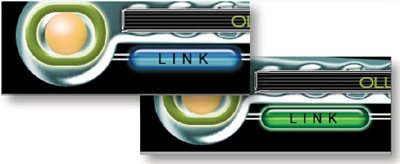
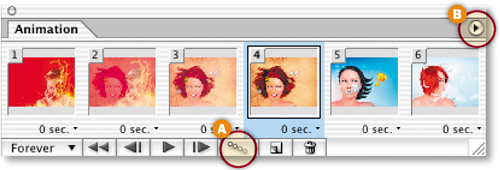
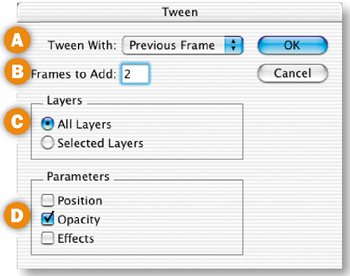
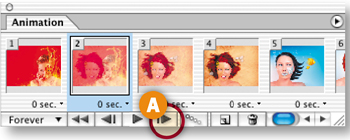
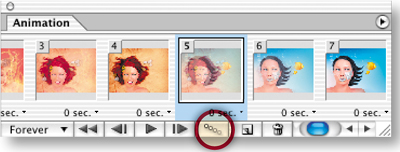
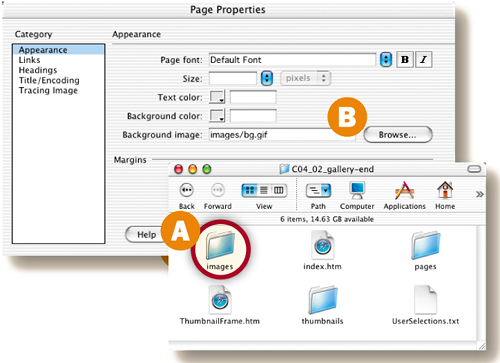
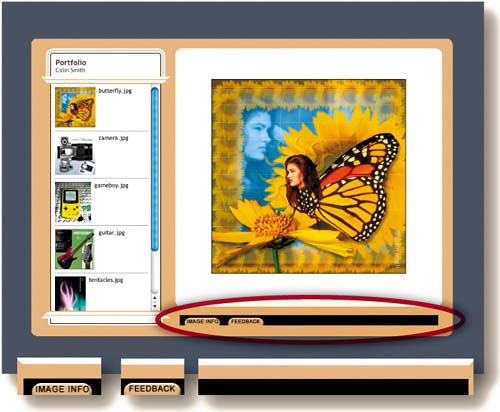
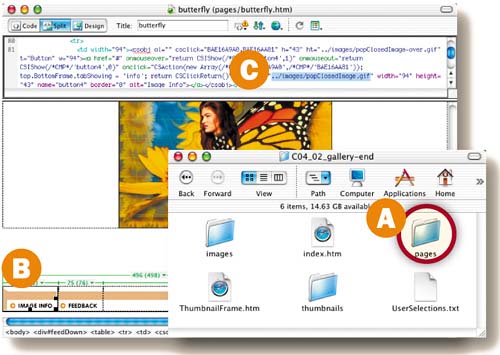
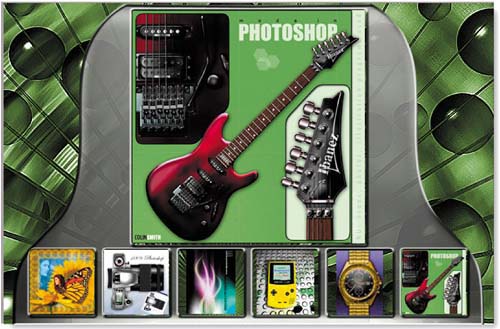
Peachpit Press1249 Eighth StreetBerkeley, CA 94710(510) 524-2178(510) 524-2221 (fax)
Find us on the Web at www.peachpit.com.
To report errors, please send a note to errata@peachpit.com.
Peachpit Press is a division of Pearson Education.
Copyright © 2005 by Jan Kabili and Colin Smith
Project Editor: Rebecca GulickProduction Coordinator: David Van NessTechnical Editor: Colin SmithCompositor: Colin SmithIndexer: Karin ArrigoniCopy Editor: David Van de WaterCover Design: Jack DavisInterior Design: Jill Davis
All rights reserved. No part of this book may be reproduced or transmitted in any form by any means, electronic, mechanical, photocopying, recording, or otherwise, without the prior written permission of the publisher. For information on getting permission for reprints and excerpts, contact permissions@peachpit.com.
The information in this book and the files on the CD-ROM are distributed on an “As Is” basis, without warranty. While every precaution has been taken in the preparation of the book and CD-ROM, neither the authors nor Peachpit Press shall have any liability to any person or entity with respect to any loss or damage caused or alleged to be caused directly or indirectly by the instructions contained in this book or by the computer software and hardware products described in it and on the CD-ROM.
Adobe, Photoshop, and ImageReady are either registered trademarks or trademarks of Adobe Systems Incorporated in the United States and/or other countries.
Many of the designations used by manufacturers and sellers to distinguish their products are claimed as trademarks. Where those designations appear in this book, and Peachpit Press was aware of a trademark claim, the designations appear as requested by the owner of the trademark. All other product names and services identified throughout this book are used in editorial fashion only and for the benefit of such companies with no intention of infringement of the trademark. No such use, or the use of any trade name, is intended to convey endorsement or other affiliation with this book.
9 8 7 6 5 4 3 2 1
Printed and bound in the United States of America
As I sit down to write these acknowledgments, the first person who comes to mind is you, the reader. We've never met, but I feel like I know you. You've been on my mind every day for the last few months. I've pictured you choosing this book at the bookstore, sitting down at your computer to give it a try, or grabbing it off the shelf to reread something you found useful. Thank you for buying the book and for being my inspiration.
Thanks to my friend and coauthor, Colin Smith. Colin made all the graphics for these projects, and he let me do all the writing without secondguessing me. He was always there at the other end of my email. And I know that he slept as little as I did. Colin—it's been a pleasure. Thank you for joining me on this journey.
Jack Davis—I can't thank you enough for giving me this opportunity. The How to Wow series is Jack's baby. He nurtured it and made it happen. Jack, your ideas and the terrific model we had in How to Wow: Photoshop for Photography were our touchstones.
Dean Collins—you were the first person I thought to call when I finished writing this book. That's because you're so supportive, and our long phone conversations always put me in a good mood. Dean is the brains behind Software Cinema, Inc., which is publishing the How to Wow training CDs that have grown out of this book. Dean, you're the rock star!
Thanks to my colleague and partner David Van de Water. He read every word, lending his good eye and good taste to the process.
To all the team at Peachpit Press—our patient editor Rebecca Gulick, production manager David Van Ness, and publisher Nancy Ruenzel—thanks for making this the most pleasant writing experience I've had. Jill Davis—thanks for creating the InDesign template into which I wrote directly. You can't imagine how much time that saved. To Ben Willmore, who cowrote How to Wow: Photoshop for Photography with Jack—thanks for that pack of Jolt gum. It kept me awake through the first chapter, but I sure could have used a whole case of the stuff.
Last, but certainly not least, thanks to my family, Coby Kabili, Kate Kabili, and Ben Kabili, for putting up with me being at the office all the time. I promise dinner will be on time from now on.
—Jan Kabili
Before I say anything else, I just want to thank all the wonderful and loyal people who read my books and magazine articles, watch my videos, attend my seminars, and visit the Web site photoshopCAFE.com. Thanks for all the encouraging emails. I would not be doing this for a living if it wasn't for you. I am grateful beyond words!
This book that you are holding is the result of the synergy of a great team. It wouldn't be complete without mentioning a few special people.
First of all, thanks to Jan Kabili for putting up with my endless hair-splitting during tech edits and for putting in the all-nighters to make this book happen.
Thanks to Jack Davis for having the confidence in me to work on this project. It's been an honor, and I enjoyed hanging out with you at Photoshop World, despite having to evacuate because of the hurricane!
The Peachpit team, especially Nancy Ruenzel, Rebecca Gulick, and David Van Ness, you're an awesome team.
Thanks to everyone at PhotoshopCAFE. Especially all the awesome Mods and Admins who keep things going smoothly and in the right spirit during my absence while I have been occupied on this book and others. You are the best!
Thanks to Gwyn Weisberg from Adobe Systems; we will make it sushi next time, I promise.
My buddies in the business, Al Ward from actionFX.com, Scott and Jeff Kelby, Chris Main, Dave Cross, Barbara Thompson, Felix Nelson, and everyone else from KW, your support and inspiration fuels me.
To all my online buddies, Phunk (effectlab), Nina (eyesondesign), Mark Monciardini (designsbymark), Malachi (liquidwerx), Jay (urbangrafixdesigns), Avi (worth1000), Trevor Morris (GFX), Ryan (eyeballdesign), Jens Karlsson (chapter3), and many others I have neglected to mention, thanks for the synergy and making things more fun!
Thanks to my wonderful family and friends; you make it all worth while.
Thanks to God for giving me the gifts I have and allowing me to use them in the way I enjoy.
Fresh Ideas, cool techniques, and sound advice—if that's what you're after, you've picked up the right book. How to Wow: Photoshop for the Web will inspire you to create the best Web graphics on the planet and teach you everything you need to know to get that job done in Photoshop and its companion program, ImageReady.
The answer is simple. There are very few resources that address how to make content for the Web in Photoshop and ImageReady and that offer step-by-step, inspirational recipes for real-world Web graphics projects. Whether you design sites for a living or work on personal Web projects, these are things you need to know. That's where we come in. Both of us, Jan and Colin, have been teaching, writing about, and making Web graphics for most of our careers. Jan has taught Photoshop for the Web for all the major national training companies, including Adobe. Colin has won multiple Photoshop Guru awards for his remarkably lifelike Photoshop illustrations. We're experts in hands-on training, and between us we've written over a dozen Photoshop books. All this is not to blow our own horns, but to let you know that we really can help you.
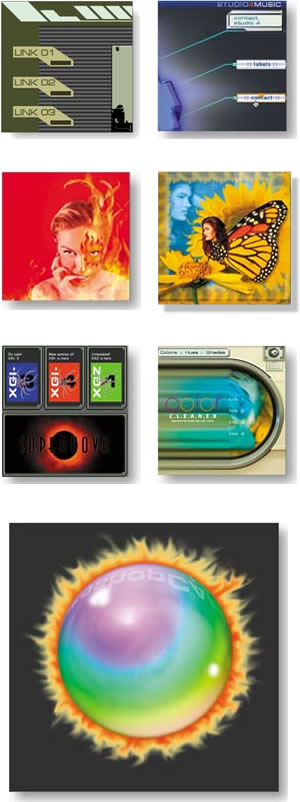
In these pages you'll find a collection of practical recipes that teach you what you can make with Photoshop and ImageReady and show you exactly how to make each item. Our goal is to help you master a Photoshop–ImageReady workflow for creating real graphic components—everything from page layouts to navigation to animations—for real personal and business Web sites. You'll get ideas for how to incorporate graphics in your own sites, and you'll learn efficient production techniques that will save you time and effort.
Getting the most out of this book is a collaborative process. Work through the projects with us, paying particular attention to those things you need to know for your Web work or play. When you find a project that piques your interest, go beyond what we show you, applying our techniques to your own sites.
The CD-ROM at the back of the book contains all the files you need to follow along with the projects. There are also end files for each project to give you a sense of where you're going.
The CD-ROM also has some Photoshop presets—styles, actions, and patterns-—that you'll need to complete some of the projects in the book. Please take the time to install the HTW Presets now, following the instructions on the next page. Thanks to How to Wow series editor Jack Davis, you'll also find a collection of Wow Button Style presets in the One-Click Wow Styles folder. These are some of the more than 1000 presets from the second edition of Jack Davis' book Adobe Photoshop One-Click Wow! Thanks, Jack. In addition, there are some third-party offers and trial software on the CD-ROM. Check them out.
If you have any questions about projects in the book feel free to contact us by email. Jan's address is kabili@mac.com. Colin's is csmith@photoshopcafe.com. If you have any problems with the CD-ROM, contact Peachpit Press at ask@peachpit.com". ![]()
The CD-ROM at the back of the book contains two important folders—the HTW Project Files folder and the HTW Presets folder. Both are essential for working through the projects in this book. Before going any further, please follow these instructions for installing them on your computer.
The Wow Button Style presets in the One-Click Wow Styles folder are a gift to you from our colleague Jack Davis. Install and enjoy them at your leisure.
Before you begin working through the projects in the book, copy the HTW Project Files folder and the HTW Presets folder to your computer. Although you can work with these files from the CD-ROM, it will be faster and more efficient to have them on your hard drive.
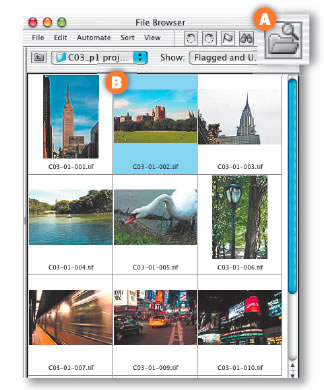
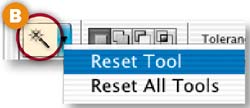
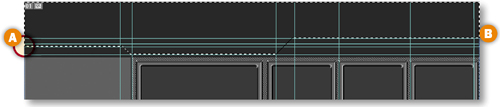
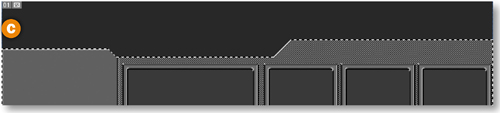
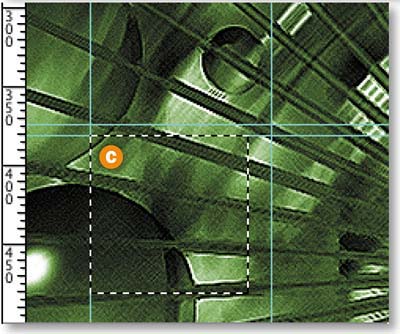
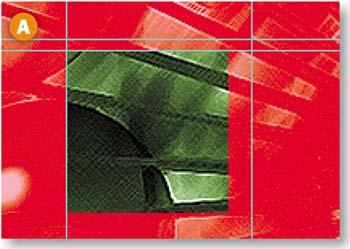
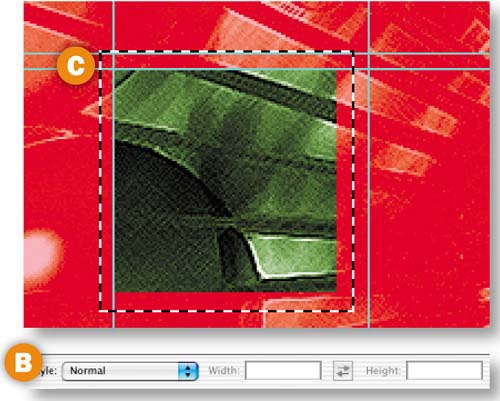
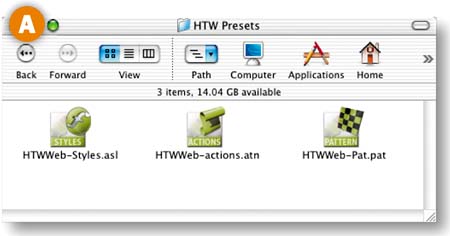
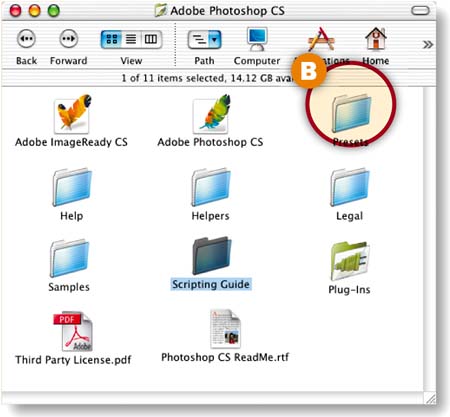
The HTW Presets folder A contains styles, actions, and patterns for use in Photoshop and ImageReady. Copy the whole folder into the Presets folder inside the Photoshop application folder on your hard drive B. Then restart Photoshop and ImageReady. This will allow you to quickly load any of the presets from Photoshop's and ImageReady's palettes. Install the One-Click Wow Styles folder the same way to make the Wow Button Styles available from the side menu of your Photoshop and ImageReady Styles palettes.
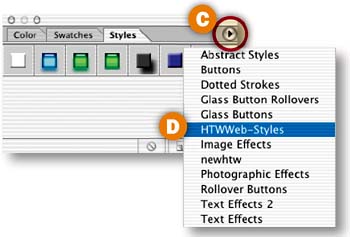
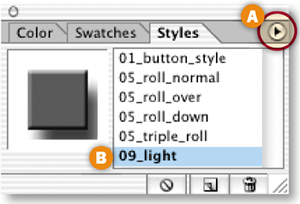
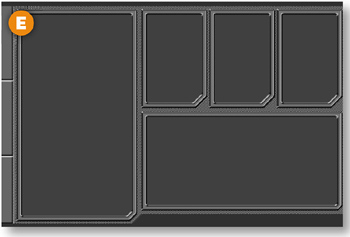
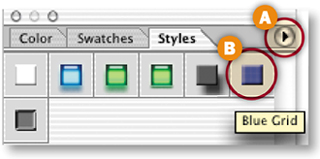
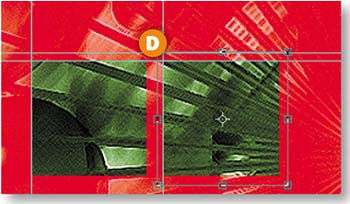
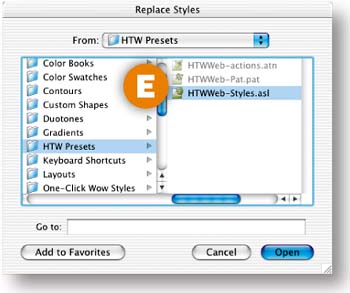
After you copy the HTW Presets folder, and the One-Click Wow Styles folder if you wish, to the Photoshop application Presets folder on your hard drive, the new presets can be accessed from your Styles and Actions palettes and in various dialog boxes that use styles and patterns. To access the HTWWeb-Styles presets, which are used in some of our projects, in Photoshop, click the side arrow on Photoshop's Styles palette C and choose HTWWeb-Styles D. Click OK when you're asked if you want to replace current styles with HTWWeb-Styles.asl. To access these styles in ImageReady, click the side arrow on ImageReady's Styles palette and choose Replace Styles. The Replace Styles dialog box opens to the Styles presets in the application folder. Scroll up and click on HTW Presets E. Then select HTWWeb-Styles.asl and click Open. Optionally, to add the HTWWeb-Styles to ImageReady's Styles palette side menu, choose Save Styles from that menu, navigate to the Styles folder in the application presets, and click Save. ![]()
Navigation is the most important graphic element in a Web site. The navigation system is the engine that drives a viewer through a site and the road map the viewer uses to explore the site. A good navigation scheme is one that is both easy to find on every page and easy to use. It communicates clearly and simply where the viewer is in the site, where she can go from that point, and how to get there.
Graphics play a pivotal role in making navigation successful. Meaningful navigation icons, like symbols on a map, guide the viewer in the search for content. Rollovers offer visual clues to the presence and location of navigation. Button size and color can communicate the importance of particular information in the site hierarchy.
The look of a navigation scheme can pack a visual punch that contributes to your site's Wow quotient. This chapter walks you through a variety of recipes for creating visually exciting graphics that support and enhance navigation.
Critical Skills
You'll learn critical skills for building, slicing, and optimizing navigation graphics from the first two projects in this chapter. You'll use these skills to complete many of the projects in this book and over and over in your personal Web work. We urge you to work through these lessons first, even if you're dying to skip to another juicy lesson later in the book.


In the first project, Building a Navigation Bar, you learn how to put together a set of matching buttons for a navigation bar, taking advantage of time-saving construction techniques and special Web-oriented features in ImageReady. The emphasis here is on efficiency— using one button as a template for an entire bar of matching buttons. The second project, Slicing and Optimizing a Navigation Bar, simplifies the seemingly complex tasks of slicing and optimizing individual components of a navigation bar. We explain how and why to slice, and we show you how to optimize slices in GIF and JPEG formats for fast download and display on the Web. The third project, Transparent Buttons, demonstrates how to surround navigation buttons with transparency to allow your Web page background to show through.
Rollovers
With the basics under your belt, you're ready to tackle rollovers. Rollovers and other interactive graphics are what make the Web special. Rollovers actively involve your audience with your site and offer dynamic information about site content and structure. In this chapter's fourth project, Rollover Navigation, you make JavaScript-powered rollover buttons without the hassle of hands-on programming. The next project, Pointers and Remote Rollovers, cranks things up a notch. Here you learn to make rollovers that trigger a remote event elsewhere on the page, applying that technique to create a stylish navigation bar with mobile pointers.
Image Maps
The last project in this chapter, Image Map Navigation, offers an alternative for those times when you don't want your navigation icons all lined up in neat rows. If it's asymmetry you're after, consider making an image map with hot spots as your navigation points. We invite you to work through all the recipes in this chapter with us to savor these tasty treats.


When you create a navigation bar, a page layout, or any Web graphic from scratch, there are some important technical issues to consider up front–including image dimensions, resolution, color mode, and color profile.
You confront most of these issues right off the bat in Photoshop when you set up a new document. We help you unravel these technical mysteries here.


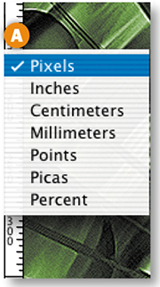
Files are measured in pixels when you design for the Web, but Photoshop's default for dialog boxes and rulers is set to inches. You can change inches to pixels throughout the program by choosing Photoshop/File>Preferences>Units & Rulers and setting the Rulers field to pixels.
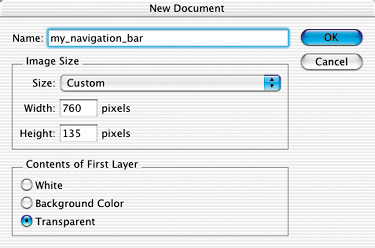
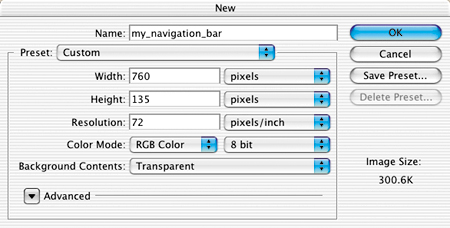
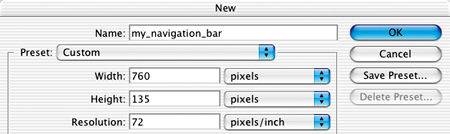
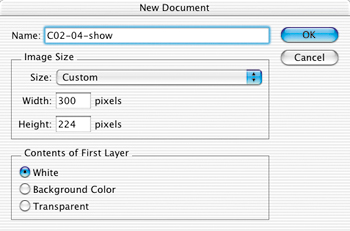
Choose File>New, and enter the Width and Height of a new Web file in pixels. A navigation bar or a page layout is best viewed without scrolling, so choose dimensions for those files that will fit within a typical browser window. Unfortunately, browser window sizes vary with each viewer's monitor display settings, choice of browser, and viewing behavior, so we can't give you one foolproof file size recommendation. Many designers make their navigation bars about 760 pixels wide and their page layouts 760 x 410 pixels, assuming that today's typical monitor is set to 800 x 600 pixels (or more) and accounting for scroll bars and other browser elements.
To be more accurate, do some research to determine the platform, display resolution, and browser that your particular audience is likely to use. Take a screen shot of an open Web browser in that setup, and crop away the browser interface elements to get a measurement in pixels of the area your viewers can see without scrolling. Use those numbers to custom size Web graphics for your audience.

Pixels are small rectangles of color information that are the building blocks of bitmapped images. Resolution, as that term is used in Photoshop's dialog boxes, describes the number of pixels per inch (ppi) in an image. If you take our advice in the previous panel and set the dimensions of a file destined for the Web in pixels rather than inches, it doesn't matter what number is in the Resolution field of the New dialog box. Photoshop will create a file with the number of pixels you dictate—without regard for pixels per inch—just as ImageReady does automatically.
However, if you leave the Width and Height fields in Photoshop's New dialog box set to inches, it's important to set the Resolution field to 72 ppi to approximate the resolution at which images are displayed in a Web browser on a standard screen. The same is true if you're resizing an existing image for use on the Web in Photoshop's Image Size dialog box.
Note that your Photoshop settings do not control the absolute size of an image on a viewer's screen. That depends on the display size of each viewer's monitor. For example, if a viewer changes her display from 800 x 600 to 1024 x 768, each pixel becomes smaller, making the same image look smaller on her screen.

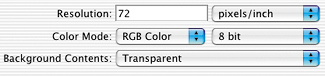
Set Color Mode to RGB Color in Photoshop's New dialog box when you are creating a file for the Web. Web browsers cannot see files in any of the other color modes offered—Bitmap, Grayscale, CMYK Color, or Lab Color.
Color mode describes the set of available colors from which an image is built. Each pixel in an RGB file is composed of a combination of red, green, and blue color values.
Bit depth is the amount of color data in each channel of color (red, green, and blue). Leave Bit Depth set to 8 bit. This creates an image with 24 bits of color information (8 bits in each of the 3 channels of an RGB image), accommodating 16.7 million possible colors.


Every new file begins with a single layer. The nature of that layer depends on how you set the Background Contents field in the New dialog box. If you choose Transparent, the first layer will be composed of transparent pixels represented by a gray and white checkerboard pattern and will be a regular layer. This is the best choice if you plan on optimizing the image as a transparent GIF through which you can see a Web page background.
If you choose either White or Background Color in the New dialog box, the first layer will be a special kind of layer called a Background layer. A Background layer acts differently than a regular layer. A Background layer cannot have transparent pixels and you can't change its opacity or move its contents. You also cannot place another layer below a Background layer in the Layers palette. All of these properties can make a Background layer difficult to work with.
If you do create a Background layer and later want to change it into a regular layer, choose Layer>New Layer from Background, or double-click the layer name and enter a new name in the Layer Properties dialog box.

Photoshop's color management system is designed to achieve consistency in the way colors in an image appear on screen and in print. Unfortunately, most Web browsers and a number of other applications used in a Web design workflow are not color-managed. So there is no sure-fire way to achieve consistency between the way colors appear on your screen in Photoshop and the way they will appear in each viewer's Web browser.
The best solution we've found is to design an image for the Web in the sRGB color space, so that it appears much the way it would in a Web browser on a typical Windows monitor. Then save the file without embedding a color profile, since profiles can't be read by most Web browsers and needlessly inflate the file size.
To do this, when you start a new Web file, click the Advanced arrow in Photoshop's New dialog box to reveal the Color Profile menu. Choose the sRGB profile from that menu. (Alternatively, choose Working RGB: sRGB if you've already set sRGB as your RGB working space in Photoshop's Color Settings.) If you save an optimized copy of the file in JPEG format, uncheck ICC Profile in Photoshop's Save for Web window or ImageReady's Optimize palette to avoid embedding the color profile. ![]()
Add a set of matching buttons to a navigation bar.


Switch to ImageReady
This navigation bar image was made in Photoshop to take advantage of Photoshop's wide range of image-editing features. You could continue to use Photoshop to add buttons to this bar, but we recommend you switch to ImageReady for that purpose to make use of ImageReady's exclusive object-oriented tools (the Tab Rectangle tool, Smart Guides, multiple layer selection, layer groups, Move tool variations, and more).

With the file open in Photoshop, click the Edit in ImageReady button at the bottom of the Photoshop toolbox. ImageReady launches, and the open file is automatically moved to ImageReady. You'll work in ImageReady for the rest of this project.
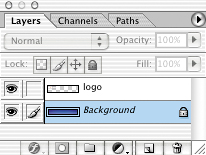
Start by creating one tab-shaped button. Select the Tab Rectangle tool in the ImageReady toolbox A. In the Options bar, make sure the Shape Layer icon is selected B. Set the button's size by checking Fixed Size and entering Width: 106 px and Height: 24 px C. Set the button's style by clicking the arrow on the Style field and choosing 01_button_style D. If this style doesn't appear, load the HTWWeb Presets as explained in the Introduction, or just choose a different style. Select the Background layer in the Layers palette. Then click in the image to create a button on a new shape layer E. Give the layer a meaningful name by double-clicking Layer 1 and typing button 1 in its place F.


Flip and Move the Button
Now you'll turn the button upside down and hang it from the navigation bar. Select the Move Tool in the toolbox A, and make sure the Layer Select tool is highlighted in the Options bar B. This variation of the Move tool automatically selects the layer or layer group that contains the object you click on in the image. Click on the button you just made to automatically select the button 1 layer. Choose Edit>Transform>Flip Vertical to invert the button. Click and drag the button into position under the navigation bar's overhang C.


Add Button Text
Select the Type tool in the ImageReady toolbox. In the Options bar, set Font Family to Arial Narrow or a similar font A, set Font Size to around 14 px B, and set Font Color to black C. Click on the button in the image and type home. This creates a new home type layer above the button 1 layer. Don't worry about where the text is positioned on the button for now.


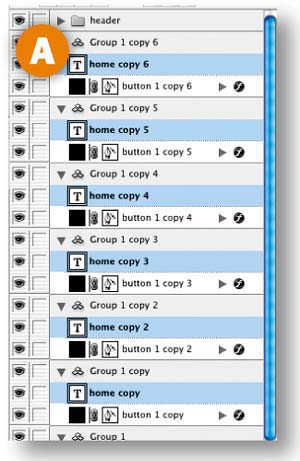
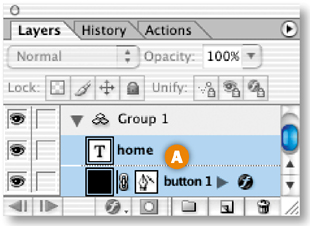
With the home type layer selected, hold the Shift key and click the button 1 layer in the Layers palette, so that both layers are selected A. Then choose Layer>Group Layers from the main menu bar. This gathers the two layers into a layer group labeled Group 1 B. Now that the button and text are grouped, it will be easy to duplicate them as a unit.


Make Duplicate Buttons
Duplicate button 1 along with its text by Control/right-clicking Group 1 in the Layers palette and choosing Duplicate Layer Group from the menu that appears A. You won't see the duplicate button in the image yet because it is located directly on top of the original button.

Select the Move tool, and make sure its Layer Select tool variation is highlighted in the Options bar. Click on the button in the image and drag to the right to move the duplicate button and its text B.
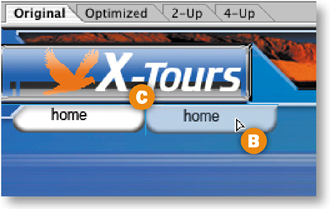
Notice the light blue lines that appear and disappear as you move the button C. These are Smart Guides–temporary alignment guides that display automatically when you move an object. Use them to align the buttons horizontally as you drag. Release the mouse when a vertical Smart Guide appears in between the two buttons, indicating that they are no longer overlapping.

Repeat this step five more times until you have a total of seven layer groups and seven buttons, all displaying the label home D.

Select the Type tool and click and drag to highlight the word home on the second button from the left. Type the word Info instead. Repeat this step on each button, renaming the next five buttons: tours, stories, pictures, booking, and links.

Edit Multiple Layers at Once
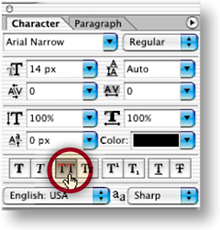
You can save time by editing multiple layers together. Command/Ctrl-click on each of the seven type layers in the Layers palette to select them all A. Open the Character palette (Window>Character). With the Type tool selected, click the All Caps icon in the Character palette to make all the button labels uppercase.


Align Text to Buttons
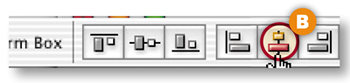
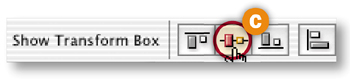
Now align each text label to its button. Start with the home button. Shift-click the home type layer and the button 1 layer to select them both in the Layers palette A. Select the Move tool in the Options bar. Click the Align Layer Horizontal Centers button to move the text to the horizontal center of the button B. Then click the Align Layer Vertical Centers button to move the text to the vertical center of the button C. Repeat this step on each of the six remaining pairs of button and text.


Congratulations! You've created a navigation bar of matching buttons and text with a minimum of fuss. The file is still in PSD (Photoshop Document format), which is a good format in which to save the source file because it retains program features like layers. However, this image is not ready to upload to the Web, because Web browsers cannot display a PSD file. The file must first be converted to a Web-ready format, like JPEG or GIF, as you learn to do in the next project. ![]()

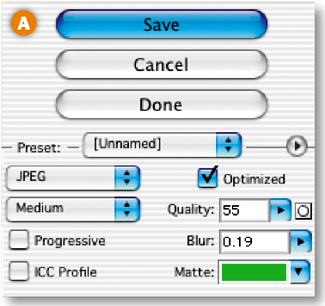
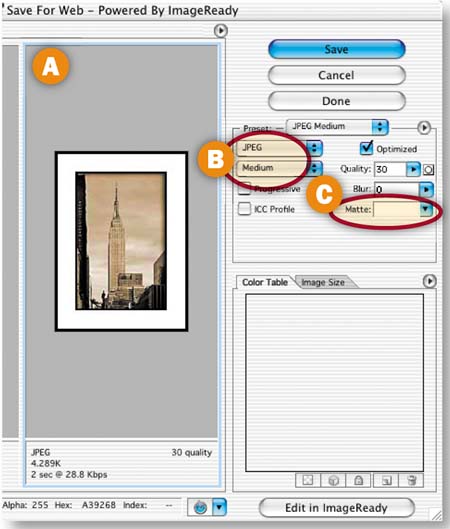
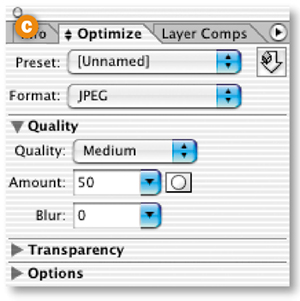
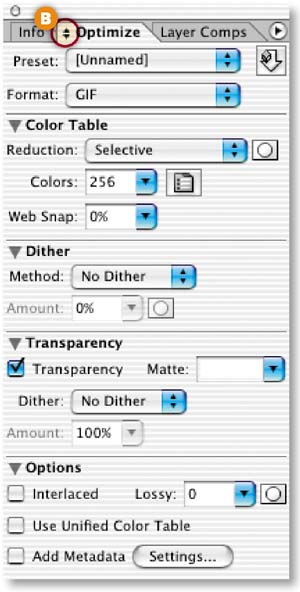
Optimizing reduces the size of an image so it will load faster in a Web browser. JPEG, is the best format for optimizing photographs. JPEG is also useful for optimizing Web graphics that contain graduated colors, like gradients, glows, or shadows. Optimize an image as a JPEG using the following settings in Photoshop's Save for Web window or ImageReady's Optimize palette.
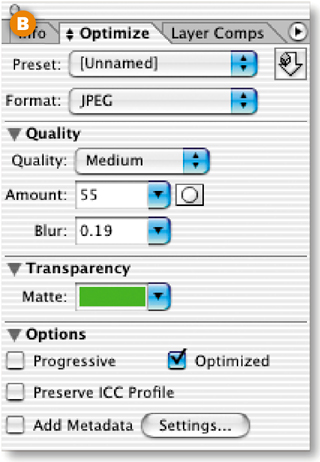
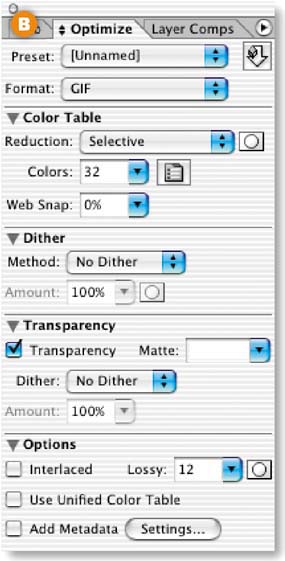
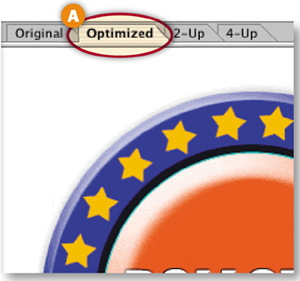
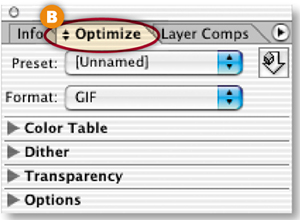
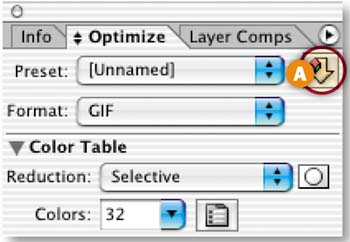
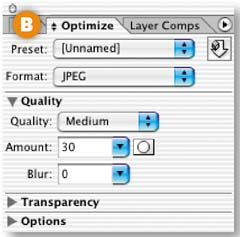
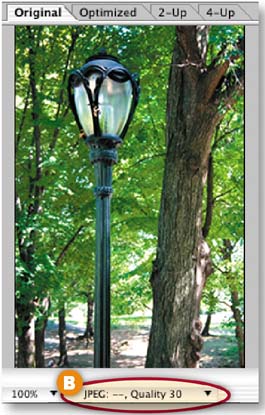
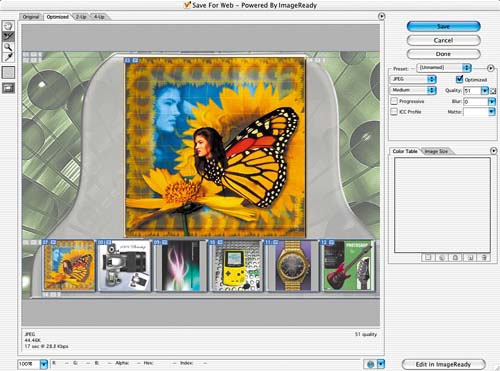
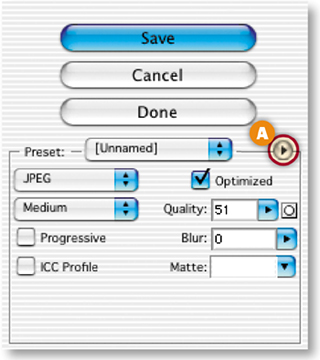
In Photoshop, choose File>Save for Web to open the Save for Web window A. In ImageReady, choose Window>Optimize to open the Optimize palette B and expand the Optimize palette to see all its settings, as explained in the tip on the opposite page. Choose JPEG from the Format menu, or start with a pre-made collection of JPEG settings from the Preset menu.


Quality is the variable that has the most significant impact on the file size and appearance of a JPEG. The lower the quality setting, the more compression is applied. This reduces the file size, but can degrade the appearance of the image. Choose a preset from the Quality menu. Fine-tune that setting with the slider in Photoshop's Quality field or ImageReady's Amount field. The circle icon to the right of Photoshop's Quality field and ImageReady's Amount field opens a dialog box in which you can set different quality levels for text layers, vector layers, and individual channels in an image.
Blurring an image decreases its file size. Add blur by dragging the slider in the Blur field to the right. Don't overdo it or your image will look too soft.
This setting causes an image to appear progressively while it's downloading, so the viewer sees a low-resolution version before she sees the real thing. Leave this setting unchecked unless you like this effect.
ICC Profiles contain color management information. We recommend that you do not include ICC Profiles with Web files because most Web browsers can't read them and they increase the size of a file. To do this, uncheck ICC Profile.
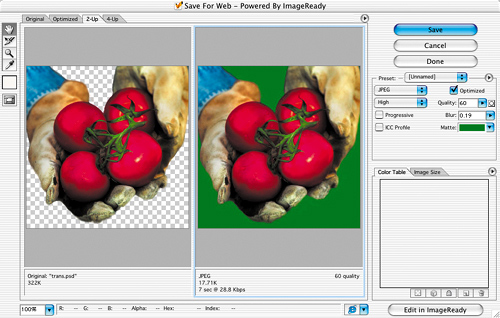
The Matte field is only relevant if there are transparent pixels in the source image. Because JPEG format does not allow transparency, any transparent pixels in the source image will be filled with the color in the Matte field when you optimize as JPEG. If you plan to use a solid color Web page background, set the JPEG's Matte field to the same color as the page background. This will cause the areas of the image that were transparent to blend in with the Web page background, creating the illusion of transparency.

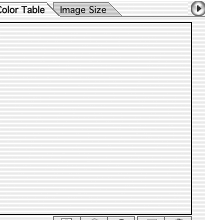
Ignore the Color Table in Photoshop's Save for Web window when you're optimizing a JPEG. We mention the Color Table here only to confirm that it should be blank when format is set to JPEG. That's because JPEGs, unlike GIFs, do not map the colors in the source file to a limited color palette.

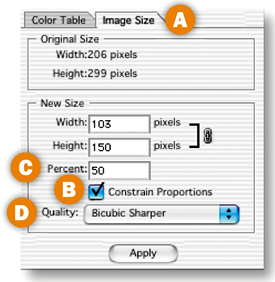
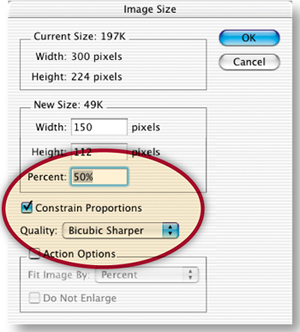
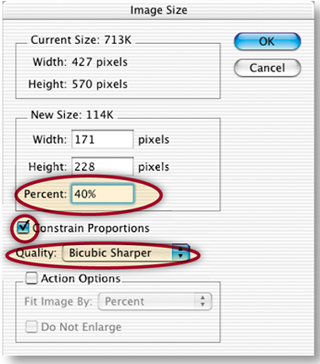
Reducing the dimensions of an image will always reduce the file size. In Photoshop, you can reduce the dimensions of the optimized image without affecting the source file. Click the Image Size tab in the Save for Web window A. Check Constrain Proportions to avoid distorting the image B. Reduce Width and Height to fixed numbers or by a Percent C. Changing image size—particularly sizing up-—can degrade image quality. To minimize the negative effect on image quality, set Quality to Bicubic Sharper when you're sizing down and to Bicubic Smoother when you're sizing up D. In ImageReady, resizing is done on the source file, using similar settings in the Image Size dialog box (Image>Image Size).

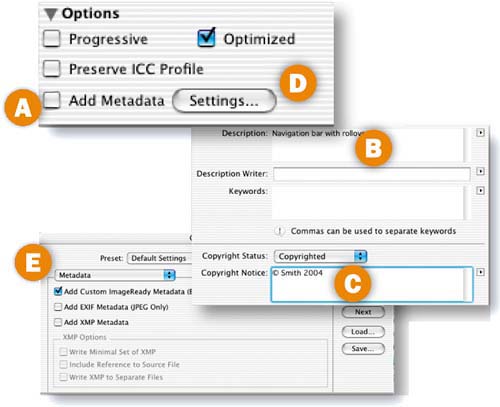
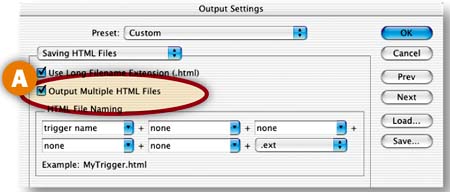
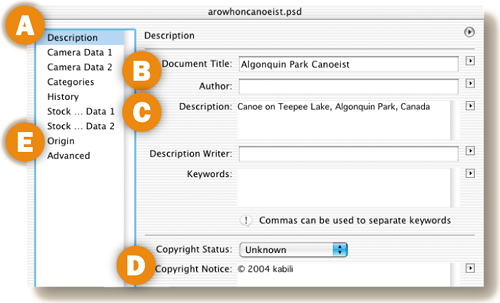
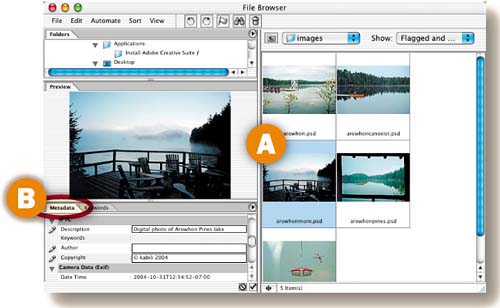
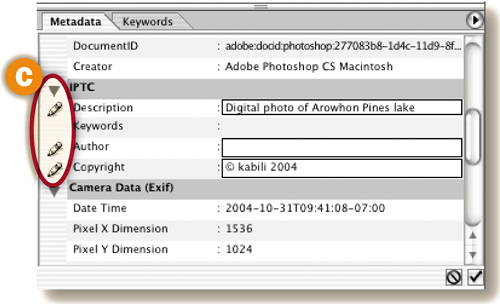
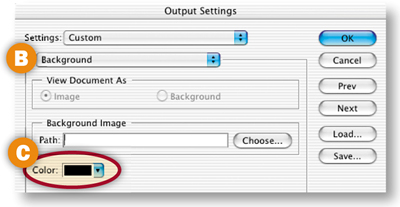
Metadata is file information. You can choose to attach various kinds of metadata to a Web file from ImageReady's Optimize palette. Metadata adds to file size, so we usually uncheck Add Metadata A. If you leave Add Metadata checked, by default ImageReady adds any information that's in the Description B and Copyright Notice C fields of the File Info dialog box (File>File Info), increasing file size slightly. In rare cases, you may want to include EXIF data (information stored in a digital photograph, such as camera settings) or XMP data (keywords and other information about a file for use by other applications). To do that, click the Settings button in ImageReady's Optimize palette D to open the Output Settings dialog box and choose a metadata option there E. ![]()


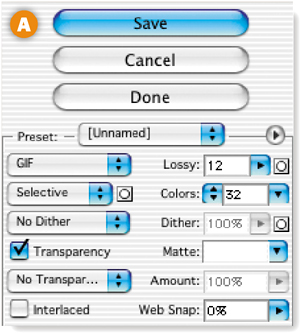
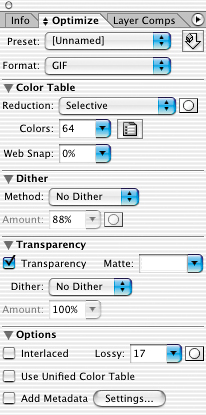
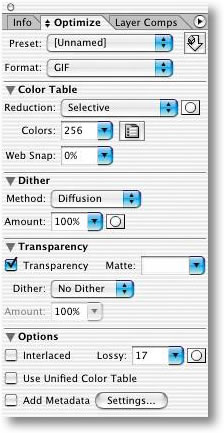
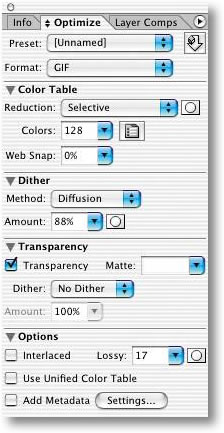
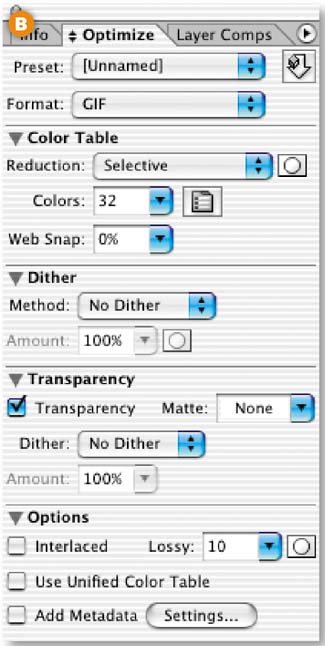
GIF, which stands for Graphics Interchange Format, is the ideal format for optimizing areas of solid color and lines, like illustrations, logos, cartoons, line art, and text. Use the following settings in Photoshop's Save for Web window or ImageReady's Optimize palette to optimize a GIF.
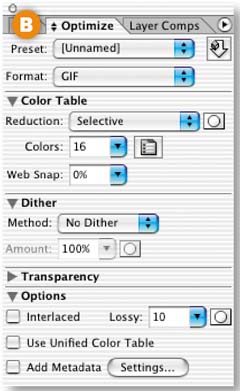
Open Photoshop's Save for Web window (File>Save for Web) A or ImageReady's Optimize palette (Window>Optimize) B. Choose GIF from the Format menu, or choose a collection of GIF settings from the Preset menu. (Two PNG formats are also available—PNG-8, which is similar to GIF, and PNG-24, which can contain varying degrees of transparency. These formats are less popular than GIF and JPEG because not all Web browsers display PNGs correctly, and because PNG-24 files can be relatively large in file size.)


When you optimize a file as GIF, all the colors in the original image are converted to a limited palette of colors. The Reduction setting determines how that color palette is generated. Choose Selective, Perceptual, or Adaptive from the Reduction menu to create a palette based on the colors in your original image. Avoid the other choices, because they are fixed palettes unrelated to the original image and can cause a noticeable change in image color. Don't feel compelled to choose Web (which generates a fixed palette of the 216 “Web-safe” colors), because today most monitors are 24-bit and can display a much wider range of colors. Use the Mask icon next to the Reduction menu to generate different palettes for text layers, vector layers, and selections you've saved to alpha channels.
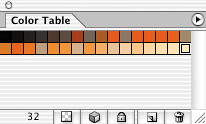
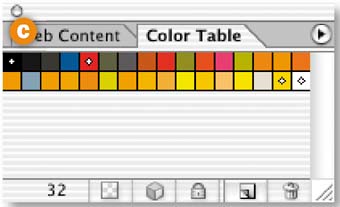
The Colors setting determines how many colors are included in a GIF's color palette, up to a maximum of 256 colors. This setting has the most significant impact on the file size and the appearance of a GIF. Fewer colors will reduce the file size, but may cause the image to lose important details. Choose the lowest preset from the Colors menu that produces an image that looks good to you. Then fine-tune your choice by typing a slightly lower number into the Colors field. To avoid losing particular colors as you reduce the Colors setting, first select those colors in the image with the Eyedropper tool (Shift+click to select multiple colors) and click the Lock icon at the bottom of the Color Table; then reduce the Colors setting.
Leave Web-Snap set to 0%. This setting converts some of the colors in your palette to Web-safe without allowing you to choose which colors are converted. If you want to use Web-safe colors, it's preferable to select those colors in the image with the Eyedropper tool (Shift+click to select multiple colors), and then click the Web Shift icon (the cube) at the bottom of the Color Table. This method gives you more control over the conversion.
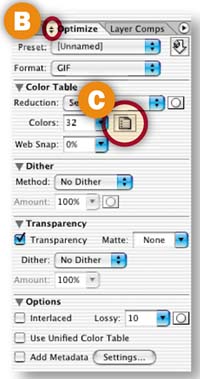
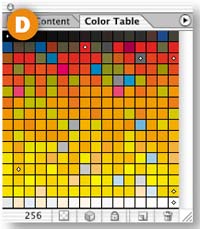
The Color Table displays and allows you to edit the colors in a GIF's color palette. You can select colors in the Color Table to convert them to other colors, make them transparent, shift them to Web-safe, or lock them down. Photoshop's Color Table is located in the Save for Web window. ImageReady's Color Table is located in a separate palette. Choose Window>Color Table, or click the Color Table Palette icon in the Optimize palette to open ImageReady's Color Table palette.

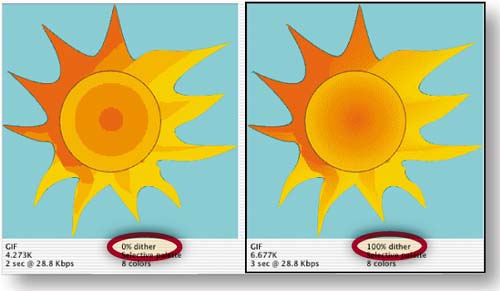
Dither (a pattern of colored dots) is used to simulate a color that's not in the Color Table. No Dither is usually the best choice, because dither increases file size. Dither is useful to avoid banding if you must optimize a photograph, gradient, or glow in GIF format. The Dither and Amount menus offer several dither patterns to choose from. Click the Mask icon to add different amounts of dither to text, vector objects, or alpha channels.

GIFs, unlike JPEGs, can include transparency. If the original image has transparent areas, make sure there's a check mark in the Transparency checkbox to retain transparency in the GIF. You can convert individual colors to transparency by selecting colors in the image with the Eyedropper tool and clicking the Map Transparency icon in the Color Table.
The Matte setting affects the edges of a transparent GIF. If Matte is set to None, the edges of the graphic will appear jagged when the GIF is placed on a Web page. If Matte is set to a color that matches a Web page background, the edges of the graphic will appear smooth against that background. If Matte is left at its default of white, the graphic may display an unsightly white halo against a Web page background.

Transparency Dither creates dots of color at the edge of a transparent GIF, so you can place the same transparent GIF on different backgrounds without seeing a halo of color. Choose No Dither if, like us, you find this look too chunky for your taste.
Increase the Lossy slider slightly to reduce file size. Click the Mask icon to add different amounts of Lossy compression to text, vector objects, or alpha channels. Check Interlaced if you want a low-resolution image to download before the full GIF. Check Unified Color to apply the same Color Table to all states of a rollover graphic. Uncheck Metadata to keep file size down. ![]()

Slice a navigation bar and optimize each slice as a separate GIF or JPEG. You can slice and optimize in either Photoshop or ImageReady. This project uses Photoshop.

Slice the Buttons
Slicing carves an image into pieces, each of which becomes a separate Web file. It's common to slice buttons so that you can attach a separate page link to each button file. (You could add links using Photoshop's or ImageReady's Slice Options, but linking is easier to do later in a site-building program that “knows” the path to each linked page.)


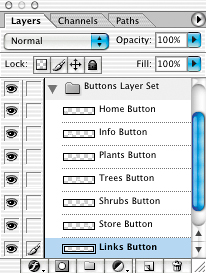
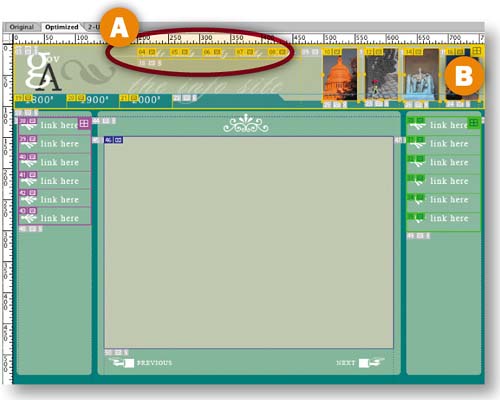
In Photoshop, select one of the button layers in the Layers palette. Choose Layer>New Layer-Based Slice from the menu bar. This creates a tight, rectangular layer-based slice (identifiable by its blue symbol) around the button on that layer, and some surrounding slices called auto slices (identified by gray symbols) to fill in the gaps. Repeat this step on each of the button layers.
Layer-based slicing is quick and easy, and creates slices that move with the underlying art—so you can change your design after slicing. But this slicing method works only if each button is alone on a separate layer.
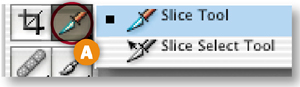
You'll use another method to slice the top graphic, isolating it from the green rule so you can optimize these items with different settings. This is a job for the Slice tool, because both of these objects are on the same layer. Select the Slice tool in the toolbox A, and click and drag around the top graphic to create a manually drawn slice called a user slice B. If your slice needs adjusting, click on any of the slice borders and drag. (You can adjust user slices, but not auto or layer-based slices.)

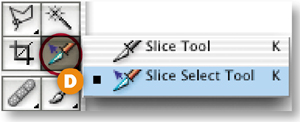
An auto slice has appeared around the green rule C. Select that auto slice with the Slice Select tool (behind Photoshop's Slice tool) D and click the Promote to User Slice button in the Options bar E so you can optimize the green rule slice independently of the auto slices.


Name the Slices
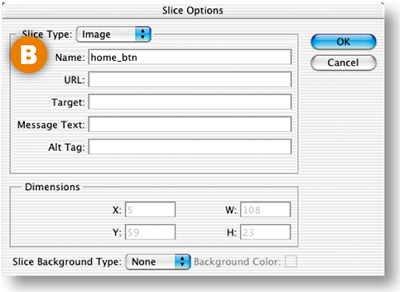
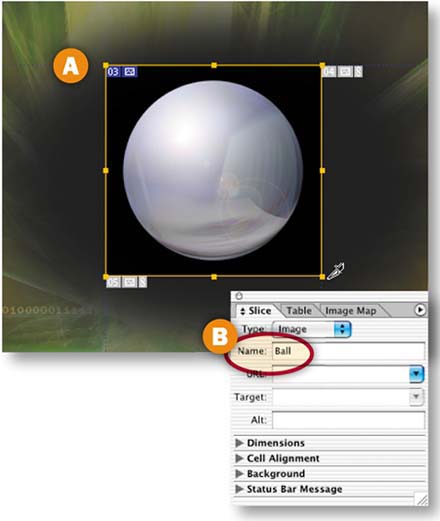
Give the major slices meaningful names so the files they produce are recognizable later. With the Slice Select tool, click on the Home button slice in the image. Click the Slice Options button in the Options bar A to open the Slice Options palette. Type home_btn in the Name field B and click OK. Repeat for each button slice, giving each a recognizable name. Avoid using spaces or odd characters in slice names.

Open the Save for Web Window
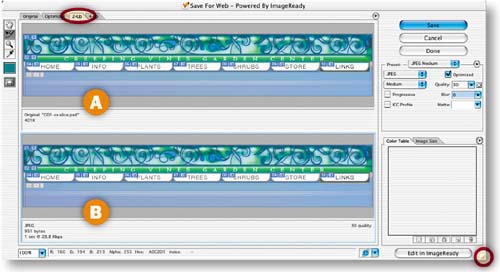
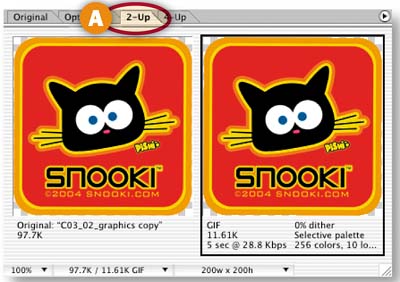
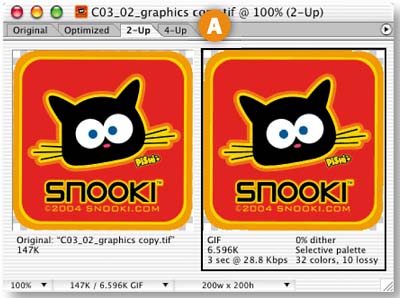
Choose File>Save for Web to open the Save for Web window–where optimizing is done in Photoshop. Click the 2-Up tab so that you can compare the original image A to a preview of the optimized image B. Click the bottom-right corner of the window and drag to resize so that the original and preview panes are horizontal.

Optimize the Top Graphic Slice
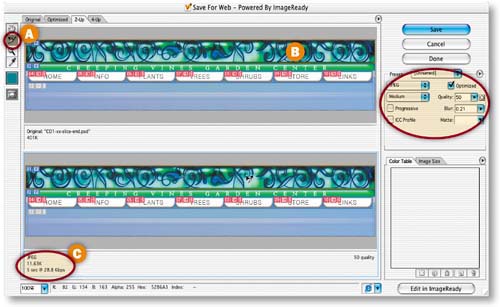
Apply different optimization settings to individual slices to minimize file size and maximize appearance. Start with the top graphic slice, which is likely to optimize best as JPEG due to its many graduated colors. Choose the Save for Web Slice Select tool A, and click on the top graphic slice in the preview pane B. Choose the following optimization settings (described in the preceding JPEG Optimization Settings) for this slice:
Optimized File Format: JPEG.
Quality pop-up menu: Medium. Then increase the Quality slider to 50 to reduce the remaining color artifacts.
Blur slider: increase slightly to 0.21.
Optimized: checked.
ICC Profile: unchecked.
Progressive: unchecked.
The size of this slice is reduced to around 11.63K C. (Your size may vary depending on how you drew your slice.)

Optimize the Buttons
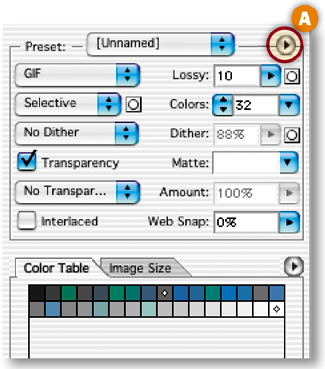
Link the button slices so any optimization change you make to one affects them all. Select one button slice in the preview pane. Shift-click the other button slices. Click the Optimize menu arrow A and choose Link Slices. Choose the following settings (described in GIF Optimization Settings):
Optimized File Format: GIF.
Color Reduction Algorithm: Selective.
Colors: 32 (seen in the Color Table).
Dither Algorithm: No Dither.
Lossy: 10.
Interlaced: Unchecked.
Web-Snap: 0%.
Transparency, Matte: Not relevant.


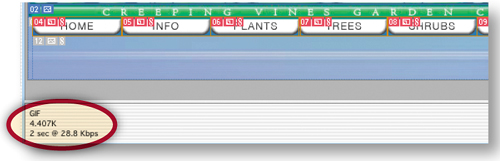
All the buttons together are just 4.4K.
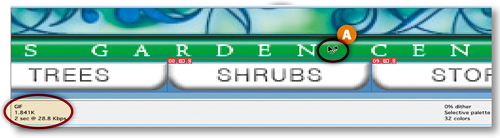
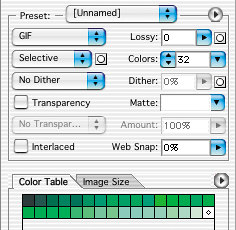
It's difficult to predict whether a slice like the green rule will optimize best as GIF or JPEG because it has a significant bevel with graduated tones. The best approach is to try both, selecting the slice in the preview pane A and comparing its appearance and file size as GIF and as JPEG. We settled on:
Optimized File Format: GIF.
Color Reduction Algorithm: Selective.
Colors: 32.
Dither Algorithm: No Dither.
Lossy: 0.
Interlaced: Unchecked.
Web-Snap: 0%.


File size is 1.8K-—several times smaller than a comparable-looking JPEG.
Optimize the Auto Slices
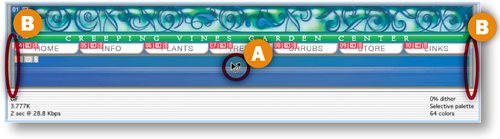
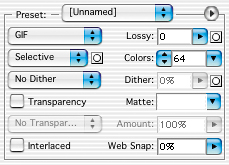
The auto slices (the blue background slices) are automatically linked for optimization. So optimizing one auto slice will optimize them all, saving you time. Select the large blue slice in the preview pane A and choose:
Optimized File Format: GIF.
Color Reduction Algorithm: Selective.
Colors: 64.
Dither Algorithm: No Dither.
Lossy: 0.
Interlaced: Unchecked.
Web-Snap: 0%.
The small blue slices on the sides automatically have the same settings B.


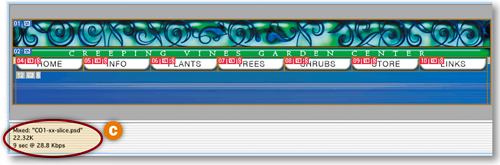
Click and drag with the Slice Select tool over all the slices in the preview pane to select them all. The total file size of the whole navigation bar is now down to about 22.32K-–a reasonable size for display on a Web page C.

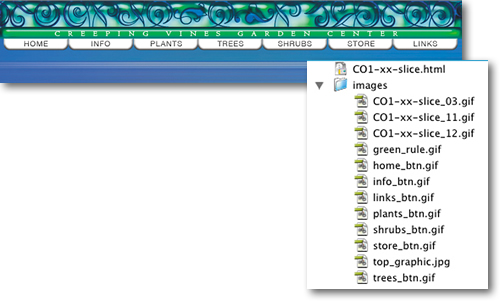
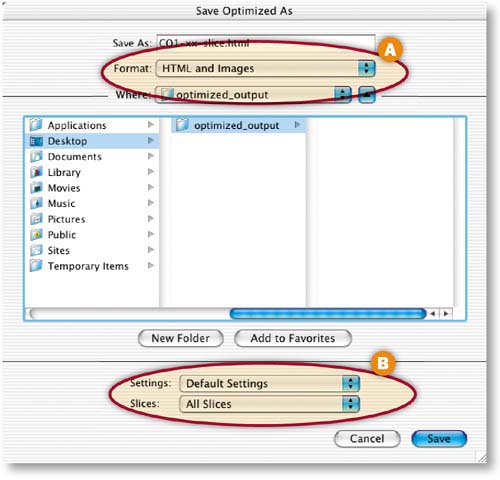
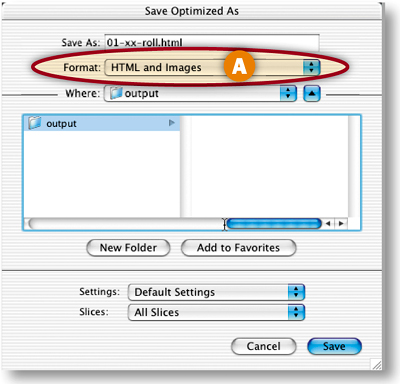
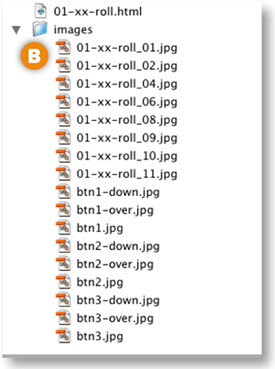
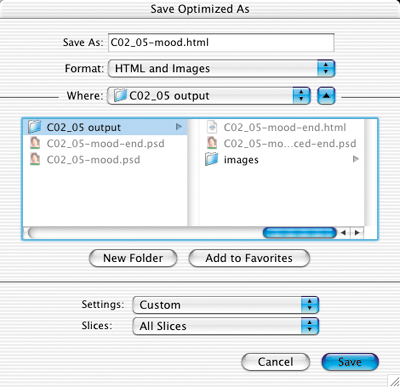
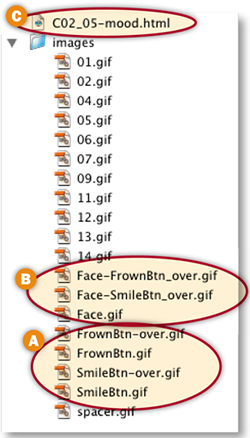
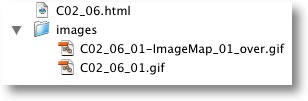
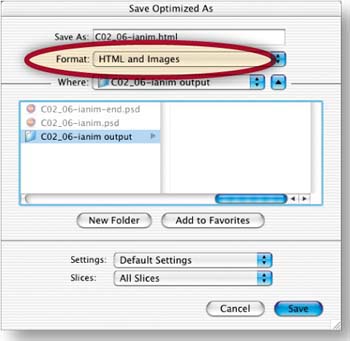
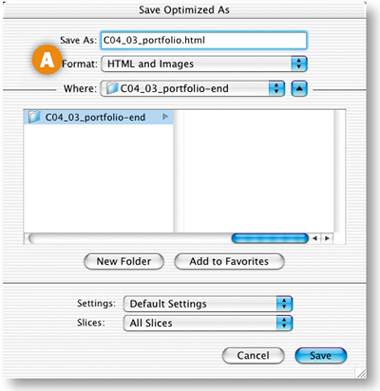
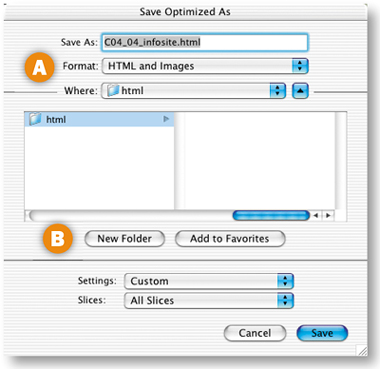
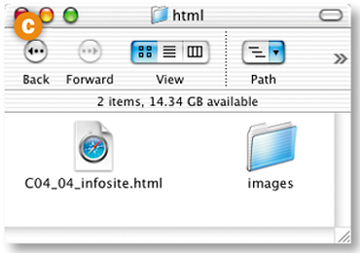
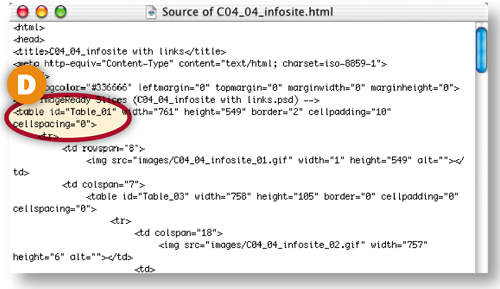
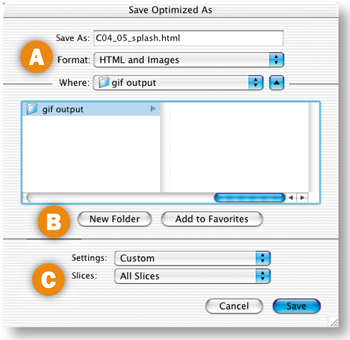
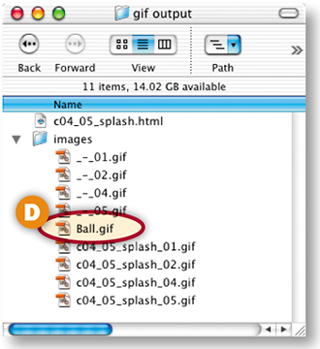
Photoshop will save each of the slices in this image as a separate GIF or JPEG, along with an HTML file containing a table to reassemble all the individual images as your navigation bar. Choose HTML and Images from the Format/Save as Type menu to generate the HTML file A. (If you choose Images, Photoshop will save only individual GIFs and JPEGs, which you could take into a site-building program for assembly there.) Leave the Slices menu set to its default—All Slices B, choose a destination, and click Save. On your hard drive, there will now be an HTML file and an Images folder containing all your GIFs and JPEGs. Don't separate the HTML file and the Images folder or the links to the images will break. Open the HTML file in a Web browser to see the results of your hard work. Each slice has become a separate image in a cell of an HTML table that holds all the images in place.

Save the Source File
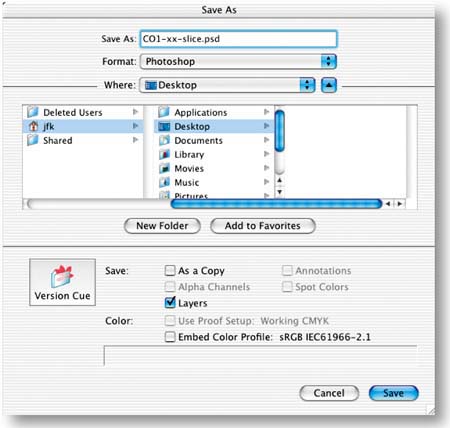
Before you close your original PSD file, choose File>Save As to save a copy that preserves your optimization settings and slices. Choose a destination, check Layers to preserve any layers in the file, and click Save. It's best to return to the source file in case you need to make changes to the Web files in the future, rather than try to edit and recompress the optimized files. ![]()


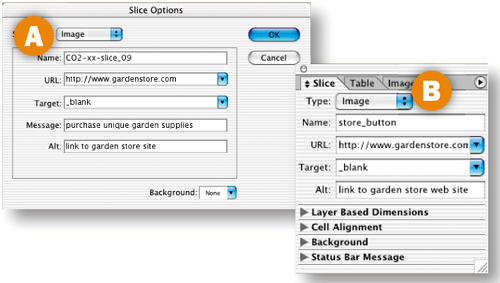
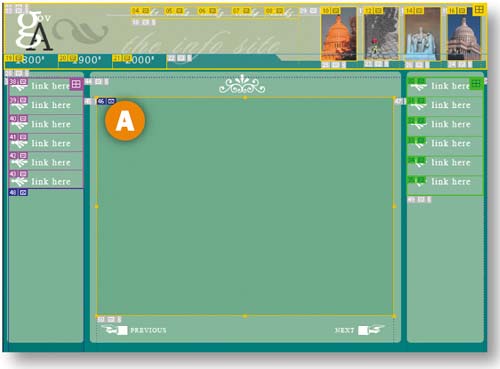
These settings impact how the contents of a selected slice appear in a Web browser. Use them only if you plan to save an HTML file with your slices. To access these settings, choose the Slice Select tool and select a slice. In Photoshop open the Slice Options dialog box A (click the Slice Options button in the Options bar). In ImageReady, open the Slice palette B (click the Slice palette icon in the Options bar).

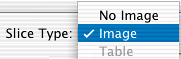
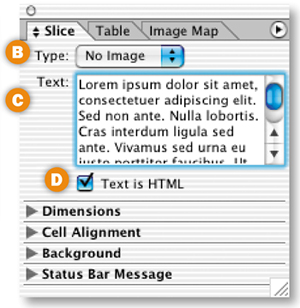
Leave Slice Type set to Image if a slice contains an image you want to display. Change Slice Type to No Image to leave a sliced area blank. No Image is a good choice for auto slices that have no important image content and for areas to which you plan to add HTML text. (Rather than entering your HTML text in the text box that appears, add it later in a site-building program like GoLive or Dreamweaver, where you'll have more control.)

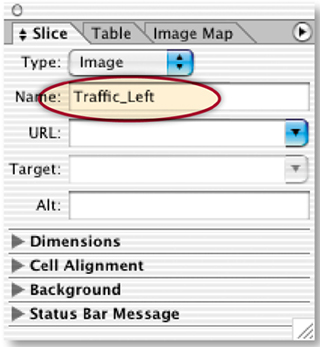
Enter a meaningful name, without spaces or odd characters, for the slice and the image file it will produce. Otherwise, the program automatically generates a complex name.
To add a link from a slice to an external Web site, type the entire URL of that site here. Links to pages in the same site are easier to add later in a site-building program.
Use the Target field to control how the browser window behaves. Enter _blank to open a linked-to page in another browser window so viewers aren't drawn away from your site. The other choices are used with frames and are best added in a site-building program.
The content of this field appears in the status bar at the bottom of a Web browser when a viewer mouses over the sliced area. Use it to offer extra information to viewers.
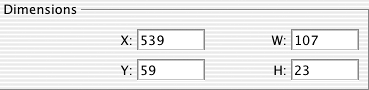
These settings add file dimensions to the HTML code. They're available only for user slices.

Place transparent buttons on a Web page without the telltale halo you often see around Web graphics. This project is done in ImageReady.

Delete the Background Layer
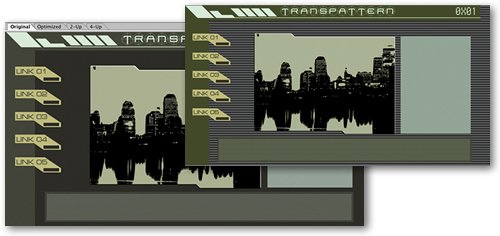
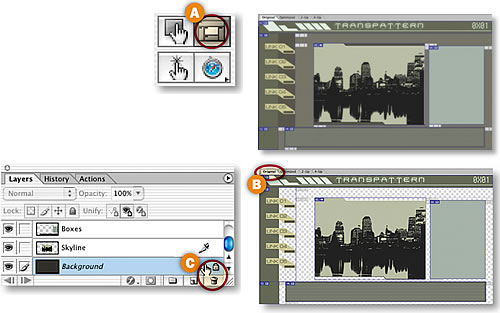
Start with a PSD file that includes navigation buttons. This file has been sliced and optimized for you. If the slices aren't visible, click the Slice Visibility toggle in ImageReady's toolbox A. Saving the solid gray background slices as GIF files would inflate the total file size of this page. Instead, make these areas transparent to let the Web page background show through. The page background color is created with HTML code, which has less impact on file size than do image files. Choose the Original tab in ImageReady's document window B. In the Layers palette, select the Background layer and drag it to the trash icon C. This creates transparency (represented by a checkerboard pattern) in the source file.

Slice the Buttons
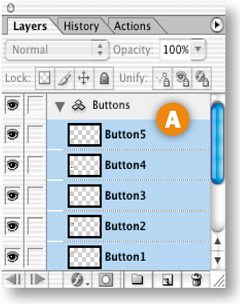
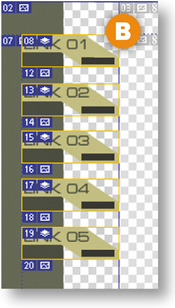
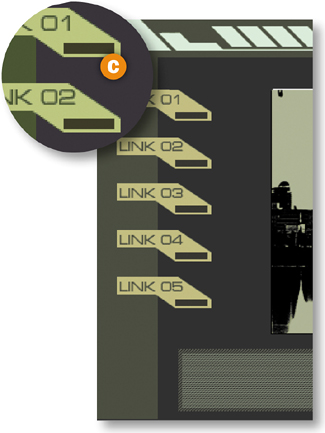
Click thee Button5 Layer and hold the Shift key while clicking the Button1 in the Layers palette to select all the button layers A. Choose Layer>New Layer Based Slices from the menu bar to create a layer-based slice around each button B. Slices are always rectangular, so each slice encompasses some of the transparent area that surrounds the button.


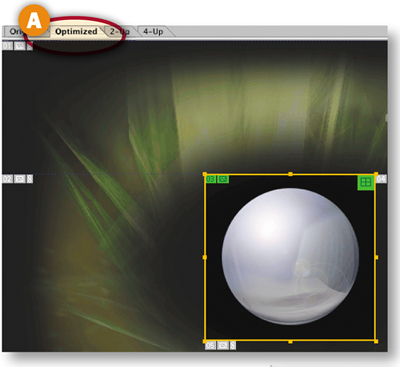
Click on the Optimized tab in the document window to view the slices optimized for the Web. With all the button slices still selected (displaying yellow borders) choose Slices>Link Slices for Optimization from the menu bar. Select any button slice A with the Slice Select tool, and choose the following settings in the Optimize palette. (To expand the Optimize palette choose Show Options from the palette side menu B.)
Format: GIF.
Reduction: Selective.
Colors: 8.
Web-Snap: 0%.
Dither Method: No Dither.
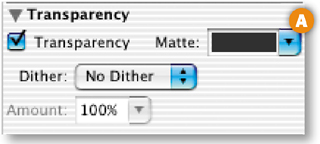
Transparency: Make sure Transparency is checked or you won't see transparency around your buttons C.
Matte: Leave the Matte field at its default of white temporarily D.
Lossy: 0.
Interlaced, Use Unified Color Table, and Add Metadata: Unchecked.

Specify a Page Background Color
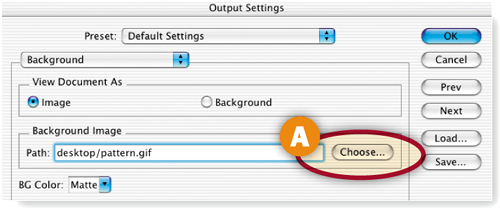
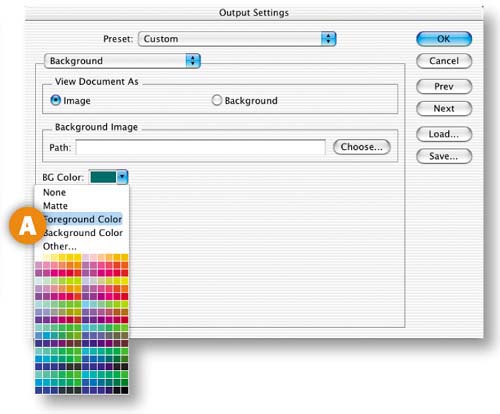
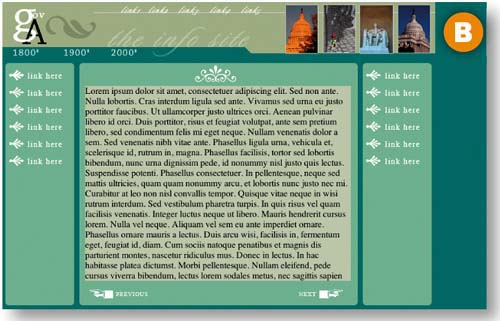
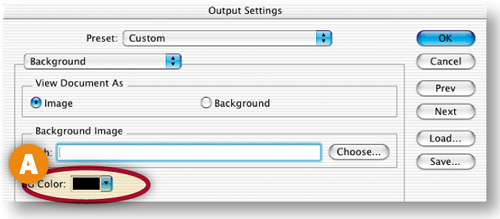
Now set a color for a Web page background that will show through wherever there is transparency in a slice. Choose File>Output Settings>Background from the menu bar. Make sure that View Document As is set to Image, and the Path field is blank A.
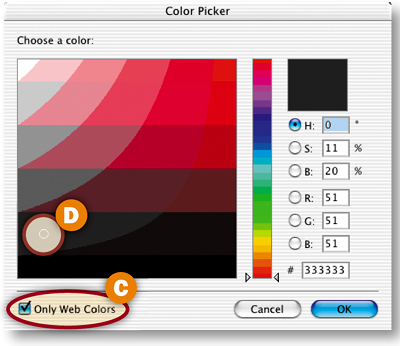
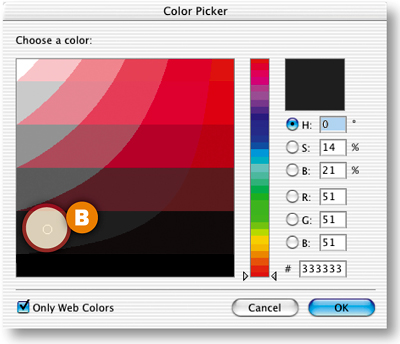
Click in the BG Color field B to open the Color Picker. Activate the Only Web Colors checkbox C, click on the darkest Web-safe gray D and click OK. This sets the Web page background color in the HTML file that will be saved with the sliced images. Click OK in the Output Settings dialog box.


Preview the Buttons with Halos
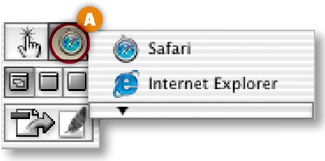
Choose a Web browser from the Preview in Browser button in the toolbox A to preview your sliced images against a gray Web page background in a browser.

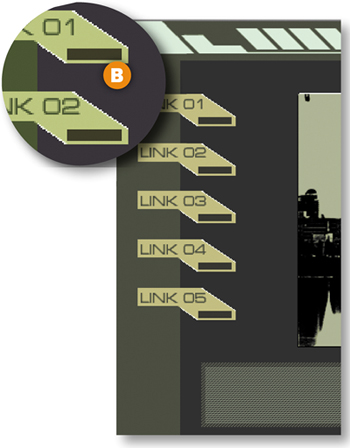
Notice that there are white pixels along the diagonal edges of each button B. This is not part of the design; it is a halo that takes its color from the default white Matte setting in the Optimize palette. The original file is in PSD format, which allows many levels of transparency. You are previewing the optimized file as a GIF, which allows only one level of transparency-—completely transparent or completely opaque. The semitransparent pixels along the diagonal edges of the buttons have become opaque white, as specified in the Matte setting, creating the unsightly halo. The vertical and horizontal edges are not soft, so they have no halo. (Don't be confused by the white lines around the skyline graphic; they are part of this design.)

Hide the Halo
To camouflage the halo against a solid color background, simply set the Matte field in the Optimize palette to the same color as the Web page background. In the Optimize palette, click the Matte field A to open the Color Picker. Make sure Only Web Colors is checked, choose the same gray color you chose for the page background B, and click OK.


Click the Preview in Browser button again. This time you won't see the halo around the buttons in your Web browser C. It's still there, but it blends perfectly with the background of the same color.

Add a Repeating Patterned Background
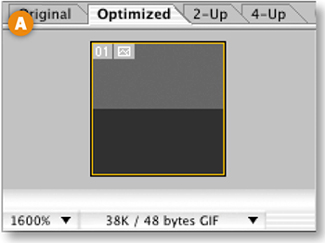
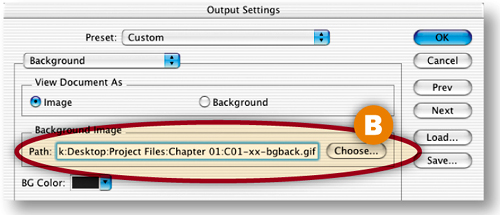
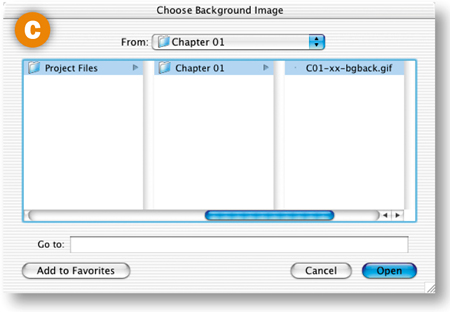
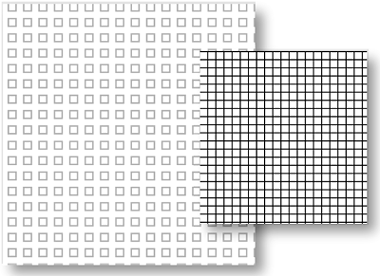
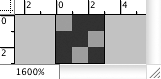
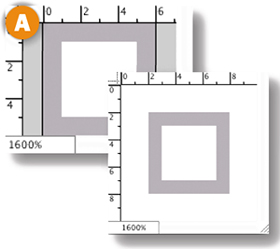
You can use the same technique to camouflage a halo against some patterned backgrounds. To make a patterned background that is small in file size, take advantage of the tiling nature of an HTML background image. Start with a small patterned GIF file. This simple pattern, magnified here to 1600% so you can see it A, is six pixels wide by six pixels high and has a file size of less than 1K. The pattern file will be downloaded only once to a viewer's Web browser, but will be displayed over and over to fill any size browser window. In the sliced document, choose File>Output Settings>Background. Click the Choose button next to the Path field B to open the Choose Background Image window. Navigate to the pattern file, and click Open C. The path to the pattern file appears in the Output Settings dialog box. Click OK. This identifies the pattern as a background image in the HTML file that will be saved with the slices.


Hide the Halo Against the Pattern
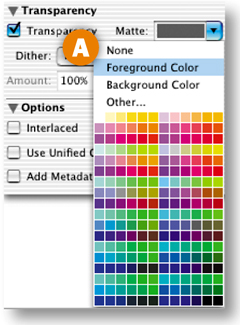
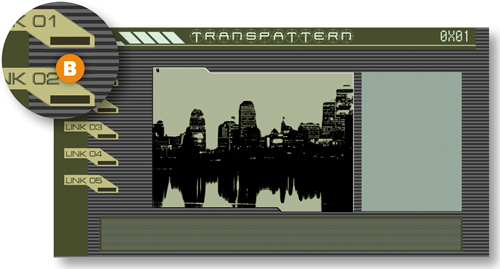
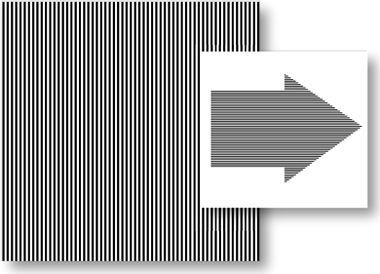
Open the background pattern file and click on the lighter gray in the pattern with the Eyedropper tool to set the foreground color. In the Optimize palette, click the Matte field arrow and choose Foreground Color A. Click the Preview in Browser button. The halo blends into the pattern of horizontal stripes created from the repeated pattern file B.


Set Slice Options and Save
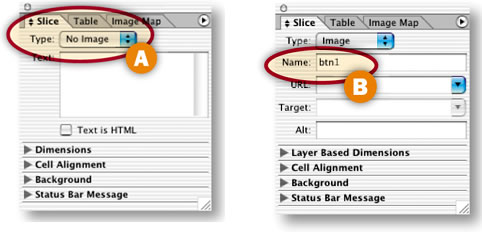
Select each auto slice (those with gray symbols) and set Type to No Image in the Slice palette (Window>Slice) A. Select each button slice and name it in the Slice palette B. Choose File>Save Optimized As, set Format to HTML and Images, and click Save. ![]()

Make a matched set of working rollover buttons in ImageReady the easy way, by creating and applying a rollover style.


Set Up Your Workspace
Open the ImageReady palettes you'll use to create rollover buttons in this navigation bar—the Web Content, Styles, and Layers palettes. Click the Styles tab and drag the Styles palette away from the Web Content palette so you can see them both. Make sure you've loaded the HTWWeb-Styles preset into the Styles palette, as explained in the Introduction.

Create a Layer-Based Rollover
The default Normal state of an image is the way the image looks when it first loads in a Web browser. If you add an Over state, the appearance changes when a viewer mouses over a trigger area that's defined by a slice.
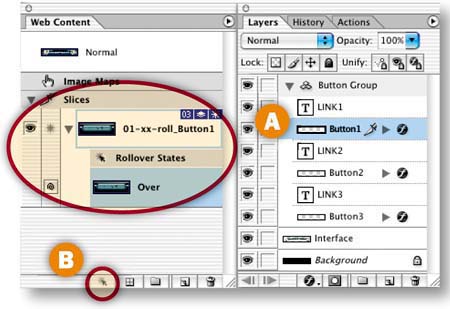
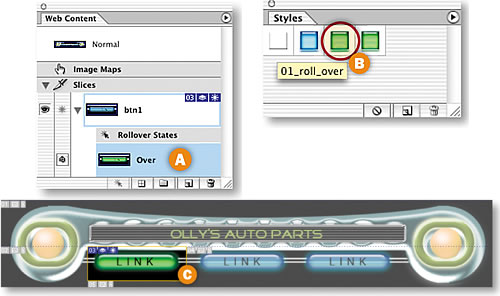
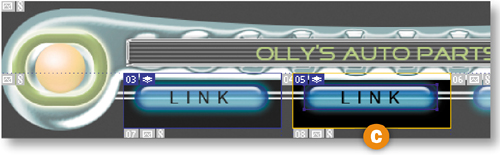
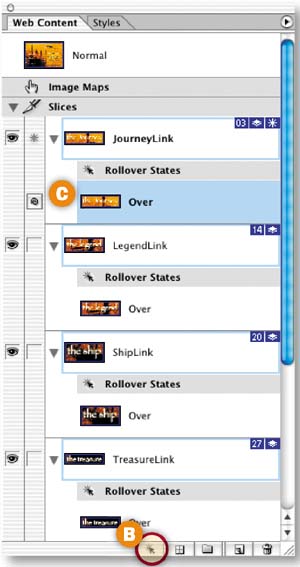
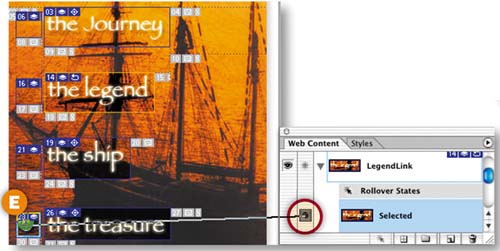
Start by simultaneously creating a slice and an Over state for Button1. You have to use layer-based slicing because that slicing method is a prerequisite for creating rollover styles. Select the Button1 layer in the Layers palette A. Then click the Create Layer-Based Rollover icon at the bottom of the Web Content palette B. This generates a layer-based slice around the content of the Button1 layer C and an Over state for that slice, both listed in the Web Content palette.


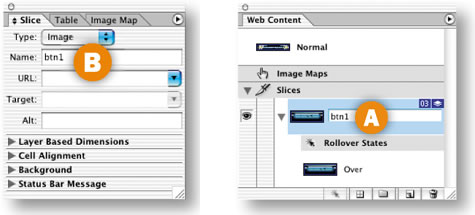
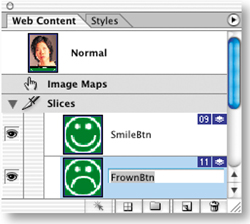
Give your new slice a more manageable name by double-clicking its default name in the Web Content palette and typing btn1 A, or by changing its name in the Slice palette B.

Change the Look of the Over State
Next you'll change the appearance of the sliced button in the Over state by applying a style. Other ways to change the appearance of a rollover graphic are to vary its position, opacity, layer blending mode, or layer visibility.
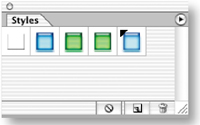
Select the Over state of the btn1 slice in the Web Content palette A. Then click on the 01_roll_over style in the Styles palette to change the button's color and effects in the Over state C. (If the HTWWeb-Styles aren't accessible in your Styles palette, choose a different style.)

Preview the Over State
Click the Preview button in the toolbox, and move your mouse over the first button in the image to see the Over state in action. Click the Preview button again to exit preview mode.

Add a Down State
A rollover can have multiple states. Next you'll add a Down state to this rollover button. The Down state occurs in a Web browser when a viewer clicks and holds on an area defined by a slice.
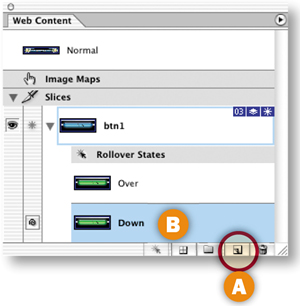
With the Over state of the btn1 slice selected in the Web Content palette, click the Create New Rollover State icon at the bottom of that palette A. The new Down state B starts out looking just like the Over state.

Change the Look of the Down State
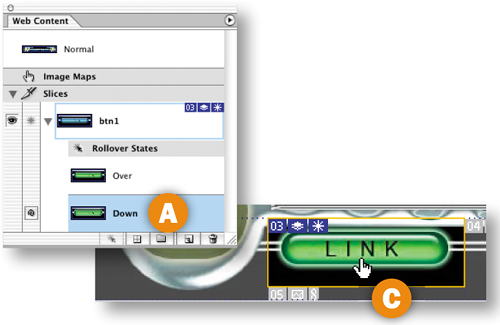
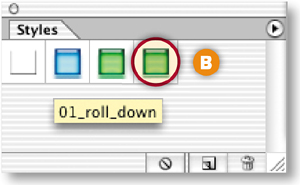
With the Down state selected in the Web Content palette A, change the appearance of the button again by clicking the 01_roll_down style in the Styles palette B. Preview the Down state by activating the Preview button in the toolbox, and clicking and holding the first Link button in the image C. Exit preview.


Create a Rollover Style
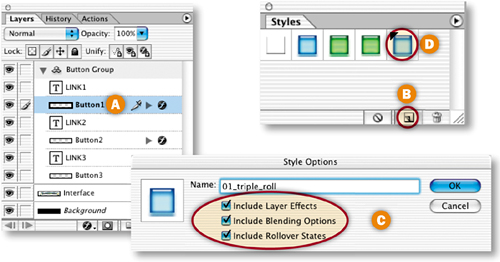
Now you'll save all the states of your rollover as a reusable rollover style. With the Button1 layer selected in the Layers palette A, click the Create New Style icon at the bottom of the Styles palette B. In the Style Options dialog box that opens, make sure Include Layer Effects, Include Blending Options, and Include Rollover States are checked to retain all the content and functionality of your original rollover C. Name the style 01_triple_roll, and click OK. The style appears in the Styles palette with a black triangle, which indicates that it's a rollover style rather than a static style D.

Apply the Rollover Style to Button2
Now you'll reap the rewards of your hard work. It's quick and easy to create a set of matching rollover buttons by applying the rollover style to the other two buttons in this navigation bar.
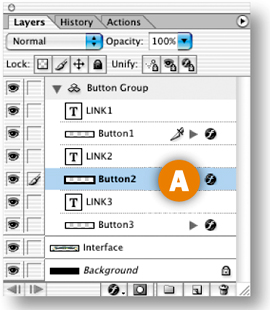
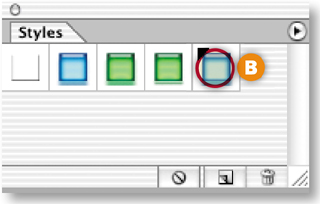
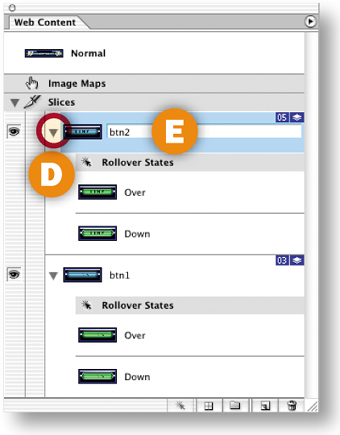
Select the Button2 layer in the Layers palette A. In the Styles palette, click the new rollover style 01_triple_roll B. This creates a layer-based slice around the content of the Button2 layer C, generates an Over state and a Down state for this slice along with the JavaScript to make the states function, and changes the appearance of the button on each state—all with a single click. Click the triangle next to the new slice in the Web Content palette to see the rollover states for the new slice D. Double-click the slice name and rename this slice btn2 E.


Apply the Rollover Style to Button3
Repeat the preceding step with the Button3 layer selected to complete your set of rollover buttons. Rename the resulting slice btn3.

Preview in a Web Browser
Click the Preview in Browser button in the toolbox to test your rollovers in your default Web browser.

Optimize and Save
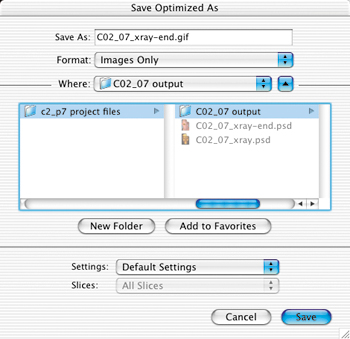
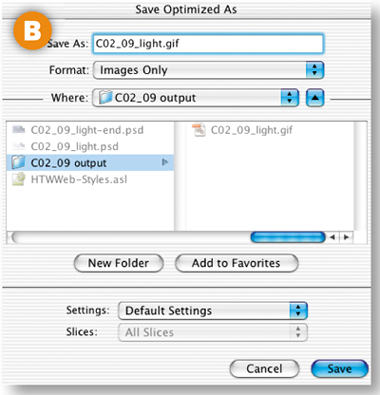
Optimize each slice for fast download using the settings in the Optimize palette. When you optimize a slice, you affect all states of its rollover, so check the appearance of all three states of the rollover buttons. Choose File>Save Optimized As. In the Save Optimized As dialog box, set Format to HTML and Images A so that ImageReady generates an HTML file containing the JavaScript that will make your rollovers function. (If you prefer to create rollovers in a site-building program or write your own JavaScript, choose Format: Images Only.) In addition, the program creates an Image folder in which it saves GIFs and JPEGs from the slices and rollovers in the source file B.


Choose File>Save to resave the PSD file with all of the slicing and rollover information you've added.
Open the HTML File in a Browser
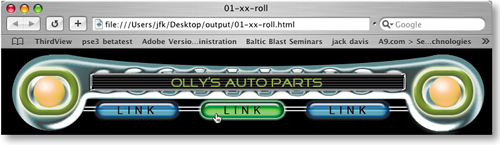
Open the saved HTML file in a Web browser to see the results of your work. Each button should change appearance when you mouse over it and when you hold it down. ![]()

These rollovers look great, but they're not just eye candy. Combine local rollovers that point to a link with informational remote rollovers.

Design with Layers
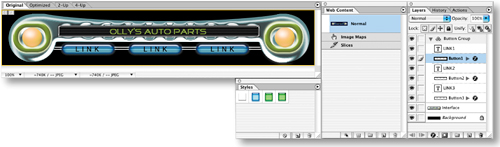
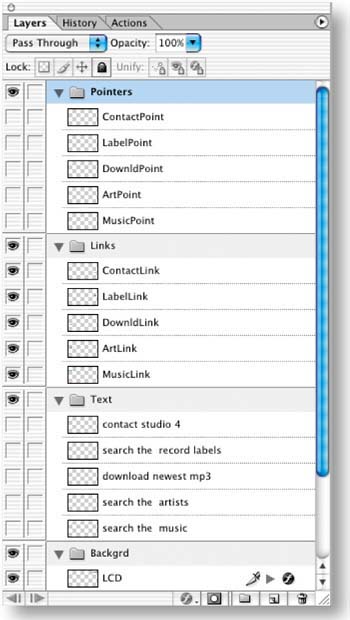
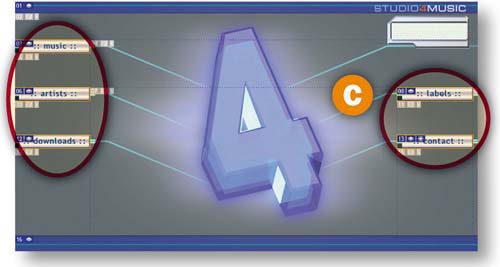
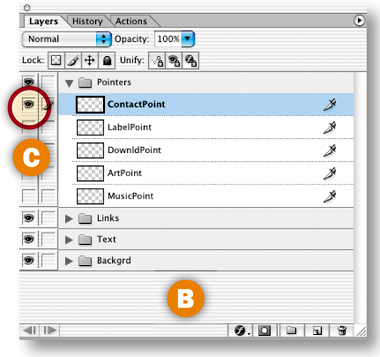
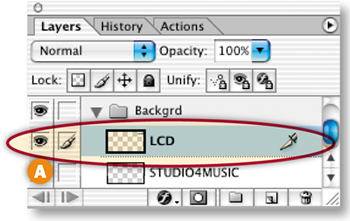
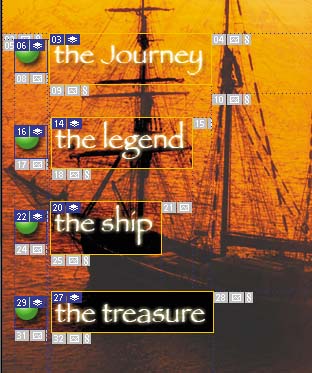
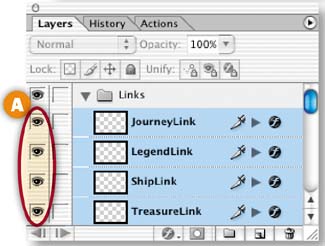
In this project you apply both local and remote rollovers to navigation graphics, pointing your viewers to links and providing descriptions of where the links lead. The key to creating a complex rollover scheme like this one is to make ample use of layers. Take a minute to deconstruct the layers in this file to see what we mean. We've put each element involved in the rollovers-—the pointer graphics, the link graphics, the text messages, and the LCD box—on its own layer A. We've organized the layers into layer sets, and sliced and optimized the background graphics for you so you can concentrate on creating rollovers.

Simplify Slice Names
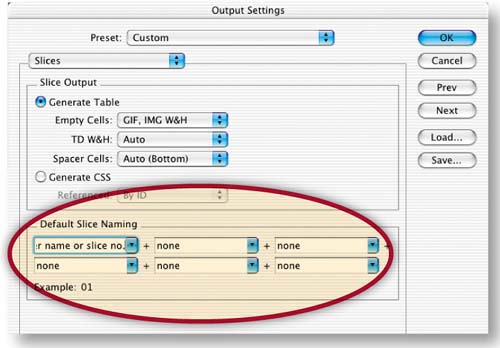
You'll do lots of work with slices in this project. By default, ImageReady creates long, unwieldy slice names. Change the default slice-naming convention to generate simpler names by choosing File>Output Settings>Slices to open the Output Settings dialog box. Click the arrow on the top left slice name field and choose Layer Name or Slice No. from the pop-up menu. Choose None in each of the other slice name menus and click OK.

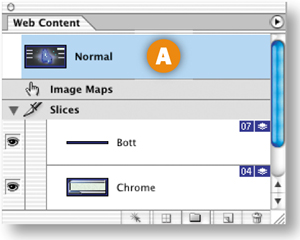
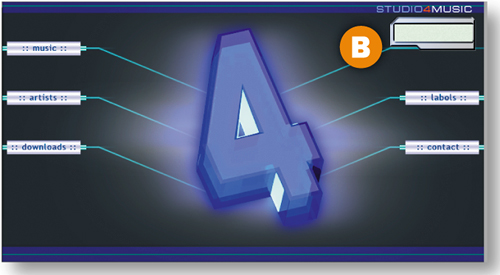
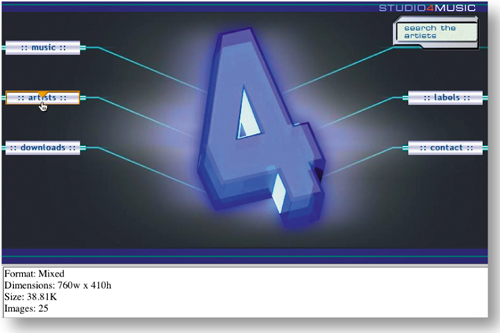
Select the Normal state at the top of the Web Content palette A. This is the way the page will look when it first appears in a Web browser. None of the pointers are visible and there is no text in the LCD on the top right of the page B.


Create Layer-Based Rollovers for the Pointers
When a viewer moves his mouse over a link, a pointer will appear on that link. To create this effect, select all the pointer layers by holding the Shift key while clicking on each of the five pointer layers in the Layers palette A. Then click the Create Layer-Based Rollover icon at the bottom of the Web Content palette B. This single click creates a layer-based slice around each of the five pointers C, along with an Over state for each of those pointer slices D. All the slices and rollover states are listed in the Web Content palette. You don't see the pointers in the image because they have not yet been made visible in this state.

Make a Pointer Visible on the Over State
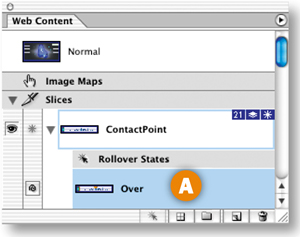
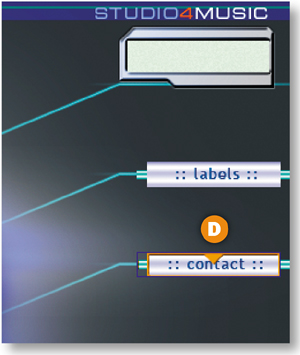
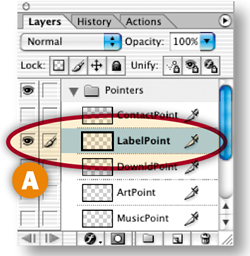
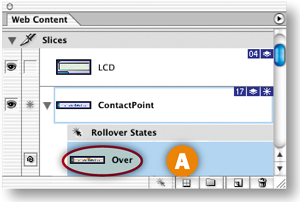
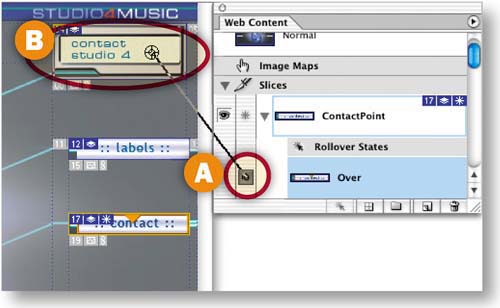
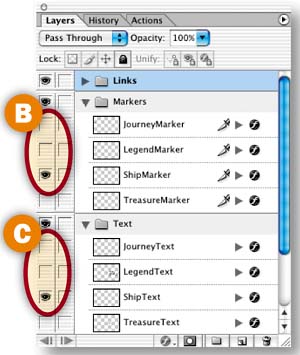
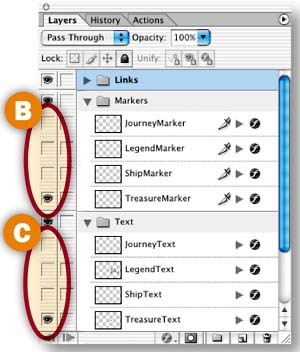
Next you'll change the appearance of the ContactPoint slice in its Over state. Select the Over state of the ContactPoint slice in the Web Content palette A. In the Layers palette, click in a blank area B to deselect all selected layers. Then click in the Visibility field to the left of the ContactPoint layer to display that layer's Eye icon C and to make that layer's contents visible in the image D. Now when a viewer mouses over the contact link in a browser, a pointer will appear on that link.


Repeat Step 5 on the Other Pointer Slices
Create a similar rollover for each of the other pointer slices—the LabelPoint slice, DownldPoint slice, ArtPoint slice, and MusicPoint slice-—by repeating Step 5. Make only the pointer layer of the same name A visible on the Over state B of each pointer slice.


This is a good time to preview what you've done so far by clicking the Preview button in the toolbox C and moving your mouse over each link to display its pointer. Click the Preview button again to exit preview mode.

Slice the Remote Area
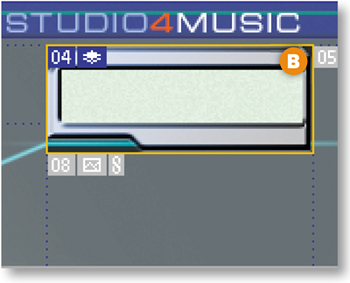
Next you'll add a second rollover event to the Over state of the ContactPoint slice—a text message that will appear in the LCD box at the top right of the page when a viewer mouses over the contact link in a browser. First you'll create a slice for the remote area involved in the rollover. Open the Backgrd layer set in the Layers palette and select the LCD layer A. Choose Layer>New Layer Based Slice from the menu bar to create a slice around the LCD box B.


Create a Remote Rollover
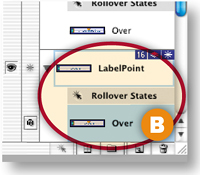
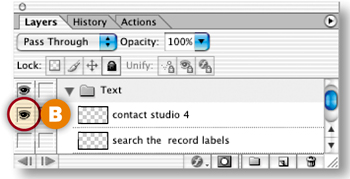
Select the Over state of the ContactPoint slice in the Web Content palette A. In the Layers palette, open the Text layer set and click in the Visibility field of the topmost text layer (“contact studio 4”) to turn on that layer's Eye icon B.


Target the Remote Slice
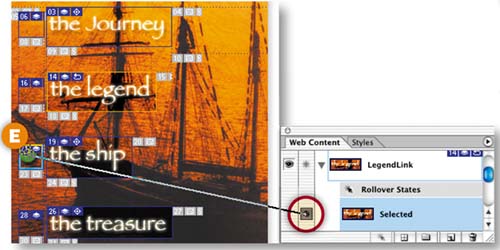
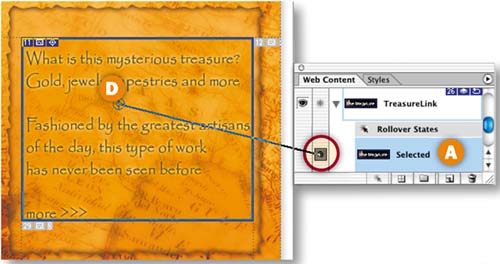
This is the fun part! When you make a remote rollover, you have to target the slice where the remote event occurs. In the Web Content palette, press the spiral icon (the pick whip) next to the Over state of the ContactPoint slice A. Drag a line from the pickwhip to the LCD box in the image to target the LCD slice B.

Repeat Steps 8 and 9 on the Other Pointer Slices
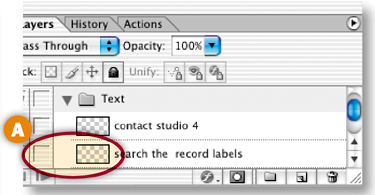
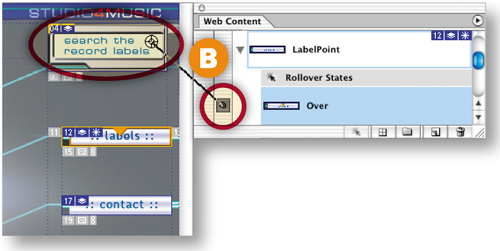
Create a similar remote rollover for each of the other pointer slices. Repeat Steps 8 and 9 on the Over state of each pointer slice, turning on the Eye icon for the matching text layer A:
LabelPoint Slice: “search the record labels”
DownldPoint Slice: “download the newest mp3”
ArtPoint Slice: “search the artists”
MusicPoint Slice: “search the music”

Target the LCD slice each time, by clicking and dragging from the pickwhip icon next to the Over state of each pointer slice in the Web Content palette to the LCD box in the image B.

Preview in a Web Browser
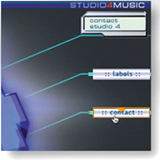
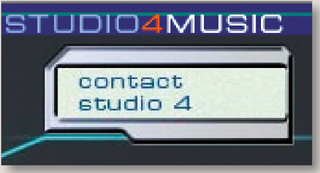
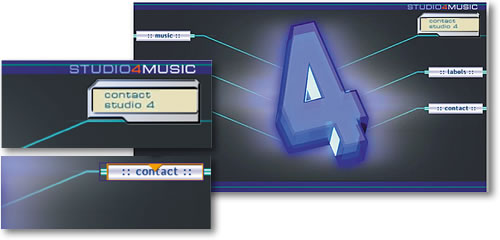
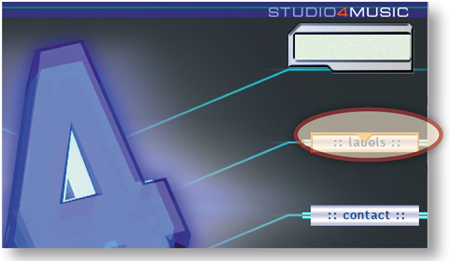
Click the Preview in Browser button in the toolbox A to test the rollovers in your default Web browser. When you mouse over a link, a pointer appears on the link B, and a text message describing the link appears in the LCD box C. As you can see, these rollovers are not just eye candy. They identify which graphics are links and offer additional information about each link, making your navigation scheme user-friendly.


Save
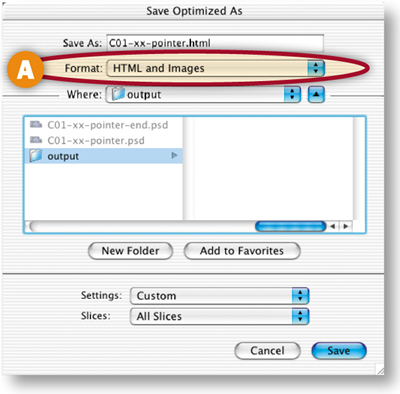
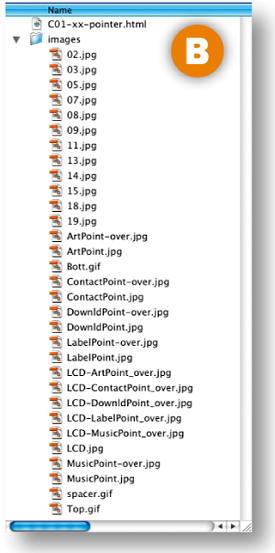
Normally you would optimize each slice at this point. That's been done for you, so just choose File>Save Optimized As, and in the dialog box that appears choose Format: HTML and Images A. This causes ImageReady to generate an HTML file with rollover JavaScript along with image files for each state of all the rollovers on the page B. Choose File>Save to resave the PSD file with the slice and rollover data you've added.![]()


Create image map hot spots in ImageReady to link a single image to multiple pages.

Draw a Tool-Based Hot Spot
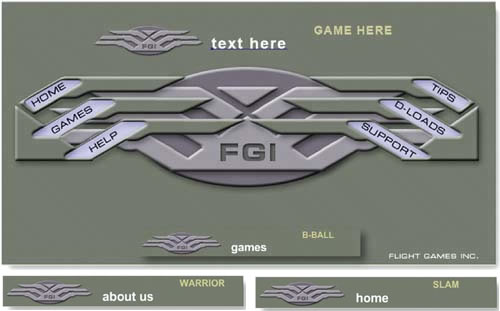
You'll define each of the button links on this page with image map link regions (hot spots). We made this image in Photoshop, but you'll add the hot spots in ImageReady, because Photoshop doesn't have image map tools.
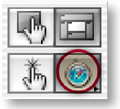
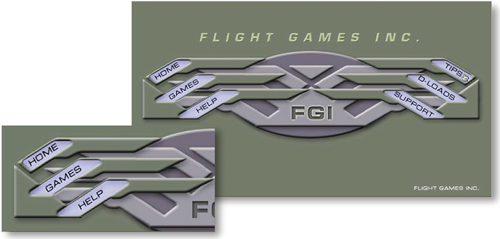
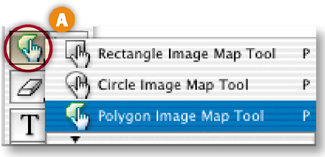
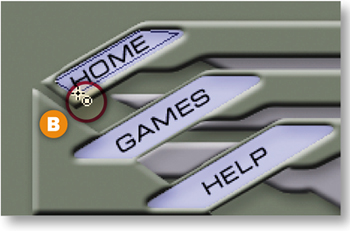
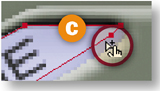
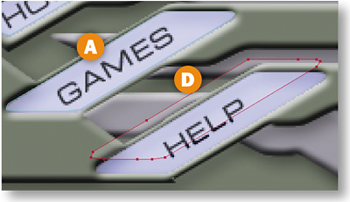
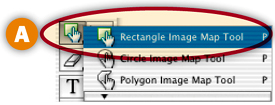
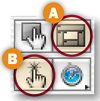
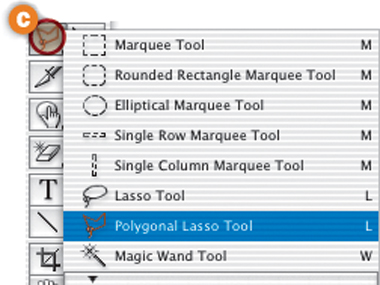
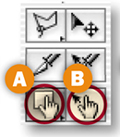
Start by drawing a hot spot around the Home button with the Polygon Image Map tool. If that tool isn't showing, press whichever image map tool is displayed in your toolbox and choose the Polygon Image Map tool from the flyout menu A. Zoom in and then click in each corner of the Home button to draw a hot spot in the approximate shape of the button. To close the hot spot border, move toward the starting point until you see a small circle and click B or just double-click.


Adjust the Hot Spot
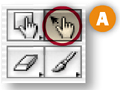
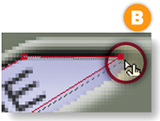
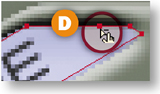
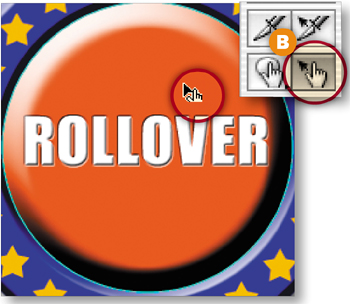
Adjust the hot spot to fit the button by clicking on the anchor points with the Image Map Select tool A and dragging B. For more precision, Shift-click to add an anchor point C or Option/Alt-click to delete an anchor point D.


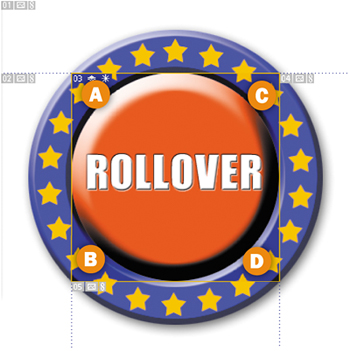
Repeat Steps 1 and 2 to make another hot spot on the Games button A. With the Image Map Select tool active, click the Image Map palette icon in the Options bar B to open the Image Map Select tool active, click the Image Map Palette icon in the Option bar B to open the Image Map palette (or choose Window>Image Map). From the palette's menu C choose Duplicate Image Map. Alternatively Option/Alt-drag the hot spot to copy it. Drag the new hot spot on top of the Help button D.


Make Layer-Based Hot Spots
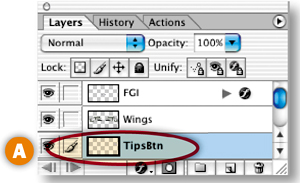
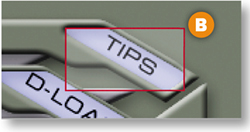
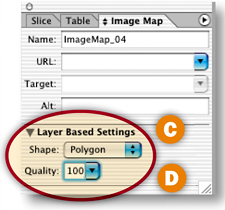
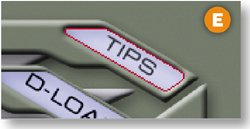
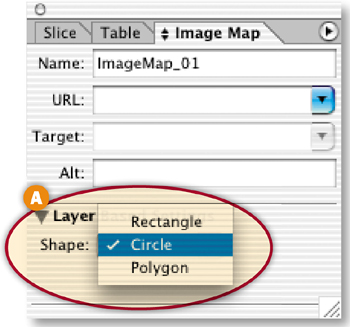
The Tips, D-Loads, and Support buttons were created on separate layer—so you can use a quick, layer-based command to make their hot spots. Select the TipsBtn layer in the Layers palette A. Choose Layer>New Layer Based Image Map Area from the menu bar. By default this makes a rectangular hot spot around the Tips button that doesn't match the shape of this button B. To fix that, in the Image Map palette choose Polygon from the Shape pop-up menu C. Then click the arrow on the Quality field and drag the Quality slider to the right until the hot spot matches the shape of the button D. (We set our Quality field to 100 and got a perfect fit E.) Repeat this step for the D-Loads and Support buttons, each of which is on its own layer too.


Name the Hot Spots
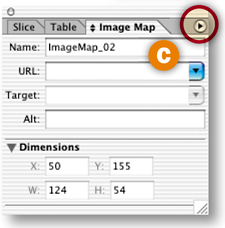
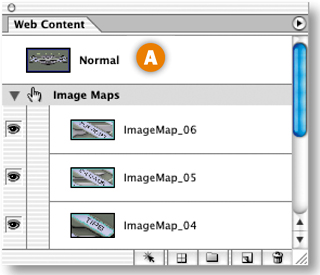
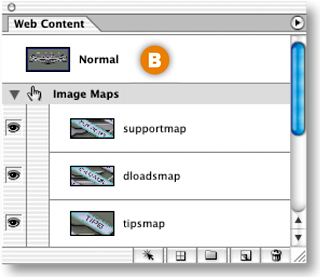
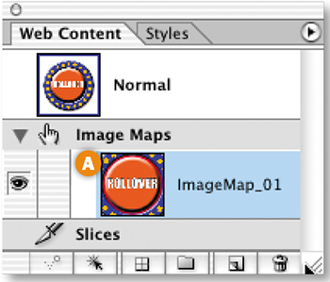
Each of your hot spots is listed in the Web Content palette with default names A. Give your hot sports more meaningful names by double-clicking their names in the Web Content palette and typing helpmap, gamesmap, homemap, tipsmap, dloadsmap, and supportmap repectively B. (Or select each hot spot in the Web content palette and name it in the Image Map palette.)


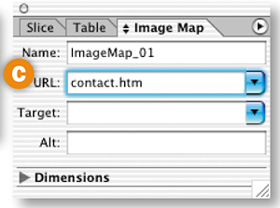
Select the helpmap hot spot in the Web Content palette. In the Image Map palette, type help.html in the URL field. Repeat this step for each of the other hot spots, typing index.html (for the home button), games.html, tips.html, dloads.html and support.html, respectively.
Each of these is a relative link, which means that its path is relative to this image map page. The relative link help.html, for example, assumes that the help page will be in the same folder with this page on a Web server. (See the sidebar for more about relative links.) If you don't yet know what your Web site's file structure will be, you can leave this field blank and use a WYSIWYG site-building program like GoLive or Dreamweaver to make relative links for you later.
Make a Rollover in the Image Map
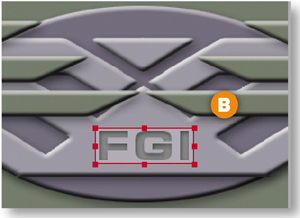
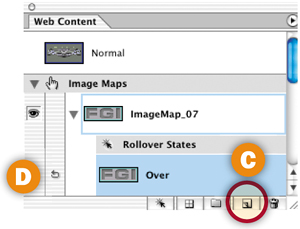
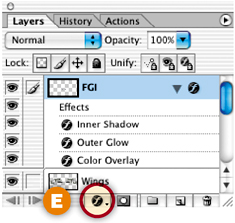
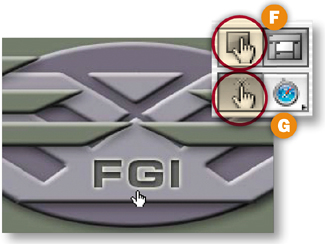
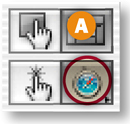
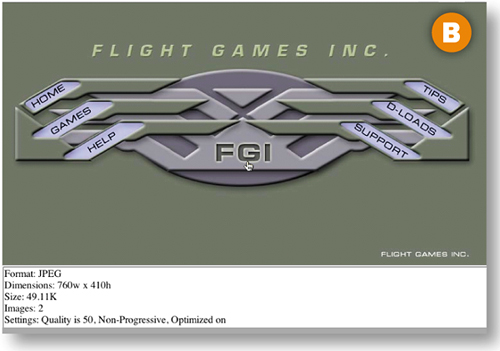
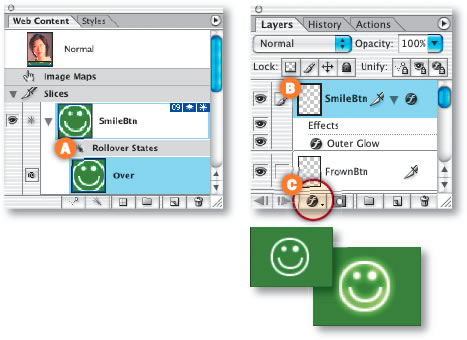
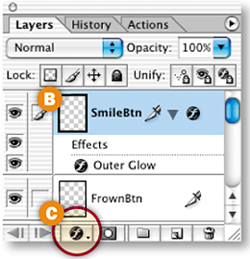
You can include rollovers in image maps. When you add a rollover to an image map hot spot, a slice is created behind the scenes. Select the Rectangle Image Map tool in the toolbox A, and drag a rectangular hot spot around the FGI logo in the image B. Then click the Create Rollover State icon at the bottom of the Web Content palette C to create an Over state in the hot spot D. To change the appearance of the FGI logo in the Over state of the rollover, click the f icon at the bottom of the Layers palette E and choose Outer Glow from the Layer Effects pop-up menu. Click OK in the Layer Style dialog box to accept the default options for this layer effect. Click the Image Map Visibility button in the toolbox F and then the Preview button G and mouse over the logo to preview the rollover. Click the Preview button again to exit Preview mode.


You can even include a remote rollover in an image map.
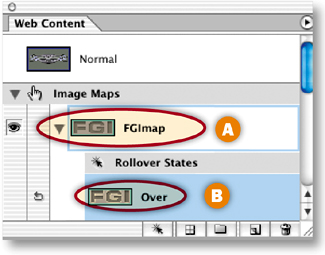
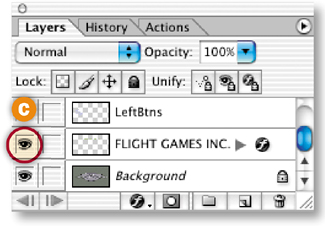
In the Web Content palette, double-click the name of the new image map and rename it FGImap A. Select the Over state of FGImap in the Web Content palette B. In the Layers palette, click in the Visibility field of the Flight Games Inc. layer to display an Eye icon C. This makes the Flight Games Inc. text visible on the Over state of the FGImap rollover.


Preview in a Web Browser
Click the Preview in Browser button in the toolbox A to test the rollovers in a Web browser. When you mouse over the FGI logo in the browser, a glow appears around that logo, and the Flight Games Inc. appears in the image B.


Save
We already optimized this image as a JPEG. These optimization settings apply to the entire image map and its rollovers.
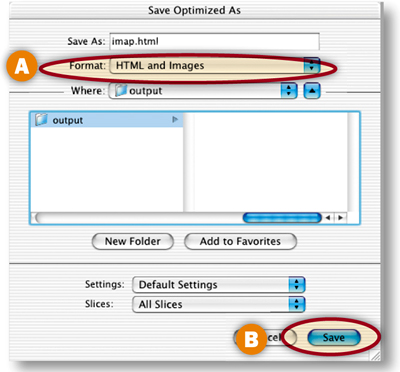
Choose File>Save Optimized As, and in the dialog box that appears choose Format: HTML and Images A, make a destination folder, and click Save B to save imap.html with the image map data and rollover JavaScript, along with a folder of images. Choose File>Save to resave the PSD file with all of its image map, slice, and rollover information.

Congratulations on completing this chapter on navigation. In the next chapter you'll learn how to make amazing animations in ImageReady. ![]()
Moving Things Along with Unusual, Exciting Animation Projects for the Web
Sex Sells, and So Does Motion, as advertisers well know. That's why everywhere you turn on the Web there's an animated banner, logo, or text message dancing as fast as it can to catch your attention. Like it or not, you have to admit that animated Web graphics are scene stealers. So it's worth your while to learn all you can about Web animation. It's the pulse of today's Web and it's sure to remain a core feature of the Web in the future.
In this chapter we offer you fresh ideas and techniques for making effective, tasteful animations for the Web, each of which has a special Wow factor. Some of these projects begin in Photoshop, but all end up in ImageReady. That's because currently all the animation capabilities of Adobe's graphics duo are concentrated in ImageReady. You can go to Photoshop to make the artwork for animations, but you'll rely on ImageReady to make your animations go.
These Aren't Your Father's GIFs
Most of the animations we'll make together are animated GIFs. You may be surprised at how much you can do with animation in this format. These projects help you understand how to design and optimize GIF animations that run smoothly and are small enough to be of real use on the Web.


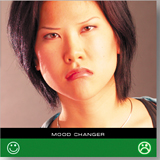
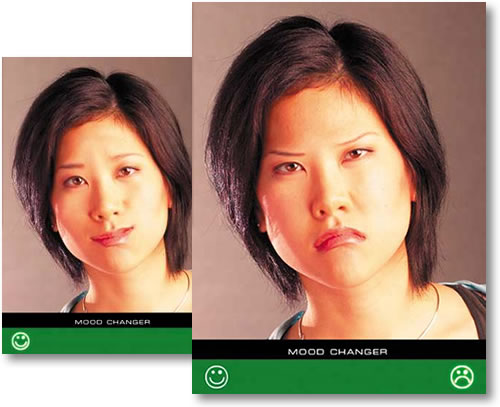
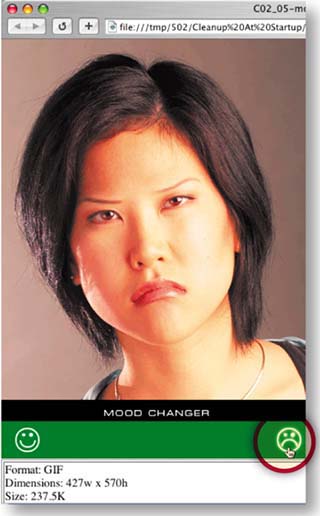
We take you places you may not have known you could go with animated GIFs. In the Rollover-Triggered Animation project, you'll learn how to use rollovers in conjunction with multiple animations to make an interactive mood changer. (Roll here and she smiles. Roll there and she's very angry.) You'll continue in that vein with the Image Map-Triggered Animation project, where you learn when and how to use an image map rather than a slice to trigger a remote animation.
It's All Very Moving
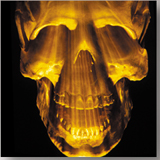
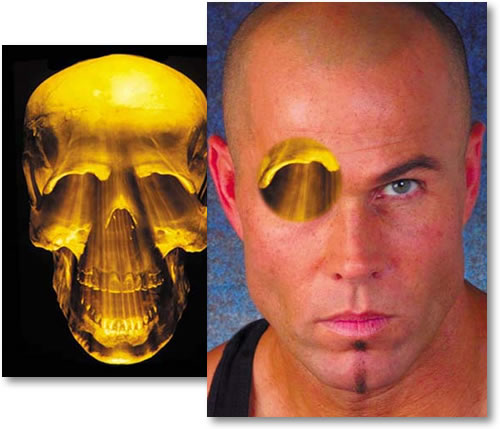
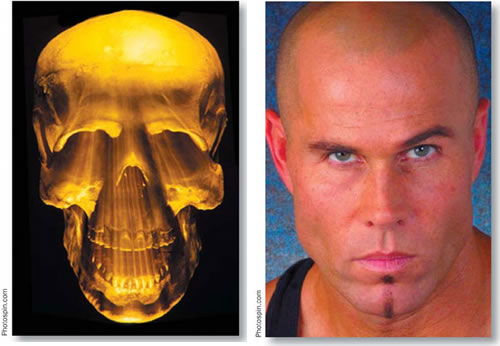
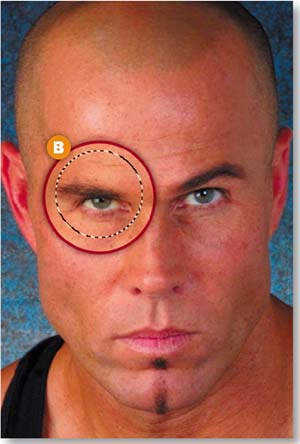
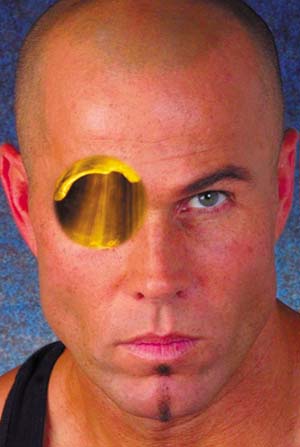
Colin thinks the moving x-ray you'll make in the Layer Mask Animation project is one of the coolest animated projects he's designed in ImageReady. You'll get under the model's skin, revealing his skull with your layer mask x-ray technique.
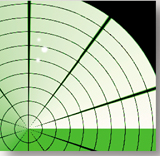
Jan is partial to the realistic animated scene you'll build in the project called Bringing a Picture to Life. It's an unusual example of the use of subtle, small animations to enhance a design. Don't miss the first project, Radar Screen Animation, which shows you how to build a realistic radar screen from scratch, complete with an animating gradient and radar blips.
Try Animating a Layer Style or Animating Warped Text—projects that are quick and easy with stunning results. And of course all you photographers will want to know how to create an Animated Slide Show of photo thumbnails complete with cross-dissolves.
Flashy Format
Animated GIFs aren't all you learn about here. In this chapter you'll find a whole project devoted to creating a Vector-Based Flash Movie. That's right, you can now export animations from ImageReady in SWF format.
So get ready to dig into an entertaining and useful chapter. Once you've digested our recipes, you'll be ready to go out and whip up a batch of tasty animations on your own.


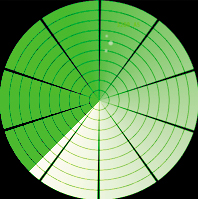
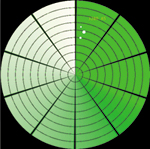
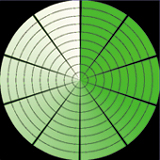
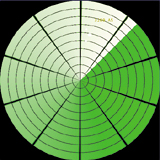
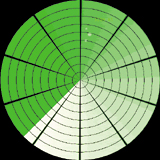
This animation may look complex, but it's so simple you can build it from scratch. Varying the angle of a gradient layer style on each frame makes the screen appear to rotate. Add some radar blips and you have a realistic radar screen.


Make a Pattern Image
Build the layered artwork for this animation in Photoshop. The graphics are easy to make from scratch, so there is no start file on the CD-ROM for this project.
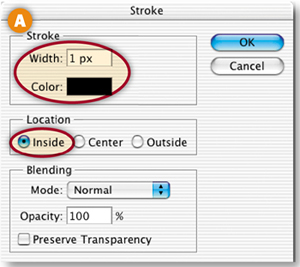
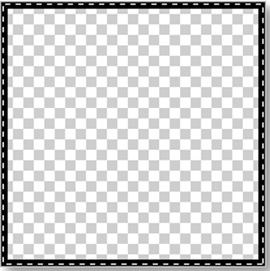
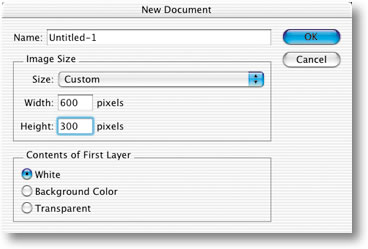
First, make a custom pattern you'll use to create the segmented circles. In Photoshop, choose File>New and create a 50x50 pixel RGB document with Background Contents set to Transparent. Zoom in (Command/Ctrl-+). Choose Select>Select All. Choose Edit>Stroke, and in the Stroke dialog box A set Width to 1 px, Color to Black, and Location to Inside, and click OK.


Define the Image as a Pattern
With the selection still active, choose Edit>Define Pattern to create a repeating pattern you'll apply to your radar screen image. Name the pattern 50px Grid, and click OK. Close the pattern image without saving.
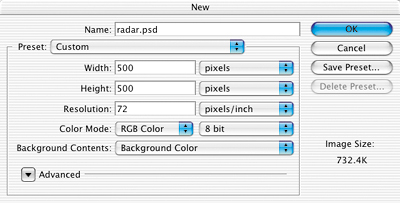
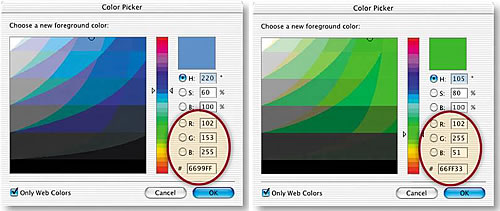
Click the Background Color box in the toolbox and in the Color Picker uncheck Only Web Colors and choose green (R: 83, G: 149:, B:61). Create a new 500x500 pixel RGB file with Background Contents set to Background Color. Resolution can be left at its default since this file is measured in pixels. (See “Starting a New File for the Web” in Chapter 1.)


Fill with the Pattern
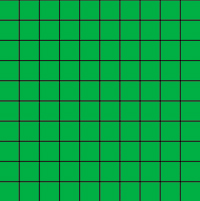
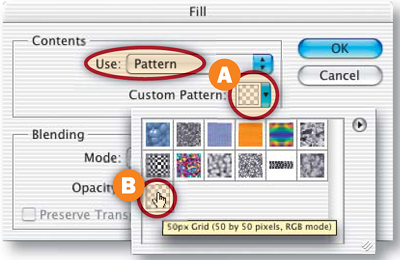
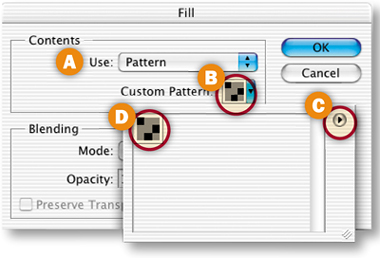
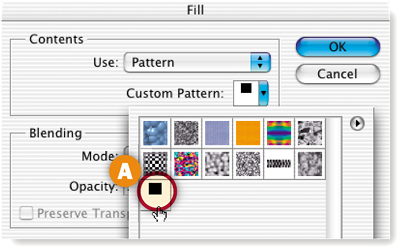
Click the Create New Layer icon at the bottom of the Layers palette and name the new layer Grid. With the Grid layer selected, choose Edit>Fill. In the Fill dialog box, choose Pattern from the Use menu. Click in the Custom Pattern field A to open the active pattern set. Select the 50px Grid pattern B, and click OK to fill the layer with a repeating grid.


Change Squares to Circles
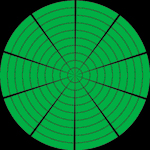
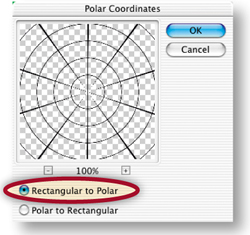
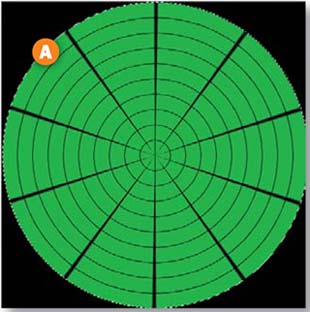
It's easy to change the squares into a circular pattern. With the Grid layer selected, choose Filter>Distort>Polar Coordinates. Choose Rectangular to Polar and click OK. The circular grid of a radar screen is created automatically!


Create a White Screen
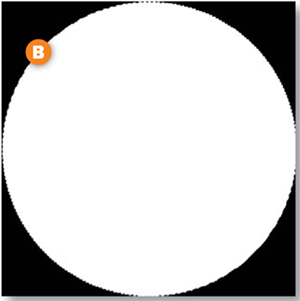
With the Grid layer selected, click the Create New Layer icon in the Layers palette and name the layer Screen. Select the Elliptical Marquee tool from behind the Rectangular Marquee. Hold the Option/Alt key (to draw from the center) and the Shift key (to constrain the selection to a circle), click in the center of the circular grid, and drag out a selection to the edge of the circular grid A. Choose Edit>Fill, choose White from the Use menu in the Fill dialog box, and click OK to fill the circle with white B. Choose Select>Deselect.


Apply a Gradient to the Screen
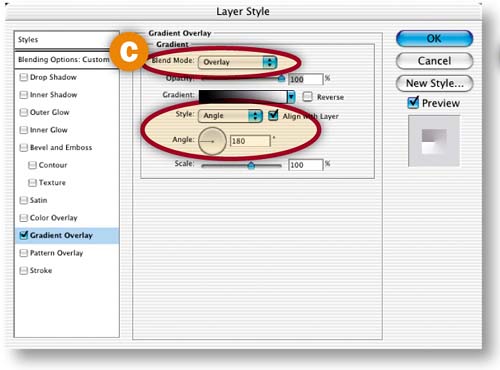
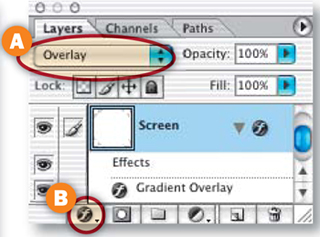
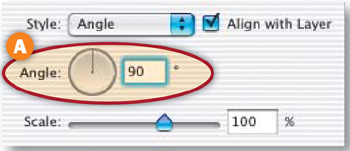
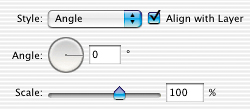
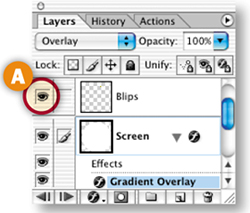
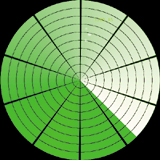
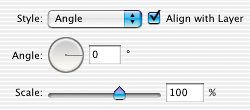
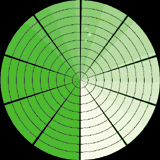
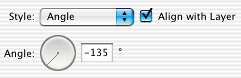
With the Screen layer selected, choose Overlay from the Blending Mode pop-up menu at the top of the Layers palette A. Click the f icon at the bottom of the Layers palette B and choose the Gradient Overlay layer style. In the Layer Style dialog box C, set the following options for the Gradient Overlay layer style—Blend Mode: Overlay, Style: Angle, and Angle: 180°. Click OK to apply the layer style to the Screen layer.


Add Radar Blips
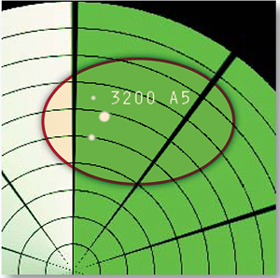
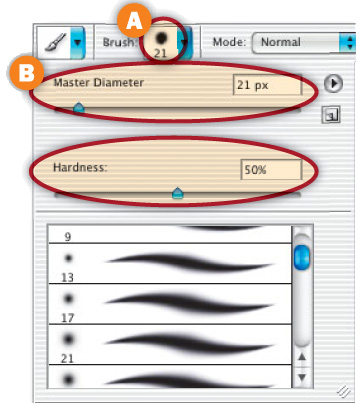
Create a new layer above the Screen layer and name it Blips. Press D and then X on your keyboard to set the Foreground color to white. Select the Brush tool. In the Options bar, click the brush sample A to open the Brush pop-up palette (not to be confused with the Brushes palette). Choose a 21–pixel Soft Round Brush, and set the Hardness slider to 50%. Click in the image to paint a blip. Reduce the Master Diameter slider B slightly and paint a few smaller blips.


Add Radar Coordinates
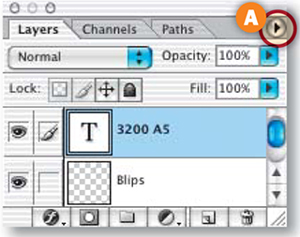
Select the Type tool, and choose a font and small font size in the Options bar. Type some official-looking coordinates (3200 A5) for your blips. With the type layer selected, click the side menu arrow on the Layers palette A and choose Merge Down to merge the type layer into the Blips layer.

Fade the Blips
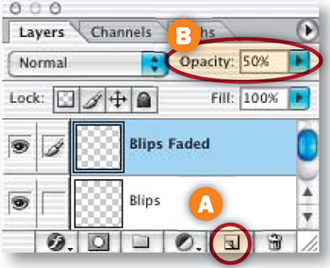
Click and drag the Blips layer to the Create New Layer icon at the bottom of the Layers palette to duplicate it A. Rename the Blips Copy layer to Blips Faded. With the Blips Faded layer selected, press 5 on your keyboard to lower the layer's opacity to 50% B. You've completed all the artwork for the animation!


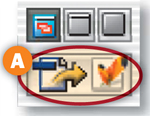
Choose File>Save As in Photoshop to save the radar image. Click the Edit in ImageReady button at the bottom of the Photoshop toolbox A to open the file in ImageReady, where you'll animate your artwork. Animation is always done in ImageReady, because Photoshop does not have animation features.

Set Up Frame 1
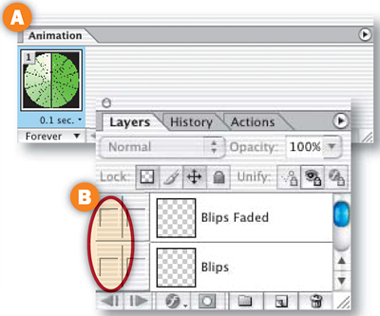
The first frame of the animation is automatically displayed in ImageReady's Animation palette (Window>Animation) A. Set up the artwork for this frame by hiding some layers and displaying others. In the Layers palette, click in the Visibility fields of the Blips layer and the Blips Faded layer to turn off those Eye icons B. Leave the Eye icons on all the other layers turned on throughout the animation.

Add Frame 2.
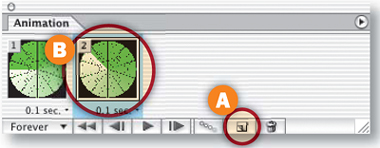
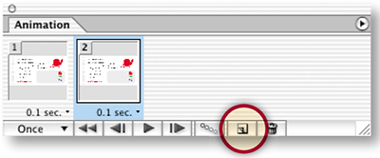
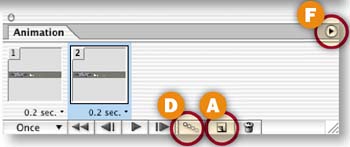
Click the Duplicate Animation Frame button at the bottom of the Animation palette A to generate Frame 2 B. Each time you create a new frame this way, the content of the new frame (2) is a copy of the content of the preceding frame (1). In the next step you'll change the content of Frame 2.

Change the Gradient on Frame 2.
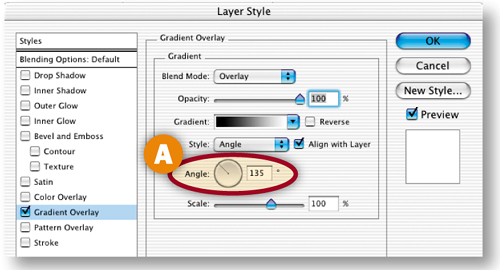
On Frame 2 vary the angle of the radar screen's gradient so a light begins to move around the circle. Make sure Frame 2 is selected in the Animation palette. In the Layers palette, double-click the Gradient Overlay effect on the Screen layer to open the Layer Styles dialog box. In the Layer Styles dialog box, change the Gradient Overlay Angle field to 135° A and click OK.

With Frame 2 selected in the Animation palette, click the Duplicate Animation Frame button to create Frame 3. With Frame 3 selected, double-click the Screen layer's Gradient Overlay effect and set the Gradient Overlay Angle field to 90° A.


Add Frame 4
With Frame 3 selected in the Animation palette, click the Duplicate Animation Frame button to make Frame 4. With Frame 4 selected, double-click the Screen layer's Gradient Overlay effect and set the Angle field to 45°.


Make Blips Visible on Frame 4.
Add another artwork change to Frame 4-. With Frame 4 selected in the Animation palette, click in the Visibility field of the Blips layer in the Layers palette to turn on that Eye icon A. This makes radar blips appear on the screen as the bright part of the gradient moves over them.

Add Frame 5
With Frame 4 selected in the Animation palette, click the Duplicate Animation Frame button to make Frame 5. Double-click the Screen layer's Gradient Overlay effect and set the Angle field to 0°.


Add Frame 6.
With Frame 5 selected in the Animation palette, click the Duplicate Animation Frame button to make Frame 6. With Frame 6 selected, double-click the Screen layer's Gradient Overlay effect and set the Angle field to –45°. Click in the Visibility field of the Blips layer in the Layers palette to turn that Eye icon off. Click in the Visibility field of the Blips Faded layer to turn that Eye icon on. This makes the blips begin to fade as the bright part of the gradient moves past them.
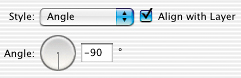
With Frame 6 selected, duplicate the frame and set Frame 7's Gradient Overlay layer style Angle to –90°. Leave the Blips layer off and the Blips Faded layer on, as they were in the preceding frame.


Add Frame 8.
With Frame 7 selected, duplicate the frame and set Frame 8's Gradient Overlay Angle field to –135°. Leave the Blips layer off and the Blips Faded layer on. You've finished building the animation!


Set the Animation Timing.
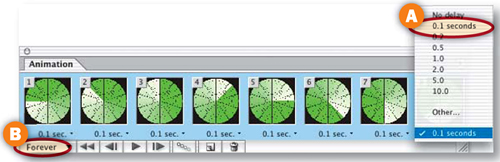
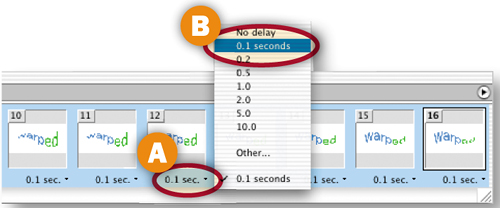
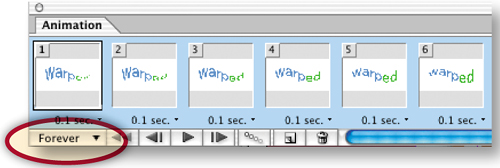
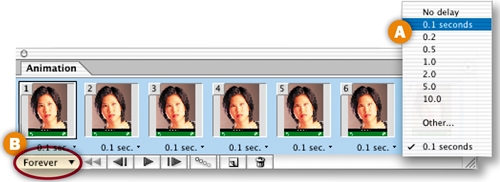
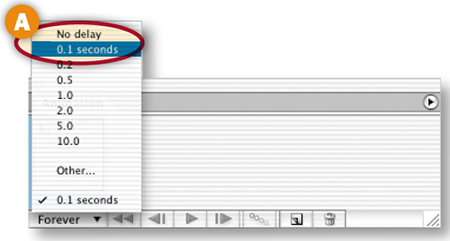
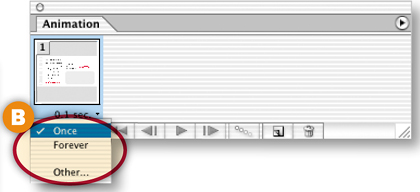
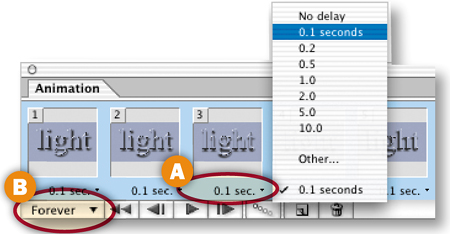
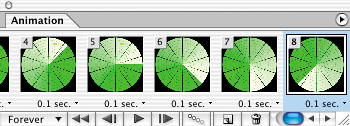
Now slow the animation down from the default setting. Click on the Animation palette side menu and choose Select All Frames. Click on the frame delay setting under any frame and choose 0.1 sec A. Leave the Loop setting to Forever so the animation will play continuously B.

Optimize and Preview.
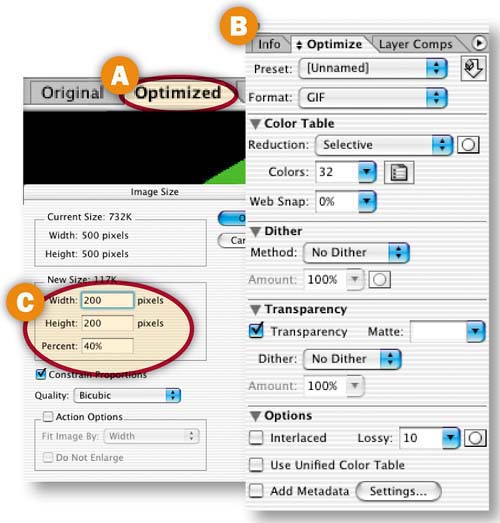
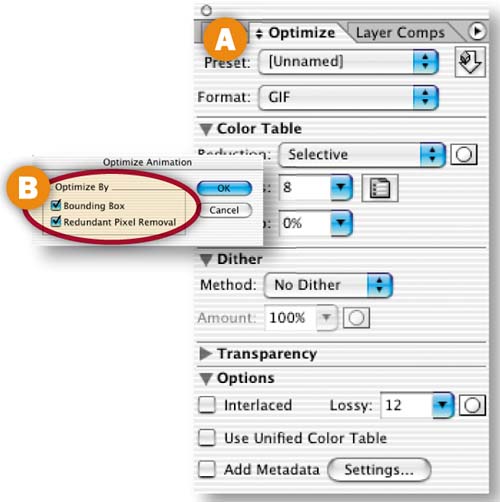
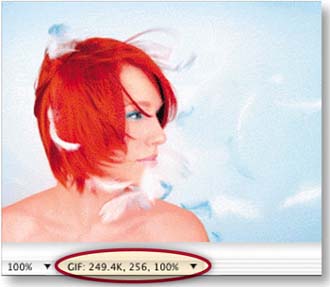
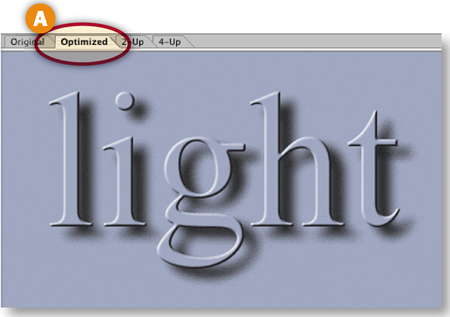
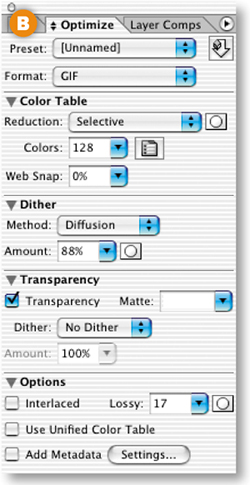
Optimization settings apply to all frames in an animation. Click on the Optimized tab in the image A. In the Optimize palette (Window>Optimize) choose—Format: GIF, Reduction: Selective, Colors: 32, Web-Snap: 0%, Dither Method: No Dither, Transparency: Checked, Lossy: 10, Interlaced: Unchecked, Add Metatdata: Unchecked B. The file size is still quite large. Reduce it by choosing Image>Image Size, and reducing Width and Height to 200 pixels in the Image Size window C. Click the Preview in Browser button in the toolbox to preview.

Save
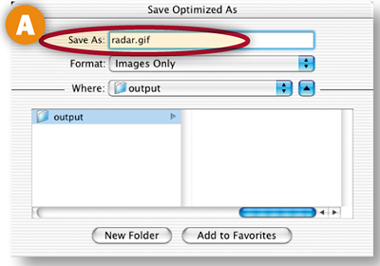
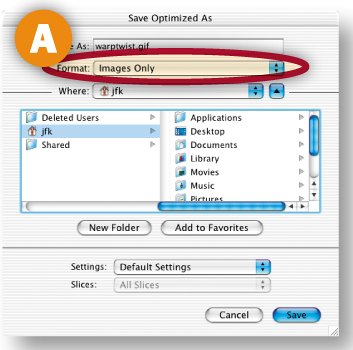
Choose File>Save Optimized As. Leave Format/Save as Type set to Images Only A and click Save. There's no need to save an HTML file because animated GIFs function on their own. Choose File>Save to resave the PSD file. And you're done!![]()

Use the Text Warp feature to add twists and turns to text as you create animation frames in ImageReady. Learn the technique here, and then try it on text of your own to animate a text-based logo or Web banner.

Create a New File in ImageReady
This text-based animation is easy to make from scratch. You'll create some text and give it a twist by applying the Flag style in the Warp Text dialog box. Then you'll create animation frames and make a simple adjustment to the perspective of the warped text on each frame. Finally, you'll copy, paste, and reverse some of the frames to make the text appear to twist back and forth. The Warp Text feature is available in both Photoshop and ImageReady. For this project you'll work in ImageReady, so you can manipulate the warp effect as you create animation frames.

Start by making a new file in ImageReady by choosing File>New. Set Width to 600 pixels and Height to 300 pixels. Choose white as Contents of First Layer. Click OK to open a new image.
Set Foreground/Background Colors
Set the Foreground and Background color boxes in the toolbox to the colors you'll use for your text. First click the Foreground Color box to open the Color Picker. In the Color Picker, choose bright blue (R:102, G:153, B:255 or hexadecimal #6699FF). Then click the Background Color box and choose bright green (R:102, G:255, B:51 or hexadecimal # 665533). (Web designers often specify colors by hexadecimal number, because that's the way colors are described in HTML code.)

Add Text
Select the Type tool in the toolbox. Set the following type options in the Options bar:
Font Family: Arial
Font Style: Regular
Font Size: 130 px (typed into the Font Size field)
Anti-aliasing: Strong
Color: Foreground Color.
Then click in the image and type the word warped.

Recolor Part of the Text
Select the last two letters of the word warped by clicking and dragging over them with the Type tool A. Press Command/Ctrl-H on your keyboard to make the highlight invisible so you can see the selected letters. In the Options bar, choose Background Color from the Color menu B. Then select another tool in the toolbox to commit the change to the type layer. Don't be confused by the question mark in the Color field in the Options bar. It means that you have more than one color on this type layer.

Make sure the warped type layer is selected in ImageReady's Layers palette. Select the Move tool in the toolbox. In the Options bar, click the Align Layer Vertical Centers icon A and the Align Layer Horizontal Centers B icon to center the text in the image.

Open the Animation Palette
Now you'll start creating the animation. Select the Original tab in the document window. (If the Optimized, 2-Up, or 4-Up tab is selected while you're making an animation, you'll have to wait each time you add a frame for ImageReady to try to optimize that frame.) If you don't see the Animation palette, choose Window>Animation to open it. Frame 1 of the animation is automatically displayed in the Animation palette.

Open the Warp Text Dialog Box
You'll start by bending the text on Frame 1. Check that the warped layer is still highlighted in the Layers palette. Select the Type tool, and click the Warp icon on the Options bar to open the Warp Text dialog box.
Set Text Warp Options for Frame 1
In the Warp Text dialog box, choose the Flag style from the Style menu A. Leave the Horizontal button selected to establish the horizontal orientation of the warp B. Move the Bend slider to –43% to set the amount and direction of the distortion C. Drag the Horizontal Distortion slider to –100% to apply perspective to the warp D. In the following steps, you'll change this Horizontal Distortion slider on each frame to create an animating twist. Click OK.

Click the Duplicate Animation Frame button in the Animation palette A to create Frame 2 B. Frame 2 is currently an exact copy of Frame 1. You'll change its content in the next step.

Change the Warp on Frame 2
Check that Frame 2 is selected in the Animation palette, the warped type layer is active in the Layers palette, and the Type tool is selected in the toolbox. Click the Warp icon in the Options bar to reopen the Warp Text dialog box. In the Warp Text dialog box, drag the Horizontal Distortion slider to –75% A. Leave the other settings as they are, and click OK. Leave this frame selected in preparation for another new frame.

Add and Warp Frames 3 through 9
Repeat Step 10 seven more times until you have a total of nine frames. Each time, make sure the last frame is selected in the Animation palette, duplicate that frame, then change the distortion of the new frame by increasing the Horizontal Distortion field of the Warp Text dialog box by 25%. Here's a summary of the value that should be in the Horizontal Distortion field on each frame:
Frame 1: –100%
Frame 2: –75%
Frame 3: –50%
Frame 4: –25%
Frame 5: 0%
Frame 6: 25%
Frame 7: 50%
Frame 8: 75%
Frame 9: 100%

Preview what you've made so far by clicking the Play arrow at the bottom of the Animation palette A. The animation plays in ImageReady's document window. Click the Stop button that replaces the Play arrow to pause the animation. We recommend doing this from time to time as you build an animation to check that the animation works as expected.


Copy Frames 2 through 8
Click on Frame 2 in the Animation palette, hold the Shift key, and then click on Frame 8 to select Frames 2 through 8. Click the side arrow on the Animation palette and choose Copy Frames A.

Paste the Copied Frames
Select Frame 9 in the Animation palette. Click the side arrow and choose Paste Frames A. In the Paste Frames dialog box choose Paste After Selection B and click OK. You now have a total of 16 frames in the Animation palette. The frames you just copied and pasted are Frames 10 through 16. Leave those frames selected.


Reverse the Copied Frames
With Frames 10 through 16 selected, click the side arrow on the Animation palette and choose Reverse Frames. This reverses the order of the copied frames, so your animation twists back and forth.

Preview the Animation
Preview in your default Web browser by clicking the Preview in Browser button in the toolbox A. The browser preview includes information about the file and HTML code that won't be saved with the final animation B. The frames probably play faster in your browser than they do in ImageReady's preview.

Back in ImageReady, select all frames in the animation. Click the time caption A under any frame and choose 0.1 seconds B from the pop-up menu. This slows the animation, setting the same display time for each frame. The time delay is only an approximation of how long each frame will appear in a viewer's browser window. You can't predict exactly how fast an animation will play in all browsers because that depends in part on the speed of each computer's processor.

Set the Number of Repetitions
Leave the Looping option set to its default of Forever. This will cause the animation to repeat itself in a viewer's browser until the viewer moves to another Web page. Be aware that a repeating animation can distract viewers' attention from other elements on a page, so use this feature with discretion.

Optimize the Animation
Click the Optimized tab and choose GIF optimization settings in ImageReady's Optimize palette A. (See GIF Optimization Settings in Chapter 1.) You cannot optimize an animation as a JPEG or PNG because those formats do not support animation. The settings you choose here apply to all the frames of the animation. Click the side arrow on the Animation palette and choose Optimize Animation. Make sure Bounding Box and Redundant Pixel Removal are checked B to maximize file savings, and click OK.

Save
Choose File>Save Optimized As, set Format/Save as Type to Images only A, and click Save. ImageReady saves a single GIF file containing the whole animation. Choose File>Save As to save the source image.

Add life to a scene by creating multiple animations of traffic signals and lights. This project is done in ImageReady.

Deconstruct the Layers
Let's face it—Web animations can be distracting, if not downright overwhelming. But when applied subtly, as in this project, animation can add a realistic touch that makes an otherwise static scene come alive on the Web. You'll create several animations in sliced areas of this photograph in the steps that follow. You'll make traffic lights change and parking lights blink on and off. These realistic animations are created by turning layer visibility on and off from frame to frame.

Take a minute to familiarize yourself with the contents of the layers in this file before you start animating. In the Layers palette, click the arrow to the left of each of the three Traffic layer sets, opening them so you can see the layers they contain A. Option/Alt-click in the Visibility field to the left of any layer B to see only the artwork on that layer. Option/Alt-click again to see all the layered artwork that was originally visible.
We already made and optimized some slices in this image, so that you can concentrate on creating the animations. The user slices we made have blue numbers. The auto slices ImageReady added are ghosted and have gray numbers. If you don't see these slices, click the Slice Visibility toggle near the bottom of the toolbox. If the ghosted auto slices are obscuring your view, choose ImageReady/Edit>Preferences>Slices and lower the percentage of color adjustment in the Auto Slices field.


Slice the Traffic Lights
In this project you'll be creating several independent animations in a large image. You'll slice the areas where the animations will occur to separate them from the rest of the image. ImageReady will generate a separate animated GIF file from each slice that contains animation frames.


Start by adding slices around the traffic lights so that you can animate those areas. Select the Slice tool in the toolbox, zoom in, and draw a slice around all three lights in the traffic signal on the left A, another around the lights in the middle traffic signal B, and one more slice around the lights in the traffic signal on the right C. You can make the red, yellow, and green traffic light layers visible temporarily to make it easier to see where to slice. Turn those layers off when you're done slicing.
Slice the Truck Blinkers
Draw another slice with the Slice tool around the darkened blinkers on the left side of the truck to prepare that area for animation. You can make the Dark_Blinkers layer visible temporarily to help position your slice. Turn that layer off when you're done slicing.

ImageReady assigns a default name to each slice. The GIFs produced from the slices will inherit those names. To ensure that you can recognize your animated GIFs among the many image files that will be generated, give each of your animation slices a meaningful name. Choose Window>Slice to open the Slice palette. Select the Slice Select tool in the toolbox and click on the slice you drew around the traffic signal on the left. Type Traffic_Left in the Name field of the Slice palette. Repeat this for the other three slices you just created, naming them Traffic_Mid, Traffic_Rt, and Blinkers respectively. Don't use spaces or special characters in slice names.

Set Up Frame 1
Choose Window>Animation to open the Animation palette. Frame 1 of the animation is displayed in that palette. Go to the Layers palette and click in the Visibility field of the following layers, turning on their Eye icons, to make the artwork on these layers visible on Frame 1 of the animation. All the other traffic light layers should be off.
Left_Red (This turns the traffic light on the left to red A.)
Mid_Red (This turns the traffic light in the middle to red B.)
Rt_Green (This turns the traffic light on the right to green C.)
Dark_Blinkers (Don't be confused by the on/off terminology here. When this layer is on, the blinkers on the left side of the truck look dark D.)

Add a Time Delay
Click the Time Delay menu under Frame 1 and choose 0.5 seconds to set the approximate timing of Frame 1 and all subsequent frames.

The next three frames are copies of Frame 1. Click the Duplicate Animation Frame button at the bottom of the Animation palette three times. Or hold down the Option/Alt key on your keyboard while clicking and dragging Frame 1 to the right and repeat twice more so you have a total of four frames.

Create Frame 5
On Frame 5, the traffic light on the right changes to yellow. Create Frame 5 by selecting Frame 4 and clicking the Duplicate Animation Frame button at the bottom of the Animation palette. Now change the artwork on Frame 5 by going to the Layers palette, turning on the Rt_Yellow layer, and turning off the Rt_Green layer.

Add Frames 6 through 8
The next three frames are copies of Frame 5. With Frame 5 selected, click the Duplicate Animation Frame button three times. You should have a total of eight frames.

Create Frame 9
On Frame 9, the traffic light on the left changes to green, the traffic light in the middle changes to green, and the traffic light on the right changes to red. Create Frame 9 by selecting Frame 8 and clicking the Duplicate Animation Frame button. Change the artwork on Frame 9 by doing the following in the Layers palette:
Turn off the Left_Red layer
Turn on the Left_Green layer
Turn off the Mid_Red layer
Turn on the Mid_Green layer
Turn off the Rt_Yellow layer
Turn on the Rt_Red layer

The next 17 frames are copies of Frame 9. With Frame 9 selected, click the Duplicate Animation Frame button 17 times. You have a total of 26 frames.

Create Frame 27
You're almost done. On Frame 27, the traffic light on the left changes to yellow, and the middle traffic light changes to yellow. The light on the right stays red. Create Frame 27 by selecting Frame 26 and clicking the Duplicate Animation Frame button. Change the artwork on Frame 27 by doing the following in the Layers palette:
Turn off the Left_Green layer
Turn on the Left_Yellow layer
Turn off the Mid_Green layer
Turn on the Mid_Yellow layer

Add Frames 28 through 30
The next three frames are copies of Frame 27. With Frame 27 selected, click the Duplicate Animation Frame button three times. You now have 30 frames.

Create Frame 31
On Frame 31, the traffic light on the left changes to red, the middle traffic light changes to red, and the traffic light on the right changes to green. Select Frame 30 and click the Duplicate Animation Frame button. Change the artwork on Frame 31 by doing the following in the Layers palette:
Turn off the Left_Yellow layer
Turn on the Left_Red layer
Turn off the Mid_Yellow layer
Turn on the Mid_Red layer
Turn off the Rt_Red layer
Turn on the Rt_Green layer

The next five frames are copies of Frame 31. With Frame 31 selected, click the Duplicate Animation Frame button five times. You should have a total of 36 frames. You're done creating frames.

Preview in ImageReady
Preview what you've made so far by clicking the Play arrow at the bottom of the Animation palette. The animation plays in ImageReady's document window. Click the Stop button that replaces the Play arrow to pause the animation.

Add the Blinking Truck Lights
Click the diagonal lines at the bottom right of the Animation palette and stretch the palette out so you can see as many frames as possible A. Click on Frame 2. Then hold the Command/Ctrl key as you click on every other frame (Frames 4, 6, 8, 10, 12, 14, 16, 18, 20, 22, 24, 26, 28, 30, 32, 34, 36). In the Layers palette, click in the Visibility field of the Dark_Blinkers layer to turn the visibility of that layer off B, so that the colored lights on the back of the truck are visible on the selected frames. Preview again to see these lights blink on and off throughout the animation.


Turn on the Streetlight
Select any frame in the animation. In the Layers palette, turn on the visibility of the Streetlight layer A. Then click on the Streetlight layer to select it and click the Unify Visibility button in the Layers palette B. In the prompt that appears, click Match. This causes the Streetlight layer to become visible on every frame of the animation. The symbol you now see on the Streetlight layer indicates that the change you made to the visibility of this layer has been applied to all frames in the animation.


Click the Preview in Web Browser icon in the toolbox to play the animation in your default Web browser. The traffic lights will change color synchronistically and the lights on the truck blink on and off, adding a touch of realism to the scene. If your animation isn't working as expected, debug it by clicking on each frame in the Animation palette and matching layer visibility to the Frame Summary on the facing page.


Optimize and Save
Click the Optimized tab in your document window. Wait a second while the program works through all the frames to generate an optimized preview. At this point you would normally optimize each part of the scene by selecting each user slice and one of the auto slices separately and choosing optimization settings in the Optimize palette (Window>Optimize). However, we had already optimized the existing slices, and the slices you drew took their optimization settings from our underlying slices. Select the slices you drew in the scene and notice the settings in the Optimize palette. Each of them was optimized as a GIF with 64 colors, No Dither, and a Lossy setting of 17 to keep the file size down while maintaining the appearance of the image. Transparency is checked because it is a prerequisite for Redundant Pixel Removal.
Click the arrow on either of the information fields at the bottom of the document window and choose Optimized Information to see the file size of the optimized animated scene. Depending on how you drew your slices, it's about 77K---. Choose File>Save Optimized As, leave Format/Save as Type set to Images Only, and click Save. Choose File>Save to save the original with your changes.![]()


Display thumbnails of your photos on the Web in an animated slideshow with professional-looking dissolves.

Create a New File in ImageReady
In this project you'll learn how simple it is to show off a selection of your photos in an animated slide show. Try it with these photos and then substitute your own. This animation looks best with photographs that are all the same size and orientation. If you use your own photos, resize them so that they are all the same size along at least one dimension, create a new folder, and move your prepared photos into that folder.
Start making a slide show by creating a new file in ImageReady. Choose File>New from the menu bar. In the New dialog box, set Width to 300 pixels and Height to 224 pixels. Leave Contents of First Layer at its default. Click OK to open a new image.

Choose File>Import>Folder as Frames from ImageReady's menu bar. Navigate to a folder of photos (for example, the Project Files>Chapter 2>C02-04-photos folder) and click Choose. ImageReady automatically does all of the following for you:
Places each item in the folder on a separate layer in the Layers palette A.
Creates a frame in the Animation palette (Window>Animation) for each layer B.
Makes the contents of a single layer visible on each frame (by turning on just one layer's Eye icon per frame) C.
This shortcut bypasses the long-winded process of dragging individual photos into the slide show file, creating animation frames one-by-one, and adjusting layer visibility manually on each frame.


Create a White Layer
Click the Create New Layer icon at the bottom of the Layers palette A. Double-click the name of the new layer in the Layers palette and rename it White. Press D on the keyboard to set the Background Color in the toolbox to white. Press Command-Delete/Ctrl-Backspace to fill the new layer with white. Then drag the new layer to the bottom of the layer stack in the Layers palette.

Match the Layer Across Frames
Next you'll make the White layer visible on all frames of the animation so that the semitransparent tweened frames you'll be creating shortly will all have the same solid white background. Select the White layer and click the Unify Visibility button at the top of the Layers palette A. Choose Match at the prompt B. The symbol on the White layer C indicates that it is visible on all frames.


The rest of the frames in this animation will be created automatically using a process called Tweening. Tweening takes its name from the frames it generates “in-between” the frames that you create by hand.
Select Frame 2 in the Animation and click the Tween button at the bottom of the Animation palette A (or click the arrow on the right side of the Animation palette B and choose Tween from the side menu).

Choose Tween Settings
Choose the following settings in the Tween dialog box:
Make sure Tween With is set to Previous Frame to add tweened frames between the selected frame and the previous frame A.
Type the number 2 in the Frames to Add field. This tells the program to create two additional tweened frames B.
Leave Layers set to All Layers C.
Make sure that Opacity is checked, because this is the layer property that you want to change across the tweened frames D. We usually leave all three parameters checked just to be safe.

Click OK to add two semitransparent tweened frames between the earth and fire photos. This will create a dissolve between these photos that resembles the slide dissolve you'd get by using two professional slide projectors in the analog world.
Select Frame 1 in the Animation palette. Then click the frame forward button at the bottom of the Animation palette Ato move through the frames one at a time. Notice that both the fire and earth photos are partially transparent on Frames 2 and 3, creating a dissolve effect.


Tween Frame 5
The water photo now appears on Frame 5. Select Frame 5 and click the Tween icon in the Animation palette again. Leave all the Tween settings as they were in Step 6 and click OK to add two tweened frames between the earth and water photos.


Tween Frame 8
The wind photo is now on Frame 8. Select Frame 8 and click the Tween icon again. Leave all the Tween settings as they were in the preceding step, and click OK to tween the wind photo with the water photo.


Preview the Animation
Click the Play button at the bottom of the Animation palette to preview the animation in the document window. Notice that there's a jump between the wind photo and the fire photo. That's caused by the animation looping back to to the beginning of the animation with no partially transparent fames between the wind photo on Frame 10 and the fire photo on Frame 1. You'll fix that in the next step.
Click the Stop button (the square icon) at the bottom of the Animation palette to stop the preview.


Tween the First and Last Frames
Select Frame 10-—the last frame in the Animation palette. Click the Tween button. In the Tween dialog box, change the Tween With field to First Frame. Leave the other tween settings as they were in Step 9, and click OK. There are now two partially transparent frames at the end of the animation. They create a dissolve between the wind photo in Frame 10 and the fire photo in Frame 1, smoothing the look of the animation when it loops back to the beginning to repeat itself.


Preview in a Web Browser
Click the Preview in Browser button on the toolbox to preview the finished animation in a Web browser. Notice that it plays very fast and that it repeats over and over. You'll address those two issues in the next steps.

Set the Repetitions
The looping option at the bottom of the Animation palette is set to Forever by default. This would create an animation that continuously repeats without end. You'll limit the number of repetitions of your slide show in this step. Click the looping option and choose Other from the pop-up menu. In the Set Loop Count dialog box that appears, type 2 into the Play field and click OK. Your slide show will play through twice in a viewer's Web browser.

Reduce the Speed
Slow this animation down so viewers have time to appreciate the photographs. Select all the frames by clicking on Frame 1, holding down the Shift key,

Now increase the timing on the four frames that display opaque photos so that the animation pauses on those frames. Click on Frame 1, hold the Command/Ctrl key and click on Frames 4, 7, and 10. Choose 2 seconds from the time delay menu beneath any one of those frames. Preview again to see the results.

Optimize the Animation
Although this file contains photos, it can't be optimized in JPEG format because JPEG doesn't support animation. Instead, you'll have to optimize the entire file as one animated GIF, choosing the maximum number of GIF colors (256), and adding dither to smooth the bands of color in the photos. In the Optimize palette, choose Format: GIF, Colors: 256, Dither Method: Diffusion, Dither Amount: 100%, Lossy: 17, and Add Metadata: Unchecked. Leave the other optimization settings at their defaults, as shown here.

Reduce the Image Size
Click the box at the bottom of the Optimized tab of the document window and choose Optimized Information. The file size reported there is quite large for the Web. To reduce file size, you'll have to reduce the physical dimensions of the image. Choose Image>Image Size. Type 50% in the Percent field, make sure Constrain Proportions is checked, and choose Quality: Bicubic Sharper.


Save
Choose File>Save Optimized As. Leave Format/Save as Type set to Images Only, and click Save. ImageReady saves a single animated GIF file. To display this slide show on the Web add a link to the GIF in any HTML file. Choose File>Save As to save the PSD source file.![]()

This interactive animation is an attention-getter designed to involve viewers with a site by giving them control over what they see. Rollover buttons trigger remote animations that change this woman's mood from happy to very, very mad.

Set Up Your Workspace
This is a super-project that combines remote rollovers with animations. You'll use lots of palettes at once, so start off by setting up your workspace. Go to the Window menu in the menu bar and open the Layers palette, the Web Content palette, the Animation palette, and the Optimize palette. Arrange them on your screen so you can see them all.
The Web Content palette (not to be confused with the similar-looking Layers palette) is your management center. Set up the Web Content palette to display animation frames, in addition to slices and rollover states. Click the side arrow on the Web Content palette A and choose Palette Options. In the Palette Options dialog box choose Include Animation Frames B and click OK.


When you're making a remote rollover like this one, you'll need separate slices around the rollover buttons that trigger the animations and around the remote area where the animations will occur. We've already made and optimized the animation slice for you. Click on the Face slice in the Web Content palette to highlight that slice with a yellow border in the document window A. You'll make two separate animations in this slice, each triggered by a rollover button.

Slice the Rollover Buttons
Start by slicing and adding an Over state to the smile button and the frown button. Fortunately, you can do both tasks on the two buttons simultaneously using a couple of shortcuts. First, select both the SmileBtn and FrownBtn layers in the Layers palette by clicking on one of them and holding the Shift key while clicking on the other A. Now click the Create Layer-Based Rollover icon at the bottom of the Web Content palette B. This causes ImageReady to create a separate layer-based slice around each of the two buttons.


View the Slices and Over States
You can see the two slices you just made in the image A. and they are listed in the Web Content palette. Each slice in the Web Content palette has an arrow on its left side B that opens a list of the rollover states for th2at slice. Each of the two new button slices has an Over state listed beneath it C. When you add animation frames to a rollover state, it will be listed under that rollover state. You can think of the Web Content palette as a visual outline of the interactivity features in the image.


Your button slices have default names assigned automatically by the program. Give each of these two slices more meaningful names by double-clicking their default names in the Web Content palette and typing SmileBtn and FrownBtn respectively. These names will be incorporated into the names of the GIF files generated by these slices.

Add an Effect on the Over States
The Over states you just made for the two rollover buttons are copies of the Normal state of each button (the way the button will look when the page first loads in a Web browser). Now you'll change the appearance of those buttons on their Over states.
Select the Over state of the SmileBtn slice in the Web Content palette A. Then go to the Layers palette and select the SmileBtn layer B. Click the f icon at the bottom of the Layers palette C and choose Outer Glow from the pop-up menu. The Layer Style dialog box opens offering options for the Outer Glow style. Click OK to accept the default options. The smile button now has a glow on its over state.
Repeat the preceding step with the FrownBtn slice, selecting its Over state and adding an Outer Glow effect to the FrownBtn layer on that state.


Preview the Rollover Effects
Click the Slice Visibility button in the toolbox A to make the slices temporarily invisible so you have a clearer view of the image. Click the Preview button in the toolbox B. Move your cursor over the frown button in the image. It will display a glow. Move your mouse away and the glow disappears. Now mouse over the smile button, which behaves the same way.


Click the Preview button again in the toolbox to exit Preview Mode. It's easy to forget to do this. You'll be reminded with a warning if you try to perform more actions.

Begin the Frown Animation
Now things get a little more complicated. You'll add another rollover effect—an animation in a remote slice—to each of the two buttons. Each button will trigger a different animation. The smile button will start an animation that gradually changes the woman's face to a smile. The frown button will start an animation that changes the woman's face to a frown. Each animation ends with a surprise, as you'll see shortly.
Start by selecting the Over state of the FrownBtn slice in the Web Content palette A. This is an important step because it establishes which state will trigger the frown animation to play.

Add Frown Animation Frame 2
Now add a second frame to the Frown animation. Click the Duplicate Current Frame icon at the bottom of the Web Content palette A. This creates Frame 2 of the frown animation and displays Frame 1 and Frame 2 under the Over state of the FrownBtn slice in the Web Content palette B. (If you see no frames in the Web Content palette, go back and follow the instructions in Step 1.) Frame 2 is now just a copy of Frame 1. You'll change that in the next step.

Change Frown Animation Frame 2
With Frame 2 selected in the Web Content palette, go to the Layers palette and click in the Visibility field of the Frown layer to turn on that layer's Eye icon A. The woman is now frowning.


With Frame 2 selected, click the Tween button at the bottom of the Animation palette A. In the Tween dialog box, choose the following settings and then click OK:
Make sure Tween With is set to Previous Frame to add tweened frames between the selected frame and the previous frame B.
Type the number 3 in the Frames to Add field. This tells the program to create three additional tweened frames C.
Make sure that Opacity is checked, because this is the layer property that you want to change across the tweened frames D.
Click OK to automatically add three tweened frames between the normal image and the frowning image.


Preview the Tween
Click the Play button at the bottom of the Animation palette to preview the animation in the document window. The woman's face gradually changes from one expression to the other. To stop the preview, click the Stop button that replaces the Play button.

Add Frames 6 and 7
The frown image now appears on Frame 5. Select Frame 5 in the Web Content palette and click the Duplicate Current Frame icon at the bottom of the Web Content palette two times. This creates Frames 6 and 7 of the frown animation. Each is a copy of the frown image on Frame 5.

Select Frame 6 in the Web Content palette. Then go to the Layers palette and click in the Visibility field of the NoseFlare layer to turn on its Eye icon on Frame 6. This adds a little surprise at the end of the frown animation. The woman's nose flares briefly to emphasize her fighting mood. Click the Play button again to see this change.


Target the Remote Animation
The button that triggers the frown animation is located in the FrownBtn slice. The frown animation takes place in another slice—the Face slice. That's why we call this a remote animation. You have to do one more thing to make the remote animation play on the Over state of the frown button—target the Face slice from the Over state of the FrownBtn slice.

To do that, go to the Web Content palette and click on the pickwhip icon (the spiral) to the left of the Over state of the FrownBtn slice A. Drag the target line from there to the Face slice in the image B. You'll see a target symbol to the left of the Face slice in the Web Content palette.
Preview in a Web Browser
Click the Preview in Browser button in the toolbox to preview the frown animation in a Web browser. The animation does not start playing automatically. Move your mouse over the frown button and you'll see the frown button glow and the frown animation play. Move your mouse away; the glow is gone and the animation stops playing. Notice that the animation plays very fast. You'll fix that in the next step.

First, you'll slow the entire frown animation down. Click on Frame 1 in the Animation palette, hold the Shift key, and click Frame 7 to select all frames. Click the time delay pop-up menu under any of the frames and choose 0.1 seconds A. Leave the looping option set to its default of Forever B.

Add some pauses
Now you'll add some pauses on particular frames. In the Animation palette, click on Frame 1; then hold the Command/Ctrl key and click on Frames 5, 6, and 7 to select those four frames. Click the time delay pop-up menu under any of the selected frames and choose 0.5 seconds. Preview again in a browser to notice the change in timing. You've finished making the frown animation.

Begin the Smile Animation
The Smile animation is triggered by mousing over the smile button. It's constructed the same way as the frown animation—with a combination of layer visibility changes and tweening. We'll move more quickly through the following steps, since you already know the principles involved.
Select the Over state of the SmileBtn slice in the Web Content palette. This is the state that will trigger the animation A. Click the Create Duplicate Current Frame button at the bottom of the Web Content palette B to create Frame 2 of the smile animation. You'll see Frame 1 and Frame 2 under the Over state of the SmileBtn slice in the Web Content palette.

With Frame 2 of the smile animation selected, go to the Layers palette and click in the Visibility field of the Smile layer to turn on its Eye icon. The woman is now smiling tentatively.


Tween Frame 2
With Frame 2 still selected, click the Tween button at the bottom of the Animation palette. In the Tween dialog box, choose Tween With: Previous Frame, Frames to Add: 3, and Parameters: Opacity, and click OK to add three tweened frames to the smile animation.


Add Frames 6 and 7
With Frame 5 selected in the Web Content palette, click the Duplicate Current Frame button at the bottom of that palette twice to create Frames 6 and 7.

Change Frame 6
Select Frame 6 of the smile animation in the Web Content palette. In the Layers palette, click in the Visibility field of the BrowRaise layer. This makes the woman's right eyebrow raise slightly near the end of the smile animation.


Target the Remote Slice
In the Animation palette, click the pickwhip icon on the Over state of the SmileBtn slice A and drag to the Face slice in the image B. This targets the remote slice for the smile animation. It's important to target the remote slice for both of the rollover animations.

In the Animation palette, Shift-click to select all the frames. Click the time delay pop-up menu and choose 0.1 seconds A. Then Command/Ctrl-click to select only Frames 1, 5, 6, and 7, and choose 0.5 seconds from the menu B. This slows the animation down and adds a pause on the selected frames. Leave the loop option set to forever.
Good job! You've completed all of the construction. Just a few finishing touches and you're done.

Preview in a Browser
Click the Preview in Browser button in the toolbox to preview both rollover-triggered animations. In your browser window, move your mouse over the smile button. The button glows and the smile animation begins playing. Move your mouse away and both effects stop. Now mouse over the frown button to see it glow and the frown animation play.


Optimize the Button Slices
Back in ImageReady, click on the Optimized tab in the document window to see a preview of the optimized image. Click the SmileBtn slice in the Web Content palette, hold the Command/Ctrl key, and click on the FrownBtn slice. Choose the following Optimization settings for the two button slices in the Optimize palette:
Format: GIF (Although this file contains photos, it must be optimized as GIF because, as you now know, JPEG format does not support animation.)
Colors: 32
Dither: No Dither
Add Metadata: Unchecked
Leave the other optimization settings at their defaults, as shown here.

Click the box at the bottom of the Optimized tab of the document window and choose Optimized Information. Despite our best efforts to optimize this file to the smallest size at which the images look good, the total file size is still quite large for the Web. The only thing left to do to reduce file size is to make the image smaller.
Choose Image>Image Size. Type 40% in the Percent field, make sure Constrain Proportions is checked, and choose Quality: Bicubic Sharper.

Save
Choose File>Save Optimized As. Leave Format/Save as Type set to HTML and Images, leave Slices set to All Slices, and click Save. Each slice in the image generates at least one image file. The button slices produce two GIFs each—one for the Normal state and one for the Over state A. The Face slice produces two GIF files containing animations and a GIF for the Normal state of that slice B. ImageReady also makes an HTML file for you C that contains a table that reassembles all the individual images and that includes JavaScript to make the rollovers function. Choose File>Save to resave the PSD source file with the information you've added.
This has been a relatively complex project. You may have to read it through more than once to remember its concepts so that you can create your own rollover-triggered animations.![]()


Make an eye-catching button or logo with an animated ring of stars, using a circular image map hot spot to trigger the animation. This project is done in ImageReady because Photoshop doesn't have image map creation tools.

Understand the Problem & Solution
This project, like the last one, involves a remotely triggered animation, but with a twist. This time an animation (the circular border of stars) surrounds a round trigger area (the orange button). When a viewer moves her mouse over the orange button the stars animate. If you tried to make this project by drawing a rectangular slice around the orange button, the trigger area would extend beyond the button, causing confusion about where and how to activate the animation, as you'll see in the next step. The solution is to use an image map hot spot to trigger the animation. Unlike slices, which are always rectangular, an image map hot spot can be circular, so that it just fits a circular trigger area.
Let's see what happens if you try to define the trigger area of this animation with a slice. Select the Button layer in the Layers palette. This layer contains only the orange button and its text. Choose Layer>New Layer Based Slice from the menu bar. This creates a tight-fitting slice around the content of the Button layer. You can see that the corners of the rectangular slice extend over the ring of stars A, B, C, D. If you used this slice as the trigger region for the animation, moving a mouse over these corners would start the animation playing. Viewers wouldn't see the slice, of course, and they would probably be confused about how to activate or avoid activating the animation.

Delete the slice by selecting it in the Web Content palette and dragging it to the trash icon at the bottom of that palette.
Make a Layer-Based Hot Spot
Now that you understand what not to do, let's get started making this project the right way. First, you'll create an image map hot spot around the orange button. A hot spot is an active link region in an image map. You can draw image map hot spots manually with the Image Map drawing tools in ImageReady's toolbox. But if the content of the hot spot is on a separate layer, as it is here, you can use the automatic layer-based method instead.

Make sure the Button layer is selected in the Layers palette. Then choose Layer>New Layer Based Image Map Area to create an image map hot spot around the contents of the Button layer. The hot spot boundaries are identified by a colored line A. By default the hot spot is rectangular. You'll fix this in the next step.
Open the Image Map palette (Window>Image Map). Click the arrow next to Layer Based Settings to display the Shape setting. Click the Shape button and choose Circle from the pop-up menu A. This changes the shape of your hot spot to a circle that exactly fits the edge of the orange button B.


Select the Hot Spot
The Web Content palette lists all image map hot spots, as well as all slices and rollover states, in an image. If your hot spot is no longer selected, select it by clicking on its default name, ImageMap_01, in the Image Map area of the Web Content palette A. Or select the Image Map Select tool from the toolbox B and click inside the hot spot area in the image.


Add an Over State
In this step you'll add an Over rollover state to the image map hot spot. The Over state will occur when a viewer moves her mouse over the hot spot area defined by the image map coordinates.

Simply click the Create Rollover State button at the bottom of the Web Content palette A to add an Over state B to the selected image map hot spot.
The Web Content palette does not display animation frames by default. But it makes sense to manage animation frames from this palette when you're creating animation triggered by an image map rollover. That allows you to see all the related elements—image map hot spots, their rollover states, and the frames of animations triggered by the rollovers—in the same palette.


Click the arrow on the right side of the Web Content palette A and choose Palette Options from the side menu. In the Palette Options dialog box, check Include Animation Frames B and click OK. You won't see any frames in the Web Content palette until you create Frame 2 in the next step.
Create Animation Frame 2
The first frame of an animation is created for you automatically. Click the Duplicate Current Frame button at the bottom of the Web Content palette A to create Frame 2 of the animation. Both frames are now displayed under your ImageMap_01 hot spot in the Web Content palette B and also in the Animation palette C.


Change Animation Frame 2
At this point, Frame 2 is still a copy of Frame 1. You'll change that in this step. With Frame 2 selected in the Web Content palette, go to the Layers palette and click in the Visibility field of the Stars2 layer to add an Eye icon there A. Then click in the Visibility field of the Stars1 layer to remove its Eye icon B.

Leave the Time Delay on both frames at its default of 0 seconds A so the frames animate quickly. Leave the looping option at its default of Forever B, so that the animation continues to play over and over while the viewer's mouse is over the image map hot spot.

Preview the Animation
Click the Play button at the bottom of the Animation palette to preview the animation. The stars on Frame 2 are shifted slightly around the ring from those on Frame 1. So as the animation moves quickly back and forth between Frames 1 and 2, it gives the illusion that the stars are moving around the ring. Cool!


Set Up Your Optimizing Workspace
Click on the Optimized tab in the document window A where you'll see a preview of the image with the optimization settings you choose in the next step.
Open the Optimize palette (Window>Optimize), where you'll choose optimization settings that will affect the whole image. When you optimize a document as an image map the entire image takes the same optimization settings. And when you optimize an animation, all of its frames share the same optimization settings.
Click the double-pointed arrow on the Optimize palette tab B to open the sub-headings so you can see all the settings in the Optimize palette.


Choose the following settings in the Optimize palette:
Format: GIF (You have to optimize this image in GIF format because you will be saving it as an optimized GIF, ImageReady's default animation format.)
Colors: 128 (This image needs lots of colors because the orange button has a strong bevel and emboss effect that contains lots of graduated colors.)
Dither Method: Diffusion
Dither Amount: 88% (Adding a high percentage of dither helps smooth out potential banding in the beveled button.)
Lossy: 17 (Adding lossy compression to a GIF helps reduce file size.)
Add Metadata: Unchecked (Metadata adds to file size and is not necessary here.)
Leave the other settings at their defaults as shown here.

Preview in a Browser
Click the Preview in Browser button. The animation doesn't start until you move your mouse over the orange button. That causes the animation to play, making the stars appear to dance around the button. Move your mouse off the orange button and the animation stops.


Save
Back in ImageReady, choose File>Save Optimized As. Leave Format set to HTML and Images so that ImageReady generates an HTML file with the Java-Script that makes your rollovers function and the image map coordinates. ImageReady also saves two GIF files—including an animated GIF for the Over state and a static GIF for the normal state.![]()


This is a science project that's hard to resist. An animated layer mask gives your viewers x-ray vision to see beneath the surface to this man's skull.

Start in Photoshop
This animation looks complicated, but it's really very simple to make. We started in Photoshop with two images—a portrait that we doctored up a little, and a creepy photo of an illuminated skull. We scaled and transformed the two images slightly so the features line up. Now the file is ready for you to animate.
In the steps that follow you'll add a layer mask to the skull, cut a hole in the layer mask, and move the layer mask independently of the artwork to create an animated journey beneath the skin. Both Photoshop and ImageReady offer layer masking. We'll start working in Photoshop, then jump to ImageReady to complete this project.

Start in Photoshop by making a circular selection that you'll use as you create a layer mask. Hide the Skull layer temporarily by clicking in the Visibility field of the Skull layer A. Select the Elliptical Marquee tool in Photoshop's toolbox, and add a slight feather by typing 1 in the Feather field in the Options bar. Drag out a selection, holding the Shift key to constrain the selection to a circle. Make the selection a little bigger than the man's right eye B.


Add a Layer Mask
Click in the Visibility field of the Skull layer again to make that layer visible A. Click on the Skull layer to select it. With the circular selection active, click the Add Layer Mask icon at the bottom of the Layers palette B.
Photoshop adds a layer mask to the Skull layer. The layer mask is filled with white inside the area you selected and with black everywhere else. The white pixels reveal the skull image. The black pixels mask it so that you can see through to the layer below.
The layer mask is represented by the grayscale thumbnail on the right side of the Skull layer.


Click the link symbol between the layer mask thumbnail and the image thumbnail A. The link symbol disappears B, indicating that the layer and its layer mask are now unlinked. This makes it possible to move the layer mask independently of the skull image so that you can animate the layer mask without disturbing the image.


Jump to ImageReady
Click the Edit in ImageReady button at the bottom of the Photoshop toolbox to launch ImageReady and open this file in ImageReady with all the changes you made to it in Photoshop. You're moving to ImageReady because Photoshop doesn't have animation features.

Create Animation Frame 2
Choose Window>Animation to open the Animation palette with Frame 1 of the animation automatically displayed. Click the Duplicate Animation Frame icon at the bottom of the Animation palette A to create Frame 2 B. Frame 2 is now a copy of Frame 1. Next, you'll make a change to Frame 2 to begin constructing the animation.

Select the Layer Mask Thumbnail
In the Layers palette, click on the Skull layer's layer mask thumbnail A so that you're working on the layer mask, rather than on the skull image. You can tell the layer mask is selected because it's surrounded by a thin border and the field just to the left of the Skull layer contains a mask symbol B (as opposed to the paintbrush symbol you'll see there when the image thumbnail is selected).

Move the Layer Mask on Frame 2
Select the Move tool in the toolbox. With Frame 2 still selected, click and drag the layer mask, so that the nose of the skull appears in the white circular area of the mask. This suggests the illusion that you're seeing through the image of the man to the nose area of his skull. You're actually just rearranging the mask, with its revealing white area and nonrevealing black area, on the Skull layer, making parts of the Skull layer visible and invisible.

Create Frame 3
With Frame 2 selected, click the Duplicate Animation Frame icon A in the Animation palette to create Frame 3 B. On Frame 3, with the layer mask still selected, use the Move tool to click and drag in the image until you see the left eye area of the skull.

With Frame 3 selected, click the Duplicate Animation Frame icon at the bottom of the Animation palette again to create Frame 4. Check that the layer mask thumbnail is still selected on the Skull layer in the Layers palette. With the Move tool, click and drag in the image, moving the layer mask until the circle reveals the teeth in the skull.


Add Tweens
Now you'll have ImageReady create some additional intermediate frames for you, adding gradual changes between the frames you just made yourself. Select Frame 2 in the Animation palette. Click the Tween button at the bottom of the Animation palette to open the Tween dialog box. Choose the following settings there and click OK:
Tween With: Previous
Frames to Add: 2
Layers: All Layers
Parameters: Position
Repeat this step twice more, on Frame 5 and then Frame 8. The animation now has 10 frames.


Preview the Animation
Click the Play/Stop button at the bottom of the Animation palette A to watch the animation play in the document window. The circle moves around the image revealing the skull along its path. Notice that there is a small jump when the animation loops back from the last frame to the first frame. You'll fix that next.

Select Frame 10 and click the Tween button in the Animation palette again. In the Tween dialog box change Tween With to First Frame. Leave the other settings as they were and click OK.

Set the Timing
Click Frame 1 and hold the Shift key as you click on the last frame to select all frames. Click the Time Delay menu under any frame and choose 0.1 seconds. Now Command/Ctrl-click to select just frames 1, 4, 7, and 10—the frames you made yourself. Click the Time Delay menu under any of the selected frames and set it to 2.0 seconds to pause the animation on some key spots. Leave looping set to its default of forever so that the animation continually plays.

Optimize the Animation
At this point you would usually optimize the animation, but we've done that for you. We set format to GIF because this will be saved as a GIF animation. We chose a significant number of GIF colors (128) and added dither to smooth the colors and lossy compression to keep file size down.
Preview and Save
Click the Preview in Browser button in the toolbox. The animation starts playing when the page loads in a browser. If you're satisfied, choose File>Save Optimized As in ImageReady. Leave Format/Save as Type set to Images Only and click Save. ImageReady saves a single GIF file containing all the frames of the animation. You can bring this file into a site-building program like GoLive to add it to an HTML page in your site. Finally, choose File>Save to resave the PSD source file to use for any changes in the future.![]()


You've heard of Flash. You've heard of ImageReady. But did you know you can create and export Flash format movies right in ImageReady? You'll make this home page using vector-based text and shapes for fast Web download.

Have the Best of Both Worlds
The SWF format, popularized by Macromedia® Flash©, is reknowned for offering fast-downloading vector-based animations. The results are great, but the process of creating a movie in Flash is more complicated for many people than making an animation in ImageReady. Now you can have the best of both worlds. You can make vector artwork in Photoshop and export it in Flash (SWF) format from ImageReady.

In this project, you'll use vector-based Type and Shape tools in Photoshop to create this snappy homepage. Then you'll jump to ImageReady to animate your graphics. When you're done, you'll learn how to export the final product as an honest-to-goodness SWF movie, complete with an HTML file to display the movie on the Web.
Start by adding some vector graphics to this page layout. Click on the Shape 1 layer in the Layers palette so your next layer will be located above it. Click on the Shape tool slot in your toolbox A and choose the Custom Shape tool from the flyout menu B.


Set Custom Shape Tool Options
Do all of the following in the Custom Shape tool's Options bar:
Make sure the Shape Layers icon A is selected (so you'll draw a shape rather than a path or a selection).
Click on the Link icon to set properties for a new shape layer B.
Click in the Color field C to open the Color Picker and choose red (R:204, G:0, B:0).
Click the arrow on the Shape field to open the Shape Picker D.

Select a Custom Shape
If your Shape Picker is not showing all the default shapes, like the illustration, click the arrow on the side of the Shape Picker A and choose All from the side menu. Locate the dark phone shape (Phone 2) B, and click on it. That shape will appear in the Shape field on the Options bar.

Click and drag a small phone shape to the right of the phone number in the image A.
There's now a new shape layer for the phone shape in the Layers palette. It has two thumbnails, one for the red color fill and another for the vector outline that defines this shape.


Draw More Shapes
Repeat Steps 3-5 to draw a green envelope to the right of the email address A and a blue wireframe globe to the right of the Web address B.
Then finish off the logo by drawing a large red snail shape above the red logo text C. (A shape can be drawn to any size because it's vector based.)
You'll find custom shapes for all these shapes in the Shape Picker D.


Add the Address
Type is another vector-based element in Photoshop and ImageReady. In this step you'll add an address to this page. Select the Horizontal Type tool in the toolbox. In the Options bar choose Arial, Regular, 14 pt, black A. Click in the image and type three lines of text, pressing Enter/Return between each line: 20 Snail Way, Sleepy Hollow, Slowville, TX 56457. Then click the big check mark on the Options bar to commit the type. Use the Move tool to drag the type into place to the right of the gray bar.


Click in the image with the Horizontal Type tool and in the Options bar choose Impact, 67 pt, and gray (R:236, G: 236, B: 236) A. Type CONTACT INFO in uppercase letters. Then choose Edit>Transform>Rotate 90° CCW. Use the Move tool to position the text along the left edge of the page.

Jump to ImageReady
Now you'll move to ImageReady to create the animation. Click the Edit in ImageReady button at the bottom of Photoshop's toolbox to open this file in ImageReady.

Begin the Animation
First you'll make a block of text fly in from off screen when the page opens in a Web browser. Click the bottom right of the document window and drag to expand the window so you can see the gray area outside the document window. Open the Animation palette (Window>Animation), which displays Frame 1 automatically.

Change Timing and Looping
Now you'll change the timing on Frame 1. All subsequent frames will inherit this time delay. Click the Time Delay menu under Frame 1 and choose 0.1 seconds A.

You only want the animation to play once. So click the looping option and choose Once B.

Click the Duplicate Animation Frame button at the bottom of the Layers palette to create Frame 2. Frame 2 is currently a copy of Frame 1. You'll change that in the next step.

Change Position on Frame 2
Select the Move tool in the toolbox. Select the FlyIn layer in the Layers palette. With Frame 2 selected, hold the Shift key (to move ten pixels at a time) and click the left arrow on your keyboard to move the block of text to the left until it is just outside your document window. You won't see the text at this point.

Reverse Frames 1 and 2
Now you'll reverse the frames so the frame with the text off-screen becomes Frame 1. Just click the arrow on the right side of the Animation palette and choose Reverse Frames.

Tween Position
Next, you'll use tweening to add six frames in-between the two existing frames. ImageReady will gradually change the position of the text block across the additional frames. Select Frame 2 and click the Tween button at the bottom of the Animation palette A. In the Tween dialog box set the following options and click OK:
Tween With: Previous Frame
Frames to Add: 6
Parameters: Position


Click the Play/Stop button in the Animation palette to watch the animation play. The text block should fly into position from off-screen.

. Add Frame 9
You now have eight frames. Click the Duplicate Animation Frame icon at the bottom of the Animation palette to add Frame 9.

Change Opacity on Frame 9
With Frame 9 selected, go to the Layers palette and open the Contact layer set. Select the first layer in that layer set. Notice that the Opacity field at the top of the Layers palette reads 0%, which tells you that the layer is now invisible. Change Opacity to 100% A so that the layer becomes fully visible in the image.

Repeat this on each of the six layers in the Contact layer set one by one. (But don't change the opacity of the entire layer set.) All of the contact information is now visible in the image B.

Tween Opacity on Frame 9
Now you'll use tweening to fade in the contact information. With Frame 9 selected, click the Tween button on the Animation palette A. In the Tween dialog box set the following options and click OK:

Tween With: Previous Frame
Frames to Add: 6
Parameters: Opacity

Click the Preview in Browser icon in the toolbox to watch your animation play in your default browser. The text block flies in from the left, and then the contact information fades in. The temporary HTML code in the Browser window tells you that this file is currently a GIF with a file size of about 100K. In the next steps you'll turn it into a Flash movie that will be 1/5 of this file size!

Export as SWF
Choose File>Export>Macromedia® Flash© SWF. In the Macromedia® Flash© (SWF) Export dialog box, choose the following settings and click OK:
Make sure that Preserve Appearance is unchecked A. Leaving this setting off ensures that your graphics will remain vector-based for fast download.
Check Generate HTML B. This tells ImageReady to create an HTML file with code to display your SWF in a Web browser.
Leave the other options at their defaults, as shown here. They are not relevant because you are not including bitmap images in your SWF.

In the Export As Macromedia© SWF dialog box choose a location for your files and click Save. ImageReady makes a SWF file and an HTML file to display it. You could bring the files into a site-building program for inclusion in a full site, post them on the page as a single page, or bring the SWF into Flash for inclusion in work you're doing there.

Choose File>Save to resave the original PSD file with the graphics you added to it. The SWF is not editable so it's important to save the editable source file.
View the Flash Movie in a Browser
Open the HTML file directly from your Web browser to see the SWF play there.
Check Out the File Size
Find the SWF file on your hard drive and check its file size. It comes in at only 20K, a file size significantly lower than that of the animated GIF format. That's because SWF does a terrific job of compressing vector-based images like those you used in this page layout. If you had incorporated bitmap images the SWF file size would be larger.![]()
Here's a quick and easy animation that gives the illusion of a moving light source. Once you get this down you'll be able to animate any layer style to produce animations in a heartbeat.

Start with a Layer of Text
Use our file or create your own from scratch in ImageReady. Just use the Type tool to create text in a heavy font on a transparent layer. We rasterized our type layer, but this animation works fine if you leave your own type layer in its default state—as editable vector-based type.


Add a Background Layer
Select the Eyedropper tool and click in the text on the Light layer. This sets the Foreground Color in the toolbox to the same color as the text. Click the Create New Layer icon at the bottom of the Layers palette. Then press Option-Delete/Alt-Backspace to fill the new Layer 1 with the Foreground Color. Drag Layer 1 beneath the Light layer in the Layers palette. Choose Layer>New>Background From Layer to make the bottom layer a non-editable Background layer. Your image now looks plain bluish/gray.


Select the Light layer in the Layers palette. Open the Styles palette (Window>Styles). Click the arrow on the side of the Styles palette A and choose HTWWeb-Styles from the side menu. Click that arrow again and choose Large Thumbnail.
Click the 09_light style to apply it to the text B. The Light layer in the Layers palette now displays a Drop Shadow and a Bevel and Emboss layer style.

Start Building the Animation
Open the Animation palette (Window>Animation), which automatically displays Frame 1 of the animation. On Frame 1, the text displays the Drop Shadow and Bevel and Emboss layer styles you just applied. You'll make a simple change to those layer styles to create this animation.

First, you'll add a few more frames to the animation. Click the Duplicate Animation Frame icon at the bottom of the Animation palette three times, so that there are a total of four frames in the Animation palette. Each of the new frames is a copy of Frame 1. You'll change that in the next steps.
Open the Layer Style Dialog Box
Click on Frame 2 in the Animation palette. Then double-click Effects under the Light layer in the Layers palette A to open the Layer Style dialog box. It opens with the Drop Shadow style checked and highlighted on the left side of the dialog box B, the Bevel and Emboss style checked but not highlighted C, and and Drop Shadow options displayed on the right side of the dialog box D. Notice the Angle setting of 143° E, which is the angle of the light source on the preceding frame—Frame 1.


Change the Frame 2 Layer Style
With Drop Shadow highlighted (not just checked) on the left side of the Layer Style dialog box, go to the Drop Shadow settings on the right side of the dialog box and do two things:
Change the Angle setting to 78°. You can type 78 into the Angle field or spin the Angle wheel to that setting A.
Make sure there's a check mark in the Use Global Light check box B. This sets the light source angle globally so that it affects both the Drop Shadow and the Bevel and Emboss styles on the Light layer in Frame 2.

Click OK to close the Layer Style dialog box.
Change the Frame 3 Layer Style
Now you'll change the angle of the layer style on Frame 3 the same way. Select Frame 3 in the Animation palette. Double-click Effects under the Light layer in the Layers palette to open the Layer Style dialog box. In the Layer Style dialog box make sure the Drop Shadow style is highlighted.
Then change the Angle setting to 0°, and make sure Use Global Light is checked A. Click OK to close the Layer Style dialog box.


Change the Frame 4 Layer Style
Repeat the preceding Step 7 on Frame 4 A, this time changing the Angle setting to –108° B. Click OK to close the Layer Style dialog box.


You don't yet have enough frames to make the animation run smoothly. Rather than create all the frames by hand, let ImageReady do it for you with Tweening.
Select Frame 2 in the Animation palette A. Click the Tween button at the bottom of the Animation palette B. In the Tween dialog box C, set the following options and then click OK:
Tween With: Previous Frame
Frames to Add: 2
Layers: All Layers
Parameters: Effects


You now have a total of six frames. ImageReady added two frames, gradually changing the layer style angle across the tweened frames—current Frames 1 through 4. (The frames you made by hand are now Frames 1, 4, 5, and 6.)
Tween Two More Times
Repeat the preceding Step 10 twice more. The first time select Frame 5 and tween, adding two frames. The second time select Frame 8 and tween, adding another two frames. You now have a total of ten frames.

Tween the Last and First Frames
To make the animation run smoothly as it loops back from the last frame to the first frame, you'll do one more tween. Select the last frame—Frame 10. Click the Tween icon. This time, in the Tween dialog box choose Tween With: First Frame A. Leave the other settings as they were and click OK. ImageReady adds two frames to the end of the animation with gradual changes back to the layer style angle on Frame 1. You end up with 12 frames total. You're almost done with this project.


Click the arrow on the side of the Animation palette, and choose Select All Frames from the side menu. Then click the Time Delay menu beneath any frame and choose 0.1 seconds A. Leave the looping option set to Forever so that the animation plays continuously B.

Optimize the Animation
Click the Optimized tab in the document window so you can see a preview of the image with the optimization settings you choose A. Open the Optimize palette and optimize the animation with GIF settings, as shown here B. Try 128 colors (to approximate the many tones in the bevel and shadow), add some Dither (to avoid banding), and add some lossy compression (to keep file size down). Leave Transparency checked (a prerequisite for the Redundant Pixel Removal method ImageReady applies by default), and uncheck Add Metadata. These settings affect all frames of the animation, so preview on several frames. You can reduce the image width and height (Image>Image Size) if you need a file that's smaller in file size.


Preview and Save
Click the Preview in Browser button in the toolbox A. If you're happy with the browser preview, choose Save Optimized As to save the file as an animated GIF. In the Save Optimized As dialog box leave Format/Save as Type set to Images Only and click Save B. ImageReady produces a single GIF file with all of the frames you created. You can bring the GIF into a site-building program like GoLive to include it on a Web page.
Now that you've checked out all the animations in this chapter, try tweaking our recipes to come up with some unique variations of your own.![]()


Normally any change you make to a layer in a particular frame of an animation affects that frame only. If you want a change in a layer's visibility, position or style to affect all the other frames, you'll use ImageReady's Unify or Match Layer commands. Let's see how these commands work.

Assume that you're working on Frame 15 of an animation when you change your mind and decide that one of the layers in the image is extraneous and shouldn't be visible on any frame of the animation. You don't have to select each frame one by one, repeating the process of turning off the layer's Eye icon on every frame. Instead, select the layer in question and click the Unify Visibility button at the top of the Layers palette. Then turn off the Eye icon on that layer. Regardless of which frame is selected in the Animation palette, that change will ripple through all the frames of the animation. You can do the same thing with a layer's style or position. Select the layer, click the Unify Layer Style button or the Unify Layer Position button in the Layers palette, and then change a style or move the layer contents to affect the entire animation. Of course, if you want a layer's contents to move during an animation don't use the Unify Layer Position button on that layer.
You don't have to bother with the Unify buttons if you have Frame 1 selected when you make a change to a layer. By default, changes made on Frame 1 affect all layers of an animation. If you want to change that default behavior, click the side arrow on the Layers palette and turn off Propogate Frame 1 Changes.

There may be times when you've already made a change to a layer's visibility, position, or style and later realize that you want that change to apply to all frames of an animation. In that case ImageReady's Unify buttons won't help you, because they are forward looking. (A Unify button only applies to changes made after the button is activated.)
To make a previous layer change ripple through the animation, select the frame on which you made the change in the Animation palette. Select the layer you changed in the Layers palette. Then choose Layer>Match from ImageReady's animation palette. The change will be applied throughout the animation.![]()

Putting Photoshop and ImageReady to Work for You
Do you ever feel like a slave to your computer? Then it's time you focused on getting your computer to work for you. Automating repetitive tasks, like resizing photographs, can increase your productivity, standardize your output, and generally brighten your day. Automation also helps you accomplish more complex tasks, like working with data sets, that may have seemed too daunting to take on from scratch.
In this chapter we explore ways that Photoshop and ImageReady can help you automate your Web graphics workflow. These techniques are not only useful. Some of them, like building actions and droplets, encourage you to look under the hood of your favorite graphics programs to understand how they work. This kind of deep understanding is bound to make you a better, more knowledgeable Photoshop user.
We start out this chapter with a good look at Photoshop's actions and batch processing features (in Batch Processing Photo Thumbnails). This lesson runs from the practical (making small versions of photos for use on the Web) to the artistic (automatically sepia-toning and building professional-looking frames around your thumbnails). Once you understand the principles of constructing actions and running them on multiple images, you'll be able to record your own timesaving actions.


If you think Photoshop's actions are useful, you'll be amazed at what ImageReady can do with conditional actions (in Preparing Photos for the Web with Conditional Actions.) You'll see how easy it is to have ImageReady resize images only if they meet a built-in condition. You'll also get the program to automatically distinguish between text graphics and photographs, optimizing the fomer as GIFs and the latter as JPEGs.
The project Making Multiple Web Graphics covers two automatic features. You'll use Photoshop's Crop and Straighten Photos command to break a single file into individual graphics. Then you'll optimize those graphics automatically with a droplet you'll put together in ImageReady.
This chapter includes two projects devoted to creating multiple web page layouts (Designing Multiple Web Pages in a Single File, and Outputting Multiple Linked Web Pages). The first focuses on using layer comps and slice sets to efficiently produce multiple pages for a Web site. The second covers a hidden export feature that automatically links pages that contain the special Selected rollover state, allowing you to create a complete Web-ready site in ImageReady.
This chapter ends with a bang. You'll learn how to create a collection of data-driven Flash Web banners in ImageReady (in Creating Dynamic Flash Web Banners). These banners are generated automatically from data sets and text replacement variables. It all sounds very scientific, but it's a lot easier than it may seem at first glance. This is a great way to produce a series of matching Web banners—one for each page in your site.
Get ready to dig into a very meaty chapter. You'll increase your productivity and your creativity by putting Photoshop and ImageReady to work for you. And just think. Once you get this automation thing down, you can set up your computer to do your bidding, and take off for the beach.

If you have a life away from your computer, you'll love actions. They will seriously reduce the time you spend in front of your screen. Here you'll create an action in Photoshop to make a sepiatoned, framed, thumbnail-sized photo. You'll use that action to batch process a group of photos, creating small images that look great on a Web page.

Open a Photo in Photoshop
Small copies of photographs come in handy as links to larger images in an online portfolio or as a way to display a large collection of photographs on the Web. You can imagine what a chore it would be to reduce multiple photos to thumbnail size, add a toning effect, sharpen, add a frame, and optimize each image in Web format if you had to make all those changes to one photo at a time.

Fortunately, you only have to do the work once, recording your steps as an action. Then you can play the action on a batch of photos, letting Photoshop do the bulk of the work for you. Start by opening one photograph in Photoshop. You'll start with a TIFF format image.
Open the Actions palette (Window>Actions). You'll see the default action set that ships with Photoshop. You should also see the HTWWeb-Actions set. If you don't, take a minute to install the HTW Presets following the instructions in the Introduction. You'll create a new action set to hold the action you're about to make.
Click the Create New Set icon at the bottom of the Actions palette A. In the New Set dialog box that opens, name the set My Actions and click OK B.


Create a New Action
Click the Create New Action icon at the bottom of the Actions palette A. In the New Action dialog box that opens, name the action Photo Thumbnail and choose My Actions from the Set menu B to put the action in that set.

Click Record in the New Action palette C. Most everything you do while the red button D is active in the Actions palette is recorded as part of the Photo Thumbnail action, so try not to make mistakes. As you add steps, they will appear beneath the Photo Thumbnail action in the Actions palette.

Sepia Tone the Photo
Your Photo Thumbnail action will contain a series of commands. The first command colorizes a photo with a sepia tone. Click the Create New Adjustment Layer icon at the bottom of the Layers palette A and choose Hue/Saturation from the pop-up menu. In the Hue/Saturation dialog box, check the Colorize checkbox B. Then move the Hue slider to 42 C. Leave Preview checked D to see a live preview of the sepiatoned image in the document window. Click OK. You'll see the Make Adjustment Layer command in the Actions palette.


Now you'll add another command to this action to reduce the image to thumbnail size. Choose File>Automate>Fit Image. In the Fit Image dialog box, set Width to 250 pixels and Height to 150 pixels A and click OK.


Fit Image is a useful way to resize when you're creating an action to run on images of different sizes or orientations. All the photos to which this action is applied will be resized so that they are proportional and don't exceed either 250 pixels wide or 150 pixels high.
Sharpen
Reducing the size of an image often makes the image look soft. So the next step in this ongoing action is to sharpen the resized image.

First, it's important to select the layer at the bottom of the layer stack A by pressing Shift-Option/Alt-[, because you want to run the Unsharp Mask filter on the layer that contains image content, not on the adjustment layer. Use this shortcut so the action will work regardless of the name of the content layer.

Choose Filter>Sharpen>Unsharp Mask. In the Unsharp Mask dialog box, choose the following settings, which are typical of settings for small, low-resolution Web images: Amount: 100, Radius: 0.5 pixels, Threshold: 3 B. Check Preview C to preview the effect in the toned image.

Now choose Edit>Fade Unsharp Mask. (If you do something else first, this command will be unavailable.) In the Fade Unsharp Mask dialog box choose Luminosity from the Blending Mode pop-up menu D. This step reduces the chance that sharpening will change the color of any photos during batch processing.

We've created another action for you that automatically draws a professional-looking frame around a small image. In this step you'll nest that Thumb Frame action inside the Photo Thumbnail action you're building. Nesting actions gets extra mileage out of an action that also can stand on its own.
With your Photo Thumbnail action still recording, click the arrow on the HTWWeb-actions action set to open that action set A. Select the Thumb Frame action in that set B; then click the Play Action button at the bottom of the Actions palette C. You'll see a frame being created around your photo, and a step labeled Play action 'Thumb Frame' of 'HTWWeb-actions' is added to your Photo Thumbnail action.


Save for Web
To complete your Photo Thumbnail action you'll optimize and save a copy of the file as a Web-ready JPEG. Choose File>Save for Web. In the Save for Web dialog box, click on the 2-up tab and select the right pane A. Set Format to JPEG and Quality to Medium B. Leave Matte set to white C. Leave the other settings at their defaults. Click Save. In the Save Optimized As dialog box that opens, leave Format/Save as Type set to Images Only, make a destination folder, and click Save. This saves a copy of one thumbnail-sized photo with sepia toning, sharpening, and a frame in JPEG format, ready to be added to a Web page.

Stop the Recording
Click on the Stop button at the bottom of the Actions palette to stop the Photo Thumbnail action recording. Then close the TIFF (the image with the transparent frame) without saving.

Test the Action on a Single File
Open the File Browser by clicking the File Browser icon in the Options bar A or choosing File>Browse. In the File Browser, navigate to the Chapter 3 Project 1 project files. Double-click on one of the images of Central Park to open it B. Select the Photo Thumbnail action, and click the Play button at the bottom of the Actions palette.

The action plays on the selected image, saving a JPEG to the destination you recorded in the action and leaving a TIFF with a transparent frame on your desktop C. Close the TIFF without saving. Open the JPEG to check it. If the action works, pat yourself on the back and skip the next step.

Troubleshoot the Action
If your action doesn't run as expected, troubleshoot one step at a time. Click the arrow at the side of the Actions palette A and choose Playback Options. In the Playback Options palette, click Pause For, type in 5 seconds, and click OK B. Open an image. Select the Photo Thumbnail action and click the Play button at the bottom of the Actions palette C to move slowly through the steps.


When you find the step with the problem, try double-clicking the step to open its command and fix what's wrong. (For example, if you saved to the wrong folder, double-click the Export step to reopen the Save for Web dialog box D, click Save, and change the destination folder in the Save Optimized As dialog box.) Or drag the step to the Trash icon at the bottom of the Actions palette to delete it, select the step just above the former step, and re-record the deleted step. If all else fails, drag the entire action to the trash and re-record, keeping in mind that a file must be open before you begin recording this action.

With the My Actions set selected A, click the side arrow on the Actions palette and choose Save Actions to save the set with your Photo Thumbnail action. The set will now be available to load from the Actions palette side menu.

Batch Process
Now you reap your reward for building the action. In the File Browser, Command/Ctrl-click the remaining four images of Central Park to select them, leaving the night shots deselected. Choose File>Automate>Batch from the file menu at the top of the File Browser—not to be confused with the File menu in the main menu bar.
Choose the following settings in the Batch dialog box:
Set: My Actions
Action: Photo Thumbnail
Source: File Browser (The action will run on the selected files in the File Browser.)
Override Action “Open” Commands: Unchecked (see Insight)
Include All Subfolders: Unchecked.
Suppress Color Profile Warnings: Checked (to avoid a warning if a file's color profile differs from your working space)
Destination: None (because the action contains the destination for the JPEGs)


Now click OK and kick back to let Photoshop apply your Thumbnail Photo action to each of the selected images. When it's done, close the TIFFs without saving and open the JPEGs from your destination folder to admire them.
You can bring these thumbnail photos into a site-building program like GoLive or Dreamweaver for inclusion in a Web site. ![]()
Actions have lots of wrinkles. Here are some tips that will keep you on track as you create and apply actions. If you're serious about working with actions, take a look at some of the action exchanges on the Web, like the Adobe Studio Exchange (http://share.studio.adobe.com) or Actionfx.com.

You can share your best actions with friends by saving them. Unfortunately, you can't save just one action from Photoshop, but you can save an action set. So if you want to share a single action, make a new action set in the Actions palette by clicking the palette's side arrow and choosing New Set. With the original action set open, Option/Alt-drag a copy of the action to the new action set. Select the new action set, click the Actions palette's side arrow, and choose Save Actions. Save the file with an .atn extension to a location other than the Photoshop default location (which is Presets>Photoshop Actions), and transfer the .atn file to a friend.

If you're the recipient of an action file, it's easy to load it into your Actions palette. Just click the Actions palette's side arrow and choose Load Actions from the side menu. Navigate to the .atn file you want to add and click Load. A new action set will appear in your Actions palette. Click the arrow to the left of the new action set to access its contents. The new action set will be saved automatically when you exit Photoshop. If you want the action to appear in the Actions palette's side menu the next time you open Photoshop, save it to the Presets>Photoshop Actions folder inside the Photoshop application folder by choosing Save Actions from the Actions palette's side menu.

To streamline the playback process, you can assign one of the function keys on your keyboard to an action. Then just click that function key and the action will play, even if the Actions palette is closed. You can assign a function key when you create an action in the New Action dialog box. Or assign a function key later by selecting the existing action in the Actions palette, clicking the palette's side arrow, and choosing Action Options. When you assign a function key to an action, choose from any of the F keys on your keyboard. If most of those are being used for other commands, add a check mark next to the Shift or Command/Ctrl modifier in the New Action or Action Options dialog box to expand the available choices. If you forget which function key you've assigned to an action, select that action and choose Action Options. By the way, on Windows you can't assign the F1 key because it's reserved. Function keys are most handy when you're viewing your actions in Button Mode (described on the next page), because the function key appears right on the face of an action's button.

Button Mode offers a simplified view of your actions. Each action appears as a big push button, complete with any colors and function keys that you've assigned to the action. Action sets and steps are invisible in Button Mode, making the landscape simpler to negotiate. Switch into Button Mode by clicking the Actions palette's side arrow and choosing Button Mode. Feel free to stretch the button bar across the bottom or side of your screen by clicking on its bottom-right corner and dragging. Keep in mind that although you can play actions from Button Mode, you can't create or edit actions in that view. For those purposes, you'll toggle back to the list view of the Actions palette, by choosing Button Mode again from the Actions palette's side menu.

One of the challenges of creating actions is that you can only undo the last step you made. Fortunately, Photoshop's History palette records most of your steps. To return to a previous step you recorded in an action, you can select that step in the History palette. But keep in mind that actions often contain lots of steps, and the History palette is set to record only 20 steps by default. To increase that number, go to Photoshop/Edit>Preferences>General and type a higher number into the History States field.

If an action includes a command that has a dialog box, like the Unsharp Mask filter you worked with in the preceding project, you can program the action to pause at that step and open the command's dialog box so that the user can enter values of her choice. Otherwise dialog boxes do not appear in actions, and commands are applied with default values. To pause an action at a step for user input, click in the Modal Control column just to the left of the step to display a dialog box icon. Click there again if you want to remove this icon. You can also add a message to users explaining what the user should do on a particular step by clicking the side arrow on the Actions palette and choosing Insert Stop. Type your message in the Record Stop dialog box that opens. Add a check mark to the Allow Continue box to offer users the option of continuing to play the action.


If there's a particular step you want to skip when you play an action on a file, just click in the far left column of the step to delete the check mark before running the action.

We can't emphasize enough that the beauty of actions is their ability to run automatically on a collection of files. You can batch process a folder of files with an action from Photoshop's File menu (File>Automate>Batch). Alternatively, you can batch process a collection of files displayed in the File Browser by choosing File>Automate>Batch from the File Browser's menu bar.![]()

This project uses two timesaving automation techniques. Break a file into individual graphics with -Photoshop's Crop and Straighten Photos command. Then optimize those graphics all at once as Web-ready GIFs using an ImageReady droplet.

Prepare a Single Image
Open a file in Photoshop that has several graphics on a single layer. In the steps that follow you'll automatically separate these graphics into individual files and optimize them all as GIFs.
Start by changing the single Background layer into a regular layer so you can make some of its pixels transparent. Double-click the Background layer A, and click OK in the New Layer dialog box to convert this layer to a regular layer. Select the Magic Wand tool in the toolbox. Control/right-click the tool icon at the far left of the Options bar and choose Reset Tool B to return the tool to its default settings. Click on the white background to select everything except the graphics C, and press Command/Ctrl-X to delete the selected area. The checkerboard represents transparency D. Press Command/Ctrl-D to deselect.


Next you'll separate the graphics in this image into individual files. You could do this with the slice tool. But there's a faster way. You'll use Photoshop's Crop and Straighten Photos command, which was designed to allow photos to be scanned together and then quickly separated and straightened. This feature works just as well on graphics like these that were created in a drawing program on a single layer. Choose File>Automate>Crop and Straighten Photos from Photoshop's menu bar. Wait just a second, and you'll have five separate images, each closely cropped to one of the graphics.

Close the original image without saving. Save each of the individual graphics into one destination folder. Leave Format/Save as Type set to TIFF, and click OK in the TIFF Options dialog box to accept its defaults. Close all but one of the individual images, which you'll use to create an optimization droplet.
Jump to ImageReady
With one of the individual graphics open, click the Edit in ImageReady button at the bottom of the Photoshop toolbox. That image opens in ImageReady, ready for further editing there.


Set Up an Optimizing Workspace
In ImageReady, click the 2-Up tab in the document window to see and compare the original graphic and a preview of the optimized graphic A. Open the Optimize palette (Window>Optimize). Click the double-pointed arrow on the Optimize tab to see all the palette's settings B. Click the Color Table icon on the Optimize palette C to open the Color Table palette D.


Click in the preview pane of the document window A and choose the following settings in the Optimize palette B. (For further explanation of these settings see GIF Optimization Settings in Ch. 1.)


Format: GIF
Reduction: Selective
Colors: 32 (This setting has the most impact on file size and appearance. These colors are visible in the Color Table palette C)
Dither Method: No Dither
Transparency: Checked (to maintain the transparent background pixels)
Matte: None (This creates a hard-edged graphic with no halo; but if you know the color of the page background on which you plan to place these graphics, choose that color)
Lossy: 10 (to further reduce file size)
Add Metadata: Unchecked (to avoid inflating file size)

The resulting GIF looks like the original image and is small in file size.
Create a Droplet
Creating a droplet is as easy as clicking the Droplet icon on the Optimize palette A and dragging to your desktop. The droplet appears on your desktop automatically named with the optimization settings B.


Alternatively, if you want the chance to choose the name or location of the droplet, click the side arrow on the Optimize palette and choose Create Droplet. In the Save Optimized Settings as Droplet dialog box, give the droplet a name and location, and click OK. Close the graphic without saving.
The droplet will save the optimized GIFs to the same folder as the original individual TIFF files by default. To save the optimized GIFs to a separate folder, double-click the droplet to open a droplet window A. In the droplet window, double-click Batch Options to open the Batch Options dialog box. In the Batch Options dialog box, leave Optimized checked, click the In button, and choose Specific Folder B. Then click the Choose button and navigate to a separate folder in which you want to save each of the optimized GIFs C.


It's a good idea to also save a copy of the original individual graphics, containing the optimization settings you added. If you need to make a change to the files in the future, these will be the files to use. ImageReady will save a copy of each as a PSD file in the same folder as the original TIFFs if you check Original (same name and folder) in the Batch Options dialog box) D. Click OK to close the Batch Options dialog box. Then close the droplet window and click Save at the prompt to save your batch processing changes along with the droplet.
Apply the Droplet
Now you'll use the droplet to automatically optimize all the individual graphics you created earlier. Click and drag the folder that contains those graphics on top of the droplet on your desktop A. You can see the progress of the files as they process in the Batch Progress window B.


View the Results
Open the folder to which you saved the GIFs on your hard drive. You'll see five optimized GIFs ready to be brought into a Web-building program for inclusion on a Web page. ![]()

Droplets are mini-applications you can create from ImageReady or Photoshop and apply to a single file or use to batch process a collection of files. Here are some tips for understanding and using droplets.

The simplest droplet is one created from the Optimize palette in ImageReady. This kind of droplet contains only optimization settings and is used to optimize one or more files by applying the same optimization settings, as you did in the second project in this chapter, Making Multiple Web Graphics.

To create a droplet from ImageReady's Optimize palette, drag the droplet icon from that palette onto your desktop. Alternatively, click the droplet icon in the Optimize palette and choose a droplet name and location, or click the side arrow on the Optimize palette and choose Create Droplet.
The other kind of droplet is one created from an action in either Photoshop or ImageReady. This kind of droplet can contain any action you create in the corresponding program. It is used to batch process multiple files with that action. In ImageReady, a droplet is the only way to batch process an action. In Photoshop, you can batch process an action either by dragging a folder of files onto a droplet or by using the Automate>Batch Process command from the File menu at the top of the screen or from the File menu in the File Browser, as you did in the first project in this chapter, Batch Processing Photo Thumbnails.

To create a droplet from an action in ImageReady, click the side arrow on ImageReady's Actions palette and choose Create Droplet. To create a droplet from an action in Photoshop, choose File>Automate>Create Droplet and specify the action set and action in the Create Droplet dialog box that opens.
When you create an action in ImageReady, you can specify optimization settings to be applied along with the other steps in the action by choosing optimization settings in the Optimize palette and then dragging the droplet icon from the Optimize palette into the action in the Actions palette. Set Optimization To [the format you chose in the Optimize palette] will appear as a step in the action, just above the selected step. Note that you cannot drag a droplet from your hard drive into the Actions palette.

Droplets can be used across Windows and Macintosh platforms. To use a Photoshop droplet created in Windows on a Mac, drag the droplet onto the Photoshop icon in your OS X dock (or drag an ImageReady droplet onto the ImageReady icon in your dock).
To use a droplet created on a Mac in Windows, change the extension on the droplet file name to .exe, because it is an executable mini-program.

In ImageReady, a droplet containing optimization settings can be applied to optimize an entire image, or alternatively to optimize selected slices in an image. To apply an optimization droplet to a slice, choose settings in ImageReady's Optimize palette, and then drag the Droplet icon from the Optimize palette onto the slice in the document window. You cannot drag a droplet from your hard drive onto a slice.

In ImageReady you can edit a droplet directly. Double-click an ImageReady droplet to open the droplet window. That window contains a list of all the steps in the action. In the droplet window, you can delete a step by dragging it to the Trash icon at the bottom of the window, or you can click and drag steps to rearrange them. In Photoshop you edit the underlying action and create a new droplet.

In ImageReady, you can set options for how a droplet will be applied to a batch of files by double-clicking the droplet to open the droplet window, and then double-clicking Batch Options at the top of the droplet window. This opens the Batch Options dialog box. In that dialog box you can choose whether to save original files in addition to optimized files, and where to save the optimized files. You can specify how to name any duplicate files to avoid overwriting files, and you can instruct ImageReady to create file names that are appropriate for various operating systems. Among the Playback settings are options to display images while they are being processed and to pause before saving each image. In Photoshop, batch processing options are located in the Create Droplet dialog box and are the same as the batch options covered in the Batch Processing Photo Thumbnails project earlier in this chapter. ![]()

Kick your actions up a notch by adding conditions. This action uses conditional logic to automatically resize photographs to a uniform height and to optimize photos and related text graphics in different formats for display on the Web.

Open a Photo and a Text Graphic
You can make actions more useful by including logic that triggers a step only if a certain condition is met. In this project you'll create an action that identifies photos that are taller than a certain size and resizes them so you have a uniform collection of vertical and horizontal photos to display on a Web page. The action also distinguishes between photographs and related text graphics (like Web page headers or photo captions), and optimizes the former as JPEGs and the latter as GIFs.

Start by opening a vertical photo and a related text graphic in ImageReady. You'll use these files to set up the action. Later you'll apply the action to a batch of photos using a droplet. Conditional logic is an ImageReady-only feature, so this project takes place in ImageReady.
Select the photo, and open the Actions palette (Window>Actions). Click the Create New Action icon at the bottom of the ImageReady Actions palette A. In the New Action dialog box, name the action Photo Prep and click Record B. The red button at the bottom of the Actions palette means the action is recording C.


Choose Resizing Options
The first step you'll record comes with a built-in condition. This step tells ImageReady to resize every image on which the action is run to a height of 300 pixels, but only if the image is taller than 300 pixels to begin with.
Choose Image>Image size to open the Image Size dialog box, and set the options in the dialog box in this order.
Constrain Proportions: Checked A. (to maintain the proportionality of the resized photos)
Quality: Bicubic Sharper B. (see sidebar)
Action Options: Checked C. (to turn on the following options that are designed for batch processing)
Fit Image By: Height D. (to make the reduced photographs the same height. The width of each resized photo will vary based on the proportions of the original.)
Do Not Enlarge: Checked E. (to ensure that no image will be upsampled, which protects the quality of your photos.)
Height: 300 pixels F. (to set the height to which each image taller than 300 pixels will be resized. Width changes automatically and will be different than the 200 pixels you see here for photos that are different proportions than this one.)


Click OK to close the Image Size dialog box and resize the open photograph to a height of 300 pixels. There's now a Resize Image step in the Photo Prep action. Click the arrow to the left of the step to see its parameters.

Select the Top Layer
Now you'll begin building steps that optimize text graphics as GIFs and photographs as JPEGs. You'll add a command to make sure the action selects the top layer of every file, because the text graphics on which you'll be running this action contain type on their top layers and pixel-based graphics on their other layers.

Click on the open text graphic. Press Shift+Option/Alt-] (the right bracket key on your keyboard). This is the shortcut for selecting the top layer in a file. You'll see a new step in the action labeled Select Front Layer.
Insert a Conditional Statement
In this step you'll insert a conditional statement to ensure that your text graphics are optimized as GIFs. Click the Insert Step icon at the bottom of the Actions palette A and choose Insert Conditional from the pop-up menu. In the Conditional dialog box, choose the following settings and then click OK:
Choose Layer Type from the top pop-up menu B;
Choose the button labeled is C;
Choose Text from the second pop-up menu D;
Choose Include from the third pop-up menu E.
Type 1 in the field at the bottom of the dialog box F.


Choose GIF Optimization Settings
Click the Stop button at the bottom of the Actions palette A to stop recording the action. Otherwise, every change you make to the optimization settings will be recorded as a separate step in the action, which is unnecessary.

Click the Optimized tab in the document window, and open the Optimize palette (Window>Optimize). Choose the following optimization settings for this image in the Optimize palette—Format: GIF, Reduction: Selective, Colors: 16, Dither: No Dither, Lossy: 10; Add Metadata, unchecked B. Leave the other settings at their defaults.

Insert a GIF Optimization Step
With record still off, click the Insert Step button at the bottom of the Actions palette A and choose Insert Set Optimization Settings to GIF89A (a fancy name for GIF). This adds a step to the action that contains the GIF optimization settings you chose in the last step B.


Add Another Condition
Now you'll insert a conditional statement that ensures your photographs will be optimized as JPEGs. Leave record off. (It doesn't have to be on when you use the Insert Step commands). Click the Insert Step icon A and choose Insert Conditional from the pop-up menu. In the Conditional dialog box, choose the following settings and click OK:
Choose Layer Type from the top pop-up menu B;
Choose the button labeled is not C;
Choose Text from the second pop-up menu D;
Choose Include from the third pop-up menu E.
Type 1 in the field at the bottom of the dialog box F.


Click on the Optimized tab in the document window of the open photograph A. With record still off, choose the following optimization settings in the Optimize palette B —Format: JPEG, Quality: Medium. Leave the other settings at their defaults.


Insert a JPEG Optimization Step
With record still off, click the Insert Step button at the bottom of the Actions palette A and choose Insert Set Optimization Settings to JPEG. This adds a step to the action that contains the JPEG optimization settings you chose in the last step B.


Test the Action on Individual Files
Choose File>Revert to return the open photograph to its original, larger state. Click the Play button on the bottom of the Actions palette A. The photograph should become smaller. Click the Information box at the bottom of the photograph's document window and choose Optimized Information. The Information box should indicate that the image is now a JPEG B. Repeat this step on the open text graphic. The text graphic should stay the same size (because it was shorter than 300 pixels to start with) and become a GIF C. If all went as expected, move to the next step.


If the action doesn't work as expected, troubleshoot by selecting each step in the action one-by-one, clicking the side arrow on the Actions palette D, and choosing Play [name of step]. If you find a faulty step, double-click it to try to open its command, where you can fix the settings. Or drag the step to the Trash icon in the Actions palette and re-record. If all else fails, start all over.
Click the Insert Step icon at the bottom of the Actions palette and choose Insert Set Output Folder A. In the dialog box that opens, click New Folder to make an output folder for the files generated by this action and click Choose. Be aware that if you move your output folder, the action won't be able to find it. In that case, create a new output folder as explained in the tip.


Create a Droplet
The real advantage of recording a conditional action is that you can use it to process a whole folder of images. Select the Photo Prep action in the Actions palette A. Click the palette's side arrow B and choose Create Droplet. Navigate to your desktop and click Save. The named droplet icon C will appear on your desktop.


Process a Folder of Photographs
Now comes the best part! Drag the C03_03_images project files folder onto the Photo Prep droplet on your desktop A. Then sit back while ImageReady runs the action on all the files in the folder. Check the results by opening your output folder B. It will be filled with vertical and horizontal photographs optimized as JPEGs and resized to 300 pixels high, along with the two text graphics files optimized as GIFs. These files are all ready to be brought into a Web site–building program. Try running this droplet on your own images to save processing time. ![]()


Here's an efficient way to design a whole site full of pages in a single file. Use layer comps to create multiple page designs in one file. Then save time by using slice sets to slice pages that are similar.

Open the Layer Comps Palette
Before you start, take a look at the sidebar on this page to learn how you'll use layer comps in this project. Begin in ImageReady with a basic Web page design A. Notice that there are some additional layers in the Layers palette that don't have an Eye icon to their left. These layers are currently not visible in the document window. They'll be used later in the project as you create content for the individual pages in this Web site and record the state of each page as a separate layer comp.


Open ImageReady's Layer Comps palette by choosing Window>Layer Comps. The Last Document State at the top of the palette is a snapshot of the most recent state of the layers in the image. You can return to that state at any time by clicking in the Apply Layer Comp field to the left of the Last Document State B.
The home page of the site you're creating will include the artwork that's currently visible in the document window, plus some text links. Click the Eye icon to the left of the TextLinks layer set in the Layers palette A to make the text links visible B.


Now you'll make a layer comp that is a snapshot of this home page design. Click the Create New Layer Comp button at the bottom of the Layer Comps palette C. In the New Layer Comp dialog box that opens D, name this layer comp Home. Check Visibility and Position— the two properties of this layer that you want the program to keep track of. You can type some notes into the Comment field about this layer comp if you wish. Click OK to create the Home layer comp in the Layer Comps palette.


Design the Colors Page
This site has three inner pages—the colors page, the hues page, and the shades page. In this step you'll design the colors page by changing the visibility and position of some of the layers.
Click in the Visibility field of the Buttons layer set in the Layers palette A to display an Eye icon. A set of navigation buttons appears on the left side of the image B. Next, click the arrow to the left of the TopNav layer set C to open that layer set, and click in the Visibility field of the ColorsMarker layer to add an Eye icon there D. A marker appears on the Colors link in the navigation bar at the top of the image E. Finally, select the Move tool in the toolbox and click the Move tool icon in the Options bar F. Select the TextLinks layer set in the Layers palette G. Hold down the Shift key to constrain vertical movement, and drag the text links to the left until they are on top of the buttons B.


Now you'll make a second layer comp-—a snapshot of layer visibility, position, and appearance in the colors page you just designed.


Click the Create New Layer Comp button at the bottom of the Layer Comps palette A. In the New Layer Comp dialog box B, name this layer comp Colors. Check Visibility, Position, and Appearance. (Appearance includes layer styles, layer blending modes, and layer opacity.) You can type notes into the Comment field if you wish. Then click OK. You'll see a new Colors layer comp in the Layer Comps palette. If you click the arrow to the left of the layer comp C you'll see the comments you entered in the New Layer Comp dialog box.

Design the Hues Page
The hues page is another inner page of this site. It is similar in structure and content to the colors page. The only difference is that the Hues marker is visible and the Colors marker is not visible on the hues page A.


To set up the hues page, click in the Visibility field of the HuesMarker layer in the Layers palette to add an Eye icon there. Then click in the Visibility field of the ColorsMarker layer to turn off that Eye icon B.
Create the Hues Page Layer Comp
Now you'll make a layer comp of the hues page you designed in the last step. Click the Create New Layer Comp button at the bottom of the Layer Comps palette A. In the New Layer Comp dialog box B, name this layer comp Hues. Check Visibility, Position, and Appearance, and add a comment if you wish. Click OK to create the Hues layer comp in the Layer Comps palette.


Now you'll design the final page—the shades page, which is another inner page with the same structure as the colors and hues pages. In the Layers palette, click in the Visibility field of the ShadesMarker layer to add an Eye icon there A. Then click in the Visibility field of the HuesMarker layer to turn off its Eye icon B. There's now a marker on the Shades link in the navigation bar at the top of the image C.


Create the Shades Layer Comp
To create a layer comp for the shades page, click the Create New Layer Comp button at the bottom of the Layer Comps palette A. In the New Layer Comp dialog box B, name this layer comp Shades. Check Visibility, Position, and Appearance, and add a comment if you wish. Click OK to create the Shades layer comp in the Layer Comps palette.


View the Layer Comps
View each of the layer comps by clicking in the Apply Layer Comp field to the left of each layer comp A. Alternatively, click the Previous and Next icons at the bottom of the Layer Comps palette to cycle through the layer comps B. (This is a good way to quickly show a client all of your page designs in a single file.)

If one of the designs does not look as expected, click on its layer comp in the Layer Comps palette to select that layer comp C. Edit the image. Then click the Update Layer Comp icon at the bottom of the Layer Comps palette D. When you're satisfied, choose File>Save As to save the image with all of its layer comps.
Slice the Home Page Layer Comp
Now you'll begin slicing up the image, so that each of the navigation graphics (the text links, markers, and buttons) can be saved as a separate GIF or JPEG. This will allow you to assign a separate URL link to each navigation graphic in a Web site–building program like Dreamweaver or GoLive. You'll start by slicing the home page, which has different navigation graphics than the other three pages.
Click in the Apply Layer Comp field to the left of the Home layer comp A to display that layer comp in the document window. In the Layers palette, click the arrow to the left of the TextLinks layer set to open that layer set. Click on the Link1 layer; then hold down the Shift key and click on the Link4 layer to select all the text link layers B. Choose Layer>New Layer Based Slices from the menu bar at the top of the screen to create a separate slice around each of the text links C.


Now select the HuesMarker layer in the Layers palette. Hold down the Shift key and click on the ShadesMarker layer. This selects the three marker layers D. Choose Layer>New Layer Based Slices from the menu bar to create slices around each of the navigation markers in the top navigation bar E.


Create Slice Set 1
Open the Web Content palette (Window>Web Content), where you'll see all of the slices you just made. Click on the top slice in the palette; then hold the Shift key and click on the bottom slice to select all the slices. Click the Create New Slice Set button at the bottom of the Web Content palette A. This creates Slice Set 1 B which contains all of the slices indented beneath it.

Now you'll slice the buttons that appear only on the inner pages. Click in the Apply Layer Comp field to the left of the Colors layer comp A. In the Layers palette, open the Buttons layer set. Shift-click to select the four button layers B. Choose Layer>New Layer Based Slices from the menu bar at the top of the screen to create four button slices C.


Make Another Slice Set
In the Web Content palette, Shift-click to select all the button slices. Click the Create New Slice Set icon at the bottom of the Web Content palette to create Slice Set 2 A, which contains only the button slices. You don't have to slice any of the other pages you've designed!

Save Each Page
We've already optimized for you, so you can go ahead and save each layer comp using the relevant slice sets. You'll start by saving the Colors layer comp. Make sure both slice sets display an Eye icon in the Web Content palette A, B. Click the Apply Layer Comp icon on the Colors layer comp. Choose File/Save Optimized As. Then set Format/Save As Type to HTML and Images. Make a new folder for the colors page output, and click Save. Repeat this step for the Hues and the Shades layer comps, making a separate output folder for each.

Turn off the Eye icon on Slice Set 2 C (because the home page doesn't need the button slices) and repeat this step on the Home layer comp. Choose File>Save to resave the PSD file with its slice sets.

In the output folders on your hard drive you'll find an HTML file for each page and a folder of images generated by only the slices that relate to that page. Open each HTML page in a Web browser to admire your work. ![]()
The last project, Designing Multiple Pages in a Single File, explained how to produce multiple Web pages using layer comps and slice sets. But the pages ImageReady generates from layer comps are not automatically linked together. If you want to link the resulting pages to one another you have to do some advance planning, as we explain here.


In order to create links between the HTML pages generated by the layer comps you made in the last project you have to know two things in advance—the name of each HTML file and where it will be saved. This will allow you to create relative links between the files. (To review relative links take a look at Image Map Navigation in Chapter 1).
First let's talk about file names. In the last project you saved each HTML file with its default file name. If you look in your output folders you'll see that ImageReady named each HTML file with the same name, C03_04_cleaner.html, which it took from the name of the PSD source file. If you're going to link the pages together, each page will have to have a unique name. You can take care of that by typing a unique name into the Name field of the Save Optimized As dialog box when you save each file. But you'll have to know the names you're going to give each file in advance so you can create links before saving. Let's say you'll name the files hues.html, colors.html, shades.html, and home.html.


Now let's plan where you're going to save each file. Assume you'll save each HTML page into a separate folder, each of which is located in the same folder/directory on your hard drive, and that those folders will be named hues folder, colors folder, shades0 folder, and home folder.
Now you have the information you need to create the links. Click in the Apply Layer Comp field to the left of the Colors layer comp. In the Web Content palette, select the ColorsMarker slice in Slice Set 1. Choose Window>Slice to open the Slice palette. In the URL field of the Slice palette, type ../colors/colors.html. This means go up one level, look for the colors folder, and then go down one level to find the file colors.html. Repeat this on the HuesMarker slice (../hues/hues.html) and on the ShadesMarker slice (../shades/shades.html). If you want to link back to the home page, you'll have to add an extra slice to the image (perhaps around the silver button at the top right of the image), and type ../home/home.html in the URL field for that slice. Now save each layer comp as an HTML file as you did in the last project, but give each file its unique name and save it to the planned folder. ![]()
Take advantage of a hidden output feature in ImageReady that allows you to generate multiple page layouts that are automatically linked together, complete with rollovers, and ready to put on line.

Open a Layered File in ImageReady
Buried deep in ImageReady's Output Settings is a little-known checkbox labeled Output Multiple HTML Files. This feature works in conjunction with the Selected rollover state to create multiple linked files with rollover navigation. In this project you'll use these features to make four pages for a Web site in a single file. Each page has rollover buttons programmed with the Selected state and remote rollovers that change the content of the page. If you want to learn more about making remote rollovers, review Pointers and Remote Rollovers in Chapter 1. If you're eager to see what we have in store for you here, dig right in.


We made this file in Photoshop, including lots of layers with the artwork for four Web pages. Open the file in ImageReady. Choose View>Show>Layer Edges if you want to turn off the distracting blue box that identifies the boundaries of a selected layer's contents.
Change the Slice-Naming Default
You'll be using lots of slices in this project, so take a minute to make the automatic slice names shorter and more meaningful. Choose File>Output Settings>Slices. In the Default Slice Naming area of the Output Settings dialog box A, click the arrow on the first menu and choose layer name or slice no. Click the arrow on the second menu and choose none. Click the arrow on the third menu and choose none. Click OK.

Slice the Markers
First, you'll slice the navigation markers that will tell your audience which page they're viewing. In the Layers palette, click the arrow to the left of the Markers layer set to open that layer set. Click in the Visibility field of each of the layers in the set A to make all the markers visible in the document window. Select all the marker layers by clicking on the JourneyMarker layer, holding down the Shift key, and clicking on the TreasureMarker layer B. Now choose Layer>New Layer Based Slices from the menu bar at the top of the page. This makes a slice around each marker C.


Slice the Page Text
Now you'll add one big slice around the area that will contain different text on each page. This area must be sliced because it will be a target of the remote rollovers you'll be creating. In the Layers palette, click the arrow to the left of the Text layer set to open that layer set. Click in the Visibility field of each layer in that layer set A to make all the text layers visible, one on top of the other. Select the Slice tool in the toolbox and draw a slice that's big enough to encompass all of the text B.


Now you'll add a slice and add a rollover state to each of the text links—all in one step. In the Layers palette, click the arrow to the left of the Links layer set to open that layer set. Click on the JourneyLink layer, hold down the Shift key, and click on the TreasureLink layer to select all the layers in the layer set A. Open the Web Content palette (Window>Web Content), and click on the Create Layer-Based Rollover icon at the bottom of the Web Content palette B. The Web Content palette now lists each of the text link slices with an Over state indented beneath it C. You'll change each of the Over states to a Selected state later in this project.


Set Up the Normal State
Now that you've finished slicing, you'll set up the Normal state of the document—the way it will look when it first loads in a viewer's Web browser. In the Layers palette, click in the Visibility fields A, B of each of the following layers to turn off the Eye icons and make those layers invisible in the Normal state:
LegendMarker
ShipMarker
TreasureMarker
LegendText
ShipText
TreasureText


Now you'll change the Over state of each text link slice to a Selected state. Double-click on the Over state of the JourneyLink slice in the Web Content palette A. In the Rollover State Options dialog box that opens, choose Selected B. Then check Use as Default Selected State C, so that the journey link is in the Selected state when the site loads in a viewer's Web browser.


Repeat this step on each of the other text link slices—the LegendLink slice, the ShipLink slice, and the TreasureLink slice—except that for these three slices be sure to uncheck Use as Default Selected State in the Rollover State Options dialog box.
Complete the Journey Page
Each of the four pages in the site you're building will appear on the Selected state of one of the four text links. In the following steps you'll construct each page by changing its appearance on the Selected state of the corresponding text link. There are no changes to be made to the appearance of the journey page, which loads first into a viewer's browser. However, there is one small, but important technical change to be made to the Selected state of the JourneyLink slice.
Click on the Selected state of the JourneyLink slice in the Web Content palette A. Then click on the spiral icon to the left of that Selected state B and drag to the slice around the remote text in the image C. Do this again, dragging to the slice around the journey marker in the image D. This step is necessary to make the remote changes work when a viewer is on another page in the site and clicks on the journey link.


Now you'll change the appearance of the legend page. Click on the Selected state of the LegendLink slice in the Web Content palette A. In the Layers palette, click in the Visibility field of the JourneyMarker layer to turn off its Eye icon. Click in the Visibility field of the LegendMarker layer to add an Eye icon B.


In addition, click in the Visibility field of the JourneyText layer to turn off its Eye icon and click in the Visibility field of the LegendText layer to add an Eye icon there C. Then, in the Web Content palette, click on the spiral icon to the left of the Selected state of the LegendLink slice and drag to the remote text slice in the image D. Do this again, dragging to the slice around the Legend marker in the image E. In the image, a marker appears to the left of the legend text link and text about the legend appears in the remote slice.

Create the Ship Page
Next you'll change the appearance of the ship page. Click on the Selected state of the ShipLink slice in the Web Content palette A. In the Layers palette, click in the Visibility field of the JourneyMarker layer to turn off its Eye icon and click in the Visibility field of the ShipMarker layer to add an Eye icon B.


Then click in the Visibility field of the JourneyText layer to turn off its Eye icon and click in the Visibility field of the ShipText layer to add an Eye icon C. In the Web Content palette, click on the spiral icon to the left of the Selected state of the ShipLink slice and drag to the remote text slice in the image D. Repeat this, dragging to the slice around the ship marker in the image E. In the image, a marker appears to the left of the ship text link and text about the ship appears in the remote slice.

Now you'll change the appearance of the treasure page on the selected state of the TreasureLink slice. Click on the Selected state of the TreasureLink slice in the Web Content palette A. In the Layers palette, click in the Visibility field of the JourneyMarker layer to turn off its Eye icon and click in the Visibility field of the TreasureMarker layer to add an Eye icon B.


Then click in the Visibility field of the JourneyText layer to turn off its Eye icon and click in the Visibility field of the TreasureText layer to add an Eye icon there C. In the Web Content palette, click on the spiral icon to the left of the Selected state of the TreasureLink slice and drag to the remote text slice in the image D. Do this again, dragging to the slice around the treasure marker E. In the document window, a marker appears to the left of the treasure text link and text about the treasure appears in the remote slice. You're now finished creating the pages. Click the Preview in Browser button in the toolbox and try out each text link in the browser.

Save Multiple Linked Pages
This is the secret to saving multiple pages with automatically created links. Choose File>Output Settings>Saving HTML Files. In the Output Settings dialog box, check Output Multiple HTML Files A and click OK.


We optimized the image for you. So just choose File>Save Optimized As. In the Save Optimized As dialog box B, set Format/Save As Type to HTML and Images, create a new folder, and click Save. Click OK at the file name warning. The output folder on your hard drive contains four HTML pages and a folder of images. You have a whole site of linked pages ready to upload to a Web server! ![]()
In this advanced project you'll automatically create variations on a Flash Web banner using data sets and dynamic text variables. You can use the resulting Web banners to spice up individual pages in a Web site.

Create a Fly-In Animation
Get started by making a simple tweened animation in ImageReady. We'll walk you through the process, but if you have any questions about animations review Chapter 2, Animation. Choose Window>Animation to open the Animation palette. Click the Duplicate Animation Frame icon at the bottom of the Animation palette A to create Frame 2. In the Layers palette, select the text here layer B. Select the Move tool in the toolbox, and press the right arrow key on your keyboard several times to move the text to the right until it is outside the document window and no longer visible in the image C.


With Frame 2 selected, click the Tween icon at the bottom of the Animation palette D. In the Tween dialog box E, choose Tween With: Previous Frame, and Frames to Add: 3. Leave all three Parameters checked and click OK. Click the side arrow on the Animation palette F and choose Reverse Frames.
Select Frame 5 in the Animation palette. In the Layers palette, select the GAME HERE layer and click in the Visibility field to the left of the GAME HERE layer to add an Eye icon A, making the words GAME HERE visible in the image. Change the Opacity field at the top of the Layers palette to 0% B. Click the Duplicate Animation Frame icon at the bottom of the Animation palette C to create Frame 6. With Frame 6 selected, change the Opacity field in the Layers palette back to 100%. Then click the Tween icon D. Leave the options in the Tween dialog box as you set them in the previous step and click OK. You now have nine frames in the animation.


Click the Play button at the bottom of the Animation palette E to see the words text here fly in from the right, followed by the words GAME HERE fading into view. Select Frame 9 in the Animation palette so all of the elements are visible in the document window.
Define Text Variables
Now things get really interesting. You'll define two variables, one for each of the text layers. Choose Image>Variables>Define. In the Variables dialog box, choose text here from the Layer menu A to define the source of the first variable. Check Text Replacement to establish that this is a text variable B. Type page name as the name of this variable, being careful not to include spaces or unusual characters in the variable name C. Don't click OK yet.


To define the second variable, choose GAME HERE from the Layer menu D in the Variables dialog box, check Text Replacement E, and type game_name as the name of this variable F.
Create the Home Banner Data Set
In the next two steps you'll create a set of data that will be used to replace the words text here and GAME HERE on one of the Web banners you're creating—a banner for a home page.
First you'll create the data for the page_name variable (the data that will replace the words text here on the home Web banner). Choose Data Sets from the menu at the top of the Variables dialog box A. Set the fields in the Data Sets panel of the Variables dialog box as follows:
Type Home Data Set in the Data Set field B. This names the set of data that will be used for the home Web banner. This data set will have two variables—the page_name variable and the game_name variable.
Choose page_name from the Name menu C. This is the name of the variable you're working on. You'll see this variable highlighted in the variables list at the bottom of the dialog box D.
In the Value field, type home E. This is the text that will appear in place of the words text here on the home Web banner.

Add to the Home Banner Data Set
Now you'll create the data for the game_name variable (the data that will replace the words GAME HERE on the home Web banner). Choose game_name from the Name menu A. You'll see this variable highlighted in the variables list at the bottom of the dialog box B. In the Value field type SLAM—the name of a fictitious game C. This is the text that will appear in place of the words GAME HERE on your home Web banner. Leave this dialog box open for the next steps.

Create the Links Banner Data Set
Now you'll make another data set that will replace the page_name and game_name variables on another Web banner—a banner for a links page. In the Variables dialog box, make a new data set by clicking the New Data Set icon A. Then set the rest of the fields as follows to create data for the page_name variable in this data set:
Type Links Data Set in the Data Set field to name this new data set B.
Choose page_name from the Name menu C.
Type links in the Value field. This is the text that will appear in place of the words text here on the links Web banner D.

Now choose game_name from the Name menu E to create data for the second variable in this data set. In the Value field type KINGPIN—the name of another game F. This is the text that will appear in place of the words GAME HERE on your links Web banner.

Create the Games Data Set
Now make a third data set for another Web banner, this one for a games page. There's nothing new here, so relax. Make a new data set by clicking the New Data Set icon in the Variables dialog box A. Set the rest of the fields as follows to create data for the page_name variable in this data set:
Type Games Data Set in the Data Set field B.
Choose page_name from the Name menu C.
Type games in the Value field D.
Now choose game_name from the Name menu E.
And in the Value field type B-BALL, the name of another game F.


Now you'll make the last data set, this one for a Web banner to use on an about us page. This step is just like the last two steps. Are you starting to get the picture?
Make a new data set by clicking the New Data Set icon in the Variables dialog box A. Set the rest of the fields as follows to create data for the page_name variable in this data set:
Type About Us Data Set in the Data Set field B.
Choose page_name from the Name menu C.
Type about us in the Value field D.
Now choose game_name from the Name menu E.
And in the Value field type WARRIOR, the name of another game F.


Preview the Web Banners
Click the forward arrow in the Variables dialog box A to cycle through the data sets you created. Leave Preview checked B to see a live preview of each of the data sets. If you notice any errors, correct them by editing the fields in the Variables dialog box. When you're satisfied, click OK. Choose File>Save to save the PSD file with its data sets.

Export the Banners as a Flash File
Each of the four data sets you've made will generate a separate Web banner. You can export them all together as a Flash movie (SWF format). This allows you to check that all the banners export correctly and gives you a quick reference file. Choose File>Export>Macro-media®Flash© SWF. This opens the Macromedia Flash (SWF) Export dialog box, where you'll set export options in the next step.
In the Macromedia Flash (SWF) Export dialog box, set the following options:
Check Preserve Appearance A. This ensures that the text retains its appearance.
Check Generate HTML B. This creates an HTML file to display the SWF in a Web browser.
Check Enable Dynamic Text C. This is necessary to make your dynamic text variables work.
Choose Full Set from the Embed Fonts menu D. This embeds a full set of fonts in your Flash movie.
Under Bitmap Options, leave Format set to Auto Select, and set JPEG Quality to 50 E. This controls how the logo and background are optimized.

Click OK to open the Export as Macromedia© SWF dialog box F. Create a new output folder, and click OK. Open the resulting HTML file in a Web browser to view all four of your Web banners in a Flash movie G.


Export Individual Flash Banners
You can also export the Web banners generated by your data sets as individual Flash movies so that you can add each of them to a different page in a Web site. Choose File>Export>Data Sets as Files. Click Choose to choose an output folder A. Leave Data Set set to All Data Sets B. Choose Macromedia®Flash© (.swf) from the Save As menu C. Leave the SWF settings as they were in the last step. Otherwise you'd click Set D to open the SWF Export dialog box. Click OK. You'll find four SWF files on your hard drive, each one a separate Web banner ready to be added to individual pages in a site-building program. ![]()


The last project, Creating Dynamic Flash Web Banners, covered how to create data sets in ImageReady's Variables dialog box for use with variables in a PSD file. Another way to make data sets for that purpose is to enter data into an external spreadsheet and then import data sets from the spreadsheet into ImageReady. This is the easier way to go if you're working with preexisting data sets, or if you have lots of data or variables.


Let's take a look at how to make an external data set instead of the data set we created in ImageReady in the last project, Creating Dynamic Flash Web Banners. We'll use Microsoft Excel here, but you can use any spreadsheet editor that saves files in tab-delimited text format.
In the first row of the spreadsheet, type the names of the two variables that will change in each version of your Web banners: page_name and game_name. Don't use spaces or unusual text characters.
In the page_name column enter each of the text values that will replace the words text here in the Web banners you plan to make: home, links, games, and about us, in that order. In the game_name column enter the text value of each game that will replace the words GAME HERE in your Web banners: SLAM, KINGPIN, B-BALL, and WARRIOR, in that order. Each row of the spreadsheet now contains a data set made up of the two values that appear together in a Web banner. Save the spreadsheet in a tab-delimited format. In Excel, choose Format: Text (tab delimited) in the Save dialog box.
To import your external data sets, choose Image>Variables to open the Variables dialog box A. In that dialog box, choose Define from the top menu. To define the first variable, choose text here from the Layer menu, check Text Replacement, and type page_name in the Name field. Then choose GAME HERE from the Layer menu, check Text Replacement, and type game_nameM in the Name field.
![Import a Data Set]](graphics/03inf219.jpg)
Choose Data Sets from the top menu. Click the Import button B. In the Import Variable Data Sets dialog box C, check Use First Column for Data Set Names, and Replace Existing Data Sets. Click the Choose button and navigate to your spreadsheet file. Click OK. Click the forward arrow in the Variables dialog box to view each of your data sets in action. ![]()
![Import a Data Set]](graphics/03inf220.jpg)
![Import a Data Set]](graphics/03inf214.jpg)
Pulling it all together to make eye-popping web sites and home pages
This is the big payoff. Bring together all you've learned and mix in more new techniques to build these exciting and practical home pages and sites. In this chapter you get a real-world sense of how to use what you know to design eye-popping, useful Web pages with that Wow quality that will keep viewers coming back for more. By the time you've finished this chapter, you'll be confident that you've mastered the graphic techniques, tips, and tricks you need to make some of the best-looking sites on the Web.
Getting in the Game
This chapter starts with a bang with the Wow Game Site. We show you how to construct the home page of a portal site for gamers. This page is the gateway to everything from a chat room to a forum. You'll learn how to pack in lots of diverse items on a home page using a modular design that pulls everything together. The beauty of this design is that it's easy to update. Substituting new graphics can give the page a whole new look without the need for a complete redesign. As you build this design, you'll learn the secrets to creating those sexy interface graphics you've seen on other sites with high-end graphics. We give you some easy recipes for creating cool, lightweight patterns in the section called Web Pattern Recipes. You learn how to make scan lines, grids, diagonal lines, boxes, and frames. Along with the recipes come instructions on how to use these patterns as repeating page background graphics and as pattern presets for filling foreground graphics. All that is found in the section on Applying Patterns to Web Graphics.


Showing Off
The Web is the perfect venue for exhibiting your photographs, artwork, and designs. We've put together a couple of projects that will help you do that efficiently and with style. You'll be amazed at how easy it is to make a complete gallery site that solicits automatic feedback from your audience. Check it out in the project called Gallery Site with Viewer Feedback. We weren't content to stop with Photoshop's built-in gallery templates. We show you how to personalize your galleries in the sections on Customizing a Web Photo Gallery and Adding File Information to Images. Then we take things a step further with the Wow Portfolio Site project. There you'll learn how to build a stunning three-dimensional portfolio interface and use it to repurpose images generated by Photoshop's Web Photo Gallery.
Getting Serious
You'll switch gears from image to information as you work through the Wow Information Site project. This project offers two ways to position text and graphics on a page. You'll learn how to create tables in ImageReady to hold everything in place, and how to export a page with CSS (Cascading Style Sheet) positioning. And you may be surprised to learn that you can add HTML text to a page right in ImageReady.
We're sure you can't wait to dive into the last project, the Wow Flash Splash Page. We'll walk you through an ImageReady workaround for making a site splash page with a Flash movie that tests whether your viewers have the Flash Player installed on their systems. So jump right in and try out all these exciting projects.


This home page for a game site is ultra-cool. You'll learn how to create its modular elements in Photoshop, and output the results as a full HTML page that's all ready to be included in a Web site for gamers. After you practice these techniques with our files, try them on a site of your own.

Design with Modules
This page layout has lots of information. Its modular design pulls together the diverse elements on the page and makes it easy to update separate pieces of information to keep the page current. You'll begin this project by finishing up the page layout we've started for you. The gray boxes establish the location of each module. In the steps to come you'll shape and style these rectangles to become cool-looking frames.

If you're ever working on a site that offers lots of diverse items on the home page—like games, chat rooms, tutorials, and forums—try this modular approach. When you're working on your own designs, make some plain filled rectangular selections to begin laying out the modular elements of your design. If you make the rectangles on separate layers, you can move them around as you develop the layout.
Move a Box to a Separate Layer
The gray boxes are located on the Frames layer. You'll start by moving the small gray box on the upper-right to its own layer. Select the Frames layer in the Layers palette. Select the Magic Wand tool and check Contiguous in the Options bar. Click on the upper right gray box to select it A. Then press the Shift and Command/Ctrl-J keys to cut the selected box from the Frames layer and move it to an automatically created new layer—Layer 1.


Use a Selection to Shape the Box
Now you'll cut off a diagonal corner of the Layer 1 box. Select the Polygonal Lasso from the toolbox A. Hold the Shift key and click on one and then the other side of the bottom-right corner of the box to create a 45° selection boundary B. Release the Shift key and click twice more to make the other two legs of a triangular selection C. Then press Delete/Backspace to delete the selected corner D. Press Command/Ctrl-D to deselect.


Make Two More Boxes
Make a copy of Layer 1 by dragging it to the Create New Layer icon at the bottom of the Layers palette A. Select the Move tool and press the arrow keys on your keyboard to move the copy to the right. Repeat to create and position the second copy, spacing the three boxes evenly B.

Next you'll cut out a narrow space between the third box and the edge of the document window to accommodate the style you'll be adding to the box later. Select Layer 1 copy 2 in the Layers palette C. Select the Rectangular Marquee tool and draw a narrow vertical selection at the right side of the third box D. Press Delete/Backspace to delete. If you get a warning that no pixels were selected, try again, moving the selection slightly.
Now you'll merge all the lighter gray box layers into one layer. Select the Frames layer and click in the Link field to the left of Layer 1, Layer 1 copy 2, and Layer 1 copy A. Click the arrow on the right side of the Layers palette B and choose Merge Linked.

Next you'll select and delete the center of each box. Hold the Command/Ctrl key as you click on the Frames layer in the Layers palette to load a selection of each of the boxes on that layer C. Choose Select>Modify>Contract. Type 10 (pixels) into the Contract Selection dialog box that opens, and click OK D. Then choose Delete/Backspace to delete the selected area of each of the boxes E. Choose Command/Ctrl-D to deselect.


Style the Frames
With the Frames layer selected, click the f icon at the bottom of the Layers palette and choose Bevel & Emboss. In the Layer Style dialog box that opens, choose the following Bevel and Emboss settings: (Style: Inner Bevel, Technique: Smooth, Depth: 311, Direction: Up, Size: 3 px, Soften: 0 px, Gloss Contour: Ring) A . Leave the other settings at their defaults.

Add another style by highlighting the Color Overlay style in the Layer Style palette B. Then click the Color option on the right C to open the Color Picker, and choose gray-green (R: 120, G: 124, B: 112 ). Click OK to close the Color Picker. Click OK again to close the Layer Style dialog box.


Create Boxes Inside the Frames
Now you'll create some dark gray boxes to fill the inner area of each frame. Select the Magic Wand tool with Contiguous checked in the Options bar. Hold the Shift key as you click in the white center of each of the five frames to select their centers A.

Make a new layer for all the boxes by clicking the Create New Layer icon at the bottom of the Layers palette B. Rename this new layer Boxes. Drag the Boxes layer just above the Background layer in the Layers palette.

Choose Edit>Fill. In the Fill dialog box, choose Color from the Use menu C. In the Color Picker that opens, choose dark gray (R: 66, G: 66, B: 66). Click OK to close the Color Picker. Click OK again to fill the boxes with gray D. Press Command/Ctrl-D to deselect.


Style the Shapes on the Left
Expand the ShapesLeft layer set by clicking its arrow in the Layers palette A. Select the FramesLeft1 layer in that layer set. Click the f icon at the bottom of the Layers palette B and choose Bevel and Emboss. In the Layer Style dialog box, choose the following Bevel and Emboss settings: (Style: Pillow Emboss, Technique: Smooth, Depth: 100, Direction: Up, Size: 35 px, Soften: 0 px) C. Leave the other settings at their defaults and click OK.

Now you'll use the same layer style on the other two layers in this layer set. Control/right-click on the FramesLeft1 layer in the Layers palette, and choose Copy Layer Style from the pop-up menu D. Control/right-click on the FramesLeft2 layer, and choose Paste Layer Style from the menu. Control/right-click on the FramesLeft3 layer and choose Paste Layer Style again. Beveled edges now separate the three shapes on the left E.

Select the Background layer in the Layers palette. Choose Edit>Fill. In the Fill dialog box, choose Pattern from the Use pop-up menu A. Click in the Custom Pattern field B to open the Pattern picker. Click the arrow on the right side of the Pattern picker C. Choose HTWWeb-Pat from the menu and click OK at the prompt. (If you don't see HTWWeb-Pat in this menu, you haven't properly installed the HTWWeb Presets from the CD. Go ahead and do that now following the instructions in the Introduction. You'll use several items from those presets in this project.)

Double-click the diagonal bg pattern that appears in the Pattern picker D. Click OK to close the Fill dialog box. The background of the image, which is visible around the frames, is filled with a diagonal pattern E.

Cut Out the Top Bar
Next you'll use a selection to shape the black bar at the top of the image. Expand the Bars layer set by clicking the arrow to its left in the Layers palette. Select the BarTop layer. If you turned off the guides, choose View>Show>Guides to see them again. Select the Polygonal Lasso tool and click on the left edge of the second guide from the top A. Hold down the Shift key as you click at the intersections of horizontal and vertical guides to create the tab-shaped selection in the illustration. When you reach the right edge of the image B, click around the top of the document window until you arrive back at the beginning of the selection.

Choose Select>Inverse. Then press Delete/Backspace to delete the selected portions of the bar, creating a unique shape C. Press Command/Ctrl-D to deselect.

In this step you'll add pattern, color and dimension to the top and bottom bars. Open the Styles palette (Window>Styles). Click the arrow on the right side of the Styles palette A and choose HTWWeb-Styles from the pop-up menu. (You won't see this style set unless you've installed the HTWWeb Presets, as explained in the Introduction.)
Drag the Blue Grid style from the Styles palette B onto the top bar C in the document window. The style is immediately applied to the top bar. Drag the same style from the Styles palette onto the bottom bar D.


Create a Navigation Bar
Select the Rectangular Marquee tool and make a short, wide rectangular selection in the tab area of the top bar A. Select the BarTop layer in the Layers palette, and press Delete/Backspace to delete the selected area from the top bar B. The beveled edges of the deleted area come from the style you applied to the top bar in the last step.


Make a new layer above the BarTop layer by clicking the Create New Layer icon at the bottom of the Layers palette. Name the layer NavBar. Use the Eyedropper tool to sample the dark gray color (R: 66, G: 66, B:66) in one of the other boxes on the page. Choose Select>Reselect to reactivate the rectangular selection. Choose Option/Alt-Delete to fill the selection with gray C.

Choose the Type tool. In the Options bar choose a small sans serif font (try Arial, 9 pt) and type some navigation labels separated by decorative colons (Tips :: D-Loads :: Support :: Games :: Help) D. That's all it takes to make the navigation bar for this page.

Now you'll add a gradient to the navigation area to make it look rounded. Make another new layer above the NavBar layer and name it NavBar Gradient. Press D and then X to set the Foreground Color box to white A.
Select the Gradient tool in the toolbox B. Click the Gradient field in the Options bar C. In the Gradient Editor that opens, select the White to Transparent gradient D and click OK.


Command/Ctrl-click the NavBar layer (not to be confused with the NavBar Gradient layer) to select the navigation bar. Create a gradient in this selected area by dragging a short vertical line in the top one-third of the navigation bar E. In the Layers palette, lower the opacity of the NavBar Gradient layer to 80% F.


Group Layers
Click in the Visibility field to the left of the Supernova layer in the Layers palette A. In this step you'll link this layer to the Frames layer below it in the Layers palette so that the Supernova image appears to be inside the frame. Hold the Option/Alt key and move your cursor over the border between the Supernova layer and the Frames layer. When you see a double-circle icon B, click to make a clipping group of the two layers. The Supernova image now appears in the image only where it overlaps artwork (one of the frames) on the layer below C.


Make Content Layers Visible
Now you're all set to turn on the layers of content that we made for you. Click in the Visibility field to the left of the Skin layer set and the Free Game layer set in the Layers palette. The content of the layers on those layer sets is now visible inside the interface you've created.


Select the Slice tool in the toolbox and draw slices around each of the text buttons in the small navigation bar so that you can give each button a separate link in a site-building program. Slice each content module too so that each module outputs as a separate GIF or JPEG. This will facilitate updating individual parts of the page later on. For more on slicing and optimizing, take another look at Chapter 1, Navigation.

Optimize and Save
Choose File>Save for Web. In the Save for Web dialog box, optimize individual slices, selecting them with the Slice Select tool A and choosing Optimization settings on the right side of the dialog box B. Optimize each slice so that it is as small as possible, but still looks good. Some slices, like the slice around the Supernova image, will optimize best as JPEGs. Others, like the slice around the Login area, will optimize best as GIFs.

When you're done, click Save. In the Save Optimized As dialog box that appears choose Format/Save As Type: HTML and Images. This will generate a separate GIF or JPEG file for each slice, along with an HTML file with a table that holds the sliced images in place on the Web page. You can bring the HTML file and images into a site-building program like Dreamweaver to incorporate this cool page into a complete game site.![]()
You can use custom-made patterns as tiling Web page backgrounds or as pattern presets for filling foreground objects. Let's review how to do both.


To make a tiling background pattern, start with a small pattern file like those described in the next section, Web Pattern Recipes. Save the file as an optimized GIF or JPEG. With a Web page layout or other foreground image open, specify the small file as the background in the Output Settings>Background dialog box. To access that dialog box in Photoshop, choose File>Save for Web, click the arrow on the top right of the Save for Web dialog box, choose Edit Output Settings from the side menu, and choose Background from the second pop-up menu in the Output Settings dialog box. In ImageReady, just choose File>Output Settings>Background. In the Output Settings dialog box, click the Choose button to the right of the Path field A and navigate to the small pattern file. When you save the foreground image you're working on, choose Format/Save as Type: HTML and Images so that the program generates an HTML file with a background tag that causes the small pattern to repeat itself horizontally and vertically in a viewer's Web browser.


Another way to use a custom pattern is to define it as a pattern preset, and then use it to fill a layer or a selection in a Web graphic. To define a pattern, open a small file, like those in the following section, in Photoshop or ImageReady. Press Command/Ctrl-A to select all, or use the Rectangular Marquee tool to select an area of a larger image. Choose Edit>Define Pattern, and give the pattern a name. The pattern will be added to the currently active pattern set. To fill a layer or selection of a Web graphic with the pattern, choose Edit>Fill. In Photoshop's Fill dialog box choose Pattern from the Use pop-up menu. Then click in the Custom Pattern field to open the Pattern picker and select your newly defined pattern from the active pattern set that's displayed there A. Click OK to fill with the pattern. In ImageReady's Fill dialog box just choose Pattern from the Use menu to fill with the last defined pattern.![]()

Use these pattern recipes to make tiling backgrounds for your Web pages or to fill your Web graphics, using the techniques explained in the last section, Applying Patterns to Web Graphics. You can make these patterns in Photoshop or ImageReady.

Make a new white image 2 x 2 pixels. Zoom in to 1600%. Select the Pencil tool and choose a 1–pixel hard round TIP from the Brush pop-up palette. Set the Foreground Color box to black. Draw a horizontal line across the top of the image. Optimize and save as a GIF for use as a page background, or define as a pattern for filling foreground images.


Make a new white image 8 pixels x 8 pixels. Zoom in to 1600%. Select the Pencil tool and choose a 1–pixel hard round TIP. Set the Foreground Color box to black. Draw a horizontal line across the top of the image and a vertical line along the left side of the image. Optimize and save as a GIF with two colors, or define as a pattern.


Make a new medium gray image 3 pixels x 3 pixels. Zoom in to 1600%. Select the Pencil tool and choose a 1–pixel hard round TIP. Set the Foreground Color to dark gray. Draw a horizontal line across the top of the image from the right edge of the document window to the 1–pixel mark on the horizontal ruler. Click in the center of the image to draw a 1–pixel square. Draw a vertical line along the left edge of the image from the bottom of the document window up to the 1–pixel mark on the vertical ruler. Click in the bottom-right corner of the image to draw a 1 pixel square. Optimize as a GIF or define as a pattern.


Make a new transparent gray image 7 pixels x 7 pixels. Zoom in to 1600%. Select the Pencil tool and choose a 3–pixel hard round TIP. Set the Foreground Color box to black. Click in the center of the image to draw a 3–pixel square. Optimize and save as a GIF with two colors, or define as a pattern.


Make a new white image 6 pixels x 6 pixels. Zoom in to 1600%. Select the Pencil tool and choose a 1–pixel hard round TIPs. Set the Foreground Color box to medium gray. Make a new layer. Draw a 1–pixel border touching all sides of the document window A. Choose Image>Canvas size. In the Canvas size dialog box, check Relative and enter 4 pixels in both the width and height boxes. Click OK. Optimize and save as a GIF with two colors, or define as a pattern.![]()


This complete site gives your viewers a way to communicate with you. Use it to show proofs or design comps to your clients and solicit their feedback. It's a snap to make using Photoshop's new and improved Web Photo Gallery.

Let Photoshop Do the Work for You
In this project you'll use Photoshop's Web Photo Gallery feature to create a mulTIPage Web site, ready for upload to a Web server. This site displays thumbnails and larger versions of image files. Each large image has two pop-up areas. One gives viewers information about the image A. The other gathers Web viewers' feedback about your images B and incorporates the feedback in an email message to you.


Creating this site is a completely automatic process. You don't have to know a thing about Web design or writing code. And you don't have to do anything special to prepare image files for inclusion in the site, other than attaching whatever file information you want to appear in the Image Info portion of the site (see sidebar). Read on to learn how to set up Photoshop to make this gallery site for you automatically.
Click the Toggle File Browser icon on the right side of Photoshop's Options bar to open the File Browser. Use the Folders panel A on the top left of the File Browser to navigate to the C04_02_art folder in the project files. The thumbnail area on the right side of the File Browser displays each of the image files in that folder.

Command/Ctrl-click on the thumbnails to select the following six images for inclusion in the site:
butterfly.tif
camera.tif
gameboy.jpg
guitar.psd
tentacles.jpg
watch.tif
Click the Flag icon at the top of the File Browser B to add a flag C to each of the selected images. Then choose Flagged Files D from the File Browser's Show menu to display only the images you flagged. Decide on the order in which you want the images to be displayed in the gallery site, and click and drag the thumbnails around the File Browser's preview pane E to reflect that order. Press Command/Ctrl-A to select all.

Open the Web Gallery Dialog Box
Choose Automate>Web Photo Gallery from the menu bar at the top of the File Browser A. This opens the Web Photo Gallery dialog box B where you'll choose the parameters of your gallery site. (Alternatively, the Web Photo Gallery dialog box can be opened from the File>Automate menu in the main menu bar at the top of the screen.) This is a “sticky” dialog box that opens with the last settings you entered. Highlight and delete any old settings.


The Web Photo Gallery dialog box has several panels, each accessed from the Options pop-up menu A. The first is the General panel. Choose the following settings in that panel:
Styles: Centered Frame 2 - Feedback B
This is one of Photoshop's prebuilt Web Photo Gallery style templates. You'll see a small preview of this style on the right side of the dialog box C. The rest of the settings vary depending on which style you choose.
Email: Enter your email address D.
Your Web audience will use this address to send you email feedback about the images you display. Use any email box or alias you own.
Use: Selected Images from File Browser E.
The advantage of this choice is that it allows you to include images from anywhere on your hard drive, as long as they are currently displayed in your File Browser. If you choose Folder instead, you would have to prepare by putting all the images you plan to include in one folder.
Destination: Click the Destination button F to open a destination dialog box. Create a new folder G to hold all the site files Photoshop will create for you, and click Choose.


Leave the other settings in the General panel at their defaults, and leave the Web Photo Gallery dialog box open for the next step.
Choose Banner A from the Options menu in the Web Photo Gallery dialog box. These settings determine the information that will appear in the small space at the top of the thumbnails in this design. Enter Portfolio in the Site Name field B and Colin Smith in the Photographer field C. Leave the Contact Info and Date fields blank if you want white space in your design. You don't have to comply with the labels on the Banner fields; they are only suggestions. You can type in anything that fits in the available space.

Choose Large Image Settings
Choose Large Images A from the Options menu to open more settings. These settings govern the display of the large images on the right side of the design. Set these fields as follows:
Resize Images B: Add a checkmark and type 360 into the pixel size box. This sets the largest dimension of the images. The menu of presets automatically changes to Custom.
Constrain C: Leave this set to Both to maintain the proportions of the images.
JPEG Quality D: High (8) to ensure that each image looks its best when the program compresses the image as a JPEG. The File Size slider automatically changes. The trade-off for higher JPEG Quality is larger file size.
Border Size: 1 E. This adds a narrow black border around each image to set it off from the background.
Titles Use F: Check all. These appear in the Image Info pop-up window for each image. The information is taken from the File Info dialog box.

Choose Thumbnails from the Options menu A. These settings determine how the thumbnails in the lefthand vertical bar will be displayed.
Size B: Large. This sizes each thumbnail to fit proportionally within a 100–pixel square area.
Border Size C: Leave this set to 0 so there will be no border around the thumbnails in the site.
Titles Use D: Leave Filename checked to add the filename of each image next to its thumbnail.

Choose Custom Colors
Choose Custom Colors from the Options menu A Click in the Background field B to open the Color Picker. Check Web Colors Only, choose dark gray (R: 102, G: 102, B: 102), and click OK. This determines the background color of each page in the site. Click in the Banner field C.and choose white (R: 255, G: 255, B: 255) in the Color Picker. This sets the color of the vertical banner on the left of each page. Leave the other options at their defaults.

Choose Security from the Options menu A. Here you can specify text that will appear on top of each large image to protect it from unauthorized use. We'll apply a custom copyright message. Set the options as follows:
Content B: Custom Text.
Custom Text C: Type © Colin Smith (pressing Option-G/typing Alt-0169 for the © symbol).
Font: Helvetica and Font Size: 9 pt D.
Color: White and Opacity: 50% E. This will give the copyright message a ghosted look so it doesn't interfere with the view of the image.
Position: Bottom Right, and Rotate: 90 Degrees CW F to locate the copyright vertically along the right edge of each image.

Complete the Site
Click OK in the Web Photo Gallery dialog box to set Photoshop in motion creating your site. It resizes each image as a thumbnail and a large image, compresses the images as JPEGs, and writes the code for a complete Web site. In a few seconds a Web browser opens to the first page of the site.

Put yourself in the shoes of your Web audience for the steps that follow. In the Web browser, click on a thumbnail on the left A to see a large version of the corresponding image on the right B. Use the vertical scrollbar to scroll down to more thumbnails.
Click on the Image Info tab C.to open a pop-up window displaying information about the selected image, including the file name and copyright information. This is information that we attached to each image in the File Info dialog box and the File Browser's Metadata panel.Learn how to prepare your own images with similar information in the topic that follows this project—Adding File Information to Images. Click Close D to close this pop-up window.

Prepare Image Feedback
In the Web browser, click on the Feedback tab A to open the Feedback pop-up window. Your Web viewers can use this window to approve and correspond with you about the images. Put a checkmark next to Approved B and type a message ordering a print in the box C. Then click Save Feedback D. This stores the message so that it can be combined with feedback on the other images before being automatically emailed to you—the site owner. You'll see a Save notation in the Feedback window E.

Prepare Feedback on other Images
Select another thumbnail in the Web browser and click the Feedback tab to provide feedback on that image A. Put a checkmark next to Other and write a message in the box. Click Save Feedback.

Select a third thumbnail and prepare feedback the same way. This time click E-mail Feedback B. Type the name of a fictitious viewer in the JavaScript dialog box that opens and click OK.

Email Feedback to the Site Owner
The default mail program automatically opens with a message A from the viewer B addressed to the email address you entered earlier into the Web Photo Gallery dialog box. The message contains all of the viewer's feedback on the site images. The viewer can add to the message or send it as-is to you—the site owner—by simply clicking his mail program's Send button. As you can see, this built-in feedback makes it easy for viewers to communicate with you about the site and its images.![]()
Save Your Gallery Site. Keep the site Photoshop made for you in a safe place. In the next Project, Wow Part-folio Site,you'll repurpose the site images, displaying them in a unique, custom-built inter face.


The last project, Gallery Site with Viewer Feedback, covered how to make a Web site that can display file information along with images. There are two ways to attach nondefault file information to an image in Photoshop—in the File Info dialog box or in the Metadata panel of the File Browser. Give either of these methods a try on your own images before making a gallery site of your own.


Choose File>Open to open an image in Photoshop. Then choose File>File Info to open the File Info dialog box. Leave Description highlighted on the left side of the dialog box A. Type a caption for the image in the Document Title field B and a short description of the image in the Description field C. In the Copyright Notice field D press Option-G (type Alt-0169 on Windows) to enter a copyright symbol. Type the year and your name after the copyright symbol. Click Origin E on the left side of the dialog box and enter any relevant information into the Credits field. Click OK. Then save the file. You can choose to display any of these items in your site in the Web Photo Gallery template (Centered Frame 2 - Feedback) used in the preceding project. The other File Info fields are not reflected in that template.

To attach the same information to multiple files, record an action as you enter this file information and apply it with batch processing. Or click the side arrow on the File Info dialog box and choose Save Metadata Template. To apply the template, open another file, click the arrow at the top of its File Info dialog box, and choose the template by name.

Open Photoshop's File Browser (File>Browse) and select the thumbnail of an image you plan to include in your site A. In the Metadata panel on the bottom left of the File Browser B, scroll to the area labeled IPTC (an acronym for a press organization) and click one of the pencil icons C.to open the only three fields that can be edited in the Metadata panel—Description, Author, and Copyright.


Type into the Description field. In the Copyright field press Option-G (type Alt-0169 on Windows) to enter a copyright symbol. Type the year and your name after the copyright symbol. You can ignore the Author field because it's not reflected in the Centered Frame 2 - Feedback template you used in the last project. You can add Title and Credits, which are in that template, in the File Info dialog box as explained to the left.![]()

A Web site produced by the Photoshop Web Photo Gallery command is just like any other Web site. It consists of HTML pages and images. This means that you can change the look of a finished Web Photo Gallery site by modifying the image files in Photoshop or editing the HTML code in a site-building program. Here are some ideas for making changes to the gallery site you built in the last project, Gallery Site with Viewer Feedback. We used Dreamweaver in these examples, but you can do the same using GoLive or any site-building program. Use these ideas as a starting point for customizing your own site.

Find the folder that contains all of the HTML and image files Photoshop made for you in the last project. This is the root folder of your Web Photo Gallery site. Take one of the background patterns we showed you how to make earlier in this chapter in the section on Web Pattern Recipes (we used the diagonal pattern bg.gif) and put it into the Images folder A inside your Web Photo Gallery root folder. In Dreamweaver, open the index.htm page from that root folder. Choose Modify>Page Properties from Dreamweaver's main menu bar. In the Page Properties dialog box, click the Browse button next to the Background Image field B, navigate to the file bg.gif in your root folder, and click OK. Then resave the index.htm page into the root folder. Open index.htm in a Web browser to see the repeating striped background.


The inner pages of the Web Photo Gallery site you made in the last project are located in the pages folder A inside that site's root folder. Open one of those inner pages-—butterfly.htm—in Dreamweaver. Use Dreamweaver's split view to see the page design and its HTML code. Click on the three pieces of the navigation bar in the design B to see the names of those graphics in the code view C. (Hint: popClosed.gif, popClosedFeed.gif, and popClosedImage.gif.) Now that you know the names of these navigation graphics, open each one from the root folder into Photoshop, change them as you like, and resave them as GIFs back into the pages folder in the root folder. The images will change on each page in the site, because these graphics are used on every page. Open index.htm in a Web browser to see your site with its new buttons.![]()

Make this eye-popping interface for displaying a portfolio on the Web. It's easier than it looks if you follow our lead. After you build this 3-D interface, you'll use it to display Web-ready images generated automatically by the Web Photo Gallery.

Focus on Efficiency
In this project you'll create a three-dimensional portfolio interface that looks good enough to eat. The focus here is on efficiency. We'll teach you techniques that simplify and save effort. For example, you'll make only one thumbnail frame from scratch, and then apply a useful step and repeat technique to create the others. And you'll learn how easy it really is to make custom-built 3-D effects with alpha channels.

This portfolio interface is specially designed for repurposing images generated by the Web Photo Gallery template you used in the last project, Gallery Site with Viewer Feedback. You won't have to spend hours resizing and optimizing individual images or writing an action for batch processing. Just run your own images through the Web Photo Gallery with the same settings you used before, and the resulting Web-ready images will fit perfectly into this interface.
This interface can display six thumbnail-sized images plus one larger image. You'll build it from the inside out— creating placeholders for the images and then making a 3-D bell shape around the placeholders.
Let's start by creating some guides for positioning the placeholders you'll be making. Choose View>Rulers. If your rulers are not displaying pixels, Control/right-click in one of the rulers and choose pixels from the pop-up menu A.

First you'll place a vertical guide at the center of the document. To find the center, press Command/Ctrl-A and then Command/Ctrl-T. An anchor point appears at the document's center B. Click in the vertical ruler and drag out a vertical guide to that point C. Press the Escape key to exit transform mode. Drag out two more vertical guides, placing them at about 45 and 153 pixels D. Drag two horizontal guides from the top ruler and place them at about 375 and 383 pixels E. Use the Move tool to tweak the position of the guides if necessary.


Create a Thumbnail Placeholder
Now you'll make a selection for a square thumbnail placeholder. Select the Rectangular Marquee tool in the Toolbox. In the Options bar, choose Fixed Size from the Style menu A, and type 101 px into both the Width and Height fields B. Click in the document to create a square selection. With the Rectangular Marquee tool, drag the selection to the intersection of the first vertical and horizontal guides C.


Now you'll learn a great way to make evenly spaced copies of selections.You'll use this technique to create and distribute selections for the rest of the thumbnail placeholders. We love this technique because it's automatic and doesn't require doing math.
The square selection you made in the last step should still be active. Press Q to enter Quick Mask mode. This mode is just another way of viewing a selection. The selection is clear, and the non-selected area has a red mask A.

With the Rectangular Marquee tool selected, change the Style setting in the Options bar to Normal B. Click and drag a rough selection around the clear square C. Hold the Option/Alt key and choose Edit>Free Transform. This creates a copy of the clear selection. You can't see the copy yet because it's on top of the original. Still in transform mode, click the right arrow key on your keyboard to move the clear selection copy to the right until its left edge is aligned with the second vertical guide from the left D. Press the big checkmark in the Options bar to exit transform mode.


Now you'll step and repeat in Quick Mask mode to make and position the other thumbnail selections. Holding the Option/Alt key, press Command/Ctrl-Shift-T four times. You'll see a total of six clear boxes, evenly spaced horizontally and aligned vertically E. Press Q to exit Quick Mask mode. The boxes now look like regular selections F.


Click the side arrow on the Layers palette and choose New Layer. Name the layer Frames. Click the Foreground Color box in the toolbox to open the Color Picker. Choose gray (R: 153, G: 153, B: 153). Press Option-Delete/Alt-Backspace to fill the selections with the foreground color A. Choose Command/Ctrl-D to deselect.

Make the Large Image Placeholder
Select the Rectangular Marquee tool. In the Options bar set Style to Fixed Size A and type 361 px in both the Width and Height fields B. Click to create a large square selection. With the Rectangular Marquee tool still selected, drag the large selection so that it rests on the top horizontal guide and is centered horizontally C.


With the Frames layer selected in the Layers palette, press Option-Delete/Alt-Backspace to fill the large square selection with the gray foreground color. Choose Command/Ctrl-D to deselect.
Create Half a Bell Shape
Now you'll work on the 3-D bell shape that surrounds the images in this interface. We made things easier for you by creating a path that outlines half of a bell shape. (If you'd rather draw the path yourself, click and drag with the Pen tool.) In the Paths palette (Window>Paths), select the half bell path A and click the Load Path as Selection icon at the bottom of the palette B. This creates a half bell-shaped selection.

Click the side arrow on the Layers palette and choose New Layer. Name the layer Bell. Choose Option-Delete/Alt-Backspace to fill the selection with the gray foreground color C.

Duplicate the Bell layer by dragging it to the Create New Layer icon at the bottom of the Layers palette A. With the new layer selected, choose Edit>Transform>Flip Horizontal. Select the Move tool in the toolbox. Hold the Shift key to constrain vertical movement and drag the second half of the bell to the right so that its left edge joins the right edge of the other half B. Press Command/Ctrl-D to deselect. Click the side arrow on the Layers palette C.and choose Merge Down to merge the two halves of the bell into one Bell layer.


Make an Alpha Channel for the Bell
In this step you'll begin to add dimensionality to the bell shape by creating an alpha channel. Command/Ctrl–click on the Bell layer to load a selection around the bell shape. Choose Select>Inverse to select everything but the bell.
Open the Channels palette (Window>Channels). Click the Save Selection as Channel icon at the bottom of the Channels palette A. This creates an alpha channel in which the opaque bell shape is represented as black and the surrounding transparent area as white B. Double-click the new Alpha 1 channel and name it Bell. Press Command/Ctrl-D to deselect.

Blur the Alpha Channel
With the Bell channel highlighted in the Channels palette, choose Filter>Blur>Gaussian Blur. In the Gaussian Blur dialog box click the minus sign several times A, and set Radius to 8.0 pixels B. Click OK. This blurs the edges of the bell shape in the alpha channel, which adds grays to the alpha channel and shape to the image. Select the RGB channel in the Channels palette to view the image in its normal state.

In this step you'll add a small gradient to the bell shape to increase the illusion of dimensionality. Command/Ctrl-click the Bell layer in the Layers palette A to load a selection around the bell shape.

Press D on your keyboard to set the Background Color box in the toolbox to white. Click the Foreground Color box, choose a medium gray (R: 102, G: 102, B: 102) from the Color Picker that opens, and click OK B.

With the Bell layer selected in the Layers palette, click the New Fill or Adjustment layer icon (a black and white circle) at the bottom of the Layers palette C.and choose Gradient from the pop-up menu. In the Gradient dialog box that opens, click in the Gradient field D to open the Gradient Editor. In the Gradient Editor, select the Foreground to Background gradient thumbnail E. Then drag the lefthand gray color stop under the gradient bar F to the right until the Location field G reads about 96%. This will make the white part of the gradient at the top of the bell shape very short. Click OK in both gradient dialog boxes. The top edge of the bell now looks rounded. Press Command/Ctrl-D to deselect.


Change Gradient Blending Mode
With the new Gradient Fill 1 layer selected in the Layers palette, choose Overlay from the Blending Mode field at the top of the Layers palette A. This blends the colors in the gradient layer with the underlying colors.


Reduce the Bell's Fill Opacity
Next you'll lower the Fill opacity of the bell to make it slightly transparent. Select the Bell layer in the Layers palette and decrease the Fill field at the top of the Layers palette (not to be confused with the image Opacity field) to 89% A.


Add Lighting Effects to the Bell
This is the tricky part. You'll apply the Lighting Effects filter to the bell to enhance its dimensionality. The Lighting Effects filter has lots of settings. Use ours as a starting point and experiment to get an effect you like.
With the Bell layer selected in the Layers palette, choose Filter>Render> Lighting Effects. In the Lighting Effects dialog box:
Choose Style: Default A and Light Type: Spotlight B, with On checked.
Set Intensity to around 15 C.and Focus to around 100 D, although you can play with these two settings to get an effect you like.
Choose Bell in the Texture Channel E (not to be confused with Bell Transparency) and check White is High F, This uses the Bell alpha channel you made earlier to set the contours of the lighting effect.
Click and drag the center and side anchor points on the preview on the left side of the dialog box G to get an effect you like. (The configuration of anchor points in the illustration is a good starting point.)


Unfortunately there is no live preview of the Lighting Effects filter in the full document. Click OK to apply the filter, and if you don't like the result, choose Command/Ctrl-Z to undo and try again.
Now you'll use the placeholders to cut frames into the bell interface. Command/Ctrl-click the Frames layer in the Layers palette A to load a selection around the large placeholder and each of the thumbnail placeholders B. It's important that you now select the Bell layer in the Layers palette C. Press Delete/Backspace to cut out the selected areas in the bell interface. Choose Command/Ctrl-D to deselect.


Click the Eye icon next to the Frames layer D to turn the Frames layer off so you can see the cut-outs in the bell interface E. Then click that Eye icon again to turn the Frames layer back on. Finally, drag the Frames layer to the top of the Layer stack in the Layers palette.


Add a Bevel to the Interface
The interface looks good, but it needs one more touch to make it really appear three dimensional. Open the Styles palette (Window>Styles). With the Bell layer selected A, click the Portfolio Iface style B. You won't see this style if you didn't load the HTWWeb presets as instructed in the Introduction. Go back and do that now. Or make your own bevel and emboss by clicking the f icon at the bottom of the Layers palette C, choosing Bevel and Emboss, and experimenting with the Bevel and Emboss settings in the Layer Styles palette that opens. (Hint: Change the Gloss Contour layer style setting to the Ring style.).


Congratulations! You've finished building this unique interface for portfolio images. Next you'll try out some Web-ready images that you generated from the Web Photo Gallery in the last project.

Find the folder of HTML pages and images that you saved from the last project, Gallery Site with Viewer Feedback. If you can't find them, use the final project files for that project (C04_02_gallery-end).

Open each of the six JPEG files you'll find in the thumbnails folder that was generated by Photoshop's Web Photo Gallery. Select the Move tool, click in one of those open images, and drag it into the interface image, where it will be located on a separate layer automatically.
Position the thumbnail image on top of one placeholders in the interface. Repeat with each of the other thumbnail images that were generated by the Web Photo Gallery. Then open the images folder and do the same with one of the larger images you'll find there—butterfly.jpg, camera.jpg, gameboy.jpg, guitar.jpg, tentacles.jpg, or watch.jpg.
Slice the Interface
Click the Eye icons on the thumbnail and image layers you added in the last step to turn off all the content layers. With the Slice tool, create a slice around each of the thumbnail placeholders and around the large placeholder.

Optimize the Slices
Choose File>Save for Web. In the Save for Web window, click on the Optimiize, 2-Up, or 4-Up tab to preview each slice with the optimization settings you choose. Select the slices one by one and choose settings that make each slice as small as possible, while retaining its appearance. (Hint: All these slices optimize best as JPEGs.)

In this step you'll set the color of the HTML page background that will appear around this page when it's viewed in a browser window that's bigger than the green illustration. Click the small arrow at the far right of the Save for Web window A, and choose Edit Output Settings. In the Output Settings dialog box that opens, choose Background from the second pop-up menu B. Click in the Color field C, and choose black from the Color Picker that opens. Click OK to close the Color Picker. Click OK again to close the Output Settings dialog box. Back in the Save for Web dialog box, click Save to open the Save Optimized As dialog box.


Save the Optimized Interface
In the Save Optimized As dialog box, set Format/Save As Type to HTML and Images. Choose a destination folder and click Save. The program will save each slice of the interface as an optimized Web-ready image, along with an HTML file containing a table to hold all the separate image files in place. The thumbnails and large image that were generated by the Web Photo Gallery will not be re-optimized because you turned off those layers before saving.![]()

This home page for an information site has lots of text elements. You'll use tables and CSS to organize and output text graphics and coded text for display on the Web. This project takes place in ImageReady.

Decide on Graphics or HTML Text
When you're laying out a page in Photoshop or ImageReady that has lots of text, one of your first decisions is when to use text saved as a graphic and when to use HTML text. The advantage of HTML text is that it is much smaller in file size than text graphics. It can also be easier to change when you're updating a page. However, you can't guarantee what font or font size will be used to display standard HTML text at the viewer's end. If you turn your text into graphics, you can use any font and be assured of how the text will appear to your audience. However, the total size of the page will be noticeably larger. In general, graphics are the way to go for headlines, logos, and text in fancy fonts A, and HTML text makes sense for blocks of small text B. In this project, you'll learn how to prepare both kinds of text when you're laying out a page in ImageReady.


The layout of this page is simple but elegant. There are no loud graphics to compete with its main product-—information. We prepared most of the background elements by creating rectangular color blocks that organize and call attention to the text. In this step you'll set off the secondary navigation (1800s, 1900s, 2000s) by creating a tabbed navigation bar. Choose View>Rulers to turn on ImageReady's rulers. Click in the horizontal ruler and drag out a horizontal guide, positioning it at the baseline of the info site text A. Use the Move tool if you need to tweak the guide.

In the Layers palette, click the arrow on the Top Bar layer set B to reveal the contents of that layer set, and select the Bar layer. Select the Polygonal Lasso tool from behind the Rectangular Marquee tool in ImageReady's toolbox C. Hold down the Shift key (which constrains the tool to making straight lines and 45° angles). Click at the following points: the left edge of the guide, just under the e in the word site, on the top of the green bar, and at the right edge of the document. Then click around the outside of the document window to come back to the beginning of your selection D. Choose Select>Inverse, and press the Delete/Backspace key to cut out a tab shape E. Press Command/Ctrl-D to deselect.


Add Text Links
Select the Type tool in the toolbox. Choose white and a Sans Serif font in the Options bar. Type a line of text links: 1800s 1900s 2000s A. Click the checkmark on the Options bar to commit the type. Then choose a script font and create another Type layer by typing link1 link2 link3 link4 link5 B. Use the Move tool to position these two type layers as in the illustration.

In this step you'll add text and bullet links to the left side of the page. Click the arrow next to the TextLeft layer set to expand that layer set A. Control/right-click the link here type layer and choose Duplicate Layer from the contextual menu. Repeat this until you have a total of six link here layers B.

Select and Distribute the Links
Now you'll select and automatically distribute the six link layers. With the link here layer selected, hold the Shift key and click on the link here copy 5 layer at the top of the layer stack A. Select the Move tool in the toolbox to display alignment and distribution buttons in the Options bar. Type 20 px in the box at the far right of the Options bar B, and click the Distribute Layer Vertical Space button C. This evenly distributes the selected layers vertically, with 20 pixels between each D. The ability to select mulTIPle layers and to specify distribution spacing are features found only in ImageReady, not Photoshop.


Now do the same thing with the BulletsLeft layer. Make five copies and Shift-click to select the six BulletsLeft layers. This time enter 12 px in the distribute box in the Options bar E and click the Distribute Layer Vertical Space button F. The bullets are now distributed evenly alongside the text G.


Complete the job by repeating Steps 4 and 5 on the text and bullet links on the right side of the pages, which you'll find in the TextRight layer set.
In this step you'll create slices in the banner at the top of the page. First draw a separate slice around each of the photographs A. They merit slicing because they will optimize best in JPEG format, while the text and graphic elements in the banner will optimize best in GIF format.

Next you'll slice the text links in the banner, so that each can be assigned a separate URL link when this page is incorporated into a site in Dreamweaver or GoLive. Draw one slice around the five script links that you added to the banner B. Then chose Slices>Divide Slices in the main menu bar. In the Divide Slice dialog box, choose Divide Vertically Into and type 5 in the field labeled slices across, evenly spaced C. ImageReady automatically divides your one slice into five. You can adjust these slices by clicking on their borders with the Slice Select tool and dragging.

Finally, draw a separate slice around each word in the secondary navigation bar—1800s, 1900s, and 2000s D. Choose Slices>Divide Slices, and automatically divide it into 3 slices across, evenly spaced E.

Group Banner Slices into a Table
In this step you'll group all of the banner slices into a table. When you save this page with HTML, this table will act as a container for all of the GIFs and JPEGs produced by your banner slices.
Select the Slice Select tool in the toolbox and click on each of the slices you created in the banner (known as user slices) A. Then choose Slices>Group Slices into Table. A slice border appears around the table, along with a special table slice symbol B. Drag the borders of the table to make sure they encompass the entire banner.


Open the Web Content palette (Window>Web Content) to view a list of all of your user slices. Notice that although you've only made one table yourself, your slices are listed under Table 02 A. That's because when you save a page from ImageReady with standard HTML, the program saves the entire document as one large table—Table 01—with each slice corresponding to a table cell. Any additional tables you create are nested inside of that larger table. That's why these slices are labeled Nested Slices in the Web Content palette.

Slice and Make a Table of Links
Draw a slice around the top link here text link and bullet on the left side of the page A. Choose Slices>Duplicate Slice. In the Duplicate Slice dialog box, choose Below Original from the Position menu and click OK B. ImageReady makes a new slice that fits nicely around the next link and bullet C. This works because each item is the same size and they are evenly spaced. Repeat four more times to create slices around all the links on the left side of the page.


Select all six slices by clicking on one of them in the Web Content palette, holding the Shift key, and clicking on the slice at top of the stack D. Click the Group Slices into Table button at the bottom of the Web Content palette E to join the slices into another nested table F. Repeat with the link here items on the right side of the page.


In this step you'll designate a slice as one that will contain nongraphic HTML text. With the Slice tool, draw a slice around the large empty area in the middle of the page A. With that slice selected, open the Slice palette (Window>Slice). In the Slice palette, choose No Image from the Type menu B. The palette changes to display a Text box. Type or paste some text into the Text box C, and check Text is HTML D. You won't see the text in the document window, because ImageReady doesn't preview HTML text. However, you will see it shortly in a browser preview.


Color the Cell Background
The slice you created for the HTML text is a table cell, just like slices that contain graphics. In this step you'll change the background color of that table cell.
Choose the Eyedropper tool in the toolbox A and click on a light color in the image. That color appears in the Foreground Color box B. Click the arrow next to the Background section of the Slice palette to expand that section. Click in the Color field C.and choose Foreground color from the pop-up menu. This sets the color of the table cell that will display your HTML text.

Preview the HTML Text
Click the Preview in Browser icon in the toolbox to view the page in your default browser. You'll see the HTML text that you entered into ImageReady's Slice palette against the colored cell background A. You can format and change the color of this HTML text when you bring this page into a site-building program.

Now you'll choose the color that will appear in a browser window behind your page. Select the Eyedropper tool in the toolbox and click on the dark green border of the page to set the Foreground Color. Choose File>Output Settings>Background. In the Output Settings dialog box, click the arrow on the BG Color box and choose Foreground Color A. This sets the Web page background to dark green.

Click the Preview in Browser button to view your page against this HTML background B.

Optimize the Slices
Click on the Optimized, 2-Up, or 4-Up tab A of the document window to preview your page with the slice optimization settings you choose. Select the Slice Select tool in the toolbox. Hold the Shift key and click on each of the photographs in the banner B. In the Optimize palette (Window>Optimize) C, choose JPEG as the format, and set the compression quality to Medium, striving for the lowest file size that retains the image quality you want.


Select each of the other slices in the image and optimize them as GIFs. Similar slices can be linked so that you only have to choose optimization settings one time for all of them. For example, select all of the link slices. Then choose Slices>Link for Optimization from the main menu bar.
Don't forget that you'll need to optimize the auto slices (the ones with the gray numbers that were created automatically) as well as the user slices (the ones you created).
We'll show you how to save this page two ways—first with standard HTML and then with CSS (Cascading Style Sheets). ImageReady produces HTML with tables by default (unless you choose CSS instead). Choose File>Save Optimized As. In the Save Optimized As dialog box, set Format/Save as Type to HTML and Images A. Make sure the Slices menu is set to All Slices B, choose a destination, and click Save.

ImageReady generates an HTML page with nested tables to hold all your images in place, along with a folder of images that contains GIFs and JPEGs generated by each slice in the source file C. Open the HTML page in a Web browser and view the source code there. You'll see tables designated in the HTML code D.


Save as CSS
Go back to your PSD file, which is still open in ImageReady. Choose File>Output Settings>Slices. Notice that Generate Table is selected by default. Choose Generate CSS instead A. The Referenced setting offers different ways of referencing the styles that position your slices. Leave it at its default, and click OK. Now choose File>Save Optimized As, using all the same settings covered in the preceding step.

This time ImageReady produces images and an HTML file that employs CSS styles, rather than an HTML table to hold your images in place. Open this HTML page in a Web browser and view its source code there to see the CSS code. You'll see slices listed with pixel positions B. You can take either kind of output into a site-building program or a text editor and tweak it there. Or use the output as-is in a site.![]()

We'll finish up with a big splash. You'll make a splash page for a Web site that includes a Flash animation that tests whether a viewer has the Flash player installed on her computer.

Start with a Splash
Many sites use a splash page as the gateway to the site. This splash page is all that an introductory page should be. It uses animation to catch viewers' attention, and a sexy three–dimensional graphic to entice them to delve further into the site. Most importantly, it serves a real purpose. This splash page offers viewers a test of whether they have the Flash Player—which is necessary to enjoy a Flash-based Web site-. And if they don't, there's a quick link to download the player.


We used Photoshop to make the dimensional graphic for this page. You'll work in ImageReady to animate the graphic and export it as a Flash movie.
You'll be amazed at how easy it is to make layered artwork for an animation of a sphere pulsing. In the Layers palette, double-click the layer name on the Ball layer and rename that layer Ball1 to correspond to the animation frame on which it will be first visible. Then Control/right-click the Ball1 layer, choose Duplicate Layer from the pop-up menu, and name the duplicate layer Ball2.
Click in the Visibility field of the Ball1 layer to turn its Eye icon off A, and click in the Visibility field of the Ball2 layer to turn its Eye icon on B. With the Ball2 layer selected, choose Edit>Transform>Scale. Hold the Alt/Option key as you click on the center anchor point at the top of the bounding box C.and drag down to compress the height of the ball from the top and bottom. If you want to be precise, keep your eye on the Height field in the Options bar, dragging down until the original number there (173 px) is reduced to 149 px. D. Click the big checkmark on the Options bar E to exit transform mode.


Transform Another Ball
Repeat the preceding step, duplicating Ball1 and naming the duplicate layer Ball3. Turn off the visibility of the Ball1 and Ball2 layers and turn on the visibility of the Ball3 layer. Compress Ball3 more than Ball2 by Option/Alt-dragging the center anchor point at the top of its transform bounding box down until the Height field in the Options bar reads 107 px.


Now that you've made the layered artwork, you're ready to create the animation in ImageReady. This simple animation is made by clicking in the Visibility field of each ball layer to turn its Eye icon on or off on each frame.

Open the Animation palette, which automatically displays Frame 1 A. In the Layers palette, set the layer visibility as follows B:
Ball1 layer on
Ball2 layer off
Ball3 layer off


Make Frame 2 of the Animation
Click the Duplicate Animation Frame icon A at the bottom of the Animation palette to create Frame 2. With Frame 2 selected, set layer visibility as follows:
Ball2 layer on
Ball1 layer off
Ball3 layer off


Make Frame 3 of the Animation
Click the Duplicate Animation Frame icon at the bottom of the Animation palette to create Frame 3. With Frame 3 selected, set layer visibility as follows A:
Ball3 layer on
Ball1 layer off
Ball2 layer off


Make Frame 4 of the Animation
Click the Duplicate Animation Frame icon A at the bottom of the Animation palette to create Frame 4. With Frame 4 selected, set layer visibility as follows B:
Ball2 layer on
Ball1 layer off
Ball3 layer off


In this step you'll set the time delay between frames. With Frame 4 highlighted in the Animation palette, hold the Shift key and click on Frame 1 to select all the frames. Click the Time Delay label under any frame A and choose 0.2 sec.

Click the Play arrow B at the bottom of the Animation palette to preview the animation in ImageReady. Click the same button to stop the preview. Sweet!
Add Text
Select the Type tool in the toolbox, and choose white and a Sans Serif font in the Options bar. Type: To enjoy this site you will need to have Flash® Player installed. Use the Move tool to move the text into place under the ball A. (Selecting the Move tool also commits the type and exits text edit mode, so you're ready to add another type layer.)
Type: If you see a ball moving in the center of the page click HERE Press Return/Enter, and type: Otherwise, get Flash® Player HERE
Highlight the last two lines of text, and click the Align Text Right icon in the Options bar. Use the Move tool to move this text into place at the bottom-right corner of the image B.

Make Image Map Hot Spots
Select the Image Map Rectangle tool in the toolbox A. Drag rectangular hot spots around each of the two words HERE. Select a hot spot with the Image Map Select tool B. In the URL field of the Image Map palette C.(Window>Image Map) add a relative link (like contact.htm) to a page you plan to add to the site. For the second hot spot add a full link (including http://) to an external site where a viewer can download the Flash® Player.


Prepare a Slice Around the Ball
If the fully round ball is not visible, turn on the Eye icon on the Ball1 layer in the Layers palette. Select the Slice tool in the toolbox and draw a slice around the ball no bigger than its black glow A. In the Slice palette (Window>Slice), name the slice Ball B. Choose Slices>Group Slices into Table from the main menu bar. A table symbol now appears in the Ball slice C. Putting this slice alone in a nested table as you just did, rather than leaving it as a cell in a larger table, which is the default behavior, will help keep the area from collapsing in the HTML file when you remove the ball image later in this project.


Optimize the Slices
The file now contains one user slice around the ball and several auto slices that ImageReady made to fill in the surrounding area.You'll optimize these slices in this step.
Click on the Optimized tab in the document window A so you can see a preview of the image with the optimization settings you choose. Open the Optimize palette (Window>Optimize), and click the double-pointed arrow on its tab B to see all its settings. Select the Slice Select tool in the toolbox C, and click on the Ball slice in the image. In the Optimize palette, choose the following settings:
Format: GIF (This has to be a GIF because it's an animation. JPEG does not support animation.)
Reduction: Selective
Colors: 256
Dither Method: None
Transparency: Checked
Add Metadata: Unchecked
Repeat this on one of the auto slices.


Choose File>Output Settings> Background. In the Output Settings dialog box, click in the BG Color field A and choose black (#000000) in the Color Picker that opens. Click OK in both dialog boxes. This sets the background color of the Web page that will show in a browser window that is stretched larger than this image.

Save with a GIF Animation
Choose File>Save Optimized As. Set Format/Save As Type to HTML and Images A. Click New Folder B and make a new folder in which you'll save these files. Set Slices to All Slices C. Click Save. ImageReady generates a folder of images that contains the Ball.gif animation D generated from your Ball slice. It also produces an HTML file, with a nested table to hold the animation in place.


Export ball.gif as a SWF
In ImageReady, choose File>Open and navigate to Ball.gif in the folder of images you generated in the last step. With Ball.gif open in ImageReady, Choose File>Export>Macromedia® Flash© SWF. In the SWF Export dialog box, click in the SWF bgcolor field A and choose black from the Color Picker. Uncheck Generate HTML B to save the SWF without an HTML file. Set JPEG Quality to about 50 C. (This setting will apply to the graphics in this animation.) Click OK. In the next Export dialog box, click Save to save the animation as Ball.swf D.


Replace the GIF with the SWF
In Dreamweaver or another site-building program, open the HTML file you saved in Step 14. Delete Ball.gif and substitute the Ball.swf file that you exported in the last step. The Flash animation is now incorporated in your splash page!![]()
Peachpit Press1249 Eighth StreetBerkeley, CA 94710(510) 524-2178(510) 524-2221 (fax)
Find us on the Web at www.peachpit.com.
To report errors, please send a note to errata@peachpit.com.
Peachpit Press is a division of Pearson Education.
Copyright © 2005 by Jan Kabili and Colin Smith
Project Editor: Rebecca GulickProduction Coordinator: David Van NessTechnical Editor: Colin SmithCompositor: Colin SmithIndexer: Karin ArrigoniCopy Editor: David Van de WaterCover Design: Jack DavisInterior Design: Jill Davis
All rights reserved. No part of this book may be reproduced or transmitted in any form by any means, electronic, mechanical, photocopying, recording, or otherwise, without the prior written permission of the publisher. For information on getting permission for reprints and excerpts, contact permissions@peachpit.com.
The information in this book and the files on the CD-ROM are distributed on an “As Is” basis, without warranty. While every precaution has been taken in the preparation of the book and CD-ROM, neither the authors nor Peachpit Press shall have any liability to any person or entity with respect to any loss or damage caused or alleged to be caused directly or indirectly by the instructions contained in this book or by the computer software and hardware products described in it and on the CD-ROM.
Adobe, Photoshop, and ImageReady are either registered trademarks or trademarks of Adobe Systems Incorporated in the United States and/or other countries.
Many of the designations used by manufacturers and sellers to distinguish their products are claimed as trademarks. Where those designations appear in this book, and Peachpit Press was aware of a trademark claim, the designations appear as requested by the owner of the trademark. All other product names and services identified throughout this book are used in editorial fashion only and for the benefit of such companies with no intention of infringement of the trademark. No such use, or the use of any trade name, is intended to convey endorsement or other affiliation with this book.
9 8 7 6 5 4 3 2 1
Printed and bound in the United States of America
As I sit down to write these acknowledgments, the first person who comes to mind is you, the reader. We've never met, but I feel like I know you. You've been on my mind every day for the last few months. I've pictured you choosing this book at the bookstore, sitting down at your computer to give it a try, or grabbing it off the shelf to reread something you found useful. Thank you for buying the book and for being my inspiration.
Thanks to my friend and coauthor, Colin Smith. Colin made all the graphics for these projects, and he let me do all the writing without secondguessing me. He was always there at the other end of my email. And I know that he slept as little as I did. Colin—it's been a pleasure. Thank you for joining me on this journey.
Jack Davis—I can't thank you enough for giving me this opportunity. The How to Wow series is Jack's baby. He nurtured it and made it happen. Jack, your ideas and the terrific model we had in How to Wow: Photoshop for Photography were our touchstones.
Dean Collins—you were the first person I thought to call when I finished writing this book. That's because you're so supportive, and our long phone conversations always put me in a good mood. Dean is the brains behind Software Cinema, Inc., which is publishing the How to Wow training CDs that have grown out of this book. Dean, you're the rock star!
Thanks to my colleague and partner David Van de Water. He read every word, lending his good eye and good taste to the process.
To all the team at Peachpit Press—our patient editor Rebecca Gulick, production manager David Van Ness, and publisher Nancy Ruenzel—thanks for making this the most pleasant writing experience I've had. Jill Davis—thanks for creating the InDesign template into which I wrote directly. You can't imagine how much time that saved. To Ben Willmore, who cowrote How to Wow: Photoshop for Photography with Jack—thanks for that pack of Jolt gum. It kept me awake through the first chapter, but I sure could have used a whole case of the stuff.
Last, but certainly not least, thanks to my family, Coby Kabili, Kate Kabili, and Ben Kabili, for putting up with me being at the office all the time. I promise dinner will be on time from now on.
—Jan Kabili
Before I say anything else, I just want to thank all the wonderful and loyal people who read my books and magazine articles, watch my videos, attend my seminars, and visit the Web site photoshopCAFE.com. Thanks for all the encouraging emails. I would not be doing this for a living if it wasn't for you. I am grateful beyond words!
This book that you are holding is the result of the synergy of a great team. It wouldn't be complete without mentioning a few special people.
First of all, thanks to Jan Kabili for putting up with my endless hair-splitting during tech edits and for putting in the all-nighters to make this book happen.
Thanks to Jack Davis for having the confidence in me to work on this project. It's been an honor, and I enjoyed hanging out with you at Photoshop World, despite having to evacuate because of the hurricane!
The Peachpit team, especially Nancy Ruenzel, Rebecca Gulick, and David Van Ness, you're an awesome team.
Thanks to everyone at PhotoshopCAFE. Especially all the awesome Mods and Admins who keep things going smoothly and in the right spirit during my absence while I have been occupied on this book and others. You are the best!
Thanks to Gwyn Weisberg from Adobe Systems; we will make it sushi next time, I promise.
My buddies in the business, Al Ward from actionFX.com, Scott and Jeff Kelby, Chris Main, Dave Cross, Barbara Thompson, Felix Nelson, and everyone else from KW, your support and inspiration fuels me.
To all my online buddies, Phunk (effectlab), Nina (eyesondesign), Mark Monciardini (designsbymark), Malachi (liquidwerx), Jay (urbangrafixdesigns), Avi (worth1000), Trevor Morris (GFX), Ryan (eyeballdesign), Jens Karlsson (chapter3), and many others I have neglected to mention, thanks for the synergy and making things more fun!
Thanks to my wonderful family and friends; you make it all worth while.
Thanks to God for giving me the gifts I have and allowing me to use them in the way I enjoy.
Fresh Ideas, cool techniques, and sound advice—if that's what you're after, you've picked up the right book. How to Wow: Photoshop for the Web will inspire you to create the best Web graphics on the planet and teach you everything you need to know to get that job done in Photoshop and its companion program, ImageReady.
The answer is simple. There are very few resources that address how to make content for the Web in Photoshop and ImageReady and that offer step-by-step, inspirational recipes for real-world Web graphics projects. Whether you design sites for a living or work on personal Web projects, these are things you need to know. That's where we come in. Both of us, Jan and Colin, have been teaching, writing about, and making Web graphics for most of our careers. Jan has taught Photoshop for the Web for all the major national training companies, including Adobe. Colin has won multiple Photoshop Guru awards for his remarkably lifelike Photoshop illustrations. We're experts in hands-on training, and between us we've written over a dozen Photoshop books. All this is not to blow our own horns, but to let you know that we really can help you.

In these pages you'll find a collection of practical recipes that teach you what you can make with Photoshop and ImageReady and show you exactly how to make each item. Our goal is to help you master a Photoshop–ImageReady workflow for creating real graphic components—everything from page layouts to navigation to animations—for real personal and business Web sites. You'll get ideas for how to incorporate graphics in your own sites, and you'll learn efficient production techniques that will save you time and effort.
Getting the most out of this book is a collaborative process. Work through the projects with us, paying particular attention to those things you need to know for your Web work or play. When you find a project that piques your interest, go beyond what we show you, applying our techniques to your own sites.
The CD-ROM at the back of the book contains all the files you need to follow along with the projects. There are also end files for each project to give you a sense of where you're going.
The CD-ROM also has some Photoshop presets—styles, actions, and patterns-—that you'll need to complete some of the projects in the book. Please take the time to install the HTW Presets now, following the instructions on the next page. Thanks to How to Wow series editor Jack Davis, you'll also find a collection of Wow Button Style presets in the One-Click Wow Styles folder. These are some of the more than 1000 presets from the second edition of Jack Davis' book Adobe Photoshop One-Click Wow! Thanks, Jack. In addition, there are some third-party offers and trial software on the CD-ROM. Check them out.
If you have any questions about projects in the book feel free to contact us by email. Jan's address is kabili@mac.com. Colin's is csmith@photoshopcafe.com. If you have any problems with the CD-ROM, contact Peachpit Press at ask@peachpit.com". ![]()
The CD-ROM at the back of the book contains two important folders—the HTW Project Files folder and the HTW Presets folder. Both are essential for working through the projects in this book. Before going any further, please follow these instructions for installing them on your computer.
The Wow Button Style presets in the One-Click Wow Styles folder are a gift to you from our colleague Jack Davis. Install and enjoy them at your leisure.

Before you begin working through the projects in the book, copy the HTW Project Files folder and the HTW Presets folder to your computer. Although you can work with these files from the CD-ROM, it will be faster and more efficient to have them on your hard drive.
The HTW Presets folder A contains styles, actions, and patterns for use in Photoshop and ImageReady. Copy the whole folder into the Presets folder inside the Photoshop application folder on your hard drive B. Then restart Photoshop and ImageReady. This will allow you to quickly load any of the presets from Photoshop's and ImageReady's palettes. Install the One-Click Wow Styles folder the same way to make the Wow Button Styles available from the side menu of your Photoshop and ImageReady Styles palettes.


After you copy the HTW Presets folder, and the One-Click Wow Styles folder if you wish, to the Photoshop application Presets folder on your hard drive, the new presets can be accessed from your Styles and Actions palettes and in various dialog boxes that use styles and patterns. To access the HTWWeb-Styles presets, which are used in some of our projects, in Photoshop, click the side arrow on Photoshop's Styles palette C and choose HTWWeb-Styles D. Click OK when you're asked if you want to replace current styles with HTWWeb-Styles.asl. To access these styles in ImageReady, click the side arrow on ImageReady's Styles palette and choose Replace Styles. The Replace Styles dialog box opens to the Styles presets in the application folder. Scroll up and click on HTW Presets E. Then select HTWWeb-Styles.asl and click Open. Optionally, to add the HTWWeb-Styles to ImageReady's Styles palette side menu, choose Save Styles from that menu, navigate to the Styles folder in the application presets, and click Save. ![]()
Navigation is the most important graphic element in a Web site. The navigation system is the engine that drives a viewer through a site and the road map the viewer uses to explore the site. A good navigation scheme is one that is both easy to find on every page and easy to use. It communicates clearly and simply where the viewer is in the site, where she can go from that point, and how to get there.
Graphics play a pivotal role in making navigation successful. Meaningful navigation icons, like symbols on a map, guide the viewer in the search for content. Rollovers offer visual clues to the presence and location of navigation. Button size and color can communicate the importance of particular information in the site hierarchy.
The look of a navigation scheme can pack a visual punch that contributes to your site's Wow quotient. This chapter walks you through a variety of recipes for creating visually exciting graphics that support and enhance navigation.
Critical Skills
You'll learn critical skills for building, slicing, and optimizing navigation graphics from the first two projects in this chapter. You'll use these skills to complete many of the projects in this book and over and over in your personal Web work. We urge you to work through these lessons first, even if you're dying to skip to another juicy lesson later in the book.


In the first project, Building a Navigation Bar, you learn how to put together a set of matching buttons for a navigation bar, taking advantage of time-saving construction techniques and special Web-oriented features in ImageReady. The emphasis here is on efficiency— using one button as a template for an entire bar of matching buttons. The second project, Slicing and Optimizing a Navigation Bar, simplifies the seemingly complex tasks of slicing and optimizing individual components of a navigation bar. We explain how and why to slice, and we show you how to optimize slices in GIF and JPEG formats for fast download and display on the Web. The third project, Transparent Buttons, demonstrates how to surround navigation buttons with transparency to allow your Web page background to show through.
Rollovers
With the basics under your belt, you're ready to tackle rollovers. Rollovers and other interactive graphics are what make the Web special. Rollovers actively involve your audience with your site and offer dynamic information about site content and structure. In this chapter's fourth project, Rollover Navigation, you make JavaScript-powered rollover buttons without the hassle of hands-on programming. The next project, Pointers and Remote Rollovers, cranks things up a notch. Here you learn to make rollovers that trigger a remote event elsewhere on the page, applying that technique to create a stylish navigation bar with mobile pointers.
Image Maps
The last project in this chapter, Image Map Navigation, offers an alternative for those times when you don't want your navigation icons all lined up in neat rows. If it's asymmetry you're after, consider making an image map with hot spots as your navigation points. We invite you to work through all the recipes in this chapter with us to savor these tasty treats.


When you create a navigation bar, a page layout, or any Web graphic from scratch, there are some important technical issues to consider up front–including image dimensions, resolution, color mode, and color profile.
You confront most of these issues right off the bat in Photoshop when you set up a new document. We help you unravel these technical mysteries here.


Files are measured in pixels when you design for the Web, but Photoshop's default for dialog boxes and rulers is set to inches. You can change inches to pixels throughout the program by choosing Photoshop/File>Preferences>Units & Rulers and setting the Rulers field to pixels.
Choose File>New, and enter the Width and Height of a new Web file in pixels. A navigation bar or a page layout is best viewed without scrolling, so choose dimensions for those files that will fit within a typical browser window. Unfortunately, browser window sizes vary with each viewer's monitor display settings, choice of browser, and viewing behavior, so we can't give you one foolproof file size recommendation. Many designers make their navigation bars about 760 pixels wide and their page layouts 760 x 410 pixels, assuming that today's typical monitor is set to 800 x 600 pixels (or more) and accounting for scroll bars and other browser elements.
To be more accurate, do some research to determine the platform, display resolution, and browser that your particular audience is likely to use. Take a screen shot of an open Web browser in that setup, and crop away the browser interface elements to get a measurement in pixels of the area your viewers can see without scrolling. Use those numbers to custom size Web graphics for your audience.

Pixels are small rectangles of color information that are the building blocks of bitmapped images. Resolution, as that term is used in Photoshop's dialog boxes, describes the number of pixels per inch (ppi) in an image. If you take our advice in the previous panel and set the dimensions of a file destined for the Web in pixels rather than inches, it doesn't matter what number is in the Resolution field of the New dialog box. Photoshop will create a file with the number of pixels you dictate—without regard for pixels per inch—just as ImageReady does automatically.
However, if you leave the Width and Height fields in Photoshop's New dialog box set to inches, it's important to set the Resolution field to 72 ppi to approximate the resolution at which images are displayed in a Web browser on a standard screen. The same is true if you're resizing an existing image for use on the Web in Photoshop's Image Size dialog box.
Note that your Photoshop settings do not control the absolute size of an image on a viewer's screen. That depends on the display size of each viewer's monitor. For example, if a viewer changes her display from 800 x 600 to 1024 x 768, each pixel becomes smaller, making the same image look smaller on her screen.

Set Color Mode to RGB Color in Photoshop's New dialog box when you are creating a file for the Web. Web browsers cannot see files in any of the other color modes offered—Bitmap, Grayscale, CMYK Color, or Lab Color.
Color mode describes the set of available colors from which an image is built. Each pixel in an RGB file is composed of a combination of red, green, and blue color values.
Bit depth is the amount of color data in each channel of color (red, green, and blue). Leave Bit Depth set to 8 bit. This creates an image with 24 bits of color information (8 bits in each of the 3 channels of an RGB image), accommodating 16.7 million possible colors.


Every new file begins with a single layer. The nature of that layer depends on how you set the Background Contents field in the New dialog box. If you choose Transparent, the first layer will be composed of transparent pixels represented by a gray and white checkerboard pattern and will be a regular layer. This is the best choice if you plan on optimizing the image as a transparent GIF through which you can see a Web page background.
If you choose either White or Background Color in the New dialog box, the first layer will be a special kind of layer called a Background layer. A Background layer acts differently than a regular layer. A Background layer cannot have transparent pixels and you can't change its opacity or move its contents. You also cannot place another layer below a Background layer in the Layers palette. All of these properties can make a Background layer difficult to work with.
If you do create a Background layer and later want to change it into a regular layer, choose Layer>New Layer from Background, or double-click the layer name and enter a new name in the Layer Properties dialog box.

Photoshop's color management system is designed to achieve consistency in the way colors in an image appear on screen and in print. Unfortunately, most Web browsers and a number of other applications used in a Web design workflow are not color-managed. So there is no sure-fire way to achieve consistency between the way colors appear on your screen in Photoshop and the way they will appear in each viewer's Web browser.
The best solution we've found is to design an image for the Web in the sRGB color space, so that it appears much the way it would in a Web browser on a typical Windows monitor. Then save the file without embedding a color profile, since profiles can't be read by most Web browsers and needlessly inflate the file size.
To do this, when you start a new Web file, click the Advanced arrow in Photoshop's New dialog box to reveal the Color Profile menu. Choose the sRGB profile from that menu. (Alternatively, choose Working RGB: sRGB if you've already set sRGB as your RGB working space in Photoshop's Color Settings.) If you save an optimized copy of the file in JPEG format, uncheck ICC Profile in Photoshop's Save for Web window or ImageReady's Optimize palette to avoid embedding the color profile. ![]()
Add a set of matching buttons to a navigation bar.


Switch to ImageReady
This navigation bar image was made in Photoshop to take advantage of Photoshop's wide range of image-editing features. You could continue to use Photoshop to add buttons to this bar, but we recommend you switch to ImageReady for that purpose to make use of ImageReady's exclusive object-oriented tools (the Tab Rectangle tool, Smart Guides, multiple layer selection, layer groups, Move tool variations, and more).

With the file open in Photoshop, click the Edit in ImageReady button at the bottom of the Photoshop toolbox. ImageReady launches, and the open file is automatically moved to ImageReady. You'll work in ImageReady for the rest of this project.
Start by creating one tab-shaped button. Select the Tab Rectangle tool in the ImageReady toolbox A. In the Options bar, make sure the Shape Layer icon is selected B. Set the button's size by checking Fixed Size and entering Width: 106 px and Height: 24 px C. Set the button's style by clicking the arrow on the Style field and choosing 01_button_style D. If this style doesn't appear, load the HTWWeb Presets as explained in the Introduction, or just choose a different style. Select the Background layer in the Layers palette. Then click in the image to create a button on a new shape layer E. Give the layer a meaningful name by double-clicking Layer 1 and typing button 1 in its place F.


Flip and Move the Button
Now you'll turn the button upside down and hang it from the navigation bar. Select the Move Tool in the toolbox A, and make sure the Layer Select tool is highlighted in the Options bar B. This variation of the Move tool automatically selects the layer or layer group that contains the object you click on in the image. Click on the button you just made to automatically select the button 1 layer. Choose Edit>Transform>Flip Vertical to invert the button. Click and drag the button into position under the navigation bar's overhang C.


Add Button Text
Select the Type tool in the ImageReady toolbox. In the Options bar, set Font Family to Arial Narrow or a similar font A, set Font Size to around 14 px B, and set Font Color to black C. Click on the button in the image and type home. This creates a new home type layer above the button 1 layer. Don't worry about where the text is positioned on the button for now.


With the home type layer selected, hold the Shift key and click the button 1 layer in the Layers palette, so that both layers are selected A. Then choose Layer>Group Layers from the main menu bar. This gathers the two layers into a layer group labeled Group 1 B. Now that the button and text are grouped, it will be easy to duplicate them as a unit.


Make Duplicate Buttons
Duplicate button 1 along with its text by Control/right-clicking Group 1 in the Layers palette and choosing Duplicate Layer Group from the menu that appears A. You won't see the duplicate button in the image yet because it is located directly on top of the original button.

Select the Move tool, and make sure its Layer Select tool variation is highlighted in the Options bar. Click on the button in the image and drag to the right to move the duplicate button and its text B.
Notice the light blue lines that appear and disappear as you move the button C. These are Smart Guides–temporary alignment guides that display automatically when you move an object. Use them to align the buttons horizontally as you drag. Release the mouse when a vertical Smart Guide appears in between the two buttons, indicating that they are no longer overlapping.

Repeat this step five more times until you have a total of seven layer groups and seven buttons, all displaying the label home D.

Select the Type tool and click and drag to highlight the word home on the second button from the left. Type the word Info instead. Repeat this step on each button, renaming the next five buttons: tours, stories, pictures, booking, and links.

Edit Multiple Layers at Once
You can save time by editing multiple layers together. Command/Ctrl-click on each of the seven type layers in the Layers palette to select them all A. Open the Character palette (Window>Character). With the Type tool selected, click the All Caps icon in the Character palette to make all the button labels uppercase.


Align Text to Buttons
Now align each text label to its button. Start with the home button. Shift-click the home type layer and the button 1 layer to select them both in the Layers palette A. Select the Move tool in the Options bar. Click the Align Layer Horizontal Centers button to move the text to the horizontal center of the button B. Then click the Align Layer Vertical Centers button to move the text to the vertical center of the button C. Repeat this step on each of the six remaining pairs of button and text.


Congratulations! You've created a navigation bar of matching buttons and text with a minimum of fuss. The file is still in PSD (Photoshop Document format), which is a good format in which to save the source file because it retains program features like layers. However, this image is not ready to upload to the Web, because Web browsers cannot display a PSD file. The file must first be converted to a Web-ready format, like JPEG or GIF, as you learn to do in the next project. ![]()

Optimizing reduces the size of an image so it will load faster in a Web browser. JPEG, is the best format for optimizing photographs. JPEG is also useful for optimizing Web graphics that contain graduated colors, like gradients, glows, or shadows. Optimize an image as a JPEG using the following settings in Photoshop's Save for Web window or ImageReady's Optimize palette.
In Photoshop, choose File>Save for Web to open the Save for Web window A. In ImageReady, choose Window>Optimize to open the Optimize palette B and expand the Optimize palette to see all its settings, as explained in the tip on the opposite page. Choose JPEG from the Format menu, or start with a pre-made collection of JPEG settings from the Preset menu.


Quality is the variable that has the most significant impact on the file size and appearance of a JPEG. The lower the quality setting, the more compression is applied. This reduces the file size, but can degrade the appearance of the image. Choose a preset from the Quality menu. Fine-tune that setting with the slider in Photoshop's Quality field or ImageReady's Amount field. The circle icon to the right of Photoshop's Quality field and ImageReady's Amount field opens a dialog box in which you can set different quality levels for text layers, vector layers, and individual channels in an image.
Blurring an image decreases its file size. Add blur by dragging the slider in the Blur field to the right. Don't overdo it or your image will look too soft.
This setting causes an image to appear progressively while it's downloading, so the viewer sees a low-resolution version before she sees the real thing. Leave this setting unchecked unless you like this effect.
ICC Profiles contain color management information. We recommend that you do not include ICC Profiles with Web files because most Web browsers can't read them and they increase the size of a file. To do this, uncheck ICC Profile.
The Matte field is only relevant if there are transparent pixels in the source image. Because JPEG format does not allow transparency, any transparent pixels in the source image will be filled with the color in the Matte field when you optimize as JPEG. If you plan to use a solid color Web page background, set the JPEG's Matte field to the same color as the page background. This will cause the areas of the image that were transparent to blend in with the Web page background, creating the illusion of transparency.

Ignore the Color Table in Photoshop's Save for Web window when you're optimizing a JPEG. We mention the Color Table here only to confirm that it should be blank when format is set to JPEG. That's because JPEGs, unlike GIFs, do not map the colors in the source file to a limited color palette.

Reducing the dimensions of an image will always reduce the file size. In Photoshop, you can reduce the dimensions of the optimized image without affecting the source file. Click the Image Size tab in the Save for Web window A. Check Constrain Proportions to avoid distorting the image B. Reduce Width and Height to fixed numbers or by a Percent C. Changing image size—particularly sizing up-—can degrade image quality. To minimize the negative effect on image quality, set Quality to Bicubic Sharper when you're sizing down and to Bicubic Smoother when you're sizing up D. In ImageReady, resizing is done on the source file, using similar settings in the Image Size dialog box (Image>Image Size).

Metadata is file information. You can choose to attach various kinds of metadata to a Web file from ImageReady's Optimize palette. Metadata adds to file size, so we usually uncheck Add Metadata A. If you leave Add Metadata checked, by default ImageReady adds any information that's in the Description B and Copyright Notice C fields of the File Info dialog box (File>File Info), increasing file size slightly. In rare cases, you may want to include EXIF data (information stored in a digital photograph, such as camera settings) or XMP data (keywords and other information about a file for use by other applications). To do that, click the Settings button in ImageReady's Optimize palette D to open the Output Settings dialog box and choose a metadata option there E. ![]()


GIF, which stands for Graphics Interchange Format, is the ideal format for optimizing areas of solid color and lines, like illustrations, logos, cartoons, line art, and text. Use the following settings in Photoshop's Save for Web window or ImageReady's Optimize palette to optimize a GIF.
Open Photoshop's Save for Web window (File>Save for Web) A or ImageReady's Optimize palette (Window>Optimize) B. Choose GIF from the Format menu, or choose a collection of GIF settings from the Preset menu. (Two PNG formats are also available—PNG-8, which is similar to GIF, and PNG-24, which can contain varying degrees of transparency. These formats are less popular than GIF and JPEG because not all Web browsers display PNGs correctly, and because PNG-24 files can be relatively large in file size.)


When you optimize a file as GIF, all the colors in the original image are converted to a limited palette of colors. The Reduction setting determines how that color palette is generated. Choose Selective, Perceptual, or Adaptive from the Reduction menu to create a palette based on the colors in your original image. Avoid the other choices, because they are fixed palettes unrelated to the original image and can cause a noticeable change in image color. Don't feel compelled to choose Web (which generates a fixed palette of the 216 “Web-safe” colors), because today most monitors are 24-bit and can display a much wider range of colors. Use the Mask icon next to the Reduction menu to generate different palettes for text layers, vector layers, and selections you've saved to alpha channels.
The Colors setting determines how many colors are included in a GIF's color palette, up to a maximum of 256 colors. This setting has the most significant impact on the file size and the appearance of a GIF. Fewer colors will reduce the file size, but may cause the image to lose important details. Choose the lowest preset from the Colors menu that produces an image that looks good to you. Then fine-tune your choice by typing a slightly lower number into the Colors field. To avoid losing particular colors as you reduce the Colors setting, first select those colors in the image with the Eyedropper tool (Shift+click to select multiple colors) and click the Lock icon at the bottom of the Color Table; then reduce the Colors setting.
Leave Web-Snap set to 0%. This setting converts some of the colors in your palette to Web-safe without allowing you to choose which colors are converted. If you want to use Web-safe colors, it's preferable to select those colors in the image with the Eyedropper tool (Shift+click to select multiple colors), and then click the Web Shift icon (the cube) at the bottom of the Color Table. This method gives you more control over the conversion.
The Color Table displays and allows you to edit the colors in a GIF's color palette. You can select colors in the Color Table to convert them to other colors, make them transparent, shift them to Web-safe, or lock them down. Photoshop's Color Table is located in the Save for Web window. ImageReady's Color Table is located in a separate palette. Choose Window>Color Table, or click the Color Table Palette icon in the Optimize palette to open ImageReady's Color Table palette.

Dither (a pattern of colored dots) is used to simulate a color that's not in the Color Table. No Dither is usually the best choice, because dither increases file size. Dither is useful to avoid banding if you must optimize a photograph, gradient, or glow in GIF format. The Dither and Amount menus offer several dither patterns to choose from. Click the Mask icon to add different amounts of dither to text, vector objects, or alpha channels.

GIFs, unlike JPEGs, can include transparency. If the original image has transparent areas, make sure there's a check mark in the Transparency checkbox to retain transparency in the GIF. You can convert individual colors to transparency by selecting colors in the image with the Eyedropper tool and clicking the Map Transparency icon in the Color Table.
The Matte setting affects the edges of a transparent GIF. If Matte is set to None, the edges of the graphic will appear jagged when the GIF is placed on a Web page. If Matte is set to a color that matches a Web page background, the edges of the graphic will appear smooth against that background. If Matte is left at its default of white, the graphic may display an unsightly white halo against a Web page background.

Transparency Dither creates dots of color at the edge of a transparent GIF, so you can place the same transparent GIF on different backgrounds without seeing a halo of color. Choose No Dither if, like us, you find this look too chunky for your taste.
Increase the Lossy slider slightly to reduce file size. Click the Mask icon to add different amounts of Lossy compression to text, vector objects, or alpha channels. Check Interlaced if you want a low-resolution image to download before the full GIF. Check Unified Color to apply the same Color Table to all states of a rollover graphic. Uncheck Metadata to keep file size down. ![]()

Slice a navigation bar and optimize each slice as a separate GIF or JPEG. You can slice and optimize in either Photoshop or ImageReady. This project uses Photoshop.

Slice the Buttons
Slicing carves an image into pieces, each of which becomes a separate Web file. It's common to slice buttons so that you can attach a separate page link to each button file. (You could add links using Photoshop's or ImageReady's Slice Options, but linking is easier to do later in a site-building program that “knows” the path to each linked page.)


In Photoshop, select one of the button layers in the Layers palette. Choose Layer>New Layer-Based Slice from the menu bar. This creates a tight, rectangular layer-based slice (identifiable by its blue symbol) around the button on that layer, and some surrounding slices called auto slices (identified by gray symbols) to fill in the gaps. Repeat this step on each of the button layers.
Layer-based slicing is quick and easy, and creates slices that move with the underlying art—so you can change your design after slicing. But this slicing method works only if each button is alone on a separate layer.
You'll use another method to slice the top graphic, isolating it from the green rule so you can optimize these items with different settings. This is a job for the Slice tool, because both of these objects are on the same layer. Select the Slice tool in the toolbox A, and click and drag around the top graphic to create a manually drawn slice called a user slice B. If your slice needs adjusting, click on any of the slice borders and drag. (You can adjust user slices, but not auto or layer-based slices.)

An auto slice has appeared around the green rule C. Select that auto slice with the Slice Select tool (behind Photoshop's Slice tool) D and click the Promote to User Slice button in the Options bar E so you can optimize the green rule slice independently of the auto slices.


Name the Slices
Give the major slices meaningful names so the files they produce are recognizable later. With the Slice Select tool, click on the Home button slice in the image. Click the Slice Options button in the Options bar A to open the Slice Options palette. Type home_btn in the Name field B and click OK. Repeat for each button slice, giving each a recognizable name. Avoid using spaces or odd characters in slice names.

Open the Save for Web Window
Choose File>Save for Web to open the Save for Web window–where optimizing is done in Photoshop. Click the 2-Up tab so that you can compare the original image A to a preview of the optimized image B. Click the bottom-right corner of the window and drag to resize so that the original and preview panes are horizontal.

Optimize the Top Graphic Slice
Apply different optimization settings to individual slices to minimize file size and maximize appearance. Start with the top graphic slice, which is likely to optimize best as JPEG due to its many graduated colors. Choose the Save for Web Slice Select tool A, and click on the top graphic slice in the preview pane B. Choose the following optimization settings (described in the preceding JPEG Optimization Settings) for this slice:
Optimized File Format: JPEG.
Quality pop-up menu: Medium. Then increase the Quality slider to 50 to reduce the remaining color artifacts.
Blur slider: increase slightly to 0.21.
Optimized: checked.
ICC Profile: unchecked.
Progressive: unchecked.
The size of this slice is reduced to around 11.63K C. (Your size may vary depending on how you drew your slice.)

Optimize the Buttons
Link the button slices so any optimization change you make to one affects them all. Select one button slice in the preview pane. Shift-click the other button slices. Click the Optimize menu arrow A and choose Link Slices. Choose the following settings (described in GIF Optimization Settings):
Optimized File Format: GIF.
Color Reduction Algorithm: Selective.
Colors: 32 (seen in the Color Table).
Dither Algorithm: No Dither.
Lossy: 10.
Interlaced: Unchecked.
Web-Snap: 0%.
Transparency, Matte: Not relevant.


All the buttons together are just 4.4K.
It's difficult to predict whether a slice like the green rule will optimize best as GIF or JPEG because it has a significant bevel with graduated tones. The best approach is to try both, selecting the slice in the preview pane A and comparing its appearance and file size as GIF and as JPEG. We settled on:
Optimized File Format: GIF.
Color Reduction Algorithm: Selective.
Colors: 32.
Dither Algorithm: No Dither.
Lossy: 0.
Interlaced: Unchecked.
Web-Snap: 0%.


File size is 1.8K-—several times smaller than a comparable-looking JPEG.
Optimize the Auto Slices
The auto slices (the blue background slices) are automatically linked for optimization. So optimizing one auto slice will optimize them all, saving you time. Select the large blue slice in the preview pane A and choose:
Optimized File Format: GIF.
Color Reduction Algorithm: Selective.
Colors: 64.
Dither Algorithm: No Dither.
Lossy: 0.
Interlaced: Unchecked.
Web-Snap: 0%.
The small blue slices on the sides automatically have the same settings B.


Click and drag with the Slice Select tool over all the slices in the preview pane to select them all. The total file size of the whole navigation bar is now down to about 22.32K-–a reasonable size for display on a Web page C.

Photoshop will save each of the slices in this image as a separate GIF or JPEG, along with an HTML file containing a table to reassemble all the individual images as your navigation bar. Choose HTML and Images from the Format/Save as Type menu to generate the HTML file A. (If you choose Images, Photoshop will save only individual GIFs and JPEGs, which you could take into a site-building program for assembly there.) Leave the Slices menu set to its default—All Slices B, choose a destination, and click Save. On your hard drive, there will now be an HTML file and an Images folder containing all your GIFs and JPEGs. Don't separate the HTML file and the Images folder or the links to the images will break. Open the HTML file in a Web browser to see the results of your hard work. Each slice has become a separate image in a cell of an HTML table that holds all the images in place.

Save the Source File
Before you close your original PSD file, choose File>Save As to save a copy that preserves your optimization settings and slices. Choose a destination, check Layers to preserve any layers in the file, and click Save. It's best to return to the source file in case you need to make changes to the Web files in the future, rather than try to edit and recompress the optimized files. ![]()


These settings impact how the contents of a selected slice appear in a Web browser. Use them only if you plan to save an HTML file with your slices. To access these settings, choose the Slice Select tool and select a slice. In Photoshop open the Slice Options dialog box A (click the Slice Options button in the Options bar). In ImageReady, open the Slice palette B (click the Slice palette icon in the Options bar).

Leave Slice Type set to Image if a slice contains an image you want to display. Change Slice Type to No Image to leave a sliced area blank. No Image is a good choice for auto slices that have no important image content and for areas to which you plan to add HTML text. (Rather than entering your HTML text in the text box that appears, add it later in a site-building program like GoLive or Dreamweaver, where you'll have more control.)

Enter a meaningful name, without spaces or odd characters, for the slice and the image file it will produce. Otherwise, the program automatically generates a complex name.
To add a link from a slice to an external Web site, type the entire URL of that site here. Links to pages in the same site are easier to add later in a site-building program.
Use the Target field to control how the browser window behaves. Enter _blank to open a linked-to page in another browser window so viewers aren't drawn away from your site. The other choices are used with frames and are best added in a site-building program.
The content of this field appears in the status bar at the bottom of a Web browser when a viewer mouses over the sliced area. Use it to offer extra information to viewers.
These settings add file dimensions to the HTML code. They're available only for user slices.

Place transparent buttons on a Web page without the telltale halo you often see around Web graphics. This project is done in ImageReady.

Delete the Background Layer
Start with a PSD file that includes navigation buttons. This file has been sliced and optimized for you. If the slices aren't visible, click the Slice Visibility toggle in ImageReady's toolbox A. Saving the solid gray background slices as GIF files would inflate the total file size of this page. Instead, make these areas transparent to let the Web page background show through. The page background color is created with HTML code, which has less impact on file size than do image files. Choose the Original tab in ImageReady's document window B. In the Layers palette, select the Background layer and drag it to the trash icon C. This creates transparency (represented by a checkerboard pattern) in the source file.

Slice the Buttons
Click thee Button5 Layer and hold the Shift key while clicking the Button1 in the Layers palette to select all the button layers A. Choose Layer>New Layer Based Slices from the menu bar to create a layer-based slice around each button B. Slices are always rectangular, so each slice encompasses some of the transparent area that surrounds the button.


Click on the Optimized tab in the document window to view the slices optimized for the Web. With all the button slices still selected (displaying yellow borders) choose Slices>Link Slices for Optimization from the menu bar. Select any button slice A with the Slice Select tool, and choose the following settings in the Optimize palette. (To expand the Optimize palette choose Show Options from the palette side menu B.)
Format: GIF.
Reduction: Selective.
Colors: 8.
Web-Snap: 0%.
Dither Method: No Dither.
Transparency: Make sure Transparency is checked or you won't see transparency around your buttons C.
Matte: Leave the Matte field at its default of white temporarily D.
Lossy: 0.
Interlaced, Use Unified Color Table, and Add Metadata: Unchecked.

Specify a Page Background Color
Now set a color for a Web page background that will show through wherever there is transparency in a slice. Choose File>Output Settings>Background from the menu bar. Make sure that View Document As is set to Image, and the Path field is blank A.
Click in the BG Color field B to open the Color Picker. Activate the Only Web Colors checkbox C, click on the darkest Web-safe gray D and click OK. This sets the Web page background color in the HTML file that will be saved with the sliced images. Click OK in the Output Settings dialog box.


Preview the Buttons with Halos
Choose a Web browser from the Preview in Browser button in the toolbox A to preview your sliced images against a gray Web page background in a browser.

Notice that there are white pixels along the diagonal edges of each button B. This is not part of the design; it is a halo that takes its color from the default white Matte setting in the Optimize palette. The original file is in PSD format, which allows many levels of transparency. You are previewing the optimized file as a GIF, which allows only one level of transparency-—completely transparent or completely opaque. The semitransparent pixels along the diagonal edges of the buttons have become opaque white, as specified in the Matte setting, creating the unsightly halo. The vertical and horizontal edges are not soft, so they have no halo. (Don't be confused by the white lines around the skyline graphic; they are part of this design.)

Hide the Halo
To camouflage the halo against a solid color background, simply set the Matte field in the Optimize palette to the same color as the Web page background. In the Optimize palette, click the Matte field A to open the Color Picker. Make sure Only Web Colors is checked, choose the same gray color you chose for the page background B, and click OK.


Click the Preview in Browser button again. This time you won't see the halo around the buttons in your Web browser C. It's still there, but it blends perfectly with the background of the same color.

Add a Repeating Patterned Background
You can use the same technique to camouflage a halo against some patterned backgrounds. To make a patterned background that is small in file size, take advantage of the tiling nature of an HTML background image. Start with a small patterned GIF file. This simple pattern, magnified here to 1600% so you can see it A, is six pixels wide by six pixels high and has a file size of less than 1K. The pattern file will be downloaded only once to a viewer's Web browser, but will be displayed over and over to fill any size browser window. In the sliced document, choose File>Output Settings>Background. Click the Choose button next to the Path field B to open the Choose Background Image window. Navigate to the pattern file, and click Open C. The path to the pattern file appears in the Output Settings dialog box. Click OK. This identifies the pattern as a background image in the HTML file that will be saved with the slices.


Hide the Halo Against the Pattern
Open the background pattern file and click on the lighter gray in the pattern with the Eyedropper tool to set the foreground color. In the Optimize palette, click the Matte field arrow and choose Foreground Color A. Click the Preview in Browser button. The halo blends into the pattern of horizontal stripes created from the repeated pattern file B.


Set Slice Options and Save
Select each auto slice (those with gray symbols) and set Type to No Image in the Slice palette (Window>Slice) A. Select each button slice and name it in the Slice palette B. Choose File>Save Optimized As, set Format to HTML and Images, and click Save. ![]()

Make a matched set of working rollover buttons in ImageReady the easy way, by creating and applying a rollover style.


Set Up Your Workspace
Open the ImageReady palettes you'll use to create rollover buttons in this navigation bar—the Web Content, Styles, and Layers palettes. Click the Styles tab and drag the Styles palette away from the Web Content palette so you can see them both. Make sure you've loaded the HTWWeb-Styles preset into the Styles palette, as explained in the Introduction.

Create a Layer-Based Rollover
The default Normal state of an image is the way the image looks when it first loads in a Web browser. If you add an Over state, the appearance changes when a viewer mouses over a trigger area that's defined by a slice.
Start by simultaneously creating a slice and an Over state for Button1. You have to use layer-based slicing because that slicing method is a prerequisite for creating rollover styles. Select the Button1 layer in the Layers palette A. Then click the Create Layer-Based Rollover icon at the bottom of the Web Content palette B. This generates a layer-based slice around the content of the Button1 layer C and an Over state for that slice, both listed in the Web Content palette.


Give your new slice a more manageable name by double-clicking its default name in the Web Content palette and typing btn1 A, or by changing its name in the Slice palette B.

Change the Look of the Over State
Next you'll change the appearance of the sliced button in the Over state by applying a style. Other ways to change the appearance of a rollover graphic are to vary its position, opacity, layer blending mode, or layer visibility.
Select the Over state of the btn1 slice in the Web Content palette A. Then click on the 01_roll_over style in the Styles palette to change the button's color and effects in the Over state C. (If the HTWWeb-Styles aren't accessible in your Styles palette, choose a different style.)

Preview the Over State
Click the Preview button in the toolbox, and move your mouse over the first button in the image to see the Over state in action. Click the Preview button again to exit preview mode.

Add a Down State
A rollover can have multiple states. Next you'll add a Down state to this rollover button. The Down state occurs in a Web browser when a viewer clicks and holds on an area defined by a slice.
With the Over state of the btn1 slice selected in the Web Content palette, click the Create New Rollover State icon at the bottom of that palette A. The new Down state B starts out looking just like the Over state.

Change the Look of the Down State
With the Down state selected in the Web Content palette A, change the appearance of the button again by clicking the 01_roll_down style in the Styles palette B. Preview the Down state by activating the Preview button in the toolbox, and clicking and holding the first Link button in the image C. Exit preview.


Create a Rollover Style
Now you'll save all the states of your rollover as a reusable rollover style. With the Button1 layer selected in the Layers palette A, click the Create New Style icon at the bottom of the Styles palette B. In the Style Options dialog box that opens, make sure Include Layer Effects, Include Blending Options, and Include Rollover States are checked to retain all the content and functionality of your original rollover C. Name the style 01_triple_roll, and click OK. The style appears in the Styles palette with a black triangle, which indicates that it's a rollover style rather than a static style D.

Apply the Rollover Style to Button2
Now you'll reap the rewards of your hard work. It's quick and easy to create a set of matching rollover buttons by applying the rollover style to the other two buttons in this navigation bar.
Select the Button2 layer in the Layers palette A. In the Styles palette, click the new rollover style 01_triple_roll B. This creates a layer-based slice around the content of the Button2 layer C, generates an Over state and a Down state for this slice along with the JavaScript to make the states function, and changes the appearance of the button on each state—all with a single click. Click the triangle next to the new slice in the Web Content palette to see the rollover states for the new slice D. Double-click the slice name and rename this slice btn2 E.


Apply the Rollover Style to Button3
Repeat the preceding step with the Button3 layer selected to complete your set of rollover buttons. Rename the resulting slice btn3.

Preview in a Web Browser
Click the Preview in Browser button in the toolbox to test your rollovers in your default Web browser.

Optimize and Save
Optimize each slice for fast download using the settings in the Optimize palette. When you optimize a slice, you affect all states of its rollover, so check the appearance of all three states of the rollover buttons. Choose File>Save Optimized As. In the Save Optimized As dialog box, set Format to HTML and Images A so that ImageReady generates an HTML file containing the JavaScript that will make your rollovers function. (If you prefer to create rollovers in a site-building program or write your own JavaScript, choose Format: Images Only.) In addition, the program creates an Image folder in which it saves GIFs and JPEGs from the slices and rollovers in the source file B.


Choose File>Save to resave the PSD file with all of the slicing and rollover information you've added.
Open the HTML File in a Browser
Open the saved HTML file in a Web browser to see the results of your work. Each button should change appearance when you mouse over it and when you hold it down. ![]()

These rollovers look great, but they're not just eye candy. Combine local rollovers that point to a link with informational remote rollovers.

Design with Layers
In this project you apply both local and remote rollovers to navigation graphics, pointing your viewers to links and providing descriptions of where the links lead. The key to creating a complex rollover scheme like this one is to make ample use of layers. Take a minute to deconstruct the layers in this file to see what we mean. We've put each element involved in the rollovers-—the pointer graphics, the link graphics, the text messages, and the LCD box—on its own layer A. We've organized the layers into layer sets, and sliced and optimized the background graphics for you so you can concentrate on creating rollovers.

Simplify Slice Names
You'll do lots of work with slices in this project. By default, ImageReady creates long, unwieldy slice names. Change the default slice-naming convention to generate simpler names by choosing File>Output Settings>Slices to open the Output Settings dialog box. Click the arrow on the top left slice name field and choose Layer Name or Slice No. from the pop-up menu. Choose None in each of the other slice name menus and click OK.

Select the Normal state at the top of the Web Content palette A. This is the way the page will look when it first appears in a Web browser. None of the pointers are visible and there is no text in the LCD on the top right of the page B.


Create Layer-Based Rollovers for the Pointers
When a viewer moves his mouse over a link, a pointer will appear on that link. To create this effect, select all the pointer layers by holding the Shift key while clicking on each of the five pointer layers in the Layers palette A. Then click the Create Layer-Based Rollover icon at the bottom of the Web Content palette B. This single click creates a layer-based slice around each of the five pointers C, along with an Over state for each of those pointer slices D. All the slices and rollover states are listed in the Web Content palette. You don't see the pointers in the image because they have not yet been made visible in this state.

Make a Pointer Visible on the Over State
Next you'll change the appearance of the ContactPoint slice in its Over state. Select the Over state of the ContactPoint slice in the Web Content palette A. In the Layers palette, click in a blank area B to deselect all selected layers. Then click in the Visibility field to the left of the ContactPoint layer to display that layer's Eye icon C and to make that layer's contents visible in the image D. Now when a viewer mouses over the contact link in a browser, a pointer will appear on that link.


Repeat Step 5 on the Other Pointer Slices
Create a similar rollover for each of the other pointer slices—the LabelPoint slice, DownldPoint slice, ArtPoint slice, and MusicPoint slice-—by repeating Step 5. Make only the pointer layer of the same name A visible on the Over state B of each pointer slice.


This is a good time to preview what you've done so far by clicking the Preview button in the toolbox C and moving your mouse over each link to display its pointer. Click the Preview button again to exit preview mode.

Slice the Remote Area
Next you'll add a second rollover event to the Over state of the ContactPoint slice—a text message that will appear in the LCD box at the top right of the page when a viewer mouses over the contact link in a browser. First you'll create a slice for the remote area involved in the rollover. Open the Backgrd layer set in the Layers palette and select the LCD layer A. Choose Layer>New Layer Based Slice from the menu bar to create a slice around the LCD box B.


Create a Remote Rollover
Select the Over state of the ContactPoint slice in the Web Content palette A. In the Layers palette, open the Text layer set and click in the Visibility field of the topmost text layer (“contact studio 4”) to turn on that layer's Eye icon B.


Target the Remote Slice
This is the fun part! When you make a remote rollover, you have to target the slice where the remote event occurs. In the Web Content palette, press the spiral icon (the pick whip) next to the Over state of the ContactPoint slice A. Drag a line from the pickwhip to the LCD box in the image to target the LCD slice B.

Repeat Steps 8 and 9 on the Other Pointer Slices
Create a similar remote rollover for each of the other pointer slices. Repeat Steps 8 and 9 on the Over state of each pointer slice, turning on the Eye icon for the matching text layer A:
LabelPoint Slice: “search the record labels”
DownldPoint Slice: “download the newest mp3”
ArtPoint Slice: “search the artists”
MusicPoint Slice: “search the music”

Target the LCD slice each time, by clicking and dragging from the pickwhip icon next to the Over state of each pointer slice in the Web Content palette to the LCD box in the image B.

Preview in a Web Browser
Click the Preview in Browser button in the toolbox A to test the rollovers in your default Web browser. When you mouse over a link, a pointer appears on the link B, and a text message describing the link appears in the LCD box C. As you can see, these rollovers are not just eye candy. They identify which graphics are links and offer additional information about each link, making your navigation scheme user-friendly.


Save
Normally you would optimize each slice at this point. That's been done for you, so just choose File>Save Optimized As, and in the dialog box that appears choose Format: HTML and Images A. This causes ImageReady to generate an HTML file with rollover JavaScript along with image files for each state of all the rollovers on the page B. Choose File>Save to resave the PSD file with the slice and rollover data you've added.![]()


Create image map hot spots in ImageReady to link a single image to multiple pages.

Draw a Tool-Based Hot Spot
You'll define each of the button links on this page with image map link regions (hot spots). We made this image in Photoshop, but you'll add the hot spots in ImageReady, because Photoshop doesn't have image map tools.
Start by drawing a hot spot around the Home button with the Polygon Image Map tool. If that tool isn't showing, press whichever image map tool is displayed in your toolbox and choose the Polygon Image Map tool from the flyout menu A. Zoom in and then click in each corner of the Home button to draw a hot spot in the approximate shape of the button. To close the hot spot border, move toward the starting point until you see a small circle and click B or just double-click.


Adjust the Hot Spot
Adjust the hot spot to fit the button by clicking on the anchor points with the Image Map Select tool A and dragging B. For more precision, Shift-click to add an anchor point C or Option/Alt-click to delete an anchor point D.


Repeat Steps 1 and 2 to make another hot spot on the Games button A. With the Image Map Select tool active, click the Image Map palette icon in the Options bar B to open the Image Map Select tool active, click the Image Map Palette icon in the Option bar B to open the Image Map palette (or choose Window>Image Map). From the palette's menu C choose Duplicate Image Map. Alternatively Option/Alt-drag the hot spot to copy it. Drag the new hot spot on top of the Help button D.


Make Layer-Based Hot Spots
The Tips, D-Loads, and Support buttons were created on separate layer—so you can use a quick, layer-based command to make their hot spots. Select the TipsBtn layer in the Layers palette A. Choose Layer>New Layer Based Image Map Area from the menu bar. By default this makes a rectangular hot spot around the Tips button that doesn't match the shape of this button B. To fix that, in the Image Map palette choose Polygon from the Shape pop-up menu C. Then click the arrow on the Quality field and drag the Quality slider to the right until the hot spot matches the shape of the button D. (We set our Quality field to 100 and got a perfect fit E.) Repeat this step for the D-Loads and Support buttons, each of which is on its own layer too.


Name the Hot Spots
Each of your hot spots is listed in the Web Content palette with default names A. Give your hot sports more meaningful names by double-clicking their names in the Web Content palette and typing helpmap, gamesmap, homemap, tipsmap, dloadsmap, and supportmap repectively B. (Or select each hot spot in the Web content palette and name it in the Image Map palette.)


Select the helpmap hot spot in the Web Content palette. In the Image Map palette, type help.html in the URL field. Repeat this step for each of the other hot spots, typing index.html (for the home button), games.html, tips.html, dloads.html and support.html, respectively.
Each of these is a relative link, which means that its path is relative to this image map page. The relative link help.html, for example, assumes that the help page will be in the same folder with this page on a Web server. (See the sidebar for more about relative links.) If you don't yet know what your Web site's file structure will be, you can leave this field blank and use a WYSIWYG site-building program like GoLive or Dreamweaver to make relative links for you later.
Make a Rollover in the Image Map
You can include rollovers in image maps. When you add a rollover to an image map hot spot, a slice is created behind the scenes. Select the Rectangle Image Map tool in the toolbox A, and drag a rectangular hot spot around the FGI logo in the image B. Then click the Create Rollover State icon at the bottom of the Web Content palette C to create an Over state in the hot spot D. To change the appearance of the FGI logo in the Over state of the rollover, click the f icon at the bottom of the Layers palette E and choose Outer Glow from the Layer Effects pop-up menu. Click OK in the Layer Style dialog box to accept the default options for this layer effect. Click the Image Map Visibility button in the toolbox F and then the Preview button G and mouse over the logo to preview the rollover. Click the Preview button again to exit Preview mode.


You can even include a remote rollover in an image map.
In the Web Content palette, double-click the name of the new image map and rename it FGImap A. Select the Over state of FGImap in the Web Content palette B. In the Layers palette, click in the Visibility field of the Flight Games Inc. layer to display an Eye icon C. This makes the Flight Games Inc. text visible on the Over state of the FGImap rollover.


Preview in a Web Browser
Click the Preview in Browser button in the toolbox A to test the rollovers in a Web browser. When you mouse over the FGI logo in the browser, a glow appears around that logo, and the Flight Games Inc. appears in the image B.


Save
We already optimized this image as a JPEG. These optimization settings apply to the entire image map and its rollovers.
Choose File>Save Optimized As, and in the dialog box that appears choose Format: HTML and Images A, make a destination folder, and click Save B to save imap.html with the image map data and rollover JavaScript, along with a folder of images. Choose File>Save to resave the PSD file with all of its image map, slice, and rollover information.

Congratulations on completing this chapter on navigation. In the next chapter you'll learn how to make amazing animations in ImageReady. ![]()
Moving Things Along with Unusual, Exciting Animation Projects for the Web
Sex Sells, and So Does Motion, as advertisers well know. That's why everywhere you turn on the Web there's an animated banner, logo, or text message dancing as fast as it can to catch your attention. Like it or not, you have to admit that animated Web graphics are scene stealers. So it's worth your while to learn all you can about Web animation. It's the pulse of today's Web and it's sure to remain a core feature of the Web in the future.
In this chapter we offer you fresh ideas and techniques for making effective, tasteful animations for the Web, each of which has a special Wow factor. Some of these projects begin in Photoshop, but all end up in ImageReady. That's because currently all the animation capabilities of Adobe's graphics duo are concentrated in ImageReady. You can go to Photoshop to make the artwork for animations, but you'll rely on ImageReady to make your animations go.
These Aren't Your Father's GIFs
Most of the animations we'll make together are animated GIFs. You may be surprised at how much you can do with animation in this format. These projects help you understand how to design and optimize GIF animations that run smoothly and are small enough to be of real use on the Web.


We take you places you may not have known you could go with animated GIFs. In the Rollover-Triggered Animation project, you'll learn how to use rollovers in conjunction with multiple animations to make an interactive mood changer. (Roll here and she smiles. Roll there and she's very angry.) You'll continue in that vein with the Image Map-Triggered Animation project, where you learn when and how to use an image map rather than a slice to trigger a remote animation.
It's All Very Moving
Colin thinks the moving x-ray you'll make in the Layer Mask Animation project is one of the coolest animated projects he's designed in ImageReady. You'll get under the model's skin, revealing his skull with your layer mask x-ray technique.
Jan is partial to the realistic animated scene you'll build in the project called Bringing a Picture to Life. It's an unusual example of the use of subtle, small animations to enhance a design. Don't miss the first project, Radar Screen Animation, which shows you how to build a realistic radar screen from scratch, complete with an animating gradient and radar blips.
Try Animating a Layer Style or Animating Warped Text—projects that are quick and easy with stunning results. And of course all you photographers will want to know how to create an Animated Slide Show of photo thumbnails complete with cross-dissolves.
Flashy Format
Animated GIFs aren't all you learn about here. In this chapter you'll find a whole project devoted to creating a Vector-Based Flash Movie. That's right, you can now export animations from ImageReady in SWF format.
So get ready to dig into an entertaining and useful chapter. Once you've digested our recipes, you'll be ready to go out and whip up a batch of tasty animations on your own.


This animation may look complex, but it's so simple you can build it from scratch. Varying the angle of a gradient layer style on each frame makes the screen appear to rotate. Add some radar blips and you have a realistic radar screen.


Make a Pattern Image
Build the layered artwork for this animation in Photoshop. The graphics are easy to make from scratch, so there is no start file on the CD-ROM for this project.
First, make a custom pattern you'll use to create the segmented circles. In Photoshop, choose File>New and create a 50x50 pixel RGB document with Background Contents set to Transparent. Zoom in (Command/Ctrl-+). Choose Select>Select All. Choose Edit>Stroke, and in the Stroke dialog box A set Width to 1 px, Color to Black, and Location to Inside, and click OK.


Define the Image as a Pattern
With the selection still active, choose Edit>Define Pattern to create a repeating pattern you'll apply to your radar screen image. Name the pattern 50px Grid, and click OK. Close the pattern image without saving.
Click the Background Color box in the toolbox and in the Color Picker uncheck Only Web Colors and choose green (R: 83, G: 149:, B:61). Create a new 500x500 pixel RGB file with Background Contents set to Background Color. Resolution can be left at its default since this file is measured in pixels. (See “Starting a New File for the Web” in Chapter 1.)


Fill with the Pattern
Click the Create New Layer icon at the bottom of the Layers palette and name the new layer Grid. With the Grid layer selected, choose Edit>Fill. In the Fill dialog box, choose Pattern from the Use menu. Click in the Custom Pattern field A to open the active pattern set. Select the 50px Grid pattern B, and click OK to fill the layer with a repeating grid.


Change Squares to Circles
It's easy to change the squares into a circular pattern. With the Grid layer selected, choose Filter>Distort>Polar Coordinates. Choose Rectangular to Polar and click OK. The circular grid of a radar screen is created automatically!


Create a White Screen
With the Grid layer selected, click the Create New Layer icon in the Layers palette and name the layer Screen. Select the Elliptical Marquee tool from behind the Rectangular Marquee. Hold the Option/Alt key (to draw from the center) and the Shift key (to constrain the selection to a circle), click in the center of the circular grid, and drag out a selection to the edge of the circular grid A. Choose Edit>Fill, choose White from the Use menu in the Fill dialog box, and click OK to fill the circle with white B. Choose Select>Deselect.


Apply a Gradient to the Screen
With the Screen layer selected, choose Overlay from the Blending Mode pop-up menu at the top of the Layers palette A. Click the f icon at the bottom of the Layers palette B and choose the Gradient Overlay layer style. In the Layer Style dialog box C, set the following options for the Gradient Overlay layer style—Blend Mode: Overlay, Style: Angle, and Angle: 180°. Click OK to apply the layer style to the Screen layer.


Add Radar Blips
Create a new layer above the Screen layer and name it Blips. Press D and then X on your keyboard to set the Foreground color to white. Select the Brush tool. In the Options bar, click the brush sample A to open the Brush pop-up palette (not to be confused with the Brushes palette). Choose a 21–pixel Soft Round Brush, and set the Hardness slider to 50%. Click in the image to paint a blip. Reduce the Master Diameter slider B slightly and paint a few smaller blips.


Add Radar Coordinates
Select the Type tool, and choose a font and small font size in the Options bar. Type some official-looking coordinates (3200 A5) for your blips. With the type layer selected, click the side menu arrow on the Layers palette A and choose Merge Down to merge the type layer into the Blips layer.

Fade the Blips
Click and drag the Blips layer to the Create New Layer icon at the bottom of the Layers palette to duplicate it A. Rename the Blips Copy layer to Blips Faded. With the Blips Faded layer selected, press 5 on your keyboard to lower the layer's opacity to 50% B. You've completed all the artwork for the animation!


Choose File>Save As in Photoshop to save the radar image. Click the Edit in ImageReady button at the bottom of the Photoshop toolbox A to open the file in ImageReady, where you'll animate your artwork. Animation is always done in ImageReady, because Photoshop does not have animation features.

Set Up Frame 1
The first frame of the animation is automatically displayed in ImageReady's Animation palette (Window>Animation) A. Set up the artwork for this frame by hiding some layers and displaying others. In the Layers palette, click in the Visibility fields of the Blips layer and the Blips Faded layer to turn off those Eye icons B. Leave the Eye icons on all the other layers turned on throughout the animation.

Add Frame 2.
Click the Duplicate Animation Frame button at the bottom of the Animation palette A to generate Frame 2 B. Each time you create a new frame this way, the content of the new frame (2) is a copy of the content of the preceding frame (1). In the next step you'll change the content of Frame 2.

Change the Gradient on Frame 2.
On Frame 2 vary the angle of the radar screen's gradient so a light begins to move around the circle. Make sure Frame 2 is selected in the Animation palette. In the Layers palette, double-click the Gradient Overlay effect on the Screen layer to open the Layer Styles dialog box. In the Layer Styles dialog box, change the Gradient Overlay Angle field to 135° A and click OK.

With Frame 2 selected in the Animation palette, click the Duplicate Animation Frame button to create Frame 3. With Frame 3 selected, double-click the Screen layer's Gradient Overlay effect and set the Gradient Overlay Angle field to 90° A.


Add Frame 4
With Frame 3 selected in the Animation palette, click the Duplicate Animation Frame button to make Frame 4. With Frame 4 selected, double-click the Screen layer's Gradient Overlay effect and set the Angle field to 45°.


Make Blips Visible on Frame 4.
Add another artwork change to Frame 4-. With Frame 4 selected in the Animation palette, click in the Visibility field of the Blips layer in the Layers palette to turn on that Eye icon A. This makes radar blips appear on the screen as the bright part of the gradient moves over them.

Add Frame 5
With Frame 4 selected in the Animation palette, click the Duplicate Animation Frame button to make Frame 5. Double-click the Screen layer's Gradient Overlay effect and set the Angle field to 0°.


Add Frame 6.
With Frame 5 selected in the Animation palette, click the Duplicate Animation Frame button to make Frame 6. With Frame 6 selected, double-click the Screen layer's Gradient Overlay effect and set the Angle field to –45°. Click in the Visibility field of the Blips layer in the Layers palette to turn that Eye icon off. Click in the Visibility field of the Blips Faded layer to turn that Eye icon on. This makes the blips begin to fade as the bright part of the gradient moves past them.
With Frame 6 selected, duplicate the frame and set Frame 7's Gradient Overlay layer style Angle to –90°. Leave the Blips layer off and the Blips Faded layer on, as they were in the preceding frame.


Add Frame 8.
With Frame 7 selected, duplicate the frame and set Frame 8's Gradient Overlay Angle field to –135°. Leave the Blips layer off and the Blips Faded layer on. You've finished building the animation!


Set the Animation Timing.
Now slow the animation down from the default setting. Click on the Animation palette side menu and choose Select All Frames. Click on the frame delay setting under any frame and choose 0.1 sec A. Leave the Loop setting to Forever so the animation will play continuously B.

Optimize and Preview.
Optimization settings apply to all frames in an animation. Click on the Optimized tab in the image A. In the Optimize palette (Window>Optimize) choose—Format: GIF, Reduction: Selective, Colors: 32, Web-Snap: 0%, Dither Method: No Dither, Transparency: Checked, Lossy: 10, Interlaced: Unchecked, Add Metatdata: Unchecked B. The file size is still quite large. Reduce it by choosing Image>Image Size, and reducing Width and Height to 200 pixels in the Image Size window C. Click the Preview in Browser button in the toolbox to preview.

Save
Choose File>Save Optimized As. Leave Format/Save as Type set to Images Only A and click Save. There's no need to save an HTML file because animated GIFs function on their own. Choose File>Save to resave the PSD file. And you're done!![]()

Use the Text Warp feature to add twists and turns to text as you create animation frames in ImageReady. Learn the technique here, and then try it on text of your own to animate a text-based logo or Web banner.

Create a New File in ImageReady
This text-based animation is easy to make from scratch. You'll create some text and give it a twist by applying the Flag style in the Warp Text dialog box. Then you'll create animation frames and make a simple adjustment to the perspective of the warped text on each frame. Finally, you'll copy, paste, and reverse some of the frames to make the text appear to twist back and forth. The Warp Text feature is available in both Photoshop and ImageReady. For this project you'll work in ImageReady, so you can manipulate the warp effect as you create animation frames.

Start by making a new file in ImageReady by choosing File>New. Set Width to 600 pixels and Height to 300 pixels. Choose white as Contents of First Layer. Click OK to open a new image.
Set Foreground/Background Colors
Set the Foreground and Background color boxes in the toolbox to the colors you'll use for your text. First click the Foreground Color box to open the Color Picker. In the Color Picker, choose bright blue (R:102, G:153, B:255 or hexadecimal #6699FF). Then click the Background Color box and choose bright green (R:102, G:255, B:51 or hexadecimal # 665533). (Web designers often specify colors by hexadecimal number, because that's the way colors are described in HTML code.)

Add Text
Select the Type tool in the toolbox. Set the following type options in the Options bar:
Font Family: Arial
Font Style: Regular
Font Size: 130 px (typed into the Font Size field)
Anti-aliasing: Strong
Color: Foreground Color.
Then click in the image and type the word warped.

Recolor Part of the Text
Select the last two letters of the word warped by clicking and dragging over them with the Type tool A. Press Command/Ctrl-H on your keyboard to make the highlight invisible so you can see the selected letters. In the Options bar, choose Background Color from the Color menu B. Then select another tool in the toolbox to commit the change to the type layer. Don't be confused by the question mark in the Color field in the Options bar. It means that you have more than one color on this type layer.

Make sure the warped type layer is selected in ImageReady's Layers palette. Select the Move tool in the toolbox. In the Options bar, click the Align Layer Vertical Centers icon A and the Align Layer Horizontal Centers B icon to center the text in the image.

Open the Animation Palette
Now you'll start creating the animation. Select the Original tab in the document window. (If the Optimized, 2-Up, or 4-Up tab is selected while you're making an animation, you'll have to wait each time you add a frame for ImageReady to try to optimize that frame.) If you don't see the Animation palette, choose Window>Animation to open it. Frame 1 of the animation is automatically displayed in the Animation palette.

Open the Warp Text Dialog Box
You'll start by bending the text on Frame 1. Check that the warped layer is still highlighted in the Layers palette. Select the Type tool, and click the Warp icon on the Options bar to open the Warp Text dialog box.
Set Text Warp Options for Frame 1
In the Warp Text dialog box, choose the Flag style from the Style menu A. Leave the Horizontal button selected to establish the horizontal orientation of the warp B. Move the Bend slider to –43% to set the amount and direction of the distortion C. Drag the Horizontal Distortion slider to –100% to apply perspective to the warp D. In the following steps, you'll change this Horizontal Distortion slider on each frame to create an animating twist. Click OK.

Click the Duplicate Animation Frame button in the Animation palette A to create Frame 2 B. Frame 2 is currently an exact copy of Frame 1. You'll change its content in the next step.

Change the Warp on Frame 2
Check that Frame 2 is selected in the Animation palette, the warped type layer is active in the Layers palette, and the Type tool is selected in the toolbox. Click the Warp icon in the Options bar to reopen the Warp Text dialog box. In the Warp Text dialog box, drag the Horizontal Distortion slider to –75% A. Leave the other settings as they are, and click OK. Leave this frame selected in preparation for another new frame.

Add and Warp Frames 3 through 9
Repeat Step 10 seven more times until you have a total of nine frames. Each time, make sure the last frame is selected in the Animation palette, duplicate that frame, then change the distortion of the new frame by increasing the Horizontal Distortion field of the Warp Text dialog box by 25%. Here's a summary of the value that should be in the Horizontal Distortion field on each frame:
Frame 1: –100%
Frame 2: –75%
Frame 3: –50%
Frame 4: –25%
Frame 5: 0%
Frame 6: 25%
Frame 7: 50%
Frame 8: 75%
Frame 9: 100%

Preview what you've made so far by clicking the Play arrow at the bottom of the Animation palette A. The animation plays in ImageReady's document window. Click the Stop button that replaces the Play arrow to pause the animation. We recommend doing this from time to time as you build an animation to check that the animation works as expected.


Copy Frames 2 through 8
Click on Frame 2 in the Animation palette, hold the Shift key, and then click on Frame 8 to select Frames 2 through 8. Click the side arrow on the Animation palette and choose Copy Frames A.

Paste the Copied Frames
Select Frame 9 in the Animation palette. Click the side arrow and choose Paste Frames A. In the Paste Frames dialog box choose Paste After Selection B and click OK. You now have a total of 16 frames in the Animation palette. The frames you just copied and pasted are Frames 10 through 16. Leave those frames selected.


Reverse the Copied Frames
With Frames 10 through 16 selected, click the side arrow on the Animation palette and choose Reverse Frames. This reverses the order of the copied frames, so your animation twists back and forth.

Preview the Animation
Preview in your default Web browser by clicking the Preview in Browser button in the toolbox A. The browser preview includes information about the file and HTML code that won't be saved with the final animation B. The frames probably play faster in your browser than they do in ImageReady's preview.

Back in ImageReady, select all frames in the animation. Click the time caption A under any frame and choose 0.1 seconds B from the pop-up menu. This slows the animation, setting the same display time for each frame. The time delay is only an approximation of how long each frame will appear in a viewer's browser window. You can't predict exactly how fast an animation will play in all browsers because that depends in part on the speed of each computer's processor.

Set the Number of Repetitions
Leave the Looping option set to its default of Forever. This will cause the animation to repeat itself in a viewer's browser until the viewer moves to another Web page. Be aware that a repeating animation can distract viewers' attention from other elements on a page, so use this feature with discretion.

Optimize the Animation
Click the Optimized tab and choose GIF optimization settings in ImageReady's Optimize palette A. (See GIF Optimization Settings in Chapter 1.) You cannot optimize an animation as a JPEG or PNG because those formats do not support animation. The settings you choose here apply to all the frames of the animation. Click the side arrow on the Animation palette and choose Optimize Animation. Make sure Bounding Box and Redundant Pixel Removal are checked B to maximize file savings, and click OK.

Save
Choose File>Save Optimized As, set Format/Save as Type to Images only A, and click Save. ImageReady saves a single GIF file containing the whole animation. Choose File>Save As to save the source image.

Add life to a scene by creating multiple animations of traffic signals and lights. This project is done in ImageReady.

Deconstruct the Layers
Let's face it—Web animations can be distracting, if not downright overwhelming. But when applied subtly, as in this project, animation can add a realistic touch that makes an otherwise static scene come alive on the Web. You'll create several animations in sliced areas of this photograph in the steps that follow. You'll make traffic lights change and parking lights blink on and off. These realistic animations are created by turning layer visibility on and off from frame to frame.

Take a minute to familiarize yourself with the contents of the layers in this file before you start animating. In the Layers palette, click the arrow to the left of each of the three Traffic layer sets, opening them so you can see the layers they contain A. Option/Alt-click in the Visibility field to the left of any layer B to see only the artwork on that layer. Option/Alt-click again to see all the layered artwork that was originally visible.
We already made and optimized some slices in this image, so that you can concentrate on creating the animations. The user slices we made have blue numbers. The auto slices ImageReady added are ghosted and have gray numbers. If you don't see these slices, click the Slice Visibility toggle near the bottom of the toolbox. If the ghosted auto slices are obscuring your view, choose ImageReady/Edit>Preferences>Slices and lower the percentage of color adjustment in the Auto Slices field.


Slice the Traffic Lights
In this project you'll be creating several independent animations in a large image. You'll slice the areas where the animations will occur to separate them from the rest of the image. ImageReady will generate a separate animated GIF file from each slice that contains animation frames.


Start by adding slices around the traffic lights so that you can animate those areas. Select the Slice tool in the toolbox, zoom in, and draw a slice around all three lights in the traffic signal on the left A, another around the lights in the middle traffic signal B, and one more slice around the lights in the traffic signal on the right C. You can make the red, yellow, and green traffic light layers visible temporarily to make it easier to see where to slice. Turn those layers off when you're done slicing.
Slice the Truck Blinkers
Draw another slice with the Slice tool around the darkened blinkers on the left side of the truck to prepare that area for animation. You can make the Dark_Blinkers layer visible temporarily to help position your slice. Turn that layer off when you're done slicing.

ImageReady assigns a default name to each slice. The GIFs produced from the slices will inherit those names. To ensure that you can recognize your animated GIFs among the many image files that will be generated, give each of your animation slices a meaningful name. Choose Window>Slice to open the Slice palette. Select the Slice Select tool in the toolbox and click on the slice you drew around the traffic signal on the left. Type Traffic_Left in the Name field of the Slice palette. Repeat this for the other three slices you just created, naming them Traffic_Mid, Traffic_Rt, and Blinkers respectively. Don't use spaces or special characters in slice names.

Set Up Frame 1
Choose Window>Animation to open the Animation palette. Frame 1 of the animation is displayed in that palette. Go to the Layers palette and click in the Visibility field of the following layers, turning on their Eye icons, to make the artwork on these layers visible on Frame 1 of the animation. All the other traffic light layers should be off.
Left_Red (This turns the traffic light on the left to red A.)
Mid_Red (This turns the traffic light in the middle to red B.)
Rt_Green (This turns the traffic light on the right to green C.)
Dark_Blinkers (Don't be confused by the on/off terminology here. When this layer is on, the blinkers on the left side of the truck look dark D.)

Add a Time Delay
Click the Time Delay menu under Frame 1 and choose 0.5 seconds to set the approximate timing of Frame 1 and all subsequent frames.

The next three frames are copies of Frame 1. Click the Duplicate Animation Frame button at the bottom of the Animation palette three times. Or hold down the Option/Alt key on your keyboard while clicking and dragging Frame 1 to the right and repeat twice more so you have a total of four frames.

Create Frame 5
On Frame 5, the traffic light on the right changes to yellow. Create Frame 5 by selecting Frame 4 and clicking the Duplicate Animation Frame button at the bottom of the Animation palette. Now change the artwork on Frame 5 by going to the Layers palette, turning on the Rt_Yellow layer, and turning off the Rt_Green layer.

Add Frames 6 through 8
The next three frames are copies of Frame 5. With Frame 5 selected, click the Duplicate Animation Frame button three times. You should have a total of eight frames.

Create Frame 9
On Frame 9, the traffic light on the left changes to green, the traffic light in the middle changes to green, and the traffic light on the right changes to red. Create Frame 9 by selecting Frame 8 and clicking the Duplicate Animation Frame button. Change the artwork on Frame 9 by doing the following in the Layers palette:
Turn off the Left_Red layer
Turn on the Left_Green layer
Turn off the Mid_Red layer
Turn on the Mid_Green layer
Turn off the Rt_Yellow layer
Turn on the Rt_Red layer

The next 17 frames are copies of Frame 9. With Frame 9 selected, click the Duplicate Animation Frame button 17 times. You have a total of 26 frames.

Create Frame 27
You're almost done. On Frame 27, the traffic light on the left changes to yellow, and the middle traffic light changes to yellow. The light on the right stays red. Create Frame 27 by selecting Frame 26 and clicking the Duplicate Animation Frame button. Change the artwork on Frame 27 by doing the following in the Layers palette:
Turn off the Left_Green layer
Turn on the Left_Yellow layer
Turn off the Mid_Green layer
Turn on the Mid_Yellow layer

Add Frames 28 through 30
The next three frames are copies of Frame 27. With Frame 27 selected, click the Duplicate Animation Frame button three times. You now have 30 frames.

Create Frame 31
On Frame 31, the traffic light on the left changes to red, the middle traffic light changes to red, and the traffic light on the right changes to green. Select Frame 30 and click the Duplicate Animation Frame button. Change the artwork on Frame 31 by doing the following in the Layers palette:
Turn off the Left_Yellow layer
Turn on the Left_Red layer
Turn off the Mid_Yellow layer
Turn on the Mid_Red layer
Turn off the Rt_Red layer
Turn on the Rt_Green layer

The next five frames are copies of Frame 31. With Frame 31 selected, click the Duplicate Animation Frame button five times. You should have a total of 36 frames. You're done creating frames.

Preview in ImageReady
Preview what you've made so far by clicking the Play arrow at the bottom of the Animation palette. The animation plays in ImageReady's document window. Click the Stop button that replaces the Play arrow to pause the animation.

Add the Blinking Truck Lights
Click the diagonal lines at the bottom right of the Animation palette and stretch the palette out so you can see as many frames as possible A. Click on Frame 2. Then hold the Command/Ctrl key as you click on every other frame (Frames 4, 6, 8, 10, 12, 14, 16, 18, 20, 22, 24, 26, 28, 30, 32, 34, 36). In the Layers palette, click in the Visibility field of the Dark_Blinkers layer to turn the visibility of that layer off B, so that the colored lights on the back of the truck are visible on the selected frames. Preview again to see these lights blink on and off throughout the animation.


Turn on the Streetlight
Select any frame in the animation. In the Layers palette, turn on the visibility of the Streetlight layer A. Then click on the Streetlight layer to select it and click the Unify Visibility button in the Layers palette B. In the prompt that appears, click Match. This causes the Streetlight layer to become visible on every frame of the animation. The symbol you now see on the Streetlight layer indicates that the change you made to the visibility of this layer has been applied to all frames in the animation.


Click the Preview in Web Browser icon in the toolbox to play the animation in your default Web browser. The traffic lights will change color synchronistically and the lights on the truck blink on and off, adding a touch of realism to the scene. If your animation isn't working as expected, debug it by clicking on each frame in the Animation palette and matching layer visibility to the Frame Summary on the facing page.


Optimize and Save
Click the Optimized tab in your document window. Wait a second while the program works through all the frames to generate an optimized preview. At this point you would normally optimize each part of the scene by selecting each user slice and one of the auto slices separately and choosing optimization settings in the Optimize palette (Window>Optimize). However, we had already optimized the existing slices, and the slices you drew took their optimization settings from our underlying slices. Select the slices you drew in the scene and notice the settings in the Optimize palette. Each of them was optimized as a GIF with 64 colors, No Dither, and a Lossy setting of 17 to keep the file size down while maintaining the appearance of the image. Transparency is checked because it is a prerequisite for Redundant Pixel Removal.
Click the arrow on either of the information fields at the bottom of the document window and choose Optimized Information to see the file size of the optimized animated scene. Depending on how you drew your slices, it's about 77K---. Choose File>Save Optimized As, leave Format/Save as Type set to Images Only, and click Save. Choose File>Save to save the original with your changes.![]()


Display thumbnails of your photos on the Web in an animated slideshow with professional-looking dissolves.

Create a New File in ImageReady
In this project you'll learn how simple it is to show off a selection of your photos in an animated slide show. Try it with these photos and then substitute your own. This animation looks best with photographs that are all the same size and orientation. If you use your own photos, resize them so that they are all the same size along at least one dimension, create a new folder, and move your prepared photos into that folder.
Start making a slide show by creating a new file in ImageReady. Choose File>New from the menu bar. In the New dialog box, set Width to 300 pixels and Height to 224 pixels. Leave Contents of First Layer at its default. Click OK to open a new image.

Choose File>Import>Folder as Frames from ImageReady's menu bar. Navigate to a folder of photos (for example, the Project Files>Chapter 2>C02-04-photos folder) and click Choose. ImageReady automatically does all of the following for you:
Places each item in the folder on a separate layer in the Layers palette A.
Creates a frame in the Animation palette (Window>Animation) for each layer B.
Makes the contents of a single layer visible on each frame (by turning on just one layer's Eye icon per frame) C.
This shortcut bypasses the long-winded process of dragging individual photos into the slide show file, creating animation frames one-by-one, and adjusting layer visibility manually on each frame.


Create a White Layer
Click the Create New Layer icon at the bottom of the Layers palette A. Double-click the name of the new layer in the Layers palette and rename it White. Press D on the keyboard to set the Background Color in the toolbox to white. Press Command-Delete/Ctrl-Backspace to fill the new layer with white. Then drag the new layer to the bottom of the layer stack in the Layers palette.

Match the Layer Across Frames
Next you'll make the White layer visible on all frames of the animation so that the semitransparent tweened frames you'll be creating shortly will all have the same solid white background. Select the White layer and click the Unify Visibility button at the top of the Layers palette A. Choose Match at the prompt B. The symbol on the White layer C indicates that it is visible on all frames.


The rest of the frames in this animation will be created automatically using a process called Tweening. Tweening takes its name from the frames it generates “in-between” the frames that you create by hand.
Select Frame 2 in the Animation and click the Tween button at the bottom of the Animation palette A (or click the arrow on the right side of the Animation palette B and choose Tween from the side menu).

Choose Tween Settings
Choose the following settings in the Tween dialog box:
Make sure Tween With is set to Previous Frame to add tweened frames between the selected frame and the previous frame A.
Type the number 2 in the Frames to Add field. This tells the program to create two additional tweened frames B.
Leave Layers set to All Layers C.
Make sure that Opacity is checked, because this is the layer property that you want to change across the tweened frames D. We usually leave all three parameters checked just to be safe.

Click OK to add two semitransparent tweened frames between the earth and fire photos. This will create a dissolve between these photos that resembles the slide dissolve you'd get by using two professional slide projectors in the analog world.
Select Frame 1 in the Animation palette. Then click the frame forward button at the bottom of the Animation palette Ato move through the frames one at a time. Notice that both the fire and earth photos are partially transparent on Frames 2 and 3, creating a dissolve effect.


Tween Frame 5
The water photo now appears on Frame 5. Select Frame 5 and click the Tween icon in the Animation palette again. Leave all the Tween settings as they were in Step 6 and click OK to add two tweened frames between the earth and water photos.


Tween Frame 8
The wind photo is now on Frame 8. Select Frame 8 and click the Tween icon again. Leave all the Tween settings as they were in the preceding step, and click OK to tween the wind photo with the water photo.


Preview the Animation
Click the Play button at the bottom of the Animation palette to preview the animation in the document window. Notice that there's a jump between the wind photo and the fire photo. That's caused by the animation looping back to to the beginning of the animation with no partially transparent fames between the wind photo on Frame 10 and the fire photo on Frame 1. You'll fix that in the next step.
Click the Stop button (the square icon) at the bottom of the Animation palette to stop the preview.


Tween the First and Last Frames
Select Frame 10-—the last frame in the Animation palette. Click the Tween button. In the Tween dialog box, change the Tween With field to First Frame. Leave the other tween settings as they were in Step 9, and click OK. There are now two partially transparent frames at the end of the animation. They create a dissolve between the wind photo in Frame 10 and the fire photo in Frame 1, smoothing the look of the animation when it loops back to the beginning to repeat itself.


Preview in a Web Browser
Click the Preview in Browser button on the toolbox to preview the finished animation in a Web browser. Notice that it plays very fast and that it repeats over and over. You'll address those two issues in the next steps.

Set the Repetitions
The looping option at the bottom of the Animation palette is set to Forever by default. This would create an animation that continuously repeats without end. You'll limit the number of repetitions of your slide show in this step. Click the looping option and choose Other from the pop-up menu. In the Set Loop Count dialog box that appears, type 2 into the Play field and click OK. Your slide show will play through twice in a viewer's Web browser.

Reduce the Speed
Slow this animation down so viewers have time to appreciate the photographs. Select all the frames by clicking on Frame 1, holding down the Shift key,

Now increase the timing on the four frames that display opaque photos so that the animation pauses on those frames. Click on Frame 1, hold the Command/Ctrl key and click on Frames 4, 7, and 10. Choose 2 seconds from the time delay menu beneath any one of those frames. Preview again to see the results.

Optimize the Animation
Although this file contains photos, it can't be optimized in JPEG format because JPEG doesn't support animation. Instead, you'll have to optimize the entire file as one animated GIF, choosing the maximum number of GIF colors (256), and adding dither to smooth the bands of color in the photos. In the Optimize palette, choose Format: GIF, Colors: 256, Dither Method: Diffusion, Dither Amount: 100%, Lossy: 17, and Add Metadata: Unchecked. Leave the other optimization settings at their defaults, as shown here.

Reduce the Image Size
Click the box at the bottom of the Optimized tab of the document window and choose Optimized Information. The file size reported there is quite large for the Web. To reduce file size, you'll have to reduce the physical dimensions of the image. Choose Image>Image Size. Type 50% in the Percent field, make sure Constrain Proportions is checked, and choose Quality: Bicubic Sharper.


Save
Choose File>Save Optimized As. Leave Format/Save as Type set to Images Only, and click Save. ImageReady saves a single animated GIF file. To display this slide show on the Web add a link to the GIF in any HTML file. Choose File>Save As to save the PSD source file.![]()

This interactive animation is an attention-getter designed to involve viewers with a site by giving them control over what they see. Rollover buttons trigger remote animations that change this woman's mood from happy to very, very mad.

Set Up Your Workspace
This is a super-project that combines remote rollovers with animations. You'll use lots of palettes at once, so start off by setting up your workspace. Go to the Window menu in the menu bar and open the Layers palette, the Web Content palette, the Animation palette, and the Optimize palette. Arrange them on your screen so you can see them all.
The Web Content palette (not to be confused with the similar-looking Layers palette) is your management center. Set up the Web Content palette to display animation frames, in addition to slices and rollover states. Click the side arrow on the Web Content palette A and choose Palette Options. In the Palette Options dialog box choose Include Animation Frames B and click OK.


When you're making a remote rollover like this one, you'll need separate slices around the rollover buttons that trigger the animations and around the remote area where the animations will occur. We've already made and optimized the animation slice for you. Click on the Face slice in the Web Content palette to highlight that slice with a yellow border in the document window A. You'll make two separate animations in this slice, each triggered by a rollover button.

Slice the Rollover Buttons
Start by slicing and adding an Over state to the smile button and the frown button. Fortunately, you can do both tasks on the two buttons simultaneously using a couple of shortcuts. First, select both the SmileBtn and FrownBtn layers in the Layers palette by clicking on one of them and holding the Shift key while clicking on the other A. Now click the Create Layer-Based Rollover icon at the bottom of the Web Content palette B. This causes ImageReady to create a separate layer-based slice around each of the two buttons.


View the Slices and Over States
You can see the two slices you just made in the image A. and they are listed in the Web Content palette. Each slice in the Web Content palette has an arrow on its left side B that opens a list of the rollover states for th2at slice. Each of the two new button slices has an Over state listed beneath it C. When you add animation frames to a rollover state, it will be listed under that rollover state. You can think of the Web Content palette as a visual outline of the interactivity features in the image.


Your button slices have default names assigned automatically by the program. Give each of these two slices more meaningful names by double-clicking their default names in the Web Content palette and typing SmileBtn and FrownBtn respectively. These names will be incorporated into the names of the GIF files generated by these slices.

Add an Effect on the Over States
The Over states you just made for the two rollover buttons are copies of the Normal state of each button (the way the button will look when the page first loads in a Web browser). Now you'll change the appearance of those buttons on their Over states.
Select the Over state of the SmileBtn slice in the Web Content palette A. Then go to the Layers palette and select the SmileBtn layer B. Click the f icon at the bottom of the Layers palette C and choose Outer Glow from the pop-up menu. The Layer Style dialog box opens offering options for the Outer Glow style. Click OK to accept the default options. The smile button now has a glow on its over state.
Repeat the preceding step with the FrownBtn slice, selecting its Over state and adding an Outer Glow effect to the FrownBtn layer on that state.


Preview the Rollover Effects
Click the Slice Visibility button in the toolbox A to make the slices temporarily invisible so you have a clearer view of the image. Click the Preview button in the toolbox B. Move your cursor over the frown button in the image. It will display a glow. Move your mouse away and the glow disappears. Now mouse over the smile button, which behaves the same way.


Click the Preview button again in the toolbox to exit Preview Mode. It's easy to forget to do this. You'll be reminded with a warning if you try to perform more actions.

Begin the Frown Animation
Now things get a little more complicated. You'll add another rollover effect—an animation in a remote slice—to each of the two buttons. Each button will trigger a different animation. The smile button will start an animation that gradually changes the woman's face to a smile. The frown button will start an animation that changes the woman's face to a frown. Each animation ends with a surprise, as you'll see shortly.
Start by selecting the Over state of the FrownBtn slice in the Web Content palette A. This is an important step because it establishes which state will trigger the frown animation to play.

Add Frown Animation Frame 2
Now add a second frame to the Frown animation. Click the Duplicate Current Frame icon at the bottom of the Web Content palette A. This creates Frame 2 of the frown animation and displays Frame 1 and Frame 2 under the Over state of the FrownBtn slice in the Web Content palette B. (If you see no frames in the Web Content palette, go back and follow the instructions in Step 1.) Frame 2 is now just a copy of Frame 1. You'll change that in the next step.

Change Frown Animation Frame 2
With Frame 2 selected in the Web Content palette, go to the Layers palette and click in the Visibility field of the Frown layer to turn on that layer's Eye icon A. The woman is now frowning.


With Frame 2 selected, click the Tween button at the bottom of the Animation palette A. In the Tween dialog box, choose the following settings and then click OK:
Make sure Tween With is set to Previous Frame to add tweened frames between the selected frame and the previous frame B.
Type the number 3 in the Frames to Add field. This tells the program to create three additional tweened frames C.
Make sure that Opacity is checked, because this is the layer property that you want to change across the tweened frames D.
Click OK to automatically add three tweened frames between the normal image and the frowning image.


Preview the Tween
Click the Play button at the bottom of the Animation palette to preview the animation in the document window. The woman's face gradually changes from one expression to the other. To stop the preview, click the Stop button that replaces the Play button.

Add Frames 6 and 7
The frown image now appears on Frame 5. Select Frame 5 in the Web Content palette and click the Duplicate Current Frame icon at the bottom of the Web Content palette two times. This creates Frames 6 and 7 of the frown animation. Each is a copy of the frown image on Frame 5.

Select Frame 6 in the Web Content palette. Then go to the Layers palette and click in the Visibility field of the NoseFlare layer to turn on its Eye icon on Frame 6. This adds a little surprise at the end of the frown animation. The woman's nose flares briefly to emphasize her fighting mood. Click the Play button again to see this change.


Target the Remote Animation
The button that triggers the frown animation is located in the FrownBtn slice. The frown animation takes place in another slice—the Face slice. That's why we call this a remote animation. You have to do one more thing to make the remote animation play on the Over state of the frown button—target the Face slice from the Over state of the FrownBtn slice.

To do that, go to the Web Content palette and click on the pickwhip icon (the spiral) to the left of the Over state of the FrownBtn slice A. Drag the target line from there to the Face slice in the image B. You'll see a target symbol to the left of the Face slice in the Web Content palette.
Preview in a Web Browser
Click the Preview in Browser button in the toolbox to preview the frown animation in a Web browser. The animation does not start playing automatically. Move your mouse over the frown button and you'll see the frown button glow and the frown animation play. Move your mouse away; the glow is gone and the animation stops playing. Notice that the animation plays very fast. You'll fix that in the next step.

First, you'll slow the entire frown animation down. Click on Frame 1 in the Animation palette, hold the Shift key, and click Frame 7 to select all frames. Click the time delay pop-up menu under any of the frames and choose 0.1 seconds A. Leave the looping option set to its default of Forever B.

Add some pauses
Now you'll add some pauses on particular frames. In the Animation palette, click on Frame 1; then hold the Command/Ctrl key and click on Frames 5, 6, and 7 to select those four frames. Click the time delay pop-up menu under any of the selected frames and choose 0.5 seconds. Preview again in a browser to notice the change in timing. You've finished making the frown animation.

Begin the Smile Animation
The Smile animation is triggered by mousing over the smile button. It's constructed the same way as the frown animation—with a combination of layer visibility changes and tweening. We'll move more quickly through the following steps, since you already know the principles involved.
Select the Over state of the SmileBtn slice in the Web Content palette. This is the state that will trigger the animation A. Click the Create Duplicate Current Frame button at the bottom of the Web Content palette B to create Frame 2 of the smile animation. You'll see Frame 1 and Frame 2 under the Over state of the SmileBtn slice in the Web Content palette.

With Frame 2 of the smile animation selected, go to the Layers palette and click in the Visibility field of the Smile layer to turn on its Eye icon. The woman is now smiling tentatively.


Tween Frame 2
With Frame 2 still selected, click the Tween button at the bottom of the Animation palette. In the Tween dialog box, choose Tween With: Previous Frame, Frames to Add: 3, and Parameters: Opacity, and click OK to add three tweened frames to the smile animation.


Add Frames 6 and 7
With Frame 5 selected in the Web Content palette, click the Duplicate Current Frame button at the bottom of that palette twice to create Frames 6 and 7.

Change Frame 6
Select Frame 6 of the smile animation in the Web Content palette. In the Layers palette, click in the Visibility field of the BrowRaise layer. This makes the woman's right eyebrow raise slightly near the end of the smile animation.


Target the Remote Slice
In the Animation palette, click the pickwhip icon on the Over state of the SmileBtn slice A and drag to the Face slice in the image B. This targets the remote slice for the smile animation. It's important to target the remote slice for both of the rollover animations.

In the Animation palette, Shift-click to select all the frames. Click the time delay pop-up menu and choose 0.1 seconds A. Then Command/Ctrl-click to select only Frames 1, 5, 6, and 7, and choose 0.5 seconds from the menu B. This slows the animation down and adds a pause on the selected frames. Leave the loop option set to forever.
Good job! You've completed all of the construction. Just a few finishing touches and you're done.

Preview in a Browser
Click the Preview in Browser button in the toolbox to preview both rollover-triggered animations. In your browser window, move your mouse over the smile button. The button glows and the smile animation begins playing. Move your mouse away and both effects stop. Now mouse over the frown button to see it glow and the frown animation play.


Optimize the Button Slices
Back in ImageReady, click on the Optimized tab in the document window to see a preview of the optimized image. Click the SmileBtn slice in the Web Content palette, hold the Command/Ctrl key, and click on the FrownBtn slice. Choose the following Optimization settings for the two button slices in the Optimize palette:
Format: GIF (Although this file contains photos, it must be optimized as GIF because, as you now know, JPEG format does not support animation.)
Colors: 32
Dither: No Dither
Add Metadata: Unchecked
Leave the other optimization settings at their defaults, as shown here.

Click the box at the bottom of the Optimized tab of the document window and choose Optimized Information. Despite our best efforts to optimize this file to the smallest size at which the images look good, the total file size is still quite large for the Web. The only thing left to do to reduce file size is to make the image smaller.
Choose Image>Image Size. Type 40% in the Percent field, make sure Constrain Proportions is checked, and choose Quality: Bicubic Sharper.

Save
Choose File>Save Optimized As. Leave Format/Save as Type set to HTML and Images, leave Slices set to All Slices, and click Save. Each slice in the image generates at least one image file. The button slices produce two GIFs each—one for the Normal state and one for the Over state A. The Face slice produces two GIF files containing animations and a GIF for the Normal state of that slice B. ImageReady also makes an HTML file for you C that contains a table that reassembles all the individual images and that includes JavaScript to make the rollovers function. Choose File>Save to resave the PSD source file with the information you've added.
This has been a relatively complex project. You may have to read it through more than once to remember its concepts so that you can create your own rollover-triggered animations.![]()


Make an eye-catching button or logo with an animated ring of stars, using a circular image map hot spot to trigger the animation. This project is done in ImageReady because Photoshop doesn't have image map creation tools.

Understand the Problem & Solution
This project, like the last one, involves a remotely triggered animation, but with a twist. This time an animation (the circular border of stars) surrounds a round trigger area (the orange button). When a viewer moves her mouse over the orange button the stars animate. If you tried to make this project by drawing a rectangular slice around the orange button, the trigger area would extend beyond the button, causing confusion about where and how to activate the animation, as you'll see in the next step. The solution is to use an image map hot spot to trigger the animation. Unlike slices, which are always rectangular, an image map hot spot can be circular, so that it just fits a circular trigger area.
Let's see what happens if you try to define the trigger area of this animation with a slice. Select the Button layer in the Layers palette. This layer contains only the orange button and its text. Choose Layer>New Layer Based Slice from the menu bar. This creates a tight-fitting slice around the content of the Button layer. You can see that the corners of the rectangular slice extend over the ring of stars A, B, C, D. If you used this slice as the trigger region for the animation, moving a mouse over these corners would start the animation playing. Viewers wouldn't see the slice, of course, and they would probably be confused about how to activate or avoid activating the animation.

Delete the slice by selecting it in the Web Content palette and dragging it to the trash icon at the bottom of that palette.
Make a Layer-Based Hot Spot
Now that you understand what not to do, let's get started making this project the right way. First, you'll create an image map hot spot around the orange button. A hot spot is an active link region in an image map. You can draw image map hot spots manually with the Image Map drawing tools in ImageReady's toolbox. But if the content of the hot spot is on a separate layer, as it is here, you can use the automatic layer-based method instead.

Make sure the Button layer is selected in the Layers palette. Then choose Layer>New Layer Based Image Map Area to create an image map hot spot around the contents of the Button layer. The hot spot boundaries are identified by a colored line A. By default the hot spot is rectangular. You'll fix this in the next step.
Open the Image Map palette (Window>Image Map). Click the arrow next to Layer Based Settings to display the Shape setting. Click the Shape button and choose Circle from the pop-up menu A. This changes the shape of your hot spot to a circle that exactly fits the edge of the orange button B.


Select the Hot Spot
The Web Content palette lists all image map hot spots, as well as all slices and rollover states, in an image. If your hot spot is no longer selected, select it by clicking on its default name, ImageMap_01, in the Image Map area of the Web Content palette A. Or select the Image Map Select tool from the toolbox B and click inside the hot spot area in the image.


Add an Over State
In this step you'll add an Over rollover state to the image map hot spot. The Over state will occur when a viewer moves her mouse over the hot spot area defined by the image map coordinates.

Simply click the Create Rollover State button at the bottom of the Web Content palette A to add an Over state B to the selected image map hot spot.
The Web Content palette does not display animation frames by default. But it makes sense to manage animation frames from this palette when you're creating animation triggered by an image map rollover. That allows you to see all the related elements—image map hot spots, their rollover states, and the frames of animations triggered by the rollovers—in the same palette.


Click the arrow on the right side of the Web Content palette A and choose Palette Options from the side menu. In the Palette Options dialog box, check Include Animation Frames B and click OK. You won't see any frames in the Web Content palette until you create Frame 2 in the next step.
Create Animation Frame 2
The first frame of an animation is created for you automatically. Click the Duplicate Current Frame button at the bottom of the Web Content palette A to create Frame 2 of the animation. Both frames are now displayed under your ImageMap_01 hot spot in the Web Content palette B and also in the Animation palette C.


Change Animation Frame 2
At this point, Frame 2 is still a copy of Frame 1. You'll change that in this step. With Frame 2 selected in the Web Content palette, go to the Layers palette and click in the Visibility field of the Stars2 layer to add an Eye icon there A. Then click in the Visibility field of the Stars1 layer to remove its Eye icon B.

Leave the Time Delay on both frames at its default of 0 seconds A so the frames animate quickly. Leave the looping option at its default of Forever B, so that the animation continues to play over and over while the viewer's mouse is over the image map hot spot.

Preview the Animation
Click the Play button at the bottom of the Animation palette to preview the animation. The stars on Frame 2 are shifted slightly around the ring from those on Frame 1. So as the animation moves quickly back and forth between Frames 1 and 2, it gives the illusion that the stars are moving around the ring. Cool!


Set Up Your Optimizing Workspace
Click on the Optimized tab in the document window A where you'll see a preview of the image with the optimization settings you choose in the next step.
Open the Optimize palette (Window>Optimize), where you'll choose optimization settings that will affect the whole image. When you optimize a document as an image map the entire image takes the same optimization settings. And when you optimize an animation, all of its frames share the same optimization settings.
Click the double-pointed arrow on the Optimize palette tab B to open the sub-headings so you can see all the settings in the Optimize palette.


Choose the following settings in the Optimize palette:
Format: GIF (You have to optimize this image in GIF format because you will be saving it as an optimized GIF, ImageReady's default animation format.)
Colors: 128 (This image needs lots of colors because the orange button has a strong bevel and emboss effect that contains lots of graduated colors.)
Dither Method: Diffusion
Dither Amount: 88% (Adding a high percentage of dither helps smooth out potential banding in the beveled button.)
Lossy: 17 (Adding lossy compression to a GIF helps reduce file size.)
Add Metadata: Unchecked (Metadata adds to file size and is not necessary here.)
Leave the other settings at their defaults as shown here.

Preview in a Browser
Click the Preview in Browser button. The animation doesn't start until you move your mouse over the orange button. That causes the animation to play, making the stars appear to dance around the button. Move your mouse off the orange button and the animation stops.


Save
Back in ImageReady, choose File>Save Optimized As. Leave Format set to HTML and Images so that ImageReady generates an HTML file with the Java-Script that makes your rollovers function and the image map coordinates. ImageReady also saves two GIF files—including an animated GIF for the Over state and a static GIF for the normal state.![]()


This is a science project that's hard to resist. An animated layer mask gives your viewers x-ray vision to see beneath the surface to this man's skull.

Start in Photoshop
This animation looks complicated, but it's really very simple to make. We started in Photoshop with two images—a portrait that we doctored up a little, and a creepy photo of an illuminated skull. We scaled and transformed the two images slightly so the features line up. Now the file is ready for you to animate.
In the steps that follow you'll add a layer mask to the skull, cut a hole in the layer mask, and move the layer mask independently of the artwork to create an animated journey beneath the skin. Both Photoshop and ImageReady offer layer masking. We'll start working in Photoshop, then jump to ImageReady to complete this project.

Start in Photoshop by making a circular selection that you'll use as you create a layer mask. Hide the Skull layer temporarily by clicking in the Visibility field of the Skull layer A. Select the Elliptical Marquee tool in Photoshop's toolbox, and add a slight feather by typing 1 in the Feather field in the Options bar. Drag out a selection, holding the Shift key to constrain the selection to a circle. Make the selection a little bigger than the man's right eye B.


Add a Layer Mask
Click in the Visibility field of the Skull layer again to make that layer visible A. Click on the Skull layer to select it. With the circular selection active, click the Add Layer Mask icon at the bottom of the Layers palette B.
Photoshop adds a layer mask to the Skull layer. The layer mask is filled with white inside the area you selected and with black everywhere else. The white pixels reveal the skull image. The black pixels mask it so that you can see through to the layer below.
The layer mask is represented by the grayscale thumbnail on the right side of the Skull layer.


Click the link symbol between the layer mask thumbnail and the image thumbnail A. The link symbol disappears B, indicating that the layer and its layer mask are now unlinked. This makes it possible to move the layer mask independently of the skull image so that you can animate the layer mask without disturbing the image.


Jump to ImageReady
Click the Edit in ImageReady button at the bottom of the Photoshop toolbox to launch ImageReady and open this file in ImageReady with all the changes you made to it in Photoshop. You're moving to ImageReady because Photoshop doesn't have animation features.

Create Animation Frame 2
Choose Window>Animation to open the Animation palette with Frame 1 of the animation automatically displayed. Click the Duplicate Animation Frame icon at the bottom of the Animation palette A to create Frame 2 B. Frame 2 is now a copy of Frame 1. Next, you'll make a change to Frame 2 to begin constructing the animation.

Select the Layer Mask Thumbnail
In the Layers palette, click on the Skull layer's layer mask thumbnail A so that you're working on the layer mask, rather than on the skull image. You can tell the layer mask is selected because it's surrounded by a thin border and the field just to the left of the Skull layer contains a mask symbol B (as opposed to the paintbrush symbol you'll see there when the image thumbnail is selected).

Move the Layer Mask on Frame 2
Select the Move tool in the toolbox. With Frame 2 still selected, click and drag the layer mask, so that the nose of the skull appears in the white circular area of the mask. This suggests the illusion that you're seeing through the image of the man to the nose area of his skull. You're actually just rearranging the mask, with its revealing white area and nonrevealing black area, on the Skull layer, making parts of the Skull layer visible and invisible.

Create Frame 3
With Frame 2 selected, click the Duplicate Animation Frame icon A in the Animation palette to create Frame 3 B. On Frame 3, with the layer mask still selected, use the Move tool to click and drag in the image until you see the left eye area of the skull.

With Frame 3 selected, click the Duplicate Animation Frame icon at the bottom of the Animation palette again to create Frame 4. Check that the layer mask thumbnail is still selected on the Skull layer in the Layers palette. With the Move tool, click and drag in the image, moving the layer mask until the circle reveals the teeth in the skull.


Add Tweens
Now you'll have ImageReady create some additional intermediate frames for you, adding gradual changes between the frames you just made yourself. Select Frame 2 in the Animation palette. Click the Tween button at the bottom of the Animation palette to open the Tween dialog box. Choose the following settings there and click OK:
Tween With: Previous
Frames to Add: 2
Layers: All Layers
Parameters: Position
Repeat this step twice more, on Frame 5 and then Frame 8. The animation now has 10 frames.


Preview the Animation
Click the Play/Stop button at the bottom of the Animation palette A to watch the animation play in the document window. The circle moves around the image revealing the skull along its path. Notice that there is a small jump when the animation loops back from the last frame to the first frame. You'll fix that next.

Select Frame 10 and click the Tween button in the Animation palette again. In the Tween dialog box change Tween With to First Frame. Leave the other settings as they were and click OK.

Set the Timing
Click Frame 1 and hold the Shift key as you click on the last frame to select all frames. Click the Time Delay menu under any frame and choose 0.1 seconds. Now Command/Ctrl-click to select just frames 1, 4, 7, and 10—the frames you made yourself. Click the Time Delay menu under any of the selected frames and set it to 2.0 seconds to pause the animation on some key spots. Leave looping set to its default of forever so that the animation continually plays.

Optimize the Animation
At this point you would usually optimize the animation, but we've done that for you. We set format to GIF because this will be saved as a GIF animation. We chose a significant number of GIF colors (128) and added dither to smooth the colors and lossy compression to keep file size down.
Preview and Save
Click the Preview in Browser button in the toolbox. The animation starts playing when the page loads in a browser. If you're satisfied, choose File>Save Optimized As in ImageReady. Leave Format/Save as Type set to Images Only and click Save. ImageReady saves a single GIF file containing all the frames of the animation. You can bring this file into a site-building program like GoLive to add it to an HTML page in your site. Finally, choose File>Save to resave the PSD source file to use for any changes in the future.![]()


You've heard of Flash. You've heard of ImageReady. But did you know you can create and export Flash format movies right in ImageReady? You'll make this home page using vector-based text and shapes for fast Web download.

Have the Best of Both Worlds
The SWF format, popularized by Macromedia® Flash©, is reknowned for offering fast-downloading vector-based animations. The results are great, but the process of creating a movie in Flash is more complicated for many people than making an animation in ImageReady. Now you can have the best of both worlds. You can make vector artwork in Photoshop and export it in Flash (SWF) format from ImageReady.

In this project, you'll use vector-based Type and Shape tools in Photoshop to create this snappy homepage. Then you'll jump to ImageReady to animate your graphics. When you're done, you'll learn how to export the final product as an honest-to-goodness SWF movie, complete with an HTML file to display the movie on the Web.
Start by adding some vector graphics to this page layout. Click on the Shape 1 layer in the Layers palette so your next layer will be located above it. Click on the Shape tool slot in your toolbox A and choose the Custom Shape tool from the flyout menu B.


Set Custom Shape Tool Options
Do all of the following in the Custom Shape tool's Options bar:
Make sure the Shape Layers icon A is selected (so you'll draw a shape rather than a path or a selection).
Click on the Link icon to set properties for a new shape layer B.
Click in the Color field C to open the Color Picker and choose red (R:204, G:0, B:0).
Click the arrow on the Shape field to open the Shape Picker D.

Select a Custom Shape
If your Shape Picker is not showing all the default shapes, like the illustration, click the arrow on the side of the Shape Picker A and choose All from the side menu. Locate the dark phone shape (Phone 2) B, and click on it. That shape will appear in the Shape field on the Options bar.

Click and drag a small phone shape to the right of the phone number in the image A.
There's now a new shape layer for the phone shape in the Layers palette. It has two thumbnails, one for the red color fill and another for the vector outline that defines this shape.


Draw More Shapes
Repeat Steps 3-5 to draw a green envelope to the right of the email address A and a blue wireframe globe to the right of the Web address B.
Then finish off the logo by drawing a large red snail shape above the red logo text C. (A shape can be drawn to any size because it's vector based.)
You'll find custom shapes for all these shapes in the Shape Picker D.


Add the Address
Type is another vector-based element in Photoshop and ImageReady. In this step you'll add an address to this page. Select the Horizontal Type tool in the toolbox. In the Options bar choose Arial, Regular, 14 pt, black A. Click in the image and type three lines of text, pressing Enter/Return between each line: 20 Snail Way, Sleepy Hollow, Slowville, TX 56457. Then click the big check mark on the Options bar to commit the type. Use the Move tool to drag the type into place to the right of the gray bar.


Click in the image with the Horizontal Type tool and in the Options bar choose Impact, 67 pt, and gray (R:236, G: 236, B: 236) A. Type CONTACT INFO in uppercase letters. Then choose Edit>Transform>Rotate 90° CCW. Use the Move tool to position the text along the left edge of the page.

Jump to ImageReady
Now you'll move to ImageReady to create the animation. Click the Edit in ImageReady button at the bottom of Photoshop's toolbox to open this file in ImageReady.

Begin the Animation
First you'll make a block of text fly in from off screen when the page opens in a Web browser. Click the bottom right of the document window and drag to expand the window so you can see the gray area outside the document window. Open the Animation palette (Window>Animation), which displays Frame 1 automatically.

Change Timing and Looping
Now you'll change the timing on Frame 1. All subsequent frames will inherit this time delay. Click the Time Delay menu under Frame 1 and choose 0.1 seconds A.

You only want the animation to play once. So click the looping option and choose Once B.

Click the Duplicate Animation Frame button at the bottom of the Layers palette to create Frame 2. Frame 2 is currently a copy of Frame 1. You'll change that in the next step.

Change Position on Frame 2
Select the Move tool in the toolbox. Select the FlyIn layer in the Layers palette. With Frame 2 selected, hold the Shift key (to move ten pixels at a time) and click the left arrow on your keyboard to move the block of text to the left until it is just outside your document window. You won't see the text at this point.

Reverse Frames 1 and 2
Now you'll reverse the frames so the frame with the text off-screen becomes Frame 1. Just click the arrow on the right side of the Animation palette and choose Reverse Frames.

Tween Position
Next, you'll use tweening to add six frames in-between the two existing frames. ImageReady will gradually change the position of the text block across the additional frames. Select Frame 2 and click the Tween button at the bottom of the Animation palette A. In the Tween dialog box set the following options and click OK:
Tween With: Previous Frame
Frames to Add: 6
Parameters: Position


Click the Play/Stop button in the Animation palette to watch the animation play. The text block should fly into position from off-screen.

. Add Frame 9
You now have eight frames. Click the Duplicate Animation Frame icon at the bottom of the Animation palette to add Frame 9.

Change Opacity on Frame 9
With Frame 9 selected, go to the Layers palette and open the Contact layer set. Select the first layer in that layer set. Notice that the Opacity field at the top of the Layers palette reads 0%, which tells you that the layer is now invisible. Change Opacity to 100% A so that the layer becomes fully visible in the image.

Repeat this on each of the six layers in the Contact layer set one by one. (But don't change the opacity of the entire layer set.) All of the contact information is now visible in the image B.

Tween Opacity on Frame 9
Now you'll use tweening to fade in the contact information. With Frame 9 selected, click the Tween button on the Animation palette A. In the Tween dialog box set the following options and click OK:

Tween With: Previous Frame
Frames to Add: 6
Parameters: Opacity

Click the Preview in Browser icon in the toolbox to watch your animation play in your default browser. The text block flies in from the left, and then the contact information fades in. The temporary HTML code in the Browser window tells you that this file is currently a GIF with a file size of about 100K. In the next steps you'll turn it into a Flash movie that will be 1/5 of this file size!

Export as SWF
Choose File>Export>Macromedia® Flash© SWF. In the Macromedia® Flash© (SWF) Export dialog box, choose the following settings and click OK:
Make sure that Preserve Appearance is unchecked A. Leaving this setting off ensures that your graphics will remain vector-based for fast download.
Check Generate HTML B. This tells ImageReady to create an HTML file with code to display your SWF in a Web browser.
Leave the other options at their defaults, as shown here. They are not relevant because you are not including bitmap images in your SWF.

In the Export As Macromedia© SWF dialog box choose a location for your files and click Save. ImageReady makes a SWF file and an HTML file to display it. You could bring the files into a site-building program for inclusion in a full site, post them on the page as a single page, or bring the SWF into Flash for inclusion in work you're doing there.

Choose File>Save to resave the original PSD file with the graphics you added to it. The SWF is not editable so it's important to save the editable source file.
View the Flash Movie in a Browser
Open the HTML file directly from your Web browser to see the SWF play there.
Check Out the File Size
Find the SWF file on your hard drive and check its file size. It comes in at only 20K, a file size significantly lower than that of the animated GIF format. That's because SWF does a terrific job of compressing vector-based images like those you used in this page layout. If you had incorporated bitmap images the SWF file size would be larger.![]()
Here's a quick and easy animation that gives the illusion of a moving light source. Once you get this down you'll be able to animate any layer style to produce animations in a heartbeat.

Start with a Layer of Text
Use our file or create your own from scratch in ImageReady. Just use the Type tool to create text in a heavy font on a transparent layer. We rasterized our type layer, but this animation works fine if you leave your own type layer in its default state—as editable vector-based type.


Add a Background Layer
Select the Eyedropper tool and click in the text on the Light layer. This sets the Foreground Color in the toolbox to the same color as the text. Click the Create New Layer icon at the bottom of the Layers palette. Then press Option-Delete/Alt-Backspace to fill the new Layer 1 with the Foreground Color. Drag Layer 1 beneath the Light layer in the Layers palette. Choose Layer>New>Background From Layer to make the bottom layer a non-editable Background layer. Your image now looks plain bluish/gray.


Select the Light layer in the Layers palette. Open the Styles palette (Window>Styles). Click the arrow on the side of the Styles palette A and choose HTWWeb-Styles from the side menu. Click that arrow again and choose Large Thumbnail.
Click the 09_light style to apply it to the text B. The Light layer in the Layers palette now displays a Drop Shadow and a Bevel and Emboss layer style.

Start Building the Animation
Open the Animation palette (Window>Animation), which automatically displays Frame 1 of the animation. On Frame 1, the text displays the Drop Shadow and Bevel and Emboss layer styles you just applied. You'll make a simple change to those layer styles to create this animation.

First, you'll add a few more frames to the animation. Click the Duplicate Animation Frame icon at the bottom of the Animation palette three times, so that there are a total of four frames in the Animation palette. Each of the new frames is a copy of Frame 1. You'll change that in the next steps.
Open the Layer Style Dialog Box
Click on Frame 2 in the Animation palette. Then double-click Effects under the Light layer in the Layers palette A to open the Layer Style dialog box. It opens with the Drop Shadow style checked and highlighted on the left side of the dialog box B, the Bevel and Emboss style checked but not highlighted C, and and Drop Shadow options displayed on the right side of the dialog box D. Notice the Angle setting of 143° E, which is the angle of the light source on the preceding frame—Frame 1.


Change the Frame 2 Layer Style
With Drop Shadow highlighted (not just checked) on the left side of the Layer Style dialog box, go to the Drop Shadow settings on the right side of the dialog box and do two things:
Change the Angle setting to 78°. You can type 78 into the Angle field or spin the Angle wheel to that setting A.
Make sure there's a check mark in the Use Global Light check box B. This sets the light source angle globally so that it affects both the Drop Shadow and the Bevel and Emboss styles on the Light layer in Frame 2.

Click OK to close the Layer Style dialog box.
Change the Frame 3 Layer Style
Now you'll change the angle of the layer style on Frame 3 the same way. Select Frame 3 in the Animation palette. Double-click Effects under the Light layer in the Layers palette to open the Layer Style dialog box. In the Layer Style dialog box make sure the Drop Shadow style is highlighted.
Then change the Angle setting to 0°, and make sure Use Global Light is checked A. Click OK to close the Layer Style dialog box.


Change the Frame 4 Layer Style
Repeat the preceding Step 7 on Frame 4 A, this time changing the Angle setting to –108° B. Click OK to close the Layer Style dialog box.


You don't yet have enough frames to make the animation run smoothly. Rather than create all the frames by hand, let ImageReady do it for you with Tweening.
Select Frame 2 in the Animation palette A. Click the Tween button at the bottom of the Animation palette B. In the Tween dialog box C, set the following options and then click OK:
Tween With: Previous Frame
Frames to Add: 2
Layers: All Layers
Parameters: Effects


You now have a total of six frames. ImageReady added two frames, gradually changing the layer style angle across the tweened frames—current Frames 1 through 4. (The frames you made by hand are now Frames 1, 4, 5, and 6.)
Tween Two More Times
Repeat the preceding Step 10 twice more. The first time select Frame 5 and tween, adding two frames. The second time select Frame 8 and tween, adding another two frames. You now have a total of ten frames.

Tween the Last and First Frames
To make the animation run smoothly as it loops back from the last frame to the first frame, you'll do one more tween. Select the last frame—Frame 10. Click the Tween icon. This time, in the Tween dialog box choose Tween With: First Frame A. Leave the other settings as they were and click OK. ImageReady adds two frames to the end of the animation with gradual changes back to the layer style angle on Frame 1. You end up with 12 frames total. You're almost done with this project.


Click the arrow on the side of the Animation palette, and choose Select All Frames from the side menu. Then click the Time Delay menu beneath any frame and choose 0.1 seconds A. Leave the looping option set to Forever so that the animation plays continuously B.

Optimize the Animation
Click the Optimized tab in the document window so you can see a preview of the image with the optimization settings you choose A. Open the Optimize palette and optimize the animation with GIF settings, as shown here B. Try 128 colors (to approximate the many tones in the bevel and shadow), add some Dither (to avoid banding), and add some lossy compression (to keep file size down). Leave Transparency checked (a prerequisite for the Redundant Pixel Removal method ImageReady applies by default), and uncheck Add Metadata. These settings affect all frames of the animation, so preview on several frames. You can reduce the image width and height (Image>Image Size) if you need a file that's smaller in file size.


Preview and Save
Click the Preview in Browser button in the toolbox A. If you're happy with the browser preview, choose Save Optimized As to save the file as an animated GIF. In the Save Optimized As dialog box leave Format/Save as Type set to Images Only and click Save B. ImageReady produces a single GIF file with all of the frames you created. You can bring the GIF into a site-building program like GoLive to include it on a Web page.
Now that you've checked out all the animations in this chapter, try tweaking our recipes to come up with some unique variations of your own.![]()


Normally any change you make to a layer in a particular frame of an animation affects that frame only. If you want a change in a layer's visibility, position or style to affect all the other frames, you'll use ImageReady's Unify or Match Layer commands. Let's see how these commands work.

Assume that you're working on Frame 15 of an animation when you change your mind and decide that one of the layers in the image is extraneous and shouldn't be visible on any frame of the animation. You don't have to select each frame one by one, repeating the process of turning off the layer's Eye icon on every frame. Instead, select the layer in question and click the Unify Visibility button at the top of the Layers palette. Then turn off the Eye icon on that layer. Regardless of which frame is selected in the Animation palette, that change will ripple through all the frames of the animation. You can do the same thing with a layer's style or position. Select the layer, click the Unify Layer Style button or the Unify Layer Position button in the Layers palette, and then change a style or move the layer contents to affect the entire animation. Of course, if you want a layer's contents to move during an animation don't use the Unify Layer Position button on that layer.
You don't have to bother with the Unify buttons if you have Frame 1 selected when you make a change to a layer. By default, changes made on Frame 1 affect all layers of an animation. If you want to change that default behavior, click the side arrow on the Layers palette and turn off Propogate Frame 1 Changes.

There may be times when you've already made a change to a layer's visibility, position, or style and later realize that you want that change to apply to all frames of an animation. In that case ImageReady's Unify buttons won't help you, because they are forward looking. (A Unify button only applies to changes made after the button is activated.)
To make a previous layer change ripple through the animation, select the frame on which you made the change in the Animation palette. Select the layer you changed in the Layers palette. Then choose Layer>Match from ImageReady's animation palette. The change will be applied throughout the animation.![]()

Putting Photoshop and ImageReady to Work for You
Do you ever feel like a slave to your computer? Then it's time you focused on getting your computer to work for you. Automating repetitive tasks, like resizing photographs, can increase your productivity, standardize your output, and generally brighten your day. Automation also helps you accomplish more complex tasks, like working with data sets, that may have seemed too daunting to take on from scratch.
In this chapter we explore ways that Photoshop and ImageReady can help you automate your Web graphics workflow. These techniques are not only useful. Some of them, like building actions and droplets, encourage you to look under the hood of your favorite graphics programs to understand how they work. This kind of deep understanding is bound to make you a better, more knowledgeable Photoshop user.
We start out this chapter with a good look at Photoshop's actions and batch processing features (in Batch Processing Photo Thumbnails). This lesson runs from the practical (making small versions of photos for use on the Web) to the artistic (automatically sepia-toning and building professional-looking frames around your thumbnails). Once you understand the principles of constructing actions and running them on multiple images, you'll be able to record your own timesaving actions.


If you think Photoshop's actions are useful, you'll be amazed at what ImageReady can do with conditional actions (in Preparing Photos for the Web with Conditional Actions.) You'll see how easy it is to have ImageReady resize images only if they meet a built-in condition. You'll also get the program to automatically distinguish between text graphics and photographs, optimizing the fomer as GIFs and the latter as JPEGs.
The project Making Multiple Web Graphics covers two automatic features. You'll use Photoshop's Crop and Straighten Photos command to break a single file into individual graphics. Then you'll optimize those graphics automatically with a droplet you'll put together in ImageReady.
This chapter includes two projects devoted to creating multiple web page layouts (Designing Multiple Web Pages in a Single File, and Outputting Multiple Linked Web Pages). The first focuses on using layer comps and slice sets to efficiently produce multiple pages for a Web site. The second covers a hidden export feature that automatically links pages that contain the special Selected rollover state, allowing you to create a complete Web-ready site in ImageReady.
This chapter ends with a bang. You'll learn how to create a collection of data-driven Flash Web banners in ImageReady (in Creating Dynamic Flash Web Banners). These banners are generated automatically from data sets and text replacement variables. It all sounds very scientific, but it's a lot easier than it may seem at first glance. This is a great way to produce a series of matching Web banners—one for each page in your site.
Get ready to dig into a very meaty chapter. You'll increase your productivity and your creativity by putting Photoshop and ImageReady to work for you. And just think. Once you get this automation thing down, you can set up your computer to do your bidding, and take off for the beach.

If you have a life away from your computer, you'll love actions. They will seriously reduce the time you spend in front of your screen. Here you'll create an action in Photoshop to make a sepiatoned, framed, thumbnail-sized photo. You'll use that action to batch process a group of photos, creating small images that look great on a Web page.

Open a Photo in Photoshop
Small copies of photographs come in handy as links to larger images in an online portfolio or as a way to display a large collection of photographs on the Web. You can imagine what a chore it would be to reduce multiple photos to thumbnail size, add a toning effect, sharpen, add a frame, and optimize each image in Web format if you had to make all those changes to one photo at a time.

Fortunately, you only have to do the work once, recording your steps as an action. Then you can play the action on a batch of photos, letting Photoshop do the bulk of the work for you. Start by opening one photograph in Photoshop. You'll start with a TIFF format image.
Open the Actions palette (Window>Actions). You'll see the default action set that ships with Photoshop. You should also see the HTWWeb-Actions set. If you don't, take a minute to install the HTW Presets following the instructions in the Introduction. You'll create a new action set to hold the action you're about to make.
Click the Create New Set icon at the bottom of the Actions palette A. In the New Set dialog box that opens, name the set My Actions and click OK B.


Create a New Action
Click the Create New Action icon at the bottom of the Actions palette A. In the New Action dialog box that opens, name the action Photo Thumbnail and choose My Actions from the Set menu B to put the action in that set.

Click Record in the New Action palette C. Most everything you do while the red button D is active in the Actions palette is recorded as part of the Photo Thumbnail action, so try not to make mistakes. As you add steps, they will appear beneath the Photo Thumbnail action in the Actions palette.

Sepia Tone the Photo
Your Photo Thumbnail action will contain a series of commands. The first command colorizes a photo with a sepia tone. Click the Create New Adjustment Layer icon at the bottom of the Layers palette A and choose Hue/Saturation from the pop-up menu. In the Hue/Saturation dialog box, check the Colorize checkbox B. Then move the Hue slider to 42 C. Leave Preview checked D to see a live preview of the sepiatoned image in the document window. Click OK. You'll see the Make Adjustment Layer command in the Actions palette.


Now you'll add another command to this action to reduce the image to thumbnail size. Choose File>Automate>Fit Image. In the Fit Image dialog box, set Width to 250 pixels and Height to 150 pixels A and click OK.


Fit Image is a useful way to resize when you're creating an action to run on images of different sizes or orientations. All the photos to which this action is applied will be resized so that they are proportional and don't exceed either 250 pixels wide or 150 pixels high.
Sharpen
Reducing the size of an image often makes the image look soft. So the next step in this ongoing action is to sharpen the resized image.

First, it's important to select the layer at the bottom of the layer stack A by pressing Shift-Option/Alt-[, because you want to run the Unsharp Mask filter on the layer that contains image content, not on the adjustment layer. Use this shortcut so the action will work regardless of the name of the content layer.

Choose Filter>Sharpen>Unsharp Mask. In the Unsharp Mask dialog box, choose the following settings, which are typical of settings for small, low-resolution Web images: Amount: 100, Radius: 0.5 pixels, Threshold: 3 B. Check Preview C to preview the effect in the toned image.

Now choose Edit>Fade Unsharp Mask. (If you do something else first, this command will be unavailable.) In the Fade Unsharp Mask dialog box choose Luminosity from the Blending Mode pop-up menu D. This step reduces the chance that sharpening will change the color of any photos during batch processing.

We've created another action for you that automatically draws a professional-looking frame around a small image. In this step you'll nest that Thumb Frame action inside the Photo Thumbnail action you're building. Nesting actions gets extra mileage out of an action that also can stand on its own.
With your Photo Thumbnail action still recording, click the arrow on the HTWWeb-actions action set to open that action set A. Select the Thumb Frame action in that set B; then click the Play Action button at the bottom of the Actions palette C. You'll see a frame being created around your photo, and a step labeled Play action 'Thumb Frame' of 'HTWWeb-actions' is added to your Photo Thumbnail action.


Save for Web
To complete your Photo Thumbnail action you'll optimize and save a copy of the file as a Web-ready JPEG. Choose File>Save for Web. In the Save for Web dialog box, click on the 2-up tab and select the right pane A. Set Format to JPEG and Quality to Medium B. Leave Matte set to white C. Leave the other settings at their defaults. Click Save. In the Save Optimized As dialog box that opens, leave Format/Save as Type set to Images Only, make a destination folder, and click Save. This saves a copy of one thumbnail-sized photo with sepia toning, sharpening, and a frame in JPEG format, ready to be added to a Web page.

Stop the Recording
Click on the Stop button at the bottom of the Actions palette to stop the Photo Thumbnail action recording. Then close the TIFF (the image with the transparent frame) without saving.

Test the Action on a Single File
Open the File Browser by clicking the File Browser icon in the Options bar A or choosing File>Browse. In the File Browser, navigate to the Chapter 3 Project 1 project files. Double-click on one of the images of Central Park to open it B. Select the Photo Thumbnail action, and click the Play button at the bottom of the Actions palette.

The action plays on the selected image, saving a JPEG to the destination you recorded in the action and leaving a TIFF with a transparent frame on your desktop C. Close the TIFF without saving. Open the JPEG to check it. If the action works, pat yourself on the back and skip the next step.

Troubleshoot the Action
If your action doesn't run as expected, troubleshoot one step at a time. Click the arrow at the side of the Actions palette A and choose Playback Options. In the Playback Options palette, click Pause For, type in 5 seconds, and click OK B. Open an image. Select the Photo Thumbnail action and click the Play button at the bottom of the Actions palette C to move slowly through the steps.


When you find the step with the problem, try double-clicking the step to open its command and fix what's wrong. (For example, if you saved to the wrong folder, double-click the Export step to reopen the Save for Web dialog box D, click Save, and change the destination folder in the Save Optimized As dialog box.) Or drag the step to the Trash icon at the bottom of the Actions palette to delete it, select the step just above the former step, and re-record the deleted step. If all else fails, drag the entire action to the trash and re-record, keeping in mind that a file must be open before you begin recording this action.

With the My Actions set selected A, click the side arrow on the Actions palette and choose Save Actions to save the set with your Photo Thumbnail action. The set will now be available to load from the Actions palette side menu.

Batch Process
Now you reap your reward for building the action. In the File Browser, Command/Ctrl-click the remaining four images of Central Park to select them, leaving the night shots deselected. Choose File>Automate>Batch from the file menu at the top of the File Browser—not to be confused with the File menu in the main menu bar.
Choose the following settings in the Batch dialog box:
Set: My Actions
Action: Photo Thumbnail
Source: File Browser (The action will run on the selected files in the File Browser.)
Override Action “Open” Commands: Unchecked (see Insight)
Include All Subfolders: Unchecked.
Suppress Color Profile Warnings: Checked (to avoid a warning if a file's color profile differs from your working space)
Destination: None (because the action contains the destination for the JPEGs)


Now click OK and kick back to let Photoshop apply your Thumbnail Photo action to each of the selected images. When it's done, close the TIFFs without saving and open the JPEGs from your destination folder to admire them.
You can bring these thumbnail photos into a site-building program like GoLive or Dreamweaver for inclusion in a Web site. ![]()
Actions have lots of wrinkles. Here are some tips that will keep you on track as you create and apply actions. If you're serious about working with actions, take a look at some of the action exchanges on the Web, like the Adobe Studio Exchange (http://share.studio.adobe.com) or Actionfx.com.

You can share your best actions with friends by saving them. Unfortunately, you can't save just one action from Photoshop, but you can save an action set. So if you want to share a single action, make a new action set in the Actions palette by clicking the palette's side arrow and choosing New Set. With the original action set open, Option/Alt-drag a copy of the action to the new action set. Select the new action set, click the Actions palette's side arrow, and choose Save Actions. Save the file with an .atn extension to a location other than the Photoshop default location (which is Presets>Photoshop Actions), and transfer the .atn file to a friend.

If you're the recipient of an action file, it's easy to load it into your Actions palette. Just click the Actions palette's side arrow and choose Load Actions from the side menu. Navigate to the .atn file you want to add and click Load. A new action set will appear in your Actions palette. Click the arrow to the left of the new action set to access its contents. The new action set will be saved automatically when you exit Photoshop. If you want the action to appear in the Actions palette's side menu the next time you open Photoshop, save it to the Presets>Photoshop Actions folder inside the Photoshop application folder by choosing Save Actions from the Actions palette's side menu.

To streamline the playback process, you can assign one of the function keys on your keyboard to an action. Then just click that function key and the action will play, even if the Actions palette is closed. You can assign a function key when you create an action in the New Action dialog box. Or assign a function key later by selecting the existing action in the Actions palette, clicking the palette's side arrow, and choosing Action Options. When you assign a function key to an action, choose from any of the F keys on your keyboard. If most of those are being used for other commands, add a check mark next to the Shift or Command/Ctrl modifier in the New Action or Action Options dialog box to expand the available choices. If you forget which function key you've assigned to an action, select that action and choose Action Options. By the way, on Windows you can't assign the F1 key because it's reserved. Function keys are most handy when you're viewing your actions in Button Mode (described on the next page), because the function key appears right on the face of an action's button.

Button Mode offers a simplified view of your actions. Each action appears as a big push button, complete with any colors and function keys that you've assigned to the action. Action sets and steps are invisible in Button Mode, making the landscape simpler to negotiate. Switch into Button Mode by clicking the Actions palette's side arrow and choosing Button Mode. Feel free to stretch the button bar across the bottom or side of your screen by clicking on its bottom-right corner and dragging. Keep in mind that although you can play actions from Button Mode, you can't create or edit actions in that view. For those purposes, you'll toggle back to the list view of the Actions palette, by choosing Button Mode again from the Actions palette's side menu.

One of the challenges of creating actions is that you can only undo the last step you made. Fortunately, Photoshop's History palette records most of your steps. To return to a previous step you recorded in an action, you can select that step in the History palette. But keep in mind that actions often contain lots of steps, and the History palette is set to record only 20 steps by default. To increase that number, go to Photoshop/Edit>Preferences>General and type a higher number into the History States field.

If an action includes a command that has a dialog box, like the Unsharp Mask filter you worked with in the preceding project, you can program the action to pause at that step and open the command's dialog box so that the user can enter values of her choice. Otherwise dialog boxes do not appear in actions, and commands are applied with default values. To pause an action at a step for user input, click in the Modal Control column just to the left of the step to display a dialog box icon. Click there again if you want to remove this icon. You can also add a message to users explaining what the user should do on a particular step by clicking the side arrow on the Actions palette and choosing Insert Stop. Type your message in the Record Stop dialog box that opens. Add a check mark to the Allow Continue box to offer users the option of continuing to play the action.


If there's a particular step you want to skip when you play an action on a file, just click in the far left column of the step to delete the check mark before running the action.

We can't emphasize enough that the beauty of actions is their ability to run automatically on a collection of files. You can batch process a folder of files with an action from Photoshop's File menu (File>Automate>Batch). Alternatively, you can batch process a collection of files displayed in the File Browser by choosing File>Automate>Batch from the File Browser's menu bar.![]()

This project uses two timesaving automation techniques. Break a file into individual graphics with -Photoshop's Crop and Straighten Photos command. Then optimize those graphics all at once as Web-ready GIFs using an ImageReady droplet.

Prepare a Single Image
Open a file in Photoshop that has several graphics on a single layer. In the steps that follow you'll automatically separate these graphics into individual files and optimize them all as GIFs.
Start by changing the single Background layer into a regular layer so you can make some of its pixels transparent. Double-click the Background layer A, and click OK in the New Layer dialog box to convert this layer to a regular layer. Select the Magic Wand tool in the toolbox. Control/right-click the tool icon at the far left of the Options bar and choose Reset Tool B to return the tool to its default settings. Click on the white background to select everything except the graphics C, and press Command/Ctrl-X to delete the selected area. The checkerboard represents transparency D. Press Command/Ctrl-D to deselect.


Next you'll separate the graphics in this image into individual files. You could do this with the slice tool. But there's a faster way. You'll use Photoshop's Crop and Straighten Photos command, which was designed to allow photos to be scanned together and then quickly separated and straightened. This feature works just as well on graphics like these that were created in a drawing program on a single layer. Choose File>Automate>Crop and Straighten Photos from Photoshop's menu bar. Wait just a second, and you'll have five separate images, each closely cropped to one of the graphics.

Close the original image without saving. Save each of the individual graphics into one destination folder. Leave Format/Save as Type set to TIFF, and click OK in the TIFF Options dialog box to accept its defaults. Close all but one of the individual images, which you'll use to create an optimization droplet.
Jump to ImageReady
With one of the individual graphics open, click the Edit in ImageReady button at the bottom of the Photoshop toolbox. That image opens in ImageReady, ready for further editing there.


Set Up an Optimizing Workspace
In ImageReady, click the 2-Up tab in the document window to see and compare the original graphic and a preview of the optimized graphic A. Open the Optimize palette (Window>Optimize). Click the double-pointed arrow on the Optimize tab to see all the palette's settings B. Click the Color Table icon on the Optimize palette C to open the Color Table palette D.


Click in the preview pane of the document window A and choose the following settings in the Optimize palette B. (For further explanation of these settings see GIF Optimization Settings in Ch. 1.)


Format: GIF
Reduction: Selective
Colors: 32 (This setting has the most impact on file size and appearance. These colors are visible in the Color Table palette C)
Dither Method: No Dither
Transparency: Checked (to maintain the transparent background pixels)
Matte: None (This creates a hard-edged graphic with no halo; but if you know the color of the page background on which you plan to place these graphics, choose that color)
Lossy: 10 (to further reduce file size)
Add Metadata: Unchecked (to avoid inflating file size)

The resulting GIF looks like the original image and is small in file size.
Create a Droplet
Creating a droplet is as easy as clicking the Droplet icon on the Optimize palette A and dragging to your desktop. The droplet appears on your desktop automatically named with the optimization settings B.


Alternatively, if you want the chance to choose the name or location of the droplet, click the side arrow on the Optimize palette and choose Create Droplet. In the Save Optimized Settings as Droplet dialog box, give the droplet a name and location, and click OK. Close the graphic without saving.
The droplet will save the optimized GIFs to the same folder as the original individual TIFF files by default. To save the optimized GIFs to a separate folder, double-click the droplet to open a droplet window A. In the droplet window, double-click Batch Options to open the Batch Options dialog box. In the Batch Options dialog box, leave Optimized checked, click the In button, and choose Specific Folder B. Then click the Choose button and navigate to a separate folder in which you want to save each of the optimized GIFs C.


It's a good idea to also save a copy of the original individual graphics, containing the optimization settings you added. If you need to make a change to the files in the future, these will be the files to use. ImageReady will save a copy of each as a PSD file in the same folder as the original TIFFs if you check Original (same name and folder) in the Batch Options dialog box) D. Click OK to close the Batch Options dialog box. Then close the droplet window and click Save at the prompt to save your batch processing changes along with the droplet.
Apply the Droplet
Now you'll use the droplet to automatically optimize all the individual graphics you created earlier. Click and drag the folder that contains those graphics on top of the droplet on your desktop A. You can see the progress of the files as they process in the Batch Progress window B.


View the Results
Open the folder to which you saved the GIFs on your hard drive. You'll see five optimized GIFs ready to be brought into a Web-building program for inclusion on a Web page. ![]()

Droplets are mini-applications you can create from ImageReady or Photoshop and apply to a single file or use to batch process a collection of files. Here are some tips for understanding and using droplets.

The simplest droplet is one created from the Optimize palette in ImageReady. This kind of droplet contains only optimization settings and is used to optimize one or more files by applying the same optimization settings, as you did in the second project in this chapter, Making Multiple Web Graphics.

To create a droplet from ImageReady's Optimize palette, drag the droplet icon from that palette onto your desktop. Alternatively, click the droplet icon in the Optimize palette and choose a droplet name and location, or click the side arrow on the Optimize palette and choose Create Droplet.
The other kind of droplet is one created from an action in either Photoshop or ImageReady. This kind of droplet can contain any action you create in the corresponding program. It is used to batch process multiple files with that action. In ImageReady, a droplet is the only way to batch process an action. In Photoshop, you can batch process an action either by dragging a folder of files onto a droplet or by using the Automate>Batch Process command from the File menu at the top of the screen or from the File menu in the File Browser, as you did in the first project in this chapter, Batch Processing Photo Thumbnails.

To create a droplet from an action in ImageReady, click the side arrow on ImageReady's Actions palette and choose Create Droplet. To create a droplet from an action in Photoshop, choose File>Automate>Create Droplet and specify the action set and action in the Create Droplet dialog box that opens.
When you create an action in ImageReady, you can specify optimization settings to be applied along with the other steps in the action by choosing optimization settings in the Optimize palette and then dragging the droplet icon from the Optimize palette into the action in the Actions palette. Set Optimization To [the format you chose in the Optimize palette] will appear as a step in the action, just above the selected step. Note that you cannot drag a droplet from your hard drive into the Actions palette.

Droplets can be used across Windows and Macintosh platforms. To use a Photoshop droplet created in Windows on a Mac, drag the droplet onto the Photoshop icon in your OS X dock (or drag an ImageReady droplet onto the ImageReady icon in your dock).
To use a droplet created on a Mac in Windows, change the extension on the droplet file name to .exe, because it is an executable mini-program.

In ImageReady, a droplet containing optimization settings can be applied to optimize an entire image, or alternatively to optimize selected slices in an image. To apply an optimization droplet to a slice, choose settings in ImageReady's Optimize palette, and then drag the Droplet icon from the Optimize palette onto the slice in the document window. You cannot drag a droplet from your hard drive onto a slice.

In ImageReady you can edit a droplet directly. Double-click an ImageReady droplet to open the droplet window. That window contains a list of all the steps in the action. In the droplet window, you can delete a step by dragging it to the Trash icon at the bottom of the window, or you can click and drag steps to rearrange them. In Photoshop you edit the underlying action and create a new droplet.

In ImageReady, you can set options for how a droplet will be applied to a batch of files by double-clicking the droplet to open the droplet window, and then double-clicking Batch Options at the top of the droplet window. This opens the Batch Options dialog box. In that dialog box you can choose whether to save original files in addition to optimized files, and where to save the optimized files. You can specify how to name any duplicate files to avoid overwriting files, and you can instruct ImageReady to create file names that are appropriate for various operating systems. Among the Playback settings are options to display images while they are being processed and to pause before saving each image. In Photoshop, batch processing options are located in the Create Droplet dialog box and are the same as the batch options covered in the Batch Processing Photo Thumbnails project earlier in this chapter. ![]()

Kick your actions up a notch by adding conditions. This action uses conditional logic to automatically resize photographs to a uniform height and to optimize photos and related text graphics in different formats for display on the Web.

Open a Photo and a Text Graphic
You can make actions more useful by including logic that triggers a step only if a certain condition is met. In this project you'll create an action that identifies photos that are taller than a certain size and resizes them so you have a uniform collection of vertical and horizontal photos to display on a Web page. The action also distinguishes between photographs and related text graphics (like Web page headers or photo captions), and optimizes the former as JPEGs and the latter as GIFs.

Start by opening a vertical photo and a related text graphic in ImageReady. You'll use these files to set up the action. Later you'll apply the action to a batch of photos using a droplet. Conditional logic is an ImageReady-only feature, so this project takes place in ImageReady.
Select the photo, and open the Actions palette (Window>Actions). Click the Create New Action icon at the bottom of the ImageReady Actions palette A. In the New Action dialog box, name the action Photo Prep and click Record B. The red button at the bottom of the Actions palette means the action is recording C.


Choose Resizing Options
The first step you'll record comes with a built-in condition. This step tells ImageReady to resize every image on which the action is run to a height of 300 pixels, but only if the image is taller than 300 pixels to begin with.
Choose Image>Image size to open the Image Size dialog box, and set the options in the dialog box in this order.
Constrain Proportions: Checked A. (to maintain the proportionality of the resized photos)
Quality: Bicubic Sharper B. (see sidebar)
Action Options: Checked C. (to turn on the following options that are designed for batch processing)
Fit Image By: Height D. (to make the reduced photographs the same height. The width of each resized photo will vary based on the proportions of the original.)
Do Not Enlarge: Checked E. (to ensure that no image will be upsampled, which protects the quality of your photos.)
Height: 300 pixels F. (to set the height to which each image taller than 300 pixels will be resized. Width changes automatically and will be different than the 200 pixels you see here for photos that are different proportions than this one.)


Click OK to close the Image Size dialog box and resize the open photograph to a height of 300 pixels. There's now a Resize Image step in the Photo Prep action. Click the arrow to the left of the step to see its parameters.

Select the Top Layer
Now you'll begin building steps that optimize text graphics as GIFs and photographs as JPEGs. You'll add a command to make sure the action selects the top layer of every file, because the text graphics on which you'll be running this action contain type on their top layers and pixel-based graphics on their other layers.

Click on the open text graphic. Press Shift+Option/Alt-] (the right bracket key on your keyboard). This is the shortcut for selecting the top layer in a file. You'll see a new step in the action labeled Select Front Layer.
Insert a Conditional Statement
In this step you'll insert a conditional statement to ensure that your text graphics are optimized as GIFs. Click the Insert Step icon at the bottom of the Actions palette A and choose Insert Conditional from the pop-up menu. In the Conditional dialog box, choose the following settings and then click OK:
Choose Layer Type from the top pop-up menu B;
Choose the button labeled is C;
Choose Text from the second pop-up menu D;
Choose Include from the third pop-up menu E.
Type 1 in the field at the bottom of the dialog box F.


Choose GIF Optimization Settings
Click the Stop button at the bottom of the Actions palette A to stop recording the action. Otherwise, every change you make to the optimization settings will be recorded as a separate step in the action, which is unnecessary.

Click the Optimized tab in the document window, and open the Optimize palette (Window>Optimize). Choose the following optimization settings for this image in the Optimize palette—Format: GIF, Reduction: Selective, Colors: 16, Dither: No Dither, Lossy: 10; Add Metadata, unchecked B. Leave the other settings at their defaults.

Insert a GIF Optimization Step
With record still off, click the Insert Step button at the bottom of the Actions palette A and choose Insert Set Optimization Settings to GIF89A (a fancy name for GIF). This adds a step to the action that contains the GIF optimization settings you chose in the last step B.


Add Another Condition
Now you'll insert a conditional statement that ensures your photographs will be optimized as JPEGs. Leave record off. (It doesn't have to be on when you use the Insert Step commands). Click the Insert Step icon A and choose Insert Conditional from the pop-up menu. In the Conditional dialog box, choose the following settings and click OK:
Choose Layer Type from the top pop-up menu B;
Choose the button labeled is not C;
Choose Text from the second pop-up menu D;
Choose Include from the third pop-up menu E.
Type 1 in the field at the bottom of the dialog box F.


Click on the Optimized tab in the document window of the open photograph A. With record still off, choose the following optimization settings in the Optimize palette B —Format: JPEG, Quality: Medium. Leave the other settings at their defaults.


Insert a JPEG Optimization Step
With record still off, click the Insert Step button at the bottom of the Actions palette A and choose Insert Set Optimization Settings to JPEG. This adds a step to the action that contains the JPEG optimization settings you chose in the last step B.


Test the Action on Individual Files
Choose File>Revert to return the open photograph to its original, larger state. Click the Play button on the bottom of the Actions palette A. The photograph should become smaller. Click the Information box at the bottom of the photograph's document window and choose Optimized Information. The Information box should indicate that the image is now a JPEG B. Repeat this step on the open text graphic. The text graphic should stay the same size (because it was shorter than 300 pixels to start with) and become a GIF C. If all went as expected, move to the next step.


If the action doesn't work as expected, troubleshoot by selecting each step in the action one-by-one, clicking the side arrow on the Actions palette D, and choosing Play [name of step]. If you find a faulty step, double-click it to try to open its command, where you can fix the settings. Or drag the step to the Trash icon in the Actions palette and re-record. If all else fails, start all over.
Click the Insert Step icon at the bottom of the Actions palette and choose Insert Set Output Folder A. In the dialog box that opens, click New Folder to make an output folder for the files generated by this action and click Choose. Be aware that if you move your output folder, the action won't be able to find it. In that case, create a new output folder as explained in the tip.


Create a Droplet
The real advantage of recording a conditional action is that you can use it to process a whole folder of images. Select the Photo Prep action in the Actions palette A. Click the palette's side arrow B and choose Create Droplet. Navigate to your desktop and click Save. The named droplet icon C will appear on your desktop.


Process a Folder of Photographs
Now comes the best part! Drag the C03_03_images project files folder onto the Photo Prep droplet on your desktop A. Then sit back while ImageReady runs the action on all the files in the folder. Check the results by opening your output folder B. It will be filled with vertical and horizontal photographs optimized as JPEGs and resized to 300 pixels high, along with the two text graphics files optimized as GIFs. These files are all ready to be brought into a Web site–building program. Try running this droplet on your own images to save processing time. ![]()


Here's an efficient way to design a whole site full of pages in a single file. Use layer comps to create multiple page designs in one file. Then save time by using slice sets to slice pages that are similar.

Open the Layer Comps Palette
Before you start, take a look at the sidebar on this page to learn how you'll use layer comps in this project. Begin in ImageReady with a basic Web page design A. Notice that there are some additional layers in the Layers palette that don't have an Eye icon to their left. These layers are currently not visible in the document window. They'll be used later in the project as you create content for the individual pages in this Web site and record the state of each page as a separate layer comp.


Open ImageReady's Layer Comps palette by choosing Window>Layer Comps. The Last Document State at the top of the palette is a snapshot of the most recent state of the layers in the image. You can return to that state at any time by clicking in the Apply Layer Comp field to the left of the Last Document State B.
The home page of the site you're creating will include the artwork that's currently visible in the document window, plus some text links. Click the Eye icon to the left of the TextLinks layer set in the Layers palette A to make the text links visible B.


Now you'll make a layer comp that is a snapshot of this home page design. Click the Create New Layer Comp button at the bottom of the Layer Comps palette C. In the New Layer Comp dialog box that opens D, name this layer comp Home. Check Visibility and Position— the two properties of this layer that you want the program to keep track of. You can type some notes into the Comment field about this layer comp if you wish. Click OK to create the Home layer comp in the Layer Comps palette.


Design the Colors Page
This site has three inner pages—the colors page, the hues page, and the shades page. In this step you'll design the colors page by changing the visibility and position of some of the layers.
Click in the Visibility field of the Buttons layer set in the Layers palette A to display an Eye icon. A set of navigation buttons appears on the left side of the image B. Next, click the arrow to the left of the TopNav layer set C to open that layer set, and click in the Visibility field of the ColorsMarker layer to add an Eye icon there D. A marker appears on the Colors link in the navigation bar at the top of the image E. Finally, select the Move tool in the toolbox and click the Move tool icon in the Options bar F. Select the TextLinks layer set in the Layers palette G. Hold down the Shift key to constrain vertical movement, and drag the text links to the left until they are on top of the buttons B.


Now you'll make a second layer comp-—a snapshot of layer visibility, position, and appearance in the colors page you just designed.


Click the Create New Layer Comp button at the bottom of the Layer Comps palette A. In the New Layer Comp dialog box B, name this layer comp Colors. Check Visibility, Position, and Appearance. (Appearance includes layer styles, layer blending modes, and layer opacity.) You can type notes into the Comment field if you wish. Then click OK. You'll see a new Colors layer comp in the Layer Comps palette. If you click the arrow to the left of the layer comp C you'll see the comments you entered in the New Layer Comp dialog box.

Design the Hues Page
The hues page is another inner page of this site. It is similar in structure and content to the colors page. The only difference is that the Hues marker is visible and the Colors marker is not visible on the hues page A.


To set up the hues page, click in the Visibility field of the HuesMarker layer in the Layers palette to add an Eye icon there. Then click in the Visibility field of the ColorsMarker layer to turn off that Eye icon B.
Create the Hues Page Layer Comp
Now you'll make a layer comp of the hues page you designed in the last step. Click the Create New Layer Comp button at the bottom of the Layer Comps palette A. In the New Layer Comp dialog box B, name this layer comp Hues. Check Visibility, Position, and Appearance, and add a comment if you wish. Click OK to create the Hues layer comp in the Layer Comps palette.


Now you'll design the final page—the shades page, which is another inner page with the same structure as the colors and hues pages. In the Layers palette, click in the Visibility field of the ShadesMarker layer to add an Eye icon there A. Then click in the Visibility field of the HuesMarker layer to turn off its Eye icon B. There's now a marker on the Shades link in the navigation bar at the top of the image C.


Create the Shades Layer Comp
To create a layer comp for the shades page, click the Create New Layer Comp button at the bottom of the Layer Comps palette A. In the New Layer Comp dialog box B, name this layer comp Shades. Check Visibility, Position, and Appearance, and add a comment if you wish. Click OK to create the Shades layer comp in the Layer Comps palette.


View the Layer Comps
View each of the layer comps by clicking in the Apply Layer Comp field to the left of each layer comp A. Alternatively, click the Previous and Next icons at the bottom of the Layer Comps palette to cycle through the layer comps B. (This is a good way to quickly show a client all of your page designs in a single file.)

If one of the designs does not look as expected, click on its layer comp in the Layer Comps palette to select that layer comp C. Edit the image. Then click the Update Layer Comp icon at the bottom of the Layer Comps palette D. When you're satisfied, choose File>Save As to save the image with all of its layer comps.
Slice the Home Page Layer Comp
Now you'll begin slicing up the image, so that each of the navigation graphics (the text links, markers, and buttons) can be saved as a separate GIF or JPEG. This will allow you to assign a separate URL link to each navigation graphic in a Web site–building program like Dreamweaver or GoLive. You'll start by slicing the home page, which has different navigation graphics than the other three pages.
Click in the Apply Layer Comp field to the left of the Home layer comp A to display that layer comp in the document window. In the Layers palette, click the arrow to the left of the TextLinks layer set to open that layer set. Click on the Link1 layer; then hold down the Shift key and click on the Link4 layer to select all the text link layers B. Choose Layer>New Layer Based Slices from the menu bar at the top of the screen to create a separate slice around each of the text links C.


Now select the HuesMarker layer in the Layers palette. Hold down the Shift key and click on the ShadesMarker layer. This selects the three marker layers D. Choose Layer>New Layer Based Slices from the menu bar to create slices around each of the navigation markers in the top navigation bar E.


Create Slice Set 1
Open the Web Content palette (Window>Web Content), where you'll see all of the slices you just made. Click on the top slice in the palette; then hold the Shift key and click on the bottom slice to select all the slices. Click the Create New Slice Set button at the bottom of the Web Content palette A. This creates Slice Set 1 B which contains all of the slices indented beneath it.

Now you'll slice the buttons that appear only on the inner pages. Click in the Apply Layer Comp field to the left of the Colors layer comp A. In the Layers palette, open the Buttons layer set. Shift-click to select the four button layers B. Choose Layer>New Layer Based Slices from the menu bar at the top of the screen to create four button slices C.


Make Another Slice Set
In the Web Content palette, Shift-click to select all the button slices. Click the Create New Slice Set icon at the bottom of the Web Content palette to create Slice Set 2 A, which contains only the button slices. You don't have to slice any of the other pages you've designed!

Save Each Page
We've already optimized for you, so you can go ahead and save each layer comp using the relevant slice sets. You'll start by saving the Colors layer comp. Make sure both slice sets display an Eye icon in the Web Content palette A, B. Click the Apply Layer Comp icon on the Colors layer comp. Choose File/Save Optimized As. Then set Format/Save As Type to HTML and Images. Make a new folder for the colors page output, and click Save. Repeat this step for the Hues and the Shades layer comps, making a separate output folder for each.

Turn off the Eye icon on Slice Set 2 C (because the home page doesn't need the button slices) and repeat this step on the Home layer comp. Choose File>Save to resave the PSD file with its slice sets.

In the output folders on your hard drive you'll find an HTML file for each page and a folder of images generated by only the slices that relate to that page. Open each HTML page in a Web browser to admire your work. ![]()
The last project, Designing Multiple Pages in a Single File, explained how to produce multiple Web pages using layer comps and slice sets. But the pages ImageReady generates from layer comps are not automatically linked together. If you want to link the resulting pages to one another you have to do some advance planning, as we explain here.


In order to create links between the HTML pages generated by the layer comps you made in the last project you have to know two things in advance—the name of each HTML file and where it will be saved. This will allow you to create relative links between the files. (To review relative links take a look at Image Map Navigation in Chapter 1).
First let's talk about file names. In the last project you saved each HTML file with its default file name. If you look in your output folders you'll see that ImageReady named each HTML file with the same name, C03_04_cleaner.html, which it took from the name of the PSD source file. If you're going to link the pages together, each page will have to have a unique name. You can take care of that by typing a unique name into the Name field of the Save Optimized As dialog box when you save each file. But you'll have to know the names you're going to give each file in advance so you can create links before saving. Let's say you'll name the files hues.html, colors.html, shades.html, and home.html.


Now let's plan where you're going to save each file. Assume you'll save each HTML page into a separate folder, each of which is located in the same folder/directory on your hard drive, and that those folders will be named hues folder, colors folder, shades0 folder, and home folder.
Now you have the information you need to create the links. Click in the Apply Layer Comp field to the left of the Colors layer comp. In the Web Content palette, select the ColorsMarker slice in Slice Set 1. Choose Window>Slice to open the Slice palette. In the URL field of the Slice palette, type ../colors/colors.html. This means go up one level, look for the colors folder, and then go down one level to find the file colors.html. Repeat this on the HuesMarker slice (../hues/hues.html) and on the ShadesMarker slice (../shades/shades.html). If you want to link back to the home page, you'll have to add an extra slice to the image (perhaps around the silver button at the top right of the image), and type ../home/home.html in the URL field for that slice. Now save each layer comp as an HTML file as you did in the last project, but give each file its unique name and save it to the planned folder. ![]()
Take advantage of a hidden output feature in ImageReady that allows you to generate multiple page layouts that are automatically linked together, complete with rollovers, and ready to put on line.

Open a Layered File in ImageReady
Buried deep in ImageReady's Output Settings is a little-known checkbox labeled Output Multiple HTML Files. This feature works in conjunction with the Selected rollover state to create multiple linked files with rollover navigation. In this project you'll use these features to make four pages for a Web site in a single file. Each page has rollover buttons programmed with the Selected state and remote rollovers that change the content of the page. If you want to learn more about making remote rollovers, review Pointers and Remote Rollovers in Chapter 1. If you're eager to see what we have in store for you here, dig right in.


We made this file in Photoshop, including lots of layers with the artwork for four Web pages. Open the file in ImageReady. Choose View>Show>Layer Edges if you want to turn off the distracting blue box that identifies the boundaries of a selected layer's contents.
Change the Slice-Naming Default
You'll be using lots of slices in this project, so take a minute to make the automatic slice names shorter and more meaningful. Choose File>Output Settings>Slices. In the Default Slice Naming area of the Output Settings dialog box A, click the arrow on the first menu and choose layer name or slice no. Click the arrow on the second menu and choose none. Click the arrow on the third menu and choose none. Click OK.

Slice the Markers
First, you'll slice the navigation markers that will tell your audience which page they're viewing. In the Layers palette, click the arrow to the left of the Markers layer set to open that layer set. Click in the Visibility field of each of the layers in the set A to make all the markers visible in the document window. Select all the marker layers by clicking on the JourneyMarker layer, holding down the Shift key, and clicking on the TreasureMarker layer B. Now choose Layer>New Layer Based Slices from the menu bar at the top of the page. This makes a slice around each marker C.


Slice the Page Text
Now you'll add one big slice around the area that will contain different text on each page. This area must be sliced because it will be a target of the remote rollovers you'll be creating. In the Layers palette, click the arrow to the left of the Text layer set to open that layer set. Click in the Visibility field of each layer in that layer set A to make all the text layers visible, one on top of the other. Select the Slice tool in the toolbox and draw a slice that's big enough to encompass all of the text B.


Now you'll add a slice and add a rollover state to each of the text links—all in one step. In the Layers palette, click the arrow to the left of the Links layer set to open that layer set. Click on the JourneyLink layer, hold down the Shift key, and click on the TreasureLink layer to select all the layers in the layer set A. Open the Web Content palette (Window>Web Content), and click on the Create Layer-Based Rollover icon at the bottom of the Web Content palette B. The Web Content palette now lists each of the text link slices with an Over state indented beneath it C. You'll change each of the Over states to a Selected state later in this project.


Set Up the Normal State
Now that you've finished slicing, you'll set up the Normal state of the document—the way it will look when it first loads in a viewer's Web browser. In the Layers palette, click in the Visibility fields A, B of each of the following layers to turn off the Eye icons and make those layers invisible in the Normal state:
LegendMarker
ShipMarker
TreasureMarker
LegendText
ShipText
TreasureText


Now you'll change the Over state of each text link slice to a Selected state. Double-click on the Over state of the JourneyLink slice in the Web Content palette A. In the Rollover State Options dialog box that opens, choose Selected B. Then check Use as Default Selected State C, so that the journey link is in the Selected state when the site loads in a viewer's Web browser.


Repeat this step on each of the other text link slices—the LegendLink slice, the ShipLink slice, and the TreasureLink slice—except that for these three slices be sure to uncheck Use as Default Selected State in the Rollover State Options dialog box.
Complete the Journey Page
Each of the four pages in the site you're building will appear on the Selected state of one of the four text links. In the following steps you'll construct each page by changing its appearance on the Selected state of the corresponding text link. There are no changes to be made to the appearance of the journey page, which loads first into a viewer's browser. However, there is one small, but important technical change to be made to the Selected state of the JourneyLink slice.
Click on the Selected state of the JourneyLink slice in the Web Content palette A. Then click on the spiral icon to the left of that Selected state B and drag to the slice around the remote text in the image C. Do this again, dragging to the slice around the journey marker in the image D. This step is necessary to make the remote changes work when a viewer is on another page in the site and clicks on the journey link.


Now you'll change the appearance of the legend page. Click on the Selected state of the LegendLink slice in the Web Content palette A. In the Layers palette, click in the Visibility field of the JourneyMarker layer to turn off its Eye icon. Click in the Visibility field of the LegendMarker layer to add an Eye icon B.


In addition, click in the Visibility field of the JourneyText layer to turn off its Eye icon and click in the Visibility field of the LegendText layer to add an Eye icon there C. Then, in the Web Content palette, click on the spiral icon to the left of the Selected state of the LegendLink slice and drag to the remote text slice in the image D. Do this again, dragging to the slice around the Legend marker in the image E. In the image, a marker appears to the left of the legend text link and text about the legend appears in the remote slice.

Create the Ship Page
Next you'll change the appearance of the ship page. Click on the Selected state of the ShipLink slice in the Web Content palette A. In the Layers palette, click in the Visibility field of the JourneyMarker layer to turn off its Eye icon and click in the Visibility field of the ShipMarker layer to add an Eye icon B.


Then click in the Visibility field of the JourneyText layer to turn off its Eye icon and click in the Visibility field of the ShipText layer to add an Eye icon C. In the Web Content palette, click on the spiral icon to the left of the Selected state of the ShipLink slice and drag to the remote text slice in the image D. Repeat this, dragging to the slice around the ship marker in the image E. In the image, a marker appears to the left of the ship text link and text about the ship appears in the remote slice.

Now you'll change the appearance of the treasure page on the selected state of the TreasureLink slice. Click on the Selected state of the TreasureLink slice in the Web Content palette A. In the Layers palette, click in the Visibility field of the JourneyMarker layer to turn off its Eye icon and click in the Visibility field of the TreasureMarker layer to add an Eye icon B.


Then click in the Visibility field of the JourneyText layer to turn off its Eye icon and click in the Visibility field of the TreasureText layer to add an Eye icon there C. In the Web Content palette, click on the spiral icon to the left of the Selected state of the TreasureLink slice and drag to the remote text slice in the image D. Do this again, dragging to the slice around the treasure marker E. In the document window, a marker appears to the left of the treasure text link and text about the treasure appears in the remote slice. You're now finished creating the pages. Click the Preview in Browser button in the toolbox and try out each text link in the browser.

Save Multiple Linked Pages
This is the secret to saving multiple pages with automatically created links. Choose File>Output Settings>Saving HTML Files. In the Output Settings dialog box, check Output Multiple HTML Files A and click OK.


We optimized the image for you. So just choose File>Save Optimized As. In the Save Optimized As dialog box B, set Format/Save As Type to HTML and Images, create a new folder, and click Save. Click OK at the file name warning. The output folder on your hard drive contains four HTML pages and a folder of images. You have a whole site of linked pages ready to upload to a Web server! ![]()
In this advanced project you'll automatically create variations on a Flash Web banner using data sets and dynamic text variables. You can use the resulting Web banners to spice up individual pages in a Web site.

Create a Fly-In Animation
Get started by making a simple tweened animation in ImageReady. We'll walk you through the process, but if you have any questions about animations review Chapter 2, Animation. Choose Window>Animation to open the Animation palette. Click the Duplicate Animation Frame icon at the bottom of the Animation palette A to create Frame 2. In the Layers palette, select the text here layer B. Select the Move tool in the toolbox, and press the right arrow key on your keyboard several times to move the text to the right until it is outside the document window and no longer visible in the image C.


With Frame 2 selected, click the Tween icon at the bottom of the Animation palette D. In the Tween dialog box E, choose Tween With: Previous Frame, and Frames to Add: 3. Leave all three Parameters checked and click OK. Click the side arrow on the Animation palette F and choose Reverse Frames.
Select Frame 5 in the Animation palette. In the Layers palette, select the GAME HERE layer and click in the Visibility field to the left of the GAME HERE layer to add an Eye icon A, making the words GAME HERE visible in the image. Change the Opacity field at the top of the Layers palette to 0% B. Click the Duplicate Animation Frame icon at the bottom of the Animation palette C to create Frame 6. With Frame 6 selected, change the Opacity field in the Layers palette back to 100%. Then click the Tween icon D. Leave the options in the Tween dialog box as you set them in the previous step and click OK. You now have nine frames in the animation.


Click the Play button at the bottom of the Animation palette E to see the words text here fly in from the right, followed by the words GAME HERE fading into view. Select Frame 9 in the Animation palette so all of the elements are visible in the document window.
Define Text Variables
Now things get really interesting. You'll define two variables, one for each of the text layers. Choose Image>Variables>Define. In the Variables dialog box, choose text here from the Layer menu A to define the source of the first variable. Check Text Replacement to establish that this is a text variable B. Type page name as the name of this variable, being careful not to include spaces or unusual characters in the variable name C. Don't click OK yet.


To define the second variable, choose GAME HERE from the Layer menu D in the Variables dialog box, check Text Replacement E, and type game_name as the name of this variable F.
Create the Home Banner Data Set
In the next two steps you'll create a set of data that will be used to replace the words text here and GAME HERE on one of the Web banners you're creating—a banner for a home page.
First you'll create the data for the page_name variable (the data that will replace the words text here on the home Web banner). Choose Data Sets from the menu at the top of the Variables dialog box A. Set the fields in the Data Sets panel of the Variables dialog box as follows:
Type Home Data Set in the Data Set field B. This names the set of data that will be used for the home Web banner. This data set will have two variables—the page_name variable and the game_name variable.
Choose page_name from the Name menu C. This is the name of the variable you're working on. You'll see this variable highlighted in the variables list at the bottom of the dialog box D.
In the Value field, type home E. This is the text that will appear in place of the words text here on the home Web banner.

Add to the Home Banner Data Set
Now you'll create the data for the game_name variable (the data that will replace the words GAME HERE on the home Web banner). Choose game_name from the Name menu A. You'll see this variable highlighted in the variables list at the bottom of the dialog box B. In the Value field type SLAM—the name of a fictitious game C. This is the text that will appear in place of the words GAME HERE on your home Web banner. Leave this dialog box open for the next steps.

Create the Links Banner Data Set
Now you'll make another data set that will replace the page_name and game_name variables on another Web banner—a banner for a links page. In the Variables dialog box, make a new data set by clicking the New Data Set icon A. Then set the rest of the fields as follows to create data for the page_name variable in this data set:
Type Links Data Set in the Data Set field to name this new data set B.
Choose page_name from the Name menu C.
Type links in the Value field. This is the text that will appear in place of the words text here on the links Web banner D.

Now choose game_name from the Name menu E to create data for the second variable in this data set. In the Value field type KINGPIN—the name of another game F. This is the text that will appear in place of the words GAME HERE on your links Web banner.

Create the Games Data Set
Now make a third data set for another Web banner, this one for a games page. There's nothing new here, so relax. Make a new data set by clicking the New Data Set icon in the Variables dialog box A. Set the rest of the fields as follows to create data for the page_name variable in this data set:
Type Games Data Set in the Data Set field B.
Choose page_name from the Name menu C.
Type games in the Value field D.
Now choose game_name from the Name menu E.
And in the Value field type B-BALL, the name of another game F.


Now you'll make the last data set, this one for a Web banner to use on an about us page. This step is just like the last two steps. Are you starting to get the picture?
Make a new data set by clicking the New Data Set icon in the Variables dialog box A. Set the rest of the fields as follows to create data for the page_name variable in this data set:
Type About Us Data Set in the Data Set field B.
Choose page_name from the Name menu C.
Type about us in the Value field D.
Now choose game_name from the Name menu E.
And in the Value field type WARRIOR, the name of another game F.


Preview the Web Banners
Click the forward arrow in the Variables dialog box A to cycle through the data sets you created. Leave Preview checked B to see a live preview of each of the data sets. If you notice any errors, correct them by editing the fields in the Variables dialog box. When you're satisfied, click OK. Choose File>Save to save the PSD file with its data sets.

Export the Banners as a Flash File
Each of the four data sets you've made will generate a separate Web banner. You can export them all together as a Flash movie (SWF format). This allows you to check that all the banners export correctly and gives you a quick reference file. Choose File>Export>Macro-media®Flash© SWF. This opens the Macromedia Flash (SWF) Export dialog box, where you'll set export options in the next step.
In the Macromedia Flash (SWF) Export dialog box, set the following options:
Check Preserve Appearance A. This ensures that the text retains its appearance.
Check Generate HTML B. This creates an HTML file to display the SWF in a Web browser.
Check Enable Dynamic Text C. This is necessary to make your dynamic text variables work.
Choose Full Set from the Embed Fonts menu D. This embeds a full set of fonts in your Flash movie.
Under Bitmap Options, leave Format set to Auto Select, and set JPEG Quality to 50 E. This controls how the logo and background are optimized.

Click OK to open the Export as Macromedia© SWF dialog box F. Create a new output folder, and click OK. Open the resulting HTML file in a Web browser to view all four of your Web banners in a Flash movie G.


Export Individual Flash Banners
You can also export the Web banners generated by your data sets as individual Flash movies so that you can add each of them to a different page in a Web site. Choose File>Export>Data Sets as Files. Click Choose to choose an output folder A. Leave Data Set set to All Data Sets B. Choose Macromedia®Flash© (.swf) from the Save As menu C. Leave the SWF settings as they were in the last step. Otherwise you'd click Set D to open the SWF Export dialog box. Click OK. You'll find four SWF files on your hard drive, each one a separate Web banner ready to be added to individual pages in a site-building program. ![]()


The last project, Creating Dynamic Flash Web Banners, covered how to create data sets in ImageReady's Variables dialog box for use with variables in a PSD file. Another way to make data sets for that purpose is to enter data into an external spreadsheet and then import data sets from the spreadsheet into ImageReady. This is the easier way to go if you're working with preexisting data sets, or if you have lots of data or variables.


Let's take a look at how to make an external data set instead of the data set we created in ImageReady in the last project, Creating Dynamic Flash Web Banners. We'll use Microsoft Excel here, but you can use any spreadsheet editor that saves files in tab-delimited text format.
In the first row of the spreadsheet, type the names of the two variables that will change in each version of your Web banners: page_name and game_name. Don't use spaces or unusual text characters.
In the page_name column enter each of the text values that will replace the words text here in the Web banners you plan to make: home, links, games, and about us, in that order. In the game_name column enter the text value of each game that will replace the words GAME HERE in your Web banners: SLAM, KINGPIN, B-BALL, and WARRIOR, in that order. Each row of the spreadsheet now contains a data set made up of the two values that appear together in a Web banner. Save the spreadsheet in a tab-delimited format. In Excel, choose Format: Text (tab delimited) in the Save dialog box.
To import your external data sets, choose Image>Variables to open the Variables dialog box A. In that dialog box, choose Define from the top menu. To define the first variable, choose text here from the Layer menu, check Text Replacement, and type page_name in the Name field. Then choose GAME HERE from the Layer menu, check Text Replacement, and type game_nameM in the Name field.
![Import a Data Set]](graphics/03inf219.jpg)
Choose Data Sets from the top menu. Click the Import button B. In the Import Variable Data Sets dialog box C, check Use First Column for Data Set Names, and Replace Existing Data Sets. Click the Choose button and navigate to your spreadsheet file. Click OK. Click the forward arrow in the Variables dialog box to view each of your data sets in action. ![]()
![Import a Data Set]](graphics/03inf220.jpg)
![Import a Data Set]](graphics/03inf214.jpg)
Pulling it all together to make eye-popping web sites and home pages
This is the big payoff. Bring together all you've learned and mix in more new techniques to build these exciting and practical home pages and sites. In this chapter you get a real-world sense of how to use what you know to design eye-popping, useful Web pages with that Wow quality that will keep viewers coming back for more. By the time you've finished this chapter, you'll be confident that you've mastered the graphic techniques, tips, and tricks you need to make some of the best-looking sites on the Web.
Getting in the Game
This chapter starts with a bang with the Wow Game Site. We show you how to construct the home page of a portal site for gamers. This page is the gateway to everything from a chat room to a forum. You'll learn how to pack in lots of diverse items on a home page using a modular design that pulls everything together. The beauty of this design is that it's easy to update. Substituting new graphics can give the page a whole new look without the need for a complete redesign. As you build this design, you'll learn the secrets to creating those sexy interface graphics you've seen on other sites with high-end graphics. We give you some easy recipes for creating cool, lightweight patterns in the section called Web Pattern Recipes. You learn how to make scan lines, grids, diagonal lines, boxes, and frames. Along with the recipes come instructions on how to use these patterns as repeating page background graphics and as pattern presets for filling foreground graphics. All that is found in the section on Applying Patterns to Web Graphics.


Showing Off
The Web is the perfect venue for exhibiting your photographs, artwork, and designs. We've put together a couple of projects that will help you do that efficiently and with style. You'll be amazed at how easy it is to make a complete gallery site that solicits automatic feedback from your audience. Check it out in the project called Gallery Site with Viewer Feedback. We weren't content to stop with Photoshop's built-in gallery templates. We show you how to personalize your galleries in the sections on Customizing a Web Photo Gallery and Adding File Information to Images. Then we take things a step further with the Wow Portfolio Site project. There you'll learn how to build a stunning three-dimensional portfolio interface and use it to repurpose images generated by Photoshop's Web Photo Gallery.
Getting Serious
You'll switch gears from image to information as you work through the Wow Information Site project. This project offers two ways to position text and graphics on a page. You'll learn how to create tables in ImageReady to hold everything in place, and how to export a page with CSS (Cascading Style Sheet) positioning. And you may be surprised to learn that you can add HTML text to a page right in ImageReady.
We're sure you can't wait to dive into the last project, the Wow Flash Splash Page. We'll walk you through an ImageReady workaround for making a site splash page with a Flash movie that tests whether your viewers have the Flash Player installed on their systems. So jump right in and try out all these exciting projects.


This home page for a game site is ultra-cool. You'll learn how to create its modular elements in Photoshop, and output the results as a full HTML page that's all ready to be included in a Web site for gamers. After you practice these techniques with our files, try them on a site of your own.

Design with Modules
This page layout has lots of information. Its modular design pulls together the diverse elements on the page and makes it easy to update separate pieces of information to keep the page current. You'll begin this project by finishing up the page layout we've started for you. The gray boxes establish the location of each module. In the steps to come you'll shape and style these rectangles to become cool-looking frames.

If you're ever working on a site that offers lots of diverse items on the home page—like games, chat rooms, tutorials, and forums—try this modular approach. When you're working on your own designs, make some plain filled rectangular selections to begin laying out the modular elements of your design. If you make the rectangles on separate layers, you can move them around as you develop the layout.
Move a Box to a Separate Layer
The gray boxes are located on the Frames layer. You'll start by moving the small gray box on the upper-right to its own layer. Select the Frames layer in the Layers palette. Select the Magic Wand tool and check Contiguous in the Options bar. Click on the upper right gray box to select it A. Then press the Shift and Command/Ctrl-J keys to cut the selected box from the Frames layer and move it to an automatically created new layer—Layer 1.


Use a Selection to Shape the Box
Now you'll cut off a diagonal corner of the Layer 1 box. Select the Polygonal Lasso from the toolbox A. Hold the Shift key and click on one and then the other side of the bottom-right corner of the box to create a 45° selection boundary B. Release the Shift key and click twice more to make the other two legs of a triangular selection C. Then press Delete/Backspace to delete the selected corner D. Press Command/Ctrl-D to deselect.


Make Two More Boxes
Make a copy of Layer 1 by dragging it to the Create New Layer icon at the bottom of the Layers palette A. Select the Move tool and press the arrow keys on your keyboard to move the copy to the right. Repeat to create and position the second copy, spacing the three boxes evenly B.

Next you'll cut out a narrow space between the third box and the edge of the document window to accommodate the style you'll be adding to the box later. Select Layer 1 copy 2 in the Layers palette C. Select the Rectangular Marquee tool and draw a narrow vertical selection at the right side of the third box D. Press Delete/Backspace to delete. If you get a warning that no pixels were selected, try again, moving the selection slightly.
Now you'll merge all the lighter gray box layers into one layer. Select the Frames layer and click in the Link field to the left of Layer 1, Layer 1 copy 2, and Layer 1 copy A. Click the arrow on the right side of the Layers palette B and choose Merge Linked.

Next you'll select and delete the center of each box. Hold the Command/Ctrl key as you click on the Frames layer in the Layers palette to load a selection of each of the boxes on that layer C. Choose Select>Modify>Contract. Type 10 (pixels) into the Contract Selection dialog box that opens, and click OK D. Then choose Delete/Backspace to delete the selected area of each of the boxes E. Choose Command/Ctrl-D to deselect.


Style the Frames
With the Frames layer selected, click the f icon at the bottom of the Layers palette and choose Bevel & Emboss. In the Layer Style dialog box that opens, choose the following Bevel and Emboss settings: (Style: Inner Bevel, Technique: Smooth, Depth: 311, Direction: Up, Size: 3 px, Soften: 0 px, Gloss Contour: Ring) A . Leave the other settings at their defaults.

Add another style by highlighting the Color Overlay style in the Layer Style palette B. Then click the Color option on the right C to open the Color Picker, and choose gray-green (R: 120, G: 124, B: 112 ). Click OK to close the Color Picker. Click OK again to close the Layer Style dialog box.


Create Boxes Inside the Frames
Now you'll create some dark gray boxes to fill the inner area of each frame. Select the Magic Wand tool with Contiguous checked in the Options bar. Hold the Shift key as you click in the white center of each of the five frames to select their centers A.

Make a new layer for all the boxes by clicking the Create New Layer icon at the bottom of the Layers palette B. Rename this new layer Boxes. Drag the Boxes layer just above the Background layer in the Layers palette.

Choose Edit>Fill. In the Fill dialog box, choose Color from the Use menu C. In the Color Picker that opens, choose dark gray (R: 66, G: 66, B: 66). Click OK to close the Color Picker. Click OK again to fill the boxes with gray D. Press Command/Ctrl-D to deselect.


Style the Shapes on the Left
Expand the ShapesLeft layer set by clicking its arrow in the Layers palette A. Select the FramesLeft1 layer in that layer set. Click the f icon at the bottom of the Layers palette B and choose Bevel and Emboss. In the Layer Style dialog box, choose the following Bevel and Emboss settings: (Style: Pillow Emboss, Technique: Smooth, Depth: 100, Direction: Up, Size: 35 px, Soften: 0 px) C. Leave the other settings at their defaults and click OK.

Now you'll use the same layer style on the other two layers in this layer set. Control/right-click on the FramesLeft1 layer in the Layers palette, and choose Copy Layer Style from the pop-up menu D. Control/right-click on the FramesLeft2 layer, and choose Paste Layer Style from the menu. Control/right-click on the FramesLeft3 layer and choose Paste Layer Style again. Beveled edges now separate the three shapes on the left E.

Select the Background layer in the Layers palette. Choose Edit>Fill. In the Fill dialog box, choose Pattern from the Use pop-up menu A. Click in the Custom Pattern field B to open the Pattern picker. Click the arrow on the right side of the Pattern picker C. Choose HTWWeb-Pat from the menu and click OK at the prompt. (If you don't see HTWWeb-Pat in this menu, you haven't properly installed the HTWWeb Presets from the CD. Go ahead and do that now following the instructions in the Introduction. You'll use several items from those presets in this project.)

Double-click the diagonal bg pattern that appears in the Pattern picker D. Click OK to close the Fill dialog box. The background of the image, which is visible around the frames, is filled with a diagonal pattern E.

Cut Out the Top Bar
Next you'll use a selection to shape the black bar at the top of the image. Expand the Bars layer set by clicking the arrow to its left in the Layers palette. Select the BarTop layer. If you turned off the guides, choose View>Show>Guides to see them again. Select the Polygonal Lasso tool and click on the left edge of the second guide from the top A. Hold down the Shift key as you click at the intersections of horizontal and vertical guides to create the tab-shaped selection in the illustration. When you reach the right edge of the image B, click around the top of the document window until you arrive back at the beginning of the selection.

Choose Select>Inverse. Then press Delete/Backspace to delete the selected portions of the bar, creating a unique shape C. Press Command/Ctrl-D to deselect.

In this step you'll add pattern, color and dimension to the top and bottom bars. Open the Styles palette (Window>Styles). Click the arrow on the right side of the Styles palette A and choose HTWWeb-Styles from the pop-up menu. (You won't see this style set unless you've installed the HTWWeb Presets, as explained in the Introduction.)
Drag the Blue Grid style from the Styles palette B onto the top bar C in the document window. The style is immediately applied to the top bar. Drag the same style from the Styles palette onto the bottom bar D.


Create a Navigation Bar
Select the Rectangular Marquee tool and make a short, wide rectangular selection in the tab area of the top bar A. Select the BarTop layer in the Layers palette, and press Delete/Backspace to delete the selected area from the top bar B. The beveled edges of the deleted area come from the style you applied to the top bar in the last step.


Make a new layer above the BarTop layer by clicking the Create New Layer icon at the bottom of the Layers palette. Name the layer NavBar. Use the Eyedropper tool to sample the dark gray color (R: 66, G: 66, B:66) in one of the other boxes on the page. Choose Select>Reselect to reactivate the rectangular selection. Choose Option/Alt-Delete to fill the selection with gray C.

Choose the Type tool. In the Options bar choose a small sans serif font (try Arial, 9 pt) and type some navigation labels separated by decorative colons (Tips :: D-Loads :: Support :: Games :: Help) D. That's all it takes to make the navigation bar for this page.

Now you'll add a gradient to the navigation area to make it look rounded. Make another new layer above the NavBar layer and name it NavBar Gradient. Press D and then X to set the Foreground Color box to white A.
Select the Gradient tool in the toolbox B. Click the Gradient field in the Options bar C. In the Gradient Editor that opens, select the White to Transparent gradient D and click OK.


Command/Ctrl-click the NavBar layer (not to be confused with the NavBar Gradient layer) to select the navigation bar. Create a gradient in this selected area by dragging a short vertical line in the top one-third of the navigation bar E. In the Layers palette, lower the opacity of the NavBar Gradient layer to 80% F.


Group Layers
Click in the Visibility field to the left of the Supernova layer in the Layers palette A. In this step you'll link this layer to the Frames layer below it in the Layers palette so that the Supernova image appears to be inside the frame. Hold the Option/Alt key and move your cursor over the border between the Supernova layer and the Frames layer. When you see a double-circle icon B, click to make a clipping group of the two layers. The Supernova image now appears in the image only where it overlaps artwork (one of the frames) on the layer below C.


Make Content Layers Visible
Now you're all set to turn on the layers of content that we made for you. Click in the Visibility field to the left of the Skin layer set and the Free Game layer set in the Layers palette. The content of the layers on those layer sets is now visible inside the interface you've created.


Select the Slice tool in the toolbox and draw slices around each of the text buttons in the small navigation bar so that you can give each button a separate link in a site-building program. Slice each content module too so that each module outputs as a separate GIF or JPEG. This will facilitate updating individual parts of the page later on. For more on slicing and optimizing, take another look at Chapter 1, Navigation.

Optimize and Save
Choose File>Save for Web. In the Save for Web dialog box, optimize individual slices, selecting them with the Slice Select tool A and choosing Optimization settings on the right side of the dialog box B. Optimize each slice so that it is as small as possible, but still looks good. Some slices, like the slice around the Supernova image, will optimize best as JPEGs. Others, like the slice around the Login area, will optimize best as GIFs.

When you're done, click Save. In the Save Optimized As dialog box that appears choose Format/Save As Type: HTML and Images. This will generate a separate GIF or JPEG file for each slice, along with an HTML file with a table that holds the sliced images in place on the Web page. You can bring the HTML file and images into a site-building program like Dreamweaver to incorporate this cool page into a complete game site.![]()
You can use custom-made patterns as tiling Web page backgrounds or as pattern presets for filling foreground objects. Let's review how to do both.


To make a tiling background pattern, start with a small pattern file like those described in the next section, Web Pattern Recipes. Save the file as an optimized GIF or JPEG. With a Web page layout or other foreground image open, specify the small file as the background in the Output Settings>Background dialog box. To access that dialog box in Photoshop, choose File>Save for Web, click the arrow on the top right of the Save for Web dialog box, choose Edit Output Settings from the side menu, and choose Background from the second pop-up menu in the Output Settings dialog box. In ImageReady, just choose File>Output Settings>Background. In the Output Settings dialog box, click the Choose button to the right of the Path field A and navigate to the small pattern file. When you save the foreground image you're working on, choose Format/Save as Type: HTML and Images so that the program generates an HTML file with a background tag that causes the small pattern to repeat itself horizontally and vertically in a viewer's Web browser.


Another way to use a custom pattern is to define it as a pattern preset, and then use it to fill a layer or a selection in a Web graphic. To define a pattern, open a small file, like those in the following section, in Photoshop or ImageReady. Press Command/Ctrl-A to select all, or use the Rectangular Marquee tool to select an area of a larger image. Choose Edit>Define Pattern, and give the pattern a name. The pattern will be added to the currently active pattern set. To fill a layer or selection of a Web graphic with the pattern, choose Edit>Fill. In Photoshop's Fill dialog box choose Pattern from the Use pop-up menu. Then click in the Custom Pattern field to open the Pattern picker and select your newly defined pattern from the active pattern set that's displayed there A. Click OK to fill with the pattern. In ImageReady's Fill dialog box just choose Pattern from the Use menu to fill with the last defined pattern.![]()

Use these pattern recipes to make tiling backgrounds for your Web pages or to fill your Web graphics, using the techniques explained in the last section, Applying Patterns to Web Graphics. You can make these patterns in Photoshop or ImageReady.

Make a new white image 2 x 2 pixels. Zoom in to 1600%. Select the Pencil tool and choose a 1–pixel hard round TIP from the Brush pop-up palette. Set the Foreground Color box to black. Draw a horizontal line across the top of the image. Optimize and save as a GIF for use as a page background, or define as a pattern for filling foreground images.


Make a new white image 8 pixels x 8 pixels. Zoom in to 1600%. Select the Pencil tool and choose a 1–pixel hard round TIP. Set the Foreground Color box to black. Draw a horizontal line across the top of the image and a vertical line along the left side of the image. Optimize and save as a GIF with two colors, or define as a pattern.


Make a new medium gray image 3 pixels x 3 pixels. Zoom in to 1600%. Select the Pencil tool and choose a 1–pixel hard round TIP. Set the Foreground Color to dark gray. Draw a horizontal line across the top of the image from the right edge of the document window to the 1–pixel mark on the horizontal ruler. Click in the center of the image to draw a 1–pixel square. Draw a vertical line along the left edge of the image from the bottom of the document window up to the 1–pixel mark on the vertical ruler. Click in the bottom-right corner of the image to draw a 1 pixel square. Optimize as a GIF or define as a pattern.


Make a new transparent gray image 7 pixels x 7 pixels. Zoom in to 1600%. Select the Pencil tool and choose a 3–pixel hard round TIP. Set the Foreground Color box to black. Click in the center of the image to draw a 3–pixel square. Optimize and save as a GIF with two colors, or define as a pattern.


Make a new white image 6 pixels x 6 pixels. Zoom in to 1600%. Select the Pencil tool and choose a 1–pixel hard round TIPs. Set the Foreground Color box to medium gray. Make a new layer. Draw a 1–pixel border touching all sides of the document window A. Choose Image>Canvas size. In the Canvas size dialog box, check Relative and enter 4 pixels in both the width and height boxes. Click OK. Optimize and save as a GIF with two colors, or define as a pattern.![]()


This complete site gives your viewers a way to communicate with you. Use it to show proofs or design comps to your clients and solicit their feedback. It's a snap to make using Photoshop's new and improved Web Photo Gallery.

Let Photoshop Do the Work for You
In this project you'll use Photoshop's Web Photo Gallery feature to create a mulTIPage Web site, ready for upload to a Web server. This site displays thumbnails and larger versions of image files. Each large image has two pop-up areas. One gives viewers information about the image A. The other gathers Web viewers' feedback about your images B and incorporates the feedback in an email message to you.


Creating this site is a completely automatic process. You don't have to know a thing about Web design or writing code. And you don't have to do anything special to prepare image files for inclusion in the site, other than attaching whatever file information you want to appear in the Image Info portion of the site (see sidebar). Read on to learn how to set up Photoshop to make this gallery site for you automatically.
Click the Toggle File Browser icon on the right side of Photoshop's Options bar to open the File Browser. Use the Folders panel A on the top left of the File Browser to navigate to the C04_02_art folder in the project files. The thumbnail area on the right side of the File Browser displays each of the image files in that folder.

Command/Ctrl-click on the thumbnails to select the following six images for inclusion in the site:
butterfly.tif
camera.tif
gameboy.jpg
guitar.psd
tentacles.jpg
watch.tif
Click the Flag icon at the top of the File Browser B to add a flag C to each of the selected images. Then choose Flagged Files D from the File Browser's Show menu to display only the images you flagged. Decide on the order in which you want the images to be displayed in the gallery site, and click and drag the thumbnails around the File Browser's preview pane E to reflect that order. Press Command/Ctrl-A to select all.

Open the Web Gallery Dialog Box
Choose Automate>Web Photo Gallery from the menu bar at the top of the File Browser A. This opens the Web Photo Gallery dialog box B where you'll choose the parameters of your gallery site. (Alternatively, the Web Photo Gallery dialog box can be opened from the File>Automate menu in the main menu bar at the top of the screen.) This is a “sticky” dialog box that opens with the last settings you entered. Highlight and delete any old settings.


The Web Photo Gallery dialog box has several panels, each accessed from the Options pop-up menu A. The first is the General panel. Choose the following settings in that panel:
Styles: Centered Frame 2 - Feedback B
This is one of Photoshop's prebuilt Web Photo Gallery style templates. You'll see a small preview of this style on the right side of the dialog box C. The rest of the settings vary depending on which style you choose.
Email: Enter your email address D.
Your Web audience will use this address to send you email feedback about the images you display. Use any email box or alias you own.
Use: Selected Images from File Browser E.
The advantage of this choice is that it allows you to include images from anywhere on your hard drive, as long as they are currently displayed in your File Browser. If you choose Folder instead, you would have to prepare by putting all the images you plan to include in one folder.
Destination: Click the Destination button F to open a destination dialog box. Create a new folder G to hold all the site files Photoshop will create for you, and click Choose.


Leave the other settings in the General panel at their defaults, and leave the Web Photo Gallery dialog box open for the next step.
Choose Banner A from the Options menu in the Web Photo Gallery dialog box. These settings determine the information that will appear in the small space at the top of the thumbnails in this design. Enter Portfolio in the Site Name field B and Colin Smith in the Photographer field C. Leave the Contact Info and Date fields blank if you want white space in your design. You don't have to comply with the labels on the Banner fields; they are only suggestions. You can type in anything that fits in the available space.

Choose Large Image Settings
Choose Large Images A from the Options menu to open more settings. These settings govern the display of the large images on the right side of the design. Set these fields as follows:
Resize Images B: Add a checkmark and type 360 into the pixel size box. This sets the largest dimension of the images. The menu of presets automatically changes to Custom.
Constrain C: Leave this set to Both to maintain the proportions of the images.
JPEG Quality D: High (8) to ensure that each image looks its best when the program compresses the image as a JPEG. The File Size slider automatically changes. The trade-off for higher JPEG Quality is larger file size.
Border Size: 1 E. This adds a narrow black border around each image to set it off from the background.
Titles Use F: Check all. These appear in the Image Info pop-up window for each image. The information is taken from the File Info dialog box.

Choose Thumbnails from the Options menu A. These settings determine how the thumbnails in the lefthand vertical bar will be displayed.
Size B: Large. This sizes each thumbnail to fit proportionally within a 100–pixel square area.
Border Size C: Leave this set to 0 so there will be no border around the thumbnails in the site.
Titles Use D: Leave Filename checked to add the filename of each image next to its thumbnail.

Choose Custom Colors
Choose Custom Colors from the Options menu A Click in the Background field B to open the Color Picker. Check Web Colors Only, choose dark gray (R: 102, G: 102, B: 102), and click OK. This determines the background color of each page in the site. Click in the Banner field C.and choose white (R: 255, G: 255, B: 255) in the Color Picker. This sets the color of the vertical banner on the left of each page. Leave the other options at their defaults.

Choose Security from the Options menu A. Here you can specify text that will appear on top of each large image to protect it from unauthorized use. We'll apply a custom copyright message. Set the options as follows:
Content B: Custom Text.
Custom Text C: Type © Colin Smith (pressing Option-G/typing Alt-0169 for the © symbol).
Font: Helvetica and Font Size: 9 pt D.
Color: White and Opacity: 50% E. This will give the copyright message a ghosted look so it doesn't interfere with the view of the image.
Position: Bottom Right, and Rotate: 90 Degrees CW F to locate the copyright vertically along the right edge of each image.

Complete the Site
Click OK in the Web Photo Gallery dialog box to set Photoshop in motion creating your site. It resizes each image as a thumbnail and a large image, compresses the images as JPEGs, and writes the code for a complete Web site. In a few seconds a Web browser opens to the first page of the site.

Put yourself in the shoes of your Web audience for the steps that follow. In the Web browser, click on a thumbnail on the left A to see a large version of the corresponding image on the right B. Use the vertical scrollbar to scroll down to more thumbnails.
Click on the Image Info tab C.to open a pop-up window displaying information about the selected image, including the file name and copyright information. This is information that we attached to each image in the File Info dialog box and the File Browser's Metadata panel.Learn how to prepare your own images with similar information in the topic that follows this project—Adding File Information to Images. Click Close D to close this pop-up window.

Prepare Image Feedback
In the Web browser, click on the Feedback tab A to open the Feedback pop-up window. Your Web viewers can use this window to approve and correspond with you about the images. Put a checkmark next to Approved B and type a message ordering a print in the box C. Then click Save Feedback D. This stores the message so that it can be combined with feedback on the other images before being automatically emailed to you—the site owner. You'll see a Save notation in the Feedback window E.

Prepare Feedback on other Images
Select another thumbnail in the Web browser and click the Feedback tab to provide feedback on that image A. Put a checkmark next to Other and write a message in the box. Click Save Feedback.

Select a third thumbnail and prepare feedback the same way. This time click E-mail Feedback B. Type the name of a fictitious viewer in the JavaScript dialog box that opens and click OK.

Email Feedback to the Site Owner
The default mail program automatically opens with a message A from the viewer B addressed to the email address you entered earlier into the Web Photo Gallery dialog box. The message contains all of the viewer's feedback on the site images. The viewer can add to the message or send it as-is to you—the site owner—by simply clicking his mail program's Send button. As you can see, this built-in feedback makes it easy for viewers to communicate with you about the site and its images.![]()
Save Your Gallery Site. Keep the site Photoshop made for you in a safe place. In the next Project, Wow Part-folio Site,you'll repurpose the site images, displaying them in a unique, custom-built inter face.


The last project, Gallery Site with Viewer Feedback, covered how to make a Web site that can display file information along with images. There are two ways to attach nondefault file information to an image in Photoshop—in the File Info dialog box or in the Metadata panel of the File Browser. Give either of these methods a try on your own images before making a gallery site of your own.


Choose File>Open to open an image in Photoshop. Then choose File>File Info to open the File Info dialog box. Leave Description highlighted on the left side of the dialog box A. Type a caption for the image in the Document Title field B and a short description of the image in the Description field C. In the Copyright Notice field D press Option-G (type Alt-0169 on Windows) to enter a copyright symbol. Type the year and your name after the copyright symbol. Click Origin E on the left side of the dialog box and enter any relevant information into the Credits field. Click OK. Then save the file. You can choose to display any of these items in your site in the Web Photo Gallery template (Centered Frame 2 - Feedback) used in the preceding project. The other File Info fields are not reflected in that template.

To attach the same information to multiple files, record an action as you enter this file information and apply it with batch processing. Or click the side arrow on the File Info dialog box and choose Save Metadata Template. To apply the template, open another file, click the arrow at the top of its File Info dialog box, and choose the template by name.

Open Photoshop's File Browser (File>Browse) and select the thumbnail of an image you plan to include in your site A. In the Metadata panel on the bottom left of the File Browser B, scroll to the area labeled IPTC (an acronym for a press organization) and click one of the pencil icons C.to open the only three fields that can be edited in the Metadata panel—Description, Author, and Copyright.


Type into the Description field. In the Copyright field press Option-G (type Alt-0169 on Windows) to enter a copyright symbol. Type the year and your name after the copyright symbol. You can ignore the Author field because it's not reflected in the Centered Frame 2 - Feedback template you used in the last project. You can add Title and Credits, which are in that template, in the File Info dialog box as explained to the left.![]()

A Web site produced by the Photoshop Web Photo Gallery command is just like any other Web site. It consists of HTML pages and images. This means that you can change the look of a finished Web Photo Gallery site by modifying the image files in Photoshop or editing the HTML code in a site-building program. Here are some ideas for making changes to the gallery site you built in the last project, Gallery Site with Viewer Feedback. We used Dreamweaver in these examples, but you can do the same using GoLive or any site-building program. Use these ideas as a starting point for customizing your own site.

Find the folder that contains all of the HTML and image files Photoshop made for you in the last project. This is the root folder of your Web Photo Gallery site. Take one of the background patterns we showed you how to make earlier in this chapter in the section on Web Pattern Recipes (we used the diagonal pattern bg.gif) and put it into the Images folder A inside your Web Photo Gallery root folder. In Dreamweaver, open the index.htm page from that root folder. Choose Modify>Page Properties from Dreamweaver's main menu bar. In the Page Properties dialog box, click the Browse button next to the Background Image field B, navigate to the file bg.gif in your root folder, and click OK. Then resave the index.htm page into the root folder. Open index.htm in a Web browser to see the repeating striped background.


The inner pages of the Web Photo Gallery site you made in the last project are located in the pages folder A inside that site's root folder. Open one of those inner pages-—butterfly.htm—in Dreamweaver. Use Dreamweaver's split view to see the page design and its HTML code. Click on the three pieces of the navigation bar in the design B to see the names of those graphics in the code view C. (Hint: popClosed.gif, popClosedFeed.gif, and popClosedImage.gif.) Now that you know the names of these navigation graphics, open each one from the root folder into Photoshop, change them as you like, and resave them as GIFs back into the pages folder in the root folder. The images will change on each page in the site, because these graphics are used on every page. Open index.htm in a Web browser to see your site with its new buttons.![]()

Make this eye-popping interface for displaying a portfolio on the Web. It's easier than it looks if you follow our lead. After you build this 3-D interface, you'll use it to display Web-ready images generated automatically by the Web Photo Gallery.

Focus on Efficiency
In this project you'll create a three-dimensional portfolio interface that looks good enough to eat. The focus here is on efficiency. We'll teach you techniques that simplify and save effort. For example, you'll make only one thumbnail frame from scratch, and then apply a useful step and repeat technique to create the others. And you'll learn how easy it really is to make custom-built 3-D effects with alpha channels.

This portfolio interface is specially designed for repurposing images generated by the Web Photo Gallery template you used in the last project, Gallery Site with Viewer Feedback. You won't have to spend hours resizing and optimizing individual images or writing an action for batch processing. Just run your own images through the Web Photo Gallery with the same settings you used before, and the resulting Web-ready images will fit perfectly into this interface.
This interface can display six thumbnail-sized images plus one larger image. You'll build it from the inside out— creating placeholders for the images and then making a 3-D bell shape around the placeholders.
Let's start by creating some guides for positioning the placeholders you'll be making. Choose View>Rulers. If your rulers are not displaying pixels, Control/right-click in one of the rulers and choose pixels from the pop-up menu A.

First you'll place a vertical guide at the center of the document. To find the center, press Command/Ctrl-A and then Command/Ctrl-T. An anchor point appears at the document's center B. Click in the vertical ruler and drag out a vertical guide to that point C. Press the Escape key to exit transform mode. Drag out two more vertical guides, placing them at about 45 and 153 pixels D. Drag two horizontal guides from the top ruler and place them at about 375 and 383 pixels E. Use the Move tool to tweak the position of the guides if necessary.


Create a Thumbnail Placeholder
Now you'll make a selection for a square thumbnail placeholder. Select the Rectangular Marquee tool in the Toolbox. In the Options bar, choose Fixed Size from the Style menu A, and type 101 px into both the Width and Height fields B. Click in the document to create a square selection. With the Rectangular Marquee tool, drag the selection to the intersection of the first vertical and horizontal guides C.


Now you'll learn a great way to make evenly spaced copies of selections.You'll use this technique to create and distribute selections for the rest of the thumbnail placeholders. We love this technique because it's automatic and doesn't require doing math.
The square selection you made in the last step should still be active. Press Q to enter Quick Mask mode. This mode is just another way of viewing a selection. The selection is clear, and the non-selected area has a red mask A.

With the Rectangular Marquee tool selected, change the Style setting in the Options bar to Normal B. Click and drag a rough selection around the clear square C. Hold the Option/Alt key and choose Edit>Free Transform. This creates a copy of the clear selection. You can't see the copy yet because it's on top of the original. Still in transform mode, click the right arrow key on your keyboard to move the clear selection copy to the right until its left edge is aligned with the second vertical guide from the left D. Press the big checkmark in the Options bar to exit transform mode.


Now you'll step and repeat in Quick Mask mode to make and position the other thumbnail selections. Holding the Option/Alt key, press Command/Ctrl-Shift-T four times. You'll see a total of six clear boxes, evenly spaced horizontally and aligned vertically E. Press Q to exit Quick Mask mode. The boxes now look like regular selections F.


Click the side arrow on the Layers palette and choose New Layer. Name the layer Frames. Click the Foreground Color box in the toolbox to open the Color Picker. Choose gray (R: 153, G: 153, B: 153). Press Option-Delete/Alt-Backspace to fill the selections with the foreground color A. Choose Command/Ctrl-D to deselect.

Make the Large Image Placeholder
Select the Rectangular Marquee tool. In the Options bar set Style to Fixed Size A and type 361 px in both the Width and Height fields B. Click to create a large square selection. With the Rectangular Marquee tool still selected, drag the large selection so that it rests on the top horizontal guide and is centered horizontally C.


With the Frames layer selected in the Layers palette, press Option-Delete/Alt-Backspace to fill the large square selection with the gray foreground color. Choose Command/Ctrl-D to deselect.
Create Half a Bell Shape
Now you'll work on the 3-D bell shape that surrounds the images in this interface. We made things easier for you by creating a path that outlines half of a bell shape. (If you'd rather draw the path yourself, click and drag with the Pen tool.) In the Paths palette (Window>Paths), select the half bell path A and click the Load Path as Selection icon at the bottom of the palette B. This creates a half bell-shaped selection.

Click the side arrow on the Layers palette and choose New Layer. Name the layer Bell. Choose Option-Delete/Alt-Backspace to fill the selection with the gray foreground color C.

Duplicate the Bell layer by dragging it to the Create New Layer icon at the bottom of the Layers palette A. With the new layer selected, choose Edit>Transform>Flip Horizontal. Select the Move tool in the toolbox. Hold the Shift key to constrain vertical movement and drag the second half of the bell to the right so that its left edge joins the right edge of the other half B. Press Command/Ctrl-D to deselect. Click the side arrow on the Layers palette C.and choose Merge Down to merge the two halves of the bell into one Bell layer.


Make an Alpha Channel for the Bell
In this step you'll begin to add dimensionality to the bell shape by creating an alpha channel. Command/Ctrl–click on the Bell layer to load a selection around the bell shape. Choose Select>Inverse to select everything but the bell.
Open the Channels palette (Window>Channels). Click the Save Selection as Channel icon at the bottom of the Channels palette A. This creates an alpha channel in which the opaque bell shape is represented as black and the surrounding transparent area as white B. Double-click the new Alpha 1 channel and name it Bell. Press Command/Ctrl-D to deselect.

Blur the Alpha Channel
With the Bell channel highlighted in the Channels palette, choose Filter>Blur>Gaussian Blur. In the Gaussian Blur dialog box click the minus sign several times A, and set Radius to 8.0 pixels B. Click OK. This blurs the edges of the bell shape in the alpha channel, which adds grays to the alpha channel and shape to the image. Select the RGB channel in the Channels palette to view the image in its normal state.

In this step you'll add a small gradient to the bell shape to increase the illusion of dimensionality. Command/Ctrl-click the Bell layer in the Layers palette A to load a selection around the bell shape.

Press D on your keyboard to set the Background Color box in the toolbox to white. Click the Foreground Color box, choose a medium gray (R: 102, G: 102, B: 102) from the Color Picker that opens, and click OK B.

With the Bell layer selected in the Layers palette, click the New Fill or Adjustment layer icon (a black and white circle) at the bottom of the Layers palette C.and choose Gradient from the pop-up menu. In the Gradient dialog box that opens, click in the Gradient field D to open the Gradient Editor. In the Gradient Editor, select the Foreground to Background gradient thumbnail E. Then drag the lefthand gray color stop under the gradient bar F to the right until the Location field G reads about 96%. This will make the white part of the gradient at the top of the bell shape very short. Click OK in both gradient dialog boxes. The top edge of the bell now looks rounded. Press Command/Ctrl-D to deselect.


Change Gradient Blending Mode
With the new Gradient Fill 1 layer selected in the Layers palette, choose Overlay from the Blending Mode field at the top of the Layers palette A. This blends the colors in the gradient layer with the underlying colors.


Reduce the Bell's Fill Opacity
Next you'll lower the Fill opacity of the bell to make it slightly transparent. Select the Bell layer in the Layers palette and decrease the Fill field at the top of the Layers palette (not to be confused with the image Opacity field) to 89% A.


Add Lighting Effects to the Bell
This is the tricky part. You'll apply the Lighting Effects filter to the bell to enhance its dimensionality. The Lighting Effects filter has lots of settings. Use ours as a starting point and experiment to get an effect you like.
With the Bell layer selected in the Layers palette, choose Filter>Render> Lighting Effects. In the Lighting Effects dialog box:
Choose Style: Default A and Light Type: Spotlight B, with On checked.
Set Intensity to around 15 C.and Focus to around 100 D, although you can play with these two settings to get an effect you like.
Choose Bell in the Texture Channel E (not to be confused with Bell Transparency) and check White is High F, This uses the Bell alpha channel you made earlier to set the contours of the lighting effect.
Click and drag the center and side anchor points on the preview on the left side of the dialog box G to get an effect you like. (The configuration of anchor points in the illustration is a good starting point.)


Unfortunately there is no live preview of the Lighting Effects filter in the full document. Click OK to apply the filter, and if you don't like the result, choose Command/Ctrl-Z to undo and try again.
Now you'll use the placeholders to cut frames into the bell interface. Command/Ctrl-click the Frames layer in the Layers palette A to load a selection around the large placeholder and each of the thumbnail placeholders B. It's important that you now select the Bell layer in the Layers palette C. Press Delete/Backspace to cut out the selected areas in the bell interface. Choose Command/Ctrl-D to deselect.


Click the Eye icon next to the Frames layer D to turn the Frames layer off so you can see the cut-outs in the bell interface E. Then click that Eye icon again to turn the Frames layer back on. Finally, drag the Frames layer to the top of the Layer stack in the Layers palette.


Add a Bevel to the Interface
The interface looks good, but it needs one more touch to make it really appear three dimensional. Open the Styles palette (Window>Styles). With the Bell layer selected A, click the Portfolio Iface style B. You won't see this style if you didn't load the HTWWeb presets as instructed in the Introduction. Go back and do that now. Or make your own bevel and emboss by clicking the f icon at the bottom of the Layers palette C, choosing Bevel and Emboss, and experimenting with the Bevel and Emboss settings in the Layer Styles palette that opens. (Hint: Change the Gloss Contour layer style setting to the Ring style.).


Congratulations! You've finished building this unique interface for portfolio images. Next you'll try out some Web-ready images that you generated from the Web Photo Gallery in the last project.

Find the folder of HTML pages and images that you saved from the last project, Gallery Site with Viewer Feedback. If you can't find them, use the final project files for that project (C04_02_gallery-end).

Open each of the six JPEG files you'll find in the thumbnails folder that was generated by Photoshop's Web Photo Gallery. Select the Move tool, click in one of those open images, and drag it into the interface image, where it will be located on a separate layer automatically.
Position the thumbnail image on top of one placeholders in the interface. Repeat with each of the other thumbnail images that were generated by the Web Photo Gallery. Then open the images folder and do the same with one of the larger images you'll find there—butterfly.jpg, camera.jpg, gameboy.jpg, guitar.jpg, tentacles.jpg, or watch.jpg.
Slice the Interface
Click the Eye icons on the thumbnail and image layers you added in the last step to turn off all the content layers. With the Slice tool, create a slice around each of the thumbnail placeholders and around the large placeholder.

Optimize the Slices
Choose File>Save for Web. In the Save for Web window, click on the Optimiize, 2-Up, or 4-Up tab to preview each slice with the optimization settings you choose. Select the slices one by one and choose settings that make each slice as small as possible, while retaining its appearance. (Hint: All these slices optimize best as JPEGs.)

In this step you'll set the color of the HTML page background that will appear around this page when it's viewed in a browser window that's bigger than the green illustration. Click the small arrow at the far right of the Save for Web window A, and choose Edit Output Settings. In the Output Settings dialog box that opens, choose Background from the second pop-up menu B. Click in the Color field C, and choose black from the Color Picker that opens. Click OK to close the Color Picker. Click OK again to close the Output Settings dialog box. Back in the Save for Web dialog box, click Save to open the Save Optimized As dialog box.


Save the Optimized Interface
In the Save Optimized As dialog box, set Format/Save As Type to HTML and Images. Choose a destination folder and click Save. The program will save each slice of the interface as an optimized Web-ready image, along with an HTML file containing a table to hold all the separate image files in place. The thumbnails and large image that were generated by the Web Photo Gallery will not be re-optimized because you turned off those layers before saving.![]()

This home page for an information site has lots of text elements. You'll use tables and CSS to organize and output text graphics and coded text for display on the Web. This project takes place in ImageReady.

Decide on Graphics or HTML Text
When you're laying out a page in Photoshop or ImageReady that has lots of text, one of your first decisions is when to use text saved as a graphic and when to use HTML text. The advantage of HTML text is that it is much smaller in file size than text graphics. It can also be easier to change when you're updating a page. However, you can't guarantee what font or font size will be used to display standard HTML text at the viewer's end. If you turn your text into graphics, you can use any font and be assured of how the text will appear to your audience. However, the total size of the page will be noticeably larger. In general, graphics are the way to go for headlines, logos, and text in fancy fonts A, and HTML text makes sense for blocks of small text B. In this project, you'll learn how to prepare both kinds of text when you're laying out a page in ImageReady.


The layout of this page is simple but elegant. There are no loud graphics to compete with its main product-—information. We prepared most of the background elements by creating rectangular color blocks that organize and call attention to the text. In this step you'll set off the secondary navigation (1800s, 1900s, 2000s) by creating a tabbed navigation bar. Choose View>Rulers to turn on ImageReady's rulers. Click in the horizontal ruler and drag out a horizontal guide, positioning it at the baseline of the info site text A. Use the Move tool if you need to tweak the guide.

In the Layers palette, click the arrow on the Top Bar layer set B to reveal the contents of that layer set, and select the Bar layer. Select the Polygonal Lasso tool from behind the Rectangular Marquee tool in ImageReady's toolbox C. Hold down the Shift key (which constrains the tool to making straight lines and 45° angles). Click at the following points: the left edge of the guide, just under the e in the word site, on the top of the green bar, and at the right edge of the document. Then click around the outside of the document window to come back to the beginning of your selection D. Choose Select>Inverse, and press the Delete/Backspace key to cut out a tab shape E. Press Command/Ctrl-D to deselect.


Add Text Links
Select the Type tool in the toolbox. Choose white and a Sans Serif font in the Options bar. Type a line of text links: 1800s 1900s 2000s A. Click the checkmark on the Options bar to commit the type. Then choose a script font and create another Type layer by typing link1 link2 link3 link4 link5 B. Use the Move tool to position these two type layers as in the illustration.

In this step you'll add text and bullet links to the left side of the page. Click the arrow next to the TextLeft layer set to expand that layer set A. Control/right-click the link here type layer and choose Duplicate Layer from the contextual menu. Repeat this until you have a total of six link here layers B.

Select and Distribute the Links
Now you'll select and automatically distribute the six link layers. With the link here layer selected, hold the Shift key and click on the link here copy 5 layer at the top of the layer stack A. Select the Move tool in the toolbox to display alignment and distribution buttons in the Options bar. Type 20 px in the box at the far right of the Options bar B, and click the Distribute Layer Vertical Space button C. This evenly distributes the selected layers vertically, with 20 pixels between each D. The ability to select mulTIPle layers and to specify distribution spacing are features found only in ImageReady, not Photoshop.


Now do the same thing with the BulletsLeft layer. Make five copies and Shift-click to select the six BulletsLeft layers. This time enter 12 px in the distribute box in the Options bar E and click the Distribute Layer Vertical Space button F. The bullets are now distributed evenly alongside the text G.


Complete the job by repeating Steps 4 and 5 on the text and bullet links on the right side of the pages, which you'll find in the TextRight layer set.
In this step you'll create slices in the banner at the top of the page. First draw a separate slice around each of the photographs A. They merit slicing because they will optimize best in JPEG format, while the text and graphic elements in the banner will optimize best in GIF format.

Next you'll slice the text links in the banner, so that each can be assigned a separate URL link when this page is incorporated into a site in Dreamweaver or GoLive. Draw one slice around the five script links that you added to the banner B. Then chose Slices>Divide Slices in the main menu bar. In the Divide Slice dialog box, choose Divide Vertically Into and type 5 in the field labeled slices across, evenly spaced C. ImageReady automatically divides your one slice into five. You can adjust these slices by clicking on their borders with the Slice Select tool and dragging.

Finally, draw a separate slice around each word in the secondary navigation bar—1800s, 1900s, and 2000s D. Choose Slices>Divide Slices, and automatically divide it into 3 slices across, evenly spaced E.

Group Banner Slices into a Table
In this step you'll group all of the banner slices into a table. When you save this page with HTML, this table will act as a container for all of the GIFs and JPEGs produced by your banner slices.
Select the Slice Select tool in the toolbox and click on each of the slices you created in the banner (known as user slices) A. Then choose Slices>Group Slices into Table. A slice border appears around the table, along with a special table slice symbol B. Drag the borders of the table to make sure they encompass the entire banner.


Open the Web Content palette (Window>Web Content) to view a list of all of your user slices. Notice that although you've only made one table yourself, your slices are listed under Table 02 A. That's because when you save a page from ImageReady with standard HTML, the program saves the entire document as one large table—Table 01—with each slice corresponding to a table cell. Any additional tables you create are nested inside of that larger table. That's why these slices are labeled Nested Slices in the Web Content palette.

Slice and Make a Table of Links
Draw a slice around the top link here text link and bullet on the left side of the page A. Choose Slices>Duplicate Slice. In the Duplicate Slice dialog box, choose Below Original from the Position menu and click OK B. ImageReady makes a new slice that fits nicely around the next link and bullet C. This works because each item is the same size and they are evenly spaced. Repeat four more times to create slices around all the links on the left side of the page.


Select all six slices by clicking on one of them in the Web Content palette, holding the Shift key, and clicking on the slice at top of the stack D. Click the Group Slices into Table button at the bottom of the Web Content palette E to join the slices into another nested table F. Repeat with the link here items on the right side of the page.


In this step you'll designate a slice as one that will contain nongraphic HTML text. With the Slice tool, draw a slice around the large empty area in the middle of the page A. With that slice selected, open the Slice palette (Window>Slice). In the Slice palette, choose No Image from the Type menu B. The palette changes to display a Text box. Type or paste some text into the Text box C, and check Text is HTML D. You won't see the text in the document window, because ImageReady doesn't preview HTML text. However, you will see it shortly in a browser preview.


Color the Cell Background
The slice you created for the HTML text is a table cell, just like slices that contain graphics. In this step you'll change the background color of that table cell.
Choose the Eyedropper tool in the toolbox A and click on a light color in the image. That color appears in the Foreground Color box B. Click the arrow next to the Background section of the Slice palette to expand that section. Click in the Color field C.and choose Foreground color from the pop-up menu. This sets the color of the table cell that will display your HTML text.

Preview the HTML Text
Click the Preview in Browser icon in the toolbox to view the page in your default browser. You'll see the HTML text that you entered into ImageReady's Slice palette against the colored cell background A. You can format and change the color of this HTML text when you bring this page into a site-building program.

Now you'll choose the color that will appear in a browser window behind your page. Select the Eyedropper tool in the toolbox and click on the dark green border of the page to set the Foreground Color. Choose File>Output Settings>Background. In the Output Settings dialog box, click the arrow on the BG Color box and choose Foreground Color A. This sets the Web page background to dark green.

Click the Preview in Browser button to view your page against this HTML background B.

Optimize the Slices
Click on the Optimized, 2-Up, or 4-Up tab A of the document window to preview your page with the slice optimization settings you choose. Select the Slice Select tool in the toolbox. Hold the Shift key and click on each of the photographs in the banner B. In the Optimize palette (Window>Optimize) C, choose JPEG as the format, and set the compression quality to Medium, striving for the lowest file size that retains the image quality you want.


Select each of the other slices in the image and optimize them as GIFs. Similar slices can be linked so that you only have to choose optimization settings one time for all of them. For example, select all of the link slices. Then choose Slices>Link for Optimization from the main menu bar.
Don't forget that you'll need to optimize the auto slices (the ones with the gray numbers that were created automatically) as well as the user slices (the ones you created).
We'll show you how to save this page two ways—first with standard HTML and then with CSS (Cascading Style Sheets). ImageReady produces HTML with tables by default (unless you choose CSS instead). Choose File>Save Optimized As. In the Save Optimized As dialog box, set Format/Save as Type to HTML and Images A. Make sure the Slices menu is set to All Slices B, choose a destination, and click Save.

ImageReady generates an HTML page with nested tables to hold all your images in place, along with a folder of images that contains GIFs and JPEGs generated by each slice in the source file C. Open the HTML page in a Web browser and view the source code there. You'll see tables designated in the HTML code D.


Save as CSS
Go back to your PSD file, which is still open in ImageReady. Choose File>Output Settings>Slices. Notice that Generate Table is selected by default. Choose Generate CSS instead A. The Referenced setting offers different ways of referencing the styles that position your slices. Leave it at its default, and click OK. Now choose File>Save Optimized As, using all the same settings covered in the preceding step.

This time ImageReady produces images and an HTML file that employs CSS styles, rather than an HTML table to hold your images in place. Open this HTML page in a Web browser and view its source code there to see the CSS code. You'll see slices listed with pixel positions B. You can take either kind of output into a site-building program or a text editor and tweak it there. Or use the output as-is in a site.![]()

We'll finish up with a big splash. You'll make a splash page for a Web site that includes a Flash animation that tests whether a viewer has the Flash player installed on her computer.

Start with a Splash
Many sites use a splash page as the gateway to the site. This splash page is all that an introductory page should be. It uses animation to catch viewers' attention, and a sexy three–dimensional graphic to entice them to delve further into the site. Most importantly, it serves a real purpose. This splash page offers viewers a test of whether they have the Flash Player—which is necessary to enjoy a Flash-based Web site-. And if they don't, there's a quick link to download the player.


We used Photoshop to make the dimensional graphic for this page. You'll work in ImageReady to animate the graphic and export it as a Flash movie.
You'll be amazed at how easy it is to make layered artwork for an animation of a sphere pulsing. In the Layers palette, double-click the layer name on the Ball layer and rename that layer Ball1 to correspond to the animation frame on which it will be first visible. Then Control/right-click the Ball1 layer, choose Duplicate Layer from the pop-up menu, and name the duplicate layer Ball2.
Click in the Visibility field of the Ball1 layer to turn its Eye icon off A, and click in the Visibility field of the Ball2 layer to turn its Eye icon on B. With the Ball2 layer selected, choose Edit>Transform>Scale. Hold the Alt/Option key as you click on the center anchor point at the top of the bounding box C.and drag down to compress the height of the ball from the top and bottom. If you want to be precise, keep your eye on the Height field in the Options bar, dragging down until the original number there (173 px) is reduced to 149 px. D. Click the big checkmark on the Options bar E to exit transform mode.


Transform Another Ball
Repeat the preceding step, duplicating Ball1 and naming the duplicate layer Ball3. Turn off the visibility of the Ball1 and Ball2 layers and turn on the visibility of the Ball3 layer. Compress Ball3 more than Ball2 by Option/Alt-dragging the center anchor point at the top of its transform bounding box down until the Height field in the Options bar reads 107 px.


Now that you've made the layered artwork, you're ready to create the animation in ImageReady. This simple animation is made by clicking in the Visibility field of each ball layer to turn its Eye icon on or off on each frame.

Open the Animation palette, which automatically displays Frame 1 A. In the Layers palette, set the layer visibility as follows B:
Ball1 layer on
Ball2 layer off
Ball3 layer off


Make Frame 2 of the Animation
Click the Duplicate Animation Frame icon A at the bottom of the Animation palette to create Frame 2. With Frame 2 selected, set layer visibility as follows:
Ball2 layer on
Ball1 layer off
Ball3 layer off


Make Frame 3 of the Animation
Click the Duplicate Animation Frame icon at the bottom of the Animation palette to create Frame 3. With Frame 3 selected, set layer visibility as follows A:
Ball3 layer on
Ball1 layer off
Ball2 layer off


Make Frame 4 of the Animation
Click the Duplicate Animation Frame icon A at the bottom of the Animation palette to create Frame 4. With Frame 4 selected, set layer visibility as follows B:
Ball2 layer on
Ball1 layer off
Ball3 layer off


In this step you'll set the time delay between frames. With Frame 4 highlighted in the Animation palette, hold the Shift key and click on Frame 1 to select all the frames. Click the Time Delay label under any frame A and choose 0.2 sec.

Click the Play arrow B at the bottom of the Animation palette to preview the animation in ImageReady. Click the same button to stop the preview. Sweet!
Add Text
Select the Type tool in the toolbox, and choose white and a Sans Serif font in the Options bar. Type: To enjoy this site you will need to have Flash® Player installed. Use the Move tool to move the text into place under the ball A. (Selecting the Move tool also commits the type and exits text edit mode, so you're ready to add another type layer.)
Type: If you see a ball moving in the center of the page click HERE Press Return/Enter, and type: Otherwise, get Flash® Player HERE
Highlight the last two lines of text, and click the Align Text Right icon in the Options bar. Use the Move tool to move this text into place at the bottom-right corner of the image B.

Make Image Map Hot Spots
Select the Image Map Rectangle tool in the toolbox A. Drag rectangular hot spots around each of the two words HERE. Select a hot spot with the Image Map Select tool B. In the URL field of the Image Map palette C.(Window>Image Map) add a relative link (like contact.htm) to a page you plan to add to the site. For the second hot spot add a full link (including http://) to an external site where a viewer can download the Flash® Player.


Prepare a Slice Around the Ball
If the fully round ball is not visible, turn on the Eye icon on the Ball1 layer in the Layers palette. Select the Slice tool in the toolbox and draw a slice around the ball no bigger than its black glow A. In the Slice palette (Window>Slice), name the slice Ball B. Choose Slices>Group Slices into Table from the main menu bar. A table symbol now appears in the Ball slice C. Putting this slice alone in a nested table as you just did, rather than leaving it as a cell in a larger table, which is the default behavior, will help keep the area from collapsing in the HTML file when you remove the ball image later in this project.


Optimize the Slices
The file now contains one user slice around the ball and several auto slices that ImageReady made to fill in the surrounding area.You'll optimize these slices in this step.
Click on the Optimized tab in the document window A so you can see a preview of the image with the optimization settings you choose. Open the Optimize palette (Window>Optimize), and click the double-pointed arrow on its tab B to see all its settings. Select the Slice Select tool in the toolbox C, and click on the Ball slice in the image. In the Optimize palette, choose the following settings:
Format: GIF (This has to be a GIF because it's an animation. JPEG does not support animation.)
Reduction: Selective
Colors: 256
Dither Method: None
Transparency: Checked
Add Metadata: Unchecked
Repeat this on one of the auto slices.


Choose File>Output Settings> Background. In the Output Settings dialog box, click in the BG Color field A and choose black (#000000) in the Color Picker that opens. Click OK in both dialog boxes. This sets the background color of the Web page that will show in a browser window that is stretched larger than this image.

Save with a GIF Animation
Choose File>Save Optimized As. Set Format/Save As Type to HTML and Images A. Click New Folder B and make a new folder in which you'll save these files. Set Slices to All Slices C. Click Save. ImageReady generates a folder of images that contains the Ball.gif animation D generated from your Ball slice. It also produces an HTML file, with a nested table to hold the animation in place.


Export ball.gif as a SWF
In ImageReady, choose File>Open and navigate to Ball.gif in the folder of images you generated in the last step. With Ball.gif open in ImageReady, Choose File>Export>Macromedia® Flash© SWF. In the SWF Export dialog box, click in the SWF bgcolor field A and choose black from the Color Picker. Uncheck Generate HTML B to save the SWF without an HTML file. Set JPEG Quality to about 50 C. (This setting will apply to the graphics in this animation.) Click OK. In the next Export dialog box, click Save to save the animation as Ball.swf D.


Replace the GIF with the SWF
In Dreamweaver or another site-building program, open the HTML file you saved in Step 14. Delete Ball.gif and substitute the Ball.swf file that you exported in the last step. The Flash animation is now incorporated in your splash page!![]()
Peachpit Press1249 Eighth StreetBerkeley, CA 94710(510) 524-2178(510) 524-2221 (fax)
Find us on the Web at www.peachpit.com.
To report errors, please send a note to errata@peachpit.com.
Peachpit Press is a division of Pearson Education.
Copyright © 2005 by Jan Kabili and Colin Smith
Project Editor: Rebecca GulickProduction Coordinator: David Van NessTechnical Editor: Colin SmithCompositor: Colin SmithIndexer: Karin ArrigoniCopy Editor: David Van de WaterCover Design: Jack DavisInterior Design: Jill Davis
All rights reserved. No part of this book may be reproduced or transmitted in any form by any means, electronic, mechanical, photocopying, recording, or otherwise, without the prior written permission of the publisher. For information on getting permission for reprints and excerpts, contact permissions@peachpit.com.
The information in this book and the files on the CD-ROM are distributed on an “As Is” basis, without warranty. While every precaution has been taken in the preparation of the book and CD-ROM, neither the authors nor Peachpit Press shall have any liability to any person or entity with respect to any loss or damage caused or alleged to be caused directly or indirectly by the instructions contained in this book or by the computer software and hardware products described in it and on the CD-ROM.
Adobe, Photoshop, and ImageReady are either registered trademarks or trademarks of Adobe Systems Incorporated in the United States and/or other countries.
Many of the designations used by manufacturers and sellers to distinguish their products are claimed as trademarks. Where those designations appear in this book, and Peachpit Press was aware of a trademark claim, the designations appear as requested by the owner of the trademark. All other product names and services identified throughout this book are used in editorial fashion only and for the benefit of such companies with no intention of infringement of the trademark. No such use, or the use of any trade name, is intended to convey endorsement or other affiliation with this book.
9 8 7 6 5 4 3 2 1
Printed and bound in the United States of America
As I sit down to write these acknowledgments, the first person who comes to mind is you, the reader. We've never met, but I feel like I know you. You've been on my mind every day for the last few months. I've pictured you choosing this book at the bookstore, sitting down at your computer to give it a try, or grabbing it off the shelf to reread something you found useful. Thank you for buying the book and for being my inspiration.
Thanks to my friend and coauthor, Colin Smith. Colin made all the graphics for these projects, and he let me do all the writing without secondguessing me. He was always there at the other end of my email. And I know that he slept as little as I did. Colin—it's been a pleasure. Thank you for joining me on this journey.
Jack Davis—I can't thank you enough for giving me this opportunity. The How to Wow series is Jack's baby. He nurtured it and made it happen. Jack, your ideas and the terrific model we had in How to Wow: Photoshop for Photography were our touchstones.
Dean Collins—you were the first person I thought to call when I finished writing this book. That's because you're so supportive, and our long phone conversations always put me in a good mood. Dean is the brains behind Software Cinema, Inc., which is publishing the How to Wow training CDs that have grown out of this book. Dean, you're the rock star!
Thanks to my colleague and partner David Van de Water. He read every word, lending his good eye and good taste to the process.
To all the team at Peachpit Press—our patient editor Rebecca Gulick, production manager David Van Ness, and publisher Nancy Ruenzel—thanks for making this the most pleasant writing experience I've had. Jill Davis—thanks for creating the InDesign template into which I wrote directly. You can't imagine how much time that saved. To Ben Willmore, who cowrote How to Wow: Photoshop for Photography with Jack—thanks for that pack of Jolt gum. It kept me awake through the first chapter, but I sure could have used a whole case of the stuff.
Last, but certainly not least, thanks to my family, Coby Kabili, Kate Kabili, and Ben Kabili, for putting up with me being at the office all the time. I promise dinner will be on time from now on.
—Jan Kabili
Before I say anything else, I just want to thank all the wonderful and loyal people who read my books and magazine articles, watch my videos, attend my seminars, and visit the Web site photoshopCAFE.com. Thanks for all the encouraging emails. I would not be doing this for a living if it wasn't for you. I am grateful beyond words!
This book that you are holding is the result of the synergy of a great team. It wouldn't be complete without mentioning a few special people.
First of all, thanks to Jan Kabili for putting up with my endless hair-splitting during tech edits and for putting in the all-nighters to make this book happen.
Thanks to Jack Davis for having the confidence in me to work on this project. It's been an honor, and I enjoyed hanging out with you at Photoshop World, despite having to evacuate because of the hurricane!
The Peachpit team, especially Nancy Ruenzel, Rebecca Gulick, and David Van Ness, you're an awesome team.
Thanks to everyone at PhotoshopCAFE. Especially all the awesome Mods and Admins who keep things going smoothly and in the right spirit during my absence while I have been occupied on this book and others. You are the best!
Thanks to Gwyn Weisberg from Adobe Systems; we will make it sushi next time, I promise.
My buddies in the business, Al Ward from actionFX.com, Scott and Jeff Kelby, Chris Main, Dave Cross, Barbara Thompson, Felix Nelson, and everyone else from KW, your support and inspiration fuels me.
To all my online buddies, Phunk (effectlab), Nina (eyesondesign), Mark Monciardini (designsbymark), Malachi (liquidwerx), Jay (urbangrafixdesigns), Avi (worth1000), Trevor Morris (GFX), Ryan (eyeballdesign), Jens Karlsson (chapter3), and many others I have neglected to mention, thanks for the synergy and making things more fun!
Thanks to my wonderful family and friends; you make it all worth while.
Thanks to God for giving me the gifts I have and allowing me to use them in the way I enjoy.
Fresh Ideas, cool techniques, and sound advice—if that's what you're after, you've picked up the right book. How to Wow: Photoshop for the Web will inspire you to create the best Web graphics on the planet and teach you everything you need to know to get that job done in Photoshop and its companion program, ImageReady.
The answer is simple. There are very few resources that address how to make content for the Web in Photoshop and ImageReady and that offer step-by-step, inspirational recipes for real-world Web graphics projects. Whether you design sites for a living or work on personal Web projects, these are things you need to know. That's where we come in. Both of us, Jan and Colin, have been teaching, writing about, and making Web graphics for most of our careers. Jan has taught Photoshop for the Web for all the major national training companies, including Adobe. Colin has won multiple Photoshop Guru awards for his remarkably lifelike Photoshop illustrations. We're experts in hands-on training, and between us we've written over a dozen Photoshop books. All this is not to blow our own horns, but to let you know that we really can help you.

In these pages you'll find a collection of practical recipes that teach you what you can make with Photoshop and ImageReady and show you exactly how to make each item. Our goal is to help you master a Photoshop–ImageReady workflow for creating real graphic components—everything from page layouts to navigation to animations—for real personal and business Web sites. You'll get ideas for how to incorporate graphics in your own sites, and you'll learn efficient production techniques that will save you time and effort.
Getting the most out of this book is a collaborative process. Work through the projects with us, paying particular attention to those things you need to know for your Web work or play. When you find a project that piques your interest, go beyond what we show you, applying our techniques to your own sites.
The CD-ROM at the back of the book contains all the files you need to follow along with the projects. There are also end files for each project to give you a sense of where you're going.
The CD-ROM also has some Photoshop presets—styles, actions, and patterns-—that you'll need to complete some of the projects in the book. Please take the time to install the HTW Presets now, following the instructions on the next page. Thanks to How to Wow series editor Jack Davis, you'll also find a collection of Wow Button Style presets in the One-Click Wow Styles folder. These are some of the more than 1000 presets from the second edition of Jack Davis' book Adobe Photoshop One-Click Wow! Thanks, Jack. In addition, there are some third-party offers and trial software on the CD-ROM. Check them out.
If you have any questions about projects in the book feel free to contact us by email. Jan's address is kabili@mac.com. Colin's is csmith@photoshopcafe.com. If you have any problems with the CD-ROM, contact Peachpit Press at ask@peachpit.com". ![]()
The CD-ROM at the back of the book contains two important folders—the HTW Project Files folder and the HTW Presets folder. Both are essential for working through the projects in this book. Before going any further, please follow these instructions for installing them on your computer.
The Wow Button Style presets in the One-Click Wow Styles folder are a gift to you from our colleague Jack Davis. Install and enjoy them at your leisure.

Before you begin working through the projects in the book, copy the HTW Project Files folder and the HTW Presets folder to your computer. Although you can work with these files from the CD-ROM, it will be faster and more efficient to have them on your hard drive.
The HTW Presets folder A contains styles, actions, and patterns for use in Photoshop and ImageReady. Copy the whole folder into the Presets folder inside the Photoshop application folder on your hard drive B. Then restart Photoshop and ImageReady. This will allow you to quickly load any of the presets from Photoshop's and ImageReady's palettes. Install the One-Click Wow Styles folder the same way to make the Wow Button Styles available from the side menu of your Photoshop and ImageReady Styles palettes.


After you copy the HTW Presets folder, and the One-Click Wow Styles folder if you wish, to the Photoshop application Presets folder on your hard drive, the new presets can be accessed from your Styles and Actions palettes and in various dialog boxes that use styles and patterns. To access the HTWWeb-Styles presets, which are used in some of our projects, in Photoshop, click the side arrow on Photoshop's Styles palette C and choose HTWWeb-Styles D. Click OK when you're asked if you want to replace current styles with HTWWeb-Styles.asl. To access these styles in ImageReady, click the side arrow on ImageReady's Styles palette and choose Replace Styles. The Replace Styles dialog box opens to the Styles presets in the application folder. Scroll up and click on HTW Presets E. Then select HTWWeb-Styles.asl and click Open. Optionally, to add the HTWWeb-Styles to ImageReady's Styles palette side menu, choose Save Styles from that menu, navigate to the Styles folder in the application presets, and click Save. ![]()

Navigation is the most important graphic element in a Web site. The navigation system is the engine that drives a viewer through a site and the road map the viewer uses to explore the site. A good navigation scheme is one that is both easy to find on every page and easy to use. It communicates clearly and simply where the viewer is in the site, where she can go from that point, and how to get there.
Graphics play a pivotal role in making navigation successful. Meaningful navigation icons, like symbols on a map, guide the viewer in the search for content. Rollovers offer visual clues to the presence and location of navigation. Button size and color can communicate the importance of particular information in the site hierarchy.
The look of a navigation scheme can pack a visual punch that contributes to your site's Wow quotient. This chapter walks you through a variety of recipes for creating visually exciting graphics that support and enhance navigation.
Critical Skills
You'll learn critical skills for building, slicing, and optimizing navigation graphics from the first two projects in this chapter. You'll use these skills to complete many of the projects in this book and over and over in your personal Web work. We urge you to work through these lessons first, even if you're dying to skip to another juicy lesson later in the book.


In the first project, Building a Navigation Bar, you learn how to put together a set of matching buttons for a navigation bar, taking advantage of time-saving construction techniques and special Web-oriented features in ImageReady. The emphasis here is on efficiency— using one button as a template for an entire bar of matching buttons. The second project, Slicing and Optimizing a Navigation Bar, simplifies the seemingly complex tasks of slicing and optimizing individual components of a navigation bar. We explain how and why to slice, and we show you how to optimize slices in GIF and JPEG formats for fast download and display on the Web. The third project, Transparent Buttons, demonstrates how to surround navigation buttons with transparency to allow your Web page background to show through.
Rollovers
With the basics under your belt, you're ready to tackle rollovers. Rollovers and other interactive graphics are what make the Web special. Rollovers actively involve your audience with your site and offer dynamic information about site content and structure. In this chapter's fourth project, Rollover Navigation, you make JavaScript-powered rollover buttons without the hassle of hands-on programming. The next project, Pointers and Remote Rollovers, cranks things up a notch. Here you learn to make rollovers that trigger a remote event elsewhere on the page, applying that technique to create a stylish navigation bar with mobile pointers.
Image Maps
The last project in this chapter, Image Map Navigation, offers an alternative for those times when you don't want your navigation icons all lined up in neat rows. If it's asymmetry you're after, consider making an image map with hot spots as your navigation points. We invite you to work through all the recipes in this chapter with us to savor these tasty treats.


When you create a navigation bar, a page layout, or any Web graphic from scratch, there are some important technical issues to consider up front–including image dimensions, resolution, color mode, and color profile.
You confront most of these issues right off the bat in Photoshop when you set up a new document. We help you unravel these technical mysteries here.


Files are measured in pixels when you design for the Web, but Photoshop's default for dialog boxes and rulers is set to inches. You can change inches to pixels throughout the program by choosing Photoshop/File>Preferences>Units & Rulers and setting the Rulers field to pixels.
Choose File>New, and enter the Width and Height of a new Web file in pixels. A navigation bar or a page layout is best viewed without scrolling, so choose dimensions for those files that will fit within a typical browser window. Unfortunately, browser window sizes vary with each viewer's monitor display settings, choice of browser, and viewing behavior, so we can't give you one foolproof file size recommendation. Many designers make their navigation bars about 760 pixels wide and their page layouts 760 x 410 pixels, assuming that today's typical monitor is set to 800 x 600 pixels (or more) and accounting for scroll bars and other browser elements.
To be more accurate, do some research to determine the platform, display resolution, and browser that your particular audience is likely to use. Take a screen shot of an open Web browser in that setup, and crop away the browser interface elements to get a measurement in pixels of the area your viewers can see without scrolling. Use those numbers to custom size Web graphics for your audience.

Pixels are small rectangles of color information that are the building blocks of bitmapped images. Resolution, as that term is used in Photoshop's dialog boxes, describes the number of pixels per inch (ppi) in an image. If you take our advice in the previous panel and set the dimensions of a file destined for the Web in pixels rather than inches, it doesn't matter what number is in the Resolution field of the New dialog box. Photoshop will create a file with the number of pixels you dictate—without regard for pixels per inch—just as ImageReady does automatically.
However, if you leave the Width and Height fields in Photoshop's New dialog box set to inches, it's important to set the Resolution field to 72 ppi to approximate the resolution at which images are displayed in a Web browser on a standard screen. The same is true if you're resizing an existing image for use on the Web in Photoshop's Image Size dialog box.
Note that your Photoshop settings do not control the absolute size of an image on a viewer's screen. That depends on the display size of each viewer's monitor. For example, if a viewer changes her display from 800 x 600 to 1024 x 768, each pixel becomes smaller, making the same image look smaller on her screen.

Set Color Mode to RGB Color in Photoshop's New dialog box when you are creating a file for the Web. Web browsers cannot see files in any of the other color modes offered—Bitmap, Grayscale, CMYK Color, or Lab Color.
Color mode describes the set of available colors from which an image is built. Each pixel in an RGB file is composed of a combination of red, green, and blue color values.
Bit depth is the amount of color data in each channel of color (red, green, and blue). Leave Bit Depth set to 8 bit. This creates an image with 24 bits of color information (8 bits in each of the 3 channels of an RGB image), accommodating 16.7 million possible colors.


Every new file begins with a single layer. The nature of that layer depends on how you set the Background Contents field in the New dialog box. If you choose Transparent, the first layer will be composed of transparent pixels represented by a gray and white checkerboard pattern and will be a regular layer. This is the best choice if you plan on optimizing the image as a transparent GIF through which you can see a Web page background.
If you choose either White or Background Color in the New dialog box, the first layer will be a special kind of layer called a Background layer. A Background layer acts differently than a regular layer. A Background layer cannot have transparent pixels and you can't change its opacity or move its contents. You also cannot place another layer below a Background layer in the Layers palette. All of these properties can make a Background layer difficult to work with.
If you do create a Background layer and later want to change it into a regular layer, choose Layer>New Layer from Background, or double-click the layer name and enter a new name in the Layer Properties dialog box.

Photoshop's color management system is designed to achieve consistency in the way colors in an image appear on screen and in print. Unfortunately, most Web browsers and a number of other applications used in a Web design workflow are not color-managed. So there is no sure-fire way to achieve consistency between the way colors appear on your screen in Photoshop and the way they will appear in each viewer's Web browser.
The best solution we've found is to design an image for the Web in the sRGB color space, so that it appears much the way it would in a Web browser on a typical Windows monitor. Then save the file without embedding a color profile, since profiles can't be read by most Web browsers and needlessly inflate the file size.
To do this, when you start a new Web file, click the Advanced arrow in Photoshop's New dialog box to reveal the Color Profile menu. Choose the sRGB profile from that menu. (Alternatively, choose Working RGB: sRGB if you've already set sRGB as your RGB working space in Photoshop's Color Settings.) If you save an optimized copy of the file in JPEG format, uncheck ICC Profile in Photoshop's Save for Web window or ImageReady's Optimize palette to avoid embedding the color profile. ![]()
Add a set of matching buttons to a navigation bar.


Switch to ImageReady
This navigation bar image was made in Photoshop to take advantage of Photoshop's wide range of image-editing features. You could continue to use Photoshop to add buttons to this bar, but we recommend you switch to ImageReady for that purpose to make use of ImageReady's exclusive object-oriented tools (the Tab Rectangle tool, Smart Guides, multiple layer selection, layer groups, Move tool variations, and more).

With the file open in Photoshop, click the Edit in ImageReady button at the bottom of the Photoshop toolbox. ImageReady launches, and the open file is automatically moved to ImageReady. You'll work in ImageReady for the rest of this project.
Start by creating one tab-shaped button. Select the Tab Rectangle tool in the ImageReady toolbox A. In the Options bar, make sure the Shape Layer icon is selected B. Set the button's size by checking Fixed Size and entering Width: 106 px and Height: 24 px C. Set the button's style by clicking the arrow on the Style field and choosing 01_button_style D. If this style doesn't appear, load the HTWWeb Presets as explained in the Introduction, or just choose a different style. Select the Background layer in the Layers palette. Then click in the image to create a button on a new shape layer E. Give the layer a meaningful name by double-clicking Layer 1 and typing button 1 in its place F.


Flip and Move the Button
Now you'll turn the button upside down and hang it from the navigation bar. Select the Move Tool in the toolbox A, and make sure the Layer Select tool is highlighted in the Options bar B. This variation of the Move tool automatically selects the layer or layer group that contains the object you click on in the image. Click on the button you just made to automatically select the button 1 layer. Choose Edit>Transform>Flip Vertical to invert the button. Click and drag the button into position under the navigation bar's overhang C.


Add Button Text
Select the Type tool in the ImageReady toolbox. In the Options bar, set Font Family to Arial Narrow or a similar font A, set Font Size to around 14 px B, and set Font Color to black C. Click on the button in the image and type home. This creates a new home type layer above the button 1 layer. Don't worry about where the text is positioned on the button for now.


With the home type layer selected, hold the Shift key and click the button 1 layer in the Layers palette, so that both layers are selected A. Then choose Layer>Group Layers from the main menu bar. This gathers the two layers into a layer group labeled Group 1 B. Now that the button and text are grouped, it will be easy to duplicate them as a unit.


Make Duplicate Buttons
Duplicate button 1 along with its text by Control/right-clicking Group 1 in the Layers palette and choosing Duplicate Layer Group from the menu that appears A. You won't see the duplicate button in the image yet because it is located directly on top of the original button.

Select the Move tool, and make sure its Layer Select tool variation is highlighted in the Options bar. Click on the button in the image and drag to the right to move the duplicate button and its text B.
Notice the light blue lines that appear and disappear as you move the button C. These are Smart Guides–temporary alignment guides that display automatically when you move an object. Use them to align the buttons horizontally as you drag. Release the mouse when a vertical Smart Guide appears in between the two buttons, indicating that they are no longer overlapping.

Repeat this step five more times until you have a total of seven layer groups and seven buttons, all displaying the label home D.

Select the Type tool and click and drag to highlight the word home on the second button from the left. Type the word Info instead. Repeat this step on each button, renaming the next five buttons: tours, stories, pictures, booking, and links.

Edit Multiple Layers at Once
You can save time by editing multiple layers together. Command/Ctrl-click on each of the seven type layers in the Layers palette to select them all A. Open the Character palette (Window>Character). With the Type tool selected, click the All Caps icon in the Character palette to make all the button labels uppercase.


Align Text to Buttons
Now align each text label to its button. Start with the home button. Shift-click the home type layer and the button 1 layer to select them both in the Layers palette A. Select the Move tool in the Options bar. Click the Align Layer Horizontal Centers button to move the text to the horizontal center of the button B. Then click the Align Layer Vertical Centers button to move the text to the vertical center of the button C. Repeat this step on each of the six remaining pairs of button and text.


Congratulations! You've created a navigation bar of matching buttons and text with a minimum of fuss. The file is still in PSD (Photoshop Document format), which is a good format in which to save the source file because it retains program features like layers. However, this image is not ready to upload to the Web, because Web browsers cannot display a PSD file. The file must first be converted to a Web-ready format, like JPEG or GIF, as you learn to do in the next project. ![]()

Optimizing reduces the size of an image so it will load faster in a Web browser. JPEG, is the best format for optimizing photographs. JPEG is also useful for optimizing Web graphics that contain graduated colors, like gradients, glows, or shadows. Optimize an image as a JPEG using the following settings in Photoshop's Save for Web window or ImageReady's Optimize palette.
In Photoshop, choose File>Save for Web to open the Save for Web window A. In ImageReady, choose Window>Optimize to open the Optimize palette B and expand the Optimize palette to see all its settings, as explained in the tip on the opposite page. Choose JPEG from the Format menu, or start with a pre-made collection of JPEG settings from the Preset menu.


Quality is the variable that has the most significant impact on the file size and appearance of a JPEG. The lower the quality setting, the more compression is applied. This reduces the file size, but can degrade the appearance of the image. Choose a preset from the Quality menu. Fine-tune that setting with the slider in Photoshop's Quality field or ImageReady's Amount field. The circle icon to the right of Photoshop's Quality field and ImageReady's Amount field opens a dialog box in which you can set different quality levels for text layers, vector layers, and individual channels in an image.
Blurring an image decreases its file size. Add blur by dragging the slider in the Blur field to the right. Don't overdo it or your image will look too soft.
This setting causes an image to appear progressively while it's downloading, so the viewer sees a low-resolution version before she sees the real thing. Leave this setting unchecked unless you like this effect.
ICC Profiles contain color management information. We recommend that you do not include ICC Profiles with Web files because most Web browsers can't read them and they increase the size of a file. To do this, uncheck ICC Profile.
The Matte field is only relevant if there are transparent pixels in the source image. Because JPEG format does not allow transparency, any transparent pixels in the source image will be filled with the color in the Matte field when you optimize as JPEG. If you plan to use a solid color Web page background, set the JPEG's Matte field to the same color as the page background. This will cause the areas of the image that were transparent to blend in with the Web page background, creating the illusion of transparency.

Ignore the Color Table in Photoshop's Save for Web window when you're optimizing a JPEG. We mention the Color Table here only to confirm that it should be blank when format is set to JPEG. That's because JPEGs, unlike GIFs, do not map the colors in the source file to a limited color palette.

Reducing the dimensions of an image will always reduce the file size. In Photoshop, you can reduce the dimensions of the optimized image without affecting the source file. Click the Image Size tab in the Save for Web window A. Check Constrain Proportions to avoid distorting the image B. Reduce Width and Height to fixed numbers or by a Percent C. Changing image size—particularly sizing up-—can degrade image quality. To minimize the negative effect on image quality, set Quality to Bicubic Sharper when you're sizing down and to Bicubic Smoother when you're sizing up D. In ImageReady, resizing is done on the source file, using similar settings in the Image Size dialog box (Image>Image Size).

Metadata is file information. You can choose to attach various kinds of metadata to a Web file from ImageReady's Optimize palette. Metadata adds to file size, so we usually uncheck Add Metadata A. If you leave Add Metadata checked, by default ImageReady adds any information that's in the Description B and Copyright Notice C fields of the File Info dialog box (File>File Info), increasing file size slightly. In rare cases, you may want to include EXIF data (information stored in a digital photograph, such as camera settings) or XMP data (keywords and other information about a file for use by other applications). To do that, click the Settings button in ImageReady's Optimize palette D to open the Output Settings dialog box and choose a metadata option there E. ![]()


GIF, which stands for Graphics Interchange Format, is the ideal format for optimizing areas of solid color and lines, like illustrations, logos, cartoons, line art, and text. Use the following settings in Photoshop's Save for Web window or ImageReady's Optimize palette to optimize a GIF.
Open Photoshop's Save for Web window (File>Save for Web) A or ImageReady's Optimize palette (Window>Optimize) B. Choose GIF from the Format menu, or choose a collection of GIF settings from the Preset menu. (Two PNG formats are also available—PNG-8, which is similar to GIF, and PNG-24, which can contain varying degrees of transparency. These formats are less popular than GIF and JPEG because not all Web browsers display PNGs correctly, and because PNG-24 files can be relatively large in file size.)


When you optimize a file as GIF, all the colors in the original image are converted to a limited palette of colors. The Reduction setting determines how that color palette is generated. Choose Selective, Perceptual, or Adaptive from the Reduction menu to create a palette based on the colors in your original image. Avoid the other choices, because they are fixed palettes unrelated to the original image and can cause a noticeable change in image color. Don't feel compelled to choose Web (which generates a fixed palette of the 216 “Web-safe” colors), because today most monitors are 24-bit and can display a much wider range of colors. Use the Mask icon next to the Reduction menu to generate different palettes for text layers, vector layers, and selections you've saved to alpha channels.
The Colors setting determines how many colors are included in a GIF's color palette, up to a maximum of 256 colors. This setting has the most significant impact on the file size and the appearance of a GIF. Fewer colors will reduce the file size, but may cause the image to lose important details. Choose the lowest preset from the Colors menu that produces an image that looks good to you. Then fine-tune your choice by typing a slightly lower number into the Colors field. To avoid losing particular colors as you reduce the Colors setting, first select those colors in the image with the Eyedropper tool (Shift+click to select multiple colors) and click the Lock icon at the bottom of the Color Table; then reduce the Colors setting.
Leave Web-Snap set to 0%. This setting converts some of the colors in your palette to Web-safe without allowing you to choose which colors are converted. If you want to use Web-safe colors, it's preferable to select those colors in the image with the Eyedropper tool (Shift+click to select multiple colors), and then click the Web Shift icon (the cube) at the bottom of the Color Table. This method gives you more control over the conversion.
The Color Table displays and allows you to edit the colors in a GIF's color palette. You can select colors in the Color Table to convert them to other colors, make them transparent, shift them to Web-safe, or lock them down. Photoshop's Color Table is located in the Save for Web window. ImageReady's Color Table is located in a separate palette. Choose Window>Color Table, or click the Color Table Palette icon in the Optimize palette to open ImageReady's Color Table palette.

Dither (a pattern of colored dots) is used to simulate a color that's not in the Color Table. No Dither is usually the best choice, because dither increases file size. Dither is useful to avoid banding if you must optimize a photograph, gradient, or glow in GIF format. The Dither and Amount menus offer several dither patterns to choose from. Click the Mask icon to add different amounts of dither to text, vector objects, or alpha channels.

GIFs, unlike JPEGs, can include transparency. If the original image has transparent areas, make sure there's a check mark in the Transparency checkbox to retain transparency in the GIF. You can convert individual colors to transparency by selecting colors in the image with the Eyedropper tool and clicking the Map Transparency icon in the Color Table.
The Matte setting affects the edges of a transparent GIF. If Matte is set to None, the edges of the graphic will appear jagged when the GIF is placed on a Web page. If Matte is set to a color that matches a Web page background, the edges of the graphic will appear smooth against that background. If Matte is left at its default of white, the graphic may display an unsightly white halo against a Web page background.

Transparency Dither creates dots of color at the edge of a transparent GIF, so you can place the same transparent GIF on different backgrounds without seeing a halo of color. Choose No Dither if, like us, you find this look too chunky for your taste.
Increase the Lossy slider slightly to reduce file size. Click the Mask icon to add different amounts of Lossy compression to text, vector objects, or alpha channels. Check Interlaced if you want a low-resolution image to download before the full GIF. Check Unified Color to apply the same Color Table to all states of a rollover graphic. Uncheck Metadata to keep file size down. ![]()

Slice a navigation bar and optimize each slice as a separate GIF or JPEG. You can slice and optimize in either Photoshop or ImageReady. This project uses Photoshop.

Slice the Buttons
Slicing carves an image into pieces, each of which becomes a separate Web file. It's common to slice buttons so that you can attach a separate page link to each button file. (You could add links using Photoshop's or ImageReady's Slice Options, but linking is easier to do later in a site-building program that “knows” the path to each linked page.)


In Photoshop, select one of the button layers in the Layers palette. Choose Layer>New Layer-Based Slice from the menu bar. This creates a tight, rectangular layer-based slice (identifiable by its blue symbol) around the button on that layer, and some surrounding slices called auto slices (identified by gray symbols) to fill in the gaps. Repeat this step on each of the button layers.
Layer-based slicing is quick and easy, and creates slices that move with the underlying art—so you can change your design after slicing. But this slicing method works only if each button is alone on a separate layer.
You'll use another method to slice the top graphic, isolating it from the green rule so you can optimize these items with different settings. This is a job for the Slice tool, because both of these objects are on the same layer. Select the Slice tool in the toolbox A, and click and drag around the top graphic to create a manually drawn slice called a user slice B. If your slice needs adjusting, click on any of the slice borders and drag. (You can adjust user slices, but not auto or layer-based slices.)

An auto slice has appeared around the green rule C. Select that auto slice with the Slice Select tool (behind Photoshop's Slice tool) D and click the Promote to User Slice button in the Options bar E so you can optimize the green rule slice independently of the auto slices.


Name the Slices
Give the major slices meaningful names so the files they produce are recognizable later. With the Slice Select tool, click on the Home button slice in the image. Click the Slice Options button in the Options bar A to open the Slice Options palette. Type home_btn in the Name field B and click OK. Repeat for each button slice, giving each a recognizable name. Avoid using spaces or odd characters in slice names.

Open the Save for Web Window
Choose File>Save for Web to open the Save for Web window–where optimizing is done in Photoshop. Click the 2-Up tab so that you can compare the original image A to a preview of the optimized image B. Click the bottom-right corner of the window and drag to resize so that the original and preview panes are horizontal.

Optimize the Top Graphic Slice
Apply different optimization settings to individual slices to minimize file size and maximize appearance. Start with the top graphic slice, which is likely to optimize best as JPEG due to its many graduated colors. Choose the Save for Web Slice Select tool A, and click on the top graphic slice in the preview pane B. Choose the following optimization settings (described in the preceding JPEG Optimization Settings) for this slice:
Optimized File Format: JPEG.
Quality pop-up menu: Medium. Then increase the Quality slider to 50 to reduce the remaining color artifacts.
Blur slider: increase slightly to 0.21.
Optimized: checked.
ICC Profile: unchecked.
Progressive: unchecked.
The size of this slice is reduced to around 11.63K C. (Your size may vary depending on how you drew your slice.)

Optimize the Buttons
Link the button slices so any optimization change you make to one affects them all. Select one button slice in the preview pane. Shift-click the other button slices. Click the Optimize menu arrow A and choose Link Slices. Choose the following settings (described in GIF Optimization Settings):
Optimized File Format: GIF.
Color Reduction Algorithm: Selective.
Colors: 32 (seen in the Color Table).
Dither Algorithm: No Dither.
Lossy: 10.
Interlaced: Unchecked.
Web-Snap: 0%.
Transparency, Matte: Not relevant.


All the buttons together are just 4.4K.
It's difficult to predict whether a slice like the green rule will optimize best as GIF or JPEG because it has a significant bevel with graduated tones. The best approach is to try both, selecting the slice in the preview pane A and comparing its appearance and file size as GIF and as JPEG. We settled on:
Optimized File Format: GIF.
Color Reduction Algorithm: Selective.
Colors: 32.
Dither Algorithm: No Dither.
Lossy: 0.
Interlaced: Unchecked.
Web-Snap: 0%.


File size is 1.8K-—several times smaller than a comparable-looking JPEG.
Optimize the Auto Slices
The auto slices (the blue background slices) are automatically linked for optimization. So optimizing one auto slice will optimize them all, saving you time. Select the large blue slice in the preview pane A and choose:
Optimized File Format: GIF.
Color Reduction Algorithm: Selective.
Colors: 64.
Dither Algorithm: No Dither.
Lossy: 0.
Interlaced: Unchecked.
Web-Snap: 0%.
The small blue slices on the sides automatically have the same settings B.


Click and drag with the Slice Select tool over all the slices in the preview pane to select them all. The total file size of the whole navigation bar is now down to about 22.32K-–a reasonable size for display on a Web page C.

Photoshop will save each of the slices in this image as a separate GIF or JPEG, along with an HTML file containing a table to reassemble all the individual images as your navigation bar. Choose HTML and Images from the Format/Save as Type menu to generate the HTML file A. (If you choose Images, Photoshop will save only individual GIFs and JPEGs, which you could take into a site-building program for assembly there.) Leave the Slices menu set to its default—All Slices B, choose a destination, and click Save. On your hard drive, there will now be an HTML file and an Images folder containing all your GIFs and JPEGs. Don't separate the HTML file and the Images folder or the links to the images will break. Open the HTML file in a Web browser to see the results of your hard work. Each slice has become a separate image in a cell of an HTML table that holds all the images in place.

Save the Source File
Before you close your original PSD file, choose File>Save As to save a copy that preserves your optimization settings and slices. Choose a destination, check Layers to preserve any layers in the file, and click Save. It's best to return to the source file in case you need to make changes to the Web files in the future, rather than try to edit and recompress the optimized files. ![]()


These settings impact how the contents of a selected slice appear in a Web browser. Use them only if you plan to save an HTML file with your slices. To access these settings, choose the Slice Select tool and select a slice. In Photoshop open the Slice Options dialog box A (click the Slice Options button in the Options bar). In ImageReady, open the Slice palette B (click the Slice palette icon in the Options bar).

Leave Slice Type set to Image if a slice contains an image you want to display. Change Slice Type to No Image to leave a sliced area blank. No Image is a good choice for auto slices that have no important image content and for areas to which you plan to add HTML text. (Rather than entering your HTML text in the text box that appears, add it later in a site-building program like GoLive or Dreamweaver, where you'll have more control.)

Enter a meaningful name, without spaces or odd characters, for the slice and the image file it will produce. Otherwise, the program automatically generates a complex name.
To add a link from a slice to an external Web site, type the entire URL of that site here. Links to pages in the same site are easier to add later in a site-building program.
Use the Target field to control how the browser window behaves. Enter _blank to open a linked-to page in another browser window so viewers aren't drawn away from your site. The other choices are used with frames and are best added in a site-building program.
The content of this field appears in the status bar at the bottom of a Web browser when a viewer mouses over the sliced area. Use it to offer extra information to viewers.
These settings add file dimensions to the HTML code. They're available only for user slices.

Place transparent buttons on a Web page without the telltale halo you often see around Web graphics. This project is done in ImageReady.

Delete the Background Layer
Start with a PSD file that includes navigation buttons. This file has been sliced and optimized for you. If the slices aren't visible, click the Slice Visibility toggle in ImageReady's toolbox A. Saving the solid gray background slices as GIF files would inflate the total file size of this page. Instead, make these areas transparent to let the Web page background show through. The page background color is created with HTML code, which has less impact on file size than do image files. Choose the Original tab in ImageReady's document window B. In the Layers palette, select the Background layer and drag it to the trash icon C. This creates transparency (represented by a checkerboard pattern) in the source file.

Slice the Buttons
Click thee Button5 Layer and hold the Shift key while clicking the Button1 in the Layers palette to select all the button layers A. Choose Layer>New Layer Based Slices from the menu bar to create a layer-based slice around each button B. Slices are always rectangular, so each slice encompasses some of the transparent area that surrounds the button.


Click on the Optimized tab in the document window to view the slices optimized for the Web. With all the button slices still selected (displaying yellow borders) choose Slices>Link Slices for Optimization from the menu bar. Select any button slice A with the Slice Select tool, and choose the following settings in the Optimize palette. (To expand the Optimize palette choose Show Options from the palette side menu B.)
Format: GIF.
Reduction: Selective.
Colors: 8.
Web-Snap: 0%.
Dither Method: No Dither.
Transparency: Make sure Transparency is checked or you won't see transparency around your buttons C.
Matte: Leave the Matte field at its default of white temporarily D.
Lossy: 0.
Interlaced, Use Unified Color Table, and Add Metadata: Unchecked.

Specify a Page Background Color
Now set a color for a Web page background that will show through wherever there is transparency in a slice. Choose File>Output Settings>Background from the menu bar. Make sure that View Document As is set to Image, and the Path field is blank A.
Click in the BG Color field B to open the Color Picker. Activate the Only Web Colors checkbox C, click on the darkest Web-safe gray D and click OK. This sets the Web page background color in the HTML file that will be saved with the sliced images. Click OK in the Output Settings dialog box.


Preview the Buttons with Halos
Choose a Web browser from the Preview in Browser button in the toolbox A to preview your sliced images against a gray Web page background in a browser.

Notice that there are white pixels along the diagonal edges of each button B. This is not part of the design; it is a halo that takes its color from the default white Matte setting in the Optimize palette. The original file is in PSD format, which allows many levels of transparency. You are previewing the optimized file as a GIF, which allows only one level of transparency-—completely transparent or completely opaque. The semitransparent pixels along the diagonal edges of the buttons have become opaque white, as specified in the Matte setting, creating the unsightly halo. The vertical and horizontal edges are not soft, so they have no halo. (Don't be confused by the white lines around the skyline graphic; they are part of this design.)

Hide the Halo
To camouflage the halo against a solid color background, simply set the Matte field in the Optimize palette to the same color as the Web page background. In the Optimize palette, click the Matte field A to open the Color Picker. Make sure Only Web Colors is checked, choose the same gray color you chose for the page background B, and click OK.


Click the Preview in Browser button again. This time you won't see the halo around the buttons in your Web browser C. It's still there, but it blends perfectly with the background of the same color.

Add a Repeating Patterned Background
You can use the same technique to camouflage a halo against some patterned backgrounds. To make a patterned background that is small in file size, take advantage of the tiling nature of an HTML background image. Start with a small patterned GIF file. This simple pattern, magnified here to 1600% so you can see it A, is six pixels wide by six pixels high and has a file size of less than 1K. The pattern file will be downloaded only once to a viewer's Web browser, but will be displayed over and over to fill any size browser window. In the sliced document, choose File>Output Settings>Background. Click the Choose button next to the Path field B to open the Choose Background Image window. Navigate to the pattern file, and click Open C. The path to the pattern file appears in the Output Settings dialog box. Click OK. This identifies the pattern as a background image in the HTML file that will be saved with the slices.


Hide the Halo Against the Pattern
Open the background pattern file and click on the lighter gray in the pattern with the Eyedropper tool to set the foreground color. In the Optimize palette, click the Matte field arrow and choose Foreground Color A. Click the Preview in Browser button. The halo blends into the pattern of horizontal stripes created from the repeated pattern file B.


Set Slice Options and Save
Select each auto slice (those with gray symbols) and set Type to No Image in the Slice palette (Window>Slice) A. Select each button slice and name it in the Slice palette B. Choose File>Save Optimized As, set Format to HTML and Images, and click Save. ![]()

Make a matched set of working rollover buttons in ImageReady the easy way, by creating and applying a rollover style.


Set Up Your Workspace
Open the ImageReady palettes you'll use to create rollover buttons in this navigation bar—the Web Content, Styles, and Layers palettes. Click the Styles tab and drag the Styles palette away from the Web Content palette so you can see them both. Make sure you've loaded the HTWWeb-Styles preset into the Styles palette, as explained in the Introduction.

Create a Layer-Based Rollover
The default Normal state of an image is the way the image looks when it first loads in a Web browser. If you add an Over state, the appearance changes when a viewer mouses over a trigger area that's defined by a slice.
Start by simultaneously creating a slice and an Over state for Button1. You have to use layer-based slicing because that slicing method is a prerequisite for creating rollover styles. Select the Button1 layer in the Layers palette A. Then click the Create Layer-Based Rollover icon at the bottom of the Web Content palette B. This generates a layer-based slice around the content of the Button1 layer C and an Over state for that slice, both listed in the Web Content palette.


Give your new slice a more manageable name by double-clicking its default name in the Web Content palette and typing btn1 A, or by changing its name in the Slice palette B.

Change the Look of the Over State
Next you'll change the appearance of the sliced button in the Over state by applying a style. Other ways to change the appearance of a rollover graphic are to vary its position, opacity, layer blending mode, or layer visibility.
Select the Over state of the btn1 slice in the Web Content palette A. Then click on the 01_roll_over style in the Styles palette to change the button's color and effects in the Over state C. (If the HTWWeb-Styles aren't accessible in your Styles palette, choose a different style.)

Preview the Over State
Click the Preview button in the toolbox, and move your mouse over the first button in the image to see the Over state in action. Click the Preview button again to exit preview mode.

Add a Down State
A rollover can have multiple states. Next you'll add a Down state to this rollover button. The Down state occurs in a Web browser when a viewer clicks and holds on an area defined by a slice.
With the Over state of the btn1 slice selected in the Web Content palette, click the Create New Rollover State icon at the bottom of that palette A. The new Down state B starts out looking just like the Over state.

Change the Look of the Down State
With the Down state selected in the Web Content palette A, change the appearance of the button again by clicking the 01_roll_down style in the Styles palette B. Preview the Down state by activating the Preview button in the toolbox, and clicking and holding the first Link button in the image C. Exit preview.


Create a Rollover Style
Now you'll save all the states of your rollover as a reusable rollover style. With the Button1 layer selected in the Layers palette A, click the Create New Style icon at the bottom of the Styles palette B. In the Style Options dialog box that opens, make sure Include Layer Effects, Include Blending Options, and Include Rollover States are checked to retain all the content and functionality of your original rollover C. Name the style 01_triple_roll, and click OK. The style appears in the Styles palette with a black triangle, which indicates that it's a rollover style rather than a static style D.

Apply the Rollover Style to Button2
Now you'll reap the rewards of your hard work. It's quick and easy to create a set of matching rollover buttons by applying the rollover style to the other two buttons in this navigation bar.
Select the Button2 layer in the Layers palette A. In the Styles palette, click the new rollover style 01_triple_roll B. This creates a layer-based slice around the content of the Button2 layer C, generates an Over state and a Down state for this slice along with the JavaScript to make the states function, and changes the appearance of the button on each state—all with a single click. Click the triangle next to the new slice in the Web Content palette to see the rollover states for the new slice D. Double-click the slice name and rename this slice btn2 E.


Apply the Rollover Style to Button3
Repeat the preceding step with the Button3 layer selected to complete your set of rollover buttons. Rename the resulting slice btn3.

Preview in a Web Browser
Click the Preview in Browser button in the toolbox to test your rollovers in your default Web browser.

Optimize and Save
Optimize each slice for fast download using the settings in the Optimize palette. When you optimize a slice, you affect all states of its rollover, so check the appearance of all three states of the rollover buttons. Choose File>Save Optimized As. In the Save Optimized As dialog box, set Format to HTML and Images A so that ImageReady generates an HTML file containing the JavaScript that will make your rollovers function. (If you prefer to create rollovers in a site-building program or write your own JavaScript, choose Format: Images Only.) In addition, the program creates an Image folder in which it saves GIFs and JPEGs from the slices and rollovers in the source file B.


Choose File>Save to resave the PSD file with all of the slicing and rollover information you've added.
Open the HTML File in a Browser
Open the saved HTML file in a Web browser to see the results of your work. Each button should change appearance when you mouse over it and when you hold it down. ![]()

These rollovers look great, but they're not just eye candy. Combine local rollovers that point to a link with informational remote rollovers.

Design with Layers
In this project you apply both local and remote rollovers to navigation graphics, pointing your viewers to links and providing descriptions of where the links lead. The key to creating a complex rollover scheme like this one is to make ample use of layers. Take a minute to deconstruct the layers in this file to see what we mean. We've put each element involved in the rollovers-—the pointer graphics, the link graphics, the text messages, and the LCD box—on its own layer A. We've organized the layers into layer sets, and sliced and optimized the background graphics for you so you can concentrate on creating rollovers.

Simplify Slice Names
You'll do lots of work with slices in this project. By default, ImageReady creates long, unwieldy slice names. Change the default slice-naming convention to generate simpler names by choosing File>Output Settings>Slices to open the Output Settings dialog box. Click the arrow on the top left slice name field and choose Layer Name or Slice No. from the pop-up menu. Choose None in each of the other slice name menus and click OK.

Select the Normal state at the top of the Web Content palette A. This is the way the page will look when it first appears in a Web browser. None of the pointers are visible and there is no text in the LCD on the top right of the page B.


Create Layer-Based Rollovers for the Pointers
When a viewer moves his mouse over a link, a pointer will appear on that link. To create this effect, select all the pointer layers by holding the Shift key while clicking on each of the five pointer layers in the Layers palette A. Then click the Create Layer-Based Rollover icon at the bottom of the Web Content palette B. This single click creates a layer-based slice around each of the five pointers C, along with an Over state for each of those pointer slices D. All the slices and rollover states are listed in the Web Content palette. You don't see the pointers in the image because they have not yet been made visible in this state.

Make a Pointer Visible on the Over State
Next you'll change the appearance of the ContactPoint slice in its Over state. Select the Over state of the ContactPoint slice in the Web Content palette A. In the Layers palette, click in a blank area B to deselect all selected layers. Then click in the Visibility field to the left of the ContactPoint layer to display that layer's Eye icon C and to make that layer's contents visible in the image D. Now when a viewer mouses over the contact link in a browser, a pointer will appear on that link.


Repeat Step 5 on the Other Pointer Slices
Create a similar rollover for each of the other pointer slices—the LabelPoint slice, DownldPoint slice, ArtPoint slice, and MusicPoint slice-—by repeating Step 5. Make only the pointer layer of the same name A visible on the Over state B of each pointer slice.


This is a good time to preview what you've done so far by clicking the Preview button in the toolbox C and moving your mouse over each link to display its pointer. Click the Preview button again to exit preview mode.

Slice the Remote Area
Next you'll add a second rollover event to the Over state of the ContactPoint slice—a text message that will appear in the LCD box at the top right of the page when a viewer mouses over the contact link in a browser. First you'll create a slice for the remote area involved in the rollover. Open the Backgrd layer set in the Layers palette and select the LCD layer A. Choose Layer>New Layer Based Slice from the menu bar to create a slice around the LCD box B.


Create a Remote Rollover
Select the Over state of the ContactPoint slice in the Web Content palette A. In the Layers palette, open the Text layer set and click in the Visibility field of the topmost text layer (“contact studio 4”) to turn on that layer's Eye icon B.


Target the Remote Slice
This is the fun part! When you make a remote rollover, you have to target the slice where the remote event occurs. In the Web Content palette, press the spiral icon (the pick whip) next to the Over state of the ContactPoint slice A. Drag a line from the pickwhip to the LCD box in the image to target the LCD slice B.

Repeat Steps 8 and 9 on the Other Pointer Slices
Create a similar remote rollover for each of the other pointer slices. Repeat Steps 8 and 9 on the Over state of each pointer slice, turning on the Eye icon for the matching text layer A:
LabelPoint Slice: “search the record labels”
DownldPoint Slice: “download the newest mp3”
ArtPoint Slice: “search the artists”
MusicPoint Slice: “search the music”

Target the LCD slice each time, by clicking and dragging from the pickwhip icon next to the Over state of each pointer slice in the Web Content palette to the LCD box in the image B.

Preview in a Web Browser
Click the Preview in Browser button in the toolbox A to test the rollovers in your default Web browser. When you mouse over a link, a pointer appears on the link B, and a text message describing the link appears in the LCD box C. As you can see, these rollovers are not just eye candy. They identify which graphics are links and offer additional information about each link, making your navigation scheme user-friendly.


Save
Normally you would optimize each slice at this point. That's been done for you, so just choose File>Save Optimized As, and in the dialog box that appears choose Format: HTML and Images A. This causes ImageReady to generate an HTML file with rollover JavaScript along with image files for each state of all the rollovers on the page B. Choose File>Save to resave the PSD file with the slice and rollover data you've added.![]()


Create image map hot spots in ImageReady to link a single image to multiple pages.

Draw a Tool-Based Hot Spot
You'll define each of the button links on this page with image map link regions (hot spots). We made this image in Photoshop, but you'll add the hot spots in ImageReady, because Photoshop doesn't have image map tools.
Start by drawing a hot spot around the Home button with the Polygon Image Map tool. If that tool isn't showing, press whichever image map tool is displayed in your toolbox and choose the Polygon Image Map tool from the flyout menu A. Zoom in and then click in each corner of the Home button to draw a hot spot in the approximate shape of the button. To close the hot spot border, move toward the starting point until you see a small circle and click B or just double-click.


Adjust the Hot Spot
Adjust the hot spot to fit the button by clicking on the anchor points with the Image Map Select tool A and dragging B. For more precision, Shift-click to add an anchor point C or Option/Alt-click to delete an anchor point D.


Repeat Steps 1 and 2 to make another hot spot on the Games button A. With the Image Map Select tool active, click the Image Map palette icon in the Options bar B to open the Image Map Select tool active, click the Image Map Palette icon in the Option bar B to open the Image Map palette (or choose Window>Image Map). From the palette's menu C choose Duplicate Image Map. Alternatively Option/Alt-drag the hot spot to copy it. Drag the new hot spot on top of the Help button D.


Make Layer-Based Hot Spots
The Tips, D-Loads, and Support buttons were created on separate layer—so you can use a quick, layer-based command to make their hot spots. Select the TipsBtn layer in the Layers palette A. Choose Layer>New Layer Based Image Map Area from the menu bar. By default this makes a rectangular hot spot around the Tips button that doesn't match the shape of this button B. To fix that, in the Image Map palette choose Polygon from the Shape pop-up menu C. Then click the arrow on the Quality field and drag the Quality slider to the right until the hot spot matches the shape of the button D. (We set our Quality field to 100 and got a perfect fit E.) Repeat this step for the D-Loads and Support buttons, each of which is on its own layer too.


Name the Hot Spots
Each of your hot spots is listed in the Web Content palette with default names A. Give your hot sports more meaningful names by double-clicking their names in the Web Content palette and typing helpmap, gamesmap, homemap, tipsmap, dloadsmap, and supportmap repectively B. (Or select each hot spot in the Web content palette and name it in the Image Map palette.)


Select the helpmap hot spot in the Web Content palette. In the Image Map palette, type help.html in the URL field. Repeat this step for each of the other hot spots, typing index.html (for the home button), games.html, tips.html, dloads.html and support.html, respectively.
Each of these is a relative link, which means that its path is relative to this image map page. The relative link help.html, for example, assumes that the help page will be in the same folder with this page on a Web server. (See the sidebar for more about relative links.) If you don't yet know what your Web site's file structure will be, you can leave this field blank and use a WYSIWYG site-building program like GoLive or Dreamweaver to make relative links for you later.
Make a Rollover in the Image Map
You can include rollovers in image maps. When you add a rollover to an image map hot spot, a slice is created behind the scenes. Select the Rectangle Image Map tool in the toolbox A, and drag a rectangular hot spot around the FGI logo in the image B. Then click the Create Rollover State icon at the bottom of the Web Content palette C to create an Over state in the hot spot D. To change the appearance of the FGI logo in the Over state of the rollover, click the f icon at the bottom of the Layers palette E and choose Outer Glow from the Layer Effects pop-up menu. Click OK in the Layer Style dialog box to accept the default options for this layer effect. Click the Image Map Visibility button in the toolbox F and then the Preview button G and mouse over the logo to preview the rollover. Click the Preview button again to exit Preview mode.


You can even include a remote rollover in an image map.
In the Web Content palette, double-click the name of the new image map and rename it FGImap A. Select the Over state of FGImap in the Web Content palette B. In the Layers palette, click in the Visibility field of the Flight Games Inc. layer to display an Eye icon C. This makes the Flight Games Inc. text visible on the Over state of the FGImap rollover.


Preview in a Web Browser
Click the Preview in Browser button in the toolbox A to test the rollovers in a Web browser. When you mouse over the FGI logo in the browser, a glow appears around that logo, and the Flight Games Inc. appears in the image B.


Save
We already optimized this image as a JPEG. These optimization settings apply to the entire image map and its rollovers.
Choose File>Save Optimized As, and in the dialog box that appears choose Format: HTML and Images A, make a destination folder, and click Save B to save imap.html with the image map data and rollover JavaScript, along with a folder of images. Choose File>Save to resave the PSD file with all of its image map, slice, and rollover information.

Congratulations on completing this chapter on navigation. In the next chapter you'll learn how to make amazing animations in ImageReady. ![]()
Moving Things Along with Unusual, Exciting Animation Projects for the Web
Sex Sells, and So Does Motion, as advertisers well know. That's why everywhere you turn on the Web there's an animated banner, logo, or text message dancing as fast as it can to catch your attention. Like it or not, you have to admit that animated Web graphics are scene stealers. So it's worth your while to learn all you can about Web animation. It's the pulse of today's Web and it's sure to remain a core feature of the Web in the future.
In this chapter we offer you fresh ideas and techniques for making effective, tasteful animations for the Web, each of which has a special Wow factor. Some of these projects begin in Photoshop, but all end up in ImageReady. That's because currently all the animation capabilities of Adobe's graphics duo are concentrated in ImageReady. You can go to Photoshop to make the artwork for animations, but you'll rely on ImageReady to make your animations go.
These Aren't Your Father's GIFs
Most of the animations we'll make together are animated GIFs. You may be surprised at how much you can do with animation in this format. These projects help you understand how to design and optimize GIF animations that run smoothly and are small enough to be of real use on the Web.


We take you places you may not have known you could go with animated GIFs. In the Rollover-Triggered Animation project, you'll learn how to use rollovers in conjunction with multiple animations to make an interactive mood changer. (Roll here and she smiles. Roll there and she's very angry.) You'll continue in that vein with the Image Map-Triggered Animation project, where you learn when and how to use an image map rather than a slice to trigger a remote animation.
It's All Very Moving
Colin thinks the moving x-ray you'll make in the Layer Mask Animation project is one of the coolest animated projects he's designed in ImageReady. You'll get under the model's skin, revealing his skull with your layer mask x-ray technique.
Jan is partial to the realistic animated scene you'll build in the project called Bringing a Picture to Life. It's an unusual example of the use of subtle, small animations to enhance a design. Don't miss the first project, Radar Screen Animation, which shows you how to build a realistic radar screen from scratch, complete with an animating gradient and radar blips.
Try Animating a Layer Style or Animating Warped Text—projects that are quick and easy with stunning results. And of course all you photographers will want to know how to create an Animated Slide Show of photo thumbnails complete with cross-dissolves.
Flashy Format
Animated GIFs aren't all you learn about here. In this chapter you'll find a whole project devoted to creating a Vector-Based Flash Movie. That's right, you can now export animations from ImageReady in SWF format.
So get ready to dig into an entertaining and useful chapter. Once you've digested our recipes, you'll be ready to go out and whip up a batch of tasty animations on your own.


This animation may look complex, but it's so simple you can build it from scratch. Varying the angle of a gradient layer style on each frame makes the screen appear to rotate. Add some radar blips and you have a realistic radar screen.


Make a Pattern Image
Build the layered artwork for this animation in Photoshop. The graphics are easy to make from scratch, so there is no start file on the CD-ROM for this project.
First, make a custom pattern you'll use to create the segmented circles. In Photoshop, choose File>New and create a 50x50 pixel RGB document with Background Contents set to Transparent. Zoom in (Command/Ctrl-+). Choose Select>Select All. Choose Edit>Stroke, and in the Stroke dialog box A set Width to 1 px, Color to Black, and Location to Inside, and click OK.


Define the Image as a Pattern
With the selection still active, choose Edit>Define Pattern to create a repeating pattern you'll apply to your radar screen image. Name the pattern 50px Grid, and click OK. Close the pattern image without saving.
Click the Background Color box in the toolbox and in the Color Picker uncheck Only Web Colors and choose green (R: 83, G: 149:, B:61). Create a new 500x500 pixel RGB file with Background Contents set to Background Color. Resolution can be left at its default since this file is measured in pixels. (See “Starting a New File for the Web” in Chapter 1.)


Fill with the Pattern
Click the Create New Layer icon at the bottom of the Layers palette and name the new layer Grid. With the Grid layer selected, choose Edit>Fill. In the Fill dialog box, choose Pattern from the Use menu. Click in the Custom Pattern field A to open the active pattern set. Select the 50px Grid pattern B, and click OK to fill the layer with a repeating grid.


Change Squares to Circles
It's easy to change the squares into a circular pattern. With the Grid layer selected, choose Filter>Distort>Polar Coordinates. Choose Rectangular to Polar and click OK. The circular grid of a radar screen is created automatically!


Create a White Screen
With the Grid layer selected, click the Create New Layer icon in the Layers palette and name the layer Screen. Select the Elliptical Marquee tool from behind the Rectangular Marquee. Hold the Option/Alt key (to draw from the center) and the Shift key (to constrain the selection to a circle), click in the center of the circular grid, and drag out a selection to the edge of the circular grid A. Choose Edit>Fill, choose White from the Use menu in the Fill dialog box, and click OK to fill the circle with white B. Choose Select>Deselect.


Apply a Gradient to the Screen
With the Screen layer selected, choose Overlay from the Blending Mode pop-up menu at the top of the Layers palette A. Click the f icon at the bottom of the Layers palette B and choose the Gradient Overlay layer style. In the Layer Style dialog box C, set the following options for the Gradient Overlay layer style—Blend Mode: Overlay, Style: Angle, and Angle: 180°. Click OK to apply the layer style to the Screen layer.


Add Radar Blips
Create a new layer above the Screen layer and name it Blips. Press D and then X on your keyboard to set the Foreground color to white. Select the Brush tool. In the Options bar, click the brush sample A to open the Brush pop-up palette (not to be confused with the Brushes palette). Choose a 21–pixel Soft Round Brush, and set the Hardness slider to 50%. Click in the image to paint a blip. Reduce the Master Diameter slider B slightly and paint a few smaller blips.


Add Radar Coordinates
Select the Type tool, and choose a font and small font size in the Options bar. Type some official-looking coordinates (3200 A5) for your blips. With the type layer selected, click the side menu arrow on the Layers palette A and choose Merge Down to merge the type layer into the Blips layer.

Fade the Blips
Click and drag the Blips layer to the Create New Layer icon at the bottom of the Layers palette to duplicate it A. Rename the Blips Copy layer to Blips Faded. With the Blips Faded layer selected, press 5 on your keyboard to lower the layer's opacity to 50% B. You've completed all the artwork for the animation!


Choose File>Save As in Photoshop to save the radar image. Click the Edit in ImageReady button at the bottom of the Photoshop toolbox A to open the file in ImageReady, where you'll animate your artwork. Animation is always done in ImageReady, because Photoshop does not have animation features.

Set Up Frame 1
The first frame of the animation is automatically displayed in ImageReady's Animation palette (Window>Animation) A. Set up the artwork for this frame by hiding some layers and displaying others. In the Layers palette, click in the Visibility fields of the Blips layer and the Blips Faded layer to turn off those Eye icons B. Leave the Eye icons on all the other layers turned on throughout the animation.

Add Frame 2.
Click the Duplicate Animation Frame button at the bottom of the Animation palette A to generate Frame 2 B. Each time you create a new frame this way, the content of the new frame (2) is a copy of the content of the preceding frame (1). In the next step you'll change the content of Frame 2.

Change the Gradient on Frame 2.
On Frame 2 vary the angle of the radar screen's gradient so a light begins to move around the circle. Make sure Frame 2 is selected in the Animation palette. In the Layers palette, double-click the Gradient Overlay effect on the Screen layer to open the Layer Styles dialog box. In the Layer Styles dialog box, change the Gradient Overlay Angle field to 135° A and click OK.

With Frame 2 selected in the Animation palette, click the Duplicate Animation Frame button to create Frame 3. With Frame 3 selected, double-click the Screen layer's Gradient Overlay effect and set the Gradient Overlay Angle field to 90° A.


Add Frame 4
With Frame 3 selected in the Animation palette, click the Duplicate Animation Frame button to make Frame 4. With Frame 4 selected, double-click the Screen layer's Gradient Overlay effect and set the Angle field to 45°.


Make Blips Visible on Frame 4.
Add another artwork change to Frame 4-. With Frame 4 selected in the Animation palette, click in the Visibility field of the Blips layer in the Layers palette to turn on that Eye icon A. This makes radar blips appear on the screen as the bright part of the gradient moves over them.

Add Frame 5
With Frame 4 selected in the Animation palette, click the Duplicate Animation Frame button to make Frame 5. Double-click the Screen layer's Gradient Overlay effect and set the Angle field to 0°.


Add Frame 6.
With Frame 5 selected in the Animation palette, click the Duplicate Animation Frame button to make Frame 6. With Frame 6 selected, double-click the Screen layer's Gradient Overlay effect and set the Angle field to –45°. Click in the Visibility field of the Blips layer in the Layers palette to turn that Eye icon off. Click in the Visibility field of the Blips Faded layer to turn that Eye icon on. This makes the blips begin to fade as the bright part of the gradient moves past them.
With Frame 6 selected, duplicate the frame and set Frame 7's Gradient Overlay layer style Angle to –90°. Leave the Blips layer off and the Blips Faded layer on, as they were in the preceding frame.


Add Frame 8.
With Frame 7 selected, duplicate the frame and set Frame 8's Gradient Overlay Angle field to –135°. Leave the Blips layer off and the Blips Faded layer on. You've finished building the animation!


Set the Animation Timing.
Now slow the animation down from the default setting. Click on the Animation palette side menu and choose Select All Frames. Click on the frame delay setting under any frame and choose 0.1 sec A. Leave the Loop setting to Forever so the animation will play continuously B.

Optimize and Preview.
Optimization settings apply to all frames in an animation. Click on the Optimized tab in the image A. In the Optimize palette (Window>Optimize) choose—Format: GIF, Reduction: Selective, Colors: 32, Web-Snap: 0%, Dither Method: No Dither, Transparency: Checked, Lossy: 10, Interlaced: Unchecked, Add Metatdata: Unchecked B. The file size is still quite large. Reduce it by choosing Image>Image Size, and reducing Width and Height to 200 pixels in the Image Size window C. Click the Preview in Browser button in the toolbox to preview.

Save
Choose File>Save Optimized As. Leave Format/Save as Type set to Images Only A and click Save. There's no need to save an HTML file because animated GIFs function on their own. Choose File>Save to resave the PSD file. And you're done!![]()

Use the Text Warp feature to add twists and turns to text as you create animation frames in ImageReady. Learn the technique here, and then try it on text of your own to animate a text-based logo or Web banner.

Create a New File in ImageReady
This text-based animation is easy to make from scratch. You'll create some text and give it a twist by applying the Flag style in the Warp Text dialog box. Then you'll create animation frames and make a simple adjustment to the perspective of the warped text on each frame. Finally, you'll copy, paste, and reverse some of the frames to make the text appear to twist back and forth. The Warp Text feature is available in both Photoshop and ImageReady. For this project you'll work in ImageReady, so you can manipulate the warp effect as you create animation frames.

Start by making a new file in ImageReady by choosing File>New. Set Width to 600 pixels and Height to 300 pixels. Choose white as Contents of First Layer. Click OK to open a new image.
Set Foreground/Background Colors
Set the Foreground and Background color boxes in the toolbox to the colors you'll use for your text. First click the Foreground Color box to open the Color Picker. In the Color Picker, choose bright blue (R:102, G:153, B:255 or hexadecimal #6699FF). Then click the Background Color box and choose bright green (R:102, G:255, B:51 or hexadecimal # 665533). (Web designers often specify colors by hexadecimal number, because that's the way colors are described in HTML code.)

Add Text
Select the Type tool in the toolbox. Set the following type options in the Options bar:
Font Family: Arial
Font Style: Regular
Font Size: 130 px (typed into the Font Size field)
Anti-aliasing: Strong
Color: Foreground Color.
Then click in the image and type the word warped.

Recolor Part of the Text
Select the last two letters of the word warped by clicking and dragging over them with the Type tool A. Press Command/Ctrl-H on your keyboard to make the highlight invisible so you can see the selected letters. In the Options bar, choose Background Color from the Color menu B. Then select another tool in the toolbox to commit the change to the type layer. Don't be confused by the question mark in the Color field in the Options bar. It means that you have more than one color on this type layer.

Make sure the warped type layer is selected in ImageReady's Layers palette. Select the Move tool in the toolbox. In the Options bar, click the Align Layer Vertical Centers icon A and the Align Layer Horizontal Centers B icon to center the text in the image.

Open the Animation Palette
Now you'll start creating the animation. Select the Original tab in the document window. (If the Optimized, 2-Up, or 4-Up tab is selected while you're making an animation, you'll have to wait each time you add a frame for ImageReady to try to optimize that frame.) If you don't see the Animation palette, choose Window>Animation to open it. Frame 1 of the animation is automatically displayed in the Animation palette.

Open the Warp Text Dialog Box
You'll start by bending the text on Frame 1. Check that the warped layer is still highlighted in the Layers palette. Select the Type tool, and click the Warp icon on the Options bar to open the Warp Text dialog box.
Set Text Warp Options for Frame 1
In the Warp Text dialog box, choose the Flag style from the Style menu A. Leave the Horizontal button selected to establish the horizontal orientation of the warp B. Move the Bend slider to –43% to set the amount and direction of the distortion C. Drag the Horizontal Distortion slider to –100% to apply perspective to the warp D. In the following steps, you'll change this Horizontal Distortion slider on each frame to create an animating twist. Click OK.

Click the Duplicate Animation Frame button in the Animation palette A to create Frame 2 B. Frame 2 is currently an exact copy of Frame 1. You'll change its content in the next step.

Change the Warp on Frame 2
Check that Frame 2 is selected in the Animation palette, the warped type layer is active in the Layers palette, and the Type tool is selected in the toolbox. Click the Warp icon in the Options bar to reopen the Warp Text dialog box. In the Warp Text dialog box, drag the Horizontal Distortion slider to –75% A. Leave the other settings as they are, and click OK. Leave this frame selected in preparation for another new frame.

Add and Warp Frames 3 through 9
Repeat Step 10 seven more times until you have a total of nine frames. Each time, make sure the last frame is selected in the Animation palette, duplicate that frame, then change the distortion of the new frame by increasing the Horizontal Distortion field of the Warp Text dialog box by 25%. Here's a summary of the value that should be in the Horizontal Distortion field on each frame:
Frame 1: –100%
Frame 2: –75%
Frame 3: –50%
Frame 4: –25%
Frame 5: 0%
Frame 6: 25%
Frame 7: 50%
Frame 8: 75%
Frame 9: 100%

Preview what you've made so far by clicking the Play arrow at the bottom of the Animation palette A. The animation plays in ImageReady's document window. Click the Stop button that replaces the Play arrow to pause the animation. We recommend doing this from time to time as you build an animation to check that the animation works as expected.


Copy Frames 2 through 8
Click on Frame 2 in the Animation palette, hold the Shift key, and then click on Frame 8 to select Frames 2 through 8. Click the side arrow on the Animation palette and choose Copy Frames A.

Paste the Copied Frames
Select Frame 9 in the Animation palette. Click the side arrow and choose Paste Frames A. In the Paste Frames dialog box choose Paste After Selection B and click OK. You now have a total of 16 frames in the Animation palette. The frames you just copied and pasted are Frames 10 through 16. Leave those frames selected.


Reverse the Copied Frames
With Frames 10 through 16 selected, click the side arrow on the Animation palette and choose Reverse Frames. This reverses the order of the copied frames, so your animation twists back and forth.

Preview the Animation
Preview in your default Web browser by clicking the Preview in Browser button in the toolbox A. The browser preview includes information about the file and HTML code that won't be saved with the final animation B. The frames probably play faster in your browser than they do in ImageReady's preview.

Back in ImageReady, select all frames in the animation. Click the time caption A under any frame and choose 0.1 seconds B from the pop-up menu. This slows the animation, setting the same display time for each frame. The time delay is only an approximation of how long each frame will appear in a viewer's browser window. You can't predict exactly how fast an animation will play in all browsers because that depends in part on the speed of each computer's processor.

Set the Number of Repetitions
Leave the Looping option set to its default of Forever. This will cause the animation to repeat itself in a viewer's browser until the viewer moves to another Web page. Be aware that a repeating animation can distract viewers' attention from other elements on a page, so use this feature with discretion.

Optimize the Animation
Click the Optimized tab and choose GIF optimization settings in ImageReady's Optimize palette A. (See GIF Optimization Settings in Chapter 1.) You cannot optimize an animation as a JPEG or PNG because those formats do not support animation. The settings you choose here apply to all the frames of the animation. Click the side arrow on the Animation palette and choose Optimize Animation. Make sure Bounding Box and Redundant Pixel Removal are checked B to maximize file savings, and click OK.

Save
Choose File>Save Optimized As, set Format/Save as Type to Images only A, and click Save. ImageReady saves a single GIF file containing the whole animation. Choose File>Save As to save the source image.

Add life to a scene by creating multiple animations of traffic signals and lights. This project is done in ImageReady.

Deconstruct the Layers
Let's face it—Web animations can be distracting, if not downright overwhelming. But when applied subtly, as in this project, animation can add a realistic touch that makes an otherwise static scene come alive on the Web. You'll create several animations in sliced areas of this photograph in the steps that follow. You'll make traffic lights change and parking lights blink on and off. These realistic animations are created by turning layer visibility on and off from frame to frame.

Take a minute to familiarize yourself with the contents of the layers in this file before you start animating. In the Layers palette, click the arrow to the left of each of the three Traffic layer sets, opening them so you can see the layers they contain A. Option/Alt-click in the Visibility field to the left of any layer B to see only the artwork on that layer. Option/Alt-click again to see all the layered artwork that was originally visible.
We already made and optimized some slices in this image, so that you can concentrate on creating the animations. The user slices we made have blue numbers. The auto slices ImageReady added are ghosted and have gray numbers. If you don't see these slices, click the Slice Visibility toggle near the bottom of the toolbox. If the ghosted auto slices are obscuring your view, choose ImageReady/Edit>Preferences>Slices and lower the percentage of color adjustment in the Auto Slices field.


Slice the Traffic Lights
In this project you'll be creating several independent animations in a large image. You'll slice the areas where the animations will occur to separate them from the rest of the image. ImageReady will generate a separate animated GIF file from each slice that contains animation frames.


Start by adding slices around the traffic lights so that you can animate those areas. Select the Slice tool in the toolbox, zoom in, and draw a slice around all three lights in the traffic signal on the left A, another around the lights in the middle traffic signal B, and one more slice around the lights in the traffic signal on the right C. You can make the red, yellow, and green traffic light layers visible temporarily to make it easier to see where to slice. Turn those layers off when you're done slicing.
Slice the Truck Blinkers
Draw another slice with the Slice tool around the darkened blinkers on the left side of the truck to prepare that area for animation. You can make the Dark_Blinkers layer visible temporarily to help position your slice. Turn that layer off when you're done slicing.

ImageReady assigns a default name to each slice. The GIFs produced from the slices will inherit those names. To ensure that you can recognize your animated GIFs among the many image files that will be generated, give each of your animation slices a meaningful name. Choose Window>Slice to open the Slice palette. Select the Slice Select tool in the toolbox and click on the slice you drew around the traffic signal on the left. Type Traffic_Left in the Name field of the Slice palette. Repeat this for the other three slices you just created, naming them Traffic_Mid, Traffic_Rt, and Blinkers respectively. Don't use spaces or special characters in slice names.

Set Up Frame 1
Choose Window>Animation to open the Animation palette. Frame 1 of the animation is displayed in that palette. Go to the Layers palette and click in the Visibility field of the following layers, turning on their Eye icons, to make the artwork on these layers visible on Frame 1 of the animation. All the other traffic light layers should be off.
Left_Red (This turns the traffic light on the left to red A.)
Mid_Red (This turns the traffic light in the middle to red B.)
Rt_Green (This turns the traffic light on the right to green C.)
Dark_Blinkers (Don't be confused by the on/off terminology here. When this layer is on, the blinkers on the left side of the truck look dark D.)

Add a Time Delay
Click the Time Delay menu under Frame 1 and choose 0.5 seconds to set the approximate timing of Frame 1 and all subsequent frames.

The next three frames are copies of Frame 1. Click the Duplicate Animation Frame button at the bottom of the Animation palette three times. Or hold down the Option/Alt key on your keyboard while clicking and dragging Frame 1 to the right and repeat twice more so you have a total of four frames.

Create Frame 5
On Frame 5, the traffic light on the right changes to yellow. Create Frame 5 by selecting Frame 4 and clicking the Duplicate Animation Frame button at the bottom of the Animation palette. Now change the artwork on Frame 5 by going to the Layers palette, turning on the Rt_Yellow layer, and turning off the Rt_Green layer.

Add Frames 6 through 8
The next three frames are copies of Frame 5. With Frame 5 selected, click the Duplicate Animation Frame button three times. You should have a total of eight frames.

Create Frame 9
On Frame 9, the traffic light on the left changes to green, the traffic light in the middle changes to green, and the traffic light on the right changes to red. Create Frame 9 by selecting Frame 8 and clicking the Duplicate Animation Frame button. Change the artwork on Frame 9 by doing the following in the Layers palette:
Turn off the Left_Red layer
Turn on the Left_Green layer
Turn off the Mid_Red layer
Turn on the Mid_Green layer
Turn off the Rt_Yellow layer
Turn on the Rt_Red layer

The next 17 frames are copies of Frame 9. With Frame 9 selected, click the Duplicate Animation Frame button 17 times. You have a total of 26 frames.

Create Frame 27
You're almost done. On Frame 27, the traffic light on the left changes to yellow, and the middle traffic light changes to yellow. The light on the right stays red. Create Frame 27 by selecting Frame 26 and clicking the Duplicate Animation Frame button. Change the artwork on Frame 27 by doing the following in the Layers palette:
Turn off the Left_Green layer
Turn on the Left_Yellow layer
Turn off the Mid_Green layer
Turn on the Mid_Yellow layer

Add Frames 28 through 30
The next three frames are copies of Frame 27. With Frame 27 selected, click the Duplicate Animation Frame button three times. You now have 30 frames.

Create Frame 31
On Frame 31, the traffic light on the left changes to red, the middle traffic light changes to red, and the traffic light on the right changes to green. Select Frame 30 and click the Duplicate Animation Frame button. Change the artwork on Frame 31 by doing the following in the Layers palette:
Turn off the Left_Yellow layer
Turn on the Left_Red layer
Turn off the Mid_Yellow layer
Turn on the Mid_Red layer
Turn off the Rt_Red layer
Turn on the Rt_Green layer

The next five frames are copies of Frame 31. With Frame 31 selected, click the Duplicate Animation Frame button five times. You should have a total of 36 frames. You're done creating frames.

Preview in ImageReady
Preview what you've made so far by clicking the Play arrow at the bottom of the Animation palette. The animation plays in ImageReady's document window. Click the Stop button that replaces the Play arrow to pause the animation.

Add the Blinking Truck Lights
Click the diagonal lines at the bottom right of the Animation palette and stretch the palette out so you can see as many frames as possible A. Click on Frame 2. Then hold the Command/Ctrl key as you click on every other frame (Frames 4, 6, 8, 10, 12, 14, 16, 18, 20, 22, 24, 26, 28, 30, 32, 34, 36). In the Layers palette, click in the Visibility field of the Dark_Blinkers layer to turn the visibility of that layer off B, so that the colored lights on the back of the truck are visible on the selected frames. Preview again to see these lights blink on and off throughout the animation.


Turn on the Streetlight
Select any frame in the animation. In the Layers palette, turn on the visibility of the Streetlight layer A. Then click on the Streetlight layer to select it and click the Unify Visibility button in the Layers palette B. In the prompt that appears, click Match. This causes the Streetlight layer to become visible on every frame of the animation. The symbol you now see on the Streetlight layer indicates that the change you made to the visibility of this layer has been applied to all frames in the animation.


Click the Preview in Web Browser icon in the toolbox to play the animation in your default Web browser. The traffic lights will change color synchronistically and the lights on the truck blink on and off, adding a touch of realism to the scene. If your animation isn't working as expected, debug it by clicking on each frame in the Animation palette and matching layer visibility to the Frame Summary on the facing page.


Optimize and Save
Click the Optimized tab in your document window. Wait a second while the program works through all the frames to generate an optimized preview. At this point you would normally optimize each part of the scene by selecting each user slice and one of the auto slices separately and choosing optimization settings in the Optimize palette (Window>Optimize). However, we had already optimized the existing slices, and the slices you drew took their optimization settings from our underlying slices. Select the slices you drew in the scene and notice the settings in the Optimize palette. Each of them was optimized as a GIF with 64 colors, No Dither, and a Lossy setting of 17 to keep the file size down while maintaining the appearance of the image. Transparency is checked because it is a prerequisite for Redundant Pixel Removal.
Click the arrow on either of the information fields at the bottom of the document window and choose Optimized Information to see the file size of the optimized animated scene. Depending on how you drew your slices, it's about 77K---. Choose File>Save Optimized As, leave Format/Save as Type set to Images Only, and click Save. Choose File>Save to save the original with your changes.![]()


Display thumbnails of your photos on the Web in an animated slideshow with professional-looking dissolves.

Create a New File in ImageReady
In this project you'll learn how simple it is to show off a selection of your photos in an animated slide show. Try it with these photos and then substitute your own. This animation looks best with photographs that are all the same size and orientation. If you use your own photos, resize them so that they are all the same size along at least one dimension, create a new folder, and move your prepared photos into that folder.
Start making a slide show by creating a new file in ImageReady. Choose File>New from the menu bar. In the New dialog box, set Width to 300 pixels and Height to 224 pixels. Leave Contents of First Layer at its default. Click OK to open a new image.

Choose File>Import>Folder as Frames from ImageReady's menu bar. Navigate to a folder of photos (for example, the Project Files>Chapter 2>C02-04-photos folder) and click Choose. ImageReady automatically does all of the following for you:
Places each item in the folder on a separate layer in the Layers palette A.
Creates a frame in the Animation palette (Window>Animation) for each layer B.
Makes the contents of a single layer visible on each frame (by turning on just one layer's Eye icon per frame) C.
This shortcut bypasses the long-winded process of dragging individual photos into the slide show file, creating animation frames one-by-one, and adjusting layer visibility manually on each frame.


Create a White Layer
Click the Create New Layer icon at the bottom of the Layers palette A. Double-click the name of the new layer in the Layers palette and rename it White. Press D on the keyboard to set the Background Color in the toolbox to white. Press Command-Delete/Ctrl-Backspace to fill the new layer with white. Then drag the new layer to the bottom of the layer stack in the Layers palette.

Match the Layer Across Frames
Next you'll make the White layer visible on all frames of the animation so that the semitransparent tweened frames you'll be creating shortly will all have the same solid white background. Select the White layer and click the Unify Visibility button at the top of the Layers palette A. Choose Match at the prompt B. The symbol on the White layer C indicates that it is visible on all frames.


The rest of the frames in this animation will be created automatically using a process called Tweening. Tweening takes its name from the frames it generates “in-between” the frames that you create by hand.
Select Frame 2 in the Animation and click the Tween button at the bottom of the Animation palette A (or click the arrow on the right side of the Animation palette B and choose Tween from the side menu).

Choose Tween Settings
Choose the following settings in the Tween dialog box:
Make sure Tween With is set to Previous Frame to add tweened frames between the selected frame and the previous frame A.
Type the number 2 in the Frames to Add field. This tells the program to create two additional tweened frames B.
Leave Layers set to All Layers C.
Make sure that Opacity is checked, because this is the layer property that you want to change across the tweened frames D. We usually leave all three parameters checked just to be safe.

Click OK to add two semitransparent tweened frames between the earth and fire photos. This will create a dissolve between these photos that resembles the slide dissolve you'd get by using two professional slide projectors in the analog world.
Select Frame 1 in the Animation palette. Then click the frame forward button at the bottom of the Animation palette Ato move through the frames one at a time. Notice that both the fire and earth photos are partially transparent on Frames 2 and 3, creating a dissolve effect.


Tween Frame 5
The water photo now appears on Frame 5. Select Frame 5 and click the Tween icon in the Animation palette again. Leave all the Tween settings as they were in Step 6 and click OK to add two tweened frames between the earth and water photos.


Tween Frame 8
The wind photo is now on Frame 8. Select Frame 8 and click the Tween icon again. Leave all the Tween settings as they were in the preceding step, and click OK to tween the wind photo with the water photo.


Preview the Animation
Click the Play button at the bottom of the Animation palette to preview the animation in the document window. Notice that there's a jump between the wind photo and the fire photo. That's caused by the animation looping back to to the beginning of the animation with no partially transparent fames between the wind photo on Frame 10 and the fire photo on Frame 1. You'll fix that in the next step.
Click the Stop button (the square icon) at the bottom of the Animation palette to stop the preview.


Tween the First and Last Frames
Select Frame 10-—the last frame in the Animation palette. Click the Tween button. In the Tween dialog box, change the Tween With field to First Frame. Leave the other tween settings as they were in Step 9, and click OK. There are now two partially transparent frames at the end of the animation. They create a dissolve between the wind photo in Frame 10 and the fire photo in Frame 1, smoothing the look of the animation when it loops back to the beginning to repeat itself.


Preview in a Web Browser
Click the Preview in Browser button on the toolbox to preview the finished animation in a Web browser. Notice that it plays very fast and that it repeats over and over. You'll address those two issues in the next steps.

Set the Repetitions
The looping option at the bottom of the Animation palette is set to Forever by default. This would create an animation that continuously repeats without end. You'll limit the number of repetitions of your slide show in this step. Click the looping option and choose Other from the pop-up menu. In the Set Loop Count dialog box that appears, type 2 into the Play field and click OK. Your slide show will play through twice in a viewer's Web browser.

Reduce the Speed
Slow this animation down so viewers have time to appreciate the photographs. Select all the frames by clicking on Frame 1, holding down the Shift key,

Now increase the timing on the four frames that display opaque photos so that the animation pauses on those frames. Click on Frame 1, hold the Command/Ctrl key and click on Frames 4, 7, and 10. Choose 2 seconds from the time delay menu beneath any one of those frames. Preview again to see the results.

Optimize the Animation
Although this file contains photos, it can't be optimized in JPEG format because JPEG doesn't support animation. Instead, you'll have to optimize the entire file as one animated GIF, choosing the maximum number of GIF colors (256), and adding dither to smooth the bands of color in the photos. In the Optimize palette, choose Format: GIF, Colors: 256, Dither Method: Diffusion, Dither Amount: 100%, Lossy: 17, and Add Metadata: Unchecked. Leave the other optimization settings at their defaults, as shown here.

Reduce the Image Size
Click the box at the bottom of the Optimized tab of the document window and choose Optimized Information. The file size reported there is quite large for the Web. To reduce file size, you'll have to reduce the physical dimensions of the image. Choose Image>Image Size. Type 50% in the Percent field, make sure Constrain Proportions is checked, and choose Quality: Bicubic Sharper.


Save
Choose File>Save Optimized As. Leave Format/Save as Type set to Images Only, and click Save. ImageReady saves a single animated GIF file. To display this slide show on the Web add a link to the GIF in any HTML file. Choose File>Save As to save the PSD source file.![]()

This interactive animation is an attention-getter designed to involve viewers with a site by giving them control over what they see. Rollover buttons trigger remote animations that change this woman's mood from happy to very, very mad.

Set Up Your Workspace
This is a super-project that combines remote rollovers with animations. You'll use lots of palettes at once, so start off by setting up your workspace. Go to the Window menu in the menu bar and open the Layers palette, the Web Content palette, the Animation palette, and the Optimize palette. Arrange them on your screen so you can see them all.
The Web Content palette (not to be confused with the similar-looking Layers palette) is your management center. Set up the Web Content palette to display animation frames, in addition to slices and rollover states. Click the side arrow on the Web Content palette A and choose Palette Options. In the Palette Options dialog box choose Include Animation Frames B and click OK.


When you're making a remote rollover like this one, you'll need separate slices around the rollover buttons that trigger the animations and around the remote area where the animations will occur. We've already made and optimized the animation slice for you. Click on the Face slice in the Web Content palette to highlight that slice with a yellow border in the document window A. You'll make two separate animations in this slice, each triggered by a rollover button.

Slice the Rollover Buttons
Start by slicing and adding an Over state to the smile button and the frown button. Fortunately, you can do both tasks on the two buttons simultaneously using a couple of shortcuts. First, select both the SmileBtn and FrownBtn layers in the Layers palette by clicking on one of them and holding the Shift key while clicking on the other A. Now click the Create Layer-Based Rollover icon at the bottom of the Web Content palette B. This causes ImageReady to create a separate layer-based slice around each of the two buttons.


View the Slices and Over States
You can see the two slices you just made in the image A. and they are listed in the Web Content palette. Each slice in the Web Content palette has an arrow on its left side B that opens a list of the rollover states for th2at slice. Each of the two new button slices has an Over state listed beneath it C. When you add animation frames to a rollover state, it will be listed under that rollover state. You can think of the Web Content palette as a visual outline of the interactivity features in the image.


Your button slices have default names assigned automatically by the program. Give each of these two slices more meaningful names by double-clicking their default names in the Web Content palette and typing SmileBtn and FrownBtn respectively. These names will be incorporated into the names of the GIF files generated by these slices.

Add an Effect on the Over States
The Over states you just made for the two rollover buttons are copies of the Normal state of each button (the way the button will look when the page first loads in a Web browser). Now you'll change the appearance of those buttons on their Over states.
Select the Over state of the SmileBtn slice in the Web Content palette A. Then go to the Layers palette and select the SmileBtn layer B. Click the f icon at the bottom of the Layers palette C and choose Outer Glow from the pop-up menu. The Layer Style dialog box opens offering options for the Outer Glow style. Click OK to accept the default options. The smile button now has a glow on its over state.
Repeat the preceding step with the FrownBtn slice, selecting its Over state and adding an Outer Glow effect to the FrownBtn layer on that state.


Preview the Rollover Effects
Click the Slice Visibility button in the toolbox A to make the slices temporarily invisible so you have a clearer view of the image. Click the Preview button in the toolbox B. Move your cursor over the frown button in the image. It will display a glow. Move your mouse away and the glow disappears. Now mouse over the smile button, which behaves the same way.


Click the Preview button again in the toolbox to exit Preview Mode. It's easy to forget to do this. You'll be reminded with a warning if you try to perform more actions.

Begin the Frown Animation
Now things get a little more complicated. You'll add another rollover effect—an animation in a remote slice—to each of the two buttons. Each button will trigger a different animation. The smile button will start an animation that gradually changes the woman's face to a smile. The frown button will start an animation that changes the woman's face to a frown. Each animation ends with a surprise, as you'll see shortly.
Start by selecting the Over state of the FrownBtn slice in the Web Content palette A. This is an important step because it establishes which state will trigger the frown animation to play.

Add Frown Animation Frame 2
Now add a second frame to the Frown animation. Click the Duplicate Current Frame icon at the bottom of the Web Content palette A. This creates Frame 2 of the frown animation and displays Frame 1 and Frame 2 under the Over state of the FrownBtn slice in the Web Content palette B. (If you see no frames in the Web Content palette, go back and follow the instructions in Step 1.) Frame 2 is now just a copy of Frame 1. You'll change that in the next step.

Change Frown Animation Frame 2
With Frame 2 selected in the Web Content palette, go to the Layers palette and click in the Visibility field of the Frown layer to turn on that layer's Eye icon A. The woman is now frowning.


With Frame 2 selected, click the Tween button at the bottom of the Animation palette A. In the Tween dialog box, choose the following settings and then click OK:
Make sure Tween With is set to Previous Frame to add tweened frames between the selected frame and the previous frame B.
Type the number 3 in the Frames to Add field. This tells the program to create three additional tweened frames C.
Make sure that Opacity is checked, because this is the layer property that you want to change across the tweened frames D.
Click OK to automatically add three tweened frames between the normal image and the frowning image.


Preview the Tween
Click the Play button at the bottom of the Animation palette to preview the animation in the document window. The woman's face gradually changes from one expression to the other. To stop the preview, click the Stop button that replaces the Play button.

Add Frames 6 and 7
The frown image now appears on Frame 5. Select Frame 5 in the Web Content palette and click the Duplicate Current Frame icon at the bottom of the Web Content palette two times. This creates Frames 6 and 7 of the frown animation. Each is a copy of the frown image on Frame 5.

Select Frame 6 in the Web Content palette. Then go to the Layers palette and click in the Visibility field of the NoseFlare layer to turn on its Eye icon on Frame 6. This adds a little surprise at the end of the frown animation. The woman's nose flares briefly to emphasize her fighting mood. Click the Play button again to see this change.


Target the Remote Animation
The button that triggers the frown animation is located in the FrownBtn slice. The frown animation takes place in another slice—the Face slice. That's why we call this a remote animation. You have to do one more thing to make the remote animation play on the Over state of the frown button—target the Face slice from the Over state of the FrownBtn slice.

To do that, go to the Web Content palette and click on the pickwhip icon (the spiral) to the left of the Over state of the FrownBtn slice A. Drag the target line from there to the Face slice in the image B. You'll see a target symbol to the left of the Face slice in the Web Content palette.
Preview in a Web Browser
Click the Preview in Browser button in the toolbox to preview the frown animation in a Web browser. The animation does not start playing automatically. Move your mouse over the frown button and you'll see the frown button glow and the frown animation play. Move your mouse away; the glow is gone and the animation stops playing. Notice that the animation plays very fast. You'll fix that in the next step.

First, you'll slow the entire frown animation down. Click on Frame 1 in the Animation palette, hold the Shift key, and click Frame 7 to select all frames. Click the time delay pop-up menu under any of the frames and choose 0.1 seconds A. Leave the looping option set to its default of Forever B.

Add some pauses
Now you'll add some pauses on particular frames. In the Animation palette, click on Frame 1; then hold the Command/Ctrl key and click on Frames 5, 6, and 7 to select those four frames. Click the time delay pop-up menu under any of the selected frames and choose 0.5 seconds. Preview again in a browser to notice the change in timing. You've finished making the frown animation.

Begin the Smile Animation
The Smile animation is triggered by mousing over the smile button. It's constructed the same way as the frown animation—with a combination of layer visibility changes and tweening. We'll move more quickly through the following steps, since you already know the principles involved.
Select the Over state of the SmileBtn slice in the Web Content palette. This is the state that will trigger the animation A. Click the Create Duplicate Current Frame button at the bottom of the Web Content palette B to create Frame 2 of the smile animation. You'll see Frame 1 and Frame 2 under the Over state of the SmileBtn slice in the Web Content palette.

With Frame 2 of the smile animation selected, go to the Layers palette and click in the Visibility field of the Smile layer to turn on its Eye icon. The woman is now smiling tentatively.


Tween Frame 2
With Frame 2 still selected, click the Tween button at the bottom of the Animation palette. In the Tween dialog box, choose Tween With: Previous Frame, Frames to Add: 3, and Parameters: Opacity, and click OK to add three tweened frames to the smile animation.


Add Frames 6 and 7
With Frame 5 selected in the Web Content palette, click the Duplicate Current Frame button at the bottom of that palette twice to create Frames 6 and 7.

Change Frame 6
Select Frame 6 of the smile animation in the Web Content palette. In the Layers palette, click in the Visibility field of the BrowRaise layer. This makes the woman's right eyebrow raise slightly near the end of the smile animation.


Target the Remote Slice
In the Animation palette, click the pickwhip icon on the Over state of the SmileBtn slice A and drag to the Face slice in the image B. This targets the remote slice for the smile animation. It's important to target the remote slice for both of the rollover animations.

In the Animation palette, Shift-click to select all the frames. Click the time delay pop-up menu and choose 0.1 seconds A. Then Command/Ctrl-click to select only Frames 1, 5, 6, and 7, and choose 0.5 seconds from the menu B. This slows the animation down and adds a pause on the selected frames. Leave the loop option set to forever.
Good job! You've completed all of the construction. Just a few finishing touches and you're done.

Preview in a Browser
Click the Preview in Browser button in the toolbox to preview both rollover-triggered animations. In your browser window, move your mouse over the smile button. The button glows and the smile animation begins playing. Move your mouse away and both effects stop. Now mouse over the frown button to see it glow and the frown animation play.


Optimize the Button Slices
Back in ImageReady, click on the Optimized tab in the document window to see a preview of the optimized image. Click the SmileBtn slice in the Web Content palette, hold the Command/Ctrl key, and click on the FrownBtn slice. Choose the following Optimization settings for the two button slices in the Optimize palette:
Format: GIF (Although this file contains photos, it must be optimized as GIF because, as you now know, JPEG format does not support animation.)
Colors: 32
Dither: No Dither
Add Metadata: Unchecked
Leave the other optimization settings at their defaults, as shown here.

Click the box at the bottom of the Optimized tab of the document window and choose Optimized Information. Despite our best efforts to optimize this file to the smallest size at which the images look good, the total file size is still quite large for the Web. The only thing left to do to reduce file size is to make the image smaller.
Choose Image>Image Size. Type 40% in the Percent field, make sure Constrain Proportions is checked, and choose Quality: Bicubic Sharper.

Save
Choose File>Save Optimized As. Leave Format/Save as Type set to HTML and Images, leave Slices set to All Slices, and click Save. Each slice in the image generates at least one image file. The button slices produce two GIFs each—one for the Normal state and one for the Over state A. The Face slice produces two GIF files containing animations and a GIF for the Normal state of that slice B. ImageReady also makes an HTML file for you C that contains a table that reassembles all the individual images and that includes JavaScript to make the rollovers function. Choose File>Save to resave the PSD source file with the information you've added.
This has been a relatively complex project. You may have to read it through more than once to remember its concepts so that you can create your own rollover-triggered animations.![]()


Make an eye-catching button or logo with an animated ring of stars, using a circular image map hot spot to trigger the animation. This project is done in ImageReady because Photoshop doesn't have image map creation tools.

Understand the Problem & Solution
This project, like the last one, involves a remotely triggered animation, but with a twist. This time an animation (the circular border of stars) surrounds a round trigger area (the orange button). When a viewer moves her mouse over the orange button the stars animate. If you tried to make this project by drawing a rectangular slice around the orange button, the trigger area would extend beyond the button, causing confusion about where and how to activate the animation, as you'll see in the next step. The solution is to use an image map hot spot to trigger the animation. Unlike slices, which are always rectangular, an image map hot spot can be circular, so that it just fits a circular trigger area.
Let's see what happens if you try to define the trigger area of this animation with a slice. Select the Button layer in the Layers palette. This layer contains only the orange button and its text. Choose Layer>New Layer Based Slice from the menu bar. This creates a tight-fitting slice around the content of the Button layer. You can see that the corners of the rectangular slice extend over the ring of stars A, B, C, D. If you used this slice as the trigger region for the animation, moving a mouse over these corners would start the animation playing. Viewers wouldn't see the slice, of course, and they would probably be confused about how to activate or avoid activating the animation.

Delete the slice by selecting it in the Web Content palette and dragging it to the trash icon at the bottom of that palette.
Make a Layer-Based Hot Spot
Now that you understand what not to do, let's get started making this project the right way. First, you'll create an image map hot spot around the orange button. A hot spot is an active link region in an image map. You can draw image map hot spots manually with the Image Map drawing tools in ImageReady's toolbox. But if the content of the hot spot is on a separate layer, as it is here, you can use the automatic layer-based method instead.

Make sure the Button layer is selected in the Layers palette. Then choose Layer>New Layer Based Image Map Area to create an image map hot spot around the contents of the Button layer. The hot spot boundaries are identified by a colored line A. By default the hot spot is rectangular. You'll fix this in the next step.
Open the Image Map palette (Window>Image Map). Click the arrow next to Layer Based Settings to display the Shape setting. Click the Shape button and choose Circle from the pop-up menu A. This changes the shape of your hot spot to a circle that exactly fits the edge of the orange button B.


Select the Hot Spot
The Web Content palette lists all image map hot spots, as well as all slices and rollover states, in an image. If your hot spot is no longer selected, select it by clicking on its default name, ImageMap_01, in the Image Map area of the Web Content palette A. Or select the Image Map Select tool from the toolbox B and click inside the hot spot area in the image.


Add an Over State
In this step you'll add an Over rollover state to the image map hot spot. The Over state will occur when a viewer moves her mouse over the hot spot area defined by the image map coordinates.

Simply click the Create Rollover State button at the bottom of the Web Content palette A to add an Over state B to the selected image map hot spot.
The Web Content palette does not display animation frames by default. But it makes sense to manage animation frames from this palette when you're creating animation triggered by an image map rollover. That allows you to see all the related elements—image map hot spots, their rollover states, and the frames of animations triggered by the rollovers—in the same palette.


Click the arrow on the right side of the Web Content palette A and choose Palette Options from the side menu. In the Palette Options dialog box, check Include Animation Frames B and click OK. You won't see any frames in the Web Content palette until you create Frame 2 in the next step.
Create Animation Frame 2
The first frame of an animation is created for you automatically. Click the Duplicate Current Frame button at the bottom of the Web Content palette A to create Frame 2 of the animation. Both frames are now displayed under your ImageMap_01 hot spot in the Web Content palette B and also in the Animation palette C.


Change Animation Frame 2
At this point, Frame 2 is still a copy of Frame 1. You'll change that in this step. With Frame 2 selected in the Web Content palette, go to the Layers palette and click in the Visibility field of the Stars2 layer to add an Eye icon there A. Then click in the Visibility field of the Stars1 layer to remove its Eye icon B.

Leave the Time Delay on both frames at its default of 0 seconds A so the frames animate quickly. Leave the looping option at its default of Forever B, so that the animation continues to play over and over while the viewer's mouse is over the image map hot spot.

Preview the Animation
Click the Play button at the bottom of the Animation palette to preview the animation. The stars on Frame 2 are shifted slightly around the ring from those on Frame 1. So as the animation moves quickly back and forth between Frames 1 and 2, it gives the illusion that the stars are moving around the ring. Cool!


Set Up Your Optimizing Workspace
Click on the Optimized tab in the document window A where you'll see a preview of the image with the optimization settings you choose in the next step.
Open the Optimize palette (Window>Optimize), where you'll choose optimization settings that will affect the whole image. When you optimize a document as an image map the entire image takes the same optimization settings. And when you optimize an animation, all of its frames share the same optimization settings.
Click the double-pointed arrow on the Optimize palette tab B to open the sub-headings so you can see all the settings in the Optimize palette.


Choose the following settings in the Optimize palette:
Format: GIF (You have to optimize this image in GIF format because you will be saving it as an optimized GIF, ImageReady's default animation format.)
Colors: 128 (This image needs lots of colors because the orange button has a strong bevel and emboss effect that contains lots of graduated colors.)
Dither Method: Diffusion
Dither Amount: 88% (Adding a high percentage of dither helps smooth out potential banding in the beveled button.)
Lossy: 17 (Adding lossy compression to a GIF helps reduce file size.)
Add Metadata: Unchecked (Metadata adds to file size and is not necessary here.)
Leave the other settings at their defaults as shown here.

Preview in a Browser
Click the Preview in Browser button. The animation doesn't start until you move your mouse over the orange button. That causes the animation to play, making the stars appear to dance around the button. Move your mouse off the orange button and the animation stops.


Save
Back in ImageReady, choose File>Save Optimized As. Leave Format set to HTML and Images so that ImageReady generates an HTML file with the Java-Script that makes your rollovers function and the image map coordinates. ImageReady also saves two GIF files—including an animated GIF for the Over state and a static GIF for the normal state.![]()


This is a science project that's hard to resist. An animated layer mask gives your viewers x-ray vision to see beneath the surface to this man's skull.

Start in Photoshop
This animation looks complicated, but it's really very simple to make. We started in Photoshop with two images—a portrait that we doctored up a little, and a creepy photo of an illuminated skull. We scaled and transformed the two images slightly so the features line up. Now the file is ready for you to animate.
In the steps that follow you'll add a layer mask to the skull, cut a hole in the layer mask, and move the layer mask independently of the artwork to create an animated journey beneath the skin. Both Photoshop and ImageReady offer layer masking. We'll start working in Photoshop, then jump to ImageReady to complete this project.

Start in Photoshop by making a circular selection that you'll use as you create a layer mask. Hide the Skull layer temporarily by clicking in the Visibility field of the Skull layer A. Select the Elliptical Marquee tool in Photoshop's toolbox, and add a slight feather by typing 1 in the Feather field in the Options bar. Drag out a selection, holding the Shift key to constrain the selection to a circle. Make the selection a little bigger than the man's right eye B.


Add a Layer Mask
Click in the Visibility field of the Skull layer again to make that layer visible A. Click on the Skull layer to select it. With the circular selection active, click the Add Layer Mask icon at the bottom of the Layers palette B.
Photoshop adds a layer mask to the Skull layer. The layer mask is filled with white inside the area you selected and with black everywhere else. The white pixels reveal the skull image. The black pixels mask it so that you can see through to the layer below.
The layer mask is represented by the grayscale thumbnail on the right side of the Skull layer.


Click the link symbol between the layer mask thumbnail and the image thumbnail A. The link symbol disappears B, indicating that the layer and its layer mask are now unlinked. This makes it possible to move the layer mask independently of the skull image so that you can animate the layer mask without disturbing the image.


Jump to ImageReady
Click the Edit in ImageReady button at the bottom of the Photoshop toolbox to launch ImageReady and open this file in ImageReady with all the changes you made to it in Photoshop. You're moving to ImageReady because Photoshop doesn't have animation features.

Create Animation Frame 2
Choose Window>Animation to open the Animation palette with Frame 1 of the animation automatically displayed. Click the Duplicate Animation Frame icon at the bottom of the Animation palette A to create Frame 2 B. Frame 2 is now a copy of Frame 1. Next, you'll make a change to Frame 2 to begin constructing the animation.

Select the Layer Mask Thumbnail
In the Layers palette, click on the Skull layer's layer mask thumbnail A so that you're working on the layer mask, rather than on the skull image. You can tell the layer mask is selected because it's surrounded by a thin border and the field just to the left of the Skull layer contains a mask symbol B (as opposed to the paintbrush symbol you'll see there when the image thumbnail is selected).

Move the Layer Mask on Frame 2
Select the Move tool in the toolbox. With Frame 2 still selected, click and drag the layer mask, so that the nose of the skull appears in the white circular area of the mask. This suggests the illusion that you're seeing through the image of the man to the nose area of his skull. You're actually just rearranging the mask, with its revealing white area and nonrevealing black area, on the Skull layer, making parts of the Skull layer visible and invisible.

Create Frame 3
With Frame 2 selected, click the Duplicate Animation Frame icon A in the Animation palette to create Frame 3 B. On Frame 3, with the layer mask still selected, use the Move tool to click and drag in the image until you see the left eye area of the skull.

With Frame 3 selected, click the Duplicate Animation Frame icon at the bottom of the Animation palette again to create Frame 4. Check that the layer mask thumbnail is still selected on the Skull layer in the Layers palette. With the Move tool, click and drag in the image, moving the layer mask until the circle reveals the teeth in the skull.


Add Tweens
Now you'll have ImageReady create some additional intermediate frames for you, adding gradual changes between the frames you just made yourself. Select Frame 2 in the Animation palette. Click the Tween button at the bottom of the Animation palette to open the Tween dialog box. Choose the following settings there and click OK:
Tween With: Previous
Frames to Add: 2
Layers: All Layers
Parameters: Position
Repeat this step twice more, on Frame 5 and then Frame 8. The animation now has 10 frames.


Preview the Animation
Click the Play/Stop button at the bottom of the Animation palette A to watch the animation play in the document window. The circle moves around the image revealing the skull along its path. Notice that there is a small jump when the animation loops back from the last frame to the first frame. You'll fix that next.

Select Frame 10 and click the Tween button in the Animation palette again. In the Tween dialog box change Tween With to First Frame. Leave the other settings as they were and click OK.

Set the Timing
Click Frame 1 and hold the Shift key as you click on the last frame to select all frames. Click the Time Delay menu under any frame and choose 0.1 seconds. Now Command/Ctrl-click to select just frames 1, 4, 7, and 10—the frames you made yourself. Click the Time Delay menu under any of the selected frames and set it to 2.0 seconds to pause the animation on some key spots. Leave looping set to its default of forever so that the animation continually plays.

Optimize the Animation
At this point you would usually optimize the animation, but we've done that for you. We set format to GIF because this will be saved as a GIF animation. We chose a significant number of GIF colors (128) and added dither to smooth the colors and lossy compression to keep file size down.
Preview and Save
Click the Preview in Browser button in the toolbox. The animation starts playing when the page loads in a browser. If you're satisfied, choose File>Save Optimized As in ImageReady. Leave Format/Save as Type set to Images Only and click Save. ImageReady saves a single GIF file containing all the frames of the animation. You can bring this file into a site-building program like GoLive to add it to an HTML page in your site. Finally, choose File>Save to resave the PSD source file to use for any changes in the future.![]()


You've heard of Flash. You've heard of ImageReady. But did you know you can create and export Flash format movies right in ImageReady? You'll make this home page using vector-based text and shapes for fast Web download.

Have the Best of Both Worlds
The SWF format, popularized by Macromedia® Flash©, is reknowned for offering fast-downloading vector-based animations. The results are great, but the process of creating a movie in Flash is more complicated for many people than making an animation in ImageReady. Now you can have the best of both worlds. You can make vector artwork in Photoshop and export it in Flash (SWF) format from ImageReady.

In this project, you'll use vector-based Type and Shape tools in Photoshop to create this snappy homepage. Then you'll jump to ImageReady to animate your graphics. When you're done, you'll learn how to export the final product as an honest-to-goodness SWF movie, complete with an HTML file to display the movie on the Web.
Start by adding some vector graphics to this page layout. Click on the Shape 1 layer in the Layers palette so your next layer will be located above it. Click on the Shape tool slot in your toolbox A and choose the Custom Shape tool from the flyout menu B.


Set Custom Shape Tool Options
Do all of the following in the Custom Shape tool's Options bar:
Make sure the Shape Layers icon A is selected (so you'll draw a shape rather than a path or a selection).
Click on the Link icon to set properties for a new shape layer B.
Click in the Color field C to open the Color Picker and choose red (R:204, G:0, B:0).
Click the arrow on the Shape field to open the Shape Picker D.

Select a Custom Shape
If your Shape Picker is not showing all the default shapes, like the illustration, click the arrow on the side of the Shape Picker A and choose All from the side menu. Locate the dark phone shape (Phone 2) B, and click on it. That shape will appear in the Shape field on the Options bar.

Click and drag a small phone shape to the right of the phone number in the image A.
There's now a new shape layer for the phone shape in the Layers palette. It has two thumbnails, one for the red color fill and another for the vector outline that defines this shape.


Draw More Shapes
Repeat Steps 3-5 to draw a green envelope to the right of the email address A and a blue wireframe globe to the right of the Web address B.
Then finish off the logo by drawing a large red snail shape above the red logo text C. (A shape can be drawn to any size because it's vector based.)
You'll find custom shapes for all these shapes in the Shape Picker D.


Add the Address
Type is another vector-based element in Photoshop and ImageReady. In this step you'll add an address to this page. Select the Horizontal Type tool in the toolbox. In the Options bar choose Arial, Regular, 14 pt, black A. Click in the image and type three lines of text, pressing Enter/Return between each line: 20 Snail Way, Sleepy Hollow, Slowville, TX 56457. Then click the big check mark on the Options bar to commit the type. Use the Move tool to drag the type into place to the right of the gray bar.


Click in the image with the Horizontal Type tool and in the Options bar choose Impact, 67 pt, and gray (R:236, G: 236, B: 236) A. Type CONTACT INFO in uppercase letters. Then choose Edit>Transform>Rotate 90° CCW. Use the Move tool to position the text along the left edge of the page.

Jump to ImageReady
Now you'll move to ImageReady to create the animation. Click the Edit in ImageReady button at the bottom of Photoshop's toolbox to open this file in ImageReady.

Begin the Animation
First you'll make a block of text fly in from off screen when the page opens in a Web browser. Click the bottom right of the document window and drag to expand the window so you can see the gray area outside the document window. Open the Animation palette (Window>Animation), which displays Frame 1 automatically.

Change Timing and Looping
Now you'll change the timing on Frame 1. All subsequent frames will inherit this time delay. Click the Time Delay menu under Frame 1 and choose 0.1 seconds A.

You only want the animation to play once. So click the looping option and choose Once B.

Click the Duplicate Animation Frame button at the bottom of the Layers palette to create Frame 2. Frame 2 is currently a copy of Frame 1. You'll change that in the next step.

Change Position on Frame 2
Select the Move tool in the toolbox. Select the FlyIn layer in the Layers palette. With Frame 2 selected, hold the Shift key (to move ten pixels at a time) and click the left arrow on your keyboard to move the block of text to the left until it is just outside your document window. You won't see the text at this point.

Reverse Frames 1 and 2
Now you'll reverse the frames so the frame with the text off-screen becomes Frame 1. Just click the arrow on the right side of the Animation palette and choose Reverse Frames.

Tween Position
Next, you'll use tweening to add six frames in-between the two existing frames. ImageReady will gradually change the position of the text block across the additional frames. Select Frame 2 and click the Tween button at the bottom of the Animation palette A. In the Tween dialog box set the following options and click OK:
Tween With: Previous Frame
Frames to Add: 6
Parameters: Position


Click the Play/Stop button in the Animation palette to watch the animation play. The text block should fly into position from off-screen.

. Add Frame 9
You now have eight frames. Click the Duplicate Animation Frame icon at the bottom of the Animation palette to add Frame 9.

Change Opacity on Frame 9
With Frame 9 selected, go to the Layers palette and open the Contact layer set. Select the first layer in that layer set. Notice that the Opacity field at the top of the Layers palette reads 0%, which tells you that the layer is now invisible. Change Opacity to 100% A so that the layer becomes fully visible in the image.

Repeat this on each of the six layers in the Contact layer set one by one. (But don't change the opacity of the entire layer set.) All of the contact information is now visible in the image B.

Tween Opacity on Frame 9
Now you'll use tweening to fade in the contact information. With Frame 9 selected, click the Tween button on the Animation palette A. In the Tween dialog box set the following options and click OK:

Tween With: Previous Frame
Frames to Add: 6
Parameters: Opacity

Click the Preview in Browser icon in the toolbox to watch your animation play in your default browser. The text block flies in from the left, and then the contact information fades in. The temporary HTML code in the Browser window tells you that this file is currently a GIF with a file size of about 100K. In the next steps you'll turn it into a Flash movie that will be 1/5 of this file size!

Export as SWF
Choose File>Export>Macromedia® Flash© SWF. In the Macromedia® Flash© (SWF) Export dialog box, choose the following settings and click OK:
Make sure that Preserve Appearance is unchecked A. Leaving this setting off ensures that your graphics will remain vector-based for fast download.
Check Generate HTML B. This tells ImageReady to create an HTML file with code to display your SWF in a Web browser.
Leave the other options at their defaults, as shown here. They are not relevant because you are not including bitmap images in your SWF.

In the Export As Macromedia© SWF dialog box choose a location for your files and click Save. ImageReady makes a SWF file and an HTML file to display it. You could bring the files into a site-building program for inclusion in a full site, post them on the page as a single page, or bring the SWF into Flash for inclusion in work you're doing there.

Choose File>Save to resave the original PSD file with the graphics you added to it. The SWF is not editable so it's important to save the editable source file.
View the Flash Movie in a Browser
Open the HTML file directly from your Web browser to see the SWF play there.
Check Out the File Size
Find the SWF file on your hard drive and check its file size. It comes in at only 20K, a file size significantly lower than that of the animated GIF format. That's because SWF does a terrific job of compressing vector-based images like those you used in this page layout. If you had incorporated bitmap images the SWF file size would be larger.![]()
Here's a quick and easy animation that gives the illusion of a moving light source. Once you get this down you'll be able to animate any layer style to produce animations in a heartbeat.

Start with a Layer of Text
Use our file or create your own from scratch in ImageReady. Just use the Type tool to create text in a heavy font on a transparent layer. We rasterized our type layer, but this animation works fine if you leave your own type layer in its default state—as editable vector-based type.


Add a Background Layer
Select the Eyedropper tool and click in the text on the Light layer. This sets the Foreground Color in the toolbox to the same color as the text. Click the Create New Layer icon at the bottom of the Layers palette. Then press Option-Delete/Alt-Backspace to fill the new Layer 1 with the Foreground Color. Drag Layer 1 beneath the Light layer in the Layers palette. Choose Layer>New>Background From Layer to make the bottom layer a non-editable Background layer. Your image now looks plain bluish/gray.


Select the Light layer in the Layers palette. Open the Styles palette (Window>Styles). Click the arrow on the side of the Styles palette A and choose HTWWeb-Styles from the side menu. Click that arrow again and choose Large Thumbnail.
Click the 09_light style to apply it to the text B. The Light layer in the Layers palette now displays a Drop Shadow and a Bevel and Emboss layer style.

Start Building the Animation
Open the Animation palette (Window>Animation), which automatically displays Frame 1 of the animation. On Frame 1, the text displays the Drop Shadow and Bevel and Emboss layer styles you just applied. You'll make a simple change to those layer styles to create this animation.

First, you'll add a few more frames to the animation. Click the Duplicate Animation Frame icon at the bottom of the Animation palette three times, so that there are a total of four frames in the Animation palette. Each of the new frames is a copy of Frame 1. You'll change that in the next steps.
Open the Layer Style Dialog Box
Click on Frame 2 in the Animation palette. Then double-click Effects under the Light layer in the Layers palette A to open the Layer Style dialog box. It opens with the Drop Shadow style checked and highlighted on the left side of the dialog box B, the Bevel and Emboss style checked but not highlighted C, and and Drop Shadow options displayed on the right side of the dialog box D. Notice the Angle setting of 143° E, which is the angle of the light source on the preceding frame—Frame 1.


Change the Frame 2 Layer Style
With Drop Shadow highlighted (not just checked) on the left side of the Layer Style dialog box, go to the Drop Shadow settings on the right side of the dialog box and do two things:
Change the Angle setting to 78°. You can type 78 into the Angle field or spin the Angle wheel to that setting A.
Make sure there's a check mark in the Use Global Light check box B. This sets the light source angle globally so that it affects both the Drop Shadow and the Bevel and Emboss styles on the Light layer in Frame 2.

Click OK to close the Layer Style dialog box.
Change the Frame 3 Layer Style
Now you'll change the angle of the layer style on Frame 3 the same way. Select Frame 3 in the Animation palette. Double-click Effects under the Light layer in the Layers palette to open the Layer Style dialog box. In the Layer Style dialog box make sure the Drop Shadow style is highlighted.
Then change the Angle setting to 0°, and make sure Use Global Light is checked A. Click OK to close the Layer Style dialog box.


Change the Frame 4 Layer Style
Repeat the preceding Step 7 on Frame 4 A, this time changing the Angle setting to –108° B. Click OK to close the Layer Style dialog box.


You don't yet have enough frames to make the animation run smoothly. Rather than create all the frames by hand, let ImageReady do it for you with Tweening.
Select Frame 2 in the Animation palette A. Click the Tween button at the bottom of the Animation palette B. In the Tween dialog box C, set the following options and then click OK:
Tween With: Previous Frame
Frames to Add: 2
Layers: All Layers
Parameters: Effects


You now have a total of six frames. ImageReady added two frames, gradually changing the layer style angle across the tweened frames—current Frames 1 through 4. (The frames you made by hand are now Frames 1, 4, 5, and 6.)
Tween Two More Times
Repeat the preceding Step 10 twice more. The first time select Frame 5 and tween, adding two frames. The second time select Frame 8 and tween, adding another two frames. You now have a total of ten frames.

Tween the Last and First Frames
To make the animation run smoothly as it loops back from the last frame to the first frame, you'll do one more tween. Select the last frame—Frame 10. Click the Tween icon. This time, in the Tween dialog box choose Tween With: First Frame A. Leave the other settings as they were and click OK. ImageReady adds two frames to the end of the animation with gradual changes back to the layer style angle on Frame 1. You end up with 12 frames total. You're almost done with this project.


Click the arrow on the side of the Animation palette, and choose Select All Frames from the side menu. Then click the Time Delay menu beneath any frame and choose 0.1 seconds A. Leave the looping option set to Forever so that the animation plays continuously B.

Optimize the Animation
Click the Optimized tab in the document window so you can see a preview of the image with the optimization settings you choose A. Open the Optimize palette and optimize the animation with GIF settings, as shown here B. Try 128 colors (to approximate the many tones in the bevel and shadow), add some Dither (to avoid banding), and add some lossy compression (to keep file size down). Leave Transparency checked (a prerequisite for the Redundant Pixel Removal method ImageReady applies by default), and uncheck Add Metadata. These settings affect all frames of the animation, so preview on several frames. You can reduce the image width and height (Image>Image Size) if you need a file that's smaller in file size.


Preview and Save
Click the Preview in Browser button in the toolbox A. If you're happy with the browser preview, choose Save Optimized As to save the file as an animated GIF. In the Save Optimized As dialog box leave Format/Save as Type set to Images Only and click Save B. ImageReady produces a single GIF file with all of the frames you created. You can bring the GIF into a site-building program like GoLive to include it on a Web page.
Now that you've checked out all the animations in this chapter, try tweaking our recipes to come up with some unique variations of your own.![]()


Normally any change you make to a layer in a particular frame of an animation affects that frame only. If you want a change in a layer's visibility, position or style to affect all the other frames, you'll use ImageReady's Unify or Match Layer commands. Let's see how these commands work.

Assume that you're working on Frame 15 of an animation when you change your mind and decide that one of the layers in the image is extraneous and shouldn't be visible on any frame of the animation. You don't have to select each frame one by one, repeating the process of turning off the layer's Eye icon on every frame. Instead, select the layer in question and click the Unify Visibility button at the top of the Layers palette. Then turn off the Eye icon on that layer. Regardless of which frame is selected in the Animation palette, that change will ripple through all the frames of the animation. You can do the same thing with a layer's style or position. Select the layer, click the Unify Layer Style button or the Unify Layer Position button in the Layers palette, and then change a style or move the layer contents to affect the entire animation. Of course, if you want a layer's contents to move during an animation don't use the Unify Layer Position button on that layer.
You don't have to bother with the Unify buttons if you have Frame 1 selected when you make a change to a layer. By default, changes made on Frame 1 affect all layers of an animation. If you want to change that default behavior, click the side arrow on the Layers palette and turn off Propogate Frame 1 Changes.

There may be times when you've already made a change to a layer's visibility, position, or style and later realize that you want that change to apply to all frames of an animation. In that case ImageReady's Unify buttons won't help you, because they are forward looking. (A Unify button only applies to changes made after the button is activated.)
To make a previous layer change ripple through the animation, select the frame on which you made the change in the Animation palette. Select the layer you changed in the Layers palette. Then choose Layer>Match from ImageReady's animation palette. The change will be applied throughout the animation.![]()

Putting Photoshop and ImageReady to Work for You
Do you ever feel like a slave to your computer? Then it's time you focused on getting your computer to work for you. Automating repetitive tasks, like resizing photographs, can increase your productivity, standardize your output, and generally brighten your day. Automation also helps you accomplish more complex tasks, like working with data sets, that may have seemed too daunting to take on from scratch.
In this chapter we explore ways that Photoshop and ImageReady can help you automate your Web graphics workflow. These techniques are not only useful. Some of them, like building actions and droplets, encourage you to look under the hood of your favorite graphics programs to understand how they work. This kind of deep understanding is bound to make you a better, more knowledgeable Photoshop user.
We start out this chapter with a good look at Photoshop's actions and batch processing features (in Batch Processing Photo Thumbnails). This lesson runs from the practical (making small versions of photos for use on the Web) to the artistic (automatically sepia-toning and building professional-looking frames around your thumbnails). Once you understand the principles of constructing actions and running them on multiple images, you'll be able to record your own timesaving actions.


If you think Photoshop's actions are useful, you'll be amazed at what ImageReady can do with conditional actions (in Preparing Photos for the Web with Conditional Actions.) You'll see how easy it is to have ImageReady resize images only if they meet a built-in condition. You'll also get the program to automatically distinguish between text graphics and photographs, optimizing the fomer as GIFs and the latter as JPEGs.
The project Making Multiple Web Graphics covers two automatic features. You'll use Photoshop's Crop and Straighten Photos command to break a single file into individual graphics. Then you'll optimize those graphics automatically with a droplet you'll put together in ImageReady.
This chapter includes two projects devoted to creating multiple web page layouts (Designing Multiple Web Pages in a Single File, and Outputting Multiple Linked Web Pages). The first focuses on using layer comps and slice sets to efficiently produce multiple pages for a Web site. The second covers a hidden export feature that automatically links pages that contain the special Selected rollover state, allowing you to create a complete Web-ready site in ImageReady.
This chapter ends with a bang. You'll learn how to create a collection of data-driven Flash Web banners in ImageReady (in Creating Dynamic Flash Web Banners). These banners are generated automatically from data sets and text replacement variables. It all sounds very scientific, but it's a lot easier than it may seem at first glance. This is a great way to produce a series of matching Web banners—one for each page in your site.
Get ready to dig into a very meaty chapter. You'll increase your productivity and your creativity by putting Photoshop and ImageReady to work for you. And just think. Once you get this automation thing down, you can set up your computer to do your bidding, and take off for the beach.

If you have a life away from your computer, you'll love actions. They will seriously reduce the time you spend in front of your screen. Here you'll create an action in Photoshop to make a sepiatoned, framed, thumbnail-sized photo. You'll use that action to batch process a group of photos, creating small images that look great on a Web page.

Open a Photo in Photoshop
Small copies of photographs come in handy as links to larger images in an online portfolio or as a way to display a large collection of photographs on the Web. You can imagine what a chore it would be to reduce multiple photos to thumbnail size, add a toning effect, sharpen, add a frame, and optimize each image in Web format if you had to make all those changes to one photo at a time.

Fortunately, you only have to do the work once, recording your steps as an action. Then you can play the action on a batch of photos, letting Photoshop do the bulk of the work for you. Start by opening one photograph in Photoshop. You'll start with a TIFF format image.
Open the Actions palette (Window>Actions). You'll see the default action set that ships with Photoshop. You should also see the HTWWeb-Actions set. If you don't, take a minute to install the HTW Presets following the instructions in the Introduction. You'll create a new action set to hold the action you're about to make.
Click the Create New Set icon at the bottom of the Actions palette A. In the New Set dialog box that opens, name the set My Actions and click OK B.


Create a New Action
Click the Create New Action icon at the bottom of the Actions palette A. In the New Action dialog box that opens, name the action Photo Thumbnail and choose My Actions from the Set menu B to put the action in that set.

Click Record in the New Action palette C. Most everything you do while the red button D is active in the Actions palette is recorded as part of the Photo Thumbnail action, so try not to make mistakes. As you add steps, they will appear beneath the Photo Thumbnail action in the Actions palette.

Sepia Tone the Photo
Your Photo Thumbnail action will contain a series of commands. The first command colorizes a photo with a sepia tone. Click the Create New Adjustment Layer icon at the bottom of the Layers palette A and choose Hue/Saturation from the pop-up menu. In the Hue/Saturation dialog box, check the Colorize checkbox B. Then move the Hue slider to 42 C. Leave Preview checked D to see a live preview of the sepiatoned image in the document window. Click OK. You'll see the Make Adjustment Layer command in the Actions palette.


Now you'll add another command to this action to reduce the image to thumbnail size. Choose File>Automate>Fit Image. In the Fit Image dialog box, set Width to 250 pixels and Height to 150 pixels A and click OK.


Fit Image is a useful way to resize when you're creating an action to run on images of different sizes or orientations. All the photos to which this action is applied will be resized so that they are proportional and don't exceed either 250 pixels wide or 150 pixels high.
Sharpen
Reducing the size of an image often makes the image look soft. So the next step in this ongoing action is to sharpen the resized image.

First, it's important to select the layer at the bottom of the layer stack A by pressing Shift-Option/Alt-[, because you want to run the Unsharp Mask filter on the layer that contains image content, not on the adjustment layer. Use this shortcut so the action will work regardless of the name of the content layer.

Choose Filter>Sharpen>Unsharp Mask. In the Unsharp Mask dialog box, choose the following settings, which are typical of settings for small, low-resolution Web images: Amount: 100, Radius: 0.5 pixels, Threshold: 3 B. Check Preview C to preview the effect in the toned image.

Now choose Edit>Fade Unsharp Mask. (If you do something else first, this command will be unavailable.) In the Fade Unsharp Mask dialog box choose Luminosity from the Blending Mode pop-up menu D. This step reduces the chance that sharpening will change the color of any photos during batch processing.

We've created another action for you that automatically draws a professional-looking frame around a small image. In this step you'll nest that Thumb Frame action inside the Photo Thumbnail action you're building. Nesting actions gets extra mileage out of an action that also can stand on its own.
With your Photo Thumbnail action still recording, click the arrow on the HTWWeb-actions action set to open that action set A. Select the Thumb Frame action in that set B; then click the Play Action button at the bottom of the Actions palette C. You'll see a frame being created around your photo, and a step labeled Play action 'Thumb Frame' of 'HTWWeb-actions' is added to your Photo Thumbnail action.


Save for Web
To complete your Photo Thumbnail action you'll optimize and save a copy of the file as a Web-ready JPEG. Choose File>Save for Web. In the Save for Web dialog box, click on the 2-up tab and select the right pane A. Set Format to JPEG and Quality to Medium B. Leave Matte set to white C. Leave the other settings at their defaults. Click Save. In the Save Optimized As dialog box that opens, leave Format/Save as Type set to Images Only, make a destination folder, and click Save. This saves a copy of one thumbnail-sized photo with sepia toning, sharpening, and a frame in JPEG format, ready to be added to a Web page.

Stop the Recording
Click on the Stop button at the bottom of the Actions palette to stop the Photo Thumbnail action recording. Then close the TIFF (the image with the transparent frame) without saving.

Test the Action on a Single File
Open the File Browser by clicking the File Browser icon in the Options bar A or choosing File>Browse. In the File Browser, navigate to the Chapter 3 Project 1 project files. Double-click on one of the images of Central Park to open it B. Select the Photo Thumbnail action, and click the Play button at the bottom of the Actions palette.

The action plays on the selected image, saving a JPEG to the destination you recorded in the action and leaving a TIFF with a transparent frame on your desktop C. Close the TIFF without saving. Open the JPEG to check it. If the action works, pat yourself on the back and skip the next step.

Troubleshoot the Action
If your action doesn't run as expected, troubleshoot one step at a time. Click the arrow at the side of the Actions palette A and choose Playback Options. In the Playback Options palette, click Pause For, type in 5 seconds, and click OK B. Open an image. Select the Photo Thumbnail action and click the Play button at the bottom of the Actions palette C to move slowly through the steps.


When you find the step with the problem, try double-clicking the step to open its command and fix what's wrong. (For example, if you saved to the wrong folder, double-click the Export step to reopen the Save for Web dialog box D, click Save, and change the destination folder in the Save Optimized As dialog box.) Or drag the step to the Trash icon at the bottom of the Actions palette to delete it, select the step just above the former step, and re-record the deleted step. If all else fails, drag the entire action to the trash and re-record, keeping in mind that a file must be open before you begin recording this action.

With the My Actions set selected A, click the side arrow on the Actions palette and choose Save Actions to save the set with your Photo Thumbnail action. The set will now be available to load from the Actions palette side menu.

Batch Process
Now you reap your reward for building the action. In the File Browser, Command/Ctrl-click the remaining four images of Central Park to select them, leaving the night shots deselected. Choose File>Automate>Batch from the file menu at the top of the File Browser—not to be confused with the File menu in the main menu bar.
Choose the following settings in the Batch dialog box:
Set: My Actions
Action: Photo Thumbnail
Source: File Browser (The action will run on the selected files in the File Browser.)
Override Action “Open” Commands: Unchecked (see Insight)
Include All Subfolders: Unchecked.
Suppress Color Profile Warnings: Checked (to avoid a warning if a file's color profile differs from your working space)
Destination: None (because the action contains the destination for the JPEGs)


Now click OK and kick back to let Photoshop apply your Thumbnail Photo action to each of the selected images. When it's done, close the TIFFs without saving and open the JPEGs from your destination folder to admire them.
You can bring these thumbnail photos into a site-building program like GoLive or Dreamweaver for inclusion in a Web site. ![]()
Actions have lots of wrinkles. Here are some tips that will keep you on track as you create and apply actions. If you're serious about working with actions, take a look at some of the action exchanges on the Web, like the Adobe Studio Exchange (http://share.studio.adobe.com) or Actionfx.com.

You can share your best actions with friends by saving them. Unfortunately, you can't save just one action from Photoshop, but you can save an action set. So if you want to share a single action, make a new action set in the Actions palette by clicking the palette's side arrow and choosing New Set. With the original action set open, Option/Alt-drag a copy of the action to the new action set. Select the new action set, click the Actions palette's side arrow, and choose Save Actions. Save the file with an .atn extension to a location other than the Photoshop default location (which is Presets>Photoshop Actions), and transfer the .atn file to a friend.

If you're the recipient of an action file, it's easy to load it into your Actions palette. Just click the Actions palette's side arrow and choose Load Actions from the side menu. Navigate to the .atn file you want to add and click Load. A new action set will appear in your Actions palette. Click the arrow to the left of the new action set to access its contents. The new action set will be saved automatically when you exit Photoshop. If you want the action to appear in the Actions palette's side menu the next time you open Photoshop, save it to the Presets>Photoshop Actions folder inside the Photoshop application folder by choosing Save Actions from the Actions palette's side menu.

To streamline the playback process, you can assign one of the function keys on your keyboard to an action. Then just click that function key and the action will play, even if the Actions palette is closed. You can assign a function key when you create an action in the New Action dialog box. Or assign a function key later by selecting the existing action in the Actions palette, clicking the palette's side arrow, and choosing Action Options. When you assign a function key to an action, choose from any of the F keys on your keyboard. If most of those are being used for other commands, add a check mark next to the Shift or Command/Ctrl modifier in the New Action or Action Options dialog box to expand the available choices. If you forget which function key you've assigned to an action, select that action and choose Action Options. By the way, on Windows you can't assign the F1 key because it's reserved. Function keys are most handy when you're viewing your actions in Button Mode (described on the next page), because the function key appears right on the face of an action's button.

Button Mode offers a simplified view of your actions. Each action appears as a big push button, complete with any colors and function keys that you've assigned to the action. Action sets and steps are invisible in Button Mode, making the landscape simpler to negotiate. Switch into Button Mode by clicking the Actions palette's side arrow and choosing Button Mode. Feel free to stretch the button bar across the bottom or side of your screen by clicking on its bottom-right corner and dragging. Keep in mind that although you can play actions from Button Mode, you can't create or edit actions in that view. For those purposes, you'll toggle back to the list view of the Actions palette, by choosing Button Mode again from the Actions palette's side menu.

One of the challenges of creating actions is that you can only undo the last step you made. Fortunately, Photoshop's History palette records most of your steps. To return to a previous step you recorded in an action, you can select that step in the History palette. But keep in mind that actions often contain lots of steps, and the History palette is set to record only 20 steps by default. To increase that number, go to Photoshop/Edit>Preferences>General and type a higher number into the History States field.

If an action includes a command that has a dialog box, like the Unsharp Mask filter you worked with in the preceding project, you can program the action to pause at that step and open the command's dialog box so that the user can enter values of her choice. Otherwise dialog boxes do not appear in actions, and commands are applied with default values. To pause an action at a step for user input, click in the Modal Control column just to the left of the step to display a dialog box icon. Click there again if you want to remove this icon. You can also add a message to users explaining what the user should do on a particular step by clicking the side arrow on the Actions palette and choosing Insert Stop. Type your message in the Record Stop dialog box that opens. Add a check mark to the Allow Continue box to offer users the option of continuing to play the action.


If there's a particular step you want to skip when you play an action on a file, just click in the far left column of the step to delete the check mark before running the action.

We can't emphasize enough that the beauty of actions is their ability to run automatically on a collection of files. You can batch process a folder of files with an action from Photoshop's File menu (File>Automate>Batch). Alternatively, you can batch process a collection of files displayed in the File Browser by choosing File>Automate>Batch from the File Browser's menu bar.![]()

This project uses two timesaving automation techniques. Break a file into individual graphics with -Photoshop's Crop and Straighten Photos command. Then optimize those graphics all at once as Web-ready GIFs using an ImageReady droplet.

Prepare a Single Image
Open a file in Photoshop that has several graphics on a single layer. In the steps that follow you'll automatically separate these graphics into individual files and optimize them all as GIFs.
Start by changing the single Background layer into a regular layer so you can make some of its pixels transparent. Double-click the Background layer A, and click OK in the New Layer dialog box to convert this layer to a regular layer. Select the Magic Wand tool in the toolbox. Control/right-click the tool icon at the far left of the Options bar and choose Reset Tool B to return the tool to its default settings. Click on the white background to select everything except the graphics C, and press Command/Ctrl-X to delete the selected area. The checkerboard represents transparency D. Press Command/Ctrl-D to deselect.


Next you'll separate the graphics in this image into individual files. You could do this with the slice tool. But there's a faster way. You'll use Photoshop's Crop and Straighten Photos command, which was designed to allow photos to be scanned together and then quickly separated and straightened. This feature works just as well on graphics like these that were created in a drawing program on a single layer. Choose File>Automate>Crop and Straighten Photos from Photoshop's menu bar. Wait just a second, and you'll have five separate images, each closely cropped to one of the graphics.

Close the original image without saving. Save each of the individual graphics into one destination folder. Leave Format/Save as Type set to TIFF, and click OK in the TIFF Options dialog box to accept its defaults. Close all but one of the individual images, which you'll use to create an optimization droplet.
Jump to ImageReady
With one of the individual graphics open, click the Edit in ImageReady button at the bottom of the Photoshop toolbox. That image opens in ImageReady, ready for further editing there.


Set Up an Optimizing Workspace
In ImageReady, click the 2-Up tab in the document window to see and compare the original graphic and a preview of the optimized graphic A. Open the Optimize palette (Window>Optimize). Click the double-pointed arrow on the Optimize tab to see all the palette's settings B. Click the Color Table icon on the Optimize palette C to open the Color Table palette D.


Click in the preview pane of the document window A and choose the following settings in the Optimize palette B. (For further explanation of these settings see GIF Optimization Settings in Ch. 1.)


Format: GIF
Reduction: Selective
Colors: 32 (This setting has the most impact on file size and appearance. These colors are visible in the Color Table palette C)
Dither Method: No Dither
Transparency: Checked (to maintain the transparent background pixels)
Matte: None (This creates a hard-edged graphic with no halo; but if you know the color of the page background on which you plan to place these graphics, choose that color)
Lossy: 10 (to further reduce file size)
Add Metadata: Unchecked (to avoid inflating file size)

The resulting GIF looks like the original image and is small in file size.
Create a Droplet
Creating a droplet is as easy as clicking the Droplet icon on the Optimize palette A and dragging to your desktop. The droplet appears on your desktop automatically named with the optimization settings B.


Alternatively, if you want the chance to choose the name or location of the droplet, click the side arrow on the Optimize palette and choose Create Droplet. In the Save Optimized Settings as Droplet dialog box, give the droplet a name and location, and click OK. Close the graphic without saving.
The droplet will save the optimized GIFs to the same folder as the original individual TIFF files by default. To save the optimized GIFs to a separate folder, double-click the droplet to open a droplet window A. In the droplet window, double-click Batch Options to open the Batch Options dialog box. In the Batch Options dialog box, leave Optimized checked, click the In button, and choose Specific Folder B. Then click the Choose button and navigate to a separate folder in which you want to save each of the optimized GIFs C.


It's a good idea to also save a copy of the original individual graphics, containing the optimization settings you added. If you need to make a change to the files in the future, these will be the files to use. ImageReady will save a copy of each as a PSD file in the same folder as the original TIFFs if you check Original (same name and folder) in the Batch Options dialog box) D. Click OK to close the Batch Options dialog box. Then close the droplet window and click Save at the prompt to save your batch processing changes along with the droplet.
Apply the Droplet
Now you'll use the droplet to automatically optimize all the individual graphics you created earlier. Click and drag the folder that contains those graphics on top of the droplet on your desktop A. You can see the progress of the files as they process in the Batch Progress window B.


View the Results
Open the folder to which you saved the GIFs on your hard drive. You'll see five optimized GIFs ready to be brought into a Web-building program for inclusion on a Web page. ![]()

Droplets are mini-applications you can create from ImageReady or Photoshop and apply to a single file or use to batch process a collection of files. Here are some tips for understanding and using droplets.

The simplest droplet is one created from the Optimize palette in ImageReady. This kind of droplet contains only optimization settings and is used to optimize one or more files by applying the same optimization settings, as you did in the second project in this chapter, Making Multiple Web Graphics.

To create a droplet from ImageReady's Optimize palette, drag the droplet icon from that palette onto your desktop. Alternatively, click the droplet icon in the Optimize palette and choose a droplet name and location, or click the side arrow on the Optimize palette and choose Create Droplet.
The other kind of droplet is one created from an action in either Photoshop or ImageReady. This kind of droplet can contain any action you create in the corresponding program. It is used to batch process multiple files with that action. In ImageReady, a droplet is the only way to batch process an action. In Photoshop, you can batch process an action either by dragging a folder of files onto a droplet or by using the Automate>Batch Process command from the File menu at the top of the screen or from the File menu in the File Browser, as you did in the first project in this chapter, Batch Processing Photo Thumbnails.

To create a droplet from an action in ImageReady, click the side arrow on ImageReady's Actions palette and choose Create Droplet. To create a droplet from an action in Photoshop, choose File>Automate>Create Droplet and specify the action set and action in the Create Droplet dialog box that opens.
When you create an action in ImageReady, you can specify optimization settings to be applied along with the other steps in the action by choosing optimization settings in the Optimize palette and then dragging the droplet icon from the Optimize palette into the action in the Actions palette. Set Optimization To [the format you chose in the Optimize palette] will appear as a step in the action, just above the selected step. Note that you cannot drag a droplet from your hard drive into the Actions palette.

Droplets can be used across Windows and Macintosh platforms. To use a Photoshop droplet created in Windows on a Mac, drag the droplet onto the Photoshop icon in your OS X dock (or drag an ImageReady droplet onto the ImageReady icon in your dock).
To use a droplet created on a Mac in Windows, change the extension on the droplet file name to .exe, because it is an executable mini-program.

In ImageReady, a droplet containing optimization settings can be applied to optimize an entire image, or alternatively to optimize selected slices in an image. To apply an optimization droplet to a slice, choose settings in ImageReady's Optimize palette, and then drag the Droplet icon from the Optimize palette onto the slice in the document window. You cannot drag a droplet from your hard drive onto a slice.

In ImageReady you can edit a droplet directly. Double-click an ImageReady droplet to open the droplet window. That window contains a list of all the steps in the action. In the droplet window, you can delete a step by dragging it to the Trash icon at the bottom of the window, or you can click and drag steps to rearrange them. In Photoshop you edit the underlying action and create a new droplet.

In ImageReady, you can set options for how a droplet will be applied to a batch of files by double-clicking the droplet to open the droplet window, and then double-clicking Batch Options at the top of the droplet window. This opens the Batch Options dialog box. In that dialog box you can choose whether to save original files in addition to optimized files, and where to save the optimized files. You can specify how to name any duplicate files to avoid overwriting files, and you can instruct ImageReady to create file names that are appropriate for various operating systems. Among the Playback settings are options to display images while they are being processed and to pause before saving each image. In Photoshop, batch processing options are located in the Create Droplet dialog box and are the same as the batch options covered in the Batch Processing Photo Thumbnails project earlier in this chapter. ![]()

Kick your actions up a notch by adding conditions. This action uses conditional logic to automatically resize photographs to a uniform height and to optimize photos and related text graphics in different formats for display on the Web.

Open a Photo and a Text Graphic
You can make actions more useful by including logic that triggers a step only if a certain condition is met. In this project you'll create an action that identifies photos that are taller than a certain size and resizes them so you have a uniform collection of vertical and horizontal photos to display on a Web page. The action also distinguishes between photographs and related text graphics (like Web page headers or photo captions), and optimizes the former as JPEGs and the latter as GIFs.

Start by opening a vertical photo and a related text graphic in ImageReady. You'll use these files to set up the action. Later you'll apply the action to a batch of photos using a droplet. Conditional logic is an ImageReady-only feature, so this project takes place in ImageReady.
Select the photo, and open the Actions palette (Window>Actions). Click the Create New Action icon at the bottom of the ImageReady Actions palette A. In the New Action dialog box, name the action Photo Prep and click Record B. The red button at the bottom of the Actions palette means the action is recording C.


Choose Resizing Options
The first step you'll record comes with a built-in condition. This step tells ImageReady to resize every image on which the action is run to a height of 300 pixels, but only if the image is taller than 300 pixels to begin with.
Choose Image>Image size to open the Image Size dialog box, and set the options in the dialog box in this order.
Constrain Proportions: Checked A. (to maintain the proportionality of the resized photos)
Quality: Bicubic Sharper B. (see sidebar)
Action Options: Checked C. (to turn on the following options that are designed for batch processing)
Fit Image By: Height D. (to make the reduced photographs the same height. The width of each resized photo will vary based on the proportions of the original.)
Do Not Enlarge: Checked E. (to ensure that no image will be upsampled, which protects the quality of your photos.)
Height: 300 pixels F. (to set the height to which each image taller than 300 pixels will be resized. Width changes automatically and will be different than the 200 pixels you see here for photos that are different proportions than this one.)


Click OK to close the Image Size dialog box and resize the open photograph to a height of 300 pixels. There's now a Resize Image step in the Photo Prep action. Click the arrow to the left of the step to see its parameters.

Select the Top Layer
Now you'll begin building steps that optimize text graphics as GIFs and photographs as JPEGs. You'll add a command to make sure the action selects the top layer of every file, because the text graphics on which you'll be running this action contain type on their top layers and pixel-based graphics on their other layers.

Click on the open text graphic. Press Shift+Option/Alt-] (the right bracket key on your keyboard). This is the shortcut for selecting the top layer in a file. You'll see a new step in the action labeled Select Front Layer.
Insert a Conditional Statement
In this step you'll insert a conditional statement to ensure that your text graphics are optimized as GIFs. Click the Insert Step icon at the bottom of the Actions palette A and choose Insert Conditional from the pop-up menu. In the Conditional dialog box, choose the following settings and then click OK:
Choose Layer Type from the top pop-up menu B;
Choose the button labeled is C;
Choose Text from the second pop-up menu D;
Choose Include from the third pop-up menu E.
Type 1 in the field at the bottom of the dialog box F.


Choose GIF Optimization Settings
Click the Stop button at the bottom of the Actions palette A to stop recording the action. Otherwise, every change you make to the optimization settings will be recorded as a separate step in the action, which is unnecessary.

Click the Optimized tab in the document window, and open the Optimize palette (Window>Optimize). Choose the following optimization settings for this image in the Optimize palette—Format: GIF, Reduction: Selective, Colors: 16, Dither: No Dither, Lossy: 10; Add Metadata, unchecked B. Leave the other settings at their defaults.

Insert a GIF Optimization Step
With record still off, click the Insert Step button at the bottom of the Actions palette A and choose Insert Set Optimization Settings to GIF89A (a fancy name for GIF). This adds a step to the action that contains the GIF optimization settings you chose in the last step B.


Add Another Condition
Now you'll insert a conditional statement that ensures your photographs will be optimized as JPEGs. Leave record off. (It doesn't have to be on when you use the Insert Step commands). Click the Insert Step icon A and choose Insert Conditional from the pop-up menu. In the Conditional dialog box, choose the following settings and click OK:
Choose Layer Type from the top pop-up menu B;
Choose the button labeled is not C;
Choose Text from the second pop-up menu D;
Choose Include from the third pop-up menu E.
Type 1 in the field at the bottom of the dialog box F.


Click on the Optimized tab in the document window of the open photograph A. With record still off, choose the following optimization settings in the Optimize palette B —Format: JPEG, Quality: Medium. Leave the other settings at their defaults.


Insert a JPEG Optimization Step
With record still off, click the Insert Step button at the bottom of the Actions palette A and choose Insert Set Optimization Settings to JPEG. This adds a step to the action that contains the JPEG optimization settings you chose in the last step B.


Test the Action on Individual Files
Choose File>Revert to return the open photograph to its original, larger state. Click the Play button on the bottom of the Actions palette A. The photograph should become smaller. Click the Information box at the bottom of the photograph's document window and choose Optimized Information. The Information box should indicate that the image is now a JPEG B. Repeat this step on the open text graphic. The text graphic should stay the same size (because it was shorter than 300 pixels to start with) and become a GIF C. If all went as expected, move to the next step.


If the action doesn't work as expected, troubleshoot by selecting each step in the action one-by-one, clicking the side arrow on the Actions palette D, and choosing Play [name of step]. If you find a faulty step, double-click it to try to open its command, where you can fix the settings. Or drag the step to the Trash icon in the Actions palette and re-record. If all else fails, start all over.
Click the Insert Step icon at the bottom of the Actions palette and choose Insert Set Output Folder A. In the dialog box that opens, click New Folder to make an output folder for the files generated by this action and click Choose. Be aware that if you move your output folder, the action won't be able to find it. In that case, create a new output folder as explained in the tip.


Create a Droplet
The real advantage of recording a conditional action is that you can use it to process a whole folder of images. Select the Photo Prep action in the Actions palette A. Click the palette's side arrow B and choose Create Droplet. Navigate to your desktop and click Save. The named droplet icon C will appear on your desktop.


Process a Folder of Photographs
Now comes the best part! Drag the C03_03_images project files folder onto the Photo Prep droplet on your desktop A. Then sit back while ImageReady runs the action on all the files in the folder. Check the results by opening your output folder B. It will be filled with vertical and horizontal photographs optimized as JPEGs and resized to 300 pixels high, along with the two text graphics files optimized as GIFs. These files are all ready to be brought into a Web site–building program. Try running this droplet on your own images to save processing time. ![]()


Here's an efficient way to design a whole site full of pages in a single file. Use layer comps to create multiple page designs in one file. Then save time by using slice sets to slice pages that are similar.

Open the Layer Comps Palette
Before you start, take a look at the sidebar on this page to learn how you'll use layer comps in this project. Begin in ImageReady with a basic Web page design A. Notice that there are some additional layers in the Layers palette that don't have an Eye icon to their left. These layers are currently not visible in the document window. They'll be used later in the project as you create content for the individual pages in this Web site and record the state of each page as a separate layer comp.


Open ImageReady's Layer Comps palette by choosing Window>Layer Comps. The Last Document State at the top of the palette is a snapshot of the most recent state of the layers in the image. You can return to that state at any time by clicking in the Apply Layer Comp field to the left of the Last Document State B.
The home page of the site you're creating will include the artwork that's currently visible in the document window, plus some text links. Click the Eye icon to the left of the TextLinks layer set in the Layers palette A to make the text links visible B.


Now you'll make a layer comp that is a snapshot of this home page design. Click the Create New Layer Comp button at the bottom of the Layer Comps palette C. In the New Layer Comp dialog box that opens D, name this layer comp Home. Check Visibility and Position— the two properties of this layer that you want the program to keep track of. You can type some notes into the Comment field about this layer comp if you wish. Click OK to create the Home layer comp in the Layer Comps palette.


Design the Colors Page
This site has three inner pages—the colors page, the hues page, and the shades page. In this step you'll design the colors page by changing the visibility and position of some of the layers.
Click in the Visibility field of the Buttons layer set in the Layers palette A to display an Eye icon. A set of navigation buttons appears on the left side of the image B. Next, click the arrow to the left of the TopNav layer set C to open that layer set, and click in the Visibility field of the ColorsMarker layer to add an Eye icon there D. A marker appears on the Colors link in the navigation bar at the top of the image E. Finally, select the Move tool in the toolbox and click the Move tool icon in the Options bar F. Select the TextLinks layer set in the Layers palette G. Hold down the Shift key to constrain vertical movement, and drag the text links to the left until they are on top of the buttons B.


Now you'll make a second layer comp-—a snapshot of layer visibility, position, and appearance in the colors page you just designed.


Click the Create New Layer Comp button at the bottom of the Layer Comps palette A. In the New Layer Comp dialog box B, name this layer comp Colors. Check Visibility, Position, and Appearance. (Appearance includes layer styles, layer blending modes, and layer opacity.) You can type notes into the Comment field if you wish. Then click OK. You'll see a new Colors layer comp in the Layer Comps palette. If you click the arrow to the left of the layer comp C you'll see the comments you entered in the New Layer Comp dialog box.

Design the Hues Page
The hues page is another inner page of this site. It is similar in structure and content to the colors page. The only difference is that the Hues marker is visible and the Colors marker is not visible on the hues page A.


To set up the hues page, click in the Visibility field of the HuesMarker layer in the Layers palette to add an Eye icon there. Then click in the Visibility field of the ColorsMarker layer to turn off that Eye icon B.
Create the Hues Page Layer Comp
Now you'll make a layer comp of the hues page you designed in the last step. Click the Create New Layer Comp button at the bottom of the Layer Comps palette A. In the New Layer Comp dialog box B, name this layer comp Hues. Check Visibility, Position, and Appearance, and add a comment if you wish. Click OK to create the Hues layer comp in the Layer Comps palette.


Now you'll design the final page—the shades page, which is another inner page with the same structure as the colors and hues pages. In the Layers palette, click in the Visibility field of the ShadesMarker layer to add an Eye icon there A. Then click in the Visibility field of the HuesMarker layer to turn off its Eye icon B. There's now a marker on the Shades link in the navigation bar at the top of the image C.


Create the Shades Layer Comp
To create a layer comp for the shades page, click the Create New Layer Comp button at the bottom of the Layer Comps palette A. In the New Layer Comp dialog box B, name this layer comp Shades. Check Visibility, Position, and Appearance, and add a comment if you wish. Click OK to create the Shades layer comp in the Layer Comps palette.


View the Layer Comps
View each of the layer comps by clicking in the Apply Layer Comp field to the left of each layer comp A. Alternatively, click the Previous and Next icons at the bottom of the Layer Comps palette to cycle through the layer comps B. (This is a good way to quickly show a client all of your page designs in a single file.)

If one of the designs does not look as expected, click on its layer comp in the Layer Comps palette to select that layer comp C. Edit the image. Then click the Update Layer Comp icon at the bottom of the Layer Comps palette D. When you're satisfied, choose File>Save As to save the image with all of its layer comps.
Slice the Home Page Layer Comp
Now you'll begin slicing up the image, so that each of the navigation graphics (the text links, markers, and buttons) can be saved as a separate GIF or JPEG. This will allow you to assign a separate URL link to each navigation graphic in a Web site–building program like Dreamweaver or GoLive. You'll start by slicing the home page, which has different navigation graphics than the other three pages.
Click in the Apply Layer Comp field to the left of the Home layer comp A to display that layer comp in the document window. In the Layers palette, click the arrow to the left of the TextLinks layer set to open that layer set. Click on the Link1 layer; then hold down the Shift key and click on the Link4 layer to select all the text link layers B. Choose Layer>New Layer Based Slices from the menu bar at the top of the screen to create a separate slice around each of the text links C.


Now select the HuesMarker layer in the Layers palette. Hold down the Shift key and click on the ShadesMarker layer. This selects the three marker layers D. Choose Layer>New Layer Based Slices from the menu bar to create slices around each of the navigation markers in the top navigation bar E.


Create Slice Set 1
Open the Web Content palette (Window>Web Content), where you'll see all of the slices you just made. Click on the top slice in the palette; then hold the Shift key and click on the bottom slice to select all the slices. Click the Create New Slice Set button at the bottom of the Web Content palette A. This creates Slice Set 1 B which contains all of the slices indented beneath it.

Now you'll slice the buttons that appear only on the inner pages. Click in the Apply Layer Comp field to the left of the Colors layer comp A. In the Layers palette, open the Buttons layer set. Shift-click to select the four button layers B. Choose Layer>New Layer Based Slices from the menu bar at the top of the screen to create four button slices C.


Make Another Slice Set
In the Web Content palette, Shift-click to select all the button slices. Click the Create New Slice Set icon at the bottom of the Web Content palette to create Slice Set 2 A, which contains only the button slices. You don't have to slice any of the other pages you've designed!

Save Each Page
We've already optimized for you, so you can go ahead and save each layer comp using the relevant slice sets. You'll start by saving the Colors layer comp. Make sure both slice sets display an Eye icon in the Web Content palette A, B. Click the Apply Layer Comp icon on the Colors layer comp. Choose File/Save Optimized As. Then set Format/Save As Type to HTML and Images. Make a new folder for the colors page output, and click Save. Repeat this step for the Hues and the Shades layer comps, making a separate output folder for each.

Turn off the Eye icon on Slice Set 2 C (because the home page doesn't need the button slices) and repeat this step on the Home layer comp. Choose File>Save to resave the PSD file with its slice sets.

In the output folders on your hard drive you'll find an HTML file for each page and a folder of images generated by only the slices that relate to that page. Open each HTML page in a Web browser to admire your work. ![]()
The last project, Designing Multiple Pages in a Single File, explained how to produce multiple Web pages using layer comps and slice sets. But the pages ImageReady generates from layer comps are not automatically linked together. If you want to link the resulting pages to one another you have to do some advance planning, as we explain here.


In order to create links between the HTML pages generated by the layer comps you made in the last project you have to know two things in advance—the name of each HTML file and where it will be saved. This will allow you to create relative links between the files. (To review relative links take a look at Image Map Navigation in Chapter 1).
First let's talk about file names. In the last project you saved each HTML file with its default file name. If you look in your output folders you'll see that ImageReady named each HTML file with the same name, C03_04_cleaner.html, which it took from the name of the PSD source file. If you're going to link the pages together, each page will have to have a unique name. You can take care of that by typing a unique name into the Name field of the Save Optimized As dialog box when you save each file. But you'll have to know the names you're going to give each file in advance so you can create links before saving. Let's say you'll name the files hues.html, colors.html, shades.html, and home.html.


Now let's plan where you're going to save each file. Assume you'll save each HTML page into a separate folder, each of which is located in the same folder/directory on your hard drive, and that those folders will be named hues folder, colors folder, shades0 folder, and home folder.
Now you have the information you need to create the links. Click in the Apply Layer Comp field to the left of the Colors layer comp. In the Web Content palette, select the ColorsMarker slice in Slice Set 1. Choose Window>Slice to open the Slice palette. In the URL field of the Slice palette, type ../colors/colors.html. This means go up one level, look for the colors folder, and then go down one level to find the file colors.html. Repeat this on the HuesMarker slice (../hues/hues.html) and on the ShadesMarker slice (../shades/shades.html). If you want to link back to the home page, you'll have to add an extra slice to the image (perhaps around the silver button at the top right of the image), and type ../home/home.html in the URL field for that slice. Now save each layer comp as an HTML file as you did in the last project, but give each file its unique name and save it to the planned folder. ![]()
Take advantage of a hidden output feature in ImageReady that allows you to generate multiple page layouts that are automatically linked together, complete with rollovers, and ready to put on line.

Open a Layered File in ImageReady
Buried deep in ImageReady's Output Settings is a little-known checkbox labeled Output Multiple HTML Files. This feature works in conjunction with the Selected rollover state to create multiple linked files with rollover navigation. In this project you'll use these features to make four pages for a Web site in a single file. Each page has rollover buttons programmed with the Selected state and remote rollovers that change the content of the page. If you want to learn more about making remote rollovers, review Pointers and Remote Rollovers in Chapter 1. If you're eager to see what we have in store for you here, dig right in.


We made this file in Photoshop, including lots of layers with the artwork for four Web pages. Open the file in ImageReady. Choose View>Show>Layer Edges if you want to turn off the distracting blue box that identifies the boundaries of a selected layer's contents.
Change the Slice-Naming Default
You'll be using lots of slices in this project, so take a minute to make the automatic slice names shorter and more meaningful. Choose File>Output Settings>Slices. In the Default Slice Naming area of the Output Settings dialog box A, click the arrow on the first menu and choose layer name or slice no. Click the arrow on the second menu and choose none. Click the arrow on the third menu and choose none. Click OK.

Slice the Markers
First, you'll slice the navigation markers that will tell your audience which page they're viewing. In the Layers palette, click the arrow to the left of the Markers layer set to open that layer set. Click in the Visibility field of each of the layers in the set A to make all the markers visible in the document window. Select all the marker layers by clicking on the JourneyMarker layer, holding down the Shift key, and clicking on the TreasureMarker layer B. Now choose Layer>New Layer Based Slices from the menu bar at the top of the page. This makes a slice around each marker C.


Slice the Page Text
Now you'll add one big slice around the area that will contain different text on each page. This area must be sliced because it will be a target of the remote rollovers you'll be creating. In the Layers palette, click the arrow to the left of the Text layer set to open that layer set. Click in the Visibility field of each layer in that layer set A to make all the text layers visible, one on top of the other. Select the Slice tool in the toolbox and draw a slice that's big enough to encompass all of the text B.


Now you'll add a slice and add a rollover state to each of the text links—all in one step. In the Layers palette, click the arrow to the left of the Links layer set to open that layer set. Click on the JourneyLink layer, hold down the Shift key, and click on the TreasureLink layer to select all the layers in the layer set A. Open the Web Content palette (Window>Web Content), and click on the Create Layer-Based Rollover icon at the bottom of the Web Content palette B. The Web Content palette now lists each of the text link slices with an Over state indented beneath it C. You'll change each of the Over states to a Selected state later in this project.


Set Up the Normal State
Now that you've finished slicing, you'll set up the Normal state of the document—the way it will look when it first loads in a viewer's Web browser. In the Layers palette, click in the Visibility fields A, B of each of the following layers to turn off the Eye icons and make those layers invisible in the Normal state:
LegendMarker
ShipMarker
TreasureMarker
LegendText
ShipText
TreasureText


Now you'll change the Over state of each text link slice to a Selected state. Double-click on the Over state of the JourneyLink slice in the Web Content palette A. In the Rollover State Options dialog box that opens, choose Selected B. Then check Use as Default Selected State C, so that the journey link is in the Selected state when the site loads in a viewer's Web browser.


Repeat this step on each of the other text link slices—the LegendLink slice, the ShipLink slice, and the TreasureLink slice—except that for these three slices be sure to uncheck Use as Default Selected State in the Rollover State Options dialog box.
Complete the Journey Page
Each of the four pages in the site you're building will appear on the Selected state of one of the four text links. In the following steps you'll construct each page by changing its appearance on the Selected state of the corresponding text link. There are no changes to be made to the appearance of the journey page, which loads first into a viewer's browser. However, there is one small, but important technical change to be made to the Selected state of the JourneyLink slice.
Click on the Selected state of the JourneyLink slice in the Web Content palette A. Then click on the spiral icon to the left of that Selected state B and drag to the slice around the remote text in the image C. Do this again, dragging to the slice around the journey marker in the image D. This step is necessary to make the remote changes work when a viewer is on another page in the site and clicks on the journey link.


Now you'll change the appearance of the legend page. Click on the Selected state of the LegendLink slice in the Web Content palette A. In the Layers palette, click in the Visibility field of the JourneyMarker layer to turn off its Eye icon. Click in the Visibility field of the LegendMarker layer to add an Eye icon B.


In addition, click in the Visibility field of the JourneyText layer to turn off its Eye icon and click in the Visibility field of the LegendText layer to add an Eye icon there C. Then, in the Web Content palette, click on the spiral icon to the left of the Selected state of the LegendLink slice and drag to the remote text slice in the image D. Do this again, dragging to the slice around the Legend marker in the image E. In the image, a marker appears to the left of the legend text link and text about the legend appears in the remote slice.

Create the Ship Page
Next you'll change the appearance of the ship page. Click on the Selected state of the ShipLink slice in the Web Content palette A. In the Layers palette, click in the Visibility field of the JourneyMarker layer to turn off its Eye icon and click in the Visibility field of the ShipMarker layer to add an Eye icon B.


Then click in the Visibility field of the JourneyText layer to turn off its Eye icon and click in the Visibility field of the ShipText layer to add an Eye icon C. In the Web Content palette, click on the spiral icon to the left of the Selected state of the ShipLink slice and drag to the remote text slice in the image D. Repeat this, dragging to the slice around the ship marker in the image E. In the image, a marker appears to the left of the ship text link and text about the ship appears in the remote slice.

Now you'll change the appearance of the treasure page on the selected state of the TreasureLink slice. Click on the Selected state of the TreasureLink slice in the Web Content palette A. In the Layers palette, click in the Visibility field of the JourneyMarker layer to turn off its Eye icon and click in the Visibility field of the TreasureMarker layer to add an Eye icon B.


Then click in the Visibility field of the JourneyText layer to turn off its Eye icon and click in the Visibility field of the TreasureText layer to add an Eye icon there C. In the Web Content palette, click on the spiral icon to the left of the Selected state of the TreasureLink slice and drag to the remote text slice in the image D. Do this again, dragging to the slice around the treasure marker E. In the document window, a marker appears to the left of the treasure text link and text about the treasure appears in the remote slice. You're now finished creating the pages. Click the Preview in Browser button in the toolbox and try out each text link in the browser.

Save Multiple Linked Pages
This is the secret to saving multiple pages with automatically created links. Choose File>Output Settings>Saving HTML Files. In the Output Settings dialog box, check Output Multiple HTML Files A and click OK.


We optimized the image for you. So just choose File>Save Optimized As. In the Save Optimized As dialog box B, set Format/Save As Type to HTML and Images, create a new folder, and click Save. Click OK at the file name warning. The output folder on your hard drive contains four HTML pages and a folder of images. You have a whole site of linked pages ready to upload to a Web server! ![]()
In this advanced project you'll automatically create variations on a Flash Web banner using data sets and dynamic text variables. You can use the resulting Web banners to spice up individual pages in a Web site.

Create a Fly-In Animation
Get started by making a simple tweened animation in ImageReady. We'll walk you through the process, but if you have any questions about animations review Chapter 2, Animation. Choose Window>Animation to open the Animation palette. Click the Duplicate Animation Frame icon at the bottom of the Animation palette A to create Frame 2. In the Layers palette, select the text here layer B. Select the Move tool in the toolbox, and press the right arrow key on your keyboard several times to move the text to the right until it is outside the document window and no longer visible in the image C.


With Frame 2 selected, click the Tween icon at the bottom of the Animation palette D. In the Tween dialog box E, choose Tween With: Previous Frame, and Frames to Add: 3. Leave all three Parameters checked and click OK. Click the side arrow on the Animation palette F and choose Reverse Frames.
Select Frame 5 in the Animation palette. In the Layers palette, select the GAME HERE layer and click in the Visibility field to the left of the GAME HERE layer to add an Eye icon A, making the words GAME HERE visible in the image. Change the Opacity field at the top of the Layers palette to 0% B. Click the Duplicate Animation Frame icon at the bottom of the Animation palette C to create Frame 6. With Frame 6 selected, change the Opacity field in the Layers palette back to 100%. Then click the Tween icon D. Leave the options in the Tween dialog box as you set them in the previous step and click OK. You now have nine frames in the animation.


Click the Play button at the bottom of the Animation palette E to see the words text here fly in from the right, followed by the words GAME HERE fading into view. Select Frame 9 in the Animation palette so all of the elements are visible in the document window.
Define Text Variables
Now things get really interesting. You'll define two variables, one for each of the text layers. Choose Image>Variables>Define. In the Variables dialog box, choose text here from the Layer menu A to define the source of the first variable. Check Text Replacement to establish that this is a text variable B. Type page name as the name of this variable, being careful not to include spaces or unusual characters in the variable name C. Don't click OK yet.


To define the second variable, choose GAME HERE from the Layer menu D in the Variables dialog box, check Text Replacement E, and type game_name as the name of this variable F.
Create the Home Banner Data Set
In the next two steps you'll create a set of data that will be used to replace the words text here and GAME HERE on one of the Web banners you're creating—a banner for a home page.
First you'll create the data for the page_name variable (the data that will replace the words text here on the home Web banner). Choose Data Sets from the menu at the top of the Variables dialog box A. Set the fields in the Data Sets panel of the Variables dialog box as follows:
Type Home Data Set in the Data Set field B. This names the set of data that will be used for the home Web banner. This data set will have two variables—the page_name variable and the game_name variable.
Choose page_name from the Name menu C. This is the name of the variable you're working on. You'll see this variable highlighted in the variables list at the bottom of the dialog box D.
In the Value field, type home E. This is the text that will appear in place of the words text here on the home Web banner.

Add to the Home Banner Data Set
Now you'll create the data for the game_name variable (the data that will replace the words GAME HERE on the home Web banner). Choose game_name from the Name menu A. You'll see this variable highlighted in the variables list at the bottom of the dialog box B. In the Value field type SLAM—the name of a fictitious game C. This is the text that will appear in place of the words GAME HERE on your home Web banner. Leave this dialog box open for the next steps.

Create the Links Banner Data Set
Now you'll make another data set that will replace the page_name and game_name variables on another Web banner—a banner for a links page. In the Variables dialog box, make a new data set by clicking the New Data Set icon A. Then set the rest of the fields as follows to create data for the page_name variable in this data set:
Type Links Data Set in the Data Set field to name this new data set B.
Choose page_name from the Name menu C.
Type links in the Value field. This is the text that will appear in place of the words text here on the links Web banner D.

Now choose game_name from the Name menu E to create data for the second variable in this data set. In the Value field type KINGPIN—the name of another game F. This is the text that will appear in place of the words GAME HERE on your links Web banner.

Create the Games Data Set
Now make a third data set for another Web banner, this one for a games page. There's nothing new here, so relax. Make a new data set by clicking the New Data Set icon in the Variables dialog box A. Set the rest of the fields as follows to create data for the page_name variable in this data set:
Type Games Data Set in the Data Set field B.
Choose page_name from the Name menu C.
Type games in the Value field D.
Now choose game_name from the Name menu E.
And in the Value field type B-BALL, the name of another game F.


Now you'll make the last data set, this one for a Web banner to use on an about us page. This step is just like the last two steps. Are you starting to get the picture?
Make a new data set by clicking the New Data Set icon in the Variables dialog box A. Set the rest of the fields as follows to create data for the page_name variable in this data set:
Type About Us Data Set in the Data Set field B.
Choose page_name from the Name menu C.
Type about us in the Value field D.
Now choose game_name from the Name menu E.
And in the Value field type WARRIOR, the name of another game F.


Preview the Web Banners
Click the forward arrow in the Variables dialog box A to cycle through the data sets you created. Leave Preview checked B to see a live preview of each of the data sets. If you notice any errors, correct them by editing the fields in the Variables dialog box. When you're satisfied, click OK. Choose File>Save to save the PSD file with its data sets.

Export the Banners as a Flash File
Each of the four data sets you've made will generate a separate Web banner. You can export them all together as a Flash movie (SWF format). This allows you to check that all the banners export correctly and gives you a quick reference file. Choose File>Export>Macro-media®Flash© SWF. This opens the Macromedia Flash (SWF) Export dialog box, where you'll set export options in the next step.
In the Macromedia Flash (SWF) Export dialog box, set the following options:
Check Preserve Appearance A. This ensures that the text retains its appearance.
Check Generate HTML B. This creates an HTML file to display the SWF in a Web browser.
Check Enable Dynamic Text C. This is necessary to make your dynamic text variables work.
Choose Full Set from the Embed Fonts menu D. This embeds a full set of fonts in your Flash movie.
Under Bitmap Options, leave Format set to Auto Select, and set JPEG Quality to 50 E. This controls how the logo and background are optimized.

Click OK to open the Export as Macromedia© SWF dialog box F. Create a new output folder, and click OK. Open the resulting HTML file in a Web browser to view all four of your Web banners in a Flash movie G.


Export Individual Flash Banners
You can also export the Web banners generated by your data sets as individual Flash movies so that you can add each of them to a different page in a Web site. Choose File>Export>Data Sets as Files. Click Choose to choose an output folder A. Leave Data Set set to All Data Sets B. Choose Macromedia®Flash© (.swf) from the Save As menu C. Leave the SWF settings as they were in the last step. Otherwise you'd click Set D to open the SWF Export dialog box. Click OK. You'll find four SWF files on your hard drive, each one a separate Web banner ready to be added to individual pages in a site-building program. ![]()


The last project, Creating Dynamic Flash Web Banners, covered how to create data sets in ImageReady's Variables dialog box for use with variables in a PSD file. Another way to make data sets for that purpose is to enter data into an external spreadsheet and then import data sets from the spreadsheet into ImageReady. This is the easier way to go if you're working with preexisting data sets, or if you have lots of data or variables.


Let's take a look at how to make an external data set instead of the data set we created in ImageReady in the last project, Creating Dynamic Flash Web Banners. We'll use Microsoft Excel here, but you can use any spreadsheet editor that saves files in tab-delimited text format.
In the first row of the spreadsheet, type the names of the two variables that will change in each version of your Web banners: page_name and game_name. Don't use spaces or unusual text characters.
In the page_name column enter each of the text values that will replace the words text here in the Web banners you plan to make: home, links, games, and about us, in that order. In the game_name column enter the text value of each game that will replace the words GAME HERE in your Web banners: SLAM, KINGPIN, B-BALL, and WARRIOR, in that order. Each row of the spreadsheet now contains a data set made up of the two values that appear together in a Web banner. Save the spreadsheet in a tab-delimited format. In Excel, choose Format: Text (tab delimited) in the Save dialog box.
To import your external data sets, choose Image>Variables to open the Variables dialog box A. In that dialog box, choose Define from the top menu. To define the first variable, choose text here from the Layer menu, check Text Replacement, and type page_name in the Name field. Then choose GAME HERE from the Layer menu, check Text Replacement, and type game_nameM in the Name field.
![Import a Data Set]](graphics/03inf219.jpg)
Choose Data Sets from the top menu. Click the Import button B. In the Import Variable Data Sets dialog box C, check Use First Column for Data Set Names, and Replace Existing Data Sets. Click the Choose button and navigate to your spreadsheet file. Click OK. Click the forward arrow in the Variables dialog box to view each of your data sets in action. ![]()
![Import a Data Set]](graphics/03inf220.jpg)
![Import a Data Set]](graphics/03inf214.jpg)
Pulling it all together to make eye-popping web sites and home pages
This is the big payoff. Bring together all you've learned and mix in more new techniques to build these exciting and practical home pages and sites. In this chapter you get a real-world sense of how to use what you know to design eye-popping, useful Web pages with that Wow quality that will keep viewers coming back for more. By the time you've finished this chapter, you'll be confident that you've mastered the graphic techniques, tips, and tricks you need to make some of the best-looking sites on the Web.
Getting in the Game
This chapter starts with a bang with the Wow Game Site. We show you how to construct the home page of a portal site for gamers. This page is the gateway to everything from a chat room to a forum. You'll learn how to pack in lots of diverse items on a home page using a modular design that pulls everything together. The beauty of this design is that it's easy to update. Substituting new graphics can give the page a whole new look without the need for a complete redesign. As you build this design, you'll learn the secrets to creating those sexy interface graphics you've seen on other sites with high-end graphics. We give you some easy recipes for creating cool, lightweight patterns in the section called Web Pattern Recipes. You learn how to make scan lines, grids, diagonal lines, boxes, and frames. Along with the recipes come instructions on how to use these patterns as repeating page background graphics and as pattern presets for filling foreground graphics. All that is found in the section on Applying Patterns to Web Graphics.


Showing Off
The Web is the perfect venue for exhibiting your photographs, artwork, and designs. We've put together a couple of projects that will help you do that efficiently and with style. You'll be amazed at how easy it is to make a complete gallery site that solicits automatic feedback from your audience. Check it out in the project called Gallery Site with Viewer Feedback. We weren't content to stop with Photoshop's built-in gallery templates. We show you how to personalize your galleries in the sections on Customizing a Web Photo Gallery and Adding File Information to Images. Then we take things a step further with the Wow Portfolio Site project. There you'll learn how to build a stunning three-dimensional portfolio interface and use it to repurpose images generated by Photoshop's Web Photo Gallery.
Getting Serious
You'll switch gears from image to information as you work through the Wow Information Site project. This project offers two ways to position text and graphics on a page. You'll learn how to create tables in ImageReady to hold everything in place, and how to export a page with CSS (Cascading Style Sheet) positioning. And you may be surprised to learn that you can add HTML text to a page right in ImageReady.
We're sure you can't wait to dive into the last project, the Wow Flash Splash Page. We'll walk you through an ImageReady workaround for making a site splash page with a Flash movie that tests whether your viewers have the Flash Player installed on their systems. So jump right in and try out all these exciting projects.


This home page for a game site is ultra-cool. You'll learn how to create its modular elements in Photoshop, and output the results as a full HTML page that's all ready to be included in a Web site for gamers. After you practice these techniques with our files, try them on a site of your own.

Design with Modules
This page layout has lots of information. Its modular design pulls together the diverse elements on the page and makes it easy to update separate pieces of information to keep the page current. You'll begin this project by finishing up the page layout we've started for you. The gray boxes establish the location of each module. In the steps to come you'll shape and style these rectangles to become cool-looking frames.

If you're ever working on a site that offers lots of diverse items on the home page—like games, chat rooms, tutorials, and forums—try this modular approach. When you're working on your own designs, make some plain filled rectangular selections to begin laying out the modular elements of your design. If you make the rectangles on separate layers, you can move them around as you develop the layout.
Move a Box to a Separate Layer
The gray boxes are located on the Frames layer. You'll start by moving the small gray box on the upper-right to its own layer. Select the Frames layer in the Layers palette. Select the Magic Wand tool and check Contiguous in the Options bar. Click on the upper right gray box to select it A. Then press the Shift and Command/Ctrl-J keys to cut the selected box from the Frames layer and move it to an automatically created new layer—Layer 1.


Use a Selection to Shape the Box
Now you'll cut off a diagonal corner of the Layer 1 box. Select the Polygonal Lasso from the toolbox A. Hold the Shift key and click on one and then the other side of the bottom-right corner of the box to create a 45° selection boundary B. Release the Shift key and click twice more to make the other two legs of a triangular selection C. Then press Delete/Backspace to delete the selected corner D. Press Command/Ctrl-D to deselect.


Make Two More Boxes
Make a copy of Layer 1 by dragging it to the Create New Layer icon at the bottom of the Layers palette A. Select the Move tool and press the arrow keys on your keyboard to move the copy to the right. Repeat to create and position the second copy, spacing the three boxes evenly B.

Next you'll cut out a narrow space between the third box and the edge of the document window to accommodate the style you'll be adding to the box later. Select Layer 1 copy 2 in the Layers palette C. Select the Rectangular Marquee tool and draw a narrow vertical selection at the right side of the third box D. Press Delete/Backspace to delete. If you get a warning that no pixels were selected, try again, moving the selection slightly.
Now you'll merge all the lighter gray box layers into one layer. Select the Frames layer and click in the Link field to the left of Layer 1, Layer 1 copy 2, and Layer 1 copy A. Click the arrow on the right side of the Layers palette B and choose Merge Linked.

Next you'll select and delete the center of each box. Hold the Command/Ctrl key as you click on the Frames layer in the Layers palette to load a selection of each of the boxes on that layer C. Choose Select>Modify>Contract. Type 10 (pixels) into the Contract Selection dialog box that opens, and click OK D. Then choose Delete/Backspace to delete the selected area of each of the boxes E. Choose Command/Ctrl-D to deselect.


Style the Frames
With the Frames layer selected, click the f icon at the bottom of the Layers palette and choose Bevel & Emboss. In the Layer Style dialog box that opens, choose the following Bevel and Emboss settings: (Style: Inner Bevel, Technique: Smooth, Depth: 311, Direction: Up, Size: 3 px, Soften: 0 px, Gloss Contour: Ring) A . Leave the other settings at their defaults.

Add another style by highlighting the Color Overlay style in the Layer Style palette B. Then click the Color option on the right C to open the Color Picker, and choose gray-green (R: 120, G: 124, B: 112 ). Click OK to close the Color Picker. Click OK again to close the Layer Style dialog box.


Create Boxes Inside the Frames
Now you'll create some dark gray boxes to fill the inner area of each frame. Select the Magic Wand tool with Contiguous checked in the Options bar. Hold the Shift key as you click in the white center of each of the five frames to select their centers A.

Make a new layer for all the boxes by clicking the Create New Layer icon at the bottom of the Layers palette B. Rename this new layer Boxes. Drag the Boxes layer just above the Background layer in the Layers palette.

Choose Edit>Fill. In the Fill dialog box, choose Color from the Use menu C. In the Color Picker that opens, choose dark gray (R: 66, G: 66, B: 66). Click OK to close the Color Picker. Click OK again to fill the boxes with gray D. Press Command/Ctrl-D to deselect.


Style the Shapes on the Left
Expand the ShapesLeft layer set by clicking its arrow in the Layers palette A. Select the FramesLeft1 layer in that layer set. Click the f icon at the bottom of the Layers palette B and choose Bevel and Emboss. In the Layer Style dialog box, choose the following Bevel and Emboss settings: (Style: Pillow Emboss, Technique: Smooth, Depth: 100, Direction: Up, Size: 35 px, Soften: 0 px) C. Leave the other settings at their defaults and click OK.

Now you'll use the same layer style on the other two layers in this layer set. Control/right-click on the FramesLeft1 layer in the Layers palette, and choose Copy Layer Style from the pop-up menu D. Control/right-click on the FramesLeft2 layer, and choose Paste Layer Style from the menu. Control/right-click on the FramesLeft3 layer and choose Paste Layer Style again. Beveled edges now separate the three shapes on the left E.

Select the Background layer in the Layers palette. Choose Edit>Fill. In the Fill dialog box, choose Pattern from the Use pop-up menu A. Click in the Custom Pattern field B to open the Pattern picker. Click the arrow on the right side of the Pattern picker C. Choose HTWWeb-Pat from the menu and click OK at the prompt. (If you don't see HTWWeb-Pat in this menu, you haven't properly installed the HTWWeb Presets from the CD. Go ahead and do that now following the instructions in the Introduction. You'll use several items from those presets in this project.)

Double-click the diagonal bg pattern that appears in the Pattern picker D. Click OK to close the Fill dialog box. The background of the image, which is visible around the frames, is filled with a diagonal pattern E.

Cut Out the Top Bar
Next you'll use a selection to shape the black bar at the top of the image. Expand the Bars layer set by clicking the arrow to its left in the Layers palette. Select the BarTop layer. If you turned off the guides, choose View>Show>Guides to see them again. Select the Polygonal Lasso tool and click on the left edge of the second guide from the top A. Hold down the Shift key as you click at the intersections of horizontal and vertical guides to create the tab-shaped selection in the illustration. When you reach the right edge of the image B, click around the top of the document window until you arrive back at the beginning of the selection.

Choose Select>Inverse. Then press Delete/Backspace to delete the selected portions of the bar, creating a unique shape C. Press Command/Ctrl-D to deselect.

In this step you'll add pattern, color and dimension to the top and bottom bars. Open the Styles palette (Window>Styles). Click the arrow on the right side of the Styles palette A and choose HTWWeb-Styles from the pop-up menu. (You won't see this style set unless you've installed the HTWWeb Presets, as explained in the Introduction.)
Drag the Blue Grid style from the Styles palette B onto the top bar C in the document window. The style is immediately applied to the top bar. Drag the same style from the Styles palette onto the bottom bar D.


Create a Navigation Bar
Select the Rectangular Marquee tool and make a short, wide rectangular selection in the tab area of the top bar A. Select the BarTop layer in the Layers palette, and press Delete/Backspace to delete the selected area from the top bar B. The beveled edges of the deleted area come from the style you applied to the top bar in the last step.


Make a new layer above the BarTop layer by clicking the Create New Layer icon at the bottom of the Layers palette. Name the layer NavBar. Use the Eyedropper tool to sample the dark gray color (R: 66, G: 66, B:66) in one of the other boxes on the page. Choose Select>Reselect to reactivate the rectangular selection. Choose Option/Alt-Delete to fill the selection with gray C.

Choose the Type tool. In the Options bar choose a small sans serif font (try Arial, 9 pt) and type some navigation labels separated by decorative colons (Tips :: D-Loads :: Support :: Games :: Help) D. That's all it takes to make the navigation bar for this page.

Now you'll add a gradient to the navigation area to make it look rounded. Make another new layer above the NavBar layer and name it NavBar Gradient. Press D and then X to set the Foreground Color box to white A.
Select the Gradient tool in the toolbox B. Click the Gradient field in the Options bar C. In the Gradient Editor that opens, select the White to Transparent gradient D and click OK.


Command/Ctrl-click the NavBar layer (not to be confused with the NavBar Gradient layer) to select the navigation bar. Create a gradient in this selected area by dragging a short vertical line in the top one-third of the navigation bar E. In the Layers palette, lower the opacity of the NavBar Gradient layer to 80% F.


Group Layers
Click in the Visibility field to the left of the Supernova layer in the Layers palette A. In this step you'll link this layer to the Frames layer below it in the Layers palette so that the Supernova image appears to be inside the frame. Hold the Option/Alt key and move your cursor over the border between the Supernova layer and the Frames layer. When you see a double-circle icon B, click to make a clipping group of the two layers. The Supernova image now appears in the image only where it overlaps artwork (one of the frames) on the layer below C.


Make Content Layers Visible
Now you're all set to turn on the layers of content that we made for you. Click in the Visibility field to the left of the Skin layer set and the Free Game layer set in the Layers palette. The content of the layers on those layer sets is now visible inside the interface you've created.


Select the Slice tool in the toolbox and draw slices around each of the text buttons in the small navigation bar so that you can give each button a separate link in a site-building program. Slice each content module too so that each module outputs as a separate GIF or JPEG. This will facilitate updating individual parts of the page later on. For more on slicing and optimizing, take another look at Chapter 1, Navigation.

Optimize and Save
Choose File>Save for Web. In the Save for Web dialog box, optimize individual slices, selecting them with the Slice Select tool A and choosing Optimization settings on the right side of the dialog box B. Optimize each slice so that it is as small as possible, but still looks good. Some slices, like the slice around the Supernova image, will optimize best as JPEGs. Others, like the slice around the Login area, will optimize best as GIFs.

When you're done, click Save. In the Save Optimized As dialog box that appears choose Format/Save As Type: HTML and Images. This will generate a separate GIF or JPEG file for each slice, along with an HTML file with a table that holds the sliced images in place on the Web page. You can bring the HTML file and images into a site-building program like Dreamweaver to incorporate this cool page into a complete game site.![]()
You can use custom-made patterns as tiling Web page backgrounds or as pattern presets for filling foreground objects. Let's review how to do both.


To make a tiling background pattern, start with a small pattern file like those described in the next section, Web Pattern Recipes. Save the file as an optimized GIF or JPEG. With a Web page layout or other foreground image open, specify the small file as the background in the Output Settings>Background dialog box. To access that dialog box in Photoshop, choose File>Save for Web, click the arrow on the top right of the Save for Web dialog box, choose Edit Output Settings from the side menu, and choose Background from the second pop-up menu in the Output Settings dialog box. In ImageReady, just choose File>Output Settings>Background. In the Output Settings dialog box, click the Choose button to the right of the Path field A and navigate to the small pattern file. When you save the foreground image you're working on, choose Format/Save as Type: HTML and Images so that the program generates an HTML file with a background tag that causes the small pattern to repeat itself horizontally and vertically in a viewer's Web browser.


Another way to use a custom pattern is to define it as a pattern preset, and then use it to fill a layer or a selection in a Web graphic. To define a pattern, open a small file, like those in the following section, in Photoshop or ImageReady. Press Command/Ctrl-A to select all, or use the Rectangular Marquee tool to select an area of a larger image. Choose Edit>Define Pattern, and give the pattern a name. The pattern will be added to the currently active pattern set. To fill a layer or selection of a Web graphic with the pattern, choose Edit>Fill. In Photoshop's Fill dialog box choose Pattern from the Use pop-up menu. Then click in the Custom Pattern field to open the Pattern picker and select your newly defined pattern from the active pattern set that's displayed there A. Click OK to fill with the pattern. In ImageReady's Fill dialog box just choose Pattern from the Use menu to fill with the last defined pattern.![]()

Use these pattern recipes to make tiling backgrounds for your Web pages or to fill your Web graphics, using the techniques explained in the last section, Applying Patterns to Web Graphics. You can make these patterns in Photoshop or ImageReady.

Make a new white image 2 x 2 pixels. Zoom in to 1600%. Select the Pencil tool and choose a 1–pixel hard round TIP from the Brush pop-up palette. Set the Foreground Color box to black. Draw a horizontal line across the top of the image. Optimize and save as a GIF for use as a page background, or define as a pattern for filling foreground images.


Make a new white image 8 pixels x 8 pixels. Zoom in to 1600%. Select the Pencil tool and choose a 1–pixel hard round TIP. Set the Foreground Color box to black. Draw a horizontal line across the top of the image and a vertical line along the left side of the image. Optimize and save as a GIF with two colors, or define as a pattern.


Make a new medium gray image 3 pixels x 3 pixels. Zoom in to 1600%. Select the Pencil tool and choose a 1–pixel hard round TIP. Set the Foreground Color to dark gray. Draw a horizontal line across the top of the image from the right edge of the document window to the 1–pixel mark on the horizontal ruler. Click in the center of the image to draw a 1–pixel square. Draw a vertical line along the left edge of the image from the bottom of the document window up to the 1–pixel mark on the vertical ruler. Click in the bottom-right corner of the image to draw a 1 pixel square. Optimize as a GIF or define as a pattern.


Make a new transparent gray image 7 pixels x 7 pixels. Zoom in to 1600%. Select the Pencil tool and choose a 3–pixel hard round TIP. Set the Foreground Color box to black. Click in the center of the image to draw a 3–pixel square. Optimize and save as a GIF with two colors, or define as a pattern.


Make a new white image 6 pixels x 6 pixels. Zoom in to 1600%. Select the Pencil tool and choose a 1–pixel hard round TIPs. Set the Foreground Color box to medium gray. Make a new layer. Draw a 1–pixel border touching all sides of the document window A. Choose Image>Canvas size. In the Canvas size dialog box, check Relative and enter 4 pixels in both the width and height boxes. Click OK. Optimize and save as a GIF with two colors, or define as a pattern.![]()


This complete site gives your viewers a way to communicate with you. Use it to show proofs or design comps to your clients and solicit their feedback. It's a snap to make using Photoshop's new and improved Web Photo Gallery.

Let Photoshop Do the Work for You
In this project you'll use Photoshop's Web Photo Gallery feature to create a mulTIPage Web site, ready for upload to a Web server. This site displays thumbnails and larger versions of image files. Each large image has two pop-up areas. One gives viewers information about the image A. The other gathers Web viewers' feedback about your images B and incorporates the feedback in an email message to you.


Creating this site is a completely automatic process. You don't have to know a thing about Web design or writing code. And you don't have to do anything special to prepare image files for inclusion in the site, other than attaching whatever file information you want to appear in the Image Info portion of the site (see sidebar). Read on to learn how to set up Photoshop to make this gallery site for you automatically.
Click the Toggle File Browser icon on the right side of Photoshop's Options bar to open the File Browser. Use the Folders panel A on the top left of the File Browser to navigate to the C04_02_art folder in the project files. The thumbnail area on the right side of the File Browser displays each of the image files in that folder.

Command/Ctrl-click on the thumbnails to select the following six images for inclusion in the site:
butterfly.tif
camera.tif
gameboy.jpg
guitar.psd
tentacles.jpg
watch.tif
Click the Flag icon at the top of the File Browser B to add a flag C to each of the selected images. Then choose Flagged Files D from the File Browser's Show menu to display only the images you flagged. Decide on the order in which you want the images to be displayed in the gallery site, and click and drag the thumbnails around the File Browser's preview pane E to reflect that order. Press Command/Ctrl-A to select all.

Open the Web Gallery Dialog Box
Choose Automate>Web Photo Gallery from the menu bar at the top of the File Browser A. This opens the Web Photo Gallery dialog box B where you'll choose the parameters of your gallery site. (Alternatively, the Web Photo Gallery dialog box can be opened from the File>Automate menu in the main menu bar at the top of the screen.) This is a “sticky” dialog box that opens with the last settings you entered. Highlight and delete any old settings.


The Web Photo Gallery dialog box has several panels, each accessed from the Options pop-up menu A. The first is the General panel. Choose the following settings in that panel:
Styles: Centered Frame 2 - Feedback B
This is one of Photoshop's prebuilt Web Photo Gallery style templates. You'll see a small preview of this style on the right side of the dialog box C. The rest of the settings vary depending on which style you choose.
Email: Enter your email address D.
Your Web audience will use this address to send you email feedback about the images you display. Use any email box or alias you own.
Use: Selected Images from File Browser E.
The advantage of this choice is that it allows you to include images from anywhere on your hard drive, as long as they are currently displayed in your File Browser. If you choose Folder instead, you would have to prepare by putting all the images you plan to include in one folder.
Destination: Click the Destination button F to open a destination dialog box. Create a new folder G to hold all the site files Photoshop will create for you, and click Choose.


Leave the other settings in the General panel at their defaults, and leave the Web Photo Gallery dialog box open for the next step.
Choose Banner A from the Options menu in the Web Photo Gallery dialog box. These settings determine the information that will appear in the small space at the top of the thumbnails in this design. Enter Portfolio in the Site Name field B and Colin Smith in the Photographer field C. Leave the Contact Info and Date fields blank if you want white space in your design. You don't have to comply with the labels on the Banner fields; they are only suggestions. You can type in anything that fits in the available space.

Choose Large Image Settings
Choose Large Images A from the Options menu to open more settings. These settings govern the display of the large images on the right side of the design. Set these fields as follows:
Resize Images B: Add a checkmark and type 360 into the pixel size box. This sets the largest dimension of the images. The menu of presets automatically changes to Custom.
Constrain C: Leave this set to Both to maintain the proportions of the images.
JPEG Quality D: High (8) to ensure that each image looks its best when the program compresses the image as a JPEG. The File Size slider automatically changes. The trade-off for higher JPEG Quality is larger file size.
Border Size: 1 E. This adds a narrow black border around each image to set it off from the background.
Titles Use F: Check all. These appear in the Image Info pop-up window for each image. The information is taken from the File Info dialog box.

Choose Thumbnails from the Options menu A. These settings determine how the thumbnails in the lefthand vertical bar will be displayed.
Size B: Large. This sizes each thumbnail to fit proportionally within a 100–pixel square area.
Border Size C: Leave this set to 0 so there will be no border around the thumbnails in the site.
Titles Use D: Leave Filename checked to add the filename of each image next to its thumbnail.

Choose Custom Colors
Choose Custom Colors from the Options menu A Click in the Background field B to open the Color Picker. Check Web Colors Only, choose dark gray (R: 102, G: 102, B: 102), and click OK. This determines the background color of each page in the site. Click in the Banner field C.and choose white (R: 255, G: 255, B: 255) in the Color Picker. This sets the color of the vertical banner on the left of each page. Leave the other options at their defaults.

Choose Security from the Options menu A. Here you can specify text that will appear on top of each large image to protect it from unauthorized use. We'll apply a custom copyright message. Set the options as follows:
Content B: Custom Text.
Custom Text C: Type © Colin Smith (pressing Option-G/typing Alt-0169 for the © symbol).
Font: Helvetica and Font Size: 9 pt D.
Color: White and Opacity: 50% E. This will give the copyright message a ghosted look so it doesn't interfere with the view of the image.
Position: Bottom Right, and Rotate: 90 Degrees CW F to locate the copyright vertically along the right edge of each image.

Complete the Site
Click OK in the Web Photo Gallery dialog box to set Photoshop in motion creating your site. It resizes each image as a thumbnail and a large image, compresses the images as JPEGs, and writes the code for a complete Web site. In a few seconds a Web browser opens to the first page of the site.

Put yourself in the shoes of your Web audience for the steps that follow. In the Web browser, click on a thumbnail on the left A to see a large version of the corresponding image on the right B. Use the vertical scrollbar to scroll down to more thumbnails.
Click on the Image Info tab C.to open a pop-up window displaying information about the selected image, including the file name and copyright information. This is information that we attached to each image in the File Info dialog box and the File Browser's Metadata panel.Learn how to prepare your own images with similar information in the topic that follows this project—Adding File Information to Images. Click Close D to close this pop-up window.

Prepare Image Feedback
In the Web browser, click on the Feedback tab A to open the Feedback pop-up window. Your Web viewers can use this window to approve and correspond with you about the images. Put a checkmark next to Approved B and type a message ordering a print in the box C. Then click Save Feedback D. This stores the message so that it can be combined with feedback on the other images before being automatically emailed to you—the site owner. You'll see a Save notation in the Feedback window E.

Prepare Feedback on other Images
Select another thumbnail in the Web browser and click the Feedback tab to provide feedback on that image A. Put a checkmark next to Other and write a message in the box. Click Save Feedback.

Select a third thumbnail and prepare feedback the same way. This time click E-mail Feedback B. Type the name of a fictitious viewer in the JavaScript dialog box that opens and click OK.

Email Feedback to the Site Owner
The default mail program automatically opens with a message A from the viewer B addressed to the email address you entered earlier into the Web Photo Gallery dialog box. The message contains all of the viewer's feedback on the site images. The viewer can add to the message or send it as-is to you—the site owner—by simply clicking his mail program's Send button. As you can see, this built-in feedback makes it easy for viewers to communicate with you about the site and its images.![]()
Save Your Gallery Site. Keep the site Photoshop made for you in a safe place. In the next Project, Wow Part-folio Site,you'll repurpose the site images, displaying them in a unique, custom-built inter face.


The last project, Gallery Site with Viewer Feedback, covered how to make a Web site that can display file information along with images. There are two ways to attach nondefault file information to an image in Photoshop—in the File Info dialog box or in the Metadata panel of the File Browser. Give either of these methods a try on your own images before making a gallery site of your own.


Choose File>Open to open an image in Photoshop. Then choose File>File Info to open the File Info dialog box. Leave Description highlighted on the left side of the dialog box A. Type a caption for the image in the Document Title field B and a short description of the image in the Description field C. In the Copyright Notice field D press Option-G (type Alt-0169 on Windows) to enter a copyright symbol. Type the year and your name after the copyright symbol. Click Origin E on the left side of the dialog box and enter any relevant information into the Credits field. Click OK. Then save the file. You can choose to display any of these items in your site in the Web Photo Gallery template (Centered Frame 2 - Feedback) used in the preceding project. The other File Info fields are not reflected in that template.

To attach the same information to multiple files, record an action as you enter this file information and apply it with batch processing. Or click the side arrow on the File Info dialog box and choose Save Metadata Template. To apply the template, open another file, click the arrow at the top of its File Info dialog box, and choose the template by name.

Open Photoshop's File Browser (File>Browse) and select the thumbnail of an image you plan to include in your site A. In the Metadata panel on the bottom left of the File Browser B, scroll to the area labeled IPTC (an acronym for a press organization) and click one of the pencil icons C.to open the only three fields that can be edited in the Metadata panel—Description, Author, and Copyright.


Type into the Description field. In the Copyright field press Option-G (type Alt-0169 on Windows) to enter a copyright symbol. Type the year and your name after the copyright symbol. You can ignore the Author field because it's not reflected in the Centered Frame 2 - Feedback template you used in the last project. You can add Title and Credits, which are in that template, in the File Info dialog box as explained to the left.![]()

A Web site produced by the Photoshop Web Photo Gallery command is just like any other Web site. It consists of HTML pages and images. This means that you can change the look of a finished Web Photo Gallery site by modifying the image files in Photoshop or editing the HTML code in a site-building program. Here are some ideas for making changes to the gallery site you built in the last project, Gallery Site with Viewer Feedback. We used Dreamweaver in these examples, but you can do the same using GoLive or any site-building program. Use these ideas as a starting point for customizing your own site.

Find the folder that contains all of the HTML and image files Photoshop made for you in the last project. This is the root folder of your Web Photo Gallery site. Take one of the background patterns we showed you how to make earlier in this chapter in the section on Web Pattern Recipes (we used the diagonal pattern bg.gif) and put it into the Images folder A inside your Web Photo Gallery root folder. In Dreamweaver, open the index.htm page from that root folder. Choose Modify>Page Properties from Dreamweaver's main menu bar. In the Page Properties dialog box, click the Browse button next to the Background Image field B, navigate to the file bg.gif in your root folder, and click OK. Then resave the index.htm page into the root folder. Open index.htm in a Web browser to see the repeating striped background.


The inner pages of the Web Photo Gallery site you made in the last project are located in the pages folder A inside that site's root folder. Open one of those inner pages-—butterfly.htm—in Dreamweaver. Use Dreamweaver's split view to see the page design and its HTML code. Click on the three pieces of the navigation bar in the design B to see the names of those graphics in the code view C. (Hint: popClosed.gif, popClosedFeed.gif, and popClosedImage.gif.) Now that you know the names of these navigation graphics, open each one from the root folder into Photoshop, change them as you like, and resave them as GIFs back into the pages folder in the root folder. The images will change on each page in the site, because these graphics are used on every page. Open index.htm in a Web browser to see your site with its new buttons.![]()

Make this eye-popping interface for displaying a portfolio on the Web. It's easier than it looks if you follow our lead. After you build this 3-D interface, you'll use it to display Web-ready images generated automatically by the Web Photo Gallery.

Focus on Efficiency
In this project you'll create a three-dimensional portfolio interface that looks good enough to eat. The focus here is on efficiency. We'll teach you techniques that simplify and save effort. For example, you'll make only one thumbnail frame from scratch, and then apply a useful step and repeat technique to create the others. And you'll learn how easy it really is to make custom-built 3-D effects with alpha channels.

This portfolio interface is specially designed for repurposing images generated by the Web Photo Gallery template you used in the last project, Gallery Site with Viewer Feedback. You won't have to spend hours resizing and optimizing individual images or writing an action for batch processing. Just run your own images through the Web Photo Gallery with the same settings you used before, and the resulting Web-ready images will fit perfectly into this interface.
This interface can display six thumbnail-sized images plus one larger image. You'll build it from the inside out— creating placeholders for the images and then making a 3-D bell shape around the placeholders.
Let's start by creating some guides for positioning the placeholders you'll be making. Choose View>Rulers. If your rulers are not displaying pixels, Control/right-click in one of the rulers and choose pixels from the pop-up menu A.

First you'll place a vertical guide at the center of the document. To find the center, press Command/Ctrl-A and then Command/Ctrl-T. An anchor point appears at the document's center B. Click in the vertical ruler and drag out a vertical guide to that point C. Press the Escape key to exit transform mode. Drag out two more vertical guides, placing them at about 45 and 153 pixels D. Drag two horizontal guides from the top ruler and place them at about 375 and 383 pixels E. Use the Move tool to tweak the position of the guides if necessary.


Create a Thumbnail Placeholder
Now you'll make a selection for a square thumbnail placeholder. Select the Rectangular Marquee tool in the Toolbox. In the Options bar, choose Fixed Size from the Style menu A, and type 101 px into both the Width and Height fields B. Click in the document to create a square selection. With the Rectangular Marquee tool, drag the selection to the intersection of the first vertical and horizontal guides C.


Now you'll learn a great way to make evenly spaced copies of selections.You'll use this technique to create and distribute selections for the rest of the thumbnail placeholders. We love this technique because it's automatic and doesn't require doing math.
The square selection you made in the last step should still be active. Press Q to enter Quick Mask mode. This mode is just another way of viewing a selection. The selection is clear, and the non-selected area has a red mask A.

With the Rectangular Marquee tool selected, change the Style setting in the Options bar to Normal B. Click and drag a rough selection around the clear square C. Hold the Option/Alt key and choose Edit>Free Transform. This creates a copy of the clear selection. You can't see the copy yet because it's on top of the original. Still in transform mode, click the right arrow key on your keyboard to move the clear selection copy to the right until its left edge is aligned with the second vertical guide from the left D. Press the big checkmark in the Options bar to exit transform mode.


Now you'll step and repeat in Quick Mask mode to make and position the other thumbnail selections. Holding the Option/Alt key, press Command/Ctrl-Shift-T four times. You'll see a total of six clear boxes, evenly spaced horizontally and aligned vertically E. Press Q to exit Quick Mask mode. The boxes now look like regular selections F.


Click the side arrow on the Layers palette and choose New Layer. Name the layer Frames. Click the Foreground Color box in the toolbox to open the Color Picker. Choose gray (R: 153, G: 153, B: 153). Press Option-Delete/Alt-Backspace to fill the selections with the foreground color A. Choose Command/Ctrl-D to deselect.

Make the Large Image Placeholder
Select the Rectangular Marquee tool. In the Options bar set Style to Fixed Size A and type 361 px in both the Width and Height fields B. Click to create a large square selection. With the Rectangular Marquee tool still selected, drag the large selection so that it rests on the top horizontal guide and is centered horizontally C.


With the Frames layer selected in the Layers palette, press Option-Delete/Alt-Backspace to fill the large square selection with the gray foreground color. Choose Command/Ctrl-D to deselect.
Create Half a Bell Shape
Now you'll work on the 3-D bell shape that surrounds the images in this interface. We made things easier for you by creating a path that outlines half of a bell shape. (If you'd rather draw the path yourself, click and drag with the Pen tool.) In the Paths palette (Window>Paths), select the half bell path A and click the Load Path as Selection icon at the bottom of the palette B. This creates a half bell-shaped selection.

Click the side arrow on the Layers palette and choose New Layer. Name the layer Bell. Choose Option-Delete/Alt-Backspace to fill the selection with the gray foreground color C.

Duplicate the Bell layer by dragging it to the Create New Layer icon at the bottom of the Layers palette A. With the new layer selected, choose Edit>Transform>Flip Horizontal. Select the Move tool in the toolbox. Hold the Shift key to constrain vertical movement and drag the second half of the bell to the right so that its left edge joins the right edge of the other half B. Press Command/Ctrl-D to deselect. Click the side arrow on the Layers palette C.and choose Merge Down to merge the two halves of the bell into one Bell layer.


Make an Alpha Channel for the Bell
In this step you'll begin to add dimensionality to the bell shape by creating an alpha channel. Command/Ctrl–click on the Bell layer to load a selection around the bell shape. Choose Select>Inverse to select everything but the bell.
Open the Channels palette (Window>Channels). Click the Save Selection as Channel icon at the bottom of the Channels palette A. This creates an alpha channel in which the opaque bell shape is represented as black and the surrounding transparent area as white B. Double-click the new Alpha 1 channel and name it Bell. Press Command/Ctrl-D to deselect.

Blur the Alpha Channel
With the Bell channel highlighted in the Channels palette, choose Filter>Blur>Gaussian Blur. In the Gaussian Blur dialog box click the minus sign several times A, and set Radius to 8.0 pixels B. Click OK. This blurs the edges of the bell shape in the alpha channel, which adds grays to the alpha channel and shape to the image. Select the RGB channel in the Channels palette to view the image in its normal state.

In this step you'll add a small gradient to the bell shape to increase the illusion of dimensionality. Command/Ctrl-click the Bell layer in the Layers palette A to load a selection around the bell shape.

Press D on your keyboard to set the Background Color box in the toolbox to white. Click the Foreground Color box, choose a medium gray (R: 102, G: 102, B: 102) from the Color Picker that opens, and click OK B.

With the Bell layer selected in the Layers palette, click the New Fill or Adjustment layer icon (a black and white circle) at the bottom of the Layers palette C.and choose Gradient from the pop-up menu. In the Gradient dialog box that opens, click in the Gradient field D to open the Gradient Editor. In the Gradient Editor, select the Foreground to Background gradient thumbnail E. Then drag the lefthand gray color stop under the gradient bar F to the right until the Location field G reads about 96%. This will make the white part of the gradient at the top of the bell shape very short. Click OK in both gradient dialog boxes. The top edge of the bell now looks rounded. Press Command/Ctrl-D to deselect.


Change Gradient Blending Mode
With the new Gradient Fill 1 layer selected in the Layers palette, choose Overlay from the Blending Mode field at the top of the Layers palette A. This blends the colors in the gradient layer with the underlying colors.


Reduce the Bell's Fill Opacity
Next you'll lower the Fill opacity of the bell to make it slightly transparent. Select the Bell layer in the Layers palette and decrease the Fill field at the top of the Layers palette (not to be confused with the image Opacity field) to 89% A.


Add Lighting Effects to the Bell
This is the tricky part. You'll apply the Lighting Effects filter to the bell to enhance its dimensionality. The Lighting Effects filter has lots of settings. Use ours as a starting point and experiment to get an effect you like.
With the Bell layer selected in the Layers palette, choose Filter>Render> Lighting Effects. In the Lighting Effects dialog box:
Choose Style: Default A and Light Type: Spotlight B, with On checked.
Set Intensity to around 15 C.and Focus to around 100 D, although you can play with these two settings to get an effect you like.
Choose Bell in the Texture Channel E (not to be confused with Bell Transparency) and check White is High F, This uses the Bell alpha channel you made earlier to set the contours of the lighting effect.
Click and drag the center and side anchor points on the preview on the left side of the dialog box G to get an effect you like. (The configuration of anchor points in the illustration is a good starting point.)


Unfortunately there is no live preview of the Lighting Effects filter in the full document. Click OK to apply the filter, and if you don't like the result, choose Command/Ctrl-Z to undo and try again.
Now you'll use the placeholders to cut frames into the bell interface. Command/Ctrl-click the Frames layer in the Layers palette A to load a selection around the large placeholder and each of the thumbnail placeholders B. It's important that you now select the Bell layer in the Layers palette C. Press Delete/Backspace to cut out the selected areas in the bell interface. Choose Command/Ctrl-D to deselect.


Click the Eye icon next to the Frames layer D to turn the Frames layer off so you can see the cut-outs in the bell interface E. Then click that Eye icon again to turn the Frames layer back on. Finally, drag the Frames layer to the top of the Layer stack in the Layers palette.


Add a Bevel to the Interface
The interface looks good, but it needs one more touch to make it really appear three dimensional. Open the Styles palette (Window>Styles). With the Bell layer selected A, click the Portfolio Iface style B. You won't see this style if you didn't load the HTWWeb presets as instructed in the Introduction. Go back and do that now. Or make your own bevel and emboss by clicking the f icon at the bottom of the Layers palette C, choosing Bevel and Emboss, and experimenting with the Bevel and Emboss settings in the Layer Styles palette that opens. (Hint: Change the Gloss Contour layer style setting to the Ring style.).


Congratulations! You've finished building this unique interface for portfolio images. Next you'll try out some Web-ready images that you generated from the Web Photo Gallery in the last project.

Find the folder of HTML pages and images that you saved from the last project, Gallery Site with Viewer Feedback. If you can't find them, use the final project files for that project (C04_02_gallery-end).

Open each of the six JPEG files you'll find in the thumbnails folder that was generated by Photoshop's Web Photo Gallery. Select the Move tool, click in one of those open images, and drag it into the interface image, where it will be located on a separate layer automatically.
Position the thumbnail image on top of one placeholders in the interface. Repeat with each of the other thumbnail images that were generated by the Web Photo Gallery. Then open the images folder and do the same with one of the larger images you'll find there—butterfly.jpg, camera.jpg, gameboy.jpg, guitar.jpg, tentacles.jpg, or watch.jpg.
Slice the Interface
Click the Eye icons on the thumbnail and image layers you added in the last step to turn off all the content layers. With the Slice tool, create a slice around each of the thumbnail placeholders and around the large placeholder.

Optimize the Slices
Choose File>Save for Web. In the Save for Web window, click on the Optimiize, 2-Up, or 4-Up tab to preview each slice with the optimization settings you choose. Select the slices one by one and choose settings that make each slice as small as possible, while retaining its appearance. (Hint: All these slices optimize best as JPEGs.)

In this step you'll set the color of the HTML page background that will appear around this page when it's viewed in a browser window that's bigger than the green illustration. Click the small arrow at the far right of the Save for Web window A, and choose Edit Output Settings. In the Output Settings dialog box that opens, choose Background from the second pop-up menu B. Click in the Color field C, and choose black from the Color Picker that opens. Click OK to close the Color Picker. Click OK again to close the Output Settings dialog box. Back in the Save for Web dialog box, click Save to open the Save Optimized As dialog box.


Save the Optimized Interface
In the Save Optimized As dialog box, set Format/Save As Type to HTML and Images. Choose a destination folder and click Save. The program will save each slice of the interface as an optimized Web-ready image, along with an HTML file containing a table to hold all the separate image files in place. The thumbnails and large image that were generated by the Web Photo Gallery will not be re-optimized because you turned off those layers before saving.![]()

This home page for an information site has lots of text elements. You'll use tables and CSS to organize and output text graphics and coded text for display on the Web. This project takes place in ImageReady.

Decide on Graphics or HTML Text
When you're laying out a page in Photoshop or ImageReady that has lots of text, one of your first decisions is when to use text saved as a graphic and when to use HTML text. The advantage of HTML text is that it is much smaller in file size than text graphics. It can also be easier to change when you're updating a page. However, you can't guarantee what font or font size will be used to display standard HTML text at the viewer's end. If you turn your text into graphics, you can use any font and be assured of how the text will appear to your audience. However, the total size of the page will be noticeably larger. In general, graphics are the way to go for headlines, logos, and text in fancy fonts A, and HTML text makes sense for blocks of small text B. In this project, you'll learn how to prepare both kinds of text when you're laying out a page in ImageReady.


The layout of this page is simple but elegant. There are no loud graphics to compete with its main product-—information. We prepared most of the background elements by creating rectangular color blocks that organize and call attention to the text. In this step you'll set off the secondary navigation (1800s, 1900s, 2000s) by creating a tabbed navigation bar. Choose View>Rulers to turn on ImageReady's rulers. Click in the horizontal ruler and drag out a horizontal guide, positioning it at the baseline of the info site text A. Use the Move tool if you need to tweak the guide.

In the Layers palette, click the arrow on the Top Bar layer set B to reveal the contents of that layer set, and select the Bar layer. Select the Polygonal Lasso tool from behind the Rectangular Marquee tool in ImageReady's toolbox C. Hold down the Shift key (which constrains the tool to making straight lines and 45° angles). Click at the following points: the left edge of the guide, just under the e in the word site, on the top of the green bar, and at the right edge of the document. Then click around the outside of the document window to come back to the beginning of your selection D. Choose Select>Inverse, and press the Delete/Backspace key to cut out a tab shape E. Press Command/Ctrl-D to deselect.


Add Text Links
Select the Type tool in the toolbox. Choose white and a Sans Serif font in the Options bar. Type a line of text links: 1800s 1900s 2000s A. Click the checkmark on the Options bar to commit the type. Then choose a script font and create another Type layer by typing link1 link2 link3 link4 link5 B. Use the Move tool to position these two type layers as in the illustration.

In this step you'll add text and bullet links to the left side of the page. Click the arrow next to the TextLeft layer set to expand that layer set A. Control/right-click the link here type layer and choose Duplicate Layer from the contextual menu. Repeat this until you have a total of six link here layers B.

Select and Distribute the Links
Now you'll select and automatically distribute the six link layers. With the link here layer selected, hold the Shift key and click on the link here copy 5 layer at the top of the layer stack A. Select the Move tool in the toolbox to display alignment and distribution buttons in the Options bar. Type 20 px in the box at the far right of the Options bar B, and click the Distribute Layer Vertical Space button C. This evenly distributes the selected layers vertically, with 20 pixels between each D. The ability to select mulTIPle layers and to specify distribution spacing are features found only in ImageReady, not Photoshop.


Now do the same thing with the BulletsLeft layer. Make five copies and Shift-click to select the six BulletsLeft layers. This time enter 12 px in the distribute box in the Options bar E and click the Distribute Layer Vertical Space button F. The bullets are now distributed evenly alongside the text G.


Complete the job by repeating Steps 4 and 5 on the text and bullet links on the right side of the pages, which you'll find in the TextRight layer set.
In this step you'll create slices in the banner at the top of the page. First draw a separate slice around each of the photographs A. They merit slicing because they will optimize best in JPEG format, while the text and graphic elements in the banner will optimize best in GIF format.

Next you'll slice the text links in the banner, so that each can be assigned a separate URL link when this page is incorporated into a site in Dreamweaver or GoLive. Draw one slice around the five script links that you added to the banner B. Then chose Slices>Divide Slices in the main menu bar. In the Divide Slice dialog box, choose Divide Vertically Into and type 5 in the field labeled slices across, evenly spaced C. ImageReady automatically divides your one slice into five. You can adjust these slices by clicking on their borders with the Slice Select tool and dragging.

Finally, draw a separate slice around each word in the secondary navigation bar—1800s, 1900s, and 2000s D. Choose Slices>Divide Slices, and automatically divide it into 3 slices across, evenly spaced E.

Group Banner Slices into a Table
In this step you'll group all of the banner slices into a table. When you save this page with HTML, this table will act as a container for all of the GIFs and JPEGs produced by your banner slices.
Select the Slice Select tool in the toolbox and click on each of the slices you created in the banner (known as user slices) A. Then choose Slices>Group Slices into Table. A slice border appears around the table, along with a special table slice symbol B. Drag the borders of the table to make sure they encompass the entire banner.


Open the Web Content palette (Window>Web Content) to view a list of all of your user slices. Notice that although you've only made one table yourself, your slices are listed under Table 02 A. That's because when you save a page from ImageReady with standard HTML, the program saves the entire document as one large table—Table 01—with each slice corresponding to a table cell. Any additional tables you create are nested inside of that larger table. That's why these slices are labeled Nested Slices in the Web Content palette.

Slice and Make a Table of Links
Draw a slice around the top link here text link and bullet on the left side of the page A. Choose Slices>Duplicate Slice. In the Duplicate Slice dialog box, choose Below Original from the Position menu and click OK B. ImageReady makes a new slice that fits nicely around the next link and bullet C. This works because each item is the same size and they are evenly spaced. Repeat four more times to create slices around all the links on the left side of the page.


Select all six slices by clicking on one of them in the Web Content palette, holding the Shift key, and clicking on the slice at top of the stack D. Click the Group Slices into Table button at the bottom of the Web Content palette E to join the slices into another nested table F. Repeat with the link here items on the right side of the page.


In this step you'll designate a slice as one that will contain nongraphic HTML text. With the Slice tool, draw a slice around the large empty area in the middle of the page A. With that slice selected, open the Slice palette (Window>Slice). In the Slice palette, choose No Image from the Type menu B. The palette changes to display a Text box. Type or paste some text into the Text box C, and check Text is HTML D. You won't see the text in the document window, because ImageReady doesn't preview HTML text. However, you will see it shortly in a browser preview.


Color the Cell Background
The slice you created for the HTML text is a table cell, just like slices that contain graphics. In this step you'll change the background color of that table cell.
Choose the Eyedropper tool in the toolbox A and click on a light color in the image. That color appears in the Foreground Color box B. Click the arrow next to the Background section of the Slice palette to expand that section. Click in the Color field C.and choose Foreground color from the pop-up menu. This sets the color of the table cell that will display your HTML text.

Preview the HTML Text
Click the Preview in Browser icon in the toolbox to view the page in your default browser. You'll see the HTML text that you entered into ImageReady's Slice palette against the colored cell background A. You can format and change the color of this HTML text when you bring this page into a site-building program.

Now you'll choose the color that will appear in a browser window behind your page. Select the Eyedropper tool in the toolbox and click on the dark green border of the page to set the Foreground Color. Choose File>Output Settings>Background. In the Output Settings dialog box, click the arrow on the BG Color box and choose Foreground Color A. This sets the Web page background to dark green.

Click the Preview in Browser button to view your page against this HTML background B.

Optimize the Slices
Click on the Optimized, 2-Up, or 4-Up tab A of the document window to preview your page with the slice optimization settings you choose. Select the Slice Select tool in the toolbox. Hold the Shift key and click on each of the photographs in the banner B. In the Optimize palette (Window>Optimize) C, choose JPEG as the format, and set the compression quality to Medium, striving for the lowest file size that retains the image quality you want.


Select each of the other slices in the image and optimize them as GIFs. Similar slices can be linked so that you only have to choose optimization settings one time for all of them. For example, select all of the link slices. Then choose Slices>Link for Optimization from the main menu bar.
Don't forget that you'll need to optimize the auto slices (the ones with the gray numbers that were created automatically) as well as the user slices (the ones you created).
We'll show you how to save this page two ways—first with standard HTML and then with CSS (Cascading Style Sheets). ImageReady produces HTML with tables by default (unless you choose CSS instead). Choose File>Save Optimized As. In the Save Optimized As dialog box, set Format/Save as Type to HTML and Images A. Make sure the Slices menu is set to All Slices B, choose a destination, and click Save.

ImageReady generates an HTML page with nested tables to hold all your images in place, along with a folder of images that contains GIFs and JPEGs generated by each slice in the source file C. Open the HTML page in a Web browser and view the source code there. You'll see tables designated in the HTML code D.


Save as CSS
Go back to your PSD file, which is still open in ImageReady. Choose File>Output Settings>Slices. Notice that Generate Table is selected by default. Choose Generate CSS instead A. The Referenced setting offers different ways of referencing the styles that position your slices. Leave it at its default, and click OK. Now choose File>Save Optimized As, using all the same settings covered in the preceding step.

This time ImageReady produces images and an HTML file that employs CSS styles, rather than an HTML table to hold your images in place. Open this HTML page in a Web browser and view its source code there to see the CSS code. You'll see slices listed with pixel positions B. You can take either kind of output into a site-building program or a text editor and tweak it there. Or use the output as-is in a site.![]()

We'll finish up with a big splash. You'll make a splash page for a Web site that includes a Flash animation that tests whether a viewer has the Flash player installed on her computer.

Start with a Splash
Many sites use a splash page as the gateway to the site. This splash page is all that an introductory page should be. It uses animation to catch viewers' attention, and a sexy three–dimensional graphic to entice them to delve further into the site. Most importantly, it serves a real purpose. This splash page offers viewers a test of whether they have the Flash Player—which is necessary to enjoy a Flash-based Web site-. And if they don't, there's a quick link to download the player.


We used Photoshop to make the dimensional graphic for this page. You'll work in ImageReady to animate the graphic and export it as a Flash movie.
You'll be amazed at how easy it is to make layered artwork for an animation of a sphere pulsing. In the Layers palette, double-click the layer name on the Ball layer and rename that layer Ball1 to correspond to the animation frame on which it will be first visible. Then Control/right-click the Ball1 layer, choose Duplicate Layer from the pop-up menu, and name the duplicate layer Ball2.
Click in the Visibility field of the Ball1 layer to turn its Eye icon off A, and click in the Visibility field of the Ball2 layer to turn its Eye icon on B. With the Ball2 layer selected, choose Edit>Transform>Scale. Hold the Alt/Option key as you click on the center anchor point at the top of the bounding box C.and drag down to compress the height of the ball from the top and bottom. If you want to be precise, keep your eye on the Height field in the Options bar, dragging down until the original number there (173 px) is reduced to 149 px. D. Click the big checkmark on the Options bar E to exit transform mode.


Transform Another Ball
Repeat the preceding step, duplicating Ball1 and naming the duplicate layer Ball3. Turn off the visibility of the Ball1 and Ball2 layers and turn on the visibility of the Ball3 layer. Compress Ball3 more than Ball2 by Option/Alt-dragging the center anchor point at the top of its transform bounding box down until the Height field in the Options bar reads 107 px.


Now that you've made the layered artwork, you're ready to create the animation in ImageReady. This simple animation is made by clicking in the Visibility field of each ball layer to turn its Eye icon on or off on each frame.

Open the Animation palette, which automatically displays Frame 1 A. In the Layers palette, set the layer visibility as follows B:
Ball1 layer on
Ball2 layer off
Ball3 layer off


Make Frame 2 of the Animation
Click the Duplicate Animation Frame icon A at the bottom of the Animation palette to create Frame 2. With Frame 2 selected, set layer visibility as follows:
Ball2 layer on
Ball1 layer off
Ball3 layer off


Make Frame 3 of the Animation
Click the Duplicate Animation Frame icon at the bottom of the Animation palette to create Frame 3. With Frame 3 selected, set layer visibility as follows A:
Ball3 layer on
Ball1 layer off
Ball2 layer off


Make Frame 4 of the Animation
Click the Duplicate Animation Frame icon A at the bottom of the Animation palette to create Frame 4. With Frame 4 selected, set layer visibility as follows B:
Ball2 layer on
Ball1 layer off
Ball3 layer off


In this step you'll set the time delay between frames. With Frame 4 highlighted in the Animation palette, hold the Shift key and click on Frame 1 to select all the frames. Click the Time Delay label under any frame A and choose 0.2 sec.

Click the Play arrow B at the bottom of the Animation palette to preview the animation in ImageReady. Click the same button to stop the preview. Sweet!
Add Text
Select the Type tool in the toolbox, and choose white and a Sans Serif font in the Options bar. Type: To enjoy this site you will need to have Flash® Player installed. Use the Move tool to move the text into place under the ball A. (Selecting the Move tool also commits the type and exits text edit mode, so you're ready to add another type layer.)
Type: If you see a ball moving in the center of the page click HERE Press Return/Enter, and type: Otherwise, get Flash® Player HERE
Highlight the last two lines of text, and click the Align Text Right icon in the Options bar. Use the Move tool to move this text into place at the bottom-right corner of the image B.

Make Image Map Hot Spots
Select the Image Map Rectangle tool in the toolbox A. Drag rectangular hot spots around each of the two words HERE. Select a hot spot with the Image Map Select tool B. In the URL field of the Image Map palette C.(Window>Image Map) add a relative link (like contact.htm) to a page you plan to add to the site. For the second hot spot add a full link (including http://) to an external site where a viewer can download the Flash® Player.


Prepare a Slice Around the Ball
If the fully round ball is not visible, turn on the Eye icon on the Ball1 layer in the Layers palette. Select the Slice tool in the toolbox and draw a slice around the ball no bigger than its black glow A. In the Slice palette (Window>Slice), name the slice Ball B. Choose Slices>Group Slices into Table from the main menu bar. A table symbol now appears in the Ball slice C. Putting this slice alone in a nested table as you just did, rather than leaving it as a cell in a larger table, which is the default behavior, will help keep the area from collapsing in the HTML file when you remove the ball image later in this project.


Optimize the Slices
The file now contains one user slice around the ball and several auto slices that ImageReady made to fill in the surrounding area.You'll optimize these slices in this step.
Click on the Optimized tab in the document window A so you can see a preview of the image with the optimization settings you choose. Open the Optimize palette (Window>Optimize), and click the double-pointed arrow on its tab B to see all its settings. Select the Slice Select tool in the toolbox C, and click on the Ball slice in the image. In the Optimize palette, choose the following settings:
Format: GIF (This has to be a GIF because it's an animation. JPEG does not support animation.)
Reduction: Selective
Colors: 256
Dither Method: None
Transparency: Checked
Add Metadata: Unchecked
Repeat this on one of the auto slices.


Choose File>Output Settings> Background. In the Output Settings dialog box, click in the BG Color field A and choose black (#000000) in the Color Picker that opens. Click OK in both dialog boxes. This sets the background color of the Web page that will show in a browser window that is stretched larger than this image.

Save with a GIF Animation
Choose File>Save Optimized As. Set Format/Save As Type to HTML and Images A. Click New Folder B and make a new folder in which you'll save these files. Set Slices to All Slices C. Click Save. ImageReady generates a folder of images that contains the Ball.gif animation D generated from your Ball slice. It also produces an HTML file, with a nested table to hold the animation in place.


Export ball.gif as a SWF
In ImageReady, choose File>Open and navigate to Ball.gif in the folder of images you generated in the last step. With Ball.gif open in ImageReady, Choose File>Export>Macromedia® Flash© SWF. In the SWF Export dialog box, click in the SWF bgcolor field A and choose black from the Color Picker. Uncheck Generate HTML B to save the SWF without an HTML file. Set JPEG Quality to about 50 C. (This setting will apply to the graphics in this animation.) Click OK. In the next Export dialog box, click Save to save the animation as Ball.swf D.


Replace the GIF with the SWF
In Dreamweaver or another site-building program, open the HTML file you saved in Step 14. Delete Ball.gif and substitute the Ball.swf file that you exported in the last step. The Flash animation is now incorporated in your splash page!![]()
Peachpit Press1249 Eighth StreetBerkeley, CA 94710(510) 524-2178(510) 524-2221 (fax)
Find us on the Web at www.peachpit.com.
To report errors, please send a note to errata@peachpit.com.
Peachpit Press is a division of Pearson Education.
Copyright © 2005 by Jan Kabili and Colin Smith
Project Editor: Rebecca GulickProduction Coordinator: David Van NessTechnical Editor: Colin SmithCompositor: Colin SmithIndexer: Karin ArrigoniCopy Editor: David Van de WaterCover Design: Jack DavisInterior Design: Jill Davis
All rights reserved. No part of this book may be reproduced or transmitted in any form by any means, electronic, mechanical, photocopying, recording, or otherwise, without the prior written permission of the publisher. For information on getting permission for reprints and excerpts, contact permissions@peachpit.com.
The information in this book and the files on the CD-ROM are distributed on an “As Is” basis, without warranty. While every precaution has been taken in the preparation of the book and CD-ROM, neither the authors nor Peachpit Press shall have any liability to any person or entity with respect to any loss or damage caused or alleged to be caused directly or indirectly by the instructions contained in this book or by the computer software and hardware products described in it and on the CD-ROM.
Adobe, Photoshop, and ImageReady are either registered trademarks or trademarks of Adobe Systems Incorporated in the United States and/or other countries.
Many of the designations used by manufacturers and sellers to distinguish their products are claimed as trademarks. Where those designations appear in this book, and Peachpit Press was aware of a trademark claim, the designations appear as requested by the owner of the trademark. All other product names and services identified throughout this book are used in editorial fashion only and for the benefit of such companies with no intention of infringement of the trademark. No such use, or the use of any trade name, is intended to convey endorsement or other affiliation with this book.
9 8 7 6 5 4 3 2 1
Printed and bound in the United States of America
As I sit down to write these acknowledgments, the first person who comes to mind is you, the reader. We've never met, but I feel like I know you. You've been on my mind every day for the last few months. I've pictured you choosing this book at the bookstore, sitting down at your computer to give it a try, or grabbing it off the shelf to reread something you found useful. Thank you for buying the book and for being my inspiration.
Thanks to my friend and coauthor, Colin Smith. Colin made all the graphics for these projects, and he let me do all the writing without secondguessing me. He was always there at the other end of my email. And I know that he slept as little as I did. Colin—it's been a pleasure. Thank you for joining me on this journey.
Jack Davis—I can't thank you enough for giving me this opportunity. The How to Wow series is Jack's baby. He nurtured it and made it happen. Jack, your ideas and the terrific model we had in How to Wow: Photoshop for Photography were our touchstones.
Dean Collins—you were the first person I thought to call when I finished writing this book. That's because you're so supportive, and our long phone conversations always put me in a good mood. Dean is the brains behind Software Cinema, Inc., which is publishing the How to Wow training CDs that have grown out of this book. Dean, you're the rock star!
Thanks to my colleague and partner David Van de Water. He read every word, lending his good eye and good taste to the process.
To all the team at Peachpit Press—our patient editor Rebecca Gulick, production manager David Van Ness, and publisher Nancy Ruenzel—thanks for making this the most pleasant writing experience I've had. Jill Davis—thanks for creating the InDesign template into which I wrote directly. You can't imagine how much time that saved. To Ben Willmore, who cowrote How to Wow: Photoshop for Photography with Jack—thanks for that pack of Jolt gum. It kept me awake through the first chapter, but I sure could have used a whole case of the stuff.
Last, but certainly not least, thanks to my family, Coby Kabili, Kate Kabili, and Ben Kabili, for putting up with me being at the office all the time. I promise dinner will be on time from now on.
—Jan Kabili
Before I say anything else, I just want to thank all the wonderful and loyal people who read my books and magazine articles, watch my videos, attend my seminars, and visit the Web site photoshopCAFE.com. Thanks for all the encouraging emails. I would not be doing this for a living if it wasn't for you. I am grateful beyond words!
This book that you are holding is the result of the synergy of a great team. It wouldn't be complete without mentioning a few special people.
First of all, thanks to Jan Kabili for putting up with my endless hair-splitting during tech edits and for putting in the all-nighters to make this book happen.
Thanks to Jack Davis for having the confidence in me to work on this project. It's been an honor, and I enjoyed hanging out with you at Photoshop World, despite having to evacuate because of the hurricane!
The Peachpit team, especially Nancy Ruenzel, Rebecca Gulick, and David Van Ness, you're an awesome team.
Thanks to everyone at PhotoshopCAFE. Especially all the awesome Mods and Admins who keep things going smoothly and in the right spirit during my absence while I have been occupied on this book and others. You are the best!
Thanks to Gwyn Weisberg from Adobe Systems; we will make it sushi next time, I promise.
My buddies in the business, Al Ward from actionFX.com, Scott and Jeff Kelby, Chris Main, Dave Cross, Barbara Thompson, Felix Nelson, and everyone else from KW, your support and inspiration fuels me.
To all my online buddies, Phunk (effectlab), Nina (eyesondesign), Mark Monciardini (designsbymark), Malachi (liquidwerx), Jay (urbangrafixdesigns), Avi (worth1000), Trevor Morris (GFX), Ryan (eyeballdesign), Jens Karlsson (chapter3), and many others I have neglected to mention, thanks for the synergy and making things more fun!
Thanks to my wonderful family and friends; you make it all worth while.
Thanks to God for giving me the gifts I have and allowing me to use them in the way I enjoy.
Fresh Ideas, cool techniques, and sound advice—if that's what you're after, you've picked up the right book. How to Wow: Photoshop for the Web will inspire you to create the best Web graphics on the planet and teach you everything you need to know to get that job done in Photoshop and its companion program, ImageReady.
The answer is simple. There are very few resources that address how to make content for the Web in Photoshop and ImageReady and that offer step-by-step, inspirational recipes for real-world Web graphics projects. Whether you design sites for a living or work on personal Web projects, these are things you need to know. That's where we come in. Both of us, Jan and Colin, have been teaching, writing about, and making Web graphics for most of our careers. Jan has taught Photoshop for the Web for all the major national training companies, including Adobe. Colin has won multiple Photoshop Guru awards for his remarkably lifelike Photoshop illustrations. We're experts in hands-on training, and between us we've written over a dozen Photoshop books. All this is not to blow our own horns, but to let you know that we really can help you.

In these pages you'll find a collection of practical recipes that teach you what you can make with Photoshop and ImageReady and show you exactly how to make each item. Our goal is to help you master a Photoshop–ImageReady workflow for creating real graphic components—everything from page layouts to navigation to animations—for real personal and business Web sites. You'll get ideas for how to incorporate graphics in your own sites, and you'll learn efficient production techniques that will save you time and effort.
Getting the most out of this book is a collaborative process. Work through the projects with us, paying particular attention to those things you need to know for your Web work or play. When you find a project that piques your interest, go beyond what we show you, applying our techniques to your own sites.
The CD-ROM at the back of the book contains all the files you need to follow along with the projects. There are also end files for each project to give you a sense of where you're going.
The CD-ROM also has some Photoshop presets—styles, actions, and patterns-—that you'll need to complete some of the projects in the book. Please take the time to install the HTW Presets now, following the instructions on the next page. Thanks to How to Wow series editor Jack Davis, you'll also find a collection of Wow Button Style presets in the One-Click Wow Styles folder. These are some of the more than 1000 presets from the second edition of Jack Davis' book Adobe Photoshop One-Click Wow! Thanks, Jack. In addition, there are some third-party offers and trial software on the CD-ROM. Check them out.
If you have any questions about projects in the book feel free to contact us by email. Jan's address is kabili@mac.com. Colin's is csmith@photoshopcafe.com. If you have any problems with the CD-ROM, contact Peachpit Press at ask@peachpit.com". ![]()
The CD-ROM at the back of the book contains two important folders—the HTW Project Files folder and the HTW Presets folder. Both are essential for working through the projects in this book. Before going any further, please follow these instructions for installing them on your computer.
The Wow Button Style presets in the One-Click Wow Styles folder are a gift to you from our colleague Jack Davis. Install and enjoy them at your leisure.

Before you begin working through the projects in the book, copy the HTW Project Files folder and the HTW Presets folder to your computer. Although you can work with these files from the CD-ROM, it will be faster and more efficient to have them on your hard drive.
The HTW Presets folder A contains styles, actions, and patterns for use in Photoshop and ImageReady. Copy the whole folder into the Presets folder inside the Photoshop application folder on your hard drive B. Then restart Photoshop and ImageReady. This will allow you to quickly load any of the presets from Photoshop's and ImageReady's palettes. Install the One-Click Wow Styles folder the same way to make the Wow Button Styles available from the side menu of your Photoshop and ImageReady Styles palettes.


After you copy the HTW Presets folder, and the One-Click Wow Styles folder if you wish, to the Photoshop application Presets folder on your hard drive, the new presets can be accessed from your Styles and Actions palettes and in various dialog boxes that use styles and patterns. To access the HTWWeb-Styles presets, which are used in some of our projects, in Photoshop, click the side arrow on Photoshop's Styles palette C and choose HTWWeb-Styles D. Click OK when you're asked if you want to replace current styles with HTWWeb-Styles.asl. To access these styles in ImageReady, click the side arrow on ImageReady's Styles palette and choose Replace Styles. The Replace Styles dialog box opens to the Styles presets in the application folder. Scroll up and click on HTW Presets E. Then select HTWWeb-Styles.asl and click Open. Optionally, to add the HTWWeb-Styles to ImageReady's Styles palette side menu, choose Save Styles from that menu, navigate to the Styles folder in the application presets, and click Save. ![]()
Navigation is the most important graphic element in a Web site. The navigation system is the engine that drives a viewer through a site and the road map the viewer uses to explore the site. A good navigation scheme is one that is both easy to find on every page and easy to use. It communicates clearly and simply where the viewer is in the site, where she can go from that point, and how to get there.
Graphics play a pivotal role in making navigation successful. Meaningful navigation icons, like symbols on a map, guide the viewer in the search for content. Rollovers offer visual clues to the presence and location of navigation. Button size and color can communicate the importance of particular information in the site hierarchy.
The look of a navigation scheme can pack a visual punch that contributes to your site's Wow quotient. This chapter walks you through a variety of recipes for creating visually exciting graphics that support and enhance navigation.
Critical Skills
You'll learn critical skills for building, slicing, and optimizing navigation graphics from the first two projects in this chapter. You'll use these skills to complete many of the projects in this book and over and over in your personal Web work. We urge you to work through these lessons first, even if you're dying to skip to another juicy lesson later in the book.


In the first project, Building a Navigation Bar, you learn how to put together a set of matching buttons for a navigation bar, taking advantage of time-saving construction techniques and special Web-oriented features in ImageReady. The emphasis here is on efficiency— using one button as a template for an entire bar of matching buttons. The second project, Slicing and Optimizing a Navigation Bar, simplifies the seemingly complex tasks of slicing and optimizing individual components of a navigation bar. We explain how and why to slice, and we show you how to optimize slices in GIF and JPEG formats for fast download and display on the Web. The third project, Transparent Buttons, demonstrates how to surround navigation buttons with transparency to allow your Web page background to show through.
Rollovers
With the basics under your belt, you're ready to tackle rollovers. Rollovers and other interactive graphics are what make the Web special. Rollovers actively involve your audience with your site and offer dynamic information about site content and structure. In this chapter's fourth project, Rollover Navigation, you make JavaScript-powered rollover buttons without the hassle of hands-on programming. The next project, Pointers and Remote Rollovers, cranks things up a notch. Here you learn to make rollovers that trigger a remote event elsewhere on the page, applying that technique to create a stylish navigation bar with mobile pointers.
Image Maps
The last project in this chapter, Image Map Navigation, offers an alternative for those times when you don't want your navigation icons all lined up in neat rows. If it's asymmetry you're after, consider making an image map with hot spots as your navigation points. We invite you to work through all the recipes in this chapter with us to savor these tasty treats.


When you create a navigation bar, a page layout, or any Web graphic from scratch, there are some important technical issues to consider up front–including image dimensions, resolution, color mode, and color profile.
You confront most of these issues right off the bat in Photoshop when you set up a new document. We help you unravel these technical mysteries here.


Files are measured in pixels when you design for the Web, but Photoshop's default for dialog boxes and rulers is set to inches. You can change inches to pixels throughout the program by choosing Photoshop/File>Preferences>Units & Rulers and setting the Rulers field to pixels.
Choose File>New, and enter the Width and Height of a new Web file in pixels. A navigation bar or a page layout is best viewed without scrolling, so choose dimensions for those files that will fit within a typical browser window. Unfortunately, browser window sizes vary with each viewer's monitor display settings, choice of browser, and viewing behavior, so we can't give you one foolproof file size recommendation. Many designers make their navigation bars about 760 pixels wide and their page layouts 760 x 410 pixels, assuming that today's typical monitor is set to 800 x 600 pixels (or more) and accounting for scroll bars and other browser elements.
To be more accurate, do some research to determine the platform, display resolution, and browser that your particular audience is likely to use. Take a screen shot of an open Web browser in that setup, and crop away the browser interface elements to get a measurement in pixels of the area your viewers can see without scrolling. Use those numbers to custom size Web graphics for your audience.

Pixels are small rectangles of color information that are the building blocks of bitmapped images. Resolution, as that term is used in Photoshop's dialog boxes, describes the number of pixels per inch (ppi) in an image. If you take our advice in the previous panel and set the dimensions of a file destined for the Web in pixels rather than inches, it doesn't matter what number is in the Resolution field of the New dialog box. Photoshop will create a file with the number of pixels you dictate—without regard for pixels per inch—just as ImageReady does automatically.
However, if you leave the Width and Height fields in Photoshop's New dialog box set to inches, it's important to set the Resolution field to 72 ppi to approximate the resolution at which images are displayed in a Web browser on a standard screen. The same is true if you're resizing an existing image for use on the Web in Photoshop's Image Size dialog box.
Note that your Photoshop settings do not control the absolute size of an image on a viewer's screen. That depends on the display size of each viewer's monitor. For example, if a viewer changes her display from 800 x 600 to 1024 x 768, each pixel becomes smaller, making the same image look smaller on her screen.

Set Color Mode to RGB Color in Photoshop's New dialog box when you are creating a file for the Web. Web browsers cannot see files in any of the other color modes offered—Bitmap, Grayscale, CMYK Color, or Lab Color.
Color mode describes the set of available colors from which an image is built. Each pixel in an RGB file is composed of a combination of red, green, and blue color values.
Bit depth is the amount of color data in each channel of color (red, green, and blue). Leave Bit Depth set to 8 bit. This creates an image with 24 bits of color information (8 bits in each of the 3 channels of an RGB image), accommodating 16.7 million possible colors.


Every new file begins with a single layer. The nature of that layer depends on how you set the Background Contents field in the New dialog box. If you choose Transparent, the first layer will be composed of transparent pixels represented by a gray and white checkerboard pattern and will be a regular layer. This is the best choice if you plan on optimizing the image as a transparent GIF through which you can see a Web page background.
If you choose either White or Background Color in the New dialog box, the first layer will be a special kind of layer called a Background layer. A Background layer acts differently than a regular layer. A Background layer cannot have transparent pixels and you can't change its opacity or move its contents. You also cannot place another layer below a Background layer in the Layers palette. All of these properties can make a Background layer difficult to work with.
If you do create a Background layer and later want to change it into a regular layer, choose Layer>New Layer from Background, or double-click the layer name and enter a new name in the Layer Properties dialog box.

Photoshop's color management system is designed to achieve consistency in the way colors in an image appear on screen and in print. Unfortunately, most Web browsers and a number of other applications used in a Web design workflow are not color-managed. So there is no sure-fire way to achieve consistency between the way colors appear on your screen in Photoshop and the way they will appear in each viewer's Web browser.
The best solution we've found is to design an image for the Web in the sRGB color space, so that it appears much the way it would in a Web browser on a typical Windows monitor. Then save the file without embedding a color profile, since profiles can't be read by most Web browsers and needlessly inflate the file size.
To do this, when you start a new Web file, click the Advanced arrow in Photoshop's New dialog box to reveal the Color Profile menu. Choose the sRGB profile from that menu. (Alternatively, choose Working RGB: sRGB if you've already set sRGB as your RGB working space in Photoshop's Color Settings.) If you save an optimized copy of the file in JPEG format, uncheck ICC Profile in Photoshop's Save for Web window or ImageReady's Optimize palette to avoid embedding the color profile. ![]()
Add a set of matching buttons to a navigation bar.


Switch to ImageReady
This navigation bar image was made in Photoshop to take advantage of Photoshop's wide range of image-editing features. You could continue to use Photoshop to add buttons to this bar, but we recommend you switch to ImageReady for that purpose to make use of ImageReady's exclusive object-oriented tools (the Tab Rectangle tool, Smart Guides, multiple layer selection, layer groups, Move tool variations, and more).

With the file open in Photoshop, click the Edit in ImageReady button at the bottom of the Photoshop toolbox. ImageReady launches, and the open file is automatically moved to ImageReady. You'll work in ImageReady for the rest of this project.
Start by creating one tab-shaped button. Select the Tab Rectangle tool in the ImageReady toolbox A. In the Options bar, make sure the Shape Layer icon is selected B. Set the button's size by checking Fixed Size and entering Width: 106 px and Height: 24 px C. Set the button's style by clicking the arrow on the Style field and choosing 01_button_style D. If this style doesn't appear, load the HTWWeb Presets as explained in the Introduction, or just choose a different style. Select the Background layer in the Layers palette. Then click in the image to create a button on a new shape layer E. Give the layer a meaningful name by double-clicking Layer 1 and typing button 1 in its place F.


Flip and Move the Button
Now you'll turn the button upside down and hang it from the navigation bar. Select the Move Tool in the toolbox A, and make sure the Layer Select tool is highlighted in the Options bar B. This variation of the Move tool automatically selects the layer or layer group that contains the object you click on in the image. Click on the button you just made to automatically select the button 1 layer. Choose Edit>Transform>Flip Vertical to invert the button. Click and drag the button into position under the navigation bar's overhang C.


Add Button Text
Select the Type tool in the ImageReady toolbox. In the Options bar, set Font Family to Arial Narrow or a similar font A, set Font Size to around 14 px B, and set Font Color to black C. Click on the button in the image and type home. This creates a new home type layer above the button 1 layer. Don't worry about where the text is positioned on the button for now.


With the home type layer selected, hold the Shift key and click the button 1 layer in the Layers palette, so that both layers are selected A. Then choose Layer>Group Layers from the main menu bar. This gathers the two layers into a layer group labeled Group 1 B. Now that the button and text are grouped, it will be easy to duplicate them as a unit.


Make Duplicate Buttons
Duplicate button 1 along with its text by Control/right-clicking Group 1 in the Layers palette and choosing Duplicate Layer Group from the menu that appears A. You won't see the duplicate button in the image yet because it is located directly on top of the original button.

Select the Move tool, and make sure its Layer Select tool variation is highlighted in the Options bar. Click on the button in the image and drag to the right to move the duplicate button and its text B.
Notice the light blue lines that appear and disappear as you move the button C. These are Smart Guides–temporary alignment guides that display automatically when you move an object. Use them to align the buttons horizontally as you drag. Release the mouse when a vertical Smart Guide appears in between the two buttons, indicating that they are no longer overlapping.

Repeat this step five more times until you have a total of seven layer groups and seven buttons, all displaying the label home D.

Select the Type tool and click and drag to highlight the word home on the second button from the left. Type the word Info instead. Repeat this step on each button, renaming the next five buttons: tours, stories, pictures, booking, and links.

Edit Multiple Layers at Once
You can save time by editing multiple layers together. Command/Ctrl-click on each of the seven type layers in the Layers palette to select them all A. Open the Character palette (Window>Character). With the Type tool selected, click the All Caps icon in the Character palette to make all the button labels uppercase.


Align Text to Buttons
Now align each text label to its button. Start with the home button. Shift-click the home type layer and the button 1 layer to select them both in the Layers palette A. Select the Move tool in the Options bar. Click the Align Layer Horizontal Centers button to move the text to the horizontal center of the button B. Then click the Align Layer Vertical Centers button to move the text to the vertical center of the button C. Repeat this step on each of the six remaining pairs of button and text.


Congratulations! You've created a navigation bar of matching buttons and text with a minimum of fuss. The file is still in PSD (Photoshop Document format), which is a good format in which to save the source file because it retains program features like layers. However, this image is not ready to upload to the Web, because Web browsers cannot display a PSD file. The file must first be converted to a Web-ready format, like JPEG or GIF, as you learn to do in the next project. ![]()

Optimizing reduces the size of an image so it will load faster in a Web browser. JPEG, is the best format for optimizing photographs. JPEG is also useful for optimizing Web graphics that contain graduated colors, like gradients, glows, or shadows. Optimize an image as a JPEG using the following settings in Photoshop's Save for Web window or ImageReady's Optimize palette.
In Photoshop, choose File>Save for Web to open the Save for Web window A. In ImageReady, choose Window>Optimize to open the Optimize palette B and expand the Optimize palette to see all its settings, as explained in the tip on the opposite page. Choose JPEG from the Format menu, or start with a pre-made collection of JPEG settings from the Preset menu.


Quality is the variable that has the most significant impact on the file size and appearance of a JPEG. The lower the quality setting, the more compression is applied. This reduces the file size, but can degrade the appearance of the image. Choose a preset from the Quality menu. Fine-tune that setting with the slider in Photoshop's Quality field or ImageReady's Amount field. The circle icon to the right of Photoshop's Quality field and ImageReady's Amount field opens a dialog box in which you can set different quality levels for text layers, vector layers, and individual channels in an image.
Blurring an image decreases its file size. Add blur by dragging the slider in the Blur field to the right. Don't overdo it or your image will look too soft.
This setting causes an image to appear progressively while it's downloading, so the viewer sees a low-resolution version before she sees the real thing. Leave this setting unchecked unless you like this effect.
ICC Profiles contain color management information. We recommend that you do not include ICC Profiles with Web files because most Web browsers can't read them and they increase the size of a file. To do this, uncheck ICC Profile.
The Matte field is only relevant if there are transparent pixels in the source image. Because JPEG format does not allow transparency, any transparent pixels in the source image will be filled with the color in the Matte field when you optimize as JPEG. If you plan to use a solid color Web page background, set the JPEG's Matte field to the same color as the page background. This will cause the areas of the image that were transparent to blend in with the Web page background, creating the illusion of transparency.

Ignore the Color Table in Photoshop's Save for Web window when you're optimizing a JPEG. We mention the Color Table here only to confirm that it should be blank when format is set to JPEG. That's because JPEGs, unlike GIFs, do not map the colors in the source file to a limited color palette.

Reducing the dimensions of an image will always reduce the file size. In Photoshop, you can reduce the dimensions of the optimized image without affecting the source file. Click the Image Size tab in the Save for Web window A. Check Constrain Proportions to avoid distorting the image B. Reduce Width and Height to fixed numbers or by a Percent C. Changing image size—particularly sizing up-—can degrade image quality. To minimize the negative effect on image quality, set Quality to Bicubic Sharper when you're sizing down and to Bicubic Smoother when you're sizing up D. In ImageReady, resizing is done on the source file, using similar settings in the Image Size dialog box (Image>Image Size).

Metadata is file information. You can choose to attach various kinds of metadata to a Web file from ImageReady's Optimize palette. Metadata adds to file size, so we usually uncheck Add Metadata A. If you leave Add Metadata checked, by default ImageReady adds any information that's in the Description B and Copyright Notice C fields of the File Info dialog box (File>File Info), increasing file size slightly. In rare cases, you may want to include EXIF data (information stored in a digital photograph, such as camera settings) or XMP data (keywords and other information about a file for use by other applications). To do that, click the Settings button in ImageReady's Optimize palette D to open the Output Settings dialog box and choose a metadata option there E. ![]()


GIF, which stands for Graphics Interchange Format, is the ideal format for optimizing areas of solid color and lines, like illustrations, logos, cartoons, line art, and text. Use the following settings in Photoshop's Save for Web window or ImageReady's Optimize palette to optimize a GIF.
Open Photoshop's Save for Web window (File>Save for Web) A or ImageReady's Optimize palette (Window>Optimize) B. Choose GIF from the Format menu, or choose a collection of GIF settings from the Preset menu. (Two PNG formats are also available—PNG-8, which is similar to GIF, and PNG-24, which can contain varying degrees of transparency. These formats are less popular than GIF and JPEG because not all Web browsers display PNGs correctly, and because PNG-24 files can be relatively large in file size.)


When you optimize a file as GIF, all the colors in the original image are converted to a limited palette of colors. The Reduction setting determines how that color palette is generated. Choose Selective, Perceptual, or Adaptive from the Reduction menu to create a palette based on the colors in your original image. Avoid the other choices, because they are fixed palettes unrelated to the original image and can cause a noticeable change in image color. Don't feel compelled to choose Web (which generates a fixed palette of the 216 “Web-safe” colors), because today most monitors are 24-bit and can display a much wider range of colors. Use the Mask icon next to the Reduction menu to generate different palettes for text layers, vector layers, and selections you've saved to alpha channels.
The Colors setting determines how many colors are included in a GIF's color palette, up to a maximum of 256 colors. This setting has the most significant impact on the file size and the appearance of a GIF. Fewer colors will reduce the file size, but may cause the image to lose important details. Choose the lowest preset from the Colors menu that produces an image that looks good to you. Then fine-tune your choice by typing a slightly lower number into the Colors field. To avoid losing particular colors as you reduce the Colors setting, first select those colors in the image with the Eyedropper tool (Shift+click to select multiple colors) and click the Lock icon at the bottom of the Color Table; then reduce the Colors setting.
Leave Web-Snap set to 0%. This setting converts some of the colors in your palette to Web-safe without allowing you to choose which colors are converted. If you want to use Web-safe colors, it's preferable to select those colors in the image with the Eyedropper tool (Shift+click to select multiple colors), and then click the Web Shift icon (the cube) at the bottom of the Color Table. This method gives you more control over the conversion.
The Color Table displays and allows you to edit the colors in a GIF's color palette. You can select colors in the Color Table to convert them to other colors, make them transparent, shift them to Web-safe, or lock them down. Photoshop's Color Table is located in the Save for Web window. ImageReady's Color Table is located in a separate palette. Choose Window>Color Table, or click the Color Table Palette icon in the Optimize palette to open ImageReady's Color Table palette.

Dither (a pattern of colored dots) is used to simulate a color that's not in the Color Table. No Dither is usually the best choice, because dither increases file size. Dither is useful to avoid banding if you must optimize a photograph, gradient, or glow in GIF format. The Dither and Amount menus offer several dither patterns to choose from. Click the Mask icon to add different amounts of dither to text, vector objects, or alpha channels.

GIFs, unlike JPEGs, can include transparency. If the original image has transparent areas, make sure there's a check mark in the Transparency checkbox to retain transparency in the GIF. You can convert individual colors to transparency by selecting colors in the image with the Eyedropper tool and clicking the Map Transparency icon in the Color Table.
The Matte setting affects the edges of a transparent GIF. If Matte is set to None, the edges of the graphic will appear jagged when the GIF is placed on a Web page. If Matte is set to a color that matches a Web page background, the edges of the graphic will appear smooth against that background. If Matte is left at its default of white, the graphic may display an unsightly white halo against a Web page background.

Transparency Dither creates dots of color at the edge of a transparent GIF, so you can place the same transparent GIF on different backgrounds without seeing a halo of color. Choose No Dither if, like us, you find this look too chunky for your taste.
Increase the Lossy slider slightly to reduce file size. Click the Mask icon to add different amounts of Lossy compression to text, vector objects, or alpha channels. Check Interlaced if you want a low-resolution image to download before the full GIF. Check Unified Color to apply the same Color Table to all states of a rollover graphic. Uncheck Metadata to keep file size down. ![]()

Slice a navigation bar and optimize each slice as a separate GIF or JPEG. You can slice and optimize in either Photoshop or ImageReady. This project uses Photoshop.

Slice the Buttons
Slicing carves an image into pieces, each of which becomes a separate Web file. It's common to slice buttons so that you can attach a separate page link to each button file. (You could add links using Photoshop's or ImageReady's Slice Options, but linking is easier to do later in a site-building program that “knows” the path to each linked page.)


In Photoshop, select one of the button layers in the Layers palette. Choose Layer>New Layer-Based Slice from the menu bar. This creates a tight, rectangular layer-based slice (identifiable by its blue symbol) around the button on that layer, and some surrounding slices called auto slices (identified by gray symbols) to fill in the gaps. Repeat this step on each of the button layers.
Layer-based slicing is quick and easy, and creates slices that move with the underlying art—so you can change your design after slicing. But this slicing method works only if each button is alone on a separate layer.
You'll use another method to slice the top graphic, isolating it from the green rule so you can optimize these items with different settings. This is a job for the Slice tool, because both of these objects are on the same layer. Select the Slice tool in the toolbox A, and click and drag around the top graphic to create a manually drawn slice called a user slice B. If your slice needs adjusting, click on any of the slice borders and drag. (You can adjust user slices, but not auto or layer-based slices.)

An auto slice has appeared around the green rule C. Select that auto slice with the Slice Select tool (behind Photoshop's Slice tool) D and click the Promote to User Slice button in the Options bar E so you can optimize the green rule slice independently of the auto slices.


Name the Slices
Give the major slices meaningful names so the files they produce are recognizable later. With the Slice Select tool, click on the Home button slice in the image. Click the Slice Options button in the Options bar A to open the Slice Options palette. Type home_btn in the Name field B and click OK. Repeat for each button slice, giving each a recognizable name. Avoid using spaces or odd characters in slice names.

Open the Save for Web Window
Choose File>Save for Web to open the Save for Web window–where optimizing is done in Photoshop. Click the 2-Up tab so that you can compare the original image A to a preview of the optimized image B. Click the bottom-right corner of the window and drag to resize so that the original and preview panes are horizontal.

Optimize the Top Graphic Slice
Apply different optimization settings to individual slices to minimize file size and maximize appearance. Start with the top graphic slice, which is likely to optimize best as JPEG due to its many graduated colors. Choose the Save for Web Slice Select tool A, and click on the top graphic slice in the preview pane B. Choose the following optimization settings (described in the preceding JPEG Optimization Settings) for this slice:
Optimized File Format: JPEG.
Quality pop-up menu: Medium. Then increase the Quality slider to 50 to reduce the remaining color artifacts.
Blur slider: increase slightly to 0.21.
Optimized: checked.
ICC Profile: unchecked.
Progressive: unchecked.
The size of this slice is reduced to around 11.63K C. (Your size may vary depending on how you drew your slice.)

Optimize the Buttons
Link the button slices so any optimization change you make to one affects them all. Select one button slice in the preview pane. Shift-click the other button slices. Click the Optimize menu arrow A and choose Link Slices. Choose the following settings (described in GIF Optimization Settings):
Optimized File Format: GIF.
Color Reduction Algorithm: Selective.
Colors: 32 (seen in the Color Table).
Dither Algorithm: No Dither.
Lossy: 10.
Interlaced: Unchecked.
Web-Snap: 0%.
Transparency, Matte: Not relevant.


All the buttons together are just 4.4K.
It's difficult to predict whether a slice like the green rule will optimize best as GIF or JPEG because it has a significant bevel with graduated tones. The best approach is to try both, selecting the slice in the preview pane A and comparing its appearance and file size as GIF and as JPEG. We settled on:
Optimized File Format: GIF.
Color Reduction Algorithm: Selective.
Colors: 32.
Dither Algorithm: No Dither.
Lossy: 0.
Interlaced: Unchecked.
Web-Snap: 0%.


File size is 1.8K-—several times smaller than a comparable-looking JPEG.
Optimize the Auto Slices
The auto slices (the blue background slices) are automatically linked for optimization. So optimizing one auto slice will optimize them all, saving you time. Select the large blue slice in the preview pane A and choose:
Optimized File Format: GIF.
Color Reduction Algorithm: Selective.
Colors: 64.
Dither Algorithm: No Dither.
Lossy: 0.
Interlaced: Unchecked.
Web-Snap: 0%.
The small blue slices on the sides automatically have the same settings B.


Click and drag with the Slice Select tool over all the slices in the preview pane to select them all. The total file size of the whole navigation bar is now down to about 22.32K-–a reasonable size for display on a Web page C.

Photoshop will save each of the slices in this image as a separate GIF or JPEG, along with an HTML file containing a table to reassemble all the individual images as your navigation bar. Choose HTML and Images from the Format/Save as Type menu to generate the HTML file A. (If you choose Images, Photoshop will save only individual GIFs and JPEGs, which you could take into a site-building program for assembly there.) Leave the Slices menu set to its default—All Slices B, choose a destination, and click Save. On your hard drive, there will now be an HTML file and an Images folder containing all your GIFs and JPEGs. Don't separate the HTML file and the Images folder or the links to the images will break. Open the HTML file in a Web browser to see the results of your hard work. Each slice has become a separate image in a cell of an HTML table that holds all the images in place.

Save the Source File
Before you close your original PSD file, choose File>Save As to save a copy that preserves your optimization settings and slices. Choose a destination, check Layers to preserve any layers in the file, and click Save. It's best to return to the source file in case you need to make changes to the Web files in the future, rather than try to edit and recompress the optimized files. ![]()


These settings impact how the contents of a selected slice appear in a Web browser. Use them only if you plan to save an HTML file with your slices. To access these settings, choose the Slice Select tool and select a slice. In Photoshop open the Slice Options dialog box A (click the Slice Options button in the Options bar). In ImageReady, open the Slice palette B (click the Slice palette icon in the Options bar).

Leave Slice Type set to Image if a slice contains an image you want to display. Change Slice Type to No Image to leave a sliced area blank. No Image is a good choice for auto slices that have no important image content and for areas to which you plan to add HTML text. (Rather than entering your HTML text in the text box that appears, add it later in a site-building program like GoLive or Dreamweaver, where you'll have more control.)

Enter a meaningful name, without spaces or odd characters, for the slice and the image file it will produce. Otherwise, the program automatically generates a complex name.
To add a link from a slice to an external Web site, type the entire URL of that site here. Links to pages in the same site are easier to add later in a site-building program.
Use the Target field to control how the browser window behaves. Enter _blank to open a linked-to page in another browser window so viewers aren't drawn away from your site. The other choices are used with frames and are best added in a site-building program.
The content of this field appears in the status bar at the bottom of a Web browser when a viewer mouses over the sliced area. Use it to offer extra information to viewers.
These settings add file dimensions to the HTML code. They're available only for user slices.

Place transparent buttons on a Web page without the telltale halo you often see around Web graphics. This project is done in ImageReady.

Delete the Background Layer
Start with a PSD file that includes navigation buttons. This file has been sliced and optimized for you. If the slices aren't visible, click the Slice Visibility toggle in ImageReady's toolbox A. Saving the solid gray background slices as GIF files would inflate the total file size of this page. Instead, make these areas transparent to let the Web page background show through. The page background color is created with HTML code, which has less impact on file size than do image files. Choose the Original tab in ImageReady's document window B. In the Layers palette, select the Background layer and drag it to the trash icon C. This creates transparency (represented by a checkerboard pattern) in the source file.

Slice the Buttons
Click thee Button5 Layer and hold the Shift key while clicking the Button1 in the Layers palette to select all the button layers A. Choose Layer>New Layer Based Slices from the menu bar to create a layer-based slice around each button B. Slices are always rectangular, so each slice encompasses some of the transparent area that surrounds the button.


Click on the Optimized tab in the document window to view the slices optimized for the Web. With all the button slices still selected (displaying yellow borders) choose Slices>Link Slices for Optimization from the menu bar. Select any button slice A with the Slice Select tool, and choose the following settings in the Optimize palette. (To expand the Optimize palette choose Show Options from the palette side menu B.)
Format: GIF.
Reduction: Selective.
Colors: 8.
Web-Snap: 0%.
Dither Method: No Dither.
Transparency: Make sure Transparency is checked or you won't see transparency around your buttons C.
Matte: Leave the Matte field at its default of white temporarily D.
Lossy: 0.
Interlaced, Use Unified Color Table, and Add Metadata: Unchecked.

Specify a Page Background Color
Now set a color for a Web page background that will show through wherever there is transparency in a slice. Choose File>Output Settings>Background from the menu bar. Make sure that View Document As is set to Image, and the Path field is blank A.
Click in the BG Color field B to open the Color Picker. Activate the Only Web Colors checkbox C, click on the darkest Web-safe gray D and click OK. This sets the Web page background color in the HTML file that will be saved with the sliced images. Click OK in the Output Settings dialog box.


Preview the Buttons with Halos
Choose a Web browser from the Preview in Browser button in the toolbox A to preview your sliced images against a gray Web page background in a browser.

Notice that there are white pixels along the diagonal edges of each button B. This is not part of the design; it is a halo that takes its color from the default white Matte setting in the Optimize palette. The original file is in PSD format, which allows many levels of transparency. You are previewing the optimized file as a GIF, which allows only one level of transparency-—completely transparent or completely opaque. The semitransparent pixels along the diagonal edges of the buttons have become opaque white, as specified in the Matte setting, creating the unsightly halo. The vertical and horizontal edges are not soft, so they have no halo. (Don't be confused by the white lines around the skyline graphic; they are part of this design.)

Hide the Halo
To camouflage the halo against a solid color background, simply set the Matte field in the Optimize palette to the same color as the Web page background. In the Optimize palette, click the Matte field A to open the Color Picker. Make sure Only Web Colors is checked, choose the same gray color you chose for the page background B, and click OK.


Click the Preview in Browser button again. This time you won't see the halo around the buttons in your Web browser C. It's still there, but it blends perfectly with the background of the same color.

Add a Repeating Patterned Background
You can use the same technique to camouflage a halo against some patterned backgrounds. To make a patterned background that is small in file size, take advantage of the tiling nature of an HTML background image. Start with a small patterned GIF file. This simple pattern, magnified here to 1600% so you can see it A, is six pixels wide by six pixels high and has a file size of less than 1K. The pattern file will be downloaded only once to a viewer's Web browser, but will be displayed over and over to fill any size browser window. In the sliced document, choose File>Output Settings>Background. Click the Choose button next to the Path field B to open the Choose Background Image window. Navigate to the pattern file, and click Open C. The path to the pattern file appears in the Output Settings dialog box. Click OK. This identifies the pattern as a background image in the HTML file that will be saved with the slices.


Hide the Halo Against the Pattern
Open the background pattern file and click on the lighter gray in the pattern with the Eyedropper tool to set the foreground color. In the Optimize palette, click the Matte field arrow and choose Foreground Color A. Click the Preview in Browser button. The halo blends into the pattern of horizontal stripes created from the repeated pattern file B.


Set Slice Options and Save
Select each auto slice (those with gray symbols) and set Type to No Image in the Slice palette (Window>Slice) A. Select each button slice and name it in the Slice palette B. Choose File>Save Optimized As, set Format to HTML and Images, and click Save. ![]()
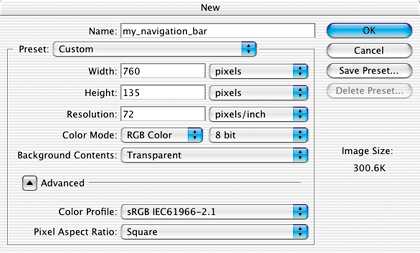
Make a matched set of working rollover buttons in ImageReady the easy way, by creating and applying a rollover style.


Set Up Your Workspace
Open the ImageReady palettes you'll use to create rollover buttons in this navigation bar—the Web Content, Styles, and Layers palettes. Click the Styles tab and drag the Styles palette away from the Web Content palette so you can see them both. Make sure you've loaded the HTWWeb-Styles preset into the Styles palette, as explained in the Introduction.

Create a Layer-Based Rollover
The default Normal state of an image is the way the image looks when it first loads in a Web browser. If you add an Over state, the appearance changes when a viewer mouses over a trigger area that's defined by a slice.
Start by simultaneously creating a slice and an Over state for Button1. You have to use layer-based slicing because that slicing method is a prerequisite for creating rollover styles. Select the Button1 layer in the Layers palette A. Then click the Create Layer-Based Rollover icon at the bottom of the Web Content palette B. This generates a layer-based slice around the content of the Button1 layer C and an Over state for that slice, both listed in the Web Content palette.


Give your new slice a more manageable name by double-clicking its default name in the Web Content palette and typing btn1 A, or by changing its name in the Slice palette B.

Change the Look of the Over State
Next you'll change the appearance of the sliced button in the Over state by applying a style. Other ways to change the appearance of a rollover graphic are to vary its position, opacity, layer blending mode, or layer visibility.
Select the Over state of the btn1 slice in the Web Content palette A. Then click on the 01_roll_over style in the Styles palette to change the button's color and effects in the Over state C. (If the HTWWeb-Styles aren't accessible in your Styles palette, choose a different style.)

Preview the Over State
Click the Preview button in the toolbox, and move your mouse over the first button in the image to see the Over state in action. Click the Preview button again to exit preview mode.

Add a Down State
A rollover can have multiple states. Next you'll add a Down state to this rollover button. The Down state occurs in a Web browser when a viewer clicks and holds on an area defined by a slice.
With the Over state of the btn1 slice selected in the Web Content palette, click the Create New Rollover State icon at the bottom of that palette A. The new Down state B starts out looking just like the Over state.

Change the Look of the Down State
With the Down state selected in the Web Content palette A, change the appearance of the button again by clicking the 01_roll_down style in the Styles palette B. Preview the Down state by activating the Preview button in the toolbox, and clicking and holding the first Link button in the image C. Exit preview.


Create a Rollover Style
Now you'll save all the states of your rollover as a reusable rollover style. With the Button1 layer selected in the Layers palette A, click the Create New Style icon at the bottom of the Styles palette B. In the Style Options dialog box that opens, make sure Include Layer Effects, Include Blending Options, and Include Rollover States are checked to retain all the content and functionality of your original rollover C. Name the style 01_triple_roll, and click OK. The style appears in the Styles palette with a black triangle, which indicates that it's a rollover style rather than a static style D.

Apply the Rollover Style to Button2
Now you'll reap the rewards of your hard work. It's quick and easy to create a set of matching rollover buttons by applying the rollover style to the other two buttons in this navigation bar.
Select the Button2 layer in the Layers palette A. In the Styles palette, click the new rollover style 01_triple_roll B. This creates a layer-based slice around the content of the Button2 layer C, generates an Over state and a Down state for this slice along with the JavaScript to make the states function, and changes the appearance of the button on each state—all with a single click. Click the triangle next to the new slice in the Web Content palette to see the rollover states for the new slice D. Double-click the slice name and rename this slice btn2 E.


Apply the Rollover Style to Button3
Repeat the preceding step with the Button3 layer selected to complete your set of rollover buttons. Rename the resulting slice btn3.

Preview in a Web Browser
Click the Preview in Browser button in the toolbox to test your rollovers in your default Web browser.

Optimize and Save
Optimize each slice for fast download using the settings in the Optimize palette. When you optimize a slice, you affect all states of its rollover, so check the appearance of all three states of the rollover buttons. Choose File>Save Optimized As. In the Save Optimized As dialog box, set Format to HTML and Images A so that ImageReady generates an HTML file containing the JavaScript that will make your rollovers function. (If you prefer to create rollovers in a site-building program or write your own JavaScript, choose Format: Images Only.) In addition, the program creates an Image folder in which it saves GIFs and JPEGs from the slices and rollovers in the source file B.


Choose File>Save to resave the PSD file with all of the slicing and rollover information you've added.
Open the HTML File in a Browser
Open the saved HTML file in a Web browser to see the results of your work. Each button should change appearance when you mouse over it and when you hold it down. ![]()

These rollovers look great, but they're not just eye candy. Combine local rollovers that point to a link with informational remote rollovers.

Design with Layers
In this project you apply both local and remote rollovers to navigation graphics, pointing your viewers to links and providing descriptions of where the links lead. The key to creating a complex rollover scheme like this one is to make ample use of layers. Take a minute to deconstruct the layers in this file to see what we mean. We've put each element involved in the rollovers-—the pointer graphics, the link graphics, the text messages, and the LCD box—on its own layer A. We've organized the layers into layer sets, and sliced and optimized the background graphics for you so you can concentrate on creating rollovers.

Simplify Slice Names
You'll do lots of work with slices in this project. By default, ImageReady creates long, unwieldy slice names. Change the default slice-naming convention to generate simpler names by choosing File>Output Settings>Slices to open the Output Settings dialog box. Click the arrow on the top left slice name field and choose Layer Name or Slice No. from the pop-up menu. Choose None in each of the other slice name menus and click OK.

Select the Normal state at the top of the Web Content palette A. This is the way the page will look when it first appears in a Web browser. None of the pointers are visible and there is no text in the LCD on the top right of the page B.


Create Layer-Based Rollovers for the Pointers
When a viewer moves his mouse over a link, a pointer will appear on that link. To create this effect, select all the pointer layers by holding the Shift key while clicking on each of the five pointer layers in the Layers palette A. Then click the Create Layer-Based Rollover icon at the bottom of the Web Content palette B. This single click creates a layer-based slice around each of the five pointers C, along with an Over state for each of those pointer slices D. All the slices and rollover states are listed in the Web Content palette. You don't see the pointers in the image because they have not yet been made visible in this state.

Make a Pointer Visible on the Over State
Next you'll change the appearance of the ContactPoint slice in its Over state. Select the Over state of the ContactPoint slice in the Web Content palette A. In the Layers palette, click in a blank area B to deselect all selected layers. Then click in the Visibility field to the left of the ContactPoint layer to display that layer's Eye icon C and to make that layer's contents visible in the image D. Now when a viewer mouses over the contact link in a browser, a pointer will appear on that link.


Repeat Step 5 on the Other Pointer Slices
Create a similar rollover for each of the other pointer slices—the LabelPoint slice, DownldPoint slice, ArtPoint slice, and MusicPoint slice-—by repeating Step 5. Make only the pointer layer of the same name A visible on the Over state B of each pointer slice.


This is a good time to preview what you've done so far by clicking the Preview button in the toolbox C and moving your mouse over each link to display its pointer. Click the Preview button again to exit preview mode.

Slice the Remote Area
Next you'll add a second rollover event to the Over state of the ContactPoint slice—a text message that will appear in the LCD box at the top right of the page when a viewer mouses over the contact link in a browser. First you'll create a slice for the remote area involved in the rollover. Open the Backgrd layer set in the Layers palette and select the LCD layer A. Choose Layer>New Layer Based Slice from the menu bar to create a slice around the LCD box B.


Create a Remote Rollover
Select the Over state of the ContactPoint slice in the Web Content palette A. In the Layers palette, open the Text layer set and click in the Visibility field of the topmost text layer (“contact studio 4”) to turn on that layer's Eye icon B.


Target the Remote Slice
This is the fun part! When you make a remote rollover, you have to target the slice where the remote event occurs. In the Web Content palette, press the spiral icon (the pick whip) next to the Over state of the ContactPoint slice A. Drag a line from the pickwhip to the LCD box in the image to target the LCD slice B.

Repeat Steps 8 and 9 on the Other Pointer Slices
Create a similar remote rollover for each of the other pointer slices. Repeat Steps 8 and 9 on the Over state of each pointer slice, turning on the Eye icon for the matching text layer A:
LabelPoint Slice: “search the record labels”
DownldPoint Slice: “download the newest mp3”
ArtPoint Slice: “search the artists”
MusicPoint Slice: “search the music”

Target the LCD slice each time, by clicking and dragging from the pickwhip icon next to the Over state of each pointer slice in the Web Content palette to the LCD box in the image B.

Preview in a Web Browser
Click the Preview in Browser button in the toolbox A to test the rollovers in your default Web browser. When you mouse over a link, a pointer appears on the link B, and a text message describing the link appears in the LCD box C. As you can see, these rollovers are not just eye candy. They identify which graphics are links and offer additional information about each link, making your navigation scheme user-friendly.


Save
Normally you would optimize each slice at this point. That's been done for you, so just choose File>Save Optimized As, and in the dialog box that appears choose Format: HTML and Images A. This causes ImageReady to generate an HTML file with rollover JavaScript along with image files for each state of all the rollovers on the page B. Choose File>Save to resave the PSD file with the slice and rollover data you've added.![]()


Create image map hot spots in ImageReady to link a single image to multiple pages.

Draw a Tool-Based Hot Spot
You'll define each of the button links on this page with image map link regions (hot spots). We made this image in Photoshop, but you'll add the hot spots in ImageReady, because Photoshop doesn't have image map tools.
Start by drawing a hot spot around the Home button with the Polygon Image Map tool. If that tool isn't showing, press whichever image map tool is displayed in your toolbox and choose the Polygon Image Map tool from the flyout menu A. Zoom in and then click in each corner of the Home button to draw a hot spot in the approximate shape of the button. To close the hot spot border, move toward the starting point until you see a small circle and click B or just double-click.


Adjust the Hot Spot
Adjust the hot spot to fit the button by clicking on the anchor points with the Image Map Select tool A and dragging B. For more precision, Shift-click to add an anchor point C or Option/Alt-click to delete an anchor point D.


Repeat Steps 1 and 2 to make another hot spot on the Games button A. With the Image Map Select tool active, click the Image Map palette icon in the Options bar B to open the Image Map Select tool active, click the Image Map Palette icon in the Option bar B to open the Image Map palette (or choose Window>Image Map). From the palette's menu C choose Duplicate Image Map. Alternatively Option/Alt-drag the hot spot to copy it. Drag the new hot spot on top of the Help button D.


Make Layer-Based Hot Spots
The Tips, D-Loads, and Support buttons were created on separate layer—so you can use a quick, layer-based command to make their hot spots. Select the TipsBtn layer in the Layers palette A. Choose Layer>New Layer Based Image Map Area from the menu bar. By default this makes a rectangular hot spot around the Tips button that doesn't match the shape of this button B. To fix that, in the Image Map palette choose Polygon from the Shape pop-up menu C. Then click the arrow on the Quality field and drag the Quality slider to the right until the hot spot matches the shape of the button D. (We set our Quality field to 100 and got a perfect fit E.) Repeat this step for the D-Loads and Support buttons, each of which is on its own layer too.


Name the Hot Spots
Each of your hot spots is listed in the Web Content palette with default names A. Give your hot sports more meaningful names by double-clicking their names in the Web Content palette and typing helpmap, gamesmap, homemap, tipsmap, dloadsmap, and supportmap repectively B. (Or select each hot spot in the Web content palette and name it in the Image Map palette.)


Select the helpmap hot spot in the Web Content palette. In the Image Map palette, type help.html in the URL field. Repeat this step for each of the other hot spots, typing index.html (for the home button), games.html, tips.html, dloads.html and support.html, respectively.
Each of these is a relative link, which means that its path is relative to this image map page. The relative link help.html, for example, assumes that the help page will be in the same folder with this page on a Web server. (See the sidebar for more about relative links.) If you don't yet know what your Web site's file structure will be, you can leave this field blank and use a WYSIWYG site-building program like GoLive or Dreamweaver to make relative links for you later.
Make a Rollover in the Image Map
You can include rollovers in image maps. When you add a rollover to an image map hot spot, a slice is created behind the scenes. Select the Rectangle Image Map tool in the toolbox A, and drag a rectangular hot spot around the FGI logo in the image B. Then click the Create Rollover State icon at the bottom of the Web Content palette C to create an Over state in the hot spot D. To change the appearance of the FGI logo in the Over state of the rollover, click the f icon at the bottom of the Layers palette E and choose Outer Glow from the Layer Effects pop-up menu. Click OK in the Layer Style dialog box to accept the default options for this layer effect. Click the Image Map Visibility button in the toolbox F and then the Preview button G and mouse over the logo to preview the rollover. Click the Preview button again to exit Preview mode.


You can even include a remote rollover in an image map.
In the Web Content palette, double-click the name of the new image map and rename it FGImap A. Select the Over state of FGImap in the Web Content palette B. In the Layers palette, click in the Visibility field of the Flight Games Inc. layer to display an Eye icon C. This makes the Flight Games Inc. text visible on the Over state of the FGImap rollover.


Preview in a Web Browser
Click the Preview in Browser button in the toolbox A to test the rollovers in a Web browser. When you mouse over the FGI logo in the browser, a glow appears around that logo, and the Flight Games Inc. appears in the image B.


Save
We already optimized this image as a JPEG. These optimization settings apply to the entire image map and its rollovers.
Choose File>Save Optimized As, and in the dialog box that appears choose Format: HTML and Images A, make a destination folder, and click Save B to save imap.html with the image map data and rollover JavaScript, along with a folder of images. Choose File>Save to resave the PSD file with all of its image map, slice, and rollover information.

Congratulations on completing this chapter on navigation. In the next chapter you'll learn how to make amazing animations in ImageReady. ![]()
Moving Things Along with Unusual, Exciting Animation Projects for the Web
Sex Sells, and So Does Motion, as advertisers well know. That's why everywhere you turn on the Web there's an animated banner, logo, or text message dancing as fast as it can to catch your attention. Like it or not, you have to admit that animated Web graphics are scene stealers. So it's worth your while to learn all you can about Web animation. It's the pulse of today's Web and it's sure to remain a core feature of the Web in the future.
In this chapter we offer you fresh ideas and techniques for making effective, tasteful animations for the Web, each of which has a special Wow factor. Some of these projects begin in Photoshop, but all end up in ImageReady. That's because currently all the animation capabilities of Adobe's graphics duo are concentrated in ImageReady. You can go to Photoshop to make the artwork for animations, but you'll rely on ImageReady to make your animations go.
These Aren't Your Father's GIFs
Most of the animations we'll make together are animated GIFs. You may be surprised at how much you can do with animation in this format. These projects help you understand how to design and optimize GIF animations that run smoothly and are small enough to be of real use on the Web.


We take you places you may not have known you could go with animated GIFs. In the Rollover-Triggered Animation project, you'll learn how to use rollovers in conjunction with multiple animations to make an interactive mood changer. (Roll here and she smiles. Roll there and she's very angry.) You'll continue in that vein with the Image Map-Triggered Animation project, where you learn when and how to use an image map rather than a slice to trigger a remote animation.
It's All Very Moving
Colin thinks the moving x-ray you'll make in the Layer Mask Animation project is one of the coolest animated projects he's designed in ImageReady. You'll get under the model's skin, revealing his skull with your layer mask x-ray technique.
Jan is partial to the realistic animated scene you'll build in the project called Bringing a Picture to Life. It's an unusual example of the use of subtle, small animations to enhance a design. Don't miss the first project, Radar Screen Animation, which shows you how to build a realistic radar screen from scratch, complete with an animating gradient and radar blips.
Try Animating a Layer Style or Animating Warped Text—projects that are quick and easy with stunning results. And of course all you photographers will want to know how to create an Animated Slide Show of photo thumbnails complete with cross-dissolves.
Flashy Format
Animated GIFs aren't all you learn about here. In this chapter you'll find a whole project devoted to creating a Vector-Based Flash Movie. That's right, you can now export animations from ImageReady in SWF format.
So get ready to dig into an entertaining and useful chapter. Once you've digested our recipes, you'll be ready to go out and whip up a batch of tasty animations on your own.


This animation may look complex, but it's so simple you can build it from scratch. Varying the angle of a gradient layer style on each frame makes the screen appear to rotate. Add some radar blips and you have a realistic radar screen.


Make a Pattern Image
Build the layered artwork for this animation in Photoshop. The graphics are easy to make from scratch, so there is no start file on the CD-ROM for this project.
First, make a custom pattern you'll use to create the segmented circles. In Photoshop, choose File>New and create a 50x50 pixel RGB document with Background Contents set to Transparent. Zoom in (Command/Ctrl-+). Choose Select>Select All. Choose Edit>Stroke, and in the Stroke dialog box A set Width to 1 px, Color to Black, and Location to Inside, and click OK.


Define the Image as a Pattern
With the selection still active, choose Edit>Define Pattern to create a repeating pattern you'll apply to your radar screen image. Name the pattern 50px Grid, and click OK. Close the pattern image without saving.
Click the Background Color box in the toolbox and in the Color Picker uncheck Only Web Colors and choose green (R: 83, G: 149:, B:61). Create a new 500x500 pixel RGB file with Background Contents set to Background Color. Resolution can be left at its default since this file is measured in pixels. (See “Starting a New File for the Web” in Chapter 1.)


Fill with the Pattern
Click the Create New Layer icon at the bottom of the Layers palette and name the new layer Grid. With the Grid layer selected, choose Edit>Fill. In the Fill dialog box, choose Pattern from the Use menu. Click in the Custom Pattern field A to open the active pattern set. Select the 50px Grid pattern B, and click OK to fill the layer with a repeating grid.


Change Squares to Circles
It's easy to change the squares into a circular pattern. With the Grid layer selected, choose Filter>Distort>Polar Coordinates. Choose Rectangular to Polar and click OK. The circular grid of a radar screen is created automatically!


Create a White Screen
With the Grid layer selected, click the Create New Layer icon in the Layers palette and name the layer Screen. Select the Elliptical Marquee tool from behind the Rectangular Marquee. Hold the Option/Alt key (to draw from the center) and the Shift key (to constrain the selection to a circle), click in the center of the circular grid, and drag out a selection to the edge of the circular grid A. Choose Edit>Fill, choose White from the Use menu in the Fill dialog box, and click OK to fill the circle with white B. Choose Select>Deselect.


Apply a Gradient to the Screen
With the Screen layer selected, choose Overlay from the Blending Mode pop-up menu at the top of the Layers palette A. Click the f icon at the bottom of the Layers palette B and choose the Gradient Overlay layer style. In the Layer Style dialog box C, set the following options for the Gradient Overlay layer style—Blend Mode: Overlay, Style: Angle, and Angle: 180°. Click OK to apply the layer style to the Screen layer.


Add Radar Blips
Create a new layer above the Screen layer and name it Blips. Press D and then X on your keyboard to set the Foreground color to white. Select the Brush tool. In the Options bar, click the brush sample A to open the Brush pop-up palette (not to be confused with the Brushes palette). Choose a 21–pixel Soft Round Brush, and set the Hardness slider to 50%. Click in the image to paint a blip. Reduce the Master Diameter slider B slightly and paint a few smaller blips.


Add Radar Coordinates
Select the Type tool, and choose a font and small font size in the Options bar. Type some official-looking coordinates (3200 A5) for your blips. With the type layer selected, click the side menu arrow on the Layers palette A and choose Merge Down to merge the type layer into the Blips layer.

Fade the Blips
Click and drag the Blips layer to the Create New Layer icon at the bottom of the Layers palette to duplicate it A. Rename the Blips Copy layer to Blips Faded. With the Blips Faded layer selected, press 5 on your keyboard to lower the layer's opacity to 50% B. You've completed all the artwork for the animation!


Choose File>Save As in Photoshop to save the radar image. Click the Edit in ImageReady button at the bottom of the Photoshop toolbox A to open the file in ImageReady, where you'll animate your artwork. Animation is always done in ImageReady, because Photoshop does not have animation features.

Set Up Frame 1
The first frame of the animation is automatically displayed in ImageReady's Animation palette (Window>Animation) A. Set up the artwork for this frame by hiding some layers and displaying others. In the Layers palette, click in the Visibility fields of the Blips layer and the Blips Faded layer to turn off those Eye icons B. Leave the Eye icons on all the other layers turned on throughout the animation.

Add Frame 2.
Click the Duplicate Animation Frame button at the bottom of the Animation palette A to generate Frame 2 B. Each time you create a new frame this way, the content of the new frame (2) is a copy of the content of the preceding frame (1). In the next step you'll change the content of Frame 2.

Change the Gradient on Frame 2.
On Frame 2 vary the angle of the radar screen's gradient so a light begins to move around the circle. Make sure Frame 2 is selected in the Animation palette. In the Layers palette, double-click the Gradient Overlay effect on the Screen layer to open the Layer Styles dialog box. In the Layer Styles dialog box, change the Gradient Overlay Angle field to 135° A and click OK.

With Frame 2 selected in the Animation palette, click the Duplicate Animation Frame button to create Frame 3. With Frame 3 selected, double-click the Screen layer's Gradient Overlay effect and set the Gradient Overlay Angle field to 90° A.


Add Frame 4
With Frame 3 selected in the Animation palette, click the Duplicate Animation Frame button to make Frame 4. With Frame 4 selected, double-click the Screen layer's Gradient Overlay effect and set the Angle field to 45°.


Make Blips Visible on Frame 4.
Add another artwork change to Frame 4-. With Frame 4 selected in the Animation palette, click in the Visibility field of the Blips layer in the Layers palette to turn on that Eye icon A. This makes radar blips appear on the screen as the bright part of the gradient moves over them.

Add Frame 5
With Frame 4 selected in the Animation palette, click the Duplicate Animation Frame button to make Frame 5. Double-click the Screen layer's Gradient Overlay effect and set the Angle field to 0°.


Add Frame 6.
With Frame 5 selected in the Animation palette, click the Duplicate Animation Frame button to make Frame 6. With Frame 6 selected, double-click the Screen layer's Gradient Overlay effect and set the Angle field to –45°. Click in the Visibility field of the Blips layer in the Layers palette to turn that Eye icon off. Click in the Visibility field of the Blips Faded layer to turn that Eye icon on. This makes the blips begin to fade as the bright part of the gradient moves past them.
With Frame 6 selected, duplicate the frame and set Frame 7's Gradient Overlay layer style Angle to –90°. Leave the Blips layer off and the Blips Faded layer on, as they were in the preceding frame.


Add Frame 8.
With Frame 7 selected, duplicate the frame and set Frame 8's Gradient Overlay Angle field to –135°. Leave the Blips layer off and the Blips Faded layer on. You've finished building the animation!


Set the Animation Timing.
Now slow the animation down from the default setting. Click on the Animation palette side menu and choose Select All Frames. Click on the frame delay setting under any frame and choose 0.1 sec A. Leave the Loop setting to Forever so the animation will play continuously B.

Optimize and Preview.
Optimization settings apply to all frames in an animation. Click on the Optimized tab in the image A. In the Optimize palette (Window>Optimize) choose—Format: GIF, Reduction: Selective, Colors: 32, Web-Snap: 0%, Dither Method: No Dither, Transparency: Checked, Lossy: 10, Interlaced: Unchecked, Add Metatdata: Unchecked B. The file size is still quite large. Reduce it by choosing Image>Image Size, and reducing Width and Height to 200 pixels in the Image Size window C. Click the Preview in Browser button in the toolbox to preview.

Save
Choose File>Save Optimized As. Leave Format/Save as Type set to Images Only A and click Save. There's no need to save an HTML file because animated GIFs function on their own. Choose File>Save to resave the PSD file. And you're done!![]()

Use the Text Warp feature to add twists and turns to text as you create animation frames in ImageReady. Learn the technique here, and then try it on text of your own to animate a text-based logo or Web banner.

Create a New File in ImageReady
This text-based animation is easy to make from scratch. You'll create some text and give it a twist by applying the Flag style in the Warp Text dialog box. Then you'll create animation frames and make a simple adjustment to the perspective of the warped text on each frame. Finally, you'll copy, paste, and reverse some of the frames to make the text appear to twist back and forth. The Warp Text feature is available in both Photoshop and ImageReady. For this project you'll work in ImageReady, so you can manipulate the warp effect as you create animation frames.

Start by making a new file in ImageReady by choosing File>New. Set Width to 600 pixels and Height to 300 pixels. Choose white as Contents of First Layer. Click OK to open a new image.
Set Foreground/Background Colors
Set the Foreground and Background color boxes in the toolbox to the colors you'll use for your text. First click the Foreground Color box to open the Color Picker. In the Color Picker, choose bright blue (R:102, G:153, B:255 or hexadecimal #6699FF). Then click the Background Color box and choose bright green (R:102, G:255, B:51 or hexadecimal # 665533). (Web designers often specify colors by hexadecimal number, because that's the way colors are described in HTML code.)

Add Text
Select the Type tool in the toolbox. Set the following type options in the Options bar:
Font Family: Arial
Font Style: Regular
Font Size: 130 px (typed into the Font Size field)
Anti-aliasing: Strong
Color: Foreground Color.
Then click in the image and type the word warped.

Recolor Part of the Text
Select the last two letters of the word warped by clicking and dragging over them with the Type tool A. Press Command/Ctrl-H on your keyboard to make the highlight invisible so you can see the selected letters. In the Options bar, choose Background Color from the Color menu B. Then select another tool in the toolbox to commit the change to the type layer. Don't be confused by the question mark in the Color field in the Options bar. It means that you have more than one color on this type layer.

Make sure the warped type layer is selected in ImageReady's Layers palette. Select the Move tool in the toolbox. In the Options bar, click the Align Layer Vertical Centers icon A and the Align Layer Horizontal Centers B icon to center the text in the image.

Open the Animation Palette
Now you'll start creating the animation. Select the Original tab in the document window. (If the Optimized, 2-Up, or 4-Up tab is selected while you're making an animation, you'll have to wait each time you add a frame for ImageReady to try to optimize that frame.) If you don't see the Animation palette, choose Window>Animation to open it. Frame 1 of the animation is automatically displayed in the Animation palette.

Open the Warp Text Dialog Box
You'll start by bending the text on Frame 1. Check that the warped layer is still highlighted in the Layers palette. Select the Type tool, and click the Warp icon on the Options bar to open the Warp Text dialog box.
Set Text Warp Options for Frame 1
In the Warp Text dialog box, choose the Flag style from the Style menu A. Leave the Horizontal button selected to establish the horizontal orientation of the warp B. Move the Bend slider to –43% to set the amount and direction of the distortion C. Drag the Horizontal Distortion slider to –100% to apply perspective to the warp D. In the following steps, you'll change this Horizontal Distortion slider on each frame to create an animating twist. Click OK.

Click the Duplicate Animation Frame button in the Animation palette A to create Frame 2 B. Frame 2 is currently an exact copy of Frame 1. You'll change its content in the next step.

Change the Warp on Frame 2
Check that Frame 2 is selected in the Animation palette, the warped type layer is active in the Layers palette, and the Type tool is selected in the toolbox. Click the Warp icon in the Options bar to reopen the Warp Text dialog box. In the Warp Text dialog box, drag the Horizontal Distortion slider to –75% A. Leave the other settings as they are, and click OK. Leave this frame selected in preparation for another new frame.

Add and Warp Frames 3 through 9
Repeat Step 10 seven more times until you have a total of nine frames. Each time, make sure the last frame is selected in the Animation palette, duplicate that frame, then change the distortion of the new frame by increasing the Horizontal Distortion field of the Warp Text dialog box by 25%. Here's a summary of the value that should be in the Horizontal Distortion field on each frame:
Frame 1: –100%
Frame 2: –75%
Frame 3: –50%
Frame 4: –25%
Frame 5: 0%
Frame 6: 25%
Frame 7: 50%
Frame 8: 75%
Frame 9: 100%

Preview what you've made so far by clicking the Play arrow at the bottom of the Animation palette A. The animation plays in ImageReady's document window. Click the Stop button that replaces the Play arrow to pause the animation. We recommend doing this from time to time as you build an animation to check that the animation works as expected.


Copy Frames 2 through 8
Click on Frame 2 in the Animation palette, hold the Shift key, and then click on Frame 8 to select Frames 2 through 8. Click the side arrow on the Animation palette and choose Copy Frames A.

Paste the Copied Frames
Select Frame 9 in the Animation palette. Click the side arrow and choose Paste Frames A. In the Paste Frames dialog box choose Paste After Selection B and click OK. You now have a total of 16 frames in the Animation palette. The frames you just copied and pasted are Frames 10 through 16. Leave those frames selected.


Reverse the Copied Frames
With Frames 10 through 16 selected, click the side arrow on the Animation palette and choose Reverse Frames. This reverses the order of the copied frames, so your animation twists back and forth.

Preview the Animation
Preview in your default Web browser by clicking the Preview in Browser button in the toolbox A. The browser preview includes information about the file and HTML code that won't be saved with the final animation B. The frames probably play faster in your browser than they do in ImageReady's preview.

Back in ImageReady, select all frames in the animation. Click the time caption A under any frame and choose 0.1 seconds B from the pop-up menu. This slows the animation, setting the same display time for each frame. The time delay is only an approximation of how long each frame will appear in a viewer's browser window. You can't predict exactly how fast an animation will play in all browsers because that depends in part on the speed of each computer's processor.

Set the Number of Repetitions
Leave the Looping option set to its default of Forever. This will cause the animation to repeat itself in a viewer's browser until the viewer moves to another Web page. Be aware that a repeating animation can distract viewers' attention from other elements on a page, so use this feature with discretion.

Optimize the Animation
Click the Optimized tab and choose GIF optimization settings in ImageReady's Optimize palette A. (See GIF Optimization Settings in Chapter 1.) You cannot optimize an animation as a JPEG or PNG because those formats do not support animation. The settings you choose here apply to all the frames of the animation. Click the side arrow on the Animation palette and choose Optimize Animation. Make sure Bounding Box and Redundant Pixel Removal are checked B to maximize file savings, and click OK.

Save
Choose File>Save Optimized As, set Format/Save as Type to Images only A, and click Save. ImageReady saves a single GIF file containing the whole animation. Choose File>Save As to save the source image.
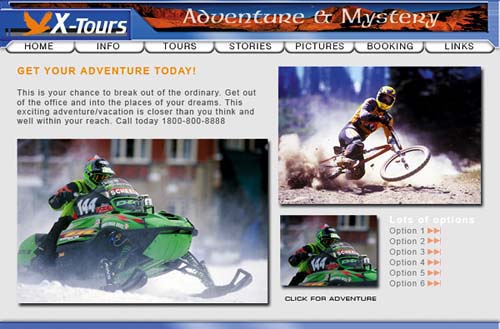
Add life to a scene by creating multiple animations of traffic signals and lights. This project is done in ImageReady.

Deconstruct the Layers
Let's face it—Web animations can be distracting, if not downright overwhelming. But when applied subtly, as in this project, animation can add a realistic touch that makes an otherwise static scene come alive on the Web. You'll create several animations in sliced areas of this photograph in the steps that follow. You'll make traffic lights change and parking lights blink on and off. These realistic animations are created by turning layer visibility on and off from frame to frame.

Take a minute to familiarize yourself with the contents of the layers in this file before you start animating. In the Layers palette, click the arrow to the left of each of the three Traffic layer sets, opening them so you can see the layers they contain A. Option/Alt-click in the Visibility field to the left of any layer B to see only the artwork on that layer. Option/Alt-click again to see all the layered artwork that was originally visible.
We already made and optimized some slices in this image, so that you can concentrate on creating the animations. The user slices we made have blue numbers. The auto slices ImageReady added are ghosted and have gray numbers. If you don't see these slices, click the Slice Visibility toggle near the bottom of the toolbox. If the ghosted auto slices are obscuring your view, choose ImageReady/Edit>Preferences>Slices and lower the percentage of color adjustment in the Auto Slices field.


Slice the Traffic Lights
In this project you'll be creating several independent animations in a large image. You'll slice the areas where the animations will occur to separate them from the rest of the image. ImageReady will generate a separate animated GIF file from each slice that contains animation frames.


Start by adding slices around the traffic lights so that you can animate those areas. Select the Slice tool in the toolbox, zoom in, and draw a slice around all three lights in the traffic signal on the left A, another around the lights in the middle traffic signal B, and one more slice around the lights in the traffic signal on the right C. You can make the red, yellow, and green traffic light layers visible temporarily to make it easier to see where to slice. Turn those layers off when you're done slicing.
Slice the Truck Blinkers
Draw another slice with the Slice tool around the darkened blinkers on the left side of the truck to prepare that area for animation. You can make the Dark_Blinkers layer visible temporarily to help position your slice. Turn that layer off when you're done slicing.

ImageReady assigns a default name to each slice. The GIFs produced from the slices will inherit those names. To ensure that you can recognize your animated GIFs among the many image files that will be generated, give each of your animation slices a meaningful name. Choose Window>Slice to open the Slice palette. Select the Slice Select tool in the toolbox and click on the slice you drew around the traffic signal on the left. Type Traffic_Left in the Name field of the Slice palette. Repeat this for the other three slices you just created, naming them Traffic_Mid, Traffic_Rt, and Blinkers respectively. Don't use spaces or special characters in slice names.

Set Up Frame 1
Choose Window>Animation to open the Animation palette. Frame 1 of the animation is displayed in that palette. Go to the Layers palette and click in the Visibility field of the following layers, turning on their Eye icons, to make the artwork on these layers visible on Frame 1 of the animation. All the other traffic light layers should be off.
Left_Red (This turns the traffic light on the left to red A.)
Mid_Red (This turns the traffic light in the middle to red B.)
Rt_Green (This turns the traffic light on the right to green C.)
Dark_Blinkers (Don't be confused by the on/off terminology here. When this layer is on, the blinkers on the left side of the truck look dark D.)

Add a Time Delay
Click the Time Delay menu under Frame 1 and choose 0.5 seconds to set the approximate timing of Frame 1 and all subsequent frames.

The next three frames are copies of Frame 1. Click the Duplicate Animation Frame button at the bottom of the Animation palette three times. Or hold down the Option/Alt key on your keyboard while clicking and dragging Frame 1 to the right and repeat twice more so you have a total of four frames.

Create Frame 5
On Frame 5, the traffic light on the right changes to yellow. Create Frame 5 by selecting Frame 4 and clicking the Duplicate Animation Frame button at the bottom of the Animation palette. Now change the artwork on Frame 5 by going to the Layers palette, turning on the Rt_Yellow layer, and turning off the Rt_Green layer.

Add Frames 6 through 8
The next three frames are copies of Frame 5. With Frame 5 selected, click the Duplicate Animation Frame button three times. You should have a total of eight frames.

Create Frame 9
On Frame 9, the traffic light on the left changes to green, the traffic light in the middle changes to green, and the traffic light on the right changes to red. Create Frame 9 by selecting Frame 8 and clicking the Duplicate Animation Frame button. Change the artwork on Frame 9 by doing the following in the Layers palette:
Turn off the Left_Red layer
Turn on the Left_Green layer
Turn off the Mid_Red layer
Turn on the Mid_Green layer
Turn off the Rt_Yellow layer
Turn on the Rt_Red layer

The next 17 frames are copies of Frame 9. With Frame 9 selected, click the Duplicate Animation Frame button 17 times. You have a total of 26 frames.

Create Frame 27
You're almost done. On Frame 27, the traffic light on the left changes to yellow, and the middle traffic light changes to yellow. The light on the right stays red. Create Frame 27 by selecting Frame 26 and clicking the Duplicate Animation Frame button. Change the artwork on Frame 27 by doing the following in the Layers palette:
Turn off the Left_Green layer
Turn on the Left_Yellow layer
Turn off the Mid_Green layer
Turn on the Mid_Yellow layer

Add Frames 28 through 30
The next three frames are copies of Frame 27. With Frame 27 selected, click the Duplicate Animation Frame button three times. You now have 30 frames.

Create Frame 31
On Frame 31, the traffic light on the left changes to red, the middle traffic light changes to red, and the traffic light on the right changes to green. Select Frame 30 and click the Duplicate Animation Frame button. Change the artwork on Frame 31 by doing the following in the Layers palette:
Turn off the Left_Yellow layer
Turn on the Left_Red layer
Turn off the Mid_Yellow layer
Turn on the Mid_Red layer
Turn off the Rt_Red layer
Turn on the Rt_Green layer

The next five frames are copies of Frame 31. With Frame 31 selected, click the Duplicate Animation Frame button five times. You should have a total of 36 frames. You're done creating frames.

Preview in ImageReady
Preview what you've made so far by clicking the Play arrow at the bottom of the Animation palette. The animation plays in ImageReady's document window. Click the Stop button that replaces the Play arrow to pause the animation.

Add the Blinking Truck Lights
Click the diagonal lines at the bottom right of the Animation palette and stretch the palette out so you can see as many frames as possible A. Click on Frame 2. Then hold the Command/Ctrl key as you click on every other frame (Frames 4, 6, 8, 10, 12, 14, 16, 18, 20, 22, 24, 26, 28, 30, 32, 34, 36). In the Layers palette, click in the Visibility field of the Dark_Blinkers layer to turn the visibility of that layer off B, so that the colored lights on the back of the truck are visible on the selected frames. Preview again to see these lights blink on and off throughout the animation.


Turn on the Streetlight
Select any frame in the animation. In the Layers palette, turn on the visibility of the Streetlight layer A. Then click on the Streetlight layer to select it and click the Unify Visibility button in the Layers palette B. In the prompt that appears, click Match. This causes the Streetlight layer to become visible on every frame of the animation. The symbol you now see on the Streetlight layer indicates that the change you made to the visibility of this layer has been applied to all frames in the animation.


Click the Preview in Web Browser icon in the toolbox to play the animation in your default Web browser. The traffic lights will change color synchronistically and the lights on the truck blink on and off, adding a touch of realism to the scene. If your animation isn't working as expected, debug it by clicking on each frame in the Animation palette and matching layer visibility to the Frame Summary on the facing page.


Optimize and Save
Click the Optimized tab in your document window. Wait a second while the program works through all the frames to generate an optimized preview. At this point you would normally optimize each part of the scene by selecting each user slice and one of the auto slices separately and choosing optimization settings in the Optimize palette (Window>Optimize). However, we had already optimized the existing slices, and the slices you drew took their optimization settings from our underlying slices. Select the slices you drew in the scene and notice the settings in the Optimize palette. Each of them was optimized as a GIF with 64 colors, No Dither, and a Lossy setting of 17 to keep the file size down while maintaining the appearance of the image. Transparency is checked because it is a prerequisite for Redundant Pixel Removal.
Click the arrow on either of the information fields at the bottom of the document window and choose Optimized Information to see the file size of the optimized animated scene. Depending on how you drew your slices, it's about 77K---. Choose File>Save Optimized As, leave Format/Save as Type set to Images Only, and click Save. Choose File>Save to save the original with your changes.![]()



Display thumbnails of your photos on the Web in an animated slideshow with professional-looking dissolves.

Create a New File in ImageReady
In this project you'll learn how simple it is to show off a selection of your photos in an animated slide show. Try it with these photos and then substitute your own. This animation looks best with photographs that are all the same size and orientation. If you use your own photos, resize them so that they are all the same size along at least one dimension, create a new folder, and move your prepared photos into that folder.
Start making a slide show by creating a new file in ImageReady. Choose File>New from the menu bar. In the New dialog box, set Width to 300 pixels and Height to 224 pixels. Leave Contents of First Layer at its default. Click OK to open a new image.

Choose File>Import>Folder as Frames from ImageReady's menu bar. Navigate to a folder of photos (for example, the Project Files>Chapter 2>C02-04-photos folder) and click Choose. ImageReady automatically does all of the following for you:
Places each item in the folder on a separate layer in the Layers palette A.
Creates a frame in the Animation palette (Window>Animation) for each layer B.
Makes the contents of a single layer visible on each frame (by turning on just one layer's Eye icon per frame) C.
This shortcut bypasses the long-winded process of dragging individual photos into the slide show file, creating animation frames one-by-one, and adjusting layer visibility manually on each frame.


Create a White Layer
Click the Create New Layer icon at the bottom of the Layers palette A. Double-click the name of the new layer in the Layers palette and rename it White. Press D on the keyboard to set the Background Color in the toolbox to white. Press Command-Delete/Ctrl-Backspace to fill the new layer with white. Then drag the new layer to the bottom of the layer stack in the Layers palette.

Match the Layer Across Frames
Next you'll make the White layer visible on all frames of the animation so that the semitransparent tweened frames you'll be creating shortly will all have the same solid white background. Select the White layer and click the Unify Visibility button at the top of the Layers palette A. Choose Match at the prompt B. The symbol on the White layer C indicates that it is visible on all frames.


The rest of the frames in this animation will be created automatically using a process called Tweening. Tweening takes its name from the frames it generates “in-between” the frames that you create by hand.
Select Frame 2 in the Animation and click the Tween button at the bottom of the Animation palette A (or click the arrow on the right side of the Animation palette B and choose Tween from the side menu).

Choose Tween Settings
Choose the following settings in the Tween dialog box:
Make sure Tween With is set to Previous Frame to add tweened frames between the selected frame and the previous frame A.
Type the number 2 in the Frames to Add field. This tells the program to create two additional tweened frames B.
Leave Layers set to All Layers C.
Make sure that Opacity is checked, because this is the layer property that you want to change across the tweened frames D. We usually leave all three parameters checked just to be safe.

Click OK to add two semitransparent tweened frames between the earth and fire photos. This will create a dissolve between these photos that resembles the slide dissolve you'd get by using two professional slide projectors in the analog world.
Select Frame 1 in the Animation palette. Then click the frame forward button at the bottom of the Animation palette Ato move through the frames one at a time. Notice that both the fire and earth photos are partially transparent on Frames 2 and 3, creating a dissolve effect.


Tween Frame 5
The water photo now appears on Frame 5. Select Frame 5 and click the Tween icon in the Animation palette again. Leave all the Tween settings as they were in Step 6 and click OK to add two tweened frames between the earth and water photos.


Tween Frame 8
The wind photo is now on Frame 8. Select Frame 8 and click the Tween icon again. Leave all the Tween settings as they were in the preceding step, and click OK to tween the wind photo with the water photo.


Preview the Animation
Click the Play button at the bottom of the Animation palette to preview the animation in the document window. Notice that there's a jump between the wind photo and the fire photo. That's caused by the animation looping back to to the beginning of the animation with no partially transparent fames between the wind photo on Frame 10 and the fire photo on Frame 1. You'll fix that in the next step.
Click the Stop button (the square icon) at the bottom of the Animation palette to stop the preview.


Tween the First and Last Frames
Select Frame 10-—the last frame in the Animation palette. Click the Tween button. In the Tween dialog box, change the Tween With field to First Frame. Leave the other tween settings as they were in Step 9, and click OK. There are now two partially transparent frames at the end of the animation. They create a dissolve between the wind photo in Frame 10 and the fire photo in Frame 1, smoothing the look of the animation when it loops back to the beginning to repeat itself.


Preview in a Web Browser
Click the Preview in Browser button on the toolbox to preview the finished animation in a Web browser. Notice that it plays very fast and that it repeats over and over. You'll address those two issues in the next steps.

Set the Repetitions
The looping option at the bottom of the Animation palette is set to Forever by default. This would create an animation that continuously repeats without end. You'll limit the number of repetitions of your slide show in this step. Click the looping option and choose Other from the pop-up menu. In the Set Loop Count dialog box that appears, type 2 into the Play field and click OK. Your slide show will play through twice in a viewer's Web browser.

Reduce the Speed
Slow this animation down so viewers have time to appreciate the photographs. Select all the frames by clicking on Frame 1, holding down the Shift key,

Now increase the timing on the four frames that display opaque photos so that the animation pauses on those frames. Click on Frame 1, hold the Command/Ctrl key and click on Frames 4, 7, and 10. Choose 2 seconds from the time delay menu beneath any one of those frames. Preview again to see the results.

Optimize the Animation
Although this file contains photos, it can't be optimized in JPEG format because JPEG doesn't support animation. Instead, you'll have to optimize the entire file as one animated GIF, choosing the maximum number of GIF colors (256), and adding dither to smooth the bands of color in the photos. In the Optimize palette, choose Format: GIF, Colors: 256, Dither Method: Diffusion, Dither Amount: 100%, Lossy: 17, and Add Metadata: Unchecked. Leave the other optimization settings at their defaults, as shown here.

Reduce the Image Size
Click the box at the bottom of the Optimized tab of the document window and choose Optimized Information. The file size reported there is quite large for the Web. To reduce file size, you'll have to reduce the physical dimensions of the image. Choose Image>Image Size. Type 50% in the Percent field, make sure Constrain Proportions is checked, and choose Quality: Bicubic Sharper.


Save
Choose File>Save Optimized As. Leave Format/Save as Type set to Images Only, and click Save. ImageReady saves a single animated GIF file. To display this slide show on the Web add a link to the GIF in any HTML file. Choose File>Save As to save the PSD source file.![]()
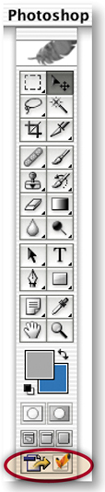
This interactive animation is an attention-getter designed to involve viewers with a site by giving them control over what they see. Rollover buttons trigger remote animations that change this woman's mood from happy to very, very mad.

Set Up Your Workspace
This is a super-project that combines remote rollovers with animations. You'll use lots of palettes at once, so start off by setting up your workspace. Go to the Window menu in the menu bar and open the Layers palette, the Web Content palette, the Animation palette, and the Optimize palette. Arrange them on your screen so you can see them all.
The Web Content palette (not to be confused with the similar-looking Layers palette) is your management center. Set up the Web Content palette to display animation frames, in addition to slices and rollover states. Click the side arrow on the Web Content palette A and choose Palette Options. In the Palette Options dialog box choose Include Animation Frames B and click OK.


When you're making a remote rollover like this one, you'll need separate slices around the rollover buttons that trigger the animations and around the remote area where the animations will occur. We've already made and optimized the animation slice for you. Click on the Face slice in the Web Content palette to highlight that slice with a yellow border in the document window A. You'll make two separate animations in this slice, each triggered by a rollover button.

Slice the Rollover Buttons
Start by slicing and adding an Over state to the smile button and the frown button. Fortunately, you can do both tasks on the two buttons simultaneously using a couple of shortcuts. First, select both the SmileBtn and FrownBtn layers in the Layers palette by clicking on one of them and holding the Shift key while clicking on the other A. Now click the Create Layer-Based Rollover icon at the bottom of the Web Content palette B. This causes ImageReady to create a separate layer-based slice around each of the two buttons.


View the Slices and Over States
You can see the two slices you just made in the image A. and they are listed in the Web Content palette. Each slice in the Web Content palette has an arrow on its left side B that opens a list of the rollover states for th2at slice. Each of the two new button slices has an Over state listed beneath it C. When you add animation frames to a rollover state, it will be listed under that rollover state. You can think of the Web Content palette as a visual outline of the interactivity features in the image.


Your button slices have default names assigned automatically by the program. Give each of these two slices more meaningful names by double-clicking their default names in the Web Content palette and typing SmileBtn and FrownBtn respectively. These names will be incorporated into the names of the GIF files generated by these slices.

Add an Effect on the Over States
The Over states you just made for the two rollover buttons are copies of the Normal state of each button (the way the button will look when the page first loads in a Web browser). Now you'll change the appearance of those buttons on their Over states.
Select the Over state of the SmileBtn slice in the Web Content palette A. Then go to the Layers palette and select the SmileBtn layer B. Click the f icon at the bottom of the Layers palette C and choose Outer Glow from the pop-up menu. The Layer Style dialog box opens offering options for the Outer Glow style. Click OK to accept the default options. The smile button now has a glow on its over state.
Repeat the preceding step with the FrownBtn slice, selecting its Over state and adding an Outer Glow effect to the FrownBtn layer on that state.


Preview the Rollover Effects
Click the Slice Visibility button in the toolbox A to make the slices temporarily invisible so you have a clearer view of the image. Click the Preview button in the toolbox B. Move your cursor over the frown button in the image. It will display a glow. Move your mouse away and the glow disappears. Now mouse over the smile button, which behaves the same way.


Click the Preview button again in the toolbox to exit Preview Mode. It's easy to forget to do this. You'll be reminded with a warning if you try to perform more actions.

Begin the Frown Animation
Now things get a little more complicated. You'll add another rollover effect—an animation in a remote slice—to each of the two buttons. Each button will trigger a different animation. The smile button will start an animation that gradually changes the woman's face to a smile. The frown button will start an animation that changes the woman's face to a frown. Each animation ends with a surprise, as you'll see shortly.
Start by selecting the Over state of the FrownBtn slice in the Web Content palette A. This is an important step because it establishes which state will trigger the frown animation to play.

Add Frown Animation Frame 2
Now add a second frame to the Frown animation. Click the Duplicate Current Frame icon at the bottom of the Web Content palette A. This creates Frame 2 of the frown animation and displays Frame 1 and Frame 2 under the Over state of the FrownBtn slice in the Web Content palette B. (If you see no frames in the Web Content palette, go back and follow the instructions in Step 1.) Frame 2 is now just a copy of Frame 1. You'll change that in the next step.

Change Frown Animation Frame 2
With Frame 2 selected in the Web Content palette, go to the Layers palette and click in the Visibility field of the Frown layer to turn on that layer's Eye icon A. The woman is now frowning.


With Frame 2 selected, click the Tween button at the bottom of the Animation palette A. In the Tween dialog box, choose the following settings and then click OK:
Make sure Tween With is set to Previous Frame to add tweened frames between the selected frame and the previous frame B.
Type the number 3 in the Frames to Add field. This tells the program to create three additional tweened frames C.
Make sure that Opacity is checked, because this is the layer property that you want to change across the tweened frames D.
Click OK to automatically add three tweened frames between the normal image and the frowning image.


Preview the Tween
Click the Play button at the bottom of the Animation palette to preview the animation in the document window. The woman's face gradually changes from one expression to the other. To stop the preview, click the Stop button that replaces the Play button.

Add Frames 6 and 7
The frown image now appears on Frame 5. Select Frame 5 in the Web Content palette and click the Duplicate Current Frame icon at the bottom of the Web Content palette two times. This creates Frames 6 and 7 of the frown animation. Each is a copy of the frown image on Frame 5.

Select Frame 6 in the Web Content palette. Then go to the Layers palette and click in the Visibility field of the NoseFlare layer to turn on its Eye icon on Frame 6. This adds a little surprise at the end of the frown animation. The woman's nose flares briefly to emphasize her fighting mood. Click the Play button again to see this change.


Target the Remote Animation
The button that triggers the frown animation is located in the FrownBtn slice. The frown animation takes place in another slice—the Face slice. That's why we call this a remote animation. You have to do one more thing to make the remote animation play on the Over state of the frown button—target the Face slice from the Over state of the FrownBtn slice.

To do that, go to the Web Content palette and click on the pickwhip icon (the spiral) to the left of the Over state of the FrownBtn slice A. Drag the target line from there to the Face slice in the image B. You'll see a target symbol to the left of the Face slice in the Web Content palette.
Preview in a Web Browser
Click the Preview in Browser button in the toolbox to preview the frown animation in a Web browser. The animation does not start playing automatically. Move your mouse over the frown button and you'll see the frown button glow and the frown animation play. Move your mouse away; the glow is gone and the animation stops playing. Notice that the animation plays very fast. You'll fix that in the next step.

First, you'll slow the entire frown animation down. Click on Frame 1 in the Animation palette, hold the Shift key, and click Frame 7 to select all frames. Click the time delay pop-up menu under any of the frames and choose 0.1 seconds A. Leave the looping option set to its default of Forever B.

Add some pauses
Now you'll add some pauses on particular frames. In the Animation palette, click on Frame 1; then hold the Command/Ctrl key and click on Frames 5, 6, and 7 to select those four frames. Click the time delay pop-up menu under any of the selected frames and choose 0.5 seconds. Preview again in a browser to notice the change in timing. You've finished making the frown animation.

Begin the Smile Animation
The Smile animation is triggered by mousing over the smile button. It's constructed the same way as the frown animation—with a combination of layer visibility changes and tweening. We'll move more quickly through the following steps, since you already know the principles involved.
Select the Over state of the SmileBtn slice in the Web Content palette. This is the state that will trigger the animation A. Click the Create Duplicate Current Frame button at the bottom of the Web Content palette B to create Frame 2 of the smile animation. You'll see Frame 1 and Frame 2 under the Over state of the SmileBtn slice in the Web Content palette.

With Frame 2 of the smile animation selected, go to the Layers palette and click in the Visibility field of the Smile layer to turn on its Eye icon. The woman is now smiling tentatively.


Tween Frame 2
With Frame 2 still selected, click the Tween button at the bottom of the Animation palette. In the Tween dialog box, choose Tween With: Previous Frame, Frames to Add: 3, and Parameters: Opacity, and click OK to add three tweened frames to the smile animation.


Add Frames 6 and 7
With Frame 5 selected in the Web Content palette, click the Duplicate Current Frame button at the bottom of that palette twice to create Frames 6 and 7.

Change Frame 6
Select Frame 6 of the smile animation in the Web Content palette. In the Layers palette, click in the Visibility field of the BrowRaise layer. This makes the woman's right eyebrow raise slightly near the end of the smile animation.


Target the Remote Slice
In the Animation palette, click the pickwhip icon on the Over state of the SmileBtn slice A and drag to the Face slice in the image B. This targets the remote slice for the smile animation. It's important to target the remote slice for both of the rollover animations.

In the Animation palette, Shift-click to select all the frames. Click the time delay pop-up menu and choose 0.1 seconds A. Then Command/Ctrl-click to select only Frames 1, 5, 6, and 7, and choose 0.5 seconds from the menu B. This slows the animation down and adds a pause on the selected frames. Leave the loop option set to forever.
Good job! You've completed all of the construction. Just a few finishing touches and you're done.

Preview in a Browser
Click the Preview in Browser button in the toolbox to preview both rollover-triggered animations. In your browser window, move your mouse over the smile button. The button glows and the smile animation begins playing. Move your mouse away and both effects stop. Now mouse over the frown button to see it glow and the frown animation play.


Optimize the Button Slices
Back in ImageReady, click on the Optimized tab in the document window to see a preview of the optimized image. Click the SmileBtn slice in the Web Content palette, hold the Command/Ctrl key, and click on the FrownBtn slice. Choose the following Optimization settings for the two button slices in the Optimize palette:
Format: GIF (Although this file contains photos, it must be optimized as GIF because, as you now know, JPEG format does not support animation.)
Colors: 32
Dither: No Dither
Add Metadata: Unchecked
Leave the other optimization settings at their defaults, as shown here.

Click the box at the bottom of the Optimized tab of the document window and choose Optimized Information. Despite our best efforts to optimize this file to the smallest size at which the images look good, the total file size is still quite large for the Web. The only thing left to do to reduce file size is to make the image smaller.
Choose Image>Image Size. Type 40% in the Percent field, make sure Constrain Proportions is checked, and choose Quality: Bicubic Sharper.

Save
Choose File>Save Optimized As. Leave Format/Save as Type set to HTML and Images, leave Slices set to All Slices, and click Save. Each slice in the image generates at least one image file. The button slices produce two GIFs each—one for the Normal state and one for the Over state A. The Face slice produces two GIF files containing animations and a GIF for the Normal state of that slice B. ImageReady also makes an HTML file for you C that contains a table that reassembles all the individual images and that includes JavaScript to make the rollovers function. Choose File>Save to resave the PSD source file with the information you've added.
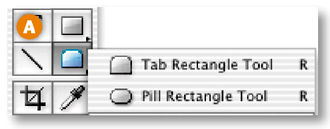
This has been a relatively complex project. You may have to read it through more than once to remember its concepts so that you can create your own rollover-triggered animations.![]()


Make an eye-catching button or logo with an animated ring of stars, using a circular image map hot spot to trigger the animation. This project is done in ImageReady because Photoshop doesn't have image map creation tools.

Understand the Problem & Solution
This project, like the last one, involves a remotely triggered animation, but with a twist. This time an animation (the circular border of stars) surrounds a round trigger area (the orange button). When a viewer moves her mouse over the orange button the stars animate. If you tried to make this project by drawing a rectangular slice around the orange button, the trigger area would extend beyond the button, causing confusion about where and how to activate the animation, as you'll see in the next step. The solution is to use an image map hot spot to trigger the animation. Unlike slices, which are always rectangular, an image map hot spot can be circular, so that it just fits a circular trigger area.
Let's see what happens if you try to define the trigger area of this animation with a slice. Select the Button layer in the Layers palette. This layer contains only the orange button and its text. Choose Layer>New Layer Based Slice from the menu bar. This creates a tight-fitting slice around the content of the Button layer. You can see that the corners of the rectangular slice extend over the ring of stars A, B, C, D. If you used this slice as the trigger region for the animation, moving a mouse over these corners would start the animation playing. Viewers wouldn't see the slice, of course, and they would probably be confused about how to activate or avoid activating the animation.

Delete the slice by selecting it in the Web Content palette and dragging it to the trash icon at the bottom of that palette.
Make a Layer-Based Hot Spot
Now that you understand what not to do, let's get started making this project the right way. First, you'll create an image map hot spot around the orange button. A hot spot is an active link region in an image map. You can draw image map hot spots manually with the Image Map drawing tools in ImageReady's toolbox. But if the content of the hot spot is on a separate layer, as it is here, you can use the automatic layer-based method instead.

Make sure the Button layer is selected in the Layers palette. Then choose Layer>New Layer Based Image Map Area to create an image map hot spot around the contents of the Button layer. The hot spot boundaries are identified by a colored line A. By default the hot spot is rectangular. You'll fix this in the next step.
Open the Image Map palette (Window>Image Map). Click the arrow next to Layer Based Settings to display the Shape setting. Click the Shape button and choose Circle from the pop-up menu A. This changes the shape of your hot spot to a circle that exactly fits the edge of the orange button B.


Select the Hot Spot
The Web Content palette lists all image map hot spots, as well as all slices and rollover states, in an image. If your hot spot is no longer selected, select it by clicking on its default name, ImageMap_01, in the Image Map area of the Web Content palette A. Or select the Image Map Select tool from the toolbox B and click inside the hot spot area in the image.


Add an Over State
In this step you'll add an Over rollover state to the image map hot spot. The Over state will occur when a viewer moves her mouse over the hot spot area defined by the image map coordinates.

Simply click the Create Rollover State button at the bottom of the Web Content palette A to add an Over state B to the selected image map hot spot.
The Web Content palette does not display animation frames by default. But it makes sense to manage animation frames from this palette when you're creating animation triggered by an image map rollover. That allows you to see all the related elements—image map hot spots, their rollover states, and the frames of animations triggered by the rollovers—in the same palette.


Click the arrow on the right side of the Web Content palette A and choose Palette Options from the side menu. In the Palette Options dialog box, check Include Animation Frames B and click OK. You won't see any frames in the Web Content palette until you create Frame 2 in the next step.
Create Animation Frame 2
The first frame of an animation is created for you automatically. Click the Duplicate Current Frame button at the bottom of the Web Content palette A to create Frame 2 of the animation. Both frames are now displayed under your ImageMap_01 hot spot in the Web Content palette B and also in the Animation palette C.


Change Animation Frame 2
At this point, Frame 2 is still a copy of Frame 1. You'll change that in this step. With Frame 2 selected in the Web Content palette, go to the Layers palette and click in the Visibility field of the Stars2 layer to add an Eye icon there A. Then click in the Visibility field of the Stars1 layer to remove its Eye icon B.

Leave the Time Delay on both frames at its default of 0 seconds A so the frames animate quickly. Leave the looping option at its default of Forever B, so that the animation continues to play over and over while the viewer's mouse is over the image map hot spot.

Preview the Animation
Click the Play button at the bottom of the Animation palette to preview the animation. The stars on Frame 2 are shifted slightly around the ring from those on Frame 1. So as the animation moves quickly back and forth between Frames 1 and 2, it gives the illusion that the stars are moving around the ring. Cool!


Set Up Your Optimizing Workspace
Click on the Optimized tab in the document window A where you'll see a preview of the image with the optimization settings you choose in the next step.
Open the Optimize palette (Window>Optimize), where you'll choose optimization settings that will affect the whole image. When you optimize a document as an image map the entire image takes the same optimization settings. And when you optimize an animation, all of its frames share the same optimization settings.
Click the double-pointed arrow on the Optimize palette tab B to open the sub-headings so you can see all the settings in the Optimize palette.


Choose the following settings in the Optimize palette:
Format: GIF (You have to optimize this image in GIF format because you will be saving it as an optimized GIF, ImageReady's default animation format.)
Colors: 128 (This image needs lots of colors because the orange button has a strong bevel and emboss effect that contains lots of graduated colors.)
Dither Method: Diffusion
Dither Amount: 88% (Adding a high percentage of dither helps smooth out potential banding in the beveled button.)
Lossy: 17 (Adding lossy compression to a GIF helps reduce file size.)
Add Metadata: Unchecked (Metadata adds to file size and is not necessary here.)
Leave the other settings at their defaults as shown here.

Preview in a Browser
Click the Preview in Browser button. The animation doesn't start until you move your mouse over the orange button. That causes the animation to play, making the stars appear to dance around the button. Move your mouse off the orange button and the animation stops.


Save
Back in ImageReady, choose File>Save Optimized As. Leave Format set to HTML and Images so that ImageReady generates an HTML file with the Java-Script that makes your rollovers function and the image map coordinates. ImageReady also saves two GIF files—including an animated GIF for the Over state and a static GIF for the normal state.![]()


This is a science project that's hard to resist. An animated layer mask gives your viewers x-ray vision to see beneath the surface to this man's skull.

Start in Photoshop
This animation looks complicated, but it's really very simple to make. We started in Photoshop with two images—a portrait that we doctored up a little, and a creepy photo of an illuminated skull. We scaled and transformed the two images slightly so the features line up. Now the file is ready for you to animate.
In the steps that follow you'll add a layer mask to the skull, cut a hole in the layer mask, and move the layer mask independently of the artwork to create an animated journey beneath the skin. Both Photoshop and ImageReady offer layer masking. We'll start working in Photoshop, then jump to ImageReady to complete this project.

Start in Photoshop by making a circular selection that you'll use as you create a layer mask. Hide the Skull layer temporarily by clicking in the Visibility field of the Skull layer A. Select the Elliptical Marquee tool in Photoshop's toolbox, and add a slight feather by typing 1 in the Feather field in the Options bar. Drag out a selection, holding the Shift key to constrain the selection to a circle. Make the selection a little bigger than the man's right eye B.


Add a Layer Mask
Click in the Visibility field of the Skull layer again to make that layer visible A. Click on the Skull layer to select it. With the circular selection active, click the Add Layer Mask icon at the bottom of the Layers palette B.
Photoshop adds a layer mask to the Skull layer. The layer mask is filled with white inside the area you selected and with black everywhere else. The white pixels reveal the skull image. The black pixels mask it so that you can see through to the layer below.
The layer mask is represented by the grayscale thumbnail on the right side of the Skull layer.


Click the link symbol between the layer mask thumbnail and the image thumbnail A. The link symbol disappears B, indicating that the layer and its layer mask are now unlinked. This makes it possible to move the layer mask independently of the skull image so that you can animate the layer mask without disturbing the image.


Jump to ImageReady
Click the Edit in ImageReady button at the bottom of the Photoshop toolbox to launch ImageReady and open this file in ImageReady with all the changes you made to it in Photoshop. You're moving to ImageReady because Photoshop doesn't have animation features.

Create Animation Frame 2
Choose Window>Animation to open the Animation palette with Frame 1 of the animation automatically displayed. Click the Duplicate Animation Frame icon at the bottom of the Animation palette A to create Frame 2 B. Frame 2 is now a copy of Frame 1. Next, you'll make a change to Frame 2 to begin constructing the animation.

Select the Layer Mask Thumbnail
In the Layers palette, click on the Skull layer's layer mask thumbnail A so that you're working on the layer mask, rather than on the skull image. You can tell the layer mask is selected because it's surrounded by a thin border and the field just to the left of the Skull layer contains a mask symbol B (as opposed to the paintbrush symbol you'll see there when the image thumbnail is selected).

Move the Layer Mask on Frame 2
Select the Move tool in the toolbox. With Frame 2 still selected, click and drag the layer mask, so that the nose of the skull appears in the white circular area of the mask. This suggests the illusion that you're seeing through the image of the man to the nose area of his skull. You're actually just rearranging the mask, with its revealing white area and nonrevealing black area, on the Skull layer, making parts of the Skull layer visible and invisible.

Create Frame 3
With Frame 2 selected, click the Duplicate Animation Frame icon A in the Animation palette to create Frame 3 B. On Frame 3, with the layer mask still selected, use the Move tool to click and drag in the image until you see the left eye area of the skull.

With Frame 3 selected, click the Duplicate Animation Frame icon at the bottom of the Animation palette again to create Frame 4. Check that the layer mask thumbnail is still selected on the Skull layer in the Layers palette. With the Move tool, click and drag in the image, moving the layer mask until the circle reveals the teeth in the skull.


Add Tweens
Now you'll have ImageReady create some additional intermediate frames for you, adding gradual changes between the frames you just made yourself. Select Frame 2 in the Animation palette. Click the Tween button at the bottom of the Animation palette to open the Tween dialog box. Choose the following settings there and click OK:
Tween With: Previous
Frames to Add: 2
Layers: All Layers
Parameters: Position
Repeat this step twice more, on Frame 5 and then Frame 8. The animation now has 10 frames.


Preview the Animation
Click the Play/Stop button at the bottom of the Animation palette A to watch the animation play in the document window. The circle moves around the image revealing the skull along its path. Notice that there is a small jump when the animation loops back from the last frame to the first frame. You'll fix that next.

Select Frame 10 and click the Tween button in the Animation palette again. In the Tween dialog box change Tween With to First Frame. Leave the other settings as they were and click OK.

Set the Timing
Click Frame 1 and hold the Shift key as you click on the last frame to select all frames. Click the Time Delay menu under any frame and choose 0.1 seconds. Now Command/Ctrl-click to select just frames 1, 4, 7, and 10—the frames you made yourself. Click the Time Delay menu under any of the selected frames and set it to 2.0 seconds to pause the animation on some key spots. Leave looping set to its default of forever so that the animation continually plays.

Optimize the Animation
At this point you would usually optimize the animation, but we've done that for you. We set format to GIF because this will be saved as a GIF animation. We chose a significant number of GIF colors (128) and added dither to smooth the colors and lossy compression to keep file size down.
Preview and Save
Click the Preview in Browser button in the toolbox. The animation starts playing when the page loads in a browser. If you're satisfied, choose File>Save Optimized As in ImageReady. Leave Format/Save as Type set to Images Only and click Save. ImageReady saves a single GIF file containing all the frames of the animation. You can bring this file into a site-building program like GoLive to add it to an HTML page in your site. Finally, choose File>Save to resave the PSD source file to use for any changes in the future.![]()


You've heard of Flash. You've heard of ImageReady. But did you know you can create and export Flash format movies right in ImageReady? You'll make this home page using vector-based text and shapes for fast Web download.

Have the Best of Both Worlds
The SWF format, popularized by Macromedia® Flash©, is reknowned for offering fast-downloading vector-based animations. The results are great, but the process of creating a movie in Flash is more complicated for many people than making an animation in ImageReady. Now you can have the best of both worlds. You can make vector artwork in Photoshop and export it in Flash (SWF) format from ImageReady.

In this project, you'll use vector-based Type and Shape tools in Photoshop to create this snappy homepage. Then you'll jump to ImageReady to animate your graphics. When you're done, you'll learn how to export the final product as an honest-to-goodness SWF movie, complete with an HTML file to display the movie on the Web.
Start by adding some vector graphics to this page layout. Click on the Shape 1 layer in the Layers palette so your next layer will be located above it. Click on the Shape tool slot in your toolbox A and choose the Custom Shape tool from the flyout menu B.


Set Custom Shape Tool Options
Do all of the following in the Custom Shape tool's Options bar:
Make sure the Shape Layers icon A is selected (so you'll draw a shape rather than a path or a selection).
Click on the Link icon to set properties for a new shape layer B.
Click in the Color field C to open the Color Picker and choose red (R:204, G:0, B:0).
Click the arrow on the Shape field to open the Shape Picker D.

Select a Custom Shape
If your Shape Picker is not showing all the default shapes, like the illustration, click the arrow on the side of the Shape Picker A and choose All from the side menu. Locate the dark phone shape (Phone 2) B, and click on it. That shape will appear in the Shape field on the Options bar.

Click and drag a small phone shape to the right of the phone number in the image A.
There's now a new shape layer for the phone shape in the Layers palette. It has two thumbnails, one for the red color fill and another for the vector outline that defines this shape.


Draw More Shapes
Repeat Steps 3-5 to draw a green envelope to the right of the email address A and a blue wireframe globe to the right of the Web address B.
Then finish off the logo by drawing a large red snail shape above the red logo text C. (A shape can be drawn to any size because it's vector based.)
You'll find custom shapes for all these shapes in the Shape Picker D.


Add the Address
Type is another vector-based element in Photoshop and ImageReady. In this step you'll add an address to this page. Select the Horizontal Type tool in the toolbox. In the Options bar choose Arial, Regular, 14 pt, black A. Click in the image and type three lines of text, pressing Enter/Return between each line: 20 Snail Way, Sleepy Hollow, Slowville, TX 56457. Then click the big check mark on the Options bar to commit the type. Use the Move tool to drag the type into place to the right of the gray bar.


Click in the image with the Horizontal Type tool and in the Options bar choose Impact, 67 pt, and gray (R:236, G: 236, B: 236) A. Type CONTACT INFO in uppercase letters. Then choose Edit>Transform>Rotate 90° CCW. Use the Move tool to position the text along the left edge of the page.

Jump to ImageReady
Now you'll move to ImageReady to create the animation. Click the Edit in ImageReady button at the bottom of Photoshop's toolbox to open this file in ImageReady.

Begin the Animation
First you'll make a block of text fly in from off screen when the page opens in a Web browser. Click the bottom right of the document window and drag to expand the window so you can see the gray area outside the document window. Open the Animation palette (Window>Animation), which displays Frame 1 automatically.

Change Timing and Looping
Now you'll change the timing on Frame 1. All subsequent frames will inherit this time delay. Click the Time Delay menu under Frame 1 and choose 0.1 seconds A.

You only want the animation to play once. So click the looping option and choose Once B.

Click the Duplicate Animation Frame button at the bottom of the Layers palette to create Frame 2. Frame 2 is currently a copy of Frame 1. You'll change that in the next step.

Change Position on Frame 2
Select the Move tool in the toolbox. Select the FlyIn layer in the Layers palette. With Frame 2 selected, hold the Shift key (to move ten pixels at a time) and click the left arrow on your keyboard to move the block of text to the left until it is just outside your document window. You won't see the text at this point.

Reverse Frames 1 and 2
Now you'll reverse the frames so the frame with the text off-screen becomes Frame 1. Just click the arrow on the right side of the Animation palette and choose Reverse Frames.

Tween Position
Next, you'll use tweening to add six frames in-between the two existing frames. ImageReady will gradually change the position of the text block across the additional frames. Select Frame 2 and click the Tween button at the bottom of the Animation palette A. In the Tween dialog box set the following options and click OK:
Tween With: Previous Frame
Frames to Add: 6
Parameters: Position


Click the Play/Stop button in the Animation palette to watch the animation play. The text block should fly into position from off-screen.

. Add Frame 9
You now have eight frames. Click the Duplicate Animation Frame icon at the bottom of the Animation palette to add Frame 9.

Change Opacity on Frame 9
With Frame 9 selected, go to the Layers palette and open the Contact layer set. Select the first layer in that layer set. Notice that the Opacity field at the top of the Layers palette reads 0%, which tells you that the layer is now invisible. Change Opacity to 100% A so that the layer becomes fully visible in the image.

Repeat this on each of the six layers in the Contact layer set one by one. (But don't change the opacity of the entire layer set.) All of the contact information is now visible in the image B.

Tween Opacity on Frame 9
Now you'll use tweening to fade in the contact information. With Frame 9 selected, click the Tween button on the Animation palette A. In the Tween dialog box set the following options and click OK:

Tween With: Previous Frame
Frames to Add: 6
Parameters: Opacity

Click the Preview in Browser icon in the toolbox to watch your animation play in your default browser. The text block flies in from the left, and then the contact information fades in. The temporary HTML code in the Browser window tells you that this file is currently a GIF with a file size of about 100K. In the next steps you'll turn it into a Flash movie that will be 1/5 of this file size!

Export as SWF
Choose File>Export>Macromedia® Flash© SWF. In the Macromedia® Flash© (SWF) Export dialog box, choose the following settings and click OK:
Make sure that Preserve Appearance is unchecked A. Leaving this setting off ensures that your graphics will remain vector-based for fast download.
Check Generate HTML B. This tells ImageReady to create an HTML file with code to display your SWF in a Web browser.
Leave the other options at their defaults, as shown here. They are not relevant because you are not including bitmap images in your SWF.

In the Export As Macromedia© SWF dialog box choose a location for your files and click Save. ImageReady makes a SWF file and an HTML file to display it. You could bring the files into a site-building program for inclusion in a full site, post them on the page as a single page, or bring the SWF into Flash for inclusion in work you're doing there.
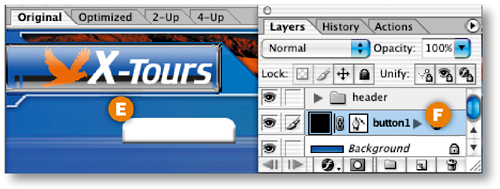
Choose File>Save to resave the original PSD file with the graphics you added to it. The SWF is not editable so it's important to save the editable source file.
View the Flash Movie in a Browser
Open the HTML file directly from your Web browser to see the SWF play there.
Check Out the File Size
Find the SWF file on your hard drive and check its file size. It comes in at only 20K, a file size significantly lower than that of the animated GIF format. That's because SWF does a terrific job of compressing vector-based images like those you used in this page layout. If you had incorporated bitmap images the SWF file size would be larger.![]()
Here's a quick and easy animation that gives the illusion of a moving light source. Once you get this down you'll be able to animate any layer style to produce animations in a heartbeat.

Start with a Layer of Text
Use our file or create your own from scratch in ImageReady. Just use the Type tool to create text in a heavy font on a transparent layer. We rasterized our type layer, but this animation works fine if you leave your own type layer in its default state—as editable vector-based type.


Add a Background Layer
Select the Eyedropper tool and click in the text on the Light layer. This sets the Foreground Color in the toolbox to the same color as the text. Click the Create New Layer icon at the bottom of the Layers palette. Then press Option-Delete/Alt-Backspace to fill the new Layer 1 with the Foreground Color. Drag Layer 1 beneath the Light layer in the Layers palette. Choose Layer>New>Background From Layer to make the bottom layer a non-editable Background layer. Your image now looks plain bluish/gray.


Select the Light layer in the Layers palette. Open the Styles palette (Window>Styles). Click the arrow on the side of the Styles palette A and choose HTWWeb-Styles from the side menu. Click that arrow again and choose Large Thumbnail.
Click the 09_light style to apply it to the text B. The Light layer in the Layers palette now displays a Drop Shadow and a Bevel and Emboss layer style.

Start Building the Animation
Open the Animation palette (Window>Animation), which automatically displays Frame 1 of the animation. On Frame 1, the text displays the Drop Shadow and Bevel and Emboss layer styles you just applied. You'll make a simple change to those layer styles to create this animation.

First, you'll add a few more frames to the animation. Click the Duplicate Animation Frame icon at the bottom of the Animation palette three times, so that there are a total of four frames in the Animation palette. Each of the new frames is a copy of Frame 1. You'll change that in the next steps.
Open the Layer Style Dialog Box
Click on Frame 2 in the Animation palette. Then double-click Effects under the Light layer in the Layers palette A to open the Layer Style dialog box. It opens with the Drop Shadow style checked and highlighted on the left side of the dialog box B, the Bevel and Emboss style checked but not highlighted C, and and Drop Shadow options displayed on the right side of the dialog box D. Notice the Angle setting of 143° E, which is the angle of the light source on the preceding frame—Frame 1.


Change the Frame 2 Layer Style
With Drop Shadow highlighted (not just checked) on the left side of the Layer Style dialog box, go to the Drop Shadow settings on the right side of the dialog box and do two things:
Change the Angle setting to 78°. You can type 78 into the Angle field or spin the Angle wheel to that setting A.
Make sure there's a check mark in the Use Global Light check box B. This sets the light source angle globally so that it affects both the Drop Shadow and the Bevel and Emboss styles on the Light layer in Frame 2.

Click OK to close the Layer Style dialog box.
Change the Frame 3 Layer Style
Now you'll change the angle of the layer style on Frame 3 the same way. Select Frame 3 in the Animation palette. Double-click Effects under the Light layer in the Layers palette to open the Layer Style dialog box. In the Layer Style dialog box make sure the Drop Shadow style is highlighted.
Then change the Angle setting to 0°, and make sure Use Global Light is checked A. Click OK to close the Layer Style dialog box.


Change the Frame 4 Layer Style
Repeat the preceding Step 7 on Frame 4 A, this time changing the Angle setting to –108° B. Click OK to close the Layer Style dialog box.


You don't yet have enough frames to make the animation run smoothly. Rather than create all the frames by hand, let ImageReady do it for you with Tweening.
Select Frame 2 in the Animation palette A. Click the Tween button at the bottom of the Animation palette B. In the Tween dialog box C, set the following options and then click OK:
Tween With: Previous Frame
Frames to Add: 2
Layers: All Layers
Parameters: Effects


You now have a total of six frames. ImageReady added two frames, gradually changing the layer style angle across the tweened frames—current Frames 1 through 4. (The frames you made by hand are now Frames 1, 4, 5, and 6.)
Tween Two More Times
Repeat the preceding Step 10 twice more. The first time select Frame 5 and tween, adding two frames. The second time select Frame 8 and tween, adding another two frames. You now have a total of ten frames.

Tween the Last and First Frames
To make the animation run smoothly as it loops back from the last frame to the first frame, you'll do one more tween. Select the last frame—Frame 10. Click the Tween icon. This time, in the Tween dialog box choose Tween With: First Frame A. Leave the other settings as they were and click OK. ImageReady adds two frames to the end of the animation with gradual changes back to the layer style angle on Frame 1. You end up with 12 frames total. You're almost done with this project.


Click the arrow on the side of the Animation palette, and choose Select All Frames from the side menu. Then click the Time Delay menu beneath any frame and choose 0.1 seconds A. Leave the looping option set to Forever so that the animation plays continuously B.

Optimize the Animation
Click the Optimized tab in the document window so you can see a preview of the image with the optimization settings you choose A. Open the Optimize palette and optimize the animation with GIF settings, as shown here B. Try 128 colors (to approximate the many tones in the bevel and shadow), add some Dither (to avoid banding), and add some lossy compression (to keep file size down). Leave Transparency checked (a prerequisite for the Redundant Pixel Removal method ImageReady applies by default), and uncheck Add Metadata. These settings affect all frames of the animation, so preview on several frames. You can reduce the image width and height (Image>Image Size) if you need a file that's smaller in file size.


Preview and Save
Click the Preview in Browser button in the toolbox A. If you're happy with the browser preview, choose Save Optimized As to save the file as an animated GIF. In the Save Optimized As dialog box leave Format/Save as Type set to Images Only and click Save B. ImageReady produces a single GIF file with all of the frames you created. You can bring the GIF into a site-building program like GoLive to include it on a Web page.
Now that you've checked out all the animations in this chapter, try tweaking our recipes to come up with some unique variations of your own.![]()


Normally any change you make to a layer in a particular frame of an animation affects that frame only. If you want a change in a layer's visibility, position or style to affect all the other frames, you'll use ImageReady's Unify or Match Layer commands. Let's see how these commands work.

Assume that you're working on Frame 15 of an animation when you change your mind and decide that one of the layers in the image is extraneous and shouldn't be visible on any frame of the animation. You don't have to select each frame one by one, repeating the process of turning off the layer's Eye icon on every frame. Instead, select the layer in question and click the Unify Visibility button at the top of the Layers palette. Then turn off the Eye icon on that layer. Regardless of which frame is selected in the Animation palette, that change will ripple through all the frames of the animation. You can do the same thing with a layer's style or position. Select the layer, click the Unify Layer Style button or the Unify Layer Position button in the Layers palette, and then change a style or move the layer contents to affect the entire animation. Of course, if you want a layer's contents to move during an animation don't use the Unify Layer Position button on that layer.
You don't have to bother with the Unify buttons if you have Frame 1 selected when you make a change to a layer. By default, changes made on Frame 1 affect all layers of an animation. If you want to change that default behavior, click the side arrow on the Layers palette and turn off Propogate Frame 1 Changes.

There may be times when you've already made a change to a layer's visibility, position, or style and later realize that you want that change to apply to all frames of an animation. In that case ImageReady's Unify buttons won't help you, because they are forward looking. (A Unify button only applies to changes made after the button is activated.)
To make a previous layer change ripple through the animation, select the frame on which you made the change in the Animation palette. Select the layer you changed in the Layers palette. Then choose Layer>Match from ImageReady's animation palette. The change will be applied throughout the animation.![]()

Putting Photoshop and ImageReady to Work for You
Do you ever feel like a slave to your computer? Then it's time you focused on getting your computer to work for you. Automating repetitive tasks, like resizing photographs, can increase your productivity, standardize your output, and generally brighten your day. Automation also helps you accomplish more complex tasks, like working with data sets, that may have seemed too daunting to take on from scratch.
In this chapter we explore ways that Photoshop and ImageReady can help you automate your Web graphics workflow. These techniques are not only useful. Some of them, like building actions and droplets, encourage you to look under the hood of your favorite graphics programs to understand how they work. This kind of deep understanding is bound to make you a better, more knowledgeable Photoshop user.
We start out this chapter with a good look at Photoshop's actions and batch processing features (in Batch Processing Photo Thumbnails). This lesson runs from the practical (making small versions of photos for use on the Web) to the artistic (automatically sepia-toning and building professional-looking frames around your thumbnails). Once you understand the principles of constructing actions and running them on multiple images, you'll be able to record your own timesaving actions.


If you think Photoshop's actions are useful, you'll be amazed at what ImageReady can do with conditional actions (in Preparing Photos for the Web with Conditional Actions.) You'll see how easy it is to have ImageReady resize images only if they meet a built-in condition. You'll also get the program to automatically distinguish between text graphics and photographs, optimizing the fomer as GIFs and the latter as JPEGs.
The project Making Multiple Web Graphics covers two automatic features. You'll use Photoshop's Crop and Straighten Photos command to break a single file into individual graphics. Then you'll optimize those graphics automatically with a droplet you'll put together in ImageReady.
This chapter includes two projects devoted to creating multiple web page layouts (Designing Multiple Web Pages in a Single File, and Outputting Multiple Linked Web Pages). The first focuses on using layer comps and slice sets to efficiently produce multiple pages for a Web site. The second covers a hidden export feature that automatically links pages that contain the special Selected rollover state, allowing you to create a complete Web-ready site in ImageReady.
This chapter ends with a bang. You'll learn how to create a collection of data-driven Flash Web banners in ImageReady (in Creating Dynamic Flash Web Banners). These banners are generated automatically from data sets and text replacement variables. It all sounds very scientific, but it's a lot easier than it may seem at first glance. This is a great way to produce a series of matching Web banners—one for each page in your site.
Get ready to dig into a very meaty chapter. You'll increase your productivity and your creativity by putting Photoshop and ImageReady to work for you. And just think. Once you get this automation thing down, you can set up your computer to do your bidding, and take off for the beach.

If you have a life away from your computer, you'll love actions. They will seriously reduce the time you spend in front of your screen. Here you'll create an action in Photoshop to make a sepiatoned, framed, thumbnail-sized photo. You'll use that action to batch process a group of photos, creating small images that look great on a Web page.

Open a Photo in Photoshop
Small copies of photographs come in handy as links to larger images in an online portfolio or as a way to display a large collection of photographs on the Web. You can imagine what a chore it would be to reduce multiple photos to thumbnail size, add a toning effect, sharpen, add a frame, and optimize each image in Web format if you had to make all those changes to one photo at a time.

Fortunately, you only have to do the work once, recording your steps as an action. Then you can play the action on a batch of photos, letting Photoshop do the bulk of the work for you. Start by opening one photograph in Photoshop. You'll start with a TIFF format image.
Open the Actions palette (Window>Actions). You'll see the default action set that ships with Photoshop. You should also see the HTWWeb-Actions set. If you don't, take a minute to install the HTW Presets following the instructions in the Introduction. You'll create a new action set to hold the action you're about to make.
Click the Create New Set icon at the bottom of the Actions palette A. In the New Set dialog box that opens, name the set My Actions and click OK B.


Create a New Action
Click the Create New Action icon at the bottom of the Actions palette A. In the New Action dialog box that opens, name the action Photo Thumbnail and choose My Actions from the Set menu B to put the action in that set.

Click Record in the New Action palette C. Most everything you do while the red button D is active in the Actions palette is recorded as part of the Photo Thumbnail action, so try not to make mistakes. As you add steps, they will appear beneath the Photo Thumbnail action in the Actions palette.

Sepia Tone the Photo
Your Photo Thumbnail action will contain a series of commands. The first command colorizes a photo with a sepia tone. Click the Create New Adjustment Layer icon at the bottom of the Layers palette A and choose Hue/Saturation from the pop-up menu. In the Hue/Saturation dialog box, check the Colorize checkbox B. Then move the Hue slider to 42 C. Leave Preview checked D to see a live preview of the sepiatoned image in the document window. Click OK. You'll see the Make Adjustment Layer command in the Actions palette.


Now you'll add another command to this action to reduce the image to thumbnail size. Choose File>Automate>Fit Image. In the Fit Image dialog box, set Width to 250 pixels and Height to 150 pixels A and click OK.


Fit Image is a useful way to resize when you're creating an action to run on images of different sizes or orientations. All the photos to which this action is applied will be resized so that they are proportional and don't exceed either 250 pixels wide or 150 pixels high.
Sharpen
Reducing the size of an image often makes the image look soft. So the next step in this ongoing action is to sharpen the resized image.

First, it's important to select the layer at the bottom of the layer stack A by pressing Shift-Option/Alt-[, because you want to run the Unsharp Mask filter on the layer that contains image content, not on the adjustment layer. Use this shortcut so the action will work regardless of the name of the content layer.

Choose Filter>Sharpen>Unsharp Mask. In the Unsharp Mask dialog box, choose the following settings, which are typical of settings for small, low-resolution Web images: Amount: 100, Radius: 0.5 pixels, Threshold: 3 B. Check Preview C to preview the effect in the toned image.

Now choose Edit>Fade Unsharp Mask. (If you do something else first, this command will be unavailable.) In the Fade Unsharp Mask dialog box choose Luminosity from the Blending Mode pop-up menu D. This step reduces the chance that sharpening will change the color of any photos during batch processing.

We've created another action for you that automatically draws a professional-looking frame around a small image. In this step you'll nest that Thumb Frame action inside the Photo Thumbnail action you're building. Nesting actions gets extra mileage out of an action that also can stand on its own.
With your Photo Thumbnail action still recording, click the arrow on the HTWWeb-actions action set to open that action set A. Select the Thumb Frame action in that set B; then click the Play Action button at the bottom of the Actions palette C. You'll see a frame being created around your photo, and a step labeled Play action 'Thumb Frame' of 'HTWWeb-actions' is added to your Photo Thumbnail action.


Save for Web
To complete your Photo Thumbnail action you'll optimize and save a copy of the file as a Web-ready JPEG. Choose File>Save for Web. In the Save for Web dialog box, click on the 2-up tab and select the right pane A. Set Format to JPEG and Quality to Medium B. Leave Matte set to white C. Leave the other settings at their defaults. Click Save. In the Save Optimized As dialog box that opens, leave Format/Save as Type set to Images Only, make a destination folder, and click Save. This saves a copy of one thumbnail-sized photo with sepia toning, sharpening, and a frame in JPEG format, ready to be added to a Web page.
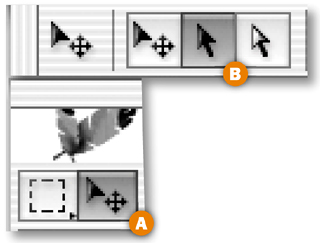
Stop the Recording
Click on the Stop button at the bottom of the Actions palette to stop the Photo Thumbnail action recording. Then close the TIFF (the image with the transparent frame) without saving.

Test the Action on a Single File
Open the File Browser by clicking the File Browser icon in the Options bar A or choosing File>Browse. In the File Browser, navigate to the Chapter 3 Project 1 project files. Double-click on one of the images of Central Park to open it B. Select the Photo Thumbnail action, and click the Play button at the bottom of the Actions palette.

The action plays on the selected image, saving a JPEG to the destination you recorded in the action and leaving a TIFF with a transparent frame on your desktop C. Close the TIFF without saving. Open the JPEG to check it. If the action works, pat yourself on the back and skip the next step.

Troubleshoot the Action
If your action doesn't run as expected, troubleshoot one step at a time. Click the arrow at the side of the Actions palette A and choose Playback Options. In the Playback Options palette, click Pause For, type in 5 seconds, and click OK B. Open an image. Select the Photo Thumbnail action and click the Play button at the bottom of the Actions palette C to move slowly through the steps.


When you find the step with the problem, try double-clicking the step to open its command and fix what's wrong. (For example, if you saved to the wrong folder, double-click the Export step to reopen the Save for Web dialog box D, click Save, and change the destination folder in the Save Optimized As dialog box.) Or drag the step to the Trash icon at the bottom of the Actions palette to delete it, select the step just above the former step, and re-record the deleted step. If all else fails, drag the entire action to the trash and re-record, keeping in mind that a file must be open before you begin recording this action.

With the My Actions set selected A, click the side arrow on the Actions palette and choose Save Actions to save the set with your Photo Thumbnail action. The set will now be available to load from the Actions palette side menu.

Batch Process
Now you reap your reward for building the action. In the File Browser, Command/Ctrl-click the remaining four images of Central Park to select them, leaving the night shots deselected. Choose File>Automate>Batch from the file menu at the top of the File Browser—not to be confused with the File menu in the main menu bar.
Choose the following settings in the Batch dialog box:
Set: My Actions
Action: Photo Thumbnail
Source: File Browser (The action will run on the selected files in the File Browser.)
Override Action “Open” Commands: Unchecked (see Insight)
Include All Subfolders: Unchecked.
Suppress Color Profile Warnings: Checked (to avoid a warning if a file's color profile differs from your working space)
Destination: None (because the action contains the destination for the JPEGs)


Now click OK and kick back to let Photoshop apply your Thumbnail Photo action to each of the selected images. When it's done, close the TIFFs without saving and open the JPEGs from your destination folder to admire them.
You can bring these thumbnail photos into a site-building program like GoLive or Dreamweaver for inclusion in a Web site. ![]()
Actions have lots of wrinkles. Here are some tips that will keep you on track as you create and apply actions. If you're serious about working with actions, take a look at some of the action exchanges on the Web, like the Adobe Studio Exchange (http://share.studio.adobe.com) or Actionfx.com.

You can share your best actions with friends by saving them. Unfortunately, you can't save just one action from Photoshop, but you can save an action set. So if you want to share a single action, make a new action set in the Actions palette by clicking the palette's side arrow and choosing New Set. With the original action set open, Option/Alt-drag a copy of the action to the new action set. Select the new action set, click the Actions palette's side arrow, and choose Save Actions. Save the file with an .atn extension to a location other than the Photoshop default location (which is Presets>Photoshop Actions), and transfer the .atn file to a friend.

If you're the recipient of an action file, it's easy to load it into your Actions palette. Just click the Actions palette's side arrow and choose Load Actions from the side menu. Navigate to the .atn file you want to add and click Load. A new action set will appear in your Actions palette. Click the arrow to the left of the new action set to access its contents. The new action set will be saved automatically when you exit Photoshop. If you want the action to appear in the Actions palette's side menu the next time you open Photoshop, save it to the Presets>Photoshop Actions folder inside the Photoshop application folder by choosing Save Actions from the Actions palette's side menu.

To streamline the playback process, you can assign one of the function keys on your keyboard to an action. Then just click that function key and the action will play, even if the Actions palette is closed. You can assign a function key when you create an action in the New Action dialog box. Or assign a function key later by selecting the existing action in the Actions palette, clicking the palette's side arrow, and choosing Action Options. When you assign a function key to an action, choose from any of the F keys on your keyboard. If most of those are being used for other commands, add a check mark next to the Shift or Command/Ctrl modifier in the New Action or Action Options dialog box to expand the available choices. If you forget which function key you've assigned to an action, select that action and choose Action Options. By the way, on Windows you can't assign the F1 key because it's reserved. Function keys are most handy when you're viewing your actions in Button Mode (described on the next page), because the function key appears right on the face of an action's button.

Button Mode offers a simplified view of your actions. Each action appears as a big push button, complete with any colors and function keys that you've assigned to the action. Action sets and steps are invisible in Button Mode, making the landscape simpler to negotiate. Switch into Button Mode by clicking the Actions palette's side arrow and choosing Button Mode. Feel free to stretch the button bar across the bottom or side of your screen by clicking on its bottom-right corner and dragging. Keep in mind that although you can play actions from Button Mode, you can't create or edit actions in that view. For those purposes, you'll toggle back to the list view of the Actions palette, by choosing Button Mode again from the Actions palette's side menu.

One of the challenges of creating actions is that you can only undo the last step you made. Fortunately, Photoshop's History palette records most of your steps. To return to a previous step you recorded in an action, you can select that step in the History palette. But keep in mind that actions often contain lots of steps, and the History palette is set to record only 20 steps by default. To increase that number, go to Photoshop/Edit>Preferences>General and type a higher number into the History States field.

If an action includes a command that has a dialog box, like the Unsharp Mask filter you worked with in the preceding project, you can program the action to pause at that step and open the command's dialog box so that the user can enter values of her choice. Otherwise dialog boxes do not appear in actions, and commands are applied with default values. To pause an action at a step for user input, click in the Modal Control column just to the left of the step to display a dialog box icon. Click there again if you want to remove this icon. You can also add a message to users explaining what the user should do on a particular step by clicking the side arrow on the Actions palette and choosing Insert Stop. Type your message in the Record Stop dialog box that opens. Add a check mark to the Allow Continue box to offer users the option of continuing to play the action.


If there's a particular step you want to skip when you play an action on a file, just click in the far left column of the step to delete the check mark before running the action.

We can't emphasize enough that the beauty of actions is their ability to run automatically on a collection of files. You can batch process a folder of files with an action from Photoshop's File menu (File>Automate>Batch). Alternatively, you can batch process a collection of files displayed in the File Browser by choosing File>Automate>Batch from the File Browser's menu bar.![]()

This project uses two timesaving automation techniques. Break a file into individual graphics with -Photoshop's Crop and Straighten Photos command. Then optimize those graphics all at once as Web-ready GIFs using an ImageReady droplet.

Prepare a Single Image
Open a file in Photoshop that has several graphics on a single layer. In the steps that follow you'll automatically separate these graphics into individual files and optimize them all as GIFs.
Start by changing the single Background layer into a regular layer so you can make some of its pixels transparent. Double-click the Background layer A, and click OK in the New Layer dialog box to convert this layer to a regular layer. Select the Magic Wand tool in the toolbox. Control/right-click the tool icon at the far left of the Options bar and choose Reset Tool B to return the tool to its default settings. Click on the white background to select everything except the graphics C, and press Command/Ctrl-X to delete the selected area. The checkerboard represents transparency D. Press Command/Ctrl-D to deselect.


Next you'll separate the graphics in this image into individual files. You could do this with the slice tool. But there's a faster way. You'll use Photoshop's Crop and Straighten Photos command, which was designed to allow photos to be scanned together and then quickly separated and straightened. This feature works just as well on graphics like these that were created in a drawing program on a single layer. Choose File>Automate>Crop and Straighten Photos from Photoshop's menu bar. Wait just a second, and you'll have five separate images, each closely cropped to one of the graphics.

Close the original image without saving. Save each of the individual graphics into one destination folder. Leave Format/Save as Type set to TIFF, and click OK in the TIFF Options dialog box to accept its defaults. Close all but one of the individual images, which you'll use to create an optimization droplet.
Jump to ImageReady
With one of the individual graphics open, click the Edit in ImageReady button at the bottom of the Photoshop toolbox. That image opens in ImageReady, ready for further editing there.


Set Up an Optimizing Workspace
In ImageReady, click the 2-Up tab in the document window to see and compare the original graphic and a preview of the optimized graphic A. Open the Optimize palette (Window>Optimize). Click the double-pointed arrow on the Optimize tab to see all the palette's settings B. Click the Color Table icon on the Optimize palette C to open the Color Table palette D.


Click in the preview pane of the document window A and choose the following settings in the Optimize palette B. (For further explanation of these settings see GIF Optimization Settings in Ch. 1.)


Format: GIF
Reduction: Selective
Colors: 32 (This setting has the most impact on file size and appearance. These colors are visible in the Color Table palette C)
Dither Method: No Dither
Transparency: Checked (to maintain the transparent background pixels)
Matte: None (This creates a hard-edged graphic with no halo; but if you know the color of the page background on which you plan to place these graphics, choose that color)
Lossy: 10 (to further reduce file size)
Add Metadata: Unchecked (to avoid inflating file size)

The resulting GIF looks like the original image and is small in file size.
Create a Droplet
Creating a droplet is as easy as clicking the Droplet icon on the Optimize palette A and dragging to your desktop. The droplet appears on your desktop automatically named with the optimization settings B.


Alternatively, if you want the chance to choose the name or location of the droplet, click the side arrow on the Optimize palette and choose Create Droplet. In the Save Optimized Settings as Droplet dialog box, give the droplet a name and location, and click OK. Close the graphic without saving.
The droplet will save the optimized GIFs to the same folder as the original individual TIFF files by default. To save the optimized GIFs to a separate folder, double-click the droplet to open a droplet window A. In the droplet window, double-click Batch Options to open the Batch Options dialog box. In the Batch Options dialog box, leave Optimized checked, click the In button, and choose Specific Folder B. Then click the Choose button and navigate to a separate folder in which you want to save each of the optimized GIFs C.


It's a good idea to also save a copy of the original individual graphics, containing the optimization settings you added. If you need to make a change to the files in the future, these will be the files to use. ImageReady will save a copy of each as a PSD file in the same folder as the original TIFFs if you check Original (same name and folder) in the Batch Options dialog box) D. Click OK to close the Batch Options dialog box. Then close the droplet window and click Save at the prompt to save your batch processing changes along with the droplet.
Apply the Droplet
Now you'll use the droplet to automatically optimize all the individual graphics you created earlier. Click and drag the folder that contains those graphics on top of the droplet on your desktop A. You can see the progress of the files as they process in the Batch Progress window B.


View the Results
Open the folder to which you saved the GIFs on your hard drive. You'll see five optimized GIFs ready to be brought into a Web-building program for inclusion on a Web page. ![]()

Droplets are mini-applications you can create from ImageReady or Photoshop and apply to a single file or use to batch process a collection of files. Here are some tips for understanding and using droplets.

The simplest droplet is one created from the Optimize palette in ImageReady. This kind of droplet contains only optimization settings and is used to optimize one or more files by applying the same optimization settings, as you did in the second project in this chapter, Making Multiple Web Graphics.

To create a droplet from ImageReady's Optimize palette, drag the droplet icon from that palette onto your desktop. Alternatively, click the droplet icon in the Optimize palette and choose a droplet name and location, or click the side arrow on the Optimize palette and choose Create Droplet.
The other kind of droplet is one created from an action in either Photoshop or ImageReady. This kind of droplet can contain any action you create in the corresponding program. It is used to batch process multiple files with that action. In ImageReady, a droplet is the only way to batch process an action. In Photoshop, you can batch process an action either by dragging a folder of files onto a droplet or by using the Automate>Batch Process command from the File menu at the top of the screen or from the File menu in the File Browser, as you did in the first project in this chapter, Batch Processing Photo Thumbnails.

To create a droplet from an action in ImageReady, click the side arrow on ImageReady's Actions palette and choose Create Droplet. To create a droplet from an action in Photoshop, choose File>Automate>Create Droplet and specify the action set and action in the Create Droplet dialog box that opens.
When you create an action in ImageReady, you can specify optimization settings to be applied along with the other steps in the action by choosing optimization settings in the Optimize palette and then dragging the droplet icon from the Optimize palette into the action in the Actions palette. Set Optimization To [the format you chose in the Optimize palette] will appear as a step in the action, just above the selected step. Note that you cannot drag a droplet from your hard drive into the Actions palette.

Droplets can be used across Windows and Macintosh platforms. To use a Photoshop droplet created in Windows on a Mac, drag the droplet onto the Photoshop icon in your OS X dock (or drag an ImageReady droplet onto the ImageReady icon in your dock).
To use a droplet created on a Mac in Windows, change the extension on the droplet file name to .exe, because it is an executable mini-program.

In ImageReady, a droplet containing optimization settings can be applied to optimize an entire image, or alternatively to optimize selected slices in an image. To apply an optimization droplet to a slice, choose settings in ImageReady's Optimize palette, and then drag the Droplet icon from the Optimize palette onto the slice in the document window. You cannot drag a droplet from your hard drive onto a slice.

In ImageReady you can edit a droplet directly. Double-click an ImageReady droplet to open the droplet window. That window contains a list of all the steps in the action. In the droplet window, you can delete a step by dragging it to the Trash icon at the bottom of the window, or you can click and drag steps to rearrange them. In Photoshop you edit the underlying action and create a new droplet.

In ImageReady, you can set options for how a droplet will be applied to a batch of files by double-clicking the droplet to open the droplet window, and then double-clicking Batch Options at the top of the droplet window. This opens the Batch Options dialog box. In that dialog box you can choose whether to save original files in addition to optimized files, and where to save the optimized files. You can specify how to name any duplicate files to avoid overwriting files, and you can instruct ImageReady to create file names that are appropriate for various operating systems. Among the Playback settings are options to display images while they are being processed and to pause before saving each image. In Photoshop, batch processing options are located in the Create Droplet dialog box and are the same as the batch options covered in the Batch Processing Photo Thumbnails project earlier in this chapter. ![]()

Kick your actions up a notch by adding conditions. This action uses conditional logic to automatically resize photographs to a uniform height and to optimize photos and related text graphics in different formats for display on the Web.

Open a Photo and a Text Graphic
You can make actions more useful by including logic that triggers a step only if a certain condition is met. In this project you'll create an action that identifies photos that are taller than a certain size and resizes them so you have a uniform collection of vertical and horizontal photos to display on a Web page. The action also distinguishes between photographs and related text graphics (like Web page headers or photo captions), and optimizes the former as JPEGs and the latter as GIFs.

Start by opening a vertical photo and a related text graphic in ImageReady. You'll use these files to set up the action. Later you'll apply the action to a batch of photos using a droplet. Conditional logic is an ImageReady-only feature, so this project takes place in ImageReady.
Select the photo, and open the Actions palette (Window>Actions). Click the Create New Action icon at the bottom of the ImageReady Actions palette A. In the New Action dialog box, name the action Photo Prep and click Record B. The red button at the bottom of the Actions palette means the action is recording C.


Choose Resizing Options
The first step you'll record comes with a built-in condition. This step tells ImageReady to resize every image on which the action is run to a height of 300 pixels, but only if the image is taller than 300 pixels to begin with.
Choose Image>Image size to open the Image Size dialog box, and set the options in the dialog box in this order.
Constrain Proportions: Checked A. (to maintain the proportionality of the resized photos)
Quality: Bicubic Sharper B. (see sidebar)
Action Options: Checked C. (to turn on the following options that are designed for batch processing)
Fit Image By: Height D. (to make the reduced photographs the same height. The width of each resized photo will vary based on the proportions of the original.)
Do Not Enlarge: Checked E. (to ensure that no image will be upsampled, which protects the quality of your photos.)
Height: 300 pixels F. (to set the height to which each image taller than 300 pixels will be resized. Width changes automatically and will be different than the 200 pixels you see here for photos that are different proportions than this one.)


Click OK to close the Image Size dialog box and resize the open photograph to a height of 300 pixels. There's now a Resize Image step in the Photo Prep action. Click the arrow to the left of the step to see its parameters.

Select the Top Layer
Now you'll begin building steps that optimize text graphics as GIFs and photographs as JPEGs. You'll add a command to make sure the action selects the top layer of every file, because the text graphics on which you'll be running this action contain type on their top layers and pixel-based graphics on their other layers.

Click on the open text graphic. Press Shift+Option/Alt-] (the right bracket key on your keyboard). This is the shortcut for selecting the top layer in a file. You'll see a new step in the action labeled Select Front Layer.
Insert a Conditional Statement
In this step you'll insert a conditional statement to ensure that your text graphics are optimized as GIFs. Click the Insert Step icon at the bottom of the Actions palette A and choose Insert Conditional from the pop-up menu. In the Conditional dialog box, choose the following settings and then click OK:
Choose Layer Type from the top pop-up menu B;
Choose the button labeled is C;
Choose Text from the second pop-up menu D;
Choose Include from the third pop-up menu E.
Type 1 in the field at the bottom of the dialog box F.


Choose GIF Optimization Settings
Click the Stop button at the bottom of the Actions palette A to stop recording the action. Otherwise, every change you make to the optimization settings will be recorded as a separate step in the action, which is unnecessary.

Click the Optimized tab in the document window, and open the Optimize palette (Window>Optimize). Choose the following optimization settings for this image in the Optimize palette—Format: GIF, Reduction: Selective, Colors: 16, Dither: No Dither, Lossy: 10; Add Metadata, unchecked B. Leave the other settings at their defaults.

Insert a GIF Optimization Step
With record still off, click the Insert Step button at the bottom of the Actions palette A and choose Insert Set Optimization Settings to GIF89A (a fancy name for GIF). This adds a step to the action that contains the GIF optimization settings you chose in the last step B.


Add Another Condition
Now you'll insert a conditional statement that ensures your photographs will be optimized as JPEGs. Leave record off. (It doesn't have to be on when you use the Insert Step commands). Click the Insert Step icon A and choose Insert Conditional from the pop-up menu. In the Conditional dialog box, choose the following settings and click OK:
Choose Layer Type from the top pop-up menu B;
Choose the button labeled is not C;
Choose Text from the second pop-up menu D;
Choose Include from the third pop-up menu E.
Type 1 in the field at the bottom of the dialog box F.


Click on the Optimized tab in the document window of the open photograph A. With record still off, choose the following optimization settings in the Optimize palette B —Format: JPEG, Quality: Medium. Leave the other settings at their defaults.


Insert a JPEG Optimization Step
With record still off, click the Insert Step button at the bottom of the Actions palette A and choose Insert Set Optimization Settings to JPEG. This adds a step to the action that contains the JPEG optimization settings you chose in the last step B.


Test the Action on Individual Files
Choose File>Revert to return the open photograph to its original, larger state. Click the Play button on the bottom of the Actions palette A. The photograph should become smaller. Click the Information box at the bottom of the photograph's document window and choose Optimized Information. The Information box should indicate that the image is now a JPEG B. Repeat this step on the open text graphic. The text graphic should stay the same size (because it was shorter than 300 pixels to start with) and become a GIF C. If all went as expected, move to the next step.


If the action doesn't work as expected, troubleshoot by selecting each step in the action one-by-one, clicking the side arrow on the Actions palette D, and choosing Play [name of step]. If you find a faulty step, double-click it to try to open its command, where you can fix the settings. Or drag the step to the Trash icon in the Actions palette and re-record. If all else fails, start all over.
Click the Insert Step icon at the bottom of the Actions palette and choose Insert Set Output Folder A. In the dialog box that opens, click New Folder to make an output folder for the files generated by this action and click Choose. Be aware that if you move your output folder, the action won't be able to find it. In that case, create a new output folder as explained in the tip.


Create a Droplet
The real advantage of recording a conditional action is that you can use it to process a whole folder of images. Select the Photo Prep action in the Actions palette A. Click the palette's side arrow B and choose Create Droplet. Navigate to your desktop and click Save. The named droplet icon C will appear on your desktop.


Process a Folder of Photographs
Now comes the best part! Drag the C03_03_images project files folder onto the Photo Prep droplet on your desktop A. Then sit back while ImageReady runs the action on all the files in the folder. Check the results by opening your output folder B. It will be filled with vertical and horizontal photographs optimized as JPEGs and resized to 300 pixels high, along with the two text graphics files optimized as GIFs. These files are all ready to be brought into a Web site–building program. Try running this droplet on your own images to save processing time. ![]()


Here's an efficient way to design a whole site full of pages in a single file. Use layer comps to create multiple page designs in one file. Then save time by using slice sets to slice pages that are similar.

Open the Layer Comps Palette
Before you start, take a look at the sidebar on this page to learn how you'll use layer comps in this project. Begin in ImageReady with a basic Web page design A. Notice that there are some additional layers in the Layers palette that don't have an Eye icon to their left. These layers are currently not visible in the document window. They'll be used later in the project as you create content for the individual pages in this Web site and record the state of each page as a separate layer comp.


Open ImageReady's Layer Comps palette by choosing Window>Layer Comps. The Last Document State at the top of the palette is a snapshot of the most recent state of the layers in the image. You can return to that state at any time by clicking in the Apply Layer Comp field to the left of the Last Document State B.
The home page of the site you're creating will include the artwork that's currently visible in the document window, plus some text links. Click the Eye icon to the left of the TextLinks layer set in the Layers palette A to make the text links visible B.


Now you'll make a layer comp that is a snapshot of this home page design. Click the Create New Layer Comp button at the bottom of the Layer Comps palette C. In the New Layer Comp dialog box that opens D, name this layer comp Home. Check Visibility and Position— the two properties of this layer that you want the program to keep track of. You can type some notes into the Comment field about this layer comp if you wish. Click OK to create the Home layer comp in the Layer Comps palette.


Design the Colors Page
This site has three inner pages—the colors page, the hues page, and the shades page. In this step you'll design the colors page by changing the visibility and position of some of the layers.
Click in the Visibility field of the Buttons layer set in the Layers palette A to display an Eye icon. A set of navigation buttons appears on the left side of the image B. Next, click the arrow to the left of the TopNav layer set C to open that layer set, and click in the Visibility field of the ColorsMarker layer to add an Eye icon there D. A marker appears on the Colors link in the navigation bar at the top of the image E. Finally, select the Move tool in the toolbox and click the Move tool icon in the Options bar F. Select the TextLinks layer set in the Layers palette G. Hold down the Shift key to constrain vertical movement, and drag the text links to the left until they are on top of the buttons B.


Now you'll make a second layer comp-—a snapshot of layer visibility, position, and appearance in the colors page you just designed.


Click the Create New Layer Comp button at the bottom of the Layer Comps palette A. In the New Layer Comp dialog box B, name this layer comp Colors. Check Visibility, Position, and Appearance. (Appearance includes layer styles, layer blending modes, and layer opacity.) You can type notes into the Comment field if you wish. Then click OK. You'll see a new Colors layer comp in the Layer Comps palette. If you click the arrow to the left of the layer comp C you'll see the comments you entered in the New Layer Comp dialog box.

Design the Hues Page
The hues page is another inner page of this site. It is similar in structure and content to the colors page. The only difference is that the Hues marker is visible and the Colors marker is not visible on the hues page A.


To set up the hues page, click in the Visibility field of the HuesMarker layer in the Layers palette to add an Eye icon there. Then click in the Visibility field of the ColorsMarker layer to turn off that Eye icon B.
Create the Hues Page Layer Comp
Now you'll make a layer comp of the hues page you designed in the last step. Click the Create New Layer Comp button at the bottom of the Layer Comps palette A. In the New Layer Comp dialog box B, name this layer comp Hues. Check Visibility, Position, and Appearance, and add a comment if you wish. Click OK to create the Hues layer comp in the Layer Comps palette.


Now you'll design the final page—the shades page, which is another inner page with the same structure as the colors and hues pages. In the Layers palette, click in the Visibility field of the ShadesMarker layer to add an Eye icon there A. Then click in the Visibility field of the HuesMarker layer to turn off its Eye icon B. There's now a marker on the Shades link in the navigation bar at the top of the image C.


Create the Shades Layer Comp
To create a layer comp for the shades page, click the Create New Layer Comp button at the bottom of the Layer Comps palette A. In the New Layer Comp dialog box B, name this layer comp Shades. Check Visibility, Position, and Appearance, and add a comment if you wish. Click OK to create the Shades layer comp in the Layer Comps palette.


View the Layer Comps
View each of the layer comps by clicking in the Apply Layer Comp field to the left of each layer comp A. Alternatively, click the Previous and Next icons at the bottom of the Layer Comps palette to cycle through the layer comps B. (This is a good way to quickly show a client all of your page designs in a single file.)

If one of the designs does not look as expected, click on its layer comp in the Layer Comps palette to select that layer comp C. Edit the image. Then click the Update Layer Comp icon at the bottom of the Layer Comps palette D. When you're satisfied, choose File>Save As to save the image with all of its layer comps.
Slice the Home Page Layer Comp
Now you'll begin slicing up the image, so that each of the navigation graphics (the text links, markers, and buttons) can be saved as a separate GIF or JPEG. This will allow you to assign a separate URL link to each navigation graphic in a Web site–building program like Dreamweaver or GoLive. You'll start by slicing the home page, which has different navigation graphics than the other three pages.
Click in the Apply Layer Comp field to the left of the Home layer comp A to display that layer comp in the document window. In the Layers palette, click the arrow to the left of the TextLinks layer set to open that layer set. Click on the Link1 layer; then hold down the Shift key and click on the Link4 layer to select all the text link layers B. Choose Layer>New Layer Based Slices from the menu bar at the top of the screen to create a separate slice around each of the text links C.


Now select the HuesMarker layer in the Layers palette. Hold down the Shift key and click on the ShadesMarker layer. This selects the three marker layers D. Choose Layer>New Layer Based Slices from the menu bar to create slices around each of the navigation markers in the top navigation bar E.


Create Slice Set 1
Open the Web Content palette (Window>Web Content), where you'll see all of the slices you just made. Click on the top slice in the palette; then hold the Shift key and click on the bottom slice to select all the slices. Click the Create New Slice Set button at the bottom of the Web Content palette A. This creates Slice Set 1 B which contains all of the slices indented beneath it.

Now you'll slice the buttons that appear only on the inner pages. Click in the Apply Layer Comp field to the left of the Colors layer comp A. In the Layers palette, open the Buttons layer set. Shift-click to select the four button layers B. Choose Layer>New Layer Based Slices from the menu bar at the top of the screen to create four button slices C.


Make Another Slice Set
In the Web Content palette, Shift-click to select all the button slices. Click the Create New Slice Set icon at the bottom of the Web Content palette to create Slice Set 2 A, which contains only the button slices. You don't have to slice any of the other pages you've designed!

Save Each Page
We've already optimized for you, so you can go ahead and save each layer comp using the relevant slice sets. You'll start by saving the Colors layer comp. Make sure both slice sets display an Eye icon in the Web Content palette A, B. Click the Apply Layer Comp icon on the Colors layer comp. Choose File/Save Optimized As. Then set Format/Save As Type to HTML and Images. Make a new folder for the colors page output, and click Save. Repeat this step for the Hues and the Shades layer comps, making a separate output folder for each.

Turn off the Eye icon on Slice Set 2 C (because the home page doesn't need the button slices) and repeat this step on the Home layer comp. Choose File>Save to resave the PSD file with its slice sets.

In the output folders on your hard drive you'll find an HTML file for each page and a folder of images generated by only the slices that relate to that page. Open each HTML page in a Web browser to admire your work. ![]()
The last project, Designing Multiple Pages in a Single File, explained how to produce multiple Web pages using layer comps and slice sets. But the pages ImageReady generates from layer comps are not automatically linked together. If you want to link the resulting pages to one another you have to do some advance planning, as we explain here.


In order to create links between the HTML pages generated by the layer comps you made in the last project you have to know two things in advance—the name of each HTML file and where it will be saved. This will allow you to create relative links between the files. (To review relative links take a look at Image Map Navigation in Chapter 1).
First let's talk about file names. In the last project you saved each HTML file with its default file name. If you look in your output folders you'll see that ImageReady named each HTML file with the same name, C03_04_cleaner.html, which it took from the name of the PSD source file. If you're going to link the pages together, each page will have to have a unique name. You can take care of that by typing a unique name into the Name field of the Save Optimized As dialog box when you save each file. But you'll have to know the names you're going to give each file in advance so you can create links before saving. Let's say you'll name the files hues.html, colors.html, shades.html, and home.html.


Now let's plan where you're going to save each file. Assume you'll save each HTML page into a separate folder, each of which is located in the same folder/directory on your hard drive, and that those folders will be named hues folder, colors folder, shades0 folder, and home folder.
Now you have the information you need to create the links. Click in the Apply Layer Comp field to the left of the Colors layer comp. In the Web Content palette, select the ColorsMarker slice in Slice Set 1. Choose Window>Slice to open the Slice palette. In the URL field of the Slice palette, type ../colors/colors.html. This means go up one level, look for the colors folder, and then go down one level to find the file colors.html. Repeat this on the HuesMarker slice (../hues/hues.html) and on the ShadesMarker slice (../shades/shades.html). If you want to link back to the home page, you'll have to add an extra slice to the image (perhaps around the silver button at the top right of the image), and type ../home/home.html in the URL field for that slice. Now save each layer comp as an HTML file as you did in the last project, but give each file its unique name and save it to the planned folder. ![]()
Take advantage of a hidden output feature in ImageReady that allows you to generate multiple page layouts that are automatically linked together, complete with rollovers, and ready to put on line.

Open a Layered File in ImageReady
Buried deep in ImageReady's Output Settings is a little-known checkbox labeled Output Multiple HTML Files. This feature works in conjunction with the Selected rollover state to create multiple linked files with rollover navigation. In this project you'll use these features to make four pages for a Web site in a single file. Each page has rollover buttons programmed with the Selected state and remote rollovers that change the content of the page. If you want to learn more about making remote rollovers, review Pointers and Remote Rollovers in Chapter 1. If you're eager to see what we have in store for you here, dig right in.


We made this file in Photoshop, including lots of layers with the artwork for four Web pages. Open the file in ImageReady. Choose View>Show>Layer Edges if you want to turn off the distracting blue box that identifies the boundaries of a selected layer's contents.
Change the Slice-Naming Default
You'll be using lots of slices in this project, so take a minute to make the automatic slice names shorter and more meaningful. Choose File>Output Settings>Slices. In the Default Slice Naming area of the Output Settings dialog box A, click the arrow on the first menu and choose layer name or slice no. Click the arrow on the second menu and choose none. Click the arrow on the third menu and choose none. Click OK.

Slice the Markers
First, you'll slice the navigation markers that will tell your audience which page they're viewing. In the Layers palette, click the arrow to the left of the Markers layer set to open that layer set. Click in the Visibility field of each of the layers in the set A to make all the markers visible in the document window. Select all the marker layers by clicking on the JourneyMarker layer, holding down the Shift key, and clicking on the TreasureMarker layer B. Now choose Layer>New Layer Based Slices from the menu bar at the top of the page. This makes a slice around each marker C.


Slice the Page Text
Now you'll add one big slice around the area that will contain different text on each page. This area must be sliced because it will be a target of the remote rollovers you'll be creating. In the Layers palette, click the arrow to the left of the Text layer set to open that layer set. Click in the Visibility field of each layer in that layer set A to make all the text layers visible, one on top of the other. Select the Slice tool in the toolbox and draw a slice that's big enough to encompass all of the text B.


Now you'll add a slice and add a rollover state to each of the text links—all in one step. In the Layers palette, click the arrow to the left of the Links layer set to open that layer set. Click on the JourneyLink layer, hold down the Shift key, and click on the TreasureLink layer to select all the layers in the layer set A. Open the Web Content palette (Window>Web Content), and click on the Create Layer-Based Rollover icon at the bottom of the Web Content palette B. The Web Content palette now lists each of the text link slices with an Over state indented beneath it C. You'll change each of the Over states to a Selected state later in this project.


Set Up the Normal State
Now that you've finished slicing, you'll set up the Normal state of the document—the way it will look when it first loads in a viewer's Web browser. In the Layers palette, click in the Visibility fields A, B of each of the following layers to turn off the Eye icons and make those layers invisible in the Normal state:
LegendMarker
ShipMarker
TreasureMarker
LegendText
ShipText
TreasureText


Now you'll change the Over state of each text link slice to a Selected state. Double-click on the Over state of the JourneyLink slice in the Web Content palette A. In the Rollover State Options dialog box that opens, choose Selected B. Then check Use as Default Selected State C, so that the journey link is in the Selected state when the site loads in a viewer's Web browser.


Repeat this step on each of the other text link slices—the LegendLink slice, the ShipLink slice, and the TreasureLink slice—except that for these three slices be sure to uncheck Use as Default Selected State in the Rollover State Options dialog box.
Complete the Journey Page
Each of the four pages in the site you're building will appear on the Selected state of one of the four text links. In the following steps you'll construct each page by changing its appearance on the Selected state of the corresponding text link. There are no changes to be made to the appearance of the journey page, which loads first into a viewer's browser. However, there is one small, but important technical change to be made to the Selected state of the JourneyLink slice.
Click on the Selected state of the JourneyLink slice in the Web Content palette A. Then click on the spiral icon to the left of that Selected state B and drag to the slice around the remote text in the image C. Do this again, dragging to the slice around the journey marker in the image D. This step is necessary to make the remote changes work when a viewer is on another page in the site and clicks on the journey link.


Now you'll change the appearance of the legend page. Click on the Selected state of the LegendLink slice in the Web Content palette A. In the Layers palette, click in the Visibility field of the JourneyMarker layer to turn off its Eye icon. Click in the Visibility field of the LegendMarker layer to add an Eye icon B.


In addition, click in the Visibility field of the JourneyText layer to turn off its Eye icon and click in the Visibility field of the LegendText layer to add an Eye icon there C. Then, in the Web Content palette, click on the spiral icon to the left of the Selected state of the LegendLink slice and drag to the remote text slice in the image D. Do this again, dragging to the slice around the Legend marker in the image E. In the image, a marker appears to the left of the legend text link and text about the legend appears in the remote slice.

Create the Ship Page
Next you'll change the appearance of the ship page. Click on the Selected state of the ShipLink slice in the Web Content palette A. In the Layers palette, click in the Visibility field of the JourneyMarker layer to turn off its Eye icon and click in the Visibility field of the ShipMarker layer to add an Eye icon B.


Then click in the Visibility field of the JourneyText layer to turn off its Eye icon and click in the Visibility field of the ShipText layer to add an Eye icon C. In the Web Content palette, click on the spiral icon to the left of the Selected state of the ShipLink slice and drag to the remote text slice in the image D. Repeat this, dragging to the slice around the ship marker in the image E. In the image, a marker appears to the left of the ship text link and text about the ship appears in the remote slice.

Now you'll change the appearance of the treasure page on the selected state of the TreasureLink slice. Click on the Selected state of the TreasureLink slice in the Web Content palette A. In the Layers palette, click in the Visibility field of the JourneyMarker layer to turn off its Eye icon and click in the Visibility field of the TreasureMarker layer to add an Eye icon B.


Then click in the Visibility field of the JourneyText layer to turn off its Eye icon and click in the Visibility field of the TreasureText layer to add an Eye icon there C. In the Web Content palette, click on the spiral icon to the left of the Selected state of the TreasureLink slice and drag to the remote text slice in the image D. Do this again, dragging to the slice around the treasure marker E. In the document window, a marker appears to the left of the treasure text link and text about the treasure appears in the remote slice. You're now finished creating the pages. Click the Preview in Browser button in the toolbox and try out each text link in the browser.

Save Multiple Linked Pages
This is the secret to saving multiple pages with automatically created links. Choose File>Output Settings>Saving HTML Files. In the Output Settings dialog box, check Output Multiple HTML Files A and click OK.


We optimized the image for you. So just choose File>Save Optimized As. In the Save Optimized As dialog box B, set Format/Save As Type to HTML and Images, create a new folder, and click Save. Click OK at the file name warning. The output folder on your hard drive contains four HTML pages and a folder of images. You have a whole site of linked pages ready to upload to a Web server! ![]()
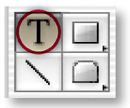
In this advanced project you'll automatically create variations on a Flash Web banner using data sets and dynamic text variables. You can use the resulting Web banners to spice up individual pages in a Web site.

Create a Fly-In Animation
Get started by making a simple tweened animation in ImageReady. We'll walk you through the process, but if you have any questions about animations review Chapter 2, Animation. Choose Window>Animation to open the Animation palette. Click the Duplicate Animation Frame icon at the bottom of the Animation palette A to create Frame 2. In the Layers palette, select the text here layer B. Select the Move tool in the toolbox, and press the right arrow key on your keyboard several times to move the text to the right until it is outside the document window and no longer visible in the image C.


With Frame 2 selected, click the Tween icon at the bottom of the Animation palette D. In the Tween dialog box E, choose Tween With: Previous Frame, and Frames to Add: 3. Leave all three Parameters checked and click OK. Click the side arrow on the Animation palette F and choose Reverse Frames.
Select Frame 5 in the Animation palette. In the Layers palette, select the GAME HERE layer and click in the Visibility field to the left of the GAME HERE layer to add an Eye icon A, making the words GAME HERE visible in the image. Change the Opacity field at the top of the Layers palette to 0% B. Click the Duplicate Animation Frame icon at the bottom of the Animation palette C to create Frame 6. With Frame 6 selected, change the Opacity field in the Layers palette back to 100%. Then click the Tween icon D. Leave the options in the Tween dialog box as you set them in the previous step and click OK. You now have nine frames in the animation.


Click the Play button at the bottom of the Animation palette E to see the words text here fly in from the right, followed by the words GAME HERE fading into view. Select Frame 9 in the Animation palette so all of the elements are visible in the document window.
Define Text Variables
Now things get really interesting. You'll define two variables, one for each of the text layers. Choose Image>Variables>Define. In the Variables dialog box, choose text here from the Layer menu A to define the source of the first variable. Check Text Replacement to establish that this is a text variable B. Type page name as the name of this variable, being careful not to include spaces or unusual characters in the variable name C. Don't click OK yet.


To define the second variable, choose GAME HERE from the Layer menu D in the Variables dialog box, check Text Replacement E, and type game_name as the name of this variable F.
Create the Home Banner Data Set
In the next two steps you'll create a set of data that will be used to replace the words text here and GAME HERE on one of the Web banners you're creating—a banner for a home page.
First you'll create the data for the page_name variable (the data that will replace the words text here on the home Web banner). Choose Data Sets from the menu at the top of the Variables dialog box A. Set the fields in the Data Sets panel of the Variables dialog box as follows:
Type Home Data Set in the Data Set field B. This names the set of data that will be used for the home Web banner. This data set will have two variables—the page_name variable and the game_name variable.
Choose page_name from the Name menu C. This is the name of the variable you're working on. You'll see this variable highlighted in the variables list at the bottom of the dialog box D.
In the Value field, type home E. This is the text that will appear in place of the words text here on the home Web banner.

Add to the Home Banner Data Set
Now you'll create the data for the game_name variable (the data that will replace the words GAME HERE on the home Web banner). Choose game_name from the Name menu A. You'll see this variable highlighted in the variables list at the bottom of the dialog box B. In the Value field type SLAM—the name of a fictitious game C. This is the text that will appear in place of the words GAME HERE on your home Web banner. Leave this dialog box open for the next steps.

Create the Links Banner Data Set
Now you'll make another data set that will replace the page_name and game_name variables on another Web banner—a banner for a links page. In the Variables dialog box, make a new data set by clicking the New Data Set icon A. Then set the rest of the fields as follows to create data for the page_name variable in this data set:
Type Links Data Set in the Data Set field to name this new data set B.
Choose page_name from the Name menu C.
Type links in the Value field. This is the text that will appear in place of the words text here on the links Web banner D.

Now choose game_name from the Name menu E to create data for the second variable in this data set. In the Value field type KINGPIN—the name of another game F. This is the text that will appear in place of the words GAME HERE on your links Web banner.

Create the Games Data Set
Now make a third data set for another Web banner, this one for a games page. There's nothing new here, so relax. Make a new data set by clicking the New Data Set icon in the Variables dialog box A. Set the rest of the fields as follows to create data for the page_name variable in this data set:
Type Games Data Set in the Data Set field B.
Choose page_name from the Name menu C.
Type games in the Value field D.
Now choose game_name from the Name menu E.
And in the Value field type B-BALL, the name of another game F.


Now you'll make the last data set, this one for a Web banner to use on an about us page. This step is just like the last two steps. Are you starting to get the picture?
Make a new data set by clicking the New Data Set icon in the Variables dialog box A. Set the rest of the fields as follows to create data for the page_name variable in this data set:
Type About Us Data Set in the Data Set field B.
Choose page_name from the Name menu C.
Type about us in the Value field D.
Now choose game_name from the Name menu E.
And in the Value field type WARRIOR, the name of another game F.


Preview the Web Banners
Click the forward arrow in the Variables dialog box A to cycle through the data sets you created. Leave Preview checked B to see a live preview of each of the data sets. If you notice any errors, correct them by editing the fields in the Variables dialog box. When you're satisfied, click OK. Choose File>Save to save the PSD file with its data sets.

Export the Banners as a Flash File
Each of the four data sets you've made will generate a separate Web banner. You can export them all together as a Flash movie (SWF format). This allows you to check that all the banners export correctly and gives you a quick reference file. Choose File>Export>Macro-media®Flash© SWF. This opens the Macromedia Flash (SWF) Export dialog box, where you'll set export options in the next step.
In the Macromedia Flash (SWF) Export dialog box, set the following options:
Check Preserve Appearance A. This ensures that the text retains its appearance.
Check Generate HTML B. This creates an HTML file to display the SWF in a Web browser.
Check Enable Dynamic Text C. This is necessary to make your dynamic text variables work.
Choose Full Set from the Embed Fonts menu D. This embeds a full set of fonts in your Flash movie.
Under Bitmap Options, leave Format set to Auto Select, and set JPEG Quality to 50 E. This controls how the logo and background are optimized.

Click OK to open the Export as Macromedia© SWF dialog box F. Create a new output folder, and click OK. Open the resulting HTML file in a Web browser to view all four of your Web banners in a Flash movie G.


Export Individual Flash Banners
You can also export the Web banners generated by your data sets as individual Flash movies so that you can add each of them to a different page in a Web site. Choose File>Export>Data Sets as Files. Click Choose to choose an output folder A. Leave Data Set set to All Data Sets B. Choose Macromedia®Flash© (.swf) from the Save As menu C. Leave the SWF settings as they were in the last step. Otherwise you'd click Set D to open the SWF Export dialog box. Click OK. You'll find four SWF files on your hard drive, each one a separate Web banner ready to be added to individual pages in a site-building program. ![]()


The last project, Creating Dynamic Flash Web Banners, covered how to create data sets in ImageReady's Variables dialog box for use with variables in a PSD file. Another way to make data sets for that purpose is to enter data into an external spreadsheet and then import data sets from the spreadsheet into ImageReady. This is the easier way to go if you're working with preexisting data sets, or if you have lots of data or variables.


Let's take a look at how to make an external data set instead of the data set we created in ImageReady in the last project, Creating Dynamic Flash Web Banners. We'll use Microsoft Excel here, but you can use any spreadsheet editor that saves files in tab-delimited text format.
In the first row of the spreadsheet, type the names of the two variables that will change in each version of your Web banners: page_name and game_name. Don't use spaces or unusual text characters.
In the page_name column enter each of the text values that will replace the words text here in the Web banners you plan to make: home, links, games, and about us, in that order. In the game_name column enter the text value of each game that will replace the words GAME HERE in your Web banners: SLAM, KINGPIN, B-BALL, and WARRIOR, in that order. Each row of the spreadsheet now contains a data set made up of the two values that appear together in a Web banner. Save the spreadsheet in a tab-delimited format. In Excel, choose Format: Text (tab delimited) in the Save dialog box.
To import your external data sets, choose Image>Variables to open the Variables dialog box A. In that dialog box, choose Define from the top menu. To define the first variable, choose text here from the Layer menu, check Text Replacement, and type page_name in the Name field. Then choose GAME HERE from the Layer menu, check Text Replacement, and type game_nameM in the Name field.
![Import a Data Set]](graphics/03inf219.jpg)
Choose Data Sets from the top menu. Click the Import button B. In the Import Variable Data Sets dialog box C, check Use First Column for Data Set Names, and Replace Existing Data Sets. Click the Choose button and navigate to your spreadsheet file. Click OK. Click the forward arrow in the Variables dialog box to view each of your data sets in action. ![]()
![Import a Data Set]](graphics/03inf220.jpg)
![Import a Data Set]](graphics/03inf214.jpg)
Pulling it all together to make eye-popping web sites and home pages
This is the big payoff. Bring together all you've learned and mix in more new techniques to build these exciting and practical home pages and sites. In this chapter you get a real-world sense of how to use what you know to design eye-popping, useful Web pages with that Wow quality that will keep viewers coming back for more. By the time you've finished this chapter, you'll be confident that you've mastered the graphic techniques, tips, and tricks you need to make some of the best-looking sites on the Web.
Getting in the Game
This chapter starts with a bang with the Wow Game Site. We show you how to construct the home page of a portal site for gamers. This page is the gateway to everything from a chat room to a forum. You'll learn how to pack in lots of diverse items on a home page using a modular design that pulls everything together. The beauty of this design is that it's easy to update. Substituting new graphics can give the page a whole new look without the need for a complete redesign. As you build this design, you'll learn the secrets to creating those sexy interface graphics you've seen on other sites with high-end graphics. We give you some easy recipes for creating cool, lightweight patterns in the section called Web Pattern Recipes. You learn how to make scan lines, grids, diagonal lines, boxes, and frames. Along with the recipes come instructions on how to use these patterns as repeating page background graphics and as pattern presets for filling foreground graphics. All that is found in the section on Applying Patterns to Web Graphics.


Showing Off
The Web is the perfect venue for exhibiting your photographs, artwork, and designs. We've put together a couple of projects that will help you do that efficiently and with style. You'll be amazed at how easy it is to make a complete gallery site that solicits automatic feedback from your audience. Check it out in the project called Gallery Site with Viewer Feedback. We weren't content to stop with Photoshop's built-in gallery templates. We show you how to personalize your galleries in the sections on Customizing a Web Photo Gallery and Adding File Information to Images. Then we take things a step further with the Wow Portfolio Site project. There you'll learn how to build a stunning three-dimensional portfolio interface and use it to repurpose images generated by Photoshop's Web Photo Gallery.
Getting Serious
You'll switch gears from image to information as you work through the Wow Information Site project. This project offers two ways to position text and graphics on a page. You'll learn how to create tables in ImageReady to hold everything in place, and how to export a page with CSS (Cascading Style Sheet) positioning. And you may be surprised to learn that you can add HTML text to a page right in ImageReady.
We're sure you can't wait to dive into the last project, the Wow Flash Splash Page. We'll walk you through an ImageReady workaround for making a site splash page with a Flash movie that tests whether your viewers have the Flash Player installed on their systems. So jump right in and try out all these exciting projects.


This home page for a game site is ultra-cool. You'll learn how to create its modular elements in Photoshop, and output the results as a full HTML page that's all ready to be included in a Web site for gamers. After you practice these techniques with our files, try them on a site of your own.

Design with Modules
This page layout has lots of information. Its modular design pulls together the diverse elements on the page and makes it easy to update separate pieces of information to keep the page current. You'll begin this project by finishing up the page layout we've started for you. The gray boxes establish the location of each module. In the steps to come you'll shape and style these rectangles to become cool-looking frames.

If you're ever working on a site that offers lots of diverse items on the home page—like games, chat rooms, tutorials, and forums—try this modular approach. When you're working on your own designs, make some plain filled rectangular selections to begin laying out the modular elements of your design. If you make the rectangles on separate layers, you can move them around as you develop the layout.
Move a Box to a Separate Layer
The gray boxes are located on the Frames layer. You'll start by moving the small gray box on the upper-right to its own layer. Select the Frames layer in the Layers palette. Select the Magic Wand tool and check Contiguous in the Options bar. Click on the upper right gray box to select it A. Then press the Shift and Command/Ctrl-J keys to cut the selected box from the Frames layer and move it to an automatically created new layer—Layer 1.


Use a Selection to Shape the Box
Now you'll cut off a diagonal corner of the Layer 1 box. Select the Polygonal Lasso from the toolbox A. Hold the Shift key and click on one and then the other side of the bottom-right corner of the box to create a 45° selection boundary B. Release the Shift key and click twice more to make the other two legs of a triangular selection C. Then press Delete/Backspace to delete the selected corner D. Press Command/Ctrl-D to deselect.


Make Two More Boxes
Make a copy of Layer 1 by dragging it to the Create New Layer icon at the bottom of the Layers palette A. Select the Move tool and press the arrow keys on your keyboard to move the copy to the right. Repeat to create and position the second copy, spacing the three boxes evenly B.

Next you'll cut out a narrow space between the third box and the edge of the document window to accommodate the style you'll be adding to the box later. Select Layer 1 copy 2 in the Layers palette C. Select the Rectangular Marquee tool and draw a narrow vertical selection at the right side of the third box D. Press Delete/Backspace to delete. If you get a warning that no pixels were selected, try again, moving the selection slightly.
Now you'll merge all the lighter gray box layers into one layer. Select the Frames layer and click in the Link field to the left of Layer 1, Layer 1 copy 2, and Layer 1 copy A. Click the arrow on the right side of the Layers palette B and choose Merge Linked.

Next you'll select and delete the center of each box. Hold the Command/Ctrl key as you click on the Frames layer in the Layers palette to load a selection of each of the boxes on that layer C. Choose Select>Modify>Contract. Type 10 (pixels) into the Contract Selection dialog box that opens, and click OK D. Then choose Delete/Backspace to delete the selected area of each of the boxes E. Choose Command/Ctrl-D to deselect.


Style the Frames
With the Frames layer selected, click the f icon at the bottom of the Layers palette and choose Bevel & Emboss. In the Layer Style dialog box that opens, choose the following Bevel and Emboss settings: (Style: Inner Bevel, Technique: Smooth, Depth: 311, Direction: Up, Size: 3 px, Soften: 0 px, Gloss Contour: Ring) A . Leave the other settings at their defaults.

Add another style by highlighting the Color Overlay style in the Layer Style palette B. Then click the Color option on the right C to open the Color Picker, and choose gray-green (R: 120, G: 124, B: 112 ). Click OK to close the Color Picker. Click OK again to close the Layer Style dialog box.


Create Boxes Inside the Frames
Now you'll create some dark gray boxes to fill the inner area of each frame. Select the Magic Wand tool with Contiguous checked in the Options bar. Hold the Shift key as you click in the white center of each of the five frames to select their centers A.

Make a new layer for all the boxes by clicking the Create New Layer icon at the bottom of the Layers palette B. Rename this new layer Boxes. Drag the Boxes layer just above the Background layer in the Layers palette.

Choose Edit>Fill. In the Fill dialog box, choose Color from the Use menu C. In the Color Picker that opens, choose dark gray (R: 66, G: 66, B: 66). Click OK to close the Color Picker. Click OK again to fill the boxes with gray D. Press Command/Ctrl-D to deselect.


Style the Shapes on the Left
Expand the ShapesLeft layer set by clicking its arrow in the Layers palette A. Select the FramesLeft1 layer in that layer set. Click the f icon at the bottom of the Layers palette B and choose Bevel and Emboss. In the Layer Style dialog box, choose the following Bevel and Emboss settings: (Style: Pillow Emboss, Technique: Smooth, Depth: 100, Direction: Up, Size: 35 px, Soften: 0 px) C. Leave the other settings at their defaults and click OK.

Now you'll use the same layer style on the other two layers in this layer set. Control/right-click on the FramesLeft1 layer in the Layers palette, and choose Copy Layer Style from the pop-up menu D. Control/right-click on the FramesLeft2 layer, and choose Paste Layer Style from the menu. Control/right-click on the FramesLeft3 layer and choose Paste Layer Style again. Beveled edges now separate the three shapes on the left E.

Select the Background layer in the Layers palette. Choose Edit>Fill. In the Fill dialog box, choose Pattern from the Use pop-up menu A. Click in the Custom Pattern field B to open the Pattern picker. Click the arrow on the right side of the Pattern picker C. Choose HTWWeb-Pat from the menu and click OK at the prompt. (If you don't see HTWWeb-Pat in this menu, you haven't properly installed the HTWWeb Presets from the CD. Go ahead and do that now following the instructions in the Introduction. You'll use several items from those presets in this project.)

Double-click the diagonal bg pattern that appears in the Pattern picker D. Click OK to close the Fill dialog box. The background of the image, which is visible around the frames, is filled with a diagonal pattern E.

Cut Out the Top Bar
Next you'll use a selection to shape the black bar at the top of the image. Expand the Bars layer set by clicking the arrow to its left in the Layers palette. Select the BarTop layer. If you turned off the guides, choose View>Show>Guides to see them again. Select the Polygonal Lasso tool and click on the left edge of the second guide from the top A. Hold down the Shift key as you click at the intersections of horizontal and vertical guides to create the tab-shaped selection in the illustration. When you reach the right edge of the image B, click around the top of the document window until you arrive back at the beginning of the selection.

Choose Select>Inverse. Then press Delete/Backspace to delete the selected portions of the bar, creating a unique shape C. Press Command/Ctrl-D to deselect.

In this step you'll add pattern, color and dimension to the top and bottom bars. Open the Styles palette (Window>Styles). Click the arrow on the right side of the Styles palette A and choose HTWWeb-Styles from the pop-up menu. (You won't see this style set unless you've installed the HTWWeb Presets, as explained in the Introduction.)
Drag the Blue Grid style from the Styles palette B onto the top bar C in the document window. The style is immediately applied to the top bar. Drag the same style from the Styles palette onto the bottom bar D.


Create a Navigation Bar
Select the Rectangular Marquee tool and make a short, wide rectangular selection in the tab area of the top bar A. Select the BarTop layer in the Layers palette, and press Delete/Backspace to delete the selected area from the top bar B. The beveled edges of the deleted area come from the style you applied to the top bar in the last step.


Make a new layer above the BarTop layer by clicking the Create New Layer icon at the bottom of the Layers palette. Name the layer NavBar. Use the Eyedropper tool to sample the dark gray color (R: 66, G: 66, B:66) in one of the other boxes on the page. Choose Select>Reselect to reactivate the rectangular selection. Choose Option/Alt-Delete to fill the selection with gray C.

Choose the Type tool. In the Options bar choose a small sans serif font (try Arial, 9 pt) and type some navigation labels separated by decorative colons (Tips :: D-Loads :: Support :: Games :: Help) D. That's all it takes to make the navigation bar for this page.

Now you'll add a gradient to the navigation area to make it look rounded. Make another new layer above the NavBar layer and name it NavBar Gradient. Press D and then X to set the Foreground Color box to white A.
Select the Gradient tool in the toolbox B. Click the Gradient field in the Options bar C. In the Gradient Editor that opens, select the White to Transparent gradient D and click OK.


Command/Ctrl-click the NavBar layer (not to be confused with the NavBar Gradient layer) to select the navigation bar. Create a gradient in this selected area by dragging a short vertical line in the top one-third of the navigation bar E. In the Layers palette, lower the opacity of the NavBar Gradient layer to 80% F.


Group Layers
Click in the Visibility field to the left of the Supernova layer in the Layers palette A. In this step you'll link this layer to the Frames layer below it in the Layers palette so that the Supernova image appears to be inside the frame. Hold the Option/Alt key and move your cursor over the border between the Supernova layer and the Frames layer. When you see a double-circle icon B, click to make a clipping group of the two layers. The Supernova image now appears in the image only where it overlaps artwork (one of the frames) on the layer below C.


Make Content Layers Visible
Now you're all set to turn on the layers of content that we made for you. Click in the Visibility field to the left of the Skin layer set and the Free Game layer set in the Layers palette. The content of the layers on those layer sets is now visible inside the interface you've created.


Select the Slice tool in the toolbox and draw slices around each of the text buttons in the small navigation bar so that you can give each button a separate link in a site-building program. Slice each content module too so that each module outputs as a separate GIF or JPEG. This will facilitate updating individual parts of the page later on. For more on slicing and optimizing, take another look at Chapter 1, Navigation.

Optimize and Save
Choose File>Save for Web. In the Save for Web dialog box, optimize individual slices, selecting them with the Slice Select tool A and choosing Optimization settings on the right side of the dialog box B. Optimize each slice so that it is as small as possible, but still looks good. Some slices, like the slice around the Supernova image, will optimize best as JPEGs. Others, like the slice around the Login area, will optimize best as GIFs.

When you're done, click Save. In the Save Optimized As dialog box that appears choose Format/Save As Type: HTML and Images. This will generate a separate GIF or JPEG file for each slice, along with an HTML file with a table that holds the sliced images in place on the Web page. You can bring the HTML file and images into a site-building program like Dreamweaver to incorporate this cool page into a complete game site.![]()
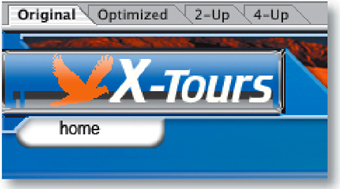
You can use custom-made patterns as tiling Web page backgrounds or as pattern presets for filling foreground objects. Let's review how to do both.


To make a tiling background pattern, start with a small pattern file like those described in the next section, Web Pattern Recipes. Save the file as an optimized GIF or JPEG. With a Web page layout or other foreground image open, specify the small file as the background in the Output Settings>Background dialog box. To access that dialog box in Photoshop, choose File>Save for Web, click the arrow on the top right of the Save for Web dialog box, choose Edit Output Settings from the side menu, and choose Background from the second pop-up menu in the Output Settings dialog box. In ImageReady, just choose File>Output Settings>Background. In the Output Settings dialog box, click the Choose button to the right of the Path field A and navigate to the small pattern file. When you save the foreground image you're working on, choose Format/Save as Type: HTML and Images so that the program generates an HTML file with a background tag that causes the small pattern to repeat itself horizontally and vertically in a viewer's Web browser.


Another way to use a custom pattern is to define it as a pattern preset, and then use it to fill a layer or a selection in a Web graphic. To define a pattern, open a small file, like those in the following section, in Photoshop or ImageReady. Press Command/Ctrl-A to select all, or use the Rectangular Marquee tool to select an area of a larger image. Choose Edit>Define Pattern, and give the pattern a name. The pattern will be added to the currently active pattern set. To fill a layer or selection of a Web graphic with the pattern, choose Edit>Fill. In Photoshop's Fill dialog box choose Pattern from the Use pop-up menu. Then click in the Custom Pattern field to open the Pattern picker and select your newly defined pattern from the active pattern set that's displayed there A. Click OK to fill with the pattern. In ImageReady's Fill dialog box just choose Pattern from the Use menu to fill with the last defined pattern.![]()

Use these pattern recipes to make tiling backgrounds for your Web pages or to fill your Web graphics, using the techniques explained in the last section, Applying Patterns to Web Graphics. You can make these patterns in Photoshop or ImageReady.

Make a new white image 2 x 2 pixels. Zoom in to 1600%. Select the Pencil tool and choose a 1–pixel hard round TIP from the Brush pop-up palette. Set the Foreground Color box to black. Draw a horizontal line across the top of the image. Optimize and save as a GIF for use as a page background, or define as a pattern for filling foreground images.


Make a new white image 8 pixels x 8 pixels. Zoom in to 1600%. Select the Pencil tool and choose a 1–pixel hard round TIP. Set the Foreground Color box to black. Draw a horizontal line across the top of the image and a vertical line along the left side of the image. Optimize and save as a GIF with two colors, or define as a pattern.


Make a new medium gray image 3 pixels x 3 pixels. Zoom in to 1600%. Select the Pencil tool and choose a 1–pixel hard round TIP. Set the Foreground Color to dark gray. Draw a horizontal line across the top of the image from the right edge of the document window to the 1–pixel mark on the horizontal ruler. Click in the center of the image to draw a 1–pixel square. Draw a vertical line along the left edge of the image from the bottom of the document window up to the 1–pixel mark on the vertical ruler. Click in the bottom-right corner of the image to draw a 1 pixel square. Optimize as a GIF or define as a pattern.


Make a new transparent gray image 7 pixels x 7 pixels. Zoom in to 1600%. Select the Pencil tool and choose a 3–pixel hard round TIP. Set the Foreground Color box to black. Click in the center of the image to draw a 3–pixel square. Optimize and save as a GIF with two colors, or define as a pattern.


Make a new white image 6 pixels x 6 pixels. Zoom in to 1600%. Select the Pencil tool and choose a 1–pixel hard round TIPs. Set the Foreground Color box to medium gray. Make a new layer. Draw a 1–pixel border touching all sides of the document window A. Choose Image>Canvas size. In the Canvas size dialog box, check Relative and enter 4 pixels in both the width and height boxes. Click OK. Optimize and save as a GIF with two colors, or define as a pattern.![]()


This complete site gives your viewers a way to communicate with you. Use it to show proofs or design comps to your clients and solicit their feedback. It's a snap to make using Photoshop's new and improved Web Photo Gallery.

Let Photoshop Do the Work for You
In this project you'll use Photoshop's Web Photo Gallery feature to create a mulTIPage Web site, ready for upload to a Web server. This site displays thumbnails and larger versions of image files. Each large image has two pop-up areas. One gives viewers information about the image A. The other gathers Web viewers' feedback about your images B and incorporates the feedback in an email message to you.


Creating this site is a completely automatic process. You don't have to know a thing about Web design or writing code. And you don't have to do anything special to prepare image files for inclusion in the site, other than attaching whatever file information you want to appear in the Image Info portion of the site (see sidebar). Read on to learn how to set up Photoshop to make this gallery site for you automatically.
Click the Toggle File Browser icon on the right side of Photoshop's Options bar to open the File Browser. Use the Folders panel A on the top left of the File Browser to navigate to the C04_02_art folder in the project files. The thumbnail area on the right side of the File Browser displays each of the image files in that folder.

Command/Ctrl-click on the thumbnails to select the following six images for inclusion in the site:
butterfly.tif
camera.tif
gameboy.jpg
guitar.psd
tentacles.jpg
watch.tif
Click the Flag icon at the top of the File Browser B to add a flag C to each of the selected images. Then choose Flagged Files D from the File Browser's Show menu to display only the images you flagged. Decide on the order in which you want the images to be displayed in the gallery site, and click and drag the thumbnails around the File Browser's preview pane E to reflect that order. Press Command/Ctrl-A to select all.

Open the Web Gallery Dialog Box
Choose Automate>Web Photo Gallery from the menu bar at the top of the File Browser A. This opens the Web Photo Gallery dialog box B where you'll choose the parameters of your gallery site. (Alternatively, the Web Photo Gallery dialog box can be opened from the File>Automate menu in the main menu bar at the top of the screen.) This is a “sticky” dialog box that opens with the last settings you entered. Highlight and delete any old settings.


The Web Photo Gallery dialog box has several panels, each accessed from the Options pop-up menu A. The first is the General panel. Choose the following settings in that panel:
Styles: Centered Frame 2 - Feedback B
This is one of Photoshop's prebuilt Web Photo Gallery style templates. You'll see a small preview of this style on the right side of the dialog box C. The rest of the settings vary depending on which style you choose.
Email: Enter your email address D.
Your Web audience will use this address to send you email feedback about the images you display. Use any email box or alias you own.
Use: Selected Images from File Browser E.
The advantage of this choice is that it allows you to include images from anywhere on your hard drive, as long as they are currently displayed in your File Browser. If you choose Folder instead, you would have to prepare by putting all the images you plan to include in one folder.
Destination: Click the Destination button F to open a destination dialog box. Create a new folder G to hold all the site files Photoshop will create for you, and click Choose.


Leave the other settings in the General panel at their defaults, and leave the Web Photo Gallery dialog box open for the next step.
Choose Banner A from the Options menu in the Web Photo Gallery dialog box. These settings determine the information that will appear in the small space at the top of the thumbnails in this design. Enter Portfolio in the Site Name field B and Colin Smith in the Photographer field C. Leave the Contact Info and Date fields blank if you want white space in your design. You don't have to comply with the labels on the Banner fields; they are only suggestions. You can type in anything that fits in the available space.

Choose Large Image Settings
Choose Large Images A from the Options menu to open more settings. These settings govern the display of the large images on the right side of the design. Set these fields as follows:
Resize Images B: Add a checkmark and type 360 into the pixel size box. This sets the largest dimension of the images. The menu of presets automatically changes to Custom.
Constrain C: Leave this set to Both to maintain the proportions of the images.
JPEG Quality D: High (8) to ensure that each image looks its best when the program compresses the image as a JPEG. The File Size slider automatically changes. The trade-off for higher JPEG Quality is larger file size.
Border Size: 1 E. This adds a narrow black border around each image to set it off from the background.
Titles Use F: Check all. These appear in the Image Info pop-up window for each image. The information is taken from the File Info dialog box.

Choose Thumbnails from the Options menu A. These settings determine how the thumbnails in the lefthand vertical bar will be displayed.
Size B: Large. This sizes each thumbnail to fit proportionally within a 100–pixel square area.
Border Size C: Leave this set to 0 so there will be no border around the thumbnails in the site.
Titles Use D: Leave Filename checked to add the filename of each image next to its thumbnail.

Choose Custom Colors
Choose Custom Colors from the Options menu A Click in the Background field B to open the Color Picker. Check Web Colors Only, choose dark gray (R: 102, G: 102, B: 102), and click OK. This determines the background color of each page in the site. Click in the Banner field C.and choose white (R: 255, G: 255, B: 255) in the Color Picker. This sets the color of the vertical banner on the left of each page. Leave the other options at their defaults.

Choose Security from the Options menu A. Here you can specify text that will appear on top of each large image to protect it from unauthorized use. We'll apply a custom copyright message. Set the options as follows:
Content B: Custom Text.
Custom Text C: Type © Colin Smith (pressing Option-G/typing Alt-0169 for the © symbol).
Font: Helvetica and Font Size: 9 pt D.
Color: White and Opacity: 50% E. This will give the copyright message a ghosted look so it doesn't interfere with the view of the image.
Position: Bottom Right, and Rotate: 90 Degrees CW F to locate the copyright vertically along the right edge of each image.

Complete the Site
Click OK in the Web Photo Gallery dialog box to set Photoshop in motion creating your site. It resizes each image as a thumbnail and a large image, compresses the images as JPEGs, and writes the code for a complete Web site. In a few seconds a Web browser opens to the first page of the site.

Put yourself in the shoes of your Web audience for the steps that follow. In the Web browser, click on a thumbnail on the left A to see a large version of the corresponding image on the right B. Use the vertical scrollbar to scroll down to more thumbnails.
Click on the Image Info tab C.to open a pop-up window displaying information about the selected image, including the file name and copyright information. This is information that we attached to each image in the File Info dialog box and the File Browser's Metadata panel.Learn how to prepare your own images with similar information in the topic that follows this project—Adding File Information to Images. Click Close D to close this pop-up window.

Prepare Image Feedback
In the Web browser, click on the Feedback tab A to open the Feedback pop-up window. Your Web viewers can use this window to approve and correspond with you about the images. Put a checkmark next to Approved B and type a message ordering a print in the box C. Then click Save Feedback D. This stores the message so that it can be combined with feedback on the other images before being automatically emailed to you—the site owner. You'll see a Save notation in the Feedback window E.

Prepare Feedback on other Images
Select another thumbnail in the Web browser and click the Feedback tab to provide feedback on that image A. Put a checkmark next to Other and write a message in the box. Click Save Feedback.

Select a third thumbnail and prepare feedback the same way. This time click E-mail Feedback B. Type the name of a fictitious viewer in the JavaScript dialog box that opens and click OK.

Email Feedback to the Site Owner
The default mail program automatically opens with a message A from the viewer B addressed to the email address you entered earlier into the Web Photo Gallery dialog box. The message contains all of the viewer's feedback on the site images. The viewer can add to the message or send it as-is to you—the site owner—by simply clicking his mail program's Send button. As you can see, this built-in feedback makes it easy for viewers to communicate with you about the site and its images.![]()
Save Your Gallery Site. Keep the site Photoshop made for you in a safe place. In the next Project, Wow Part-folio Site,you'll repurpose the site images, displaying them in a unique, custom-built inter face.


The last project, Gallery Site with Viewer Feedback, covered how to make a Web site that can display file information along with images. There are two ways to attach nondefault file information to an image in Photoshop—in the File Info dialog box or in the Metadata panel of the File Browser. Give either of these methods a try on your own images before making a gallery site of your own.


Choose File>Open to open an image in Photoshop. Then choose File>File Info to open the File Info dialog box. Leave Description highlighted on the left side of the dialog box A. Type a caption for the image in the Document Title field B and a short description of the image in the Description field C. In the Copyright Notice field D press Option-G (type Alt-0169 on Windows) to enter a copyright symbol. Type the year and your name after the copyright symbol. Click Origin E on the left side of the dialog box and enter any relevant information into the Credits field. Click OK. Then save the file. You can choose to display any of these items in your site in the Web Photo Gallery template (Centered Frame 2 - Feedback) used in the preceding project. The other File Info fields are not reflected in that template.

To attach the same information to multiple files, record an action as you enter this file information and apply it with batch processing. Or click the side arrow on the File Info dialog box and choose Save Metadata Template. To apply the template, open another file, click the arrow at the top of its File Info dialog box, and choose the template by name.

Open Photoshop's File Browser (File>Browse) and select the thumbnail of an image you plan to include in your site A. In the Metadata panel on the bottom left of the File Browser B, scroll to the area labeled IPTC (an acronym for a press organization) and click one of the pencil icons C.to open the only three fields that can be edited in the Metadata panel—Description, Author, and Copyright.


Type into the Description field. In the Copyright field press Option-G (type Alt-0169 on Windows) to enter a copyright symbol. Type the year and your name after the copyright symbol. You can ignore the Author field because it's not reflected in the Centered Frame 2 - Feedback template you used in the last project. You can add Title and Credits, which are in that template, in the File Info dialog box as explained to the left.![]()

A Web site produced by the Photoshop Web Photo Gallery command is just like any other Web site. It consists of HTML pages and images. This means that you can change the look of a finished Web Photo Gallery site by modifying the image files in Photoshop or editing the HTML code in a site-building program. Here are some ideas for making changes to the gallery site you built in the last project, Gallery Site with Viewer Feedback. We used Dreamweaver in these examples, but you can do the same using GoLive or any site-building program. Use these ideas as a starting point for customizing your own site.

Find the folder that contains all of the HTML and image files Photoshop made for you in the last project. This is the root folder of your Web Photo Gallery site. Take one of the background patterns we showed you how to make earlier in this chapter in the section on Web Pattern Recipes (we used the diagonal pattern bg.gif) and put it into the Images folder A inside your Web Photo Gallery root folder. In Dreamweaver, open the index.htm page from that root folder. Choose Modify>Page Properties from Dreamweaver's main menu bar. In the Page Properties dialog box, click the Browse button next to the Background Image field B, navigate to the file bg.gif in your root folder, and click OK. Then resave the index.htm page into the root folder. Open index.htm in a Web browser to see the repeating striped background.


The inner pages of the Web Photo Gallery site you made in the last project are located in the pages folder A inside that site's root folder. Open one of those inner pages-—butterfly.htm—in Dreamweaver. Use Dreamweaver's split view to see the page design and its HTML code. Click on the three pieces of the navigation bar in the design B to see the names of those graphics in the code view C. (Hint: popClosed.gif, popClosedFeed.gif, and popClosedImage.gif.) Now that you know the names of these navigation graphics, open each one from the root folder into Photoshop, change them as you like, and resave them as GIFs back into the pages folder in the root folder. The images will change on each page in the site, because these graphics are used on every page. Open index.htm in a Web browser to see your site with its new buttons.![]()

Make this eye-popping interface for displaying a portfolio on the Web. It's easier than it looks if you follow our lead. After you build this 3-D interface, you'll use it to display Web-ready images generated automatically by the Web Photo Gallery.

Focus on Efficiency
In this project you'll create a three-dimensional portfolio interface that looks good enough to eat. The focus here is on efficiency. We'll teach you techniques that simplify and save effort. For example, you'll make only one thumbnail frame from scratch, and then apply a useful step and repeat technique to create the others. And you'll learn how easy it really is to make custom-built 3-D effects with alpha channels.

This portfolio interface is specially designed for repurposing images generated by the Web Photo Gallery template you used in the last project, Gallery Site with Viewer Feedback. You won't have to spend hours resizing and optimizing individual images or writing an action for batch processing. Just run your own images through the Web Photo Gallery with the same settings you used before, and the resulting Web-ready images will fit perfectly into this interface.
This interface can display six thumbnail-sized images plus one larger image. You'll build it from the inside out— creating placeholders for the images and then making a 3-D bell shape around the placeholders.
Let's start by creating some guides for positioning the placeholders you'll be making. Choose View>Rulers. If your rulers are not displaying pixels, Control/right-click in one of the rulers and choose pixels from the pop-up menu A.

First you'll place a vertical guide at the center of the document. To find the center, press Command/Ctrl-A and then Command/Ctrl-T. An anchor point appears at the document's center B. Click in the vertical ruler and drag out a vertical guide to that point C. Press the Escape key to exit transform mode. Drag out two more vertical guides, placing them at about 45 and 153 pixels D. Drag two horizontal guides from the top ruler and place them at about 375 and 383 pixels E. Use the Move tool to tweak the position of the guides if necessary.


Create a Thumbnail Placeholder
Now you'll make a selection for a square thumbnail placeholder. Select the Rectangular Marquee tool in the Toolbox. In the Options bar, choose Fixed Size from the Style menu A, and type 101 px into both the Width and Height fields B. Click in the document to create a square selection. With the Rectangular Marquee tool, drag the selection to the intersection of the first vertical and horizontal guides C.


Now you'll learn a great way to make evenly spaced copies of selections.You'll use this technique to create and distribute selections for the rest of the thumbnail placeholders. We love this technique because it's automatic and doesn't require doing math.
The square selection you made in the last step should still be active. Press Q to enter Quick Mask mode. This mode is just another way of viewing a selection. The selection is clear, and the non-selected area has a red mask A.

With the Rectangular Marquee tool selected, change the Style setting in the Options bar to Normal B. Click and drag a rough selection around the clear square C. Hold the Option/Alt key and choose Edit>Free Transform. This creates a copy of the clear selection. You can't see the copy yet because it's on top of the original. Still in transform mode, click the right arrow key on your keyboard to move the clear selection copy to the right until its left edge is aligned with the second vertical guide from the left D. Press the big checkmark in the Options bar to exit transform mode.


Now you'll step and repeat in Quick Mask mode to make and position the other thumbnail selections. Holding the Option/Alt key, press Command/Ctrl-Shift-T four times. You'll see a total of six clear boxes, evenly spaced horizontally and aligned vertically E. Press Q to exit Quick Mask mode. The boxes now look like regular selections F.


Click the side arrow on the Layers palette and choose New Layer. Name the layer Frames. Click the Foreground Color box in the toolbox to open the Color Picker. Choose gray (R: 153, G: 153, B: 153). Press Option-Delete/Alt-Backspace to fill the selections with the foreground color A. Choose Command/Ctrl-D to deselect.

Make the Large Image Placeholder
Select the Rectangular Marquee tool. In the Options bar set Style to Fixed Size A and type 361 px in both the Width and Height fields B. Click to create a large square selection. With the Rectangular Marquee tool still selected, drag the large selection so that it rests on the top horizontal guide and is centered horizontally C.


With the Frames layer selected in the Layers palette, press Option-Delete/Alt-Backspace to fill the large square selection with the gray foreground color. Choose Command/Ctrl-D to deselect.
Create Half a Bell Shape
Now you'll work on the 3-D bell shape that surrounds the images in this interface. We made things easier for you by creating a path that outlines half of a bell shape. (If you'd rather draw the path yourself, click and drag with the Pen tool.) In the Paths palette (Window>Paths), select the half bell path A and click the Load Path as Selection icon at the bottom of the palette B. This creates a half bell-shaped selection.

Click the side arrow on the Layers palette and choose New Layer. Name the layer Bell. Choose Option-Delete/Alt-Backspace to fill the selection with the gray foreground color C.

Duplicate the Bell layer by dragging it to the Create New Layer icon at the bottom of the Layers palette A. With the new layer selected, choose Edit>Transform>Flip Horizontal. Select the Move tool in the toolbox. Hold the Shift key to constrain vertical movement and drag the second half of the bell to the right so that its left edge joins the right edge of the other half B. Press Command/Ctrl-D to deselect. Click the side arrow on the Layers palette C.and choose Merge Down to merge the two halves of the bell into one Bell layer.


Make an Alpha Channel for the Bell
In this step you'll begin to add dimensionality to the bell shape by creating an alpha channel. Command/Ctrl–click on the Bell layer to load a selection around the bell shape. Choose Select>Inverse to select everything but the bell.
Open the Channels palette (Window>Channels). Click the Save Selection as Channel icon at the bottom of the Channels palette A. This creates an alpha channel in which the opaque bell shape is represented as black and the surrounding transparent area as white B. Double-click the new Alpha 1 channel and name it Bell. Press Command/Ctrl-D to deselect.

Blur the Alpha Channel
With the Bell channel highlighted in the Channels palette, choose Filter>Blur>Gaussian Blur. In the Gaussian Blur dialog box click the minus sign several times A, and set Radius to 8.0 pixels B. Click OK. This blurs the edges of the bell shape in the alpha channel, which adds grays to the alpha channel and shape to the image. Select the RGB channel in the Channels palette to view the image in its normal state.

In this step you'll add a small gradient to the bell shape to increase the illusion of dimensionality. Command/Ctrl-click the Bell layer in the Layers palette A to load a selection around the bell shape.

Press D on your keyboard to set the Background Color box in the toolbox to white. Click the Foreground Color box, choose a medium gray (R: 102, G: 102, B: 102) from the Color Picker that opens, and click OK B.

With the Bell layer selected in the Layers palette, click the New Fill or Adjustment layer icon (a black and white circle) at the bottom of the Layers palette C.and choose Gradient from the pop-up menu. In the Gradient dialog box that opens, click in the Gradient field D to open the Gradient Editor. In the Gradient Editor, select the Foreground to Background gradient thumbnail E. Then drag the lefthand gray color stop under the gradient bar F to the right until the Location field G reads about 96%. This will make the white part of the gradient at the top of the bell shape very short. Click OK in both gradient dialog boxes. The top edge of the bell now looks rounded. Press Command/Ctrl-D to deselect.


Change Gradient Blending Mode
With the new Gradient Fill 1 layer selected in the Layers palette, choose Overlay from the Blending Mode field at the top of the Layers palette A. This blends the colors in the gradient layer with the underlying colors.


Reduce the Bell's Fill Opacity
Next you'll lower the Fill opacity of the bell to make it slightly transparent. Select the Bell layer in the Layers palette and decrease the Fill field at the top of the Layers palette (not to be confused with the image Opacity field) to 89% A.


Add Lighting Effects to the Bell
This is the tricky part. You'll apply the Lighting Effects filter to the bell to enhance its dimensionality. The Lighting Effects filter has lots of settings. Use ours as a starting point and experiment to get an effect you like.
With the Bell layer selected in the Layers palette, choose Filter>Render> Lighting Effects. In the Lighting Effects dialog box:
Choose Style: Default A and Light Type: Spotlight B, with On checked.
Set Intensity to around 15 C.and Focus to around 100 D, although you can play with these two settings to get an effect you like.
Choose Bell in the Texture Channel E (not to be confused with Bell Transparency) and check White is High F, This uses the Bell alpha channel you made earlier to set the contours of the lighting effect.
Click and drag the center and side anchor points on the preview on the left side of the dialog box G to get an effect you like. (The configuration of anchor points in the illustration is a good starting point.)


Unfortunately there is no live preview of the Lighting Effects filter in the full document. Click OK to apply the filter, and if you don't like the result, choose Command/Ctrl-Z to undo and try again.
Now you'll use the placeholders to cut frames into the bell interface. Command/Ctrl-click the Frames layer in the Layers palette A to load a selection around the large placeholder and each of the thumbnail placeholders B. It's important that you now select the Bell layer in the Layers palette C. Press Delete/Backspace to cut out the selected areas in the bell interface. Choose Command/Ctrl-D to deselect.


Click the Eye icon next to the Frames layer D to turn the Frames layer off so you can see the cut-outs in the bell interface E. Then click that Eye icon again to turn the Frames layer back on. Finally, drag the Frames layer to the top of the Layer stack in the Layers palette.


Add a Bevel to the Interface
The interface looks good, but it needs one more touch to make it really appear three dimensional. Open the Styles palette (Window>Styles). With the Bell layer selected A, click the Portfolio Iface style B. You won't see this style if you didn't load the HTWWeb presets as instructed in the Introduction. Go back and do that now. Or make your own bevel and emboss by clicking the f icon at the bottom of the Layers palette C, choosing Bevel and Emboss, and experimenting with the Bevel and Emboss settings in the Layer Styles palette that opens. (Hint: Change the Gloss Contour layer style setting to the Ring style.).


Congratulations! You've finished building this unique interface for portfolio images. Next you'll try out some Web-ready images that you generated from the Web Photo Gallery in the last project.

Find the folder of HTML pages and images that you saved from the last project, Gallery Site with Viewer Feedback. If you can't find them, use the final project files for that project (C04_02_gallery-end).

Open each of the six JPEG files you'll find in the thumbnails folder that was generated by Photoshop's Web Photo Gallery. Select the Move tool, click in one of those open images, and drag it into the interface image, where it will be located on a separate layer automatically.
Position the thumbnail image on top of one placeholders in the interface. Repeat with each of the other thumbnail images that were generated by the Web Photo Gallery. Then open the images folder and do the same with one of the larger images you'll find there—butterfly.jpg, camera.jpg, gameboy.jpg, guitar.jpg, tentacles.jpg, or watch.jpg.
Slice the Interface
Click the Eye icons on the thumbnail and image layers you added in the last step to turn off all the content layers. With the Slice tool, create a slice around each of the thumbnail placeholders and around the large placeholder.

Optimize the Slices
Choose File>Save for Web. In the Save for Web window, click on the Optimiize, 2-Up, or 4-Up tab to preview each slice with the optimization settings you choose. Select the slices one by one and choose settings that make each slice as small as possible, while retaining its appearance. (Hint: All these slices optimize best as JPEGs.)

In this step you'll set the color of the HTML page background that will appear around this page when it's viewed in a browser window that's bigger than the green illustration. Click the small arrow at the far right of the Save for Web window A, and choose Edit Output Settings. In the Output Settings dialog box that opens, choose Background from the second pop-up menu B. Click in the Color field C, and choose black from the Color Picker that opens. Click OK to close the Color Picker. Click OK again to close the Output Settings dialog box. Back in the Save for Web dialog box, click Save to open the Save Optimized As dialog box.


Save the Optimized Interface
In the Save Optimized As dialog box, set Format/Save As Type to HTML and Images. Choose a destination folder and click Save. The program will save each slice of the interface as an optimized Web-ready image, along with an HTML file containing a table to hold all the separate image files in place. The thumbnails and large image that were generated by the Web Photo Gallery will not be re-optimized because you turned off those layers before saving.![]()
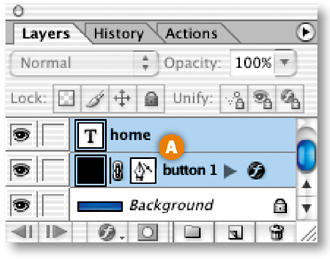
This home page for an information site has lots of text elements. You'll use tables and CSS to organize and output text graphics and coded text for display on the Web. This project takes place in ImageReady.

Decide on Graphics or HTML Text
When you're laying out a page in Photoshop or ImageReady that has lots of text, one of your first decisions is when to use text saved as a graphic and when to use HTML text. The advantage of HTML text is that it is much smaller in file size than text graphics. It can also be easier to change when you're updating a page. However, you can't guarantee what font or font size will be used to display standard HTML text at the viewer's end. If you turn your text into graphics, you can use any font and be assured of how the text will appear to your audience. However, the total size of the page will be noticeably larger. In general, graphics are the way to go for headlines, logos, and text in fancy fonts A, and HTML text makes sense for blocks of small text B. In this project, you'll learn how to prepare both kinds of text when you're laying out a page in ImageReady.


The layout of this page is simple but elegant. There are no loud graphics to compete with its main product-—information. We prepared most of the background elements by creating rectangular color blocks that organize and call attention to the text. In this step you'll set off the secondary navigation (1800s, 1900s, 2000s) by creating a tabbed navigation bar. Choose View>Rulers to turn on ImageReady's rulers. Click in the horizontal ruler and drag out a horizontal guide, positioning it at the baseline of the info site text A. Use the Move tool if you need to tweak the guide.

In the Layers palette, click the arrow on the Top Bar layer set B to reveal the contents of that layer set, and select the Bar layer. Select the Polygonal Lasso tool from behind the Rectangular Marquee tool in ImageReady's toolbox C. Hold down the Shift key (which constrains the tool to making straight lines and 45° angles). Click at the following points: the left edge of the guide, just under the e in the word site, on the top of the green bar, and at the right edge of the document. Then click around the outside of the document window to come back to the beginning of your selection D. Choose Select>Inverse, and press the Delete/Backspace key to cut out a tab shape E. Press Command/Ctrl-D to deselect.


Add Text Links
Select the Type tool in the toolbox. Choose white and a Sans Serif font in the Options bar. Type a line of text links: 1800s 1900s 2000s A. Click the checkmark on the Options bar to commit the type. Then choose a script font and create another Type layer by typing link1 link2 link3 link4 link5 B. Use the Move tool to position these two type layers as in the illustration.

In this step you'll add text and bullet links to the left side of the page. Click the arrow next to the TextLeft layer set to expand that layer set A. Control/right-click the link here type layer and choose Duplicate Layer from the contextual menu. Repeat this until you have a total of six link here layers B.

Select and Distribute the Links
Now you'll select and automatically distribute the six link layers. With the link here layer selected, hold the Shift key and click on the link here copy 5 layer at the top of the layer stack A. Select the Move tool in the toolbox to display alignment and distribution buttons in the Options bar. Type 20 px in the box at the far right of the Options bar B, and click the Distribute Layer Vertical Space button C. This evenly distributes the selected layers vertically, with 20 pixels between each D. The ability to select mulTIPle layers and to specify distribution spacing are features found only in ImageReady, not Photoshop.


Now do the same thing with the BulletsLeft layer. Make five copies and Shift-click to select the six BulletsLeft layers. This time enter 12 px in the distribute box in the Options bar E and click the Distribute Layer Vertical Space button F. The bullets are now distributed evenly alongside the text G.


Complete the job by repeating Steps 4 and 5 on the text and bullet links on the right side of the pages, which you'll find in the TextRight layer set.
In this step you'll create slices in the banner at the top of the page. First draw a separate slice around each of the photographs A. They merit slicing because they will optimize best in JPEG format, while the text and graphic elements in the banner will optimize best in GIF format.

Next you'll slice the text links in the banner, so that each can be assigned a separate URL link when this page is incorporated into a site in Dreamweaver or GoLive. Draw one slice around the five script links that you added to the banner B. Then chose Slices>Divide Slices in the main menu bar. In the Divide Slice dialog box, choose Divide Vertically Into and type 5 in the field labeled slices across, evenly spaced C. ImageReady automatically divides your one slice into five. You can adjust these slices by clicking on their borders with the Slice Select tool and dragging.

Finally, draw a separate slice around each word in the secondary navigation bar—1800s, 1900s, and 2000s D. Choose Slices>Divide Slices, and automatically divide it into 3 slices across, evenly spaced E.

Group Banner Slices into a Table
In this step you'll group all of the banner slices into a table. When you save this page with HTML, this table will act as a container for all of the GIFs and JPEGs produced by your banner slices.
Select the Slice Select tool in the toolbox and click on each of the slices you created in the banner (known as user slices) A. Then choose Slices>Group Slices into Table. A slice border appears around the table, along with a special table slice symbol B. Drag the borders of the table to make sure they encompass the entire banner.


Open the Web Content palette (Window>Web Content) to view a list of all of your user slices. Notice that although you've only made one table yourself, your slices are listed under Table 02 A. That's because when you save a page from ImageReady with standard HTML, the program saves the entire document as one large table—Table 01—with each slice corresponding to a table cell. Any additional tables you create are nested inside of that larger table. That's why these slices are labeled Nested Slices in the Web Content palette.

Slice and Make a Table of Links
Draw a slice around the top link here text link and bullet on the left side of the page A. Choose Slices>Duplicate Slice. In the Duplicate Slice dialog box, choose Below Original from the Position menu and click OK B. ImageReady makes a new slice that fits nicely around the next link and bullet C. This works because each item is the same size and they are evenly spaced. Repeat four more times to create slices around all the links on the left side of the page.


Select all six slices by clicking on one of them in the Web Content palette, holding the Shift key, and clicking on the slice at top of the stack D. Click the Group Slices into Table button at the bottom of the Web Content palette E to join the slices into another nested table F. Repeat with the link here items on the right side of the page.


In this step you'll designate a slice as one that will contain nongraphic HTML text. With the Slice tool, draw a slice around the large empty area in the middle of the page A. With that slice selected, open the Slice palette (Window>Slice). In the Slice palette, choose No Image from the Type menu B. The palette changes to display a Text box. Type or paste some text into the Text box C, and check Text is HTML D. You won't see the text in the document window, because ImageReady doesn't preview HTML text. However, you will see it shortly in a browser preview.


Color the Cell Background
The slice you created for the HTML text is a table cell, just like slices that contain graphics. In this step you'll change the background color of that table cell.
Choose the Eyedropper tool in the toolbox A and click on a light color in the image. That color appears in the Foreground Color box B. Click the arrow next to the Background section of the Slice palette to expand that section. Click in the Color field C.and choose Foreground color from the pop-up menu. This sets the color of the table cell that will display your HTML text.

Preview the HTML Text
Click the Preview in Browser icon in the toolbox to view the page in your default browser. You'll see the HTML text that you entered into ImageReady's Slice palette against the colored cell background A. You can format and change the color of this HTML text when you bring this page into a site-building program.

Now you'll choose the color that will appear in a browser window behind your page. Select the Eyedropper tool in the toolbox and click on the dark green border of the page to set the Foreground Color. Choose File>Output Settings>Background. In the Output Settings dialog box, click the arrow on the BG Color box and choose Foreground Color A. This sets the Web page background to dark green.

Click the Preview in Browser button to view your page against this HTML background B.

Optimize the Slices
Click on the Optimized, 2-Up, or 4-Up tab A of the document window to preview your page with the slice optimization settings you choose. Select the Slice Select tool in the toolbox. Hold the Shift key and click on each of the photographs in the banner B. In the Optimize palette (Window>Optimize) C, choose JPEG as the format, and set the compression quality to Medium, striving for the lowest file size that retains the image quality you want.


Select each of the other slices in the image and optimize them as GIFs. Similar slices can be linked so that you only have to choose optimization settings one time for all of them. For example, select all of the link slices. Then choose Slices>Link for Optimization from the main menu bar.
Don't forget that you'll need to optimize the auto slices (the ones with the gray numbers that were created automatically) as well as the user slices (the ones you created).
We'll show you how to save this page two ways—first with standard HTML and then with CSS (Cascading Style Sheets). ImageReady produces HTML with tables by default (unless you choose CSS instead). Choose File>Save Optimized As. In the Save Optimized As dialog box, set Format/Save as Type to HTML and Images A. Make sure the Slices menu is set to All Slices B, choose a destination, and click Save.
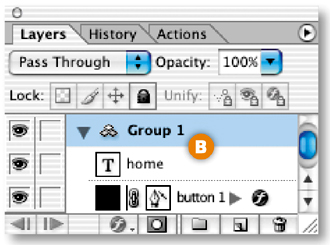
ImageReady generates an HTML page with nested tables to hold all your images in place, along with a folder of images that contains GIFs and JPEGs generated by each slice in the source file C. Open the HTML page in a Web browser and view the source code there. You'll see tables designated in the HTML code D.


Save as CSS
Go back to your PSD file, which is still open in ImageReady. Choose File>Output Settings>Slices. Notice that Generate Table is selected by default. Choose Generate CSS instead A. The Referenced setting offers different ways of referencing the styles that position your slices. Leave it at its default, and click OK. Now choose File>Save Optimized As, using all the same settings covered in the preceding step.

This time ImageReady produces images and an HTML file that employs CSS styles, rather than an HTML table to hold your images in place. Open this HTML page in a Web browser and view its source code there to see the CSS code. You'll see slices listed with pixel positions B. You can take either kind of output into a site-building program or a text editor and tweak it there. Or use the output as-is in a site.![]()

We'll finish up with a big splash. You'll make a splash page for a Web site that includes a Flash animation that tests whether a viewer has the Flash player installed on her computer.

Start with a Splash
Many sites use a splash page as the gateway to the site. This splash page is all that an introductory page should be. It uses animation to catch viewers' attention, and a sexy three–dimensional graphic to entice them to delve further into the site. Most importantly, it serves a real purpose. This splash page offers viewers a test of whether they have the Flash Player—which is necessary to enjoy a Flash-based Web site-. And if they don't, there's a quick link to download the player.


We used Photoshop to make the dimensional graphic for this page. You'll work in ImageReady to animate the graphic and export it as a Flash movie.
You'll be amazed at how easy it is to make layered artwork for an animation of a sphere pulsing. In the Layers palette, double-click the layer name on the Ball layer and rename that layer Ball1 to correspond to the animation frame on which it will be first visible. Then Control/right-click the Ball1 layer, choose Duplicate Layer from the pop-up menu, and name the duplicate layer Ball2.
Click in the Visibility field of the Ball1 layer to turn its Eye icon off A, and click in the Visibility field of the Ball2 layer to turn its Eye icon on B. With the Ball2 layer selected, choose Edit>Transform>Scale. Hold the Alt/Option key as you click on the center anchor point at the top of the bounding box C.and drag down to compress the height of the ball from the top and bottom. If you want to be precise, keep your eye on the Height field in the Options bar, dragging down until the original number there (173 px) is reduced to 149 px. D. Click the big checkmark on the Options bar E to exit transform mode.


Transform Another Ball
Repeat the preceding step, duplicating Ball1 and naming the duplicate layer Ball3. Turn off the visibility of the Ball1 and Ball2 layers and turn on the visibility of the Ball3 layer. Compress Ball3 more than Ball2 by Option/Alt-dragging the center anchor point at the top of its transform bounding box down until the Height field in the Options bar reads 107 px.


Now that you've made the layered artwork, you're ready to create the animation in ImageReady. This simple animation is made by clicking in the Visibility field of each ball layer to turn its Eye icon on or off on each frame.

Open the Animation palette, which automatically displays Frame 1 A. In the Layers palette, set the layer visibility as follows B:
Ball1 layer on
Ball2 layer off
Ball3 layer off


Make Frame 2 of the Animation
Click the Duplicate Animation Frame icon A at the bottom of the Animation palette to create Frame 2. With Frame 2 selected, set layer visibility as follows:
Ball2 layer on
Ball1 layer off
Ball3 layer off


Make Frame 3 of the Animation
Click the Duplicate Animation Frame icon at the bottom of the Animation palette to create Frame 3. With Frame 3 selected, set layer visibility as follows A:
Ball3 layer on
Ball1 layer off
Ball2 layer off


Make Frame 4 of the Animation
Click the Duplicate Animation Frame icon A at the bottom of the Animation palette to create Frame 4. With Frame 4 selected, set layer visibility as follows B:
Ball2 layer on
Ball1 layer off
Ball3 layer off


In this step you'll set the time delay between frames. With Frame 4 highlighted in the Animation palette, hold the Shift key and click on Frame 1 to select all the frames. Click the Time Delay label under any frame A and choose 0.2 sec.

Click the Play arrow B at the bottom of the Animation palette to preview the animation in ImageReady. Click the same button to stop the preview. Sweet!
Add Text
Select the Type tool in the toolbox, and choose white and a Sans Serif font in the Options bar. Type: To enjoy this site you will need to have Flash® Player installed. Use the Move tool to move the text into place under the ball A. (Selecting the Move tool also commits the type and exits text edit mode, so you're ready to add another type layer.)
Type: If you see a ball moving in the center of the page click HERE Press Return/Enter, and type: Otherwise, get Flash® Player HERE
Highlight the last two lines of text, and click the Align Text Right icon in the Options bar. Use the Move tool to move this text into place at the bottom-right corner of the image B.

Make Image Map Hot Spots
Select the Image Map Rectangle tool in the toolbox A. Drag rectangular hot spots around each of the two words HERE. Select a hot spot with the Image Map Select tool B. In the URL field of the Image Map palette C.(Window>Image Map) add a relative link (like contact.htm) to a page you plan to add to the site. For the second hot spot add a full link (including http://) to an external site where a viewer can download the Flash® Player.


Prepare a Slice Around the Ball
If the fully round ball is not visible, turn on the Eye icon on the Ball1 layer in the Layers palette. Select the Slice tool in the toolbox and draw a slice around the ball no bigger than its black glow A. In the Slice palette (Window>Slice), name the slice Ball B. Choose Slices>Group Slices into Table from the main menu bar. A table symbol now appears in the Ball slice C. Putting this slice alone in a nested table as you just did, rather than leaving it as a cell in a larger table, which is the default behavior, will help keep the area from collapsing in the HTML file when you remove the ball image later in this project.


Optimize the Slices
The file now contains one user slice around the ball and several auto slices that ImageReady made to fill in the surrounding area.You'll optimize these slices in this step.
Click on the Optimized tab in the document window A so you can see a preview of the image with the optimization settings you choose. Open the Optimize palette (Window>Optimize), and click the double-pointed arrow on its tab B to see all its settings. Select the Slice Select tool in the toolbox C, and click on the Ball slice in the image. In the Optimize palette, choose the following settings:
Format: GIF (This has to be a GIF because it's an animation. JPEG does not support animation.)
Reduction: Selective
Colors: 256
Dither Method: None
Transparency: Checked
Add Metadata: Unchecked
Repeat this on one of the auto slices.


Choose File>Output Settings> Background. In the Output Settings dialog box, click in the BG Color field A and choose black (#000000) in the Color Picker that opens. Click OK in both dialog boxes. This sets the background color of the Web page that will show in a browser window that is stretched larger than this image.

Save with a GIF Animation
Choose File>Save Optimized As. Set Format/Save As Type to HTML and Images A. Click New Folder B and make a new folder in which you'll save these files. Set Slices to All Slices C. Click Save. ImageReady generates a folder of images that contains the Ball.gif animation D generated from your Ball slice. It also produces an HTML file, with a nested table to hold the animation in place.
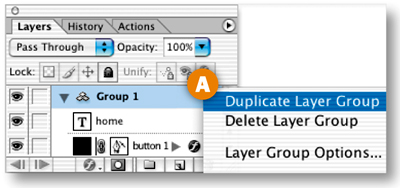



Export ball.gif as a SWF
In ImageReady, choose File>Open and navigate to Ball.gif in the folder of images you generated in the last step. With Ball.gif open in ImageReady, Choose File>Export>Macromedia® Flash© SWF. In the SWF Export dialog box, click in the SWF bgcolor field A and choose black from the Color Picker. Uncheck Generate HTML B to save the SWF without an HTML file. Set JPEG Quality to about 50 C. (This setting will apply to the graphics in this animation.) Click OK. In the next Export dialog box, click Save to save the animation as Ball.swf D.
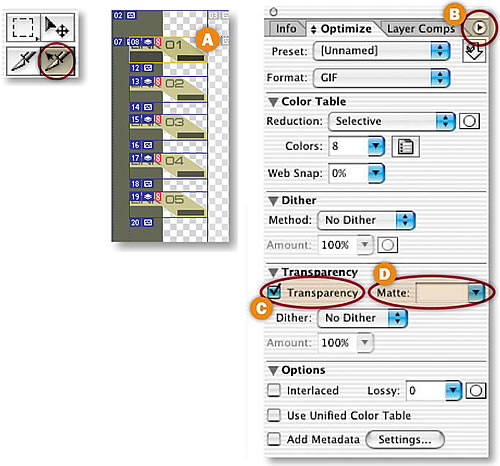
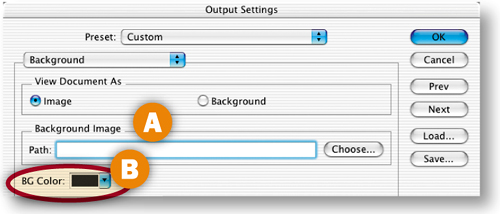


Replace the GIF with the SWF
In Dreamweaver or another site-building program, open the HTML file you saved in Step 14. Delete Ball.gif and substitute the Ball.swf file that you exported in the last step. The Flash animation is now incorporated in your splash page!![]()