Book Cover

Imprint

© 2014 Smashing Magazine GmbH, Freiburg, Germany
ISBN: 978-3-94454097-9 (ePUB)
Cover Design: Veerle Pieters
eBook Strategy and Editing: Vitaly Friedman
Technical Editing: Cosima Mielke
Planning and Quality Control: Vitaly Friedman, Iris Lješnjanin
Tools: Elja Friedman
Syntax Highlighting: Prism by Lea Verou
Idea & Concept: Smashing Magazine GmbH

About This Book

HTML email has the reputation of being a particularly tough design medium. Buggy email clients stripping out your CSS or the suspicious image that one-to-many emails not seldomly partake of, i.e. building compelling emails is quite a challenge for designers. With opening rates on mobile growing tremendously, things don’st get any easier either. If you haven’t ventured on the task yet or want to improve your existing email design skills, then this eBook offers the practical advice you need, whether you want to share your stories in a newsletter or aim at committing to email to market your product.

After taking a look at the current state of HTML email design, you’ll get to grips with optimizing email for mobile, and learn to build your own modular email construction kit that you can draw on to cater for best results on desktop, web and mobile clients. We’ll also explore handy tips to raise your email above inbox noise — with a friendly tone and engaging content (no dirty tricks here!) — and consider missteps that you should better avoid. Building HTML emails certainly does require some fiddling around, but it’s defintely worth it. So, are you ready to take on the challenge?

— Cosima Mielke, Smashing eBook Producer

What 22 Billion Newsletters Tell Us About Designing For Mobile Email

By Ros Hodgekiss

Do you know which platforms and email clients to focus on when creating an email newsletter for yourself or a client? Using the data from over 22 billion email subscribers, we determined what designers should prioritize, both this year and beyond.

In this chapter, we’ll interpret the numbers from our “Email Marketing Trends1” report to help designers like you make informed decisions about what works and what doesn’t in email newsletters. Here are some of the things we’ll cover:

Which email clients and platforms should we be supporting now?

Does responsive design matter for email (even though we’re still coding with tables)?

Should we learn all of the email workarounds or just use existing builders and frameworks?

“Beyond the click” matters. Are your landing pages letting you down?

What should we prioritize in an email newsletter project?

Email: Is It Still All Table Layouts?

If you send email newsletters or have done even a cursory amount of design or coding for them, then you’ll know that CSS support in email clients is, well, broken. For the longest time, designers have avoided using even the most common CSS properties, in the fear that straying from the dullest table-based layout would result in significant rendering differences between email clients, including Outlook and Gmail.

However, some clients are more broken than others. And if you have the benefit of a lot of subscribers who read their email on, say, an iOS device, then you can probably create very web-like experiences in the inbox. A usage report for email clients2 can certainly guide you in this decision, as can some of the data we’ve collected.

A Look At The Numbers

Given the amazing volume of email that Campaign Monitor3 sends on behalf of its customers, we were able to collect and analyze data from over 6 million email campaigns and 22 billion(!) email recipients. In particular, we looked at opens across mobile, desktop and webmail clients; year-over-year trends; and patterns of click-through rates (CTR) based on opens by device.

9% of opens occurred in an undetectable environment
Data is based on 1.8 billion opens from nearly 22 billion email recipients; 9% of opens occurred in an undetectable environment.

Some of what we found came as no surprise. As expected, mobile devices dominated market share across 2013 and 2014. Less obvious is what mobile’s upward trend means to designers who want to create a great email experience on all platforms — and, of course, get more opens and clicks in the process.

What We Can Learn?

Given our extensive experience in email design, we’ve rolled our findings into three practical tips that you can apply when building your next email campaign — and, not to mention, any landing pages. Without any further hesitation, here they are.

1. As With the Web, Design for Mobile First

In recent years, the market share of email clients has seriously shifted. In turn, designers have had to adapt to changes in email behavior. For example, desktop email clients dominated until early 2012, and now mobile devices are the natural environment for reading email. This means that playing it safe with a fixed-width, one-column layout isn’t enough anymore — we need to focus on making our content not only compelling, but easy to read and easy to navigate on a small screen. Responsive design for email4 is no longer a luxury, but a necessity.

If you zoom in on mobile market share, one thing jumps out: Nearly 90% of all mobile opens occur on Apple’s iOS devices. While this data is skewed by the fact that, unlike many Android email clients, iOS displays images by default (thereby registering more opens), it still shows how readily people consume email on iPhones and iPads.

Data based on 780,479,174 mobile opens across 2,164,665 campaigns in 2013
Data based on 780,479,174 mobile opens across 2,164,665 campaigns in 2013.

iOS’ dominance has a wonderful upside. It means that many email designers (particularly those with a high percentage of iOS users) can get really adventurous with creating web-like experiences for mobile. For example, Panic5 now regularly integrates SVG animation, web fonts and responsive design in its campaigns:

Panic integrates SVG animation, web fonts and responsive design in its campaigns
Panic integrates SVG animation, web fonts and responsive design in its campaigns.

The lesson here is to ensure that any CSS techniques you use degrade gracefully in less-capable email clients. What looks amazing in Mail might be unusable in Outlook.

Also, in case you’re wondering, switching to a mobile-friendly email newsletter template does yield results. DEG Digital’s redesign for Crocs6 resulted in a 16% higher reading engagement overall and 8% more clicks, while recent tests by SitePoint7 show that the responsive version of its “Versioning” newsletter8 received 16% more clicks than the previous template.

My Smashing Magazine article9 from 2011 [Editor’s note: see chapter 2 of this book for the revised and updated version of the original article] is still a great primer on tailoring the email experience to mobile devices. We also have the more recent “Guide to Responsive Email Design10” to get you up to speed. That being said, almost every decent email-marketing service has a visual builder for creating mobile-ready newsletters — ours is called Canvas and is well worth a look11.

2. But Desktop and Webmail Clients Will Not Die

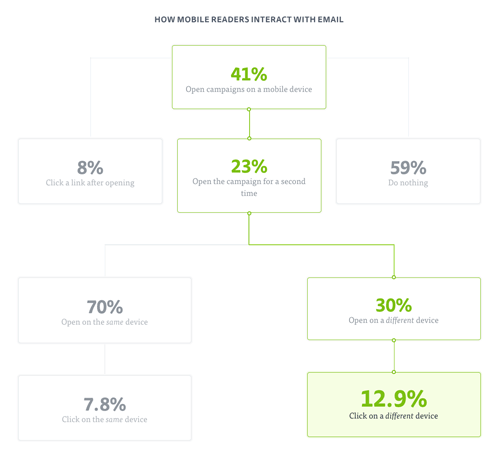
Given that mobile email readership is so far in the lead, is it even worth worrying about what’s happening in webmail or desktop email clients? Yes. While 87% of clicks happen when a reader opens an email for the first time, mobile readers who open an email a second time from their desktop are 65% more likely to click through in a given email, which goes to show that “email triage” is very much a real phenomenon.

Mobile readers who open an email a second time from their desktop are 65% more likely to click through in a given email.
Mobile readers who open an email a second time from their desktop are 65% more likely to click through in a given email. (View large version12)

So, where do opens occur? Outlook 2007+ (as distinct from Outlook.com) accounts for 56% of all desktop opens and nearly 16% of total opens in any environment. Unfortunately, that the majority of desktop opens happen in different editions of Outlook doesn’t make life any easier for designers. Each edition of Outlook has its own rendering challenges13, which regularly require VML workarounds (for example, when applying background images14). As backwards as it sounds, newer versions of Outlook for Windows are more difficult to work with than older ones: 2000 and 2003 render HTML email using Internet Explorer, whereas 2007, 2010 and 2013 use Microsoft Word (thus, the VML tomfoolery).

Refreshingly, Apple’s Mail (which, thanks to WebKit, offers excellent CSS support) has a 33% share of email clients. And, of all email clients, it tends to throw up the fewest rendering problems.

The webmail scene perhaps saw the biggest market share dip last year, but it still accounts for 22% of opens recorded. Looking at other email clients in Microsoft’s stable, Outlook.com (previously Hotmail) accounts for nearly half of all opens in this group. In comparison, Gmail and Yahoo Mail each has an almost 25% share of the webmail market, tying them for second place.

Like the desktop Outlooks, Gmail in particular has some quirks in its CSS support that can be problematic for designers. For starters, Gmail still strips CSS styles15 from the head element of HTML emails, making tools such as CSS Inliner16 a necessary resource (in case your email platform doesn’t have a tool like this built in).

In the end, if you’re coding newsletters from scratch, then learn the different rendering quirks across email clients — for your own sanity.

3. Go Beyond the Click

Almost no one runs an email campaign that doesn’t link to something. So, landing pages should be considered a part of the overall experience. While in some cases, people are willing to view email on two or more platforms, the same isn’t necessarily true with landing pages. A poor mobile experience can have a big impact on bounce rates17. If your email newsletter is meant to generate online sales and yet 41% of subscribers can’t effectively navigate your pages via a mobile device, then you’re potentially losing a lot of revenue.

Looking at it positively, optimizing your website for mobile could have a positive impact not only on your email campaigns, but on your website and business overall. For instance, e-commerce is particularly tricky to get right on mobile devices. However, following a redesign using its ResponsiveJS framework, 5th Finger observed18 that one client measured a 54% increase in checkout conversions on smartphones and a 24% increase on tablets in less than 14 weeks.

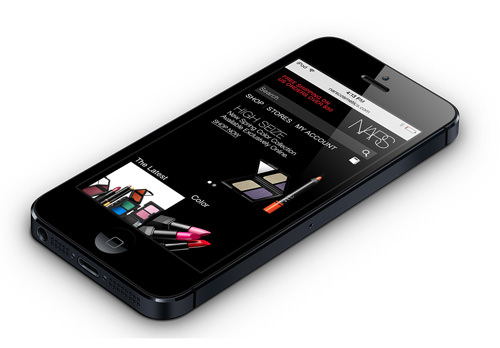
The Nars Cosmetics site, post redesign.
Nars Cosmetics after the redesign (Image: 5th Finger19)

The good news is that a lot of landing-page builders (such as Unbounce20), frameworks (such as Zurb Foundation21) and CMS themes (looking at you, WordPress22) focus on making mobile browsing pleasurable. These resources have been developed to do most of the hard work of building a responsive website: adapting navigation elements and forms to be usable, making text readable and scaling images.

In addition to the tools that handle the practical side of responsive design, designers also have formidable resources on the theory, including some great eBooks from Smashing Magazine23. So, regardless of whether you’re more comfortable building out of the box, coding or simply telling a designer what to do, you can provide a good post-click experience for email recipients.

Where Do We Go From Here?

One thing we know about email marketing is that technology is shifting all the time. Knowing and adapting to your subscribers’ email usage — and understanding how they consume your content — is critical to the success of your email campaigns.

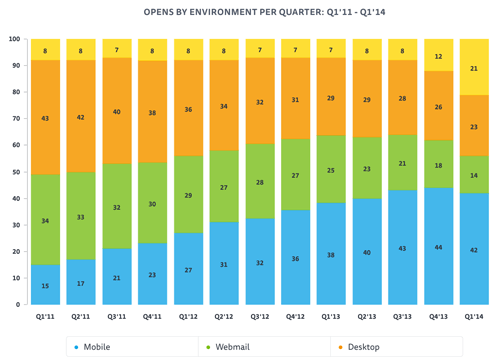
Email client usage by environment from 2011-2014
Email client usage by environment from 2011 to 2014. Note that the yellow represents “undetectable” devices, which increased dramatically from Q4 onwards because Google’s decision to cache email images24 affected detection of both Gmail’s webmail and mobile email clients. (View large version25)

If we look at device trends, a few things are clear:

Design mobile-first.
Now that the majority of opens occur on mobile devices (and will continue to do so for the foreseeable future), designers have to move on from a fixed-width, table-based approach to email design. Instead, look at how to create better experiences using CSS, responsive layouts, web fonts and more. In the future, we may even start to use flexbox to create pleasing layouts across a variety of inboxes!

But get comfortable with workarounds for desktop and webmail clients.
Sadly, these email clients aren’t going away anytime soon. With 16% of all opens still occurring across Outlook’s desktop clients and an additional 15% being shared between Outlook.com and Gmail alone, both desktop and webmail clients are still very much in use — and will likely continue to be very broken. If working with VML isn’t your cup of tea, you have some great email builders to choose from, such as Canvas26. These tools have a lot of insider knowledge built in and are a great starting point for a mobile-ready campaign.

Think beyond the click.
You probably don’t run email campaigns in isolation, so review the experience around them. On a mobile device, is it easy to subscribe, click through in a newsletter and then complete a goal (such as creating an account or purchasing an item on your website)? If 41% of your subscribers consume mail on a mobile device, then making all post-click interactions as easy as possible is critical.

Prioritize testing.
Finally, the email client landscape is as fragmented as ever. Our “Guide to CSS Support in Email27” shows that the 18 email clients (split across three environments) all have very different levels of CSS support. If you’re designing and building an email campaign from scratch, then you probably won’t be able to get things “just right” in the most common email clients among your subscribers. So, put time into real-life device testing28, or invest money in virtual tests, such as the ones found in many email platforms and via services such as Litmus29.

Now that we’ve looked at what’s trending, it’s over to you. What kinds of email open trends are you seeing, and are they having an effect on how you design and send email campaigns?

Other Resources

Email Marketing Trends30,” Campaign Monitor

Responsive Email Design31, Campaign Monitor

Canvas32, Campaign Monitor
An email newsletter builder

Foundation33, Zurb
A responsive front-end framework

1.https://www.campaignmonitor.com/guides/email-marketing-trends/

2.http://help.campaignmonitor.com/topic.aspx?t=201

3.http://campaignmonitor.com

4.http://www.campaignmonitor.com/guides/mobile/

5.http://panic.com/

6.http://www.degdigital.com/blog/the-benefits-of-responsive-email-design-a-crocs-case-study/

7.http://www.campaignmonitor.com/blog/post/4232/sitepoint-email-newsletter-redesign-ab-testing-results-canvas

8.http://www.sitepoint.com/versioning/

9.http://www.smashingmagazine.com/2011/08/18/from-monitor-to-mobile-optimizing-email-newsletters-with-css/

10.http://www.campaignmonitor.com/guides/mobile/

11.http://campaignmonitor.com/canvas

12.http://www.smashingmagazine.com/wp-content/uploads/2014/08/05-how-mobile-users-interact-with-email-opt.png

13.http://campaignmonitor.com/css

14.http://backgrounds.cm/

15.http://www.campaignmonitor.com/blog/post/4219/gmail-and-google-apps-css-support-and-rendering-differences

16.http://inliner.cm/

17.http://www.simpleseogroup.com/case-study-how-web-design-affects-bounce-rate/

18.http://5thfinger.com/casestudies

19.http://5thfinger.com/

20.http://unbounce.com

21.http://foundation.zurb.com/

22.http://wordpress.com

23.http://www.smashingmagazine.com/ebooks/#mobile-design

24.http://www.campaignmonitor.com/blog/post/4118/how-gmails-image-display-changes-will-affect-your-reports

25.http://www.smashingmagazine.com/wp-content/uploads/2014/08/07-opens-by-environment-per-quarter-opt.png

26.http://www.campaignmonitor.com/canvas/

27.http://www.campaignmonitor.com/css/

28.http://stylecampaign.com/blog/2014/04/managing-a-device-lab/

29.http://litmus.com/

30.https://www.campaignmonitor.com/guides/email-marketing-trends/

31.http://www.campaignmonitor.com/guides/mobile/

32.http://campaignmonitor.com/canvas

33.http://foundation.zurb.com/

From Monitor To Mobile: Optimizing Email Newsletters With CSS

By Ros Hodgekiss

HTML email has a reputation for being a particularly tough design medium. So tough, in fact, that many designers regard coding and testing even the simplest email design to be almost as bad as fixing display quirks in Internet Explorer 6, and only slightly better than a tooth extraction. So, it’s with much courage that I tell you today about using CSS in email newsletters: what works, where it’s going and what you should do next.

After reading this article, you will hopefully come away with a few ideas on how to start coding email designs with improved readability and usability when viewed in Web, mobile and email desktop clients alike. Also included are a variety of resources to get you on the right path with using CSS in email.

Then again, the shaky state of email standards today may convince you that plain-text email is the way to go. The choice is yours.

CSS In HTML Email: The Good, The Bad And The Mobile-Ready

If you’re about to embark on your first HTML email coding job, then you probably come from a Web background and are keen to flex a little CSS3 muscle, get a little JavaScript action happening, drop those shadows…

Not so fast. As any old hat to the email game can tell you, what works on the Web and what works in email are about as far apart as Sydney and Stockholm. For the most part, this is because pretty much every email client has its own way of doing things; while there are perhaps half a dozen browsers to test against when coding a Web page, there are literally dozens of email clients, many of which feature radically different CSS implementations.

But before you give up hope, here’s some advice to get you through the night:

A lot of CSS properties (such as font, color and border) work fine across many of the most popular email clients. Once you know which ones they are1, you can tailor your designs accordingly.

When a CSS property doesn’t work so well, there are often workarounds (such as using cellpadding in tables instead of padding).

When workarounds don’t exist, focus on graceful degradation.

Your design will never look exactly the same across all email clients, no matter how you use CSS. Once you (and your clients) make peace with this, I guarantee you will sleep better at night.

Keep it simple. The less complicated your design and layout, the less likely something will go wrong. Favor table layouts over divs, and make sure your message is readable (which means text, not images).

At this point, you may be saying to yourself, “Well, this all just sounds too hard.” So, perhaps I should remind you how beautiful an HTML email can look, with just a sprinkling of CSS:

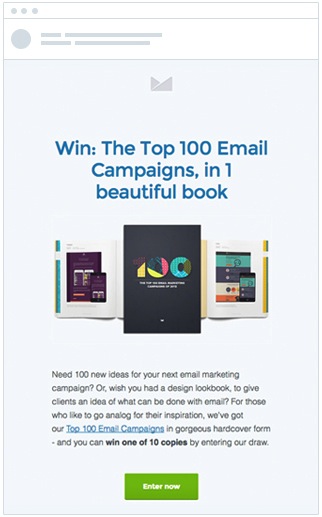
HTML email with a sprinkling of CSS
(View expanded version2)

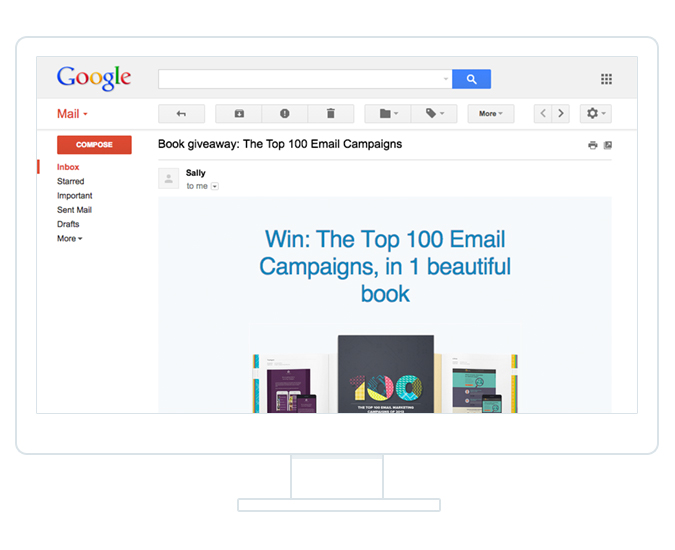
For a more realistic view of what this design will look like in the inbox, here’s the same email in Gmail, a notoriously tricky email clients to work with:

HTML email in Gmail
(View expanded version3)

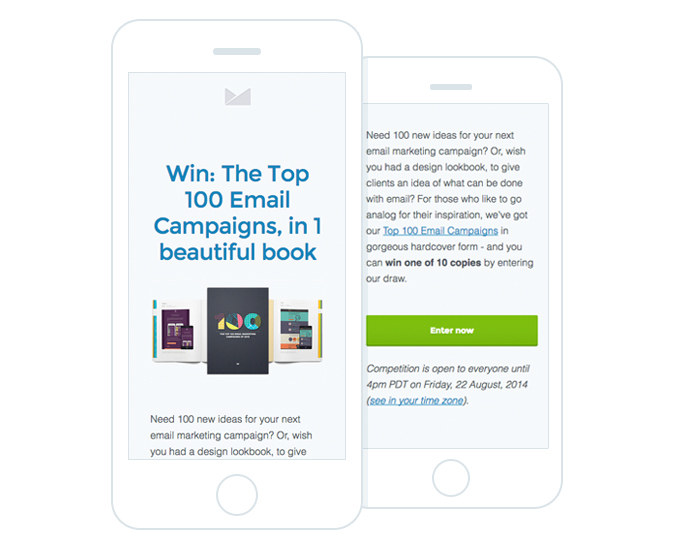
See? Ain’t so bad after all. But what’s more exciting is how you can use CSS to adapt an HTML email for optimal display on mobile devices. Here’s the same newsletter as viewed on a smartphone:

Newsletter displayed on smartphone

Applying a mobile-specific style sheet has improved the readability of the email considerably, allowing us to remove unnecessary whitespace that would have taken up valuable real estate on a small screen.

So, we’ve gone from an email layout that may have required a lot of pinching and zooming, to one that can be easily read with a linear scrolling motion, using CSS alone. We’ll look at how you can apply similar improvements to your email campaigns in a moment. But first, let’s start with some of the fundamentals of using CSS in your HTML email designs.

The State Of CSS Support In Email Today

When I mentioned that a lot of CSS properties out there work fine in many email clients, I wasn’t trying to be vague. Thankfully, the research into what works and what doesn’t has already been done. You need only skim this guide to CSS support in email clients4 to see what properties are within and off limits. Or just know that most of your CSS rendering troubles will come from Outlook 2010, Lotus Notes and Gmail, due to their refusal to do anything useful with CSS style sheets.

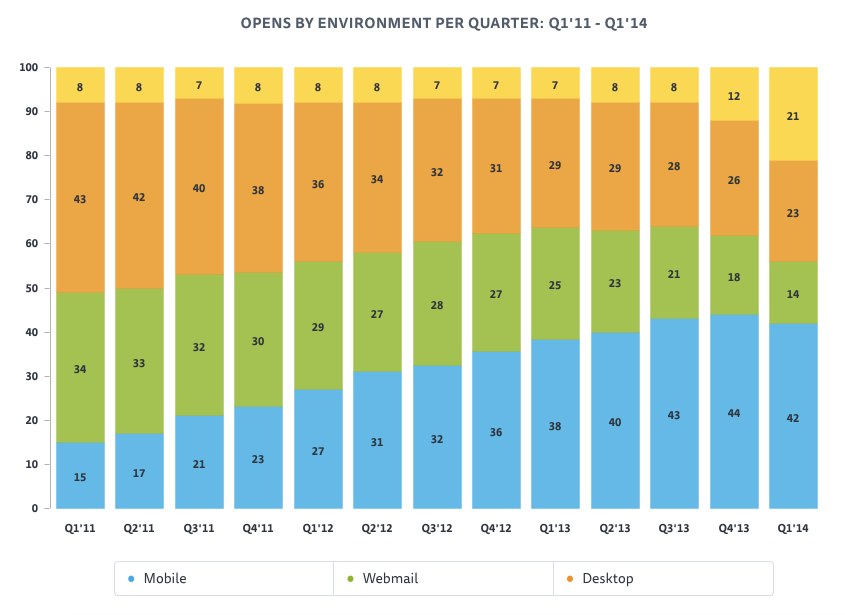
These issues are nothing new. Indeed, the battle for market share between email clients that play nice with CSS versus those that don’t has been pitched for years now. But progress is being made. Looking at the data from over 4 billion emails sent5, we found that mobile email clients have gained ground dramatically, with 42% of emails now opened on a mobile device. Here is how desktop, Web and mobile email clients have fared comparatively over the last five years:

Desktop, Web and mobile email client market share, 2011 to 2014
Desktop, Web and mobile email client market share, 2011 to 2014. (View large version6)

Mobile’s ascent is great news for email designers everywhere for one reason: nearly 90% of mobile email is read on an iOS device. iOS devices use the WebKit rendering engine7, which means they can display really nice-looking HTML emails.

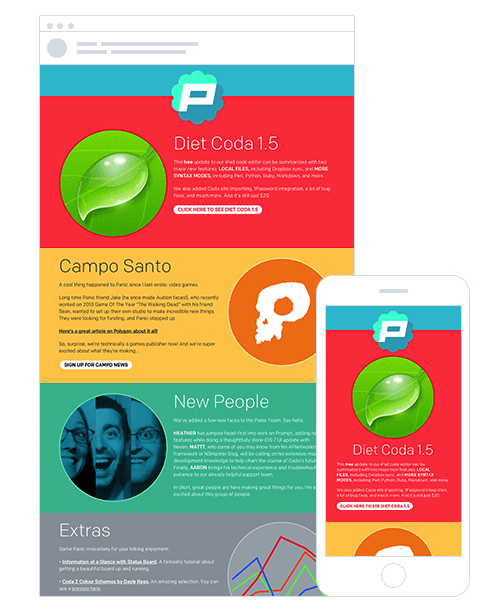
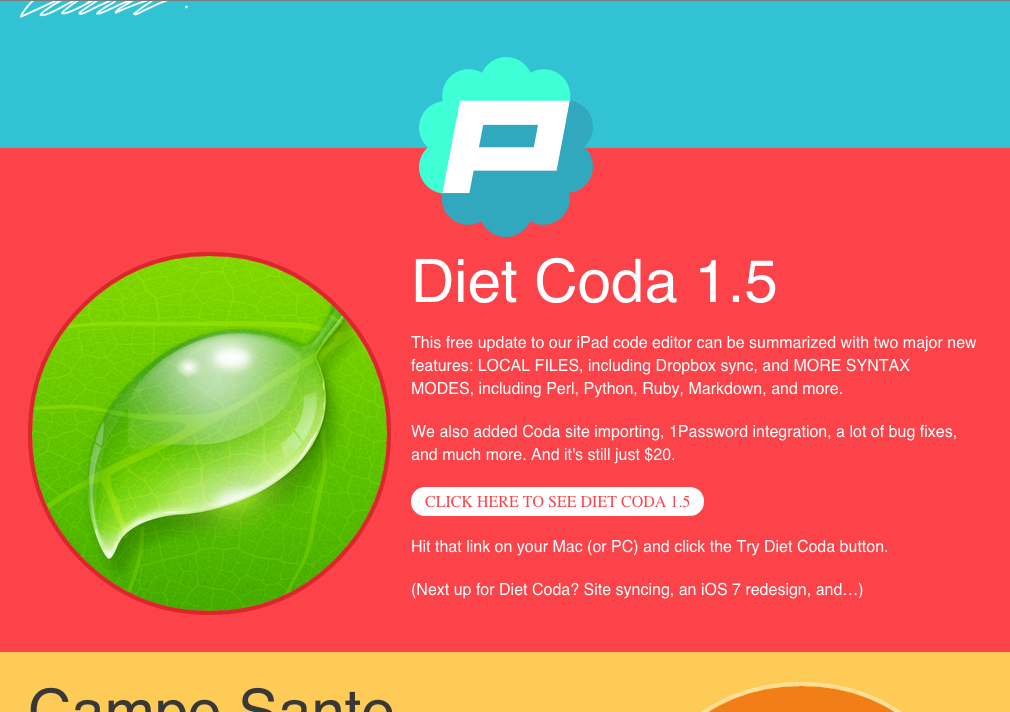
Our friends at Panic8 (the creators of such popular Mac titles as Coda) were well aware of this when they got started on their email announcements. As purveyors of Mac software, they can pretty much always count on their emails being read in Webkit-powered email clients like Apple Mail and the iPhone. As a result, they’ve been able to pull a lot of CSS3 trickery out of the toolbox, including web fonts and SVG masks:

Diet Coda’s newsletter
(View expanded version9)

But what really impressed me was their use of CSS3 animation10. Here’s the code they used to achieve the "Ken Burns" zoom effect:

@-webkit-keyframes kennethburns {   
from { -webkit-transform: scale(1.5) } to { -webkit-transform: scale(1) } }

And you thought HTML email was a boring medium? Well, to temper things a bit, CSS3 still has very limited support beyond a handful of Webkit-powered email clients, so use it with discretion.

Inside An HTML Email Builder’s Toolkit

Before we go charging in and dropping @media queries by the dozen, let’s make sure we have the tools for the job. We’ll need the following:

An email marketing service like MailChimp11 or Campaign Monitor12 to send HTML email campaigns (you can’t do this from desktop or Web email clients like Gmail — sorry);

Code editing software, such as Coda13 or Sublime Text14;

A mobile device to test on (like an iPhone or Android device);

A variety of Web and desktop email accounts to test, either set up individually or automated via a service such as Litmus15;

An intermediate-level understanding of HTML and CSS;

A lot of patience.

In addition, you’ll need a way to move your CSS inline, for the benefit of clients like Gmail, which strip out the head section of HTML email code. Many email marketing apps can do this automatically when you import your campaign, but if yours doesn’t, then you can use a service like inliner.cm16 for the job.

Now that you’re armed and dangerous, let’s launch into the theory and code behind mobile email design.

Using CSS To Optimize Your Email For Mobile Devices

If you’ve created mobile style sheets for the Web or have read into responsive design, then you probably know a bit about @media queries17. If not, then here’s the skinny: they allow you to provide targeted CSS style sheets that are triggered when a device’s capabilities match specific criteria. For example, you could use a media query to specify that a couple of lines of CSS be applied exclusively to devices with a display width of up to 480 pixels, in order to make your website or email easier to read on these screens.

The following is a snippet of code from the earlier newsletter, telling mobile email clients and browsers to scale down the width of the email layout to 300/325 pixels wide, so that it fits comfortably on displays that are no wider than 480 pixels (i.e. the width of an iPhone 5 in landscape mode):

@media only screen and (max-device-width: 480px) {
   …
   table[class=table], td[class=cell] { width: 300px !important; }
   table[class=promotable], td[class=promocell] { width: 325px !important; }}

Note how we’re using attribute selectors here. This is to prevent Yahoo! Mail from accidentally calling this style sheet18.

One thing to note at this point is that, while you can shrink the dimensions of a design (or hide bits, as we’ll do later) using an @media query, the user will still be downloading all of the content. Adding mobile-specific styles shouldn’t be confused with providing a slimmer or faster-loading version of your content. Mobile-specific styles just make the content easier to read.

The great news is that mobile email clients such as iOS Mail and Android’s default mail client follow @media queries to the letter. So, for example, you could pop one into a style sheet in the head of your HTML email code to transform the design into an easily readable, mobile-friendly layout like the one pictured above. You can also do things like shrink the dimensions of images, and use display: none to hide visual elements that don’t work on small screens.

For a more hands-on look at mobile email design, I highly recommend the Guide to Responsive Email Design19, which includes both the fundamentals and some advanced techniques like progressive disclosure20.

What’s Next For HTML Email Designers?

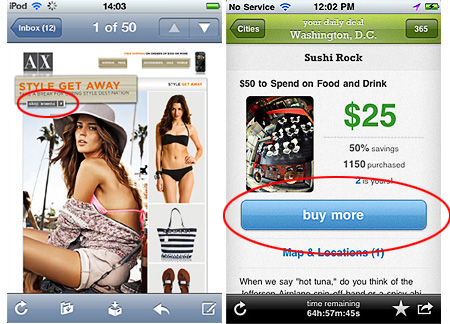
So, while CSS-unfriendly email clients like Outlook will always be here to rain on our parade, the good news is that the rise of mobile email has meant that we may soon be at liberty to create more Web-like email experiences. It has also meant that optimizing your newsletters for handheld and touch displays has gone from being a “nice thing to have” to a given. This doesn’t just affect email newsletters at the code level, but it also changes the way we display design elements. For example, in the following two mobile designs, which do you think is the more effective call-to-action (CTA) button?

Call to action

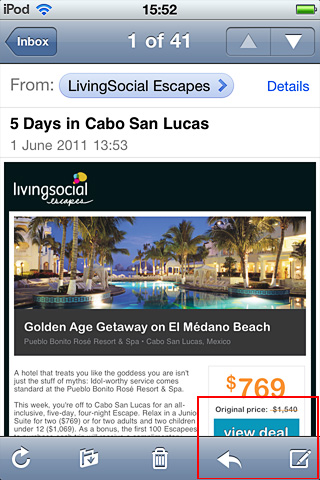
Or consider the CTA in the following mobile-friendly email. If it’s not visible “above the fold,” as they say, then will it be seen at all? Or worse, will recipients end up accidentally tapping the toolbar instead?

Call to action is not visible above the fold

If designers aren’t asking these questions, they sure will be soon. You need only visit Style Campaign’s blog21 (which provided the examples above) or read up on “Optimizing for Touch Across Devices22” to grasp the importance designing good experiences for mobile.

Here are a few other important things to consider when designing adaptive layouts:

Single-column layouts that are no wider than 500 to 600 pixels work best on mobile devices. They’re easier to read, and if they fall apart, they’ll do so more gracefully.

Links and buttons should have a minimum target area of 44 × 44 pixels, as per Apple guidelines. Nothing sucks more than clouds of tiny links on touchscreen devices.

The minimum font size displayed on iPhones is 13 pixels. Keep this in mind when styling text, because anything smaller will be upscaled and could break your layout. Alternatively, you could override this behavior23 in your style sheet.

More than ever, keep your message concise, and place all important design elements in the upper portion of the email, if possible. Scrolling for miles is much harder on a touchscreen than with a mouse.

Now it’s your turn to design wicked HTML email newsletters that, with a dash of CSS, look just as effective on the small screen as they do in your Web browser or desktop inbox. I have no doubt that your readers will appreciate the effort.

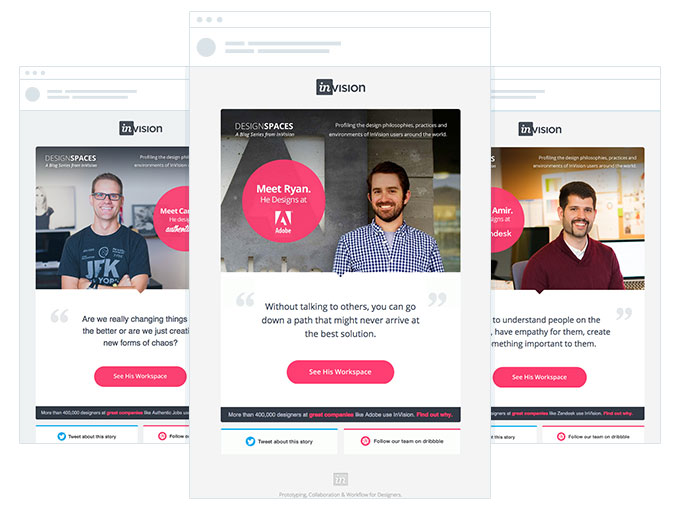
Mobile-friendly email design from InVision
Example of a beautiful, mobile-friendly design from InVision

Resources To Help You Make The Most Of CSS In Email

With funky CSS support and coding practices from circa 1994, designing HTML emails might seem like rocket science. Thankfully, quite a bit of solid documentation exists on effective HTML email design, so below is my recommended reading list if you want to take your newsletters to the next level.

Getting Started with HTML Email

Creating a Simple Responsive HTML Email24

5 top email designers share the tools they can’t live without25

Coding your Emails26” — An excellent starter tutorial

Inliner.cm27 — For moving CSS inline

HTML and CSS in Email Clients

Email Marketing Trends28

Guide to CSS Support in Email Clients29

Mobile Email Design

Guide to Responsive Email Design30

Style Campaign blog31

CSS3 animation, SVG masks, web fonts and more in Panic’s newsletter32

How We Create and Send a Newsletter to 175,000 Subscribers33

Responsive Navigation: Optimizing for Touch Across Devices34” — for those interested in mobile UX

Make your HTML Email 5× More Mobile Friendly35

Email Design Inspiration And Templates

Campaign Monitor’s template builder36

ThemeForest’s email template marketplace37

MailChimp’s free templates38

Campaign Monitor’s email design gallery39

Beautiful Email Newsletters design gallery40

1.https://www.campaignmonitor.com/css/

2.http://gallery.campaignmonitor.com/ViewEmail/y/15450E35B1570807

3.http://www.smashingmagazine.com/wp-content/uploads/2014/10/top100-gmail-expanded.png

4.https://www.campaignmonitor.com/css/

5.https://www.campaignmonitor.com/guides/email-marketing-trends/

6.http://www.smashingmagazine.com/wp-content/uploads/2014/10/email-marketing-trends.png

7.http://www.webkit.org/

8.http://panic.com/

9.http://gallery.campaignmonitor.com/ViewEmail/y/CD8C683C2B0D74EA/

10.http://gallery.campaignmonitor.com/ViewEmail/y/CD8C683C2B0D74EA/

11.http://www.mailchimp.com

12.http://campaignmonitor.com

13.http://www.panic.com/coda

14.http://www.sublimetext.com

15.http://www.litmusapp.com

16.http://inliner.cm

17.http://alistapart.com/article/responsive-web-design

18.https://www.campaignmonitor.com/blog/post/3457/media-query-issues-in-yahoo-mail-mobile-email/

19.https://www.campaignmonitor.com/guides/mobile/

20.https://www.campaignmonitor.com/guides/mobile/responsive/

21.http://stylecampaign.com/blog/2011/07/finger-snafu/

22.http://www.lukew.com/ff/entry.asp?1649

23.https://www.campaignmonitor.com/blog/post/3339/save-your-layout-by-overriding-the-minimum-font-size-on-the-iphone-and/

24.http://webdesign.tutsplus.com/articles/creating-a-simple-responsive-html-email--webdesign-12978

25.https://www.campaignmonitor.com/blog/post/4313/5-top-email-designers-share-the-essential-tools-they-cant-live-without

26.https://www.campaignmonitor.com/guides/coding/

27.http://inliner.cm/

28.https://www.campaignmonitor.com/guides/email-marketing-trends/

29.https://www.campaignmonitor.com/css/

30.https://www.campaignmonitor.com/guides/mobile/

31.http://stylecampaign.com/blog/

32.https://www.campaignmonitor.com/blog/post/4035/css3-animation-svg-masks-web-fonts-panics-newsletter

33.https://www.campaignmonitor.com/blog/post/4271/create-send-monthly-email-newsletter

34.http://www.lukew.com/ff/entry.asp?1649

35.http://webdesignerwall.com/general/make-your-html-email-5-times-more-mobile-friendly

36.https://www.campaignmonitor.com/email-templates/#gallery

37.http://themeforest.net/category/marketing/email-templates

38.http://templates.mailchimp.com/

39.https://www.campaignmonitor.com/gallery

40.http://beautiful-email-newsletters.com/

Improve Your Email Workflow With Modular Design

By Brian Graves

Whether you’re in a Fortune 500 company or part of a two-person team launching your first web app, email is one of the most important tools for reaching your customer base. But with the ever-growing number of emails to send1, getting them all out the door can seem a little overwhelming. By putting in place a solid email design workflow, you’ll be able to regularly ship engaging and mobile-friendly emails with ease.

Complexity Meets Adaptation

In addition to the increasing number of emails, the need for personalization and high quality and the introduction of responsive design have turned what was once a simple process of writing HTML and CSS in your favorite text editor into something seemingly more complex. A number of customizable templates2, editors3, tools4 and even full-fledged email frameworks5 have popped up to deal with this newfound complexity.

All of these new tools have their advantages, and many can be combined6 into a workflow that best fits you and your team. But even with a great set of new tools at your disposal, how do you structure your workflow to allow for continual iteration and quick turnaround?

Enter Modular Design

Modular design is the method of creating a system of self-contained components that can be stacked, rearranged and used or not used, case by case. The goal is to be able to easily change or adapt individual design patterns without altering the system as a whole. Adopting modular design and reusable patterns into your email design workflow can improve the quality and consistency of what you send, while speeding up your daily output.

Setting up a modular email design workflow involves three basic steps:

1. Create the design system.

2. Set up a reusable framework.

3. Test and iterate on what you send.

Let’s look in depth at how we can accomplish each step in the process.

1. Create A Design System

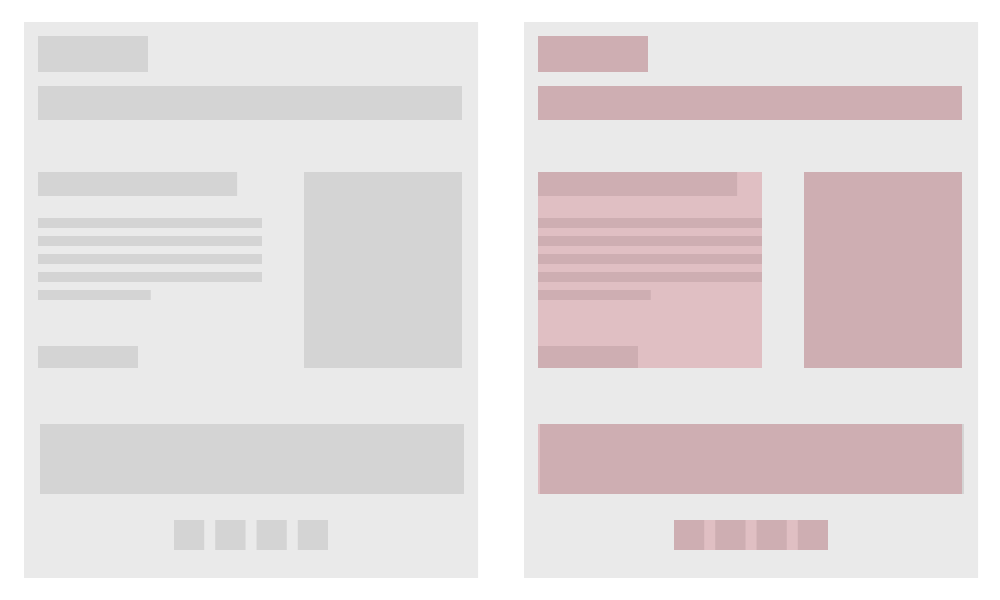
The easiest way to streamline iteration is to break down each of your common design use cases into a system of self-contained components, each one a LEGO block, made up of content and media, that you can snap together into numerous configurations. Doing this will enable you to build a nearly infinite number of emails with ease.

Think of your designs as Lego blocks, made up of content & media.
Think of your designs as LEGO blocks, made up of content and media.

Anticipate Use Cases

When designing your modular email system, the first step is to anticipate your use cases. Ask yourself what type of emails you typically send. Are they mostly transactional? Promotional? Informational? While all emails will likely have the same basic elements, such as a header and footer, a transactional email might need shipment information, ordering details, payment details, a contact section, and product upsells or similar products.

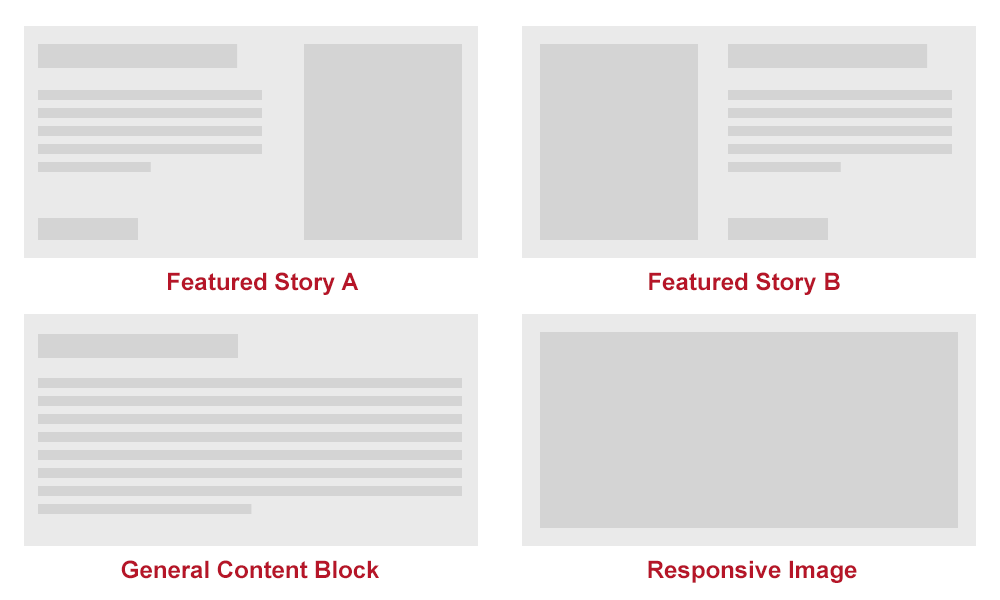
A newsletter might have simpler needs, such as introductory copy, a featured story, a hero image and secondary stories. Defining the content needs of the emails that you send will enable you to anticipate the common use cases that you’ll need to plan for along the way.

Design A Pattern Library

Once you determine common use cases, you can start to design individual components according to your needs. Whether you use Photoshop or jump right into the browser, remember to keep each component as self-contained as possible. Designing several variations of each use case might also be helpful.

Having several options for a “featured story” component, for instance, allows for flexibility and keeps things from getting stagnant over time. The patterns in your library will eventually become partials within your framework, easily referred to and called upon when needed.

Turn your use cases into modular patterns
Turn your use cases into modular patterns.

Keep Your Pattern Library Up To Date

As new use cases arise, use your existing patterns as necessary. However, unexpected use cases will probably arise; one benefit of the modular system is that you need to design only a single component to address this situation. As you create and add patterns, make sure to keep the entire design system up to date and organized. Leaving components scattered or out of sync will make the system difficult to use. The easiest way to keep everything in sync is to turn your system into a framework.

2. Set Up A Framework

From here, incorporating your design patterns into an out-of-the-box templating system or framework is possible. And if you’re not interested in navigating the chaotic world of Outlook or Gmail, with all of their quirks, or if you need to get something out the door with minimal configuration, then options like Zurb’s Ink7 will do a lot of the heavy lifting for you.

But if you send a decent volume of email, then creating your own custom framework could lead to huge gains. By creating your own framework, you can add in time-saving custom helpers, keep the markup light and easy to work with, and even hook directly into your email service provider. Not to mention that you can create more customized layouts to complement all-in-one solutions. The long-term gains in quality and efficiency from setting up your own framework can be huge.

Build on Top of a Static Website Generator

Adding features and tools such as Sass, YAML data and localization to your framework could also be beneficial. The easiest way to do this is by integrating your framework with a static website generator. The building blocks that are common to email and the web will enable you to repurpose almost any website generator for your email workflow.

Middleman8 is a great option and one that I’ve found ticks all of the major boxes:

The structure of projects as layouts, partials and pages perfectly fits our mental model of modular email.

Sass9 is already integrated. Sass is an amazing addition to any responsive email workflow. Common workarounds such as the one for Yahoo Mail’s attribute selector10 become an afterthought through the clever use of selector inheritance. Sass also provides powerful features such as variables, mixins and CSS minification to cut down on file size.

YAML data and front matter allow you to fully separate content from design and loop through data for easy prototyping.

If you’re sending to a large and diverse audience in multiple languages, then localization can dynamically generate that diverse set of data relatively painlessly.

A myriad of hooks enable us to easily create custom helpers for email platform-specific needs.

Middleman is Ruby-based, making it easily extensible.

Set Up A Boilerplate

Once you’ve chosen a static website generator that meets your needs, then it’s time to set up your base boilerplate. A boilerplate includes such things as a reset file, the CSS or Sass structure, an optional custom grid system and a base template.

Base Layout Template

A basic template will serve as your base layout structure and will allow global elements to be shared across all emails. Preheaders, headers and footers will usually stay consistent across emails. If this is the case with your designs, then you can safely build these into your layout’s template. The safer approach is either to build out and include these elements as partials or, if these elements will likely move or change in particular emails, to wrap the markup in conditional statements.

Your base email template should include at least the following:

DOCTYPE
HTML5 is the friendliest for designing responsive emails. Remember that certain clients will either strip out or change your DOCTYPE.

head
A lot is important to include here: meta tags for proper character encoding, title tags for anyone viewing the standalone version of your email in a browser, reset styles, embedded media query styles, any styles to be inlined and the viewport meta tag to set the viewport’s width.

body
In addition to the standard body tag, wrap your entire email in a 100%-width table and cell structure, as shown below. The table with the body class will act as the body, thereby overcoming the drawback of certain clients removing the body tag.

yield
This is from where all of your modules for individual emails will be pulled.

<!DOCTYPE html>
<html lang="en">

<head>
  <meta http-equiv="Content-Type" content="text/html; charset=utf-8" />
  <meta name="viewport" content="width=device-width">
  <title><%= data.page.title %></title>

  <%= inline_stylesheet 'template/inline' %>
  <%= stylesheet_link_tag 'template/mq' %>
</head>

<body>
  <table class="body">
    <tr>
      <td class="header" >
        [Header content]
      </td>
    </tr>
    <tr>
      <td class="main" >
        <%= yield %>
      </td>
    </tr>
    <tr>
      <td class="footer" >
        [Footer content]
      </td>
    </tr>
  </table>
</body>
</html>
Partials Based on Modules

Keep the markup of your individual design patterns inside of partials, to keep the design system truly modular. This will allow the markup for each module to be self-contained. Taking a modular approach with both your designs and your markup becomes truly powerful. Once it’s built, you should be able to move each design pattern around to different areas of the template without breaking the module, the template or any other modules surrounding it. When you’re setting up the framework, build out each module that you’ve planned for in this way.

Taking the use case from our last example, the modular markup for a featured story would look like this:

<table class="featured-story">
  <tr>
    <td class="col">
      <img src="#" alt="" />
    </td>
    <td class="col">
      <table>
        <tr>
          <td class="title">
            [Story Title]
          </td>
        </tr>
        <tr>
          <td class="abstract">
            [Story Abstract]
          </td>
        </tr>
        <tr>
          <td class="cta">
            <a href="#">CTA</a>
          </td>
        </tr>
      </table>
    </td>
  </tr>
</table>
Sass Structure

Following OOCSS11 will maintain the modularity of your Sass. In general, keep your styles as modular as possible, just like your designs and markup.

One caveat when writing CSS or Sass in an email framework is that all media query-based styles must begin with an attribute selector (such as td[class=example]{}) in order to avoid rendering issues in Yahoo Mail12. An easy workaround is Sass’ ability to nest styles. Nesting all media queries in a single attribute-based selector will prevent them from being applied to each individual style. Writing your Sass in this way will increase both readability and speed while maintaining visual consistency across clients.

Following this method, the basic media queries for optimizing the template and content area above for mobile would be this:

td[class=body] {
  @media only screen and (max-width: 600px) {
    .col { 
      display: block; 
      width: 100%; 
    }
    .title { 
      font-size: 22px !important; 
    }
    .abstract { 
      font-size: 16px !important; 
    }
    .cta a { 
      display: block;
      width: 100%;
    }
  }
}

Put It All Together

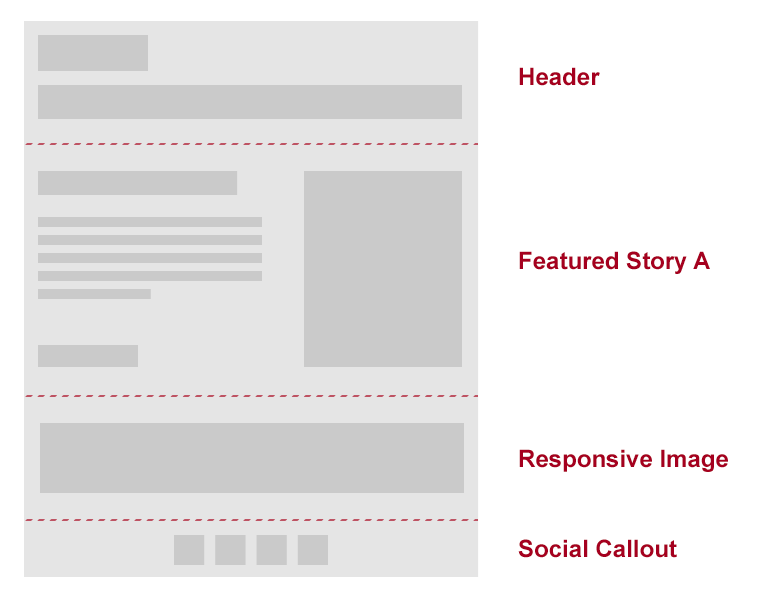
With a base framework and modular design patterns in place, it’s now time to snap all of the LEGO blocks together. Create a page for each email that you’re building for your framework. This page should be wrapped with your base template and should call any modular patterns that you need.

Thinking in a modular way will enable you to build emails like LEGO blocks.

---
title: Example Email
layout: template
---

<%= partial "featured-story" %>
<%= partial "responsive-image" %>
<%= partial "social-callout" %>

Automate Common Tasks

One of the greatest efficiencies you can gain in your workflow is to automate frequent tasks. This typically means inlining CSS, optimizing images, sending tests, and integrating templates and modules with your email service provider. Most common tasks can be easily integrated with Rake tasks, Ruby Gems and/or Grunt.

CSS Inlining

The safest method is to inline styles whenever possible because certain email clients strip out styles from the head of documents. If you’re used to the common web workflow of writing styles in a separate sheet, then getting used to this will be hard. It can become a hindrance to modularity, and if you’re trying to use Sass to style, then this obviously becomes impossible to do manually.

Luckily, we have several options to automatically inline styles at build time. If you’re using a Ruby-based tempting engine, then the best option is to include the Premailer Gem13 in your project. Premailer automatically runs through your style sheet and inlines styles while preserving any existing styles when called. This is a huge time-saver, and it keeps markup manageable.

Testing

There are several ways to test how your email looks. The first stage in my process is to design and check the rendering in Chrome. Once the designs are completed, it’s time to jump into a more automated tool to check rendering across the board. Litmus14 is a web application, like BrowserStack15 but focused on delivering screenshots of your email across a wide variety of clients.

You can send your emails to Litmus in a variety of ways, but if you’re using Grunt in the framework, then the easiest way is by using Grunt-Litmus16. Grunt-Litmus automates the process of getting tests to your account and lets you check rendering in clients of your choice.

module.exports = {
  test: {
    src: ['email.html'],
    options: {
      clients: ['android22', 'android4'...]
      username: "username",
      password: "password",
      url: "https://yourcompany.litmus.com"            
    }
  }
};

Testing on real devices is another common approach, especially vital with things like CSS animation and embedded video. If you have a device lab set up with a common email address, an easy way to trigger an email delivery directly from your framework is to use the Ruby Mail Gem.

Hook Into Your Email Service Provider

If you’re using an email platform that provides access (such as ExactTarget17 or MailChimp18), then you can set up your project to hook directly into the API and push your template along with individual modules into the system on command. Doing this allows you to build locally in the framework, keeping everything modular and under source control, and still push to your email service provider quickly and easily as you iterate. How you hook into your provider will obviously vary by platform, but definitely keep this in mind when setting up a modular framework.

3. Iterate On Your Designs

The periodical nature of email lends itself well to design iteration. If you’re sending emails daily or weekly, then you have ample room to A/B test your design decisions. No matter what workflow options you adopt, make sure to track important email metrics19 and use available data to improve your core design, remembering that a better experience is usually more important than any single data point.

The periodical nature of email makes for easy testing and iteration.

Don’t reinvent the wheel every time you send an email; rather, make continual incremental changes as warranted by your metrics. The benefits of a modular design workflow should make these incremental changes fairly painless as you swap components in and out. The important thing is not to let your designs stagnate.

Conclusion

Incorporating a modular approach and a custom framework into your email workflow can lead to increased productivity and make it easier for you to iterate on your designs. You will have to make an initial investment of time to get everything up and running, but if you send a decent volume of email and can afford the initial investment, then the result will improve your designs, the customer experience and your engagement rates, leading to happier customers and increased revenue.

Links

Ink20, Zurb
A framework for rapid development of responsive emails.

A Workflow for Responsive Emails Using Ink and Grunt21,” Victor Garcia, Medium

Middleman Email Template22, DEG
A Middleman project template customized for building emails.

Middleman 3.0.x Project Template: HTML Email Boilerplate HAML23, Danny Prose
A Middleman template for HTML Email Boilerplate24, converted to HAML.

Size Matters: Balancing Line Length And Font Size In Responsive Web Design

By Laura Franz

As we refine our methods of responsive web design, we’ve increasingly focused on measure (another word for “line length”) and its relationship to how people read.


The popularization of the “ideal measure” has led to advice such as “Increase font size for large screens and reduce font size for small screens.” While a good measure does improve the reading experience, it’s only one rule for good typography. Another rule is to maintain a comfortable font size.

How People Read

People read online text to serve their own needs: to find the information they seek, to discover new ideas and to confirm their notions about life.

People Read in Three Ways

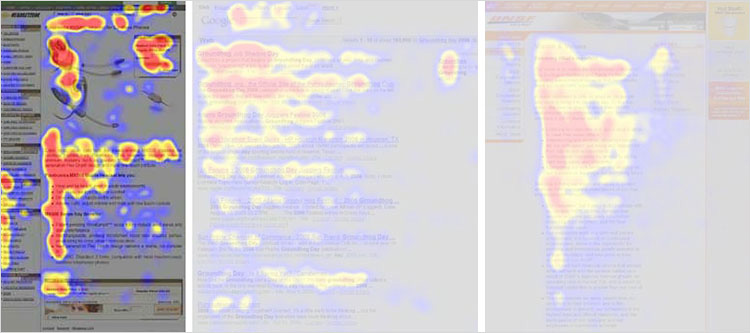
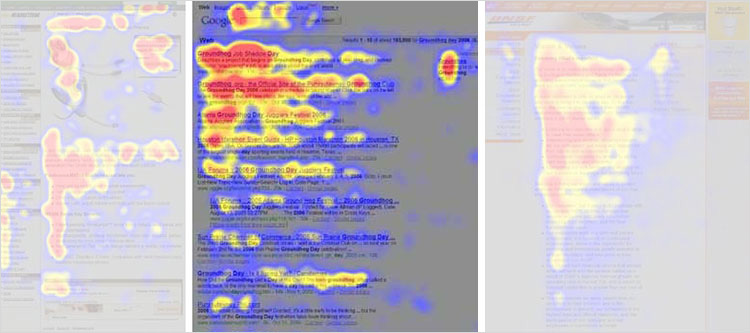
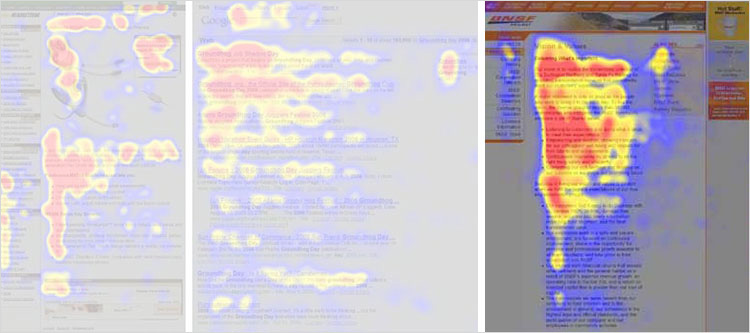
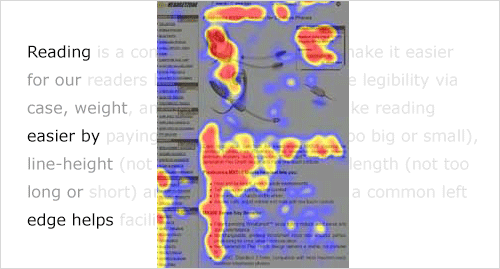
In 2006, the Nielsen Norman group released images of heat maps from eye-tracking studies. The areas where people looked at the most while reading are red, areas with fewer views are yellow, and the least-viewed areas are blue. As you can see below, the red and yellow areas form three variations of an F-shaped pattern. These variations aren’t surprising because people read in three different ways.

People read casually, skimming over text, reading words and sentences here and there to get a sense of the content. The heat map below shows the eye movements of someone casually reading about a product. The reader spent time looking at the image of the product, reading the first couple of sentences, then scanning through the bulleted list.

1-casual-reading-preview-opt
The Nielsen Norman Group explored the F-shaped pattern for casual reading in 2006.

People also scan with purpose, jumping from section to section, looking for a particular piece of information. They might only read a word or the first couple of characters of a word as they scan the screen. The heat map below shows the eye movements of someone scanning the results of a Google search with purpose. The person read the first two results more slowly. Then, their eyes jumped from section to section, looking for the search term. Therefore, we do not see a strong vertical stroke along the left edge of the text.

2-scanning-with-purpose-preview-opt
The Nielsen Norman Group explored the F-shaped pattern for purposeful scanning in 2006.

Finally, people read in an engaged manner. When they find an article or blog post they are interested in, they will slow down and read the whole text, perhaps even going into a trance-like state. The heat map below shows the eye movements of a person reading in an engaged manner.

3-reading-preview-opt
The Nielsen Norman Group explored the F-shaped pattern for reading in an engaged manner in 2006.

The tone is more continuous. There is more red (meaning more time spent reading) and less jumping around the page. When the intensity of reading dwindled because they lost interest (the corporate “About us” page might not have aligned with their interests), their eyes continued along the left edge of the text.


Reading Is a Complex Process

We know that people read in three different ways, but let’s look more closely at how people read — how the F-shaped patterns are formed.


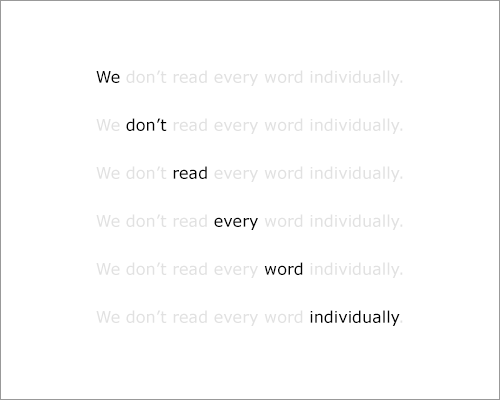
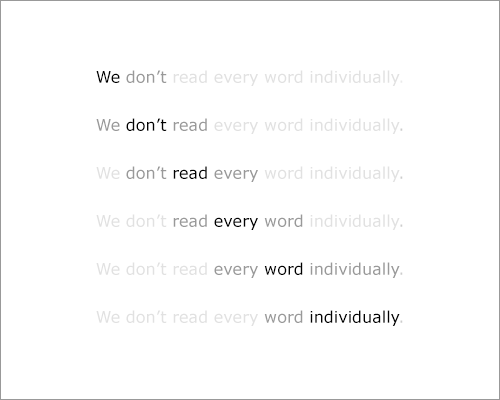
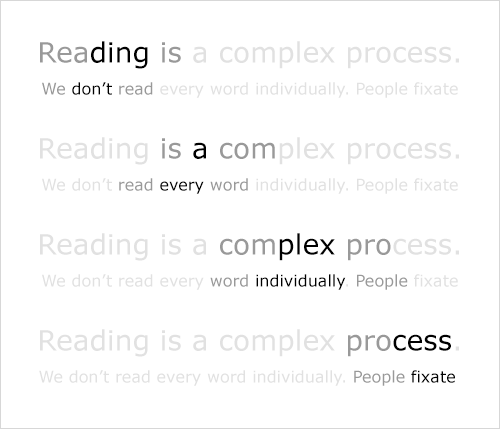
We know that people. Don’t. Read. Each. Individual. Word. Instead, they use their foveal (or central) vision to focus on a word, while using their peripheral vision to find the next spot on which to focus.

4-reading-preview-opt

People don’t read each word individually.

5-reading-preview-opt
People use their foveal (central) and peripheral vision to read.


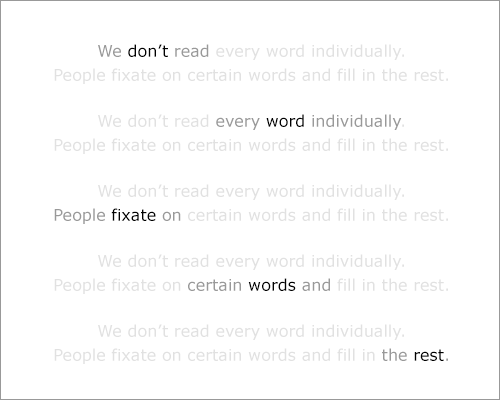
We also know that people don’t fixate on every word, but tend to skip words (their eyes take little leaps, called “saccades”) and fill in the rest. This is especially true of those who read casually or scan with purpose.

6-skipping-words-preview-opt

People skip words and fill in the rest.

Finally, we know that readers anticipate the next line while moving their eyes horizontally along a line; so, their eyes are drawn down the left edge of the text. This constant struggle between horizontal and vertical motion contributes to the F-shaped reading patterns.

7-F-shape-pattern-preview-opt
The constant struggle between horizontal and vertical eye movement results in the F-shaped patterns
.

Line Length (Measure) And Reading

Typographers have been writing about the relationship between horizontal and vertical eye motion for almost a century. In 1928, Jan Tschichold dismissed centered text and advocated for left-aligned text. He argued that this would assist readers by providing a consistent left (vertical) edge for the eye to return to after finishing each (horizontal) line.

The Ideal Measure: 45 to 75 Characters

We have multiple “rules” for facilitating a horizontal reading motion, one of which is to set text at a reasonable measure. As James Craig wrote in his book Designing With Type (originally published in 1971, now it its fifth edition):

Reading a long line of type causes fatigue: the reader must move his head at the end of each line and search for the beginning of the next line.… Too short a line breaks up words or phrases that are generally read as a unit.

If a casual reader gets tired of reading a long horizontal line, then they’re more likely to skim the left edge of the text. If an engaged reader gets tired of reading a long horizontal line, then they’re more likely to accidentally read the same line of text twice (a phenomenon known as “doubling”).

65 characters (2.5 times the Roman alphabet) is often referred to as the perfect measure. Derived from this number is the ideal range that all designers should strive for: 45 to 75 characters (including spaces and punctuation) per line for print. Many web designers (including me) apply that rule directly to the web. I’ve found, however, that we can reliably broaden the range to 45 to 85 characters (including spaces and punctuation) per line for web pages.

Measure and Web Type

Web designers have started to embrace a reasonable measure for text. Resources abound. Early writings include Mark Boulton’s more poetic approach to typography, which he refers to as “knowing your hanging punctuation from your em-dash” (“Five Simple Steps to Better Typography1”). Later writings include Harry Roberts’ more technical approach to typography (“Technical Web Typography: Guidelines and Techniques2”).

The most recent (and, dare I say, exciting) development in measure? Its role in responsive web design. More designers are using line length to help determine break points in a responsive structure! Chris Coyer recently developed his bookmarklet to test line length in order to help responsive web designers keep an eye on their measure (“Bookmarklet to Colorize Text Between 45 and 75 Characters3”).

But a good measure is only one rule for setting readable text.

Font Size And Reading

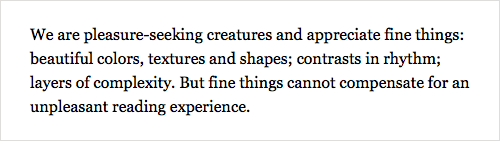
A good, comfortable font size is also necessary for setting readable text. This rule is old news. But given the number of responsive websites out there that make text too small or too big in order to achieve an ideal measure, the rule bears repeating.

Static Web Pages and Font Size

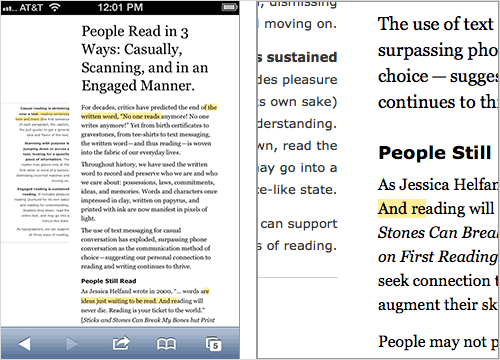
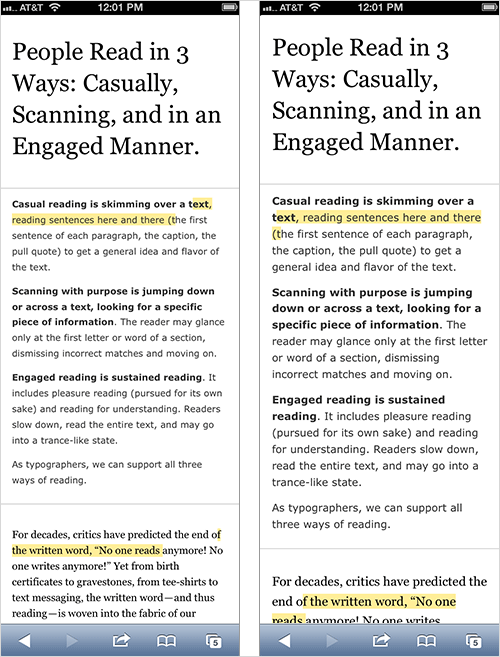
One benefit of a responsive web structure is readable text — text that people on hand-held devices don’t have to pinch and zoom to read. If a structure is static (like the two-column page shown below), then an ideal measure won’t do the trick. The text will simply be way too tiny to read on a small device such as a phone.

8-structure-preview-opt
Left: The main column has a good measure (45 to 85 characters are highlighted in yellow). But without a responsive structure, the text is too small to read on a small device without pinching and zooming. Right: The font size (13-pixel Verdana for the left column, 18-pixel Georgia for the introduction and 16-pixel Georgia for the article) is comfortable to read on a laptop.

Small Devices and Font Size

When designing a responsive website, start with a comfortable font size and an ideal measure to help determine break points. But when the time comes (as it always does), let the ideal measure go.

Text already looks smaller on hand-held devices than on larger devices. This is fine because people tend to hold small devices closer when reading. Current popular wisdom is to preserve the measure by further reducing the font sizes for held-held devices. In practice, retaining a comfortable font size as much as possible better preserves readability. The result will be a less-than-ideal measure but a more comfortable reading experience.

A responsive structure won’t help if small text on a hand-held device encourages readers to pinch and zoom!

9-font-size-preview-opt
Left: To retain an ideal measure, the font size is reduced to 12-pixel Verdana and 14-pixel Georgia for hand-held devices. The text is harder to read. Right: The font size is 13-pixel Verdana and 17-pixel Georgia for hand-held devices. The measure is no longer ideal, but the text is easier to read.


Large Devices and Font Size

When designing a responsive website, remember that measure and font size affect not only people using hand-held devices. The majority of people still use larger devices, such as laptops and desktop computers.

Some simple responsive structures keep text in a single column that expands and contracts with the size of the device. This can be an elegant, appropriate solution — except when the font size (instead of the column’s width) is used to preserve the ideal measure.

We’ve learned not to set text too small, but text that’s too big also poses a problem. When type gets too big, the reader’s eyes try to follow their usual pattern. But a font size that’s too large takes up more horizontal space, and it interferes with the horizontal flow that readers have established using their foveal vision and their pattern of skipping words.

We’re used to setting online text larger than printed text. This is fine because people tend to place large devices on their lap or on a desk while reading. But overly large text forces the reader to slow down and adjust how far they skip ahead as they read. Reading horizontally becomes cumbersome, and the reader will start to skip vertically down the left edge of the text.

10-horizontal-rhythm-preview-opt
When type gets too big, the reader tries to follow their usual horizontal rhythm. This forces them to read parts of words instead of entire words and to slow down and adjust their reading pattern.


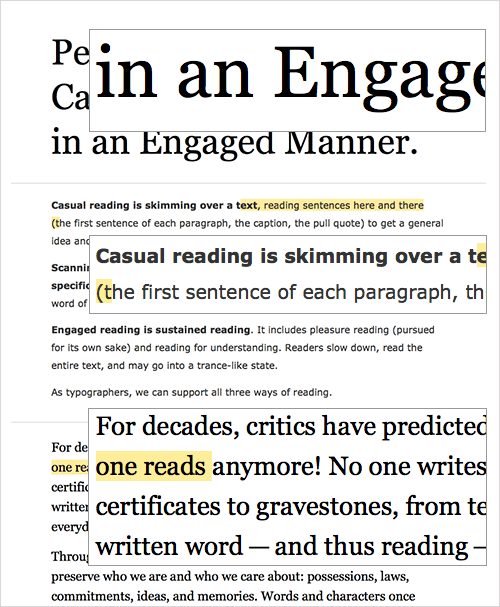
Current popular advice is to preserve the measure by increasing the font size for large devices. For example, the one-column structure below has an ideal measure. But to achieve this ideal measure on large devices, we’ve had to set the text to 19-pixel Verdana, 22-pixel Georgia for the article, and a whopping 26-pixel Georgia for the introduction!

11-layout-at-hundred-percent-preview-opt
In the layout above, details show the text at 100% size. The text on this web page is way too big for comfortable reading! Simple one-column responsive structures should use a narrower column on large devices, keeping the font size smaller and easier to read. (View large version4)

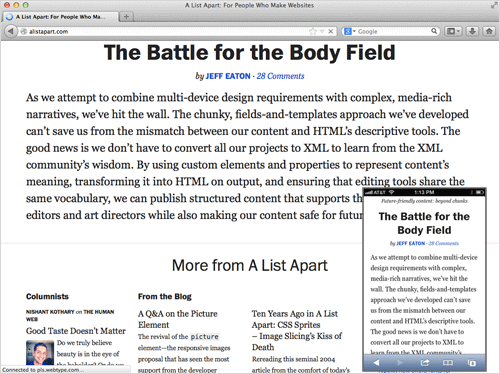
In practice, retaining a comfortable font size as much as possible and simply narrowing the column’s width instead are better. Look at what happens to A List Apart5 when it’s viewed on a hand-held device and on a laptop.

12-alistapart-example-large-opt
A List Apart is perfectly readable on a hand-held device. But on a laptop, the text gets too big to be comfortably read. A shorter measure and a smaller font size would help people follow their usual horizontal rhythm. (View large version6)

Bonus Section: Line Height And Reading

So far, our focus has been on the relationship between font size and measure in responsive web structures. But line height also affects how people read.

Line Height Affects Horizontal Motion

Because readers scan content both horizontally and vertically, lines of text should feel like horizontal lines, not like woven fabric.

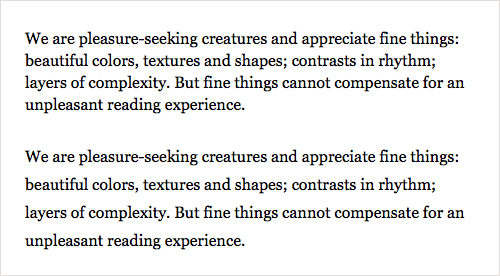
A line height that is too tight could undermine horizontal eye movement and encourage scanning down the left edge. It could also force people to reread lines of text. On the other hand, a line height that is too loose could make lines of text visually “float away” from each other. The lines will no longer feel like a cohesive unit, and vertical scanning becomes more difficult.

While there is no perfect line height, a good rule of thumb is to set it at approximately 150% of the font size.

15-line-height-preview-opt
While there is no perfect line height, a good rule of thumb is to set it at approximately 150% of the font size.

14-tight-height-preview-opt
Top: When the line height is too tight, it undermines the horizontal reading flow and increases doubling. Bottom: When the line height is too loose, lines of text visually float away from each other.

Line Height and Font Size

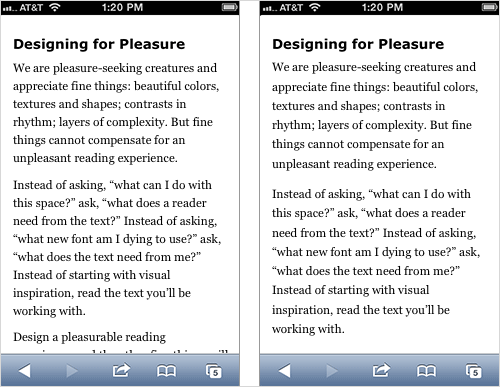
Setting line height is a complex balance of variables (font family, measure, font size, language). The most important variable when creating a responsive web structure is — surprise! — font size.

Smaller type tends to need more line height, not less. A generous line height helps the eye to recognize small word shapes more easily, and it encourages horizontal motion when the eye gets tired of reading small text.

16-line-height-at-hundred-fifty-percent-preview-opt
Left: A line height set at 150% is a bit too tight on an iPhone. Right: The exact same text with a slightly looser line height promotes horizontal movement and helps the reader to recognize word shapes.

Look Closely, Break Rules

When we design a responsive structure, testing it on a large device is easy; we can change a desktop browser’s size quickly. But designing on a desktop or laptop browser means that we are spending most of our time at an arm’s length from the text, and we don’t spend much time seeing how the text renders on small devices.

If you’re using measure to find break points in your responsive website, then you probably care about type and reading. Keep using measure! It’s a great starting point. But to see whether your type truly works, spend some time looking at it closely, on a smaller device. Balance measure, line height and font size as needed.

Remember that all rules are meant to be broken. Heck, Jan Tschichold broke his own rule and used centered text for much of his career. When the time comes, sacrifice measure for a comfortable font size. A good font size (not too small) is readable. A good font size (not too big) promotes horizontal eye motion. A good font size with the proper line height will help your readers find what they’re looking for.

Further Resources

Five Simple Steps to Better Typography7,” Mark Boulton

Technical Web Typography Guidelines and Techniques8,” Harry Roberts, Smashing Magazine

Choose a Comfortable Measure9,” The Elements of Typographic Style Applied to the Web

How We Read10,” Jason Santa Maria, A List Apart

Bookmarklet to Colorize Text Between 45 and 75 Characters (For Line-Length Testing)11,” Chris Coyier

How I Test Type and Layout12,” Jordan Moore

How To Raise Your Email Above Inbox Noise

By Fabio Carneiro

If we look at email from a signal-to-noise perspective, then one-to-many emails are undeniably in the “noise” category; people are exceedingly good at ignoring them. Even Gmail and Hotmail are helping us ignore them by providing smart inboxes that sort incoming messages.

Emails from our families, friends and coworkers, however, are “signals.” We go out of our way to read them. But those emails aren’t the only ones — on occasion, we’ll happily read messages from businesses or complete strangers. Why? Because these emails are interesting, engaging and, most importantly, full of personality.

We’ve become very selective of what we consume in order to keep from drowning in our overfilled inboxes. Emails from Dad or a lifelong friend take priority, because they’re people we know and trust. Emails from outside our circle? Not so much. Our brains have an upper limit; we don’t have the capability to focus on an unlimited number of things, and our mental ability to care about the things that do interest us wanes over time.

But ultimately, we crave interaction, whether it comes from a trip to an unfamiliar part of the world, from conversations with friends or from the deluge of stories delivered by the 24-hour news cycle. We need to be engaged by ideas and people. It’s built into our psychology.

So, what can we do to make our email more engaging? How can we make sure that people are eager to read it? What gives an email personality? Before we can answer those questions, we have to overcome a couple of problems.

Information Overload

The first problem, as unintuitive as the notion might be, is the inability of humans to multitask. In “The Myth of Multitasking1,” Christine Rosen shows that more and more evidence is being found to indicate that our brains simply aren’t wired for it. Despite what many believe, performing several tasks at once (like sitting at a computer and browsing the web while talking on the phone and taking notes) isn’t multitasking, because we aren’t actually doing all of those things simultaneously.

What we’re actually doing is moving laterally, and switching quickly from task to task. Because of this, we end up in a state of “continuous partial attention,” a term coined by Linda Stone2 to describe the broadening of our focus from one task to many. Whether or not this sort of divided focus is a bad thing depends on the context; it serves us well at our desks, but take that phone conversation behind the driver’s wheel, and the effect is detrimental.

Our failure to maintain a high level of interest in a subject can be traced to what’s known in psychology as “secondary traumatic stress disorder,” colloquially known as “compassion fatigue” (see the chapter by Charles R. Figley in the “Sources” section below). You’ll find compassion fatigue in just about any caregiving profession — therapists may eventually need therapists of their own, and doctors’ bedside manner might cool over the years. You’ll also find it in customer service, where burnout is common. The growing cynicism over the state of news media is another clear example, as people become wearier of the “always on, always a scoop” environment. To combat that fatigue, news outlets double down on their tactic, and the problem turns into a cycle. So, compassion fatigue is our second problem.

To capture someone’s attention, we have to overcome these issues. For email, it lies in convincing people to take that first look, and then getting them to care enough to hang on for the long term. As people become more exacting of what they allow in, we creators need to become just as discriminating about what we put out.

The Subject Line

Getting people to take that first glance at an email can be difficult. Inboxes all seem filled to the brim, so finding a good hook is important. Writing captivating email content arguably starts in one place: the subject line. There’s no shortage of theories on what tone works best, or which words to avoid, or how long a subject line should be. It’s not an exact science, and a wealth of studies out there prove it. One of the more interesting looks at subject lines comes from the recent re-election campaign of US President Barack Obama.

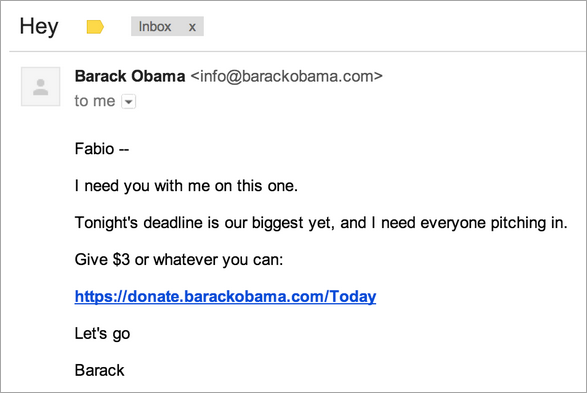
Back in November 2012, Bloomberg Businessweek published an article by Joshua Green3 on the short, familiar subject lines used in the Obama 2012 campaign emails. “Would love to meet you,” “Do this for Michelle” and “Hey” are three examples of subjects the campaign used.

Some of them read more like subject lines you’d find in spam than anything from the President’s camp. They’re not much better than what I’m seeing in my own junk folder today: “Let’s hang out!”; “Check this out”; “Hey!” In fact, I recall receiving the “Hey” email from the Obama campaign and immediately marking it as spam. Seriously? The Obama campaign sending an email that opens with “Hey”? Get real. That’s absolutely spam.

As it turns out, I was in the minority.

obama_email-500

“Hey” was incredibly popular, and that email raised quite a bit of money for Obama. The single-word subject, incredibly light in tone considering its source, came out of left field and snagged the attention of millions of people. A casual tone for a decidedly non-casual topic worked as a hook and got people to open the email. Green goes on to highlight how the Obama campaign team didn’t stop there — it kept iterating and testing and running with different quirky subject lines, and in turn raised a large portion of its $690 million worth of online donations through emails. But the subject lines always kept that simple slant.

The Content

The success of the Obama for America emails didn’t just come from the subject lines, and the team didn’t reach everyone it targeted on the strength of “Hey” alone. The subject lines were the initial draw, but the content of the emails, written in a familiar and conversational tone that belied their lofty source and that subverted expectations, made them effective. (See “Message Machine: Reverse Engineering the 2012 Campaign4” by Jeff Larson and Al Shaw in ProPublica.)

An archetypal example of an email driven by great content is Dave Pell’s NextDraft5. Pell crafts each issue of NextDraft daily, with content curated from the day’s most important or interesting news, along with a smattering of related stories. What Pell does with NextDraft is undeniably successful: Today, the newsletter goes to more than 25,000 readers, and every month more than 2,000 new ones sign up. The open- and click-rate numbers for NextDraft remain so consistently high that they put the rest of his industry — media and publishing — to shame; the average open rate for NextDraft hovers around 57%, compared to an industry average that checks in at around 17%. Click rates are similarly impressive at around 30%, versus a industry average of just 4%. By all measures, Pell’s doing it right.

nextdraft-email-500
View larger version6

Much of the reason why NextDraft works so well comes down to the way he handcrafts each issue. Pell takes a different tack on writing, blurring the line between one-to-one and one-to-many emailing. “I am writing my content to be read as a newsletter,” he told me. “It’s not a repurposed blog. I write it as I would write an email to anyone.” The distinction that website and email content should be handled in fundamentally different ways is spot on. The contrast between the two is stark, yet many of the emails arriving in our inboxes today can be considered “website, extra small,” when they should instead be purpose-built to better suit the more personal environment that email makes possible.

Pell also likes the relative permanence of email “in this era of Facebook and Twitter streams, where the news seems to flow by in the blink of an eye,” and he says there’s a benefit to the fact that “a newsletter is right where you left it.”

The Audience

Crafting kick-ass subject lines and content won’t get you anywhere, however, if you’re writing to the wrong people. Recognizing your audience and what they expect is an important factor in crafting a successful email. In Pell’s case, NextDraft emails are written in a voice and tone of familiarity, which resonates with his readers and makes each issue valuable to them.

Knowing your readers is easier when you have a narrowly defined audience, like Pell does, but it’s not always clear from day one who your audience actually is; the readers of the Obama for America emails had all, at some point, opted in to receive the emails, whether through a petition, a donation or any of the million other ways there were to land on the campaign’s list. But over time, not everyone stuck around.

There’s a certain level of attrition in any audience. When I received my first Obama for America email, I immediately marked it as spam. Those “Hey” subject lines matched a pattern that I considered spammy, especially coming from a source that I didn’t believe would use such casual language. That doomed the endeavor from the start; working at MailChimp, I’m already preoccupied with junk email, so the notion that I’d mark the email as such isn’t really unusual (unless “Democrat 30-something user-experience designers working for an email service provider” is a segment of the population they’re specifically targeting — in which case, the subject line shows a lapse in judgment). So, admittedly, I’m probably not a good representation of who the Obama folks were trying to snag with those subject lines.

But the majority of their readers didn’t go anywhere. In this case, the remaining audience was very likely composed of Democratic and independent supporters of the President. That audience is part of what’s known in psychology as an in-group: a cluster of people who share a collective identity (see Henri Tajfel’s article listed below). Taking this into account, the notion that “Hey” worked makes a lot more sense when you also consider what your average email recipient expects. Obama’s “Hey” and a spammer’s “Hey” both work because we see “Hey” from our friends all the time; as an audience of social animals, people are already receptive to these short titles.

There’s a quote that reads, “I don’t know the key to success, but the key to failure is trying to please everybody.” The remaining readers were already predisposed to open any email coming from the Obama camp. They made up a more narrowly defined audience that was emotionally invested in these campaigns, and they were exactly the right group to target.

The Source

Over the long haul, the combination of a catchy subject line, interesting content and an ideal audience will certainly get an email opened and read, but it also nets something else that contributes to long-term success: trust. When people subscribe to a list, they’re actively seeking a relationship with the creator and trusting that the communication they receive will have some value.

Here again, NextDraft is the perfect example. Dave Pell’s readers rely on him to curate, summarize and deliver each day’s important or compelling news stories. That’s a big responsibility for Pell, especially considering that some of those readers might be using NextDraft as one of their few news sources.

In a world where everyone has too much to worry about, many people can’t keep up with current events by seeking out stories from specific news websites, and instead rely on aggregators — be they friends, blogs or half-hour comedy news shows like The Daily Show and The Colbert Report. Given this, we can see how Pell himself acts as a news source. He isn’t simply forwarding content from various sources; he’s selecting meaningful stories, offering commentary and helping the reader to digest each item — much like an anchor you’d see on a nightly news round-up.

Pell has developed a trustworthy voice with a sense of gravitas, but he can also be funny and lighthearted, and his tone changes to suit the news he’s summarizing. Pell’s personality, combined with his interesting and reliable emails, builds trust. His emails resemble something we’d receive from a friend. Pell says there’s “a certain level of intimacy to the exchange… People let me into their inboxes, and if they have something to say, they can just hit reply.” This openness to discussion makes his readers trust him even more, and his conversational style of writing makes him more accessible as a creator.

Practical Application

The principles followed by Obama for America and Dave Pell are building blocks that we can apply to any other email campaign.

Knowing the audience might be the most important piece of data to have before that first campaign goes out, although we may not know who exactly that audience is. In the beginning, casting a wide net is OK. Eventually, defining the audience more narrowly will be essential; that broad view that we start with makes it harder to find what works moving forward. Specialization is key. We can begin to focus on a more narrowly defined audience simply by asking ourselves who we’re writing for, by finding our in-group. Is that group comprised of industry peers? People with similar cultural interests? Friends? We can adapt our content and style based on this better understanding of the audience. We can come to a place where we’re sending them email they actually want to read over and over because, in the end, it’s something we’d read ourselves.

Once we’ve defined our audience, then crafting subject lines that work is about fitting the right peg in the right hole. It’s not an easy task, but we can home in on what piques our readers’ interests and develop a good hook by using our own preferences as a baseline. What would I like to see? What would get me to open this email? From there, we can iterate. Just talking to family, friends and coworkers to get an idea of what subject lines hit the right note for other people is a great place to start. Once the audience is a little larger, something more formal, like A/B testing, is a logical next step. With feedback from others, we then have a chance to develop our voice and tone and write in a way that keeps people interested and that fosters the relationship between creator and consumer.

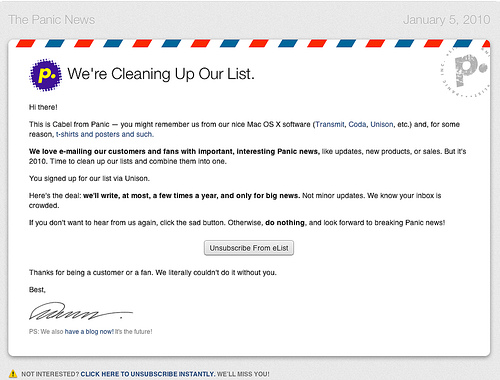
Panic uses beautiful emails with a friendly tone and voice.
Panic uses beautiful emails with a friendly and helpful tone and voice. (View larger version7; Image Source: Lucien W. Dupont8)

Writing good email content is a craft of its own, and one that isn’t easy by any stretch of the imagination. We can start with some good baselines, however. Email isn’t a long-form medium, and in a world that’s becoming increasingly mobile9, lengthy and wordy often does more harm than good. Write like the audience is distracted. We’re dealing with small screens, busy lives and short attention spans — every email benefits from being short and sweet. What we write should be focused, clear and concise. We can better serve our readers by formatting content into digestible sections. If we have a lot more to say, then linking to external content or even returning to the topic in the next email might make sense; the semi-permanent nature of email allows for some episodic risks to be taken. Remember, too, the importance of design in email. Presenting content in a beautiful way, whether through images or typography, can also improve how readers respond to emails.

Even given great content, the importance of creating a two-way relationship with readers can’t be overstated. Building a connection and making an email something that our subscribers have a stake in is necessary for success. Trust is at the root of that connection. If we’re able to provide readers with something of value that doesn’t just add to the background noise of life, then they’ll find the time and commit to hearing what we have to say. This bond is the ultimate goal for creators. A little personality goes a long way when it comes to making email interesting and worthwhile. People don’t want neutral email; they want intriguing and familiar. If the Obama campaign can get away with a “Hell, no” in its subject line, we can all find a way to pour a little bit of our own personality into what we write. Humans are social animals by nature, so why not make emails more sociable?

One-to-many mass email is, by definition, a largely impersonal venture, so email often ends up boring and lacking in character. But with care and attention, we can buck that trend and create emails that mean something to people. By getting to know your audience and writing to them in a personable and conversational way, your email can rise above inbox noise. It can be about human connection.

Sources

The Myth of Multitasking10,” Christine Rosen, The New Atlantis

Beyond Simple Multi-Tasking: Continuous Partial Attention11,” Linda Stone

“Compassion Fatigue as Secondary Traumatic Stress Disorder: An Overview,” Compassion Fatigue: Coping With Secondary Traumatic Stress Disorder in Those Who Treat the Traumatized, Charles R. Figley, Routledge (1995): pages 1–20

The Science Behind Those Obama Campaign E-Mails12,” Joshua Green, Bloomberg Businessweek

Message Machine: Reverse Engineering the 2012 Campaign13,” Jeff Larson and Al Shaw, Pro Publica

“Social Identity and Intergroup Behavior,” Henri Tajfel, Social Science Information, Vol. 13.2 (1972): pages 65–93

Mobile Email Opens Increase 123% in 18 Months14,” Justine Jordan, Litmus

Designing The Words: Why Copy Is A Design Issue

By Sam Wright

The relationship between copy and design has been covered1 many2 times3 on Smashing Magazine. Working in a content-focused industry, we need to keep this issue pretty close to heart; creating great copy is pointless if it is visually uninspiring or unreadable. Likewise, if the content doesn’t deliver, then even the most attractive page won’t hold the reader’s attention.

Yet much of the discussion so far has concentrated on issues such as microcopy — the small bits of text that instruct the reader on how to interact with the website — and the minutiae of user experience. This stuff is essential, of course, but in this chapter we’d like to broaden our focus to look at some of the fundamental mistakes behind bad copy.

We’ve chosen to do this for two reasons. First, we hope it will help budding writers out there avoid the most common pitfalls of the job. Secondly — and perhaps more importantly — we want to stress the importance of content as part of the user experience mix.

A while back, Elliot Nash discussed the responsibility of the designer4. Designers “want control of the entire user experience,” he said. “We want to ensure repeat use, and high engagement — and to do so, we want to design every little piece of whatever it is we’re working on. After all, we are largely responsible for the performance of the result.” However, he argued, “most of us don’t want to own the work it takes to execute this full scale implementation.” For us, leaving the copy out of the equation is a fundamental error.

In practice, design is a process that should happen with content, not just for it, and the practice of creating a page full of lorem ipsum and getting the copywriter to fill in the blanks just doesn’t cut it anymore. The cross-discipline approach of using design as a way to clearly communicate information, known as communication design5, is growing. However, no matter how clearly laid out a design is or how elegant the infographics are, our number one visual tool for relaying information to the audience is well-written text.

The Importance Of Editing

Bill Beard has written about the importance of using techniques such as multivariant testing to optimize microcopy6. With large bodies of text, this becomes more of a challenge. Fortunately, authors, journalists and copywriters have been wrestling with this challenge for years, which is how we came up with the concept of editing. The main difference between editing and testing is that, rather than observing an average member of the public navigate your copy, you enlist someone who has a wealth of experience in working with the written word.

A lot of editing is nuts and bolts stuff: fixing the grammar and punctuation, removing repetition, and making text easier to scan. However, like many user-centered design practices, it also means delving into the fundamental assumptions behind your writing, addressing how you think about the words, your audience and yourself. It is this process that will turn a precocious but essentially terrible teenage poet into a good writer. Yet, looking at so much of the copy online, in magazines and on billboards, we can see that plenty of professionals out there haven’t yet mastered it.

Below are the three things that every writer and copywriter must learn to avoid:

1. Self-Importance

Of all the mistakes new writers make, this is probably the most understandable. When you begin writing, you want, first and foremost, to make your mark. Your writing isn’t just another entry in the world’s growing collection of largely unread manuscripts; it’s a definitive text that future scholars will paw over for hidden meaning for years to come. You’re the voice of a generation, damn it!

Copywriters face the same problem. By now, probably about half the words ever written were penned for marketing purposes, and you don’t want your work to be another drop in that increasingly deep ocean of marketing blah. You want to stand out, to be something special. That’s why you end up writing copy like this:

It’s not a journey. Every journey ends, but we go on. The world turns and we turn with it. Plans disappear. Dreams take over. But wherever I go, there you are. My luck, my fate, my fortune.

Believe it or not, this wasn’t written in the Moleskine of a sensitive teenager. It was written by professionals, advertising a globally recognized brand with a budget big enough to hire Brad Pitt to read it like so:

Screenshot Chanel commercial
Watch the video7

Both the poor souls behind this crime of an advert and the 15-year-old who writes poetry about how everyone is superficial except himself have the same problem. They both want to stand out, to draw prestige, to be memorable; however, whether due to youth or the fact that they sell scented liquid, they don’t actually have much to say.

So, how do you avoid doing this yourself?

One of the most common pieces of writing advice in the world is “Write what you know.” Conversely, it’s a good idea to know what you’re writing about. You will often save yourself a lot of trouble simply by asking, “Why would anyone want to read this?” The answer could be “because it’s useful” or “because it’s funny” or any number of other reasons, but you should be able to answer that question before putting words to paper. I’m sure no one asked why anyone would want to hear “The world turns and we turn with it.”

It’s a line that doesn’t actually tell the audience anything. It’s the sort of vacuous line that sounds meaningful but contains no information. You can argue that it’s making the case for Chanel No. 5 as a constant in an ever-changing world, but the portentous tone and the layering on of hilarious faux-meaningful truisms, such as “Every journey ends, but we go on,” drown out any point the text could have conceivably made.

The teenaged poet is likely to get better as they get older because they will learn more and will have more to write about. By the same token, if your copy is to carry weight, whether for an advert, marketing copy or a company website, then you’ll need to know what you’re trying to communicate and why anybody would want to hear it.

2. The Wrong Tone

Young writers are a lot like magpies, happy to steal anything that looks shiny and put it to use in their own creation. Studying Shakespeare in school? In it goes. Read Edgar Allen Poe’s The Raven and thought it sounded cool? You’re having that. Enjoy the teenaged banter in Buffy the Vampire Slayer? That goes in, too.

The result is a sort of Frankenstein’s monster of a writing style. And you know what? That’s fine. As with most things, imitation is a great way to learn how to write, and, with time, copying the good bits of others will mutate into something that conceivably sounds like your own voice.

The same is true of professionally written copy. When Barclay’s heard of cash machines being described as “holes in the wall,” it liked it and took it. World of Warcraft liked the Chuck Norris jokes8 (or facts) that were getting passed around a few years ago and so got Chuck Norris to appear in an advert based on them9.

But if you don’t take tone into account when writing copy professionally, the results can come out a little on the weird side.

For example, check out Kingpin Social10. This company offers courses in social interaction. Fair enough — plenty of people out there find it difficult to talk to others, and a company that offers techniques and training to help you overcome that difficulty would be welcome. The problem is that the website uses phrases like, “We will teach you to utilize proven social methodologies that will provide you with success in your personal, career or corporate relationships,” and “Every person deserves the confidence to achieve the optimal result in every social situation.” Imagine somebody using phrases like these in conversation; what opinion would you form of them?

A course like this needs to appear inviting to people who are worried about coming out of their shell, while also demonstrating that this company is made up of people who are good at speaking with others. Using words like “utilize” and “optimal” achieves the exact opposite effect.

The only reason anyone uses those words in marketing copy is to appear clever, and using words to appear clever is what bad teenage poets do. Never say “utilize” or “optimal” when you can say “use” and “best” instead.

Sometimes you end up with a patchwork effect — for example, using a simple, effective phrase like “What We Do11,” and then following it up by telling readers that you are “a performance-based retail marketing technology and analytics company focused on helping retailers deliver relevant advertising that converts.”

In user-centered design, one often speaks of “personas.” A persona is a fictional character who represents the typical person you are designing for. You would think about their needs, their wants, the knowledge they will bring to your design, all of which will help you to construct a design around them.

A good way to avoid this pitfall in your own copy is to try the reverse. Think of your client’s business as a character you’re writing dialogue for. What sort of person is this business? What are their likes and dislikes? What sorts of things are they likely to say? Read the copy out loud. Does it sound like the sort of thing your imaginary person would say? If not, why not?

A particularly good example of this is the Scottish craft brewery Brewdog12. Everything, from its website to its packaging, is written to sound like somebody you wouldn’t mind going for a beer with — passionate, funny and just a little surreal.

brew dog_2_mini
Brewdog13 — passionate, funny and just a little surreal…

The Dead Pony Club14 drink is introduced thus: “Being shot from a Hoppy Howitzer beats the hell out of trotting round a submissive paddock. That’s why the internal combustion engine got mounted onto two wheels.” But it avoids the territory of “The world turns” by adding, “This pale ale is chopped, tuned and ready to roll. Fuel up and hold tight, this little thoroughbred kicks like a mule.” However unpoetic the language, there’s never any doubt that the copy is talking about beer.

3. Self-Awareness

This is perhaps the hardest and most important thing for any writer to learn. It’s why many of us just don’t bother. We all dive in at the start without hesitation, enjoying the sheer joy of creation for its own sake and assuming that we’re producing pure written gold merely because we’re the ones doing it — until one day, it suddenly occurs to us, “What if I’m not any good?” Yes, I know, it was a surprise to me, too.

Some writers simply shake this thought loose and carry on as before. Many others stop right then and there, too paralyzed to ever dare setting down another word. However, every writer has to go through this step before they actually start being good. It’s when they start asking the question mentioned at the beginning, “Why would anyone want to read this?” and they start working to come up with a good answer. It’s when they start trying to read their work with eyes other than their own; and if you can’t do that, then copywriting really isn’t where you want to be.

Writers who struggle to overcome this obstacle are often so focused on selling their product that they forget the advert will appear in a wider context — with disastrous results. This is probably why Sony produced a series of incredibly racist billboard15 ads for its Playstation Portable. It’s also likely why American Apparel16 thought Hurricane Sandy was in any way an opportunity for social media marketing. At the time of writing, the Royal Bank of Scotland has just hit a marketing disaster because its campaign, which tells people to “Search RBYes,” doesn’t take into account that Google autocorrects “RBYes” to “Rabies.”17

Sadly, teaching someone to “be more self-aware” is not really possible. Most of us learn to do it by making a lot of mistakes. But, more than anything, it takes a bit of imagination, the stuff that both copywriters and designers are supposed to have in droves. Of course, this doesn’t mean that designers now have to be fully proficient copywriters who can proofread and redraft words while setting layouts. Nor does it mean that copywriters need to be wizards with design software (although a little knowledge of the basic tools and concepts wouldn’t hurt). However, it certainly means that copywriters and designers need to work more closely together than ever before.

Conclusion

If you would like to learn more, we strongly recommend reading The Craft of Words, Part One: Macrocopy18 by the Standardistas, a great exploration of how design and copywriting intersect. All too often, design and copywriting take place in their own little bubbles, with each practitioner unaware of what the other is doing. But for the copy to be of any use, the writer needs to be aware of the context in which it will appear.

How To Use Email To Alienate Your Users

By Paul Boag

Spam! Monty Python may love it1, but the rest of us are not so convinced. But what is spam? Are you spamming users without realizing it? And is there any place in the world for email marketing?

Most of us have a love/hate relationship with email. Its one of those necessary evils. Nowhere is our relationship with email more confused than when it comes to spam.

For a start, spam is hard to define. Google defines it as:

Sending the same message indiscriminately to (large numbers of recipients) on the Internet.

But what does that actually mean? The truth is, what one person considers acceptable, another could hate with a loathing.

Without a clear definition of acceptable and unacceptable behavior, it becomes easy for email marketing to alienate users, rather than win them over.

Should we, therefore, give up on email as a marketing tool entirely? Absolutely not.

The Benefits Of Email Marketing

Done right, email marketing can be a wonderful tool, not just for you but for your subscribers, too.

Email marketing does not all have to be about pushing readers into completing a call to action (although it is very effective at that). It is also about keeping your brand in their mind so that when they do need your services, they will think of you and not your competitors.

Email communication has the potential to be a great way to build a lasting relationship. It’s a chance for a more personal level of interaction than a website normally provides. You can ask questions, encourage discussion and gather feedback. Good email marketing is a dialogue rather than a monologue.

Good email marketing doesn’t just benefit the sender. It should also provide real benefit to the reader, too. It should help them solve problems, keep them informed and provide tangible value. After all, that is what they expected when they signed up.

The problem is that often subscribers do not make a conscious decision to sign up, and they don’t really want the emails in the first place.

“Why Am I Getting This Email?”

Notice that I am presuming that some level of consent has been given by subscribers. I hope you know better than to email people unsolicited.

That said, the term “unsolicited” can be interpreted in many ways, and you may have strayed into a gray area without even realizing it.

First, let me be clear: buying an email list gathered by a third party is, in my opinion (and I suspect the opinion of those on the list), unsolicited email. If you don’t want to alienate people, don’t go down this path.

Secondly, just because someone has signed up to your service doesn’t mean they have agreed to receive email from you.

This is an important distinction. As part of the sign-up process, you may have indicated that you will email them, or you may have even provided an option for them to opt out. However, if the user didn’t spot this, then you will still alienate them, despite being entirely within your rights. The email is still unsolicited in their eyes.

Stardock-500
I have no memory of agreeing to an email subscription when I bought a Stardock app, but I still regularly receive email from the company.

Notifications, which have become increasingly popular, are another example of this gray area.

“I Don’t Want To Be Notified”

On the face of it, notification emails seem innocent enough. It makes sense that if a friend signs up for the same service as I have, I would want to know. Equally, if someone comments on something I have done, then being informed of that via email would be useful.

Unfortunately, these emails have increasingly had little to do with helping the user and everything to do with pushing them to re-engage.

When someone signs up for your website, service or app, remember that if you wish to send them notifications, then you need to make this transparent and allow them the opportunity to opt out.

How you handle the addition of notification emails at a later date is also important. Recently, Twitter started emailing people with a summary of their Twitter stream. I imagine Twitter thought this to be a useful tool that would encourage users to participate more. Instead, all it did was alienate them.

Many people had old Twitter accounts they no longer used and suddenly found themselves getting unsolicited email from Twitter. To make matters worse, unsubscribing proved to be extremely difficult.

twitter-email-500
Twitter started sending out notification emails without specifically asking people to opt in. This alienated many users.

“I Just Want To Unsubscribe”

Enabling users to unsubscribe from email updates should go without saying. Not offering this option means that users will mark your email as spam, and that could ultimately get your emails permanently banned.

However, just because an email has an unsubscribe option doesn’t mean it won’t alienate users. Take the Twitter example again. You had an option to unsubscribe from its emails but only once you had logged into the service. If you are receiving email notifications for a defunct account, chances are you cannot remember your log-in details.

twitter-unsubscribe-500
I would love to unsubscribe from Twitter’s notification digests, but I cannot because I don’t know my log-in details.

Unsubscribing should be as easy as clicking a link. Anything else, and you risk annoying the recipient even more.

Of course, what you really want is for users not to unsubscribe in the first place. A good way to avoid this problem is to stay on topic.

“This Isn’t What I Signed Up For”

When people do subscribe intentionally, they do so with certain expectations. Meeting those expectations is important if you do not wish to alienate them.

Keep a consistent tone across all of the digital channels through which you communicate. If your website strikes a formal, conservative tone, while your email is much more conversational, the contrast will unsettle users. The “story” and “character” need to be consistent. Social media, email and your website should all speak in a single voice and with a consistent message.

People have expectations not just about how you speak to them, but about what content you deliver.

For example, people who sign up for my newsletter expect the latest Web design-related news. That is what I told them they would get, and that is what I have to deliver. If I start pushing my Web design services instead, they are going to feel lied to, and I would alienate them.

Remember, it is rare that a user will subscribe to email updates purely to be sold to. They almost certainly have other expectations. Just receiving sales pitches holds little value to them.

sales-email-500
Users rarely want email subscriptions to be nothing more than endless sales pitches.

In many ways, a subscription to your mailing list is a contract. The user entrusts you with their personal contact details, in return for something of value. They will tolerate some degree of departure from that topic to hear your sales message, but it is easy to take things too far.

What they will not tolerate is continually being pressured into following the same call to action.

Even if a user has signed up to, say, a charity newsletter, that newsletter should consist of more than constant appeals for donations. The emails also need to share success stories, educate the audience and provide some sense of value.

Providing value is so important not only because it will keep the audience engaged, but because it shows you are putting the subscriber’s needs ahead of your own.

“You Obviously Don’t Care About Me”

Too many mailing-list owners are so busy pushing their agenda and maximizing click-throughs and conversions that they show little interest in subscribers.

Their emails are read for what they are, mass broadcasts. I work long and hard to make the emails I send out each week sound personal, as if I were writing to just one person.

To keep our subscribers, we need to treat them as people and not as open rates or click-through statistics.

This can manifest itself in two ways. First, our emails need to avoid marketing jargon and instead read like any other personal email. The writing style of your average marketing email is fascinating; you would never write like that if you were writing to just one person.

polldaddy
Marketing copy and poor personalization really can make a subscriber feel completely unappreciated.

Secondly, email is supposed to be a two-way medium, and we need to treat our marketing emails in that way. This means allowing users to reply, and not sending emails from addresses like no-reply@company-name.com.

We should be actively seeking to engage our subscribers in discussion. We should ask their opinion, encourage comments and post the occasional poll. By doing so, we demonstrate that they are more than an email address to us.

This, of course, all depends on whether they can read our email in the first place.

“This Is Impossible To Read”

In their enthusiasm to increase email conversion rates, many mailing-list owners resort to ever more elaborate email designs. Unfortunately, this all too often leads to unreadable emails that send recipients instantly to the “Unsubscribe” (or, worse, the “Spam”) button.

Unlike many Web designers, I see nothing wrong with HTML email. It does statistically generate a higher conversion rate, and that cannot be ignored. However, HTML emails do take work to get right, and they need to be tested thoroughly.

To make matters more complicated, it is now vital to consider mobile devices. A huge percentage of users now access their email on mobile devices, and the email clients on these devices don’t display HTML email particularly well.

mobile-email-500
Too many HTML emails are not tested on mobile devices and, consequently, are unreadable.

Fortunately, you can make HTML email responsive, and companies such as MailChimp2 even provide tools to do so with no programming knowledge required.

Of course, if all else fails, a plain-text version should be available to those subscribers who want it.

“I Just Want Some Respect”

Ultimately, the secret to not alienating subscribers is simple: treat them with respect.

You can’t go far wrong if you follow the old adage, “Treat others as you would have them treat you.” If you hate being signed up for stuff without your permission, being constantly sold to, and not being able to easily unsubscribe, then others likely feel the same way about your content.

No matter how important you feel your emails are, they are probably like any others to your subscribers.

Email Marketing For Mobile App Creators

By Ros Hodgekiss

If you’ve developed mobile applications or have just started building one, then you probably realize that marketing should be as much of an ongoing concern as the product’s design and development. After all, what’s the point in creating a beautiful, valuable app if no one knows about it?

Assuming that promotion on Google Play1 or Apple’s App Store2 will take your app from beta to bestseller is… well, magical thinking. In reality, most successful developers kick off their marketing efforts months before release.

In this chapter, we’ll focus on how to get a head start with email marketing, not only by wrangling testers and staying in touch with users, but by successfully building hype for your app. Then, we’ll move on to how to announce the launch and measure results. Along the way, we’ll share techniques and code snippets from solid marketing campaigns, spanning different stages of an app’s lifecycle.

While this chapter isn’t heavy on coding and development, you’ll find an assortment of practical suggestions that you can apply to your projects. But if all you get is a little perspective on how important it is to actively work on getting the word out about your app from the get-go, then still consider this time well spent!

Why Email Marketing?

First, why focus on email and not, say, social media or word of mouth? Simply put, email gives you the most bang for your buck. With a return of $40 for every $1 spent3, email marketing stands head and shoulders above other methods, such as keyword advertising ($17 for every $1) or banner advertising ($2). Email also generates superior conversion rates, while giving you full control over your message. And we haven’t even mentioned the big-picture goals, such as using it to keep your most valuable users in the loop — for example, when recruiting testers, announcing launch day or requesting feedback.

But HTML Email Is Hard, Right?

To be fair, creating and sending HTML email has always been a tricky sport. If your background is Web design and development (as it is for many app creators), then you’re likely aware that designing, coding and testing for the inbox is significantly different from doing that for the Web. A skim of Campaign Monitor’s “CSS Support4” chart quickly reveals that providing a consistent experience across multiple email clients is truly a minefield.

Yet feel consoled that, if you’re primarily targeting mobile users (for example, by encouraging them to download an app directly to their phones), mobile email clients such as iOS Mail are powered by WebKit5. This offers the luxury of a browser-like experience — including solid HTML5 and CSS3 support — in the inbox. Secondly, a number of email service providers, including Campaign Monitor and MailChimp, offer HTML email builders that not only whip up campaigns quickly and painlessly, but produce templates that make the most of mobile email clients, with media query support. In the email marketing business, we call these responsive email templates.

While we’ll touch on some of the code that goes into tailoring a better mobile email experience, we won’t dive too deep into responsive email design. To get up to speed on both the concept and code behind it, I highly recommend reading the chapter “From Monitor to Mobile: Optimizing Email Newsletters With CSS” and the article “Responsive Email Design6.”

But before all that exciting stuff, let’s start with the fundamentals: building a mailing list of email addresses (i.e. subscribers). Without this, you’ll have no one to email — and let’s be clear, buying a list is never the right option7.

An App Marketing War Plan

When you’re elbow-deep in designing or coding a mobile app, it’s hard to step back, change tack and focus on the equally important yet arguably less fun tasks of putting together a promotional website, a trailer and, yes, email campaigns. That’s why it’s best to make a marketing plan and execute it early on, instead of waiting until App Store approval anxiety has kicked in.

A marketing plan doesn’t have to be complex. For email, it could be something as informal as the following.

Pre-Launch

1. Choose an email service provider, and create a subscription list.

2. Build a pre-launch page with an email sign-up form.

3. Encourage people to visit the pre-launch page and subscribe for email updates.

4. Build an email subscription form into the app.

Beta Testing

One week prior to beta testing
Create an email campaign, inviting subscribers to a first look at the app in beta. Explain how they can download the app and provide feedback.

Three days after beta launching
Email your beta testers to request feedback.

Launch

One week before launch
Email subscribers to let them know the app is close to launching. Include positive reviews and encourage subscribers to spread the word.

Launch day
Email subscribers to announce the launch, and link to the app’s download page in the App Store, Google Play, Windows Store, etc.

Post-Launch

One week after launch
Thank your subscribers, and encourage them to leave feedback on the app’s download page.

After major updates
Email a summary of what’s new and improved, and encourage subscribers to spread the word.

It’s that straightforward — just jot down a rough outline of what you plan to do, on a napkin if need be. You can be as creative as you like with your email marketing strategy. Just make sure to make good on it!

Choose An Email Service Provider

If you’ve never fooled around with email marketing, choosing the right provider will likely be a touch confounding. Many services are out there for creating and running email campaigns, from Web-based ones such as MailChimp8 and Campaign Monitor9, to self-hosted apps such as Sendy10. My advice is to talk to other designers and app creators about what they’ve tried, and then open free accounts with some of the Web-based DIY services. The differences in the experiences (not to mention the features and pricing) between apps will soon become clear. Cheapest doesn’t mean best in this game, so shop around and run a few trial campaigns.

The benefit of a Web-based email marketing app is that getting started is generally quick and easy. Remember that if your needs change, you should be able to migrate your lists to another service.

Pull Together A Pre-Launch Page

Even when your project is in an early stage, it really pays to create a simple pre-launch, or landing, page with a few details about the app, perhaps some concept art and, of course, an email subscription form. After all, if visitors to your website like the concept, they’ll be keen to sign up for email updates and find out when your app is launching. These will also likely be your most valuable, passionate users for giving feedback and spreading the word when you launch. Below is the pre-launch page for the mobile game The Drowning11, by DeNA12:
Subscription page for The Drowning

I like The Drowning’s pre-launch page for its sophistication yet simplicity. The artwork and trailer for this ominous first-person shooter are polished and persuasive. There’s even a nice incentive to sign up to the mailing list: email updates and a free wallpaper. Above all, the entire page is geared to getting visitors to subscribe, and the subscription form is unmissable. You’ll find a couple of other great examples in the post “Building An Effective ‘Coming Soon’ Page For Your Product13.”

Now back to your page. One thing your email service provider should be able to do is generate a snippet of code with which you can add a subscription form to your website and automatically push new email addresses to a list. Alternatively, a number of simple services and plugins not only enable you to build good-looking pre-launch pages, but integrate with some of the major email service providers. Popular ones include out-of-the-box apps like LaunchRock14 and Unbounce15; if you’re already running a CMS such as WordPress, then the Launchpad16 plugin for WordPress is worth a look. Or you could create your own self-hosted launch page using a template such as Launching.me17.

With a pre-launch page up and running, you can get back to focusing on your app for a while. Or you could start communicating with your new subscribers, using autoresponders18.

Add An Email Subscription Form To Your App
Add a subscription form to your mobile app
View larger version19

While it might sound a bit odd, nothing is wrong with boosting your ongoing marketing efforts by adding a subscription form to your mobile app itself. You could collect email addresses from early adopters to inform them of updates. Or perhaps you’re planning a really great newsletter for your audience and feel that in-app sign-ups would give the app a real boost.

If Cocoa is your language of choice and you are using Mailchimp, then check an unofficial Objective-C wrapper for Mailchimp20 and Mad Mimi21. If you are using CampaignMonitor, make sure to check the Objective-C wrapper on GitHub22 which can be used to create in-app subscription forms. With an extensive API23, it’s also well documented and comes with usage examples. Just something to think about.

Experiment With Other List-Building Tactics

Creating a pre-launch page and adding an email sign-up form to your app are both great ways to bring more people into the loop with your current mobile app and future ones. While these tactics tend to be rather set-and-forget, you could try other things to actively build interest in your title:

Collect email addresses at events.
Do you attend developer meetups or conferences? If you’re going to be talking about your upcoming app, you might as well give attendees a way to track its progress. Pretty much every email service provider comes with a customizable mobile app to collect email addresses and push them to your lists. Campaign Monitor’s is Enlist24, and MailChimp’s is Chimpadeedoo25.

Offer something valuable.
One effective tactic is to offer teaser content via a blog, such as concept art or even posts on what you’ve learned during development. Smack a subscription form onto your blog posts or even in your videos26 (using a service such as Wistia27), with the promise of useful content and updates via your email newsletter.

Offer a discount on the app.
If you’re building a paid app, offering a generous discount to early adopters wouldn’t hurt — if they agree to sign up to your email newsletter, that is. Slipping in an incentive is always a reliable tactic, especially when it demands very little effort.

Now that new subscribers are rolling in, let’s look at what it takes to send out emails.

Create Your First Email Campaign

Some time has passed and, after a little promotion, your pre-launch page has collected quite a few email addresses. You might have some cool teaser artwork to share now, or you might feel it’s time to invite some subscribers to join the beta phase — heaven forbid, you might be a week out from launch! Scary stuff.

At this stage, you might be tempted to obsess over the technical details28 of creating HTML email campaigns (which are important), but, ultimately, this is a marketing exercise. What matters above all is your message and ensuring that readers are hooked at first glance.

Another thing that folks regularly obsess over is figuring out the best time to launch a campaign. While some (albeit conflicting) evidence29 shows that the hour or day of the week you choose does make some difference, I think the advantages of emailing at 7:00 pm over, say, 10:00 am are marginal, especially if your subscribers are international. Even public holidays30 seem to work for some creators, so relax and follow a schedule that suits you. Your content will make the big difference, after all.

Having gone through all of this heavy stuff, let’s take an inspiration break and look at a couple of email newsletters from app developers, sent at certain milestones prior to launch.

“Visit Our Pre-Launch Page”
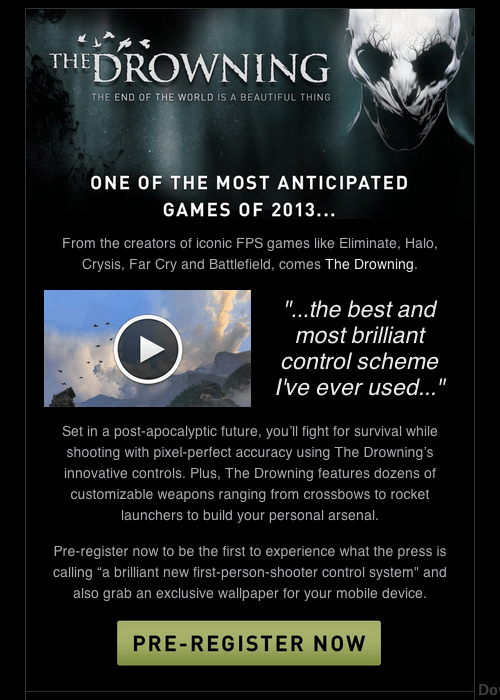
Teaser email: The Drowning
The Drowning31, by DeNA32.

Now that you’ve got a shiny new promotional website, what better way to drive visitors to it than by running a campaign for your existing email lists? As an established mobile game developer, DeNA is in the fortunate position of having an established community of dedicated gamers, many of whom would probably be interested in this title. This email’s narrow format makes it comfortable to read on mobile devices, too.

“Invitation to Beta Test”
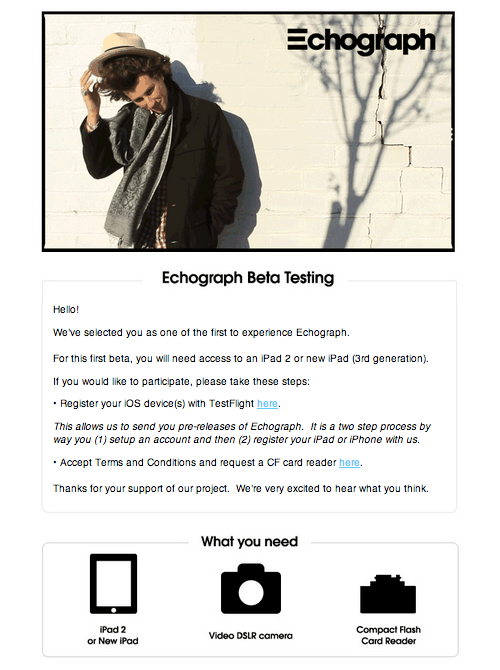
Beta Invite: Echograph
Echograph33, by Clear Media34.

I like this invitation to beta test Echograph35 because it’s as clear as it gets. There’s no waffling about this awesome animated GIF builder for the iPad — just a couple images that show beta testers what they need, a sample GIF and step-by-step instructions for installing the app during the beta phase.

“Thank You for Beta Testing”
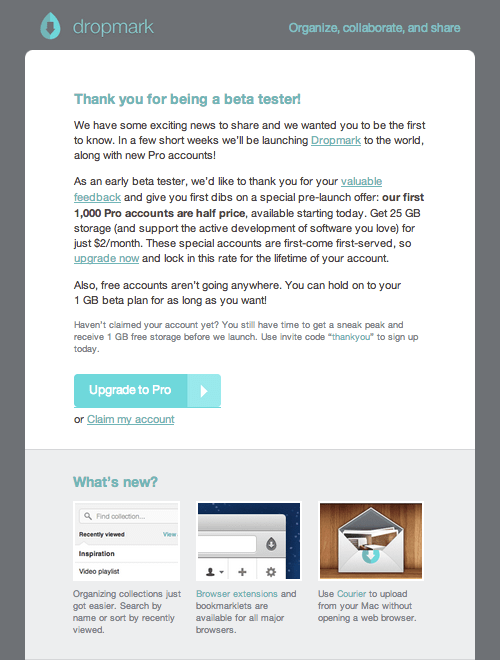
Beta thank you: Dropmark
Dropmark36, by Oak37.

Once beta testing has wrapped up, it’s nice to say “Thank you” and offer a little something for the effort and feedback your audience has volunteered. Dropmark38’s thoughtful email campaign does this with class, by providing a discounted upgrade for beta testers. It’s a great way to ensure that they keep using the service.

I hope you’ve enjoyed that visual interlude. Now, let’s discuss how to announce your app’s launch. Hold tight!

Launch Your App With Email

So, the big reveal is imminent. You’ve probably just submitted your app to the App Store or published it on Google Play. Either way, it’s time to focus on getting the word out.

Whether you announce the launch in a newsletter or via a standalone email announcement, you need to do two things: first, make an impact, and secondly, make it very easy to download the app from the newsletter itself. To achieve both, you’ll need to get the logo and branding for your app store of choice, as well as the link to the download page and, of course, some compelling content to get subscribers excited about the app.

At our company we announced the release of our subscription form app for the iPad, Enlist, via our monthly newsletter:
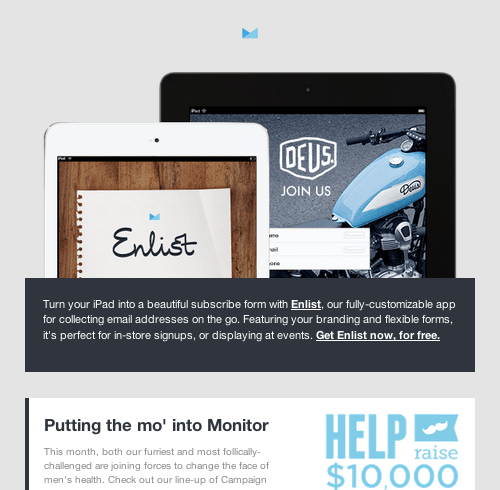
Launch email: Enlist
Enlist39

The images are crisp and inviting. But the real magic happens when you view the newsletter on an iPad. A “Get it from the App Store” link appears, allowing users to download the app to their device in two taps.
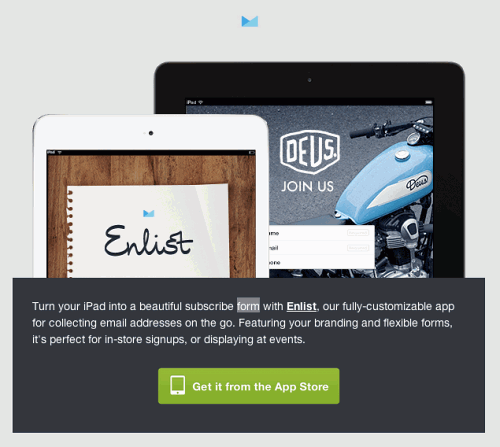
Enlist launch email on the iPad:

As you might have guessed, we are using media queries to reveal the App Store link when the email is viewed on an iPad. While I don’t want to go too deep into code, this neat trick is worth sharing. Below is an abridged version of the HTML and CSS.

CSS

p.ipad {
    font-size: 0px;

}@media only screen and (min-device-width : 768px) and (max-device-width : 1024px) {

    a[id="reveal"] {
        display: block !important;
        background: url('http://yourdomain.com/images/appstore.png') no-repeat center center !important;
        background-size: 232px 49px !important;
        width: 232px !important;
        height: 49px !important;
    }   
}

HTML

<p class="ipad"><a id="reveal" href="http://campaignmonitor.createsend1.com/t/y-l-jidkuht-l-p/" title="Get Enlist from the App Store"></a></p>

You might be curious why we use font-size: 0px to hide the App Store link when the email is viewed on anything other than an iPad. This strange choice is explained in the blog post “How to Display Content on Mobile Devices Only40.” It gives a taste of the quirkiness involved in designing HTML emails.

On to the content. Let’s go to the second launch campaign for Echograph, which features a prominent download link, plus a video and animated GIF that walk viewers through the app:
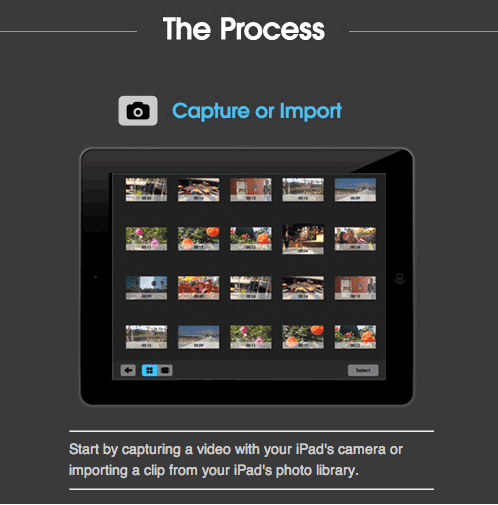
Animated walkthrough: Echograph
Second launch campaign for Echograph41.

Nicely done. Overall, the best thing you can do with your launch email is have fun and be creative — while staying concise. By the way, TechCrunch reckons that Sunday is the best day to launch an app42.

So, What Next?

Once your app has launched, you might be tempted to take a break from campaigns, but then you’d miss out on a big opportunity. By continuing to grow your email lists and stay in touch with subscribers — whether to collect feedback, announce updates or simply share your successes — you’ll find email to be a valuable tool in your marketing arsenal. If this sounds like work, consider going on autopilot with43 autoresponders44, which are email campaigns that are automatically run when set off by certain triggers, such as a date (“send two weeks after visitor signs up”) or an action (“send whenever a user upgrades”). To learn more, read Smashing Magazine’s guide on “How to Market Your Mobile Application45,” and, of course, talk to your fellow developers.

This post hasn’t been code-heavy, but it could have been — designing for mobile, let alone email, is a surprisingly demanding process, regardless of your aptitude as a designer or coder. However, I wanted to focus on helping you make the most of your marketing milestones by engaging with users via email.

If you walk away from this chapter with one thing, it should be a desire to get your planning in the bag as soon as possible. Otherwise, you risk missing out on the opportunity to build an audience that is as committed to your project as you are. Best of luck with your email marketing journey.
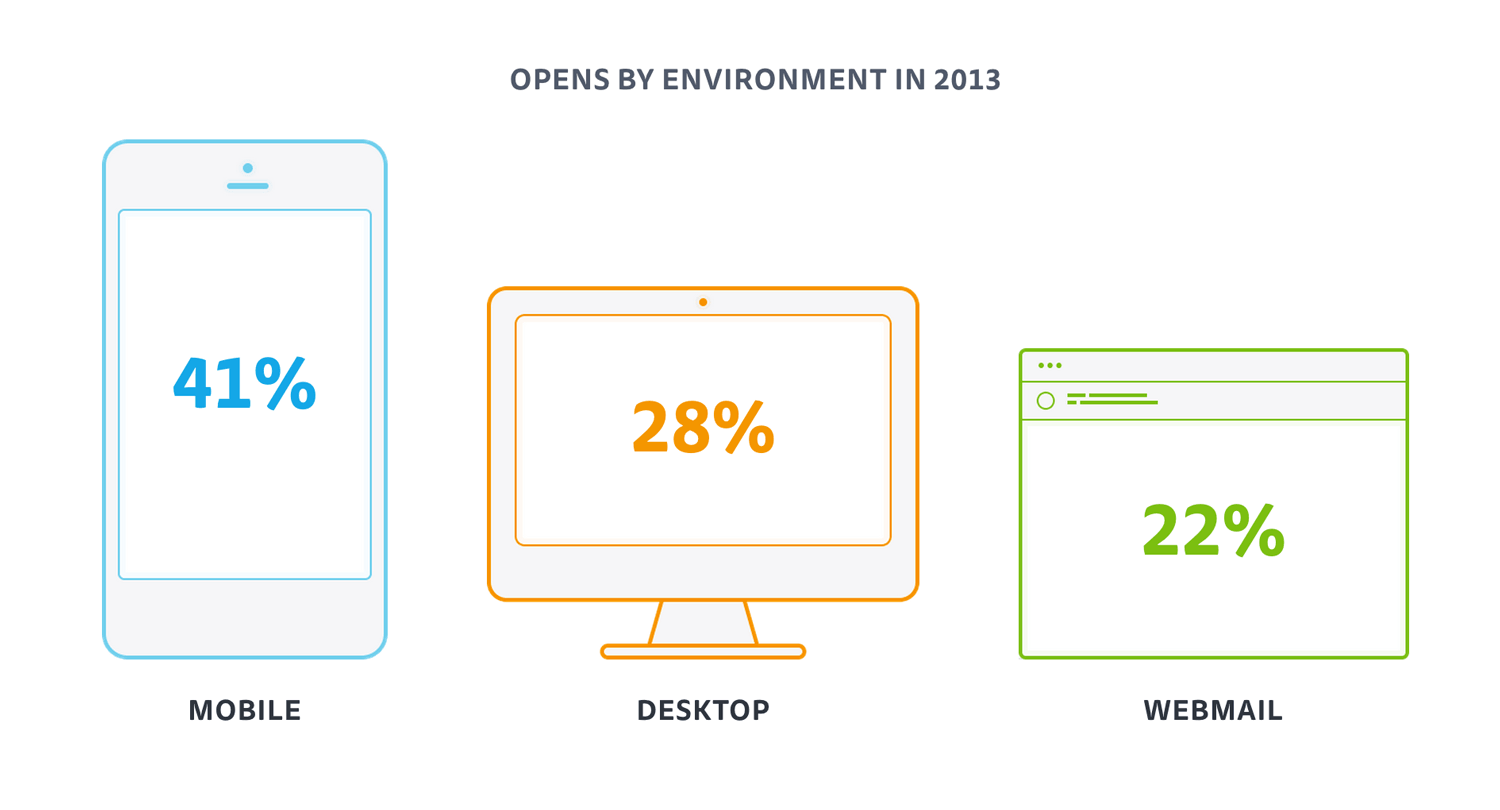
1.https://play.google.com/store?hl=en

2.http://www.apple.com/iphone/from-the-app-store/

3.http://litmus.com/blog/email-preferred-more-clicks-conversions-roi

4.http://campaignmonitor.com/css

5.http://en.wikipedia.org/wiki/WebKit

6.http://campaignmonitor.com/guides/mobile

7.http://blog.hubspot.com/blog/tabid/6307/bid/32892/Why-Purchasing-Email-Lists-Is-Always-a-Bad-Idea.aspx

8.http://mailchimp.com

9.http://campaignmonitor.com/

10.http://sendy.co/

11.http://www.thedrowning.com/

12.http://dena.com/intl/

13.http://www.smashingmagazine.com/2011/05/24/building-an-effective-coming-soon-page-for-your-product/

14.http://launchrock.co/

15.http://unbounce.com/

16.http://wordpress.org/plugins/launchpad-by-obox/

17.http://launching.me/

18.http://www.copyblogger.com/email-autoresponders/

19.http://www.smashingmagazine.com/wp-content/uploads/2013/06/CreateSendExample.png

20.https://github.com/mailchimp/ChimpKit2

21.http://carpeaqua.com/2010/01/17/sgmimimailer-a-cocoa-wrapper-for-mad-mimi/

22.https://github.com/campaignmonitor/createsend-objectivec

23.http://www.campaignmonitor.com/api/

24.http://www.campaignmonitor.com/enlist/

25.http://mailchimp.com/features/mobile-signup-forms/

26.http://wistia.com/doc/email-marketing

27.http://wistia.com/

28.http://24ways.org/2009/rock-solid-html-emails/

29.http://econsultancy.com/us/blog/62688-six-case-studies-and-infographics-on-the-optimal-time-to-send-emails

30.http://www.copyblogger.com/email-marketing-timing/

31.http://gallery.campaignmonitor.com/ViewEmail/r/AD3769CCC3AE17612540EF23F30FEDED

32.http://dena.com/intl/

33.http://gallery.campaignmonitor.com/ViewEmail/r/AD273323F926C89C

34.http://clear-media.com/

35.http://echograph.com

36.http://gallery.campaignmonitor.com/ViewEmail/r/0B7BBD857F05383B/

37.http://oak.is/

38.http://dropmark.com/

39.http://gallery.campaignmonitor.com/ViewEmail/y/78AABCA56BB82CF8

40.http://www.campaignmonitor.com/blog/post/3948/hiding-content-in-both-desktop-and-web-email-clients

41.http://gallery.campaignmonitor.com/ViewEmail/r/82811D0144EB6496

42.http://techcrunch.com/2011/12/19/sunday-is-the-best-day-to-launch-your-mobile-app/

43.http://mailchimp.com/features/autoresponders/

44.http://help.campaignmonitor.com/topic.aspx?t=171

45.http://www.smashingmagazine.com/2010/03/03/how-to-market-your-mobile-app/

How To Create A Self-Paced Email Course

By Paul Jarvis

When I realized I had written what seemed to be a course (i.e. not my usual article or book), I was left with a sense of panic. There are so many options for running an online course, and all of them seem slightly confusing or time-intensive to set up.

Then I remembered the autoresponders feature in my newsletter application (I use MailChimp, although every newsletter software has it). I could trigger lessons with autoresponders and deliver course material to where most people spend most of their day: the inbox.

Another problem was that the course was about writing a book, and some of the lessons were slightly onerous — like “Write a first draft.” So, setting a fixed time delay wouldn’t work because some people complete things like that much more quickly than others.

Instead of automatically firing off each lesson after a set amount of time, I created a series of lessons via autoresponders that fired only when the previous lesson was marked as finished. That way, I got to deliver each new lesson only when the student had finished the previous. This method does not require you to configure any website, plugins or additional software (beyond setting up a mailing list and creating pages on your existing website, which you probably already know how to do).

I made my own course, Write and Sell Your Damn Book, free for a few reasons. First, I was able to bring some sponsors on board to give me enough money to make it worthwhile to create and set up. Secondly, I felt that the course material should be available to anyone, on any budget, who is writing a book.

Thus, the course made money before it launched, but the downside is that it made a fixed amount of money. I set up additional (albeit minor) revenue streams for it — affiliate links on Amazon to recommended books on the same subject, links to my own paid books, as well as the course in Kindle format, just in case people wanted to read the material all at once.

Using the method outlined below, I created a self-paced email course that had over 1,000 registrations in the first 24 hours, and almost 2,500 in the first week. There are other ways to do this using MailChimp, such as triggering the completion of a course with a URL, but this is how I set up mine.

1. Create A List

This list is only for people who will take your email course. Make sure the publicity settings are set to non-public and non-archivable (otherwise, people will be able to share the lessons with whomever they want).

Check “No, my campaigns are not public,” and uncheck “Activate the archive bar.”

When creating autoresponders, ensure that you remove the “View this campaign in a browser” link, to further discourage shareability. To take things one step further and make sure only subscribers see some or all of the course’s content, read up on conditional merge tags1.

2. Match The Colors And Fonts In The Course Material To The Registration Process

You’ll find these by going to “Signup Forms” and then “General Forms.” Match the fonts, colors and logo of the course’s website for a consistent user experience.

3. Select “Send A Final Welcome Email”

You’ll find this option in the drop-down menu on the “Create Forms” page; it will be automatically selected, unless you’ve unchecked the box. Add text to this email (scroll down to edit the contents), informing users to “Click the completed lesson” button in each lesson to get the next lesson.

Later, we’ll get into how to set this up, but essentially each lesson’s email will have a link that users can click when they’re finished to notify MailChimp to deliver the next lesson.

Also, in this final welcome email, let users know when the first lesson will be delivered.

4. Set Up The First Lesson And Autoresponder

Go to “Autoresponders” and then “Create autoresponder.” Select the entire list to be the recipients. On the next page, the event that triggers this autoresponder is “Subscription to the list.” Make sure that “Also trigger on list import” is checked if you want to use Twitter cards or if you will be charging for the course (more on this later).

Lesson One

Choose whether to send it within the hour or at another time and date. On the set-up and campaign information page, give the campaign a subject line and make sure that, under “Tracking,” “Goal Tracking” is checked — this is important because it will trigger the next autoresponder lesson.

5. Set A Goal For Your Campaign

A goal is simply a URL that you add to the lesson. For my own email course, I created a few pages on my website that thanked the user for completing the lesson. For example, I added a button to the campaign for lesson 1, reading “I have completed this lesson” and linking to http://mydamnbook.com/lessons/lessonone.

The URL may be anything, but if you are setting a reminder email (more on this later), then the URL must contain the same folder — in this case, lessons. If you use WordPress, this is simply the parent page, and each individual lesson would be a child page of the parent, /lessons/.

These pages that live on your website are important for firing off autoresponders, as well as for letting the user know that a lesson has been completed and that a new one is on the way.

A good marketing strategy is to add some social engagement to the completion page for each lesson, such as “Tweet that you’ve finished lesson 1,” with a hash tag for your course or sharing buttons, so that users can let others in their network know about the course and where to sign up.

6. Set Up Subsequent Lessons By Creating A New Autoresponder

Set the entire list as the recipients. On the next page, set “Specific link in the campaign is clicked” as the event to trigger the autoresponder.

Then, select the previous lesson. If you’re creating lesson 2, then select lesson 1’s autoresponder from the drop-down menu. Then, choose “Select a link from your campaign” and select the URL that you used for the button that tells the user they have completed that lesson.

Lesson Two

Set the autoresponder to send either within the hour or at a time and date of your choosing. I always pick “Within the hour,” so that the user gets the next lesson fairly quickly.

Make sure to track goals for every lesson you create (otherwise, the URL clicks won’t be tracked by the following lesson).

To create lesson 3, you’d follow the steps above but would select lesson 2 from “For what campaign” and the lesson 2 completion URL for “Select a link from your campaign.” And so on, until you’ve added all of the lessons.

7. Set Up Additional Emails (If Needed)

In addition to the lessons, you may want to send out a different type of email a day or two after the final lesson has opened. The email could include additional resources, an “About the author” section, or perhaps a review of the course (if you’ve got one).

Select “Send to the entire list” for the recipients.

For the autoresponder, select “Campaign is opened” as the event to trigger the follow-up email, and select “For what campaign” as the final lesson (via the drop-down menu). Then, select the amount of time for “When the autoresponder should be sent.” If the email is a review or list of resources, then sending it a day or two after makes sense, while the lessons are still fresh.

8. Set Up A Reminder Email

Because the course is self-paced, people won’t get the next lesson if they forget about the email for the current lesson, so setting up a course reminder autoresponder is another good idea.

From step 5, if the same folder is in the URL for each lesson (in this example, /lessons/), then it’s simply a matter of creating a new reminder autoresponder that sends to a new segment of the list.

reminder

To do this, start an autoresponder, select “Send to a new segment,” then pick “Subscribers match,” and then “Any” from the drop-down menu.

In the next drop-down menu, choose “Goal Activity,” then “Doesn’t match,” and in the field type in the folder URL of all lessons (in this case, lessons) (don’t type the full URL or any slashes).

On the next page, select “Subscription to the list” as the event to trigger the autoresponder.

When setting the autoresponder, estimate a reasonable time which people would take to complete a lesson. For my own list, I’ve set the reminder to “45 days” after a user has stopped clicking anything.

Remind people that they’ve signed up for the course and, if they’ve forgotten about the lessons, to go back and read the current one (and click that they’ve finished it once they have). I also offer helpful suggestions on how to get over being stuck in the writing process.

Integrate With Payment Solution (Optional)

If you want to charge for the course, you will need to collect the user’s money before the course lessons start firing. I use Gumroad to sell items online; while it doesn’t directly integrate with MailChimp, one easy additional step makes it happen.

Gumroad
Giving your course a price can be done in one easy step.

In your Gumroad account, click “Add a Product,” and then select the product. Where it asks for a file, create and upload a PDF of the text in your “Final welcome email” that tells people they’ve successfully signed up for the course and will get the first lesson within an hour.

Give it a price, and then “Add” the product. The next screen lets you upload a graphic (or video) and a description of the course. When it’s ready, click “Publish.”

To add an incentive (for example, to reward users with a discount for signing up early), click on the “Options” tab and create an offer. Otherwise, you’re done!

To integrate with Zapier, create a secret “free” offer, which you can use to finish the process, and delete it when you’re done.

Next, to connect Gumroad to MailChimp, sign up for an account with Zapier. Free and paid options are available. If you expect fewer than 100 users, go with a free account. Otherwise, it’s fairly cheap, and it scales. If 50,000 people are signing up a month, then the $99 per month price tag is well worth it.

Zapier
By connecting Gumroad to MailChimp you can automatically add purchasers of your Gumroad product to your course’s mailing list.

Once you’ve got an account, click “Create a Zap.” The trigger service is Gumroad, and the action service is MailChimp. For “Choose a trigger,” select “New sale.” For “Choose an action,” select “Add subscriber,” and then continue. From there, follow the steps to connect both your Gumroad and MailChimp accounts to Zapier.

Next, choose your “Product” (which would be your course if you have more than one product in Gumroad), and then continue. Then, choose which MailChimp mailing list to put subscribers in. When you click on “Insert fields” in the email section, Zapier will ask you to create a new purchase of your product. Go back to Gumroad and do that (using the free discount code), and continue with the process. Make sure to select “Email” in the email drop-down menu.

Also, select “No” for “Send a welcome email” because subscribers will get the PDF as a download immediately upon paying. Click “Continue,” name the Zap whatever you’d like, and turn it on!

Now, whenever someone purchases the Gumroad product for your email course, they will be automatically added to the course’s mailing list and will start receiving lessons.

And that’s how you create a self-paced email course using MailChimp, Gumroad and Zapier.

About The Authors

Brian Graves

Brian is a Kansas City-based UI Designer who is passionate about design, UX, collaborative workflows, and craft beer. In addition to his 9-5 as UI Team Lead at DEG1, Brian is the creator of Responsive Email Patterns2, curator of Responsive Email Resources3, a key developer of MiddleMail4 and serves as a moderator at Litmus Community5.

Fabio Carneiro

Fabio Carneiro is an Email Developer & User Experience Designer at MailChimp, where he spends his days neck-deep in HTML email, designing and developing versatile, responsive templates for more than 7 million MailChimp users. He loves helping others conquer email design6, and has given talks at The Email Design Conference7, Smashing Conference8, and ConvergeSE9, recorded a course for Treehouse10, and shared his expertise with publications like Smashing Magazine.Twitter: @flcarneiro11.

Laura Franz

Laura Franz is a Professor at UMass Dartmouth, where she teaches a wide range of type classes — including a Web Typography class in The Graduate Certificate In Web and Interaction Design. Inspired by the intersection of tradition and technology, Laura shares her web font recommendations on goodwebfonts.com12 and her typography knowledge via “Typographic Web Design: How to Think Like a Typographer in HTML and CSS13” (Wiley), “Typography for Web Designers14”, and “Choosing and Using Web Fonts15”.

Paul Boag

Paul Boag has been working with the web since 1994. He is now co-founder of the web design agency Headscape16, where he works closely with clients to establish their web strategy. Paul is a prolific writer having written the Website Owners Manual17, Building Websites for Return on Investment18, Client Centric Web Design19, Digital Adaptation20 and numerous articles for publications such as .net magazine, Smashing Magazine and the Web Designers Depot. Paul also speaks extensively on various aspects of web design both at conferences across the world and on his award winning Web design podcast boagworld21. Twitter: @boagworld22.

Paul Jarvis

Paul Jarvis is a best-selling author, designer and gentleman of adventure. He's worked with Silicon Valley start-ups, pro-sports athletes, Fortune 500 companies, best-selling authors and the world's biggest entrepreneurs. He also writes for his popular newsletter, The Sunday Dispatches23. Twitter: @pjrvs24.

Ros Hodgekiss

Ros Hodgekiss is the Community Manager for Campaign Monitor, an email marketing and copywriting nerd, Disaster Volunteer with the American Red Cross and an enthusiastic, but not polished dancer. Her experiences from 8 years of creating and sending email campaigns have resulted in countless resources for email coders, including blog posts and Smashing Magazine articles, the “Guide to CSS support in Email25” and the “Guide to Responsive Email Design26”. When not cycling around San Francisco, Ros spends her time educating designers on the black art of email marketing. Twitter: @yarrcat27. Google Profile: https://plus.google.com/+RosHodgekiss28.

Sam Wright

Sam Wright is the founder of Norwich-based agency Blink29. Twitter: @Ohitssamwright30.

About Smashing Magazine

Smashing Magazine31 is an online magazine dedicated to Web designers and developers worldwide. Its rigorous quality control and thorough editorial work has gathered a devoted community exceeding half a million subscribers, followers and fans. Each and every published article is carefully prepared, edited, reviewed and curated according to the high quality standards set in Smashing Magazine’s own publishing policy32.

Smashing Magazine publishes articles on a daily basis with topics ranging from business, visual design, typography, front-end as well as back-end development, all the way to usability and user experience design. The magazine is—and always has been—a professional and independent online publication neither controlled nor influenced by any third parties, delivering content in the best interest of its readers. These guidelines are continually revised and updated to assure that the quality of the published content is never compromised. Since its emergence back in 2006 Smashing Magazine has proven to be a trustworthy online source.

Book Cover

Imprint

© 2014 Smashing Magazine GmbH, Freiburg, Germany
ISBN: 978-3-94454097-9 (ePUB)
Cover Design: Veerle Pieters
eBook Strategy and Editing: Vitaly Friedman
Technical Editing: Cosima Mielke
Planning and Quality Control: Vitaly Friedman, Iris Lješnjanin
Tools: Elja Friedman
Syntax Highlighting: Prism by Lea Verou
Idea & Concept: Smashing Magazine GmbH

About This Book

HTML email has the reputation of being a particularly tough design medium. Buggy email clients stripping out your CSS or the suspicious image that one-to-many emails not seldomly partake of, i.e. building compelling emails is quite a challenge for designers. With opening rates on mobile growing tremendously, things don’st get any easier either. If you haven’t ventured on the task yet or want to improve your existing email design skills, then this eBook offers the practical advice you need, whether you want to share your stories in a newsletter or aim at committing to email to market your product.

After taking a look at the current state of HTML email design, you’ll get to grips with optimizing email for mobile, and learn to build your own modular email construction kit that you can draw on to cater for best results on desktop, web and mobile clients. We’ll also explore handy tips to raise your email above inbox noise — with a friendly tone and engaging content (no dirty tricks here!) — and consider missteps that you should better avoid. Building HTML emails certainly does require some fiddling around, but it’s defintely worth it. So, are you ready to take on the challenge?

— Cosima Mielke, Smashing eBook Producer

What 22 Billion Newsletters Tell Us About Designing For Mobile Email

By Ros Hodgekiss

Do you know which platforms and email clients to focus on when creating an email newsletter for yourself or a client? Using the data from over 22 billion email subscribers, we determined what designers should prioritize, both this year and beyond.

In this chapter, we’ll interpret the numbers from our “Email Marketing Trends1” report to help designers like you make informed decisions about what works and what doesn’t in email newsletters. Here are some of the things we’ll cover:

Which email clients and platforms should we be supporting now?

Does responsive design matter for email (even though we’re still coding with tables)?

Should we learn all of the email workarounds or just use existing builders and frameworks?

“Beyond the click” matters. Are your landing pages letting you down?

What should we prioritize in an email newsletter project?

Email: Is It Still All Table Layouts?

If you send email newsletters or have done even a cursory amount of design or coding for them, then you’ll know that CSS support in email clients is, well, broken. For the longest time, designers have avoided using even the most common CSS properties, in the fear that straying from the dullest table-based layout would result in significant rendering differences between email clients, including Outlook and Gmail.

However, some clients are more broken than others. And if you have the benefit of a lot of subscribers who read their email on, say, an iOS device, then you can probably create very web-like experiences in the inbox. A usage report for email clients2 can certainly guide you in this decision, as can some of the data we’ve collected.

A Look At The Numbers

Given the amazing volume of email that Campaign Monitor3 sends on behalf of its customers, we were able to collect and analyze data from over 6 million email campaigns and 22 billion(!) email recipients. In particular, we looked at opens across mobile, desktop and webmail clients; year-over-year trends; and patterns of click-through rates (CTR) based on opens by device.

9% of opens occurred in an undetectable environment
Data is based on 1.8 billion opens from nearly 22 billion email recipients; 9% of opens occurred in an undetectable environment.

Some of what we found came as no surprise. As expected, mobile devices dominated market share across 2013 and 2014. Less obvious is what mobile’s upward trend means to designers who want to create a great email experience on all platforms — and, of course, get more opens and clicks in the process.

What We Can Learn?

Given our extensive experience in email design, we’ve rolled our findings into three practical tips that you can apply when building your next email campaign — and, not to mention, any landing pages. Without any further hesitation, here they are.

1. As With the Web, Design for Mobile First

In recent years, the market share of email clients has seriously shifted. In turn, designers have had to adapt to changes in email behavior. For example, desktop email clients dominated until early 2012, and now mobile devices are the natural environment for reading email. This means that playing it safe with a fixed-width, one-column layout isn’t enough anymore — we need to focus on making our content not only compelling, but easy to read and easy to navigate on a small screen. Responsive design for email4 is no longer a luxury, but a necessity.

If you zoom in on mobile market share, one thing jumps out: Nearly 90% of all mobile opens occur on Apple’s iOS devices. While this data is skewed by the fact that, unlike many Android email clients, iOS displays images by default (thereby registering more opens), it still shows how readily people consume email on iPhones and iPads.

Data based on 780,479,174 mobile opens across 2,164,665 campaigns in 2013
Data based on 780,479,174 mobile opens across 2,164,665 campaigns in 2013.

iOS’ dominance has a wonderful upside. It means that many email designers (particularly those with a high percentage of iOS users) can get really adventurous with creating web-like experiences for mobile. For example, Panic5 now regularly integrates SVG animation, web fonts and responsive design in its campaigns:

Panic integrates SVG animation, web fonts and responsive design in its campaigns
Panic integrates SVG animation, web fonts and responsive design in its campaigns.

The lesson here is to ensure that any CSS techniques you use degrade gracefully in less-capable email clients. What looks amazing in Mail might be unusable in Outlook.

Also, in case you’re wondering, switching to a mobile-friendly email newsletter template does yield results. DEG Digital’s redesign for Crocs6 resulted in a 16% higher reading engagement overall and 8% more clicks, while recent tests by SitePoint7 show that the responsive version of its “Versioning” newsletter8 received 16% more clicks than the previous template.

My Smashing Magazine article9 from 2011 [Editor’s note: see chapter 2 of this book for the revised and updated version of the original article] is still a great primer on tailoring the email experience to mobile devices. We also have the more recent “Guide to Responsive Email Design10” to get you up to speed. That being said, almost every decent email-marketing service has a visual builder for creating mobile-ready newsletters — ours is called Canvas and is well worth a look11.

2. But Desktop and Webmail Clients Will Not Die

Given that mobile email readership is so far in the lead, is it even worth worrying about what’s happening in webmail or desktop email clients? Yes. While 87% of clicks happen when a reader opens an email for the first time, mobile readers who open an email a second time from their desktop are 65% more likely to click through in a given email, which goes to show that “email triage” is very much a real phenomenon.

Mobile readers who open an email a second time from their desktop are 65% more likely to click through in a given email.
Mobile readers who open an email a second time from their desktop are 65% more likely to click through in a given email. (View large version12)

So, where do opens occur? Outlook 2007+ (as distinct from Outlook.com) accounts for 56% of all desktop opens and nearly 16% of total opens in any environment. Unfortunately, that the majority of desktop opens happen in different editions of Outlook doesn’t make life any easier for designers. Each edition of Outlook has its own rendering challenges13, which regularly require VML workarounds (for example, when applying background images14). As backwards as it sounds, newer versions of Outlook for Windows are more difficult to work with than older ones: 2000 and 2003 render HTML email using Internet Explorer, whereas 2007, 2010 and 2013 use Microsoft Word (thus, the VML tomfoolery).

Refreshingly, Apple’s Mail (which, thanks to WebKit, offers excellent CSS support) has a 33% share of email clients. And, of all email clients, it tends to throw up the fewest rendering problems.

The webmail scene perhaps saw the biggest market share dip last year, but it still accounts for 22% of opens recorded. Looking at other email clients in Microsoft’s stable, Outlook.com (previously Hotmail) accounts for nearly half of all opens in this group. In comparison, Gmail and Yahoo Mail each has an almost 25% share of the webmail market, tying them for second place.

Like the desktop Outlooks, Gmail in particular has some quirks in its CSS support that can be problematic for designers. For starters, Gmail still strips CSS styles15 from the head element of HTML emails, making tools such as CSS Inliner16 a necessary resource (in case your email platform doesn’t have a tool like this built in).

In the end, if you’re coding newsletters from scratch, then learn the different rendering quirks across email clients — for your own sanity.

3. Go Beyond the Click

Almost no one runs an email campaign that doesn’t link to something. So, landing pages should be considered a part of the overall experience. While in some cases, people are willing to view email on two or more platforms, the same isn’t necessarily true with landing pages. A poor mobile experience can have a big impact on bounce rates17. If your email newsletter is meant to generate online sales and yet 41% of subscribers can’t effectively navigate your pages via a mobile device, then you’re potentially losing a lot of revenue.

Looking at it positively, optimizing your website for mobile could have a positive impact not only on your email campaigns, but on your website and business overall. For instance, e-commerce is particularly tricky to get right on mobile devices. However, following a redesign using its ResponsiveJS framework, 5th Finger observed18 that one client measured a 54% increase in checkout conversions on smartphones and a 24% increase on tablets in less than 14 weeks.

The Nars Cosmetics site, post redesign.
Nars Cosmetics after the redesign (Image: 5th Finger19)

The good news is that a lot of landing-page builders (such as Unbounce20), frameworks (such as Zurb Foundation21) and CMS themes (looking at you, WordPress22) focus on making mobile browsing pleasurable. These resources have been developed to do most of the hard work of building a responsive website: adapting navigation elements and forms to be usable, making text readable and scaling images.

In addition to the tools that handle the practical side of responsive design, designers also have formidable resources on the theory, including some great eBooks from Smashing Magazine23. So, regardless of whether you’re more comfortable building out of the box, coding or simply telling a designer what to do, you can provide a good post-click experience for email recipients.

Where Do We Go From Here?

One thing we know about email marketing is that technology is shifting all the time. Knowing and adapting to your subscribers’ email usage — and understanding how they consume your content — is critical to the success of your email campaigns.

Email client usage by environment from 2011-2014
Email client usage by environment from 2011 to 2014. Note that the yellow represents “undetectable” devices, which increased dramatically from Q4 onwards because Google’s decision to cache email images24 affected detection of both Gmail’s webmail and mobile email clients. (View large version25)

If we look at device trends, a few things are clear:

Design mobile-first.
Now that the majority of opens occur on mobile devices (and will continue to do so for the foreseeable future), designers have to move on from a fixed-width, table-based approach to email design. Instead, look at how to create better experiences using CSS, responsive layouts, web fonts and more. In the future, we may even start to use flexbox to create pleasing layouts across a variety of inboxes!

But get comfortable with workarounds for desktop and webmail clients.
Sadly, these email clients aren’t going away anytime soon. With 16% of all opens still occurring across Outlook’s desktop clients and an additional 15% being shared between Outlook.com and Gmail alone, both desktop and webmail clients are still very much in use — and will likely continue to be very broken. If working with VML isn’t your cup of tea, you have some great email builders to choose from, such as Canvas26. These tools have a lot of insider knowledge built in and are a great starting point for a mobile-ready campaign.

Think beyond the click.
You probably don’t run email campaigns in isolation, so review the experience around them. On a mobile device, is it easy to subscribe, click through in a newsletter and then complete a goal (such as creating an account or purchasing an item on your website)? If 41% of your subscribers consume mail on a mobile device, then making all post-click interactions as easy as possible is critical.

Prioritize testing.
Finally, the email client landscape is as fragmented as ever. Our “Guide to CSS Support in Email27” shows that the 18 email clients (split across three environments) all have very different levels of CSS support. If you’re designing and building an email campaign from scratch, then you probably won’t be able to get things “just right” in the most common email clients among your subscribers. So, put time into real-life device testing28, or invest money in virtual tests, such as the ones found in many email platforms and via services such as Litmus29.

Now that we’ve looked at what’s trending, it’s over to you. What kinds of email open trends are you seeing, and are they having an effect on how you design and send email campaigns?

Other Resources

Email Marketing Trends30,” Campaign Monitor

Responsive Email Design31, Campaign Monitor

Canvas32, Campaign Monitor
An email newsletter builder

Foundation33, Zurb
A responsive front-end framework

1.https://www.campaignmonitor.com/guides/email-marketing-trends/

2.http://help.campaignmonitor.com/topic.aspx?t=201

3.http://campaignmonitor.com

4.http://www.campaignmonitor.com/guides/mobile/

5.http://panic.com/

6.http://www.degdigital.com/blog/the-benefits-of-responsive-email-design-a-crocs-case-study/

7.http://www.campaignmonitor.com/blog/post/4232/sitepoint-email-newsletter-redesign-ab-testing-results-canvas

8.http://www.sitepoint.com/versioning/

9.http://www.smashingmagazine.com/2011/08/18/from-monitor-to-mobile-optimizing-email-newsletters-with-css/

10.http://www.campaignmonitor.com/guides/mobile/

11.http://campaignmonitor.com/canvas

12.http://www.smashingmagazine.com/wp-content/uploads/2014/08/05-how-mobile-users-interact-with-email-opt.png

13.http://campaignmonitor.com/css

14.http://backgrounds.cm/

15.http://www.campaignmonitor.com/blog/post/4219/gmail-and-google-apps-css-support-and-rendering-differences

16.http://inliner.cm/

17.http://www.simpleseogroup.com/case-study-how-web-design-affects-bounce-rate/

18.http://5thfinger.com/casestudies

19.http://5thfinger.com/

20.http://unbounce.com

21.http://foundation.zurb.com/

22.http://wordpress.com

23.http://www.smashingmagazine.com/ebooks/#mobile-design

24.http://www.campaignmonitor.com/blog/post/4118/how-gmails-image-display-changes-will-affect-your-reports

25.http://www.smashingmagazine.com/wp-content/uploads/2014/08/07-opens-by-environment-per-quarter-opt.png

26.http://www.campaignmonitor.com/canvas/

27.http://www.campaignmonitor.com/css/

28.http://stylecampaign.com/blog/2014/04/managing-a-device-lab/

29.http://litmus.com/

30.https://www.campaignmonitor.com/guides/email-marketing-trends/

31.http://www.campaignmonitor.com/guides/mobile/

32.http://campaignmonitor.com/canvas

33.http://foundation.zurb.com/

From Monitor To Mobile: Optimizing Email Newsletters With CSS

By Ros Hodgekiss

HTML email has a reputation for being a particularly tough design medium. So tough, in fact, that many designers regard coding and testing even the simplest email design to be almost as bad as fixing display quirks in Internet Explorer 6, and only slightly better than a tooth extraction. So, it’s with much courage that I tell you today about using CSS in email newsletters: what works, where it’s going and what you should do next.

After reading this article, you will hopefully come away with a few ideas on how to start coding email designs with improved readability and usability when viewed in Web, mobile and email desktop clients alike. Also included are a variety of resources to get you on the right path with using CSS in email.

Then again, the shaky state of email standards today may convince you that plain-text email is the way to go. The choice is yours.

CSS In HTML Email: The Good, The Bad And The Mobile-Ready

If you’re about to embark on your first HTML email coding job, then you probably come from a Web background and are keen to flex a little CSS3 muscle, get a little JavaScript action happening, drop those shadows…

Not so fast. As any old hat to the email game can tell you, what works on the Web and what works in email are about as far apart as Sydney and Stockholm. For the most part, this is because pretty much every email client has its own way of doing things; while there are perhaps half a dozen browsers to test against when coding a Web page, there are literally dozens of email clients, many of which feature radically different CSS implementations.

But before you give up hope, here’s some advice to get you through the night:

A lot of CSS properties (such as font, color and border) work fine across many of the most popular email clients. Once you know which ones they are1, you can tailor your designs accordingly.

When a CSS property doesn’t work so well, there are often workarounds (such as using cellpadding in tables instead of padding).

When workarounds don’t exist, focus on graceful degradation.

Your design will never look exactly the same across all email clients, no matter how you use CSS. Once you (and your clients) make peace with this, I guarantee you will sleep better at night.

Keep it simple. The less complicated your design and layout, the less likely something will go wrong. Favor table layouts over divs, and make sure your message is readable (which means text, not images).

At this point, you may be saying to yourself, “Well, this all just sounds too hard.” So, perhaps I should remind you how beautiful an HTML email can look, with just a sprinkling of CSS:

HTML email with a sprinkling of CSS
(View expanded version2)

For a more realistic view of what this design will look like in the inbox, here’s the same email in Gmail, a notoriously tricky email clients to work with:

HTML email in Gmail
(View expanded version3)

See? Ain’t so bad after all. But what’s more exciting is how you can use CSS to adapt an HTML email for optimal display on mobile devices. Here’s the same newsletter as viewed on a smartphone:

Newsletter displayed on smartphone

Applying a mobile-specific style sheet has improved the readability of the email considerably, allowing us to remove unnecessary whitespace that would have taken up valuable real estate on a small screen.

So, we’ve gone from an email layout that may have required a lot of pinching and zooming, to one that can be easily read with a linear scrolling motion, using CSS alone. We’ll look at how you can apply similar improvements to your email campaigns in a moment. But first, let’s start with some of the fundamentals of using CSS in your HTML email designs.

The State Of CSS Support In Email Today

When I mentioned that a lot of CSS properties out there work fine in many email clients, I wasn’t trying to be vague. Thankfully, the research into what works and what doesn’t has already been done. You need only skim this guide to CSS support in email clients4 to see what properties are within and off limits. Or just know that most of your CSS rendering troubles will come from Outlook 2010, Lotus Notes and Gmail, due to their refusal to do anything useful with CSS style sheets.

These issues are nothing new. Indeed, the battle for market share between email clients that play nice with CSS versus those that don’t has been pitched for years now. But progress is being made. Looking at the data from over 4 billion emails sent5, we found that mobile email clients have gained ground dramatically, with 42% of emails now opened on a mobile device. Here is how desktop, Web and mobile email clients have fared comparatively over the last five years:

Desktop, Web and mobile email client market share, 2011 to 2014
Desktop, Web and mobile email client market share, 2011 to 2014. (View large version6)

Mobile’s ascent is great news for email designers everywhere for one reason: nearly 90% of mobile email is read on an iOS device. iOS devices use the WebKit rendering engine7, which means they can display really nice-looking HTML emails.

Our friends at Panic8 (the creators of such popular Mac titles as Coda) were well aware of this when they got started on their email announcements. As purveyors of Mac software, they can pretty much always count on their emails being read in Webkit-powered email clients like Apple Mail and the iPhone. As a result, they’ve been able to pull a lot of CSS3 trickery out of the toolbox, including web fonts and SVG masks:

Diet Coda’s newsletter
(View expanded version9)

But what really impressed me was their use of CSS3 animation10. Here’s the code they used to achieve the "Ken Burns" zoom effect:

@-webkit-keyframes kennethburns {   
from { -webkit-transform: scale(1.5) } to { -webkit-transform: scale(1) } }

And you thought HTML email was a boring medium? Well, to temper things a bit, CSS3 still has very limited support beyond a handful of Webkit-powered email clients, so use it with discretion.

Inside An HTML Email Builder’s Toolkit

Before we go charging in and dropping @media queries by the dozen, let’s make sure we have the tools for the job. We’ll need the following:

An email marketing service like MailChimp11 or Campaign Monitor12 to send HTML email campaigns (you can’t do this from desktop or Web email clients like Gmail — sorry);

Code editing software, such as Coda13 or Sublime Text14;

A mobile device to test on (like an iPhone or Android device);

A variety of Web and desktop email accounts to test, either set up individually or automated via a service such as Litmus15;

An intermediate-level understanding of HTML and CSS;

A lot of patience.

In addition, you’ll need a way to move your CSS inline, for the benefit of clients like Gmail, which strip out the head section of HTML email code. Many email marketing apps can do this automatically when you import your campaign, but if yours doesn’t, then you can use a service like inliner.cm16 for the job.

Now that you’re armed and dangerous, let’s launch into the theory and code behind mobile email design.

Using CSS To Optimize Your Email For Mobile Devices

If you’ve created mobile style sheets for the Web or have read into responsive design, then you probably know a bit about @media queries17. If not, then here’s the skinny: they allow you to provide targeted CSS style sheets that are triggered when a device’s capabilities match specific criteria. For example, you could use a media query to specify that a couple of lines of CSS be applied exclusively to devices with a display width of up to 480 pixels, in order to make your website or email easier to read on these screens.

The following is a snippet of code from the earlier newsletter, telling mobile email clients and browsers to scale down the width of the email layout to 300/325 pixels wide, so that it fits comfortably on displays that are no wider than 480 pixels (i.e. the width of an iPhone 5 in landscape mode):

@media only screen and (max-device-width: 480px) {
   …
   table[class=table], td[class=cell] { width: 300px !important; }
   table[class=promotable], td[class=promocell] { width: 325px !important; }}

Note how we’re using attribute selectors here. This is to prevent Yahoo! Mail from accidentally calling this style sheet18.

One thing to note at this point is that, while you can shrink the dimensions of a design (or hide bits, as we’ll do later) using an @media query, the user will still be downloading all of the content. Adding mobile-specific styles shouldn’t be confused with providing a slimmer or faster-loading version of your content. Mobile-specific styles just make the content easier to read.

The great news is that mobile email clients such as iOS Mail and Android’s default mail client follow @media queries to the letter. So, for example, you could pop one into a style sheet in the head of your HTML email code to transform the design into an easily readable, mobile-friendly layout like the one pictured above. You can also do things like shrink the dimensions of images, and use display: none to hide visual elements that don’t work on small screens.

For a more hands-on look at mobile email design, I highly recommend the Guide to Responsive Email Design19, which includes both the fundamentals and some advanced techniques like progressive disclosure20.

What’s Next For HTML Email Designers?

So, while CSS-unfriendly email clients like Outlook will always be here to rain on our parade, the good news is that the rise of mobile email has meant that we may soon be at liberty to create more Web-like email experiences. It has also meant that optimizing your newsletters for handheld and touch displays has gone from being a “nice thing to have” to a given. This doesn’t just affect email newsletters at the code level, but it also changes the way we display design elements. For example, in the following two mobile designs, which do you think is the more effective call-to-action (CTA) button?

Call to action

Or consider the CTA in the following mobile-friendly email. If it’s not visible “above the fold,” as they say, then will it be seen at all? Or worse, will recipients end up accidentally tapping the toolbar instead?

Call to action is not visible above the fold

If designers aren’t asking these questions, they sure will be soon. You need only visit Style Campaign’s blog21 (which provided the examples above) or read up on “Optimizing for Touch Across Devices22” to grasp the importance designing good experiences for mobile.

Here are a few other important things to consider when designing adaptive layouts:

Single-column layouts that are no wider than 500 to 600 pixels work best on mobile devices. They’re easier to read, and if they fall apart, they’ll do so more gracefully.

Links and buttons should have a minimum target area of 44 × 44 pixels, as per Apple guidelines. Nothing sucks more than clouds of tiny links on touchscreen devices.

The minimum font size displayed on iPhones is 13 pixels. Keep this in mind when styling text, because anything smaller will be upscaled and could break your layout. Alternatively, you could override this behavior23 in your style sheet.

More than ever, keep your message concise, and place all important design elements in the upper portion of the email, if possible. Scrolling for miles is much harder on a touchscreen than with a mouse.

Now it’s your turn to design wicked HTML email newsletters that, with a dash of CSS, look just as effective on the small screen as they do in your Web browser or desktop inbox. I have no doubt that your readers will appreciate the effort.

Mobile-friendly email design from InVision
Example of a beautiful, mobile-friendly design from InVision

Resources To Help You Make The Most Of CSS In Email

With funky CSS support and coding practices from circa 1994, designing HTML emails might seem like rocket science. Thankfully, quite a bit of solid documentation exists on effective HTML email design, so below is my recommended reading list if you want to take your newsletters to the next level.

Getting Started with HTML Email

Creating a Simple Responsive HTML Email24

5 top email designers share the tools they can’t live without25

Coding your Emails26” — An excellent starter tutorial

Inliner.cm27 — For moving CSS inline

HTML and CSS in Email Clients

Email Marketing Trends28

Guide to CSS Support in Email Clients29

Mobile Email Design

Guide to Responsive Email Design30

Style Campaign blog31

CSS3 animation, SVG masks, web fonts and more in Panic’s newsletter32

How We Create and Send a Newsletter to 175,000 Subscribers33

Responsive Navigation: Optimizing for Touch Across Devices34” — for those interested in mobile UX

Make your HTML Email 5× More Mobile Friendly35

Email Design Inspiration And Templates

Campaign Monitor’s template builder36

ThemeForest’s email template marketplace37

MailChimp’s free templates38

Campaign Monitor’s email design gallery39

Beautiful Email Newsletters design gallery40

1.https://www.campaignmonitor.com/css/

2.http://gallery.campaignmonitor.com/ViewEmail/y/15450E35B1570807

3.http://www.smashingmagazine.com/wp-content/uploads/2014/10/top100-gmail-expanded.png

4.https://www.campaignmonitor.com/css/

5.https://www.campaignmonitor.com/guides/email-marketing-trends/

6.http://www.smashingmagazine.com/wp-content/uploads/2014/10/email-marketing-trends.png

7.http://www.webkit.org/

8.http://panic.com/

9.http://gallery.campaignmonitor.com/ViewEmail/y/CD8C683C2B0D74EA/

10.http://gallery.campaignmonitor.com/ViewEmail/y/CD8C683C2B0D74EA/

11.http://www.mailchimp.com

12.http://campaignmonitor.com

13.http://www.panic.com/coda

14.http://www.sublimetext.com

15.http://www.litmusapp.com

16.http://inliner.cm

17.http://alistapart.com/article/responsive-web-design

18.https://www.campaignmonitor.com/blog/post/3457/media-query-issues-in-yahoo-mail-mobile-email/

19.https://www.campaignmonitor.com/guides/mobile/

20.https://www.campaignmonitor.com/guides/mobile/responsive/

21.http://stylecampaign.com/blog/2011/07/finger-snafu/

22.http://www.lukew.com/ff/entry.asp?1649

23.https://www.campaignmonitor.com/blog/post/3339/save-your-layout-by-overriding-the-minimum-font-size-on-the-iphone-and/

24.http://webdesign.tutsplus.com/articles/creating-a-simple-responsive-html-email--webdesign-12978

25.https://www.campaignmonitor.com/blog/post/4313/5-top-email-designers-share-the-essential-tools-they-cant-live-without

26.https://www.campaignmonitor.com/guides/coding/

27.http://inliner.cm/

28.https://www.campaignmonitor.com/guides/email-marketing-trends/

29.https://www.campaignmonitor.com/css/

30.https://www.campaignmonitor.com/guides/mobile/

31.http://stylecampaign.com/blog/

32.https://www.campaignmonitor.com/blog/post/4035/css3-animation-svg-masks-web-fonts-panics-newsletter

33.https://www.campaignmonitor.com/blog/post/4271/create-send-monthly-email-newsletter

34.http://www.lukew.com/ff/entry.asp?1649

35.http://webdesignerwall.com/general/make-your-html-email-5-times-more-mobile-friendly

36.https://www.campaignmonitor.com/email-templates/#gallery

37.http://themeforest.net/category/marketing/email-templates

38.http://templates.mailchimp.com/

39.https://www.campaignmonitor.com/gallery

40.http://beautiful-email-newsletters.com/

Improve Your Email Workflow With Modular Design

By Brian Graves

Whether you’re in a Fortune 500 company or part of a two-person team launching your first web app, email is one of the most important tools for reaching your customer base. But with the ever-growing number of emails to send1, getting them all out the door can seem a little overwhelming. By putting in place a solid email design workflow, you’ll be able to regularly ship engaging and mobile-friendly emails with ease.

Complexity Meets Adaptation

In addition to the increasing number of emails, the need for personalization and high quality and the introduction of responsive design have turned what was once a simple process of writing HTML and CSS in your favorite text editor into something seemingly more complex. A number of customizable templates2, editors3, tools4 and even full-fledged email frameworks5 have popped up to deal with this newfound complexity.

All of these new tools have their advantages, and many can be combined6 into a workflow that best fits you and your team. But even with a great set of new tools at your disposal, how do you structure your workflow to allow for continual iteration and quick turnaround?

Enter Modular Design

Modular design is the method of creating a system of self-contained components that can be stacked, rearranged and used or not used, case by case. The goal is to be able to easily change or adapt individual design patterns without altering the system as a whole. Adopting modular design and reusable patterns into your email design workflow can improve the quality and consistency of what you send, while speeding up your daily output.

Setting up a modular email design workflow involves three basic steps:

1. Create the design system.

2. Set up a reusable framework.

3. Test and iterate on what you send.

Let’s look in depth at how we can accomplish each step in the process.

1. Create A Design System

The easiest way to streamline iteration is to break down each of your common design use cases into a system of self-contained components, each one a LEGO block, made up of content and media, that you can snap together into numerous configurations. Doing this will enable you to build a nearly infinite number of emails with ease.

Think of your designs as Lego blocks, made up of content & media.
Think of your designs as LEGO blocks, made up of content and media.

Anticipate Use Cases

When designing your modular email system, the first step is to anticipate your use cases. Ask yourself what type of emails you typically send. Are they mostly transactional? Promotional? Informational? While all emails will likely have the same basic elements, such as a header and footer, a transactional email might need shipment information, ordering details, payment details, a contact section, and product upsells or similar products.

A newsletter might have simpler needs, such as introductory copy, a featured story, a hero image and secondary stories. Defining the content needs of the emails that you send will enable you to anticipate the common use cases that you’ll need to plan for along the way.

Design A Pattern Library

Once you determine common use cases, you can start to design individual components according to your needs. Whether you use Photoshop or jump right into the browser, remember to keep each component as self-contained as possible. Designing several variations of each use case might also be helpful.

Having several options for a “featured story” component, for instance, allows for flexibility and keeps things from getting stagnant over time. The patterns in your library will eventually become partials within your framework, easily referred to and called upon when needed.

Turn your use cases into modular patterns
Turn your use cases into modular patterns.

Keep Your Pattern Library Up To Date

As new use cases arise, use your existing patterns as necessary. However, unexpected use cases will probably arise; one benefit of the modular system is that you need to design only a single component to address this situation. As you create and add patterns, make sure to keep the entire design system up to date and organized. Leaving components scattered or out of sync will make the system difficult to use. The easiest way to keep everything in sync is to turn your system into a framework.

2. Set Up A Framework

From here, incorporating your design patterns into an out-of-the-box templating system or framework is possible. And if you’re not interested in navigating the chaotic world of Outlook or Gmail, with all of their quirks, or if you need to get something out the door with minimal configuration, then options like Zurb’s Ink7 will do a lot of the heavy lifting for you.

But if you send a decent volume of email, then creating your own custom framework could lead to huge gains. By creating your own framework, you can add in time-saving custom helpers, keep the markup light and easy to work with, and even hook directly into your email service provider. Not to mention that you can create more customized layouts to complement all-in-one solutions. The long-term gains in quality and efficiency from setting up your own framework can be huge.

Build on Top of a Static Website Generator

Adding features and tools such as Sass, YAML data and localization to your framework could also be beneficial. The easiest way to do this is by integrating your framework with a static website generator. The building blocks that are common to email and the web will enable you to repurpose almost any website generator for your email workflow.

Middleman8 is a great option and one that I’ve found ticks all of the major boxes:

The structure of projects as layouts, partials and pages perfectly fits our mental model of modular email.

Sass9 is already integrated. Sass is an amazing addition to any responsive email workflow. Common workarounds such as the one for Yahoo Mail’s attribute selector10 become an afterthought through the clever use of selector inheritance. Sass also provides powerful features such as variables, mixins and CSS minification to cut down on file size.

YAML data and front matter allow you to fully separate content from design and loop through data for easy prototyping.

If you’re sending to a large and diverse audience in multiple languages, then localization can dynamically generate that diverse set of data relatively painlessly.

A myriad of hooks enable us to easily create custom helpers for email platform-specific needs.

Middleman is Ruby-based, making it easily extensible.

Set Up A Boilerplate

Once you’ve chosen a static website generator that meets your needs, then it’s time to set up your base boilerplate. A boilerplate includes such things as a reset file, the CSS or Sass structure, an optional custom grid system and a base template.

Base Layout Template

A basic template will serve as your base layout structure and will allow global elements to be shared across all emails. Preheaders, headers and footers will usually stay consistent across emails. If this is the case with your designs, then you can safely build these into your layout’s template. The safer approach is either to build out and include these elements as partials or, if these elements will likely move or change in particular emails, to wrap the markup in conditional statements.

Your base email template should include at least the following:

DOCTYPE
HTML5 is the friendliest for designing responsive emails. Remember that certain clients will either strip out or change your DOCTYPE.

head
A lot is important to include here: meta tags for proper character encoding, title tags for anyone viewing the standalone version of your email in a browser, reset styles, embedded media query styles, any styles to be inlined and the viewport meta tag to set the viewport’s width.

body
In addition to the standard body tag, wrap your entire email in a 100%-width table and cell structure, as shown below. The table with the body class will act as the body, thereby overcoming the drawback of certain clients removing the body tag.

yield
This is from where all of your modules for individual emails will be pulled.

<!DOCTYPE html>
<html lang="en">

<head>
  <meta http-equiv="Content-Type" content="text/html; charset=utf-8" />
  <meta name="viewport" content="width=device-width">
  <title><%= data.page.title %></title>

  <%= inline_stylesheet 'template/inline' %>
  <%= stylesheet_link_tag 'template/mq' %>
</head>

<body>
  <table class="body">
    <tr>
      <td class="header" >
        [Header content]
      </td>
    </tr>
    <tr>
      <td class="main" >
        <%= yield %>
      </td>
    </tr>
    <tr>
      <td class="footer" >
        [Footer content]
      </td>
    </tr>
  </table>
</body>
</html>
Partials Based on Modules

Keep the markup of your individual design patterns inside of partials, to keep the design system truly modular. This will allow the markup for each module to be self-contained. Taking a modular approach with both your designs and your markup becomes truly powerful. Once it’s built, you should be able to move each design pattern around to different areas of the template without breaking the module, the template or any other modules surrounding it. When you’re setting up the framework, build out each module that you’ve planned for in this way.

Taking the use case from our last example, the modular markup for a featured story would look like this:

<table class="featured-story">
  <tr>
    <td class="col">
      <img src="#" alt="" />
    </td>
    <td class="col">
      <table>
        <tr>
          <td class="title">
            [Story Title]
          </td>
        </tr>
        <tr>
          <td class="abstract">
            [Story Abstract]
          </td>
        </tr>
        <tr>
          <td class="cta">
            <a href="#">CTA</a>
          </td>
        </tr>
      </table>
    </td>
  </tr>
</table>
Sass Structure

Following OOCSS11 will maintain the modularity of your Sass. In general, keep your styles as modular as possible, just like your designs and markup.

One caveat when writing CSS or Sass in an email framework is that all media query-based styles must begin with an attribute selector (such as td[class=example]{}) in order to avoid rendering issues in Yahoo Mail12. An easy workaround is Sass’ ability to nest styles. Nesting all media queries in a single attribute-based selector will prevent them from being applied to each individual style. Writing your Sass in this way will increase both readability and speed while maintaining visual consistency across clients.

Following this method, the basic media queries for optimizing the template and content area above for mobile would be this:

td[class=body] {
  @media only screen and (max-width: 600px) {
    .col { 
      display: block; 
      width: 100%; 
    }
    .title { 
      font-size: 22px !important; 
    }
    .abstract { 
      font-size: 16px !important; 
    }
    .cta a { 
      display: block;
      width: 100%;
    }
  }
}

Put It All Together

With a base framework and modular design patterns in place, it’s now time to snap all of the LEGO blocks together. Create a page for each email that you’re building for your framework. This page should be wrapped with your base template and should call any modular patterns that you need.

Thinking in a modular way will enable you to build emails like LEGO blocks.

---
title: Example Email
layout: template
---

<%= partial "featured-story" %>
<%= partial "responsive-image" %>
<%= partial "social-callout" %>

Automate Common Tasks

One of the greatest efficiencies you can gain in your workflow is to automate frequent tasks. This typically means inlining CSS, optimizing images, sending tests, and integrating templates and modules with your email service provider. Most common tasks can be easily integrated with Rake tasks, Ruby Gems and/or Grunt.

CSS Inlining

The safest method is to inline styles whenever possible because certain email clients strip out styles from the head of documents. If you’re used to the common web workflow of writing styles in a separate sheet, then getting used to this will be hard. It can become a hindrance to modularity, and if you’re trying to use Sass to style, then this obviously becomes impossible to do manually.

Luckily, we have several options to automatically inline styles at build time. If you’re using a Ruby-based tempting engine, then the best option is to include the Premailer Gem13 in your project. Premailer automatically runs through your style sheet and inlines styles while preserving any existing styles when called. This is a huge time-saver, and it keeps markup manageable.

Testing

There are several ways to test how your email looks. The first stage in my process is to design and check the rendering in Chrome. Once the designs are completed, it’s time to jump into a more automated tool to check rendering across the board. Litmus14 is a web application, like BrowserStack15 but focused on delivering screenshots of your email across a wide variety of clients.

You can send your emails to Litmus in a variety of ways, but if you’re using Grunt in the framework, then the easiest way is by using Grunt-Litmus16. Grunt-Litmus automates the process of getting tests to your account and lets you check rendering in clients of your choice.

module.exports = {
  test: {
    src: ['email.html'],
    options: {
      clients: ['android22', 'android4'...]
      username: "username",
      password: "password",
      url: "https://yourcompany.litmus.com"            
    }
  }
};

Testing on real devices is another common approach, especially vital with things like CSS animation and embedded video. If you have a device lab set up with a common email address, an easy way to trigger an email delivery directly from your framework is to use the Ruby Mail Gem.

Hook Into Your Email Service Provider

If you’re using an email platform that provides access (such as ExactTarget17 or MailChimp18), then you can set up your project to hook directly into the API and push your template along with individual modules into the system on command. Doing this allows you to build locally in the framework, keeping everything modular and under source control, and still push to your email service provider quickly and easily as you iterate. How you hook into your provider will obviously vary by platform, but definitely keep this in mind when setting up a modular framework.

3. Iterate On Your Designs

The periodical nature of email lends itself well to design iteration. If you’re sending emails daily or weekly, then you have ample room to A/B test your design decisions. No matter what workflow options you adopt, make sure to track important email metrics19 and use available data to improve your core design, remembering that a better experience is usually more important than any single data point.

The periodical nature of email makes for easy testing and iteration.

Don’t reinvent the wheel every time you send an email; rather, make continual incremental changes as warranted by your metrics. The benefits of a modular design workflow should make these incremental changes fairly painless as you swap components in and out. The important thing is not to let your designs stagnate.

Conclusion

Incorporating a modular approach and a custom framework into your email workflow can lead to increased productivity and make it easier for you to iterate on your designs. You will have to make an initial investment of time to get everything up and running, but if you send a decent volume of email and can afford the initial investment, then the result will improve your designs, the customer experience and your engagement rates, leading to happier customers and increased revenue.

Links

Ink20, Zurb
A framework for rapid development of responsive emails.

A Workflow for Responsive Emails Using Ink and Grunt21,” Victor Garcia, Medium

Middleman Email Template22, DEG
A Middleman project template customized for building emails.

Middleman 3.0.x Project Template: HTML Email Boilerplate HAML23, Danny Prose
A Middleman template for HTML Email Boilerplate24, converted to HAML.

Size Matters: Balancing Line Length And Font Size In Responsive Web Design

By Laura Franz

As we refine our methods of responsive web design, we’ve increasingly focused on measure (another word for “line length”) and its relationship to how people read.


The popularization of the “ideal measure” has led to advice such as “Increase font size for large screens and reduce font size for small screens.” While a good measure does improve the reading experience, it’s only one rule for good typography. Another rule is to maintain a comfortable font size.

How People Read

People read online text to serve their own needs: to find the information they seek, to discover new ideas and to confirm their notions about life.

People Read in Three Ways

In 2006, the Nielsen Norman group released images of heat maps from eye-tracking studies. The areas where people looked at the most while reading are red, areas with fewer views are yellow, and the least-viewed areas are blue. As you can see below, the red and yellow areas form three variations of an F-shaped pattern. These variations aren’t surprising because people read in three different ways.

People read casually, skimming over text, reading words and sentences here and there to get a sense of the content. The heat map below shows the eye movements of someone casually reading about a product. The reader spent time looking at the image of the product, reading the first couple of sentences, then scanning through the bulleted list.

1-casual-reading-preview-opt
The Nielsen Norman Group explored the F-shaped pattern for casual reading in 2006.

People also scan with purpose, jumping from section to section, looking for a particular piece of information. They might only read a word or the first couple of characters of a word as they scan the screen. The heat map below shows the eye movements of someone scanning the results of a Google search with purpose. The person read the first two results more slowly. Then, their eyes jumped from section to section, looking for the search term. Therefore, we do not see a strong vertical stroke along the left edge of the text.

2-scanning-with-purpose-preview-opt
The Nielsen Norman Group explored the F-shaped pattern for purposeful scanning in 2006.

Finally, people read in an engaged manner. When they find an article or blog post they are interested in, they will slow down and read the whole text, perhaps even going into a trance-like state. The heat map below shows the eye movements of a person reading in an engaged manner.

3-reading-preview-opt
The Nielsen Norman Group explored the F-shaped pattern for reading in an engaged manner in 2006.

The tone is more continuous. There is more red (meaning more time spent reading) and less jumping around the page. When the intensity of reading dwindled because they lost interest (the corporate “About us” page might not have aligned with their interests), their eyes continued along the left edge of the text.


Reading Is a Complex Process

We know that people read in three different ways, but let’s look more closely at how people read — how the F-shaped patterns are formed.


We know that people. Don’t. Read. Each. Individual. Word. Instead, they use their foveal (or central) vision to focus on a word, while using their peripheral vision to find the next spot on which to focus.

4-reading-preview-opt

People don’t read each word individually.

5-reading-preview-opt
People use their foveal (central) and peripheral vision to read.


We also know that people don’t fixate on every word, but tend to skip words (their eyes take little leaps, called “saccades”) and fill in the rest. This is especially true of those who read casually or scan with purpose.

6-skipping-words-preview-opt

People skip words and fill in the rest.

Finally, we know that readers anticipate the next line while moving their eyes horizontally along a line; so, their eyes are drawn down the left edge of the text. This constant struggle between horizontal and vertical motion contributes to the F-shaped reading patterns.

7-F-shape-pattern-preview-opt
The constant struggle between horizontal and vertical eye movement results in the F-shaped patterns
.

Line Length (Measure) And Reading

Typographers have been writing about the relationship between horizontal and vertical eye motion for almost a century. In 1928, Jan Tschichold dismissed centered text and advocated for left-aligned text. He argued that this would assist readers by providing a consistent left (vertical) edge for the eye to return to after finishing each (horizontal) line.

The Ideal Measure: 45 to 75 Characters

We have multiple “rules” for facilitating a horizontal reading motion, one of which is to set text at a reasonable measure. As James Craig wrote in his book Designing With Type (originally published in 1971, now it its fifth edition):

Reading a long line of type causes fatigue: the reader must move his head at the end of each line and search for the beginning of the next line.… Too short a line breaks up words or phrases that are generally read as a unit.

If a casual reader gets tired of reading a long horizontal line, then they’re more likely to skim the left edge of the text. If an engaged reader gets tired of reading a long horizontal line, then they’re more likely to accidentally read the same line of text twice (a phenomenon known as “doubling”).

65 characters (2.5 times the Roman alphabet) is often referred to as the perfect measure. Derived from this number is the ideal range that all designers should strive for: 45 to 75 characters (including spaces and punctuation) per line for print. Many web designers (including me) apply that rule directly to the web. I’ve found, however, that we can reliably broaden the range to 45 to 85 characters (including spaces and punctuation) per line for web pages.

Measure and Web Type

Web designers have started to embrace a reasonable measure for text. Resources abound. Early writings include Mark Boulton’s more poetic approach to typography, which he refers to as “knowing your hanging punctuation from your em-dash” (“Five Simple Steps to Better Typography1”). Later writings include Harry Roberts’ more technical approach to typography (“Technical Web Typography: Guidelines and Techniques2”).

The most recent (and, dare I say, exciting) development in measure? Its role in responsive web design. More designers are using line length to help determine break points in a responsive structure! Chris Coyer recently developed his bookmarklet to test line length in order to help responsive web designers keep an eye on their measure (“Bookmarklet to Colorize Text Between 45 and 75 Characters3”).

But a good measure is only one rule for setting readable text.

Font Size And Reading

A good, comfortable font size is also necessary for setting readable text. This rule is old news. But given the number of responsive websites out there that make text too small or too big in order to achieve an ideal measure, the rule bears repeating.

Static Web Pages and Font Size

One benefit of a responsive web structure is readable text — text that people on hand-held devices don’t have to pinch and zoom to read. If a structure is static (like the two-column page shown below), then an ideal measure won’t do the trick. The text will simply be way too tiny to read on a small device such as a phone.

8-structure-preview-opt
Left: The main column has a good measure (45 to 85 characters are highlighted in yellow). But without a responsive structure, the text is too small to read on a small device without pinching and zooming. Right: The font size (13-pixel Verdana for the left column, 18-pixel Georgia for the introduction and 16-pixel Georgia for the article) is comfortable to read on a laptop.

Small Devices and Font Size

When designing a responsive website, start with a comfortable font size and an ideal measure to help determine break points. But when the time comes (as it always does), let the ideal measure go.

Text already looks smaller on hand-held devices than on larger devices. This is fine because people tend to hold small devices closer when reading. Current popular wisdom is to preserve the measure by further reducing the font sizes for held-held devices. In practice, retaining a comfortable font size as much as possible better preserves readability. The result will be a less-than-ideal measure but a more comfortable reading experience.

A responsive structure won’t help if small text on a hand-held device encourages readers to pinch and zoom!

9-font-size-preview-opt
Left: To retain an ideal measure, the font size is reduced to 12-pixel Verdana and 14-pixel Georgia for hand-held devices. The text is harder to read. Right: The font size is 13-pixel Verdana and 17-pixel Georgia for hand-held devices. The measure is no longer ideal, but the text is easier to read.


Large Devices and Font Size

When designing a responsive website, remember that measure and font size affect not only people using hand-held devices. The majority of people still use larger devices, such as laptops and desktop computers.

Some simple responsive structures keep text in a single column that expands and contracts with the size of the device. This can be an elegant, appropriate solution — except when the font size (instead of the column’s width) is used to preserve the ideal measure.

We’ve learned not to set text too small, but text that’s too big also poses a problem. When type gets too big, the reader’s eyes try to follow their usual pattern. But a font size that’s too large takes up more horizontal space, and it interferes with the horizontal flow that readers have established using their foveal vision and their pattern of skipping words.

We’re used to setting online text larger than printed text. This is fine because people tend to place large devices on their lap or on a desk while reading. But overly large text forces the reader to slow down and adjust how far they skip ahead as they read. Reading horizontally becomes cumbersome, and the reader will start to skip vertically down the left edge of the text.

10-horizontal-rhythm-preview-opt
When type gets too big, the reader tries to follow their usual horizontal rhythm. This forces them to read parts of words instead of entire words and to slow down and adjust their reading pattern.


Current popular advice is to preserve the measure by increasing the font size for large devices. For example, the one-column structure below has an ideal measure. But to achieve this ideal measure on large devices, we’ve had to set the text to 19-pixel Verdana, 22-pixel Georgia for the article, and a whopping 26-pixel Georgia for the introduction!

11-layout-at-hundred-percent-preview-opt
In the layout above, details show the text at 100% size. The text on this web page is way too big for comfortable reading! Simple one-column responsive structures should use a narrower column on large devices, keeping the font size smaller and easier to read. (View large version4)

In practice, retaining a comfortable font size as much as possible and simply narrowing the column’s width instead are better. Look at what happens to A List Apart5 when it’s viewed on a hand-held device and on a laptop.

12-alistapart-example-large-opt
A List Apart is perfectly readable on a hand-held device. But on a laptop, the text gets too big to be comfortably read. A shorter measure and a smaller font size would help people follow their usual horizontal rhythm. (View large version6)

Bonus Section: Line Height And Reading

So far, our focus has been on the relationship between font size and measure in responsive web structures. But line height also affects how people read.

Line Height Affects Horizontal Motion

Because readers scan content both horizontally and vertically, lines of text should feel like horizontal lines, not like woven fabric.

A line height that is too tight could undermine horizontal eye movement and encourage scanning down the left edge. It could also force people to reread lines of text. On the other hand, a line height that is too loose could make lines of text visually “float away” from each other. The lines will no longer feel like a cohesive unit, and vertical scanning becomes more difficult.

While there is no perfect line height, a good rule of thumb is to set it at approximately 150% of the font size.

15-line-height-preview-opt
While there is no perfect line height, a good rule of thumb is to set it at approximately 150% of the font size.

14-tight-height-preview-opt
Top: When the line height is too tight, it undermines the horizontal reading flow and increases doubling. Bottom: When the line height is too loose, lines of text visually float away from each other.

Line Height and Font Size

Setting line height is a complex balance of variables (font family, measure, font size, language). The most important variable when creating a responsive web structure is — surprise! — font size.

Smaller type tends to need more line height, not less. A generous line height helps the eye to recognize small word shapes more easily, and it encourages horizontal motion when the eye gets tired of reading small text.

16-line-height-at-hundred-fifty-percent-preview-opt
Left: A line height set at 150% is a bit too tight on an iPhone. Right: The exact same text with a slightly looser line height promotes horizontal movement and helps the reader to recognize word shapes.

Look Closely, Break Rules

When we design a responsive structure, testing it on a large device is easy; we can change a desktop browser’s size quickly. But designing on a desktop or laptop browser means that we are spending most of our time at an arm’s length from the text, and we don’t spend much time seeing how the text renders on small devices.

If you’re using measure to find break points in your responsive website, then you probably care about type and reading. Keep using measure! It’s a great starting point. But to see whether your type truly works, spend some time looking at it closely, on a smaller device. Balance measure, line height and font size as needed.

Remember that all rules are meant to be broken. Heck, Jan Tschichold broke his own rule and used centered text for much of his career. When the time comes, sacrifice measure for a comfortable font size. A good font size (not too small) is readable. A good font size (not too big) promotes horizontal eye motion. A good font size with the proper line height will help your readers find what they’re looking for.

Further Resources

Five Simple Steps to Better Typography7,” Mark Boulton

Technical Web Typography Guidelines and Techniques8,” Harry Roberts, Smashing Magazine

Choose a Comfortable Measure9,” The Elements of Typographic Style Applied to the Web

How We Read10,” Jason Santa Maria, A List Apart

Bookmarklet to Colorize Text Between 45 and 75 Characters (For Line-Length Testing)11,” Chris Coyier

How I Test Type and Layout12,” Jordan Moore

How To Raise Your Email Above Inbox Noise

By Fabio Carneiro

If we look at email from a signal-to-noise perspective, then one-to-many emails are undeniably in the “noise” category; people are exceedingly good at ignoring them. Even Gmail and Hotmail are helping us ignore them by providing smart inboxes that sort incoming messages.

Emails from our families, friends and coworkers, however, are “signals.” We go out of our way to read them. But those emails aren’t the only ones — on occasion, we’ll happily read messages from businesses or complete strangers. Why? Because these emails are interesting, engaging and, most importantly, full of personality.

We’ve become very selective of what we consume in order to keep from drowning in our overfilled inboxes. Emails from Dad or a lifelong friend take priority, because they’re people we know and trust. Emails from outside our circle? Not so much. Our brains have an upper limit; we don’t have the capability to focus on an unlimited number of things, and our mental ability to care about the things that do interest us wanes over time.

But ultimately, we crave interaction, whether it comes from a trip to an unfamiliar part of the world, from conversations with friends or from the deluge of stories delivered by the 24-hour news cycle. We need to be engaged by ideas and people. It’s built into our psychology.

So, what can we do to make our email more engaging? How can we make sure that people are eager to read it? What gives an email personality? Before we can answer those questions, we have to overcome a couple of problems.

Information Overload

The first problem, as unintuitive as the notion might be, is the inability of humans to multitask. In “The Myth of Multitasking1,” Christine Rosen shows that more and more evidence is being found to indicate that our brains simply aren’t wired for it. Despite what many believe, performing several tasks at once (like sitting at a computer and browsing the web while talking on the phone and taking notes) isn’t multitasking, because we aren’t actually doing all of those things simultaneously.

What we’re actually doing is moving laterally, and switching quickly from task to task. Because of this, we end up in a state of “continuous partial attention,” a term coined by Linda Stone2 to describe the broadening of our focus from one task to many. Whether or not this sort of divided focus is a bad thing depends on the context; it serves us well at our desks, but take that phone conversation behind the driver’s wheel, and the effect is detrimental.

Our failure to maintain a high level of interest in a subject can be traced to what’s known in psychology as “secondary traumatic stress disorder,” colloquially known as “compassion fatigue” (see the chapter by Charles R. Figley in the “Sources” section below). You’ll find compassion fatigue in just about any caregiving profession — therapists may eventually need therapists of their own, and doctors’ bedside manner might cool over the years. You’ll also find it in customer service, where burnout is common. The growing cynicism over the state of news media is another clear example, as people become wearier of the “always on, always a scoop” environment. To combat that fatigue, news outlets double down on their tactic, and the problem turns into a cycle. So, compassion fatigue is our second problem.

To capture someone’s attention, we have to overcome these issues. For email, it lies in convincing people to take that first look, and then getting them to care enough to hang on for the long term. As people become more exacting of what they allow in, we creators need to become just as discriminating about what we put out.

The Subject Line

Getting people to take that first glance at an email can be difficult. Inboxes all seem filled to the brim, so finding a good hook is important. Writing captivating email content arguably starts in one place: the subject line. There’s no shortage of theories on what tone works best, or which words to avoid, or how long a subject line should be. It’s not an exact science, and a wealth of studies out there prove it. One of the more interesting looks at subject lines comes from the recent re-election campaign of US President Barack Obama.

Back in November 2012, Bloomberg Businessweek published an article by Joshua Green3 on the short, familiar subject lines used in the Obama 2012 campaign emails. “Would love to meet you,” “Do this for Michelle” and “Hey” are three examples of subjects the campaign used.

Some of them read more like subject lines you’d find in spam than anything from the President’s camp. They’re not much better than what I’m seeing in my own junk folder today: “Let’s hang out!”; “Check this out”; “Hey!” In fact, I recall receiving the “Hey” email from the Obama campaign and immediately marking it as spam. Seriously? The Obama campaign sending an email that opens with “Hey”? Get real. That’s absolutely spam.

As it turns out, I was in the minority.

obama_email-500

“Hey” was incredibly popular, and that email raised quite a bit of money for Obama. The single-word subject, incredibly light in tone considering its source, came out of left field and snagged the attention of millions of people. A casual tone for a decidedly non-casual topic worked as a hook and got people to open the email. Green goes on to highlight how the Obama campaign team didn’t stop there — it kept iterating and testing and running with different quirky subject lines, and in turn raised a large portion of its $690 million worth of online donations through emails. But the subject lines always kept that simple slant.

The Content

The success of the Obama for America emails didn’t just come from the subject lines, and the team didn’t reach everyone it targeted on the strength of “Hey” alone. The subject lines were the initial draw, but the content of the emails, written in a familiar and conversational tone that belied their lofty source and that subverted expectations, made them effective. (See “Message Machine: Reverse Engineering the 2012 Campaign4” by Jeff Larson and Al Shaw in ProPublica.)

An archetypal example of an email driven by great content is Dave Pell’s NextDraft5. Pell crafts each issue of NextDraft daily, with content curated from the day’s most important or interesting news, along with a smattering of related stories. What Pell does with NextDraft is undeniably successful: Today, the newsletter goes to more than 25,000 readers, and every month more than 2,000 new ones sign up. The open- and click-rate numbers for NextDraft remain so consistently high that they put the rest of his industry — media and publishing — to shame; the average open rate for NextDraft hovers around 57%, compared to an industry average that checks in at around 17%. Click rates are similarly impressive at around 30%, versus a industry average of just 4%. By all measures, Pell’s doing it right.

nextdraft-email-500
View larger version6

Much of the reason why NextDraft works so well comes down to the way he handcrafts each issue. Pell takes a different tack on writing, blurring the line between one-to-one and one-to-many emailing. “I am writing my content to be read as a newsletter,” he told me. “It’s not a repurposed blog. I write it as I would write an email to anyone.” The distinction that website and email content should be handled in fundamentally different ways is spot on. The contrast between the two is stark, yet many of the emails arriving in our inboxes today can be considered “website, extra small,” when they should instead be purpose-built to better suit the more personal environment that email makes possible.

Pell also likes the relative permanence of email “in this era of Facebook and Twitter streams, where the news seems to flow by in the blink of an eye,” and he says there’s a benefit to the fact that “a newsletter is right where you left it.”

The Audience

Crafting kick-ass subject lines and content won’t get you anywhere, however, if you’re writing to the wrong people. Recognizing your audience and what they expect is an important factor in crafting a successful email. In Pell’s case, NextDraft emails are written in a voice and tone of familiarity, which resonates with his readers and makes each issue valuable to them.

Knowing your readers is easier when you have a narrowly defined audience, like Pell does, but it’s not always clear from day one who your audience actually is; the readers of the Obama for America emails had all, at some point, opted in to receive the emails, whether through a petition, a donation or any of the million other ways there were to land on the campaign’s list. But over time, not everyone stuck around.

There’s a certain level of attrition in any audience. When I received my first Obama for America email, I immediately marked it as spam. Those “Hey” subject lines matched a pattern that I considered spammy, especially coming from a source that I didn’t believe would use such casual language. That doomed the endeavor from the start; working at MailChimp, I’m already preoccupied with junk email, so the notion that I’d mark the email as such isn’t really unusual (unless “Democrat 30-something user-experience designers working for an email service provider” is a segment of the population they’re specifically targeting — in which case, the subject line shows a lapse in judgment). So, admittedly, I’m probably not a good representation of who the Obama folks were trying to snag with those subject lines.

But the majority of their readers didn’t go anywhere. In this case, the remaining audience was very likely composed of Democratic and independent supporters of the President. That audience is part of what’s known in psychology as an in-group: a cluster of people who share a collective identity (see Henri Tajfel’s article listed below). Taking this into account, the notion that “Hey” worked makes a lot more sense when you also consider what your average email recipient expects. Obama’s “Hey” and a spammer’s “Hey” both work because we see “Hey” from our friends all the time; as an audience of social animals, people are already receptive to these short titles.

There’s a quote that reads, “I don’t know the key to success, but the key to failure is trying to please everybody.” The remaining readers were already predisposed to open any email coming from the Obama camp. They made up a more narrowly defined audience that was emotionally invested in these campaigns, and they were exactly the right group to target.

The Source

Over the long haul, the combination of a catchy subject line, interesting content and an ideal audience will certainly get an email opened and read, but it also nets something else that contributes to long-term success: trust. When people subscribe to a list, they’re actively seeking a relationship with the creator and trusting that the communication they receive will have some value.

Here again, NextDraft is the perfect example. Dave Pell’s readers rely on him to curate, summarize and deliver each day’s important or compelling news stories. That’s a big responsibility for Pell, especially considering that some of those readers might be using NextDraft as one of their few news sources.

In a world where everyone has too much to worry about, many people can’t keep up with current events by seeking out stories from specific news websites, and instead rely on aggregators — be they friends, blogs or half-hour comedy news shows like The Daily Show and The Colbert Report. Given this, we can see how Pell himself acts as a news source. He isn’t simply forwarding content from various sources; he’s selecting meaningful stories, offering commentary and helping the reader to digest each item — much like an anchor you’d see on a nightly news round-up.

Pell has developed a trustworthy voice with a sense of gravitas, but he can also be funny and lighthearted, and his tone changes to suit the news he’s summarizing. Pell’s personality, combined with his interesting and reliable emails, builds trust. His emails resemble something we’d receive from a friend. Pell says there’s “a certain level of intimacy to the exchange… People let me into their inboxes, and if they have something to say, they can just hit reply.” This openness to discussion makes his readers trust him even more, and his conversational style of writing makes him more accessible as a creator.

Practical Application

The principles followed by Obama for America and Dave Pell are building blocks that we can apply to any other email campaign.

Knowing the audience might be the most important piece of data to have before that first campaign goes out, although we may not know who exactly that audience is. In the beginning, casting a wide net is OK. Eventually, defining the audience more narrowly will be essential; that broad view that we start with makes it harder to find what works moving forward. Specialization is key. We can begin to focus on a more narrowly defined audience simply by asking ourselves who we’re writing for, by finding our in-group. Is that group comprised of industry peers? People with similar cultural interests? Friends? We can adapt our content and style based on this better understanding of the audience. We can come to a place where we’re sending them email they actually want to read over and over because, in the end, it’s something we’d read ourselves.

Once we’ve defined our audience, then crafting subject lines that work is about fitting the right peg in the right hole. It’s not an easy task, but we can home in on what piques our readers’ interests and develop a good hook by using our own preferences as a baseline. What would I like to see? What would get me to open this email? From there, we can iterate. Just talking to family, friends and coworkers to get an idea of what subject lines hit the right note for other people is a great place to start. Once the audience is a little larger, something more formal, like A/B testing, is a logical next step. With feedback from others, we then have a chance to develop our voice and tone and write in a way that keeps people interested and that fosters the relationship between creator and consumer.

Panic uses beautiful emails with a friendly tone and voice.
Panic uses beautiful emails with a friendly and helpful tone and voice. (View larger version7; Image Source: Lucien W. Dupont8)

Writing good email content is a craft of its own, and one that isn’t easy by any stretch of the imagination. We can start with some good baselines, however. Email isn’t a long-form medium, and in a world that’s becoming increasingly mobile9, lengthy and wordy often does more harm than good. Write like the audience is distracted. We’re dealing with small screens, busy lives and short attention spans — every email benefits from being short and sweet. What we write should be focused, clear and concise. We can better serve our readers by formatting content into digestible sections. If we have a lot more to say, then linking to external content or even returning to the topic in the next email might make sense; the semi-permanent nature of email allows for some episodic risks to be taken. Remember, too, the importance of design in email. Presenting content in a beautiful way, whether through images or typography, can also improve how readers respond to emails.

Even given great content, the importance of creating a two-way relationship with readers can’t be overstated. Building a connection and making an email something that our subscribers have a stake in is necessary for success. Trust is at the root of that connection. If we’re able to provide readers with something of value that doesn’t just add to the background noise of life, then they’ll find the time and commit to hearing what we have to say. This bond is the ultimate goal for creators. A little personality goes a long way when it comes to making email interesting and worthwhile. People don’t want neutral email; they want intriguing and familiar. If the Obama campaign can get away with a “Hell, no” in its subject line, we can all find a way to pour a little bit of our own personality into what we write. Humans are social animals by nature, so why not make emails more sociable?

One-to-many mass email is, by definition, a largely impersonal venture, so email often ends up boring and lacking in character. But with care and attention, we can buck that trend and create emails that mean something to people. By getting to know your audience and writing to them in a personable and conversational way, your email can rise above inbox noise. It can be about human connection.

Sources

The Myth of Multitasking10,” Christine Rosen, The New Atlantis

Beyond Simple Multi-Tasking: Continuous Partial Attention11,” Linda Stone

“Compassion Fatigue as Secondary Traumatic Stress Disorder: An Overview,” Compassion Fatigue: Coping With Secondary Traumatic Stress Disorder in Those Who Treat the Traumatized, Charles R. Figley, Routledge (1995): pages 1–20

The Science Behind Those Obama Campaign E-Mails12,” Joshua Green, Bloomberg Businessweek

Message Machine: Reverse Engineering the 2012 Campaign13,” Jeff Larson and Al Shaw, Pro Publica

“Social Identity and Intergroup Behavior,” Henri Tajfel, Social Science Information, Vol. 13.2 (1972): pages 65–93

Mobile Email Opens Increase 123% in 18 Months14,” Justine Jordan, Litmus

Designing The Words: Why Copy Is A Design Issue

By Sam Wright

The relationship between copy and design has been covered1 many2 times3 on Smashing Magazine. Working in a content-focused industry, we need to keep this issue pretty close to heart; creating great copy is pointless if it is visually uninspiring or unreadable. Likewise, if the content doesn’t deliver, then even the most attractive page won’t hold the reader’s attention.

Yet much of the discussion so far has concentrated on issues such as microcopy — the small bits of text that instruct the reader on how to interact with the website — and the minutiae of user experience. This stuff is essential, of course, but in this chapter we’d like to broaden our focus to look at some of the fundamental mistakes behind bad copy.

We’ve chosen to do this for two reasons. First, we hope it will help budding writers out there avoid the most common pitfalls of the job. Secondly — and perhaps more importantly — we want to stress the importance of content as part of the user experience mix.

A while back, Elliot Nash discussed the responsibility of the designer4. Designers “want control of the entire user experience,” he said. “We want to ensure repeat use, and high engagement — and to do so, we want to design every little piece of whatever it is we’re working on. After all, we are largely responsible for the performance of the result.” However, he argued, “most of us don’t want to own the work it takes to execute this full scale implementation.” For us, leaving the copy out of the equation is a fundamental error.

In practice, design is a process that should happen with content, not just for it, and the practice of creating a page full of lorem ipsum and getting the copywriter to fill in the blanks just doesn’t cut it anymore. The cross-discipline approach of using design as a way to clearly communicate information, known as communication design5, is growing. However, no matter how clearly laid out a design is or how elegant the infographics are, our number one visual tool for relaying information to the audience is well-written text.

The Importance Of Editing

Bill Beard has written about the importance of using techniques such as multivariant testing to optimize microcopy6. With large bodies of text, this becomes more of a challenge. Fortunately, authors, journalists and copywriters have been wrestling with this challenge for years, which is how we came up with the concept of editing. The main difference between editing and testing is that, rather than observing an average member of the public navigate your copy, you enlist someone who has a wealth of experience in working with the written word.

A lot of editing is nuts and bolts stuff: fixing the grammar and punctuation, removing repetition, and making text easier to scan. However, like many user-centered design practices, it also means delving into the fundamental assumptions behind your writing, addressing how you think about the words, your audience and yourself. It is this process that will turn a precocious but essentially terrible teenage poet into a good writer. Yet, looking at so much of the copy online, in magazines and on billboards, we can see that plenty of professionals out there haven’t yet mastered it.

Below are the three things that every writer and copywriter must learn to avoid:

1. Self-Importance

Of all the mistakes new writers make, this is probably the most understandable. When you begin writing, you want, first and foremost, to make your mark. Your writing isn’t just another entry in the world’s growing collection of largely unread manuscripts; it’s a definitive text that future scholars will paw over for hidden meaning for years to come. You’re the voice of a generation, damn it!

Copywriters face the same problem. By now, probably about half the words ever written were penned for marketing purposes, and you don’t want your work to be another drop in that increasingly deep ocean of marketing blah. You want to stand out, to be something special. That’s why you end up writing copy like this:

It’s not a journey. Every journey ends, but we go on. The world turns and we turn with it. Plans disappear. Dreams take over. But wherever I go, there you are. My luck, my fate, my fortune.

Believe it or not, this wasn’t written in the Moleskine of a sensitive teenager. It was written by professionals, advertising a globally recognized brand with a budget big enough to hire Brad Pitt to read it like so:

Screenshot Chanel commercial
Watch the video7

Both the poor souls behind this crime of an advert and the 15-year-old who writes poetry about how everyone is superficial except himself have the same problem. They both want to stand out, to draw prestige, to be memorable; however, whether due to youth or the fact that they sell scented liquid, they don’t actually have much to say.

So, how do you avoid doing this yourself?

One of the most common pieces of writing advice in the world is “Write what you know.” Conversely, it’s a good idea to know what you’re writing about. You will often save yourself a lot of trouble simply by asking, “Why would anyone want to read this?” The answer could be “because it’s useful” or “because it’s funny” or any number of other reasons, but you should be able to answer that question before putting words to paper. I’m sure no one asked why anyone would want to hear “The world turns and we turn with it.”

It’s a line that doesn’t actually tell the audience anything. It’s the sort of vacuous line that sounds meaningful but contains no information. You can argue that it’s making the case for Chanel No. 5 as a constant in an ever-changing world, but the portentous tone and the layering on of hilarious faux-meaningful truisms, such as “Every journey ends, but we go on,” drown out any point the text could have conceivably made.

The teenaged poet is likely to get better as they get older because they will learn more and will have more to write about. By the same token, if your copy is to carry weight, whether for an advert, marketing copy or a company website, then you’ll need to know what you’re trying to communicate and why anybody would want to hear it.

2. The Wrong Tone

Young writers are a lot like magpies, happy to steal anything that looks shiny and put it to use in their own creation. Studying Shakespeare in school? In it goes. Read Edgar Allen Poe’s The Raven and thought it sounded cool? You’re having that. Enjoy the teenaged banter in Buffy the Vampire Slayer? That goes in, too.

The result is a sort of Frankenstein’s monster of a writing style. And you know what? That’s fine. As with most things, imitation is a great way to learn how to write, and, with time, copying the good bits of others will mutate into something that conceivably sounds like your own voice.

The same is true of professionally written copy. When Barclay’s heard of cash machines being described as “holes in the wall,” it liked it and took it. World of Warcraft liked the Chuck Norris jokes8 (or facts) that were getting passed around a few years ago and so got Chuck Norris to appear in an advert based on them9.

But if you don’t take tone into account when writing copy professionally, the results can come out a little on the weird side.

For example, check out Kingpin Social10. This company offers courses in social interaction. Fair enough — plenty of people out there find it difficult to talk to others, and a company that offers techniques and training to help you overcome that difficulty would be welcome. The problem is that the website uses phrases like, “We will teach you to utilize proven social methodologies that will provide you with success in your personal, career or corporate relationships,” and “Every person deserves the confidence to achieve the optimal result in every social situation.” Imagine somebody using phrases like these in conversation; what opinion would you form of them?

A course like this needs to appear inviting to people who are worried about coming out of their shell, while also demonstrating that this company is made up of people who are good at speaking with others. Using words like “utilize” and “optimal” achieves the exact opposite effect.

The only reason anyone uses those words in marketing copy is to appear clever, and using words to appear clever is what bad teenage poets do. Never say “utilize” or “optimal” when you can say “use” and “best” instead.

Sometimes you end up with a patchwork effect — for example, using a simple, effective phrase like “What We Do11,” and then following it up by telling readers that you are “a performance-based retail marketing technology and analytics company focused on helping retailers deliver relevant advertising that converts.”

In user-centered design, one often speaks of “personas.” A persona is a fictional character who represents the typical person you are designing for. You would think about their needs, their wants, the knowledge they will bring to your design, all of which will help you to construct a design around them.

A good way to avoid this pitfall in your own copy is to try the reverse. Think of your client’s business as a character you’re writing dialogue for. What sort of person is this business? What are their likes and dislikes? What sorts of things are they likely to say? Read the copy out loud. Does it sound like the sort of thing your imaginary person would say? If not, why not?

A particularly good example of this is the Scottish craft brewery Brewdog12. Everything, from its website to its packaging, is written to sound like somebody you wouldn’t mind going for a beer with — passionate, funny and just a little surreal.

brew dog_2_mini
Brewdog13 — passionate, funny and just a little surreal…

The Dead Pony Club14 drink is introduced thus: “Being shot from a Hoppy Howitzer beats the hell out of trotting round a submissive paddock. That’s why the internal combustion engine got mounted onto two wheels.” But it avoids the territory of “The world turns” by adding, “This pale ale is chopped, tuned and ready to roll. Fuel up and hold tight, this little thoroughbred kicks like a mule.” However unpoetic the language, there’s never any doubt that the copy is talking about beer.

3. Self-Awareness

This is perhaps the hardest and most important thing for any writer to learn. It’s why many of us just don’t bother. We all dive in at the start without hesitation, enjoying the sheer joy of creation for its own sake and assuming that we’re producing pure written gold merely because we’re the ones doing it — until one day, it suddenly occurs to us, “What if I’m not any good?” Yes, I know, it was a surprise to me, too.

Some writers simply shake this thought loose and carry on as before. Many others stop right then and there, too paralyzed to ever dare setting down another word. However, every writer has to go through this step before they actually start being good. It’s when they start asking the question mentioned at the beginning, “Why would anyone want to read this?” and they start working to come up with a good answer. It’s when they start trying to read their work with eyes other than their own; and if you can’t do that, then copywriting really isn’t where you want to be.

Writers who struggle to overcome this obstacle are often so focused on selling their product that they forget the advert will appear in a wider context — with disastrous results. This is probably why Sony produced a series of incredibly racist billboard15 ads for its Playstation Portable. It’s also likely why American Apparel16 thought Hurricane Sandy was in any way an opportunity for social media marketing. At the time of writing, the Royal Bank of Scotland has just hit a marketing disaster because its campaign, which tells people to “Search RBYes,” doesn’t take into account that Google autocorrects “RBYes” to “Rabies.”17

Sadly, teaching someone to “be more self-aware” is not really possible. Most of us learn to do it by making a lot of mistakes. But, more than anything, it takes a bit of imagination, the stuff that both copywriters and designers are supposed to have in droves. Of course, this doesn’t mean that designers now have to be fully proficient copywriters who can proofread and redraft words while setting layouts. Nor does it mean that copywriters need to be wizards with design software (although a little knowledge of the basic tools and concepts wouldn’t hurt). However, it certainly means that copywriters and designers need to work more closely together than ever before.

Conclusion

If you would like to learn more, we strongly recommend reading The Craft of Words, Part One: Macrocopy18 by the Standardistas, a great exploration of how design and copywriting intersect. All too often, design and copywriting take place in their own little bubbles, with each practitioner unaware of what the other is doing. But for the copy to be of any use, the writer needs to be aware of the context in which it will appear.

How To Use Email To Alienate Your Users

By Paul Boag

Spam! Monty Python may love it1, but the rest of us are not so convinced. But what is spam? Are you spamming users without realizing it? And is there any place in the world for email marketing?

Most of us have a love/hate relationship with email. Its one of those necessary evils. Nowhere is our relationship with email more confused than when it comes to spam.

For a start, spam is hard to define. Google defines it as:

Sending the same message indiscriminately to (large numbers of recipients) on the Internet.

But what does that actually mean? The truth is, what one person considers acceptable, another could hate with a loathing.

Without a clear definition of acceptable and unacceptable behavior, it becomes easy for email marketing to alienate users, rather than win them over.

Should we, therefore, give up on email as a marketing tool entirely? Absolutely not.

The Benefits Of Email Marketing

Done right, email marketing can be a wonderful tool, not just for you but for your subscribers, too.

Email marketing does not all have to be about pushing readers into completing a call to action (although it is very effective at that). It is also about keeping your brand in their mind so that when they do need your services, they will think of you and not your competitors.

Email communication has the potential to be a great way to build a lasting relationship. It’s a chance for a more personal level of interaction than a website normally provides. You can ask questions, encourage discussion and gather feedback. Good email marketing is a dialogue rather than a monologue.

Good email marketing doesn’t just benefit the sender. It should also provide real benefit to the reader, too. It should help them solve problems, keep them informed and provide tangible value. After all, that is what they expected when they signed up.

The problem is that often subscribers do not make a conscious decision to sign up, and they don’t really want the emails in the first place.

“Why Am I Getting This Email?”

Notice that I am presuming that some level of consent has been given by subscribers. I hope you know better than to email people unsolicited.

That said, the term “unsolicited” can be interpreted in many ways, and you may have strayed into a gray area without even realizing it.

First, let me be clear: buying an email list gathered by a third party is, in my opinion (and I suspect the opinion of those on the list), unsolicited email. If you don’t want to alienate people, don’t go down this path.

Secondly, just because someone has signed up to your service doesn’t mean they have agreed to receive email from you.

This is an important distinction. As part of the sign-up process, you may have indicated that you will email them, or you may have even provided an option for them to opt out. However, if the user didn’t spot this, then you will still alienate them, despite being entirely within your rights. The email is still unsolicited in their eyes.

Stardock-500
I have no memory of agreeing to an email subscription when I bought a Stardock app, but I still regularly receive email from the company.

Notifications, which have become increasingly popular, are another example of this gray area.

“I Don’t Want To Be Notified”

On the face of it, notification emails seem innocent enough. It makes sense that if a friend signs up for the same service as I have, I would want to know. Equally, if someone comments on something I have done, then being informed of that via email would be useful.

Unfortunately, these emails have increasingly had little to do with helping the user and everything to do with pushing them to re-engage.

When someone signs up for your website, service or app, remember that if you wish to send them notifications, then you need to make this transparent and allow them the opportunity to opt out.

How you handle the addition of notification emails at a later date is also important. Recently, Twitter started emailing people with a summary of their Twitter stream. I imagine Twitter thought this to be a useful tool that would encourage users to participate more. Instead, all it did was alienate them.

Many people had old Twitter accounts they no longer used and suddenly found themselves getting unsolicited email from Twitter. To make matters worse, unsubscribing proved to be extremely difficult.

twitter-email-500
Twitter started sending out notification emails without specifically asking people to opt in. This alienated many users.

“I Just Want To Unsubscribe”

Enabling users to unsubscribe from email updates should go without saying. Not offering this option means that users will mark your email as spam, and that could ultimately get your emails permanently banned.

However, just because an email has an unsubscribe option doesn’t mean it won’t alienate users. Take the Twitter example again. You had an option to unsubscribe from its emails but only once you had logged into the service. If you are receiving email notifications for a defunct account, chances are you cannot remember your log-in details.

twitter-unsubscribe-500
I would love to unsubscribe from Twitter’s notification digests, but I cannot because I don’t know my log-in details.

Unsubscribing should be as easy as clicking a link. Anything else, and you risk annoying the recipient even more.

Of course, what you really want is for users not to unsubscribe in the first place. A good way to avoid this problem is to stay on topic.

“This Isn’t What I Signed Up For”

When people do subscribe intentionally, they do so with certain expectations. Meeting those expectations is important if you do not wish to alienate them.

Keep a consistent tone across all of the digital channels through which you communicate. If your website strikes a formal, conservative tone, while your email is much more conversational, the contrast will unsettle users. The “story” and “character” need to be consistent. Social media, email and your website should all speak in a single voice and with a consistent message.

People have expectations not just about how you speak to them, but about what content you deliver.

For example, people who sign up for my newsletter expect the latest Web design-related news. That is what I told them they would get, and that is what I have to deliver. If I start pushing my Web design services instead, they are going to feel lied to, and I would alienate them.

Remember, it is rare that a user will subscribe to email updates purely to be sold to. They almost certainly have other expectations. Just receiving sales pitches holds little value to them.

sales-email-500
Users rarely want email subscriptions to be nothing more than endless sales pitches.

In many ways, a subscription to your mailing list is a contract. The user entrusts you with their personal contact details, in return for something of value. They will tolerate some degree of departure from that topic to hear your sales message, but it is easy to take things too far.

What they will not tolerate is continually being pressured into following the same call to action.

Even if a user has signed up to, say, a charity newsletter, that newsletter should consist of more than constant appeals for donations. The emails also need to share success stories, educate the audience and provide some sense of value.

Providing value is so important not only because it will keep the audience engaged, but because it shows you are putting the subscriber’s needs ahead of your own.

“You Obviously Don’t Care About Me”

Too many mailing-list owners are so busy pushing their agenda and maximizing click-throughs and conversions that they show little interest in subscribers.

Their emails are read for what they are, mass broadcasts. I work long and hard to make the emails I send out each week sound personal, as if I were writing to just one person.

To keep our subscribers, we need to treat them as people and not as open rates or click-through statistics.

This can manifest itself in two ways. First, our emails need to avoid marketing jargon and instead read like any other personal email. The writing style of your average marketing email is fascinating; you would never write like that if you were writing to just one person.

polldaddy
Marketing copy and poor personalization really can make a subscriber feel completely unappreciated.

Secondly, email is supposed to be a two-way medium, and we need to treat our marketing emails in that way. This means allowing users to reply, and not sending emails from addresses like no-reply@company-name.com.

We should be actively seeking to engage our subscribers in discussion. We should ask their opinion, encourage comments and post the occasional poll. By doing so, we demonstrate that they are more than an email address to us.

This, of course, all depends on whether they can read our email in the first place.

“This Is Impossible To Read”

In their enthusiasm to increase email conversion rates, many mailing-list owners resort to ever more elaborate email designs. Unfortunately, this all too often leads to unreadable emails that send recipients instantly to the “Unsubscribe” (or, worse, the “Spam”) button.

Unlike many Web designers, I see nothing wrong with HTML email. It does statistically generate a higher conversion rate, and that cannot be ignored. However, HTML emails do take work to get right, and they need to be tested thoroughly.

To make matters more complicated, it is now vital to consider mobile devices. A huge percentage of users now access their email on mobile devices, and the email clients on these devices don’t display HTML email particularly well.

mobile-email-500
Too many HTML emails are not tested on mobile devices and, consequently, are unreadable.

Fortunately, you can make HTML email responsive, and companies such as MailChimp2 even provide tools to do so with no programming knowledge required.

Of course, if all else fails, a plain-text version should be available to those subscribers who want it.

“I Just Want Some Respect”

Ultimately, the secret to not alienating subscribers is simple: treat them with respect.

You can’t go far wrong if you follow the old adage, “Treat others as you would have them treat you.” If you hate being signed up for stuff without your permission, being constantly sold to, and not being able to easily unsubscribe, then others likely feel the same way about your content.

No matter how important you feel your emails are, they are probably like any others to your subscribers.

Email Marketing For Mobile App Creators

By Ros Hodgekiss

If you’ve developed mobile applications or have just started building one, then you probably realize that marketing should be as much of an ongoing concern as the product’s design and development. After all, what’s the point in creating a beautiful, valuable app if no one knows about it?

Assuming that promotion on Google Play1 or Apple’s App Store2 will take your app from beta to bestseller is… well, magical thinking. In reality, most successful developers kick off their marketing efforts months before release.

In this chapter, we’ll focus on how to get a head start with email marketing, not only by wrangling testers and staying in touch with users, but by successfully building hype for your app. Then, we’ll move on to how to announce the launch and measure results. Along the way, we’ll share techniques and code snippets from solid marketing campaigns, spanning different stages of an app’s lifecycle.

While this chapter isn’t heavy on coding and development, you’ll find an assortment of practical suggestions that you can apply to your projects. But if all you get is a little perspective on how important it is to actively work on getting the word out about your app from the get-go, then still consider this time well spent!

Why Email Marketing?

First, why focus on email and not, say, social media or word of mouth? Simply put, email gives you the most bang for your buck. With a return of $40 for every $1 spent3, email marketing stands head and shoulders above other methods, such as keyword advertising ($17 for every $1) or banner advertising ($2). Email also generates superior conversion rates, while giving you full control over your message. And we haven’t even mentioned the big-picture goals, such as using it to keep your most valuable users in the loop — for example, when recruiting testers, announcing launch day or requesting feedback.

But HTML Email Is Hard, Right?

To be fair, creating and sending HTML email has always been a tricky sport. If your background is Web design and development (as it is for many app creators), then you’re likely aware that designing, coding and testing for the inbox is significantly different from doing that for the Web. A skim of Campaign Monitor’s “CSS Support4” chart quickly reveals that providing a consistent experience across multiple email clients is truly a minefield.

Yet feel consoled that, if you’re primarily targeting mobile users (for example, by encouraging them to download an app directly to their phones), mobile email clients such as iOS Mail are powered by WebKit5. This offers the luxury of a browser-like experience — including solid HTML5 and CSS3 support — in the inbox. Secondly, a number of email service providers, including Campaign Monitor and MailChimp, offer HTML email builders that not only whip up campaigns quickly and painlessly, but produce templates that make the most of mobile email clients, with media query support. In the email marketing business, we call these responsive email templates.

While we’ll touch on some of the code that goes into tailoring a better mobile email experience, we won’t dive too deep into responsive email design. To get up to speed on both the concept and code behind it, I highly recommend reading the chapter “From Monitor to Mobile: Optimizing Email Newsletters With CSS” and the article “Responsive Email Design6.”

But before all that exciting stuff, let’s start with the fundamentals: building a mailing list of email addresses (i.e. subscribers). Without this, you’ll have no one to email — and let’s be clear, buying a list is never the right option7.

An App Marketing War Plan

When you’re elbow-deep in designing or coding a mobile app, it’s hard to step back, change tack and focus on the equally important yet arguably less fun tasks of putting together a promotional website, a trailer and, yes, email campaigns. That’s why it’s best to make a marketing plan and execute it early on, instead of waiting until App Store approval anxiety has kicked in.

A marketing plan doesn’t have to be complex. For email, it could be something as informal as the following.

Pre-Launch

1. Choose an email service provider, and create a subscription list.

2. Build a pre-launch page with an email sign-up form.

3. Encourage people to visit the pre-launch page and subscribe for email updates.

4. Build an email subscription form into the app.

Beta Testing

One week prior to beta testing
Create an email campaign, inviting subscribers to a first look at the app in beta. Explain how they can download the app and provide feedback.

Three days after beta launching
Email your beta testers to request feedback.

Launch

One week before launch
Email subscribers to let them know the app is close to launching. Include positive reviews and encourage subscribers to spread the word.

Launch day
Email subscribers to announce the launch, and link to the app’s download page in the App Store, Google Play, Windows Store, etc.

Post-Launch

One week after launch
Thank your subscribers, and encourage them to leave feedback on the app’s download page.

After major updates
Email a summary of what’s new and improved, and encourage subscribers to spread the word.

It’s that straightforward — just jot down a rough outline of what you plan to do, on a napkin if need be. You can be as creative as you like with your email marketing strategy. Just make sure to make good on it!

Choose An Email Service Provider

If you’ve never fooled around with email marketing, choosing the right provider will likely be a touch confounding. Many services are out there for creating and running email campaigns, from Web-based ones such as MailChimp8 and Campaign Monitor9, to self-hosted apps such as Sendy10. My advice is to talk to other designers and app creators about what they’ve tried, and then open free accounts with some of the Web-based DIY services. The differences in the experiences (not to mention the features and pricing) between apps will soon become clear. Cheapest doesn’t mean best in this game, so shop around and run a few trial campaigns.

The benefit of a Web-based email marketing app is that getting started is generally quick and easy. Remember that if your needs change, you should be able to migrate your lists to another service.

Pull Together A Pre-Launch Page

Even when your project is in an early stage, it really pays to create a simple pre-launch, or landing, page with a few details about the app, perhaps some concept art and, of course, an email subscription form. After all, if visitors to your website like the concept, they’ll be keen to sign up for email updates and find out when your app is launching. These will also likely be your most valuable, passionate users for giving feedback and spreading the word when you launch. Below is the pre-launch page for the mobile game The Drowning11, by DeNA12:

Subscription page for The Drowning

I like The Drowning’s pre-launch page for its sophistication yet simplicity. The artwork and trailer for this ominous first-person shooter are polished and persuasive. There’s even a nice incentive to sign up to the mailing list: email updates and a free wallpaper. Above all, the entire page is geared to getting visitors to subscribe, and the subscription form is unmissable. You’ll find a couple of other great examples in the post “Building An Effective ‘Coming Soon’ Page For Your Product13.”

Now back to your page. One thing your email service provider should be able to do is generate a snippet of code with which you can add a subscription form to your website and automatically push new email addresses to a list. Alternatively, a number of simple services and plugins not only enable you to build good-looking pre-launch pages, but integrate with some of the major email service providers. Popular ones include out-of-the-box apps like LaunchRock14 and Unbounce15; if you’re already running a CMS such as WordPress, then the Launchpad16 plugin for WordPress is worth a look. Or you could create your own self-hosted launch page using a template such as Launching.me17.

With a pre-launch page up and running, you can get back to focusing on your app for a while. Or you could start communicating with your new subscribers, using autoresponders18.

Add An Email Subscription Form To Your App

Add a subscription form to your mobile app
View larger version19

While it might sound a bit odd, nothing is wrong with boosting your ongoing marketing efforts by adding a subscription form to your mobile app itself. You could collect email addresses from early adopters to inform them of updates. Or perhaps you’re planning a really great newsletter for your audience and feel that in-app sign-ups would give the app a real boost.

If Cocoa is your language of choice and you are using Mailchimp, then check an unofficial Objective-C wrapper for Mailchimp20 and Mad Mimi21. If you are using CampaignMonitor, make sure to check the Objective-C wrapper on GitHub22 which can be used to create in-app subscription forms. With an extensive API23, it’s also well documented and comes with usage examples. Just something to think about.

Experiment With Other List-Building Tactics

Creating a pre-launch page and adding an email sign-up form to your app are both great ways to bring more people into the loop with your current mobile app and future ones. While these tactics tend to be rather set-and-forget, you could try other things to actively build interest in your title:

Collect email addresses at events.
Do you attend developer meetups or conferences? If you’re going to be talking about your upcoming app, you might as well give attendees a way to track its progress. Pretty much every email service provider comes with a customizable mobile app to collect email addresses and push them to your lists. Campaign Monitor’s is Enlist24, and MailChimp’s is Chimpadeedoo25.

Offer something valuable.
One effective tactic is to offer teaser content via a blog, such as concept art or even posts on what you’ve learned during development. Smack a subscription form onto your blog posts or even in your videos26 (using a service such as Wistia27), with the promise of useful content and updates via your email newsletter.

Offer a discount on the app.
If you’re building a paid app, offering a generous discount to early adopters wouldn’t hurt — if they agree to sign up to your email newsletter, that is. Slipping in an incentive is always a reliable tactic, especially when it demands very little effort.

Now that new subscribers are rolling in, let’s look at what it takes to send out emails.

Create Your First Email Campaign

Some time has passed and, after a little promotion, your pre-launch page has collected quite a few email addresses. You might have some cool teaser artwork to share now, or you might feel it’s time to invite some subscribers to join the beta phase — heaven forbid, you might be a week out from launch! Scary stuff.

At this stage, you might be tempted to obsess over the technical details28 of creating HTML email campaigns (which are important), but, ultimately, this is a marketing exercise. What matters above all is your message and ensuring that readers are hooked at first glance.

Another thing that folks regularly obsess over is figuring out the best time to launch a campaign. While some (albeit conflicting) evidence29 shows that the hour or day of the week you choose does make some difference, I think the advantages of emailing at 7:00 pm over, say, 10:00 am are marginal, especially if your subscribers are international. Even public holidays30 seem to work for some creators, so relax and follow a schedule that suits you. Your content will make the big difference, after all.

Having gone through all of this heavy stuff, let’s take an inspiration break and look at a couple of email newsletters from app developers, sent at certain milestones prior to launch.

“Visit Our Pre-Launch Page”

Teaser email: The Drowning
The Drowning31, by DeNA32.

Now that you’ve got a shiny new promotional website, what better way to drive visitors to it than by running a campaign for your existing email lists? As an established mobile game developer, DeNA is in the fortunate position of having an established community of dedicated gamers, many of whom would probably be interested in this title. This email’s narrow format makes it comfortable to read on mobile devices, too.

“Invitation to Beta Test”

Beta Invite: Echograph
Echograph33, by Clear Media34.

I like this invitation to beta test Echograph35 because it’s as clear as it gets. There’s no waffling about this awesome animated GIF builder for the iPad — just a couple images that show beta testers what they need, a sample GIF and step-by-step instructions for installing the app during the beta phase.

“Thank You for Beta Testing”

Beta thank you: Dropmark
Dropmark36, by Oak37.

Once beta testing has wrapped up, it’s nice to say “Thank you” and offer a little something for the effort and feedback your audience has volunteered. Dropmark38’s thoughtful email campaign does this with class, by providing a discounted upgrade for beta testers. It’s a great way to ensure that they keep using the service.

I hope you’ve enjoyed that visual interlude. Now, let’s discuss how to announce your app’s launch. Hold tight!

Launch Your App With Email

So, the big reveal is imminent. You’ve probably just submitted your app to the App Store or published it on Google Play. Either way, it’s time to focus on getting the word out.

Whether you announce the launch in a newsletter or via a standalone email announcement, you need to do two things: first, make an impact, and secondly, make it very easy to download the app from the newsletter itself. To achieve both, you’ll need to get the logo and branding for your app store of choice, as well as the link to the download page and, of course, some compelling content to get subscribers excited about the app.

At our company we announced the release of our subscription form app for the iPad, Enlist, via our monthly newsletter:

Launch email: Enlist
Enlist39

The images are crisp and inviting. But the real magic happens when you view the newsletter on an iPad. A “Get it from the App Store” link appears, allowing users to download the app to their device in two taps.

Enlist launch email on the iPad:

As you might have guessed, we are using media queries to reveal the App Store link when the email is viewed on an iPad. While I don’t want to go too deep into code, this neat trick is worth sharing. Below is an abridged version of the HTML and CSS.

CSS

p.ipad {
    font-size: 0px;

}@media only screen and (min-device-width : 768px) and (max-device-width : 1024px) {

    a[id="reveal"] {
        display: block !important;
        background: url('http://yourdomain.com/images/appstore.png') no-repeat center center !important;
        background-size: 232px 49px !important;
        width: 232px !important;
        height: 49px !important;
    }   
}

HTML

<p class="ipad"><a id="reveal" href="http://campaignmonitor.createsend1.com/t/y-l-jidkuht-l-p/" title="Get Enlist from the App Store"></a></p>

You might be curious why we use font-size: 0px to hide the App Store link when the email is viewed on anything other than an iPad. This strange choice is explained in the blog post “How to Display Content on Mobile Devices Only40.” It gives a taste of the quirkiness involved in designing HTML emails.

On to the content. Let’s go to the second launch campaign for Echograph, which features a prominent download link, plus a video and animated GIF that walk viewers through the app:

Animated walkthrough: Echograph
Second launch campaign for Echograph41.

Nicely done. Overall, the best thing you can do with your launch email is have fun and be creative — while staying concise. By the way, TechCrunch reckons that Sunday is the best day to launch an app42.

So, What Next?

Once your app has launched, you might be tempted to take a break from campaigns, but then you’d miss out on a big opportunity. By continuing to grow your email lists and stay in touch with subscribers — whether to collect feedback, announce updates or simply share your successes — you’ll find email to be a valuable tool in your marketing arsenal. If this sounds like work, consider going on autopilot with43 autoresponders44, which are email campaigns that are automatically run when set off by certain triggers, such as a date (“send two weeks after visitor signs up”) or an action (“send whenever a user upgrades”). To learn more, read Smashing Magazine’s guide on “How to Market Your Mobile Application45,” and, of course, talk to your fellow developers.

This post hasn’t been code-heavy, but it could have been — designing for mobile, let alone email, is a surprisingly demanding process, regardless of your aptitude as a designer or coder. However, I wanted to focus on helping you make the most of your marketing milestones by engaging with users via email.

If you walk away from this chapter with one thing, it should be a desire to get your planning in the bag as soon as possible. Otherwise, you risk missing out on the opportunity to build an audience that is as committed to your project as you are. Best of luck with your email marketing journey.
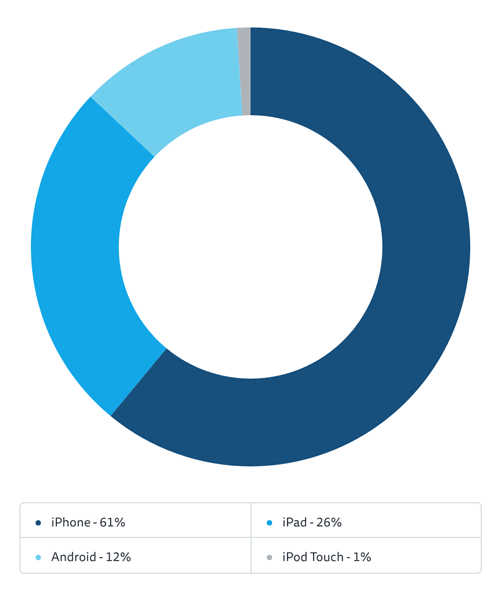
1.https://play.google.com/store?hl=en

2.http://www.apple.com/iphone/from-the-app-store/

3.http://litmus.com/blog/email-preferred-more-clicks-conversions-roi

4.http://campaignmonitor.com/css

5.http://en.wikipedia.org/wiki/WebKit

6.http://campaignmonitor.com/guides/mobile

7.http://blog.hubspot.com/blog/tabid/6307/bid/32892/Why-Purchasing-Email-Lists-Is-Always-a-Bad-Idea.aspx

8.http://mailchimp.com

9.http://campaignmonitor.com/

10.http://sendy.co/

11.http://www.thedrowning.com/

12.http://dena.com/intl/

13.http://www.smashingmagazine.com/2011/05/24/building-an-effective-coming-soon-page-for-your-product/

14.http://launchrock.co/

15.http://unbounce.com/

16.http://wordpress.org/plugins/launchpad-by-obox/

17.http://launching.me/

18.http://www.copyblogger.com/email-autoresponders/

19.http://www.smashingmagazine.com/wp-content/uploads/2013/06/CreateSendExample.png

20.https://github.com/mailchimp/ChimpKit2

21.http://carpeaqua.com/2010/01/17/sgmimimailer-a-cocoa-wrapper-for-mad-mimi/

22.https://github.com/campaignmonitor/createsend-objectivec

23.http://www.campaignmonitor.com/api/

24.http://www.campaignmonitor.com/enlist/

25.http://mailchimp.com/features/mobile-signup-forms/

26.http://wistia.com/doc/email-marketing

27.http://wistia.com/

28.http://24ways.org/2009/rock-solid-html-emails/

29.http://econsultancy.com/us/blog/62688-six-case-studies-and-infographics-on-the-optimal-time-to-send-emails

30.http://www.copyblogger.com/email-marketing-timing/

31.http://gallery.campaignmonitor.com/ViewEmail/r/AD3769CCC3AE17612540EF23F30FEDED

32.http://dena.com/intl/

33.http://gallery.campaignmonitor.com/ViewEmail/r/AD273323F926C89C

34.http://clear-media.com/

35.http://echograph.com

36.http://gallery.campaignmonitor.com/ViewEmail/r/0B7BBD857F05383B/

37.http://oak.is/

38.http://dropmark.com/

39.http://gallery.campaignmonitor.com/ViewEmail/y/78AABCA56BB82CF8

40.http://www.campaignmonitor.com/blog/post/3948/hiding-content-in-both-desktop-and-web-email-clients

41.http://gallery.campaignmonitor.com/ViewEmail/r/82811D0144EB6496

42.http://techcrunch.com/2011/12/19/sunday-is-the-best-day-to-launch-your-mobile-app/

43.http://mailchimp.com/features/autoresponders/

44.http://help.campaignmonitor.com/topic.aspx?t=171

45.http://www.smashingmagazine.com/2010/03/03/how-to-market-your-mobile-app/

How To Create A Self-Paced Email Course

By Paul Jarvis

When I realized I had written what seemed to be a course (i.e. not my usual article or book), I was left with a sense of panic. There are so many options for running an online course, and all of them seem slightly confusing or time-intensive to set up.

Then I remembered the autoresponders feature in my newsletter application (I use MailChimp, although every newsletter software has it). I could trigger lessons with autoresponders and deliver course material to where most people spend most of their day: the inbox.

Another problem was that the course was about writing a book, and some of the lessons were slightly onerous — like “Write a first draft.” So, setting a fixed time delay wouldn’t work because some people complete things like that much more quickly than others.

Instead of automatically firing off each lesson after a set amount of time, I created a series of lessons via autoresponders that fired only when the previous lesson was marked as finished. That way, I got to deliver each new lesson only when the student had finished the previous. This method does not require you to configure any website, plugins or additional software (beyond setting up a mailing list and creating pages on your existing website, which you probably already know how to do).

I made my own course, Write and Sell Your Damn Book, free for a few reasons. First, I was able to bring some sponsors on board to give me enough money to make it worthwhile to create and set up. Secondly, I felt that the course material should be available to anyone, on any budget, who is writing a book.

Thus, the course made money before it launched, but the downside is that it made a fixed amount of money. I set up additional (albeit minor) revenue streams for it — affiliate links on Amazon to recommended books on the same subject, links to my own paid books, as well as the course in Kindle format, just in case people wanted to read the material all at once.
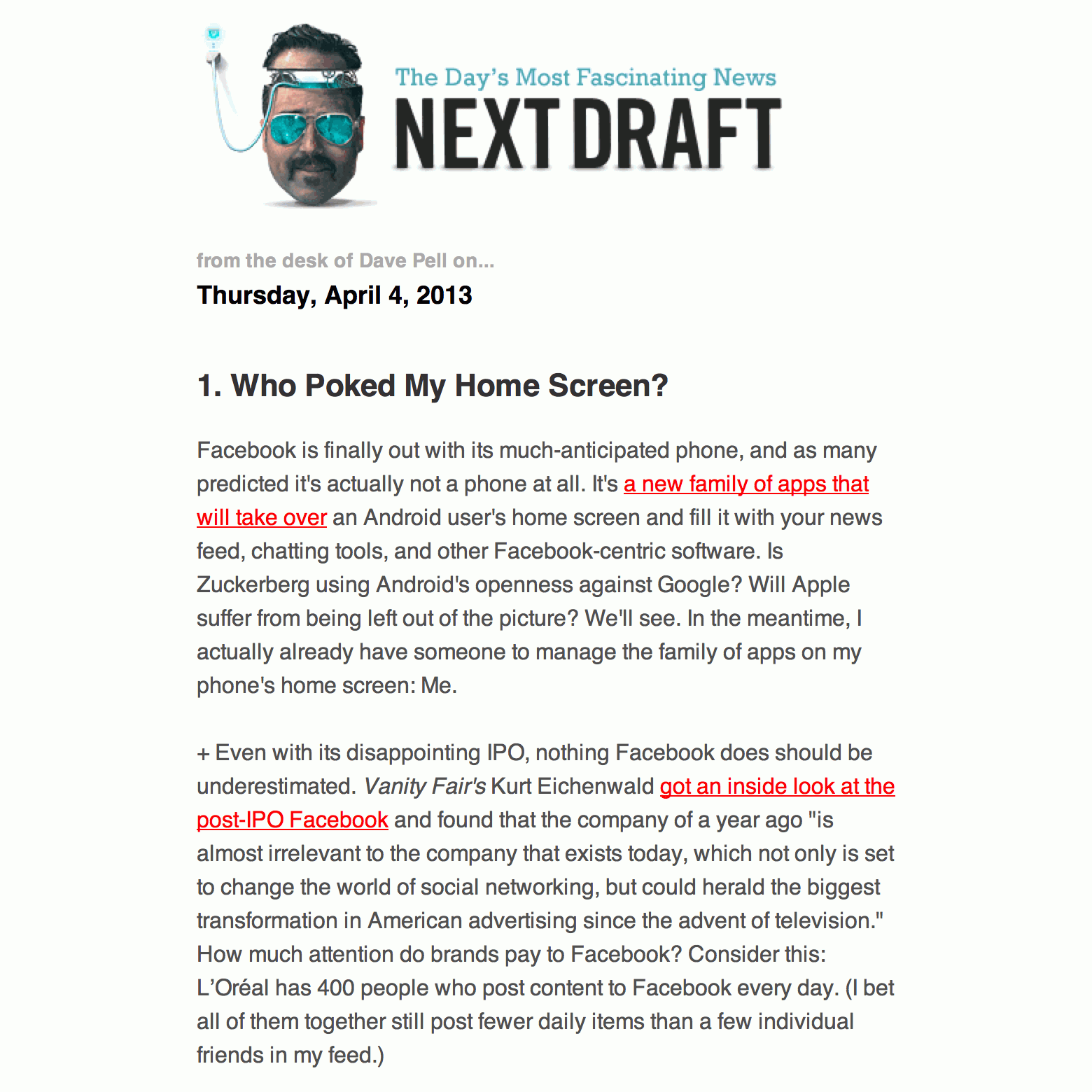
Using the method outlined below, I created a self-paced email course that had over 1,000 registrations in the first 24 hours, and almost 2,500 in the first week. There are other ways to do this using MailChimp, such as triggering the completion of a course with a URL, but this is how I set up mine.

1. Create A List

This list is only for people who will take your email course. Make sure the publicity settings are set to non-public and non-archivable (otherwise, people will be able to share the lessons with whomever they want).

Check “No, my campaigns are not public,” and uncheck “Activate the archive bar.”

When creating autoresponders, ensure that you remove the “View this campaign in a browser” link, to further discourage shareability. To take things one step further and make sure only subscribers see some or all of the course’s content, read up on conditional merge tags1.

2. Match The Colors And Fonts In The Course Material To The Registration Process

You’ll find these by going to “Signup Forms” and then “General Forms.” Match the fonts, colors and logo of the course’s website for a consistent user experience.

3. Select “Send A Final Welcome Email”

You’ll find this option in the drop-down menu on the “Create Forms” page; it will be automatically selected, unless you’ve unchecked the box. Add text to this email (scroll down to edit the contents), informing users to “Click the completed lesson” button in each lesson to get the next lesson.

Later, we’ll get into how to set this up, but essentially each lesson’s email will have a link that users can click when they’re finished to notify MailChimp to deliver the next lesson.

Also, in this final welcome email, let users know when the first lesson will be delivered.

4. Set Up The First Lesson And Autoresponder

Go to “Autoresponders” and then “Create autoresponder.” Select the entire list to be the recipients. On the next page, the event that triggers this autoresponder is “Subscription to the list.” Make sure that “Also trigger on list import” is checked if you want to use Twitter cards or if you will be charging for the course (more on this later).

Lesson One

Choose whether to send it within the hour or at another time and date. On the set-up and campaign information page, give the campaign a subject line and make sure that, under “Tracking,” “Goal Tracking” is checked — this is important because it will trigger the next autoresponder lesson.

5. Set A Goal For Your Campaign

A goal is simply a URL that you add to the lesson. For my own email course, I created a few pages on my website that thanked the user for completing the lesson. For example, I added a button to the campaign for lesson 1, reading “I have completed this lesson” and linking to http://mydamnbook.com/lessons/lessonone.

The URL may be anything, but if you are setting a reminder email (more on this later), then the URL must contain the same folder — in this case, lessons. If you use WordPress, this is simply the parent page, and each individual lesson would be a child page of the parent, /lessons/.

These pages that live on your website are important for firing off autoresponders, as well as for letting the user know that a lesson has been completed and that a new one is on the way.

A good marketing strategy is to add some social engagement to the completion page for each lesson, such as “Tweet that you’ve finished lesson 1,” with a hash tag for your course or sharing buttons, so that users can let others in their network know about the course and where to sign up.

6. Set Up Subsequent Lessons By Creating A New Autoresponder

Set the entire list as the recipients. On the next page, set “Specific link in the campaign is clicked” as the event to trigger the autoresponder.

Then, select the previous lesson. If you’re creating lesson 2, then select lesson 1’s autoresponder from the drop-down menu. Then, choose “Select a link from your campaign” and select the URL that you used for the button that tells the user they have completed that lesson.

Lesson Two

Set the autoresponder to send either within the hour or at a time and date of your choosing. I always pick “Within the hour,” so that the user gets the next lesson fairly quickly.

Make sure to track goals for every lesson you create (otherwise, the URL clicks won’t be tracked by the following lesson).

To create lesson 3, you’d follow the steps above but would select lesson 2 from “For what campaign” and the lesson 2 completion URL for “Select a link from your campaign.” And so on, until you’ve added all of the lessons.

7. Set Up Additional Emails (If Needed)

In addition to the lessons, you may want to send out a different type of email a day or two after the final lesson has opened. The email could include additional resources, an “About the author” section, or perhaps a review of the course (if you’ve got one).

Select “Send to the entire list” for the recipients.

For the autoresponder, select “Campaign is opened” as the event to trigger the follow-up email, and select “For what campaign” as the final lesson (via the drop-down menu). Then, select the amount of time for “When the autoresponder should be sent.” If the email is a review or list of resources, then sending it a day or two after makes sense, while the lessons are still fresh.

8. Set Up A Reminder Email

Because the course is self-paced, people won’t get the next lesson if they forget about the email for the current lesson, so setting up a course reminder autoresponder is another good idea.

From step 5, if the same folder is in the URL for each lesson (in this example, /lessons/), then it’s simply a matter of creating a new reminder autoresponder that sends to a new segment of the list.

reminder

To do this, start an autoresponder, select “Send to a new segment,” then pick “Subscribers match,” and then “Any” from the drop-down menu.

In the next drop-down menu, choose “Goal Activity,” then “Doesn’t match,” and in the field type in the folder URL of all lessons (in this case, lessons) (don’t type the full URL or any slashes).

On the next page, select “Subscription to the list” as the event to trigger the autoresponder.

When setting the autoresponder, estimate a reasonable time which people would take to complete a lesson. For my own list, I’ve set the reminder to “45 days” after a user has stopped clicking anything.

Remind people that they’ve signed up for the course and, if they’ve forgotten about the lessons, to go back and read the current one (and click that they’ve finished it once they have). I also offer helpful suggestions on how to get over being stuck in the writing process.

Integrate With Payment Solution (Optional)

If you want to charge for the course, you will need to collect the user’s money before the course lessons start firing. I use Gumroad to sell items online; while it doesn’t directly integrate with MailChimp, one easy additional step makes it happen.

Gumroad
Giving your course a price can be done in one easy step.

In your Gumroad account, click “Add a Product,” and then select the product. Where it asks for a file, create and upload a PDF of the text in your “Final welcome email” that tells people they’ve successfully signed up for the course and will get the first lesson within an hour.

Give it a price, and then “Add” the product. The next screen lets you upload a graphic (or video) and a description of the course. When it’s ready, click “Publish.”

To add an incentive (for example, to reward users with a discount for signing up early), click on the “Options” tab and create an offer. Otherwise, you’re done!

To integrate with Zapier, create a secret “free” offer, which you can use to finish the process, and delete it when you’re done.

Next, to connect Gumroad to MailChimp, sign up for an account with Zapier. Free and paid options are available. If you expect fewer than 100 users, go with a free account. Otherwise, it’s fairly cheap, and it scales. If 50,000 people are signing up a month, then the $99 per month price tag is well worth it.

Zapier
By connecting Gumroad to MailChimp you can automatically add purchasers of your Gumroad product to your course’s mailing list.

Once you’ve got an account, click “Create a Zap.” The trigger service is Gumroad, and the action service is MailChimp. For “Choose a trigger,” select “New sale.” For “Choose an action,” select “Add subscriber,” and then continue. From there, follow the steps to connect both your Gumroad and MailChimp accounts to Zapier.

Next, choose your “Product” (which would be your course if you have more than one product in Gumroad), and then continue. Then, choose which MailChimp mailing list to put subscribers in. When you click on “Insert fields” in the email section, Zapier will ask you to create a new purchase of your product. Go back to Gumroad and do that (using the free discount code), and continue with the process. Make sure to select “Email” in the email drop-down menu.

Also, select “No” for “Send a welcome email” because subscribers will get the PDF as a download immediately upon paying. Click “Continue,” name the Zap whatever you’d like, and turn it on!

Now, whenever someone purchases the Gumroad product for your email course, they will be automatically added to the course’s mailing list and will start receiving lessons.

And that’s how you create a self-paced email course using MailChimp, Gumroad and Zapier.

About The Authors

Brian Graves

Brian is a Kansas City-based UI Designer who is passionate about design, UX, collaborative workflows, and craft beer. In addition to his 9-5 as UI Team Lead at DEG1, Brian is the creator of Responsive Email Patterns2, curator of Responsive Email Resources3, a key developer of MiddleMail4 and serves as a moderator at Litmus Community5.

Fabio Carneiro

Fabio Carneiro is an Email Developer & User Experience Designer at MailChimp, where he spends his days neck-deep in HTML email, designing and developing versatile, responsive templates for more than 7 million MailChimp users. He loves helping others conquer email design6, and has given talks at The Email Design Conference7, Smashing Conference8, and ConvergeSE9, recorded a course for Treehouse10, and shared his expertise with publications like Smashing Magazine.Twitter: @flcarneiro11.

Laura Franz

Laura Franz is a Professor at UMass Dartmouth, where she teaches a wide range of type classes — including a Web Typography class in The Graduate Certificate In Web and Interaction Design. Inspired by the intersection of tradition and technology, Laura shares her web font recommendations on goodwebfonts.com12 and her typography knowledge via “Typographic Web Design: How to Think Like a Typographer in HTML and CSS13” (Wiley), “Typography for Web Designers14”, and “Choosing and Using Web Fonts15”.

Paul Boag

Paul Boag has been working with the web since 1994. He is now co-founder of the web design agency Headscape16, where he works closely with clients to establish their web strategy. Paul is a prolific writer having written the Website Owners Manual17, Building Websites for Return on Investment18, Client Centric Web Design19, Digital Adaptation20 and numerous articles for publications such as .net magazine, Smashing Magazine and the Web Designers Depot. Paul also speaks extensively on various aspects of web design both at conferences across the world and on his award winning Web design podcast boagworld21. Twitter: @boagworld22.

Paul Jarvis

Paul Jarvis is a best-selling author, designer and gentleman of adventure. He's worked with Silicon Valley start-ups, pro-sports athletes, Fortune 500 companies, best-selling authors and the world's biggest entrepreneurs. He also writes for his popular newsletter, The Sunday Dispatches23. Twitter: @pjrvs24.

Ros Hodgekiss

Ros Hodgekiss is the Community Manager for Campaign Monitor, an email marketing and copywriting nerd, Disaster Volunteer with the American Red Cross and an enthusiastic, but not polished dancer. Her experiences from 8 years of creating and sending email campaigns have resulted in countless resources for email coders, including blog posts and Smashing Magazine articles, the “Guide to CSS support in Email25” and the “Guide to Responsive Email Design26”. When not cycling around San Francisco, Ros spends her time educating designers on the black art of email marketing. Twitter: @yarrcat27. Google Profile: https://plus.google.com/+RosHodgekiss28.

Sam Wright

Sam Wright is the founder of Norwich-based agency Blink29. Twitter: @Ohitssamwright30.

About Smashing Magazine

Smashing Magazine31 is an online magazine dedicated to Web designers and developers worldwide. Its rigorous quality control and thorough editorial work has gathered a devoted community exceeding half a million subscribers, followers and fans. Each and every published article is carefully prepared, edited, reviewed and curated according to the high quality standards set in Smashing Magazine’s own publishing policy32.

Smashing Magazine publishes articles on a daily basis with topics ranging from business, visual design, typography, front-end as well as back-end development, all the way to usability and user experience design. The magazine is—and always has been—a professional and independent online publication neither controlled nor influenced by any third parties, delivering content in the best interest of its readers. These guidelines are continually revised and updated to assure that the quality of the published content is never compromised. Since its emergence back in 2006 Smashing Magazine has proven to be a trustworthy online source.