
Second Edition
Solutions and Examples for bash Users
Copyright © 2018 Carl Albing and JP Vossen. All rights reserved.
Printed in the United States of America.
Published by O’Reilly Media, Inc., 1005 Gravenstein Highway North, Sebastopol, CA 95472.
O’Reilly books may be purchased for educational, business, or sales promotional use. Online editions are also available for most titles (http://oreilly.com/safari). For more information, contact our corporate/institutional sales department: 800-998-9938 or corporate@oreilly.com.
See http://oreilly.com/catalog/errata.csp?isbn=9781491975336 for release details.
The O’Reilly logo is a registered trademark of O’Reilly Media, Inc. bash Cookbook, the cover image, and related trade dress are trademarks of O’Reilly Media, Inc.
While the publisher and the authors have used good faith efforts to ensure that the information and instructions contained in this work are accurate, the publisher and the authors disclaim all responsibility for errors or omissions, including without limitation responsibility for damages resulting from the use of or reliance on this work. Use of the information and instructions contained in this work is at your own risk. If any code samples or other technology this work contains or describes is subject to open source licenses or the intellectual property rights of others, it is your responsibility to ensure that your use thereof complies with such licenses and/or rights.
978-1-491-97533-6
[LSI]
Every modern operating system has at least one shell, and some have many. Some shells are command line–oriented, such as the shell discussed in this book. Others are graphical, like Windows Explorer or the Macintosh Finder. Some users will interact with the shell only long enough to launch their favorite application, and then never emerge from that until they log off. But most users spend a significant amount of time using the shell. The more you know about your shell, the faster and more productive you can be.
Whether you are a system administrator, a programmer, or an end user, there are certainly occasions where a simple (or perhaps not so simple) shell script can save you time and effort, or facilitate consistency and repeatability for some important task. Even using an alias to change or shorten the name of a command you use often can have a significant effect. We’ll cover this and much more.
As with any general programming language, there is more than one way to do a given task in the shell. In some cases, there is only one best way, but in most cases there are at least two or three equally effective and efficient ways to write a solution. Which way you choose depends on your personal style, creativity, and familiarity with different commands and techniques. This is as true for us as authors as it is for you as the reader. In most cases we will choose a single method and implement it. In a few cases we may choose a particular method and explain why we think it’s the best. We may also occasionally show more than one equivalent solution so you can choose the one that best fits your needs and environment.
There is also sometimes a choice between a clever way to write some code, and a readable way. We will choose the readable way every time because experience has taught us that no matter how transparent you think your clever code is now, 6 or 18 months and 10 projects from now, you will be scratching your head asking yourself what you were thinking. Trust us: write clear code, and document it—you’ll thank yourself (and us) later.
This book is for anyone who uses a Unix or Linux system, as well as system administrators who may use several systems on any given day. With it, you will be able to create scripts that allow you to accomplish more, in less time, more easily, consistently, and repeatably than ever before.
Anyone? Yes. New users will appreciate the sections on automating repetitive tasks, making simple substitutions, and customizing their environment to be more friendly and perhaps behave in more familiar ways. Power users and administrators will find new and different solutions to common tasks and challenges. Advanced users will have a collection of techniques they can use at a moment’s notice to put out the latest fire, without having to remember every little detail of syntax.
Ideal readers include:
New Unix or Linux users who don’t know much about the shell, but want to do more than point and click
Experienced Unix or Linux users and system administrators looking for quick answers to shell scripting questions
Programmers who work in a Unix or Linux (or even Windows) environment and want to be more productive
New Unix or Linux sysadmins, or those coming from a Windows environment who need to come up to speed quickly
Experienced Windows users and sysadmins who want a more powerful scripting environment
This book will only briefly cover basic and intermediate shell scripting—see Learning the bash Shell, 3rd Edition, by Cameron Newham (O’Reilly) and Classic Shell Scripting by Nelson H. F. Beebe and Arnold Robbins (O’Reilly) for more in-depth coverage. Instead, our goal is to provide solutions to common problems, with a strong focus on the “how to” rather than the theory. We hope this book will save you time when figuring out solutions or trying to remember syntax. In fact, that’s why we wrote this book: it’s what we wanted, one we could read through to get ideas, then refer to for practical working examples when needed. That way we wouldn’t have to remember the subtle differences between the shell, Perl, C, and so forth.
This book assumes you have access to a Unix or Linux system (or see Recipes 1.14 through 1.18, or Recipe 15.4) and are familiar with logging in, typing basic commands, and using a text editor. You do not have to be root to use the vast majority of the recipes, though there are a few, particularly dealing with installing bash, where root access will be needed.
This book covers bash, the GNU Bourne Again Shell, which is a member of the family of shells that includes the original Bourne shell, sh, the Korn shell, ksh, and the public domain Korn shell, pdksh. While these and other shells such as dash and zsh are not specifically covered, odds are that most of the scripts will work pretty well with them.
You should be able to read this book cover to cover, and also just pick it up and read anything that catches your eye. But perhaps most importantly, we hope that when you have a question about how to do something or you need a hint, you will be able to easily find the right answer—or something close enough—and save time and effort.
A great part of the Unix philosophy is to build simple tools that do one thing well, then combine them as needed. This combination of tools is often accomplished via a shell script because these commands, called pipelines, can be long or difficult to remember and type. Where appropriate, we’ll cover the use of many of these tools in the context of the shell script as the glue that holds the pieces together to achieve the goal.
The first edition of this book was written using OpenOffice.org Writer running on whatever Linux or Windows machine happened to be handy, and kept in Subversion (see Appendix D). The nature of the Open Document Format facilitated many critical aspects of writing this book, including cross-references and extracting code (see Recipe 13.18). That source was later converted to DocBook for production.
For the second edition, we’ve switched to Asciidoc and Git on O’Reilly’s Atlas system, which worked very well. We’re grateful to O’Reilly’s production and tools departments for their help.
bash and many of the other tools we discuss in this book are part of the GNU Project. GNU (pronounced guh-noo, like canoe) is a recursive acronym for “GNU’s Not Unix,” and the project dates back to 1984. Its goal is to develop a free (as in freedom) Unix-like operating system.
Without getting into too much detail, what is commonly referred to as Linux is, in fact, a kernel with various supporting software as a core. The GNU tools are wrapped around it and it has a vast array of other software that may be included, depending on your distribution. However, the Linux kernel itself is not GNU software.
The GNU Project argues that Linux should in fact be called “GNU/Linux,” and it has a good point, so some distributions (notably Debian) do this. Therefore, GNU’s goal has arguably been achieved, though the result is not exclusively GNU.
The GNU Project has contributed a vast amount of superior software, notably including bash. There are GNU versions of practically every tool we discuss in this book, and while the GNU tools are more rich in terms of features and (usually) friendliness, they are also sometimes a little different. We discuss this in Recipe 15.3, though the commercial Unix vendors in the 1980s and 1990s are also largely to blame for these differences.
Enough (several books this size worth) has already been said about all of these aspects of GNU, Unix, and Linux, but we felt that this brief note was appropriate. See http://www.gnu.org for much more on the topic.
When we show an executable piece of shell scripting in this book, we typically show it in an offset area like this:
$ ls a.out cong.txt def.conf file.txt more.txt zebra.list $
The first character is often a dollar sign ($) to indicate that this command has been typed at the bash shell prompt. (Remember that you can change the prompt, as described in Recipe 16.2, so your prompt may look very different.) The prompt is printed by the shell; you type the remainder of the line. Similarly, the last line in such an example is often a prompt (the $ again), to show that the command has ended execution and control has returned to the shell.
The pound or hash sign (#) is a little trickier. In many Unix or Linux files, including bash shell scripts, a leading # denotes a comment, and we have used it that way in some of our code examples. But as the trailing symbol in a bash command prompt (instead of $), # means you are logged in as root. We only have one example that is running anything as root, so that shouldn’t be confusing, but it’s important to understand.
When you see an example without the prompt string, we are showing the contents of a shell script. For several large examples we will number the lines of the script, though the numbers are not part of the script.
We may also occasionally show an example as a session log or a series of commands. In some cases, we may cat one or more files so you can see the script and/or datafiles we’ll be using in the example or in the results of our operation, like this:
$ cat data_file static header line1 static header line2 1 foo 2 bar 3 baz
Many of the longer scripts and functions are available to download as well. See “Using Code Examples” for details. We have chosen to use
!/usr/bin/env bash for these examples, where applicable, as that is more portable than the !/bin/bash you will see on Linux or a Mac. See Recipe 15.1 for more details.
Also, you may notice something like the following in many code examples:
# cookbook filename:snippet_name
That means that the code you are reading is available for download in our GitHub repository. You’ll find the code in something like ./chXX/snippet_name, where chXX is the chapter and snippet_name is the name of the file.
Certain Unix users take a positively giddy delight in pointing out inefficiencies in other people’s code. Most of the time this is constructive criticism gently given and gratefully received.
Probably the most common case is the so-called “useless use of cat award” bestowed when someone does something like cat file | grep foo instead of simply grep foo file. In this case, cat is unnecessary and incurs some system overhead since it runs in a subprocess. Another common case would be cat file | tr '[A-Z]' '[a-z]' instead of tr '[A-Z]' '[a-z]' < file. Sometimes using cat can even cause your script to fail (see Recipe 19.8).
But…(you knew that was coming, didn’t you?) sometimes unnecessarily using cat actually does serve a purpose. It might be a placeholder to demonstrate a fragment of a pipeline, with other commands later replacing it (perhaps even cat -n). Or it might be that placing the file near the left side of the code draws the eye to it more clearly than if it were hidden behind a < on the far-right side of the page.
While we applaud efficiency and agree it is a goal to strive for, it isn’t as critical as it once was. We are not advocating carelessness and code bloat, we’re just saying that processors aren’t getting any slower anytime soon. So if you like cat, use it.
We made a conscious decision to avoid using Perl in our solutions as much as possible, though there are still a few cases where it makes sense. Perl is already covered elsewhere in far greater depth and breadth than we could ever manage here. And Perl solutions are generally much larger, with significantly more overhead, than ours. There is also a fine line between shell scripting and Perl scripting, and this is a book about shell scripting.
Shell scripting is basically glue for sticking Unix programs together, whereas Perl incorporates much of the functionality of the external Unix programs into the language itself. This makes it more efficient and in some ways more portable, at the expense of being different and making it harder to efficiently run any external programs you still need.
The choice of which tool to use often has more to do with familiarity than with any other reason. The bottom line is always getting the work done; the choice of tools is secondary. We’ll show you many ways to do things using bash and related tools. When you need to get your work done, you get to choose what tools you use.
Perl Cookbook, 2nd Edition, by Nathan Torkington and Tom Christiansen (O’Reilly)
Programming Perl, 4th Edition, by Larry Wall et al. (O’Reilly)
Perl Best Practices, by Damian Conway (O’Reilly)
Mastering Regular Expressions, 3rd Edition, Jeffrey E. F. Friedl (O’Reilly)
Learning the bash Shell, 3rd Edition, by Cameron Newham (O’Reilly)
Classic Shell Scripting, Nelson H. F. Beebe and Arnold Robbins (O’Reilly)
The following typographical conventions are used in this book:
Indicates menu titles, menu options, menu buttons, and keyboard accelerators (such as Alt and Ctrl).
Indicates new terms, URLs, email addresses, filenames, file extensions, pathnames, directories, and Unix utilities.
Constant widthIndicates commands, options, switches, variables, attributes, keys, functions, types, classes, namespaces, methods, modules, properties, parameters, values, objects, events, event handlers, XML tags, HTML tags, macros, the contents of files, and the output from commands.
Constant width boldShows commands or other text that should be typed literally by the user.
Constant width italicShows text that should be replaced with user-supplied values.
This icon signifies a general note.
This icon signifies a tip or suggestion.
This icon indicates a warning or caution.
Supplemental material (code examples, exercises, etc.) is available for download at https://github.com/vossenjp/bashcookbook-examples.
This book is here to help you get your job done. In general, if example code is offered with this book, you may use it in your programs and documentation. You do not need to contact us for permission unless you’re reproducing a significant portion of the code. For example, writing a program that uses several chunks of code from this book does not require permission. Selling or distributing a CD-ROM of examples from O’Reilly books does require permission. Answering a question by citing this book and quoting example code does not require permission. Incorporating a significant amount of example code from this book into your product’s documentation does require permission.
We appreciate, but do not require, attribution. An attribution usually includes the title, author, publisher, and ISBN. For example: “bash Cookbook, 2nd Edition, by Carl Albing and JP Vossen. Copyright 2018 Carl Albing and JP Vossen, 978-1-491-97533-6.”
If you feel your use of code examples falls outside fair use or the permission given above, feel free to contact us at permissions@oreilly.com.
Safari (formerly Safari Books Online) is a membership-based training and reference platform for enterprise, government, educators, and individuals.
Members have access to thousands of books, training videos, Learning Paths, interactive tutorials, and curated playlists from over 250 publishers, including O’Reilly Media, Harvard Business Review, Prentice Hall Professional, Addison-Wesley Professional, Microsoft Press, Sams, Que, Peachpit Press, Adobe, Focal Press, Cisco Press, John Wiley & Sons, Syngress, Morgan Kaufmann, IBM Redbooks, Packt, Adobe Press, FT Press, Apress, Manning, New Riders, McGraw-Hill, Jones & Bartlett, and Course Technology, among others.
For more information, please visit http://oreilly.com/safari.
Please address comments and questions concerning this book to the publisher:
We have a web page for this book, where we list errata, examples, and any additional information. You can access this page at http://bit.ly/bash_cookbook_2E.
You can find information about this book, code samples, errata, links, bash documentation, and more at the authors’ site, http://www.bashcookbook.com.
Please drop by for a visit to learn, contribute, or chat. The authors would love to hear from you about what you like and don’t like about the book, what bash wonders you may have found, or lessons you have learned. To comment or ask technical questions about this book, send email to bookquestions@oreilly.com.
For more information about our books, courses, conferences, and news, see our website at http://www.oreilly.com.
Find us on Facebook: http://facebook.com/oreilly
Follow us on Twitter: http://twitter.com/oreillymedia
Watch us on YouTube: http://www.youtube.com/oreillymedia
Thank you to the GNU Software Foundation and Brian Fox for writing bash. And thank you to Chet Ramey, who has been maintaining and improving bash since around version 1.14 in the early to mid-1990s. More thanks to Chet for answering our questions and for reviewing a draft of this book.
A special thanks, also, to Cameron Newham, who provided some material for the first edition, some of which remains in this edition. We highly recommend his O’Reilly book, Learning the bash Shell, written by Cameron Newham and Bill Rosenblatt.
Many thanks to our reviewers! They all provided valuable feedback, suggestions, and in some cases alternate solutions, pointed out issues we had overlooked, and in general greatly improved the book. Any errors or omissions in this text are ours and not theirs. An excellent example of their wisdom is the correct observation, “That sentence doesn’t know whether it’s coming or going!”
First edition: Yves Eynard, Chet Ramey, William Shotts, Ryan Waldron, and Michael Wang.
Second edition: Chet Ramey, Robert Day, and Arnold Robbins.
Thanks to the entire team at O’Reilly, without whom this book would not exist for many reasons, and if it did the content wouldn’t be or look nearly as good!
First edition: our editor Mike Loukides, Derek Di Matteo, and Laurel Ruma.
Second edition: our editor Jeff Bleiel, Rachel Head, Kristen Brown, James Fraleigh, Ellen Troutman-Zaig, and Rebecca Demarest in production, and Matthew Hacker and other Tools folks. For a variety of reasons, the second edition required a lot of very painstaking work: thank you all for that. We are so impressed by your dedication to this project, as well as your attention to detail.
The writing of a book is never a solitary effort, though it has its moments. Thanks to JP for working on this project with me through both editions over many years. Our complementary talents and time schedules have made this a better book than I could have managed alone. Thanks also to JP for his great sysadmin efforts to provide us with some infrastructure. Thanks to Mike for listening to our proposals for a bash cookbook, for pushing us along when we got stuck, and for reining us in when we went crazy. His steady guidance and technical input were much appreciated. My wife, Cynthia, and children (now grown!) have patiently supported me through this process, giving me encouragement and motivation, as well as time and space to work. I thank them wholeheartedly.
But deeper than the immediate task of this book was the background and preparation. I’m greatly indebted to Dr. Ralph Bjork, who made it possible for me to start working with Unix back before almost anyone had ever heard of it. His vision, foresight, and guidance have paid dividends for me longer than I would ever have expected.
My work on this book is dedicated to my parents, Hank and Betty, who have given me every good thing they had to offer—life itself, Christian faith, love, an excellent education, a sense of belonging, and all those good and healthy things one hopes to pass on to one’s own children. I can never thank them enough.
Thanks to Cameron for writing Learning the bash Shell, from which I learned a lot and which was my primary reference until I started this project, and for contributing so much useful material from it. Thanks to Carl for all his work: without him this would have taken four times as long and only been half as good. Thanks to Mike for getting the ball rolling, then keeping it rolling, and for bringing Carl on board. And thanks to both Carl and Mike for their patience with my life and time management issues.
This book is dedicated to Dad, who’d get a kick out of it. He always told me there are only two decisions that matter: what you do and who you marry. I’ve managed to get two for two, so I guess I’m doing pretty well. So this is also dedicated to Karen, for her incredible support, patience, and understanding during this longer than expected process and without whom even computers wouldn’t be as fun. Finally, thanks to Kate and Sam, who contributed greatly to my aforementioned life management issues.
What’s a shell, and why should you care about it?
Any recent computer operating system (by recent, we mean since about 1970) has some sort of user interface—some way of specifying commands for the operating system to execute. But in lots of operating systems, that command interface was really built in and there was only one way to talk to the computer. Furthermore, an operating system’s command interface would let you execute commands, but that was about all. After all, what else was there to do?
The Unix operating system popularized the notion of separating the shell (the part of the system that lets you type commands) from everything else: the input/output system, the scheduler, memory management, and all of the other things the operating system takes care of for you (and that most users don’t want to care about). The shell was just one more program; it was a program whose job was executing other programs on behalf of users.
But that was the beginning of a revolution. The shell was just another program that ran on Unix; if you didn’t like the standard one, you could create your own. So by the end of Unix’s first decade, there were at least two competing shells: the Bourne shell, sh (which was a descendant of the original Thompson shell), plus the C shell, csh. By the end of Unix’s second decade, there were a few more alternatives: the Korn shell, ksh, and the first versions of the bash shell. By the end of Unix’s third decade, there were probably a dozen different shells.
You probably don’t sit around saying, “Should I use csh or bash or ksh today?” You’re probably happy with the standard shell that came with your Linux (or BSD or macOS or Solaris or HP/UX) system. But disentangling the shell from the operating system itself made it much easier for software developers (such as Brian Fox, the creator of bash, and Chet Ramey, the current developer and maintainer) to write better shells—you could create a new shell without modifying the operating system itself. It was much easier to get a new shell accepted, since you didn’t have to talk some operating system vendor into building the shell into their system; all you had to do was package the shell so that it could be installed just like any other program.
Still, you might be thinking that sounds like a lot of fuss for something that just takes commands and executes them. And you would be right—a shell that just let you type commands wouldn’t be very interesting. However, two factors drove the evolution of the Unix shell: user convenience and programming. And the result is a modern shell that does much more than just accept commands.
Modern shells are very convenient. For example, they remember commands that you’ve typed, and let you reuse those commands. Modern shells also let you edit those commands, so they don’t have to be the same each time. And modern shells let you define your own command abbreviations, shortcuts, and other features. For an experienced user, typing commands (e.g., with shorthand, shortcuts, and command completion) is a lot more efficient and effective than dragging things around in a fancy windowed interface.
But beyond simple convenience, shells are programmable. There are many sequences of commands that you type again and again. Whenever you do anything a second time, you should ask, “Can’t I write a program to do this for me?” You can. A shell is also a programming language that’s specially designed to work with your computer system’s commands. So, if you want to generate a thousand MP3 files from WAV files, you can write a shell program (or shell script). If you want to compress all of your system’s logfiles, you can write a shell script to do it. Whenever you find yourself doing a task repeatedly, you should try to automate it by writing a shell script. There are more powerful scripting languages, like Perl, Python, and Ruby, but the Unix shell (whatever flavor of shell you’re using) is a great place to start. After all, you already know how to type commands; why make things more complex?
Why is this book about bash, and not some other shell? Because bash is everywhere. It may not be the newest, and it’s arguably not the fanciest or the most powerful (though if not, it comes close), nor is it the only shell that’s distributed as open source software—but it is ubiquitous.
The reason has to do with history. The first shells were fairly good programming tools, but not very convenient for users. The C shell added a lot of user conveniences (like the ability to repeat a command you’d just typed), but as a programming language it was quirky. The Korn shell, which came along next (in the early ’80s), added a lot of user conveniences, improved the programming language, and looked like it was on the path to widespread adoption. But ksh wasn’t open source software at first; it was a proprietary software product, and was therefore difficult to ship with a free operating system like Linux. (The Korn shell’s license was changed in 2000, and again in 2005.)
In the late 1980s, the Unix community decided standardization was a good thing, and the POSIX working groups (organized by the IEEE) were formed. POSIX standardized the Unix libraries and utilities, including the shell. The standard shell was primarily based on the 1988 version of the Korn shell, with some C shell features and a bit of invention to fill in the gaps. bash was begun as part of the GNU Project’s effort to produce a complete POSIX system, which naturally needed a POSIX shell.
bash provided the programming features that shell programmers needed, plus the conveniences that command-line users liked. It was originally conceived as an alternative to the Korn shell, but as the free software movement became more important, and as Linux became more popular, bash quickly overshadowed ksh.
As a result, bash is the default user shell on every Linux distribution we know about (there are a few hundred Linux distros, so there are probably a few with some oddball default shell), as well as macOS (and the earlier OS X versions). It’s also available for just about every other Unix operating system, including BSD Unix and Solaris. In the rare cases where bash doesn’t ship with the operating system, it’s easy to install. It’s even available for Windows, via Cygwin and also the new Linux Subsystem (Ubuntu). bash is both a powerful programming language and a good user interface, and you won’t find yourself sacrificing keyboard shortcuts to get elaborate programming features.
You can’t possibly go wrong by learning bash. The most common default shells are the old Bourne shell and bash, which is mostly Bourne shell–compatible. One of these shells is certainly present on any modern, major Unix or Unix-like operating system. And as noted, if bash isn’t present you can always install it. But there are other shells. In the spirit of free software, the authors and maintainers of all of these shells share ideas. If you read the bash change logs, you’ll see many places where a feature was introduced or tweaked to match behavior on another shell. But most people won’t care. They’ll use whatever is already there and be happy with it. So if you are interested, by all means investigate other shells. There are many good alternatives, and you may find one you like better—though it probably won’t be as ubiquitous as bash.
bash is a shell: a command interpreter. The main purpose of bash (or of any shell) is to allow you to interact with the computer’s operating system so that you can accomplish whatever you need to do. Usually that involves launching programs, so the shell takes the commands you type, determines from that input what programs need to be run, and launches them for you. You will also encounter tasks that involve a sequence of actions to perform that are recurring, or very complicated, or both. Shell programming, usually referred to as shell scripting, allows you to automate these tasks for ease of use, reliability, and reproducibility.
In case you’re new to bash, we’ll start with some basics. If you’ve used Unix or Linux at all, you probably aren’t new to bash—but you may not have known you were using it. bash is really just a language for executing commands—so the commands you’ve been typing all along (e.g., ls, cd, grep, cat) are, in a sense, bash commands. Some of these commands are built into bash itself; others are separate programs. For now, it doesn’t make a difference which are which.
We’ll end this chapter with a few recipes for getting bash. Most systems come with bash preinstalled, but a few don’t. Even if your system comes with bash, it’s always a good idea to know how to get and install it—new versions, with new features, are released from time to time.
If you’re already running bash, and are somewhat familiar with it, you may want to go straight to Chapter 2. You are not likely to read this book in order, and if you dip into the middle, you should find some recipes that demonstrate what bash is really capable of. But first, the basics.
All command-line shells have some kind of prompt to alert you that the shell is ready to accept your input. What the prompt looks like depends on many factors including your operating system type and version, shell type and version, distribution, and how someone else may have configured it. In the Bourne family of shells, a trailing $ in the prompt generally means you are logged in as a regular user, while a trailing # means you are root. The root account is the administrator of the system, equivalent to the System account on Windows (which is even more powerful than the Administrator account). root is all-powerful and can do anything on a typical Unix or Linux system.
Default prompts also often display the path to the directory that you are currently in; however, they usually abbreviate it, so a ~ means you are in your home directory. Some default prompts may also display your username and the name of the machine you are logged into. If that seems silly now, it won’t when you’re logged into five machines at once, possibly under different usernames.
Here is a typical Linux prompt for a user named jp on a machine called adams, sitting in the home directory. The trailing $ indicates this is a regular user, not root:
jp@adams:~$
Here’s the prompt after changing to the /tmp directory. Notice how ~, which really meant /home/jp, has changed to /tmp:
jp@adams:/tmp$
The shell’s prompt is the thing you will see most often when you work at the command line, and there are many ways to customize it more to your liking. But for now, it’s enough to know how to interpret it. Of course, your default prompt may be different, but you should be able to figure out enough to get by for now.
There are some Unix or Linux systems where the power of root may be shared, using commands like su and sudo. Or root may not even be all-powerful, if the system is running some kind of mandatory access control (MAC) system such as the NSA’s SELinux.
Use the pwd builtin command, or set a more useful prompt (as described in Recipe 16.2). For example:
bash-4.3$ pwd /tmp bash-4.3$ export PS1='[\u@\h \w]$ ' [jp@solaris8 /tmp]$
pwd stands for print working directory and takes two options. -L displays your logical path and is the default. -P displays your physical location, which may differ from your logical path if you have followed a symbolic link. Similarly, the cd command also provides -P and -L switches:
bash-4.3$ pwd /tmp/dir2 bash-4.3$ pwd -L /tmp/dir2 bash-4.3$ pwd -P /tmp/dir1
Try the type, which, apropos, locate, slocate, find, and ls commands.
bash keeps a list of directories in which it should look for commands in an environment variable called PATH. The bash builtin type command searches your environment (including aliases, keywords, functions, builtins, directories in $PATH, and the command hash table) for executable commands matching its arguments and displays the type and location of any matches. It has several options, notably the -a flag, which causes it to print all matches instead of stopping at the first one. The which command is similar but only searches your $PATH (and csh aliases). It may vary from system to system (it’s usually a csh shell script on BSD, but a binary on Linux), and usually has a -a flag like type. Use these commands when you know the name of a command and need to know exactly where it’s located, or to see if it’s on this computer. For example:
$ type which which is hashed (/usr/bin/which) $ type ls ls is aliased to `ls -F -h' $ type -a ls ls is aliased to `ls -F -h' ls is /bin/ls $ which which /usr/bin/which
Almost all commands come with some form of help on how to use them. Usually there is online documentation called manpages, where “man” is short for manual. These are accessed using the man command, so man ls will give you documentation about the ls command. Many programs also have a built-in help facility, accessed by providing a “help me” argument such as -h or --help. Some programs, especially on other operating systems, will give you help if you don’t give them arguments. Some Unix commands will also do that, but a great many of them will not. This is due to the way that Unix commands fit together into something called pipelines, which we’ll cover later. But what if you don’t know or can’t remember the name of the command you need? apropos searches manpage names and descriptions for regular expressions supplied as arguments. This is incredibly useful when you don’t remember the name of the command you need. This is the same as man -k:
$ apropos music cms (4) - Creative Music System device driver $ man -k music cms (4) - Creative Music System device driver
locate and slocate consult database files about the system (usually compiled and updated by a job run from the scheduler system cron) to find files or commands almost instantly. The location of the actual database files, what is indexed therein, and how often it is checked may vary from system to system. Consult your system’s manpages for details. slocate (secure locate) stores permission information (in addition to filenames and paths) so that it will not list programs to which the user does not have access. On most Linux systems, locate is a symbolic link to slocate; other systems may have separate programs, or may not have slocate at all. Here’s an example:
$ locate apropos /usr/bin/apropos /usr/share/man/de/man1/apropos.1.gz /usr/share/man/es/man1/apropos.1.gz /usr/share/man/it/man1/apropos.1.gz /usr/share/man/ja/man1/apropos.1.gz /usr/share/man/man1/apropos.1.gz
For details on the find command, see Chapter 9.
Last but not least, try using ls. Remember, if the command you wish to run is in your current directory, you must prefix it with a ./ since the current working directory is usually not in your $PATH for security reasons (see Recipes 14.3 and 14.10).
help type
man which
man apropos
man locate
man slocate
man find
man ls
Use the ls, stat, file, or find commands:
$ touch /tmp/sample_file $ ls /tmp/sample_file /tmp/sample_file $ ls -l /tmp/sample_file -rw-r--r-- 1 jp jp 0 Dec 18 15:03 /tmp/sample_file $ stat /tmp/sample_file File: "/tmp/sample_file" Size: 0 Blocks: 0 IO Block: 4096 Regular File Device: 303h/771d Inode: 2310201 Links: 1 Access: (0644/-rw-r--r--) Uid: ( 501/ jp) Gid: ( 501/ jp) Access: Sun Dec 18 15:03:35 2005 Modify: Sun Dec 18 15:03:35 2005 Change: Sun Dec 18 15:03:42 2005 $ file /tmp/sample_file /tmp/sample_file: empty $ file -b /tmp/sample_file empty $ echo '#!/bin/bash -' > /tmp/sample_file $ file /tmp/sample_file /tmp/sample_file: Bourne-Again shell script text executable $ file -b /tmp/sample_file Bourne-Again shell script text executable
For much more on the find command, see Chapter 9.
The command ls shows only filenames, while -l provides more details about each file. ls has many options; consult the manpage on your system for the ones it supports. Useful options include:
-aDo not hide files starting with . (dot).
-ALike -a, but skips the two common directories . (dot) and .. (dot dot), since they are present in virtually every directory.
-FShow the type of file with one of several trailing type designators.
A slash (/) indicates that the file is a directory, an asterisk (*) means the file is executable, an at sign (@) indicates a symbolic link, an equals sign (=) is a socket, and a pipe or vertical bar (|) is a FIFO (first in, first out) buffer.
-lUse the long listing format.
-LShow information about the linked file, rather than the symbolic link itself.
-QQuote names (GNU extension, not supported on all systems).
-rReverse the sort order.
-RRecurse through subdirectories.
-SSort by file size.
-1Use the short format, but with only one file per line.
stat, file, and find all have many options that control the output format; see the manpages on your system for supported options. For example, these options produce output that is similar to ls -l:
$ ls -l /tmp/sample_file -rw-r--r-- 1 jp jp 14 Dec 18 15:04 /tmp/sample_file $ stat -c'%A %h %U %G %s %y %n' /tmp/sample_file -rw-r--r-- 1 jp jp 14 Sun Dec 18 15:04:12 2005 /tmp/sample_file $ find /tmp/ -name sample_file -printf '%m %n %u %g %t %p' 644 1 jp jp Sun Dec 18 15:04:12 2005 /tmp/sample_file
Not all operating systems and versions have all of these tools. For example, Solaris does not include stat by default.
It is also worth pointing out that directories are nothing more than files that the operating system knows to treat specially, so the commands shown here will work just fine on directories, though sometimes you may need to modify a command to get the behavior you want. For example, use ls -d to list information about the directory itself, rather than just ls (which lists the contents of the directory).
man ls
man stat
man file
man find
Unquoted text and even text enclosed in double quotes is subject to shell expansion and substitution. Consider:
$ echo A coffee is $5?! A coffee is ?! $ echo "A coffee is $5?!" -bash: !": event not found $ echo 'A coffee is $5?!' A coffee is $5?!
In the first example, $5 is treated as a variable to expand, but since it doesn’t exist it is set to null. In the second example, the same is true, but we never even get there because ! is treated as a history substitution, which fails in this case because it doesn’t match anything in the history. The third example works as expected.
To mix some shell expansions with some literal strings you may use the shell escape character \ or change your quoting. The exclamation point is a special case because the preceding backslash escape character is not removed. You can work around that by using single quotes or a trailing space, as shown here:
$ echo 'A coffee is $5 for' "$USER" '?!' A coffee is $5 for jp ?! $ echo "A coffee is \$5 for $USER?\!" A coffee is $5 for jp?\! $ echo "A coffee is \$5 for $USER?! " A coffee is $5 for jp?!
Also, you can’t embed a single quote inside single quotes, even if using a backslash, since nothing (not even the backslash) is interpolated inside single quotes. But you can work around that by using double quotes with escapes, or by escaping a single quote outside of surrounding single quotes.
# We'll get a continuation prompt since we now have unbalanced quotes $ echo '$USER won't pay $5 for coffee.' > ^C # WRONG $ echo "$USER won't pay $5 for coffee." jp won't pay for coffee. # Works $ echo "$USER won't pay \$5 for coffee." jp won't pay $5 for coffee. # Also works $ echo 'I won'\''t pay $5 for coffee.' I won't pay $5 for coffee.
Chapter 5 for more about shell variables and the $VAR syntax
Chapter 18 for more about ! and the history commands
Use the type and which commands to see if a given command exists and whether it is built in or external:
$ type cd cd is a shell builtin $ type awk awk is /usr/bin/awk $ which cd /usr/bin/which: no cd in (/bin:/sbin:/usr/bin:/usr/sbin:/usr/local/bin:/usr/ \ local/sbin:/usr/bin/X11:/usr/X11R6/bin:/root/bin) $ which awk /usr/bin/awk
A builtin command is just that; it is built into the shell itself, while an external command is an external file launched by the shell. The external file may be a binary, or it may be a shell script itself, and it is important to understand the difference for a couple of reasons. First, when you are using a given version of a particular shell, builtins will always be available but external programs may or may not be installed on a particular system. Second, if you give one of your own programs the same name as a builtin, you will be very confused about the results since the builtin will always take precedence (see Recipe 19.4). It is possible to use the enable command to turn builtin commands off and on, though we strongly recommend against doing so unless you are absolutely sure you understand what you are doing. enable -a will list all builtins and their enabled or disabled status.
One problem with builtin commands is that you generally can’t use a -h or --help option to get usage reminders, and if a manpage exists it’s often just a pointer to the large bash manpage. That’s where the help command, which is itself a builtin, comes in handy. help displays help about shell builtins:
help: help [-dms] [pattern ...]
Display information about builtin commands.
Displays brief summaries of builtin commands. If PATTERN is
specified, gives detailed help on all commands matching PATTERN,
otherwise the list of help topics is printed.
Options:
-d output short description for each topic
-m display usage in pseudo-manpage format
-s output only a short usage synopsis for each topic matching
PATTERN
Arguments:
PATTERN Pattern specifying a help topic
Exit Status:
Returns success unless PATTERN is not found or an invalid option is given.
When you need to redefine a builtin you use the builtin command to avoid loops. For example, we can define a shell function (see Recipe 10.4) to change how the cd command works:
cd () {
builtin cd "$@"
echo "$OLDPWD --> $PWD"
}
To force the use of an external command instead of any function or builtin that would otherwise have precedence, use enable -n, which turns off shell builtins, or command, which ignores shell functions. For example, to use the test found in $PATH instead of the shell builtin version, type enable -n test and then run test. Or, use command ls to use the native ls command rather than any ls function you may have created.
man which
help help
help builtin
help command
help enable
help type
Use the case statement in Example 1-1.
#!/usr/bin/env bash# cookbook filename: interactivecase"$-"in *i*)# Code for interactive shell here;;*)# Code for noninteractive shell here;;esac
$- is a string listing of all the current shell option flags. It will contain i if the shell is interactive.
You may also see code like the following (this will work, but the solution in Example 1-1 is the preferred method):
if[-n"$PS1"];thenechoThis shell is interactiveelseechoThis shell is not interactivefi
help case
help set
Recipe 6.14, “Branching Many Ways”, for more explanation of the case statement
First, make sure bash is installed. Try typing bash --version at a command line. If you get a version, it’s installed:
$ bash --version GNU bash, version 3.00.16(1)-release (i386-pc-solaris2.10) Copyright (C) 2004 Free Software Foundation, Inc. $
If you don’t see a version number, you may be missing a directory from your path. chsh -l or cat /etc/shells may give you a list of valid shells on some systems. Otherwise, ask your system administrator where bash is, or if it can be installed.
chsh -l provides a list of valid shells on Linux, but opens an editor and allows you to change settings on BSD. -l is not a valid option to chsh on macOS, but just running chsh will open an editor to allow you to change settings, and chpass -s shell will change your shell.
If bash is installed, use the chsh -s command to change your default shell: for example, chsh -s /bin/bash. If for any reason that fails, try chsh, passwd -e, passwd -l, chpass, or usermod -s /usr/bin/bash. If you still can’t change your shell ask your system administrator, who may need to edit the /etc/passwd file. On most systems, /etc/passwd will have lines of the form:
cam:pK1Z9BCJbzCrBNrkjRUdUiTtFOh/:501:100:Cameron Newham:/home/cam:/bin/bash cc:kfDKDjfkeDJKJySFgJFWErrElpe/:502:100:Cheshire Cat:/home/cc:/bin/bash
As root, you can just edit the last field of the lines in the password file to the full pathname of whatever shell you choose. If your system has a vipw command, you should use it to ensure password file consistency.
Some operating systems, notably the BSD Unixes, typically place bash in the /usr partition. You may want to think twice about changing root’s shell on such systems. If the system runs into trouble while booting, and you have to work on it before /usr is mounted, you’ve got a real problem: there isn’t a shell for root to use. Therefore, it’s best to leave the default shell for root unchanged. However, there’s no reason not to make bash the default shell for regular user accounts. And it goes without saying that it’s bad practice to use the root account unless it’s absolutely necessary. Use your regular (user) account whenever possible. With commands like sudo, you should very rarely need a root shell.
If all else fails, you can probably replace your existing login shell with bash using exec, but this is not for the faint of heart. See “A7) How can I make bash my login shell?” in the bash FAQ.
man chsh
man passwd
man chpass
/etc/shells
“A7) How can I make bash my login shell?” from ftp://ftp.cwru.edu/pub/bash/FAQ
Keeping your entire system up-to-date is out of the scope of this book; consult your system administrator and documentation.
How you keep bash up-to-date depends on how you got it in the first place. In the ideal case, it’s part of the system in general and updated when the system is updated. That may not be the case if you are using a very old system that is no longer supported, in which case you need to update the entire thing. If you are using your package system and the originating repository is still actively maintained, you should get updates from there—for example, from Extra Packages for Enterprise Linux (EPEL) or an Ubuntu Personal Package Archive (PPA).
If you installed from source, it will be up to you to update your source and rebuild as appropriate.
bash is included in virtually all modern Linux distributions. To make sure you have the latest version available for your distribution, use the distribution’s built-in packaging tools. You must be root or have sudo or the root password to upgrade or install applications.
Some Linux distributions (notably the Debian family) use the Debian Almquist shell, or dash,
as /bin/sh because it is smaller and thus runs a bit faster than bash. That switchover caused a lot of confusion when scripts assumed that /bin/sh was really bash, as scripts using bash features with #!/bin/sh would fail. See Recipe 15.3 for more details.
For Debian and Debian-derived systems such as Ubuntu and Linux Mint, use one of the various graphical user interface (GUI) tools or a command-line tool such as apt-get, aptitude, or apt to make sure it is installed and current:
apt-get update && apt-get install bash bash-completion bash-doc
For Red Hat distributions, including Fedora, Community OS (CentOS), and Red Hat Enterprise Linux (RHEL), use the GUI Add/Remove Applications tool. For a command line only, use:
yum update bash
For SUSE, use either the GUI or terminal version of YaST. You may also use the command-line rpm tool.
It’s impossible to cover every Linux distribution and difficult even to cover the major ones, as they are all evolving rapidly. Fortunately, much of that evolution is in the area of ease of use, so it should not be very difficult to figure out how to install software on your distribution of choice.
When using LiveCDs, software updates and installations will most likely fail due to the read-only media. Versions of such distributions that have been installed to a hard disk should be updatable.
If you are wondering what version of bash is available in a given Linux distribution, search for the distro on DistroWatch.com and consult the package table. For example, https://distrowatch.com/table.php?distribution=mint shows what you see in Table 1-1.
| Package | 18 sarah | 17.3 rosa | 16 petra | 15 olivia | 14 nadia | 13 maya | 12 lisa | 11 katya | 10 julia | … |
|---|---|---|---|---|---|---|---|---|---|---|
bash (4.4) |
4.3 |
4.3 |
4.2 |
4.2 |
4.2 |
4.2 |
4.2 |
4.2 |
4.1 |
… |
Debian: http://www.debian.org/doc/
dash: https://en.wikipedia.org/wiki/Almquist_shell and https://wiki.ubuntu.com/DashAsBinSh
Red Hat Enterprise Linux: http://red.ht/2uWkEs0
OpenSuSE: https://doc.opensuse.org/
According to Chet Ramey’s bash page:
Bash-4.3 is included as part of the FreeBSD ports collection, the OpenBSD packages collection, and the NetBSD packages collection.
To see if bash is installed, check the /etc/shells file. To install or update bash, use the pkg_add command. If you are an experienced BSD user, you may prefer using the ports collection, but we will not cover that here.
If you are wondering what version of bash is available in a given BSD distribution, search for the distro on DistroWatch.com and consult the package table. For example:
pkg_add -vr bash
For NetBSD, browse to Application Software for NetBSD and locate the latest bash package for your version and architecture, then use a command such as:
pkg_add -vu ftp://ftp.netbsd.org/pub/NetBSD/packages/pkgsrc-2005Q3/NetBSD-2.0/ \ i386/All/bash-3.0pl16nb3.tgz
For OpenBSD, you use the pkg_add -vr command. You may have to adjust the FTP path for your version and architecture. Also, there may be a statically compiled version. For example:
pkg_add -vr ftp://ftp.openbsd.org/pub/OpenBSD/3.8/packages/i386/bash-3.0.16p1.tgz
FreeBSD and OpenBSD place bash in /usr/local/bin/bash while NetBSD uses /usr/pkg/ bin/bash.
According to Chet Ramey’s bash page:
Current versions of Mac OS X [now called macOS] (dating from Jaguar/Mac OS X 10.2) ship with bash-3.2 as /bin/sh. There are also precompiled OS X packages of bash-4.3 available from many web sites, though the source packages are usually more up-to-date. Bash for Darwin (the base for MacOS X) is available from MacPorts, Homebrew, or Fink.
It is also possible to build a more recent version of bash from source, but this is recommended only for experienced users (see Appendix E).
If it’s not already installed or in your operating system’s program repository, check Chet Ramey’s bash page for binary downloads, or build it from source (see Appendix E).
According to Chet Ramey’s bash page:
The OpenPKG project makes source RPMs of bash-4.3 available for a variety of Unix and Linux systems as a core part of the current release.
Solaris 2.x, Solaris 7/8/9/10/11 users can get a precompiled version of bash-4.3 from the Unixpackages site (subscription) or from OpenCSW. Oracle ships bash-3.2 as a supported part of Solaris 10 and bash-4.1 as part of Solaris 11. The version of Solaris/Illumos distributed as OpenIndiana includes bash-4.3 as of September 2016.
AIX users can get precompiled versions of bash-4.3 and older releases for various versions of AIX from Groupe Bull, and sources and binaries of bash-4.3 for various AIX releases from perzl.org. IBM makes bash-4.2 and bash-4.3 available for AIX 5L, AIX 6.1, and AIX 7.1 as part of the AIX toolbox for GNU/Linux applications. They use RPM format; you can get RPM for AIX from there, too.
HP-UX users can get bash-4.3 binaries and source code from the Software Porting and Archive Center for HP-UX.
https://tiswww.case.edu/php/chet/bash/bashtop.html#Distributions
Solaris
AIX
http://www.bullfreeware.com/, and sources and binaries of bash-4.3 for various AIX releases from:
HP-UX
Use Cygwin or Ubuntu on Windows, or a virtual machine. Or, don’t use bash.
Download Cygwin and run it. Follow the prompts and choose the packages to install, including bash, which is located in the shells category and is selected by default. Once Cygwin is installed, you will have to configure it. See the User’s Guide for details.
For Ubuntu on Windows you need a version of Windows 10 from summer 2016 or newer; then follow the install instructions, detailed in the Discussion.
To use a virtual machine, see Recipe 15.4.
Finally, though we hate to say it, maybe the right solution is to use native tools like PowerShell.
Cygwin is a Linux-like environment for Windows that provides a Linux look and feel.
From the Cygwin site:
Cygwin is:
a large collection of GNU and Open Source tools which provide functionality similar to a Linux distribution on Windows.
a DLL (cygwin1.dll) which provides substantial POSIX API functionality.
Cygwin is not:
a way to run native Linux apps on Windows. You must rebuild your application from source if you want it to run on Windows.
a way to magically make native Windows apps aware of UNIX® functionality like signals, ptys, etc. Again, you need to build your apps from source if you want to take advantage of Cygwin functionality.
The Cygwin DLL currently works with all recent, commercially released x86 32 bit and 64 bit versions of Windows, starting with Windows Vista.
Note
The previous Cygwin version 2.5.2 was the last version supporting Windows XP and Server 2003.
Cygwin is a true Unix-like environment running on top of Windows. It is an excellent tool, but sometimes it might be overkill. For Windows native binaries of the GNU Text utils (not including bash), see http://unxutils.sourceforge.net/.
Running Ubuntu on Windows is very interesting, but aside from the fact that it includes bash it is out of scope for this book, so we won’t cover it in detail. See the references listed in the See Also section for details.
Briefly:
Turn on Developer Mode (see http://bit.ly/2h21MSZ).
Search for “Windows Features.”
Choose “Turn Windows features on or off,” and enable “Windows Subsystem for Linux.”
This probably requires a reboot!!! Seriously!?!
Open the Command Prompt and type in bash.
Download the Windows Subsystem for Linux from the Windows store.
PowerShell is Microsoft’s answer to the power and flexibility of scriptable command-line tools and the replacement for the command.com and cmd.exe batch files. Other than the fact that it is the Windows native answer to shell scripting, it is out of scope for this book, so we won’t cover it.
Though they pale in comparison to any of the Unix/Linux tools, the old shell script languages were more powerful than many people knew. They may be appropriate for very simple tasks where any of the other solutions discussed here are overkill. See http://www.jpsdomain.org/windows/winshell.html for details.
For powerful character-based and GUI command-line shells with a more consistent interface but a DOS/Windows flavor, see http://jpsoft.com. None of the authors are affiliated with this company, but one is a long-time satisfied user.
Ubuntu on Windows:
“Microsoft and Canonical Partner to Bring Ubuntu to Windows 10” by Steven Vaughan-Nichols
“Ubuntu on Windows—The Ubuntu Userspace for Windows Developers” by Dustin Kirkland
“Developers Can Run Bash Shell and User-Mode Ubuntu Linux Binaries on Windows 10” by Scott Hanselman
“Announcing Windows 10 Insider Preview Build 14316” by Gabe Aul
“alwsl Project Lets You Install Arch Linux in the Windows Subsystem for Linux” by Marius Nestor
“How to Install and Use the Linux Bash Shell on Windows 10” by Chris Hoffman
Get an almost free shell account from http://polarhome.com, which has a tiny, symbolic one-time fee, or another vendor.
Since almost every Linux and BSD distribution has a LiveCD or LiveDVD image, which can also almost certainly be used as a LiveUSB, you can download and boot those to experiment. That’s also a good idea if you are thinking about switching, so you can verify that all your hardware is supported and works. The tricky part may be getting your system’s BIOS or UEFI to boot from the CD/DVD or USB. It used to be tricky to “burn” an ISO to a USB stick, but there are now many tools and detailed instructions on the web for your distro of choice.
Alternatively, you can use a virtualization solution; see Recipe 15.4.
Polarhome provides many free services and almost free shell accounts. According to the website:
polarhome.com is a non commercial, educational effort for popularization of shell enabled operating systems and Internet services, offering shell accounts, development environment, mail and other online services on all available systems (currently on different flavours of Linux, MacOS X, OpenVMS, Solaris, OpenIndiana, AIX, QNX, IRIX, HP-UX, Tru64, SCO OpenServer, UnixWare, FreeBSD, OpenBSD, NetBSD, DragonFly/BSD, MirBSD, Ultrix, Minix, GNU Hurd, Syllable and OPENSTEP).
List of free shell accounts: http://shells.red-pill.eu
Well, you’re reading this book, which is a great place to start! The other O’Reilly books about bash and shell scripting are Learning the bash Shell, 3rd Edition, by Cameron Newham and Classic Shell Scripting by Nelson H. F. Beebe and Arnold Robbins.
Unfortunately, not all of the official bash documentation and support files are easily accessible online. The Bash Reference Manual is available on the GNU Project website, but much of the other material is harder to find or access. Our companion website has done all the work for you and provides the official bash reference documentation and other useful material online so it’s easy to refer to. Check it out, and refer others to it as needed.
The official bash FAQ is at ftp://ftp.cwru.edu/pub/bash/FAQ. See especially “H2) What kind of bash documentation is there?” The official reference guide is also strongly recommended; see below for details.
Chet Ramey’s bash page contains a ton of very useful information. Chet (the current bash maintainer) also maintains the following:
A file describing bash
A file tersely listing the notable changes between the current and previous versions
A complete bash change history
Installation instructions
Platform-specific configuration and operation notes
A list of compatibility issues between bash3 and bash1
The latest bash source code and documentation are always available at http://ftp.gnu.org/gnu/bash/.
We highly recommend downloading both the source and the documentation even if you are using prepackaged binaries (see Appendix B for an index of the included examples and source code). Here is a brief list of the documentation included in the source tarball’s ./doc directory (for example, for http://ftp.gnu.org/gnu/bash/bash-4.4.tar.gz/, bash-4.4/doc):
A set of frequently asked questions about bash with answers
A short introduction to bash
An article Chet wrote about bash for The Linux Journal
The bash manpage
The bashbug manpage
A manpage that documents the builtins extracted from bash.1
The Bash Reference Manual
The Bash Reference Manual processed by makeinfo
The restricted bash shell manpage
The readline manpage
The .ps files are PostScript versions of the files listed here. The .html files are HTML versions of the manpage and reference manual. The .0 files are formatted manual pages. The .txt versions are ASCII—the output of groff -Tascii.
In the document tarball (for example, http://ftp.gnu.org/gnu/bash/bash-doc-4.4.tar.gz), you will find formatted versions of:
bash-doc-4.4:
The bash manpage (also .pdf, .ps, .html)
The bashbug manpage
The GNU Bash Reference Manual (also .pdf, .ps, .html, .dvi)
The builtins manpage
The restricted bash shell manpage
Mendel Cooper’s “Advanced Bash-Scripting Guide”
Machtelt Garrels’s “Bash Guide for Beginners”
Giles Orr’s “Bash Prompt HOWTO”
Very old, but still useful: “UNIX shell differences and how to change your shell”
Apple’s “Shell Scripting Primer”
Learning the bash Shell, 3rd Edition, by Cameron Newham (O’Reilly)
Classic Shell Scripting by Nelson H. F. Beebe and Arnold Robbins (O’Reilly)
No software is worth anything if there is no output of some sort, but I/O has long been one of the nastier areas of computing. If you’re ancient, you remember the days when most of the work involved in running a program was setting up the program’s input and output. Some of the problems have gone away; for example, you no longer need to get operators to mount tapes on a tape drive (at least, not on any laptop or desktop system that we’ve seen!). But many of the difficulties are still with us.
One problem is that there are many different types of output. Writing something on the screen is different from writing something in a file—at least, it sure seems different. Writing something in a file also seems different from writing it on a tape, or in flash memory, or on some other kind of device. And what if you want the output from one program to go directly into another program? Should software developers be tasked with writing code to handle all sorts of output devices, even ones that haven’t been invented yet? That’s certainly inconvenient. Should users have to know how to connect the programs they want to run to different kinds of devices? That’s not a very good idea, either.
One of the most important ideas behind the Unix operating system was that everything looked like a file (an ordered sequence of bytes). The operating system was responsible for this magic. It didn’t matter whether you were writing to a file on the disk, the terminal, a tape drive, a memory stick, or something else; your program only needed to know how to write to a file, and the operating system would take it from there. That approach greatly simplified the problem.
The next question was simply, “Which file?” How does a program know whether to write to the file that represents a terminal window, a file on the disk, or some other kind of file? Simple: that’s something that can be left to the shell.
When you run a program, you still have to connect it to output files and input files (which we’ll explore in the next chapter). That task doesn’t go away, but the shell makes it trivially easy. A command as simple as:
dosomething < inputfile > outputfile
reads its input from inputfile and sends its output to outputfile. If you omit the > outputfile, the output goes to your terminal window. If you omit the < inputfile, the program takes its input from the keyboard. The program literally doesn’t know where its output is going, or where its input is coming from. You can send the output anywhere you want (including to another program) by using bash’s redirection facilities.
But that’s just the start. In this chapter, we’ll look at ways to generate output, and the shell’s methods for sending that output to different places.
The echo command is one of the simplest of all bash commands. It prints the arguments of the command line to the screen. But there are a few points to keep in mind. First, the shell is parsing the arguments on the echo command line (like it does for every other command line). This means that it does all its substitutions, wildcard matching, and other things before handing the arguments off to echo. Second, since they are parsed as arguments, the spacing between arguments is ignored. For example:
$ echo this was very widely spaced this was very widely spaced $
Normally the fact that the shell is very forgiving about whitespace between arguments is a helpful feature. Here, with echo, it’s a bit disconcerting (see Recipe 2.2 for tips on preserving whitespace in output and Recipe 13.15 for tips on trimming it from your data).
help echo
help printf
Since the words are enclosed in quotes, they form a single argument to the echo command. That argument is a string, and the shell doesn’t need to interfere with the contents of the string. In fact, by using single quotes ('') you explicitly tell the shell not to interfere with the string at all. If you use double quotes (""), some shell substitutions do take place (variable, arithmetic, and tilde expansions and command substitutions), but since we have none in this example, the shell has nothing to change. When in doubt, use the single quotes.
help echo
help printf
Chapter 5 for more information about substitution
Use the printf builtin command.
For example:
$ printf '%s = %d\n' Lines $LINES Lines = 24 $
or:
$ printf '%-10.10s = %4.2f\n' 'Gigahertz' 1.92735 Gigahertz = 1.93 $
The printf builtin command behaves like the C language library call, where the first argument is the format control string and the successive arguments are formatted according to the format specifications (%).
The numbers between the % and the format type (s or f in our example) provide additional formatting details. For the floating-point type (f), the first number (4 in the 4.2 specifier) is the width of the entire field. The second number (2) is how many digits should be printed to the right of the decimal point. Note that it rounds the answer.
For a string, the first number is the maximum field width, and the second is the number of bytes to be printed. The string will be truncated (if longer than max) or blank padded (if less than min) as needed. When the max and min specifiers are the same, then the string is guaranteed to be that length. The negative sign on the specifier means to left-align the string (within its field width). Without the minus sign, the string would right-justify, thus:
$ printf '%10.10s = %4.2f\n' 'Gigahertz' 1.92735 Gigahertz = 1.93 $
The string argument can either be quoted or unquoted. Use quotes if you need to preserve embedded spacing (there were no spaces needed in our one-word strings), or if you need to escape the special meaning of any special characters in the string (again, our example had none). It’s a good idea to be in the habit of quoting any string that you pass to printf, so that you don’t forget the quotes when you need them.
help printf
http://pubs.opengroup.org/onlinepubs/9699919799/utilities/printf.html
Learning the bash Shell, 3rd Edition, by Cameron Newham (O’Reilly), page 171, or any C reference on its printf function
Since there was no newline at the end of the printf format string (the first argument), the prompt character ($) appears right where the printf left off. This feature is much more useful in shell scripts where you may want to do partial output across several statements before completing the line, or where you want to display a prompt to the user before reading input.
With the echo command (see Recipe 15.6), there are two ways to eliminate the newline. First, the -n option suppresses the trailing newline. The echo command also has several escape sequences with special meanings similar to those in C language strings (e.g., \n for newline). To use these escape sequences, you must invoke echo with the -e option. One of echo’s escape sequences is \c, which doesn’t print a character, but rather inhibits printing the ending newline. Thus, here’s a third solution:
$ echo -e 'hi\c' hi$
Because of the powerful and flexible formatting that printf provides, and because it is a builtin with very little overhead to invoke (unlike in other shells or older versions of bash, where printf was a standalone executable), we will use printf for many of our examples throughout the book.
help echo
help printf
http://pubs.opengroup.org/onlinepubs/9699919799/utilities/printf.html
Chapter 3, particularly Recipe 3.5, “Getting User Input”
Use the > symbol to tell the shell to redirect the output into a file. For example:
$ echo fill it up fill it up $ echo fill it up > file.txt $
Just to be sure, let’s look at what is inside file.txt to see if it captured our output:
$ cat file.txt fill it up $
The first line of the first part of the example shows an echo command with three arguments that are printed out. The second line uses the > to capture that output into a file named file.txt, which is why no output appears after that echo command.
The second part of the example uses cat to display the contents of the file. We can see that the file contains what echo would have otherwise sent as output.
The cat command gets its name from the longer word concatenation. The cat command concatenates the output from the files listed on its command line, so if you enter cat file1 filetwo anotherfile morefiles the contents of those files will be sent, one after another, to the terminal window. If a large file has been split in half, you can also use cat to glue it back together (i.e., concatenate the two halves) by capturing the output into a third file:
cat first.half second.half > whole.file
So our simple command, cat file.txt, is really just the trivial case of concatenating only one file, with the result sent to the screen. That is to say, while cat is capable of more, its primary use in this example is to dump the contents of a file to the screen.
man cat
Use more of a pathname when you redirect the output:
echo some more data > /tmp/echo.out
or:
echo some more data > ../../over.here
The filename that appears after the redirection character (the >) is actually a path-name. If it begins with no other qualifiers, the file will be placed in the current directory.
If that filename begins with a slash (/) then it is an absolute pathname, and output will be placed where it specifies in the filesystem hierarchy (i.e., tree), beginning at the root (provided all the intermediary directories exist and have permissions that allow you to traverse them). We used /tmp since it is a well-known, universally available scratch directory on virtually all Unix systems. The shell, in this example, will create the file named echo.out in the /tmp directory.
Our second example, placing the output into ../../over.here, uses a relative pathname, and the .. is the specially named directory inside every directory that refers to the parent directory. So, each reference to .. moves up a level in the filesystem tree (toward the root, not what we usually mean by “up” in a tree). The point here is that we can redirect our output, if we want, into a file that is far away from where we are running the command.
Learning the bash Shell, 3rd Edition, by Cameron Newham (O’Reilly), pages 7–10, for an introduction to files, directories, and the dot notation (i.e., . and ..)
Use the -C option on ls when you redirect the output.
Here’s the ls command showing the contents of a directory:
$ ls a.out cong.txt def.conf file.txt more.txt zebra.list $
But when we save the output with the > to redirect it to a file, and then show the file contents, we get one file per line, like this:
$ ls > /tmp/save.out $ cat /tmp/save.out a.out cong.txt def.conf file.txt more.txt zebra.list $
This time we’ll use the -C option:
$ ls -C > /tmp/save.out $ cat /tmp/save.out a.out cong.txt def.conf file.txt more.txt zebra.list $
Alternatively, if we use the -1 option on ls when we don’t redirect, we get output like this:
$ ls -1 a.out Cong.txt def.conf file.txt more.txt zebra.list $
The original attempt at redirection matches this output.
Just when you thought that you understood redirection and you tried it on a simple ls command, it didn’t quite work right. What’s going on here?
The shell’s redirection is meant to be transparent to all programs, so programs don’t need special code to make their output redirectable. The shell takes care of it when you use the > to send the output elsewhere. But it turns out that code can be added to a program to figure out when its output is a terminal (see man isatty). Then, the program can behave differently in those two cases—and that’s what ls is doing.
The authors of ls figured that if your output is going to the screen, then you probably want columnar output (the -C option), as screen real estate is limited. But they assumed if you’re redirecting it to a file, then you’ll want one file per line (the -1 option) since there are more interesting things you can do (i.e., other processing) that is easier if each filename is on a line by itself.
man ls
man isatty
This example shows two different output files created by the shell. The first, messages.out, will get all the output from the hypothetical myprogram redirected into it. Any error messages from myprogram will be redirected into message.err.
In the constructs 1> and 2> the number is the file descriptor. 1 is standard output (STDOUT) and 2 is standard error (STDERR). Numbering starts at 0, for standard input (STDIN). When no number is specified, STDOUT is assumed. For more information on file descriptors and the difference between STDOUT and STDERR, see Recipe 2.19.
Use the shell syntax to redirect standard error messages to the same place as standard output.
Preferred:
both >& outfile
or:
both &> outfile
or older and slightly more verbose (but also more portable):
both > outfile 2>&1
where both is just our (imaginary) program that is going to generate output to both STDERR and STDOUT.
&> and >& are shortcuts that simply send both STDOUT and STDERR to the same place—exactly what we want to do.
In the third example, the 1 appears to be used as the target of the redirection, but the >& says to interpret the 1 as a file descriptor instead of a filename. In fact, the 2>&1 is a single entity—no spaces allowed—indicating that standard error (2) will be redirected (>) to a file descriptor (&) that follows (1). The 2>& all has to appear together without spaces; otherwise the 2 would look just like another argument, and the & actually means something completely different when it appears by itself. (It has to do with running the command in the background.)
It may help to think of all redirection operators as taking a leading number (e.g., 2>), but that the default number for > is 1, the standard output file descriptor.
You could also do the redirection in the other order, though it is slightly less read-able, and redirect standard output to the same place to which you have already redirected standard error (in fact you must do it this way if you are using a pipe; see Recipe 2.15):
both 2> outfile 1>&2
The 1 indicates standard output and the 2 standard error. We could have written just >&2 for that last redirection, since 1 is the default for >, but we find it more readable to write the number explicitly when redirecting file descriptors.
Note the order of the contents of the output file. Sometimes the error messages may appear sooner in the file than they do on the screen. That has to do with the unbuffered nature of standard error, and the effect becomes more pronounced when writing to a file instead of the screen.
The first line includes a redirect that truncates the file if it exists and starts with a clean (empty) file, filling it with the output from the ls command.
The second and third invocations of ls use the double greater-than sign (>>) to indicate appending to, rather than replacing the contents of, the output file.
If you want to have error messages (i.e., STDERR) included in the redirection, specify that redirection after redirecting STDERR, like this:
ls >> /tmp/ls.out 2>&1
As of bash version 4 you can combine both of those redirections in one:
ls &>> /tmp/ls.out
which will redirect both STDERR and STDOUT and append them to the specified file. Just remember that the ampersand must come first and no spacing is allowed between the three characters.
Use the head or tail command. By default, head will output the first 10 lines and tail will output the last 10 lines of the given file. If more than one file is given, the appropriate lines from each of them are output. Use the -number switch (e.g., -5) to change the number of lines. tail also has the -f and -F switches, which follow the end of the file as it is written to, and it has an interesting + switch that we cover in Recipe 2.12.
head and tail, along with cat, grep, sort, cut, and uniq, are some of the most commonly used Unix text processing tools out there. If you aren’t already familiar with them, you’ll soon wonder how you ever got along without them.
An argument to tail, of the format -n number (or just -number), will specify a line offset relative to the end of the file. So, tail -n 10 file shows the last 10 lines of file, which also happens to be the default if you don’t specify anything. Specifying a number starting with a plus sign (+) indicates an offset relative to the top of the file. Thus, tail -n +1 file gives you the entire file, tail -n +2 skips the first line, and so on.
You could redirect the unwanted output into a file, then remove the file when you’re done. But there is an easier way. Unix and Linux systems have a special device that isn’t real hardware at all, just a bit bucket where we can dump unwanted data. It’s called /dev/null and is perfect for these situations. Any data written there is simply thrown away, so it takes up no disk space. Redirection makes it easy.
In the first example, only the output going to standard error is thrown away. In the second example, both standard output and standard error are discarded.
In rare cases, you may find yourself in a situation where /dev is on a read-only filesystem (for example, certain information security appliances), in which case you are stuck with the first suggestion of writing to a file and then removing it.
You want to capture the output with a redirect, but you’re typing several commands on one line:
pwd; ls; cd ../elsewhere; pwd; ls > /tmp/all.out
The final redirect applies only to the last command, the last ls on that line. All the other output appears on the screen (i.e., does not get redirected).
Use braces ({ }) to group these commands together; then redirection applies to the output from all commands in the group. For example:
{ pwd; ls; cd ../elsewhere; pwd; ls; } > /tmp/all.out
There are two very subtle catches here. The braces are actually reserved words, so they must be surrounded by whitespace. Also, the trailing semicolon is required before the closing brace.
Alternatively, you could use parentheses, (), to tell bash to run the commands in a subshell, then redirect the output of the entire subshell’s execution. For example:
(pwd; ls; cd ../elsewhere; pwd; ls) > /tmp/all.out
While these two solutions look very similar, there are two important differences. The first difference is syntactic, the second semantic. Syntactically, the braces need to have whitespace around them, and the last command inside the list must terminate with a semicolon. That’s not required when you use parentheses. The bigger difference, though, is semantic—what these constructs mean. The braces are just a way to group several commands together, more like a shorthand for our redirecting, so that we don’t have to redirect each command separately. Commands enclosed in parentheses, however, run in another instance of the shell, a child of the current shell called a subshell.
The subshell is almost identical to the current shell’s environment—i.e., variables, including $PATH, are all the same, but traps are handled differently (for more on traps, see Recipe 10.6). Now here is the big difference in using the subshell approach: because a subshell is used to execute the cd commands, when the subshell exits, your main shell remains where it started. That is, its current directory hasn’t moved, and its variables haven’t changed.
With the braces used for grouping, you end up in the new directory (../elsewhere in our example). Any other changes that you make (variable assignments, for example) will be made to your current shell instance. While both approaches result in the same output, they leave you in very different places.
One interesting thing you can do with braces is form more concise branching blocks (Recipe 6.2). You can shorten this:
if[$result=1];thenecho"Result is 1; excellent."exit0elseecho"Uh-oh, ummm, RUN AWAY! "exit120fi
into this:
[$result=1]\&&{echo"Result is 1; excellent.";exit0;}\||{echo"Uh-oh, ummm, RUN AWAY! ";exit120;}
How you write it depends on your style and what you think is readable, but we recommend the first form because it is clearer to a wider audience.
“Builtin Shell Variables” in Appendix A to learn about $BASH_SUBSHELL
You could redirect the output from the first program into a temporary file, then use that file as input to the second program. For example:
$ cat one.file another.file > /tmp/cat.out $ sort < /tmp/cat.out ... $ rm /tmp/cat.out $
Or you could do all of that in one step, sending the output directly to the next program, by using the pipe symbol (|) to connect them. For example:
cat one.file another.file | sort
You can also link a sequence of several commands together by using multiple pipes:
cat my* | tr 'a-z' 'A-Z' | sort | uniq | awk -f transform.awk | wc
Using the pipe symbol means we don’t have to invent a temporary filename, remember it, and remember to delete it.
Programs like sort can take input from standard input (redirected via the < symbol), but they can also take input as a filename. So, you can do this:
sort /tmp/cat.out
rather than redirecting the input into sort:
sort < /tmp/cat.out
That behavior (of using a filename if supplied, and if not, of using standard input) is a typical Unix/Linux characteristic, and a useful model to follow so that commands can be connected one to another via the pipe mechanism. Such programs are called filters, and if you write your programs and shell scripts that way, they will be more useful to you and to those with whom you share your work.
Feel free to be amazed at the powerful simplicity of the pipe mechanism. You can even think of the pipe as a rudimentary parallel processing mechanism. You have two commands (programs) running in parallel, sharing data—the output of one as the input to the next. They don’t have to run sequentially (where the first runs to completion before the second one starts); the second one can get started as soon as data is available from the first.
Be aware, however, that commands run this way (i.e., connected by pipes) are run in separate processes. While such a subtlety can often be ignored, there are a few times when the implications of this are important. We’ll discuss that in Recipe 19.8.
Also consider a command such as svn -v log | less. If less exits before Subversion has finished sending data, you’ll get an error like svn: Write error: Broken pipe. While it isn’t pretty, it also isn’t harmful. It happens all the time when you pipe a voluminous amount of data into a program like less—you often want to quit once you’ve found what you’re looking for, even if there is more data coming down the pipe.
The solution to these problems is to use what plumbers call a T-joint in the pipes. For bash, that means using the tee command to split the output into two identical streams, one that is written to a file and the other that is written to standard output, so as to continue the sending of data along the pipes.
For this example where we’d like to debug a long string of pipes, we insert the tee command between uniq and awk:
... uniq | tee /tmp/x.x | awk -f transform.awk ...
The tee command writes the output to the filename(s) specified as its parameter and also writes that same output to standard out. In our example, it sends a copy to /tmp/x.x and also sends the same data to awk, the command to which the output of tee is connected via the pipe symbol.
Don’t worry about what each different piece of the command line is doing in these examples; we just want to illustrate how tee can be used in any sequence of commands.
Let’s back up just a bit and start with a simpler command line. Suppose you’d just like to save the output from a long-running command for later reference, while at the same time seeing it on the screen. After all, a command like:
find / -name '*.c' -print | less
could find a lot of C source files, so the output will likely scroll off the window. Using more or less will let you look at the output in manageable pieces, but once completed they don’t let you go back and look at that output without rerunning the command. Sure, you could run the command and save it to a file:
find / -name '*.c' -print > /tmp/all.my.sources
but then you have to wait for it to complete before you can see the contents of the file. (OK, we know about tail -f, but that’s just getting off-topic here.) The tee command can be used instead of the simple redirection of standard output:
find / -name '*.c' -print | tee /tmp/all.my.sources
In this example, since the output of tee isn’t redirected anywhere, it will print to the screen. But the copy that is diverted into a file will also be there for later use (e.g., cat /tmp/all.my.sources).
Notice, too, that in these examples we did not redirect standard error at all. This means that any errors, like you might expect from find, will be printed to the screen but won’t show up in the tee file. We could add a 2>&1 to the find command:
find / -name '*.c' -print 2>&1 | tee /tmp/all.my.sources
to include the error output in the tee file. It won’t be neatly separated, but it will be captured.
What if one of the programs to which you would like to connect with a pipe doesn’t work that way? For example, you can remove files with the rm command, specifying the files to be removed as parameters to the command:
rm my.java your.c their.*
But rm doesn’t read from standard input, so you can’t do something like:
find . -name '*.c' | rm
Since rm only takes its filenames as arguments or parameters on the command line, how can we get the output of a previously run command (e.g., echo or ls) onto the command line?
Use the command substitution feature of bash:
rm $(find . -name '*.class')
You can also use the xarg command; see the discussion in Recipe 15.13.
The $() encloses a command that is run in a subshell. The output from that command is substituted in place of the $() phrase. Newlines cause the output to become several parameters on the command line, which is often useful but may sometimes be surprising.
The earlier shell syntax was to use backquotes (``) instead of $() for enclosing the sub-command. The $() syntax is preferred over the older `` syntax because it is easier to nest and arguably easier to read. However, you may see `` more often than $(), especially in older scripts or from those who grew up with the original Bourne or C shells.
In our example, the output from find—typically a list of names—will become the arguments to the rm command.
Be very careful when doing something like this because rm is very unforgiving. If your find command finds more than you expect, rm will remove it with no recourse. This is not Windows; you cannot recover deleted files from the recycle bin. You can mitigate the danger with rm -i, which will prompt you to verify each deletion. That’s OK on a small number of files, but interminable on a large set.
One way to use such a mechanism in bash with greater safety is to run that inner command first by itself. When you can see that you are getting the results that you want, only then do you use it in the command with $().
For example:
$ find . -name '*.class' First.class Other.class $ rm $(find . -name '*.class') $
We’ll see in an upcoming recipe how this can be made even more foolproof by using !! instead of retyping the find command (see Recipe 18.2).
Use redirection with file numbers to open all the files that you want to use. For example:
divert 3> file.three 4> file.four 5> file.five 6> else.where
where divert might be a shell script with various commands whose output you want to send to different places. For example, you might write divert to contain lines like this: echo option $OPTSTR >&5. That is, your divert shell script could direct its output to various different descriptors, which the invoking program can send to different destinations.
Similarly, if divert was a C program executable, you could actually write to descriptors 3, 4, 5, and 6 without any need for open() calls.
In Recipe 2.8 we explained that each file descriptor is indicated by a number, starting at zero: standard input is 0, standard output is 1, and standard error is 2. If no number is given, 1 is assumed. That means that you could redirect standard output with the slightly more verbose 1> (rather than a simple >) followed by a filename, but there’s no need; the shorthand > is fine. It also means that you can have the shell open up any number of arbitrary file descriptors and have them set to write various files so that the program that the shell then invokes from the command line can use these opened file descriptors without further ado.
While we don’t recommend this technique because it’s fragile and more complicated than it needs to be, it is intriguing.
You tried using > but some (or all) of the output still appears on the screen.
For example, the compiler was producing these error messages:
$ gcc bad.c bad.c: In function `main': bad.c:3: error: `bad' undeclared (first use in this function) bad.c:3: error: (Each undeclared identifier is reported only once bad.c:3: error: for each function it appears in.) bad.c:3: error: parse error before "c" $
You wanted to capture those messages, so you tried redirecting the output:
$ gcc bad.c > save.it bad.c: In function `main': bad.c:3: error: `bad' undeclared (first use in this function) bad.c:3: error: (Each undeclared identifier is reported only once bad.c:3: error: for each function it appears in.) bad.c:3: error: parse error before "c" $
However, it doesn’t seem to have redirected anything. In fact, when you examine the file into which you were directing the output, that file is empty (zero bytes long):
$ ls -l save.it -rw-r--r-- 1 albing users 0 2005-11-13 15:30 save.it $ cat save.it $
So what’s going on here? Every process in Unix and Linux typically starts out with three open file descriptors: one for input called standard input (STDIN), one for output called standard output (STDOUT), and one for error messages called standard error (STDERR). It is really up to the programmer who writes any particular program to stick to these conventions and write error messages to standard error and to the normally expected output to standard out, so there is no guarantee that every error message that you ever get will go to standard error. But most of the long-established utilities are well behaved this way. That is why these compiler messages are not being diverted with a simple > redirect; it only redirects standard output, not standard error.
As mentioned in the previous recipe, each file descriptor is indicated by a number, starting at zero. Standard input is 0, output is 1, and error is 2. That means that you could redirect standard output with the slightly more verbose: 1> (rather than a simple >) followed by a filename, but there’s no need. The shorthand > is fine. To redirect standard error, use 2>.
One important difference between standard output and standard error is that standard output is buffered but standard error is unbuffered; that is, every character is written individually, and they aren’t collected together and written as a bunch. This means that you see the error messages right away and that there is less chance of them being dropped when a fault occurs, but the cost is one of efficiency. It’s not that standard output is unreliable, but in error situations (e.g., when a program dies unexpectedly), the buffered output may not have made it to the screen before the program stops executing. That’s why standard error is unbuffered: to be sure the message gets written. By contrast, with standard output, only when the buffer is full (or when the file is closed) does the output actually get written. It’s more efficient for the more frequently used output, but efficiency isn’t as important when an error is being reported.
What if you want to see the output as you are saving it? The tee command we discussed in Recipe 2.16 seems just the thing:
gcc bad.c 2>&1 | tee save.it
This will take standard error and redirect it to standard out, piping them both into tee. The tee command will write its input to both the file (save.it) and tee’s standard out, which will go to your screen since it isn’t otherwise redirected.
This is a special case of redirecting because normally the order of the redirections is important. Compare these two commands:
somecmd >my.file 2>&1 somecmd 2>&1 >my.file
In the first case, standard output is redirected to a file (my.file), and then standard error is redirected to the same place as standard out. All output will appear in my.file.
But that is not the case with the second command. In the second command, standard error is redirected to standard output (which at that point is connected to the screen), after which standard output is redirected to my.file. Thus, only standard output messages will be put in the file, and errors will still show on the screen.
However, this ordering had to be subverted for pipes—you can’t put the second redirect after the pipe symbol, because after the pipe comes the next command. So, bash makes an exception when you write:
somecmd 2>&1 | othercmd
and recognizes that standard output is being piped. It therefore assumes that you want to include standard error in the piping when you write 2>&1 even though its normal ordering wouldn’t work that way.
The other result of this, and of pipe syntax in general, is that it gives us no way to pipe just standard error and not standard output into another command—unless we first swap the file descriptors (see the next recipe).
Whenever you redirect file descriptors, you are duplicating the open descriptor to another descriptor. This gives you a way to swap descriptors, much like how any program swaps two values—by means of a third, temporary holder. Copy A into C, copy B into A, copy C into B, and then you have swapped the values of A and B. For file descriptors, it looks like this:
./myscript 3>&1 1>&2 2>&3
Read the syntax 3>&1 as “give file descriptor 3 the same value as output file descriptor 1.” What happens here is that it duplicates file descriptor 1 (i.e., STDOUT) into file descriptor 3, our temporary holding place. Then it duplicates file descriptor 2 (i.e., STDERR) into STDOUT, and finally duplicates file descriptor 3 into STDERR. The net effect is that the STDERR and STDOUT file descriptors have swapped places.
So far, so good. Now we just change this slightly. Once we’ve copied STDOUT (into file descriptor 3), we are free to redirect STDOUT into the logfile we want to have capture the output of our script or other program. Then we can copy the file descriptor from its temporary holding place (file descriptor 3) into STDERR. Adding the pipe will now work because the pipe connects to the (original) STDOUT. That gets us to the solution shown earlier:
./myscript 3>&1 1>stdout.logfile 2>&3- | tee -a stderr.logfile
Note the trailing - on the 2>&3- term. We do that so that we close file descriptor 3 when we are done with it. That way our program doesn’t have an extra open file descriptor. We are tidying up after ourselves.
We’re also using the -a option to tee to append instead of replace.
Linux Server Hacks, by Rob Flickenger (O’Reilly), Hack #5, “n>&m: Swap STDOUT and STDERR”
Recipe 2.19, “Saving Output When Redirect Doesn’t Seem to Work”
The noclobber option tells bash not to overwrite any existing files when you redirect output. If the file to which you redirect output doesn’t (yet) exist, everything works as normal, with bash creating the file as it opens it for output. If the file already exists, however, you will get an error message.
Here it is in action. We begin by turning the option off, just so that your shell is in a known state, regardless of how your particular system may be configured:
$ set +o noclobber$ echo something > my.file
$ echo some more > my.file $ set -o noclobber
$ echo something > my.file bash: my.file: cannot overwrite existing file $ echo some more >> my.file
$
The first time we redirect output to my.file the shell will create it for us.
The second time we redirect, bash overwrites the file (it truncates the file to 0 bytes and starts writing from there).
Then we set the noclobber option and we get an error message when we try to write to that file.
As we show in the last part of this example, we can append to the file (using >>) just fine.
Beware! The noclobber option only refers to the shell’s clobbering of a file when redirecting output. It will not stop other file manipulating actions of other programs from clobbering files (see Recipe 14.13):
$ echo useless data > some.file $ echo important data > other.file $ set -o noclobber $ cp some.file other.file $
Notice that no error occurs; the file is copied over the top of an existing file. That copy is done via the cp command. The shell doesn’t get involved.
If you’re a good and careful typist this may not seem like an important option, but we will look at other recipes where filenames are generated with regular expressions or passed as variables. Those filenames could be used as the filename for output redirection. In such cases, having noclobber set may be an important safety feature for preventing unwanted side effects (whether goofs or malicious actions).
A good Linux reference on the chmod command and file permissions, such as:
—http://www.linuxforums.org/security/file_permissions.html
—http://www.comptechdoc.org/os/linux/usersguide/linux_ugfilesp.html
—http://www.faqs.org/docs/linux_intro/sect_03_04.html
—http://www.perlfect.com/articles/chmod.shtml
Use >| to redirect your output. Even if noclobber is set, bash ignores its setting and overwrites the file.
Consider this example:
$ echo something > my.file $ set -o noclobber $ echo some more >| my.file
Notice that no error message occurs on the second echo.
But on the third echo, when we are no longer using the vertical bar but just the plain > character by itself, the shell warns us and does not clobber the existing file.
Using noclobber does not take the place of file permissions. If you don’t have write permission in the directory, you won’t be able to create the file, whether or not you use the >| construct. Similarly, you must have write permission on the file itself to overwrite that existing file, whether or not you use the >|.
So why the vertical bar? According to Chet, “POSIX specifies the >| syntax, which it picked up from ksh88. I’m not sure why Korn chose it. csh does use >!.” To help you remember it, you can think of it as for emphasis. Its use in English (with the imperative mood) fits that sense of “do it anyway!” when telling bash to overwrite the file if need be. The vi and ex editors use the ! with that same meaning in their write (:w! filename) command. Without a !, the editor will complain if you try to overwrite an existing file. With it, you are telling the editor to “do it!”
Whether it is data for a program to crunch, or simple commands to direct the behavior of a script, input is as fundamental as output. The first part of any program is the beginning of the “input/output” yin and yang of computing.
You want your shell commands to read data from a file.
Use input redirection, indicated by the < character, to read data from a file:
wc < my.file
Just as the > sends output to a file, so the < takes input from a file. The choice and shape of the characters were meant to give a visual clue as to what was going on with redirection. Can you see it? (Think “arrowhead.”)
Many shell commands will take one or more filenames as arguments, but when no filename is given will read from standard input. Those commands can be invoked as either command filename or command < filename with the same result. That’s the case here with wc, but also with cat and others.
It may look like a simple feature, and be familiar if you’ve used the DOS command line before, but it is a significant feature of shell scripting (which the DOS command line borrowed) and was radical in both its power and its simplicity when first introduced.
Use a here-document with the << characters, redirecting the text from the command line rather than from a file. When put into a shell script, the script file then contains the data along with the script.
Here’s an example of a shell script in a file we call ext:
$ cat ext # # here is a "here" document # grep $1 <<EOF mike x.123 joe x.234 sue x.555 pete x.818 sara x.822 bill x.919 EOF $
It can be used as a shell script for simple phone number lookups:
$ ext bill bill x.919 $
or:
$ ext 555 sue x.555 $
The grep command looks for occurrences of the first argument in the files that are named, or if no files are named it looks to standard input.
A typical use of grep is something like this:
grep somestring file.txt
or:
grep myvar *.c
In our ext script we’ve parameterized the grep by making the string that we’re searching for be the parameter of our shell script ($1). Whereas we often think of grep as searching for a fixed string through various different files, here we are going to vary what we search for, but search through the same data every time.
We could have put our phone numbers in a file, say phonenumbers.txt, and then used that filename on the line that invokes the grep command:
grep $1 phonenumbers.txt
However, that requires two separate files (our script and our datafile) and raises the question of where to put them and how to keep them together.
So, rather than supplying one or more filenames to search through, we set up a here-document and tell the shell to redirect standard input to come from that (temporary) document.
The << syntax says that we want to create such a temporary input source, and the EOF is just an arbitrary string (you can choose what you like) to act as the terminator of the temporary input. It is not part of the input, but acts as the marker to show where it ends. The regular shell script (if any) resumes after the marker.
We also might add -i to the grep command to make our search case-insensitive. Thus, using grep -i $1 <<EOF would allow us to search for “Bill” as well as “bill”.
Your here-document is behaving weirdly. You wanted to maintain a simple list of donors using the method described previously for phone numbers, so you created a file called donors that looked like this:
$ cat donors # # simple lookup of our generous donors # grep $1 <<EOF # name amt pete $100 joe $200 sam $ 25 bill $ 9 EOF $
But when you tried running it you got weird output:
$ ./donors bill pete bill00 bill $ 9 $ ./donors pete pete pete00 $
It’s a very subtle difference, but the <<EOF can be replaced with <<\EOF, or <<'EOF', or even <<E\OF—they all work. It’s not the most elegant syntax, but it’s enough to tell bash that you want to treat the “here” data differently.
Normally (i.e., unless you use this escaping syntax), says the bash manpage, “…all lines of the here-document are subjected to parameter expansion, command substitution, and arithmetic expansion.”
So what’s happening in our original donors script is that the amounts are being interpreted as shell variables. For example, $100 is being seen as the shell variable $1 followed by two zeros. That’s what gives us pete00 when we search for “pete” and bill00 when we search for “bill”.
When we escape some or all of the characters of the EOF, bash knows not to do the expansions, and the behavior is the expected behavior:
$ ./donors pete pete $100
Of course, you may want the shell expansion on your data—it can be useful in the correct circumstances—but that isn’t what we want here. We’ve found it to be a useful practice to always escape the marker, as in <<'EOF' or <<\EOF, to avoid unexpected results, unless you know that you really want the expansion to be done on your data.
Trailing whitespace (even just a single blank space) on your closing EOF marker will cause it not to be recognized as the closing marker. bash will swallow up the rest of your script, treating it as input too and looking for that EOF. Be sure there are no extra characters (especially spaces or tabs) after the EOF.
Use <<-, and then you can use tab characters (only!) at the beginning of lines to indent this portion of your shell script:
$ cat myscript.sh
...
grep $1 <<-'EOF'
lots of data
can go here
it's indented with tabs
to match the script's indenting
but the leading tabs are
discarded when read
EOF
ls
...
$
The hyphen (-) just after the << is enough to tell bash to ignore the leading tab characters. This is for tab characters only and not arbitrary whitespace. Note that this is especially important with the EOF or any other marker designation. If you have spaces there, it will not recognize the EOF as your ending marker, and the “here” data will continue through to the end of the file (swallowing the rest of your script). Therefore, you may want to always left-justify the EOF (or other marker) just to be safe, and let the formatting go on this one line.
Just as trailing whitespace of any kind on your closing EOF delimiter prevents it from being recognized as the closing delimiter (see the warning in Recipe 3.3), so too will using a leading character other than just the tab character. If your script indents with spaces or a combination of spaces and tabs, don’t use that technique on here-documents. Either use just tabs, or keep it all flush left. Also, watch out for text editors that automatically replace tabs with spaces.
In its simplest form, a read statement with no arguments will read user input and place it into the shell variable REPLY.
If you want bash to print a prompt string before reading the input, use the -p option. The next word following the -p will be the prompt, but quoting allows you to supply multiple words for a prompt. Remember to end the prompt with punctuation and/or a space, as the cursor will wait for input right at the end of the prompt string.
The -t option sets a timeout. The read statement will return after the specified number of seconds regardless of whether the user has responded. Our example uses both the -t and -p options together, but you can use the -t option on its own.
As of bash version 4 you can even specify fractional numbers of seconds, like .25 or 3.5 for the timeout value. The exit status ($?) will be greater than 128 if the read timed out.
If you supply multiple variable names in the read statement, then read parses the input into words, assigning them in order. If the user enters fewer words, the extra variables will be set to null. If the user enters more words than there are variables in the read statement, then all of the extra words will be part of the last variable in the list.
help read for more options to the read builtin
If the actions to take are simple, use the self-contained function in Example 3-1.
# cookbook filename: func_choose# Let the user make a choice about something and execute code based on# the answer# Called like: choose <default (y or n)> <prompt> <yes action> <no action># e.g. choose "y" \# "Do you want to play a game?" \# /usr/games/GlobalThermonuclearWar \# 'printf "%b" "See you later Professor Falkin.\n"' >&2# Returns: nothingfunctionchoose{localdefault="$1"localprompt="$2"localchoice_yes="$3"localchoice_no="$4"localanswerread-p"$prompt"answer[-z"$answer"]&&answer="$default"case"$answer"in[yY1])eval"$choice_yes"# error check;;[nN0])eval"$choice_no"# error check;;*)printf"%b""Unexpected answer '$answer'!">&2;;esac}# end of function choose
If the actions are complicated, use the function in Example 3-2 and handle the results in your main code.
# cookbook filename: func_choice.1# Let the user make a choice about something and return a standardized# answer. How the default is handled and what happens next is up to# the if/then after the choice in main.# Called like: choice <prompt># e.g. choice "Do you want to play a game?"# Returns: global variable CHOICEfunctionchoice{CHOICE=''localprompt="$*"localanswerread-p"$prompt"answercase"$answer"in[yY1])CHOICE='y';;[nN0])CHOICE='n';;*)CHOICE="$answer";;esac}# end of function choice
If we returned “0” for no and “1” for yes, that would lend itself to interesting uses in if choice .. ; then expressions. We will leave that as an exercise for the reader.
The code in Example 3-3 calls the choice function to prompt for and verify a package date. Assuming $THISPACKAGE is set, the function displays the date and asks for verification. If the user types y, Y, or presses Enter, then that date is accepted. If the user enters a new date, the function loops and verifies it (for a different treatment of this problem, see Recipe 11.7).
# cookbook filename: func_choice.2CHOICE=''until["$CHOICE"="y"];doprintf"%b""This package's date is$THISPACKAGE\n">&2 choice"Is that correct? [Y/,<New date>]: "if[-z"$CHOICE"];thenCHOICE='y'elif["$CHOICE"!="y"];thenprintf"%b""Overriding$THISPACKAGEwith$CHOICE\n"THISPACKAGE=$CHOICEfidone# Build the package here
Next we’ll show different ways to handle some yes or no questions. Carefully read the prompts and look at the defaults. In both cases the user can simply hit the Enter key, and the script will then take the default the programmer intended:
# If the user types anything except a case-insensitive 'n', they will# see the error logchoice"Do you want to look at the error logfile? [Y/n]: "if["$CHOICE"!="n"];thenless error.logfi# If the user types anything except a case-insensitive 'y', they will# not see the message logchoice"Do you want to look at the message logfile? [y/N]: "if["$CHOICE"="y"];thenless message.logfi
Finally, the function in Example 3-4 asks for input that might not exist.
# cookbook filename: func_choice.3choice"Enter your favorite color, if you have one: "if[-n"$CHOICE"];thenprintf"%b""You chose:$CHOICE\n"elseprintf"%b""You do not have a favorite color.\n"fi
Asking the user to make a decision is often necessary in scripting. For getting arbitrary input, see Recipe 3.5. For choosing an option from a list, see Recipe 3.7.
If the possible choices and the code to handle them are fairly straightforward, the first self-contained function is easier to use, but it’s not always flexible enough. The second function is flexible at the expense of having to do more in the main code.
Note that we’ve sent the user prompts to STDERR so that the main script output on STDOUT may be redirected without the prompts cluttering it up.
Use bash’s builtin select construct to generate a menu, then have the user choose by typing the number of the selection (see Example 3-5).
# cookbook filename: select_dirdirectorylist="Finished$(fori in /*;do[-d"$i"]&&echo$i;done)"PS3='Directory to process? '# Set a useful select promptuntil["$directory"=="Finished"];doprintf"%b""\a\n\nSelect a directory to process:\n">&2selectdirectory in$directorylist;do# User types a number which is stored in $REPLY, but select# returns the value of the entryif["$directory"=="Finished"];thenecho"Finished processing directories."breakelif[-n"$directory"];thenecho"You chose number$REPLY, processing$directory..."# Do something herebreakelseecho"Invalid selection!"fi# end of handle user's selectiondone# end of select a directorydone# end of until dir == finished
The select statement makes it trivial to present a numbered list to the user on STDERR, from which they may make a choice. Don’t forget to provide an “exit” or “finished” choice, though Ctrl-D will end the select and empty input will print the menu again.
The number the user typed is returned in $REPLY, and the value of that entry is returned in the variable you specified in the select construct.
help select
help read
The -s option tells the read command not to echo the characters typed (s is for silent) and the -p option says that the next argument is the prompt to be displayed prior to reading input.
The line of input that is read from the user is put into the variable named $PASSWD.
We follow the read with a printf to print out a newline. The printf is necessary because read -s turns off the echoing of characters. With echoing disabled, when the user presses the Enter key no newline is echoed and any subsequent output would appear on the same line as the prompt. Printing the newline gets us to the next line, as you would expect. It may even be handy for you to write the code all on one line to avoid intervening logic (putting it on one line also prevents mistakes should you cut and paste this line elsewhere):
read-s -p"password: "PASSWD;printf"%b""\n"
Be aware that if you read a password into an environment variable it is in memory in plain text, and thus may be accessed via a core dump or /proc/core (if your OS provides /proc/). It is also in the process environment, which may be accessible by other processes. You may be better off using certificates with SSH, if possible. In any case, it is wise to assume that root and possibly other users on the machine may gain access to the password, so you should handle the situation accordingly.
Some older scripts may use stty -echo to disable the screen echo while a password is being entered. The problem with that is if the user breaks the script, echo will still be off. Experienced users will know to type stty sane to fix it, but it’s very confusing. If you still need to use this method, set a trap to turn echo back on when the script terminates. See Recipe 10.6.
The main purpose of bash (or of any shell) is to allow you to interact with the computer’s operating system so that you can accomplish whatever you need to do. Usually that involves launching programs, so the shell takes the commands you type, determines from that input what programs need to be run, and launches them for you.
Let’s take a look at the basic mechanism for launching jobs and explore some of the features bash offers for launching programs in the foreground or the background, sequentially or in parallel, indicating whether they succeeded, and more.
You need to run a command on a Linux or Unix system.
Use bash and type the name of the command at the prompt:
$someprog
This seems rather simple, and in a way it is, but a lot goes on behind the scenes that you never see. What’s important to understand about bash is that its basic operation is to load and execute programs. All the rest is just window dressing to get ready to run programs. Sure, there are shell variables and control statements for looping and if/then/else branching, and there are ways to control input and output, but they are all icing on the cake of program execution.
So where does it get the program to run?
bash uses a shell variable called $PATH to locate your executable. The $PATH variable is a list of directories. The directories are separated by colons (:). bash searches in each of those directories for a file with the name that you specified. The order of the directories is important—bash looks at the order in which the directories are listed in the variable, and takes the first executable found:
$ echo $PATH /bin:/usr/bin:/usr/local/bin:. $
In the $PATH variable shown here, four directories are included. The last directory in the list is just a single dot (called the dot directory, or just dot), which represents the current directory on a Linux or Unix filesystem—wherever you are, that’s the directory to which dot refers. For example, when you copy a file from someplace to dot (i.e., cp /other/place/file . ), you are copying the file into the current directory. Listing the dot directory in your path tells bash to look for commands not just in those other directories, but also in the current directory (.).
Many people feel that putting dot in the $PATH is too great a security risk—someone could trick you and get you to run their own malicious version of a command (say, ls) in place of one that you were expecting. If dot were listed first, then someone else’s version of ls would supersede the normal ls command, and you might unwittingly run that command. Don’t believe us? Try this:
$ bash $ cd $ touch ls $ chmod 755 ls $ PATH=".:$PATH" $ ls $
Suddenly, the ls appears not to work in your home directory. You get no output. When you cd to some other location (e.g., cd /tmp), then ls will work, but not in your home directory. Why? Because in that directory there is an empty file called ls that is run (and does nothing—it’s empty) instead of the normal ls command located at /bin/ls. Since we started this example by running a new copy of bash, you can exit from this mess by exiting this subshell—but you might want to remove the bogus ls command first:
$ cd $ rm ls $ exit $
Can you see the potential danger of wandering into a strange directory with your $PATH set to search the dot directory before anywhere else?
If you put dot as the last directory in your $PATH variable, at least you won’t be tricked that easily. Of course, if you leave it off altogether it is arguably even safer, and you can still run commands in your local directory by typing a leading dot and slash character, as in:
./myscript
The choice is yours.
Never allow dot or writable directories in root’s $PATH. For more on this topic, see Recipe 14.9 and Recipe 14.10.
Don’t forget to set execute permissions on the file before you invoke your script:
chmod +x myscript
You only need to set the permissions once. Thereafter, you can invoke the script as a command.
A common practice among some bash users is to create a personal bin directory, analogous to the system directories /bin and /usr/bin where executables are kept. In your personal bin (if you create it in your home directory, its path is ~/bin) you can put copies of your favorite shell scripts and other customized or private commands. Then add that directory to your $PATH, even to the front (PATH=~/bin:$PATH). That way, you can still have your own customized favorites without the security risk of running commands from strangers.
Chapter 16 for more on customizing your environment
Recipe 14.9, “Finding World-Writable Directories in Your $PATH”
Recipe 16.11, “Keeping a Private Stash of Utilities by Adding ~/bin”
There are three solutions to this problem, although the first is rather trivial: just keep typing. A Linux or Unix system is advanced enough to be able to let you type while it works on your previous commands, so you can simply keep typing one command after another.
Another rather simple solution is to type those commands into a file and then tell bash to execute the commands in the file—i.e., a simple shell script. For example, assume that we want to run three commands, long, medium, and short, each of whose execution time is reflected in its name. We need to run them in that order, but don’t want to wait around for the long script to finish before typing the other commands. We could use a shell script (a.k.a. batch file). Here’s a primitive way to do that:
$ cat > simple.script long medium short ^D # Ctrl-D, not visible $ bash ./simple.script
The third, and arguably best, solution is to run each command in sequence. If you want to run each program regardless of whether the preceding ones fail, separate them with semicolons:
long ; medium ; short
If you only want to run the next program if the preceding program worked, and all the programs correctly set exit codes, separate them with double ampersands:
long && medium && short
The cat example was just a very primitive way to enter text into a file: we redirected the output from the command into the file named simple.script (for more on redirecting output, see Chapter 2). Better you should use a real editor, but such things are harder to show in examples like this. From now on, when we want to show a script, we’ll either just show the text as disembodied text not on a command line, or start the example with a command like cat filename to dump the contents of the file to the screen (rather than redirecting output from our typing into the file), and thus display it in the example.
The main point of this simple solution is to demonstrate that more than one command can be put on the bash command line. In the first case the second command isn’t run until the first command exits, the third doesn’t execute until the second exits, and so on, for as many commands as you have on the line. In the second case the second command isn’t run unless the first command succeeds, the third doesn’t execute unless the second succeeds, and so on, for as many commands as you have on the line.
Chapter 2 on redirecting output
You need to run three commands, but they are independent of each other and don’t need to wait for the previous ones to complete.
You can run a command in the background by putting an ampersand (&) at the end of the command line. Thus, you could fire off all three commands in rapid succession as follows:
$ long & [1] 4592 $ medium & [2] 4593 $ short $
Or better yet, you can do it all on one command line:
$ long & medium & short [1] 4592 [2] 4593 $
When we run a command “in the background” (there really is no such place in Linux), all that really means is that we disconnect keyboard input from the command and the shell doesn’t wait for the command to complete before it gives another prompt and accepts more command input. Output from the command (unless we take explicit action to change this behavior) will still come to the screen, so in this example all three commands will be interspersing output to the screen.
The odd bits of numerical output are the job number in square brackets, followed by the process ID of the command that we just started in the background. In our example, job 1 (process 4592) is the long command, and job 2 (process 4593) is medium.
We didn’t put short into the background since we didn’t put an ampersand at the end of the line, so bash will wait for it to complete before giving us the shell prompt (the $).
The job number or process ID can be used to provide limited control over a job. For example, we could kill the long job with kill %1 (since its job number was 1), or we could specify the process number (i.e., kill 4592) with the same deadly results.
You can also use the job number to reconnect to a background job. For instance, we could connect the long job back to the foreground with fg %1. If you only have one job running in the background, you don’t even need the job number; just use fg by itself.
The exit status of a command is kept in the shell variable referenced with $?. Its value can range from 0 to 255. When you write a shell script, it’s a good idea to have your script exit with zero if all is well and a nonzero value if you encounter an error condition. We recommend using only 0 to 127 because the shell uses 128+N to denote killed by signal N. Also, if you use a number greater than 255 or less than 0, the numbers will wrap around. You return an exit status with the exit statement (e.g., exit 1 or exit 0). But be aware that you only get one shot at reading a command’s exit status:
$ badcommand # it fails... $ echo $? 1 $ echo $? 0 $
Why does the second echo give us 0 as a result? It’s actually reporting on the status of the immediately preceding echo command. The first time we typed echo $? it returned a 1, which was the return value of badcommand. But the echo command itself succeeds, and therefore the new, most recent status is success (i.e., a 0 value). Because you only get one chance to check the exit status, many shell scripts will immediately assign the status to another shell variable, as in:
$ badcommand # it fails... $ STAT=$? $ echo $STAT 1 $ echo $STAT 1 $
We can keep the value around in the variable $STAT and check its value later on.
Although we’re showing this in command-line examples, the real use of variables like $? comes in writing scripts. You can usually see whether a command worked or not if you are watching it run on your screen. But in a script, the commands may be running unattended.
One of the great features of bash is that the scripting language is identical to commands as you type them at a prompt in a terminal window. This makes it much easier to check out syntax and logic as you write your scripts.
The exit status is more often used in scripts, and often in if statements, to take different actions depending on the success or failure of a command. Here’s a simple example for now, but we will revisit this topic in future recipes:
somecommand ... if (( $? )) ; then echo failed ; else echo OK; fi
(( )) evaluates an arithmetic expression; see Recipes 6.1 and 6.2.
We also do not recommend using negative numbers. The shell will accept them without an error, but it won’t do what you expect:
$ bash -c 'exit -2' ; echo $? 254 $ bash -c 'exit -200' ; echo $? 56
You need to run some commands, but you only want to run certain commands if certain other ones succeed. For example, you’d like to change directories (using the cd command) into a temporary directory and remove all the files. However, you don’t want to remove any files if the cd fails (e.g., if permissions don’t allow you into the directory, or if you spell the directory name wrong).
You can use the exit status ($?) of the cd command in combination with an if statement to do the rm only if the cd was successful:
cd mytmp if (( $? == 0 )); then rm * ; fi
A better way to write this is the following, but we think it’s more clear to show and explain as we did:
if cd mytmp; then rm * ; fi
Obviously, you wouldn’t need to do this if you were typing the commands by hand. You would see any error messages from the cd command, and thus you wouldn’t type the rm command. But scripting is another matter, and this test is very well worth doing in a script like our example to make sure that you don’t accidentally erase all the files in the directory where you are running it.
Let’s say you ran that script from the wrong directory, one that didn’t have a subdirectory named mytmp. The cd would fail, so the current directory would remain unchanged. Without the if check (for the cd having failed) the script would just continue on to the next statement. Running the rm * would remove all the files in your current directory. Ouch. The if is worth it.
So how does $? get its value? It is the exit code of the command (see Recipe 4.4). C language programmers will recognize this as the value of the argument supplied to the exit() function; e.g., exit(4); would return a 4. For the shell, an exit code of zero is considered success and a nonzero value means failure.
If you’re writing bash scripts, you’ll want to be sure to explicitly set return values, so that $? is set properly from your script. If you don’t, the value set will be the value of the last command run, which you may not want as your result.
As a conscientious programmer, you took to heart what we described in the previous recipe. You applied the concept to your latest shell script, but now you find that the shell script is unreadable, with all those if statements checking the return code of every command. Isn’t there an alternative?
Separating two commands by the double ampersands tells bash to run the first command and then to run the second command only if the first command succeeds (i.e., its exit status is 0). This is very much like using an if statement to check the exit status of the first command in order to protect the running of the second command:
cdmytmpif(($?==0));thenrm *;fi
The double-ampersand syntax is meant to be reminiscent of the logical AND operator in the C language. If you know your logic (and your C) then you’ll recall that if you are evaluating the logical expression A AND B, the entire expression can only be true if both (sub)expression A and (sub)expression B evaluate to true. If either one is false, the whole expression is false. The C language makes use of this fact, and when you code an expression like if (A && B) { ... }, it will evaluate expression A first. If it is false, it won’t even bother to evaluate B since the overall outcome (false) has already been determined (by A being false).
So what does this have to do with bash? Well, if the exit status of the first command (the one to the left of the &&) is nonzero (i.e., failed), then it won’t bother to evaluate the second expression—it won’t run the other command at all.
If you want to be thorough about your error checking, but don’t want if statements all over the place, you can have bash exit any time it encounters a failure (i.e., a nonzero exit status) from every command in your script (except in while loops and if statements where it is already capturing and using the exit status) by setting the -e flag:
set-ecdmytmp rm *
Setting the -e flag will cause the shell to exit when a command fails. If the cd in this example fails, the script will exit and never even try to execute the rm * command. We don’t recommend doing this on an interactive shell, however, because when the shell exits it will make your shell window go away.
Recipe 4.8, “Displaying Error Messages When Failures Occur” for an explanation of the || syntax, which is similar in some ways to but also quite different from the && construct
When you put a job in the background (via the &, as described in Recipe 4.3), it is still a child process of the bash shell. When you exit an instance of the shell, bash sends a hangup (hup) signal to all of its child processes. That’s why your job didn’t run for very long. As soon as you exited bash, it killed your background job. (Hey, you were leaving; how was it supposed to know?)
The nohup command simply sets up the child process to ignore hangup signals. You can still kill the job with the kill command, because kill sends a SIGTERM signal, not a SIGHUP signal. But with nohup, bash won’t inadvertently kill your job when you exit.
The message that nohup gives about appending your output is just nohup trying to be helpful. Since you are likely to exit the shell after issuing a nohup command, your output destination will likely go away—i.e., the bash session in your terminal will no longer be active, so the job won’t be able to write to STDOUT. More importantly, writing to a nonexistent destination would cause a failure. So nohup redirects the output for you, appending it (not overwriting, but adding at the end) to a file named nohup.out in the current directory. You can explicitly redirect the output elsewhere on the command line, and nohup is smart enough to detect that this has happened and not use nohup.out for your output.
Chapter 2 for various recipes on redirecting output, since you probably want to do that for a background job
Recipe 10.1, ““Daemon-izing” Your Script” for more on running your script unattended
Recipe 17.4, “Recovering Disconnected Sessions Using screen”
Similar to how the && in Recipe 4.6 tells bash not to bother to evaluate the second expression if the first one is false, the || tells the shell not to bother to evaluate the second expression if the first one is true (i.e., succeeds). As with &&, the || syntax harkens back to logic and the C language, where the outcome is determined (as true) if the first expression in A OR B evaluates to true—so there’s no need to evaluate the second expression. In bash, if the first expression returns 0 (i.e., succeeds) then it just continues on. Only if the first expression returns a nonzero value (i.e., if the exit value of the command indicates failure) must it evaluate the second part, and thus run the other command.
Warning—don’t be fooled by this:
cmd||printf"%b""FAILED.\n";exit1
The exit will be executed in either case! The OR is only between the first two commands. If we want to have the exit happen only on error, we need to group it with the printf so that both are considered as a unit. The desired syntax would be:
cmd||{printf"%b""FAILED.\n";exit1;}
Note that the semicolon after the last command and just before the } is required, and that the closing brace must be separated by whitespace from the surrounding text. See Recipe 2.14 for a discussion.
Recipe 2.14, “Saving or Grouping Output from Several Commands”
Recipe 4.6, “Using Fewer if Statements” for an explanation of && syntax
There are many solutions to this problem—it’s what scripting is all about. In coming chapters we’ll discuss various programming constructs that can be used to solve this problem, such as if/then/else, case statements, and more. But here’s a slightly different approach that reveals something about bash. We can use the contents of a variable (more on those in Chapter 5) not just for parameters, but also for the command itself:
FN=/tmp/x.xPROG=echo$PROG$FNPROG=cat$PROG$FN
We can assign the program name to a variable (here we use $PROG), and then when we refer to that variable in the place where a command name would be expected, bash uses the value of that variable ($PROG) as the command to run. It parses the command line, substitutes the values of its variables, and takes the result of all the substitutions and treats that as the command line, as if it had been typed that way verbatim.
Be careful about the variable names you use. Some programs, such as InfoZip, use environment variables such as $ZIP and $UNZIP to pass settings to the program itself, so if you do something like ZIP=/usr/bin/zip you can spend days pulling your hair out wondering why it works fine from the command line, but not in your script. Trust us. We learned this one the hard way. Also, RTFM.
Appendix C for a description of all the various substitutions that are performed on a command line; you’ll want to read a few more chapters before tackling that subject
You want to run a series of scripts, but the list keeps changing; you’re always adding new scripts, but you don’t want to continuously modify a master list.
Put the scripts you want to run in a directory, and let bash run everything that it finds. Instead of keeping a master list, simply use the contents of that directory as your master list. Here’s a script that will run everything it finds in a particular directory:
forSCRIPT in /path/to/scripts/dir/*doif[-f"$SCRIPT"-a -x"$SCRIPT"]then$SCRIPTfidone
We discuss the for loop and the if statement in greater detail in Chapter 6, but this gives you a taste. The variable $SCRIPT will take on successive values for each file that matches the wildcard pattern *, which matches everything in the named directory (except invisible dot files, whose names begin with a period). If it is a file (the -f test) and has execute permissions set (the -x test), the shell will then try to run that script.
In this simple example, we have provided no way to specify any arguments to the scripts as they are executed. This simple script may work well for your personal needs, but wouldn’t be considered robust; some might consider it downright dangerous. But we hope it gives you an idea of what lies ahead: some programming language–style scripting capabilities.
Chapter 6 for more about for loops and if statements
bash shell programming is a lot like any kind of programming, and that includes having variables—containers that hold strings and numbers, which can be changed, compared, and passed around. bash variables have some very special operators that can be used when you refer to a variable. bash also has some important built-in variables, ones that provide important information about the other variables in your script. This chapter takes a look at bash variables and some special mechanisms for referencing variables, and shows how they can be put to use in your scripts.
Variables in a bash script are often written as all-uppercase names, though that is not required—just a common practice. You don’t need to declare them; just use them where you want them. They are basically all of type string, though some bash operations can treat their contents as a number. They look like this in use:
# trivial script using shell variables# (but at least it is commented!)MYVAR="something"echo$MYVAR# similar but with no quotesMY_2ND=anotheroneecho$MY_2ND# quotes are needed here:MYOTHER="more stuff to echo"echo$MYOTHER
There are two significant aspects of bash variable syntax that may not be intuitively obvious. First, in the assignment, the name=value syntax is straightforward enough, but there cannot be any spaces around the equals sign.
Let’s consider for a moment why this is the case. Remember that the main purpose of the shell is to launch programs—you name the program on the command line and that is the program that gets launched. Any words of text that follow that name on the command line are passed along as arguments to the program. For example, when you type:
ls filename
the word ls is the name of the command, and filename is the first and only argument in this example.
Why is that relevant? Well, consider what a variable assignment would look like if you allowed spaces around the equals sign, like this:
MYVAR=something
Can you see that the shell would have a hard time distinguishing between the name of a command to invoke (like in the ls example) and the assignment of a variable? This would be especially true for commands that can use = symbols as one or more of their arguments (e.g., test). So to keep it simple, the shell doesn’t allow spaces around the equals sign in an assignment. The flip side of this is also worth noting—don’t use an equals sign in a filename, especially not one for a shell script (it is possible, just not recommended).
The second aspect of shell variable syntax worth noting is the use of the dollar sign ($) when referring to a variable. You don’t use the dollar sign on the variable name to assign it a value, but you do use the dollar sign to get the value of the variable. (The exception to this is using variables inside a $(( )) expression.) In compiler jargon, this difference in syntax for assigning and retrieving the value is the difference between the L-value and the R-value of the variable (for Left and Right side of an assignment operator).
Once again, the reason for this is simple disambiguation. Consider the following:
MYVAR=somethingechoMYVAR is now MYVAR
As this example tries to point out, how would one distinguish between the literal string MYVAR and the value of the $MYVAR variable? Use quotes, you say? If you were to require quoting around literal strings, then everything would get a lot messier—you would have to quote every non-variable name, which includes commands! Who wants to type:
"ls" "-l" "/usr/bin/xmms"
(Yes, for those of you who thought about trying it, it does work.) So rather than have to put quotes around everything, the onus is put on the variable reference by using the R-value syntax. Put a dollar sign on a variable name when you want to get at the value associated with that variable name:
MYVAR=somethingechoMYVAR is now$MYVAR
Just remember that since everything in bash is a string, we need the dollar sign to indicate a variable reference. We may also want to add braces around the variable name, for reasons we describe in Recipe 5.4.
Some people have described shell syntax, regular expressions, and other parts of shell scripting as write-only syntax, implying that it is nearly impossible to understand the intricacies of many shell scripts.
One of your best defenses against letting your shell scripts fall into this trap is the liberal use of comments (another is the use of meaningful variable names). It helps to put a comment before strange syntax or terse expressions:
# replace the semicolon with a spaceNEWPATH=${PATH/;/}## switch the text on either side of a semicolonsed -e's/^\(.*\);\(.*\)$/\2;\1/'<$FILE
Comments can even be typed in at the command prompt with an interactive shell. This feature can be turned off, but it is on by default. There may be a few occasions when it is useful to make interactive comments.
“shopt Options” in Appendix A to learn how to turn interactive comments on or off
Embed documentation in the script using the “do nothing” builtin (a colon) and a here-document, as illustrated in Example 5-1.
#!/usr/bin/env bash# cookbook filename: embedded_documentationecho'Shell script code goes here'# Use a : NOOP and here document to embed documentation,:<<'END_OF_DOCS'Embedded documentation such as Perl's Plain Old Documentation (POD),or even plain text here.Any accurate documentation is better than none at all.Sample documentation in Perl's Plain Old Documentation (POD) format adapted fromCODE/ch07/Ch07.001_Best_Ex7.1 and 7.2 in the Perl Best Practices example tarball"PBP_code.tar.gz".=head1 NAMEMY~PROGRAM--One-line description here=head1 SYNOPSISMY~PROGRAM [OPTIONS] <file>=head1 OPTIONS-h = This usage.-v = Be verbose.-V = Show version, copyright, and license information.=head1 DESCRIPTIONA full description of the application and its features.May include numerous subsections (i.e., =head2, =head3, etc.)[...]=head1 LICENSE AND COPYRIGHT=cutEND_OF_DOCS
Then, to extract and use that POD documentation, try these commands:
# To read on-screen, automatically paginated $ perldoc myscript # Just the "usage" sections $ pod2usage myscript # Create an HTML version $ pod2html myscript > myscript.html # Create a manpage $ pod2man myscript > myscript.1
Any plain-text documentation or markup can be used this way, either interspersed throughout the code, or better yet, collected at the end of the script. Since computer systems that have bash will probably also have Perl, its Plain Old Documentation (POD) format may be a good choice. Perl usually comes with pod2* programs to convert POD to HTML, LaTeX, manpage, text, and usage files.
Damian Conway’s Perl Best Practices (O’Reilly) has some excellent library module and application documentation templates that could be easily translated into any documentation format, including plain text. See CODE/ch07/Ch07.001_Best_Ex7.1 and 7.2 in that book’s examples tarball.
If you keep all of your embedded documentation at the very bottom of the script, you could also add an exit 0 right before the documentation begins. That will simply exit the script rather than forcing the shell to parse each line looking for the end of the here-document, so it will be a little faster. You need to be careful not to override a previous exit code from a command that failed, though, so consider using set -e. And do not use this trick if you intersperse code and embedded documentation in the body of the script.
Follow these best practices:
Document your script as noted in Recipe 5.1 and Recipe 5.2.
Indent and use vertical whitespace wisely.
Use meaningful variable names.
Use functions (Recipe 10.4), and give them meaningful names.
Break lines at meaningful places at less than 76 characters or so.
Put the most meaningful bits to the left.
Document your intent, not the trivial details of the code. If you follow the rest of the points, the code should be pretty clear. Write reminders, provide sample data layouts or headers, and make a note of all the details that are in your head now, as you write the code. Document the code itself too if it is subtle or obscure.
We recommend indenting using four spaces per level, with no tabs and especially no mixed tabs and spaces. There are many reasons for this, though it often is a matter of personal preference or company standards. Four spaces is always four spaces, no matter how your editor (excepting proportional fonts) or printer is set. It’s big enough to be easily visible as you glance across the script but small enough that you can have several levels of indenting without running the lines off the right side of your screen or printed page. We also suggest indenting continued lines with two additional spaces, or as needed, to make the code the most clear.
Use vertical whitespace, with separators if you like them, to create blocks of similar code. Of course, you’ll do that with functions as well.
Use meaningful names for variables and functions, and spell them out. The only time $i or $x is ever acceptable is in a for loop. You may think that short, cryptic names are saving you time and typing now, but we guarantee that you will lose that time 10- or 100-fold somewhere down the line when you have to fix or modify your script.
Break long lines at around 76 characters. Yes, we know that most screens (or rather, terminal programs) can handle a lot more than that, but 80-character paper and screens are still the default, and it never hurts to have some whitespace to the right of the code. Constantly having to scroll to the right or having lines wrap awkwardly on the screen or printout is annoying and distracting. Don’t cause it.
Unfortunately, there are sometimes exceptions to the long line rule. When creating lines to pass elsewhere, perhaps via Secure Shell (SSH), and in certain other cases, breaking up the line can cause many more code headaches than it solves. But in most cases, it makes sense.
Try to put the most meaningful bits to the left when you break a line—we read shell code left-to-right, so the unusual fact of a continued line will stand out more. It’s also easier to scan down the left edge of the code for continued lines, should you need to find them. Which is more clear?
# Good[-n"$results"]\&&echo"Got a good result in$results"\||echo'Got an empty result, something is wrong'# Also good[-n"$results"]&&echo"Got a good result in$results"\||echo'Got an empty result, something is wrong'# OK, but not ideal[-n"$results"]&&echo"Got a good result in$results"\||echo'Got an empty result, something is wrong'# Bad[-n"$results"]&&echo"Got a good result in$results"||\echo'Got an empty result, something is wrong'# Bad (trailing \s are optional here, but recommended for clarity)[-n"$results"]&&\echo"Got a good result in$results"||\echo'Got an empty result, something is wrong'
You need to print a variable along with other text. You are using the dollar sign in referring to the variable, but how do you distinguish the end of the variable name from other text that follows? For example, say you wanted to use a shell variable as part of a filename, as in:
forFN in12345dosomescript /tmp/rep$FNport.txtdone
How will the shell read that? It will think that the variable name starts with the $ and ends with the punctuation. In other words, it will think that $FNport is the variable name, not the intended $FN.
Because shell variables can contain only alphanumeric characters and the underscore, there are many instances where you won’t need to use the braces. Any whitespace or punctuation (except the underscore) provides enough of a clue to where the variable name ends. But when in doubt, use the braces. In fact, some people would argue that always using the braces is a good habit so you never have to worry about when they are needed or not, and provides a consistent look throughout your scripts. Others find that to be too much typing of characters that are optional but awkward to reach, and think they can make the code look very busy or noisy. Ultimately, it’s a matter of personal preference.
Export variables that you want to pass on to other scripts:
exportMYVARexportNAME=value
Sometimes it’s a good thing that one script doesn’t know about the other script’s variables. If you called a shell script from within a for loop in the first script, you wouldn’t want the second script messing up the iterations of your for loop (which it probably can’t do anyway since it’s almost certainly running in a subshell, but work with us here).
But sometimes you do want the information passed along. In those cases, you can export the variable so that its value is passed along to any other program that the script invokes.
If you want to see a list of all the exported variables, just type the command env (or use the builtin export -p) for a list of each variable and its value. All of these are available for your script when it runs. Many will have already been set up by the bash startup scripts (see Chapter 16 for more on configuring and customizing bash).
You can make the export part of any variable assignment, though that won’t work in old versions of the shell. You can also have the export statement just name the variable that will be exported. Though the export statement can be put anywhere prior to where you need the value to be exported, script writers often group these statements together, like variable declarations, at the top of a script.
Once exported, you can assign repeatedly to the variable without exporting it each time. So, sometimes you’ll see statements like:
exportFNAMEexportSIZEexportMAX ...MAX=2048SIZE=64FNAME=/tmp/scratch
and at other times you’ll see:
exportFNAME=/tmp/scratchexportSIZE=64exportMAX=2048 ...FNAME=/tmp/scratch2 ...FNAME=/tmp/stillexported
One word of caution: the exported variables are, in effect, call by value. Changing the value of the exported variable in the called script does not change that variable’s value back in the calling script.
This begs the question, “How would you pass back a changed value from the called script?” Answer: you can’t.
You can only design your scripts so that they don’t need to do this. What mechanisms have people used to cope with this limitation?
One approach might be to have the called script echo its changed value as output from the script, letting you read the output with the resulting changed value. For example, suppose one script exports a variable $VAL and then calls another script that modifies $VAL. To get the new value of $VAL in the original script, you have to write the changed value to standard output, capture it, and assign it to the variable, as in:
VAL=$(anotherscript)
(See Recipe 10.5 for an explanation of the $() syntax.) You could even change multiple values and echo them each in turn to standard output. The calling program could then use a shell read to capture each line of output one at a time into the appropriate variables. This requires that the called script write no other output to standard output (at least not before or among the variables), however, and sets up a very strong interdependency between the scripts (not good from a maintenance standpoint).
help export
Chapter 16 for more information on configuring and customizing bash
Recipe 10.5, “Using Functions: Parameters and Return Values”
Use the set command to see the values of all variables and function definitions in the current shell.
Use the env (or export -p) command to see only those variables that have been exported and would be available to a subshell.
In bash version 4 or newer, you can also use the declare -p command.
The set command, with no other arguments, produces (on standard output) a list of all the shell variables currently defined along with their values, in a name=value format. The env command is similar. If you run either, you will find a rather long list of variables, many of which you might not recognize. Those variables have been created for you, as part of the shell’s startup process.
The list produced by env is a subset of the list produced by set, since not all variables are exported.
If there are particular variables or values that are of interest, and you don’t want the entire list, just pipe it into a grep command. For example:
set | grep MY
will show only those variables whose name or value has the two-character sequence MY somewhere in it.
The output from the newer declare -p command shows the variable names and values as if they were being declared and initialized. Here is a snippet of output:
$ declare -p ... declare -i MYCOUNT="5" declare -x MYENV="10.5.1.2" declare -r MYFIXED="unchangeable" declare -a MYRA=([0]="5" [1]="10" [2]="15") ... $
The output is in the form of declare statements that could be used as source code in a shell script to recreate these variables and their values.
The various arguments (-i, -x, -r, -a) indicate that the variable is an integer, has been exported, is read-only, or is an array, respectively.
help set
help export
help declare
man env
Chapter 16 for more on configuring and customizing bash
Appendix A for reference lists for all of the built-in shell variables
Use command-line parameters. Any words on the command line that follow the name of a shell script are available to the script as numbered variables. Suppose we have the following script, simplest.sh:
# simple shell scriptecho$1
The script will echo the first parameter supplied on the command line when it is invoked. Here it is in action:
$ cat simplest.sh
# simple shell script
echo ${1}
$ ./simplest.sh you see what I mean
you
$ ./simplest.sh one more time
one
$
The other parameters are available as ${2}, ${3}, ${4}, ${5}, and so on. You don’t need the braces for the single-digit numbers, except to separate the variable name from the surrounding text. Typical scripts have only a handful of parameters, but when you get to ${10} you need to use the braces because the shell will interpret $10 as ${1} followed immediately by the literal string 0, as we see here:
$ cat tricky.sh
echo $1 $10 ${10}
$ ./tricky.sh I II III IV V VI VII VIII IX X XI
I I0 X
$
The tenth argument has the value X, but if you write $10 in your script, the shell will give you $1, the first parameter, followed immediately by a zero, the literal character that you put next to the $1 in your echo statement.
You want to take some set of actions for a given list of arguments. You could write your shell script to perform those actions for one argument and use $1 to reference the parameter. But what if you’d like to do this for a whole bunch of files? You would like to be able to invoke your script like this:
./actall *.txt
knowing that the shell will pattern match and build a list of filenames that match the *.txt pattern (any filename ending with .txt).
Use the shell special variable $* to refer to all of your arguments, and use that in a for loop as in Example 5-2.
#!/usr/bin/env bash# cookbook filename: chmod_all.1## change permissions on a bunch of files#forFN in$*doechochanging$FNchmod0750$FNdone
The variable $FN is our choice; we could have used any shell variable name we wanted there. The $* refers to all the arguments supplied on the command line. For example, if the user types:
./actall abc.txt another.txt allmynotes.txt
the script will be invoked with $1 equal to abc.txt, $2 equal to another.txt, and $3 equal to allmynotes.txt, but $* will be equal to the entire list. In other words, after the shell has substituted the list for $* in the for statement, it will be as if the script had read:
forFN in abc.txt another.txt allmynotes.txtdoechochanging$FNchmod0750$FNdone
The for loop will take the first value from the list, assign it to the variable $FN, and proceed through the list of statements between the do and the done. It will then repeat that loop for each of the other values.
But you’re not finished yet! This script works fine when filenames have no spaces in them, but sometimes you encounter filenames with spaces. Read the next two recipes to see how this script can be improved.
Thanks a lot, Apple! Trying to be user-friendly, the designers popularized the concept of space characters as valid characters in filenames, so users could name their files with names like My Report and Our Dept Data instead of the ugly and unreadable MyReport and Our_Dept_Data. (How could anyone possibly understand what those old-fashioned names meant?) Well, that makes life tough for the shell, where the space is the fundamental separator between words, so filenames were always kept to a single word. Not so anymore.
So how do we handle this?
Where a shell script once had simply ls -l $1, it is better to write ls -l "$1", with quotes around the parameter. Otherwise, if the parameter has an embedded space, it will be parsed into separate words, and only part of the name will be in $1. Let’s show you how this doesn’t work:
$ cat simpls.sh
# simple shell script
ls -l ${1}
$
$ ./simple.sh Oh the Waste
ls: Oh: No such file or directory
$
If we don’t put quotes around the filename when we invoke the script, bash sees three arguments and substitutes the first argument (Oh) for $1. The ls command runs with Oh as its only argument and can’t find that file.
So now let’s put quotes around the filename when we invoke the script:
$ ./simpls.sh "Oh the Waste" ls: Oh: No such file or directory ls: the: No such file or directory ls: Waste: No such file or directory $
Still not good. bash has taken the three-word filename and substituted it for $1 on the ls command line in our script. So far so good. Since we don’t have quotes around the variable reference in our script, however, ls sees each word as a separate argument, (i.e., as separate filenames). Again, it can’t find any of them.
Let’s try a script that quotes the variable reference:
$ cat quoted.sh
# note the quotes
ls -l "${1}"
$
$ ./quoted.sh "Oh the Waste"
-rw-r--r-- 1 smith users 28470 2007-01-11 19:22 Oh the Waste
$
When we quoted the reference "${1}" it was treated as a single word (a single file-name), and the ls then had only one argument—the filename—and it could complete its task.
Chapter 19 for common goofs
Recipe 1.8, “Using Shell Quoting” for tips on shell quoting
Appendix C for more information on command-line processing
OK, you have quotes around your variable as the previous recipe recommended. But you’re still getting errors. It’s just like the script from Recipe 5.8, but it fails when a file has a space in its name:
forFN in$*dochmod0750"$FN"done
It has to do with the $* in the script, used in the for loop. For this case we need to use a different but related shell variable, $@. When it is quoted, the resulting list has quotes around each argument separately. The shell script should be written as shown in Example 5-3.
#!/usr/bin/env bash# cookbook filename: chmod_all.2## change permissions on a bunch of files# with better quoting in case of filenames with spaces#forFN in"$@"dochmod0750"$FN"done
The parameter $* expands to the list of arguments supplied to the shell script. If you invoke your script like this:
myscript these are args
then $* refers to the three arguments these are args. And when it’s used in a for loop, such as:
forFN in$*
the first time through the loop $FN is assigned the first word (these), the second time the second word (are), etc.
If the arguments are filenames and they are put on the command line by pattern matching, as when you invoke the script this way:
myscript *.mp3
then the shell will match all the files in the current directory whose names end with the four characters .mp3, and they will be passed to the script. So consider an example where there are three MP3 files whose names are:
vocals.mp3 cool music.mp3 tophit.mp3
The second song title has a space in the filename between cool and music. When you invoke the script with:
myscript *.mp3
you’ll get, in effect:
myscript vocals.mp3 cool music.mp3 tophit.mp3
If your script contains the line:
forFN in$*
that will expand to:
for FN in vocals.mp3 cool music.mp3 tophit.mp3which has four words in its list, not three. The second song title has a space as the fifth character (cool music.mp3), and the space causes the shell to see that as two separate words (cool and music.mp3), so $FN will be cool on the second iteration through the for loop. On the third iteration $FN will have the value music.mp3, but that is not the name of your file either, so you’ll get file-not-found error messages.
It might seem logical to try quoting the $*, but this:
forFN in"$*"
will expand to:
forFN in"vocals.mp3 cool music.mp3 tophit.mp3"
and you will end up with a single value for $FN equal to the entire list. You’ll get an error message like this:
chmod: cannot access 'vocals.mp3 cool music.mp3 tophit.mp3': No such file or directory
Instead, you need to use the shell variable $@ and quote it. Left unquoted, $* and $& give you the same thing. But when quoted, bash treats them differently. A reference to $* inside of quotes gives the entire list inside one set of quotes, as we just saw. But a reference to $@ inside of quotes returns not one string but a list of quoted strings, one for each argument.
In our example using the MP3 filenames, this:
forFN in"$@"
will expand to:
forFN in"vocals.mp3""cool music.mp3""tophit.mp3"
You can see that the second filename is now quoted, so that its space will be kept as part of its name and not considered a separator between two words.
The second time through this loop, $FN will be assigned the value cool music.mp3, which has an embedded space. So, be careful how you refer to $FN—you’ll probably want to put it in quotes too, so that the space in the filename is kept as part of that string and not used as a separator. That is, you’ll want to use "$FN", as in:
chmod 0750 "$FN"
Shouldn’t you always use "$@" in your for loop? Well, it’s a lot harder to type, so for quick-and-dirty scripts, when you know your filenames don’t have spaces, it’s probably OK to keep using the old-fashioned $* syntax. For more robust scripting though, we recommend "$@" as the safer way to go. We’ll probably use them interchangeably throughout this book, because even though we know better, old habits die hard—and some of us never use spaces in our filenames! (Famous last words.)
Use the shell builtin variable ${}. Example 5-4 shows some scripting to enforce an exact count of three arguments.
#!/usr/bin/env bash# cookbook filename: check_arg_count## Check for the correct # of arguments:# Use this syntax or use: if [ $# -lt 3 ]if(($#<3))thenprintf"%b""Error. Not enough arguments.\n">&2printf"%b""usage: myscript file1 op file2\n">&2exit1elif(($#>3))thenprintf"%b""Error. Too many arguments.\n">&2printf"%b""usage: myscript file1 op file2\n">&2exit2elseprintf"%b""Argument count correct. Proceeding...\n"fi
And here is what it looks like when we run it, once with too many arguments and once with the correct number of arguments:
$./myscriptmyfileiscopiedintoyourfileError.Toomanyarguments.usage:myscriptfile1opfile2$./myscriptmyfilecopyyourfileArgumentcountcorrect.Proceeding...
After the opening comments (always a helpful thing to have in a script), we have the if test to see whether the number of arguments supplied (found in $#) is greater than three. If so, we print an error message, remind the user of the correct usage, and exit.
The output from the error messages is redirected to standard error. This is in keeping with the intent of standard error as the channel for all error messages.
The script also has a different return value depending on the error that was detected. While not that significant here, it is useful for any script that might be invoked by other scripts, so that there is a programmatic way not only to detect failure (a nonzero exit value), but to distinguish between error types.
One word of caution: don’t confuse ${#} with ${#VAR} or even ${VAR#alt} just because they all use the hash character (#) inside of braces. The first gives the number of arguments, whereas the second gives the length of the value in the variable VAR and the third does a certain kind of substitution.
For any serious shell script, you are likely to have two kinds of arguments—options that modify the behavior of the script and the real arguments you want to work with. You need a way to get rid of the option arguments after you’ve processed them.
For example, you have this script:
forFN in"$@"doechochanging$FNchmod0750"$FN"done
It’s simple enough—it echoes the filename that it is working on, then it changes that file’s permissions. But you want it to work quietly sometimes, not echoing the filename. How can you add an option to turn off this verbose behavior while preserving the for loop?
Use shift to remove an argument after you’ve handled it, as illustrated in Example 5-5.
#!/usr/bin/env bash# cookbook filename: use_up_option## use and consume an option## parse the optional argumentVERBOSE=0if[[$1=-v]]thenVERBOSE=1shiftfi## the real work is here#forFN in"$@"doif((VERBOSE==1))thenechochanging$FNfichmod0750"$FN"done
We add a flag variable, $VERBOSE, to tell us whether or not to echo the filename as we work. But once the shell script has seen the -v and set the flag, we don’t want the -v in the argument list any more. The shift statement tells bash to shift its arguments down one position, getting rid of the first argument ($1) as $2 becomes $1, $3 becomes $2, and so on.
That way, when the for loop runs, the list of parameters (in $@) no longer contains the -v but starts with the next parameter.
This approach of parsing arguments is all right for handling a single option, but if you want more than one option, you need a bit more logic. By convention, options to a shell script should not be dependent on position; e.g., myscript -a -p should be the same as myscript -p -a. Moreover, a robust script should be able to handle repeated options and either ignore them or report an error. For more robust parsing, see the recipe on bash’s getopts builtin (Recipe 13.1).
There are a series of special operators available when referencing a shell variable. The :- operator says that if the specified parameter (here, $1) is not set or is null, whatever follows (/tmp in our example) should be used as the value. Otherwise, it will use the value that is already set. It can be used on any shell variable, not just the positional parameters ($1, $2, $3, etc.), but they are probably the most common use.
Of course, you could do this the long way by constructing an if statement and checking to see if the variable is null or unset (we leave that as an exercise to the reader), but this sort of thing is so common in shell scripts that this syntax has been welcomed as a convenient shorthand.
The bash manpage on parameter substitution
Learning the bash Shell, 3rd Edition, by Cameron Newham (O’Reilly), pages 91–92
Classic Shell Scripting by Nelson H. F. Beebe and Arnold Robbins (O’Reilly), pages 113–114
Your script relies on certain environment variables, either widely used ones (e.g., $USER) or ones specific to your own business. If you want to build a robust shell script, you should make sure that these variables each have a reasonable value. So how do you guarantee a reasonable default value?
The reference to $HOME in the example will return the current value of $HOME unless it is empty or not set at all. In those cases (empty or not set), it will return the value /tmp, which will also be assigned to $HOME so that further references to $HOME will have this new value.
We can see this in action here:
$ echo ${HOME:=/tmp}
/home/uid002
$ unset HOME # generally not wise to do
$ echo ${HOME:=/tmp}
/tmp
$ echo $HOME
/tmp
$ cd ; pwd
/tmp
$
Once we unset the variable, it no longer had any value. When we then used the := operator as part of our reference to it, the new value (/tmp) was substituted. The subsequent references to $HOME returned its new value.
One important exception to keep in mind about the assignment operator: this mechanism will not work with positional parameter arguments (e.g., $1 or $*). For those cases, use :- in expressions like ${1:-default}, which will return the value without trying to do the assignment.
As an aside, it might help you to remember some of these crazy symbols if you think of the visual difference between ${VAR:=value} and ${VAR:-value}. The := will do an assignment as well as returning the value to the right of the operator. The :- will do half of that—it returns the value but doesn’t do the assignment—so its symbol is only half of an equals sign (i.e., one horizontal bar, not two). If this doesn’t help, forget that we mentioned it.
You need to set a default value, but you want to allow an empty string as a valid value. You only want to substitute the default in the case where the value is unset.
The ${:=} operator has two cases where the new value will be used: first, when the value of the shell variable has previously not been set (or has been explicitly unset); and second, where the value has been set but is empty, as in HOME="" or HOME=$OTHER (where $OTHER has no value).
The shell can distinguish between these two cases, and omitting the colon (:) indicates that you want to make the substitution only if the value is unset. If you write only ${HOME=/tmp} without the colon, the assignment will take place only in the case where the variable is not set (never set or explicitly unset).
Let’s play with the $HOME variable again, but this time without the colon in the operator:
$ echo ${HOME=/tmp} # no substitution needed
/home/uid002
$ HOME="" # generally not wise
$ echo ${HOME=/tmp} # will NOT substitute
$ unset HOME # generally not wise
$ echo ${HOME=/tmp} # will substitute
/tmp
$ echo $HOME
/tmp
$
In the case where we simply made the $HOME variable an empty string, the = operator didn’t do the substitution since $HOME did have a value, albeit null. But when we unset the variable, the substitution occurred. If you want to allow for empty strings, use just the = with no colon. Most times, though, the := is used because you can do little with an empty value, deliberate or not.
You can use quite a bit more on the righthand side of these shell variable references. For example:
cd${BASE:="$(pwd)"}
As the example shows, the value that will be substituted doesn’t have to be just a string constant. Rather, it can be the result of a more complex shell expression, including running commands in a subshell (as in the example). In our example, if $BASE is not set, the shell will run the pwd builtin command (to get the current directory) and use the string that it returns as the value.
So what can you do on the righthand side of this (and the other similar) operators? The bash manpage says that what we put to the right of the operator “is subject to tilde expansion, parameter expansion, command substitution, and arithmetic expansion.”
Here is what that means:
Parameter expansion means that we could use other shell variables in this expression, as in ${BASE:=${HOME}}.
Tilde expansion means that we can use an expression like ~bob, and it will expand that to refer to the home directory of the user bob. Use ${BASE:=~uid17} to set the default value to the home directory for user uid17, but don’t put quotes around this string, as that will defeat the tilde expansion.
Command substitution is what we used in the example; it will run the commands and take their output as the value for the variable. Commands are enclosed in the single parentheses syntax, $(cmds).
Arithmetic expansion means that we can do integer arithmetic, using the $(( )) syntax in this expression. Here’s an example:
echo${BASE:=/home/uid$((ID+1))}
Those shorthands for giving a default value are cool, but sometimes you need to force the users to give you a value; otherwise, you don’t want to proceed. Perhaps if they left off a parameter, they don’t really understand how to invoke your script. You want to leave nothing to guesswork. Is there anything shorter than lots of if statements to check each of your several parameters?
Use the ${:?} syntax when referring to the parameters, as in Example 5-6. bash will print an error message and then exit if a parameter is unset or null.
#!/usr/bin/env bash# cookbook filename: check_unset_parms#USAGE="usage: myscript scratchdir sourcefile conversion"FILEDIR=${1:?"Error. You must supply a scratch directory."}FILESRC=${2:?"Error. You must supply a source file."}CVTTYPE=${3:?"Error.${USAGE}"}
Here’s what happens when we run that script with insufficient arguments:
$ ./myscript /tmp /dev/null ./myscript: line 7: 3: Error. usage: myscript scratchdir sourcefile conversion $
The check is made to see if each parameter is set (or null); if not, bash will print an error message and exit.
The third variable uses another shell variable in its message. You can even run another command inside it:
CVTTYPE=${3:?"Error.$USAGE.$(rm$SCRATCHFILE)"}
If parameter three is not set, then the error message will contain the phrase “Error.” along with the value of the variable named $USAGE and then any output from the command that removes the file named by the variable $SCRATCHFILE. OK, so we’re getting carried away. You can make your shell scripts awfully compact, and we do mean awfully. It is better to waste some whitespace and a few bytes to make the logic ever so much more readable, as in:
if[-z"$3"]thenecho"Error.$USAGE"rm$SCRATCHFILEfi
One other consideration: the error message produced by the ${:?} feature comes out with the shell script filename and line number. For example, the script fragment in Example 5-6 produces:
$ ./check_unset_parms ./check_unset_parms: line 5: 1: Error. You must supply a scratch directory. $ ./check_unset_parms somedir /tmp/check_unset_parms: line 6: 2: Error. You must supply a source file. $ ./check_unset_parms somedir somefile ./check_unset_parms: line 7: 3: Error. usage: myscript scratchdir sourcefile \ conversion
Because you have no control over this part of the message, and since it looks like an error in the shell script itself, combined with the issue of readability, this technique is not so popular in commercial-grade shell scripts. (It is handy for debugging, though.)
If you’d rather have this behavior for all variables without having to change each one of them, use the set -u command to “treat unset variables as an error when substituting”:
$ echo "$foo"$ echo $? # exit code 0 $
At first we have the normal behavior.
Then we turn on nounset (-u).
Now we see an error message and a failure exit code.
We turn nounset (-u) off again...
And return to the usual behavior.
Use a bash parameter expansion feature that will remove text that matches a pattern, as illustrated in Example 5-7.
#!/usr/bin/env bash# cookbook filename: suffixer## rename files that end in .bad to be .bashforFN in *.baddomv"${FN}""${FN%bad}bash"done
The for loop will iterate over a list of filenames in the current directory that all end in .bad. The variable $FN will take the value of each name, one at a time. Inside the loop, the mv command will rename the file (move it from the old name to the new name). We need to put quotes around each filename in case the filename contains embedded spaces.
The crux of this operation is the reference to $FN that includes an automatic deletion of the trailing bad characters. The ${ } delimits the reference so that the bash adjacent to it is just appended right onto the end of the string.
Here it is broken down into a few more steps:
NOBAD="${FN%bad}"NEWNAME="${NOBAD}bash"mv"${FN}""${NEWNAME}"
This way you can see the individual steps of stripping off the unwanted suffix, creating the new name, and then renaming the files. Putting it all on one line isn’t so bad though, once you get used to the special operators.
Since we are not just removing a substring from the variable but are replacing the bad with bash, we might have used the substitution operator for variable references, the slash (/). Similar to editor commands (e.g., those found in vi and sed) that use the slash to delimit substitutions, we could have written:
# Not anchored, don't do thismv"${FN}""${FN/bad/bash}"
(Unlike with the editor commands, you don’t use a final slash—the righthand brace serves that function.)
However, one reason that we didn’t do it this way is because the substitution isn’t anchored, and can be made anywhere in the variable. If, for example, we had a file named subaddon.bad the substitution would leave us with subashdon.bad, which is not what we want. If we used a double slash in place of the first slash, it would substitute every occurrence within the variable. That would result in subashdon.bash, which isn’t what we want either. This is better:
# Add the "." to "anchor" the pattern; this is better, but not foolproofmv"${FN}""${FN/.bad/.bash}"
The ${FN%bad}bash we used in our solution is already anchored—it will only remove the text from the end of the string, which in this case is exactly what we want.
There are several operators that do various sorts of manipulation on the string values of variables when referenced. Table 5-1 summarizes them.
| Inside ${ … } | Action taken |
|---|---|
|
Return a substring of |
|
Return length of string |
|
Remove (shortest) front-anchored pattern |
|
Remove (longest) front-anchored pattern |
|
Remove (shortest) rear-anchored pattern |
|
Remove (longest) rear-anchored pattern |
|
Replace first occurrence |
|
Replace all occurrences |
Try them all. They are very handy.
Use string manipulation:
${MYVAR#-}
This is simple string manipulation. The # searches from the front of the string, looking for, in this case, the minus sign (-). If found, it will remove it. If no minus is found, it simply results in the original value. Either way, that leaves the value without a leading minus, which gives us its magnitude; i.e., its absolute value.
You could use if/then/else logic as a mathematically oriented approach:
# why bother?if((MYVAR <0))thenletMYVAR=MYVAR*-1fi
but as the comment says, why bother? The string manipulation technique is short and sweet. You may want to comment it for readability, though:
MYVAR=${MYVAR#-}# ABS(MYVAR)
Yes, bash can strip the directory path from a shell variable string and leave just the last part of the path (the filename). Where you may want to write:
FILE=$(basename$FULLPATHTOFILE)
instead you need only write:
FILE=${FULLPATHTOFILE##*/}
The big difference between the first and second examples is the braces.
The first example, using parentheses, will launch a subshell to run the executable basename with the argument that is the value of $FULLPATHTOFILE (the old way of doing this was ``). The second example uses curly braces, which is just part of the syntax for evaluating a shell variable—no subshell, no executable file. It looks for, and removes from the front of the string (because of the #), the longest match (because of the double ##) of the pattern described by the asterisk and the slash (*/). The asterisk matches any number of characters and the slash is just a literal slash. In the string /usr/local/bin/mycmd, that pattern will match (and thus remove) the /usr/local/bin/ part of the string, leaving mycmd as the value to be assigned into the variable $FILE.
The basename command will ignore a trailing slash in the path, so $(basename /usr/local/bin/) returns bin whereas our bash version would return an empty string (since the largest pattern to end in a slash is the whole string). To be compatible, we should remove any trailing slash first before the other substitutions.
The real basename command can also take a suffix to be removed as a second argument. In bash we can do that, too, but would need to do it in a separate step. So, a more complete replacement for:
FILE=$(basename$MYIMAGEFILE.jpg)
would be:
FILE=${MYIMAGEFILE%/}# remove a trailing slashFILE=${FILE##*/}# remove all chars up to last /FILE=${FILE%.jpg}# remove .jpg suffix if present
Yes. Use a string manipulation operator to remove the filename—the last part of a path in a string—leaving as much of the directory path to that filename as was in the string:
DIR=${MYPATHTOFILE%/*}
If the variable holds /usr/local/bin/mycmd, we want the result of this manipulation to give us just /usr/local/bin and drop the last part (the filename). Since each piece of the path is separated by a slash, we just remove from the righthand side (because of the %) the shortest string (because there is only one %, not two) that matches the pattern “a slash followed by any number of characters” (/*).
man dirname for other options and subtle differences
If you write LIST="${LIST},${NEWVAL}" inside a loop to build up the list, then the first time (when LIST is null) you’ll end up with a leading comma. You could special-case the initialization of LIST so that it gets the first element before entering the loop, but if that’s not practical, or to avoid duplicate code (for getting a new value), you can instead use the ${:+} syntax in bash:
LIST="${LIST}${LIST:+,}${NEWVAL}"
If ${LIST} is null or unset, then both expressions of $LIST are replaced with nothing.
That means that the first time through the loop LIST will be assigned NEWVAL’s value and nothing more. When LIST is not null, the second expression (${LIST:+,}) is replaced with a comma, separating the previous value from the new value.
Here is an example code segment for reading and constructing a CSV list:
## read names one at a time# and build a comma-separated list#whilereadNEWVALdoLIST="${LIST}${LIST:+,}${NEWVAL}"doneecho$LIST
Yes. bash has an array syntax for single-dimension arrays.
Arrays are easy to initialize if you know the values as you write the script. The format is simple:
MYRA=(first second third home)
Each element of the array is a separate word in the list enclosed in parentheses. Then you can refer to each this way:
echorunners on${MYRA[0]}and${MYRA[2]}
This output is the result:
runners on first and third
If you write only $MYRA, you will get only the first element, just as if you had written ${MYRA[0]}.
Learning the bash Shell, 3rd Edition, by Cameron Newham (O’Reilly), pages 157–161, for more information about arrays
Recipe 7.15, “Counting String Values with bash” for another type of array in bash, associative arrays
As of bash 4.0 there are a few operators to do case conversion when referencing a variable name. If $FN is the variable in which you put a filename (i.e., string) that you want converted to lowercase, then ${FN,,} will return that string in all lowercase. Similarly, ${FN^^} will return the string in all uppercase. There is even the ${FN~~} operator to swap case, changing all lower- to upper- and all upper- to lowercase characters (but why would you want to do that?).
Here is a for loop that will rename all the .JPG files to lowercase names:
forFN in *.JPGdomv"$FN""${FN,,}"done
or as a one-liner:
forFN in *.JPG;domv"$FN""${FN,,}";done
There is another approach, also available in version 4 of bash or newer: you can declare your variable to be a type that is always lowercase. Any text assigned to it will be converted to lowercase. Using that approach our for loop to rename files just does a simple assignment rather than requiring a string substitution operator:
declare-l lcfn# contents will be converted to lowercaseforFN in *.JPGdolcfn="$FN"mv"$FN""$lcfn"done
There are similar declarations for variables that change the case of all letters or only the first letter. Here’s a simple demonstration program to show how they work:
declare-u UP# all UPPERCASEdeclare-l dn# all lowercasedeclare-c Ca# only the first UppercasewhilereadTXTdoUP="${TXT}"dn="${TXT}"Ca="${TXT}"echo$TXT$UP$dn$Cadone
In the case of the variable declared with -c, only the first letter is capitalized even if there are multiple words in the string. Try running it and see how it works.
man rename
The parentheses around $TXT cause it to be treated as array initialization. Whitespace separating the words in the text delineates the array elements. The [@] notation references all the elements of the array at once (individually), and the ^ operator converts the first character (of each element) to uppercase.
One of the big improvements in modern versions of bash compared with the original Bourne shell is in the area of arithmetic. Early versions of the shell had no built-in arithmetic; it had to be done by invoking a separate executable, even just to add 1 to a variable. In a way it’s a tribute to how useful and powerful the shell was (and is) that it could be used for so many tasks despite that awful mechanism for arithmetic. After a while, though, it became clear that simple, straightforward syntax was needed for the simple counting useful for automating repetitive tasks. The lack of such capability in the original Bourne shell contributed to the success of the C shell (csh) when it introduced C-like syntax for shell programming, including numeric variables. Well, that was then and this is now. If you haven’t looked at shell arithmetic in bash for a while, you’re in for a big surprise.
Beyond arithmetic, there are the control structures familiar to any programmer. There is an if/then/else construct for decision making, as well as while loops and for loops, though you will see some bash peculiarities to all of these. There is a case statement made quite powerful by its string pattern matching, and an odd construct called select. After discussing these features, we will end the chapter by using them to build two simple command-line calculators.
As long as you keep to integer arithmetic, you can use all the standard (i.e., C-like) operators inside of $(( )) for arithmetic expressions. There is one additional operator, too: you can use ** for raising to a power, as in MAX=$((2**8)), which yields 256.
Spaces are not needed, nor are they prohibited around operators and arguments (though ** must be together) within a $(( )) expression. But you must not have spaces around the equals sign, as with any bash variable assignment. Also, be sure to quote let expressions since the let statement is a bash builtin and its arguments will undergo word expansion.
Do not put spaces around the equals sign of an assignment! If you write:
COUNT=$((COUNT+5))# not what you think!
then bash will try to run a program named COUNT with its first argument an equals sign and its second argument the number you get by adding 5 to the value of $COUNT. Remember: no spaces around the assignment equals sign!
Another oddity to these expressions is that the $ that we normally put in front of a shell variable to say we want its value (as in $COUNT or $MAX) is not needed inside the double parentheses. For example, we can write:
$((COUNT + 5 + MAX * 2))
without including the dollar sign on the shell variables—in effect, the outer $ applies to the entire expression. We do need the dollar sign, though, if we are using a positional parameter (e.g., $2), to distinguish it from a numeric constant (e.g., 2). Here’s an example:
COUNT=$((COUNT + $2 + OFFSET))
There is a similar mechanism for integer arithmetic with shell variables using the bash builtin let statement. It uses the same arithmetic operators as the $(( )) construct:
let COUNT=COUNT+5
When using let there are some fancy assignment operators we can use, such as these (which will accomplish the same thing as the previous line):
let COUNT+=5
(These should look familiar to programmers of C/C++ and Java.) This example adds five to the previous value of COUNT without our having to repeat the variable name.
Table 6-1 shows a list of those special assignment operators.
| Operator | Operation with assignment | Use | Meaning |
|---|---|---|---|
|
Simple assignment |
|
|
|
Multiplication |
|
|
|
Division |
|
|
|
Remainder |
|
|
|
Addition |
|
|
|
Subtraction |
|
|
|
Bit-shift left |
|
|
|
Bit-shift right |
|
|
|
Bitwise “and” |
|
|
|
Bitwise “exclusive or” |
|
|
|
= |
Bitwise “or” |
|
These assignment operators are also available with $(( )) provided they occur inside the double parentheses. The outermost assignment is still just plain old shell variable assignment.
The assignments can also be cascaded, through the use of the comma operator:
echo $(( X+=5 , Y*=3 ))
which will do both assignments and then echo the result of the second expression (since the comma operator returns the value of its second operand). If you don’t want to echo the result, the more common usage would be with the let statement:
let X+=5 Y*=3
The comma operator is not needed here, as each word of a let statement is its own arithmetic expression.
One other important difference between the let statement and the $(( )) syntax is how they handle whitespace (i.e., the space character). The let statement either requires quotes or that there be no spaces around not only the assignment operator (the equals sign), but any of the other operators as well; it must all be packed together into a single word. These both work:
let i=2+2 let "i = 2 + 2"
The $(( )) syntax, however, can be much more generous, allowing all sorts of whitespace within the parentheses. For that reason, it is less prone to errors and makes the code much more readable, and is, therefore our preferred way of doing bash integer arithmetic. However, an exception can be made for the occasional += assignment or ++ operator, or when we get nostalgic for the early days of BASIC programming (which had a LET statement).
Remember that this is integer arithmetic, not floating point. Don’t expect much out of an expression like 2/3, which in integer arithmetic evaluates to 0 (zero). The division is integer division, which will truncate any fractional result.
help let
The bash manpage
The if statement in bash is similar in appearance to that in other programming languages:
if[$#-lt3]thenprintf"%b""Error. Not enough arguments.\n"printf"%b""usage: myscript file1 op file2\n"exit1fi
or alternatively:
if(($#<3))thenprintf"%b""Error. Not enough arguments.\n"printf"%b""usage: myscript file1 op file2\n"exit1fi
Here’s a full-blown if with an elif (bash-talk for else-if) and an else clause:
if(($#<3))thenprintf"%b""Error. Not enough arguments.\n"printf"%b""usage: myscript file1 op file2\n"exit1elif(($#>3))thenprintf"%b""Error. Too many arguments.\n"printf"%b""usage: myscript file1 op file2\n"exit2elseprintf"%b""Argument count correct. Proceeding...\n"fi
You can even do things like this:
[$result=1]\&&{echo"Result is 1; excellent.";exit0;}\||{echo"Uh-oh, ummm, RUN AWAY! ";exit120;}
(For a discussion of this last example, see Recipe 2.14.)
We have two things we need to discuss: the basic structure of the if statement and how it is that we have different syntax (parentheses or brackets, operators or options) for the if expression. The first may help explain the second. The general form for an if statement, from the manpage for bash, is:
iflist;thenlist;[eliflist;thenlist;]...[elselist;]fi
The [ and ] are used to delineate optional parts of the statement (e.g., some if statements have no else clause). So let’s look for a moment at the if without any optional elements.
The simplest form for an if statement would be:
iflist; thenlist; fi
In bash, the semicolon serves the same purpose as a newline—it ends a statement. We could have crammed the examples in the Solution section onto fewer lines by using semicolons, but it is more readable to use newlines.
The then list seems to make sense—it’s the statement or statements that will execute provided that the if condition is true (or so we would surmise from other programming languages). But what’s with the if list? Wouldn’t you expect it to be if expression?
You might, except that this is a shell—a command processor. Its primary operation is to execute commands. So, the list after the if is a place where you can put a list of commands. What, you ask, will be used to determine the branching—the alternate paths of the then or the else? It will be determined by the return value of the last command in the list. (The return value, you might remember, is also available as the value of the $? variable.)
Let’s take a somewhat strange example to make this point:
$ cat trythis.sh
if ls; pwd; cd $1;
then
echo success
else
echo failed
fi
pwd
$ bash ./trythis.sh /tmp
...
$ bash ./trythis.sh /nonexistent
...
$
In this strange script, the shell will execute three commands (an ls, a pwd, and a cd) before doing any branching. The argument to the cd in this example is the first argument supplied on the shell script invocation. If there is no argument supplied, it will just execute cd, which returns you to your home directory.
So what happens? Try it yourself and find out. The result showing “success” or “failed” will depend on whether or not the cd command succeeds. In our example, the cd is the last command in the if list of commands. If the cd fails, the else clause is taken, but if it succeeds, the then clause is taken.
Properly written commands and builtins return a value of 0 (zero) when they encounter no errors in their execution. If they detect a problem (e.g., bad parameters, I/O errors, file not found), they will return some nonzero value (often a different value for each different kind of error they detect).
This is why it is important for both shell script writers and C (and other language) programmers to be sure to return sensible values upon exiting from their scripts and programs. Someone’s if statement may be depending on it!
OK, so how do we get from this strange if construct to something that looks like a real if statement—the kind that you are used to seeing in programs? What’s going on with the examples that began this recipe? After all, they don’t look like lists of statements.
Let’s try this on for size:
iftest$#-lt 3thenechotry again.fi
Do you see something that looks like, if not an entire list, then at least a single shell command—the builtin command test, which will take its arguments and compare their values? The test command will return a 0 if true or a 1 otherwise. To see this yourself, try the test command on a line by itself, and then echo $? to see its return value.
The first example we gave that began if [ $# -lt 3 ] looks a lot like the test statement. That’s because the [ is actually just a different name for the same command. (When invoked with the name [ it also requires a trailing ] as the last parameter, for readability and aesthetic reasons.) So that explains the first syntax—the expression in the if statement is actually a list of only one command, a test command.
In the early days of Unix, test was its own separate executable and [ was just a link to the same executable. They still exist as executables, but bash implements them as a builtin command.
Now what about the if (( $# < 3 )) expression in our list of examples in the Solution section? The double parentheses are one of several types of compound commands. This kind is useful for if statements because it performs an arithmetic evaluation of the expression between the double parentheses. This is a more recent bash improvement, added for just such an occasion as its use in if statements.
The important distinctions to make with the two kinds of syntax that can be used with the if statement are the ways to express the tests, and the kinds of things for which they test. The double parentheses are strictly for arithmetic expressions. The square brackets can also test for file characteristics, but the syntax is much less streamlined for arithmetic expressions. This is particularly true if you need to group larger expressions with parentheses (which need to be quoted or escaped when using square brackets).
You want to make your script robust by checking to see if your input file is there before reading from it; you would also like to see if your output file has write permissions before writing to it and you would like to see if there is a directory there before you attempt to cd into it. How do you do all that in bash scripts?
Use the various file characteristic tests in the test command as part of your if statements. Your specific problems might be solved with scripting that looks something like Example 6-1.
#!/usr/bin/env bash# cookbook filename: checkfile#DIRPLACE=/tmpINFILE=/home/yucca/amazing.dataOUTFILE=/home/yucca/more.resultsif[-d"$DIRPLACE"]thencd$DIRPLACEif[-e"$INFILE"]thenif[-w"$OUTFILE"]thendoscience <"$INFILE">>"$OUTFILE"elseecho"cannot write to$OUTFILE"fielseecho"cannot read from$INFILE"fielseecho"cannot cd into$DIRPLACE"fi
We put all the references to the various filenames in quotes in case they have any embedded spaces in the pathnames. There are none in this example, but if you change the script you might use other pathnames.
We tested and executed the cd before we tested the other two conditions. In this example it wouldn’t matter, but if $INFILE or $OUTFILE were relative pathnames (not beginning from the root of the filesystem, i.e., with a leading /), then the test might evaluate to true before the cd and not after, or vice versa. This way, we test right before we use the files.
We use the double-greater-than operator (>>) to concatenate output onto our results file, rather than replacing the old content with the new content.
The several tests could be combined into one large if statement using the -a (read “and”) operator, but then if a test failed you couldn’t give a very helpful error message since you wouldn’t know which test didn’t pass.
There are several other characteristics for which you can test. Three of them are tested using binary operators, each taking two filenames:
FILE1 -nt FILE2Is newer than (it checks the modification date). An existing file is considered “newer” than one that doesn’t exist.
FILE1 -ot FILE2Is older than; also, a file that doesn’t exist is considered older than one that does.
FILE1 -ef FILE2Have the same device and inode numbers (identical files, even if pointed to by different links)
Table 6-2 shows the other tests related to files (see “Test Operators” in Appendix A for a more complete list). They all are unary operators, taking the form option filename as in if [ -e myfile ].
| Option | Description |
|---|---|
|
File is a block special device (for files like /dev/hda1) |
|
File is character special (for files like /dev/tty) |
|
File is a directory |
|
File exists |
|
File is a regular file |
|
File has its set-group-ID (setgid) bit set |
|
File is a symbolic link (same as |
|
File is owned by the effective group ID |
|
File has its sticky bit set |
|
File is a symbolic link (same as |
|
File has been modified since it was last read |
|
File is owned by the effective user ID |
|
File is a named pipe |
|
File is readable |
|
File has a size greater than zero |
|
File is a socket |
|
File has its set-user-ID (setuid) bit set |
|
File is writable |
|
File is executable |
All the file test conditions include an implicit test for existence, so you don’t need to test if a file exists and is readable. It won’t be readable if it doesn’t exist.
These conjunctions (-a for AND and -o for OR) can be used for all the various test conditions. They aren’t limited to just the file conditions.
You can make several AND/OR conjunctions in one statement. You might need to use parentheses to get the proper precedence, as in a and (b or c), but if you use parentheses, be sure to escape their special meaning from the shell by putting a backslash before each or by quoting each parenthesis. Don’t try to quote the entire expression in one set of quotes, however, as that will make your entire expression a single term that will be treated as a test for an empty string (see Recipe 6.5).
Here’s an example of a more complex test with the parentheses properly escaped:
if [ -r "$FN" -a \( -f "$FN" -o -p "$FN" \) ]
Don’t make the assumption that these expressions are evaluated in quite the same order as in Java or C. In C and Java, if the first part of the AND expression is false (or the first part true in an OR expression), the second part of the expression won’t be evaluated (we say the expression short-circuits). However, because the shell makes multiple passes over the statement while preparing it for evaluation (e.g., doing parameter substitution, etc.), both parts of the joined condition may have been partially evaluated. While it doesn’t matter in this simple example, in more complicated situations it might. For example:
if [ -z "$V1" -o -z "${V2:=YIKES}" ]
Even if $V1 is empty, satisfying enough of the if statement that the second part of the condition (checking if $V2 is empty) need not occur, the value of $V2 may have already been modified (as a side effect of the parameter substitution for $V2). The parameter substitution step occurs before the -z tests are made. Confused? Don’t be…just don’t count on short circuits in your conditionals. If you need that kind of behavior, just break the if statement into two nested if statements or use && and ||.
Appendix C for more on command-line processing
Take a look at Example 6-2.
#!/usr/bin/env bash# cookbook filename: checkstr## if statement# test a string to see if it has any length## use the command-line argumentVAR="$1"## if [ "$VAR" ] will usually work but is bad form, using -n is more clearif[-n"$VAR"]thenechohas textelseechozero lengthfi#if[-z"$VAR"]thenechozero lengthelseechohas textfi
We use the phrase “has any length” deliberately. There are two types of variables that will have no length—those that have been set to an empty string and those that have not been set at all. This test does not distinguish between those two cases. All it asks is whether there are some characters in the variable.
It is important to put quotes around the "$VAR" expression because without them your syntax could be disturbed by odd user input. If the value of $VAR were x -a 7 -lt 5 and if there were no quotes around the $VAR, then the expression:
if [ -z $VAR ]
would become (after variable substitution):
if [ -z x -a 7 -lt 5 ]
which is legitimate syntax for a more elaborate test, but one that will yield a result that is not what you wanted (i.e., one not based on whether the string has characters).
Example 6-3 is a simple script to illustrate the situation.
#!/usr/bin/env bash# cookbook filename: strvsnum## the old string vs. numeric comparison dilemma#VAR1=" 05 "VAR2="5"printf"%s""do they -eq as equal? "if["$VAR1"-eq"$VAR2"]thenechoYESelseechoNOfiprintf"%s""do they = as equal? "if["$VAR1"="$VAR2"]thenechoYESelseechoNOfi
When we run the script, here is what we get:
$ bash strvsnum do they -eq as equal? YES do they = as equal? NO $
While the numeric value is the same (5) for both variables, characters such as leading zeros and whitespace can mean that the strings are not equal as strings.
Both = and == are accepted, but the single equals sign follows the POSIX standard and is more portable.
It may help you to remember which comparison to use if you recognize that the -eq operator is similar to the FORTRAN .eq. operator. (FORTRAN is a very numbers-oriented language, used for scientific computation.) In fact, there are several numerical comparison operators in bash, each similar to an old FORTRAN operator. The abbreviations, all listed in Table 6-3, are rather mnemonic and easy to figure out.
Another way to remember which to use is that it feels “backward” or “opposite”: the string-like comparators (the syntax using characters; e.g., -eq) are for numbers and the numeric-looking comparators (e.g., the math-like +<=+) are for strings.
| Numeric | String | Meaning |
|---|---|---|
|
|
Less than |
|
|
Less than or equal to |
|
|
Greater than |
|
|
Greater than or equal to |
|
|
Equal to |
|
|
Not equal to |
This is the opposite of Perl, in which eq, ne, etc. are the string operators, while ==, !=, etc. are numeric.
Maybe the best solution is to always do your numerical tests with the double-parentheses syntax and your string comparisons with the double-square-brackets syntax. Then you can always use the math-style symbols for comparison.
The double-bracket syntax is not the old-fashioned [ of the test command, but a newer bash mechanism (available since v2.01 or so). It uses the same operators that work with the single-bracket form, but in the double-bracket syntax the equals sign is a more powerful string comparator. You can use a single or a double equals sign, as we have used here; they are the same semantically. We prefer to use the double equals sign (especially when doing pattern matching) to emphasize the difference, but it is not the reason that we get pattern matching—that comes from the double-bracket compound statement.
The standard pattern matching includes the * to match any number of characters, the question mark (?) to match a single character, and brackets ([]) for including a list of possible characters. Note that these resemble shell file wildcards, and are not regular expressions.
Don’t put quotes around the pattern if you want it to behave as a pattern. If our string had been quoted, it would have only matched strings with a literal asterisk as the first character.
There are more powerful pattern-matching capabilities available by turning on some additional options in bash. Let’s expand our example to look for filenames that end in either .jpg or .jpeg. We can do that with this bit of code:
shopt-s extglobif[["$FN"==*.@(jpg|jpeg)]]then# and so on
The shopt -s command is the way to turn on shell options. The extglob option deals with extended pattern matching (or globbing). With this extended pattern matching we can have several patterns, separated by the | character and grouped by parentheses. The first character preceding the parentheses says whether the list should match just one occurrence of a pattern in the list (using a leading @) or some other criteria. Table 6-4 lists the possibilities.
| Grouping | Meaning |
|---|---|
@( … ) |
Only one occurrence |
*( … ) |
Zero or more occurrences |
+( … ) |
One or more occurrences |
?( … ) |
Zero or one occurrence |
!( … ) |
Not this, but anything else |
Matches are case-sensitive, but you may use shopt -s nocasematch (in bash versions 3.1+) to change that. This option affects case and [[ commands.
Sometimes even the extended pattern matching of the extglob option isn’t enough. What you really need are regular expressions. Let’s say that you rip a CD of classical music into a directory, ls that directory, and see these names:
$ ls Ludwig Van Beethoven - 01 - Allegro.ogg Ludwig Van Beethoven - 02 - Adagio un poco mosso.ogg Ludwig Van Beethoven - 03 - Rondo - Allegro.ogg Ludwig Van Beethoven - 04 - "Coriolan" Overture, Op. 62.ogg Ludwig Van Beethoven - 05 - "Leonore" Overture, No. 2 Op. 72.ogg $
You’d like to write a script to rename these files to something simple, such as just the track number. How can you do that?
Use the regular expression matching of the =~ operator. Once it has matched the string, the various parts of the pattern are available in the shell variable $BASH_REMATCH. Example 6-4 is the part of the script that deals with the pattern match.
#!/usr/bin/env bash# cookbook filename: trackmatch#forCDTRACK in *doif[["$CDTRACK"=~"([[:alpha:][:blank:]]*)- ([[:digit:]]*) - (.*)$"]]thenecho Track${BASH_REMATCH[2]}is${BASH_REMATCH[3]}mv "$CDTRACK" "Track${BASH_REMATCH[2]}"fidone
This requires bash version 3.0 or newer—older versions don’t have the =~ operator. In addition, bash version 3.2 unified the handling of the pattern in the == and =~ conditional command operators but introduced a subtle quoting bug that was corrected in 3.2 patch #3. If the solution shown here fails, you may be using bash version 3.2 without that patch. You might want to upgrade to a newer version. You might also avoid the bug with a less readable version of the regular expression by removing the quotes around the regex and escaping each parenthesis and space character individually, which gets ugly quickly:
if [[ "$CDTRACK" =~ \([[:alpha:][:blank:]]*\)-\ \ > \([[:digit:]]*\)\ -\ \(.*\)\$ ]]
If you are familiar with regular expressions from sed, awk, and older shells, you may notice a few slight differences with this newer form. Most noticeable are the character classes such as [:alpha:] and that the grouping parentheses don’t need to be escaped—we don’t write \( here. as we would in sed. Here, \( would mean a literal parenthesis.
The subexpressions, each enclosed in parentheses, are used to populate the bash builtin array variable $BASH_REMATCH. The zeroth element (${BASH_REMATCH[0]}) is the entire string matched by the regular expression. Any subexpressions are available as ${BASH_REMATCH[1]}, ${BASH_REMATCH[2]}, and so on. Any time a regular expression is used this way, it will populate the variable $BASH_REMATCH. Since other bash functions may want to use regular expression matching, you may want to assign this variable to one of your own naming as soon as possible, so as to preserve the values for your later use. In our example we use the values right away, inside our if/then clause, so we don’t bother to save them for use elsewhere.
Regular expressions have often been described as write-only expressions because they can be very difficult to decipher. We’ll build this one up in several steps to show how we arrived at the final expression. The general layout of the filenames given to our datafiles, as in this example, seems to be like this:
Ludwig Van Beethoven - 04 - "Coriolan" Overture, Op. 62.ogg
That is, a composer’s name, a track number, and then the title of the piece, ending in .ogg (these were saved in Ogg Vorbis format, for smaller space and higher fidelity).
At the lefthand side of the expression is an opening (or left) parenthesis. That begins our first subexpression. Inside it, we will write an expression to match the first part of the filename, the composer’s name—marked in bold here:
([[:alpha:][:blank:]]*)- ([[:digit:]]*) - (.*)$The composer’s name consists of any number of alphabetic characters and blanks. We use the square brackets to group the set of characters that will make up the name. Rather than write [a-zA-Z], we use the character class names [:alpha:] and [:blank:] and put them inside the square brackets. This is followed by an asterisk to indicate zero or more repetitions. The right parenthesis closes off the first sub-expression, followed by a literal hyphen and a blank.
The second subexpression (marked in bold here) will attempt to match the track number:
([[:alpha:][:blank:]]*)- ([[:digit:]]*) - (.*)$
The second subexpression begins with another left parenthesis. The track numbers are integers, composed of digits (the character class [:digit:]), which we write inside another pair of brackets followed by an asterisk as [[:++digit++:]]* to indicate zero or more of what is in the brackets (i.e., digits). Then our pattern has the literals blank, hyphen, and blank.
The final subexpression will catch everything else, including the track name and the file extension:
([[:alpha:][:blank:]]*)- ([[:digit:]]*) - (.*)$
This is the common and familiar .* regular expression, which means any number (*) of any character (.), again enclosed in parentheses. We end the expression with a dollar sign, which matches the end of the string. Matches are case-sensitive, but you may use shopt -s nocasematch (available in bash versions 3.1+) to change that. This option affects case and [[ commands.
man regex (Linux, Solaris, HP-UX) or man re_format (BSD, Mac) for the details of your regular expression library
Mastering Regular Expressions, 3rd Edition, by Jeffrey E. F. Friedl (O’Reilly)
Recipe 19.15, “Confusing Shell Wildcards and Regular Expressions”
Use test -t 0 in an if statement to branch between the two desired behaviors. The 0 is the file descriptor for standard input; use a 1 to test for redirection of standard output. The test is true if the file descriptor is connected to a terminal, and false otherwise (e.g., false when redirected to a file or piped into another program).
Think long and hard before you do this. So much of the power and flexibility of bash scripting comes from the fact that scripts can be pipelined together. Be sure you have a really good reason to make your script behave oddly when input or output is redirected.
You want your shell script to perform some actions repeatedly as long as some condition is met.
The double parentheses in our first while statement delimit an arithmetic expression, very much like the $(( )) expression for shell variable assignment (see Recipe 6.1). The variable names mentioned inside the parentheses are meant to be dereferenced. That is, you don’t write $VAR, and instead use VAR inside the parentheses.
The use of the square brackets in while [ -z"$LOCKFILE" ] is the same as with the if statement—the single square bracket is the same as using the test statement.
The last example, while read lineoftext, doesn’t have any parentheses, brackets, or braces. The syntax of the while statement in bash is defined such that the condition of the while statement is a list of statements to be executed (just like the if statement), and the exit status of the last one determines whether the condition is true or false. An exit status of zero indicates the condition is true; otherwise it’s false.
The read statement returns a 0 on a successful read and a 1 on end-of-file, which means that the while will find it true for any successful read, but when the end of file is reached (and a 1 is returned) the while condition will be false and the looping will end. At that point, the next statement to be executed will be the statement after the done statement.
This logic of “keep looping while the statement returns zero” might seem a bit flipped—most C-like languages use the opposite, namely, “loop while nonzero.” But in the shell, a zero return value means everything went well; nonzero return values indicate an error exit.
This explains what happens with the (( )) construct, too. Any expression inside the parentheses is evaluated, and if the result is nonzero, then the result of the (( )) is to return a 0; similarly, a zero result returns a 1. This means we can write expressions like Java or C programmers would, but the while statement still works as always in bash, expecting a zero result to be true.
In practical terms, it means we can write an infinite loop like this:
while((1));do...done
which “feels right” to a C programmer. But remember that the while statement is looking for a zero return value—which it gets because (( 1 )) returns 0 for a true (i.e., nonzero) result.
Before we leave the while loop, let’s take one more look at that while read example, which is reading from standard input (i.e., the keyboard), and see how it might get modified in order to read input from a file instead of the keyboard.
This is typically done in one of three ways. The first requires no real modifications to the statements at all. Rather, when the script is invoked, standard input is redirected from a file like this:
myscript < file.name
But suppose you don’t want to leave it up to the caller. If you know what file you want to process, or if it was supplied as a command-line argument to your script, then you can use this same while loop as is, but redirect the input from the file as follows:
while read lineoftext
do
process that line
done < file.input
As a third option, you could begin by cat-ing the file to dump it to standard output, and then connect the standard output of that program to the standard input for the while statement:
catfile.input|whilereadlineoftextdoprocessthatlinedone
Because of the pipe, the cat command and the while loop (including the process that line part) are each executing in their own separate processes. This means that if you use this method, the script commands inside the while loop cannot affect the other parts of the script outside the loop. For example, any variables that you set within the while loop will no longer have those values after the loop ends. Such is not the case, however, if you use while read ... done < file.input, because that isn’t a pipeline.
You’re using the Subversion revision control system, which is executable as svn. (This example is very similar to what you would do for CVS as well.) When you check the status of a directory subtree to see what files have been changed, you see something like this:
$ svn status bcb M bcb/amin.c ? bcb/dmin.c ? bcb/mdiv.tmp A bcb/optrn.c M bcb/optson.c ? bcb/prtbout.4161 ? bcb/rideaslist.odt ? bcb/x.maxc $
The lines that begin with question marks are files about which Subversion has not been told; in this case they’re scratch files and temporary copies of files. The lines that begin with A are newly added files, and those that begin with M have been modified since the last changes were committed.
To clean up this directory, it would be nice to get rid of all the scratch files.
Both scripts will do the same thing—remove files that svn reports with a question mark. The same solutions may be adapted to work with other revision control systems.
The first approach uses several subprograms to do its work (not a big deal in these days of gigahertz processors), and would fit on a single line in a typical terminal window. It uses grep to select only the lines that begin (signified by the ^) with a question mark. The expression '^?' is put in single quotes to avoid any special meanings that those characters have for bash. It then uses cut to take only the characters beginning in column eight (through the end of the line). That leaves just the filenames for the while loop to read.
The read statement will return a nonzero value when there is no more input, so at that point the loop will end. Until then, it will assign the line of text that it reads each time into the variable $FN, and that is the filename that we remove. We use the -rf options in case the unknown file is actually a directory of files, and to remove even read-only files. If you don’t want/need to be so drastic in what you remove, leave those options off.
The second script can be described as more shell-like, since it doesn’t need grep to do its searching (it uses the if statement) and it doesn’t need cut to do its parsing (it uses the read statement). We’ve also formatted it more like you would format a script in a file. If you were typing this at a command prompt, you could collapse the indentation, but for our use here the readability is much more important than saving a few keystrokes.
The read in this second script reads into two variables, not just one. That is how we get bash to parse the line into two pieces—the leading character and the filename. The read statement parses its input into words, like words on a shell command line. The first word on the input line is assigned to the first word in the list of variables in the read statement, the second word to the second variable, and so on. The last variable in the list gets the entire remainder of the line, even if it’s more than a single word. In our example, $TAG gets the first word, which is the character (M, A, or ?); the whitespace defines the end of that word and the beginning of the next. The variable $FN gets the remainder of the line as the filename, which is significant here in case the filenames have embedded spaces. (We wouldn’t want just the first word of the filename.) The script then removes the filename and the loop continues.
In early versions of the shell, the original syntax for the for loop only included iterating over a fixed list of items. It was a neat innovation for word-oriented shell scripts dealing with filenames and such. But when users needed to count, they sometimes found themselves writing:
fori in12345678910doecho$idone
Now that’s not too bad, especially for small loops, but let’s face it—it’s not going to work for 500 iterations. (Yes, you could nest loops 5 × 10, but come on!) What you really need is a for loop that can count.
The variation of the for loop with C-like syntax has been in bash since version 2.04. Its more general form can be described as:
for((expr1;expr2;expr3));dolist;done
The use of double parentheses is meant to indicate that these are arithmetic expressions. You don’t need to use the $ construct (as in $i, except for arguments like $1) when referring to variables inside the double parentheses (just like in the other places where double parentheses are used in bash). The expressions are integer arithmetic expressions and offer a rich variety of operators, including the use of the comma to put multiple operations within one expression:
for((i=0,j=0;i+j <10;i++, j++))doecho$((i*j))done
That for loop initializes two variables ($i and $j), then has a more complex second expression adding the two together before doing the less-than comparison. The comma operator is used again in the third expression to increment both variables.
The seq command will generate a sequence of floating-point numbers, one per line. The arguments to seq are the starting value, the increment, and the ending value. This is not the intuitive order if you are used to the C language for loop, or if you learned your looping from BASIC (e.g., FOR I=4 TO 10 STEP 2). With seq the increment is the middle argument.
In the first example, the $() runs the command in a subshell and returns the result with the newlines replaced by just whitespace, so each value is a string value for the for loop.
In the second example, seq is run as a command with its output piped into a while loop that reads each line and does something with it. This would be the preferred approach for a really long sequence, as it can run the seq command in parallel with the while. The for loop version has to run seq to completion and put all of its output on the command line for the for statement. For very large sequences, this could be time- and memory-consuming.
Use the case statement for a multiway branch:
case$FNin *.gif)gif2png$FN;;*.png)pngOK$FN;;*.jpg)jpg2gif$FN;;*.tif|*.TIFF)tif2jpg$FN;;*)printf"File not supported: %s"$FN;;esac
The equivalent to this using if/then/else statements is:
if[[$FN==*.gif]]thengif2png$FNelif[[$FN==*.png]]thenpngOK$FNelif[[$FN==*.jpg]]thenjpg2gif$FNelif[[$FN==*.tif||$FN==*.TIFF]]thentif2jpg$FNelseprintf"File not supported: %s"$FNfi
The case statement will expand the word (including parameter substitution) between the case and in keywords. It will then try to match the word with the patterns listed in order. This is a very powerful feature of the shell. It is not just doing simple value comparisons, but string pattern matches (though not regular expressions). We have simple patterns in our example: *.gif matches any character sequence (signified by the *) that ends with the literal characters .gif.
Use |, a vertical bar meaning logical OR, to separate different patterns for which you want to take the same action. In our example, if $FN ends either with .tif or .TIFF then the pattern will match and the (fictional) tif2jpg command will be executed.
There is no else or default keyword to indicate the statements to execute if no pattern matches. Instead, use * as the last pattern, since that pattern will match anything. Placing it last makes it act as the default and match anything that hasn’t already been matched.
The double semicolon (;;) ends the set of statements associated with a pattern. As of bash version 4, there are two other ways to end a set of statements. The ;;& construct means that even if a match is found, the next pattern will be tested for a match and its statements will be executed as well if another match is found. The ;& construct means that execution will “fall through,” and the next set of statements will be executed regardless of whether its pattern matches. Here is a somewhat pointless example to show the use of these features:
# use other endings for casecase$FNin *.gif)gif2png$FN;;&# keep looking*.png)pngOK$FN;;&# keep looking*.jpg)jpg2gif$FN;;&# keep looking*.tif)tif2jpg$FN;&# fall through*.*)echo"two.words";;*)echo"oneword"esac
If $FN matches any of the first four patterns bash will execute its (fictional) conversion command, but also keep looking; it will find that it matches the fifth pattern as well and therefore also echo the phrase two.words.
An aside to C/C++ and Java programmers: the bash case is similar to the switch statement, and each pattern corresponds to a case. Notice, though, that the variable on which you can switch/case is a shell variable (typically a string value) and the cases are patterns (not just constant values). The patterns end with a right parenthesis (not a colon). The equivalent to the break in C/C++ and Java switch statements is, in bash, a double semicolon. The equivalent to their default keyword is, in bash, the * pattern.
Matches are case-sensitive, but you may use shopt -s nocasematch (available in bash versions 3.1+) to change that This option affects case and [[ commands.
We end the case statement with an esac (that’s “c-a-s-e” spelled backward; this came from Algol 68).
help case
help shopt
You want to write a simple shell script to print a line of dashes, but you want to parameterize it so that you can specify different line lengths and specify a character to use other than just a dash. The syntax would look like this:
dashes# would print out 72 dashesdashes50# would print out 50 dashesdashes -c=50# would print out 50 equals signsdashes -c x# would print out 72 x characters
What’s an easy way to parse those simple arguments?
For serious scripting, you should use the getopts builtin. But we would like to show you the case statement in action, so for this simple situation we’ll use case for argument parsing.
Example 6-5 shows the beginning of the script (see Recipe 12.1 for a complete version).
#!/usr/bin/env bash# cookbook filename: dashes## dashes - print a line of dashes## options: # how many (default 72)# -c X use char X instead of dashes#LEN=72CHAR='-'while(($#>0))docase$1in[0-9]*)LEN=$1;;-c)shift;CHAR=${1:--};;*)printf'usage: %s [-c X] [#]\n'${0##*/}>&2exit2;;esacshiftdone## more...
The default length (72) and the default character (-) are set at the beginning of the script (after some useful comments). The while loop allows us to parse more than one parameter. It will keep looping while the number of arguments ($#) is above zero.
The case statement matches three different patterns. First, the [0-9]* will match any digit followed by any other characters. We could have used a more elaborate expression to allow only pure numbers, but we’ll assume that any argument that begins with a digit is a number. If that isn’t true (e.g., if the user types 1T4), then the script will error when it tries to use $LEN. We can live with that for now.
The second pattern is a literal -c. There is no pattern to this, just an exact match. In that case, we use the shift builtin command to throw away that argument (now that we know what it is) and we take the next argument (which has now become the first argument, so it is referenced as $1) and save that as the new character choice. We use :- when referencing $1 (as in ${1:-x}) to specify a default value if the parameter isn’t set. That way, if the user types -c but fails to specify an argument, it will use the default, specified as the character immediately following the :-. In the expression ${1:-x} it would be x. For our script, we wrote ${1:--} (note the two minus signs), so the character taken as the default is the (second) minus sign.
The third pattern is the wildcard pattern (*), which matches everything, so that any argument unmatched by the previous patterns will be matched here. Placed last in the case statement, it is the catch-all that notifies the user of an error (since it wasn’t one of the prescribed parameters); it prints a message instructing the user about correct usage.
That printf error message probably needs explaining if you’re new to bash. There are four sections of that statement to look at. The first is simply the command name, printf. The second is the format string that printf will use (see Recipe 2.3 and “printf” in Appendix A). We use single quotes around the string so that the shell doesn’t try to interpret any of the string. The last part of the line (>&2) tells the shell to redirect the output to standard error. Since this is an error message, that seems appropriate. Many script writers are casual about this and often neglect this redirection on error messages. We think it is a good habit to always redirect error messages to standard error.
The third part of the line uses string manipulation on $0. This is a common idiom used to strip off any leading path part of how the command was invoked. For example, consider what would happen if we used only $0. Here are two different but erroneous invocations of the same script. Notice the error messages:
$ dashes -g usage: dashes [-c X] [#] $ /usr/local/bin/dashes -g usage: /usr/local/bin/dashes [-c X] [#]
In the second invocation, we used the full pathname. The error message then also contained the full pathname. Some people find this annoying. So, we strip $0 down to just the script’s base name (similar to using the basename command). Then the error messages look the same regardless of how the script is invoked:
$ dashes -g usage: dashes [-c X] [#] $ /usr/local/bin/dashes -g usage: dashes [-c X] [#]
While this certainly takes a bit more time than just hardcoding the script name or using $0 without trimming it, the script is more portable this way—if you change the script’s name you don’t have to modify the code. If you prefer to use the basename command in a subshell, that is also worthwhile, as the extra time isn’t that vital.
This is an error message and the script is about to exit anyway.
We end the case statement with an esac and then do a shift so as to consume the argument that we just matched in our case statement. If we didn’t do that, we’d be stuck in the while loop, parsing the same argument over and over. The shift will cause the second argument ($2) to become the first ($1) and the third to become the second, and so on, but also $# to be one smaller. On some iteration of the loop $# finally reaches zero (when there are no more arguments), and the loop terminates.
The actual printing of the dashes (or other character) is not shown here, as we wanted to focus on the case statement and related actions. You can see the complete script, with a function for the usage message, in its entirety in Recipe 12.1.
help case
help getopts
Recipe 13.2, “Parsing Arguments with Your Own Error Messages”
Create a calculator using shell arithmetic and RPN notation, as in Example 6-8.
#!/usr/bin/env bash# cookbook filename: rpncalc## simple RPN command-line (integer) calculator## takes the arguments and computes with them# of the form a b op# allow the use of x instead of *## error check our argument counts:if[\($#-lt3\)-o\($(($#%2))-eq0\)]thenecho"usage: calc number number op [ number op ] ..."echo"use x or '*' for multiplication"exit1fiANS=$(($1${3//x/*}$2))shift3while[$#-gt0]doANS=$((ANS${2//x/*}$1))shift2doneecho$ANS
The RPN (or postfix) style of notation puts the operands (the numbers) first, followed by the operator. If we are using RPN, we don’t write 5 + 4 but rather 5 4 + as our expression. If you want to multiply the result by 2, then you just put 2 * on the end, so the whole expression would be 5 4 + 2 *, which is great for computers to parse because you can go left to right and never need parentheses. The result of any operation becomes the first operand for the next expression.
In our simple bash calculator we will allow the use of a lowercase x as a substitute for the multiplication symbol since * has special meaning to the shell. But if you escape that special meaning by writing '*' or \* we want that to work, too.
How do we error check the arguments? We will consider it an error if there are less than three arguments (we need two operands and one operator, e.g., 6 3 /). There can be more than three arguments, but in that case there will always be an odd number (since we start with three and add two more, a second operand and the next operator, and so on, always adding two more; the valid number of arguments would be 3 or 5 or 7 or 9 or…). We check that with the expression:
$(($# % 2)) -eq 0
to see if the result is zero. The $(( )) says we’re doing some shell arithmetic inside. We are using the % operator (called the remainder operator) to see if $# (which is the number of arguments) is divisible by 2 with no remainder (i.e., -eq 0).
Any arithmetic done within $(( )) is integer arithmetic only.
Now that we know there are the right number of arguments, we can use them to compute the result. We write:
ANS=$(($1 ${3//x/*} $2))
which will compute the result and substitute the asterisk for the letter x at the same time. When you invoke the script you give it an RPN expression on the command line, but the shell syntax for arithmetic is our normal (infix) notation. So, we can evaluate the expression inside of $(( )) but we have to switch the arguments around. Ignoring the x-to-* substitution for the moment, you can see it is just:
ANS=$(($1 $3 $2))
which just moves the operator between the two operands. bash will substitute the parameters before doing the arithmetic evaluation, so if $1 is 5 and $2 is 4 and $3 is a +, then after parameter substitution bash will have:
ANS=$((5 + 4))
and it will evaluate that and assign the result, 9, to $ANS. Done with those three arguments, we shift 3 to toss them and get the new arguments into play. Since we’ve already checked that there are an odd number of arguments, if we have any more arguments to process we will have at least two more (only one more and it would be an even number, since 3+1=4).
From that point on we loop, taking two arguments at a time. The previous answer is the first operand, the next argument (now $1 as a result of the shift) is our second operand, and we put the operator inside $2 in between and evaluate it all much like before. Once we are out of arguments, the answer is what we have in $ANS.
One last word about the substitution. ${2} would be how we refer to the second argument. Though we often don’t bother with the {} and just write $2, we need them here for the additional operations we will ask bash to perform on the argument. We write ${2//x/*} to say that we want to replace or substitute (//) an x with (indicated by the next /) an * before returning the value of $2. We could have written this in two steps by creating an extra variable:
OP=${2//x/*}
ANS=$((ANS OP $1))
That extra variable can be helpful as you first begin to use these features of bash, but once you are familiar with these common expressions, you’ll find yourself putting them all together on one line (even though it’ll be harder to read).
Are you wondering why we didn’t write $ANS and $OP in the expression that does the evaluation? We don’t have to use the $ on variable names inside of $(( )) expressions, except for the positional parameters (e.g., $1, $2). The positional parameters need it to distinguish them from regular numbers (e.g., 1, 2).
Create a trivial command-line calculator using awk’s built-in floating-point arithmetic expressions, as in Example 6-9.
# cookbook filename: func_calc# Trivial command-line calculatorfunctioncalc{# INTEGER ONLY! --> echo The answer is: $(( $* ))# Floating pointawk"BEGIN {print \"The answer is: \"$*}";}# end of calc
You may be tempted to skip the awk command and try echo The answer is: $$$*$$. This will work fine for integers, but will truncate the results of floating-point operations.
We use a function because aliases (see Recipe 10.7) do not allow the use of arguments.
You will probably want to add this function to your global /etc/bashrc or local ~/.bashrc.
The operators are what you’d expect and are the same as in C:
$ calc 2 + 3 + 4 The answer is: 9 $ calc 2 + 3 + 4.5 The answer is: 9.5
Watch out for shell metacharacters. For example:
$ calc (2+2-3)*4 -bash: syntax error near unexpected token `2+2-3'
You need to escape the special meaning of the parentheses. You can put the expression inside single quotes, or just use a backslash in front of any special (to the shell) character to escape its meaning. For example:
$ calc '(2+2-3)*4' The answer is: 4 $ calc \(2+2-3\)\*4 The answer is: 4 $ calc '(2+2-3)*4.5' The answer is: 4.5
We need to escape the multiplication symbol too, since that has special meaning to bash as the wildcard for filenames. This is especially true if you like to put whitespace around your operators, as in 17 + 3 * 21, because then * will match all the files in the current directory, putting their names on the command line in place of the asterisk—definitely not what you want.
man awk
“ARITHMETIC EVALUATION” in the bash(1) manpage
It is time to expand our repertoire. This chapter’s recipes use some utilities that are not part of the shell, but which are so useful that it is hard to imagine using the shell without them.
One of the overarching philosophies of Unix (and thus Linux) is that of small (i.e., limited in scope) program pieces that can be fit together to provide powerful results. Rather than have one program that does everything, we have many different programs that each do one thing well.
That applies to bash as well. While it’s getting big and feature-rich, it still doesn’t try to do everything, and there are times when it is easier to use other commands to accomplish a task even if bash can be stretched to do it.
A simple example of this is the ls command. You needn’t use ls to see the contents of your current directory. You could just type echo * to have filenames displayed. Or you could even get fancier, using the bash printf command and some formatting, etc. But that’s not really the purpose of the shell, and someone has already provided a listing program (ls) to deal with all sorts of variations in filesystem information.
Perhaps more importantly, by not expecting bash to provide more filesystem listing features, we avoid additional feature creep pressures and instead give it some measure of independence; ls can be released with new features without requiring that we all upgrade our bash versions.
But enough philosophy—back to the practical.
What we have here are three of the most useful text-related utilities: grep, sed, and awk.
The grep program searches for strings, the sed program provides a way to edit text as it passes through a pipeline, and awk…well, awk is its own interesting beast, a precursor to perl and a bit of a chameleon—it can look quite different depending on how it is used.
These utilities, and a few more that we will discuss in the next chapter, are very much a part of most shell scripts and most sessions spent typing commands to bash. If your shell script requires a list of files on which to operate, it is likely that either find or grep will be used to supply that list of files, and it’s likely that sed and/or awk will be used to parse the input or format the output at some stage of the shell script.
To say it another way, if our scripting examples are going to tackle real-world problems, they need to use the wider range of tools that are actually used by real-world bash users and programmers.
The grep command searches through files looking for the expression you supply:
$ grep printf *.c
both.c: printf("Std Out message.\n", argv[0], argc-1);
both.c: fprintf(stderr, "Std Error message.\n", argv[0], argc-1);
good.c: printf("%s: %d args.\n", argv[0], argc-1);
somio.c: // we'll use printf to tell us what we
somio.c: printf("open: fd=%d\n", iod[i]);
$
The files we searched through in this example were all in the current directory. We just used the simple shell pattern *.c to match all the files ending in .c with no preceding pathname.
Not all the files through which you want to search may be that conveniently located. Of course, the shell doesn’t care how much pathname you type, so we could have done something like this:
grep printf ../lib/*.c ../server/*.c ../cmd/*.c */*.c
When more than one file is searched, grep begins its output with the filename, followed by a colon. The text after the colon is what actually appears in the files that grep searched.
The search matches any occurrence of the specified characters, so a line that contained the string “fprintf” was returned, since “printf” is contained within “fprintf”.
The first (nonoption) argument to grep can be just a simple string, as in this example, or it can be a more complex regular expression (regexp). These regexps are not the same as the shell’s pattern matching, though they can look similar at times. Pattern matching is so powerful that you may find yourself relying on it to the point where you’ll start using “grep” as a verb, and wishing you could make use of it everywhere, as in “I wish I could grep my desk for that paper you wanted.”
You can vary the output from grep using command-line options. If you don’t want to see the specific filenames, you may turn this off using the -h option to grep:
$ grep -h printf *.c
printf("Std Out message.\n", argv[0], argc-1);
fprintf(stderr, "Std Error message.\n", argv[0], argc-1);
printf("%s: %d args.\n", argv[0], argc-1);
// we'll use printf to tell us what we
printf("open: fd=%d\n", iod[i]);
$
If you don’t want to see the actual lines from the file, but only a count of the number of times the expression is found, then use the -c option:
$ grep -c printf *.c both.c:2 good.c:1 somio.c:2 $
A common mistake is to forget to provide grep with a source of input—for example, grep myvar. In this case grep assumes you will provide input from STDIN, but you think it will get it from a file. So it just sits there forever, seemingly doing nothing. (In fact, it is waiting for input from your keyboard.) This is particularly hard to catch when you are grepping a large amount of data and expect it to take a while.
man grep
man regex (Linux, Solaris, HP-UX) or man re_format (BSD, Mac) for the details of your regular expression library
Mastering Regular Expressions, 3rd Edition, by Jeffrey E. F. Friedl (O’Reilly)
Classic Shell Scripting by Nelson H. F. Beebe and Arnold Robbins (O’Reilly), Sections 3.1 and 3.2
Chapter 9 and the find utility, for more far-reaching searches
Use the -l option of grep to get just the filenames:
$ grep -l printf *.c both.c good.c somio.c $
If grep finds more than one match per file, it still only prints the name once. If grep finds no matches, it gives no output.
This option is handy if you want to build a list of files to be operated on, based on the fact that they contain the string that you’re looking for. Put the grep command inside $() and those filenames can be used on the command line.
For example, to remove the files that contain the phrase “This file is obsolete,” you could use this shell command combination:
rm -i $(grep -l 'This file is obsolete' * )
We’ve added the -i option to rm so that it will ask you before it removes each file. That’s obviously a safer way to operate, given the power of this combination of commands.
bash expands the * to match every file in the current directory (but does not descend into subdirectories) and passes them as the arguments to grep. Then grep produces a list of filenames that contain the given string. This list then is handed to the rm command to remove each file.
man grep
man rm
man regex (Linux, Solaris, HP-UX) or man re_format (BSD, Mac) for the details of your regular expression library
Mastering Regular Expressions, 3rd Edition, by Jeffrey E. F. Friedl (O’Reilly)
Recipe 2.15, “Connecting Two Programs by Using Output as Input”
Use -q, the “quiet” option for grep. Or, for maximum portability, just throw the output away by redirecting it into /dev/null. Either way, your answer is in the bash return status variable $?, so you can use it in an if test like this:
$ if grep -q findme bigdata.file ; then echo yes ; else echo nope ; fi nope $
In a shell script, you often don’t want the results of the search displayed in the output; you just want to know whether there is a match so that your script can branch accordingly.
As with most Unix/Linux commands, a return value of 0 indicates successful completion. In this case, success is defined as having found the string in at least one of the given files (in this example, we searched in only one file). The return value is stored in the shell variable $?, which we can then use in an if statement.
If we list multiple filenames after grep -q, then grep stops searching after the very first occurrence of the search string being found. It doesn’t search all the files, as you really just want to know whether it found any occurrence of the string. If you really need to read through all the files (why?), then rather than use -q you can do this:
$ if grep findme bigdata.file > /dev/null ; then echo yes ; else echo nope ; fi nope $
The redirecting to /dev/null sends the output to a special kind of device, a bit bucket, that just throws away everything you give it.
The /dev/null technique is also useful if you want to write shell scripts that are portable across the various flavors of grep available on Unix and Linux systems, should you find one that doesn’t support the -q option.
man grep
man regex (Linux, Solaris, HP-UX) or man re_format (BSD, Mac) for the details of your regular expression library
Mastering Regular Expressions, 3rd Edition, by Jeffrey E. F. Friedl (O’Reilly)
Use the -i option on grep to ignore case:
grep -i error logfile.msgs
A case-insensitive search finds messages written “ERROR,” “error,” and “Error,” as well as ones like “ErrOR” and “eRrOr.” This option is particularly useful for finding words anywhere that you might have mixed-case text, including words that might be capitalized at the beginning of a sentence or in email addresses.
man grep
man regex (Linux, Solaris, HP-UX) or man re_format (BSD, Mac) for the details of your regular expression library
Mastering Regular Expressions, 3rd Edition, by Jeffrey E. F. Friedl (O’Reilly)
Just pipe your results into grep:
some pipeline | of commands | grepWhen no filename is supplied to grep, it reads from standard input. Most well-designed utilities meant for shell scripting will do this. It is one of the things that makes them so useful as building blocks for shell scripts.
If you also want to have grep search through error messages that come from the previous command, be sure to redirect its error output into standard output before the pipe:
gcc bigbadcode.c 2>&1 | grep -i error
This command attempts to compile some hypothetical hairy piece of code. We redirect standard error into standard output (2>&1) before we proceed to pipe (|) the output into grep, where it will search case-insensitively (-i) looking for the string error.
Don’t overlook the possibility of grepping the output of grep. Why would you want to do that? To further narrow down the results of a search. Let’s say you wanted to find out Bob Johnson’s email address:
$ grep -i johnson mail/* ... too much output to think about; there are lots of Johnsons in the world ... $ !! | grep -i robert grep -i johnson mail/* | grep -i robert ... more manageable output ... $ !! | grep -i "the bluesman" grep -i johnson mail/* | grep -i robert | grep -i "the bluesman" Robert M. Johnson, The Bluesman <rmj@noplace.org>
You could have retyped the first grep, but this example also shows the power of the !! history operator (see Recipe 18.2). The !! lets you repeat the previous command without retyping it. You can then continue adding to the command line after the !! as we show here. The shell will display the command that it runs, so that you can see what you got as a result of the !! substitution.
You can build up a long grep pipeline very quickly and simply this way, seeing the results of the intermediate steps as you go and deciding how to refine your search with additional grep expressions. You could also accomplish the same task with a single grep and a clever regular expression, but we find that building up a pipeline incrementally is easier.
man grep
man regex (Linux, Solaris, HP-UX) or man re_format (BSD, Mac) for the details of your regular expression library
Mastering Regular Expressions, 3rd Edition, by Jeffrey E. F. Friedl (O’Reilly)
Recipe 2.15, “Connecting Two Programs by Using Output as Input”
Pipe the results into grep -v with an expression that describes what you don’t want to see.
Let’s say you were searching for messages in a logfile, and you wanted all the messages from the month of December. You know that your logfile uses the three-letter abbreviation Dec for December, but you’re not sure if it’s always abbreviated, so to be sure to catch all the messages you type:
grep -i dec logfile
But then you get output like this:
... error on Jan 01: not a decimal number error on Feb 13: base converted to Decimal warning on Mar 22: using only decimal numbers error on Dec 16 : the actual message you wanted error on Jan 01: not a decimal number ...
A quick and dirty solution in this case is to pipe the first result into a second grep and tell the second grep to ignore any instances of “decimal”:
grep -i dec logfile | grep -vi decimal
It’s not uncommon to string a few of these together (as new, unexpected matches are also discovered) to filter down the search results to what you’re really looking for:
grep -i dec logfile | grep -vi decimal | grep -vi decimate
The “dirty” part of this “quick and dirty” solution is that the solution here might also get rid of some of the December log messages, ones that you wanted to keep—if they have the word “decimal” in them, they’ll be filtered out by the grep -v.
The -v option can be handy if used carefully; you just have to keep in mind what it might exclude.
For this particular example, a better solution would be to use a more powerful regular expression to match the December date, one that looked for “Dec” followed by a space and two digits:
grep 'Dec [0-9][0-9]' logfile
But that often won’t work either because syslog uses a space to pad single-digit dates. To account for this, we can add a space in the first list:
grep 'Dec [0-9 ][0-9]' logfile
We used single quotes around the expression because of the embedded spaces, and to avoid any possible shell interpretation of the bracket characters (not that there would be, but just as a matter of habit). It’s good to get into the habit of using single quotes around anything that might possibly be confusing to the shell. We could have written:
grep Dec\ [0-9\ ][0-9] logfile
escaping the spaces with a backslash, but in that form it’s harder to see where the search string ends and the filename begins.
man grep
man regex (Linux, Solaris, HP-UX) or man re_format (BSD, Mac) for the details of your regular expression library
Mastering Regular Expressions, 3rd Edition, by Jeffrey E. F. Friedl (O’Reilly)
The regular expression mechanism of grep provides for some very powerful patterns that can fit most of your needs.
A regular expression describes patterns for matching against strings. Any alphabetic character (or other character without special meaning to the shell) just matches that character in the string. “A” matches A, “B” matches B; no surprise there. The next important rule is to combine letters just by position, so AB matches “A” followed by “B”. This, too, seems obvious. But regular expressions define other special characters that can be used by themselves or in combination with other characters to make more complex patterns.
The first special character is the period (.), which matches any single character. Therefore, .... matches any four characters; A. matches an “A” followed by any character; and .A. matches any character, then an “A”, then any character (not necessarily the same character as the first).
An asterisk (*) matches zero or more occurrences of the previous character, so A* matches zero or more “A” characters, and .* matches zero or more characters of any sort (such as “abcdefg”, “aaaabc”, “sdfgf ;lkjhj”, or even an empty line).
So what does ..* mean? It matches any single character followed by zero or more of any character (i.e., one or more characters, but not an empty line).
Speaking of lines, the caret ^ matches the beginning of a line of text and the dollar sign $ matches the end of a line; hence, ^$ matches an empty line (the beginning followed by the end, with nothing in between).
What if you want to match an actual period, caret, dollar sign, or any other special character? Precede it by a backslash (\). ion. matches the letters “ion” followed by any other letter, but ion\. matches “ion” bounded by a period (e.g., at the end of a sentence or wherever else it appears with a trailing dot).
A set of characters enclosed in square brackets (e.g., [abc]) matches any one of those characters (e.g., “a” or “b” or “c”). If the first character inside the square brackets is a caret, then it matches any character that is not in that set.
For example, [AaEeIiOoUu] matches any of the vowels, and [^AaEeIiOoUu] matches any character that is not a vowel. This last case is not the same as saying that it matches consonants, because [^AaEeIiOoUu] also matches punctuation and other special characters that are neither vowels nor consonants.
Another mechanism we want to introduce is a repetition mechanism called an “interval expression,” written as \{n,m\}, where n is the minimum number of repetitions and m is the maximum. If it is written as \{n\} it means “exactly n times,” and when written as \{n,\} it means “at least n times.”
For example, the regular expression A\{5\} matches exactly five “A” characters in a row, whereas A\{5,\} matches five or more “A” characters.
man grep
In the US these numbers are nine digits long, typically grouped as three digits, then two digits, then a final four digits (e.g., 123-45-6789). Sometimes they are written without hyphens, so you need to make hyphens optional in the regular expression:
grep '[0-9]\{3\}-\{0,1\}[0-9]\{2\}-\{0,1\}[0-9]\{4\}' datafile
You should be able to adapt this to other countries as needed, or consult one of the books we reference at the end of this recipe.
These kinds of regular expressions are often jokingly referred to as write-only expressions, meaning that they can be difficult or impossible to read. We’ll take this one apart to help you understand it. In general, though, in any bash script that you write using regular expressions, be sure to put comments nearby explaining what you intend the regular expression to match.
Adding some spaces to the regular expression would improve its readability, making visual comprehension easier, but it would also change the meaning—it would say that we’d need to match space characters at those points in the expression. Ignoring that for the moment, let’s insert some spaces into the previous regular expression so that we can read it more easily:
[0-9]\{3\} -\{0,1\} [0-9]\{2\} -\{0,1\} [0-9]\{4\}
The first grouping says “any digit” then “exactly 3 times.” The next grouping says “a dash” then “0 or 1 time.” The third grouping says “any digit” then “exactly 2 times.” The next grouping says “a dash” then “0 or 1 time.” The last grouping says “any digit” then “exactly 4 times.”
man regex (Linux, Solaris, HP-UX) or man re_format (BSD, Mac) for the details of your regular expression library
Classic Shell Scripting by Nelson H. F. Beebe and Arnold Robbins (O’Reilly), Section 3.2, for more about regular expressions and the tools that use them
Mastering Regular Expressions, 3rd Edition, by Jeffrey E. F. Friedl (O’Reilly)
Regular Expressions Cookbook, 2nd Edition, by Jan Goyvaerts and Steven Levithan (O’Reilly)
Not if you have zgrep, zcat, or gzcat on your system.
zgrep is simply a grep that understands various compressed and uncompressed file types (which types are understood varies from system to system). You will commonly run into this when searching syslog messages on Linux, since the log rotation facilities leave the current logfile uncompressed (so it can be in use), but gzip archival logs:
zgrep 'search term' /var/log/messages*
zcat is simply a cat that understands various compressed and uncompressed files (which types are understood varies from system to system). It might understand more formats than zgrep, and it might be installed on more systems by default. It is also used in recovering damaged compressed files, since it will simply output everything it possibly can, instead of erroring out as gunzip or other tools might:
zcat /var/log/messages.1.gz
gzcat is similar to zcat, the differences having to do with commercial versus free Unix variants, and backward compatibility.
The less utility may also be configured to transparently display various compressed files, which is very handy. See Recipe 8.15.
The following code prints the first word of every line of input:
awk '{print $1}' myinput.file
Words are delineated by whitespace. The awk utility reads data from the filename supplied on the command line, or from standard input if no filename is given. Therefore, you can redirect the input from a file, like this:
awk '{print $1}' < myinput.file
or even from a pipe, like this:
cat myinput.file | awk '{print $1}'
The awk program can be used in several different ways. Its easiest, simplest use is just to print one or more selected fields from its input.
Fields are delineated by whitespace (or specified with the -F option) and are numbered starting at 1. The field $0 represents the entire line of input.
awk is a complete programming language; awk scripts can become extremely complex. This is only the beginning.
man awk
Effective awk Programming, 4th Edition, by Arnold Robbins (O’Reilly)
sed & awk, 2nd Edition, by Arnold Robbins and Dale Dougherty (O’Reilly)
You want to keep only a portion of a line of output, such as just the first and last words. For example, you would like ls to list just filenames and permissions, without all of the other information provided by ls -l. However, you can’t find any options to ls that would limit the output in that way.
Pipe ls into awk, and just pull out the fields that you need:
$ ls -l | awk '{print $1, $NF}'
total 151130
-rw-r--r-- add.1
drwxr-xr-x art
drwxr-xr-x bin
-rw-r--r-- BuddyIcon.png
drwxr-xr-x CDs
drwxr-xr-x downloads
drwxr-sr-x eclipse
...
$
Consider the output from the ls -l command. One line of it looks like this:
drwxr-xr-x 2 username group 176 2006-10-28 20:09 bin
so it is convenient for awk to parse (by default, whitespace delineates fields in awk). The output from ls -l has the permissions as the first field and the filename as the last field.
We use a bit of a trick to print the filename. Since the various fields are referenced in awk using a dollar sign followed by the field number (e.g., $1, $2, $3), and since awk has a built-in variable called NF that holds the number of fields found on the current line, $NF always refers to the last field. (For example, the ls output line has eight fields, so the variable NF contains 8, so $NF refers to the eighth field of the input line, which in our example is the filename.)
Just remember that you don’t use a $ to read the value of an awk variable (unlike bash variables). NF is a valid variable reference by itself. Adding a $ before it changes its meaning from “the number of fields on the current line” to “the last field on the current line.”
man awk
Effective awk Programming, 4th Edition, by Arnold Robbins (O’Reilly)
sed & awk, 2nd Edition, by Arnold Robbins and Dale Dougherty (O’Reilly)
$ awk '{
> for (i=NF; i>=0; i--) {
> printf "%s ", $i;
> }
> printf "\n"
> }' <filename>
You don’t type the > characters; the shell will print those as a prompt to say that you haven’t ended your command yet (it is looking for the matching single-quote mark). Because the awk program is enclosed in single quotes, the bash shell lets us type multiple lines, prompting us with the secondary prompt > until we supply the matching end quote. We spaced out the program for readability, even though we could have stuffed it all onto one line like this:
$ awk '{for (i=NF; i>=0; i--) {printf "%s ", $i;} printf "\n" }'<filename>
The awk language has syntax for a for loop, very much like C. It even supports a printf mechanism for formatted output, again modeled after the C version (the bash version, too). We use the for loop to count down from the last to the first field, and print each field as we go. We deliberately don’t put a \n on that first printf because we want to keep the several fields on the same line of output. When the loop is done, we add a newline to terminate the line of output.
The reference to $i is very different in awk compared to bash. In bash, when we write $i we are getting at the value stored in the variable named i. But in awk, as with most programming languages, we simply reference the value in i by naming it—that is, by just writing i. So what is meant by $i in awk? The value of the variable i is resolved to a number, and then the dollar-number expression is understood as a reference to a field (or word) of input—that is, the ith field. So as i counts down from the last field to the first, this loop will print the fields in that reversed order.
man printf(1)
man awk
Effective awk Programming by Arnold Robbins (O’Reilly)
sed & awk by Arnold Robbins and Dale Dougherty (O’Reilly)
Use awk both to isolate the field to be summed and to do the summing. Here we’ll sum up the numbers that are the file sizes from the output of an ls -l command:
ls -l | awk '{sum += $5}; END {print sum}'
We are summing up the fifth field of the ls -l output. The output of ls -l looks like this:
-rw-r--r-- 1 albing users 267 2005-09-26 21:26 lilmax
The fields are: permissions, links, owner, group, size (in bytes), last modification date, time of modification, and filename. We’re only interested in the size, so we use $5 in our awk program to reference that field.
We enclose the two bodies of our awk program in braces ({}); note that there can be more than one body (or block) of code in an awk program. A block of code preceded by the literal keyword END is only run once, when the rest of the program has finished. Similarly, you can prefix a block of code with BEGIN and supply some code that will be run before any input is read. The BEGIN block is useful for initializing variables, and we could have used one here to initialize sum, but awk guarantees that variables will start out empty.
If you look at the output of an ls -l command, you will notice that the first line is a total, and doesn’t fit our expected format for the other lines.
We have two choices for dealing with that. First, we can pretend it’s not there, which is the approach taken in the preceding solution. Since that undesired line doesn’t have a fifth field, our reference to $5 will be empty, and our sum won’t change.
The more conscientious approach would be to eliminate that line. We could do so before we give the output to awk by using grep:
ls -l | grep -v '^total' | awk '{sum += $5}; END {print sum}'
or we could do a similar thing within awk:
ls -l | awk '/^total/{next} {sum += $5}; END {print sum}'
The ^total is a regular expression (regex); it means “the letters t-o-t-a-l occurring at the beginning of a line” (the leading ^ anchors the search to the beginning of a line). For any line of input matching that regex, the associated block of code will be executed. The second block of code (the sum) has no leading text, the absence of which tells awk to execute it for every line of input (meaning this will happen regardless of whether the line matches the regex).
Now, the whole point of adding the special case for “total” was to exclude such a line from our summing. Therefore, in the ^total block we add a next command, which ends processing on this line of input and starts over with the next line of input. Since that next line of input will not begin with “total”, awk will execute the second block of code with this new line of input. We could also have used a getline in place of the next command. getline does not rematch all the patterns from the top, only the ones from there on down. Note that in awk programming, the order of the blocks of code matters.
man awk
Effective awk Programming, 4th Edition, by Arnold Robbins (O’Reilly)
sed & awk, 2nd Edition, by Arnold Robbins and Dale Dougherty (O’Reilly)
You need to count all the occurrences of several different strings, including some strings whose values you don’t know beforehand. That is, you’re not trying to count the occurrences of a predetermined set of strings. Rather, you are going to encounter some strings in your data and you want to count these as-yet-unknown strings.
Use awk’s associative arrays (also known as hashes or dictionaries in other languages) for your counting.
For our example, we’ll count how many files are owned by various users on our system. The username shows up as the third field in ls -l output, so we’ll use that field ($3) as the index of the array and increment that member of the array (see Example 7-1).
#!/usr/bin/awk -f# cookbook filename: asar.awk# Associative arrays in Awk# Usage: ls -lR /usr/local | asar.awkNF >7{user[$3]++}END{for(i in user){printf"%s owns %d files\n", i, user[i]}}
We invoke awk a bit differently here. Because this awk script is a bit more complex, we’ve put it in a separate file. We use the -f option to tell awk where to get the script file just for fun, but we could have used a #!/usr/bin/awk shebang line in the script itself too:
$ ls -lR /usr/local | awk -f asar.awk bin owns 68 files albing owns 1801 files root owns 13755 files man owns 11491 files $
We use the condition NF > 7 as a qualifier to part of the awk script to weed out the lines that do not contain filenames, which appear in the ls -lR output and are useful for readability—they include blank lines to separate different directories as well as total counts for each subdirectory. Such lines don’t have as many fields (or words). The expression NF > 7 that precedes the opening brace is not enclosed in slashes, which is to say that it is not a regular expression. It’s a logical expression, much like you would use in an if statement, and it evaluates to true or false. The NF variable is a special built-in variable that refers to the number of fields for the current line of input. So, only if a line of input has more than seven fields (words of text) will it be processed by the statements within the braces.
The key line, however, is this one:
user[$3]++
Here, the username (e.g., bin) is used as the index to the array. It’s called an associative array because a hash table (or similar mechanism) is being used to associate each unique string with a numerical value. awk is doing all that work for you behind the scenes; you don’t have to write any string comparisons or lookups and such.
Once you’ve built such an array, it might seem difficult to get the values back out. For this, awk has a special form of the for loop. Instead of the numeric for(i=0; i<max; i++) that awk also supports, there is a particular syntax for associative arrays:
for (i in user)
In this expression, the variable i will take on successive values (in no particular order) from the various values used as indexes to the array user. In our example, this means that i will take on the values (bin, albing, root, and man), one in each iteration of the loop. If you haven’t seen associative arrays before, then we hope that you’re surprised and impressed. This is a very powerful feature of awk (and Perl).
man awk
Effective awk Programming, 4th Edition, by Arnold Robbins (O’Reilly)
sed & awk, 2nd Edition, by Arnold Robbins and Dale Dougherty (O’Reilly)
You need to count all the occurrences of several different strings, including some strings whose values you don’t know beforehand. That is, you’re not trying to count the occurrences of a predetermined set of strings. Rather, you are going to encounter some strings in your data and you want to count these as-yet-unknown strings.
If you are using version 4.0 or newer, use bash’s associative arrays (also known as hashes or dictionaries in other languages) for your counting.
For our example, we’ll count how many files are owned by various users on our system. The username shows up as the third field in ls -l output, so we’ll use that value ($3) as the index of the array, and increment that member of the array:
# # cookbook filename: cnt_owner# count owners of a file using bash# pipe "ls -l" into this scriptdeclare-A AACOUNTwhileread-a LSLdo# only consider lines that are 7 words or longerif((${#LSL[*]}>7))# the size of the arraythenNDX=${LSL[3]}# string assign((AACOUNT[${NDX}]+=1))# math incrementfidoneforVALS in"${!AACOUNT[@]}"# index of each elementdoecho$VALS"owns"${AACOUNT[$VALS]}"files"done
We can invoke the program as follows with the results as shown:
$ ls -lR /usr/local | bash cnt_owner.sh bin owns 68 files root owns 13755 files man owns 11491 files albing owns 1801 files $
The read -a LSL reads a line at a time, and each word (delineated by whitespace) is assigned to an entry in the array LSL. We check to see how many words were read by checking the size of the array to weed out the lines that do not contain filenames. Such lines are part of the ls -lR output and are usually useful for readability because they include blank lines to separate different directories as well as total counts for each subdirectory. They don’t have useful information for our script, but fortunately such lines don’t have as many fields (or words) as the lines we want.
Only for lines with at least seven words do we take the third word, which should be the owner of the file, and use that as an index to our associative array. With standard arrays, such as LSL, each element is referred to by its index and that index is an integer. With an associative array, however, the index can be a string.
To print out the results we need to loop over the list of index values that were used with this array. The construct "${AACOUNT[@]}" would generate a list of all the values in the array, but add the “bang”—"${!AACOUNT[@]}"—and you get a list of all the index values used with this array.
Note that the output is in no particular order (it’s related to the internals of the hashing algorithm). If you want it sorted by name or by number of files, then pipe this result into the sort command.
Use the associative arrays of awk, as discussed in Recipe 7.14 (see Example 7-3).
#!/usr/bin/awk -f# cookbook filename: hist.awk# Histograms in Awk# Usage: ls -lR /usr/local | hist.awkfunctionmax(arr, big){big=0;for(i in user){if(user[i]> big){big=user[i];}}returnbig}NF >7{user[$3]++}END{# for scalingmaxm=max(user);for(i in user){#printf "%s owns %d files\n", i, user[i]scaled=60* user[i]/ maxm;printf"%-10.10s [%8d]:", i, user[i]for(i=0;i<scaled;i++){printf"#";}printf"\n";}}
When we run it with the same input as Recipe 7.14, we get:
$ ls -lR /usr/local | awk -f hist.awk bin [ 68]:# albing [ 1801]:####### root [ 13755]:################################################## man [ 11491]:########################################## $
We could have put the code for max as the first code inside the END block, but we wanted to show you that you can define functions in awk. We are using a fancier printf statement here. The string format %-10.10s will left-justify and pad to 10 characters but also truncate at 10 characters. The integer format %8d will assure that the integer is printed in an 8-character field. This gives each histogram the same starting point, by using the same amount of space regardless of the username or the size of the integer.
Like all arithmetic in awk, the scaling calculation is done with floating-point numbers unless we explicitly truncate the result with a call to the built-in int() function. We don’t do so, which means that the for loop will execute at least once, so that even the smallest amount of data will still display a single hash mark.
The data returned from the for (i in user+ loop is in no particular order, probably based on some convenient ordering of the underlying hash table. If you wanted the histogram displayed in a sorted order, either numeric by count or alphabetical by username, you would have to add some sorting. One way to do this is to break this program apart into two pieces, sending the output from the first part into the sort command and then piping that output into the second piece to print the histogram.
man awk
Effective awk Programming, 4th Edition, by Arnold Robbins (O’Reilly)
sed & awk, 2nd Edition, by Arnold Robbins and Dale Dougherty (O’Reilly)
Yes, thanks to associative arrays. They are available in versions of bash from 4.0 onward. Based on the code for counting strings (Recipe 7.15), the difference is only in the output section. First we make a pass over the values to find the largest value, so that we can scale our output to fit on the page:
BIG=0forVALS in"${!UCOUNT[@]}"doif((UCOUNT[$VALS]> BIG));thenBIG=${UCOUNT[$VALS]};fidone
With a maximum value (in BIG), we output a line for each entry in the array:
## print the histogram#forVALS in"${!UCOUNT[@]}"doprintf"%-9.9s [%7d]:"$VALS${UCOUNT[$VALS]}# scale to the max value (BIG); N.B. integer /SCALED=$((((59*UCOUNT[$VALS])/BIG)+1))for((i=0;i<SCALED;i++)){printf"#"}printf"\n"done
As in Recipe 7.15, the construct "${!UCOUNT[@]" is crucial. It evaluates to a list of index values used on the array (in this case, the array UCOUNT). The for loop takes each value one at a time and uses it as the index into the array to get the count for that user.
We scale it to 59 spaces and then add 1 so that any nonzero value will have at least one mark on the histogram. This isn’t a problem in the awk version (Recipe 7.16) because awk uses floating-point math, but the bash version uses integer math so anything too small may end up as 0 after the division.
We’re assuming a simple text file, where paragraph means all the text between blank lines, so the occurrence of a blank line implies a paragraph break. Given that, it’s a pretty short awk program:
$ cat para.awk
/keyphrase/ { flag=1 }
flag == 1 { print }
/^$/ { flag=0 }
$ awk -f para.awk < searchthis.txt
There are just three simple code blocks. The first is invoked when a line of input matches the regular expression (here just the word “keyphrase”). If “keyphrase” occurs anywhere within a line of input, that is a match and this block of code will be executed. All that happens in this block is that the flag is set.
The second code block is invoked for every line of input, since there is no regular expression preceding its open brace. Even the input that matches “keyphrase” will also be applied to this code block (if we didn’t want that effect, we could use a next statement in the first block). All this second block does is print the entire input line, but only if the flag is set.
The third block has a regular expression that, if satisfied, will simply reset (turn off) the flag. That regular expression uses two characters with special meaning: the caret (^), when used as the first character of a regular expression, matches the beginning of the line; the dollar sign ($), when used as the last character, matches the end of the line. So, the regular expression ^$ matches an empty line, with no characters between the beginning and end of the line.
We could have used a slightly more complicated regular expression for an empty line to let it handle any line with just whitespace rather than a completely blank line. That would make the third line look like this:
/^[[:blank:]]*$/ { flag=0 }
Perl programmers love the sort of problem and solution discussed in this recipe, but we’ve implemented it with awk because Perl is (mostly) beyond the scope of this book. If you know Perl, by all means use it. If not, awk might be all you need.
man awk
Effective awk Programming, 4th Edition, by Arnold Robbins (O’Reilly)
sed & awk, 2nd Edition, by Arnold Robbins and Dale Dougherty (O’Reilly)
This chapter introduces some more useful utilities that are not part of the shell but are used in so many shell scripts that you really should know about them.
Sorting is such a common task, and so useful for readability reasons, that it’s good to know about the sort command. In a similar vein, the tr command will translate or map from one character to another, or even just delete characters.
One common thread here is that these utilities are written not just as standalone commands, but also as filters that can be included in a pipeline of commands. These sorts of commands will typically take one to many filenames as parameters (or arguments), but in the absence of any filenames they will read from standard input. They also write to standard output. That combination makes it easy to connect to the commands with pipes, as in something | sort | even more.
This makes them especially useful, and avoids the clutter and confusion of a myriad of temporary files.
Use the sort utility. You can sort one or more files by putting the filenames on the command line:
sort file1.txt file2.txt myotherfile.xyz
With no filenames on the command line, sort will read from standard input, so you can pipe the output from a previous command into sort:
somecommands | sort
It can be handy to have your output in sorted order, and handier still not to have to add sorting code to every program you write. The shell’s piping allows you to hook up sort to any program’s standard output.
There are many options to sort, but two of the three most worth remembering are:
sort -r
to reverse the order of the sort (where, to borrow a phrase, the last shall be first and the first, last) and:
sort -f
to “fold” lower- and uppercase characters together; i.e., to ignore the case differences. This can be done either with the -f option or with a GNU long-format option:
sort --ignore-case
We decided to keep you in suspense, so see Recipe 8.2 for the third-coolest sort option.
man sort
You need to tell sort that the data should be sorted as numbers. Specify a numeric sort with the -n option:
$ sort -n somedata 2 21 200 250 $
There is nothing wrong with the original (if odd) sort order if you realize that it is an alphabetic sort on the data (i.e., 21 comes after 200 because 1 comes after 0 in an alphabetic sort). Of course, what you probably want is numeric ordering, so you need to use the -n option.
sort -rn can be very handy in giving you a descending frequency list of something when combined with uniq -c. For example, let’s display the most popular shells on this system:
$ cut -d':' -f7 /etc/passwd | sort | uniq -c | sort -rn
20 /bin/sh
10 /bin/false
2 /bin/bash
1 /bin/sync
$
cut -d':' -f7 /etc/passwd isolates the shell from the /etc/passwd file. Then we have to do an initial sort so that uniq will work. uniq -c counts consecutive, duplicate lines, which is why we need the presort. Then sort -rn gives us a reverse numerical sort, with the most popular shell at the top.
If you don’t need to count the occurrences and just want a unique list of values—i.e., if you want sort to remove duplicates—then you can use the -u option on the sort command (and omit the uniq command). So, to find just the list of different shells on this system:
cut -d':' -f7 /etc/passwd | sort -u
man sort
man uniq
man cut
To sort by the last octet only (old syntax):
$ sort -t. -n +3.0 ipaddr.list 10.0.0.2 192.168.0.2 192.168.0.4 10.0.0.5 192.168.0.12 10.0.0.20 $
To sort the entire address as you would expect (POSIX syntax):
$ sort -t . -k 1,1n -k 2,2n -k 3,3n -k 4,4n ipaddr.list 10.0.0.2 10.0.0.5 10.0.0.20 192.168.0.2 192.168.0.4 192.168.0.12 $
We know this is numeric data, so we use the -n option. The -t option indicates the character to use as a separator between fields (in our case, a period) so that we can also specify which fields to sort first. In the first example, we start sorting with the third field (zero-based) from the left, and the very first character (again, zero-based) of that field, so +3.0.
In the second example, we used the new POSIX specification instead of the traditional (but obsolete) +pos1 -pos2 method. Unlike the older method, it is not zero-based, so fields start at 1:
sort -t . -k 1,1n -k 2,2n -k 3,3n -k 4,4n ipaddr.list
Wow, that’s ugly. Here it is in the old format, which is just as bad:
sort -t. +0n -1 +1n -2 +2n -3 +3n -4
Using -t. to define the field delimiter is the same, but the sort-key fields are given quite differently. In this case, -k 1,1n means “start sorting at the beginning of field one (1) and (,) stop sorting at the end of field one (1) and do a numerical sort (n). Once you get that, the rest is easy. When using more than one field, it’s very important to tell sort where to stop. The default is to go to the end of the line, which is often not what you want and which will really confuse you if you don’t understand what it’s doing.
The order that sort uses is affected by your locale setting. If your results are not as expected, that’s one thing to check.
Your sort order will vary from system to system depending on whether your sort command defaults to using a stable sort. A stable sort preserves the original order in the sorted data when the sort fields are equal. Linux and Solaris do not default to a stable sort, but NetBSD does. And while -S turns off the stable sort on NetBSD, it sets the buffer size in other versions of sort.
Say we have a trivial file like:
10.0.0.5 # mainframe 192.168.0.12 # speedy 10.0.0.20 # lanyard 192.168.0.4 # office 10.0.0.2 # sluggish 192.168.0.2 # laptop
If we run this sort command on a Linux or Solaris system:
sort -t. -k4n ipaddr.list
or this command on a NetBSD system:
sort -t. -S -k4n ipaddr.list
we will get the data sorted as shown in the first column of Table 8-1. Remove the -S on a NetBSD system, and sort will produce the ordering as shown in the second column.
| Linux and Solaris (default) and NetBSD (with -S) | NetBSD stable (default) sort ordering |
|---|---|
|
|
|
|
|
|
|
|
|
|
|
|
If our input file, ipaddr.list, had all the 192.168 addresses first, followed by all the 10. addresses, then the stable sort would leave the 192.168 address first when there is a tie—that is, when two elements in our sort have the same value. We can see in Table 8-1 that this situation exists for laptop and sluggish, since each has a 2 as its fourth field, and also for mainframe and office, which tie with 4. In the default Linux sort (and NetBSD with the -S option specified), the order is not guaranteed.
To get back to something easy, and just for practice, let’s sort by the text in our IP address list. This time we want our separator to be the # character and we want an alphabetic sort on the second field, so we get:
$ sort -t'#' -k2 ipaddr.list 10.0.0.20 # lanyard 192.168.0.2 # laptop 10.0.0.5 # mainframe 192.168.0.4 # office 10.0.0.2 # sluggish 192.168.0.12 # speedy $
The sorting will start with the second key and, in this case, go through the end of the line. With just the one separator (#) per line, we didn’t need to specify the ending, though we could have written -k2,2.
man sort
./functions/inetaddr, as provided in the bash tarball (Appendix B)
Use the cut command with the -c option to take particular columns:1
$ ps -l | cut -c12-15 PID 5391 7285 7286 $
or:
$ ps -elf | cut -c58- (output not shown) $
With the cut command we specify what portion of the lines we want to keep. In the first example, we are keeping columns 12 (starting at column 1) through 15, inclusive. In the second case, we specify starting at column 58 but don’t specify the end of the range so that cut will take from column 58 on through the end of the line.
Most of the data manipulation we’ve looked at has been based on fields, relative positions separated by characters called delimiters. The cut command can do that too, but it is one of the few utilities that you’ll use with bash that can also easily deal with fixed-width, columnar data (via the -c option).
Using cut to print out fields rather than columns is possible, though it’s more limited than other choices such as awk. The default delimiter between fields is the tab character, but you can specify a different delimiter with the -d option. Here is an example of a cut command using fields:
cut -d'#' -f2 < ipaddr.list
and an equivalent awk command:
awk -F'#' '{print $2}' < ipaddr.list
You can even use cut to handle nonmatching delimiters by using more than one cut. You may be better off using a regular expression with awk for this, but sometimes a couple of quick and dirty cut commands are faster to figure out and type.
Here is how you can get the field out from between square brackets. Note that the first cut uses a delimiter of open square bracket (-d'[') and field 2 (-f2, starting at 1). Because the first cut has already removed part of the line, the second cut uses a delimiter of closed square bracket (-d']') and field 1 (-f1):
$ cat delimited_data Line [l1]. Line [l2]. Line [l3]. $ cut -d'[' -f2 delimited_data | cut -d']' -f1 l1 l2 l3 $
man cut
man awk
After selecting and/or sorting some data, you notice that there are many duplicate lines in your results. You’d like to get rid of the duplicates, so that you can see just the unique values.
You have two choices available to you. If you’ve just been sorting your output, add the -u option to the sort command:
somesequence | sort -u
If you aren’t running sort, just pipe the output into uniq—provided, that is, that the output is sorted, so that identical lines are adjacent:
somesequence | uniq > myfile
Since uniq requires the data to be sorted already, we’re more likely to just add the -u option to sort unless we also need to count the number of duplicates (-c, see Recipe 8.2) or see only the duplicates (-d), which uniq can do.
Don’t accidentally overwrite a valuable file by mistake; the uniq command is a bit odd in its parameters. Whereas most Unix/Linux commands take multiple input files on the command line, uniq does not. In fact, the first (nonoption) argument is taken to be the (one and only) input file and any second argument, if supplied, is taken as the output file. So if you supply two filenames on the command line, the second one will get clobbered without warning.
man sort
man uniq
First, you need to understand that in traditional Unix, archiving (or combining) and compressing files are two different operations using two different tools, while in the DOS and Windows world it’s typically one operation with one tool. A “tarball” is created by combining several files and/or directories using the tar (tape archive) command, then compressed using the compress, gzip, or bzip2 tools. This results in files like tarball.tar.Z, tarball.tar.gz, tarball.tgz, or tarball.tar.bz2, respectively. Having said that, many other tools, including zip, are supported.
In order to use the correct format, you need to understand where your data will be used. If you are simply compressing some files for yourself, use whatever you find easiest. If other people will need to use your data, consider what platform they will be using and what they are comfortable with.
The Unix traditional tarball was tarball.tar.Z, but gzip is now much more common and xz and bzip2 (which offer better compression than gzip) are gaining ground. There is also a tool question. Some versions of tar allow you to use the compression of your choice automatically while creating the archive. Others don’t.
The universally accepted Unix or Linux format would be a tarball.tar.gz created like this:
$ tar cf tarball_name.tar directory_of_files $ gzip tarball_name.tar $
If you have GNU tar, you could use -Z for compress (don’t, this is obsolete), -z for gzip (safest), or -j for bzip2 (highest compression). Don’t forget to use an appropriate filename, as this is not automatic. For example:
tar czf tarball_name.tgz directory_of_files
While tar and gzip are available for many platforms, if you need to share with Windows you are better off using zip, which is nearly universal:
zip -r zipfile_name directory_of_files
zip and unzip are supplied by the InfoZip packages on Unix and almost any other platform you can possibly think of. Unfortunately, they are not always installed by default. Run the command by itself for some helpful usage information, since these tools are not like most other Unix tools. And note the -l option to convert Unix line endings to DOS line endings, or -ll for the reverse.
There are far too many compression algorithms and tools to talk about here; others include ar, arc, arj, bin, bz2, cab, jar, cpio, deb, hqx, lha, lzh, rar, rpm, uue, and zoo.
When using tar, we strongly recommend using a relative directory to store all the files. If you use an absolute directory, you might overwrite something on another system that you shouldn’t. If you don’t use any directory, you’ll clutter up whatever directory the user is in when they extract the files (see Recipe 8.8). The recommended use is the name and possibly version of the data you are processing. Table 8-2 shows some examples.
| Good | Bad |
|---|---|
./myapp_1.0.1 |
myapp.c |
myapp.h |
|
myapp.man |
|
./bintools |
/usr/local/bin |
It is worth noting that Red Hat Package Manager (RPM) files are actually CPIO files with a header. You can get a shell or Perl script called rpm2cpio to strip that header and then extract the files like this:
rpm2cpio some.rpm | cpio -i
Debian’s .deb files are actually ar archives containing gzipped or bzipped tar archives. They may be extracted with the standard ar, gunzip, or bunzip2 tools.
Many of the Windows-based tools such as WinZip, PKZIP, FilZip, and 7-Zip can handle many or all of the formats mentioned here, and more (including tarballs and RPMs).
man tar
man gzip
man bzip2
man compress
man zip
man rpm
man ar
man dpkg
Figure out what you are dealing with and use the right tool. Table 8-3 maps common extensions to programs capable of handling them. The file command is helpful here since it can usually tell you the type of a file even if the name is incorrect.
| File extension | Command |
|---|---|
.tar |
|
.tar.gz, .tgz |
GNU tar: Else: |
.tar.bz2 |
GNU tar: Else: |
.tar.Z |
GNU tar: Else: |
.zip |
|
You should also try the file command:
$ file what_is_this.* what_is_this.1: GNU tar archive what_is_this.2: gzip compressed data, from Unix $ gunzip what_is_this.2 gunzip: what_is_this.2: unknown suffix -- ignored $ mv what_is_this.2 what_is_this.2.gz $ gunzip what_is_this.2.gz $ file what_is_this.2 what_is_this.2: GNU tar archive
If the file extension matches none of those listed in Table 8-3 and the file command doesn’t help, but you are sure it’s an archive of some kind, then you should do a web search for it.
Use an awk script to parse off the directory names from the tar archive’s table of contents, then use sort -u to leave you with just the unique directory names:
tar tf some.tar | awk -F/ '{print $1}' | sort -u
The t option will produce the table of contents for the file specified with the f option whose filename follows. The awk command specifies a nondefault field separator by using -F/ to specify a slash as the separator between fields. Thus, the print $1 will print the first directory name in the pathname.
Finally, all the directory names will be sorted and only unique ones will be printed.
If a line of the output contains a single period then some files will be extracted into the current directory when you unpack this tar file, so be sure to be in the directory you desire.
Similarly, if the filenames in the archive are all local and without a leading ./, then you will get a list of filenames that will be created in the current directory.
If the output contains a blank line, that means that some of the files are specified with absolute pathnames (i.e., beginning with /); again be careful, as extracting such an archive might clobber something that you don’t want replaced.
Some tar programs strip the leading / by default (e.g., GNU tar) or optionally. That’s a much safer way to create a tarball, but you can’t count on that when you are looking at extracting one.
In its simplest form, a tr command replaces occurrences of the first (and only) character of the first argument with the first (and only) character of the second argument.
In the example solution, we redirected input from the file named be.fore and sent the output into the file named af.ter, and we translated all occurrences of a semicolon into a comma.
Why do we use the single quotes around the semicolon and the comma? Well, a semicolon has special meaning to bash, so if we didn’t quote it bash would break our command into two commands, resulting in an error. The comma has no special meaning, but we quote it out of habit to avoid any special meaning we may have forgotten about—it’s safer always to use the quotes, as then we never forget to use them when we need them.
The tr command can do more than one translation at a time if we put the several characters to be translated in the first argument and their corresponding resultant characters in the second argument. Just remember, it’s a one-for-one substitution. For example:
tr ';:.!?' ',' <other.punct >commas.all
will translate all occurrences of the punctuation symbols of semicolon, colon, period, exclamation point, and question mark to commas. Since the second argument is shorter than the first, its last (and here, its only) character is repeated to match the length of the first argument, so that each character has a corresponding character for the translation.
This kind of translation could be done with the sed command, though sed syntax is a bit trickier. The tr command is not as powerful, since it doesn’t use regular expressions, but it does have some special syntax for ranges of characters—and that can be quite useful, as we’ll see in Recipe 8.10.
You can translate all uppercase characters (A–Z) to lowercase (a–z) using the tr command and specifying a range of characters, as in:
tr 'A-Z' 'a-z' <be.fore >af.ter
There is also special syntax in tr for specifying this sort of range for upper- and lower-case conversions:
tr '[:upper:]' '[:lower:]' <be.fore >af.ter
There are some versions of tr that honor the current locale’s collating sequence, and A-Z may not always be the set of uppercase letters in the current locale. It’s better to avoid that problem and use [:lower:] and [:upper:] if possible, but that does make it impossible to use subranges like N-Z and a-m.
Although tr doesn’t support regular expressions, it does support a range of characters. Just make sure that both arguments end up with the same number of characters. If the second argument is shorter, its last character will be repeated to match the length of the first argument. If the first argument is shorter, the second argument will be truncated to match the length of the first.
Here’s a very simplistic encoding of a text message using a simple substitution cypher that offsets each character by 13 places (i.e., ROT13). An interesting characteristic of ROT13 is that the same process is used to both encipher and decipher the text:
$ cat /tmp/joke Q: Why did the chicken cross the road? A: To get to the other side. $ tr 'A-Za-z' 'N-ZA-Mn-za-m' < /tmp/joke D: Jul qvq gur puvpxra pebff gur ebnq? N: Gb trg gb gur bgure fvqr. $ tr 'A-Za-z' 'N-ZA-Mn-za-m' < /tmp/joke | tr 'A-Za-z' 'N-ZA-Mn-za-m' Q: Why did the chicken cross the road? A: To get to the other side.
Use the -d option on tr to delete the character(s) in the supplied list. For example, to delete all DOS carriage returns (\r), use the command:
tr -d '\r' <file.dos >file.txt
This will delete all \r characters in the file, not just those at the end of a line. Typical text files rarely have characters like that inline, but it is possible. You may wish to look into the dos2unix and unix2dos programs if you are worried about this.
The tr utility has a few special escape sequences that it recognizes, among them \r for carriage return and \n for newline. The other special backslash sequences are listed in Table 8-4.
| Sequence | Meaning |
|---|---|
|
Character with octal value |
|
Backslash character (i.e., escapes the backslash itself) |
|
“Audible” bell, the ASCII BEL character (since “b” was taken for backspace) |
|
Backspace |
|
Form feed |
|
Newline |
|
Return |
|
Tab (sometimes called a “horizontal” tab) |
|
Vertical tab |
man tr
Translate the odd characters back to simple ASCII like this:
tr '\221\222\223\224\226\227' '\047\047""--' <odd.txt >plain.txt
Such “smart quotes” come from the Windows-1252 character set, and may also show up in email messages that you save as text.
To clean up such text, we can use the tr command. The 221 and 222 (octal) curved single quotes will be translated to simple single quotes. We specify them in octal (047) to make it easier on us, since the shell uses single quotes as a delimiter. The 223 and 224 (octal) are opening and closing curved double quotes, and will be translated to simple double quotes. The double quotes can be typed within the second argument since the single quotes protect them from shell interpretation. The 226 and 227 (octal) are dash characters and will be translated to hyphens (and no, that second hyphen in the second argument is not technically needed since tr will repeat the last character to match the length of the first argument, but it’s better to be specific).
man tr
https://en.wikipedia.org/wiki/Quotation_mark#Curved_quotes_and_Unicode for way more than you might ever have wanted to know about quotation marks and related character set issues
Use the wc (word count) command in a command substitution.
The normal output of wc is something like this:
$ wc data_file
5 15 60 data_file
# Lines only
$ wc -l data_file
5 data_file
# Words only
$ wc -w data_file
15 data_file
# Characters (often the same as bytes) only
$ wc -c data_file
60 data_file
# Note 60B
$ ls -l data_file
-rw-r--r-- 1 jp users 60B Dec 6 03:18 data_file
You may be tempted to just do something like this:
data_file_lines=$(wc -l "$data_file")
That won’t do what you expect, since you’ll get something like "5 data_file" as the value. You may also see:
data_file_lines=$(cat "$data_file" | wc -l)
Instead, use this to avoid the filename problem without a useless use of cat:
data_file_lines=$(wc -l < "$data_file")
Use the fmt command:
fmt mangled_text
optionally with a goal and maximum line length:
fmt 55 60 mangled_text
One tricky thing about fmt is that it expects blank lines to separate headers and paragraphs. If your input file doesn’t have those blanks, it has no way to tell the difference between different paragraphs and extra newlines inside the same paragraph—so you will end up with one giant paragraph, with the correct line lengths.
The pr command might also be of some interest for formatting text.
man fmt
man pr
Read the less manpage and use the $LESS variable with ~/.lessfilter and ~/.lesspipe files.
less takes options from the $LESS variable, so rather than creating an alias with your favorite options, put them in that variable. It takes both long and short options, and any command-line options will override options in the variable. We recommend using the long options in the $LESS variable since they are easy to read. For example:
export LESS="--LONG-PROMPT --LINE-NUMBERS --ignore-case --QUIET"
But that is just the beginning. less is expandable via input preprocessors, which are simply programs or scripts that preprocess the file that less is about to display. This is handled by setting the $LESSOPEN and $LESSCLOSE environment variables appropriately.
You could build your own, but save yourself some time (after reading the following discussion) and look into Wolfgang Friebel’s lesspipe.sh. The script works by setting and exporting the $LESSOPEN environment variable when run by itself:
$ ./lesspipe.sh LESSOPEN="|./lesspipe.sh %s" export LESSOPEN $
So you simply run it in an eval statement, like eval $(/path/to/lesspipe.sh) or eval `/path/to/lesspipe.sh`, and then use less as usual. A partial list of supported formats for version 1.82 is:
gzip, compress, bzip2, zip, rar, tar, nroff, ar archive, pdf, ps, dvi, shared library, executable, directory, RPM, Microsoft Word, OASIS (OpenDocument, Openoffice, Libreoffice) formats, Debian, MP3 files, image formats (png, gif, jpeg, tiff, …), utf-16 text, iso images and filesystems on removable media via /dev/xxx.
But there is a catch. These formats require various external tools, so not all features in the example lesspipe.sh will work if you don’t have them. The package also contains ./configure (or make) scripts to generate a version of the filter that will work on your system, given the tools that you have available.
less is unique in that it is a GNU tool that was already installed by default on every single test system we tried—every one. Not even bash can say this. And version differences aside, it works the same on all of them. Quite a claim to fame.
However, the same cannot be said for lesspipe* and the $LESSOPEN filters. We found other versions, with wildly variable capabilities, besides the ones listed in the Solution section:
Red Hat has a /usr/bin/lesspipe.sh that can’t be used like eval `/path/to/lesspipe.sh`.
Debian has a /usr/bin/lesspipe that can be eval’ed and also supports additional filters via a ~/.lessfilter file.
SUSE Linux has a /usr/bin/lessopen.sh that can’t be eval’ed.
FreeBSD has a trivial /usr/bin/lesspipe.sh (no eval, .Z, .gz, or .bz2).
Solaris, HP-UX, the other BSDs, and macOS have nothing by default.
To see if you already have one of these, try this on your system. This Debian system has the Debian lesspipe installed but not in use (since $LESSOPEN is not defined):
$ type lesspipe.sh; type lesspipe; set | grep LESS -bash3: type: lesspipe.sh: not found lesspipe is /usr/bin/lesspipe $
This Ubuntu system has the Debian lesspipe installed and in use:
$ type lesspipe.sh; type lesspipe; set | grep LESS -bash: type: lesspipe.sh: not found lesspipe is hashed (/usr/bin/lesspipe) LESSCLOSE='/usr/bin/lesspipe %s %s' LESSOPEN='| /usr/bin/lesspipe %s' $
We recommend that you download, configure, and use Wolfgang Friebel’s lesspipe.sh because it’s the most capable. We also recommend that you read the less manpage because it’s very interesting.
man less
man lesspipe
man lesspipe.sh
1 Note that our example ps command only works with certain systems; e.g., CentOS-4, Fedora Core 5, and Ubuntu work, but Red Hat 8, NetBSD, Solaris, and macOS all garble the output due to using different columns.
How easy is it for you to search for files throughout your filesystem?
For the first few files that you created, it was probably easy enough just to remember their names and where you kept them. Then when you got more files, you created subdirectories (or folders in GUI-speak) to clump your files into related groups. Soon there were subdirectories inside of subdirectories, and now you are having trouble remembering where you put things. And of course, with larger and larger disks it is getting easier to just keep creating and never deleting any files (and for some of us, this getting older thing isn’t helping either).
But how do you find that file you were just editing last week? Or the attachment that you saved in a subdirectory (which seemed such a logical choice at the time)? Or maybe your filesystem has become cluttered with MP3 files scattered all over it, and you want to collect them all up.
Various attempts have been made to provide graphical interfaces to help you search for files, which is all well and good—but how do you use the results from a GUI-style search as input to other commands?
bash and the GNU tools can help. They provide some very powerful search capabilities that enable you to search by filename, dates of creation or modification, even content. They send the results to standard output, perfect for use in other commands or scripts.
So stop your wondering—here’s the information you need.
The syntax for the find utility is unlike that of other Unix tools. It doesn’t use options in the typical way, with dash and single-letter collections up front followed by several words of arguments. Rather, the options look like short words, and are ordered in a logical sequence describing the logic of which files are to be found, and what to do with them, if anything, when they are found. These word-like options are often called predicates.
A find command’s first arguments are the directory or directories in which to search. A typical use is simply (.) for the current directory, but you can provide a whole list of directories, or even search the entire filesystem (permissions allowing) by specifying the root of the filesystem (/) as the starting point.
In our example the first option (the -name predicate) specifies the pattern we will search for. Its syntax is like the bash pattern-matching syntax, so *.mp3 will match all filenames that end in the characters “.mp3”. Any file that matches this pattern is considered to return true and is passed along to the next predicate of the command.
Think of it this way: find will climb around in the filesystem, and each filename that it finds it will present to this gauntlet of predicates that must be run. Any predicate that is true is passed. Encounter a false, and that filename’s turn is immediately over, and the next filename is processed.
The -print predicate is easy. It is always true and it has the side effect of printing the name to standard output, so any file that has made it this far in the sequence of predicates will have its name printed.
The -exec is a bit odd. Any filename making it this far will become part of a command that is executed. The remainder of the line, up to the \;, is the command to be executed. The {} is replaced by the name of the file that was found. So in our example, if find encounters a file named mhsr.mp3 in the ./music/jazz subdirectory, then the command that will be executed will be:
mv ./music/jazz/mhsr.mp3 ~/songs
The command will be issued for each file that matches the pattern. If lots and lots of matching files are found, lots and lots of commands will be issued. Sometimes this is too demanding of system resources, and it can be a better idea to use find just to find the files and print the filenames into a datafile, and issue fewer commands by consolidating arguments several to a line. (But with machines getting faster all the time, this is less and less of an issue. It might even be something worthwhile for your dual-core or quad-core processor to do.)
You used a find command like the one in Recipe 9.1, but the results were not what you intended because many of your filenames contain odd characters.
First, understand that to Unix folks, odd means “anything not a lowercase letter, or maybe a number.” So uppercase letters, spaces, punctuation, and character accents are all odd, but you’ll find all of those and more in the names of many songs and bands.
Depending on the oddness of the characters and your system, tools, and goal, it might be enough to simply quote the replacement string (i.e., put single quotes around the {}, as in '{}') . You did test your command first, right?
If that’s no good, try using the -print0 argument to find and the -0 argument to xargs. -print0 tells find to use the null character (\0) instead of whitespace as the output delimiter between pathnames found. -0 then tells xargs the input delimiter. These will always work, but they are not supported on every system.
The xargs command takes whitespace-delimited (except when using -0) pathnames from standard input and executes a specified command on as many of them as possible (up to a bit less than the system’s ARG_MAX value; see Recipe 15.13). Since there is a lot of overhead associated with calling other commands, using xargs can drastically speed up operations because you are calling the other command as few times as possible, rather than each time a pathname is found.
So, to rewrite the solution from Recipe 9.1 to handle odd characters:
find . -name '*.mp3' -print0 | xargs -i -0 mv '{}' ~/songs
Here is a similar example demonstrating how to use xargs to work around spaces in a path or filename when locating and then copying files:
locate P1100087.JPG PC220010.JPG PA310075.JPG PA310076.JPG | xargs -i cp '{}' .
There are two problems with this approach. One is that not all versions of xargs support the -i option, and the other is that the -i option eliminates argument grouping, thus negating the speed increase we were hoping for. The problem is that the mv command needs the destination directory as the final argument, but traditional xargs will simply take its input and tack it onto the end of the given command until it runs out of space or input. The results of that behavior applied to an mv command would be very, very ugly. Some versions of xargs provide a -i switch that defaults to using {} (like find), but using -i results in the command being run repeatedly, once for each argument. So the only benefit over using find’s -exec is the odd-character handling.
The xargs utility is most effective when used in conjunction with find and a command like chmod that just wants a list of arguments to process. You can really see a vast speed improvement when handling large numbers of pathnames. For example:
find some_directory -type f -print0 | xargs -0 chmod 0644
You used a find command like the one in Recipe 9.1, but the resulting operations took a long time because you found a lot of files. You want to speed it up.
See the discussion on xargs in Recipe 9.2.
Use the -follow predicate. The example we used in Recipe 9.2 becomes:
find -L . -name '*.mp3' -print0 | xargs -i -0 mv '{}' ~/songs
Sometimes you don’t want find to cross over onto other filesystems, which is where symbolic links originated. So the default for find is not to follow a symbolic link. If you do want it to do so, then use the -L option on your find command, immediately following the command name and before the directory list.
man find
Sometimes you care about the case of the filename and sometimes you don’t. Use the -iname option when you don’t care; i.e., in situations like this, where .mp3 and .MP3 both indicate that the file is probably an MP3 file. (We say probably because on Unix-like systems you can name a file anything that you want. It isn’t forced to have a particular extension.)
One of the most common places where you’ll see the upper- and lowercase issue is when dealing with Microsoft Windows–compatible filesystems, especially older or “lowest common denominator” filesystems. A digital camera that we use stores its files with filenames like PICT001.JPG, incrementing the number with each picture. If you were to try:
find . -name '*.jpg' -print
you wouldn’t find many pictures. In this case you could also try:
find . -name '*.[Jj][Pp][Gg]' -print
since that regular expression will match either letter in brackets, but that isn’t as easy to type, especially if the pattern that you want to match is much longer. In practice, using -iname is an easier choice. The catch is that not every version of find supports the -iname predicate. If your system doesn’t support it, you could try tricky regular expressions as shown here, use multiple -name options with the case variations you expect, or install the GNU version of find.
man find
The -mtime predicate takes an argument to specify the time frame for the search. The 90 stands for 90 days. By using a plus sign on the number (+90) we indicate that we’re looking for a file modified more than 90 days ago. Write -90 (using a minus sign) for less than 90 days. Use neither a plus nor a minus to mean exactly 90 days.
There are several predicates for searching based on file modification times, and each takes a quantity argument. Using a plus, minus, or no sign indicates greater than, less than, or equal to, respectively, for all of those predicates.
The find utility also has logical AND, OR, and NOT constructs, so if you know that the file was at least one week (7 days) but not more than 14 days old, you can combine the predicates like this:
find . -mtime +7 -a -mtime -14 -print
You can get even more complicated, using OR as well as AND and even NOT to combine predicates, as in:
find . -mtime +14 -name '*.text' -o \( -mtime -14 -name '*.txt' \) -print
This will print out the names of files ending in .text that are older than 14 days, as well as those that are newer than 14 days but have .txt as their last 4 characters.
You will likely need parentheses to get the precedence right. Two predicates in sequence are like a logical AND, which binds tighter than an OR (in find as in most languages). Use parentheses as much as you need to make it unambiguous.
Parentheses have a special meaning to bash, so we need to escape that meaning and write them as \( and \) or inside of single quotes as '(' and ')'. You cannot use single quotes around the entire expression though, as that will confuse the find command. It wants each predicate as its own word.
man find
We put the -type d first, followed by the -name '*java*'. Either order would have found the same set of files, but putting the -type d first in the list of predicates makes the search slightly more efficient: as each file is encountered, the test will be made to see if it is a directory and then only directories will have their names checked against the pattern. All files have names; relatively few are directories. So, this ordering eliminates most files from further consideration before we ever do the string comparison. Is it a big deal? With processors getting faster all the time, it matters less. With disk sizes getting bigger all the time, it matters more. There are several types of files for which you can check, not just directories. Table 9-1 lists the single characters used to find these types of files.
| Key | Meaning |
|---|---|
|
Block special file |
|
Character special file |
|
Directory |
|
Pipe (or “fifo”) |
|
Plain ol’ file |
|
Symbolic link |
|
Socket |
|
Door (Solaris only) |
man find
Like the numeric argument to -mtime, the -size predicate’s numeric argument can be preceded by a minus sign, a plus sign, or no sign at all to indicate less than, greater than, or exactly equal to the numeric argument. In our example, we’re looking for files that are greater than the size indicated.
The size indicated includes a unit of k for kilobytes. If you use c for the unit, that means just bytes (or characters). If you use b, or don’t put any unit, that indicates a size in blocks. (The block is a 512-byte block, historically a common unit in Unix systems.) So, we’re looking for files that are greater than 3 MB in size.
man find
man du
You wrote an important letter and saved it as a text file, putting .txt on the end of the filename, but you’ve forgotten the rest of the name. Beyond that, the only thing you remember about the content of the letter is that you used the word “portend.” How do you find a file with some known content?
If you are in the vicinity of that file, say within the current directory, you can start with a simple grep:
grep -i portend *.txt
With the -i option, grep will ignore upper- and lowercase differences. This command may not be sufficient to find what you’re looking for, but start simply. Of course, if you think the file might be in one of your many subdirectories, you can try to reach all the files that are in subdirectories of the current directory with this command:
grep -i portend */*.txt
Let’s face it, though, that’s not a very thorough search.
If that doesn’t do it, let’s use a more complete solution: the find command. Use the -exec option on find so that if the predicates are true up to that point, it will execute a command for each file it finds. You can invoke grep or other utilities like this:
find . -name '*.txt' -exec grep -Hi portend '{}' \;
We use the -name '*.txt' construct to help narrow down the search. Any such test will help, since having to run a separate executable for each file the command finds is costly in time and CPU horsepower. Maybe you have a rough idea of how old the file is (e.g., -mdate -5 or some such); if so, add that too.
The '{}' is where the filename is put when executing the command. The \; indicates the end of the command, in case you want to continue with more predicates. Both the braces and the semicolon need to be escaped, so we quote one and use the backslash for the other. It doesn’t matter which way we escape them, only that we do escape them so that bash doesn’t misinterpret them.
On some systems, the -H option will print the name of the file if grep finds something. Normally, with only one filename on the command, grep won’t bother to name the file; it just prints out the matching line that it finds. Since we’re searching through many files, we need to know which file was grepped.
If you’re running a version of grep that doesn’t have the -H option, then just put /dev/null as one of the filenames on the grep command. The grep command will then have more than one file to open, and will print out the filename if it finds the text.
man find
You’d like to be able to find files without having to wait for a long find command to complete, or you need to find a file with some specific content.
If your system has locate, slocate, Beagle, Spotlight, or some other indexer, you are already set. If not, look into them.
As we discussed in Recipe 1.5, locate and slocate consult database files about the system (usually compiled and updated by a cron job) to find file or command names almost instantly. The location of the actual database files, what is indexed therein, and how often may vary from system to system. Consult your system’s manpages for details. Here’s an example:
$ locate apropos /usr/bin/apropos /usr/share/man/de/man1/apropos.1.gz /usr/share/man/es/man1/apropos.1.gz /usr/share/man/it/man1/apropos.1.gz /usr/share/man/ja/man1/apropos.1.gz /usr/share/man/man1/apropos.1.gz
locate and slocate don’t index content, though, so see Recipe 9.9 for that.
Most modern graphical operating systems now include local search tools that use an indexer to crawl, parse, and index the names and contents of all of the files (and usually email messages) in your personal file space; i.e., your home directory on a Unix or Linux system. This information is then almost instantly available to you when you look for it. These tools are usually very configurable, graphical, and operate on a per-user basis.
slocate stores permission information (in addition to filenames and paths), so it will not list programs to which the user does not have access. On most Linux systems locate is a symbolic link to slocate; other systems may have separate programs, or may not have slocate at all. Both of these are command-line tools that crawl and index the entire filesystem, more or less, but they only contain filenames and locations.
man locate
man slocate
If you are going to source the file and it’s located somewhere on the $PATH, just source it. bash’s builtin source command (also known by the shorter-to-type but harder-to-read POSIX name .) will search the $PATH if the sourcepath shell option is set, which it is by default:
source myfile
If you want to execute a file only if you know it exists in the $PATH and is executable, and you have bash version 2.05b or higher, use type -P to search the $PATH. Unlike the which command, type -P only produces output when it finds the file, which makes it much easier to use in this case:
LS=$(type-P ls)[-x"$LS"]&&$LS# --OR--LS=$(type-P ls)if[-x"$LS"];then: commands involving$LSherefi
If you need to look in a variety of locations, possibly including the $PATH, use a for loop. To search each of the elements of the $PATH, use the variable substitution operator ${variable//pattern/replacement} to replace all of the : separators with a space, thereby rendering them as separate words, and then use for as usual to iterate over a list of words. To search the $PATH and other possible locations, just list them in the for statement as in these examples:
forpath in${PATH//:/};do[-x"$path/ls"]&&$path/lsdone# --OR--forpath in${PATH//:/}/opt/foo/bin /opt/bar/bin;do[-x"$path/ls"]&&$path/lsdone
If the file is not in the $PATH but could be in a list of other locations, possibly even under different names, list the full paths for each:
forfile in /usr/local/bin/inputrc /etc/inputrc ~/.inputrc;do[-f"$file"]&&bind-f"$file"&&break# Use the first one founddone
Perform any additional tests as needed. For example, you may wish to use screen when logging in if it’s present on the system:
forpath in${PATH//:/};doif[-x"$path/screen"];then# If screen(1) exists and is executable:forfile in /opt/bin/settings/run_screen ~/settings/run_screen;do[-x"$file"]&&$file&&break# Execute the first one founddonefidone
See Recipe 16.22 for more details on this code fragment.
Using for to iterate through each possible location may seem like overkill, but it’s actually very flexible and allows you to search wherever you need to, apply whatever other tests are appropriate, and then do whatever you want with the file if found. By replacing each : with a space in the $PATH, we turn it into the kind of space-delimited list for expects (but as we also saw, any space-delimited list will work). Adapting this technique as needed will allow you to write some very flexible and portable shell scripts that can be highly tolerant of file locations.
You may be tempted to set $IFS=':' to directly parse the $PATH, rather than preparsing it into $path. That will work, but involves extra work with variables and isn’t as flexible.
You may also be tempted to do something like the following:
[ -n "$(which myfile)" ] && bind -f $(which myfile)
The problem here is not when the file exists, but when it doesn’t. The which utility behaves differently on different systems. The Red Hat which is aliased to provide details when the argument is an alias and to set various command-line switches, and it returns a not found message (while which on Debian or FreeBSD does not). But if you try that line on NetBSD, you could end up trying to bind no myfile in /sbin /usr/sbin /bin /usr/bin /usr/pkg/sbin /usr/pkg/bin /usr/X11R6/bin /usr/ local/sbin /usr/local/bin, which is not what you meant.
The command command is also interesting in this context. It’s been around longer than type -P and may be useful under some circumstances.
Red Hat Enterprise Linux 4.x behaves like this:
$ alias which
alias which='alias | /usr/bin/which --tty-only --read-alias --show-dot --show-tilde'
$ which rd
alias rd='rmdir'
/bin/rmdir
$ which ls
alias ls='ls --color=auto -F -h'
/bin/ls
$ which cat
/bin/cat
$ which cattt
/usr/bin/which: no cattt in (/usr/kerberos/bin:/usr/local/bin:/bin:/usr/bin:/usr/
X11R6/bin:/home/jp/bin)
$ command -v rd
alias rd='rmdir'
$ command -v ls
alias ls='ls --color=auto -F -h'
$ command -v cat
/bin/cat
Debian and FreeBSD (but not NetBSD or OpenBSD) behave like this:
$ alias which -bash3: alias: which: not found $ which rd $ which ls /bin/ls $ which cat /bin/cat $ which cattt $ command -v rd -bash: command: rd: not found $ command -v ls /bin/ls $ command -v cat /bin/cat $ command -v ll alias ll='ls -l'
help type
man which
help source
man source
Recipe 17.4, “Recovering Disconnected Sessions Using screen”
Many scripts are written as simple one-off scripts that are only used by their author, consisting of only a few lines—perhaps only a single loop, if that. But some scripts are heavy-duty scripts that will see a lot of use from a variety of users. Such scripts will often need to take advantage of features that allow for better sharing and reuse of code. These advanced scripting techniques can be useful for many kinds of scripts, and are often found in larger systems of scripts such as the /etc/init.d scripts on many Linux systems. You don’t have to be a system administrator to appreciate and use the tips and techniques described here. They will prove themselves on any large scripting effort.
Sometimes you want a script to run as a daemon, in the background and never ending. To do this properly you need to be able to detach your script from its controlling TTY—that is, from the terminal session used to start the daemon. Simply putting an ampersand on the command isn’t enough. If you start your daemon script on a remote system via an SSH (or similar) session, you’ll notice that when you log out, the SSH session doesn’t end and your window is hung until that script ends (which, being a daemon, it won’t).
Use the following to invoke your script, run it in the background, and still allow yourself to log out:
nohup mydaemonscript 0<&-1>/dev/null 2>&1 &
or:
nohup mydaemonscript >>/var/log/myadmin.log 2>&1 <&- &
You need to close the controlling TTY (terminal), which is connected in three ways to your (or any) job: via standard input (STDIN), standard output (STDOUT), and standard error (STDERR). We can close STDOUT and STDERR by pointing them at another file—typically either a logfile, so that you can retrieve their output at a later time, or the file /dev/null to throw away all their output. We use the redirecting operator > to do this.
But what about STDIN? The cleanest way to deal with STDIN is to close the file descriptor. The bash syntax to do that is like a redirect, but with a dash for the file-name (0<&- or <&-).
We use the nohup command so that the script is run without being interrupted by a hangup signal when we log off.
In the first example, we use the file descriptor numbers (i.e., 0, 1, 2) explicitly in all three redirections. They are optional in the case of STDIN and STDOUT, so in our second example we don’t use them explicitly. We also put the input redirect at the end of the second command rather than at the beginning, since the order here is not important. (However, the order is important and the file descriptor number is necessary in redirecting STDERR.)
There are a set of shell variable assignments that you would like to have common across a set of scripts that you are writing. You tried putting this configuration information in its own script, but when you run that script from within another script, the values don’t stick; your configuration is running in another shell, and when that shell exits, so do your values. Is there some way to run that configuration script within the current shell?
Use the bash shell’s source command or POSIX’s single period (.) to read in the contents of that configuration file. The lines of that file will be processed as if encountered in the current script.
Here’s an example of some configuration data:
$ cat myprefs.cfg SCRATCH_DIR=/var/tmp IMG_FMT=png SND_FMT=ogg $
It is just a simple script consisting of three assignments. Here’s another script, one that will use these values:
# use the user prefssource$HOME/myprefs.cfgcd${SCRATCH_DIR:-/tmp}echoYou prefer$IMG_FMTimage filesechoYou prefer$SND_FMTsound files
The script that is going to use the configuration file uses the source command to read in the file. It can also use a dot (.) in place of the word source. A dot is easy and quick to type, but hard to notice in a script or screenshot:
. $HOME/myprefs.cfg
You wouldn’t be the first person to look right past the dot and think that the script was just being executed.
Sourcing is both a powerful and a dangerous feature of bash scripting. It gives you a way to create a configuration file and then share that file among several scripts. With that mechanism, you can change your configuration by editing one file, not several scripts.
The contents of the configuration file are not limited to simple variable assignment, however. Any valid shell command is legal syntax, because when you source a file like this, it is simply getting its input from a different source; it is still the bash shell processing bash commands. Regardless of what shell commands are in that sourced file—for example, loops or invoking other commands—it is all legitimate shell input and will be run as if it were part of your script.
Here’s a modified configuration file:
$ cat myprefs.cfg
SCRATCH_DIR=/var/tmp
IMG_FMT=$(cat $HOME/myimage.pref)
if [ -e /media/mp3 ]
then
SND_FMT=mp3
else
SND_FMT=ogg
fi
echo config file loaded
$
This configuration file is hardly what one thinks of as a passive list of configured variables. It can run other commands (e.g., cat) and use if statements to vary its choices. It even ends by echoing a message. Be careful when you source something, as it’s a wide-open door into your script.
One of the best uses of sourcing scripts comes when you define bash functions (as we will show you in Recipe 10.3). These functions can then be shared as a common library of functions among all the scripts that source the script of function definitions.
The bash manpage for more about readline
You could write a lot of code to parse some special configuration file format. Do yourself a favor and don’t do that. Just make the config file a shell script and use the solution in Recipe 10.2.
This is just a specific application of sourcing a file. However, it’s worth noting that you may need to give a little thought to how you can reduce all of your configuration needs to bash-legal syntax. In particular, you can make use of Boolean flags and optional variables (see Chapter 5 and Recipe 15.11):
# In config fileVERBOSE=0# 0 or '' for off, 1 for onSSH_USER='jbagadonutz@'# Note trailing @, set to '' to use the current user# In script["$VERBOSE"]||echo"Verbose msg from$0goes to STDERR">&2[...]ssh$SSH_USER$REMOTE_HOST[...]
Of course, depending on the user to get the configuration file correct can be chancy, so instead of requiring the user to read the comment and add the trailing @, we could do it in the script:
# If $SSH_USER is set and doesn't have a trailing @ add it:[-n"$SSH_USER"-a"$SSH_USER"="${SSH_USER%@}"]&&SSH_USER="$SSH_USER@"
or just use:
ssh${SSH_USER:+${SSH_USER}@}${REMOTE_HOST}[...]
to make that same substitution right in place. The bash variable operator :+ will do the following: if $SSH_USER has a value, it will return the value to the right of the :+ (in this case we specified the variable itself along with an extra @); otherwise, if unset or empty, it will return nothing.
There are several places in your shell script where you would like to give the user a usage message (a message describing the proper syntax for the command), but you don’t want to keep repeating the code for the same echo statement. Isn’t there a way to do this just once and have several references to it? If you could make the usage message its own script, then you could just invoke it anywhere in your original script—but that requires two scripts, not one. Besides, it seems odd to have the message for how to use one script be the output of a different script. Isn’t there a better way to do this?
You need a bash function. At the beginning of your script, put something like this:
functionusage(){printf"usage: %s [ -a | - b ] file1 ... filen\n"${0##*/}>&2}
Then later in your script you can write code like this:
if[$#-lt 1]thenusagefi
Functions may be defined in several ways ([ function ] name [()] {compound-command } [ redirections ]). We could write a function definition any of these ways:
functionusage(){printf"usage: %s [ -a | - b ] file1 ... filen\n"${0##*/}>&2}functionusage{printf"usage: %s [ -a | - b ] file1 ... filen\n"${0##*/}>&2}usage(){printf"usage: %s [ -a | - b ] file1 ... filen\n"${0##*/}>&2}
Either the reserved word function or the trailing literal () must be present. If function is used, the () are optional. We like using the word function because it is very clear and readable, and it is easy to grep for; e.g., grep ^'function' script will list the functions in your script file.
This function definition should go at the top of your shell script, or at least somewhere before you need to invoke the function. The definition is, in a sense, just another bash statement. But once it has been executed, the function is defined. If you invoke the function before it is defined you will get a “command not found” error. That’s why we always put our function definitions first, before any other commands in our scripts.
Our function does very little; it is just a printf statement. Because we have this one usage message embodied in a single function, though, if we ever add a new option we don’t need to modify several statements scattered throughout the script, just this one.
The only argument to printf beyond the format string is $0, the name by which the shell script was invoked, modified (with the ## operator) so that only the last part of any pathname is included. This is similar to using $(basename $0).
Since the usage message is an error message, we redirect the output of the printf statement to standard error. We could also have put that redirection on the outside of the function definition, so that all output from the function would be redirected. This would be convenient if we had multiple output statements, like this:
functionusage(){printf"usage: %s [ -a | - b ] file1 ... filen\n"${0##*/}printf"example: %s -b *.jpg \n"${0##*/}printf"or else: %s -a myfile.txt yourfile.txt \n"${0##*/}}>&2
You don’t put parentheses around the arguments like you might expect from some programming languages. Put any parameters for a bash function right after the function’s name, separated by whitespace, just as if you were invoking any shell script or command. Don’t forget to quote them if necessary!
# define the function:functionmax(){...}## call the function:#max128$SIMmax$VAR$CNT
You have two ways to get values back from a function. First, you can assign values to variables inside the body of your function, as in Example 10-1. Those variables will be global to the whole script unless they are explicitly declared local within the function.
# cookbook filename: func_max.1# define the function:functionmax(){localHIDNif[$1-gt$2]thenBIGR=$1elseBIGR=$2fiHIDN=5}
For example:
# call the function:max128$SIM# use the result:echo$BIGR
The other way is to use echo or printf to send the output to standard output, as in Example 10-2.
# cookbook filename: func_max.2# define the function:functionmax(){if[$1-gt$2]thenecho$1elseecho$2fi}
Then you must invoke the function inside a $(), capturing the output and using the result, or it will be wasted on the screen. For example:
# call the function:BIGR=$(max128$SIM)# use the resultecho$BIGR
Putting parameters on the invocation of the function is just like calling any shell script. The parameters are just the other words on the command line.
Within the function, the parameters are referred to as if they were command-line arguments by using $1, $2, etc. However, $0 is left alone. It remains the name by which the entire script was invoked. On return from the function, $1, $2, etc. are back to referring to the parameters with which the script was invoked.
Also of interest is the $FUNCNAME array. $FUNCNAME all by itself references the zeroth element of the array, which is the name of the currently executing function. In other words, $FUNCNAME is to a function as $0 is to a script, except without all the path information. The rest of the array elements are what amounts to a call stack, with “main” as the bottom or last element. This variable only exists while a function is executing.
We included the useless variable $HIDN just to show that it is local to the function definition. Even though we can assign it values inside the function, any such value would not be available elsewhere in the script. It is a variable whose value is local to that function; it comes into existence when the function is called, and is gone once the function returns.
Returning values by setting variables is more efficient, and can handle lots of data— many variables can be set—but the approach has its drawbacks. Notably, it requires that the function and the rest of the script agree on variable names for the information hand-off. This kind of coupling has maintenance issues. The other approach, using the output as the way to return values, does reduce this coupling, but is limited in its usefulness—it is limited in how much data it can return before your script has to spend lots of effort parsing the results of the function. So which to use? As with much of engineering, this, too, is a trade-off and you have to decide based on your specific needs.
Use the trap utility to set signal handlers. First, use trap -l (or kill -l) to list the signals you may trap. They vary from system to system:
# NetBSD $ trap -l 1) SIGHUP 2) SIGINT 3) SIGQUIT 4) SIGILL 5) SIGTRAP 6) SIGABRT 7) SIGEMT 8) SIGFPE 9) SIGKILL 10) SIGBUS 11) SIGSEGV 12) SIGSYS 13) SIGPIPE 14) SIGALRM 15) SIGTERM 16) SIGURG 17) SIGSTOP 18) SIGTSTP 19) SIGCONT 20) SIGCHLD 21) SIGTTIN 22) SIGTTOU 23) SIGIO 24) SIGXCPU 25) SIGXFSZ 26) SIGVTALRM 27) SIGPROF 28) SIGWINCH 29) SIGINFO 30) SIGUSR1 31) SIGUSR2 32) SIGPWR $ # Linux (re-wrapped to fit on the page) $ trap -l 1) SIGHUP 2) SIGINT 3) SIGQUIT 4) SIGILL 5) SIGTRAP 6) SIGABRT 7) SIGBUS 8) SIGFPE 9) SIGKILL 10) SIGUSR1 11) SIGSEGV 12) SIGUSR2 13) SIGPIPE 14) SIGALRM 15) SIGTERM 16) SIGSTKFLT 17) SIGCHLD 18) SIGCONT 19) SIGSTOP 20) SIGTSTP 21) SIGTTIN 22) SIGTTOU 23) SIGURG 24) SIGXCPU 25) SIGXFSZ 26) SIGVTALRM 27) SIGPROF 28) SIGWINCH 29) SIGIO 30) SIGPWR 31) SIGSYS 34) SIGRTMIN 35) SIGRTMIN+1 36) SIGRTMIN+2 37) SIGRTMIN+3 38) SIGRTMIN+4 39) SIGRTMIN+5 40) SIGRTMIN+6 41) SIGRTMIN+7 42) SIGRTMIN+8 43) SIGRTMIN+9 44) SIGRTMIN+10 45) SIGRTMIN+11 46) SIGRTMIN+12 47) SIGRTMIN+13 48) SIGRTMIN+14 49) SIGRTMIN+15 50) SIGRTMAX-14 51) SIGRTMAX-13 52) SIGRTMAX-12 53) SIGRTMAX-11 54) SIGRTMAX-10 55) SIGRTMAX-9 56) SIGRTMAX-8 57) SIGRTMAX-7 58) SIGRTMAX-6 59) SIGRTMAX-5 60) SIGRTMAX-4 61) SIGRTMAX-3 62) SIGRTMAX-2 63) SIGRTMAX-1 64) SIGRTMAX $
Next, set your trap(s) and signal handlers. Note that the exit status of your script will be 128+signal number if the command was terminated by signal signal number. Here is a simple case where we only care that we got a signal and don’t care what it was. If our trap had been trap '' ABRT EXIT HUP INT QUIT TERM, this script would be rather hard to kill because any of those signals would just be ignored:
$ cat hard_to_kill #!/bin/bash trap ' echo "You got me! $?" ' ABRT EXIT HUP INT QUIT TERM trap ' echo "Later... $?"; exit ' USR1 sleep 120 $ ./hard_to_kill ^CYou got me! 130 You got me! 130 $ ./hard_to_kill & [1] 26354 $ kill -USR1 %1 User defined signal 1 Later... 158 You got me! 0 [1]+ Done ./hard_to_kill $ ./hard_to_kill & [1] 28180 $ kill %1 You got me! 0 [1]+ Terminated ./hard_to_kill
Example 10-3 is a more interesting example.
#!/usr/bin/env bash# cookbook filename: hard_to_killfunctiontrapped{if["$1"="USR1"];thenecho"Got me with a$1trap!"exitelseecho"Received$1trap--neener, neener"fi}trap"trapped ABRT"ABRTtrap"trapped EXIT"EXITtrap"trapped HUP"HUPtrap"trapped INT"INTtrap"trapped KILL"KILL# This won't actually worktrap"trapped QUIT"QUITtrap"trapped TERM"TERMtrap"trapped USR1"USR1# This one is special# Just hang out and do nothing, without introducing "third-party"# trap behavior, such as if we used 'sleep'while((1));do:# : is a NOOPdone
Here we invoke this example then try to kill it:
$ ./hard_to_kill ^CReceived INT trap--neener, neener ^CReceived INT trap--neener, neener ^CReceived INT trap--neener, neener ^Z [1]+ Stopped ./hard_to_kill $ kill -TERM %1 [1]+ Stopped ./hard_to_kill Received TERM trap--neener, neener $ jobs [1]+ Stopped ./hard_to_kill $ bg [1]+ ./hard_to_kill & $ jobs [1]+ Running ./hard_to_kill & $ kill -TERM %1 Received TERM trap--neener, neener $ kill -HUP %1 Received HUP trap--neener, neener $ kill -USR1 %1 Got me with a USR1 trap! Received EXIT trap--neener, neener [1]+ Done ./hard_to_kill
First, we should mention that you can’t actually trap -SIGKILL (-9). That signal kills processes dead immediately, so they have no chance to trap anything—so maybe our examples weren’t really so hard to kill after all. But remember that this signal does not allow the script or program to clean up or shut down gracefully at any time. That’s often a bad thing, so try to avoid using kill -KILL unless you have no other choice.
Usage for trap is as follows:
trap[-lp][arg][signal[signal]]
The first nonoption argument to trap is the code to execute when the given signal is received. As shown in the previous examples, that code can be self-contained, or it can be a call to a function. For most nontrivial uses a call to one or more error handling functions is probably best, since that lends itself well to cleanup and graceful termination features. If this argument is the null string, the given signal or signals will be ignored. If the argument is - or missing, but one or more signals are listed, they will be reset to the shell defaults. -l lists the signal names, as shown in the Solution section, while -p will print any current traps and their handlers.
When using more than one trap handler, we recommend you take the extra time to alphabetize the signal names because that makes them easier to read and find later on.
As noted previously, the exit status of your script will be 128+signal number if the command was terminated by signal signal number.
There are three pseudosignals for various special purposes. The DEBUG signal is similar to EXIT but is used before every command for debugging purposes. The RETURN signal is triggered when execution resumes after a function or source (.) call. And the ERR signal is triggered after a simple command fails. Consult the Bash Reference Manual for more specific details and caveats, especially dealing with functions using the declare builtin or the set -o functrace option.
There are some POSIX differences that affect trap. As noted in the Bash Reference Manual, “Starting bash with the --posix command-line option or executing 'set -o posix' while Bash is running will cause Bash to conform more closely to the POSIX standard by changing the behavior to match that specified by POSIX in areas where the Bash default differs.” In particular, this will cause kill and trap to display signal names without the leading SIG and the output of kill -l will be different. Also, trap will handle its argument somewhat more strictly; in particular, it will require a leading - in order to reset the trap to the shell default. In other words, it requires trap -USR1, not just trap USR1. We recommend that you always include the - even when not necessary, because it makes your intent clearer in the code.
Use the alias feature of bash for interactive shells (only). The alias command is smart enough not to go into an endless loop when you say something like:
alias ls='ls -a'
In fact, just type alias with no other arguments and you can see a list of aliases that are already defined for you in your bash session. Some installations may already have several available for you.
The alias mechanism is a straightforward text substitution. It occurs very early in the command-line processing, so other substitutions will occur after the alias. For example, if you want to define the single letter “h” to be the command that lists your home directory, you can do it like this:
aliash='ls $HOME'
or like this:
aliash='ls ~'
The use of single quotes is significant in the first instance, meaning that the variable $HOME will not be evaluated when the definition of the alias is made. Only when you run the command will the (string) substitution be made, and only then will the $HOME variable be evaluated. That way if you change the definition of $HOME the alias will move with it, so to speak.
If, instead, you used double quotes, then the substitution of the variable’s value would be made right away and the alias would be defined with the value of $HOME substituted. You can see this by typing alias with no arguments so that bash lists all the alias definitions. You would see something like this:
... alias h='ls /home/youracct' ...
If you don’t like what your alias does and want to get rid of it, just use unalias and the name of the alias that you no longer want. For example:
\unalias hwill remove the definition we made earlier. If you get really messed up, you can use unalias -a to remove all the alias definitions in your current shell session. Why did we prefix the previous command with a backslash? The backslash prefix disables alias expansion for any command, so it is standard security best practice to use \unalias just in case some bad actor has aliased unalias, perhaps to “:”, to make it ineffective:
$aliasunalias=':'$aliasunaliasaliasunalias=':'$unaliasunalias$aliasunaliasaliasunalias=':'$\unaliasunalias$aliasunaliasbash:alias:unalias:notfound
Aliases do not allow arguments. For example, you cannot do this:
alias='mkdir $1 && cd $1'
The difference between $1 and $HOME is that $HOME is defined (one way or another) when the alias itself is defined, while you’d expect $1 to be passed in at runtime. Sorry, that doesn’t work. Use a function instead.
Use the bash shell’s builtin command to ignore shell functions and aliases and run an actual builtin command.
Use the command command to ignore shell functions and aliases and run an actual external command.
If you only want to avoid alias expansion, but still allow function definitions to be considered, then prefix the command with \ to just prevent alias expansion.
Use the type command (also with -a) to figure out what you’ve got.
Here are some examples:
$ alias echo='echo ~~~' $ echo test ~~~ test $ \echo test test $ builtin echo test test $ type echo echo is aliased to `echo ~~~' $ unalias echo $ type echo echo is a shell builtin $ type -a echo echo is a shell builtin echo is /bin/echo $ echo test test
Here is a function definition that we will discuss:
functioncd(){if[[$1="..."]]thenbuiltin cd../..elsebuiltin cd"$1"fi}
The alias command is smart enough not to go into an endless loop when you say something like alias ls='ls-a' or alias echo='echo ~~~', so in our first example we need to do nothing special on the righthand side of our alias definition to refer to the actual echo command.
When we have echo defined as an alias, the type command will not only tell us that this is an alias, but show us the alias definition. Similarly, with function definitions, we would be shown the actual body of the function. type -a some_command will show us all of the places (aliases, builtins, functions, and external) that contain some_command (as long as we are not also using -p).
In our last example, the function overrides the definition of cd so that we can add a simple shortcut. We want our function to understand that cd ... means to go up two directories; i.e., cd ../.. (see Recipe 16.15). All other arguments will be treated as normal. Our function simply looks for a match with ... and substitutes the real meaning. But how, within (or without) the function, do we invoke the underlying cd command so as to actually change directories? The builtin command tells bash to assume that the command that follows is a shell builtin command and not to use any alias or function definition. We use it within the function, but it can be used at any time to refer, unambiguously, to the actual command, avoiding any function name that might be overriding it.
If your function name is that of an executable, like ls, and not a builtin command, then you can override any alias and/or function definition by just referring to the full path to the executable, such as /bin/ls rather than just ls as the command. If you don’t know its full path, just prefix the command with the keyword command and bash will ignore any alias and function definitions with that name and use the actual command. Please note, however, that the $PATH variable will still be used to determine the location of the command. If you are running the wrong ls because your $PATH has some unexpected values, adding command will not help in that situation.
help builtin
help command
help type
time reports the time used by a process or pipeline in a variety of ways:
$ time sleep 4 real 0m4.029s user 0m0.000s sys 0m0.000s $ time sha256sum /bin/* &> /dev/null real 0m1.252s user 0m0.072s sys 0m0.028s
You can use time for commands or functions inside a script, but you can’t time the entire script from inside itself. You can certainly add time to a calling script or cron job, but be aware if you add it to cron that there will always be output, so you will always get a cron email about the run.
If that seems like overkill or you just want to know how long the entire script took, you can use $SECONDS. According to the Bash Reference Manual:
[
$SECONDS] expands to the number of seconds since the shell was started. Assignment to this variable resets the count to the value assigned, and the expanded value becomes the value assigned plus the number of seconds since the assignment.
Examples:
$ cat seconds started="$SECONDS" sleep 4 echo "Run-time = $(($SECONDS - $started)) seconds..." $ bash seconds Run-time = 4 seconds... $ time bash seconds Run-time = 4 seconds... real 0m4.003s user 0m0.000s sys 0m0.000s
help time
The Bash Reference Manual for your bash version (see http://www.bashcookbook.com/bashinfo/)
Write a shell script “wrapper” using case..esac blocks as needed.
There are two basic ways to handle needs like this. One is to write a lot of tiny shell scripts, or perhaps aliases, to handle all the needs. This is the approach taken by BusyBox where a large number of tools are really just symlinks to a single binary. The other is like the majority of revision control tools, where you call a single binary like a “prefix,” then add the action or command. Both approaches have merit, but we tend to prefer the second one because you only have to remember the single prefix command.
There is an excellent discussion of this concept and a more complicated implementation in Signal v. Noise; we encourage you to read about it. Our implementation is a bit simpler, and has some handy tricks. Some of our basic design considerations are as follows:
Simple to read and understand
Simple to add to
Built-in, inline help that’s easy to write
Easy to use and remember
We wrote the second edition of this book in Asciidoc, and there is a lot of markup to remember, so here’s an excerpt from a tool we wrote to help us (Example 10-4). This tool can get input from the command line or it can read from and write to the Linux clipboard.
#!/usr/bin/env bash# cookbook filename: ad# O'Reilly "book" tool wrapper for Asciidoc# Trivial sanity checks[-n"$BOOK_ASC"]||{echo"FATAL: must export \$BOOK_ASC to the location of '...bcb2/head/asciidoc/'!"exit1}\cd"$BOOK_ASC"||{echo"FATAL: can't cd to '$BOOK_ASC'!"exit2}SELF="$0"# For clarity in recursionaction="$1"# For code readabilityshift# Remove that argument from the list# If `xsel` is executable and we have no more arguments...[-x/usr/bin/xsel-a$#-lt1]&&{# Read/write the clipboardtext=$(xsel-b)functionOutput{echo-en"$*"|xsel-bi}}||{# Otherwise...# Read/write STDIN/STDOUTtext=$*functionOutput{echo-en"$*"}}case"$action"in######################################################################## Content/Markuprec|recipe)# Create the tags for a new recipeid="$($SELFid$text)"# Create an "ID"Output"$(cat<<- EoF[[$id]] === $text [[problem-$id]] ==== Problem [[solution-$id]] ==== Solution [[discussion-$id]] ==== Discussion [[see_also-$id]] ==== See Also * \`man \` * item1 * <<xref-id-here>> * URL[text] EoF)";;table)# Create the tags for a new tableOutput"$(cat<<- EoF .A Table [options="header"] |======= |head|h|h |cell|c|c |cell|c|c |======= EoF)";;# ...### Headersh1)# Inside chapter head 1 (really Asciidoc h3)Output"===$text";;h2)# Inside chapter head 2 (really Asciidoc h4)Output"====$text";;h3)# Inside chapter head 3 (really Asciidoc h5)Output"=====$text";;### Listsbul|bullet)# Bullet list (.. = level 2, + = multiline element)Output".$text";;nul|number|order*)# Num./ordered list (## = level 2, + = multiline element)Output"#$text";;term)# TermsOutput"term_here::\n$text";;# ...cleanup)## Clean up all the xHTML/XML/PDF cruftrm-fv{ch??,app?}.{pdf,xml,html}book.xmldocbook-xsl.css;;*)\cd->/dev/null# UGLY cheat to revert the 'cd' above...# See also: http://stackoverflow.com/questions/59895/# can-a-bash-script-tell-what-directory-its-stored-in(echo"Usage:"egrep'\)[[:space:]]+# '$SELFecho''egrep'\)[[:space:]]+## '$SELF)|more;;esac
Sanity-check required variables and locations.
Set a more readable name for recursion.
Set a more readable name for the command or action we’re going to take.
Remove that argument from the list so we don’t reuse or include it in the input or output later.
If the xsel command is available and executable, and we passed no other arguments, then set up the input and output to be from and to the clipboard. That turns this script into an application-generic macro tool! No matter what editor you are using, if you have a GUI and read from and write to the clipboard, if you switch to a terminal session you can copy text, process it, and paste it easily, which is a really handy thing to be able to do!

Each block in the case..esac is both the code and the documentation. The number of # characters determines the section, so the code can be in whatever order makes sense, but the help/usage can vary from that.

Take the input text and make a recursive call to get an ID out of that, then output the boilerplate markup.

Note that inside the here-document the indentation must be tabs.

Sometimes the boilerplate markup doesn’t include any input text.

Sometimes the operation is very simple, like just remembering how many equals signs are needed.

Sometimes the operation is a bit more complicated, with embedded newlines and expanded escape characters.

Actions can do anything you can think of and figure out how to automate!

If you don’t provide any arguments, or provide incorrect arguments, even including ones like -h or --help, you get a generated usage message.

We wrap the blocks in a () subshell to get the output in the right order and send it all into the more command. The two egrep commands display our case..esac section lines, as in , which are both code and documentation, grouped by the count of # characters (one or two).
Use pbcopy and pbpaste instead of xsel on a Mac.
Example usage:
$ ad
Usage:
rec|recipe ) # Create the tags for a new recipe
table ) # Create the tags for a new table
h1 ) # Inside chapter heading 1 (really Asciidoc h3)
h2 ) # Inside chapter heading 2 (really Asciidoc h4)
h3 ) # Inside chapter heading 3 (really Asciidoc h5)
bul|bullet ) # Bullet list (.. = level 2, + = multiline element)
nul|number|order* ) # Num./ordered list (## = level 2, + = multiline element)
term ) # Terms
cleanup ) ## Clean up all the xHTML/XML/PDF cruft
$
To use ad to create the tags for a new recipe, like this one, you would type out the title, select it, open or flip to a terminal window, type ad rec, flip back to your editor, and paste it in. It’s much easier than it sounds and much faster to do than to describe. The beauty of this kind of script is that it works for all kinds of problems, it’s usually easy to extend, and the usage reminders all but write themselves. We’ve used scripts following this pattern to:
Write the second edition of this book
Wrap up various SSH commands to do common chores on groups of servers
Collect various Debian package system tools, prior to the advent of apt
Automate various “cleanup” tasks like trimming whitespace, sorting, and performing various simple text manipulations like stripping out rich-text formatting
Automate grep commands to search various specific file types and locations for notes and archived documentation
Working with dates and times should be simple, but it’s not. Regardless of whether you’re writing a shell script or a much larger program, timekeeping is full of complexities: different formats for displaying the time and date, Daylight Saving Time, leap years, leap seconds, and all of that. For example, imagine that you have a list of contracts and the dates on which they were signed. You’d like to compute expiration dates for all of those contracts. It’s not a trivial problem: does a leap year get in the way? Is it the sort of contract where Daylight Saving Time is likely to be a problem? And how do you format the output so that it’s unambiguous? Does 7/4/07 mean July 4, 2007, or does it mean April 7?
Dates and times permeate every aspect of computing. Sooner or later you are going to have to deal with them: in system, application, or transaction logs; in data processing scripts; in user or administrative tasks; and more. This chapter will help you deal with them as simply and cleanly as possible. Computers are very good at keeping time accurately, particularly if they are using the Network Time Protocol (NTP) to keep themselves synced with national and international time standards. They’re also great at understanding the variations in Daylight Saving Time from locale to locale. To work with time in a shell script, you need the Unix date command (or even better, the GNU version of the date command, which is standard on Linux). date is capable of displaying dates in different formats and even doing date arithmetic correctly.
Note that gawk (the GNU version of awk) has the same strftime formatting as the GNU date command. We’re not going to cover gawk usage here except for one trivial example. We recommend sticking with GNU date because it’s much easier to use and it has the very useful -d argument. But keep gawk in mind should you ever encounter a system that has gawk but not GNU date.
Use the date command with a strftime format specification. See “Date and Time String Formatting with strftime” in Appendix A or the strftime manpage for the list of format specifications supported:
# Setting environment variables can be helpful in scripts:
$ STRICT_ISO_8601='%Y-%m-%dT%H:%M:%S%z' # Strict ISO 8601 format
$ ISO_8601='%Y-%m-%d %H:%M:%S %Z' # Almost ISO8601, but more human-readable
$ ISO_8601_1='%Y-%m-%d %T %Z' # %T is the same as %H:%M:%S
$ DATEFILE='%Y%m%d%H%M%S' # Suitable for use in a filename
$ date "+$ISO_8601"
2006-05-08 14:36:51 CDT
$ gawk "BEGIN {print strftime(\"$ISO_8601\")}"
2006-12-07 04:38:54 EST
# Same as previous $ISO_8601
$ date '+%Y-%m-%d %H:%M:%S %Z'
2006-05-08 14:36:51 CDT
$ date -d '2005-11-06' "+$ISO_8601"
2005-11-06 00:00:00 CST
$ date "+Program starting at: $ISO_8601"
Program starting at: 2006-05-08 14:36:51 CDT
$ printf "%b" "Program starting at: $(date '+$ISO_8601')\n"
Program starting at: $ISO_8601
$ echo "I can rename a file like this: mv file.log file_$(date +$DATEFILE).log"
I can rename a file like this: mv file.log file_20060508143724.log
You may be tempted to place the + in the environment variable to simplify the later command, but some systems the date command is more picky about the existence and placement of the + than on others. Our advice is to explicitly add it to the date command itself.
Many more formatting options are available; see the date manpage or the C strftime() function (man 3 strftime) on your system for a full list.
Unless otherwise specified, the time zone is assumed to be local time as defined by your system. The %z format is a nonstandard extension used by the GNU date command; it may not work on your system.
ISO 8601 is the recommended standard for displaying dates and times and should be used if at all possible. It offers a number of advantages over other display formats:
It is a recognized standard.
It is unambiguous.
It is easy to read while still being easy to parse programmatically (e.g., using awk or cut).
It sorts as expected when used in columnar data or in filenames.
Try to avoid MM/DD/YY or DD/MM/YY (or even worse, M/D/YY or D/M/YY) formats. They do not sort well and they are ambiguous, since either the day or the month may come first depending on geographical location, which also makes them hard to parse. Likewise, use 24-hour time when possible to avoid even more ambiguity and parsing problems.
Using the GNU date command, assign the most likely date to a variable, then allow the user to change it (see Example 11-1).
#!/usr/bin/env bash# cookbook filename: default_date# Use noon time to prevent a script running around midnight and a clock a# few seconds off from causing off by one day errors.START_DATE=$(date -d'last week Monday 12:00:00''+%Y-%m-%d')while[1];doprintf"%b""The starting date is$START_DATE, is that correct? (Y/new date)"readanswer# Anything other than ENTER, "Y", or "y" is validated as a new date# Could use "[Yy]*" to allow the user to spell out "yes"...# Validate the new date format as: CCYY-MM-DDcase"$answer"in[Yy])break;;[0-9][0-9][0-9][0-9]-[0-9][0-9]-[0-9][0-9])printf"%b""Overriding$START_DATEwith$answer\n"START_DATE="$answer";;*)printf"%b""Invalid date, please try again...\n";;esacdoneEND_DATE=$(date -d"$START_DATE+7 days"'+%Y-%m-%d')echo"START_DATE:$START_DATE"echo"END_DATE:$END_DATE"
Not all date commands support the -d option, but the GNU version does. Our advice is to obtain and use the GNU date command if at all possible.
Leave out the user verification code if your script is running unattended or at a known time (e.g., from cron).
See Recipe 11.1 for information about how to format the dates and times.
We use code like this in scripts that generate SQL queries. The script runs at a given time and creates a SQL query for a specific date range to generate a report.
You have one date (perhaps from Recipe 11.2) and you would like to generate another automatically.
The GNU date command is very powerful and flexible, but the power of -d isn’t documented well. Your system may document it under getdate (try the getdate manpage). Here are some examples:
$ date '+%Y-%m-%d %H:%M:%S %z' 2005-11-05 01:03:00 -0500 $ date -d 'today' '+%Y-%m-%d %H:%M:%S %z' 2005-11-05 01:04:39 -0500 $ date -d 'yesterday' '+%Y-%m-%d %H:%M:%S %z' 2005-11-04 01:04:48 -0500 $ date -d 'tomorrow' '+%Y-%m-%d %H:%M:%S %z' 2005-11-06 01:04:55 -0500 $ date -d 'Monday' '+%Y-%m-%d %H:%M:%S %z' 2005-11-07 00:00:00 -0500 $ date -d 'this Monday' '+%Y-%m-%d %H:%M:%S %z' 2005-11-07 00:00:00 -0500 $ date -d 'last Monday' '+%Y-%m-%d %H:%M:%S %z' 2005-10-31 00:00:00 -0500 $ date -d 'next Monday' '+%Y-%m-%d %H:%M:%S %z' 2005-11-07 00:00:00 -0500 $ date -d 'last week' '+%Y-%m-%d %H:%M:%S %z' 2005-10-29 01:05:24 -0400 $ date -d 'next week' '+%Y-%m-%d %H:%M:%S %z' 2005-11-12 01:05:29 -0500 $ date -d '2 weeks' '+%Y-%m-%d %H:%M:%S %z' 2005-11-19 01:05:42 -0500 $ date -d '-2 weeks' '+%Y-%m-%d %H:%M:%S %z' 2005-10-22 01:05:47 -0400 $ date -d '2 weeks ago' '+%Y-%m-%d %H:%M:%S %z' 2005-10-22 01:06:00 -0400 $ date -d '+4 days' '+%Y-%m-%d %H:%M:%S %z' 2005-11-09 01:06:23 -0500 $ date -d '-6 days' '+%Y-%m-%d %H:%M:%S %z' 2005-10-30 01:06:30 -0400 $ date -d '2000-01-01 +12 days' '+%Y-%m-%d %H:%M:%S %z' 2000-01-13 00:00:00 -0500 $ date -d '3 months 1 day' '+%Y-%m-%d %H:%M:%S %z' 2006-02-06 01:03:00 -0500
The -d option allows you to specify a specific date instead of using “now,” but not all date commands support it. The GNU version does, and our advice is to obtain and use that version if at all possible.
Using -d can be tricky. These arguments work as expected:
$ date '+%a %Y-%m-%d' Sat 2005-11-05 $ date -d 'today' '+%a %Y-%m-%d' Sat 2005-11-05 $ date -d 'Saturday' '+%a %Y-%m-%d' Sat 2005-11-05 $ date -d 'last Saturday' '+%a %Y-%m-%d' Sat 2005-10-29 $ date -d 'this Saturday' '+%a %Y-%m-%d' Sat 2005-11-05
But if you run this on Saturday, you would expect to see next Saturday but instead will get today:
$ date -d 'next Saturday' '+%a %Y-%m-%d' Sat 2005-11-05 $
Also watch out for this week day, because as soon as the specified day is in the past, this week becomes next week. So, if you ran the following command on Saturday 2005-11-05 you would get these results, which may not be what you were expecting:
$ date -d 'this week Friday' '+%a %Y-%m-%d' Fri 2005-11-11
The -d options can be incredibly useful, but be sure to thoroughly test your code and provide appropriate error checking.
If you don’t have GNU date, you may find the following shell functions’ presented in “Shell Corner: Date-Related Shell Functions” in the September 2005 issue of Unix Review, to be useful:
pn_monthPrevious and next x months relative to the given month
end_monthEnd of month of the given month
pn_dayPrevious and next x days relative to the given day
cur_weekdayDay of week for the given day
pn_weekdayPrevious and next x days of the week relative to the given day
And these are available in newer versions of bash:
pn_day_nr(Nonrecursive) Previous and next x days relative to the given day
days_betweenNumber of days between two dates
Note that pn_month, end_month, and cur_weekday are independent of the rest of the functions. However, pn_day is built on top of pn_month and end_month, and pn_weekday is built on top of pn_day and cur_weekday.
Use the GNU date command with the nonstandard -d option and a standard %s format:
# "Now" is easy $ date '+%s' 1131172934 # Some other time needs the nonstandard -d $ date -d '2005-11-05 12:00:00 +0000' '+%s' 1131192000
Epoch seconds are simply the number of seconds since the epoch (which is midnight on January 1, 1970, also known as 1970-01-01T00:00:00). This command simply starts at the epoch, adds the epoch seconds, and displays the date and time as you wish.
If you do not have the GNU date command available, this is a harder problem to solve. Our advice is to obtain and use the GNU date command if at all possible. If that is not possible, you might be able to use Perl. Here are three ways to print the time right now in epoch seconds:
$ perl -e 'print time, qq(\n);'
1154158997
# Same as above
$ perl -e 'use Time::Local; print timelocal(localtime()) . qq(\n);'
1154158997
$ perl -e 'use POSIX qw(strftime); print strftime("%s", localtime()) . qq(\n);'
1154159097
Using Perl to convert a specific day and time instead of “right now” is even harder due to Perl’s date/time data structure. Years start at 1900 and months (but not days) start at 0 instead of 1. The format of the command is: timelocal(sec, min, hour, day, month-1, year-1900). So, to convert 2005-11-05 06:59:49 to epoch seconds:
# The given time is in local time
$ perl -e 'use Time::Local;
> print timelocal("49", "59", "06", "05", "10", "105") . qq(\n);'
1131191989
# The given time is in UTC time
$ perl -e 'use Time::Local;
> print timegm("49", "59", "06", "05", "10", "105") . qq(\n);'
1131173989
Use the GNU date command with your desired format from Recipe 11.1:
$ EPOCH='1131173989' $ date -d "1970-01-01 UTC $EPOCH seconds" +"%Y-%m-%d %T %z" 2005-11-05 01:59:49 -0500 $ date --utc --date "1970-01-01 $EPOCH seconds" +"%Y-%m-%d %T %z" 2005-11-05 06:59:49 +0000
If you don’t have GNU date on your system you can try one of these Perl one-liners:
$ EPOCH='1131173989'
$ perl -e "print scalar(gmtime($EPOCH)), qq(\n);" # UTC
Sat Nov 5 06:59:49 2005
$ perl -e "print scalar(localtime($EPOCH)), qq(\n);" # Your local time
Sat Nov 5 01:59:49 2005
$ perl -e "use POSIX qw(strftime);
> print strftime('%Y-%m-%d %H:%M:%S',localtime($EPOCH)), qq(\n);"
2005-11-05 01:59:49
Use these Perl one-liners, adjusting the number of seconds added to or subtracted from time:
# Yesterday at this same time (note subtraction)
$ perl -e "use POSIX qw(strftime);
> print strftime('%Y-%m-%d', localtime(time - 86400)), qq(\n);"
2005-11-04
# Tomorrow at this same time (note addition)
$ perl -e "use POSIX qw(strftime);
> print strftime('%Y-%m-%d', localtime(time + 86400)), qq(\n);"
2005-11-06
This is really just a specific application of the preceding recipes, but it’s so common that it’s worth talking about by itself. See Recipe 11.7 for a handy table of values that may be of use.
If you can’t get the answer you need using the date command (see Recipe 11.3), convert your existing dates and times to epoch seconds using Recipe 11.4, perform your calculations, then convert the resulting epoch seconds back to your desired format using Recipe 11.5.
If you don’t have GNU date, you may find the shell functions presented in “Shell Corner: Date-Related Shell Functions” in the September 2005 issue of Unix Review to be very useful. See Recipe 11.3.
For example, suppose you have log data from a machine where the time was badly off. Everyone should already be using the Network Time Protocol so this doesn’t happen, but just suppose:
CORRECTION='172800'# 2 days' worth of seconds# Code to extract the date portion from the data# into $bad_date goes here# Suppose it's this:bad_date='Jan 2 05:13:05'# syslog-formatted date# Convert to epoch second using GNU datebad_epoch=$(date -d"$bad_date"'+%s')# Apply correctiongood_epoch=$((bad_epoch+$CORRECTION))# Make corrected date human-readable, with GNU dategood_date=$(date -d"1970-01-01 UTC$good_epochseconds")good_date_iso=$(date -d"1970-01-01 UTC$good_epochseconds"+'%Y-%m-%d %T')Dateecho"bad_date:$bad_date"echo"bad_epoch:$bad_epoch"echo"Correction: +$CORRECTION"echo"good_epoch:$good_epoch"echo"good_date:$good_date"echo"good_date_iso:$good_date_iso"# Code to insert the $good_date back into the data goes here
Watch out for years! Some Unix commands, like ls and syslog, try to be easy to read and omit the year under certain conditions. You may need to take that into account when calculating your correction factor. If you have data from a large range of dates or from different time zones, you will have to find some way to break it into separate files and process them individually.
Dealing with any kind of date arithmetic is much easier using epoch seconds than any other format of which we are aware. You don’t have to worry about hours, days, weeks, or years; you just do some simple addition or subtraction and you’re all set. Using epoch seconds also avoids all the convoluted rules about leap years and seconds, and if you standardize on one time zone (usually UTC, which used to be called GMT) you can even avoid time zones.
Table 11-1 lists values that may be of use.
| Seconds | Minutes | Hours | Days |
|---|---|---|---|
60 |
1 |
||
300 |
5 |
||
600 |
10 |
||
3,600 |
60 |
1 |
|
18,000 |
300 |
5 |
|
36,000 |
600 |
10 |
|
86,400 |
1,440 |
24 |
1 |
172,800 |
2,880 |
48 |
2 |
604,800 |
10,080 |
168 |
7 |
1,209,600 |
20,160 |
336 |
14 |
2,592,000 |
43,200 |
720 |
30 |
31,536,000 |
525,600 |
8,760 |
365 |
Don’t.
This is a lot trickier than it sounds. Leave it to code that’s already been in use and debugged for years, and just use a tool that can handle your needs. Odds are high that one of the other recipes in this chapter has covered what you need, probably using GNU date. If not, there is almost certainly another tool out there that can do the job. For example, there are a number of excellent Perl modules that deal with dates and times.
Really, we aren’t kidding. This is a real nightmare to get right. Save yourself a lot of agony and just use a tool.
Use a bit of shell code in the command to be run. In your Linux Vixie-cron crontab, adapt one of the following lines. If you are using another cron program, you may need to convert the day of the week names to numbers according to the schedule your cron uses (0–6 or 1–7) and use +%w (day of week as number) in place of +%a (locale’s abbreviated weekday name):
# Vixie-cron# Min Hour DoM Mnth DoW Program# 0-59 0-23 1-31 1-12 0-7# Vixie-cron requires % to be escaped or you get an error!# Run the first Wednesday @ 23:0000231-7 * Wed["$(date'+\%a')"=="Wed"]&&/path/to/command args tocommand# Run the second Thursday @ 23:0000238-14 * Thu["$(date'+\%a')"=="Thu"]&&/path/to/command# Run the third Friday @ 23:00002315-21 * Fri["$(date'+\%a')"=="Fri"]&&/path/to/command# Run the fourth Saturday @ 23:00002322-27 * Sat["$(date'+\%a')"=="Sat"]&&/path/to/command# Run the fifth Sunday @ 23:00002328-31 * Sun["$(date'+\%a')"=="Sun"]&&/path/to/command
Note that any given day of the week doesn’t always happen five times during one month, so be sure you really know what you are asking for if you schedule something for the fifth week of the month.
Also note that Vixie-cron requires a % to be escaped or you get an error like “Syntax error: EOF in backquote substitution.” Other versions of cron may not require this, so check your manpage.
If cron seems like it’s not working, try restarting your MTA (e.g., sendmail). Some versions of cron on some systems, such as Vixie-cron on Red Hat, are tied into the sendmail process.
Most versions of cron (including Linux’s Vixie-cron) do not allow you to schedule a job on the Nth day of the month. To get around that, we schedule the job to run during the range of days when the Nth day we need occurs, then check to see if it is the correct day on which to run. The “second Wednesday of the month” must occur somewhere in the range of the 8th to 14th day of the month, so we simply run every day and see if it’s Wednesday. If so, we execute our command.
Table 11-2 shows the ranges noted in the solution.
| Week | Day range |
|---|---|
First |
1 to 7 |
Second |
8 to 14 |
Third |
15 to 21 |
Fourth |
22 to 27 |
Fifth (see previous warning) |
28 to 31 |
We know this almost seems too simplistic; check a calendar if you don’t believe us:
$ cal 10 2006 October 2006 S M Tu W Th F S 1 2 3 4 5 6 7 8 9 10 11 12 13 14 15 16 17 18 19 20 21 22 23 24 25 26 27 28 29 30 31 $
man 5 crontab
man cal
The '-1' argument is important, and inconsistent! The bash manpage says:
Two special argument values may be used: -1 represents the current time, and -2 represents the time the shell was invoked.
But the default behavior changed between bash 4.2 and 4.3. In 4.2, a null argument is treated as null, which will return the local time at the Unix epoch, which is almost certainly not what you want or expect. In 4.3 there is a special exception so that a null argument is treated as a '-1' argument. For example:
$ echo $BASH_VERSION 4.2.37(1)-release $ printf '%(%F %T %Z)T; Foo Bar\n' 1969-12-31 19:00:00 EST; Foo Bar $ printf '%(%F %T %Z)T; Foo Bar\n' '-1' 2014-11-15 15:24:26 EST; Foo Bar $ echo $BASH_VERSION 4.3.11(1)-release $ printf '%(%F %T %Z)T; Foo Bar\n' 2014-11-15 15:25:02 EST; Foo Bar $ printf '%(%F %T %Z)T; Foo Bar\n' '-1' 2014-11-15 15:25:05 EST; Foo Bar
The printf in bash is a builtin command, but there is also a separate binary executable called printf which isn’t the same. The separate executable is for other shells that don’t have a builtin printf. So, don’t confuse the manpage for printf with the description of printf that is part of the bash manpage. Though there are large similarities between the two, the latter is what you want.
You have seen a lot of smaller scripts and syntax up to now. Our examples have, of necessity, been small in scale and scope. Now we would like to show you a few larger (though not large) examples. They are meant to give you useful, real-world examples of actual uses of shell scripts beyond just system administration tasks. We hope you find them useful or usable. More than that, we hope you learn something about bash by reading through them and maybe trying them yourself or even tweaking them for your own use.
Printing a line of dashes with a simple command might sound easy—and it is. But as soon as you think you’ve got a simple script, it begins to grow. What about varying the length of the line of dashes? What about changing the character from a dash to a user-supplied character? Do you see how easily feature creep occurs? Can we write a simple script that takes those extensions into account without getting too complex?
Consider the script in Example 12-1.
#!/usr/bin/env bash# cookbook filename: dash# dash - print a line of dashes# options: # how many (default 72)# -c X use char X instead of dashes#functionusagexit(){printf"usage: %s [-c X] [#]\n"${0##*/}exit2}>&2LEN=72CHAR='-'while(($#>0))docase$1in[0-9]*)LEN=$1;;-c)shiftCHAR=$1;;*)usagexit;;esacshiftdoneif((LEN>4096))thenecho"too large">&2exit3fi# build the string to the exact lengthDASHES=""for((i=0;i<LEN;i++))doDASHES="${DASHES}${CHAR}"doneprintf"%s\n""$DASHES"
The basic task is accomplished by building a string of the required number of dashes (or an alternate character) and then printing that string to standard output (STDOUT). That takes only the last six lines. The default values are set early in the script, before the while loop. All the other lines deal with argument parsing, error checking, user messages, and comments.
You will find that this is pretty typical for a robust end-user script. Less than 20 percent of the code does most of the “real” work—but that other 80 percent of the code is what makes the script usable and “friendly” for your users.
Here we use the
string manipulation operator with a pattern (*/) to trim off any leading pathname characters when displaying this script’s name. That way no matter how the user invokes the script (for example, ./dashes, /home/username/bin/dashes, or even ../../over/there/dashes), it will still be referred to as just dashes in the usage message.
The default values are set with the two assignments here.
The argument parsing is done while there are some arguments to parse. As arguments are handled, each shift builtin will decrement the number of arguments and eventually get us out of the while loop.
There are only two possible allowable arguments: specifying a number for the length, and
a -c option followed by a character, to be used instead of the dash.
Any other options will end up here and result in the usage message and an early exit.
Finally, notice that the script enforces a maximum length here, though it is completely arbitrary. Would you keep or remove such a restriction?
We could be more careful in parsing the -c and its argument. Because we don’t use more sophisticated parsing (e.g., with getopts; see Recipe 13.1), our code requires the option and its argument to be separated by whitespace. (In running the script one must type, for example, -c 25 and not -c25.) We don’t even check to see that the second argument is supplied at all. Furthermore, the user might type not just a single letter but a whole string. (Can you think of a simple way to limit this, by taking only the first character of the argument? Do you need/want to? Why not let the user specify a string instead of a single character?)
The parsing of the numerical argument could also use some more sophisticated techniques. The patterns in a case statement follow the rules of pathname expansion and are not regular expressions. It might be tempting to assume that the case pattern [0-9]* means “only digits,” but that would be the regular expression meaning. In the case statement it means any string that begins with a digit. Not catching erroneous input like 9.5 or 612more will result in errors in the script later on. The use of an if statement with =~ and its more sophisticated regular expression matching might be useful here.
You can see from this example that even simple scripts can become quite involved, mostly due to error checking, argument parsing, and the like. For scripts that you write for yourself, such techniques are often glossed over or skipped entirely—after all, as the only user of the script you know the proper usage and are willing to use it correctly or have it fail in an ugly display of error messages. For scripts that you want to share, however, such is not the case, and much care and effort will likely be put into toughening up your script.
Write a shell script that will generate a set of HTML pages so that you can view your photos with a browser. Call it mkalbum and put it somewhere like your ~/bin directory.
On the command line, cd into the directory where you want your album created (typically where your photos are located). Then run some command that will generate the list of photos that you want included in this album (e.g., ls *.jpg, but see also Recipe 9.5), and pipe this output into the mkalbum shell script in Example 12-2, which we will explain later. You need to put the name of the album (i.e., the name of a directory that will be created by the script) on the command line as the only argument to the shell script. It might look something like this:
ls *.jpg | mkalbum rugbymatch
Figure 12-1 shows a sample of the generated web page.
The large title is the name of the photo (i.e., the filename); there are hyperlinks to other pages for the first, last, next, and previous photos in the album.
Example 12-2 is the shell script (mkalbum) that will generate the set of HTML pages for your album, one page per image (the line numbers are not part of the script, but are included to make it easier to discuss).
#!/usr/bin/env bash# cookbook filename: mkalbum# mkalbum - make an HTML "album" of a pile of photo files.# ver. 0.2## An album is a directory of HTML pages.# It will be created in the current directory.## An album page is the HTML to display one photo, with# a title that is the filename of the photo, along with# hyperlinks to the first, previous, next, and last photos.## ERROUTERROUT(){printf"%b""$@"}>&2## USAGEUSAGE(){ERROUT"usage: %s <newdir>\n"${0##*/}}# EMIT(thisph, startph, prevph, nextph, lastph)EMIT(){THISPH="../$1"STRTPH="${2%.*}.html"PREVPH="${3%.*}.html"NEXTPH="${4%.*}.html"LASTPH="${5%.*}.html"if[-z"$3"]thenPREVLINE='<TD> Prev </TD>'elsePREVLINE='<TD> <A HREF="'$PREVPH'"> Prev </A> </TD>'fiif[-z"$4"]thenNEXTLINE='<TD> Next </TD>'elseNEXTLINE='<TD> <A HREF="'$NEXTPH'"> Next </A> </TD>'ficat<<EOF<HTML> <HEAD><TITLE>$THISPH</TITLE></HEAD> <BODY> <H2>$THISPH</H2> <TABLE WIDTH="25%"> <TR> <TD> <A HREF="$STRTPH"> First </A> </TD> $PREVLINE $NEXTLINE <TD> <A HREF="$LASTPH"> Last </A> </TD> </TR> </TABLE> <IMG SRC="$THISPH" alt="$THISPH" BORDER="1" VSPACE="4" HSPACE="4" WIDTH="800" HEIGHT="600"/> </BODY> </HTML> EOF}if(($#!=1))thenUSAGEexit-1fiALBUM="$1"if[-d"${ALBUM}"]thenERROUT"Directory [%s] already exists.\n"${ALBUM}USAGEexit-2elsemkdir"$ALBUM"ficd"$ALBUM"PREV=""FIRST=""LAST="last"whilereadPHOTOdo# prime the pumpif[-z"${CURRENT}"]thenCURRENT="$PHOTO"FIRST="$PHOTO"continuefiPHILE=${CURRENT##*/}# remove any leading pathEMIT"$CURRENT""$FIRST""$PREV""$PHOTO""$LAST">"${PHILE%.*}.html"# set up for next iterationPREV="$CURRENT"CURRENT="$PHOTO"donePHILE=${CURRENT##*/}# remove any leading pathnameEMIT"$CURRENT""$FIRST""$PREV""""$LAST">"${PHILE%.*}.html"# make the symlink for "last"ln-s"${PHILE%.*}.html"./last.html# make a link for index.htmlln-s"${FIRST%.*}.html"./index.html
While there are plenty of free or inexpensive photo viewers, using bash to build a simple photo album helps to illustrate the power of shell programming, and gives us a meatier example to discuss.
The shell script begins with the special comment that defines which executable to use to run this script. Then follow some comments describing the script. Let’s just put in one more word encouraging you to be sure to comment your scripts. Even the sparsest comments will be worth something 3 days or 13 months from now when you wish you could remember what this script was all about.
After the comments we have put our function definitions. The ERROUT function will act very much like printf (since all it does is invoke printf), but with the added twist that it redirects its output to standard error. This saves you from having to remember to redirect the output on every printf of error messages.
While normally we put the redirection at the end of a command, here it is put at the end of a function definition to tell bash to redirect all output that emanates from this function.
The USAGE function, while not strictly necessary as a separate function, is a handy way to document up front how you expect your script to be invoked. Rather than hardcoding the name of the script in our usage message, we like to use the $0 special variable in case the script is renamed. The $0 is the name of the script as it was invoked, including any pathname if specified by the user.
By using the ## operator we get rid of all that path noise (specified by the */).
The EMIT function is a larger function. Its purpose is to emit the HTML for each page of the album. Each page is its own (static) web page, with hyperlinks to the previous and next image as well as links to the first and last image. The EMIT function doesn’t know much; it is given the names of all the images to which to link, and it takes those names and converts them to page names, which for our script are the same as the image name but with the file extension changed to .html. So, for example, if $2 held the filename pict001.jpg, the result of ${2%.*}.html would be pict001.html.
Since there is so much HTML to emit, rather than have printf after printf statement, we use the cat command and a here-document to allow us to type the literal HTML in the script, line after line, with shell variable expansion being applied to the lines. The cat command is simply copying (concatenating) STDIN to the STDOUT. In our script we redirect STDIN to take its input from the succeeding lines of text; i.e., a here-document. By not quoting the end-of-input word (just EOF and not 'EOF' or \EOF) we ensure that bash will continue to do variable substitution on our input lines, enabling us to use variable names based on our parameters for various titles and hyperlinks.
The last two commands in the script create symbolic links as shortcuts to the first and last photos. This way the script doesn’t need to figure out the names of the first and last pages of the album; it just uses the hardcoded names index.html and last.html, respectively, when generating all the other album pages. Then, as a last step, since the last filename processed is the last photo in our album, it creates the link to it. Similarly, with the first page (although we know that name right away), we waited until the end to put it with the other symbolic link, just as a matter of style—to keep the two similar operations in proximity.
One last thought about the design of this script: we could have passed in a filename to the EMIT function and had EMIT redirect its own output to that file, but such redirection was not really logically a part of the EMIT idea (c.f. our ERROUT function, whose whole purpose is the redirection). The purpose of EMIT is to create the HTML; where we send that HTML is another matter. Because bash allows us to redirect output so easily, it is possible to make that a separate step. Besides, it was easier to debug when the method just wrote its output to STDOUT.
HTML & XHTML: The Definitive Guide, 6th Edition, by Chuck Musciano and Bill Kennedy (O’Reilly)
Recipe 16.11, “Keeping a Private Stash of Utilities by Adding ~/bin”
Use a shell script like the one in Example 12-3 to keep track of the available space as it copies files onto the MP3 player, quitting when it is full.
#!/usr/bin/env bash# cookbook filename: load_mp3# Fill up my mp3 player with as many songs as will fit.# N.B.: This assumes that the mp3 player is mounted on /media/mp3### determine the size of a file#functionFILESIZE(){FN=${1:-/dev/null}if[[-e$FN]]then# FZ=$(stat -c '%b' "$FN")set--$(ls-s"$FN")FZ=$1fi}## compute the free space on the mp3 player#functionFREESPACE{# FREE=$(df /media/mp3 | awk '/^\/dev/ {print $4}')set--$(df/media/mp3|grep'^/dev/')FREE=$4}# subtract the (given) file size from the (global) free spacefunctionREDUCE()((FREE-=${1:-0}))# this works, but is unusual## main:#letSUM=0letCOUNT=0exportFZexportFREEFREESPACEfind.-name'*.mp3'|\(whilereadPATHNMdoFILESIZE"$PATHNM"if((FZ<=FREE))thenecholoading$PATHNMcp"$PATHNM"/media/mp3if(($?==0))thenletSUM+=FZletCOUNT++REDUCE$FZelseecho"bad copy of$PATHNMto /media/mp3"rm-f/media/mp3/"${PATHNM##*/}"# recompute because we don't know how far it gotFREESPACEfi# any reason to go on?if((FREE<=0))thenbreakfielseechoskipping$PATHNMfidoneprintf"loaded %d songs (%d blocks)"$COUNT$SUMprintf" onto /media/mp3 (%d blocks free)\n"$FREE)# end of script
Invoke this script and it will copy any MP3 file that it finds from the current directory on down (toward the leaf nodes of the tree) onto an MP3 player (or other device) mounted on /media/mp3. The script will try to determine the free space on the device before it begins its copying, and then it will subtract the disk size of copied items so as to know when to quit (i.e., when the device is full, or as full as we can get it).
The script is simple to invoke:
load_mp3
Then you can watch as it copies files, or you can go grab a cup of coffee—it depends on how fast your disk is and how fast your MP3 memory writes go.
Let’s look at some bash features used in this script:
We’ll start after the opening comments and the function definitions. (We’ll discuss the function definitions later.) The main body of the shell script starts by initializing some variables and exporting some variables so they will be available globally.
Here we call the FREESPACE function to determine how much free space is available on the MP3 player before we begin copying files.
The find command will locate all the MP3 files (actually, only those files whose names end in “.mp3”). This information is piped into a while loop that begins on the next line.
Why is the while loop wrapped inside of parentheses? The parentheses mean that the statements inside them will be run inside of a subshell. But what we’re concerned about here is that we group the while statement with the printf statements that come after the loop, near the very end of the script. Since each statement in a pipeline is run in its own subshell, and since the find pipes its output into the while loop, none of the counting that we do inside the while loop will be available outside of that loop. Putting the while and the printfs inside of a subshell means, they are now both executing in the same shell environment and can share variables. A similar effect can be accomplished with braces.
As of bash 4.4 the parentheses are no longer needed, provided that this is run as a shell script (not interactively) and the shell option lastpipe is set, as would happen if you put shopt -s lastpipe in the script somewhere before the find command.
Let’s look inside the while loop and see what it’s doing:
FILESIZE "$PATHNM"
if ((FZ <= FREE))
then
echo loading $PATHNM
cp "$PATHNM" /media/mp3
if (( $? == 0 ))
then
For each filename that it reads from the find command’s output, it will use the FILESIZE function (discussed momentarily) to determine the size of that file. Then it checks to see if the file is smaller than the remaining disk space; i.e., whether there is room for this file. If so, it will echo the filename so we can see what it’s doing and then it will invoke cp to copy the file onto the MP3 player.
It’s important to check and see if the copy command completed successfully. The $? is the result of the previous command, so it represents the result of the cp command. If the copy is successful, then we can deduct the copied file’s size from the space available on the MP3 player. But if it failed, then we need to try to remove the copy (since, if it is there at all, it will be incomplete). We use the -f option on rm so as to avoid error messages if the file never got created. Then we recalculate the free space to be sure that we have the count right. (After all, the copy might have failed because somehow our estimate was wrong and we really are out of space.)
In the main part of the script, all three of our if statements use the double parentheses around the expression. All three are numerical if statements, and we wanted to use the familiar operators (e.g., <= and ==). These same if conditions could have been checked using the square bracket ([) form of the if statement, but then the operators would be -le and -eq. We do use a different form of the if statement in the FILESIZE function. There we need to check the existence of the file (whose name is in the variable $FN). That is simple to write with the -e operator, but that is not available to the arithmetic-style if statement (i.e., when using parentheses instead of square brackets).
Speaking of arithmetic expressions, let’s take a look at the REDUCE function and see what’s going on there:
function REDUCE ( )
(( FREE-=${1:-0})) # this works, but is unusual
Most people write functions using curly braces to delimit the body of the function. However, in bash, any compound statement will work. In this case we chose the double parentheses of arithmetic evaluation, since that is all we need the function to do, but this is unusual and could cause readability and maintainability confusion unless well commented. Whatever value is supplied on the command line that invokes REDUCE will be the first (positional) parameter (i.e., $1). We simply subtract that value from $FREE to get the new value for $FREE. That is why we used the arithmetic expression syntax—so that we can use the -= operator.
While we are looking at the functions, let’s look at two lines in the FILESIZE function. The comment in the script shows another simple way to do this, but we want to explain a more general technique useful for more interesting purposes than just checking file sizes. Take a close look at these lines:
set -- $(ls -s "$FN")
FZ=$1
There is a lot going on in those few characters. First, the ls command is run inside of a subshell (the $() construct). The -s option on ls gives us the size, in blocks, of the file along with the filename. The output of the command is returned as words on the command line for the set command. The purpose of the set command here is to parse the words of the ls output. There are lots of ways we could do that, but this approach is a useful technique to remember.
The set -- will take the remaining words on the command line and make them the new positional parameters. If you write set -- this is a test, then $1 is this and $3 is a. The previous values for $1, $2, etc. are lost, but in our script we saved into $FN the only parameter that gets passed into this function. Having done so, we are free to reuse the positional parameters, and we use them by having the shell do the parsing for us. We can then get at the file size as $1, as you see in the assignment to $FZ. (By the way, in this case, since this is inside a function, it is only the function’s positional parameters that are changed, not those from the invoking of the script.)
We use this technique of having the shell do our parsing for us again, in the other function:
set -- $(df /media/mp3 | grep '^/dev/')
FREE=$4
The output of the df command will report on the size, in blocks, available on the device. We pipe the output through grep, since we only want the one line with our device’s information and we don’t want the heading line that df produces. Once bash has set our arguments, we can grab the free space on the device as $4.
A comment in the script shows an alternative way to parse the output of the df command. We could just pipe the output into awk and let it parse the output from df for us:
# FREE=$(df /media/mp3 | awk '/^\/dev/ {print $4}')
In this version, by using the expression in slashes we tell awk to pay attention only to lines with a leading /dev. (The caret anchors the search to the beginning of the line and the backslash escapes the meaning of the slash, so as not to end the search expression at that point and to include a slash as the first character to find.)
So which approach to use? They both involve invoking an external program, in one case grep and in the other awk. There are usually several ways to accomplish the same thing (in bash as in life), so the choice is yours. In our experience, it usually comes down to which one you think of first.
You can do it with two open source programs called mkisofs and cdrecord, and a bash script to help you keep all the options straight.
Start by putting all the files that you want to copy to CD into a directory structure. The script in Example 12-4 will take that directory, make an ISO filesystem image from those files, then burn the ISO image. All it takes is a bunch of disk space and a bit of time—but you can get up and wander while the bash script runs.
This script may not work on your system. We include it here as an example of shell scripting, not as a workable CD recording and backup mechanism.
#!/usr/bin/env bash# cookbook filename: cdscript# cdscript - prep and burn a CD from a dir.## usage: cdscript dir [ cddev ]#if(($#<1||$#>2))thenecho'usage: cdscript dir [ cddev ]'exit2fi# set the defaultsSRCDIR=$1# your device might be "ATAPI:0,0,0" or other digitsCDDEV=${2:-"ATAPI:0,0,0"}ISOIMAGE=/tmp/cd$$.isoecho"building ISO image..."## make the ISO fs image#mkisofs-A"$(cat~/.cdAnnotation)"\-p"$(hostname)"-V"${SRCDIR##*/}"\-r-o"$ISOIMAGE"$SRCDIRSTATUS=$?if((STATUS!=0))thenecho"Error. ISO image failed."echo"Investigate then remove$ISOIMAGE"exit$STATUSfiecho"ISO image built; burning to cd..."## burn the CD#SPD=8OPTS="-eject -v fs=64M driveropts=burnproof"cdrecord$OPTS-speed=$SPDdev=${CDDEV}$ISOIMAGESTATUS=$?if((STATUS!=0))thenecho"Error. CD Burn failed."echo"Investigate then remove$ISOIMAGE"exit$STATUSfirm-f$ISOIMAGEecho"Done."
Here is a quick look at some of the odder constructs in this script
We construct a temporary filename by using the $$ variable, which gives us our process number. As long as this script is running, it will be the one and only process of that number, so this gives us a name that is unique among all other running processes. (See Recipe 14.11 for a better way.)
We save the status of the mkisofs command. Well-written Unix and Linux commands (and bash shell scripts) will return 0 on success (i.e., if nothing went wrong) and a nonzero value if they fail. We could have just used the $? in the if statement on the next line, but we want to hold on to the status from the mkisofs command so that, in the event of failure, we can pass that value back out as the return value of this script.
We do the same with the cdrecord command, saving its return value, so that if the command fails, the if statement would therefore be true, so then the exit statement can send back that failure code.
It may take a bit of thought to unpack these lines:
mkisofs -A"$(cat ~/.cdAnnotation)"\-p"$(hostname)"-V"${SRCDIR##*/}"\-r -o"$ISOIMAGE"$SRCDIR
All three lines are just a single line of input to bash that has been separated across lines by putting a backslash as the very last character on the line in order to escape the normal meaning of an end of line. Be sure you don’t put a space after the trailing \. But that’s just the tip of the iceberg here. There are three subshells that are invoked whose output is used in the construction of the final command line that invokes mkisofs.
First there is an invocation of the cat program to dump the contents of a file called .cdAnnotation located in the home directory (~/) of the user invoking this script. The purpose is to provide a string to the -A option, which the mkisofs manpage describes as “a text string that will be written into the volume header.” Similarly, the -p option wants another such string, this time indicating the preparer of the image. For our script it seemed like it might be handy to put the hostname where the script is run as the preparer, so we run hostname in a subshell (though using the builtin $HOSTNAME is more efficient). Finally, the volume name is specified with the -V parameter, and for that we use the name of the directory where all the files are found. That directory is specified on the command line to our script, and we use the ## operator to peel off the leading directory pathname (using the pattern */), if any (so, for example, /usr/local/stuff becomes just stuff).
It is easy to compare two text files (see Recipe 17.10). But what about documents produced by your suite of office applications? They are not stored as text, so how can you compare them? If you have two versions of the same document, and you need to know what the content changes are (if any) between the two versions, is there anything you can do besides printing them out and comparing page after page?
First, use an office suite such as LibreOffice that will let you save your documents in OpenDocument Format (ODF). Once you have your files in ODF, you can use a shell script to compare just the content of the files. We stress the word content here because the formatting differences are another issue, and it is (usually) the content that is the most important determinant of which version is newer or more important to the end user.
Example 12-5 is a bash script that can be used to compare two LibreOffice files, which are saved in ODF (but use the conventional suffix .odt to indicate a text-oriented document, as opposed to a spreadsheet or a presentation file).
#!/usr/bin/env bash# cookbook filename: oodiff# oodiff -- diff the CONTENTS of two OpenOffice/LibreOffice files# works only on .odt files#functionusagexit(){echo"usage:${0##*/}file1 file2"echo"where both files must be .odt files"exit$1}>&2# assure two readable arg filenames which end in .odtif(($#!=2))thenusagexit1fiif[[$1!=*.odt||$2!=*.odt]]thenusagexit2fiif[[!-r$1||!-r$2]]thenusagexit3fiBAS1=$(basename"$1".odt)BAS2=$(basename"$2".odt)# unzip them someplace privatePRIV1="/tmp/${BAS1}.$$_1"PRIV2="/tmp/${BAS2}.$$_2"# make absoluteHERE=$PWDif[[${1:0:1}=='/']]thenFULL1="${1}"elseFULL1="${HERE}/${1}"fi# make absoluteif[[${2:0:1}=='/']]thenFULL2="${2}"elseFULL2="${HERE}/${2}"fi# mkdir scratch areas and check for failure# N.B. must have whitespace around the { and } and# must have the trailing ; in the {} listsmkdir"$PRIV1"||{echo"Unable to mkdir '$PRIV1'";exit4;}mkdir"$PRIV2"||{echo"Unable to mkdir '$PRIV2'";exit5;}cd"$PRIV1"unzip-q"$FULL1"sed-e's/>/>\/g'-e's/</\ </g'content.xml>contentwnl.xmlcd"$PRIV2"unzip-q"$FULL2"sed-e's/>/>\ /g'-e's/</\ </g'content.xml>contentwnl.xmlcd"$HERE"diff"${PRIV1}/contentwnl.xml""${PRIV2}/contentwnl.xml"rm-rf"$PRIV1""$PRIV2"
Underlying this script is the knowledge that LibreOffice files are stored like ZIP files. Unzip them and there are a collection of XML files that define your document. One of those files contains the content of your document; that is, the paragraphs of text without any formatting (but with XML tags to tie each snippet of text to its formatting). The basic idea behind the script is to unzip the two documents and compare the content pieces using diff, and then clean up the mess that we’ve made.
One other step is taken to make the diffs easier to read. Since the content is all in XML and there aren’t a lot of newlines, the script will insert a newline after every opening tag and before every end tag (tags whose contents begin with a slash, as in </ ... >). While this introduces a lot of blank lines, it also enables diff to focus on the real differences: the textual content.
As far as shell syntax goes, you have seen all this in other recipes in the book, but it may be worth explaining a few pieces of syntax just to be sure you can tell what is going on in the script.
This line redirects all the output from this shell function to STDERR. That seems appropriate since this is a help message, not the normal output of this program. Putting the redirect on the function definition means we don’t need to remember to redirect every output line separately.
This contains the terse expression if [[ ${1:0:1} == '/' ]], which checks to see whether the first argument begins with a slash character. The ${1:0:1} is the syntax for a substring of a shell variable. The variable is ${1}, the first positional parameter. The :0:1 syntax says to start at an offset of zero and that the substring should be one character long.
The lines of this sed command may be a little hard to read because they involve escaping the newline character so that it becomes part of the sed substitution string. The substitution expression takes each > in the first substitution and each < in the second, and replaces it with itself plus a newline. We do this to our content file in order to spread out the XML and get the content on lines by itself. That way the diff doesn’t show any XML tags, just content text.
This is a chapter of tasks that programmers might recognize. The recipes here aren’t necessarily more advanced than the other bash script recipes in the book, but if you are not a programmer, these tasks might seem obscure or irrelevant to your use of bash. We won’t do much explaining of the reasons why you’d find yourself in these situations (as a programmer, you’ll recognize some if not all of them). Even if you don’t recognize the situations, though, you should read them for what you can learn about bash.
Some of the recipes in this chapter include the parsing of command-line arguments. Recall that the typical way to specify options on a shell script is to have a leading minus sign and a single letter. For example, an option for your script to give fewer messages might use -q as a flag to mean quiet mode. Sometimes an option might take an argument. For example, a user option where you need to specify a username might use -u followed by the username. This distinction will be made clear in this chapter’s first recipe.
Some Linux commands also allow long-form options. Using the previous example of a short-format -u option, a command might also support a long format like --user=username. We will not be showing any long-format options, though they could be used for some of the techniques that we show. The best way to parse long arguments is to use the getopt (note no s) command.
You want to have some options on your shell script, some flags that users can use to alter its behavior. You could do the parsing directly, using ${} to tell you how many arguments have been supplied and using ${1:0:1} to test the first character of the first argument to see if it is a minus sign. You would need some if/then or case logic to identify which option it is and whether it takes an argument, though. And what if the user doesn’t supply a required argument, or calls your script with two options combined (e.g., -ab)? Will you also parse for that? The need to parse options for a shell script is a common situation. Lots of scripts have options. Isn’t there a more standard way to do this?
Use bash’s builtin getopts command to help parse options.
Example 13-1, based largely on the example in the manpage for getopts, illustrates.
#!/usr/bin/env bash# cookbook filename: getopts_example## using getopts#aflag=bflag=whilegetopts'ab:'OPTIONdocase$OPTIONin a)aflag=1;;b)bflag=1bval="$OPTARG";;?)printf"Usage: %s: [-a] [-b value] args\n"${0##*/}>&2exit2;;esacdoneshift$(($OPTIND-1))if["$aflag"]thenprintf"Option -a specified\n"fiif["$bflag"]thenprintf'Option -b "%s" specified\n'"$bval"fiprintf"Remaining arguments are: %s\n""$*"
There are two kinds of options supported here. The first and simpler kind is an option that stands alone. It typically represents a flag to modify a command’s behavior. An example of this sort of option is the -l option on the ls command. The second kind of option requires an argument. An example of this is the mysql command’s -u option, which requires that a username be supplied, as in mysql -u sysadmin. Let’s look at how getopts supports the parsing of both kinds.
getopts takes two arguments:
getopts 'ab:' OPTION
The first is a list of option letters. The second is the name of a shell variable. In our example we are defining -a and -b as the only two valid options, so the first argument to getopts has just those two letters…and a colon. What does the colon signify? It indicates that -b needs an argument, just like -u username or -f filename might be used. The colon needs to be adjacent to any option letter taking an argument. For example, if only -a took an argument we would need to write a:b instead.
The getopts builtin will set the variable named in the second argument to the value that it finds when it parses the shell script’s argument list ($1, $2, etc.). If it finds an argument with a leading minus sign, it will treat that as an option argument and put the letter into the given variable ($OPTION in our example). Then it returns true (i.e., 0) so that the while loop will process the option, then continue to parse options by repeated calls to getopts until it runs out of arguments (or encounters a double minus, --, which allows users to put an explicit end to the options). Then getopts returns false (i.e., a nonzero value) and the while loop ends.
Inside the loop, when the parsing has found an option letter for processing, we use a case statement on the variable $OPTION to set flags or otherwise take action when the option is encountered. For options that take arguments, that argument is placed in the shell variable $OPTARG (a fixed name not related to our use of $OPTION as our variable). We need to save that value by assigning it to another variable because as the parsing continues to loop, the variable $OPTARG will be reset on each call to getopts.
The third case of our case statement is a question mark, a shell pattern that matches any single character. When getopts finds an option that is not in the set of expected options ('ab:' in our example), it will return a literal question mark in the variable ($OPTION in our example). So, we could have made our case statement read \?) or '?') for an exact match, but the ? as a pattern match of any single character provides a convenient default. It will match a literal question mark as well as matching any other single character.
In the usage message that we print, we have made two changes from the example script in the manpage. First, we use ${0##*/} to give the name of the script without the pathname that may have been part of how it was invoked. Secondly, we redirect this message to standard error (>&2) because that is really where such messages belong. All of the error messages from getopts that occur when an unknown option or missing argument is encountered are written to standard error; we add our usage message to that chorus.
When the while loop terminates, we see the next line to be executed is:
shift $(($OPTIND - 1))
which is a shift statement used to move the positional parameters of the shell script from $1, $2, etc. down a given number of positions (tossing the lower ones). The variable $OPTIND is an index into the arguments that getopts uses to keep track of where it is when it parses. Once we are done parsing, we can toss all the options that we’ve processed by executing this shift statement. For example, if we had this command line:
myscript -a -b alt plow harvest reap
then after parsing for options, $OPTIND would be set to 4. By doing three $OPTIND - 1 shifts we would get rid of the options, and then a quick echo $* would give this:
plow harvest reap
The remaining (nonoption) arguments will then be ready for use in our script (in a for loop, perhaps). In our example script, the last line is a printf showing all the remaining arguments.
help case
help getopts
help getopt
Recipe 13.2, “Parsing Arguments with Your Own Error Messages”
If you just want getopts to be quiet and not report any errors at all, just assign OPTERR=0 before you begin parsing. But if you want getopts to give you more information without the error messages, then begin the option list with a colon, as shown in the script in Example 13-2. (The quotes around the option list are optional.)
#!/usr/bin/env bash# cookbook filename: getopts_custom## using getopts - with custom error messages#aflag=bflag=# since we don't want getopts to generate error# messages, but want this script to issue its# own messages, we will put, in the option list, a# leading ':' to silence getopts.whilegetopts:ab: FOUNDdocase$FOUNDin a)aflag=1;;b)bflag=1bval="$OPTARG";;\:)printf"argument missing from -%s option\n"$OPTARGprintf"Usage: %s: [-a] [-b value] args\n"${0##*/}exit2;;\?)printf"unknown option: -%s\n"$OPTARGprintf"Usage: %s: [-a] [-b value] args\n"${0##*/}exit2;;esac>&2doneshift$(($OPTIND-1))if["$aflag"]thenprintf"Option -a specified\n"fiif["$bflag"]thenprintf'Option -b "%s" specified\n'"$bval"fiprintf"Remaining arguments are: %s\n""$*"
The script is very similar to the one in Recipe 13.1; see that recipe’s Discussion section for more background. One difference here is that getopts may now return a colon. It does so when an option is missing (e.g., when the user invokes the script with -b but without an argument for it). In that case, it puts the option letter into $OPTARG so that you know what option it was that was missing its argument.
Similarly, if an unsupported option is given (e.g., if the user tries -d when invoking the script) getopts returns a question mark as the value for $FOUND, and puts the letter (the d in this case) into $OPTARG so that it can be used in the error messages.
We put a backslash in front of both the colon and the question mark to indicate that these are literals and not any special patterns or shell syntax. While not necessary for the colon, it looks better to have the parallel construction with the two punctuation marks both being escaped.
We added an I/O redirection on the esac (the end of the case statement), so that all output from the various printf commands will be redirected to standard error. This is in keeping with the purpose of standard error and is just easier to put it here than remembering to put it on each printf individually.
help case
help getopts
help getopt
Parsing HTML from bash is pretty tricky, mostly because bash tends to be very line-oriented whereas HTML was designed to treat newlines like whitespace. So, it’s not uncommon to see tags split across two or more lines, as in:
<ahref="blah..."rel="blah..."media="blah..."target="blah...">
There are also two ways to write <a> tags, one with a separate ending </a> tag and one without, where instead the singular <a> tag itself ends with a />. Between this and the potential for multiple tags on a line and tags split across lines, it’s a bit messy to parse, and our simple bash technique for this is often not foolproof.
Here are the steps involved in our solution. First, break the multiple tags on one line into at most one line per tag:
cat file|sed -e's/>/>\/g'
Yes, that’s a newline right after the backslash so that it substitutes each end-of-tag character (i.e., the >) with that same character and then a newline. That will put tags on separate lines, with maybe a few extra blank lines. The trailing g tells sed to do the search and replace globally; i.e., multiple times on a line if need be.
Then you can pipe that output into grep to grab just the <a tag lines:
cat file|sed -e's/>/>\/g'|grep'<a'
or maybe just lines with double quotes:
cat file|sed -e's/>/>\/g'|grep'".*"'
The single quotes tell the shell to take the inner characters literally and not do any shell expansion on them, and the rest is a regular expression to match a double quote followed by any character (.) any number of times (*), followed by another double quote. (This won’t work if the string itself is split across lines.)
To parse out the contents of what’s inside the double quotes, one trick is to use the shell’s internal field separator ($IFS) to tell it to use the double quote (") as the separator. You can do a similar thing with awk and its -F (field separator) option.
For example:
cat$1|sed -e's/>/>\/g'|grep'".*"'|awk -F'"''{ print $2}'
(Or use grep '<a' if you just want <a tags and not all quoted strings.)
If you want to use the $IFS shell trick rather than awk, it would be:
cat$1|sed -e's/>/>\/g'|grep'<a'|whileIFS='"'readPRE URL POST;doecho$URL;done
where the grep output is piped into a while loop that reads the input into three fields (PRE, URL, and POST). By preceding the read command with IFS='"', we set that environment variable just for the read command, not for the entire script. Thus, it will parse with the quotes as its notion of what separates the words of the input line. It will set PRE to be everything up to the first quote, URL to be everything from there to the next quote, and POST to be everything thereafter. Then the script just echoes the second variable, URL; that’s all the characters between the quotes.
man sed
man grep
Example 13-3 illustrates how to use an array to parse the output into words.
#!/usr/bin/env bash# cookbook filename: parseViaArray## find the file size# use an array to parse the ls -l output into wordsLSL=$(ls -ld$1)declare-a MYRAMYRA=($LSL)echothe file$1is${MYRA[4]}bytes.
In our example, we take the output from the ls -l command and parse the words by putting them into an array. Then we can just refer to each array element to get at each word. (Remember that the arrays are zero-based, so an index of 4 gives us the fifth element.) The typical output from the ls -l command looks like this (yours may vary due to locale):
-rw-r--r-- 1 albing users 113 2006-10-10 23:33 mystuff.txt
Arrays are easy to initialize if you know the values as you write the script. The format is simple. We begin by declaring the variable to be an array, and then we assign it values:
declare-a MYRAMYRA=(first second third home)
The same can be done by using a variable inside those parentheses. Just be sure not to use quotes around the variable. Writing MYRA=$("$LSL") will put the entire string into the first argument, since it is all contained as one quoted string. Then ${MYRA[0]} will be the only array element, and it will contain the entire string, which is not what you wanted.
We also could have shortened this script by combining the steps like this:
declare-a MYRAMYRA=($(ls -ld$1))
If you want to know how many elements you have in your new array, just reference the variable ${#MYRA[*]} or ${#MYRA[@]}, either of which is a lot of special characters to type.
Use a function call to parse the words, as shown in Example 13-4.
#!/usr/bin/env bash# cookbook filename: parseViaFunc## parse ls -l via function call# an example of output from ls -l follows:# -rw-r--r-- 1 albing users 126 Jun 10 22:50 fnsizefunctionlsparts(){PERMS=$1LCOUNT=$2OWNER=$3GROUP=$4SIZE=$5CRMONTH=$6CRDAY=$7CRTIME=$8FILE=$9}lsparts$(ls -l"$1")echo$FILEhas$LCOUNT'link(s)'and is$SIZEbytes long.
Here’s what it looks like when it runs:
$ ./fnsize fnsize fnsize has 1 link(s) and is 311 bytes long. $
We can let bash do the work of parsing by putting the text to be parsed in a function call. Calling a function is much like calling a shell script. bash parses the words into separate variables and assigns them to $1, $2, etc. Our function can just assign each positional parameter to a separate variable. If the variables are not declared locally then they are available outside as well as inside the function.
We put quotes around the reference to $1 in the ls command in case the filename supplied has spaces in its name. The quotes keep it all together so that ls sees it as a single filename and not as a series of separate filenames.
We use quotes in the expression 'link(s)' to avoid special treatment of the parentheses by bash. Alternatively, we could have put the entire phrase (except for the echo itself) inside of double quotes—double, not single, so that the variable substitution (for $FILE, etc.) still occurs.
You might need to adjust the field list depending on how your computer and ls command present the date, or add options to your ls command to modify its output. For example, ls -l --time-style="long-iso" will produce a slightly different output format where month and day are replaced by a YYYY-MM-DD format date; you would then want to replace CRMONTH and CRDAY with a single variable, say, CRDATE, and adjust the field numbers accordingly.
Use the read statement, as in Example 13-5.
#!/usr/bin/env bash# cookbook filename: parseViaRead## parse ls -l with a read statement# an example of output from ls -l follows:# -rw-r--r-- 1 albing users 126 2006-10-10 22:50 fnsizels -l"$1"|{readPERMS LCOUNT OWNER GROUP SIZE CRDATE CRTIME FILE;echo$FILEhas$LCOUNT'link(s)'and is$SIZEbytes long.;}
Here we let read do all the parsing. It will break apart the input into words, where words are separated by whitespace, and assign each word to the variables named in the read statement. Actually, you can even change the separator, by setting the bash $IFS (internal field separator) variable to whatever character you want for parsing; just remember to set it back!
As you can see from the sample output of ls -l, we have tried to choose names that get at the meaning of each word in the output. Since FILE is the last word, any extra fields will also be part of that variable. That way if the name has whitespace in it, like “Beethoven Fifth Symphony,” then all three words will end up in $FILE.
Use the -a option on the read command, and the words will be read into an array variable:
read -a MYRAY
Whether coming from user input or a pipeline, read will parse the input into words, putting each word in its own array element. The variable does not need to be declared as an array—using it in this fashion is enough to make it into an array. Each element can be referenced with the bash array syntax. Arrays in bash are zero-based, so the second word on a line of input will be put into ${MYRAY[1]} in our example. The number of words will determine the size of the array. In our example, the size of the array is ${#MYRAY[@]}.
Use the mapfile or readarray command in bash. They are identical commands that take the same arguments and let you read an entire file into an array, one array entry for each line of the file, with one statement.
The choice of command, either readarray or mapfile, seems to be one of perspective—are you thinking about the destination (the array), or the source (the datafile)? Use whichever makes more sense to you. They are interchangeable.
Here’s a sample mapfile command, part of a fuller example in the discussion:
mapfile -t -s 1 -n 1500 -C showprg -c 100 BIGDATA < /tmp/myfile.data
This command will discard (i.e., skip) the first line (-s 1) of input, reading up to 1,500 lines (-n 1500) and discarding the newline at the end of each line (-t). Every 100 lines (-c 100) it will call a user-defined function called showprg (to show progress in reading the file; the default is every 5,000 lines). The data is put into the array called BIGDATA, one line of input per entry. Input is redirected from the file as shown.
Here’s the first part of an example use of mapfile (or readarray, if you prefer). It reads the file and shows progress as it reads. Then it prints out how many lines it read—i.e., the size of the array:
# use mapfile to read in $1# show progress with dotsfunctionshowprg(){printf"."}# create a large datafile for our usels -l /usr/bin > /tmp/myfile.data# a.k.a. readarray; load up BIGDATAmapfile -t -s1-n1500-C showprg -c100BIGDATA < /tmp/myfile.data# put a newline at the end of the showprg outputecho# how many lines did we read?siz=${#BIGDATA[@]}echo"size:${siz}"
The showprg function will print a dot (but no newline) each time it is called.
This will show progress when reading in a large file. You could do something
much fancier if you wanted; it’s whatever function you want, after all.
So now that the file has been read into the array, what might we do with all that data? In this case it’s a very long output from the ls command. We could now go through the file one line at a time and print out some of the data:
# number the lines as we print them outfor((i=0;i<siz;i++))doALINE=${BIGDATA[i]}if[[${ALINE:0:1}=='l']]# only symbolic linksthen# print the relevant substringprintf"%4d: %s\n"$i"${ALINE:48}"fidonerm /tmp/myfile.data# clean up
In this case, the script will look at the first character of a line
and, if it’s an l, print out the line, beginning at character 48 (zero-based).
Since the data in the file is the “long” output of an ls command, such a first character indicates that we are looking at a symbolic link.
(Similarly, a d would indicate a directory, but we don’t use that here.)
Here is an excerpt of the output that might result from running the whole script. The first line shows the dots that appear as the progress of the read:
............... size: 1500 (other output, and then) 1307: rsh -> /etc/alternatives/rsh 1311: rtstat -> lnstat 1315: rview -> /etc/alternatives/rview (even more output)
Example 13-6 illustrates a way to make words plural.
#!/usr/bin/env bash# cookbook filename: pluralize## A function to make words plural by adding an s# when the value ($2) is != 1 or -1.# It only adds an 's'; it is not very smart.#functionplural(){if[$2-eq1-o$2-eq -1]thenecho${1}elseecho${1}sfi}whilereadnum namedoecho$num$(plural"$name"$num)done
The function, though only set to handle the simple addition of an s, will do fine for many nouns. The function doesn’t do any error checking of the number or contents of the arguments. If you wanted to use this script in a serious application, you might want to add those kinds of checks.
We put the name in quotes when we call the plural function in case there are embedded blanks in the name. It did, after all, come from the read statement, and the last variable in a read statement gets all the remaining text from the input line. You can see that in the following example.
We put the script in Example 13-6 into a file named pluralize and ran it against the following data:
$ cat input.file 1 hen 2 duck 3 squawking goose 4 limerick oyster 5 corpulent porpoise $ ./pluralize < input.file 1 hen 2 ducks 3 squawking gooses 4 limerick oysters 5 corpulent porpoises
“Gooses” isn’t correct English, but the script did what was intended. If you like the C-like syntax better, you could write the if statement like this:
if (( $2 == 1 || $2 == -1 ))
The square bracket (i.e., the test builtin) is the older form, more common across the various versions of bash, but either should work. Use whichever form’s syntax is easiest for you to remember.
We don’t expect you would keep a file like pluralize around, but the plural function might be handy to have as part of a larger scripting project. Then whenever you report on the count of something you could use the plural function as part of the reference, as shown in the while loop in the script.
The substring function for variables will let you take things apart, and another feature tells you how long a string is. Example 13-7 demonstrates their use.
#!/usr/bin/env bash# cookbook filename: onebyone## parsing input one character at a timewhilereadALINEdofor((i=0;i <${#ALINE};i++))doACHAR=${ALINE:i:1}# do something here, e.g. echo $ACHARecho$ACHARdonedone
The read statement will take input from standard input and put it, a line at a time, into the variable $ALINE. Since there are no other variables in the read statement, it takes the entire line and doesn’t divvy it up, but it will remove leading and trailing $IFS whitespace unless you use IFS= read or just read by itself and later reference the default $REPLY variable.
The for loop will loop once for each character in the $ALINE variable. We can compute how many times to loop by using ${#ALINE}, which returns the length of the contents of $ALINE.
Each time through the loop we assign $ACHAR the value of the one-character substring of $ALINE that begins at the ith position. That’s simple enough.
Subversion’s svn status command shows all the files that have been modified, but if you have scratch files or other garbage lying around in your source tree, svn will list those, too. It would be useful to have a way to clean up your source tree, removing those files unknown to Subversion.
Subversion won’t know about new files unless and until you do an svn add command. Don’t run this script until you’ve added any new source files, or they’ll be gone for good.
The svn status output lists one file per line. It puts an M as the first character of a line for files that have been modified, an A for newly added (but not yet committed) files, and a question mark for those about which it knows nothing. We just grep for those lines beginning with a question mark. We process the output with a read statement in a while loop. The echo isn’t strictly necessary, but it’s useful to see what’s being removed, just in case there is a mistake or an error. You can at least see that it’s gone for good. When we do the remove, we use the -rf options in case the file is a directory, but mostly just to keep the remove quiet. Problems encountered with permissions and such are squelched by the -f option; it just removes the file as best as your permissions allow. We put the reference to the filename in quotes ("$fn") in case there are special characters, like spaces, in the filename.
You want to create and initialize several databases using MySQL. You want them all to be initialized using the same SQL commands. Each database needs its own name, but each database will have the same contents, at least at initialization. You may need to do this setup over and over, as in the case where these databases are used as part of a test suite that needs to be reset when tests are rerun.
The simple bash script in Example 13-8 can help with this administrative task.
#!/usr/bin/env bash# cookbook filename: dbiniter## initialize databases from a standard file# creating databases as neededDBLIST=$(mysql -e"SHOW DATABASES;"|tail -n +2)selectDB in$DBLIST"new..."doif[[$DB=="new..."]]thenprintf"%b""name for new db: "readDB restechocreating new database$DBmysql -e"CREATE DATABASE IF NOT EXISTS$DB;"fiif[-n"$DB"]thenechoInitializing database:$DBmysql$DB< ourInit.sqlfidone
The tail -n +2 is added to remove the heading from the list of databases (see Recipe 2.12).
The select creates the menus showing the existing databases. We added the literal "new..." as an additional choice (see Recipe 3.7 and Recipe 6.16).
When the user wants to create a new database, we prompt for and read a new name, but we use two fields in the read statement as a bit of error handling. If the user types more than one name on the line, we only use the first name—it gets put into the variable $DB while the rest of the input is put into $rest and ignored. (We could add an error check to see if $rest is null.)
Whether created anew or chosen from the list of extant databases, if the $DB variable is not empty, it will invoke mysql one more time to feed it the set of SQL statements that we’ve put into the file ourInit.sql as our standardized initialization sequence.
If you’re going to use a script like this, you might need to add parameters to your mysql command, such as -u and -p to prompt for a username and password. It will depend on how your database and its permissions are configured, or whether you have a file named .my.cnf with your MySQL defaults.
We could also have added an error check after the creation of the new database to see if it succeeded; if it did not succeed, we could unset DB, thereby bypassing the initialization. However, as many a math textbook has said, “we leave that as an exercise for the reader.”
Use cut if there are delimiters you can easily pick out, even if they are different for the beginning and end of the field you need:
# Here's an easy one - what users, home directories and shells do # we have on this NetBSD system? $ cut -d':' -f1,6,7 /etc/passwd root:/root:/bin/csh toor:/root:/bin/sh daemon:/:/sbin/nologin operator:/usr/guest/operator:/sbin/nologin bin:/:/sbin/nologin games:/usr/games:/sbin/nologin postfix:/var/spool/postfix:/sbin/nologin named:/var/chroot/named:/sbin/nologin ntpd:/var/chroot/ntpd:/sbin/nologin sshd:/var/chroot/sshd:/sbin/nologin smmsp:/nonexistent:/sbin/nologin uucp:/var/spool/uucppublic:/usr/libexec/uucp/uucico nobody:/nonexistent:/sbin/nologin jp:/home/jp:/usr/pkg/bin/bash # What is the most popular shell on the system? $ cut -d':' -f7 /etc/passwd | sort | uniq -c | sort -rn 10 /sbin/nologin 2 /usr/pkg/bin/bash 1 /bin/csh 1 /bin/sh 1 /usr/libexec/uucp/uucico # Now let's see the first two directory levels $ cut -d':' -f6 /etc/passwd | cut -d'/' -f1-3 | sort -u / /home/jp /nonexistent /root /usr/games /usr/guest /var/chroot /var/spool
Use awk to split on multiples of whitespace, or if you need to rearrange the order of the output fields. Note the → denotes a tab character in the output. The default is a space, but you can change that using $OFS:
# Users, home directories, and shells, but swap the last two
# and use a tab delimiter
$ awk 'BEGIN {FS=":"; OFS="\t"; } { print $1,$7,$6; }' /etc/passwd
root → /bin/csh → /root
toor → /bin/sh → /root
daemon → /sbin/nologin → /
operator → /sbin/nologin → /usr/guest/operator
bin → /sbin/nologin → /
games → /sbin/nologin → /usr/games
postfix → /sbin/nologin → /var/spool/postfix
named → /sbin/nologin → /var/chroot/named
ntpd → /sbin/nologin → /var/chroot/ntpd
sshd → /sbin/nologin → /var/chroot/sshd
smmsp → /sbin/nologin → /nonexistent
uucp → /usr/libexec/uucp/uucico → /var/spool/uucppublic
nobody → /sbin/nologin → /nonexistent
jp → /usr/pkg/bin/bash → /home/jp
# Multiples of whitespace and swapped, first field removed
$ grep '^# [1-9]' /etc/hosts | awk '{print $3,$2}'
10.255.255.255 10.0.0.0
172.31.255.255 172.16.0.0
192.168.255.255 192.168.0.0
Use grep -o to display just the part that matched your pattern. This is particularly handy when you can’t express delimiters in a way that lends itself to the solutions shown here. For example, say you need to extract all IP addresses from a file, no matter where they are. Note we use egrep because of the regular expression (regex), but -o should work with whichever GNU grep flavor you use (it is probably not supported on non-GNU versions; check your documentation):
$ cat has_ipas
This is line 1 with 1 IPA: 10.10.10.10
Line 2 has 2; they are 10.10.10.11 and 10.10.10.12.
Line three is ftp_server=10.10.10.13:21.
$ egrep -o '[0-9]{1,3}\.[0-9]{1,3}\.[0-9]{1,3}\.[0-9]{1,3}' has_ipas
10.10.10.10
10.10.10.11
10.10.10.12
10.10.10.13
The possibilities are endless, and we haven’t even scratched the surface here. This is the very essence of what the Unix toolchain idea is all about: take a number of small tools that do one thing well and combine them as needed to solve problems.
Also, the regex we used for IP addresses is naive and could match other things, including invalid addresses. For a much better pattern, use the Perl Compatible Regular Expressions (PCRE) regex from Mastering Regular Expressions, 3rd Edition, by Jeffrey E. F. Friedl (O’Reilly), if your grep supports -P:
$ grep -oP '([01]?\d\d?|2[0-4]\d|25[0-5])\.([01]?\d\d?|2[0-4]\d|25[0-5])\. ([01]?\d\ d?|2[0-4]\d|25[0-5])\.([01]?\d\d?|2[0-4]\d|25[0-5])' has_ipas 10.10.10.10 10.10.10.11 10.10.10.12 10.10.10.13 $
$ perl -ne 'while ( m/([01]?\d\d?|2[0-4]\d|25[0-5])\.([01]?\d\d?|2[0-4]\d|25[0-5])\.
([01]?\d\d?|2[0-4]\d|25[0-5])\.([01]?\d\d?|2[0-4]\d|25[0-5])/g ) { print qq($1.$2.$3.
$4\n); }' has_ipas
10.10.10.10
10.10.10.11
10.10.10.12
10.10.10.13
$
man cut
man awk
man grep
Mastering Regular Expressions, 3rd Edition, by Jeffrey E. F. Friedl (O’Reilly)
Recipe 17.16, “Finding Lines That Appear in One File but Not in Another”
In the simple case, you want to extract a single field from a line, then perform some operation on it. For that, you can use cut or awk. See Recipe 13.13 for details.
For the more complicated case, you need to modify a field in a datafile without extracting it. If it’s a simple search and replace, use sed.
For example, let’s switch everyone from csh to sh on this NetBSD system:
$ grep csh /etc/passwd root:*:0:0:Charlie &:/root:/bin/csh $ sed 's;/csh$;/sh;' /etc/passwd | grep '^root' root:*:0:0:Charlie &:/root:/bin/sh
You can use awk if you need to do arithmetic on a field or modify a string only in a certain field:
$ cat data_file
Line 1 ends
Line 2 ends
Line 3 ends
Line 4 ends
Line 5 ends
$ awk '{print $1, $2+5, $3}' data_file
Line 6 ends
Line 7 ends
Line 8 ends
Line 9 ends
Line 10 ends
# If the second field contains '3', change it to '8' and mark it
$ awk '{ if ($2 == "3") print $1, $2+5, $3, "Tweaked" ; else print $0; }' \
data_file
Line 1 ends
Line 2 ends
Line 8 ends Tweaked
Line 4 ends
Line 5 ends
The possibilities here are as endless as your data, but hopefully these examples will give you enough of a start to easily modify your data.
These solutions rely on a bash-specific treatment of read and $REPLY. See the end of the discussion for an alternate solution.
First, we’ll show a file with some leading and trailing whitespace. Note that we add ~~ to show the whitespace, and that the → denotes a literal tab character in the output:
# Show the whitespace in our sample file $ while read; do echo ~~"$REPLY"~~; done < whitespace ~~ This line has leading spaces.~~ ~~This line has trailing spaces. ~~ ~~ This line has both leading and trailing spaces. ~~ ~~ → Leading tab.~~ ~~Trailing tab. → ~~ ~~ → Leading and trailing tab. → ~~ ~~ → Leading mixed whitespace.~~ ~~Trailing mixed whitespace. → ~~ ~~ → Leading and trailing mixed whitespace. → ~~ $
To trim both leading and trailing whitespace, use $IFS and the builtin $REPLY variable (see the discussion for why this works):
$ while read REPLY; do echo ~~"$REPLY"~~; done < whitespace ~~This line has leading spaces.~~ ~~This line has trailing spaces.~~ ~~This line has both leading and trailing spaces.~~ ~~Leading tab.~~ ~~Trailing tab.~~ ~~Leading and trailing tab.~~ ~~Leading mixed whitespace.~~ ~~Trailing mixed whitespace.~~ ~~Leading and trailing mixed whitespace.~~ $
To trim only leading or only trailing spaces, use a simple pattern match:
# Leading spaces only
$ while read; do echo "~~${REPLY## }~~"; done < whitespace
~~This line has leading spaces.~~
~~This line has trailing spaces. ~~
~~This line has both leading and trailing spaces. ~~
~~ → Leading tab.~~
~~Trailing tab. ~~
~~ → Leading and trailing tab. → ~~
~~ → Leading mixed whitespace.~~
~~Trailing mixed whitespace. → ~~
~~ → Leading and trailing mixed whitespace. → ~~
# Trailing spaces only
$ while read; do echo "~~${REPLY%% }~~"; done < whitespace
~~ This line has leading spaces.~~
~~This line has trailing spaces.~~
~~ This line has both leading and trailing spaces.~~
~~ → Leading tab.~~
~~Trailing tab. ~~
~~ → Leading and trailing tab. → ~~
~~ → Leading mixed whitespace.~~
~~Trailing mixed whitespace. → ~~
~~ → Leading and trailing mixed whitespace. → ~~
Trimming only leading or only trailing whitespace (including tabs) is a bit more complicated:
# You need this either way
$ shopt -s extglob
# Leading whitespace only
$ while read; do echo "~~${REPLY##+([[:space:]])}~~"; done < whitespace
~~This line has leading spaces.~~
~~This line has trailing spaces. ~~
~~This line has both leading and trailing spaces. ~~
~~Leading tab.~~
~~Trailing tab. ~~
~~Leading and trailing tab. → ~~
~~Leading mixed whitespace.~~
~~Trailing mixed whitespace. → ~~
~~Leading and trailing mixed whitespace. → ~~
$
# Trailing whitespace only
$ while read; do echo "~~${REPLY%%+([[:space:]])}~~"; done < whitespace
~~ This line has leading spaces.~~
~~This line has trailing spaces.~~
~~ This line has both leading and trailing spaces.~~
~~ → Leading tab.~~
~~Trailing tab.~~
~~ → Leading and trailing tab.~~
~~ → Leading mixed whitespace.~~
~~Trailing mixed whitespace.~~
~~ → Leading and trailing mixed whitespace.~~
OK, at this point you are probably looking at these lines and wondering how we’re going to make this comprehensible. It turns out there’s a simple, if subtle, explanation.
Here we go. The first example used the default $REPLY variable that read uses when you do not supply your own variable name(s). Chet Ramey (maintainer of bash) made a design decision to “[if] there are no variables, save the text of the line read to the variable $REPLY,” unchanged:
while read; do echo ~~"$REPLY"~~; done < whitespace
But when we supply one or more variable names to read, it does parse the input, using the values in $IFS (which are space, tab, and newline by default). One step of that parsing process is to trim leading and trailing whitespace—just what we want:
while read REPLY; do echo ~~"$REPLY"~~; done < whitespace
Trimming leading or trailing spaces (but not both) is easy using the ${##} or ${%%} operators (see Recipe 6.7):
while read; do echo "~~${REPLY## }~~"; done < whitespace
while read; do echo "~~${REPLY%% }~~"; done < whitespace
Covering tabs is a little harder. If we had only tabs, we could use the ${##} or ${%%} operators and insert literal tabs using the Ctrl-V Ctrl-I key sequence. But that’s risky since it’s probable there’s a mix of spaces and tabs, and some text editors or unwary users may strip out the tabs. So, we turn on extended globbing and use a character class to make our intent clear. The [:space:] character class would work without extglob, but we need to say “one or more occurrences” using +() or else it will trim a single spaces or tabs, but not multiples of both on the same line. If you only care about space or tab, you could use the [:blank:] character class instead, since [:space:] includes other characters like the vertical tab (\v) and DOS CR (carriage return, \r):
# This works, need extglob for +() part
$ shopt -s extglob
...
$ while read; do echo "~~${REPLY##+([[:space:]])}~~"; done < whitespace
...
$ while read; do echo "~~${REPLY%%+([[:space:]])}~~"; done < whitespace
...
# This doesn't
$ while read; do echo "~~${REPLY##[[:space:]]}~~"; done < whitespace
~~This line has leading spaces.~~
~~This line has trailing spaces. ~~
~~This line has both leading and trailing spaces. ~~
~~Leading tab.~~
~~Trailing tab. ~~
~~Leading and trailing tab. ~~
~~ → Leading mixed whitespace.~~
~~Trailing mixed whitespace. → ~~
~~ → Leading and trailing mixed whitespace. → ~~
Here’s a different take, exploiting the same $IFS parsing, but to parse out fields (or words) instead of records (or lines):
$ for i in $(cat white_space); do echo ~~$i~~; done ~~This~~ ~~line~~ ~~has~~ ~~leading~~ ~~white~~ ~~space.~~ ~~This~~ ~~line~~ ~~has~~ ~~trailing~~ ~~white~~ ~~space.~~ ~~This~~ ~~line~~ ~~has~~ ~~both~~ ~~leading~~ ~~and~~ ~~trailing~~ ~~white~~ ~~space.~~ $
Finally, although the original solutions rely on Chet’s design decision about read and $REPLY, this solution does not:
shopt-s extglobwhileIFS=read-r line;doecho"None: ~~$line~~"# preserve all whitespacesecho"Ld: ~~${line##+([[:space:]])}~~"# trim leading whitespaceecho"Tr: ~~${line%%+([[:space:]])}~~"# trim trailing whitespaceline="${line##+([[:space:]])}"# trim leading and...line="${line%%+([[:space:]])}"# ...trailing whitespaceecho"All: ~~$line~~"# Show all trimmeddone< whitespace
Use tr or awk as appropriate.
If you are trying to compress runs of whitespace down to a single character, you can use tr, but be aware that you may damage the file if it is not well formed. For example, if fields are delimited by multiple whitespace characters but internally have spaces, compressing multiple spaces down to one space will remove that distinction. Imagine if the _ characters in the following example were spaces instead. Note the → denotes a literal tab character in the output:
$ cat data_file Header1 Header2 Header3 Rec1_Field1 Rec1_Field2 Rec1_Field3 Rec2_Field1 Rec2_Field2 Rec2_Field3 Rec3_Field1 Rec3_Field2 Rec3_Field3 $ cat data_file | tr -s ' ' '\t' Header1 → Header2 → Header3 Rec1_Field1 → Rec1_Field2 → Rec1_Field3 Rec2_Field1 → Rec2_Field2 → Rec2_Field3 Rec3_Field1 → Rec3_Field2 → Rec3_Field3
If your field delimiter is more than a single character, tr won’t work since it translates single characters from its first set into the matching single character in the second set. You can use awk to combine or convert field separators. awk’s internal field separator FS accepts regular expressions, so you can separate on pretty much anything. There is a handy trick to this as well: an assignment to any field causes awk to reassemble the record using the output field separator, OFS, so assigning field 1 to itself and then printing the record has the effect of translating FS to OFS without you having to worry about how many records there are in the data.
In this example, multiple spaces delimit fields, but fields also have internal spaces, so the more simple case of:
awk 'BEGIN {OFS="\t"} {$1=$1; print }' data_file1
won’t work. Here is a datafile:
$ cat data_file1 Header1 Header2 Header3 Rec1 Field1 Rec1 Field2 Rec1 Field3 Rec2 Field1 Rec2 Field2 Rec2 Field3 Rec3 Field1 Rec3 Field2 Rec3 Field $
In the next example, we assign two spaces to FS and the tab to OFS. We then make an assignment ($1 = $1) so awk rebuilds the record, but that results in strings of tabs replacing the double spaces, so we use gsub to squash the tabs, then we print. Note the → denotes a literal tab character in the output. The output is a little hard to read, so there is a hex dump as well. Recall that ASCII tab is 09 while ASCII space is 20:
$ awk 'BEGIN { FS = " "; OFS = "\t" } { $1 = $1; gsub(/\t+ ?/, "\t"); print }' \
data_file1
Header1 → Header2 → Header3
Rec1 Field1 → Rec1 Field2 → Rec1 Field3
Rec2 Field1 → Rec2 Field2 → Rec2 Field3
Rec3 Field1 → Rec3 Field2 → Rec3 Field3
$ awk 'BEGIN { FS = " "; OFS = "\t" } { $1 = $1; gsub(/\t+ ?/, "\t"); print }' \
data_file1 | hexdump -C
00000000 48 65 61 64 65 72 31 09 48 65 61 64 65 72 32 09 |Header1.Header2.|
00000010 48 65 61 64 65 72 33 0a 52 65 63 31 20 46 69 65 |Header3.Rec1 Fie|
00000020 6c 64 31 09 52 65 63 31 20 46 69 65 6c 64 32 09 |ld1.Rec1 Field2.|
00000030 52 65 63 31 20 46 69 65 6c 64 33 0a 52 65 63 32 |Rec1 Field3.Rec2|
00000040 20 46 69 65 6c 64 31 09 52 65 63 32 20 46 69 65 | Field1.Rec2 Fie|
00000050 6c 64 32 09 52 65 63 32 20 46 69 65 6c 64 33 0a |ld2.Rec2 Field3.|
00000060 52 65 63 33 20 46 69 65 6c 64 31 09 52 65 63 33 |Rec3 Field1.Rec3|
00000070 20 46 69 65 6c 64 32 09 52 65 63 33 20 46 69 65 | Field2.Rec3 Fie|
00000080 6c 64 0a |ld.|
00000083
You can use awk to trim leading and trailing whitespace in the same way, but as noted previously, this will replace your field separators unless they are already spaces:
awk '{ $1 = $1; print }' white_space
Effective awk Programming, 4th Edition, by Arnold Robbins (O’Reilly)
sed & awk, 2nd Edition, by Arnold Robbins and Dale Dougherty (O’Reilly)
Use Perl or gawk 2.13 or greater. Given a file like:
$ cat fixed-length_file Header1-----------Header2-------------------------Header3--------- Rec1 Field1 Rec1 Field2 Rec1 Field3 Rec2 Field1 Rec2 Field2 Rec2 Field3 Rec3 Field1 Rec3 Field2 Rec3 Field3
you can process it using GNU’s gawk, by setting FIELDWIDTHS to the correct field lengths, setting OFS as desired, and making an assignment so gawk rebuilds the record using this OFS. However, gawk does not remove the spaces used in padding the original record, so we use two gsubs to do that, one for all the internal fields and the other for the last field in each record. Finally, we just print. Note the → denotes a literal tab character in the output. The output is a little hard to read, so there is a hex dump as well. Recall that ASCII tab is 09 while ASCII space is 20:
$ gawk 'BEGIN { FIELDWIDTHS = "18 32 16"; OFS = "\t" }
> { $1 = $1; gsub(/ +\t/, "\t"); gsub(/ +$/, ""); print }' fixed-length_file
Header1----------- → Header2------------------------- → Header3---------
Rec1 Field1 → Rec1 Field2 → Rec1 Field3
Rec2 Field1 → Rec2 Field2 → Rec2 Field3
Rec3 Field1 → Rec3 Field2 → Rec3 Field3
$ gawk 'BEGIN { FIELDWIDTHS = "18 32 16"; OFS = "\t" }
> { $1 = $1; gsub(/ +\t/, "\t"); gsub(/ +$/, ""); print }' fixed-length_file \
> | hexdump -C
00000000 48 65 61 64 65 72 31 2d 2d 2d 2d 2d 2d 2d 2d 2d |Header1---------|
00000010 2d 2d 09 48 65 61 64 65 72 32 2d 2d 2d 2d 2d 2d |--.Header2------|
00000020 2d 2d 2d 2d 2d 2d 2d 2d 2d 2d 2d 2d 2d 2d 2d 2d |----------------|
00000030 2d 2d 2d 09 48 65 61 64 65 72 33 2d 2d 2d 2d 2d |---.Header3-----|
00000040 2d 2d 2d 2d 0a 52 65 63 31 20 46 69 65 6c 64 31 |----.Rec1 Field1|
00000050 09 52 65 63 31 20 46 69 65 6c 64 32 09 52 65 63 |.Rec1 Field2.Rec|
00000060 31 20 46 69 65 6c 64 33 0a 52 65 63 32 20 46 69 |1 Field3.Rec2 Fi|
00000070 65 6c 64 31 09 52 65 63 32 20 46 69 65 6c 64 32 |eld1.Rec2 Field2|
00000080 09 52 65 63 32 20 46 69 65 6c 64 33 0a 52 65 63 |.Rec2 Field3.Rec|
00000090 33 20 46 69 65 6c 64 31 09 52 65 63 33 20 46 69 |3 Field1.Rec3 Fi|
000000a0 65 6c 64 32 09 52 65 63 33 20 46 69 65 6c 64 33 |eld2.Rec3 Field3|
000000b0 0a |.|
000000b1
If you don’t have gawk, you can use Perl, which is more straightforward anyway. We use a nonprinting while input loop (-n), unpack each record ($_) as it’s read, and turn the resulting list back into a scalar by joining the elements with a tab. We then print each record, adding a newline at the end:
$ perl -ne 'print join("\t", unpack("A18 A32 A16", $_) ) . "\n";' \
> fixed-length_file
Header1----------- → Header2------------------------- → Header3---------
Rec1 Field1 → Rec1 Field2 → Rec1 Field3
Rec2 Field1 → Rec2 Field2 → Rec2 Field3
Rec3 Field1 → Rec3 Field2 → Rec3 Field3
$ perl -ne 'print join("\t", unpack("A18 A32 A16", $_) ) . "\n";' \
> fixed-length_file |
> hexdump -C
00000000 48 65 61 64 65 72 31 2d 2d 2d 2d 2d 2d 2d 2d 2d |Header1---------|
00000010 2d 2d 09 48 65 61 64 65 72 32 2d 2d 2d 2d 2d 2d |--.Header2------|
00000020 2d 2d 2d 2d 2d 2d 2d 2d 2d 2d 2d 2d 2d 2d 2d 2d |----------------|
00000030 2d 2d 2d 09 48 65 61 64 65 72 33 2d 2d 2d 2d 2d |---.Header3-----|
00000040 2d 2d 2d 2d 0a 52 65 63 31 20 46 69 65 6c 64 31 |----.Rec1 Field1|
00000050 09 52 65 63 31 20 46 69 65 6c 64 32 09 52 65 63 |.Rec1 Field2.Rec|
00000060 31 20 46 69 65 6c 64 33 0a 52 65 63 32 20 46 69 |1 Field3.Rec2 Fi|
00000070 65 6c 64 31 09 52 65 63 32 20 46 69 65 6c 64 32 |eld1.Rec2 Field2|
00000080 09 52 65 63 32 20 46 69 65 6c 64 33 0a 52 65 63 |.Rec2 Field3.Rec|
00000090 33 20 46 69 65 6c 64 31 09 52 65 63 33 20 46 69 |3 Field1.Rec3 Fi|
000000a0 65 6c 64 32 09 52 65 63 33 20 46 69 65 6c 64 33 |eld2.Rec3 Field3|
000000b0 0a |.|
000000b1
See the Perl documentation for the pack and unpack template formats.
Anyone with any Unix background will automatically use some kind of delimiter in output, since the textutils toolchain is never far from mind, so fixed-length (a.k.a. fixed-width) records are rare in the Unix world. They are very common in the mainframe world, however, so they will occasionally crop up in large applications that originated on big iron, such as some applications from SAP. As we’ve just seen, it’s no problem to handle them.
One caveat to this recipe is that it requires each record to end in a newline. Many old mainframe record formats don’t, in which case you can use Recipe 13.18 to add newlines to the end of each record before processing.
Preprocess the file and add line breaks in appropriate places. For example, Open- Office’s OpenDocument Format (ODF) files are basically zipped XML files. It is possible to unzip them and grep the XML, which we did a lot while writing this book. See Recipe 12.5 for a more comprehensive treatment of ODF files. In this example, we insert a newline after every closing angle bracket (>). That makes it much easier to process the file using grep or other textutils. Note that we must enter a backslash followed immediately by the Enter key to embed an escaped newline in the sed script:
$ wc -l content.xml 1 content.xml $ sed -e 's/>/>\ > /g' content.xml | wc -l 1687
If you have fixed-length records with no newlines, do this instead, where 48 is the length of the record:
$ cat fixed-length
Line_1_ _aaaaaaaaaaaaaaaaaaaaaaaaaaaaaaaaaaaaaZZZLine_2__
aaaaaaaaaaaaaaaaaaaaaaaaaaaaaaaaaaaaaZZZLine_3__
aaaaaaaaaaaaaaaaaaaaaaaaaaaaaaaaaaaaaZZZLine_4__
aaaaaaaaaaaaaaaaaaaaaaaaaaaaaaaaaaaaaZZZLine_5__
aaaaaaaaaaaaaaaaaaaaaaaaaaaaaaaaaaaaaZZZLine_6__
aaaaaaaaaaaaaaaaaaaaaaaaaaaaaaaaaaaaaZZZLine_7__
aaaaaaaaaaaaaaaaaaaaaaaaaaaaaaaaaaaaaZZZLine_8__
aaaaaaaaaaaaaaaaaaaaaaaaaaaaaaaaaaaaaZZZLine_9__
aaaaaaaaaaaaaaaaaaaaaaaaaaaaaaaaaaaaaZZZLine_10_
aaaaaaaaaaaaaaaaaaaaaaaaaaaaaaaaaaaaaZZZLine_11_
aaaaaaaaaaaaaaaaaaaaaaaaaaaaaaaaaaaaaZZZLine_12_
aaaaaaaaaaaaaaaaaaaaaaaaaaaaaaaaaaaaaZZZ
$ wc -l fixed-length
1 fixed-length
$ sed 's/.\{48\}/&\
> /g;' fixed-length
Line_1__aaaaaaaaaaaaaaaaaaaaaaaaaaaaaaaaaaaaaZZZ
Line_2__aaaaaaaaaaaaaaaaaaaaaaaaaaaaaaaaaaaaaZZZ
Line_3__aaaaaaaaaaaaaaaaaaaaaaaaaaaaaaaaaaaaaZZZ
Line_4__aaaaaaaaaaaaaaaaaaaaaaaaaaaaaaaaaaaaaZZZ
Line_5__aaaaaaaaaaaaaaaaaaaaaaaaaaaaaaaaaaaaaZZZ
Line_6__aaaaaaaaaaaaaaaaaaaaaaaaaaaaaaaaaaaaaZZZ
Line_7__aaaaaaaaaaaaaaaaaaaaaaaaaaaaaaaaaaaaaZZZ
Line_8__aaaaaaaaaaaaaaaaaaaaaaaaaaaaaaaaaaaaaZZZ
Line_9__aaaaaaaaaaaaaaaaaaaaaaaaaaaaaaaaaaaaaZZZ
Line_10_aaaaaaaaaaaaaaaaaaaaaaaaaaaaaaaaaaaaaZZZ
Line_11_aaaaaaaaaaaaaaaaaaaaaaaaaaaaaaaaaaaaaZZZ
Line_12_aaaaaaaaaaaaaaaaaaaaaaaaaaaaaaaaaaaaaZZZ
$ perl -pe 's/(.{48})/$1\n/g;' fixed-length
Line_1__aaaaaaaaaaaaaaaaaaaaaaaaaaaaaaaaaaaaaZZZ
Line_2__aaaaaaaaaaaaaaaaaaaaaaaaaaaaaaaaaaaaaZZZ
Line_3__aaaaaaaaaaaaaaaaaaaaaaaaaaaaaaaaaaaaaZZZ
Line_4__aaaaaaaaaaaaaaaaaaaaaaaaaaaaaaaaaaaaaZZZ
Line_5__aaaaaaaaaaaaaaaaaaaaaaaaaaaaaaaaaaaaaZZZ
Line_6__aaaaaaaaaaaaaaaaaaaaaaaaaaaaaaaaaaaaaZZZ
Line_7__aaaaaaaaaaaaaaaaaaaaaaaaaaaaaaaaaaaaaZZZ
Line_8__aaaaaaaaaaaaaaaaaaaaaaaaaaaaaaaaaaaaaZZZ
Line_9__aaaaaaaaaaaaaaaaaaaaaaaaaaaaaaaaaaaaaZZZ
Line_10_aaaaaaaaaaaaaaaaaaaaaaaaaaaaaaaaaaaaaZZZ
Line_11_aaaaaaaaaaaaaaaaaaaaaaaaaaaaaaaaaaaaaZZZ
Line_12_aaaaaaaaaaaaaaaaaaaaaaaaaaaaaaaaaaaaaZZZ
This happens often when people create output programmatically, especially using canned modules and especially with HTML or XML output.
Note the sed substitutions have an odd construct that allows an embedded newline. In sed, a literal ampersand (&) on the righthand side (RHS) of a substitution is replaced by the entire expression matched on the lefthand side (LHS), and the trailing \ on the first line escapes the newline so you don’t get an error like “sed: -e expression #1, char 11: unterminated ‘s’”. This is because sed doesn’t recognize \n as a metacharacter on the RHS of s///.
Effective awk Programming, 4th Edition, by Arnold Robbins (O’Reilly)
sed & awk, 2nd Edition, by Arnold Robbins and Dale Dougherty (O’Reilly)
Use awk to convert the data into CSV format:
$ awk 'BEGIN { FS="\t"; OFS="\",\"" } { gsub(/"/, "\"\""); $1 = $1;
> printf "\"%s\"\n", $0}' tab_delimited
"Line 1","Field 2","Field 3","Field 4","Field 5 with ""internal"" double-quotes"
"Line 2","Field 2","Field 3","Field 4","Field 5 with ""internal"" double-quotes"
"Line 3","Field 2","Field 3","Field 4","Field 5 with ""internal"" double-quotes"
"Line 4","Field 2","Field 3","Field 4","Field 5 with ""internal"" double-quotes"
$
You can do the same thing in Perl also:
$ perl -naF'\t' -e 'chomp @F; s/"/""/g for @F; print q(").join(q(","),@F)
> .qq("\n);' tab_delimited
"Line 1","Field 2","Field 3","Field 4","Field 5 with ""internal"" double-quotes"
"Line 2","Field 2","Field 3","Field 4","Field 5 with ""internal"" double-quotes"
"Line 3","Field 2","Field 3","Field 4","Field 5 with ""internal"" double-quotes"
"Line 4","Field 2","Field 3","Field 4","Field 5 with ""internal"" double-quotes"
$
First of all, it’s tricky to define exactly what CSV really means. There is no formal specification, and various vendors have implemented various versions. Our version here is very simple, and should hopefully work just about anywhere. We place double quotes around all fields (some implementations only quote strings, or strings with internal commas), and we double internal double quotes.
To do that, we have awk split up the input fields using a tab as the field separator and set the output field separator (OFS) to ",", which will provide the trailing quote for each field and then the leading quote for the next field as well as the comma in between them. We then globally replace any double quotes with two double quotes, make an assignment so awk rebuilds the record with our specified OFS (see the awk trick in Recipe 13.15), and print out the record with leading and trailing double quotes. We have to escape double quotes in several places, which looks a little cluttered, but otherwise this is very straightforward.
Unlike the previous recipe for converting to CSV, there is no easy way to do this, since it’s tricky to define exactly what CSV really means.
Possible solutions for you to explore are:
Perl: Mastering Regular Expressions, 3rd Edition, by Jeffrey E. F. Friedl (O’Reilly) has a regex to do this; see also CPAN, the Comprehensive Perl Archive Network, for various modules.
Load the CSV file into a spreadsheet (LibreOffice’s Calc and Microsoft’s Excel both work), then copy and paste the contents into a text editor; you should get tab-delimited output that you can now use easily.
As noted in Recipe 13.19, there is no formal specification for CSV, and that fact, combined with data variations, makes this task much harder than it sounds.
Writing secure shell scripts?! How can shell scripts be secure when you can read the source code?
Any system that depends on concealing implementation details is attempting to use security by obscurity, and that is no security at all. Just ask the major software manufacturers whose source code is a closely guarded trade secret, yet whose products are incessantly vulnerable to exploits written by people who have never seen that source code. Contrast that with the code from OpenSSH and OpenBSD, which is totally open, yet very secure.
Security by obscurity will never work for long, though some forms of it can be a useful additional layer of security. For example, having daemons assigned to listen on nonstandard port numbers will keep a lot of the so-called script-kiddies away. But security by obscurity must never be the only layer of security because sooner or later, someone is going to discover whatever you’ve hidden.
As Bruce Schneier says, security is a process. It’s not a product, object, or technique, and it is never finished. As technology, networks, attacks and defenses evolve, so must your security process. So what does it mean to write secure shell scripts?
Secure shell scripts will reliably do what they are supposed to do, and only what they are supposed to do. They won’t lend themselves to being exploited to gain root access, they won’t accidentally rm -rf /, and they won’t leak information, such as passwords. They will be robust, but will fail gracefully. They will tolerate inadvertent user mistakes and sanitize all user input. They will be as simple as possible, and contain only clear, readable code and documentation so that the intention of each line is unambiguous.
That sounds a lot like any well-designed, robust program, doesn’t it? Security should be part of any good design process from the start—it shouldn’t be tacked on at the end. In this chapter we highlighted the most common security weaknesses and questions, and show you how to tackle them.
A lot has been written about security over the years. If you’re interested, Practical UNIX & Internet Security, 3rd Edition, by Gene Spafford et al. (O’Reilly) is a good place to start. Chapter 15 of Classic Shell Scripting by Nelson H. F. Beebe and Arnold Robbins (O’Reilly) is another excellent resource. There are also many good online references, such as “A Lab engineer’s check list for writing secure Unix code”.
The listing in Example 14-1 collects the most universal of the secure shell programming techniques, so they are all in one place as a quick reference when you need them or to copy into a script template. Be sure to read the full recipe for each technique so you understand it.
#!/usr/bin/env bash# cookbook filename: security_template# Set a sane/secure pathPATH='/usr/local/bin:/bin:/usr/bin'# It's almost certainly already marked for export, but make sure\export PATH# Clear all aliases. Important: leading \ inhibits alias expansion.\unalias -a# Clear the command path hashhash-r# Set the hard limit to 0 to turn off core dumpsulimit-H -c0--# Set a sane/secure IFS (note this is bash & ksh93 syntax only--not portable!)IFS=$' \t\n'# Set a sane/secure umask variable and use it# Note this does not affect files already redirected on the command line# 022 results in 0755 perms, 077 results in 0700 perms, etc.UMASK=022umask$UMASKuntil[-n"$temp_dir"-a ! -d"$temp_dir"];dotemp_dir="/tmp/meaningful_prefix.${RANDOM}${RANDOM}${RANDOM}"donemkdir -p -m0700$temp_dir\||(echo"FATAL: Failed to create temp dir '$temp_dir':$?";exit100)# Do our best to clean up temp files no matter what# Note $temp_dir must be set before this, and must not change!cleanup="rm -rf$temp_dir"trap"$cleanup"ABRT EXIT HUP INT QUIT
Validate all external input, including interactive input and that from configuration files and interactive use. In particular, never eval input that you have not checked very thoroughly.
Use secure temporary files, ideally in secure temporary directories.
Make sure you are using trusted external executables.
In a way, this recipe barely scratches the surface of scripting and system security. Yet it also covers the most common security problems you’ll find.
Data validation, or rather the lack of it, is a huge deal in computer security right now. This is the problem that leads to buffer overflow and data injection attacks, which are by far the most common classes of exploit going around. bash doesn’t suffer from this issue in the same way that C does, but the concepts are the same. In the bash world it’s more likely that unvalidated input will contain something like ;rm -rf / than a buffer overflow; however, neither is welcome. Validate your data!
Race conditions are another big issue, closely tied to the problem of an attacker gaining an ability to write over unexpected files. A race condition exists when two or more separate events must occur in the correct order at the correct time without external interference. They often result in providing an unprivileged user with read and/or write access to files that user shouldn’t be able to access, which in turn can result in so-called privilege escalation, where an ordinary user can gain root access. Insecure use of temporary files is a very common factor in this kind of attack. Using secure temporary files, especially inside secure temporary directories, will eliminate this attack vector.
Another common attack vector is Trojaned utilities. Like the Trojan horse, these appear to be one thing while they are in fact something else. The canonical example here is the Trojaned ls command that works just like the real ls command except when run by root. In that case it creates a new user called r00t, with a default password known to the attacker, and deletes itself. Using a secure $PATH is about the best you can do from the scripting side. From the systems side there are many tools, such as FCheck, Tripwire, and AIDE, to help you assure system integrity.
The first line of a script is a magic line (often called the shebang line) that tells the kernel what interpreter to use to process the rest of the file. The kernel will also look for a single option to the specified interpreter. There are some attacks that take advantage of this fact, but if you pass an argument along, they are avoided. See section 4.7 of the Unix FAQs for details.
However, hardcoding the path to bash may present a portability issue. See Recipe 15.1 for details.
Set $PATH to a known good state at the beginning of every script:
# Set a sane/secure pathPATH='/usr/local/bin:/bin:/usr/bin'# It's almost certainly already marked for export, but make sureexportPATH
Or use the getconf utility to get a path guaranteed by POSIX to find all of the standard utilities:
exportPATH=$(getconf PATH)
There are two portability problems with the second example. First, $() is less portable (if more readable) than ``. Second, having the export command on the same line as the variable assignment won’t always work across every old or odd version of Unix and Linux. var='foo'; export var is more portable than export var='foo'. Also note that the export command need only be used once to flag a variable to be exported to child processes.
If you don’t use getconf, our example is a good default path for starters, though you may need to adjust it for your particular environment or needs. You might also use the less portable version:
export PATH='/usr/local/bin:/bin:/usr/bin'
Depending on your security risk and needs, you should also consider using absolute paths. This tends to be cumbersome and can be an issue where portability is concerned, as different operating systems put tools in different places. One way to mitigate these issues to some extent is to use variables. If you do this, sort them so you don’t end up with the same command three times because you missed it scanning the unsorted list. See Example 14-2 for an example.
#!/usr/bin/env bash# cookbook filename: finding_tools# Export may or may not also be needed, depending on what you are doing# These are fairly safe bets_cp='/bin/cp'_mv='/bin/mv'_rm='/bin/rm'# These are a little trickiercase$(/bin/uname)in'Linux')_cut='/bin/cut'_nice='/bin/nice'# [...];;'SunOS')_cut='/usr/bin/cut'_nice='/usr/bin/nice'# [...];;# [...]esac
One other advantage of this method is that it makes it very easy to see exactly what tools your script depends on, and you can even add a simple function to make sure that each tool is available and executable before your script really gets going.
Be careful about the variable names you use. Some programs, like InfoZip, use environment variables such as $ZIP and $UNZIP to pass settings to the program itself, so if you do something like ZIP='/usr/bin/zip', you can spend days pulling your hair out wondering why it works fine from the command line, but not in your script. Trust us. We learned this one the hard way. Also RTFM.
If an attacker can trick root or even another user into running a command, they will be able to gain access to data or privileges they shouldn’t have. One way to trick another user into running a malicious program is to create an alias to some other common program (e.g., ls).
The leading \, which suppresses alias expansion, is very important because without it you can be tricked, like this:
$ alias unalias=echo $ alias builtin=ls $ builtin unalias vi ls: unalias: No such file or directory ls: vi: No such file or directory $ unalias -a -a
As Chet says, “This is a tricky problem”:
Since the shell finds shell functions before builtins in command search, and allows functions to be exported in the environment, it might be worth stressing to use builtin before every builtin, use command to skip function lookup, or just
unsetevery function you might be interested in:_OLD=$POSIXLY_CORRECT; POSIXLY_CORRECT=1 \unset -f builtin command unset POSIXLY_CORRECT=$_OLD ; \unset _OLD builtin unalias command builtin unset unset -f $(command declare -F \ | command sed 's/^declare -f //')Or consider unsetting the
expand_aliasesoption, in which case you have to do the unset/unalias dance for shopt as well.Chet Ramey
On execution, bash “remembers” the location of most commands found in the $PATH to speed up subsequent invocations.
If an attacker can trick root or even another user into running a command, they will be able to gain access to data or privileges they shouldn’t have. One way to trick another user into running a malicious program is to poison the hash so that the wrong program may be run.
Core dumps are intended for debugging and contain an image of the memory used by the process at the time it failed. As such, the file will contain anything the process had stored in memory (e.g., user-entered passwords).
Set this in a system-level file such as /etc/profile or /etc/bashrc to which users have no write access if you don’t want them to be able to change it.
help ulimit
Set it to a known good state at the beginning of every script using this clear (but not POSIX-compliant) syntax:
# Set a sane/secure IFS (note this is bash & ksh93 syntax only--not portable!)IFS=$' \t\n'
As noted, this syntax is not portable. However, the canonical portable syntax is unreliable because it may easily be inadvertently stripped by editors that trim whitespace. The values are traditionally space, tab, newline—and the order is important. $*, which returns all positional parameters, the special ${!prefix@} and ${!prefix*} parameter expansions, and programmable completion all use the first value of $IFS as their separator.
The typical method for writing leaves a trailing space and tab (indicated here by the dot and arrow) on the first line:
1 IFS=' • → ¶ 2 '
Newline, space, tab is less likely to be trimmed, but that changes the default order, which may result in unexpected results from some commands:
1 IFS=' ¶ 2 • → '
Use the bash builtin umask to set a known good state at the beginning of every script:
# Set a sane/secure umask variable and use it# Note this does not affect files already redirected on the command line# 002 results in 0775 perms, 077 results in 0700 perms, etc.UMASK=002umask$UMASK
We set the $UMASK variable in case we need to use different masks elsewhere in the program. You could just as easily skip it and do the following—it’s not a big deal:
umask 002
Remember that umask is a mask that specifies the bits to be taken away from the default permissions of 777 for directories and 666 for files. When in doubt, test it out:
# Run a new shell so you don't affect your current # environment /tmp$ bash # Check the current settings /tmp$ touch um_current # Check some other settings /tmp$ umask 000 ; touch um_000 /tmp$ umask 022 ; touch um_022 /tmp$ umask 077 ; touch um_077 /tmp$ ls -l um_* -rw-rw-rw- 1 jp jp 0 Jul 22 06:05 um000 -rw-r--r-- 1 jp jp 0 Jul 22 06:05 um022 -rw------- 1 jp jp 0 Jul 22 06:05 um077 -rw-rw-r-- 1 jp jp 0 Jul 22 06:05 umcurrent # Clean up and exit the subshell /tmp$ rm um_* /tmp$ exit
help umask
You want to make sure that there are no world-writable directories in root’s $PATH. (To see why, read Recipe 14.10.)
Use the simple script in Example 14-3 to check your $PATH. Use it in conjunction with su or sudo to check paths for other users.
#!/usr/bin/env bash# cookbook filename: chkpath.1# Check your $PATH for world-writable or missing directoriesexit_code=0fordir in${PATH//:/};do[-L"$dir"]&&printf"%b""symlink, "if[! -d"$dir"];thenprintf"%b""missing\t\t"((exit_code++))elif[-n"$(ls -lLd$dir|grep'^d.......w. ')"];thenprintf"%b""world writable\t"((exit_code++))elseprintf"%b""ok\t\t"fiprintf"%b""$dir\n"doneexit$exit_code
For example:
# ./chkpath ok /usr/local/sbin ok /usr/local/bin ok /sbin ok /bin ok /usr/sbin ok /usr/bin ok /usr/X11R6/bin ok /root/bin missing /does_not_exist world writable /tmp symlink, world writable /tmp/bin symlink, ok /root/sbin #
We convert the $PATH to a space-delimited list using the technique from Recipe 9.11, test for symbolic links (-L), and make sure the directory actually exists (-d). Then we get a long directory listing (-l), dereferencing symbolic links (-L) and listing the directory name only (-d), not the directory’s contents. Then we finally get to grep for world-writable directories.
As you can see, we spaced out the ok directories, while directories with a problem may get a little cluttered. We also broke the usual rule of Unix tools being quiet unless there’s a problem, because we felt it was a useful opportunity to see exactly what is in your path and give it a once-over in addition to the automated check.
We also provide an exit code of zero on success with no problems detected in the $PATH, or the count of errors found. With a little more tweaking, as in Example 14-4, we can add the file’s mode, owner, and group into the output, which might be even more valuable to check.
#!/usr/bin/env bash# cookbook filename: chkpath.2# Check your $PATH for world-writable or missing directories, with 'stat'exit_code=0fordir in${PATH//:/};do[-L"$dir"]&&printf"%b""symlink, "if[! -d"$dir"];thenprintf"%b""missing\t\t\t\t"((exit_code++))elsestat=$(ls -lHd$dir|awk'{print $1, $3, $4}')if[-n"$(echo$stat|grep'^d.......w. ')"];thenprintf"%b""world writable\t$stat"((exit_code++))elseprintf"%b""ok\t\t$stat"fifiprintf"%b""$dir\n"doneexit$exit_code
For example:
# ./chkpath ; echo $? ok drwxr-xr-x root root /usr/local/sbin ok drwxr-xr-x root root /usr/local/bin ok drwxr-xr-x root root /sbin ok drwxr-xr-x root root /bin ok drwxr-xr-x root root /usr/sbin ok drwxr-xr-x root root /usr/bin ok drwxr-xr-x root root /usr/X11R6/bin ok drwx------ root root /root/bin missing /does_not_exist world writable drwxrwxrwt root root /tmp symlink, ok drwxr-xr-x root root /root/sbin 2 #
As you know, the shell searches the directories listed in $PATH when you enter a command name without a path. The reason not to add . is the same reason not to allow world-writable directories in your $PATH (see Recipe 14.9 for how to find these).
Say you are in /tmp and have . as the first thing in your $PATH. If you type ls and there happens to be a file called /tmp/ls, you will run that file instead of the /bin/ls you meant to run. Now what? Well, it depends. It’s possible (even likely, given the name) that /tmp/ls is a malicious script, and if you have just run it as root there is no telling what it could do, up to and including deleting itself when it’s finished to remove the evidence.
So what if you put it last? Well, have you ever typed mc instead of mv? We have. So unless Midnight Commander is installed on your system, you could accidentally run ./mc when you meant /bin/mv, with the same consequences as just described.
Just say no to dot!
Try using echo "~$TMPDIR~" to see if your system provides a secure temporary directory. We’re using the ~s as brackets so you see something if the variable is not set.
The easy, portable, and “usually good enough” solution is to just use $RANDOM inline in your script. For example:
# Make sure $TMP is set to something[-n"$TMP"]||TMP='/tmp'# Make a "good enough" random temp directoryuntil[-n"$temp_dir"-a ! -d"$temp_dir"];dotemp_dir="/$TMP/meaningful_prefix.${RANDOM}${RANDOM}${RANDOM}"donemkdir -p -m0700$temp_dir||{echo"FATAL: Failed to create temp dir '$temp_dir':$?";exit100}# Make a "good enough" random temp fileuntil[-n"$temp_file"-a ! -e"$temp_file"];dotemp_file="/$TMP/meaningful_prefix.${RANDOM}${RANDOM}${RANDOM}"donetouch$temp_file&&chmod0600$temp_file||{echo"FATAL: Failed to create temp file '$temp_file':$?";exit101}
Even better, use both a random temporary directory and a random filename, as in Example 14-5!
# cookbook filename: make_temp# Make sure $TMP is set to something[-n"$TMP"]||TMP='/tmp'# Make a "good enough" random temp directoryuntil[-n"$temp_dir"-a ! -d"$temp_dir"];dotemp_dir="/$TMP/meaningful_prefix.${RANDOM}${RANDOM}${RANDOM}"donemkdir -p -m0700$temp_dir\||{echo"FATAL: Failed to create temp dir '$temp_dir':$?";exit100;}# Make a "good enough" random temp file in the temp dirtemp_file="$temp_dir/meaningful_prefix.${RANDOM}${RANDOM}${RANDOM}"touch$temp_file&&chmod0600$temp_file\||{echo"FATAL: Failed to create temp file '$temp_file':$?";exit101;}
No matter how you do it, don’t forget to set a trap to clean up (Example 14-6). As noted, $temp_dir must be set before this trap is declared, and its value must not change. If those things aren’t true, rewrite the logic to account for your needs.
# cookbook filename: clean_temp# Do our best to clean up temp files no matter what# Note $temp_dir must be set before this, and must not change!cleanup="rm -rf$temp_dir"trap"$cleanup"ABRT EXIT HUP INT QUIT
$RANDOM is not available in dash, which is /bin/sh in some Linux distributions. Notably, current versions of Debian and Ubuntu use dash because it is smaller and faster than bash and thus helps to boot faster. But that means that /bin/sh, which used to be a symlink to bash, is now a symlink to dash instead, and various bash-specific features will not work.
$RANDOM has been available since at least bash 2.0, and using it is probably good enough. Simple code is better and easier to secure than complicated code, so using $RANDOM may make your code more secure than having to deal with the validation and error-checking complexities of mktemp or /dev/urandom. You may also tend to use it more because it is so simple. However, $RANDOM provides only numbers, while mktemp provides numbers and upper- and lowercase letters, and urandom provides numbers and lowercase letters, thus vastly increasing the key space.
However you create it, using a temporary directory in which to work has the following advantages:
mkdir -p -m 0700 $temp_dir avoids the race condition inherent in touch $temp_ file && chmod 0600 $temp_file.
Files created inside the directory are not even visible to a non-root attacker outside the directory when 0700 permissions are set.
A temporary directory makes it easy to ensure all of your temporary files are removed at exit. If you have temp files scattered about, there’s always a chance of forgetting one when cleaning up.
You can choose to use meaningful names for temp files inside such a directory, which may make development and debugging easier, and thus improve script security and robustness.
Use of a meaningful prefix in the path makes it clear what scripts are running (this may be good or bad, but consider that ps or /proc do the same thing). More importantly, it might highlight a script that has failed to clean up after itself, which could possibly lead to an information leak.
Example 14-5 advises using a meaningful_prefix in the pathname you are creating. Some people will undoubtedly argue that since that is predictable, it reduces the security. It’s true that part of the path is predictable, but we still feel the advantages we’ve outlined outweigh this objection. If you still disagree, simply omit the meaningful prefix.
Depending on your risk and security needs, you may want to use random temporary files inside the random temporary directory, as we did in our example. That will probably not do anything to materially increase security, but if it makes you feel better, go for it.
We talked about a race condition in touch $temp_file&&chmod 0600$temp_file. One way to avoid that is to do this:
saved_umask=$(umask)umask077 touch$temp_fileumask$saved_umaskunsetsaved_umask
We recommended using both a random temporary directory and a random (or semi-random) filename since it provides more overall benefits.
If the numeric-only nature of $RANDOM really bothers you, consider combining some other sources of pseudounpredictable and pseudorandom data and a hash function:
nice_long_random_string=$((last;who;netstat -a;free;date\;echo$RANDOM)|md5sum|cut -d' '-f1)
We do not recommend using the fallback method shown here because the additional complexity is probably a cure that is worse than the disease. But it’s an interesting look at a way to make things a lot harder than they need to be.
A theoretically more secure approach is to use the mktemp utility present on many modern systems, with a fallback to /dev/urandom, also present on many modern systems, or even $RANDOM. The problem is that mktemp and /dev/urandom are not always available, and dealing with that in practice in a portable way is much more complicated than our solution. Example 14-7 is one way it could look, but try to use something simpler if possible.
# cookbook filename: MakeTemp# Function to incorporate or source into another script#+++++++++++++++++++++++++++++++++++++++++++++++++++++++++++++++++++++++++# Try to create a secure temp file name or directory# Called like: $temp_file=$(MakeTemp <file|dir> [path/to/name-prefix])# Returns the name of secure temp file name or directory in $TEMP_NAME# For example:# $temp_dir=$(MakeTemp dir /tmp/$PROGRAM.foo)# $temp_file=$(MakeTemp file /tmp/$PROGRAM.foo)#functionMakeTemp{# Make sure $TMP is set to something[-n"$TMP"]||TMP='/tmp'localtype_name=$1localprefix=${2:-$TMP/temp}# Unless prefix is defined, use $TMP + templocaltemp_type=''localsanity_check=''case$type_namein file)temp_type=''ur_cmd='touch'# -f Regular file -r Readable# -w Writable -O Owned by mesanity_check='test -f $TEMP_NAME -a -r $TEMP_NAME \-a -w $TEMP_NAME -a -O $TEMP_NAME';;dir|directory)temp_type='-d'ur_cmd='mkdir -p -m0700'# -d Directory -r Readable# -w Writable -x Searchable -O Owned by mesanity_check='test -d $TEMP_NAME -a -r $TEMP_NAME \-a -w $TEMP_NAME -a -x $TEMP_NAME -a -O $TEMP_NAME';;*)Error"\nBad type in$PROGRAM:MakeTemp! Needs file|dir."1;;esac# First try mktempTEMP_NAME=$(mktemp$temp_type${prefix}.XXXXXXXXX)# If that fails try urandom, if that fails give upif[-z"$TEMP_NAME"];thenTEMP_NAME="${prefix}.$(cat /dev/urandom|od -x|tr -d' '|head -1)"$ur_cmd$TEMP_NAMEfi# Make sure the file or directory was actually created, or DIEif!eval$sanity_check;thenError\"\aFATAL ERROR: can't make temp$type_namewith '$0:MakeTemp$*'!\n"2elseecho"$TEMP_NAME"fi}# end of function MakeTemp
man mktemp
Appendix B, particularly ./scripts.noah/mktmp.bash
There are various ways to validate your input, depending on what the input is and how strict you need to be.
Use pattern matching for simple “it matches or it doesn’t” situations (see Recipes 6.6, 6.7, and 6.8):
[["$raw_input"==*.jpg]]&&echo"Got a JPEG file."
Use a case statement, as in Example 14-8, when there are various things that might be valid (see Recipes 6.14 and 6.15).
# cookbook filename: validate_using_casecase$raw_inputin *.company.com)# Probably a local hostname;;*.jpg)# Probably a JPEG file;;*.[jJ][pP][gG])# Probably a JPEG file, case-insensitive;;foo|bar)# Entered 'foo' or 'bar;;[0-9][0-9][0-9])# A 3-digit number;;[a-z][a-z][a-z][a-z])# A 4-lowercase-char word;;*)# None of the above;;esac
Use a regular expression when pattern matching isn’t specific enough and you have bash version 3.0+ (see Recipe 6.8). This example is looking for a three- to six-alphanumeric-character filename with a .jpg extension (case-sensitive):
[["$raw_input"=~[[:alpha:]]{3,6}\.jpg]]&&echo"Got a JPEG file."
For a larger and more detailed example, see the examples/scripts/shprompt in a recent bash tarball. Note this was written by Chet Ramey, who maintains bash:
# shprompt -- give a prompt and get an answer satisfying certain criteria # # shprompt [-dDfFsy] prompt # s = prompt for string # f = prompt for filename # F = prompt for full pathname to a file or directory # d = prompt for a directory name # D = prompt for a full pathname to a directory # y = prompt for y or n answer # # Chet Ramey # chet@ins.CWRU.Edu
For a similar example, see examples/scripts.noah/y_or_n_p.bash, written circa 1993 by Noah Friedman and later converted to bash version 2 syntax by Chet Ramey. Also in the examples, see ./functions/isnum2 and ./functions/isvalidip.
Appendix B for bash examples
If you need to set exact permissions for security reasons (or you are sure that you don’t care what is already there, and you just need to change it), use chmod with four-digit octal modes:
chmod 0755 some_script
If you only want to add or remove permissions, but need to leave other existing permissions unchanged, use the + and - operations in symbolic mode:
chmod +x some_script
If you try to recursively set permissions on all the files in a directory structure using something like chmod -R 0644 some_directory then you’ll regret it because you’ve now rendered any subdirectories nonexecutable, which means you won’t be able to access their content, cd into them, or traverse below them. Use find and xargs with chmod to set the files and directories individually. For file permissions:
find some_directory -type f -print0 | xargs -0 chmod 0644
For directory permissions:
find some_directory -type d -print0 | xargs -0 chmod 0755
Of course, if you only want to set permissions on the files in a single directory (non-recursive), just cd in there and set them.
When creating a directory, use mkdir -m mode new_directory since you not only accomplish two tasks with one command, but you avoid any possible race condition between creating the directory and setting the permissions.
Many people are in the habit of using three-digit octal modes, but we like to use all four possible digits to be explicit about what we mean to do with all attributes. We also prefer using octal mode when possible because it’s very clear what permissions you are going to end up with. You may also use the absolute operation (=) in symbolic mode if you like, but we’re traditionalists who like the old octal method best.
Ensuring the final permissions when using the symbolic mode and the + or - operations is trickier since they are relative, not absolute. Unfortunately, there are many cases where you can’t simply arbitrarily replace the existing permissions using octal mode. In such cases you have no choice but to use symbolic mode, often using + to add a permission while not disturbing other existing permissions. Consult your specific system’s chmod for details, and verify that your results are as you expect. Here are a few examples:
$ ls -l -rw-r--r--1 jp users 0 Dec 1 02:09 script.sh $ # Make file readable, writable, and executable for the owner using octal notation $ chmod 0700 script.sh $ ls -l -rwx------1 jp users 0 Dec 1 02:09 script.sh # Make file readable and executable for everyone using symbolic notation $ chmod ugo+rx *.sh $ ls -l -rwxr-xr-x 1 jp users 0 Dec 1 02:09 script.sh
Note in the last example that although we added (+) rx to everyone (ugo), the owner still has write (w) permission. That’s what we wanted to do here, and that is often the case. But do you see how, in a security setting, it might be easy to make a mistake and allow an undesirable permission to slip through the cracks? That’s why we like to use the absolute octal mode if possible, and of course we always check the results of our command.
In any case, before you adjust the permissions on a large group of files, thoroughly test your command. You may also want to back up the permissions and owners of the files. See Recipe 17.8 for details.
man chmod
man find
man xargs
Try really hard not to use passwords on the command line.
Really. Don’t do that.
Many applications that provide a -p or similar switch will also prompt you if a password is required and you do not provide it on the command line. That’s great for interactive use, but not so great in scripts. You may be tempted to write a trivial “wrapper” script or an alias to try and encapsulate the password on the command line. Unfortunately, that won’t work since the command is eventually run and so ends up in the process list anyway. If the command can accept the password on STDIN, you may be able to pass it in that way:
./bad_app < ~/.hidden/bad_apps_password
That creates other problems, but at least avoids displaying the password in the process list.
If that won’t work, you’ll need to either find a new app, patch the one you are using, or just live with it.
Use Unix groups and file permissions and/or sudo to grant the appropriate users the least privileges they need to accomplish their tasks.
Using the setuid or setgid bit on a shell script will create more problems—especially security problems—than it solves. Some systems (such as Linux) don’t even honor the setuid bit on shell scripts, so creating setuid shell scripts creates an unnecessary portability problem in addition to the security risks.
setuid root scripts are especially dangerous, so don’t even think about it. Use sudo.
setuid and setgid have a different meaning when applied to directories than they do when applied to executable files. When one of these is set on a directory it causes any newly created files or subdirectories to be owned by the directory’s owner or group, respectively.
Note you can check a file to see if it is setuid by using test -u and check to see if it is setgid by using test -g:
$ mkdir suid_dir sgid_dir $ touch suid_file sgid_file $ ls -l total 4 drwxr-xr-x 2 jp users 512 Dec 9 03:45 sgid_dir -rw-r--r-- 1 jp users 0 Dec 9 03:45 sgid_file drwxr-xr-x 2 jp users 512 Dec 9 03:45 suid_dir -rw-r--r-- 1 jp users 0 Dec 9 03:45 suid_file $ chmod 4755 suid_dir suid_file $ chmod 2755 sgid_dir sgid_file $ ls -l total 4 drwxr-sr-x 2 jp users 512 Dec 9 03:45 sgid_dir -rwxr-sr-x 1 jp users 0 Dec 9 03:45 sgid_file drwsr-xr-x 2 jp users 512 Dec 9 03:45 suid_dir -rwsr-xr-x 1 jp users 0 Dec 9 03:45 suid_file $ [ -u suid_dir ] && echo 'Yup, suid' || echo 'Nope, not suid' Yup, suid $ [ -u sgid_dir ] && echo 'Yup, suid' || echo 'Nope, not suid' Nope, not suid $ [ -g sgid_file ] && echo 'Yup, sgid' || echo 'Nope, not sgid' Yup, sgid $ [ -g suid_file ] && echo 'Yup, sgid' || echo 'Nope, not sgid' Nope, not sgid
The material concerning the restricted shell in this recipe also appears in Learning the bash Shell, 3rd Edition, by Cameron Newham (O’Reilly).
Avoid using shared accounts if possible, since you lose accountability and create logistical headaches when users leave and you need to change the password and inform the other users. Create separate accounts with the least possible permissions necessary to do whatever is needed. Consider using:
A chroot jail, as discussed in Recipe 14.17
SSH to allow noninteractive access to commands or resources, as discussed in Recipe 14.21
bash’s restricted shell
The restricted shell is designed to put the user into an environment where their ability to move around and write files is severely limited. It’s usually used for guest accounts. You can make a user’s login shell restricted by putting rbash in the user’s /etc/passwd entry if this option was included when bash was compiled.
The specific constraints imposed by the restricted shell disallow the user from doing the following:
Changing working directories. cd is inoperative. If you try to use it, you will get the error message cd:restricted from bash.
Redirecting output to a file. The redirectors >, >|, <>, and >> are not allowed.
Assigning a new value to the environment variables $ENV, $BASH_ENV, $SHELL, or $PATH.
Specifying any commands with slashes (/) in them. The shell will treat files outside of the current directory as “not found.”
Using the exec builtin.
Specifying a filename containing a / as an argument to the . (source) builtin command.
Importing function definitions from the shell environment at startup.
Adding or deleting builtin commands with the -f and -d options to the enable builtin command.
Specifying the -p option to the command builtin command.
Turning off restricted mode with set +r.
These restrictions go into effect after the user’s .bash_profile and environment files are run. In addition, it is wise to change the owner of the user’s .bash_profile and .bashrc files to root, and make these files read-only. The user’s home directory should also be made read-only.
This means that the restricted shell user’s entire environment is set up in /etc/profile and .bash_profile. Since the user can’t access /etc/profile and can’t overwrite .bash_ profile, this lets the system administrator configure the environment as they see fit. It’s also a good idea that the last command in the startup file be a cd to some other directory, usually a subdirectory of the user’s $HOME for an extra layer of protection.
Two common ways of setting up such environments are to set up a directory of safe commands and have that directory be the only one in $PATH, and to set up a command menu from which the user can’t escape without exiting the shell.
The restricted shell is not proof against a determined attacker. It can also be difficult to lock down as well as you think you have, since many common applications, such as vi and Emacs, allow shell escapes that might bypass the restricted shell entirely.
Used wisely it can be a valuable additional layer of security, but it should not be the only layer.
Note that the original Bourne shell has a restricted version called rsh, which may be confused with the so-called r-tools (rsh, rcp, rlogin, etc.) remote shell program, which is also rsh. The very insecure rsh has been mostly replaced (we most sincerely hope) by ssh (the Secure Shell).
Consider placing it in a so-called chroot jail. The chroot command changes the root directory of the current process to the directory you specify, then returns a shell or execs a given command. That has the effect of placing the process, and thus the program, into a jail from which it theoretically can’t escape to the parent directory. So if that application is compromised or otherwise does something malicious, it can only affect the small portion of the filesystem you restricted it to. In conjunction with running as a user with very limited rights, this is a very useful layer of security to add.
Unfortunately, covering all the details of chroot is beyond the scope of this recipe, since it would probably require a whole separate book. We present it here to promote awareness of the functionality.
So why doesn’t everything run in chroot jails? Because many applications need to interact with other applications, files, directories, or sockets all over the filesystem. That’s the tricky part about using chroot jails; the application can’t see outside of its walls, so everything it needs must be inside those walls. The more complicated the application, the more difficult it is to run in a jail.
Some applications that must inherently be exposed to the internet, such as DNS (e.g., BIND), web, and mail (e.g., Postfix) servers, may be configured to run in chroot jails with varying degrees of difficulty. See the documentation for the distribution and specific applications you are running for details.
Another interesting use of chroot is during system recovery. Once you have booted from a LiveCD and mounted the root filesystem on your hard drive, you may need to run a tool such as LILO or GRUB which, depending on your configuration, might need to believe it’s really running on the damaged system. If the LiveCD and the installed system are not too different, you can usually chroot into the mount point of the damaged system and fix it. That works because all the tools, libraries, configuration files, and devices already exist in the jail, since they really are a complete (if not quite working) system. You might have to experiment with your $PATH in order to find things you need once you’ve chrooted though (that’s an aspect of the “if the LiveCD and the installed system are not too different” caveat).
On a related note, the NSA’s Security Enhanced Linux (SELinux) implementation of Mandatory Access Control (MAC) may be of interest. MAC provides a very granular way to specify at a system level what is and is not allowed, and how various components of the system may interact. The granular definition is called a security policy and it has a similar effect to a jail, in that a given application or process can do only what the policy allows it to do.
Red Hat Linux has incorporated SELinux into its enterprise product. Novell’s SUSE product has a similar MAC implementation called AppArmor, and there are similar implementations for Solaris, BSD, and macOS.
sudo may be used in a script as easily as it may be used interactively. See the sudoers NOPASSWD option especially (see Recipe 14.19 and the sudoers manpage).
Good! You should be worrying about security. While using sudo is much more secure than not using it, the default settings may be greatly improved.
Take the time to learn a bit about sudo itself and the /etc/sudoers file. In particular, learn why in most cases you should not be using the ALL=(ALL) ALL specification! Yes, that will work, but it’s not even remotely secure. The only difference between that and just giving everyone the root password is that they don’t know the root password; they can still do everything root can do. sudo logs the commands it runs, but that’s trivial to avoid by using sudo bash.
Second, give your needs some serious thought. Just as you shouldn’t be using the ALL=(ALL) ALL specification, you probably shouldn’t be managing users one by one either. The sudoers utility allows for very granular management, and we strongly recommend using it. man sudoers provides a wealth of material and examples, especially the section on preventing shell escapes.
Third, the sudoers file has a NOPASSWD tag that, as you might expect, allows user accounts to perform privileged operations without first having to enter their user passwords. This is one way to allow automation requiring root access without leaving plain-text passwords all over the place, but it’s also obviously a double-edged sword.
sudoers allows for four kinds of aliases: user, runas, host, and command. Judicious use of them as roles or groups will significantly reduce the maintenance burden. For instance, you can set up a User_Alias for BUILD_USERS, then define the machines those users need to run on with Host_Alias and the commands they need to run with Cmnd_Alias. If you set a policy to only edit /etc/sudoers on one machine and copy it around to all relevant machines periodically using scp with public-key authentication, you can set up a very secure yet usable system of least privilege.
When sudo asks for your password, it’s really asking for your password. As in, your user account. Not root. For some reason people often get confused by this at first.
man sudo
man sudoers
man visudo
SSH, The Secure Shell: The Definitive Guide, 2nd Edition, by Daniel J. Barrett, Richard Silverman, and Robert G. Byrnes (O’Reilly)
This is obviously a bad idea and should be avoided whenever possible. Unfortunately, sometimes it isn’t possible to avoid it.
The first way to try to avoid doing this is to see if you can use sudo with the NOPASSWD option to avoid having to hardcode a password anywhere. This obviously has its own risks, but is worth checking out. See Recipe 14.19 for more details.
Another alternative may be to use SSH with public keys and ideally restricted commands (see Recipe 14.21).
If there is no other way around it, about the best you can do is put the user ID and password in a separate file that is readable only by the user who needs it, then source that file when necessary (Recipe 10.3). Leave that file out of revision control, of course.
Accessing data on remote machines in a secure manner is relatively easy using SSH (see Recipe 14.21 and Recipe 15.11). It may even be possible to use that SSH method to access other data on the same host, but it’s probably much more efficient to use sudo for that. But what about accessing data in a remote database, perhaps using some SQL command? There is not much you can do in that case.
Yes, you say, but what about crypt or the other password hashes? The problem is that the secure methods for storing passwords all involve using what’s known as a one-way hash. The password checks in, but it can’t check out. In other words, given the hash, there is theoretically no way to get the plain-text password back out. And that plain-text password is the point—we need it to access our database or whatever. So secure storage is out.
That leaves insecure storage, but the problem here is that it may actually be worse than plain text because it might give you a false sense of security. If it really makes you feel better, and you promise not to get a false sense of security, go ahead and use ROT13 or something to obfuscate the password:
ROT13=$(echo password | tr 'A-Za-z' 'N-ZA-Mn-za-m')
ROT13 only handles ASCII letters, so you could also use ROT47 to handle some punctuation as well:
ROT47=$(echo password | tr '!-~' 'P-~!-O')
We really can’t stress enough that ROT13 and ROT47 are nothing more than “security by obscurity” and thus are not security at all. They are better than nothing, if and only if you (or your management) do not get a false sense that you are “secure” when you are not. Just be aware of your risks. Having said that, the reality is sometimes the benefit outweighs the risk.
You need to use SSH or scp in a script and would like to do so without using a password. Or you’re using them in a cron job and can’t have a password.1
There are two ways to use SSH without a password: the wrong way and the right way. The wrong way is to use a public key that is not encrypted by a passphrase. The right way is to use a passphrase-protected public key with ssh-agent or keychain.
We assume you are using OpenSSH; if not, consult your documentation (the commands and files will be similar).
First, you need to create a key pair if you don’t already have one. Only one key pair is necessary to authenticate you to as many machines as you configure, but you may decide to use more than one key pair, perhaps for personal and work reasons. The pair consists of a private key that you should protect at all costs, and a public key (*.pub) that you can post on a billboard if you like. The two are related in a complex mathematical way such that they can identify each other, but you can’t derive one from the other.
Use ssh-keygen (this might be ssh-keygen2 if you’re not using OpenSSH) to create a key pair. -t is used to specify the type; consult your system’s man page for possible values. -b is optional and specifies the number of bits in the new key (2,048 is the default for RSA keys at the time of this writing). -C allows you to specify a comment, but it defaults to user@hostname if you omit it. We recommend using -t rsa -b 4096 -C meaningful comment and we recommend strongly against using no passphrase. ssh-keygen also allows you to change your key file’s passphrase or comment:
$ ssh-keygen --help unknown option -- - usage: ssh-keygen [options] Options: -A Generate non-existent host keys for all key types. -a number Number of KDF rounds for new key format or moduli primality tests. -B Show bubblebabble digest of key file. -b bits Number of bits in the key to create. -C comment Provide new comment. -c Change comment in private and public key files. -D pkcs11 Download public key from pkcs11 token. -e Export OpenSSH to foreign format key file. -F hostname Find hostname in known hosts file. -f filename Filename of the key file. -G file Generate candidates for DH-GEX moduli. -g Use generic DNS resource record format. -H Hash names in known_hosts file. -h Generate host certificate instead of a user certificate. -I key_id Key identifier to include in certificate. -i Import foreign format to OpenSSH key file. -J number Screen this number of moduli lines. -j number Start screening moduli at specified line. -K checkpt Write checkpoints to this file. -k Generate a KRL file. -L Print the contents of a certificate. -l Show fingerprint of key file. -M memory Amount of memory (MB) to use for generating DH-GEX moduli. -m key_fmt Conversion format for -e/-i (PEM|PKCS8|RFC4716). -N phrase Provide new passphrase. -n name,... User/host principal names to include in certificate -O option Specify a certificate option. -o Enforce new private key format. -P phrase Provide old passphrase. -p Change passphrase of private key file. -Q Test whether key(s) are revoked in KRL. -q Quiet. -R hostname Remove host from known_hosts file. -r hostname Print DNS resource record. -S start Start point (hex) for generating DH-GEX moduli. -s ca_key Certify keys with CA key. -T file Screen candidates for DH-GEX moduli. -t type Specify type of key to create. -u Update KRL rather than creating a new one. -V from:to Specify certificate validity interval. -v Verbose. -W gen Generator to use for generating DH-GEX moduli. -y Read private key file and print public key. -Z cipher Specify a cipher for new private key format. -z serial Specify a serial number. $ ssh-keygen -v -t rsa -b 4096 -C 'This is my new key' Generating public/private rsa key pair. Enter file in which to save the key (/home/jp/.ssh/id_rsa): Enter passphrase (empty for no passphrase): Enter same passphrase again: Your identification has been saved in /home/jp/.ssh/id_rsa. Your public key has been saved in /home/jp/.ssh/id_rsa.pub. The key fingerprint is: eb:b3:0b:3a:d8:9f:d0:02:5d:99:ce:69:98:ef:f0:0c This is my new key The key's randomart image is: +--[ RSA 4096]----+ | | | o | | + | | . * . | | . + = S | | . + . | | oE + . | | . oX +. | | .o* ++ | +-----------------+ $ $ ls -l ~/.ssh/id_rsa* -rw------- 1 jp jp 3.3K Aug 27 15:10 /home/jp/.ssh/id_rsa -rw-r--r-- 1 jp jp 744 Aug 27 15:10 /home/jp/.ssh/id_rsa.pub $ fold -w75 ~/.ssh/id_rsa.pub ssh-rsa AAAAB3NzaC1yc2EAAAADAQABAAACAQCrxvIjPrLxx9VgkE0uBfdiGGZ5KC38OyTB477 MFyw4W7JMDnN5p7Yx8dvl91Fuc13U+RsuBBqWjNvB6hHesdWr/6D2EgoTGJDbegNNla+qb8jJtX ZK1s+B9sk9SoIlT4AF5wEAMag0K4Jmv0v/xFHwVRm1BfuEQQIVP7Z8v56e7HWz/pZMb0tM89WMg ITyJh6cuTG1XHRmYxpOoaPBEKeDXTM0mfyAQwO2yQt6fl29RW1DH5J+jVYarsWScGe6SKSYGQPZ L7a3KRkbpGPRdVK2CY2P1tXQlnh9hPYqvHtAzXUMYJpSwBkNzRN3A571FBtNUxLGtP+xHNEN7Kz WpUsT1wv6DQw//UDSHJZShVUHMKp414y6dwmKgXTtqVWXYbB/t2EU+CuWk8OkLA2Tv7dKUnn8tA 87D1LU3hAhr58jDEzXbIfl9yYhV2xHBxVUDf80Lv9p9ZKngRx8hkj8MoDr0J6Eql3JhWKRqRdJy GwKAyjCk5UQ9EH/sQ3NjhJE1Qb31o0dgE3ZKXfm8VXBZS0XTH4OHjd9RA4VCQWjEpdR2QUgeSXW aM94v3p6O6njKT6fFXV36S33/F/ROc1vZlcJDTpRCbpCXRNkgPtDAImBNmmweaYB0Ym3wqHRB2I bnw5vftDpptndB774sV2FcRxptkM8Pd/vRS35q56FSgcT6Q== This is my new key
Once you have a key pair, add your public key to the ~/.ssh/authorized_keys file in your home directory on any other machines to which you wish to connect using this key pair. You can use scp, cp with a floppy or USB key, or simple cut-and-paste from terminal sessions to do that. The important part is that it all ends up on a single line. While you can do it all in one command (e.g., scp id_dsa.pub remote_host:.ssh/ authorized_keys), we don’t recommend that even when you’re “absolutely sure” that authorized_keys doesn’t exist. Instead, you can use a slightly more complicated but much safer command:
$ ssh remote_host "echo $(cat ~/.ssh/id_rsa.pub) >> ~/.ssh/authorized_keys"
jp@remote_host's password:
$ ssh remote_host
Last login: Thu Dec 14 00:02:52 2006 from openbsd.jpsdomain.org
NetBSD 2.0.2 (GENERIC) #0: Wed Mar 23 08:53:42 UTC 2005
Welcome to NetBSD!
$ exit
logout
Connection to remote_host closed.
As you can see, we were prompted for a password for the initial scp, but after that ssh just worked. What isn’t shown here is the use of ssh-agent, which cached the passphrase to the key so that we didn’t have to type it.
The command shown here also assumes that ~/.ssh exists on both machines. If not, create it using mkdir -m 0700 -p ~/.ssh. Your ~/.ssh directory must be mode 0700 or OpenSSH will complain. It’s not a bad idea to use chmod 0600 ~/.ssh/authorized_keys as well.
It’s also worth noting that we’ve just set up a one-way relationship. We can SSH from our local host to our remote host with no password, but the same is not true in reverse, due to both lack of the private key and lack of the agent on the remote host. You can simply copy your private key all over the place to enable a “web of passwordless SSH,” but that complicates matters when you want to change your passphrase and it makes it harder to secure your private key. If possible, you are better off having one well-protected and trusted machine from which you ssh out to remote hosts as needed.
The SSH agent is clever and subtle in its use. We might argue it’s too clever. The way it is intended to be used in practice is via an eval and command substitution: eval 'ssh-agent'. That creates two environment variables so that ssh or scp can find the agent and ask it about your identities. That’s very slick, and it’s well documented in many places. The only problem is that this is unlike any other program in common use (except some of the features of less; see Recipe 8.15) and is totally obscure to a new or uninformed user.
If you just run the agent, it prints out some details and looks like it worked. And it did, in that it’s now running. But it won’t actually do anything, because the necessary environment variables were never actually set. We should also mention in passing that the handy -k switch tells the agent to exit.
Here are some examples of incorrect and correct ways to use the SSH agent:
# The Wrong Way to Use the Agent # Nothing in the environment $ set | grep SSH $ ssh-agent SSH_AUTH_SOCK=/tmp/ssh-bACKp27592/agent.27592; export SSH_AUTH_SOCK; SSH_AGENT_PID=24809; export SSH_AGENT_PID; echo Agent pid 24809; # Still nothing $ set | grep SSH # Can't even kill it, because -k needs $SSH_AGENT_PID $ ssh-agent -k SSH_AGENT_PID not set, cannot kill agent # Is it even running? Yes $ ps x PID TT STAT TIME COMMAND 24809 ?? Is 0:00.01 ssh-agent 22903 p0 I 0:03.05 -bash (bash) 11303 p0 R+ 0:00.00 ps -x $ kill 24809 $ ps x PID TT STAT TIME COMMAND 22903 p0 I 0:03.06 -bash (bash) 30542 p0 R+ 0:00.00 ps -x # This is correct $ eval `ssh-agent` Agent pid 21642 # Hey, it worked! $ set | grep SSH SSH_AGENT_PID=21642 SSH_AUTH_SOCK=/tmp/ssh-ZfEsa28724/agent.28724 # Kill it - the wrong way $ ssh-agent -k unset SSH_AUTH_SOCK; unset SSH_AGENT_PID; echo Agent pid 21642 killed; # Oops, the process is dead but it didn't clean up after itself $ set | grep SSH SSH_AGENT_PID=21642 SSH_AUTH_SOCK=/tmp/ssh-ZfEsa28724/agent.28724 # The Right Way to Use the Agent $ eval `ssh-agent` Agent pid 19330 $ set | grep SSH SSH_AGENT_PID=19330 SSH_AUTH_SOCK=/tmp/ssh-fwxMfj4987/agent.4987 $ eval `ssh-agent -k` Agent pid 19330 killed $ set | grep SSH $
Intuitive, isn’t it? Not. Very slick, very efficient, very subtle, yes. User-friendly, not so much.
Once we have the agent running as expected we have to load our identities using the ssh-add command. That’s very easy: we just run it, optionally with a list of key files to load. It will prompt for all the passphrases needed. In this example we don’t list any keys, so it just uses the default as set in the main SSH configuration file:
$ ssh-add Enter passphrase for /home/jp/.ssh/id_rsa: Identity added: /home/jp/.ssh/id_rsa (/home/jp/.ssh/id_rsa) $
So now we can use SSH interactively, in this particular shell session, to log in to any machine we’ve previously configured, without a password or passphrase. So what about other sessions, scripts, or cron?
Use Daniel Robbins’s keychain script, which:
acts as a frontend to
ssh-agentandssh-add, but allows you to easily have one long-runningssh-agentprocess per system, rather than the norm of onessh-agentper login session.This dramatically reduces the number of times you need to enter your passphrase. With
keychain, you only need to enter a passphrase once every time your local machine is rebooted.
Keychainalso makes it easy for remote cron jobs to securely “hook in” to a long-runningssh-agentprocess, allowing your scripts to take advantage of key-based logins.
keychain is a clever, well-written, and well-commented shell script that automates and manages the otherwise tedious process of exporting those environment variables we discussed earlier into other sessions. It also makes them available to scripts and cron. But you’re probably saying to yourself, wait a second here, you want me to leave all my keys in this thing forever, until the machine reboots? Well, yes, but it’s not as bad as it sounds.
First of all, you can always kill it, though that will also prevent scripts or cron from using it. Second, there is a --clear option that flushes cached keys when you log in. Sound backward? It actually makes sense. Here are the details, from keychain’s author (first published by IBM developerWorks; see http://www.ibm.com/developerworks/linux/library/l-keyc2/):
I explained that using unencrypted private keys is a dangerous practice, because it allows someone to steal your private key and use it to log in to your remote accounts from any other system without supplying a password. Well, while
keychainisn’t vulnerable to this kind of abuse (as long as you use encrypted private keys, that is), there is a potentially exploitable weakness directly related to the fact thatkeychainmakes it so easy to “hook in” to a long-runningssh-agentprocess. What would happen, I thought, if some intruder were somehow able to figure out my password or pass-phrase and log into my local system? If they were somehow able to log in under my username,keychainwould grant them instant access to my decrypted private keys, making it a no-brainer for them to access my other accounts.Now, before I continue, let’s put this security threat in perspective. If some malicious user were somehow able to log in as me,
keychainwould indeed allow them to access my remote accounts. Yet, even so, it would be very difficult for the intruder to steal my decrypted private keys since they are still encrypted on disk. Also, gaining access to my private keys would require a user to actually log in as me, not just read files in my directory. So, abusingssh-agentwould be a much more difficult task than simply stealing an unencrypted private key, which only requires that an intruder somehow gain access to my files in ~/.ssh, whether logged in as me or not. Nevertheless, if an intruder were successfully able to log in as me, they could do quite a bit of additional damage by using my decrypted private keys. So, if you happen to be usingkeychainon a server that you don’t log into very often or don’t actively monitor for security breaches, then consider using the--clearoption to provide an additional layer of security.The
--clearoption allows you to tellkeychainto assume that every new login to your account should be considered a potential security breach until proven otherwise. When you startkeychainwith the--clearoption,keychainimmediately flushes all your private keys fromssh-agent’s cache when you log in, before performing its normal duties. Thus, if you’re an intruder,keychainwill prompt you for passphrases rather than giving you access to your existing set of cached keys. However, even though this enhances security, it does make things a bit more inconvenient and very similar to runningssh-agentall by itself, withoutkeychain. Here, as is often the case, one can opt for greater security or greater convenience, but not both.Despite this, using
keychainwith--clearstill has advantages over usingssh-agentall by itself; remember, when you usekeychain --clear, your cron jobs and scripts will still be able to establish passwordless connections; this is because your private keys are flushed at login, not logout. Since a logout from the system does not constitute a potential security breach, there’s no reason forkeychainto respond by flushingssh-agent’s keys. Thus, the--clearoption [is] an ideal choice for infrequently accessed servers that need to perform occasional secure copying tasks, such as backup servers, firewalls, and routers.
To actually use the keychain-wrapped ssh-agent from a script or cron, simply source the file keychain creates from your script. keychain can also handle GPG keys:
[-r ~/.ssh-agent]&&source~/.ssh-agent\||{echo"keychain not runnin">&2;exit1;}
When using SSH in a script, you don’t want to be prompted to authenticate or have extraneous warnings displayed. The -q option will turn on quiet mode and suppress warnings, while -o 'BatchMode yes' will prevent user prompts. Obviously if there is no way for SSH to authenticate itself, it will fail, since it can’t even fall back to prompting for a password. But that shouldn’t be a problem since you’ve made it this far in this recipe.
SSH is an amazing, wonderful tool and there is a lot to it—enough to fill another book about this size. We highly recommend SSH, The Secure Shell: The Definitive Guide, 2nd Edition, by Daniel J. Barrett, Richard Silverman, and Robert G. Byrnes (O’Reilly) for everything you ever wanted to know (and more) about SSH.
Using public keys between OpenSSH and SSH2 Server from SSH Communications Security can be tricky; see Chapter 6 in Linux Security Cookbook by the same authors (O’Reilly) for tips.
The IBM developerWorks articles on SSH by keychain author (and Gentoo Chief Architect) Daniel Robbins are also a great reference (http://www.ibm.com/developerworks/linux/library/l-keyc.html, http://www.ibm.com/developerworks/linux/library/l-keyc2/, http://www.ibm.com/developerworks/linux/library/l-keyc3/).
If keychain doesn’t seem to be working, or if it works for a while then seems to stop, you may have another script somewhere else rerunning ssh-agent and getting things out of sync. Check the following and make sure the PIDs and socket all agree:
$ ps -ef | grep [s]sh-agent jp173640.0 0.0 3312 1132? S Dec16 0:00 ssh-agent $ cat ~/.keychain/$HOSTNAME-sh SSH_AUTH_SOCK=/tmp/ssh-UJc17363/agent.17363;export SSH_AUTH_SOCK; SSH_AGENT_PID=17364;export SSH_AGENT_PID; $ set | grep SSH_A SSH_AGENT_PID=17364SSH_AUTH_SOCK=/tmp/ssh-UJc17363/agent.17363
Depending on your operating system, you may have to adjust your ps command; if -ef doesn’t work, try -eu.
https://www.ibm.com/developerworks/linux/library/l-keyc/index.html
SSH, The Secure Shell: The Definitive Guide, 2nd Edition, by Daniel J. Barrett, Richard Silverman, and Robert G. Byrnes (O’Reilly)
Linux Security Cookbook by Daniel J. Barrett, Richard Silverman, and Robert G. Byrnes (O’Reilly)
Practical Cryptography by Niels Ferguson and Bruce Schneier (Wiley)
Applied Cryptography by Bruce Schneier (Wiley)
You’d like to restrict what an incoming SSH user or script can do.2
Edit the ~/.ssh/authorized_keys file, use SSH forced commands, and optionally disable unnecessary SSH features. For example, suppose you want to allow an rsync process without also allowing interactive use.
First, you need to figure out exactly what command is being run on the remote side. Create a key (Recipe 14.21) and add a forced command to tell you. Edit the ~/.ssh/authorized_keys file and add:
command="/bin/echo Command was: $SSH_ORIGINAL_COMMAND"
before the key. It will look something like this, all on one line:
command="/bin/echo Command was: $SSH_ORIGINAL_COMMAND" ssh-dss AAAAB3NzaC1kc3MAAAEBANpgvvTslst2m0ZJA0ayhh1Mqa3aWwU3kfv0m9+myFZ9veFsxM7 IVxIjWfAlQh3jplY+Q78fMzCTiG+ZrGZYn8adZ9yg5wAC03KXm2vKt8LfTx6I+qkMR7v15N I7tZyhxGah5qHNehReFWLuk7JXCtRrzRvWMdsHcL2SA1Y4fJ9Y9FfVlBdE1Er+ZIuc5xIlO 6D1HFjKjt3wjbAal+oJxwZJaupZ0Q7N47uwMslmc5ELQBRNDsaoqFRKlerZASPQ5P+AH/+C xa/fCGYwsogXSJJ0H5S7+QJJHFze35YZI+A1D3BIa4JBf1KvtoaFr5bMdhVAkChdAdMjo96 xhbdEAAAAVAJSKzCEsrUo3KAvyUO8KVD6e0B/NAAAA/3uAx2TIB/M9MmPqjeH67Mh5Y5NaV WuMqwebDIXuvKQQDMUU4EPjRGmS89Hl8UKAN0Cq/C1T+OGzn4zrbE06COSm3SRMP24HyIbE lhlWV49sfLR05Qmh9fRl1s7ZdcUrxkDkr2J6on5cMVB9M2nIl90IhRVLd5RxP01u81yqvhv E61ORdA6IMjzXcQ8ebuD2R733O37oGFD7e2O7DaabKKkHZIduL/zFbQkzMDK6uAMP8ylRJN 0fUsqIhHhtc/16OT2H6nMU09MccxZTFUfqF8xIOndElP6um4jXYk5Q30i/CtU3TZyvNeWVw yGwDi4wg2jeVe0YHU2RhZcZpwAAAQEAv2O86701U9sIuRijp8sO4h13eZrsE5rdn6aul/mk m+xAlO+WQeDXRONm9BwVSrNEmIJB74tEJL3qQTMEFoCoN9Kp00Ya7Qt8n4gZ0vcZlI5u+cg yd1mKaggS2SnoorsRlb2LhHpe6mXus8pUTf5QT8apgXM3TgFsLDT+3rCt40IdGCZLaP+UDB uNUSKfFwCru6uGoXEwxaL08Nv1wZOc19qrc0Yzp7i33m6i3a0Z9Pu+TPHqYC74QmBbWq8U9 DAo+7yhRIhqfdJzk3vIKSLbCxg4PbMwx2Qfh4dLk+L7wOasKnl5//W+RWBUrOlaZ1ZP1/az sK0Ncygno/0F1ew== This is my new key
Now execute your command and see what the result is:
$ ssh remote_host 'ls -l /etc' Command was: ls -l /etc $
Now, the problem with this approach is that it will break a program like rsync that depends on having the STDOUT/STDIN channel all to itself:
$ rsync -avzL -e ssh remote_host:/etc . protocol version mismatch -- is your shell clean? (see the rsync manpage for an explanation) rsync error: protocol incompatibility (code 2) at compat.c(64) $
But we can work around that by modifying our forced command as follows:
command="/bin/echo Command was: $SSH_ORIGINAL_COMMAND >> ~/ssh_command"
On the client side we try again:
$ rsync -avzL -e ssh 192.168.99.56:/etc . rsync: connection unexpectedly closed (0 bytes received so far) [receiver] rsync error: error in rsync protocol data stream (code 12) at io.c(420) $
And on the remote host side we now have:
$ cat ../ssh_command Command was: rsync --server --sender -vlLogDtprz . /etc $
So we can update our forced command as necessary.
Two other things we can do are set a from host restriction and disable SSH commands. The host restriction specifies the hostname or IP address of the source host. Disabling commands is also pretty intuitive:
no-port-forwarding,no-X11-forwarding,no-agent-forwarding,no-pty
When we put it all together, it looks like this (still all on one giant line):
no-port-forwarding,no-X11-forwarding,no-agent-forwarding,no-pty,from="local_ client",command="rsync --server --sender -vlLogDtprz . /etc" ssh-dss AAAAB3NzaC1kc3MAAAEBANpgvvTslst2m0ZJA0ayhh1Mqa3aWwU3kfv0m9+myFZ9veFsxM7 IVxIjWfAlQh3jplY+Q78fMzCTiG+ZrGZYn8adZ9yg5wAC03KXm2vKt8LfTx6I+qkMR7v15N I7tZyhxGah5qHNehReFWLuk7JXCtRrzRvWMdsHcL2SA1Y4fJ9Y9FfVlBdE1Er+ZIuc5xIlO 6D1HFjKjt3wjbAal+oJxwZJaupZ0Q7N47uwMslmc5ELQBRNDsaoqFRKlerZASPQ5P+AH/+C xa/fCGYwsogXSJJ0H5S7+QJJHFze35YZI+A1D3BIa4JBf1KvtoaFr5bMdhVAkChdAdMjo96 xhbdEAAAAVAJSKzCEsrUo3KAvyUO8KVD6e0B/NAAAA/3uAx2TIB/M9MmPqjeH67Mh5Y5NaV WuMqwebDIXuvKQQDMUU4EPjRGmS89Hl8UKAN0Cq/C1T+OGzn4zrbE06COSm3SRMP24HyIbE lhlWV49sfLR05Qmh9fRl1s7ZdcUrxkDkr2J6on5cMVB9M2nIl90IhRVLd5RxP01u81yqvhv E61ORdA6IMjzXcQ8ebuD2R733O37oGFD7e2O7DaabKKkHZIduL/zFbQkzMDK6uAMP8ylRJN 0fUsqIhHhtc/16OT2H6nMU09MccxZTFUfqF8xIOndElP6um4jXYk5Q30i/CtU3TZyvNeWVw yGwDi4wg2jeVe0YHU2RhZcZpwAAAQEAv2O86701U9sIuRijp8sO4h13eZrsE5rdn6aul/mk m+xAlO+WQeDXRONm9BwVSrNEmIJB74tEJL3qQTMEFoCoN9Kp00Ya7Qt8n4gZ0vcZlI5u+cg yd1mKaggS2SnoorsRlb2LhHpe6mXus8pUTf5QT8apgXM3TgFsLDT+3rCt40IdGCZLaP+UDB uNUSKfFwCru6uGoXEwxaL08Nv1wZOc19qrc0Yzp7i33m6i3a0Z9Pu+TPHqYC74QmBbWq8U9 DAo+7yhRIhqfdJzk3vIKSLbCxg4PbMwx2Qfh4dLk+L7wOasKnl5//W+RWBUrOlaZ1ZP1/az sK0Ncygno/0F1ew== This is my new key
If you have any problems with ssh, the -v option is very helpful. ssh -v or ssh -v -v will almost always give you at least a clue about what’s going wrong. Give them a try when things are working to get an idea of what their output looks like.
If you’d like to be a little more open about what the key can and can’t do, look into the OpenSSH restricted shell, rssh, which supports scp, sftp, rdist, rsync, and cvs.
You’d think restrictions like these would be easy, but it turns out they are not. The problem has to do with the way SSH (and the r-commands before it) actually works. It’s a brilliant idea and it works very well, except that it’s hard to limit. To vastly oversimplify it, you can think of SSH as connecting your local STDOUT to STDIN on the remote side and the remote STDOUT to your local STDIN, so all things like scp or rsync do is stream bytes from the local machine to the remote machine as if over a pipe. But that very flexibility precludes SSH from being able to restrict interactive access while allowing scp. There’s no difference. And that’s why you can’t put lots of echo and debugging statements in your bash configuration files (see Recipe 16.21); that output will intermingle with the byte stream and cause havoc.
So how does rssh work? It provides a wrapper that you use instead of a default login shell (like bash) in /etc/passwd. That wrapper determines what it will and will not allow, but with much more flexibility than a plain old SSH-restricted command.
SSH, The Secure Shell: The Definitive Guide, 2nd Edition, by Daniel J. Barrett, Richard Silverman, and Robert G. Byrnes (O’Reilly)
Linux Security Cookbook by Daniel J. Barrett, Richard Silverman, and Robert G. Byrnes (O’Reilly)
$TMOUT is also used in the read builtin and the select command in scripts.
Don’t forget to set this as a read-only variable in a system-level file such as /etc/profile or /etc/bashrc to which users have no write access if you don’t want them to be able to change it:
declare-rTMOUT=3600# Or:readonlyTMOUT=3600
Since users have control over their own environments, you cannot totally rely on $TMOUT, even if you set it as read-only: the user could just run a different shell, or even a difference instance of bash itself! Think of it as a helpful reminder to cooperative users, especially knowledgeable and interrupt-driven system administrators who may get distracted (constantly).
1 We thank Daniel Barrett, Richard Silverman, and Robert Byrnes for their inspiration and excellent work in SSH, The Secure Shell: The Definitive Guide—especially Chapters 2, 6, and 11—and Linux Security Cookbook, without which this recipe would be a mere shadow of itself.
2 We thank Daniel Barrett, Richard Silverman, and Robert G. Byrnes for their inspiration and excellent work in SSH, The Secure Shell: The Definitive Guide (especially Chapters 2, 6, and 11) and Linux Security Cookbook, without which this recipe would be a mere shadow of itself.
Unix and POSIX have long promised compatibility and portability, and long struggled to deliver it. Thus, one of the biggest problems for advanced scripters is writing scripts that are portable; i.e., that can work on any machine that has bash installed. Writing scripts that run well on a wide variety of platforms is much more difficult than we wish it were. There are many variations from one system to another that can get in the way; for example, bash itself isn’t always installed in the same place, and many common Unix commands have slightly different options (or give slightly different output) depending on the operating system. In this chapter, we’ll look at several of those problems and show you how to solve them with bash.
Many of the other things that are periodically needed are not as simple as we’d like them to be, either. So, we’ll also cover solutions for additional advanced scripting tasks, such as automating processes using phases, sending email from your script, logging to syslog, using your network resources, and a few tricks for getting input and redirecting output.
Although this chapter is about advanced scripting, we’d like to stress the need for clear code, written as simply as possible and documented. Brian Kernighan, one of the first Unix developers, put it well:
Debugging is twice as hard as writing the code in the first place. Therefore, if you write the code as cleverly as possible, you are, by definition, not smart enough to debug it.
It’s easy to write very clever shell scripts that are very difficult, if not impossible, to understand. The more clever you think you’re being now, as you solve the problem de jour, the more you’ll regret it 6, 12, or 18 months from now when you (or worse yet, someone else) have to figure out what you did and why it broke. If you have to be clever, at least document how the script works! (See Recipe 5.1.)
You need to run a bash script on several machines, but bash is not always in the same place (see Recipe 1.14).
Use the /usr/bin/env command in the shebang line, as in #!/usr/bin/env bash. If your system doesn’t have env in /usr/bin, ask your system administrator to install it, move it, or create a symbolic link because this is the required location.
You could also create symbolic links for bash itself, but using env is the canonical and correct solution.
env’s purpose is to “run a program in a modified environment,” but since it will search the path for the command it is given to run, it works very well for this use.
You may be tempted to use
!/bin/sh instead. Don’t. If you are using bash-specific features in your script, they will not work on machines that do not use bash in Bourne shell mode for /bin/sh (e.g., BSD, Solaris, Ubuntu 6.10+). And even if you aren’t using bash-specific features now, you may forget about that in the future. If you are committed to using only POSIX features, by all means use !/bin/sh (and don’t develop on Linux; see Recipe 15.3), but otherwise be specific.
You may sometimes see a space between #! and /bin/whatever. Historically there were some systems that required the space, though in practice we haven’t seen one in a long time. It’s very unlikely any system running bash will require the space, and leaving it out seems to be the most common usage now. But for the utmost historical compatibility, use the space.
We have chosen to use #!/usr/bin/env bash in the longer scripts and functions we’ve made available to download (see the end of the Preface for details), because that will run unchanged on most systems. However, since env uses the $PATH to find bash, this is arguably a security issue (see Recipe 14.2), albeit a minor one in our opinion.
Ironically, since we’re trying to use env for portability, shebang line processing is not consistent across systems. Many systems, including Linux, allow only a single argument to the interpreter. Thus, #!/usr/bin/env bash - will result in the error:
/usr/bin/env: bash -: No such file or directory
This is because the interpreter is /usr/bin/env and the single allowed argument is bash -. Other systems, such as BSD and Solaris, don’t have this restriction.
Since the trailing - is a common security practice (see Recipe 14.2) and since this is supported on some systems but not others, this is a security and portability problem.
You can use the trailing - for a tiny bit more security at the cost of portability, or omit it for portability at the cost of a tiny potential security risk. Since env is searching the path anyway, using it should probably be avoided if you have security concerns; thus, the inability to portably use the trailing - is tolerable.
Therefore, our advice is to omit the - when using env for portability, and to hardcode the interpreter and trailing - when security is critical.
For information on the shebang line (/usr/bin/env):
PATH=$(PATH=/bin:/usr/bin getconf PATH)
Here are some default and POSIX paths on several systems:
# Red Hat Enterprise Linux (RHEL) 4.3 $ echo $PATH /usr/kerberos/bin:/usr/local/bin:/bin:/usr/bin:/usr/X11R6/bin:/home/$USER/bin $ getconf PATH /bin:/usr/bin # Debian Sarge $ echo $PATH /usr/local/bin:/usr/bin:/bin:/usr/bin/X11:/usr/games $ getconf PATH /bin:/usr/bin # Solaris 10 $ echo $PATH /usr/bin: $ getconf PATH /usr/xpg4/bin:/usr/ccs/bin:/usr/bin:/opt/SUNWspro/bin # OpenBSD 3.7 $ echo $PATH /home/$USER/bin:/bin:/sbin:/usr/bin:/usr/sbin:/usr/X11R6/bin:/usr/local/bin:/usr/ local/sbin:/usr/games $ getconf PATH /usr/bin:/bin:/usr/sbin:/sbin:/usr/X11R6/bin:/usr/local/bin
getconf reports various system configuration variables, so you can use it to set a default path. However, unless getconf itself is a builtin, you will need a minimal path to find it, hence the PATH=/bin:/usr/bin part of the solution.
In theory, the variable you use should be CS_PATH. In practice, PATH worked every-where we tested while CS_PATH failed on the BSDs.
“Shell Corner: Processing Command-line Arguments with my_getopts” in the January 2003 issue of Unix Review
Recipe 9.11, “Finding a File Using a List of Possible Locations”
Recipe 14.9, “Finding World-Writable Directories in Your $PATH”
Recipe 19.3, “Forgetting That the Current Directory Is Not in the $PATH”
First, try using the command builtin with its -p option to find the POSIX version of program. For example, in /usr/xpg4 or /usr/xpg6 on Solaris:
command -p program args
Then, if possible, find the oldest or least capable Unix machine you have access to and develop the script on that platform. If you aren’t sure what the least capable platform is, use a BSD variant or Solaris (and the older a version you can find, the better).
command -p uses a default path that is guaranteed to find all of the POSIX-standard utilities. If you’re sure your script will only ever run on Linux (famous last words), then don’t worry about it; otherwise, avoid developing cross-platform scripts on Linux or Windows (e.g., via Cygwin).
The problems with writing cross-platform shell scripts on Linux are:
/bin/sh is not the Bourne shell; it’s really /bin/bash in POSIX mode, except when it’s /bin/dash (for example, Ubuntu 6.10+). Both are very good, but not perfect, and none of the three work exactly the same, which can be very confusing. In particular, the behavior of echo can change.
Linux uses the GNU tools instead of the original Unix tools.
Don’t get us wrong, we love Linux and use it every day. But it isn’t really Unix: it does some things differently, and it has the GNU tools. The GNU tools are great, and that’s the problem. They have a lot of switches and features that aren’t present on other platforms, and your script will break in odd ways no matter how careful you are about that. Conversely, Linux is so compatible with everything that scripts written for any other Unix-like systems will almost always run on it. They may not be perfect (e.g., echo’s default behavior is to display \n instead of printing a newline), but they’re often good enough.
There is an ironic Catch-22 here—the more shell features you use, the less you have to depend on external programs that may or may not be there or work as expected. While bash is far more capable than sh, it’s also one of the tools that may or may not be there. Some form of sh will be on virtually any Unix or Unix-like system, but it isn’t always quite what you think it is.
Another Catch-22 is that the GNU long options are much more readable in shell code, but are often not present on other systems. So instead of being able to say sort --field-separator=, unsorted_file > sorted_file, you have to use sort -t, unsorted_file>sorted_file for portability.
But take heart: developing on a non-Linux system is easier than it’s ever been. If you already have and use such systems, then this is obviously a nonissue. But if you don’t have such systems in-house, it’s now trivial to get them for free. Solaris and the BSDs all run in virtual environments (see Recipe 15.4).
If you have a Mac running macOS (previously OS X), then you already have bash and BSD so you’re all set. You might want to make sure you have a recent version, though; see Recipe 1.15.
You can also easily test scripts using a virtualization environment (see Recipe 15.4). The flaw in this solution is the systems such as AIX and HP-UX that don’t run on an x86 architecture, and thus don’t run under x86 virtualization. Again, if you have these systems, use them. If not, see Recipe 1.18.
help command
If the target platforms run on the x86 architecture, use one of the many free and commercial virtualization solutions and build your own test virtual machine (VM) or search for prebuilt virtual machines on the OS vendor or distributor’s site, or the internet. Or use a free (for a trial period) or low-cost VM from a cloud vendor.
The flaw in this solution is the systems such as AIX and HP-UX that don’t run on an x86 architecture, and thus don’t run under x86 virtualization. Again, if you have these systems, use them. If not, see Recipe 1.18.
Testing shell scripts is usually not very resource-intensive, so even moderate hard-ware capable of running VirtualBox or a similar virtualization package should be fine. We mention VirtualBox specifically because it’s without cost, runs on Linux, macOS, and Windows, is used in countless examples around the web and tools such as Vagrant, and is flexible and easy to use; but there are certainly other alternatives available.
Minimal virtual machines with 128 MB of RAM, or sometimes even less, should be more than enough for a shell environment for testing. Set up an NFS share to store your test scripts and data, and then simply SSH to the test system. Debian is a good place to start if you are building your own; just remember to uncheck everything you can during the install.
There are a great many pre-built VMs available on the internet, but quality and security will vary. If you are testing at work, be sure to check your corporate policies; many companies prohibit bringing “random internet downloads” into the corporate network. On the other hand, your company may build or provide its own VM images for internal use. You will probably want only a very minimal VM for testing shell scripts, but the definition of “minimal” will also vary greatly among different sources. You’ll need to do a little research to find a fit for your needs. Some good places to start are:
Depending on your needs and corporate policy, you may also be able to get a free or low-cost VM in the cloud. See Recipe 1.18 for details about getting an almost free shell account from http://polarhome.com, which has a tiny, symbolic one-time fee, or another vendor.
Amazon has a “free tier” offering that may be useful, and it and many other vendors like Linode and Digital Ocean have very inexpensive pay-as-you-go options.
Don’t forget about just booting a LiveCD/LiveDVD either, as we mentioned in Recipe 1.18.
Finally, if all that is not enough, the initiator of the QEMU emulator, Fabrice Bellard, has written a PC emulator in JavaScript that lets you boot VM images with just a web browser!
No matter what option you choose, there will be a lot more information, documentation, and how-to guides available on the internet than we can fit in this recipe. Our main goal here is just to get you thinking about some possibilities.
Be sure to check your corporate policies before doing anything in this recipe!
https://www.turnkeylinux.org/core (bash 4.3 or newer)
http://www.vmware.com/ (commercial)
This method is portable back to bash 2.04+:
$ for ((i=0; i<10; i++)); do echo $i; done 0 1 2 3 4 5 6 7 8 9
There are nicer ways of writing this loop in newer versions of bash, but they are not backward compatible. As of bash 3.0+ you can use the syntax for {x..y}, as in:
$ for i in {1..10}; do echo $i; done
1
2
3
4
5
6
7
8
9
10
If your system has the seq command, you could also do this:
$ for i in $(seq 1 10); do echo $i; done 1 2 3 4 5 6 7 8 9 10
Use printf "%b" whatever, or test for the system and set xpg_echo using shopt -s xpg_echo as needed.
If you omit the "%b" format string (for example, printf whatever), then printf will try to interpret any % characters in whatever, which is probably not what you want. The "%b" format is an addition to the standard printf format that will prevent that misinterpretation and also expand backslash escape sequences in whatever.
Setting xpg_echo is less consistent since it only works on bash. It can be effective if you are sure that you’ll only every run under bash, and not under sh or another similar shell that doesn’t use xpg_echo.
Using printf requires changes to how you write echo statements, but it’s defined by POSIX and should be consistent across any POSIX shell anywhere. Specifically, you have to write printf "%b" instead of just echo.
If you automatically type $b instead of %b you will be unhappy because that will print a blank line, since you have specified a null format—that is, unless $b is actually defined, in which case the results depend on the value of $b. Either way, this can be a very difficult bug to find since $b and %b look very similar:
$ printf "%b" "Works" Works $ printf "$b" "Broken" $
In some shells, the builtin echo behaves differently than the external echo used on other systems. This is not always obvious when running on Linux since /bin/sh is actually bash (usually; it could also be dash on Ubuntu 6.10+), and there are similar circumstances on some BSDs. The difference is in how echo does or does not expand backslash-escape sequences. Shell builtin versions tend not to expand, while external versions (e.g., /bin/echo and /usr/bin/echo) tend to expand; but again, that can change from system to system.
Typical Linux (/bin/bash):
$ type -a echo echo is a shell builtin echo is /bin/echo $ builtin echo "one\ttwo\nthree" one\ttwo\nthree\n $ /bin/echo "one\ttwo\nthree" one\ttwo\nthree\n $ echo -e "one\ttwo\nthree" one → two three $ /bin/echo -e "one\ttwo\nthree" one → two three $ shopt -s xpg_echo $ builtin echo "one\ttwo\nthree" one → two three $ shopt -u xpg_echo $ builtin echo "one\ttwo\nthree" one\ttwo\nthree\n
Typical BSD (/bin/csh, then /bin/sh):
$ which echo echo: shell builtin command. $ echo "one\ttwo\nthree" one\ttwo\nthree\n $ /bin/echo "one\ttwo\nthree" one\ttwo\nthree\n $ echo -e "one\ttwo\nthree" -e one\ttwo\nthree\n $ /bin/echo -e "one\ttwo\nthree" -e one\ttwo\nthree\n $ printf "%b" "one\ttwo\nthree" one → two $ /bin/sh $ echo "one\ttwo\nthree" one\ttwo\nthree\n $ echo -e "one\ttwo\nthree" one → two three $ printf "%b" "one\ttwo\nthree" one → two three
$ which echo /usr/bin/echo $ type echo echo is a shell builtin $ echo "one\ttwo\nthree" one → two three $ echo -e "one\ttwo\nthree" -e one → two three $ printf "%b" "one\ttwo\nthree" one → two three
Example 15-1 illustrates a way to break up input into fixed sizes only if the input exceeds the size limit.
# cookbook filename: func_split#+++++++++++++++++++++++++++++++++++++++++++++++++++++++++++++++++++++++++# Output fixed-size pieces of input ONLY if the limit is exceeded# Called like: Split <file> <prefix> <limit option> <limit argument># e.g. Split $output ${output}_ --lines 100# See split(1) and wc(1) for option detailsfunctionSplit{localfile=$1localprefix=$2locallimit_type=$3locallimit_size=$4localwc_option# Sanity checksif[-z"$file"];thenprintf"%b""Split: requires a file name!\n"return1fiif[-z"$prefix"];thenprintf"%b""Split: requires an output file prefix!\n"return1fiif[-z"$limit_type"];thenprintf"%b"\"Split: requires a limit option (e.g. --lines), see 'man split'!\n"return1fiif[-z"$limit_size"];thenprintf"%b""Split: requires a limit size (e.g. 100), see 'man split'!\n"return1fi# Convert split options to wc options. Sigh.# Not all options supported by all wc/splits on all systemscase$limit_typein -b|--bytes)wc_option='-c';;-C|--line-bytes)wc_option='-L';;-l|--lines)wc_option='-l';;esac# If whatever limit is exceededif["$(wc$wc_option$file|awk'{print $1}')"-gt$limit_size];then# Actually do somethingsplit --verbose$limit_type$limit_size$file$prefixfi}# end of function Split
Pipe the output though hexdump using the -C option for canonical output:
$ hexdump -C filename 00000000 4c 69 6e 65 20 31 0a 4c 69 6e 65 20 32 0a 0a 4c |Line 1.Line 2..L| 00000010 69 6e 65 20 34 0a 4c 69 6e 65 20 35 0a 0a |ine 4.Line 5..| 0000001e $
For example, nl uses spaces (ASCII 20), then the line number, then a tab (ASCII 09) in its output:
$ nl -ba filename | hexdump -C 0000000020 20 20 20 2031094c 69 6e 65 20 31 0a 20 20 | 1.Line 1. | 00000010 20 20 20 32 09 4c 69 6e 65 20 32 0a 20 20 20 20 | 2.Line 2. | 00000020 20 33 09 0a 20 20 20 20 20 34 09 4c 69 6e 65 20 | 3.. 4.Line | 00000030 34 0a 20 20 20 20 20 35 09 4c 69 6e 65 20 35 0a |4. 5.Line 5.| 00000040 20 20 20 20 20 36 09 0a | 6..| 00000048 $
hexdump is a BSD utility that also comes with many Linux distributions. Other systems, notably Solaris, do not have it by default. You can use the octal dump command od, but its output is only one format at a time, and its addresses (lefthand column) are in octal, not hex:
$ nl -ba filename | od -x 0000000 2020 2020 3120 4c09 6e69 2065 0a31 2020 0000020 2020 3220 4c09 6e69 2065 0a32 2020 2020 0000040 3320 0a09 2020 2020 3420 4c09 6e69 2065 0000060 0a34 2020 2020 3520 4c09 6e69 2065 0a35 0000100 2020 2020 3620 0a09 0000110 $ nl -ba filename | od -tx1 0000000 20 20 20 20 20 31 09 4c 69 6e 65 20 31 0a 20 20 0000020 20 20 20 32 09 4c 69 6e 65 20 32 0a 20 20 20 20 0000040 20 33 09 0a 20 20 20 20 20 34 09 4c 69 6e 65 20 0000060 34 0a 20 20 20 20 20 35 09 4c 69 6e 65 20 35 0a 0000100 20 20 20 20 20 36 09 0a 0000110 $ nl -ba filename | od -c 0000000 1 \t L i n e 1 \n 0000020 2 \t L i n e 2 \n 0000040 3 \t \n 4 \t L i n e 0000060 4 \n 5 \t L i n e 5 \n 0000100 6 \t \n 0000110
There is also a simple Perl script that might work:
$ ./hexdump.pl filename
/0 /1 /2 /3 /4 /5 /6 /7 /8 /9/ A /B /C /D /E /F 0123456789ABCDEF
0000 : 4C 69 6E 65 20 31 0A 4C 69 6E 65 20 32 0A 0A 4C Line 1.Line 2..L
0010 : 69 6E 65 20 34 0A 4C 69 6E 65 20 35 0A 0A ine 4.Line 5..
If you have bash version 2.04+ compiled with --enable-net-redirections (default), you can use bash itself. The following example is also used in Recipe 15.10:
$ exec 3<> /dev/tcp/checkip.dyndns.org/80 $ echo -e "GET / HTTP/1.0\n" >&3 $ cat <&3 HTTP/1.1 200 OK Content-Type: text/html Server: DynDNS-CheckIP/1.0 Connection: close Cache-Control: no-cache Pragma: no-cache Content-Length: 105 <html><head><title>Current IP Check</title></head> <body>Current IP Address: 72.NN.NN.225</body></html> $ exec 3<> /dev/tcp/checkip.dyndns.org/80 $ echo -e "GET / HTTP/1.0\n" >&3 $ egrep --only-matching 'Current IP Address: [0-9.]+' <&3 Current IP Address: 72.NN.NN.225 $
As noted in Recipe 15.12, it is possible to use exec to permanently redirect file handles within the current shell session, so the first command sets up input and output on file handle 3. The second line sends a trivial command to a path on the web server defined in the first command. Note that the user agent will appear as “-” on the web server side, which is what is causing the “flagged User Agent” warning. The third command simply displays the results.
Both TCP and UDP are supported. Here is a trivial way to send syslog messages to a remote server (although in production we recommend using the logger utility, which is much more user-friendly and robust):
echo "<133>${0##*/}[$$]: Test syslog message from bash" \
> /dev/udp/loghost.example.com/514
Since UDP is connectionless, this is actually much easier to use than the previous TCP example. <133> is the syslog priority value for local0.notice, calculated according to RFC 3164. See section 4.1.1 of the RFC and the logger manpage for details. $0 is the name, so ${0##*/} is the “basename” and $$ is the process ID of the current program. The name will be -bash for a login shell.
There is no good way to do this that will work on all systems in all situations, so we will present several possible solutions.
First, you can parse output from ifconfig to look for IP addresses. The commands in Example 15-2 will either return the first IP address that is not a loopback or nothing if there are no interfaces configured or up.
# cookbook filename: finding_ipas# IPv4 Using awk, cut, and head$/sbin/ifconfig -a|awk'/(cast)/ { print $2 }'|cut -d':'-f2|head -1# IPv4 Using Perl, just for fun$/sbin/ifconfig -a|perl -ne'if ( m/^\s*inet (?:addr:)?([\d.]+).*?cast/ )> { print qq($1\n); exit 0; }'# IPv6 Using awk, cut, and head$/sbin/ifconfig -a|egrep'inet6 addr: |address: '|cut -d':'-f2-\|cut -d'/'-f1|head -1|tr -d' '# IPv6 Using Perl, just for fun$/sbin/ifconfig -a|perl -ne'if> ( m/^\s*(?:inet6)? \s*addr(?:ess)?: ([0-9A-Fa-f:]+)/ ) { print qq($1\n);> exit 0; }'
Second, you can get your hostname and resolve it back to an IP address. This is often unreliable because today’s systems (especially workstations) might have incomplete or incorrect hostnames and/or might be on a dynamic network that lacks proper reverse lookup. Use at your own risk and test well:
host $(hostname)
Third, you may be more interested in your host’s external, routable address than its internal RFC 1918 address. In that case you can use an external host such as http://whatismyip.akamai.com, http://checkip.amazonaws.com/, http://ipinfo.io/, or others to learn the address of your firewall or NAT device. The catch here is that non-Linux systems often have no command-line tool like wget installed by default. lynx or curl will also work, but they aren’t usually installed by default either (although macOS 10.4+ has curl). Note the IP address and other information is deliberately obscured in the following examples:
$ wget -qO - http://ipinfo.io/
{
"ip": "8.8.8.8",
"hostname": "google-public-dns-a.google.com",
"city": "Mountain View",
"region": "California",
"country": "US",
"loc": "37.3860,-122.0840",
"org": "AS15169 Google Inc.",
"postal": "94035",
"phone": "650"
}
$ wget -qO - http://ipinfo.io/ip/
72.NN.NN.225
$ lynx -dump http://ipinfo.io/ip/
72.NN.NN.225
$ curl whatismyip.akamai.com
72.NN.NN.225
$ curl http://checkip.amazonaws.com
72.NN.NN.225
If you do not have any of the programs used here, but you do have bash version 2.04+ compiled with --enable-net-redirections (it isn’t compiled this way prior to bash 4 in Debian and derivatives), you can use bash itself (see Recipe 15.9 for details).
$ exec 3<> /dev/tcp/checkip.dyndns.org/80 $ echo -e "GET / HTTP/1.0\n" >&3 $ cat <&3 HTTP/1.1 200 OK Content-Type: text/html Server: DynDNS-CheckIP/1.0 Connection: close Cache-Control: no-cache Pragma: no-cache Content-Length: 105 <html><head><title>Current IP Check</title></head> <body>Current IP Address: 96.245.41.129</body></html> $ exec 3<> /dev/tcp/checkip.dyndns.org/80 $ echo -e "GET / HTTP/1.0\n" >&3 $ egrep --only-matching 'Current IP Address: [0-9.]+' <&3 Current IP Address: 72.NN.NN.225 $
The awk and Perl code in the first solution is interesting because of the operating system variations we will note here. But it turns out that the lines we’re interested in all contain either Bcast or broadcast (or inet6addr: or address:), so once we get those lines it’s just a matter of parsing out the field we want. Of course Linux makes that harder by using a different format, but we’ve dealt with that too.
Not all systems require the path (if you aren’t root) or -a argument to ifconfig, but all accept it, so it’s best to use /sbin/ifconfig -a and be done with it.
Here are some ifconfig output examples from different machines:
# Linux$ /sbin/ifconfig eth0 Link encap:Ethernet HWaddr 00:C0:9F:0B:8F:F6 inet addr:192.168.99.11 Bcast:192.168.99.255 Mask:255.255.255.0 UP BROADCAST RUNNING MULTICAST MTU:1500 Metric:1 RX packets:33073511 errors:0 dropped:0 overruns:0 frame:827 TX packets:52865023 errors:0 dropped:0 overruns:1 carrier:7 collisions:12922745 txqueuelen:100 RX bytes:2224430163 (2121.3 Mb) TX bytes:51266497 (48.8 Mb) Interrupt:11 Base address:0xd000 lo Link encap:Local Loopback inet addr:127.0.0.1 Mask:255.0.0.0 UP LOOPBACK RUNNING MTU:16436 Metric:1 RX packets:659102 errors:0 dropped:0 overruns:0 frame:0 TX packets:659102 errors:0 dropped:0 overruns:0 carrier:0 collisions:0 txqueuelen:0 RX bytes:89603190 (85.4 Mb) TX bytes:89603190 (85.4 Mb) $ /sbin/ifconfig eth0 Link encap:Ethernet HWaddr 00:06:29:33:4D:42 inet addr:192.168.99.144 Bcast:192.168.99.255 Mask:255.255.255.0 inet6 addr: fe80::206:29ff:fe33:4d42/64 Scope:Link UP BROADCAST RUNNING MULTICAST MTU:1500 Metric:1 RX packets:1246774 errors:14 dropped:0 overruns:0 frame:14 TX packets:1063160 errors:0 dropped:0 overruns:0 carrier:5 collisions:65476 txqueuelen:1000 RX bytes:731714472 (697.8 MiB) TX bytes:942695735 (899.0 MiB) lo Link encap:Local Loopback inet addr:127.0.0.1 Mask:255.0.0.0 inet6 addr: ::1/128 Scope:Host UP LOOPBACK RUNNING MTU:16436 Metric:1 RX packets:144664 errors:0 dropped:0 overruns:0 frame:0 TX packets:144664 errors:0 dropped:0 overruns:0 carrier:0 collisions:0 txqueuelen:0 RX bytes:152181602 (145.1 MiB) TX bytes:152181602 (145.1 MiB) sit0 Link encap:IPv6-in-IPv4 inet6 addr: ::127.0.0.1/96 Scope:Unknown UP RUNNING NOARP MTU:1480 Metric:1 RX packets:0 errors:0 dropped:0 overruns:0 frame:0 TX packets:0 errors:101910 dropped:0 overruns:0 carrier:0 collisions:0 txqueuelen:0 RX bytes:0 (0.0 b) TX bytes:0 (0.0 b)# NetBSD$ /sbin/ifconfig -a pcn0: flags=8843<UP,BROADCAST,RUNNING,SIMPLEX,MULTICAST> mtu 1500 address: 00:0c:29:31:eb:19 media: Ethernet autoselect (autoselect) inet 192.168.99.56 netmask 0xffffff00 broadcast 192.168.99.255 inet6 fe80::20c:29ff:fe31:eb19%pcn0 prefixlen 64 scopeid 0x1 lo0: flags=8009<UP,LOOPBACK,MULTICAST> mtu 33196 inet 127.0.0.1 netmask 0xff000000 inet6 ::1 prefixlen 128 inet6 fe80::1%lo0 prefixlen 64 scopeid 0x2 ppp0: flags=8010<POINTOPOINT,MULTICAST> mtu 1500 ppp1: flags=8010<POINTOPOINT,MULTICAST> mtu 1500 sl0: flags=c010<POINTOPOINT,LINK2,MULTICAST> mtu 296 sl1: flags=c010<POINTOPOINT,LINK2,MULTICAST> mtu 296 strip0: flags=0 mtu 1100 strip1: flags=0 mtu 1100# OpenBSD, FreeBSD$ /sbin/ifconfig lo0: flags=8049<UP,LOOPBACK,RUNNING,MULTICAST> mtu 33224 inet 127.0.0.1 netmask 0xff000000 inet6 ::1 prefixlen 128 inet6 fe80::1%lo0 prefixlen 64 scopeid 0x5 le1: flags=8863<UP,BROADCAST,NOTRAILERS,RUNNING,SIMPLEX,MULTICAST> mtu 1500 address: 00:0c:29:25:df:00 inet6 fe80::20c:29ff:fe25:df00%le1 prefixlen 64 scopeid 0x1 inet 192.168.99.193 netmask 0xffffff00 broadcast 192.168.99.255 pflog0: flags=0<> mtu 33224 pfsync0: flags=0<> mtu 2020# Solaris$ /sbin/ifconfig -a lo0: flags=1000849<UP,LOOPBACK,RUNNING,MULTICAST,IPv4> mtu 8232 index 1 inet 127.0.0.1 netmask ff000000 pcn0: flags=1004843<UP,BROADCAST,RUNNING,MULTICAST,DHCP,IPv4> mtu 1500 index 2 inet 192.168.99.159 netmask ffffff00 broadcast 192.168.99.255# Mac$ /sbin/ifconfig lo0: flags=8049<UP,LOOPBACK,RUNNING,MULTICAST> mtu 16384 inet 127.0.0.1 netmask 0xff000000 inet6 ::1 prefixlen 128 inet6 fe80::1%lo0 prefixlen 64 scopeid 0x1 gif0: flags=8010<POINTOPOINT,MULTICAST> mtu 1280 stf0: flags=0<> mtu 1280 en0: flags=8863<UP,BROADCAST,SMART,RUNNING,SIMPLEX,MULTICAST> mtu 1500 inet6 fe80::20d:93ff:fe65:f720%en0 prefixlen 64 scopeid 0x4 inet 192.168.99.155 netmask 0xffffff00 broadcast 192.168.99.255 ether 00:0d:93:65:f7:20 media: autoselect (100baseTX <half-duplex>) status: active supported media: none autoselect 10baseT/UTP <half-duplex> 10baseT/UTP <full- duplex>10baseT/UTP <full-duplex,hw-loopback> 100baseTX <half-duplex> 100baseTX <full-duplex> 100baseTX <full-duplex,hw-loopback> fw0: flags=8863<UP,BROADCAST,SMART,RUNNING,SIMPLEX,MULTICAST> mtu 2030 lladdr 00:0d:93:ff:fe:65:f7:20 media: autoselect <full-duplex> status: inactive supported media: autoselect <full-duplex>
man awk
man curl
man cut
man head
man lynx
man perl
man wget
http://xmodulo.com/how-to-find-the-public-ip-address-from-command-line.html
Use SSH with public keys and command substitution. To do this, set up SSH so that you do not need a password, as described in Recipe 14.21. Next, tailor the command that SSH runs to output exactly what your script needs as input. Then simply use command substitution (see Example 15-3).
#!/usr/bin/env bash# cookbook filename: command_substitutionREMOTE_HOST='host.example.com'# RequiredREMOTE_FILE='/etc/passwd'# RequiredSSH_USER='user@'# Optional, set to '' to not use#SSH_ID='-i ~/.ssh/foo.id' # Optional, set to '' to not useSSH_ID=''result=$(ssh$SSH_ID$SSH_USER$REMOTE_HOST\"[ -r$REMOTE_FILE] && echo 1 || echo 0")||{echo"SSH command failed!">&2;exit1;}if[$result=1];thenecho"$REMOTE_FILEpresent on$REMOTE_HOST"elseecho"$REMOTE_FILEnot present on$REMOTE_HOST"fi
We do a few interesting things here. First, notice how both $SSH_USER and $SSH_ID work. They have an effect when they have a value, but when they are empty they interpolate to the empty set and are ignored. This allows us to abstract the values in the code, which lends itself to putting those values in a configuration file, putting the code into a function, or both:
# Interpolated line of the variables have values:ssh -i ~/.ssh/foo.id user@host.example.com[...]# No values:ssh host.example.com[...]
Next, we set up the command that SSH runs so that there is always output (0 or 1), then check that $result is not empty. That’s one way to make sure that the SSH command runs (see also Recipe 4.4). If $result is empty, we group commands using a {} code block to issue an error message and exit. But since we’re always getting output from the SSH command, we have to test the value; we can’t just use if [$result]; then.
If we didn’t use the code block, we’d only issue the warning if the SSH command returned an empty $result, but we’d always exit. Read the code again until you understand why, because this is an easy way to get bitten. Likewise, if we’d tried to use a () subshell instead of the {} code block, our intent would fail because the exit 1 would exit the subshell, not the script. The script would then continue even after the SSH command had failed—but the code would look almost correct, so this might be tricky to debug.
We could have written the last test case as follows:
[$result=1]&&echo"$REMOTE_FILEpresent on$REMOTE_HOST"\||echo"$REMOTE_FILEnot present on$REMOTE_HOST"
Which form to use depends on your style and the number of statements to execute in each situation. In this case it doesn’t matter.
Finally, we’ve also been careful about formatting so that no lines are too long, but the code is still readable and our intent is clear.
Use a little-known feature of the exec command to redirect STDOUT or STDERR:
# Optional, save the "old" STDERRexec3>&2# Redirect any output to STDERR to an error logfile insteadexec2> /path/to/error_log# Script with "globally" redirected STDERR goes here# Turn off redirect by reverting STDERR and closing FH3exec2>&3-
Usually exec replaces the running shell with the command supplied in its arguments, destroying the original shell. However, if no command is given, it can manipulate redirection in the current shell. You are not limited to redirecting STDOUT or STDERR, but they are the most common targets for redirection in this case.
Use the xargs command, possibly in conjunction with find, to break up your argument list.
For simple cases, just use a for loop or find instead of ls:
$ ls /path/with/many/many/files/*e*
-/bin/bash: /bin/ls: Argument list too long
# Short demo, surrounding ~ are for illustration only
$ for i in ./some_files/*e*; do echo "~$i~"; done
~./some_files/A file with (parens)~
~./some_files/A file with [brackets]~
~./some_files/File with embedded
newline~
~./some_files/file with = sign~
~./some_files/file with spaces~
~./some_files/file with |~
~./some_files/file with:~
~./some_files/file with;~
~./some_files/regular_file~
$ find ./some_files -name '*e*' -exec echo ~{}~ \;
~./some_files~
~./some_files/A file with [brackets]~
~./some_files/A file with (parens)~
~./some_files/regular_file~
~./some_files/file with spaces~
~./some_files/file with = sign~
~./some_files/File with embedded
newline~
~./some_files/file with;~
~./some_files/file with:~
~./some_files/file with |~
$ for i in /path/with/many/many/files/*e*; do echo "$i"; done
[This works, but the output is too long to list]
$ find /path/with/many/many/files/ -name '*e*'
[This works, but the output is too long to list]
This example works correctly with the echo command, but when you feed that "$i" into other programs, especially other shell constructs, $IFS and other parsing may come into play. The GNU find and xargs take that into account with find - print0 and xargs -0. (No, we don’t know why it’s -print0 and -0 instead of being consistent.) These arguments cause find to use the null character (which can’t appear in a filename) instead of whitespace as an output record separator, and xargs to use null as its input record separator. That will correctly parse files containing odd characters:
find /path/with/many/many/files/ -name '*e*' -print0 | xargs -0 proggy
Note that the default behavior of bash (and sh) is to return unmatched patterns unchanged. That means you could end up with your for loop setting $i to ./some_files/*e* if no files match the wildcard pattern. You can set the shopt -s nullglob option to cause filename patterns that match no files to expand to a null string, rather than expanding to themselves.
You might assume that the for loop solution in the simple case would run into the same problem as the ls command, but it doesn’t. Chet Ramey tells us:
ARG_MAXbounds the total space requirement of the exec* family of system calls, so the kernel knows the largest buffer it will have to allocate. This is all three arguments to execve: program name, argument vector, and environment.The [ls command] fails because the total bytes taken up by the arguments to execve exceeds
ARG_MAX. The [forloop] succeeds because everything is done internally: though the entire list is generated and stored, execve is never called.
Be careful that find doesn’t find too many files, since it will recursively descend into all subdirectories by default while ls will not. Some versions of find have a -maxdepth option to control how deep it goes. Using the for loop may be easier.
Use the getconf ARG_MAX command to see what the limit is on your system. It varies wildly (see also getconf LINE_MAX;). Table 15-1 lists some examples.
Per the GNU Core Utilities FAQ, Linux 2.6.23+ removes this limit, though it may still be reported, or it may not yet be removed in your particular distribution’s kernel.
| System | ARG_MAX limits (bytes) |
|---|---|
HP-UX 11 |
2,048,000 |
Solaris (8, 9, 10) |
1,048,320 |
NetBSD 2.0.2, OpenBSD 3.7, macOS |
262,144 |
Linux (Red Hat, Debian, Ubuntu) |
131,072 |
FreeBSD 5.4 |
65,536 |
Use logger, Netcat, or bash’s built-in network redirection features.
logger is installed by default on most systems and is an easy way to send messages to the local syslog service:
logger -p local0.notice -t ${0##*/}[$$] test message
However, it does not send syslog to remote hosts by itself. If you need to do that, you can use bash:
echo "<133>${0##*/}[$$]: Test syslog message from bash" \
> /dev/udp/loghost.example.com/514
or Netcat:
echo "<133>${0##*/}[$$]: Test syslog message from Netcat" | nc -w1 -u loghost 514
Netcat is known as the “TCP/IP Swiss Army knife” and is usually not installed by default. It may also be prohibited as a hacking tool by some security policies, though bash’s net-redirection features do pretty much the same thing. See the discussion in Recipe 15.9 for details on the <133>${0##*/}[$$] part.
logger and Netcat have many more features than we include here. See the respective manpages for details.
man logger
man nc
Use logger as follows:
logger -t "${0##*/}[$$]" 'Your message here'
In our opinion, failing to use the -t option to logger should at least trigger a warning, if not a fatal error. The t is for “tag,” and as the manpage says it will “[mark] every line to be logged with the specified tag.” In other words, without -t you will have a hard time telling where your message came from!
The tag of ${0##*/}[$$] may look like gibberish, but it’s actually what you usually see when you look at syslog lines. It is just the basename of your script and the process ID ($$) in square brackets. Compare the command with and without the -t option:
$ logger -t "${0##*/}[$$]" 'Your message here'
$ tail -1 /var/log/syslog
Oct 26 12:16:01 hostname yourscript[977]: Your message here
$ logger 'Your message here'
$ tail -1 /var/log/syslog
Oct 26 12:16:01 hostname Your message here
$
logger has other interesting options and it’s well worth reading the manpage, but be aware that some options may vary by age, version, and distribution, so you need to consider that if your script will run in the wild. For example, CentOS 5 and 6 versions of logger do not have the very useful -n option that the Debian/Ubuntu version has:
-n, --server server
Write to the specified remote syslog server using UDP instead of
to the builtin syslog routines.
These solutions depend on your system having a compatible mailer (such as mail, mailx, or mailto), a message transfer agent (MTA) being installed and running, and proper configuration of your email environment. Unfortunately, you can’t always count on all of that, so these solutions must be well tested in your intended environment.
The first way to send mail from your script is to write some code to generate and send a message, as follows:
# Simplecat email_body|\mail -s"Message subject"recipient1@example.com recipient2@example.com
or:
# Attachment only uuencode /path/to/attachment_file attachment_name | \ mail -s "Message Subject" recipient1@example.com recipient2@example.com
or:
# Attachment and body (cat email_body ; uuencode /path/to/attachment_file attachment_name) | \ mail -s "Message Subject" recipient1@example.com recipient2@example.com
In practice, it’s not always that easy. For one thing, while uuencode will probably be there, mail and friends may or may not, and their capabilities may vary. In some cases mail and mailx are even the same program, hard- or soft-linked together. In production, you will want to use some abstraction to allow for portability. For example, mail works on Linux and the BSDs, but mailx is required for Solaris since its mail lacks support for -s. mailx works on some Linux distributions (e.g., Debian), but not others. We choose the mailer based on hostname in Example 15-4, but depending on your environment using uname -o might make more sense.
# cookbook filename: email_sample# Define some mail settings. Use a case statement with uname or hostname# to tweak settings as required for your environment.case$HOSTNAMEin *.company.com)MAILER='mail';;# Linux and BSDhost1.*)MAILER='mailx';;# Solaris, BSD, and some Linuxeshost2.*)MAILER='mailto';;# Handy, if installedesacRECIPIENTS='recipient1@example.com recipient2@example.com'SUBJECT="Data from$0"[...]# Create the body as a file or variable using echo, printf, or a here-document# Create or modify $SUBJECT and/or $RECIPIENTS as needed[...](echo$email_body;uuencode$attachment$(basename$attachment))\|$MAILER-s"$SUBJECT""$RECIPIENTS"
We should also note that sending attachments in this way depends somewhat on the client you use to read the resulting message. Modern clients like Thunderbird (and Outlook) will detect a uuencoded message and present it as an attachment. Other clients may not. You can always save the message and uudecode it (uudecode is smart enough to skip the message part and just handle the attachment part), but that’s a pain.
The second way to send mail from your scripts is to outsource the task to cron. While the exact feature set of cron varies from system to system, one thing in common is that any output from a cron job is mailed to the job’s owner or the user defined using the MAILTO variable. You can take advantage of that fact to get emailing for free, assuming that your email infrastructure works.
The proper way to design a script intended to run from cron (and, many would argue, any script or Unix tool at all) is to make it silent unless it encounters a warning or error. If necessary, use a -v argument to optionally allow a more verbose mode, but don’t run it that way from cron, at least after you’ve finished testing. The reason for this is as noted: cron emails you all the output. If you get an email message from cron every time your script runs, you’ll soon start ignoring them. But if your script is silent except when there’s a problem, you’ll only get a notification when there is a problem, which is ideal.
Note that mailto is intended to be a multimedia- and MIME-aware update to mail, and thus you could avoid using uuencode for sending attachments, but it’s not as widely available as mail or mailx. If all else fails, elm or mutt may be used in place of mail, mailx, or mailto, thought they are even less likely to be installed by default than mail*. Also, some versions of these programs support a -r option to supply a return address in case you want to supply one. mutt also has a -a option that makes sending attachments a breeze:
cat "$message_body" | mutt -s "$subject" -a "$attachment_file" "$recipients"
mpack is another tool worth looking into, but it is very unlikely to be installed by default. Check your system’s software repository or download the source. From the manpage:
The mpack program encodes the named file in one or more MIME messages. The resulting messages are mailed to one or more recipients, written to a named file or set of files, or posted to a set of newsgroups.
Another way to handle the various names and locations of mail clients is shown in Chapter 8 of Classic Shell Scripting by Nelson H. F. Beebe and Arnold Robbins (O’Reilly), reprinted here as Example 15-5.
# cookbook filename: email_sample_css# From Chapter 8 of Classic Shell ScriptingforMAIL in /bin/mailx /usr/bin/mailx /usr/sbin/mailx /usr/ucb/mailx /bin/mail\/usr/bin/mail;do[-x]&&breakdone[-x]||{echo'Cannot find a mailer!'>&2;exit1;}
uuencode is an old method for translating binary data into ASCII text for transmission over links that could not support binary, which is to say most of the internet before it became the internet and the web. We have it on good authority that at least some such links still remain, but even if you never encounter one it’s still useful to be able to convert an attachment into an otherwise ASCII medium in such a way that modern mail clients will recognize it. See also uudecode and mimeencode. Note that uuencoded files are about one-third larger than their binary equivalent, so you probably want to compress the file before uuencoding it.
The problem with email, aside from the differing frontend mail user agent (MUA) programs like mail and mailx, is that there are a lot of moving parts that must all work together. This is exacerbated by the spam problem: mail administrators have had to so severely lock down mail servers that it can easily affect your scripts. All we can say here is to fully test your solution, and talk to your system and mail administrators if necessary.
One other problem you might see is that some workstation-oriented Linux distributions, such as Ubuntu, don’t install or run an MTA by default since they assume you will be using a full-featured GUI client such as Evolution or Thunderbird. If that’s the case, command-line MUAs and email from cron won’t work either. Consult your distribution’s support groups for help with this as needed.
Despite what we just said in the previous tip, you do not want to allow all your nodes to send email all over the place! That’s just asking for trouble. We’re assuming that you have proper firewall rules, including egress rules that only allow email out to the world from dedicated email servers. You also need to log those rules and monitor those logs—a node that suddenly starts sending a lot of email anywhere definitely needs to be carefully looked at, because it has some kind of problem or infection. And that’s not always the kind of thing your regular monitoring for CPU use, disk space, etc. is likely to catch.
man mail
man mailx
man mailto
man mutt
man uuencode
man cron
man 5 crontab
Use a case statement to break your script up into sections or phases.
First, we’ll define a standardized way to get answers from the user using Example 15-6, from Recipe 3.6.
# cookbook filename: func_choice.1# Let the user make a choice about something and return a standardized# answer. How the default is handled and what happens next is up to# the if/then after the choice in main.# Called like: choice <prompt># e.g. choice "Do you want to play a game?"# Returns: global variable CHOICEfunctionchoice{CHOICE=''localprompt="$*"localanswerread-p"$prompt"answercase"$answer"in[yY1])CHOICE='y';;[nN0])CHOICE='n';;*)CHOICE="$answer";;esac}# end of function choice
Then, we’ll set up our phases as shown in Example 15-7.
# cookbook filename: using_phases# Main loopuntil["$phase"="Finished."];docase$phasein phase0)ThisPhase=0NextPhase="$(($ThisPhase+1))"echo'############################################'echo"Phase$ThisPhase= Initialization of FooBarBaz build"# Things that should only be initialized at the beginning of a# new build cycle go here# ...echo"Phase${ThisPhase}=Ending"phase="phase$NextPhase";;# ...phase20)ThisPhase=20NextPhase="$(($ThisPhase+1))"echo'############################################'echo"Phase$ThisPhase= Main processing for FooBarBaz build"# ...choice"[P$ThisPhase] Do we need to stop and fix anything? [y/N]: "if["$choice"="y"];thenecho"Re-run '$MYNAMEphase${ThisPhase}' after handling this."exit$ThisPhasefiecho"Phase${ThisPhase}=Ending"phase="phase$NextPhase";;# ...*)echo"What the heck?!? We should never get HERE! Gonna croak!"echo"Try$0-h"exit99phase="Finished.";;esacprintf"%b""\a"# Ring the belldone
Since exit codes only go up to 255, the exit $ThisPhase line limits you to that many phases. And our exit 99 line limits you even more, although that one is easily adjusted. If you require more than 254 phases (plus 255 as the error code), you have our sympathy. You can either come up with a different exit code scheme, or chain several scripts together.
You should probably set up a usage and/or summary routine that lists the various phases:
Phase0 = Initialization of FooBarBaz build ... Phase20 = Main processing for FooBarBaz build ... Phase28 ...
You can probably grep most of the text out of the code with something like grep 'Phase$ThisPhase' my_script.
You may also want to log to a local flat file, syslog, or some other mechanism. In that case, define a function like logmsg and use it as appropriate in the code. It could be as simple as:
functionlogmsg{# Write a timestamped log message to the screen and logfile# Note tee -a to append# printf "%b" "$(date '+%Y-%m-%d %H:%M:%S'): $*" | tee -a $LOGFILEprintf"%(%Y-%m-%d %H:%M:%S)T: %b\n"-1"$*"|tee -a$LOGFILE}# end of function logmsg
This function uses the newer printf format that supports time and date values. If you are using an older shell (before version 4), switch the printf with the commented printf line in this function.
You may note that this larger script violates our usual standard of being silent unless it encounters a problem. Since it is designed to be interactive, we’re OK with that.
Yes! As of version 4 of bash, the coproc command can do just that.
Example 15-8 is a simple example that uses the bc program, an arbitrary-precision calculator language, as a coprocess, allowing bash to send calculations to bc and read back the results. It’s one way of giving bash the ability to do floating-point calculations, though we’re only using it here as an example of the coproc command.
Note that bash must be compiled with --enable-coprocesses for this to work. That is the default, but some packages may not have it.
# cookbook filename: fpmath# using coproc for floating-point math# initialize the coprocess# call this first# before attempting any calls to fpmathfunctionfpinit(){coproc /usr/bin/bcbcin=${COPROC[1]}bcout=${COPROC[0]}echo"scale=5">&${bcin}}# compute with floating-point numbers# by sending the args to bc# then reading its responsefunctionfpmath(){echo"$@">&${bcin}ifread-t 0.25 -u${bcout}responzthenecho"$responz"fi}############################# mainfpinitwhilereadalinedoanswer=$(fpmath"$aline")if[[-n$answer]]thenecho$answerfidone
For our example we define two functions, fpinit and fpmath.
The purpose of fpinit is to set up the coprocess.
The purpose of fpmath is to get a floating-point calculation done by sending the request to the coprocess and reading back the result.
To demonstrate these functions we wrote a while loop that prompts the user for input, then sends that input to the coprocess and reads back the result.
coproc will execute a command (or pipeline of commands) alongside the current shell process. In our case we gave it /usr/bin/bc (though a full path is not required; the shell will search $PATH as with any command). Furthermore, it creates two pipes, one connected to the standard output of the command and one connected to its standard input. These connections are stored in a shell array called COPROC by default. Index 0 of that array holds the output file descriptor of that process; index 1 holds the input file descriptor of that process.
That may seem backward to a systems programmer, but remember that the output of the coprocess can act as the input to the calling process (the shell script), and vice versa. To keep their usage clearer we assigned them to variables that describe how we will use them. We chose $bcin to hold the file descriptor to be used to send input to the bc command and $bcout to hold the file descriptor to be used to read its output.
We use these file descriptors in our fpmath function.
To send a calculation to the bc process we echo the text of a calculation (for example, "3.4 * 7.52") and redirect that output to the input file descriptor. In our example, that means that we redirect to bcin.
To get the result back from bc we use the read command, which has an option (-u) that lets us specify the file descriptor from which to read. In our case we use $bcout.
We’ve also used the -t option on the read command. That option sets a timeout value after which the read will return, possibly empty-handed. We use that here since not every valid command to bc will result in output. (For example, "x=5" will store the value 5 in the variable x but will generate no output.) Versions of bash that are new enough to have the coproc command are also new enough to support a fractional value for the timeout value. Older versions only allowed integers.
man bash
help coproc
This looks very easy, and it is when everything works, but there are a few points to keep in mind.
First, all of the underlying networking and the firewall, DNS, and similar aspects have to already be working.
Second, while not strictly necessary, it’s much more convenient to do this when using SSH keys, so you’ll want to read Recipe 14.21.
Third, you can quickly run into quoting issues in the SSH command. For example, consider:
$ for host in host{1..3};
> do echo "$host:" ;
> ssh $host 'grep "$HOSTNAME" /etc/hosts' ;
> done
That’s straightforward—we enclose the ssh command in single quotes so that our local bash shell will not interpolate it, and we enclose our grep argument in double quotes for clarity, since that is not strictly needed. But what if we have some variables that our local bash needs to interpolate and others that the remote bash must handle? Or what if we actually need to grep for single quotes?
We can handle those problems by enclosing the ssh command in double quotes, then escaping any variables and/or double quotes needed on the remote side, but it gets ugly fast:
$ for host in host{1..3};
> do ssh $host "echo \"Local '$host' is remote '\$HOSTNAME'\"";
> done
Local 'host1' is remote 'host1'
Local 'host2' is remote 'host2'
Local 'host3' is remote 'host3'
$
We would like to point out that you can do amazing things in the OpenSSH configuration file, and it’s well worth spending some time learning about, but unfortunately that is well beyond the scope of this book.
We should also point out that while this can be a handy technique, you are better off learning and using a real configuration management system (CMS) for these kinds of tasks. We really like Ansible, but there are many options, including at least one written in bash itself: https://github.com/wffls/waffles.
Would you want to work in an environment where you couldn’t adjust things to your liking? Imagine not being able to adjust the height of your chair, or being forced to walk the long way to the lunchroom, just because someone else thought that was the “right way.” That sort of inflexibility wouldn’t be acceptable for long; however, that’s what most users expect, and accept, from their computing environments. But if you’re used to thinking of your user interface as something inflexible and unchangeable, relax—the user interface is not carved in stone. bash lets you customize it so that it works with you, rather than against you.
bash gives you a very powerful and flexible environment. Part of that flexibility is the extent to which it can be customized. If you’re a casual Unix user, or if you’re used to a less flexible environment, you might not be aware of what’s possible. This chapter shows you how to configure bash to suit your individual needs and style. If you think the Unix cat command has a ridiculous name (most non-Unix people would agree), you can define an alias that renames it. If you use a few commands all the time, you can assign abbreviations to them, too—or even misspellings that correspond to your favorite typing errors (e.g., “mroe” for the more command). You can create your own commands, which can be used the same way as standard Unix commands. You can alter the prompt so that it contains useful information (like the current directory). And you can alter the way bash behaves; for example, you can make it case-insensitive, so that it doesn’t care about the difference between upper- and lowercase. You will be surprised and pleased at how much you can improve your productivity with a few simple bash tweaks, especially to readline.
For more information about customizing and configuring bash, see Chapter 3 of Learning the bash Shell, 3rd Edition, by Cameron Newham (O’Reilly).
bash sometimes has several different ways to set the same option, and this is an example of that. You can set an option on startup (for example, bash -x), then later turn the same option off interactively using set +x.
Customize the $PS1 and $PS2 variables as you desire.
The default prompt varies depending on your system. bash itself will show its major and minor version (\s-\v\$); for example, bash-3.00$. However, your operating system may have its own default, such as [user@host~]$ ([\u@\h\W]\$) for some versions of Fedora. Our solution presents eight basic prompts and three fancier prompts.
Here are eight examples of more useful prompts that will work with bash 1.14.7 or newer. The trailing \$ displays # if the effective UID is zero (i.e., you are root) and $ otherwise:
Username@hostname, the date and time, and the current working directory:
$ export PS1='[\u@\h \d \A] \w \$ ' [jp@freebsd Wed Dec 28 19:32] ~ $ cd /usr/local/bin/ [jp@freebsd Wed Dec 28 19:32] /usr/local/bin $
Username@long-hostname, the date and time in ISO 8601 format, and the base-name of the current working directory (\W):
$ export PS1='[\u@\H \D{%Y-%m-%d %H:%M:%S%z}] \W \$ '
[jp@freebsd.jpsdomain.org 2005-12-28 19:33:03-0500] ~ $ cd /usr/local/
[jp@freebsd.jpsdomain.org 2005-12-28 19:33:06-0500] local $
Username@hostname, the bash version, and the current working directory (\w):
$ export PS1='[\u@\h \V \w] \$ ' [jp@freebsd 3.00.16] ~ $ cd /usr/local/bin/ [jp@freebsd 3.00.16] /usr/local/bin $
Newline, username@hostname, base PTY, shell level, history number, newline, and full working directory name ($PWD):
$ export PS1='\n[\u@\h \l:$SHLVL:\!]\n$PWD\$ ' [jp@freebsd ttyp0:3:21] /home/jp$ cd /usr/local/bin/ [jp@freebsd ttyp0:3:22] /usr/local/bin$
PTY is the number of the pseudoterminal (in Linux terms) to which you are connected. This is useful when you have more than one session and are trying to keep track of which is which. Shell level is the depth of subshells you are in. When you first log in it’s 1, and as you run subprocesses (for example, screen) it increments, so after running screen it would normally be 2. The history line is the number of the current command in the command history.
Username@hostname, the exit status of the last command, and the current working directory. Note the exit status will be reset (and thus useless) if you execute any commands from the prompt:
$ export PS1='[\u@\h $? \w \$ ' [jp@freebsd 0 ~ $ cd /usr/local/bin/ [jp@freebsd 0 /usr/local/bin $ true [jp@freebsd 0 /usr/local/bin $ false [jp@freebsd 1 /usr/local/bin $ true [jp@freebsd 0 /usr/local/bin $
Newline, username@hostname, and the number of jobs the shell is currently managing. This can be useful if you run a lot of background jobs and forget that they are there:
$ export PS1='\n[\u@\h jobs:\j]\n$PWD\$ ' [jp@freebsd jobs:0] /tmp$ ls -lar /etc > /dev/null & [1] 96461 [jp@freebsd jobs:1] /tmp$ [1]+ Exit 1 ls -lar /etc >/dev/null [jp@freebsd jobs:0] /tmp$
This example goes really crazy and shows everything.
Newline, username@hostname, terminal, shell, level, history, number of jobs, bash version, and full working directory:
$ export PS1='\n[\u@\h t:\l l:$SHLVL h:\! j:\j v:\V]\n$PWD\$ ' [jp@freebsd t:ttyp1 l:2 h:91 j:0 v:3.00.16] /home/jp$
Newline, username@hostname, T for terminal, L for shell level, C for command number, and date and time in ISO 8601 format:
$ PS1='\n[\u@\h:T\l:L$SHLVL:C\!:\D{%Y-%m-%d_%H:%M:%S_%Z}]\n$PWD\$ '
[jp@freebsd:Tttyp1:L1:C337:2006-08-13_03:47:11_EDT]
/home/jp$ cd /usr/local/bin/
[jp@freebsd:Tttyp1:L1:C338:2006-08-13_03:47:16_EDT]
/usr/local/bin$
This prompt is one you will either love or hate. It shows very clearly who did what, when, and where and is great for documenting steps you took for some task via a simple copy and paste from a scrollback buffer—but some people find it much too cluttered and distracting.
Here are three fancy prompts that use ANSI escape sequences for colors, or to set the contents of the title bar in an xterm—but be aware that these will not always work. There are a bewildering array of variables in system settings, xterm emulation, and SSH and Telnet clients, all of which can affect these prompts.
Also, note that such escape sequences should be surrounded by \[ and \], which tells bash that the enclosed characters are nonprinting. Otherwise, bash (technically, really readline) will be confused about line lengths and wrap lines in the wrong place:
Username@hostname, and the current working directory in light blue (color not shown in print):
$ export PS1='\[\033[1;34m\][\u@\h:\w]\$\[\033[0m\] ' [jp@freebsd:~]$ [jp@freebsd:~]$ cd /tmp [jp@freebsd:/tmp]$
Username@hostname, and the current working directory in both the xterm title bar and the prompt itself. If you are not running in an xterm this may produce garbage in your prompt:
$ export PS1='\[\033]0;\u@\h:\w\007\][\u@\h:\w]\$ ' [jp@ubuntu:~]$ [jp@ubuntu:~]$ cd /tmp [jp@ubuntu:/tmp]$
Both color and xterm updates:
$ PS1='\[\033]0;\u@\h:\w\007\]\[\033[1;34m\][\u@\h:\w]\$\[\033[0m\] ' [jp@ubuntu:~]$ [jp@ubuntu:~]$ cd /tmp [jp@ubuntu:/tmp]$
To save you some tedious typing if you want to try them out, all of these prompts are available in the file ./ch16/prompts in this book’s GitHub repository. The contents of that file are shown in Example 16-1.
# cookbook filename: prompts# Username @ short hostname, the date and time, and the current working# directory (CWD):exportPS1='[\u@\h \d \A] \w \$ '# Username @ long hostname, the date and time in ISO 8601 format, and the# basename of the current working directory (\W):exportPS1='[\u@\H \D{%Y-%m-%d %H:%M:%S%z}] \W \$ '# Username @ short hostname, bash version, and the current working# directory (\w):exportPS1='[\u@\h \V \w] \$ '# Newline, username @ short hostname, base PTY, shell level, history number,# newline, and full working directory name ($PWD):exportPS1='\n[\u@\h \l:$SHLVL:\!]\n$PWD\$ '# Username @ short hostname, the exit status of the last command, and the# current working directory:exportPS1='[\u@\h $? \w \$ '# Newline, username @ short hostname, and the number of jobs# in the background:exportPS1='\n[\u@\h jobs:\j]\n$PWD\$ '# Newline, username @ short hostname, terminal, shell, level, history, jobs,# version and full working directory name:exportPS1='\n[\u@\h t:\l l:$SHLVL h:\! j:\j v:\V]\n$PWD\$ '# Newline, username @ short hostname, T for terminal, L for shell level, C# command number, and the date and time in ISO 8601 format:exportPS1='\n[\u@\h:T\l:L$SHLVL:C\!:\D{%Y-%m-%d_%H:%M:%S_%Z}]\n$PWD\$ '# Username @ short hostname, and the current working directory in light# blue:exportPS1='\[\033[1;34m\][\u@\h:\w]\$\[\033[0m\] '# Username @ short hostname, and the current working directory in both the# xterm title bar and the prompt itself:exportPS1='\[\033]0;\u@\h:\w\007\][\u@\h:\w]\$ '# Both color and xterm updates:exportPS1='\[\033]0;\u@\h:\w\007\]\[\033[1;34m\][\u@\h:\w]\$\[\033[0m\] '
Note that the export command need only be used once to flag a variable to be exported to child processes.
Assuming the promptvars shell option is set, which it is by default, prompt strings are decoded and expanded (via parameter expansion, command substitution, and arithmetic expansion), quotes are removed, and they are finally displayed. Prompt strings are $PS0, $PS1, $PS2, $PS3, and $PS4.
$PS0 is only available in bash version 4.4 or newer. For more on this “pre-execution” prompt, see the next recipe.
The $PS2 prompt is the secondary prompt displayed when bash needs more information to complete a command. It defaults to > but you may use anything you like.
$PS3 is the select prompt (see Recipe 3.7, “Selecting from a List of Options” and Recipe 6.16, “Creating Simple Menus”), which defaults to #?.
$PS4 is the xtrace (debugging) prompt, with a default of +. Note that the first character of $PS4 is replicated as many times as needed to denote levels of indirection in the currently executing command:
$ export PS2='Secondary> ' $ for i in * Secondary> do Secondary> echo $i Secondary> done cheesy_app data_file hard_to_kill mcd mode $ export PS3='Pick me: ' $ select item in 'one two three'; do echo $item; done 1) one two three Pick me: ^C $ export PS4='+ debugging> ' $ set -x $ echo $( echo $( for i in *; do echo $i; done ) ) +++ debugging> for i in '*' +++ debugging> echo cheesy_app +++ debugging> for i in '*' +++ debugging> echo data_file +++ debugging> for i in '*' +++ debugging> echo hard_to_kill +++ debugging> for i in '*' +++ debugging> echo mcd +++ debugging> for i in '*' +++ debugging> echo mode ++ debugging> echo cheesy_app data_file hard_to_kill mcd mode + debugging> echo cheesy_app data_file hard_to_kill mcd mode cheesy_app data_file hard_to_kill mcd mode
Since the $PS1 prompt is only useful when you are running bash interactively, the best place to set it is either globally in /etc/bashrc or locally in ~/.bashrc.
As a style note, we recommend putting a space character as the last character in the $PS1 string. It makes it easier to read what is on your screen by separating the prompt string from the commands that you type. For this reason, and because your string may contain other spaces or special characters, it is a good idea to use double or even single quotes to quote the string when you assign it to $PS1.
There are at least three easy ways to display your current working directory (CWD) in your prompt: \w, \W, and $PWD. \W will print the basename, or last part of the directory path, while \w will print the entire path. Note that both will print ~ instead of whatever $HOME is set to when you are in your home directory. That drives some people crazy, so to print the entire CWD, use $PWD. Printing the entire CWD will cause the prompt to change length, and it can even wrap in deep directory structures. That can drive other people crazy. If you have bash 4 or newer, just use $PROMPT_DIRTRIM with \w or \W (it does not affect $PWD). The Bash Reference Manual describes this variable as follows:
If set to a number greater than zero, the value is used as the number of trailing directory components to retain when expanding the
\wand\Wprompt string escapes…. Characters removed are replaced with an ellipsis.
If you can use $PROMPT_DIRTRIM you should, but if you can’t, Example 16-2 provides a function to truncate the working directory and a prompt to use the function.
# cookbook filename: func_trunc_PWDfunctiontrunc_PWD{# $PWD truncation code adapted from The Bash Prompt HOWTO:# 11.10. Controlling the Size and Appearance of $PWD# http://www.tldp.org/HOWTO/Bash-Prompt-HOWTO/x783.html# How many characters of the $PWD should be keptlocalpwdmaxlen=30# Indicator that there has been directory truncation:localtrunc_symbol='...'# Temp variable for PWDlocalmyPWD=$PWD# Replace any leading part of $PWD that matches $HOME with '~'# OPTIONAL, comment out if you want the full path!myPWD=${PWD/$HOME/~}if[${#myPWD}-gt$pwdmaxlen];thenlocalpwdoffset=$((${#myPWD}-$pwdmaxlen))echo"${trunc_symbol}${myPWD:$pwdoffset:$pwdmaxlen}"elseecho"$myPWD"fi}
Here’s a demonstration:
$ source file/containing/trunc_PWD
[jp@freebsd ttyp0:3:60]
~/this is a bunch/of really/really/really/long directories/did I mention really/
really/long$export PS1='\n[\u@\h \l:$SHLVL:\!]\n$(trunc_PWD)\$ '
[jp@freebsd ttyp0:3:61]
...d I mention really/really/long$
You will notice that the prompts here are single-quoted so that $ and other special characters are taken literally. The prompt string is evaluated at display time, so the variables are expanded as expected. Double quotes may also be used, though in that case you must escape shell metacharacters, e.g., by using \$ instead of $.
The command number and the history number are usually different: the history number of a command is its position in the history list, which may include commands restored from the history file, while the command number is the position in the sequence of commands executed during the current shell session.
There is also a special variable called $PROMPT_COMMAND, which if set is interpreted as a command to execute before the evaluation and display of $PS1. The issue with that, and with using command substitution from within the $PS1 prompt, is that these commands are executed every time the prompt is displayed, which is often. For example, you could embed a command substitution such as $(ls-1 | wc-l) in your prompt to give you a count of files in the current working directory. But on an old or heavily utilized system in a large directory, that may result in significant delays before the prompt is presented and you can get on with your work. Prompts are best left short and simple (notwithstanding some of the monsters shown in the Solution section). Define functions or aliases to easily run on demand instead of cluttering up and slowing down your prompt.
To work around ANSI or xterm escapes that produce garbage in your prompt if they are not supported, you can use something like this in your rc file:
case $TERM in
xterm*) export \
PS1='\[\033]0;\u@\h:\w\007\]\[\033[1;34m\][\u@\h:\w]\$\[\033[0m\]' ;;
*) export PS1='[\u@\h:\w]\$ ' ;;
esac
See the section “Prompt String Customizations” in Appendix A for more on this topic.
In the ANSI example we just discussed, 1;34m means “set the character attribute to light, and the character color to blue.” 0m means “clear all attributes and set no color.” See “ANSI Color Escape Sequences” in Appendix A for the codes. The trailing m indicates a color escape sequence.
Example 16-3 is a script that displays all the possible combinations. If this does not display colors on your terminal, then ANSI color is not enabled or supported.
#!/usr/bin/env bash# cookbook filename: colors## Daniel Crisman's ANSI color chart script from# The Bash Prompt HOWTO: 6.1. Colours# http://www.tldp.org/HOWTO/Bash-Prompt-HOWTO/x329.html.## This file echoes a bunch of color codes to the# terminal to demonstrate what's available. Each# line is the color code of one foreground color,# out of 17 (default + 16 escapes), followed by a# test use of that color on all nine background# colors (default + 8 escapes).#T='gYw'# The test textecho-e"\n 40m 41m 42m 43m\44m 45m 46m 47m";forFGs in' m'' 1m'' 30m''1;30m'' 31m''1;31m'' 32m'\'1;32m'' 33m''1;33m'' 34m''1;34m'' 35m''1;35m'\' 36m''1;36m'' 37m''1;37m';doFG=${FGs// /}echo-en"$FGs\033[$FG$T"forBG in 40m 41m 42m 43m 44m 45m 46m 47m;doecho-en"$EINS\033[$FG\033[$BG$T\033[0m";doneecho;doneecho
If you’d like a simple way to try out some colorful themes for your terminal, check out Bashish.
The Bash Reference Manual
./examples/scripts.noah/prompt.bash in the bash source tarball
This solution is only for bash 4.4 or newer. That version of bash introduced the $PS0 prompt. If set, the prompt string will be evaluated and printed prior to the execution of any command that you have typed.
Here’s a way to use both $PS0 and $PS1 to display start and end timestamps of commands that you run:
PS0=' \t\n'PS1='----------------------------------------------- \t\n\! \$ '
The pre-execution prompt is $PS0.
It will be displayed just before the shell begins to execute your command.
The leading blanks are there to move the output more to the right; feel free to add more blanks to move it farther to the right, or fewer to move it more to the left.
Similarly, the dashes in $PS1 move the timestamp to the right, and also delineate between commands, for easier visual scanning. Again, feel free to add more (or replace them with spaces) to taste.
The key element of both of these prompts is the \t. It will be translated into the timestamp. The \n is just a newline for proper formatting.
If you set both prompts, as shown in the solution, and then run a command that may take a bit of time, like sleep 5, then you can see the resulting timestamps:
1037$echo'sleep...';sleep5;echo'awake!'21:36:59sleep...awake!-----------------------------------------------21:37:041038$
If you’d like the $PS0 prompt to print on the same line as the command that you typed, put an \e[A just before the \t. You’ll probably want to add more spaces, too, to get the timestamp farther to the right.
To try out the prompt string before setting it, you can use another feature that is only for bash version 4.4 or newer. Assign the string to some variable and echo its value with the @P operator. For example:
$ MYTRY=' \! \h \t\n'
$ echo "${MYTRY}"
\! \h \t\n
$ echo "${MYTRY@P}"
1015 monarch 14:07:45
$
Without the @P it will echo the characters as you typed them; with the @P it will interpret the special sequences as if it were a prompt string. When you have the variable showing what you want, then assign it to $PS0.
The timestamp resolution is only in seconds, so it is not meant for precise performance measurements, but it can be very useful in looking back over a series of commands (especially if you walked away from your screen to get coffee) to see what transpired and which commands took a long time to run.
You need to permanently change your path.
First you need to discover where the path is set, and then update it. For your local account, it’s probably set in ~/.profile or ~/.bash_profile. Find the file with grep -l PATH ~/.[^.]* and edit it with your favorite editor; then source the file to have the change take effect immediately.
If you are root and you need to set the path for the entire system, the basic procedure is the same, but there are different files in /etc where the $PATH may be set, depending on your operating system and version. The most likely file is /etc/profile, but /etc/bashrc, /etc/rc, /etc/default/login, ~/.ssh/environment, and the PAM /etc/environment files are also possible.
On some systems there is a directory called /etc/profile.d which contains shell scripts to be run on startup. You can modify an existing script or add a new script to this directory to accomplish your change. The various scripts in this directory are just there as a way to organize or modularize the various settings rather than having them all in one big file.
The grep -l PATH ~/.[^.]* command is interesting because of the nature of shell wildcard expansion and the existence of the . and .. directories. See Recipe 1.7 for details.
The locations listed in the $PATH have security implications, especially when you are root. If a world-writable directory is in root’s path before the typical directories (i.e., /bin, /sbin), then a local user can create files that root might execute, doing arbitrary things to the system. This is the reason that the current directory (.) should not be in root’s path either.
To avoid this issue:
Make root’s path as short as possible, and never use relative paths.
Avoid having world-writable directories in root’s path.
Consider setting explicit paths in shell scripts run by root.
Consider hardcoding absolute paths to utilities used in shell scripts run by root.
Put user or application directories last in the $PATH, and then only for unprivileged users.
There are several ways to handle this problem.
You can prepend or append a new directory using PATH="newdir:$PATH" or PATH="$PATH:newdir", though you should make sure the directory isn’t already in the $PATH first.
If you need to edit something in the middle of the path, you can echo the path to the screen, then use your terminal’s kill and yank (copy and paste) facility to duplicate it on a new line and edit it. Or, you can add the “[m]acros that are convenient for shell interaction” from the readline documentation. Specifically:
# edit the path"\C-xp":"PATH=${PATH}\e\C-e\C-a\ef\C-f"# [...]# Edit variable on current line."\M-\C-v":"\C-a\C-k$\C-y\M-\C-e\C-a\C-y="
Then pressing Ctrl-X P will display the $PATH on the current line for you to edit, while typing any variable name and pressing Meta-Ctrl-V will display that variable for editing. Very handy.
For simple cases you can also use the function in Example 16-4 (adapted slightly from Red Hat Linux’s /etc/profile).
# cookbook filename: func_pathmunge# Adapted from Red Hat Linuxfunctionpathmunge{if!echo$PATH|/bin/egrep -q"(^|:)$1($|:)";thenif["$2"="after"];thenPATH="$PATH:$1"elsePATH="$1:$PATH"fifi}
The egrep pattern looks for the value in $1 between two pipe characters (|) or colons (:), at the beginning (^) or end ($) of the $PATH string. We chose to use a case statement in our function, and to force a leading and trailing : to do the same thing. It’s theoretically faster since it uses a shell builtin, but the Red Hat version is more concise. Our version is also an excellent illustration of the fact that the if command works on exit codes, so the first if works by using the exit code set by grep, while the second requires the use of the test operator ([]).
For more complicated cases when you’d like a lot of error checking, you can source and then use the more generic functions in Example 16-5.
# cookbook filename: func_tweak_path#+++++++++++++++++++++++++++++++++++++++++++++++++++++++++++++++++++++++++# Add a directory to the beginning or end of your path as long as it's not# already present. Does not take into account symbolic links!# Returns: 1 or sets the new $PATH# Called like: add_to_path <directory> (pre|post)functionadd_to_path{locallocation=$1localdirectory=$2# Make sure we have something to work withif[-z"$location"-o -z"$directory"];thenecho"$0:$FUNCNAME: requires a location and a directory to add">&2echo"e.g. add_to_path pre /bin">&2return1fi# Make sure the directory is not relativeif[$(echo$directory|grep'^/')];then:echo"$0:$FUNCNAME: '$directory' is absolute">&2elseecho"$0:$FUNCNAME: can't add relative directory '$directory' to \$PATH">&2return1fi# Make sure the directory to add actually existsif[-d"$directory"];then:echo"$0:$FUNCNAME: directory exists">&2elseecho"$0:$FUNCNAME: '$directory' does not exist--aborting">&2return1fi# Make sure it's not already in the $PATHif[$(contains"$PATH""$directory")];thenecho"$0:$FUNCNAME: '$directory' already in \$PATH--aborting">&2else:echo"$0:$FUNCNAME: adding directory to \$PATH">&2fi# Figure out what to docase$locationin pre*)PATH="$directory:$PATH";;post*)PATH="$PATH:$directory";;*)PATH="$PATH:$directory";;esac# Clean up the new path, then set itPATH=$(clean_path$PATH)}# end of function add_to_path#+++++++++++++++++++++++++++++++++++++++++++++++++++++++++++++++++++++++++# Remove a directory from your path, if present.# Returns: sets the new $PATH# Called like: rm_from_path <directory>functionrm_from_path{localdirectory=$1# Remove all instances of $directory from $PATHPATH=${PATH//$directory/}# Clean up the new path, then set itPATH=$(clean_path$PATH)}# end of function rm_from_path#+++++++++++++++++++++++++++++++++++++++++++++++++++++++++++++++++++++++++# Remove leading/trailing or duplicate ':', remove duplicate entries# Returns: echoes the "cleaned up" path# Called like: cleaned_path=$(clean_path $PATH)functionclean_path{localpath=$1localnewpathlocaldirectory# Make sure we have something to work with[-z"$path"]&&return1# Remove duplicate directories, if anyfordirectory in${path//:/};docontains"$newpath""$directory"&&newpath="${newpath}:${directory}"done# Remove any leading ':' separators# Remove any trailing ':' separators# Remove any duplicate ':' separatorsnewpath=$(echo$newpath|sed's/^:*//; s/:*$//; s/::/:/g')# Return the new pathecho$newpath}# end of function clean_path#+++++++++++++++++++++++++++++++++++++++++++++++++++++++++++++++++++++++++# Determine if the path contains a given directory# Return 1 if target is contained within pattern, 0 otherwise# Called like: contains $PATH $dirfunctioncontains{localpattern=":$1:"localtarget=$2# This will be a case-sensitive comparison unless nocasematch is setcase$patternin *:$target:*)return1;;*)return0;;esac}# end of function contains
Use them as follows:
$ source chpath $ echo $PATH /bin:/usr/bin:/usr/local/bin:/usr/bin/X11:/usr/X11R6/bin:/home/jp/bin $ add_to_path pre foo -bash:add_to_path: can't add relative directory 'foo' to the $PATH $ add_to_path post ~/foo -bash:add_to_path: '/home/jp/foo' does not exist--aborting $ add_to_path post '~/foo' -bash:add_to_path: can't add relative directory '~/foo' to the $PATH $ rm_from_path /home/jp/bin $ echo $PATH /bin:/usr/bin:/usr/local/bin:/usr/bin/X11:/usr/X11R6/bin $ add_to_path /home/jp/bin -bash:add_to_path: requires a location and a directory to add e.g. add_to_path pre /bin $ add_to_path post /home/jp/bin $ echo $PATH /bin:/usr/bin:/usr/local/bin:/usr/bin/X11:/usr/X11R6/bin:/home/jp/bin $ rm_from_path /home/jp/bin $ add_to_path pre /home/jp/bin $ echo $PATH /home/jp/bin:/bin:/usr/bin:/usr/local/bin:/usr/bin/X11:/usr/X11R6/bin
There are four interesting things about this problem and the functions presented in Example 16-5 in the Solution.
First, if you try to modify your $PATH or other environment variables in a shell script, it won’t work because scripts run in subshells that go away when the scripts terminate, taking any modified environment variables with them. So instead, we source the functions into the current shell and run them from there.
Second, you may notice that add_to_path post ~/foo returns “does not exist” while add_to_path post'~/foo' returns “can’t add relative directory.” That’s because ~/foo is expanded by the shell to /home/jp/foo before the function ever sees it. Not accounting for shell expansion is a common mistake. Use the echo command to see what the shell will actually pass to your scripts and functions.
Next, you may note the use of lines such as echo "$0:$FUNCNAME:requires a location and a directory to add" >&2. $0:$FUNCNAME is a handy way to identify exactly where an error message is coming from. $0 is always the name of the current program (-bash in the usage examples, and the name of your script or program in other cases). Adding the function name makes it easier to track down problems when debugging. Echoing to >&2 sends the output to STDERR, where runtime user feedback, especially including warnings or errors, should go.
Finally, you can argue that the functions have inconsistent interfaces, since add_to_path and remove_from_path actually set $PATH, while clean_path displays the cleaned-up path and contains returns true or false. We might not do it that way in production either, but it makes this example more interesting and shows different ways to do things. And we might argue that the interfaces make sense given what the functions do.
Set your $CDPATH appropriately. Your commonly used directories will likely be unique, so for a contrived example, suppose you spend a lot of time working with init’s rc directories:
/home/jp$ cd rc3.d bash: cd: rc3.d: No such file or directory /home/jp$ export CDPATH='.:/etc' /home/jp$ cd rc3.d /etc/rc3.d /etc/rc3.d$ cd rc5.d /etc/rc5.d /etc/rc5.d$ cd games bash: cd: games: No such file or directory /etc/rc5.d$ export CDPATH='.:/etc:/usr' /etc/rc5.d$ cd games /usr/games /usr/games$
According to the Bash Reference Manual, $CDPATH is “a colon-separated list of directories used as a search path for the cd builtin command.” Think of it as $PATH for cd. It’s a little subtle, but can be very handy.
If the argument to cd begins with a slash, $CDPATH will not be used. If $CDPATH is used, the absolute pathname to the new directory is printed to STDOUT, as in our example.
Watch out when running bash in POSIX mode (e.g., as /bin/sh or with --posix). As the Bash Reference Manual notes:
If a non-empty directory name from
$CDPATHis used, or if - is the first argument, and the directory change is successful, the absolute pathname of the new working directory is written to the standard output.
In other words, pretty much every time you use cd it will echo the new path to STDOUT, which is not the standard behavior.
Common directories to include in $CDPATH are:
.The current directory (optional because this is implied)
Your home directory
The parent directory
The grandparent directory
A hidden directory containing nothing but symbolic links to other commonly used directories
These suggestions result in this:
export CDPATH='.:~/:..:../..:~/.dirlinks'
Add something like this to the top of your script, or better, to an rc file:
functioncommand_not_found_handle(){echo"Sorry.$0:$1not there."return1}
In bash 4.3 and later there is a special function that is called if the shell cannot find the executable you want to run. The function is called command_not_found_handle, and you can (re)define it for your custom purposes. In this example we had the function simply echo the name of the shell and then the command that couldn’t be found.
It is important that your function return a nonzero value to indicate that the invocation of the command did not succeed. Other parts of your script, or other callers of your script, may be depending on that information.
Some administrators put a definition for the command_not_found_handle function in a system-wide bashrc file like /etc/profile or similar. In it, they look in /usr/lib or /usr/share for a Python script called command-not-found (note the dashes, not underscores). That script looks in packages for the command that just failed, to see if it can suggest installing a package to provide the missing command. While helpful in some situations, it is just noise for those cases where the command was simply mistyped.
Do not manually rename or move executable files, as many aspects of Unix and Linux depend on certain commands existing in certain places; instead, you should use aliases, functions, and possibly symbolic links.
According to the Bash Reference Manual, "Aliases allow a string to be substituted for a word when it is used as the first word of a simple command. The shell maintains a list of aliases that may be set and unset with the alias and unalias builtin commands.” This means that you can rename commands, or create a macro, by listing many commands in one alias; for example, alias copy='cp' or alias ll.='ls -ld .*'.
Aliases are only expanded once, so you can change how a command works, as with alias ls='ls -F', without going into an endless loop. In most cases only the first word of the command line is checked for alias expansion, and aliases are strictly text substitutions; they cannot use arguments to themselves. In other words, you can’t do alias='mkdir $1 && cd $1' because that doesn’t work.
Functions are used in two different ways. First, they can be sourced into your interactive shell, where they become, in effect, shell scripts that are always held in memory. They are usually small, and are very fast since they are already in memory and are executed in the current process, not in a spawned subshell. Second, they may be used within a script as subroutines. Functions do allow arguments. For example, as seen in Example 16-6 (from Recipe 6.19):
# cookbook filename: func_calc# Trivial command-line calculatorfunctioncalc{# INTEGER ONLY! --> echo The answer is: $(( $* ))# Floating pointawk"BEGIN {print \"The answer is: \"$*}";}# end of calc
For personal or system-wide use, you are probably better off using aliases or functions to rename or tweak commands, but symbolic links are very useful in allowing a command to be in more than one place at a time. For example, Linux systems almost always use /bin/bash while other systems may use /usr/bin/bash, /usr/local/bin/bash, or /usr/pkg/bin/bash. While there is a better way to handle this particular issue (using env; see Recipe 15.1), in general symbolic links may be used as a workaround. We do not recommend using hard links, as they are harder to see if you are not looking for them, and they are more easily disrupted by badly behaved editors and such. Symbolic links are just more obvious and intuitive.
Usually, only the first word of a command line is checked for alias expansion. How-ever, if the last character of the value of that alias is a space, the next word will be checked as well. In practice, this is rarely an issue.
Since in bash aliases can’t use arguments (unlike in csh), you’ll need to use a function if you need to pass in arguments. Because both aliases and functions reside in memory, this is not a big difference.
Unless the expand_aliases shell option is set, aliases are not expanded when the shell is not interactive. Best practices for writing scripts dictate that you not use aliases, since they may not be present on another system. You also need to define functions inside your script, or explicitly source them before use (see Recipe 19.14). Thus, the best place to define them is in your global /etc/bashrc or your local ~/.bashrc.
See the tables in the sections “Builtin Shell Variables”, “set Options”, and “shopt Options” in Appendix A.
There are three ways to adjust various aspects of your environment. set is standardized in POSIX and uses one-letter options. shopt is specifically for bash shell options. And there are many environment variables in use for historical reasons, as well as for compatibility with many third-party applications. How you adjust what, and where, can be be very confusing. The tables in Appendix A will help you sort it out, but they’re too big to duplicate here.
help set
help shopt
The bash documentation (see http://www.bashcookbook.com)
Edit or create a ~/.inputrc or /etc/inputrc file, as appropriate. There are many parameters you can adjust to your liking. To have readline use your file when it initializes, set $INPUTRC; for example, use INPUTRC=~/.inputrc. To reread the file and apply or test after making changes, use bind -f filename.
We recommend you explore the readline documentation and the bind command—especially bind -v, bind -l, bind -s, and bind -p, though the last one is rather long and cryptic.
For more on configuring readline, see “readline Init File Syntax” in Appendix A. Some useful settings for users from other environments, notably Windows, are:
# This is a SUBSET of interesting inputrc settings, see Chapter 16:# "Getting Started with a Custom Configuration" for a longer example# To reread (and implement changes to this file) use:# bind -f $SETTINGS/inputrc# First, include any system-wide bindings and variable# assignments from /etc/inputrc# (fails silently if file doesn't exist)$include/etc/inputrc$ifBash# Ignore case when doing completionsetcompletion-ignore-case on# Completed dir names have a slash appendedsetmark-directories on# Completed names which are symlinks to dirs have a slash appendedsetmark-symlinked-directories on# List ls -F for completionsetvisible-stats on# Cycle through ambiguous completions instead of list"\C-i": menu-complete# Set bell to audiblesetbell-style audible# List possible completions instead of ringing bellsetshow-all-if-ambiguous on# From the readline documentation at# https://cnswww.cns.cwru.edu/php/chet/readline/readline.html#SEC12# Macros that are convenient for shell interaction# edit the path"\C-xp":"PATH=${PATH}\e\C-e\C-a\ef\C-f"# prepare to type a quoted word -- insert open and close double quotes# and move to just after the open quote"\C-x\"":"\"\"\C-b"# insert a backslash (testing backslash escapes in sequences and macros)"\C-x\\":"\\"# Quote the current or previous word"\C-xq":"\eb\"\ef\""# Add a binding to refresh the line, which is unbound"\C-xr": redraw-current-line# Edit variable on current line.#"\M-\C-v": "\C-a\C-k$\C-y\M-\C-e\C-a\C-y=""\C-xe":"\C-a\C-k$\C-y\M-\C-e\C-a\C-y="$endif
You will want to experiment with these and other settings. Also note the $include to use the system settings, but make sure you can change them if you like. See Recipe 16.22 for the downloadable file.
Many people are not aware of how customizable, not to mention powerful and flexible, the GNU Readline library is. Having said that, there is no “one size fits all” approach. You should work out a configuration that suits your needs and habits.
Note the first time readline is called it performs its normal startup file processing, including looking at $INPUTRC, or defaulting to ~/.inputrc if that’s not set.
Create a ~/bin directory, place your utilities in it, and add it to your path:
PATH="$PATH:~/bin"
You’ll want to make this change in one of your shell initialization files, such as ~/.bashrc. Some systems already add $HOME/bin as the last directory in a nonprivileged user account by default, so check first.
As a fully qualified shell user (well, you bought this book), you’ll certainly be creating lots of scripts. It’s inconvenient to invoke scripts with their full pathname. By collecting your scripts in a ~/bin directory, you can make your scripts look like regular Unix programs—at least to you.
For security reasons, don’t put your bin directory at the start of your path. Starting your path with ~/bin makes it easy to override system commands, which is inconvenient if it happens accidentally (we’ve all done it), and dangerous if it’s done maliciously.
$PS2 is called the secondary prompt string and is used when you are interactively entering a command that you have not completed yet. It is usually set to >, but you can redefine it. For example:
$ export PS2='Secondary: ' $ for i in $(ls) Secondary: do Secondary: echo $i Secondary: done colors deepdir trunc_PWD
$PS3 is the select prompt, and is used by the select statement to prompt the user for a value. It defaults to #?, which isn’t very intuitive. You should change it before using the select command; for example:
$ select i in $(ls) Secondary: do Secondary: echo $i Secondary: done 1) colors 2) deepdir 3) trunc_PWD #? 1 colors #? ^C $ export PS3='Choose a directory to echo: ' $ select i in $(ls); do echo $i; done 1) colors 2) deepdir 3) trunc_PWD Choose a directory to echo: 2 deepdir Choose a directory to echo: ^C
$PS4 is displayed during trace output. Its first character is shown as many times as necessary to denote the nesting depth. The default is +. For example:
$ cat demo #!/usr/bin/env bash set -o xtrace alice=girl echo "$alice" ls -l $(type -path vi) echo line 10 ech0 line 11 echo line 12 $ ./demo + alice=girl + echo girl girl ++ type -path vi + ls -l /usr/bin/vi -r-xr-xr-x 6 root wheel 285108 May 8 2005 /usr/bin/vi + echo line 10 line 10 + ech0 line 11 ./demo: line 11: ech0: command not found + echo line 12 line 12 $ export PS4='+xtrace $LINENO: ' $ ./demo +xtrace 5: alice=girl +xtrace 6: echo girl girl ++xtrace 8: type -path vi +xtrace 8: ls -l /usr/bin/vi -r-xr-xr-x 6 root wheel 285108 May 8 2005 /usr/bin/vi +xtrace 10: echo line 10 line 10 +xtrace 11: ech0 line 11 ./demo: line 11: ech0: command not found +xtrace 12: echo line 12 line 12
Using the default settings, the last shell to gracefully exit will overwrite your history file, so unless it is synchronized with any other shells you had open at the same time, it will clobber their histories. Using the shell option shown in Recipe 16.14 to append rather than overwrite the history file helps, but keeping your history in sync across sessions may offer additional benefits.
Manually synchronizing history involves writing an alias to append the current history to the history file (history -a), then rereading anything new in that file into the current shell’s history (history -n):
alias hs='history -a ; history -n'
The disadvantage to this approach is that you must manually run the commands in each shell when you want to synchronize your history.
To automate that approach, you could use the $PROMPT_COMMAND variable:
PROMPT_COMMAND='history -a ; history -n'
The value of $PROMPT_COMMAND is interpreted as a command to execute each time the default interactive prompt, $PS1, is displayed. The disadvantage to that approach is that it runs those commands every time $PS1 is displayed. That is very often, and on a heavily loaded or slower system that can cause a significant slowdown in your shell, especially if you have a large history.
help history
The $HISTFILESIZE variable sets the number of lines permitted in the $HISTFILE. The default for $HISTFILESIZE is 500 lines, and $HISTFILE is ~/.bash_history unless you are in POSIX mode, in which case it’s ~/.sh_history. Increasing $HISTFILESIZE may be useful, and unsetting it causes the $HISTFILE length to be unlimited. Changing $HISTFILE probably isn’t necessary, except that if it is not set or the file is not writable, no history will be written to disk. The $HISTSIZE variable sets the number of lines permitted in the history stack in memory.
$HISTIGNORE and $HISTCONTROL control what goes into your history in the first place. $HISTIGNORE is more flexible since it allows you to specify patterns to decide what command lines to save to the history. $HISTCONTROL is more limited in that it sup-ports only the few keywords listed here (any other value is ignored):
ignorespaceCommand lines that begin with a space character are not saved in the history list.
ignoredupsCommand lines that match the previous history entry are not saved in the history list.
ignorebothShorthand for both ignorespace and ignoredups.
erasedupsAll previous command lines that match the current line are removed from the history list before that line is saved.
If $HISTCONTROL is not set, or does not contain any of these keywords, all commands are saved to the history list, subject to processing $HISTIGNORE. The second and subsequent lines of a multiline compound command are not tested, and are added to the history regardless of the value of $HISTCONTROL.
(Material in the preceding paragraphs has been adapted from the Bash Reference Manual.)
If set and non-null, the $HISTTIMEFORMAT variable available in bash 3 and later specifies an strftime format string to use when displaying or writing the history. If you don’t have bash version 3, but you do use a terminal with a scroll-back buffer, adding a date and timestamp to your prompt can also be very helpful (see Recipe 16.2). Watch out because stock bash does not put a trailing space after the format, but some systems (e.g., Debian) have patched it to do so:
$ history
1 ls -la
2 help history
3 help fc
4 history
# Ugly
$ export HISTTIMEFORMAT='%Y-%m-%d_%H:%M:%S'
$ history
1 2006-10-25_20:48:04ls -la
2 2006-10-25_20:48:11help history
3 2006-10-25_20:48:14help fc
4 2006-10-25_20:48:18history
5 2006-10-25_20:48:39export HISTTIMEFORMAT='%Y-%m-%d_%H:%M:%S'
6 2006-10-25_20:48:41history
# Better
$ HISTTIMEFORMAT='%Y-%m-%d_%H:%M:%S; '
$ history
1 2006-10-25_20:48:04; ls -la
2 2006-10-25_20:48:11; help history
3 2006-10-25_20:48:14; help fc
4 2006-10-25_20:48:18; history
5 2006-10-25_20:48:39; export HISTTIMEFORMAT='%Y-%m-%d_%H:%M:%S'
6 2006-10-25_20:48:41; history
7 2006-10-25_20:48:47; HISTTIMEFORMAT='%Y-%m-%d_%H:%M:%S; '
8 2006-10-25_20:48:48; history
# Getting tricky now
$ HISTTIMEFORMAT=': %Y-%m-%d_%H:%M:%S; '
$ history
1 : 2006-10-25_20:48:04; ls -la
2 : 2006-10-25_20:48:11; help history
3 : 2006-10-25_20:48:14; help fc
4 : 2006-10-25_20:48:18; history
5 : 2006-10-25_20:48:39; export HISTTIMEFORMAT='%Y-%m-%d_%H:%M:%S'
6 : 2006-10-25_20:48:41; history
7 : 2006-10-25_20:48:47; HISTTIMEFORMAT='%Y-%m-%d_%H:%M:%S; '
8 : 2006-10-25_20:48:48; history
The last example uses the : builtin with the ; metacharacter to encapsulate the date stamp into a “do nothing” command (e.g., : 2006-10-25_20:48:48;). This allows you to reuse a literal line from the history file without having to bother parsing out the date stamp. Note the space after the : is required.
There are also shell options to configure history file handling. If histappend is set, the shell appends to the history file; otherwise, it overwrites the history file. Note that it is still truncated to $HISTFILESIZE. If cmdhist is set, multiline commands are saved as a single line, with semicolons added as needed. If lithist is set, multiline commands are saved with embedded newlines.
Use the function in Example 16-7.
# cookbook filename: func_cd# Allow use of 'cd ...' to cd up 2 levels, 'cd ....' up 3, etc. (like 4NT/4DOS)# Usage: cd ..., etc.functioncd{localoption=length=count=cdpath=i=# Local scope and start clean# If we have a -L or -P symlink option, save then remove itif["$1"="-P"-o"$1"="-L"];thenoption="$1"shiftfi# Are we using the special syntax? Make sure $1 isn't empty, then# match the first 3 characters of $1 to see if they are '...', then# make sure there isn't a slash by trying a substitution; if it fails,# there's no slash.if[-n"$1"-a"${1:0:3}"='...'-a"$1"="${1%/*}"];then# We are using special syntaxlength=${#1}# Assume that $1 has nothing but dots and count themcount=2# 'cd ..' still means up one level, so ignore first two# While we haven't run out of dots, keep cd'ing up 1 levelfor((i=$count;i<=$length;i++));docdpath="${cdpath}../"# Build the cd pathdone# Actually do the cdbuiltin cd$option"$cdpath"elif[-n"$1"];then# We are NOT using special syntax; just plain old cd by itselfbuiltin cd$option"$*"else# We are NOT using special syntax; plain old cd by itself to home dirbuiltin cd$optionfi}# end of cd
The cd command takes an optional -L or -P argument that, respectively, follows symbolic links or the physical directory structure. Either way, we have to take them into account if we want to redefine how cd works.
Then, we make sure $1 isn’t empty and match the first three characters of $1 to see if they are .... We then make sure there isn’t a slash by trying a substitution; if it fails, there’s no slash. Both of these string routines require bash version 2.0+. After that, we build the actual cd command using a portable for loop and finally use the builtin command to use the shell cd and not create an endless loop by recursively calling our cd function. We also pass in the -L or -P argument if present.
help cd
http://jpsoft.com for the 4NT shell, which is the source of this idea
Recipe 16.16, “Creating and Changing Into a New Directory in One Step”
Add the function in Example 16-8 to an appropriate configuration file, such as your ~/.bashrc file, and source it.
# cookbook filename: func_mcd# mkdir newdir then cd into it# usage: mcd (<mode>) <dir>functionmcd{localnewdir='_mcd_command_failed_'if[-d"$1"];then# Dir exists, mention that...echo"$1exists..."newdir="$1"elseif[-n"$2"];then# We've specified a modecommandmkdir -p -m$1"$2"&&newdir="$2"else# Plain old mkdircommandmkdir -p"$1"&&newdir="$1"fifibuiltin cd"$newdir"# No matter what, cd into it}# end of mcd
For example:
$ source mcd $ pwd /home/jp $ mcd 0700 junk $ pwd /home/jp/junk $ ls -ld . drwx------ 2 jp users 512 Dec 6 01:03 .
This function allows you to optionally specify a mode for the mkdir command to use when creating the directory. If the directory already exists, it will mention that fact but still cd into it. We use the command command to make sure that we ignore any shell functions for mkdir, and the builtin command to make sure we only use the shell cd.
We also assign _mcd_command_failed_ to a local variable in case the mkdir fails. If it works, the correct new directory is assigned. If it fails, when the cd tries to execute it will display a reasonably useful message, assuming you don’t have a lot of _mcd_command_failed_ directories lying around:
$ mcd /etc/junk mkdir: /etc/junk: Permission denied -bash: cd: _mcd_command_failed_: No such file or directory $
You might think that we could easily improve this using break or exit if the mkdir fails. However, break only works in a for, while, or until loop, and exit will actually exit our shell, since a sourced function runs in the same process as the shell (we could use return, but we will leave that as an exercise for the reader):
commandmkdir -p"$1"&&newdir="$1"||exit1# This will exit our shellcommandmkdir -p"$1"&&newdir="$1"||break# This will fail
You could also place the following in a trivial function, but we obviously prefer the more robust version given in the solution:
functionmcd{mkdir"$1"&&cd"$1";}
This use of find in a large directory structure such as /usr could take a while and isn’t recommended.
Depending on how your directory structure is set up, this may not work for you; you’ll have to try it and see. The find . will simply list all the files and directories in the current directory and below, the tail -n 1 will grab the last line, dirname will extract just the path, and cd will take you there. It may be possible for you to tweak the command to get it to put you in the right place. For example:
alias bot='cd $(dirname $(find . | sort -r | tail -n 5 | head -1))'
or:
alias bot='cd $(dirname $(find . | sort -r | grep -v 'X11' | tail -n 3 \ | head -1))'
Keep trying the part in the innermost parentheses, especially tweaking the find command, until you get the results you need. Perhaps there is a key file or directory at the bottom of the structure, in which case the following function might work:
function bot { cd $(dirname $(find . | grep -e "$1" | head -1)); }
Note that aliases can’t use arguments, so this must be a function. We use grep rather than a -name argument to find because grep is much more flexible. Depending on your structure, you might want to use tail instead of head. Again, test the find command first.
man find
man dirname
man head
man tail
man grep
man sort
Recipe 16.16, “Creating and Changing Into a New Directory in One Step”
The material in this recipe also appears in Learning the bash Shell, 3rd Edition, by Cameron Newham (O’Reilly).
Use the dynamically loadable builtins introduced in bash version 2.0. The bash archive contains a number of prewritten builtins in the directory ./examples/loadables/, especially the canonical hello.c. You can build them by uncommenting the lines in the file Makefile that are relevant to your system, and typing make. We’ll take one of these builtins, tty, and use it as a case study for builtins in general.
The following is a list of the builtins provided in bash version 4.4’s ./examples/loadables/ directory:
basename.c |
id.c |
necho.c |
printenv.c |
strftime.c |
uname.c |
cat.c |
ln.c |
pathchk.c |
push.c |
sync.c |
unlink.c |
dirname.c |
loadables.h |
perl |
realpath.c |
tee.c |
whoami.c |
finfo.c |
logname.c |
perl/bperl.c |
rmdir.c |
template.c |
head.c |
mkdir.c |
perl/iperl.c |
setpgid.c |
truefalse.c |
hello.c |
mypid.c |
On systems that support dynamic loading, you can write your own builtins in C, compile them into shared objects, and load them at any time from within the shell with the enable builtin.
We will discuss briefly how to go about writing a builtin and loading it in bash. This discussion assumes that you have experience with writing, compiling, and linking C programs.
tty will mimic the standard Unix command tty. It will print the name of the terminal that is connected to standard input. The builtin will, like the command, return true if the device is a TTY and false if it isn’t. In addition, it will take an option, -s, which specifies that it should work silently (i.e., print nothing and just return a result).
The C code for a builtin can be divided into three distinct sections: the code that implements the functionality of the builtin, a help text message definition, and a structure describing the builtin so that bash can access it.
The description structure is quite straightforward and takes the form:
struct builtinbuiltin_name_struct = {"builtin_name",function_name, BUILTIN_ENABLED,help_array,"usage",0 };
The trailing _struct is required on the first line to give the enable builtin a way to find the symbol name. builtin_name is the name of the builtin as it appears in bash. The next field, function_name, is the name of the C function that implements the builtin. We’ll look at this in a moment. BUILTIN_ENABLED is the initial state of the builtin, whether it is enabled or not. This field should always be set to BUILTIN_ ENABLED. help_array is an array of strings that are printed when help is used on the builtin. usage is the shorter form of help: the command and its options. The last field in the structure should be set to 0.
In our example we’ll call the builtin tty, the C function tty_builtin, and the help array tty_doc. The usage string will be tty [-s]. The resulting structure looks like this:
structbuiltintty_struct="tty", tty_builtin, BUILTIN_ENABLED, tty_doc,"tty [-s]", 0};
The next section is the code that does the work. It looks like this:
tty_builtin(list)WORD_LIST *list;{int opt, sflag;char *t;reset_internal_getopt();sflag=0;while((opt=internal_getopt(list,"s"))!=-1){switch(opt){case's':sflag=1;break;default: builtin_usage();return(EX_USAGE);}}list=loptend;t=ttyname(0);if(sflag==0)puts(t ? t :"not a tty");return(t ? EXECUTION_SUCCESS : EXECUTION_FAILURE);}
builtin functions are always given a pointer to a list of type WORD_LIST. If the builtin doesn’t actually take any options, you must call no_options(list) and check its return value before any further processing. If the return value is nonzero, your function should immediately return with the value EX_USAGE.
You must always use internal_getopt rather than the standard C library getopt to process the built-in options. Also, you must reset the option processing first by calling reset_internal_getopt.
Option processing is performed in the standard way, except if the options are incorrect, in which case you should return EX_USAGE. Any arguments left after option processing are pointed to by loptend. Once the function is finished, it should return the value EXECUTION_SUCCESS or EXECUTION_FAILURE.
In the case of our tty builtin, we then just call the standard C library routine ttyname and, if the -s option wasn’t given, print out the name of the TTY (or “not a tty” if the device wasn’t). The function then returns success or failure, depending upon the result from the call to ttyname.
The last major section is the help definition. This is simply an array of strings, the last element of the array being NULL. Each string is printed to standard output when help is run on the builtin. You should, therefore, keep the strings to 76 characters or less (an 80-character standard display minus a 4-character margin). In the case of tty, our help text looks like this:
char *tty_doc[]={"tty writes the name of the terminal that is opened for standard","input to standard output. If the `-s' option is supplied, nothing","is written; the exit status determines whether or not the standard","input is connected to a tty.",(char *)NULL};
The last things to add to our code are the necessary C header files. These are stdio.h and the bash header files config.h, builtins.h, shell.h, and bashgetopt.h.
Example 16-9 shows the C program in its entirety.
# cookbook filename: builtin_tty.c#include "config.h"#include <stdio.h>#include "builtins.h"#include "shell.h"#include "bashgetopt.h"extern char *ttyname();tty_builtin(list)WORD_LIST *list;{int opt, sflag;char *t;reset_internal_getopt();sflag=0;while((opt=internal_getopt(list,"s"))!=-1){switch(opt){case's':sflag=1;break;default: builtin_usage();return(EX_USAGE);}}list=loptend;t=ttyname(0);if(sflag==0)puts(t ? t :"not a tty");return(t ? EXECUTION_SUCCESS : EXECUTION_FAILURE);}char *tty_doc[]={"tty writes the name of the terminal that is opened for standard","input to standard output. If the `-s' option is supplied, nothing","is written; the exit status determines whether or not the standard","input is connected to a tty.",(char *)NULL};structbuiltintty_struct={"tty", tty_builtin, BUILTIN_ENABLED, tty_doc,"tty [-s]", 0};
We now need to compile and link this as a dynamic shared object. Unfortunately, different systems have different ways to specify how to compile dynamic shared objects.
The configure script should put the correct commands into the Makefile automatically. If for some reason it doesn’t, Table 16-1 lists some common systems and the commands needed to compile and link tty.c. Replace archive with the path of the top level of the bash archive.
| System | Command |
|---|---|
SunOS 4 |
|
SunOS 5 |
|
SVR4, SVR4.2, Irix |
|
AIX |
|
Linux |
|
NetBSD, FreeBSD |
|
After you have compiled and linked the program, you should have a shared object called tty. To load this into bash, just type enable -f tty tty. You can remove a loaded builtin at any time with the -d option; e.g., enable -d tty.
You can put as many builtins as you like into one shared object as long as the three main sections for each builtin are in the same C file. However, bash loads a shared object as a whole, so if you ask it to load one builtin from a shared object that has 20 builtins, it will load all 20 (but only one will be enabled). It’s best to keep the number of builtins small to save loading memory with unnecessary things, and to group similar builtins (e.g., pushd, popd, dirs) so that if the user enables one of them, all of them will be loaded and ready in memory for enabling.
./examples/loadables in any bash tarball newer than 2.0
This recipe was adapted directly from Learning the bash Shell, 3rd Edition, by Cameron Newham (O’Reilly).
Find and install additional programmable completion libraries, or write your own. Some examples are provided in the bash tarball, in ./examples/complete. Some distributions (e.g., SUSE) have their own version in /etc/profile.d/complete.bash. However, the largest and most well known of the third-party libraries is certainly Ian Macdonald’s, which you may download as a tarball or RPM from http://www.caliban.org/bash/index.shtml#completion or https://github.com/scop/bash-completion/. This library is already included in Debian (and derivatives like Ubuntu and Mint), and it is present in Fedora Extras as well as other third-party repositories.
According to Ian’s README: “Many of the completion functions assume GNU versions of the various text utilities that they call (e.g., grep, sed, and awk). Your mileage may vary.”
At the time of this writing there are 103 modules provided by the bash-completion-20060301.tar.gz library. The following is an excerpted list:
bash alias completion
bash export completion
bash shell function completion
chown(1) completion
chgrp(1) completion
Red Hat & Debian GNU/Linux if{up,down}
completion
cvs(1) completion
rpm(8) completion
chsh(1) completion
chkconfig(8) completion
ssh(1) completion
GNU make(1) completion
GNU tar(1) completion
jar(1) completion
Linux iptables(8) completion
tcpdump(8) completion
ncftp(1) bookmark completion
Debian dpkg(8) completion
Java completion
PINE address-book completion
mutt completion
Python completion
Perl completion
FreeBSD package management tool completion
mplayer(1) completion
gpg(1) completion
dict(1) completion
cdrecord(1) completion
yum(8) completion
smartctl(8) completion
vncviewer(1) completion
svn completion
Programmable completion is a feature that was introduced in bash version 2.04. It extends the built-in textual completion by providing hooks into the completion mechanism. This means that it is possible to write virtually any form of completion desired. For instance, if you were typing the man command, wouldn’t it be nice to be able to hit Tab and have the manual sections listed for you? Programmable completion allows you to do this and much more.
This recipe will only look at the basics of programmable completion. If you need to delve into the inner depths and actually write your own completion code, first check the libraries of completion commands developed by other people to see if what you want has already been done or is available for use as an example. We’ll just outline the basic commands and procedures needed to use the completion mechanism, should you ever need to work on it yourself.
To do textual completion in a particular way, you first have to tell the shell how to do it when you press the Tab key. This is done via the complete command.
The main argument of complete is a name that can be the name of a command or anything else that you want textual completion to work with. As an example, we will look at the gunzip utility that allows compressed archives of various types to be uncompressed. Normally, if you were to type:
gunzip [TAB][TAB]
you would get a list of filenames from which to complete. This list would include all kinds of things that are unsuitable for gunzip. What you would really like is the subset of those files that are suitable for the utility to work on. You can set this up by using complete:
complete -A file -X '!*.@(Z|gz|tgz)' gunzip
Note that in order for @(Z|gz|tgz) to work, you will need extended pattern matching switched on via shopt -s extglob.
Here we are telling the completion mechanism that when the gunzip command is typed in we want it to do something special. The -A flag is an action and takes a variety of arguments. In this case we provide file as the argument, which asks the mechanism to provide a list of files as possible completions. The next step is to cut this down by selecting only the files that we know will work with gunzip. We’ve done this with the -X option, which takes as its argument a filter pattern. When applied to the completion list, the filter removes anything matching the pattern—i.e., the result is everything that doesn’t match the pattern. gunzip can uncompress a number of file types, including those with the extensions .Z, .gz, and .tgz. We want to match all filenames with extensions that have one of these three patterns. We then have to negate this with a ! (remember, the filter removes the patterns that match).
We can actually try this out first and see what completions would be returned without having to use complete to install the completion. We can do this via the compgen command:
compgen -A file -X '!*.@(Z|gz|tgz)'
This produces a list of completion strings (assuming you have some files in the current directory with these extensions). compgen is useful for trying out filters to see what completion strings are produced. It is also needed when more complex completion is required. We’ll see an example of this later in the recipe.
Once we install the preceding complete command, either by sourcing a script that contains it or by executing it on the command line, we can use the augmented completion mechanism with the gunzip command:
$ gunzip [TAB][TAB] archive.tgz archive1.tgz file.Z $ gunzip
You can probably see that there are other things we could do. What about providing a list of possible arguments for specific options to a command? For instance, the kill command takes a process ID, but can optionally take a signal name preceded by a dash (-) or a signal name following the option -n. We could complete with PIDs, but if there is a dash or a -n, it’ll have to be done with signal names.
This is slightly more complex than the previous one-line example. Here we will need some code to distinguish what has already been typed in. We’ll also need to get the PIDs and the signal names. We’ll put the code in a function and call the function via the completion mechanism. Here’s the code to call our function, which we’ll name _kill:
complete -F _kill kill
The -F option to complete tells it to call the function named _kill when it is performing textual completion for the kill command. The next step is to code the function, as seen in Example 16-10.
# cookbook filename: func_kill_kill(){localcurlocalsignCOMPREPLY=()cur=${COMP_WORDS[COMP_CWORD]}if(($COMP_CWORD==2))&&[[${COMP_WORDS[1]}==-n]];then# return list of available signals_signalselif(($COMP_CWORD==1))&&[["$cur"==-*]];then# return list of available signalssign="-"_signalselse# return list of available PIDsCOMPREPLY=($(compgen-W'$( command ps axo pid | sed 1d )'$cur))fi}
The code is fairly standard, apart from the use of some special environment variables and a call to a function called _signals, which we’ll come to shortly.
The variable $COMPREPLY is used to hold the result that is returned to the completion mechanism. It is an array that holds a set of completion strings. Initially this is set to an empty array.
The local variable $cur is a convenience variable to make the code more readable because the value is used in several places. Its value is derived from an element in the array $COMP_WORDS. This array holds the individual words on the current command line. $COMP_CWORD is an index into the array; it gives the word containing the current cursor position. The value of $cur is the word currently containing the cursor.
The first if statement tests for the condition where the kill command is followed by the -n option. If the first word was -n and we are on the second word, then we need to provide a list of signal names for the completion mechanism.
The second if statement is similar, except this time we are looking to complete on the current word, which starts with a dash and is followed by anything else. The body of this if again calls _signals, but this time it sets the sign variable to a dash. The reason for this will become obvious when we look at the _signals function.
The remaining part in the else block returns a list of process IDs. It uses the compgen command to help create the array of completion strings. First it runs the ps command to obtain a list of PIDs, and then it pipes the result through sed to remove the first line (which is the heading “PID”). This is then given as an argument to the -W option of compgen, which takes a word list. compgen returns all the completion strings that match the value of the variable $cur, and the resulting array is assigned to $COMPREPLY.
compgen is important here because we can’t just return the complete list of PIDs provided by ps. The user may have already typed part of a PID and then attempted completion. As the partial PID will be in the variable $cur, compgen restricts the results to those that match or partially match that value. For example if $cur had the value 5, then compgen would return only values beginning with a 5, such as 5, 59, or 562.
The last piece of the puzzle is the _signals function (Example 16-11).
# cookbook filename: func_signals_signals(){localiCOMPREPLY=($(compgen-A signal SIG${cur#-}))for((i=0;i <${#COMPREPLY[@]};i++));doCOMPREPLY[i]=$sign${COMPREPLY[i]#SIG}done}
While we can get a list of signal names by using complete’s -A signal, the names are unfortunately not in a form that is very usable, so we can’t use this to directly generate the array of names. The names generated begin with the letters “SIG”, while the names needed by the kill command don’t. The _signals function should assign an array of signal names to $COMPREPLY, optionally preceded by a dash.
First we generate the list of signal names with compgen. Each name starts with the letters “SIG”. In order to get complete to provide the correct subset if the user has begun to type a name, we add “SIG” to the beginning of the value in $cur. We also take the opportunity to remove any preceding dash that the value has so it will match.
We then loop on the array, removing the letters “SIG” and adding a dash if needed (the value of the variable sign) to each entry.
Both complete and compgen have many other options and actions; far more than we can cover here. If you are interested in taking programmable completion further, we recommend looking in the Bash Reference Manual and downloading some of the many examples that are available on the internet or in the bash tarball, in ./examples/complete.
help complete
help compgen
./examples/complete in any bash tarball newer than 2.04
Here’s a cheat sheet for these files and what do with them. Some or all of these files may be missing from your system, depending on how it is set up. Systems that use bash by default (e.g., Linux) tend to have a complete set, while systems that use some other shell by default are usually missing at least some of them:
Global login environment file for Bourne and similar login shells. We recommend you leave this alone unless you are the system administrator and know what you are doing.
Global environment file for interactive bash subshells. We recommend you leave this alone unless you are the system administrator and know what you are doing.
If this exists, it’s almost certainly the configuration file for Ian Macdonald’s programmable completion library (see Recipe 16.19). We recommend looking into it—it’s pretty cool.
Other possible distribution-specific bash completion files. Common in Fedora these days, but may be on other systems.
Global GNU readline configuration. We recommend tweaking this as desired for the entire system (if you are the administrator), or tweaking ~/.inputrc for just you (see Recipe 16.22). This is not executed or sourced but read in via readline and $INPUTRC, and $include (or bind -f). Note that it may contain include statements to other readline files.
Personal environment file for interactive bash subshells. We recommend that you place your aliases, functions, and fancy prompts here.
Personal profile file for bash login shells. We recommend that you make sure this sources ~/.bashrc, then ignore it.
Personal profile file for Bourne login shells; only used by bash if ~/.bash_profile is not present. We recommend you ignore this.
Personal profile file for Bourne login shells; only used by bash if ~/.bash_profile and ~/.bash_login are not present. We recommend you ignore this unless you also use other shells that use it.
Default storage file for your shell command history. We recommend you use the history tools (Recipe 16.14) to manipulate it instead of trying to directly edit it. This is not executed or sourced; it’s just a datafile.
Executed when you log out. We recommend you place any cleanup routines (see Recipe 17.7) here. This is only executed on a clean logout (i.e., not if your session dies due to a dropped WAN link).
Personal customizations for GNU readline. We recommend tweaking this as desired (see Recipe 16.22). This is not executed or sourced but read in via readline and $INPUTRC, and $include (or bind -f). Note that it may contain include statements to other readline files.
We realize this list is a bit is tricky to follow; however, each OS or distribution may differ, since it’s up to the vendor exactly how these files are written. To really understand how your system works, read each of the files listed here. You can also temporarily add echo name_of_file>&2 to the very first line of any of them that are executed or sourced (i.e., skip /etc/inputrc, ~/.inputrc, and ~/.bash_history). Note that may interfere with some programs (notably scp and rsync) that are confused by extra output on STDOUT or STDERR, so remove these statements when you are finished. See the warning in Recipe 16.21 for more details.
Use Table 16-2 as a guideline only, since it’s not necessarily how your system will work. (In addition to the login-related rc files listed in Table 16-2, the ~/.bash_logout rc file is used when you log out cleanly from an interactive session.)
| Interactive login shell | Interactive non-login shell (bash) | Noninteractive shell (script) (bash /dev/null) | Noninteractive (bash -c ':') |
|---|---|---|---|
Ubuntu 6.10: |
Ubuntu 6.10: |
Ubuntu 6.10: |
Ubuntu 6.10: |
/etc/profile |
N/A |
N/A |
|
/etc/bash.bashrc |
/etc/bash.bashrc |
||
~/.bash_profilea |
|||
~/.bashrc |
~/.bashrc |
||
/etc/bash_completion |
/etc/bash_completion |
||
Fedora Core 5: |
Fedora Core 5: |
Fedora Core 5: |
Fedora Core 5: |
N/A |
N/A |
||
/etc/profile.d/colorls.sh |
|||
/etc/profile.d/glib2.sh |
|||
/etc/profile.d/krb5.sh |
|||
/etc/profile.d/lang.sh |
|||
/etc/profile.d/less.sh |
|||
/etc/profile.d/vim.sh |
|||
/etc/profile.d/which-2.sh |
|||
~/.bash_profiled |
|||
~/.bashrc |
~/.bashrc |
||
/etc/bashrc |
/etc/bashrc |
||
a If ~/.bash_profile is not found, then ~/.bash_login or ~/.profile will be attempted, in that order. b If c Red Hat’s /etc/profile also sources /etc/profile.d/*.sh files; see Recipe 4.10 for details. d If ~/.bash_profile is not found, then ~/.bash_login or ~/.profile will be attempted, in that order. | |||
For more detail see the “Bash Startup Files” section in the Bash Reference Manual.
One of the tricky things in Unix or Linux is figuring out where to change something like the $PATH or prompt on the rare occasions when you do want to do it for the whole system. Different operating systems and even versions can put things in different places. This command has a pretty good chance of finding out where your system $PATH is set, for example:
grep 'PATH=' /etc/{profile,*bash*,*csh*,rc*}
If that doesn’t work, the only thing you can really do is grep all of /etc to find it, as in:
find /etc -type f | xargs grep 'PATH='
Note that unlike most of the code in this book, this is better run as root. You can run it as a regular user and get some results, but you may miss something and you’ll almost certainly get some “Permission denied” errors.
One of the other tricky things is figuring out what you can tweak and where to do that for your personal account. We hope this chapter has given you a lot of great ideas in that regard.
man grep
man find
man xargs
The “Bash Startup Files” section in the Bash Reference Manual
Put all of your customizations in files in a settings subdirectory, copy or rsync that directory to a location such as ~/ or /etc, and use includes and symbolic links (e.g., ln -s ~/settings/screenrc ~/.screenrc) as necessary. Use logic in your customization files to account for criteria such as operating system, location, etc.
You may also choose not to use leading dots in the filenames to make it a little easier to manage the files. As you saw in Recipe 1.7, the leading dot causes ls not to show the files by default, thus eliminating some clutter in your home directory listing. But since we’ll be using a directory that exists only to hold configuration files, using the dot is not necessary. Note that dot files are usually not used in /etc either, for the same reason.
See Recipe 16.22 for a sample to get you started.
Let’s take a look at the assumptions and criteria we used in developing this solution. First, the assumptions:
You have a complex environment in which you control some, but not all, of the machines you use.
For machines you control, one machine exports /opt/bin and all other machines NFS-mount it, so all configuration files reside there. We used /opt/bin because it’s short and less likely to collide with existing directories than /usr/local/bin, but feel free to use whatever makes sense.
For some machines with partial control, a system-wide configuration in /etc is used.
For machines on which you have no administrative control, dot files are used in ~/.
You have settings that will vary from machine to machine, and in different environments (e.g., home or work).
The criteria were as follows:
Require as few changes as possible when moving configuration files between operating systems and environments.
Supplement, but do not replace, operating system default or system administrator–supplied configurations.
Provide enough flexibility to handle the demands made by conflicting settings (e.g., work and home CVS).
While it may be tempting to put echo statements in your configuration files to see what’s going on, be careful. If you do that, scp, rsync, and probably any other rsh-like programs will fail with mysterious errors such as:
# scp # protocol error: bad mode # rsync # protocol version mismatch - is your shell clean? # (see the rsync manpage for an explanation) # rsync error: protocol incompatibility (code 2) at compat. # c(62)
ssh itself works since it is actually interactive and the output is displayed on the screen rather than confusing the data stream. See the discussion in Recipe 14.22 for details on why this happens.
For debugging, put these two lines near the top of /etc/profile or ~/.bash_profile, but see the warning we just gave about confusing the data stream:
exportPS4='+xtrace $LINENO: 'set-x
As an alternative (or in addition) to using set -x, you can add lines such as the following to any or all of your configuration files:
# E.g. in ~/.bash_profilecase"$-"in *i*)echo"$(date'+%Y-%m-%d_%H:%M:%S_%Z')Interactive"\"~/.bash_profile ssh=$SSH_CONNECTION">> ~/rc.log;;*)echo"$(date'+%Y-%m-%d_%H:%M:%S_%Z')Noninteractive"\"~/.bash_profile ssh=$SSH_CONNECTION">> ~/rc.log;;esac# In ~/.bashrccase"$-"in *i*)echo"$(date'+%Y-%m-%d_%H:%M:%S_%Z')Interactive"\"~/.bashrc ssh=$SSH_CONNECTION">> ~/rc.log;;*)echo"$(date'+%Y-%m-%d_%H:%M:%S_%Z')Noninteractive"\"~/.bashrc ssh=$SSH_CONNECTION">> ~/rc.log;;esac
Since there is no output to the terminal this will not interfere with commands, as we noted in the warning. Run a tail -f ~/rc.log command in one session and run your troublesome command (e.g., scp, cvs) from elsewhere to determine which configuration files are in use. You can then more easily track down the problem.
When making any changes to your configuration files, we strongly advise that you open two sessions. Make all your changes in one session and then log out and back in. If you broke something so that you can’t log back in, fix it from the second session and then try again from the first one. Do not log out of both terminals until you are absolutely sure you can log back in again. This goes triple if any changes you’re making could affect root.
You really do need to log out and back in again. Sourcing the changed files is a help, but leftovers from the previous environment may allow things to work temporarily, until you start clean—and then things are broken. Make changes to the running environment as necessary, but don’t change the files until you are ready to test; otherwise you’re likely to forget and possibly be locked out if something is wrong.
Here are some samples to give you an idea of what you can do. We follow the suggestion in Recipe 16.21 to keep customizations separate for easy backouts and portability between systems.
For system-wide profile settings, add the contents on Example 16-12 to /etc/profile. Since that file is also used by the true Bourne shell, be careful not to use any bash-only features (e.g., source instead of .) if you do this on a non-Linux system. Linux uses bash as the default shell for both /bin/sh and /bin/bash (except when it doesn’t, as in Ubuntu 6.10+, which uses dash). For user-only settings, add it to only one of ~/.bash_profile, ~/.bash_login, or ~/.profile, in that order (whichever exists first.)
# cookbook filename: add_to_bash_profile# Add this code to your ~/.bash_profile# If we're running in bash, search for then source our settings# You can also just hardcode $SETTINGS, but this is more flexibleif[-n"$BASH_VERSION"];thenforpath in /opt/bin /etc ~;do# Use the first one foundif[-d"$path/settings"-a -r"$path/settings"-a -x"$path/settings"]thenexportSETTINGS="$path/settings"fidonesource"$SETTINGS/bash_profile"#source "$SETTINGS/bashrc" # If necessaryfi
For system-wide environment settings, add the contents in Example 16-13 to /etc/bashrc (or /etc/bash. bashrc).
# cookbook filename: add_to_bashrc# Add this code to your ~/.bashrc# If we're running in bash, and it isn't already set,# search for then source our settings# You can also just hard code $SETTINGS, but this is more flexibleif[-n"$BASH_VERSION"];thenif[-z"$SETTINGS"];thenforpath in /opt/bin /etc ~;do# Use the first one foundif[-d"$path/settings"-a -r"$path/settings"-a -x"$path/settings"]thenexportSETTINGS="$path/settings"fidonefisource"$SETTINGS/bashrc"fi
Example 16-14 is a bash_profile.
# cookbook filename: bash_profile# settings/bash_profile: Login shell environment settings# To reread (and implement changes to this file) use:# source $SETTINGS/bash_profile# Only if interactive bash with a terminal![-t1-a -n"$BASH_VERSION"]||return# Failsafe. This should be set when we're called, but if not, the# "not found" error messages should be pretty clear.# Use leading ':' to prevent this from being run as a program after# it is expanded.:${SETTINGS:='SETTINGS_variable_not_set'}# DEBUGGING only--will break scp, rsync# echo "Sourcing $SETTINGS/bash_profile..."# export PS4='+xtrace $LINENO: '# set -x# Debugging/logging--will not break scp, rsync#case "$-" in# *i*) echo "$(date '+%Y-%m-%d_%H:%M:%S_%Z') Interactive" \# "$SETTINGS/bash_profile ssh=$SSH_CONNECTION" >> ~/rc.log ;;# * ) echo "$(date '+%Y-%m-%d_%H:%M:%S_%Z') Noninteractive" \# "$SETTINGS/bash_profile ssh=$SSH_CONNECTION" >> ~/rc.log ;;#esac# Use the keychain (http://www.funtoo.org/Keychain/) shell script# to manage ssh-agent, if it's available. If it's not, you should look# into adding it.forpath in$SETTINGS${PATH//:/};doif[-x"$path/keychain"];then# Load default id_rsa and/or id_dsa keys, add others here as needed# See also --clear --ignore-missing --noask --quiet --time-out$path/keychain ~/.ssh/id_?sa ~/.ssh/${USER}_?sabreakfidone# Apply interactive subshell customizations to login shells too.# The system profile file in /etc probably already does this.# If not, it's probably better to do it manually in wherever you:# source "$SETTINGS/bash_profile"# But just in case...# for file in /etc/bash.bashrc /etc/bashrc ~/.bashrc; do# [ -r "$file" ] && source $file && break # Use the first one found#done# Do site- or host-specific things herecase$HOSTNAMEin *.company.com)# source $SETTINGS/company.com;;host1.*)# host1 stuff;;host2.company.com)# source .bashrc.host2;;drake.*)# echo DRAKE in bash_profile.jp!;;esac# Do this last because we basically fork off from here. If we exit screen# we return to a fully configured session. The screen session gets configured# as well, and if we never leave it, well, this session isn't that bloated.# Only run if we are interactive and not already running screen# AND '~/.use_screen' exists.if["$PS1"-a$TERM!="screen"-a"$USING_SCREEN"!="YES"-a -f ~/.use_screen];\then# We'd rather use 'type -P' here, but that was added in bash-2.05b and we# use systems we don't control with versions older than that. We can't# easily use 'which' since on some systems that produces output whether# the file is found or not.forpath in${PATH//:/};doif[-x"$path/screen"];then# If screen(1) exists and is executable, run our wrapper[-x"$SETTINGS/run_screen"]&&$SETTINGS/run_screenfidonefi
Example 16-15 is a sample bashrc (we know this is long, but read it for ideas).
# cookbook filename: bashrc# settings/bash_profile: subshell environment settings# To reread (and implement changes to this file) use:# source $SETTINGS/bashrc# Only if interactive bash with a terminal![-t1-a -n"$BASH_VERSION"]||return# Failsafe. This should be set when we're called, but if not, the# "not found" error messages should be pretty clear.# Use leading ':' to prevent this from being run as a program after# it is expanded.:${SETTINGS:='SETTINGS_variable_not_set'}# DEBUGGING only--will break scp, rsync# echo "Sourcing $SETTINGS/bash_profile..."# export PS4='+xtrace $LINENO: '# set -x# Debugging/logging--will not break scp, rsync# case "$-" in# *i*) echo "$(date '+%Y-%m-%d_%H:%M:%S_%Z') Interactive" \# "$SETTINGS/bashrc ssh=$SSH_CONNECTION" >> ~/rc.log ;;# * ) echo "$(date '+%Y-%m-%d_%H:%M:%S_%Z') Noninteractive" \# "$SETTINGS/bashrc ssh=$SSH_CONNECTION" >> ~/rc.log ;;#esac# In theory this is also sourced from /etc/bashrc (/etc/bash.bashrc)# or ~/.bashrc to apply all these settings to login shells too. In practice# if these settings only work sometimes (like in subshells), verify that.# Source keychain file (if it exists) for SSH and GPG agents[-r"$HOME/.keychain/${HOSTNAME}-sh"]\&&source"$HOME/.keychain/${HOSTNAME}-sh"[-r"$HOME/.keychain/${HOSTNAME}-sh-gpg"]\&&source"$HOME/.keychain/${HOSTNAME}-sh-gpg"# Set some more useful prompts# Interactive command-line prompt# ONLY set one of these if we really are interactive, since lots of people# (even us sometimes) test to see if a shell is interactive using# something like: if [ "$PS1" ]; thencase"$-"in *i*)#export PS1='\n[\u@\h t:\l l:$SHLVL h:\! j:\j v:\V]\n$PWD\$ '#export PS1='\n[\u@\h:T\l:L$SHLVL:C\!:\D{%Y-%m-%d_%H:%M:%S_%Z}]\n$PWD\$ 'exportPS1='\n[\u@\h:T\l:L$SHLVL:C\!:J\j:\D{%Y-%m-%d_%H:%M:%S_%Z}]\n$PWD\$ '#export PS2='> ' # Secondary (i.e. continued) prompt#export PS3='Please make a choice: ' # Select prompt#export PS4='+xtrace $LINENO: ' # xtrace (debug) promptexportPS4='+xtrace $BASH_SOURCE::$FUNCNAME-$LINENO: '# xtrace prompt# If this is an xterm set the title to user@host:dircase"$TERM"in xterm*|rxvt*)PROMPT_COMMAND='echo -ne "\033]0;${USER}@${HOSTNAME}:$PWD\007"';;esac;;esac# Make sure custom inputrc is handled, if we can find it; note different# names. Also note different order, since for this one we probably want# our custom settings to override the system file, if present.forfile in$SETTINGS/inputrc ~/.inputrc /etc/inputrc;do[-r"$file"]&&exportINPUTRC="$file"&&break# Use first founddone# No core files by default# See also /etc/security/limits.conf on many Linux systems.ulimit-S -c0> /dev/null 2>&1# Set various aspects of the bash historyexportHISTSIZE=5000# Num. of commands in history stack in memoryexportHISTFILESIZE=5000# Num. of commands in history file#export HISTCONTROL=ignoreboth # bash < 3, omit dups & lines starting with spacesexportHISTCONTROL='erasedups:ignoredups:ignorespace'exportHISTIGNORE='&:[ ]*'# bash >= 3, omit dups & lines starting with spaces#export HISTTIMEFORMAT='%Y-%m-%d_%H:%M:%S_%Z=' # bash >= 3, timestamp hist fileshopt-s histappend# Append rather than overwrite history on exitshopt-q -s cdspell# Auto-fix minor typos in interactive use of 'cd'shopt-q -s checkwinsize# Update the values of LINES and COLUMNSshopt-q -s cmdhist# Make multiline commands 1 line in historyset-o notify# (or set -b) # Immediate notif. of background job termination.set-o ignoreeof# Don't let Ctrl-D exit the shell# Other bash settingsPATH="$PATH:/opt/bin"exportMANWIDTH=80# Manpage width, use < 80 if COLUMNS=80 & less -NexportLC_COLLATE='C'# Set traditional C sort order (e.g. UC first)exportHOSTFILE='/etc/hosts'# Use /etc/hosts for hostname completionexportCDPATH='.:~/:..:../..'# Similar to $PATH, but for use by 'cd'# Note that the '.' in $CDPATH is needed so that cd will work under POSIX mode# but this will also cause cd to echo the new directory to STDOUT!# And see also "cdspell" above!# Import bash completion settings, if they exist in the default location# and if not already imported (e.g. "$BASH_COMPLETION_COMPAT_DIR" NOT set).# This can take a second or two on a slow system, so you may not always# want to do it, even if it does exist (which it doesn't by default on many# systems, e.g. Red Hat).if[-z"$BASH_COMPLETION_COMPAT_DIR"]&&!shopt-oq posix;thenif[-f /usr/share/bash-completion/bash_completion];then. /usr/share/bash-completion/bash_completionelif[-f /etc/bash_completion];then. /etc/bash_completionfifi# Use a lesspipe filter, if we can find it. This sets the $LESSOPEN variable.# Globally replace the $PATH ':' delimiter with space for use in a list.forpath in$SETTINGS/opt/bin ~/${PATH//:/};do# Use first one found of 'lesspipe.sh' (preferred) or 'lesspipe' (Debian)[-x"$path/lesspipe.sh"]&&eval$("$path/lesspipe.sh")&&break[-x"$path/lesspipe"]&&eval$("$path/lesspipe")&&breakdone# Set other less & editor prefs (overkill)exportLESS="--LONG-PROMPT --LINE-NUMBERS --ignore-case --QUIET --no-init"exportVISUAL='vi'# Set a default that should always work# We'd rather use 'type -P' here, but that was added in bash-2.05b and we use# systems we don't control with versions older than that. We can't easily# use 'which' since that produces output whether the file is found or not.#for path in ${PATH//:/ }; do# # Overwrite VISUAL if we can find nano# [ -x "$path/nano" ] \# && export VISUAL='nano --smooth --const --nowrap --suspend' && break#done# See above notes re: nano for why we're using this for loopforpath in${PATH//:/};do# Alias vi to vim in binary mode if we can[-x"$path/vim"]&&aliasvi='vim -b'&&breakdoneexportEDITOR="$VISUAL"# Yet Another PossibilityexportSVN_EDITOR="$VISUAL"# Subversionaliasedit=$VISUAL# Provide a command to use on all systems# Set ls options and aliases.# Note all the colorizing may or may not work depending on your terminal# emulation and settings, esp. ANSI color. But it shouldn't hurt to have.# See above notes re: nano for why we're using this for loop.forpath in${PATH//:/};do[-r"$path/dircolors"]&&eval"$(dircolors)"\&&LS_OPTIONS='--color=auto'&&breakdoneexportLS_OPTIONS="$LS_OPTIONS-F -h"# Using dircolors may cause csh scripts to fail with an# "Unknown colorls variable 'do'." error. The culprit is the ":do=01;35:"# part in the LS_COLORS environment variable. For a possible solution see# http://forums.macosxhints.com/showthread.php?t=7287# eval "$(dircolors)"aliasls="ls$LS_OPTIONS"aliasll="ls$LS_OPTIONS-l"aliasll.="ls$LS_OPTIONS-ld"# Usage: ll. ~/.*aliasla="ls$LS_OPTIONS-la"aliaslrt="ls$LS_OPTIONS-alrt"# Useful aliases# Moved to a function: alias bot='cd $(dirname $(find . | tail -1))'#alias clip='xsel -b' # pipe stuff into right "X" clipboardaliasgc='xsel -b'# "GetClip" get stuff from right "X" clipboardaliaspc='xsel -bi'# "PutClip" put stuff to right "X" clipboardaliasclr='cd ~/ && clear'# Clear and return $HOMEaliascls='clear'# DOS-ish for clearaliascal='cal -M'# Start calendars on Mondayaliascopy='cp'# DOS-ish for cp#alias cp='cp -i' # Annoying Red Hat default from /root/.bashrcaliascvsst='cvs -qn update'# Hack to get concise CVS status (like svn st)aliasdel='rm'# DOS-ish for rmaliasdf='df --print-type --exclude-type=tmpfs --exclude-type=devtmpfs'aliasdiff='diff -u'# Make unified diffs the defaultaliasjdiff="\diff --side-by-side --ignore-case --ignore-blank-lines\--ignore-all-space --suppress-common-lines"# Useful GNU diff commandaliasdir='ls'# DOS-ish for lsaliashu='history -n && history -a'# Read new hist. lines; append current linesaliashr='hu'# "History update" backward compat to 'hr'aliasinxi='inxi -c19'# (Ubuntu) system information scriptaliasipconfig='ifconfig'# Windows-ish for ifconfigaliaslesss='less -S'# Don't wrap linesaliaslocate='locate -i'# Case-insensitive locatealiasman='LANG=C man'# Display manpages properlyaliasmd='mkdir'# DOS-ish for mkdiraliasmove='mv'# DOS-ish for mv#alias mv='mv -i' # Annoying Red Hat default from /root/.bashrcaliasntsysv='rcconf'# Debian rcconf is pretty close to Red Hat ntsysv#alias open='gnome-open' # Open files & URLs using GNOME handlers; see run belowaliaspathping='mtr'# mtr - a network diagnostic toolaliasping='ping -c4'# Only 4 pings by defaultaliasr='fc -s'# Recall and execute 'command' starting with...aliasrd='rmdir'# DOS-ish for rmdir# Tweaked from http://bit.ly/2fc4e8Zaliasrandomwords="shuf -n102 /usr/share/dict/words \| perl -ne 'print qq(\u\$_);' | column"aliasren='mv'# DOS-ish for mv/rename#alias rm='rm -i' # Annoying Red Hat default from /root/.bashrcaliasreloadbind='rndc -k /etc/bind/rndc.key freeze \&& rndc -k /etc/bind/rndc.key reload && rndc -k /etc/bind/rndc.key thaw'# Reload dynamic BIND zones after editing db.* filesaliassvndiff='meld'# Cool GUI diff, similar to TortoiseMergealiassvnpropfix='svn propset svn:keywords "id url date"'aliassvnkey='svn propset svn:keywords "id url"'aliassvneol='svn propset svn:eol-style'# One of 'native', 'LF', 'CR', 'CRLF'aliassvnexe='svn propset svn:executable on'aliastop10='sort | uniq -c | sort -rn | head'aliastracert='traceroute'# DOS-ish for traceroutealiasvzip='unzip -lvM'# View contents of ZIP filealiaswgetdir="wget --no-verbose --recursive --no-parent --no-directories \--level=1"# Grab a whole directory using wgetaliaswgetsdir="wget --no-verbose --recursive --timestamping --no-parent \--no-host-directories --reject 'index.*'"# Grab a dir and subdirsaliaszonex='host -l'# Extract (dump) DNS zone# Date/timealiasiso8601="date '+%Y-%m-%dT%H:%M:%S%z'"# ISO 8601 timealiasnow="date '+%F %T %Z(%z)'"# More readable ISO 8601 localaliasutc="date --utc '+%F %T %Z(%z)'"# More readable ISO 8601 UTC# Neat stuff from http://xmodulo.com/useful-bash-aliases-functions.htmlaliasmeminfo='free -m -l -t'# See how much memory you have leftaliaswhatpid='ps auwx | grep'# Get PID and process infoaliasport='netstat -tulanp'# Show which apps are connecting to the network# If the script exists and is executable, create an alias to get# web server headersforpath in${PATH//:/};do[-x"$path/lwp-request"]&&aliashttpdinfo='lwp-request -eUd'&&breakdone# Useful functions# Use 'gnome-open' to "run" thingsfunctionrun{[-r"$*"]&&{gnome-open"$*">&/dev/null}||{echo"'$*' not found or not readable!"}}# Python version of 'perl -c'functionpython-c{python -m py_compile"$1"&&rm -f"${1}c"}# cd to the bottom of a narrow but deep dir treefunctionbot{localdir=${1:-.}#\cd $(dirname $(find $dir | tail -1))\cd$(find . -name CVS -prune -o -type d -print|tail -1)}# mkdir newdir then cd into it# usage: mcd (<mode>) <dir>functionmcd{localnewdir='_mcd_command_failed_'if[-d"$1"];then# Dir exists, mention that...echo"$1exists..."newdir="$1"elseif[-n"$2"];then# We've specified a modecommandmkdir -p -m$1"$2"&&newdir="$2"else# Plain old mkdircommandmkdir -p"$1"&&newdir="$1"fifibuiltin cd"$newdir"# No matter what, cd into it}# end of mcd# Trivial command-line calculatorfunctioncalc{# INTEGER ONLY! --> echo The answer is: $(( $* ))# Floating pointawk"BEGIN {print \"$*= \"$*}";#awk "BEGIN {printf \"$* = %f\", $* }";}# end of calcfunctionaddup{awk'{sum += $1} END {print sum}'}# Allow use of 'cd ...' to cd up 2 levels, 'cd ....' up 3, etc. (like 4NT/4DOS)# Usage: cd ..., etc.functioncd{localoption=length=count=cdpath=i=# Local scope and start clean# If we have a -L or -P symlink option, save then remove itif["$1"="-P"-o"$1"="-L"];thenoption="$1"shiftfi# Are we using the special syntax? Make sure $1 isn't empty, then# match the first 3 characters of $1 to see if they are '...', then# make sure there isn't a slash by trying a substitution; if it fails,# there's no slash.if[-n"$1"-a"${1:0:3}"='...'-a"$1"="${1%/*}"];then# We are using special syntaxlength=${#1}# Assume that $1 has nothing but dots and count themcount=2# 'cd ..' still means up one level, so ignore first two# While we haven't run out of dots, keep cd'ing up 1 levelfor((i=$count;i<=$length;i++));docdpath="${cdpath}../"# Build the cd pathdone# Actually do the cdbuiltin cd$option"$cdpath"elif[-n"$1"];then# We are NOT using special syntax; just plain old cd by itselfbuiltin cd$option"$*"else# We are NOT using special syntax; plain old cd by itself to home dirbuiltin cd$optionfi}# end of cd# Do site- or host-specific things herecase$HOSTNAMEin *.company.com)# source $SETTINGS/company.com;;host1.*)# host1 stuff;;host2.company.com)# source .bashrc.host2;;drake.*)# echo DRAKE in bashrc.jp!exportTAPE=/dev/tape;;esac
Example 16-16 is a sample inputrc.
# cookbook filename: inputrc# settings/inputrc: # readline settings# To reread (and implement changes to this file) use:# bind -f $SETTINGS/inputrc# First, include any system-wide bindings and variable# assignments from /etc/inputrc# (fails silently if file doesn't exist)$include/etc/inputrc$ifBash# Ignore case when doing completionsetcompletion-ignore-case on# Completed dir names have a slash appendedsetmark-directories on# Completed names which are symlinks to dirs have a slash appendedsetmark-symlinked-directories on# List ls -F for completionsetvisible-stats on# Cycle through ambiguous completions instead of list"\C-i": menu-complete# Set bell to audiblesetbell-style audible# List possible completions instead of ringing bellsetshow-all-if-ambiguous on# From the readline documentation at# https://cnswww.cns.cwru.edu/php/chet/readline/readline.html#SEC12# Macros that are convenient for shell interaction# edit the path"\C-xp":"PATH=${PATH}\e\C-e\C-a\ef\C-f"# prepare to type a quoted word -- insert open and close double quotes# and move to just after the open quote"\C-x\"":"\"\"\C-b"# insert a backslash (testing backslash escapes in sequences and macros)"\C-x\\":"\\"# Quote the current or previous word"\C-xq":"\eb\"\ef\""# Add a binding to refresh the line, which is unbound"\C-xr": redraw-current-line# Edit variable on current line.#"\M-\C-v": "\C-a\C-k$\C-y\M-\C-e\C-a\C-y=""\C-xe":"\C-a\C-k$\C-y\M-\C-e\C-a\C-y="$endif# some defaults / modifications for the emacs mode$ifmode=emacs# allow the use of the Home/End keys"\e[1~": beginning-of-line"\e[4~": end-of-line# allow the use of the Delete/Insert keys"\e[3~": delete-char"\e[2~": quoted-insert# mappings for "page up" and "page down" to step to beginning/end of the history# "\e[5~": beginning-of-history# "\e[6~": end-of-history# alternate mappings for "page up" and "page down" to search the history# "\e[5~": history-search-backward# "\e[6~": history-search-forward# MUCH nicer up-arrow search behavior!"\e[A":history-search-backward## up-arrow"\e[B":history-search-forward## down-arrow# mappings for Ctrl-left-arrow and Ctrl-right-arrow for word moving### These were/are broken, and /etc/inputrc has better anyway# "\e[5C": forward-word# "\e[5D": backward-word# "\e\e[C": forward-word# "\e\e[D": backward-word# for non RH/Debian xterm, can't hurt for RH/Debian xterm"\eOH": beginning-of-line"\eOF": end-of-line# for FreeBSD console"\e[H": beginning-of-line"\e[F": end-of-line$endif
Example 16-17 is a sample bash_logout.
# cookbook filename: bash_logout# settings/bash_logout: execute on shell logout# Clear the screen on logout to prevent information leaks, if not already# set as an exit trap elsewhere[-n"$PS1"]&&clear
Finally, Example 16-18 is a sample run_screen (for GNU screen, which you may need to install).
#!/usr/bin/env bash# cookbook filename: run_screen# run_screen--Wrapper script intended to run from a "profile" file to run# screen at login time with a friendly menu.# Sanity checkif["$TERM"=="screen"-o"$TERM"=="screen-256color"];thenprintf"%b""According to \$TERM = '$TERM' we're *already* using"\" screen.\nAborting...\n"exit1elif["$USING_SCREEN"=="YES"];thenprintf"%b""According to \$USING_SCREEN = '$USING_SCREEN' we're"" *already* using screen.\nAborting...\n"exit1fi# The "$USING_SCREEN" variable is for the rare cases when screen does NOT set# $TERM=screen. This can happen when 'screen' is not in TERMCAP or friends,# as is the case on a Solaris 9 box we use but don't control. If we don't# have some way to tell when we're inside screen, this wrapper goes into an# ugly and confusing endless loop.# Seed list with Exit and New options and see what screens are already running.# The select list is whitespace-delimited, and we only want actual screen# sessions, so use perl to remove whitespace, filter for sessions, and show# only useful info from 'screen -ls' output.available_screens="Exit New$(screen -ls\|perl -ne's/\s+//g; print if s/^(\d+\..*?)(?:\(.*?\))?(\(.*?\))$/$1$2\n/;')"# Print a warning if using runtime feedbackrun_time_feedback=0["$run_time_feedback"==1]&&printf"%b""+++++++++++++++++++++++++++++++++++++++++++++++++++++++++++++++++++++++++++'screen' Notes:1) Sessions marked 'unreachable' or 'dead' should be investigated andremoved with the -wipe option if appropriate.\n\n"# Present a list of choicesPS3='Choose a screen for this session: 'selectselection in$available_screens;doif["$selection"=="Exit"];thenbreakelif["$selection"=="New"];thenexportUSING_SCREEN=YESexecscreen -c$SETTINGS/screenrc -a\-S$USER.$(date'+%Y-%m-%d_%H:%M:%S%z')breakelif["$selection"];then# Pull out just the part we need using cut# We'd rather use a 'here string' [$(cut -d'(' -f1 <<< $selection)]# than this echo, but they are only in bash-2.05b+screen_to_use="$(echo$selection|cut -d'('-f1)"# Old: exec screen -dr $screen_to_use# Alt: exec screen -x $USER/$screen_to_useexecscreen -r$USER/$screen_to_usebreakelseprintf"%b""Invalid selection.\n"fidone
See the code and the code’s comments for details.
Something interesting happens if you set $PS1 at inappropriate times, or if you set traps using clear. Many people use code like this to test to see if the current shell is interactive:
if[-n"$PS1"];then: Interactive code herefi
If you arbitrarily set $PS1 if the shell isn’t interactive, or if you set a trap using just clear instead of ["$PS1"]&&clear, you’ll get errors like this when using scp or ssh noninteractively:
# e.g. from tputNo valuefor$TERMand no -T specified# e.g. from clearTERM environment variable not set.
These recipes cover tasks that come up in the course of using or administering computers. They are presented here because they don’t fit well anywhere else in the book.
We presented a simple loop to change file extensions in Recipe 5.18; see that recipe for more details. Here is a for loop example:
forFN in *.baddomv"${FN}""${FN%bad}bash"done
What about more arbitrary changes? For example, say you are writing a book and want the chapter filenames to follow a certain format, but the publisher has a conflicting format. You could name the files like chNN=Title=Author.odt, then use a simple for loop and cut in a command substitution to rename them:
fori in *.odt;domv"$i""$(echo"$i"|cut -d'='-f1,3)";done
You should always use quotes around file arguments in case there’s a space. While testing the code in the solution we also used echo and angle brackets to make it very clear what the arguments are (using set -x is also helpful). Once we were very sure our command worked, we removed the angle brackets and replaced echo with mv:
# Testing $ for i in *.odt; do echo "<$i>" "<$(echo "$i" | cut -d'=' -f1,3)>"; done <ch01=Beginning Shell Scripting=JP.odt><ch01=JP.odt> <ch02=Standard Output=CA.odt><ch02=CA.odt> <ch03=Standard Input=CA.odt><ch03=CA.odt> <ch04=Executing Commands=CA.odt><ch04=CA.odt> [...] # Even more testing $ set -x $ for i in *.odt; do echo "<$i>" "<$(echo "$i" | cut -d'=' -f1,3)>"; done ++xtrace 1: echo ch01=Beginning Shell Scripting=JP.odt ++xtrace 1: cut -d= -f1,3 +xtrace 535: echo '<ch01=Beginning Shell Scripting=JP.odt>' '<ch01=JP.odt>' <ch01=Beginning Shell Scripting=JP.odt><ch01=JP.odt> ++xtrace 1: echo ch02=Standard Output=CA.odt ++xtrace 1: cut -d= -f1,3 +xtrace 535: echo '<ch02=Standard Output=CA.odt>' '<ch02=CA.odt>' <ch02=Standard Output=CA.odt><ch02=CA.odt> ++xtrace 1: echo ch03=Standard Input=CA.odt ++xtrace 1: cut -d= -f1,3 +xtrace 535: echo '<ch03=Standard Input=CA.odt>' '<ch03=CA.odt>' <ch03=Standard Input=CA.odt><ch03=CA.odt> ++xtrace 1: echo ch04=Executing Commands=CA.odt ++xtrace 1: cut -d= -f1,3 +xtrace 535: echo '<ch04=Executing Commands=CA.odt>' '<ch04=CA.odt>' <ch04=Executing Commands=CA.odt><ch04=CA.odt> $ set +x +xtrace 536: set +x
We have for loops like this throughout the book since they’re so handy. The trick here is plugging the right values into the arguments to mv, or cp, or whatever. In this case we’d already used the = as a delimiter, and all we cared about was the first field, so it was pretty easy.
To figure out the values you need, use the ls (or find) command to list the files you are working on and pipe them into whatever toolchain seems appropriate—often cut, awk, or sed. bash parameter expansion (Recipe 5.18) is also very handy here:
ls *.odt | cut -d'=' -f1
Hopefully, a recipe somewhere in the book will give you the details you need to come up with the right values for the arguments; then you can just plug all the pieces in and go. Be sure to test using echo first and watch out for spaces or other odd characters in filenames: they’ll get you every time.
Don’t name your script rename. We are aware of at least two different rename commands in major Linux flavors, and there are certainly many others. Red Hat’s util-linux package includes a rename from_string to_string file_name tool. Debian and derivatives include Larry Wall’s Perl-based rename in their Perl packages, and have a related renameutils package. And Solaris, HP-UX, and some BSDs document a rename system call, though that is not easily end user–accessible. Try the rename manpage on your system and see what you get.
Pipe the info command into a useful pager, such as less, but note you will lose info’s link navigation features:
info bash | less
info is basically a standalone version of the Emacs info reader, so if you are an Emacs fan, maybe it will make sense to you. However, piping it into less is a quick and simple way to view the documentation using a tool with which you’re already familiar.
The idea behind Texinfo is good: generate various output formats from a single source. It’s not new, since many other markup languages exist to do the same thing; we even talk about one in Recipe 5.2. But if that’s the case, why isn’t there a TeX to man output filter? Perhaps because manpages follow a standard, structured, and time-tested format while Texinfo is more free-form.
There are other Texinfo viewers and converters if you don’t like info, such as pinfo, info2www, tkman, and even info2man (which cheats and converts to POD and then to manpage format).
Put the pattern in single quotes, because unlike most other Unix commands, unzip handles file globbing patterns itself:
unzip '*.zip'
You could also use a loop to unzip each file:
forx in /path/to/date*/name/*.zip;dounzip"$x";done
or:
forx in$(ls /path/to/date*/name/*.zip 2>/dev/null);dounzip$x;done
Unlike many Unix commands (e.g., gzip and bzip2), the last argument to unzip isn’t an arbitrarily long list of files. To process the command unzip *.zip, the shell expands the wildcard, so (assuming you have files named zipfile1.zip to zipfile4.zip) unzip *.zip expands to unzip zipfile1.zip zipfile2.zip zipfile3.zip zipfile4.zip. This command attempts to extract zipfile2.zip, zipfile3.zip, and zipfile4.zip from zipfile1.zip. The command will fail unless zipfile1.zip actually contains files with those names.
The first method in the Solution section prevents the shell from expanding the wildcard by using single quotes. However, that only works if there is only one wildcard. The second and third methods work around that by running an explicit unzip command for each ZIP file found when the shell expands the wildcards, or returns the result of the ls command.
The ls version is used because the default behavior of bash (and sh) is to return unmatched patterns unchanged. That means you would be trying to unzip a file called /path/to/date*/name/*.zip if no files matched the wildcard pattern. ls will simply return null on STDOUT, and an error that we throw away on STDERR. You can set the shopt -s nullglob option to cause filename patterns that match no files to expand to a null string, rather than themselves.
You run long processes over SSH, perhaps over the WAN, and when you get disconnected you lose a lot of work. Or perhaps you started a long job from work, but need to go home and be able to check on the job later; you could run your process using nohup, but then you won’t be able to reattach to it when your connection comes back or you get home.
Using screen is very simple. Type screen or screen -a. The -a option includes all of screen’s capabilities, at the expense of some redraw (thus bandwidth) efficiency. Honestly, we use -a but have never noticed a difference.
When you do this, it will look like nothing happened, but you are now running inside a screen. echo $SHLVL should return a number greater than one if this worked (see also $SHLVL in Recipe 16.2). To test it, do an ls -la, then kill your terminal (do not exit cleanly, as you will exit screen as well). Log back into the machine and type screen -r to reconnect to screen. If that doesn’t put you back where you left off, try screen -d -r. If that doesn’t work, try ps auwx | grep [s]creen to see if screen is still running, and then try man screen for troubleshooting information—but it should just work. If you run into problems with that ps command on a system other than Linux, see Recipe 17.21.
Starting screen with something like the following will make it easier to figure out what session to reattach to later if necessary:
screen -aS "$(whoami).$(date$$'$$ $$+$$%Y-%m-%d$$_$$%H:%M:%S%z$$'$$)
See the run_screen script in Recipe 16.22.
To exit out of screen and your session, keep typing exit until all the sessions are gone. You can also type Ctrl-A Ctrl-\ or Ctrl-A quit to exit screen itself (assuming you haven’t changed the default meta key of Ctrl-A yet).
According to the screen website:
Screen is a full-screen window manager that multiplexes a physical terminal between several processes (typically interactive shells). Each virtual terminal provides the functions of the DEC VT100 terminal and, in addition, several control functions from the ANSI X3.64 (ISO 6429) and ISO 2022 standards (e.g., insert/delete line and support for multiple character sets). There is a scrollback history buffer for each virtual terminal and a copy-and-paste mechanism that allows the user to move text regions between windows.
That means you can have more than one session in a single SSH terminal (think DeskView on i286/386). But it also allows you to SSH into a machine, start a process, disconnect your terminal and go home, then reconnect and pick up—not where you left off, but where the process has continued to. And it allows multiple people to share a single session for training, troubleshooting, or collaboration (see Recipe 17.5).
screen is often installed by default on Linux, but rarely on other systems. The screen binary must run as SUID root so it can write to the appropriate /usr/dev pseudoterminals (PTYs). If screen doesn’t work, this is a likely reason why (to fix it, run the command chmod u+s /usr/bin/screen as root).
Also, screen interferes with inline transfer protocols like zmodem. Newer versions of screen have configuration settings that deal with this; see the manpages.
The default Emacs mode of bash command-line editing uses Ctrl-A to go to the start of the line. That’s also the screen command mode, or meta key, so if you use Ctrl-A a lot (like we do), you may want to add the following to your ~/.screenrc file:
# Sample settings for ~/.screenrc# Change the C-a default to C-n (use C-n n to send literal ^N)escape ^Nn# Yes annoying audible bell, pleasevbell off# Detach on hangupautodetach on# Make the shell in every window a login shellshell -$SHELL
Use GNU screen in multiuser mode. The following assumes that you have not changed the default meta key from Ctrl-A, as described in Recipe 17.4. If you have, then use your new meta key (e.g., Ctrl-N) instead.
As the host, do the following:
Enter screen -S session_name (no spaces allowed); e.g., screen -S training.
Type Ctrl-A addacl usernames, listing the accounts (comma-delimited, no spaces!) that may access the display; e.g., Ctrl-A addacl alice,bob,carol. Note this allows full read/write access.
Use the Ctrl-A chacl usernames permbits list command to refine permissions if needed.
Turn on multiuser mode with Ctrl-A multiuser on.
As the viewer, do this:
Use screen -x user/name to connect to a shared screen; e.g., screen -x host/training.
Hit Ctrl-A K to kill the window and end the session.
See Recipe 17.4 for necessary details.
For multiuser mode, /tmp/screens must exist and be world-readable and executable.
screen versions 3.9.15-8 to 4.0.1-1 from Red Hat (i.e., RHEL3) are broken and should not be used if you want multiuser mode to work. Version 4.0.2-5 or later should work; for example, http://bit.ly/2y9ufL4 (or later) works even on RHEL3. Once you start using the new version of screen, existing screen sockets in $HOME/.screen are not found and are thus orphaned and unusable. Log out of all sessions, and use the new version to create new sockets in /tmp/screens/S-$USER, then remove the $HOME/.screen directory.
You need to capture all the output from an entire session or a long batch job.
There are many ways to solve this problem, depending on your needs and environment.
The simplest solution is to turn on logging to memory or disk in your terminal program. The problems with that are that your terminal program may not allow it, and when it gets disconnected you lose your log.
The next simplest solution is to modify the job to log itself, or redirect the entire thing to tee or a file. For example, one of the following might work:
long_noisy_job >&log_file long_noisy_job 2>&1|tee log_file(long_noisy_job)>&log_file(long_noisy_job)2>&1|tee log_file
The problems here are that you may not be able to modify the job, or the job itself may do something that precludes these solutions (e.g., if it requires user input, it could get stuck asking for the input before the prompt is actually displayed). That can happen because STDOUT is buffered, so the prompt could be in the buffer waiting to be displayed when more data comes in, but no more data will come in since the program is waiting for input.
The third solution is to use an interesting program called script that exists for this very purpose, and its probably already on your system. You run script, and it logs everything that happens to the logfile (called a typescript) you’ve given it, which is OK if you want to log the entire session—just start script, then run your job. But if you only want to capture part of the session, there is no way to have your code start script, run something to log it, then stop script again. You can’t script script because once you run it, you’re in a subshell at a prompt (i.e., you can’t do something like script file_to_log_to some_command_to_run).
Our final solution uses the terminal multiplexer screen. With screen, you can turn whole session logging on or off from inside your script. Once you are already running screen, do the following in your script:
# Set a logfile and turn on loggingscreen -X logfile /path/to/logfile&&screen -X log on# Your commands here# Turn logging back offscreen -X logfile1# Set buffer to 1 secsleep3# Wait to avoid file truncation...screen -X log off
We suggest you try the solutions in order, and use the first one that meets your needs. Unless you have very specific needs, script will probably work. But just in case, it can be handy to know about the screen option.
man script
man screen
Put the clear command in your ~/.bash_logout (Example 17-1, reproduced from Recipe 16.22).
# cookbook filename: bash_logout# settings/bash_logout: execute on shell logout# Clear the screen on logout to prevent information leaks, if not already# set as an exit trap elsewhere[-n"$PS1"]&&clear
Or set a trap to run clear on shell termination:
# Trap to clear the screen on exit from the shell to prevent# information leaks, if not already set in ~/.bash_logouttrap' [ -n "$PS1" ] && clear '0
Note that if you are connecting remotely and your client has a scrollback buffer, whatever you were working on may still be in there. clear also has no effect on your shell’s command history.
Setting a trap to clear the screen is probably overkill, but could conceivably cover an error situation in which ~/.bash_logout is not executed. If you are really paranoid you can set both, but in that case you may also wish to look into TEMPEST and Faraday cages.
If you skip the test to determine whether the shell is interactive, you’ll get errors like these under some circumstances:
# e.g., from tputNo valuefor$TERMand no -T specified# e.g., from clearTERM environment variable not set.
You want to create a list of files and details about them for archive purposes; for example, to verify backups, recreate directories, etc. Or maybe you are about to do a large chmod -R and need a backout plan, or perhaps you keep /etc/* in a revision control system that does not preserve permissions or ownership.
Use GNU find with some printf formats, as seen in Example 17-2.
#!/usr/bin/env bash# cookbook filename: archive_meta-dataprintf"%b""Mode\tUser\tGroup\tBytes\tModified\tFileSpec\n"> archive_file find /\(-path /proc -o -path /mnt -o -path /tmp -o -path /var/tmp\-o -path /var/cache -o -path /var/spool\)-prune\-o -type d -printf'd%m\t%u\t%g\t%s\t%t\t%p/\n'\-o -type l -printf'l%m\t%u\t%g\t%s\t%t\t%p -> %l\n'\-o -printf'%m\t%u\t%g\t%s\t%t\t%p\n'>> archive_file
Note that the -printf expression is in the GNU version of find.
The (-path /proc -o -path…) -prune part removes various directories you probably don’t want to bother with. -type d is for directories. The printf format is prefixed with a d, then uses an octal mode, user, group, and so forth. -type l is for symbolic links and also shows you where each link points. With the contents of this file and some additional scripting, you can determine at a high level if anything has changed, or recreate mangled ownership or permissions. Note that this does not take the place of more security-oriented programs like Tripwire, AIDE, or Samhain.
Use the find command in conjunction with head, grep, or other commands that can parse out comments or summary information from each file.
For example, if the second line of all your shell scripts follows the format “name— description” then this example will create a nice index:
fori in$(grep -El'#![[:space:]]?/bin/sh'*);dohead -2$i|tail -1;done
As noted, this technique depends on each file having some kind of summary information, such as comments, that may be parsed out. We then look for a way to identify the type of file, in this case a shell script, and grab the second line of each file.
If the files do not have easily parsed summary information, you can try something like this and manually work through the output to create an index:
fordir in$(find . -type d);dohead -15$dir/*;done
Watch out for binary files!
man find
man grep
man head
man tail
If you are creating a simple patch for a single file, use:
$ diff -u original_file modified_file > your_patch $
If you are creating a patch for multiple files in parallel directory structures, use:
$ cp -pR original_dirs/ modified_dirs/ $ # Make changes here $ diff -Nru original_dirs/ modified_dirs/ > your_comprehensive_patch $
To be especially careful, force diff to treat all files as ASCII using -a, and set your language and time zone to the universal defaults as shown:
$ LC_ALL=C TZ=UTC diff -aNru original_dirs/ modified_dirs/ \ > > your_comprehensive_patch $ $ LC_ALL=C TZ=UTC diff -aNru original_dirs/ modified_dirs/ diff -aNru original_dirs/changed_file modified_dirs/changed_file --- original_dirs/changed_file 2006-11-23 01:04:07.000000000 +0000 +++ modified_dirs/changed_file 2006-11-23 01:04:35.000000000 +0000 @@ -1,2 +1,2 @@ This file is common to both dirs. -But it changes from one to the other. +But it changes from 1 to the other. diff -aNru original_dirs/only_in_mods modified_dirs/only_in_mods --- original_dirs/only_in_mods 1970-01-01 00:00:00.000000000 +0000 +++ modified_dirs/only_in_mods 2006-11-23 01:05:58.000000000 +0000 @@ -0,0 +1,2 @@ +While this file is only in the modified dirs. +It also has two lines, this is the last. diff -aNru original_dirs/only_in_orig modified_dirs/only_in_orig --- original_dirs/only_in_orig 2006-11-23 01:05:18.000000000 +0000 +++ modified_dirs/only_in_orig 1970-01-01 00:00:00.000000000 +0000 @@ -1,2 +0,0 @@ -This file is only in the original dirs. -It has two lines, this is the last.
To apply a patch file, cd to the directory of the single file or to the parent of the directory tree and use the patch command:
$ cd /path/to/files $ patch -Np1 < your_patch
The -N argument to patch prevents it from reversing patches or reapplying patches that have already been made. -p number removes number of leading directories to allow for differences in directory structure between whoever created the patch and whoever is applying it. Using -p1 will often work; if not, experiment with -p0, then -p2, etc. It’ll either work or complain and ask you what to do, in which case you cancel and try something else unless you really know what you are doing.
diff can produce output in various forms, some of which are more useful than others. Unified output, using -u, is generally considered the best because it is both reasonably human-readable and very robust when used with patch. It provides three lines of context around the change, which allows a human reader to get oriented, and allows the patch command to work correctly even if the file to be patched is different from the one used to create the patch. As long as the context lines are intact, patch can usually figure it out. Context output, using -c, is similar to -u output but is more redundant and not quite as easy to read. The ed format, using -e, produces a script suitable for use with the ancient ed editor. Finally, the default output is similar to the ed output, with a little more human-readable context:
# Unified format (preferred) $ diff -u original_file modified_file --- original_file 2006-11-22 19:29:07.000000000 -0500 +++ modified_file 2006-11-22 19:29:47.000000000 -0500 @@ -1,9 +1,9 @@ -This is original_file, and this line is different. +This is modified_file, and this line is different. This line is the same. So is this one. And this one. Ditto. -But this one is different. +But this 1 is different. However, not this line. And this is the last same, same, same. # Context format $ diff -c original_file modified_file *** original_file Wed Nov 22 19:29:07 2006 --- modified_file Wed Nov 22 19:29:47 2006 *************** *** 1,9 **** ! This is original_file, and this line is different. This line is the same. So is this one. And this one. Ditto. ! But this one is different. However, not this line. And this is the last same, same, same. --- 1,9 --- ! This is modified_file, and this line is different. This line is the same. So is this one. And this one. Ditto. ! But this 1 is different. However, # 'ed' format $ diff -e original_file modified_file 6c But this 1 is different. . 1c This is modified_file, and this line is different. . # Normal format $ diff original_file modified_file 1c1 < This is original_file, and this line is different. --- > This is modified_file, and this line is different. 6c6 < But this one is different. --- > But this 1 is different.
The -r and -N arguments to diff are simple yet powerful. -r means, as usual, recursive operation though the directory structure, while -N causes diff to pretend that any file found in one directory structure also exists in the other as an empty file. In theory, that has the effect of creating or removing files as needed; however, in practice -N is not supported on all systems (notably Solaris) and it may end up leaving zero-byte files lying around on others. Some versions of patch default to using -b, which leaves lots of .orig files laying around, and some versions (notably Linux) are less chatty than others (notably BSD). Many versions (not Solaris) of diff also support the -p argument, which tries to show which C function the patch affects.
Resist the urge to do something like diff -u prog.c.orig prog.c. This has the potential to cause all kinds of confusion since patch may also create .orig files. Also resist the urge to do something like diff -u prog/prog.c new/prog/prog.c, since patch will get very confused about the unequal number of directory names in the paths.
man diff
man patch
man cmp
http://furius.ca/xxdiff/ for a great GUI diff (and more) tool
Count the hunks (i.e., sections of changed data) in diff’s output:
$ diff -C0 original_file modified_file | grep -c "^\*\*\*\*\*" 2 $ diff -C0 original_file modified_file *** original_file Fri Nov 24 12:48:35 2006 --- modified_file Fri Nov 24 12:48:43 2006 *************** *** 1 **** ! This is original_file, and this line is different. --- 1 --- ! This is modified_file, and this line is different. *************** *** 6 **** ! But this one is different. --- 6 --- ! But this 1 is different.
If you only need to know whether the files are different and not how many differences there are, use cmp. It will exit at the first difference, which can save time on large files. Like diff, it is silent if the files are identical, but it reports the location of the first difference if not:
$ cmp original_file modified_file original_file modified_file differ: char 9, line 1
Hunk is actually the technical term, though we’ve also seen hunks referred to as chunks in some places. Note that it is possible, in theory, to get slightly different results for the same files across different machines or versions of diff, since the number of hunks is a result of the algorithm diff uses. You will certainly get different answers when using different diff output formats, as demonstrated in the following examples.
We find a zero-context contextual diff to be the easiest to use for this purpose, and using -C0 instead of -c creates fewer lines for grep to have to search. A unified diff tends to combine more changes than expected into one hunk, leading to fewer differences being reported:
$ diff -u original_file modified_file | grep -c "^@@" 1 $ diff -u original_file modified_file --- original_file 2006-11-24 12:48:35.000000000 -0500 +++ modified_file 2006-11-24 12:48:43.000000000 -0500 @@ -1,8 +1,8 @@ -This is original_file, and this line is different. +This is modified_file, and this line is different. This line is the same. So is this one. And this one. Ditto. -But this one is different. +But this 1 is different. However, not this line. And this is the last same, same, same.
A normal or ed-style diff works too, but the grep pattern is more complicated. Though not shown in this example, a multiline change in normal grep output might look like 2,3c2,3, thus requiring character classes and more typing than is the case using -C0:
$ diff -e original_file modified_file | egrep -c '^[[:digit:],]+[[:alpha:]]+' 2 $ diff original_file modified_file | egrep -c '^[[:digit:],]+[[:alpha:]]+' 2 $ diff original_file modified_file 1c1 < This is original_file, and this line is different. --- > This is modified_file, and this line is different. 6c6 < But this one is different. --- > But this 1 is different.
man diff
man cmp
man grep
You need to remove or rename a file that was created with a special character that causes rm or mv to behave in unexpected ways. The canonical example of this is any file starting with a dash, such as -f or --help, which will cause any command you try to use to interpret the filename as an argument.
If the filename begins with a dash, use -- to signal the end of arguments to the command, or use a full (/tmp/-f) or relative (./-f) path. If the file contains other special characters that are interpreted by the shell, such as a space or asterisk, use shell quoting. If you use filename completion (the Tab key by default), it will automatically quote special characters for you. You can also use single quotes around the troublesome name:
$ ls
--help this is a *crazy* file name!
$ mv --help help
mv: unknown option -- -
usage: mv [-fiv] source target
mv [-fiv] source ... directory
$ mv -- --help my_help
$ mv this\ is\ a\ \*crazy\*\ file\ name\! this_is_a_better_name
$ ls
my_help this_is_a_better_name
To understand what is actually being executed after shell expansion, preface your command with echo:
$ rm * rm: unknown option -- - usage: rm [-f|-i] [-dPRrvW] file ... $ echo rm * rm --help this is a *crazy* file name!
You can also create a file named -i in a directory to prevent rm * from deleting all the files without asking first:
$ mkdir del-test ; cd $_ $ > -i $ touch important_file $ ll total 0 -rw-r--r-- 1 jp jp 0 Jun 12 22:28 -i -rw-r--r-- 1 jp jp 0 Jun 12 22:28 important_file $ rm * rm: remove regular empty file 'important_file'? n
Question 11 in the GNU Core Utilities FAQ
Sections 2.1 and 2.2 of the Unix FAQs
Use cat in a subshell:
temp_file="temp.$RANDOM$RANDOM$$"(echo'static header line1';cat data_file)>$temp_file\&&cat$temp_file> data_file rm$temp_fileunsettemp_file
You could also use sed, the streaming editor. To prepend static text, note that back-slash escape sequences are expanded in GNU sed but not in some other versions. Also, under some shells the trailing backslashes may need to be doubled:
# Any sed, e.g., Solaris 10 /usr/bin/sed $ sed -e '1i\ > static header line1 > ' data_file static header line1 1 foo 2 bar 3 baz $ sed -e '1i\ > static header line1\ > static header line2 > ' data_file static header line1 static header line2 1 foo 2 bar 3 baz # GNU sed $ sed -e '1istatic header line1\nstatic header line2' data_file static header line1 static header line2 1 foo 2 bar 3 baz
To prepend an existing file:
$ sed -e '$r data_file' header_file Header Line1 Header Line2 1 foo 2 bar 3 baz
This one seems to be a love/hate kind of thing. People either love the cat solution or love the sed solution, but not both. The cat version is probably faster and simpler; the sed solution is arguably more flexible.
You can also store a sed script in a file, instead of leaving it on the command line. Of course, you would usually redirect the output into a new file, like sed -e '$r data' header > new_file, but note that will change the file’s inode and may change other attributes, such as permissions or ownership. To preserve everything but the inode, use -i for in-place editing if your version of sed supports that. Don’t use -i with the reversed header file prepend form shown previously, though, or you will edit your header file! Also note that Perl has a similar -i option that also writes a new file, though Perl itself works rather differently than sed for this example:
# Show inode $ ls -i data_file 509951 data_file $ sed -i -e '1istatic header line1\nstatic header line2' data_file $ cat data_file static header line1 static header line2 1 foo 2 bar 3 baz # Verify inode has changed $ ls -i data_file 509954 data_file
To preserve everything (or if your sed does not have -i or you want to use the prepend file method mentioned earlier):
# Show inode $ ls -i data_file 509951 data_file # $RANDOM is bash-only; you can use mktemp on other systems $ temp_file=$RANDOM$RANDOM $ sed -e '$r data_file' header_file > $temp_file # Only cat if the source exists and is not empty! $ [ -s "$temp_file" ] && cat $temp_file > data $ unset temp_file $ cat data_file Header Line1 Header Line2 1 foo 2 bar 3 baz # Verify inode has NOT changed $ ls -i data_file 509951 data
Prepending a header file to a datafile is interesting because it’s rather counterintuitive. If you try to read the header_file file into the data_file file at line one, you get this:
$ sed -e '1r header_file' data_file 1 foo Header Line1 Header Line2 2 bar 3 baz
So instead, we simply append the data to the header file and write the output to another file. Again, don’t try to use sed -i or you will edit your header file.
Another way to prepend data is to use cat reading from STDIN with a here-document or a here-string. Note that here-strings are only available in bash 2.05b or newer, and they don’t do backslash escape sequence expansion, but they avoid all the sed version issues:
# Using a here-document $ cat - data_file <<EoH > Header line1 > Header line2 > EoH Header line1 Header line2 1 foo 2 bar 3 baz # Using a here-string in bash-2.05b+, no backslash escape sequence expansion $ cat - data_file <<<'Header Line1' Header Line1 1 foo 2 bar 3 baz
This is trickier than it sounds because many tools you might ordinarily use, such as sed, will write to a new file (thus changing the inode) even if they go out of their way to preserve other attributes.
The obvious solution is to simply edit the file and make your updates. However, we admit that that may be of limited use in a scripting situation. Or is it?
In Recipe 17.13, you saw that sed writes a brand new file one way or another; however, there is an ancestor of sed that doesn’t do that. It’s called, anticlimactically, ed, and it is just as ubiquitous as its other famous descendant, vi. And interestingly, ed is scriptable. So here is our “prepend a header” example again, this time using ed:
# Show inode $ ls -i data_file 306189 data_file # Use printf "%b" to avoid issues with 'echo -e' or not $ printf "%b" '1i\nHeader Line1\nHeader Line2\n.\nw\nq\n' | ed -s data_file 1 foo $ cat data_file Header Line1 Header Line2 1 foo 2 bar 3 baz # Verify inode has NOT changed $ ls -i data_file 306189 data_file
Of course you can store an ed script in a file, just as you can with sed. In this case, it might be useful to see what that file looks like, to explain the mechanics of the ed script:
$ cat ed_script 1i Header Line1 Header Line2 . w q $ ed -s data_file < ed_script 1 foo $ cat data_file Header Line1 Header Line2 1 foo 2 bar 3 baz
The 1i in the ed script means to go to the first line and then go into insert mode, and the next two lines are literal. A single . all by itself on a line exits insert mode, w writes the file, and q quits. The -s suppresses diagnostic output, specifically for use in scripts.
One disadvantage to ed is that there isn’t that much documentation for it anymore. It’s been around since the beginning of Unix, but it’s not commonly used anymore even though it exists on every system we checked. Since both vi (via ex) and sed (spiritually at least1) are descended from ed, however, you should be able to figure out anything you might want to do. Note that ex is a symbolic link to vi or a variant on many systems, while ed is just ed.
Another way to accomplish the same effect is to use sed or some other tool, write the changed file into a new file, then cat it back into the original file. This is obviously inefficient. It is also easier to say than to do safely because if the change fails for any reason you could end up writing nothing back over the original file (see the example in Recipe 17.13).
man ed
man ex
ls -l which ex
Use sudo to run a subshell in which you may group your commands and use pipe-lines and redirection:
sudo bash -c 'command1 && command2 || command3'
This requires the ability to run a shell as root. If you can’t, have your system administrator write a quick script and add it to your sudo privilege specification.
If you try something like sudo command1 && command2 || command3 you’ll find that command2 and command3 are running as you, not as root. That’s because sudo’s influence only extends to the first command and your shell is doing the rest. That is, the sudo command only extends as far as the ampersands; the shell sees them as the separator between commands.
Note the use of the -c argument to bash, which causes it to just execute the given commands and exit. Without that you will just end up running a new interactive root shell, which is probably not what you wanted. With -c you are still running a noninteractive root shell, and you need to have the sudo rights to do that. macOS and some Linux distributions, such as Ubuntu, actually disable the root user to encourage you to only log in as a normal user and sudo as needed (the Mac hides this better) for administration. If you are using an OS like that, or have rolled your own sudo setup, you should be fine. However, if you are running a locked-down environment, this recipe may not work for you.
To learn whether you may use sudo and what you are and are not allowed to do, use sudo -l. Almost any other use of sudo will probably trigger a security message to your administrator tattling on you. You can try using sudo sudo -V | less as a regular user or just sudo -V | less if you are already root to get a lot of information about how sudo is compiled and configured on your system.
Sort the files and isolate the data of interest using cut or awk if necessary, and then use comm, diff, grep, or uniq depending on your needs.
comm is designed for just this type of problem:
$ cat left record_01 record_02.left only record_03 record_05.differ record_06 record_07 record_08 record_09 record_10 $ cat right record_01 record_02 record_04 record_05 record_06.differ record_07 record_08 record_09.right only record_10 # Only show lines in the left file $ comm -23 left right record_02.left only record_03 record_05.differ record_06 record_09 # Only show lines in the right file $ comm -13 left right record_02 record_04 record_05 record_06.differ record_09.right only # Only show lines common to both files $ comm -12 left right record_01 record_07 record_08 record_10
diff will quickly show you all the differences from both files, but its output is not terribly pretty and you may not need to know all the differences. GNU diff’s -y and -W options can be handy for readability, but you can get used to the regular output as well:
$ diff -y -W 60 left right record_01 record_01 record_02.left only | record_02 record_03 | record_04 record_05.differ | record_05 record_06 | record_06.differ record_07 record_07 record_08 record_08 record_09 | record_09.right only record_10 record_10 $ diff -y -W 60 --suppress-common-lines left right record_02.left only | record_02 record_03 | record_04 record_05.differ | record_05 record_06 | record_06.differ record_09 | record_09.right only $ diff left right 2,5c2,5 < record_02.left only < record_03 < record_05.differ < record_06 --- > record_02 > record_04 > record_05 > record_06.differ 8c8 < record_09 --- > record_09.right only
Some systems (e.g., Solaris) may use sdiff instead of diff -y or have a separate binary such as bdiff to process very large files.
grep can show you when lines exist only in one file and not the other, and you can figure out which file if necessary. But since it’s doing regular expression matches, it will not be able to handle differences within the line unless you edit the file that becomes the pattern file, and it will also get very slow as the file sizes grow.
This example shows all the lines that exist in the file left but not in the file right:
$ grep -vf right left record_03 record_06 record_09
Note that only “record_03” is really missing; the other two lines are simply different. If you need to detect such variations, you’ll need to use diff. If you need to ignore them, use cut or awk as necessary to isolate the parts you need into temporary files.
uniq -u can show you only lines that are unique in the files, but it will not tell you which file the line came from (if you need to know that, use one of the previous solutions). uniq -d will show you only lines that exist in both files:
$ sort right left | uniq -u record_02 record_02.left only record_03 record_04 record_05 record_05.differ record_06 record_06.differ record_09 record_09.right only $ sort right left | uniq -d record_01 record_07 record_08 record_10
man cmp
man diff
man grep
man uniq
Create an ordered list of the objects, pass them as arguments to a function, shift the arguments by N, and return the remainder, as shown in Example 17-3.
# cookbook filename: func_shift_by# Pop a given number of items from the top of a stack,# such that you can then perform an action on whatever is left.# Called like: shift_by <# to keep> <ls command, or whatever># Returns: the remainder of the stack or list## For example, list some objects, then keep only the top 10.## It is CRITICAL that you pass the items in order with the objects to# be removed at the top (or front) of the list, since all this function# does is remove (pop) the number of entries you specify from the top# of the list.## You should experiment with echo before using rm!## For example:# rm -rf $(shift_by $MAX_BUILD_DIRS_TO_KEEP $(ls -rd backup.2006*))#functionshift_by{# If $1 is zero or greater than $#, the positional parameters are# not changed. In this case that is a BAD THING!if(($1==0||$1>($#-1)));thenecho''else# Remove the given number of objects (plus 1) from the list.shift$(($1+1))# Return whatever is left.echo"$*"fi}
If you try to shift the positional parameters by zero or by more than the total number of positional parameters ($#), shift will do nothing. If you are using shift to process a list then delete what it returns, that will result in you deleting everything. Make sure to test the argument to shift to make sure that it’s not zero and it is greater than the number of positional parameters. Our shift_by function does this.
For example:
$ source shift_by
$ touch {1..9}
$ ls ?
1 2 3 4 5 6 7 8 9
$ shift_by 3 $(ls ?)
4 5 6 7 8 9
$ shift_by 5 $(ls ?)
6 7 8 9
$ shift_by 5 $(ls -r ?)
4 3 2 1
$ shift_by 7 $(ls ?)
8 9
$ shift_by 9 $(ls ?)
# Keep only the last 5 objects
$ echo "rm -rf $(shift_by 5 $(ls ?))"
rm -rf 6 7 8 9
# In production we'd test this first! See discussion.
$ rm -rf $(shift_by 5 $(ls ?))
$ ls ?
1 2 3 4 5
Make sure you fully test both the argument returned and what you intend to do with it. For example, if you are deleting old data, use echo to test the command that would be performed before doing it live. Also test that you have a value at all, or else you could end up doing rm -rf and getting an error. Never do something like rm -rf /$variable, because if $variable is ever null you will start deleting the root directory, which is particularly bad if you are running as root!
Using the function in the solution to delete files in production might look like this:
$files_to_nuke=$(shift_by 5 $(ls ?)) [ -n $files_to_nuke ] && rm -rf "$files_to_nuke"
This recipe takes advantage of the fact that arguments to a function are affected by the shift command inside that function, which makes it trivial to pop objects off the stack (otherwise we’d have to do some fancy substring or for loop operations). We must shift by n+1 because the first argument ($1) is actually the count of the items to shift, leaving $2..N as the number of objects in the stack. We could also write it more verbosely this way:
functionshift_by{shift_count=$1shiftshift$shift_countecho"$*"}
It’s possible you may run afoul of your system’s ARG_MAX (see Recipe 15.13 for details) if the paths to the objects are very long or you have a very large number of objects to handle. In the former case, you may be able to create some breathing room by changing directories closer to the objects to shorten the paths, or by using symbolic links. In the latter case, you can use this more complicated for loop:
objects_to_keep=5counter=1forfile in /path/with/many/many/files/*e*;doif[$counter-gt$objects_to_keep];thenremainder="$remainder$file"fi((counter++))done[-n"$remainder"]&&echo"rm -rf$remainder"
A common method of doing a similar operation is a trickle-down scheme such as the following:
rm -rf backup.3/ mv backup.2/ backup.3/ mv backup.1/ backup.2/ cp -al backup.0/ backup.1/
This works very well in many cases, especially when combined with hard links to conserve space while allowing multiple backups—see Hack #42 in Rob Flickenger’s Linux Server Hacks (O’Reilly). However, if the number of existing objects fluctuates or is not known in advance, this method won’t work.
help for
help shift
Linux Server Hacks by Rob Flickenger (O’Reilly), Hack #42
Recipe 15.13, “Working Around “Argument list too long” Errors”
Write the data into circular set of files or directories, such as days of the week or month, or months. You also need to have a way to clear the old data when you circle around again.
This will only work if you have some well-defined series that can be circular, such as hours of the day, days of the week, days of the month, or months. But it turns out that those cover a lot of ground.
It helps to start with an example, so circular days of the week logfiles might look like this:
1_Mon.log 2_Tue.log 3_Wed.log 4_Thu.log 5_Fri.log 6_Sat.log 7_Sun.log
We use the slightly odd strftime format %u_%a to make the files sort in a human-readable way (yes, sort can handle days of the week, but ls can’t). Then all of Monday’s log messages go into 1_Mon.log, and so on, and on Sunday at midnight we wrap around to Monday again.
Typical formats include:
$ printf "%(%u_%a)T" # day of week 2_Tue $ printf "%(%d)T" # day of month 06 $ printf "%(%m_%b)T" # month 12_Dec
The only tricky part is clearing out the data from last Monday before you start writing data for this Monday. If you have a log statement that is always the first to run on a new day, then have that statement truncate the output file using > instead of the >> you need to use to append everywhere else. But watch out for race conditions—it really has to be guaranteed to be the very first log line of the correct day. Perhaps a safer way is to use a cron job to delete tomorrow’s data a few minutes before midnight. There’s no race condition there, since you know the last time you wrote to that file was a week (or whatever period) ago, but there is a risk that if the cron job fails to run correctly that data will not be purged.
Another way to do it is to have every call to the logging function delete the data for tomorrow. This is robust but inefficient, since most of the time there will be nothing to delete. It also reduces the window to N–1, since “tomorrow” is always deleted.
For example:
functionmylog{localtoday tomorrow# Log for todayprintf-v today"%(%u_%a)T"echo"$*">>$HOME/weekly_logs/$today.txt# e.g., 1_Mon# Purge data from tomorrowtomorrow=$(date -d'tomorrow''+%u_%a')rm -f$HOME/weekly_logs/$tomorrow.txt}
Note how we use both the bash builtin printf %(strftime format)T and the GNU date command with the very useful -d or --date argument of tomorrow. Using printf is more efficient since bash already knows what time it is and there is no need for a subshell and external program, but that can’t tell you what tomorrow will be.
Here are some example cron entries for a script that just keeps an eye on something:
# Keep an eye on whatever it is every hour...06****/home/user/report/keep-an-eye-on-it.sh# Keep weekly reports0200**Monln-fs"queue-report_$(date'+\%F').txt"/home/user/report/keep-an-eye-on-it.txt# Start the day fresh (which means rolling 6-7 days...)0300***rm-f/home/user/report/$(date'+\%u_\%a')/*
Run the script every hour.
Create a symlink like keep-an-eye-on-it.txt → keep-an-eye-on-it_2017-10-09.txt so when the script writes to keep-an-eye-on-it.txt output actually goes to a weekly keep-an-eye-on-it_2017-10-09.txt report you can archive. %F is a shortcut in some versions of date for %Y-%m-%d.
Remove the contents of “tomorrow’s” directory, just before midnight. Note that in some versions of cron (e.g., Vixie-cron) you must escape % signs or you will get an error like “Syntax error: EOF in backquote substitution.”
Write the backups into circular set of files or directories, such as days of the week or month, or months. You also need to have a way to clear the old data when you circle around again.
We’ve found that every once in a while Firefox will lose its session restore feature, so we have a simple script to back up and restore that (Example 17-4).
#!/usr/bin/env bash# cookbook filename: ff-sessions# Save/Restore FF sessions# Run from cron like:# 45 03,15 * * * opt/bin/ff-sess.sh qsaveFF_DIR="$HOME/.mozilla/firefox"date=$(date'+%u_%a_%H')# e.g.: 3_Wed_15case"$1"inqsave)# Quiet savecd$FF_DIRrm-fff_sessions_$date.zipzip-9qrff_sessions_$date.zip*/session*;;save)# Noisy save (calls qsave)echo"SAVING '$FF_DIR/*/session*' data into '$date' file"$0qsave;;restore)[-z"$2"]&&{echo"Need a date to restore from!";exit1;}date="$2"echo"Restoring session data from '$date' file"cd$FF_DIRunzip-off_sessions_$date.zip;;*)echo'Save/Restore FF sessions'echo"$0save"echo"$0restore <date>"echo"e.g.,$0restore 3_Wed_15";;esac
Run from cron with a line like in the comment, in this case twice a day at 3:45 a.m. and 3:45 p.m.
As in Recipe 17.18, we prefix the human-readable day of the week with a number to make it sort correctly, then we add the hour at which the job ran.
zip will normally append to a ZIP file, so we remove any existing file just in case you have added or removed a profile. The -f (force) option will prevent rm from generating an error if the file does not exist.
We use -9 for maximum compression, -q for quiet, and -r for recursive zip operation, then we back up anything in the Firefox profile directories that starts with session.
The “save” argument will display a message about what it’s doing.
Then it will call the “quiet” save. Normally for cron jobs you only want output if something went wrong; otherwise you get an email every time the job runs.
We’ve compressed what might otherwise be several lines into one line here because, while the sanity check is important, we don’t want to distract from the main point of the block.
We assign $2 to $date for later code clarity. This may seem silly in so small a block, but it’s generally a good practice to follow and it’s better to be consistent and not waste time thinking, “Should I?”
We use -o for unzip to overwrite the existing files, if any, so we’re not prompted about that.
Finally, if we provide no options or the wrong ones, we get a helpful reminder about usage.
This script can easily be extended to save weekly, monthly, and yearly backups by either adding more options or changing the script to take an argument instead of hardcoding “now” as we did, then adding more cron jobs with the appropriate arguments. Note that in some versions of cron (e.g., Vixie-cron) you must escape % signs or you will get an error like “Syntax error: EOF in backquote substitution.”
man zip
man unzip
http://kb.mozillazine.org/Session_Restore (“Troubleshooting”)
Change the pattern you are looking for so that it is a valid regular expression that will not match the literal text that ps will display:
$ ps aux | grep 'ssh' root 366 0.0 1.2 340 1588 ?? Is 20Oct06 0:00.68 /usr/sbin/sshd root 25358 0.0 1.9 472 2404 ?? Ss Wed07PM 0:02.16 sshd: root@ttyp0 jp 27579 0.0 0.4 152 540 p0 S+ 3:24PM 0:00.04 grep ssh $ ps aux | grep '[s]sh' root 366 0.0 1.2 340 1588 ?? Is 20Oct06 0:00.68 /usr/sbin/sshd root 25358 0.0 1.9 472 2404 ?? Ss Wed07PM 0:02.17 sshd: root@ttyp0 $
This works because [s] is a regular expression character class containing a single lowercase letter s, meaning that [s]sh will match ssh but not the literal string grep [s]sh that ps will display.
The other (less efficient and more clunky) solution you might see is something like this:
ps aux | grep 'ssh' | grep -v grep
man ps
man pgrep
man grep
If you don’t already have a PID, grep the output of the ps command to see if the program you are looking for is running (see Recipe 17.20 for details on why our pattern is [s]sh):
ps -ef | grep -q 'bin/[s]shd' && echo 'ssh is running' || echo 'ssh not running'
That’s nice, but you know it’s not going to be that easy, right? Right. It’s difficult because ps can be wildly different from system to system.
Example 17-5 is a script you can use to find out if a process is running if you don’t have a PID.
# cookbook filename: is_process_running# Can you believe this?!?case`uname`in Linux|AIX)PS_ARGS='-ewwo pid,args';;SunOS)PS_ARGS='-eo pid,args';;*BSD)PS_ARGS='axwwo pid,args';;Darwin)PS_ARGS='Awwo pid,command';;esacifps$PS_ARGS|grep -q'bin/[s]shd';thenecho'sshd is running'elseecho'sshd not running'fi
If you do have a PID, say from a lockfile or an environment variable, just search for it (be careful to match the PID up with some other recognizable string so that you don’t have a collision where some other random process just happens to have a stale PID that matches the one you are using). Use the PID in the grep or in a -p argument to ps:
# Linux $ ps -wwo pid,args -p 1394 | grep 'bin/sshd' 1394 /usr/sbin/sshd # BSD $ ps ww -p 366 | grep 'bin/sshd' 366 ?? Is 0:00.76 /usr/sbin/sshd
If your system has pgrep installed, you can use that too. It has many options, but we’re only using -f to search the full command line instead of just the process name, and -a to display the full command line:
$ pgrep -fa 'bin/[s]shd' ; echo $? 1278 /usr/sbin/sshd -D
The test and grep portion of the first solution requires a little explanation. You need the " " around the $() so that if grep outputs anything, the test is true. If the grep is silent because nothing matches, then the test is false. You just have to make sure your ps and greps do exactly what you want.
Unfortunately, the ps command is one of the most fragmented in all of Unix. It seems like every flavor of Unix and Linux has different arguments and processes them in different ways. All we can tell you is that you’ll need to thoroughly test against all systems on which your script will be running.
You can easily search for anything you can express as a regular expression, but make sure your expressions are specific enough not to match anything else. That’s why we used bin/[s]shd instead of just [s]shd, which would also match user connections (see Recipe 17.20). At the same time, /usr/sbin/[s]shd might be bad in case some crazy system doesn’t use that location. There is often a fine line between too much and not enough specificity. For example, you may have a program that can run multiple instances using different configuration files, so make sure you search for the config file as well if you need to isolate the correct instance. The same thing may apply to users, if you are running with enough rights to see other users’ processes.
man ps
man grep
Recipe 17.20, “Grepping ps Output Without Also Getting the grep Process Itself”
man pgrep
man pidof
man killall
Pipe the appropriate data into a while read loop and printf as needed. For example, this prints the $HOSTNAME, followed by a tab, followed by any nonblank lines of output from the last command:
last|whilereadi;do[[-n"$i"]]&&printf"%b""$HOSTNAME\t$i\n";done
Or you can use awk to add text to each line:
last | awk "BEGIN { OFS=\"\t\" } ! /^\$/ { print \"$HOSTNAME\", \$0}"
Or, to write a new logfile, use:
last|whilereadi;do[[-n"$i"]]&&printf"%b""$HOSTNAME\t$i\n";\done> last_$HOSTNAME.log
or:
last | awk "BEGIN { OFS=\"\t\" } ! /^\$/ { print \"$HOSTNAME\", \$0}" \
> last_$HOSTNAME.log
We use [[ -n "$i" ]] to remove any blank lines from the last output, and then we use printf to display the data. Quoting for this method is simpler, but it uses more steps (last, while, and read, as opposed to just last and awk). You may find one method easier to remember, more readable, or faster than the other, depending on your needs.
There is a trick to the awk command we used here. Often you will see single quotes surrounding awk commands to prevent the shell from interpreting awk variables as shell variables. However, in this case we want the shell to interpolate $HOSTNAME, so we surround the command with double quotes. That requires us to use backslash escapes on the elements of the command that we do not want the shell to handle, namely the internal double quotes, the $ end-of-line anchor, and the awk $0 variable, which contains the current line.
For a suffix, simply move the $0 variable:
last|whilereadi;do[[-n"$i"]]&&printf"%b""$i\t$HOSTNAME\n";done
or with awk:
last|awk"BEGIN { OFS=\"\t\" } ! /^\$/ { print \$0, \"$HOSTNAME\"}"
last|perl -ne"print qq($HOSTNAME\t\$_) if ! /^\s*$/;"
or sed (note the → denotes a literal tab character, typed by pressing Ctrl-V then Ctrl-I):
last|sed"s/./$HOSTNAME→ &/; /^$/d"
In the Perl command, we use qq() instead of double quotes to avoid having to escape the parts of the command we don’t want the shell to interpret. The last part is a regular expression that matches a line containing either nothing or only whitespace, and $_ is the Perl idiom for the current line. In the sed command we replace any line containing at least one character with the prefix and the character that matched (&), then delete any blank lines.
Effective awk Programming, 4th Edition, by Arnold Robbins
sed & awk, 2nd Edition, by Arnold Robbins and Dale Dougherty
Thanks to Michael Wang for contributing the following shell-only implementation and reminding us about cat -n. Note that our sample file named lines has a trailing blank line:
$ i=0; while IFS= read -r line; do (( i++ )); echo "$i $line"; done < lines 1 Line 1 2 Line 2 3 4 Line 4 5 Line 5 6
$ cat -n lines
1 Line 1
2 Line 2
3
4 Line 4
5 Line 5
6
$ cat -b lines
1 Line 1
2 Line 2
3 Line 4
4 Line 5
If you only need to display the line numbers on the screen, you can use less -N:
$ /usr/bin/less -N filename
1 Line 1
2 Line 2
3
4 Line 4
5 Line 5
6
lines (END)
Line numbers are broken in old versions of less on some obsolete Red Hat systems. Check your version with less -V. Version 358+iso254 (e.g., Red Hat 7.3 & 8.0) is known to be bad. Version 378+iso254 (e.g., RHEL3) and version 382 (RHEL4, Debian Sarge) are known to be good; we did not test other versions. The problem is subtle and may be related to an older iso256 patch. You can easily compare last line numbers as the vi and Perl examples are correct.
You can also use vi (or view, which is read-only vi) with the :set nu! command:
$ vi filename
1 Line 1
2 Line 2
3
4 Line 4
5 Line 5
6
~
:set nu!
vi has many options, so you can start vi by doing things like vi +3 -c 'set nu!' filename to turn on line numbering and place your cursor on line 3. If you’d like more control over how the numbers are displayed, you can also use nl, awk, or perl:
$ nl lines
1 Line 1
2 Line 2
3 Line 4
4 Line 5
$ nl -ba lines
1 Line 1
2 Line 2
3
4 Line 4
5 Line 5
6
$ awk '{ print NR, $0 }' filename
1 Line 1
2 Line 2
3
4 Line 4
5 Line 5
6
$ perl -ne 'print qq($.\t$_);' filename
1 → Line 1
2 → Line 2
3 →
4 → Line 4
5 → Line 5
6 →
NR and $. are the line number in the current input file in awk and Perl respectively, so it’s easy to use them to print the line number. Note that we are using a → to denote a tab character in the Perl output, while awk uses a space by default.
man cat
man nl
man awk
man less
man vi
On some systems, notably Solaris, awk will hang waiting for a file unless you give it one, such as /dev/null. This has no effect on other systems, so it’s fine to use everywhere.
Note that the variable in the print statement is i, not $i. If you accidentally use $i it will be interpolated as a field from the current line being processed. Since we’re processing nothing, that’s what you’ll get if you use $i by accident (i.e., nothing).
The BEGIN and END patterns allow for startup or cleanup operations when actually processing files. Since we’re not processing a file, we need to use one of them so that awk knows to actually do something even though it has no normal input. In this case, it doesn’t matter which we use.
There is a GNU utility called seq that does exactly what this recipe calls for, but it does not exist by default on many systems (for example, Solaris and older macOS and BSDs). It offers some useful formatting options and is numeric only, but be aware that you may find differences between the BSD and GNU versions.
Thankfully, as of bash 2.04 and later, you can do integer arithmetic in for loops:
# Bash 2.04+ only, integer only $ for ((i=1; i<=5; i++)); do echo "$i text"; done 1 text 2 text 3 text 4 text 5 text
As of bash 3.0 there is also the {x..y} brace expansion, which allows integers or single characters:
# Bash 3.0+ only, integer or single character only
$ printf "%s text\n" {1..5}
1 text
2 text
3 text
4 text
5 text
$ printf "%s text\n" {a..e}
a text
b text
c text
d text
e text
In bash 4.0 and later, you may use leading zeros in the {x..y} brace expansion:
# Bash 4.0+ only, optional leading zeros with integers$fornumin{01..16};doechosshserver$num;donesshserver01sshserver02sshserver03...sshserver14sshserver15sshserver16
man seq
man awk
To do that, use the read -n1 -p command in a function:
pause(){read-n1 -p'Press any key when ready...'}
-n was introduced in bash 2.04. If you must omit the -n1 (though really, if you’re using a bash that old you should upgrade it), then the prompt as shown is not correct, because you must end the input by hitting the Enter key. You should use something like this instead: read -p Press the ENTER key when ready....
The -nnchars option will return after reading nchars, or a newline. So, -n1 returns after (wait for it…) any key. The -p option followed by a string argument prints the string before reading input. In this case the string is the same as the DOS pause command’s output.
help read
Depending on your system and configuration, you may be able to use printf’s format flag with a suitable locale. Thanks to Chet Ramey for this solution, which is by far the easiest if it works:
$ LC_NUMERIC=en_US.UTF-8 printf "%'d\n" 123456789 123,456,789 $ LC_NUMERIC=en_US.UTF-8 printf "%'f\n" 123456789.987 123,456,789.987000 $
Thanks to Michael Wang for contributing the shell-only implementation and the relevant discussion.
# cookbook filename: func_commifyfunctioncommify{typesettext=${1}typesetbdot=${text%%.*}typesetadot=${text#${bdot}}typeseti commified((i=${#bdot}-1))while((i>=3))&&[[${bdot:i-3:1}==[0-9]]];docommified=",${bdot:i-2:3}${commified}"((i -=3))doneecho"${bdot:0:i+1}${commified}${adot}"}
Or you can try one of the sed solutions from the sed FAQ. For example:
sed ':a;s/\B[0-9]\{3\}\>/,&/;ta' /path/to/file # GNU sed
sed -e :a -e 's/\(.*[0-9]\)\([0-9]\{3\}\)/\1,\2/;ta' /path/to/file # other seds
The shell function is written to follow the same logical process as a person using a pencil and paper. First you examine the string and find the decimal point, if any. You ignore everything after the dot, and work on the string before the dot.
The shell function saves the string before the dot in $bdot, and after the dot (including the dot) in $adot. If there is no dot, then everything is in $bdot, and $adot is empty. Next, a person would move from right to left in the part before the dot and insert a comma when these two conditions are met:
There are four or more characters left.
The character before the comma is a number.
The function implements this logic in the while loop.
Recipe 2.16 in Tom Christiansen and Nathan Torkington’s Perl Cookbook, 2nd Edition (O’Reilly) also provides a string processing solution, reproduced in Example 17-7.
# cookbook filename: perl_sub_commify#+++++++++++++++++++++++++++++++++++++++++++++++++++++++++++++++++++++++++# Add comma thousands separator to numbers# Returns: input string, with any numbers commified# From Perl Cookbook2 2.16, pg 84sub commify{@_==1or carp('Sub usage: $withcomma = commify($somenumber);');# From _Perl_Cookbook_1 2.17, pg 64, or _Perl_Cookbook_2 2.16, pg 84my$text=reverse$_[0];$text=~ s/(\d\d\d)(?=\d)(?!\d*\.)/$1,/g;returnscalar reverse$text;}
Perl Cookbook, 2nd Edition, Recipe 2.16, by Tom Christiansen and Nathan Torkington (O’Reilly)
Despite all the improvements in processor speed, transmission rates, network speed, and I/O capabilities, there is still a limiting factor in many uses of bash—the typing speed of the user. Scripting has been our focus, of course, but interactive use of bash is still a significant part of its use and usefulness. Many of the scripting techniques we have described can be used interactively as well, but then you find yourself faced with a lot of typing, unless you know some shortcuts.
“Back in the day,” when Unix was first invented, there were teletype machines that could only crank out about 10 characters per second, and a good touch typist could type faster than the keyboard could handle it. It was in this milieu that Unix was developed, and some of its terseness is likely due to the fact that no one wanted to type more than absolutely necessary to get their commands across.
At the other end of the historical perspective (i.e., now), processors are so fast that they can be quite idle while waiting for user input, and can look back through histories of previous commands as well as in directories along your $PATH to find possible commands and valid arguments even before you finish typing them.
Combining techniques developed for each of these situations, we can greatly reduce the amount of typing required to issue shell commands—and not just out of sheer laziness. Rather, you’re likely to find these keystroke-saving measures useful because of the increased accuracy they provide, the mistakes they help you avoid, and the backups that you don’t need to reload.
Use the pushd and popd builtin commands to manage a stack of directory locations, and to switch between them easily. Here is a simple example:
$ cd /tmp/tank $ pwd /tmp/tank $ pushd /var/log/cups /var/log/cups /tmp/tank $ pwd /var/log/cups $ ls access_log error_log page_log $ popd /tmp/tank $ ls empty full $ pushd /var/log/cups /var/log/cups /tmp/tank $ pushd /tmp/tank /var/log/cups $ pushd /var/log/cups /tmp/tank $ pushd /tmp/tank /var/log/cups $ dirs /tmp/tank /var/log/cups
Stacks are last in, first out mechanisms, which is how these commands behave. When you pushd to a new directory, it keeps the previous directory on a stack. Then when you popd, it pops the current location off of the stack and puts you back in that first location. When you change locations using these commands, they will print the values on the stack, left to right, corresponding to the top-to-bottom ordering of the stack.
If you use pushd without specifying a directory, it swaps the top item on the stack with the next one down, so that you can alternate between two directories using repeated pushd commands with no arguments. You can do the same thing using the cd - command.
You can still cd to locations—that will change the current directory, which is also the top of the directory stack. If you can’t remember what is on your stack of directories, use the dirs builtin command to echo the stack, left-to-right. For a more stack-like display, use the -v option:
$ dirs -v 0 /var/tmp 1 ~/part/me/scratch 2 /tmp $
The tilde (~) is a shorthand for your home directory. The numbers can be used to reorder the stack. If you pushd +2, then bash will put the #2 entry on the top of the stack (and cd you there) and push the others down:
$ pushd +2 /tmp /var/tmp ~/part/me/scratch $ dirs -v 0 /tmp 1 /var/tmp 2 ~/part/me/scratch $
If you want that stack-like listing of directories, but without the numbers, use the -p option:
$ dirs -p /tmp /var/tmp ~/part/me/scratch $
Once you get a little practice with these commands, you will find it much faster and easier to move repeatedly between directories.
There are two very different solutions to this problem. First, just type two exclamation marks at the prompt, and bash will echo and repeat the previous command. For example:
$ /usr/bin/somewhere/someprog -g -H -yknot -w /tmp/soforthandsoon ... $ !! /usr/bin/somewhere/someprog -g -H -yknot -w /tmp/soforthandsoon ... $
The other (more modern) solution involves using the arrow keys. Pressing the up-arrow key will scroll back through the previous commands that you have issued. When you find the one you want, just press the Enter key and that command will be run (again).
The command is echoed when you type !! (sometimes called bang bang) so that you can see what is running.
Chet tells us that the csh-style bang history may no longer be enabled by default in a future version of bash because he has had multiple requests to turn that off. It would still be available as an option, however.
The !! command that we discussed in Recipe 18.2 allows you to add an editing qualifier. How good are your sed-like skills? Add a colon after the bang bang and then a sed-like substitution expression, as in the following example:
$ /usr/bin/somewhere/someprog -g -H -yknot -w /tmp/soforthandsoon Error: -H not recognized. Did you mean -A? $ !!:s/H/A/ /usr/bin/somewhere/someprog -g -A -yknot -w /tmp/soforthandsoon ... $
You can always just use the arrow keys to navigate your history and commands, as described in the previous recipe, but for long commands on slow links this syntax is great once you get used to it.
If you’re going to use this feature, be careful with your substitutions. If you had tried to change the -g option by typing !!:s/g/h/ you would have ended up changing the first letter g, which is at the end of the command name, and you would be trying to run /usr/bin/somewhere/someproh.
If you want to change all occurrences of an expression in a command line, you need to precede the s with a g (for global substitution), as follows:
$ /usr/bin/somewhere/someprog -g -s -yknots -w /tmp/soforthandsoon ... $ !!:gs/s/S/ /usr/bin/Somewhere/Someprog -g -S -yknotS -w /tmp/SoforthandSoon ... $
Why does this g have to appear before the s and not after it, like in sed syntax? Well, anything that appears after the closing slash will be considered new text to append to the command—which is quite handy if you want to add another argument to the command when you run it again.
Use the caret (^) substitution mechanism:
$ /usr/bin/somewhere/someprog -g -A -yknot -w /tmp/soforthandsoon ... $ ^-g -A^-gB^ /usr/bin/somewhere/someprog -gB -yknot -w /tmp/soforthandsoon ...
You can always just use the arrow keys to navigate your history and commands, but for long commands on slow links this syntax is great once you get used to it.
Write the substitution on the command line by starting with a caret (^) and then the text you want replaced, then another caret and the new text. A trailing (third) caret is needed only if you want to add more text at the end of the line, as in:
$ /usr/bin/somewhere/someprog -g -A -yknot ... $ ^-g -A^-gB^ /tmp^ /usr/bin/somewhere/someprog -gB -yknot /tmp ...
If you want to remove something, substitute an empty value; i.e., don’t put anything for the new text. Here are two examples:
$ /usr/bin/somewhere/someprog -g -A -yknot /tmp ... $ ^-g -A^^ /usr/bin/somewhere/someprog -yknot /tmp ... $ ^knot^ /usr/bin/somewhere/someprog -gA -y /tmp ... $
The first example uses all three carets. The second example leaves off the third caret; since we want to replace the “knot” with nothing, we just end the line with a newline (the Enter key).
The use of caret substitution is just plain handy. Many bash users find it easier to use than the !!:s/…/…/ syntax demonstrated in Recipe 18.3. What do you think?
It is quite common to hand the same filename to a series of commands. One of the most common occurrences might be the way a programmer would edit and then compile, edit and then compile.… Here, the !$ comes in quite handy:
$ vi /some/long/path/name/you/only/type/once ... $ gcc !$ gcc /some/long/path/name/you/only/type/once ... $ vi !$ vi /some/long/path/name/you/only/type/once ... $ gcc !$ gcc /some/long/path/name/you/only/type/once ... $
Get the idea? It saves a lot of typing, but it also avoids errors. If you mistype the filename when you compile, then you are not compiling the file that you just edited. With !$ you always get the name of the file on which you just worked. If the argument you want is buried in the middle of the command line, you can get at it with the numbered “bang-colon” commands. Here’s an example:
$ munge /opt/my/long/path/toa/file | more ... $ vi !:1 vi /opt/my/long/path/toa/file ... $
You might be tempted to try to use !$, but in this instance it would yield more, which is not the name of the file that you want to edit.
The bash manpage on “Word Designators”
When in doubt, press the Tab key. bash will try to finish the pathname for you. If it does nothing, it may be because there are no matches, or because there is more than one. Press the Tab key a second time and it will list the choices and then repeat the command up to where you stopped typing, so that you can continue. Type a bit more (to disambiguate), then press the Tab key again to have bash finish off the argument for you.
bash is even smart enough to limit the selection to certain types of files. If you type unzip and then the beginning of a pathname, and then you press the Tab key, it will only finish off with files that end in .zip even if you have other files whose names match as much as you have typed. For example:
$ ls myfile.c myfile.o myfile.zip $ ls -lh myfile<tab><tab> myfile.c myfile.o myfile.zip $ ls -lh myfile.z<tab>ip -rw-r--r-- 1 me mygroup 1.9M 2006-06-06 23:26 myfile.zip $ unzip -l myfile<tab>.zip ... $
That last example for unzip requires the bash-completion package we discussed in Recipe 16.19. If bash is not able to offer completion suggestions, make sure that package is installed.
It’s so easy to type the wrong character by mistrake (see!). Even for simple bash commands this can be quite serious—you could move or remove the wrong files. When pattern matching is added to the mix, the results can be even more exciting, as a typo in the pattern can lead to wildly different-than-intended consequences. What’s a conscientious person to do?
You can use these history features and keyboard shortcuts to repeat arguments without retyping them, thereby reducing the chance of typos. If you need a tricky pattern match for files, try it out with echo to see that it works, and then when you’ve got it right use !$ to use it for real. For example:
$ ls ab1.txt ac1.txt jb1.txt wc3.txt $ echo *1.txt ab1.txt ac1.txt jb1.txt $ echo [aj]?1.txt ab1.txt ac1.txt jb1.txt $ echo ?b1.txt ab1.txt jb1.txt $ rm !$ rm ?b1.txt $
echo is a way to see the results of your pattern match. Once you’re convinced it gives you what you want, then you can use it for your intended command. Here we removed the named files—not something that one wants to get wrong.
Also, when you’re using the history commands, you can add a :p modifier and it will cause bash to print but not execute the command—another handy way to see if you got your history substitutions right. At the end of the example in the Solution section, we could have done this:
$ echo ?b1.txt ab1.txt jb1.txt $ rm !$:p rm ?b1.txt $
The :p modifier causes bash to print but not execute the command—but notice that the argument is ?b1.txt and is not expanded to the two filenames. This option shows you what will be run, but only when it is run will the shell expand that pattern to the two filenames. If you want to see how it will be expanded, use the echo command.
The bash manpage on “Modifiers” for more colon (:) modifiers that can be used on history commands
What if the changes that need to be made are too complicated for a single substitution or span several command lines? Sometimes you find yourself running the history command and redirecting the output to a file, editing that file, and running those commands as a script after editing. Is there an easier way?
Which editor will it invoke? It will use the one defined in the shell variable FCEDIT, if it is set. If that one is empty it will use the more general EDITOR variable, and if that is also empty it will use vi.
Which line(s) will appear in the editor? If you invoke fc with no arguments, it will use only the last line. You can also specify a particular line with a single argument: fc 1004 will use line 1004 from your command history, whereas fc -5 will use the line five previous from the most recent command. Similarly, you can specify a range of arguments, such as fc 1001 1005, which will let you edit lines 1001 through 1005 inclusive in your command history, or fc -5 -1, which allows you to edit the last five commands that you ran.
When the fc command has invoked the editor it will rerun whatever commands are left in the file when you exit—even if you exit without making any changes. What if you change your mind and don’t want to execute any commands? Then you should delete all the lines in the file and write that empty file out before exiting. Don’t try to suspend the editor, either. That will leave the shell and terminal in limbo.
man fc for more options, including making multiline edits without invoking an editor
Nobody’s perfect. We all make mistakes, especially when we are first learning something new. We have all been there, done that. You know, the silly mistake that seems so obvious once you’ve had it explained, or the time you thought for sure that the system must be broken because you were doing it exactly right, only to find that you were off by one little character—one which made all the difference. Certain mistakes seem common, almost predictable, among beginners. We’ve all had to learn the hard way that scripts don’t run unless you set execute permissions on them—a real newbie kind of error. Now that we’re experienced, we never make those mistakes anymore. What, never? Well, hardly ever. After all, nobody’s perfect.
You have two choices. First, you could invoke bash and give it the name of the script as a parameter:
bash my.script
Or second (and better still), you could set execute permissions on the script so that you can run it directly:
chmod a+x my.script ./my.script
Either method will get the script running. You’ll probably want to set execute permissions on the script if you intend to use it over and over. You only have to do this once, thereafter allowing you to invoke it directly. With the permissions set it feels more like a command, since you don’t have to explicitly invoke bash (of course, behind the scenes bash is still being invoked, but you don’t have to type it).
In setting the permissions here, we used a+x to give execute permissions to all. There’s little reason to restrict execute permissions on the file unless it is in some directory where others might accidentally encounter your executable (e.g., if as a system admin you were putting something of your own in /usr/bin). Besides, if the file has read permissions for all, then others can still execute the script if they use our first form of invocation, with the explicit reference to bash. In octal mode, common permissions on shell scripts are 0700 for the suspicious/careful folk (giving read/write/execute permission to only the owner) and 0755 for the more open/carefree folk (giving read and execute permissions to all others).
You’ve set execute permissions as described in Recipe 19.1, but when you run the script you get a “No such file or directory” error.
Try running the script using bash explicitly:
bash ./busted
If it works, you have some kind of permissions error, or a typo in your shebang line. If you get a bunch more errors, you probably have the wrong line endings. This can happen if you’ve edited the file on Windows (perhaps via Samba), or if you’ve simply copied the file around.
If you run the file command on your suspect script, it can tell you if your line endings are wrong. It may say something like this:
$ file ./busted ./busted: Bourne-Again shell script, ASCII text executable, with CRLF line terminators $
To fix it, try the dos2unix program if you have it, or see Recipe 8.11. Note that if you use dos2unix it will probably create a new file and delete the old one, which will change the permissions and might also change the owner or group and affect hard links. If you’re not sure what any of that means, the key point is that you’ll probably have to chmod it again (Recipe 19.1).
If you really do have bad line endings (i.e., anything that isn’t ASCII 10 or hex 0a), the error you get depends on your shebang line. Here are some examples for a script named busted:
$ cat busted#!/bin/bash -echo "Hello World!" # This works $ ./busted Hello World! # But if the file gets DOS line endings, we get: $ ./busted: invalid optionUsage: /bin/bash [GNU long option] [option] ... [...] # Different shebang line $ cat ./busted#!/usr/bin/env bashecho "Hello World!" $ ./busted: No such file or directory
It is a common mistake for beginners to forget to add the leading ./ to the name of the script that they want to execute. We have had a lot of discussion about the $PATH variable, so we won’t repeat ourselves here except to remind you of a solution for frequently used scripts.
A common practice is to keep your useful and often-used scripts in a directory called bin inside of your home directory, and to add that bin directory to your $PATH variable so that you can execute those scripts without needing the leading ./.
The important part about adding your own bin directory to your $PATH variable is to place the change that modifies your $PATH variable in the right startup script. You don’t want it in the .bashrc script because that gets invoked by every interactive subshell, which would mean that your path would get added to every time you “shell out” of an editor, or run some other commands. You don’t need repeated copies of your bin directory in the $PATH variable.
Instead, put it in the appropriate login profile for bash. According to the bash manpage, when you log in bash “looks for ~/.bash_profile, ~/.bash_login, and ~/.profile, in that order, and reads and executes commands from the first one that exists and is readable.” So, edit whichever one of those you already have in your home directory or, if none exists, create ~/.bash_profile and put this line in at the bottom of the file (or elsewhere if you understand enough of what else the profile is doing):
PATH="${PATH}:$HOME/bin"
You typed up a bash script to test out some of this interesting material that you’ve been reading about. You typed it exactly right, and you even remembered to set execute permissions on the file and put it in one of the directories in your $PATH, but when you try to run it, nothing happens.
It is natural enough to want to name a file test when you just want a quick scratch file for trying out some small bit of code. The problem is that test is a shell builtin command, making it a kind of shell reserved word. You can see this with the type command:
$ type test test is a shell builtin $
Since it is a builtin, no adjusting of the path will override this. You would have to create an alias, but we strongly advise against it in this case. Just name your script something else, or invoke it with a pathname, as in: ./test or /home/path/test.
You can’t get a subscript or script to pass an exported variable back to its parent shell or script. For example, the following script will set a value, invoke a second script, and then display the value after the second script completes, so as to show what (if anything) has changed:
$ cat first.sh # # a simple example of a common mistake # # set the value: export VAL=5 printf "VAL=%d\n" $VAL # invoke our other script: ./second.sh # # now see what changed (hint: nothing!) printf "%b" "back in first\n" printf "VAL=%d\n" $VAL $
The second script messes with the variable named $VAL, too:
$ cat second.sh printf "%b" "in second\n" printf "initially VAL=%d\n" $VAL VAL=12 printf "changed so VAL=%d\n" $VAL $
When you run the first script (which invokes the second one) here’s what you get:
$ ./first.sh VAL=5 in second initially VAL=5 changed so VAL=10 back in first VAL=5 $
The old joke goes something like this:
Patient: “Doctor, it hurts when I do this.”
Doctor: “Then don’t do that.”
The solution here is going to sound like the doctor’s advice: don’t do that. You will have to structure your shell scripts so that such a handoff is not necessary. One way to do that is by explicitly echoing the results of the second script so that the first script can invoke it with the $() operator (or `` for the old shell hands). In the first script, the line ./second.sh becomes VAL=$(./second.sh), and the second script has to echo the final value (and only the final value) to STDOUT (it could redirect its other messages to STDERR):
$ cat second.sh printf "%b" "in second\n" >&2 printf "initially VAL=%d\n" $VAL >&2 VAL=12 printf "changed so VAL=%d\n" $VAL >&2 echo $VAL $
Exported environment variables are not globals that are shared between scripts. They are a one-way communication. All the exported environment variables are marshaled and passed together as part of the invocation of a Linux or Unix (sub)process (see the fork(2) manpage). There is no mechanism whereby these environment variables are passed back to the parent process. (Remember that a parent process can fork lots and lots of subprocesses…so if you could return values from a child process, which child’s values would the parent get?)
Your script is assigning some values to a variable, but when you run it, the shell reports “command not found” on part of what you thought you assigned to the variable:
$ cat goof1.sh #!/bin/bash - # common goof: # X=$Y $Z # isn't the same as # X="$Y $Z" # OPT1=-l OPT2=-hALLOPT=$OPT1 $OPT2ls $ALLOPT . $ ./goof1.sh goof1.sh: line 9:-h:command not found aaa.awk cdscript.prev ifexpr.sh oldsrc xspin2.sh $
You need quotes around the righthand side of the assignment to $ALLOPT. What is written in the script as:
ALLOPT=$OPT1 $OPT2
really should be:
ALLOPT="$OPT1 $OPT2"
This problem arises because of the space between the arguments. If the arguments were separated by an intervening slash, for example, or if there were no space at all between them, this problem wouldn’t crop up—it would all be a single word, and thus a single assignment.
But that intervening space tells bash to parse this into two words. The first word is a variable assignment. Such assignments at the beginning of a command tell bash to set a variable to a given value just for the duration of the command—the command being the word that follows next on the command line. At the next line, the variable is back to its prior value (if any) or just not set.
The second word of our example statement is therefore seen as a command. That word is the command that is reported as “not found.” Of course, it is possible that the value for $OPT2 might have been something that actually was the name of an executable (though that’s not likely in this case, with ls). Such a situation could lead to very undesirable results.
Did you notice, in our example, that when ls ran, it didn’t use the long-format output even though we had (tried to) set the -l option? That shows that $ALLOPT was no longer set. It had only been set for the duration of the previous command, which was the (nonexistent) -h command bash attempted to run.
An assignment on a line by itself sets a variable for the remainder of the script. An assignment at the beginning of a line, one that has an additional command invoked on that line, sets the variable only for the execution of that command.
It’s generally a good idea to quote your assignments to a shell variable. That way you are assured of getting only one assignment and not encountering this problem.
bash will alphabetize the data in a pattern match:
$ echo x.[ba] x.a x.b $
Even though you specified b then a in the square brackets, when the pattern matching is done and the results found, they will be alphabetized before being given to the command to execute. That means that you don’t want to do this:
mv x.[ba]
thinking that it will expand to:
mv x.b x.a
Rather, it will expand to:
mv x.a x.b
since bash alpha-sorts the results before putting them in the command line, which is exactly the opposite of what you intended!
However, if you use braces to enumerate your different values, it will keep them in the specified order. This will do what you intended and not change the order:
mv x.{b,a}
You have a script that works just fine, reading input in a while loop:
# This works as expectedCOUNT=0whilereadALINEdoletCOUNT++doneecho$COUNT
And then you change it like this, to read from a file, with the name of that file specified as the first parameter to the script:
# Don't use; this does NOT work as expected!COUNT=0 cat$1|whilereadALINEdoletCOUNT++doneecho$COUNT# $COUNT is always '0', which is useless
But now it no longer works; $COUNT keeps coming out as zero.
Pipelines create subshells. Changes in the while loop do not affect the variables in the outer part of the script, because this while loop, as with each command of a pipeline, is run in a subshell. (The cat command is run in a subshell, too, but it doesn’t alter shell variables.)
One solution: don’t do that (if you can help it). That is, don’t use a pipeline. In this example, there was no need to use cat to pipe the file’s content into the while statement—you could use I/O redirection rather than setting up a pipeline:
# Avoid the | and subshell; use "done < $1" instead# It now works as expectedCOUNT=0whilereadALINEdoletCOUNT++done<$1# <<<< This is the line with the key differenceecho$COUNT
Such an easy rearrangement might not work for your problem, however, in which case you’ll have to use another technique.
As of version 4 of bash, you can prevent this problem in a script simply by setting the shell option lastpipe early on in the script:
shopt -s lastpipeIf that still doesn’t work or you’re using a version of bash older than 4.0, see the discussion.
If you add an echo statement inside the while loop of the example script, you can see $COUNT increasing, but once you exit the loop, $COUNT will be back to zero. The way that bash sets up the pipeline of commands means that each command in the pipeline will execute in its own subshell. So the while loop is in a subshell, not in the main shell. The while loop will begin with the same value that the main shell script was using for $COUNT, but since the while loop is executing in a subshell there is no way to get the value back up to the parent shell.
One approach to deal with this is to take all the additional work and make it part of the same subshell that includes the while loop. For example:
COUNT=0 cat$1|{whilereadALINEdoletCOUNT++doneecho$COUNT;}# spaces are important here
The placement of the braces is crucial here. What we’ve done is explicitly delineate a section of the script to be run together in the same (sub)shell. It includes both the while loop and the other work that we want to do after the while loop completes (here all we’re doing is echoing $COUNT). Since the while and echo statements are not connected via a pipeline, they will both run in the same subshell delineated by the braces. The $COUNT that was accumulated during the while loop will remain until the end of the subshell—that is, until the close brace is reached.
If you use this technique it might be good to format the statements a bit differently, to make the use of the bracketed subshell stand out more. Here’s the example script reformatted:
COUNT=0 cat$1|{whilereadALINEdoletCOUNT++doneecho$COUNT}
This issue can be avoided altogether if you are using version 4 of bash. In your script, simply set the shell option lastpipe (some sysadmins might even want to set this in their /etc/profile or a related .rc file so no one else needs to set it):
shopt -s lastpipeThis option tells the shell to run the last command of a pipeline in the current shell, rather than a subshell, thereby making its variables available to the rest of the shell script that comes after the pipeline.
Here is an example similar to the previous example, though it uses ls rather than cat as the source of its data:
shopt-s lastpipe# as of ver. 4 bashCOUNT=0 ls|whilereadALINEdoletCOUNT++doneecho$COUNT
Try it with and without the shopt statement and you can see the effect.
The lastpipe behavior only works if job control is disabled, which is the default condition for noninteractive shells (i.e., bash scripts). If you want to use lastpipe interactively, then you need to disable job control with set +m—but in doing so you lose the ability to interupt (^C) or to suspend (^Z) a running command, and you cannot use the fg and bg commands. We recommend against doing so.
Type stty sane and then press the Enter key, even if you can’t see what you are typing, to restore sane terminal settings. You may want to hit Enter a few times first, to make sure you don’t have anything else on your input line before you start typing the stty command.
If you do this a lot, you might consider creating an alias that’s easier to type blind (see Recipe 10.7).
Aborting some older versions of ssh at a password prompt may leave terminal echo (the displaying of characters as you type them, not the shell echo command) turned off so you can’t see what you are typing. Depending on what kind of terminal emulation you are using, displaying a binary file can also accidentally change terminal settings. In either case, stty’s sane setting attempts to return all terminal settings to their default values. This includes restoring echo capability, so that what you type on the keyboard appears in your terminal window. It will also likely undo whatever strangeness has occurred with other terminal settings.
Your terminal application may have some kind of reset function too, so explore the menu options and documentation. You may also want to try the reset and tset commands, though in our testing stty sane worked as desired while reset and tset were more drastic in what they fixed.
man reset
man stty
man tset
Never do:
rm -rf $files_to_delete
Never, ever, ever do:
rm -rf /$files_to_delete
Use this instead:
[ -n "$files_to_delete" ] && rm -rf $files_to_delete
The first example isn’t too bad; it’ll just throw an error. The second one is pretty bad because it will try to delete your root directory. If you are running as a regular user (and you should be—see Recipe 14.18), it may not be too bad, but if you are running as root then you’ve just killed your system but good. (Yes, we’ve done this.)
The solution is easy. First, make sure that there is some value in the variable you’re using, and second, never precede that variable with a /.
Your script is giving you values that don’t match what you expected. Consider this simple script and its output:
$ bash oddscript good nodes: 0 bad nodes: 6 miss nodes: 0 GOOD=6 BAD=0 MISS=0 $ cat oddscript #!/bin/bash - badnode=6 printf "good nodes: %d\n" $goodnode printf "bad nodes: %d\n" $badnode printf "miss nodes: %d\n" $missnode printf "GOOD=%d BAD=%d MISS=%d\n" $goodnode $badnode $missnode
Why is 6 showing up as the value for the good count, when it is supposed to be the value for the bad count?
Either give the variables an initial value (e.g., 0) or put quotes around the references to them on printf lines.
What’s happening here? bash does its substitutions on that last line, and when it evaluates $goodnode and $missnode they both come out null, empty, not there. So the line that is handed off to printf to execute looks like this:
printf "GOOD=%d BAD=%d MISS=%d\n" 6
When printf tries to print the three decimal values (the three %d formats), it has a value (i.e., 6) for the first one but doesn’t have anything for the next two, so they come out as 0 and you get:
GOOD=6 BAD=0 MISS=0
You can’t really blame printf, since it never saw the other arguments; bash had done its parameter substitution before printf ever got to run.
Even declaring them as integer values, like this:
declare -i goodnode badnode missnode
isn’t enough. You need to actually assign them a value.
The other way to avoid this problem is to quote the arguments when they are used in the printf statement, like this:
printf "GOOD=%d BAD=%d MISS=%d\n" "$goodnode" "$badnode" "$missnode"
Then the first argument won’t disappear, but an empty string will be put in its place, so that what printf gets is the three needed arguments:
printf "GOOD=%d BAD=%d MISS=%d\n" "" "6" ""
While we’re on the subject of printf, it has one other odd behavior. We have just seen how it behaves when there are too few arguments; when there are too many arguments, printf will keep repeating and reusing the format line and it will look like you are getting multiple lines of output when you expected only one.
Of course, this can be put to good use, as in the following case:
$ dirs /usr/bin /tmp ~/scratch/misc $ printf "%s\n" $(dirs) /usr/bin /tmp ~/scratch/misc $
Here, printf takes the directory stack (i.e., the output from the dirs command) and displays the directories one per line, repeating and reusing the format, as described earlier.
Let’s summarize the best practices:
Initialize your variables, especially if they are numbers and you want to use them in printf statements.
Put quotes around your arguments if they could ever be null, and especially when used in printf statements.
Make sure you have the correct number of arguments, especially considering what the line will look like after the shell substitutions have occurred.
The safest way to display an arbitrary string is to use printf '%s\n' "$string".
Use the -n argument to bash to test syntax often, ideally after every save, and certainly before committing any changes to a revision control system:
$ bash -n my_script $ echo 'echo "Broken line' >> my_script $ bash -n my_script my_script: line 4: unexpected EOF while looking for matching `"' my_script: line 5: syntax error: unexpected end of file
The -n option is tricky to find in the bash manpage or other reference material since it’s located under the set builtin. It is noted in passing in bash --help for -D, but it is never explained there. This flag tells bash to “read commands but do not execute them,” which of course will find bash syntax errors.
As with all syntax checkers, this will not catch logic errors or syntax errors in other commands called by the script.
man bash
bash --help
bash -c "help set"
Add set -x to the top of the script when you run it, or use set -x to turn on xtrace before a troublesome spot and set +x to turn it off after. You may also wish to experiment with the $PS4 prompt (Recipe 16.2). xtrace also works on the interactive command line. Example 19-1 is a script that we suspect is buggy.
#!/usr/bin/env bash# cookbook filename: buggy#set-xresult=$1[$result=1]\&&{echo"Result is 1; excellent.";exit0;}\||{echo"Uh-oh, ummm, RUN AWAY! ";exit120;}
Now we invoke this script, but first we set and export the value of the $PS4 prompt. bash will print out the value of $PS4 before each command that it displays during an execution trace (i.e., after a set -x):
$ export PS4='+xtrace $LINENO:' $ echo $PS4 +xtrace $LINENO: $ ./buggy +xtrace 4: result= +xtrace 6: '[' = 1 ']' ./buggy: line 6: [: =: unary operator expected +xtrace 8: echo 'Uh-oh, ummm, RUN AWAY! ' Uh-oh, ummm, RUN AWAY! $ ./buggy 1 +xtrace 4: result=1 +xtrace 6: '[' 1 = 1 ']' +xtrace 7: echo 'Result is 1; excellent.' Result is 1; excellent. $ ./buggy 2 +xtrace 4: result=2 +xtrace 6: '[' 2 = 1 ']' +xtrace 8: echo 'Uh-oh, ummm, RUN AWAY! ' Uh-oh, ummm, RUN AWAY! $ /tmp/jp-test.sh 3 +xtrace 4: result=3 +xtrace 6: '[' 3 = 1 ']' +xtrace 8: echo 'Uh-oh, ummm, RUN AWAY! ' Uh-oh, ummm, RUN AWAY!
It may seem odd to turn something on using - and turn it off using +, but that’s just the way it worked out. Many Unix tools use -n for options or flags, and since you need a way to turn -x off, +x seems natural.
As of bash 3.0 there are a number of new variables to better support debugging: $BASH_ARGC, $BASH_ARGV, $BASH_SOURCE, $BASH_LINENO, $BASH_SUBSHELL, $BASH_EXECUTION_STRING, and $BASH_COMMAND. There is also a new extdebug shell option. These are in addition to existing bash variables like $LINENO and the array variable $FUNCNAME.
From the Bash Reference Manual:
If [
extdebugis] set at shell invocation, arrange to execute the debugger profile before the shell starts, identical to the--debuggeroption. If set after invocation, behavior intended for use by debuggers is enabled:
The
-Foption to the declare builtin…displays the source file name and line number corresponding to each function name supplied as an argument.If the command run by the
DEBUGtrap returns a nonzero value, the next command is skipped and not executed.If the command run by the
DEBUGtrap returns a value of 2, and the shell is executing in a subroutine (a shell function or a shell script executed by the.orsourcebuiltins), the shell simulates a call toreturn.
BASH_ARGCandBASH_ARGVare updated…Function tracing is enabled: command substitution, shell functions, and subshells invoked with
( command )inherit theDEBUGandRETURNtraps.Error tracing is enabled: command substitution, shell functions, and subshells invoked with
( command )inherit theERRtrap.
Using xtrace is a very handy debugging technique, but it is not the same as having a real debugger. For that, see the Bash Debugger Project, which contains patched sources to bash that enable better debugging support as well as improved error reporting. In addition, this project contains, in the developer’s words, “the most comprehensive source-code debugger for BASH that has been written.”
help set
man bash
Chapter 9 in Cameron Newham’s Learning the bash Shell, 3rd Edition (O’Reilly), which includes a shell script for debugging other shell scripts
https://www.gnu.org/software/bash/manual/html_node/The-Shopt-Builtin.html
Shell scripts are read and executed in a top-to-bottom linear way, so you must define any functions before you use them.
Some other languages, such as Perl, go through intermediate steps during which the entire script is parsed as a unit. That allows you to write your code so that main() is at the top, and functions (or subroutines) are defined later. By contrast, a shell script is read into memory and then executed one line at a time, so you can’t use a function before you define it.
Relax; take a deep breath. You’re probably confused because you’re learning so much (or just using it too infrequently to remember it). Practice makes perfect, so keep trying.
The rules aren’t that hard to remember for bash itself. After all, regular expression syntax is only used with the =~ comparison operator in bash. All of the other expressions in bash use shell pattern matching.
The pattern matching used by bash uses some of the same symbols as regular expressions, but with different meanings. But it is also the case that you often have calls in your shell scripts to commands that use regular expressions—commands like grep and sed.
We asked Chet Ramey, the current keeper of the bash source and all-around bash guru, if it was really the case that the =~ was the only use of regular expressions in bash. He said yes. He also was kind enough to supply a list of the various parts of bash syntax that use shell pattern matching. We’ve covered most, but not all of these topics in various recipes in this book. We offer the list here for completeness.
Shell pattern matching is performed by:
Filename globbing (pathname expansion)
== and != operators for [[
case statements
$GLOBIGNORE handling
$HISTIGNORE handling
${parameter#[#]word}
${parameter%[%]word}
${parameter/pattern/string}
Several bindable readline commands (glob-expand-word, glob-complete-word, etc.)
complete -G and compgen -G
complete -X and compgen -X
The help builtin’s pattern argument
Thanks, Chet!
Learn to read the manpage for bash and refer to it often—it is long but precise. If you want an online version of the bash manpage or other bash-related documents, visit http://www.bashcookbook.com for the latest bash information. Keep this book handy for reference, too.
This appendix collects many tables of values, settings, operators, commands, variables, and more in one place for easy reference.
Here are the options you can use when invoking current versions of bash. The multi-character options must appear on the command line before the single-character options. Login shells usually have the options -i (interactive), -s (read from standard input), and -m (enable job control) set internally.
In addition to those listed in Table A-1, any set option can be used on the command line; see “set Options”. In particular, the -n option is invaluable for syntax checking (see Recipe 19.12), and -x is used for debugging (Recipe 19.13).
For further reference, see http://bit.ly/2wtEjA8.
| Option | Meaning |
|---|---|
|
Commands are read from |
|
A list of all double-quoted strings preceded by |
|
Makes the shell an interactive shell. Ignores signals |
|
Makes bash act as if it were invoked as a login shell. |
|
Takes the same arguments as |
|
|
|
Reads commands from standard input. If an argument is given to bash, this flag takes precedence (i.e., the argument won’t be treated as a script name and standard input will be read). |
|
Makes the shell a restricted shell. |
|
Prints shell input lines as they’re read. |
|
Signals the end of options and disables further option processing. Any options after this are treated as filenames and arguments. |
|
Arranges for the debugger profile to be executed before the shell starts. Turns on extended debugging mode and shell function tracing in bash 3.0 or later. |
|
Does the same as |
|
Does the same as |
|
Displays a usage message and exits. |
|
Makes bash act as if it were invoked as a login shell. Same as |
|
Does not use the GNU readline library to read command lines if the shell is interactive. |
|
Does not read the startup file /etc/profile or any of the personal initialization files. |
|
Does not read the initialization file ~/.bashrc if the shell is interactive. This is on by default if the shell is invoked as sh. |
|
Changes the behavior of bash to follow the POSIX standard more closely where the default operation of bash is different. |
|
Executes commands read from |
|
Equivalent to |
|
Equivalent to |
|
Shows the version number of this instance of bash and then exits. |
Table A-2 shows a summary of the prompt customizations that are available. The customizations \[ and \] are not available in bash versions prior to 1.14. \a, \e, \H, \T, \@, \v, and \V are not available in versions prior to 2.0. \A, \D, \j, \l, and \r are only available in later versions of bash 2.0 and in bash 3.0+.
| Command | Meaning |
|---|---|
|
The ASCII bell character ( |
|
The current time in 24-hour HH:MM format. |
|
The date in “Weekday Month Day” format. |
|
The |
|
The ASCII escape character ( |
|
The hostname. |
|
The hostname up to the first |
|
The number of jobs currently managed by the shell. |
|
The basename of the shell’s terminal device name. |
|
A carriage return and line feed. |
|
A carriage return. |
|
The name of the shell. |
|
The current time in 12-hour HH:MM:SS format. |
|
The current time in 24-hour HH:MM:SS format. |
|
The current time in 12-hour a.m./p.m. format. |
|
The username of the current user. |
|
The version of bash (e.g., 2.00). |
|
The release of bash (the version and patch level; e.g., 3.00.0). |
|
The current working directory, with |
|
The basename of |
|
The command number of the current command. |
|
The history number of the current command. |
|
If the effective UID is 0, a |
|
The character code in octal. |
|
A backslash. |
|
Begin a sequence of nonprinting characters, such as a terminal control sequence. |
|
End a sequence of nonprinting characters. |
Table A-3 shows the ANSI color escape sequences.
| Code | Character attribute | FG code | Foreground color | BG code | Background color |
|---|---|---|---|---|---|
0 |
Reset all attributes |
30 |
Black |
40 |
Black |
1 |
Bright |
31 |
Red |
41 |
Red |
2 |
Dim |
32 |
Green |
42 |
Green |
4 |
Underscore |
33 |
Yellow |
43 |
Yellow |
5 |
Blink |
34 |
Blue |
44 |
Blue |
7 |
Reverse |
35 |
Magenta |
45 |
Magenta |
8 |
Hidden |
36 |
Cyan |
46 |
Cyan |
37 |
White |
47 |
White |
Table A-4 lists the builtin commands in current versions of bash (see http://bit.ly/2wlut4o).
| Command | Summary |
|---|---|
. |
Read a file and execute its contents in the current shell. See source. |
: |
Do nothing (just do expansions of any arguments). |
[ |
Evaluate a conditional expression. See test. |
alias |
Set up shorthand for a command or command line. |
bg |
Put a job in the background. |
bind |
Bind a key sequence to a readline function or macro. |
break |
Exit from the surrounding |
builtin |
Execute the specified shell builtin. |
caller |
Return the context of any active subroutine call (a shell function or a script executed with the . or source builtins). |
cd |
Change the working directory. |
command |
Run a command, bypassing shell function lookup. |
compgen |
Generate possible completion matches. |
complete |
Specify how completion should be performed. |
compopt |
Modify completion options for each |
continue |
Skip to the next iteration of the surrounding |
declare |
Declare variables and give them attributes. Same as typeset. |
dirs |
Display the list of currently remembered directories. |
disown |
Remove a job from the job table. |
echo |
Output arguments. |
enable |
Enable and disable (with |
eval |
Run the given arguments through command-line processing. |
exec |
Replace the shell with the given program. |
exit |
Exit from the shell. |
export |
Create environment variables. |
fc |
Fix command (edit the history file). |
fg |
End a background job in the foreground. |
getopts |
Process command-line options. |
hash |
Remember full pathnames of the specified commands. |
help |
Display helpful information on builtin commands. |
history |
Display the command history. |
jobs |
List any background jobs. |
kill |
Send a signal to a process. |
let |
Arithmetic variable assignment. |
local |
Create a local variable. |
logout |
Exit a login shell. |
mapfile |
Read lines from standard input or a file descriptor into the indexed array variable array. See readarray. |
popd |
Remove a directory from the directory stack. |
printf |
Write the formatted |
pushd |
Add a directory to the directory stack. |
pwd |
Print the working directory. |
read |
Read a line from standard input. |
readarray |
Read lines from standard input or a file descriptor into the indexed array variable array. See mapfile. |
readonly |
Make variables read-only (unassignable). |
return |
Return from the surrounding function or script. |
set |
Set options. |
shift |
Shift command-line arguments. |
shopt |
Toggle the values of settings controlling optional shell behavior. |
source |
Read a file and execute its contents in the current shell. See . (dot). |
suspend |
Suspend execution of a shell. |
test |
Evaluate a conditional expression. See [. |
times |
Print the accumulated user and system times for processes run from the shell. |
trap |
Set up a signal-catching routine. |
type |
Identify the source of a command. |
typeset |
Declare variables and give them attributes. Same as declare. |
ulimit |
Set/show process resource limits. |
umask |
Set/show thefile permission mask. |
unalias |
Remove alias definitions. |
unset |
Remove definitions of variables or functions. |
wait |
Wait for background job(s) to finish. |
Table A-5 lists the reserved words in current versions of bash (see http://bit.ly/2wlxEZO).
| Command | Summary |
|---|---|
|
Logical NOT of a command’s exit status. |
|
Return a status of |
|
Evaluate the arithmetic expression according to the bash shell arithmetic rules. |
|
Execute the list in a subshell. |
|
Execute the list in the current shell context. |
|
Multiway conditional construct. |
|
Part of a |
|
Part of a |
|
Part of an |
|
Part of an |
|
End of a |
|
End of an |
|
Looping construct. |
|
Define a function. |
|
Conditional construct. |
|
Part of a |
|
Menu-generation construct. |
|
Part of an |
|
Run the command pipeline and print execution times. The format of the output can be controlled with |
|
Looping construct. |
|
Looping construct. |
Table A-6 shows a complete list of environment variables available in bash 4.4. The letters in the Type column of the table have the following meanings: A = array, L = colon-separated list, R = read-only, U = unsetting it causes it to lose its special meaning.
Note that the variables beginning BASH_ or COMP as well as the variables DIRSTACK, FUNCNAME, GLOBIGNORE, GROUPS, HISTIGNORE, HOSTNAME, HISTTIMEFORMAT, LANG, LC_ALL, LC_COLLATE, LC_MESSAGE, MACHTYPE, PIPESTATUS, SHELLOPTS, and TIMEFORMAT are not available in versions prior to 2.0. BASH_ENV replaces ENV, found in earlier versions.
| Variable | Type | Description |
|---|---|---|
|
R |
The positional parameters given to the current script or function. If not double-quoted, each word is further split and expanded. If double-quoted, this returns a single string containing each argument separated by the first character of |
|
R |
Each of the positional parameters given to the current script or function, given as a list of double-quoted strings (e.g., |
|
R |
The number of arguments given to the current script or function. |
|
R |
The exit status of the previous command. |
|
R |
The options given to the shell on invocation. |
|
R |
The process ID of the shell process. |
|
R |
The process ID of the last background command. |
|
R |
The name of the shell or shell script. |
|
R |
The last argument to the previous command. |
|
Controls how job control works (values are |
|
|
The full pathname used to invoke this instance of bash. |
|
|
L |
A colon-separated list of enabled shell options. |
|
Expands to the process ID of the current bash process. |
|
|
A |
An associative array variable whose members correspond to the internal list of aliases as maintained by the alias builtin. |
|
A |
An array of values, which are the number of parameters in each frame of the current bash execution call stack. The number of parameters to the current subroutine (shell function or script executed with . or source) is at the top of the stack. |
|
A |
All of the parameters in the current bash execution call stack. The final parameter of the last subroutine call is at the top of the stack; the first parameter of the initial call is at the bottom. |
|
An associative array variable whose members correspond to the internal hash table of commands as maintained by the hash builtin. |
|
|
The command currently being executed or about to be executed, unless the shell is executing a command as the result of a trap, in which case it is the command executing at the time of the trap. |
|
|
The name of a file to run as the environment file when the shell is invoked. |
|
|
The command argument to the |
|
|
A |
An array whose members are the line numbers in source files corresponding to each member of |
|
L |
A colon-separated list of directories in which the shell looks for dynamically loadable builtins specified by the enable command. |
|
AR |
An array whose members are assigned by the |
|
A |
An array containing the source filenames corresponding to the elements in the |
|
Incremented by 1 each time a subshell or subshell environment is spawned. The initial value is 0. A subshell is a forked copy of the parent shell and shares its environment. |
|
|
AR |
Version information for this instance of bash. Each element of the array holds parts of the version number. |
|
The version number of this instance of bash. |
|
|
If set to an integer corresponding to a valid file descriptor, bash will write the trace output generated when |
|
|
L |
A list of directories for the cd command to search. |
|
The number of exited child status values for the shell to remember. |
|
|
Used by the select command to determine the terminal width when printing selection lists. |
|
|
An index into |
|
|
The current command line. This variable is available only in shell functions and external commands invoked by the programmable completion facilities. |
|
|
The index of the current cursor position relative to the beginning of the current command. If the current cursor position is at the end of the current command, the value of this variable is equal to |
|
|
A |
An array of the individual words in the current command line. This variable is available only in shell functions invoked by the programmable completion facilities. |
|
A |
The possible completions generated by a shell function invoked by the programmable completion facilities. |
|
A |
An array variable from which bash reads the possible completions generated by a shell function invoked by the programmable completion facilities. |
|
The key (or final key of a key sequence) used to invoke the current completion function. |
|
|
An integer value corresponding to the type of completion attempted that caused a completion function to be called. |
|
|
An array variable created to hold the file descriptors for output from and input to an unnamed coprocess. |
|
|
ARU |
The current contents of the directory stack. |
|
When set to |
|
|
Controls which default set of key bindings is used. |
|
|
If bash finds this variable in the environment when the shell starts with the value |
|
|
Similar to |
|
|
R |
The effective user ID of the current user. |
|
L |
A colon-separated list of shell patterns defining the list of filenames to be ignored by command search using |
|
The default editor for the fc command. |
|
|
L |
A list of names to ignore when doing filename completion. |
|
ARU |
An array containing the names of all shell functions currently in the execution call stack. The element with index 0 is the name of any currently executing shell function. The bottom-most element is “main.” This variable exists only when a shell function is executing. |
|
If set to a numeric value greater than 0, defines a maximum function nesting level. |
|
|
L |
A list of patterns defining filenames to ignore during pathname expansion. |
|
AR |
An array containing a list of groups of which the current user is a member. |
|
Specifies what to use as the history control characters. Normally set to the string |
|
|
U |
The history number of the current command. |
|
L |
A list of patterns, separated by colons ( |
|
The name of the command history file. |
|
|
The maximum number of lines to keep in the history file. |
|
|
A list of patterns used to determine what should be retained in the history list. |
|
|
The maximum number of commands to keep in the command history. |
|
|
If set, timestamps are written to the history file so they may be preserved across shell sessions. If not null, this variable’s value is used as a format string for strftime(3) to print the timestamp associated with each history entry displayed by the history builtin. |
|
|
The home (login) directory. |
|
|
The file to be used for hostname completion. |
|
|
The name of the current host. |
|
|
The type of machine bash is running on. |
|
|
The internal field separator: a list of characters that act as word separators. Normally set to space, tab, and newline. |
|
|
The number of |
|
|
The readline startup file. |
|
|
Used to determine the locale category for any category where one is not specifically set with a variable starting with |
|
|
Overrides the value of |
|
|
Determines the collation order used when sorting the results of pathname expansion. |
|
|
Determines the interpretation of characters and the behavior of character classes within pathname expansion and pattern matching. |
|
|
Determines the locale used to translate double-quoted strings preceded by a |
|
|
Determines the locale category used for number formatting. |
|
|
Determines the locale category used for date and time formatting. |
|
|
U |
The number of the line that just ran in a script or function. |
|
Used by the select command to determine the column length for printing selection lists. |
|
|
A string describing the system on which bash is executing. |
|
|
The name of the file to check for new mail. |
|
|
How often (in seconds) to check for new mail. |
|
|
L |
A list of filenames to check for new mail, if |
|
A |
An array variable created to hold the text read by the mapfile builtin when no variable name is supplied. |
|
If set to |
|
|
The previous working directory. |
|
|
The value of the last option argument processed by getopts. |
|
|
If set to |
|
|
The index of the last option argument processed by getopts. |
|
|
The operating system on which bash is executing. |
|
|
L |
The search path for commands. |
|
A |
An array variable containing a list of exit status values from the processes in the most recently executed foreground pipeline. |
|
If this is set in the environment when bash starts, the shell enters POSIX mode before reading the startup files, as if the |
|
|
R |
The process ID of the shell’s parent process. |
|
The value is executed as a command before the primary prompt is issued. |
|
|
If set to a number greater than 0, the value is used as the number of trailing directory components to retain when expanding the |
|
|
If set, the prompt string is displayed in an interactive shell after reading a command and before the command is executed. Only available in bash 4.4 and newer. |
|
|
The primary command prompt string. |
|
|
The prompt string for line continuations. |
|
|
The prompt string for the select command. |
|
|
The prompt string for the xtrace option. |
|
|
R |
The process ID of the parent process. |
|
The current working directory as set by the cd builtin. |
|
|
U |
When referenced, generates a pseudorandom integer between 0 and 32,767. |
|
The contents of the readline line buffer, for use with |
|
|
The position of the insertion point in the readline line buffer, for use with |
|
|
The user’s response to the select command; also, the result of the read command if no variable names are given. |
|
|
U |
The number of seconds since the shell was started. |
|
The full pathname of the shell. |
|
|
LR |
A colon-separated list of enabled shell options. |
|
Incremented by 1 each time a new instance (not a subshell) of bash is invoked. This is intended to be a count of how deeply your bash shells are nested. |
|
|
Indicates the location of the message catalog files if not using |
|
|
Indicates the location of the message catalog files if using |
|
|
Specifies the format for the output from using the |
|
|
If set to a positive integer, the number of seconds after which the shell automatically terminates if no input is received. |
|
|
If set, the name of the directory in which bash creates temporary files for the shell’s use. |
|
|
R |
The numeric real user ID of the current user. |
The options in Table A-7 can be turned on with the set -arg command. They are all initially off except where noted. Full names, where listed, are arguments to set that can be used with set -o. The full names braceexpand, histexpand, history, keyword, and onecmd are not available in versions of bash prior to 2.0. Also, in those versions, hashing is switched with -d.
The mode string variables are only displayed when the show-mode-in-prompt readline variable is enabled (see Table A-22).
For further reference, see http://bit.ly/2uUXPpQ.
| Option | Full name (-o) | Meaning |
|---|---|---|
|
|
Export all subsequently defined or modified variables. |
|
|
Perform brace expansion. This is on by default. |
|
|
Report the status of terminating background jobs immediately. |
|
|
Prevent output redirection using |
|
|
If set, any trap on |
|
|
Exit the shell when a simple command exits with nonzero status. A simple command is a command not part of a |
|
Use an Emacs-style line editing interface. This also affects the editing interface used for |
|
|
|
Disable filename expansion (globbing). |
|
|
Enable |
|
Enable command history. On by default in interactive shells. |
|
|
|
Locate and remember (hash) commands as they are looked up for execution. This option is enabled by default. |
|
Prevent an interactive shell from exiting upon reading |
|
|
|
All arguments in the form of assignment statements are placed in the environment for a command, not just those that precede the command name. |
|
|
Enable job control. On by default in interactive shells. |
|
|
Read commands but do not execute them. This may be used to check a script for syntax errors. This option is ignored by interactive shells. |
|
|
If set, do not resolve symbolic links when performing commands such as cd that change the current directory. |
|
|
Turn on privileged mode. |
|
The return value of a pipeline is the value of the last (rightmost) command to exit with a nonzero status, or zero if all commands in the pipeline exit successfully. This option is disabled by default. |
|
|
Change the behavior of bash where the default operation differs from the POSIX standard to match the standard. |
|
|
|
If set, any traps on |
|
|
Exit after reading and executing one command. |
|
|
Treat unset variables and parameters other than the special parameters |
|
|
Print shell input lines before running them. |
|
Use vi-style command-line editing. |
|
|
|
Print commands (after expansions) before running them. |
|
If no arguments follow this option, then the positional parameters are unset. Otherwise, the positional parameters are set to the arguments, even if some of them begin with a |
|
|
Signals the end of options. All remaining arguments are assigned to the positional parameters. |
The shopt options are set with shopt -s arg and unset with shopt -u arg (see Table A-8). Versions of bash prior to 2.0 had environment variables to perform some of these settings. Setting them equated to shopt -s. The variables (and corresponding shopt options) were allow_null_glob_expansion (nullglob), cdable_vars (cdable_vars), command_oriented_history (cmdhist), glob_dot_filenames (dotglob), and no_exit_ on_failed_exec (execfail). These variables no longer exist.
The options extdebug, failglob, force_fignore, and gnu_errfmt are not available in versions of bash prior to 3.0.
For further reference, see http://bit.ly/2vPjVsC.
| Option | Meaning if set |
|---|---|
|
A command name that is the name of a directory is executed as if it were the argument to the cd command. |
|
An argument to cd that is not a directory is assumed to be the name of a variable whose value is the directory to change to. |
|
Minor errors in the spelling of a directory name supplied to the cd command will be corrected if there is a suitable match. This correction includes missing letters, incorrect letters, and letter transposition. This option works for interactive shells only. |
|
Commands found in the hash table are checked for existence before being executed, and nonexistence forces a |
|
bash lists the status of any stopped and running jobs before exiting an interactive shell. |
|
bash checks the window size after each command and, if necessary, updates the values of |
|
bash attempts to save all lines of a multiline command in a single history entry. |
|
bash changes its behavior to that of version 3.2 with respect to locale-specific string comparison when using certain commands and operators. |
|
bash changes its behavior to that of version 4.0 with respect to locale-specific string comparison when using certain commands and operators. |
|
bash, when in POSIX mode, treats a single quote in a double-quoted parameter expansion as a special character. |
|
bash does not process the replacement string in the pattern substitution word expansion using quote removal. |
|
bash changes its behavior to that of version 4.3 with respect to certain operations. |
|
bash quotes all shell metacharacters in filenames and directory names when performing completion. |
|
bash replaces directory names with the results of word expansion when performing filename completion. |
|
bash attempts spelling correction on directory names during word completion if the directory name initially supplied does not exist. |
|
bash includes filenames beginning with a dot in the results of filename expansion. |
|
A noninteractive shell will not exit if it cannot execute the argument to an exec command. Interactive shells do not exit if an exec fails. |
|
Aliases are expanded. |
|
Behavior intended for use by debuggers is enabled. For example, the |
|
Extended pattern-matching features are enabled. |
|
If set, |
|
Patterns that fail to match filenames during pathname expansion result in an expansion error. |
|
The suffixes specified by the |
|
Range expressions used in pattern-matching bracket expressions behave as if in the traditional C locale when performing comparisons. |
|
The pattern |
|
Shell error messages are written in the standard GNU error message format. |
|
The history list is appended to the file named by the value of the variable |
|
If readline is being used, the opportunity is given for reediting a failed history substitution. |
|
If readline is being used, the results of history substitution are not immediately passed to the shell parser. Instead, the resulting line is loaded into the readline editing buffer, allowing further modification. |
|
If readline is being used, an attempt will be made to perform hostname completion when a word beginning with |
|
bash will send a |
|
Command substitution inherits the value of the |
|
Allows a word beginning with |
|
If job control is not active, the shell runs the last command of a pipeline not executed in the background in the current shell environment. |
|
If the |
|
bash was started as a login shell. This is a read-only value. |
|
If the file being checked for mail has been accessed since the last time it was checked, the message “The mail in mailfile has been read” is displayed. |
|
If readline is being used, no attempt will be made to search the |
|
bash matches filenames in a case-insensitive fashion when performing pathname expansion. |
|
bash matches patterns in a case-insensitive fashion when performing certain operations. |
|
Causes patterns that match no files to expand to null strings rather than to themselves. |
|
Programmable completion facilities are enabled. Default is on. |
|
Prompt strings undergo variable and parameter expansion after being expanded. |
|
The shell was started in restricted mode. This value cannot be changed. |
|
The shift builtin will print an error if it has shifted past the last positional parameter. |
|
The source builtin will use the value of |
|
echo expands backslash escape sequences by default. |
The operators in Table A-9 are used with test and the [ ] and [[ ]] constructs. They can be logically combined with -a (“and”) and -o (“or”) and grouped with escaped parentheses (\( \)). The string comparisons < and > and the [[ ]] construct are not available in versions of bash prior to 2.0, and =~ is only available in bash version 3.0 and later, as noted.
| Operator | True if |
|---|---|
|
True if |
|
True if |
|
True if |
|
True if |
|
True if |
|
True if |
|
True if |
|
True if |
|
True if |
|
True if |
|
True if |
|
True if the length of |
|
True if |
|
True if |
|
True if |
|
True if |
|
True if |
|
True if |
|
True if file descriptor |
|
True if |
|
True if |
|
True if |
|
True if the length of |
|
True if |
|
True if |
|
True if |
|
True if |
|
True if |
|
True if the strings are not equal |
|
True if |
|
True if |
|
True if |
|
True if arithmetic expressions |
|
True if arithmetic expressions |
|
True if |
|
True if |
|
True if |
|
True if |
|
True if |
|
True if |
a Only available in bash version 3.0 and later. May only be used inside | |
Table A-10 is a complete list of I/O redirectors. Note that there are two formats for specifying STDOUT and STDERR redirection: &>file and >&file. The second of these (which is the one used throughout this book) is the preferred way.
| Redirector | Function |
|---|---|
|
Pipe; send standard output of |
|
Pipe; send standard output and standard error of |
|
Direct standard output to |
|
Take standard input from |
|
Direct standard output to |
|
Force standard output to |
|
Force output to |
|
Use |
|
Direct standard output and standard error to |
|
Direct standard output and standard error to |
|
Use |
|
Here-document. |
|
Here-string. |
|
Direct file descriptor |
|
Take file descriptor |
|
Direct file descriptor |
|
Duplicate standard output to file descriptor |
|
Duplicate standard input from file descriptor |
|
File descriptor |
|
File descriptor |
|
Direct standard output and standard error to |
|
Close the standard input. |
|
Close the standard output. |
|
Close the output from file descriptor |
|
Close the input from file descriptor |
|
If |
|
If |
|
Moves the file descriptor |
|
Moves the file descriptor |
echo accepts three arguments (see Table A-11).
| Option | Function |
|---|---|
|
Turns on the interpretation of backslash-escaped characters |
|
Turns off the interpretation of backslash-escaped characters on systems where this mode is the default |
|
Omits the final newline (same as the |
echo also accepts a number of escape sequences that start with a backslash (Table A-12). These sequences exhibit fairly predictable behavior, except for \f, which on some displays causes a screen clear while on others it causes a line feed, and it ejects the page on most printers. \v is somewhat obsolete; it usually causes a line feed.
| Sequence | Character printed |
|---|---|
|
Alert or Ctrl-G (bell) |
|
Backspace or Ctrl-H |
|
Suppress further output |
|
Escape character (same as |
|
Escape character |
|
Form feed or Ctrl-L |
|
Newline (not at end of command) or Ctrl-J |
|
Return (Enter) or Ctrl-M |
|
Tab or Ctrl-I |
|
Vertical tab or Ctrl-K |
\\ |
Single backslash |
|
The eight-bit character whose value is the octal (base-8) value |
|
Same as |
|
The eight-bit character whose value is the hexadecimal (base-16) value |
|
The Unicode (ISO/IEC 10646) character whose value is the hexadecimal value |
|
The Unicode (ISO/IEC 10646) character whose value is the hexadecimal value |
The \n, \0, and \x sequences are even more device-dependent and can be used for complex I/O, such as cursor control and special graphics characters.
The printf command, available in bash since version 2.02, has three parts (beyond the command name):
printf [-v var] format-string [arguments]
-v var is optional and causes the output to be assigned to the variable var rather than being printed to standard output.
format-string describes the format specifications; this is best supplied as a string constant in quotes. arguments is a list, such as a list of strings or variable values that correspond to the format specifications.
The format is reused as necessary to use up all of the arguments. If the format requires more arguments than are supplied, the extra format specifications behave as if a zero value or null string, as appropriate, had been supplied.
A format specification is preceded by a percent sign (%), and the specifier is one of the characters described in Table A-13. Two of the main format specifiers are %s for strings and %d for decimal integers.
| Format character | Meaning |
|---|---|
|
Causes printf to expand backslash escape sequences in the corresponding argument in the same way as |
|
ASCII character (prints first character of corresponding argument) |
|
Decimal (base 10) integer |
|
Floating-point format |
|
Floating-point format ( |
|
Floating-point format ( |
|
|
|
|
|
Unsigned octal value |
|
Causes printf to output the corresponding argument in a format that can be reused as shell input |
|
String |
|
Unsigned decimal value |
|
Unsigned hexadecimal number; uses |
|
Unsigned hexadecimal number; uses |
%% |
Literal |
|
Causes printf to output the date-time string resulting from using datefmt as a format string for strftime (bash 4.2 or newer) |
The printf command can be used to specify the width and alignment of output fields. A format expression can take three optional modifiers following the % and preceding the format specifier:
%<flags<>width.precision<> format-specifier>
The width of the output field is a numeric value. When you specify a field width, the contents of the field are right-justified by default. You must specify a flag of - to get left-justification (the rest of the flags are shown in the table). Thus, %-20s outputs a left-justified string in a field 20 characters wide. If the string is less than 20 characters, the field is padded with whitespace to fill it. In the following examples, we put our format specifier between a pair of | in our format string so you can see the width of the field in the output. The first example right-justifies the text:
printf "|%10s|\n" hello@
It produces:
| hello|
The next example left-justifies the text:
printf "|%-10s|\n" hello
It produces:
|hello |
The precision modifier, used for decimal or floating-point values, controls the number of digits that appear in the result. For string values, it controls the maximum number of characters from the string that will be printed.
You can even specify both the width and precision dynamically, via values in the printf argument list. You do this by specifying asterisks in the format expression, instead of literal values:
$ myvar=42.123456 $ mysig=6 $ printf "|%*.*G|\n" 5 $mysig $myvar |42.1235| $
In this example, the width is 5, the precision is 6, and the value to print comes from the value of $myvar. The precision is optional and its exact meaning varies by control letter, as shown in Table A-14.
| Format | What “precision” means |
|---|---|
|
The minimum number of digits to print. When the value has fewer digits, it is padded with leading zeros. The default precision is 1. |
|
The minimum number of digits to print. When the value has fewer digits, it is padded with zeros after the decimal point. The default precision is 10. A precision of 0 inhibits printing of the decimal point. |
|
The number of digits to the right of the decimal point. |
|
The maximum number of significant digits. |
|
The maximum number of characters to print. |
|
[POSIX shell—may be nonportable to other versions of printf.] When used instead of |
|
[POSIX shell—may be nonportable to other versions of printf.] When used instead of |
%b and %q are additions to bash (and other POSIX-compliant shells) that provide useful features at the expense of nonportability to versions of the printf command found in some other shells and in other places in Unix. Here are two examples to make their functions a little clearer.
%q shell quotes:
$ printf "%q\n" "greetings to the world" greetings\ to\ the\ world $
%b echo-style escapes:
$ printf "%s\n" 'hello\nworld' hello\nworld $ printf "%b\n" 'hello\nworld' hello world $
Table A-15 shows the escape sequences that will be translated in a string printed with the %b format.
| Escape sequence | Meaning |
|---|---|
|
Escape character |
|
Bell character |
|
Backspace character |
|
Form feed character |
|
Newline character |
|
Carriage return character |
|
Tab character |
|
Vertical tab character |
|
Single-quote character |
|
Double-quote character |
|
Backslash character |
|
8-bit character whose ASCII value is the 1-, 2-, or 3-digit octal number |
|
8-bit character whose ASCII value is the 1- or 2-digit hexadecimal number |
Finally, one or more flags may precede the field width and the precision in a printf format specifier. We’ve already seen the - flag for left-justification. The rest of the flags are shown in Table A-16.
| Character | Description |
|---|---|
|
Left-justify the formatted value within the field. |
Space |
Prefix positive values with a space and negative values with a minus. |
|
Always prefix numeric values with a sign, even if the value is positive. |
|
Use an alternate form: |
|
Pad output with zeros, not spaces. This only happens when the field width is wider than the converted result. In the C language, this flag applies to all output formats, even nonnumeric ones. For bash, it only applies to the numeric formats. |
|
Format with thousands grouping characters if the format specification includes |
These examples for printf use some shell variables, assigned as follows in Table A-17:
PI=3.141592653589
| printf statement | Result | Comment |
|---|---|---|
|
|
Note the default rounding. |
|
|
A common mistake—the format specifier should be on the other side of the |
|
|
Gives five places to the right of the decimal point. |
|
|
Leading |
|
|
Truncates to four characters; with only one character, we get only one-character-wide output. Note reuse of format string. |
|
|
Assures us of a minimum four-character field width, right-justified; doesn’t truncate, though. |
|
|
Does it all—minimum width of four, maximum width of four, truncating if necessary, and left justifies (due to the minus sign) shorter than four. |
Here is one more example that will not display well in the table. The traditional way to write printf statements is to embed all formatting, including things like newlines, in the format string. This is shown in the table. That is encouraged, but you don’t have to do it that way, and sometimes it’s easier if you don’t. Note the → denotes a tab character in the output of this example:
$ printf "%b" "\aRing terminal bell, then tab\t then newline\nThen line 2.\n" Ring terminal bell, then tab → then newline Then line 2.
Finally, we really like the %(datefmt)T introduced in bash 4.2 because you can now often eliminate a subshell call to date, like so:
$ printf "%(%F)T\n" '-1' 2017-02-06 $ printf "%(%F_%T)T\n" 2017-02-06_20:31:25 $ printf "%(%F_%T%z)T: %s\n" '-1' 'Your log line here...' 2017-02-06_20:32:24-0500: Your log line here...
Table A-18 shows common date and time string formatting options. Consult your system’s manpages for date and strftime(3), as both the options and what they mean vary from system to system.
| Format | Description |
|---|---|
|
A literal |
|
The locale’s abbreviated weekday name (Sun..Sat). |
|
The locale’s full weekday name (Sunday..Saturday). |
|
The locale’s full month name (January..December). |
|
The locale’s abbreviated month name (Jan..Dec). See also |
|
The locale’s default/preferred date and time representation. |
|
The century (a year divided by 100 and truncated to an integer) as a decimal number (00..99). |
|
The day of the month as a decimal number (01..31). |
|
The date in the format |
|
The day of the month as a blank-padded decimal number ( 1..31). |
|
The date in the format |
|
The two-digit year corresponding to the |
|
The four-digit year corresponding to the |
|
The hour (24-hour clock) as a decimal number (00..23). |
|
The locale’s abbreviated month name (Jan..Dec). See also |
|
The hour (12-hour clock) as a decimal number (01..12). |
|
The day of the year as a decimal number (001..366). |
|
The hour (24-hour clock) as a blank-padded decimal number ( 0..23). |
|
The hour (12-hour clock) as a blank-padded decimal number ( 1..12). |
|
The month as a decimal number (01..12). |
|
The minute as a decimal number (00..59). |
|
A literal newline. |
|
Nanoseconds (000000000..999999999). [GNU] |
|
The locale’s equivalent of either “AM” or “PM”. |
|
The locale’s equivalent of either “am” or “pm”. [GNU] |
|
The locale’s representation of 12-hour clock time using AM/PM notation (HH:MM:SS AM/PM). |
|
The time in the format |
|
The number of seconds since the epoch, UTC (January 1, 1970 at 00:00:00). |
|
The second as a decimal number (00..61). The range of seconds is (00..61) instead of (00..59) to allow for the periodic occurrence of leap seconds and double leap seconds. |
|
A literal tab. |
|
The time in the format |
|
The weekday (Monday as the first day of the week) as a decimal number (1..7). |
|
The week number of the year (Sunday as the first day of the week) as a decimal number (00..53). |
|
The date in the format |
|
The week number of the year (Monday as the first day of the week) as a decimal number (01..53). According to ISO 8601 the week containing January 1 is week 1 if it has four or more days in the new year; otherwise it is week 53 of the previous year, and the next week is week 1. The year is given by the |
|
The weekday (Sunday as the first day of the week) as a decimal number (0..6). |
|
The week number of the year (Monday as the first day of the week) as a decimal number (00..53). |
|
The locale’s appropriate date representation. |
|
The locale’s appropriate time representation. |
|
The year without the century as a decimal number (00..99). |
|
The year with the century as a decimal number. |
|
The offset from UTC in the ISO 8601 format |
|
The time zone name. |
Table A-19 lists the pattern-matching characters in bash. The material in this section is adapted from the Bash Reference Manual.
| Character | Meaning |
|---|---|
|
Matches any string, including the null string |
|
Matches any single character |
|
Matches any one of the enclosed characters |
|
Matches any character not enclosed |
The following POSIX character classes may be used within brackets, as shown here (consult the grep or egrep manpage on your system for more details):
[[:alnum:]] [[:alpha:]] [[:ascii:]] [[:blank:]] [[:cntrl:]] [[:digit:]] [[:graph:]] [[:lower:]] [[:print:]] [[:punct:]] [[:space:]] [[:upper:]] [[:word:]] [[:xdigit:]]
The word character class matches letters, digits, and the character _.
[=c=] matches all characters with the same collation weight (as defined by the current locale) as the character c, while [.symbol.] matches the collating symbol symbol.
These character classes are affected by the locale setting. To get the traditional Unix values, use LC_COLLATE=C or LC_ALL=C.
The operators in Table A-20 apply when using shopt -s extglob. Matches are case-sensitive, but you may use shopt -s nocasematch (bash 3.1+) to change that. This option affects case and [[ commands.
| Grouping | Meaning |
|---|---|
|
Only one occurrence |
|
Zero or more occurrences |
|
One or more occurrences |
|
Zero or one occurrence |
|
No occurrences of this, but anything else |
Table A-21 lists the tr escape sequences.
| Sequence | Meaning |
|---|---|
|
Character with octal value |
|
A backslash character (i.e., escapes the backslash itself) |
|
“Audible” bell, the ASCII BEL character (since |
|
Backspace |
|
Form feed |
|
Newline |
|
Return |
|
Tab (sometimes called a horizontal tab) |
|
Vertical tab |
The GNU readline library provides the command line on which you type to communicate with bash and some other GNU utilities. It is amazingly configurable, but most people are not aware of this.
Tables A-22, A-23, and A-24 are a subset of what is available to work with. See the readline documentation for the full details.
The following is adapted directly from Chet Ramey’s documentation.
You can modify the runtime behavior of readline by altering the values of variables in readline using the set command within the init file. The syntax is simple:
set variable value
Here, for example, is how to change from the default Emacs-like key binding to use vi line-editing commands:
set editing-mode vi
Variable names and values, where appropriate, are recognized without regard to case. Unrecognized variable names are ignored.
Boolean variables (those that can be set to on or off) are set to on if the value is null or empty, on (case-insensitive), or 1. Any other value results in the variable being set to off.
Also, the mode string variables are only displayed when the show-mode-in-prompt readline variable is enabled (see also Table A-7).
| Variable | Description |
|---|---|
|
Controls what happens when readline wants to ring the terminal bell. If set to |
|
If set to |
|
If set to |
|
If set to |
|
If set to |
|
The string to insert at the beginning of the line when the insert-comment command is executed. The default value is |
|
The number of screen columns used to display possible matches when performing completion. The value is ignored if it is less than zero or greater than the terminal screen width. A value of |
|
If set to |
|
If set to |
|
The length in characters of the common prefix of a list of possible completions that is displayed without modification. When set to a value greater than zero, common prefixes longer than this value are replaced with an ellipsis when displaying possible completions. |
|
The number of possible completions that determines when the user is asked whether the list of possibilities should be displayed. If the number of possible completions is greater than this value, readline will ask the user whether to display them; otherwise, they are simply listed. This variable must be set to an integer value greater than or equal to zero. A negative value means readline should never ask. The default limit is |
|
If set to |
|
If set to |
|
When set to |
|
Controls which default set of key bindings is used. By default, readline starts up in Emacs editing mode, where the keystrokes are most similar to Emacs. This variable can be set to either |
|
The string to display immediately before the last line of the primary prompt when Emacs editing mode is active. The value is expanded like a key binding, so the standard set of meta- and control prefixes and backslash escape sequences is available. Use the |
|
When set to |
|
When set to |
|
When set to |
|
If set to |
|
If set to |
|
The maximum number of history entries to save in the history list. If set to |
|
If set to |
|
If set to |
|
The string of characters that should terminate an incremental search without subsequently executing the character as a command. If this variable has not been given a value, the characters Esc and C–J will terminate an incremental search. |
|
Sets readline’s idea of the current keymap for key binding commands. Acceptable keymap names are |
|
Specifies the duration readline will wait for a character when reading an ambiguous key sequence (one that can form a complete key sequence using the input read so far, or can take additional input to complete a longer key sequence). If no input is received within the timeout, readline will use the shorter but complete key sequence. readline uses this value to determine whether or not input is available on the current input source ( |
|
If set to |
|
If set to |
|
If set to |
|
If set to |
|
If set to |
|
If set to |
|
If set to |
|
If set to |
|
If set to |
|
Alters the default behavior of the completion functions. If set to |
|
Alters the default behavior of the completion functions in a fashion similar to |
|
If set to |
|
If set to |
|
The string to display immediately before the last line of the primary prompt when vi editing mode is active and in command mode. The value is expanded like a key binding, so the standard set of meta and control prefixes and backslash escape sequences is available. Use the |
|
The string to display immediately before the last line of the primary prompt when vi editing mode is active and in insertion mode. The value is expanded like a key binding, so the standard set of meta and control prefixes and backslash escape sequences is available. Use the |
|
If set to |
The material in this section also appears in Learning the bash Shell, 3rd Edition, by Cameron Newham (O’Reilly).
Table A-23 is a complete list of readline Emacs editing mode commands.
| Command | Meaning |
|---|---|
Ctrl-A |
Move to beginning of line. |
Ctrl-B |
Move backward one character. |
Ctrl-D |
Delete one character forward. |
Ctrl-E |
Move to end of line. |
Ctrl-F |
Move forward one character. |
Ctrl-G |
Abort the current editing command and ring the terminal bell. |
Ctrl-J |
Same as Return. |
Ctrl-K |
Delete (kill) forward to end of line. |
Ctrl-L |
Clear screen and redisplay the line. |
Ctrl-M |
Same as Return. |
Ctrl-N |
Next line in command history. |
Ctrl-O |
Same as Return, then display next line in history file. |
Ctrl-P |
Previous line in command history. |
Ctrl-R |
Search backward. |
Ctrl-S |
Search forward. |
Ctrl-T |
Transpose two characters. |
Ctrl-U |
Kill backward from point to the beginning of line. |
Ctrl-V |
Make the next character typed verbatim. |
Ctrl-V Tab |
Insert a tab. |
Ctrl-W |
Kill the word behind the cursor, using whitespace as the boundary. |
Ctrl-X/ |
List the possible filename completions of the current word. |
Ctrl-X~ |
List the possible username completions of the current word. |
Ctrl-X $ |
List the possible shell variable completions of the current word. |
Ctrl-X@ |
List the possible hostname completions of the current word. |
Ctrl-X! |
List the possible command name completions of the current word. |
Ctrl-X( |
Begin saving characters into the current keyboard macro. |
Ctrl-X) |
Stop saving characters into the current keyboard macro. |
Ctrl-Xe |
Reexecute the last keyboard macro defined. |
Ctrl-X Ctrl-R |
Read in the contents of the readline initialization file. |
Ctrl-X Ctrl-V |
Display version information on this instance of bash. |
Ctrl-Y |
Retrieve (yank) last item killed. |
Delete |
Delete one character backward. |
Ctrl-[ |
Same as Esc (most keyboards). |
Esc-B |
Move one word backward. |
Esc-C |
Change word after point to all capital letters. |
Esc-D |
Delete one word forward. |
Esc-F |
Move one word forward. |
Esc-L |
Change word after point to all lowercase letters. |
Esc-N |
Nonincremental forward search. |
Esc-P |
Nonincremental reverse search. |
Esc-R |
Undo all the changes made to this line. |
Esc-T |
Transpose two words. |
Esc-U |
Change word after point to all uppercase letters. |
Esc-Ctrl-E |
Perform shell alias, history, and word expansion on the line. |
Esc-Ctrl-H |
Delete one word backward. |
Esc-Ctrl-Y |
Insert the first argument to the previous command (usually the second word) at point. |
Esc-Delete |
Delete one word backward. |
Esc-^ |
Perform history expansion on the line. |
Esc-< |
Move to first line of history file. |
Esc-> |
Move to last line of history file. |
Esc-. |
Insert last word in previous command line after point. |
Esc-_ |
Same as above. |
Tab |
Attempt filename completion on current word. |
Esc-? |
List the possible completions of the text before point. |
Esc-/ |
Attempt filename completion on current word. |
Esc-~ |
Attempt username completion on current word. |
Esc-$ |
Attempt variable completion on current word. |
Esc-@ |
Attempt hostname completion on current word. |
Esc-! |
Attempt command name completion on current word. |
Esc-Tab |
Attempt completion from text in the command history. |
Esc-~ |
Attempt tilde expansion on the current word. |
Esc-\ |
Delete all the spaces and tabs around point. |
Esc-* |
Insert all of the completions that would be generated by Esc-= before point. |
Esc-= |
List the possible completions before point. |
Esc-{ |
Attempt filename completion and return the list to the shell enclosed within braces. |
The material in this section also appears in Learning the bash Shell, 3rd Edition, by Cameron Newham (O’Reilly).
Table A-24 shows a complete list of readline vi control mode commands.
| Command | Meaning |
|---|---|
|
Move left one character. |
|
Move right one character. |
|
Move right one word. |
|
Move left one word. |
|
Move to beginning of next nonblank word. |
|
Move to beginning of preceding nonblank word. |
|
Move to end of current word. |
|
Move to end of current nonblank word. |
|
Move to beginning of line. |
|
Repeat the last |
|
Move to first nonblank character in line. |
|
Move to end of line. |
|
Insert text before current character. |
|
Insert text after current character. |
|
Insert text at beginning of line. |
|
Insert text at end of line. |
|
Overwrite existing text. |
|
Delete one character backward. |
|
Delete one character forward. |
|
Delete one word backward. |
|
Delete one word forward. |
|
Delete one nonblank word backward. |
|
Delete one nonblank word forward. |
|
Delete to end of line. |
|
Delete to beginning of line. |
|
Equivalent to |
|
Equivalent to |
|
Equivalent to |
|
Equivalent to |
|
Equivalent to |
|
Equivalent to |
|
Move backward one line. |
|
Move forward one line. |
|
Move to line given by repeat count. |
/ |
Search forward for |
|
Search backward for |
|
Repeat search forward. |
|
Repeat search backward. |
|
Move right to next occurrence of |
|
Move left to previous occurrence of |
|
Move right to next occurrence of |
|
Move left to previous occurrence of |
|
Redo last character finding command. |
|
Redo last character finding command in opposite direction. |
|
Do filename completion. |
|
Do wildcard expansion (onto command line). |
|
Do wildcard expansion (as printed list). |
|
Invert (twiddle) case of current character(s). |
|
Append last word of previous command, enter input mode. |
Ctrl-L |
Start a new line and redraw the current line on it. |
|
Prepend |
Many of our favorite computer books have an ASCII chart (Table A-25). Even in the era of GUIs and web servers, you may be surprised to find that you still need to look up a character every now and then. It’s certainly useful when working with tr or finding some special sequence of escape characters.
| Int | Octal | Hex | ASCII |
|---|---|---|---|
|
|
|
|
|
|
|
|
|
|
|
|
|
|
|
|
|
|
|
|
|
|
|
|
|
|
|
|
|
|
|
|
|
|
|
|
|
|
|
|
|
|
|
|
|
|
|
|
|
|
|
|
|
|
|
|
|
|
|
|
|
|
|
|
|
|
|
|
|
|
|
|
|
|
|
|
|
|
|
|
|
|
|
|
|
|
|
|
|
|
|
|
|
|
|
|
|
|
|
|
|
|
|
|
|
|
|
|
|
|
|
|
|
|
|
|
|
|
|
|
|
|
|
|
|
|
|
|
|
|
|
|
|
|
|
|
|
|
|
|
|
|
|
|
|
|
|
|
|
|
|
|
|
|
|
|
|
|
|
|
|
|
|
|
|
|
|
|
|
|
|
|
|
|
|
|
|
|
|
|
|
|
|
|
|
|
|
|
|
|
|
|
|
|
|
|
|
|
|
|
|
|
|
|
|
|
|
|
|
|
|
|
|
|
|
|
|
|
|
|
|
|
|
|
|
|
|
|
|
|
|
|
|
|
|
|
|
|
|
|
|
|
|
|
|
|
|
|
|
|
|
|
|
|
|
|
|
|
|
|
|
|
|
|
|
|
|
|
|
|
|
|
|
|
|
|
|
|
|
|
|
|
|
|
|
|
|
|
|
|
|
|
|
|
|
|
|
|
|
|
|
|
|
|
|
|
|
|
|
|
|
|
|
|
|
|
|
|
|
|
|
|
|
|
|
|
|
|
|
|
|
|
|
|
|
|
|
|
|
|
|
|
|
|
|
|
|
|
|
|
|
|
|
|
|
|
|
|
|
|
|
|
|
|
|
|
|
|
|
|
|
|
|
|
|
|
|
|
|
|
|
|
|
|
|
|
|
|
|
|
|
|
|
|
|
|
|
|
|
|
|
|
|
|
|
|
|
|
|
|
|
|
|
|
|
|
|
|
|
|
|
|
|
|
|
|
|
|
|
|
|
|
|
|
|
|
|
|
|
|
|
|
|
|
|
|
|
|
|
|
|
|
|
|
|
|
|
|
|
|
|
|
|
|
|
|
|
|
|
|
|
|
|
|
|
|
|
|
|
|
|
|
|
|
|
|
|
|
|
|
|
|
|
|
|
|
|
|
|
|
|
|
|
|
|
|
|
|
|
|
|
|
The bash tarball includes a lot of material that is well worth exploring (after you’ve finished reading this book, of course). It includes sample code and examples, scripts, functions, and startup files. The easiest way to access this material is via our up-to-date list with hyperlinks, but we’re including this appendix to provide a taste of what you’ll find since few people actually access the tarball or build from source anymore.
The startup-files directory provides many examples of what you can put in your own startup files. In particular, bash_aliases has many useful aliases. Bear in mind that if you copy these files wholesale, you’ll have to edit them for your system because many of the paths will be different. Refer to Chapter 16 for further information on changing these files to suit your needs.
The functions directory contains many function definitions that you might find useful. Among them are:
basenameThe basename utility, missing from some systems.
dirfuncsDirectory manipulation facilities.
dirnameThe dirname utility, missing from some systems.
whatisAn implementation of the Tenth Edition Bourne shell whatis builtin.
whenceAn almost exact clone of the Korn shell whence builtin.
If you come from a Korn shell background, you may find kshenv especially helpful. This contains function definitions for some common Korn facilities such as whence, print, and the two-parameter cd builtins.
The scripts directory contains many examples of bash scripts. The two largest scripts are examples of the complex things you can do with shell scripts. The first is a (rather amusing) adventure game interpreter and the second is a C shell interpreter. The other scripts include examples of precedence rules, a scrolling text display, a “spinning wheel” progress display, and how to prompt the user for a particular type of answer.
Not only are the script and function examples useful for including in your environment, but they also provide many alternative examples that you can learn from in addition to reading this book. We encourage you to experiment with them.
Table B-1 is an index of what you will find as of bash 4.2.
At the request of the Free Software Foundation, Chet removed some examples from recent versions of bash because there is some question about the provenance of the code. If an example you are interested in is missing, look for it in older releases or check http://www.bashcookbook.com/bashinfo/.
| Path | Description |
|---|---|
./bash/ABOUT-NLS |
Notes on the Free Translation Project |
./bash/AUTHORS |
Master author manifest for bash |
./bash/CHANGES |
DETAILED changes between versions |
./bash/COMPAT |
Incompatibilities between versions of bash |
./bash/COPYING |
GNU General Public License (various versions) |
./bash/INSTALL |
Basic installation instructions |
./bash/MANIFEST |
Master distribution manifest for bash |
./bash/NEWS |
A terse description of the new features added to bash |
./bash/NOTES |
Platform-specific configuration and operation notes |
./bash/POSIX |
Bash POSIX mode |
./bash/RBASH |
The restricted shell |
./bash/README |
bash high-level README |
./bash/Y2K |
Y2K notice |
./bash/FAQ |
The Bash FAQ |
./bash/INTRO |
A short introduction to bash |
./bash/Makefile |
Makefile for the Bash/documentation directory |
./bash/README |
bash documentation README |
./bash/aosa-bash |
Chapter 3: The Bourne-Again Shell from The Architecture of Open Source Applications, edited to trim length |
./bash/aosa-bash-full |
Chapter 3: The Bourne-Again Shell from The Architecture of Open Source Applications |
./bash/article |
An article Chet wrote about bash for The Linux Journal |
./bash/bash |
bash manpage |
./bash/bashbug |
bashbug manpage |
./bash/bashref |
The Bash Reference Manual |
./bash/bashref_toc |
Old Bash Reference Manual table of contents |
./bash/builtins |
builtins manpage, extracted from bash.1 |
./bash/fdl |
GNU Free Documentation License |
./bash/rbash |
bash restricted shell manpage |
./bash/readline |
GNU readline manpage |
./bash/rose94 |
Article: “Bash, the Bourne-Again Shell” |
./bash/version |
bash version info |
./INDEX/INDEX |
An index of bash examples (a subset of this) |
./complete/bash_completion |
Programmable completion functions |
./complete/bashcc-1.0.1.tar |
ClearCase completions from Richard Smith |
./complete/cdfunc |
An example completion function for cd |
./complete/complete |
Various completion files |
./complete/complete-examples |
Completion examples |
./complete/complete2 |
Various completion files from Ian Macdonald |
./functions/array-stuff |
Various array functions ( |
./functions/array-to-string |
Converts an array to a string |
./functions/autoload |
An almost ksh-compatible autoload |
./functions/basename |
A replacement for basename(1) |
./functions/basename2 |
Fast basename(1) and dirname(1) functions for bash/sh |
./functions/coproc |
Start, control, and end coprocesses |
./functions/coshell |
Control shell coprocesses (see coprocess.bash) |
./functions/csh-compat |
A C shell compatibility package |
./functions/dirfuncs |
Directory manipulation functions from the book The Korn Shell |
./functions/dirname |
A replacement for dirname(1) |
./functions/dirstack |
Another implementation of the directory manipulation functions from the book The New KornShell Command and Programming Language |
./functions/emptydir |
Finds out if a directory is empty |
./functions/exitstat |
Displays the exit status of processes |
./functions/external |
Like command but FORCES use of external command |
./functions/fact |
A recursive factorial function |
./functions/fstty |
Frontend to sync TERM changes to both stty(1) and readline bind |
./functions/func |
Prints out definitions for functions named by arguments |
./functions/gethtml |
Gets a web page from a remote server (wget(1) in bash!) |
./functions/getoptx |
getopt function that parses long-named options |
./functions/inetaddr |
Performs internet address conversion (inet2hex & hex2inet) |
./functions/inpath |
Returns zero if the argument is in the path and executable |
./functions/isnum |
Tests user input on numeric or character values |
./functions/isnum2 |
Tests user input on numeric values, with floating point |
./functions/isvalidip |
Tests user input for valid IP addresses |
./functions/jdate |
A function for Julian date conversion |
./functions/jj |
Looks for running jobs |
./functions/keep |
Tries to keep some programs in the foreground and running |
./functions/ksh-cd |
ksh-like cd: |
./functions/ksh-compat-test |
ksh-like arithmetic test replacements |
./functions/kshenv |
Functions and aliases to provide the beginnings of a ksh environment for bash |
./functions/login |
Replaces the login and newgrp builtins in old Bourne shells |
./functions/lowercase |
Renames files to lowercase |
./functions/manpage |
Finds and prints a manual page |
./functions/mhfold |
Prints MH folders; useful only because folders(1) doesn’t print mod date/times |
./functions/notify |
Notifies when jobs change status |
./functions/pathfuncs |
Path-related functions ( |
./functions/recurse |
A recursive directory traverser |
./functions/repeat2 |
A clone of C shell builtin repeat |
./functions/repeat3 |
A clone of C shell builtin repeat |
./functions/seq |
Generates a sequence from |
./functions/seq2 |
Generates a sequence from |
./functions/shcat |
A readline-based pager |
./functions/shcat2 |
A readline-based pager |
./functions/sort-pos-params |
Sorts the positional parameters |
./functions/substr |
A function to emulate the ancient ksh builtin |
./functions/substr2 |
A function to emulate the ancient ksh builtin |
./functions/term |
A shell function to set the terminal type interactively or not |
./functions/whatis |
An implementation of the 10th Edition Unix sh builtin whatis(1) command |
./functions/whence |
An almost-ksh-compatible whence(1) command |
./functions/which |
An emulation of which(1) as it appears in FreeBSD |
./functions/xalias |
Converts csh alias commands to bash functions |
./functions/xfind |
A find(1) clone |
./loadables/Makefile |
Simple Makefile for the sample loadable builtins |
./loadables/Makefile.inc |
Sample Makefile for bash loadable builtin development |
./loadables/README |
README |
./loadables/basename |
Returns the non-directory portion of a pathname |
./loadables/cat |
cat(1) replacement with no options—the way cat was intended |
./loadables/cut |
cut(1) replacement |
./loadables/dirname |
Returns the directory portion of a pathname |
./loadables/finfo |
Prints file info |
./loadables/getconf |
POSIX.2 getconf utility |
./loadables/head |
Copies the first part of a file |
./loadables/hello |
Obligatory “Hello World"/sample loadable |
./loadables/id |
POSIX.2 user identity |
./loadables/ln |
Makes links |
./loadables/loadables |
Includes files needed by all loadable builtins |
./loadables/logname |
Prints login name of current user |
./loadables/mkdir |
Makes directories |
./loadables/mypid |
Adds |
./loadables/necho |
echo without options or argument interpretation |
./loadables/pathchk |
Checks pathnames for validity and portability |
./loadables/print |
Loadable ksh-93-style print builtin |
./loadables/printenv |
Minimal built-in clone of BSD printenv(1) |
./loadables/printf |
Old printf |
./loadables/push |
Anyone remember TOPS-20? |
./loadables/pushd |
Old pushd |
./loadables/realpath |
Canonicalizes pathnames, resolving symlinks |
./loadables/rmdir |
Removes directories |
./loadables/setpgid |
bash loadable wrapper for setpgid system call |
./loadables/sleep |
Sleeps for fractions of a second |
./loadables/sprintf |
Old sprintf |
./loadables/strftime |
Loadable built-in interface to strftime(3) |
./loadables/sync |
Syncs the disks by forcing pending filesystem writes to complete |
./loadables/tee |
Duplicates standard input |
./loadables/template |
Example template for loadable builtin |
./loadables/truefalse |
True and false builtins |
./loadables/tty |
Returns the terminal name |
./loadables/uname |
Prints system information |
./loadables/unlink |
Removes a directory entry |
./loadables/whoami |
Prints out username of current user |
./loadables/perl/Makefile |
Makefile for built-in Perl interpreter |
./loadables/perl/README |
Illustrates how to build a Perl interpreter into bash |
./loadables/perl/bperl |
perl builtin |
./loadables/perl/iperl |
The Perl interpreter |
./misc/aliasconv |
Converts csh aliases to bash aliases and functions |
./misc/cshtobash |
Converts csh aliases, environment variables, and variables to bash equivalents |
./misc/suncmd |
SunView TERMCAP string |
./obashdb/PERMISSION |
Permission to use and distribute |
./obashdb/README |
Deprecated sample implementation of a bash debugger; see http://bashdb.sourceforge.net/ instead |
./obashdb/bashdb |
Deprecated bashdb (bash shell debugger); see http://bashdb.sourceforge.net/ instead |
./scripts/adventure |
Text adventure game in bash! |
./scripts/bash-hexdump |
hexdump(1) in bash |
./scripts/bcsh |
Bourne shell csh emulator |
./scripts/cat |
readline-based pager |
./scripts/center |
Centers a group of lines |
./scripts/dd-ex |
Line editor using only /bin/sh, /bin/dd, and /bin/rm |
./scripts/fixfiles |
Recurses a tree and fixes files containing various “bad” characters |
./scripts/hanoi |
The inevitable Towers of Hanoi in bash |
./scripts/inpath |
Searches |
./scripts/krand |
Produces a random number within integer limits |
./scripts/line-input |
Line input routine for GNU Bourne Again shell plus terminal-control primitives |
./scripts/nohup |
bash version of nohup command |
./scripts/precedence |
Tests relative precedences for |
./scripts/randomcard |
Prints a random card from a card deck |
./scripts/scrollbar |
Displays scrolling text |
./scripts/scrollbar2 |
Displays scrolling text |
./scripts/self-repro |
A self-reproducing script (careful!) |
./scripts/showperm |
Converts ls(1) symbolic permissions into octal mode |
./scripts/shprompt |
Displays a prompt and gets an answer satisfying certain criteria |
./scripts/spin |
Displays a spinning wheel to show progress |
./scripts/timeout |
Gives rsh(1) a shorter timeout |
./scripts/timeout2 |
Executes a given command with a timeout |
./scripts/timeout3 |
Executes a given command with a timeout |
./scripts/vtree2 |
Displays a tree printout of dir in 1k blocks |
./scripts/vtree3 |
Displays a graphical tree printout of a directory |
./scripts/vtree3a |
Displays a graphical tree printout of a directory |
./scripts/websrv |
A web server in bash! |
./scripts/xterm_title |
Prints the contents of the xterm title bar |
./scripts/zprintf |
Emulates printf (obsolete since it’s now a bash builtin) |
./scripts.noah/PERMISSION |
Permissions to use the scripts in this directory |
./scripts.noah/README |
README |
./scripts.noah/aref |
Pseudoarrays and substring indexing examples |
./scripts.noah/bash.sub |
Library functions used by |
./scripts.noah/bash_version |
A function to slice up |
./scripts.noah/meta |
Enables and disables eight-bit readline input |
./scripts.noah/mktmp |
Makes a temporary file with a unique name |
./scripts.noah/number |
A fun hack to translate numerals into English |
./scripts.noah/prompt |
A way to set |
./scripts.noah/remap_keys |
A frontend to bind to redo readline bindings |
./scripts.noah/require |
Lisp-like require/provide library functions for bash |
./scripts.noah/send_mail |
Replacement SMTP client written in bash |
./scripts.noah/shcat |
bash replacement for cat(1) |
./scripts.noah/source |
Replacement for source that uses current directory |
./scripts.noah/string |
The string(3) functions at the shell level |
./scripts.noah/stty |
Frontend to stty(1) that changes readline bindings too |
./scripts.noah/y_or_n_p |
Prompts for a yes/no/quit answer |
./scripts.v2/PERMISSION |
Permissions to use the scripts in this directory |
./scripts.v2/README |
README |
./scripts.v2/arc2tarz |
Converts an “arc” archive to a compressed tar archive |
./scripts.v2/bashrand |
Random number generator with upper and lower bounds and optional seed |
./scripts.v2/cal2day |
Converts a day number to a name |
./scripts.v2/cdhist |
cd replacement with a directory stack added |
./scripts.v2/corename |
Tells what produced a core file |
./scripts.v2/fman |
Fast man(1) replacement |
./scripts.v2/frcp |
Copies files using ftp(1) but with rcp-type command-line syntax |
./scripts.v2/lowercase |
Changes filenames to lowercase |
./scripts.v2/ncp |
A nicer frontend for cp(1) (has |
./scripts.v2/newext |
Changes the extension of a group of files |
./scripts.v2/nmv |
A nicer frontend for mv(1) (has |
./scripts.v2/pages |
Prints specified pages from files |
./scripts.v2/pf |
A pager frontend that handles compressed files |
./scripts.v2/pmtop |
Poor man’s top(1) for SunOS 4.x and BSD/OS |
./scripts.v2/ren |
Renames files by changing parts of filenames that match a pattern |
./scripts.v2/rename |
Changes the names of files that match a pattern |
./scripts.v2/repeat |
Executes a command multiple times |
./scripts.v2/shprof |
Line profiler for bash scripts |
./scripts.v2/untar |
Unarchives a (possibly compressed) tar archive into a directory |
./scripts.v2/uudec |
Carefully uudecodes multiple files |
./scripts.v2/uuenc |
uudecodes multiple files |
./scripts.v2/vtree |
Prints a visual display of a directory tree |
./scripts.v2/where |
Shows where commands that match a pattern are |
./startup-files/Bash_aliases |
Some useful aliases (Fox) |
./startup-files/Bash_profile |
Sample startup file for bash login shells (Fox) |
./startup-files/Bashrc |
Sample Bourne Again shell init file (Fox) |
./startup-files/README |
README |
./startup-files/bash-profile |
Sample startup file for bash login shells (Ramey) |
./startup-files/bashrc |
Sample Bourne Again shell init file (Ramey) |
./startup-files/apple/README |
README |
./startup-files/apple/aliases |
Sample aliases for macOS |
./startup-files/apple/bash |
Sample user preferences file |
./startup-files/apple/environment |
Sample Bourne Again shell environment file |
./startup-files/apple/login |
Sample login wrapper |
./startup-files/apple/logout |
Sample logout wrapper |
./startup-files/apple/rc |
Sample Bourne Again shell config file |
./readline/CHANGELOG |
readline-specific changelog |
./readline/CHANGES |
DETAILED changes between versions |
./readline/COPYING |
GNU General Public License (various versions) |
./readline/INSTALL |
Basic installation instructions |
./readline/MANIFEST |
Master distribution manifest for readline |
./readline/NEWS |
A terse description of the new features added to readline |
./readline/README |
bash high-level README |
./readline/USAGE |
A note on legal use of readline through a shared-library linking mechanism |
./readline/Makefile |
Makefile for the readline library documentation |
./readline/fdl |
GNU Free Documentation License |
./readline/hist |
readline history (seems to be only RL4.3) |
./readline/history |
GNU History library manpage |
./readline/history_3 |
GNU History library manpage |
./readline/history_toc |
Old GNU History library |
./readline/hstech |
User interface to the GNU History library documentation |
./readline/hsuser |
User interface to the GNU History library documentation |
./readline/manvers |
Manuscript version (seems to be only RL4.3) |
./readline/readline |
GNU readline manpage |
./readline/readline_3 |
readline docs |
./readline/readline_toc |
Old GNU readline library table of contents |
./readline/rlman |
The GNU readline library API |
./readline/rltech |
Programming with GNU readline |
./readline/rluser |
Command-line editing |
./readline/rluserman |
GNU readline library user manual |
./readline/version |
Throughout the book we’ve seen a variety of ways in which the shell processes input lines, especially using read. We can think of this process as a subset of the things the shell does when processing command lines. This appendix provides a more detailed description of the steps involved in processing the command line and how you can get bash to make a second pass with eval. The material in this appendix also appears in Learning the bash Shell, 3rd Edition, by Cameron Newham (O’Reilly).
We’ve touched upon command-line processing throughout this book; we’ve mentioned how bash deals with single quotes (''), double quotes (""), and backslashes (\); how it separates characters on a line into words, even allowing you to specify the delimiter it uses via the environment variable $IFS; how it assigns the words to shell variables (e.g., $1, $2, etc); and how it can redirect input and output to/from files or other processes (pipelines). In order to be a real expert at shell scripting (or to debug some gnarly problems), you’ll need to understand the various steps involved in command-line processing—especially the order in which they occur.
Each line that the shell reads from STDIN or from a script is called a pipeline because it contains one or more commands separated by zero or more pipe characters (|). Figure C-1 shows the steps in command-line processing.
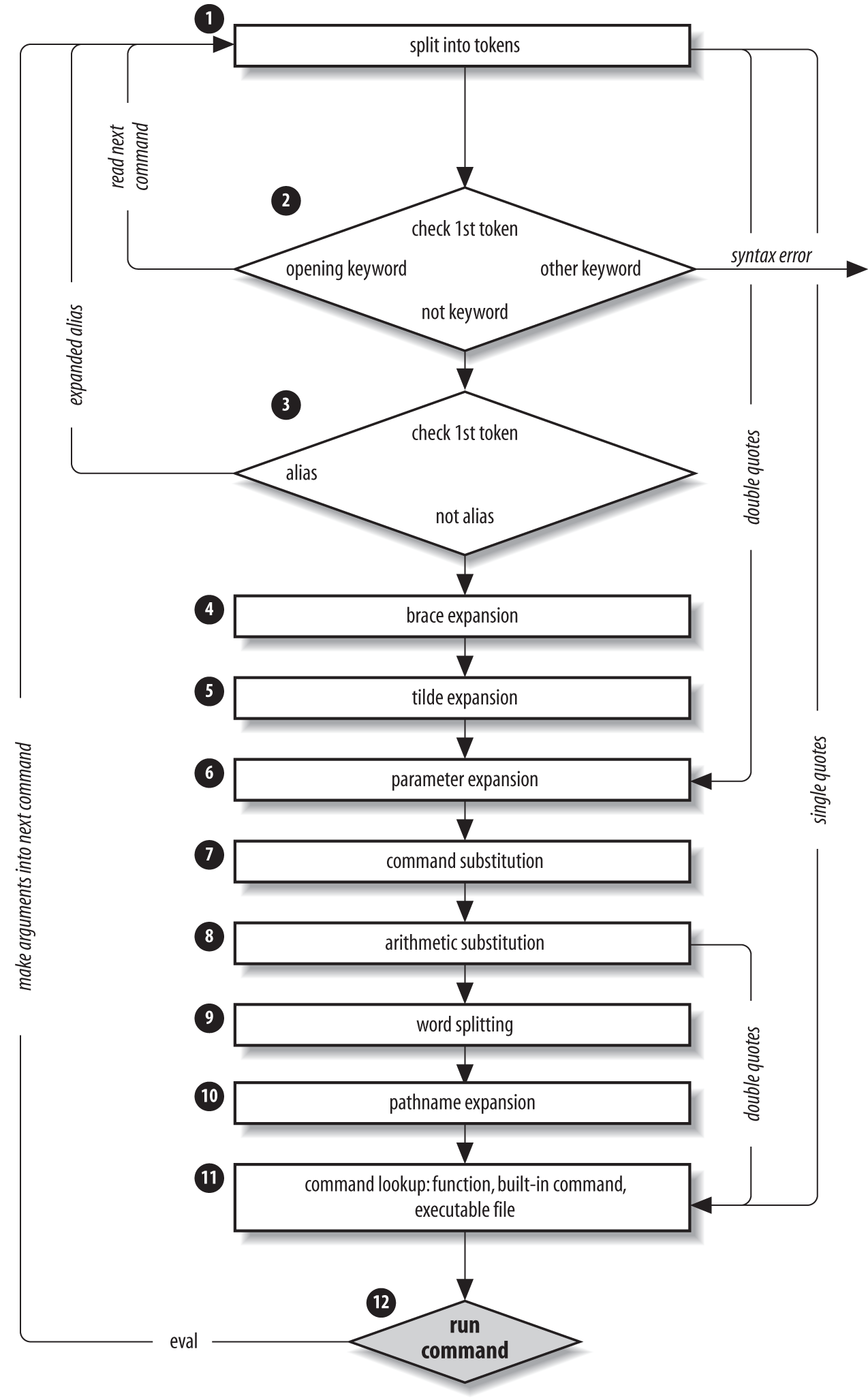
For each pipeline it reads, the shell breaks it up into commands, sets up the I/O for the pipeline, then does the following for each command:
Splits the command into tokens that are separated by the fixed set of metacharacters space, tab, newline, ;, (, ), <, >, |, and &. Types of tokens include words, keywords, I/O redirectors, and semicolons.
Checks the first token of each command to see if it is a keyword with no quotes or backslashes. If it’s an opening keyword such as if or another control-structure opener, function, {, or (, then the command is actually a compound command. The shell sets things up internally for the compound command, reads the next command, and starts the process again. If the keyword isn’t a compound command opener (e.g., it is a control-structure “middle” like then, else, or do; an “end” like fi or done; or a logical operator), the shell signals a syntax error.
Checks the first word of each command against the list of aliases. If a match is found, it substitutes the alias’s definition and goes back to step 1; otherwise, it goes on to step 4. This scheme allows recursive aliases and allows for keywords to be defined (e.g., alias aslongas=while or alias procedure=function).
Performs brace expansion. For example, a{b,c} becomes ab ac .
Substitutes the user’s home directory ($HOME) for tilde if it is at the beginning of a word. Substitutes the user’s home directory for ~user.
Performs parameter (variable) substitution for any expression that starts with a dollar sign ($).
Does command substitution for any expression of the form $(string).
Evaluates arithmetic expressions of the form $((string)).
Takes the parts of the line that resulted from parameter, command, and arithmetic substitution and splits them into words again. This time it uses the characters in $IFS as delimiters instead of the set of metacharacters in step 1.
Performs pathname expansion, a.k.a. wildcard expansion, for any occurrences of *, ?, and [] pairs.
Uses the first word as a command by looking up its source in the following order: as a function command, then as a builtin, then as a file in any of the directories in $PATH .
Runs the command after setting up I/O redirection and other such things.
That’s a lot of steps—and it’s not even the whole story! But before we go on, an example should make this process clearer. Assume that the following command has been run:
alias ll="ls -l"
Further assume that a file exists called .hist537 in user alice’s home directory, which is /home/alice, and that there is a
double-dollar-sign variable $$ whose value is 2537 (remember $$ is the process ID, a number
unique among all currently running processes).
Now let’s see how the shell processes the following command:
ll $(type -path cc) ~alice/.*$(($$%1000)
Here is what happens to this line:
ll $(type -pathcc) ~alice/.*$(($$%1000)) splits the input into words.
ll is not a keyword, so step 2 does nothing.
ls -l $(type -path cc) ~alice/.*$(($$%1000)) substitutes ls -l for its alias ll. The shell then repeats steps 1 through 3; step 2 splits the ls -l into two words.
ls-l$(type -pathcc) ~alice/.*$(($$%1000)) does nothing.
ls -l $(type -path cc) /home/alice/.*$(($$%1000)) expands ~alice into /home/alice.
ls-l $(type-pathcc) /home/alice/.*$((2537%1000)) substitutes 2537 for $$.
ls-l /usr/bin/cc/home/alice/.*$((2537%1000)) does command substitution on type -path cc.
ls -l /usr/bin/cc/home/alice/.*537 evaluates the arithmetic expression 2537%1000.
ls-l /usr/bin/cc/home/alice/.*537 does nothing.
ls -l /usr/bin/cc/home/alice/.hist537 substitutes the filename for the wild-card expression .*537.
The command ls is found in /usr/bin.
/usr/bin/ls is run with the option -l and the two arguments.
Although this list of steps is fairly straightforward, it is not the whole story. There are still five ways to modify this process: quoting; using command, builtin, or enable; and using the advanced command eval.
You can think of quoting as a way of getting the shell to skip some of the 12 steps described earlier. In particular:
Single quotes ('') bypass everything from step 1 through step 10, including aliasing. All characters inside a pair of single quotes are untouched. You can’t have single quotes inside single quotes, even if you precede them with backslashes.
Double quotes ("") bypass steps 1 through 4, plus steps 9 and 10. That is, they ignore pipe characters, aliases, tilde substitution, wildcard expansion, and splitting into words via delimiters (e.g., blanks) inside the double quotes. Single quotes inside double quotes have no effect. But double quotes do allow parameter substitution, command substitution, and arithmetic expression evaluation. You can include a double quote inside a double-quoted string by preceding it with a backslash (\). You must also backslash-escape $, ` (the archaic command substitution delimiter), and \ itself.
Table C-1 has simple examples to show how these work; they assume the statement person=hatter was run and user alice’s home directory is /home/alice.
| Expression | Value |
|---|---|
|
|
|
|
|
|
|
|
|
|
|
|
|
|
|
|
If you are wondering whether to use single or double quotes in a particular shell programming situation, it is safest to use single quotes unless you specifically need parameter, command, or arithmetic substitution.
We have seen that quoting lets you skip steps in command-line processing. Then there’s the eval command, which lets you go through the process again. Performing command-line processing twice may seem strange, but it’s actually very powerful: it lets you write scripts that create command strings on the fly and then pass them to the shell for execution. This means that you can give scripts “intelligence” to modify their own behavior as they are running.
The eval statement tells the shell to take eval’s arguments and run them through the command-line processing steps all over again. To help you understand the implications of eval, we’ll start with a trivial example and work our way up to a situation in which we’re constructing and running commands on the fly.
eval ls passes the string “ls” to the shell to execute; the shell prints a list of files in the current directory. This is very simple—there is nothing about the string “ls” that needs to be sent through the command-processing steps twice. But consider this:
listpage="ls | more" $listpage
Instead of producing a paginated file listing, the shell will treat | and more as arguments to ls, and ls will complain that no files of those names exist. Why? Because the pipe character appears as a pipe in step 6 when the shell evaluates the variable, which is after it has actually looked for pipe characters. The variable’s expansion isn’t even parsed until step 9. As a result, the shell will treat | and more as arguments to ls, so that ls will try to find files called | and more in the current directory!
Now consider eval $listpage instead of just $listpage. When the shell gets to the last step, it will run the command eval with arguments ls, |, and more. This causes the shell to go back to step 1 with a line that consists of these arguments. It finds | in step 2 and splits the line into two commands, ls and more. Each command is processed in the normal (and in both cases trivial) way. The result is a paginated list of the files in your current directory.
Now you may start to see how powerful eval can be. It is an advanced feature that requires considerable programming cleverness to be used most effectively. It even has a bit of the flavor of artificial intelligence, in that it enables you to write programs that can “write” and execute other programs. You probably won’t use eval for everyday shell programming, but it’s worth taking the time to understand what it can do.
Revision control systems are a way not only to travel back in time, but to see what has changed at various points in your timeline. They are also called versioning or version control systems, which is actually a more technically accurate name. Such a system allows you to maintain a repository of files in a project, and to keep track of changes to those files, as well as the reasons for those changes. Modern revision control systems allow more than one developer to work concurrently on the same project, or even the same file.
Revision control systems are essential to modern software development efforts, but they are also useful in many other areas, such as writing documentation, tracking system configurations (e.g., /etc/), and even writing books. We kept this edition of this book under revision control using Git while writing it; we used Subversion for the first edition.
Some of the useful features of revision control systems include:
Making it very difficult to lose your work, especially when the repository is properly backed up.
Facilitating change control practices, and encourage documenting why a change is being made.
Allowing people in multiple locations to work together on a project, and to keep up with others’ changes, without losing data by saving on top of each other or sending lots of unreadable emails.
Allowing one person to work from multiple locations over time without losing work or stepping on changes made at other locations.
Allowing you to back out changes easily or to see exactly what has changed between one revision and another (except binary files). If you follow effective logging practices, they will even tell you why a change was made.
Systems like CVS and Subversion also allow a form of keyword expansion that lets you embed revision metadata in nonbinary files.
There are many different free and commercial revision control systems, and if you are reading this book you should be using one! If you already know one, just use that. If your company has a standard tool, use that one. If neither of those help you choose, then use Git, Bazaar, or Mercurial. Do not use Subversion, CVS, RCS, or any of the older systems unless you have no choice. We’ll briefly cover pros, cons, and basic usage for Git, Bazaar, Mercurial, and Subversion in this appendix, all of which either come with or are available for every major modern operating system. But before that we need to give a bit of background.
First, all the modern revision control systems are distributed, while older ones like Subversion and CVS are centralized. This is a major and fundamental difference, with some significant implications. In the older centralized systems, there is a central server, as the name implies, often maintained and backed up by your IT department, which is good. To do most useful things you need to connect to that server, which can be bad since that’s much slower than local disk access and may not be feasible, while traveling, for example. Also, in those systems you can check out only part of the repository (“repo”), and thus you often have one large repo for the entire company, and you just check out and work on the parts you need. These systems also do the keyword expansion we mentioned; we’ll show that in the section on Subversion. Finally, to commit is also to publish, which may be considered either a feature or a bug in such systems, but is probably more likely at least undesirable, if not quite a bug.
The distributed systems, on the other hand, do not have a central server, though often one copy is designated as the “source of truth” by convention. The repo you are working on is a complete copy, and it’s just as good as anyone else’s. That’s a major change from the ability to just check out part of a repo. These systems do not do any keyword expansion and a commit is not the same as a publish, which requires an additional push step and a network connection to the remote repo. But they’re local for all but push/pull operations and thus really fast.
With CVS or Subversion, you don’t have to think about backups. If the code is committed, it’s someplace else and probably backed up by IT (commit == publish). That is often not true with the modern distributed systems. They have local repos, so committed code stays local (commit != publish) until and unless you push (publish) it to a remote repo. If you never push you have only one local copy, so make sure you have good backups! A great tool for that is etckeeper, discussed later in this appendix. The repository is inside /etc/, so if you accidentally rm -rf /etc there goes the repo too.
The second major point is that Git unquestionably won the war, and “everyone” uses it, everywhere. OK, not quite everyone, since if you are still reading this you probably don’t. But an awful lot of people do use it, and arguably a large part of the reason is GitHub. So why are we not jumping fully on that bandwagon? We’re glad you asked.
If you are a full-time developer working on a large1 project, you’re using Git already, and it’s awesome. But if you are a more casual user, say a sysadmin with a collection of scripts, Git can be less awesome.2 It is less actively user-hostile than it used to be, but it’s still very complicated to use, and we have seen no good mental model for how it works. Far too often, you have to really understand Git’s guts in order to use it for anything nontrivial, and that’s just ugly. Git is also made out of razor blades and chainsaws—blazingly fast, extremely powerful, but dangerous; you can hurt yourself with it. Git history, for example, is very malleable, and it considers this a feature, not a bug. It uses hashes and dates instead of human-readable revision numbers, and though there are good reasons for this it can be quite inconvenient. Finally, the Git “index” is different; none of the other common tools have this, but it does allow for a really handy trick where you can make stream-of-consciousness changes but later commit them in logical blocks using git add -p or git commit -p. We think that it’s a very powerful tool that’s not suitable for beginners or casual users. But…it’s everywhere and used by everyone, and that’s also a powerful argument.
If you are interested in the history of revision control, see “Understanding Version-Control Systems” by Eric Raymond for a lot of detail. To see an amazing example and just a really cool thing, check out the Unix History Repository.
If you are going to start using revision control just by yourself, go jump in. But if you are going to start using it in a team, you must first decide:
Which system or product to use
The update, commit, tag, and branch polices
The location of the central (and well-backed-up!) repository, if applicable
The structure of the project or directories in the repository, if applicable
This appendix is enough to get you started individually, but it barely scratches the surface; see Version Control with Git, 2nd Edition, by Jon Loeliger and Matthew McCullough or Version Control with Subversion, 2nd Edition, by C. Michael Pilato, Ben Collins-Sussman, and Brian Fitzpatrick, both from O’Reilly, for more in-depth introductions to revision control and complete details on the respective systems. Both have excellent treatments of the general concepts, although the Subversion book covers repository structure in more detail due to its potentially multiproject nature. Both also cover revision control policy. If your company has change control or related policies, use them. If not, we recommend you commit and update early and often. If you are working as a team, we strongly recommend reading some of the books listed in this appendix and carefully planning out a strategy. It will save vast amounts of time in the long run.
“Understanding Version-Control Systems” by Eric Raymond
“A Visual Guide to Version Control” on BetterExplained
Backup & Recovery by W. Curtis Preston (O’Reilly)
reposurgeon, a tool for converting from one system to another
Git is the de facto leader in revision control and is probably used by more projects and more people than all the other systems combined. But if you choose to use it, be prepared to use Google. A lot.
Git was originally written by Linus Torvalds for the Linux kernel project after the vendor of the previous system changed the licensing, but he very quickly turned it over to others. The design is heavily influenced by Torvalds’s years of experience on that massive and globally distributed project, and it is written by hardcore programmers for hardcore programmers. It is extremely powerful and flexible, but often quite complicated. The learning curve is unquestionably worth it for dedicated developers, but more casual or intermittent users may struggle.
Extremely popular and used everywhere.
Extremely fast, powerful, and flexible.
git add -p and git commit -p account for how code is really written.
Has https://github.com/, https://gitlab.com/, etc.
History is very malleable.
You can perform operations that can cause data loss!
Harder to understand and use for more than very basic tasks than other tools.
Inconsistent and complex command-line use.
History is very malleable.
Uses hashes and dates instead of human-readable revision numbers.
This example is not suitable for enterprise or multiuser access (see the “See Also” section for links to more information). This is just the basics, but it will get you started and you can ramp up from here if you need to.
If Git is not already installed, you should install it using the preferred package manager for your operating system.
The git command (with no options), git help, and git help command all give you helpful hints and reminders.
Configure Git on your machine (see ~/.gitconfig, and the .git/config that the init command will create):
/home/jp$ git config --global user.name "JP Vossen" /home/jp$ git config --global user.email "jp@jpsdomain.org" /home/jp$ git config --global core.pager "less -R" /home/jp$ git config --global color.ui true
If you do not set your name and email as shown here, you will probably get a message complaining about that. The message should be pretty clear about what to do.
You might also consider:
/home/jp$ git config --global alias.co checkout /home/jp$ git config --global alias.br branch /home/jp$ git config --global alias.ci commit /home/jp$ git config --global alias.st status /home/jp$ git config --global alias.last 'log -1 HEAD'
Create a new repository for personal use in a home directory:
/home/jp$ git init myrepo Initialized empty Git repository in /home/jp/myrepo/.git/
Create a new script and commit it:
/home/jp$ cd myrepo /home/jp/myrepo$ cat << EOF > hello > #!/bin/bash - > echo 'Hello World!' > EOF /home/jp/myrepo$ chmod +x hello /home/jp/myrepo$ git add hello /home/jp/myrepo$ git commit -m 'Initial import of shell script' [master (root-commit) 62cb49e] Initial import of shell script 1 file changed, 2 insertions(+) create mode 100755 hello
git add is not the same as add in other tools! Once you add a file in the other tools, changes to that file are always committed. In Git, add means “add the changes I just made to the index.” So if you make a change, and add it, then make another change, that second change is not in the index and will not be committed unless you add the file again, or commit using -a. This sounds very annoying, and it is for basic use, but it’s part of the whole “index” concept that makes some other neat things possible, as we’ll see.
If you do not use the -m message option an editor will pop up and you can create a commit log in that. Which editor will appear and how you change that will depend on your OS and distribution; consult the appropriate documentation if you wish to change the editor.
Check the status of your sandbox:
/home/jp/myrepo$ git status On branch master nothing to commit, working directory clean
Add a new script to revision control:
/home/jp/scripts$ cat << EOF > mcd > #!/bin/bash - > mkdir -p "$1" > cd "$1" > EOF /home/jp/myrepo$ chmod +x mcd /home/jp/myrepo$ git status On branch master Untracked files: (use "git add <file>..." to include in what will be committed) mcd nothing added to commit but untracked files present (use "git add" to track) /home/jp/myrepo$ git add mcd /home/jp/myrepo$ git status On branch master Changes to be committed: (use "git reset HEAD <file>..." to unstage) new file: mcd /home/jp/myrepo$ git commit -m 'Added new script: mcd' [master a2c254d] Added new script: mcd 1 file changed, 3 insertions(+) create mode 100755 mcd
Make a change, then check the difference:
/home/jp/myrepo$ vi hello
/home/jp/myrepo$ git diff
1 diff --git a/hello b/hello
2 index 353223d..f36eea4 100644
3 --- a/hello
4 +++ b/hello
5 @@ -1,2 +1,2 @@
6 #!/bin/bash -
7 -echo 'Hello World!'
8 +echo 'Hello Mom!'
/home/jp/myrepo$ git status
On branch master
Changes not staged for commit:
(use "git add <file>..." to update what will be committed)
(use "git checkout -- <file>..." to discard changes in working directory)
modified: hello
no changes added to commit (use "git add" and/or "git commit -a")
If you get a bunch of garbage escape characters on the screen when you run git diff, try setting
git config --global core.pager "less -R".
Commit the change using -a and thus avoiding git add hello:
/home/jp/myrepo$ git commit -a -m 'Fine tuning' [master e1f0b2f] Fine tuning 1 file changed, 1 insertion(+), 1 deletion(-)
See the history of the repository or just one file:
/home/jp/myrepo$ git log
1 commit e1f0b2f8e5c489d8c9112014cf494773712786b0
2 Author: JP Vossen <jp@jpsdomain.org>
3 Date: Sun Jul 3 22:56:38 2016 -0400
4
5 Fine tuning
6
7 commit a2c254d61e95eb4719746f196b66019446061d51
8 Author: JP Vossen <jp@jpsdomain.org>
9 Date: Sun Jul 3 22:52:36 2016 -0400
10
11 Added new script: mcd
12
13 commit 62cb49ee962d929122051c421128fea95d571ebb
14 Author: JP Vossen <jp@drake.jpsdomain.org>
15 Date: Sun Jul 3 22:44:15 2016 -0400
16
17 Initial import of shell script
/home/jp/myrepo$ git log hello
1 commit e1f0b2f8e5c489d8c9112014cf494773712786b0
2 Author: JP Vossen <jp@jpsdomain.org>
3 Date: Sun Jul 3 22:56:38 2016 -0400
4
5 Fine tuning
6
7 commit 62cb49ee962d929122051c421128fea95d571ebb
8 Author: JP Vossen <jp@drake.jpsdomain.org>
9 Date: Sun Jul 3 22:44:15 2016 -0400
10
11 Initial import of shell script
Revert to the older version after all. There are other ways to do this, depending on what other changes you may have in your working directory, but this is simple if not intuitive:
/home/jp/myrepo$ git checkout 62cb49ee962d929122051c421128fea95d571ebb hello /home/jp/myrepo$ cat hello #!/bin/bash - echo 'Hello World!' /home/jp/myrepo$ git status On branch master Changes to be committed: (use "git reset HEAD <file>..." to unstage) modified: hello /home/jp/myrepo$ git diff
But wait! We made a change, and status sees it but diff does not. Why? Because it already did a git add, so the change is staged or cached:
/home/jp/myrepo$ git diff --cached
1 diff --git a/hello b/hello
2 index f36eea4..353223d 100755
3 --- a/hello
4 +++ b/hello
5 @@ -1,2 +1,2 @@
6 #!/bin/bash -
7 -echo 'Hello Mom!'
8 +echo 'Hello World!'
We warned you…
man git
git help
Pro Git, 2nd Edition, by Scott Chacon and Ben Straub (Apress)
Version Control with Git, 2nd Edition, by Jon Loeliger and Matthew McCullough (O’Reilly)
“10 Things I Hate About Git” by Steve Bennett
“Aha! Moments When Learning Git” on BetterExplained
The EasyGit wrapper
Recipe 16.16, “Creating and Changing Into a New Directory in One Step”
Bazaar was Canonical’s answer to Git, but it lost the war and is basically in maintenace mode.
Not Git.
Extremely user-friendly with awesome docs.
Cross-platform (Python) with several GUI tools: QBzr (Qt), Loggerhead (web), and others.
Uses incrementing integer revision numbers.
History is immutable.
Has Launchpad.
Not Git.
Lost the war and is not-quite-dead.
Not as fast as Git, but that almost never matters.
Not nearly as well known as Git.
This example is not suitable for enterprise or multiuser access (see the “See Also” section for links to more information). This is just to show how easy the basics are.
If Bazaar is not already installed, you should install it using the preferred package manager for your operating system.
The bzr command (with no options), bzr help, and bzr help command all give you helpful hints and reminders.
Create a new repository for personal use in a home directory:
/home/jp$ bzr init myrepo Created a standalone tree (format: 2a)
Create a new script and commit it:
/home/jp$ cd myrepo /home/jp/myrepo$ cat << EOF > hello > #!/bin/bash - > echo 'Hello World!' > EOF /home/jp/myrepo$ chmod +x hello /home/jp/myrepo$ bzr add hello adding hello /home/jp/myrepo$ bzr commit -m 'Initial import of shell script' Committing to: /home/jp/myrepo/ added hello Committed revision 1.
If you do not use the -m message option an editor will pop up and you can create a commit log in that. Which editor will appear and how you change that will depend on your OS and distribution; consult the appropriate documentation if you wish to change the editor.
Check the status of your sandbox:
/home/jp/myrepo$ bzr status
Add a new script to revision control:
/home/jp/scripts$ cat << EOF > mcd > #!/bin/bash - > mkdir -p "$1" > cd "$1" > EOF /home/jp/myrepo$ chmod +x mcd /home/jp/myrepo$ bzr status unknown: mcd /home/jp/myrepo$ bzr add mcd adding mcd /home/jp/myrepo$ bzr status added: mcd /home/jp/myrepo$ bzr commit -m 'Added new script: mcd' Committing to: /home/jp/myrepo/ added mcd Committed revision 2.
Make a change, then check the difference:
/home/jp/myrepo$ vi hello /home/jp/myrepo$ bzr diff === modified file 'hello' --- hello 2016-07-04 03:26:32 +0000 +++ hello 2016-07-04 03:28:11 +0000 @@ -1,2 +1,2 @@ #!/bin/bash - -echo 'Hello World!' +echo 'Hello Mom!' /home/jp/myrepo$ bzr status modified: hello
Commit the change:
/home/jp/myrepo$ bzr commit -m 'Fine tuning' Committing to: /home/jp/myrepo/ modified hello Committed revision 3.
See the history of the repository or just one file:
/home/jp/myrepo$ bzr log ------------------------------------------------------------ revno: 3 committer: JP Vossen <jp@ringo.jpsdomain.org> branch nick: myrepo timestamp: Sun 2016-07-03 23:28:48 -0400 message: Fine tuning ------------------------------------------------------------ revno: 2 committer: JP Vossen <jp@ringo.jpsdomain.org> branch nick: myrepo timestamp: Sun 2016-07-03 23:27:50 -0400 message: Added new script: mcd ------------------------------------------------------------ revno: 1 committer: JP Vossen <jp@ringo.jpsdomain.org> branch nick: myrepo timestamp: Sun 2016-07-03 23:26:32 -0400 message: Initial import of shell script /home/jp/myrepo$ bzr log hello ------------------------------------------------------------ revno: 3 committer: JP Vossen <jp@ringo.jpsdomain.org> branch nick: myrepo timestamp: Sun 2016-07-03 23:28:48 -0400 message: Fine tuning ------------------------------------------------------------ revno: 1 committer: JP Vossen <jp@ringo.jpsdomain.org> branch nick: myrepo timestamp: Sun 2016-07-03 23:26:32 -0400 message: Initial import of shell script
Revert to the older version after all:
/home/jp/myrepo$ bzr revert -r1 hello M hello /home/jp/myrepo$ bzr status modified: hello /home/jp/myrepo$ bzr diff === modified file 'hello' --- hello 2016-07-04 03:28:48 +0000 +++ hello 2016-07-04 03:29:44 +0000 @@ -1,2 +1,2 @@ #!/bin/bash - -echo 'Hello Mom!' +echo 'Hello World!'
Mercurial was started at the same time as Git for the same reason, but never caught on quite as much.
Not Git.
Extremely user-friendly with good docs.
Cross-platform (Python) with several GUI tools.
Built-in web server (hg serve then http://localhost:8000/).
Uses incrementing integer revision numbers + a hex ID.
The hex ID is unique and consistent across all repo clones, the integer isn’t.
History is immutable.
Has Atlassian https://bitbucket.org/.
Not Git.
Lost to Git but more active than Bazaar.
Not as well known as Git.
Not as fast as Git, but that almost never matters.
This example is not suitable for enterprise or multiuser access (see the “See Also” section for links to more information). This is just to show how easy the basics are.
If Mercurial is not already installed, you should install it using the preferred package manager for your operating system.
hg command (with no options), hg help, and hg help command all give you helpful hints and reminders..
Create a new repository for personal use in a home directory:
/home/jp$ hg init myrepo
Create a new script and commit it:
/home/jp$ cd /myrepo /home/jp/myrepo$ cat << EOF > hello > #!/bin/bash - > echo 'Hello World!' > EOF /home/jp/myrepo$ chmod +x hello /home/jp/myrepo$ hg add hello /home/jp/myrepo$ hg commit -m 'Initial import of shell script'
If you do not use the -m message option an editor will pop up and you can create a commit log in that. Which editor will appear and how you change that will depend on your OS and distribution; consult the appropriate documentation if you wish to change the editor.
Check the status of your sandbox:
/home/jp/myrepo$ hg status
Add a new script to revision control:
/home/jp/scripts$ cat << EOF > mcd > #!/bin/bash - > mkdir -p "$1" > cd "$1" > EOF /home/jp/myrepo$ chmod +x mcd /home/jp/myrepo$ hg status ? mcd /home/jp/myrepo$ hg add mcd /home/jp/myrepo$ hg status A mcd /home/jp/myrepo$ hg commit -m 'Added new script: mcd'
Make a change, then check the difference:
/home/jp/myrepo$ vi hello /home/jp/myrepo$ hg diff diff -r 663ba0ec20f5 hello --- a/hello Sun Jul 03 23:38:54 2016 -0400 +++ b/hello Sun Jul 03 23:39:15 2016 -0400 @@ -1,2 +1,2 @@ #!/bin/bash - -echo 'Hello World!' +echo 'Hello Mom!' /home/jp/myrepo$ hg status M hello
Commit the change:
/home/jp/myrepo$ hg commit -m 'Fine tuning'
See the history of the repository or just one file:
/home/jp/myrepo$ hg log changeset: 2:c88ab0cbfcda tag: tip user: JP Vossen <jp@jpsdomain.org> date: Sun Jul 03 23:39:38 2016 -0400 summary: Fine tuning changeset: 1:663ba0ec20f5 user: JP Vossen <jp@jpsdomain.org> date: Sun Jul 03 23:38:54 2016 -0400 summary: Added new script: mcd changeset: 0:38ab693c1c72 user: JP Vossen <jp@jpsdomain.org> date: Sun Jul 03 23:38:03 2016 -0400 summary: Initial import of shell script /home/jp/myrepo$ hg log hello changeset: 2:c88ab0cbfcda tag: tip user: JP Vossen <jp@jpsdomain.org> date: Sun Jul 03 23:39:38 2016 -0400 summary: Fine tuning changeset: 0:38ab693c1c72 user: JP Vossen <jp@jpsdomain.org> date: Sun Jul 03 23:38:03 2016 -0400 summary: Initial import of shell script
Revert to the older version after all:
/home/jp/myrepo$ hg revert -r 1 hello /home/jp/myrepo$ cat hello #!/bin/bash - echo 'Hello World!' /home/jp/myrepo$ hg status M hello
According to the Subversion web site, “The goal of the Subversion project is to build a version control system that is a compelling replacement for CVS in the open source community.” Enough said.
Not Git.
Newer than CVS and RCS.
Simpler and arguably easier to understand and use than CVS (less historical baggage).
Atomic commits means the commit either fails or succeeds as a whole, and makes it easy to track the state of an entire project as a single revision.
Easy to access remote repositories.
Allows easy renaming of files and directories while retaining history.
Easily handles binary files (no native diff support) and other objects such as symbolic links.
Central repository hacking is more officially supported, but less trivial.
Not Git.
Older technology, revision control has moved to the distributed model.
Can be complicated to build or install from scratch due to many dependencies. Use the version that came with your operating system if possible.
SVN tracks revisions by repository, which means that each commit has its own internal SVN revision number. Thus consecutive commits by a single person may not have consecutive revision numbers since the global repository revision is incremented as other changes (possibly to other projects) are committed by other people.
This example is not suitable for enterprise or multiuser access (see the “See Also” section for links to more information). This is just to show how easy the basics are. This example also has the EDITOR environment variable set to nano (export EDITOR='nano --smooth --const --nowrap --suspend'), which some people find more user-friendly than the default vi.
The svn help and svn help help commands are very useful.
Create a new repository for personal use in a home directory:
/home/jp$ svnadmin --fs-type=fsfs create /home/jp/svnroot
Create a new project and import it:
/home/jp$ cd /tmp
/tmp$ mkdir -p -m 0700 scripts/trunk scripts/tags scripts/branches
/tmp$ cd scripts/trunk
/tmp/scripts/trunk$ cat << EOF > hello
> #!/bin/sh
> echo 'Hello World!'
> EOF
/tmp/scripts/trunk$ cd ..
/tmp/scripts$ svn import /tmp/scripts file:///home/jp/svnroot/scripts
GNU nano 1.2.4 File: svn-commit.tmp
Initial import of shell scripts
--This line, and those below, will be ignored--
A .
[ Wrote 4 lines ]
Adding /tmp/scripts/trunk
Adding /tmp/scripts/trunk/hello
Adding /tmp/scripts/branches
Adding /tmp/scripts/tags
Committed revision 1.
Check out the project and update it:
/tmp/scripts$ cd /home/jp$ svn checkout file:///home/jp/svnroot/scripts A scripts/trunk A scripts/trunk/hello A scripts/branches A scripts/tags Checked out revision 1. /home/jp$ cd scripts /home/jp/scripts$ ls -l total 12K drwxr-xr-x 3 jp jp 4.0K Jul 20 01:12 branches/ drwxr-xr-x 3 jp jp 4.0K Jul 20 01:12 tags/ drwxr-xr-x 3 jp jp 4.0K Jul 20 01:12 trunk/ /home/jp/scripts$ cd trunk/ /home/jp/scripts/trunk$ ls -l total 4.0K -rw-r--r-- 1 jp jp 30 Jul 20 01:12 hello /home/jp/scripts/trunk$ echo "Hi Mom..." >> hello
Check the status of your sandbox. Note how the svn status command is similar to our cvs -qn update hack in the “CVS” section earlier in this appendix:
/home/jp/scripts/trunk$ svn info
Path: .
URL: file:///home/jp/svnroot/scripts/trunk
Repository UUID: 29eeb329-fc18-0410-967e-b075d748cc20
Revision: 1
Node Kind: directory
Schedule: normal
Last Changed Author: jp
Last Changed Rev: 1
Last Changed Date: 2006-07-20 01:04:56 -0400 (Thu, 20 Jul 2006)
/home/jp/scripts/trunk$ svn status -v
1 1 jp .
M 1 1 jp hello
/home/jp/scripts/trunk$ svn status
M hello
/home/jp/scripts/trunk$ svn update
At revision 1.
Add a new script to revision control:
/home/jp/scripts/trunk$ cat << EOF > mcd > #!/bin/sh > mkdir -p "$1" > cd "$1" > EOF /home/jp/scripts/trunk$ svn st ? mcd M hello /home/jp/scripts/trunk$ svn add mcd A mcd
Commit changes:
/home/jp/scripts/trunk$ svn ci
GNU nano 1.2.4 File: svn-commit.tmp* Tweaked hello
* Added mcd
--This line, and those below, will be ignored--
M trunk/hello
A trunk/mcd
[ Wrote 6 lines ]
Sending trunk/hello
Adding trunk/mcd
Transmitting file data ..
Committed revision 2.
Update the sandbox, make another change, then check the difference:
/home/jp/scripts/trunk$ svn up At revision 2. /home/jp/scripts/trunk$ vi hello /home/jp/scripts/trunk$ svn diff hello Index: hello =================================================================== --- hello (revision 2) +++ hello (working copy) @@ -1,3 +1,3 @@ #!/bin/sh echo 'Hello World!' -Hi Mom... +echo 'Hi Mom...'
Commit the change, avoiding the editor by putting the log entry on the command line:
/home/jp/scripts/trunk$ svn -m 'Fine tuning' commit Sending trunk/hello Transmitting file data . Committed revision 3.
See the history of the file:
/home/jp/scripts/trunk$ svn log hello ------------------------------------------------------------------------ r3 | jp | 2006-07-20 01:23:35 -0400 (Thu, 20 Jul 2006) | 1 lineFine tuning ------------------------------------------------------------------------ r2 | jp | 2006-07-20 01:20:09 -0400 (Thu, 20 Jul 2006) | 3 lines * Tweaked hello * Added mcd ------------------------------------------------------------------------ r1 | jp | 2006-07-20 01:04:56 -0400 (Thu, 20 Jul 2006) | 2 lines Initial import of shell scripts
Add some revision metadata, and tell the system to expand it. Commit it and examine the change:
/home/jp/scripts/trunk$ vi hello /home/jp/scripts/trunk$ cat hello #!/bin/sh # $Id$ echo 'Hello World!' echo 'Hi Mom...' home/jp/scripts/trunk$ svn propset svn:keywords "Id" hello property 'svn:keywords' set on 'hello' /home/jp/scripts/trunk$ svn ci -m'* Added ID keyword' hello Sending hello Committed revision 4. /home/jp/scripts/trunk$ cat hello #!/bin/sh # $Id: hello 5 2006-07-21 09:09:34Z jp $</code></strong> echo 'Hello World!' echo 'Hi Mom...'
Compare the current revision to r2, revert to that older (broken) revision, realize we goofed and get the most recent revision back:
/home/jp/scripts/trunk$ svn diff -r2 hello Index: hello =================================================================== --- hello (revision 2) +++ hello (working copy) @@ -1,3 +1,4 @@ #!/bin/sh +# $Id$ echo 'Hello World!' -Hi Mom... +echo 'Hi Mom...' Property changes on: hello ___________________________________________________________________ Name: svn:keywords + Id /home/jp/scripts/trunk$ svn update -r2 hello UU hello Updated to revision 2. /home/jp/scripts/trunk$ cat hello #!/bin/sh echo 'Hello World!' Hi Mom... /home/jp/scripts/trunk$ svn update -rHEAD hello UU hello Updated to revision 4. /home/jp/scripts/trunk$ cat hello #!/bin/sh # $Id: hello 5 2006-07-21 09:09:34Z jp $ echo 'Hello World!' echo 'Hi Mom...'
man svn
man svnadmin
man svndumpfilter
man svnlook
man svnserve
man svnversion
TortoiseSVN, a simple SVN frontend for Explorer (cool!)
Version Control with Subversion by C. Michael Pilato, Ben Collins-Sussman, and Brian Fitzpatrick
SVN static builds for Solaris, Linux, and macOS
Better SCM Initiative version control system comparison
“A Visual Guide to Version Control” on BetterExplained
Recipe 16.16, “Creating and Changing Into a New Directory in One Step”
Meld is not a revision control tool itself; it is a very useful graphical diff and merge tool that can work with revision control systems. When run normally, it allows you to compare and merge files and directories. When run from a revision control sandbox, it will compare the working copy to the version under revision control and show you what you’ve changed. Trust us, it’s awesome.
Cross-platform (Python)
Available for all or most Linux distributions
Windows installer
Unofficial Mac installers
None
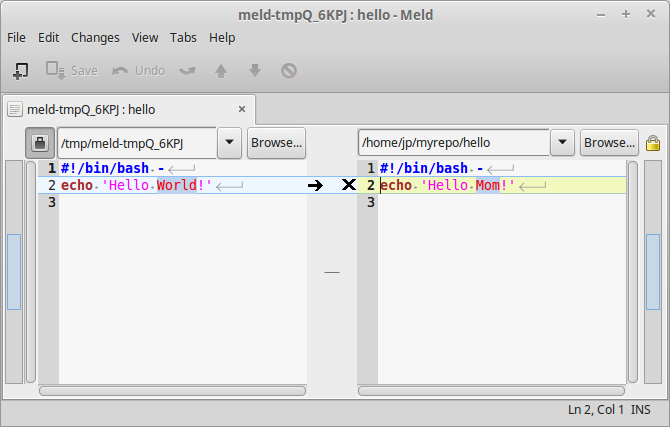
etckeeper is not a revision control tool itself, but it uses one to put your /etc/ directory under revision control. It’s available in all or most Linux distributions, and it hooks into cron to do daily commits and the package manager to do commits before and after package operations. It also works around the issues of files appearing and disappearing, ownership, permissions and such that revision control systems usually don’t handle all by themselves. It uses the underlying tool’s “ignore” file to ignore files that change too often or are otherwise not useful to revision.
Out of the box, Meld creates a repository in /etc/ and starts committing. You can configure the underlying revision control system to push to a remote repository as a backup as well.
Which revision control system it uses varies by distribution, and it’s configurable as well.
Here are a few tips, if you’re thinking about using etckeeper:
There are security implications to storing the /etc/shadow file in etckeeper. See the README for details.
You will need to install the Extra Packages for Enterprise Linux (EPEL) repository for Red Hat Enterprise, CentOS, and similar RPM distros.
etckeeper will not initialize or commit for you, like Debian does. After installing the RPM, you will need to run sudo etckeeper init and sudo etckeeper commit First commit before it will start working for you.
Set-it-and-forget-it revision control for /etc/!
See the potential security implication.
The out-of-the-box configuration is local only.
Here’s an example install on a mostly stock Debian (Jessie) system:
[jp@jessie:T0:L1:C19:J0:2016-07-04_15:47:25_EDT] /home/jp$ sudo apt-get update [sudo] password for jp: ... Fetched 7,652 B in 4s (1,796 B/s) Reading package lists... Done [jp@jessie:T0:L1:C20:J0:2016-07-04_15:47:50_EDT] /home/jp$ sudo apt-get install etckeeper Reading package lists... Done Building dependency tree Reading state information... Done The following extra packages will be installed: git git-man liberror-perl Suggested packages: git-daemon-run git-daemon-sysvinit git-doc git-el git-email git-gui gitk gitweb git-arch git-cvs git-mediawiki git-svn The following NEW packages will be installed: etckeeper git git-man liberror-perl 0 upgraded, 4 newly installed, 0 to remove and 0 not upgraded. Need to get 4,587 kB of archives. After this operation, 23.7 MB of additional disk space will be used. Do you want to continue? [Y/n] y ... Setting up etckeeper (1.15) ... Initialized empty Git repository in /etc/.git/ [master (root-commit) 6d597ca] Initial commit Author: jp <jp@jessie.jpsdomain.org> 1324 files changed, 32995 insertions(+) create mode 100755 .etckeeper create mode 100644 .gitignore ... create mode 100644 xml/catalog create mode 100644 xml/docutils-common.xml create mode 100644 xml/xml-core.xml /home/jp$ cd /etc /etc$ sudo git status On branch master nothing to commit, working directory clean /etc$ cat /etc/cron.daily/etckeeper #!/bin/sh set -e if [ -x /usr/bin/etckeeper ] && [ -e /etc/etckeeper/etckeeper.conf ]; then . /etc/etckeeper/etckeeper.conf if [ "$AVOID_DAILY_AUTOCOMMITS" != "1" ]; then # avoid autocommit if an install run is in progress lockfile=/var/cache/etckeeper/packagelist.pre-install if [ -e "$lockfile" ] && [ -n "$(find "$lockfile" -mtime +1)" ] then rm -f "$lockfile" # stale fi if [ ! -e "$lockfile" ]; then AVOID_SPECIAL_FILE_WARNING=1 export AVOID_SPECIAL_FILE_WARNING if etckeeper unclean; then etckeeper commit "daily autocommit" >/dev/null fi fi fi fi
Now etckeeper will commit daily and before and after package operations. But you can commit manually as well, and you can use all of the features of the underlying revision control system:
/etc$ sudo useradd carl /etc$ sudo git status On branch master Changes not staged for commit: (use "git add <file>..." to update what will be committed) (use "git checkout -- <file>..." to discard changes in working directory) modified: group modified: group- modified: gshadow modified: gshadow- modified: passwd modified: shadow modified: subgid modified: subgid- modified: subuid modified: subuid- no changes added to commit (use "git add" and/or "git commit -a") /etc$ sudo etckeeper commit 'Added a user for Carl' [master 8b58601] Added a user for Carl Author: jp <jp@jessie.jpsdomain.org> 11 files changed, 12 insertions(+), 2 deletions(-) /etc$ sudo git status On branch master nothing to commit, working directory clean
etckeeper
man etckeeper
Finally, it is worth noting that some word processors, such as LibreOffice Writer and Microsoft Word, have three relevant features: document comparison, change tracking, and versions.
Document comparison allows you to compare documents when their native file format makes use of other diff tools difficult. You would use this when you have two copies of a document that didn’t have change tracking turned on, or when you need to merge feedback from various sources.
While it is trivial to unzip the content.xml file from a given ODF file, the result has no line breaks and is not terribly pretty or readable. See Recipe 12.5 for a bash script that will do this low-level kind of difference.
Refer to Table D-1 at the end of this section for information on how to access the built-in GUI comparison function, which is much easier than trying to do it manually.
The change-tracking feature saves information about changes made to a document. Review mode uses various copyediting markup on the screen to display who did what, when. This is obviously useful for all kinds of creation and editing purposes, but please read our warning.
The versions feature allows you to save more than one version of a document in a single file. This can be handy in all sorts of odd ways. For example, we’ve seen router configurations copied and pasted from a terminal into different versions inside the same document for archival and change control purposes.
The change-tracking and versions features will cause your document to continually grow in size, since items that are changed are still kept and deleted items are not really deleted, but only marked as deleted.
Also, if accidentally turned on, change tracking and versions can be very dangerous information leaks! For example, if you send similar proposals to competing companies after doing a search and replace and other editing, someone at one of those companies can see exactly what you changed and when you changed it. The most recent versions of these tools have various methods that attempt to warn you or clear private information before a given document is converted to PDF or emailed, but take a look at any word processor attachments you receive in email, especially from vendors. You may be surprised.
Table D-1 shows where to find the features described here in LibreOffice Writer and Microsoft Word.
| Feature | Writer menu option | Word menu option |
|---|---|---|
Document comparisons |
Edit → Compare Document |
Tools → Compare and Merge Documents |
Change tracking |
Edit → Changes |
Tools → Track Changes |
Versions |
File → Versions |
File → Versions |
1 We should say “web-scale,” to be buzzword-compliant.
2 See also “10 Things I Hate About Git” by Steve Bennett.
In this appendix we’ll show you how to get the latest version of bash and install it on your system from source, and we’ll discuss potential problems you might encounter along the way. We’ll also look briefly at the examples that come with bash and how you can report bugs to the bash maintainer. The material in this appendix also appears in Learning the bash Shell, 3rd Edition, by Cameron Newham (O’Reilly).
You can find the very latest details on the current distribution and where to obtain it from the bash home page.
Having obtained the archive file, you need to unpack it and install it on your system. Unpacking can be done anywhere—we’ll assume you’re unpacking it in your home directory. Installing it on the system requires you to have root privileges. If you aren’t a system administrator with root access, you can still compile and use bash; you just can’t install it as a system-wide utility. The first thing to do is uncompress the archive file: gunzip bash-4.4.tar.gz. Then you need to untar the archive: tar -xf bash- 4.4.tar. The -xf means “extract the archived material from the specified file.” This will create a directory called bash-4.4 in your home directory. If you do not have the gunzip utility, you can obtain it in the same way you obtained bash or simply use gzip -d instead.
The archive contains all of the source code needed to compile bash and a large amount of documentation and examples. We’ll look at these things and how you go about making a bash executable in the rest of this appendix.
The bash archive contains a main directory (bash-4.4 for the current version) and a set of files and subdirectories. Among the first files you should examine are:
A comprehensive list of bug fixes and new features since the last version
The GNU copyleft for bash
A list of all the files and directories in the archive
A list of new features since the last version
A short introduction and instructions for compiling bash
You should also be aware of two directories:
Information related to bash in various formats
Examples of startup files, scripts, and functions
The other files and directories in the archive are mostly things that are needed during the build. Unless you are going to go hacking into the internal workings of the shell, they shouldn’t concern you; if you’re interested in seeing the full list, however, check out Appendix B.
The doc directory contains a few articles that are worth reading. Indeed, it would be well worth printing out the manual entry for bash so you can use it in conjunction with this book. The README file gives a short summary of the files.
The document you’ll most often use is the manpage entry bash.0. This summarizes all of the facilities your version of bash has and is the most up-to-date reference you can get. This document is also available through the man facility once you’ve installed the package.
Of the other documents, FAQ is a Frequently Asked Questions document with answers, readline.3 is the manual entry for the readline facility, and article.ms is an article about the shell that appeared in Linux Journal and was written by the current bash maintainer, Chet Ramey.
Compiling bash “straight out of the box” is easy—you just type ./configure and then make! The configure script attempts to work out whether you have various utilities and C library functions, and their locations on your system. It then stores the relevant information in the file config.h. It also creates a file called config.status, which is a script you can run to recreate the current configuration information. While configure is running, it prints out information on what it is searching for and where it finds it.
The configure script also sets the location where bash will be installed; the default is the /usr/local area (/usr/local/bin for the executable, /usr/local/man for the manual entries, etc). If you don’t have root privileges and want it in your own home directory, or you wish to install bash in some other location, you’ll need to provide configure with the path you want to use. You can do this with the --exec-prefix option. For example:
configure --exec-prefix=/usr
specifies that the bash files will be placed under the /usr directory. Note that configure prefers option arguments be given with an equals sign (=).
After the configuration finishes and you type make, the bash executable is built. A script called bashbug is also generated, which allows you to report bugs in the format the bash maintainers want. We’ll look at how to use it later in this appendix.
Once the build finishes, you can see if the bash executable works by typing ./bash.
To install bash, type make install. This will create all of the necessary directories (bin, info, man and its subdirectories) and copy the files to them.
If you’ve installed bash in your home directory, be sure to add your own bin path to your $PATH and your own man path to $MANPATH.
bash comes preconfigured with nearly all of its features enabled, but it is possible to customize your version by specifying what you want with the --enable feature and --disable feature command-line options to configure. See the INSTALL file for more details on the configurable features and what they do.
Many other shell features can be turned on or off by modifying the file config-top.h. For further details on this file and on configuring bash in general, see INSTALL.
Finally, to clean up the source directory and remove all of the object files and executables, type make clean. Make sure you’ve run make install first; otherwise, you’ll have to rerun the installation from scratch.
There are a series of tests that can be run on your newly built version of bash to see if it is running correctly. The tests are scripts that are derived from problems reported in earlier versions of the shell. Running these tests on the latest version of bash shouldn’t cause any errors.
To run the tests, just type make tests in the main bash directory. The name of each test is displayed, along with some warning messages, and then it is run. Successful tests produce no output (unless otherwise noted in the warning messages).
If any of the tests fail, you’ll see a list of things that represent differences between what is expected and what happened. If this occurs, you should file a bug report with the bash maintainer; see “Reporting Bugs” for information on how to do this.
Although bash has been installed on a large number of different machines and operating systems, there are occasionally problems. Usually the problems aren’t serious and a bit of investigation can result in a quick solution.
If bash didn’t compile, the first thing to do is check that configure guessed your machine and operating system correctly. Then check the file NOTES, which contains some information on specific Unix systems. Also look in INSTALL for additional information on how to give configure specific compilation instructions.
See Recipe 1.11.
See Appendix B for examples included with bash.
No matter how good something is or how much documentation comes with it, you’ll eventually come across something that you don’t understand or that doesn’t work. In such cases it can’t be stressed enough to carefully read the documentation (in more casual computer parlance: RTFM). In many cases, this will answer your question or point out what you’re doing wrong.
Sometimes you’ll find this only adds to your confusion or confirms that there is something wrong with the software. The next thing to do is to talk to a local bash guru to sort out the problem. If that fails, or there is no guru handy, you’ll have to turn to other means (currently only via the internet).
If you have any questions about bash, there are currently many ways to go about getting them answered. You can email questions to help-bash@gnu.org or bash-maintainers@gnu.org, or you can post your question to the USENET newsgroup gnu.bash.bug (perhaps via https://groups.google.com/forum/#!forum/gnu.bash.bug). There are also more generic help sites, such as StackOverflow, Linux Stack Exchange, and so forth.
When asking a question, try to give a meaningful summary of your question in the subject line—see “How to Ask Questions the Smart Way” by Eric Raymond.
Bug reports should be sent to bug-bash@gnu.org, and include the version of bash and the operating system it is running on, the compiler used to compile bash, a description of the problem, a description of how the problem was produced, and, if possible, a fix for the problem. The best way to do this is with the bashbug script, installed with bash.
Before you run bashbug, make sure that you’ve set your $EDITOR environment variable to your favorite editor and have exported it (bashbug defaults to Emacs, which might not be installed on your system). When you execute bashbug it will enter the editor with a partially blank report form. Some of the information (bash version, operating system version, etc.) will have been filled in automatically. We’ll take a brief look at the form, but most of it is self-explanatory.
The From field should be filled out with your email address. For example:
Next comes the Subject field; make an effort to fill it out, as this makes it easier for the maintainers when they need to look up your submission. Just replace the line surrounded by square brackets with a meaningful summary of the problem.
The next few lines are a description of the system and should not be touched. Then comes the Description field. You should provide a detailed description of the problem and how it differs from what is expected. Try to be as specific and concise as possible when describing the problem.
The Repeat-By field is where you describe how you generated the problem; if necessary, list the exact keystrokes you used. Sometimes you won’t be able to reproduce the problem yourself, but you should still fill out this field with the events leading up to the problem. Attempt to reduce the problem to the smallest possible form. For example, if it was a large shell script, try to isolate the section that produced the problem and include only that in your report.
Lastly, the Fix field is where you can provide the necessary patch to fix the problem if you’ve investigated it and found out what was going wrong. If you have no idea what caused the problem, just leave the field blank.
If the maintainer can easily reproduce and then identify the problem, it will be fixed faster—so make sure your Repeat-By (and ideally Fix) sections are as good as you can make them. Reading the article mentioned in “Asking Questions” is also encouraged.
Once you’ve finished filling in the form, save it and exit your editor. The form will automatically be sent to the maintainers.
The animal on the cover of bash Cookbook is a wood turtle (Glyptemys insculpta) and is named so because its shell looks like it was carved from wood. The wood turtle can be found in forests and is very common in North America, particularly in Nova Scotia through to the Great Lakes region. The wood turtle is an omnivorous and lazy eater; it will eat whatever crosses its path, including plants, worms, and slugs (a favorite). But this isn’t to say wood turtles are slow—in fact, they can be quite agile and quick to learn. Some researchers have seen wood turtles stamping on the ground to mimic the sound of raindrops, which lures worms out to their certain death.
Wood turtles are threatened by human expansion into their territories. They nest on the sandy banks of rivers, streams, and ponds, which are prone to erosion, damming, and use by outdoor enthusiasts. Roadside fatalities, toxic pollution, and the pet trade have also taken a toll on the wood turtle population, so much so that in many states and provinces they are considered a threatened species.
Many of the animals on O’Reilly covers are endangered; all of them are important to the world. To learn more about how you can help, go to animals.oreilly.com.
The cover image is from Dover Pictoral Archive. The cover fonts are URW Typewriter and Guardian Sans. The text font is Adobe Minion Pro; the heading font is Adobe Myriad Condensed; and the code font is Dalton Maag’s Ubuntu Mono.
Second Edition
Solutions and Examples for bash Users
Copyright © 2018 Carl Albing and JP Vossen. All rights reserved.
Printed in the United States of America.
Published by O’Reilly Media, Inc., 1005 Gravenstein Highway North, Sebastopol, CA 95472.
O’Reilly books may be purchased for educational, business, or sales promotional use. Online editions are also available for most titles (http://oreilly.com/safari). For more information, contact our corporate/institutional sales department: 800-998-9938 or corporate@oreilly.com.
See http://oreilly.com/catalog/errata.csp?isbn=9781491975336 for release details.
The O’Reilly logo is a registered trademark of O’Reilly Media, Inc. bash Cookbook, the cover image, and related trade dress are trademarks of O’Reilly Media, Inc.
While the publisher and the authors have used good faith efforts to ensure that the information and instructions contained in this work are accurate, the publisher and the authors disclaim all responsibility for errors or omissions, including without limitation responsibility for damages resulting from the use of or reliance on this work. Use of the information and instructions contained in this work is at your own risk. If any code samples or other technology this work contains or describes is subject to open source licenses or the intellectual property rights of others, it is your responsibility to ensure that your use thereof complies with such licenses and/or rights.
978-1-491-97533-6
[LSI]
Every modern operating system has at least one shell, and some have many. Some shells are command line–oriented, such as the shell discussed in this book. Others are graphical, like Windows Explorer or the Macintosh Finder. Some users will interact with the shell only long enough to launch their favorite application, and then never emerge from that until they log off. But most users spend a significant amount of time using the shell. The more you know about your shell, the faster and more productive you can be.
Whether you are a system administrator, a programmer, or an end user, there are certainly occasions where a simple (or perhaps not so simple) shell script can save you time and effort, or facilitate consistency and repeatability for some important task. Even using an alias to change or shorten the name of a command you use often can have a significant effect. We’ll cover this and much more.
As with any general programming language, there is more than one way to do a given task in the shell. In some cases, there is only one best way, but in most cases there are at least two or three equally effective and efficient ways to write a solution. Which way you choose depends on your personal style, creativity, and familiarity with different commands and techniques. This is as true for us as authors as it is for you as the reader. In most cases we will choose a single method and implement it. In a few cases we may choose a particular method and explain why we think it’s the best. We may also occasionally show more than one equivalent solution so you can choose the one that best fits your needs and environment.
There is also sometimes a choice between a clever way to write some code, and a readable way. We will choose the readable way every time because experience has taught us that no matter how transparent you think your clever code is now, 6 or 18 months and 10 projects from now, you will be scratching your head asking yourself what you were thinking. Trust us: write clear code, and document it—you’ll thank yourself (and us) later.
This book is for anyone who uses a Unix or Linux system, as well as system administrators who may use several systems on any given day. With it, you will be able to create scripts that allow you to accomplish more, in less time, more easily, consistently, and repeatably than ever before.
Anyone? Yes. New users will appreciate the sections on automating repetitive tasks, making simple substitutions, and customizing their environment to be more friendly and perhaps behave in more familiar ways. Power users and administrators will find new and different solutions to common tasks and challenges. Advanced users will have a collection of techniques they can use at a moment’s notice to put out the latest fire, without having to remember every little detail of syntax.
Ideal readers include:
New Unix or Linux users who don’t know much about the shell, but want to do more than point and click
Experienced Unix or Linux users and system administrators looking for quick answers to shell scripting questions
Programmers who work in a Unix or Linux (or even Windows) environment and want to be more productive
New Unix or Linux sysadmins, or those coming from a Windows environment who need to come up to speed quickly
Experienced Windows users and sysadmins who want a more powerful scripting environment
This book will only briefly cover basic and intermediate shell scripting—see Learning the bash Shell, 3rd Edition, by Cameron Newham (O’Reilly) and Classic Shell Scripting by Nelson H. F. Beebe and Arnold Robbins (O’Reilly) for more in-depth coverage. Instead, our goal is to provide solutions to common problems, with a strong focus on the “how to” rather than the theory. We hope this book will save you time when figuring out solutions or trying to remember syntax. In fact, that’s why we wrote this book: it’s what we wanted, one we could read through to get ideas, then refer to for practical working examples when needed. That way we wouldn’t have to remember the subtle differences between the shell, Perl, C, and so forth.
This book assumes you have access to a Unix or Linux system (or see Recipes 1.14 through 1.18, or Recipe 15.4) and are familiar with logging in, typing basic commands, and using a text editor. You do not have to be root to use the vast majority of the recipes, though there are a few, particularly dealing with installing bash, where root access will be needed.
This book covers bash, the GNU Bourne Again Shell, which is a member of the family of shells that includes the original Bourne shell, sh, the Korn shell, ksh, and the public domain Korn shell, pdksh. While these and other shells such as dash and zsh are not specifically covered, odds are that most of the scripts will work pretty well with them.
You should be able to read this book cover to cover, and also just pick it up and read anything that catches your eye. But perhaps most importantly, we hope that when you have a question about how to do something or you need a hint, you will be able to easily find the right answer—or something close enough—and save time and effort.
A great part of the Unix philosophy is to build simple tools that do one thing well, then combine them as needed. This combination of tools is often accomplished via a shell script because these commands, called pipelines, can be long or difficult to remember and type. Where appropriate, we’ll cover the use of many of these tools in the context of the shell script as the glue that holds the pieces together to achieve the goal.
The first edition of this book was written using OpenOffice.org Writer running on whatever Linux or Windows machine happened to be handy, and kept in Subversion (see Appendix D). The nature of the Open Document Format facilitated many critical aspects of writing this book, including cross-references and extracting code (see Recipe 13.18). That source was later converted to DocBook for production.
For the second edition, we’ve switched to Asciidoc and Git on O’Reilly’s Atlas system, which worked very well. We’re grateful to O’Reilly’s production and tools departments for their help.
bash and many of the other tools we discuss in this book are part of the GNU Project. GNU (pronounced guh-noo, like canoe) is a recursive acronym for “GNU’s Not Unix,” and the project dates back to 1984. Its goal is to develop a free (as in freedom) Unix-like operating system.
Without getting into too much detail, what is commonly referred to as Linux is, in fact, a kernel with various supporting software as a core. The GNU tools are wrapped around it and it has a vast array of other software that may be included, depending on your distribution. However, the Linux kernel itself is not GNU software.
The GNU Project argues that Linux should in fact be called “GNU/Linux,” and it has a good point, so some distributions (notably Debian) do this. Therefore, GNU’s goal has arguably been achieved, though the result is not exclusively GNU.
The GNU Project has contributed a vast amount of superior software, notably including bash. There are GNU versions of practically every tool we discuss in this book, and while the GNU tools are more rich in terms of features and (usually) friendliness, they are also sometimes a little different. We discuss this in Recipe 15.3, though the commercial Unix vendors in the 1980s and 1990s are also largely to blame for these differences.
Enough (several books this size worth) has already been said about all of these aspects of GNU, Unix, and Linux, but we felt that this brief note was appropriate. See http://www.gnu.org for much more on the topic.
When we show an executable piece of shell scripting in this book, we typically show it in an offset area like this:
$ ls a.out cong.txt def.conf file.txt more.txt zebra.list $
The first character is often a dollar sign ($) to indicate that this command has been typed at the bash shell prompt. (Remember that you can change the prompt, as described in Recipe 16.2, so your prompt may look very different.) The prompt is printed by the shell; you type the remainder of the line. Similarly, the last line in such an example is often a prompt (the $ again), to show that the command has ended execution and control has returned to the shell.
The pound or hash sign (#) is a little trickier. In many Unix or Linux files, including bash shell scripts, a leading # denotes a comment, and we have used it that way in some of our code examples. But as the trailing symbol in a bash command prompt (instead of $), # means you are logged in as root. We only have one example that is running anything as root, so that shouldn’t be confusing, but it’s important to understand.
When you see an example without the prompt string, we are showing the contents of a shell script. For several large examples we will number the lines of the script, though the numbers are not part of the script.
We may also occasionally show an example as a session log or a series of commands. In some cases, we may cat one or more files so you can see the script and/or datafiles we’ll be using in the example or in the results of our operation, like this:
$ cat data_file static header line1 static header line2 1 foo 2 bar 3 baz
Many of the longer scripts and functions are available to download as well. See “Using Code Examples” for details. We have chosen to use
!/usr/bin/env bash for these examples, where applicable, as that is more portable than the !/bin/bash you will see on Linux or a Mac. See Recipe 15.1 for more details.
Also, you may notice something like the following in many code examples:
# cookbook filename:snippet_name
That means that the code you are reading is available for download in our GitHub repository. You’ll find the code in something like ./chXX/snippet_name, where chXX is the chapter and snippet_name is the name of the file.
Certain Unix users take a positively giddy delight in pointing out inefficiencies in other people’s code. Most of the time this is constructive criticism gently given and gratefully received.
Probably the most common case is the so-called “useless use of cat award” bestowed when someone does something like cat file | grep foo instead of simply grep foo file. In this case, cat is unnecessary and incurs some system overhead since it runs in a subprocess. Another common case would be cat file | tr '[A-Z]' '[a-z]' instead of tr '[A-Z]' '[a-z]' < file. Sometimes using cat can even cause your script to fail (see Recipe 19.8).
But…(you knew that was coming, didn’t you?) sometimes unnecessarily using cat actually does serve a purpose. It might be a placeholder to demonstrate a fragment of a pipeline, with other commands later replacing it (perhaps even cat -n). Or it might be that placing the file near the left side of the code draws the eye to it more clearly than if it were hidden behind a < on the far-right side of the page.
While we applaud efficiency and agree it is a goal to strive for, it isn’t as critical as it once was. We are not advocating carelessness and code bloat, we’re just saying that processors aren’t getting any slower anytime soon. So if you like cat, use it.
We made a conscious decision to avoid using Perl in our solutions as much as possible, though there are still a few cases where it makes sense. Perl is already covered elsewhere in far greater depth and breadth than we could ever manage here. And Perl solutions are generally much larger, with significantly more overhead, than ours. There is also a fine line between shell scripting and Perl scripting, and this is a book about shell scripting.
Shell scripting is basically glue for sticking Unix programs together, whereas Perl incorporates much of the functionality of the external Unix programs into the language itself. This makes it more efficient and in some ways more portable, at the expense of being different and making it harder to efficiently run any external programs you still need.
The choice of which tool to use often has more to do with familiarity than with any other reason. The bottom line is always getting the work done; the choice of tools is secondary. We’ll show you many ways to do things using bash and related tools. When you need to get your work done, you get to choose what tools you use.
Perl Cookbook, 2nd Edition, by Nathan Torkington and Tom Christiansen (O’Reilly)
Programming Perl, 4th Edition, by Larry Wall et al. (O’Reilly)
Perl Best Practices, by Damian Conway (O’Reilly)
Mastering Regular Expressions, 3rd Edition, Jeffrey E. F. Friedl (O’Reilly)
Learning the bash Shell, 3rd Edition, by Cameron Newham (O’Reilly)
Classic Shell Scripting, Nelson H. F. Beebe and Arnold Robbins (O’Reilly)
The following typographical conventions are used in this book:
Indicates menu titles, menu options, menu buttons, and keyboard accelerators (such as Alt and Ctrl).
Indicates new terms, URLs, email addresses, filenames, file extensions, pathnames, directories, and Unix utilities.
Constant widthIndicates commands, options, switches, variables, attributes, keys, functions, types, classes, namespaces, methods, modules, properties, parameters, values, objects, events, event handlers, XML tags, HTML tags, macros, the contents of files, and the output from commands.
Constant width boldShows commands or other text that should be typed literally by the user.
Constant width italicShows text that should be replaced with user-supplied values.
This icon signifies a general note.
This icon signifies a tip or suggestion.
This icon indicates a warning or caution.
Supplemental material (code examples, exercises, etc.) is available for download at https://github.com/vossenjp/bashcookbook-examples.
This book is here to help you get your job done. In general, if example code is offered with this book, you may use it in your programs and documentation. You do not need to contact us for permission unless you’re reproducing a significant portion of the code. For example, writing a program that uses several chunks of code from this book does not require permission. Selling or distributing a CD-ROM of examples from O’Reilly books does require permission. Answering a question by citing this book and quoting example code does not require permission. Incorporating a significant amount of example code from this book into your product’s documentation does require permission.
We appreciate, but do not require, attribution. An attribution usually includes the title, author, publisher, and ISBN. For example: “bash Cookbook, 2nd Edition, by Carl Albing and JP Vossen. Copyright 2018 Carl Albing and JP Vossen, 978-1-491-97533-6.”
If you feel your use of code examples falls outside fair use or the permission given above, feel free to contact us at permissions@oreilly.com.
Safari (formerly Safari Books Online) is a membership-based training and reference platform for enterprise, government, educators, and individuals.
Members have access to thousands of books, training videos, Learning Paths, interactive tutorials, and curated playlists from over 250 publishers, including O’Reilly Media, Harvard Business Review, Prentice Hall Professional, Addison-Wesley Professional, Microsoft Press, Sams, Que, Peachpit Press, Adobe, Focal Press, Cisco Press, John Wiley & Sons, Syngress, Morgan Kaufmann, IBM Redbooks, Packt, Adobe Press, FT Press, Apress, Manning, New Riders, McGraw-Hill, Jones & Bartlett, and Course Technology, among others.
For more information, please visit http://oreilly.com/safari.
Please address comments and questions concerning this book to the publisher:
We have a web page for this book, where we list errata, examples, and any additional information. You can access this page at http://bit.ly/bash_cookbook_2E.
You can find information about this book, code samples, errata, links, bash documentation, and more at the authors’ site, http://www.bashcookbook.com.
Please drop by for a visit to learn, contribute, or chat. The authors would love to hear from you about what you like and don’t like about the book, what bash wonders you may have found, or lessons you have learned. To comment or ask technical questions about this book, send email to bookquestions@oreilly.com.
For more information about our books, courses, conferences, and news, see our website at http://www.oreilly.com.
Find us on Facebook: http://facebook.com/oreilly
Follow us on Twitter: http://twitter.com/oreillymedia
Watch us on YouTube: http://www.youtube.com/oreillymedia
Thank you to the GNU Software Foundation and Brian Fox for writing bash. And thank you to Chet Ramey, who has been maintaining and improving bash since around version 1.14 in the early to mid-1990s. More thanks to Chet for answering our questions and for reviewing a draft of this book.
A special thanks, also, to Cameron Newham, who provided some material for the first edition, some of which remains in this edition. We highly recommend his O’Reilly book, Learning the bash Shell, written by Cameron Newham and Bill Rosenblatt.
Many thanks to our reviewers! They all provided valuable feedback, suggestions, and in some cases alternate solutions, pointed out issues we had overlooked, and in general greatly improved the book. Any errors or omissions in this text are ours and not theirs. An excellent example of their wisdom is the correct observation, “That sentence doesn’t know whether it’s coming or going!”
First edition: Yves Eynard, Chet Ramey, William Shotts, Ryan Waldron, and Michael Wang.
Second edition: Chet Ramey, Robert Day, and Arnold Robbins.
Thanks to the entire team at O’Reilly, without whom this book would not exist for many reasons, and if it did the content wouldn’t be or look nearly as good!
First edition: our editor Mike Loukides, Derek Di Matteo, and Laurel Ruma.
Second edition: our editor Jeff Bleiel, Rachel Head, Kristen Brown, James Fraleigh, Ellen Troutman-Zaig, and Rebecca Demarest in production, and Matthew Hacker and other Tools folks. For a variety of reasons, the second edition required a lot of very painstaking work: thank you all for that. We are so impressed by your dedication to this project, as well as your attention to detail.
The writing of a book is never a solitary effort, though it has its moments. Thanks to JP for working on this project with me through both editions over many years. Our complementary talents and time schedules have made this a better book than I could have managed alone. Thanks also to JP for his great sysadmin efforts to provide us with some infrastructure. Thanks to Mike for listening to our proposals for a bash cookbook, for pushing us along when we got stuck, and for reining us in when we went crazy. His steady guidance and technical input were much appreciated. My wife, Cynthia, and children (now grown!) have patiently supported me through this process, giving me encouragement and motivation, as well as time and space to work. I thank them wholeheartedly.
But deeper than the immediate task of this book was the background and preparation. I’m greatly indebted to Dr. Ralph Bjork, who made it possible for me to start working with Unix back before almost anyone had ever heard of it. His vision, foresight, and guidance have paid dividends for me longer than I would ever have expected.
My work on this book is dedicated to my parents, Hank and Betty, who have given me every good thing they had to offer—life itself, Christian faith, love, an excellent education, a sense of belonging, and all those good and healthy things one hopes to pass on to one’s own children. I can never thank them enough.
Thanks to Cameron for writing Learning the bash Shell, from which I learned a lot and which was my primary reference until I started this project, and for contributing so much useful material from it. Thanks to Carl for all his work: without him this would have taken four times as long and only been half as good. Thanks to Mike for getting the ball rolling, then keeping it rolling, and for bringing Carl on board. And thanks to both Carl and Mike for their patience with my life and time management issues.
This book is dedicated to Dad, who’d get a kick out of it. He always told me there are only two decisions that matter: what you do and who you marry. I’ve managed to get two for two, so I guess I’m doing pretty well. So this is also dedicated to Karen, for her incredible support, patience, and understanding during this longer than expected process and without whom even computers wouldn’t be as fun. Finally, thanks to Kate and Sam, who contributed greatly to my aforementioned life management issues.
What’s a shell, and why should you care about it?
Any recent computer operating system (by recent, we mean since about 1970) has some sort of user interface—some way of specifying commands for the operating system to execute. But in lots of operating systems, that command interface was really built in and there was only one way to talk to the computer. Furthermore, an operating system’s command interface would let you execute commands, but that was about all. After all, what else was there to do?
The Unix operating system popularized the notion of separating the shell (the part of the system that lets you type commands) from everything else: the input/output system, the scheduler, memory management, and all of the other things the operating system takes care of for you (and that most users don’t want to care about). The shell was just one more program; it was a program whose job was executing other programs on behalf of users.
But that was the beginning of a revolution. The shell was just another program that ran on Unix; if you didn’t like the standard one, you could create your own. So by the end of Unix’s first decade, there were at least two competing shells: the Bourne shell, sh (which was a descendant of the original Thompson shell), plus the C shell, csh. By the end of Unix’s second decade, there were a few more alternatives: the Korn shell, ksh, and the first versions of the bash shell. By the end of Unix’s third decade, there were probably a dozen different shells.
You probably don’t sit around saying, “Should I use csh or bash or ksh today?” You’re probably happy with the standard shell that came with your Linux (or BSD or macOS or Solaris or HP/UX) system. But disentangling the shell from the operating system itself made it much easier for software developers (such as Brian Fox, the creator of bash, and Chet Ramey, the current developer and maintainer) to write better shells—you could create a new shell without modifying the operating system itself. It was much easier to get a new shell accepted, since you didn’t have to talk some operating system vendor into building the shell into their system; all you had to do was package the shell so that it could be installed just like any other program.
Still, you might be thinking that sounds like a lot of fuss for something that just takes commands and executes them. And you would be right—a shell that just let you type commands wouldn’t be very interesting. However, two factors drove the evolution of the Unix shell: user convenience and programming. And the result is a modern shell that does much more than just accept commands.
Modern shells are very convenient. For example, they remember commands that you’ve typed, and let you reuse those commands. Modern shells also let you edit those commands, so they don’t have to be the same each time. And modern shells let you define your own command abbreviations, shortcuts, and other features. For an experienced user, typing commands (e.g., with shorthand, shortcuts, and command completion) is a lot more efficient and effective than dragging things around in a fancy windowed interface.
But beyond simple convenience, shells are programmable. There are many sequences of commands that you type again and again. Whenever you do anything a second time, you should ask, “Can’t I write a program to do this for me?” You can. A shell is also a programming language that’s specially designed to work with your computer system’s commands. So, if you want to generate a thousand MP3 files from WAV files, you can write a shell program (or shell script). If you want to compress all of your system’s logfiles, you can write a shell script to do it. Whenever you find yourself doing a task repeatedly, you should try to automate it by writing a shell script. There are more powerful scripting languages, like Perl, Python, and Ruby, but the Unix shell (whatever flavor of shell you’re using) is a great place to start. After all, you already know how to type commands; why make things more complex?
Why is this book about bash, and not some other shell? Because bash is everywhere. It may not be the newest, and it’s arguably not the fanciest or the most powerful (though if not, it comes close), nor is it the only shell that’s distributed as open source software—but it is ubiquitous.
The reason has to do with history. The first shells were fairly good programming tools, but not very convenient for users. The C shell added a lot of user conveniences (like the ability to repeat a command you’d just typed), but as a programming language it was quirky. The Korn shell, which came along next (in the early ’80s), added a lot of user conveniences, improved the programming language, and looked like it was on the path to widespread adoption. But ksh wasn’t open source software at first; it was a proprietary software product, and was therefore difficult to ship with a free operating system like Linux. (The Korn shell’s license was changed in 2000, and again in 2005.)
In the late 1980s, the Unix community decided standardization was a good thing, and the POSIX working groups (organized by the IEEE) were formed. POSIX standardized the Unix libraries and utilities, including the shell. The standard shell was primarily based on the 1988 version of the Korn shell, with some C shell features and a bit of invention to fill in the gaps. bash was begun as part of the GNU Project’s effort to produce a complete POSIX system, which naturally needed a POSIX shell.
bash provided the programming features that shell programmers needed, plus the conveniences that command-line users liked. It was originally conceived as an alternative to the Korn shell, but as the free software movement became more important, and as Linux became more popular, bash quickly overshadowed ksh.
As a result, bash is the default user shell on every Linux distribution we know about (there are a few hundred Linux distros, so there are probably a few with some oddball default shell), as well as macOS (and the earlier OS X versions). It’s also available for just about every other Unix operating system, including BSD Unix and Solaris. In the rare cases where bash doesn’t ship with the operating system, it’s easy to install. It’s even available for Windows, via Cygwin and also the new Linux Subsystem (Ubuntu). bash is both a powerful programming language and a good user interface, and you won’t find yourself sacrificing keyboard shortcuts to get elaborate programming features.
You can’t possibly go wrong by learning bash. The most common default shells are the old Bourne shell and bash, which is mostly Bourne shell–compatible. One of these shells is certainly present on any modern, major Unix or Unix-like operating system. And as noted, if bash isn’t present you can always install it. But there are other shells. In the spirit of free software, the authors and maintainers of all of these shells share ideas. If you read the bash change logs, you’ll see many places where a feature was introduced or tweaked to match behavior on another shell. But most people won’t care. They’ll use whatever is already there and be happy with it. So if you are interested, by all means investigate other shells. There are many good alternatives, and you may find one you like better—though it probably won’t be as ubiquitous as bash.
bash is a shell: a command interpreter. The main purpose of bash (or of any shell) is to allow you to interact with the computer’s operating system so that you can accomplish whatever you need to do. Usually that involves launching programs, so the shell takes the commands you type, determines from that input what programs need to be run, and launches them for you. You will also encounter tasks that involve a sequence of actions to perform that are recurring, or very complicated, or both. Shell programming, usually referred to as shell scripting, allows you to automate these tasks for ease of use, reliability, and reproducibility.
In case you’re new to bash, we’ll start with some basics. If you’ve used Unix or Linux at all, you probably aren’t new to bash—but you may not have known you were using it. bash is really just a language for executing commands—so the commands you’ve been typing all along (e.g., ls, cd, grep, cat) are, in a sense, bash commands. Some of these commands are built into bash itself; others are separate programs. For now, it doesn’t make a difference which are which.
We’ll end this chapter with a few recipes for getting bash. Most systems come with bash preinstalled, but a few don’t. Even if your system comes with bash, it’s always a good idea to know how to get and install it—new versions, with new features, are released from time to time.
If you’re already running bash, and are somewhat familiar with it, you may want to go straight to Chapter 2. You are not likely to read this book in order, and if you dip into the middle, you should find some recipes that demonstrate what bash is really capable of. But first, the basics.
All command-line shells have some kind of prompt to alert you that the shell is ready to accept your input. What the prompt looks like depends on many factors including your operating system type and version, shell type and version, distribution, and how someone else may have configured it. In the Bourne family of shells, a trailing $ in the prompt generally means you are logged in as a regular user, while a trailing # means you are root. The root account is the administrator of the system, equivalent to the System account on Windows (which is even more powerful than the Administrator account). root is all-powerful and can do anything on a typical Unix or Linux system.
Default prompts also often display the path to the directory that you are currently in; however, they usually abbreviate it, so a ~ means you are in your home directory. Some default prompts may also display your username and the name of the machine you are logged into. If that seems silly now, it won’t when you’re logged into five machines at once, possibly under different usernames.
Here is a typical Linux prompt for a user named jp on a machine called adams, sitting in the home directory. The trailing $ indicates this is a regular user, not root:
jp@adams:~$
Here’s the prompt after changing to the /tmp directory. Notice how ~, which really meant /home/jp, has changed to /tmp:
jp@adams:/tmp$
The shell’s prompt is the thing you will see most often when you work at the command line, and there are many ways to customize it more to your liking. But for now, it’s enough to know how to interpret it. Of course, your default prompt may be different, but you should be able to figure out enough to get by for now.
There are some Unix or Linux systems where the power of root may be shared, using commands like su and sudo. Or root may not even be all-powerful, if the system is running some kind of mandatory access control (MAC) system such as the NSA’s SELinux.
Use the pwd builtin command, or set a more useful prompt (as described in Recipe 16.2). For example:
bash-4.3$ pwd /tmp bash-4.3$ export PS1='[\u@\h \w]$ ' [jp@solaris8 /tmp]$
pwd stands for print working directory and takes two options. -L displays your logical path and is the default. -P displays your physical location, which may differ from your logical path if you have followed a symbolic link. Similarly, the cd command also provides -P and -L switches:
bash-4.3$ pwd /tmp/dir2 bash-4.3$ pwd -L /tmp/dir2 bash-4.3$ pwd -P /tmp/dir1
Try the type, which, apropos, locate, slocate, find, and ls commands.
bash keeps a list of directories in which it should look for commands in an environment variable called PATH. The bash builtin type command searches your environment (including aliases, keywords, functions, builtins, directories in $PATH, and the command hash table) for executable commands matching its arguments and displays the type and location of any matches. It has several options, notably the -a flag, which causes it to print all matches instead of stopping at the first one. The which command is similar but only searches your $PATH (and csh aliases). It may vary from system to system (it’s usually a csh shell script on BSD, but a binary on Linux), and usually has a -a flag like type. Use these commands when you know the name of a command and need to know exactly where it’s located, or to see if it’s on this computer. For example:
$ type which which is hashed (/usr/bin/which) $ type ls ls is aliased to `ls -F -h' $ type -a ls ls is aliased to `ls -F -h' ls is /bin/ls $ which which /usr/bin/which
Almost all commands come with some form of help on how to use them. Usually there is online documentation called manpages, where “man” is short for manual. These are accessed using the man command, so man ls will give you documentation about the ls command. Many programs also have a built-in help facility, accessed by providing a “help me” argument such as -h or --help. Some programs, especially on other operating systems, will give you help if you don’t give them arguments. Some Unix commands will also do that, but a great many of them will not. This is due to the way that Unix commands fit together into something called pipelines, which we’ll cover later. But what if you don’t know or can’t remember the name of the command you need? apropos searches manpage names and descriptions for regular expressions supplied as arguments. This is incredibly useful when you don’t remember the name of the command you need. This is the same as man -k:
$ apropos music cms (4) - Creative Music System device driver $ man -k music cms (4) - Creative Music System device driver
locate and slocate consult database files about the system (usually compiled and updated by a job run from the scheduler system cron) to find files or commands almost instantly. The location of the actual database files, what is indexed therein, and how often it is checked may vary from system to system. Consult your system’s manpages for details. slocate (secure locate) stores permission information (in addition to filenames and paths) so that it will not list programs to which the user does not have access. On most Linux systems, locate is a symbolic link to slocate; other systems may have separate programs, or may not have slocate at all. Here’s an example:
$ locate apropos /usr/bin/apropos /usr/share/man/de/man1/apropos.1.gz /usr/share/man/es/man1/apropos.1.gz /usr/share/man/it/man1/apropos.1.gz /usr/share/man/ja/man1/apropos.1.gz /usr/share/man/man1/apropos.1.gz
For details on the find command, see Chapter 9.
Last but not least, try using ls. Remember, if the command you wish to run is in your current directory, you must prefix it with a ./ since the current working directory is usually not in your $PATH for security reasons (see Recipes 14.3 and 14.10).
help type
man which
man apropos
man locate
man slocate
man find
man ls
Use the ls, stat, file, or find commands:
$ touch /tmp/sample_file $ ls /tmp/sample_file /tmp/sample_file $ ls -l /tmp/sample_file -rw-r--r-- 1 jp jp 0 Dec 18 15:03 /tmp/sample_file $ stat /tmp/sample_file File: "/tmp/sample_file" Size: 0 Blocks: 0 IO Block: 4096 Regular File Device: 303h/771d Inode: 2310201 Links: 1 Access: (0644/-rw-r--r--) Uid: ( 501/ jp) Gid: ( 501/ jp) Access: Sun Dec 18 15:03:35 2005 Modify: Sun Dec 18 15:03:35 2005 Change: Sun Dec 18 15:03:42 2005 $ file /tmp/sample_file /tmp/sample_file: empty $ file -b /tmp/sample_file empty $ echo '#!/bin/bash -' > /tmp/sample_file $ file /tmp/sample_file /tmp/sample_file: Bourne-Again shell script text executable $ file -b /tmp/sample_file Bourne-Again shell script text executable
For much more on the find command, see Chapter 9.
The command ls shows only filenames, while -l provides more details about each file. ls has many options; consult the manpage on your system for the ones it supports. Useful options include:
-aDo not hide files starting with . (dot).
-ALike -a, but skips the two common directories . (dot) and .. (dot dot), since they are present in virtually every directory.
-FShow the type of file with one of several trailing type designators.
A slash (/) indicates that the file is a directory, an asterisk (*) means the file is executable, an at sign (@) indicates a symbolic link, an equals sign (=) is a socket, and a pipe or vertical bar (|) is a FIFO (first in, first out) buffer.
-lUse the long listing format.
-LShow information about the linked file, rather than the symbolic link itself.
-QQuote names (GNU extension, not supported on all systems).
-rReverse the sort order.
-RRecurse through subdirectories.
-SSort by file size.
-1Use the short format, but with only one file per line.
stat, file, and find all have many options that control the output format; see the manpages on your system for supported options. For example, these options produce output that is similar to ls -l:
$ ls -l /tmp/sample_file -rw-r--r-- 1 jp jp 14 Dec 18 15:04 /tmp/sample_file $ stat -c'%A %h %U %G %s %y %n' /tmp/sample_file -rw-r--r-- 1 jp jp 14 Sun Dec 18 15:04:12 2005 /tmp/sample_file $ find /tmp/ -name sample_file -printf '%m %n %u %g %t %p' 644 1 jp jp Sun Dec 18 15:04:12 2005 /tmp/sample_file
Not all operating systems and versions have all of these tools. For example, Solaris does not include stat by default.
It is also worth pointing out that directories are nothing more than files that the operating system knows to treat specially, so the commands shown here will work just fine on directories, though sometimes you may need to modify a command to get the behavior you want. For example, use ls -d to list information about the directory itself, rather than just ls (which lists the contents of the directory).
man ls
man stat
man file
man find
Unquoted text and even text enclosed in double quotes is subject to shell expansion and substitution. Consider:
$ echo A coffee is $5?! A coffee is ?! $ echo "A coffee is $5?!" -bash: !": event not found $ echo 'A coffee is $5?!' A coffee is $5?!
In the first example, $5 is treated as a variable to expand, but since it doesn’t exist it is set to null. In the second example, the same is true, but we never even get there because ! is treated as a history substitution, which fails in this case because it doesn’t match anything in the history. The third example works as expected.
To mix some shell expansions with some literal strings you may use the shell escape character \ or change your quoting. The exclamation point is a special case because the preceding backslash escape character is not removed. You can work around that by using single quotes or a trailing space, as shown here:
$ echo 'A coffee is $5 for' "$USER" '?!' A coffee is $5 for jp ?! $ echo "A coffee is \$5 for $USER?\!" A coffee is $5 for jp?\! $ echo "A coffee is \$5 for $USER?! " A coffee is $5 for jp?!
Also, you can’t embed a single quote inside single quotes, even if using a backslash, since nothing (not even the backslash) is interpolated inside single quotes. But you can work around that by using double quotes with escapes, or by escaping a single quote outside of surrounding single quotes.
# We'll get a continuation prompt since we now have unbalanced quotes $ echo '$USER won't pay $5 for coffee.' > ^C # WRONG $ echo "$USER won't pay $5 for coffee." jp won't pay for coffee. # Works $ echo "$USER won't pay \$5 for coffee." jp won't pay $5 for coffee. # Also works $ echo 'I won'\''t pay $5 for coffee.' I won't pay $5 for coffee.
Chapter 5 for more about shell variables and the $VAR syntax
Chapter 18 for more about ! and the history commands
Use the type and which commands to see if a given command exists and whether it is built in or external:
$ type cd cd is a shell builtin $ type awk awk is /usr/bin/awk $ which cd /usr/bin/which: no cd in (/bin:/sbin:/usr/bin:/usr/sbin:/usr/local/bin:/usr/ \ local/sbin:/usr/bin/X11:/usr/X11R6/bin:/root/bin) $ which awk /usr/bin/awk
A builtin command is just that; it is built into the shell itself, while an external command is an external file launched by the shell. The external file may be a binary, or it may be a shell script itself, and it is important to understand the difference for a couple of reasons. First, when you are using a given version of a particular shell, builtins will always be available but external programs may or may not be installed on a particular system. Second, if you give one of your own programs the same name as a builtin, you will be very confused about the results since the builtin will always take precedence (see Recipe 19.4). It is possible to use the enable command to turn builtin commands off and on, though we strongly recommend against doing so unless you are absolutely sure you understand what you are doing. enable -a will list all builtins and their enabled or disabled status.
One problem with builtin commands is that you generally can’t use a -h or --help option to get usage reminders, and if a manpage exists it’s often just a pointer to the large bash manpage. That’s where the help command, which is itself a builtin, comes in handy. help displays help about shell builtins:
help: help [-dms] [pattern ...]
Display information about builtin commands.
Displays brief summaries of builtin commands. If PATTERN is
specified, gives detailed help on all commands matching PATTERN,
otherwise the list of help topics is printed.
Options:
-d output short description for each topic
-m display usage in pseudo-manpage format
-s output only a short usage synopsis for each topic matching
PATTERN
Arguments:
PATTERN Pattern specifying a help topic
Exit Status:
Returns success unless PATTERN is not found or an invalid option is given.
When you need to redefine a builtin you use the builtin command to avoid loops. For example, we can define a shell function (see Recipe 10.4) to change how the cd command works:
cd () {
builtin cd "$@"
echo "$OLDPWD --> $PWD"
}
To force the use of an external command instead of any function or builtin that would otherwise have precedence, use enable -n, which turns off shell builtins, or command, which ignores shell functions. For example, to use the test found in $PATH instead of the shell builtin version, type enable -n test and then run test. Or, use command ls to use the native ls command rather than any ls function you may have created.
man which
help help
help builtin
help command
help enable
help type
Use the case statement in Example 1-1.
#!/usr/bin/env bash# cookbook filename: interactivecase"$-"in *i*)# Code for interactive shell here;;*)# Code for noninteractive shell here;;esac
$- is a string listing of all the current shell option flags. It will contain i if the shell is interactive.
You may also see code like the following (this will work, but the solution in Example 1-1 is the preferred method):
if[-n"$PS1"];thenechoThis shell is interactiveelseechoThis shell is not interactivefi
help case
help set
Recipe 6.14, “Branching Many Ways”, for more explanation of the case statement
First, make sure bash is installed. Try typing bash --version at a command line. If you get a version, it’s installed:
$ bash --version GNU bash, version 3.00.16(1)-release (i386-pc-solaris2.10) Copyright (C) 2004 Free Software Foundation, Inc. $
If you don’t see a version number, you may be missing a directory from your path. chsh -l or cat /etc/shells may give you a list of valid shells on some systems. Otherwise, ask your system administrator where bash is, or if it can be installed.
chsh -l provides a list of valid shells on Linux, but opens an editor and allows you to change settings on BSD. -l is not a valid option to chsh on macOS, but just running chsh will open an editor to allow you to change settings, and chpass -s shell will change your shell.
If bash is installed, use the chsh -s command to change your default shell: for example, chsh -s /bin/bash. If for any reason that fails, try chsh, passwd -e, passwd -l, chpass, or usermod -s /usr/bin/bash. If you still can’t change your shell ask your system administrator, who may need to edit the /etc/passwd file. On most systems, /etc/passwd will have lines of the form:
cam:pK1Z9BCJbzCrBNrkjRUdUiTtFOh/:501:100:Cameron Newham:/home/cam:/bin/bash cc:kfDKDjfkeDJKJySFgJFWErrElpe/:502:100:Cheshire Cat:/home/cc:/bin/bash
As root, you can just edit the last field of the lines in the password file to the full pathname of whatever shell you choose. If your system has a vipw command, you should use it to ensure password file consistency.
Some operating systems, notably the BSD Unixes, typically place bash in the /usr partition. You may want to think twice about changing root’s shell on such systems. If the system runs into trouble while booting, and you have to work on it before /usr is mounted, you’ve got a real problem: there isn’t a shell for root to use. Therefore, it’s best to leave the default shell for root unchanged. However, there’s no reason not to make bash the default shell for regular user accounts. And it goes without saying that it’s bad practice to use the root account unless it’s absolutely necessary. Use your regular (user) account whenever possible. With commands like sudo, you should very rarely need a root shell.
If all else fails, you can probably replace your existing login shell with bash using exec, but this is not for the faint of heart. See “A7) How can I make bash my login shell?” in the bash FAQ.
man chsh
man passwd
man chpass
/etc/shells
“A7) How can I make bash my login shell?” from ftp://ftp.cwru.edu/pub/bash/FAQ
Keeping your entire system up-to-date is out of the scope of this book; consult your system administrator and documentation.
How you keep bash up-to-date depends on how you got it in the first place. In the ideal case, it’s part of the system in general and updated when the system is updated. That may not be the case if you are using a very old system that is no longer supported, in which case you need to update the entire thing. If you are using your package system and the originating repository is still actively maintained, you should get updates from there—for example, from Extra Packages for Enterprise Linux (EPEL) or an Ubuntu Personal Package Archive (PPA).
If you installed from source, it will be up to you to update your source and rebuild as appropriate.
bash is included in virtually all modern Linux distributions. To make sure you have the latest version available for your distribution, use the distribution’s built-in packaging tools. You must be root or have sudo or the root password to upgrade or install applications.
Some Linux distributions (notably the Debian family) use the Debian Almquist shell, or dash,
as /bin/sh because it is smaller and thus runs a bit faster than bash. That switchover caused a lot of confusion when scripts assumed that /bin/sh was really bash, as scripts using bash features with #!/bin/sh would fail. See Recipe 15.3 for more details.
For Debian and Debian-derived systems such as Ubuntu and Linux Mint, use one of the various graphical user interface (GUI) tools or a command-line tool such as apt-get, aptitude, or apt to make sure it is installed and current:
apt-get update && apt-get install bash bash-completion bash-doc
For Red Hat distributions, including Fedora, Community OS (CentOS), and Red Hat Enterprise Linux (RHEL), use the GUI Add/Remove Applications tool. For a command line only, use:
yum update bash
For SUSE, use either the GUI or terminal version of YaST. You may also use the command-line rpm tool.
It’s impossible to cover every Linux distribution and difficult even to cover the major ones, as they are all evolving rapidly. Fortunately, much of that evolution is in the area of ease of use, so it should not be very difficult to figure out how to install software on your distribution of choice.
When using LiveCDs, software updates and installations will most likely fail due to the read-only media. Versions of such distributions that have been installed to a hard disk should be updatable.
If you are wondering what version of bash is available in a given Linux distribution, search for the distro on DistroWatch.com and consult the package table. For example, https://distrowatch.com/table.php?distribution=mint shows what you see in Table 1-1.
| Package | 18 sarah | 17.3 rosa | 16 petra | 15 olivia | 14 nadia | 13 maya | 12 lisa | 11 katya | 10 julia | … |
|---|---|---|---|---|---|---|---|---|---|---|
bash (4.4) |
4.3 |
4.3 |
4.2 |
4.2 |
4.2 |
4.2 |
4.2 |
4.2 |
4.1 |
… |
Debian: http://www.debian.org/doc/
dash: https://en.wikipedia.org/wiki/Almquist_shell and https://wiki.ubuntu.com/DashAsBinSh
Red Hat Enterprise Linux: http://red.ht/2uWkEs0
OpenSuSE: https://doc.opensuse.org/
According to Chet Ramey’s bash page:
Bash-4.3 is included as part of the FreeBSD ports collection, the OpenBSD packages collection, and the NetBSD packages collection.
To see if bash is installed, check the /etc/shells file. To install or update bash, use the pkg_add command. If you are an experienced BSD user, you may prefer using the ports collection, but we will not cover that here.
If you are wondering what version of bash is available in a given BSD distribution, search for the distro on DistroWatch.com and consult the package table. For example:
pkg_add -vr bash
For NetBSD, browse to Application Software for NetBSD and locate the latest bash package for your version and architecture, then use a command such as:
pkg_add -vu ftp://ftp.netbsd.org/pub/NetBSD/packages/pkgsrc-2005Q3/NetBSD-2.0/ \ i386/All/bash-3.0pl16nb3.tgz
For OpenBSD, you use the pkg_add -vr command. You may have to adjust the FTP path for your version and architecture. Also, there may be a statically compiled version. For example:
pkg_add -vr ftp://ftp.openbsd.org/pub/OpenBSD/3.8/packages/i386/bash-3.0.16p1.tgz
FreeBSD and OpenBSD place bash in /usr/local/bin/bash while NetBSD uses /usr/pkg/ bin/bash.
According to Chet Ramey’s bash page:
Current versions of Mac OS X [now called macOS] (dating from Jaguar/Mac OS X 10.2) ship with bash-3.2 as /bin/sh. There are also precompiled OS X packages of bash-4.3 available from many web sites, though the source packages are usually more up-to-date. Bash for Darwin (the base for MacOS X) is available from MacPorts, Homebrew, or Fink.
It is also possible to build a more recent version of bash from source, but this is recommended only for experienced users (see Appendix E).
If it’s not already installed or in your operating system’s program repository, check Chet Ramey’s bash page for binary downloads, or build it from source (see Appendix E).
According to Chet Ramey’s bash page:
The OpenPKG project makes source RPMs of bash-4.3 available for a variety of Unix and Linux systems as a core part of the current release.
Solaris 2.x, Solaris 7/8/9/10/11 users can get a precompiled version of bash-4.3 from the Unixpackages site (subscription) or from OpenCSW. Oracle ships bash-3.2 as a supported part of Solaris 10 and bash-4.1 as part of Solaris 11. The version of Solaris/Illumos distributed as OpenIndiana includes bash-4.3 as of September 2016.
AIX users can get precompiled versions of bash-4.3 and older releases for various versions of AIX from Groupe Bull, and sources and binaries of bash-4.3 for various AIX releases from perzl.org. IBM makes bash-4.2 and bash-4.3 available for AIX 5L, AIX 6.1, and AIX 7.1 as part of the AIX toolbox for GNU/Linux applications. They use RPM format; you can get RPM for AIX from there, too.
HP-UX users can get bash-4.3 binaries and source code from the Software Porting and Archive Center for HP-UX.
https://tiswww.case.edu/php/chet/bash/bashtop.html#Distributions
Solaris
AIX
http://www.bullfreeware.com/, and sources and binaries of bash-4.3 for various AIX releases from:
HP-UX
Use Cygwin or Ubuntu on Windows, or a virtual machine. Or, don’t use bash.
Download Cygwin and run it. Follow the prompts and choose the packages to install, including bash, which is located in the shells category and is selected by default. Once Cygwin is installed, you will have to configure it. See the User’s Guide for details.
For Ubuntu on Windows you need a version of Windows 10 from summer 2016 or newer; then follow the install instructions, detailed in the Discussion.
To use a virtual machine, see Recipe 15.4.
Finally, though we hate to say it, maybe the right solution is to use native tools like PowerShell.
Cygwin is a Linux-like environment for Windows that provides a Linux look and feel.
From the Cygwin site:
Cygwin is:
a large collection of GNU and Open Source tools which provide functionality similar to a Linux distribution on Windows.
a DLL (cygwin1.dll) which provides substantial POSIX API functionality.
Cygwin is not:
a way to run native Linux apps on Windows. You must rebuild your application from source if you want it to run on Windows.
a way to magically make native Windows apps aware of UNIX® functionality like signals, ptys, etc. Again, you need to build your apps from source if you want to take advantage of Cygwin functionality.
The Cygwin DLL currently works with all recent, commercially released x86 32 bit and 64 bit versions of Windows, starting with Windows Vista.
Note
The previous Cygwin version 2.5.2 was the last version supporting Windows XP and Server 2003.
Cygwin is a true Unix-like environment running on top of Windows. It is an excellent tool, but sometimes it might be overkill. For Windows native binaries of the GNU Text utils (not including bash), see http://unxutils.sourceforge.net/.
Running Ubuntu on Windows is very interesting, but aside from the fact that it includes bash it is out of scope for this book, so we won’t cover it in detail. See the references listed in the See Also section for details.
Briefly:
Turn on Developer Mode (see http://bit.ly/2h21MSZ).
Search for “Windows Features.”
Choose “Turn Windows features on or off,” and enable “Windows Subsystem for Linux.”
This probably requires a reboot!!! Seriously!?!
Open the Command Prompt and type in bash.
Download the Windows Subsystem for Linux from the Windows store.
PowerShell is Microsoft’s answer to the power and flexibility of scriptable command-line tools and the replacement for the command.com and cmd.exe batch files. Other than the fact that it is the Windows native answer to shell scripting, it is out of scope for this book, so we won’t cover it.
Though they pale in comparison to any of the Unix/Linux tools, the old shell script languages were more powerful than many people knew. They may be appropriate for very simple tasks where any of the other solutions discussed here are overkill. See http://www.jpsdomain.org/windows/winshell.html for details.
For powerful character-based and GUI command-line shells with a more consistent interface but a DOS/Windows flavor, see http://jpsoft.com. None of the authors are affiliated with this company, but one is a long-time satisfied user.
Ubuntu on Windows:
“Microsoft and Canonical Partner to Bring Ubuntu to Windows 10” by Steven Vaughan-Nichols
“Ubuntu on Windows—The Ubuntu Userspace for Windows Developers” by Dustin Kirkland
“Developers Can Run Bash Shell and User-Mode Ubuntu Linux Binaries on Windows 10” by Scott Hanselman
“Announcing Windows 10 Insider Preview Build 14316” by Gabe Aul
“alwsl Project Lets You Install Arch Linux in the Windows Subsystem for Linux” by Marius Nestor
“How to Install and Use the Linux Bash Shell on Windows 10” by Chris Hoffman
Get an almost free shell account from http://polarhome.com, which has a tiny, symbolic one-time fee, or another vendor.
Since almost every Linux and BSD distribution has a LiveCD or LiveDVD image, which can also almost certainly be used as a LiveUSB, you can download and boot those to experiment. That’s also a good idea if you are thinking about switching, so you can verify that all your hardware is supported and works. The tricky part may be getting your system’s BIOS or UEFI to boot from the CD/DVD or USB. It used to be tricky to “burn” an ISO to a USB stick, but there are now many tools and detailed instructions on the web for your distro of choice.
Alternatively, you can use a virtualization solution; see Recipe 15.4.
Polarhome provides many free services and almost free shell accounts. According to the website:
polarhome.com is a non commercial, educational effort for popularization of shell enabled operating systems and Internet services, offering shell accounts, development environment, mail and other online services on all available systems (currently on different flavours of Linux, MacOS X, OpenVMS, Solaris, OpenIndiana, AIX, QNX, IRIX, HP-UX, Tru64, SCO OpenServer, UnixWare, FreeBSD, OpenBSD, NetBSD, DragonFly/BSD, MirBSD, Ultrix, Minix, GNU Hurd, Syllable and OPENSTEP).
List of free shell accounts: http://shells.red-pill.eu
Well, you’re reading this book, which is a great place to start! The other O’Reilly books about bash and shell scripting are Learning the bash Shell, 3rd Edition, by Cameron Newham and Classic Shell Scripting by Nelson H. F. Beebe and Arnold Robbins.
Unfortunately, not all of the official bash documentation and support files are easily accessible online. The Bash Reference Manual is available on the GNU Project website, but much of the other material is harder to find or access. Our companion website has done all the work for you and provides the official bash reference documentation and other useful material online so it’s easy to refer to. Check it out, and refer others to it as needed.
The official bash FAQ is at ftp://ftp.cwru.edu/pub/bash/FAQ. See especially “H2) What kind of bash documentation is there?” The official reference guide is also strongly recommended; see below for details.
Chet Ramey’s bash page contains a ton of very useful information. Chet (the current bash maintainer) also maintains the following:
A file describing bash
A file tersely listing the notable changes between the current and previous versions
A complete bash change history
Installation instructions
Platform-specific configuration and operation notes
A list of compatibility issues between bash3 and bash1
The latest bash source code and documentation are always available at http://ftp.gnu.org/gnu/bash/.
We highly recommend downloading both the source and the documentation even if you are using prepackaged binaries (see Appendix B for an index of the included examples and source code). Here is a brief list of the documentation included in the source tarball’s ./doc directory (for example, for http://ftp.gnu.org/gnu/bash/bash-4.4.tar.gz/, bash-4.4/doc):
A set of frequently asked questions about bash with answers
A short introduction to bash
An article Chet wrote about bash for The Linux Journal
The bash manpage
The bashbug manpage
A manpage that documents the builtins extracted from bash.1
The Bash Reference Manual
The Bash Reference Manual processed by makeinfo
The restricted bash shell manpage
The readline manpage
The .ps files are PostScript versions of the files listed here. The .html files are HTML versions of the manpage and reference manual. The .0 files are formatted manual pages. The .txt versions are ASCII—the output of groff -Tascii.
In the document tarball (for example, http://ftp.gnu.org/gnu/bash/bash-doc-4.4.tar.gz), you will find formatted versions of:
bash-doc-4.4:
The bash manpage (also .pdf, .ps, .html)
The bashbug manpage
The GNU Bash Reference Manual (also .pdf, .ps, .html, .dvi)
The builtins manpage
The restricted bash shell manpage
Mendel Cooper’s “Advanced Bash-Scripting Guide”
Machtelt Garrels’s “Bash Guide for Beginners”
Giles Orr’s “Bash Prompt HOWTO”
Very old, but still useful: “UNIX shell differences and how to change your shell”
Apple’s “Shell Scripting Primer”
Learning the bash Shell, 3rd Edition, by Cameron Newham (O’Reilly)
Classic Shell Scripting by Nelson H. F. Beebe and Arnold Robbins (O’Reilly)
No software is worth anything if there is no output of some sort, but I/O has long been one of the nastier areas of computing. If you’re ancient, you remember the days when most of the work involved in running a program was setting up the program’s input and output. Some of the problems have gone away; for example, you no longer need to get operators to mount tapes on a tape drive (at least, not on any laptop or desktop system that we’ve seen!). But many of the difficulties are still with us.
One problem is that there are many different types of output. Writing something on the screen is different from writing something in a file—at least, it sure seems different. Writing something in a file also seems different from writing it on a tape, or in flash memory, or on some other kind of device. And what if you want the output from one program to go directly into another program? Should software developers be tasked with writing code to handle all sorts of output devices, even ones that haven’t been invented yet? That’s certainly inconvenient. Should users have to know how to connect the programs they want to run to different kinds of devices? That’s not a very good idea, either.
One of the most important ideas behind the Unix operating system was that everything looked like a file (an ordered sequence of bytes). The operating system was responsible for this magic. It didn’t matter whether you were writing to a file on the disk, the terminal, a tape drive, a memory stick, or something else; your program only needed to know how to write to a file, and the operating system would take it from there. That approach greatly simplified the problem.
The next question was simply, “Which file?” How does a program know whether to write to the file that represents a terminal window, a file on the disk, or some other kind of file? Simple: that’s something that can be left to the shell.
When you run a program, you still have to connect it to output files and input files (which we’ll explore in the next chapter). That task doesn’t go away, but the shell makes it trivially easy. A command as simple as:
dosomething < inputfile > outputfile
reads its input from inputfile and sends its output to outputfile. If you omit the > outputfile, the output goes to your terminal window. If you omit the < inputfile, the program takes its input from the keyboard. The program literally doesn’t know where its output is going, or where its input is coming from. You can send the output anywhere you want (including to another program) by using bash’s redirection facilities.
But that’s just the start. In this chapter, we’ll look at ways to generate output, and the shell’s methods for sending that output to different places.
The echo command is one of the simplest of all bash commands. It prints the arguments of the command line to the screen. But there are a few points to keep in mind. First, the shell is parsing the arguments on the echo command line (like it does for every other command line). This means that it does all its substitutions, wildcard matching, and other things before handing the arguments off to echo. Second, since they are parsed as arguments, the spacing between arguments is ignored. For example:
$ echo this was very widely spaced this was very widely spaced $
Normally the fact that the shell is very forgiving about whitespace between arguments is a helpful feature. Here, with echo, it’s a bit disconcerting (see Recipe 2.2 for tips on preserving whitespace in output and Recipe 13.15 for tips on trimming it from your data).
help echo
help printf
Since the words are enclosed in quotes, they form a single argument to the echo command. That argument is a string, and the shell doesn’t need to interfere with the contents of the string. In fact, by using single quotes ('') you explicitly tell the shell not to interfere with the string at all. If you use double quotes (""), some shell substitutions do take place (variable, arithmetic, and tilde expansions and command substitutions), but since we have none in this example, the shell has nothing to change. When in doubt, use the single quotes.
help echo
help printf
Chapter 5 for more information about substitution
Use the printf builtin command.
For example:
$ printf '%s = %d\n' Lines $LINES Lines = 24 $
or:
$ printf '%-10.10s = %4.2f\n' 'Gigahertz' 1.92735 Gigahertz = 1.93 $
The printf builtin command behaves like the C language library call, where the first argument is the format control string and the successive arguments are formatted according to the format specifications (%).
The numbers between the % and the format type (s or f in our example) provide additional formatting details. For the floating-point type (f), the first number (4 in the 4.2 specifier) is the width of the entire field. The second number (2) is how many digits should be printed to the right of the decimal point. Note that it rounds the answer.
For a string, the first number is the maximum field width, and the second is the number of bytes to be printed. The string will be truncated (if longer than max) or blank padded (if less than min) as needed. When the max and min specifiers are the same, then the string is guaranteed to be that length. The negative sign on the specifier means to left-align the string (within its field width). Without the minus sign, the string would right-justify, thus:
$ printf '%10.10s = %4.2f\n' 'Gigahertz' 1.92735 Gigahertz = 1.93 $
The string argument can either be quoted or unquoted. Use quotes if you need to preserve embedded spacing (there were no spaces needed in our one-word strings), or if you need to escape the special meaning of any special characters in the string (again, our example had none). It’s a good idea to be in the habit of quoting any string that you pass to printf, so that you don’t forget the quotes when you need them.
help printf
http://pubs.opengroup.org/onlinepubs/9699919799/utilities/printf.html
Learning the bash Shell, 3rd Edition, by Cameron Newham (O’Reilly), page 171, or any C reference on its printf function
Since there was no newline at the end of the printf format string (the first argument), the prompt character ($) appears right where the printf left off. This feature is much more useful in shell scripts where you may want to do partial output across several statements before completing the line, or where you want to display a prompt to the user before reading input.
With the echo command (see Recipe 15.6), there are two ways to eliminate the newline. First, the -n option suppresses the trailing newline. The echo command also has several escape sequences with special meanings similar to those in C language strings (e.g., \n for newline). To use these escape sequences, you must invoke echo with the -e option. One of echo’s escape sequences is \c, which doesn’t print a character, but rather inhibits printing the ending newline. Thus, here’s a third solution:
$ echo -e 'hi\c' hi$
Because of the powerful and flexible formatting that printf provides, and because it is a builtin with very little overhead to invoke (unlike in other shells or older versions of bash, where printf was a standalone executable), we will use printf for many of our examples throughout the book.
help echo
help printf
http://pubs.opengroup.org/onlinepubs/9699919799/utilities/printf.html
Chapter 3, particularly Recipe 3.5, “Getting User Input”
Use the > symbol to tell the shell to redirect the output into a file. For example:
$ echo fill it up fill it up $ echo fill it up > file.txt $
Just to be sure, let’s look at what is inside file.txt to see if it captured our output:
$ cat file.txt fill it up $
The first line of the first part of the example shows an echo command with three arguments that are printed out. The second line uses the > to capture that output into a file named file.txt, which is why no output appears after that echo command.
The second part of the example uses cat to display the contents of the file. We can see that the file contains what echo would have otherwise sent as output.
The cat command gets its name from the longer word concatenation. The cat command concatenates the output from the files listed on its command line, so if you enter cat file1 filetwo anotherfile morefiles the contents of those files will be sent, one after another, to the terminal window. If a large file has been split in half, you can also use cat to glue it back together (i.e., concatenate the two halves) by capturing the output into a third file:
cat first.half second.half > whole.file
So our simple command, cat file.txt, is really just the trivial case of concatenating only one file, with the result sent to the screen. That is to say, while cat is capable of more, its primary use in this example is to dump the contents of a file to the screen.
man cat
Use more of a pathname when you redirect the output:
echo some more data > /tmp/echo.out
or:
echo some more data > ../../over.here
The filename that appears after the redirection character (the >) is actually a path-name. If it begins with no other qualifiers, the file will be placed in the current directory.
If that filename begins with a slash (/) then it is an absolute pathname, and output will be placed where it specifies in the filesystem hierarchy (i.e., tree), beginning at the root (provided all the intermediary directories exist and have permissions that allow you to traverse them). We used /tmp since it is a well-known, universally available scratch directory on virtually all Unix systems. The shell, in this example, will create the file named echo.out in the /tmp directory.
Our second example, placing the output into ../../over.here, uses a relative pathname, and the .. is the specially named directory inside every directory that refers to the parent directory. So, each reference to .. moves up a level in the filesystem tree (toward the root, not what we usually mean by “up” in a tree). The point here is that we can redirect our output, if we want, into a file that is far away from where we are running the command.
Learning the bash Shell, 3rd Edition, by Cameron Newham (O’Reilly), pages 7–10, for an introduction to files, directories, and the dot notation (i.e., . and ..)
Use the -C option on ls when you redirect the output.
Here’s the ls command showing the contents of a directory:
$ ls a.out cong.txt def.conf file.txt more.txt zebra.list $
But when we save the output with the > to redirect it to a file, and then show the file contents, we get one file per line, like this:
$ ls > /tmp/save.out $ cat /tmp/save.out a.out cong.txt def.conf file.txt more.txt zebra.list $
This time we’ll use the -C option:
$ ls -C > /tmp/save.out $ cat /tmp/save.out a.out cong.txt def.conf file.txt more.txt zebra.list $
Alternatively, if we use the -1 option on ls when we don’t redirect, we get output like this:
$ ls -1 a.out Cong.txt def.conf file.txt more.txt zebra.list $
The original attempt at redirection matches this output.
Just when you thought that you understood redirection and you tried it on a simple ls command, it didn’t quite work right. What’s going on here?
The shell’s redirection is meant to be transparent to all programs, so programs don’t need special code to make their output redirectable. The shell takes care of it when you use the > to send the output elsewhere. But it turns out that code can be added to a program to figure out when its output is a terminal (see man isatty). Then, the program can behave differently in those two cases—and that’s what ls is doing.
The authors of ls figured that if your output is going to the screen, then you probably want columnar output (the -C option), as screen real estate is limited. But they assumed if you’re redirecting it to a file, then you’ll want one file per line (the -1 option) since there are more interesting things you can do (i.e., other processing) that is easier if each filename is on a line by itself.
man ls
man isatty
This example shows two different output files created by the shell. The first, messages.out, will get all the output from the hypothetical myprogram redirected into it. Any error messages from myprogram will be redirected into message.err.
In the constructs 1> and 2> the number is the file descriptor. 1 is standard output (STDOUT) and 2 is standard error (STDERR). Numbering starts at 0, for standard input (STDIN). When no number is specified, STDOUT is assumed. For more information on file descriptors and the difference between STDOUT and STDERR, see Recipe 2.19.
Use the shell syntax to redirect standard error messages to the same place as standard output.
Preferred:
both >& outfile
or:
both &> outfile
or older and slightly more verbose (but also more portable):
both > outfile 2>&1
where both is just our (imaginary) program that is going to generate output to both STDERR and STDOUT.
&> and >& are shortcuts that simply send both STDOUT and STDERR to the same place—exactly what we want to do.
In the third example, the 1 appears to be used as the target of the redirection, but the >& says to interpret the 1 as a file descriptor instead of a filename. In fact, the 2>&1 is a single entity—no spaces allowed—indicating that standard error (2) will be redirected (>) to a file descriptor (&) that follows (1). The 2>& all has to appear together without spaces; otherwise the 2 would look just like another argument, and the & actually means something completely different when it appears by itself. (It has to do with running the command in the background.)
It may help to think of all redirection operators as taking a leading number (e.g., 2>), but that the default number for > is 1, the standard output file descriptor.
You could also do the redirection in the other order, though it is slightly less read-able, and redirect standard output to the same place to which you have already redirected standard error (in fact you must do it this way if you are using a pipe; see Recipe 2.15):
both 2> outfile 1>&2
The 1 indicates standard output and the 2 standard error. We could have written just >&2 for that last redirection, since 1 is the default for >, but we find it more readable to write the number explicitly when redirecting file descriptors.
Note the order of the contents of the output file. Sometimes the error messages may appear sooner in the file than they do on the screen. That has to do with the unbuffered nature of standard error, and the effect becomes more pronounced when writing to a file instead of the screen.
The first line includes a redirect that truncates the file if it exists and starts with a clean (empty) file, filling it with the output from the ls command.
The second and third invocations of ls use the double greater-than sign (>>) to indicate appending to, rather than replacing the contents of, the output file.
If you want to have error messages (i.e., STDERR) included in the redirection, specify that redirection after redirecting STDERR, like this:
ls >> /tmp/ls.out 2>&1
As of bash version 4 you can combine both of those redirections in one:
ls &>> /tmp/ls.out
which will redirect both STDERR and STDOUT and append them to the specified file. Just remember that the ampersand must come first and no spacing is allowed between the three characters.
Use the head or tail command. By default, head will output the first 10 lines and tail will output the last 10 lines of the given file. If more than one file is given, the appropriate lines from each of them are output. Use the -number switch (e.g., -5) to change the number of lines. tail also has the -f and -F switches, which follow the end of the file as it is written to, and it has an interesting + switch that we cover in Recipe 2.12.
head and tail, along with cat, grep, sort, cut, and uniq, are some of the most commonly used Unix text processing tools out there. If you aren’t already familiar with them, you’ll soon wonder how you ever got along without them.
An argument to tail, of the format -n number (or just -number), will specify a line offset relative to the end of the file. So, tail -n 10 file shows the last 10 lines of file, which also happens to be the default if you don’t specify anything. Specifying a number starting with a plus sign (+) indicates an offset relative to the top of the file. Thus, tail -n +1 file gives you the entire file, tail -n +2 skips the first line, and so on.
You could redirect the unwanted output into a file, then remove the file when you’re done. But there is an easier way. Unix and Linux systems have a special device that isn’t real hardware at all, just a bit bucket where we can dump unwanted data. It’s called /dev/null and is perfect for these situations. Any data written there is simply thrown away, so it takes up no disk space. Redirection makes it easy.
In the first example, only the output going to standard error is thrown away. In the second example, both standard output and standard error are discarded.
In rare cases, you may find yourself in a situation where /dev is on a read-only filesystem (for example, certain information security appliances), in which case you are stuck with the first suggestion of writing to a file and then removing it.
You want to capture the output with a redirect, but you’re typing several commands on one line:
pwd; ls; cd ../elsewhere; pwd; ls > /tmp/all.out
The final redirect applies only to the last command, the last ls on that line. All the other output appears on the screen (i.e., does not get redirected).
Use braces ({ }) to group these commands together; then redirection applies to the output from all commands in the group. For example:
{ pwd; ls; cd ../elsewhere; pwd; ls; } > /tmp/all.out
There are two very subtle catches here. The braces are actually reserved words, so they must be surrounded by whitespace. Also, the trailing semicolon is required before the closing brace.
Alternatively, you could use parentheses, (), to tell bash to run the commands in a subshell, then redirect the output of the entire subshell’s execution. For example:
(pwd; ls; cd ../elsewhere; pwd; ls) > /tmp/all.out
While these two solutions look very similar, there are two important differences. The first difference is syntactic, the second semantic. Syntactically, the braces need to have whitespace around them, and the last command inside the list must terminate with a semicolon. That’s not required when you use parentheses. The bigger difference, though, is semantic—what these constructs mean. The braces are just a way to group several commands together, more like a shorthand for our redirecting, so that we don’t have to redirect each command separately. Commands enclosed in parentheses, however, run in another instance of the shell, a child of the current shell called a subshell.
The subshell is almost identical to the current shell’s environment—i.e., variables, including $PATH, are all the same, but traps are handled differently (for more on traps, see Recipe 10.6). Now here is the big difference in using the subshell approach: because a subshell is used to execute the cd commands, when the subshell exits, your main shell remains where it started. That is, its current directory hasn’t moved, and its variables haven’t changed.
With the braces used for grouping, you end up in the new directory (../elsewhere in our example). Any other changes that you make (variable assignments, for example) will be made to your current shell instance. While both approaches result in the same output, they leave you in very different places.
One interesting thing you can do with braces is form more concise branching blocks (Recipe 6.2). You can shorten this:
if[$result=1];thenecho"Result is 1; excellent."exit0elseecho"Uh-oh, ummm, RUN AWAY! "exit120fi
into this:
[$result=1]\&&{echo"Result is 1; excellent.";exit0;}\||{echo"Uh-oh, ummm, RUN AWAY! ";exit120;}
How you write it depends on your style and what you think is readable, but we recommend the first form because it is clearer to a wider audience.
“Builtin Shell Variables” in Appendix A to learn about $BASH_SUBSHELL
You could redirect the output from the first program into a temporary file, then use that file as input to the second program. For example:
$ cat one.file another.file > /tmp/cat.out $ sort < /tmp/cat.out ... $ rm /tmp/cat.out $
Or you could do all of that in one step, sending the output directly to the next program, by using the pipe symbol (|) to connect them. For example:
cat one.file another.file | sort
You can also link a sequence of several commands together by using multiple pipes:
cat my* | tr 'a-z' 'A-Z' | sort | uniq | awk -f transform.awk | wc
Using the pipe symbol means we don’t have to invent a temporary filename, remember it, and remember to delete it.
Programs like sort can take input from standard input (redirected via the < symbol), but they can also take input as a filename. So, you can do this:
sort /tmp/cat.out
rather than redirecting the input into sort:
sort < /tmp/cat.out
That behavior (of using a filename if supplied, and if not, of using standard input) is a typical Unix/Linux characteristic, and a useful model to follow so that commands can be connected one to another via the pipe mechanism. Such programs are called filters, and if you write your programs and shell scripts that way, they will be more useful to you and to those with whom you share your work.
Feel free to be amazed at the powerful simplicity of the pipe mechanism. You can even think of the pipe as a rudimentary parallel processing mechanism. You have two commands (programs) running in parallel, sharing data—the output of one as the input to the next. They don’t have to run sequentially (where the first runs to completion before the second one starts); the second one can get started as soon as data is available from the first.
Be aware, however, that commands run this way (i.e., connected by pipes) are run in separate processes. While such a subtlety can often be ignored, there are a few times when the implications of this are important. We’ll discuss that in Recipe 19.8.
Also consider a command such as svn -v log | less. If less exits before Subversion has finished sending data, you’ll get an error like svn: Write error: Broken pipe. While it isn’t pretty, it also isn’t harmful. It happens all the time when you pipe a voluminous amount of data into a program like less—you often want to quit once you’ve found what you’re looking for, even if there is more data coming down the pipe.
The solution to these problems is to use what plumbers call a T-joint in the pipes. For bash, that means using the tee command to split the output into two identical streams, one that is written to a file and the other that is written to standard output, so as to continue the sending of data along the pipes.
For this example where we’d like to debug a long string of pipes, we insert the tee command between uniq and awk:
... uniq | tee /tmp/x.x | awk -f transform.awk ...
The tee command writes the output to the filename(s) specified as its parameter and also writes that same output to standard out. In our example, it sends a copy to /tmp/x.x and also sends the same data to awk, the command to which the output of tee is connected via the pipe symbol.
Don’t worry about what each different piece of the command line is doing in these examples; we just want to illustrate how tee can be used in any sequence of commands.
Let’s back up just a bit and start with a simpler command line. Suppose you’d just like to save the output from a long-running command for later reference, while at the same time seeing it on the screen. After all, a command like:
find / -name '*.c' -print | less
could find a lot of C source files, so the output will likely scroll off the window. Using more or less will let you look at the output in manageable pieces, but once completed they don’t let you go back and look at that output without rerunning the command. Sure, you could run the command and save it to a file:
find / -name '*.c' -print > /tmp/all.my.sources
but then you have to wait for it to complete before you can see the contents of the file. (OK, we know about tail -f, but that’s just getting off-topic here.) The tee command can be used instead of the simple redirection of standard output:
find / -name '*.c' -print | tee /tmp/all.my.sources
In this example, since the output of tee isn’t redirected anywhere, it will print to the screen. But the copy that is diverted into a file will also be there for later use (e.g., cat /tmp/all.my.sources).
Notice, too, that in these examples we did not redirect standard error at all. This means that any errors, like you might expect from find, will be printed to the screen but won’t show up in the tee file. We could add a 2>&1 to the find command:
find / -name '*.c' -print 2>&1 | tee /tmp/all.my.sources
to include the error output in the tee file. It won’t be neatly separated, but it will be captured.
What if one of the programs to which you would like to connect with a pipe doesn’t work that way? For example, you can remove files with the rm command, specifying the files to be removed as parameters to the command:
rm my.java your.c their.*
But rm doesn’t read from standard input, so you can’t do something like:
find . -name '*.c' | rm
Since rm only takes its filenames as arguments or parameters on the command line, how can we get the output of a previously run command (e.g., echo or ls) onto the command line?
Use the command substitution feature of bash:
rm $(find . -name '*.class')
You can also use the xarg command; see the discussion in Recipe 15.13.
The $() encloses a command that is run in a subshell. The output from that command is substituted in place of the $() phrase. Newlines cause the output to become several parameters on the command line, which is often useful but may sometimes be surprising.
The earlier shell syntax was to use backquotes (``) instead of $() for enclosing the sub-command. The $() syntax is preferred over the older `` syntax because it is easier to nest and arguably easier to read. However, you may see `` more often than $(), especially in older scripts or from those who grew up with the original Bourne or C shells.
In our example, the output from find—typically a list of names—will become the arguments to the rm command.
Be very careful when doing something like this because rm is very unforgiving. If your find command finds more than you expect, rm will remove it with no recourse. This is not Windows; you cannot recover deleted files from the recycle bin. You can mitigate the danger with rm -i, which will prompt you to verify each deletion. That’s OK on a small number of files, but interminable on a large set.
One way to use such a mechanism in bash with greater safety is to run that inner command first by itself. When you can see that you are getting the results that you want, only then do you use it in the command with $().
For example:
$ find . -name '*.class' First.class Other.class $ rm $(find . -name '*.class') $
We’ll see in an upcoming recipe how this can be made even more foolproof by using !! instead of retyping the find command (see Recipe 18.2).
Use redirection with file numbers to open all the files that you want to use. For example:
divert 3> file.three 4> file.four 5> file.five 6> else.where
where divert might be a shell script with various commands whose output you want to send to different places. For example, you might write divert to contain lines like this: echo option $OPTSTR >&5. That is, your divert shell script could direct its output to various different descriptors, which the invoking program can send to different destinations.
Similarly, if divert was a C program executable, you could actually write to descriptors 3, 4, 5, and 6 without any need for open() calls.
In Recipe 2.8 we explained that each file descriptor is indicated by a number, starting at zero: standard input is 0, standard output is 1, and standard error is 2. If no number is given, 1 is assumed. That means that you could redirect standard output with the slightly more verbose 1> (rather than a simple >) followed by a filename, but there’s no need; the shorthand > is fine. It also means that you can have the shell open up any number of arbitrary file descriptors and have them set to write various files so that the program that the shell then invokes from the command line can use these opened file descriptors without further ado.
While we don’t recommend this technique because it’s fragile and more complicated than it needs to be, it is intriguing.
You tried using > but some (or all) of the output still appears on the screen.
For example, the compiler was producing these error messages:
$ gcc bad.c bad.c: In function `main': bad.c:3: error: `bad' undeclared (first use in this function) bad.c:3: error: (Each undeclared identifier is reported only once bad.c:3: error: for each function it appears in.) bad.c:3: error: parse error before "c" $
You wanted to capture those messages, so you tried redirecting the output:
$ gcc bad.c > save.it bad.c: In function `main': bad.c:3: error: `bad' undeclared (first use in this function) bad.c:3: error: (Each undeclared identifier is reported only once bad.c:3: error: for each function it appears in.) bad.c:3: error: parse error before "c" $
However, it doesn’t seem to have redirected anything. In fact, when you examine the file into which you were directing the output, that file is empty (zero bytes long):
$ ls -l save.it -rw-r--r-- 1 albing users 0 2005-11-13 15:30 save.it $ cat save.it $
So what’s going on here? Every process in Unix and Linux typically starts out with three open file descriptors: one for input called standard input (STDIN), one for output called standard output (STDOUT), and one for error messages called standard error (STDERR). It is really up to the programmer who writes any particular program to stick to these conventions and write error messages to standard error and to the normally expected output to standard out, so there is no guarantee that every error message that you ever get will go to standard error. But most of the long-established utilities are well behaved this way. That is why these compiler messages are not being diverted with a simple > redirect; it only redirects standard output, not standard error.
As mentioned in the previous recipe, each file descriptor is indicated by a number, starting at zero. Standard input is 0, output is 1, and error is 2. That means that you could redirect standard output with the slightly more verbose: 1> (rather than a simple >) followed by a filename, but there’s no need. The shorthand > is fine. To redirect standard error, use 2>.
One important difference between standard output and standard error is that standard output is buffered but standard error is unbuffered; that is, every character is written individually, and they aren’t collected together and written as a bunch. This means that you see the error messages right away and that there is less chance of them being dropped when a fault occurs, but the cost is one of efficiency. It’s not that standard output is unreliable, but in error situations (e.g., when a program dies unexpectedly), the buffered output may not have made it to the screen before the program stops executing. That’s why standard error is unbuffered: to be sure the message gets written. By contrast, with standard output, only when the buffer is full (or when the file is closed) does the output actually get written. It’s more efficient for the more frequently used output, but efficiency isn’t as important when an error is being reported.
What if you want to see the output as you are saving it? The tee command we discussed in Recipe 2.16 seems just the thing:
gcc bad.c 2>&1 | tee save.it
This will take standard error and redirect it to standard out, piping them both into tee. The tee command will write its input to both the file (save.it) and tee’s standard out, which will go to your screen since it isn’t otherwise redirected.
This is a special case of redirecting because normally the order of the redirections is important. Compare these two commands:
somecmd >my.file 2>&1 somecmd 2>&1 >my.file
In the first case, standard output is redirected to a file (my.file), and then standard error is redirected to the same place as standard out. All output will appear in my.file.
But that is not the case with the second command. In the second command, standard error is redirected to standard output (which at that point is connected to the screen), after which standard output is redirected to my.file. Thus, only standard output messages will be put in the file, and errors will still show on the screen.
However, this ordering had to be subverted for pipes—you can’t put the second redirect after the pipe symbol, because after the pipe comes the next command. So, bash makes an exception when you write:
somecmd 2>&1 | othercmd
and recognizes that standard output is being piped. It therefore assumes that you want to include standard error in the piping when you write 2>&1 even though its normal ordering wouldn’t work that way.
The other result of this, and of pipe syntax in general, is that it gives us no way to pipe just standard error and not standard output into another command—unless we first swap the file descriptors (see the next recipe).
Whenever you redirect file descriptors, you are duplicating the open descriptor to another descriptor. This gives you a way to swap descriptors, much like how any program swaps two values—by means of a third, temporary holder. Copy A into C, copy B into A, copy C into B, and then you have swapped the values of A and B. For file descriptors, it looks like this:
./myscript 3>&1 1>&2 2>&3
Read the syntax 3>&1 as “give file descriptor 3 the same value as output file descriptor 1.” What happens here is that it duplicates file descriptor 1 (i.e., STDOUT) into file descriptor 3, our temporary holding place. Then it duplicates file descriptor 2 (i.e., STDERR) into STDOUT, and finally duplicates file descriptor 3 into STDERR. The net effect is that the STDERR and STDOUT file descriptors have swapped places.
So far, so good. Now we just change this slightly. Once we’ve copied STDOUT (into file descriptor 3), we are free to redirect STDOUT into the logfile we want to have capture the output of our script or other program. Then we can copy the file descriptor from its temporary holding place (file descriptor 3) into STDERR. Adding the pipe will now work because the pipe connects to the (original) STDOUT. That gets us to the solution shown earlier:
./myscript 3>&1 1>stdout.logfile 2>&3- | tee -a stderr.logfile
Note the trailing - on the 2>&3- term. We do that so that we close file descriptor 3 when we are done with it. That way our program doesn’t have an extra open file descriptor. We are tidying up after ourselves.
We’re also using the -a option to tee to append instead of replace.
Linux Server Hacks, by Rob Flickenger (O’Reilly), Hack #5, “n>&m: Swap STDOUT and STDERR”
Recipe 2.19, “Saving Output When Redirect Doesn’t Seem to Work”
The noclobber option tells bash not to overwrite any existing files when you redirect output. If the file to which you redirect output doesn’t (yet) exist, everything works as normal, with bash creating the file as it opens it for output. If the file already exists, however, you will get an error message.
Here it is in action. We begin by turning the option off, just so that your shell is in a known state, regardless of how your particular system may be configured:
$ set +o noclobber
The first time we redirect output to my.file the shell will create it for us.
The second time we redirect, bash overwrites the file (it truncates the file to 0 bytes and starts writing from there).
Then we set the noclobber option and we get an error message when we try to write to that file.
As we show in the last part of this example, we can append to the file (using >>) just fine.
Beware! The noclobber option only refers to the shell’s clobbering of a file when redirecting output. It will not stop other file manipulating actions of other programs from clobbering files (see Recipe 14.13):
$ echo useless data > some.file $ echo important data > other.file $ set -o noclobber $ cp some.file other.file $
Notice that no error occurs; the file is copied over the top of an existing file. That copy is done via the cp command. The shell doesn’t get involved.
If you’re a good and careful typist this may not seem like an important option, but we will look at other recipes where filenames are generated with regular expressions or passed as variables. Those filenames could be used as the filename for output redirection. In such cases, having noclobber set may be an important safety feature for preventing unwanted side effects (whether goofs or malicious actions).
A good Linux reference on the chmod command and file permissions, such as:
—http://www.linuxforums.org/security/file_permissions.html
—http://www.comptechdoc.org/os/linux/usersguide/linux_ugfilesp.html
—http://www.faqs.org/docs/linux_intro/sect_03_04.html
—http://www.perlfect.com/articles/chmod.shtml
Use >| to redirect your output. Even if noclobber is set, bash ignores its setting and overwrites the file.
Consider this example:
$ echo something > my.file $ set -o noclobber $ echo some more >| my.file
Notice that no error message occurs on the second echo.
But on the third echo, when we are no longer using the vertical bar but just the plain > character by itself, the shell warns us and does not clobber the existing file.
Using noclobber does not take the place of file permissions. If you don’t have write permission in the directory, you won’t be able to create the file, whether or not you use the >| construct. Similarly, you must have write permission on the file itself to overwrite that existing file, whether or not you use the >|.
So why the vertical bar? According to Chet, “POSIX specifies the >| syntax, which it picked up from ksh88. I’m not sure why Korn chose it. csh does use >!.” To help you remember it, you can think of it as for emphasis. Its use in English (with the imperative mood) fits that sense of “do it anyway!” when telling bash to overwrite the file if need be. The vi and ex editors use the ! with that same meaning in their write (:w! filename) command. Without a !, the editor will complain if you try to overwrite an existing file. With it, you are telling the editor to “do it!”
Whether it is data for a program to crunch, or simple commands to direct the behavior of a script, input is as fundamental as output. The first part of any program is the beginning of the “input/output” yin and yang of computing.
You want your shell commands to read data from a file.
Use input redirection, indicated by the < character, to read data from a file:
wc < my.file
Just as the > sends output to a file, so the < takes input from a file. The choice and shape of the characters were meant to give a visual clue as to what was going on with redirection. Can you see it? (Think “arrowhead.”)
Many shell commands will take one or more filenames as arguments, but when no filename is given will read from standard input. Those commands can be invoked as either command filename or command < filename with the same result. That’s the case here with wc, but also with cat and others.
It may look like a simple feature, and be familiar if you’ve used the DOS command line before, but it is a significant feature of shell scripting (which the DOS command line borrowed) and was radical in both its power and its simplicity when first introduced.
Use a here-document with the << characters, redirecting the text from the command line rather than from a file. When put into a shell script, the script file then contains the data along with the script.
Here’s an example of a shell script in a file we call ext:
$ cat ext # # here is a "here" document # grep $1 <<EOF mike x.123 joe x.234 sue x.555 pete x.818 sara x.822 bill x.919 EOF $
It can be used as a shell script for simple phone number lookups:
$ ext bill bill x.919 $
or:
$ ext 555 sue x.555 $
The grep command looks for occurrences of the first argument in the files that are named, or if no files are named it looks to standard input.
A typical use of grep is something like this:
grep somestring file.txt
or:
grep myvar *.c
In our ext script we’ve parameterized the grep by making the string that we’re searching for be the parameter of our shell script ($1). Whereas we often think of grep as searching for a fixed string through various different files, here we are going to vary what we search for, but search through the same data every time.
We could have put our phone numbers in a file, say phonenumbers.txt, and then used that filename on the line that invokes the grep command:
grep $1 phonenumbers.txt
However, that requires two separate files (our script and our datafile) and raises the question of where to put them and how to keep them together.
So, rather than supplying one or more filenames to search through, we set up a here-document and tell the shell to redirect standard input to come from that (temporary) document.
The << syntax says that we want to create such a temporary input source, and the EOF is just an arbitrary string (you can choose what you like) to act as the terminator of the temporary input. It is not part of the input, but acts as the marker to show where it ends. The regular shell script (if any) resumes after the marker.
We also might add -i to the grep command to make our search case-insensitive. Thus, using grep -i $1 <<EOF would allow us to search for “Bill” as well as “bill”.
Your here-document is behaving weirdly. You wanted to maintain a simple list of donors using the method described previously for phone numbers, so you created a file called donors that looked like this:
$ cat donors # # simple lookup of our generous donors # grep $1 <<EOF # name amt pete $100 joe $200 sam $ 25 bill $ 9 EOF $
But when you tried running it you got weird output:
$ ./donors bill pete bill00 bill $ 9 $ ./donors pete pete pete00 $
It’s a very subtle difference, but the <<EOF can be replaced with <<\EOF, or <<'EOF', or even <<E\OF—they all work. It’s not the most elegant syntax, but it’s enough to tell bash that you want to treat the “here” data differently.
Normally (i.e., unless you use this escaping syntax), says the bash manpage, “…all lines of the here-document are subjected to parameter expansion, command substitution, and arithmetic expansion.”
So what’s happening in our original donors script is that the amounts are being interpreted as shell variables. For example, $100 is being seen as the shell variable $1 followed by two zeros. That’s what gives us pete00 when we search for “pete” and bill00 when we search for “bill”.
When we escape some or all of the characters of the EOF, bash knows not to do the expansions, and the behavior is the expected behavior:
$ ./donors pete pete $100
Of course, you may want the shell expansion on your data—it can be useful in the correct circumstances—but that isn’t what we want here. We’ve found it to be a useful practice to always escape the marker, as in <<'EOF' or <<\EOF, to avoid unexpected results, unless you know that you really want the expansion to be done on your data.
Trailing whitespace (even just a single blank space) on your closing EOF marker will cause it not to be recognized as the closing marker. bash will swallow up the rest of your script, treating it as input too and looking for that EOF. Be sure there are no extra characters (especially spaces or tabs) after the EOF.
Use <<-, and then you can use tab characters (only!) at the beginning of lines to indent this portion of your shell script:
$ cat myscript.sh
...
grep $1 <<-'EOF'
lots of data
can go here
it's indented with tabs
to match the script's indenting
but the leading tabs are
discarded when read
EOF
ls
...
$
The hyphen (-) just after the << is enough to tell bash to ignore the leading tab characters. This is for tab characters only and not arbitrary whitespace. Note that this is especially important with the EOF or any other marker designation. If you have spaces there, it will not recognize the EOF as your ending marker, and the “here” data will continue through to the end of the file (swallowing the rest of your script). Therefore, you may want to always left-justify the EOF (or other marker) just to be safe, and let the formatting go on this one line.
Just as trailing whitespace of any kind on your closing EOF delimiter prevents it from being recognized as the closing delimiter (see the warning in Recipe 3.3), so too will using a leading character other than just the tab character. If your script indents with spaces or a combination of spaces and tabs, don’t use that technique on here-documents. Either use just tabs, or keep it all flush left. Also, watch out for text editors that automatically replace tabs with spaces.
In its simplest form, a read statement with no arguments will read user input and place it into the shell variable REPLY.
If you want bash to print a prompt string before reading the input, use the -p option. The next word following the -p will be the prompt, but quoting allows you to supply multiple words for a prompt. Remember to end the prompt with punctuation and/or a space, as the cursor will wait for input right at the end of the prompt string.
The -t option sets a timeout. The read statement will return after the specified number of seconds regardless of whether the user has responded. Our example uses both the -t and -p options together, but you can use the -t option on its own.
As of bash version 4 you can even specify fractional numbers of seconds, like .25 or 3.5 for the timeout value. The exit status ($?) will be greater than 128 if the read timed out.
If you supply multiple variable names in the read statement, then read parses the input into words, assigning them in order. If the user enters fewer words, the extra variables will be set to null. If the user enters more words than there are variables in the read statement, then all of the extra words will be part of the last variable in the list.
help read for more options to the read builtin
If the actions to take are simple, use the self-contained function in Example 3-1.
# cookbook filename: func_choose# Let the user make a choice about something and execute code based on# the answer# Called like: choose <default (y or n)> <prompt> <yes action> <no action># e.g. choose "y" \# "Do you want to play a game?" \# /usr/games/GlobalThermonuclearWar \# 'printf "%b" "See you later Professor Falkin.\n"' >&2# Returns: nothingfunctionchoose{localdefault="$1"localprompt="$2"localchoice_yes="$3"localchoice_no="$4"localanswerread-p"$prompt"answer[-z"$answer"]&&answer="$default"case"$answer"in[yY1])eval"$choice_yes"# error check;;[nN0])eval"$choice_no"# error check;;*)printf"%b""Unexpected answer '$answer'!">&2;;esac}# end of function choose
If the actions are complicated, use the function in Example 3-2 and handle the results in your main code.
# cookbook filename: func_choice.1# Let the user make a choice about something and return a standardized# answer. How the default is handled and what happens next is up to# the if/then after the choice in main.# Called like: choice <prompt># e.g. choice "Do you want to play a game?"# Returns: global variable CHOICEfunctionchoice{CHOICE=''localprompt="$*"localanswerread-p"$prompt"answercase"$answer"in[yY1])CHOICE='y';;[nN0])CHOICE='n';;*)CHOICE="$answer";;esac}# end of function choice
If we returned “0” for no and “1” for yes, that would lend itself to interesting uses in if choice .. ; then expressions. We will leave that as an exercise for the reader.
The code in Example 3-3 calls the choice function to prompt for and verify a package date. Assuming $THISPACKAGE is set, the function displays the date and asks for verification. If the user types y, Y, or presses Enter, then that date is accepted. If the user enters a new date, the function loops and verifies it (for a different treatment of this problem, see Recipe 11.7).
# cookbook filename: func_choice.2CHOICE=''until["$CHOICE"="y"];doprintf"%b""This package's date is$THISPACKAGE\n">&2 choice"Is that correct? [Y/,<New date>]: "if[-z"$CHOICE"];thenCHOICE='y'elif["$CHOICE"!="y"];thenprintf"%b""Overriding$THISPACKAGEwith$CHOICE\n"THISPACKAGE=$CHOICEfidone# Build the package here
Next we’ll show different ways to handle some yes or no questions. Carefully read the prompts and look at the defaults. In both cases the user can simply hit the Enter key, and the script will then take the default the programmer intended:
# If the user types anything except a case-insensitive 'n', they will# see the error logchoice"Do you want to look at the error logfile? [Y/n]: "if["$CHOICE"!="n"];thenless error.logfi# If the user types anything except a case-insensitive 'y', they will# not see the message logchoice"Do you want to look at the message logfile? [y/N]: "if["$CHOICE"="y"];thenless message.logfi
Finally, the function in Example 3-4 asks for input that might not exist.
# cookbook filename: func_choice.3choice"Enter your favorite color, if you have one: "if[-n"$CHOICE"];thenprintf"%b""You chose:$CHOICE\n"elseprintf"%b""You do not have a favorite color.\n"fi
Asking the user to make a decision is often necessary in scripting. For getting arbitrary input, see Recipe 3.5. For choosing an option from a list, see Recipe 3.7.
If the possible choices and the code to handle them are fairly straightforward, the first self-contained function is easier to use, but it’s not always flexible enough. The second function is flexible at the expense of having to do more in the main code.
Note that we’ve sent the user prompts to STDERR so that the main script output on STDOUT may be redirected without the prompts cluttering it up.
Use bash’s builtin select construct to generate a menu, then have the user choose by typing the number of the selection (see Example 3-5).
# cookbook filename: select_dirdirectorylist="Finished$(fori in /*;do[-d"$i"]&&echo$i;done)"PS3='Directory to process? '# Set a useful select promptuntil["$directory"=="Finished"];doprintf"%b""\a\n\nSelect a directory to process:\n">&2selectdirectory in$directorylist;do# User types a number which is stored in $REPLY, but select# returns the value of the entryif["$directory"=="Finished"];thenecho"Finished processing directories."breakelif[-n"$directory"];thenecho"You chose number$REPLY, processing$directory..."# Do something herebreakelseecho"Invalid selection!"fi# end of handle user's selectiondone# end of select a directorydone# end of until dir == finished
The select statement makes it trivial to present a numbered list to the user on STDERR, from which they may make a choice. Don’t forget to provide an “exit” or “finished” choice, though Ctrl-D will end the select and empty input will print the menu again.
The number the user typed is returned in $REPLY, and the value of that entry is returned in the variable you specified in the select construct.
help select
help read
The -s option tells the read command not to echo the characters typed (s is for silent) and the -p option says that the next argument is the prompt to be displayed prior to reading input.
The line of input that is read from the user is put into the variable named $PASSWD.
We follow the read with a printf to print out a newline. The printf is necessary because read -s turns off the echoing of characters. With echoing disabled, when the user presses the Enter key no newline is echoed and any subsequent output would appear on the same line as the prompt. Printing the newline gets us to the next line, as you would expect. It may even be handy for you to write the code all on one line to avoid intervening logic (putting it on one line also prevents mistakes should you cut and paste this line elsewhere):
read-s -p"password: "PASSWD;printf"%b""\n"
Be aware that if you read a password into an environment variable it is in memory in plain text, and thus may be accessed via a core dump or /proc/core (if your OS provides /proc/). It is also in the process environment, which may be accessible by other processes. You may be better off using certificates with SSH, if possible. In any case, it is wise to assume that root and possibly other users on the machine may gain access to the password, so you should handle the situation accordingly.
Some older scripts may use stty -echo to disable the screen echo while a password is being entered. The problem with that is if the user breaks the script, echo will still be off. Experienced users will know to type stty sane to fix it, but it’s very confusing. If you still need to use this method, set a trap to turn echo back on when the script terminates. See Recipe 10.6.
The main purpose of bash (or of any shell) is to allow you to interact with the computer’s operating system so that you can accomplish whatever you need to do. Usually that involves launching programs, so the shell takes the commands you type, determines from that input what programs need to be run, and launches them for you.
Let’s take a look at the basic mechanism for launching jobs and explore some of the features bash offers for launching programs in the foreground or the background, sequentially or in parallel, indicating whether they succeeded, and more.
You need to run a command on a Linux or Unix system.
Use bash and type the name of the command at the prompt:
$someprog
This seems rather simple, and in a way it is, but a lot goes on behind the scenes that you never see. What’s important to understand about bash is that its basic operation is to load and execute programs. All the rest is just window dressing to get ready to run programs. Sure, there are shell variables and control statements for looping and if/then/else branching, and there are ways to control input and output, but they are all icing on the cake of program execution.
So where does it get the program to run?
bash uses a shell variable called $PATH to locate your executable. The $PATH variable is a list of directories. The directories are separated by colons (:). bash searches in each of those directories for a file with the name that you specified. The order of the directories is important—bash looks at the order in which the directories are listed in the variable, and takes the first executable found:
$ echo $PATH /bin:/usr/bin:/usr/local/bin:. $
In the $PATH variable shown here, four directories are included. The last directory in the list is just a single dot (called the dot directory, or just dot), which represents the current directory on a Linux or Unix filesystem—wherever you are, that’s the directory to which dot refers. For example, when you copy a file from someplace to dot (i.e., cp /other/place/file . ), you are copying the file into the current directory. Listing the dot directory in your path tells bash to look for commands not just in those other directories, but also in the current directory (.).
Many people feel that putting dot in the $PATH is too great a security risk—someone could trick you and get you to run their own malicious version of a command (say, ls) in place of one that you were expecting. If dot were listed first, then someone else’s version of ls would supersede the normal ls command, and you might unwittingly run that command. Don’t believe us? Try this:
$ bash $ cd $ touch ls $ chmod 755 ls $ PATH=".:$PATH" $ ls $
Suddenly, the ls appears not to work in your home directory. You get no output. When you cd to some other location (e.g., cd /tmp), then ls will work, but not in your home directory. Why? Because in that directory there is an empty file called ls that is run (and does nothing—it’s empty) instead of the normal ls command located at /bin/ls. Since we started this example by running a new copy of bash, you can exit from this mess by exiting this subshell—but you might want to remove the bogus ls command first:
$ cd $ rm ls $ exit $
Can you see the potential danger of wandering into a strange directory with your $PATH set to search the dot directory before anywhere else?
If you put dot as the last directory in your $PATH variable, at least you won’t be tricked that easily. Of course, if you leave it off altogether it is arguably even safer, and you can still run commands in your local directory by typing a leading dot and slash character, as in:
./myscript
The choice is yours.
Never allow dot or writable directories in root’s $PATH. For more on this topic, see Recipe 14.9 and Recipe 14.10.
Don’t forget to set execute permissions on the file before you invoke your script:
chmod +x myscript
You only need to set the permissions once. Thereafter, you can invoke the script as a command.
A common practice among some bash users is to create a personal bin directory, analogous to the system directories /bin and /usr/bin where executables are kept. In your personal bin (if you create it in your home directory, its path is ~/bin) you can put copies of your favorite shell scripts and other customized or private commands. Then add that directory to your $PATH, even to the front (PATH=~/bin:$PATH). That way, you can still have your own customized favorites without the security risk of running commands from strangers.
Chapter 16 for more on customizing your environment
Recipe 14.9, “Finding World-Writable Directories in Your $PATH”
Recipe 16.11, “Keeping a Private Stash of Utilities by Adding ~/bin”
There are three solutions to this problem, although the first is rather trivial: just keep typing. A Linux or Unix system is advanced enough to be able to let you type while it works on your previous commands, so you can simply keep typing one command after another.
Another rather simple solution is to type those commands into a file and then tell bash to execute the commands in the file—i.e., a simple shell script. For example, assume that we want to run three commands, long, medium, and short, each of whose execution time is reflected in its name. We need to run them in that order, but don’t want to wait around for the long script to finish before typing the other commands. We could use a shell script (a.k.a. batch file). Here’s a primitive way to do that:
$ cat > simple.script long medium short ^D # Ctrl-D, not visible $ bash ./simple.script
The third, and arguably best, solution is to run each command in sequence. If you want to run each program regardless of whether the preceding ones fail, separate them with semicolons:
long ; medium ; short
If you only want to run the next program if the preceding program worked, and all the programs correctly set exit codes, separate them with double ampersands:
long && medium && short
The cat example was just a very primitive way to enter text into a file: we redirected the output from the command into the file named simple.script (for more on redirecting output, see Chapter 2). Better you should use a real editor, but such things are harder to show in examples like this. From now on, when we want to show a script, we’ll either just show the text as disembodied text not on a command line, or start the example with a command like cat filename to dump the contents of the file to the screen (rather than redirecting output from our typing into the file), and thus display it in the example.
The main point of this simple solution is to demonstrate that more than one command can be put on the bash command line. In the first case the second command isn’t run until the first command exits, the third doesn’t execute until the second exits, and so on, for as many commands as you have on the line. In the second case the second command isn’t run unless the first command succeeds, the third doesn’t execute unless the second succeeds, and so on, for as many commands as you have on the line.
Chapter 2 on redirecting output
You need to run three commands, but they are independent of each other and don’t need to wait for the previous ones to complete.
You can run a command in the background by putting an ampersand (&) at the end of the command line. Thus, you could fire off all three commands in rapid succession as follows:
$ long & [1] 4592 $ medium & [2] 4593 $ short $
Or better yet, you can do it all on one command line:
$ long & medium & short [1] 4592 [2] 4593 $
When we run a command “in the background” (there really is no such place in Linux), all that really means is that we disconnect keyboard input from the command and the shell doesn’t wait for the command to complete before it gives another prompt and accepts more command input. Output from the command (unless we take explicit action to change this behavior) will still come to the screen, so in this example all three commands will be interspersing output to the screen.
The odd bits of numerical output are the job number in square brackets, followed by the process ID of the command that we just started in the background. In our example, job 1 (process 4592) is the long command, and job 2 (process 4593) is medium.
We didn’t put short into the background since we didn’t put an ampersand at the end of the line, so bash will wait for it to complete before giving us the shell prompt (the $).
The job number or process ID can be used to provide limited control over a job. For example, we could kill the long job with kill %1 (since its job number was 1), or we could specify the process number (i.e., kill 4592) with the same deadly results.
You can also use the job number to reconnect to a background job. For instance, we could connect the long job back to the foreground with fg %1. If you only have one job running in the background, you don’t even need the job number; just use fg by itself.
The exit status of a command is kept in the shell variable referenced with $?. Its value can range from 0 to 255. When you write a shell script, it’s a good idea to have your script exit with zero if all is well and a nonzero value if you encounter an error condition. We recommend using only 0 to 127 because the shell uses 128+N to denote killed by signal N. Also, if you use a number greater than 255 or less than 0, the numbers will wrap around. You return an exit status with the exit statement (e.g., exit 1 or exit 0). But be aware that you only get one shot at reading a command’s exit status:
$ badcommand # it fails... $ echo $? 1 $ echo $? 0 $
Why does the second echo give us 0 as a result? It’s actually reporting on the status of the immediately preceding echo command. The first time we typed echo $? it returned a 1, which was the return value of badcommand. But the echo command itself succeeds, and therefore the new, most recent status is success (i.e., a 0 value). Because you only get one chance to check the exit status, many shell scripts will immediately assign the status to another shell variable, as in:
$ badcommand # it fails... $ STAT=$? $ echo $STAT 1 $ echo $STAT 1 $
We can keep the value around in the variable $STAT and check its value later on.
Although we’re showing this in command-line examples, the real use of variables like $? comes in writing scripts. You can usually see whether a command worked or not if you are watching it run on your screen. But in a script, the commands may be running unattended.
One of the great features of bash is that the scripting language is identical to commands as you type them at a prompt in a terminal window. This makes it much easier to check out syntax and logic as you write your scripts.
The exit status is more often used in scripts, and often in if statements, to take different actions depending on the success or failure of a command. Here’s a simple example for now, but we will revisit this topic in future recipes:
somecommand ... if (( $? )) ; then echo failed ; else echo OK; fi
(( )) evaluates an arithmetic expression; see Recipes 6.1 and 6.2.
We also do not recommend using negative numbers. The shell will accept them without an error, but it won’t do what you expect:
$ bash -c 'exit -2' ; echo $? 254 $ bash -c 'exit -200' ; echo $? 56
You need to run some commands, but you only want to run certain commands if certain other ones succeed. For example, you’d like to change directories (using the cd command) into a temporary directory and remove all the files. However, you don’t want to remove any files if the cd fails (e.g., if permissions don’t allow you into the directory, or if you spell the directory name wrong).
You can use the exit status ($?) of the cd command in combination with an if statement to do the rm only if the cd was successful:
cd mytmp if (( $? == 0 )); then rm * ; fi
A better way to write this is the following, but we think it’s more clear to show and explain as we did:
if cd mytmp; then rm * ; fi
Obviously, you wouldn’t need to do this if you were typing the commands by hand. You would see any error messages from the cd command, and thus you wouldn’t type the rm command. But scripting is another matter, and this test is very well worth doing in a script like our example to make sure that you don’t accidentally erase all the files in the directory where you are running it.
Let’s say you ran that script from the wrong directory, one that didn’t have a subdirectory named mytmp. The cd would fail, so the current directory would remain unchanged. Without the if check (for the cd having failed) the script would just continue on to the next statement. Running the rm * would remove all the files in your current directory. Ouch. The if is worth it.
So how does $? get its value? It is the exit code of the command (see Recipe 4.4). C language programmers will recognize this as the value of the argument supplied to the exit() function; e.g., exit(4); would return a 4. For the shell, an exit code of zero is considered success and a nonzero value means failure.
If you’re writing bash scripts, you’ll want to be sure to explicitly set return values, so that $? is set properly from your script. If you don’t, the value set will be the value of the last command run, which you may not want as your result.
As a conscientious programmer, you took to heart what we described in the previous recipe. You applied the concept to your latest shell script, but now you find that the shell script is unreadable, with all those if statements checking the return code of every command. Isn’t there an alternative?
Separating two commands by the double ampersands tells bash to run the first command and then to run the second command only if the first command succeeds (i.e., its exit status is 0). This is very much like using an if statement to check the exit status of the first command in order to protect the running of the second command:
cdmytmpif(($?==0));thenrm *;fi
The double-ampersand syntax is meant to be reminiscent of the logical AND operator in the C language. If you know your logic (and your C) then you’ll recall that if you are evaluating the logical expression A AND B, the entire expression can only be true if both (sub)expression A and (sub)expression B evaluate to true. If either one is false, the whole expression is false. The C language makes use of this fact, and when you code an expression like if (A && B) { ... }, it will evaluate expression A first. If it is false, it won’t even bother to evaluate B since the overall outcome (false) has already been determined (by A being false).
So what does this have to do with bash? Well, if the exit status of the first command (the one to the left of the &&) is nonzero (i.e., failed), then it won’t bother to evaluate the second expression—it won’t run the other command at all.
If you want to be thorough about your error checking, but don’t want if statements all over the place, you can have bash exit any time it encounters a failure (i.e., a nonzero exit status) from every command in your script (except in while loops and if statements where it is already capturing and using the exit status) by setting the -e flag:
set-ecdmytmp rm *
Setting the -e flag will cause the shell to exit when a command fails. If the cd in this example fails, the script will exit and never even try to execute the rm * command. We don’t recommend doing this on an interactive shell, however, because when the shell exits it will make your shell window go away.
Recipe 4.8, “Displaying Error Messages When Failures Occur” for an explanation of the || syntax, which is similar in some ways to but also quite different from the && construct
When you put a job in the background (via the &, as described in Recipe 4.3), it is still a child process of the bash shell. When you exit an instance of the shell, bash sends a hangup (hup) signal to all of its child processes. That’s why your job didn’t run for very long. As soon as you exited bash, it killed your background job. (Hey, you were leaving; how was it supposed to know?)
The nohup command simply sets up the child process to ignore hangup signals. You can still kill the job with the kill command, because kill sends a SIGTERM signal, not a SIGHUP signal. But with nohup, bash won’t inadvertently kill your job when you exit.
The message that nohup gives about appending your output is just nohup trying to be helpful. Since you are likely to exit the shell after issuing a nohup command, your output destination will likely go away—i.e., the bash session in your terminal will no longer be active, so the job won’t be able to write to STDOUT. More importantly, writing to a nonexistent destination would cause a failure. So nohup redirects the output for you, appending it (not overwriting, but adding at the end) to a file named nohup.out in the current directory. You can explicitly redirect the output elsewhere on the command line, and nohup is smart enough to detect that this has happened and not use nohup.out for your output.
Chapter 2 for various recipes on redirecting output, since you probably want to do that for a background job
Recipe 10.1, ““Daemon-izing” Your Script” for more on running your script unattended
Recipe 17.4, “Recovering Disconnected Sessions Using screen”
Similar to how the && in Recipe 4.6 tells bash not to bother to evaluate the second expression if the first one is false, the || tells the shell not to bother to evaluate the second expression if the first one is true (i.e., succeeds). As with &&, the || syntax harkens back to logic and the C language, where the outcome is determined (as true) if the first expression in A OR B evaluates to true—so there’s no need to evaluate the second expression. In bash, if the first expression returns 0 (i.e., succeeds) then it just continues on. Only if the first expression returns a nonzero value (i.e., if the exit value of the command indicates failure) must it evaluate the second part, and thus run the other command.
Warning—don’t be fooled by this:
cmd||printf"%b""FAILED.\n";exit1
The exit will be executed in either case! The OR is only between the first two commands. If we want to have the exit happen only on error, we need to group it with the printf so that both are considered as a unit. The desired syntax would be:
cmd||{printf"%b""FAILED.\n";exit1;}
Note that the semicolon after the last command and just before the } is required, and that the closing brace must be separated by whitespace from the surrounding text. See Recipe 2.14 for a discussion.
Recipe 2.14, “Saving or Grouping Output from Several Commands”
Recipe 4.6, “Using Fewer if Statements” for an explanation of && syntax
There are many solutions to this problem—it’s what scripting is all about. In coming chapters we’ll discuss various programming constructs that can be used to solve this problem, such as if/then/else, case statements, and more. But here’s a slightly different approach that reveals something about bash. We can use the contents of a variable (more on those in Chapter 5) not just for parameters, but also for the command itself:
FN=/tmp/x.xPROG=echo$PROG$FNPROG=cat$PROG$FN
We can assign the program name to a variable (here we use $PROG), and then when we refer to that variable in the place where a command name would be expected, bash uses the value of that variable ($PROG) as the command to run. It parses the command line, substitutes the values of its variables, and takes the result of all the substitutions and treats that as the command line, as if it had been typed that way verbatim.
Be careful about the variable names you use. Some programs, such as InfoZip, use environment variables such as $ZIP and $UNZIP to pass settings to the program itself, so if you do something like ZIP=/usr/bin/zip you can spend days pulling your hair out wondering why it works fine from the command line, but not in your script. Trust us. We learned this one the hard way. Also, RTFM.
Appendix C for a description of all the various substitutions that are performed on a command line; you’ll want to read a few more chapters before tackling that subject
You want to run a series of scripts, but the list keeps changing; you’re always adding new scripts, but you don’t want to continuously modify a master list.
Put the scripts you want to run in a directory, and let bash run everything that it finds. Instead of keeping a master list, simply use the contents of that directory as your master list. Here’s a script that will run everything it finds in a particular directory:
forSCRIPT in /path/to/scripts/dir/*doif[-f"$SCRIPT"-a -x"$SCRIPT"]then$SCRIPTfidone
We discuss the for loop and the if statement in greater detail in Chapter 6, but this gives you a taste. The variable $SCRIPT will take on successive values for each file that matches the wildcard pattern *, which matches everything in the named directory (except invisible dot files, whose names begin with a period). If it is a file (the -f test) and has execute permissions set (the -x test), the shell will then try to run that script.
In this simple example, we have provided no way to specify any arguments to the scripts as they are executed. This simple script may work well for your personal needs, but wouldn’t be considered robust; some might consider it downright dangerous. But we hope it gives you an idea of what lies ahead: some programming language–style scripting capabilities.
Chapter 6 for more about for loops and if statements
bash shell programming is a lot like any kind of programming, and that includes having variables—containers that hold strings and numbers, which can be changed, compared, and passed around. bash variables have some very special operators that can be used when you refer to a variable. bash also has some important built-in variables, ones that provide important information about the other variables in your script. This chapter takes a look at bash variables and some special mechanisms for referencing variables, and shows how they can be put to use in your scripts.
Variables in a bash script are often written as all-uppercase names, though that is not required—just a common practice. You don’t need to declare them; just use them where you want them. They are basically all of type string, though some bash operations can treat their contents as a number. They look like this in use:
# trivial script using shell variables# (but at least it is commented!)MYVAR="something"echo$MYVAR# similar but with no quotesMY_2ND=anotheroneecho$MY_2ND# quotes are needed here:MYOTHER="more stuff to echo"echo$MYOTHER
There are two significant aspects of bash variable syntax that may not be intuitively obvious. First, in the assignment, the name=value syntax is straightforward enough, but there cannot be any spaces around the equals sign.
Let’s consider for a moment why this is the case. Remember that the main purpose of the shell is to launch programs—you name the program on the command line and that is the program that gets launched. Any words of text that follow that name on the command line are passed along as arguments to the program. For example, when you type:
ls filename
the word ls is the name of the command, and filename is the first and only argument in this example.
Why is that relevant? Well, consider what a variable assignment would look like if you allowed spaces around the equals sign, like this:
MYVAR=something
Can you see that the shell would have a hard time distinguishing between the name of a command to invoke (like in the ls example) and the assignment of a variable? This would be especially true for commands that can use = symbols as one or more of their arguments (e.g., test). So to keep it simple, the shell doesn’t allow spaces around the equals sign in an assignment. The flip side of this is also worth noting—don’t use an equals sign in a filename, especially not one for a shell script (it is possible, just not recommended).
The second aspect of shell variable syntax worth noting is the use of the dollar sign ($) when referring to a variable. You don’t use the dollar sign on the variable name to assign it a value, but you do use the dollar sign to get the value of the variable. (The exception to this is using variables inside a $(( )) expression.) In compiler jargon, this difference in syntax for assigning and retrieving the value is the difference between the L-value and the R-value of the variable (for Left and Right side of an assignment operator).
Once again, the reason for this is simple disambiguation. Consider the following:
MYVAR=somethingechoMYVAR is now MYVAR
As this example tries to point out, how would one distinguish between the literal string MYVAR and the value of the $MYVAR variable? Use quotes, you say? If you were to require quoting around literal strings, then everything would get a lot messier—you would have to quote every non-variable name, which includes commands! Who wants to type:
"ls" "-l" "/usr/bin/xmms"
(Yes, for those of you who thought about trying it, it does work.) So rather than have to put quotes around everything, the onus is put on the variable reference by using the R-value syntax. Put a dollar sign on a variable name when you want to get at the value associated with that variable name:
MYVAR=somethingechoMYVAR is now$MYVAR
Just remember that since everything in bash is a string, we need the dollar sign to indicate a variable reference. We may also want to add braces around the variable name, for reasons we describe in Recipe 5.4.
Some people have described shell syntax, regular expressions, and other parts of shell scripting as write-only syntax, implying that it is nearly impossible to understand the intricacies of many shell scripts.
One of your best defenses against letting your shell scripts fall into this trap is the liberal use of comments (another is the use of meaningful variable names). It helps to put a comment before strange syntax or terse expressions:
# replace the semicolon with a spaceNEWPATH=${PATH/;/}## switch the text on either side of a semicolonsed -e's/^\(.*\);\(.*\)$/\2;\1/'<$FILE
Comments can even be typed in at the command prompt with an interactive shell. This feature can be turned off, but it is on by default. There may be a few occasions when it is useful to make interactive comments.
“shopt Options” in Appendix A to learn how to turn interactive comments on or off
Embed documentation in the script using the “do nothing” builtin (a colon) and a here-document, as illustrated in Example 5-1.
#!/usr/bin/env bash# cookbook filename: embedded_documentationecho'Shell script code goes here'# Use a : NOOP and here document to embed documentation,:<<'END_OF_DOCS'Embedded documentation such as Perl's Plain Old Documentation (POD),or even plain text here.Any accurate documentation is better than none at all.Sample documentation in Perl's Plain Old Documentation (POD) format adapted fromCODE/ch07/Ch07.001_Best_Ex7.1 and 7.2 in the Perl Best Practices example tarball"PBP_code.tar.gz".=head1 NAMEMY~PROGRAM--One-line description here=head1 SYNOPSISMY~PROGRAM [OPTIONS] <file>=head1 OPTIONS-h = This usage.-v = Be verbose.-V = Show version, copyright, and license information.=head1 DESCRIPTIONA full description of the application and its features.May include numerous subsections (i.e., =head2, =head3, etc.)[...]=head1 LICENSE AND COPYRIGHT=cutEND_OF_DOCS
Then, to extract and use that POD documentation, try these commands:
# To read on-screen, automatically paginated $ perldoc myscript # Just the "usage" sections $ pod2usage myscript # Create an HTML version $ pod2html myscript > myscript.html # Create a manpage $ pod2man myscript > myscript.1
Any plain-text documentation or markup can be used this way, either interspersed throughout the code, or better yet, collected at the end of the script. Since computer systems that have bash will probably also have Perl, its Plain Old Documentation (POD) format may be a good choice. Perl usually comes with pod2* programs to convert POD to HTML, LaTeX, manpage, text, and usage files.
Damian Conway’s Perl Best Practices (O’Reilly) has some excellent library module and application documentation templates that could be easily translated into any documentation format, including plain text. See CODE/ch07/Ch07.001_Best_Ex7.1 and 7.2 in that book’s examples tarball.
If you keep all of your embedded documentation at the very bottom of the script, you could also add an exit 0 right before the documentation begins. That will simply exit the script rather than forcing the shell to parse each line looking for the end of the here-document, so it will be a little faster. You need to be careful not to override a previous exit code from a command that failed, though, so consider using set -e. And do not use this trick if you intersperse code and embedded documentation in the body of the script.
Follow these best practices:
Document your script as noted in Recipe 5.1 and Recipe 5.2.
Indent and use vertical whitespace wisely.
Use meaningful variable names.
Use functions (Recipe 10.4), and give them meaningful names.
Break lines at meaningful places at less than 76 characters or so.
Put the most meaningful bits to the left.
Document your intent, not the trivial details of the code. If you follow the rest of the points, the code should be pretty clear. Write reminders, provide sample data layouts or headers, and make a note of all the details that are in your head now, as you write the code. Document the code itself too if it is subtle or obscure.
We recommend indenting using four spaces per level, with no tabs and especially no mixed tabs and spaces. There are many reasons for this, though it often is a matter of personal preference or company standards. Four spaces is always four spaces, no matter how your editor (excepting proportional fonts) or printer is set. It’s big enough to be easily visible as you glance across the script but small enough that you can have several levels of indenting without running the lines off the right side of your screen or printed page. We also suggest indenting continued lines with two additional spaces, or as needed, to make the code the most clear.
Use vertical whitespace, with separators if you like them, to create blocks of similar code. Of course, you’ll do that with functions as well.
Use meaningful names for variables and functions, and spell them out. The only time $i or $x is ever acceptable is in a for loop. You may think that short, cryptic names are saving you time and typing now, but we guarantee that you will lose that time 10- or 100-fold somewhere down the line when you have to fix or modify your script.
Break long lines at around 76 characters. Yes, we know that most screens (or rather, terminal programs) can handle a lot more than that, but 80-character paper and screens are still the default, and it never hurts to have some whitespace to the right of the code. Constantly having to scroll to the right or having lines wrap awkwardly on the screen or printout is annoying and distracting. Don’t cause it.
Unfortunately, there are sometimes exceptions to the long line rule. When creating lines to pass elsewhere, perhaps via Secure Shell (SSH), and in certain other cases, breaking up the line can cause many more code headaches than it solves. But in most cases, it makes sense.
Try to put the most meaningful bits to the left when you break a line—we read shell code left-to-right, so the unusual fact of a continued line will stand out more. It’s also easier to scan down the left edge of the code for continued lines, should you need to find them. Which is more clear?
# Good[-n"$results"]\&&echo"Got a good result in$results"\||echo'Got an empty result, something is wrong'# Also good[-n"$results"]&&echo"Got a good result in$results"\||echo'Got an empty result, something is wrong'# OK, but not ideal[-n"$results"]&&echo"Got a good result in$results"\||echo'Got an empty result, something is wrong'# Bad[-n"$results"]&&echo"Got a good result in$results"||\echo'Got an empty result, something is wrong'# Bad (trailing \s are optional here, but recommended for clarity)[-n"$results"]&&\echo"Got a good result in$results"||\echo'Got an empty result, something is wrong'
You need to print a variable along with other text. You are using the dollar sign in referring to the variable, but how do you distinguish the end of the variable name from other text that follows? For example, say you wanted to use a shell variable as part of a filename, as in:
forFN in12345dosomescript /tmp/rep$FNport.txtdone
How will the shell read that? It will think that the variable name starts with the $ and ends with the punctuation. In other words, it will think that $FNport is the variable name, not the intended $FN.
Because shell variables can contain only alphanumeric characters and the underscore, there are many instances where you won’t need to use the braces. Any whitespace or punctuation (except the underscore) provides enough of a clue to where the variable name ends. But when in doubt, use the braces. In fact, some people would argue that always using the braces is a good habit so you never have to worry about when they are needed or not, and provides a consistent look throughout your scripts. Others find that to be too much typing of characters that are optional but awkward to reach, and think they can make the code look very busy or noisy. Ultimately, it’s a matter of personal preference.
Export variables that you want to pass on to other scripts:
exportMYVARexportNAME=value
Sometimes it’s a good thing that one script doesn’t know about the other script’s variables. If you called a shell script from within a for loop in the first script, you wouldn’t want the second script messing up the iterations of your for loop (which it probably can’t do anyway since it’s almost certainly running in a subshell, but work with us here).
But sometimes you do want the information passed along. In those cases, you can export the variable so that its value is passed along to any other program that the script invokes.
If you want to see a list of all the exported variables, just type the command env (or use the builtin export -p) for a list of each variable and its value. All of these are available for your script when it runs. Many will have already been set up by the bash startup scripts (see Chapter 16 for more on configuring and customizing bash).
You can make the export part of any variable assignment, though that won’t work in old versions of the shell. You can also have the export statement just name the variable that will be exported. Though the export statement can be put anywhere prior to where you need the value to be exported, script writers often group these statements together, like variable declarations, at the top of a script.
Once exported, you can assign repeatedly to the variable without exporting it each time. So, sometimes you’ll see statements like:
exportFNAMEexportSIZEexportMAX ...MAX=2048SIZE=64FNAME=/tmp/scratch
and at other times you’ll see:
exportFNAME=/tmp/scratchexportSIZE=64exportMAX=2048 ...FNAME=/tmp/scratch2 ...FNAME=/tmp/stillexported
One word of caution: the exported variables are, in effect, call by value. Changing the value of the exported variable in the called script does not change that variable’s value back in the calling script.
This begs the question, “How would you pass back a changed value from the called script?” Answer: you can’t.
You can only design your scripts so that they don’t need to do this. What mechanisms have people used to cope with this limitation?
One approach might be to have the called script echo its changed value as output from the script, letting you read the output with the resulting changed value. For example, suppose one script exports a variable $VAL and then calls another script that modifies $VAL. To get the new value of $VAL in the original script, you have to write the changed value to standard output, capture it, and assign it to the variable, as in:
VAL=$(anotherscript)
(See Recipe 10.5 for an explanation of the $() syntax.) You could even change multiple values and echo them each in turn to standard output. The calling program could then use a shell read to capture each line of output one at a time into the appropriate variables. This requires that the called script write no other output to standard output (at least not before or among the variables), however, and sets up a very strong interdependency between the scripts (not good from a maintenance standpoint).
help export
Chapter 16 for more information on configuring and customizing bash
Recipe 10.5, “Using Functions: Parameters and Return Values”
Use the set command to see the values of all variables and function definitions in the current shell.
Use the env (or export -p) command to see only those variables that have been exported and would be available to a subshell.
In bash version 4 or newer, you can also use the declare -p command.
The set command, with no other arguments, produces (on standard output) a list of all the shell variables currently defined along with their values, in a name=value format. The env command is similar. If you run either, you will find a rather long list of variables, many of which you might not recognize. Those variables have been created for you, as part of the shell’s startup process.
The list produced by env is a subset of the list produced by set, since not all variables are exported.
If there are particular variables or values that are of interest, and you don’t want the entire list, just pipe it into a grep command. For example:
set | grep MY
will show only those variables whose name or value has the two-character sequence MY somewhere in it.
The output from the newer declare -p command shows the variable names and values as if they were being declared and initialized. Here is a snippet of output:
$ declare -p ... declare -i MYCOUNT="5" declare -x MYENV="10.5.1.2" declare -r MYFIXED="unchangeable" declare -a MYRA=([0]="5" [1]="10" [2]="15") ... $
The output is in the form of declare statements that could be used as source code in a shell script to recreate these variables and their values.
The various arguments (-i, -x, -r, -a) indicate that the variable is an integer, has been exported, is read-only, or is an array, respectively.
help set
help export
help declare
man env
Chapter 16 for more on configuring and customizing bash
Appendix A for reference lists for all of the built-in shell variables
Use command-line parameters. Any words on the command line that follow the name of a shell script are available to the script as numbered variables. Suppose we have the following script, simplest.sh:
# simple shell scriptecho$1
The script will echo the first parameter supplied on the command line when it is invoked. Here it is in action:
$ cat simplest.sh
# simple shell script
echo ${1}
$ ./simplest.sh you see what I mean
you
$ ./simplest.sh one more time
one
$
The other parameters are available as ${2}, ${3}, ${4}, ${5}, and so on. You don’t need the braces for the single-digit numbers, except to separate the variable name from the surrounding text. Typical scripts have only a handful of parameters, but when you get to ${10} you need to use the braces because the shell will interpret $10 as ${1} followed immediately by the literal string 0, as we see here:
$ cat tricky.sh
echo $1 $10 ${10}
$ ./tricky.sh I II III IV V VI VII VIII IX X XI
I I0 X
$
The tenth argument has the value X, but if you write $10 in your script, the shell will give you $1, the first parameter, followed immediately by a zero, the literal character that you put next to the $1 in your echo statement.
You want to take some set of actions for a given list of arguments. You could write your shell script to perform those actions for one argument and use $1 to reference the parameter. But what if you’d like to do this for a whole bunch of files? You would like to be able to invoke your script like this:
./actall *.txt
knowing that the shell will pattern match and build a list of filenames that match the *.txt pattern (any filename ending with .txt).
Use the shell special variable $* to refer to all of your arguments, and use that in a for loop as in Example 5-2.
#!/usr/bin/env bash# cookbook filename: chmod_all.1## change permissions on a bunch of files#forFN in$*doechochanging$FNchmod0750$FNdone
The variable $FN is our choice; we could have used any shell variable name we wanted there. The $* refers to all the arguments supplied on the command line. For example, if the user types:
./actall abc.txt another.txt allmynotes.txt
the script will be invoked with $1 equal to abc.txt, $2 equal to another.txt, and $3 equal to allmynotes.txt, but $* will be equal to the entire list. In other words, after the shell has substituted the list for $* in the for statement, it will be as if the script had read:
forFN in abc.txt another.txt allmynotes.txtdoechochanging$FNchmod0750$FNdone
The for loop will take the first value from the list, assign it to the variable $FN, and proceed through the list of statements between the do and the done. It will then repeat that loop for each of the other values.
But you’re not finished yet! This script works fine when filenames have no spaces in them, but sometimes you encounter filenames with spaces. Read the next two recipes to see how this script can be improved.
Thanks a lot, Apple! Trying to be user-friendly, the designers popularized the concept of space characters as valid characters in filenames, so users could name their files with names like My Report and Our Dept Data instead of the ugly and unreadable MyReport and Our_Dept_Data. (How could anyone possibly understand what those old-fashioned names meant?) Well, that makes life tough for the shell, where the space is the fundamental separator between words, so filenames were always kept to a single word. Not so anymore.
So how do we handle this?
Where a shell script once had simply ls -l $1, it is better to write ls -l "$1", with quotes around the parameter. Otherwise, if the parameter has an embedded space, it will be parsed into separate words, and only part of the name will be in $1. Let’s show you how this doesn’t work:
$ cat simpls.sh
# simple shell script
ls -l ${1}
$
$ ./simple.sh Oh the Waste
ls: Oh: No such file or directory
$
If we don’t put quotes around the filename when we invoke the script, bash sees three arguments and substitutes the first argument (Oh) for $1. The ls command runs with Oh as its only argument and can’t find that file.
So now let’s put quotes around the filename when we invoke the script:
$ ./simpls.sh "Oh the Waste" ls: Oh: No such file or directory ls: the: No such file or directory ls: Waste: No such file or directory $
Still not good. bash has taken the three-word filename and substituted it for $1 on the ls command line in our script. So far so good. Since we don’t have quotes around the variable reference in our script, however, ls sees each word as a separate argument, (i.e., as separate filenames). Again, it can’t find any of them.
Let’s try a script that quotes the variable reference:
$ cat quoted.sh
# note the quotes
ls -l "${1}"
$
$ ./quoted.sh "Oh the Waste"
-rw-r--r-- 1 smith users 28470 2007-01-11 19:22 Oh the Waste
$
When we quoted the reference "${1}" it was treated as a single word (a single file-name), and the ls then had only one argument—the filename—and it could complete its task.
Chapter 19 for common goofs
Recipe 1.8, “Using Shell Quoting” for tips on shell quoting
Appendix C for more information on command-line processing
OK, you have quotes around your variable as the previous recipe recommended. But you’re still getting errors. It’s just like the script from Recipe 5.8, but it fails when a file has a space in its name:
forFN in$*dochmod0750"$FN"done
It has to do with the $* in the script, used in the for loop. For this case we need to use a different but related shell variable, $@. When it is quoted, the resulting list has quotes around each argument separately. The shell script should be written as shown in Example 5-3.
#!/usr/bin/env bash# cookbook filename: chmod_all.2## change permissions on a bunch of files# with better quoting in case of filenames with spaces#forFN in"$@"dochmod0750"$FN"done
The parameter $* expands to the list of arguments supplied to the shell script. If you invoke your script like this:
myscript these are args
then $* refers to the three arguments these are args. And when it’s used in a for loop, such as:
forFN in$*
the first time through the loop $FN is assigned the first word (these), the second time the second word (are), etc.
If the arguments are filenames and they are put on the command line by pattern matching, as when you invoke the script this way:
myscript *.mp3
then the shell will match all the files in the current directory whose names end with the four characters .mp3, and they will be passed to the script. So consider an example where there are three MP3 files whose names are:
vocals.mp3 cool music.mp3 tophit.mp3
The second song title has a space in the filename between cool and music. When you invoke the script with:
myscript *.mp3
you’ll get, in effect:
myscript vocals.mp3 cool music.mp3 tophit.mp3
If your script contains the line:
forFN in$*
that will expand to:
for FN in vocals.mp3 cool music.mp3 tophit.mp3which has four words in its list, not three. The second song title has a space as the fifth character (cool music.mp3), and the space causes the shell to see that as two separate words (cool and music.mp3), so $FN will be cool on the second iteration through the for loop. On the third iteration $FN will have the value music.mp3, but that is not the name of your file either, so you’ll get file-not-found error messages.
It might seem logical to try quoting the $*, but this:
forFN in"$*"
will expand to:
forFN in"vocals.mp3 cool music.mp3 tophit.mp3"
and you will end up with a single value for $FN equal to the entire list. You’ll get an error message like this:
chmod: cannot access 'vocals.mp3 cool music.mp3 tophit.mp3': No such file or directory
Instead, you need to use the shell variable $@ and quote it. Left unquoted, $* and $& give you the same thing. But when quoted, bash treats them differently. A reference to $* inside of quotes gives the entire list inside one set of quotes, as we just saw. But a reference to $@ inside of quotes returns not one string but a list of quoted strings, one for each argument.
In our example using the MP3 filenames, this:
forFN in"$@"
will expand to:
forFN in"vocals.mp3""cool music.mp3""tophit.mp3"
You can see that the second filename is now quoted, so that its space will be kept as part of its name and not considered a separator between two words.
The second time through this loop, $FN will be assigned the value cool music.mp3, which has an embedded space. So, be careful how you refer to $FN—you’ll probably want to put it in quotes too, so that the space in the filename is kept as part of that string and not used as a separator. That is, you’ll want to use "$FN", as in:
chmod 0750 "$FN"
Shouldn’t you always use "$@" in your for loop? Well, it’s a lot harder to type, so for quick-and-dirty scripts, when you know your filenames don’t have spaces, it’s probably OK to keep using the old-fashioned $* syntax. For more robust scripting though, we recommend "$@" as the safer way to go. We’ll probably use them interchangeably throughout this book, because even though we know better, old habits die hard—and some of us never use spaces in our filenames! (Famous last words.)
Use the shell builtin variable ${}. Example 5-4 shows some scripting to enforce an exact count of three arguments.
#!/usr/bin/env bash# cookbook filename: check_arg_count## Check for the correct # of arguments:# Use this syntax or use: if [ $# -lt 3 ]if(($#<3))thenprintf"%b""Error. Not enough arguments.\n">&2printf"%b""usage: myscript file1 op file2\n">&2exit1elif(($#>3))thenprintf"%b""Error. Too many arguments.\n">&2printf"%b""usage: myscript file1 op file2\n">&2exit2elseprintf"%b""Argument count correct. Proceeding...\n"fi
And here is what it looks like when we run it, once with too many arguments and once with the correct number of arguments:
$./myscriptmyfileiscopiedintoyourfileError.Toomanyarguments.usage:myscriptfile1opfile2$./myscriptmyfilecopyyourfileArgumentcountcorrect.Proceeding...
After the opening comments (always a helpful thing to have in a script), we have the if test to see whether the number of arguments supplied (found in $#) is greater than three. If so, we print an error message, remind the user of the correct usage, and exit.
The output from the error messages is redirected to standard error. This is in keeping with the intent of standard error as the channel for all error messages.
The script also has a different return value depending on the error that was detected. While not that significant here, it is useful for any script that might be invoked by other scripts, so that there is a programmatic way not only to detect failure (a nonzero exit value), but to distinguish between error types.
One word of caution: don’t confuse ${#} with ${#VAR} or even ${VAR#alt} just because they all use the hash character (#) inside of braces. The first gives the number of arguments, whereas the second gives the length of the value in the variable VAR and the third does a certain kind of substitution.
For any serious shell script, you are likely to have two kinds of arguments—options that modify the behavior of the script and the real arguments you want to work with. You need a way to get rid of the option arguments after you’ve processed them.
For example, you have this script:
forFN in"$@"doechochanging$FNchmod0750"$FN"done
It’s simple enough—it echoes the filename that it is working on, then it changes that file’s permissions. But you want it to work quietly sometimes, not echoing the filename. How can you add an option to turn off this verbose behavior while preserving the for loop?
Use shift to remove an argument after you’ve handled it, as illustrated in Example 5-5.
#!/usr/bin/env bash# cookbook filename: use_up_option## use and consume an option## parse the optional argumentVERBOSE=0if[[$1=-v]]thenVERBOSE=1shiftfi## the real work is here#forFN in"$@"doif((VERBOSE==1))thenechochanging$FNfichmod0750"$FN"done
We add a flag variable, $VERBOSE, to tell us whether or not to echo the filename as we work. But once the shell script has seen the -v and set the flag, we don’t want the -v in the argument list any more. The shift statement tells bash to shift its arguments down one position, getting rid of the first argument ($1) as $2 becomes $1, $3 becomes $2, and so on.
That way, when the for loop runs, the list of parameters (in $@) no longer contains the -v but starts with the next parameter.
This approach of parsing arguments is all right for handling a single option, but if you want more than one option, you need a bit more logic. By convention, options to a shell script should not be dependent on position; e.g., myscript -a -p should be the same as myscript -p -a. Moreover, a robust script should be able to handle repeated options and either ignore them or report an error. For more robust parsing, see the recipe on bash’s getopts builtin (Recipe 13.1).
There are a series of special operators available when referencing a shell variable. The :- operator says that if the specified parameter (here, $1) is not set or is null, whatever follows (/tmp in our example) should be used as the value. Otherwise, it will use the value that is already set. It can be used on any shell variable, not just the positional parameters ($1, $2, $3, etc.), but they are probably the most common use.
Of course, you could do this the long way by constructing an if statement and checking to see if the variable is null or unset (we leave that as an exercise to the reader), but this sort of thing is so common in shell scripts that this syntax has been welcomed as a convenient shorthand.
The bash manpage on parameter substitution
Learning the bash Shell, 3rd Edition, by Cameron Newham (O’Reilly), pages 91–92
Classic Shell Scripting by Nelson H. F. Beebe and Arnold Robbins (O’Reilly), pages 113–114
Your script relies on certain environment variables, either widely used ones (e.g., $USER) or ones specific to your own business. If you want to build a robust shell script, you should make sure that these variables each have a reasonable value. So how do you guarantee a reasonable default value?
The reference to $HOME in the example will return the current value of $HOME unless it is empty or not set at all. In those cases (empty or not set), it will return the value /tmp, which will also be assigned to $HOME so that further references to $HOME will have this new value.
We can see this in action here:
$ echo ${HOME:=/tmp}
/home/uid002
$ unset HOME # generally not wise to do
$ echo ${HOME:=/tmp}
/tmp
$ echo $HOME
/tmp
$ cd ; pwd
/tmp
$
Once we unset the variable, it no longer had any value. When we then used the := operator as part of our reference to it, the new value (/tmp) was substituted. The subsequent references to $HOME returned its new value.
One important exception to keep in mind about the assignment operator: this mechanism will not work with positional parameter arguments (e.g., $1 or $*). For those cases, use :- in expressions like ${1:-default}, which will return the value without trying to do the assignment.
As an aside, it might help you to remember some of these crazy symbols if you think of the visual difference between ${VAR:=value} and ${VAR:-value}. The := will do an assignment as well as returning the value to the right of the operator. The :- will do half of that—it returns the value but doesn’t do the assignment—so its symbol is only half of an equals sign (i.e., one horizontal bar, not two). If this doesn’t help, forget that we mentioned it.
You need to set a default value, but you want to allow an empty string as a valid value. You only want to substitute the default in the case where the value is unset.
The ${:=} operator has two cases where the new value will be used: first, when the value of the shell variable has previously not been set (or has been explicitly unset); and second, where the value has been set but is empty, as in HOME="" or HOME=$OTHER (where $OTHER has no value).
The shell can distinguish between these two cases, and omitting the colon (:) indicates that you want to make the substitution only if the value is unset. If you write only ${HOME=/tmp} without the colon, the assignment will take place only in the case where the variable is not set (never set or explicitly unset).
Let’s play with the $HOME variable again, but this time without the colon in the operator:
$ echo ${HOME=/tmp} # no substitution needed
/home/uid002
$ HOME="" # generally not wise
$ echo ${HOME=/tmp} # will NOT substitute
$ unset HOME # generally not wise
$ echo ${HOME=/tmp} # will substitute
/tmp
$ echo $HOME
/tmp
$
In the case where we simply made the $HOME variable an empty string, the = operator didn’t do the substitution since $HOME did have a value, albeit null. But when we unset the variable, the substitution occurred. If you want to allow for empty strings, use just the = with no colon. Most times, though, the := is used because you can do little with an empty value, deliberate or not.
You can use quite a bit more on the righthand side of these shell variable references. For example:
cd${BASE:="$(pwd)"}
As the example shows, the value that will be substituted doesn’t have to be just a string constant. Rather, it can be the result of a more complex shell expression, including running commands in a subshell (as in the example). In our example, if $BASE is not set, the shell will run the pwd builtin command (to get the current directory) and use the string that it returns as the value.
So what can you do on the righthand side of this (and the other similar) operators? The bash manpage says that what we put to the right of the operator “is subject to tilde expansion, parameter expansion, command substitution, and arithmetic expansion.”
Here is what that means:
Parameter expansion means that we could use other shell variables in this expression, as in ${BASE:=${HOME}}.
Tilde expansion means that we can use an expression like ~bob, and it will expand that to refer to the home directory of the user bob. Use ${BASE:=~uid17} to set the default value to the home directory for user uid17, but don’t put quotes around this string, as that will defeat the tilde expansion.
Command substitution is what we used in the example; it will run the commands and take their output as the value for the variable. Commands are enclosed in the single parentheses syntax, $(cmds).
Arithmetic expansion means that we can do integer arithmetic, using the $(( )) syntax in this expression. Here’s an example:
echo${BASE:=/home/uid$((ID+1))}
Those shorthands for giving a default value are cool, but sometimes you need to force the users to give you a value; otherwise, you don’t want to proceed. Perhaps if they left off a parameter, they don’t really understand how to invoke your script. You want to leave nothing to guesswork. Is there anything shorter than lots of if statements to check each of your several parameters?
Use the ${:?} syntax when referring to the parameters, as in Example 5-6. bash will print an error message and then exit if a parameter is unset or null.
#!/usr/bin/env bash# cookbook filename: check_unset_parms#USAGE="usage: myscript scratchdir sourcefile conversion"FILEDIR=${1:?"Error. You must supply a scratch directory."}FILESRC=${2:?"Error. You must supply a source file."}CVTTYPE=${3:?"Error.${USAGE}"}
Here’s what happens when we run that script with insufficient arguments:
$ ./myscript /tmp /dev/null ./myscript: line 7: 3: Error. usage: myscript scratchdir sourcefile conversion $
The check is made to see if each parameter is set (or null); if not, bash will print an error message and exit.
The third variable uses another shell variable in its message. You can even run another command inside it:
CVTTYPE=${3:?"Error.$USAGE.$(rm$SCRATCHFILE)"}
If parameter three is not set, then the error message will contain the phrase “Error.” along with the value of the variable named $USAGE and then any output from the command that removes the file named by the variable $SCRATCHFILE. OK, so we’re getting carried away. You can make your shell scripts awfully compact, and we do mean awfully. It is better to waste some whitespace and a few bytes to make the logic ever so much more readable, as in:
if[-z"$3"]thenecho"Error.$USAGE"rm$SCRATCHFILEfi
One other consideration: the error message produced by the ${:?} feature comes out with the shell script filename and line number. For example, the script fragment in Example 5-6 produces:
$ ./check_unset_parms ./check_unset_parms: line 5: 1: Error. You must supply a scratch directory. $ ./check_unset_parms somedir /tmp/check_unset_parms: line 6: 2: Error. You must supply a source file. $ ./check_unset_parms somedir somefile ./check_unset_parms: line 7: 3: Error. usage: myscript scratchdir sourcefile \ conversion
Because you have no control over this part of the message, and since it looks like an error in the shell script itself, combined with the issue of readability, this technique is not so popular in commercial-grade shell scripts. (It is handy for debugging, though.)
If you’d rather have this behavior for all variables without having to change each one of them, use the set -u command to “treat unset variables as an error when substituting”:
$ echo "$foo"
At first we have the normal behavior.
Then we turn on nounset (-u).
Now we see an error message and a failure exit code.
We turn nounset (-u) off again...
And return to the usual behavior.
Use a bash parameter expansion feature that will remove text that matches a pattern, as illustrated in Example 5-7.
#!/usr/bin/env bash# cookbook filename: suffixer## rename files that end in .bad to be .bashforFN in *.baddomv"${FN}""${FN%bad}bash"done
The for loop will iterate over a list of filenames in the current directory that all end in .bad. The variable $FN will take the value of each name, one at a time. Inside the loop, the mv command will rename the file (move it from the old name to the new name). We need to put quotes around each filename in case the filename contains embedded spaces.
The crux of this operation is the reference to $FN that includes an automatic deletion of the trailing bad characters. The ${ } delimits the reference so that the bash adjacent to it is just appended right onto the end of the string.
Here it is broken down into a few more steps:
NOBAD="${FN%bad}"NEWNAME="${NOBAD}bash"mv"${FN}""${NEWNAME}"
This way you can see the individual steps of stripping off the unwanted suffix, creating the new name, and then renaming the files. Putting it all on one line isn’t so bad though, once you get used to the special operators.
Since we are not just removing a substring from the variable but are replacing the bad with bash, we might have used the substitution operator for variable references, the slash (/). Similar to editor commands (e.g., those found in vi and sed) that use the slash to delimit substitutions, we could have written:
# Not anchored, don't do thismv"${FN}""${FN/bad/bash}"
(Unlike with the editor commands, you don’t use a final slash—the righthand brace serves that function.)
However, one reason that we didn’t do it this way is because the substitution isn’t anchored, and can be made anywhere in the variable. If, for example, we had a file named subaddon.bad the substitution would leave us with subashdon.bad, which is not what we want. If we used a double slash in place of the first slash, it would substitute every occurrence within the variable. That would result in subashdon.bash, which isn’t what we want either. This is better:
# Add the "." to "anchor" the pattern; this is better, but not foolproofmv"${FN}""${FN/.bad/.bash}"
The ${FN%bad}bash we used in our solution is already anchored—it will only remove the text from the end of the string, which in this case is exactly what we want.
There are several operators that do various sorts of manipulation on the string values of variables when referenced. Table 5-1 summarizes them.
| Inside ${ … } | Action taken |
|---|---|
|
Return a substring of |
|
Return length of string |
|
Remove (shortest) front-anchored pattern |
|
Remove (longest) front-anchored pattern |
|
Remove (shortest) rear-anchored pattern |
|
Remove (longest) rear-anchored pattern |
|
Replace first occurrence |
|
Replace all occurrences |
Try them all. They are very handy.
Use string manipulation:
${MYVAR#-}
This is simple string manipulation. The # searches from the front of the string, looking for, in this case, the minus sign (-). If found, it will remove it. If no minus is found, it simply results in the original value. Either way, that leaves the value without a leading minus, which gives us its magnitude; i.e., its absolute value.
You could use if/then/else logic as a mathematically oriented approach:
# why bother?if((MYVAR <0))thenletMYVAR=MYVAR*-1fi
but as the comment says, why bother? The string manipulation technique is short and sweet. You may want to comment it for readability, though:
MYVAR=${MYVAR#-}# ABS(MYVAR)
Yes, bash can strip the directory path from a shell variable string and leave just the last part of the path (the filename). Where you may want to write:
FILE=$(basename$FULLPATHTOFILE)
instead you need only write:
FILE=${FULLPATHTOFILE##*/}
The big difference between the first and second examples is the braces.
The first example, using parentheses, will launch a subshell to run the executable basename with the argument that is the value of $FULLPATHTOFILE (the old way of doing this was ``). The second example uses curly braces, which is just part of the syntax for evaluating a shell variable—no subshell, no executable file. It looks for, and removes from the front of the string (because of the #), the longest match (because of the double ##) of the pattern described by the asterisk and the slash (*/). The asterisk matches any number of characters and the slash is just a literal slash. In the string /usr/local/bin/mycmd, that pattern will match (and thus remove) the /usr/local/bin/ part of the string, leaving mycmd as the value to be assigned into the variable $FILE.
The basename command will ignore a trailing slash in the path, so $(basename /usr/local/bin/) returns bin whereas our bash version would return an empty string (since the largest pattern to end in a slash is the whole string). To be compatible, we should remove any trailing slash first before the other substitutions.
The real basename command can also take a suffix to be removed as a second argument. In bash we can do that, too, but would need to do it in a separate step. So, a more complete replacement for:
FILE=$(basename$MYIMAGEFILE.jpg)
would be:
FILE=${MYIMAGEFILE%/}# remove a trailing slashFILE=${FILE##*/}# remove all chars up to last /FILE=${FILE%.jpg}# remove .jpg suffix if present
Yes. Use a string manipulation operator to remove the filename—the last part of a path in a string—leaving as much of the directory path to that filename as was in the string:
DIR=${MYPATHTOFILE%/*}
If the variable holds /usr/local/bin/mycmd, we want the result of this manipulation to give us just /usr/local/bin and drop the last part (the filename). Since each piece of the path is separated by a slash, we just remove from the righthand side (because of the %) the shortest string (because there is only one %, not two) that matches the pattern “a slash followed by any number of characters” (/*).
man dirname for other options and subtle differences
If you write LIST="${LIST},${NEWVAL}" inside a loop to build up the list, then the first time (when LIST is null) you’ll end up with a leading comma. You could special-case the initialization of LIST so that it gets the first element before entering the loop, but if that’s not practical, or to avoid duplicate code (for getting a new value), you can instead use the ${:+} syntax in bash:
LIST="${LIST}${LIST:+,}${NEWVAL}"
If ${LIST} is null or unset, then both expressions of $LIST are replaced with nothing.
That means that the first time through the loop LIST will be assigned NEWVAL’s value and nothing more. When LIST is not null, the second expression (${LIST:+,}) is replaced with a comma, separating the previous value from the new value.
Here is an example code segment for reading and constructing a CSV list:
## read names one at a time# and build a comma-separated list#whilereadNEWVALdoLIST="${LIST}${LIST:+,}${NEWVAL}"doneecho$LIST
Yes. bash has an array syntax for single-dimension arrays.
Arrays are easy to initialize if you know the values as you write the script. The format is simple:
MYRA=(first second third home)
Each element of the array is a separate word in the list enclosed in parentheses. Then you can refer to each this way:
echorunners on${MYRA[0]}and${MYRA[2]}
This output is the result:
runners on first and third
If you write only $MYRA, you will get only the first element, just as if you had written ${MYRA[0]}.
Learning the bash Shell, 3rd Edition, by Cameron Newham (O’Reilly), pages 157–161, for more information about arrays
Recipe 7.15, “Counting String Values with bash” for another type of array in bash, associative arrays
As of bash 4.0 there are a few operators to do case conversion when referencing a variable name. If $FN is the variable in which you put a filename (i.e., string) that you want converted to lowercase, then ${FN,,} will return that string in all lowercase. Similarly, ${FN^^} will return the string in all uppercase. There is even the ${FN~~} operator to swap case, changing all lower- to upper- and all upper- to lowercase characters (but why would you want to do that?).
Here is a for loop that will rename all the .JPG files to lowercase names:
forFN in *.JPGdomv"$FN""${FN,,}"done
or as a one-liner:
forFN in *.JPG;domv"$FN""${FN,,}";done
There is another approach, also available in version 4 of bash or newer: you can declare your variable to be a type that is always lowercase. Any text assigned to it will be converted to lowercase. Using that approach our for loop to rename files just does a simple assignment rather than requiring a string substitution operator:
declare-l lcfn# contents will be converted to lowercaseforFN in *.JPGdolcfn="$FN"mv"$FN""$lcfn"done
There are similar declarations for variables that change the case of all letters or only the first letter. Here’s a simple demonstration program to show how they work:
declare-u UP# all UPPERCASEdeclare-l dn# all lowercasedeclare-c Ca# only the first UppercasewhilereadTXTdoUP="${TXT}"dn="${TXT}"Ca="${TXT}"echo$TXT$UP$dn$Cadone
In the case of the variable declared with -c, only the first letter is capitalized even if there are multiple words in the string. Try running it and see how it works.
man rename
The parentheses around $TXT cause it to be treated as array initialization. Whitespace separating the words in the text delineates the array elements. The [@] notation references all the elements of the array at once (individually), and the ^ operator converts the first character (of each element) to uppercase.
One of the big improvements in modern versions of bash compared with the original Bourne shell is in the area of arithmetic. Early versions of the shell had no built-in arithmetic; it had to be done by invoking a separate executable, even just to add 1 to a variable. In a way it’s a tribute to how useful and powerful the shell was (and is) that it could be used for so many tasks despite that awful mechanism for arithmetic. After a while, though, it became clear that simple, straightforward syntax was needed for the simple counting useful for automating repetitive tasks. The lack of such capability in the original Bourne shell contributed to the success of the C shell (csh) when it introduced C-like syntax for shell programming, including numeric variables. Well, that was then and this is now. If you haven’t looked at shell arithmetic in bash for a while, you’re in for a big surprise.
Beyond arithmetic, there are the control structures familiar to any programmer. There is an if/then/else construct for decision making, as well as while loops and for loops, though you will see some bash peculiarities to all of these. There is a case statement made quite powerful by its string pattern matching, and an odd construct called select. After discussing these features, we will end the chapter by using them to build two simple command-line calculators.
As long as you keep to integer arithmetic, you can use all the standard (i.e., C-like) operators inside of $(( )) for arithmetic expressions. There is one additional operator, too: you can use ** for raising to a power, as in MAX=$((2**8)), which yields 256.
Spaces are not needed, nor are they prohibited around operators and arguments (though ** must be together) within a $(( )) expression. But you must not have spaces around the equals sign, as with any bash variable assignment. Also, be sure to quote let expressions since the let statement is a bash builtin and its arguments will undergo word expansion.
Do not put spaces around the equals sign of an assignment! If you write:
COUNT=$((COUNT+5))# not what you think!
then bash will try to run a program named COUNT with its first argument an equals sign and its second argument the number you get by adding 5 to the value of $COUNT. Remember: no spaces around the assignment equals sign!
Another oddity to these expressions is that the $ that we normally put in front of a shell variable to say we want its value (as in $COUNT or $MAX) is not needed inside the double parentheses. For example, we can write:
$((COUNT + 5 + MAX * 2))
without including the dollar sign on the shell variables—in effect, the outer $ applies to the entire expression. We do need the dollar sign, though, if we are using a positional parameter (e.g., $2), to distinguish it from a numeric constant (e.g., 2). Here’s an example:
COUNT=$((COUNT + $2 + OFFSET))
There is a similar mechanism for integer arithmetic with shell variables using the bash builtin let statement. It uses the same arithmetic operators as the $(( )) construct:
let COUNT=COUNT+5
When using let there are some fancy assignment operators we can use, such as these (which will accomplish the same thing as the previous line):
let COUNT+=5
(These should look familiar to programmers of C/C++ and Java.) This example adds five to the previous value of COUNT without our having to repeat the variable name.
Table 6-1 shows a list of those special assignment operators.
| Operator | Operation with assignment | Use | Meaning |
|---|---|---|---|
|
Simple assignment |
|
|
|
Multiplication |
|
|
|
Division |
|
|
|
Remainder |
|
|
|
Addition |
|
|
|
Subtraction |
|
|
|
Bit-shift left |
|
|
|
Bit-shift right |
|
|
|
Bitwise “and” |
|
|
|
Bitwise “exclusive or” |
|
|
|
= |
Bitwise “or” |
|
These assignment operators are also available with $(( )) provided they occur inside the double parentheses. The outermost assignment is still just plain old shell variable assignment.
The assignments can also be cascaded, through the use of the comma operator:
echo $(( X+=5 , Y*=3 ))
which will do both assignments and then echo the result of the second expression (since the comma operator returns the value of its second operand). If you don’t want to echo the result, the more common usage would be with the let statement:
let X+=5 Y*=3
The comma operator is not needed here, as each word of a let statement is its own arithmetic expression.
One other important difference between the let statement and the $(( )) syntax is how they handle whitespace (i.e., the space character). The let statement either requires quotes or that there be no spaces around not only the assignment operator (the equals sign), but any of the other operators as well; it must all be packed together into a single word. These both work:
let i=2+2 let "i = 2 + 2"
The $(( )) syntax, however, can be much more generous, allowing all sorts of whitespace within the parentheses. For that reason, it is less prone to errors and makes the code much more readable, and is, therefore our preferred way of doing bash integer arithmetic. However, an exception can be made for the occasional += assignment or ++ operator, or when we get nostalgic for the early days of BASIC programming (which had a LET statement).
Remember that this is integer arithmetic, not floating point. Don’t expect much out of an expression like 2/3, which in integer arithmetic evaluates to 0 (zero). The division is integer division, which will truncate any fractional result.
help let
The bash manpage
The if statement in bash is similar in appearance to that in other programming languages:
if[$#-lt3]thenprintf"%b""Error. Not enough arguments.\n"printf"%b""usage: myscript file1 op file2\n"exit1fi
or alternatively:
if(($#<3))thenprintf"%b""Error. Not enough arguments.\n"printf"%b""usage: myscript file1 op file2\n"exit1fi
Here’s a full-blown if with an elif (bash-talk for else-if) and an else clause:
if(($#<3))thenprintf"%b""Error. Not enough arguments.\n"printf"%b""usage: myscript file1 op file2\n"exit1elif(($#>3))thenprintf"%b""Error. Too many arguments.\n"printf"%b""usage: myscript file1 op file2\n"exit2elseprintf"%b""Argument count correct. Proceeding...\n"fi
You can even do things like this:
[$result=1]\&&{echo"Result is 1; excellent.";exit0;}\||{echo"Uh-oh, ummm, RUN AWAY! ";exit120;}
(For a discussion of this last example, see Recipe 2.14.)
We have two things we need to discuss: the basic structure of the if statement and how it is that we have different syntax (parentheses or brackets, operators or options) for the if expression. The first may help explain the second. The general form for an if statement, from the manpage for bash, is:
iflist;thenlist;[eliflist;thenlist;]...[elselist;]fi
The [ and ] are used to delineate optional parts of the statement (e.g., some if statements have no else clause). So let’s look for a moment at the if without any optional elements.
The simplest form for an if statement would be:
iflist; thenlist; fi
In bash, the semicolon serves the same purpose as a newline—it ends a statement. We could have crammed the examples in the Solution section onto fewer lines by using semicolons, but it is more readable to use newlines.
The then list seems to make sense—it’s the statement or statements that will execute provided that the if condition is true (or so we would surmise from other programming languages). But what’s with the if list? Wouldn’t you expect it to be if expression?
You might, except that this is a shell—a command processor. Its primary operation is to execute commands. So, the list after the if is a place where you can put a list of commands. What, you ask, will be used to determine the branching—the alternate paths of the then or the else? It will be determined by the return value of the last command in the list. (The return value, you might remember, is also available as the value of the $? variable.)
Let’s take a somewhat strange example to make this point:
$ cat trythis.sh
if ls; pwd; cd $1;
then
echo success
else
echo failed
fi
pwd
$ bash ./trythis.sh /tmp
...
$ bash ./trythis.sh /nonexistent
...
$
In this strange script, the shell will execute three commands (an ls, a pwd, and a cd) before doing any branching. The argument to the cd in this example is the first argument supplied on the shell script invocation. If there is no argument supplied, it will just execute cd, which returns you to your home directory.
So what happens? Try it yourself and find out. The result showing “success” or “failed” will depend on whether or not the cd command succeeds. In our example, the cd is the last command in the if list of commands. If the cd fails, the else clause is taken, but if it succeeds, the then clause is taken.
Properly written commands and builtins return a value of 0 (zero) when they encounter no errors in their execution. If they detect a problem (e.g., bad parameters, I/O errors, file not found), they will return some nonzero value (often a different value for each different kind of error they detect).
This is why it is important for both shell script writers and C (and other language) programmers to be sure to return sensible values upon exiting from their scripts and programs. Someone’s if statement may be depending on it!
OK, so how do we get from this strange if construct to something that looks like a real if statement—the kind that you are used to seeing in programs? What’s going on with the examples that began this recipe? After all, they don’t look like lists of statements.
Let’s try this on for size:
iftest$#-lt 3thenechotry again.fi
Do you see something that looks like, if not an entire list, then at least a single shell command—the builtin command test, which will take its arguments and compare their values? The test command will return a 0 if true or a 1 otherwise. To see this yourself, try the test command on a line by itself, and then echo $? to see its return value.
The first example we gave that began if [ $# -lt 3 ] looks a lot like the test statement. That’s because the [ is actually just a different name for the same command. (When invoked with the name [ it also requires a trailing ] as the last parameter, for readability and aesthetic reasons.) So that explains the first syntax—the expression in the if statement is actually a list of only one command, a test command.
In the early days of Unix, test was its own separate executable and [ was just a link to the same executable. They still exist as executables, but bash implements them as a builtin command.
Now what about the if (( $# < 3 )) expression in our list of examples in the Solution section? The double parentheses are one of several types of compound commands. This kind is useful for if statements because it performs an arithmetic evaluation of the expression between the double parentheses. This is a more recent bash improvement, added for just such an occasion as its use in if statements.
The important distinctions to make with the two kinds of syntax that can be used with the if statement are the ways to express the tests, and the kinds of things for which they test. The double parentheses are strictly for arithmetic expressions. The square brackets can also test for file characteristics, but the syntax is much less streamlined for arithmetic expressions. This is particularly true if you need to group larger expressions with parentheses (which need to be quoted or escaped when using square brackets).
You want to make your script robust by checking to see if your input file is there before reading from it; you would also like to see if your output file has write permissions before writing to it and you would like to see if there is a directory there before you attempt to cd into it. How do you do all that in bash scripts?
Use the various file characteristic tests in the test command as part of your if statements. Your specific problems might be solved with scripting that looks something like Example 6-1.
#!/usr/bin/env bash# cookbook filename: checkfile#DIRPLACE=/tmpINFILE=/home/yucca/amazing.dataOUTFILE=/home/yucca/more.resultsif[-d"$DIRPLACE"]thencd$DIRPLACEif[-e"$INFILE"]thenif[-w"$OUTFILE"]thendoscience <"$INFILE">>"$OUTFILE"elseecho"cannot write to$OUTFILE"fielseecho"cannot read from$INFILE"fielseecho"cannot cd into$DIRPLACE"fi
We put all the references to the various filenames in quotes in case they have any embedded spaces in the pathnames. There are none in this example, but if you change the script you might use other pathnames.
We tested and executed the cd before we tested the other two conditions. In this example it wouldn’t matter, but if $INFILE or $OUTFILE were relative pathnames (not beginning from the root of the filesystem, i.e., with a leading /), then the test might evaluate to true before the cd and not after, or vice versa. This way, we test right before we use the files.
We use the double-greater-than operator (>>) to concatenate output onto our results file, rather than replacing the old content with the new content.
The several tests could be combined into one large if statement using the -a (read “and”) operator, but then if a test failed you couldn’t give a very helpful error message since you wouldn’t know which test didn’t pass.
There are several other characteristics for which you can test. Three of them are tested using binary operators, each taking two filenames:
FILE1 -nt FILE2Is newer than (it checks the modification date). An existing file is considered “newer” than one that doesn’t exist.
FILE1 -ot FILE2Is older than; also, a file that doesn’t exist is considered older than one that does.
FILE1 -ef FILE2Have the same device and inode numbers (identical files, even if pointed to by different links)
Table 6-2 shows the other tests related to files (see “Test Operators” in Appendix A for a more complete list). They all are unary operators, taking the form option filename as in if [ -e myfile ].
| Option | Description |
|---|---|
|
File is a block special device (for files like /dev/hda1) |
|
File is character special (for files like /dev/tty) |
|
File is a directory |
|
File exists |
|
File is a regular file |
|
File has its set-group-ID (setgid) bit set |
|
File is a symbolic link (same as |
|
File is owned by the effective group ID |
|
File has its sticky bit set |
|
File is a symbolic link (same as |
|
File has been modified since it was last read |
|
File is owned by the effective user ID |
|
File is a named pipe |
|
File is readable |
|
File has a size greater than zero |
|
File is a socket |
|
File has its set-user-ID (setuid) bit set |
|
File is writable |
|
File is executable |
All the file test conditions include an implicit test for existence, so you don’t need to test if a file exists and is readable. It won’t be readable if it doesn’t exist.
These conjunctions (-a for AND and -o for OR) can be used for all the various test conditions. They aren’t limited to just the file conditions.
You can make several AND/OR conjunctions in one statement. You might need to use parentheses to get the proper precedence, as in a and (b or c), but if you use parentheses, be sure to escape their special meaning from the shell by putting a backslash before each or by quoting each parenthesis. Don’t try to quote the entire expression in one set of quotes, however, as that will make your entire expression a single term that will be treated as a test for an empty string (see Recipe 6.5).
Here’s an example of a more complex test with the parentheses properly escaped:
if [ -r "$FN" -a \( -f "$FN" -o -p "$FN" \) ]
Don’t make the assumption that these expressions are evaluated in quite the same order as in Java or C. In C and Java, if the first part of the AND expression is false (or the first part true in an OR expression), the second part of the expression won’t be evaluated (we say the expression short-circuits). However, because the shell makes multiple passes over the statement while preparing it for evaluation (e.g., doing parameter substitution, etc.), both parts of the joined condition may have been partially evaluated. While it doesn’t matter in this simple example, in more complicated situations it might. For example:
if [ -z "$V1" -o -z "${V2:=YIKES}" ]
Even if $V1 is empty, satisfying enough of the if statement that the second part of the condition (checking if $V2 is empty) need not occur, the value of $V2 may have already been modified (as a side effect of the parameter substitution for $V2). The parameter substitution step occurs before the -z tests are made. Confused? Don’t be…just don’t count on short circuits in your conditionals. If you need that kind of behavior, just break the if statement into two nested if statements or use && and ||.
Appendix C for more on command-line processing
Take a look at Example 6-2.
#!/usr/bin/env bash# cookbook filename: checkstr## if statement# test a string to see if it has any length## use the command-line argumentVAR="$1"## if [ "$VAR" ] will usually work but is bad form, using -n is more clearif[-n"$VAR"]thenechohas textelseechozero lengthfi#if[-z"$VAR"]thenechozero lengthelseechohas textfi
We use the phrase “has any length” deliberately. There are two types of variables that will have no length—those that have been set to an empty string and those that have not been set at all. This test does not distinguish between those two cases. All it asks is whether there are some characters in the variable.
It is important to put quotes around the "$VAR" expression because without them your syntax could be disturbed by odd user input. If the value of $VAR were x -a 7 -lt 5 and if there were no quotes around the $VAR, then the expression:
if [ -z $VAR ]
would become (after variable substitution):
if [ -z x -a 7 -lt 5 ]
which is legitimate syntax for a more elaborate test, but one that will yield a result that is not what you wanted (i.e., one not based on whether the string has characters).
Example 6-3 is a simple script to illustrate the situation.
#!/usr/bin/env bash# cookbook filename: strvsnum## the old string vs. numeric comparison dilemma#VAR1=" 05 "VAR2="5"printf"%s""do they -eq as equal? "if["$VAR1"-eq"$VAR2"]thenechoYESelseechoNOfiprintf"%s""do they = as equal? "if["$VAR1"="$VAR2"]thenechoYESelseechoNOfi
When we run the script, here is what we get:
$ bash strvsnum do they -eq as equal? YES do they = as equal? NO $
While the numeric value is the same (5) for both variables, characters such as leading zeros and whitespace can mean that the strings are not equal as strings.
Both = and == are accepted, but the single equals sign follows the POSIX standard and is more portable.
It may help you to remember which comparison to use if you recognize that the -eq operator is similar to the FORTRAN .eq. operator. (FORTRAN is a very numbers-oriented language, used for scientific computation.) In fact, there are several numerical comparison operators in bash, each similar to an old FORTRAN operator. The abbreviations, all listed in Table 6-3, are rather mnemonic and easy to figure out.
Another way to remember which to use is that it feels “backward” or “opposite”: the string-like comparators (the syntax using characters; e.g., -eq) are for numbers and the numeric-looking comparators (e.g., the math-like +<=+) are for strings.
| Numeric | String | Meaning |
|---|---|---|
|
|
Less than |
|
|
Less than or equal to |
|
|
Greater than |
|
|
Greater than or equal to |
|
|
Equal to |
|
|
Not equal to |
This is the opposite of Perl, in which eq, ne, etc. are the string operators, while ==, !=, etc. are numeric.
Maybe the best solution is to always do your numerical tests with the double-parentheses syntax and your string comparisons with the double-square-brackets syntax. Then you can always use the math-style symbols for comparison.
The double-bracket syntax is not the old-fashioned [ of the test command, but a newer bash mechanism (available since v2.01 or so). It uses the same operators that work with the single-bracket form, but in the double-bracket syntax the equals sign is a more powerful string comparator. You can use a single or a double equals sign, as we have used here; they are the same semantically. We prefer to use the double equals sign (especially when doing pattern matching) to emphasize the difference, but it is not the reason that we get pattern matching—that comes from the double-bracket compound statement.
The standard pattern matching includes the * to match any number of characters, the question mark (?) to match a single character, and brackets ([]) for including a list of possible characters. Note that these resemble shell file wildcards, and are not regular expressions.
Don’t put quotes around the pattern if you want it to behave as a pattern. If our string had been quoted, it would have only matched strings with a literal asterisk as the first character.
There are more powerful pattern-matching capabilities available by turning on some additional options in bash. Let’s expand our example to look for filenames that end in either .jpg or .jpeg. We can do that with this bit of code:
shopt-s extglobif[["$FN"==*.@(jpg|jpeg)]]then# and so on
The shopt -s command is the way to turn on shell options. The extglob option deals with extended pattern matching (or globbing). With this extended pattern matching we can have several patterns, separated by the | character and grouped by parentheses. The first character preceding the parentheses says whether the list should match just one occurrence of a pattern in the list (using a leading @) or some other criteria. Table 6-4 lists the possibilities.
| Grouping | Meaning |
|---|---|
@( … ) |
Only one occurrence |
*( … ) |
Zero or more occurrences |
+( … ) |
One or more occurrences |
?( … ) |
Zero or one occurrence |
!( … ) |
Not this, but anything else |
Matches are case-sensitive, but you may use shopt -s nocasematch (in bash versions 3.1+) to change that. This option affects case and [[ commands.
Sometimes even the extended pattern matching of the extglob option isn’t enough. What you really need are regular expressions. Let’s say that you rip a CD of classical music into a directory, ls that directory, and see these names:
$ ls Ludwig Van Beethoven - 01 - Allegro.ogg Ludwig Van Beethoven - 02 - Adagio un poco mosso.ogg Ludwig Van Beethoven - 03 - Rondo - Allegro.ogg Ludwig Van Beethoven - 04 - "Coriolan" Overture, Op. 62.ogg Ludwig Van Beethoven - 05 - "Leonore" Overture, No. 2 Op. 72.ogg $
You’d like to write a script to rename these files to something simple, such as just the track number. How can you do that?
Use the regular expression matching of the =~ operator. Once it has matched the string, the various parts of the pattern are available in the shell variable $BASH_REMATCH. Example 6-4 is the part of the script that deals with the pattern match.
#!/usr/bin/env bash# cookbook filename: trackmatch#forCDTRACK in *doif[["$CDTRACK"=~"([[:alpha:][:blank:]]*)- ([[:digit:]]*) - (.*)$"]]thenecho Track${BASH_REMATCH[2]}is${BASH_REMATCH[3]}mv "$CDTRACK" "Track${BASH_REMATCH[2]}"fidone
This requires bash version 3.0 or newer—older versions don’t have the =~ operator. In addition, bash version 3.2 unified the handling of the pattern in the == and =~ conditional command operators but introduced a subtle quoting bug that was corrected in 3.2 patch #3. If the solution shown here fails, you may be using bash version 3.2 without that patch. You might want to upgrade to a newer version. You might also avoid the bug with a less readable version of the regular expression by removing the quotes around the regex and escaping each parenthesis and space character individually, which gets ugly quickly:
if [[ "$CDTRACK" =~ \([[:alpha:][:blank:]]*\)-\ \ > \([[:digit:]]*\)\ -\ \(.*\)\$ ]]
If you are familiar with regular expressions from sed, awk, and older shells, you may notice a few slight differences with this newer form. Most noticeable are the character classes such as [:alpha:] and that the grouping parentheses don’t need to be escaped—we don’t write \( here. as we would in sed. Here, \( would mean a literal parenthesis.
The subexpressions, each enclosed in parentheses, are used to populate the bash builtin array variable $BASH_REMATCH. The zeroth element (${BASH_REMATCH[0]}) is the entire string matched by the regular expression. Any subexpressions are available as ${BASH_REMATCH[1]}, ${BASH_REMATCH[2]}, and so on. Any time a regular expression is used this way, it will populate the variable $BASH_REMATCH. Since other bash functions may want to use regular expression matching, you may want to assign this variable to one of your own naming as soon as possible, so as to preserve the values for your later use. In our example we use the values right away, inside our if/then clause, so we don’t bother to save them for use elsewhere.
Regular expressions have often been described as write-only expressions because they can be very difficult to decipher. We’ll build this one up in several steps to show how we arrived at the final expression. The general layout of the filenames given to our datafiles, as in this example, seems to be like this:
Ludwig Van Beethoven - 04 - "Coriolan" Overture, Op. 62.ogg
That is, a composer’s name, a track number, and then the title of the piece, ending in .ogg (these were saved in Ogg Vorbis format, for smaller space and higher fidelity).
At the lefthand side of the expression is an opening (or left) parenthesis. That begins our first subexpression. Inside it, we will write an expression to match the first part of the filename, the composer’s name—marked in bold here:
([[:alpha:][:blank:]]*)- ([[:digit:]]*) - (.*)$The composer’s name consists of any number of alphabetic characters and blanks. We use the square brackets to group the set of characters that will make up the name. Rather than write [a-zA-Z], we use the character class names [:alpha:] and [:blank:] and put them inside the square brackets. This is followed by an asterisk to indicate zero or more repetitions. The right parenthesis closes off the first sub-expression, followed by a literal hyphen and a blank.
The second subexpression (marked in bold here) will attempt to match the track number:
([[:alpha:][:blank:]]*)- ([[:digit:]]*) - (.*)$
The second subexpression begins with another left parenthesis. The track numbers are integers, composed of digits (the character class [:digit:]), which we write inside another pair of brackets followed by an asterisk as [[:++digit++:]]* to indicate zero or more of what is in the brackets (i.e., digits). Then our pattern has the literals blank, hyphen, and blank.
The final subexpression will catch everything else, including the track name and the file extension:
([[:alpha:][:blank:]]*)- ([[:digit:]]*) - (.*)$
This is the common and familiar .* regular expression, which means any number (*) of any character (.), again enclosed in parentheses. We end the expression with a dollar sign, which matches the end of the string. Matches are case-sensitive, but you may use shopt -s nocasematch (available in bash versions 3.1+) to change that. This option affects case and [[ commands.
man regex (Linux, Solaris, HP-UX) or man re_format (BSD, Mac) for the details of your regular expression library
Mastering Regular Expressions, 3rd Edition, by Jeffrey E. F. Friedl (O’Reilly)
Recipe 19.15, “Confusing Shell Wildcards and Regular Expressions”
Use test -t 0 in an if statement to branch between the two desired behaviors. The 0 is the file descriptor for standard input; use a 1 to test for redirection of standard output. The test is true if the file descriptor is connected to a terminal, and false otherwise (e.g., false when redirected to a file or piped into another program).
Think long and hard before you do this. So much of the power and flexibility of bash scripting comes from the fact that scripts can be pipelined together. Be sure you have a really good reason to make your script behave oddly when input or output is redirected.
You want your shell script to perform some actions repeatedly as long as some condition is met.
The double parentheses in our first while statement delimit an arithmetic expression, very much like the $(( )) expression for shell variable assignment (see Recipe 6.1). The variable names mentioned inside the parentheses are meant to be dereferenced. That is, you don’t write $VAR, and instead use VAR inside the parentheses.
The use of the square brackets in while [ -z"$LOCKFILE" ] is the same as with the if statement—the single square bracket is the same as using the test statement.
The last example, while read lineoftext, doesn’t have any parentheses, brackets, or braces. The syntax of the while statement in bash is defined such that the condition of the while statement is a list of statements to be executed (just like the if statement), and the exit status of the last one determines whether the condition is true or false. An exit status of zero indicates the condition is true; otherwise it’s false.
The read statement returns a 0 on a successful read and a 1 on end-of-file, which means that the while will find it true for any successful read, but when the end of file is reached (and a 1 is returned) the while condition will be false and the looping will end. At that point, the next statement to be executed will be the statement after the done statement.
This logic of “keep looping while the statement returns zero” might seem a bit flipped—most C-like languages use the opposite, namely, “loop while nonzero.” But in the shell, a zero return value means everything went well; nonzero return values indicate an error exit.
This explains what happens with the (( )) construct, too. Any expression inside the parentheses is evaluated, and if the result is nonzero, then the result of the (( )) is to return a 0; similarly, a zero result returns a 1. This means we can write expressions like Java or C programmers would, but the while statement still works as always in bash, expecting a zero result to be true.
In practical terms, it means we can write an infinite loop like this:
while((1));do...done
which “feels right” to a C programmer. But remember that the while statement is looking for a zero return value—which it gets because (( 1 )) returns 0 for a true (i.e., nonzero) result.
Before we leave the while loop, let’s take one more look at that while read example, which is reading from standard input (i.e., the keyboard), and see how it might get modified in order to read input from a file instead of the keyboard.
This is typically done in one of three ways. The first requires no real modifications to the statements at all. Rather, when the script is invoked, standard input is redirected from a file like this:
myscript < file.name
But suppose you don’t want to leave it up to the caller. If you know what file you want to process, or if it was supplied as a command-line argument to your script, then you can use this same while loop as is, but redirect the input from the file as follows:
while read lineoftext
do
process that line
done < file.input
As a third option, you could begin by cat-ing the file to dump it to standard output, and then connect the standard output of that program to the standard input for the while statement:
catfile.input|whilereadlineoftextdoprocessthatlinedone
Because of the pipe, the cat command and the while loop (including the process that line part) are each executing in their own separate processes. This means that if you use this method, the script commands inside the while loop cannot affect the other parts of the script outside the loop. For example, any variables that you set within the while loop will no longer have those values after the loop ends. Such is not the case, however, if you use while read ... done < file.input, because that isn’t a pipeline.
You’re using the Subversion revision control system, which is executable as svn. (This example is very similar to what you would do for CVS as well.) When you check the status of a directory subtree to see what files have been changed, you see something like this:
$ svn status bcb M bcb/amin.c ? bcb/dmin.c ? bcb/mdiv.tmp A bcb/optrn.c M bcb/optson.c ? bcb/prtbout.4161 ? bcb/rideaslist.odt ? bcb/x.maxc $
The lines that begin with question marks are files about which Subversion has not been told; in this case they’re scratch files and temporary copies of files. The lines that begin with A are newly added files, and those that begin with M have been modified since the last changes were committed.
To clean up this directory, it would be nice to get rid of all the scratch files.
Both scripts will do the same thing—remove files that svn reports with a question mark. The same solutions may be adapted to work with other revision control systems.
The first approach uses several subprograms to do its work (not a big deal in these days of gigahertz processors), and would fit on a single line in a typical terminal window. It uses grep to select only the lines that begin (signified by the ^) with a question mark. The expression '^?' is put in single quotes to avoid any special meanings that those characters have for bash. It then uses cut to take only the characters beginning in column eight (through the end of the line). That leaves just the filenames for the while loop to read.
The read statement will return a nonzero value when there is no more input, so at that point the loop will end. Until then, it will assign the line of text that it reads each time into the variable $FN, and that is the filename that we remove. We use the -rf options in case the unknown file is actually a directory of files, and to remove even read-only files. If you don’t want/need to be so drastic in what you remove, leave those options off.
The second script can be described as more shell-like, since it doesn’t need grep to do its searching (it uses the if statement) and it doesn’t need cut to do its parsing (it uses the read statement). We’ve also formatted it more like you would format a script in a file. If you were typing this at a command prompt, you could collapse the indentation, but for our use here the readability is much more important than saving a few keystrokes.
The read in this second script reads into two variables, not just one. That is how we get bash to parse the line into two pieces—the leading character and the filename. The read statement parses its input into words, like words on a shell command line. The first word on the input line is assigned to the first word in the list of variables in the read statement, the second word to the second variable, and so on. The last variable in the list gets the entire remainder of the line, even if it’s more than a single word. In our example, $TAG gets the first word, which is the character (M, A, or ?); the whitespace defines the end of that word and the beginning of the next. The variable $FN gets the remainder of the line as the filename, which is significant here in case the filenames have embedded spaces. (We wouldn’t want just the first word of the filename.) The script then removes the filename and the loop continues.
In early versions of the shell, the original syntax for the for loop only included iterating over a fixed list of items. It was a neat innovation for word-oriented shell scripts dealing with filenames and such. But when users needed to count, they sometimes found themselves writing:
fori in12345678910doecho$idone
Now that’s not too bad, especially for small loops, but let’s face it—it’s not going to work for 500 iterations. (Yes, you could nest loops 5 × 10, but come on!) What you really need is a for loop that can count.
The variation of the for loop with C-like syntax has been in bash since version 2.04. Its more general form can be described as:
for((expr1;expr2;expr3));dolist;done
The use of double parentheses is meant to indicate that these are arithmetic expressions. You don’t need to use the $ construct (as in $i, except for arguments like $1) when referring to variables inside the double parentheses (just like in the other places where double parentheses are used in bash). The expressions are integer arithmetic expressions and offer a rich variety of operators, including the use of the comma to put multiple operations within one expression:
for((i=0,j=0;i+j <10;i++, j++))doecho$((i*j))done
That for loop initializes two variables ($i and $j), then has a more complex second expression adding the two together before doing the less-than comparison. The comma operator is used again in the third expression to increment both variables.
The seq command will generate a sequence of floating-point numbers, one per line. The arguments to seq are the starting value, the increment, and the ending value. This is not the intuitive order if you are used to the C language for loop, or if you learned your looping from BASIC (e.g., FOR I=4 TO 10 STEP 2). With seq the increment is the middle argument.
In the first example, the $() runs the command in a subshell and returns the result with the newlines replaced by just whitespace, so each value is a string value for the for loop.
In the second example, seq is run as a command with its output piped into a while loop that reads each line and does something with it. This would be the preferred approach for a really long sequence, as it can run the seq command in parallel with the while. The for loop version has to run seq to completion and put all of its output on the command line for the for statement. For very large sequences, this could be time- and memory-consuming.
Use the case statement for a multiway branch:
case$FNin *.gif)gif2png$FN;;*.png)pngOK$FN;;*.jpg)jpg2gif$FN;;*.tif|*.TIFF)tif2jpg$FN;;*)printf"File not supported: %s"$FN;;esac
The equivalent to this using if/then/else statements is:
if[[$FN==*.gif]]thengif2png$FNelif[[$FN==*.png]]thenpngOK$FNelif[[$FN==*.jpg]]thenjpg2gif$FNelif[[$FN==*.tif||$FN==*.TIFF]]thentif2jpg$FNelseprintf"File not supported: %s"$FNfi
The case statement will expand the word (including parameter substitution) between the case and in keywords. It will then try to match the word with the patterns listed in order. This is a very powerful feature of the shell. It is not just doing simple value comparisons, but string pattern matches (though not regular expressions). We have simple patterns in our example: *.gif matches any character sequence (signified by the *) that ends with the literal characters .gif.
Use |, a vertical bar meaning logical OR, to separate different patterns for which you want to take the same action. In our example, if $FN ends either with .tif or .TIFF then the pattern will match and the (fictional) tif2jpg command will be executed.
There is no else or default keyword to indicate the statements to execute if no pattern matches. Instead, use * as the last pattern, since that pattern will match anything. Placing it last makes it act as the default and match anything that hasn’t already been matched.
The double semicolon (;;) ends the set of statements associated with a pattern. As of bash version 4, there are two other ways to end a set of statements. The ;;& construct means that even if a match is found, the next pattern will be tested for a match and its statements will be executed as well if another match is found. The ;& construct means that execution will “fall through,” and the next set of statements will be executed regardless of whether its pattern matches. Here is a somewhat pointless example to show the use of these features:
# use other endings for casecase$FNin *.gif)gif2png$FN;;&# keep looking*.png)pngOK$FN;;&# keep looking*.jpg)jpg2gif$FN;;&# keep looking*.tif)tif2jpg$FN;&# fall through*.*)echo"two.words";;*)echo"oneword"esac
If $FN matches any of the first four patterns bash will execute its (fictional) conversion command, but also keep looking; it will find that it matches the fifth pattern as well and therefore also echo the phrase two.words.
An aside to C/C++ and Java programmers: the bash case is similar to the switch statement, and each pattern corresponds to a case. Notice, though, that the variable on which you can switch/case is a shell variable (typically a string value) and the cases are patterns (not just constant values). The patterns end with a right parenthesis (not a colon). The equivalent to the break in C/C++ and Java switch statements is, in bash, a double semicolon. The equivalent to their default keyword is, in bash, the * pattern.
Matches are case-sensitive, but you may use shopt -s nocasematch (available in bash versions 3.1+) to change that This option affects case and [[ commands.
We end the case statement with an esac (that’s “c-a-s-e” spelled backward; this came from Algol 68).
help case
help shopt
You want to write a simple shell script to print a line of dashes, but you want to parameterize it so that you can specify different line lengths and specify a character to use other than just a dash. The syntax would look like this:
dashes# would print out 72 dashesdashes50# would print out 50 dashesdashes -c=50# would print out 50 equals signsdashes -c x# would print out 72 x characters
What’s an easy way to parse those simple arguments?
For serious scripting, you should use the getopts builtin. But we would like to show you the case statement in action, so for this simple situation we’ll use case for argument parsing.
Example 6-5 shows the beginning of the script (see Recipe 12.1 for a complete version).
#!/usr/bin/env bash# cookbook filename: dashes## dashes - print a line of dashes## options: # how many (default 72)# -c X use char X instead of dashes#LEN=72CHAR='-'while(($#>0))docase$1in[0-9]*)LEN=$1;;-c)shift;CHAR=${1:--};;*)printf'usage: %s [-c X] [#]\n'${0##*/}>&2exit2;;esacshiftdone## more...
The default length (72) and the default character (-) are set at the beginning of the script (after some useful comments). The while loop allows us to parse more than one parameter. It will keep looping while the number of arguments ($#) is above zero.
The case statement matches three different patterns. First, the [0-9]* will match any digit followed by any other characters. We could have used a more elaborate expression to allow only pure numbers, but we’ll assume that any argument that begins with a digit is a number. If that isn’t true (e.g., if the user types 1T4), then the script will error when it tries to use $LEN. We can live with that for now.
The second pattern is a literal -c. There is no pattern to this, just an exact match. In that case, we use the shift builtin command to throw away that argument (now that we know what it is) and we take the next argument (which has now become the first argument, so it is referenced as $1) and save that as the new character choice. We use :- when referencing $1 (as in ${1:-x}) to specify a default value if the parameter isn’t set. That way, if the user types -c but fails to specify an argument, it will use the default, specified as the character immediately following the :-. In the expression ${1:-x} it would be x. For our script, we wrote ${1:--} (note the two minus signs), so the character taken as the default is the (second) minus sign.
The third pattern is the wildcard pattern (*), which matches everything, so that any argument unmatched by the previous patterns will be matched here. Placed last in the case statement, it is the catch-all that notifies the user of an error (since it wasn’t one of the prescribed parameters); it prints a message instructing the user about correct usage.
That printf error message probably needs explaining if you’re new to bash. There are four sections of that statement to look at. The first is simply the command name, printf. The second is the format string that printf will use (see Recipe 2.3 and “printf” in Appendix A). We use single quotes around the string so that the shell doesn’t try to interpret any of the string. The last part of the line (>&2) tells the shell to redirect the output to standard error. Since this is an error message, that seems appropriate. Many script writers are casual about this and often neglect this redirection on error messages. We think it is a good habit to always redirect error messages to standard error.
The third part of the line uses string manipulation on $0. This is a common idiom used to strip off any leading path part of how the command was invoked. For example, consider what would happen if we used only $0. Here are two different but erroneous invocations of the same script. Notice the error messages:
$ dashes -g usage: dashes [-c X] [#] $ /usr/local/bin/dashes -g usage: /usr/local/bin/dashes [-c X] [#]
In the second invocation, we used the full pathname. The error message then also contained the full pathname. Some people find this annoying. So, we strip $0 down to just the script’s base name (similar to using the basename command). Then the error messages look the same regardless of how the script is invoked:
$ dashes -g usage: dashes [-c X] [#] $ /usr/local/bin/dashes -g usage: dashes [-c X] [#]
While this certainly takes a bit more time than just hardcoding the script name or using $0 without trimming it, the script is more portable this way—if you change the script’s name you don’t have to modify the code. If you prefer to use the basename command in a subshell, that is also worthwhile, as the extra time isn’t that vital.
This is an error message and the script is about to exit anyway.
We end the case statement with an esac and then do a shift so as to consume the argument that we just matched in our case statement. If we didn’t do that, we’d be stuck in the while loop, parsing the same argument over and over. The shift will cause the second argument ($2) to become the first ($1) and the third to become the second, and so on, but also $# to be one smaller. On some iteration of the loop $# finally reaches zero (when there are no more arguments), and the loop terminates.
The actual printing of the dashes (or other character) is not shown here, as we wanted to focus on the case statement and related actions. You can see the complete script, with a function for the usage message, in its entirety in Recipe 12.1.
help case
help getopts
Recipe 13.2, “Parsing Arguments with Your Own Error Messages”
Create a calculator using shell arithmetic and RPN notation, as in Example 6-8.
#!/usr/bin/env bash# cookbook filename: rpncalc## simple RPN command-line (integer) calculator## takes the arguments and computes with them# of the form a b op# allow the use of x instead of *## error check our argument counts:if[\($#-lt3\)-o\($(($#%2))-eq0\)]thenecho"usage: calc number number op [ number op ] ..."echo"use x or '*' for multiplication"exit1fiANS=$(($1${3//x/*}$2))shift3while[$#-gt0]doANS=$((ANS${2//x/*}$1))shift2doneecho$ANS
The RPN (or postfix) style of notation puts the operands (the numbers) first, followed by the operator. If we are using RPN, we don’t write 5 + 4 but rather 5 4 + as our expression. If you want to multiply the result by 2, then you just put 2 * on the end, so the whole expression would be 5 4 + 2 *, which is great for computers to parse because you can go left to right and never need parentheses. The result of any operation becomes the first operand for the next expression.
In our simple bash calculator we will allow the use of a lowercase x as a substitute for the multiplication symbol since * has special meaning to the shell. But if you escape that special meaning by writing '*' or \* we want that to work, too.
How do we error check the arguments? We will consider it an error if there are less than three arguments (we need two operands and one operator, e.g., 6 3 /). There can be more than three arguments, but in that case there will always be an odd number (since we start with three and add two more, a second operand and the next operator, and so on, always adding two more; the valid number of arguments would be 3 or 5 or 7 or 9 or…). We check that with the expression:
$(($# % 2)) -eq 0
to see if the result is zero. The $(( )) says we’re doing some shell arithmetic inside. We are using the % operator (called the remainder operator) to see if $# (which is the number of arguments) is divisible by 2 with no remainder (i.e., -eq 0).
Any arithmetic done within $(( )) is integer arithmetic only.
Now that we know there are the right number of arguments, we can use them to compute the result. We write:
ANS=$(($1 ${3//x/*} $2))
which will compute the result and substitute the asterisk for the letter x at the same time. When you invoke the script you give it an RPN expression on the command line, but the shell syntax for arithmetic is our normal (infix) notation. So, we can evaluate the expression inside of $(( )) but we have to switch the arguments around. Ignoring the x-to-* substitution for the moment, you can see it is just:
ANS=$(($1 $3 $2))
which just moves the operator between the two operands. bash will substitute the parameters before doing the arithmetic evaluation, so if $1 is 5 and $2 is 4 and $3 is a +, then after parameter substitution bash will have:
ANS=$((5 + 4))
and it will evaluate that and assign the result, 9, to $ANS. Done with those three arguments, we shift 3 to toss them and get the new arguments into play. Since we’ve already checked that there are an odd number of arguments, if we have any more arguments to process we will have at least two more (only one more and it would be an even number, since 3+1=4).
From that point on we loop, taking two arguments at a time. The previous answer is the first operand, the next argument (now $1 as a result of the shift) is our second operand, and we put the operator inside $2 in between and evaluate it all much like before. Once we are out of arguments, the answer is what we have in $ANS.
One last word about the substitution. ${2} would be how we refer to the second argument. Though we often don’t bother with the {} and just write $2, we need them here for the additional operations we will ask bash to perform on the argument. We write ${2//x/*} to say that we want to replace or substitute (//) an x with (indicated by the next /) an * before returning the value of $2. We could have written this in two steps by creating an extra variable:
OP=${2//x/*}
ANS=$((ANS OP $1))
That extra variable can be helpful as you first begin to use these features of bash, but once you are familiar with these common expressions, you’ll find yourself putting them all together on one line (even though it’ll be harder to read).
Are you wondering why we didn’t write $ANS and $OP in the expression that does the evaluation? We don’t have to use the $ on variable names inside of $(( )) expressions, except for the positional parameters (e.g., $1, $2). The positional parameters need it to distinguish them from regular numbers (e.g., 1, 2).
Create a trivial command-line calculator using awk’s built-in floating-point arithmetic expressions, as in Example 6-9.
# cookbook filename: func_calc# Trivial command-line calculatorfunctioncalc{# INTEGER ONLY! --> echo The answer is: $(( $* ))# Floating pointawk"BEGIN {print \"The answer is: \"$*}";}# end of calc
You may be tempted to skip the awk command and try echo The answer is: $$$*$$. This will work fine for integers, but will truncate the results of floating-point operations.
We use a function because aliases (see Recipe 10.7) do not allow the use of arguments.
You will probably want to add this function to your global /etc/bashrc or local ~/.bashrc.
The operators are what you’d expect and are the same as in C:
$ calc 2 + 3 + 4 The answer is: 9 $ calc 2 + 3 + 4.5 The answer is: 9.5
Watch out for shell metacharacters. For example:
$ calc (2+2-3)*4 -bash: syntax error near unexpected token `2+2-3'
You need to escape the special meaning of the parentheses. You can put the expression inside single quotes, or just use a backslash in front of any special (to the shell) character to escape its meaning. For example:
$ calc '(2+2-3)*4' The answer is: 4 $ calc \(2+2-3\)\*4 The answer is: 4 $ calc '(2+2-3)*4.5' The answer is: 4.5
We need to escape the multiplication symbol too, since that has special meaning to bash as the wildcard for filenames. This is especially true if you like to put whitespace around your operators, as in 17 + 3 * 21, because then * will match all the files in the current directory, putting their names on the command line in place of the asterisk—definitely not what you want.
man awk
“ARITHMETIC EVALUATION” in the bash(1) manpage
It is time to expand our repertoire. This chapter’s recipes use some utilities that are not part of the shell, but which are so useful that it is hard to imagine using the shell without them.
One of the overarching philosophies of Unix (and thus Linux) is that of small (i.e., limited in scope) program pieces that can be fit together to provide powerful results. Rather than have one program that does everything, we have many different programs that each do one thing well.
That applies to bash as well. While it’s getting big and feature-rich, it still doesn’t try to do everything, and there are times when it is easier to use other commands to accomplish a task even if bash can be stretched to do it.
A simple example of this is the ls command. You needn’t use ls to see the contents of your current directory. You could just type echo * to have filenames displayed. Or you could even get fancier, using the bash printf command and some formatting, etc. But that’s not really the purpose of the shell, and someone has already provided a listing program (ls) to deal with all sorts of variations in filesystem information.
Perhaps more importantly, by not expecting bash to provide more filesystem listing features, we avoid additional feature creep pressures and instead give it some measure of independence; ls can be released with new features without requiring that we all upgrade our bash versions.
But enough philosophy—back to the practical.
What we have here are three of the most useful text-related utilities: grep, sed, and awk.
The grep program searches for strings, the sed program provides a way to edit text as it passes through a pipeline, and awk…well, awk is its own interesting beast, a precursor to perl and a bit of a chameleon—it can look quite different depending on how it is used.
These utilities, and a few more that we will discuss in the next chapter, are very much a part of most shell scripts and most sessions spent typing commands to bash. If your shell script requires a list of files on which to operate, it is likely that either find or grep will be used to supply that list of files, and it’s likely that sed and/or awk will be used to parse the input or format the output at some stage of the shell script.
To say it another way, if our scripting examples are going to tackle real-world problems, they need to use the wider range of tools that are actually used by real-world bash users and programmers.
The grep command searches through files looking for the expression you supply:
$ grep printf *.c
both.c: printf("Std Out message.\n", argv[0], argc-1);
both.c: fprintf(stderr, "Std Error message.\n", argv[0], argc-1);
good.c: printf("%s: %d args.\n", argv[0], argc-1);
somio.c: // we'll use printf to tell us what we
somio.c: printf("open: fd=%d\n", iod[i]);
$
The files we searched through in this example were all in the current directory. We just used the simple shell pattern *.c to match all the files ending in .c with no preceding pathname.
Not all the files through which you want to search may be that conveniently located. Of course, the shell doesn’t care how much pathname you type, so we could have done something like this:
grep printf ../lib/*.c ../server/*.c ../cmd/*.c */*.c
When more than one file is searched, grep begins its output with the filename, followed by a colon. The text after the colon is what actually appears in the files that grep searched.
The search matches any occurrence of the specified characters, so a line that contained the string “fprintf” was returned, since “printf” is contained within “fprintf”.
The first (nonoption) argument to grep can be just a simple string, as in this example, or it can be a more complex regular expression (regexp). These regexps are not the same as the shell’s pattern matching, though they can look similar at times. Pattern matching is so powerful that you may find yourself relying on it to the point where you’ll start using “grep” as a verb, and wishing you could make use of it everywhere, as in “I wish I could grep my desk for that paper you wanted.”
You can vary the output from grep using command-line options. If you don’t want to see the specific filenames, you may turn this off using the -h option to grep:
$ grep -h printf *.c
printf("Std Out message.\n", argv[0], argc-1);
fprintf(stderr, "Std Error message.\n", argv[0], argc-1);
printf("%s: %d args.\n", argv[0], argc-1);
// we'll use printf to tell us what we
printf("open: fd=%d\n", iod[i]);
$
If you don’t want to see the actual lines from the file, but only a count of the number of times the expression is found, then use the -c option:
$ grep -c printf *.c both.c:2 good.c:1 somio.c:2 $
A common mistake is to forget to provide grep with a source of input—for example, grep myvar. In this case grep assumes you will provide input from STDIN, but you think it will get it from a file. So it just sits there forever, seemingly doing nothing. (In fact, it is waiting for input from your keyboard.) This is particularly hard to catch when you are grepping a large amount of data and expect it to take a while.
man grep
man regex (Linux, Solaris, HP-UX) or man re_format (BSD, Mac) for the details of your regular expression library
Mastering Regular Expressions, 3rd Edition, by Jeffrey E. F. Friedl (O’Reilly)
Classic Shell Scripting by Nelson H. F. Beebe and Arnold Robbins (O’Reilly), Sections 3.1 and 3.2
Chapter 9 and the find utility, for more far-reaching searches
Use the -l option of grep to get just the filenames:
$ grep -l printf *.c both.c good.c somio.c $
If grep finds more than one match per file, it still only prints the name once. If grep finds no matches, it gives no output.
This option is handy if you want to build a list of files to be operated on, based on the fact that they contain the string that you’re looking for. Put the grep command inside $() and those filenames can be used on the command line.
For example, to remove the files that contain the phrase “This file is obsolete,” you could use this shell command combination:
rm -i $(grep -l 'This file is obsolete' * )
We’ve added the -i option to rm so that it will ask you before it removes each file. That’s obviously a safer way to operate, given the power of this combination of commands.
bash expands the * to match every file in the current directory (but does not descend into subdirectories) and passes them as the arguments to grep. Then grep produces a list of filenames that contain the given string. This list then is handed to the rm command to remove each file.
man grep
man rm
man regex (Linux, Solaris, HP-UX) or man re_format (BSD, Mac) for the details of your regular expression library
Mastering Regular Expressions, 3rd Edition, by Jeffrey E. F. Friedl (O’Reilly)
Recipe 2.15, “Connecting Two Programs by Using Output as Input”
Use -q, the “quiet” option for grep. Or, for maximum portability, just throw the output away by redirecting it into /dev/null. Either way, your answer is in the bash return status variable $?, so you can use it in an if test like this:
$ if grep -q findme bigdata.file ; then echo yes ; else echo nope ; fi nope $
In a shell script, you often don’t want the results of the search displayed in the output; you just want to know whether there is a match so that your script can branch accordingly.
As with most Unix/Linux commands, a return value of 0 indicates successful completion. In this case, success is defined as having found the string in at least one of the given files (in this example, we searched in only one file). The return value is stored in the shell variable $?, which we can then use in an if statement.
If we list multiple filenames after grep -q, then grep stops searching after the very first occurrence of the search string being found. It doesn’t search all the files, as you really just want to know whether it found any occurrence of the string. If you really need to read through all the files (why?), then rather than use -q you can do this:
$ if grep findme bigdata.file > /dev/null ; then echo yes ; else echo nope ; fi nope $
The redirecting to /dev/null sends the output to a special kind of device, a bit bucket, that just throws away everything you give it.
The /dev/null technique is also useful if you want to write shell scripts that are portable across the various flavors of grep available on Unix and Linux systems, should you find one that doesn’t support the -q option.
man grep
man regex (Linux, Solaris, HP-UX) or man re_format (BSD, Mac) for the details of your regular expression library
Mastering Regular Expressions, 3rd Edition, by Jeffrey E. F. Friedl (O’Reilly)
Use the -i option on grep to ignore case:
grep -i error logfile.msgs
A case-insensitive search finds messages written “ERROR,” “error,” and “Error,” as well as ones like “ErrOR” and “eRrOr.” This option is particularly useful for finding words anywhere that you might have mixed-case text, including words that might be capitalized at the beginning of a sentence or in email addresses.
man grep
man regex (Linux, Solaris, HP-UX) or man re_format (BSD, Mac) for the details of your regular expression library
Mastering Regular Expressions, 3rd Edition, by Jeffrey E. F. Friedl (O’Reilly)
Just pipe your results into grep:
some pipeline | of commands | grepWhen no filename is supplied to grep, it reads from standard input. Most well-designed utilities meant for shell scripting will do this. It is one of the things that makes them so useful as building blocks for shell scripts.
If you also want to have grep search through error messages that come from the previous command, be sure to redirect its error output into standard output before the pipe:
gcc bigbadcode.c 2>&1 | grep -i error
This command attempts to compile some hypothetical hairy piece of code. We redirect standard error into standard output (2>&1) before we proceed to pipe (|) the output into grep, where it will search case-insensitively (-i) looking for the string error.
Don’t overlook the possibility of grepping the output of grep. Why would you want to do that? To further narrow down the results of a search. Let’s say you wanted to find out Bob Johnson’s email address:
$ grep -i johnson mail/* ... too much output to think about; there are lots of Johnsons in the world ... $ !! | grep -i robert grep -i johnson mail/* | grep -i robert ... more manageable output ... $ !! | grep -i "the bluesman" grep -i johnson mail/* | grep -i robert | grep -i "the bluesman" Robert M. Johnson, The Bluesman <rmj@noplace.org>
You could have retyped the first grep, but this example also shows the power of the !! history operator (see Recipe 18.2). The !! lets you repeat the previous command without retyping it. You can then continue adding to the command line after the !! as we show here. The shell will display the command that it runs, so that you can see what you got as a result of the !! substitution.
You can build up a long grep pipeline very quickly and simply this way, seeing the results of the intermediate steps as you go and deciding how to refine your search with additional grep expressions. You could also accomplish the same task with a single grep and a clever regular expression, but we find that building up a pipeline incrementally is easier.
man grep
man regex (Linux, Solaris, HP-UX) or man re_format (BSD, Mac) for the details of your regular expression library
Mastering Regular Expressions, 3rd Edition, by Jeffrey E. F. Friedl (O’Reilly)
Recipe 2.15, “Connecting Two Programs by Using Output as Input”
Pipe the results into grep -v with an expression that describes what you don’t want to see.
Let’s say you were searching for messages in a logfile, and you wanted all the messages from the month of December. You know that your logfile uses the three-letter abbreviation Dec for December, but you’re not sure if it’s always abbreviated, so to be sure to catch all the messages you type:
grep -i dec logfile
But then you get output like this:
... error on Jan 01: not a decimal number error on Feb 13: base converted to Decimal warning on Mar 22: using only decimal numbers error on Dec 16 : the actual message you wanted error on Jan 01: not a decimal number ...
A quick and dirty solution in this case is to pipe the first result into a second grep and tell the second grep to ignore any instances of “decimal”:
grep -i dec logfile | grep -vi decimal
It’s not uncommon to string a few of these together (as new, unexpected matches are also discovered) to filter down the search results to what you’re really looking for:
grep -i dec logfile | grep -vi decimal | grep -vi decimate
The “dirty” part of this “quick and dirty” solution is that the solution here might also get rid of some of the December log messages, ones that you wanted to keep—if they have the word “decimal” in them, they’ll be filtered out by the grep -v.
The -v option can be handy if used carefully; you just have to keep in mind what it might exclude.
For this particular example, a better solution would be to use a more powerful regular expression to match the December date, one that looked for “Dec” followed by a space and two digits:
grep 'Dec [0-9][0-9]' logfile
But that often won’t work either because syslog uses a space to pad single-digit dates. To account for this, we can add a space in the first list:
grep 'Dec [0-9 ][0-9]' logfile
We used single quotes around the expression because of the embedded spaces, and to avoid any possible shell interpretation of the bracket characters (not that there would be, but just as a matter of habit). It’s good to get into the habit of using single quotes around anything that might possibly be confusing to the shell. We could have written:
grep Dec\ [0-9\ ][0-9] logfile
escaping the spaces with a backslash, but in that form it’s harder to see where the search string ends and the filename begins.
man grep
man regex (Linux, Solaris, HP-UX) or man re_format (BSD, Mac) for the details of your regular expression library
Mastering Regular Expressions, 3rd Edition, by Jeffrey E. F. Friedl (O’Reilly)
The regular expression mechanism of grep provides for some very powerful patterns that can fit most of your needs.
A regular expression describes patterns for matching against strings. Any alphabetic character (or other character without special meaning to the shell) just matches that character in the string. “A” matches A, “B” matches B; no surprise there. The next important rule is to combine letters just by position, so AB matches “A” followed by “B”. This, too, seems obvious. But regular expressions define other special characters that can be used by themselves or in combination with other characters to make more complex patterns.
The first special character is the period (.), which matches any single character. Therefore, .... matches any four characters; A. matches an “A” followed by any character; and .A. matches any character, then an “A”, then any character (not necessarily the same character as the first).
An asterisk (*) matches zero or more occurrences of the previous character, so A* matches zero or more “A” characters, and .* matches zero or more characters of any sort (such as “abcdefg”, “aaaabc”, “sdfgf ;lkjhj”, or even an empty line).
So what does ..* mean? It matches any single character followed by zero or more of any character (i.e., one or more characters, but not an empty line).
Speaking of lines, the caret ^ matches the beginning of a line of text and the dollar sign $ matches the end of a line; hence, ^$ matches an empty line (the beginning followed by the end, with nothing in between).
What if you want to match an actual period, caret, dollar sign, or any other special character? Precede it by a backslash (\). ion. matches the letters “ion” followed by any other letter, but ion\. matches “ion” bounded by a period (e.g., at the end of a sentence or wherever else it appears with a trailing dot).
A set of characters enclosed in square brackets (e.g., [abc]) matches any one of those characters (e.g., “a” or “b” or “c”). If the first character inside the square brackets is a caret, then it matches any character that is not in that set.
For example, [AaEeIiOoUu] matches any of the vowels, and [^AaEeIiOoUu] matches any character that is not a vowel. This last case is not the same as saying that it matches consonants, because [^AaEeIiOoUu] also matches punctuation and other special characters that are neither vowels nor consonants.
Another mechanism we want to introduce is a repetition mechanism called an “interval expression,” written as \{n,m\}, where n is the minimum number of repetitions and m is the maximum. If it is written as \{n\} it means “exactly n times,” and when written as \{n,\} it means “at least n times.”
For example, the regular expression A\{5\} matches exactly five “A” characters in a row, whereas A\{5,\} matches five or more “A” characters.
man grep
In the US these numbers are nine digits long, typically grouped as three digits, then two digits, then a final four digits (e.g., 123-45-6789). Sometimes they are written without hyphens, so you need to make hyphens optional in the regular expression:
grep '[0-9]\{3\}-\{0,1\}[0-9]\{2\}-\{0,1\}[0-9]\{4\}' datafile
You should be able to adapt this to other countries as needed, or consult one of the books we reference at the end of this recipe.
These kinds of regular expressions are often jokingly referred to as write-only expressions, meaning that they can be difficult or impossible to read. We’ll take this one apart to help you understand it. In general, though, in any bash script that you write using regular expressions, be sure to put comments nearby explaining what you intend the regular expression to match.
Adding some spaces to the regular expression would improve its readability, making visual comprehension easier, but it would also change the meaning—it would say that we’d need to match space characters at those points in the expression. Ignoring that for the moment, let’s insert some spaces into the previous regular expression so that we can read it more easily:
[0-9]\{3\} -\{0,1\} [0-9]\{2\} -\{0,1\} [0-9]\{4\}
The first grouping says “any digit” then “exactly 3 times.” The next grouping says “a dash” then “0 or 1 time.” The third grouping says “any digit” then “exactly 2 times.” The next grouping says “a dash” then “0 or 1 time.” The last grouping says “any digit” then “exactly 4 times.”
man regex (Linux, Solaris, HP-UX) or man re_format (BSD, Mac) for the details of your regular expression library
Classic Shell Scripting by Nelson H. F. Beebe and Arnold Robbins (O’Reilly), Section 3.2, for more about regular expressions and the tools that use them
Mastering Regular Expressions, 3rd Edition, by Jeffrey E. F. Friedl (O’Reilly)
Regular Expressions Cookbook, 2nd Edition, by Jan Goyvaerts and Steven Levithan (O’Reilly)
Not if you have zgrep, zcat, or gzcat on your system.
zgrep is simply a grep that understands various compressed and uncompressed file types (which types are understood varies from system to system). You will commonly run into this when searching syslog messages on Linux, since the log rotation facilities leave the current logfile uncompressed (so it can be in use), but gzip archival logs:
zgrep 'search term' /var/log/messages*
zcat is simply a cat that understands various compressed and uncompressed files (which types are understood varies from system to system). It might understand more formats than zgrep, and it might be installed on more systems by default. It is also used in recovering damaged compressed files, since it will simply output everything it possibly can, instead of erroring out as gunzip or other tools might:
zcat /var/log/messages.1.gz
gzcat is similar to zcat, the differences having to do with commercial versus free Unix variants, and backward compatibility.
The less utility may also be configured to transparently display various compressed files, which is very handy. See Recipe 8.15.
The following code prints the first word of every line of input:
awk '{print $1}' myinput.file
Words are delineated by whitespace. The awk utility reads data from the filename supplied on the command line, or from standard input if no filename is given. Therefore, you can redirect the input from a file, like this:
awk '{print $1}' < myinput.file
or even from a pipe, like this:
cat myinput.file | awk '{print $1}'
The awk program can be used in several different ways. Its easiest, simplest use is just to print one or more selected fields from its input.
Fields are delineated by whitespace (or specified with the -F option) and are numbered starting at 1. The field $0 represents the entire line of input.
awk is a complete programming language; awk scripts can become extremely complex. This is only the beginning.
man awk
Effective awk Programming, 4th Edition, by Arnold Robbins (O’Reilly)
sed & awk, 2nd Edition, by Arnold Robbins and Dale Dougherty (O’Reilly)
You want to keep only a portion of a line of output, such as just the first and last words. For example, you would like ls to list just filenames and permissions, without all of the other information provided by ls -l. However, you can’t find any options to ls that would limit the output in that way.
Pipe ls into awk, and just pull out the fields that you need:
$ ls -l | awk '{print $1, $NF}'
total 151130
-rw-r--r-- add.1
drwxr-xr-x art
drwxr-xr-x bin
-rw-r--r-- BuddyIcon.png
drwxr-xr-x CDs
drwxr-xr-x downloads
drwxr-sr-x eclipse
...
$
Consider the output from the ls -l command. One line of it looks like this:
drwxr-xr-x 2 username group 176 2006-10-28 20:09 bin
so it is convenient for awk to parse (by default, whitespace delineates fields in awk). The output from ls -l has the permissions as the first field and the filename as the last field.
We use a bit of a trick to print the filename. Since the various fields are referenced in awk using a dollar sign followed by the field number (e.g., $1, $2, $3), and since awk has a built-in variable called NF that holds the number of fields found on the current line, $NF always refers to the last field. (For example, the ls output line has eight fields, so the variable NF contains 8, so $NF refers to the eighth field of the input line, which in our example is the filename.)
Just remember that you don’t use a $ to read the value of an awk variable (unlike bash variables). NF is a valid variable reference by itself. Adding a $ before it changes its meaning from “the number of fields on the current line” to “the last field on the current line.”
man awk
Effective awk Programming, 4th Edition, by Arnold Robbins (O’Reilly)
sed & awk, 2nd Edition, by Arnold Robbins and Dale Dougherty (O’Reilly)
$ awk '{
> for (i=NF; i>=0; i--) {
> printf "%s ", $i;
> }
> printf "\n"
> }' <filename>
You don’t type the > characters; the shell will print those as a prompt to say that you haven’t ended your command yet (it is looking for the matching single-quote mark). Because the awk program is enclosed in single quotes, the bash shell lets us type multiple lines, prompting us with the secondary prompt > until we supply the matching end quote. We spaced out the program for readability, even though we could have stuffed it all onto one line like this:
$ awk '{for (i=NF; i>=0; i--) {printf "%s ", $i;} printf "\n" }'<filename>
The awk language has syntax for a for loop, very much like C. It even supports a printf mechanism for formatted output, again modeled after the C version (the bash version, too). We use the for loop to count down from the last to the first field, and print each field as we go. We deliberately don’t put a \n on that first printf because we want to keep the several fields on the same line of output. When the loop is done, we add a newline to terminate the line of output.
The reference to $i is very different in awk compared to bash. In bash, when we write $i we are getting at the value stored in the variable named i. But in awk, as with most programming languages, we simply reference the value in i by naming it—that is, by just writing i. So what is meant by $i in awk? The value of the variable i is resolved to a number, and then the dollar-number expression is understood as a reference to a field (or word) of input—that is, the ith field. So as i counts down from the last field to the first, this loop will print the fields in that reversed order.
man printf(1)
man awk
Effective awk Programming by Arnold Robbins (O’Reilly)
sed & awk by Arnold Robbins and Dale Dougherty (O’Reilly)
Use awk both to isolate the field to be summed and to do the summing. Here we’ll sum up the numbers that are the file sizes from the output of an ls -l command:
ls -l | awk '{sum += $5}; END {print sum}'
We are summing up the fifth field of the ls -l output. The output of ls -l looks like this:
-rw-r--r-- 1 albing users 267 2005-09-26 21:26 lilmax
The fields are: permissions, links, owner, group, size (in bytes), last modification date, time of modification, and filename. We’re only interested in the size, so we use $5 in our awk program to reference that field.
We enclose the two bodies of our awk program in braces ({}); note that there can be more than one body (or block) of code in an awk program. A block of code preceded by the literal keyword END is only run once, when the rest of the program has finished. Similarly, you can prefix a block of code with BEGIN and supply some code that will be run before any input is read. The BEGIN block is useful for initializing variables, and we could have used one here to initialize sum, but awk guarantees that variables will start out empty.
If you look at the output of an ls -l command, you will notice that the first line is a total, and doesn’t fit our expected format for the other lines.
We have two choices for dealing with that. First, we can pretend it’s not there, which is the approach taken in the preceding solution. Since that undesired line doesn’t have a fifth field, our reference to $5 will be empty, and our sum won’t change.
The more conscientious approach would be to eliminate that line. We could do so before we give the output to awk by using grep:
ls -l | grep -v '^total' | awk '{sum += $5}; END {print sum}'
or we could do a similar thing within awk:
ls -l | awk '/^total/{next} {sum += $5}; END {print sum}'
The ^total is a regular expression (regex); it means “the letters t-o-t-a-l occurring at the beginning of a line” (the leading ^ anchors the search to the beginning of a line). For any line of input matching that regex, the associated block of code will be executed. The second block of code (the sum) has no leading text, the absence of which tells awk to execute it for every line of input (meaning this will happen regardless of whether the line matches the regex).
Now, the whole point of adding the special case for “total” was to exclude such a line from our summing. Therefore, in the ^total block we add a next command, which ends processing on this line of input and starts over with the next line of input. Since that next line of input will not begin with “total”, awk will execute the second block of code with this new line of input. We could also have used a getline in place of the next command. getline does not rematch all the patterns from the top, only the ones from there on down. Note that in awk programming, the order of the blocks of code matters.
man awk
Effective awk Programming, 4th Edition, by Arnold Robbins (O’Reilly)
sed & awk, 2nd Edition, by Arnold Robbins and Dale Dougherty (O’Reilly)
You need to count all the occurrences of several different strings, including some strings whose values you don’t know beforehand. That is, you’re not trying to count the occurrences of a predetermined set of strings. Rather, you are going to encounter some strings in your data and you want to count these as-yet-unknown strings.
Use awk’s associative arrays (also known as hashes or dictionaries in other languages) for your counting.
For our example, we’ll count how many files are owned by various users on our system. The username shows up as the third field in ls -l output, so we’ll use that field ($3) as the index of the array and increment that member of the array (see Example 7-1).
#!/usr/bin/awk -f# cookbook filename: asar.awk# Associative arrays in Awk# Usage: ls -lR /usr/local | asar.awkNF >7{user[$3]++}END{for(i in user){printf"%s owns %d files\n", i, user[i]}}
We invoke awk a bit differently here. Because this awk script is a bit more complex, we’ve put it in a separate file. We use the -f option to tell awk where to get the script file just for fun, but we could have used a #!/usr/bin/awk shebang line in the script itself too:
$ ls -lR /usr/local | awk -f asar.awk bin owns 68 files albing owns 1801 files root owns 13755 files man owns 11491 files $
We use the condition NF > 7 as a qualifier to part of the awk script to weed out the lines that do not contain filenames, which appear in the ls -lR output and are useful for readability—they include blank lines to separate different directories as well as total counts for each subdirectory. Such lines don’t have as many fields (or words). The expression NF > 7 that precedes the opening brace is not enclosed in slashes, which is to say that it is not a regular expression. It’s a logical expression, much like you would use in an if statement, and it evaluates to true or false. The NF variable is a special built-in variable that refers to the number of fields for the current line of input. So, only if a line of input has more than seven fields (words of text) will it be processed by the statements within the braces.
The key line, however, is this one:
user[$3]++
Here, the username (e.g., bin) is used as the index to the array. It’s called an associative array because a hash table (or similar mechanism) is being used to associate each unique string with a numerical value. awk is doing all that work for you behind the scenes; you don’t have to write any string comparisons or lookups and such.
Once you’ve built such an array, it might seem difficult to get the values back out. For this, awk has a special form of the for loop. Instead of the numeric for(i=0; i<max; i++) that awk also supports, there is a particular syntax for associative arrays:
for (i in user)
In this expression, the variable i will take on successive values (in no particular order) from the various values used as indexes to the array user. In our example, this means that i will take on the values (bin, albing, root, and man), one in each iteration of the loop. If you haven’t seen associative arrays before, then we hope that you’re surprised and impressed. This is a very powerful feature of awk (and Perl).
man awk
Effective awk Programming, 4th Edition, by Arnold Robbins (O’Reilly)
sed & awk, 2nd Edition, by Arnold Robbins and Dale Dougherty (O’Reilly)
You need to count all the occurrences of several different strings, including some strings whose values you don’t know beforehand. That is, you’re not trying to count the occurrences of a predetermined set of strings. Rather, you are going to encounter some strings in your data and you want to count these as-yet-unknown strings.
If you are using version 4.0 or newer, use bash’s associative arrays (also known as hashes or dictionaries in other languages) for your counting.
For our example, we’ll count how many files are owned by various users on our system. The username shows up as the third field in ls -l output, so we’ll use that value ($3) as the index of the array, and increment that member of the array:
# # cookbook filename: cnt_owner# count owners of a file using bash# pipe "ls -l" into this scriptdeclare-A AACOUNTwhileread-a LSLdo# only consider lines that are 7 words or longerif((${#LSL[*]}>7))# the size of the arraythenNDX=${LSL[3]}# string assign((AACOUNT[${NDX}]+=1))# math incrementfidoneforVALS in"${!AACOUNT[@]}"# index of each elementdoecho$VALS"owns"${AACOUNT[$VALS]}"files"done
We can invoke the program as follows with the results as shown:
$ ls -lR /usr/local | bash cnt_owner.sh bin owns 68 files root owns 13755 files man owns 11491 files albing owns 1801 files $
The read -a LSL reads a line at a time, and each word (delineated by whitespace) is assigned to an entry in the array LSL. We check to see how many words were read by checking the size of the array to weed out the lines that do not contain filenames. Such lines are part of the ls -lR output and are usually useful for readability because they include blank lines to separate different directories as well as total counts for each subdirectory. They don’t have useful information for our script, but fortunately such lines don’t have as many fields (or words) as the lines we want.
Only for lines with at least seven words do we take the third word, which should be the owner of the file, and use that as an index to our associative array. With standard arrays, such as LSL, each element is referred to by its index and that index is an integer. With an associative array, however, the index can be a string.
To print out the results we need to loop over the list of index values that were used with this array. The construct "${AACOUNT[@]}" would generate a list of all the values in the array, but add the “bang”—"${!AACOUNT[@]}"—and you get a list of all the index values used with this array.
Note that the output is in no particular order (it’s related to the internals of the hashing algorithm). If you want it sorted by name or by number of files, then pipe this result into the sort command.
Use the associative arrays of awk, as discussed in Recipe 7.14 (see Example 7-3).
#!/usr/bin/awk -f# cookbook filename: hist.awk# Histograms in Awk# Usage: ls -lR /usr/local | hist.awkfunctionmax(arr, big){big=0;for(i in user){if(user[i]> big){big=user[i];}}returnbig}NF >7{user[$3]++}END{# for scalingmaxm=max(user);for(i in user){#printf "%s owns %d files\n", i, user[i]scaled=60* user[i]/ maxm;printf"%-10.10s [%8d]:", i, user[i]for(i=0;i<scaled;i++){printf"#";}printf"\n";}}
When we run it with the same input as Recipe 7.14, we get:
$ ls -lR /usr/local | awk -f hist.awk bin [ 68]:# albing [ 1801]:####### root [ 13755]:################################################## man [ 11491]:########################################## $
We could have put the code for max as the first code inside the END block, but we wanted to show you that you can define functions in awk. We are using a fancier printf statement here. The string format %-10.10s will left-justify and pad to 10 characters but also truncate at 10 characters. The integer format %8d will assure that the integer is printed in an 8-character field. This gives each histogram the same starting point, by using the same amount of space regardless of the username or the size of the integer.
Like all arithmetic in awk, the scaling calculation is done with floating-point numbers unless we explicitly truncate the result with a call to the built-in int() function. We don’t do so, which means that the for loop will execute at least once, so that even the smallest amount of data will still display a single hash mark.
The data returned from the for (i in user+ loop is in no particular order, probably based on some convenient ordering of the underlying hash table. If you wanted the histogram displayed in a sorted order, either numeric by count or alphabetical by username, you would have to add some sorting. One way to do this is to break this program apart into two pieces, sending the output from the first part into the sort command and then piping that output into the second piece to print the histogram.
man awk
Effective awk Programming, 4th Edition, by Arnold Robbins (O’Reilly)
sed & awk, 2nd Edition, by Arnold Robbins and Dale Dougherty (O’Reilly)
Yes, thanks to associative arrays. They are available in versions of bash from 4.0 onward. Based on the code for counting strings (Recipe 7.15), the difference is only in the output section. First we make a pass over the values to find the largest value, so that we can scale our output to fit on the page:
BIG=0forVALS in"${!UCOUNT[@]}"doif((UCOUNT[$VALS]> BIG));thenBIG=${UCOUNT[$VALS]};fidone
With a maximum value (in BIG), we output a line for each entry in the array:
## print the histogram#forVALS in"${!UCOUNT[@]}"doprintf"%-9.9s [%7d]:"$VALS${UCOUNT[$VALS]}# scale to the max value (BIG); N.B. integer /SCALED=$((((59*UCOUNT[$VALS])/BIG)+1))for((i=0;i<SCALED;i++)){printf"#"}printf"\n"done
As in Recipe 7.15, the construct "${!UCOUNT[@]" is crucial. It evaluates to a list of index values used on the array (in this case, the array UCOUNT). The for loop takes each value one at a time and uses it as the index into the array to get the count for that user.
We scale it to 59 spaces and then add 1 so that any nonzero value will have at least one mark on the histogram. This isn’t a problem in the awk version (Recipe 7.16) because awk uses floating-point math, but the bash version uses integer math so anything too small may end up as 0 after the division.
We’re assuming a simple text file, where paragraph means all the text between blank lines, so the occurrence of a blank line implies a paragraph break. Given that, it’s a pretty short awk program:
$ cat para.awk
/keyphrase/ { flag=1 }
flag == 1 { print }
/^$/ { flag=0 }
$ awk -f para.awk < searchthis.txt
There are just three simple code blocks. The first is invoked when a line of input matches the regular expression (here just the word “keyphrase”). If “keyphrase” occurs anywhere within a line of input, that is a match and this block of code will be executed. All that happens in this block is that the flag is set.
The second code block is invoked for every line of input, since there is no regular expression preceding its open brace. Even the input that matches “keyphrase” will also be applied to this code block (if we didn’t want that effect, we could use a next statement in the first block). All this second block does is print the entire input line, but only if the flag is set.
The third block has a regular expression that, if satisfied, will simply reset (turn off) the flag. That regular expression uses two characters with special meaning: the caret (^), when used as the first character of a regular expression, matches the beginning of the line; the dollar sign ($), when used as the last character, matches the end of the line. So, the regular expression ^$ matches an empty line, with no characters between the beginning and end of the line.
We could have used a slightly more complicated regular expression for an empty line to let it handle any line with just whitespace rather than a completely blank line. That would make the third line look like this:
/^[[:blank:]]*$/ { flag=0 }
Perl programmers love the sort of problem and solution discussed in this recipe, but we’ve implemented it with awk because Perl is (mostly) beyond the scope of this book. If you know Perl, by all means use it. If not, awk might be all you need.
man awk
Effective awk Programming, 4th Edition, by Arnold Robbins (O’Reilly)
sed & awk, 2nd Edition, by Arnold Robbins and Dale Dougherty (O’Reilly)
This chapter introduces some more useful utilities that are not part of the shell but are used in so many shell scripts that you really should know about them.
Sorting is such a common task, and so useful for readability reasons, that it’s good to know about the sort command. In a similar vein, the tr command will translate or map from one character to another, or even just delete characters.
One common thread here is that these utilities are written not just as standalone commands, but also as filters that can be included in a pipeline of commands. These sorts of commands will typically take one to many filenames as parameters (or arguments), but in the absence of any filenames they will read from standard input. They also write to standard output. That combination makes it easy to connect to the commands with pipes, as in something | sort | even more.
This makes them especially useful, and avoids the clutter and confusion of a myriad of temporary files.
Use the sort utility. You can sort one or more files by putting the filenames on the command line:
sort file1.txt file2.txt myotherfile.xyz
With no filenames on the command line, sort will read from standard input, so you can pipe the output from a previous command into sort:
somecommands | sort
It can be handy to have your output in sorted order, and handier still not to have to add sorting code to every program you write. The shell’s piping allows you to hook up sort to any program’s standard output.
There are many options to sort, but two of the three most worth remembering are:
sort -r
to reverse the order of the sort (where, to borrow a phrase, the last shall be first and the first, last) and:
sort -f
to “fold” lower- and uppercase characters together; i.e., to ignore the case differences. This can be done either with the -f option or with a GNU long-format option:
sort --ignore-case
We decided to keep you in suspense, so see Recipe 8.2 for the third-coolest sort option.
man sort
You need to tell sort that the data should be sorted as numbers. Specify a numeric sort with the -n option:
$ sort -n somedata 2 21 200 250 $
There is nothing wrong with the original (if odd) sort order if you realize that it is an alphabetic sort on the data (i.e., 21 comes after 200 because 1 comes after 0 in an alphabetic sort). Of course, what you probably want is numeric ordering, so you need to use the -n option.
sort -rn can be very handy in giving you a descending frequency list of something when combined with uniq -c. For example, let’s display the most popular shells on this system:
$ cut -d':' -f7 /etc/passwd | sort | uniq -c | sort -rn
20 /bin/sh
10 /bin/false
2 /bin/bash
1 /bin/sync
$
cut -d':' -f7 /etc/passwd isolates the shell from the /etc/passwd file. Then we have to do an initial sort so that uniq will work. uniq -c counts consecutive, duplicate lines, which is why we need the presort. Then sort -rn gives us a reverse numerical sort, with the most popular shell at the top.
If you don’t need to count the occurrences and just want a unique list of values—i.e., if you want sort to remove duplicates—then you can use the -u option on the sort command (and omit the uniq command). So, to find just the list of different shells on this system:
cut -d':' -f7 /etc/passwd | sort -u
man sort
man uniq
man cut
To sort by the last octet only (old syntax):
$ sort -t. -n +3.0 ipaddr.list 10.0.0.2 192.168.0.2 192.168.0.4 10.0.0.5 192.168.0.12 10.0.0.20 $
To sort the entire address as you would expect (POSIX syntax):
$ sort -t . -k 1,1n -k 2,2n -k 3,3n -k 4,4n ipaddr.list 10.0.0.2 10.0.0.5 10.0.0.20 192.168.0.2 192.168.0.4 192.168.0.12 $
We know this is numeric data, so we use the -n option. The -t option indicates the character to use as a separator between fields (in our case, a period) so that we can also specify which fields to sort first. In the first example, we start sorting with the third field (zero-based) from the left, and the very first character (again, zero-based) of that field, so +3.0.
In the second example, we used the new POSIX specification instead of the traditional (but obsolete) +pos1 -pos2 method. Unlike the older method, it is not zero-based, so fields start at 1:
sort -t . -k 1,1n -k 2,2n -k 3,3n -k 4,4n ipaddr.list
Wow, that’s ugly. Here it is in the old format, which is just as bad:
sort -t. +0n -1 +1n -2 +2n -3 +3n -4
Using -t. to define the field delimiter is the same, but the sort-key fields are given quite differently. In this case, -k 1,1n means “start sorting at the beginning of field one (1) and (,) stop sorting at the end of field one (1) and do a numerical sort (n). Once you get that, the rest is easy. When using more than one field, it’s very important to tell sort where to stop. The default is to go to the end of the line, which is often not what you want and which will really confuse you if you don’t understand what it’s doing.
The order that sort uses is affected by your locale setting. If your results are not as expected, that’s one thing to check.
Your sort order will vary from system to system depending on whether your sort command defaults to using a stable sort. A stable sort preserves the original order in the sorted data when the sort fields are equal. Linux and Solaris do not default to a stable sort, but NetBSD does. And while -S turns off the stable sort on NetBSD, it sets the buffer size in other versions of sort.
Say we have a trivial file like:
10.0.0.5 # mainframe 192.168.0.12 # speedy 10.0.0.20 # lanyard 192.168.0.4 # office 10.0.0.2 # sluggish 192.168.0.2 # laptop
If we run this sort command on a Linux or Solaris system:
sort -t. -k4n ipaddr.list
or this command on a NetBSD system:
sort -t. -S -k4n ipaddr.list
we will get the data sorted as shown in the first column of Table 8-1. Remove the -S on a NetBSD system, and sort will produce the ordering as shown in the second column.
| Linux and Solaris (default) and NetBSD (with -S) | NetBSD stable (default) sort ordering |
|---|---|
|
|
|
|
|
|
|
|
|
|
|
|
If our input file, ipaddr.list, had all the 192.168 addresses first, followed by all the 10. addresses, then the stable sort would leave the 192.168 address first when there is a tie—that is, when two elements in our sort have the same value. We can see in Table 8-1 that this situation exists for laptop and sluggish, since each has a 2 as its fourth field, and also for mainframe and office, which tie with 4. In the default Linux sort (and NetBSD with the -S option specified), the order is not guaranteed.
To get back to something easy, and just for practice, let’s sort by the text in our IP address list. This time we want our separator to be the # character and we want an alphabetic sort on the second field, so we get:
$ sort -t'#' -k2 ipaddr.list 10.0.0.20 # lanyard 192.168.0.2 # laptop 10.0.0.5 # mainframe 192.168.0.4 # office 10.0.0.2 # sluggish 192.168.0.12 # speedy $
The sorting will start with the second key and, in this case, go through the end of the line. With just the one separator (#) per line, we didn’t need to specify the ending, though we could have written -k2,2.
man sort
./functions/inetaddr, as provided in the bash tarball (Appendix B)
Use the cut command with the -c option to take particular columns:1
$ ps -l | cut -c12-15 PID 5391 7285 7286 $
or:
$ ps -elf | cut -c58- (output not shown) $
With the cut command we specify what portion of the lines we want to keep. In the first example, we are keeping columns 12 (starting at column 1) through 15, inclusive. In the second case, we specify starting at column 58 but don’t specify the end of the range so that cut will take from column 58 on through the end of the line.
Most of the data manipulation we’ve looked at has been based on fields, relative positions separated by characters called delimiters. The cut command can do that too, but it is one of the few utilities that you’ll use with bash that can also easily deal with fixed-width, columnar data (via the -c option).
Using cut to print out fields rather than columns is possible, though it’s more limited than other choices such as awk. The default delimiter between fields is the tab character, but you can specify a different delimiter with the -d option. Here is an example of a cut command using fields:
cut -d'#' -f2 < ipaddr.list
and an equivalent awk command:
awk -F'#' '{print $2}' < ipaddr.list
You can even use cut to handle nonmatching delimiters by using more than one cut. You may be better off using a regular expression with awk for this, but sometimes a couple of quick and dirty cut commands are faster to figure out and type.
Here is how you can get the field out from between square brackets. Note that the first cut uses a delimiter of open square bracket (-d'[') and field 2 (-f2, starting at 1). Because the first cut has already removed part of the line, the second cut uses a delimiter of closed square bracket (-d']') and field 1 (-f1):
$ cat delimited_data Line [l1]. Line [l2]. Line [l3]. $ cut -d'[' -f2 delimited_data | cut -d']' -f1 l1 l2 l3 $
man cut
man awk
After selecting and/or sorting some data, you notice that there are many duplicate lines in your results. You’d like to get rid of the duplicates, so that you can see just the unique values.
You have two choices available to you. If you’ve just been sorting your output, add the -u option to the sort command:
somesequence | sort -u
If you aren’t running sort, just pipe the output into uniq—provided, that is, that the output is sorted, so that identical lines are adjacent:
somesequence | uniq > myfile
Since uniq requires the data to be sorted already, we’re more likely to just add the -u option to sort unless we also need to count the number of duplicates (-c, see Recipe 8.2) or see only the duplicates (-d), which uniq can do.
Don’t accidentally overwrite a valuable file by mistake; the uniq command is a bit odd in its parameters. Whereas most Unix/Linux commands take multiple input files on the command line, uniq does not. In fact, the first (nonoption) argument is taken to be the (one and only) input file and any second argument, if supplied, is taken as the output file. So if you supply two filenames on the command line, the second one will get clobbered without warning.
man sort
man uniq
First, you need to understand that in traditional Unix, archiving (or combining) and compressing files are two different operations using two different tools, while in the DOS and Windows world it’s typically one operation with one tool. A “tarball” is created by combining several files and/or directories using the tar (tape archive) command, then compressed using the compress, gzip, or bzip2 tools. This results in files like tarball.tar.Z, tarball.tar.gz, tarball.tgz, or tarball.tar.bz2, respectively. Having said that, many other tools, including zip, are supported.
In order to use the correct format, you need to understand where your data will be used. If you are simply compressing some files for yourself, use whatever you find easiest. If other people will need to use your data, consider what platform they will be using and what they are comfortable with.
The Unix traditional tarball was tarball.tar.Z, but gzip is now much more common and xz and bzip2 (which offer better compression than gzip) are gaining ground. There is also a tool question. Some versions of tar allow you to use the compression of your choice automatically while creating the archive. Others don’t.
The universally accepted Unix or Linux format would be a tarball.tar.gz created like this:
$ tar cf tarball_name.tar directory_of_files $ gzip tarball_name.tar $
If you have GNU tar, you could use -Z for compress (don’t, this is obsolete), -z for gzip (safest), or -j for bzip2 (highest compression). Don’t forget to use an appropriate filename, as this is not automatic. For example:
tar czf tarball_name.tgz directory_of_files
While tar and gzip are available for many platforms, if you need to share with Windows you are better off using zip, which is nearly universal:
zip -r zipfile_name directory_of_files
zip and unzip are supplied by the InfoZip packages on Unix and almost any other platform you can possibly think of. Unfortunately, they are not always installed by default. Run the command by itself for some helpful usage information, since these tools are not like most other Unix tools. And note the -l option to convert Unix line endings to DOS line endings, or -ll for the reverse.
There are far too many compression algorithms and tools to talk about here; others include ar, arc, arj, bin, bz2, cab, jar, cpio, deb, hqx, lha, lzh, rar, rpm, uue, and zoo.
When using tar, we strongly recommend using a relative directory to store all the files. If you use an absolute directory, you might overwrite something on another system that you shouldn’t. If you don’t use any directory, you’ll clutter up whatever directory the user is in when they extract the files (see Recipe 8.8). The recommended use is the name and possibly version of the data you are processing. Table 8-2 shows some examples.
| Good | Bad |
|---|---|
./myapp_1.0.1 |
myapp.c |
myapp.h |
|
myapp.man |
|
./bintools |
/usr/local/bin |
It is worth noting that Red Hat Package Manager (RPM) files are actually CPIO files with a header. You can get a shell or Perl script called rpm2cpio to strip that header and then extract the files like this:
rpm2cpio some.rpm | cpio -i
Debian’s .deb files are actually ar archives containing gzipped or bzipped tar archives. They may be extracted with the standard ar, gunzip, or bunzip2 tools.
Many of the Windows-based tools such as WinZip, PKZIP, FilZip, and 7-Zip can handle many or all of the formats mentioned here, and more (including tarballs and RPMs).
man tar
man gzip
man bzip2
man compress
man zip
man rpm
man ar
man dpkg
Figure out what you are dealing with and use the right tool. Table 8-3 maps common extensions to programs capable of handling them. The file command is helpful here since it can usually tell you the type of a file even if the name is incorrect.
| File extension | Command |
|---|---|
.tar |
|
.tar.gz, .tgz |
GNU tar: Else: |
.tar.bz2 |
GNU tar: Else: |
.tar.Z |
GNU tar: Else: |
.zip |
|
You should also try the file command:
$ file what_is_this.* what_is_this.1: GNU tar archive what_is_this.2: gzip compressed data, from Unix $ gunzip what_is_this.2 gunzip: what_is_this.2: unknown suffix -- ignored $ mv what_is_this.2 what_is_this.2.gz $ gunzip what_is_this.2.gz $ file what_is_this.2 what_is_this.2: GNU tar archive
If the file extension matches none of those listed in Table 8-3 and the file command doesn’t help, but you are sure it’s an archive of some kind, then you should do a web search for it.
Use an awk script to parse off the directory names from the tar archive’s table of contents, then use sort -u to leave you with just the unique directory names:
tar tf some.tar | awk -F/ '{print $1}' | sort -u
The t option will produce the table of contents for the file specified with the f option whose filename follows. The awk command specifies a nondefault field separator by using -F/ to specify a slash as the separator between fields. Thus, the print $1 will print the first directory name in the pathname.
Finally, all the directory names will be sorted and only unique ones will be printed.
If a line of the output contains a single period then some files will be extracted into the current directory when you unpack this tar file, so be sure to be in the directory you desire.
Similarly, if the filenames in the archive are all local and without a leading ./, then you will get a list of filenames that will be created in the current directory.
If the output contains a blank line, that means that some of the files are specified with absolute pathnames (i.e., beginning with /); again be careful, as extracting such an archive might clobber something that you don’t want replaced.
Some tar programs strip the leading / by default (e.g., GNU tar) or optionally. That’s a much safer way to create a tarball, but you can’t count on that when you are looking at extracting one.
In its simplest form, a tr command replaces occurrences of the first (and only) character of the first argument with the first (and only) character of the second argument.
In the example solution, we redirected input from the file named be.fore and sent the output into the file named af.ter, and we translated all occurrences of a semicolon into a comma.
Why do we use the single quotes around the semicolon and the comma? Well, a semicolon has special meaning to bash, so if we didn’t quote it bash would break our command into two commands, resulting in an error. The comma has no special meaning, but we quote it out of habit to avoid any special meaning we may have forgotten about—it’s safer always to use the quotes, as then we never forget to use them when we need them.
The tr command can do more than one translation at a time if we put the several characters to be translated in the first argument and their corresponding resultant characters in the second argument. Just remember, it’s a one-for-one substitution. For example:
tr ';:.!?' ',' <other.punct >commas.all
will translate all occurrences of the punctuation symbols of semicolon, colon, period, exclamation point, and question mark to commas. Since the second argument is shorter than the first, its last (and here, its only) character is repeated to match the length of the first argument, so that each character has a corresponding character for the translation.
This kind of translation could be done with the sed command, though sed syntax is a bit trickier. The tr command is not as powerful, since it doesn’t use regular expressions, but it does have some special syntax for ranges of characters—and that can be quite useful, as we’ll see in Recipe 8.10.
You can translate all uppercase characters (A–Z) to lowercase (a–z) using the tr command and specifying a range of characters, as in:
tr 'A-Z' 'a-z' <be.fore >af.ter
There is also special syntax in tr for specifying this sort of range for upper- and lower-case conversions:
tr '[:upper:]' '[:lower:]' <be.fore >af.ter
There are some versions of tr that honor the current locale’s collating sequence, and A-Z may not always be the set of uppercase letters in the current locale. It’s better to avoid that problem and use [:lower:] and [:upper:] if possible, but that does make it impossible to use subranges like N-Z and a-m.
Although tr doesn’t support regular expressions, it does support a range of characters. Just make sure that both arguments end up with the same number of characters. If the second argument is shorter, its last character will be repeated to match the length of the first argument. If the first argument is shorter, the second argument will be truncated to match the length of the first.
Here’s a very simplistic encoding of a text message using a simple substitution cypher that offsets each character by 13 places (i.e., ROT13). An interesting characteristic of ROT13 is that the same process is used to both encipher and decipher the text:
$ cat /tmp/joke Q: Why did the chicken cross the road? A: To get to the other side. $ tr 'A-Za-z' 'N-ZA-Mn-za-m' < /tmp/joke D: Jul qvq gur puvpxra pebff gur ebnq? N: Gb trg gb gur bgure fvqr. $ tr 'A-Za-z' 'N-ZA-Mn-za-m' < /tmp/joke | tr 'A-Za-z' 'N-ZA-Mn-za-m' Q: Why did the chicken cross the road? A: To get to the other side.
Use the -d option on tr to delete the character(s) in the supplied list. For example, to delete all DOS carriage returns (\r), use the command:
tr -d '\r' <file.dos >file.txt
This will delete all \r characters in the file, not just those at the end of a line. Typical text files rarely have characters like that inline, but it is possible. You may wish to look into the dos2unix and unix2dos programs if you are worried about this.
The tr utility has a few special escape sequences that it recognizes, among them \r for carriage return and \n for newline. The other special backslash sequences are listed in Table 8-4.
| Sequence | Meaning |
|---|---|
|
Character with octal value |
|
Backslash character (i.e., escapes the backslash itself) |
|
“Audible” bell, the ASCII BEL character (since “b” was taken for backspace) |
|
Backspace |
|
Form feed |
|
Newline |
|
Return |
|
Tab (sometimes called a “horizontal” tab) |
|
Vertical tab |
man tr
Translate the odd characters back to simple ASCII like this:
tr '\221\222\223\224\226\227' '\047\047""--' <odd.txt >plain.txt
Such “smart quotes” come from the Windows-1252 character set, and may also show up in email messages that you save as text.
To clean up such text, we can use the tr command. The 221 and 222 (octal) curved single quotes will be translated to simple single quotes. We specify them in octal (047) to make it easier on us, since the shell uses single quotes as a delimiter. The 223 and 224 (octal) are opening and closing curved double quotes, and will be translated to simple double quotes. The double quotes can be typed within the second argument since the single quotes protect them from shell interpretation. The 226 and 227 (octal) are dash characters and will be translated to hyphens (and no, that second hyphen in the second argument is not technically needed since tr will repeat the last character to match the length of the first argument, but it’s better to be specific).
man tr
https://en.wikipedia.org/wiki/Quotation_mark#Curved_quotes_and_Unicode for way more than you might ever have wanted to know about quotation marks and related character set issues
Use the wc (word count) command in a command substitution.
The normal output of wc is something like this:
$ wc data_file
5 15 60 data_file
# Lines only
$ wc -l data_file
5 data_file
# Words only
$ wc -w data_file
15 data_file
# Characters (often the same as bytes) only
$ wc -c data_file
60 data_file
# Note 60B
$ ls -l data_file
-rw-r--r-- 1 jp users 60B Dec 6 03:18 data_file
You may be tempted to just do something like this:
data_file_lines=$(wc -l "$data_file")
That won’t do what you expect, since you’ll get something like "5 data_file" as the value. You may also see:
data_file_lines=$(cat "$data_file" | wc -l)
Instead, use this to avoid the filename problem without a useless use of cat:
data_file_lines=$(wc -l < "$data_file")
Use the fmt command:
fmt mangled_text
optionally with a goal and maximum line length:
fmt 55 60 mangled_text
One tricky thing about fmt is that it expects blank lines to separate headers and paragraphs. If your input file doesn’t have those blanks, it has no way to tell the difference between different paragraphs and extra newlines inside the same paragraph—so you will end up with one giant paragraph, with the correct line lengths.
The pr command might also be of some interest for formatting text.
man fmt
man pr
Read the less manpage and use the $LESS variable with ~/.lessfilter and ~/.lesspipe files.
less takes options from the $LESS variable, so rather than creating an alias with your favorite options, put them in that variable. It takes both long and short options, and any command-line options will override options in the variable. We recommend using the long options in the $LESS variable since they are easy to read. For example:
export LESS="--LONG-PROMPT --LINE-NUMBERS --ignore-case --QUIET"
But that is just the beginning. less is expandable via input preprocessors, which are simply programs or scripts that preprocess the file that less is about to display. This is handled by setting the $LESSOPEN and $LESSCLOSE environment variables appropriately.
You could build your own, but save yourself some time (after reading the following discussion) and look into Wolfgang Friebel’s lesspipe.sh. The script works by setting and exporting the $LESSOPEN environment variable when run by itself:
$ ./lesspipe.sh LESSOPEN="|./lesspipe.sh %s" export LESSOPEN $
So you simply run it in an eval statement, like eval $(/path/to/lesspipe.sh) or eval `/path/to/lesspipe.sh`, and then use less as usual. A partial list of supported formats for version 1.82 is:
gzip, compress, bzip2, zip, rar, tar, nroff, ar archive, pdf, ps, dvi, shared library, executable, directory, RPM, Microsoft Word, OASIS (OpenDocument, Openoffice, Libreoffice) formats, Debian, MP3 files, image formats (png, gif, jpeg, tiff, …), utf-16 text, iso images and filesystems on removable media via /dev/xxx.
But there is a catch. These formats require various external tools, so not all features in the example lesspipe.sh will work if you don’t have them. The package also contains ./configure (or make) scripts to generate a version of the filter that will work on your system, given the tools that you have available.
less is unique in that it is a GNU tool that was already installed by default on every single test system we tried—every one. Not even bash can say this. And version differences aside, it works the same on all of them. Quite a claim to fame.
However, the same cannot be said for lesspipe* and the $LESSOPEN filters. We found other versions, with wildly variable capabilities, besides the ones listed in the Solution section:
Red Hat has a /usr/bin/lesspipe.sh that can’t be used like eval `/path/to/lesspipe.sh`.
Debian has a /usr/bin/lesspipe that can be eval’ed and also supports additional filters via a ~/.lessfilter file.
SUSE Linux has a /usr/bin/lessopen.sh that can’t be eval’ed.
FreeBSD has a trivial /usr/bin/lesspipe.sh (no eval, .Z, .gz, or .bz2).
Solaris, HP-UX, the other BSDs, and macOS have nothing by default.
To see if you already have one of these, try this on your system. This Debian system has the Debian lesspipe installed but not in use (since $LESSOPEN is not defined):
$ type lesspipe.sh; type lesspipe; set | grep LESS -bash3: type: lesspipe.sh: not found lesspipe is /usr/bin/lesspipe $
This Ubuntu system has the Debian lesspipe installed and in use:
$ type lesspipe.sh; type lesspipe; set | grep LESS -bash: type: lesspipe.sh: not found lesspipe is hashed (/usr/bin/lesspipe) LESSCLOSE='/usr/bin/lesspipe %s %s' LESSOPEN='| /usr/bin/lesspipe %s' $
We recommend that you download, configure, and use Wolfgang Friebel’s lesspipe.sh because it’s the most capable. We also recommend that you read the less manpage because it’s very interesting.
man less
man lesspipe
man lesspipe.sh
1 Note that our example ps command only works with certain systems; e.g., CentOS-4, Fedora Core 5, and Ubuntu work, but Red Hat 8, NetBSD, Solaris, and macOS all garble the output due to using different columns.
How easy is it for you to search for files throughout your filesystem?
For the first few files that you created, it was probably easy enough just to remember their names and where you kept them. Then when you got more files, you created subdirectories (or folders in GUI-speak) to clump your files into related groups. Soon there were subdirectories inside of subdirectories, and now you are having trouble remembering where you put things. And of course, with larger and larger disks it is getting easier to just keep creating and never deleting any files (and for some of us, this getting older thing isn’t helping either).
But how do you find that file you were just editing last week? Or the attachment that you saved in a subdirectory (which seemed such a logical choice at the time)? Or maybe your filesystem has become cluttered with MP3 files scattered all over it, and you want to collect them all up.
Various attempts have been made to provide graphical interfaces to help you search for files, which is all well and good—but how do you use the results from a GUI-style search as input to other commands?
bash and the GNU tools can help. They provide some very powerful search capabilities that enable you to search by filename, dates of creation or modification, even content. They send the results to standard output, perfect for use in other commands or scripts.
So stop your wondering—here’s the information you need.
The syntax for the find utility is unlike that of other Unix tools. It doesn’t use options in the typical way, with dash and single-letter collections up front followed by several words of arguments. Rather, the options look like short words, and are ordered in a logical sequence describing the logic of which files are to be found, and what to do with them, if anything, when they are found. These word-like options are often called predicates.
A find command’s first arguments are the directory or directories in which to search. A typical use is simply (.) for the current directory, but you can provide a whole list of directories, or even search the entire filesystem (permissions allowing) by specifying the root of the filesystem (/) as the starting point.
In our example the first option (the -name predicate) specifies the pattern we will search for. Its syntax is like the bash pattern-matching syntax, so *.mp3 will match all filenames that end in the characters “.mp3”. Any file that matches this pattern is considered to return true and is passed along to the next predicate of the command.
Think of it this way: find will climb around in the filesystem, and each filename that it finds it will present to this gauntlet of predicates that must be run. Any predicate that is true is passed. Encounter a false, and that filename’s turn is immediately over, and the next filename is processed.
The -print predicate is easy. It is always true and it has the side effect of printing the name to standard output, so any file that has made it this far in the sequence of predicates will have its name printed.
The -exec is a bit odd. Any filename making it this far will become part of a command that is executed. The remainder of the line, up to the \;, is the command to be executed. The {} is replaced by the name of the file that was found. So in our example, if find encounters a file named mhsr.mp3 in the ./music/jazz subdirectory, then the command that will be executed will be:
mv ./music/jazz/mhsr.mp3 ~/songs
The command will be issued for each file that matches the pattern. If lots and lots of matching files are found, lots and lots of commands will be issued. Sometimes this is too demanding of system resources, and it can be a better idea to use find just to find the files and print the filenames into a datafile, and issue fewer commands by consolidating arguments several to a line. (But with machines getting faster all the time, this is less and less of an issue. It might even be something worthwhile for your dual-core or quad-core processor to do.)
You used a find command like the one in Recipe 9.1, but the results were not what you intended because many of your filenames contain odd characters.
First, understand that to Unix folks, odd means “anything not a lowercase letter, or maybe a number.” So uppercase letters, spaces, punctuation, and character accents are all odd, but you’ll find all of those and more in the names of many songs and bands.
Depending on the oddness of the characters and your system, tools, and goal, it might be enough to simply quote the replacement string (i.e., put single quotes around the {}, as in '{}') . You did test your command first, right?
If that’s no good, try using the -print0 argument to find and the -0 argument to xargs. -print0 tells find to use the null character (\0) instead of whitespace as the output delimiter between pathnames found. -0 then tells xargs the input delimiter. These will always work, but they are not supported on every system.
The xargs command takes whitespace-delimited (except when using -0) pathnames from standard input and executes a specified command on as many of them as possible (up to a bit less than the system’s ARG_MAX value; see Recipe 15.13). Since there is a lot of overhead associated with calling other commands, using xargs can drastically speed up operations because you are calling the other command as few times as possible, rather than each time a pathname is found.
So, to rewrite the solution from Recipe 9.1 to handle odd characters:
find . -name '*.mp3' -print0 | xargs -i -0 mv '{}' ~/songs
Here is a similar example demonstrating how to use xargs to work around spaces in a path or filename when locating and then copying files:
locate P1100087.JPG PC220010.JPG PA310075.JPG PA310076.JPG | xargs -i cp '{}' .
There are two problems with this approach. One is that not all versions of xargs support the -i option, and the other is that the -i option eliminates argument grouping, thus negating the speed increase we were hoping for. The problem is that the mv command needs the destination directory as the final argument, but traditional xargs will simply take its input and tack it onto the end of the given command until it runs out of space or input. The results of that behavior applied to an mv command would be very, very ugly. Some versions of xargs provide a -i switch that defaults to using {} (like find), but using -i results in the command being run repeatedly, once for each argument. So the only benefit over using find’s -exec is the odd-character handling.
The xargs utility is most effective when used in conjunction with find and a command like chmod that just wants a list of arguments to process. You can really see a vast speed improvement when handling large numbers of pathnames. For example:
find some_directory -type f -print0 | xargs -0 chmod 0644
You used a find command like the one in Recipe 9.1, but the resulting operations took a long time because you found a lot of files. You want to speed it up.
See the discussion on xargs in Recipe 9.2.
Use the -follow predicate. The example we used in Recipe 9.2 becomes:
find -L . -name '*.mp3' -print0 | xargs -i -0 mv '{}' ~/songs
Sometimes you don’t want find to cross over onto other filesystems, which is where symbolic links originated. So the default for find is not to follow a symbolic link. If you do want it to do so, then use the -L option on your find command, immediately following the command name and before the directory list.
man find
Sometimes you care about the case of the filename and sometimes you don’t. Use the -iname option when you don’t care; i.e., in situations like this, where .mp3 and .MP3 both indicate that the file is probably an MP3 file. (We say probably because on Unix-like systems you can name a file anything that you want. It isn’t forced to have a particular extension.)
One of the most common places where you’ll see the upper- and lowercase issue is when dealing with Microsoft Windows–compatible filesystems, especially older or “lowest common denominator” filesystems. A digital camera that we use stores its files with filenames like PICT001.JPG, incrementing the number with each picture. If you were to try:
find . -name '*.jpg' -print
you wouldn’t find many pictures. In this case you could also try:
find . -name '*.[Jj][Pp][Gg]' -print
since that regular expression will match either letter in brackets, but that isn’t as easy to type, especially if the pattern that you want to match is much longer. In practice, using -iname is an easier choice. The catch is that not every version of find supports the -iname predicate. If your system doesn’t support it, you could try tricky regular expressions as shown here, use multiple -name options with the case variations you expect, or install the GNU version of find.
man find
The -mtime predicate takes an argument to specify the time frame for the search. The 90 stands for 90 days. By using a plus sign on the number (+90) we indicate that we’re looking for a file modified more than 90 days ago. Write -90 (using a minus sign) for less than 90 days. Use neither a plus nor a minus to mean exactly 90 days.
There are several predicates for searching based on file modification times, and each takes a quantity argument. Using a plus, minus, or no sign indicates greater than, less than, or equal to, respectively, for all of those predicates.
The find utility also has logical AND, OR, and NOT constructs, so if you know that the file was at least one week (7 days) but not more than 14 days old, you can combine the predicates like this:
find . -mtime +7 -a -mtime -14 -print
You can get even more complicated, using OR as well as AND and even NOT to combine predicates, as in:
find . -mtime +14 -name '*.text' -o \( -mtime -14 -name '*.txt' \) -print
This will print out the names of files ending in .text that are older than 14 days, as well as those that are newer than 14 days but have .txt as their last 4 characters.
You will likely need parentheses to get the precedence right. Two predicates in sequence are like a logical AND, which binds tighter than an OR (in find as in most languages). Use parentheses as much as you need to make it unambiguous.
Parentheses have a special meaning to bash, so we need to escape that meaning and write them as \( and \) or inside of single quotes as '(' and ')'. You cannot use single quotes around the entire expression though, as that will confuse the find command. It wants each predicate as its own word.
man find
We put the -type d first, followed by the -name '*java*'. Either order would have found the same set of files, but putting the -type d first in the list of predicates makes the search slightly more efficient: as each file is encountered, the test will be made to see if it is a directory and then only directories will have their names checked against the pattern. All files have names; relatively few are directories. So, this ordering eliminates most files from further consideration before we ever do the string comparison. Is it a big deal? With processors getting faster all the time, it matters less. With disk sizes getting bigger all the time, it matters more. There are several types of files for which you can check, not just directories. Table 9-1 lists the single characters used to find these types of files.
| Key | Meaning |
|---|---|
|
Block special file |
|
Character special file |
|
Directory |
|
Pipe (or “fifo”) |
|
Plain ol’ file |
|
Symbolic link |
|
Socket |
|
Door (Solaris only) |
man find
Like the numeric argument to -mtime, the -size predicate’s numeric argument can be preceded by a minus sign, a plus sign, or no sign at all to indicate less than, greater than, or exactly equal to the numeric argument. In our example, we’re looking for files that are greater than the size indicated.
The size indicated includes a unit of k for kilobytes. If you use c for the unit, that means just bytes (or characters). If you use b, or don’t put any unit, that indicates a size in blocks. (The block is a 512-byte block, historically a common unit in Unix systems.) So, we’re looking for files that are greater than 3 MB in size.
man find
man du
You wrote an important letter and saved it as a text file, putting .txt on the end of the filename, but you’ve forgotten the rest of the name. Beyond that, the only thing you remember about the content of the letter is that you used the word “portend.” How do you find a file with some known content?
If you are in the vicinity of that file, say within the current directory, you can start with a simple grep:
grep -i portend *.txt
With the -i option, grep will ignore upper- and lowercase differences. This command may not be sufficient to find what you’re looking for, but start simply. Of course, if you think the file might be in one of your many subdirectories, you can try to reach all the files that are in subdirectories of the current directory with this command:
grep -i portend */*.txt
Let’s face it, though, that’s not a very thorough search.
If that doesn’t do it, let’s use a more complete solution: the find command. Use the -exec option on find so that if the predicates are true up to that point, it will execute a command for each file it finds. You can invoke grep or other utilities like this:
find . -name '*.txt' -exec grep -Hi portend '{}' \;
We use the -name '*.txt' construct to help narrow down the search. Any such test will help, since having to run a separate executable for each file the command finds is costly in time and CPU horsepower. Maybe you have a rough idea of how old the file is (e.g., -mdate -5 or some such); if so, add that too.
The '{}' is where the filename is put when executing the command. The \; indicates the end of the command, in case you want to continue with more predicates. Both the braces and the semicolon need to be escaped, so we quote one and use the backslash for the other. It doesn’t matter which way we escape them, only that we do escape them so that bash doesn’t misinterpret them.
On some systems, the -H option will print the name of the file if grep finds something. Normally, with only one filename on the command, grep won’t bother to name the file; it just prints out the matching line that it finds. Since we’re searching through many files, we need to know which file was grepped.
If you’re running a version of grep that doesn’t have the -H option, then just put /dev/null as one of the filenames on the grep command. The grep command will then have more than one file to open, and will print out the filename if it finds the text.
man find
You’d like to be able to find files without having to wait for a long find command to complete, or you need to find a file with some specific content.
If your system has locate, slocate, Beagle, Spotlight, or some other indexer, you are already set. If not, look into them.
As we discussed in Recipe 1.5, locate and slocate consult database files about the system (usually compiled and updated by a cron job) to find file or command names almost instantly. The location of the actual database files, what is indexed therein, and how often may vary from system to system. Consult your system’s manpages for details. Here’s an example:
$ locate apropos /usr/bin/apropos /usr/share/man/de/man1/apropos.1.gz /usr/share/man/es/man1/apropos.1.gz /usr/share/man/it/man1/apropos.1.gz /usr/share/man/ja/man1/apropos.1.gz /usr/share/man/man1/apropos.1.gz
locate and slocate don’t index content, though, so see Recipe 9.9 for that.
Most modern graphical operating systems now include local search tools that use an indexer to crawl, parse, and index the names and contents of all of the files (and usually email messages) in your personal file space; i.e., your home directory on a Unix or Linux system. This information is then almost instantly available to you when you look for it. These tools are usually very configurable, graphical, and operate on a per-user basis.
slocate stores permission information (in addition to filenames and paths), so it will not list programs to which the user does not have access. On most Linux systems locate is a symbolic link to slocate; other systems may have separate programs, or may not have slocate at all. Both of these are command-line tools that crawl and index the entire filesystem, more or less, but they only contain filenames and locations.
man locate
man slocate
If you are going to source the file and it’s located somewhere on the $PATH, just source it. bash’s builtin source command (also known by the shorter-to-type but harder-to-read POSIX name .) will search the $PATH if the sourcepath shell option is set, which it is by default:
source myfile
If you want to execute a file only if you know it exists in the $PATH and is executable, and you have bash version 2.05b or higher, use type -P to search the $PATH. Unlike the which command, type -P only produces output when it finds the file, which makes it much easier to use in this case:
LS=$(type-P ls)[-x"$LS"]&&$LS# --OR--LS=$(type-P ls)if[-x"$LS"];then: commands involving$LSherefi
If you need to look in a variety of locations, possibly including the $PATH, use a for loop. To search each of the elements of the $PATH, use the variable substitution operator ${variable//pattern/replacement} to replace all of the : separators with a space, thereby rendering them as separate words, and then use for as usual to iterate over a list of words. To search the $PATH and other possible locations, just list them in the for statement as in these examples:
forpath in${PATH//:/};do[-x"$path/ls"]&&$path/lsdone# --OR--forpath in${PATH//:/}/opt/foo/bin /opt/bar/bin;do[-x"$path/ls"]&&$path/lsdone
If the file is not in the $PATH but could be in a list of other locations, possibly even under different names, list the full paths for each:
forfile in /usr/local/bin/inputrc /etc/inputrc ~/.inputrc;do[-f"$file"]&&bind-f"$file"&&break# Use the first one founddone
Perform any additional tests as needed. For example, you may wish to use screen when logging in if it’s present on the system:
forpath in${PATH//:/};doif[-x"$path/screen"];then# If screen(1) exists and is executable:forfile in /opt/bin/settings/run_screen ~/settings/run_screen;do[-x"$file"]&&$file&&break# Execute the first one founddonefidone
See Recipe 16.22 for more details on this code fragment.
Using for to iterate through each possible location may seem like overkill, but it’s actually very flexible and allows you to search wherever you need to, apply whatever other tests are appropriate, and then do whatever you want with the file if found. By replacing each : with a space in the $PATH, we turn it into the kind of space-delimited list for expects (but as we also saw, any space-delimited list will work). Adapting this technique as needed will allow you to write some very flexible and portable shell scripts that can be highly tolerant of file locations.
You may be tempted to set $IFS=':' to directly parse the $PATH, rather than preparsing it into $path. That will work, but involves extra work with variables and isn’t as flexible.
You may also be tempted to do something like the following:
[ -n "$(which myfile)" ] && bind -f $(which myfile)
The problem here is not when the file exists, but when it doesn’t. The which utility behaves differently on different systems. The Red Hat which is aliased to provide details when the argument is an alias and to set various command-line switches, and it returns a not found message (while which on Debian or FreeBSD does not). But if you try that line on NetBSD, you could end up trying to bind no myfile in /sbin /usr/sbin /bin /usr/bin /usr/pkg/sbin /usr/pkg/bin /usr/X11R6/bin /usr/ local/sbin /usr/local/bin, which is not what you meant.
The command command is also interesting in this context. It’s been around longer than type -P and may be useful under some circumstances.
Red Hat Enterprise Linux 4.x behaves like this:
$ alias which
alias which='alias | /usr/bin/which --tty-only --read-alias --show-dot --show-tilde'
$ which rd
alias rd='rmdir'
/bin/rmdir
$ which ls
alias ls='ls --color=auto -F -h'
/bin/ls
$ which cat
/bin/cat
$ which cattt
/usr/bin/which: no cattt in (/usr/kerberos/bin:/usr/local/bin:/bin:/usr/bin:/usr/
X11R6/bin:/home/jp/bin)
$ command -v rd
alias rd='rmdir'
$ command -v ls
alias ls='ls --color=auto -F -h'
$ command -v cat
/bin/cat
Debian and FreeBSD (but not NetBSD or OpenBSD) behave like this:
$ alias which -bash3: alias: which: not found $ which rd $ which ls /bin/ls $ which cat /bin/cat $ which cattt $ command -v rd -bash: command: rd: not found $ command -v ls /bin/ls $ command -v cat /bin/cat $ command -v ll alias ll='ls -l'
help type
man which
help source
man source
Recipe 17.4, “Recovering Disconnected Sessions Using screen”
Many scripts are written as simple one-off scripts that are only used by their author, consisting of only a few lines—perhaps only a single loop, if that. But some scripts are heavy-duty scripts that will see a lot of use from a variety of users. Such scripts will often need to take advantage of features that allow for better sharing and reuse of code. These advanced scripting techniques can be useful for many kinds of scripts, and are often found in larger systems of scripts such as the /etc/init.d scripts on many Linux systems. You don’t have to be a system administrator to appreciate and use the tips and techniques described here. They will prove themselves on any large scripting effort.
Sometimes you want a script to run as a daemon, in the background and never ending. To do this properly you need to be able to detach your script from its controlling TTY—that is, from the terminal session used to start the daemon. Simply putting an ampersand on the command isn’t enough. If you start your daemon script on a remote system via an SSH (or similar) session, you’ll notice that when you log out, the SSH session doesn’t end and your window is hung until that script ends (which, being a daemon, it won’t).
Use the following to invoke your script, run it in the background, and still allow yourself to log out:
nohup mydaemonscript 0<&-1>/dev/null 2>&1 &
or:
nohup mydaemonscript >>/var/log/myadmin.log 2>&1 <&- &
You need to close the controlling TTY (terminal), which is connected in three ways to your (or any) job: via standard input (STDIN), standard output (STDOUT), and standard error (STDERR). We can close STDOUT and STDERR by pointing them at another file—typically either a logfile, so that you can retrieve their output at a later time, or the file /dev/null to throw away all their output. We use the redirecting operator > to do this.
But what about STDIN? The cleanest way to deal with STDIN is to close the file descriptor. The bash syntax to do that is like a redirect, but with a dash for the file-name (0<&- or <&-).
We use the nohup command so that the script is run without being interrupted by a hangup signal when we log off.
In the first example, we use the file descriptor numbers (i.e., 0, 1, 2) explicitly in all three redirections. They are optional in the case of STDIN and STDOUT, so in our second example we don’t use them explicitly. We also put the input redirect at the end of the second command rather than at the beginning, since the order here is not important. (However, the order is important and the file descriptor number is necessary in redirecting STDERR.)
There are a set of shell variable assignments that you would like to have common across a set of scripts that you are writing. You tried putting this configuration information in its own script, but when you run that script from within another script, the values don’t stick; your configuration is running in another shell, and when that shell exits, so do your values. Is there some way to run that configuration script within the current shell?
Use the bash shell’s source command or POSIX’s single period (.) to read in the contents of that configuration file. The lines of that file will be processed as if encountered in the current script.
Here’s an example of some configuration data:
$ cat myprefs.cfg SCRATCH_DIR=/var/tmp IMG_FMT=png SND_FMT=ogg $
It is just a simple script consisting of three assignments. Here’s another script, one that will use these values:
# use the user prefssource$HOME/myprefs.cfgcd${SCRATCH_DIR:-/tmp}echoYou prefer$IMG_FMTimage filesechoYou prefer$SND_FMTsound files
The script that is going to use the configuration file uses the source command to read in the file. It can also use a dot (.) in place of the word source. A dot is easy and quick to type, but hard to notice in a script or screenshot:
. $HOME/myprefs.cfg
You wouldn’t be the first person to look right past the dot and think that the script was just being executed.
Sourcing is both a powerful and a dangerous feature of bash scripting. It gives you a way to create a configuration file and then share that file among several scripts. With that mechanism, you can change your configuration by editing one file, not several scripts.
The contents of the configuration file are not limited to simple variable assignment, however. Any valid shell command is legal syntax, because when you source a file like this, it is simply getting its input from a different source; it is still the bash shell processing bash commands. Regardless of what shell commands are in that sourced file—for example, loops or invoking other commands—it is all legitimate shell input and will be run as if it were part of your script.
Here’s a modified configuration file:
$ cat myprefs.cfg
SCRATCH_DIR=/var/tmp
IMG_FMT=$(cat $HOME/myimage.pref)
if [ -e /media/mp3 ]
then
SND_FMT=mp3
else
SND_FMT=ogg
fi
echo config file loaded
$
This configuration file is hardly what one thinks of as a passive list of configured variables. It can run other commands (e.g., cat) and use if statements to vary its choices. It even ends by echoing a message. Be careful when you source something, as it’s a wide-open door into your script.
One of the best uses of sourcing scripts comes when you define bash functions (as we will show you in Recipe 10.3). These functions can then be shared as a common library of functions among all the scripts that source the script of function definitions.
The bash manpage for more about readline
You could write a lot of code to parse some special configuration file format. Do yourself a favor and don’t do that. Just make the config file a shell script and use the solution in Recipe 10.2.
This is just a specific application of sourcing a file. However, it’s worth noting that you may need to give a little thought to how you can reduce all of your configuration needs to bash-legal syntax. In particular, you can make use of Boolean flags and optional variables (see Chapter 5 and Recipe 15.11):
# In config fileVERBOSE=0# 0 or '' for off, 1 for onSSH_USER='jbagadonutz@'# Note trailing @, set to '' to use the current user# In script["$VERBOSE"]||echo"Verbose msg from$0goes to STDERR">&2[...]ssh$SSH_USER$REMOTE_HOST[...]
Of course, depending on the user to get the configuration file correct can be chancy, so instead of requiring the user to read the comment and add the trailing @, we could do it in the script:
# If $SSH_USER is set and doesn't have a trailing @ add it:[-n"$SSH_USER"-a"$SSH_USER"="${SSH_USER%@}"]&&SSH_USER="$SSH_USER@"
or just use:
ssh${SSH_USER:+${SSH_USER}@}${REMOTE_HOST}[...]
to make that same substitution right in place. The bash variable operator :+ will do the following: if $SSH_USER has a value, it will return the value to the right of the :+ (in this case we specified the variable itself along with an extra @); otherwise, if unset or empty, it will return nothing.
There are several places in your shell script where you would like to give the user a usage message (a message describing the proper syntax for the command), but you don’t want to keep repeating the code for the same echo statement. Isn’t there a way to do this just once and have several references to it? If you could make the usage message its own script, then you could just invoke it anywhere in your original script—but that requires two scripts, not one. Besides, it seems odd to have the message for how to use one script be the output of a different script. Isn’t there a better way to do this?
You need a bash function. At the beginning of your script, put something like this:
functionusage(){printf"usage: %s [ -a | - b ] file1 ... filen\n"${0##*/}>&2}
Then later in your script you can write code like this:
if[$#-lt 1]thenusagefi
Functions may be defined in several ways ([ function ] name [()] {compound-command } [ redirections ]). We could write a function definition any of these ways:
functionusage(){printf"usage: %s [ -a | - b ] file1 ... filen\n"${0##*/}>&2}functionusage{printf"usage: %s [ -a | - b ] file1 ... filen\n"${0##*/}>&2}usage(){printf"usage: %s [ -a | - b ] file1 ... filen\n"${0##*/}>&2}
Either the reserved word function or the trailing literal () must be present. If function is used, the () are optional. We like using the word function because it is very clear and readable, and it is easy to grep for; e.g., grep ^'function' script will list the functions in your script file.
This function definition should go at the top of your shell script, or at least somewhere before you need to invoke the function. The definition is, in a sense, just another bash statement. But once it has been executed, the function is defined. If you invoke the function before it is defined you will get a “command not found” error. That’s why we always put our function definitions first, before any other commands in our scripts.
Our function does very little; it is just a printf statement. Because we have this one usage message embodied in a single function, though, if we ever add a new option we don’t need to modify several statements scattered throughout the script, just this one.
The only argument to printf beyond the format string is $0, the name by which the shell script was invoked, modified (with the ## operator) so that only the last part of any pathname is included. This is similar to using $(basename $0).
Since the usage message is an error message, we redirect the output of the printf statement to standard error. We could also have put that redirection on the outside of the function definition, so that all output from the function would be redirected. This would be convenient if we had multiple output statements, like this:
functionusage(){printf"usage: %s [ -a | - b ] file1 ... filen\n"${0##*/}printf"example: %s -b *.jpg \n"${0##*/}printf"or else: %s -a myfile.txt yourfile.txt \n"${0##*/}}>&2
You don’t put parentheses around the arguments like you might expect from some programming languages. Put any parameters for a bash function right after the function’s name, separated by whitespace, just as if you were invoking any shell script or command. Don’t forget to quote them if necessary!
# define the function:functionmax(){...}## call the function:#max128$SIMmax$VAR$CNT
You have two ways to get values back from a function. First, you can assign values to variables inside the body of your function, as in Example 10-1. Those variables will be global to the whole script unless they are explicitly declared local within the function.
# cookbook filename: func_max.1# define the function:functionmax(){localHIDNif[$1-gt$2]thenBIGR=$1elseBIGR=$2fiHIDN=5}
For example:
# call the function:max128$SIM# use the result:echo$BIGR
The other way is to use echo or printf to send the output to standard output, as in Example 10-2.
# cookbook filename: func_max.2# define the function:functionmax(){if[$1-gt$2]thenecho$1elseecho$2fi}
Then you must invoke the function inside a $(), capturing the output and using the result, or it will be wasted on the screen. For example:
# call the function:BIGR=$(max128$SIM)# use the resultecho$BIGR
Putting parameters on the invocation of the function is just like calling any shell script. The parameters are just the other words on the command line.
Within the function, the parameters are referred to as if they were command-line arguments by using $1, $2, etc. However, $0 is left alone. It remains the name by which the entire script was invoked. On return from the function, $1, $2, etc. are back to referring to the parameters with which the script was invoked.
Also of interest is the $FUNCNAME array. $FUNCNAME all by itself references the zeroth element of the array, which is the name of the currently executing function. In other words, $FUNCNAME is to a function as $0 is to a script, except without all the path information. The rest of the array elements are what amounts to a call stack, with “main” as the bottom or last element. This variable only exists while a function is executing.
We included the useless variable $HIDN just to show that it is local to the function definition. Even though we can assign it values inside the function, any such value would not be available elsewhere in the script. It is a variable whose value is local to that function; it comes into existence when the function is called, and is gone once the function returns.
Returning values by setting variables is more efficient, and can handle lots of data— many variables can be set—but the approach has its drawbacks. Notably, it requires that the function and the rest of the script agree on variable names for the information hand-off. This kind of coupling has maintenance issues. The other approach, using the output as the way to return values, does reduce this coupling, but is limited in its usefulness—it is limited in how much data it can return before your script has to spend lots of effort parsing the results of the function. So which to use? As with much of engineering, this, too, is a trade-off and you have to decide based on your specific needs.
Use the trap utility to set signal handlers. First, use trap -l (or kill -l) to list the signals you may trap. They vary from system to system:
# NetBSD $ trap -l 1) SIGHUP 2) SIGINT 3) SIGQUIT 4) SIGILL 5) SIGTRAP 6) SIGABRT 7) SIGEMT 8) SIGFPE 9) SIGKILL 10) SIGBUS 11) SIGSEGV 12) SIGSYS 13) SIGPIPE 14) SIGALRM 15) SIGTERM 16) SIGURG 17) SIGSTOP 18) SIGTSTP 19) SIGCONT 20) SIGCHLD 21) SIGTTIN 22) SIGTTOU 23) SIGIO 24) SIGXCPU 25) SIGXFSZ 26) SIGVTALRM 27) SIGPROF 28) SIGWINCH 29) SIGINFO 30) SIGUSR1 31) SIGUSR2 32) SIGPWR $ # Linux (re-wrapped to fit on the page) $ trap -l 1) SIGHUP 2) SIGINT 3) SIGQUIT 4) SIGILL 5) SIGTRAP 6) SIGABRT 7) SIGBUS 8) SIGFPE 9) SIGKILL 10) SIGUSR1 11) SIGSEGV 12) SIGUSR2 13) SIGPIPE 14) SIGALRM 15) SIGTERM 16) SIGSTKFLT 17) SIGCHLD 18) SIGCONT 19) SIGSTOP 20) SIGTSTP 21) SIGTTIN 22) SIGTTOU 23) SIGURG 24) SIGXCPU 25) SIGXFSZ 26) SIGVTALRM 27) SIGPROF 28) SIGWINCH 29) SIGIO 30) SIGPWR 31) SIGSYS 34) SIGRTMIN 35) SIGRTMIN+1 36) SIGRTMIN+2 37) SIGRTMIN+3 38) SIGRTMIN+4 39) SIGRTMIN+5 40) SIGRTMIN+6 41) SIGRTMIN+7 42) SIGRTMIN+8 43) SIGRTMIN+9 44) SIGRTMIN+10 45) SIGRTMIN+11 46) SIGRTMIN+12 47) SIGRTMIN+13 48) SIGRTMIN+14 49) SIGRTMIN+15 50) SIGRTMAX-14 51) SIGRTMAX-13 52) SIGRTMAX-12 53) SIGRTMAX-11 54) SIGRTMAX-10 55) SIGRTMAX-9 56) SIGRTMAX-8 57) SIGRTMAX-7 58) SIGRTMAX-6 59) SIGRTMAX-5 60) SIGRTMAX-4 61) SIGRTMAX-3 62) SIGRTMAX-2 63) SIGRTMAX-1 64) SIGRTMAX $
Next, set your trap(s) and signal handlers. Note that the exit status of your script will be 128+signal number if the command was terminated by signal signal number. Here is a simple case where we only care that we got a signal and don’t care what it was. If our trap had been trap '' ABRT EXIT HUP INT QUIT TERM, this script would be rather hard to kill because any of those signals would just be ignored:
$ cat hard_to_kill #!/bin/bash trap ' echo "You got me! $?" ' ABRT EXIT HUP INT QUIT TERM trap ' echo "Later... $?"; exit ' USR1 sleep 120 $ ./hard_to_kill ^CYou got me! 130 You got me! 130 $ ./hard_to_kill & [1] 26354 $ kill -USR1 %1 User defined signal 1 Later... 158 You got me! 0 [1]+ Done ./hard_to_kill $ ./hard_to_kill & [1] 28180 $ kill %1 You got me! 0 [1]+ Terminated ./hard_to_kill
Example 10-3 is a more interesting example.
#!/usr/bin/env bash# cookbook filename: hard_to_killfunctiontrapped{if["$1"="USR1"];thenecho"Got me with a$1trap!"exitelseecho"Received$1trap--neener, neener"fi}trap"trapped ABRT"ABRTtrap"trapped EXIT"EXITtrap"trapped HUP"HUPtrap"trapped INT"INTtrap"trapped KILL"KILL# This won't actually worktrap"trapped QUIT"QUITtrap"trapped TERM"TERMtrap"trapped USR1"USR1# This one is special# Just hang out and do nothing, without introducing "third-party"# trap behavior, such as if we used 'sleep'while((1));do:# : is a NOOPdone
Here we invoke this example then try to kill it:
$ ./hard_to_kill ^CReceived INT trap--neener, neener ^CReceived INT trap--neener, neener ^CReceived INT trap--neener, neener ^Z [1]+ Stopped ./hard_to_kill $ kill -TERM %1 [1]+ Stopped ./hard_to_kill Received TERM trap--neener, neener $ jobs [1]+ Stopped ./hard_to_kill $ bg [1]+ ./hard_to_kill & $ jobs [1]+ Running ./hard_to_kill & $ kill -TERM %1 Received TERM trap--neener, neener $ kill -HUP %1 Received HUP trap--neener, neener $ kill -USR1 %1 Got me with a USR1 trap! Received EXIT trap--neener, neener [1]+ Done ./hard_to_kill
First, we should mention that you can’t actually trap -SIGKILL (-9). That signal kills processes dead immediately, so they have no chance to trap anything—so maybe our examples weren’t really so hard to kill after all. But remember that this signal does not allow the script or program to clean up or shut down gracefully at any time. That’s often a bad thing, so try to avoid using kill -KILL unless you have no other choice.
Usage for trap is as follows:
trap[-lp][arg][signal[signal]]
The first nonoption argument to trap is the code to execute when the given signal is received. As shown in the previous examples, that code can be self-contained, or it can be a call to a function. For most nontrivial uses a call to one or more error handling functions is probably best, since that lends itself well to cleanup and graceful termination features. If this argument is the null string, the given signal or signals will be ignored. If the argument is - or missing, but one or more signals are listed, they will be reset to the shell defaults. -l lists the signal names, as shown in the Solution section, while -p will print any current traps and their handlers.
When using more than one trap handler, we recommend you take the extra time to alphabetize the signal names because that makes them easier to read and find later on.
As noted previously, the exit status of your script will be 128+signal number if the command was terminated by signal signal number.
There are three pseudosignals for various special purposes. The DEBUG signal is similar to EXIT but is used before every command for debugging purposes. The RETURN signal is triggered when execution resumes after a function or source (.) call. And the ERR signal is triggered after a simple command fails. Consult the Bash Reference Manual for more specific details and caveats, especially dealing with functions using the declare builtin or the set -o functrace option.
There are some POSIX differences that affect trap. As noted in the Bash Reference Manual, “Starting bash with the --posix command-line option or executing 'set -o posix' while Bash is running will cause Bash to conform more closely to the POSIX standard by changing the behavior to match that specified by POSIX in areas where the Bash default differs.” In particular, this will cause kill and trap to display signal names without the leading SIG and the output of kill -l will be different. Also, trap will handle its argument somewhat more strictly; in particular, it will require a leading - in order to reset the trap to the shell default. In other words, it requires trap -USR1, not just trap USR1. We recommend that you always include the - even when not necessary, because it makes your intent clearer in the code.
Use the alias feature of bash for interactive shells (only). The alias command is smart enough not to go into an endless loop when you say something like:
alias ls='ls -a'
In fact, just type alias with no other arguments and you can see a list of aliases that are already defined for you in your bash session. Some installations may already have several available for you.
The alias mechanism is a straightforward text substitution. It occurs very early in the command-line processing, so other substitutions will occur after the alias. For example, if you want to define the single letter “h” to be the command that lists your home directory, you can do it like this:
aliash='ls $HOME'
or like this:
aliash='ls ~'
The use of single quotes is significant in the first instance, meaning that the variable $HOME will not be evaluated when the definition of the alias is made. Only when you run the command will the (string) substitution be made, and only then will the $HOME variable be evaluated. That way if you change the definition of $HOME the alias will move with it, so to speak.
If, instead, you used double quotes, then the substitution of the variable’s value would be made right away and the alias would be defined with the value of $HOME substituted. You can see this by typing alias with no arguments so that bash lists all the alias definitions. You would see something like this:
... alias h='ls /home/youracct' ...
If you don’t like what your alias does and want to get rid of it, just use unalias and the name of the alias that you no longer want. For example:
\unalias hwill remove the definition we made earlier. If you get really messed up, you can use unalias -a to remove all the alias definitions in your current shell session. Why did we prefix the previous command with a backslash? The backslash prefix disables alias expansion for any command, so it is standard security best practice to use \unalias just in case some bad actor has aliased unalias, perhaps to “:”, to make it ineffective:
$aliasunalias=':'$aliasunaliasaliasunalias=':'$unaliasunalias$aliasunaliasaliasunalias=':'$\unaliasunalias$aliasunaliasbash:alias:unalias:notfound
Aliases do not allow arguments. For example, you cannot do this:
alias='mkdir $1 && cd $1'
The difference between $1 and $HOME is that $HOME is defined (one way or another) when the alias itself is defined, while you’d expect $1 to be passed in at runtime. Sorry, that doesn’t work. Use a function instead.
Use the bash shell’s builtin command to ignore shell functions and aliases and run an actual builtin command.
Use the command command to ignore shell functions and aliases and run an actual external command.
If you only want to avoid alias expansion, but still allow function definitions to be considered, then prefix the command with \ to just prevent alias expansion.
Use the type command (also with -a) to figure out what you’ve got.
Here are some examples:
$ alias echo='echo ~~~' $ echo test ~~~ test $ \echo test test $ builtin echo test test $ type echo echo is aliased to `echo ~~~' $ unalias echo $ type echo echo is a shell builtin $ type -a echo echo is a shell builtin echo is /bin/echo $ echo test test
Here is a function definition that we will discuss:
functioncd(){if[[$1="..."]]thenbuiltin cd../..elsebuiltin cd"$1"fi}
The alias command is smart enough not to go into an endless loop when you say something like alias ls='ls-a' or alias echo='echo ~~~', so in our first example we need to do nothing special on the righthand side of our alias definition to refer to the actual echo command.
When we have echo defined as an alias, the type command will not only tell us that this is an alias, but show us the alias definition. Similarly, with function definitions, we would be shown the actual body of the function. type -a some_command will show us all of the places (aliases, builtins, functions, and external) that contain some_command (as long as we are not also using -p).
In our last example, the function overrides the definition of cd so that we can add a simple shortcut. We want our function to understand that cd ... means to go up two directories; i.e., cd ../.. (see Recipe 16.15). All other arguments will be treated as normal. Our function simply looks for a match with ... and substitutes the real meaning. But how, within (or without) the function, do we invoke the underlying cd command so as to actually change directories? The builtin command tells bash to assume that the command that follows is a shell builtin command and not to use any alias or function definition. We use it within the function, but it can be used at any time to refer, unambiguously, to the actual command, avoiding any function name that might be overriding it.
If your function name is that of an executable, like ls, and not a builtin command, then you can override any alias and/or function definition by just referring to the full path to the executable, such as /bin/ls rather than just ls as the command. If you don’t know its full path, just prefix the command with the keyword command and bash will ignore any alias and function definitions with that name and use the actual command. Please note, however, that the $PATH variable will still be used to determine the location of the command. If you are running the wrong ls because your $PATH has some unexpected values, adding command will not help in that situation.
help builtin
help command
help type
time reports the time used by a process or pipeline in a variety of ways:
$ time sleep 4 real 0m4.029s user 0m0.000s sys 0m0.000s $ time sha256sum /bin/* &> /dev/null real 0m1.252s user 0m0.072s sys 0m0.028s
You can use time for commands or functions inside a script, but you can’t time the entire script from inside itself. You can certainly add time to a calling script or cron job, but be aware if you add it to cron that there will always be output, so you will always get a cron email about the run.
If that seems like overkill or you just want to know how long the entire script took, you can use $SECONDS. According to the Bash Reference Manual:
[
$SECONDS] expands to the number of seconds since the shell was started. Assignment to this variable resets the count to the value assigned, and the expanded value becomes the value assigned plus the number of seconds since the assignment.
Examples:
$ cat seconds started="$SECONDS" sleep 4 echo "Run-time = $(($SECONDS - $started)) seconds..." $ bash seconds Run-time = 4 seconds... $ time bash seconds Run-time = 4 seconds... real 0m4.003s user 0m0.000s sys 0m0.000s
help time
The Bash Reference Manual for your bash version (see http://www.bashcookbook.com/bashinfo/)
Write a shell script “wrapper” using case..esac blocks as needed.
There are two basic ways to handle needs like this. One is to write a lot of tiny shell scripts, or perhaps aliases, to handle all the needs. This is the approach taken by BusyBox where a large number of tools are really just symlinks to a single binary. The other is like the majority of revision control tools, where you call a single binary like a “prefix,” then add the action or command. Both approaches have merit, but we tend to prefer the second one because you only have to remember the single prefix command.
There is an excellent discussion of this concept and a more complicated implementation in Signal v. Noise; we encourage you to read about it. Our implementation is a bit simpler, and has some handy tricks. Some of our basic design considerations are as follows:
Simple to read and understand
Simple to add to
Built-in, inline help that’s easy to write
Easy to use and remember
We wrote the second edition of this book in Asciidoc, and there is a lot of markup to remember, so here’s an excerpt from a tool we wrote to help us (Example 10-4). This tool can get input from the command line or it can read from and write to the Linux clipboard.
#!/usr/bin/env bash# cookbook filename: ad# O'Reilly "book" tool wrapper for Asciidoc# Trivial sanity checks[-n"$BOOK_ASC"]||{echo"FATAL: must export \$BOOK_ASC to the location of '...bcb2/head/asciidoc/'!"exit1}\cd"$BOOK_ASC"||{echo"FATAL: can't cd to '$BOOK_ASC'!"exit2}SELF="$0"# For clarity in recursionaction="$1"# For code readabilityshift# Remove that argument from the list# If `xsel` is executable and we have no more arguments...[-x/usr/bin/xsel-a$#-lt1]&&{# Read/write the clipboardtext=$(xsel-b)functionOutput{echo-en"$*"|xsel-bi}}||{# Otherwise...# Read/write STDIN/STDOUTtext=$*functionOutput{echo-en"$*"}}case"$action"in######################################################################## Content/Markuprec|recipe)# Create the tags for a new recipeid="$($SELFid$text)"# Create an "ID"Output"$(cat<<- EoF[[$id]] === $text [[problem-$id]] ==== Problem [[solution-$id]] ==== Solution [[discussion-$id]] ==== Discussion [[see_also-$id]] ==== See Also * \`man \` * item1 * <<xref-id-here>> * URL[text] EoF)";;table)# Create the tags for a new tableOutput"$(cat<<- EoF .A Table [options="header"] |======= |head|h|h |cell|c|c |cell|c|c |======= EoF)";;# ...### Headersh1)# Inside chapter head 1 (really Asciidoc h3)Output"===$text";;h2)# Inside chapter head 2 (really Asciidoc h4)Output"====$text";;h3)# Inside chapter head 3 (really Asciidoc h5)Output"=====$text";;### Listsbul|bullet)# Bullet list (.. = level 2, + = multiline element)Output".$text";;nul|number|order*)# Num./ordered list (## = level 2, + = multiline element)Output"#$text";;term)# TermsOutput"term_here::\n$text";;# ...cleanup)## Clean up all the xHTML/XML/PDF cruftrm-fv{ch??,app?}.{pdf,xml,html}book.xmldocbook-xsl.css;;*)\cd->/dev/null# UGLY cheat to revert the 'cd' above...# See also: http://stackoverflow.com/questions/59895/# can-a-bash-script-tell-what-directory-its-stored-in(echo"Usage:"egrep'\)[[:space:]]+# '$SELFecho''egrep'\)[[:space:]]+## '$SELF)|more;;esac
Sanity-check required variables and locations.
Set a more readable name for recursion.
Set a more readable name for the command or action we’re going to take.
Remove that argument from the list so we don’t reuse or include it in the input or output later.
If the xsel command is available and executable, and we passed no other arguments, then set up the input and output to be from and to the clipboard. That turns this script into an application-generic macro tool! No matter what editor you are using, if you have a GUI and read from and write to the clipboard, if you switch to a terminal session you can copy text, process it, and paste it easily, which is a really handy thing to be able to do!
Each block in the case..esac is both the code and the documentation. The number of # characters determines the section, so the code can be in whatever order makes sense, but the help/usage can vary from that.
Take the input text and make a recursive call to get an ID out of that, then output the boilerplate markup.
Note that inside the here-document the indentation must be tabs.
Sometimes the boilerplate markup doesn’t include any input text.
Sometimes the operation is very simple, like just remembering how many equals signs are needed.
Sometimes the operation is a bit more complicated, with embedded newlines and expanded escape characters.
Actions can do anything you can think of and figure out how to automate!
If you don’t provide any arguments, or provide incorrect arguments, even including ones like -h or --help, you get a generated usage message.
We wrap the blocks in a () subshell to get the output in the right order and send it all into the more command. The two egrep commands display our case..esac section lines, as in , which are both code and documentation, grouped by the count of # characters (one or two).
Use pbcopy and pbpaste instead of xsel on a Mac.
Example usage:
$ ad
Usage:
rec|recipe ) # Create the tags for a new recipe
table ) # Create the tags for a new table
h1 ) # Inside chapter heading 1 (really Asciidoc h3)
h2 ) # Inside chapter heading 2 (really Asciidoc h4)
h3 ) # Inside chapter heading 3 (really Asciidoc h5)
bul|bullet ) # Bullet list (.. = level 2, + = multiline element)
nul|number|order* ) # Num./ordered list (## = level 2, + = multiline element)
term ) # Terms
cleanup ) ## Clean up all the xHTML/XML/PDF cruft
$
To use ad to create the tags for a new recipe, like this one, you would type out the title, select it, open or flip to a terminal window, type ad rec, flip back to your editor, and paste it in. It’s much easier than it sounds and much faster to do than to describe. The beauty of this kind of script is that it works for all kinds of problems, it’s usually easy to extend, and the usage reminders all but write themselves. We’ve used scripts following this pattern to:
Write the second edition of this book
Wrap up various SSH commands to do common chores on groups of servers
Collect various Debian package system tools, prior to the advent of apt
Automate various “cleanup” tasks like trimming whitespace, sorting, and performing various simple text manipulations like stripping out rich-text formatting
Automate grep commands to search various specific file types and locations for notes and archived documentation
Working with dates and times should be simple, but it’s not. Regardless of whether you’re writing a shell script or a much larger program, timekeeping is full of complexities: different formats for displaying the time and date, Daylight Saving Time, leap years, leap seconds, and all of that. For example, imagine that you have a list of contracts and the dates on which they were signed. You’d like to compute expiration dates for all of those contracts. It’s not a trivial problem: does a leap year get in the way? Is it the sort of contract where Daylight Saving Time is likely to be a problem? And how do you format the output so that it’s unambiguous? Does 7/4/07 mean July 4, 2007, or does it mean April 7?
Dates and times permeate every aspect of computing. Sooner or later you are going to have to deal with them: in system, application, or transaction logs; in data processing scripts; in user or administrative tasks; and more. This chapter will help you deal with them as simply and cleanly as possible. Computers are very good at keeping time accurately, particularly if they are using the Network Time Protocol (NTP) to keep themselves synced with national and international time standards. They’re also great at understanding the variations in Daylight Saving Time from locale to locale. To work with time in a shell script, you need the Unix date command (or even better, the GNU version of the date command, which is standard on Linux). date is capable of displaying dates in different formats and even doing date arithmetic correctly.
Note that gawk (the GNU version of awk) has the same strftime formatting as the GNU date command. We’re not going to cover gawk usage here except for one trivial example. We recommend sticking with GNU date because it’s much easier to use and it has the very useful -d argument. But keep gawk in mind should you ever encounter a system that has gawk but not GNU date.
Use the date command with a strftime format specification. See “Date and Time String Formatting with strftime” in Appendix A or the strftime manpage for the list of format specifications supported:
# Setting environment variables can be helpful in scripts:
$ STRICT_ISO_8601='%Y-%m-%dT%H:%M:%S%z' # Strict ISO 8601 format
$ ISO_8601='%Y-%m-%d %H:%M:%S %Z' # Almost ISO8601, but more human-readable
$ ISO_8601_1='%Y-%m-%d %T %Z' # %T is the same as %H:%M:%S
$ DATEFILE='%Y%m%d%H%M%S' # Suitable for use in a filename
$ date "+$ISO_8601"
2006-05-08 14:36:51 CDT
$ gawk "BEGIN {print strftime(\"$ISO_8601\")}"
2006-12-07 04:38:54 EST
# Same as previous $ISO_8601
$ date '+%Y-%m-%d %H:%M:%S %Z'
2006-05-08 14:36:51 CDT
$ date -d '2005-11-06' "+$ISO_8601"
2005-11-06 00:00:00 CST
$ date "+Program starting at: $ISO_8601"
Program starting at: 2006-05-08 14:36:51 CDT
$ printf "%b" "Program starting at: $(date '+$ISO_8601')\n"
Program starting at: $ISO_8601
$ echo "I can rename a file like this: mv file.log file_$(date +$DATEFILE).log"
I can rename a file like this: mv file.log file_20060508143724.log
You may be tempted to place the + in the environment variable to simplify the later command, but some systems the date command is more picky about the existence and placement of the + than on others. Our advice is to explicitly add it to the date command itself.
Many more formatting options are available; see the date manpage or the C strftime() function (man 3 strftime) on your system for a full list.
Unless otherwise specified, the time zone is assumed to be local time as defined by your system. The %z format is a nonstandard extension used by the GNU date command; it may not work on your system.
ISO 8601 is the recommended standard for displaying dates and times and should be used if at all possible. It offers a number of advantages over other display formats:
It is a recognized standard.
It is unambiguous.
It is easy to read while still being easy to parse programmatically (e.g., using awk or cut).
It sorts as expected when used in columnar data or in filenames.
Try to avoid MM/DD/YY or DD/MM/YY (or even worse, M/D/YY or D/M/YY) formats. They do not sort well and they are ambiguous, since either the day or the month may come first depending on geographical location, which also makes them hard to parse. Likewise, use 24-hour time when possible to avoid even more ambiguity and parsing problems.
Using the GNU date command, assign the most likely date to a variable, then allow the user to change it (see Example 11-1).
#!/usr/bin/env bash# cookbook filename: default_date# Use noon time to prevent a script running around midnight and a clock a# few seconds off from causing off by one day errors.START_DATE=$(date -d'last week Monday 12:00:00''+%Y-%m-%d')while[1];doprintf"%b""The starting date is$START_DATE, is that correct? (Y/new date)"readanswer# Anything other than ENTER, "Y", or "y" is validated as a new date# Could use "[Yy]*" to allow the user to spell out "yes"...# Validate the new date format as: CCYY-MM-DDcase"$answer"in[Yy])break;;[0-9][0-9][0-9][0-9]-[0-9][0-9]-[0-9][0-9])printf"%b""Overriding$START_DATEwith$answer\n"START_DATE="$answer";;*)printf"%b""Invalid date, please try again...\n";;esacdoneEND_DATE=$(date -d"$START_DATE+7 days"'+%Y-%m-%d')echo"START_DATE:$START_DATE"echo"END_DATE:$END_DATE"
Not all date commands support the -d option, but the GNU version does. Our advice is to obtain and use the GNU date command if at all possible.
Leave out the user verification code if your script is running unattended or at a known time (e.g., from cron).
See Recipe 11.1 for information about how to format the dates and times.
We use code like this in scripts that generate SQL queries. The script runs at a given time and creates a SQL query for a specific date range to generate a report.
You have one date (perhaps from Recipe 11.2) and you would like to generate another automatically.
The GNU date command is very powerful and flexible, but the power of -d isn’t documented well. Your system may document it under getdate (try the getdate manpage). Here are some examples:
$ date '+%Y-%m-%d %H:%M:%S %z' 2005-11-05 01:03:00 -0500 $ date -d 'today' '+%Y-%m-%d %H:%M:%S %z' 2005-11-05 01:04:39 -0500 $ date -d 'yesterday' '+%Y-%m-%d %H:%M:%S %z' 2005-11-04 01:04:48 -0500 $ date -d 'tomorrow' '+%Y-%m-%d %H:%M:%S %z' 2005-11-06 01:04:55 -0500 $ date -d 'Monday' '+%Y-%m-%d %H:%M:%S %z' 2005-11-07 00:00:00 -0500 $ date -d 'this Monday' '+%Y-%m-%d %H:%M:%S %z' 2005-11-07 00:00:00 -0500 $ date -d 'last Monday' '+%Y-%m-%d %H:%M:%S %z' 2005-10-31 00:00:00 -0500 $ date -d 'next Monday' '+%Y-%m-%d %H:%M:%S %z' 2005-11-07 00:00:00 -0500 $ date -d 'last week' '+%Y-%m-%d %H:%M:%S %z' 2005-10-29 01:05:24 -0400 $ date -d 'next week' '+%Y-%m-%d %H:%M:%S %z' 2005-11-12 01:05:29 -0500 $ date -d '2 weeks' '+%Y-%m-%d %H:%M:%S %z' 2005-11-19 01:05:42 -0500 $ date -d '-2 weeks' '+%Y-%m-%d %H:%M:%S %z' 2005-10-22 01:05:47 -0400 $ date -d '2 weeks ago' '+%Y-%m-%d %H:%M:%S %z' 2005-10-22 01:06:00 -0400 $ date -d '+4 days' '+%Y-%m-%d %H:%M:%S %z' 2005-11-09 01:06:23 -0500 $ date -d '-6 days' '+%Y-%m-%d %H:%M:%S %z' 2005-10-30 01:06:30 -0400 $ date -d '2000-01-01 +12 days' '+%Y-%m-%d %H:%M:%S %z' 2000-01-13 00:00:00 -0500 $ date -d '3 months 1 day' '+%Y-%m-%d %H:%M:%S %z' 2006-02-06 01:03:00 -0500
The -d option allows you to specify a specific date instead of using “now,” but not all date commands support it. The GNU version does, and our advice is to obtain and use that version if at all possible.
Using -d can be tricky. These arguments work as expected:
$ date '+%a %Y-%m-%d' Sat 2005-11-05 $ date -d 'today' '+%a %Y-%m-%d' Sat 2005-11-05 $ date -d 'Saturday' '+%a %Y-%m-%d' Sat 2005-11-05 $ date -d 'last Saturday' '+%a %Y-%m-%d' Sat 2005-10-29 $ date -d 'this Saturday' '+%a %Y-%m-%d' Sat 2005-11-05
But if you run this on Saturday, you would expect to see next Saturday but instead will get today:
$ date -d 'next Saturday' '+%a %Y-%m-%d' Sat 2005-11-05 $
Also watch out for this week day, because as soon as the specified day is in the past, this week becomes next week. So, if you ran the following command on Saturday 2005-11-05 you would get these results, which may not be what you were expecting:
$ date -d 'this week Friday' '+%a %Y-%m-%d' Fri 2005-11-11
The -d options can be incredibly useful, but be sure to thoroughly test your code and provide appropriate error checking.
If you don’t have GNU date, you may find the following shell functions’ presented in “Shell Corner: Date-Related Shell Functions” in the September 2005 issue of Unix Review, to be useful:
pn_monthPrevious and next x months relative to the given month
end_monthEnd of month of the given month
pn_dayPrevious and next x days relative to the given day
cur_weekdayDay of week for the given day
pn_weekdayPrevious and next x days of the week relative to the given day
And these are available in newer versions of bash:
pn_day_nr(Nonrecursive) Previous and next x days relative to the given day
days_betweenNumber of days between two dates
Note that pn_month, end_month, and cur_weekday are independent of the rest of the functions. However, pn_day is built on top of pn_month and end_month, and pn_weekday is built on top of pn_day and cur_weekday.
Use the GNU date command with the nonstandard -d option and a standard %s format:
# "Now" is easy $ date '+%s' 1131172934 # Some other time needs the nonstandard -d $ date -d '2005-11-05 12:00:00 +0000' '+%s' 1131192000
Epoch seconds are simply the number of seconds since the epoch (which is midnight on January 1, 1970, also known as 1970-01-01T00:00:00). This command simply starts at the epoch, adds the epoch seconds, and displays the date and time as you wish.
If you do not have the GNU date command available, this is a harder problem to solve. Our advice is to obtain and use the GNU date command if at all possible. If that is not possible, you might be able to use Perl. Here are three ways to print the time right now in epoch seconds:
$ perl -e 'print time, qq(\n);'
1154158997
# Same as above
$ perl -e 'use Time::Local; print timelocal(localtime()) . qq(\n);'
1154158997
$ perl -e 'use POSIX qw(strftime); print strftime("%s", localtime()) . qq(\n);'
1154159097
Using Perl to convert a specific day and time instead of “right now” is even harder due to Perl’s date/time data structure. Years start at 1900 and months (but not days) start at 0 instead of 1. The format of the command is: timelocal(sec, min, hour, day, month-1, year-1900). So, to convert 2005-11-05 06:59:49 to epoch seconds:
# The given time is in local time
$ perl -e 'use Time::Local;
> print timelocal("49", "59", "06", "05", "10", "105") . qq(\n);'
1131191989
# The given time is in UTC time
$ perl -e 'use Time::Local;
> print timegm("49", "59", "06", "05", "10", "105") . qq(\n);'
1131173989
Use the GNU date command with your desired format from Recipe 11.1:
$ EPOCH='1131173989' $ date -d "1970-01-01 UTC $EPOCH seconds" +"%Y-%m-%d %T %z" 2005-11-05 01:59:49 -0500 $ date --utc --date "1970-01-01 $EPOCH seconds" +"%Y-%m-%d %T %z" 2005-11-05 06:59:49 +0000
If you don’t have GNU date on your system you can try one of these Perl one-liners:
$ EPOCH='1131173989'
$ perl -e "print scalar(gmtime($EPOCH)), qq(\n);" # UTC
Sat Nov 5 06:59:49 2005
$ perl -e "print scalar(localtime($EPOCH)), qq(\n);" # Your local time
Sat Nov 5 01:59:49 2005
$ perl -e "use POSIX qw(strftime);
> print strftime('%Y-%m-%d %H:%M:%S',localtime($EPOCH)), qq(\n);"
2005-11-05 01:59:49
Use these Perl one-liners, adjusting the number of seconds added to or subtracted from time:
# Yesterday at this same time (note subtraction)
$ perl -e "use POSIX qw(strftime);
> print strftime('%Y-%m-%d', localtime(time - 86400)), qq(\n);"
2005-11-04
# Tomorrow at this same time (note addition)
$ perl -e "use POSIX qw(strftime);
> print strftime('%Y-%m-%d', localtime(time + 86400)), qq(\n);"
2005-11-06
This is really just a specific application of the preceding recipes, but it’s so common that it’s worth talking about by itself. See Recipe 11.7 for a handy table of values that may be of use.
If you can’t get the answer you need using the date command (see Recipe 11.3), convert your existing dates and times to epoch seconds using Recipe 11.4, perform your calculations, then convert the resulting epoch seconds back to your desired format using Recipe 11.5.
If you don’t have GNU date, you may find the shell functions presented in “Shell Corner: Date-Related Shell Functions” in the September 2005 issue of Unix Review to be very useful. See Recipe 11.3.
For example, suppose you have log data from a machine where the time was badly off. Everyone should already be using the Network Time Protocol so this doesn’t happen, but just suppose:
CORRECTION='172800'# 2 days' worth of seconds# Code to extract the date portion from the data# into $bad_date goes here# Suppose it's this:bad_date='Jan 2 05:13:05'# syslog-formatted date# Convert to epoch second using GNU datebad_epoch=$(date -d"$bad_date"'+%s')# Apply correctiongood_epoch=$((bad_epoch+$CORRECTION))# Make corrected date human-readable, with GNU dategood_date=$(date -d"1970-01-01 UTC$good_epochseconds")good_date_iso=$(date -d"1970-01-01 UTC$good_epochseconds"+'%Y-%m-%d %T')Dateecho"bad_date:$bad_date"echo"bad_epoch:$bad_epoch"echo"Correction: +$CORRECTION"echo"good_epoch:$good_epoch"echo"good_date:$good_date"echo"good_date_iso:$good_date_iso"# Code to insert the $good_date back into the data goes here
Watch out for years! Some Unix commands, like ls and syslog, try to be easy to read and omit the year under certain conditions. You may need to take that into account when calculating your correction factor. If you have data from a large range of dates or from different time zones, you will have to find some way to break it into separate files and process them individually.
Dealing with any kind of date arithmetic is much easier using epoch seconds than any other format of which we are aware. You don’t have to worry about hours, days, weeks, or years; you just do some simple addition or subtraction and you’re all set. Using epoch seconds also avoids all the convoluted rules about leap years and seconds, and if you standardize on one time zone (usually UTC, which used to be called GMT) you can even avoid time zones.
Table 11-1 lists values that may be of use.
| Seconds | Minutes | Hours | Days |
|---|---|---|---|
60 |
1 |
||
300 |
5 |
||
600 |
10 |
||
3,600 |
60 |
1 |
|
18,000 |
300 |
5 |
|
36,000 |
600 |
10 |
|
86,400 |
1,440 |
24 |
1 |
172,800 |
2,880 |
48 |
2 |
604,800 |
10,080 |
168 |
7 |
1,209,600 |
20,160 |
336 |
14 |
2,592,000 |
43,200 |
720 |
30 |
31,536,000 |
525,600 |
8,760 |
365 |
Don’t.
This is a lot trickier than it sounds. Leave it to code that’s already been in use and debugged for years, and just use a tool that can handle your needs. Odds are high that one of the other recipes in this chapter has covered what you need, probably using GNU date. If not, there is almost certainly another tool out there that can do the job. For example, there are a number of excellent Perl modules that deal with dates and times.
Really, we aren’t kidding. This is a real nightmare to get right. Save yourself a lot of agony and just use a tool.
Use a bit of shell code in the command to be run. In your Linux Vixie-cron crontab, adapt one of the following lines. If you are using another cron program, you may need to convert the day of the week names to numbers according to the schedule your cron uses (0–6 or 1–7) and use +%w (day of week as number) in place of +%a (locale’s abbreviated weekday name):
# Vixie-cron# Min Hour DoM Mnth DoW Program# 0-59 0-23 1-31 1-12 0-7# Vixie-cron requires % to be escaped or you get an error!# Run the first Wednesday @ 23:0000231-7 * Wed["$(date'+\%a')"=="Wed"]&&/path/to/command args tocommand# Run the second Thursday @ 23:0000238-14 * Thu["$(date'+\%a')"=="Thu"]&&/path/to/command# Run the third Friday @ 23:00002315-21 * Fri["$(date'+\%a')"=="Fri"]&&/path/to/command# Run the fourth Saturday @ 23:00002322-27 * Sat["$(date'+\%a')"=="Sat"]&&/path/to/command# Run the fifth Sunday @ 23:00002328-31 * Sun["$(date'+\%a')"=="Sun"]&&/path/to/command
Note that any given day of the week doesn’t always happen five times during one month, so be sure you really know what you are asking for if you schedule something for the fifth week of the month.
Also note that Vixie-cron requires a % to be escaped or you get an error like “Syntax error: EOF in backquote substitution.” Other versions of cron may not require this, so check your manpage.
If cron seems like it’s not working, try restarting your MTA (e.g., sendmail). Some versions of cron on some systems, such as Vixie-cron on Red Hat, are tied into the sendmail process.
Most versions of cron (including Linux’s Vixie-cron) do not allow you to schedule a job on the Nth day of the month. To get around that, we schedule the job to run during the range of days when the Nth day we need occurs, then check to see if it is the correct day on which to run. The “second Wednesday of the month” must occur somewhere in the range of the 8th to 14th day of the month, so we simply run every day and see if it’s Wednesday. If so, we execute our command.
Table 11-2 shows the ranges noted in the solution.
| Week | Day range |
|---|---|
First |
1 to 7 |
Second |
8 to 14 |
Third |
15 to 21 |
Fourth |
22 to 27 |
Fifth (see previous warning) |
28 to 31 |
We know this almost seems too simplistic; check a calendar if you don’t believe us:
$ cal 10 2006 October 2006 S M Tu W Th F S 1 2 3 4 5 6 7 8 9 10 11 12 13 14 15 16 17 18 19 20 21 22 23 24 25 26 27 28 29 30 31 $
man 5 crontab
man cal
The '-1' argument is important, and inconsistent! The bash manpage says:
Two special argument values may be used: -1 represents the current time, and -2 represents the time the shell was invoked.
But the default behavior changed between bash 4.2 and 4.3. In 4.2, a null argument is treated as null, which will return the local time at the Unix epoch, which is almost certainly not what you want or expect. In 4.3 there is a special exception so that a null argument is treated as a '-1' argument. For example:
$ echo $BASH_VERSION 4.2.37(1)-release $ printf '%(%F %T %Z)T; Foo Bar\n' 1969-12-31 19:00:00 EST; Foo Bar $ printf '%(%F %T %Z)T; Foo Bar\n' '-1' 2014-11-15 15:24:26 EST; Foo Bar $ echo $BASH_VERSION 4.3.11(1)-release $ printf '%(%F %T %Z)T; Foo Bar\n' 2014-11-15 15:25:02 EST; Foo Bar $ printf '%(%F %T %Z)T; Foo Bar\n' '-1' 2014-11-15 15:25:05 EST; Foo Bar
The printf in bash is a builtin command, but there is also a separate binary executable called printf which isn’t the same. The separate executable is for other shells that don’t have a builtin printf. So, don’t confuse the manpage for printf with the description of printf that is part of the bash manpage. Though there are large similarities between the two, the latter is what you want.
You have seen a lot of smaller scripts and syntax up to now. Our examples have, of necessity, been small in scale and scope. Now we would like to show you a few larger (though not large) examples. They are meant to give you useful, real-world examples of actual uses of shell scripts beyond just system administration tasks. We hope you find them useful or usable. More than that, we hope you learn something about bash by reading through them and maybe trying them yourself or even tweaking them for your own use.
Printing a line of dashes with a simple command might sound easy—and it is. But as soon as you think you’ve got a simple script, it begins to grow. What about varying the length of the line of dashes? What about changing the character from a dash to a user-supplied character? Do you see how easily feature creep occurs? Can we write a simple script that takes those extensions into account without getting too complex?
Consider the script in Example 12-1.
#!/usr/bin/env bash# cookbook filename: dash# dash - print a line of dashes# options: # how many (default 72)# -c X use char X instead of dashes#functionusagexit(){printf"usage: %s [-c X] [#]\n"${0##*/}exit2}>&2LEN=72CHAR='-'while(($#>0))docase$1in[0-9]*)LEN=$1;;-c)shiftCHAR=$1;;*)usagexit;;esacshiftdoneif((LEN>4096))thenecho"too large">&2exit3fi# build the string to the exact lengthDASHES=""for((i=0;i<LEN;i++))doDASHES="${DASHES}${CHAR}"doneprintf"%s\n""$DASHES"
The basic task is accomplished by building a string of the required number of dashes (or an alternate character) and then printing that string to standard output (STDOUT). That takes only the last six lines. The default values are set early in the script, before the while loop. All the other lines deal with argument parsing, error checking, user messages, and comments.
You will find that this is pretty typical for a robust end-user script. Less than 20 percent of the code does most of the “real” work—but that other 80 percent of the code is what makes the script usable and “friendly” for your users.
Here we use the
string manipulation operator with a pattern (*/) to trim off any leading pathname characters when displaying this script’s name. That way no matter how the user invokes the script (for example, ./dashes, /home/username/bin/dashes, or even ../../over/there/dashes), it will still be referred to as just dashes in the usage message.
The default values are set with the two assignments here.
The argument parsing is done while there are some arguments to parse. As arguments are handled, each shift builtin will decrement the number of arguments and eventually get us out of the while loop.
There are only two possible allowable arguments: specifying a number for the length, and
a -c option followed by a character, to be used instead of the dash.
Any other options will end up here and result in the usage message and an early exit.
Finally, notice that the script enforces a maximum length here, though it is completely arbitrary. Would you keep or remove such a restriction?
We could be more careful in parsing the -c and its argument. Because we don’t use more sophisticated parsing (e.g., with getopts; see Recipe 13.1), our code requires the option and its argument to be separated by whitespace. (In running the script one must type, for example, -c 25 and not -c25.) We don’t even check to see that the second argument is supplied at all. Furthermore, the user might type not just a single letter but a whole string. (Can you think of a simple way to limit this, by taking only the first character of the argument? Do you need/want to? Why not let the user specify a string instead of a single character?)
The parsing of the numerical argument could also use some more sophisticated techniques. The patterns in a case statement follow the rules of pathname expansion and are not regular expressions. It might be tempting to assume that the case pattern [0-9]* means “only digits,” but that would be the regular expression meaning. In the case statement it means any string that begins with a digit. Not catching erroneous input like 9.5 or 612more will result in errors in the script later on. The use of an if statement with =~ and its more sophisticated regular expression matching might be useful here.
You can see from this example that even simple scripts can become quite involved, mostly due to error checking, argument parsing, and the like. For scripts that you write for yourself, such techniques are often glossed over or skipped entirely—after all, as the only user of the script you know the proper usage and are willing to use it correctly or have it fail in an ugly display of error messages. For scripts that you want to share, however, such is not the case, and much care and effort will likely be put into toughening up your script.
Write a shell script that will generate a set of HTML pages so that you can view your photos with a browser. Call it mkalbum and put it somewhere like your ~/bin directory.
On the command line, cd into the directory where you want your album created (typically where your photos are located). Then run some command that will generate the list of photos that you want included in this album (e.g., ls *.jpg, but see also Recipe 9.5), and pipe this output into the mkalbum shell script in Example 12-2, which we will explain later. You need to put the name of the album (i.e., the name of a directory that will be created by the script) on the command line as the only argument to the shell script. It might look something like this:
ls *.jpg | mkalbum rugbymatch
Figure 12-1 shows a sample of the generated web page.
The large title is the name of the photo (i.e., the filename); there are hyperlinks to other pages for the first, last, next, and previous photos in the album.
Example 12-2 is the shell script (mkalbum) that will generate the set of HTML pages for your album, one page per image (the line numbers are not part of the script, but are included to make it easier to discuss).
#!/usr/bin/env bash# cookbook filename: mkalbum# mkalbum - make an HTML "album" of a pile of photo files.# ver. 0.2## An album is a directory of HTML pages.# It will be created in the current directory.## An album page is the HTML to display one photo, with# a title that is the filename of the photo, along with# hyperlinks to the first, previous, next, and last photos.## ERROUTERROUT(){printf"%b""$@"}>&2## USAGEUSAGE(){ERROUT"usage: %s <newdir>\n"${0##*/}}# EMIT(thisph, startph, prevph, nextph, lastph)EMIT(){THISPH="../$1"STRTPH="${2%.*}.html"PREVPH="${3%.*}.html"NEXTPH="${4%.*}.html"LASTPH="${5%.*}.html"if[-z"$3"]thenPREVLINE='<TD> Prev </TD>'elsePREVLINE='<TD> <A HREF="'$PREVPH'"> Prev </A> </TD>'fiif[-z"$4"]thenNEXTLINE='<TD> Next </TD>'elseNEXTLINE='<TD> <A HREF="'$NEXTPH'"> Next </A> </TD>'ficat<<EOF<HTML> <HEAD><TITLE>$THISPH</TITLE></HEAD> <BODY> <H2>$THISPH</H2> <TABLE WIDTH="25%"> <TR> <TD> <A HREF="$STRTPH"> First </A> </TD> $PREVLINE $NEXTLINE <TD> <A HREF="$LASTPH"> Last </A> </TD> </TR> </TABLE> <IMG SRC="$THISPH" alt="$THISPH" BORDER="1" VSPACE="4" HSPACE="4" WIDTH="800" HEIGHT="600"/> </BODY> </HTML> EOF}if(($#!=1))thenUSAGEexit-1fiALBUM="$1"if[-d"${ALBUM}"]thenERROUT"Directory [%s] already exists.\n"${ALBUM}USAGEexit-2elsemkdir"$ALBUM"ficd"$ALBUM"PREV=""FIRST=""LAST="last"whilereadPHOTOdo# prime the pumpif[-z"${CURRENT}"]thenCURRENT="$PHOTO"FIRST="$PHOTO"continuefiPHILE=${CURRENT##*/}# remove any leading pathEMIT"$CURRENT""$FIRST""$PREV""$PHOTO""$LAST">"${PHILE%.*}.html"# set up for next iterationPREV="$CURRENT"CURRENT="$PHOTO"donePHILE=${CURRENT##*/}# remove any leading pathnameEMIT"$CURRENT""$FIRST""$PREV""""$LAST">"${PHILE%.*}.html"# make the symlink for "last"ln-s"${PHILE%.*}.html"./last.html# make a link for index.htmlln-s"${FIRST%.*}.html"./index.html
While there are plenty of free or inexpensive photo viewers, using bash to build a simple photo album helps to illustrate the power of shell programming, and gives us a meatier example to discuss.
The shell script begins with the special comment that defines which executable to use to run this script. Then follow some comments describing the script. Let’s just put in one more word encouraging you to be sure to comment your scripts. Even the sparsest comments will be worth something 3 days or 13 months from now when you wish you could remember what this script was all about.
After the comments we have put our function definitions. The ERROUT function will act very much like printf (since all it does is invoke printf), but with the added twist that it redirects its output to standard error. This saves you from having to remember to redirect the output on every printf of error messages.
While normally we put the redirection at the end of a command, here it is put at the end of a function definition to tell bash to redirect all output that emanates from this function.
The USAGE function, while not strictly necessary as a separate function, is a handy way to document up front how you expect your script to be invoked. Rather than hardcoding the name of the script in our usage message, we like to use the $0 special variable in case the script is renamed. The $0 is the name of the script as it was invoked, including any pathname if specified by the user.
By using the ## operator we get rid of all that path noise (specified by the */).
The EMIT function is a larger function. Its purpose is to emit the HTML for each page of the album. Each page is its own (static) web page, with hyperlinks to the previous and next image as well as links to the first and last image. The EMIT function doesn’t know much; it is given the names of all the images to which to link, and it takes those names and converts them to page names, which for our script are the same as the image name but with the file extension changed to .html. So, for example, if $2 held the filename pict001.jpg, the result of ${2%.*}.html would be pict001.html.
Since there is so much HTML to emit, rather than have printf after printf statement, we use the cat command and a here-document to allow us to type the literal HTML in the script, line after line, with shell variable expansion being applied to the lines. The cat command is simply copying (concatenating) STDIN to the STDOUT. In our script we redirect STDIN to take its input from the succeeding lines of text; i.e., a here-document. By not quoting the end-of-input word (just EOF and not 'EOF' or \EOF) we ensure that bash will continue to do variable substitution on our input lines, enabling us to use variable names based on our parameters for various titles and hyperlinks.
The last two commands in the script create symbolic links as shortcuts to the first and last photos. This way the script doesn’t need to figure out the names of the first and last pages of the album; it just uses the hardcoded names index.html and last.html, respectively, when generating all the other album pages. Then, as a last step, since the last filename processed is the last photo in our album, it creates the link to it. Similarly, with the first page (although we know that name right away), we waited until the end to put it with the other symbolic link, just as a matter of style—to keep the two similar operations in proximity.
One last thought about the design of this script: we could have passed in a filename to the EMIT function and had EMIT redirect its own output to that file, but such redirection was not really logically a part of the EMIT idea (c.f. our ERROUT function, whose whole purpose is the redirection). The purpose of EMIT is to create the HTML; where we send that HTML is another matter. Because bash allows us to redirect output so easily, it is possible to make that a separate step. Besides, it was easier to debug when the method just wrote its output to STDOUT.
HTML & XHTML: The Definitive Guide, 6th Edition, by Chuck Musciano and Bill Kennedy (O’Reilly)
Recipe 16.11, “Keeping a Private Stash of Utilities by Adding ~/bin”
Use a shell script like the one in Example 12-3 to keep track of the available space as it copies files onto the MP3 player, quitting when it is full.
#!/usr/bin/env bash# cookbook filename: load_mp3# Fill up my mp3 player with as many songs as will fit.# N.B.: This assumes that the mp3 player is mounted on /media/mp3### determine the size of a file#functionFILESIZE(){FN=${1:-/dev/null}if[[-e$FN]]then# FZ=$(stat -c '%b' "$FN")set--$(ls-s"$FN")FZ=$1fi}## compute the free space on the mp3 player#functionFREESPACE{# FREE=$(df /media/mp3 | awk '/^\/dev/ {print $4}')set--$(df/media/mp3|grep'^/dev/')FREE=$4}# subtract the (given) file size from the (global) free spacefunctionREDUCE()((FREE-=${1:-0}))# this works, but is unusual## main:#letSUM=0letCOUNT=0exportFZexportFREEFREESPACEfind.-name'*.mp3'|\(whilereadPATHNMdoFILESIZE"$PATHNM"if((FZ<=FREE))thenecholoading$PATHNMcp"$PATHNM"/media/mp3if(($?==0))thenletSUM+=FZletCOUNT++REDUCE$FZelseecho"bad copy of$PATHNMto /media/mp3"rm-f/media/mp3/"${PATHNM##*/}"# recompute because we don't know how far it gotFREESPACEfi# any reason to go on?if((FREE<=0))thenbreakfielseechoskipping$PATHNMfidoneprintf"loaded %d songs (%d blocks)"$COUNT$SUMprintf" onto /media/mp3 (%d blocks free)\n"$FREE)# end of script
Invoke this script and it will copy any MP3 file that it finds from the current directory on down (toward the leaf nodes of the tree) onto an MP3 player (or other device) mounted on /media/mp3. The script will try to determine the free space on the device before it begins its copying, and then it will subtract the disk size of copied items so as to know when to quit (i.e., when the device is full, or as full as we can get it).
The script is simple to invoke:
load_mp3
Then you can watch as it copies files, or you can go grab a cup of coffee—it depends on how fast your disk is and how fast your MP3 memory writes go.
Let’s look at some bash features used in this script:
We’ll start after the opening comments and the function definitions. (We’ll discuss the function definitions later.) The main body of the shell script starts by initializing some variables and exporting some variables so they will be available globally.
Here we call the FREESPACE function to determine how much free space is available on the MP3 player before we begin copying files.
The find command will locate all the MP3 files (actually, only those files whose names end in “.mp3”). This information is piped into a while loop that begins on the next line.
Why is the while loop wrapped inside of parentheses? The parentheses mean that the statements inside them will be run inside of a subshell. But what we’re concerned about here is that we group the while statement with the printf statements that come after the loop, near the very end of the script. Since each statement in a pipeline is run in its own subshell, and since the find pipes its output into the while loop, none of the counting that we do inside the while loop will be available outside of that loop. Putting the while and the printfs inside of a subshell means, they are now both executing in the same shell environment and can share variables. A similar effect can be accomplished with braces.
As of bash 4.4 the parentheses are no longer needed, provided that this is run as a shell script (not interactively) and the shell option lastpipe is set, as would happen if you put shopt -s lastpipe in the script somewhere before the find command.
Let’s look inside the while loop and see what it’s doing:
FILESIZE "$PATHNM"
if ((FZ <= FREE))
then
echo loading $PATHNM
cp "$PATHNM" /media/mp3
if (( $? == 0 ))
then
For each filename that it reads from the find command’s output, it will use the FILESIZE function (discussed momentarily) to determine the size of that file. Then it checks to see if the file is smaller than the remaining disk space; i.e., whether there is room for this file. If so, it will echo the filename so we can see what it’s doing and then it will invoke cp to copy the file onto the MP3 player.
It’s important to check and see if the copy command completed successfully. The $? is the result of the previous command, so it represents the result of the cp command. If the copy is successful, then we can deduct the copied file’s size from the space available on the MP3 player. But if it failed, then we need to try to remove the copy (since, if it is there at all, it will be incomplete). We use the -f option on rm so as to avoid error messages if the file never got created. Then we recalculate the free space to be sure that we have the count right. (After all, the copy might have failed because somehow our estimate was wrong and we really are out of space.)
In the main part of the script, all three of our if statements use the double parentheses around the expression. All three are numerical if statements, and we wanted to use the familiar operators (e.g., <= and ==). These same if conditions could have been checked using the square bracket ([) form of the if statement, but then the operators would be -le and -eq. We do use a different form of the if statement in the FILESIZE function. There we need to check the existence of the file (whose name is in the variable $FN). That is simple to write with the -e operator, but that is not available to the arithmetic-style if statement (i.e., when using parentheses instead of square brackets).
Speaking of arithmetic expressions, let’s take a look at the REDUCE function and see what’s going on there:
function REDUCE ( )
(( FREE-=${1:-0})) # this works, but is unusual
Most people write functions using curly braces to delimit the body of the function. However, in bash, any compound statement will work. In this case we chose the double parentheses of arithmetic evaluation, since that is all we need the function to do, but this is unusual and could cause readability and maintainability confusion unless well commented. Whatever value is supplied on the command line that invokes REDUCE will be the first (positional) parameter (i.e., $1). We simply subtract that value from $FREE to get the new value for $FREE. That is why we used the arithmetic expression syntax—so that we can use the -= operator.
While we are looking at the functions, let’s look at two lines in the FILESIZE function. The comment in the script shows another simple way to do this, but we want to explain a more general technique useful for more interesting purposes than just checking file sizes. Take a close look at these lines:
set -- $(ls -s "$FN")
FZ=$1
There is a lot going on in those few characters. First, the ls command is run inside of a subshell (the $() construct). The -s option on ls gives us the size, in blocks, of the file along with the filename. The output of the command is returned as words on the command line for the set command. The purpose of the set command here is to parse the words of the ls output. There are lots of ways we could do that, but this approach is a useful technique to remember.
The set -- will take the remaining words on the command line and make them the new positional parameters. If you write set -- this is a test, then $1 is this and $3 is a. The previous values for $1, $2, etc. are lost, but in our script we saved into $FN the only parameter that gets passed into this function. Having done so, we are free to reuse the positional parameters, and we use them by having the shell do the parsing for us. We can then get at the file size as $1, as you see in the assignment to $FZ. (By the way, in this case, since this is inside a function, it is only the function’s positional parameters that are changed, not those from the invoking of the script.)
We use this technique of having the shell do our parsing for us again, in the other function:
set -- $(df /media/mp3 | grep '^/dev/')
FREE=$4
The output of the df command will report on the size, in blocks, available on the device. We pipe the output through grep, since we only want the one line with our device’s information and we don’t want the heading line that df produces. Once bash has set our arguments, we can grab the free space on the device as $4.
A comment in the script shows an alternative way to parse the output of the df command. We could just pipe the output into awk and let it parse the output from df for us:
# FREE=$(df /media/mp3 | awk '/^\/dev/ {print $4}')
In this version, by using the expression in slashes we tell awk to pay attention only to lines with a leading /dev. (The caret anchors the search to the beginning of the line and the backslash escapes the meaning of the slash, so as not to end the search expression at that point and to include a slash as the first character to find.)
So which approach to use? They both involve invoking an external program, in one case grep and in the other awk. There are usually several ways to accomplish the same thing (in bash as in life), so the choice is yours. In our experience, it usually comes down to which one you think of first.
You can do it with two open source programs called mkisofs and cdrecord, and a bash script to help you keep all the options straight.
Start by putting all the files that you want to copy to CD into a directory structure. The script in Example 12-4 will take that directory, make an ISO filesystem image from those files, then burn the ISO image. All it takes is a bunch of disk space and a bit of time—but you can get up and wander while the bash script runs.
This script may not work on your system. We include it here as an example of shell scripting, not as a workable CD recording and backup mechanism.
#!/usr/bin/env bash# cookbook filename: cdscript# cdscript - prep and burn a CD from a dir.## usage: cdscript dir [ cddev ]#if(($#<1||$#>2))thenecho'usage: cdscript dir [ cddev ]'exit2fi# set the defaultsSRCDIR=$1# your device might be "ATAPI:0,0,0" or other digitsCDDEV=${2:-"ATAPI:0,0,0"}ISOIMAGE=/tmp/cd$$.isoecho"building ISO image..."## make the ISO fs image#mkisofs-A"$(cat~/.cdAnnotation)"\-p"$(hostname)"-V"${SRCDIR##*/}"\-r-o"$ISOIMAGE"$SRCDIRSTATUS=$?if((STATUS!=0))thenecho"Error. ISO image failed."echo"Investigate then remove$ISOIMAGE"exit$STATUSfiecho"ISO image built; burning to cd..."## burn the CD#SPD=8OPTS="-eject -v fs=64M driveropts=burnproof"cdrecord$OPTS-speed=$SPDdev=${CDDEV}$ISOIMAGESTATUS=$?if((STATUS!=0))thenecho"Error. CD Burn failed."echo"Investigate then remove$ISOIMAGE"exit$STATUSfirm-f$ISOIMAGEecho"Done."
Here is a quick look at some of the odder constructs in this script
We construct a temporary filename by using the $$ variable, which gives us our process number. As long as this script is running, it will be the one and only process of that number, so this gives us a name that is unique among all other running processes. (See Recipe 14.11 for a better way.)
We save the status of the mkisofs command. Well-written Unix and Linux commands (and bash shell scripts) will return 0 on success (i.e., if nothing went wrong) and a nonzero value if they fail. We could have just used the $? in the if statement on the next line, but we want to hold on to the status from the mkisofs command so that, in the event of failure, we can pass that value back out as the return value of this script.
We do the same with the cdrecord command, saving its return value, so that if the command fails, the if statement would therefore be true, so then the exit statement can send back that failure code.
It may take a bit of thought to unpack these lines:
mkisofs -A"$(cat ~/.cdAnnotation)"\-p"$(hostname)"-V"${SRCDIR##*/}"\-r -o"$ISOIMAGE"$SRCDIR
All three lines are just a single line of input to bash that has been separated across lines by putting a backslash as the very last character on the line in order to escape the normal meaning of an end of line. Be sure you don’t put a space after the trailing \. But that’s just the tip of the iceberg here. There are three subshells that are invoked whose output is used in the construction of the final command line that invokes mkisofs.
First there is an invocation of the cat program to dump the contents of a file called .cdAnnotation located in the home directory (~/) of the user invoking this script. The purpose is to provide a string to the -A option, which the mkisofs manpage describes as “a text string that will be written into the volume header.” Similarly, the -p option wants another such string, this time indicating the preparer of the image. For our script it seemed like it might be handy to put the hostname where the script is run as the preparer, so we run hostname in a subshell (though using the builtin $HOSTNAME is more efficient). Finally, the volume name is specified with the -V parameter, and for that we use the name of the directory where all the files are found. That directory is specified on the command line to our script, and we use the ## operator to peel off the leading directory pathname (using the pattern */), if any (so, for example, /usr/local/stuff becomes just stuff).
It is easy to compare two text files (see Recipe 17.10). But what about documents produced by your suite of office applications? They are not stored as text, so how can you compare them? If you have two versions of the same document, and you need to know what the content changes are (if any) between the two versions, is there anything you can do besides printing them out and comparing page after page?
First, use an office suite such as LibreOffice that will let you save your documents in OpenDocument Format (ODF). Once you have your files in ODF, you can use a shell script to compare just the content of the files. We stress the word content here because the formatting differences are another issue, and it is (usually) the content that is the most important determinant of which version is newer or more important to the end user.
Example 12-5 is a bash script that can be used to compare two LibreOffice files, which are saved in ODF (but use the conventional suffix .odt to indicate a text-oriented document, as opposed to a spreadsheet or a presentation file).
#!/usr/bin/env bash# cookbook filename: oodiff# oodiff -- diff the CONTENTS of two OpenOffice/LibreOffice files# works only on .odt files#functionusagexit(){echo"usage:${0##*/}file1 file2"echo"where both files must be .odt files"exit$1}>&2# assure two readable arg filenames which end in .odtif(($#!=2))thenusagexit1fiif[[$1!=*.odt||$2!=*.odt]]thenusagexit2fiif[[!-r$1||!-r$2]]thenusagexit3fiBAS1=$(basename"$1".odt)BAS2=$(basename"$2".odt)# unzip them someplace privatePRIV1="/tmp/${BAS1}.$$_1"PRIV2="/tmp/${BAS2}.$$_2"# make absoluteHERE=$PWDif[[${1:0:1}=='/']]thenFULL1="${1}"elseFULL1="${HERE}/${1}"fi# make absoluteif[[${2:0:1}=='/']]thenFULL2="${2}"elseFULL2="${HERE}/${2}"fi# mkdir scratch areas and check for failure# N.B. must have whitespace around the { and } and# must have the trailing ; in the {} listsmkdir"$PRIV1"||{echo"Unable to mkdir '$PRIV1'";exit4;}mkdir"$PRIV2"||{echo"Unable to mkdir '$PRIV2'";exit5;}cd"$PRIV1"unzip-q"$FULL1"sed-e's/>/>\/g'-e's/</\ </g'content.xml>contentwnl.xmlcd"$PRIV2"unzip-q"$FULL2"sed-e's/>/>\ /g'-e's/</\ </g'content.xml>contentwnl.xmlcd"$HERE"diff"${PRIV1}/contentwnl.xml""${PRIV2}/contentwnl.xml"rm-rf"$PRIV1""$PRIV2"
Underlying this script is the knowledge that LibreOffice files are stored like ZIP files. Unzip them and there are a collection of XML files that define your document. One of those files contains the content of your document; that is, the paragraphs of text without any formatting (but with XML tags to tie each snippet of text to its formatting). The basic idea behind the script is to unzip the two documents and compare the content pieces using diff, and then clean up the mess that we’ve made.
One other step is taken to make the diffs easier to read. Since the content is all in XML and there aren’t a lot of newlines, the script will insert a newline after every opening tag and before every end tag (tags whose contents begin with a slash, as in </ ... >). While this introduces a lot of blank lines, it also enables diff to focus on the real differences: the textual content.
As far as shell syntax goes, you have seen all this in other recipes in the book, but it may be worth explaining a few pieces of syntax just to be sure you can tell what is going on in the script.
This line redirects all the output from this shell function to STDERR. That seems appropriate since this is a help message, not the normal output of this program. Putting the redirect on the function definition means we don’t need to remember to redirect every output line separately.
This contains the terse expression if [[ ${1:0:1} == '/' ]], which checks to see whether the first argument begins with a slash character. The ${1:0:1} is the syntax for a substring of a shell variable. The variable is ${1}, the first positional parameter. The :0:1 syntax says to start at an offset of zero and that the substring should be one character long.
The lines of this sed command may be a little hard to read because they involve escaping the newline character so that it becomes part of the sed substitution string. The substitution expression takes each > in the first substitution and each < in the second, and replaces it with itself plus a newline. We do this to our content file in order to spread out the XML and get the content on lines by itself. That way the diff doesn’t show any XML tags, just content text.
This is a chapter of tasks that programmers might recognize. The recipes here aren’t necessarily more advanced than the other bash script recipes in the book, but if you are not a programmer, these tasks might seem obscure or irrelevant to your use of bash. We won’t do much explaining of the reasons why you’d find yourself in these situations (as a programmer, you’ll recognize some if not all of them). Even if you don’t recognize the situations, though, you should read them for what you can learn about bash.
Some of the recipes in this chapter include the parsing of command-line arguments. Recall that the typical way to specify options on a shell script is to have a leading minus sign and a single letter. For example, an option for your script to give fewer messages might use -q as a flag to mean quiet mode. Sometimes an option might take an argument. For example, a user option where you need to specify a username might use -u followed by the username. This distinction will be made clear in this chapter’s first recipe.
Some Linux commands also allow long-form options. Using the previous example of a short-format -u option, a command might also support a long format like --user=username. We will not be showing any long-format options, though they could be used for some of the techniques that we show. The best way to parse long arguments is to use the getopt (note no s) command.
You want to have some options on your shell script, some flags that users can use to alter its behavior. You could do the parsing directly, using ${} to tell you how many arguments have been supplied and using ${1:0:1} to test the first character of the first argument to see if it is a minus sign. You would need some if/then or case logic to identify which option it is and whether it takes an argument, though. And what if the user doesn’t supply a required argument, or calls your script with two options combined (e.g., -ab)? Will you also parse for that? The need to parse options for a shell script is a common situation. Lots of scripts have options. Isn’t there a more standard way to do this?
Use bash’s builtin getopts command to help parse options.
Example 13-1, based largely on the example in the manpage for getopts, illustrates.
#!/usr/bin/env bash# cookbook filename: getopts_example## using getopts#aflag=bflag=whilegetopts'ab:'OPTIONdocase$OPTIONin a)aflag=1;;b)bflag=1bval="$OPTARG";;?)printf"Usage: %s: [-a] [-b value] args\n"${0##*/}>&2exit2;;esacdoneshift$(($OPTIND-1))if["$aflag"]thenprintf"Option -a specified\n"fiif["$bflag"]thenprintf'Option -b "%s" specified\n'"$bval"fiprintf"Remaining arguments are: %s\n""$*"
There are two kinds of options supported here. The first and simpler kind is an option that stands alone. It typically represents a flag to modify a command’s behavior. An example of this sort of option is the -l option on the ls command. The second kind of option requires an argument. An example of this is the mysql command’s -u option, which requires that a username be supplied, as in mysql -u sysadmin. Let’s look at how getopts supports the parsing of both kinds.
getopts takes two arguments:
getopts 'ab:' OPTION
The first is a list of option letters. The second is the name of a shell variable. In our example we are defining -a and -b as the only two valid options, so the first argument to getopts has just those two letters…and a colon. What does the colon signify? It indicates that -b needs an argument, just like -u username or -f filename might be used. The colon needs to be adjacent to any option letter taking an argument. For example, if only -a took an argument we would need to write a:b instead.
The getopts builtin will set the variable named in the second argument to the value that it finds when it parses the shell script’s argument list ($1, $2, etc.). If it finds an argument with a leading minus sign, it will treat that as an option argument and put the letter into the given variable ($OPTION in our example). Then it returns true (i.e., 0) so that the while loop will process the option, then continue to parse options by repeated calls to getopts until it runs out of arguments (or encounters a double minus, --, which allows users to put an explicit end to the options). Then getopts returns false (i.e., a nonzero value) and the while loop ends.
Inside the loop, when the parsing has found an option letter for processing, we use a case statement on the variable $OPTION to set flags or otherwise take action when the option is encountered. For options that take arguments, that argument is placed in the shell variable $OPTARG (a fixed name not related to our use of $OPTION as our variable). We need to save that value by assigning it to another variable because as the parsing continues to loop, the variable $OPTARG will be reset on each call to getopts.
The third case of our case statement is a question mark, a shell pattern that matches any single character. When getopts finds an option that is not in the set of expected options ('ab:' in our example), it will return a literal question mark in the variable ($OPTION in our example). So, we could have made our case statement read \?) or '?') for an exact match, but the ? as a pattern match of any single character provides a convenient default. It will match a literal question mark as well as matching any other single character.
In the usage message that we print, we have made two changes from the example script in the manpage. First, we use ${0##*/} to give the name of the script without the pathname that may have been part of how it was invoked. Secondly, we redirect this message to standard error (>&2) because that is really where such messages belong. All of the error messages from getopts that occur when an unknown option or missing argument is encountered are written to standard error; we add our usage message to that chorus.
When the while loop terminates, we see the next line to be executed is:
shift $(($OPTIND - 1))
which is a shift statement used to move the positional parameters of the shell script from $1, $2, etc. down a given number of positions (tossing the lower ones). The variable $OPTIND is an index into the arguments that getopts uses to keep track of where it is when it parses. Once we are done parsing, we can toss all the options that we’ve processed by executing this shift statement. For example, if we had this command line:
myscript -a -b alt plow harvest reap
then after parsing for options, $OPTIND would be set to 4. By doing three $OPTIND - 1 shifts we would get rid of the options, and then a quick echo $* would give this:
plow harvest reap
The remaining (nonoption) arguments will then be ready for use in our script (in a for loop, perhaps). In our example script, the last line is a printf showing all the remaining arguments.
help case
help getopts
help getopt
Recipe 13.2, “Parsing Arguments with Your Own Error Messages”
If you just want getopts to be quiet and not report any errors at all, just assign OPTERR=0 before you begin parsing. But if you want getopts to give you more information without the error messages, then begin the option list with a colon, as shown in the script in Example 13-2. (The quotes around the option list are optional.)
#!/usr/bin/env bash# cookbook filename: getopts_custom## using getopts - with custom error messages#aflag=bflag=# since we don't want getopts to generate error# messages, but want this script to issue its# own messages, we will put, in the option list, a# leading ':' to silence getopts.whilegetopts:ab: FOUNDdocase$FOUNDin a)aflag=1;;b)bflag=1bval="$OPTARG";;\:)printf"argument missing from -%s option\n"$OPTARGprintf"Usage: %s: [-a] [-b value] args\n"${0##*/}exit2;;\?)printf"unknown option: -%s\n"$OPTARGprintf"Usage: %s: [-a] [-b value] args\n"${0##*/}exit2;;esac>&2doneshift$(($OPTIND-1))if["$aflag"]thenprintf"Option -a specified\n"fiif["$bflag"]thenprintf'Option -b "%s" specified\n'"$bval"fiprintf"Remaining arguments are: %s\n""$*"
The script is very similar to the one in Recipe 13.1; see that recipe’s Discussion section for more background. One difference here is that getopts may now return a colon. It does so when an option is missing (e.g., when the user invokes the script with -b but without an argument for it). In that case, it puts the option letter into $OPTARG so that you know what option it was that was missing its argument.
Similarly, if an unsupported option is given (e.g., if the user tries -d when invoking the script) getopts returns a question mark as the value for $FOUND, and puts the letter (the d in this case) into $OPTARG so that it can be used in the error messages.
We put a backslash in front of both the colon and the question mark to indicate that these are literals and not any special patterns or shell syntax. While not necessary for the colon, it looks better to have the parallel construction with the two punctuation marks both being escaped.
We added an I/O redirection on the esac (the end of the case statement), so that all output from the various printf commands will be redirected to standard error. This is in keeping with the purpose of standard error and is just easier to put it here than remembering to put it on each printf individually.
help case
help getopts
help getopt
Parsing HTML from bash is pretty tricky, mostly because bash tends to be very line-oriented whereas HTML was designed to treat newlines like whitespace. So, it’s not uncommon to see tags split across two or more lines, as in:
<ahref="blah..."rel="blah..."media="blah..."target="blah...">
There are also two ways to write <a> tags, one with a separate ending </a> tag and one without, where instead the singular <a> tag itself ends with a />. Between this and the potential for multiple tags on a line and tags split across lines, it’s a bit messy to parse, and our simple bash technique for this is often not foolproof.
Here are the steps involved in our solution. First, break the multiple tags on one line into at most one line per tag:
cat file|sed -e's/>/>\/g'
Yes, that’s a newline right after the backslash so that it substitutes each end-of-tag character (i.e., the >) with that same character and then a newline. That will put tags on separate lines, with maybe a few extra blank lines. The trailing g tells sed to do the search and replace globally; i.e., multiple times on a line if need be.
Then you can pipe that output into grep to grab just the <a tag lines:
cat file|sed -e's/>/>\/g'|grep'<a'
or maybe just lines with double quotes:
cat file|sed -e's/>/>\/g'|grep'".*"'
The single quotes tell the shell to take the inner characters literally and not do any shell expansion on them, and the rest is a regular expression to match a double quote followed by any character (.) any number of times (*), followed by another double quote. (This won’t work if the string itself is split across lines.)
To parse out the contents of what’s inside the double quotes, one trick is to use the shell’s internal field separator ($IFS) to tell it to use the double quote (") as the separator. You can do a similar thing with awk and its -F (field separator) option.
For example:
cat$1|sed -e's/>/>\/g'|grep'".*"'|awk -F'"''{ print $2}'
(Or use grep '<a' if you just want <a tags and not all quoted strings.)
If you want to use the $IFS shell trick rather than awk, it would be:
cat$1|sed -e's/>/>\/g'|grep'<a'|whileIFS='"'readPRE URL POST;doecho$URL;done
where the grep output is piped into a while loop that reads the input into three fields (PRE, URL, and POST). By preceding the read command with IFS='"', we set that environment variable just for the read command, not for the entire script. Thus, it will parse with the quotes as its notion of what separates the words of the input line. It will set PRE to be everything up to the first quote, URL to be everything from there to the next quote, and POST to be everything thereafter. Then the script just echoes the second variable, URL; that’s all the characters between the quotes.
man sed
man grep
Example 13-3 illustrates how to use an array to parse the output into words.
#!/usr/bin/env bash# cookbook filename: parseViaArray## find the file size# use an array to parse the ls -l output into wordsLSL=$(ls -ld$1)declare-a MYRAMYRA=($LSL)echothe file$1is${MYRA[4]}bytes.
In our example, we take the output from the ls -l command and parse the words by putting them into an array. Then we can just refer to each array element to get at each word. (Remember that the arrays are zero-based, so an index of 4 gives us the fifth element.) The typical output from the ls -l command looks like this (yours may vary due to locale):
-rw-r--r-- 1 albing users 113 2006-10-10 23:33 mystuff.txt
Arrays are easy to initialize if you know the values as you write the script. The format is simple. We begin by declaring the variable to be an array, and then we assign it values:
declare-a MYRAMYRA=(first second third home)
The same can be done by using a variable inside those parentheses. Just be sure not to use quotes around the variable. Writing MYRA=$("$LSL") will put the entire string into the first argument, since it is all contained as one quoted string. Then ${MYRA[0]} will be the only array element, and it will contain the entire string, which is not what you wanted.
We also could have shortened this script by combining the steps like this:
declare-a MYRAMYRA=($(ls -ld$1))
If you want to know how many elements you have in your new array, just reference the variable ${#MYRA[*]} or ${#MYRA[@]}, either of which is a lot of special characters to type.
Use a function call to parse the words, as shown in Example 13-4.
#!/usr/bin/env bash# cookbook filename: parseViaFunc## parse ls -l via function call# an example of output from ls -l follows:# -rw-r--r-- 1 albing users 126 Jun 10 22:50 fnsizefunctionlsparts(){PERMS=$1LCOUNT=$2OWNER=$3GROUP=$4SIZE=$5CRMONTH=$6CRDAY=$7CRTIME=$8FILE=$9}lsparts$(ls -l"$1")echo$FILEhas$LCOUNT'link(s)'and is$SIZEbytes long.
Here’s what it looks like when it runs:
$ ./fnsize fnsize fnsize has 1 link(s) and is 311 bytes long. $
We can let bash do the work of parsing by putting the text to be parsed in a function call. Calling a function is much like calling a shell script. bash parses the words into separate variables and assigns them to $1, $2, etc. Our function can just assign each positional parameter to a separate variable. If the variables are not declared locally then they are available outside as well as inside the function.
We put quotes around the reference to $1 in the ls command in case the filename supplied has spaces in its name. The quotes keep it all together so that ls sees it as a single filename and not as a series of separate filenames.
We use quotes in the expression 'link(s)' to avoid special treatment of the parentheses by bash. Alternatively, we could have put the entire phrase (except for the echo itself) inside of double quotes—double, not single, so that the variable substitution (for $FILE, etc.) still occurs.
You might need to adjust the field list depending on how your computer and ls command present the date, or add options to your ls command to modify its output. For example, ls -l --time-style="long-iso" will produce a slightly different output format where month and day are replaced by a YYYY-MM-DD format date; you would then want to replace CRMONTH and CRDAY with a single variable, say, CRDATE, and adjust the field numbers accordingly.
Use the read statement, as in Example 13-5.
#!/usr/bin/env bash# cookbook filename: parseViaRead## parse ls -l with a read statement# an example of output from ls -l follows:# -rw-r--r-- 1 albing users 126 2006-10-10 22:50 fnsizels -l"$1"|{readPERMS LCOUNT OWNER GROUP SIZE CRDATE CRTIME FILE;echo$FILEhas$LCOUNT'link(s)'and is$SIZEbytes long.;}
Here we let read do all the parsing. It will break apart the input into words, where words are separated by whitespace, and assign each word to the variables named in the read statement. Actually, you can even change the separator, by setting the bash $IFS (internal field separator) variable to whatever character you want for parsing; just remember to set it back!
As you can see from the sample output of ls -l, we have tried to choose names that get at the meaning of each word in the output. Since FILE is the last word, any extra fields will also be part of that variable. That way if the name has whitespace in it, like “Beethoven Fifth Symphony,” then all three words will end up in $FILE.
Use the -a option on the read command, and the words will be read into an array variable:
read -a MYRAY
Whether coming from user input or a pipeline, read will parse the input into words, putting each word in its own array element. The variable does not need to be declared as an array—using it in this fashion is enough to make it into an array. Each element can be referenced with the bash array syntax. Arrays in bash are zero-based, so the second word on a line of input will be put into ${MYRAY[1]} in our example. The number of words will determine the size of the array. In our example, the size of the array is ${#MYRAY[@]}.
Use the mapfile or readarray command in bash. They are identical commands that take the same arguments and let you read an entire file into an array, one array entry for each line of the file, with one statement.
The choice of command, either readarray or mapfile, seems to be one of perspective—are you thinking about the destination (the array), or the source (the datafile)? Use whichever makes more sense to you. They are interchangeable.
Here’s a sample mapfile command, part of a fuller example in the discussion:
mapfile -t -s 1 -n 1500 -C showprg -c 100 BIGDATA < /tmp/myfile.data
This command will discard (i.e., skip) the first line (-s 1) of input, reading up to 1,500 lines (-n 1500) and discarding the newline at the end of each line (-t). Every 100 lines (-c 100) it will call a user-defined function called showprg (to show progress in reading the file; the default is every 5,000 lines). The data is put into the array called BIGDATA, one line of input per entry. Input is redirected from the file as shown.
Here’s the first part of an example use of mapfile (or readarray, if you prefer). It reads the file and shows progress as it reads. Then it prints out how many lines it read—i.e., the size of the array:
# use mapfile to read in $1# show progress with dotsfunctionshowprg(){printf"."}# create a large datafile for our usels -l /usr/bin > /tmp/myfile.data# a.k.a. readarray; load up BIGDATAmapfile -t -s1-n1500-C showprg -c100BIGDATA < /tmp/myfile.data# put a newline at the end of the showprg outputecho# how many lines did we read?siz=${#BIGDATA[@]}echo"size:${siz}"
The showprg function will print a dot (but no newline) each time it is called.
This will show progress when reading in a large file. You could do something
much fancier if you wanted; it’s whatever function you want, after all.
So now that the file has been read into the array, what might we do with all that data? In this case it’s a very long output from the ls command. We could now go through the file one line at a time and print out some of the data:
# number the lines as we print them outfor((i=0;i<siz;i++))doALINE=${BIGDATA[i]}if[[${ALINE:0:1}=='l']]# only symbolic linksthen# print the relevant substringprintf"%4d: %s\n"$i"${ALINE:48}"fidonerm /tmp/myfile.data# clean up
In this case, the script will look at the first character of a line
and, if it’s an l, print out the line, beginning at character 48 (zero-based).
Since the data in the file is the “long” output of an ls command, such a first character indicates that we are looking at a symbolic link.
(Similarly, a d would indicate a directory, but we don’t use that here.)
Here is an excerpt of the output that might result from running the whole script. The first line shows the dots that appear as the progress of the read:
............... size: 1500 (other output, and then) 1307: rsh -> /etc/alternatives/rsh 1311: rtstat -> lnstat 1315: rview -> /etc/alternatives/rview (even more output)
Example 13-6 illustrates a way to make words plural.
#!/usr/bin/env bash# cookbook filename: pluralize## A function to make words plural by adding an s# when the value ($2) is != 1 or -1.# It only adds an 's'; it is not very smart.#functionplural(){if[$2-eq1-o$2-eq -1]thenecho${1}elseecho${1}sfi}whilereadnum namedoecho$num$(plural"$name"$num)done
The function, though only set to handle the simple addition of an s, will do fine for many nouns. The function doesn’t do any error checking of the number or contents of the arguments. If you wanted to use this script in a serious application, you might want to add those kinds of checks.
We put the name in quotes when we call the plural function in case there are embedded blanks in the name. It did, after all, come from the read statement, and the last variable in a read statement gets all the remaining text from the input line. You can see that in the following example.
We put the script in Example 13-6 into a file named pluralize and ran it against the following data:
$ cat input.file 1 hen 2 duck 3 squawking goose 4 limerick oyster 5 corpulent porpoise $ ./pluralize < input.file 1 hen 2 ducks 3 squawking gooses 4 limerick oysters 5 corpulent porpoises
“Gooses” isn’t correct English, but the script did what was intended. If you like the C-like syntax better, you could write the if statement like this:
if (( $2 == 1 || $2 == -1 ))
The square bracket (i.e., the test builtin) is the older form, more common across the various versions of bash, but either should work. Use whichever form’s syntax is easiest for you to remember.
We don’t expect you would keep a file like pluralize around, but the plural function might be handy to have as part of a larger scripting project. Then whenever you report on the count of something you could use the plural function as part of the reference, as shown in the while loop in the script.
The substring function for variables will let you take things apart, and another feature tells you how long a string is. Example 13-7 demonstrates their use.
#!/usr/bin/env bash# cookbook filename: onebyone## parsing input one character at a timewhilereadALINEdofor((i=0;i <${#ALINE};i++))doACHAR=${ALINE:i:1}# do something here, e.g. echo $ACHARecho$ACHARdonedone
The read statement will take input from standard input and put it, a line at a time, into the variable $ALINE. Since there are no other variables in the read statement, it takes the entire line and doesn’t divvy it up, but it will remove leading and trailing $IFS whitespace unless you use IFS= read or just read by itself and later reference the default $REPLY variable.
The for loop will loop once for each character in the $ALINE variable. We can compute how many times to loop by using ${#ALINE}, which returns the length of the contents of $ALINE.
Each time through the loop we assign $ACHAR the value of the one-character substring of $ALINE that begins at the ith position. That’s simple enough.
Subversion’s svn status command shows all the files that have been modified, but if you have scratch files or other garbage lying around in your source tree, svn will list those, too. It would be useful to have a way to clean up your source tree, removing those files unknown to Subversion.
Subversion won’t know about new files unless and until you do an svn add command. Don’t run this script until you’ve added any new source files, or they’ll be gone for good.
The svn status output lists one file per line. It puts an M as the first character of a line for files that have been modified, an A for newly added (but not yet committed) files, and a question mark for those about which it knows nothing. We just grep for those lines beginning with a question mark. We process the output with a read statement in a while loop. The echo isn’t strictly necessary, but it’s useful to see what’s being removed, just in case there is a mistake or an error. You can at least see that it’s gone for good. When we do the remove, we use the -rf options in case the file is a directory, but mostly just to keep the remove quiet. Problems encountered with permissions and such are squelched by the -f option; it just removes the file as best as your permissions allow. We put the reference to the filename in quotes ("$fn") in case there are special characters, like spaces, in the filename.
You want to create and initialize several databases using MySQL. You want them all to be initialized using the same SQL commands. Each database needs its own name, but each database will have the same contents, at least at initialization. You may need to do this setup over and over, as in the case where these databases are used as part of a test suite that needs to be reset when tests are rerun.
The simple bash script in Example 13-8 can help with this administrative task.
#!/usr/bin/env bash# cookbook filename: dbiniter## initialize databases from a standard file# creating databases as neededDBLIST=$(mysql -e"SHOW DATABASES;"|tail -n +2)selectDB in$DBLIST"new..."doif[[$DB=="new..."]]thenprintf"%b""name for new db: "readDB restechocreating new database$DBmysql -e"CREATE DATABASE IF NOT EXISTS$DB;"fiif[-n"$DB"]thenechoInitializing database:$DBmysql$DB< ourInit.sqlfidone
The tail -n +2 is added to remove the heading from the list of databases (see Recipe 2.12).
The select creates the menus showing the existing databases. We added the literal "new..." as an additional choice (see Recipe 3.7 and Recipe 6.16).
When the user wants to create a new database, we prompt for and read a new name, but we use two fields in the read statement as a bit of error handling. If the user types more than one name on the line, we only use the first name—it gets put into the variable $DB while the rest of the input is put into $rest and ignored. (We could add an error check to see if $rest is null.)
Whether created anew or chosen from the list of extant databases, if the $DB variable is not empty, it will invoke mysql one more time to feed it the set of SQL statements that we’ve put into the file ourInit.sql as our standardized initialization sequence.
If you’re going to use a script like this, you might need to add parameters to your mysql command, such as -u and -p to prompt for a username and password. It will depend on how your database and its permissions are configured, or whether you have a file named .my.cnf with your MySQL defaults.
We could also have added an error check after the creation of the new database to see if it succeeded; if it did not succeed, we could unset DB, thereby bypassing the initialization. However, as many a math textbook has said, “we leave that as an exercise for the reader.”
Use cut if there are delimiters you can easily pick out, even if they are different for the beginning and end of the field you need:
# Here's an easy one - what users, home directories and shells do # we have on this NetBSD system? $ cut -d':' -f1,6,7 /etc/passwd root:/root:/bin/csh toor:/root:/bin/sh daemon:/:/sbin/nologin operator:/usr/guest/operator:/sbin/nologin bin:/:/sbin/nologin games:/usr/games:/sbin/nologin postfix:/var/spool/postfix:/sbin/nologin named:/var/chroot/named:/sbin/nologin ntpd:/var/chroot/ntpd:/sbin/nologin sshd:/var/chroot/sshd:/sbin/nologin smmsp:/nonexistent:/sbin/nologin uucp:/var/spool/uucppublic:/usr/libexec/uucp/uucico nobody:/nonexistent:/sbin/nologin jp:/home/jp:/usr/pkg/bin/bash # What is the most popular shell on the system? $ cut -d':' -f7 /etc/passwd | sort | uniq -c | sort -rn 10 /sbin/nologin 2 /usr/pkg/bin/bash 1 /bin/csh 1 /bin/sh 1 /usr/libexec/uucp/uucico # Now let's see the first two directory levels $ cut -d':' -f6 /etc/passwd | cut -d'/' -f1-3 | sort -u / /home/jp /nonexistent /root /usr/games /usr/guest /var/chroot /var/spool
Use awk to split on multiples of whitespace, or if you need to rearrange the order of the output fields. Note the → denotes a tab character in the output. The default is a space, but you can change that using $OFS:
# Users, home directories, and shells, but swap the last two
# and use a tab delimiter
$ awk 'BEGIN {FS=":"; OFS="\t"; } { print $1,$7,$6; }' /etc/passwd
root → /bin/csh → /root
toor → /bin/sh → /root
daemon → /sbin/nologin → /
operator → /sbin/nologin → /usr/guest/operator
bin → /sbin/nologin → /
games → /sbin/nologin → /usr/games
postfix → /sbin/nologin → /var/spool/postfix
named → /sbin/nologin → /var/chroot/named
ntpd → /sbin/nologin → /var/chroot/ntpd
sshd → /sbin/nologin → /var/chroot/sshd
smmsp → /sbin/nologin → /nonexistent
uucp → /usr/libexec/uucp/uucico → /var/spool/uucppublic
nobody → /sbin/nologin → /nonexistent
jp → /usr/pkg/bin/bash → /home/jp
# Multiples of whitespace and swapped, first field removed
$ grep '^# [1-9]' /etc/hosts | awk '{print $3,$2}'
10.255.255.255 10.0.0.0
172.31.255.255 172.16.0.0
192.168.255.255 192.168.0.0
Use grep -o to display just the part that matched your pattern. This is particularly handy when you can’t express delimiters in a way that lends itself to the solutions shown here. For example, say you need to extract all IP addresses from a file, no matter where they are. Note we use egrep because of the regular expression (regex), but -o should work with whichever GNU grep flavor you use (it is probably not supported on non-GNU versions; check your documentation):
$ cat has_ipas
This is line 1 with 1 IPA: 10.10.10.10
Line 2 has 2; they are 10.10.10.11 and 10.10.10.12.
Line three is ftp_server=10.10.10.13:21.
$ egrep -o '[0-9]{1,3}\.[0-9]{1,3}\.[0-9]{1,3}\.[0-9]{1,3}' has_ipas
10.10.10.10
10.10.10.11
10.10.10.12
10.10.10.13
The possibilities are endless, and we haven’t even scratched the surface here. This is the very essence of what the Unix toolchain idea is all about: take a number of small tools that do one thing well and combine them as needed to solve problems.
Also, the regex we used for IP addresses is naive and could match other things, including invalid addresses. For a much better pattern, use the Perl Compatible Regular Expressions (PCRE) regex from Mastering Regular Expressions, 3rd Edition, by Jeffrey E. F. Friedl (O’Reilly), if your grep supports -P:
$ grep -oP '([01]?\d\d?|2[0-4]\d|25[0-5])\.([01]?\d\d?|2[0-4]\d|25[0-5])\. ([01]?\d\ d?|2[0-4]\d|25[0-5])\.([01]?\d\d?|2[0-4]\d|25[0-5])' has_ipas 10.10.10.10 10.10.10.11 10.10.10.12 10.10.10.13 $
$ perl -ne 'while ( m/([01]?\d\d?|2[0-4]\d|25[0-5])\.([01]?\d\d?|2[0-4]\d|25[0-5])\.
([01]?\d\d?|2[0-4]\d|25[0-5])\.([01]?\d\d?|2[0-4]\d|25[0-5])/g ) { print qq($1.$2.$3.
$4\n); }' has_ipas
10.10.10.10
10.10.10.11
10.10.10.12
10.10.10.13
$
man cut
man awk
man grep
Mastering Regular Expressions, 3rd Edition, by Jeffrey E. F. Friedl (O’Reilly)
Recipe 17.16, “Finding Lines That Appear in One File but Not in Another”
In the simple case, you want to extract a single field from a line, then perform some operation on it. For that, you can use cut or awk. See Recipe 13.13 for details.
For the more complicated case, you need to modify a field in a datafile without extracting it. If it’s a simple search and replace, use sed.
For example, let’s switch everyone from csh to sh on this NetBSD system:
$ grep csh /etc/passwd root:*:0:0:Charlie &:/root:/bin/csh $ sed 's;/csh$;/sh;' /etc/passwd | grep '^root' root:*:0:0:Charlie &:/root:/bin/sh
You can use awk if you need to do arithmetic on a field or modify a string only in a certain field:
$ cat data_file
Line 1 ends
Line 2 ends
Line 3 ends
Line 4 ends
Line 5 ends
$ awk '{print $1, $2+5, $3}' data_file
Line 6 ends
Line 7 ends
Line 8 ends
Line 9 ends
Line 10 ends
# If the second field contains '3', change it to '8' and mark it
$ awk '{ if ($2 == "3") print $1, $2+5, $3, "Tweaked" ; else print $0; }' \
data_file
Line 1 ends
Line 2 ends
Line 8 ends Tweaked
Line 4 ends
Line 5 ends
The possibilities here are as endless as your data, but hopefully these examples will give you enough of a start to easily modify your data.
These solutions rely on a bash-specific treatment of read and $REPLY. See the end of the discussion for an alternate solution.
First, we’ll show a file with some leading and trailing whitespace. Note that we add ~~ to show the whitespace, and that the → denotes a literal tab character in the output:
# Show the whitespace in our sample file $ while read; do echo ~~"$REPLY"~~; done < whitespace ~~ This line has leading spaces.~~ ~~This line has trailing spaces. ~~ ~~ This line has both leading and trailing spaces. ~~ ~~ → Leading tab.~~ ~~Trailing tab. → ~~ ~~ → Leading and trailing tab. → ~~ ~~ → Leading mixed whitespace.~~ ~~Trailing mixed whitespace. → ~~ ~~ → Leading and trailing mixed whitespace. → ~~ $
To trim both leading and trailing whitespace, use $IFS and the builtin $REPLY variable (see the discussion for why this works):
$ while read REPLY; do echo ~~"$REPLY"~~; done < whitespace ~~This line has leading spaces.~~ ~~This line has trailing spaces.~~ ~~This line has both leading and trailing spaces.~~ ~~Leading tab.~~ ~~Trailing tab.~~ ~~Leading and trailing tab.~~ ~~Leading mixed whitespace.~~ ~~Trailing mixed whitespace.~~ ~~Leading and trailing mixed whitespace.~~ $
To trim only leading or only trailing spaces, use a simple pattern match:
# Leading spaces only
$ while read; do echo "~~${REPLY## }~~"; done < whitespace
~~This line has leading spaces.~~
~~This line has trailing spaces. ~~
~~This line has both leading and trailing spaces. ~~
~~ → Leading tab.~~
~~Trailing tab. ~~
~~ → Leading and trailing tab. → ~~
~~ → Leading mixed whitespace.~~
~~Trailing mixed whitespace. → ~~
~~ → Leading and trailing mixed whitespace. → ~~
# Trailing spaces only
$ while read; do echo "~~${REPLY%% }~~"; done < whitespace
~~ This line has leading spaces.~~
~~This line has trailing spaces.~~
~~ This line has both leading and trailing spaces.~~
~~ → Leading tab.~~
~~Trailing tab. ~~
~~ → Leading and trailing tab. → ~~
~~ → Leading mixed whitespace.~~
~~Trailing mixed whitespace. → ~~
~~ → Leading and trailing mixed whitespace. → ~~
Trimming only leading or only trailing whitespace (including tabs) is a bit more complicated:
# You need this either way
$ shopt -s extglob
# Leading whitespace only
$ while read; do echo "~~${REPLY##+([[:space:]])}~~"; done < whitespace
~~This line has leading spaces.~~
~~This line has trailing spaces. ~~
~~This line has both leading and trailing spaces. ~~
~~Leading tab.~~
~~Trailing tab. ~~
~~Leading and trailing tab. → ~~
~~Leading mixed whitespace.~~
~~Trailing mixed whitespace. → ~~
~~Leading and trailing mixed whitespace. → ~~
$
# Trailing whitespace only
$ while read; do echo "~~${REPLY%%+([[:space:]])}~~"; done < whitespace
~~ This line has leading spaces.~~
~~This line has trailing spaces.~~
~~ This line has both leading and trailing spaces.~~
~~ → Leading tab.~~
~~Trailing tab.~~
~~ → Leading and trailing tab.~~
~~ → Leading mixed whitespace.~~
~~Trailing mixed whitespace.~~
~~ → Leading and trailing mixed whitespace.~~
OK, at this point you are probably looking at these lines and wondering how we’re going to make this comprehensible. It turns out there’s a simple, if subtle, explanation.
Here we go. The first example used the default $REPLY variable that read uses when you do not supply your own variable name(s). Chet Ramey (maintainer of bash) made a design decision to “[if] there are no variables, save the text of the line read to the variable $REPLY,” unchanged:
while read; do echo ~~"$REPLY"~~; done < whitespace
But when we supply one or more variable names to read, it does parse the input, using the values in $IFS (which are space, tab, and newline by default). One step of that parsing process is to trim leading and trailing whitespace—just what we want:
while read REPLY; do echo ~~"$REPLY"~~; done < whitespace
Trimming leading or trailing spaces (but not both) is easy using the ${##} or ${%%} operators (see Recipe 6.7):
while read; do echo "~~${REPLY## }~~"; done < whitespace
while read; do echo "~~${REPLY%% }~~"; done < whitespace
Covering tabs is a little harder. If we had only tabs, we could use the ${##} or ${%%} operators and insert literal tabs using the Ctrl-V Ctrl-I key sequence. But that’s risky since it’s probable there’s a mix of spaces and tabs, and some text editors or unwary users may strip out the tabs. So, we turn on extended globbing and use a character class to make our intent clear. The [:space:] character class would work without extglob, but we need to say “one or more occurrences” using +() or else it will trim a single spaces or tabs, but not multiples of both on the same line. If you only care about space or tab, you could use the [:blank:] character class instead, since [:space:] includes other characters like the vertical tab (\v) and DOS CR (carriage return, \r):
# This works, need extglob for +() part
$ shopt -s extglob
...
$ while read; do echo "~~${REPLY##+([[:space:]])}~~"; done < whitespace
...
$ while read; do echo "~~${REPLY%%+([[:space:]])}~~"; done < whitespace
...
# This doesn't
$ while read; do echo "~~${REPLY##[[:space:]]}~~"; done < whitespace
~~This line has leading spaces.~~
~~This line has trailing spaces. ~~
~~This line has both leading and trailing spaces. ~~
~~Leading tab.~~
~~Trailing tab. ~~
~~Leading and trailing tab. ~~
~~ → Leading mixed whitespace.~~
~~Trailing mixed whitespace. → ~~
~~ → Leading and trailing mixed whitespace. → ~~
Here’s a different take, exploiting the same $IFS parsing, but to parse out fields (or words) instead of records (or lines):
$ for i in $(cat white_space); do echo ~~$i~~; done ~~This~~ ~~line~~ ~~has~~ ~~leading~~ ~~white~~ ~~space.~~ ~~This~~ ~~line~~ ~~has~~ ~~trailing~~ ~~white~~ ~~space.~~ ~~This~~ ~~line~~ ~~has~~ ~~both~~ ~~leading~~ ~~and~~ ~~trailing~~ ~~white~~ ~~space.~~ $
Finally, although the original solutions rely on Chet’s design decision about read and $REPLY, this solution does not:
shopt-s extglobwhileIFS=read-r line;doecho"None: ~~$line~~"# preserve all whitespacesecho"Ld: ~~${line##+([[:space:]])}~~"# trim leading whitespaceecho"Tr: ~~${line%%+([[:space:]])}~~"# trim trailing whitespaceline="${line##+([[:space:]])}"# trim leading and...line="${line%%+([[:space:]])}"# ...trailing whitespaceecho"All: ~~$line~~"# Show all trimmeddone< whitespace
Use tr or awk as appropriate.
If you are trying to compress runs of whitespace down to a single character, you can use tr, but be aware that you may damage the file if it is not well formed. For example, if fields are delimited by multiple whitespace characters but internally have spaces, compressing multiple spaces down to one space will remove that distinction. Imagine if the _ characters in the following example were spaces instead. Note the → denotes a literal tab character in the output:
$ cat data_file Header1 Header2 Header3 Rec1_Field1 Rec1_Field2 Rec1_Field3 Rec2_Field1 Rec2_Field2 Rec2_Field3 Rec3_Field1 Rec3_Field2 Rec3_Field3 $ cat data_file | tr -s ' ' '\t' Header1 → Header2 → Header3 Rec1_Field1 → Rec1_Field2 → Rec1_Field3 Rec2_Field1 → Rec2_Field2 → Rec2_Field3 Rec3_Field1 → Rec3_Field2 → Rec3_Field3
If your field delimiter is more than a single character, tr won’t work since it translates single characters from its first set into the matching single character in the second set. You can use awk to combine or convert field separators. awk’s internal field separator FS accepts regular expressions, so you can separate on pretty much anything. There is a handy trick to this as well: an assignment to any field causes awk to reassemble the record using the output field separator, OFS, so assigning field 1 to itself and then printing the record has the effect of translating FS to OFS without you having to worry about how many records there are in the data.
In this example, multiple spaces delimit fields, but fields also have internal spaces, so the more simple case of:
awk 'BEGIN {OFS="\t"} {$1=$1; print }' data_file1
won’t work. Here is a datafile:
$ cat data_file1 Header1 Header2 Header3 Rec1 Field1 Rec1 Field2 Rec1 Field3 Rec2 Field1 Rec2 Field2 Rec2 Field3 Rec3 Field1 Rec3 Field2 Rec3 Field $
In the next example, we assign two spaces to FS and the tab to OFS. We then make an assignment ($1 = $1) so awk rebuilds the record, but that results in strings of tabs replacing the double spaces, so we use gsub to squash the tabs, then we print. Note the → denotes a literal tab character in the output. The output is a little hard to read, so there is a hex dump as well. Recall that ASCII tab is 09 while ASCII space is 20:
$ awk 'BEGIN { FS = " "; OFS = "\t" } { $1 = $1; gsub(/\t+ ?/, "\t"); print }' \
data_file1
Header1 → Header2 → Header3
Rec1 Field1 → Rec1 Field2 → Rec1 Field3
Rec2 Field1 → Rec2 Field2 → Rec2 Field3
Rec3 Field1 → Rec3 Field2 → Rec3 Field3
$ awk 'BEGIN { FS = " "; OFS = "\t" } { $1 = $1; gsub(/\t+ ?/, "\t"); print }' \
data_file1 | hexdump -C
00000000 48 65 61 64 65 72 31 09 48 65 61 64 65 72 32 09 |Header1.Header2.|
00000010 48 65 61 64 65 72 33 0a 52 65 63 31 20 46 69 65 |Header3.Rec1 Fie|
00000020 6c 64 31 09 52 65 63 31 20 46 69 65 6c 64 32 09 |ld1.Rec1 Field2.|
00000030 52 65 63 31 20 46 69 65 6c 64 33 0a 52 65 63 32 |Rec1 Field3.Rec2|
00000040 20 46 69 65 6c 64 31 09 52 65 63 32 20 46 69 65 | Field1.Rec2 Fie|
00000050 6c 64 32 09 52 65 63 32 20 46 69 65 6c 64 33 0a |ld2.Rec2 Field3.|
00000060 52 65 63 33 20 46 69 65 6c 64 31 09 52 65 63 33 |Rec3 Field1.Rec3|
00000070 20 46 69 65 6c 64 32 09 52 65 63 33 20 46 69 65 | Field2.Rec3 Fie|
00000080 6c 64 0a |ld.|
00000083
You can use awk to trim leading and trailing whitespace in the same way, but as noted previously, this will replace your field separators unless they are already spaces:
awk '{ $1 = $1; print }' white_space
Effective awk Programming, 4th Edition, by Arnold Robbins (O’Reilly)
sed & awk, 2nd Edition, by Arnold Robbins and Dale Dougherty (O’Reilly)
Use Perl or gawk 2.13 or greater. Given a file like:
$ cat fixed-length_file Header1-----------Header2-------------------------Header3--------- Rec1 Field1 Rec1 Field2 Rec1 Field3 Rec2 Field1 Rec2 Field2 Rec2 Field3 Rec3 Field1 Rec3 Field2 Rec3 Field3
you can process it using GNU’s gawk, by setting FIELDWIDTHS to the correct field lengths, setting OFS as desired, and making an assignment so gawk rebuilds the record using this OFS. However, gawk does not remove the spaces used in padding the original record, so we use two gsubs to do that, one for all the internal fields and the other for the last field in each record. Finally, we just print. Note the → denotes a literal tab character in the output. The output is a little hard to read, so there is a hex dump as well. Recall that ASCII tab is 09 while ASCII space is 20:
$ gawk 'BEGIN { FIELDWIDTHS = "18 32 16"; OFS = "\t" }
> { $1 = $1; gsub(/ +\t/, "\t"); gsub(/ +$/, ""); print }' fixed-length_file
Header1----------- → Header2------------------------- → Header3---------
Rec1 Field1 → Rec1 Field2 → Rec1 Field3
Rec2 Field1 → Rec2 Field2 → Rec2 Field3
Rec3 Field1 → Rec3 Field2 → Rec3 Field3
$ gawk 'BEGIN { FIELDWIDTHS = "18 32 16"; OFS = "\t" }
> { $1 = $1; gsub(/ +\t/, "\t"); gsub(/ +$/, ""); print }' fixed-length_file \
> | hexdump -C
00000000 48 65 61 64 65 72 31 2d 2d 2d 2d 2d 2d 2d 2d 2d |Header1---------|
00000010 2d 2d 09 48 65 61 64 65 72 32 2d 2d 2d 2d 2d 2d |--.Header2------|
00000020 2d 2d 2d 2d 2d 2d 2d 2d 2d 2d 2d 2d 2d 2d 2d 2d |----------------|
00000030 2d 2d 2d 09 48 65 61 64 65 72 33 2d 2d 2d 2d 2d |---.Header3-----|
00000040 2d 2d 2d 2d 0a 52 65 63 31 20 46 69 65 6c 64 31 |----.Rec1 Field1|
00000050 09 52 65 63 31 20 46 69 65 6c 64 32 09 52 65 63 |.Rec1 Field2.Rec|
00000060 31 20 46 69 65 6c 64 33 0a 52 65 63 32 20 46 69 |1 Field3.Rec2 Fi|
00000070 65 6c 64 31 09 52 65 63 32 20 46 69 65 6c 64 32 |eld1.Rec2 Field2|
00000080 09 52 65 63 32 20 46 69 65 6c 64 33 0a 52 65 63 |.Rec2 Field3.Rec|
00000090 33 20 46 69 65 6c 64 31 09 52 65 63 33 20 46 69 |3 Field1.Rec3 Fi|
000000a0 65 6c 64 32 09 52 65 63 33 20 46 69 65 6c 64 33 |eld2.Rec3 Field3|
000000b0 0a |.|
000000b1
If you don’t have gawk, you can use Perl, which is more straightforward anyway. We use a nonprinting while input loop (-n), unpack each record ($_) as it’s read, and turn the resulting list back into a scalar by joining the elements with a tab. We then print each record, adding a newline at the end:
$ perl -ne 'print join("\t", unpack("A18 A32 A16", $_) ) . "\n";' \
> fixed-length_file
Header1----------- → Header2------------------------- → Header3---------
Rec1 Field1 → Rec1 Field2 → Rec1 Field3
Rec2 Field1 → Rec2 Field2 → Rec2 Field3
Rec3 Field1 → Rec3 Field2 → Rec3 Field3
$ perl -ne 'print join("\t", unpack("A18 A32 A16", $_) ) . "\n";' \
> fixed-length_file |
> hexdump -C
00000000 48 65 61 64 65 72 31 2d 2d 2d 2d 2d 2d 2d 2d 2d |Header1---------|
00000010 2d 2d 09 48 65 61 64 65 72 32 2d 2d 2d 2d 2d 2d |--.Header2------|
00000020 2d 2d 2d 2d 2d 2d 2d 2d 2d 2d 2d 2d 2d 2d 2d 2d |----------------|
00000030 2d 2d 2d 09 48 65 61 64 65 72 33 2d 2d 2d 2d 2d |---.Header3-----|
00000040 2d 2d 2d 2d 0a 52 65 63 31 20 46 69 65 6c 64 31 |----.Rec1 Field1|
00000050 09 52 65 63 31 20 46 69 65 6c 64 32 09 52 65 63 |.Rec1 Field2.Rec|
00000060 31 20 46 69 65 6c 64 33 0a 52 65 63 32 20 46 69 |1 Field3.Rec2 Fi|
00000070 65 6c 64 31 09 52 65 63 32 20 46 69 65 6c 64 32 |eld1.Rec2 Field2|
00000080 09 52 65 63 32 20 46 69 65 6c 64 33 0a 52 65 63 |.Rec2 Field3.Rec|
00000090 33 20 46 69 65 6c 64 31 09 52 65 63 33 20 46 69 |3 Field1.Rec3 Fi|
000000a0 65 6c 64 32 09 52 65 63 33 20 46 69 65 6c 64 33 |eld2.Rec3 Field3|
000000b0 0a |.|
000000b1
See the Perl documentation for the pack and unpack template formats.
Anyone with any Unix background will automatically use some kind of delimiter in output, since the textutils toolchain is never far from mind, so fixed-length (a.k.a. fixed-width) records are rare in the Unix world. They are very common in the mainframe world, however, so they will occasionally crop up in large applications that originated on big iron, such as some applications from SAP. As we’ve just seen, it’s no problem to handle them.
One caveat to this recipe is that it requires each record to end in a newline. Many old mainframe record formats don’t, in which case you can use Recipe 13.18 to add newlines to the end of each record before processing.
Preprocess the file and add line breaks in appropriate places. For example, Open- Office’s OpenDocument Format (ODF) files are basically zipped XML files. It is possible to unzip them and grep the XML, which we did a lot while writing this book. See Recipe 12.5 for a more comprehensive treatment of ODF files. In this example, we insert a newline after every closing angle bracket (>). That makes it much easier to process the file using grep or other textutils. Note that we must enter a backslash followed immediately by the Enter key to embed an escaped newline in the sed script:
$ wc -l content.xml 1 content.xml $ sed -e 's/>/>\ > /g' content.xml | wc -l 1687
If you have fixed-length records with no newlines, do this instead, where 48 is the length of the record:
$ cat fixed-length
Line_1_ _aaaaaaaaaaaaaaaaaaaaaaaaaaaaaaaaaaaaaZZZLine_2__
aaaaaaaaaaaaaaaaaaaaaaaaaaaaaaaaaaaaaZZZLine_3__
aaaaaaaaaaaaaaaaaaaaaaaaaaaaaaaaaaaaaZZZLine_4__
aaaaaaaaaaaaaaaaaaaaaaaaaaaaaaaaaaaaaZZZLine_5__
aaaaaaaaaaaaaaaaaaaaaaaaaaaaaaaaaaaaaZZZLine_6__
aaaaaaaaaaaaaaaaaaaaaaaaaaaaaaaaaaaaaZZZLine_7__
aaaaaaaaaaaaaaaaaaaaaaaaaaaaaaaaaaaaaZZZLine_8__
aaaaaaaaaaaaaaaaaaaaaaaaaaaaaaaaaaaaaZZZLine_9__
aaaaaaaaaaaaaaaaaaaaaaaaaaaaaaaaaaaaaZZZLine_10_
aaaaaaaaaaaaaaaaaaaaaaaaaaaaaaaaaaaaaZZZLine_11_
aaaaaaaaaaaaaaaaaaaaaaaaaaaaaaaaaaaaaZZZLine_12_
aaaaaaaaaaaaaaaaaaaaaaaaaaaaaaaaaaaaaZZZ
$ wc -l fixed-length
1 fixed-length
$ sed 's/.\{48\}/&\
> /g;' fixed-length
Line_1__aaaaaaaaaaaaaaaaaaaaaaaaaaaaaaaaaaaaaZZZ
Line_2__aaaaaaaaaaaaaaaaaaaaaaaaaaaaaaaaaaaaaZZZ
Line_3__aaaaaaaaaaaaaaaaaaaaaaaaaaaaaaaaaaaaaZZZ
Line_4__aaaaaaaaaaaaaaaaaaaaaaaaaaaaaaaaaaaaaZZZ
Line_5__aaaaaaaaaaaaaaaaaaaaaaaaaaaaaaaaaaaaaZZZ
Line_6__aaaaaaaaaaaaaaaaaaaaaaaaaaaaaaaaaaaaaZZZ
Line_7__aaaaaaaaaaaaaaaaaaaaaaaaaaaaaaaaaaaaaZZZ
Line_8__aaaaaaaaaaaaaaaaaaaaaaaaaaaaaaaaaaaaaZZZ
Line_9__aaaaaaaaaaaaaaaaaaaaaaaaaaaaaaaaaaaaaZZZ
Line_10_aaaaaaaaaaaaaaaaaaaaaaaaaaaaaaaaaaaaaZZZ
Line_11_aaaaaaaaaaaaaaaaaaaaaaaaaaaaaaaaaaaaaZZZ
Line_12_aaaaaaaaaaaaaaaaaaaaaaaaaaaaaaaaaaaaaZZZ
$ perl -pe 's/(.{48})/$1\n/g;' fixed-length
Line_1__aaaaaaaaaaaaaaaaaaaaaaaaaaaaaaaaaaaaaZZZ
Line_2__aaaaaaaaaaaaaaaaaaaaaaaaaaaaaaaaaaaaaZZZ
Line_3__aaaaaaaaaaaaaaaaaaaaaaaaaaaaaaaaaaaaaZZZ
Line_4__aaaaaaaaaaaaaaaaaaaaaaaaaaaaaaaaaaaaaZZZ
Line_5__aaaaaaaaaaaaaaaaaaaaaaaaaaaaaaaaaaaaaZZZ
Line_6__aaaaaaaaaaaaaaaaaaaaaaaaaaaaaaaaaaaaaZZZ
Line_7__aaaaaaaaaaaaaaaaaaaaaaaaaaaaaaaaaaaaaZZZ
Line_8__aaaaaaaaaaaaaaaaaaaaaaaaaaaaaaaaaaaaaZZZ
Line_9__aaaaaaaaaaaaaaaaaaaaaaaaaaaaaaaaaaaaaZZZ
Line_10_aaaaaaaaaaaaaaaaaaaaaaaaaaaaaaaaaaaaaZZZ
Line_11_aaaaaaaaaaaaaaaaaaaaaaaaaaaaaaaaaaaaaZZZ
Line_12_aaaaaaaaaaaaaaaaaaaaaaaaaaaaaaaaaaaaaZZZ
This happens often when people create output programmatically, especially using canned modules and especially with HTML or XML output.
Note the sed substitutions have an odd construct that allows an embedded newline. In sed, a literal ampersand (&) on the righthand side (RHS) of a substitution is replaced by the entire expression matched on the lefthand side (LHS), and the trailing \ on the first line escapes the newline so you don’t get an error like “sed: -e expression #1, char 11: unterminated ‘s’”. This is because sed doesn’t recognize \n as a metacharacter on the RHS of s///.
Effective awk Programming, 4th Edition, by Arnold Robbins (O’Reilly)
sed & awk, 2nd Edition, by Arnold Robbins and Dale Dougherty (O’Reilly)
Use awk to convert the data into CSV format:
$ awk 'BEGIN { FS="\t"; OFS="\",\"" } { gsub(/"/, "\"\""); $1 = $1;
> printf "\"%s\"\n", $0}' tab_delimited
"Line 1","Field 2","Field 3","Field 4","Field 5 with ""internal"" double-quotes"
"Line 2","Field 2","Field 3","Field 4","Field 5 with ""internal"" double-quotes"
"Line 3","Field 2","Field 3","Field 4","Field 5 with ""internal"" double-quotes"
"Line 4","Field 2","Field 3","Field 4","Field 5 with ""internal"" double-quotes"
$
You can do the same thing in Perl also:
$ perl -naF'\t' -e 'chomp @F; s/"/""/g for @F; print q(").join(q(","),@F)
> .qq("\n);' tab_delimited
"Line 1","Field 2","Field 3","Field 4","Field 5 with ""internal"" double-quotes"
"Line 2","Field 2","Field 3","Field 4","Field 5 with ""internal"" double-quotes"
"Line 3","Field 2","Field 3","Field 4","Field 5 with ""internal"" double-quotes"
"Line 4","Field 2","Field 3","Field 4","Field 5 with ""internal"" double-quotes"
$
First of all, it’s tricky to define exactly what CSV really means. There is no formal specification, and various vendors have implemented various versions. Our version here is very simple, and should hopefully work just about anywhere. We place double quotes around all fields (some implementations only quote strings, or strings with internal commas), and we double internal double quotes.
To do that, we have awk split up the input fields using a tab as the field separator and set the output field separator (OFS) to ",", which will provide the trailing quote for each field and then the leading quote for the next field as well as the comma in between them. We then globally replace any double quotes with two double quotes, make an assignment so awk rebuilds the record with our specified OFS (see the awk trick in Recipe 13.15), and print out the record with leading and trailing double quotes. We have to escape double quotes in several places, which looks a little cluttered, but otherwise this is very straightforward.
Unlike the previous recipe for converting to CSV, there is no easy way to do this, since it’s tricky to define exactly what CSV really means.
Possible solutions for you to explore are:
Perl: Mastering Regular Expressions, 3rd Edition, by Jeffrey E. F. Friedl (O’Reilly) has a regex to do this; see also CPAN, the Comprehensive Perl Archive Network, for various modules.
Load the CSV file into a spreadsheet (LibreOffice’s Calc and Microsoft’s Excel both work), then copy and paste the contents into a text editor; you should get tab-delimited output that you can now use easily.
As noted in Recipe 13.19, there is no formal specification for CSV, and that fact, combined with data variations, makes this task much harder than it sounds.
Writing secure shell scripts?! How can shell scripts be secure when you can read the source code?
Any system that depends on concealing implementation details is attempting to use security by obscurity, and that is no security at all. Just ask the major software manufacturers whose source code is a closely guarded trade secret, yet whose products are incessantly vulnerable to exploits written by people who have never seen that source code. Contrast that with the code from OpenSSH and OpenBSD, which is totally open, yet very secure.
Security by obscurity will never work for long, though some forms of it can be a useful additional layer of security. For example, having daemons assigned to listen on nonstandard port numbers will keep a lot of the so-called script-kiddies away. But security by obscurity must never be the only layer of security because sooner or later, someone is going to discover whatever you’ve hidden.
As Bruce Schneier says, security is a process. It’s not a product, object, or technique, and it is never finished. As technology, networks, attacks and defenses evolve, so must your security process. So what does it mean to write secure shell scripts?
Secure shell scripts will reliably do what they are supposed to do, and only what they are supposed to do. They won’t lend themselves to being exploited to gain root access, they won’t accidentally rm -rf /, and they won’t leak information, such as passwords. They will be robust, but will fail gracefully. They will tolerate inadvertent user mistakes and sanitize all user input. They will be as simple as possible, and contain only clear, readable code and documentation so that the intention of each line is unambiguous.
That sounds a lot like any well-designed, robust program, doesn’t it? Security should be part of any good design process from the start—it shouldn’t be tacked on at the end. In this chapter we highlighted the most common security weaknesses and questions, and show you how to tackle them.
A lot has been written about security over the years. If you’re interested, Practical UNIX & Internet Security, 3rd Edition, by Gene Spafford et al. (O’Reilly) is a good place to start. Chapter 15 of Classic Shell Scripting by Nelson H. F. Beebe and Arnold Robbins (O’Reilly) is another excellent resource. There are also many good online references, such as “A Lab engineer’s check list for writing secure Unix code”.
The listing in Example 14-1 collects the most universal of the secure shell programming techniques, so they are all in one place as a quick reference when you need them or to copy into a script template. Be sure to read the full recipe for each technique so you understand it.
#!/usr/bin/env bash# cookbook filename: security_template# Set a sane/secure pathPATH='/usr/local/bin:/bin:/usr/bin'# It's almost certainly already marked for export, but make sure\export PATH# Clear all aliases. Important: leading \ inhibits alias expansion.\unalias -a# Clear the command path hashhash-r# Set the hard limit to 0 to turn off core dumpsulimit-H -c0--# Set a sane/secure IFS (note this is bash & ksh93 syntax only--not portable!)IFS=$' \t\n'# Set a sane/secure umask variable and use it# Note this does not affect files already redirected on the command line# 022 results in 0755 perms, 077 results in 0700 perms, etc.UMASK=022umask$UMASKuntil[-n"$temp_dir"-a ! -d"$temp_dir"];dotemp_dir="/tmp/meaningful_prefix.${RANDOM}${RANDOM}${RANDOM}"donemkdir -p -m0700$temp_dir\||(echo"FATAL: Failed to create temp dir '$temp_dir':$?";exit100)# Do our best to clean up temp files no matter what# Note $temp_dir must be set before this, and must not change!cleanup="rm -rf$temp_dir"trap"$cleanup"ABRT EXIT HUP INT QUIT
Validate all external input, including interactive input and that from configuration files and interactive use. In particular, never eval input that you have not checked very thoroughly.
Use secure temporary files, ideally in secure temporary directories.
Make sure you are using trusted external executables.
In a way, this recipe barely scratches the surface of scripting and system security. Yet it also covers the most common security problems you’ll find.
Data validation, or rather the lack of it, is a huge deal in computer security right now. This is the problem that leads to buffer overflow and data injection attacks, which are by far the most common classes of exploit going around. bash doesn’t suffer from this issue in the same way that C does, but the concepts are the same. In the bash world it’s more likely that unvalidated input will contain something like ;rm -rf / than a buffer overflow; however, neither is welcome. Validate your data!
Race conditions are another big issue, closely tied to the problem of an attacker gaining an ability to write over unexpected files. A race condition exists when two or more separate events must occur in the correct order at the correct time without external interference. They often result in providing an unprivileged user with read and/or write access to files that user shouldn’t be able to access, which in turn can result in so-called privilege escalation, where an ordinary user can gain root access. Insecure use of temporary files is a very common factor in this kind of attack. Using secure temporary files, especially inside secure temporary directories, will eliminate this attack vector.
Another common attack vector is Trojaned utilities. Like the Trojan horse, these appear to be one thing while they are in fact something else. The canonical example here is the Trojaned ls command that works just like the real ls command except when run by root. In that case it creates a new user called r00t, with a default password known to the attacker, and deletes itself. Using a secure $PATH is about the best you can do from the scripting side. From the systems side there are many tools, such as FCheck, Tripwire, and AIDE, to help you assure system integrity.
The first line of a script is a magic line (often called the shebang line) that tells the kernel what interpreter to use to process the rest of the file. The kernel will also look for a single option to the specified interpreter. There are some attacks that take advantage of this fact, but if you pass an argument along, they are avoided. See section 4.7 of the Unix FAQs for details.
However, hardcoding the path to bash may present a portability issue. See Recipe 15.1 for details.
Set $PATH to a known good state at the beginning of every script:
# Set a sane/secure pathPATH='/usr/local/bin:/bin:/usr/bin'# It's almost certainly already marked for export, but make sureexportPATH
Or use the getconf utility to get a path guaranteed by POSIX to find all of the standard utilities:
exportPATH=$(getconf PATH)
There are two portability problems with the second example. First, $() is less portable (if more readable) than ``. Second, having the export command on the same line as the variable assignment won’t always work across every old or odd version of Unix and Linux. var='foo'; export var is more portable than export var='foo'. Also note that the export command need only be used once to flag a variable to be exported to child processes.
If you don’t use getconf, our example is a good default path for starters, though you may need to adjust it for your particular environment or needs. You might also use the less portable version:
export PATH='/usr/local/bin:/bin:/usr/bin'
Depending on your security risk and needs, you should also consider using absolute paths. This tends to be cumbersome and can be an issue where portability is concerned, as different operating systems put tools in different places. One way to mitigate these issues to some extent is to use variables. If you do this, sort them so you don’t end up with the same command three times because you missed it scanning the unsorted list. See Example 14-2 for an example.
#!/usr/bin/env bash# cookbook filename: finding_tools# Export may or may not also be needed, depending on what you are doing# These are fairly safe bets_cp='/bin/cp'_mv='/bin/mv'_rm='/bin/rm'# These are a little trickiercase$(/bin/uname)in'Linux')_cut='/bin/cut'_nice='/bin/nice'# [...];;'SunOS')_cut='/usr/bin/cut'_nice='/usr/bin/nice'# [...];;# [...]esac
One other advantage of this method is that it makes it very easy to see exactly what tools your script depends on, and you can even add a simple function to make sure that each tool is available and executable before your script really gets going.
Be careful about the variable names you use. Some programs, like InfoZip, use environment variables such as $ZIP and $UNZIP to pass settings to the program itself, so if you do something like ZIP='/usr/bin/zip', you can spend days pulling your hair out wondering why it works fine from the command line, but not in your script. Trust us. We learned this one the hard way. Also RTFM.
If an attacker can trick root or even another user into running a command, they will be able to gain access to data or privileges they shouldn’t have. One way to trick another user into running a malicious program is to create an alias to some other common program (e.g., ls).
The leading \, which suppresses alias expansion, is very important because without it you can be tricked, like this:
$ alias unalias=echo $ alias builtin=ls $ builtin unalias vi ls: unalias: No such file or directory ls: vi: No such file or directory $ unalias -a -a
As Chet says, “This is a tricky problem”:
Since the shell finds shell functions before builtins in command search, and allows functions to be exported in the environment, it might be worth stressing to use builtin before every builtin, use command to skip function lookup, or just
unsetevery function you might be interested in:_OLD=$POSIXLY_CORRECT; POSIXLY_CORRECT=1 \unset -f builtin command unset POSIXLY_CORRECT=$_OLD ; \unset _OLD builtin unalias command builtin unset unset -f $(command declare -F \ | command sed 's/^declare -f //')Or consider unsetting the
expand_aliasesoption, in which case you have to do the unset/unalias dance for shopt as well.Chet Ramey
On execution, bash “remembers” the location of most commands found in the $PATH to speed up subsequent invocations.
If an attacker can trick root or even another user into running a command, they will be able to gain access to data or privileges they shouldn’t have. One way to trick another user into running a malicious program is to poison the hash so that the wrong program may be run.
Core dumps are intended for debugging and contain an image of the memory used by the process at the time it failed. As such, the file will contain anything the process had stored in memory (e.g., user-entered passwords).
Set this in a system-level file such as /etc/profile or /etc/bashrc to which users have no write access if you don’t want them to be able to change it.
help ulimit
Set it to a known good state at the beginning of every script using this clear (but not POSIX-compliant) syntax:
# Set a sane/secure IFS (note this is bash & ksh93 syntax only--not portable!)IFS=$' \t\n'
As noted, this syntax is not portable. However, the canonical portable syntax is unreliable because it may easily be inadvertently stripped by editors that trim whitespace. The values are traditionally space, tab, newline—and the order is important. $*, which returns all positional parameters, the special ${!prefix@} and ${!prefix*} parameter expansions, and programmable completion all use the first value of $IFS as their separator.
The typical method for writing leaves a trailing space and tab (indicated here by the dot and arrow) on the first line:
1 IFS=' • → ¶ 2 '
Newline, space, tab is less likely to be trimmed, but that changes the default order, which may result in unexpected results from some commands:
1 IFS=' ¶ 2 • → '
Use the bash builtin umask to set a known good state at the beginning of every script:
# Set a sane/secure umask variable and use it# Note this does not affect files already redirected on the command line# 002 results in 0775 perms, 077 results in 0700 perms, etc.UMASK=002umask$UMASK
We set the $UMASK variable in case we need to use different masks elsewhere in the program. You could just as easily skip it and do the following—it’s not a big deal:
umask 002
Remember that umask is a mask that specifies the bits to be taken away from the default permissions of 777 for directories and 666 for files. When in doubt, test it out:
# Run a new shell so you don't affect your current # environment /tmp$ bash # Check the current settings /tmp$ touch um_current # Check some other settings /tmp$ umask 000 ; touch um_000 /tmp$ umask 022 ; touch um_022 /tmp$ umask 077 ; touch um_077 /tmp$ ls -l um_* -rw-rw-rw- 1 jp jp 0 Jul 22 06:05 um000 -rw-r--r-- 1 jp jp 0 Jul 22 06:05 um022 -rw------- 1 jp jp 0 Jul 22 06:05 um077 -rw-rw-r-- 1 jp jp 0 Jul 22 06:05 umcurrent # Clean up and exit the subshell /tmp$ rm um_* /tmp$ exit
help umask
You want to make sure that there are no world-writable directories in root’s $PATH. (To see why, read Recipe 14.10.)
Use the simple script in Example 14-3 to check your $PATH. Use it in conjunction with su or sudo to check paths for other users.
#!/usr/bin/env bash# cookbook filename: chkpath.1# Check your $PATH for world-writable or missing directoriesexit_code=0fordir in${PATH//:/};do[-L"$dir"]&&printf"%b""symlink, "if[! -d"$dir"];thenprintf"%b""missing\t\t"((exit_code++))elif[-n"$(ls -lLd$dir|grep'^d.......w. ')"];thenprintf"%b""world writable\t"((exit_code++))elseprintf"%b""ok\t\t"fiprintf"%b""$dir\n"doneexit$exit_code
For example:
# ./chkpath ok /usr/local/sbin ok /usr/local/bin ok /sbin ok /bin ok /usr/sbin ok /usr/bin ok /usr/X11R6/bin ok /root/bin missing /does_not_exist world writable /tmp symlink, world writable /tmp/bin symlink, ok /root/sbin #
We convert the $PATH to a space-delimited list using the technique from Recipe 9.11, test for symbolic links (-L), and make sure the directory actually exists (-d). Then we get a long directory listing (-l), dereferencing symbolic links (-L) and listing the directory name only (-d), not the directory’s contents. Then we finally get to grep for world-writable directories.
As you can see, we spaced out the ok directories, while directories with a problem may get a little cluttered. We also broke the usual rule of Unix tools being quiet unless there’s a problem, because we felt it was a useful opportunity to see exactly what is in your path and give it a once-over in addition to the automated check.
We also provide an exit code of zero on success with no problems detected in the $PATH, or the count of errors found. With a little more tweaking, as in Example 14-4, we can add the file’s mode, owner, and group into the output, which might be even more valuable to check.
#!/usr/bin/env bash# cookbook filename: chkpath.2# Check your $PATH for world-writable or missing directories, with 'stat'exit_code=0fordir in${PATH//:/};do[-L"$dir"]&&printf"%b""symlink, "if[! -d"$dir"];thenprintf"%b""missing\t\t\t\t"((exit_code++))elsestat=$(ls -lHd$dir|awk'{print $1, $3, $4}')if[-n"$(echo$stat|grep'^d.......w. ')"];thenprintf"%b""world writable\t$stat"((exit_code++))elseprintf"%b""ok\t\t$stat"fifiprintf"%b""$dir\n"doneexit$exit_code
For example:
# ./chkpath ; echo $? ok drwxr-xr-x root root /usr/local/sbin ok drwxr-xr-x root root /usr/local/bin ok drwxr-xr-x root root /sbin ok drwxr-xr-x root root /bin ok drwxr-xr-x root root /usr/sbin ok drwxr-xr-x root root /usr/bin ok drwxr-xr-x root root /usr/X11R6/bin ok drwx------ root root /root/bin missing /does_not_exist world writable drwxrwxrwt root root /tmp symlink, ok drwxr-xr-x root root /root/sbin 2 #
As you know, the shell searches the directories listed in $PATH when you enter a command name without a path. The reason not to add . is the same reason not to allow world-writable directories in your $PATH (see Recipe 14.9 for how to find these).
Say you are in /tmp and have . as the first thing in your $PATH. If you type ls and there happens to be a file called /tmp/ls, you will run that file instead of the /bin/ls you meant to run. Now what? Well, it depends. It’s possible (even likely, given the name) that /tmp/ls is a malicious script, and if you have just run it as root there is no telling what it could do, up to and including deleting itself when it’s finished to remove the evidence.
So what if you put it last? Well, have you ever typed mc instead of mv? We have. So unless Midnight Commander is installed on your system, you could accidentally run ./mc when you meant /bin/mv, with the same consequences as just described.
Just say no to dot!
Try using echo "~$TMPDIR~" to see if your system provides a secure temporary directory. We’re using the ~s as brackets so you see something if the variable is not set.
The easy, portable, and “usually good enough” solution is to just use $RANDOM inline in your script. For example:
# Make sure $TMP is set to something[-n"$TMP"]||TMP='/tmp'# Make a "good enough" random temp directoryuntil[-n"$temp_dir"-a ! -d"$temp_dir"];dotemp_dir="/$TMP/meaningful_prefix.${RANDOM}${RANDOM}${RANDOM}"donemkdir -p -m0700$temp_dir||{echo"FATAL: Failed to create temp dir '$temp_dir':$?";exit100}# Make a "good enough" random temp fileuntil[-n"$temp_file"-a ! -e"$temp_file"];dotemp_file="/$TMP/meaningful_prefix.${RANDOM}${RANDOM}${RANDOM}"donetouch$temp_file&&chmod0600$temp_file||{echo"FATAL: Failed to create temp file '$temp_file':$?";exit101}
Even better, use both a random temporary directory and a random filename, as in Example 14-5!
# cookbook filename: make_temp# Make sure $TMP is set to something[-n"$TMP"]||TMP='/tmp'# Make a "good enough" random temp directoryuntil[-n"$temp_dir"-a ! -d"$temp_dir"];dotemp_dir="/$TMP/meaningful_prefix.${RANDOM}${RANDOM}${RANDOM}"donemkdir -p -m0700$temp_dir\||{echo"FATAL: Failed to create temp dir '$temp_dir':$?";exit100;}# Make a "good enough" random temp file in the temp dirtemp_file="$temp_dir/meaningful_prefix.${RANDOM}${RANDOM}${RANDOM}"touch$temp_file&&chmod0600$temp_file\||{echo"FATAL: Failed to create temp file '$temp_file':$?";exit101;}
No matter how you do it, don’t forget to set a trap to clean up (Example 14-6). As noted, $temp_dir must be set before this trap is declared, and its value must not change. If those things aren’t true, rewrite the logic to account for your needs.
# cookbook filename: clean_temp# Do our best to clean up temp files no matter what# Note $temp_dir must be set before this, and must not change!cleanup="rm -rf$temp_dir"trap"$cleanup"ABRT EXIT HUP INT QUIT
$RANDOM is not available in dash, which is /bin/sh in some Linux distributions. Notably, current versions of Debian and Ubuntu use dash because it is smaller and faster than bash and thus helps to boot faster. But that means that /bin/sh, which used to be a symlink to bash, is now a symlink to dash instead, and various bash-specific features will not work.
$RANDOM has been available since at least bash 2.0, and using it is probably good enough. Simple code is better and easier to secure than complicated code, so using $RANDOM may make your code more secure than having to deal with the validation and error-checking complexities of mktemp or /dev/urandom. You may also tend to use it more because it is so simple. However, $RANDOM provides only numbers, while mktemp provides numbers and upper- and lowercase letters, and urandom provides numbers and lowercase letters, thus vastly increasing the key space.
However you create it, using a temporary directory in which to work has the following advantages:
mkdir -p -m 0700 $temp_dir avoids the race condition inherent in touch $temp_ file && chmod 0600 $temp_file.
Files created inside the directory are not even visible to a non-root attacker outside the directory when 0700 permissions are set.
A temporary directory makes it easy to ensure all of your temporary files are removed at exit. If you have temp files scattered about, there’s always a chance of forgetting one when cleaning up.
You can choose to use meaningful names for temp files inside such a directory, which may make development and debugging easier, and thus improve script security and robustness.
Use of a meaningful prefix in the path makes it clear what scripts are running (this may be good or bad, but consider that ps or /proc do the same thing). More importantly, it might highlight a script that has failed to clean up after itself, which could possibly lead to an information leak.
Example 14-5 advises using a meaningful_prefix in the pathname you are creating. Some people will undoubtedly argue that since that is predictable, it reduces the security. It’s true that part of the path is predictable, but we still feel the advantages we’ve outlined outweigh this objection. If you still disagree, simply omit the meaningful prefix.
Depending on your risk and security needs, you may want to use random temporary files inside the random temporary directory, as we did in our example. That will probably not do anything to materially increase security, but if it makes you feel better, go for it.
We talked about a race condition in touch $temp_file&&chmod 0600$temp_file. One way to avoid that is to do this:
saved_umask=$(umask)umask077 touch$temp_fileumask$saved_umaskunsetsaved_umask
We recommended using both a random temporary directory and a random (or semi-random) filename since it provides more overall benefits.
If the numeric-only nature of $RANDOM really bothers you, consider combining some other sources of pseudounpredictable and pseudorandom data and a hash function:
nice_long_random_string=$((last;who;netstat -a;free;date\;echo$RANDOM)|md5sum|cut -d' '-f1)
We do not recommend using the fallback method shown here because the additional complexity is probably a cure that is worse than the disease. But it’s an interesting look at a way to make things a lot harder than they need to be.
A theoretically more secure approach is to use the mktemp utility present on many modern systems, with a fallback to /dev/urandom, also present on many modern systems, or even $RANDOM. The problem is that mktemp and /dev/urandom are not always available, and dealing with that in practice in a portable way is much more complicated than our solution. Example 14-7 is one way it could look, but try to use something simpler if possible.
# cookbook filename: MakeTemp# Function to incorporate or source into another script#+++++++++++++++++++++++++++++++++++++++++++++++++++++++++++++++++++++++++# Try to create a secure temp file name or directory# Called like: $temp_file=$(MakeTemp <file|dir> [path/to/name-prefix])# Returns the name of secure temp file name or directory in $TEMP_NAME# For example:# $temp_dir=$(MakeTemp dir /tmp/$PROGRAM.foo)# $temp_file=$(MakeTemp file /tmp/$PROGRAM.foo)#functionMakeTemp{# Make sure $TMP is set to something[-n"$TMP"]||TMP='/tmp'localtype_name=$1localprefix=${2:-$TMP/temp}# Unless prefix is defined, use $TMP + templocaltemp_type=''localsanity_check=''case$type_namein file)temp_type=''ur_cmd='touch'# -f Regular file -r Readable# -w Writable -O Owned by mesanity_check='test -f $TEMP_NAME -a -r $TEMP_NAME \-a -w $TEMP_NAME -a -O $TEMP_NAME';;dir|directory)temp_type='-d'ur_cmd='mkdir -p -m0700'# -d Directory -r Readable# -w Writable -x Searchable -O Owned by mesanity_check='test -d $TEMP_NAME -a -r $TEMP_NAME \-a -w $TEMP_NAME -a -x $TEMP_NAME -a -O $TEMP_NAME';;*)Error"\nBad type in$PROGRAM:MakeTemp! Needs file|dir."1;;esac# First try mktempTEMP_NAME=$(mktemp$temp_type${prefix}.XXXXXXXXX)# If that fails try urandom, if that fails give upif[-z"$TEMP_NAME"];thenTEMP_NAME="${prefix}.$(cat /dev/urandom|od -x|tr -d' '|head -1)"$ur_cmd$TEMP_NAMEfi# Make sure the file or directory was actually created, or DIEif!eval$sanity_check;thenError\"\aFATAL ERROR: can't make temp$type_namewith '$0:MakeTemp$*'!\n"2elseecho"$TEMP_NAME"fi}# end of function MakeTemp
man mktemp
Appendix B, particularly ./scripts.noah/mktmp.bash
There are various ways to validate your input, depending on what the input is and how strict you need to be.
Use pattern matching for simple “it matches or it doesn’t” situations (see Recipes 6.6, 6.7, and 6.8):
[["$raw_input"==*.jpg]]&&echo"Got a JPEG file."
Use a case statement, as in Example 14-8, when there are various things that might be valid (see Recipes 6.14 and 6.15).
# cookbook filename: validate_using_casecase$raw_inputin *.company.com)# Probably a local hostname;;*.jpg)# Probably a JPEG file;;*.[jJ][pP][gG])# Probably a JPEG file, case-insensitive;;foo|bar)# Entered 'foo' or 'bar;;[0-9][0-9][0-9])# A 3-digit number;;[a-z][a-z][a-z][a-z])# A 4-lowercase-char word;;*)# None of the above;;esac
Use a regular expression when pattern matching isn’t specific enough and you have bash version 3.0+ (see Recipe 6.8). This example is looking for a three- to six-alphanumeric-character filename with a .jpg extension (case-sensitive):
[["$raw_input"=~[[:alpha:]]{3,6}\.jpg]]&&echo"Got a JPEG file."
For a larger and more detailed example, see the examples/scripts/shprompt in a recent bash tarball. Note this was written by Chet Ramey, who maintains bash:
# shprompt -- give a prompt and get an answer satisfying certain criteria # # shprompt [-dDfFsy] prompt # s = prompt for string # f = prompt for filename # F = prompt for full pathname to a file or directory # d = prompt for a directory name # D = prompt for a full pathname to a directory # y = prompt for y or n answer # # Chet Ramey # chet@ins.CWRU.Edu
For a similar example, see examples/scripts.noah/y_or_n_p.bash, written circa 1993 by Noah Friedman and later converted to bash version 2 syntax by Chet Ramey. Also in the examples, see ./functions/isnum2 and ./functions/isvalidip.
Appendix B for bash examples
If you need to set exact permissions for security reasons (or you are sure that you don’t care what is already there, and you just need to change it), use chmod with four-digit octal modes:
chmod 0755 some_script
If you only want to add or remove permissions, but need to leave other existing permissions unchanged, use the + and - operations in symbolic mode:
chmod +x some_script
If you try to recursively set permissions on all the files in a directory structure using something like chmod -R 0644 some_directory then you’ll regret it because you’ve now rendered any subdirectories nonexecutable, which means you won’t be able to access their content, cd into them, or traverse below them. Use find and xargs with chmod to set the files and directories individually. For file permissions:
find some_directory -type f -print0 | xargs -0 chmod 0644
For directory permissions:
find some_directory -type d -print0 | xargs -0 chmod 0755
Of course, if you only want to set permissions on the files in a single directory (non-recursive), just cd in there and set them.
When creating a directory, use mkdir -m mode new_directory since you not only accomplish two tasks with one command, but you avoid any possible race condition between creating the directory and setting the permissions.
Many people are in the habit of using three-digit octal modes, but we like to use all four possible digits to be explicit about what we mean to do with all attributes. We also prefer using octal mode when possible because it’s very clear what permissions you are going to end up with. You may also use the absolute operation (=) in symbolic mode if you like, but we’re traditionalists who like the old octal method best.
Ensuring the final permissions when using the symbolic mode and the + or - operations is trickier since they are relative, not absolute. Unfortunately, there are many cases where you can’t simply arbitrarily replace the existing permissions using octal mode. In such cases you have no choice but to use symbolic mode, often using + to add a permission while not disturbing other existing permissions. Consult your specific system’s chmod for details, and verify that your results are as you expect. Here are a few examples:
$ ls -l -rw-r--r--1 jp users 0 Dec 1 02:09 script.sh $ # Make file readable, writable, and executable for the owner using octal notation $ chmod 0700 script.sh $ ls -l -rwx------1 jp users 0 Dec 1 02:09 script.sh # Make file readable and executable for everyone using symbolic notation $ chmod ugo+rx *.sh $ ls -l -rwxr-xr-x 1 jp users 0 Dec 1 02:09 script.sh
Note in the last example that although we added (+) rx to everyone (ugo), the owner still has write (w) permission. That’s what we wanted to do here, and that is often the case. But do you see how, in a security setting, it might be easy to make a mistake and allow an undesirable permission to slip through the cracks? That’s why we like to use the absolute octal mode if possible, and of course we always check the results of our command.
In any case, before you adjust the permissions on a large group of files, thoroughly test your command. You may also want to back up the permissions and owners of the files. See Recipe 17.8 for details.
man chmod
man find
man xargs
Try really hard not to use passwords on the command line.
Really. Don’t do that.
Many applications that provide a -p or similar switch will also prompt you if a password is required and you do not provide it on the command line. That’s great for interactive use, but not so great in scripts. You may be tempted to write a trivial “wrapper” script or an alias to try and encapsulate the password on the command line. Unfortunately, that won’t work since the command is eventually run and so ends up in the process list anyway. If the command can accept the password on STDIN, you may be able to pass it in that way:
./bad_app < ~/.hidden/bad_apps_password
That creates other problems, but at least avoids displaying the password in the process list.
If that won’t work, you’ll need to either find a new app, patch the one you are using, or just live with it.
Use Unix groups and file permissions and/or sudo to grant the appropriate users the least privileges they need to accomplish their tasks.
Using the setuid or setgid bit on a shell script will create more problems—especially security problems—than it solves. Some systems (such as Linux) don’t even honor the setuid bit on shell scripts, so creating setuid shell scripts creates an unnecessary portability problem in addition to the security risks.
setuid root scripts are especially dangerous, so don’t even think about it. Use sudo.
setuid and setgid have a different meaning when applied to directories than they do when applied to executable files. When one of these is set on a directory it causes any newly created files or subdirectories to be owned by the directory’s owner or group, respectively.
Note you can check a file to see if it is setuid by using test -u and check to see if it is setgid by using test -g:
$ mkdir suid_dir sgid_dir $ touch suid_file sgid_file $ ls -l total 4 drwxr-xr-x 2 jp users 512 Dec 9 03:45 sgid_dir -rw-r--r-- 1 jp users 0 Dec 9 03:45 sgid_file drwxr-xr-x 2 jp users 512 Dec 9 03:45 suid_dir -rw-r--r-- 1 jp users 0 Dec 9 03:45 suid_file $ chmod 4755 suid_dir suid_file $ chmod 2755 sgid_dir sgid_file $ ls -l total 4 drwxr-sr-x 2 jp users 512 Dec 9 03:45 sgid_dir -rwxr-sr-x 1 jp users 0 Dec 9 03:45 sgid_file drwsr-xr-x 2 jp users 512 Dec 9 03:45 suid_dir -rwsr-xr-x 1 jp users 0 Dec 9 03:45 suid_file $ [ -u suid_dir ] && echo 'Yup, suid' || echo 'Nope, not suid' Yup, suid $ [ -u sgid_dir ] && echo 'Yup, suid' || echo 'Nope, not suid' Nope, not suid $ [ -g sgid_file ] && echo 'Yup, sgid' || echo 'Nope, not sgid' Yup, sgid $ [ -g suid_file ] && echo 'Yup, sgid' || echo 'Nope, not sgid' Nope, not sgid
The material concerning the restricted shell in this recipe also appears in Learning the bash Shell, 3rd Edition, by Cameron Newham (O’Reilly).
Avoid using shared accounts if possible, since you lose accountability and create logistical headaches when users leave and you need to change the password and inform the other users. Create separate accounts with the least possible permissions necessary to do whatever is needed. Consider using:
A chroot jail, as discussed in Recipe 14.17
SSH to allow noninteractive access to commands or resources, as discussed in Recipe 14.21
bash’s restricted shell
The restricted shell is designed to put the user into an environment where their ability to move around and write files is severely limited. It’s usually used for guest accounts. You can make a user’s login shell restricted by putting rbash in the user’s /etc/passwd entry if this option was included when bash was compiled.
The specific constraints imposed by the restricted shell disallow the user from doing the following:
Changing working directories. cd is inoperative. If you try to use it, you will get the error message cd:restricted from bash.
Redirecting output to a file. The redirectors >, >|, <>, and >> are not allowed.
Assigning a new value to the environment variables $ENV, $BASH_ENV, $SHELL, or $PATH.
Specifying any commands with slashes (/) in them. The shell will treat files outside of the current directory as “not found.”
Using the exec builtin.
Specifying a filename containing a / as an argument to the . (source) builtin command.
Importing function definitions from the shell environment at startup.
Adding or deleting builtin commands with the -f and -d options to the enable builtin command.
Specifying the -p option to the command builtin command.
Turning off restricted mode with set +r.
These restrictions go into effect after the user’s .bash_profile and environment files are run. In addition, it is wise to change the owner of the user’s .bash_profile and .bashrc files to root, and make these files read-only. The user’s home directory should also be made read-only.
This means that the restricted shell user’s entire environment is set up in /etc/profile and .bash_profile. Since the user can’t access /etc/profile and can’t overwrite .bash_ profile, this lets the system administrator configure the environment as they see fit. It’s also a good idea that the last command in the startup file be a cd to some other directory, usually a subdirectory of the user’s $HOME for an extra layer of protection.
Two common ways of setting up such environments are to set up a directory of safe commands and have that directory be the only one in $PATH, and to set up a command menu from which the user can’t escape without exiting the shell.
The restricted shell is not proof against a determined attacker. It can also be difficult to lock down as well as you think you have, since many common applications, such as vi and Emacs, allow shell escapes that might bypass the restricted shell entirely.
Used wisely it can be a valuable additional layer of security, but it should not be the only layer.
Note that the original Bourne shell has a restricted version called rsh, which may be confused with the so-called r-tools (rsh, rcp, rlogin, etc.) remote shell program, which is also rsh. The very insecure rsh has been mostly replaced (we most sincerely hope) by ssh (the Secure Shell).
Consider placing it in a so-called chroot jail. The chroot command changes the root directory of the current process to the directory you specify, then returns a shell or execs a given command. That has the effect of placing the process, and thus the program, into a jail from which it theoretically can’t escape to the parent directory. So if that application is compromised or otherwise does something malicious, it can only affect the small portion of the filesystem you restricted it to. In conjunction with running as a user with very limited rights, this is a very useful layer of security to add.
Unfortunately, covering all the details of chroot is beyond the scope of this recipe, since it would probably require a whole separate book. We present it here to promote awareness of the functionality.
So why doesn’t everything run in chroot jails? Because many applications need to interact with other applications, files, directories, or sockets all over the filesystem. That’s the tricky part about using chroot jails; the application can’t see outside of its walls, so everything it needs must be inside those walls. The more complicated the application, the more difficult it is to run in a jail.
Some applications that must inherently be exposed to the internet, such as DNS (e.g., BIND), web, and mail (e.g., Postfix) servers, may be configured to run in chroot jails with varying degrees of difficulty. See the documentation for the distribution and specific applications you are running for details.
Another interesting use of chroot is during system recovery. Once you have booted from a LiveCD and mounted the root filesystem on your hard drive, you may need to run a tool such as LILO or GRUB which, depending on your configuration, might need to believe it’s really running on the damaged system. If the LiveCD and the installed system are not too different, you can usually chroot into the mount point of the damaged system and fix it. That works because all the tools, libraries, configuration files, and devices already exist in the jail, since they really are a complete (if not quite working) system. You might have to experiment with your $PATH in order to find things you need once you’ve chrooted though (that’s an aspect of the “if the LiveCD and the installed system are not too different” caveat).
On a related note, the NSA’s Security Enhanced Linux (SELinux) implementation of Mandatory Access Control (MAC) may be of interest. MAC provides a very granular way to specify at a system level what is and is not allowed, and how various components of the system may interact. The granular definition is called a security policy and it has a similar effect to a jail, in that a given application or process can do only what the policy allows it to do.
Red Hat Linux has incorporated SELinux into its enterprise product. Novell’s SUSE product has a similar MAC implementation called AppArmor, and there are similar implementations for Solaris, BSD, and macOS.
sudo may be used in a script as easily as it may be used interactively. See the sudoers NOPASSWD option especially (see Recipe 14.19 and the sudoers manpage).
Good! You should be worrying about security. While using sudo is much more secure than not using it, the default settings may be greatly improved.
Take the time to learn a bit about sudo itself and the /etc/sudoers file. In particular, learn why in most cases you should not be using the ALL=(ALL) ALL specification! Yes, that will work, but it’s not even remotely secure. The only difference between that and just giving everyone the root password is that they don’t know the root password; they can still do everything root can do. sudo logs the commands it runs, but that’s trivial to avoid by using sudo bash.
Second, give your needs some serious thought. Just as you shouldn’t be using the ALL=(ALL) ALL specification, you probably shouldn’t be managing users one by one either. The sudoers utility allows for very granular management, and we strongly recommend using it. man sudoers provides a wealth of material and examples, especially the section on preventing shell escapes.
Third, the sudoers file has a NOPASSWD tag that, as you might expect, allows user accounts to perform privileged operations without first having to enter their user passwords. This is one way to allow automation requiring root access without leaving plain-text passwords all over the place, but it’s also obviously a double-edged sword.
sudoers allows for four kinds of aliases: user, runas, host, and command. Judicious use of them as roles or groups will significantly reduce the maintenance burden. For instance, you can set up a User_Alias for BUILD_USERS, then define the machines those users need to run on with Host_Alias and the commands they need to run with Cmnd_Alias. If you set a policy to only edit /etc/sudoers on one machine and copy it around to all relevant machines periodically using scp with public-key authentication, you can set up a very secure yet usable system of least privilege.
When sudo asks for your password, it’s really asking for your password. As in, your user account. Not root. For some reason people often get confused by this at first.
man sudo
man sudoers
man visudo
SSH, The Secure Shell: The Definitive Guide, 2nd Edition, by Daniel J. Barrett, Richard Silverman, and Robert G. Byrnes (O’Reilly)
This is obviously a bad idea and should be avoided whenever possible. Unfortunately, sometimes it isn’t possible to avoid it.
The first way to try to avoid doing this is to see if you can use sudo with the NOPASSWD option to avoid having to hardcode a password anywhere. This obviously has its own risks, but is worth checking out. See Recipe 14.19 for more details.
Another alternative may be to use SSH with public keys and ideally restricted commands (see Recipe 14.21).
If there is no other way around it, about the best you can do is put the user ID and password in a separate file that is readable only by the user who needs it, then source that file when necessary (Recipe 10.3). Leave that file out of revision control, of course.
Accessing data on remote machines in a secure manner is relatively easy using SSH (see Recipe 14.21 and Recipe 15.11). It may even be possible to use that SSH method to access other data on the same host, but it’s probably much more efficient to use sudo for that. But what about accessing data in a remote database, perhaps using some SQL command? There is not much you can do in that case.
Yes, you say, but what about crypt or the other password hashes? The problem is that the secure methods for storing passwords all involve using what’s known as a one-way hash. The password checks in, but it can’t check out. In other words, given the hash, there is theoretically no way to get the plain-text password back out. And that plain-text password is the point—we need it to access our database or whatever. So secure storage is out.
That leaves insecure storage, but the problem here is that it may actually be worse than plain text because it might give you a false sense of security. If it really makes you feel better, and you promise not to get a false sense of security, go ahead and use ROT13 or something to obfuscate the password:
ROT13=$(echo password | tr 'A-Za-z' 'N-ZA-Mn-za-m')
ROT13 only handles ASCII letters, so you could also use ROT47 to handle some punctuation as well:
ROT47=$(echo password | tr '!-~' 'P-~!-O')
We really can’t stress enough that ROT13 and ROT47 are nothing more than “security by obscurity” and thus are not security at all. They are better than nothing, if and only if you (or your management) do not get a false sense that you are “secure” when you are not. Just be aware of your risks. Having said that, the reality is sometimes the benefit outweighs the risk.
You need to use SSH or scp in a script and would like to do so without using a password. Or you’re using them in a cron job and can’t have a password.1
There are two ways to use SSH without a password: the wrong way and the right way. The wrong way is to use a public key that is not encrypted by a passphrase. The right way is to use a passphrase-protected public key with ssh-agent or keychain.
We assume you are using OpenSSH; if not, consult your documentation (the commands and files will be similar).
First, you need to create a key pair if you don’t already have one. Only one key pair is necessary to authenticate you to as many machines as you configure, but you may decide to use more than one key pair, perhaps for personal and work reasons. The pair consists of a private key that you should protect at all costs, and a public key (*.pub) that you can post on a billboard if you like. The two are related in a complex mathematical way such that they can identify each other, but you can’t derive one from the other.
Use ssh-keygen (this might be ssh-keygen2 if you’re not using OpenSSH) to create a key pair. -t is used to specify the type; consult your system’s man page for possible values. -b is optional and specifies the number of bits in the new key (2,048 is the default for RSA keys at the time of this writing). -C allows you to specify a comment, but it defaults to user@hostname if you omit it. We recommend using -t rsa -b 4096 -C meaningful comment and we recommend strongly against using no passphrase. ssh-keygen also allows you to change your key file’s passphrase or comment:
$ ssh-keygen --help unknown option -- - usage: ssh-keygen [options] Options: -A Generate non-existent host keys for all key types. -a number Number of KDF rounds for new key format or moduli primality tests. -B Show bubblebabble digest of key file. -b bits Number of bits in the key to create. -C comment Provide new comment. -c Change comment in private and public key files. -D pkcs11 Download public key from pkcs11 token. -e Export OpenSSH to foreign format key file. -F hostname Find hostname in known hosts file. -f filename Filename of the key file. -G file Generate candidates for DH-GEX moduli. -g Use generic DNS resource record format. -H Hash names in known_hosts file. -h Generate host certificate instead of a user certificate. -I key_id Key identifier to include in certificate. -i Import foreign format to OpenSSH key file. -J number Screen this number of moduli lines. -j number Start screening moduli at specified line. -K checkpt Write checkpoints to this file. -k Generate a KRL file. -L Print the contents of a certificate. -l Show fingerprint of key file. -M memory Amount of memory (MB) to use for generating DH-GEX moduli. -m key_fmt Conversion format for -e/-i (PEM|PKCS8|RFC4716). -N phrase Provide new passphrase. -n name,... User/host principal names to include in certificate -O option Specify a certificate option. -o Enforce new private key format. -P phrase Provide old passphrase. -p Change passphrase of private key file. -Q Test whether key(s) are revoked in KRL. -q Quiet. -R hostname Remove host from known_hosts file. -r hostname Print DNS resource record. -S start Start point (hex) for generating DH-GEX moduli. -s ca_key Certify keys with CA key. -T file Screen candidates for DH-GEX moduli. -t type Specify type of key to create. -u Update KRL rather than creating a new one. -V from:to Specify certificate validity interval. -v Verbose. -W gen Generator to use for generating DH-GEX moduli. -y Read private key file and print public key. -Z cipher Specify a cipher for new private key format. -z serial Specify a serial number. $ ssh-keygen -v -t rsa -b 4096 -C 'This is my new key' Generating public/private rsa key pair. Enter file in which to save the key (/home/jp/.ssh/id_rsa): Enter passphrase (empty for no passphrase): Enter same passphrase again: Your identification has been saved in /home/jp/.ssh/id_rsa. Your public key has been saved in /home/jp/.ssh/id_rsa.pub. The key fingerprint is: eb:b3:0b:3a:d8:9f:d0:02:5d:99:ce:69:98:ef:f0:0c This is my new key The key's randomart image is: +--[ RSA 4096]----+ | | | o | | + | | . * . | | . + = S | | . + . | | oE + . | | . oX +. | | .o* ++ | +-----------------+ $ $ ls -l ~/.ssh/id_rsa* -rw------- 1 jp jp 3.3K Aug 27 15:10 /home/jp/.ssh/id_rsa -rw-r--r-- 1 jp jp 744 Aug 27 15:10 /home/jp/.ssh/id_rsa.pub $ fold -w75 ~/.ssh/id_rsa.pub ssh-rsa AAAAB3NzaC1yc2EAAAADAQABAAACAQCrxvIjPrLxx9VgkE0uBfdiGGZ5KC38OyTB477 MFyw4W7JMDnN5p7Yx8dvl91Fuc13U+RsuBBqWjNvB6hHesdWr/6D2EgoTGJDbegNNla+qb8jJtX ZK1s+B9sk9SoIlT4AF5wEAMag0K4Jmv0v/xFHwVRm1BfuEQQIVP7Z8v56e7HWz/pZMb0tM89WMg ITyJh6cuTG1XHRmYxpOoaPBEKeDXTM0mfyAQwO2yQt6fl29RW1DH5J+jVYarsWScGe6SKSYGQPZ L7a3KRkbpGPRdVK2CY2P1tXQlnh9hPYqvHtAzXUMYJpSwBkNzRN3A571FBtNUxLGtP+xHNEN7Kz WpUsT1wv6DQw//UDSHJZShVUHMKp414y6dwmKgXTtqVWXYbB/t2EU+CuWk8OkLA2Tv7dKUnn8tA 87D1LU3hAhr58jDEzXbIfl9yYhV2xHBxVUDf80Lv9p9ZKngRx8hkj8MoDr0J6Eql3JhWKRqRdJy GwKAyjCk5UQ9EH/sQ3NjhJE1Qb31o0dgE3ZKXfm8VXBZS0XTH4OHjd9RA4VCQWjEpdR2QUgeSXW aM94v3p6O6njKT6fFXV36S33/F/ROc1vZlcJDTpRCbpCXRNkgPtDAImBNmmweaYB0Ym3wqHRB2I bnw5vftDpptndB774sV2FcRxptkM8Pd/vRS35q56FSgcT6Q== This is my new key
Once you have a key pair, add your public key to the ~/.ssh/authorized_keys file in your home directory on any other machines to which you wish to connect using this key pair. You can use scp, cp with a floppy or USB key, or simple cut-and-paste from terminal sessions to do that. The important part is that it all ends up on a single line. While you can do it all in one command (e.g., scp id_dsa.pub remote_host:.ssh/ authorized_keys), we don’t recommend that even when you’re “absolutely sure” that authorized_keys doesn’t exist. Instead, you can use a slightly more complicated but much safer command:
$ ssh remote_host "echo $(cat ~/.ssh/id_rsa.pub) >> ~/.ssh/authorized_keys"
jp@remote_host's password:
$ ssh remote_host
Last login: Thu Dec 14 00:02:52 2006 from openbsd.jpsdomain.org
NetBSD 2.0.2 (GENERIC) #0: Wed Mar 23 08:53:42 UTC 2005
Welcome to NetBSD!
$ exit
logout
Connection to remote_host closed.
As you can see, we were prompted for a password for the initial scp, but after that ssh just worked. What isn’t shown here is the use of ssh-agent, which cached the passphrase to the key so that we didn’t have to type it.
The command shown here also assumes that ~/.ssh exists on both machines. If not, create it using mkdir -m 0700 -p ~/.ssh. Your ~/.ssh directory must be mode 0700 or OpenSSH will complain. It’s not a bad idea to use chmod 0600 ~/.ssh/authorized_keys as well.
It’s also worth noting that we’ve just set up a one-way relationship. We can SSH from our local host to our remote host with no password, but the same is not true in reverse, due to both lack of the private key and lack of the agent on the remote host. You can simply copy your private key all over the place to enable a “web of passwordless SSH,” but that complicates matters when you want to change your passphrase and it makes it harder to secure your private key. If possible, you are better off having one well-protected and trusted machine from which you ssh out to remote hosts as needed.
The SSH agent is clever and subtle in its use. We might argue it’s too clever. The way it is intended to be used in practice is via an eval and command substitution: eval 'ssh-agent'. That creates two environment variables so that ssh or scp can find the agent and ask it about your identities. That’s very slick, and it’s well documented in many places. The only problem is that this is unlike any other program in common use (except some of the features of less; see Recipe 8.15) and is totally obscure to a new or uninformed user.
If you just run the agent, it prints out some details and looks like it worked. And it did, in that it’s now running. But it won’t actually do anything, because the necessary environment variables were never actually set. We should also mention in passing that the handy -k switch tells the agent to exit.
Here are some examples of incorrect and correct ways to use the SSH agent:
# The Wrong Way to Use the Agent # Nothing in the environment $ set | grep SSH $ ssh-agent SSH_AUTH_SOCK=/tmp/ssh-bACKp27592/agent.27592; export SSH_AUTH_SOCK; SSH_AGENT_PID=24809; export SSH_AGENT_PID; echo Agent pid 24809; # Still nothing $ set | grep SSH # Can't even kill it, because -k needs $SSH_AGENT_PID $ ssh-agent -k SSH_AGENT_PID not set, cannot kill agent # Is it even running? Yes $ ps x PID TT STAT TIME COMMAND 24809 ?? Is 0:00.01 ssh-agent 22903 p0 I 0:03.05 -bash (bash) 11303 p0 R+ 0:00.00 ps -x $ kill 24809 $ ps x PID TT STAT TIME COMMAND 22903 p0 I 0:03.06 -bash (bash) 30542 p0 R+ 0:00.00 ps -x # This is correct $ eval `ssh-agent` Agent pid 21642 # Hey, it worked! $ set | grep SSH SSH_AGENT_PID=21642 SSH_AUTH_SOCK=/tmp/ssh-ZfEsa28724/agent.28724 # Kill it - the wrong way $ ssh-agent -k unset SSH_AUTH_SOCK; unset SSH_AGENT_PID; echo Agent pid 21642 killed; # Oops, the process is dead but it didn't clean up after itself $ set | grep SSH SSH_AGENT_PID=21642 SSH_AUTH_SOCK=/tmp/ssh-ZfEsa28724/agent.28724 # The Right Way to Use the Agent $ eval `ssh-agent` Agent pid 19330 $ set | grep SSH SSH_AGENT_PID=19330 SSH_AUTH_SOCK=/tmp/ssh-fwxMfj4987/agent.4987 $ eval `ssh-agent -k` Agent pid 19330 killed $ set | grep SSH $
Intuitive, isn’t it? Not. Very slick, very efficient, very subtle, yes. User-friendly, not so much.
Once we have the agent running as expected we have to load our identities using the ssh-add command. That’s very easy: we just run it, optionally with a list of key files to load. It will prompt for all the passphrases needed. In this example we don’t list any keys, so it just uses the default as set in the main SSH configuration file:
$ ssh-add Enter passphrase for /home/jp/.ssh/id_rsa: Identity added: /home/jp/.ssh/id_rsa (/home/jp/.ssh/id_rsa) $
So now we can use SSH interactively, in this particular shell session, to log in to any machine we’ve previously configured, without a password or passphrase. So what about other sessions, scripts, or cron?
Use Daniel Robbins’s keychain script, which:
acts as a frontend to
ssh-agentandssh-add, but allows you to easily have one long-runningssh-agentprocess per system, rather than the norm of onessh-agentper login session.This dramatically reduces the number of times you need to enter your passphrase. With
keychain, you only need to enter a passphrase once every time your local machine is rebooted.
Keychainalso makes it easy for remote cron jobs to securely “hook in” to a long-runningssh-agentprocess, allowing your scripts to take advantage of key-based logins.
keychain is a clever, well-written, and well-commented shell script that automates and manages the otherwise tedious process of exporting those environment variables we discussed earlier into other sessions. It also makes them available to scripts and cron. But you’re probably saying to yourself, wait a second here, you want me to leave all my keys in this thing forever, until the machine reboots? Well, yes, but it’s not as bad as it sounds.
First of all, you can always kill it, though that will also prevent scripts or cron from using it. Second, there is a --clear option that flushes cached keys when you log in. Sound backward? It actually makes sense. Here are the details, from keychain’s author (first published by IBM developerWorks; see http://www.ibm.com/developerworks/linux/library/l-keyc2/):
I explained that using unencrypted private keys is a dangerous practice, because it allows someone to steal your private key and use it to log in to your remote accounts from any other system without supplying a password. Well, while
keychainisn’t vulnerable to this kind of abuse (as long as you use encrypted private keys, that is), there is a potentially exploitable weakness directly related to the fact thatkeychainmakes it so easy to “hook in” to a long-runningssh-agentprocess. What would happen, I thought, if some intruder were somehow able to figure out my password or pass-phrase and log into my local system? If they were somehow able to log in under my username,keychainwould grant them instant access to my decrypted private keys, making it a no-brainer for them to access my other accounts.Now, before I continue, let’s put this security threat in perspective. If some malicious user were somehow able to log in as me,
keychainwould indeed allow them to access my remote accounts. Yet, even so, it would be very difficult for the intruder to steal my decrypted private keys since they are still encrypted on disk. Also, gaining access to my private keys would require a user to actually log in as me, not just read files in my directory. So, abusingssh-agentwould be a much more difficult task than simply stealing an unencrypted private key, which only requires that an intruder somehow gain access to my files in ~/.ssh, whether logged in as me or not. Nevertheless, if an intruder were successfully able to log in as me, they could do quite a bit of additional damage by using my decrypted private keys. So, if you happen to be usingkeychainon a server that you don’t log into very often or don’t actively monitor for security breaches, then consider using the--clearoption to provide an additional layer of security.The
--clearoption allows you to tellkeychainto assume that every new login to your account should be considered a potential security breach until proven otherwise. When you startkeychainwith the--clearoption,keychainimmediately flushes all your private keys fromssh-agent’s cache when you log in, before performing its normal duties. Thus, if you’re an intruder,keychainwill prompt you for passphrases rather than giving you access to your existing set of cached keys. However, even though this enhances security, it does make things a bit more inconvenient and very similar to runningssh-agentall by itself, withoutkeychain. Here, as is often the case, one can opt for greater security or greater convenience, but not both.Despite this, using
keychainwith--clearstill has advantages over usingssh-agentall by itself; remember, when you usekeychain --clear, your cron jobs and scripts will still be able to establish passwordless connections; this is because your private keys are flushed at login, not logout. Since a logout from the system does not constitute a potential security breach, there’s no reason forkeychainto respond by flushingssh-agent’s keys. Thus, the--clearoption [is] an ideal choice for infrequently accessed servers that need to perform occasional secure copying tasks, such as backup servers, firewalls, and routers.
To actually use the keychain-wrapped ssh-agent from a script or cron, simply source the file keychain creates from your script. keychain can also handle GPG keys:
[-r ~/.ssh-agent]&&source~/.ssh-agent\||{echo"keychain not runnin">&2;exit1;}
When using SSH in a script, you don’t want to be prompted to authenticate or have extraneous warnings displayed. The -q option will turn on quiet mode and suppress warnings, while -o 'BatchMode yes' will prevent user prompts. Obviously if there is no way for SSH to authenticate itself, it will fail, since it can’t even fall back to prompting for a password. But that shouldn’t be a problem since you’ve made it this far in this recipe.
SSH is an amazing, wonderful tool and there is a lot to it—enough to fill another book about this size. We highly recommend SSH, The Secure Shell: The Definitive Guide, 2nd Edition, by Daniel J. Barrett, Richard Silverman, and Robert G. Byrnes (O’Reilly) for everything you ever wanted to know (and more) about SSH.
Using public keys between OpenSSH and SSH2 Server from SSH Communications Security can be tricky; see Chapter 6 in Linux Security Cookbook by the same authors (O’Reilly) for tips.
The IBM developerWorks articles on SSH by keychain author (and Gentoo Chief Architect) Daniel Robbins are also a great reference (http://www.ibm.com/developerworks/linux/library/l-keyc.html, http://www.ibm.com/developerworks/linux/library/l-keyc2/, http://www.ibm.com/developerworks/linux/library/l-keyc3/).
If keychain doesn’t seem to be working, or if it works for a while then seems to stop, you may have another script somewhere else rerunning ssh-agent and getting things out of sync. Check the following and make sure the PIDs and socket all agree:
$ ps -ef | grep [s]sh-agent jp173640.0 0.0 3312 1132? S Dec16 0:00 ssh-agent $ cat ~/.keychain/$HOSTNAME-sh SSH_AUTH_SOCK=/tmp/ssh-UJc17363/agent.17363;export SSH_AUTH_SOCK; SSH_AGENT_PID=17364;export SSH_AGENT_PID; $ set | grep SSH_A SSH_AGENT_PID=17364SSH_AUTH_SOCK=/tmp/ssh-UJc17363/agent.17363
Depending on your operating system, you may have to adjust your ps command; if -ef doesn’t work, try -eu.
https://www.ibm.com/developerworks/linux/library/l-keyc/index.html
SSH, The Secure Shell: The Definitive Guide, 2nd Edition, by Daniel J. Barrett, Richard Silverman, and Robert G. Byrnes (O’Reilly)
Linux Security Cookbook by Daniel J. Barrett, Richard Silverman, and Robert G. Byrnes (O’Reilly)
Practical Cryptography by Niels Ferguson and Bruce Schneier (Wiley)
Applied Cryptography by Bruce Schneier (Wiley)
You’d like to restrict what an incoming SSH user or script can do.2
Edit the ~/.ssh/authorized_keys file, use SSH forced commands, and optionally disable unnecessary SSH features. For example, suppose you want to allow an rsync process without also allowing interactive use.
First, you need to figure out exactly what command is being run on the remote side. Create a key (Recipe 14.21) and add a forced command to tell you. Edit the ~/.ssh/authorized_keys file and add:
command="/bin/echo Command was: $SSH_ORIGINAL_COMMAND"
before the key. It will look something like this, all on one line:
command="/bin/echo Command was: $SSH_ORIGINAL_COMMAND" ssh-dss AAAAB3NzaC1kc3MAAAEBANpgvvTslst2m0ZJA0ayhh1Mqa3aWwU3kfv0m9+myFZ9veFsxM7 IVxIjWfAlQh3jplY+Q78fMzCTiG+ZrGZYn8adZ9yg5wAC03KXm2vKt8LfTx6I+qkMR7v15N I7tZyhxGah5qHNehReFWLuk7JXCtRrzRvWMdsHcL2SA1Y4fJ9Y9FfVlBdE1Er+ZIuc5xIlO 6D1HFjKjt3wjbAal+oJxwZJaupZ0Q7N47uwMslmc5ELQBRNDsaoqFRKlerZASPQ5P+AH/+C xa/fCGYwsogXSJJ0H5S7+QJJHFze35YZI+A1D3BIa4JBf1KvtoaFr5bMdhVAkChdAdMjo96 xhbdEAAAAVAJSKzCEsrUo3KAvyUO8KVD6e0B/NAAAA/3uAx2TIB/M9MmPqjeH67Mh5Y5NaV WuMqwebDIXuvKQQDMUU4EPjRGmS89Hl8UKAN0Cq/C1T+OGzn4zrbE06COSm3SRMP24HyIbE lhlWV49sfLR05Qmh9fRl1s7ZdcUrxkDkr2J6on5cMVB9M2nIl90IhRVLd5RxP01u81yqvhv E61ORdA6IMjzXcQ8ebuD2R733O37oGFD7e2O7DaabKKkHZIduL/zFbQkzMDK6uAMP8ylRJN 0fUsqIhHhtc/16OT2H6nMU09MccxZTFUfqF8xIOndElP6um4jXYk5Q30i/CtU3TZyvNeWVw yGwDi4wg2jeVe0YHU2RhZcZpwAAAQEAv2O86701U9sIuRijp8sO4h13eZrsE5rdn6aul/mk m+xAlO+WQeDXRONm9BwVSrNEmIJB74tEJL3qQTMEFoCoN9Kp00Ya7Qt8n4gZ0vcZlI5u+cg yd1mKaggS2SnoorsRlb2LhHpe6mXus8pUTf5QT8apgXM3TgFsLDT+3rCt40IdGCZLaP+UDB uNUSKfFwCru6uGoXEwxaL08Nv1wZOc19qrc0Yzp7i33m6i3a0Z9Pu+TPHqYC74QmBbWq8U9 DAo+7yhRIhqfdJzk3vIKSLbCxg4PbMwx2Qfh4dLk+L7wOasKnl5//W+RWBUrOlaZ1ZP1/az sK0Ncygno/0F1ew== This is my new key
Now execute your command and see what the result is:
$ ssh remote_host 'ls -l /etc' Command was: ls -l /etc $
Now, the problem with this approach is that it will break a program like rsync that depends on having the STDOUT/STDIN channel all to itself:
$ rsync -avzL -e ssh remote_host:/etc . protocol version mismatch -- is your shell clean? (see the rsync manpage for an explanation) rsync error: protocol incompatibility (code 2) at compat.c(64) $
But we can work around that by modifying our forced command as follows:
command="/bin/echo Command was: $SSH_ORIGINAL_COMMAND >> ~/ssh_command"
On the client side we try again:
$ rsync -avzL -e ssh 192.168.99.56:/etc . rsync: connection unexpectedly closed (0 bytes received so far) [receiver] rsync error: error in rsync protocol data stream (code 12) at io.c(420) $
And on the remote host side we now have:
$ cat ../ssh_command Command was: rsync --server --sender -vlLogDtprz . /etc $
So we can update our forced command as necessary.
Two other things we can do are set a from host restriction and disable SSH commands. The host restriction specifies the hostname or IP address of the source host. Disabling commands is also pretty intuitive:
no-port-forwarding,no-X11-forwarding,no-agent-forwarding,no-pty
When we put it all together, it looks like this (still all on one giant line):
no-port-forwarding,no-X11-forwarding,no-agent-forwarding,no-pty,from="local_ client",command="rsync --server --sender -vlLogDtprz . /etc" ssh-dss AAAAB3NzaC1kc3MAAAEBANpgvvTslst2m0ZJA0ayhh1Mqa3aWwU3kfv0m9+myFZ9veFsxM7 IVxIjWfAlQh3jplY+Q78fMzCTiG+ZrGZYn8adZ9yg5wAC03KXm2vKt8LfTx6I+qkMR7v15N I7tZyhxGah5qHNehReFWLuk7JXCtRrzRvWMdsHcL2SA1Y4fJ9Y9FfVlBdE1Er+ZIuc5xIlO 6D1HFjKjt3wjbAal+oJxwZJaupZ0Q7N47uwMslmc5ELQBRNDsaoqFRKlerZASPQ5P+AH/+C xa/fCGYwsogXSJJ0H5S7+QJJHFze35YZI+A1D3BIa4JBf1KvtoaFr5bMdhVAkChdAdMjo96 xhbdEAAAAVAJSKzCEsrUo3KAvyUO8KVD6e0B/NAAAA/3uAx2TIB/M9MmPqjeH67Mh5Y5NaV WuMqwebDIXuvKQQDMUU4EPjRGmS89Hl8UKAN0Cq/C1T+OGzn4zrbE06COSm3SRMP24HyIbE lhlWV49sfLR05Qmh9fRl1s7ZdcUrxkDkr2J6on5cMVB9M2nIl90IhRVLd5RxP01u81yqvhv E61ORdA6IMjzXcQ8ebuD2R733O37oGFD7e2O7DaabKKkHZIduL/zFbQkzMDK6uAMP8ylRJN 0fUsqIhHhtc/16OT2H6nMU09MccxZTFUfqF8xIOndElP6um4jXYk5Q30i/CtU3TZyvNeWVw yGwDi4wg2jeVe0YHU2RhZcZpwAAAQEAv2O86701U9sIuRijp8sO4h13eZrsE5rdn6aul/mk m+xAlO+WQeDXRONm9BwVSrNEmIJB74tEJL3qQTMEFoCoN9Kp00Ya7Qt8n4gZ0vcZlI5u+cg yd1mKaggS2SnoorsRlb2LhHpe6mXus8pUTf5QT8apgXM3TgFsLDT+3rCt40IdGCZLaP+UDB uNUSKfFwCru6uGoXEwxaL08Nv1wZOc19qrc0Yzp7i33m6i3a0Z9Pu+TPHqYC74QmBbWq8U9 DAo+7yhRIhqfdJzk3vIKSLbCxg4PbMwx2Qfh4dLk+L7wOasKnl5//W+RWBUrOlaZ1ZP1/az sK0Ncygno/0F1ew== This is my new key
If you have any problems with ssh, the -v option is very helpful. ssh -v or ssh -v -v will almost always give you at least a clue about what’s going wrong. Give them a try when things are working to get an idea of what their output looks like.
If you’d like to be a little more open about what the key can and can’t do, look into the OpenSSH restricted shell, rssh, which supports scp, sftp, rdist, rsync, and cvs.
You’d think restrictions like these would be easy, but it turns out they are not. The problem has to do with the way SSH (and the r-commands before it) actually works. It’s a brilliant idea and it works very well, except that it’s hard to limit. To vastly oversimplify it, you can think of SSH as connecting your local STDOUT to STDIN on the remote side and the remote STDOUT to your local STDIN, so all things like scp or rsync do is stream bytes from the local machine to the remote machine as if over a pipe. But that very flexibility precludes SSH from being able to restrict interactive access while allowing scp. There’s no difference. And that’s why you can’t put lots of echo and debugging statements in your bash configuration files (see Recipe 16.21); that output will intermingle with the byte stream and cause havoc.
So how does rssh work? It provides a wrapper that you use instead of a default login shell (like bash) in /etc/passwd. That wrapper determines what it will and will not allow, but with much more flexibility than a plain old SSH-restricted command.
SSH, The Secure Shell: The Definitive Guide, 2nd Edition, by Daniel J. Barrett, Richard Silverman, and Robert G. Byrnes (O’Reilly)
Linux Security Cookbook by Daniel J. Barrett, Richard Silverman, and Robert G. Byrnes (O’Reilly)
$TMOUT is also used in the read builtin and the select command in scripts.
Don’t forget to set this as a read-only variable in a system-level file such as /etc/profile or /etc/bashrc to which users have no write access if you don’t want them to be able to change it:
declare-rTMOUT=3600# Or:readonlyTMOUT=3600
Since users have control over their own environments, you cannot totally rely on $TMOUT, even if you set it as read-only: the user could just run a different shell, or even a difference instance of bash itself! Think of it as a helpful reminder to cooperative users, especially knowledgeable and interrupt-driven system administrators who may get distracted (constantly).
1 We thank Daniel Barrett, Richard Silverman, and Robert Byrnes for their inspiration and excellent work in SSH, The Secure Shell: The Definitive Guide—especially Chapters 2, 6, and 11—and Linux Security Cookbook, without which this recipe would be a mere shadow of itself.
2 We thank Daniel Barrett, Richard Silverman, and Robert G. Byrnes for their inspiration and excellent work in SSH, The Secure Shell: The Definitive Guide (especially Chapters 2, 6, and 11) and Linux Security Cookbook, without which this recipe would be a mere shadow of itself.
Unix and POSIX have long promised compatibility and portability, and long struggled to deliver it. Thus, one of the biggest problems for advanced scripters is writing scripts that are portable; i.e., that can work on any machine that has bash installed. Writing scripts that run well on a wide variety of platforms is much more difficult than we wish it were. There are many variations from one system to another that can get in the way; for example, bash itself isn’t always installed in the same place, and many common Unix commands have slightly different options (or give slightly different output) depending on the operating system. In this chapter, we’ll look at several of those problems and show you how to solve them with bash.
Many of the other things that are periodically needed are not as simple as we’d like them to be, either. So, we’ll also cover solutions for additional advanced scripting tasks, such as automating processes using phases, sending email from your script, logging to syslog, using your network resources, and a few tricks for getting input and redirecting output.
Although this chapter is about advanced scripting, we’d like to stress the need for clear code, written as simply as possible and documented. Brian Kernighan, one of the first Unix developers, put it well:
Debugging is twice as hard as writing the code in the first place. Therefore, if you write the code as cleverly as possible, you are, by definition, not smart enough to debug it.
It’s easy to write very clever shell scripts that are very difficult, if not impossible, to understand. The more clever you think you’re being now, as you solve the problem de jour, the more you’ll regret it 6, 12, or 18 months from now when you (or worse yet, someone else) have to figure out what you did and why it broke. If you have to be clever, at least document how the script works! (See Recipe 5.1.)
You need to run a bash script on several machines, but bash is not always in the same place (see Recipe 1.14).
Use the /usr/bin/env command in the shebang line, as in #!/usr/bin/env bash. If your system doesn’t have env in /usr/bin, ask your system administrator to install it, move it, or create a symbolic link because this is the required location.
You could also create symbolic links for bash itself, but using env is the canonical and correct solution.
env’s purpose is to “run a program in a modified environment,” but since it will search the path for the command it is given to run, it works very well for this use.
You may be tempted to use
!/bin/sh instead. Don’t. If you are using bash-specific features in your script, they will not work on machines that do not use bash in Bourne shell mode for /bin/sh (e.g., BSD, Solaris, Ubuntu 6.10+). And even if you aren’t using bash-specific features now, you may forget about that in the future. If you are committed to using only POSIX features, by all means use !/bin/sh (and don’t develop on Linux; see Recipe 15.3), but otherwise be specific.
You may sometimes see a space between #! and /bin/whatever. Historically there were some systems that required the space, though in practice we haven’t seen one in a long time. It’s very unlikely any system running bash will require the space, and leaving it out seems to be the most common usage now. But for the utmost historical compatibility, use the space.
We have chosen to use #!/usr/bin/env bash in the longer scripts and functions we’ve made available to download (see the end of the Preface for details), because that will run unchanged on most systems. However, since env uses the $PATH to find bash, this is arguably a security issue (see Recipe 14.2), albeit a minor one in our opinion.
Ironically, since we’re trying to use env for portability, shebang line processing is not consistent across systems. Many systems, including Linux, allow only a single argument to the interpreter. Thus, #!/usr/bin/env bash - will result in the error:
/usr/bin/env: bash -: No such file or directory
This is because the interpreter is /usr/bin/env and the single allowed argument is bash -. Other systems, such as BSD and Solaris, don’t have this restriction.
Since the trailing - is a common security practice (see Recipe 14.2) and since this is supported on some systems but not others, this is a security and portability problem.
You can use the trailing - for a tiny bit more security at the cost of portability, or omit it for portability at the cost of a tiny potential security risk. Since env is searching the path anyway, using it should probably be avoided if you have security concerns; thus, the inability to portably use the trailing - is tolerable.
Therefore, our advice is to omit the - when using env for portability, and to hardcode the interpreter and trailing - when security is critical.
For information on the shebang line (/usr/bin/env):
PATH=$(PATH=/bin:/usr/bin getconf PATH)
Here are some default and POSIX paths on several systems:
# Red Hat Enterprise Linux (RHEL) 4.3 $ echo $PATH /usr/kerberos/bin:/usr/local/bin:/bin:/usr/bin:/usr/X11R6/bin:/home/$USER/bin $ getconf PATH /bin:/usr/bin # Debian Sarge $ echo $PATH /usr/local/bin:/usr/bin:/bin:/usr/bin/X11:/usr/games $ getconf PATH /bin:/usr/bin # Solaris 10 $ echo $PATH /usr/bin: $ getconf PATH /usr/xpg4/bin:/usr/ccs/bin:/usr/bin:/opt/SUNWspro/bin # OpenBSD 3.7 $ echo $PATH /home/$USER/bin:/bin:/sbin:/usr/bin:/usr/sbin:/usr/X11R6/bin:/usr/local/bin:/usr/ local/sbin:/usr/games $ getconf PATH /usr/bin:/bin:/usr/sbin:/sbin:/usr/X11R6/bin:/usr/local/bin
getconf reports various system configuration variables, so you can use it to set a default path. However, unless getconf itself is a builtin, you will need a minimal path to find it, hence the PATH=/bin:/usr/bin part of the solution.
In theory, the variable you use should be CS_PATH. In practice, PATH worked every-where we tested while CS_PATH failed on the BSDs.
“Shell Corner: Processing Command-line Arguments with my_getopts” in the January 2003 issue of Unix Review
Recipe 9.11, “Finding a File Using a List of Possible Locations”
Recipe 14.9, “Finding World-Writable Directories in Your $PATH”
Recipe 19.3, “Forgetting That the Current Directory Is Not in the $PATH”
First, try using the command builtin with its -p option to find the POSIX version of program. For example, in /usr/xpg4 or /usr/xpg6 on Solaris:
command -p program args
Then, if possible, find the oldest or least capable Unix machine you have access to and develop the script on that platform. If you aren’t sure what the least capable platform is, use a BSD variant or Solaris (and the older a version you can find, the better).
command -p uses a default path that is guaranteed to find all of the POSIX-standard utilities. If you’re sure your script will only ever run on Linux (famous last words), then don’t worry about it; otherwise, avoid developing cross-platform scripts on Linux or Windows (e.g., via Cygwin).
The problems with writing cross-platform shell scripts on Linux are:
/bin/sh is not the Bourne shell; it’s really /bin/bash in POSIX mode, except when it’s /bin/dash (for example, Ubuntu 6.10+). Both are very good, but not perfect, and none of the three work exactly the same, which can be very confusing. In particular, the behavior of echo can change.
Linux uses the GNU tools instead of the original Unix tools.
Don’t get us wrong, we love Linux and use it every day. But it isn’t really Unix: it does some things differently, and it has the GNU tools. The GNU tools are great, and that’s the problem. They have a lot of switches and features that aren’t present on other platforms, and your script will break in odd ways no matter how careful you are about that. Conversely, Linux is so compatible with everything that scripts written for any other Unix-like systems will almost always run on it. They may not be perfect (e.g., echo’s default behavior is to display \n instead of printing a newline), but they’re often good enough.
There is an ironic Catch-22 here—the more shell features you use, the less you have to depend on external programs that may or may not be there or work as expected. While bash is far more capable than sh, it’s also one of the tools that may or may not be there. Some form of sh will be on virtually any Unix or Unix-like system, but it isn’t always quite what you think it is.
Another Catch-22 is that the GNU long options are much more readable in shell code, but are often not present on other systems. So instead of being able to say sort --field-separator=, unsorted_file > sorted_file, you have to use sort -t, unsorted_file>sorted_file for portability.
But take heart: developing on a non-Linux system is easier than it’s ever been. If you already have and use such systems, then this is obviously a nonissue. But if you don’t have such systems in-house, it’s now trivial to get them for free. Solaris and the BSDs all run in virtual environments (see Recipe 15.4).
If you have a Mac running macOS (previously OS X), then you already have bash and BSD so you’re all set. You might want to make sure you have a recent version, though; see Recipe 1.15.
You can also easily test scripts using a virtualization environment (see Recipe 15.4). The flaw in this solution is the systems such as AIX and HP-UX that don’t run on an x86 architecture, and thus don’t run under x86 virtualization. Again, if you have these systems, use them. If not, see Recipe 1.18.
help command
If the target platforms run on the x86 architecture, use one of the many free and commercial virtualization solutions and build your own test virtual machine (VM) or search for prebuilt virtual machines on the OS vendor or distributor’s site, or the internet. Or use a free (for a trial period) or low-cost VM from a cloud vendor.
The flaw in this solution is the systems such as AIX and HP-UX that don’t run on an x86 architecture, and thus don’t run under x86 virtualization. Again, if you have these systems, use them. If not, see Recipe 1.18.
Testing shell scripts is usually not very resource-intensive, so even moderate hard-ware capable of running VirtualBox or a similar virtualization package should be fine. We mention VirtualBox specifically because it’s without cost, runs on Linux, macOS, and Windows, is used in countless examples around the web and tools such as Vagrant, and is flexible and easy to use; but there are certainly other alternatives available.
Minimal virtual machines with 128 MB of RAM, or sometimes even less, should be more than enough for a shell environment for testing. Set up an NFS share to store your test scripts and data, and then simply SSH to the test system. Debian is a good place to start if you are building your own; just remember to uncheck everything you can during the install.
There are a great many pre-built VMs available on the internet, but quality and security will vary. If you are testing at work, be sure to check your corporate policies; many companies prohibit bringing “random internet downloads” into the corporate network. On the other hand, your company may build or provide its own VM images for internal use. You will probably want only a very minimal VM for testing shell scripts, but the definition of “minimal” will also vary greatly among different sources. You’ll need to do a little research to find a fit for your needs. Some good places to start are:
Depending on your needs and corporate policy, you may also be able to get a free or low-cost VM in the cloud. See Recipe 1.18 for details about getting an almost free shell account from http://polarhome.com, which has a tiny, symbolic one-time fee, or another vendor.
Amazon has a “free tier” offering that may be useful, and it and many other vendors like Linode and Digital Ocean have very inexpensive pay-as-you-go options.
Don’t forget about just booting a LiveCD/LiveDVD either, as we mentioned in Recipe 1.18.
Finally, if all that is not enough, the initiator of the QEMU emulator, Fabrice Bellard, has written a PC emulator in JavaScript that lets you boot VM images with just a web browser!
No matter what option you choose, there will be a lot more information, documentation, and how-to guides available on the internet than we can fit in this recipe. Our main goal here is just to get you thinking about some possibilities.
Be sure to check your corporate policies before doing anything in this recipe!
https://www.turnkeylinux.org/core (bash 4.3 or newer)
http://www.vmware.com/ (commercial)
This method is portable back to bash 2.04+:
$ for ((i=0; i<10; i++)); do echo $i; done 0 1 2 3 4 5 6 7 8 9
There are nicer ways of writing this loop in newer versions of bash, but they are not backward compatible. As of bash 3.0+ you can use the syntax for {x..y}, as in:
$ for i in {1..10}; do echo $i; done
1
2
3
4
5
6
7
8
9
10
If your system has the seq command, you could also do this:
$ for i in $(seq 1 10); do echo $i; done 1 2 3 4 5 6 7 8 9 10
Use printf "%b" whatever, or test for the system and set xpg_echo using shopt -s xpg_echo as needed.
If you omit the "%b" format string (for example, printf whatever), then printf will try to interpret any % characters in whatever, which is probably not what you want. The "%b" format is an addition to the standard printf format that will prevent that misinterpretation and also expand backslash escape sequences in whatever.
Setting xpg_echo is less consistent since it only works on bash. It can be effective if you are sure that you’ll only every run under bash, and not under sh or another similar shell that doesn’t use xpg_echo.
Using printf requires changes to how you write echo statements, but it’s defined by POSIX and should be consistent across any POSIX shell anywhere. Specifically, you have to write printf "%b" instead of just echo.
If you automatically type $b instead of %b you will be unhappy because that will print a blank line, since you have specified a null format—that is, unless $b is actually defined, in which case the results depend on the value of $b. Either way, this can be a very difficult bug to find since $b and %b look very similar:
$ printf "%b" "Works" Works $ printf "$b" "Broken" $
In some shells, the builtin echo behaves differently than the external echo used on other systems. This is not always obvious when running on Linux since /bin/sh is actually bash (usually; it could also be dash on Ubuntu 6.10+), and there are similar circumstances on some BSDs. The difference is in how echo does or does not expand backslash-escape sequences. Shell builtin versions tend not to expand, while external versions (e.g., /bin/echo and /usr/bin/echo) tend to expand; but again, that can change from system to system.
Typical Linux (/bin/bash):
$ type -a echo echo is a shell builtin echo is /bin/echo $ builtin echo "one\ttwo\nthree" one\ttwo\nthree\n $ /bin/echo "one\ttwo\nthree" one\ttwo\nthree\n $ echo -e "one\ttwo\nthree" one → two three $ /bin/echo -e "one\ttwo\nthree" one → two three $ shopt -s xpg_echo $ builtin echo "one\ttwo\nthree" one → two three $ shopt -u xpg_echo $ builtin echo "one\ttwo\nthree" one\ttwo\nthree\n
Typical BSD (/bin/csh, then /bin/sh):
$ which echo echo: shell builtin command. $ echo "one\ttwo\nthree" one\ttwo\nthree\n $ /bin/echo "one\ttwo\nthree" one\ttwo\nthree\n $ echo -e "one\ttwo\nthree" -e one\ttwo\nthree\n $ /bin/echo -e "one\ttwo\nthree" -e one\ttwo\nthree\n $ printf "%b" "one\ttwo\nthree" one → two $ /bin/sh $ echo "one\ttwo\nthree" one\ttwo\nthree\n $ echo -e "one\ttwo\nthree" one → two three $ printf "%b" "one\ttwo\nthree" one → two three
$ which echo /usr/bin/echo $ type echo echo is a shell builtin $ echo "one\ttwo\nthree" one → two three $ echo -e "one\ttwo\nthree" -e one → two three $ printf "%b" "one\ttwo\nthree" one → two three
Example 15-1 illustrates a way to break up input into fixed sizes only if the input exceeds the size limit.
# cookbook filename: func_split#+++++++++++++++++++++++++++++++++++++++++++++++++++++++++++++++++++++++++# Output fixed-size pieces of input ONLY if the limit is exceeded# Called like: Split <file> <prefix> <limit option> <limit argument># e.g. Split $output ${output}_ --lines 100# See split(1) and wc(1) for option detailsfunctionSplit{localfile=$1localprefix=$2locallimit_type=$3locallimit_size=$4localwc_option# Sanity checksif[-z"$file"];thenprintf"%b""Split: requires a file name!\n"return1fiif[-z"$prefix"];thenprintf"%b""Split: requires an output file prefix!\n"return1fiif[-z"$limit_type"];thenprintf"%b"\"Split: requires a limit option (e.g. --lines), see 'man split'!\n"return1fiif[-z"$limit_size"];thenprintf"%b""Split: requires a limit size (e.g. 100), see 'man split'!\n"return1fi# Convert split options to wc options. Sigh.# Not all options supported by all wc/splits on all systemscase$limit_typein -b|--bytes)wc_option='-c';;-C|--line-bytes)wc_option='-L';;-l|--lines)wc_option='-l';;esac# If whatever limit is exceededif["$(wc$wc_option$file|awk'{print $1}')"-gt$limit_size];then# Actually do somethingsplit --verbose$limit_type$limit_size$file$prefixfi}# end of function Split
Pipe the output though hexdump using the -C option for canonical output:
$ hexdump -C filename 00000000 4c 69 6e 65 20 31 0a 4c 69 6e 65 20 32 0a 0a 4c |Line 1.Line 2..L| 00000010 69 6e 65 20 34 0a 4c 69 6e 65 20 35 0a 0a |ine 4.Line 5..| 0000001e $
For example, nl uses spaces (ASCII 20), then the line number, then a tab (ASCII 09) in its output:
$ nl -ba filename | hexdump -C 0000000020 20 20 20 2031094c 69 6e 65 20 31 0a 20 20 | 1.Line 1. | 00000010 20 20 20 32 09 4c 69 6e 65 20 32 0a 20 20 20 20 | 2.Line 2. | 00000020 20 33 09 0a 20 20 20 20 20 34 09 4c 69 6e 65 20 | 3.. 4.Line | 00000030 34 0a 20 20 20 20 20 35 09 4c 69 6e 65 20 35 0a |4. 5.Line 5.| 00000040 20 20 20 20 20 36 09 0a | 6..| 00000048 $
hexdump is a BSD utility that also comes with many Linux distributions. Other systems, notably Solaris, do not have it by default. You can use the octal dump command od, but its output is only one format at a time, and its addresses (lefthand column) are in octal, not hex:
$ nl -ba filename | od -x 0000000 2020 2020 3120 4c09 6e69 2065 0a31 2020 0000020 2020 3220 4c09 6e69 2065 0a32 2020 2020 0000040 3320 0a09 2020 2020 3420 4c09 6e69 2065 0000060 0a34 2020 2020 3520 4c09 6e69 2065 0a35 0000100 2020 2020 3620 0a09 0000110 $ nl -ba filename | od -tx1 0000000 20 20 20 20 20 31 09 4c 69 6e 65 20 31 0a 20 20 0000020 20 20 20 32 09 4c 69 6e 65 20 32 0a 20 20 20 20 0000040 20 33 09 0a 20 20 20 20 20 34 09 4c 69 6e 65 20 0000060 34 0a 20 20 20 20 20 35 09 4c 69 6e 65 20 35 0a 0000100 20 20 20 20 20 36 09 0a 0000110 $ nl -ba filename | od -c 0000000 1 \t L i n e 1 \n 0000020 2 \t L i n e 2 \n 0000040 3 \t \n 4 \t L i n e 0000060 4 \n 5 \t L i n e 5 \n 0000100 6 \t \n 0000110
There is also a simple Perl script that might work:
$ ./hexdump.pl filename
/0 /1 /2 /3 /4 /5 /6 /7 /8 /9/ A /B /C /D /E /F 0123456789ABCDEF
0000 : 4C 69 6E 65 20 31 0A 4C 69 6E 65 20 32 0A 0A 4C Line 1.Line 2..L
0010 : 69 6E 65 20 34 0A 4C 69 6E 65 20 35 0A 0A ine 4.Line 5..
If you have bash version 2.04+ compiled with --enable-net-redirections (default), you can use bash itself. The following example is also used in Recipe 15.10:
$ exec 3<> /dev/tcp/checkip.dyndns.org/80 $ echo -e "GET / HTTP/1.0\n" >&3 $ cat <&3 HTTP/1.1 200 OK Content-Type: text/html Server: DynDNS-CheckIP/1.0 Connection: close Cache-Control: no-cache Pragma: no-cache Content-Length: 105 <html><head><title>Current IP Check</title></head> <body>Current IP Address: 72.NN.NN.225</body></html> $ exec 3<> /dev/tcp/checkip.dyndns.org/80 $ echo -e "GET / HTTP/1.0\n" >&3 $ egrep --only-matching 'Current IP Address: [0-9.]+' <&3 Current IP Address: 72.NN.NN.225 $
As noted in Recipe 15.12, it is possible to use exec to permanently redirect file handles within the current shell session, so the first command sets up input and output on file handle 3. The second line sends a trivial command to a path on the web server defined in the first command. Note that the user agent will appear as “-” on the web server side, which is what is causing the “flagged User Agent” warning. The third command simply displays the results.
Both TCP and UDP are supported. Here is a trivial way to send syslog messages to a remote server (although in production we recommend using the logger utility, which is much more user-friendly and robust):
echo "<133>${0##*/}[$$]: Test syslog message from bash" \
> /dev/udp/loghost.example.com/514
Since UDP is connectionless, this is actually much easier to use than the previous TCP example. <133> is the syslog priority value for local0.notice, calculated according to RFC 3164. See section 4.1.1 of the RFC and the logger manpage for details. $0 is the name, so ${0##*/} is the “basename” and $$ is the process ID of the current program. The name will be -bash for a login shell.
There is no good way to do this that will work on all systems in all situations, so we will present several possible solutions.
First, you can parse output from ifconfig to look for IP addresses. The commands in Example 15-2 will either return the first IP address that is not a loopback or nothing if there are no interfaces configured or up.
# cookbook filename: finding_ipas# IPv4 Using awk, cut, and head$/sbin/ifconfig -a|awk'/(cast)/ { print $2 }'|cut -d':'-f2|head -1# IPv4 Using Perl, just for fun$/sbin/ifconfig -a|perl -ne'if ( m/^\s*inet (?:addr:)?([\d.]+).*?cast/ )> { print qq($1\n); exit 0; }'# IPv6 Using awk, cut, and head$/sbin/ifconfig -a|egrep'inet6 addr: |address: '|cut -d':'-f2-\|cut -d'/'-f1|head -1|tr -d' '# IPv6 Using Perl, just for fun$/sbin/ifconfig -a|perl -ne'if> ( m/^\s*(?:inet6)? \s*addr(?:ess)?: ([0-9A-Fa-f:]+)/ ) { print qq($1\n);> exit 0; }'
Second, you can get your hostname and resolve it back to an IP address. This is often unreliable because today’s systems (especially workstations) might have incomplete or incorrect hostnames and/or might be on a dynamic network that lacks proper reverse lookup. Use at your own risk and test well:
host $(hostname)
Third, you may be more interested in your host’s external, routable address than its internal RFC 1918 address. In that case you can use an external host such as http://whatismyip.akamai.com, http://checkip.amazonaws.com/, http://ipinfo.io/, or others to learn the address of your firewall or NAT device. The catch here is that non-Linux systems often have no command-line tool like wget installed by default. lynx or curl will also work, but they aren’t usually installed by default either (although macOS 10.4+ has curl). Note the IP address and other information is deliberately obscured in the following examples:
$ wget -qO - http://ipinfo.io/
{
"ip": "8.8.8.8",
"hostname": "google-public-dns-a.google.com",
"city": "Mountain View",
"region": "California",
"country": "US",
"loc": "37.3860,-122.0840",
"org": "AS15169 Google Inc.",
"postal": "94035",
"phone": "650"
}
$ wget -qO - http://ipinfo.io/ip/
72.NN.NN.225
$ lynx -dump http://ipinfo.io/ip/
72.NN.NN.225
$ curl whatismyip.akamai.com
72.NN.NN.225
$ curl http://checkip.amazonaws.com
72.NN.NN.225
If you do not have any of the programs used here, but you do have bash version 2.04+ compiled with --enable-net-redirections (it isn’t compiled this way prior to bash 4 in Debian and derivatives), you can use bash itself (see Recipe 15.9 for details).
$ exec 3<> /dev/tcp/checkip.dyndns.org/80 $ echo -e "GET / HTTP/1.0\n" >&3 $ cat <&3 HTTP/1.1 200 OK Content-Type: text/html Server: DynDNS-CheckIP/1.0 Connection: close Cache-Control: no-cache Pragma: no-cache Content-Length: 105 <html><head><title>Current IP Check</title></head> <body>Current IP Address: 96.245.41.129</body></html> $ exec 3<> /dev/tcp/checkip.dyndns.org/80 $ echo -e "GET / HTTP/1.0\n" >&3 $ egrep --only-matching 'Current IP Address: [0-9.]+' <&3 Current IP Address: 72.NN.NN.225 $
The awk and Perl code in the first solution is interesting because of the operating system variations we will note here. But it turns out that the lines we’re interested in all contain either Bcast or broadcast (or inet6addr: or address:), so once we get those lines it’s just a matter of parsing out the field we want. Of course Linux makes that harder by using a different format, but we’ve dealt with that too.
Not all systems require the path (if you aren’t root) or -a argument to ifconfig, but all accept it, so it’s best to use /sbin/ifconfig -a and be done with it.
Here are some ifconfig output examples from different machines:
# Linux$ /sbin/ifconfig eth0 Link encap:Ethernet HWaddr 00:C0:9F:0B:8F:F6 inet addr:192.168.99.11 Bcast:192.168.99.255 Mask:255.255.255.0 UP BROADCAST RUNNING MULTICAST MTU:1500 Metric:1 RX packets:33073511 errors:0 dropped:0 overruns:0 frame:827 TX packets:52865023 errors:0 dropped:0 overruns:1 carrier:7 collisions:12922745 txqueuelen:100 RX bytes:2224430163 (2121.3 Mb) TX bytes:51266497 (48.8 Mb) Interrupt:11 Base address:0xd000 lo Link encap:Local Loopback inet addr:127.0.0.1 Mask:255.0.0.0 UP LOOPBACK RUNNING MTU:16436 Metric:1 RX packets:659102 errors:0 dropped:0 overruns:0 frame:0 TX packets:659102 errors:0 dropped:0 overruns:0 carrier:0 collisions:0 txqueuelen:0 RX bytes:89603190 (85.4 Mb) TX bytes:89603190 (85.4 Mb) $ /sbin/ifconfig eth0 Link encap:Ethernet HWaddr 00:06:29:33:4D:42 inet addr:192.168.99.144 Bcast:192.168.99.255 Mask:255.255.255.0 inet6 addr: fe80::206:29ff:fe33:4d42/64 Scope:Link UP BROADCAST RUNNING MULTICAST MTU:1500 Metric:1 RX packets:1246774 errors:14 dropped:0 overruns:0 frame:14 TX packets:1063160 errors:0 dropped:0 overruns:0 carrier:5 collisions:65476 txqueuelen:1000 RX bytes:731714472 (697.8 MiB) TX bytes:942695735 (899.0 MiB) lo Link encap:Local Loopback inet addr:127.0.0.1 Mask:255.0.0.0 inet6 addr: ::1/128 Scope:Host UP LOOPBACK RUNNING MTU:16436 Metric:1 RX packets:144664 errors:0 dropped:0 overruns:0 frame:0 TX packets:144664 errors:0 dropped:0 overruns:0 carrier:0 collisions:0 txqueuelen:0 RX bytes:152181602 (145.1 MiB) TX bytes:152181602 (145.1 MiB) sit0 Link encap:IPv6-in-IPv4 inet6 addr: ::127.0.0.1/96 Scope:Unknown UP RUNNING NOARP MTU:1480 Metric:1 RX packets:0 errors:0 dropped:0 overruns:0 frame:0 TX packets:0 errors:101910 dropped:0 overruns:0 carrier:0 collisions:0 txqueuelen:0 RX bytes:0 (0.0 b) TX bytes:0 (0.0 b)# NetBSD$ /sbin/ifconfig -a pcn0: flags=8843<UP,BROADCAST,RUNNING,SIMPLEX,MULTICAST> mtu 1500 address: 00:0c:29:31:eb:19 media: Ethernet autoselect (autoselect) inet 192.168.99.56 netmask 0xffffff00 broadcast 192.168.99.255 inet6 fe80::20c:29ff:fe31:eb19%pcn0 prefixlen 64 scopeid 0x1 lo0: flags=8009<UP,LOOPBACK,MULTICAST> mtu 33196 inet 127.0.0.1 netmask 0xff000000 inet6 ::1 prefixlen 128 inet6 fe80::1%lo0 prefixlen 64 scopeid 0x2 ppp0: flags=8010<POINTOPOINT,MULTICAST> mtu 1500 ppp1: flags=8010<POINTOPOINT,MULTICAST> mtu 1500 sl0: flags=c010<POINTOPOINT,LINK2,MULTICAST> mtu 296 sl1: flags=c010<POINTOPOINT,LINK2,MULTICAST> mtu 296 strip0: flags=0 mtu 1100 strip1: flags=0 mtu 1100# OpenBSD, FreeBSD$ /sbin/ifconfig lo0: flags=8049<UP,LOOPBACK,RUNNING,MULTICAST> mtu 33224 inet 127.0.0.1 netmask 0xff000000 inet6 ::1 prefixlen 128 inet6 fe80::1%lo0 prefixlen 64 scopeid 0x5 le1: flags=8863<UP,BROADCAST,NOTRAILERS,RUNNING,SIMPLEX,MULTICAST> mtu 1500 address: 00:0c:29:25:df:00 inet6 fe80::20c:29ff:fe25:df00%le1 prefixlen 64 scopeid 0x1 inet 192.168.99.193 netmask 0xffffff00 broadcast 192.168.99.255 pflog0: flags=0<> mtu 33224 pfsync0: flags=0<> mtu 2020# Solaris$ /sbin/ifconfig -a lo0: flags=1000849<UP,LOOPBACK,RUNNING,MULTICAST,IPv4> mtu 8232 index 1 inet 127.0.0.1 netmask ff000000 pcn0: flags=1004843<UP,BROADCAST,RUNNING,MULTICAST,DHCP,IPv4> mtu 1500 index 2 inet 192.168.99.159 netmask ffffff00 broadcast 192.168.99.255# Mac$ /sbin/ifconfig lo0: flags=8049<UP,LOOPBACK,RUNNING,MULTICAST> mtu 16384 inet 127.0.0.1 netmask 0xff000000 inet6 ::1 prefixlen 128 inet6 fe80::1%lo0 prefixlen 64 scopeid 0x1 gif0: flags=8010<POINTOPOINT,MULTICAST> mtu 1280 stf0: flags=0<> mtu 1280 en0: flags=8863<UP,BROADCAST,SMART,RUNNING,SIMPLEX,MULTICAST> mtu 1500 inet6 fe80::20d:93ff:fe65:f720%en0 prefixlen 64 scopeid 0x4 inet 192.168.99.155 netmask 0xffffff00 broadcast 192.168.99.255 ether 00:0d:93:65:f7:20 media: autoselect (100baseTX <half-duplex>) status: active supported media: none autoselect 10baseT/UTP <half-duplex> 10baseT/UTP <full- duplex>10baseT/UTP <full-duplex,hw-loopback> 100baseTX <half-duplex> 100baseTX <full-duplex> 100baseTX <full-duplex,hw-loopback> fw0: flags=8863<UP,BROADCAST,SMART,RUNNING,SIMPLEX,MULTICAST> mtu 2030 lladdr 00:0d:93:ff:fe:65:f7:20 media: autoselect <full-duplex> status: inactive supported media: autoselect <full-duplex>
man awk
man curl
man cut
man head
man lynx
man perl
man wget
http://xmodulo.com/how-to-find-the-public-ip-address-from-command-line.html
Use SSH with public keys and command substitution. To do this, set up SSH so that you do not need a password, as described in Recipe 14.21. Next, tailor the command that SSH runs to output exactly what your script needs as input. Then simply use command substitution (see Example 15-3).
#!/usr/bin/env bash# cookbook filename: command_substitutionREMOTE_HOST='host.example.com'# RequiredREMOTE_FILE='/etc/passwd'# RequiredSSH_USER='user@'# Optional, set to '' to not use#SSH_ID='-i ~/.ssh/foo.id' # Optional, set to '' to not useSSH_ID=''result=$(ssh$SSH_ID$SSH_USER$REMOTE_HOST\"[ -r$REMOTE_FILE] && echo 1 || echo 0")||{echo"SSH command failed!">&2;exit1;}if[$result=1];thenecho"$REMOTE_FILEpresent on$REMOTE_HOST"elseecho"$REMOTE_FILEnot present on$REMOTE_HOST"fi
We do a few interesting things here. First, notice how both $SSH_USER and $SSH_ID work. They have an effect when they have a value, but when they are empty they interpolate to the empty set and are ignored. This allows us to abstract the values in the code, which lends itself to putting those values in a configuration file, putting the code into a function, or both:
# Interpolated line of the variables have values:ssh -i ~/.ssh/foo.id user@host.example.com[...]# No values:ssh host.example.com[...]
Next, we set up the command that SSH runs so that there is always output (0 or 1), then check that $result is not empty. That’s one way to make sure that the SSH command runs (see also Recipe 4.4). If $result is empty, we group commands using a {} code block to issue an error message and exit. But since we’re always getting output from the SSH command, we have to test the value; we can’t just use if [$result]; then.
If we didn’t use the code block, we’d only issue the warning if the SSH command returned an empty $result, but we’d always exit. Read the code again until you understand why, because this is an easy way to get bitten. Likewise, if we’d tried to use a () subshell instead of the {} code block, our intent would fail because the exit 1 would exit the subshell, not the script. The script would then continue even after the SSH command had failed—but the code would look almost correct, so this might be tricky to debug.
We could have written the last test case as follows:
[$result=1]&&echo"$REMOTE_FILEpresent on$REMOTE_HOST"\||echo"$REMOTE_FILEnot present on$REMOTE_HOST"
Which form to use depends on your style and the number of statements to execute in each situation. In this case it doesn’t matter.
Finally, we’ve also been careful about formatting so that no lines are too long, but the code is still readable and our intent is clear.
Use a little-known feature of the exec command to redirect STDOUT or STDERR:
# Optional, save the "old" STDERRexec3>&2# Redirect any output to STDERR to an error logfile insteadexec2> /path/to/error_log# Script with "globally" redirected STDERR goes here# Turn off redirect by reverting STDERR and closing FH3exec2>&3-
Usually exec replaces the running shell with the command supplied in its arguments, destroying the original shell. However, if no command is given, it can manipulate redirection in the current shell. You are not limited to redirecting STDOUT or STDERR, but they are the most common targets for redirection in this case.
Use the xargs command, possibly in conjunction with find, to break up your argument list.
For simple cases, just use a for loop or find instead of ls:
$ ls /path/with/many/many/files/*e*
-/bin/bash: /bin/ls: Argument list too long
# Short demo, surrounding ~ are for illustration only
$ for i in ./some_files/*e*; do echo "~$i~"; done
~./some_files/A file with (parens)~
~./some_files/A file with [brackets]~
~./some_files/File with embedded
newline~
~./some_files/file with = sign~
~./some_files/file with spaces~
~./some_files/file with |~
~./some_files/file with:~
~./some_files/file with;~
~./some_files/regular_file~
$ find ./some_files -name '*e*' -exec echo ~{}~ \;
~./some_files~
~./some_files/A file with [brackets]~
~./some_files/A file with (parens)~
~./some_files/regular_file~
~./some_files/file with spaces~
~./some_files/file with = sign~
~./some_files/File with embedded
newline~
~./some_files/file with;~
~./some_files/file with:~
~./some_files/file with |~
$ for i in /path/with/many/many/files/*e*; do echo "$i"; done
[This works, but the output is too long to list]
$ find /path/with/many/many/files/ -name '*e*'
[This works, but the output is too long to list]
This example works correctly with the echo command, but when you feed that "$i" into other programs, especially other shell constructs, $IFS and other parsing may come into play. The GNU find and xargs take that into account with find - print0 and xargs -0. (No, we don’t know why it’s -print0 and -0 instead of being consistent.) These arguments cause find to use the null character (which can’t appear in a filename) instead of whitespace as an output record separator, and xargs to use null as its input record separator. That will correctly parse files containing odd characters:
find /path/with/many/many/files/ -name '*e*' -print0 | xargs -0 proggy
Note that the default behavior of bash (and sh) is to return unmatched patterns unchanged. That means you could end up with your for loop setting $i to ./some_files/*e* if no files match the wildcard pattern. You can set the shopt -s nullglob option to cause filename patterns that match no files to expand to a null string, rather than expanding to themselves.
You might assume that the for loop solution in the simple case would run into the same problem as the ls command, but it doesn’t. Chet Ramey tells us:
ARG_MAXbounds the total space requirement of the exec* family of system calls, so the kernel knows the largest buffer it will have to allocate. This is all three arguments to execve: program name, argument vector, and environment.The [ls command] fails because the total bytes taken up by the arguments to execve exceeds
ARG_MAX. The [forloop] succeeds because everything is done internally: though the entire list is generated and stored, execve is never called.
Be careful that find doesn’t find too many files, since it will recursively descend into all subdirectories by default while ls will not. Some versions of find have a -maxdepth option to control how deep it goes. Using the for loop may be easier.
Use the getconf ARG_MAX command to see what the limit is on your system. It varies wildly (see also getconf LINE_MAX;). Table 15-1 lists some examples.
Per the GNU Core Utilities FAQ, Linux 2.6.23+ removes this limit, though it may still be reported, or it may not yet be removed in your particular distribution’s kernel.
| System | ARG_MAX limits (bytes) |
|---|---|
HP-UX 11 |
2,048,000 |
Solaris (8, 9, 10) |
1,048,320 |
NetBSD 2.0.2, OpenBSD 3.7, macOS |
262,144 |
Linux (Red Hat, Debian, Ubuntu) |
131,072 |
FreeBSD 5.4 |
65,536 |
Use logger, Netcat, or bash’s built-in network redirection features.
logger is installed by default on most systems and is an easy way to send messages to the local syslog service:
logger -p local0.notice -t ${0##*/}[$$] test message
However, it does not send syslog to remote hosts by itself. If you need to do that, you can use bash:
echo "<133>${0##*/}[$$]: Test syslog message from bash" \
> /dev/udp/loghost.example.com/514
or Netcat:
echo "<133>${0##*/}[$$]: Test syslog message from Netcat" | nc -w1 -u loghost 514
Netcat is known as the “TCP/IP Swiss Army knife” and is usually not installed by default. It may also be prohibited as a hacking tool by some security policies, though bash’s net-redirection features do pretty much the same thing. See the discussion in Recipe 15.9 for details on the <133>${0##*/}[$$] part.
logger and Netcat have many more features than we include here. See the respective manpages for details.
man logger
man nc
Use logger as follows:
logger -t "${0##*/}[$$]" 'Your message here'
In our opinion, failing to use the -t option to logger should at least trigger a warning, if not a fatal error. The t is for “tag,” and as the manpage says it will “[mark] every line to be logged with the specified tag.” In other words, without -t you will have a hard time telling where your message came from!
The tag of ${0##*/}[$$] may look like gibberish, but it’s actually what you usually see when you look at syslog lines. It is just the basename of your script and the process ID ($$) in square brackets. Compare the command with and without the -t option:
$ logger -t "${0##*/}[$$]" 'Your message here'
$ tail -1 /var/log/syslog
Oct 26 12:16:01 hostname yourscript[977]: Your message here
$ logger 'Your message here'
$ tail -1 /var/log/syslog
Oct 26 12:16:01 hostname Your message here
$
logger has other interesting options and it’s well worth reading the manpage, but be aware that some options may vary by age, version, and distribution, so you need to consider that if your script will run in the wild. For example, CentOS 5 and 6 versions of logger do not have the very useful -n option that the Debian/Ubuntu version has:
-n, --server server
Write to the specified remote syslog server using UDP instead of
to the builtin syslog routines.
These solutions depend on your system having a compatible mailer (such as mail, mailx, or mailto), a message transfer agent (MTA) being installed and running, and proper configuration of your email environment. Unfortunately, you can’t always count on all of that, so these solutions must be well tested in your intended environment.
The first way to send mail from your script is to write some code to generate and send a message, as follows:
# Simplecat email_body|\mail -s"Message subject"recipient1@example.com recipient2@example.com
or:
# Attachment only uuencode /path/to/attachment_file attachment_name | \ mail -s "Message Subject" recipient1@example.com recipient2@example.com
or:
# Attachment and body (cat email_body ; uuencode /path/to/attachment_file attachment_name) | \ mail -s "Message Subject" recipient1@example.com recipient2@example.com
In practice, it’s not always that easy. For one thing, while uuencode will probably be there, mail and friends may or may not, and their capabilities may vary. In some cases mail and mailx are even the same program, hard- or soft-linked together. In production, you will want to use some abstraction to allow for portability. For example, mail works on Linux and the BSDs, but mailx is required for Solaris since its mail lacks support for -s. mailx works on some Linux distributions (e.g., Debian), but not others. We choose the mailer based on hostname in Example 15-4, but depending on your environment using uname -o might make more sense.
# cookbook filename: email_sample# Define some mail settings. Use a case statement with uname or hostname# to tweak settings as required for your environment.case$HOSTNAMEin *.company.com)MAILER='mail';;# Linux and BSDhost1.*)MAILER='mailx';;# Solaris, BSD, and some Linuxeshost2.*)MAILER='mailto';;# Handy, if installedesacRECIPIENTS='recipient1@example.com recipient2@example.com'SUBJECT="Data from$0"[...]# Create the body as a file or variable using echo, printf, or a here-document# Create or modify $SUBJECT and/or $RECIPIENTS as needed[...](echo$email_body;uuencode$attachment$(basename$attachment))\|$MAILER-s"$SUBJECT""$RECIPIENTS"
We should also note that sending attachments in this way depends somewhat on the client you use to read the resulting message. Modern clients like Thunderbird (and Outlook) will detect a uuencoded message and present it as an attachment. Other clients may not. You can always save the message and uudecode it (uudecode is smart enough to skip the message part and just handle the attachment part), but that’s a pain.
The second way to send mail from your scripts is to outsource the task to cron. While the exact feature set of cron varies from system to system, one thing in common is that any output from a cron job is mailed to the job’s owner or the user defined using the MAILTO variable. You can take advantage of that fact to get emailing for free, assuming that your email infrastructure works.
The proper way to design a script intended to run from cron (and, many would argue, any script or Unix tool at all) is to make it silent unless it encounters a warning or error. If necessary, use a -v argument to optionally allow a more verbose mode, but don’t run it that way from cron, at least after you’ve finished testing. The reason for this is as noted: cron emails you all the output. If you get an email message from cron every time your script runs, you’ll soon start ignoring them. But if your script is silent except when there’s a problem, you’ll only get a notification when there is a problem, which is ideal.
Note that mailto is intended to be a multimedia- and MIME-aware update to mail, and thus you could avoid using uuencode for sending attachments, but it’s not as widely available as mail or mailx. If all else fails, elm or mutt may be used in place of mail, mailx, or mailto, thought they are even less likely to be installed by default than mail*. Also, some versions of these programs support a -r option to supply a return address in case you want to supply one. mutt also has a -a option that makes sending attachments a breeze:
cat "$message_body" | mutt -s "$subject" -a "$attachment_file" "$recipients"
mpack is another tool worth looking into, but it is very unlikely to be installed by default. Check your system’s software repository or download the source. From the manpage:
The mpack program encodes the named file in one or more MIME messages. The resulting messages are mailed to one or more recipients, written to a named file or set of files, or posted to a set of newsgroups.
Another way to handle the various names and locations of mail clients is shown in Chapter 8 of Classic Shell Scripting by Nelson H. F. Beebe and Arnold Robbins (O’Reilly), reprinted here as Example 15-5.
# cookbook filename: email_sample_css# From Chapter 8 of Classic Shell ScriptingforMAIL in /bin/mailx /usr/bin/mailx /usr/sbin/mailx /usr/ucb/mailx /bin/mail\/usr/bin/mail;do[-x]&&breakdone[-x]||{echo'Cannot find a mailer!'>&2;exit1;}
uuencode is an old method for translating binary data into ASCII text for transmission over links that could not support binary, which is to say most of the internet before it became the internet and the web. We have it on good authority that at least some such links still remain, but even if you never encounter one it’s still useful to be able to convert an attachment into an otherwise ASCII medium in such a way that modern mail clients will recognize it. See also uudecode and mimeencode. Note that uuencoded files are about one-third larger than their binary equivalent, so you probably want to compress the file before uuencoding it.
The problem with email, aside from the differing frontend mail user agent (MUA) programs like mail and mailx, is that there are a lot of moving parts that must all work together. This is exacerbated by the spam problem: mail administrators have had to so severely lock down mail servers that it can easily affect your scripts. All we can say here is to fully test your solution, and talk to your system and mail administrators if necessary.
One other problem you might see is that some workstation-oriented Linux distributions, such as Ubuntu, don’t install or run an MTA by default since they assume you will be using a full-featured GUI client such as Evolution or Thunderbird. If that’s the case, command-line MUAs and email from cron won’t work either. Consult your distribution’s support groups for help with this as needed.
Despite what we just said in the previous tip, you do not want to allow all your nodes to send email all over the place! That’s just asking for trouble. We’re assuming that you have proper firewall rules, including egress rules that only allow email out to the world from dedicated email servers. You also need to log those rules and monitor those logs—a node that suddenly starts sending a lot of email anywhere definitely needs to be carefully looked at, because it has some kind of problem or infection. And that’s not always the kind of thing your regular monitoring for CPU use, disk space, etc. is likely to catch.
man mail
man mailx
man mailto
man mutt
man uuencode
man cron
man 5 crontab
Use a case statement to break your script up into sections or phases.
First, we’ll define a standardized way to get answers from the user using Example 15-6, from Recipe 3.6.
# cookbook filename: func_choice.1# Let the user make a choice about something and return a standardized# answer. How the default is handled and what happens next is up to# the if/then after the choice in main.# Called like: choice <prompt># e.g. choice "Do you want to play a game?"# Returns: global variable CHOICEfunctionchoice{CHOICE=''localprompt="$*"localanswerread-p"$prompt"answercase"$answer"in[yY1])CHOICE='y';;[nN0])CHOICE='n';;*)CHOICE="$answer";;esac}# end of function choice
Then, we’ll set up our phases as shown in Example 15-7.
# cookbook filename: using_phases# Main loopuntil["$phase"="Finished."];docase$phasein phase0)ThisPhase=0NextPhase="$(($ThisPhase+1))"echo'############################################'echo"Phase$ThisPhase= Initialization of FooBarBaz build"# Things that should only be initialized at the beginning of a# new build cycle go here# ...echo"Phase${ThisPhase}=Ending"phase="phase$NextPhase";;# ...phase20)ThisPhase=20NextPhase="$(($ThisPhase+1))"echo'############################################'echo"Phase$ThisPhase= Main processing for FooBarBaz build"# ...choice"[P$ThisPhase] Do we need to stop and fix anything? [y/N]: "if["$choice"="y"];thenecho"Re-run '$MYNAMEphase${ThisPhase}' after handling this."exit$ThisPhasefiecho"Phase${ThisPhase}=Ending"phase="phase$NextPhase";;# ...*)echo"What the heck?!? We should never get HERE! Gonna croak!"echo"Try$0-h"exit99phase="Finished.";;esacprintf"%b""\a"# Ring the belldone
Since exit codes only go up to 255, the exit $ThisPhase line limits you to that many phases. And our exit 99 line limits you even more, although that one is easily adjusted. If you require more than 254 phases (plus 255 as the error code), you have our sympathy. You can either come up with a different exit code scheme, or chain several scripts together.
You should probably set up a usage and/or summary routine that lists the various phases:
Phase0 = Initialization of FooBarBaz build ... Phase20 = Main processing for FooBarBaz build ... Phase28 ...
You can probably grep most of the text out of the code with something like grep 'Phase$ThisPhase' my_script.
You may also want to log to a local flat file, syslog, or some other mechanism. In that case, define a function like logmsg and use it as appropriate in the code. It could be as simple as:
functionlogmsg{# Write a timestamped log message to the screen and logfile# Note tee -a to append# printf "%b" "$(date '+%Y-%m-%d %H:%M:%S'): $*" | tee -a $LOGFILEprintf"%(%Y-%m-%d %H:%M:%S)T: %b\n"-1"$*"|tee -a$LOGFILE}# end of function logmsg
This function uses the newer printf format that supports time and date values. If you are using an older shell (before version 4), switch the printf with the commented printf line in this function.
You may note that this larger script violates our usual standard of being silent unless it encounters a problem. Since it is designed to be interactive, we’re OK with that.
Yes! As of version 4 of bash, the coproc command can do just that.
Example 15-8 is a simple example that uses the bc program, an arbitrary-precision calculator language, as a coprocess, allowing bash to send calculations to bc and read back the results. It’s one way of giving bash the ability to do floating-point calculations, though we’re only using it here as an example of the coproc command.
Note that bash must be compiled with --enable-coprocesses for this to work. That is the default, but some packages may not have it.
# cookbook filename: fpmath# using coproc for floating-point math# initialize the coprocess# call this first# before attempting any calls to fpmathfunctionfpinit(){coproc /usr/bin/bcbcin=${COPROC[1]}bcout=${COPROC[0]}echo"scale=5">&${bcin}}# compute with floating-point numbers# by sending the args to bc# then reading its responsefunctionfpmath(){echo"$@">&${bcin}ifread-t 0.25 -u${bcout}responzthenecho"$responz"fi}############################# mainfpinitwhilereadalinedoanswer=$(fpmath"$aline")if[[-n$answer]]thenecho$answerfidone
For our example we define two functions, fpinit and fpmath.
The purpose of fpinit is to set up the coprocess.
The purpose of fpmath is to get a floating-point calculation done by sending the request to the coprocess and reading back the result.
To demonstrate these functions we wrote a while loop that prompts the user for input, then sends that input to the coprocess and reads back the result.
coproc will execute a command (or pipeline of commands) alongside the current shell process. In our case we gave it /usr/bin/bc (though a full path is not required; the shell will search $PATH as with any command). Furthermore, it creates two pipes, one connected to the standard output of the command and one connected to its standard input. These connections are stored in a shell array called COPROC by default. Index 0 of that array holds the output file descriptor of that process; index 1 holds the input file descriptor of that process.
That may seem backward to a systems programmer, but remember that the output of the coprocess can act as the input to the calling process (the shell script), and vice versa. To keep their usage clearer we assigned them to variables that describe how we will use them. We chose $bcin to hold the file descriptor to be used to send input to the bc command and $bcout to hold the file descriptor to be used to read its output.
We use these file descriptors in our fpmath function.
To send a calculation to the bc process we echo the text of a calculation (for example, "3.4 * 7.52") and redirect that output to the input file descriptor. In our example, that means that we redirect to bcin.
To get the result back from bc we use the read command, which has an option (-u) that lets us specify the file descriptor from which to read. In our case we use $bcout.
We’ve also used the -t option on the read command. That option sets a timeout value after which the read will return, possibly empty-handed. We use that here since not every valid command to bc will result in output. (For example, "x=5" will store the value 5 in the variable x but will generate no output.) Versions of bash that are new enough to have the coproc command are also new enough to support a fractional value for the timeout value. Older versions only allowed integers.
man bash
help coproc
This looks very easy, and it is when everything works, but there are a few points to keep in mind.
First, all of the underlying networking and the firewall, DNS, and similar aspects have to already be working.
Second, while not strictly necessary, it’s much more convenient to do this when using SSH keys, so you’ll want to read Recipe 14.21.
Third, you can quickly run into quoting issues in the SSH command. For example, consider:
$ for host in host{1..3};
> do echo "$host:" ;
> ssh $host 'grep "$HOSTNAME" /etc/hosts' ;
> done
That’s straightforward—we enclose the ssh command in single quotes so that our local bash shell will not interpolate it, and we enclose our grep argument in double quotes for clarity, since that is not strictly needed. But what if we have some variables that our local bash needs to interpolate and others that the remote bash must handle? Or what if we actually need to grep for single quotes?
We can handle those problems by enclosing the ssh command in double quotes, then escaping any variables and/or double quotes needed on the remote side, but it gets ugly fast:
$ for host in host{1..3};
> do ssh $host "echo \"Local '$host' is remote '\$HOSTNAME'\"";
> done
Local 'host1' is remote 'host1'
Local 'host2' is remote 'host2'
Local 'host3' is remote 'host3'
$
We would like to point out that you can do amazing things in the OpenSSH configuration file, and it’s well worth spending some time learning about, but unfortunately that is well beyond the scope of this book.
We should also point out that while this can be a handy technique, you are better off learning and using a real configuration management system (CMS) for these kinds of tasks. We really like Ansible, but there are many options, including at least one written in bash itself: https://github.com/wffls/waffles.
Would you want to work in an environment where you couldn’t adjust things to your liking? Imagine not being able to adjust the height of your chair, or being forced to walk the long way to the lunchroom, just because someone else thought that was the “right way.” That sort of inflexibility wouldn’t be acceptable for long; however, that’s what most users expect, and accept, from their computing environments. But if you’re used to thinking of your user interface as something inflexible and unchangeable, relax—the user interface is not carved in stone. bash lets you customize it so that it works with you, rather than against you.
bash gives you a very powerful and flexible environment. Part of that flexibility is the extent to which it can be customized. If you’re a casual Unix user, or if you’re used to a less flexible environment, you might not be aware of what’s possible. This chapter shows you how to configure bash to suit your individual needs and style. If you think the Unix cat command has a ridiculous name (most non-Unix people would agree), you can define an alias that renames it. If you use a few commands all the time, you can assign abbreviations to them, too—or even misspellings that correspond to your favorite typing errors (e.g., “mroe” for the more command). You can create your own commands, which can be used the same way as standard Unix commands. You can alter the prompt so that it contains useful information (like the current directory). And you can alter the way bash behaves; for example, you can make it case-insensitive, so that it doesn’t care about the difference between upper- and lowercase. You will be surprised and pleased at how much you can improve your productivity with a few simple bash tweaks, especially to readline.
For more information about customizing and configuring bash, see Chapter 3 of Learning the bash Shell, 3rd Edition, by Cameron Newham (O’Reilly).
bash sometimes has several different ways to set the same option, and this is an example of that. You can set an option on startup (for example, bash -x), then later turn the same option off interactively using set +x.
Customize the $PS1 and $PS2 variables as you desire.
The default prompt varies depending on your system. bash itself will show its major and minor version (\s-\v\$); for example, bash-3.00$. However, your operating system may have its own default, such as [user@host~]$ ([\u@\h\W]\$) for some versions of Fedora. Our solution presents eight basic prompts and three fancier prompts.
Here are eight examples of more useful prompts that will work with bash 1.14.7 or newer. The trailing \$ displays # if the effective UID is zero (i.e., you are root) and $ otherwise:
Username@hostname, the date and time, and the current working directory:
$ export PS1='[\u@\h \d \A] \w \$ ' [jp@freebsd Wed Dec 28 19:32] ~ $ cd /usr/local/bin/ [jp@freebsd Wed Dec 28 19:32] /usr/local/bin $
Username@long-hostname, the date and time in ISO 8601 format, and the base-name of the current working directory (\W):
$ export PS1='[\u@\H \D{%Y-%m-%d %H:%M:%S%z}] \W \$ '
[jp@freebsd.jpsdomain.org 2005-12-28 19:33:03-0500] ~ $ cd /usr/local/
[jp@freebsd.jpsdomain.org 2005-12-28 19:33:06-0500] local $
Username@hostname, the bash version, and the current working directory (\w):
$ export PS1='[\u@\h \V \w] \$ ' [jp@freebsd 3.00.16] ~ $ cd /usr/local/bin/ [jp@freebsd 3.00.16] /usr/local/bin $
Newline, username@hostname, base PTY, shell level, history number, newline, and full working directory name ($PWD):
$ export PS1='\n[\u@\h \l:$SHLVL:\!]\n$PWD\$ ' [jp@freebsd ttyp0:3:21] /home/jp$ cd /usr/local/bin/ [jp@freebsd ttyp0:3:22] /usr/local/bin$
PTY is the number of the pseudoterminal (in Linux terms) to which you are connected. This is useful when you have more than one session and are trying to keep track of which is which. Shell level is the depth of subshells you are in. When you first log in it’s 1, and as you run subprocesses (for example, screen) it increments, so after running screen it would normally be 2. The history line is the number of the current command in the command history.
Username@hostname, the exit status of the last command, and the current working directory. Note the exit status will be reset (and thus useless) if you execute any commands from the prompt:
$ export PS1='[\u@\h $? \w \$ ' [jp@freebsd 0 ~ $ cd /usr/local/bin/ [jp@freebsd 0 /usr/local/bin $ true [jp@freebsd 0 /usr/local/bin $ false [jp@freebsd 1 /usr/local/bin $ true [jp@freebsd 0 /usr/local/bin $
Newline, username@hostname, and the number of jobs the shell is currently managing. This can be useful if you run a lot of background jobs and forget that they are there:
$ export PS1='\n[\u@\h jobs:\j]\n$PWD\$ ' [jp@freebsd jobs:0] /tmp$ ls -lar /etc > /dev/null & [1] 96461 [jp@freebsd jobs:1] /tmp$ [1]+ Exit 1 ls -lar /etc >/dev/null [jp@freebsd jobs:0] /tmp$
This example goes really crazy and shows everything.
Newline, username@hostname, terminal, shell, level, history, number of jobs, bash version, and full working directory:
$ export PS1='\n[\u@\h t:\l l:$SHLVL h:\! j:\j v:\V]\n$PWD\$ ' [jp@freebsd t:ttyp1 l:2 h:91 j:0 v:3.00.16] /home/jp$
Newline, username@hostname, T for terminal, L for shell level, C for command number, and date and time in ISO 8601 format:
$ PS1='\n[\u@\h:T\l:L$SHLVL:C\!:\D{%Y-%m-%d_%H:%M:%S_%Z}]\n$PWD\$ '
[jp@freebsd:Tttyp1:L1:C337:2006-08-13_03:47:11_EDT]
/home/jp$ cd /usr/local/bin/
[jp@freebsd:Tttyp1:L1:C338:2006-08-13_03:47:16_EDT]
/usr/local/bin$
This prompt is one you will either love or hate. It shows very clearly who did what, when, and where and is great for documenting steps you took for some task via a simple copy and paste from a scrollback buffer—but some people find it much too cluttered and distracting.
Here are three fancy prompts that use ANSI escape sequences for colors, or to set the contents of the title bar in an xterm—but be aware that these will not always work. There are a bewildering array of variables in system settings, xterm emulation, and SSH and Telnet clients, all of which can affect these prompts.
Also, note that such escape sequences should be surrounded by \[ and \], which tells bash that the enclosed characters are nonprinting. Otherwise, bash (technically, really readline) will be confused about line lengths and wrap lines in the wrong place:
Username@hostname, and the current working directory in light blue (color not shown in print):
$ export PS1='\[\033[1;34m\][\u@\h:\w]\$\[\033[0m\] ' [jp@freebsd:~]$ [jp@freebsd:~]$ cd /tmp [jp@freebsd:/tmp]$
Username@hostname, and the current working directory in both the xterm title bar and the prompt itself. If you are not running in an xterm this may produce garbage in your prompt:
$ export PS1='\[\033]0;\u@\h:\w\007\][\u@\h:\w]\$ ' [jp@ubuntu:~]$ [jp@ubuntu:~]$ cd /tmp [jp@ubuntu:/tmp]$
Both color and xterm updates:
$ PS1='\[\033]0;\u@\h:\w\007\]\[\033[1;34m\][\u@\h:\w]\$\[\033[0m\] ' [jp@ubuntu:~]$ [jp@ubuntu:~]$ cd /tmp [jp@ubuntu:/tmp]$
To save you some tedious typing if you want to try them out, all of these prompts are available in the file ./ch16/prompts in this book’s GitHub repository. The contents of that file are shown in Example 16-1.
# cookbook filename: prompts# Username @ short hostname, the date and time, and the current working# directory (CWD):exportPS1='[\u@\h \d \A] \w \$ '# Username @ long hostname, the date and time in ISO 8601 format, and the# basename of the current working directory (\W):exportPS1='[\u@\H \D{%Y-%m-%d %H:%M:%S%z}] \W \$ '# Username @ short hostname, bash version, and the current working# directory (\w):exportPS1='[\u@\h \V \w] \$ '# Newline, username @ short hostname, base PTY, shell level, history number,# newline, and full working directory name ($PWD):exportPS1='\n[\u@\h \l:$SHLVL:\!]\n$PWD\$ '# Username @ short hostname, the exit status of the last command, and the# current working directory:exportPS1='[\u@\h $? \w \$ '# Newline, username @ short hostname, and the number of jobs# in the background:exportPS1='\n[\u@\h jobs:\j]\n$PWD\$ '# Newline, username @ short hostname, terminal, shell, level, history, jobs,# version and full working directory name:exportPS1='\n[\u@\h t:\l l:$SHLVL h:\! j:\j v:\V]\n$PWD\$ '# Newline, username @ short hostname, T for terminal, L for shell level, C# command number, and the date and time in ISO 8601 format:exportPS1='\n[\u@\h:T\l:L$SHLVL:C\!:\D{%Y-%m-%d_%H:%M:%S_%Z}]\n$PWD\$ '# Username @ short hostname, and the current working directory in light# blue:exportPS1='\[\033[1;34m\][\u@\h:\w]\$\[\033[0m\] '# Username @ short hostname, and the current working directory in both the# xterm title bar and the prompt itself:exportPS1='\[\033]0;\u@\h:\w\007\][\u@\h:\w]\$ '# Both color and xterm updates:exportPS1='\[\033]0;\u@\h:\w\007\]\[\033[1;34m\][\u@\h:\w]\$\[\033[0m\] '
Note that the export command need only be used once to flag a variable to be exported to child processes.
Assuming the promptvars shell option is set, which it is by default, prompt strings are decoded and expanded (via parameter expansion, command substitution, and arithmetic expansion), quotes are removed, and they are finally displayed. Prompt strings are $PS0, $PS1, $PS2, $PS3, and $PS4.
$PS0 is only available in bash version 4.4 or newer. For more on this “pre-execution” prompt, see the next recipe.
The $PS2 prompt is the secondary prompt displayed when bash needs more information to complete a command. It defaults to > but you may use anything you like.
$PS3 is the select prompt (see Recipe 3.7, “Selecting from a List of Options” and Recipe 6.16, “Creating Simple Menus”), which defaults to #?.
$PS4 is the xtrace (debugging) prompt, with a default of +. Note that the first character of $PS4 is replicated as many times as needed to denote levels of indirection in the currently executing command:
$ export PS2='Secondary> ' $ for i in * Secondary> do Secondary> echo $i Secondary> done cheesy_app data_file hard_to_kill mcd mode $ export PS3='Pick me: ' $ select item in 'one two three'; do echo $item; done 1) one two three Pick me: ^C $ export PS4='+ debugging> ' $ set -x $ echo $( echo $( for i in *; do echo $i; done ) ) +++ debugging> for i in '*' +++ debugging> echo cheesy_app +++ debugging> for i in '*' +++ debugging> echo data_file +++ debugging> for i in '*' +++ debugging> echo hard_to_kill +++ debugging> for i in '*' +++ debugging> echo mcd +++ debugging> for i in '*' +++ debugging> echo mode ++ debugging> echo cheesy_app data_file hard_to_kill mcd mode + debugging> echo cheesy_app data_file hard_to_kill mcd mode cheesy_app data_file hard_to_kill mcd mode
Since the $PS1 prompt is only useful when you are running bash interactively, the best place to set it is either globally in /etc/bashrc or locally in ~/.bashrc.
As a style note, we recommend putting a space character as the last character in the $PS1 string. It makes it easier to read what is on your screen by separating the prompt string from the commands that you type. For this reason, and because your string may contain other spaces or special characters, it is a good idea to use double or even single quotes to quote the string when you assign it to $PS1.
There are at least three easy ways to display your current working directory (CWD) in your prompt: \w, \W, and $PWD. \W will print the basename, or last part of the directory path, while \w will print the entire path. Note that both will print ~ instead of whatever $HOME is set to when you are in your home directory. That drives some people crazy, so to print the entire CWD, use $PWD. Printing the entire CWD will cause the prompt to change length, and it can even wrap in deep directory structures. That can drive other people crazy. If you have bash 4 or newer, just use $PROMPT_DIRTRIM with \w or \W (it does not affect $PWD). The Bash Reference Manual describes this variable as follows:
If set to a number greater than zero, the value is used as the number of trailing directory components to retain when expanding the
\wand\Wprompt string escapes…. Characters removed are replaced with an ellipsis.
If you can use $PROMPT_DIRTRIM you should, but if you can’t, Example 16-2 provides a function to truncate the working directory and a prompt to use the function.
# cookbook filename: func_trunc_PWDfunctiontrunc_PWD{# $PWD truncation code adapted from The Bash Prompt HOWTO:# 11.10. Controlling the Size and Appearance of $PWD# http://www.tldp.org/HOWTO/Bash-Prompt-HOWTO/x783.html# How many characters of the $PWD should be keptlocalpwdmaxlen=30# Indicator that there has been directory truncation:localtrunc_symbol='...'# Temp variable for PWDlocalmyPWD=$PWD# Replace any leading part of $PWD that matches $HOME with '~'# OPTIONAL, comment out if you want the full path!myPWD=${PWD/$HOME/~}if[${#myPWD}-gt$pwdmaxlen];thenlocalpwdoffset=$((${#myPWD}-$pwdmaxlen))echo"${trunc_symbol}${myPWD:$pwdoffset:$pwdmaxlen}"elseecho"$myPWD"fi}
Here’s a demonstration:
$ source file/containing/trunc_PWD
[jp@freebsd ttyp0:3:60]
~/this is a bunch/of really/really/really/long directories/did I mention really/
really/long$export PS1='\n[\u@\h \l:$SHLVL:\!]\n$(trunc_PWD)\$ '
[jp@freebsd ttyp0:3:61]
...d I mention really/really/long$
You will notice that the prompts here are single-quoted so that $ and other special characters are taken literally. The prompt string is evaluated at display time, so the variables are expanded as expected. Double quotes may also be used, though in that case you must escape shell metacharacters, e.g., by using \$ instead of $.
The command number and the history number are usually different: the history number of a command is its position in the history list, which may include commands restored from the history file, while the command number is the position in the sequence of commands executed during the current shell session.
There is also a special variable called $PROMPT_COMMAND, which if set is interpreted as a command to execute before the evaluation and display of $PS1. The issue with that, and with using command substitution from within the $PS1 prompt, is that these commands are executed every time the prompt is displayed, which is often. For example, you could embed a command substitution such as $(ls-1 | wc-l) in your prompt to give you a count of files in the current working directory. But on an old or heavily utilized system in a large directory, that may result in significant delays before the prompt is presented and you can get on with your work. Prompts are best left short and simple (notwithstanding some of the monsters shown in the Solution section). Define functions or aliases to easily run on demand instead of cluttering up and slowing down your prompt.
To work around ANSI or xterm escapes that produce garbage in your prompt if they are not supported, you can use something like this in your rc file:
case $TERM in
xterm*) export \
PS1='\[\033]0;\u@\h:\w\007\]\[\033[1;34m\][\u@\h:\w]\$\[\033[0m\]' ;;
*) export PS1='[\u@\h:\w]\$ ' ;;
esac
See the section “Prompt String Customizations” in Appendix A for more on this topic.
In the ANSI example we just discussed, 1;34m means “set the character attribute to light, and the character color to blue.” 0m means “clear all attributes and set no color.” See “ANSI Color Escape Sequences” in Appendix A for the codes. The trailing m indicates a color escape sequence.
Example 16-3 is a script that displays all the possible combinations. If this does not display colors on your terminal, then ANSI color is not enabled or supported.
#!/usr/bin/env bash# cookbook filename: colors## Daniel Crisman's ANSI color chart script from# The Bash Prompt HOWTO: 6.1. Colours# http://www.tldp.org/HOWTO/Bash-Prompt-HOWTO/x329.html.## This file echoes a bunch of color codes to the# terminal to demonstrate what's available. Each# line is the color code of one foreground color,# out of 17 (default + 16 escapes), followed by a# test use of that color on all nine background# colors (default + 8 escapes).#T='gYw'# The test textecho-e"\n 40m 41m 42m 43m\44m 45m 46m 47m";forFGs in' m'' 1m'' 30m''1;30m'' 31m''1;31m'' 32m'\'1;32m'' 33m''1;33m'' 34m''1;34m'' 35m''1;35m'\' 36m''1;36m'' 37m''1;37m';doFG=${FGs// /}echo-en"$FGs\033[$FG$T"forBG in 40m 41m 42m 43m 44m 45m 46m 47m;doecho-en"$EINS\033[$FG\033[$BG$T\033[0m";doneecho;doneecho
If you’d like a simple way to try out some colorful themes for your terminal, check out Bashish.
The Bash Reference Manual
./examples/scripts.noah/prompt.bash in the bash source tarball
This solution is only for bash 4.4 or newer. That version of bash introduced the $PS0 prompt. If set, the prompt string will be evaluated and printed prior to the execution of any command that you have typed.
Here’s a way to use both $PS0 and $PS1 to display start and end timestamps of commands that you run:
PS0=' \t\n'PS1='----------------------------------------------- \t\n\! \$ '
The pre-execution prompt is $PS0.
It will be displayed just before the shell begins to execute your command.
The leading blanks are there to move the output more to the right; feel free to add more blanks to move it farther to the right, or fewer to move it more to the left.
Similarly, the dashes in $PS1 move the timestamp to the right, and also delineate between commands, for easier visual scanning. Again, feel free to add more (or replace them with spaces) to taste.
The key element of both of these prompts is the \t. It will be translated into the timestamp. The \n is just a newline for proper formatting.
If you set both prompts, as shown in the solution, and then run a command that may take a bit of time, like sleep 5, then you can see the resulting timestamps:
1037$echo'sleep...';sleep5;echo'awake!'21:36:59sleep...awake!-----------------------------------------------21:37:041038$
If you’d like the $PS0 prompt to print on the same line as the command that you typed, put an \e[A just before the \t. You’ll probably want to add more spaces, too, to get the timestamp farther to the right.
To try out the prompt string before setting it, you can use another feature that is only for bash version 4.4 or newer. Assign the string to some variable and echo its value with the @P operator. For example:
$ MYTRY=' \! \h \t\n'
$ echo "${MYTRY}"
\! \h \t\n
$ echo "${MYTRY@P}"
1015 monarch 14:07:45
$
Without the @P it will echo the characters as you typed them; with the @P it will interpret the special sequences as if it were a prompt string. When you have the variable showing what you want, then assign it to $PS0.
The timestamp resolution is only in seconds, so it is not meant for precise performance measurements, but it can be very useful in looking back over a series of commands (especially if you walked away from your screen to get coffee) to see what transpired and which commands took a long time to run.
You need to permanently change your path.
First you need to discover where the path is set, and then update it. For your local account, it’s probably set in ~/.profile or ~/.bash_profile. Find the file with grep -l PATH ~/.[^.]* and edit it with your favorite editor; then source the file to have the change take effect immediately.
If you are root and you need to set the path for the entire system, the basic procedure is the same, but there are different files in /etc where the $PATH may be set, depending on your operating system and version. The most likely file is /etc/profile, but /etc/bashrc, /etc/rc, /etc/default/login, ~/.ssh/environment, and the PAM /etc/environment files are also possible.
On some systems there is a directory called /etc/profile.d which contains shell scripts to be run on startup. You can modify an existing script or add a new script to this directory to accomplish your change. The various scripts in this directory are just there as a way to organize or modularize the various settings rather than having them all in one big file.
The grep -l PATH ~/.[^.]* command is interesting because of the nature of shell wildcard expansion and the existence of the . and .. directories. See Recipe 1.7 for details.
The locations listed in the $PATH have security implications, especially when you are root. If a world-writable directory is in root’s path before the typical directories (i.e., /bin, /sbin), then a local user can create files that root might execute, doing arbitrary things to the system. This is the reason that the current directory (.) should not be in root’s path either.
To avoid this issue:
Make root’s path as short as possible, and never use relative paths.
Avoid having world-writable directories in root’s path.
Consider setting explicit paths in shell scripts run by root.
Consider hardcoding absolute paths to utilities used in shell scripts run by root.
Put user or application directories last in the $PATH, and then only for unprivileged users.
There are several ways to handle this problem.
You can prepend or append a new directory using PATH="newdir:$PATH" or PATH="$PATH:newdir", though you should make sure the directory isn’t already in the $PATH first.
If you need to edit something in the middle of the path, you can echo the path to the screen, then use your terminal’s kill and yank (copy and paste) facility to duplicate it on a new line and edit it. Or, you can add the “[m]acros that are convenient for shell interaction” from the readline documentation. Specifically:
# edit the path"\C-xp":"PATH=${PATH}\e\C-e\C-a\ef\C-f"# [...]# Edit variable on current line."\M-\C-v":"\C-a\C-k$\C-y\M-\C-e\C-a\C-y="
Then pressing Ctrl-X P will display the $PATH on the current line for you to edit, while typing any variable name and pressing Meta-Ctrl-V will display that variable for editing. Very handy.
For simple cases you can also use the function in Example 16-4 (adapted slightly from Red Hat Linux’s /etc/profile).
# cookbook filename: func_pathmunge# Adapted from Red Hat Linuxfunctionpathmunge{if!echo$PATH|/bin/egrep -q"(^|:)$1($|:)";thenif["$2"="after"];thenPATH="$PATH:$1"elsePATH="$1:$PATH"fifi}
The egrep pattern looks for the value in $1 between two pipe characters (|) or colons (:), at the beginning (^) or end ($) of the $PATH string. We chose to use a case statement in our function, and to force a leading and trailing : to do the same thing. It’s theoretically faster since it uses a shell builtin, but the Red Hat version is more concise. Our version is also an excellent illustration of the fact that the if command works on exit codes, so the first if works by using the exit code set by grep, while the second requires the use of the test operator ([]).
For more complicated cases when you’d like a lot of error checking, you can source and then use the more generic functions in Example 16-5.
# cookbook filename: func_tweak_path#+++++++++++++++++++++++++++++++++++++++++++++++++++++++++++++++++++++++++# Add a directory to the beginning or end of your path as long as it's not# already present. Does not take into account symbolic links!# Returns: 1 or sets the new $PATH# Called like: add_to_path <directory> (pre|post)functionadd_to_path{locallocation=$1localdirectory=$2# Make sure we have something to work withif[-z"$location"-o -z"$directory"];thenecho"$0:$FUNCNAME: requires a location and a directory to add">&2echo"e.g. add_to_path pre /bin">&2return1fi# Make sure the directory is not relativeif[$(echo$directory|grep'^/')];then:echo"$0:$FUNCNAME: '$directory' is absolute">&2elseecho"$0:$FUNCNAME: can't add relative directory '$directory' to \$PATH">&2return1fi# Make sure the directory to add actually existsif[-d"$directory"];then:echo"$0:$FUNCNAME: directory exists">&2elseecho"$0:$FUNCNAME: '$directory' does not exist--aborting">&2return1fi# Make sure it's not already in the $PATHif[$(contains"$PATH""$directory")];thenecho"$0:$FUNCNAME: '$directory' already in \$PATH--aborting">&2else:echo"$0:$FUNCNAME: adding directory to \$PATH">&2fi# Figure out what to docase$locationin pre*)PATH="$directory:$PATH";;post*)PATH="$PATH:$directory";;*)PATH="$PATH:$directory";;esac# Clean up the new path, then set itPATH=$(clean_path$PATH)}# end of function add_to_path#+++++++++++++++++++++++++++++++++++++++++++++++++++++++++++++++++++++++++# Remove a directory from your path, if present.# Returns: sets the new $PATH# Called like: rm_from_path <directory>functionrm_from_path{localdirectory=$1# Remove all instances of $directory from $PATHPATH=${PATH//$directory/}# Clean up the new path, then set itPATH=$(clean_path$PATH)}# end of function rm_from_path#+++++++++++++++++++++++++++++++++++++++++++++++++++++++++++++++++++++++++# Remove leading/trailing or duplicate ':', remove duplicate entries# Returns: echoes the "cleaned up" path# Called like: cleaned_path=$(clean_path $PATH)functionclean_path{localpath=$1localnewpathlocaldirectory# Make sure we have something to work with[-z"$path"]&&return1# Remove duplicate directories, if anyfordirectory in${path//:/};docontains"$newpath""$directory"&&newpath="${newpath}:${directory}"done# Remove any leading ':' separators# Remove any trailing ':' separators# Remove any duplicate ':' separatorsnewpath=$(echo$newpath|sed's/^:*//; s/:*$//; s/::/:/g')# Return the new pathecho$newpath}# end of function clean_path#+++++++++++++++++++++++++++++++++++++++++++++++++++++++++++++++++++++++++# Determine if the path contains a given directory# Return 1 if target is contained within pattern, 0 otherwise# Called like: contains $PATH $dirfunctioncontains{localpattern=":$1:"localtarget=$2# This will be a case-sensitive comparison unless nocasematch is setcase$patternin *:$target:*)return1;;*)return0;;esac}# end of function contains
Use them as follows:
$ source chpath $ echo $PATH /bin:/usr/bin:/usr/local/bin:/usr/bin/X11:/usr/X11R6/bin:/home/jp/bin $ add_to_path pre foo -bash:add_to_path: can't add relative directory 'foo' to the $PATH $ add_to_path post ~/foo -bash:add_to_path: '/home/jp/foo' does not exist--aborting $ add_to_path post '~/foo' -bash:add_to_path: can't add relative directory '~/foo' to the $PATH $ rm_from_path /home/jp/bin $ echo $PATH /bin:/usr/bin:/usr/local/bin:/usr/bin/X11:/usr/X11R6/bin $ add_to_path /home/jp/bin -bash:add_to_path: requires a location and a directory to add e.g. add_to_path pre /bin $ add_to_path post /home/jp/bin $ echo $PATH /bin:/usr/bin:/usr/local/bin:/usr/bin/X11:/usr/X11R6/bin:/home/jp/bin $ rm_from_path /home/jp/bin $ add_to_path pre /home/jp/bin $ echo $PATH /home/jp/bin:/bin:/usr/bin:/usr/local/bin:/usr/bin/X11:/usr/X11R6/bin
There are four interesting things about this problem and the functions presented in Example 16-5 in the Solution.
First, if you try to modify your $PATH or other environment variables in a shell script, it won’t work because scripts run in subshells that go away when the scripts terminate, taking any modified environment variables with them. So instead, we source the functions into the current shell and run them from there.
Second, you may notice that add_to_path post ~/foo returns “does not exist” while add_to_path post'~/foo' returns “can’t add relative directory.” That’s because ~/foo is expanded by the shell to /home/jp/foo before the function ever sees it. Not accounting for shell expansion is a common mistake. Use the echo command to see what the shell will actually pass to your scripts and functions.
Next, you may note the use of lines such as echo "$0:$FUNCNAME:requires a location and a directory to add" >&2. $0:$FUNCNAME is a handy way to identify exactly where an error message is coming from. $0 is always the name of the current program (-bash in the usage examples, and the name of your script or program in other cases). Adding the function name makes it easier to track down problems when debugging. Echoing to >&2 sends the output to STDERR, where runtime user feedback, especially including warnings or errors, should go.
Finally, you can argue that the functions have inconsistent interfaces, since add_to_path and remove_from_path actually set $PATH, while clean_path displays the cleaned-up path and contains returns true or false. We might not do it that way in production either, but it makes this example more interesting and shows different ways to do things. And we might argue that the interfaces make sense given what the functions do.
Set your $CDPATH appropriately. Your commonly used directories will likely be unique, so for a contrived example, suppose you spend a lot of time working with init’s rc directories:
/home/jp$ cd rc3.d bash: cd: rc3.d: No such file or directory /home/jp$ export CDPATH='.:/etc' /home/jp$ cd rc3.d /etc/rc3.d /etc/rc3.d$ cd rc5.d /etc/rc5.d /etc/rc5.d$ cd games bash: cd: games: No such file or directory /etc/rc5.d$ export CDPATH='.:/etc:/usr' /etc/rc5.d$ cd games /usr/games /usr/games$
According to the Bash Reference Manual, $CDPATH is “a colon-separated list of directories used as a search path for the cd builtin command.” Think of it as $PATH for cd. It’s a little subtle, but can be very handy.
If the argument to cd begins with a slash, $CDPATH will not be used. If $CDPATH is used, the absolute pathname to the new directory is printed to STDOUT, as in our example.
Watch out when running bash in POSIX mode (e.g., as /bin/sh or with --posix). As the Bash Reference Manual notes:
If a non-empty directory name from
$CDPATHis used, or if - is the first argument, and the directory change is successful, the absolute pathname of the new working directory is written to the standard output.
In other words, pretty much every time you use cd it will echo the new path to STDOUT, which is not the standard behavior.
Common directories to include in $CDPATH are:
.The current directory (optional because this is implied)
Your home directory
The parent directory
The grandparent directory
A hidden directory containing nothing but symbolic links to other commonly used directories
These suggestions result in this:
export CDPATH='.:~/:..:../..:~/.dirlinks'
Add something like this to the top of your script, or better, to an rc file:
functioncommand_not_found_handle(){echo"Sorry.$0:$1not there."return1}
In bash 4.3 and later there is a special function that is called if the shell cannot find the executable you want to run. The function is called command_not_found_handle, and you can (re)define it for your custom purposes. In this example we had the function simply echo the name of the shell and then the command that couldn’t be found.
It is important that your function return a nonzero value to indicate that the invocation of the command did not succeed. Other parts of your script, or other callers of your script, may be depending on that information.
Some administrators put a definition for the command_not_found_handle function in a system-wide bashrc file like /etc/profile or similar. In it, they look in /usr/lib or /usr/share for a Python script called command-not-found (note the dashes, not underscores). That script looks in packages for the command that just failed, to see if it can suggest installing a package to provide the missing command. While helpful in some situations, it is just noise for those cases where the command was simply mistyped.
Do not manually rename or move executable files, as many aspects of Unix and Linux depend on certain commands existing in certain places; instead, you should use aliases, functions, and possibly symbolic links.
According to the Bash Reference Manual, "Aliases allow a string to be substituted for a word when it is used as the first word of a simple command. The shell maintains a list of aliases that may be set and unset with the alias and unalias builtin commands.” This means that you can rename commands, or create a macro, by listing many commands in one alias; for example, alias copy='cp' or alias ll.='ls -ld .*'.
Aliases are only expanded once, so you can change how a command works, as with alias ls='ls -F', without going into an endless loop. In most cases only the first word of the command line is checked for alias expansion, and aliases are strictly text substitutions; they cannot use arguments to themselves. In other words, you can’t do alias='mkdir $1 && cd $1' because that doesn’t work.
Functions are used in two different ways. First, they can be sourced into your interactive shell, where they become, in effect, shell scripts that are always held in memory. They are usually small, and are very fast since they are already in memory and are executed in the current process, not in a spawned subshell. Second, they may be used within a script as subroutines. Functions do allow arguments. For example, as seen in Example 16-6 (from Recipe 6.19):
# cookbook filename: func_calc# Trivial command-line calculatorfunctioncalc{# INTEGER ONLY! --> echo The answer is: $(( $* ))# Floating pointawk"BEGIN {print \"The answer is: \"$*}";}# end of calc
For personal or system-wide use, you are probably better off using aliases or functions to rename or tweak commands, but symbolic links are very useful in allowing a command to be in more than one place at a time. For example, Linux systems almost always use /bin/bash while other systems may use /usr/bin/bash, /usr/local/bin/bash, or /usr/pkg/bin/bash. While there is a better way to handle this particular issue (using env; see Recipe 15.1), in general symbolic links may be used as a workaround. We do not recommend using hard links, as they are harder to see if you are not looking for them, and they are more easily disrupted by badly behaved editors and such. Symbolic links are just more obvious and intuitive.
Usually, only the first word of a command line is checked for alias expansion. How-ever, if the last character of the value of that alias is a space, the next word will be checked as well. In practice, this is rarely an issue.
Since in bash aliases can’t use arguments (unlike in csh), you’ll need to use a function if you need to pass in arguments. Because both aliases and functions reside in memory, this is not a big difference.
Unless the expand_aliases shell option is set, aliases are not expanded when the shell is not interactive. Best practices for writing scripts dictate that you not use aliases, since they may not be present on another system. You also need to define functions inside your script, or explicitly source them before use (see Recipe 19.14). Thus, the best place to define them is in your global /etc/bashrc or your local ~/.bashrc.
See the tables in the sections “Builtin Shell Variables”, “set Options”, and “shopt Options” in Appendix A.
There are three ways to adjust various aspects of your environment. set is standardized in POSIX and uses one-letter options. shopt is specifically for bash shell options. And there are many environment variables in use for historical reasons, as well as for compatibility with many third-party applications. How you adjust what, and where, can be be very confusing. The tables in Appendix A will help you sort it out, but they’re too big to duplicate here.
help set
help shopt
The bash documentation (see http://www.bashcookbook.com)
Edit or create a ~/.inputrc or /etc/inputrc file, as appropriate. There are many parameters you can adjust to your liking. To have readline use your file when it initializes, set $INPUTRC; for example, use INPUTRC=~/.inputrc. To reread the file and apply or test after making changes, use bind -f filename.
We recommend you explore the readline documentation and the bind command—especially bind -v, bind -l, bind -s, and bind -p, though the last one is rather long and cryptic.
For more on configuring readline, see “readline Init File Syntax” in Appendix A. Some useful settings for users from other environments, notably Windows, are:
# This is a SUBSET of interesting inputrc settings, see Chapter 16:# "Getting Started with a Custom Configuration" for a longer example# To reread (and implement changes to this file) use:# bind -f $SETTINGS/inputrc# First, include any system-wide bindings and variable# assignments from /etc/inputrc# (fails silently if file doesn't exist)$include/etc/inputrc$ifBash# Ignore case when doing completionsetcompletion-ignore-case on# Completed dir names have a slash appendedsetmark-directories on# Completed names which are symlinks to dirs have a slash appendedsetmark-symlinked-directories on# List ls -F for completionsetvisible-stats on# Cycle through ambiguous completions instead of list"\C-i": menu-complete# Set bell to audiblesetbell-style audible# List possible completions instead of ringing bellsetshow-all-if-ambiguous on# From the readline documentation at# https://cnswww.cns.cwru.edu/php/chet/readline/readline.html#SEC12# Macros that are convenient for shell interaction# edit the path"\C-xp":"PATH=${PATH}\e\C-e\C-a\ef\C-f"# prepare to type a quoted word -- insert open and close double quotes# and move to just after the open quote"\C-x\"":"\"\"\C-b"# insert a backslash (testing backslash escapes in sequences and macros)"\C-x\\":"\\"# Quote the current or previous word"\C-xq":"\eb\"\ef\""# Add a binding to refresh the line, which is unbound"\C-xr": redraw-current-line# Edit variable on current line.#"\M-\C-v": "\C-a\C-k$\C-y\M-\C-e\C-a\C-y=""\C-xe":"\C-a\C-k$\C-y\M-\C-e\C-a\C-y="$endif
You will want to experiment with these and other settings. Also note the $include to use the system settings, but make sure you can change them if you like. See Recipe 16.22 for the downloadable file.
Many people are not aware of how customizable, not to mention powerful and flexible, the GNU Readline library is. Having said that, there is no “one size fits all” approach. You should work out a configuration that suits your needs and habits.
Note the first time readline is called it performs its normal startup file processing, including looking at $INPUTRC, or defaulting to ~/.inputrc if that’s not set.
Create a ~/bin directory, place your utilities in it, and add it to your path:
PATH="$PATH:~/bin"
You’ll want to make this change in one of your shell initialization files, such as ~/.bashrc. Some systems already add $HOME/bin as the last directory in a nonprivileged user account by default, so check first.
As a fully qualified shell user (well, you bought this book), you’ll certainly be creating lots of scripts. It’s inconvenient to invoke scripts with their full pathname. By collecting your scripts in a ~/bin directory, you can make your scripts look like regular Unix programs—at least to you.
For security reasons, don’t put your bin directory at the start of your path. Starting your path with ~/bin makes it easy to override system commands, which is inconvenient if it happens accidentally (we’ve all done it), and dangerous if it’s done maliciously.
$PS2 is called the secondary prompt string and is used when you are interactively entering a command that you have not completed yet. It is usually set to >, but you can redefine it. For example:
$ export PS2='Secondary: ' $ for i in $(ls) Secondary: do Secondary: echo $i Secondary: done colors deepdir trunc_PWD
$PS3 is the select prompt, and is used by the select statement to prompt the user for a value. It defaults to #?, which isn’t very intuitive. You should change it before using the select command; for example:
$ select i in $(ls) Secondary: do Secondary: echo $i Secondary: done 1) colors 2) deepdir 3) trunc_PWD #? 1 colors #? ^C $ export PS3='Choose a directory to echo: ' $ select i in $(ls); do echo $i; done 1) colors 2) deepdir 3) trunc_PWD Choose a directory to echo: 2 deepdir Choose a directory to echo: ^C
$PS4 is displayed during trace output. Its first character is shown as many times as necessary to denote the nesting depth. The default is +. For example:
$ cat demo #!/usr/bin/env bash set -o xtrace alice=girl echo "$alice" ls -l $(type -path vi) echo line 10 ech0 line 11 echo line 12 $ ./demo + alice=girl + echo girl girl ++ type -path vi + ls -l /usr/bin/vi -r-xr-xr-x 6 root wheel 285108 May 8 2005 /usr/bin/vi + echo line 10 line 10 + ech0 line 11 ./demo: line 11: ech0: command not found + echo line 12 line 12 $ export PS4='+xtrace $LINENO: ' $ ./demo +xtrace 5: alice=girl +xtrace 6: echo girl girl ++xtrace 8: type -path vi +xtrace 8: ls -l /usr/bin/vi -r-xr-xr-x 6 root wheel 285108 May 8 2005 /usr/bin/vi +xtrace 10: echo line 10 line 10 +xtrace 11: ech0 line 11 ./demo: line 11: ech0: command not found +xtrace 12: echo line 12 line 12
Using the default settings, the last shell to gracefully exit will overwrite your history file, so unless it is synchronized with any other shells you had open at the same time, it will clobber their histories. Using the shell option shown in Recipe 16.14 to append rather than overwrite the history file helps, but keeping your history in sync across sessions may offer additional benefits.
Manually synchronizing history involves writing an alias to append the current history to the history file (history -a), then rereading anything new in that file into the current shell’s history (history -n):
alias hs='history -a ; history -n'
The disadvantage to this approach is that you must manually run the commands in each shell when you want to synchronize your history.
To automate that approach, you could use the $PROMPT_COMMAND variable:
PROMPT_COMMAND='history -a ; history -n'
The value of $PROMPT_COMMAND is interpreted as a command to execute each time the default interactive prompt, $PS1, is displayed. The disadvantage to that approach is that it runs those commands every time $PS1 is displayed. That is very often, and on a heavily loaded or slower system that can cause a significant slowdown in your shell, especially if you have a large history.
help history
The $HISTFILESIZE variable sets the number of lines permitted in the $HISTFILE. The default for $HISTFILESIZE is 500 lines, and $HISTFILE is ~/.bash_history unless you are in POSIX mode, in which case it’s ~/.sh_history. Increasing $HISTFILESIZE may be useful, and unsetting it causes the $HISTFILE length to be unlimited. Changing $HISTFILE probably isn’t necessary, except that if it is not set or the file is not writable, no history will be written to disk. The $HISTSIZE variable sets the number of lines permitted in the history stack in memory.
$HISTIGNORE and $HISTCONTROL control what goes into your history in the first place. $HISTIGNORE is more flexible since it allows you to specify patterns to decide what command lines to save to the history. $HISTCONTROL is more limited in that it sup-ports only the few keywords listed here (any other value is ignored):
ignorespaceCommand lines that begin with a space character are not saved in the history list.
ignoredupsCommand lines that match the previous history entry are not saved in the history list.
ignorebothShorthand for both ignorespace and ignoredups.
erasedupsAll previous command lines that match the current line are removed from the history list before that line is saved.
If $HISTCONTROL is not set, or does not contain any of these keywords, all commands are saved to the history list, subject to processing $HISTIGNORE. The second and subsequent lines of a multiline compound command are not tested, and are added to the history regardless of the value of $HISTCONTROL.
(Material in the preceding paragraphs has been adapted from the Bash Reference Manual.)
If set and non-null, the $HISTTIMEFORMAT variable available in bash 3 and later specifies an strftime format string to use when displaying or writing the history. If you don’t have bash version 3, but you do use a terminal with a scroll-back buffer, adding a date and timestamp to your prompt can also be very helpful (see Recipe 16.2). Watch out because stock bash does not put a trailing space after the format, but some systems (e.g., Debian) have patched it to do so:
$ history
1 ls -la
2 help history
3 help fc
4 history
# Ugly
$ export HISTTIMEFORMAT='%Y-%m-%d_%H:%M:%S'
$ history
1 2006-10-25_20:48:04ls -la
2 2006-10-25_20:48:11help history
3 2006-10-25_20:48:14help fc
4 2006-10-25_20:48:18history
5 2006-10-25_20:48:39export HISTTIMEFORMAT='%Y-%m-%d_%H:%M:%S'
6 2006-10-25_20:48:41history
# Better
$ HISTTIMEFORMAT='%Y-%m-%d_%H:%M:%S; '
$ history
1 2006-10-25_20:48:04; ls -la
2 2006-10-25_20:48:11; help history
3 2006-10-25_20:48:14; help fc
4 2006-10-25_20:48:18; history
5 2006-10-25_20:48:39; export HISTTIMEFORMAT='%Y-%m-%d_%H:%M:%S'
6 2006-10-25_20:48:41; history
7 2006-10-25_20:48:47; HISTTIMEFORMAT='%Y-%m-%d_%H:%M:%S; '
8 2006-10-25_20:48:48; history
# Getting tricky now
$ HISTTIMEFORMAT=': %Y-%m-%d_%H:%M:%S; '
$ history
1 : 2006-10-25_20:48:04; ls -la
2 : 2006-10-25_20:48:11; help history
3 : 2006-10-25_20:48:14; help fc
4 : 2006-10-25_20:48:18; history
5 : 2006-10-25_20:48:39; export HISTTIMEFORMAT='%Y-%m-%d_%H:%M:%S'
6 : 2006-10-25_20:48:41; history
7 : 2006-10-25_20:48:47; HISTTIMEFORMAT='%Y-%m-%d_%H:%M:%S; '
8 : 2006-10-25_20:48:48; history
The last example uses the : builtin with the ; metacharacter to encapsulate the date stamp into a “do nothing” command (e.g., : 2006-10-25_20:48:48;). This allows you to reuse a literal line from the history file without having to bother parsing out the date stamp. Note the space after the : is required.
There are also shell options to configure history file handling. If histappend is set, the shell appends to the history file; otherwise, it overwrites the history file. Note that it is still truncated to $HISTFILESIZE. If cmdhist is set, multiline commands are saved as a single line, with semicolons added as needed. If lithist is set, multiline commands are saved with embedded newlines.
Use the function in Example 16-7.
# cookbook filename: func_cd# Allow use of 'cd ...' to cd up 2 levels, 'cd ....' up 3, etc. (like 4NT/4DOS)# Usage: cd ..., etc.functioncd{localoption=length=count=cdpath=i=# Local scope and start clean# If we have a -L or -P symlink option, save then remove itif["$1"="-P"-o"$1"="-L"];thenoption="$1"shiftfi# Are we using the special syntax? Make sure $1 isn't empty, then# match the first 3 characters of $1 to see if they are '...', then# make sure there isn't a slash by trying a substitution; if it fails,# there's no slash.if[-n"$1"-a"${1:0:3}"='...'-a"$1"="${1%/*}"];then# We are using special syntaxlength=${#1}# Assume that $1 has nothing but dots and count themcount=2# 'cd ..' still means up one level, so ignore first two# While we haven't run out of dots, keep cd'ing up 1 levelfor((i=$count;i<=$length;i++));docdpath="${cdpath}../"# Build the cd pathdone# Actually do the cdbuiltin cd$option"$cdpath"elif[-n"$1"];then# We are NOT using special syntax; just plain old cd by itselfbuiltin cd$option"$*"else# We are NOT using special syntax; plain old cd by itself to home dirbuiltin cd$optionfi}# end of cd
The cd command takes an optional -L or -P argument that, respectively, follows symbolic links or the physical directory structure. Either way, we have to take them into account if we want to redefine how cd works.
Then, we make sure $1 isn’t empty and match the first three characters of $1 to see if they are .... We then make sure there isn’t a slash by trying a substitution; if it fails, there’s no slash. Both of these string routines require bash version 2.0+. After that, we build the actual cd command using a portable for loop and finally use the builtin command to use the shell cd and not create an endless loop by recursively calling our cd function. We also pass in the -L or -P argument if present.
help cd
http://jpsoft.com for the 4NT shell, which is the source of this idea
Recipe 16.16, “Creating and Changing Into a New Directory in One Step”
Add the function in Example 16-8 to an appropriate configuration file, such as your ~/.bashrc file, and source it.
# cookbook filename: func_mcd# mkdir newdir then cd into it# usage: mcd (<mode>) <dir>functionmcd{localnewdir='_mcd_command_failed_'if[-d"$1"];then# Dir exists, mention that...echo"$1exists..."newdir="$1"elseif[-n"$2"];then# We've specified a modecommandmkdir -p -m$1"$2"&&newdir="$2"else# Plain old mkdircommandmkdir -p"$1"&&newdir="$1"fifibuiltin cd"$newdir"# No matter what, cd into it}# end of mcd
For example:
$ source mcd $ pwd /home/jp $ mcd 0700 junk $ pwd /home/jp/junk $ ls -ld . drwx------ 2 jp users 512 Dec 6 01:03 .
This function allows you to optionally specify a mode for the mkdir command to use when creating the directory. If the directory already exists, it will mention that fact but still cd into it. We use the command command to make sure that we ignore any shell functions for mkdir, and the builtin command to make sure we only use the shell cd.
We also assign _mcd_command_failed_ to a local variable in case the mkdir fails. If it works, the correct new directory is assigned. If it fails, when the cd tries to execute it will display a reasonably useful message, assuming you don’t have a lot of _mcd_command_failed_ directories lying around:
$ mcd /etc/junk mkdir: /etc/junk: Permission denied -bash: cd: _mcd_command_failed_: No such file or directory $
You might think that we could easily improve this using break or exit if the mkdir fails. However, break only works in a for, while, or until loop, and exit will actually exit our shell, since a sourced function runs in the same process as the shell (we could use return, but we will leave that as an exercise for the reader):
commandmkdir -p"$1"&&newdir="$1"||exit1# This will exit our shellcommandmkdir -p"$1"&&newdir="$1"||break# This will fail
You could also place the following in a trivial function, but we obviously prefer the more robust version given in the solution:
functionmcd{mkdir"$1"&&cd"$1";}
This use of find in a large directory structure such as /usr could take a while and isn’t recommended.
Depending on how your directory structure is set up, this may not work for you; you’ll have to try it and see. The find . will simply list all the files and directories in the current directory and below, the tail -n 1 will grab the last line, dirname will extract just the path, and cd will take you there. It may be possible for you to tweak the command to get it to put you in the right place. For example:
alias bot='cd $(dirname $(find . | sort -r | tail -n 5 | head -1))'
or:
alias bot='cd $(dirname $(find . | sort -r | grep -v 'X11' | tail -n 3 \ | head -1))'
Keep trying the part in the innermost parentheses, especially tweaking the find command, until you get the results you need. Perhaps there is a key file or directory at the bottom of the structure, in which case the following function might work:
function bot { cd $(dirname $(find . | grep -e "$1" | head -1)); }
Note that aliases can’t use arguments, so this must be a function. We use grep rather than a -name argument to find because grep is much more flexible. Depending on your structure, you might want to use tail instead of head. Again, test the find command first.
man find
man dirname
man head
man tail
man grep
man sort
Recipe 16.16, “Creating and Changing Into a New Directory in One Step”
The material in this recipe also appears in Learning the bash Shell, 3rd Edition, by Cameron Newham (O’Reilly).
Use the dynamically loadable builtins introduced in bash version 2.0. The bash archive contains a number of prewritten builtins in the directory ./examples/loadables/, especially the canonical hello.c. You can build them by uncommenting the lines in the file Makefile that are relevant to your system, and typing make. We’ll take one of these builtins, tty, and use it as a case study for builtins in general.
The following is a list of the builtins provided in bash version 4.4’s ./examples/loadables/ directory:
basename.c |
id.c |
necho.c |
printenv.c |
strftime.c |
uname.c |
cat.c |
ln.c |
pathchk.c |
push.c |
sync.c |
unlink.c |
dirname.c |
loadables.h |
perl |
realpath.c |
tee.c |
whoami.c |
finfo.c |
logname.c |
perl/bperl.c |
rmdir.c |
template.c |
head.c |
mkdir.c |
perl/iperl.c |
setpgid.c |
truefalse.c |
hello.c |
mypid.c |
On systems that support dynamic loading, you can write your own builtins in C, compile them into shared objects, and load them at any time from within the shell with the enable builtin.
We will discuss briefly how to go about writing a builtin and loading it in bash. This discussion assumes that you have experience with writing, compiling, and linking C programs.
tty will mimic the standard Unix command tty. It will print the name of the terminal that is connected to standard input. The builtin will, like the command, return true if the device is a TTY and false if it isn’t. In addition, it will take an option, -s, which specifies that it should work silently (i.e., print nothing and just return a result).
The C code for a builtin can be divided into three distinct sections: the code that implements the functionality of the builtin, a help text message definition, and a structure describing the builtin so that bash can access it.
The description structure is quite straightforward and takes the form:
struct builtinbuiltin_name_struct = {"builtin_name",function_name, BUILTIN_ENABLED,help_array,"usage",0 };
The trailing _struct is required on the first line to give the enable builtin a way to find the symbol name. builtin_name is the name of the builtin as it appears in bash. The next field, function_name, is the name of the C function that implements the builtin. We’ll look at this in a moment. BUILTIN_ENABLED is the initial state of the builtin, whether it is enabled or not. This field should always be set to BUILTIN_ ENABLED. help_array is an array of strings that are printed when help is used on the builtin. usage is the shorter form of help: the command and its options. The last field in the structure should be set to 0.
In our example we’ll call the builtin tty, the C function tty_builtin, and the help array tty_doc. The usage string will be tty [-s]. The resulting structure looks like this:
structbuiltintty_struct="tty", tty_builtin, BUILTIN_ENABLED, tty_doc,"tty [-s]", 0};
The next section is the code that does the work. It looks like this:
tty_builtin(list)WORD_LIST *list;{int opt, sflag;char *t;reset_internal_getopt();sflag=0;while((opt=internal_getopt(list,"s"))!=-1){switch(opt){case's':sflag=1;break;default: builtin_usage();return(EX_USAGE);}}list=loptend;t=ttyname(0);if(sflag==0)puts(t ? t :"not a tty");return(t ? EXECUTION_SUCCESS : EXECUTION_FAILURE);}
builtin functions are always given a pointer to a list of type WORD_LIST. If the builtin doesn’t actually take any options, you must call no_options(list) and check its return value before any further processing. If the return value is nonzero, your function should immediately return with the value EX_USAGE.
You must always use internal_getopt rather than the standard C library getopt to process the built-in options. Also, you must reset the option processing first by calling reset_internal_getopt.
Option processing is performed in the standard way, except if the options are incorrect, in which case you should return EX_USAGE. Any arguments left after option processing are pointed to by loptend. Once the function is finished, it should return the value EXECUTION_SUCCESS or EXECUTION_FAILURE.
In the case of our tty builtin, we then just call the standard C library routine ttyname and, if the -s option wasn’t given, print out the name of the TTY (or “not a tty” if the device wasn’t). The function then returns success or failure, depending upon the result from the call to ttyname.
The last major section is the help definition. This is simply an array of strings, the last element of the array being NULL. Each string is printed to standard output when help is run on the builtin. You should, therefore, keep the strings to 76 characters or less (an 80-character standard display minus a 4-character margin). In the case of tty, our help text looks like this:
char *tty_doc[]={"tty writes the name of the terminal that is opened for standard","input to standard output. If the `-s' option is supplied, nothing","is written; the exit status determines whether or not the standard","input is connected to a tty.",(char *)NULL};
The last things to add to our code are the necessary C header files. These are stdio.h and the bash header files config.h, builtins.h, shell.h, and bashgetopt.h.
Example 16-9 shows the C program in its entirety.
# cookbook filename: builtin_tty.c#include "config.h"#include <stdio.h>#include "builtins.h"#include "shell.h"#include "bashgetopt.h"extern char *ttyname();tty_builtin(list)WORD_LIST *list;{int opt, sflag;char *t;reset_internal_getopt();sflag=0;while((opt=internal_getopt(list,"s"))!=-1){switch(opt){case's':sflag=1;break;default: builtin_usage();return(EX_USAGE);}}list=loptend;t=ttyname(0);if(sflag==0)puts(t ? t :"not a tty");return(t ? EXECUTION_SUCCESS : EXECUTION_FAILURE);}char *tty_doc[]={"tty writes the name of the terminal that is opened for standard","input to standard output. If the `-s' option is supplied, nothing","is written; the exit status determines whether or not the standard","input is connected to a tty.",(char *)NULL};structbuiltintty_struct={"tty", tty_builtin, BUILTIN_ENABLED, tty_doc,"tty [-s]", 0};
We now need to compile and link this as a dynamic shared object. Unfortunately, different systems have different ways to specify how to compile dynamic shared objects.
The configure script should put the correct commands into the Makefile automatically. If for some reason it doesn’t, Table 16-1 lists some common systems and the commands needed to compile and link tty.c. Replace archive with the path of the top level of the bash archive.
| System | Command |
|---|---|
SunOS 4 |
|
SunOS 5 |
|
SVR4, SVR4.2, Irix |
|
AIX |
|
Linux |
|
NetBSD, FreeBSD |
|
After you have compiled and linked the program, you should have a shared object called tty. To load this into bash, just type enable -f tty tty. You can remove a loaded builtin at any time with the -d option; e.g., enable -d tty.
You can put as many builtins as you like into one shared object as long as the three main sections for each builtin are in the same C file. However, bash loads a shared object as a whole, so if you ask it to load one builtin from a shared object that has 20 builtins, it will load all 20 (but only one will be enabled). It’s best to keep the number of builtins small to save loading memory with unnecessary things, and to group similar builtins (e.g., pushd, popd, dirs) so that if the user enables one of them, all of them will be loaded and ready in memory for enabling.
./examples/loadables in any bash tarball newer than 2.0
This recipe was adapted directly from Learning the bash Shell, 3rd Edition, by Cameron Newham (O’Reilly).
Find and install additional programmable completion libraries, or write your own. Some examples are provided in the bash tarball, in ./examples/complete. Some distributions (e.g., SUSE) have their own version in /etc/profile.d/complete.bash. However, the largest and most well known of the third-party libraries is certainly Ian Macdonald’s, which you may download as a tarball or RPM from http://www.caliban.org/bash/index.shtml#completion or https://github.com/scop/bash-completion/. This library is already included in Debian (and derivatives like Ubuntu and Mint), and it is present in Fedora Extras as well as other third-party repositories.
According to Ian’s README: “Many of the completion functions assume GNU versions of the various text utilities that they call (e.g., grep, sed, and awk). Your mileage may vary.”
At the time of this writing there are 103 modules provided by the bash-completion-20060301.tar.gz library. The following is an excerpted list:
bash alias completion
bash export completion
bash shell function completion
chown(1) completion
chgrp(1) completion
Red Hat & Debian GNU/Linux if{up,down}
completion
cvs(1) completion
rpm(8) completion
chsh(1) completion
chkconfig(8) completion
ssh(1) completion
GNU make(1) completion
GNU tar(1) completion
jar(1) completion
Linux iptables(8) completion
tcpdump(8) completion
ncftp(1) bookmark completion
Debian dpkg(8) completion
Java completion
PINE address-book completion
mutt completion
Python completion
Perl completion
FreeBSD package management tool completion
mplayer(1) completion
gpg(1) completion
dict(1) completion
cdrecord(1) completion
yum(8) completion
smartctl(8) completion
vncviewer(1) completion
svn completion
Programmable completion is a feature that was introduced in bash version 2.04. It extends the built-in textual completion by providing hooks into the completion mechanism. This means that it is possible to write virtually any form of completion desired. For instance, if you were typing the man command, wouldn’t it be nice to be able to hit Tab and have the manual sections listed for you? Programmable completion allows you to do this and much more.
This recipe will only look at the basics of programmable completion. If you need to delve into the inner depths and actually write your own completion code, first check the libraries of completion commands developed by other people to see if what you want has already been done or is available for use as an example. We’ll just outline the basic commands and procedures needed to use the completion mechanism, should you ever need to work on it yourself.
To do textual completion in a particular way, you first have to tell the shell how to do it when you press the Tab key. This is done via the complete command.
The main argument of complete is a name that can be the name of a command or anything else that you want textual completion to work with. As an example, we will look at the gunzip utility that allows compressed archives of various types to be uncompressed. Normally, if you were to type:
gunzip [TAB][TAB]
you would get a list of filenames from which to complete. This list would include all kinds of things that are unsuitable for gunzip. What you would really like is the subset of those files that are suitable for the utility to work on. You can set this up by using complete:
complete -A file -X '!*.@(Z|gz|tgz)' gunzip
Note that in order for @(Z|gz|tgz) to work, you will need extended pattern matching switched on via shopt -s extglob.
Here we are telling the completion mechanism that when the gunzip command is typed in we want it to do something special. The -A flag is an action and takes a variety of arguments. In this case we provide file as the argument, which asks the mechanism to provide a list of files as possible completions. The next step is to cut this down by selecting only the files that we know will work with gunzip. We’ve done this with the -X option, which takes as its argument a filter pattern. When applied to the completion list, the filter removes anything matching the pattern—i.e., the result is everything that doesn’t match the pattern. gunzip can uncompress a number of file types, including those with the extensions .Z, .gz, and .tgz. We want to match all filenames with extensions that have one of these three patterns. We then have to negate this with a ! (remember, the filter removes the patterns that match).
We can actually try this out first and see what completions would be returned without having to use complete to install the completion. We can do this via the compgen command:
compgen -A file -X '!*.@(Z|gz|tgz)'
This produces a list of completion strings (assuming you have some files in the current directory with these extensions). compgen is useful for trying out filters to see what completion strings are produced. It is also needed when more complex completion is required. We’ll see an example of this later in the recipe.
Once we install the preceding complete command, either by sourcing a script that contains it or by executing it on the command line, we can use the augmented completion mechanism with the gunzip command:
$ gunzip [TAB][TAB] archive.tgz archive1.tgz file.Z $ gunzip
You can probably see that there are other things we could do. What about providing a list of possible arguments for specific options to a command? For instance, the kill command takes a process ID, but can optionally take a signal name preceded by a dash (-) or a signal name following the option -n. We could complete with PIDs, but if there is a dash or a -n, it’ll have to be done with signal names.
This is slightly more complex than the previous one-line example. Here we will need some code to distinguish what has already been typed in. We’ll also need to get the PIDs and the signal names. We’ll put the code in a function and call the function via the completion mechanism. Here’s the code to call our function, which we’ll name _kill:
complete -F _kill kill
The -F option to complete tells it to call the function named _kill when it is performing textual completion for the kill command. The next step is to code the function, as seen in Example 16-10.
# cookbook filename: func_kill_kill(){localcurlocalsignCOMPREPLY=()cur=${COMP_WORDS[COMP_CWORD]}if(($COMP_CWORD==2))&&[[${COMP_WORDS[1]}==-n]];then# return list of available signals_signalselif(($COMP_CWORD==1))&&[["$cur"==-*]];then# return list of available signalssign="-"_signalselse# return list of available PIDsCOMPREPLY=($(compgen-W'$( command ps axo pid | sed 1d )'$cur))fi}
The code is fairly standard, apart from the use of some special environment variables and a call to a function called _signals, which we’ll come to shortly.
The variable $COMPREPLY is used to hold the result that is returned to the completion mechanism. It is an array that holds a set of completion strings. Initially this is set to an empty array.
The local variable $cur is a convenience variable to make the code more readable because the value is used in several places. Its value is derived from an element in the array $COMP_WORDS. This array holds the individual words on the current command line. $COMP_CWORD is an index into the array; it gives the word containing the current cursor position. The value of $cur is the word currently containing the cursor.
The first if statement tests for the condition where the kill command is followed by the -n option. If the first word was -n and we are on the second word, then we need to provide a list of signal names for the completion mechanism.
The second if statement is similar, except this time we are looking to complete on the current word, which starts with a dash and is followed by anything else. The body of this if again calls _signals, but this time it sets the sign variable to a dash. The reason for this will become obvious when we look at the _signals function.
The remaining part in the else block returns a list of process IDs. It uses the compgen command to help create the array of completion strings. First it runs the ps command to obtain a list of PIDs, and then it pipes the result through sed to remove the first line (which is the heading “PID”). This is then given as an argument to the -W option of compgen, which takes a word list. compgen returns all the completion strings that match the value of the variable $cur, and the resulting array is assigned to $COMPREPLY.
compgen is important here because we can’t just return the complete list of PIDs provided by ps. The user may have already typed part of a PID and then attempted completion. As the partial PID will be in the variable $cur, compgen restricts the results to those that match or partially match that value. For example if $cur had the value 5, then compgen would return only values beginning with a 5, such as 5, 59, or 562.
The last piece of the puzzle is the _signals function (Example 16-11).
# cookbook filename: func_signals_signals(){localiCOMPREPLY=($(compgen-A signal SIG${cur#-}))for((i=0;i <${#COMPREPLY[@]};i++));doCOMPREPLY[i]=$sign${COMPREPLY[i]#SIG}done}
While we can get a list of signal names by using complete’s -A signal, the names are unfortunately not in a form that is very usable, so we can’t use this to directly generate the array of names. The names generated begin with the letters “SIG”, while the names needed by the kill command don’t. The _signals function should assign an array of signal names to $COMPREPLY, optionally preceded by a dash.
First we generate the list of signal names with compgen. Each name starts with the letters “SIG”. In order to get complete to provide the correct subset if the user has begun to type a name, we add “SIG” to the beginning of the value in $cur. We also take the opportunity to remove any preceding dash that the value has so it will match.
We then loop on the array, removing the letters “SIG” and adding a dash if needed (the value of the variable sign) to each entry.
Both complete and compgen have many other options and actions; far more than we can cover here. If you are interested in taking programmable completion further, we recommend looking in the Bash Reference Manual and downloading some of the many examples that are available on the internet or in the bash tarball, in ./examples/complete.
help complete
help compgen
./examples/complete in any bash tarball newer than 2.04
Here’s a cheat sheet for these files and what do with them. Some or all of these files may be missing from your system, depending on how it is set up. Systems that use bash by default (e.g., Linux) tend to have a complete set, while systems that use some other shell by default are usually missing at least some of them:
Global login environment file for Bourne and similar login shells. We recommend you leave this alone unless you are the system administrator and know what you are doing.
Global environment file for interactive bash subshells. We recommend you leave this alone unless you are the system administrator and know what you are doing.
If this exists, it’s almost certainly the configuration file for Ian Macdonald’s programmable completion library (see Recipe 16.19). We recommend looking into it—it’s pretty cool.
Other possible distribution-specific bash completion files. Common in Fedora these days, but may be on other systems.
Global GNU readline configuration. We recommend tweaking this as desired for the entire system (if you are the administrator), or tweaking ~/.inputrc for just you (see Recipe 16.22). This is not executed or sourced but read in via readline and $INPUTRC, and $include (or bind -f). Note that it may contain include statements to other readline files.
Personal environment file for interactive bash subshells. We recommend that you place your aliases, functions, and fancy prompts here.
Personal profile file for bash login shells. We recommend that you make sure this sources ~/.bashrc, then ignore it.
Personal profile file for Bourne login shells; only used by bash if ~/.bash_profile is not present. We recommend you ignore this.
Personal profile file for Bourne login shells; only used by bash if ~/.bash_profile and ~/.bash_login are not present. We recommend you ignore this unless you also use other shells that use it.
Default storage file for your shell command history. We recommend you use the history tools (Recipe 16.14) to manipulate it instead of trying to directly edit it. This is not executed or sourced; it’s just a datafile.
Executed when you log out. We recommend you place any cleanup routines (see Recipe 17.7) here. This is only executed on a clean logout (i.e., not if your session dies due to a dropped WAN link).
Personal customizations for GNU readline. We recommend tweaking this as desired (see Recipe 16.22). This is not executed or sourced but read in via readline and $INPUTRC, and $include (or bind -f). Note that it may contain include statements to other readline files.
We realize this list is a bit is tricky to follow; however, each OS or distribution may differ, since it’s up to the vendor exactly how these files are written. To really understand how your system works, read each of the files listed here. You can also temporarily add echo name_of_file>&2 to the very first line of any of them that are executed or sourced (i.e., skip /etc/inputrc, ~/.inputrc, and ~/.bash_history). Note that may interfere with some programs (notably scp and rsync) that are confused by extra output on STDOUT or STDERR, so remove these statements when you are finished. See the warning in Recipe 16.21 for more details.
Use Table 16-2 as a guideline only, since it’s not necessarily how your system will work. (In addition to the login-related rc files listed in Table 16-2, the ~/.bash_logout rc file is used when you log out cleanly from an interactive session.)
| Interactive login shell | Interactive non-login shell (bash) | Noninteractive shell (script) (bash /dev/null) | Noninteractive (bash -c ':') |
|---|---|---|---|
Ubuntu 6.10: |
Ubuntu 6.10: |
Ubuntu 6.10: |
Ubuntu 6.10: |
/etc/profile |
N/A |
N/A |
|
/etc/bash.bashrc |
/etc/bash.bashrc |
||
~/.bash_profilea |
|||
~/.bashrc |
~/.bashrc |
||
/etc/bash_completion |
/etc/bash_completion |
||
Fedora Core 5: |
Fedora Core 5: |
Fedora Core 5: |
Fedora Core 5: |
N/A |
N/A |
||
/etc/profile.d/colorls.sh |
|||
/etc/profile.d/glib2.sh |
|||
/etc/profile.d/krb5.sh |
|||
/etc/profile.d/lang.sh |
|||
/etc/profile.d/less.sh |
|||
/etc/profile.d/vim.sh |
|||
/etc/profile.d/which-2.sh |
|||
~/.bash_profiled |
|||
~/.bashrc |
~/.bashrc |
||
/etc/bashrc |
/etc/bashrc |
||
a If ~/.bash_profile is not found, then ~/.bash_login or ~/.profile will be attempted, in that order. b If c Red Hat’s /etc/profile also sources /etc/profile.d/*.sh files; see Recipe 4.10 for details. d If ~/.bash_profile is not found, then ~/.bash_login or ~/.profile will be attempted, in that order. | |||
For more detail see the “Bash Startup Files” section in the Bash Reference Manual.
One of the tricky things in Unix or Linux is figuring out where to change something like the $PATH or prompt on the rare occasions when you do want to do it for the whole system. Different operating systems and even versions can put things in different places. This command has a pretty good chance of finding out where your system $PATH is set, for example:
grep 'PATH=' /etc/{profile,*bash*,*csh*,rc*}
If that doesn’t work, the only thing you can really do is grep all of /etc to find it, as in:
find /etc -type f | xargs grep 'PATH='
Note that unlike most of the code in this book, this is better run as root. You can run it as a regular user and get some results, but you may miss something and you’ll almost certainly get some “Permission denied” errors.
One of the other tricky things is figuring out what you can tweak and where to do that for your personal account. We hope this chapter has given you a lot of great ideas in that regard.
man grep
man find
man xargs
The “Bash Startup Files” section in the Bash Reference Manual
Put all of your customizations in files in a settings subdirectory, copy or rsync that directory to a location such as ~/ or /etc, and use includes and symbolic links (e.g., ln -s ~/settings/screenrc ~/.screenrc) as necessary. Use logic in your customization files to account for criteria such as operating system, location, etc.
You may also choose not to use leading dots in the filenames to make it a little easier to manage the files. As you saw in Recipe 1.7, the leading dot causes ls not to show the files by default, thus eliminating some clutter in your home directory listing. But since we’ll be using a directory that exists only to hold configuration files, using the dot is not necessary. Note that dot files are usually not used in /etc either, for the same reason.
See Recipe 16.22 for a sample to get you started.
Let’s take a look at the assumptions and criteria we used in developing this solution. First, the assumptions:
You have a complex environment in which you control some, but not all, of the machines you use.
For machines you control, one machine exports /opt/bin and all other machines NFS-mount it, so all configuration files reside there. We used /opt/bin because it’s short and less likely to collide with existing directories than /usr/local/bin, but feel free to use whatever makes sense.
For some machines with partial control, a system-wide configuration in /etc is used.
For machines on which you have no administrative control, dot files are used in ~/.
You have settings that will vary from machine to machine, and in different environments (e.g., home or work).
The criteria were as follows:
Require as few changes as possible when moving configuration files between operating systems and environments.
Supplement, but do not replace, operating system default or system administrator–supplied configurations.
Provide enough flexibility to handle the demands made by conflicting settings (e.g., work and home CVS).
While it may be tempting to put echo statements in your configuration files to see what’s going on, be careful. If you do that, scp, rsync, and probably any other rsh-like programs will fail with mysterious errors such as:
# scp # protocol error: bad mode # rsync # protocol version mismatch - is your shell clean? # (see the rsync manpage for an explanation) # rsync error: protocol incompatibility (code 2) at compat. # c(62)
ssh itself works since it is actually interactive and the output is displayed on the screen rather than confusing the data stream. See the discussion in Recipe 14.22 for details on why this happens.
For debugging, put these two lines near the top of /etc/profile or ~/.bash_profile, but see the warning we just gave about confusing the data stream:
exportPS4='+xtrace $LINENO: 'set-x
As an alternative (or in addition) to using set -x, you can add lines such as the following to any or all of your configuration files:
# E.g. in ~/.bash_profilecase"$-"in *i*)echo"$(date'+%Y-%m-%d_%H:%M:%S_%Z')Interactive"\"~/.bash_profile ssh=$SSH_CONNECTION">> ~/rc.log;;*)echo"$(date'+%Y-%m-%d_%H:%M:%S_%Z')Noninteractive"\"~/.bash_profile ssh=$SSH_CONNECTION">> ~/rc.log;;esac# In ~/.bashrccase"$-"in *i*)echo"$(date'+%Y-%m-%d_%H:%M:%S_%Z')Interactive"\"~/.bashrc ssh=$SSH_CONNECTION">> ~/rc.log;;*)echo"$(date'+%Y-%m-%d_%H:%M:%S_%Z')Noninteractive"\"~/.bashrc ssh=$SSH_CONNECTION">> ~/rc.log;;esac
Since there is no output to the terminal this will not interfere with commands, as we noted in the warning. Run a tail -f ~/rc.log command in one session and run your troublesome command (e.g., scp, cvs) from elsewhere to determine which configuration files are in use. You can then more easily track down the problem.
When making any changes to your configuration files, we strongly advise that you open two sessions. Make all your changes in one session and then log out and back in. If you broke something so that you can’t log back in, fix it from the second session and then try again from the first one. Do not log out of both terminals until you are absolutely sure you can log back in again. This goes triple if any changes you’re making could affect root.
You really do need to log out and back in again. Sourcing the changed files is a help, but leftovers from the previous environment may allow things to work temporarily, until you start clean—and then things are broken. Make changes to the running environment as necessary, but don’t change the files until you are ready to test; otherwise you’re likely to forget and possibly be locked out if something is wrong.
Here are some samples to give you an idea of what you can do. We follow the suggestion in Recipe 16.21 to keep customizations separate for easy backouts and portability between systems.
For system-wide profile settings, add the contents on Example 16-12 to /etc/profile. Since that file is also used by the true Bourne shell, be careful not to use any bash-only features (e.g., source instead of .) if you do this on a non-Linux system. Linux uses bash as the default shell for both /bin/sh and /bin/bash (except when it doesn’t, as in Ubuntu 6.10+, which uses dash). For user-only settings, add it to only one of ~/.bash_profile, ~/.bash_login, or ~/.profile, in that order (whichever exists first.)
# cookbook filename: add_to_bash_profile# Add this code to your ~/.bash_profile# If we're running in bash, search for then source our settings# You can also just hardcode $SETTINGS, but this is more flexibleif[-n"$BASH_VERSION"];thenforpath in /opt/bin /etc ~;do# Use the first one foundif[-d"$path/settings"-a -r"$path/settings"-a -x"$path/settings"]thenexportSETTINGS="$path/settings"fidonesource"$SETTINGS/bash_profile"#source "$SETTINGS/bashrc" # If necessaryfi
For system-wide environment settings, add the contents in Example 16-13 to /etc/bashrc (or /etc/bash. bashrc).
# cookbook filename: add_to_bashrc# Add this code to your ~/.bashrc# If we're running in bash, and it isn't already set,# search for then source our settings# You can also just hard code $SETTINGS, but this is more flexibleif[-n"$BASH_VERSION"];thenif[-z"$SETTINGS"];thenforpath in /opt/bin /etc ~;do# Use the first one foundif[-d"$path/settings"-a -r"$path/settings"-a -x"$path/settings"]thenexportSETTINGS="$path/settings"fidonefisource"$SETTINGS/bashrc"fi
Example 16-14 is a bash_profile.
# cookbook filename: bash_profile# settings/bash_profile: Login shell environment settings# To reread (and implement changes to this file) use:# source $SETTINGS/bash_profile# Only if interactive bash with a terminal![-t1-a -n"$BASH_VERSION"]||return# Failsafe. This should be set when we're called, but if not, the# "not found" error messages should be pretty clear.# Use leading ':' to prevent this from being run as a program after# it is expanded.:${SETTINGS:='SETTINGS_variable_not_set'}# DEBUGGING only--will break scp, rsync# echo "Sourcing $SETTINGS/bash_profile..."# export PS4='+xtrace $LINENO: '# set -x# Debugging/logging--will not break scp, rsync#case "$-" in# *i*) echo "$(date '+%Y-%m-%d_%H:%M:%S_%Z') Interactive" \# "$SETTINGS/bash_profile ssh=$SSH_CONNECTION" >> ~/rc.log ;;# * ) echo "$(date '+%Y-%m-%d_%H:%M:%S_%Z') Noninteractive" \# "$SETTINGS/bash_profile ssh=$SSH_CONNECTION" >> ~/rc.log ;;#esac# Use the keychain (http://www.funtoo.org/Keychain/) shell script# to manage ssh-agent, if it's available. If it's not, you should look# into adding it.forpath in$SETTINGS${PATH//:/};doif[-x"$path/keychain"];then# Load default id_rsa and/or id_dsa keys, add others here as needed# See also --clear --ignore-missing --noask --quiet --time-out$path/keychain ~/.ssh/id_?sa ~/.ssh/${USER}_?sabreakfidone# Apply interactive subshell customizations to login shells too.# The system profile file in /etc probably already does this.# If not, it's probably better to do it manually in wherever you:# source "$SETTINGS/bash_profile"# But just in case...# for file in /etc/bash.bashrc /etc/bashrc ~/.bashrc; do# [ -r "$file" ] && source $file && break # Use the first one found#done# Do site- or host-specific things herecase$HOSTNAMEin *.company.com)# source $SETTINGS/company.com;;host1.*)# host1 stuff;;host2.company.com)# source .bashrc.host2;;drake.*)# echo DRAKE in bash_profile.jp!;;esac# Do this last because we basically fork off from here. If we exit screen# we return to a fully configured session. The screen session gets configured# as well, and if we never leave it, well, this session isn't that bloated.# Only run if we are interactive and not already running screen# AND '~/.use_screen' exists.if["$PS1"-a$TERM!="screen"-a"$USING_SCREEN"!="YES"-a -f ~/.use_screen];\then# We'd rather use 'type -P' here, but that was added in bash-2.05b and we# use systems we don't control with versions older than that. We can't# easily use 'which' since on some systems that produces output whether# the file is found or not.forpath in${PATH//:/};doif[-x"$path/screen"];then# If screen(1) exists and is executable, run our wrapper[-x"$SETTINGS/run_screen"]&&$SETTINGS/run_screenfidonefi
Example 16-15 is a sample bashrc (we know this is long, but read it for ideas).
# cookbook filename: bashrc# settings/bash_profile: subshell environment settings# To reread (and implement changes to this file) use:# source $SETTINGS/bashrc# Only if interactive bash with a terminal![-t1-a -n"$BASH_VERSION"]||return# Failsafe. This should be set when we're called, but if not, the# "not found" error messages should be pretty clear.# Use leading ':' to prevent this from being run as a program after# it is expanded.:${SETTINGS:='SETTINGS_variable_not_set'}# DEBUGGING only--will break scp, rsync# echo "Sourcing $SETTINGS/bash_profile..."# export PS4='+xtrace $LINENO: '# set -x# Debugging/logging--will not break scp, rsync# case "$-" in# *i*) echo "$(date '+%Y-%m-%d_%H:%M:%S_%Z') Interactive" \# "$SETTINGS/bashrc ssh=$SSH_CONNECTION" >> ~/rc.log ;;# * ) echo "$(date '+%Y-%m-%d_%H:%M:%S_%Z') Noninteractive" \# "$SETTINGS/bashrc ssh=$SSH_CONNECTION" >> ~/rc.log ;;#esac# In theory this is also sourced from /etc/bashrc (/etc/bash.bashrc)# or ~/.bashrc to apply all these settings to login shells too. In practice# if these settings only work sometimes (like in subshells), verify that.# Source keychain file (if it exists) for SSH and GPG agents[-r"$HOME/.keychain/${HOSTNAME}-sh"]\&&source"$HOME/.keychain/${HOSTNAME}-sh"[-r"$HOME/.keychain/${HOSTNAME}-sh-gpg"]\&&source"$HOME/.keychain/${HOSTNAME}-sh-gpg"# Set some more useful prompts# Interactive command-line prompt# ONLY set one of these if we really are interactive, since lots of people# (even us sometimes) test to see if a shell is interactive using# something like: if [ "$PS1" ]; thencase"$-"in *i*)#export PS1='\n[\u@\h t:\l l:$SHLVL h:\! j:\j v:\V]\n$PWD\$ '#export PS1='\n[\u@\h:T\l:L$SHLVL:C\!:\D{%Y-%m-%d_%H:%M:%S_%Z}]\n$PWD\$ 'exportPS1='\n[\u@\h:T\l:L$SHLVL:C\!:J\j:\D{%Y-%m-%d_%H:%M:%S_%Z}]\n$PWD\$ '#export PS2='> ' # Secondary (i.e. continued) prompt#export PS3='Please make a choice: ' # Select prompt#export PS4='+xtrace $LINENO: ' # xtrace (debug) promptexportPS4='+xtrace $BASH_SOURCE::$FUNCNAME-$LINENO: '# xtrace prompt# If this is an xterm set the title to user@host:dircase"$TERM"in xterm*|rxvt*)PROMPT_COMMAND='echo -ne "\033]0;${USER}@${HOSTNAME}:$PWD\007"';;esac;;esac# Make sure custom inputrc is handled, if we can find it; note different# names. Also note different order, since for this one we probably want# our custom settings to override the system file, if present.forfile in$SETTINGS/inputrc ~/.inputrc /etc/inputrc;do[-r"$file"]&&exportINPUTRC="$file"&&break# Use first founddone# No core files by default# See also /etc/security/limits.conf on many Linux systems.ulimit-S -c0> /dev/null 2>&1# Set various aspects of the bash historyexportHISTSIZE=5000# Num. of commands in history stack in memoryexportHISTFILESIZE=5000# Num. of commands in history file#export HISTCONTROL=ignoreboth # bash < 3, omit dups & lines starting with spacesexportHISTCONTROL='erasedups:ignoredups:ignorespace'exportHISTIGNORE='&:[ ]*'# bash >= 3, omit dups & lines starting with spaces#export HISTTIMEFORMAT='%Y-%m-%d_%H:%M:%S_%Z=' # bash >= 3, timestamp hist fileshopt-s histappend# Append rather than overwrite history on exitshopt-q -s cdspell# Auto-fix minor typos in interactive use of 'cd'shopt-q -s checkwinsize# Update the values of LINES and COLUMNSshopt-q -s cmdhist# Make multiline commands 1 line in historyset-o notify# (or set -b) # Immediate notif. of background job termination.set-o ignoreeof# Don't let Ctrl-D exit the shell# Other bash settingsPATH="$PATH:/opt/bin"exportMANWIDTH=80# Manpage width, use < 80 if COLUMNS=80 & less -NexportLC_COLLATE='C'# Set traditional C sort order (e.g. UC first)exportHOSTFILE='/etc/hosts'# Use /etc/hosts for hostname completionexportCDPATH='.:~/:..:../..'# Similar to $PATH, but for use by 'cd'# Note that the '.' in $CDPATH is needed so that cd will work under POSIX mode# but this will also cause cd to echo the new directory to STDOUT!# And see also "cdspell" above!# Import bash completion settings, if they exist in the default location# and if not already imported (e.g. "$BASH_COMPLETION_COMPAT_DIR" NOT set).# This can take a second or two on a slow system, so you may not always# want to do it, even if it does exist (which it doesn't by default on many# systems, e.g. Red Hat).if[-z"$BASH_COMPLETION_COMPAT_DIR"]&&!shopt-oq posix;thenif[-f /usr/share/bash-completion/bash_completion];then. /usr/share/bash-completion/bash_completionelif[-f /etc/bash_completion];then. /etc/bash_completionfifi# Use a lesspipe filter, if we can find it. This sets the $LESSOPEN variable.# Globally replace the $PATH ':' delimiter with space for use in a list.forpath in$SETTINGS/opt/bin ~/${PATH//:/};do# Use first one found of 'lesspipe.sh' (preferred) or 'lesspipe' (Debian)[-x"$path/lesspipe.sh"]&&eval$("$path/lesspipe.sh")&&break[-x"$path/lesspipe"]&&eval$("$path/lesspipe")&&breakdone# Set other less & editor prefs (overkill)exportLESS="--LONG-PROMPT --LINE-NUMBERS --ignore-case --QUIET --no-init"exportVISUAL='vi'# Set a default that should always work# We'd rather use 'type -P' here, but that was added in bash-2.05b and we use# systems we don't control with versions older than that. We can't easily# use 'which' since that produces output whether the file is found or not.#for path in ${PATH//:/ }; do# # Overwrite VISUAL if we can find nano# [ -x "$path/nano" ] \# && export VISUAL='nano --smooth --const --nowrap --suspend' && break#done# See above notes re: nano for why we're using this for loopforpath in${PATH//:/};do# Alias vi to vim in binary mode if we can[-x"$path/vim"]&&aliasvi='vim -b'&&breakdoneexportEDITOR="$VISUAL"# Yet Another PossibilityexportSVN_EDITOR="$VISUAL"# Subversionaliasedit=$VISUAL# Provide a command to use on all systems# Set ls options and aliases.# Note all the colorizing may or may not work depending on your terminal# emulation and settings, esp. ANSI color. But it shouldn't hurt to have.# See above notes re: nano for why we're using this for loop.forpath in${PATH//:/};do[-r"$path/dircolors"]&&eval"$(dircolors)"\&&LS_OPTIONS='--color=auto'&&breakdoneexportLS_OPTIONS="$LS_OPTIONS-F -h"# Using dircolors may cause csh scripts to fail with an# "Unknown colorls variable 'do'." error. The culprit is the ":do=01;35:"# part in the LS_COLORS environment variable. For a possible solution see# http://forums.macosxhints.com/showthread.php?t=7287# eval "$(dircolors)"aliasls="ls$LS_OPTIONS"aliasll="ls$LS_OPTIONS-l"aliasll.="ls$LS_OPTIONS-ld"# Usage: ll. ~/.*aliasla="ls$LS_OPTIONS-la"aliaslrt="ls$LS_OPTIONS-alrt"# Useful aliases# Moved to a function: alias bot='cd $(dirname $(find . | tail -1))'#alias clip='xsel -b' # pipe stuff into right "X" clipboardaliasgc='xsel -b'# "GetClip" get stuff from right "X" clipboardaliaspc='xsel -bi'# "PutClip" put stuff to right "X" clipboardaliasclr='cd ~/ && clear'# Clear and return $HOMEaliascls='clear'# DOS-ish for clearaliascal='cal -M'# Start calendars on Mondayaliascopy='cp'# DOS-ish for cp#alias cp='cp -i' # Annoying Red Hat default from /root/.bashrcaliascvsst='cvs -qn update'# Hack to get concise CVS status (like svn st)aliasdel='rm'# DOS-ish for rmaliasdf='df --print-type --exclude-type=tmpfs --exclude-type=devtmpfs'aliasdiff='diff -u'# Make unified diffs the defaultaliasjdiff="\diff --side-by-side --ignore-case --ignore-blank-lines\--ignore-all-space --suppress-common-lines"# Useful GNU diff commandaliasdir='ls'# DOS-ish for lsaliashu='history -n && history -a'# Read new hist. lines; append current linesaliashr='hu'# "History update" backward compat to 'hr'aliasinxi='inxi -c19'# (Ubuntu) system information scriptaliasipconfig='ifconfig'# Windows-ish for ifconfigaliaslesss='less -S'# Don't wrap linesaliaslocate='locate -i'# Case-insensitive locatealiasman='LANG=C man'# Display manpages properlyaliasmd='mkdir'# DOS-ish for mkdiraliasmove='mv'# DOS-ish for mv#alias mv='mv -i' # Annoying Red Hat default from /root/.bashrcaliasntsysv='rcconf'# Debian rcconf is pretty close to Red Hat ntsysv#alias open='gnome-open' # Open files & URLs using GNOME handlers; see run belowaliaspathping='mtr'# mtr - a network diagnostic toolaliasping='ping -c4'# Only 4 pings by defaultaliasr='fc -s'# Recall and execute 'command' starting with...aliasrd='rmdir'# DOS-ish for rmdir# Tweaked from http://bit.ly/2fc4e8Zaliasrandomwords="shuf -n102 /usr/share/dict/words \| perl -ne 'print qq(\u\$_);' | column"aliasren='mv'# DOS-ish for mv/rename#alias rm='rm -i' # Annoying Red Hat default from /root/.bashrcaliasreloadbind='rndc -k /etc/bind/rndc.key freeze \&& rndc -k /etc/bind/rndc.key reload && rndc -k /etc/bind/rndc.key thaw'# Reload dynamic BIND zones after editing db.* filesaliassvndiff='meld'# Cool GUI diff, similar to TortoiseMergealiassvnpropfix='svn propset svn:keywords "id url date"'aliassvnkey='svn propset svn:keywords "id url"'aliassvneol='svn propset svn:eol-style'# One of 'native', 'LF', 'CR', 'CRLF'aliassvnexe='svn propset svn:executable on'aliastop10='sort | uniq -c | sort -rn | head'aliastracert='traceroute'# DOS-ish for traceroutealiasvzip='unzip -lvM'# View contents of ZIP filealiaswgetdir="wget --no-verbose --recursive --no-parent --no-directories \--level=1"# Grab a whole directory using wgetaliaswgetsdir="wget --no-verbose --recursive --timestamping --no-parent \--no-host-directories --reject 'index.*'"# Grab a dir and subdirsaliaszonex='host -l'# Extract (dump) DNS zone# Date/timealiasiso8601="date '+%Y-%m-%dT%H:%M:%S%z'"# ISO 8601 timealiasnow="date '+%F %T %Z(%z)'"# More readable ISO 8601 localaliasutc="date --utc '+%F %T %Z(%z)'"# More readable ISO 8601 UTC# Neat stuff from http://xmodulo.com/useful-bash-aliases-functions.htmlaliasmeminfo='free -m -l -t'# See how much memory you have leftaliaswhatpid='ps auwx | grep'# Get PID and process infoaliasport='netstat -tulanp'# Show which apps are connecting to the network# If the script exists and is executable, create an alias to get# web server headersforpath in${PATH//:/};do[-x"$path/lwp-request"]&&aliashttpdinfo='lwp-request -eUd'&&breakdone# Useful functions# Use 'gnome-open' to "run" thingsfunctionrun{[-r"$*"]&&{gnome-open"$*">&/dev/null}||{echo"'$*' not found or not readable!"}}# Python version of 'perl -c'functionpython-c{python -m py_compile"$1"&&rm -f"${1}c"}# cd to the bottom of a narrow but deep dir treefunctionbot{localdir=${1:-.}#\cd $(dirname $(find $dir | tail -1))\cd$(find . -name CVS -prune -o -type d -print|tail -1)}# mkdir newdir then cd into it# usage: mcd (<mode>) <dir>functionmcd{localnewdir='_mcd_command_failed_'if[-d"$1"];then# Dir exists, mention that...echo"$1exists..."newdir="$1"elseif[-n"$2"];then# We've specified a modecommandmkdir -p -m$1"$2"&&newdir="$2"else# Plain old mkdircommandmkdir -p"$1"&&newdir="$1"fifibuiltin cd"$newdir"# No matter what, cd into it}# end of mcd# Trivial command-line calculatorfunctioncalc{# INTEGER ONLY! --> echo The answer is: $(( $* ))# Floating pointawk"BEGIN {print \"$*= \"$*}";#awk "BEGIN {printf \"$* = %f\", $* }";}# end of calcfunctionaddup{awk'{sum += $1} END {print sum}'}# Allow use of 'cd ...' to cd up 2 levels, 'cd ....' up 3, etc. (like 4NT/4DOS)# Usage: cd ..., etc.functioncd{localoption=length=count=cdpath=i=# Local scope and start clean# If we have a -L or -P symlink option, save then remove itif["$1"="-P"-o"$1"="-L"];thenoption="$1"shiftfi# Are we using the special syntax? Make sure $1 isn't empty, then# match the first 3 characters of $1 to see if they are '...', then# make sure there isn't a slash by trying a substitution; if it fails,# there's no slash.if[-n"$1"-a"${1:0:3}"='...'-a"$1"="${1%/*}"];then# We are using special syntaxlength=${#1}# Assume that $1 has nothing but dots and count themcount=2# 'cd ..' still means up one level, so ignore first two# While we haven't run out of dots, keep cd'ing up 1 levelfor((i=$count;i<=$length;i++));docdpath="${cdpath}../"# Build the cd pathdone# Actually do the cdbuiltin cd$option"$cdpath"elif[-n"$1"];then# We are NOT using special syntax; just plain old cd by itselfbuiltin cd$option"$*"else# We are NOT using special syntax; plain old cd by itself to home dirbuiltin cd$optionfi}# end of cd# Do site- or host-specific things herecase$HOSTNAMEin *.company.com)# source $SETTINGS/company.com;;host1.*)# host1 stuff;;host2.company.com)# source .bashrc.host2;;drake.*)# echo DRAKE in bashrc.jp!exportTAPE=/dev/tape;;esac
Example 16-16 is a sample inputrc.
# cookbook filename: inputrc# settings/inputrc: # readline settings# To reread (and implement changes to this file) use:# bind -f $SETTINGS/inputrc# First, include any system-wide bindings and variable# assignments from /etc/inputrc# (fails silently if file doesn't exist)$include/etc/inputrc$ifBash# Ignore case when doing completionsetcompletion-ignore-case on# Completed dir names have a slash appendedsetmark-directories on# Completed names which are symlinks to dirs have a slash appendedsetmark-symlinked-directories on# List ls -F for completionsetvisible-stats on# Cycle through ambiguous completions instead of list"\C-i": menu-complete# Set bell to audiblesetbell-style audible# List possible completions instead of ringing bellsetshow-all-if-ambiguous on# From the readline documentation at# https://cnswww.cns.cwru.edu/php/chet/readline/readline.html#SEC12# Macros that are convenient for shell interaction# edit the path"\C-xp":"PATH=${PATH}\e\C-e\C-a\ef\C-f"# prepare to type a quoted word -- insert open and close double quotes# and move to just after the open quote"\C-x\"":"\"\"\C-b"# insert a backslash (testing backslash escapes in sequences and macros)"\C-x\\":"\\"# Quote the current or previous word"\C-xq":"\eb\"\ef\""# Add a binding to refresh the line, which is unbound"\C-xr": redraw-current-line# Edit variable on current line.#"\M-\C-v": "\C-a\C-k$\C-y\M-\C-e\C-a\C-y=""\C-xe":"\C-a\C-k$\C-y\M-\C-e\C-a\C-y="$endif# some defaults / modifications for the emacs mode$ifmode=emacs# allow the use of the Home/End keys"\e[1~": beginning-of-line"\e[4~": end-of-line# allow the use of the Delete/Insert keys"\e[3~": delete-char"\e[2~": quoted-insert# mappings for "page up" and "page down" to step to beginning/end of the history# "\e[5~": beginning-of-history# "\e[6~": end-of-history# alternate mappings for "page up" and "page down" to search the history# "\e[5~": history-search-backward# "\e[6~": history-search-forward# MUCH nicer up-arrow search behavior!"\e[A":history-search-backward## up-arrow"\e[B":history-search-forward## down-arrow# mappings for Ctrl-left-arrow and Ctrl-right-arrow for word moving### These were/are broken, and /etc/inputrc has better anyway# "\e[5C": forward-word# "\e[5D": backward-word# "\e\e[C": forward-word# "\e\e[D": backward-word# for non RH/Debian xterm, can't hurt for RH/Debian xterm"\eOH": beginning-of-line"\eOF": end-of-line# for FreeBSD console"\e[H": beginning-of-line"\e[F": end-of-line$endif
Example 16-17 is a sample bash_logout.
# cookbook filename: bash_logout# settings/bash_logout: execute on shell logout# Clear the screen on logout to prevent information leaks, if not already# set as an exit trap elsewhere[-n"$PS1"]&&clear
Finally, Example 16-18 is a sample run_screen (for GNU screen, which you may need to install).
#!/usr/bin/env bash# cookbook filename: run_screen# run_screen--Wrapper script intended to run from a "profile" file to run# screen at login time with a friendly menu.# Sanity checkif["$TERM"=="screen"-o"$TERM"=="screen-256color"];thenprintf"%b""According to \$TERM = '$TERM' we're *already* using"\" screen.\nAborting...\n"exit1elif["$USING_SCREEN"=="YES"];thenprintf"%b""According to \$USING_SCREEN = '$USING_SCREEN' we're"" *already* using screen.\nAborting...\n"exit1fi# The "$USING_SCREEN" variable is for the rare cases when screen does NOT set# $TERM=screen. This can happen when 'screen' is not in TERMCAP or friends,# as is the case on a Solaris 9 box we use but don't control. If we don't# have some way to tell when we're inside screen, this wrapper goes into an# ugly and confusing endless loop.# Seed list with Exit and New options and see what screens are already running.# The select list is whitespace-delimited, and we only want actual screen# sessions, so use perl to remove whitespace, filter for sessions, and show# only useful info from 'screen -ls' output.available_screens="Exit New$(screen -ls\|perl -ne's/\s+//g; print if s/^(\d+\..*?)(?:\(.*?\))?(\(.*?\))$/$1$2\n/;')"# Print a warning if using runtime feedbackrun_time_feedback=0["$run_time_feedback"==1]&&printf"%b""+++++++++++++++++++++++++++++++++++++++++++++++++++++++++++++++++++++++++++'screen' Notes:1) Sessions marked 'unreachable' or 'dead' should be investigated andremoved with the -wipe option if appropriate.\n\n"# Present a list of choicesPS3='Choose a screen for this session: 'selectselection in$available_screens;doif["$selection"=="Exit"];thenbreakelif["$selection"=="New"];thenexportUSING_SCREEN=YESexecscreen -c$SETTINGS/screenrc -a\-S$USER.$(date'+%Y-%m-%d_%H:%M:%S%z')breakelif["$selection"];then# Pull out just the part we need using cut# We'd rather use a 'here string' [$(cut -d'(' -f1 <<< $selection)]# than this echo, but they are only in bash-2.05b+screen_to_use="$(echo$selection|cut -d'('-f1)"# Old: exec screen -dr $screen_to_use# Alt: exec screen -x $USER/$screen_to_useexecscreen -r$USER/$screen_to_usebreakelseprintf"%b""Invalid selection.\n"fidone
See the code and the code’s comments for details.
Something interesting happens if you set $PS1 at inappropriate times, or if you set traps using clear. Many people use code like this to test to see if the current shell is interactive:
if[-n"$PS1"];then: Interactive code herefi
If you arbitrarily set $PS1 if the shell isn’t interactive, or if you set a trap using just clear instead of ["$PS1"]&&clear, you’ll get errors like this when using scp or ssh noninteractively:
# e.g. from tputNo valuefor$TERMand no -T specified# e.g. from clearTERM environment variable not set.
These recipes cover tasks that come up in the course of using or administering computers. They are presented here because they don’t fit well anywhere else in the book.
We presented a simple loop to change file extensions in Recipe 5.18; see that recipe for more details. Here is a for loop example:
forFN in *.baddomv"${FN}""${FN%bad}bash"done
What about more arbitrary changes? For example, say you are writing a book and want the chapter filenames to follow a certain format, but the publisher has a conflicting format. You could name the files like chNN=Title=Author.odt, then use a simple for loop and cut in a command substitution to rename them:
fori in *.odt;domv"$i""$(echo"$i"|cut -d'='-f1,3)";done
You should always use quotes around file arguments in case there’s a space. While testing the code in the solution we also used echo and angle brackets to make it very clear what the arguments are (using set -x is also helpful). Once we were very sure our command worked, we removed the angle brackets and replaced echo with mv:
# Testing $ for i in *.odt; do echo "<$i>" "<$(echo "$i" | cut -d'=' -f1,3)>"; done <ch01=Beginning Shell Scripting=JP.odt><ch01=JP.odt> <ch02=Standard Output=CA.odt><ch02=CA.odt> <ch03=Standard Input=CA.odt><ch03=CA.odt> <ch04=Executing Commands=CA.odt><ch04=CA.odt> [...] # Even more testing $ set -x $ for i in *.odt; do echo "<$i>" "<$(echo "$i" | cut -d'=' -f1,3)>"; done ++xtrace 1: echo ch01=Beginning Shell Scripting=JP.odt ++xtrace 1: cut -d= -f1,3 +xtrace 535: echo '<ch01=Beginning Shell Scripting=JP.odt>' '<ch01=JP.odt>' <ch01=Beginning Shell Scripting=JP.odt><ch01=JP.odt> ++xtrace 1: echo ch02=Standard Output=CA.odt ++xtrace 1: cut -d= -f1,3 +xtrace 535: echo '<ch02=Standard Output=CA.odt>' '<ch02=CA.odt>' <ch02=Standard Output=CA.odt><ch02=CA.odt> ++xtrace 1: echo ch03=Standard Input=CA.odt ++xtrace 1: cut -d= -f1,3 +xtrace 535: echo '<ch03=Standard Input=CA.odt>' '<ch03=CA.odt>' <ch03=Standard Input=CA.odt><ch03=CA.odt> ++xtrace 1: echo ch04=Executing Commands=CA.odt ++xtrace 1: cut -d= -f1,3 +xtrace 535: echo '<ch04=Executing Commands=CA.odt>' '<ch04=CA.odt>' <ch04=Executing Commands=CA.odt><ch04=CA.odt> $ set +x +xtrace 536: set +x
We have for loops like this throughout the book since they’re so handy. The trick here is plugging the right values into the arguments to mv, or cp, or whatever. In this case we’d already used the = as a delimiter, and all we cared about was the first field, so it was pretty easy.
To figure out the values you need, use the ls (or find) command to list the files you are working on and pipe them into whatever toolchain seems appropriate—often cut, awk, or sed. bash parameter expansion (Recipe 5.18) is also very handy here:
ls *.odt | cut -d'=' -f1
Hopefully, a recipe somewhere in the book will give you the details you need to come up with the right values for the arguments; then you can just plug all the pieces in and go. Be sure to test using echo first and watch out for spaces or other odd characters in filenames: they’ll get you every time.
Don’t name your script rename. We are aware of at least two different rename commands in major Linux flavors, and there are certainly many others. Red Hat’s util-linux package includes a rename from_string to_string file_name tool. Debian and derivatives include Larry Wall’s Perl-based rename in their Perl packages, and have a related renameutils package. And Solaris, HP-UX, and some BSDs document a rename system call, though that is not easily end user–accessible. Try the rename manpage on your system and see what you get.
Pipe the info command into a useful pager, such as less, but note you will lose info’s link navigation features:
info bash | less
info is basically a standalone version of the Emacs info reader, so if you are an Emacs fan, maybe it will make sense to you. However, piping it into less is a quick and simple way to view the documentation using a tool with which you’re already familiar.
The idea behind Texinfo is good: generate various output formats from a single source. It’s not new, since many other markup languages exist to do the same thing; we even talk about one in Recipe 5.2. But if that’s the case, why isn’t there a TeX to man output filter? Perhaps because manpages follow a standard, structured, and time-tested format while Texinfo is more free-form.
There are other Texinfo viewers and converters if you don’t like info, such as pinfo, info2www, tkman, and even info2man (which cheats and converts to POD and then to manpage format).
Put the pattern in single quotes, because unlike most other Unix commands, unzip handles file globbing patterns itself:
unzip '*.zip'
You could also use a loop to unzip each file:
forx in /path/to/date*/name/*.zip;dounzip"$x";done
or:
forx in$(ls /path/to/date*/name/*.zip 2>/dev/null);dounzip$x;done
Unlike many Unix commands (e.g., gzip and bzip2), the last argument to unzip isn’t an arbitrarily long list of files. To process the command unzip *.zip, the shell expands the wildcard, so (assuming you have files named zipfile1.zip to zipfile4.zip) unzip *.zip expands to unzip zipfile1.zip zipfile2.zip zipfile3.zip zipfile4.zip. This command attempts to extract zipfile2.zip, zipfile3.zip, and zipfile4.zip from zipfile1.zip. The command will fail unless zipfile1.zip actually contains files with those names.
The first method in the Solution section prevents the shell from expanding the wildcard by using single quotes. However, that only works if there is only one wildcard. The second and third methods work around that by running an explicit unzip command for each ZIP file found when the shell expands the wildcards, or returns the result of the ls command.
The ls version is used because the default behavior of bash (and sh) is to return unmatched patterns unchanged. That means you would be trying to unzip a file called /path/to/date*/name/*.zip if no files matched the wildcard pattern. ls will simply return null on STDOUT, and an error that we throw away on STDERR. You can set the shopt -s nullglob option to cause filename patterns that match no files to expand to a null string, rather than themselves.
You run long processes over SSH, perhaps over the WAN, and when you get disconnected you lose a lot of work. Or perhaps you started a long job from work, but need to go home and be able to check on the job later; you could run your process using nohup, but then you won’t be able to reattach to it when your connection comes back or you get home.
Using screen is very simple. Type screen or screen -a. The -a option includes all of screen’s capabilities, at the expense of some redraw (thus bandwidth) efficiency. Honestly, we use -a but have never noticed a difference.
When you do this, it will look like nothing happened, but you are now running inside a screen. echo $SHLVL should return a number greater than one if this worked (see also $SHLVL in Recipe 16.2). To test it, do an ls -la, then kill your terminal (do not exit cleanly, as you will exit screen as well). Log back into the machine and type screen -r to reconnect to screen. If that doesn’t put you back where you left off, try screen -d -r. If that doesn’t work, try ps auwx | grep [s]creen to see if screen is still running, and then try man screen for troubleshooting information—but it should just work. If you run into problems with that ps command on a system other than Linux, see Recipe 17.21.
Starting screen with something like the following will make it easier to figure out what session to reattach to later if necessary:
screen -aS "$(whoami).$(date$$'$$ $$+$$%Y-%m-%d$$_$$%H:%M:%S%z$$'$$)
See the run_screen script in Recipe 16.22.
To exit out of screen and your session, keep typing exit until all the sessions are gone. You can also type Ctrl-A Ctrl-\ or Ctrl-A quit to exit screen itself (assuming you haven’t changed the default meta key of Ctrl-A yet).
According to the screen website:
Screen is a full-screen window manager that multiplexes a physical terminal between several processes (typically interactive shells). Each virtual terminal provides the functions of the DEC VT100 terminal and, in addition, several control functions from the ANSI X3.64 (ISO 6429) and ISO 2022 standards (e.g., insert/delete line and support for multiple character sets). There is a scrollback history buffer for each virtual terminal and a copy-and-paste mechanism that allows the user to move text regions between windows.
That means you can have more than one session in a single SSH terminal (think DeskView on i286/386). But it also allows you to SSH into a machine, start a process, disconnect your terminal and go home, then reconnect and pick up—not where you left off, but where the process has continued to. And it allows multiple people to share a single session for training, troubleshooting, or collaboration (see Recipe 17.5).
screen is often installed by default on Linux, but rarely on other systems. The screen binary must run as SUID root so it can write to the appropriate /usr/dev pseudoterminals (PTYs). If screen doesn’t work, this is a likely reason why (to fix it, run the command chmod u+s /usr/bin/screen as root).
Also, screen interferes with inline transfer protocols like zmodem. Newer versions of screen have configuration settings that deal with this; see the manpages.
The default Emacs mode of bash command-line editing uses Ctrl-A to go to the start of the line. That’s also the screen command mode, or meta key, so if you use Ctrl-A a lot (like we do), you may want to add the following to your ~/.screenrc file:
# Sample settings for ~/.screenrc# Change the C-a default to C-n (use C-n n to send literal ^N)escape ^Nn# Yes annoying audible bell, pleasevbell off# Detach on hangupautodetach on# Make the shell in every window a login shellshell -$SHELL
Use GNU screen in multiuser mode. The following assumes that you have not changed the default meta key from Ctrl-A, as described in Recipe 17.4. If you have, then use your new meta key (e.g., Ctrl-N) instead.
As the host, do the following:
Enter screen -S session_name (no spaces allowed); e.g., screen -S training.
Type Ctrl-A addacl usernames, listing the accounts (comma-delimited, no spaces!) that may access the display; e.g., Ctrl-A addacl alice,bob,carol. Note this allows full read/write access.
Use the Ctrl-A chacl usernames permbits list command to refine permissions if needed.
Turn on multiuser mode with Ctrl-A multiuser on.
As the viewer, do this:
Use screen -x user/name to connect to a shared screen; e.g., screen -x host/training.
Hit Ctrl-A K to kill the window and end the session.
See Recipe 17.4 for necessary details.
For multiuser mode, /tmp/screens must exist and be world-readable and executable.
screen versions 3.9.15-8 to 4.0.1-1 from Red Hat (i.e., RHEL3) are broken and should not be used if you want multiuser mode to work. Version 4.0.2-5 or later should work; for example, http://bit.ly/2y9ufL4 (or later) works even on RHEL3. Once you start using the new version of screen, existing screen sockets in $HOME/.screen are not found and are thus orphaned and unusable. Log out of all sessions, and use the new version to create new sockets in /tmp/screens/S-$USER, then remove the $HOME/.screen directory.
You need to capture all the output from an entire session or a long batch job.
There are many ways to solve this problem, depending on your needs and environment.
The simplest solution is to turn on logging to memory or disk in your terminal program. The problems with that are that your terminal program may not allow it, and when it gets disconnected you lose your log.
The next simplest solution is to modify the job to log itself, or redirect the entire thing to tee or a file. For example, one of the following might work:
long_noisy_job >&log_file long_noisy_job 2>&1|tee log_file(long_noisy_job)>&log_file(long_noisy_job)2>&1|tee log_file
The problems here are that you may not be able to modify the job, or the job itself may do something that precludes these solutions (e.g., if it requires user input, it could get stuck asking for the input before the prompt is actually displayed). That can happen because STDOUT is buffered, so the prompt could be in the buffer waiting to be displayed when more data comes in, but no more data will come in since the program is waiting for input.
The third solution is to use an interesting program called script that exists for this very purpose, and its probably already on your system. You run script, and it logs everything that happens to the logfile (called a typescript) you’ve given it, which is OK if you want to log the entire session—just start script, then run your job. But if you only want to capture part of the session, there is no way to have your code start script, run something to log it, then stop script again. You can’t script script because once you run it, you’re in a subshell at a prompt (i.e., you can’t do something like script file_to_log_to some_command_to_run).
Our final solution uses the terminal multiplexer screen. With screen, you can turn whole session logging on or off from inside your script. Once you are already running screen, do the following in your script:
# Set a logfile and turn on loggingscreen -X logfile /path/to/logfile&&screen -X log on# Your commands here# Turn logging back offscreen -X logfile1# Set buffer to 1 secsleep3# Wait to avoid file truncation...screen -X log off
We suggest you try the solutions in order, and use the first one that meets your needs. Unless you have very specific needs, script will probably work. But just in case, it can be handy to know about the screen option.
man script
man screen
Put the clear command in your ~/.bash_logout (Example 17-1, reproduced from Recipe 16.22).
# cookbook filename: bash_logout# settings/bash_logout: execute on shell logout# Clear the screen on logout to prevent information leaks, if not already# set as an exit trap elsewhere[-n"$PS1"]&&clear
Or set a trap to run clear on shell termination:
# Trap to clear the screen on exit from the shell to prevent# information leaks, if not already set in ~/.bash_logouttrap' [ -n "$PS1" ] && clear '0
Note that if you are connecting remotely and your client has a scrollback buffer, whatever you were working on may still be in there. clear also has no effect on your shell’s command history.
Setting a trap to clear the screen is probably overkill, but could conceivably cover an error situation in which ~/.bash_logout is not executed. If you are really paranoid you can set both, but in that case you may also wish to look into TEMPEST and Faraday cages.
If you skip the test to determine whether the shell is interactive, you’ll get errors like these under some circumstances:
# e.g., from tputNo valuefor$TERMand no -T specified# e.g., from clearTERM environment variable not set.
You want to create a list of files and details about them for archive purposes; for example, to verify backups, recreate directories, etc. Or maybe you are about to do a large chmod -R and need a backout plan, or perhaps you keep /etc/* in a revision control system that does not preserve permissions or ownership.
Use GNU find with some printf formats, as seen in Example 17-2.
#!/usr/bin/env bash# cookbook filename: archive_meta-dataprintf"%b""Mode\tUser\tGroup\tBytes\tModified\tFileSpec\n"> archive_file find /\(-path /proc -o -path /mnt -o -path /tmp -o -path /var/tmp\-o -path /var/cache -o -path /var/spool\)-prune\-o -type d -printf'd%m\t%u\t%g\t%s\t%t\t%p/\n'\-o -type l -printf'l%m\t%u\t%g\t%s\t%t\t%p -> %l\n'\-o -printf'%m\t%u\t%g\t%s\t%t\t%p\n'>> archive_file
Note that the -printf expression is in the GNU version of find.
The (-path /proc -o -path…) -prune part removes various directories you probably don’t want to bother with. -type d is for directories. The printf format is prefixed with a d, then uses an octal mode, user, group, and so forth. -type l is for symbolic links and also shows you where each link points. With the contents of this file and some additional scripting, you can determine at a high level if anything has changed, or recreate mangled ownership or permissions. Note that this does not take the place of more security-oriented programs like Tripwire, AIDE, or Samhain.
Use the find command in conjunction with head, grep, or other commands that can parse out comments or summary information from each file.
For example, if the second line of all your shell scripts follows the format “name— description” then this example will create a nice index:
fori in$(grep -El'#![[:space:]]?/bin/sh'*);dohead -2$i|tail -1;done
As noted, this technique depends on each file having some kind of summary information, such as comments, that may be parsed out. We then look for a way to identify the type of file, in this case a shell script, and grab the second line of each file.
If the files do not have easily parsed summary information, you can try something like this and manually work through the output to create an index:
fordir in$(find . -type d);dohead -15$dir/*;done
Watch out for binary files!
man find
man grep
man head
man tail
If you are creating a simple patch for a single file, use:
$ diff -u original_file modified_file > your_patch $
If you are creating a patch for multiple files in parallel directory structures, use:
$ cp -pR original_dirs/ modified_dirs/ $ # Make changes here $ diff -Nru original_dirs/ modified_dirs/ > your_comprehensive_patch $
To be especially careful, force diff to treat all files as ASCII using -a, and set your language and time zone to the universal defaults as shown:
$ LC_ALL=C TZ=UTC diff -aNru original_dirs/ modified_dirs/ \ > > your_comprehensive_patch $ $ LC_ALL=C TZ=UTC diff -aNru original_dirs/ modified_dirs/ diff -aNru original_dirs/changed_file modified_dirs/changed_file --- original_dirs/changed_file 2006-11-23 01:04:07.000000000 +0000 +++ modified_dirs/changed_file 2006-11-23 01:04:35.000000000 +0000 @@ -1,2 +1,2 @@ This file is common to both dirs. -But it changes from one to the other. +But it changes from 1 to the other. diff -aNru original_dirs/only_in_mods modified_dirs/only_in_mods --- original_dirs/only_in_mods 1970-01-01 00:00:00.000000000 +0000 +++ modified_dirs/only_in_mods 2006-11-23 01:05:58.000000000 +0000 @@ -0,0 +1,2 @@ +While this file is only in the modified dirs. +It also has two lines, this is the last. diff -aNru original_dirs/only_in_orig modified_dirs/only_in_orig --- original_dirs/only_in_orig 2006-11-23 01:05:18.000000000 +0000 +++ modified_dirs/only_in_orig 1970-01-01 00:00:00.000000000 +0000 @@ -1,2 +0,0 @@ -This file is only in the original dirs. -It has two lines, this is the last.
To apply a patch file, cd to the directory of the single file or to the parent of the directory tree and use the patch command:
$ cd /path/to/files $ patch -Np1 < your_patch
The -N argument to patch prevents it from reversing patches or reapplying patches that have already been made. -p number removes number of leading directories to allow for differences in directory structure between whoever created the patch and whoever is applying it. Using -p1 will often work; if not, experiment with -p0, then -p2, etc. It’ll either work or complain and ask you what to do, in which case you cancel and try something else unless you really know what you are doing.
diff can produce output in various forms, some of which are more useful than others. Unified output, using -u, is generally considered the best because it is both reasonably human-readable and very robust when used with patch. It provides three lines of context around the change, which allows a human reader to get oriented, and allows the patch command to work correctly even if the file to be patched is different from the one used to create the patch. As long as the context lines are intact, patch can usually figure it out. Context output, using -c, is similar to -u output but is more redundant and not quite as easy to read. The ed format, using -e, produces a script suitable for use with the ancient ed editor. Finally, the default output is similar to the ed output, with a little more human-readable context:
# Unified format (preferred) $ diff -u original_file modified_file --- original_file 2006-11-22 19:29:07.000000000 -0500 +++ modified_file 2006-11-22 19:29:47.000000000 -0500 @@ -1,9 +1,9 @@ -This is original_file, and this line is different. +This is modified_file, and this line is different. This line is the same. So is this one. And this one. Ditto. -But this one is different. +But this 1 is different. However, not this line. And this is the last same, same, same. # Context format $ diff -c original_file modified_file *** original_file Wed Nov 22 19:29:07 2006 --- modified_file Wed Nov 22 19:29:47 2006 *************** *** 1,9 **** ! This is original_file, and this line is different. This line is the same. So is this one. And this one. Ditto. ! But this one is different. However, not this line. And this is the last same, same, same. --- 1,9 --- ! This is modified_file, and this line is different. This line is the same. So is this one. And this one. Ditto. ! But this 1 is different. However, # 'ed' format $ diff -e original_file modified_file 6c But this 1 is different. . 1c This is modified_file, and this line is different. . # Normal format $ diff original_file modified_file 1c1 < This is original_file, and this line is different. --- > This is modified_file, and this line is different. 6c6 < But this one is different. --- > But this 1 is different.
The -r and -N arguments to diff are simple yet powerful. -r means, as usual, recursive operation though the directory structure, while -N causes diff to pretend that any file found in one directory structure also exists in the other as an empty file. In theory, that has the effect of creating or removing files as needed; however, in practice -N is not supported on all systems (notably Solaris) and it may end up leaving zero-byte files lying around on others. Some versions of patch default to using -b, which leaves lots of .orig files laying around, and some versions (notably Linux) are less chatty than others (notably BSD). Many versions (not Solaris) of diff also support the -p argument, which tries to show which C function the patch affects.
Resist the urge to do something like diff -u prog.c.orig prog.c. This has the potential to cause all kinds of confusion since patch may also create .orig files. Also resist the urge to do something like diff -u prog/prog.c new/prog/prog.c, since patch will get very confused about the unequal number of directory names in the paths.
man diff
man patch
man cmp
http://furius.ca/xxdiff/ for a great GUI diff (and more) tool
Count the hunks (i.e., sections of changed data) in diff’s output:
$ diff -C0 original_file modified_file | grep -c "^\*\*\*\*\*" 2 $ diff -C0 original_file modified_file *** original_file Fri Nov 24 12:48:35 2006 --- modified_file Fri Nov 24 12:48:43 2006 *************** *** 1 **** ! This is original_file, and this line is different. --- 1 --- ! This is modified_file, and this line is different. *************** *** 6 **** ! But this one is different. --- 6 --- ! But this 1 is different.
If you only need to know whether the files are different and not how many differences there are, use cmp. It will exit at the first difference, which can save time on large files. Like diff, it is silent if the files are identical, but it reports the location of the first difference if not:
$ cmp original_file modified_file original_file modified_file differ: char 9, line 1
Hunk is actually the technical term, though we’ve also seen hunks referred to as chunks in some places. Note that it is possible, in theory, to get slightly different results for the same files across different machines or versions of diff, since the number of hunks is a result of the algorithm diff uses. You will certainly get different answers when using different diff output formats, as demonstrated in the following examples.
We find a zero-context contextual diff to be the easiest to use for this purpose, and using -C0 instead of -c creates fewer lines for grep to have to search. A unified diff tends to combine more changes than expected into one hunk, leading to fewer differences being reported:
$ diff -u original_file modified_file | grep -c "^@@" 1 $ diff -u original_file modified_file --- original_file 2006-11-24 12:48:35.000000000 -0500 +++ modified_file 2006-11-24 12:48:43.000000000 -0500 @@ -1,8 +1,8 @@ -This is original_file, and this line is different. +This is modified_file, and this line is different. This line is the same. So is this one. And this one. Ditto. -But this one is different. +But this 1 is different. However, not this line. And this is the last same, same, same.
A normal or ed-style diff works too, but the grep pattern is more complicated. Though not shown in this example, a multiline change in normal grep output might look like 2,3c2,3, thus requiring character classes and more typing than is the case using -C0:
$ diff -e original_file modified_file | egrep -c '^[[:digit:],]+[[:alpha:]]+' 2 $ diff original_file modified_file | egrep -c '^[[:digit:],]+[[:alpha:]]+' 2 $ diff original_file modified_file 1c1 < This is original_file, and this line is different. --- > This is modified_file, and this line is different. 6c6 < But this one is different. --- > But this 1 is different.
man diff
man cmp
man grep
You need to remove or rename a file that was created with a special character that causes rm or mv to behave in unexpected ways. The canonical example of this is any file starting with a dash, such as -f or --help, which will cause any command you try to use to interpret the filename as an argument.
If the filename begins with a dash, use -- to signal the end of arguments to the command, or use a full (/tmp/-f) or relative (./-f) path. If the file contains other special characters that are interpreted by the shell, such as a space or asterisk, use shell quoting. If you use filename completion (the Tab key by default), it will automatically quote special characters for you. You can also use single quotes around the troublesome name:
$ ls
--help this is a *crazy* file name!
$ mv --help help
mv: unknown option -- -
usage: mv [-fiv] source target
mv [-fiv] source ... directory
$ mv -- --help my_help
$ mv this\ is\ a\ \*crazy\*\ file\ name\! this_is_a_better_name
$ ls
my_help this_is_a_better_name
To understand what is actually being executed after shell expansion, preface your command with echo:
$ rm * rm: unknown option -- - usage: rm [-f|-i] [-dPRrvW] file ... $ echo rm * rm --help this is a *crazy* file name!
You can also create a file named -i in a directory to prevent rm * from deleting all the files without asking first:
$ mkdir del-test ; cd $_ $ > -i $ touch important_file $ ll total 0 -rw-r--r-- 1 jp jp 0 Jun 12 22:28 -i -rw-r--r-- 1 jp jp 0 Jun 12 22:28 important_file $ rm * rm: remove regular empty file 'important_file'? n
Question 11 in the GNU Core Utilities FAQ
Sections 2.1 and 2.2 of the Unix FAQs
Use cat in a subshell:
temp_file="temp.$RANDOM$RANDOM$$"(echo'static header line1';cat data_file)>$temp_file\&&cat$temp_file> data_file rm$temp_fileunsettemp_file
You could also use sed, the streaming editor. To prepend static text, note that back-slash escape sequences are expanded in GNU sed but not in some other versions. Also, under some shells the trailing backslashes may need to be doubled:
# Any sed, e.g., Solaris 10 /usr/bin/sed $ sed -e '1i\ > static header line1 > ' data_file static header line1 1 foo 2 bar 3 baz $ sed -e '1i\ > static header line1\ > static header line2 > ' data_file static header line1 static header line2 1 foo 2 bar 3 baz # GNU sed $ sed -e '1istatic header line1\nstatic header line2' data_file static header line1 static header line2 1 foo 2 bar 3 baz
To prepend an existing file:
$ sed -e '$r data_file' header_file Header Line1 Header Line2 1 foo 2 bar 3 baz
This one seems to be a love/hate kind of thing. People either love the cat solution or love the sed solution, but not both. The cat version is probably faster and simpler; the sed solution is arguably more flexible.
You can also store a sed script in a file, instead of leaving it on the command line. Of course, you would usually redirect the output into a new file, like sed -e '$r data' header > new_file, but note that will change the file’s inode and may change other attributes, such as permissions or ownership. To preserve everything but the inode, use -i for in-place editing if your version of sed supports that. Don’t use -i with the reversed header file prepend form shown previously, though, or you will edit your header file! Also note that Perl has a similar -i option that also writes a new file, though Perl itself works rather differently than sed for this example:
# Show inode $ ls -i data_file 509951 data_file $ sed -i -e '1istatic header line1\nstatic header line2' data_file $ cat data_file static header line1 static header line2 1 foo 2 bar 3 baz # Verify inode has changed $ ls -i data_file 509954 data_file
To preserve everything (or if your sed does not have -i or you want to use the prepend file method mentioned earlier):
# Show inode $ ls -i data_file 509951 data_file # $RANDOM is bash-only; you can use mktemp on other systems $ temp_file=$RANDOM$RANDOM $ sed -e '$r data_file' header_file > $temp_file # Only cat if the source exists and is not empty! $ [ -s "$temp_file" ] && cat $temp_file > data $ unset temp_file $ cat data_file Header Line1 Header Line2 1 foo 2 bar 3 baz # Verify inode has NOT changed $ ls -i data_file 509951 data
Prepending a header file to a datafile is interesting because it’s rather counterintuitive. If you try to read the header_file file into the data_file file at line one, you get this:
$ sed -e '1r header_file' data_file 1 foo Header Line1 Header Line2 2 bar 3 baz
So instead, we simply append the data to the header file and write the output to another file. Again, don’t try to use sed -i or you will edit your header file.
Another way to prepend data is to use cat reading from STDIN with a here-document or a here-string. Note that here-strings are only available in bash 2.05b or newer, and they don’t do backslash escape sequence expansion, but they avoid all the sed version issues:
# Using a here-document $ cat - data_file <<EoH > Header line1 > Header line2 > EoH Header line1 Header line2 1 foo 2 bar 3 baz # Using a here-string in bash-2.05b+, no backslash escape sequence expansion $ cat - data_file <<<'Header Line1' Header Line1 1 foo 2 bar 3 baz
This is trickier than it sounds because many tools you might ordinarily use, such as sed, will write to a new file (thus changing the inode) even if they go out of their way to preserve other attributes.
The obvious solution is to simply edit the file and make your updates. However, we admit that that may be of limited use in a scripting situation. Or is it?
In Recipe 17.13, you saw that sed writes a brand new file one way or another; however, there is an ancestor of sed that doesn’t do that. It’s called, anticlimactically, ed, and it is just as ubiquitous as its other famous descendant, vi. And interestingly, ed is scriptable. So here is our “prepend a header” example again, this time using ed:
# Show inode $ ls -i data_file 306189 data_file # Use printf "%b" to avoid issues with 'echo -e' or not $ printf "%b" '1i\nHeader Line1\nHeader Line2\n.\nw\nq\n' | ed -s data_file 1 foo $ cat data_file Header Line1 Header Line2 1 foo 2 bar 3 baz # Verify inode has NOT changed $ ls -i data_file 306189 data_file
Of course you can store an ed script in a file, just as you can with sed. In this case, it might be useful to see what that file looks like, to explain the mechanics of the ed script:
$ cat ed_script 1i Header Line1 Header Line2 . w q $ ed -s data_file < ed_script 1 foo $ cat data_file Header Line1 Header Line2 1 foo 2 bar 3 baz
The 1i in the ed script means to go to the first line and then go into insert mode, and the next two lines are literal. A single . all by itself on a line exits insert mode, w writes the file, and q quits. The -s suppresses diagnostic output, specifically for use in scripts.
One disadvantage to ed is that there isn’t that much documentation for it anymore. It’s been around since the beginning of Unix, but it’s not commonly used anymore even though it exists on every system we checked. Since both vi (via ex) and sed (spiritually at least1) are descended from ed, however, you should be able to figure out anything you might want to do. Note that ex is a symbolic link to vi or a variant on many systems, while ed is just ed.
Another way to accomplish the same effect is to use sed or some other tool, write the changed file into a new file, then cat it back into the original file. This is obviously inefficient. It is also easier to say than to do safely because if the change fails for any reason you could end up writing nothing back over the original file (see the example in Recipe 17.13).
man ed
man ex
ls -l which ex
Use sudo to run a subshell in which you may group your commands and use pipe-lines and redirection:
sudo bash -c 'command1 && command2 || command3'
This requires the ability to run a shell as root. If you can’t, have your system administrator write a quick script and add it to your sudo privilege specification.
If you try something like sudo command1 && command2 || command3 you’ll find that command2 and command3 are running as you, not as root. That’s because sudo’s influence only extends to the first command and your shell is doing the rest. That is, the sudo command only extends as far as the ampersands; the shell sees them as the separator between commands.
Note the use of the -c argument to bash, which causes it to just execute the given commands and exit. Without that you will just end up running a new interactive root shell, which is probably not what you wanted. With -c you are still running a noninteractive root shell, and you need to have the sudo rights to do that. macOS and some Linux distributions, such as Ubuntu, actually disable the root user to encourage you to only log in as a normal user and sudo as needed (the Mac hides this better) for administration. If you are using an OS like that, or have rolled your own sudo setup, you should be fine. However, if you are running a locked-down environment, this recipe may not work for you.
To learn whether you may use sudo and what you are and are not allowed to do, use sudo -l. Almost any other use of sudo will probably trigger a security message to your administrator tattling on you. You can try using sudo sudo -V | less as a regular user or just sudo -V | less if you are already root to get a lot of information about how sudo is compiled and configured on your system.
Sort the files and isolate the data of interest using cut or awk if necessary, and then use comm, diff, grep, or uniq depending on your needs.
comm is designed for just this type of problem:
$ cat left record_01 record_02.left only record_03 record_05.differ record_06 record_07 record_08 record_09 record_10 $ cat right record_01 record_02 record_04 record_05 record_06.differ record_07 record_08 record_09.right only record_10 # Only show lines in the left file $ comm -23 left right record_02.left only record_03 record_05.differ record_06 record_09 # Only show lines in the right file $ comm -13 left right record_02 record_04 record_05 record_06.differ record_09.right only # Only show lines common to both files $ comm -12 left right record_01 record_07 record_08 record_10
diff will quickly show you all the differences from both files, but its output is not terribly pretty and you may not need to know all the differences. GNU diff’s -y and -W options can be handy for readability, but you can get used to the regular output as well:
$ diff -y -W 60 left right record_01 record_01 record_02.left only | record_02 record_03 | record_04 record_05.differ | record_05 record_06 | record_06.differ record_07 record_07 record_08 record_08 record_09 | record_09.right only record_10 record_10 $ diff -y -W 60 --suppress-common-lines left right record_02.left only | record_02 record_03 | record_04 record_05.differ | record_05 record_06 | record_06.differ record_09 | record_09.right only $ diff left right 2,5c2,5 < record_02.left only < record_03 < record_05.differ < record_06 --- > record_02 > record_04 > record_05 > record_06.differ 8c8 < record_09 --- > record_09.right only
Some systems (e.g., Solaris) may use sdiff instead of diff -y or have a separate binary such as bdiff to process very large files.
grep can show you when lines exist only in one file and not the other, and you can figure out which file if necessary. But since it’s doing regular expression matches, it will not be able to handle differences within the line unless you edit the file that becomes the pattern file, and it will also get very slow as the file sizes grow.
This example shows all the lines that exist in the file left but not in the file right:
$ grep -vf right left record_03 record_06 record_09
Note that only “record_03” is really missing; the other two lines are simply different. If you need to detect such variations, you’ll need to use diff. If you need to ignore them, use cut or awk as necessary to isolate the parts you need into temporary files.
uniq -u can show you only lines that are unique in the files, but it will not tell you which file the line came from (if you need to know that, use one of the previous solutions). uniq -d will show you only lines that exist in both files:
$ sort right left | uniq -u record_02 record_02.left only record_03 record_04 record_05 record_05.differ record_06 record_06.differ record_09 record_09.right only $ sort right left | uniq -d record_01 record_07 record_08 record_10
man cmp
man diff
man grep
man uniq
Create an ordered list of the objects, pass them as arguments to a function, shift the arguments by N, and return the remainder, as shown in Example 17-3.
# cookbook filename: func_shift_by# Pop a given number of items from the top of a stack,# such that you can then perform an action on whatever is left.# Called like: shift_by <# to keep> <ls command, or whatever># Returns: the remainder of the stack or list## For example, list some objects, then keep only the top 10.## It is CRITICAL that you pass the items in order with the objects to# be removed at the top (or front) of the list, since all this function# does is remove (pop) the number of entries you specify from the top# of the list.## You should experiment with echo before using rm!## For example:# rm -rf $(shift_by $MAX_BUILD_DIRS_TO_KEEP $(ls -rd backup.2006*))#functionshift_by{# If $1 is zero or greater than $#, the positional parameters are# not changed. In this case that is a BAD THING!if(($1==0||$1>($#-1)));thenecho''else# Remove the given number of objects (plus 1) from the list.shift$(($1+1))# Return whatever is left.echo"$*"fi}
If you try to shift the positional parameters by zero or by more than the total number of positional parameters ($#), shift will do nothing. If you are using shift to process a list then delete what it returns, that will result in you deleting everything. Make sure to test the argument to shift to make sure that it’s not zero and it is greater than the number of positional parameters. Our shift_by function does this.
For example:
$ source shift_by
$ touch {1..9}
$ ls ?
1 2 3 4 5 6 7 8 9
$ shift_by 3 $(ls ?)
4 5 6 7 8 9
$ shift_by 5 $(ls ?)
6 7 8 9
$ shift_by 5 $(ls -r ?)
4 3 2 1
$ shift_by 7 $(ls ?)
8 9
$ shift_by 9 $(ls ?)
# Keep only the last 5 objects
$ echo "rm -rf $(shift_by 5 $(ls ?))"
rm -rf 6 7 8 9
# In production we'd test this first! See discussion.
$ rm -rf $(shift_by 5 $(ls ?))
$ ls ?
1 2 3 4 5
Make sure you fully test both the argument returned and what you intend to do with it. For example, if you are deleting old data, use echo to test the command that would be performed before doing it live. Also test that you have a value at all, or else you could end up doing rm -rf and getting an error. Never do something like rm -rf /$variable, because if $variable is ever null you will start deleting the root directory, which is particularly bad if you are running as root!
Using the function in the solution to delete files in production might look like this:
$files_to_nuke=$(shift_by 5 $(ls ?)) [ -n $files_to_nuke ] && rm -rf "$files_to_nuke"
This recipe takes advantage of the fact that arguments to a function are affected by the shift command inside that function, which makes it trivial to pop objects off the stack (otherwise we’d have to do some fancy substring or for loop operations). We must shift by n+1 because the first argument ($1) is actually the count of the items to shift, leaving $2..N as the number of objects in the stack. We could also write it more verbosely this way:
functionshift_by{shift_count=$1shiftshift$shift_countecho"$*"}
It’s possible you may run afoul of your system’s ARG_MAX (see Recipe 15.13 for details) if the paths to the objects are very long or you have a very large number of objects to handle. In the former case, you may be able to create some breathing room by changing directories closer to the objects to shorten the paths, or by using symbolic links. In the latter case, you can use this more complicated for loop:
objects_to_keep=5counter=1forfile in /path/with/many/many/files/*e*;doif[$counter-gt$objects_to_keep];thenremainder="$remainder$file"fi((counter++))done[-n"$remainder"]&&echo"rm -rf$remainder"
A common method of doing a similar operation is a trickle-down scheme such as the following:
rm -rf backup.3/ mv backup.2/ backup.3/ mv backup.1/ backup.2/ cp -al backup.0/ backup.1/
This works very well in many cases, especially when combined with hard links to conserve space while allowing multiple backups—see Hack #42 in Rob Flickenger’s Linux Server Hacks (O’Reilly). However, if the number of existing objects fluctuates or is not known in advance, this method won’t work.
help for
help shift
Linux Server Hacks by Rob Flickenger (O’Reilly), Hack #42
Recipe 15.13, “Working Around “Argument list too long” Errors”
Write the data into circular set of files or directories, such as days of the week or month, or months. You also need to have a way to clear the old data when you circle around again.
This will only work if you have some well-defined series that can be circular, such as hours of the day, days of the week, days of the month, or months. But it turns out that those cover a lot of ground.
It helps to start with an example, so circular days of the week logfiles might look like this:
1_Mon.log 2_Tue.log 3_Wed.log 4_Thu.log 5_Fri.log 6_Sat.log 7_Sun.log
We use the slightly odd strftime format %u_%a to make the files sort in a human-readable way (yes, sort can handle days of the week, but ls can’t). Then all of Monday’s log messages go into 1_Mon.log, and so on, and on Sunday at midnight we wrap around to Monday again.
Typical formats include:
$ printf "%(%u_%a)T" # day of week 2_Tue $ printf "%(%d)T" # day of month 06 $ printf "%(%m_%b)T" # month 12_Dec
The only tricky part is clearing out the data from last Monday before you start writing data for this Monday. If you have a log statement that is always the first to run on a new day, then have that statement truncate the output file using > instead of the >> you need to use to append everywhere else. But watch out for race conditions—it really has to be guaranteed to be the very first log line of the correct day. Perhaps a safer way is to use a cron job to delete tomorrow’s data a few minutes before midnight. There’s no race condition there, since you know the last time you wrote to that file was a week (or whatever period) ago, but there is a risk that if the cron job fails to run correctly that data will not be purged.
Another way to do it is to have every call to the logging function delete the data for tomorrow. This is robust but inefficient, since most of the time there will be nothing to delete. It also reduces the window to N–1, since “tomorrow” is always deleted.
For example:
functionmylog{localtoday tomorrow# Log for todayprintf-v today"%(%u_%a)T"echo"$*">>$HOME/weekly_logs/$today.txt# e.g., 1_Mon# Purge data from tomorrowtomorrow=$(date -d'tomorrow''+%u_%a')rm -f$HOME/weekly_logs/$tomorrow.txt}
Note how we use both the bash builtin printf %(strftime format)T and the GNU date command with the very useful -d or --date argument of tomorrow. Using printf is more efficient since bash already knows what time it is and there is no need for a subshell and external program, but that can’t tell you what tomorrow will be.
Here are some example cron entries for a script that just keeps an eye on something:
# Keep an eye on whatever it is every hour...06****/home/user/report/keep-an-eye-on-it.sh# Keep weekly reports0200**Monln-fs"queue-report_$(date'+\%F').txt"/home/user/report/keep-an-eye-on-it.txt# Start the day fresh (which means rolling 6-7 days...)0300***rm-f/home/user/report/$(date'+\%u_\%a')/*
Run the script every hour.
Create a symlink like keep-an-eye-on-it.txt → keep-an-eye-on-it_2017-10-09.txt so when the script writes to keep-an-eye-on-it.txt output actually goes to a weekly keep-an-eye-on-it_2017-10-09.txt report you can archive. %F is a shortcut in some versions of date for %Y-%m-%d.
Remove the contents of “tomorrow’s” directory, just before midnight. Note that in some versions of cron (e.g., Vixie-cron) you must escape % signs or you will get an error like “Syntax error: EOF in backquote substitution.”
Write the backups into circular set of files or directories, such as days of the week or month, or months. You also need to have a way to clear the old data when you circle around again.
We’ve found that every once in a while Firefox will lose its session restore feature, so we have a simple script to back up and restore that (Example 17-4).
#!/usr/bin/env bash# cookbook filename: ff-sessions# Save/Restore FF sessions# Run from cron like:# 45 03,15 * * * opt/bin/ff-sess.sh qsaveFF_DIR="$HOME/.mozilla/firefox"date=$(date'+%u_%a_%H')# e.g.: 3_Wed_15case"$1"inqsave)# Quiet savecd$FF_DIRrm-fff_sessions_$date.zipzip-9qrff_sessions_$date.zip*/session*;;save)# Noisy save (calls qsave)echo"SAVING '$FF_DIR/*/session*' data into '$date' file"$0qsave;;restore)[-z"$2"]&&{echo"Need a date to restore from!";exit1;}date="$2"echo"Restoring session data from '$date' file"cd$FF_DIRunzip-off_sessions_$date.zip;;*)echo'Save/Restore FF sessions'echo"$0save"echo"$0restore <date>"echo"e.g.,$0restore 3_Wed_15";;esac
Run from cron with a line like in the comment, in this case twice a day at 3:45 a.m. and 3:45 p.m.
As in Recipe 17.18, we prefix the human-readable day of the week with a number to make it sort correctly, then we add the hour at which the job ran.
zip will normally append to a ZIP file, so we remove any existing file just in case you have added or removed a profile. The -f (force) option will prevent rm from generating an error if the file does not exist.
We use -9 for maximum compression, -q for quiet, and -r for recursive zip operation, then we back up anything in the Firefox profile directories that starts with session.
The “save” argument will display a message about what it’s doing.
Then it will call the “quiet” save. Normally for cron jobs you only want output if something went wrong; otherwise you get an email every time the job runs.
We’ve compressed what might otherwise be several lines into one line here because, while the sanity check is important, we don’t want to distract from the main point of the block.
We assign $2 to $date for later code clarity. This may seem silly in so small a block, but it’s generally a good practice to follow and it’s better to be consistent and not waste time thinking, “Should I?”
We use -o for unzip to overwrite the existing files, if any, so we’re not prompted about that.
Finally, if we provide no options or the wrong ones, we get a helpful reminder about usage.
This script can easily be extended to save weekly, monthly, and yearly backups by either adding more options or changing the script to take an argument instead of hardcoding “now” as we did, then adding more cron jobs with the appropriate arguments. Note that in some versions of cron (e.g., Vixie-cron) you must escape % signs or you will get an error like “Syntax error: EOF in backquote substitution.”
man zip
man unzip
http://kb.mozillazine.org/Session_Restore (“Troubleshooting”)
Change the pattern you are looking for so that it is a valid regular expression that will not match the literal text that ps will display:
$ ps aux | grep 'ssh' root 366 0.0 1.2 340 1588 ?? Is 20Oct06 0:00.68 /usr/sbin/sshd root 25358 0.0 1.9 472 2404 ?? Ss Wed07PM 0:02.16 sshd: root@ttyp0 jp 27579 0.0 0.4 152 540 p0 S+ 3:24PM 0:00.04 grep ssh $ ps aux | grep '[s]sh' root 366 0.0 1.2 340 1588 ?? Is 20Oct06 0:00.68 /usr/sbin/sshd root 25358 0.0 1.9 472 2404 ?? Ss Wed07PM 0:02.17 sshd: root@ttyp0 $
This works because [s] is a regular expression character class containing a single lowercase letter s, meaning that [s]sh will match ssh but not the literal string grep [s]sh that ps will display.
The other (less efficient and more clunky) solution you might see is something like this:
ps aux | grep 'ssh' | grep -v grep
man ps
man pgrep
man grep
If you don’t already have a PID, grep the output of the ps command to see if the program you are looking for is running (see Recipe 17.20 for details on why our pattern is [s]sh):
ps -ef | grep -q 'bin/[s]shd' && echo 'ssh is running' || echo 'ssh not running'
That’s nice, but you know it’s not going to be that easy, right? Right. It’s difficult because ps can be wildly different from system to system.
Example 17-5 is a script you can use to find out if a process is running if you don’t have a PID.
# cookbook filename: is_process_running# Can you believe this?!?case`uname`in Linux|AIX)PS_ARGS='-ewwo pid,args';;SunOS)PS_ARGS='-eo pid,args';;*BSD)PS_ARGS='axwwo pid,args';;Darwin)PS_ARGS='Awwo pid,command';;esacifps$PS_ARGS|grep -q'bin/[s]shd';thenecho'sshd is running'elseecho'sshd not running'fi
If you do have a PID, say from a lockfile or an environment variable, just search for it (be careful to match the PID up with some other recognizable string so that you don’t have a collision where some other random process just happens to have a stale PID that matches the one you are using). Use the PID in the grep or in a -p argument to ps:
# Linux $ ps -wwo pid,args -p 1394 | grep 'bin/sshd' 1394 /usr/sbin/sshd # BSD $ ps ww -p 366 | grep 'bin/sshd' 366 ?? Is 0:00.76 /usr/sbin/sshd
If your system has pgrep installed, you can use that too. It has many options, but we’re only using -f to search the full command line instead of just the process name, and -a to display the full command line:
$ pgrep -fa 'bin/[s]shd' ; echo $? 1278 /usr/sbin/sshd -D
The test and grep portion of the first solution requires a little explanation. You need the " " around the $() so that if grep outputs anything, the test is true. If the grep is silent because nothing matches, then the test is false. You just have to make sure your ps and greps do exactly what you want.
Unfortunately, the ps command is one of the most fragmented in all of Unix. It seems like every flavor of Unix and Linux has different arguments and processes them in different ways. All we can tell you is that you’ll need to thoroughly test against all systems on which your script will be running.
You can easily search for anything you can express as a regular expression, but make sure your expressions are specific enough not to match anything else. That’s why we used bin/[s]shd instead of just [s]shd, which would also match user connections (see Recipe 17.20). At the same time, /usr/sbin/[s]shd might be bad in case some crazy system doesn’t use that location. There is often a fine line between too much and not enough specificity. For example, you may have a program that can run multiple instances using different configuration files, so make sure you search for the config file as well if you need to isolate the correct instance. The same thing may apply to users, if you are running with enough rights to see other users’ processes.
man ps
man grep
Recipe 17.20, “Grepping ps Output Without Also Getting the grep Process Itself”
man pgrep
man pidof
man killall
Pipe the appropriate data into a while read loop and printf as needed. For example, this prints the $HOSTNAME, followed by a tab, followed by any nonblank lines of output from the last command:
last|whilereadi;do[[-n"$i"]]&&printf"%b""$HOSTNAME\t$i\n";done
Or you can use awk to add text to each line:
last | awk "BEGIN { OFS=\"\t\" } ! /^\$/ { print \"$HOSTNAME\", \$0}"
Or, to write a new logfile, use:
last|whilereadi;do[[-n"$i"]]&&printf"%b""$HOSTNAME\t$i\n";\done> last_$HOSTNAME.log
or:
last | awk "BEGIN { OFS=\"\t\" } ! /^\$/ { print \"$HOSTNAME\", \$0}" \
> last_$HOSTNAME.log
We use [[ -n "$i" ]] to remove any blank lines from the last output, and then we use printf to display the data. Quoting for this method is simpler, but it uses more steps (last, while, and read, as opposed to just last and awk). You may find one method easier to remember, more readable, or faster than the other, depending on your needs.
There is a trick to the awk command we used here. Often you will see single quotes surrounding awk commands to prevent the shell from interpreting awk variables as shell variables. However, in this case we want the shell to interpolate $HOSTNAME, so we surround the command with double quotes. That requires us to use backslash escapes on the elements of the command that we do not want the shell to handle, namely the internal double quotes, the $ end-of-line anchor, and the awk $0 variable, which contains the current line.
For a suffix, simply move the $0 variable:
last|whilereadi;do[[-n"$i"]]&&printf"%b""$i\t$HOSTNAME\n";done
or with awk:
last|awk"BEGIN { OFS=\"\t\" } ! /^\$/ { print \$0, \"$HOSTNAME\"}"
last|perl -ne"print qq($HOSTNAME\t\$_) if ! /^\s*$/;"
or sed (note the → denotes a literal tab character, typed by pressing Ctrl-V then Ctrl-I):
last|sed"s/./$HOSTNAME→ &/; /^$/d"
In the Perl command, we use qq() instead of double quotes to avoid having to escape the parts of the command we don’t want the shell to interpret. The last part is a regular expression that matches a line containing either nothing or only whitespace, and $_ is the Perl idiom for the current line. In the sed command we replace any line containing at least one character with the prefix and the character that matched (&), then delete any blank lines.
Effective awk Programming, 4th Edition, by Arnold Robbins
sed & awk, 2nd Edition, by Arnold Robbins and Dale Dougherty
Thanks to Michael Wang for contributing the following shell-only implementation and reminding us about cat -n. Note that our sample file named lines has a trailing blank line:
$ i=0; while IFS= read -r line; do (( i++ )); echo "$i $line"; done < lines 1 Line 1 2 Line 2 3 4 Line 4 5 Line 5 6
$ cat -n lines
1 Line 1
2 Line 2
3
4 Line 4
5 Line 5
6
$ cat -b lines
1 Line 1
2 Line 2
3 Line 4
4 Line 5
If you only need to display the line numbers on the screen, you can use less -N:
$ /usr/bin/less -N filename
1 Line 1
2 Line 2
3
4 Line 4
5 Line 5
6
lines (END)
Line numbers are broken in old versions of less on some obsolete Red Hat systems. Check your version with less -V. Version 358+iso254 (e.g., Red Hat 7.3 & 8.0) is known to be bad. Version 378+iso254 (e.g., RHEL3) and version 382 (RHEL4, Debian Sarge) are known to be good; we did not test other versions. The problem is subtle and may be related to an older iso256 patch. You can easily compare last line numbers as the vi and Perl examples are correct.
You can also use vi (or view, which is read-only vi) with the :set nu! command:
$ vi filename
1 Line 1
2 Line 2
3
4 Line 4
5 Line 5
6
~
:set nu!
vi has many options, so you can start vi by doing things like vi +3 -c 'set nu!' filename to turn on line numbering and place your cursor on line 3. If you’d like more control over how the numbers are displayed, you can also use nl, awk, or perl:
$ nl lines
1 Line 1
2 Line 2
3 Line 4
4 Line 5
$ nl -ba lines
1 Line 1
2 Line 2
3
4 Line 4
5 Line 5
6
$ awk '{ print NR, $0 }' filename
1 Line 1
2 Line 2
3
4 Line 4
5 Line 5
6
$ perl -ne 'print qq($.\t$_);' filename
1 → Line 1
2 → Line 2
3 →
4 → Line 4
5 → Line 5
6 →
NR and $. are the line number in the current input file in awk and Perl respectively, so it’s easy to use them to print the line number. Note that we are using a → to denote a tab character in the Perl output, while awk uses a space by default.
man cat
man nl
man awk
man less
man vi
On some systems, notably Solaris, awk will hang waiting for a file unless you give it one, such as /dev/null. This has no effect on other systems, so it’s fine to use everywhere.
Note that the variable in the print statement is i, not $i. If you accidentally use $i it will be interpolated as a field from the current line being processed. Since we’re processing nothing, that’s what you’ll get if you use $i by accident (i.e., nothing).
The BEGIN and END patterns allow for startup or cleanup operations when actually processing files. Since we’re not processing a file, we need to use one of them so that awk knows to actually do something even though it has no normal input. In this case, it doesn’t matter which we use.
There is a GNU utility called seq that does exactly what this recipe calls for, but it does not exist by default on many systems (for example, Solaris and older macOS and BSDs). It offers some useful formatting options and is numeric only, but be aware that you may find differences between the BSD and GNU versions.
Thankfully, as of bash 2.04 and later, you can do integer arithmetic in for loops:
# Bash 2.04+ only, integer only $ for ((i=1; i<=5; i++)); do echo "$i text"; done 1 text 2 text 3 text 4 text 5 text
As of bash 3.0 there is also the {x..y} brace expansion, which allows integers or single characters:
# Bash 3.0+ only, integer or single character only
$ printf "%s text\n" {1..5}
1 text
2 text
3 text
4 text
5 text
$ printf "%s text\n" {a..e}
a text
b text
c text
d text
e text
In bash 4.0 and later, you may use leading zeros in the {x..y} brace expansion:
# Bash 4.0+ only, optional leading zeros with integers$fornumin{01..16};doechosshserver$num;donesshserver01sshserver02sshserver03...sshserver14sshserver15sshserver16
man seq
man awk
To do that, use the read -n1 -p command in a function:
pause(){read-n1 -p'Press any key when ready...'}
-n was introduced in bash 2.04. If you must omit the -n1 (though really, if you’re using a bash that old you should upgrade it), then the prompt as shown is not correct, because you must end the input by hitting the Enter key. You should use something like this instead: read -p Press the ENTER key when ready....
The -nnchars option will return after reading nchars, or a newline. So, -n1 returns after (wait for it…) any key. The -p option followed by a string argument prints the string before reading input. In this case the string is the same as the DOS pause command’s output.
help read
Depending on your system and configuration, you may be able to use printf’s format flag with a suitable locale. Thanks to Chet Ramey for this solution, which is by far the easiest if it works:
$ LC_NUMERIC=en_US.UTF-8 printf "%'d\n" 123456789 123,456,789 $ LC_NUMERIC=en_US.UTF-8 printf "%'f\n" 123456789.987 123,456,789.987000 $
Thanks to Michael Wang for contributing the shell-only implementation and the relevant discussion.
# cookbook filename: func_commifyfunctioncommify{typesettext=${1}typesetbdot=${text%%.*}typesetadot=${text#${bdot}}typeseti commified((i=${#bdot}-1))while((i>=3))&&[[${bdot:i-3:1}==[0-9]]];docommified=",${bdot:i-2:3}${commified}"((i -=3))doneecho"${bdot:0:i+1}${commified}${adot}"}
Or you can try one of the sed solutions from the sed FAQ. For example:
sed ':a;s/\B[0-9]\{3\}\>/,&/;ta' /path/to/file # GNU sed
sed -e :a -e 's/\(.*[0-9]\)\([0-9]\{3\}\)/\1,\2/;ta' /path/to/file # other seds
The shell function is written to follow the same logical process as a person using a pencil and paper. First you examine the string and find the decimal point, if any. You ignore everything after the dot, and work on the string before the dot.
The shell function saves the string before the dot in $bdot, and after the dot (including the dot) in $adot. If there is no dot, then everything is in $bdot, and $adot is empty. Next, a person would move from right to left in the part before the dot and insert a comma when these two conditions are met:
There are four or more characters left.
The character before the comma is a number.
The function implements this logic in the while loop.
Recipe 2.16 in Tom Christiansen and Nathan Torkington’s Perl Cookbook, 2nd Edition (O’Reilly) also provides a string processing solution, reproduced in Example 17-7.
# cookbook filename: perl_sub_commify#+++++++++++++++++++++++++++++++++++++++++++++++++++++++++++++++++++++++++# Add comma thousands separator to numbers# Returns: input string, with any numbers commified# From Perl Cookbook2 2.16, pg 84sub commify{@_==1or carp('Sub usage: $withcomma = commify($somenumber);');# From _Perl_Cookbook_1 2.17, pg 64, or _Perl_Cookbook_2 2.16, pg 84my$text=reverse$_[0];$text=~ s/(\d\d\d)(?=\d)(?!\d*\.)/$1,/g;returnscalar reverse$text;}
Perl Cookbook, 2nd Edition, Recipe 2.16, by Tom Christiansen and Nathan Torkington (O’Reilly)
Despite all the improvements in processor speed, transmission rates, network speed, and I/O capabilities, there is still a limiting factor in many uses of bash—the typing speed of the user. Scripting has been our focus, of course, but interactive use of bash is still a significant part of its use and usefulness. Many of the scripting techniques we have described can be used interactively as well, but then you find yourself faced with a lot of typing, unless you know some shortcuts.
“Back in the day,” when Unix was first invented, there were teletype machines that could only crank out about 10 characters per second, and a good touch typist could type faster than the keyboard could handle it. It was in this milieu that Unix was developed, and some of its terseness is likely due to the fact that no one wanted to type more than absolutely necessary to get their commands across.
At the other end of the historical perspective (i.e., now), processors are so fast that they can be quite idle while waiting for user input, and can look back through histories of previous commands as well as in directories along your $PATH to find possible commands and valid arguments even before you finish typing them.
Combining techniques developed for each of these situations, we can greatly reduce the amount of typing required to issue shell commands—and not just out of sheer laziness. Rather, you’re likely to find these keystroke-saving measures useful because of the increased accuracy they provide, the mistakes they help you avoid, and the backups that you don’t need to reload.
Use the pushd and popd builtin commands to manage a stack of directory locations, and to switch between them easily. Here is a simple example:
$ cd /tmp/tank $ pwd /tmp/tank $ pushd /var/log/cups /var/log/cups /tmp/tank $ pwd /var/log/cups $ ls access_log error_log page_log $ popd /tmp/tank $ ls empty full $ pushd /var/log/cups /var/log/cups /tmp/tank $ pushd /tmp/tank /var/log/cups $ pushd /var/log/cups /tmp/tank $ pushd /tmp/tank /var/log/cups $ dirs /tmp/tank /var/log/cups
Stacks are last in, first out mechanisms, which is how these commands behave. When you pushd to a new directory, it keeps the previous directory on a stack. Then when you popd, it pops the current location off of the stack and puts you back in that first location. When you change locations using these commands, they will print the values on the stack, left to right, corresponding to the top-to-bottom ordering of the stack.
If you use pushd without specifying a directory, it swaps the top item on the stack with the next one down, so that you can alternate between two directories using repeated pushd commands with no arguments. You can do the same thing using the cd - command.
You can still cd to locations—that will change the current directory, which is also the top of the directory stack. If you can’t remember what is on your stack of directories, use the dirs builtin command to echo the stack, left-to-right. For a more stack-like display, use the -v option:
$ dirs -v 0 /var/tmp 1 ~/part/me/scratch 2 /tmp $
The tilde (~) is a shorthand for your home directory. The numbers can be used to reorder the stack. If you pushd +2, then bash will put the #2 entry on the top of the stack (and cd you there) and push the others down:
$ pushd +2 /tmp /var/tmp ~/part/me/scratch $ dirs -v 0 /tmp 1 /var/tmp 2 ~/part/me/scratch $
If you want that stack-like listing of directories, but without the numbers, use the -p option:
$ dirs -p /tmp /var/tmp ~/part/me/scratch $
Once you get a little practice with these commands, you will find it much faster and easier to move repeatedly between directories.
There are two very different solutions to this problem. First, just type two exclamation marks at the prompt, and bash will echo and repeat the previous command. For example:
$ /usr/bin/somewhere/someprog -g -H -yknot -w /tmp/soforthandsoon ... $ !! /usr/bin/somewhere/someprog -g -H -yknot -w /tmp/soforthandsoon ... $
The other (more modern) solution involves using the arrow keys. Pressing the up-arrow key will scroll back through the previous commands that you have issued. When you find the one you want, just press the Enter key and that command will be run (again).
The command is echoed when you type !! (sometimes called bang bang) so that you can see what is running.
Chet tells us that the csh-style bang history may no longer be enabled by default in a future version of bash because he has had multiple requests to turn that off. It would still be available as an option, however.
The !! command that we discussed in Recipe 18.2 allows you to add an editing qualifier. How good are your sed-like skills? Add a colon after the bang bang and then a sed-like substitution expression, as in the following example:
$ /usr/bin/somewhere/someprog -g -H -yknot -w /tmp/soforthandsoon Error: -H not recognized. Did you mean -A? $ !!:s/H/A/ /usr/bin/somewhere/someprog -g -A -yknot -w /tmp/soforthandsoon ... $
You can always just use the arrow keys to navigate your history and commands, as described in the previous recipe, but for long commands on slow links this syntax is great once you get used to it.
If you’re going to use this feature, be careful with your substitutions. If you had tried to change the -g option by typing !!:s/g/h/ you would have ended up changing the first letter g, which is at the end of the command name, and you would be trying to run /usr/bin/somewhere/someproh.
If you want to change all occurrences of an expression in a command line, you need to precede the s with a g (for global substitution), as follows:
$ /usr/bin/somewhere/someprog -g -s -yknots -w /tmp/soforthandsoon ... $ !!:gs/s/S/ /usr/bin/Somewhere/Someprog -g -S -yknotS -w /tmp/SoforthandSoon ... $
Why does this g have to appear before the s and not after it, like in sed syntax? Well, anything that appears after the closing slash will be considered new text to append to the command—which is quite handy if you want to add another argument to the command when you run it again.
Use the caret (^) substitution mechanism:
$ /usr/bin/somewhere/someprog -g -A -yknot -w /tmp/soforthandsoon ... $ ^-g -A^-gB^ /usr/bin/somewhere/someprog -gB -yknot -w /tmp/soforthandsoon ...
You can always just use the arrow keys to navigate your history and commands, but for long commands on slow links this syntax is great once you get used to it.
Write the substitution on the command line by starting with a caret (^) and then the text you want replaced, then another caret and the new text. A trailing (third) caret is needed only if you want to add more text at the end of the line, as in:
$ /usr/bin/somewhere/someprog -g -A -yknot ... $ ^-g -A^-gB^ /tmp^ /usr/bin/somewhere/someprog -gB -yknot /tmp ...
If you want to remove something, substitute an empty value; i.e., don’t put anything for the new text. Here are two examples:
$ /usr/bin/somewhere/someprog -g -A -yknot /tmp ... $ ^-g -A^^ /usr/bin/somewhere/someprog -yknot /tmp ... $ ^knot^ /usr/bin/somewhere/someprog -gA -y /tmp ... $
The first example uses all three carets. The second example leaves off the third caret; since we want to replace the “knot” with nothing, we just end the line with a newline (the Enter key).
The use of caret substitution is just plain handy. Many bash users find it easier to use than the !!:s/…/…/ syntax demonstrated in Recipe 18.3. What do you think?
It is quite common to hand the same filename to a series of commands. One of the most common occurrences might be the way a programmer would edit and then compile, edit and then compile.… Here, the !$ comes in quite handy:
$ vi /some/long/path/name/you/only/type/once ... $ gcc !$ gcc /some/long/path/name/you/only/type/once ... $ vi !$ vi /some/long/path/name/you/only/type/once ... $ gcc !$ gcc /some/long/path/name/you/only/type/once ... $
Get the idea? It saves a lot of typing, but it also avoids errors. If you mistype the filename when you compile, then you are not compiling the file that you just edited. With !$ you always get the name of the file on which you just worked. If the argument you want is buried in the middle of the command line, you can get at it with the numbered “bang-colon” commands. Here’s an example:
$ munge /opt/my/long/path/toa/file | more ... $ vi !:1 vi /opt/my/long/path/toa/file ... $
You might be tempted to try to use !$, but in this instance it would yield more, which is not the name of the file that you want to edit.
The bash manpage on “Word Designators”
When in doubt, press the Tab key. bash will try to finish the pathname for you. If it does nothing, it may be because there are no matches, or because there is more than one. Press the Tab key a second time and it will list the choices and then repeat the command up to where you stopped typing, so that you can continue. Type a bit more (to disambiguate), then press the Tab key again to have bash finish off the argument for you.
bash is even smart enough to limit the selection to certain types of files. If you type unzip and then the beginning of a pathname, and then you press the Tab key, it will only finish off with files that end in .zip even if you have other files whose names match as much as you have typed. For example:
$ ls myfile.c myfile.o myfile.zip $ ls -lh myfile<tab><tab> myfile.c myfile.o myfile.zip $ ls -lh myfile.z<tab>ip -rw-r--r-- 1 me mygroup 1.9M 2006-06-06 23:26 myfile.zip $ unzip -l myfile<tab>.zip ... $
That last example for unzip requires the bash-completion package we discussed in Recipe 16.19. If bash is not able to offer completion suggestions, make sure that package is installed.
It’s so easy to type the wrong character by mistrake (see!). Even for simple bash commands this can be quite serious—you could move or remove the wrong files. When pattern matching is added to the mix, the results can be even more exciting, as a typo in the pattern can lead to wildly different-than-intended consequences. What’s a conscientious person to do?
You can use these history features and keyboard shortcuts to repeat arguments without retyping them, thereby reducing the chance of typos. If you need a tricky pattern match for files, try it out with echo to see that it works, and then when you’ve got it right use !$ to use it for real. For example:
$ ls ab1.txt ac1.txt jb1.txt wc3.txt $ echo *1.txt ab1.txt ac1.txt jb1.txt $ echo [aj]?1.txt ab1.txt ac1.txt jb1.txt $ echo ?b1.txt ab1.txt jb1.txt $ rm !$ rm ?b1.txt $
echo is a way to see the results of your pattern match. Once you’re convinced it gives you what you want, then you can use it for your intended command. Here we removed the named files—not something that one wants to get wrong.
Also, when you’re using the history commands, you can add a :p modifier and it will cause bash to print but not execute the command—another handy way to see if you got your history substitutions right. At the end of the example in the Solution section, we could have done this:
$ echo ?b1.txt ab1.txt jb1.txt $ rm !$:p rm ?b1.txt $
The :p modifier causes bash to print but not execute the command—but notice that the argument is ?b1.txt and is not expanded to the two filenames. This option shows you what will be run, but only when it is run will the shell expand that pattern to the two filenames. If you want to see how it will be expanded, use the echo command.
The bash manpage on “Modifiers” for more colon (:) modifiers that can be used on history commands
What if the changes that need to be made are too complicated for a single substitution or span several command lines? Sometimes you find yourself running the history command and redirecting the output to a file, editing that file, and running those commands as a script after editing. Is there an easier way?
Which editor will it invoke? It will use the one defined in the shell variable FCEDIT, if it is set. If that one is empty it will use the more general EDITOR variable, and if that is also empty it will use vi.
Which line(s) will appear in the editor? If you invoke fc with no arguments, it will use only the last line. You can also specify a particular line with a single argument: fc 1004 will use line 1004 from your command history, whereas fc -5 will use the line five previous from the most recent command. Similarly, you can specify a range of arguments, such as fc 1001 1005, which will let you edit lines 1001 through 1005 inclusive in your command history, or fc -5 -1, which allows you to edit the last five commands that you ran.
When the fc command has invoked the editor it will rerun whatever commands are left in the file when you exit—even if you exit without making any changes. What if you change your mind and don’t want to execute any commands? Then you should delete all the lines in the file and write that empty file out before exiting. Don’t try to suspend the editor, either. That will leave the shell and terminal in limbo.
man fc for more options, including making multiline edits without invoking an editor
Nobody’s perfect. We all make mistakes, especially when we are first learning something new. We have all been there, done that. You know, the silly mistake that seems so obvious once you’ve had it explained, or the time you thought for sure that the system must be broken because you were doing it exactly right, only to find that you were off by one little character—one which made all the difference. Certain mistakes seem common, almost predictable, among beginners. We’ve all had to learn the hard way that scripts don’t run unless you set execute permissions on them—a real newbie kind of error. Now that we’re experienced, we never make those mistakes anymore. What, never? Well, hardly ever. After all, nobody’s perfect.
You have two choices. First, you could invoke bash and give it the name of the script as a parameter:
bash my.script
Or second (and better still), you could set execute permissions on the script so that you can run it directly:
chmod a+x my.script ./my.script
Either method will get the script running. You’ll probably want to set execute permissions on the script if you intend to use it over and over. You only have to do this once, thereafter allowing you to invoke it directly. With the permissions set it feels more like a command, since you don’t have to explicitly invoke bash (of course, behind the scenes bash is still being invoked, but you don’t have to type it).
In setting the permissions here, we used a+x to give execute permissions to all. There’s little reason to restrict execute permissions on the file unless it is in some directory where others might accidentally encounter your executable (e.g., if as a system admin you were putting something of your own in /usr/bin). Besides, if the file has read permissions for all, then others can still execute the script if they use our first form of invocation, with the explicit reference to bash. In octal mode, common permissions on shell scripts are 0700 for the suspicious/careful folk (giving read/write/execute permission to only the owner) and 0755 for the more open/carefree folk (giving read and execute permissions to all others).
You’ve set execute permissions as described in Recipe 19.1, but when you run the script you get a “No such file or directory” error.
Try running the script using bash explicitly:
bash ./busted
If it works, you have some kind of permissions error, or a typo in your shebang line. If you get a bunch more errors, you probably have the wrong line endings. This can happen if you’ve edited the file on Windows (perhaps via Samba), or if you’ve simply copied the file around.
If you run the file command on your suspect script, it can tell you if your line endings are wrong. It may say something like this:
$ file ./busted ./busted: Bourne-Again shell script, ASCII text executable, with CRLF line terminators $
To fix it, try the dos2unix program if you have it, or see Recipe 8.11. Note that if you use dos2unix it will probably create a new file and delete the old one, which will change the permissions and might also change the owner or group and affect hard links. If you’re not sure what any of that means, the key point is that you’ll probably have to chmod it again (Recipe 19.1).
If you really do have bad line endings (i.e., anything that isn’t ASCII 10 or hex 0a), the error you get depends on your shebang line. Here are some examples for a script named busted:
$ cat busted#!/bin/bash -echo "Hello World!" # This works $ ./busted Hello World! # But if the file gets DOS line endings, we get: $ ./busted: invalid optionUsage: /bin/bash [GNU long option] [option] ... [...] # Different shebang line $ cat ./busted#!/usr/bin/env bashecho "Hello World!" $ ./busted: No such file or directory
It is a common mistake for beginners to forget to add the leading ./ to the name of the script that they want to execute. We have had a lot of discussion about the $PATH variable, so we won’t repeat ourselves here except to remind you of a solution for frequently used scripts.
A common practice is to keep your useful and often-used scripts in a directory called bin inside of your home directory, and to add that bin directory to your $PATH variable so that you can execute those scripts without needing the leading ./.
The important part about adding your own bin directory to your $PATH variable is to place the change that modifies your $PATH variable in the right startup script. You don’t want it in the .bashrc script because that gets invoked by every interactive subshell, which would mean that your path would get added to every time you “shell out” of an editor, or run some other commands. You don’t need repeated copies of your bin directory in the $PATH variable.
Instead, put it in the appropriate login profile for bash. According to the bash manpage, when you log in bash “looks for ~/.bash_profile, ~/.bash_login, and ~/.profile, in that order, and reads and executes commands from the first one that exists and is readable.” So, edit whichever one of those you already have in your home directory or, if none exists, create ~/.bash_profile and put this line in at the bottom of the file (or elsewhere if you understand enough of what else the profile is doing):
PATH="${PATH}:$HOME/bin"
You typed up a bash script to test out some of this interesting material that you’ve been reading about. You typed it exactly right, and you even remembered to set execute permissions on the file and put it in one of the directories in your $PATH, but when you try to run it, nothing happens.
It is natural enough to want to name a file test when you just want a quick scratch file for trying out some small bit of code. The problem is that test is a shell builtin command, making it a kind of shell reserved word. You can see this with the type command:
$ type test test is a shell builtin $
Since it is a builtin, no adjusting of the path will override this. You would have to create an alias, but we strongly advise against it in this case. Just name your script something else, or invoke it with a pathname, as in: ./test or /home/path/test.
You can’t get a subscript or script to pass an exported variable back to its parent shell or script. For example, the following script will set a value, invoke a second script, and then display the value after the second script completes, so as to show what (if anything) has changed:
$ cat first.sh # # a simple example of a common mistake # # set the value: export VAL=5 printf "VAL=%d\n" $VAL # invoke our other script: ./second.sh # # now see what changed (hint: nothing!) printf "%b" "back in first\n" printf "VAL=%d\n" $VAL $
The second script messes with the variable named $VAL, too:
$ cat second.sh printf "%b" "in second\n" printf "initially VAL=%d\n" $VAL VAL=12 printf "changed so VAL=%d\n" $VAL $
When you run the first script (which invokes the second one) here’s what you get:
$ ./first.sh VAL=5 in second initially VAL=5 changed so VAL=10 back in first VAL=5 $
The old joke goes something like this:
Patient: “Doctor, it hurts when I do this.”
Doctor: “Then don’t do that.”
The solution here is going to sound like the doctor’s advice: don’t do that. You will have to structure your shell scripts so that such a handoff is not necessary. One way to do that is by explicitly echoing the results of the second script so that the first script can invoke it with the $() operator (or `` for the old shell hands). In the first script, the line ./second.sh becomes VAL=$(./second.sh), and the second script has to echo the final value (and only the final value) to STDOUT (it could redirect its other messages to STDERR):
$ cat second.sh printf "%b" "in second\n" >&2 printf "initially VAL=%d\n" $VAL >&2 VAL=12 printf "changed so VAL=%d\n" $VAL >&2 echo $VAL $
Exported environment variables are not globals that are shared between scripts. They are a one-way communication. All the exported environment variables are marshaled and passed together as part of the invocation of a Linux or Unix (sub)process (see the fork(2) manpage). There is no mechanism whereby these environment variables are passed back to the parent process. (Remember that a parent process can fork lots and lots of subprocesses…so if you could return values from a child process, which child’s values would the parent get?)
Your script is assigning some values to a variable, but when you run it, the shell reports “command not found” on part of what you thought you assigned to the variable:
$ cat goof1.sh #!/bin/bash - # common goof: # X=$Y $Z # isn't the same as # X="$Y $Z" # OPT1=-l OPT2=-hALLOPT=$OPT1 $OPT2ls $ALLOPT . $ ./goof1.sh goof1.sh: line 9:-h:command not found aaa.awk cdscript.prev ifexpr.sh oldsrc xspin2.sh $
You need quotes around the righthand side of the assignment to $ALLOPT. What is written in the script as:
ALLOPT=$OPT1 $OPT2
really should be:
ALLOPT="$OPT1 $OPT2"
This problem arises because of the space between the arguments. If the arguments were separated by an intervening slash, for example, or if there were no space at all between them, this problem wouldn’t crop up—it would all be a single word, and thus a single assignment.
But that intervening space tells bash to parse this into two words. The first word is a variable assignment. Such assignments at the beginning of a command tell bash to set a variable to a given value just for the duration of the command—the command being the word that follows next on the command line. At the next line, the variable is back to its prior value (if any) or just not set.
The second word of our example statement is therefore seen as a command. That word is the command that is reported as “not found.” Of course, it is possible that the value for $OPT2 might have been something that actually was the name of an executable (though that’s not likely in this case, with ls). Such a situation could lead to very undesirable results.
Did you notice, in our example, that when ls ran, it didn’t use the long-format output even though we had (tried to) set the -l option? That shows that $ALLOPT was no longer set. It had only been set for the duration of the previous command, which was the (nonexistent) -h command bash attempted to run.
An assignment on a line by itself sets a variable for the remainder of the script. An assignment at the beginning of a line, one that has an additional command invoked on that line, sets the variable only for the execution of that command.
It’s generally a good idea to quote your assignments to a shell variable. That way you are assured of getting only one assignment and not encountering this problem.
bash will alphabetize the data in a pattern match:
$ echo x.[ba] x.a x.b $
Even though you specified b then a in the square brackets, when the pattern matching is done and the results found, they will be alphabetized before being given to the command to execute. That means that you don’t want to do this:
mv x.[ba]
thinking that it will expand to:
mv x.b x.a
Rather, it will expand to:
mv x.a x.b
since bash alpha-sorts the results before putting them in the command line, which is exactly the opposite of what you intended!
However, if you use braces to enumerate your different values, it will keep them in the specified order. This will do what you intended and not change the order:
mv x.{b,a}
You have a script that works just fine, reading input in a while loop:
# This works as expectedCOUNT=0whilereadALINEdoletCOUNT++doneecho$COUNT
And then you change it like this, to read from a file, with the name of that file specified as the first parameter to the script:
# Don't use; this does NOT work as expected!COUNT=0 cat$1|whilereadALINEdoletCOUNT++doneecho$COUNT# $COUNT is always '0', which is useless
But now it no longer works; $COUNT keeps coming out as zero.
Pipelines create subshells. Changes in the while loop do not affect the variables in the outer part of the script, because this while loop, as with each command of a pipeline, is run in a subshell. (The cat command is run in a subshell, too, but it doesn’t alter shell variables.)
One solution: don’t do that (if you can help it). That is, don’t use a pipeline. In this example, there was no need to use cat to pipe the file’s content into the while statement—you could use I/O redirection rather than setting up a pipeline:
# Avoid the | and subshell; use "done < $1" instead# It now works as expectedCOUNT=0whilereadALINEdoletCOUNT++done<$1# <<<< This is the line with the key differenceecho$COUNT
Such an easy rearrangement might not work for your problem, however, in which case you’ll have to use another technique.
As of version 4 of bash, you can prevent this problem in a script simply by setting the shell option lastpipe early on in the script:
shopt -s lastpipeIf that still doesn’t work or you’re using a version of bash older than 4.0, see the discussion.
If you add an echo statement inside the while loop of the example script, you can see $COUNT increasing, but once you exit the loop, $COUNT will be back to zero. The way that bash sets up the pipeline of commands means that each command in the pipeline will execute in its own subshell. So the while loop is in a subshell, not in the main shell. The while loop will begin with the same value that the main shell script was using for $COUNT, but since the while loop is executing in a subshell there is no way to get the value back up to the parent shell.
One approach to deal with this is to take all the additional work and make it part of the same subshell that includes the while loop. For example:
COUNT=0 cat$1|{whilereadALINEdoletCOUNT++doneecho$COUNT;}# spaces are important here
The placement of the braces is crucial here. What we’ve done is explicitly delineate a section of the script to be run together in the same (sub)shell. It includes both the while loop and the other work that we want to do after the while loop completes (here all we’re doing is echoing $COUNT). Since the while and echo statements are not connected via a pipeline, they will both run in the same subshell delineated by the braces. The $COUNT that was accumulated during the while loop will remain until the end of the subshell—that is, until the close brace is reached.
If you use this technique it might be good to format the statements a bit differently, to make the use of the bracketed subshell stand out more. Here’s the example script reformatted:
COUNT=0 cat$1|{whilereadALINEdoletCOUNT++doneecho$COUNT}
This issue can be avoided altogether if you are using version 4 of bash. In your script, simply set the shell option lastpipe (some sysadmins might even want to set this in their /etc/profile or a related .rc file so no one else needs to set it):
shopt -s lastpipeThis option tells the shell to run the last command of a pipeline in the current shell, rather than a subshell, thereby making its variables available to the rest of the shell script that comes after the pipeline.
Here is an example similar to the previous example, though it uses ls rather than cat as the source of its data:
shopt-s lastpipe# as of ver. 4 bashCOUNT=0 ls|whilereadALINEdoletCOUNT++doneecho$COUNT
Try it with and without the shopt statement and you can see the effect.
The lastpipe behavior only works if job control is disabled, which is the default condition for noninteractive shells (i.e., bash scripts). If you want to use lastpipe interactively, then you need to disable job control with set +m—but in doing so you lose the ability to interupt (^C) or to suspend (^Z) a running command, and you cannot use the fg and bg commands. We recommend against doing so.
Type stty sane and then press the Enter key, even if you can’t see what you are typing, to restore sane terminal settings. You may want to hit Enter a few times first, to make sure you don’t have anything else on your input line before you start typing the stty command.
If you do this a lot, you might consider creating an alias that’s easier to type blind (see Recipe 10.7).
Aborting some older versions of ssh at a password prompt may leave terminal echo (the displaying of characters as you type them, not the shell echo command) turned off so you can’t see what you are typing. Depending on what kind of terminal emulation you are using, displaying a binary file can also accidentally change terminal settings. In either case, stty’s sane setting attempts to return all terminal settings to their default values. This includes restoring echo capability, so that what you type on the keyboard appears in your terminal window. It will also likely undo whatever strangeness has occurred with other terminal settings.
Your terminal application may have some kind of reset function too, so explore the menu options and documentation. You may also want to try the reset and tset commands, though in our testing stty sane worked as desired while reset and tset were more drastic in what they fixed.
man reset
man stty
man tset
Never do:
rm -rf $files_to_delete
Never, ever, ever do:
rm -rf /$files_to_delete
Use this instead:
[ -n "$files_to_delete" ] && rm -rf $files_to_delete
The first example isn’t too bad; it’ll just throw an error. The second one is pretty bad because it will try to delete your root directory. If you are running as a regular user (and you should be—see Recipe 14.18), it may not be too bad, but if you are running as root then you’ve just killed your system but good. (Yes, we’ve done this.)
The solution is easy. First, make sure that there is some value in the variable you’re using, and second, never precede that variable with a /.
Your script is giving you values that don’t match what you expected. Consider this simple script and its output:
$ bash oddscript good nodes: 0 bad nodes: 6 miss nodes: 0 GOOD=6 BAD=0 MISS=0 $ cat oddscript #!/bin/bash - badnode=6 printf "good nodes: %d\n" $goodnode printf "bad nodes: %d\n" $badnode printf "miss nodes: %d\n" $missnode printf "GOOD=%d BAD=%d MISS=%d\n" $goodnode $badnode $missnode
Why is 6 showing up as the value for the good count, when it is supposed to be the value for the bad count?
Either give the variables an initial value (e.g., 0) or put quotes around the references to them on printf lines.
What’s happening here? bash does its substitutions on that last line, and when it evaluates $goodnode and $missnode they both come out null, empty, not there. So the line that is handed off to printf to execute looks like this:
printf "GOOD=%d BAD=%d MISS=%d\n" 6
When printf tries to print the three decimal values (the three %d formats), it has a value (i.e., 6) for the first one but doesn’t have anything for the next two, so they come out as 0 and you get:
GOOD=6 BAD=0 MISS=0
You can’t really blame printf, since it never saw the other arguments; bash had done its parameter substitution before printf ever got to run.
Even declaring them as integer values, like this:
declare -i goodnode badnode missnode
isn’t enough. You need to actually assign them a value.
The other way to avoid this problem is to quote the arguments when they are used in the printf statement, like this:
printf "GOOD=%d BAD=%d MISS=%d\n" "$goodnode" "$badnode" "$missnode"
Then the first argument won’t disappear, but an empty string will be put in its place, so that what printf gets is the three needed arguments:
printf "GOOD=%d BAD=%d MISS=%d\n" "" "6" ""
While we’re on the subject of printf, it has one other odd behavior. We have just seen how it behaves when there are too few arguments; when there are too many arguments, printf will keep repeating and reusing the format line and it will look like you are getting multiple lines of output when you expected only one.
Of course, this can be put to good use, as in the following case:
$ dirs /usr/bin /tmp ~/scratch/misc $ printf "%s\n" $(dirs) /usr/bin /tmp ~/scratch/misc $
Here, printf takes the directory stack (i.e., the output from the dirs command) and displays the directories one per line, repeating and reusing the format, as described earlier.
Let’s summarize the best practices:
Initialize your variables, especially if they are numbers and you want to use them in printf statements.
Put quotes around your arguments if they could ever be null, and especially when used in printf statements.
Make sure you have the correct number of arguments, especially considering what the line will look like after the shell substitutions have occurred.
The safest way to display an arbitrary string is to use printf '%s\n' "$string".
Use the -n argument to bash to test syntax often, ideally after every save, and certainly before committing any changes to a revision control system:
$ bash -n my_script $ echo 'echo "Broken line' >> my_script $ bash -n my_script my_script: line 4: unexpected EOF while looking for matching `"' my_script: line 5: syntax error: unexpected end of file
The -n option is tricky to find in the bash manpage or other reference material since it’s located under the set builtin. It is noted in passing in bash --help for -D, but it is never explained there. This flag tells bash to “read commands but do not execute them,” which of course will find bash syntax errors.
As with all syntax checkers, this will not catch logic errors or syntax errors in other commands called by the script.
man bash
bash --help
bash -c "help set"
Add set -x to the top of the script when you run it, or use set -x to turn on xtrace before a troublesome spot and set +x to turn it off after. You may also wish to experiment with the $PS4 prompt (Recipe 16.2). xtrace also works on the interactive command line. Example 19-1 is a script that we suspect is buggy.
#!/usr/bin/env bash# cookbook filename: buggy#set-xresult=$1[$result=1]\&&{echo"Result is 1; excellent.";exit0;}\||{echo"Uh-oh, ummm, RUN AWAY! ";exit120;}
Now we invoke this script, but first we set and export the value of the $PS4 prompt. bash will print out the value of $PS4 before each command that it displays during an execution trace (i.e., after a set -x):
$ export PS4='+xtrace $LINENO:' $ echo $PS4 +xtrace $LINENO: $ ./buggy +xtrace 4: result= +xtrace 6: '[' = 1 ']' ./buggy: line 6: [: =: unary operator expected +xtrace 8: echo 'Uh-oh, ummm, RUN AWAY! ' Uh-oh, ummm, RUN AWAY! $ ./buggy 1 +xtrace 4: result=1 +xtrace 6: '[' 1 = 1 ']' +xtrace 7: echo 'Result is 1; excellent.' Result is 1; excellent. $ ./buggy 2 +xtrace 4: result=2 +xtrace 6: '[' 2 = 1 ']' +xtrace 8: echo 'Uh-oh, ummm, RUN AWAY! ' Uh-oh, ummm, RUN AWAY! $ /tmp/jp-test.sh 3 +xtrace 4: result=3 +xtrace 6: '[' 3 = 1 ']' +xtrace 8: echo 'Uh-oh, ummm, RUN AWAY! ' Uh-oh, ummm, RUN AWAY!
It may seem odd to turn something on using - and turn it off using +, but that’s just the way it worked out. Many Unix tools use -n for options or flags, and since you need a way to turn -x off, +x seems natural.
As of bash 3.0 there are a number of new variables to better support debugging: $BASH_ARGC, $BASH_ARGV, $BASH_SOURCE, $BASH_LINENO, $BASH_SUBSHELL, $BASH_EXECUTION_STRING, and $BASH_COMMAND. There is also a new extdebug shell option. These are in addition to existing bash variables like $LINENO and the array variable $FUNCNAME.
From the Bash Reference Manual:
If [
extdebugis] set at shell invocation, arrange to execute the debugger profile before the shell starts, identical to the--debuggeroption. If set after invocation, behavior intended for use by debuggers is enabled:
The
-Foption to the declare builtin…displays the source file name and line number corresponding to each function name supplied as an argument.If the command run by the
DEBUGtrap returns a nonzero value, the next command is skipped and not executed.If the command run by the
DEBUGtrap returns a value of 2, and the shell is executing in a subroutine (a shell function or a shell script executed by the.orsourcebuiltins), the shell simulates a call toreturn.
BASH_ARGCandBASH_ARGVare updated…Function tracing is enabled: command substitution, shell functions, and subshells invoked with
( command )inherit theDEBUGandRETURNtraps.Error tracing is enabled: command substitution, shell functions, and subshells invoked with
( command )inherit theERRtrap.
Using xtrace is a very handy debugging technique, but it is not the same as having a real debugger. For that, see the Bash Debugger Project, which contains patched sources to bash that enable better debugging support as well as improved error reporting. In addition, this project contains, in the developer’s words, “the most comprehensive source-code debugger for BASH that has been written.”
help set
man bash
Chapter 9 in Cameron Newham’s Learning the bash Shell, 3rd Edition (O’Reilly), which includes a shell script for debugging other shell scripts
https://www.gnu.org/software/bash/manual/html_node/The-Shopt-Builtin.html
Shell scripts are read and executed in a top-to-bottom linear way, so you must define any functions before you use them.
Some other languages, such as Perl, go through intermediate steps during which the entire script is parsed as a unit. That allows you to write your code so that main() is at the top, and functions (or subroutines) are defined later. By contrast, a shell script is read into memory and then executed one line at a time, so you can’t use a function before you define it.
Relax; take a deep breath. You’re probably confused because you’re learning so much (or just using it too infrequently to remember it). Practice makes perfect, so keep trying.
The rules aren’t that hard to remember for bash itself. After all, regular expression syntax is only used with the =~ comparison operator in bash. All of the other expressions in bash use shell pattern matching.
The pattern matching used by bash uses some of the same symbols as regular expressions, but with different meanings. But it is also the case that you often have calls in your shell scripts to commands that use regular expressions—commands like grep and sed.
We asked Chet Ramey, the current keeper of the bash source and all-around bash guru, if it was really the case that the =~ was the only use of regular expressions in bash. He said yes. He also was kind enough to supply a list of the various parts of bash syntax that use shell pattern matching. We’ve covered most, but not all of these topics in various recipes in this book. We offer the list here for completeness.
Shell pattern matching is performed by:
Filename globbing (pathname expansion)
== and != operators for [[
case statements
$GLOBIGNORE handling
$HISTIGNORE handling
${parameter#[#]word}
${parameter%[%]word}
${parameter/pattern/string}
Several bindable readline commands (glob-expand-word, glob-complete-word, etc.)
complete -G and compgen -G
complete -X and compgen -X
The help builtin’s pattern argument
Thanks, Chet!
Learn to read the manpage for bash and refer to it often—it is long but precise. If you want an online version of the bash manpage or other bash-related documents, visit http://www.bashcookbook.com for the latest bash information. Keep this book handy for reference, too.
This appendix collects many tables of values, settings, operators, commands, variables, and more in one place for easy reference.
Here are the options you can use when invoking current versions of bash. The multi-character options must appear on the command line before the single-character options. Login shells usually have the options -i (interactive), -s (read from standard input), and -m (enable job control) set internally.
In addition to those listed in Table A-1, any set option can be used on the command line; see “set Options”. In particular, the -n option is invaluable for syntax checking (see Recipe 19.12), and -x is used for debugging (Recipe 19.13).
For further reference, see http://bit.ly/2wtEjA8.
| Option | Meaning |
|---|---|
|
Commands are read from |
|
A list of all double-quoted strings preceded by |
|
Makes the shell an interactive shell. Ignores signals |
|
Makes bash act as if it were invoked as a login shell. |
|
Takes the same arguments as |
|
|
|
Reads commands from standard input. If an argument is given to bash, this flag takes precedence (i.e., the argument won’t be treated as a script name and standard input will be read). |
|
Makes the shell a restricted shell. |
|
Prints shell input lines as they’re read. |
|
Signals the end of options and disables further option processing. Any options after this are treated as filenames and arguments. |
|
Arranges for the debugger profile to be executed before the shell starts. Turns on extended debugging mode and shell function tracing in bash 3.0 or later. |
|
Does the same as |
|
Does the same as |
|
Displays a usage message and exits. |
|
Makes bash act as if it were invoked as a login shell. Same as |
|
Does not use the GNU readline library to read command lines if the shell is interactive. |
|
Does not read the startup file /etc/profile or any of the personal initialization files. |
|
Does not read the initialization file ~/.bashrc if the shell is interactive. This is on by default if the shell is invoked as sh. |
|
Changes the behavior of bash to follow the POSIX standard more closely where the default operation of bash is different. |
|
Executes commands read from |
|
Equivalent to |
|
Equivalent to |
|
Shows the version number of this instance of bash and then exits. |
Table A-2 shows a summary of the prompt customizations that are available. The customizations \[ and \] are not available in bash versions prior to 1.14. \a, \e, \H, \T, \@, \v, and \V are not available in versions prior to 2.0. \A, \D, \j, \l, and \r are only available in later versions of bash 2.0 and in bash 3.0+.
| Command | Meaning |
|---|---|
|
The ASCII bell character ( |
|
The current time in 24-hour HH:MM format. |
|
The date in “Weekday Month Day” format. |
|
The |
|
The ASCII escape character ( |
|
The hostname. |
|
The hostname up to the first |
|
The number of jobs currently managed by the shell. |
|
The basename of the shell’s terminal device name. |
|
A carriage return and line feed. |
|
A carriage return. |
|
The name of the shell. |
|
The current time in 12-hour HH:MM:SS format. |
|
The current time in 24-hour HH:MM:SS format. |
|
The current time in 12-hour a.m./p.m. format. |
|
The username of the current user. |
|
The version of bash (e.g., 2.00). |
|
The release of bash (the version and patch level; e.g., 3.00.0). |
|
The current working directory, with |
|
The basename of |
|
The command number of the current command. |
|
The history number of the current command. |
|
If the effective UID is 0, a |
|
The character code in octal. |
|
A backslash. |
|
Begin a sequence of nonprinting characters, such as a terminal control sequence. |
|
End a sequence of nonprinting characters. |
Table A-3 shows the ANSI color escape sequences.
| Code | Character attribute | FG code | Foreground color | BG code | Background color |
|---|---|---|---|---|---|
0 |
Reset all attributes |
30 |
Black |
40 |
Black |
1 |
Bright |
31 |
Red |
41 |
Red |
2 |
Dim |
32 |
Green |
42 |
Green |
4 |
Underscore |
33 |
Yellow |
43 |
Yellow |
5 |
Blink |
34 |
Blue |
44 |
Blue |
7 |
Reverse |
35 |
Magenta |
45 |
Magenta |
8 |
Hidden |
36 |
Cyan |
46 |
Cyan |
37 |
White |
47 |
White |
Table A-4 lists the builtin commands in current versions of bash (see http://bit.ly/2wlut4o).
| Command | Summary |
|---|---|
. |
Read a file and execute its contents in the current shell. See source. |
: |
Do nothing (just do expansions of any arguments). |
[ |
Evaluate a conditional expression. See test. |
alias |
Set up shorthand for a command or command line. |
bg |
Put a job in the background. |
bind |
Bind a key sequence to a readline function or macro. |
break |
Exit from the surrounding |
builtin |
Execute the specified shell builtin. |
caller |
Return the context of any active subroutine call (a shell function or a script executed with the . or source builtins). |
cd |
Change the working directory. |
command |
Run a command, bypassing shell function lookup. |
compgen |
Generate possible completion matches. |
complete |
Specify how completion should be performed. |
compopt |
Modify completion options for each |
continue |
Skip to the next iteration of the surrounding |
declare |
Declare variables and give them attributes. Same as typeset. |
dirs |
Display the list of currently remembered directories. |
disown |
Remove a job from the job table. |
echo |
Output arguments. |
enable |
Enable and disable (with |
eval |
Run the given arguments through command-line processing. |
exec |
Replace the shell with the given program. |
exit |
Exit from the shell. |
export |
Create environment variables. |
fc |
Fix command (edit the history file). |
fg |
End a background job in the foreground. |
getopts |
Process command-line options. |
hash |
Remember full pathnames of the specified commands. |
help |
Display helpful information on builtin commands. |
history |
Display the command history. |
jobs |
List any background jobs. |
kill |
Send a signal to a process. |
let |
Arithmetic variable assignment. |
local |
Create a local variable. |
logout |
Exit a login shell. |
mapfile |
Read lines from standard input or a file descriptor into the indexed array variable array. See readarray. |
popd |
Remove a directory from the directory stack. |
printf |
Write the formatted |
pushd |
Add a directory to the directory stack. |
pwd |
Print the working directory. |
read |
Read a line from standard input. |
readarray |
Read lines from standard input or a file descriptor into the indexed array variable array. See mapfile. |
readonly |
Make variables read-only (unassignable). |
return |
Return from the surrounding function or script. |
set |
Set options. |
shift |
Shift command-line arguments. |
shopt |
Toggle the values of settings controlling optional shell behavior. |
source |
Read a file and execute its contents in the current shell. See . (dot). |
suspend |
Suspend execution of a shell. |
test |
Evaluate a conditional expression. See [. |
times |
Print the accumulated user and system times for processes run from the shell. |
trap |
Set up a signal-catching routine. |
type |
Identify the source of a command. |
typeset |
Declare variables and give them attributes. Same as declare. |
ulimit |
Set/show process resource limits. |
umask |
Set/show thefile permission mask. |
unalias |
Remove alias definitions. |
unset |
Remove definitions of variables or functions. |
wait |
Wait for background job(s) to finish. |
Table A-5 lists the reserved words in current versions of bash (see http://bit.ly/2wlxEZO).
| Command | Summary |
|---|---|
|
Logical NOT of a command’s exit status. |
|
Return a status of |
|
Evaluate the arithmetic expression according to the bash shell arithmetic rules. |
|
Execute the list in a subshell. |
|
Execute the list in the current shell context. |
|
Multiway conditional construct. |
|
Part of a |
|
Part of a |
|
Part of an |
|
Part of an |
|
End of a |
|
End of an |
|
Looping construct. |
|
Define a function. |
|
Conditional construct. |
|
Part of a |
|
Menu-generation construct. |
|
Part of an |
|
Run the command pipeline and print execution times. The format of the output can be controlled with |
|
Looping construct. |
|
Looping construct. |
Table A-6 shows a complete list of environment variables available in bash 4.4. The letters in the Type column of the table have the following meanings: A = array, L = colon-separated list, R = read-only, U = unsetting it causes it to lose its special meaning.
Note that the variables beginning BASH_ or COMP as well as the variables DIRSTACK, FUNCNAME, GLOBIGNORE, GROUPS, HISTIGNORE, HOSTNAME, HISTTIMEFORMAT, LANG, LC_ALL, LC_COLLATE, LC_MESSAGE, MACHTYPE, PIPESTATUS, SHELLOPTS, and TIMEFORMAT are not available in versions prior to 2.0. BASH_ENV replaces ENV, found in earlier versions.
| Variable | Type | Description |
|---|---|---|
|
R |
The positional parameters given to the current script or function. If not double-quoted, each word is further split and expanded. If double-quoted, this returns a single string containing each argument separated by the first character of |
|
R |
Each of the positional parameters given to the current script or function, given as a list of double-quoted strings (e.g., |
|
R |
The number of arguments given to the current script or function. |
|
R |
The exit status of the previous command. |
|
R |
The options given to the shell on invocation. |
|
R |
The process ID of the shell process. |
|
R |
The process ID of the last background command. |
|
R |
The name of the shell or shell script. |
|
R |
The last argument to the previous command. |
|
Controls how job control works (values are |
|
|
The full pathname used to invoke this instance of bash. |
|
|
L |
A colon-separated list of enabled shell options. |
|
Expands to the process ID of the current bash process. |
|
|
A |
An associative array variable whose members correspond to the internal list of aliases as maintained by the alias builtin. |
|
A |
An array of values, which are the number of parameters in each frame of the current bash execution call stack. The number of parameters to the current subroutine (shell function or script executed with . or source) is at the top of the stack. |
|
A |
All of the parameters in the current bash execution call stack. The final parameter of the last subroutine call is at the top of the stack; the first parameter of the initial call is at the bottom. |
|
An associative array variable whose members correspond to the internal hash table of commands as maintained by the hash builtin. |
|
|
The command currently being executed or about to be executed, unless the shell is executing a command as the result of a trap, in which case it is the command executing at the time of the trap. |
|
|
The name of a file to run as the environment file when the shell is invoked. |
|
|
The command argument to the |
|
|
A |
An array whose members are the line numbers in source files corresponding to each member of |
|
L |
A colon-separated list of directories in which the shell looks for dynamically loadable builtins specified by the enable command. |
|
AR |
An array whose members are assigned by the |
|
A |
An array containing the source filenames corresponding to the elements in the |
|
Incremented by 1 each time a subshell or subshell environment is spawned. The initial value is 0. A subshell is a forked copy of the parent shell and shares its environment. |
|
|
AR |
Version information for this instance of bash. Each element of the array holds parts of the version number. |
|
The version number of this instance of bash. |
|
|
If set to an integer corresponding to a valid file descriptor, bash will write the trace output generated when |
|
|
L |
A list of directories for the cd command to search. |
|
The number of exited child status values for the shell to remember. |
|
|
Used by the select command to determine the terminal width when printing selection lists. |
|
|
An index into |
|
|
The current command line. This variable is available only in shell functions and external commands invoked by the programmable completion facilities. |
|
|
The index of the current cursor position relative to the beginning of the current command. If the current cursor position is at the end of the current command, the value of this variable is equal to |
|
|
A |
An array of the individual words in the current command line. This variable is available only in shell functions invoked by the programmable completion facilities. |
|
A |
The possible completions generated by a shell function invoked by the programmable completion facilities. |
|
A |
An array variable from which bash reads the possible completions generated by a shell function invoked by the programmable completion facilities. |
|
The key (or final key of a key sequence) used to invoke the current completion function. |
|
|
An integer value corresponding to the type of completion attempted that caused a completion function to be called. |
|
|
An array variable created to hold the file descriptors for output from and input to an unnamed coprocess. |
|
|
ARU |
The current contents of the directory stack. |
|
When set to |
|
|
Controls which default set of key bindings is used. |
|
|
If bash finds this variable in the environment when the shell starts with the value |
|
|
Similar to |
|
|
R |
The effective user ID of the current user. |
|
L |
A colon-separated list of shell patterns defining the list of filenames to be ignored by command search using |
|
The default editor for the fc command. |
|
|
L |
A list of names to ignore when doing filename completion. |
|
ARU |
An array containing the names of all shell functions currently in the execution call stack. The element with index 0 is the name of any currently executing shell function. The bottom-most element is “main.” This variable exists only when a shell function is executing. |
|
If set to a numeric value greater than 0, defines a maximum function nesting level. |
|
|
L |
A list of patterns defining filenames to ignore during pathname expansion. |
|
AR |
An array containing a list of groups of which the current user is a member. |
|
Specifies what to use as the history control characters. Normally set to the string |
|
|
U |
The history number of the current command. |
|
L |
A list of patterns, separated by colons ( |
|
The name of the command history file. |
|
|
The maximum number of lines to keep in the history file. |
|
|
A list of patterns used to determine what should be retained in the history list. |
|
|
The maximum number of commands to keep in the command history. |
|
|
If set, timestamps are written to the history file so they may be preserved across shell sessions. If not null, this variable’s value is used as a format string for strftime(3) to print the timestamp associated with each history entry displayed by the history builtin. |
|
|
The home (login) directory. |
|
|
The file to be used for hostname completion. |
|
|
The name of the current host. |
|
|
The type of machine bash is running on. |
|
|
The internal field separator: a list of characters that act as word separators. Normally set to space, tab, and newline. |
|
|
The number of |
|
|
The readline startup file. |
|
|
Used to determine the locale category for any category where one is not specifically set with a variable starting with |
|
|
Overrides the value of |
|
|
Determines the collation order used when sorting the results of pathname expansion. |
|
|
Determines the interpretation of characters and the behavior of character classes within pathname expansion and pattern matching. |
|
|
Determines the locale used to translate double-quoted strings preceded by a |
|
|
Determines the locale category used for number formatting. |
|
|
Determines the locale category used for date and time formatting. |
|
|
U |
The number of the line that just ran in a script or function. |
|
Used by the select command to determine the column length for printing selection lists. |
|
|
A string describing the system on which bash is executing. |
|
|
The name of the file to check for new mail. |
|
|
How often (in seconds) to check for new mail. |
|
|
L |
A list of filenames to check for new mail, if |
|
A |
An array variable created to hold the text read by the mapfile builtin when no variable name is supplied. |
|
If set to |
|
|
The previous working directory. |
|
|
The value of the last option argument processed by getopts. |
|
|
If set to |
|
|
The index of the last option argument processed by getopts. |
|
|
The operating system on which bash is executing. |
|
|
L |
The search path for commands. |
|
A |
An array variable containing a list of exit status values from the processes in the most recently executed foreground pipeline. |
|
If this is set in the environment when bash starts, the shell enters POSIX mode before reading the startup files, as if the |
|
|
R |
The process ID of the shell’s parent process. |
|
The value is executed as a command before the primary prompt is issued. |
|
|
If set to a number greater than 0, the value is used as the number of trailing directory components to retain when expanding the |
|
|
If set, the prompt string is displayed in an interactive shell after reading a command and before the command is executed. Only available in bash 4.4 and newer. |
|
|
The primary command prompt string. |
|
|
The prompt string for line continuations. |
|
|
The prompt string for the select command. |
|
|
The prompt string for the xtrace option. |
|
|
R |
The process ID of the parent process. |
|
The current working directory as set by the cd builtin. |
|
|
U |
When referenced, generates a pseudorandom integer between 0 and 32,767. |
|
The contents of the readline line buffer, for use with |
|
|
The position of the insertion point in the readline line buffer, for use with |
|
|
The user’s response to the select command; also, the result of the read command if no variable names are given. |
|
|
U |
The number of seconds since the shell was started. |
|
The full pathname of the shell. |
|
|
LR |
A colon-separated list of enabled shell options. |
|
Incremented by 1 each time a new instance (not a subshell) of bash is invoked. This is intended to be a count of how deeply your bash shells are nested. |
|
|
Indicates the location of the message catalog files if not using |
|
|
Indicates the location of the message catalog files if using |
|
|
Specifies the format for the output from using the |
|
|
If set to a positive integer, the number of seconds after which the shell automatically terminates if no input is received. |
|
|
If set, the name of the directory in which bash creates temporary files for the shell’s use. |
|
|
R |
The numeric real user ID of the current user. |
The options in Table A-7 can be turned on with the set -arg command. They are all initially off except where noted. Full names, where listed, are arguments to set that can be used with set -o. The full names braceexpand, histexpand, history, keyword, and onecmd are not available in versions of bash prior to 2.0. Also, in those versions, hashing is switched with -d.
The mode string variables are only displayed when the show-mode-in-prompt readline variable is enabled (see Table A-22).
For further reference, see http://bit.ly/2uUXPpQ.
| Option | Full name (-o) | Meaning |
|---|---|---|
|
|
Export all subsequently defined or modified variables. |
|
|
Perform brace expansion. This is on by default. |
|
|
Report the status of terminating background jobs immediately. |
|
|
Prevent output redirection using |
|
|
If set, any trap on |
|
|
Exit the shell when a simple command exits with nonzero status. A simple command is a command not part of a |
|
Use an Emacs-style line editing interface. This also affects the editing interface used for |
|
|
|
Disable filename expansion (globbing). |
|
|
Enable |
|
Enable command history. On by default in interactive shells. |
|
|
|
Locate and remember (hash) commands as they are looked up for execution. This option is enabled by default. |
|
Prevent an interactive shell from exiting upon reading |
|
|
|
All arguments in the form of assignment statements are placed in the environment for a command, not just those that precede the command name. |
|
|
Enable job control. On by default in interactive shells. |
|
|
Read commands but do not execute them. This may be used to check a script for syntax errors. This option is ignored by interactive shells. |
|
|
If set, do not resolve symbolic links when performing commands such as cd that change the current directory. |
|
|
Turn on privileged mode. |
|
The return value of a pipeline is the value of the last (rightmost) command to exit with a nonzero status, or zero if all commands in the pipeline exit successfully. This option is disabled by default. |
|
|
Change the behavior of bash where the default operation differs from the POSIX standard to match the standard. |
|
|
|
If set, any traps on |
|
|
Exit after reading and executing one command. |
|
|
Treat unset variables and parameters other than the special parameters |
|
|
Print shell input lines before running them. |
|
Use vi-style command-line editing. |
|
|
|
Print commands (after expansions) before running them. |
|
If no arguments follow this option, then the positional parameters are unset. Otherwise, the positional parameters are set to the arguments, even if some of them begin with a |
|
|
Signals the end of options. All remaining arguments are assigned to the positional parameters. |
The shopt options are set with shopt -s arg and unset with shopt -u arg (see Table A-8). Versions of bash prior to 2.0 had environment variables to perform some of these settings. Setting them equated to shopt -s. The variables (and corresponding shopt options) were allow_null_glob_expansion (nullglob), cdable_vars (cdable_vars), command_oriented_history (cmdhist), glob_dot_filenames (dotglob), and no_exit_ on_failed_exec (execfail). These variables no longer exist.
The options extdebug, failglob, force_fignore, and gnu_errfmt are not available in versions of bash prior to 3.0.
For further reference, see http://bit.ly/2vPjVsC.
| Option | Meaning if set |
|---|---|
|
A command name that is the name of a directory is executed as if it were the argument to the cd command. |
|
An argument to cd that is not a directory is assumed to be the name of a variable whose value is the directory to change to. |
|
Minor errors in the spelling of a directory name supplied to the cd command will be corrected if there is a suitable match. This correction includes missing letters, incorrect letters, and letter transposition. This option works for interactive shells only. |
|
Commands found in the hash table are checked for existence before being executed, and nonexistence forces a |
|
bash lists the status of any stopped and running jobs before exiting an interactive shell. |
|
bash checks the window size after each command and, if necessary, updates the values of |
|
bash attempts to save all lines of a multiline command in a single history entry. |
|
bash changes its behavior to that of version 3.2 with respect to locale-specific string comparison when using certain commands and operators. |
|
bash changes its behavior to that of version 4.0 with respect to locale-specific string comparison when using certain commands and operators. |
|
bash, when in POSIX mode, treats a single quote in a double-quoted parameter expansion as a special character. |
|
bash does not process the replacement string in the pattern substitution word expansion using quote removal. |
|
bash changes its behavior to that of version 4.3 with respect to certain operations. |
|
bash quotes all shell metacharacters in filenames and directory names when performing completion. |
|
bash replaces directory names with the results of word expansion when performing filename completion. |
|
bash attempts spelling correction on directory names during word completion if the directory name initially supplied does not exist. |
|
bash includes filenames beginning with a dot in the results of filename expansion. |
|
A noninteractive shell will not exit if it cannot execute the argument to an exec command. Interactive shells do not exit if an exec fails. |
|
Aliases are expanded. |
|
Behavior intended for use by debuggers is enabled. For example, the |
|
Extended pattern-matching features are enabled. |
|
If set, |
|
Patterns that fail to match filenames during pathname expansion result in an expansion error. |
|
The suffixes specified by the |
|
Range expressions used in pattern-matching bracket expressions behave as if in the traditional C locale when performing comparisons. |
|
The pattern |
|
Shell error messages are written in the standard GNU error message format. |
|
The history list is appended to the file named by the value of the variable |
|
If readline is being used, the opportunity is given for reediting a failed history substitution. |
|
If readline is being used, the results of history substitution are not immediately passed to the shell parser. Instead, the resulting line is loaded into the readline editing buffer, allowing further modification. |
|
If readline is being used, an attempt will be made to perform hostname completion when a word beginning with |
|
bash will send a |
|
Command substitution inherits the value of the |
|
Allows a word beginning with |
|
If job control is not active, the shell runs the last command of a pipeline not executed in the background in the current shell environment. |
|
If the |
|
bash was started as a login shell. This is a read-only value. |
|
If the file being checked for mail has been accessed since the last time it was checked, the message “The mail in mailfile has been read” is displayed. |
|
If readline is being used, no attempt will be made to search the |
|
bash matches filenames in a case-insensitive fashion when performing pathname expansion. |
|
bash matches patterns in a case-insensitive fashion when performing certain operations. |
|
Causes patterns that match no files to expand to null strings rather than to themselves. |
|
Programmable completion facilities are enabled. Default is on. |
|
Prompt strings undergo variable and parameter expansion after being expanded. |
|
The shell was started in restricted mode. This value cannot be changed. |
|
The shift builtin will print an error if it has shifted past the last positional parameter. |
|
The source builtin will use the value of |
|
echo expands backslash escape sequences by default. |
The operators in Table A-9 are used with test and the [ ] and [[ ]] constructs. They can be logically combined with -a (“and”) and -o (“or”) and grouped with escaped parentheses (\( \)). The string comparisons < and > and the [[ ]] construct are not available in versions of bash prior to 2.0, and =~ is only available in bash version 3.0 and later, as noted.
| Operator | True if |
|---|---|
|
True if |
|
True if |
|
True if |
|
True if |
|
True if |
|
True if |
|
True if |
|
True if |
|
True if |
|
True if |
|
True if |
|
True if the length of |
|
True if |
|
True if |
|
True if |
|
True if |
|
True if |
|
True if |
|
True if file descriptor |
|
True if |
|
True if |
|
True if |
|
True if the length of |
|
True if |
|
True if |
|
True if |
|
True if |
|
True if |
|
True if the strings are not equal |
|
True if |
|
True if |
|
True if |
|
True if arithmetic expressions |
|
True if arithmetic expressions |
|
True if |
|
True if |
|
True if |
|
True if |
|
True if |
|
True if |
a Only available in bash version 3.0 and later. May only be used inside | |
Table A-10 is a complete list of I/O redirectors. Note that there are two formats for specifying STDOUT and STDERR redirection: &>file and >&file. The second of these (which is the one used throughout this book) is the preferred way.
| Redirector | Function |
|---|---|
|
Pipe; send standard output of |
|
Pipe; send standard output and standard error of |
|
Direct standard output to |
|
Take standard input from |
|
Direct standard output to |
|
Force standard output to |
|
Force output to |
|
Use |
|
Direct standard output and standard error to |
|
Direct standard output and standard error to |
|
Use |
|
Here-document. |
|
Here-string. |
|
Direct file descriptor |
|
Take file descriptor |
|
Direct file descriptor |
|
Duplicate standard output to file descriptor |
|
Duplicate standard input from file descriptor |
|
File descriptor |
|
File descriptor |
|
Direct standard output and standard error to |
|
Close the standard input. |
|
Close the standard output. |
|
Close the output from file descriptor |
|
Close the input from file descriptor |
|
If |
|
If |
|
Moves the file descriptor |
|
Moves the file descriptor |
echo accepts three arguments (see Table A-11).
| Option | Function |
|---|---|
|
Turns on the interpretation of backslash-escaped characters |
|
Turns off the interpretation of backslash-escaped characters on systems where this mode is the default |
|
Omits the final newline (same as the |
echo also accepts a number of escape sequences that start with a backslash (Table A-12). These sequences exhibit fairly predictable behavior, except for \f, which on some displays causes a screen clear while on others it causes a line feed, and it ejects the page on most printers. \v is somewhat obsolete; it usually causes a line feed.
| Sequence | Character printed |
|---|---|
|
Alert or Ctrl-G (bell) |
|
Backspace or Ctrl-H |
|
Suppress further output |
|
Escape character (same as |
|
Escape character |
|
Form feed or Ctrl-L |
|
Newline (not at end of command) or Ctrl-J |
|
Return (Enter) or Ctrl-M |
|
Tab or Ctrl-I |
|
Vertical tab or Ctrl-K |
\\ |
Single backslash |
|
The eight-bit character whose value is the octal (base-8) value |
|
Same as |
|
The eight-bit character whose value is the hexadecimal (base-16) value |
|
The Unicode (ISO/IEC 10646) character whose value is the hexadecimal value |
|
The Unicode (ISO/IEC 10646) character whose value is the hexadecimal value |
The \n, \0, and \x sequences are even more device-dependent and can be used for complex I/O, such as cursor control and special graphics characters.
The printf command, available in bash since version 2.02, has three parts (beyond the command name):
printf [-v var] format-string [arguments]
-v var is optional and causes the output to be assigned to the variable var rather than being printed to standard output.
format-string describes the format specifications; this is best supplied as a string constant in quotes. arguments is a list, such as a list of strings or variable values that correspond to the format specifications.
The format is reused as necessary to use up all of the arguments. If the format requires more arguments than are supplied, the extra format specifications behave as if a zero value or null string, as appropriate, had been supplied.
A format specification is preceded by a percent sign (%), and the specifier is one of the characters described in Table A-13. Two of the main format specifiers are %s for strings and %d for decimal integers.
| Format character | Meaning |
|---|---|
|
Causes printf to expand backslash escape sequences in the corresponding argument in the same way as |
|
ASCII character (prints first character of corresponding argument) |
|
Decimal (base 10) integer |
|
Floating-point format |
|
Floating-point format ( |
|
Floating-point format ( |
|
|
|
|
|
Unsigned octal value |
|
Causes printf to output the corresponding argument in a format that can be reused as shell input |
|
String |
|
Unsigned decimal value |
|
Unsigned hexadecimal number; uses |
|
Unsigned hexadecimal number; uses |
%% |
Literal |
|
Causes printf to output the date-time string resulting from using datefmt as a format string for strftime (bash 4.2 or newer) |
The printf command can be used to specify the width and alignment of output fields. A format expression can take three optional modifiers following the % and preceding the format specifier:
%<flags<>width.precision<> format-specifier>
The width of the output field is a numeric value. When you specify a field width, the contents of the field are right-justified by default. You must specify a flag of - to get left-justification (the rest of the flags are shown in the table). Thus, %-20s outputs a left-justified string in a field 20 characters wide. If the string is less than 20 characters, the field is padded with whitespace to fill it. In the following examples, we put our format specifier between a pair of | in our format string so you can see the width of the field in the output. The first example right-justifies the text:
printf "|%10s|\n" hello@
It produces:
| hello|
The next example left-justifies the text:
printf "|%-10s|\n" hello
It produces:
|hello |
The precision modifier, used for decimal or floating-point values, controls the number of digits that appear in the result. For string values, it controls the maximum number of characters from the string that will be printed.
You can even specify both the width and precision dynamically, via values in the printf argument list. You do this by specifying asterisks in the format expression, instead of literal values:
$ myvar=42.123456 $ mysig=6 $ printf "|%*.*G|\n" 5 $mysig $myvar |42.1235| $
In this example, the width is 5, the precision is 6, and the value to print comes from the value of $myvar. The precision is optional and its exact meaning varies by control letter, as shown in Table A-14.
| Format | What “precision” means |
|---|---|
|
The minimum number of digits to print. When the value has fewer digits, it is padded with leading zeros. The default precision is 1. |
|
The minimum number of digits to print. When the value has fewer digits, it is padded with zeros after the decimal point. The default precision is 10. A precision of 0 inhibits printing of the decimal point. |
|
The number of digits to the right of the decimal point. |
|
The maximum number of significant digits. |
|
The maximum number of characters to print. |
|
[POSIX shell—may be nonportable to other versions of printf.] When used instead of |
|
[POSIX shell—may be nonportable to other versions of printf.] When used instead of |
%b and %q are additions to bash (and other POSIX-compliant shells) that provide useful features at the expense of nonportability to versions of the printf command found in some other shells and in other places in Unix. Here are two examples to make their functions a little clearer.
%q shell quotes:
$ printf "%q\n" "greetings to the world" greetings\ to\ the\ world $
%b echo-style escapes:
$ printf "%s\n" 'hello\nworld' hello\nworld $ printf "%b\n" 'hello\nworld' hello world $
Table A-15 shows the escape sequences that will be translated in a string printed with the %b format.
| Escape sequence | Meaning |
|---|---|
|
Escape character |
|
Bell character |
|
Backspace character |
|
Form feed character |
|
Newline character |
|
Carriage return character |
|
Tab character |
|
Vertical tab character |
|
Single-quote character |
|
Double-quote character |
|
Backslash character |
|
8-bit character whose ASCII value is the 1-, 2-, or 3-digit octal number |
|
8-bit character whose ASCII value is the 1- or 2-digit hexadecimal number |
Finally, one or more flags may precede the field width and the precision in a printf format specifier. We’ve already seen the - flag for left-justification. The rest of the flags are shown in Table A-16.
| Character | Description |
|---|---|
|
Left-justify the formatted value within the field. |
Space |
Prefix positive values with a space and negative values with a minus. |
|
Always prefix numeric values with a sign, even if the value is positive. |
|
Use an alternate form: |
|
Pad output with zeros, not spaces. This only happens when the field width is wider than the converted result. In the C language, this flag applies to all output formats, even nonnumeric ones. For bash, it only applies to the numeric formats. |
|
Format with thousands grouping characters if the format specification includes |
These examples for printf use some shell variables, assigned as follows in Table A-17:
PI=3.141592653589
| printf statement | Result | Comment |
|---|---|---|
|
|
Note the default rounding. |
|
|
A common mistake—the format specifier should be on the other side of the |
|
|
Gives five places to the right of the decimal point. |
|
|
Leading |
|
|
Truncates to four characters; with only one character, we get only one-character-wide output. Note reuse of format string. |
|
|
Assures us of a minimum four-character field width, right-justified; doesn’t truncate, though. |
|
|
Does it all—minimum width of four, maximum width of four, truncating if necessary, and left justifies (due to the minus sign) shorter than four. |
Here is one more example that will not display well in the table. The traditional way to write printf statements is to embed all formatting, including things like newlines, in the format string. This is shown in the table. That is encouraged, but you don’t have to do it that way, and sometimes it’s easier if you don’t. Note the → denotes a tab character in the output of this example:
$ printf "%b" "\aRing terminal bell, then tab\t then newline\nThen line 2.\n" Ring terminal bell, then tab → then newline Then line 2.
Finally, we really like the %(datefmt)T introduced in bash 4.2 because you can now often eliminate a subshell call to date, like so:
$ printf "%(%F)T\n" '-1' 2017-02-06 $ printf "%(%F_%T)T\n" 2017-02-06_20:31:25 $ printf "%(%F_%T%z)T: %s\n" '-1' 'Your log line here...' 2017-02-06_20:32:24-0500: Your log line here...
Table A-18 shows common date and time string formatting options. Consult your system’s manpages for date and strftime(3), as both the options and what they mean vary from system to system.
| Format | Description |
|---|---|
|
A literal |
|
The locale’s abbreviated weekday name (Sun..Sat). |
|
The locale’s full weekday name (Sunday..Saturday). |
|
The locale’s full month name (January..December). |
|
The locale’s abbreviated month name (Jan..Dec). See also |
|
The locale’s default/preferred date and time representation. |
|
The century (a year divided by 100 and truncated to an integer) as a decimal number (00..99). |
|
The day of the month as a decimal number (01..31). |
|
The date in the format |
|
The day of the month as a blank-padded decimal number ( 1..31). |
|
The date in the format |
|
The two-digit year corresponding to the |
|
The four-digit year corresponding to the |
|
The hour (24-hour clock) as a decimal number (00..23). |
|
The locale’s abbreviated month name (Jan..Dec). See also |
|
The hour (12-hour clock) as a decimal number (01..12). |
|
The day of the year as a decimal number (001..366). |
|
The hour (24-hour clock) as a blank-padded decimal number ( 0..23). |
|
The hour (12-hour clock) as a blank-padded decimal number ( 1..12). |
|
The month as a decimal number (01..12). |
|
The minute as a decimal number (00..59). |
|
A literal newline. |
|
Nanoseconds (000000000..999999999). [GNU] |
|
The locale’s equivalent of either “AM” or “PM”. |
|
The locale’s equivalent of either “am” or “pm”. [GNU] |
|
The locale’s representation of 12-hour clock time using AM/PM notation (HH:MM:SS AM/PM). |
|
The time in the format |
|
The number of seconds since the epoch, UTC (January 1, 1970 at 00:00:00). |
|
The second as a decimal number (00..61). The range of seconds is (00..61) instead of (00..59) to allow for the periodic occurrence of leap seconds and double leap seconds. |
|
A literal tab. |
|
The time in the format |
|
The weekday (Monday as the first day of the week) as a decimal number (1..7). |
|
The week number of the year (Sunday as the first day of the week) as a decimal number (00..53). |
|
The date in the format |
|
The week number of the year (Monday as the first day of the week) as a decimal number (01..53). According to ISO 8601 the week containing January 1 is week 1 if it has four or more days in the new year; otherwise it is week 53 of the previous year, and the next week is week 1. The year is given by the |
|
The weekday (Sunday as the first day of the week) as a decimal number (0..6). |
|
The week number of the year (Monday as the first day of the week) as a decimal number (00..53). |
|
The locale’s appropriate date representation. |
|
The locale’s appropriate time representation. |
|
The year without the century as a decimal number (00..99). |
|
The year with the century as a decimal number. |
|
The offset from UTC in the ISO 8601 format |
|
The time zone name. |
Table A-19 lists the pattern-matching characters in bash. The material in this section is adapted from the Bash Reference Manual.
| Character | Meaning |
|---|---|
|
Matches any string, including the null string |
|
Matches any single character |
|
Matches any one of the enclosed characters |
|
Matches any character not enclosed |
The following POSIX character classes may be used within brackets, as shown here (consult the grep or egrep manpage on your system for more details):
[[:alnum:]] [[:alpha:]] [[:ascii:]] [[:blank:]] [[:cntrl:]] [[:digit:]] [[:graph:]] [[:lower:]] [[:print:]] [[:punct:]] [[:space:]] [[:upper:]] [[:word:]] [[:xdigit:]]
The word character class matches letters, digits, and the character _.
[=c=] matches all characters with the same collation weight (as defined by the current locale) as the character c, while [.symbol.] matches the collating symbol symbol.
These character classes are affected by the locale setting. To get the traditional Unix values, use LC_COLLATE=C or LC_ALL=C.
The operators in Table A-20 apply when using shopt -s extglob. Matches are case-sensitive, but you may use shopt -s nocasematch (bash 3.1+) to change that. This option affects case and [[ commands.
| Grouping | Meaning |
|---|---|
|
Only one occurrence |
|
Zero or more occurrences |
|
One or more occurrences |
|
Zero or one occurrence |
|
No occurrences of this, but anything else |
Table A-21 lists the tr escape sequences.
| Sequence | Meaning |
|---|---|
|
Character with octal value |
|
A backslash character (i.e., escapes the backslash itself) |
|
“Audible” bell, the ASCII BEL character (since |
|
Backspace |
|
Form feed |
|
Newline |
|
Return |
|
Tab (sometimes called a horizontal tab) |
|
Vertical tab |
The GNU readline library provides the command line on which you type to communicate with bash and some other GNU utilities. It is amazingly configurable, but most people are not aware of this.
Tables A-22, A-23, and A-24 are a subset of what is available to work with. See the readline documentation for the full details.
The following is adapted directly from Chet Ramey’s documentation.
You can modify the runtime behavior of readline by altering the values of variables in readline using the set command within the init file. The syntax is simple:
set variable value
Here, for example, is how to change from the default Emacs-like key binding to use vi line-editing commands:
set editing-mode vi
Variable names and values, where appropriate, are recognized without regard to case. Unrecognized variable names are ignored.
Boolean variables (those that can be set to on or off) are set to on if the value is null or empty, on (case-insensitive), or 1. Any other value results in the variable being set to off.
Also, the mode string variables are only displayed when the show-mode-in-prompt readline variable is enabled (see also Table A-7).
| Variable | Description |
|---|---|
|
Controls what happens when readline wants to ring the terminal bell. If set to |
|
If set to |
|
If set to |
|
If set to |
|
If set to |
|
The string to insert at the beginning of the line when the insert-comment command is executed. The default value is |
|
The number of screen columns used to display possible matches when performing completion. The value is ignored if it is less than zero or greater than the terminal screen width. A value of |
|
If set to |
|
If set to |
|
The length in characters of the common prefix of a list of possible completions that is displayed without modification. When set to a value greater than zero, common prefixes longer than this value are replaced with an ellipsis when displaying possible completions. |
|
The number of possible completions that determines when the user is asked whether the list of possibilities should be displayed. If the number of possible completions is greater than this value, readline will ask the user whether to display them; otherwise, they are simply listed. This variable must be set to an integer value greater than or equal to zero. A negative value means readline should never ask. The default limit is |
|
If set to |
|
If set to |
|
When set to |
|
Controls which default set of key bindings is used. By default, readline starts up in Emacs editing mode, where the keystrokes are most similar to Emacs. This variable can be set to either |
|
The string to display immediately before the last line of the primary prompt when Emacs editing mode is active. The value is expanded like a key binding, so the standard set of meta- and control prefixes and backslash escape sequences is available. Use the |
|
When set to |
|
When set to |
|
When set to |
|
If set to |
|
If set to |
|
The maximum number of history entries to save in the history list. If set to |
|
If set to |
|
If set to |
|
The string of characters that should terminate an incremental search without subsequently executing the character as a command. If this variable has not been given a value, the characters Esc and C–J will terminate an incremental search. |
|
Sets readline’s idea of the current keymap for key binding commands. Acceptable keymap names are |
|
Specifies the duration readline will wait for a character when reading an ambiguous key sequence (one that can form a complete key sequence using the input read so far, or can take additional input to complete a longer key sequence). If no input is received within the timeout, readline will use the shorter but complete key sequence. readline uses this value to determine whether or not input is available on the current input source ( |
|
If set to |
|
If set to |
|
If set to |
|
If set to |
|
If set to |
|
If set to |
|
If set to |
|
If set to |
|
If set to |
|
Alters the default behavior of the completion functions. If set to |
|
Alters the default behavior of the completion functions in a fashion similar to |
|
If set to |
|
If set to |
|
The string to display immediately before the last line of the primary prompt when vi editing mode is active and in command mode. The value is expanded like a key binding, so the standard set of meta and control prefixes and backslash escape sequences is available. Use the |
|
The string to display immediately before the last line of the primary prompt when vi editing mode is active and in insertion mode. The value is expanded like a key binding, so the standard set of meta and control prefixes and backslash escape sequences is available. Use the |
|
If set to |
The material in this section also appears in Learning the bash Shell, 3rd Edition, by Cameron Newham (O’Reilly).
Table A-23 is a complete list of readline Emacs editing mode commands.
| Command | Meaning |
|---|---|
Ctrl-A |
Move to beginning of line. |
Ctrl-B |
Move backward one character. |
Ctrl-D |
Delete one character forward. |
Ctrl-E |
Move to end of line. |
Ctrl-F |
Move forward one character. |
Ctrl-G |
Abort the current editing command and ring the terminal bell. |
Ctrl-J |
Same as Return. |
Ctrl-K |
Delete (kill) forward to end of line. |
Ctrl-L |
Clear screen and redisplay the line. |
Ctrl-M |
Same as Return. |
Ctrl-N |
Next line in command history. |
Ctrl-O |
Same as Return, then display next line in history file. |
Ctrl-P |
Previous line in command history. |
Ctrl-R |
Search backward. |
Ctrl-S |
Search forward. |
Ctrl-T |
Transpose two characters. |
Ctrl-U |
Kill backward from point to the beginning of line. |
Ctrl-V |
Make the next character typed verbatim. |
Ctrl-V Tab |
Insert a tab. |
Ctrl-W |
Kill the word behind the cursor, using whitespace as the boundary. |
Ctrl-X/ |
List the possible filename completions of the current word. |
Ctrl-X~ |
List the possible username completions of the current word. |
Ctrl-X $ |
List the possible shell variable completions of the current word. |
Ctrl-X@ |
List the possible hostname completions of the current word. |
Ctrl-X! |
List the possible command name completions of the current word. |
Ctrl-X( |
Begin saving characters into the current keyboard macro. |
Ctrl-X) |
Stop saving characters into the current keyboard macro. |
Ctrl-Xe |
Reexecute the last keyboard macro defined. |
Ctrl-X Ctrl-R |
Read in the contents of the readline initialization file. |
Ctrl-X Ctrl-V |
Display version information on this instance of bash. |
Ctrl-Y |
Retrieve (yank) last item killed. |
Delete |
Delete one character backward. |
Ctrl-[ |
Same as Esc (most keyboards). |
Esc-B |
Move one word backward. |
Esc-C |
Change word after point to all capital letters. |
Esc-D |
Delete one word forward. |
Esc-F |
Move one word forward. |
Esc-L |
Change word after point to all lowercase letters. |
Esc-N |
Nonincremental forward search. |
Esc-P |
Nonincremental reverse search. |
Esc-R |
Undo all the changes made to this line. |
Esc-T |
Transpose two words. |
Esc-U |
Change word after point to all uppercase letters. |
Esc-Ctrl-E |
Perform shell alias, history, and word expansion on the line. |
Esc-Ctrl-H |
Delete one word backward. |
Esc-Ctrl-Y |
Insert the first argument to the previous command (usually the second word) at point. |
Esc-Delete |
Delete one word backward. |
Esc-^ |
Perform history expansion on the line. |
Esc-< |
Move to first line of history file. |
Esc-> |
Move to last line of history file. |
Esc-. |
Insert last word in previous command line after point. |
Esc-_ |
Same as above. |
Tab |
Attempt filename completion on current word. |
Esc-? |
List the possible completions of the text before point. |
Esc-/ |
Attempt filename completion on current word. |
Esc-~ |
Attempt username completion on current word. |
Esc-$ |
Attempt variable completion on current word. |
Esc-@ |
Attempt hostname completion on current word. |
Esc-! |
Attempt command name completion on current word. |
Esc-Tab |
Attempt completion from text in the command history. |
Esc-~ |
Attempt tilde expansion on the current word. |
Esc-\ |
Delete all the spaces and tabs around point. |
Esc-* |
Insert all of the completions that would be generated by Esc-= before point. |
Esc-= |
List the possible completions before point. |
Esc-{ |
Attempt filename completion and return the list to the shell enclosed within braces. |
The material in this section also appears in Learning the bash Shell, 3rd Edition, by Cameron Newham (O’Reilly).
Table A-24 shows a complete list of readline vi control mode commands.
| Command | Meaning |
|---|---|
|
Move left one character. |
|
Move right one character. |
|
Move right one word. |
|
Move left one word. |
|
Move to beginning of next nonblank word. |
|
Move to beginning of preceding nonblank word. |
|
Move to end of current word. |
|
Move to end of current nonblank word. |
|
Move to beginning of line. |
|
Repeat the last |
|
Move to first nonblank character in line. |
|
Move to end of line. |
|
Insert text before current character. |
|
Insert text after current character. |
|
Insert text at beginning of line. |
|
Insert text at end of line. |
|
Overwrite existing text. |
|
Delete one character backward. |
|
Delete one character forward. |
|
Delete one word backward. |
|
Delete one word forward. |
|
Delete one nonblank word backward. |
|
Delete one nonblank word forward. |
|
Delete to end of line. |
|
Delete to beginning of line. |
|
Equivalent to |
|
Equivalent to |
|
Equivalent to |
|
Equivalent to |
|
Equivalent to |
|
Equivalent to |
|
Move backward one line. |
|
Move forward one line. |
|
Move to line given by repeat count. |
/ |
Search forward for |
|
Search backward for |
|
Repeat search forward. |
|
Repeat search backward. |
|
Move right to next occurrence of |
|
Move left to previous occurrence of |
|
Move right to next occurrence of |
|
Move left to previous occurrence of |
|
Redo last character finding command. |
|
Redo last character finding command in opposite direction. |
|
Do filename completion. |
|
Do wildcard expansion (onto command line). |
|
Do wildcard expansion (as printed list). |
|
Invert (twiddle) case of current character(s). |
|
Append last word of previous command, enter input mode. |
Ctrl-L |
Start a new line and redraw the current line on it. |
|
Prepend |
Many of our favorite computer books have an ASCII chart (Table A-25). Even in the era of GUIs and web servers, you may be surprised to find that you still need to look up a character every now and then. It’s certainly useful when working with tr or finding some special sequence of escape characters.
| Int | Octal | Hex | ASCII |
|---|---|---|---|
|
|
|
|
|
|
|
|
|
|
|
|
|
|
|
|
|
|
|
|
|
|
|
|
|
|
|
|
|
|
|
|
|
|
|
|
|
|
|
|
|
|
|
|
|
|
|
|
|
|
|
|
|
|
|
|
|
|
|
|
|
|
|
|
|
|
|
|
|
|
|
|
|
|
|
|
|
|
|
|
|
|
|
|
|
|
|
|
|
|
|
|
|
|
|
|
|
|
|
|
|
|
|
|
|
|
|
|
|
|
|
|
|
|
|
|
|
|
|
|
|
|
|
|
|
|
|
|
|
|
|
|
|
|
|
|
|
|
|
|
|
|
|
|
|
|
|
|
|
|
|
|
|
|
|
|
|
|
|
|
|
|
|
|
|
|
|
|
|
|
|
|
|
|
|
|
|
|
|
|
|
|
|
|
|
|
|
|
|
|
|
|
|
|
|
|
|
|
|
|
|
|
|
|
|
|
|
|
|
|
|
|
|
|
|
|
|
|
|
|
|
|
|
|
|
|
|
|
|
|
|
|
|
|
|
|
|
|
|
|
|
|
|
|
|
|
|
|
|
|
|
|
|
|
|
|
|
|
|
|
|
|
|
|
|
|
|
|
|
|
|
|
|
|
|
|
|
|
|
|
|
|
|
|
|
|
|
|
|
|
|
|
|
|
|
|
|
|
|
|
|
|
|
|
|
|
|
|
|
|
|
|
|
|
|
|
|
|
|
|
|
|
|
|
|
|
|
|
|
|
|
|
|
|
|
|
|
|
|
|
|
|
|
|
|
|
|
|
|
|
|
|
|
|
|
|
|
|
|
|
|
|
|
|
|
|
|
|
|
|
|
|
|
|
|
|
|
|
|
|
|
|
|
|
|
|
|
|
|
|
|
|
|
|
|
|
|
|
|
|
|
|
|
|
|
|
|
|
|
|
|
|
|
|
|
|
|
|
|
|
|
|
|
|
|
|
|
|
|
|
|
|
|
|
|
|
|
|
|
|
|
|
|
|
|
|
|
|
|
|
|
|
|
|
|
|
|
|
|
|
|
|
|
|
|
|
|
|
|
|
|
|
|
|
|
|
|
|
|
|
|
|
|
|
|
|
|
|
|
|
|
|
|
|
|
|
|
|
|
|
|
|
|
|
|
|
|
|
|
|
|
|
The bash tarball includes a lot of material that is well worth exploring (after you’ve finished reading this book, of course). It includes sample code and examples, scripts, functions, and startup files. The easiest way to access this material is via our up-to-date list with hyperlinks, but we’re including this appendix to provide a taste of what you’ll find since few people actually access the tarball or build from source anymore.
The startup-files directory provides many examples of what you can put in your own startup files. In particular, bash_aliases has many useful aliases. Bear in mind that if you copy these files wholesale, you’ll have to edit them for your system because many of the paths will be different. Refer to Chapter 16 for further information on changing these files to suit your needs.
The functions directory contains many function definitions that you might find useful. Among them are:
basenameThe basename utility, missing from some systems.
dirfuncsDirectory manipulation facilities.
dirnameThe dirname utility, missing from some systems.
whatisAn implementation of the Tenth Edition Bourne shell whatis builtin.
whenceAn almost exact clone of the Korn shell whence builtin.
If you come from a Korn shell background, you may find kshenv especially helpful. This contains function definitions for some common Korn facilities such as whence, print, and the two-parameter cd builtins.
The scripts directory contains many examples of bash scripts. The two largest scripts are examples of the complex things you can do with shell scripts. The first is a (rather amusing) adventure game interpreter and the second is a C shell interpreter. The other scripts include examples of precedence rules, a scrolling text display, a “spinning wheel” progress display, and how to prompt the user for a particular type of answer.
Not only are the script and function examples useful for including in your environment, but they also provide many alternative examples that you can learn from in addition to reading this book. We encourage you to experiment with them.
Table B-1 is an index of what you will find as of bash 4.2.
At the request of the Free Software Foundation, Chet removed some examples from recent versions of bash because there is some question about the provenance of the code. If an example you are interested in is missing, look for it in older releases or check http://www.bashcookbook.com/bashinfo/.
| Path | Description |
|---|---|
./bash/ABOUT-NLS |
Notes on the Free Translation Project |
./bash/AUTHORS |
Master author manifest for bash |
./bash/CHANGES |
DETAILED changes between versions |
./bash/COMPAT |
Incompatibilities between versions of bash |
./bash/COPYING |
GNU General Public License (various versions) |
./bash/INSTALL |
Basic installation instructions |
./bash/MANIFEST |
Master distribution manifest for bash |
./bash/NEWS |
A terse description of the new features added to bash |
./bash/NOTES |
Platform-specific configuration and operation notes |
./bash/POSIX |
Bash POSIX mode |
./bash/RBASH |
The restricted shell |
./bash/README |
bash high-level README |
./bash/Y2K |
Y2K notice |
./bash/FAQ |
The Bash FAQ |
./bash/INTRO |
A short introduction to bash |
./bash/Makefile |
Makefile for the Bash/documentation directory |
./bash/README |
bash documentation README |
./bash/aosa-bash |
Chapter 3: The Bourne-Again Shell from The Architecture of Open Source Applications, edited to trim length |
./bash/aosa-bash-full |
Chapter 3: The Bourne-Again Shell from The Architecture of Open Source Applications |
./bash/article |
An article Chet wrote about bash for The Linux Journal |
./bash/bash |
bash manpage |
./bash/bashbug |
bashbug manpage |
./bash/bashref |
The Bash Reference Manual |
./bash/bashref_toc |
Old Bash Reference Manual table of contents |
./bash/builtins |
builtins manpage, extracted from bash.1 |
./bash/fdl |
GNU Free Documentation License |
./bash/rbash |
bash restricted shell manpage |
./bash/readline |
GNU readline manpage |
./bash/rose94 |
Article: “Bash, the Bourne-Again Shell” |
./bash/version |
bash version info |
./INDEX/INDEX |
An index of bash examples (a subset of this) |
./complete/bash_completion |
Programmable completion functions |
./complete/bashcc-1.0.1.tar |
ClearCase completions from Richard Smith |
./complete/cdfunc |
An example completion function for cd |
./complete/complete |
Various completion files |
./complete/complete-examples |
Completion examples |
./complete/complete2 |
Various completion files from Ian Macdonald |
./functions/array-stuff |
Various array functions ( |
./functions/array-to-string |
Converts an array to a string |
./functions/autoload |
An almost ksh-compatible autoload |
./functions/basename |
A replacement for basename(1) |
./functions/basename2 |
Fast basename(1) and dirname(1) functions for bash/sh |
./functions/coproc |
Start, control, and end coprocesses |
./functions/coshell |
Control shell coprocesses (see coprocess.bash) |
./functions/csh-compat |
A C shell compatibility package |
./functions/dirfuncs |
Directory manipulation functions from the book The Korn Shell |
./functions/dirname |
A replacement for dirname(1) |
./functions/dirstack |
Another implementation of the directory manipulation functions from the book The New KornShell Command and Programming Language |
./functions/emptydir |
Finds out if a directory is empty |
./functions/exitstat |
Displays the exit status of processes |
./functions/external |
Like command but FORCES use of external command |
./functions/fact |
A recursive factorial function |
./functions/fstty |
Frontend to sync TERM changes to both stty(1) and readline bind |
./functions/func |
Prints out definitions for functions named by arguments |
./functions/gethtml |
Gets a web page from a remote server (wget(1) in bash!) |
./functions/getoptx |
getopt function that parses long-named options |
./functions/inetaddr |
Performs internet address conversion (inet2hex & hex2inet) |
./functions/inpath |
Returns zero if the argument is in the path and executable |
./functions/isnum |
Tests user input on numeric or character values |
./functions/isnum2 |
Tests user input on numeric values, with floating point |
./functions/isvalidip |
Tests user input for valid IP addresses |
./functions/jdate |
A function for Julian date conversion |
./functions/jj |
Looks for running jobs |
./functions/keep |
Tries to keep some programs in the foreground and running |
./functions/ksh-cd |
ksh-like cd: |
./functions/ksh-compat-test |
ksh-like arithmetic test replacements |
./functions/kshenv |
Functions and aliases to provide the beginnings of a ksh environment for bash |
./functions/login |
Replaces the login and newgrp builtins in old Bourne shells |
./functions/lowercase |
Renames files to lowercase |
./functions/manpage |
Finds and prints a manual page |
./functions/mhfold |
Prints MH folders; useful only because folders(1) doesn’t print mod date/times |
./functions/notify |
Notifies when jobs change status |
./functions/pathfuncs |
Path-related functions ( |
./functions/recurse |
A recursive directory traverser |
./functions/repeat2 |
A clone of C shell builtin repeat |
./functions/repeat3 |
A clone of C shell builtin repeat |
./functions/seq |
Generates a sequence from |
./functions/seq2 |
Generates a sequence from |
./functions/shcat |
A readline-based pager |
./functions/shcat2 |
A readline-based pager |
./functions/sort-pos-params |
Sorts the positional parameters |
./functions/substr |
A function to emulate the ancient ksh builtin |
./functions/substr2 |
A function to emulate the ancient ksh builtin |
./functions/term |
A shell function to set the terminal type interactively or not |
./functions/whatis |
An implementation of the 10th Edition Unix sh builtin whatis(1) command |
./functions/whence |
An almost-ksh-compatible whence(1) command |
./functions/which |
An emulation of which(1) as it appears in FreeBSD |
./functions/xalias |
Converts csh alias commands to bash functions |
./functions/xfind |
A find(1) clone |
./loadables/Makefile |
Simple Makefile for the sample loadable builtins |
./loadables/Makefile.inc |
Sample Makefile for bash loadable builtin development |
./loadables/README |
README |
./loadables/basename |
Returns the non-directory portion of a pathname |
./loadables/cat |
cat(1) replacement with no options—the way cat was intended |
./loadables/cut |
cut(1) replacement |
./loadables/dirname |
Returns the directory portion of a pathname |
./loadables/finfo |
Prints file info |
./loadables/getconf |
POSIX.2 getconf utility |
./loadables/head |
Copies the first part of a file |
./loadables/hello |
Obligatory “Hello World"/sample loadable |
./loadables/id |
POSIX.2 user identity |
./loadables/ln |
Makes links |
./loadables/loadables |
Includes files needed by all loadable builtins |
./loadables/logname |
Prints login name of current user |
./loadables/mkdir |
Makes directories |
./loadables/mypid |
Adds |
./loadables/necho |
echo without options or argument interpretation |
./loadables/pathchk |
Checks pathnames for validity and portability |
./loadables/print |
Loadable ksh-93-style print builtin |
./loadables/printenv |
Minimal built-in clone of BSD printenv(1) |
./loadables/printf |
Old printf |
./loadables/push |
Anyone remember TOPS-20? |
./loadables/pushd |
Old pushd |
./loadables/realpath |
Canonicalizes pathnames, resolving symlinks |
./loadables/rmdir |
Removes directories |
./loadables/setpgid |
bash loadable wrapper for setpgid system call |
./loadables/sleep |
Sleeps for fractions of a second |
./loadables/sprintf |
Old sprintf |
./loadables/strftime |
Loadable built-in interface to strftime(3) |
./loadables/sync |
Syncs the disks by forcing pending filesystem writes to complete |
./loadables/tee |
Duplicates standard input |
./loadables/template |
Example template for loadable builtin |
./loadables/truefalse |
True and false builtins |
./loadables/tty |
Returns the terminal name |
./loadables/uname |
Prints system information |
./loadables/unlink |
Removes a directory entry |
./loadables/whoami |
Prints out username of current user |
./loadables/perl/Makefile |
Makefile for built-in Perl interpreter |
./loadables/perl/README |
Illustrates how to build a Perl interpreter into bash |
./loadables/perl/bperl |
perl builtin |
./loadables/perl/iperl |
The Perl interpreter |
./misc/aliasconv |
Converts csh aliases to bash aliases and functions |
./misc/cshtobash |
Converts csh aliases, environment variables, and variables to bash equivalents |
./misc/suncmd |
SunView TERMCAP string |
./obashdb/PERMISSION |
Permission to use and distribute |
./obashdb/README |
Deprecated sample implementation of a bash debugger; see http://bashdb.sourceforge.net/ instead |
./obashdb/bashdb |
Deprecated bashdb (bash shell debugger); see http://bashdb.sourceforge.net/ instead |
./scripts/adventure |
Text adventure game in bash! |
./scripts/bash-hexdump |
hexdump(1) in bash |
./scripts/bcsh |
Bourne shell csh emulator |
./scripts/cat |
readline-based pager |
./scripts/center |
Centers a group of lines |
./scripts/dd-ex |
Line editor using only /bin/sh, /bin/dd, and /bin/rm |
./scripts/fixfiles |
Recurses a tree and fixes files containing various “bad” characters |
./scripts/hanoi |
The inevitable Towers of Hanoi in bash |
./scripts/inpath |
Searches |
./scripts/krand |
Produces a random number within integer limits |
./scripts/line-input |
Line input routine for GNU Bourne Again shell plus terminal-control primitives |
./scripts/nohup |
bash version of nohup command |
./scripts/precedence |
Tests relative precedences for |
./scripts/randomcard |
Prints a random card from a card deck |
./scripts/scrollbar |
Displays scrolling text |
./scripts/scrollbar2 |
Displays scrolling text |
./scripts/self-repro |
A self-reproducing script (careful!) |
./scripts/showperm |
Converts ls(1) symbolic permissions into octal mode |
./scripts/shprompt |
Displays a prompt and gets an answer satisfying certain criteria |
./scripts/spin |
Displays a spinning wheel to show progress |
./scripts/timeout |
Gives rsh(1) a shorter timeout |
./scripts/timeout2 |
Executes a given command with a timeout |
./scripts/timeout3 |
Executes a given command with a timeout |
./scripts/vtree2 |
Displays a tree printout of dir in 1k blocks |
./scripts/vtree3 |
Displays a graphical tree printout of a directory |
./scripts/vtree3a |
Displays a graphical tree printout of a directory |
./scripts/websrv |
A web server in bash! |
./scripts/xterm_title |
Prints the contents of the xterm title bar |
./scripts/zprintf |
Emulates printf (obsolete since it’s now a bash builtin) |
./scripts.noah/PERMISSION |
Permissions to use the scripts in this directory |
./scripts.noah/README |
README |
./scripts.noah/aref |
Pseudoarrays and substring indexing examples |
./scripts.noah/bash.sub |
Library functions used by |
./scripts.noah/bash_version |
A function to slice up |
./scripts.noah/meta |
Enables and disables eight-bit readline input |
./scripts.noah/mktmp |
Makes a temporary file with a unique name |
./scripts.noah/number |
A fun hack to translate numerals into English |
./scripts.noah/prompt |
A way to set |
./scripts.noah/remap_keys |
A frontend to bind to redo readline bindings |
./scripts.noah/require |
Lisp-like require/provide library functions for bash |
./scripts.noah/send_mail |
Replacement SMTP client written in bash |
./scripts.noah/shcat |
bash replacement for cat(1) |
./scripts.noah/source |
Replacement for source that uses current directory |
./scripts.noah/string |
The string(3) functions at the shell level |
./scripts.noah/stty |
Frontend to stty(1) that changes readline bindings too |
./scripts.noah/y_or_n_p |
Prompts for a yes/no/quit answer |
./scripts.v2/PERMISSION |
Permissions to use the scripts in this directory |
./scripts.v2/README |
README |
./scripts.v2/arc2tarz |
Converts an “arc” archive to a compressed tar archive |
./scripts.v2/bashrand |
Random number generator with upper and lower bounds and optional seed |
./scripts.v2/cal2day |
Converts a day number to a name |
./scripts.v2/cdhist |
cd replacement with a directory stack added |
./scripts.v2/corename |
Tells what produced a core file |
./scripts.v2/fman |
Fast man(1) replacement |
./scripts.v2/frcp |
Copies files using ftp(1) but with rcp-type command-line syntax |
./scripts.v2/lowercase |
Changes filenames to lowercase |
./scripts.v2/ncp |
A nicer frontend for cp(1) (has |
./scripts.v2/newext |
Changes the extension of a group of files |
./scripts.v2/nmv |
A nicer frontend for mv(1) (has |
./scripts.v2/pages |
Prints specified pages from files |
./scripts.v2/pf |
A pager frontend that handles compressed files |
./scripts.v2/pmtop |
Poor man’s top(1) for SunOS 4.x and BSD/OS |
./scripts.v2/ren |
Renames files by changing parts of filenames that match a pattern |
./scripts.v2/rename |
Changes the names of files that match a pattern |
./scripts.v2/repeat |
Executes a command multiple times |
./scripts.v2/shprof |
Line profiler for bash scripts |
./scripts.v2/untar |
Unarchives a (possibly compressed) tar archive into a directory |
./scripts.v2/uudec |
Carefully uudecodes multiple files |
./scripts.v2/uuenc |
uudecodes multiple files |
./scripts.v2/vtree |
Prints a visual display of a directory tree |
./scripts.v2/where |
Shows where commands that match a pattern are |
./startup-files/Bash_aliases |
Some useful aliases (Fox) |
./startup-files/Bash_profile |
Sample startup file for bash login shells (Fox) |
./startup-files/Bashrc |
Sample Bourne Again shell init file (Fox) |
./startup-files/README |
README |
./startup-files/bash-profile |
Sample startup file for bash login shells (Ramey) |
./startup-files/bashrc |
Sample Bourne Again shell init file (Ramey) |
./startup-files/apple/README |
README |
./startup-files/apple/aliases |
Sample aliases for macOS |
./startup-files/apple/bash |
Sample user preferences file |
./startup-files/apple/environment |
Sample Bourne Again shell environment file |
./startup-files/apple/login |
Sample login wrapper |
./startup-files/apple/logout |
Sample logout wrapper |
./startup-files/apple/rc |
Sample Bourne Again shell config file |
./readline/CHANGELOG |
readline-specific changelog |
./readline/CHANGES |
DETAILED changes between versions |
./readline/COPYING |
GNU General Public License (various versions) |
./readline/INSTALL |
Basic installation instructions |
./readline/MANIFEST |
Master distribution manifest for readline |
./readline/NEWS |
A terse description of the new features added to readline |
./readline/README |
bash high-level README |
./readline/USAGE |
A note on legal use of readline through a shared-library linking mechanism |
./readline/Makefile |
Makefile for the readline library documentation |
./readline/fdl |
GNU Free Documentation License |
./readline/hist |
readline history (seems to be only RL4.3) |
./readline/history |
GNU History library manpage |
./readline/history_3 |
GNU History library manpage |
./readline/history_toc |
Old GNU History library |
./readline/hstech |
User interface to the GNU History library documentation |
./readline/hsuser |
User interface to the GNU History library documentation |
./readline/manvers |
Manuscript version (seems to be only RL4.3) |
./readline/readline |
GNU readline manpage |
./readline/readline_3 |
readline docs |
./readline/readline_toc |
Old GNU readline library table of contents |
./readline/rlman |
The GNU readline library API |
./readline/rltech |
Programming with GNU readline |
./readline/rluser |
Command-line editing |
./readline/rluserman |
GNU readline library user manual |
./readline/version |
Throughout the book we’ve seen a variety of ways in which the shell processes input lines, especially using read. We can think of this process as a subset of the things the shell does when processing command lines. This appendix provides a more detailed description of the steps involved in processing the command line and how you can get bash to make a second pass with eval. The material in this appendix also appears in Learning the bash Shell, 3rd Edition, by Cameron Newham (O’Reilly).
We’ve touched upon command-line processing throughout this book; we’ve mentioned how bash deals with single quotes (''), double quotes (""), and backslashes (\); how it separates characters on a line into words, even allowing you to specify the delimiter it uses via the environment variable $IFS; how it assigns the words to shell variables (e.g., $1, $2, etc); and how it can redirect input and output to/from files or other processes (pipelines). In order to be a real expert at shell scripting (or to debug some gnarly problems), you’ll need to understand the various steps involved in command-line processing—especially the order in which they occur.
Each line that the shell reads from STDIN or from a script is called a pipeline because it contains one or more commands separated by zero or more pipe characters (|). Figure C-1 shows the steps in command-line processing.
For each pipeline it reads, the shell breaks it up into commands, sets up the I/O for the pipeline, then does the following for each command:
Splits the command into tokens that are separated by the fixed set of metacharacters space, tab, newline, ;, (, ), <, >, |, and &. Types of tokens include words, keywords, I/O redirectors, and semicolons.
Checks the first token of each command to see if it is a keyword with no quotes or backslashes. If it’s an opening keyword such as if or another control-structure opener, function, {, or (, then the command is actually a compound command. The shell sets things up internally for the compound command, reads the next command, and starts the process again. If the keyword isn’t a compound command opener (e.g., it is a control-structure “middle” like then, else, or do; an “end” like fi or done; or a logical operator), the shell signals a syntax error.
Checks the first word of each command against the list of aliases. If a match is found, it substitutes the alias’s definition and goes back to step 1; otherwise, it goes on to step 4. This scheme allows recursive aliases and allows for keywords to be defined (e.g., alias aslongas=while or alias procedure=function).
Performs brace expansion. For example, a{b,c} becomes ab ac .
Substitutes the user’s home directory ($HOME) for tilde if it is at the beginning of a word. Substitutes the user’s home directory for ~user.
Performs parameter (variable) substitution for any expression that starts with a dollar sign ($).
Does command substitution for any expression of the form $(string).
Evaluates arithmetic expressions of the form $((string)).
Takes the parts of the line that resulted from parameter, command, and arithmetic substitution and splits them into words again. This time it uses the characters in $IFS as delimiters instead of the set of metacharacters in step 1.
Performs pathname expansion, a.k.a. wildcard expansion, for any occurrences of *, ?, and [] pairs.
Uses the first word as a command by looking up its source in the following order: as a function command, then as a builtin, then as a file in any of the directories in $PATH .
Runs the command after setting up I/O redirection and other such things.
That’s a lot of steps—and it’s not even the whole story! But before we go on, an example should make this process clearer. Assume that the following command has been run:
alias ll="ls -l"
Further assume that a file exists called .hist537 in user alice’s home directory, which is /home/alice, and that there is a
double-dollar-sign variable $$ whose value is 2537 (remember $$ is the process ID, a number
unique among all currently running processes).
Now let’s see how the shell processes the following command:
ll $(type -path cc) ~alice/.*$(($$%1000)
Here is what happens to this line:
ll $(type -pathcc) ~alice/.*$(($$%1000)) splits the input into words.
ll is not a keyword, so step 2 does nothing.
ls -l $(type -path cc) ~alice/.*$(($$%1000)) substitutes ls -l for its alias ll. The shell then repeats steps 1 through 3; step 2 splits the ls -l into two words.
ls-l$(type -pathcc) ~alice/.*$(($$%1000)) does nothing.
ls -l $(type -path cc) /home/alice/.*$(($$%1000)) expands ~alice into /home/alice.
ls-l $(type-pathcc) /home/alice/.*$((2537%1000)) substitutes 2537 for $$.
ls-l /usr/bin/cc/home/alice/.*$((2537%1000)) does command substitution on type -path cc.
ls -l /usr/bin/cc/home/alice/.*537 evaluates the arithmetic expression 2537%1000.
ls-l /usr/bin/cc/home/alice/.*537 does nothing.
ls -l /usr/bin/cc/home/alice/.hist537 substitutes the filename for the wild-card expression .*537.
The command ls is found in /usr/bin.
/usr/bin/ls is run with the option -l and the two arguments.
Although this list of steps is fairly straightforward, it is not the whole story. There are still five ways to modify this process: quoting; using command, builtin, or enable; and using the advanced command eval.
You can think of quoting as a way of getting the shell to skip some of the 12 steps described earlier. In particular:
Single quotes ('') bypass everything from step 1 through step 10, including aliasing. All characters inside a pair of single quotes are untouched. You can’t have single quotes inside single quotes, even if you precede them with backslashes.
Double quotes ("") bypass steps 1 through 4, plus steps 9 and 10. That is, they ignore pipe characters, aliases, tilde substitution, wildcard expansion, and splitting into words via delimiters (e.g., blanks) inside the double quotes. Single quotes inside double quotes have no effect. But double quotes do allow parameter substitution, command substitution, and arithmetic expression evaluation. You can include a double quote inside a double-quoted string by preceding it with a backslash (\). You must also backslash-escape $, ` (the archaic command substitution delimiter), and \ itself.
Table C-1 has simple examples to show how these work; they assume the statement person=hatter was run and user alice’s home directory is /home/alice.
| Expression | Value |
|---|---|
|
|
|
|
|
|
|
|
|
|
|
|
|
|
|
|
If you are wondering whether to use single or double quotes in a particular shell programming situation, it is safest to use single quotes unless you specifically need parameter, command, or arithmetic substitution.
We have seen that quoting lets you skip steps in command-line processing. Then there’s the eval command, which lets you go through the process again. Performing command-line processing twice may seem strange, but it’s actually very powerful: it lets you write scripts that create command strings on the fly and then pass them to the shell for execution. This means that you can give scripts “intelligence” to modify their own behavior as they are running.
The eval statement tells the shell to take eval’s arguments and run them through the command-line processing steps all over again. To help you understand the implications of eval, we’ll start with a trivial example and work our way up to a situation in which we’re constructing and running commands on the fly.
eval ls passes the string “ls” to the shell to execute; the shell prints a list of files in the current directory. This is very simple—there is nothing about the string “ls” that needs to be sent through the command-processing steps twice. But consider this:
listpage="ls | more" $listpage
Instead of producing a paginated file listing, the shell will treat | and more as arguments to ls, and ls will complain that no files of those names exist. Why? Because the pipe character appears as a pipe in step 6 when the shell evaluates the variable, which is after it has actually looked for pipe characters. The variable’s expansion isn’t even parsed until step 9. As a result, the shell will treat | and more as arguments to ls, so that ls will try to find files called | and more in the current directory!
Now consider eval $listpage instead of just $listpage. When the shell gets to the last step, it will run the command eval with arguments ls, |, and more. This causes the shell to go back to step 1 with a line that consists of these arguments. It finds | in step 2 and splits the line into two commands, ls and more. Each command is processed in the normal (and in both cases trivial) way. The result is a paginated list of the files in your current directory.
Now you may start to see how powerful eval can be. It is an advanced feature that requires considerable programming cleverness to be used most effectively. It even has a bit of the flavor of artificial intelligence, in that it enables you to write programs that can “write” and execute other programs. You probably won’t use eval for everyday shell programming, but it’s worth taking the time to understand what it can do.
Revision control systems are a way not only to travel back in time, but to see what has changed at various points in your timeline. They are also called versioning or version control systems, which is actually a more technically accurate name. Such a system allows you to maintain a repository of files in a project, and to keep track of changes to those files, as well as the reasons for those changes. Modern revision control systems allow more than one developer to work concurrently on the same project, or even the same file.
Revision control systems are essential to modern software development efforts, but they are also useful in many other areas, such as writing documentation, tracking system configurations (e.g., /etc/), and even writing books. We kept this edition of this book under revision control using Git while writing it; we used Subversion for the first edition.
Some of the useful features of revision control systems include:
Making it very difficult to lose your work, especially when the repository is properly backed up.
Facilitating change control practices, and encourage documenting why a change is being made.
Allowing people in multiple locations to work together on a project, and to keep up with others’ changes, without losing data by saving on top of each other or sending lots of unreadable emails.
Allowing one person to work from multiple locations over time without losing work or stepping on changes made at other locations.
Allowing you to back out changes easily or to see exactly what has changed between one revision and another (except binary files). If you follow effective logging practices, they will even tell you why a change was made.
Systems like CVS and Subversion also allow a form of keyword expansion that lets you embed revision metadata in nonbinary files.
There are many different free and commercial revision control systems, and if you are reading this book you should be using one! If you already know one, just use that. If your company has a standard tool, use that one. If neither of those help you choose, then use Git, Bazaar, or Mercurial. Do not use Subversion, CVS, RCS, or any of the older systems unless you have no choice. We’ll briefly cover pros, cons, and basic usage for Git, Bazaar, Mercurial, and Subversion in this appendix, all of which either come with or are available for every major modern operating system. But before that we need to give a bit of background.
First, all the modern revision control systems are distributed, while older ones like Subversion and CVS are centralized. This is a major and fundamental difference, with some significant implications. In the older centralized systems, there is a central server, as the name implies, often maintained and backed up by your IT department, which is good. To do most useful things you need to connect to that server, which can be bad since that’s much slower than local disk access and may not be feasible, while traveling, for example. Also, in those systems you can check out only part of the repository (“repo”), and thus you often have one large repo for the entire company, and you just check out and work on the parts you need. These systems also do the keyword expansion we mentioned; we’ll show that in the section on Subversion. Finally, to commit is also to publish, which may be considered either a feature or a bug in such systems, but is probably more likely at least undesirable, if not quite a bug.
The distributed systems, on the other hand, do not have a central server, though often one copy is designated as the “source of truth” by convention. The repo you are working on is a complete copy, and it’s just as good as anyone else’s. That’s a major change from the ability to just check out part of a repo. These systems do not do any keyword expansion and a commit is not the same as a publish, which requires an additional push step and a network connection to the remote repo. But they’re local for all but push/pull operations and thus really fast.
With CVS or Subversion, you don’t have to think about backups. If the code is committed, it’s someplace else and probably backed up by IT (commit == publish). That is often not true with the modern distributed systems. They have local repos, so committed code stays local (commit != publish) until and unless you push (publish) it to a remote repo. If you never push you have only one local copy, so make sure you have good backups! A great tool for that is etckeeper, discussed later in this appendix. The repository is inside /etc/, so if you accidentally rm -rf /etc there goes the repo too.
The second major point is that Git unquestionably won the war, and “everyone” uses it, everywhere. OK, not quite everyone, since if you are still reading this you probably don’t. But an awful lot of people do use it, and arguably a large part of the reason is GitHub. So why are we not jumping fully on that bandwagon? We’re glad you asked.
If you are a full-time developer working on a large1 project, you’re using Git already, and it’s awesome. But if you are a more casual user, say a sysadmin with a collection of scripts, Git can be less awesome.2 It is less actively user-hostile than it used to be, but it’s still very complicated to use, and we have seen no good mental model for how it works. Far too often, you have to really understand Git’s guts in order to use it for anything nontrivial, and that’s just ugly. Git is also made out of razor blades and chainsaws—blazingly fast, extremely powerful, but dangerous; you can hurt yourself with it. Git history, for example, is very malleable, and it considers this a feature, not a bug. It uses hashes and dates instead of human-readable revision numbers, and though there are good reasons for this it can be quite inconvenient. Finally, the Git “index” is different; none of the other common tools have this, but it does allow for a really handy trick where you can make stream-of-consciousness changes but later commit them in logical blocks using git add -p or git commit -p. We think that it’s a very powerful tool that’s not suitable for beginners or casual users. But…it’s everywhere and used by everyone, and that’s also a powerful argument.
If you are interested in the history of revision control, see “Understanding Version-Control Systems” by Eric Raymond for a lot of detail. To see an amazing example and just a really cool thing, check out the Unix History Repository.
If you are going to start using revision control just by yourself, go jump in. But if you are going to start using it in a team, you must first decide:
Which system or product to use
The update, commit, tag, and branch polices
The location of the central (and well-backed-up!) repository, if applicable
The structure of the project or directories in the repository, if applicable
This appendix is enough to get you started individually, but it barely scratches the surface; see Version Control with Git, 2nd Edition, by Jon Loeliger and Matthew McCullough or Version Control with Subversion, 2nd Edition, by C. Michael Pilato, Ben Collins-Sussman, and Brian Fitzpatrick, both from O’Reilly, for more in-depth introductions to revision control and complete details on the respective systems. Both have excellent treatments of the general concepts, although the Subversion book covers repository structure in more detail due to its potentially multiproject nature. Both also cover revision control policy. If your company has change control or related policies, use them. If not, we recommend you commit and update early and often. If you are working as a team, we strongly recommend reading some of the books listed in this appendix and carefully planning out a strategy. It will save vast amounts of time in the long run.
“Understanding Version-Control Systems” by Eric Raymond
“A Visual Guide to Version Control” on BetterExplained
Backup & Recovery by W. Curtis Preston (O’Reilly)
reposurgeon, a tool for converting from one system to another
Git is the de facto leader in revision control and is probably used by more projects and more people than all the other systems combined. But if you choose to use it, be prepared to use Google. A lot.
Git was originally written by Linus Torvalds for the Linux kernel project after the vendor of the previous system changed the licensing, but he very quickly turned it over to others. The design is heavily influenced by Torvalds’s years of experience on that massive and globally distributed project, and it is written by hardcore programmers for hardcore programmers. It is extremely powerful and flexible, but often quite complicated. The learning curve is unquestionably worth it for dedicated developers, but more casual or intermittent users may struggle.
Extremely popular and used everywhere.
Extremely fast, powerful, and flexible.
git add -p and git commit -p account for how code is really written.
Has https://github.com/, https://gitlab.com/, etc.
History is very malleable.
You can perform operations that can cause data loss!
Harder to understand and use for more than very basic tasks than other tools.
Inconsistent and complex command-line use.
History is very malleable.
Uses hashes and dates instead of human-readable revision numbers.
This example is not suitable for enterprise or multiuser access (see the “See Also” section for links to more information). This is just the basics, but it will get you started and you can ramp up from here if you need to.
If Git is not already installed, you should install it using the preferred package manager for your operating system.
The git command (with no options), git help, and git help command all give you helpful hints and reminders.
Configure Git on your machine (see ~/.gitconfig, and the .git/config that the init command will create):
/home/jp$ git config --global user.name "JP Vossen" /home/jp$ git config --global user.email "jp@jpsdomain.org" /home/jp$ git config --global core.pager "less -R" /home/jp$ git config --global color.ui true
If you do not set your name and email as shown here, you will probably get a message complaining about that. The message should be pretty clear about what to do.
You might also consider:
/home/jp$ git config --global alias.co checkout /home/jp$ git config --global alias.br branch /home/jp$ git config --global alias.ci commit /home/jp$ git config --global alias.st status /home/jp$ git config --global alias.last 'log -1 HEAD'
Create a new repository for personal use in a home directory:
/home/jp$ git init myrepo Initialized empty Git repository in /home/jp/myrepo/.git/
Create a new script and commit it:
/home/jp$ cd myrepo /home/jp/myrepo$ cat << EOF > hello > #!/bin/bash - > echo 'Hello World!' > EOF /home/jp/myrepo$ chmod +x hello /home/jp/myrepo$ git add hello /home/jp/myrepo$ git commit -m 'Initial import of shell script' [master (root-commit) 62cb49e] Initial import of shell script 1 file changed, 2 insertions(+) create mode 100755 hello
git add is not the same as add in other tools! Once you add a file in the other tools, changes to that file are always committed. In Git, add means “add the changes I just made to the index.” So if you make a change, and add it, then make another change, that second change is not in the index and will not be committed unless you add the file again, or commit using -a. This sounds very annoying, and it is for basic use, but it’s part of the whole “index” concept that makes some other neat things possible, as we’ll see.
If you do not use the -m message option an editor will pop up and you can create a commit log in that. Which editor will appear and how you change that will depend on your OS and distribution; consult the appropriate documentation if you wish to change the editor.
Check the status of your sandbox:
/home/jp/myrepo$ git status On branch master nothing to commit, working directory clean
Add a new script to revision control:
/home/jp/scripts$ cat << EOF > mcd > #!/bin/bash - > mkdir -p "$1" > cd "$1" > EOF /home/jp/myrepo$ chmod +x mcd /home/jp/myrepo$ git status On branch master Untracked files: (use "git add <file>..." to include in what will be committed) mcd nothing added to commit but untracked files present (use "git add" to track) /home/jp/myrepo$ git add mcd /home/jp/myrepo$ git status On branch master Changes to be committed: (use "git reset HEAD <file>..." to unstage) new file: mcd /home/jp/myrepo$ git commit -m 'Added new script: mcd' [master a2c254d] Added new script: mcd 1 file changed, 3 insertions(+) create mode 100755 mcd
Make a change, then check the difference:
/home/jp/myrepo$ vi hello
/home/jp/myrepo$ git diff
1 diff --git a/hello b/hello
2 index 353223d..f36eea4 100644
3 --- a/hello
4 +++ b/hello
5 @@ -1,2 +1,2 @@
6 #!/bin/bash -
7 -echo 'Hello World!'
8 +echo 'Hello Mom!'
/home/jp/myrepo$ git status
On branch master
Changes not staged for commit:
(use "git add <file>..." to update what will be committed)
(use "git checkout -- <file>..." to discard changes in working directory)
modified: hello
no changes added to commit (use "git add" and/or "git commit -a")
If you get a bunch of garbage escape characters on the screen when you run git diff, try setting
git config --global core.pager "less -R".
Commit the change using -a and thus avoiding git add hello:
/home/jp/myrepo$ git commit -a -m 'Fine tuning' [master e1f0b2f] Fine tuning 1 file changed, 1 insertion(+), 1 deletion(-)
See the history of the repository or just one file:
/home/jp/myrepo$ git log
1 commit e1f0b2f8e5c489d8c9112014cf494773712786b0
2 Author: JP Vossen <jp@jpsdomain.org>
3 Date: Sun Jul 3 22:56:38 2016 -0400
4
5 Fine tuning
6
7 commit a2c254d61e95eb4719746f196b66019446061d51
8 Author: JP Vossen <jp@jpsdomain.org>
9 Date: Sun Jul 3 22:52:36 2016 -0400
10
11 Added new script: mcd
12
13 commit 62cb49ee962d929122051c421128fea95d571ebb
14 Author: JP Vossen <jp@drake.jpsdomain.org>
15 Date: Sun Jul 3 22:44:15 2016 -0400
16
17 Initial import of shell script
/home/jp/myrepo$ git log hello
1 commit e1f0b2f8e5c489d8c9112014cf494773712786b0
2 Author: JP Vossen <jp@jpsdomain.org>
3 Date: Sun Jul 3 22:56:38 2016 -0400
4
5 Fine tuning
6
7 commit 62cb49ee962d929122051c421128fea95d571ebb
8 Author: JP Vossen <jp@drake.jpsdomain.org>
9 Date: Sun Jul 3 22:44:15 2016 -0400
10
11 Initial import of shell script
Revert to the older version after all. There are other ways to do this, depending on what other changes you may have in your working directory, but this is simple if not intuitive:
/home/jp/myrepo$ git checkout 62cb49ee962d929122051c421128fea95d571ebb hello /home/jp/myrepo$ cat hello #!/bin/bash - echo 'Hello World!' /home/jp/myrepo$ git status On branch master Changes to be committed: (use "git reset HEAD <file>..." to unstage) modified: hello /home/jp/myrepo$ git diff
But wait! We made a change, and status sees it but diff does not. Why? Because it already did a git add, so the change is staged or cached:
/home/jp/myrepo$ git diff --cached
1 diff --git a/hello b/hello
2 index f36eea4..353223d 100755
3 --- a/hello
4 +++ b/hello
5 @@ -1,2 +1,2 @@
6 #!/bin/bash -
7 -echo 'Hello Mom!'
8 +echo 'Hello World!'
We warned you…
man git
git help
Pro Git, 2nd Edition, by Scott Chacon and Ben Straub (Apress)
Version Control with Git, 2nd Edition, by Jon Loeliger and Matthew McCullough (O’Reilly)
“10 Things I Hate About Git” by Steve Bennett
“Aha! Moments When Learning Git” on BetterExplained
The EasyGit wrapper
Recipe 16.16, “Creating and Changing Into a New Directory in One Step”
Bazaar was Canonical’s answer to Git, but it lost the war and is basically in maintenace mode.
Not Git.
Extremely user-friendly with awesome docs.
Cross-platform (Python) with several GUI tools: QBzr (Qt), Loggerhead (web), and others.
Uses incrementing integer revision numbers.
History is immutable.
Has Launchpad.
Not Git.
Lost the war and is not-quite-dead.
Not as fast as Git, but that almost never matters.
Not nearly as well known as Git.
This example is not suitable for enterprise or multiuser access (see the “See Also” section for links to more information). This is just to show how easy the basics are.
If Bazaar is not already installed, you should install it using the preferred package manager for your operating system.
The bzr command (with no options), bzr help, and bzr help command all give you helpful hints and reminders.
Create a new repository for personal use in a home directory:
/home/jp$ bzr init myrepo Created a standalone tree (format: 2a)
Create a new script and commit it:
/home/jp$ cd myrepo /home/jp/myrepo$ cat << EOF > hello > #!/bin/bash - > echo 'Hello World!' > EOF /home/jp/myrepo$ chmod +x hello /home/jp/myrepo$ bzr add hello adding hello /home/jp/myrepo$ bzr commit -m 'Initial import of shell script' Committing to: /home/jp/myrepo/ added hello Committed revision 1.
If you do not use the -m message option an editor will pop up and you can create a commit log in that. Which editor will appear and how you change that will depend on your OS and distribution; consult the appropriate documentation if you wish to change the editor.
Check the status of your sandbox:
/home/jp/myrepo$ bzr status
Add a new script to revision control:
/home/jp/scripts$ cat << EOF > mcd > #!/bin/bash - > mkdir -p "$1" > cd "$1" > EOF /home/jp/myrepo$ chmod +x mcd /home/jp/myrepo$ bzr status unknown: mcd /home/jp/myrepo$ bzr add mcd adding mcd /home/jp/myrepo$ bzr status added: mcd /home/jp/myrepo$ bzr commit -m 'Added new script: mcd' Committing to: /home/jp/myrepo/ added mcd Committed revision 2.
Make a change, then check the difference:
/home/jp/myrepo$ vi hello /home/jp/myrepo$ bzr diff === modified file 'hello' --- hello 2016-07-04 03:26:32 +0000 +++ hello 2016-07-04 03:28:11 +0000 @@ -1,2 +1,2 @@ #!/bin/bash - -echo 'Hello World!' +echo 'Hello Mom!' /home/jp/myrepo$ bzr status modified: hello
Commit the change:
/home/jp/myrepo$ bzr commit -m 'Fine tuning' Committing to: /home/jp/myrepo/ modified hello Committed revision 3.
See the history of the repository or just one file:
/home/jp/myrepo$ bzr log ------------------------------------------------------------ revno: 3 committer: JP Vossen <jp@ringo.jpsdomain.org> branch nick: myrepo timestamp: Sun 2016-07-03 23:28:48 -0400 message: Fine tuning ------------------------------------------------------------ revno: 2 committer: JP Vossen <jp@ringo.jpsdomain.org> branch nick: myrepo timestamp: Sun 2016-07-03 23:27:50 -0400 message: Added new script: mcd ------------------------------------------------------------ revno: 1 committer: JP Vossen <jp@ringo.jpsdomain.org> branch nick: myrepo timestamp: Sun 2016-07-03 23:26:32 -0400 message: Initial import of shell script /home/jp/myrepo$ bzr log hello ------------------------------------------------------------ revno: 3 committer: JP Vossen <jp@ringo.jpsdomain.org> branch nick: myrepo timestamp: Sun 2016-07-03 23:28:48 -0400 message: Fine tuning ------------------------------------------------------------ revno: 1 committer: JP Vossen <jp@ringo.jpsdomain.org> branch nick: myrepo timestamp: Sun 2016-07-03 23:26:32 -0400 message: Initial import of shell script
Revert to the older version after all:
/home/jp/myrepo$ bzr revert -r1 hello M hello /home/jp/myrepo$ bzr status modified: hello /home/jp/myrepo$ bzr diff === modified file 'hello' --- hello 2016-07-04 03:28:48 +0000 +++ hello 2016-07-04 03:29:44 +0000 @@ -1,2 +1,2 @@ #!/bin/bash - -echo 'Hello Mom!' +echo 'Hello World!'
Mercurial was started at the same time as Git for the same reason, but never caught on quite as much.
Not Git.
Extremely user-friendly with good docs.
Cross-platform (Python) with several GUI tools.
Built-in web server (hg serve then http://localhost:8000/).
Uses incrementing integer revision numbers + a hex ID.
The hex ID is unique and consistent across all repo clones, the integer isn’t.
History is immutable.
Has Atlassian https://bitbucket.org/.
Not Git.
Lost to Git but more active than Bazaar.
Not as well known as Git.
Not as fast as Git, but that almost never matters.
This example is not suitable for enterprise or multiuser access (see the “See Also” section for links to more information). This is just to show how easy the basics are.
If Mercurial is not already installed, you should install it using the preferred package manager for your operating system.
hg command (with no options), hg help, and hg help command all give you helpful hints and reminders..
Create a new repository for personal use in a home directory:
/home/jp$ hg init myrepo
Create a new script and commit it:
/home/jp$ cd /myrepo /home/jp/myrepo$ cat << EOF > hello > #!/bin/bash - > echo 'Hello World!' > EOF /home/jp/myrepo$ chmod +x hello /home/jp/myrepo$ hg add hello /home/jp/myrepo$ hg commit -m 'Initial import of shell script'
If you do not use the -m message option an editor will pop up and you can create a commit log in that. Which editor will appear and how you change that will depend on your OS and distribution; consult the appropriate documentation if you wish to change the editor.
Check the status of your sandbox:
/home/jp/myrepo$ hg status
Add a new script to revision control:
/home/jp/scripts$ cat << EOF > mcd > #!/bin/bash - > mkdir -p "$1" > cd "$1" > EOF /home/jp/myrepo$ chmod +x mcd /home/jp/myrepo$ hg status ? mcd /home/jp/myrepo$ hg add mcd /home/jp/myrepo$ hg status A mcd /home/jp/myrepo$ hg commit -m 'Added new script: mcd'
Make a change, then check the difference:
/home/jp/myrepo$ vi hello /home/jp/myrepo$ hg diff diff -r 663ba0ec20f5 hello --- a/hello Sun Jul 03 23:38:54 2016 -0400 +++ b/hello Sun Jul 03 23:39:15 2016 -0400 @@ -1,2 +1,2 @@ #!/bin/bash - -echo 'Hello World!' +echo 'Hello Mom!' /home/jp/myrepo$ hg status M hello
Commit the change:
/home/jp/myrepo$ hg commit -m 'Fine tuning'
See the history of the repository or just one file:
/home/jp/myrepo$ hg log changeset: 2:c88ab0cbfcda tag: tip user: JP Vossen <jp@jpsdomain.org> date: Sun Jul 03 23:39:38 2016 -0400 summary: Fine tuning changeset: 1:663ba0ec20f5 user: JP Vossen <jp@jpsdomain.org> date: Sun Jul 03 23:38:54 2016 -0400 summary: Added new script: mcd changeset: 0:38ab693c1c72 user: JP Vossen <jp@jpsdomain.org> date: Sun Jul 03 23:38:03 2016 -0400 summary: Initial import of shell script /home/jp/myrepo$ hg log hello changeset: 2:c88ab0cbfcda tag: tip user: JP Vossen <jp@jpsdomain.org> date: Sun Jul 03 23:39:38 2016 -0400 summary: Fine tuning changeset: 0:38ab693c1c72 user: JP Vossen <jp@jpsdomain.org> date: Sun Jul 03 23:38:03 2016 -0400 summary: Initial import of shell script
Revert to the older version after all:
/home/jp/myrepo$ hg revert -r 1 hello /home/jp/myrepo$ cat hello #!/bin/bash - echo 'Hello World!' /home/jp/myrepo$ hg status M hello
According to the Subversion web site, “The goal of the Subversion project is to build a version control system that is a compelling replacement for CVS in the open source community.” Enough said.
Not Git.
Newer than CVS and RCS.
Simpler and arguably easier to understand and use than CVS (less historical baggage).
Atomic commits means the commit either fails or succeeds as a whole, and makes it easy to track the state of an entire project as a single revision.
Easy to access remote repositories.
Allows easy renaming of files and directories while retaining history.
Easily handles binary files (no native diff support) and other objects such as symbolic links.
Central repository hacking is more officially supported, but less trivial.
Not Git.
Older technology, revision control has moved to the distributed model.
Can be complicated to build or install from scratch due to many dependencies. Use the version that came with your operating system if possible.
SVN tracks revisions by repository, which means that each commit has its own internal SVN revision number. Thus consecutive commits by a single person may not have consecutive revision numbers since the global repository revision is incremented as other changes (possibly to other projects) are committed by other people.
This example is not suitable for enterprise or multiuser access (see the “See Also” section for links to more information). This is just to show how easy the basics are. This example also has the EDITOR environment variable set to nano (export EDITOR='nano --smooth --const --nowrap --suspend'), which some people find more user-friendly than the default vi.
The svn help and svn help help commands are very useful.
Create a new repository for personal use in a home directory:
/home/jp$ svnadmin --fs-type=fsfs create /home/jp/svnroot
Create a new project and import it:
/home/jp$ cd /tmp
/tmp$ mkdir -p -m 0700 scripts/trunk scripts/tags scripts/branches
/tmp$ cd scripts/trunk
/tmp/scripts/trunk$ cat << EOF > hello
> #!/bin/sh
> echo 'Hello World!'
> EOF
/tmp/scripts/trunk$ cd ..
/tmp/scripts$ svn import /tmp/scripts file:///home/jp/svnroot/scripts
GNU nano 1.2.4 File: svn-commit.tmp
Initial import of shell scripts
--This line, and those below, will be ignored--
A .
[ Wrote 4 lines ]
Adding /tmp/scripts/trunk
Adding /tmp/scripts/trunk/hello
Adding /tmp/scripts/branches
Adding /tmp/scripts/tags
Committed revision 1.
Check out the project and update it:
/tmp/scripts$ cd /home/jp$ svn checkout file:///home/jp/svnroot/scripts A scripts/trunk A scripts/trunk/hello A scripts/branches A scripts/tags Checked out revision 1. /home/jp$ cd scripts /home/jp/scripts$ ls -l total 12K drwxr-xr-x 3 jp jp 4.0K Jul 20 01:12 branches/ drwxr-xr-x 3 jp jp 4.0K Jul 20 01:12 tags/ drwxr-xr-x 3 jp jp 4.0K Jul 20 01:12 trunk/ /home/jp/scripts$ cd trunk/ /home/jp/scripts/trunk$ ls -l total 4.0K -rw-r--r-- 1 jp jp 30 Jul 20 01:12 hello /home/jp/scripts/trunk$ echo "Hi Mom..." >> hello
Check the status of your sandbox. Note how the svn status command is similar to our cvs -qn update hack in the “CVS” section earlier in this appendix:
/home/jp/scripts/trunk$ svn info
Path: .
URL: file:///home/jp/svnroot/scripts/trunk
Repository UUID: 29eeb329-fc18-0410-967e-b075d748cc20
Revision: 1
Node Kind: directory
Schedule: normal
Last Changed Author: jp
Last Changed Rev: 1
Last Changed Date: 2006-07-20 01:04:56 -0400 (Thu, 20 Jul 2006)
/home/jp/scripts/trunk$ svn status -v
1 1 jp .
M 1 1 jp hello
/home/jp/scripts/trunk$ svn status
M hello
/home/jp/scripts/trunk$ svn update
At revision 1.
Add a new script to revision control:
/home/jp/scripts/trunk$ cat << EOF > mcd > #!/bin/sh > mkdir -p "$1" > cd "$1" > EOF /home/jp/scripts/trunk$ svn st ? mcd M hello /home/jp/scripts/trunk$ svn add mcd A mcd
Commit changes:
/home/jp/scripts/trunk$ svn ci
GNU nano 1.2.4 File: svn-commit.tmp* Tweaked hello
* Added mcd
--This line, and those below, will be ignored--
M trunk/hello
A trunk/mcd
[ Wrote 6 lines ]
Sending trunk/hello
Adding trunk/mcd
Transmitting file data ..
Committed revision 2.
Update the sandbox, make another change, then check the difference:
/home/jp/scripts/trunk$ svn up At revision 2. /home/jp/scripts/trunk$ vi hello /home/jp/scripts/trunk$ svn diff hello Index: hello =================================================================== --- hello (revision 2) +++ hello (working copy) @@ -1,3 +1,3 @@ #!/bin/sh echo 'Hello World!' -Hi Mom... +echo 'Hi Mom...'
Commit the change, avoiding the editor by putting the log entry on the command line:
/home/jp/scripts/trunk$ svn -m 'Fine tuning' commit Sending trunk/hello Transmitting file data . Committed revision 3.
See the history of the file:
/home/jp/scripts/trunk$ svn log hello ------------------------------------------------------------------------ r3 | jp | 2006-07-20 01:23:35 -0400 (Thu, 20 Jul 2006) | 1 lineFine tuning ------------------------------------------------------------------------ r2 | jp | 2006-07-20 01:20:09 -0400 (Thu, 20 Jul 2006) | 3 lines * Tweaked hello * Added mcd ------------------------------------------------------------------------ r1 | jp | 2006-07-20 01:04:56 -0400 (Thu, 20 Jul 2006) | 2 lines Initial import of shell scripts
Add some revision metadata, and tell the system to expand it. Commit it and examine the change:
/home/jp/scripts/trunk$ vi hello /home/jp/scripts/trunk$ cat hello #!/bin/sh # $Id$ echo 'Hello World!' echo 'Hi Mom...' home/jp/scripts/trunk$ svn propset svn:keywords "Id" hello property 'svn:keywords' set on 'hello' /home/jp/scripts/trunk$ svn ci -m'* Added ID keyword' hello Sending hello Committed revision 4. /home/jp/scripts/trunk$ cat hello #!/bin/sh # $Id: hello 5 2006-07-21 09:09:34Z jp $</code></strong> echo 'Hello World!' echo 'Hi Mom...'
Compare the current revision to r2, revert to that older (broken) revision, realize we goofed and get the most recent revision back:
/home/jp/scripts/trunk$ svn diff -r2 hello Index: hello =================================================================== --- hello (revision 2) +++ hello (working copy) @@ -1,3 +1,4 @@ #!/bin/sh +# $Id$ echo 'Hello World!' -Hi Mom... +echo 'Hi Mom...' Property changes on: hello ___________________________________________________________________ Name: svn:keywords + Id /home/jp/scripts/trunk$ svn update -r2 hello UU hello Updated to revision 2. /home/jp/scripts/trunk$ cat hello #!/bin/sh echo 'Hello World!' Hi Mom... /home/jp/scripts/trunk$ svn update -rHEAD hello UU hello Updated to revision 4. /home/jp/scripts/trunk$ cat hello #!/bin/sh # $Id: hello 5 2006-07-21 09:09:34Z jp $ echo 'Hello World!' echo 'Hi Mom...'
man svn
man svnadmin
man svndumpfilter
man svnlook
man svnserve
man svnversion
TortoiseSVN, a simple SVN frontend for Explorer (cool!)
Version Control with Subversion by C. Michael Pilato, Ben Collins-Sussman, and Brian Fitzpatrick
SVN static builds for Solaris, Linux, and macOS
Better SCM Initiative version control system comparison
“A Visual Guide to Version Control” on BetterExplained
Recipe 16.16, “Creating and Changing Into a New Directory in One Step”
Meld is not a revision control tool itself; it is a very useful graphical diff and merge tool that can work with revision control systems. When run normally, it allows you to compare and merge files and directories. When run from a revision control sandbox, it will compare the working copy to the version under revision control and show you what you’ve changed. Trust us, it’s awesome.
Cross-platform (Python)
Available for all or most Linux distributions
Windows installer
Unofficial Mac installers
None
etckeeper is not a revision control tool itself, but it uses one to put your /etc/ directory under revision control. It’s available in all or most Linux distributions, and it hooks into cron to do daily commits and the package manager to do commits before and after package operations. It also works around the issues of files appearing and disappearing, ownership, permissions and such that revision control systems usually don’t handle all by themselves. It uses the underlying tool’s “ignore” file to ignore files that change too often or are otherwise not useful to revision.
Out of the box, Meld creates a repository in /etc/ and starts committing. You can configure the underlying revision control system to push to a remote repository as a backup as well.
Which revision control system it uses varies by distribution, and it’s configurable as well.
Here are a few tips, if you’re thinking about using etckeeper:
There are security implications to storing the /etc/shadow file in etckeeper. See the README for details.
You will need to install the Extra Packages for Enterprise Linux (EPEL) repository for Red Hat Enterprise, CentOS, and similar RPM distros.
etckeeper will not initialize or commit for you, like Debian does. After installing the RPM, you will need to run sudo etckeeper init and sudo etckeeper commit First commit before it will start working for you.
Set-it-and-forget-it revision control for /etc/!
See the potential security implication.
The out-of-the-box configuration is local only.
Here’s an example install on a mostly stock Debian (Jessie) system:
[jp@jessie:T0:L1:C19:J0:2016-07-04_15:47:25_EDT] /home/jp$ sudo apt-get update [sudo] password for jp: ... Fetched 7,652 B in 4s (1,796 B/s) Reading package lists... Done [jp@jessie:T0:L1:C20:J0:2016-07-04_15:47:50_EDT] /home/jp$ sudo apt-get install etckeeper Reading package lists... Done Building dependency tree Reading state information... Done The following extra packages will be installed: git git-man liberror-perl Suggested packages: git-daemon-run git-daemon-sysvinit git-doc git-el git-email git-gui gitk gitweb git-arch git-cvs git-mediawiki git-svn The following NEW packages will be installed: etckeeper git git-man liberror-perl 0 upgraded, 4 newly installed, 0 to remove and 0 not upgraded. Need to get 4,587 kB of archives. After this operation, 23.7 MB of additional disk space will be used. Do you want to continue? [Y/n] y ... Setting up etckeeper (1.15) ... Initialized empty Git repository in /etc/.git/ [master (root-commit) 6d597ca] Initial commit Author: jp <jp@jessie.jpsdomain.org> 1324 files changed, 32995 insertions(+) create mode 100755 .etckeeper create mode 100644 .gitignore ... create mode 100644 xml/catalog create mode 100644 xml/docutils-common.xml create mode 100644 xml/xml-core.xml /home/jp$ cd /etc /etc$ sudo git status On branch master nothing to commit, working directory clean /etc$ cat /etc/cron.daily/etckeeper #!/bin/sh set -e if [ -x /usr/bin/etckeeper ] && [ -e /etc/etckeeper/etckeeper.conf ]; then . /etc/etckeeper/etckeeper.conf if [ "$AVOID_DAILY_AUTOCOMMITS" != "1" ]; then # avoid autocommit if an install run is in progress lockfile=/var/cache/etckeeper/packagelist.pre-install if [ -e "$lockfile" ] && [ -n "$(find "$lockfile" -mtime +1)" ] then rm -f "$lockfile" # stale fi if [ ! -e "$lockfile" ]; then AVOID_SPECIAL_FILE_WARNING=1 export AVOID_SPECIAL_FILE_WARNING if etckeeper unclean; then etckeeper commit "daily autocommit" >/dev/null fi fi fi fi
Now etckeeper will commit daily and before and after package operations. But you can commit manually as well, and you can use all of the features of the underlying revision control system:
/etc$ sudo useradd carl /etc$ sudo git status On branch master Changes not staged for commit: (use "git add <file>..." to update what will be committed) (use "git checkout -- <file>..." to discard changes in working directory) modified: group modified: group- modified: gshadow modified: gshadow- modified: passwd modified: shadow modified: subgid modified: subgid- modified: subuid modified: subuid- no changes added to commit (use "git add" and/or "git commit -a") /etc$ sudo etckeeper commit 'Added a user for Carl' [master 8b58601] Added a user for Carl Author: jp <jp@jessie.jpsdomain.org> 11 files changed, 12 insertions(+), 2 deletions(-) /etc$ sudo git status On branch master nothing to commit, working directory clean
etckeeper
man etckeeper
Finally, it is worth noting that some word processors, such as LibreOffice Writer and Microsoft Word, have three relevant features: document comparison, change tracking, and versions.
Document comparison allows you to compare documents when their native file format makes use of other diff tools difficult. You would use this when you have two copies of a document that didn’t have change tracking turned on, or when you need to merge feedback from various sources.
While it is trivial to unzip the content.xml file from a given ODF file, the result has no line breaks and is not terribly pretty or readable. See Recipe 12.5 for a bash script that will do this low-level kind of difference.
Refer to Table D-1 at the end of this section for information on how to access the built-in GUI comparison function, which is much easier than trying to do it manually.
The change-tracking feature saves information about changes made to a document. Review mode uses various copyediting markup on the screen to display who did what, when. This is obviously useful for all kinds of creation and editing purposes, but please read our warning.
The versions feature allows you to save more than one version of a document in a single file. This can be handy in all sorts of odd ways. For example, we’ve seen router configurations copied and pasted from a terminal into different versions inside the same document for archival and change control purposes.
The change-tracking and versions features will cause your document to continually grow in size, since items that are changed are still kept and deleted items are not really deleted, but only marked as deleted.
Also, if accidentally turned on, change tracking and versions can be very dangerous information leaks! For example, if you send similar proposals to competing companies after doing a search and replace and other editing, someone at one of those companies can see exactly what you changed and when you changed it. The most recent versions of these tools have various methods that attempt to warn you or clear private information before a given document is converted to PDF or emailed, but take a look at any word processor attachments you receive in email, especially from vendors. You may be surprised.
Table D-1 shows where to find the features described here in LibreOffice Writer and Microsoft Word.
| Feature | Writer menu option | Word menu option |
|---|---|---|
Document comparisons |
Edit → Compare Document |
Tools → Compare and Merge Documents |
Change tracking |
Edit → Changes |
Tools → Track Changes |
Versions |
File → Versions |
File → Versions |
1 We should say “web-scale,” to be buzzword-compliant.
2 See also “10 Things I Hate About Git” by Steve Bennett.
In this appendix we’ll show you how to get the latest version of bash and install it on your system from source, and we’ll discuss potential problems you might encounter along the way. We’ll also look briefly at the examples that come with bash and how you can report bugs to the bash maintainer. The material in this appendix also appears in Learning the bash Shell, 3rd Edition, by Cameron Newham (O’Reilly).
You can find the very latest details on the current distribution and where to obtain it from the bash home page.
Having obtained the archive file, you need to unpack it and install it on your system. Unpacking can be done anywhere—we’ll assume you’re unpacking it in your home directory. Installing it on the system requires you to have root privileges. If you aren’t a system administrator with root access, you can still compile and use bash; you just can’t install it as a system-wide utility. The first thing to do is uncompress the archive file: gunzip bash-4.4.tar.gz. Then you need to untar the archive: tar -xf bash- 4.4.tar. The -xf means “extract the archived material from the specified file.” This will create a directory called bash-4.4 in your home directory. If you do not have the gunzip utility, you can obtain it in the same way you obtained bash or simply use gzip -d instead.
The archive contains all of the source code needed to compile bash and a large amount of documentation and examples. We’ll look at these things and how you go about making a bash executable in the rest of this appendix.
The bash archive contains a main directory (bash-4.4 for the current version) and a set of files and subdirectories. Among the first files you should examine are:
A comprehensive list of bug fixes and new features since the last version
The GNU copyleft for bash
A list of all the files and directories in the archive
A list of new features since the last version
A short introduction and instructions for compiling bash
You should also be aware of two directories:
Information related to bash in various formats
Examples of startup files, scripts, and functions
The other files and directories in the archive are mostly things that are needed during the build. Unless you are going to go hacking into the internal workings of the shell, they shouldn’t concern you; if you’re interested in seeing the full list, however, check out Appendix B.
The doc directory contains a few articles that are worth reading. Indeed, it would be well worth printing out the manual entry for bash so you can use it in conjunction with this book. The README file gives a short summary of the files.
The document you’ll most often use is the manpage entry bash.0. This summarizes all of the facilities your version of bash has and is the most up-to-date reference you can get. This document is also available through the man facility once you’ve installed the package.
Of the other documents, FAQ is a Frequently Asked Questions document with answers, readline.3 is the manual entry for the readline facility, and article.ms is an article about the shell that appeared in Linux Journal and was written by the current bash maintainer, Chet Ramey.
Compiling bash “straight out of the box” is easy—you just type ./configure and then make! The configure script attempts to work out whether you have various utilities and C library functions, and their locations on your system. It then stores the relevant information in the file config.h. It also creates a file called config.status, which is a script you can run to recreate the current configuration information. While configure is running, it prints out information on what it is searching for and where it finds it.
The configure script also sets the location where bash will be installed; the default is the /usr/local area (/usr/local/bin for the executable, /usr/local/man for the manual entries, etc). If you don’t have root privileges and want it in your own home directory, or you wish to install bash in some other location, you’ll need to provide configure with the path you want to use. You can do this with the --exec-prefix option. For example:
configure --exec-prefix=/usr
specifies that the bash files will be placed under the /usr directory. Note that configure prefers option arguments be given with an equals sign (=).
After the configuration finishes and you type make, the bash executable is built. A script called bashbug is also generated, which allows you to report bugs in the format the bash maintainers want. We’ll look at how to use it later in this appendix.
Once the build finishes, you can see if the bash executable works by typing ./bash.
To install bash, type make install. This will create all of the necessary directories (bin, info, man and its subdirectories) and copy the files to them.
If you’ve installed bash in your home directory, be sure to add your own bin path to your $PATH and your own man path to $MANPATH.
bash comes preconfigured with nearly all of its features enabled, but it is possible to customize your version by specifying what you want with the --enable feature and --disable feature command-line options to configure. See the INSTALL file for more details on the configurable features and what they do.
Many other shell features can be turned on or off by modifying the file config-top.h. For further details on this file and on configuring bash in general, see INSTALL.
Finally, to clean up the source directory and remove all of the object files and executables, type make clean. Make sure you’ve run make install first; otherwise, you’ll have to rerun the installation from scratch.
There are a series of tests that can be run on your newly built version of bash to see if it is running correctly. The tests are scripts that are derived from problems reported in earlier versions of the shell. Running these tests on the latest version of bash shouldn’t cause any errors.
To run the tests, just type make tests in the main bash directory. The name of each test is displayed, along with some warning messages, and then it is run. Successful tests produce no output (unless otherwise noted in the warning messages).
If any of the tests fail, you’ll see a list of things that represent differences between what is expected and what happened. If this occurs, you should file a bug report with the bash maintainer; see “Reporting Bugs” for information on how to do this.
Although bash has been installed on a large number of different machines and operating systems, there are occasionally problems. Usually the problems aren’t serious and a bit of investigation can result in a quick solution.
If bash didn’t compile, the first thing to do is check that configure guessed your machine and operating system correctly. Then check the file NOTES, which contains some information on specific Unix systems. Also look in INSTALL for additional information on how to give configure specific compilation instructions.
See Recipe 1.11.
See Appendix B for examples included with bash.
No matter how good something is or how much documentation comes with it, you’ll eventually come across something that you don’t understand or that doesn’t work. In such cases it can’t be stressed enough to carefully read the documentation (in more casual computer parlance: RTFM). In many cases, this will answer your question or point out what you’re doing wrong.
Sometimes you’ll find this only adds to your confusion or confirms that there is something wrong with the software. The next thing to do is to talk to a local bash guru to sort out the problem. If that fails, or there is no guru handy, you’ll have to turn to other means (currently only via the internet).
If you have any questions about bash, there are currently many ways to go about getting them answered. You can email questions to help-bash@gnu.org or bash-maintainers@gnu.org, or you can post your question to the USENET newsgroup gnu.bash.bug (perhaps via https://groups.google.com/forum/#!forum/gnu.bash.bug). There are also more generic help sites, such as StackOverflow, Linux Stack Exchange, and so forth.
When asking a question, try to give a meaningful summary of your question in the subject line—see “How to Ask Questions the Smart Way” by Eric Raymond.
Bug reports should be sent to bug-bash@gnu.org, and include the version of bash and the operating system it is running on, the compiler used to compile bash, a description of the problem, a description of how the problem was produced, and, if possible, a fix for the problem. The best way to do this is with the bashbug script, installed with bash.
Before you run bashbug, make sure that you’ve set your $EDITOR environment variable to your favorite editor and have exported it (bashbug defaults to Emacs, which might not be installed on your system). When you execute bashbug it will enter the editor with a partially blank report form. Some of the information (bash version, operating system version, etc.) will have been filled in automatically. We’ll take a brief look at the form, but most of it is self-explanatory.
The From field should be filled out with your email address. For example:
Next comes the Subject field; make an effort to fill it out, as this makes it easier for the maintainers when they need to look up your submission. Just replace the line surrounded by square brackets with a meaningful summary of the problem.
The next few lines are a description of the system and should not be touched. Then comes the Description field. You should provide a detailed description of the problem and how it differs from what is expected. Try to be as specific and concise as possible when describing the problem.
The Repeat-By field is where you describe how you generated the problem; if necessary, list the exact keystrokes you used. Sometimes you won’t be able to reproduce the problem yourself, but you should still fill out this field with the events leading up to the problem. Attempt to reduce the problem to the smallest possible form. For example, if it was a large shell script, try to isolate the section that produced the problem and include only that in your report.
Lastly, the Fix field is where you can provide the necessary patch to fix the problem if you’ve investigated it and found out what was going wrong. If you have no idea what caused the problem, just leave the field blank.
If the maintainer can easily reproduce and then identify the problem, it will be fixed faster—so make sure your Repeat-By (and ideally Fix) sections are as good as you can make them. Reading the article mentioned in “Asking Questions” is also encouraged.
Once you’ve finished filling in the form, save it and exit your editor. The form will automatically be sent to the maintainers.
The animal on the cover of bash Cookbook is a wood turtle (Glyptemys insculpta) and is named so because its shell looks like it was carved from wood. The wood turtle can be found in forests and is very common in North America, particularly in Nova Scotia through to the Great Lakes region. The wood turtle is an omnivorous and lazy eater; it will eat whatever crosses its path, including plants, worms, and slugs (a favorite). But this isn’t to say wood turtles are slow—in fact, they can be quite agile and quick to learn. Some researchers have seen wood turtles stamping on the ground to mimic the sound of raindrops, which lures worms out to their certain death.
Wood turtles are threatened by human expansion into their territories. They nest on the sandy banks of rivers, streams, and ponds, which are prone to erosion, damming, and use by outdoor enthusiasts. Roadside fatalities, toxic pollution, and the pet trade have also taken a toll on the wood turtle population, so much so that in many states and provinces they are considered a threatened species.
Many of the animals on O’Reilly covers are endangered; all of them are important to the world. To learn more about how you can help, go to animals.oreilly.com.
The cover image is from Dover Pictoral Archive. The cover fonts are URW Typewriter and Guardian Sans. The text font is Adobe Minion Pro; the heading font is Adobe Myriad Condensed; and the code font is Dalton Maag’s Ubuntu Mono.